DUALSHOCK™4 wireless controller
Here is some basic information about use of the controller. For more details about use of the
controller, see "Using the wireless controller".
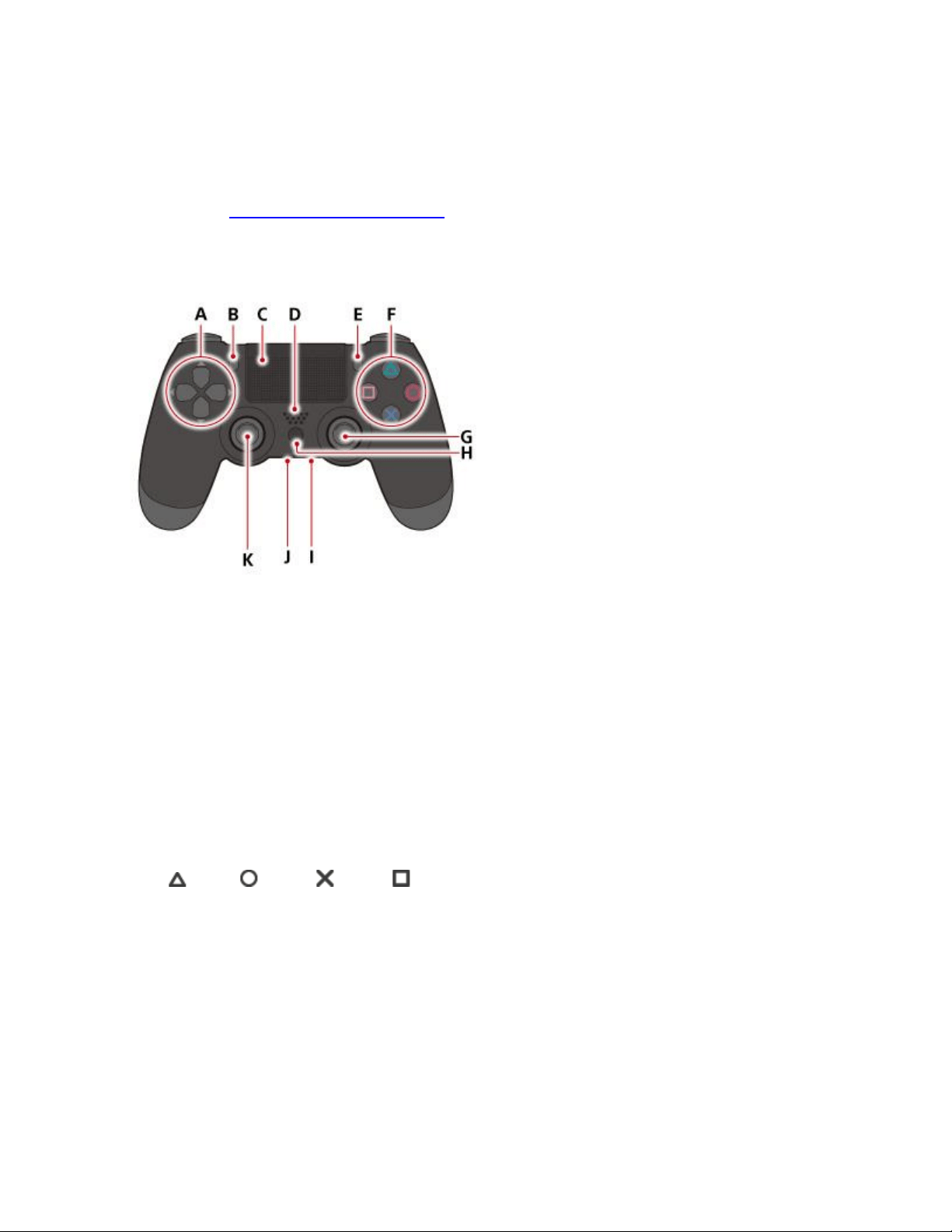
Front
A )
Directional buttons
B )
SHARE button
C )
Touch pad/Touch pad button
Press the touch pad to use the touch pad button.
D )
Speaker
E )
OPTIONS button
F )
button/ button/ button/ button
G )
Right stick/R3 button
Press down on the stick to use it as the R3 button.
H )
PS button
I )
Stereo headset jack
J )
Extension port
K )
Left stick/L3 button
Press down on the stick to use it as the L3 button.
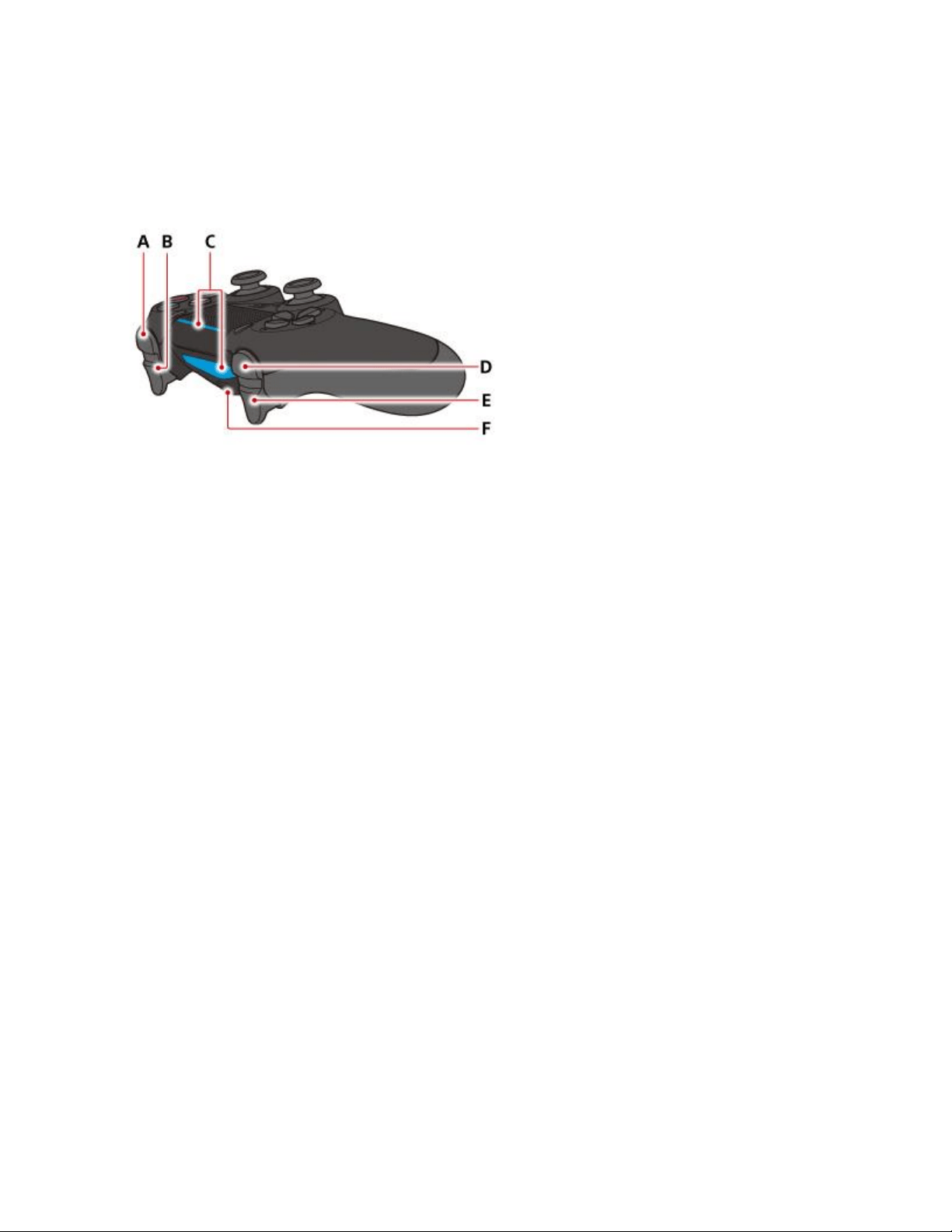
Top
A )
R1 button
B )
R2 button
C )
Light bar
The light bar on the touch pad does not glow on the CUH-ZCT1 series.
D )
L1 button
E )
L2 button
F )
USB port
Mono headset
Plug the mono headset into the stereo headset jack on the controller.
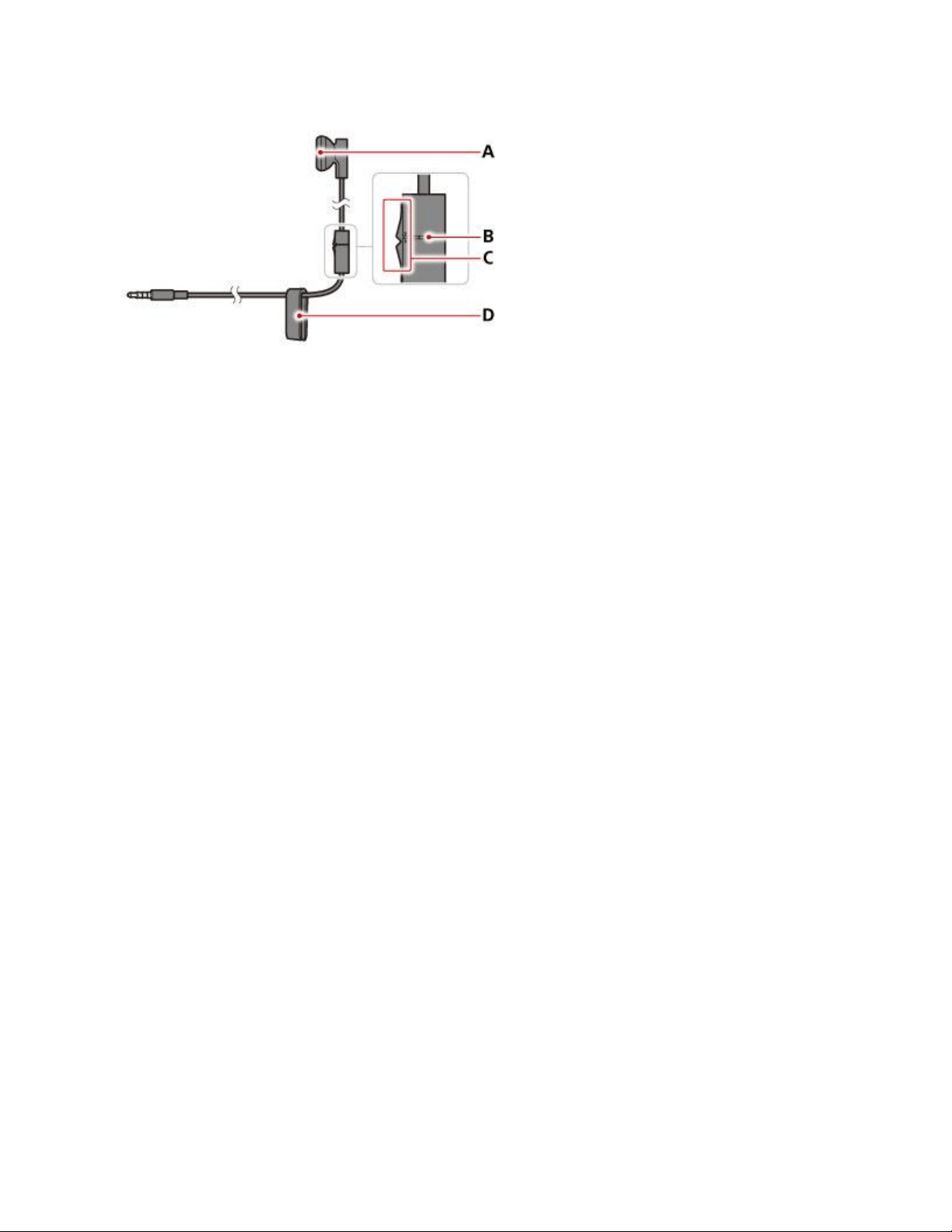
A )
Earpiece
B )
Microphone
C )
MIC switch
D )
Clip
When you're using the microphone, you should attach the clip to your clothing.
PlayStation®Camera
Use the PlayStation®Camera to play camera-enabled games. You can also log in to your PS4™
system using face recognition.
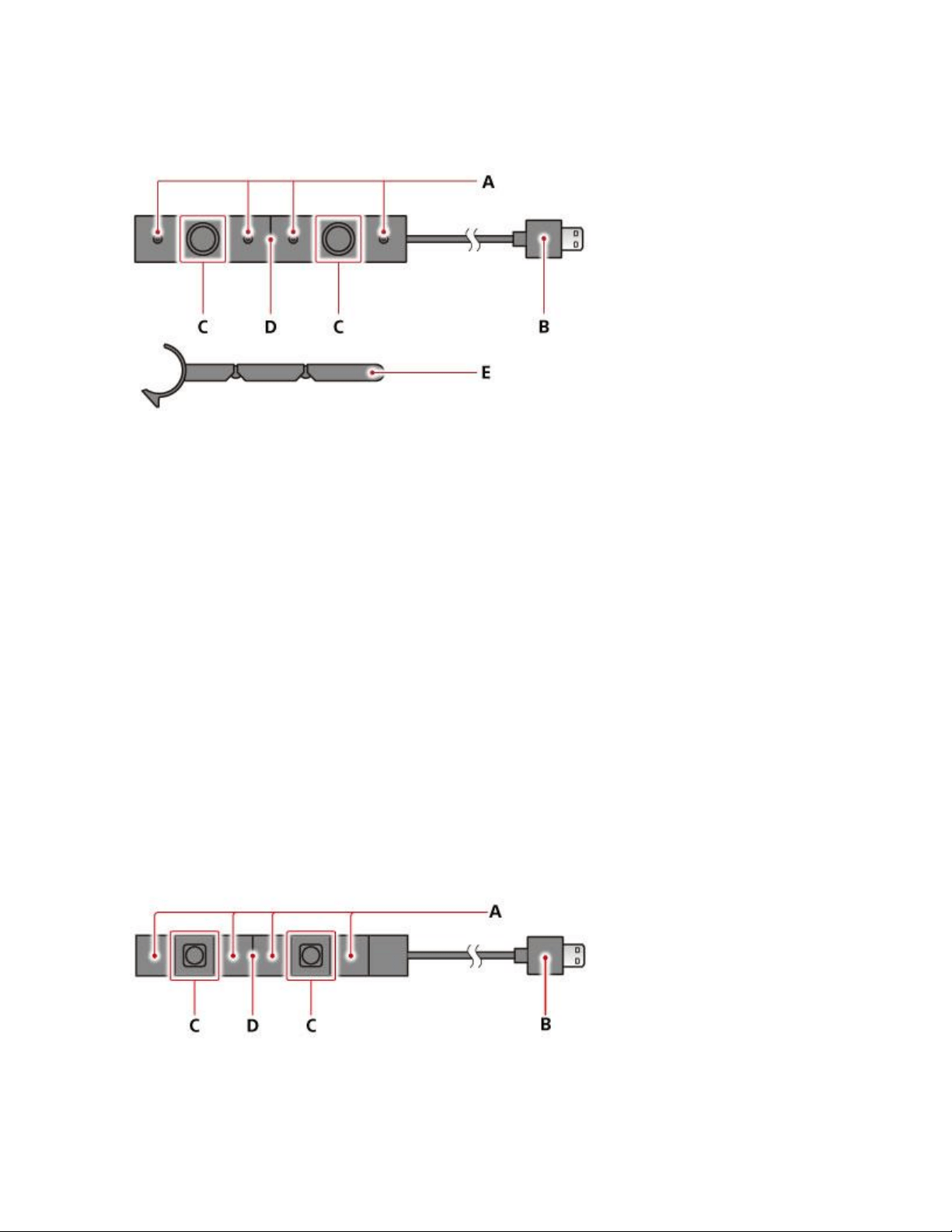
CUH-ZEY2 series
A )
Microphone array
B )
AUX connector
C )
Dual lenses
D )
Status indicator
E )
Stand
CUH-ZEY1 series
A )
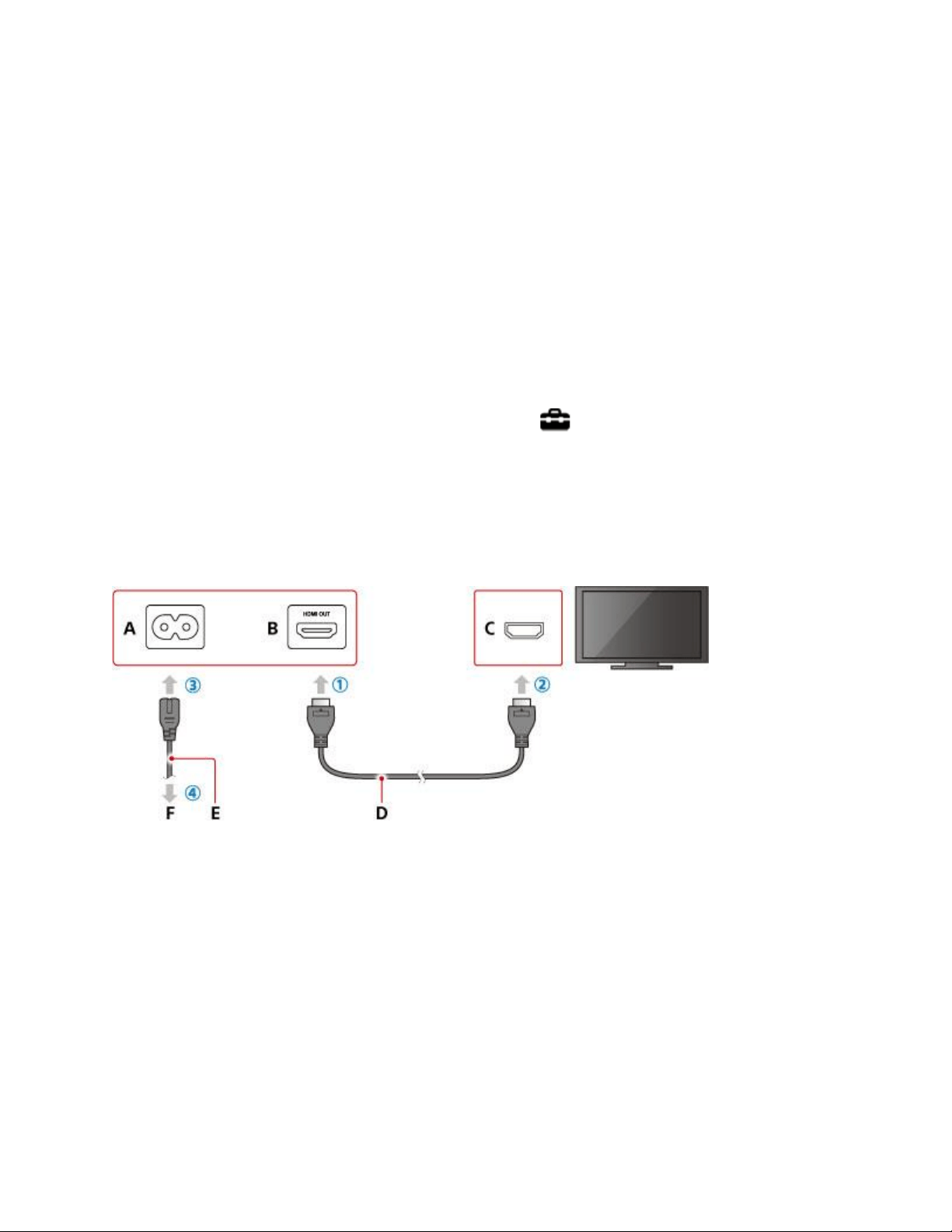
Microphone array
B )
AUX connector
C )
Dual lenses
D )
Status indicator
The camera might not be included with your system, depending on country, region, and model.
Connect and install the camera as described in the instruction manual for the camera.
To configure camera and microphone settings, select (Settings) > [Devices] > [PlayStation
Camera].
Connecting and installing
Connect items in order from ① to ④.
A )
AC IN connector (PS4™ system)
Connector shape varies depending on your PS4™ system.
B )
HDMI OUT port (PS4™ system)
C )
HDMI input port (TV)
D )
HDMI cable
E )
AC power cord
Connector shape varies depending on your PS4™ system.
F )
To an electrical outlet
When you're going to use your PS4™ system in the vertical position, attach the vertical stand
(sold separately).
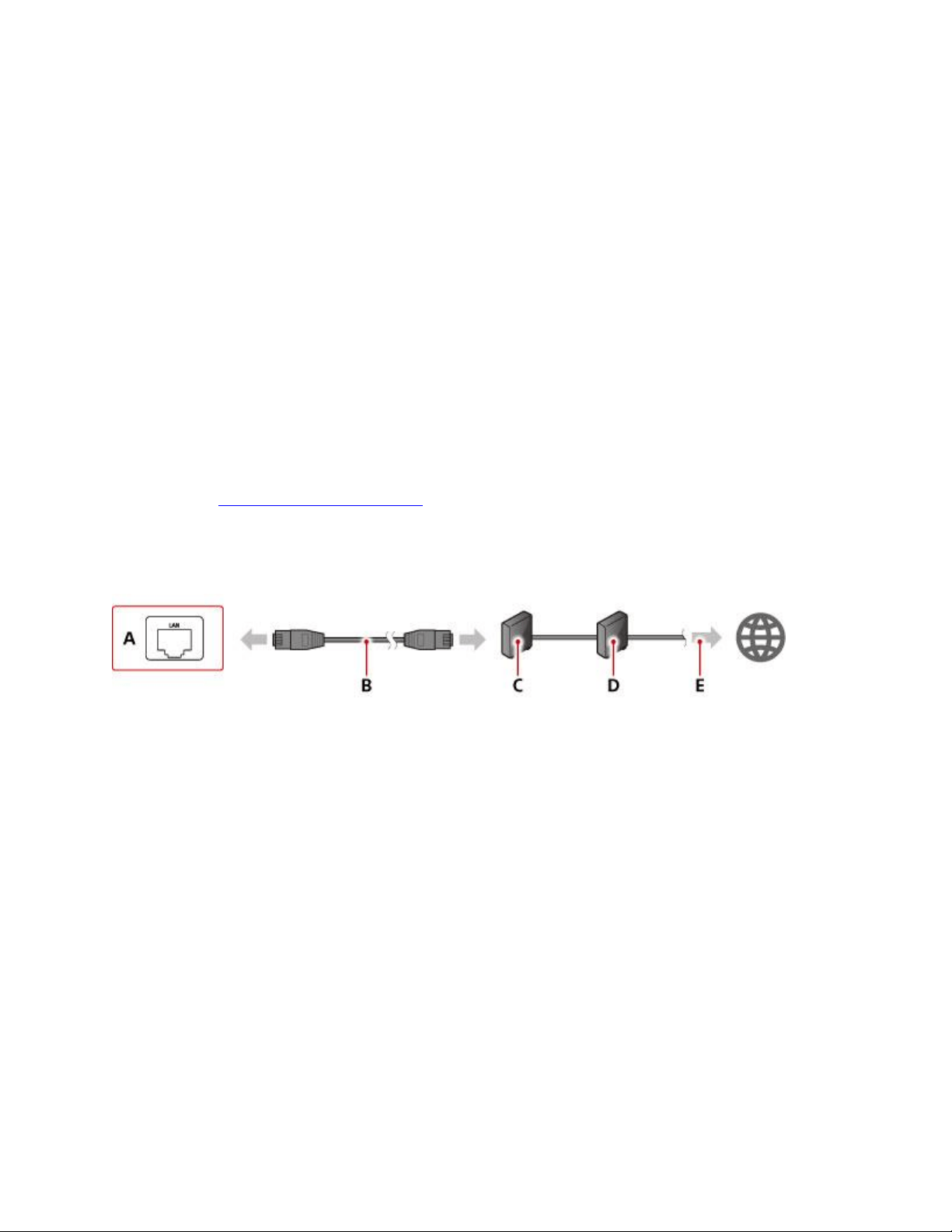
Connecting to the Internet
You can use either Wi-Fi or a LAN (Ethernet) cable to connect your PS4™ system to the
Internet. See "Set Up Internet Connection" to set up the connection.
Make sure you have a LAN cable when you don’t plan to use Wi-Fi.
Connection example:
A )
LAN port (PS4™ system)
B )
LAN cable
C )
Router
D )
Internet connectivity device such as a modem
E )
To the Internet
Devices and connection methods required for a network connection vary depending on how your
network is set up. Be sure to also refer to the instructions supplied with your network devices.
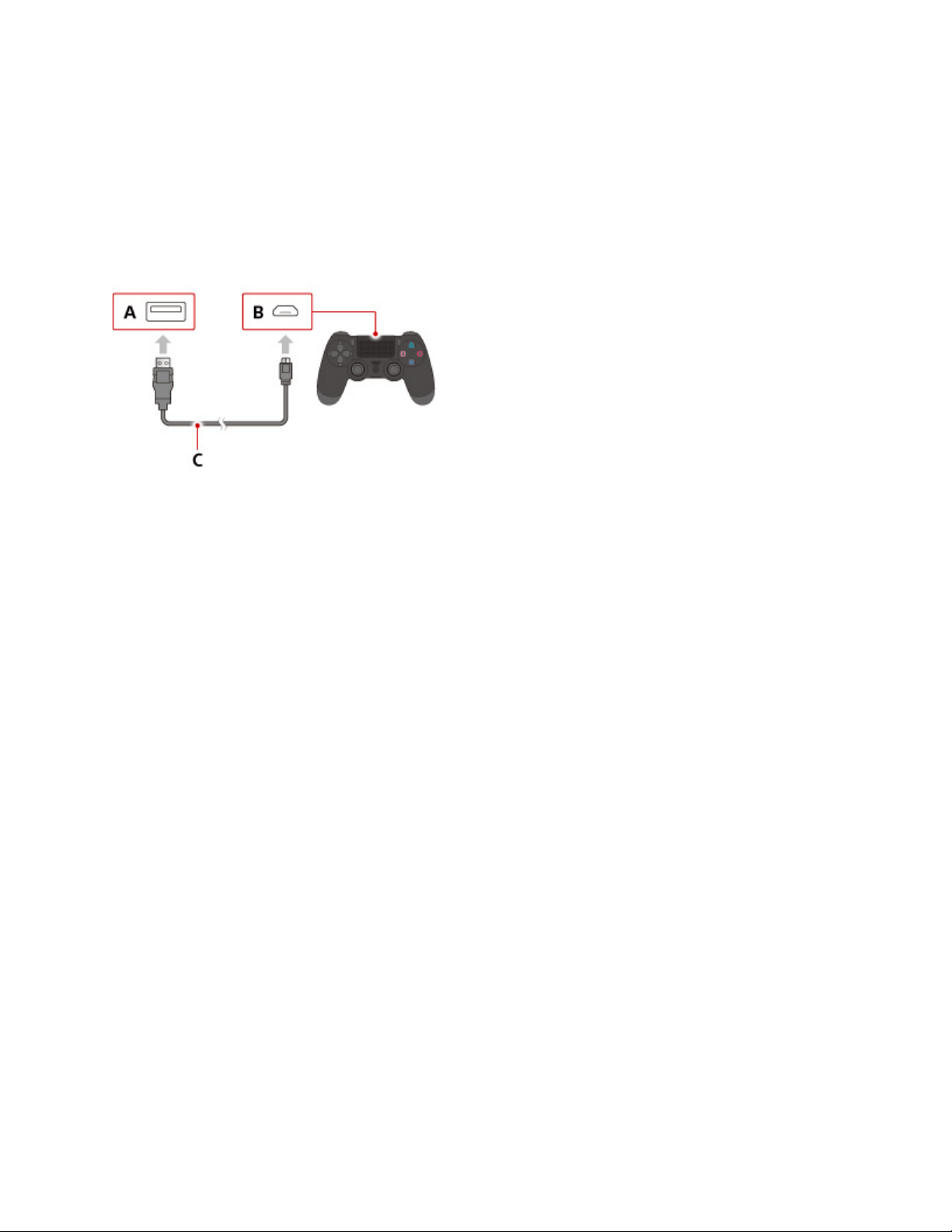
Connecting the controller
Connect the controller with a USB cable to pair it with your system.
A )
USB port (PS4™ system)
B )
USB port (controller)
C )
USB cable
Turning your PS4™ system on and off
Turning on your system
You can turn on your PS4™ system in either of the following ways.
Press the power button.
Press the PS button on a paired controller.
The power indicator blinks blue and then turns white to let you know your system is on.
Turning off your system
Notice

Disconnect the AC power cord from the electrical outlet only when the power indicator is off. If
you disconnect it while the power indicator is lit or blinking, data might be lost or corrupted, and
you might damage your system.
Putting your system in rest mode
When your PS4™ system is in rest mode, it keeps operating, but at a lower power consumption.
You can set the system to download files and charge a controller while it's in rest mode.
You can put your PS4™ system in rest mode using any of these methods.
Select (Power) from the function screen, and then select [Enter Rest Mode].
Select [Power] > [Enter Rest Mode] on the quick menu.
Press and hold the power button until the system beeps.
When your PS4™ system enters rest mode, the display darkens. The power indicator blinks
white, and then turns orange.
To exit rest mode, turn on your system.
To put your system in rest mode, you must select the checkboxes for the options in
(Settings) > [Power Save Settings] > [Set Features Available in Rest Mode].
If [Enter Rest Mode] does not appear, select [Power Options] > [Enter Rest Mode].
When an upload or download starts or finishes, the power indicator blinks orange.
Turning off the power completely
You can turn off your PS4™ system in any of these ways.
Select (Power) from the function screen, and then select [Turn Off PS4].
Select [Power] > [Turn Off PS4] on the quick menu.
Press and hold the power button for at least 7 seconds (until the system beeps twice).
When you turn off your system, the display darkens, the power indicator blinks white, and then
turns off.
If [Turn Off PS4] does not appear, select [Power Options] > [Turn Off PS4].
With the default settings, your PS4™ system will automatically enter rest mode or turn off when
it hasn't been used for a certain period of time. If an application is active, such as when a video
is playing, the system might not automatically enter rest mode or turn off. To change the
setting, select (Settings) > [Power Save Settings] > [Set Time Until PS4 Turns Off] from the
function screen, and then select [Media Playback] or [General (Applications)].
When you turn off your system or put your system in rest mode, all users are logged out.