1.Product Introduction and Application Scope
Working Voltage
operating current
quiescent current
Continuous running time
Input voltage/current
Charging time
transmission distance
battery capacity
standby time
2.Product Parameters
DC3.7V
<140mA
<20uA
> 8H
DC5V / 550mA
About 2 hours
≥10M
1000mAh
90 days after fully charged
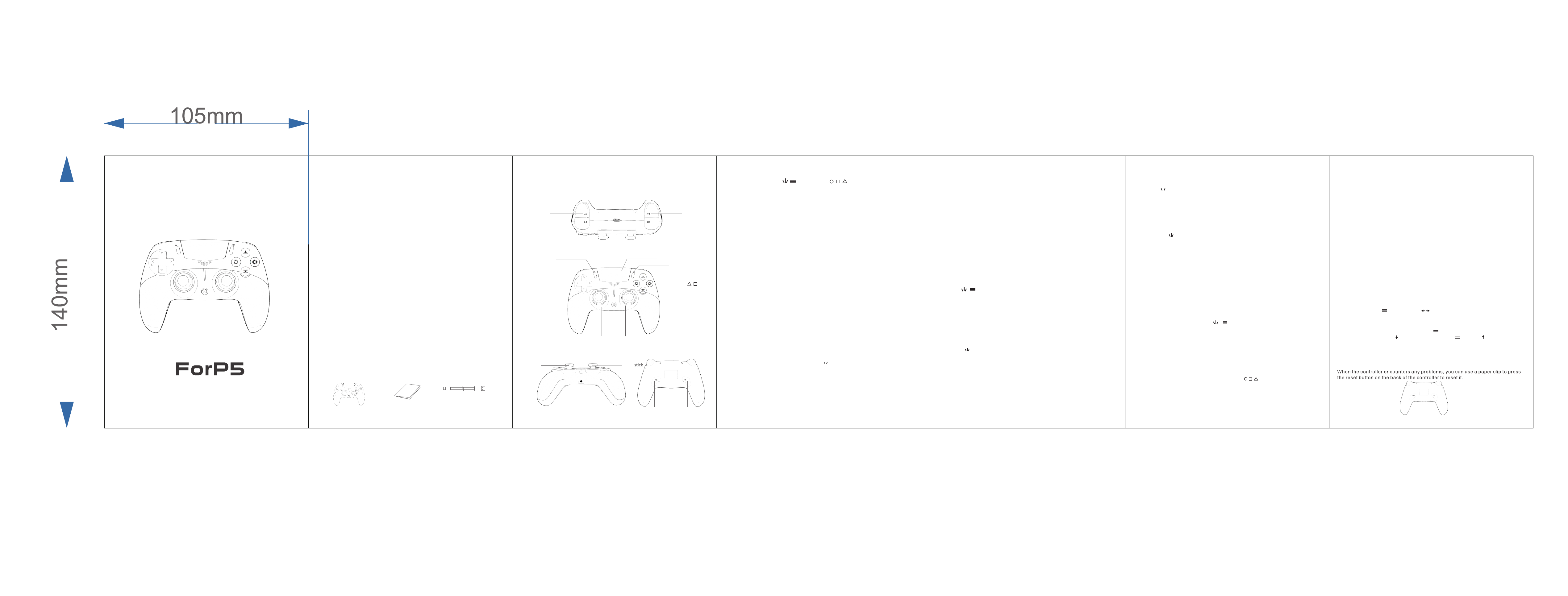
3.Packaging List
Game controller X1 Manual X1 Type-C USB cable X1
Standard buttons: Home, , , ↑, ↓, ←, →, x, , , , L1,L2,L3, R1,
R2,R3 ,TOUCH, Programming keys M1/M2;
1. The controller supports any software version of the PS5 host;
2. Bluetooth ;
3. The online distance of the controller can be controlled within 10M;
4. Equipped with 3D acceleration sensor and gyroscope sensor functions, forming
a 6-axis sensor function;
5. Equipped with RGB LED color channel indicators for easy differentiation of
different users and roles;
6. The Bluetooth connection method is consistent with the original controller method;
7. Supports USB lithium battery charging;
8. Supports 3.5mm TRRS stereo jack to connect headphones and microphone;
9. Support dual point capacitive sensing touch panel;
10. Supports wired connection to the host and wired audio function;
11. Support speaker function;
◆ Using standard PS5 features, it can work on PC through driver, Windows 7 and
above, and Android 5.0 Drive free upper system
◆ This solution supports PC USB online upgrade of product programs, thereby
supporting the latest upgrade system of PS5 host Can there be a suburban shelter
Prevent the problem of product malfunction caused by upgrading the host system.
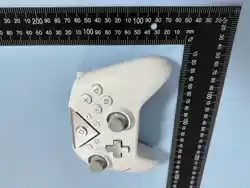
4.Controller concept
Type-C USB
R2 keyL2 key
L1 key
R1 key
left stick
Right stick
5.Feature Introduction
6.PS5 platform features
X/O/ / key
D-pad
Indicator light
R3 key
L3 key
(Press down the joystick)
Home key
OPTIONS key
7.PS5 host connection method
8. PC computer connection
10 Trigger and 3D joystick calibration.
9.Other device connections
12 RGB lighting effects.
SHARE key
Touch key (touchpad press down)
3.5mm headphone jack
M2 key
M1 key
11 Programming function.
◆ Programmable buttons: Cross buttons (↑, ↓, ←, →), X, , , ,L1 \ R1 \L2 \ R2 \ L3 \ R3,
Left joystick, right joystick; Support recording key press time
◆ Operation method:
1.Press the (Touch+M1) or (Touch+M2) keys simultaneously for 3 seconds, and the channel
13 Reset function.
Reset
Operation instructions
Wireless GamePad
(Press down the joystick)
□
◆ The controller is in PS5 working mode Any function in the game, including basic digital and
analog buttons, can be fully implemented on the PS5 console, As well as six axis SENSOR
function and LED color display function, it can also support specific games Vibration holding
function; This controller not only supports Bluetooth wireless function when connected to the
host, but also supports wired and wireless communication Host connection, users can play
games while charging, enjoying the game;
◆ Sensor verification
Users can manually calibrate the sensor if they notice any abnormal phenomena during use:
when the handle is connected,
Place the desktop horizontally, press and hold the key+ key for 3 seconds, and the channel
light on the handle will flash to indicate that the calibration is successful after stopping flashing.
◆ Color LED indicator
If the controller fails to communicate with the PS5 host within 15 seconds of searching, the
controller will enter sleep mode; In online mode, there are no buttons for about 10 minutes and
the 3D joystick does not move significantly, resulting in low labor consumption for the joystick
Status; ---The sleep time without operation can be set on the host. When shutting down and
charging, it will display in the form of a breathing light, The color is orange, and the lights turn
off when filled.
1.When the controller has not been connected to the current PS5 host or has been connected
to other hosts, it needs to be connected to the current host When connecting, first use a USB
cable to establish wired communication with the PS5 host. Automatic program during
communication process Perform code matching, press the Home button, and the controller
can be wirelessly connected via Bluetooth.
2.When connecting to USB, press the Home button and the LED light will display a constant
color, indicating that the host is connected
3. A typical PS host supports multiple Bluetooth devices and wired connections to the host,
and the controller is perfect Support PS5/PS4 series games
4. When different controllers are connected to the host, the LED lights display different colors
to distinguish different users; PS5: (1P: Blue 2P: Red 3P: Green 4P: Pink)
1. Connect the controller to the computer using a USB cable, and the computer will
automatically install drivers. The controller supports PS5 wired audio There are two modes:
frequency and X-input. After USB wired connection, it defaults to PS5 wired audio, which can
be long pressed + Press the key for 3 seconds to switch to X-input mode;
◆ Wired connection
2. When the controller is turned off, first press and hold the SHARE key, then press the Home
key combination ( + Home), and hold for 3 seconds, The indicator light flashes and the
handle enters pairing mode. Release the button at this time;
2. PC display name:
3. If the device name "DualSines Wireless Controller" appears in the Bluetooth search list,
click on it Connect the devices; After a successful connection, the indicator light on the
controller stays on, indicating that the controller has been successfully connected. At this
point, the controller It can be used on the computer now.
PS5 wired: DualSines Wireless Controller - blue light display X-input: Xbox 360 Controller for
Windows; ---The light displays green
◆ Bluetooth connection
1. When using a laptop or desktop computer, you need to first turn on Bluetooth to search for
the device interface (desktop computers without Bluetooth) Need a Bluetooth receiver);
◆ When the controller is turned off, first press and hold the SHARE key, then press the Home
key combination ( +Home), and hold for 3 seconds The indicator light flashes and the handle
enters pairing mode. Release the button at this time; Search for the name "DualSines" on the
platform Bluetooth
The light flashes and the handle enters pairing mode. Release the button at this time; Search
for the name "DualSines" on the platform Bluetooth For the device of Wireless Controller, click
to connect. After successful connection, the indicator light on the controller will remain on.
2. Connect the controller to Android and Steam Deck devices:
When the controller is turned off, first press and hold the SHARE key, then press the Home key
combination ( +Home), and hold for 3 seconds to indicate
◆ The controller supports connecting Apple devices to iOS 13.0 and above systems; The MAC
platform supports wired connections and supports Wired audio function.
Android, iOS, MAC, Steam Deck can connect devices
1. Connect the controller to IOS and MAC devices:
◆ Note: A type C to USB adapter cable is required for wired connection between MAC and
Steam Deck
For the device of Wireless Controller, click to connect. After successful connection, the
indicator light on the controller will remain on.
◆ Steam Deck supports wired connections and supports wired audio functionality (connecting
to SteamDeck for PC) Status, switchable mode)
If there is an abnormality in the trigger or joystick during use, calibration is required: when the
handle is in the off state, press and hold + Insert USB or press the Home button to power
on,the channel light will flash. At this time, press the trigger L2/R2 button 2-3 times normally and
shake left Press and hold the X key for 1 second to confirm. The channel light will remain on
(wired) or enter slow flashing (Bluetooth) mode, At this point, calibration is successful; --Shut
down and save
Motor vibration prompt indicates successful button programming, and the selected
programming trigger key (M1/M2) is the macro key.
light will flash slowly, indicating that the joystick has been activated Enter programming mode,
motor vibration prompt;
When mapping functions, there are functions available when pressed simultaneously. If M1/M2
is programmed with multiple buttons (macros), press the M1/M2 button When triggering macro
functions, pressing the M1/M2 keys can interrupt each other's macro functions. After recording
the programming, long press the back button to trigger the AUTO semi-automatic cycle;
(Multiple macro programming has this effect)
◆ Macro programming function clearing:
Record the time of pressing and lifting the buttons, and after recording, press any one of the
M1/M2 buttons on the back. The channel light will remain on for a long time,
2. Press any action key you want to program (map), press the key and the channel light will
flash rapidly, release it and flash slowly, remember
Simultaneously press the (Touch+M1) or (Touch+M2) keys for 5 seconds, the channel light will
change from flashing to long on, and the motor will vibrate Dynamic prompt, M1/M2 will now
return to default null value;
3.After entering 24 times, pressing the channel light again will no longer flash and prompt the
user that the recording is full (i.e. macro programming) Up to 24 key values can be recorded;
After entering macro editing mode, if no button is pressed for 5 minutes, the previous settings
will be maintained and the editing mode will automatically exit;
4. When entering a separate button as a mapping, M1/M2 will trigger the mapping button after
successful setting. M1 and M2 are both
Note: At the factory, the programming key has no function and needs to be set by the user. The
programming key has a memory function
2. Mode switching: key+cross key adjustment, rainbow gradient → color
changing breathing → full red → full orange → full yellow → full green → Full
green → Full blue → Full purple → Full white → Full off → Colorful gradient)
controller vibration prompt.
Festival; Default brightness of 80%, controller vibration prompt.
1. The left and right joysticks can be controlled with RGB startup color gradient,
(light effect with memory mode)
3. Light brightness adjustment: Press the key and cross key to adjust the
current light intensity by sections, and press the key and key to adjust
The current lighting is decreasing (with 6 levels of brightness, 20% brightness, 0-
20-40-60-80-100). Memory adjustment
◆ This product supports both wired and Bluetooth connections with
lowlatency and stable performance
◆ Compatible with PS5, Windows (PC), Android, iOS, Mac, and Steam
Deckplatforms.
◆ Has programming functionality
◆ Supports 3.5mm headphones for stereo audio output and
voicecommunication.
◆ Equipped with RGB lighting effects with 9 adjustable colors.

FCC Warnning:
This equipment has been tested and found to comply with the limits for a Class B digital device,
pursuant to part 15 of the FCC Rules. These limits are designed to provide
reasonable
protection against harmful interference in a residential installation. This equipment generates,
uses and can radiate radio
frequency
energy
and,
if
not
installed
and
used
in
accordance
with
the
instructions,
may cause
harmful
interference
to
radio
communications.
However,
there
is
no
guarantee
that interference
will
not
occur
in
a
particular
installation.
If
this
equipment
does
cause
harmful interference to radio or television reception, which can be
determined by turning the equipment off
and
on,
the
user
is
encouraged
to
try
to
correct
the interference
by
one
or
more
of
the following measures:
•
Reorient or relocate the receiving antenna.
•
Increase the separation between the equipment and receiver.
•
Connect the equipment into an outlet on a circuit different from that to which the receiver is
connected.
• Consult the dealer or an experienced radio/TV technician for help.
Caution:
Any
changes
or
modifications
to
this
device
not
explicitly
approved
by
manufacturer
could void your authority to operate this equipment.
This
device
complies
with
part
15
of
the
FCC
Rules.
Operation
is
subject
to
the
following
two
conditions:
(1)This
device
may
not
cause
harmful
interference,
and
(2)
this
device
must
accept
any
interference received, including interference that may cause undesired operation.
This
equipment
complies
with
FCC
radiation
exposure
limits
set
forth
for
an
uncontrolled
environment.
This
equipment
should
be
installed
and
operated
with
minimum
distance
0cm
between the radiator and your body.