

Philips
Digital
PhotoFrame
Copyright
No
part
of
this
publication
may
be
reproduced,
transmitted,
transcribed,
stored
in
a
retrieval
system
or
translated
into
any
language
or
computer
language,
in
any
form
or
by
any
means,
electronic,
mechanical,
magnetic,
optical,
chemical,
manual
or
otherwise,
without
the
prior
written
permission
of
the
company.
Disclaimer
The
company
makes
no
representations
or
warranties,
either
expressed
or
implied,
with
respect
to
the
contents
hereof
and
specifically
disclaims
any
warranties,
merchantability
or
fitness
for
any
particular
purpose.
Further,
the
company
reserves
the
right
to
revise
this
publication
and
to
make
changes
from
time
to
time
in
the
contents
hereof
without
obligation
to
notify
any
person
of
such
revision
or
changes.
Safety
instructions
Before
operating
the
PhotoFrame,
carefully
read
and
follow
the
instructions
below.
•
Retain
this
User
Manual
for
future
reference.
•
Read
the
safety
and
operating
instructions
carefully
before
using
the
product.
All
warnings
on
the
product
and
in
the
operating
instructions
should
be
observed.
•
Do
not
place
this
product
under
direct
sunlight
or
near
heat
sources,
such
as
in
a
closed
car
under
sunlight
or
near
a
stove.
The
outer
casing
of
this
product
may
become
deformed
and
the
sophisticated
sensors
inside
may
become
damaged
due
to
excessive
heat.
•
Do
not
use
this
product
near
water,
in
the
rain
or
allow
any
liquid
to
get
inside
this
product.
Water
and
moisture
may
cause
short-circuit
to
the
electronic
components
and
lead
to
malfunctions.
EN
-
i

Philips
Digital
PhotoFrame
•
Do
not
use
this
product
near
strong
electromagnetic
sources,
such
as
a
microwave
oven.
The
electromagnetic
interference
may
cause
this
product
to
malfunction.
•
Do
not
drop
or
apply
shock/vibration
to
this
product.
Strong
impacts
may
damage
the
components
inside.
•
Do
not
insert
objects
other
than
compatible
memory
cards
into
the
memory
card
slots
of
this
product.
The
metal
contacts inside
the
slots
can
easily
become
damaged
by
foreign
objects.
•
Do
not
use
an
unknown
power
adapter
other
than
the
one
supplied
with
the
PhotoFrame.
Connecting
this
product
to
an
unknown
power
adapter
is
very
dangerous
and
may
lead
to
fire
or
explosion.
•
Do
not
cut,
bend,
modify,
place
heavy
objects,
or
step
on
the
power
adapter
cord.
Otherwise
the
external
insulation
may
be
damaged
and
result
in
short-circuit
or
fire.
•
If
there
are
strange
odors
or
heat
emitting
from
this
product
or
any
signs
of
malfunction,
disconnect
the
PhotoFrame
from
the
power
immediately
and
contact
your
dealer
for
inspection
or
service.
•
Use
a
smooth,
soft
cloth
to
clean
the
surface
of
the
screen.
Do
not
use
liquid
cleaners
or
glass
cleaners.
•
If
a
foreign
substance
or
water
gets
in
this
product,
turn
the
power
off
immediately
and
disconnect
the
power
adapter.
Next,
remove
the
foreign
substance
or
water,
and
then
send
the
product
to
your
nearest
service
center.
•
Do
not
attempt
to
disassemble
or
modify
this
product.
There
are
no
user
serviceable
parts
inside
this
product,
and
any
unauthorized
modifications
will
void
the
warranty.
•
Although
the
LCD
panel
is
made
with
high-precision
technology
and
has
effective
pixels
of
99.99%
or
more,
black
dots
or
bright
points
of
light
(red,
blue
or
green)
may
appear
constantly
on
the
LCD
panel.
This
is
a
structural
property
of
the
LCD
panel
and
is
not
a
malfunction.
EN
-
ii

Philips
Digital
PhotoFrame
Table
of
contents
Key
feat
ur
es
.
.
.
.
.
.
.
.
.
.
.
.
.
.
.
.
.
.
.
.
.
.
.
.
.
.
.
.
.
.
.
.
.
.
.
.
.
.
.
1
Wh
at
’
s
in
t
h
e
bo
x
.
.
.
.
.
.
.
.
.
.
.
.
.
.
.
.
.
.
.
.
.
.
.
.
.
.
.
.
.
.
.
.
.
.
.
2
Ov
erv
i
e
w
.
.
.
.
.
.
.
.
.
.
.
.
.
.
.
.
.
.
.
.
.
.
.
.
.
.
.
.
.
.
.
.
.
.
.
.
.
.
.
.
.
.
3
Right
view.
.
.
.
.
.
.
.
.
.
.
.
.
.
.
.
.
.
.
.
.
.
.
.
.
.
.
.
.
.
.
.
.
.
.
.
.
.
.
.
3
Rear
view
.
.
.
.
.
.
.
.
.
.
.
.
.
.
.
.
.
.
.
.
.
.
.
.
.
.
.
.
.
.
.
.
.
.
.
.
.
.
.
.
5
Op
erat
ing
t
h
e
Pho
t
oF
rame
.
.
.
.
.
.
.
.
.
.
.
.
.
.
.
.
.
.
.
.
.
.
.
.
.
.
.
6
Using
the
control
buttons
.
.
.
.
.
.
.
.
.
.
.
.
.
.
.
.
.
.
.
.
.
.
.
.
.
.
.
.
7
Using
the
remote
control
(These
models
only:
SPF3480/G7,
SPF3480X/G7,
SPF3400/G7
and
SPF3400C/G7)
.
.
.
.
.
.
.
.
.
8
Replacing
the
remote
control
battery
.
.
.
.
.
.
.
.
.
.
.
.
.
.
.
.
10
Getting
started
.
.
.
.
.
.
.
.
.
.
.
.
.
.
.
.
.
.
.
.
.
.
.
.
.
.
.
.
.
.
.
.
.
.
.
.
12
Step
1:
Using
the
adjustable
back
stand
.
.
.
.
.
.
.
.
.
.
.
.
.
.
.
12
Step
2:
Connecting
to
power
.
.
.
.
.
.
.
.
.
.
.
.
.
.
.
.
.
.
.
.
.
.
.
.
14
Step
3:
First
usage
.
.
.
.
.
.
.
.
.
.
.
.
.
.
.
.
.
.
.
.
.
.
.
.
.
.
.
.
.
.
.
.
15
Step
4:
Basic
setup
.
.
.
.
.
.
.
.
.
.
.
.
.
.
.
.
.
.
.
.
.
.
.
.
.
.
.
.
.
.
.
15
Selecting
a
language
.
.
.
.
.
.
.
.
.
.
.
.
.
.
.
.
.
.
.
.
.
.
.
.
.
.
.
.
15
Setting
the
date
and
time
.
.
.
.
.
.
.
.
.
.
.
.
.
.
.
.
.
.
.
.
.
.
.
.
.
16
Step
5:
Inserting
a
memory
card/USB
flash
drive
.
.
.
.
.
.
.
.
17
Compatible
memory
card
formats
.
.
.
.
.
.
.
.
.
.
.
.
.
.
.
.
.
.
18
Step
6:
Copying
photos
to
internal
memory
.
.
.
.
.
.
.
.
.
.
.
.
.
19
Step
7:
Connecting
the
PhotoFrame
to
a
computer
.
.
.
.
.
.
.
20
Step
8:
Replacing
the
paper
mat
.
.
.
.
.
.
.
.
.
.
.
.
.
.
.
.
.
.
.
.
.
21
Using
the
main
menu
.
.
.
.
.
.
.
.
.
.
.
.
.
.
.
.
.
.
.
.
.
.
.
.
.
.
.
.
.
.
.
23
Managing
photos
.
.
.
.
.
.
.
.
.
.
.
.
.
.
.
.
.
.
.
.
.
.
.
.
.
.
.
.
.
.
.
.
.
.
25
Manually
copying
photos
to
the
internal
memory
.
.
.
.
.
.
.
.
.
25
Tagging
photos
to
an
album.
.
.
.
.
.
.
.
.
.
.
.
.
.
.
.
.
.
.
.
.
.
.
.
.
27
Removing
photos
from
an
album
.
.
.
.
.
.
.
.
.
.
.
.
.
.
.
.
.
.
.
30
Managing
photos
by
using
the
TIMELINE
album
.
.
.
.
.
.
31
Creating
a
new
album
.
.
.
.
.
.
.
.
.
.
.
.
.
.
.
.
.
.
.
.
.
.
.
.
.
.
.
.
.
32
Modifying
an
album
.
.
.
.
.
.
.
.
.
.
.
.
.
.
.
.
.
.
.
.
.
.
.
.
.
.
.
.
.
.
.
33
Deleting
an
album
.
.
.
.
.
.
.
.
.
.
.
.
.
.
.
.
.
.
.
.
.
.
.
.
.
.
.
.
.
.
.
.
34
Ta ble
of
contents
EN
-
iii

Philips
Digital
PhotoFrame
Using
other
options
in
the
PHOTO
ALBUMS
menu
.
.
.
.
.
.
.
34
Deleting
photos.
.
.
.
.
.
.
.
.
.
.
.
.
.
.
.
.
.
.
.
.
.
.
.
.
.
.
.
.
.
.
.
.
34
Rotating
photos
.
.
.
.
.
.
.
.
.
.
.
.
.
.
.
.
.
.
.
.
.
.
.
.
.
.
.
.
.
.
.
.
35
Applying
photo
effects
.
.
.
.
.
.
.
.
.
.
.
.
.
.
.
.
.
.
.
.
.
.
.
.
.
.
.
36
Vi
e
wing
photo
s
.
.
.
.
.
.
.
.
.
.
.
.
.
.
.
.
.
.
.
.
.
.
.
.
.
.
.
.
.
.
.
.
.
.
.
.
37
Running
a
slideshow
by
using
the
TIMELINE
album
.
.
.
.
.
.
39
Using
Smart
Energ
y
Saver™
.
.
.
.
.
.
.
.
.
.
.
.
.
.
.
.
.
.
.
.
.
.
.
.
.
40
Using
CLOCK
(EZ
Access
button)
.
.
.
.
.
.
.
.
.
.
.
.
.
.
.
.
.
.
.
.
.
42
Selecting
a
clock
skin
.
.
.
.
.
.
.
.
.
.
.
.
.
.
.
.
.
.
.
.
.
.
.
.
.
.
.
.
.
.
42
Switching
between
Clock
view
and
Slideshow
view
.
.
.
.
.
.
.
43
Using
SCRAPBOOK
.
.
.
.
.
.
.
.
.
.
.
.
.
.
.
.
.
.
.
.
.
.
.
.
.
.
.
.
.
.
.
.
44
Using
SETTINGS
.
.
.
.
.
.
.
.
.
.
.
.
.
.
.
.
.
.
.
.
.
.
.
.
.
.
.
.
.
.
.
.
.
.
.
45
Date
and
Time
page
.
.
.
.
.
.
.
.
.
.
.
.
.
.
.
.
.
.
.
.
.
.
.
.
.
.
.
.
.
.
.
46
General
Settings
page
.
.
.
.
.
.
.
.
.
.
.
.
.
.
.
.
.
.
.
.
.
.
.
.
.
.
.
.
.
47
Information
page
.
.
.
.
.
.
.
.
.
.
.
.
.
.
.
.
.
.
.
.
.
.
.
.
.
.
.
.
.
.
.
.
.
.
48
Frequently
asked
questions
.
.
.
.
.
.
.
.
.
.
.
.
.
.
.
.
.
.
.
.
.
.
.
.
.
.
49
Regulation
and
compliance
.
.
.
.
.
.
.
.
.
.
.
.
.
.
.
.
.
.
.
.
.
.
.
.
.
.
51
Recycling
.
.
.
.
.
.
.
.
.
.
.
.
.
.
.
.
.
.
.
.
.
.
.
.
.
.
.
.
.
.
.
.
.
.
.
.
.
.
.
51
Appendix
.
.
.
.
.
.
.
.
.
.
.
.
.
.
.
.
.
.
.
.
.
.
.
.
.
.
.
.
.
.
.
.
.
.
.
.
.
.
.
.
.
52
Specifications
.
.
.
.
.
.
.
.
.
.
.
.
.
.
.
.
.
.
.
.
.
.
.
.
.
.
.
.
.
.
.
.
.
.
.
.
52
For
SPF3470X/G7,
SPF3480X/G7
and
SPF3400C/G7
only
.
.
.
.
.
.
.
.
.
.
.
.
.
.
.
.
.
.
.
.
.
.
.
.
.
.
.
.
.
.
.
.
.
.
.
.
.
.
.
.
.
.
52
For
SPF3470/G7,
SPF3480/G7
and
SPF3400/G7
only
.
.
54
List
of
compatible
memory
cards
.
.
.
.
.
.
.
.
.
.
.
.
.
.
.
.
.
.
.
.
.
56
EN
-
iv
Tab le
of
contents

Philips
Digital
PhotoFrame
Dear
Cu
st
o
mer:
Thank
you
for
bringing
our
Philips
Digital
PhotoFrame
into
your
home.
Now
you
will
be
able
to
view
your
growing
digital
picture
library
in
stunning
clarity
and
share
great
memories
with
friends
and
family.
To
get
the
most
out
of
your
new
Philips
product,
please
read
through
this
entire
User
Manual
before
use.
Key
features
This
PhotoFrame
is
equipped
with
the
following
features:
•
Clear
and
bright
display.
•
Enables
you
to
display
photos
that
are
stored
in
the
internal
memory,
a
memory
card
or
a
USB
flash
drive.
•
Allows
you
to
select
a
preferred
power-saving
option
for
the
PhotoFrame
using
the
Smart
Energy
Saver
™
feature.
•
Allows
you
to
use
albums
to
manage
and
sort
your
photos
easily.
•
Allows
you
to
display
photos
in
slideshow
using
various
kinds
of
templates
available
in
SCRAPBOOK.
•
Multi-language
On-Screen
Display
(OSD)
menus.
•
Clock
and
Calendar
functions.
EN
-
1
Philips
Digital
PhotoFrame
What’s
in
the
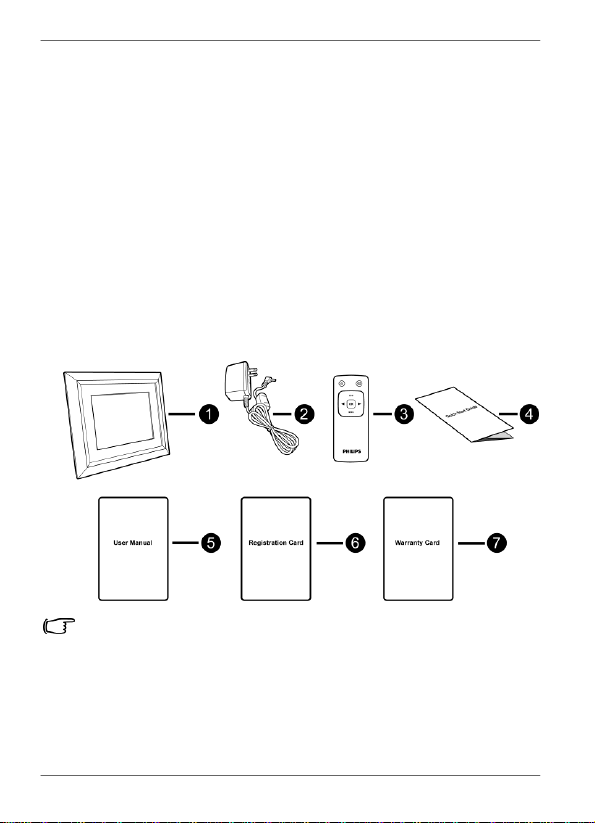
box
Carefully
open
the
packing
box
and
ensure
that
you
have
the
following
items.
1.
Digital
PhotoFrame
x
1
2.
AC
power
adapter
x
1
3.
Magnetic
remote
control
(with
CR2025
lithium
battery)
x
1
(These
models
only:
SPF3480/G7,
SPF3480X/G7,
SPF3400/
G7
and
SPF3400C/G7)
4.
Quick
Start
Guide
x
1
5.
User
Manual
x
1
6.
Registration
Card
x
1
7.
Warranty
Card
x
1
•
Actual
product
appearance
may
vary
from
the
illustrations
shown
in
this
User
Manual.
•
Available
accessories
may
vary
depending
on
the
area
where
you
purchased
the
PhotoFrame.
•
The
remote
control
is
not
included
in
the
SPF3470/G7
and
SPF3470X/G7
models.
EN
-
2
What’s
in
the
box
Philips
Digital
PhotoFrame
Overview
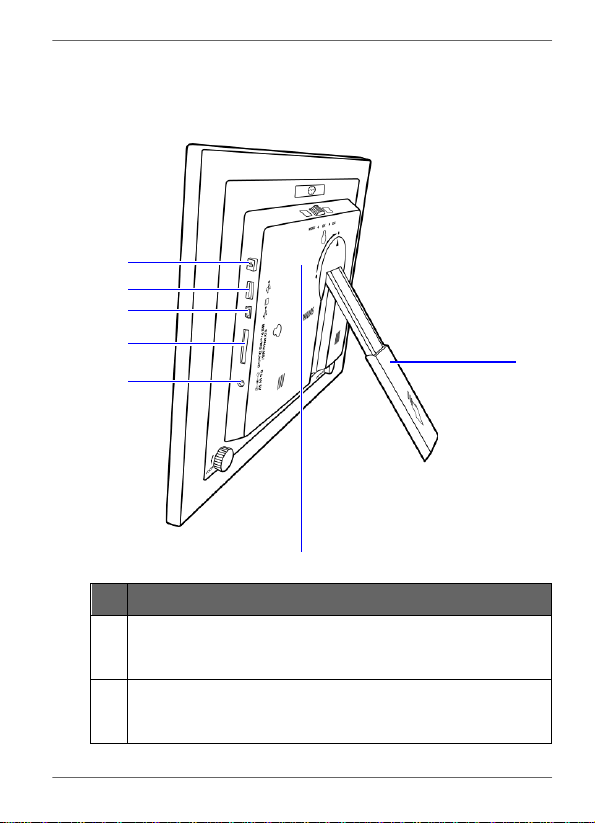
Right
view
2
3
4
5
1
6
7
No.
Description
1
Adjustable
back
stand
See
"Step
1:
Using
the
adjustable
back
stand"
on
page
12
for
details.
2
Power
button
Press
the
Power
button
to
turn
on/off
the
PhotoFrame.
See
"Step
2:
Connecting
to
power"
on
page
14
for
details.
Overview
EN
-
3

Philips
Digital
PhotoFrame
No.
Description
3
U
S
B
por
t
Allows
for
a
USB
flash
drive.
•
Play
back
photos
stored
in
the
inserted
drive.
•
Copy
photos
from
the
inserted
drive
to
the
PhotoFrame.
See
"Step
6:
Copying
photos
to
internal
memory"
on
page
19
for
details.
4
Mini
US
B
po
rt
Allows
you
to
connect
the
PhotoFrame
to
a
computer
to
manage
the
files
in
the
internal
memory
of
the
PhotoFrame.
See
"Step
7:
Connecting
the
PhotoFrame
to
a
computer"
on
page
20
for
details.
5
Memory
card
slot
Allows
for
an
SD
™
/SDHC
™
,
MultiMediaCard
™
(MMC),
Memory
Stick
™
(MS),
Memory
Stick
PRO
™
(MS
PRO),
Memory
Stick
Duo
™
(MS
Duo)
and
xD-Picture
Card
™
(xD)
memory
card.
•
Play
back
photos
stored
in
the
inserted
card.
•
Copy
photos
from
the
inserted
card
to
the
PhotoFrame.
See
"Step
6:
Copying
photos
to
internal
memory"
on
page
19
for
details.
6
Power
jack
Connect
one
end
of
the
AC
power
adapter
into
the
power
jack
and
the
other
end
into
a
power
outlet.
7
Remote
control
storage
(These
models
only:
SPF3480
/
G7,
SPF3480X/G7,
SPF3400/G7
and
SPF3400C/G7)
Magnetic
area
for
placing
remote
control.
EN
-
4
Overview
Philips
Digital
PhotoFrame
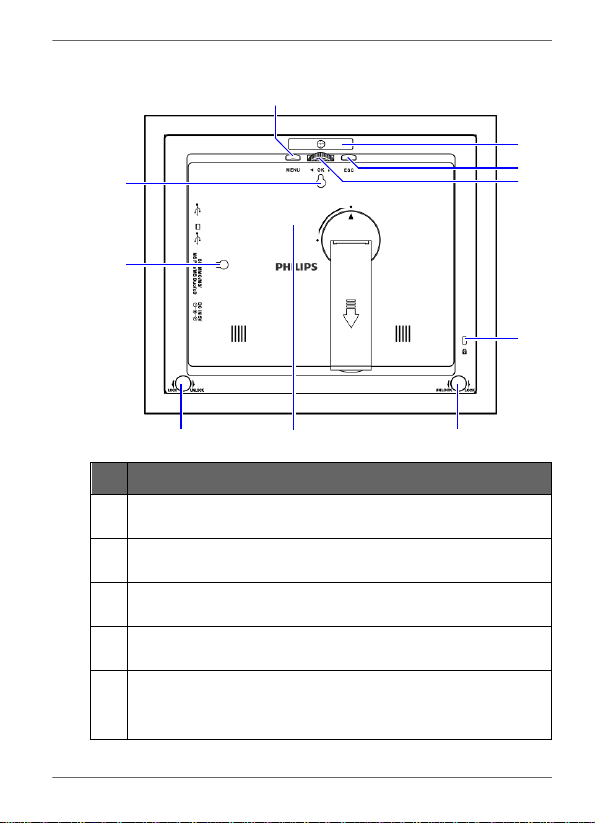
Rear
view
1
2
3
7
4
8
5
6
9
6
No.
Description
1
MENU
button
See
"Using
the
control
buttons"
on
page
7
for
details.
2
EZ
Access
button
See
"Using
the
control
buttons"
on
page
7
for
details.
3
ESC
button
(ESCAPE
button)
See
"Using
the
control
buttons"
on
page
7
for
details.
4
Scroll
wheel/OK
button
See
"Using
the
control
buttons"
on
page
7
for
details.
5
Kensington
®
security
slot
You
can
attach
an
anti-theft
Kensington
®
lock
and
cable
to
this
slot
to
help
prevent
possible
theft.
Overview
EN
-
5
Philips
Digital
PhotoFrame
No.
Description
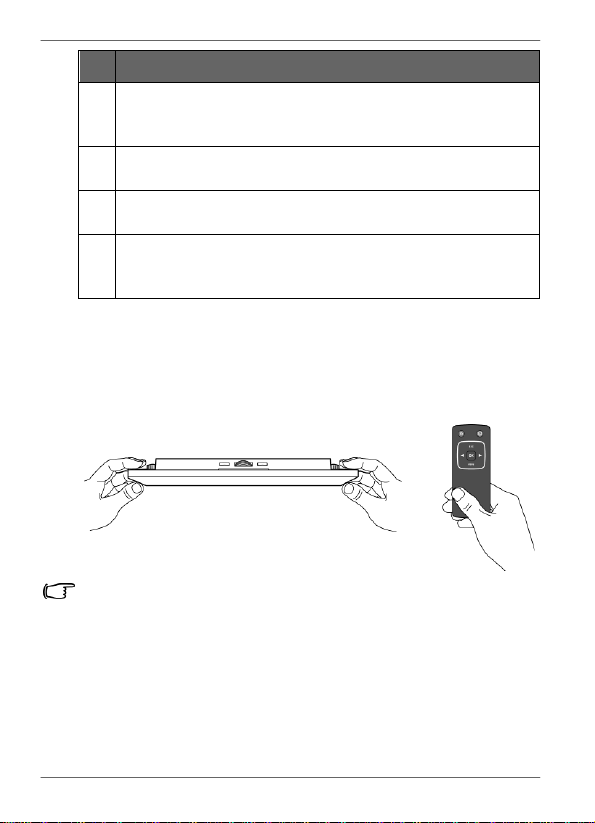
6
EZ
Lo
ck
System
You
can
use
the
EZ
Lock
Screws
to
lock
or
unlock
the
wooden
frame.
7
W
a
ll
moun
t
hol
e
(fo
r
l
a
ndscap
e
w
a
ll
moun
t
ing
)
Allows
you
to
hang
the
PhotoFrame
horizontally
on
a
wall.
8
W
a
ll
m
oun
t
hole
(f
o
r
por
tra
i
t
wall
m
ounting)
Allows
you
to
hang
the
PhotoFrame
vertically
on
a
wall.
9
Remote
control
storage
(These
models
only:
SPF3480
/
G7,
SPF3480X/G7,
SPF3400/G7
and
SPF3400C/G7)
Magnetic
area
for
placing
remote
control.
Operating
the
PhotoFrame
You
can
use
the
control
buttons
on
the
back
or
the
supplied
remote
control
to
operate
the
PhotoFrame.
•
In
this
User
Manual,
instructions
or
examples
provided
are
based
upon
operation
with
the
remote
control.
To
know
how
to
use
the
control
buttons,
refer
to
"Using
the
control
buttons"
on
page
7
for
details.
•
The
remote
control
is
supplied
with
the
SPF3480/G7,
SPF3480X/G7,
SPF3400/G7
and
SPF3400C/G7
models
only.
EN
-
6
Overview
Philips
Digital
PhotoFrame
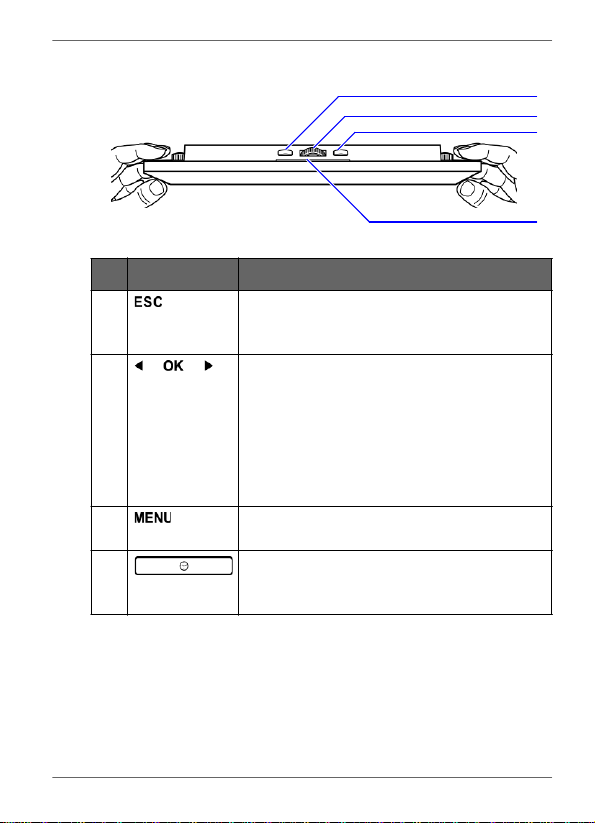
Using
the
control
buttons
1
2
3
4
No.
Icon
Description
1
ESC
button
(ESCAPE
button)
Cancels
current
operation
and/or
returns
to
the
previous
page.
2
Scroll
wheel/OK
button
•
Press
this
button
to
enter
or
confirm
your
operation/selection.
•
Scroll
this
button
to
the
left
to
select
the
previous
item.
•
Scroll
this
button
to
the
right
to
select
the
next
item.
3
MENU
button
Displays
the
pop-up
menu.
4
EZ
Access
button
Switches
between
Clock
view
and
Slideshow
view.
Overview
EN
-
7
Philips
Digital
PhotoFrame
Using
the
remote
control
(These
models
only:
SPF3480/G7,
SPF3480X/G7,
SPF3400/G7
and
SPF3400C/G7)
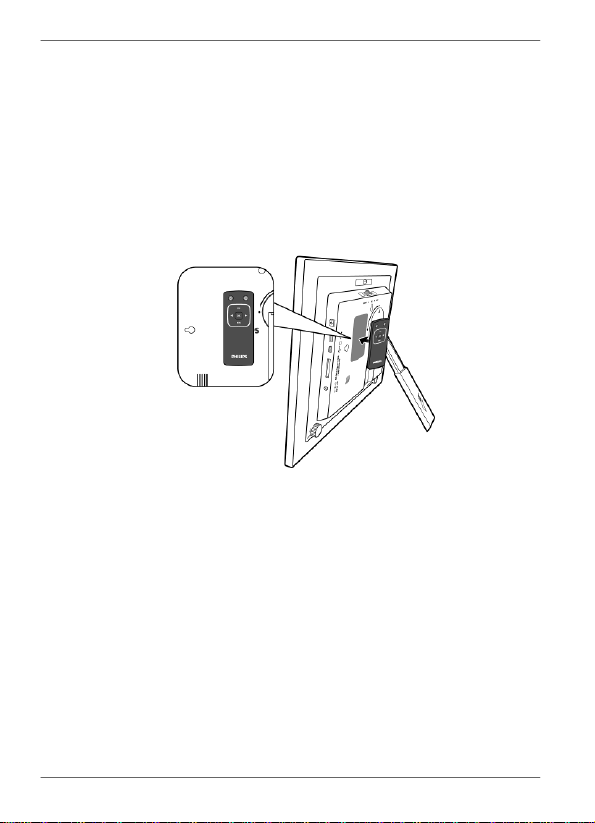
The
supplied
remote
control
is
magnetic.
With
its
magnetic
backing,
you
can
stow
away
the
remote
securely
in
the
designated
area
shown
below.
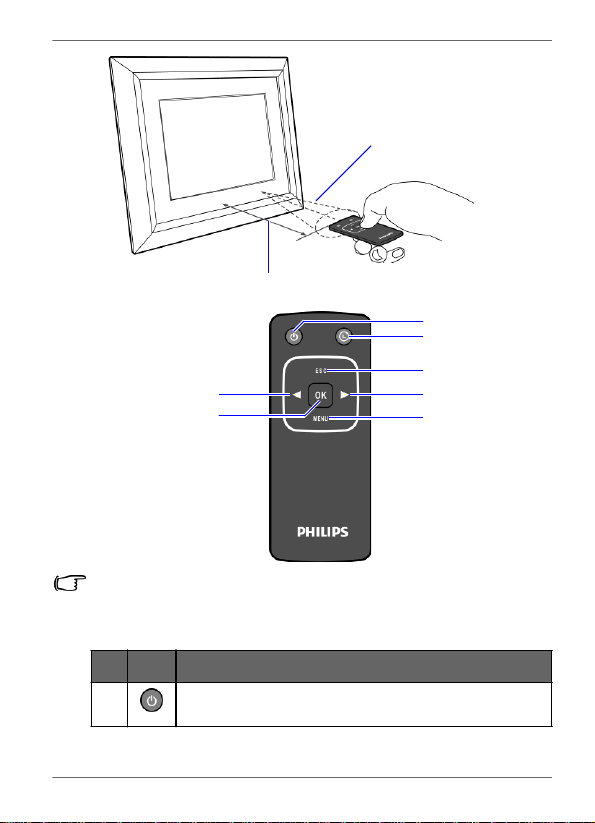
The
PhotoFrame
has
a
built-in
remote
control
sensor
behind
the
paper
matting.
EN
-
8
Overview
Philips
Digital
PhotoFrame
Maximum
vertical
and
horizontal
angle
approximately
30
degrees
Approximately
1.4
m
(4.6
ft.)
or
less
1
2
3
6
4
7
5
•
Please
remove
the
plastic
strip
under
the
battery
before
using
the
remote
control
for
the
first
time.
•
The
remote
control
is
supplied
with
the
SPF3480/G7,
SPF3480X/G7,
SPF3400/G7
and
SPF3400C/G7
models
only.
No.
Icon
Description
1
ON/OFF
Turns
unit
on/off.
Overview
EN
-
9
Philips
Digital
PhotoFrame
No.
Icon
Descr
ip
t
ion
2
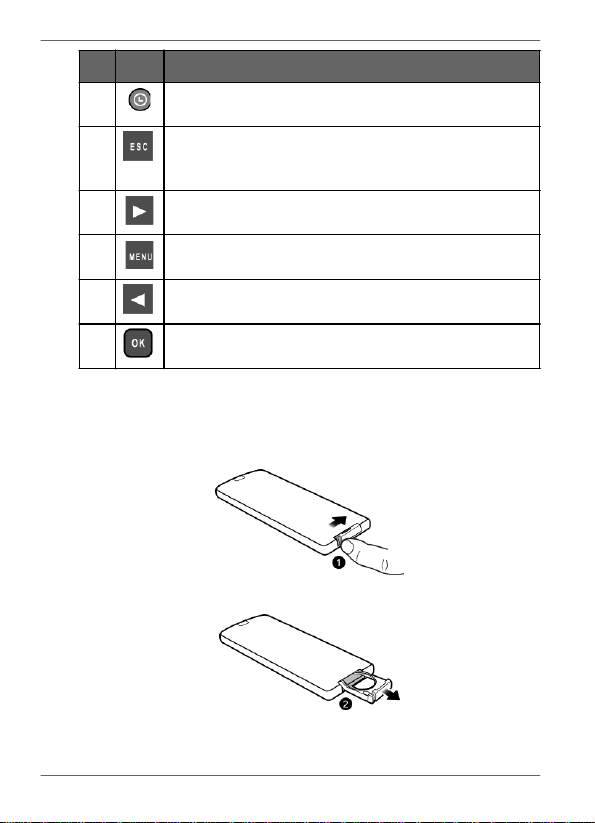
EZ
Access
bu
tt
on
Switches
between
Clock
view
and
Slideshow
view.
3
ES
C
(Escap
e)
Returns
to
the
previous
page
and/or
access
menu
page.
4
RIGHT
Moves
right
or
moves
to
the
next
item.
5
MENU
Displays
the
pop-up
menu.
6
LEFT
Moves
to
the
left
or
moves
to
the
previous
item.
7
OK
Confirms
your
selection.
Replacing the remote control battery
1.
On
the
back
of
the
remote
control,
press
the
locking
tab
to
the
right.
2.
Pull
out
the
battery
holder.
EN
-
10
Overview
Philips
Digital
PhotoFrame
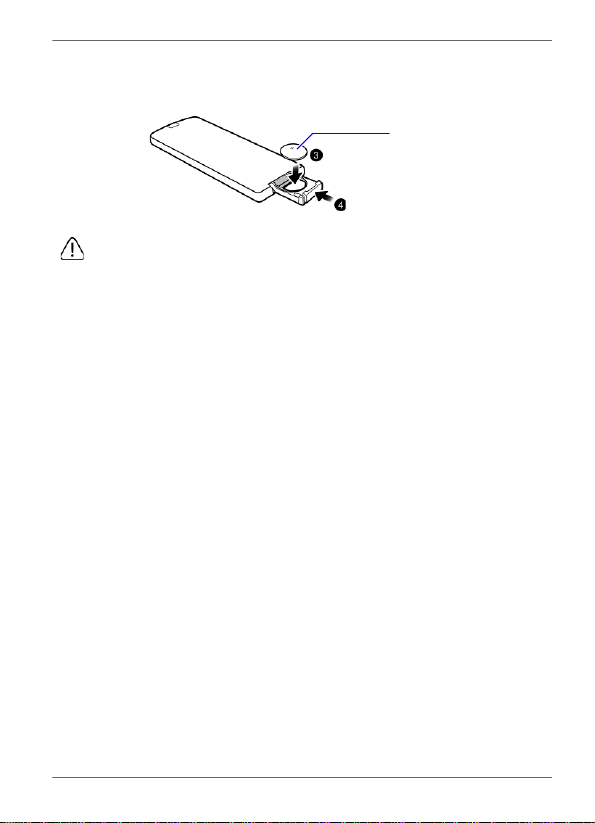
3.
Insert
the
new
battery
into
the
holder.
The
battery
must
be
placed
with
the
positive
charge
facing
upwards,
as
shown
in
the
illustration
below.
Positive
charge
faces
upwards
4.
Slide
the
battery
holder
into
the
remote
control.
•
Failure
to
replace
the
battery
in
the
correct
manner
may
damage
the
battery.
•
Use
only
the
specified
battery
type.
•
Recycle
or
dispose
used
batteries
properly
according
to
local
guidelines
and
regulations.
•
The
batteries
are
highly
flammable,
keep
away
from
excessive
heat
or
moisture.
•
If
the
battery
is
completely
drained
or
not
in
use
for
extended
period
of
time,
remove
the
battery
to
prevent
leakage.
Overview
EN
-
11
Philips
Digital
PhotoFrame
Getting
started
Step
1:
Using
the
adjustable
back
stand
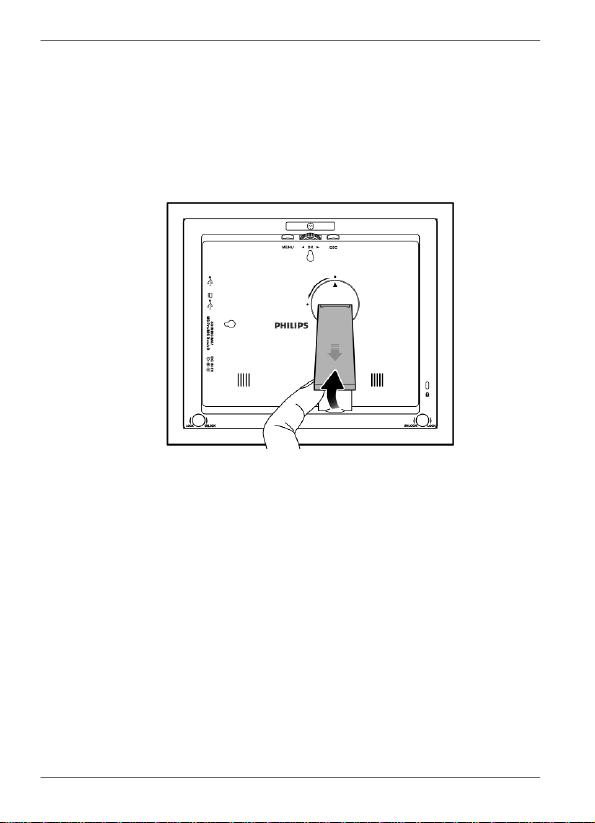
1.
Gently
pop
out
the
back
stand
as
shown
below.
EN
-
12
Getting
started
Philips
Digital
PhotoFrame
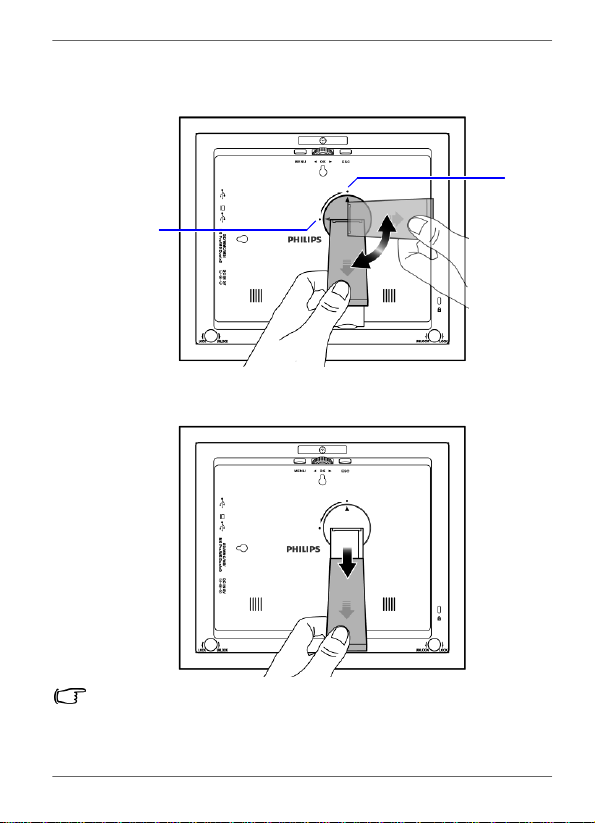
2.
To
place
the
PhotoFrame
horizontally
or
vertically,
you
can
rotate
the
back
stand
by
aligning
the
triangle
mark
with
the
rounded
points
(
1
or
2
).
1
2
3.
Pull
out
the
back
stand
and
adjust
accordingly
to
the
preferred
viewing
angle.
•
It
is
recommended
to
place
the
PhotoFrame
horizontally,
because
this
direction
provides
the
best
viewing
and
operating
experience.
•
By
using
the
wall
mount
holes,
you
can
hang
the
PhotoFrame
horizontally
or
vertically
on
the
wall.
Getting
started
EN
-
13
Philips
Digital
PhotoFrame
Step
2:
Connecting
to
power
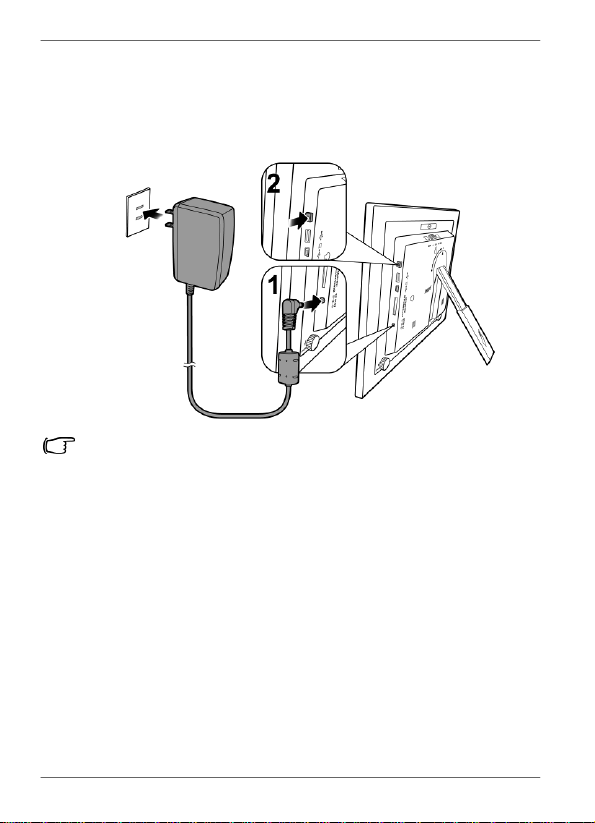
1.
Place
the
PhotoFrame
on
a
flat
surface.
2.
Connect
the
power
adapter
as
below
(
1
),
and
press
the
Power
button
to
turn
on
the
PhotoFrame
(
2
).
•
Power
systems
and
plug
types
may
vary
depending
on
your
country/region.
•
To
turn
off
the
PhotoFrame,
press
the
Power
button.
EN
-
14
Getting
started

Philips
Digital
PhotoFrame
Step
3:
First
usage
To
help
you
get
the
most
out
of
your
PhotoFrame,
we
installed
a
video
tutorial
that
automatically
starts
playing
when
you
first
turn
on
your
unit.
To
cancel
the
looping
video
and
start
playing
your
own
photos,
press
any
of
the
buttons
on
the
back.
Follow
the
five-
step
process
to
familiarize
yourself
with
how
the
control
buttons
work.
This
simple
process
is
automatically
disabled
after
the
first
use.
You
can
turn
on
the
tutorial
by
going
into
SETTINGS
.
Step
4:
Basic
setup
Select
a
language
and
set
the
date
and
time
during
the
first
use
of
the
PhotoFrame.
Selecting a language
1.
In
the
main
menu,
press
or
to
select
SETTINGS
,
and
then
press
.
2.
Press
.
The
General
Settings
page
appears.
Getting
started
EN
-
15
Philips
Digital
PhotoFrame
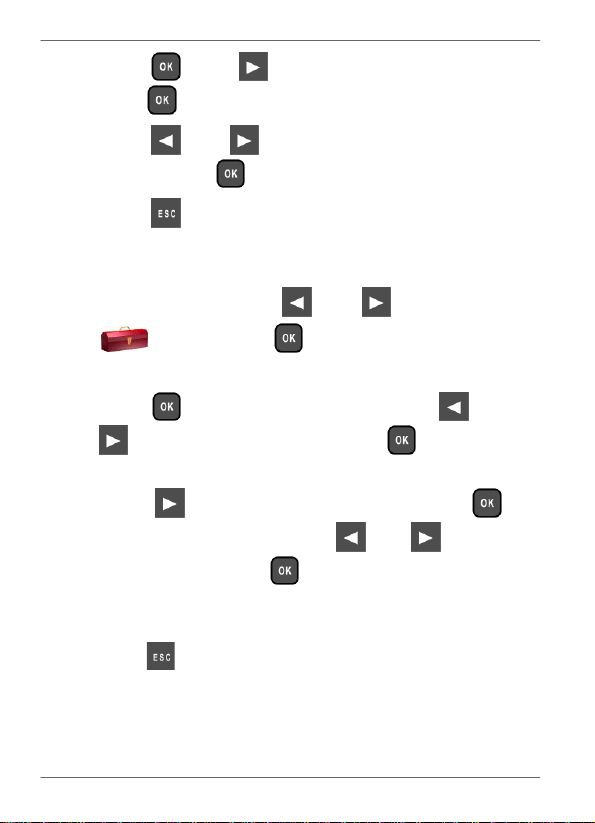
3.
Press
,
press
to
go
to
L
a
nguag
e
,
and
then
press
again.
4.
Press
or
to
select
a
language
you
wish
to
use,
and then
press
.
5.
Press
to
exit.
Setting the date and time
1.
In
the
main
menu,
press
or
to
select
SETTINGS
,
and
then
press
.
The
Date
and
Time
page
appears.
2.
Press
to
highlight
the
Year
field,
press
or
to select
a
year,
and
then
press
to
confirm
the
setting.
3.
Press
to
move
to
the
Month
field,
press
to
highlight the
Month
field,
press
or
to
select
a
month,
and
then press
to
confirm
the
setting.
4.
Repeat
Step
3
for
the
remaining
fields,
including
Date,
Hour,
Minute,
Mode,
Current
Time
Zone
and
Second
Time
Zone.
5.
Press
to
exit.
EN
-
16
Getting
started
Philips
Digital
PhotoFrame
Step
5:
Inserting
a
memory
card/
USB
flash
drive
You
can
turn
on
the
PhotoFrame
and
play
back
the
pre-installed
photos
in
the
internal
memory
with
no
memory
card/USB
flash
drive
inserted.
To
play
back
your
own
files,
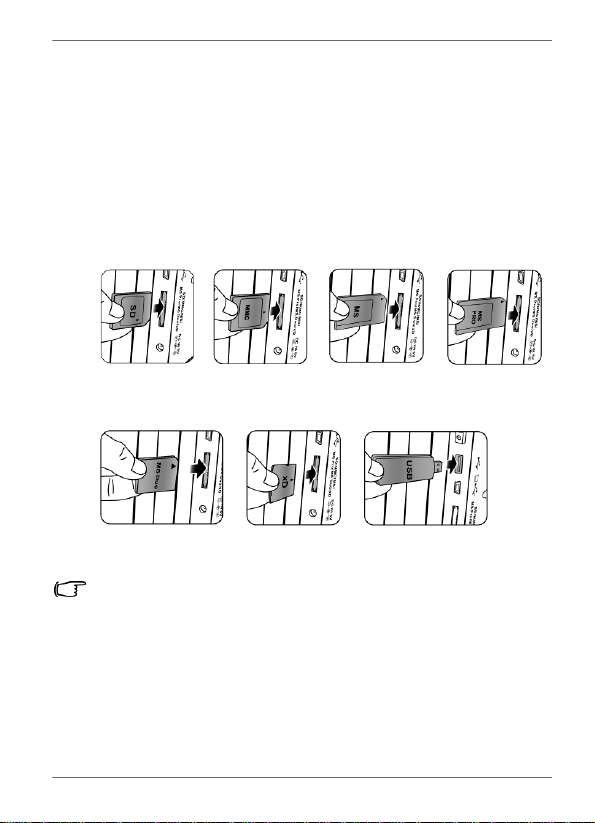
insert
a
compatible
memory
card
or
USB
flash
drive
that
contains
supported
files
into
the
corresponding
slot
on
the
PhotoFrame
as
illustrated
below.
SD/SDHC
MultiMediaCard
Memory
Stick
Memory
Stick
PRO
Memory
Stick
Duo
xD-Picture
Card
USB
flash
drive
For
more
information
about
the
supported
file
formats,
refer
to
"Specifications"
on
page
52.
Getting
started
EN
-
17

Philips
Digital
PhotoFrame
Compatible memory card formats
Mem
o
ry
card
fo
rmats
Maximu
m
ca
p
ac
i
ty
SD/SDHC
32GB
MultiMediaCard
(MMC) 1GB
Memory
Stick
(MS)
4GB
Memory
Stick
PRO
(MS
PRO) 2GB
Memory
Stick
Duo
(MS
Duo) 2GB
xD-Picture
Card
(xD)
2GB
USB
flash
drive
16GB
•
Maximum
capacity
specifications
listed
above
are
subject
to
change
without
prior
notice.
•
The
memory
card
slot
supports
hot-swap
function.
In
other
words,
you
can
change
or
remove
the
memory
card
when
the
power
of
the
PhotoFrame
is
either
turned
on
or
turned
off.
•
The
PhotoFrame
supports
both
Windows
and
MAC
operating
systems.
However,
when
formatting
your
memory
cards,
use
FAT16
and
FAT32
file
systems
in
Windows
only.
Formatting
memory
cards
with
NTFS
or
MAC
is
not
supported.
•
To
use
a
microSD,
a
miniSD
or
a
Memory
Stick
Micro
(M2)
card,
a
card
adapter
is
required.
EN
-
18
Getting
started
Philips
Digital
PhotoFrame
Step
6:
Copying
photos
to
internal
memory
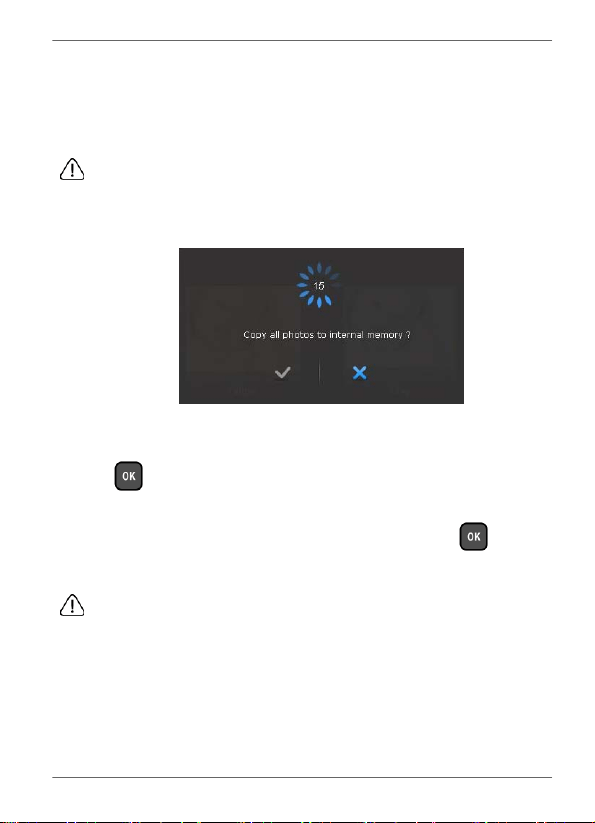
When
inserting
a
memory
card
or
a
USB
flash
drive,
you
will
be
asked
to
copy
all
photos
to
the
internal
memory.
If
“Smart
Copy”
is
set
to
“Resize”
under
“General
Settings”,
photos will
be
resized
to
the
screen
resolution
when
copied
to
the
internal memory
to
optimize
the
storage
capacity.
Please
keep
a
copy
of
the original
photos
on
your
memory
card
or
USB
flash
drive.
■
To
copy
all
photos
contained
in
the
inserted
memory
card
(or
USB
flash
drive),
select
the
check
mark
✓
and
press
to proceed.
■
To
view
photos
without
copying
them
to
the
PhotoFrame,
select
the
cross
mark
✕
and
press
.
The
PhotoFrame
will start
playing
back
the
photos
automatically
from
the
inserted memory
card
or
USB
flash
drive.
•
Do
not
remove
the
memory
card/USB
flash
drive
before
the
copy
process
is
completed.
•
If
the
files
you
wish
to
copy
from
the
memory
card/USB
flash
drive already
exists
in
the
internal
memory
of
the
PhotoFrame,
the
files will
be
overwritten
when
you
select
✓
to
proceed.
Getting
started
EN
-
19
Philips
Digital
PhotoFrame
Step
7:
Connecting
the
PhotoFrame
to
a
computer
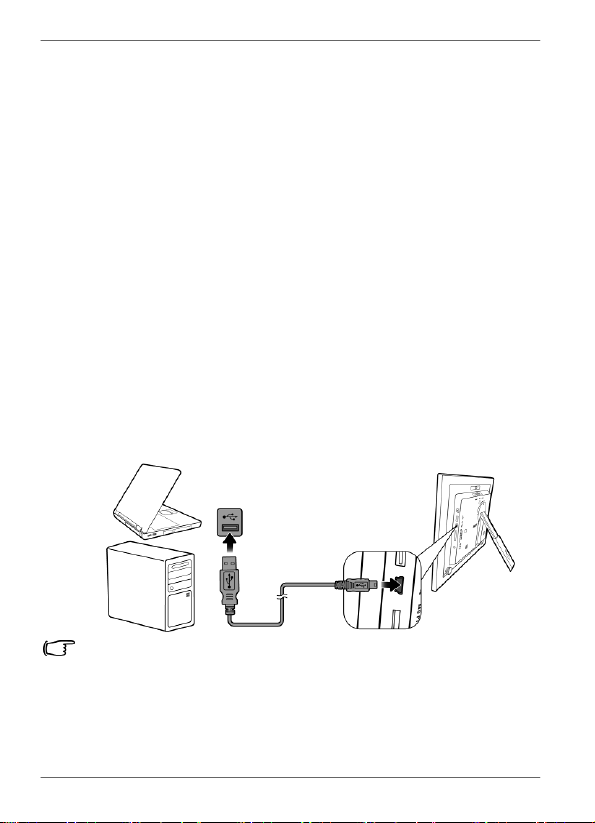
You
can
connect
the
PhotoFrame
to
a
computer
using
a
mini
USB
cable
(to
be
purchased
separately)
to
easily
manage
the
files
in
the
internal
memory
of
the
PhotoFrame.
1.
Start
the
computer
and
turn
on
the
PhotoFrame.
2.
Connect
the
smaller
end
of
the
USB
cable
to
the
mini
USB
port
of
the
PhotoFrame.
3.
Connect
the
other
end
of
the
USB
cable
to
a
USB
port
on
the
computer,
making
sure
the
connectors
are
fully
inserted.
4.
Once
connected,
the
PhotoFrame
will
enter
PC
transfer
mode
automatically.
5.
When
the
computer
has
detected
the
PhotoFrame,
the
PhotoFrame
will
appear
in
“My
Computer”
as
“removable
disk”.
Now
you
can
freely
transfer
the
files
in
the
PhotoFrame
as
you
would
on
other
disk
drive.
•
You
can
copy
photos
from
the
computer
to
the
PhotoFrame,
and
vice
versa.
•
The
files
in
the
memory
cards
and
USB
flash
drive
cannot
be
viewed/edited
via
USB
connection.
EN
-
20
Getting
started
Philips
Digital
PhotoFrame
Step
8:
Replacing
the
paper
mat
You r
PhotoFrame
may
come
with
one
or
more
bonus
paper
mats
depending
on
your
purchased
model.
You
can
replace
the
existing
paper
mat
with
the
one
supplied
(if
available).
Follow
the
instructions
below
to
replace
the
supplied
paper
mat.
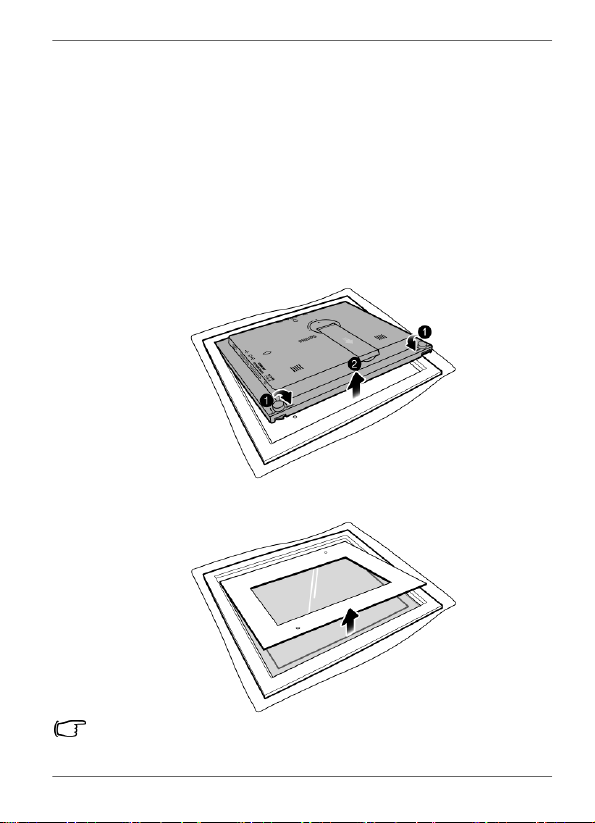
1.
On
a
flat
table,
place
the
PhotoFrame
facing
down
on
top
of
a
soft
towel.
Be
careful
not
to
scratch
the
unit.
2.
Twist
the
EZ
Lock
Screws
on
the
back
of
the
PhotoFrame
to
the
“UNLOCK”
position,
then
carefully
lift
up
the
core
unit
from the
wood
frame.
3.
Remove
the
existing
paper
mat.
SPF3480X/G7
and
SPF3400C/G7
have
bonus
mats.
Getting
started
EN
-
21

Philips
Digital
PhotoFrame
4.
Install
the
supplied
bonus
paper
mat.
5.
Install
the
PhotoFrame
to
the
wooden
frame,
and
secure
the
PhotoFrame
by
tightening
the
EZ
Lock
Screws
to
the
“LOCK”
position.
EN
-
22
Getting
started
Philips
Digital
PhotoFrame
Using
the
main
menu
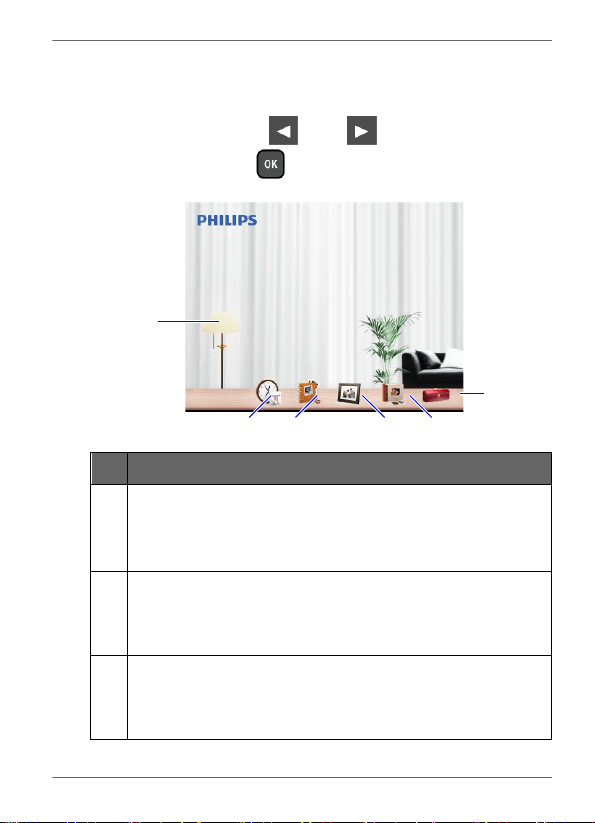
When
you
turn
on
the
PhotoFrame,
the
main
menu
below
appears.
You
can
press
or
to
select
the
desired
menu, and
then
press
to
enter
the
selected
menu.
1
6
2
3
4
5
No.
Description
1
Smart
Energy
Saver
™
Allows
you
to
select
a
power-saving
option
for
the
PhotoFrame.
See
"Using
Smart
Energy
Saver™"
on
page
40
for
details.
2
CLOCK
&
CALENDAR
Allows
you
to
set
your
favorite
clock
skins.
See
"Using
CLOCK
(EZ
Access
button)"
on
page
42
for
details.
3
SCRAPBOOK
Allows
you
to
display
photos
in
slideshow
with
various
preloaded
templates.
See
"Using
SCRAPBOOK"
on
page
44
for
details.
Using
the
main
menu
EN
-
23
Philips
Digital
PhotoFrame
No.
Description
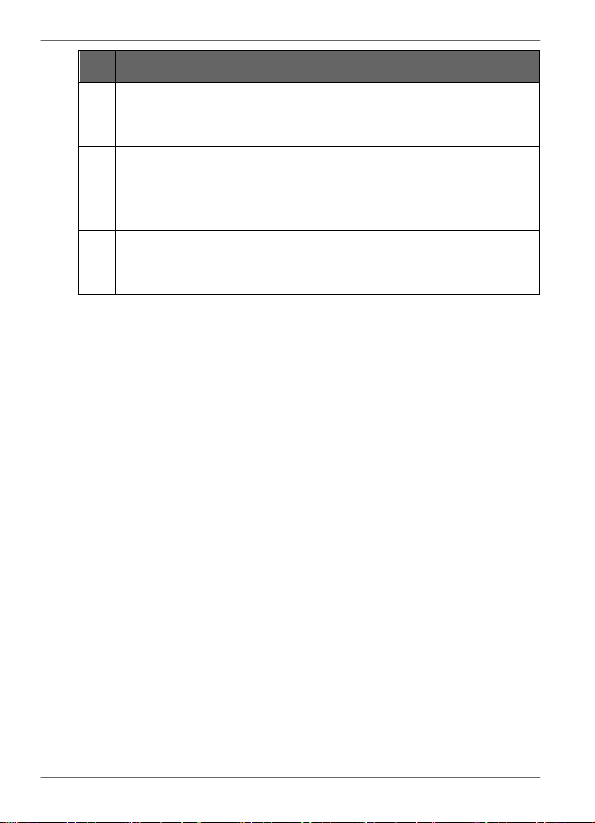
4
SLI
D
ES
H
OW
Allows
you
to
display
photos
in
slideshow.
See
"Viewing
photos"
on
page
37
for
details.
5
P
H
OTO
AL
BUM
S
Allows
you
to
manage
your
photos
and
sort
them
by
using
different
albums.
See
"Managing
photos"
on
page
25
for
details.
6
SETTINGS
Allows
you
to
configure
the
settings
of
the
PhotoFrame.
See
"Using
SETTINGS"
on
page
45
for
details.
EN
-
24
Using
the
main
menu
Philips
Digital
PhotoFrame
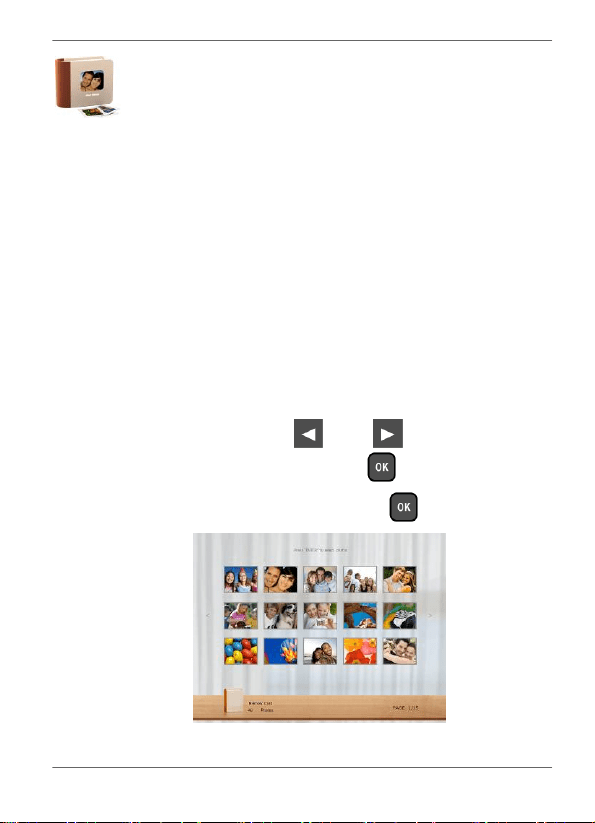
Manag
i
ng
photos
You
can
use
the
P
H
OTO
AL
BUM
S
menu
to
manage
photos
in
the
internal
memory,
memory
card
or
USB
flash
drive.
Manually
copying
photos
to
the
internal
memory
In
addition
to
the
automatic
“Smart
Copy”
feature
(see
page
19),
you
can
manually
copy
photos
from
external
storage
devices
to
the
internal
memory
and
tag
photos
to
an
album.
The
example
below
demonstrates
how
to
copy
photos
from
a
memory
card
to
the
internal
memory
and
tag
photos
into
an
album.
1.
Insert
a
compatible
memory
card
to
the
memory
card
slot.
2.
In
the
main
menu,
press
or
to
select
PHOTO ALBUMS
,
and
then
press
.
3.
Select
Memory
Card
,
and
then
press
.
The
screen
shows
the
photos
contained
in
your
memory
card.
Managing
photos
EN
-
25
Philips
Digital
PhotoFrame
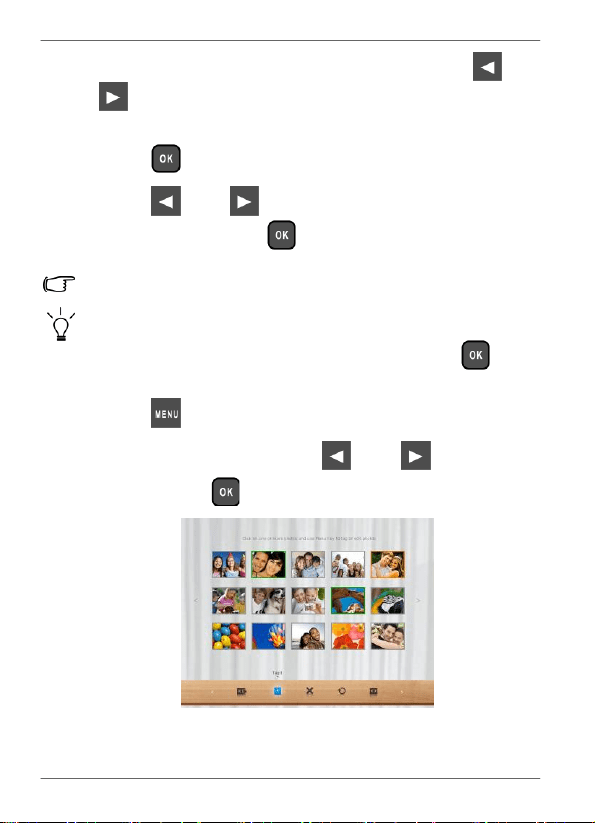
4.
If
there
are
more
than
one
page,
you
can
press
or
to go
to
the
previous
or
next
page
to
browse
photos.
(If
not,
skip this
step.)
5.
Press
to
enable
the
selection
mark,
showing
in
orange.
6.
Press
or
to
move
to
the
photo
you
wish
to
select,
and
then
press
to
confirm
the
selection.
The
selected
photo
will
have
a
blue
selection
mark.
Repeat
Step
6
to
select
more
photos
as
desired.
If
you
wish
to
select
all
the
photos
shown
on
the
current
page,
select “Select
All”
in
the
pop-up
menu
and
press
,
then
continue
with Step
7.
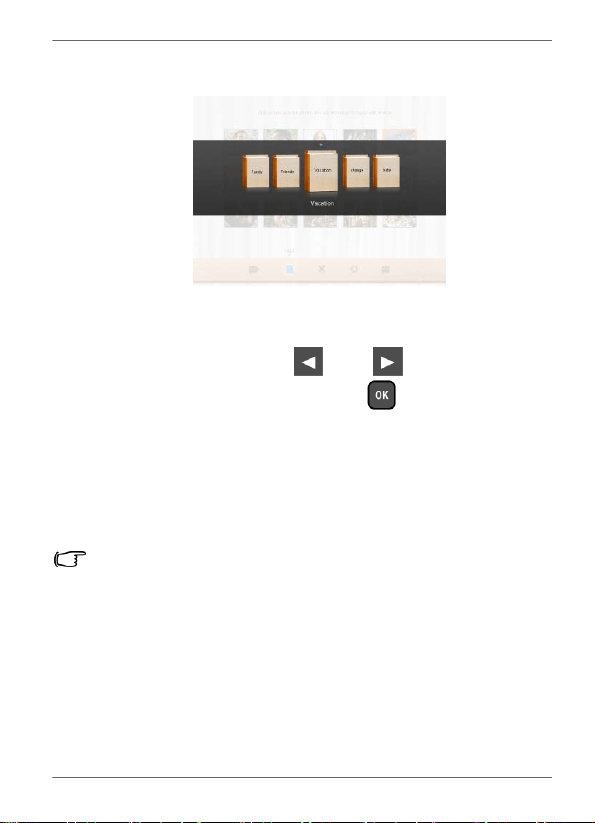
7.
Press
.
8.
From
the
pop-up
menu,
press
or
to
select
Tag
It
, and
then
press
.
EN
-
26
Managing
photos
Philips
Digital
PhotoFrame
9.
Select
a
default
target
album
to
copy
and
sort
the
photos
into
this
specified
album.
Tagging
photos
to
an
album
1.
In
the
main
menu,
press
or
to
select
PHOTO ALBUMS
,
and
then
press
.
The
screen
shows:
•
the
file
source,
including
USB
,
Memory
Card
and
Internal
Memory
.
•
the
default
albums
in
the
internal
memory,
including
TIMELINE
,
Pre-installed
Library
,
Uncategorize
,
Family
,
Friends
and
Vacation
.
•
The
“USB”
and
“Memory
Card”
file
sources
will
only
appear
when
a
USB
flash
drive
and
a
memory
card
have
been
inserted
to
the
PhotoFrame.
•
For
details
about
the
“TIMELINE”
album,
see
"Managing
photos
by
using
the
TIMELINE
album"
on
page
31.
Managing
photos
EN
-
27
Philips
Digital
PhotoFrame
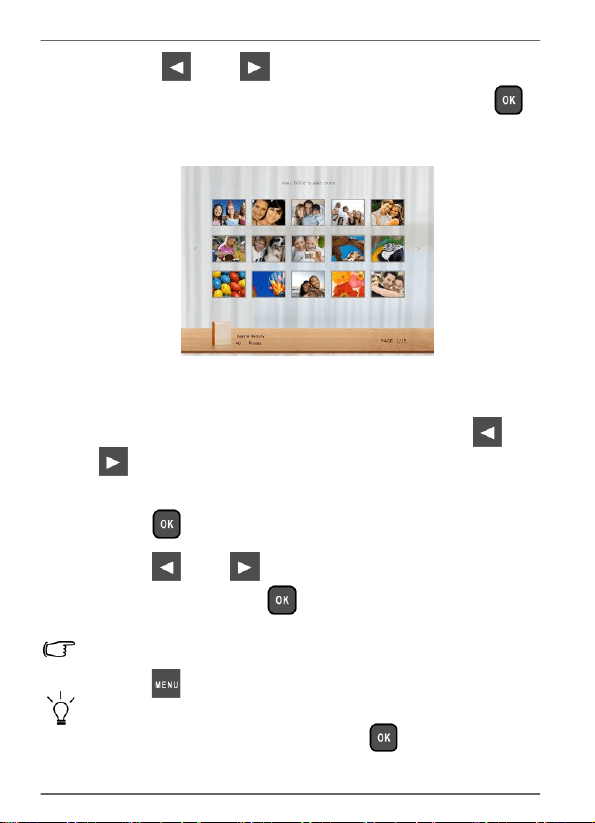
2.
Press
or
to
select
the
source
of
your
photos,
such as
the
Internal
Memo
ry
album,
and
then
press
.
(You
can
also
select
US
B
or
Me
mo
ry
Card
,
if
available.)
The
screen
shows
all
the
photos
that
are
available
in
the
internal
memory.
3.
If
there
are
more
than
one
page,
you
can
press
or
to go
to
the
previous
or
next
page
to
browse
photos.
(If
not,
skip this
step.)
4.
Press
to
enable
the
selection
mark,
showing
in
orange.
5.
Press
or
to
move
to
the
photo
you
wish
to
select, and
then
press
to
confirm
the
selection.
The
selected
photo
will
have
a
blue
selection
mark.
Repeat
Step
5
to
select
more
photos
as
desired.
6.
Press
.
If
you
wish
to
select
all
the
photos
shown
on
the
current
page,
select
“Select
All”
in
the
pop-up
menu
and
press
.
Then
proceed
to
Step
7.
EN
-
28
Managing
photos
Philips
Digital
PhotoFrame
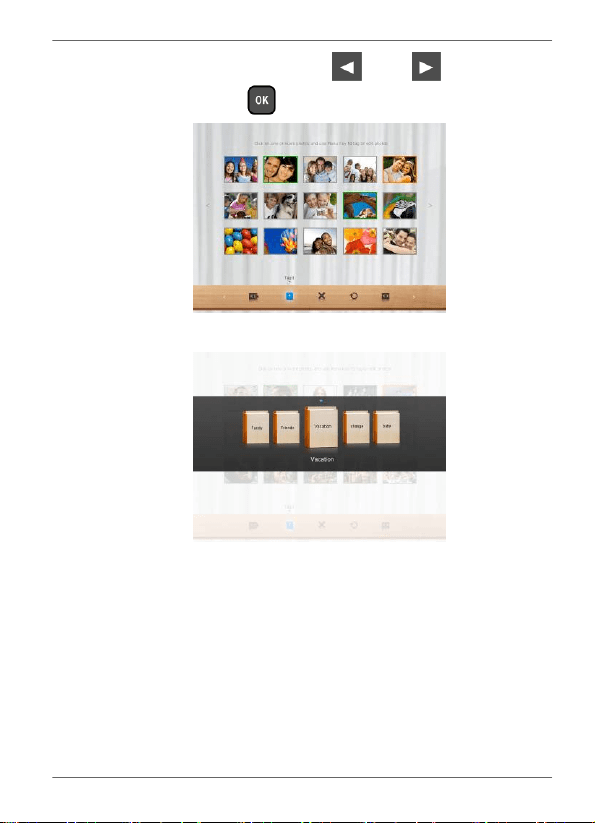
7.
From
the
pop-up
menu,
press
or
to
select
Tag
I
t
, then
press
.
8.
Select
the
destination
album
for
the
photos
to
be
stored.
Managing
photos
EN
-
29
Philips
Digital
PhotoFrame
Removing photos from an album
1.
In
the
P
H
OTO
ALBUMS
menu,
press
or
to
select
an
album
from
which
you
want
to
remove
the
photos,
and
then
press
.
The
screen
shows
the
photos
in
the
album.
2.
Press
to
enable
the
selection
mark,
showing
in
orange.
3.
Press
or
to
move
to
the
photo
you
wish
to
select, and
then
press
to
confirm
the
selection.
The
selected
photo
will
have
a
blue
selection
mark.
Repeat
Step
3
to
select
more
photos
as
desired.
4.
Press
.
If
you
wish
to
select
all
the
photos
shown
on
the
current
page,
select
“Select
All”
in
the
pop-up
menu
and
press
.
Then
proceed
to
Step
5.
5.
From
the
pop-up
menu,
press
or
to
select
Uncategorize
,
and
then
press
.
The
photos
will
be
removed
from
the
album,
but
will
not
be
deleted
from
the
internal
memory.
EN
-
30
Managing
photos
Philips
Digital
PhotoFrame
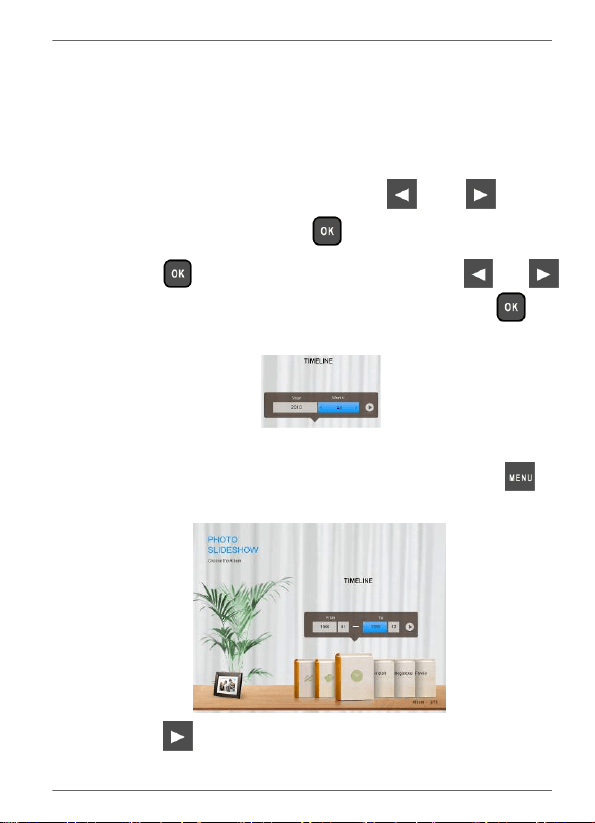
Managing photos by using the TIMELINE
album
In
P
H
OTO
AL
BUM
S
,
you
can
use
the
TI
M
ELINE
album
to
search
for
photos
in
the
internal
memory
according
to
the
time
span
specified.
1.
In
the
P
H
OTO
AL
BUM
S
menu,
press
or
to
select
TIMELINE
,
and
then
press
.
2.
Press
.
When
the
<
>
marks
appear,
press
or
to adjust
the
settings
in
the
Year
field,
and
then
press
again.
In
this
step,
you
can
also
search
for
photos
taken
in
a
specific
period
of
time
under
the
TIMELINE
album
by
pressing
and
selecting
the
time
frame.
3.
Press
to
move
to
the
Month
field,
and
repeat
Step
2
to adjust
the
settings.
Managing
photos
EN
-
31
Philips
Digital
PhotoFrame
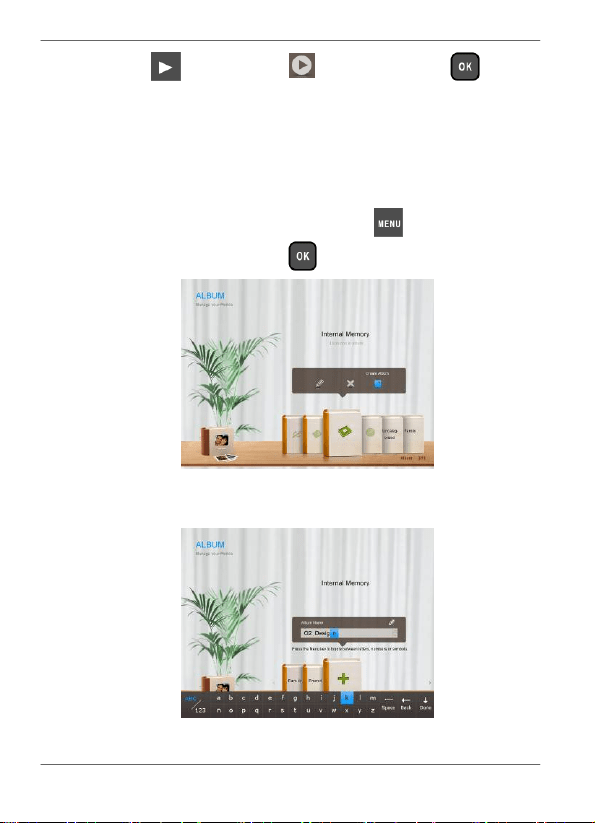
4.
Press
to
move
to
,
and
then
press
to
start playback.
The
photos
taken
in
the
time
span
you
specified
above
will
appear
on
the
screen.
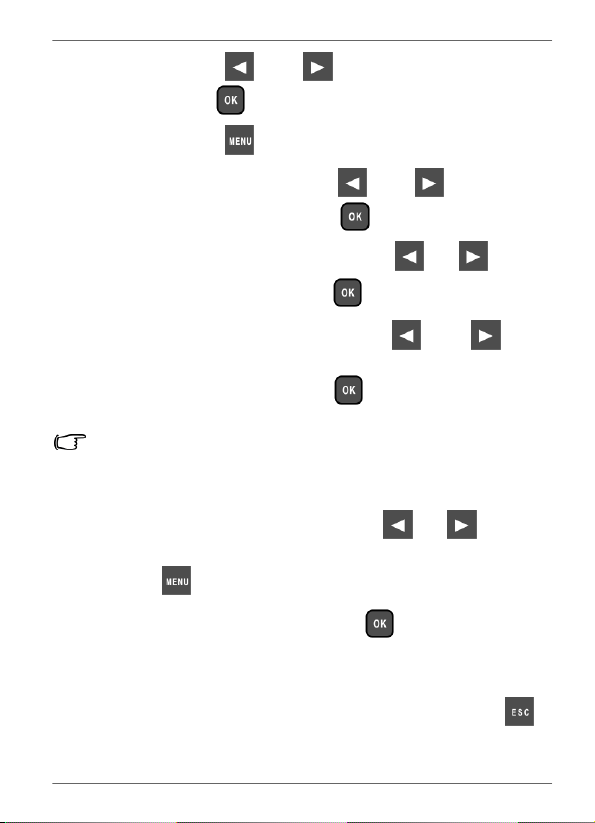
Creating
a
new
album
1.
In
the
P
H
OTO
AL
BUM
S
menu,
press
display
the
pop-
up
menu,
and
then
press
to
select
Create
Album
.
2.
In
the
Album
Name
field
that
appears,
use
the
on-screen
keyboard
to
enter
a
desired
name.
EN
-
32
Managing
photos
Philips
Digital
PhotoFrame
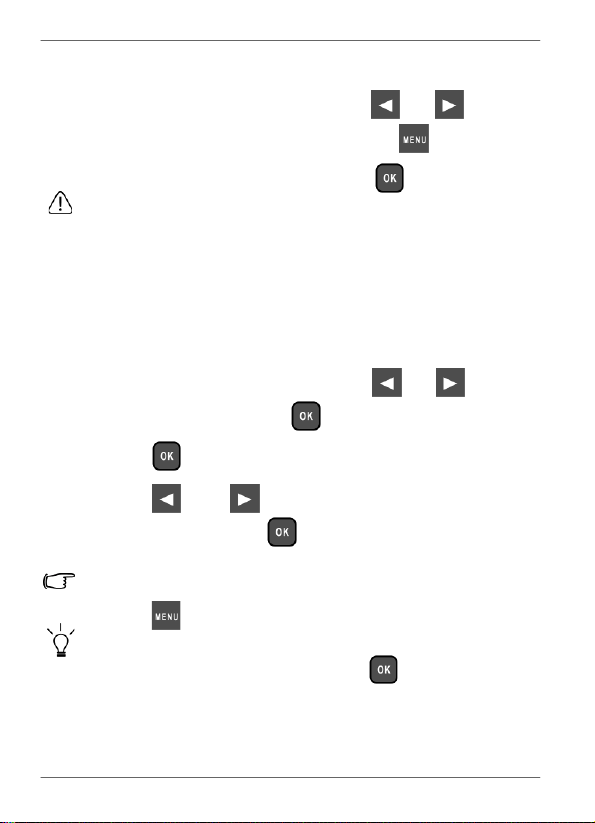
•
Press
or
to
select
a
letter,
and
then
press
to
enter
the
letter.
•
Press
to
toggle
between
letters
and
numbers.
•
To
add
a
space,
press
or
to
move
to
Sp
ace
,
and
then
press
.
•
To
delete
your
last
input,
press
or
to
move
to
Back
,
and
then
press
.
•
To
complete
your
input,
press
or
to
move
to
Done
,
and
then
press
.
3.
Now
the
new
album
is
created.
The
PhotoFrame
allows
you
to
create
up
to
12
custom
albums.
Modifying
an
album
1.
In
the
PHOTO
ALBUMS
menu,
press
or
to
select
an
album
for
which
you
wish
to
modify
the
album
name,
and
then
press
.
2.
Select
Edit
Name
,
and
then
press
.
3.
In
the
Album
Name
field
that
appears,
use
the
on-screen
keyboard
to
enter
a
desired
name.
4.
Once
you
have
finished
editing
the
album
name,
press
to exit.
Managing
photos
EN
-
33
Philips
Digital
PhotoFrame
Deleting
an
album
1.
In
the
P
H
OTO
ALBUMS
menu,
press
or
to
select
an
album
that
you
wish
to
delete,
then
press
.
2.
Select
De
l
ete
A
lbu
m
,
and
then
press
.
Default
albums
including
TIMELINE,
Pre-installed
Library,
Uncategorize,
Family,
Friends
and
Vacation
cannot
be
deleted.
Using
other
options
in
the
PHOTO
ALBUMS
menu
Deleting photos
1.
In
the
PHOTO
ALBUMS
menu,
press
or
to
select
an album,
and
then
press
.
2.
Press
to
enable
the
selection
mark,
showing
in
orange.
3.
Press
or
to
move
to
the
photo
you
wish
to
select, and
then
press
to
confirm
the
selection.
The
selected
photo
will
have
a
blue
selection
mark.
Repeat
Step
3
to
select
more
photos
as
desired.
4.
Press
.
If
you
wish
to
select
all
the
photos
shown
on
the
current
page,
select
“Select
All”
in
the
pop-up
menu
and
press
.
Then
proceed
to
Step
5.
EN
-
34
Managing
photos
Philips
Digital
PhotoFrame
5.
From
the
pop-up
menu,
press
or
to
select
De
l
ete
, and
then
press
.
Rotating photos
1.
In
the
PHOTO
AL
BUM
S
menu,
press
or
to
select
an
album,
and
then
press
.
2.
Press
to
enable
the
selection
mark,
showing
in
orange.
3.
Press
or
to
move
to
the
photo
you
wish
to
select, and
then
press
to
confirm
the
selection.
The
selected
photo
will
have
a
blue
selection
mark.
Repeat
Step
3
to
select
more
photos
as
desired.
4.
Press
.
If
you
wish
to
select
all
the
photos
shown
on
the
current
page,
select
“Select
All”
in
the
pop-up
menu
and
press
.
Then
proceed
to
Step
5.
5.
From
the
pop-up
menu,
press
or
to
select
Rotate
, and
then
press
.
The
photo
will
be
rotated
90
degrees
clockwise.
6.
Repeat
Step
5
if
you
wish
to
rotate
the
photo
into
other
angles.
Managing
photos
EN
-
35
Philips
Digital
PhotoFrame
Applying photo effects
1.
In
the
P
H
OTO
ALBUMS
menu,
press
or
to
select
an
album,
and
then
press
.
2.
Press
to
enable
the
selection
mark,
showing
in
orange.
3.
Press
or
to
move
to
the
photo
you
wish
to
select,
and
then
press
to
confirm
the
selection.
The
selected
photo
will
have
a
blue
selection
mark.
Repeat
Step
3
to
select
more
photos
as
desired.
4.
Press
.
If
you
wish
to
select
all
the
photos
shown
on
the
current
page,
select
“Select
All”
in
the
pop-up
menu
and
press
.
Then
proceed
to
Step
5.
5.
From
the
pop-up
menu,
press
or
to
select
Photo
Effects
,
and
then
press
.
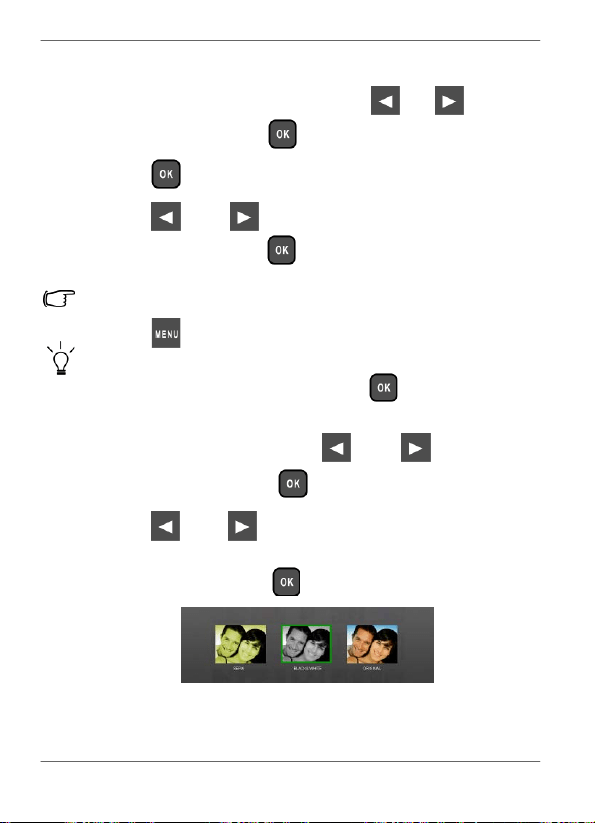
6.
Press
or
to
select
the
effect
you
wish
to
apply
to
the selected
photo,
including
SEPIA
,
ORIGINAL
and
BLACK
&
WHITE
,
and
then
press
.
EN
-
36
Managing
photos
Philips
Digital
PhotoFrame
V
i
ewing
photos
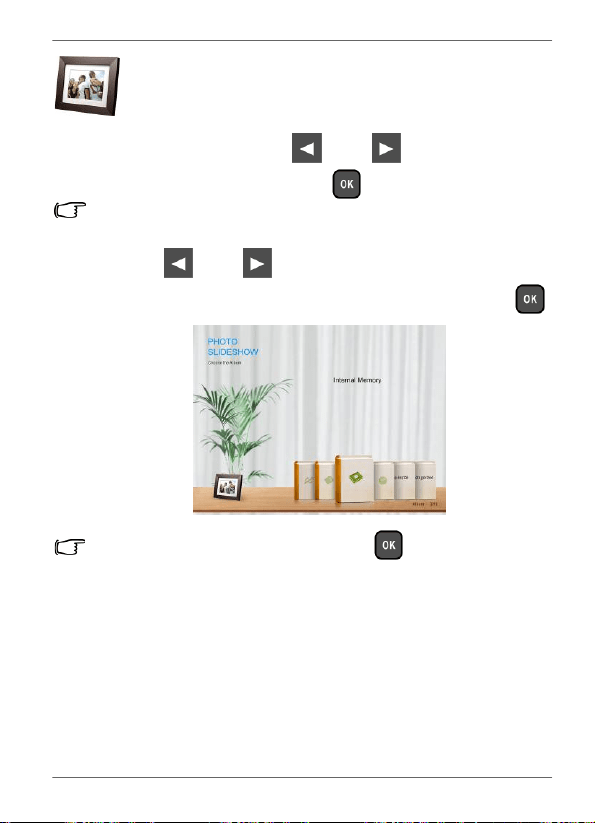
1.
In
the
main
menu,
press
or
to
select
SLI
D
ES
H
OW
, and
then
press
.
The
“USB”
and
“Memory
Card”
albums
only
appear
when
a
USB
flash
drive
and
a
memory
card
have
been
inserted
to
the
PhotoFrame.
2.
Press
or
to
select
the
album
that
contains
the
photos
you
wish
to
display
in
slideshow,
and
then
press
.
If
you
wish
to
pause
the
slideshow,
press
.
Viewing
photos
EN
-
37
Philips
Digital
PhotoFrame
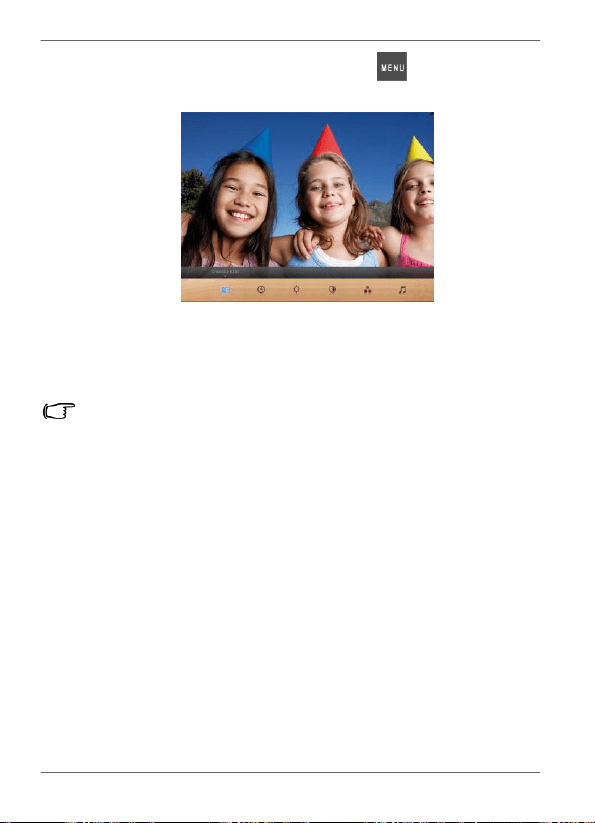
3.
To
configure
slideshow
settings,
press
to
display
the
pop- up
menu.
You
can
adjust
the
settings
below.
•
Transition
Effect
:
selects
the
transition
effect
you
wish
to
apply
to
the
slideshow.
•
Slideshow
Interval
:
selects
the
slideshow
interval
between
photos.
The
default
transition
effect
“Pan
&
Zoom”
does
not
allow
customized
interval
settings.
•
Brightness
:
selects
the
level
of
screen
brightness.
•
Contrast
:
selects
the
level
of
contrast.
•
Saturation
:
selects
the
level
of
saturation.
EN
-
38
Viewing
photos
Philips
Digital
PhotoFrame
Running
a
slideshow
by
using
the
TIMELINE
album
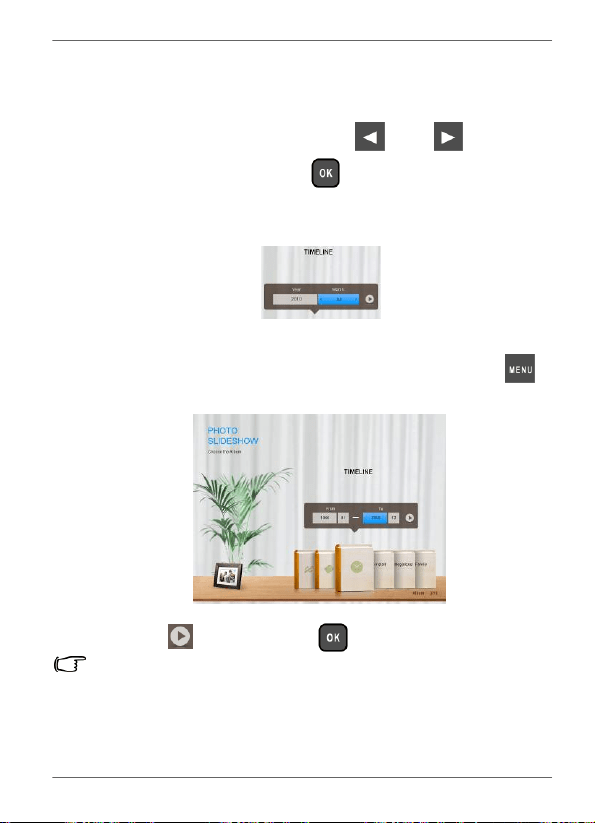
1.
In
the
SLIDESHOW
menu,
press
or
to
select
TI
M
ELI
N
E
,
and
then
press
.
2.
In
the
pop-up
screen,
specify
a
time
span
to
include
the
photos
you
wish
to
display
in
slideshow.
In
this
step,
you
can
also
search
for
photos
taken
in
a
specific
period
of
time
under
the
TIMELINE
album
by
pressing
and
selecting
the
time
frame.
3.
Select
,
and
then
press
to
start
playback.
The
TIMELINE
feature
only
applies
to
photos
stored
in
the
memory
card
from
the
card
reader.
Please
copy
any
photos
on
the
USB
drive
to
the
inserted
memory
card
if
you
wish
to
access
this
feature.
Viewing
photos
EN
-
39
Philips
Digital
PhotoFrame
Using
Smart
Energy
Saver
™
The
Smart
Energy
Saver
™
menu
provides
various
pre-defined
power-saving
options.
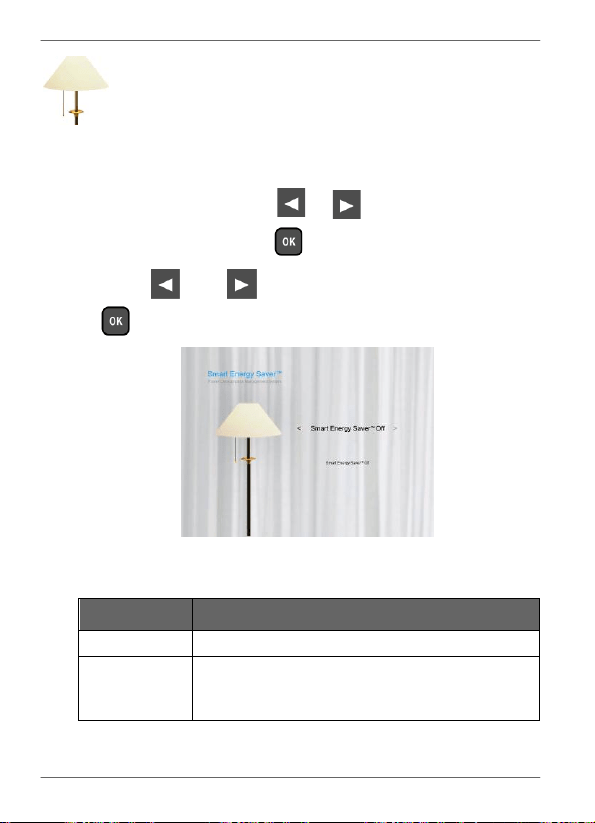
1.
In
the
main
menu,
press
or
to
select
Sm
art
Energ
y
Saver
™
,
and
then
press
.
2.
Press
or
to
select
a
desired
option,
and
confirm
with
.
For
details
about
the
power-saving
options,
refer
to
the
table
below.
Option
Description
Off
Turns
off
Smart
Energy
Saver
™
.
Auto
50%
Saves
50% on power consumption
during
nighttime
and
automatically
resumes
normal
power
consumption
during
daytime.
EN
-
40
Using
Smart
Energy
Saver™

Philips
Digital
PhotoFrame
Op
t
ion
Descrip
t
ion
Auto
100%
Pu
t
s
the PhotoFrame into sleep
mode
during
nighttime
and
automatically
resume
normal
power
consumption
during
daytime.
Save
20%
Always saves 20% on power consumption.
Save
50%
Always saves 50% on power consumption.
•
Nighttime
is
defined
as
hours
from
9:00
p.m.
to
7:00
a.m..
•
Daytime
is
defined
as
hours
from
7:00
a.m.
to
9:00
p.m..
•
Using
Smart
Energy
Saver
™
does
not
affect
the
photo
quality.
Using
Smart
Energy
Saver™
EN
-
41
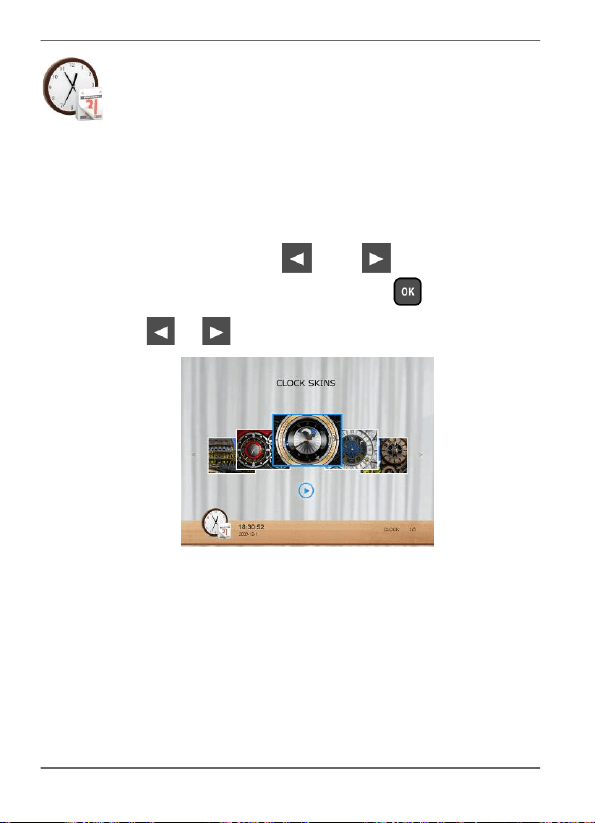
Philips
Digital
PhotoFrame
Using
CLOCK
(EZ
Access
button)
Selecting
a
clock
skin
The
PhotoFrame
provides
various
preloaded
clock
and
calendar
skins.
To
set
a
default
clock
skin
to
be
displayed
in
Clock
view,
follow
the
steps
below.
1.
In
the
main
menu,
press
or
to
select
CLOCK
& CALENDAR
,
and
then
press
.
2.
Press
or
to
select
a
desired
skin.
EN
-
42
Using
CLOCK
(EZ
Access
button)
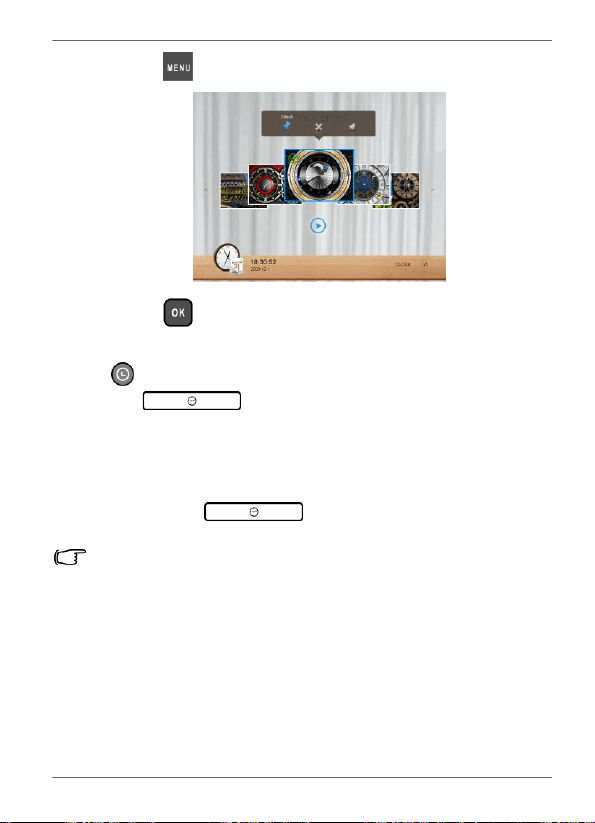
Philips
Digital
PhotoFrame
3.
Press
and
select
Defaul
t
.
4.
Press
to
set
the
selected
clock
skin
as
default. The
default
clock
skin
will
be
displayed
when
(or
)
is
pressed.
Switching
between
Clock
view
and
Slideshow
view
You
can
press
to
toggle
between
Clock
view
and
Slideshow
view.
•
When
switching
from
Clock
view
to
Slideshow
view,
the
PhotoFrame
starts
the
slideshow
that
was
running
previously.
•
If
the
last
slideshow
was
playing
from
memory
card
or
USB
and
is
no
longer
available,
the
PhotoFrame
will
start
a
slideshow
from
the
Internal
Memory.
Using
CLOCK
(EZ
Access
button)
EN
-
43
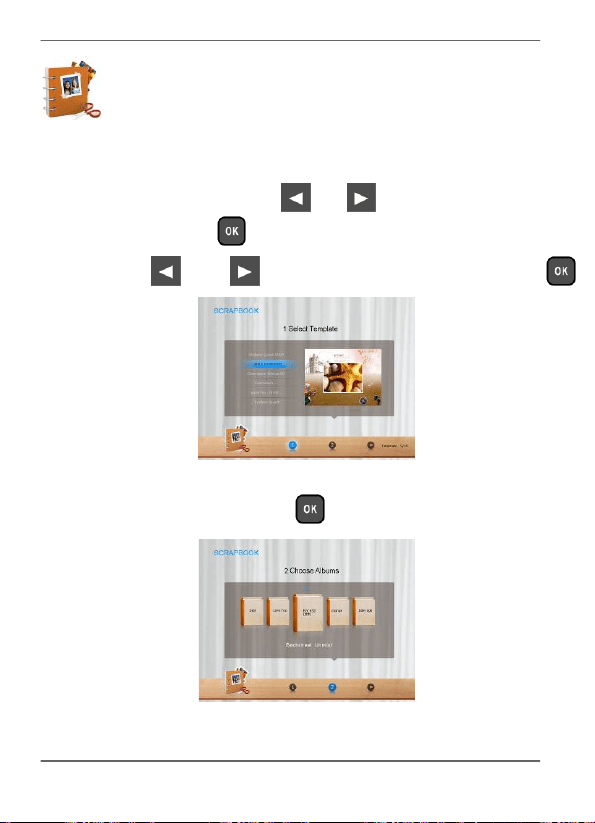
Philips
Digital
PhotoFrame
Using
SCRAPBOOK
Philips
SCRAPBOOK
feature
provides
a
brand
new
user
experience
in
enjoying
photo
slideshows.
1.
In
the
main
menu,
press
or
to
select
S
C
RAPBOOK
,
and
then
press
.
2.
Press
or
to
select
a
template,
and
then
press
.
3.
Select
an
album
that
contains
the
photos
you
wish
to
display
in
slideshow,
and
then
press
.
The
PhotoFrame
will
start
to
display
the
photos
in
slideshow
using
the
selected
template.
EN
-
44
Using
SCRAPBOOK
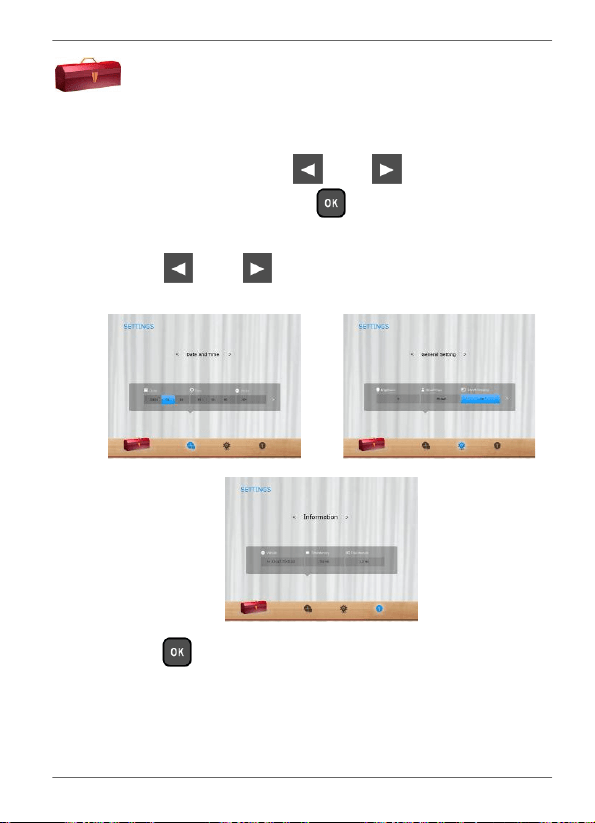
Philips
Digital
PhotoFrame
Using
SETTINGS
The
SETTI
N
GS
menu
allows
you
to
configure
the
settings
of
the
PhotoFrame.
1.
In
the
main
menu,
press
or
to
select
SETTI
N
GS
, and
then
press
.
The
Date
and
Time
page
appears.
2.
Press
or
to
toggle
among
Date
and
Time
,
General
Settings
and
Information
pages.
3.
Press
to
enter
a
page,
and
the
first
option
in
that
page
will
be
highlighted.
Using
SETTINGS
EN
-
45
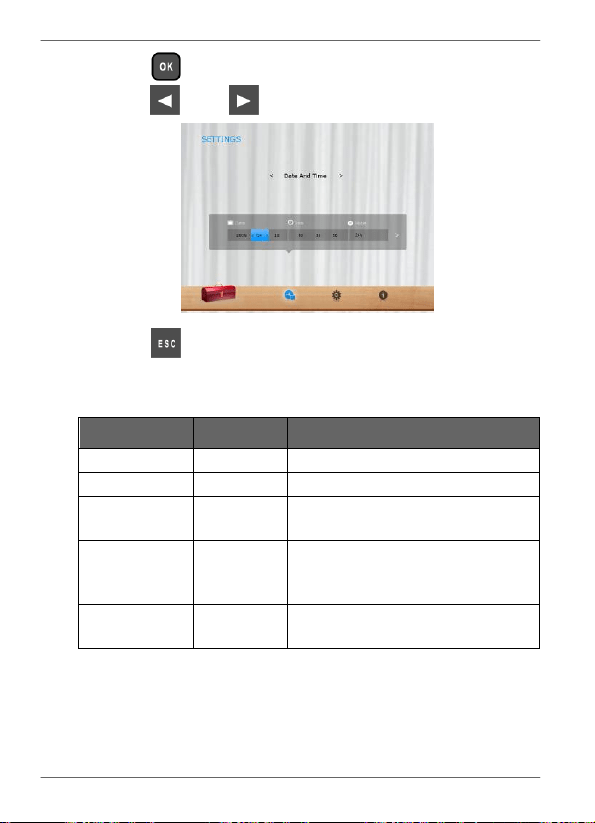
Philips
Digital
PhotoFrame
4.
Press
again.
When
the
<
>
marks
appear
in
the
field,
press
or
to
adjust
the
settings.
5.
Press
to
exit.
Date
and
Time
page
Item
Option Description
Date
-
Allows
you
to
set
the
date.
Time
-
Allows
you
to
set
the
time.
Mode
-
Allows
you
to
select
a
time
format
(12-hour
clock
or
24-hour
clock).
Current
Time
Zone
-
Allows
you
to
select
the
time
zone
that
matches
your
current
geographic
location.
Second
Time
Zone
-
Allows
you
to
set
a
second
time
zone
additionally.
EN
-
46
Using
SETTINGS
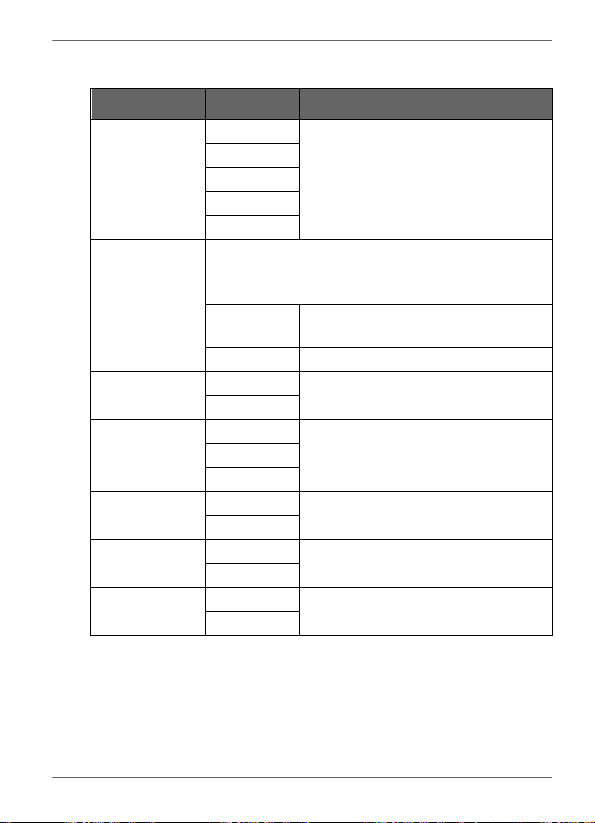
Philips
Digital
PhotoFrame
General
Settings
page
It
em
Op
t
ion
D
escription
Br
ightne
ss
1
Allows
you
to
select
the
level
of
screen
brightness.
2
3
4
5
Smart
Copy
Determines
how
photos
are
copied
from
the
external
storage
devices
to
the
internal
memory
when
using
the
Smart
Copy
feature.
Resize
Resizes
the
photos
to
save
memory
space.
Normal Keeps
the
original
file
size.
Smart
Cropping
Full-screen
Selects
to
display
photos
in
original
size
or
full
screen.
Original
Language
English
Sets
up
the
On-Screen
Display
(OSD)
language.
French
Spanish
Reset
Yes
Returns
all
the
settings
back
to
system
default.
No
FW
Upgrade
Yes
Upgrades
the
firmware
of
the
PhotoFrame.
No
Product
Intro
On
The
start-up
video
tutorial
for
major
features
and
functions.
Off
Using
SETTINGS
EN
-
47
Philips
Digital
PhotoFrame
Information
page
It
em
Op
t
ion Description
Ve
rs
ion
-
Shows
the
current
firmware
version.
To
ta
l
Mem
o
ry
-
Shows
the
total
capacity
of
the
internal
memory.
Free
Memory
-
Shows
the
remaining
capacity
of
the
internal
memory.
EN
-
48
Using
SETTINGS

Philips
Digital
PhotoFrame
Frequently
asked
questions
Wh
at
me
mo
ry
card
f
o
rmats
are
compatibl
e
wi
t
h
th
e
PhotoF
rame
?
SD/SDHC,
MMC,
MS,
MS
PRO,
MS
Duo
and
xD
are
compatible
with
the
PhotoFrame.
For
details,
refer
to
"Compatible
memory
card
formats"
on
page
18.
Wh
y
do
so
me
pho
t
o
s
load
faster
than
o
t
h
e
rs?
Higher
resolution
photos
load
slower.
Using
a
lower
resolution
when
taking
photos
will
speed
up
loading
time.
Smart
Copy
™
can
be
used
to
resize
selected
images
to
decrease
loading
time.
How
does
auto
rotation
work?
The
PhotoFrame
will
display
in
a
landscape
mode
if
placed
on
its
long
side
(as
shown
on
your
product
box).
To
display
your
photos
in
a
portrait
mode,
rotate
the
PhotoFrame
on
it
right
side.
Why
are
my
photos
appearing
upside
down?
The
PhotoFrame
is
placed
upside
down.
Please
rotate
the
frame.
What
types
of
image
files
can
I
view
on
my
PhotoFrame?
The
PhotoFrame
supports
playback
of
JPEG,
BMP,
JPEG
Progressive
and
EXIF
images.
Can
I
connect
my
PhotoFrame
directly
to
my
computer?
You
can
connect
the
PhotoFrame
directly
to
your
computer
via
a
mini
USB
cable.
Frequently
asked
questions
EN
-
49

Philips
Digital
PhotoFrame
Will
th
e
ta
gg
e
d
pho
t
o
s
b
e
reset
i
f
I
pull
ou
t
th
e
SD
card?
No.
The
Digital
PhotoFrame
(DPF)
will
write
information
into
the
MetaData
of
tagged
photos.
So
the
DPF
will
remember
the
photo's
album
categorization
the
next
time
the
SD
card
is
re-
inserted
to
the
unit.
Th
e
frame
slow
s
down
signi
f
ican
t
l
y
on
certa
in
pho
t
o
s
.
Wh
at
can
I
do?
This
is
mainly
due
to
extra
processing
time
needed
to
decode
very
large
size
high
resolution
files.
The
DPF's
Smart
Cropping
(ON
by
default)
feature
will
automatically
resize
the
file
based
on
the
unit's
screen
resolution
and
will
significantly
reduce
the
size
of
the
photo
and
eliminate
this
issue.
However,
please
always
keep
a
copy
of
the
original
photos
on
the
computer.
The
frame
froze
and
will
not
respond,
what
can
I
do?
If
the
frame
freezes,
it
is
easy
to
restart
by
unplugging
from
power,
then
press
power
button
again.
Why
isn't
the
TIMELINE
feature
accessible
for
photos
on
my
USB
drive?
The
TIMELINE
feature
only
applies
to
photos
stored
in
the
memory
card
from
the
card
reader.
Please
copy
any
photos
on
the
USB
drive
to
the
inserted
memory
card
if
you
wish
to
access
this
feature.
Why
can't
I
tag
my
photos
in
my
SD
card
to
any
albums?
Please
check
that
your
SD
card
is
not
locked
because
the
DPF
will
need
to
be
able
write
information
onto
the
files
in
order
to
tag
to
Album.
EN
-
50
Frequently
asked
questions

Philips
Digital
PhotoFrame
Regu
l
at
i
on
and
comp
li
ance
F
e
d
e
ral
C
o
mm
unication
s
C
o
mm
ission
(F
CC)
No
t
i
ce
This
equipment
has
been
tested
and
found
to
comply
with
the
limits
for
a
Class
B
digital
device,
pursuant
to
Part
15
of
the
FCC
Rules.
These
limits
are
designed
to
provide
reasonable
protection
against
interference
in
a
residential
installation.
This
equipment
can
radiate
radio
frequency
energy
and,
if
not
installed
and
used
in
accordance
with
the
instructions,
may
cause
interference
to
radio
communications.
However,
there
is
no
guarantee
that
interference
will
not
occur
in
a
particular
installation.
If
this
equipment
does
cause
interference
to
radio
or
television
reception,
which
can
be
determined
by
turning
the
equipment
off
and
on,
the
user
is
encouraged
to
try
to
correct
the
interference
by
one
of
the
following
measures:
•
Reorient
or
relocate
the
receiving
antenna.
•
Increase
the
separation
between
the
equipment
and
receiver.
•
Connect
the
equipment
into
an
outlet
on
a
circuit
different
from
that
to
which
the
receiver
is
connected.
•
Consult
the
dealer
or
an
experienced
radio/TV
technician
for
help.
Recycling
•
To
minimize
harm
to
the
environment,
the
batteries
supplied
with
the
PhotoFrame
do
not
contain
mercury
or
nickel
cadmium.
If
possible,
when
disposing
of
batteries,
use
recycling
means
available
in
your
area.
•
The
PhotoFrame
uses
materials
that
can
be
recycled.
To
minimize
the
amount
of
waste
in
the
environment,
check
your
area
for
companies
that
will
recover
used
televisions
for
dismantling
and
collection
of
reusable
materials,
or
contact
your
dealer
for
recycling
tips.
•
Please
dispose
of
the
carton
and
packing
material
through
the
proper
waste
disposal
management
in
your
area.
Regulation
and
compliance
EN
-
51
Philips
Digital
PhotoFrame
Appendix
Specifications
Specifications
are
subject
to
change
without
prior
notice.
For SPF3470X/G7, SPF3480X/G7 and
SPF3400C/G7 only
Model
SPF3470X/G7 SPF3480X/G7 SPF3400C/G7
LCD
type
7”
Digital
LCD 8” Digital LCD 10.4”
Digital
LCD
Backlight
type
LED
LED LED
Aspect
ratio
16:9
4:3 4:3
Screen
resolution
800
x
480
pixels 800 x 600 pixels 800
x
600 pixels
Brightness
200nits
250nits 300nits
Built-in
internal
memory
(for
data
storage)
Approximately
128MB
Approximately
128MB
Approximately
2GB
Supported
memory
card
formats
SD,
MMC,
MS,
MS
PRO,
MS
Duo
and
xD
SD, MMC, MS,
MS
PRO,
MS
Duo
and
xD
SD,
MMC, MS,
MS
PRO,
MS
Duo
and
xD
Supported
flash
drive
USB
flash
drive
(using
the
USB
port)
USB flash drive
(using
the
USB
port)
USB
flash drive
(using
the
USB
port)
Supported
image
file
format
JPEG,
BM
P
,
JPEG
Progressive
and
EXIF
JPEG, BM
P
,
JPEG
Progressive
and
EXIF
JPEG,
BM
P
,
JPEG
Progressive
and
EXIF
EN
-
52
Appendix
Philips
Digital
PhotoFrame
Mod
e
l
SPF3470X/G
7
SPF3480X/G
7
SPF3400C/G
7
USB
port
USB
Host
(Type-A)
x
1,
HS
2.0
USB Host
(Type-A)
x
1,
HS
2.0
USB
Host
(Type-A)
x
1,
HS
2.0
Mini
USB
port
USB
Device
(Mini-B)
x
1,
HS
2.0
USB Device
(Mini-B)
x
1,
HS
2.0
USB
Device
(Mini-B)
x
1,
HS
2.0
Memory
card
slots
6-in-1
card slot 6-in-1 card slot 6-in-1
card slot
IR
receiver
No
Y
es
Y
es
Input
power
AC100-220V AC100-220V AC100-220V
Output
power
DC5V
1A DC5V 1A DC5V
2A
Auto
picture
rotation/angle
switch
Y
es
Y
es
Y
es
Clock/Calendar
Y
es
Y
es
Y
es
Back
stand
Y
es,
foldable
Y
es, foldable
Y
es,
foldable
Language
support
English,
French
and
Spanish
English, French
and
Spanish
English, French
and
Spanish
Plug
&
Play
compatibility
Windows 7
/
XP
/
Vista/2000,
Mac
OS
X
Windows 7
/
XP/
Vista/2000,
Mac
OS
X
Windows 7
/
XP
/
Vista/2000,
Mac
OS
X
Remote
control
No
Y
es
Y
es
Interchangeable
Frame
Capability
Y
es
Y
es
Y
es
Paper
mat
Y
es
Y
es
Y
es
Bonus
mat
No
Y
es
Y
es
Appendix
EN
-
53

Philips
Digital
PhotoFrame
For SPF3470/G7, SPF3480/G7 and
SPF3400/G7 only
Mod
e
l
SPF3470/G
7
SPF3480/G
7
SPF3400/G
7
LCD
type
7”
Digital
LCD 8” Digi
t
al LCD 10.4”
Digi
t
al
LCD
Backlight
type
LED
LED LED
Aspect
ratio
16:9
4:3 4:3
Screen
resolution
800
x
480
pixels 800 x 600 pixels 800
x
600 pixels
Brightness
200nits
250nits 300nits
Built-in
internal
memory
(for
data
storage)
Approximately
128MB
Approximately
128MB
Approximately
128MB
Supported
memory
card
formats
SD,
MMC,
MS,
MS
PRO,
MS
Duo
and
xD
SD, MMC, MS,
MS
PRO,
MS
Duo
and
xD
SD,
MMC, MS,
MS
PRO,
MS
Duo
and
xD
Supported
flash
drive
USB
flash
drive
(using
the
USB
port)
USB flash drive
(using
the
USB
port)
USB
flash drive
(using
the
USB
port)
Supported
image
file
format
JPEG,
BM
P
,
JPEG
Progressive
and
EXIF
JPEG, BM
P
,
JPEG
Progressive
and
EXIF
JPEG,
BM
P
,
JPEG
Progressive
and
EXIF
USB
port
USB
Host
(Type-A)
x
1,
HS
2.0
USB Host
(Type-A)
x
1,
HS
2.0
USB
Host
(Type-A)
x
1,
HS
2.0
Mini
USB
port
USB
Device
(Mini-B)
x
1,
HS
2.0
USB Device
(Mini-B)
x
1,
HS
2.0
USB
Device
(Mini-B)
x
1,
HS
2.0
Memory
card
slots
6-in-1
card slot 6-in-1 card slot 6-in-1
card slot
EN
-
54
Appendix
Philips
Digital
PhotoFrame
Mod
e
l
SPF3470/G
7
SPF3480/G
7
SPF3400/G
7
IR
receiver
No
Y
es
Y
es
Input
power
AC100-220V AC100-220V AC100-220V
Output
power
DC5V
1A DC5V 1A DC5V
2A
Auto
picture
rotation/angle
switch
Y
es
Y
es
Y
es
Clock/Calendar
Y
es
Y
es
Y
es
Back
stand
Y
es,
foldable
Y
es, foldable
Y
es,
foldable
Language
support
English,
French
and
Spanish
English, French
and
Spanish
English, French
and
Spanish
Plug
&
Play
compatibility
Windows 7
/
XP
/
Vista/2000,
Mac
OS
X
Windows 7
/
XP/
Vista/2000,
Mac
OS
X
Windows 7
/
XP
/
Vista/2000,
Mac
OS
X
Remote
control
No
Y
es
Y
es
Interchangeable
Frame
Capability
Y
es
Y
es
Y
es
Paper
mat
Y
es
Y
es
Y
es
Bonus
mat
No
No No
Appendix
EN
-
55
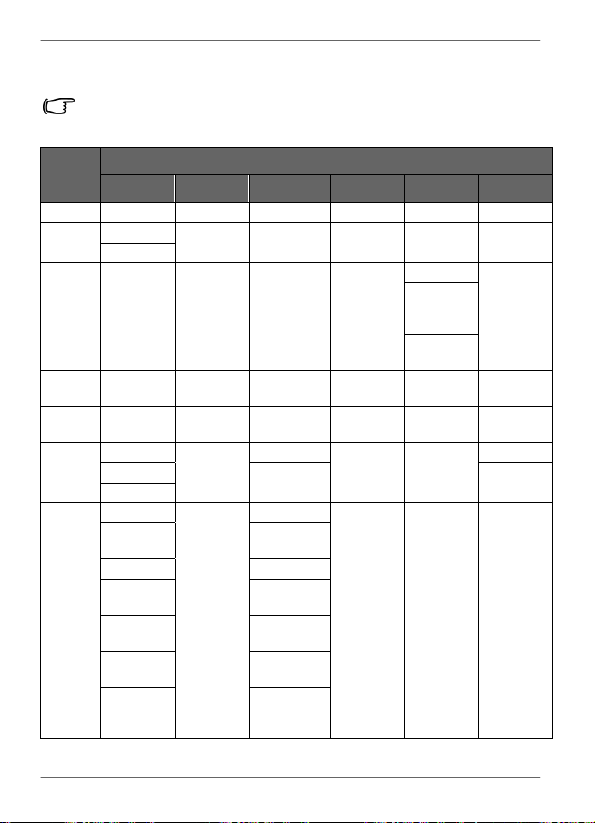
Philips
Digital
PhotoFrame
List
of
compatible
memory
cards
Not
all
supported
memory
cards
are
included
in
the
table
below.
For
technical
support,
contact
your
nearest
service
center
for
assistance.
Capacity
Memory card formats
SD miniSD microSD MMC MS xD
8MB TOSHIBA
32MB
Kodak
Canon
64MB
LEXAR
SanDisk
(MS Pro
Duo)
SONY (MS
Pro Duo)
128MB
Panasonic
SanDisk
(M2)
256MB
SanDisk RIDATA
OLYMPUS
(M)
512MB
TwinMOS
SanDisk
Transcend
FUJIFILM
TOSHIBA
Transcend
Kodak (H)
PQI
1GB
Kingston
Panasonic
SanDisk
Transcend
FUJIFILM
SanDisk
SanDisk
(Ultra II)
Transcend Transcend
A-DATA
(80X)
TOSHIBA
RIDATA
(66X)
A-DATA
APACER
(60X)
Kingston
Panasonic
(SDHC
Class 4)
Adapter
EN
-
56
Appendix
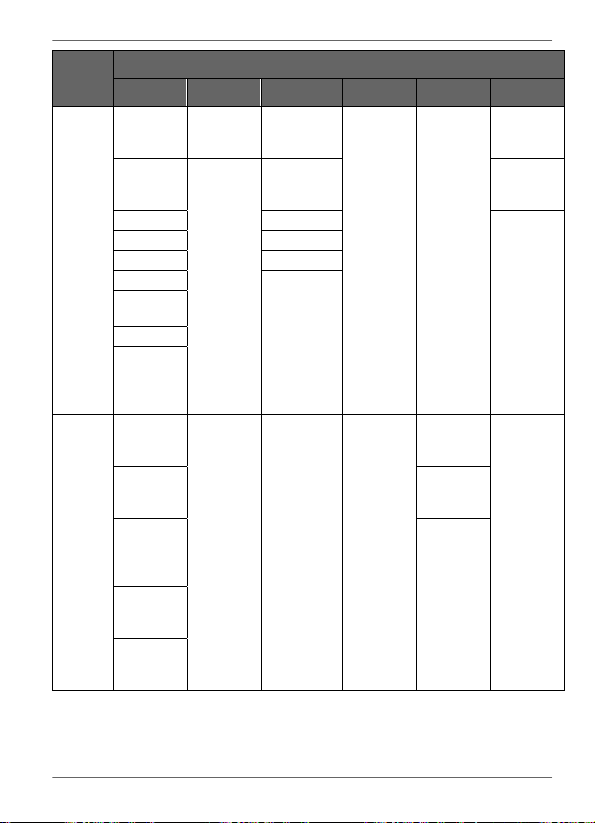
Philips
Digital
PhotoFrame
Capacity
Memory card formats
SD miniSD microSD MMC MS xD
2GB
Panasonic
(SDHC
Class 4)
Stargem
Silicon
Power
OLYMPUS
(M+)
Panasonic
(SDHC
Class 2)
Panasonic
Kingston
OLYMPUS
(M)
SanDisk Transcend
FUJIFILM
(H)
Transcend A-DATA
TOSHIBA PQI
A-DATA
SanDisk
APACER
(60X)
SanDisk
Silicon
Power
(Ultima II
80X)
4GB
Kingston
(SDHC
Class 6)
Transcend
SanDisk
SanDisk
(MS Pro
HG Duo)
A-DATA
(SDHC
Class 6)
SONY (MS
Pro Duo)
Silicon
Power
(SDHC
Class 6)
ScanDisk
(MS Pro
Duo)
TOSHIBA
(SDHC
Class 4)
RIDATA
(SDHC
Class 6)
Appendix
EN
-
57

Philips
Digital
PhotoFrame
Capacity
Memory card formats
SD miniSD microSD MMC MS xD
8GB
A-DATA
(SDHC
Class 6)
Kingston
Transcend
(SDHC
Class 6)
SanDisk
Kingston
(SDHC
Class 6)
16GB
Transcend
(SDHC
Class 6)
TOSHIBA
SanDisk
(MS Pro
Duo)
32GB
SONY (MS
Pro Duo
Mark2)
SONY (MS
Pro Duo)
EN
-
58
Appendix


Philips
and
Philips
Shield
are
used
under
license
of
Koninklijke
Philips
Electronics
NV.
©
2010
GiiNii
International
All
rights
reserved.
P/N: