User's Guide
MX-M850
MX-M950
MX-M1100
MODEL:

2
TABLE OF CONTENTS
ABOUT THIS MANUAL . . . . . . . . . . . . . . . . . . . . . . . . 4
• MANUALS PROVIDED WITH THE MACHINE . . . 4
1
BEFORE USING THE MACHINE
PART NAMES AND FUNCTIONS . . . . . . . . . . . . . . . . 6
• EXTERIOR . . . . . . . . . . . . . . . . . . . . . . . . . . . . . . . 6
• INSIDE AND CONNECTOR. . . . . . . . . . . . . . . . . . 8
• AUTOMATIC DOCUMENT FEEDER AND
DOCUMENT GLASS . . . . . . . . . . . . . . . . . . . . . . . 9
• OPERATION PANEL . . . . . . . . . . . . . . . . . . . . . . 10
TOUCH PANEL . . . . . . . . . . . . . . . . . . . . . . . . . . . . . 12
• USING THE TOUCH PANEL . . . . . . . . . . . . . . . . 12
• USING THE TOUCH PANEL (System
Settings) . . . . . . . . . . . . . . . . . . . . . . . . . . . . . . . . 14
• SYSTEM BAR . . . . . . . . . . . . . . . . . . . . . . . . . . . 15
PRINT/SEND STATUS (JOB STATUS). . . . . . . . . . . 16
• STATUS INDICATORS . . . . . . . . . . . . . . . . . . . . 17
TURNING THE POWER ON AND OFF . . . . . . . . . . . 18
• ENERGY SAVE FUNCTIONS . . . . . . . . . . . . . . . 19
• [POWER SAVE] KEY . . . . . . . . . . . . . . . . . . . . . . 19
USER AUTHENTICATION . . . . . . . . . . . . . . . . . . . . . 20
• AUTHENTICATION BY USER NUMBER. . . . . . . 20
• AUTHENTICATION BY LOGIN NAME /
PASSWORD. . . . . . . . . . . . . . . . . . . . . . . . . . . . . 22
HOME SCREEN . . . . . . . . . . . . . . . . . . . . . . . . . . . . . 25
2
LOADING PAPER
IMPORTANT POINTS ABOUT PAPER . . . . . . . . . . . 26
• NAMES AND LOCATIONS OF TRAYS . . . . . . . . 26
• THE MEANING OF "R" IN PAPER SIZES . . . . . . 26
• USEABLE PAPER . . . . . . . . . . . . . . . . . . . . . . . . 27
TRAY SETTINGS FOR TRAY 1 AND TRAY 2. . . . . . 29
• LOADING PAPER . . . . . . . . . . . . . . . . . . . . . . . . 29
• CHANGING THE PAPER SIZE . . . . . . . . . . . . . . 30
TRAY SETTINGS FOR TRAY 3 AND TRAY 4. . . . . . 32
• LOADING PAPER AND CHANGING THE
PAPER SIZE . . . . . . . . . . . . . . . . . . . . . . . . . . . . 32
PERIPHERAL DEVICE TRAYS . . . . . . . . . . . . . . . . . 35
• TRAY LOCATIONS AND NAMES . . . . . . . . . . . . 35
• PAPER THAT CAN BE USED IN THE
PERIPHERAL DEVICE TRAYS . . . . . . . . . . . . . . 36
• TRAY SETTINGS FOR THE LARGE
CAPACITY TRAYS (MX-LCX4) . . . . . . . . . . . . . . 37
• TRAY SETTINGS FOR THE LARGE
CAPACITY TRAYS (MX-LCX5) . . . . . . . . . . . . . . 40
• TRAY SETTINGS FOR THE LARGE
CAPACITY TRAY (MX-LCX6) . . . . . . . . . . . . . . . 43
• TRAY SETTINGS FOR THE LARGE
CAPACITY TRAY (MX-LCX3N) . . . . . . . . . . . . . . 44
LOADING PAPER IN THE BYPASS TRAY . . . . . . . . 48
• IMPORTANT POINTS WHEN USING THE
BYPASS TRAY. . . . . . . . . . . . . . . . . . . . . . . . . . . 52
3
ORIGINALS
PLACING THE ORIGINAL . . . . . . . . . . . . . . . . . . . . . 53
• PLACING ORIGINALS IN THE AUTOMATIC
DOCUMENT FEEDER . . . . . . . . . . . . . . . . . . . . . 53
• PLACING THE ORIGINAL ON THE
DOCUMENT GLASS . . . . . . . . . . . . . . . . . . . . . . 55
4
PERIPHERAL DEVICES
PERIPHERAL DEVICES . . . . . . . . . . . . . . . . . . . . . . 57
NAMES AND FUNCTIONS OF THE PARTS OF
THE PERIPHERAL DEVICE. . . . . . . . . . . . . . . . . . . . 59
• FINISHER. . . . . . . . . . . . . . . . . . . . . . . . . . . . . . . 59
• SADDLE UNIT . . . . . . . . . . . . . . . . . . . . . . . . . . . 60
• FINISHER (FOR THE MX-M850) / SADDLE
STITCH FINISHER. . . . . . . . . . . . . . . . . . . . . . . . 60
• FOLDING UNIT . . . . . . . . . . . . . . . . . . . . . . . . . . 61
• INSERTER . . . . . . . . . . . . . . . . . . . . . . . . . . . . . . 62
MANUAL FINISHING MODE . . . . . . . . . . . . . . . . . . . 65
• USING MANUAL FINISHING . . . . . . . . . . . . . . . . 66
• STAPLE FUNCTION / SADDLE STITCH
FUNCTION . . . . . . . . . . . . . . . . . . . . . . . . . . . . . . 67
• PUNCH FUNCTION . . . . . . . . . . . . . . . . . . . . . . . 69
• PAPER LOADING ORIENTATION (FOR THE
STAPLE AND PUNCH FUNCTIONS) . . . . . . . . . 69
• PAPER FOLDING FUNCTION. . . . . . . . . . . . . . . 70
• PAPER LOADING ORIENTATION (FOR
FOLDING) . . . . . . . . . . . . . . . . . . . . . . . . . . . . . . 70

3
5
SYSTEM SETTINGS
ACCESSING THE SYSTEM SETTINGS . . . . . . . . . . 71
SYSTEM SETTINGS LIST . . . . . . . . . . . . . . . . . . . . . 72
TOTAL COUNT . . . . . . . . . . . . . . . . . . . . . . . . . . . . . 74
• JOB COUNT. . . . . . . . . . . . . . . . . . . . . . . . . . . . . 74
• DEVICE COUNT . . . . . . . . . . . . . . . . . . . . . . . . . 74
DEFAULT SETTINGS . . . . . . . . . . . . . . . . . . . . . . . . 75
• CLOCK ADJUST . . . . . . . . . . . . . . . . . . . . . . . . . 75
• KEYBOARD SELECT. . . . . . . . . . . . . . . . . . . . . . 76
LIST PRINT (USER) . . . . . . . . . . . . . . . . . . . . . . . . . . 76
PAPER TRAY SETTINGS . . . . . . . . . . . . . . . . . . . . . 77
• TRAY SETTINGS . . . . . . . . . . . . . . . . . . . . . . . . . 77
• PAPER TYPE REGISTRATION . . . . . . . . . . . . . . 81
• AUTO TRAY SWITCHING . . . . . . . . . . . . . . . . . . 81
USB-DEVICE CHECK . . . . . . . . . . . . . . . . . . . . . . . . 81
USER CONTROL . . . . . . . . . . . . . . . . . . . . . . . . . . . . 82
• MODIFY USER INFORMATION . . . . . . . . . . . . . 82
6
TROUBLESHOOTING
• PROBLEMS RELATED TO MACHINE
OPERATION . . . . . . . . . . . . . . . . . . . . . . . . . . . . 84
• PROBLEMS RELATED TO PAPER FEEDING
AND OUTPUT . . . . . . . . . . . . . . . . . . . . . . . . . . . 87
• PROBLEMS RELATED TO QUALITY / PRINT
RESULTS . . . . . . . . . . . . . . . . . . . . . . . . . . . . . . . 89
• PROBLEMS RELATED TO PERIPHERAL
DEVICES . . . . . . . . . . . . . . . . . . . . . . . . . . . . . . . 90
• OTHER PROBLEMS . . . . . . . . . . . . . . . . . . . . . . 93
7
ENTERING TEXT
FUNCTIONS OF THE MAIN KEYS . . . . . . . . . . . . . . 94
• ENTERING TEXT FROM AN EXTERNAL
KEYBOARD . . . . . . . . . . . . . . . . . . . . . . . . . . . . . 95
4
ABOUT THIS MANUAL
Please note
• Considerable care has been taken in preparing this manual. If you have any comments or concerns about the manual, please
contact your dealer or nearest SHARP Service Department.
• This product has undergone strict quality control and inspection procedures. In the unlikely event that a defect or other problem
is discovered, please contact your dealer or nearest SHARP Service Department.
• Aside from instances provided for by law, SHARP is not responsible for failures occurring during the use of the product or its
options, or failures due to incorrect operation of the product and its options, or other failures, or for any damage that occurs due
to use of the product.
Warning
• Reproduction, adaptation or translation of the contents of the manual without prior written permission is prohibited, except as
allowed under copyright laws.
• All information in this manual is subject to change without notice.
Illustrations and the operation panel and touch panel shown in this manual
The peripheral devices are generally optional, however, some models include certain peripheral devices as standard equipment.
The explanations in this manual assume that a finisher, punch module, saddle unit, folding unit, inserter, large capacity trays, and
bypass tray are installed on the MX-M1100.
For some functions and procedures, the explanations assume that devices other than the above are installed.
MANUALS PROVIDED WITH THE MACHINE
Printed manuals and manuals stored in PDF format on the machine's hard drive are provided with the machine. When
using the machine, read the appropriate manual for the feature you are using.
Printed manuals
The display screens, messages, and key names shown in the manual may differ from those on the actual machine
due to product improvements and modifications.
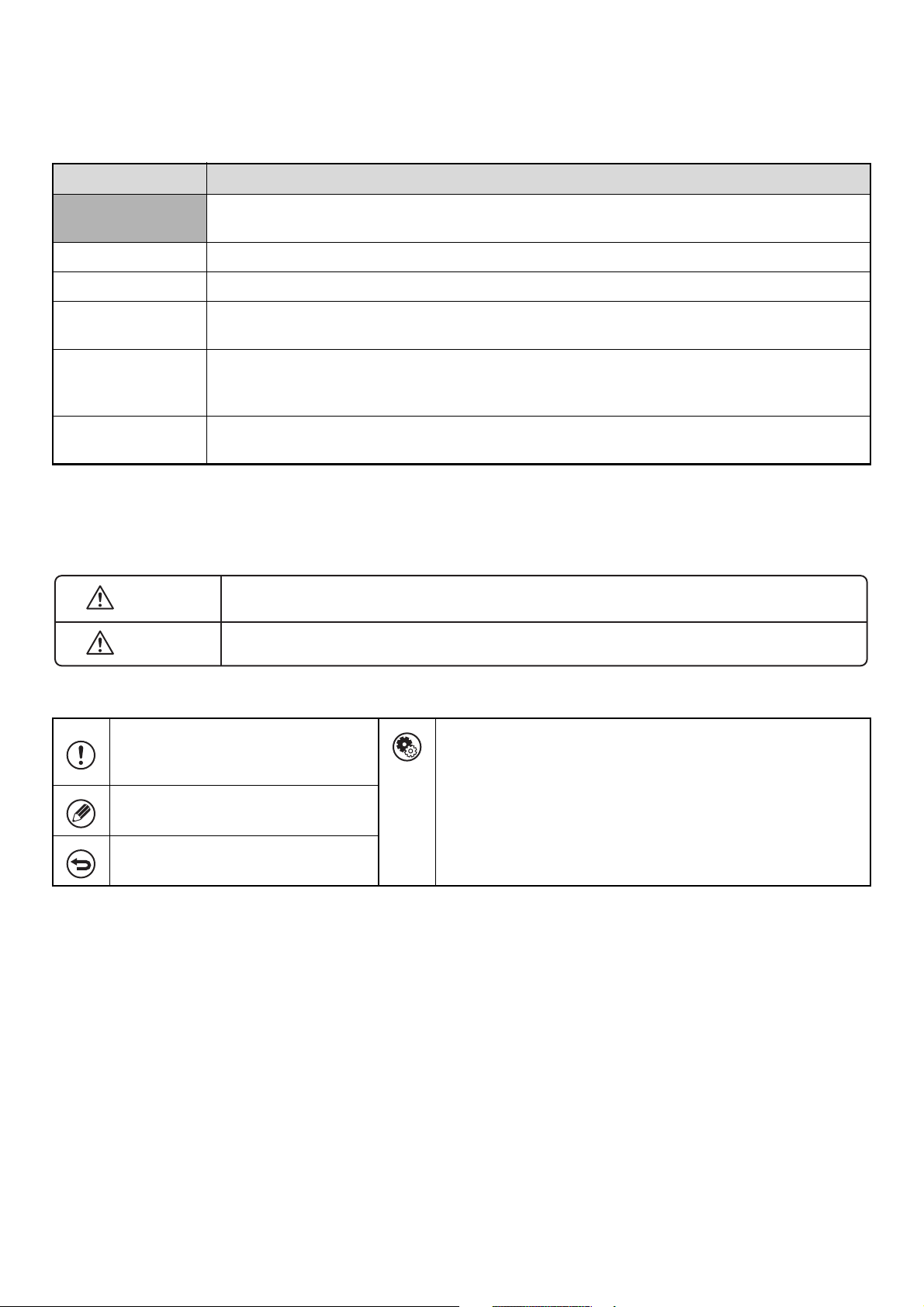
Manual name Contents
Safety Guide
This manual contains instructions for using the machine safely and lists the specifications of the machine
and its peripheral devices.
Software Setup
Guide
This manual explains how to install and configure the software that is required to use the printer function
and other functions of the machine that are used from a computer.
Quick Start Guide
This manual provides easy-to-understand explanations of all the functions of the machine in a single
volume.
Detailed explanations of each of the functions can be found in the manuals in PDF format.
Maintenance Guide
This manual explains maintenance procedures such as how to replace supplies and remove paper
misfeeds.
5
Operation manuals in PDF format
The manuals in PDF format provide detailed explanations of the procedures for using the machine in each mode. To
view the PDF manuals, download them from the hard drive in the machine. The procedure for downloading the manuals
is explained in "How to download the manuals in PDF format" in the Quick Start Guide.
Icons used in the manuals
The icons in the manuals indicate the following types of information:
Manual name Contents
User's Guide
(This manual)
This manual explains the basic procedures for using the machine, such as how to load paper.
Copier Guide
This manual provides detailed explanations of the procedures for using the copy function.
Printer Guide This manual provides detailed explanations of the procedures for using the print function.
Image Send Guide
This manual provides detailed explanations of the procedures for using the image send function (scan,
USB memory scan, Internet fax, fax, and data entry).
Document Filing
Guide
This manual provides detailed explanations of the procedures for using the document filing function. The
document filing function allows you to save the document data of a copy or fax job, or the data of a print
job, as a file on the machine's hard drive. The file can be called up as needed.
Administrator's
Guide
This manual explains the settings and functions that are used to manage and control the machine, such
as the system settings that require administrator rights.
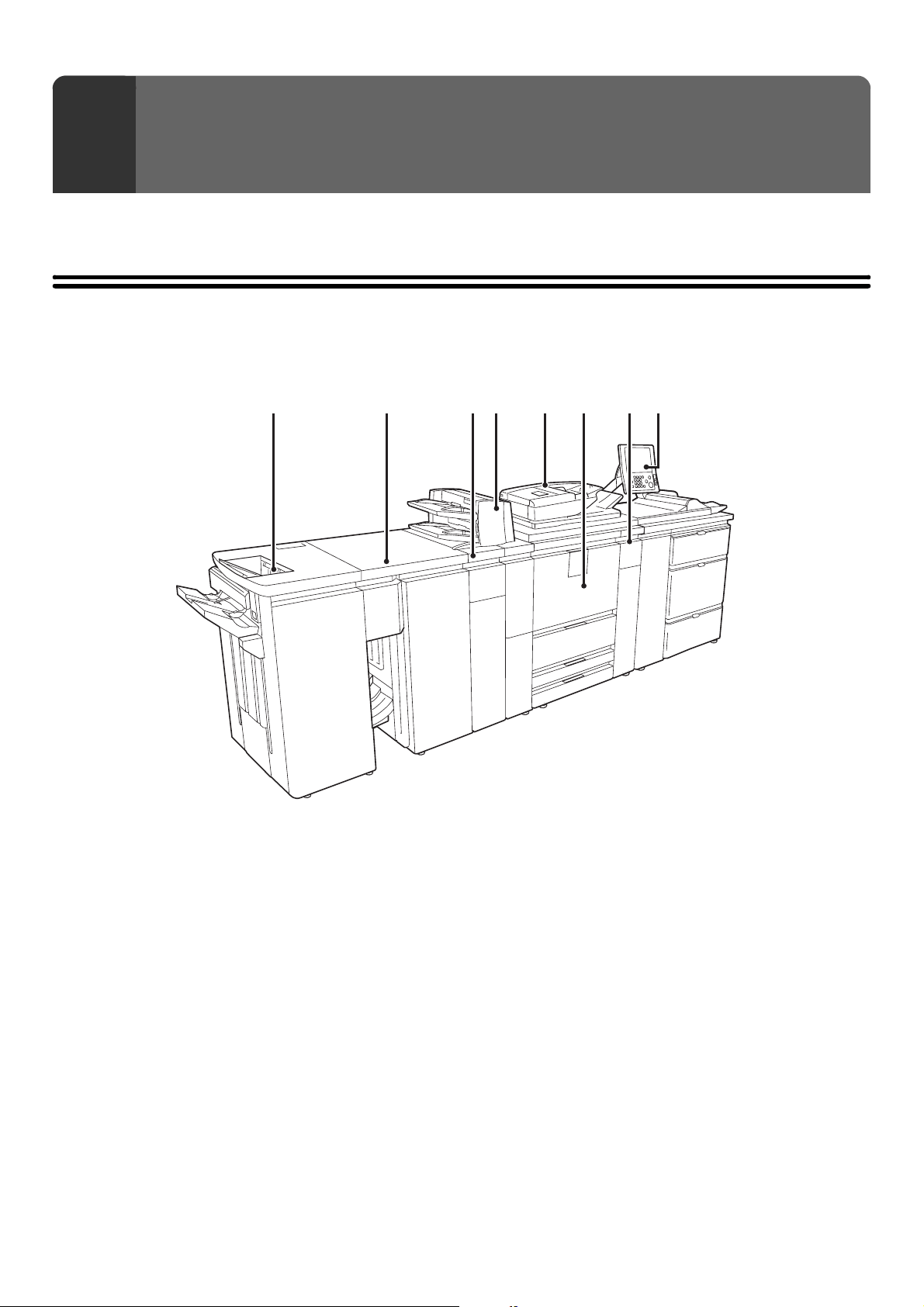
This alerts you to a situation where
there is a risk of machine damage or
failure.
This indicates the name of a system setting and provides a brief
explanation of the setting.
When "System Settings:" appears:
A general setting is explained.
When "System Settings (Administrator):" appears:
A setting that can only be configured by an administrator is
explained. For detailed information on each system setting, see
the Administrator's Guide.
This provides a supplemental
explanation of a function or procedure.
This explains how to cancel or correct
an operation.
Warning
This alerts you to a situation where there is a risk of human death or injury.
Caution
This alerts you to a situation where there is a risk of human injury or property damage.
6
This chapter provides basic information about the machine. Please read this chapter before using the machine.
PART NAMES AND FUNCTIONS
EXTERIOR
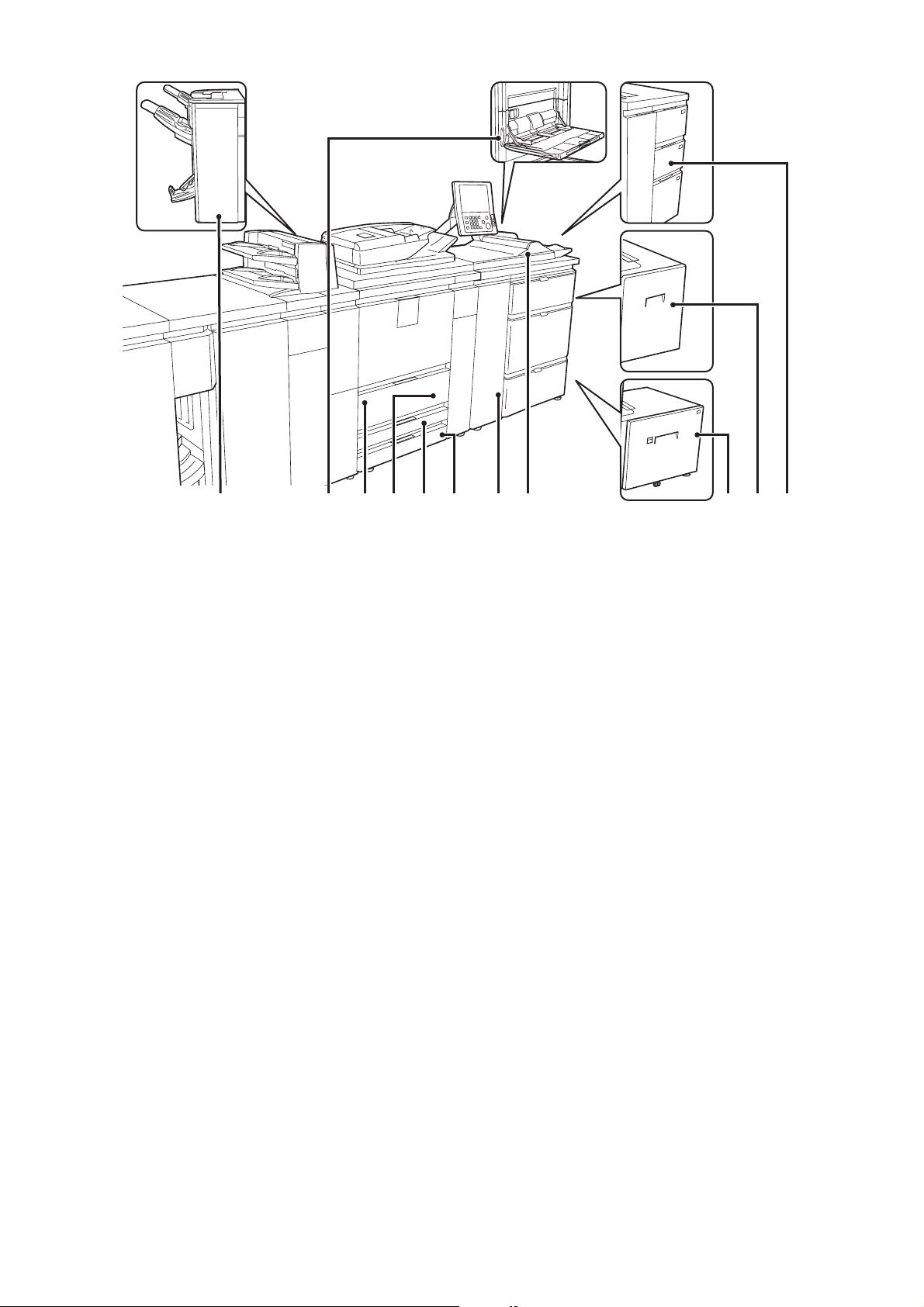
(1) Finisher*
This can be used to staple output. The optional punch
module can be installed to punch holes in output.
☞ FINISHER (page 59)
(2) Saddle unit
*
The output is folded at the center. The saddle stitch
function staples output at the centerline.
☞ SADDLE UNIT (page 60)
(3) Folding unit
*
This folds output.
☞ FOLDING UNIT (page 61)
(4) Inserter*
Paper loaded in the inserter can be inserted into output
from the machine as covers and inserts.
☞ INSERTER (page 62)
(5) Automatic document feeder
This automatically feeds and scans multiple originals. Both
sides of 2-sided originals can be automatically scanned.
☞ PLACING ORIGINALS IN THE AUTOMATIC
DOCUMENT FEEDER (page 53)
(6) Front cover
Open this to remove a paper misfeed from the conveyor
unit or to switch the main power switch on and off.
☞ TURNING THE POWER ON AND OFF (page 18)
(7) Toner cartridge installation cover
Open this cover to replace a toner cartridge.
(8) Operation panel
This is used to select functions and enter the number of
copies.
☞ OPERATION PANEL (page 10)
*Peripheral device.
1
BEFORE USING THE MACHINE
(1) (2) (3)
(4) (5) (8)(7)(6)
7
(9)
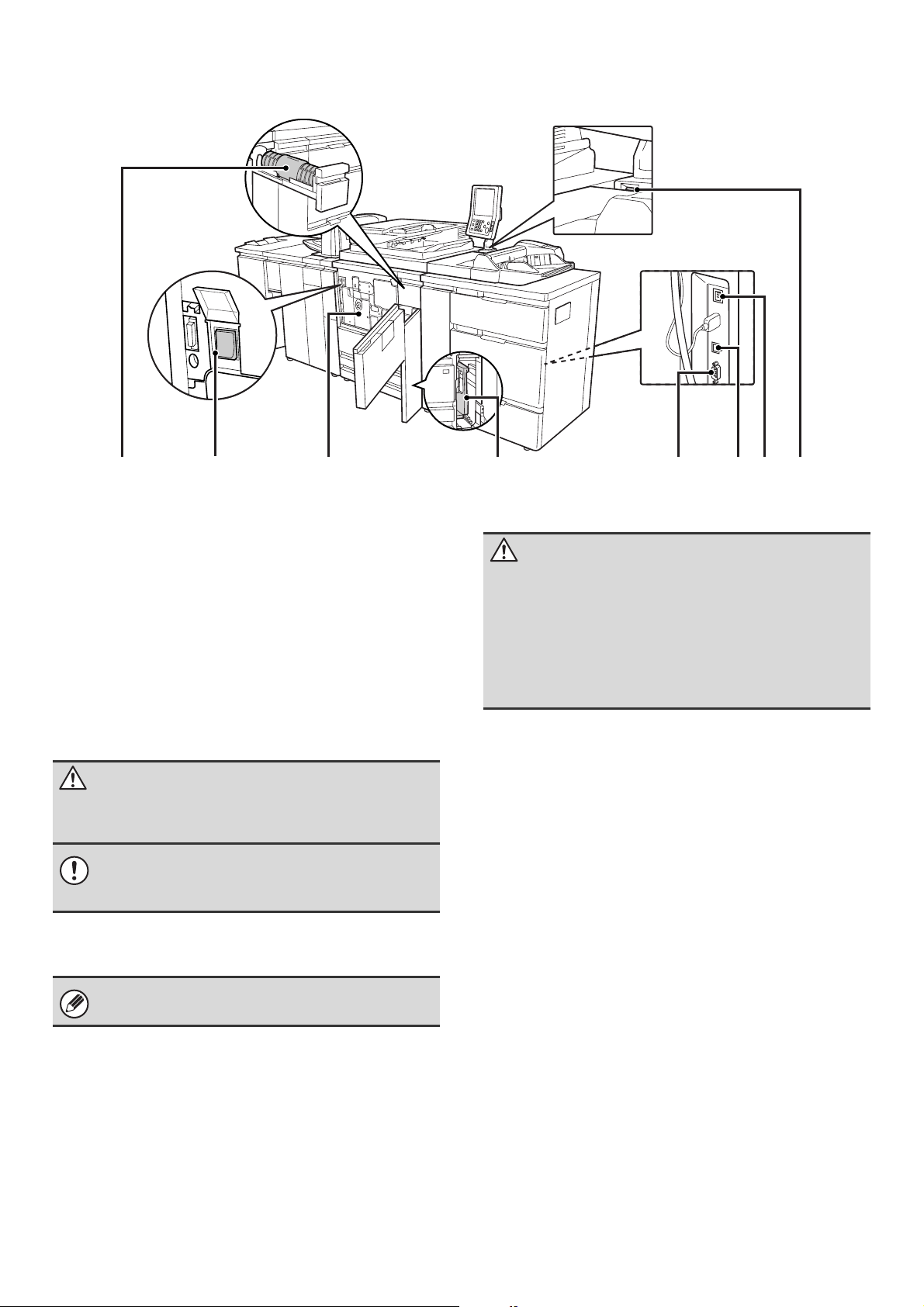
Finisher (for MX-M850) / Saddle stitch finisher*
This can be used to staple output. The punch module can
be installed to punch holes in output. The saddle stitch
finisher can automatically staple output at the centerline
and fold the pages to create a pamphlet.
☞ FINISHER (FOR THE MX-M850) / SADDLE STITCH
FINISHER (page 60)
(10) Bypass tray (MX-MFX1)*
When using the bypass tray, insert the paper from here.
If the paper is larger than 8-1/2" x 11"R (A4R), be sure to
pull out the extension tray.
When the large capacity trays are installed, this cannot
be installed.
☞
LOADING PAPER IN THE BYPASS TRAY (page 48)
(11) Tray 1 (left side)
This holds paper. Up to 1200 sheets of paper can be
loaded.
☞ TRAY SETTINGS FOR TRAY 1 AND TRAY 2 (page
29)
(12) Tray 2 (right side)
This holds paper. Up to 800 sheets of paper can be
loaded.
☞ TRAY SETTINGS FOR TRAY 1 AND TRAY 2 (page
29)
(13) Tray 3
This holds paper. Transparency film, tab paper, and
other special media can also be loaded. Up to 500 sheets
of paper can be loaded.
☞ TRAY SETTINGS FOR TRAY 3 AND TRAY 4 (page
32)
(14) Tray 4
This holds paper. Transparency film, tab paper, and
other special media can also be loaded. Up to 500 sheets
of paper can be loaded.
☞ TRAY SETTINGS FOR TRAY 3 AND TRAY 4 (page
32)
(15) Large capacity trays (MX-LCX5)*
This holds paper. Up to 4000 sheets of paper can be
loaded.
☞
TRAY SETTINGS FOR THE LARGE CAPACITY
TRAYS (MX-LCX5) (page 40)
(16) Bypass tray (MX-MFX2)*
Bypass tray that can be installed when the large capacity
trays are installed. Use this tray to feed paper manually.
When loading paper larger than 8-1/2" x 11"R or A4R, be
sure to pull out the bypass tray extension.
☞
LOADING PAPER IN THE BYPASS TRAY (page 48)
(17) Large capacity tray (MX-LCX3N*)
This can be used on the MX-M850.
The bypass tray (MX-MFX1) is required. Up to 3000
sheets of paper can be loaded.
☞
TRAY SETTINGS FOR THE LARGE CAPACITY
TRAY (MX-LCX3N)
(page
44)
(18) Large capacity tray (MX-LCX6)*
This holds paper. Up to 3500 sheets of paper can be loaded.
☞
TRAY SETTINGS FOR THE LARGE CAPACITY
TRAY (MX-LCX6) (page 43)
(19) Large capacity trays (MX-LCX4)*
This holds paper. Up to 4550 sheets of paper can be
loaded.
☞ TRAY SETTINGS FOR THE LARGE CAPACITY
TRAYS (MX-LCX4) (page 37)
*Peripheral device.
(11)(9) (12) (13) (15) (16)(14)(10) (17) (18) (19)
8
INSIDE AND CONNECTOR
(20) Toner cartridges
These contain toner for printing. When the toner runs out
in the cartridge, replace the cartridge with a new
cartridge.
(21) Main power switch
This is used to power on the machine.
When using the fax or Internet fax functions, keep this
switch in the "on" position.
☞ TURNING THE POWER ON AND OFF (page 18)
(22) Conveyor unit
This contains the fusing unit that fuses the transferred
image to the paper by heat, and the transfer belt that is
used to transfer the image to the paper.
(23) Toner collection container
This collects excess toner that remains after printing.
(24) Service-only connector
(25) USB connector (B type)
A computer can be connected to this connector to use
the machine as a printer.
For the USB cable, use a shielded cable.
(26) LAN connector
Connect the LAN cable to this connector when the
machine is used on a network.
For the LAN cable, use a shielded type cable.
(27) USB connector (A type)
This is used to connect a USB device such as USB
memory to the machine.
For the USB cable, use a shielded cable.
(20) (22) (23) (24)(21) (27)(26)(25)
Caution
The fusing unit is hot. Take care not to burn yourself
when removing a paper misfeed.
Do not touch the transfer belt or allow it to be
damaged.
This may cause a defective image.
Your service technician will collect the toner collection
container.
Caution
This connector is for use only by service technicians.
Connecting a cable to this connector may cause the
machine to malfunction.
Important note for service technicians:
The cable connected to the service connector must be
less than 118" (3 m) in length.
9
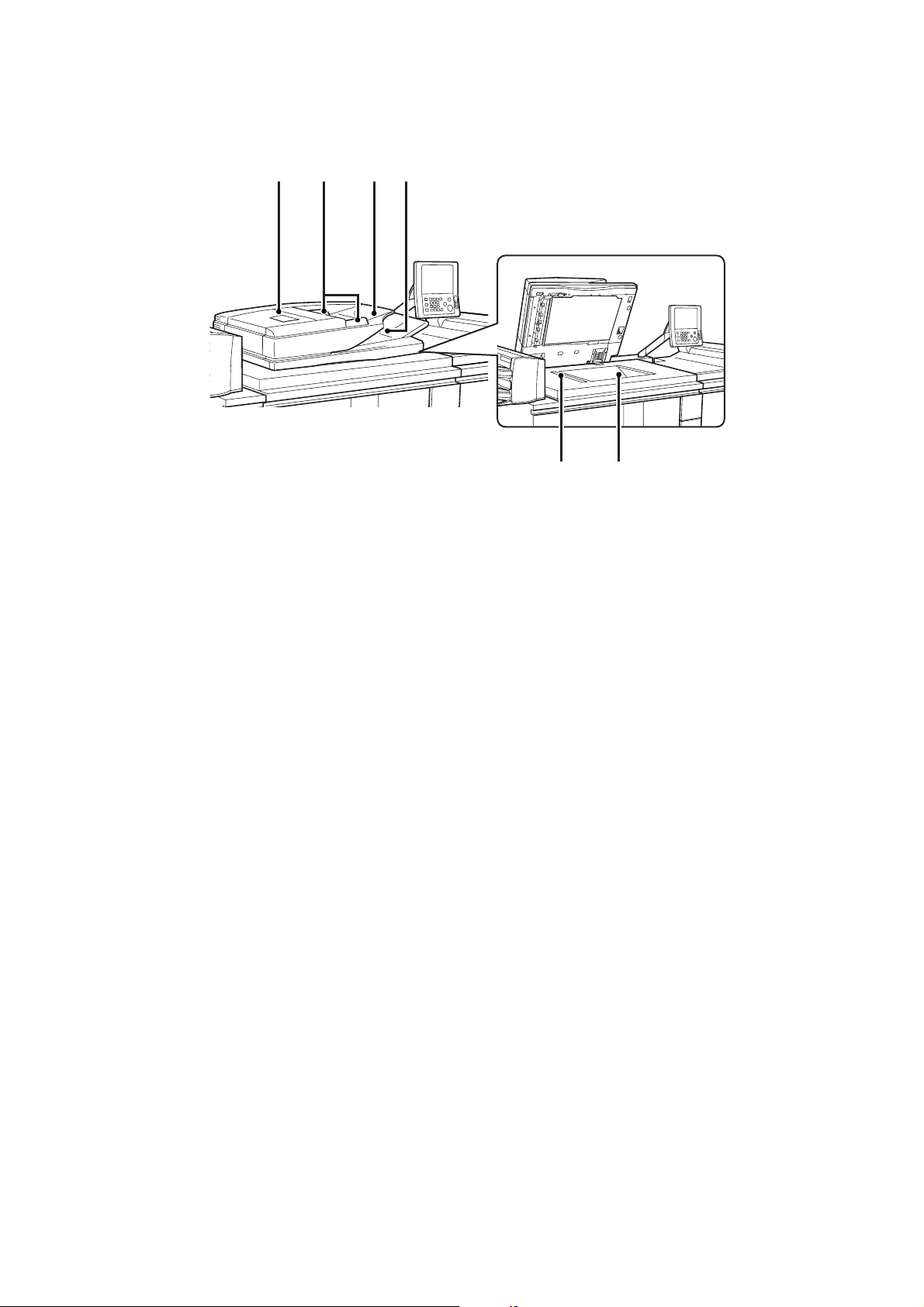
AUTOMATIC DOCUMENT FEEDER AND DOCUMENT
GLASS
(1) Document feeding area cover
Open to remove a misfed original.
(2) Original guides
These help ensure that the original is scanned correctly.
Adjust the guides to the width of the original.
☞ PLACING THE ORIGINAL (page 53)
(3) Document feeder tray
Place originals in this tray. 1-sided originals must be
placed face up.
☞ PLACING THE ORIGINAL (page 53)
(4) Original exit tray
Originals are delivered to this tray after scanning.
(5) Scanning area
Originals placed in the document feeder tray are scanned
here.
(6) Document glass
Use this to scan a book or other thick original that cannot
be fed through the automatic document feeder.
☞ PLACING THE ORIGINAL ON THE DOCUMENT
GLASS (page 55)
(5)
(2)(1) (3) (4)
(6)
10
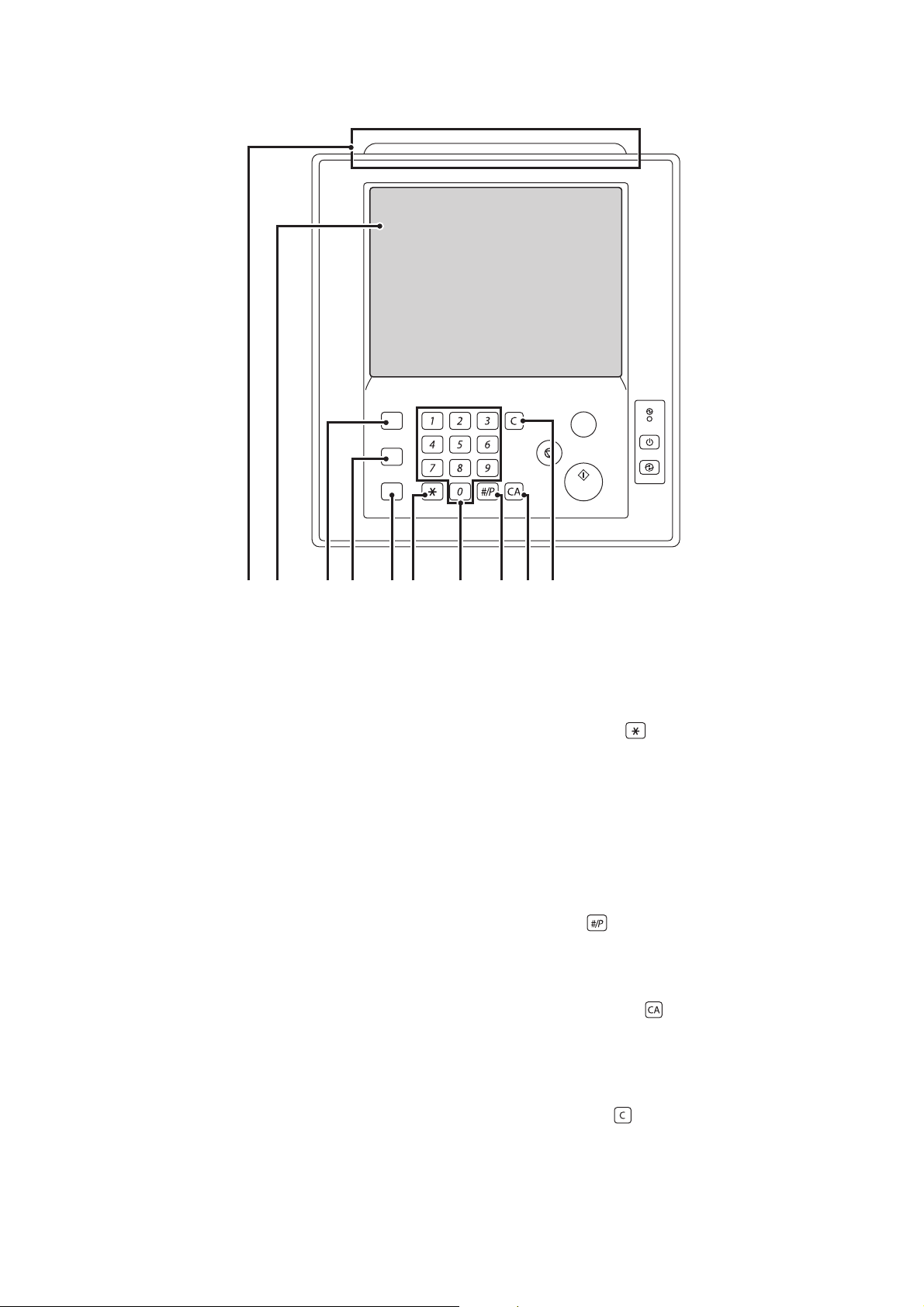
OPERATION PANEL
(1) Status indicators
Green and red indicators will light or blink to indicate the
machine's status. When the green indicator lights or
blinks, the machine is operating normally. When the red
indicator lights or blinks, an error has occurred.
☞ STATUS INDICATORS (page 17)
(2) Touch panel
Messages and keys appear in the touch panel display.
Touch the displayed keys to perform a variety of
operations.
When a key is touched, a beep sounds and the selected
item is highlighted. This provides confirmation as you
perform an operation.
☞ TOUCH PANEL (page 12)
(3) [HOME] key
Touch this key to display the home screen. Frequently
used settings can be registered in the home screen to
enable quick and easy operation of the machine.
☞ HOME SCREEN (page 25)
(4) [SYSTEM SETTINGS] key
Press this key to display the system settings menu
screen. The system settings are used to configure paper
tray settings, store addresses for transmission
operations, and adjust parameters to make the machine
easier to use.
☞ 5. SYSTEM SETTINGS (page 71)
☞ Administrator's Guide
(5) [JOB STATUS] key
Press this key to display the job status screen. The job
status screen is used to check information on jobs and to
cancel jobs.
☞ PRINT/SEND STATUS (JOB STATUS) (page 16)
(6) [LOGOUT] key ( )
Press this key to log out after you have logged in and
used the machine. When using the fax function, this key
can also be pressed to send tone signals on a pulse dial
line.
☞ USER AUTHENTICATION (page 20)
(7) Numeric keys
These are used to enter the number of copies, fax
numbers, and other numerical values.
(8) [#/P] key ( )
When using the copy function, press this key to use a job
program. When using the fax function, this key can be
used when dialing.
(9) [CLEAR ALL] key ( )
Press this key to return to the initial operation state.
Use this key when you wish to cancel all settings that
have been selected and start operation from the initial
state.
(10) [CLEAR] key ( )
Press this key to return the number of copies to "0".
PROOF COPY
LOGOUT
SYSTEM
SETTINGS
HOME
JOB STATUS
(5) (6)(1) (2) (3) (4) (7) (8) (9) (10)
11
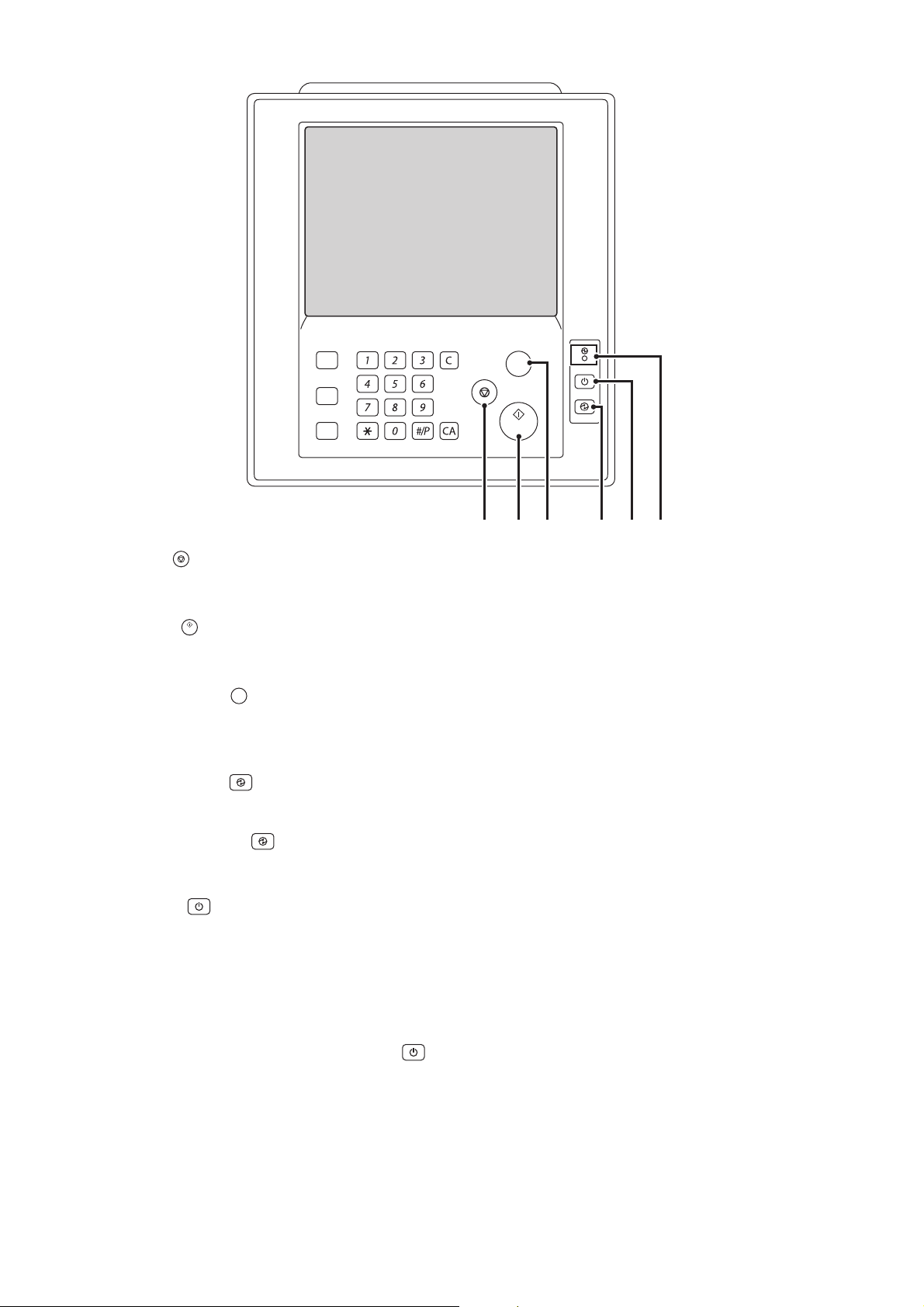
(11) [STOP] key ( )
Press this key to stop a copy job or scanning of an
original.
(12) [START] key ( )
Press this key to copy or scan an original. This key is also
used to send a fax in fax mode.
(13) [PROOF COPY] key ( )
Use this to make a proof copy. For information on proof
copying, see "CHECKING COPIES BEFORE PRINTING
(Proof Copy)" in the Copier Guide.
(14) [POWER SAVE] key ( ) / indicator
Use this key to put the machine into auto power shut-off
mode to save energy.
The [POWER SAVE] key ( ) blinks when the machine
is in auto power shut-off mode.
☞ [POWER SAVE] KEY (page 19)
(15) [POWER] key ( )
Use this key to turn the machine power on and off.
☞ TURNING THE POWER ON AND OFF (page 18)
(16) Main power indicator
This lights up when the machine's main power switch is
in the "on" position. Normally this lights solid green.
When the machine has the Internet fax or fax function
and the power is turned off with the [POWER] key ( ),
this lights solid orange.
☞ TURNING THE POWER ON AND OFF (page 18)
PROOF COPY
LOGOUT
SYSTEM
SETTINGS
HOME
JOB STATUS
(12)(11) (13) (14) (15) (16)
PROOF COPY

12
TOUCH PANEL
The touch panel (screen) shown in this manual is a descriptive image. The actual screen is slightly different.
USING THE TOUCH PANEL
Example 1
(1) Mode select keys
Use these keys to switch between copy, image send, document filing, and manual finishing modes.
(2) Settings for each function are easily selected and canceled by touching the keys on the screen with your finger.
When an item is selected, a beep will sound and the item will be highlighted to confirm the selection.
(3) Keys that are grayed out cannot be selected.
Example 2
(1) If the initial state of a key in a screen is highlighted,
the key is selected. To change the selection, touch
one of the other keys to highlight that key.
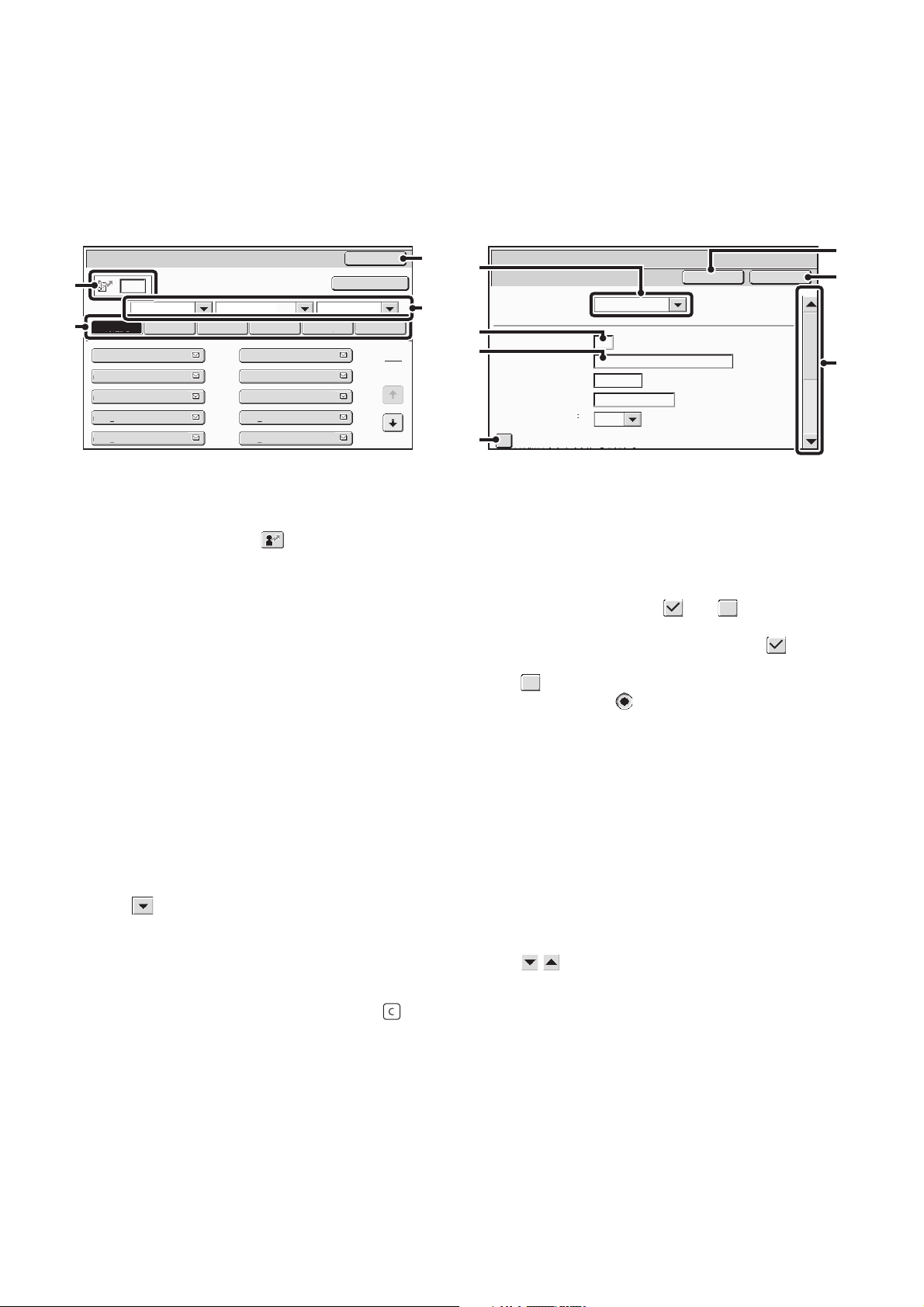
(2) The keys can be used to increase or
decrease a value. To make a value change quickly,
keep your finger on the key.
(3) Touch this key to cancel a setting.
(4) Touch the [OK] key to enter and save a setting.
Example 3
(1) Some items in the special modes screen are
selected by simply touching the key of the item.
To cancel a selected item, touch the highlighted key
once again so that it is no longer highlighted.
(2) When settings extend over multiple screens, touch
the key or the key to switch through the
screens.
If you touch a key that cannot be selected, a double beep will sound.
Job status screen.
Detail
Spool
Complete
Stop/Delete
Copy2
3
4
0002 / 0000
Waiting
Computer01 0002 / 0000
Waiting
0312345678 0001 / 0000
Waiting
Print Job
Job Queue Sets / Progress Status
Scan to Fax Job Internet Fax
Priority
1
1
Job Queue
Copy1 0020 / 0001 Copying
IMAGE SEND
DOCUMENT
FILING
MANUAL
FINISHING
COPY
(3)
(1)
(2)
Beep
Tone
Special Modes
OK
1/2
Margin Shift
Right Left Down Side 1
(0~1)
inch
1/2
Side 2
(0~1)
inch
OKCancel
(3) (4)(2)(1)
Special Modes
1
2
Card Shot
Multi Shot
OK
Dual Page
Copy
Tandem
Copy
Tab Copy
Transparency
Inserts
Erase
Job
Build
Book Copy
Covers/Inserts
Margin Shift
Pamphlet Copy
(1) (2)
13
Example 4
When at least one special mode is selected, the key
appears in the base screen.
The key can be touched to display a list of the
selected special modes.
OK
1
1
Function Review
Margin Shift
Erase
Shift:Right
Front:1/2inch/Back:1/2inch
Edge:1/2inch
Center:1/2inch
Covers/Inserts
Front:2-Sided/Back:Insert
Insertion A:10 Page/B:10 Page
Special Modes
Plain
2-Sided Copy
Output
File
Quick File
Copy Ratio
1.
2.
7.
8½x11
8½x11
Original Paper Select
Auto
8½x11
Plain
Auto
8½x11
Exposure
Auto
8½x14
4.
11x17
11x17
6.
11x17
5.
11x17
3.
8½x11
100%
Plain
Plain
The above explanations do not apply to the system settings. For information on the screens and procedures for using the
system settings, see "USING THE TOUCH PANEL (System Settings)" (page 14).
System Settings (Administrator): Keys Touch Sound
This is used to adjust the volume of the beep that sounds when keys are touched. The key touch sound can also be turned
off.
14
USING THE TOUCH PANEL (System Settings)
This section explains special operation methods that are common to all system settings.
Some of these steps are omitted in the explanations of each of the system settings, so refer to this section when
configuring a setting.
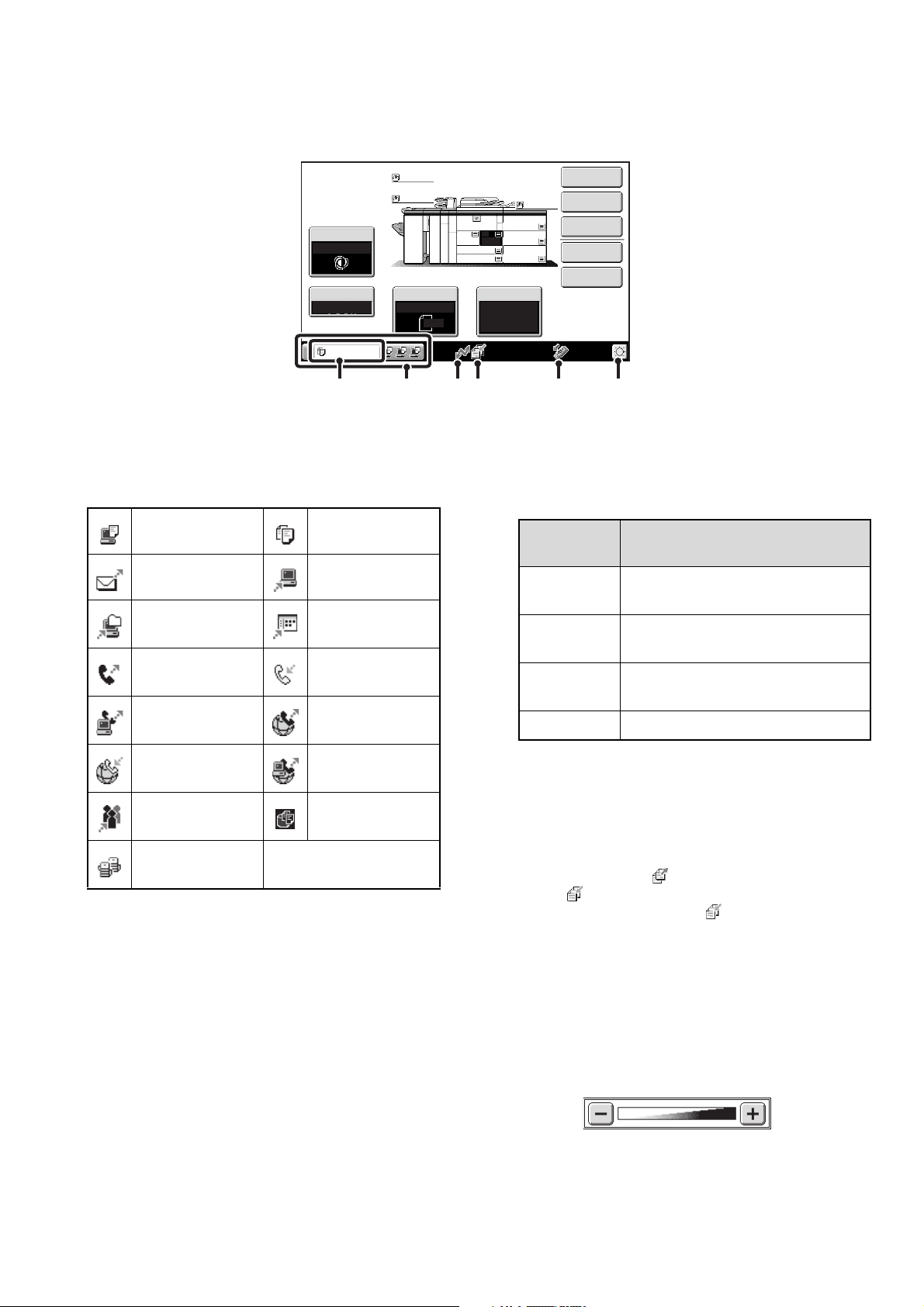
Example: Address book screen
(1) Search box
Enter a search number in this box to search for the
corresponding address.
When searching for a user, appears in the icon
display.
(2) Index keys
Touch an index key to display the corresponding
addresses. The index keys that appear vary depending
on the "Sort" setting.
(3) [Back] key
Returns you to the previous screen.
(4) "Sort"
Use this to select the method of displaying addresses
and the index type.
Example: In the "Address Book" screen, the display can
be switched between the following three methods:
• Alphabetical / User index
• Display by mode
• Ascending / Descending / Number order
(5) Select box
Touch to display a list of the items that can be
selected. Touch an item in the list to select it.
(6) Text box (numerical)
Touch this box to enter a number. Numbers are entered
with the numeric keys.
If you make a mistake, press the [CLEAR] key ( ) to
clear the incorrect number.
(7) Text box
Touch this box to open a text entry screen. When you
have finished entering text in the text entry screen, the
text will appear in the text box. To enter text, see "7.
ENTERING TEXT" (page 94).
(8) Checkbox
This switches between and each time you touch
it. To enable the corresponding setting, touch the
checkbox so that a checkmark appears . To disable
the setting, touch the checkbox to remove the checkmark
.
Radio buttons ( ) are also used to select settings in
this way. (However, radio buttons are used to select a
single item out of several.)
(9) [Cancel] key
This cancels a setting and returns you to the previous
screen.
(10) [OK] key
Touch this to store the current settings.
(11) Scroll bar
Use this to scroll the screen up and down.
Touch the bar and slide it up or down to move the screen.
You can also move the screen up and down with the
keys.
Address Book
AAA AAA
Freq.
Sort
ABC All UP
2
1
ABCD EFGHI JKLMN OPQRST UVWXYZ
Back
Cancel
System Settings
Address Control
Address Type:
Address Name
(Required):
Search Number:
Initial (Optional):
Key Name:
Custom Index:
Register this Address to be added to the [Frequent Use] index.
User 1
(1-999)
OK
Add
CCC CCC
EEE EEE
GGG GGG
III III
BBB BBB
DDD DDD
FFF FFF
HHH HHH
JJJ JJJ
E-mail
(2)
(8)
(1)
(4)
(3)
(5)
(6)
(7)
(11)
(10)
(9)
15
SYSTEM BAR
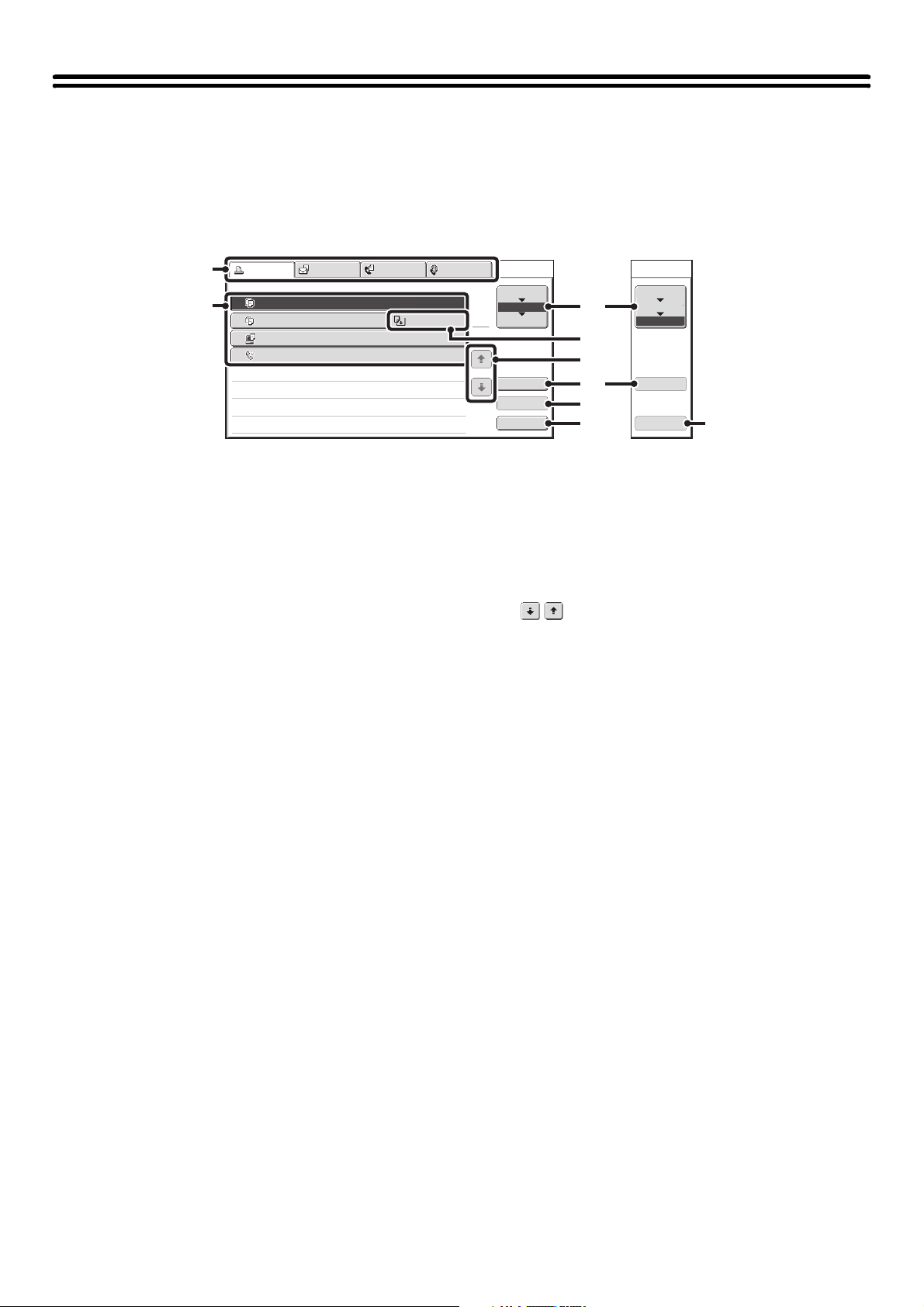
The system bar appears at the bottom of the touch panel.
The items that appear in the system bar are explained below.
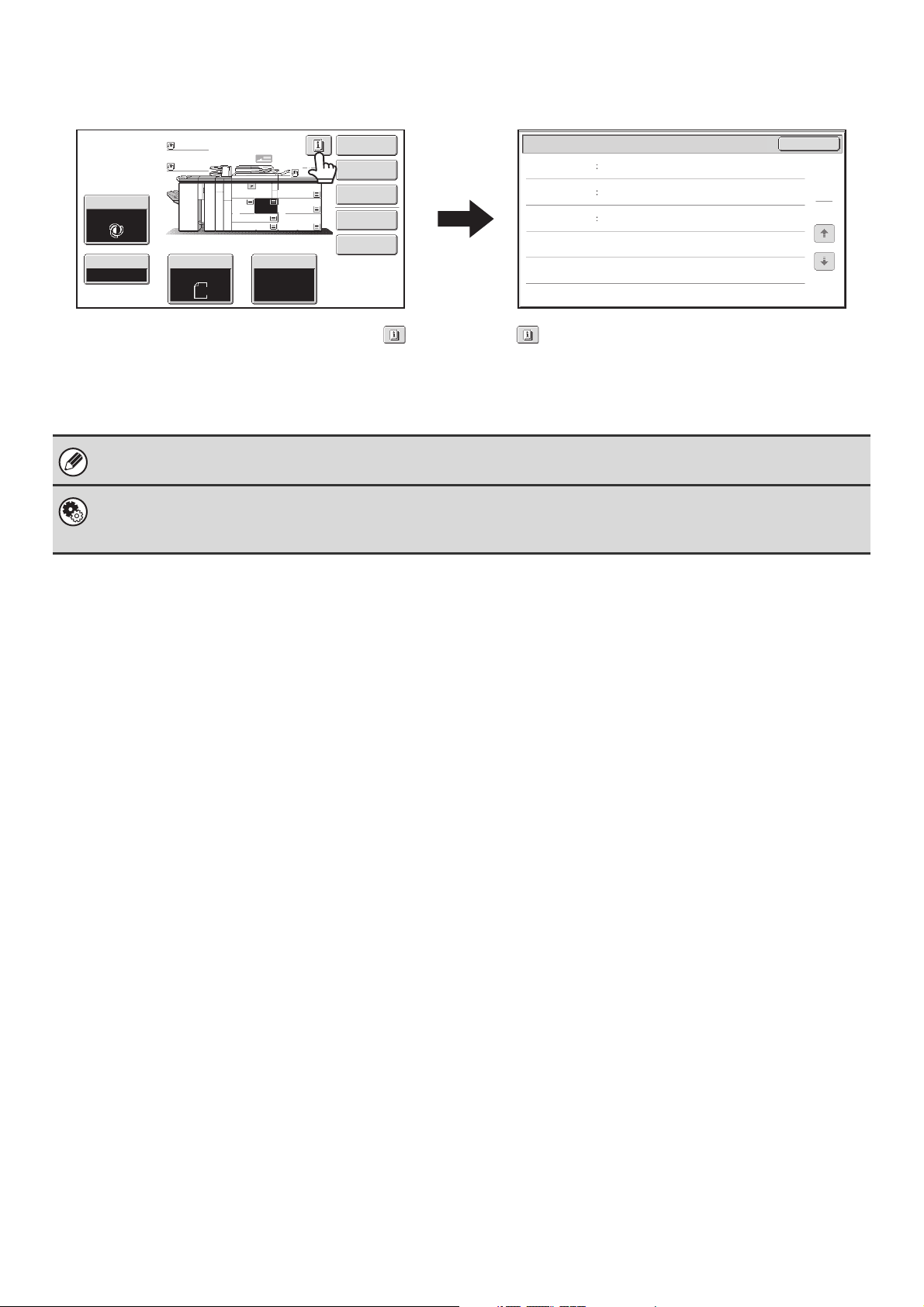
(1) Job status display
The first four jobs in progress or reserved are indicated
by icons.
The icons are as follows.
The status of the first job is indicated as shown in (A).
The color appearing in the job status display depends on
the job status as indicated in the table below. The job
status display can be touched to show the job status
screen.
(2) Line-in-use icon display
This icon appears when data is being sent or received.
(3) Data icon display
This icon appears when fax, scan, or Internet fax data is
stored in the machine's memory. When data to be
transmitted is stored, appears. When received data is
stored, appears. When both data to be transmitted
and received data are stored, appears.
(4) USB device display
This icon appears when a USB memory or other USB
device is connected to the machine.
(5) Brightness adjustment key
Touch this key to adjust the brightness of the touch
panel.
When touched, the following screen appears next to the
key.
Touch the [+] key or the [-] key to adjust the brightness.
When finished, touch the brightness adjustment key
again to close the screen.
Copying
Special Modes
Plain
2-Sided Copy
Output
File
Quick File
Copy Ratio
1.
2.
7.
8½x11
8½x11
Original Paper Select
Auto
8½x11
Plain
Auto
8½x11
Exposure
Auto
8½x14
4.
11x17
11x17
6.
11x17
5.
11x17
3.
8½x11
100%
Plain
Plain
(1)(A)
(2) (3) (4) (5)
Print job Copy job
Scan to E-mail job
Scan to FTP job
Scan to Network
Folder job
Scan to Desktop
job
Fax transmission
job
Fax reception job
PC-Fax
transmission job
Internet fax
transmission job
Internet Fax
reception job
PC-I-Fax
transmission job
Broadcast job Scan to HDD file
print job
Tandem
copy/print job
Job status
display
Machine Configuration
Green
A print, scan or other job is being
executed normally.
Yellow
The machine is warming up or on
standby, or a job is being canceled.
Red
A paper misfeed or other error
condition has occurred.
Gray The machine has no jobs.
16
PRINT/SEND STATUS (JOB STATUS)
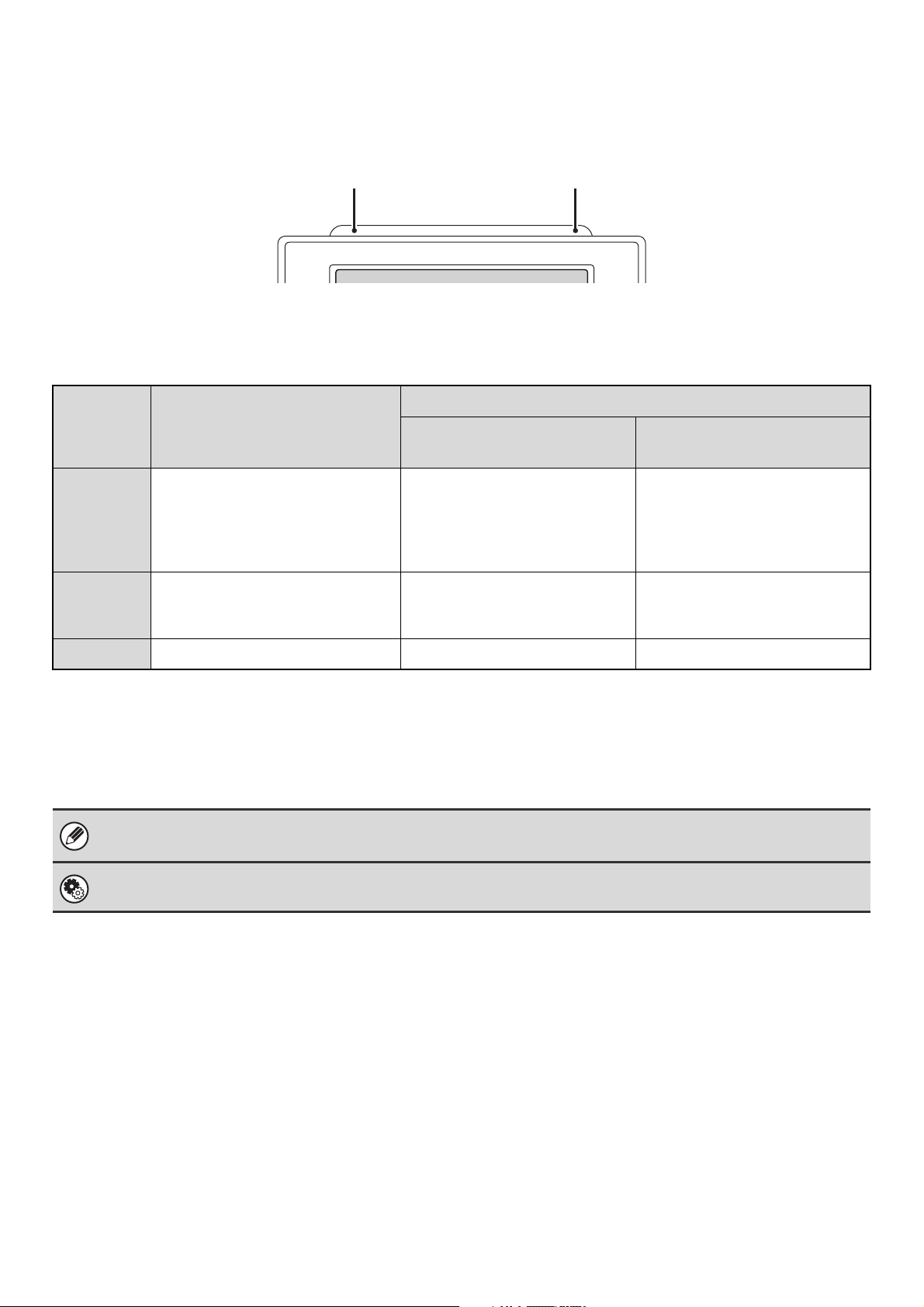
This screen appears when the [JOB STATUS] key on the operation panel is pressed.
The screen shows lists of the jobs that are reserved and in progress, and jobs that have been completed. This screen is
used to check jobs, move a job to the top of the job queue, or delete a job.
(1) Mode select tabs
Use these tabs to select print mode, scan mode, fax
mode, or Internet fax mode.
• The [Print Job] tab shows copy, print, received fax,
received Internet fax, and self print jobs.
• The [Scan to] tab shows transmission jobs that use the
scanner function.
• The [Fax Job] tab shows transmission (and reception)
jobs that use the fax and PC-Fax functions.
•
The [Internet Fax] tab shows transmission (and reception)
jobs that use the Internet fax and PC-I-fax functions.
For more information on the job status screen in each
mode, see the manual for each mode.
(2) Job list
• The screen shows lists of the jobs that are reserved
and in progress, and jobs that have been completed.
When the [Print Job] tab is touched in the mode select
tabs, the job status screen selector key changes and
the "Spool" list appears.
A brief description of each job and its status appears in
the list.
• The "Spool" screen shows spooled print jobs and
encrypted PDF jobs waiting for password entry. To
move an encrypted PDF job from the spool list to the
job queue, touch the key of the job and enter the job
password.
(3) Job status screen selector key
This switches the job list display between spooled jobs, the job
queue, and completed jobs.
"Spool": This shows spooled print jobs and encrypted
PDF jobs waiting for password entry. "Spool"
appears when print jobs are displayed.
"Job Queue":This shows reserved jobs and the job in
progress.
"Complete":This shows completed jobs.
(4) "Paper Empty" display
Add paper.
When the status is "Paper Empty", the specified size of
paper for the job is not loaded in any of the trays.
In this case, the job will be held until the required size of
paper is loaded. Other jobs that are waiting will be printed (if
possible) ahead of the held job. (However, other jobs will not
be printed if the paper ran out while printing was in progress.)
If you need to change the paper size because the
specified paper size is not available, touch the key of the
job in the job list (2) to select it, touch the [Detail] key
described in (6), and select a different paper size.
(5) keys
These change the page of the displayed job list.
(6) [Detail] key
This shows detailed information on a selected job.
When a job has been stored using Quick File or File in
document filing mode, or when a broadcast transmission
has been performed in image send mode, the job
appears as a key in the completed jobs screen. You can
touch the [Detail] key to show details on the completed
job, and you can also touch the [Call] key to reprint or
resend the job.
(7) [Priority] key
A reserved job in the "Job Queue" screen can be printed
ahead of all other reserved jobs by selecting the job and
then touching this key.
In the print job queue, select the print or copy job to
which you wish to give priority and touch this key. The job
in progress stops and printing of the selected job begins.
When the selected job is completed, the interrupted job
resumes.
(8) [Stop/Delete] key
Use this key to cancel the job currently in progress or a
selected reserved job. Note that printing of received faxes
and received Internet faxes cannot be canceled.
(9) [Call] key
A job that appears in the completed jobs screen as a key
can be touched followed by the [Call] key to reprint or
resend the job. This is the same [Call] key that appears
when the [Detail] key is touched.
Detail
Spool
Complete
Stop/Delete
2
3
4
0002 / 0000
Computer01 0002 / 0000
0312345678 0001 / 0000
Print Job
Job Queue Sets / Progress Status
Scan to Fax Job Internet Fax
Priority
1
1
Job Queue
1
0020 / 0001
Paper Empty
Waiting
Waiting
Copying
Copy
Copy
Spool
Complete
Job Queue
Detail
Call
(1)
(2)
(6)
(3)
(7)
(8)
(5)
(4)
(9)
"Complete"
job screen
17
STATUS INDICATORS
There are status indicators at the top of the operation panel.
There are both red and green indicators, and these light or blink to indicate the machine's status.
About status indicator lighting and blinking
The status indicators light or blink to indicate the following conditions.
The green indicator has two indicating patterns. The indicating pattern can be changed using "Status Indicator Settings"
in the system settings (administrator). The factory default setting is "Pattern 1".
Red indicator
Green indicator
Pattern 1
(Job status display)
Pattern 2
(Machine status display)
Lights
solidly
A problem exists but the machine
can be used.
(The toner cartridge is out of toner
and the machine is using the spare
toner, etc.)
Job in progress
(During paper feeding and
output.)
Standby
Blinking
A problem exists that prevents the
machine from being used (out of
toner, paper misfeed, etc.)
Original scanning in progress Job in progress
(During original scanning, paper
feeding, and output)
Off
No problems Standby Jobs cannot be accepted
• If solidly lit and blinking states occur simultaneously, the blinking state is given priority.
• When auto power shut-off has occurred, the status indicators turn off.
System Settings (Administrator): Status Indicator Settings
Use this to change the indicator settings of the green status indicator.
Red indicatorGreen indicator
18
TURNING THE POWER ON AND OFF
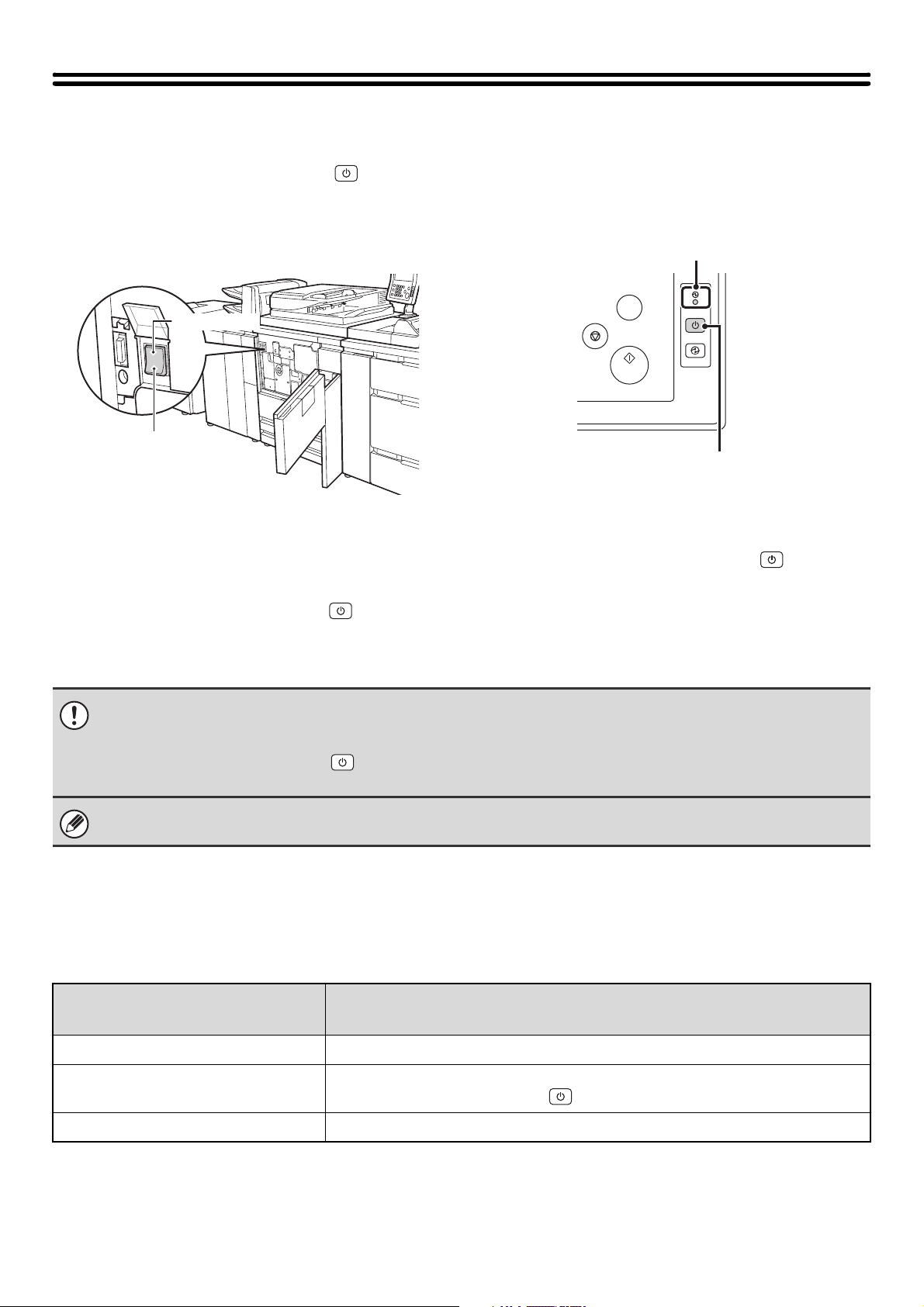
The machine has two power switches. The main power switch is at the lower left after the front cover is opened. The
other power switch is the [POWER] key ( ) on the operation panel at the top right.
Main power switch
When the main power switch is switched on, the main
power indicator on the operation panel lights up.
[POWER] key
Turning on the power
(1) Switch the main power switch to the "on"
position.
(2) Hold down the [POWER] key ( ) until the
touch panel turns on.
The machine power turns on.
Turning off the power
(1) Hold down the [POWER] key ( ) until the
touch panel turns off.
(2) Switch the main power switch to the "off"
position.
Main power indicator
The main power indicator may light green or orange, depending on the machine's status.
"On" position
"Off" position
PROOF COPY
Main power indicator
[POWER] key
• Before turning off the main power switch, make sure that a job is not in progress or being processed.
Switching off the main power switch or removing the power cord from the outlet while a job is in progress or being
processed may damage the hard drive and cause data to be lost.
• Switch off both the [POWER] key ( ) and the main power switch and unplug the power cord if you suspect a machine
failure, if there is a bad thunderstorm nearby, or when you are moving the machine.
When using the fax or Internet fax function, always keep the main power switch in the "on" position.
What the main power indicator
indicates
Machine Configuration
Green The main power switch is turned on
Orange The fax or Internet fax function can be used on the machine and the power has been
turned off with the [POWER] key ( ) with the main power switch still switched on.
Off The main power switch is switched off
19
ENERGY SAVE FUNCTIONS
This product has the following two energy save functions that conform to the Energy Star guidelines to help conserve
natural resources and reduce environmental pollution.
Preheat Mode (low power mode)
Preheat mode automatically lowers the temperature of the fusing unit and thereby reduces power consumption if the
machine remains in the standby state for the interval of time set in "Preheat Mode Setting" in the system settings
(administrator). This keeps the fusing unit at a lower temperature and reduces power consumption while the machine is
on standby.
The machine automatically wakes up and returns to normal operation when a print job is received, a key is pressed on the
operation panel, or an original is placed.
Auto power shut-off mode (Sleep mode)
Auto power shut-off mode automatically shuts off power to the display and the fusing unit if the machine remains in the
standby state for the interval of time set in "Auto Power Shut-Off Timer" in the system settings (administrator). This
mode provides the lowest level of power consumption. Considerably more power is saved than in preheat mode,
however, the wakeup time is longer. This mode can be disabled in the system settings (administrator).
The machine automatically wakes up and resumes normal operation when a print job is received or when the blinking
[POWER SAVE] key ( ) is pressed.
[POWER SAVE] KEY
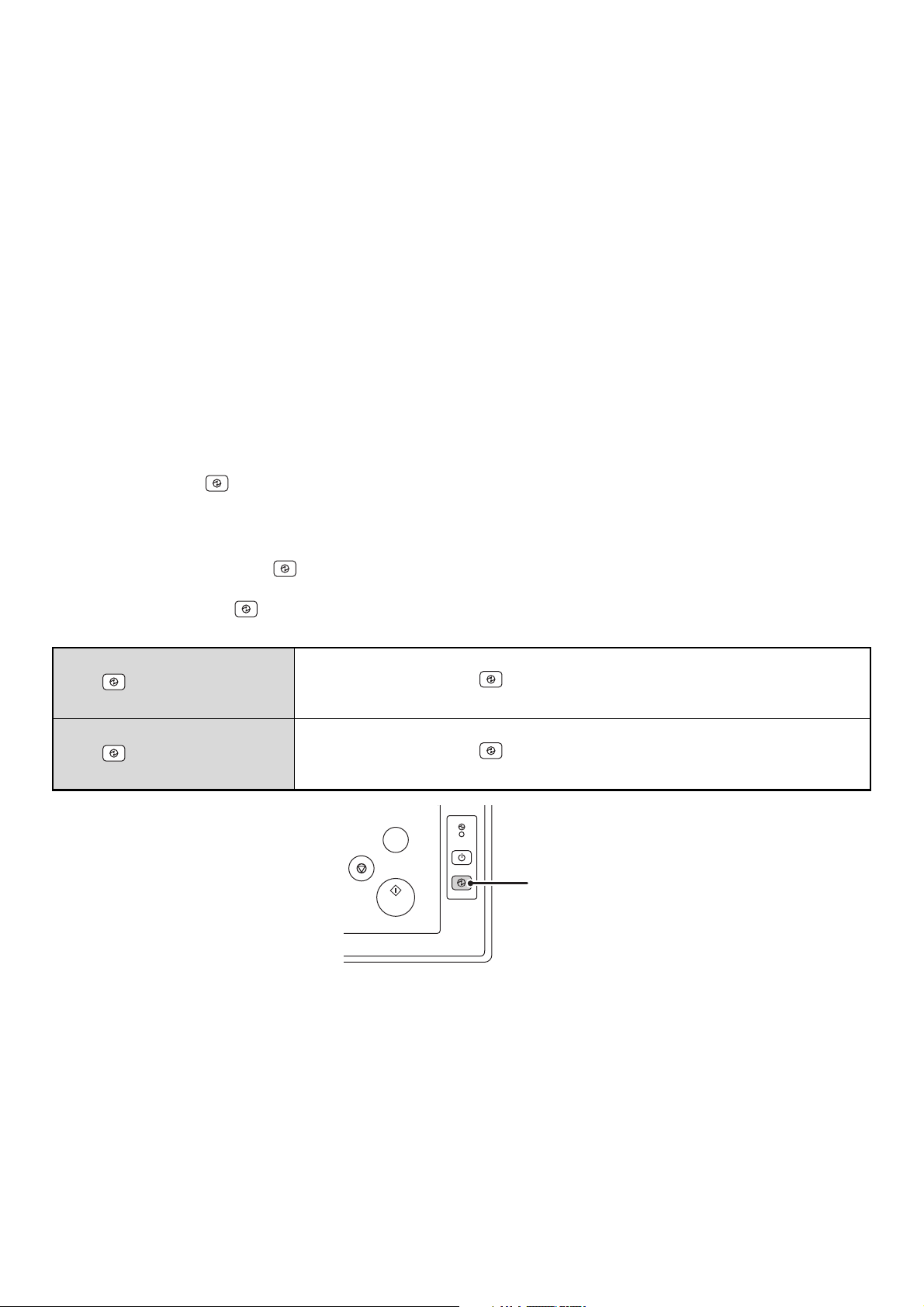
Press the [POWER SAVE] key
()
to put the machine in auto power shut-off mode or wake it up from auto power
shut-off mode.
The [POWER SAVE] key
()
has an indicator that indicates whether or not the machine is in auto power shut-off
mode.
When the [POWER SAVE]
key ( ) indicator is off in
the standby state
The machine is ready to be used.
If the [POWER SAVE] key ( ) is pressed when the indicator is off, the indicator will
blink and the machine will enter auto power shut-off mode after a brief interval.
When the [POWER SAVE]
key ( ) indicator is
blinking
The machine is in auto power shut-off mode.
If the [POWER SAVE] key ( ) is pressed when the indicator is blinking, the indicator
will turn off and the machine will return to the ready state after a brief interval.
PROOF COPY
[POWER SAVE] key / indicator
20
USER AUTHENTICATION
User authentication restricts the use of the machine to users that have been registered. The functions that each user is
allowed to use can be specified, allowing the machine to be customized to meet the needs of your workplace.
When the administrator of the machine has enabled user authentication, each user must log in to use the machine. The
are different types of user authentication, and each type has a different login method.
For more information, see the explanations of the login methods.
• AUTHENTICATION BY USER NUMBER (see below)
• AUTHENTICATION BY LOGIN NAME / PASSWORD (page 22)
AUTHENTICATION BY USER NUMBER
The following procedure is used to log in using a user number received from the administrator of the machine.
When controlled by user number
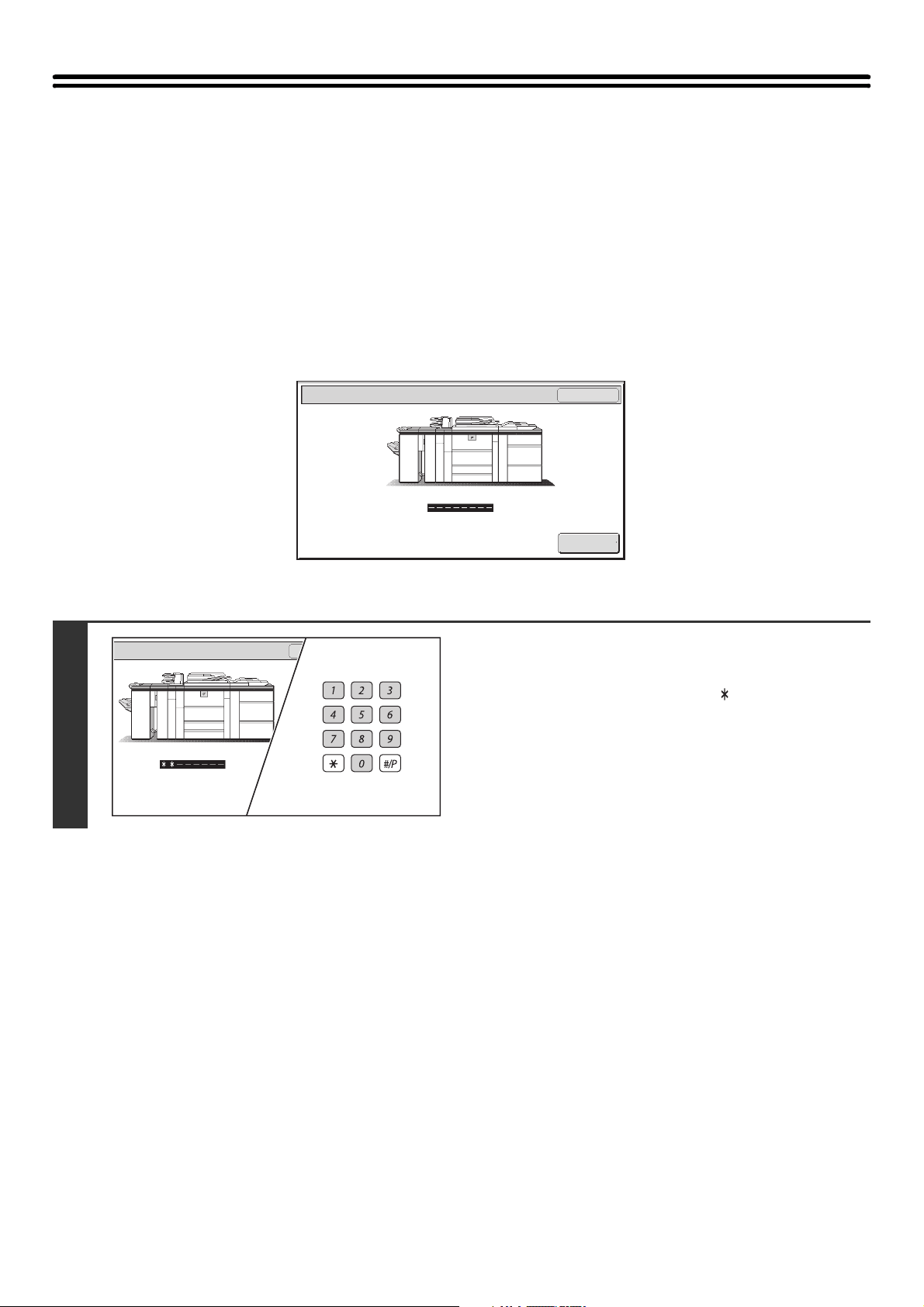
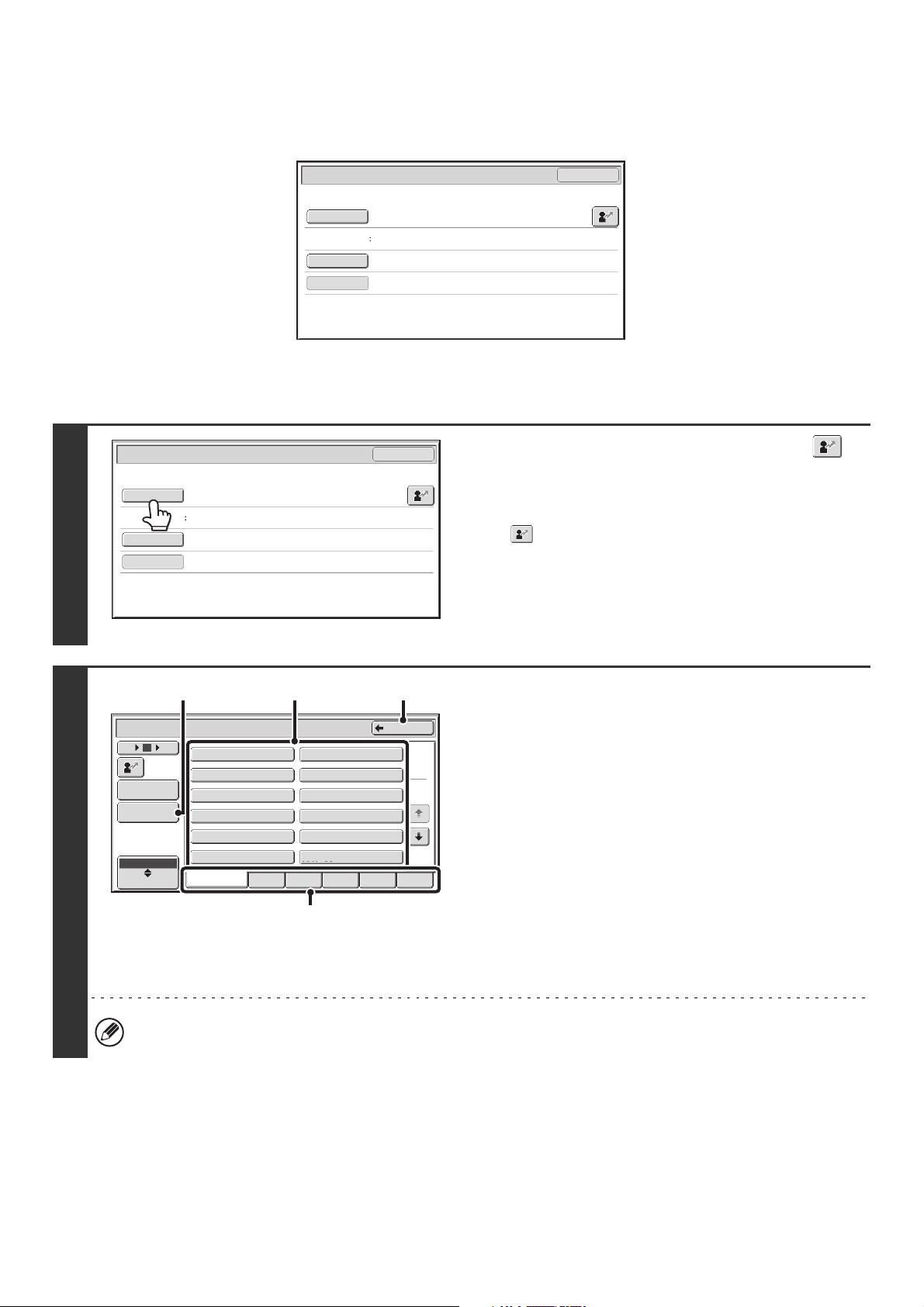
1
Enter your user number (5 to 8 digits)
with the numeric keys.
Each entered digit will be displayed as " ".
User Authentication
OK
Admin Login
21
If an incorrect user number is entered 3 times in a row...
If "A Warning when Login Fails" is enabled in the system settings (administrator), the machine will lock for 5 minutes if
an incorrect user number is entered 3 times in a row.
Verify the user number that you should use with the administrator of the machine.
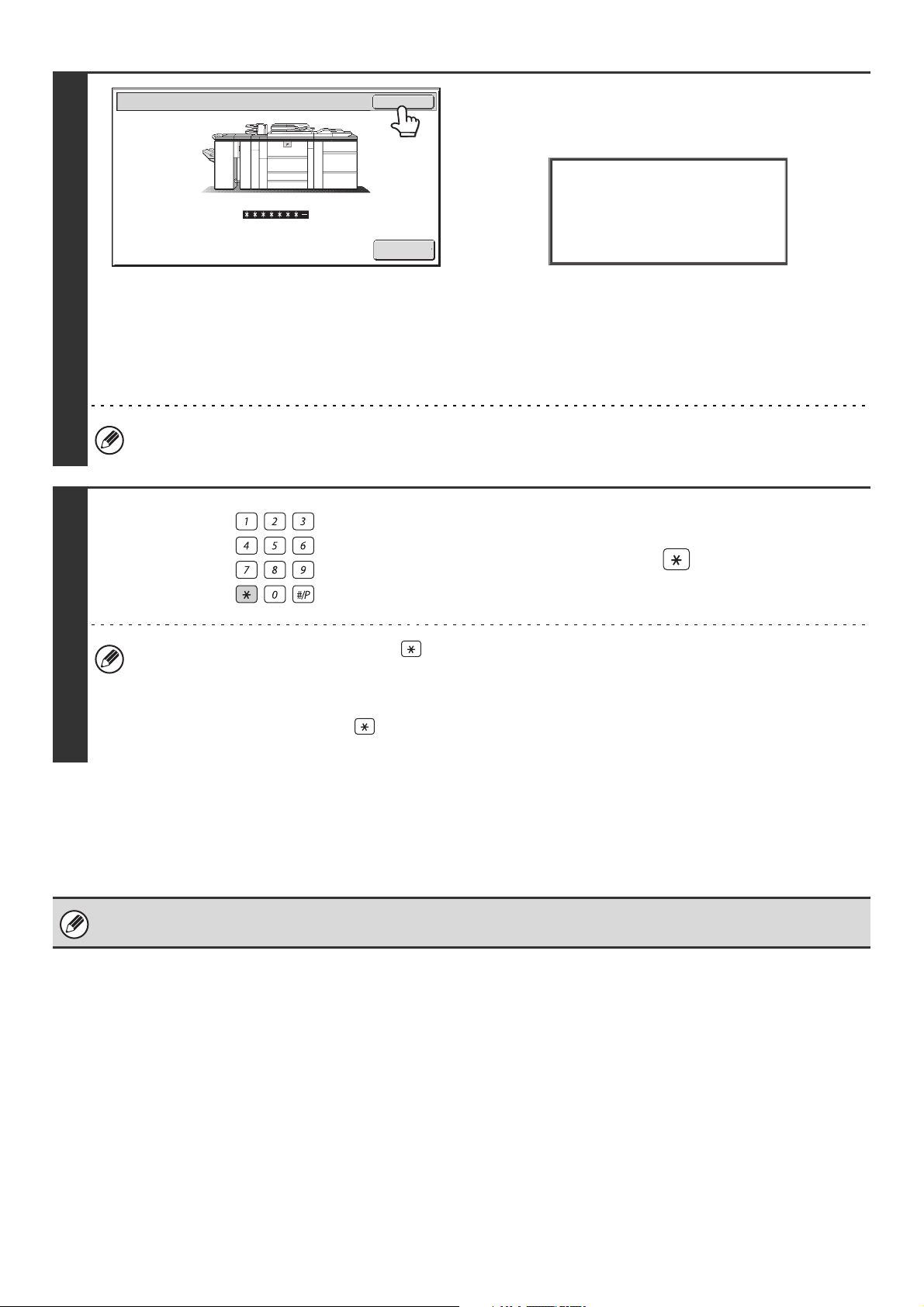
2
Touch the [OK] key.
After the entered user number is authenticated, the user count
screen will appear briefly.
When page limits have been set in "Pages Limit Group List" in
the system settings (administrator), the number of pages
remaining will appear. (The remaining number of pages that the
user can use in each mode (copy, scan, etc.) appears.) The
amount of time that this screen appears can be changed using
"Message Time Setting" in the system settings (administrator).
When the user number is an 8-digit number, this step is not necessary. (Login takes place automatically after the user
number is entered.)
3
When you have finished using the
machine and are ready to log out, press
the [LOGOUT] key ( ).
• However, note that the [LOGOUT] key ( ) cannot be used to log out when a fax number is being entered in fax
mode, as the key is used for fax number entry.
• If a preset duration of time elapses after the machine is last used, the Auto Clear function will activate. When Auto
Clear activates, logout takes place automatically. However, when PC Scan mode is used, logout does not take
place when the [LOGOUT] key ( ) is pressed and Auto Clear does not operate. Change to a different mode on
the machine and then log out.
The administrator can clear the locked state.
This is done from [User Control] and then [Other Settings] in the Web page menu.
User Authentication
OK
Admin Login
Usage
status: used/remaining pages
Black-white : 87,654,321/12,345,678
Full color : 87,654,321/12,345,678
2-color : 87,654,321/12,345,678
Single color: 87,654,321/12,345,678
LOGOUT
22
AUTHENTICATION BY LOGIN NAME / PASSWORD
The following procedure is used to log in using a login name and password received from the administrator of the
machine or the administrator of the LDAP server.
When controlled by login name and password
(Different items will appear in the screen when LDAP authentication is used.)
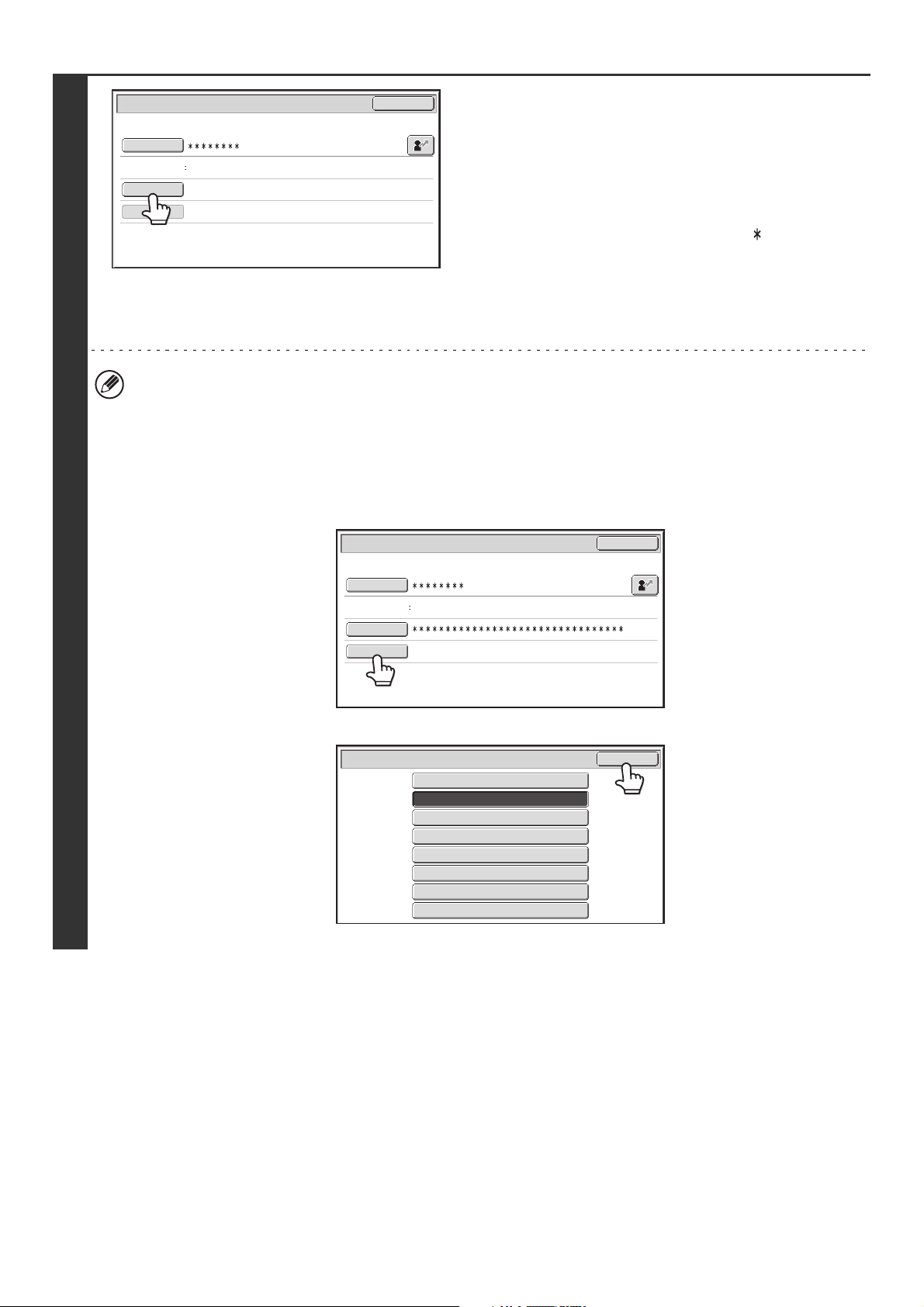
1
Touch the [Login Name] key or the
key.
If the [Login Name] key is touched, a screen for selecting the
user name appears. Go to the next step.
If the key is touched, an area for entering a "Registration
No." appears [---].
Use the numeric keys to enter your registration number that
has been stored in "User List" in the system settings
(administrator). After entering the registration number, go to
step 3.
2
Select the user name.
(A) [Direct Entry] key
Use this key if you have not been stored in "User List" in
the system settings (administrator) and are only using
LDAP authentication.
A text entry screen will appear. Enter your login name.
To enter text, see "7. ENTERING TEXT" (page 94).
(B) User selection keys
Touch your user name that has been stored in "User List"
in the system settings (administrator).
(C) [Back] key
Touch this key to return to the login screen.
(D) Index tabs
All users appear on the [All Users] tab. Users are grouped
on the other tabs according to the search characters
entered when each user was stored.
LDAP authentication can be used when the administrator of the server provides LDAP service on the LAN (local area
network).
User Authentication
OK
Login Name
User Name
Password
Auth to:
Login Locally
User Authentication
OK
Login Name
User Name
Password
Auth to:
Login Locally
Device Account Mode User Selection
1
2
Back
User 0012
User 0010
User 0008
User 0006
User 0004
User 0002
User 0011
User 0009
User 0007
User 0005
User 0003
User 0001
All Users ABCD EFGHI JKLMN OPQRST UVWXYZ
Admin Login
Direct Entry
User
ABC
12 186
(B) (C)
(D)
(A)
23
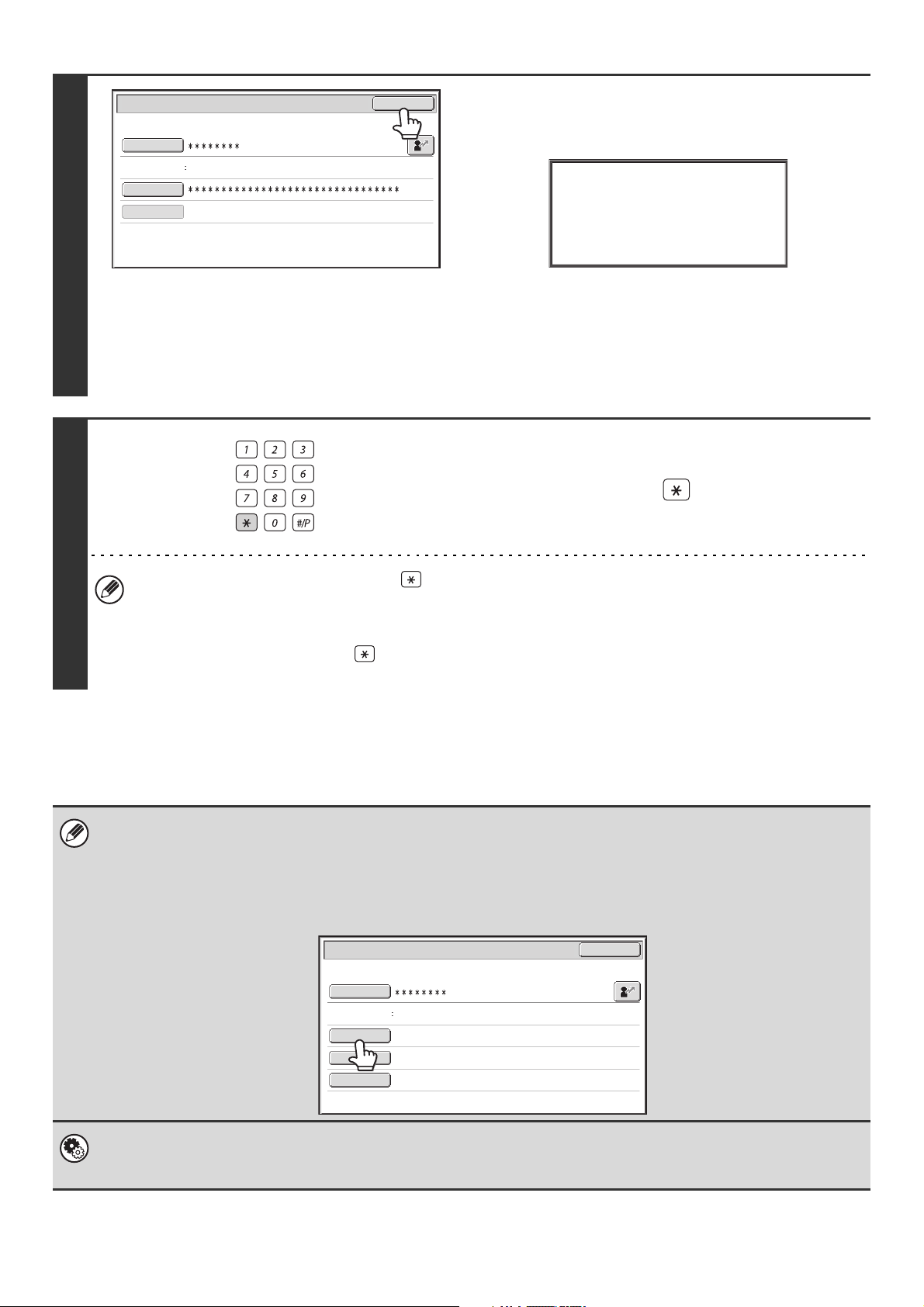
3
Touch the [Password] key.
A text entry screen for entering the password will appear.
Enter your password that is stored in "User List" in the system
settings (administrator).
If you are logging in to an LDAP server, enter the password that
is stored with your LDAP server login name.
Each entered character will be displayed as " ". When you
have finished entering the password, touch the [OK] key.
When authentication is by LDAP server and you have different
passwords stored in "User List" in the system settings
(administrator) and in the LDAP server, use the password
stored in the LDAP server.
• When an LDAP server has been stored, [Auth to:] can be changed.
• If you are logging in using a user selection key...
The LDAP server was stored when your user information was stored, and thus the LDAP server will appear as the
authentication server when you select your login name. Go to step 4.
• When logging in using the [Direct Entry] key...
Touch the [Auth to:] key.
Select the LDAP server and touch the [OK] key.
User 0001
User Authentication
OK
Login Name
User Name
Password
Auth to:
Login Locally
Auth to:
Direct Entry
User Authentication
OK
Login Name
User Name
Password
Login Locally
Authenticate to:
OK
Login Locally
Server 2
Server 1
Server 3
Server 4
Server 5
Server 6
Server 7
24
If an incorrect login name or password is entered 3 times in a row...
If "A Warning when Login Fails" is enabled in the system settings (administrator), the machine will lock for 5 minutes if
an incorrect login name or password is entered 3 times in a row.
Verify the login name and password that you should use with the administrator of the machine.
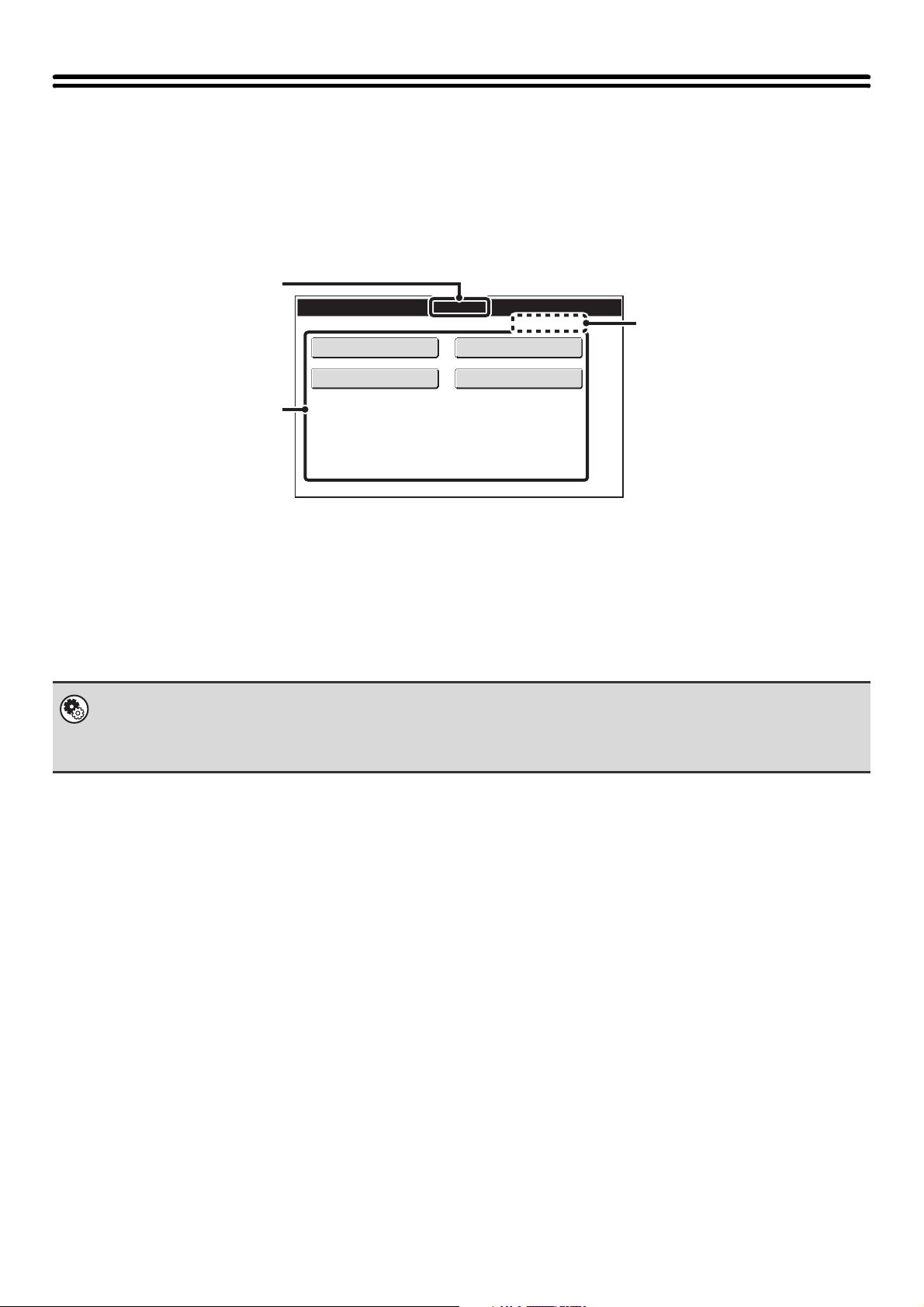
4
(Different items will appear in the screen when LDAP
authentication is used.)
Touch the [OK] key.
After the entered login name and password are authenticated,
the user count screen will appear briefly.
When page limits have been set in "Pages Limit Group List" in
the system settings (administrator), the number of pages
remaining will appear. (The remaining number of pages that the
user can use in each mode (copy, scan, etc.) appears.) The
amount of time that this screen appears can be changed using
"Message Time Setting" in the system settings (administrator).
5
When you have finished using the
machine and are ready to log out, press
the [LOGOUT] key ( ).
• However, note that the [LOGOUT] key ( ) cannot be used to log out when a fax number is being entered in fax
mode, as the key is used for fax number entry.
• If a preset duration of time elapses after the machine is last used, the Auto Clear function will activate. When Auto
Clear activates, logout takes place automatically. However, when PC Scan mode is used, logout does not take
place when the [LOGOUT] key ( ) is pressed and Auto Clear does not operate. Change to a different mode on
the machine and then log out.
• The administrator can clear the locked state.
This is done from [User Control] and then [Other Settings] in the Web page menu.
• When LDAP authentication is used, the [E-mail Address] key may appear, depending on the authentication method. If the
[E-mail Address] key appears in step 3, touch the key.
A text entry screen will appear. Enter your e-mail address. To enter text, see "7. ENTERING TEXT" (page 94).
System Settings (Administrator): User Registration
This is used to store names of users of the machine. Detailed information such as the login name, user number, and
password are also stored. Ask the administrator of the machine for the information that you need to use the machine.
User 0001
Auth to:
User Authentication
OK
Login Name
User Name
Password
Login Locally
Usage
status: used/remaining pages
Black-white : 87,654,321/12,345,678
Full color : 87,654,321/12,345,678
2-color : 87,654,321/12,345,678
Single color: 87,654,321/12,345,678
LOGOUT
Password
E-mail Address
Auth to:
Server 2
User 0002
User Authentication
OK
Login Name
User Name
25
HOME SCREEN
When the [HOME] key is pressed on the operation panel, the home screen appears in the touch panel.
Shortcuts to functions can be registered as keys in the home screen. When a shortcut key is touched, the screen for that
function appears. Register frequently used functions in the home screen to quickly and conveniently access those
functions. When user authentication is used, the home screen of "Favorite Operation Group" can be displayed.
Register keys that you wish to show in the home screen in the Web pages.
(1) Title
This shows the title of the home screen.
(2) Shortcut key
A registered function appears as a shortcut key.
The key can be touched to select the registered function.
(3) User name
This shows the name of the logged in user.
The user name appears when user authentication is
enabled on the machine.
04/04/2010 11:40
Home Screen
Total Count
Document Filing
Control
Address Control
Paper Tray Settings
(3)
(1)
(2)
• System Settings (Administrator): Home Screen Settings
Registration is performed in [System Settings] - [Operation Settings] - [Home Screen Settings] in the Web page menu.
• System Settings (Administrator): Home Screen List
Registration is performed in "Home Screen List" in [User Control] in the Web page menu.
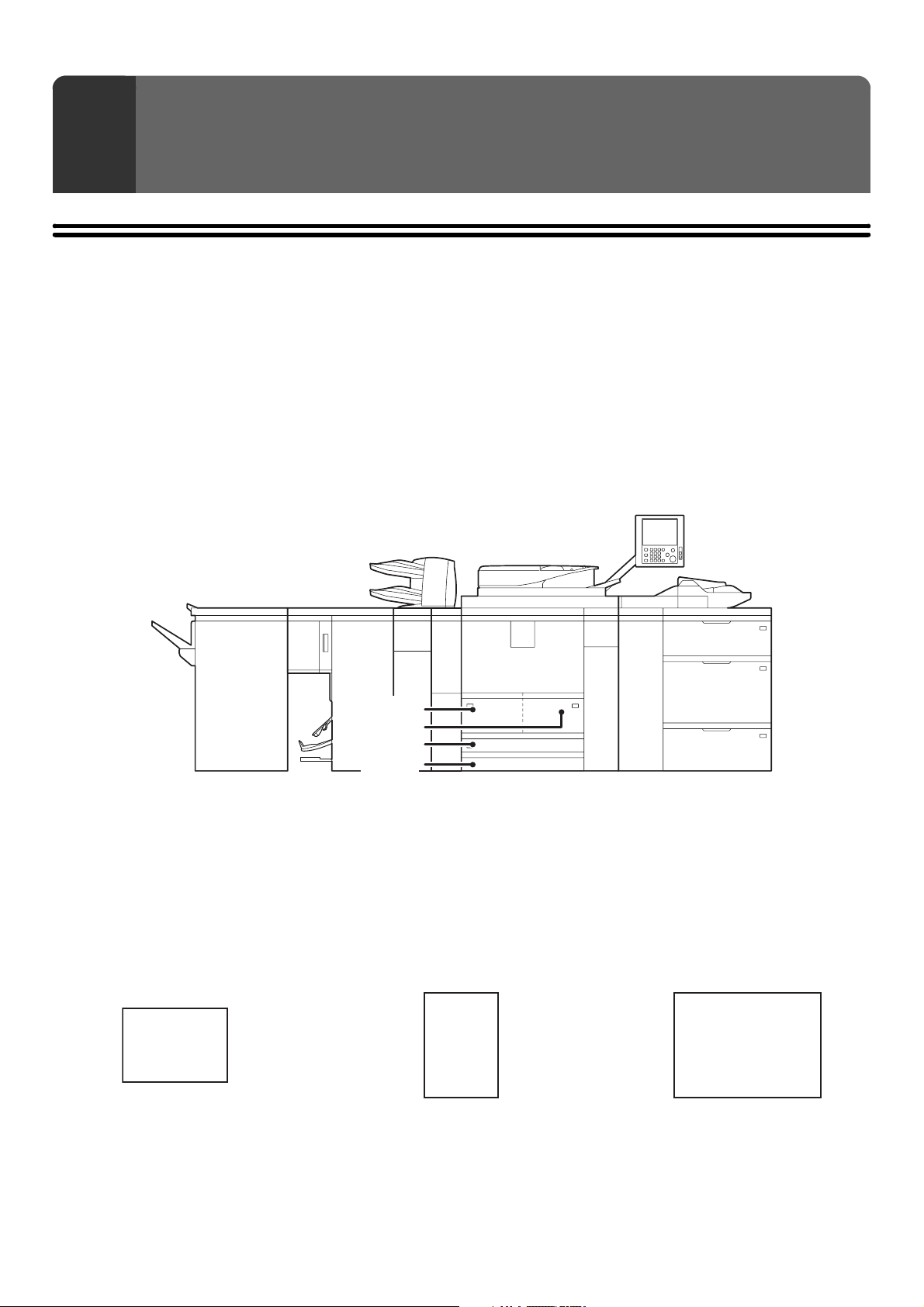
26
IMPORTANT POINTS ABOUT PAPER
This section provides information that you should know before loading paper in the paper trays.
Be sure to read this section before loading paper.
NAMES AND LOCATIONS OF TRAYS
The trays are identified by the names indicated below. For the names of the peripheral device trays, see "TRAY
LOCATIONS AND NAMES" (page 35). For detailed information on the sizes and types of paper that can be loaded in
each tray of the machine, see the specifications in the Safety Guide and "PAPER TRAY SETTINGS" (page 77) in the
System Settings. For information on the peripheral device trays, see "TRAY LOCATIONS AND NAMES" (page 35).
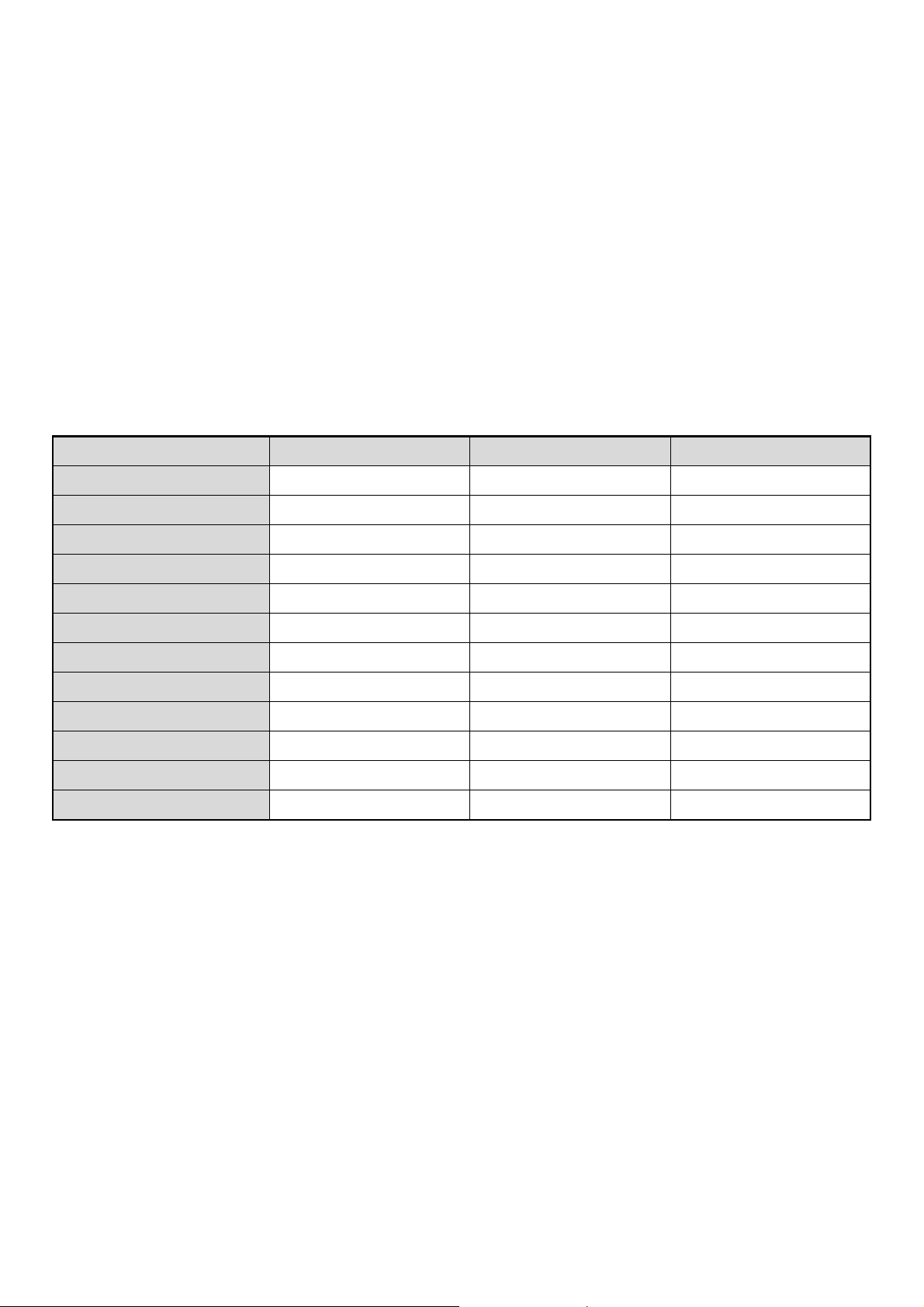
THE MEANING OF "R" IN PAPER SIZES
Some original and paper sizes can be placed in either the vertical or the horizontal orientation. To differentiate between
vertical and horizontal orientations, paper sizes in the horizontal orientation will be followed by an "R" (for example,
8-1/2" x 11"R, A4R).
Sizes that can be placed only in the horizontal orientation (12" x 18", 11" x 17", 8-1/2" x 14", 8-1/2" x 13", A3W, A3, B4)
do not include the "R" in their size indication.
2
LOADING PAPER
Horizontal orientation
"R" is appended.
Vertical orientation
"R" is not appended.
Can be placed only in the
horizontal orientation
"R" is not appended.
Tray 1
Tray 2
Tray 3
Tray 4
8-1/2" x 11"R
(A4R)
8-1/2" x 11"
(A4)
11" x 17"
(A3)
27
USEABLE PAPER
Various types of paper are sold. This section explains what plain paper and what special media can be used with the
machine. For detailed information on the sizes and types of paper that can be loaded in each tray of the machine, see
the specifications in the Safety Guide and "PAPER TRAY SETTINGS" (page 77) in the System Settings. For information
on the peripheral device trays, see "TRAY LOCATIONS AND NAMES" (page 35).
Plain paper, special media
Plain paper that can be used
• SHARP standard plain paper (21 lbs. (64 g/m
2
)). For paper specifications, see the specifications in the Safety Guide.
• Plain paper other than SHARP standard paper (16 lbs. to 28 lbs. (60 g/m
2
to 105 g/m
2
))
Recycled paper, colored paper and pre-punched paper must meet the same specifications as plain paper. Contact your
dealer or nearest SHARP Service Department for advice on using these types of paper.
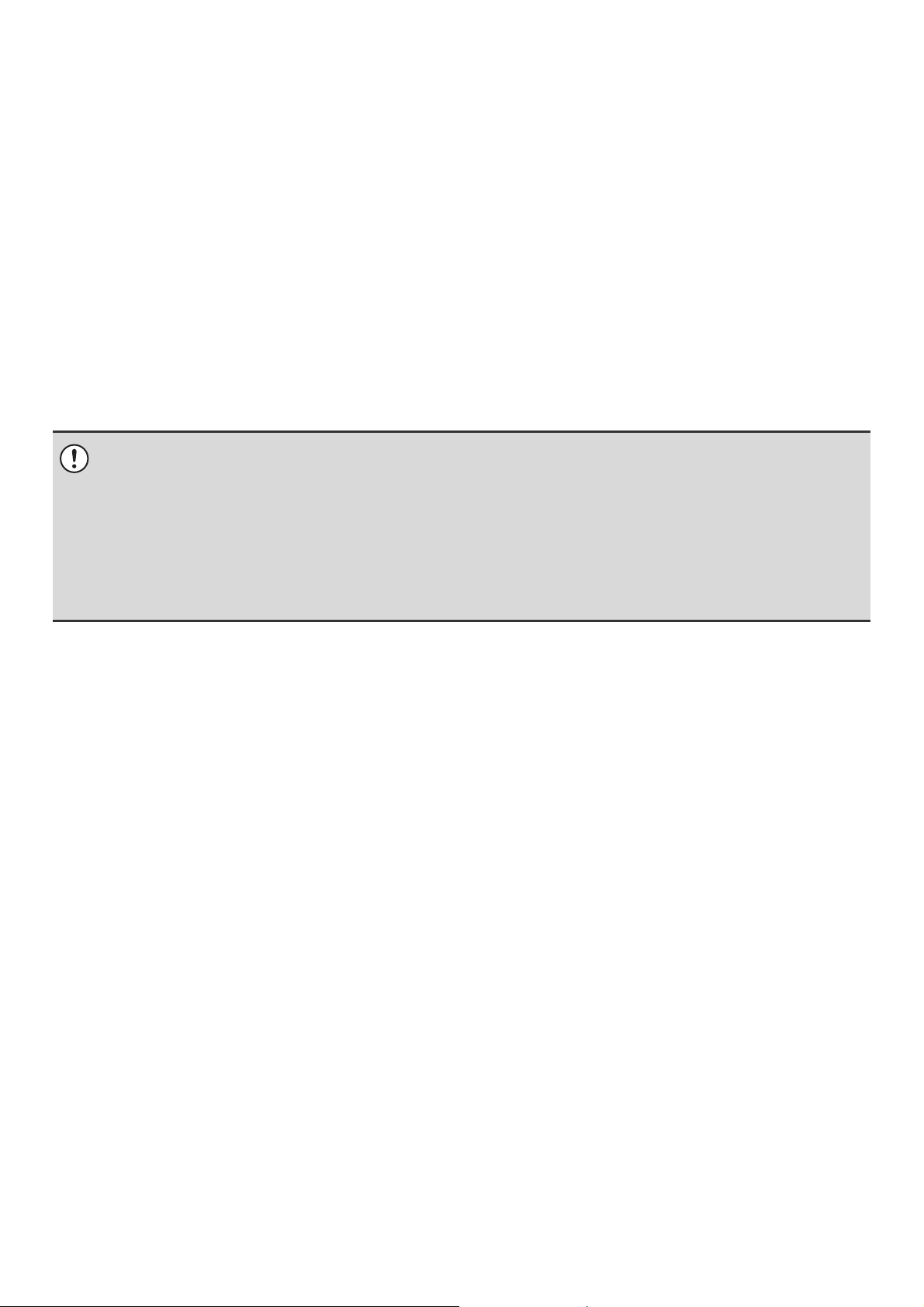
Types of paper that can be used in each tray
The following types of paper can be loaded in each tray. "{" indicates paper that can be used. "X" indicates paper that
cannot be used.
* "Heavy Paper 1" is paper up to 32 lbs. (128 g/m
2
), "Heavy Paper 2" is paper up to -65 lbs.cover (176 g/m
2
), "Heavy Paper 3" is
paper up to 110 lbs.index (205
g/m
2
), and "Heavy Paper 4" is paper up to -100 lbs.cover (300 g/m
2
).
Print side face down
Load the paper with the print side face down.
Tray 1/Tray 2 Tray 3 Tray 4
Plain paper { { {
Pre-printed { { {
Letter head { { {
Heavy paper 1* X { {
Heavy paper 2* X { {
Heavy paper 3* X { {
Heavy paper 4* X X X
Labels X X {
Glossy paper X X X
Transparency film
X X {
Tab paper X X {
Thin paper X X X
28
Paper that cannot be used
• Special media for inkjet printers
(fine paper, glossy paper, glossy film, etc.)
• Carbon paper or thermal paper
• Pasted paper
• Paper with clips
• Paper with fold marks
• Torn paper
• Oil-feed transparency film
• Thin paper less than 13 lbs. (52 g/m
2
)
• Paper heavier than 301 g/m
2
.
• Irregularly shaped paper
• Stapled paper
• Damp paper
• Curled paper
• Paper with a wave-like pattern due to moisture
absorption
Non-recommended paper
• Iron-on transfer paper
• Japanese paper
• Reverse side of paper already printed on by another
printer or copier.
• Perforated paper
• Various types of plain paper and special media are sold. Some types cannot be used with the machine. Contact your
dealer or nearest SHARP Service Department for advice on using these types of paper.
• The image quality and toner fusibility of paper may change due to ambient conditions, operating conditions, and paper
characteristics, resulting in image quality inferior to that of SHARP standard paper. Contact your dealer or nearest SHARP
Service Department for advice on using these types of paper.
• The use of non-recommended or prohibited paper may result in skewed feeding, misfeeds, poor toner fusing (the toner
does not adhere to the paper well and can be rubbed off), or machine failure.
• The use of non-recommended paper may result in misfeeds or poor image quality. Before using non-recommended paper,
check if printing can be performed properly.
29
TRAY SETTINGS FOR TRAY 1 AND TRAY 2
LOADING PAPER
Up to 1200 sheets of 8-1/2" x 11" or A4 size paper can be loaded in tray 1. Up to 800 sheets of 8-1/2" x 11" or A4 size
paper can be loaded in tray 2.
For detailed information on the paper that can be loaded, see the specifications in the Safety Guide and "PAPER TRAY
SETTINGS" (page 77) in the System Settings.
1
Pull out tray 1 - tray 2.
Gently pull the tray out until it stops.
2
Fan the paper.
Fan the paper well before loading it. If the paper is not fanned,
multiple sheets may feed at once and cause a misfeed.
3
● Tray 1
Load paper in the left and right trays.
Raise the paper guide and load the paper with the print side
face down.
The stack must not be higher than the indicator line
(maximum of 1200 sheets).
● Tray 2
Raise the paper guide and load the paper with the print side
face down. The stack must not be higher than the indicator line
(maximum of 800 sheets).
Be sure to return the paper guide to its original position after
loading the paper.
Indicator
line
Indicator
line
30
CHANGING THE PAPER SIZE
To change the paper size of tray 1 - tray 2, follow the steps below.
This section only explains how to change the paper size. For the procedures for opening/closing the tray and loading
paper, see "LOADING PAPER" (page 29).
4
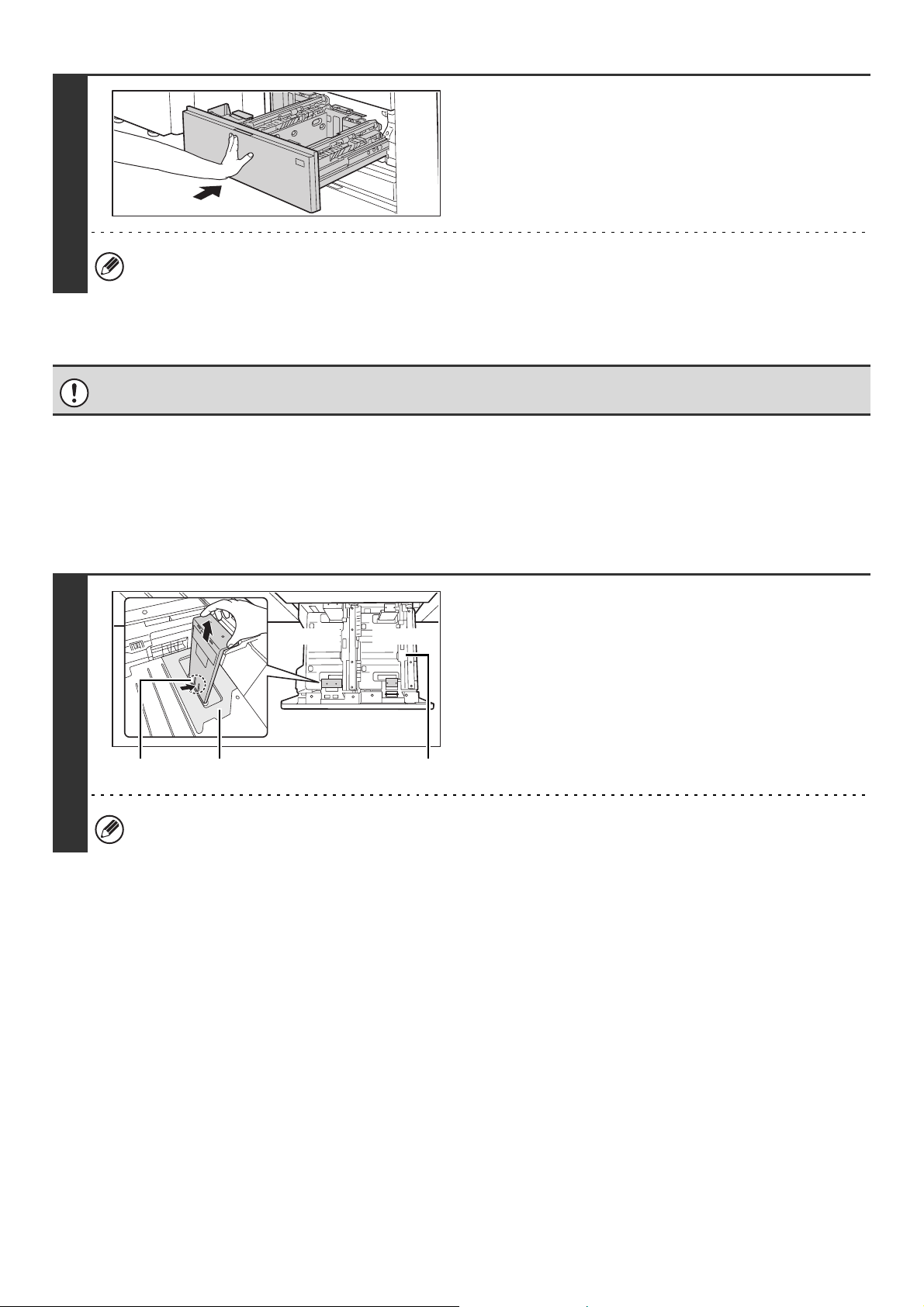
Gently push tray 1- tray 2 into the
machine.
Push the tray firmly all the way into the machine.
If you loaded a different type of paper than was loaded previously, change the paper type setting as explained in
"PAPER TRAY SETTINGS" (page 77) in the System Settings.
Do not place heavy objects on the tray or press down on the tray.
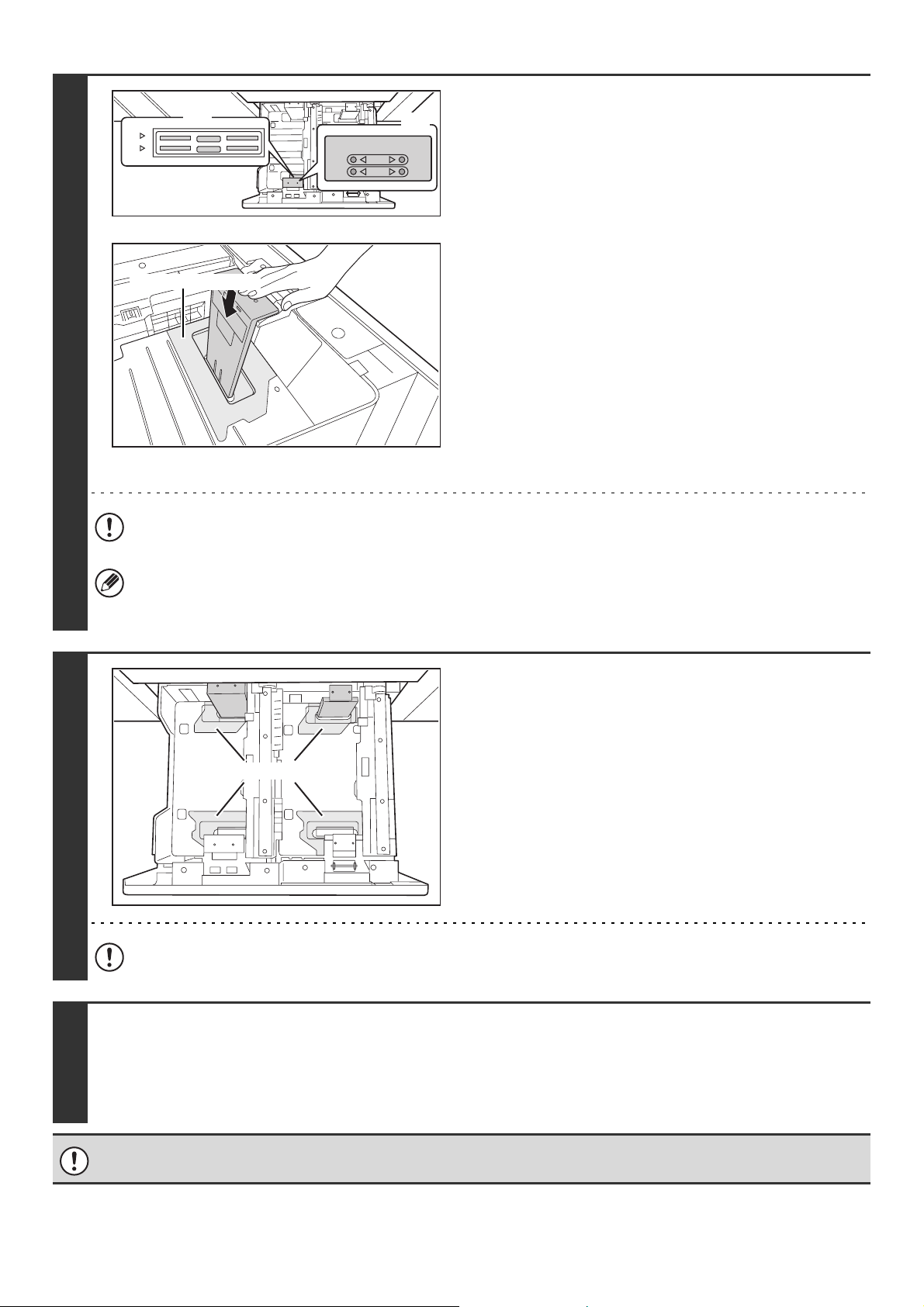
1
Remove the paper size guide.
With the base of the tray pressed all the way down, hold down
the hook at the bottom on the paper size guide and pull the
paper size guide up slightly.
Before changing the paper size of tray 2, raise the paper guide.
Paper guide
Tray 1 Tray 2
Hook Transparent sheet
31
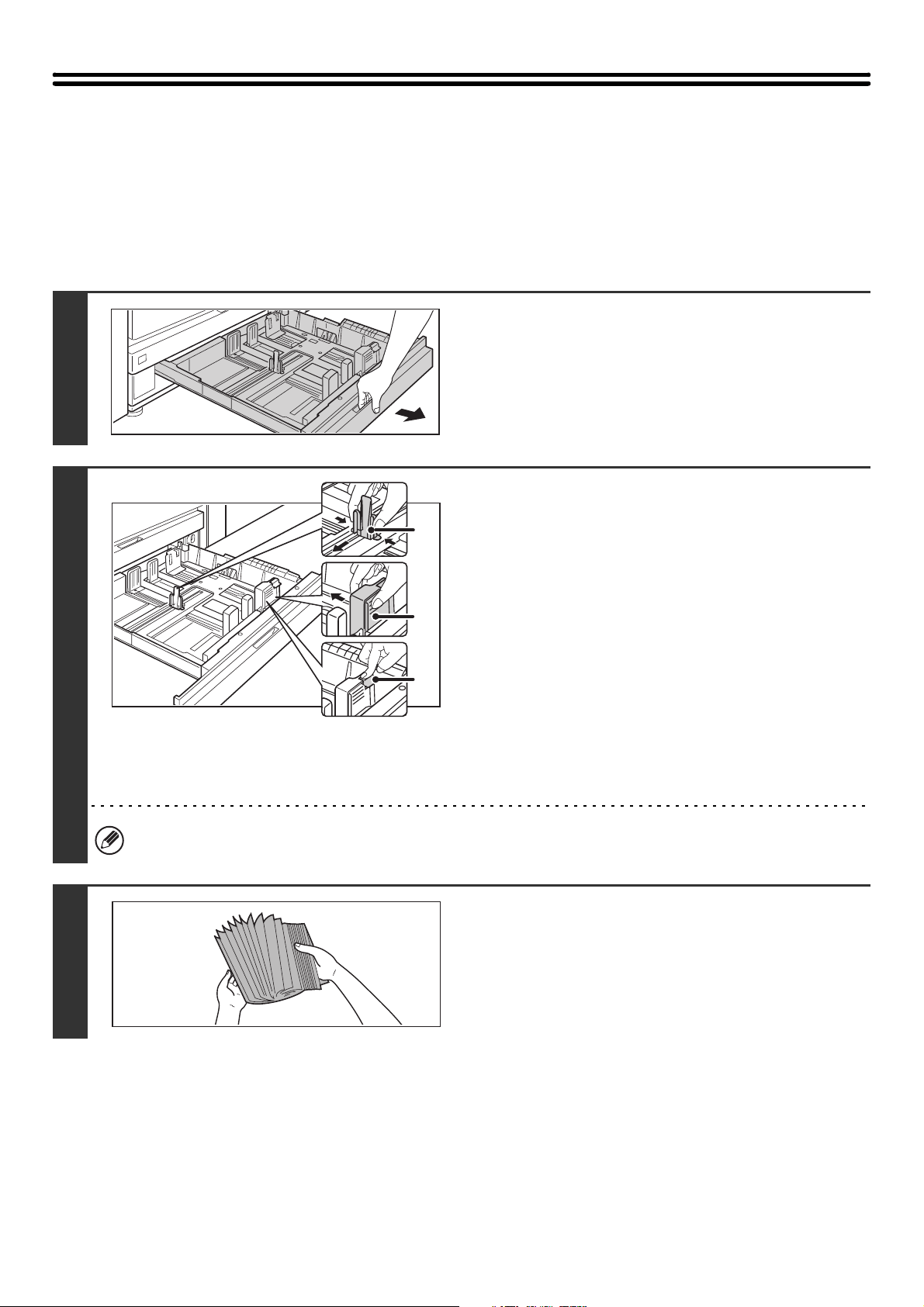
2
Attach the paper size guide and
transparent sheet appropriately for the
size of paper to be used.
(1)
Align the bottom of the paper size guide with
the appropriate slot on the base of the tray.
Align the paper size guide with the slot for the paper size
to be used (indicated by the paper size mark).
(2) Align the holes at the top of the paper size
guide with the protrusions that secure the
paper size guide.
Align with the holes for the paper size to be used
(indicated by the paper size mark).
(3) Push in the paper guide so that it locks into
place.
Push the paper size guide in until the hook at the bottom
locks into place. (You will hear a "click" when the hook
locks.) Move the paper size guide slightly to verify that it
has locked into place.
When attaching the paper size guide, make sure that the top and bottom of the guide are aligned to the same paper size. If the top
and bottom of the paper size guide are not aligned to the same paper size, skewed feeding and misfeeds will result.
• When attaching the paper size guide, place the transparent sheet in direct contact with the base of the tray in the
correct orientation as shown.
• The slot or hole with the "LT" mark is for 8-1/2" x 11" size.
3
Repeat steps 1 and 2 to adjust the far
paper guide to the paper size to be used.
Be sure to adjust the far paper guide to the same size as the
near paper guide.
When removing and attaching the far paper size guide, take
care not to hit the front cover of the machine.
Adjusting only one paper guide may result in skewed feeding or misfeeds.
4
Set the paper size and paper type.
Be sure to change the paper size and paper type settings as explained in "PAPER TRAY SETTINGS" (page 77) in the
System Settings.
If the paper size setting is not configured correctly, automatic paper selection will not operate correctly and printing may take
place on the wrong size or type of paper or a misfeed may occur.
Do not place heavy objects on the tray or press down on the tray.
A4
LT
LT
A4
(1)
(2)
Transparent sheet
Transparent sheet
32
TRAY SETTINGS FOR TRAY 3 AND TRAY 4
LOADING PAPER AND CHANGING THE PAPER SIZE
Up to 500 sheets of 7-1/4" x 10-1/2"R to 12" x 18" size paper (B5R to A3W size paper) can be loaded in tray 3. Up to 500
sheets of 5-1/2"x 8-1/2"R to 12"x 18" size paper (A5R to A3 size paper) can be loaded in tray 4.
For detailed information on the paper that can be loaded, see the specifications in the Safety Guide and "PAPER TRAY
SETTINGS" (page 77) in the System Settings.
1
Pull out the paper tray.
Gently pull the tray out until it stops.
If you are simply adding paper, go to step 3. To load a different
size of paper, go to the next step.
2
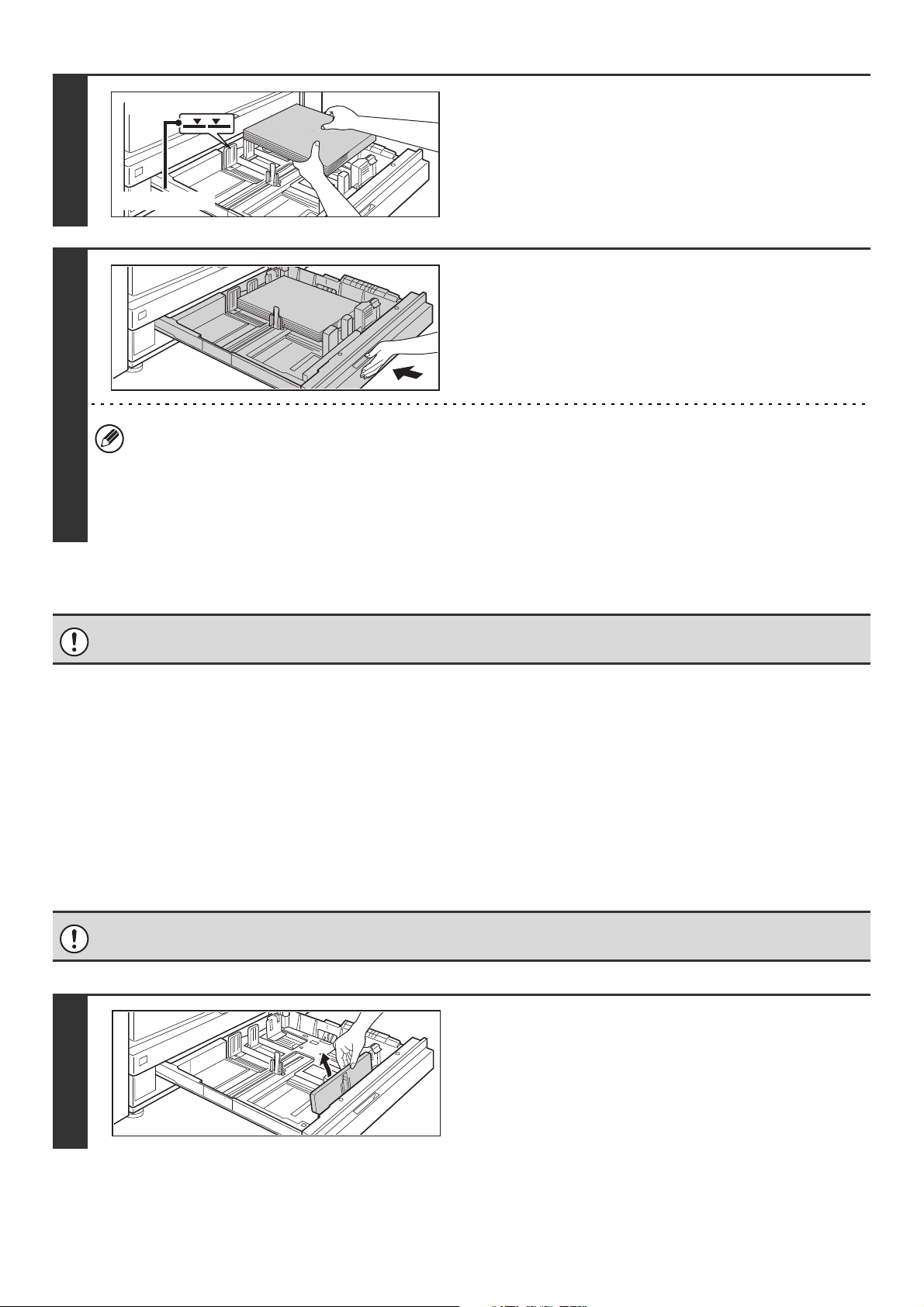
Adjust the guide plates A and B by
squeezing their lock levers and sliding
them to match the vertical and horizontal
dimensions of the paper to be loaded.
(1) Squeeze the lock knob on guide plate A and
slide to the desired paper size.
(2) Squeeze the lock knob on guide plate B and
slide to the desired paper size.
If slid to a standard paper size, guide plate B will lock
automatically.
(3) For a non-standard paper size, after sliding
guide plate B to the desired size, press the
lock button (C).
A non-standard size of paper can only be loaded in tray 4. A non-standard size of paper cannot be loaded in tray 3.
3
Fan the paper.
Fan the paper well before loading it. If the paper is not fanned,
multiple sheets may feed at once and cause a misfeed.
A
B
C
33
Loading tab paper and transparency film in tray 4
In addition to plain paper, tab paper, transparency film, and other special media can be loaded in tray 4.
To load tab paper or transparency film in tray 4, follow the steps below.
Loading tab paper
To use tab paper, the special guide must be attached as explained below.
4
Insert the paper into the tray.
Load the paper with the print side face down. The stack must
not be higher than the indicator line (maximum of 500 sheets).
5
Gently push the paper tray into the
machine.
Push the tray firmly all the way into the machine.
• If you loaded a different type of paper than was loaded previously, change the paper type setting as explained in
"PAPER TRAY SETTINGS" (page 77) in the System Settings.
• If you loaded 8K, 16K, or 16KR size paper or a non-standard size of paper in tray 4, be sure to set the paper size as
explained in "PAPER TRAY SETTINGS" (page 77). If the paper size setting is not configured correctly, automatic
paper selection will not operate correctly and printing may take place on the wrong size or type of paper or a
misfeed may occur.
Do not place heavy objects on the tray or press down on the tray.
Some models do not have the special tab paper guide, and thus tab paper cannot be loaded in tray 4 on these models.
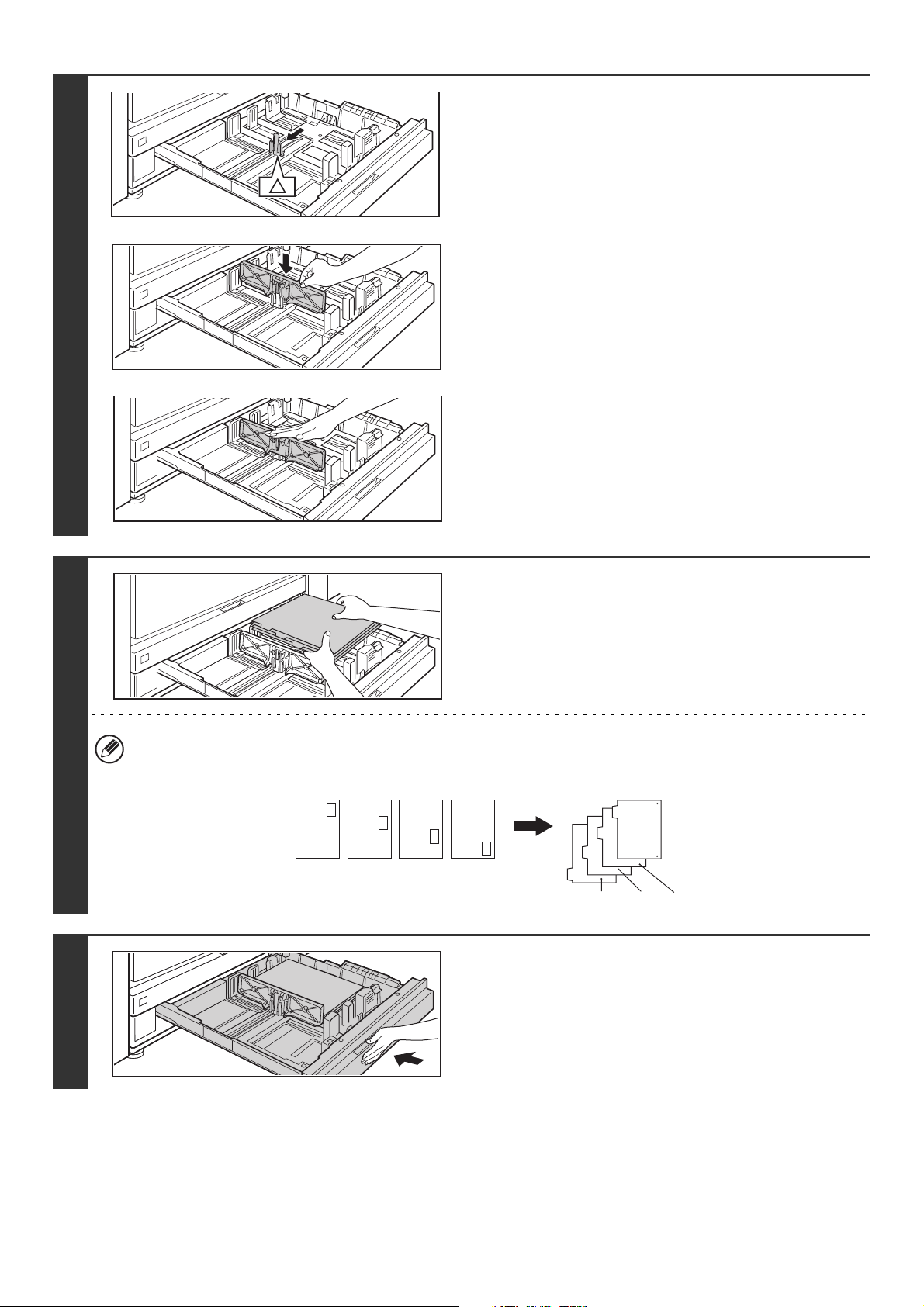
1
Take out the tab paper guide.
The guide is stored inside tray 4 as shown. When finished
using tab paper, be sure to replace the guide.
Indicator line
34
Loading transparency film
When loading transparency film, load the film face down in the vertical orientation with the rounded corner at the top left.
2
Pull out the tray and attach the guide.
Move the guide plate to the triangle mark. Next, attach the
guide over the guide plate as shown.
After attaching the guide, see step 2 of "LOADING PAPER
AND CHANGING THE PAPER SIZE" (page 32) to attach the
vertical guide.
3
Insert the tab paper into the tray.
Place the tab paper with the print side face down so that the tab
is to the left.
[Example]
Make sure that the positions of the tabs correspond with the originals as shown below.
4
Gently push the tray in and set the paper
type to tab paper.
Change the paper type setting to tab paper as explained in
"PAPER TRAY SETTINGS" (page 77) in the System Settings.
ABC
DEF
GHI
JKL
4th sheet 3rd sheet 2nd sheet
1st sheet
Bottom
Top
1st sheet 2nd sheet 3rd sheet 4th sheet
Reverse
side
Originals Tab paper
35
PERIPHERAL DEVICE TRAYS
This section explains the large capacity trays and the large capacity tray.
TRAY LOCATIONS AND NAMES
The trays are identified by the names indicated below. For detailed information on the sizes and types of paper that can
be loaded in each tray of the machine, see the specifications in the Safety Guide and "PAPER TRAY SETTINGS" (page
77).
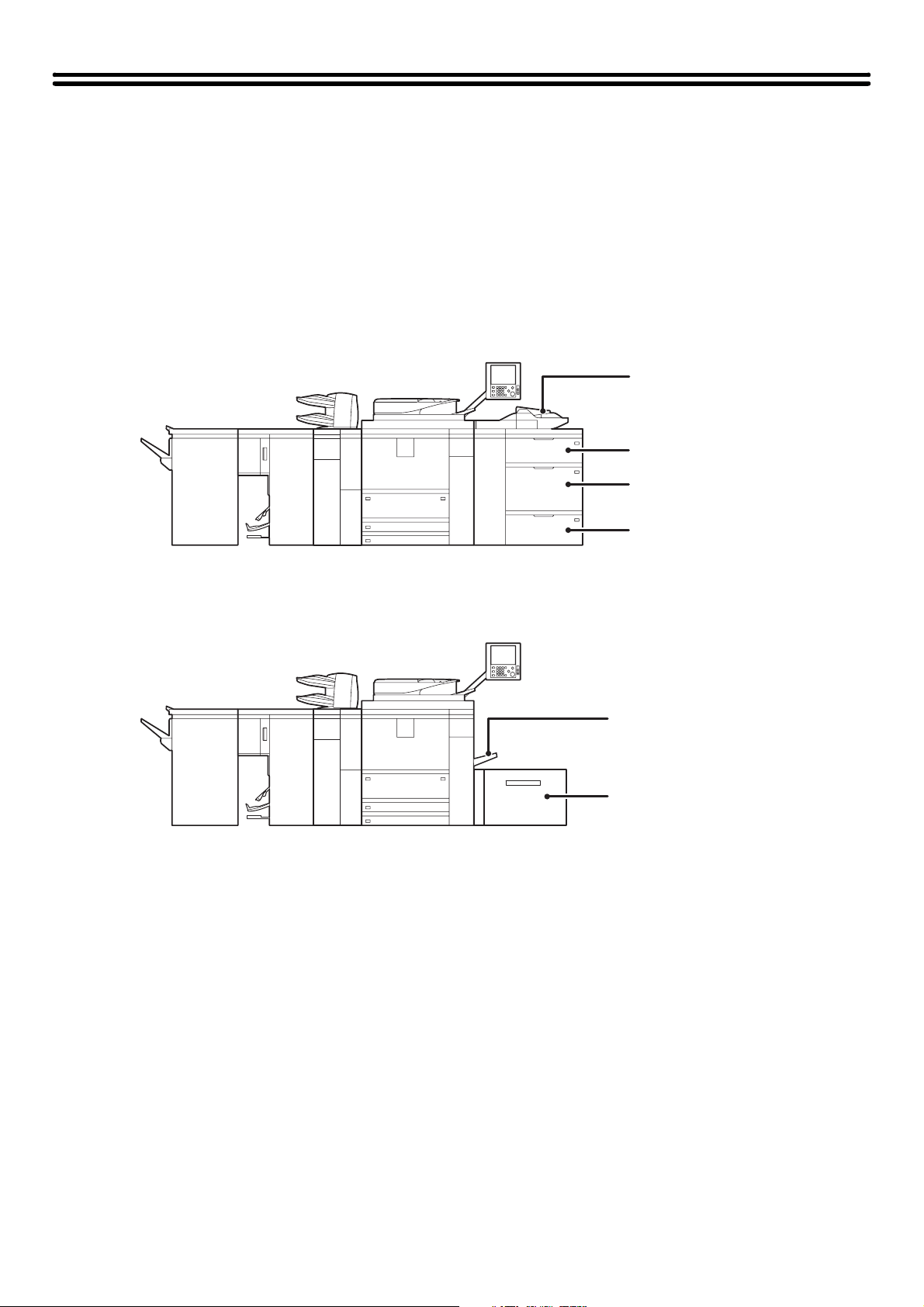
When the large capacity trays and multi bypass tray are installed
When the large capacity tray and multi bypass tray are installed
Bypass tray
Tray 5
Tray 6
Tray 7
Bypass tray
Tray 5
36
PAPER THAT CAN BE USED IN THE PERIPHERAL
DEVICE TRAYS
This section explains what paper can be used in the peripheral devices. For detailed information on the sizes and types
of paper that can be loaded in each tray of the machine, see the specifications in the Safety Guide and "PAPER TRAY
SETTINGS" (page 77) in the System Settings.
Plain paper, special media
The same paper can be loaded in the peripheral device trays as in the machine trays. For detailed information, see
"USEABLE PAPER" (page 27).
Types of paper that can be used in the peripheral device trays
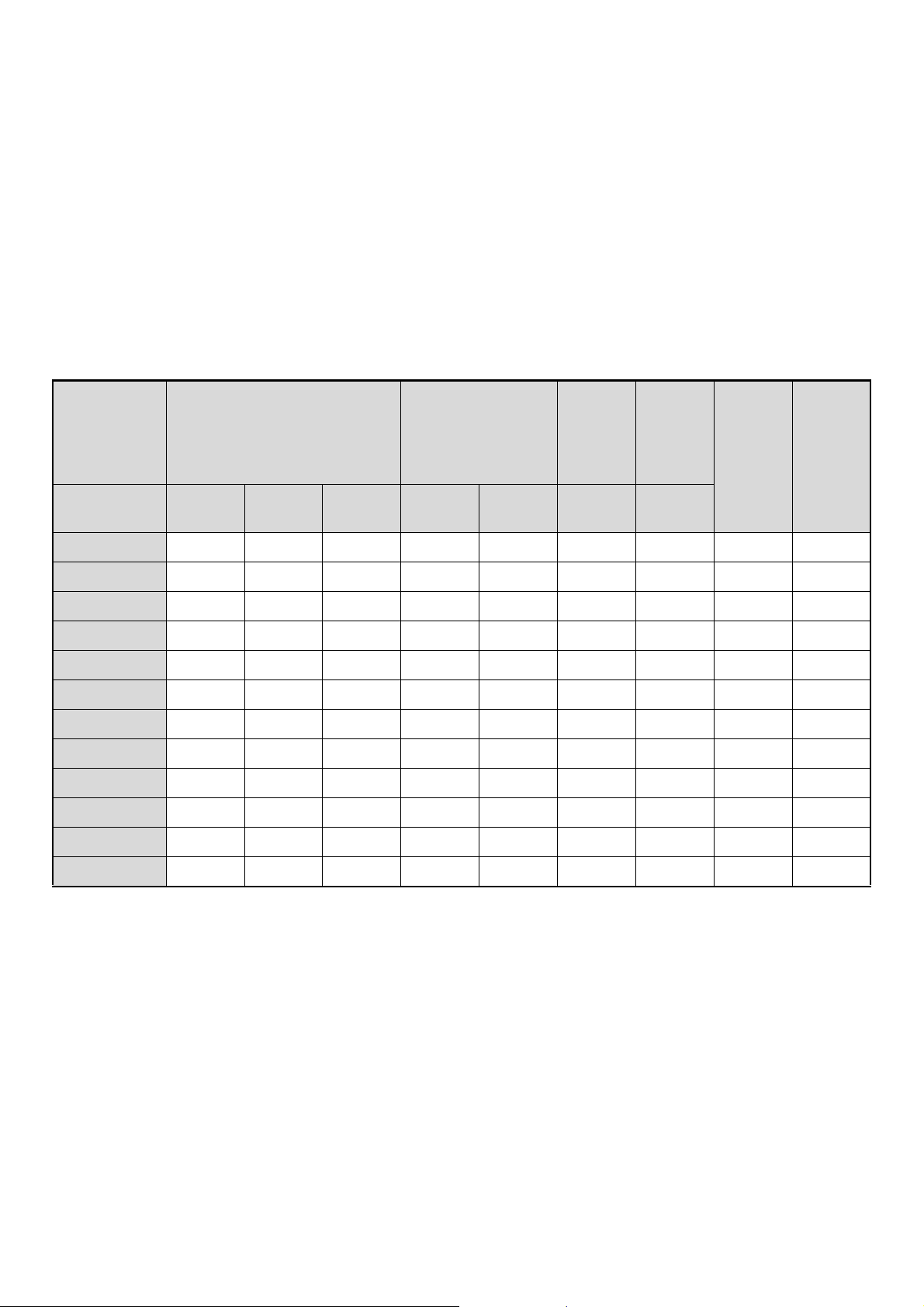
The following types of paper can be loaded in each tray. "{" indicates paper that can be used. "X" indicates paper that
cannot be used.
*1 "Heavy Paper 1" is paper up to 32 lbs. (128 g/m
2
), "Heavy Paper 2" is paper up to -65 lbs.cover (176 g/m
2
), "Heavy Paper 3" is
paper up to 110 lbs.index (205
g/m
2
), and "Heavy Paper 4" is paper up to -100 lbs.cover (300 g/m
2
).
*2 When using glossy paper, set the paper type to heavy paper. This will bring out the glossy quality of the paper.
*3 Thin paper from 14 lbs. to 15 lbs. (52
g/m
2
to 59 g/m
2
) can be used.
Print side face up
Paper loaded in peripheral device trays should be loaded with the print side face up.
Prohibited paper and non-recommended paper
The same paper that is prohibited or not recommended for the machine trays is also prohibited or not recommended for
the peripheral device trays. For detailed information, see "Paper that cannot be used" (page 28) and
"Non-recommended paper" (page 28).
Tray
Large capacity trays
(MX-LCX4)
Large capacity trays
(MX-LCX5)
Large
capacity
tray
(MX-
LCX6)
Large
capacity
tray
(MX-
LCX3)
Bypass
tray
(MX-MFX1)
Bypass
tray
(MX-MFX2)
Names Tray 5 Tray 6 Tray 7
Tray 5
Tray 7
Tray 6 Tray 5 Tray 5
Plain paper { { { { { { { { {
Pre-printed { { { { { { { { {
Letter head
{ { { { { { { { {
Heavy paper 1*
1
{ { { { { { { { {
Heavy paper 2*
1
{ { { { { { { { {
Heavy paper 3*
1
{ { X { { { { { {
Heavy paper 4*
1
X X X X { X X { X
Labels X { X X { X X { X
Glossy paper*
2
{ { { { { { { { {
Transparency film
{ { { { { X X { {
Tab paper { { X { { X X { {
Thin paper*
3
{ { { { { X X { {
37
TRAY SETTINGS FOR THE LARGE CAPACITY TRAYS
(MX-LCX4)
Loading paper and changing the paper size
Up to 1000 sheets of 5-1/2" x 8-1/2"R, 8-1/2" x 11", or 9" x 12" size paper (A4R, B5, A4, or A4W size paper) can be
loaded in tray 5 and tray 6. Up to 2550 sheets of the same sizes of paper as tray 5 and tray 6 can be loaded in tray 7.
For detailed information on the paper that can be loaded, see the specifications in the Safety Guide and "PAPER TRAY
SETTINGS" (page 77) in the System Settings.
This section explains the procedures for adding paper to tray 5, tray 6, and tray 7, and for changing the paper size of tray
5 and tray 6. If you need to change the paper size of tray 7, consult your dealer or nearest SHARP service department.
(In this case, a service technician must change the paper size setting.)
1
Pull out the paper tray.
Gently pull the tray out until it stops. If you are simply adding
paper, go to step 8.
2
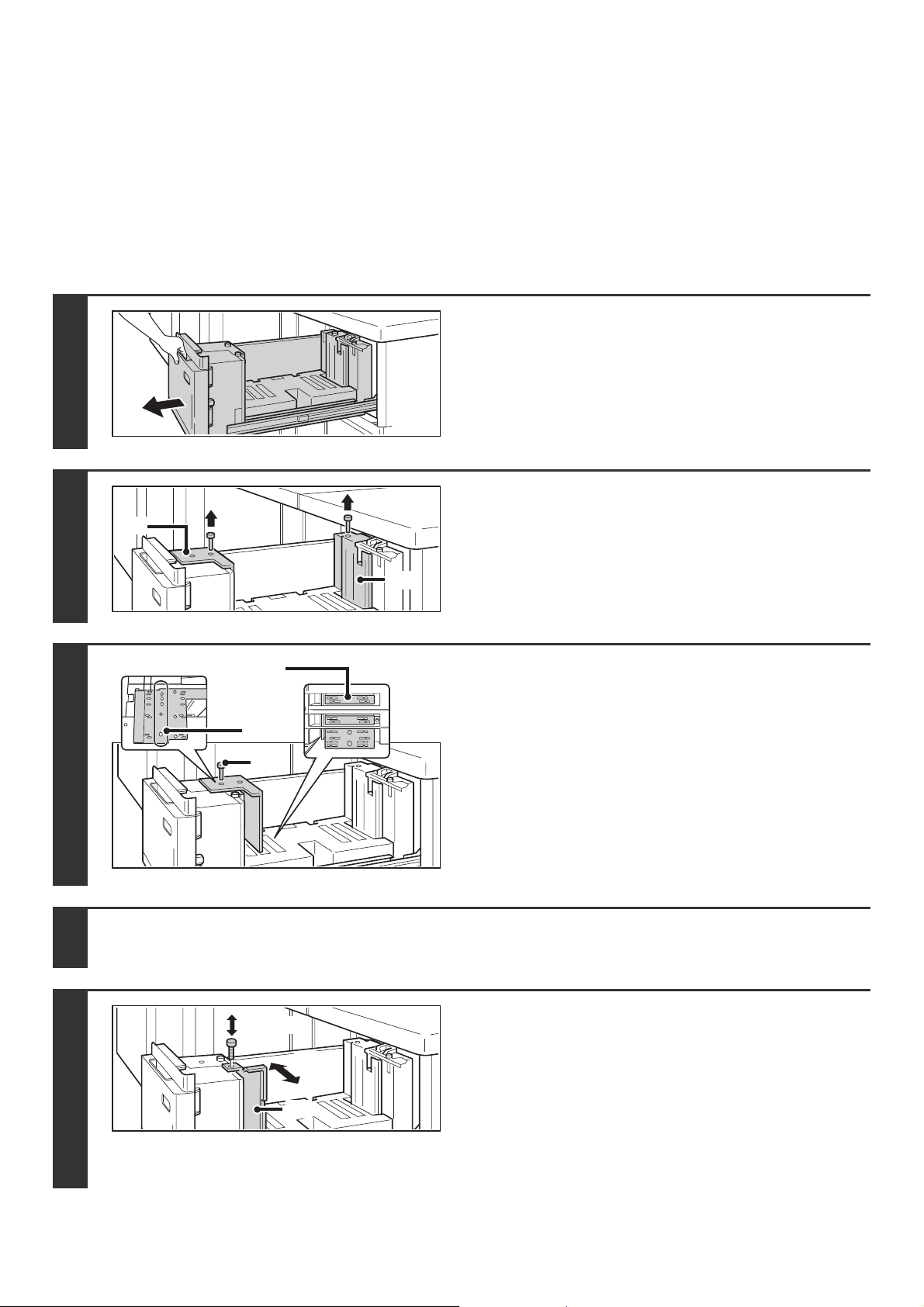
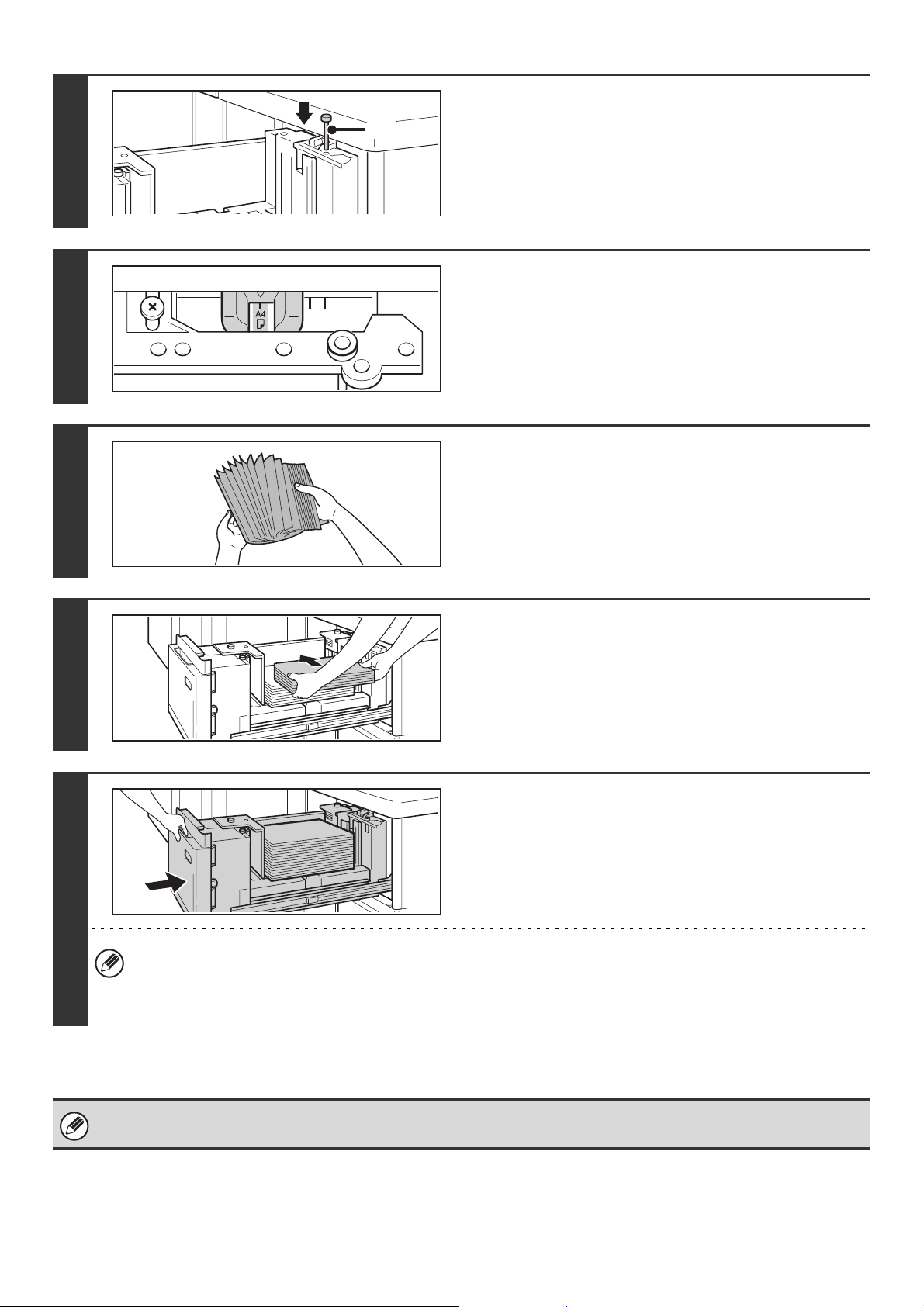
Remove the screws that secure paper
guides A and B, and remove the guides.
3
Adjust the paper guide (A) to the paper size.
(1) Align the bottom of the paper guide (A) with
the appropriate slot on the base of the tray.
Align the paper size guide with the slot for the paper size
to be used (indicated by the paper size mark).
(2) Align the hole in the paper size indicator at
the top of paper guide A with the screw
hole.
(3) Tighten the screw to secure paper guide A.
4
Repeat step 2 to change paper guide B.
5
Adjust the paper guide (C) to the paper size.
When the paper size is changed to 8-1/2" x 11" (A4), the
guide must be adjusted to match the size. When the size
is changed to B5, there is no need to adjust the guide.
(1) Remove the screw that secures paper guide
C, and remove the guide.
(2)
Attach paper guide C at the desired paper size.
(3) Tighten the screw to secure paper guide C.
(A)
(B)
(1)
(2)
(3)
(1), (3)
(2)
(C)
38
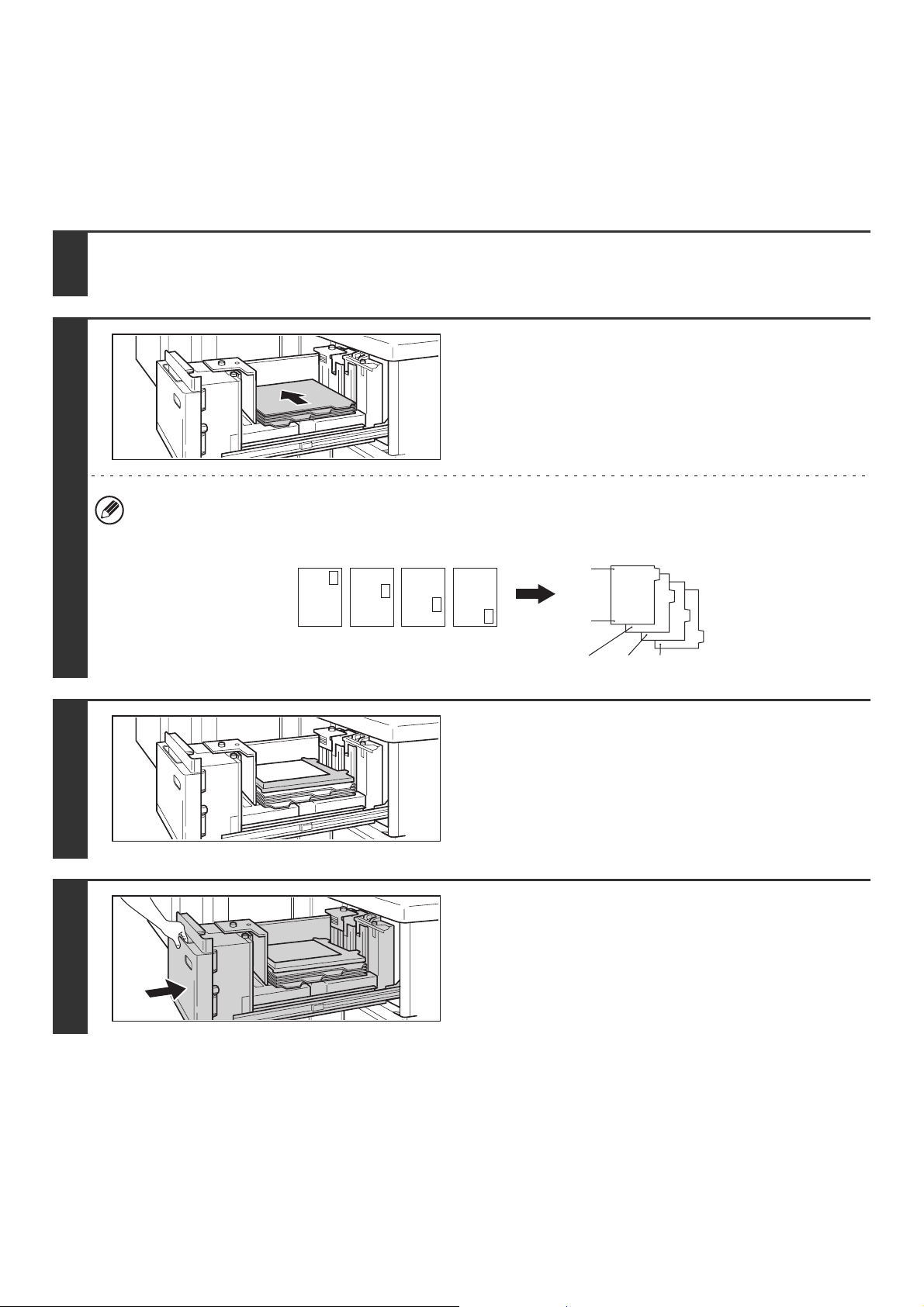
6
Re-insert paper guide D at the desired
paper size.
7
Adjust the paper size selector knob to
the new paper size.
8
Fan the paper.
Fan the paper well before loading it. If the paper is not fanned,
multiple sheets may feed at once and cause a misfeed.
9
Insert the paper into the tray.
Load paper face up. The stack must not exceed the indicator
line (up to 1000 sheets in tray 5 or tray 6, or up to 2550 sheets
in tray 7).
10
Gently push the paper tray into the
machine.
Push the tray firmly all the way into the machine.
If you loaded a different type of paper than was loaded previously, change the paper type setting as explained in
"PAPER TRAY SETTINGS" (page 77) in the System Settings. If the paper size setting is not configured correctly,
automatic paper selection will not operate correctly and printing may take place on the wrong size or type of paper or
a misfeed may occur.
Do not place heavy objects on the tray or press down on the tray.
(D)
39
Loading tab paper and transparency film
In addition to plain paper, tab paper, transparency film, and other special media can be loaded in tray 5 and tray 6.
To load tab paper or transparency film in tray 5 and tray 6 follow the steps below.
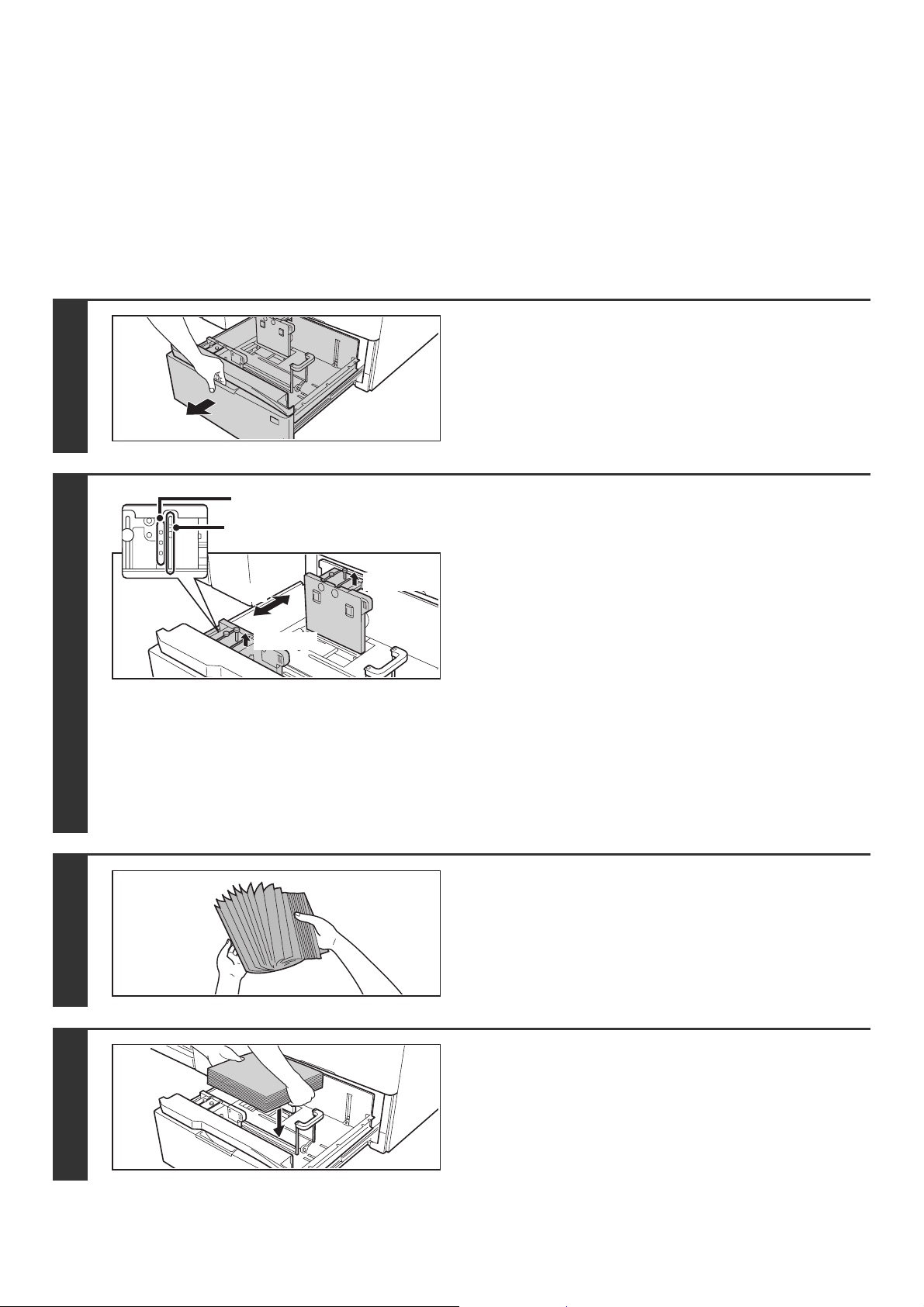
Loading tab paper
To use tab paper, the special guide must be attached as explained below.
Loading transparency film
When loading transparency film, load the film face up in the vertical orientation with the rounded corner at the top right.
1
Take out the tab paper guide.
The guide is stored under the cover of the large capacity trays. When finished using tab paper, be sure to replace the guide.
2
Adjust the paper guide to the tab paper
position and load tab paper.
To adjust the paper guide, see Loading paper and changing the
paper size (page 37).
Place the tab paper with the print side face up and the tabs to
the right.
[Example]
Make sure that the positions of the tabs correspond with the originals as shown below.
3
Attach the special guide as shown.
4
Gently push the tray in and set the paper
type to tab paper.
Change the paper type setting to tab paper as explained in
"PAPER TRAY SETTINGS" (page 77) in the System Settings.
ABC
DEF
GHI
JKL
1st sheet 2nd sheet 3rd sheet 4th sheet
Bottom
Top
1st sheet
Front
side
4th sheet3rd sheet2nd sheet
Originals Tab paper
40
TRAY SETTINGS FOR THE LARGE CAPACITY TRAYS
(MX-LCX5)
Loading paper and changing the paper size
Up to 1000 sheets of 5-1/2" x 8-1/2"R to 12" x 18" size paper (A5R to A3W size paper) can be loaded in tray 5 and tray
7. Up to 2000 sheets of 5-1/2" x 8-1/2"R to 12" x 18" size paper (A5R to A3W size paper) can be loaded in tray 6.
For detailed information on the paper that can be loaded, see the specifications in the Safety Guide and "PAPER TRAY
SETTINGS" (page 77) in the System Settings.
This section explains the procedures for adding paper to tray 5, tray 6, and tray 7, and for changing the paper size.
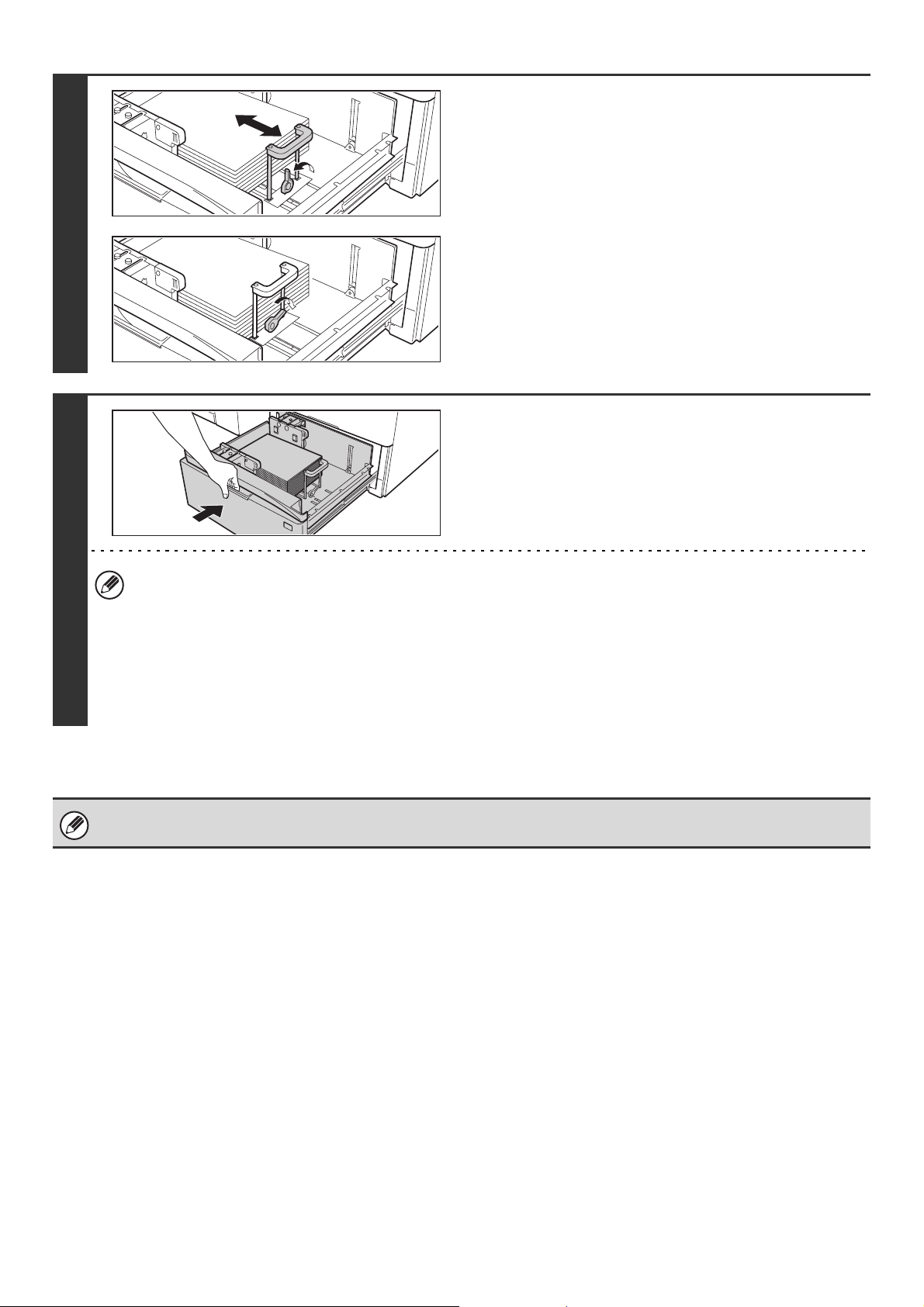
1
Pull out the paper tray.
Gently pull the tray out until it stops.
If you are simply adding paper, go to step 4. To load a different
size of paper, go to the next step.
2
Adjust the vertical paper guide to the
desired paper size.
(1) Remove the screw on the right side, and
loosen the screw on the left side.
(2) Adjust the paper guide to the paper size
that will be used.
For a standard size, align the screw hole with the hole
indicating the paper size.
(3) Tighten the screw on the right side and then
tighten the screw on the left side.
For a standard paper size, insert the screw into the
aligned holes and tighten the screw.
For a non-standard paper size, insert the screw into the
screw hole in the slot on the right side and tighten the
screw.
3
Fan the paper.
Fan the paper well before loading it. If the paper is not fanned,
multiple sheets may feed at once and cause a misfeed.
4
Insert the paper into the tray.
Load paper face up. The stack must not exceed the indicator
line (up to 1000 sheets in tray 5 or tray 7, or up to 2000 sheets
in tray 6).
Screw holes for standard sizes
Screw holes for non-standard
sizes
(1), (3)
(1), (3)
(2)
41
5
Adjust the right paper guide to the paper
size.
(1) Release the lock lever on the paper guide
and adjust the paper guide to the desired
paper size.
(2) Push the lock lever on the paper guide
down so it is horizontal to secure the paper
guide.
6
Gently push the paper tray into the
machine.
Push the tray firmly all the way into the machine.
• If you loaded a different type of paper than was loaded previously, change the paper type setting as explained in
"PAPER TRAY SETTINGS" (page 77) in the System Settings. If the paper size setting is not configured correctly,
automatic paper selection will not operate correctly and printing may take place on the wrong size or type of paper
or a misfeed may occur.
• If you loaded 8K, 16K, or 16KR size paper or a non-standard size of paper, be sure to set the paper size as
explained in "PAPER TRAY SETTINGS" (page 77). If the paper size setting is not configured correctly, automatic
paper selection will not operate correctly and printing may take place on the wrong size or type of paper or a
misfeed may occur.
Do not place heavy objects on the tray or press down on the tray.
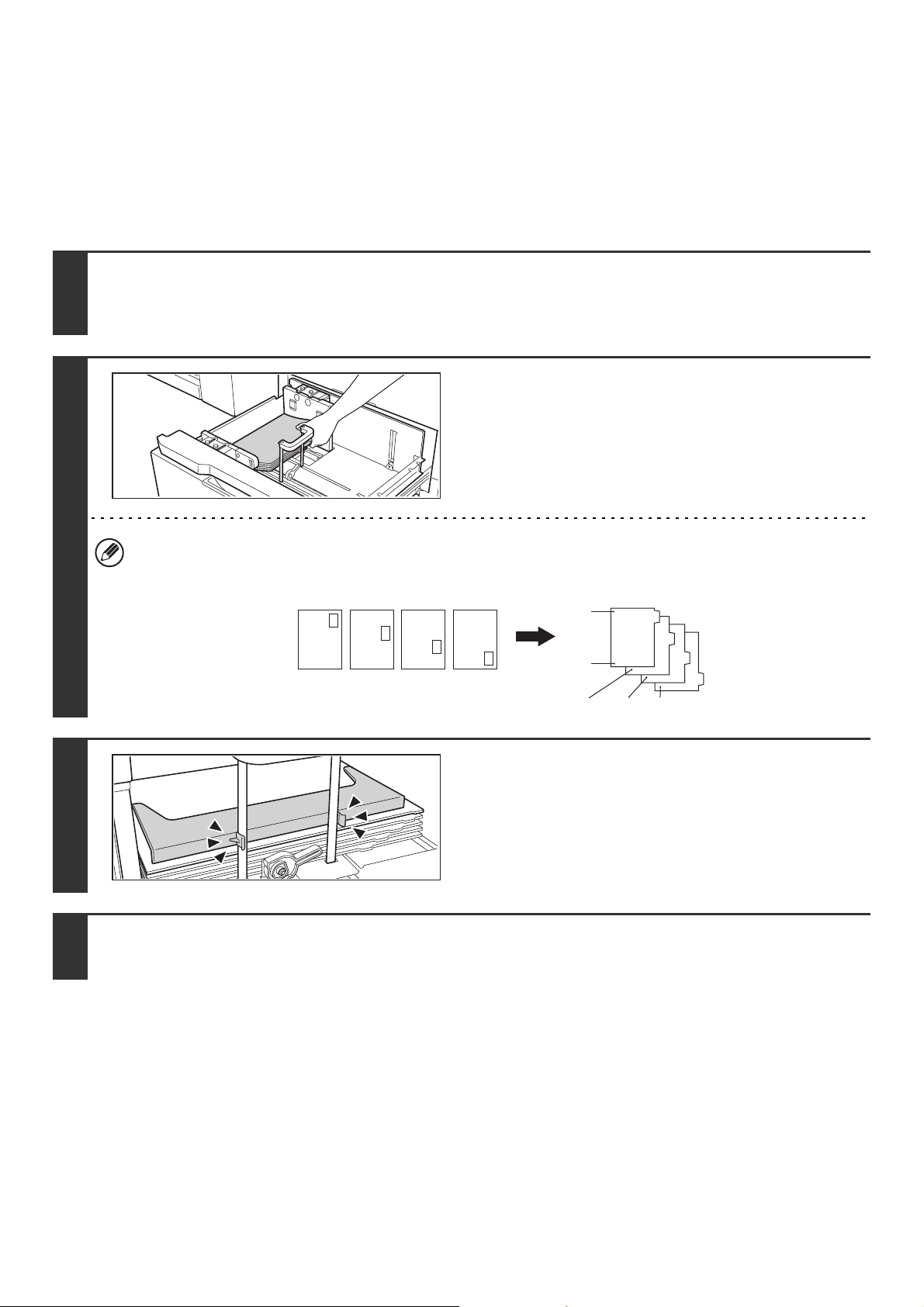
42
Loading tab paper and transparency film
In addition to plain paper, tab paper and transparency film can also be loaded in the large capacity trays (MX-LCX5).
This section explains the procedures for loading tab paper and transparency film, and points to note.
Loading tab paper
To use tab paper, the special guide must be attached as explained below.
Loading transparency film
When loading transparency film, load the film in the vertical orientation with the rounded corner at the top right.
1
Take out the tab paper guide.
The guide is stored inside the large capacity trays (MX-LCX5). Open the cover and take out the guide. When finished using
tab paper, be sure to replace the guide.
2
Adjust the paper guide to the tab paper
size and load tab paper.
To adjust the paper guide, see Loading paper and changing the
paper size (page 40).
Place the tab paper with the print side face up so that the tab is
to the right.
[Example]
Make sure that the positions of the tabs correspond with the originals as shown below.
3
Attach the guide to the tray.
Attach the guide over the paper.
4
Gently push the tray in and set the paper type to tab paper.
Change the paper type setting to tab paper as explained in "PAPER TRAY SETTINGS" (page 77) in the System Settings.
ABC
DEF
GHI
JKL
1st sheet 2nd sheet 3rd sheet 4th sheet
Bottom
Top
1st sheet
Front
side
4th sheet3rd sheet2nd sheet
Originals Tab paper
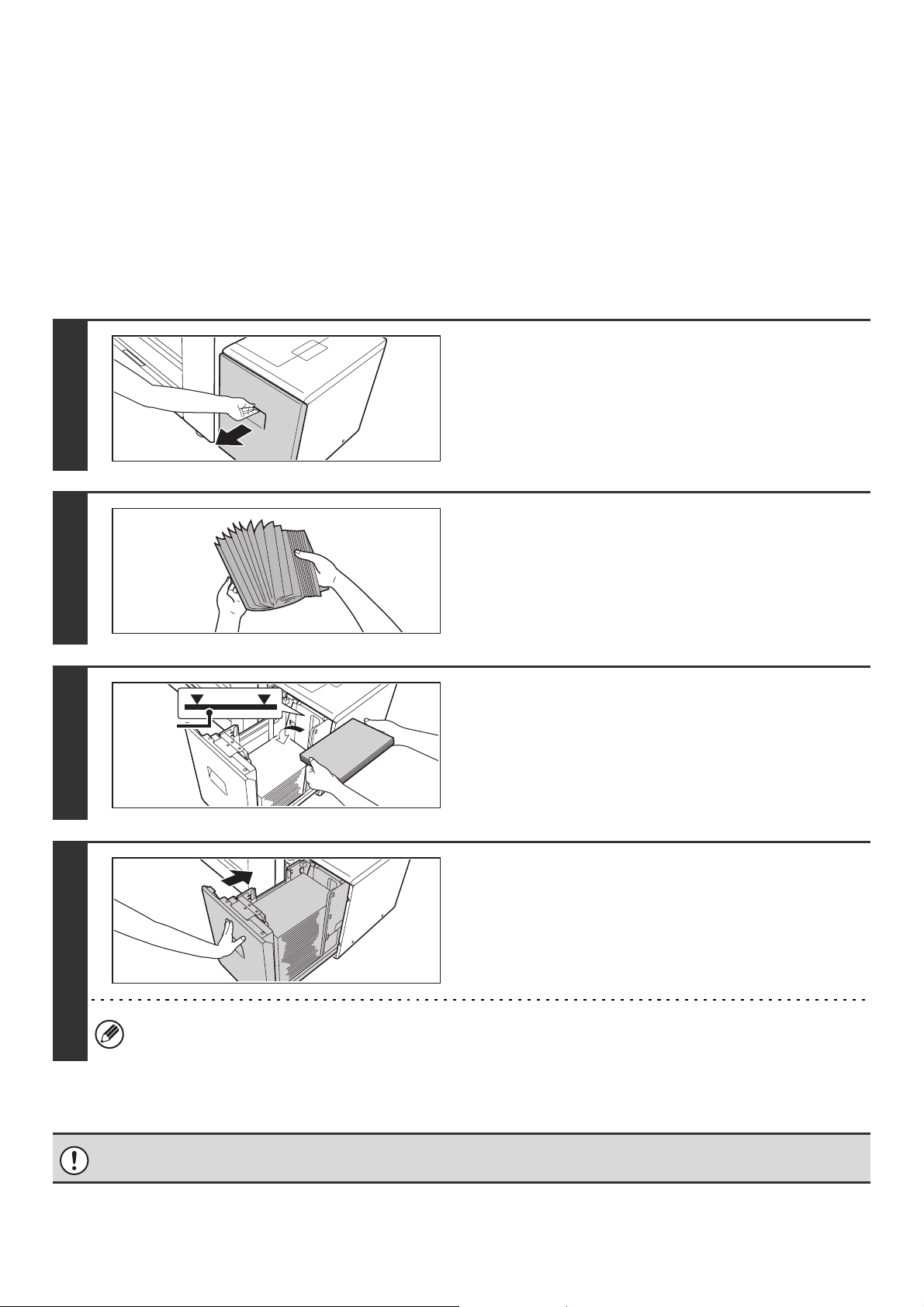
43
TRAY SETTINGS FOR THE LARGE CAPACITY TRAY
(MX-LCX6)
Loading paper
Up to 3500 sheets of 8-1/2" x 11" or A4 size paper can be loaded in the large capacity tray (MX-LCX6).
For detailed information on the paper that can be loaded, see the specifications in the Safety Guide and "PAPER TRAY
SETTINGS" (page 77) in the System Settings.
The paper size of the large capacity tray (MX-LCX6) can only be changed by a service technician. If you need to change
the paper size, consult your dealer or nearest SHARP Service Department.
1
Pull out the paper tray.
Gently pull the tray out until it stops.
2
Fan the paper.
Fan the paper well before loading it. If the paper is not fanned,
multiple sheets may feed at once and cause a misfeed.
3
Place the paper in the center of the
paper table.
Load the paper with the print side face up. The stack must not
be higher than the indicator line (maximum of 3500 sheets).
4
Gently push the paper tray into the
machine.
Push the tray firmly all the way into the machine.
If you loaded a different type of paper than was loaded previously, change the paper type setting as explained in
"PAPER TRAY SETTINGS" (page 77) in the System Settings.
Do not place heavy objects on the tray or press down on the tray.
Indicator
line
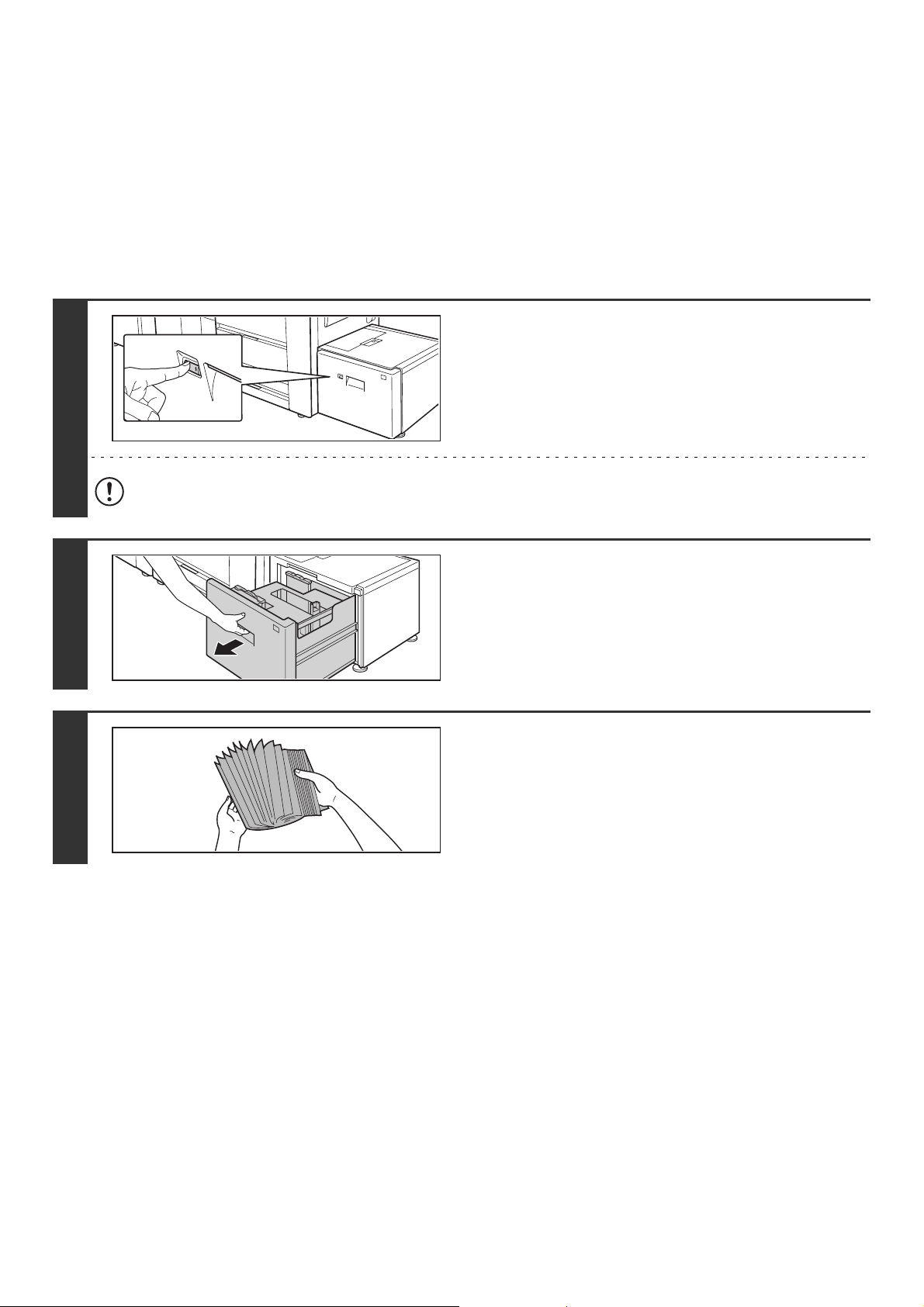
44
TRAY SETTINGS FOR THE LARGE CAPACITY TRAY
(MX-LCX3N)
Loading paper
Up to 3000 sheets of 8-1/2" x 11" to 12" x 18" (B5 to A3W) size paper can be loaded in the large capacity tray
(MX-LCX3N).
For detailed information on the paper that can be loaded, see the specifications in the Safety Guide and "PAPER TRAY
SETTINGS" (page 77) in the System Settings.
1
Press the operation button.
The operation button indicator will blink and the tray's paper
table will descend to the paper loading position. Wait until the
operation button indicator turns off.
Do not remove the tray before the indicator turns off. Attempting to pull the tray out when the indicator is blinking or
solidly lit may damage the tray.
2
Pull out the paper tray.
Gently pull the tray out until it stops.
3
Fan the paper.
Fan the paper well before loading it. If the paper is not fanned,
multiple sheets may feed at once and cause a misfeed.
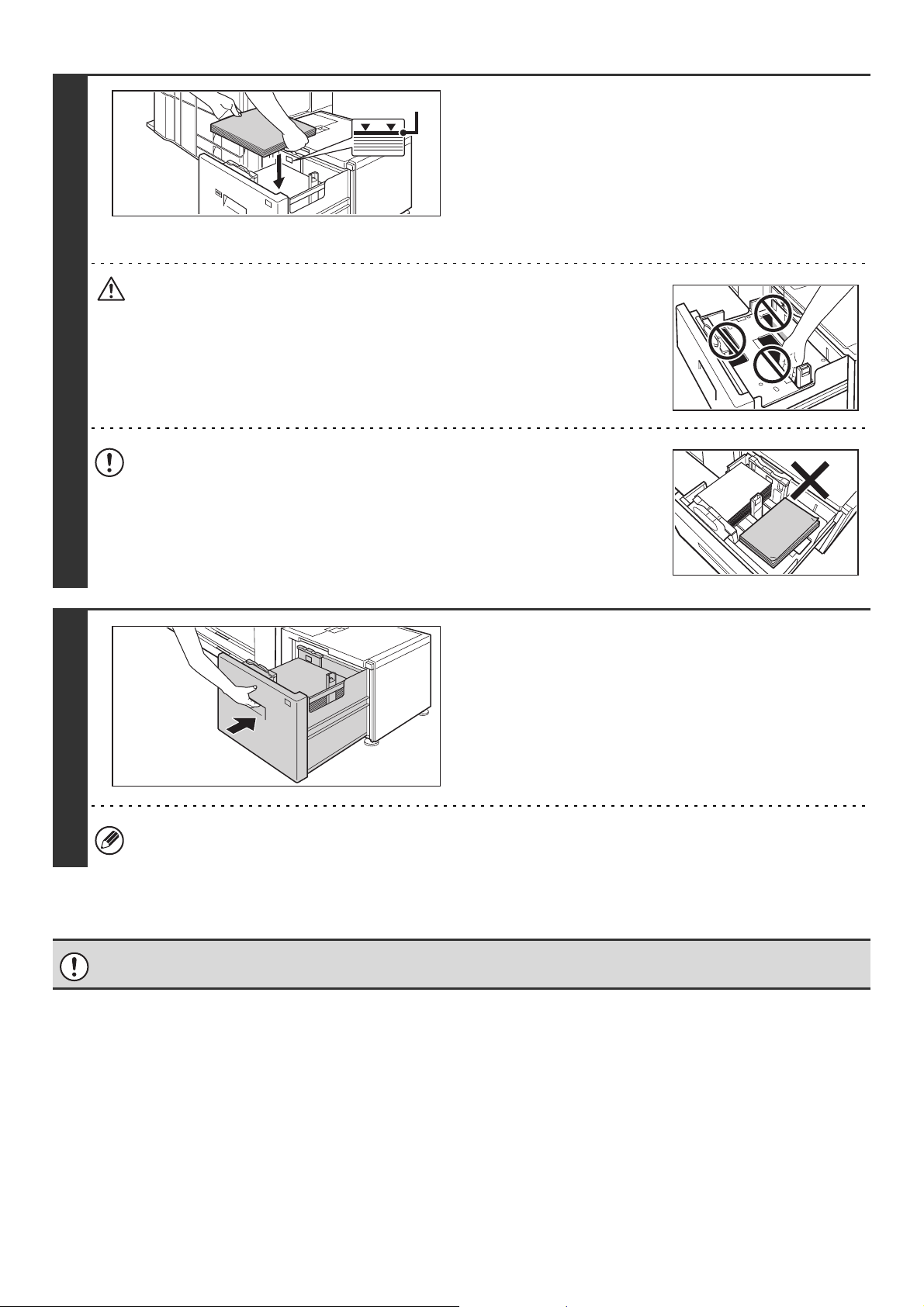
45
4
Place the paper in the center of the
paper table.
Load the paper with the print side face up.
When a certain amount of paper is placed on the paper table,
the paper table will automatically descend slightly and then
stop. Continue loading paper in this way.
The paper stack must not be higher than the indicator line.
A maximum of 3000 sheets of paper can be loaded in the tray.
Caution
When placing paper, do not insert your fingers into the openings in the paper table.
Do not insert spare paper or other objects into openings inside the tray.
5
Gently push the paper tray into the
machine.
Push the tray firmly all the way into the machine. After the tray
is pushed in, the paper table will rise. While the paper tray
rises, the operation button indicator will blink. After the paper
tray finishes rising, the indicator will light solidly.
If you loaded a different type of paper than was loaded previously, change the paper type setting as explained in
"PAPER TRAY SETTINGS" (page 77) in the System Settings.
Do not place heavy objects on the tray or press down on the tray.
Indicator line
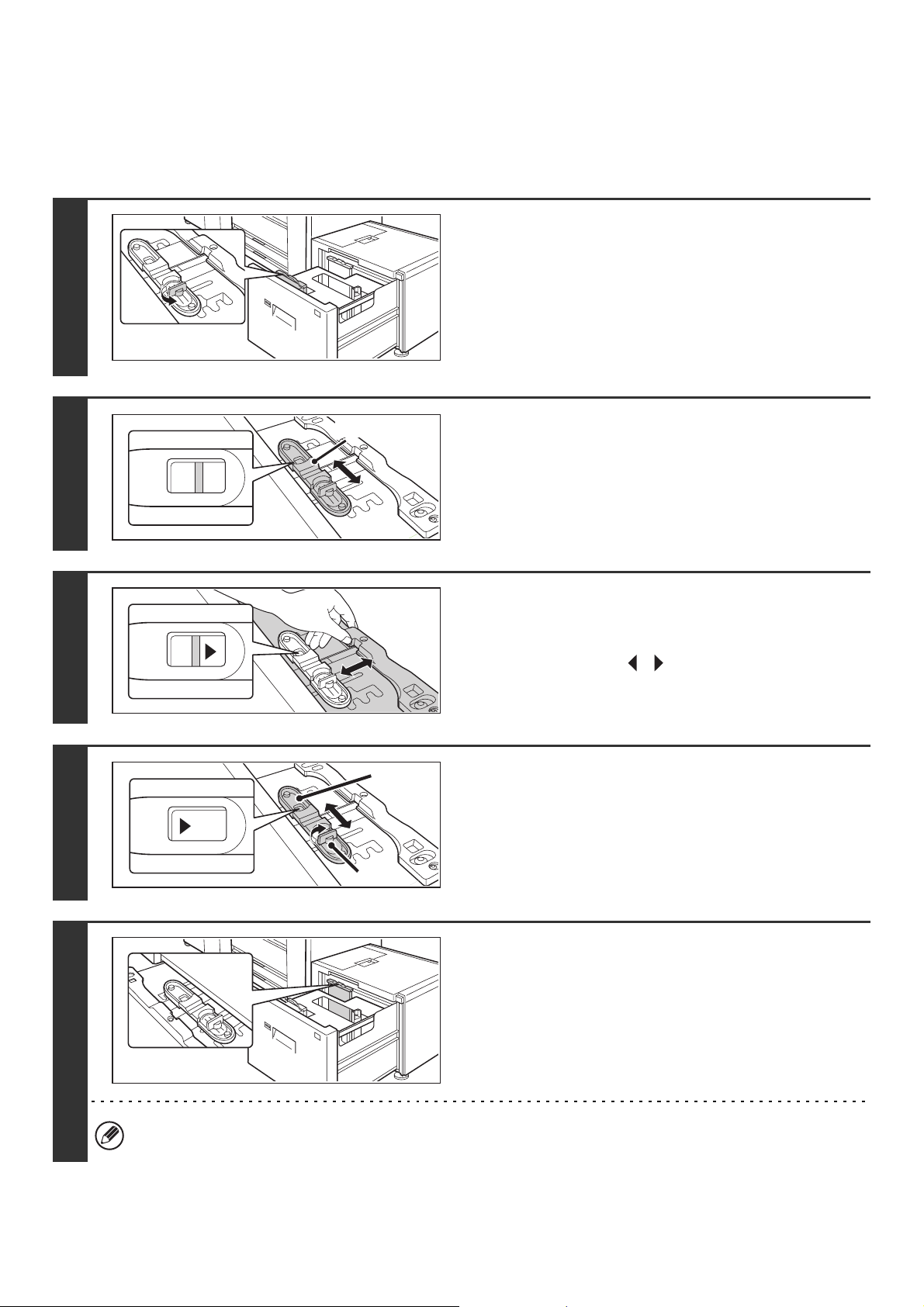
46
Changing the paper size
To change the paper size of the large capacity tray (MX-LCX3N), follow the procedure below.
This procedure only explains how to change the paper size. For the procedures for opening/closing the tray and loading
paper, see "Loading paper" (page 44).
1
Loosen the paper guide screw.
2
Slide the plate of the paper guide.
Slide the plate until the red line appears at the center of the size
window of the plate.
3
Adjust the paper guide to the paper size
that will be used.
Slide the paper guide forward or backward until the size mark
of the paper to be used ( or ) appears in the size window of
the plate.
4
Secure the paper guide.
(1) Slide the plate of the paper guide.
Slide the plate until the paper size to be used appears in
the size window of the plate.
(2) Tighten the paper guide screw.
5
Repeat steps 1 through 4 to adjust the
far paper guide to the paper size to be
used.
Be sure to adjust the far guide to the same paper size as the
near guide.
Adjusting only one paper guide may result in skewed feeding or misfeeds.
Plate
(1)
(2)
11
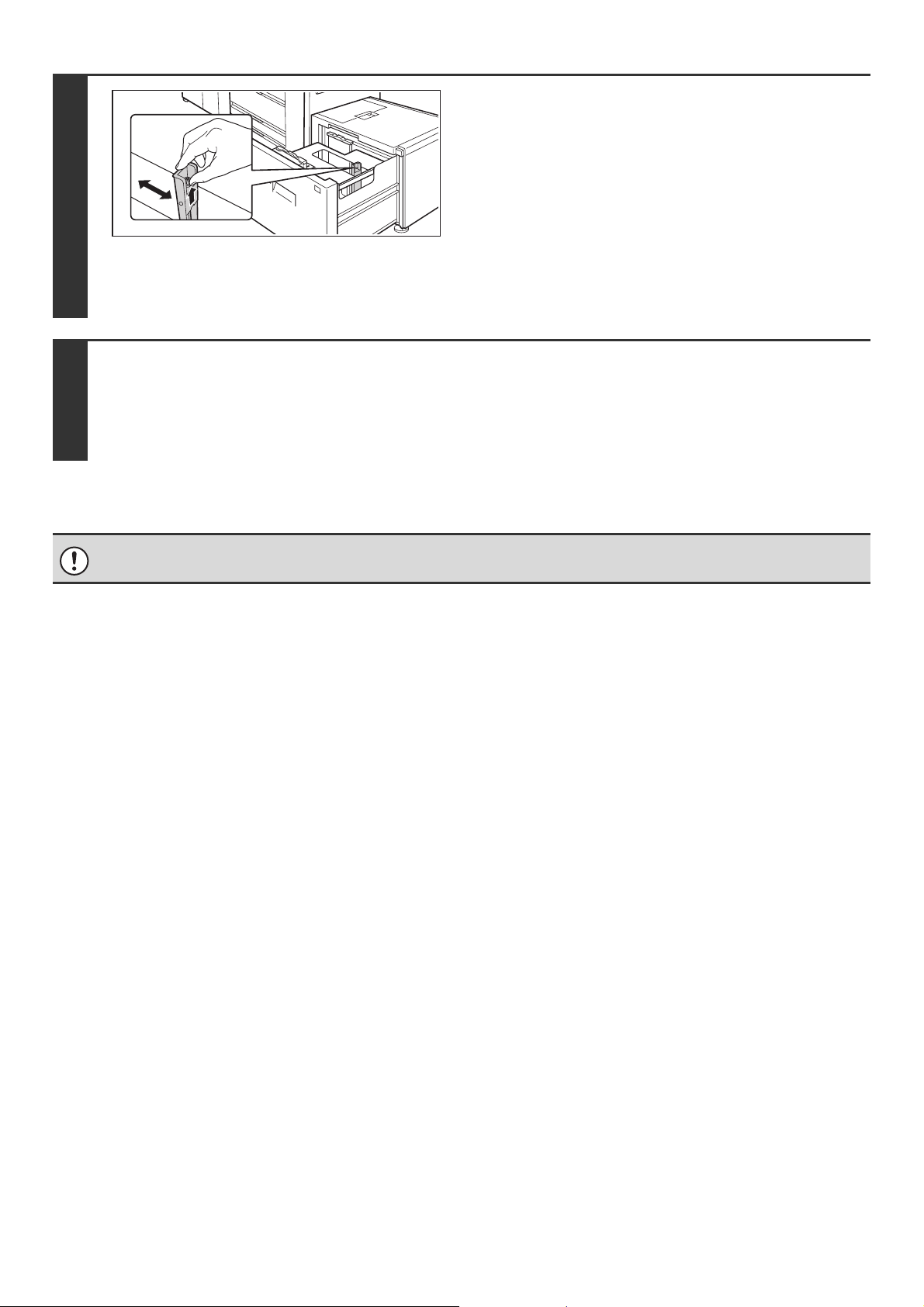
47
6
Change the right paper guide to the
paper size to be used.
(1) While holding up the paper guide lock, slide
the paper guide to the paper size to be
used.
(2) Release the paper guide lock.
(3) Move the paper guide slightly to the right
and left so that it locks into place.
You will hear a "click" when the paper guide locks.
7
Set the paper size and paper type.
Be sure to change the paper size and paper type settings as explained in "PAPER TRAY SETTINGS" (page 77) in the
System Settings.
If the paper size setting is not configured correctly, automatic paper selection will not operate correctly and printing may take
place on the wrong size or type of paper or a misfeed may occur.
Do not place heavy objects on the tray or press down on the tray.
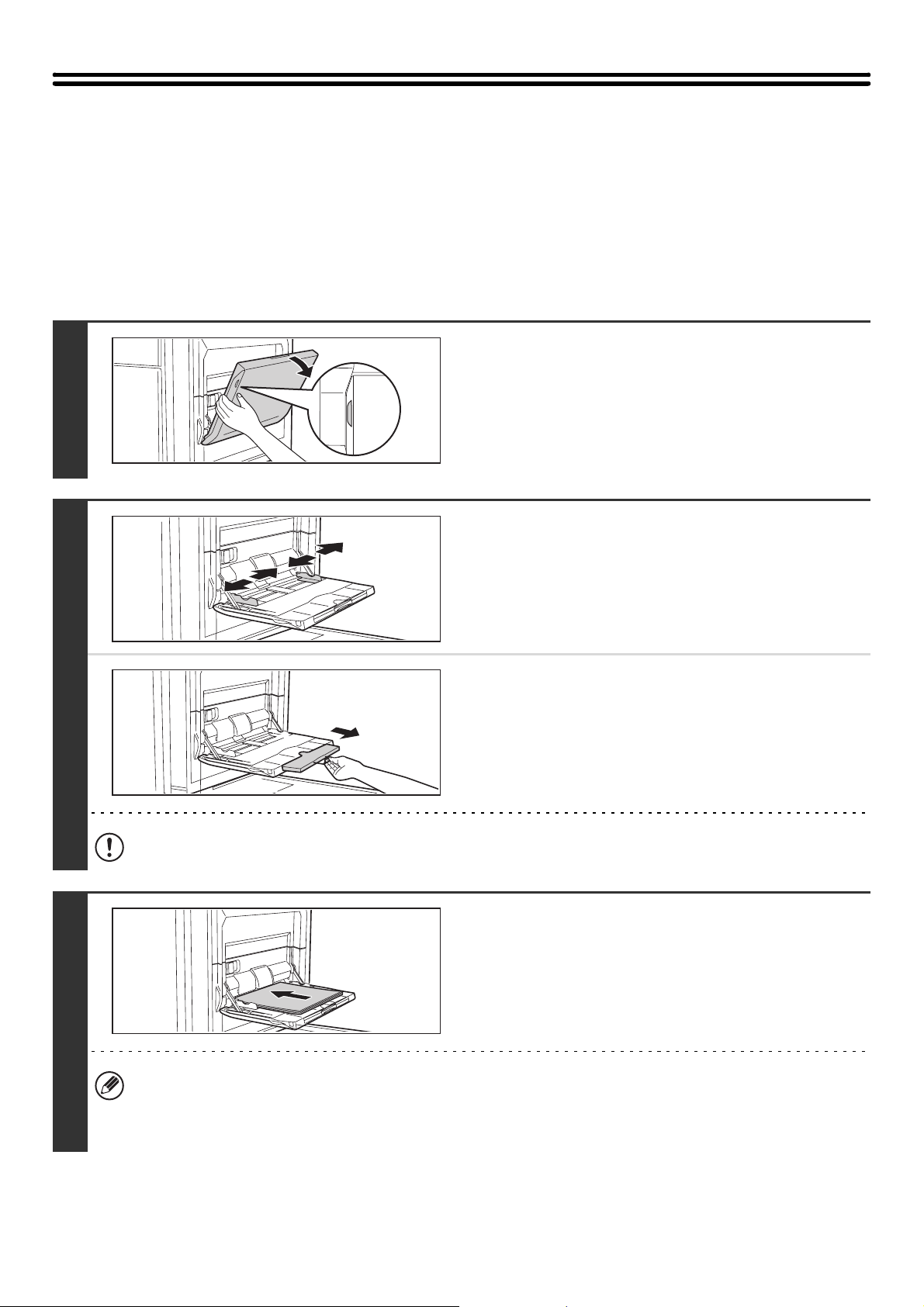
48
LOADING PAPER IN THE BYPASS TRAY
When the bypass tray is installed, plain paper, tab paper, transparency film, and other special media can be printed on.
Up to 100 sheets can be loaded in the MX-MFX1, or up to 500 sheets in the MX-MFX2, to enable continuous printing like
with the other trays.
For detailed information on the paper that can be loaded, see the specifications in the Safety Guide and "PAPER TRAY
SETTINGS" (page 77) in the System Settings.
Loading paper in the bypass tray (MX-MFX1)
1
Open the bypass tray.
2
Set the bypass tray guides to the width
of the paper.
When loading paper larger than 8-1/2" x 11"R or A4R, be sure
to pull out the bypass tray extension. Pull the bypass tray
extension all the way out. If the bypass tray extension is not
pulled all the way out, the size of the loaded paper will not be
correctly displayed.
Do not place heavy objects on the bypass tray or press down on the tray.
3
Insert the paper along the bypass tray
guides all the way into the bypass tray
until it stops.
Load the paper with the print side face up.
• Do not force the paper in.
• When loading paper, make sure that the guide is correctly adjusted to the width of the paper.
If there is a gap between the paper and the guide, or if the paper is bowed because the guide is adjusted to a
narrower width than the paper, a misfeed, skewed paper feeding, or creases in the paper may result.
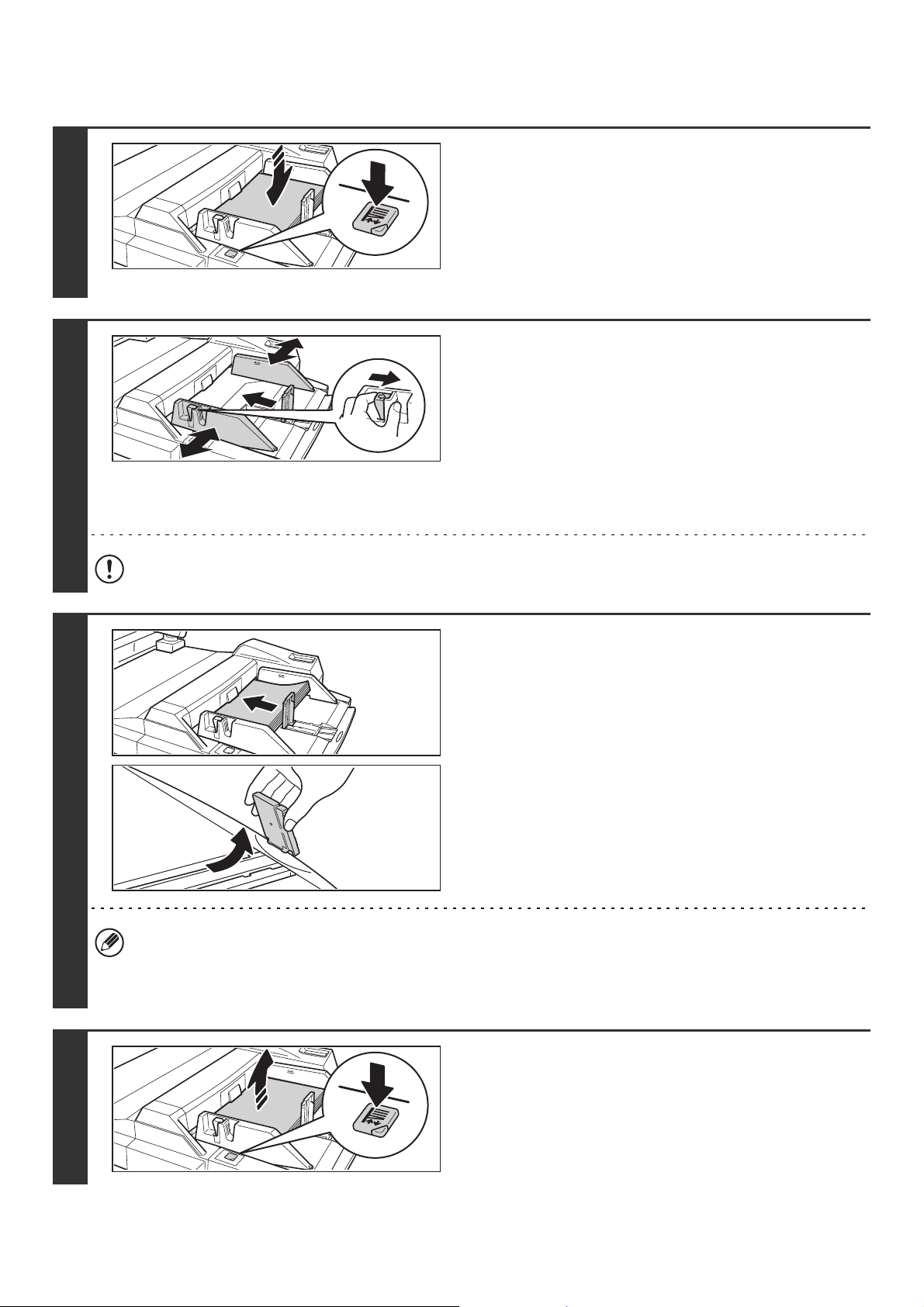
49
Loading paper in the bypass tray (MX-MFX2)
1
If you are changing the paper in the
bypass tray, press the operation button
and remove the previously used paper.
After the button is pressed, the paper table will descend. While the
paper tray descends, the operation button indicator will blink. After
the paper tray finishes descending, the indicator will light solidly.
Do not remove the paper until the indicator stops blinking.
2
Set the bypass tray guides to the width
of the paper.
Grasp the bypass guide lock lever and adjust the vertical
bypass guide, and then release the lever. Adjust the bypass
guide at the bottom edge of the paper to the paper size.
When loading paper larger than 8-1/2" x 11"R or A4R, be sure
to pull out the bypass tray extension. Pull the bypass tray
extension all the way out. If the bypass tray extension is not
pulled all the way out, the size of the loaded paper will not be
correctly displayed.
Do not place heavy objects on the bypass tray or press down on the tray.
3
Insert the paper along the guide all the
way in until it stops, and adjust the right
guide.
Load the paper with the print side face up.
The paper stack must not be higher than the indicator line.
A maximum of 500 sheets of paper can be loaded in the tray.
If you are loading paper larger than 12" x 18" (A3W) size,
remove the bottom edge bypass guide.
• Do not force the paper in.
• When loading paper, make sure that the guide is correctly adjusted to the width of the paper.
If there is a gap between the paper and the guide, or if the paper is bowed because the guide is adjusted to a
narrower width than the paper, a misfeed, skewed paper feeding, or creases in the paper may result.
4
Press the operation button.
After the button is pressed, the paper table will rise. While the
paper tray rises, the operation button indicator will blink. After
the paper tray finishes rising, the indicator will light solidly.
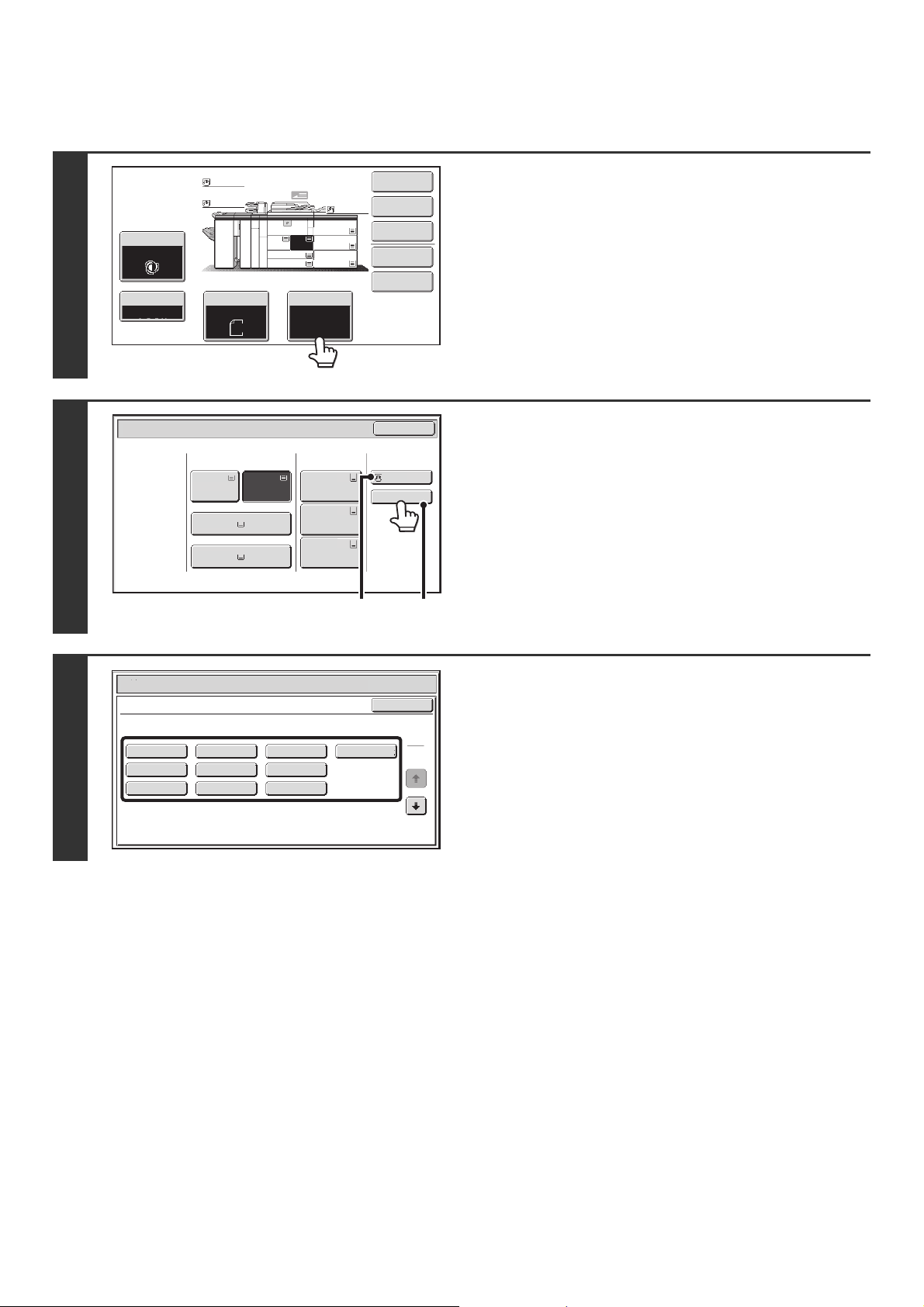
50
Bypass tray paper settings
After loading paper in the bypass tray, configure settings for the loaded paper.
1
Touch the [Paper Select] key.
2
Touch the paper type key of the bypass
tray.
(A) Shows the size of paper loaded in the bypass tray.
(B) Shows the currently selected paper type.
3
Select the type of paper used in the
bypass tray.
Select the paper type to be used.
The types of paper that can be loaded vary depending on the
bypass tray that is installed. For the paper types that can be
loaded, see "PAPER THAT CAN BE USED IN THE
PERIPHERAL DEVICE TRAYS" (page 36) and the
specifications in the Safety Guide.
Special Modes
Plain
2-Sided Copy
Output
File
Quick File
Copy Ratio
1.
2.
7.
8½x11
8½x11
Original Paper Select
Auto
8½x11
Plain
Auto
8½x11
Exposure
Auto
8½x14
4.
11x17
11x17
6.
11x17
5.
11x17
3.
8½x11
100%
Plain
Plain
Paper Select
Paper Tray
Bypass Tray
Large Capacity
Tray
OK
Plain
Plain
Plain
2. 8½x11 8½x11
Plain
Plain
5. 11x17
Plain
6. 11x17
Plain
7. 11x17
3. 11x17
4. 8½x14
1. 8½x11
Plain
(B)
(A)
Paper Select
Cancel
Plain
Pre-Punched
Heavy Paper 1
Pre-Printed
Color
Heavy Paper 2
Recycled
Thin Paper
Heavy Paper 3
Letter Head
Heavy Paper 1: 28+ - 32 lbs.bond (106 - 128 g/m
2
)
Bypass Tray Type/Size Setting
Select the paper type.
1
2
Heavy Paper 2: 32+ lbs.bond, -65 lbs.cover (129 - 176 g/m
2
)
Heavy Paper 3: 48 lbs.bond, 110 lbs.index (177 - 205 g/m
2
)
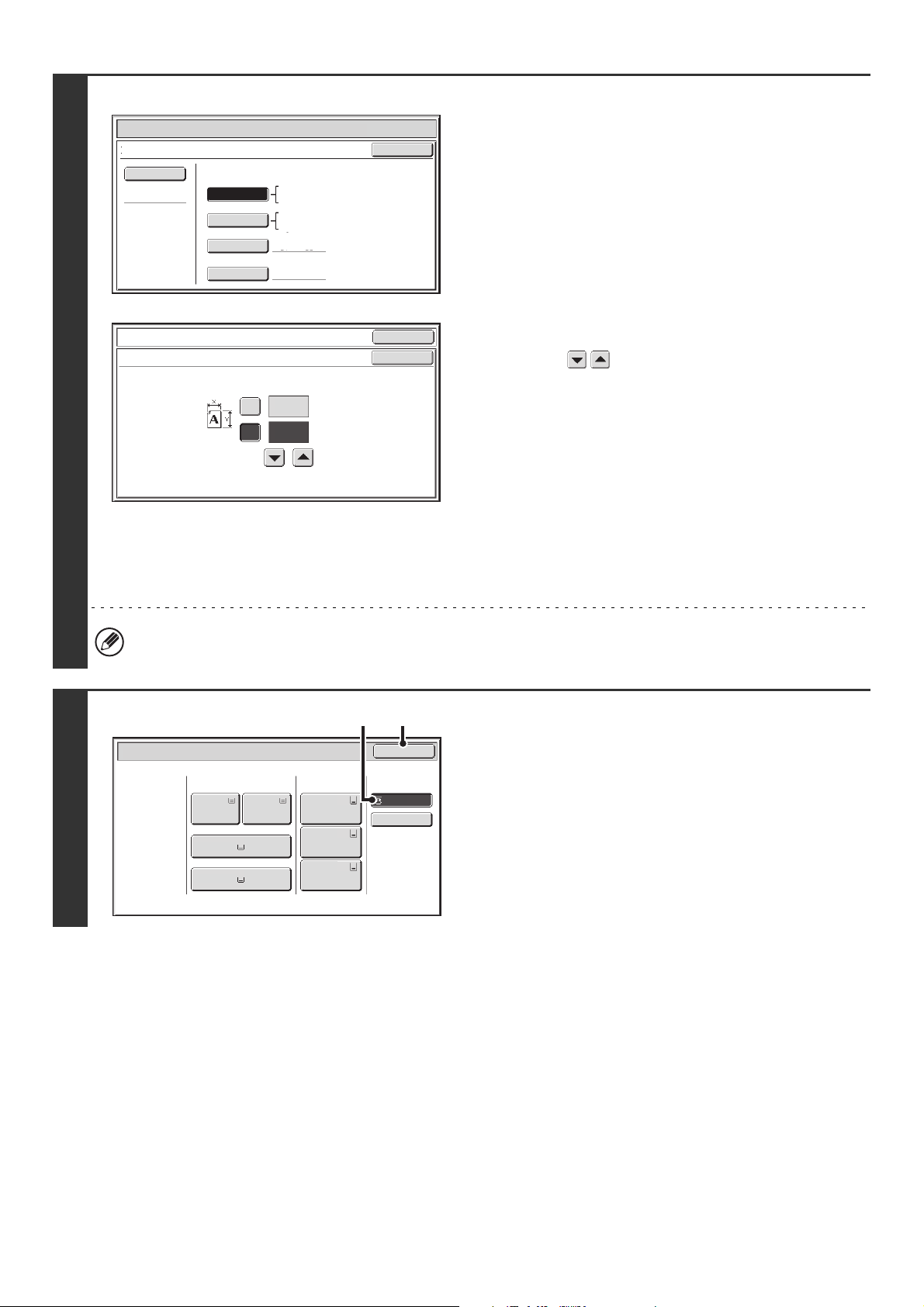
51
4
Example: recycled paper has been selected
Set the paper size.
[Auto-Inch] key
When the paper inserted in the bypass tray is a standard inch
size (8-1/2" x 11", etc.), the paper size will be detected
automatically and the appropriate paper size set.
[Auto-AB] key
When the paper inserted in the bypass tray is a standard AB size
(A4 size, etc.), the paper size will be detected automatically and
the appropriate paper size set.
[Custom Size] key
Touch this key when you know the size of the inserted paper but
it is not one of the standard inch or AB sizes.
When the key is touched, the paper size entry screen appears.
Touch the [X] key and enter the horizontal dimension of the
paper with the keys, and then touch the [Y] key and
enter the vertical dimension. When finished, touch the [OK]
key.
[Manual] key
Special standard sizes such as 320mm x 450mm,
225mm x 320mm, 318mm x 469mm, 234mm x 318mm,
312mm x 440mm, 220mm x 312mm, and 16K, 16KR, and 8K
(used in China) have been pre-stored. Touch the key of the
desired size.
(320mm x 450mm, 225mm x 320mm, 318mm x 469mm,
234mm x 318mm, 312mm x 440mm, and 220mm x 312mm
can only be used in the bypass tray when a large capacity trays
(MX-LCX5) is installed.)
If tab paper is selected, check the size. Touch the [Auto-Inch] key or the [Auto-AB] key. When you have finished
checking/changing the setting, touch the [OK] key.
5
Select the bypass tray.
(1) Touch the paper size key of the bypass tray.
(2) Touch the [OK] key.
Paper Select
Bypass Tray Type/Size Setting
OK
Type
Auto-Inch
Recycled
Custom Size
Manual
X11 Y17
Auto-AB
Size
12x18(A3W),11x17,8½x14
8½x11,5½x8½R
7¼x10½R,9x12(A4W),A3,A4,B4
A3W(12x18),A3,B4,A4,A5R,B5
B5R,A4W(9x12)11x17,8½x11
A4R
OK
OK
(4~12 5/8)
inch
(5 1/2~18 1/2)
inch
11
X
Y
17
Bypass Tray Type/Size Setting
Size Input
Paper Select
Paper Tray
Bypass Tray
Large Capacity
Tray
OK
PlainPlain
Plain
Plain
2. 8½x11 8½x11
Plain
Recycled
5. 11x17
Plain
6. 11x17
Plain
7. 11x17
3. 11x17
4. 8½x14
1. 8½x11
(1)
(2)
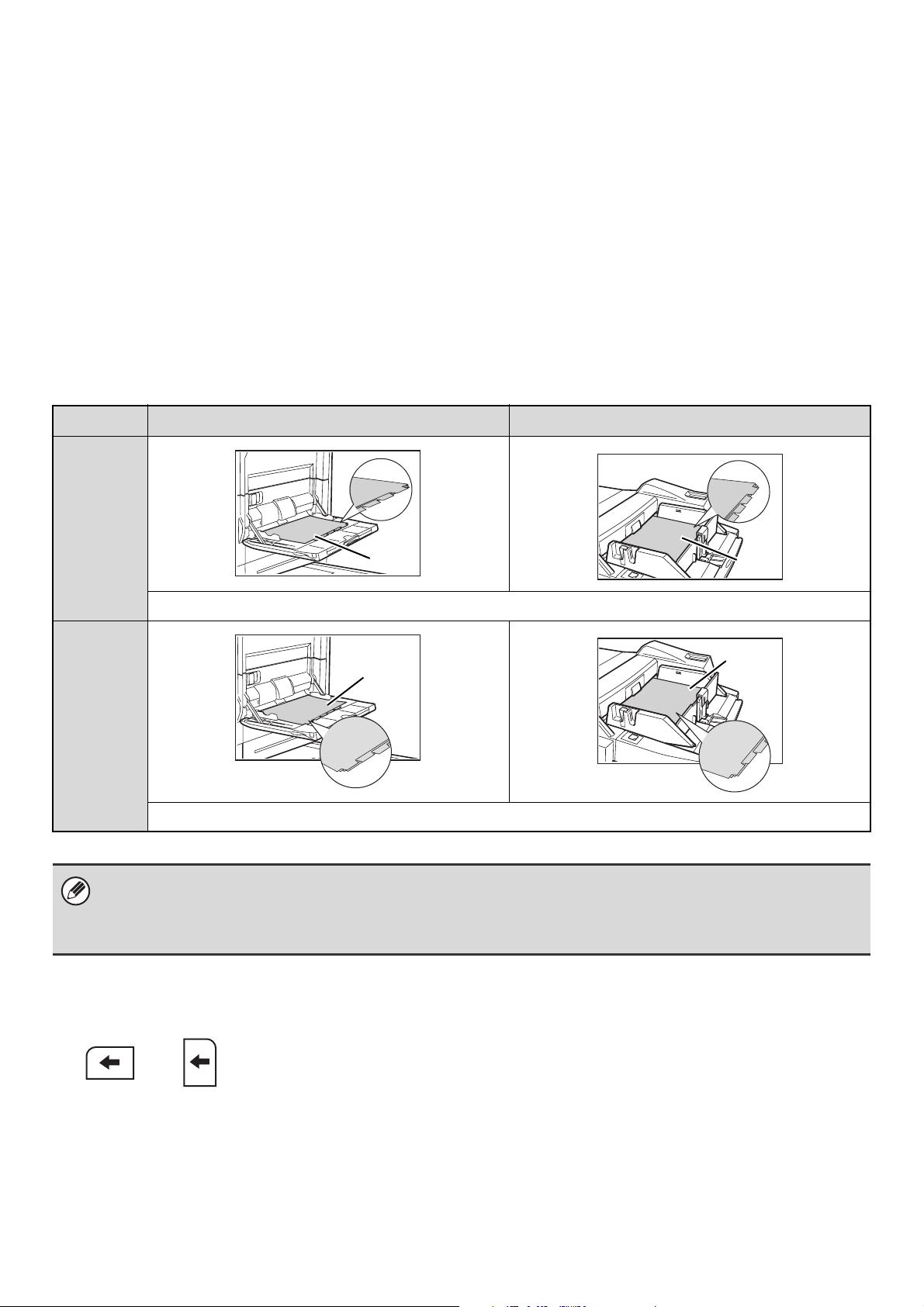
52
IMPORTANT POINTS WHEN USING THE BYPASS TRAY
• When using plain paper other than SHARP standard paper or special media other than SHARP-recommended
transparency film, or when printing on the reverse side of previously used paper, the paper must be loaded one sheet
at a time. Loading more than one sheet at a time will cause misfeeds.
• Before loading paper, straighten any curling in the paper.
• When adding paper, remove any paper remaining in the bypass tray, combine it with the paper to be added, and
reload as a single stack. If paper is added without removing the remaining paper, a misfeed may result.
Inserting paper
Place paper that is 7-1/4" x 10-1/2" (A5) or smaller in the horizontal orientation.
Inserting tab paper
To print on tab paper, load tab paper in the bypass tray with the print side face up.
On the MX-MFX2 bypass tray, the special guide is attached to the bottom edge bypass guide. The special guide is stored
under the front cover of the large capacity trays. After using the guide, remove it and replace it in its storage location.
Inserting transparency film
Bypass tray (MX-MFX1) Bypass tray (MX-MFX2)
Left
binding
Place the first sheet of tab paper so that the tab is away from you.
Right
binding
Place the first sheet of tab paper so that the tab is toward you.
• Use only tab paper that is made of paper. Tab paper made of a material other than paper (film, etc.) cannot be used.
• To print on the tabs of tab paper...
In copy mode, use "Tab Copy" in the special modes. In print mode, use the tab print function. For more information on
these functions, see the Copier Guide and the Printer Guide.
• Use SHARP-recommended transparency film. When inserting transparency film
in the bypass tray, the rounded corner should be at the far left when the film is
oriented horizontally, or at the far right when the film is oriented vertically. Place
the film face up.
• When loading multiple sheets of transparency film in the bypass tray, be sure to
fan the sheets several times before loading.
• When printing on transparency film, be sure to remove each sheet as it exits the
machine. Allowing sheets to stack in the output tray may result in curling.
Front
side
Front
side
Front
side
Front
side
Horizontally Vertically
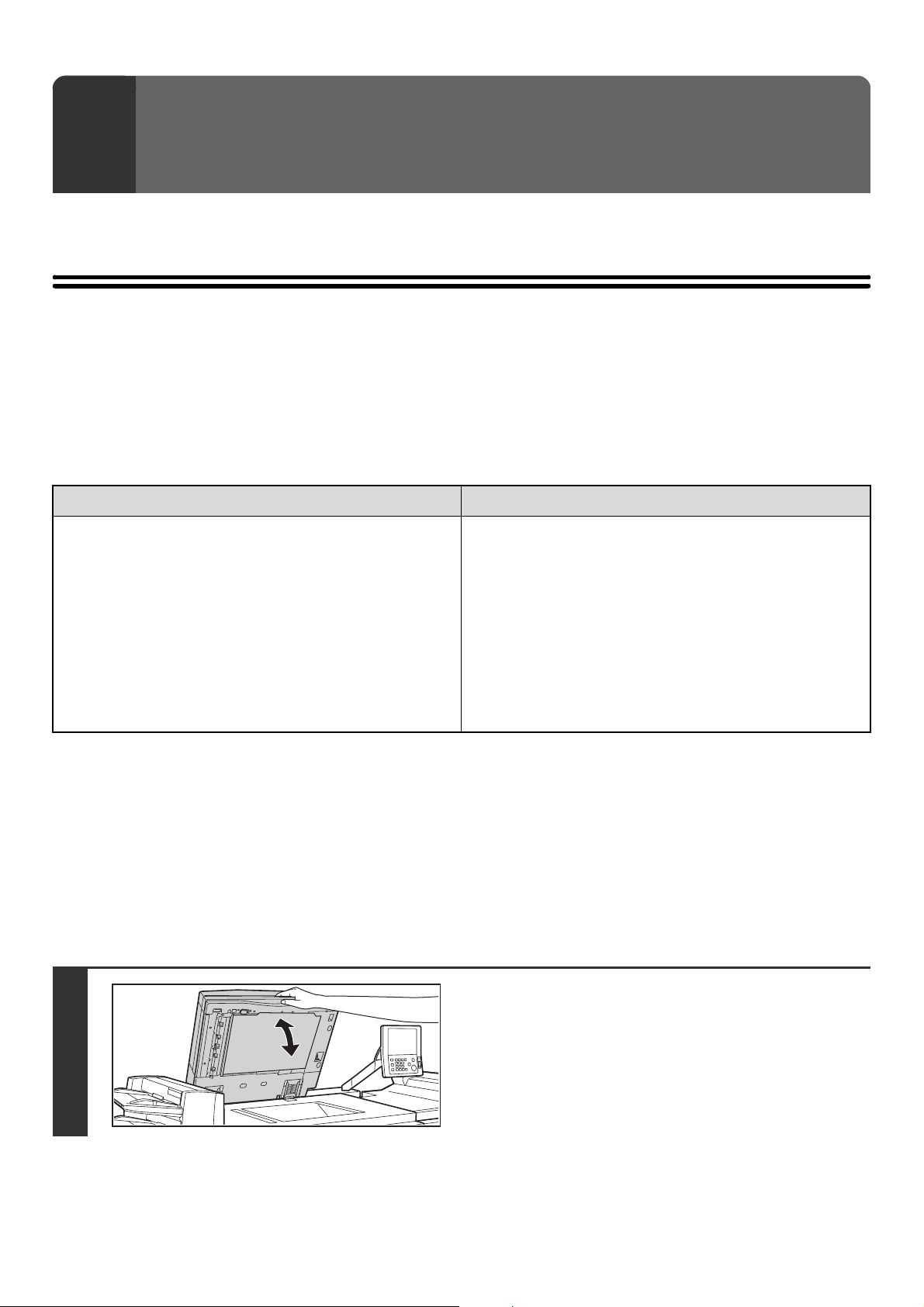
53
This chapter explains how to place originals in the automatic document feeder and on the document glass.
PLACING THE ORIGINAL
PLACING ORIGINALS IN THE AUTOMATIC DOCUMENT
FEEDER
This section explains how to place originals in the automatic document feeder.
Allowed original sizes
When a non-standard size original is placed in copy mode, see "SPECIFYING THE ORIGINAL SIZE" in the Copier
Guide.
When a non-standard size original is placed for fax or scanner transmission, see "IMAGE SETTINGS" in the Image
Send Guide.
Allowed original weights
1-sided scanning: 12 lbs. to 110 lbs. index (38 g/m
2
to 205 g/m
2
)
2-sided scanning: 16 lbs. to 110 lbs. index (52 g/m
2
to 205 g/m
2
)
To scan originals from 12 lbs. to 13 lbs. (38 g/m
2
to 49 g/m
2
), use "Slow Scan Mode" in the special modes. Scanning
without using "Slow Scan Mode" may result in original misfeeds.
When "Slow Scan Mode" is selected, automatic 2-sided scanning is not possible.
3
ORIGINALS
Minimum original size Maximum original size
Standard sizes
(Minimum size that can be automatically detected)
8-1/2" (height) x 5-1/2" (width)
A5: 210 mm (height) x 148 mm (width)
Non-standard sizes
(Minimum size that can be specified manually)
5-1/2" (height) x 5-1/2" (width)
140 mm (height) x 140 mm (width)
Standard sizes
(Maximum size that can be automatically detected)
11" (height) x 17" (width)
A3: 297 mm (height) x 420 mm (width)
12" x 18" size paper (A3W) cannot be used.
Non-standard sizes
(Maximum size that can be specified manually)
Copy mode: 11-5/8" (height) x 17" (width)
297 mm (height) x 432 mm (width)
Image send mode: 11" (height) x 31-1/2" (width)
297 mm (height) x 800 mm (width)
1
Make sure an original does not remain
on the document glass.
Open the automatic document feeder, make sure that an
original is not on the document glass, and then gently close the
automatic document feeder.
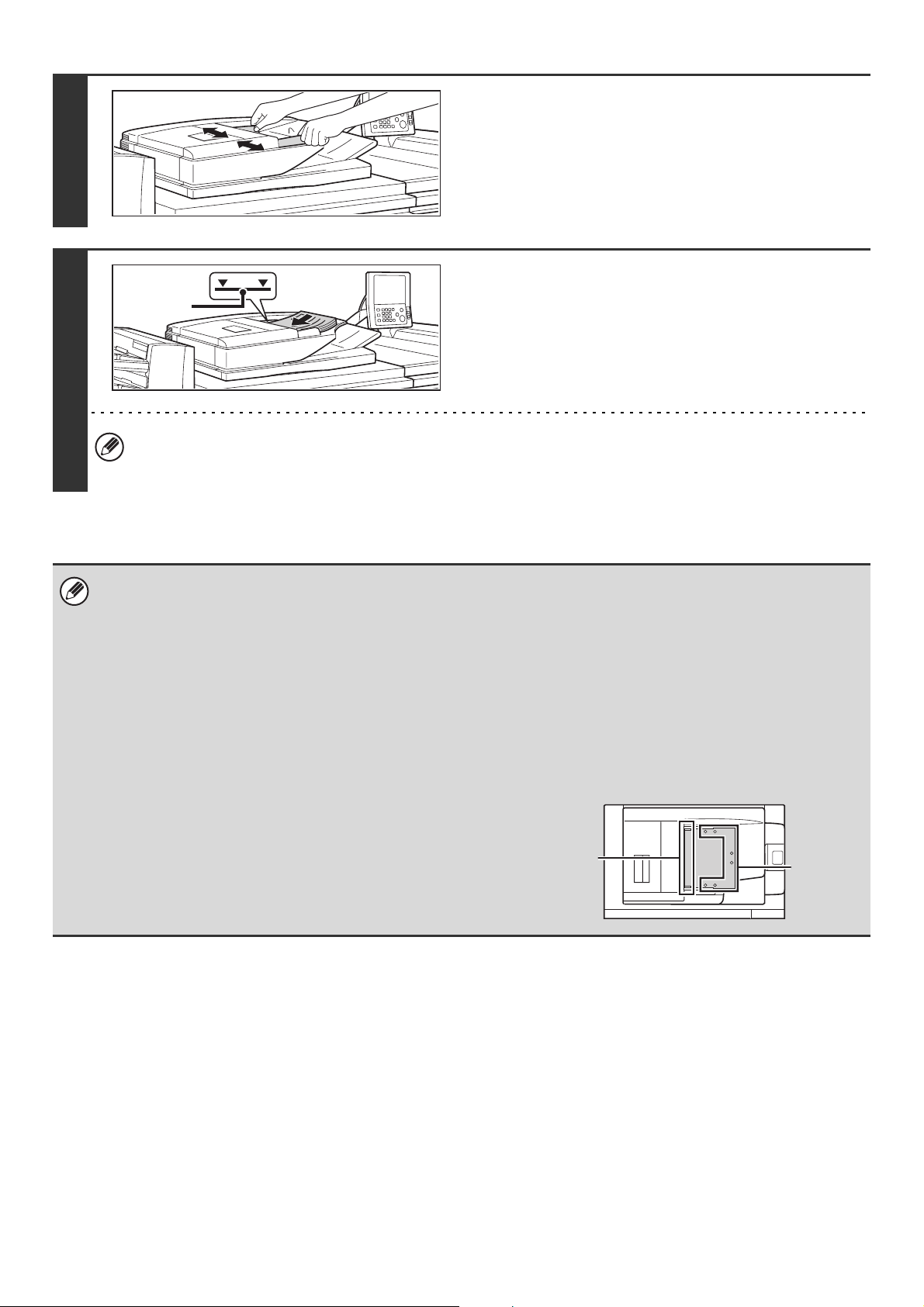
54
2
Adjust the original guides to the size of
the originals.
3
Place the original.
Make sure the edges of the originals are even.
Insert the originals face up all the way into the document feeder
tray.
Insert a number of originals that does not exceed the indicator
line on the document feeder tray.
Up to 250 sheets can be inserted.
When placing the original, make sure that the guide is correctly adjusted to the width of the original.
If there is a gap between the original and the guide, or if the original is bowed because the guide is adjusted to a
narrower width than the paper, a misfeed, skewed original feeding, or creases in the original may result.
• Originals of different sizes can be placed together in the automatic document feeder. In this case, select "Mixed Size
Original" in the special modes of the mode you are using. For the procedures for inserting mixed size originals and the
sizes that can be inserted, see the Copier Guide and the Image Send Guide.
• Before inserting originals into the document feeder tray, be sure to remove any staples or paper clips.
• If originals have damp spots due to correction fluid, ink or pasteup glue, wait until the originals are dry before making
copies. Otherwise the interior of the document feeder or the document glass may be soiled.
• Do not use the following originals. Incorrect original size detection, original misfeeds, and smudges may result.
Transparency film, tracing paper, carbon paper, thermal paper or originals printed with thermal transfer ink ribbon should
not be fed through the document feeder. Originals to be fed through the feeder should not be damaged, crumpled, folded,
loosely pasted together, or have cut-out holes. Originals with multiple punched holes other than two-hole or three-hole
punched paper may not feed correctly.
• When using originals with two or three holes, place them so that
the punched edge is at a position away from the feed slot of the
document feeder tray.
Indicator
line
Hole
positions
Feed slot
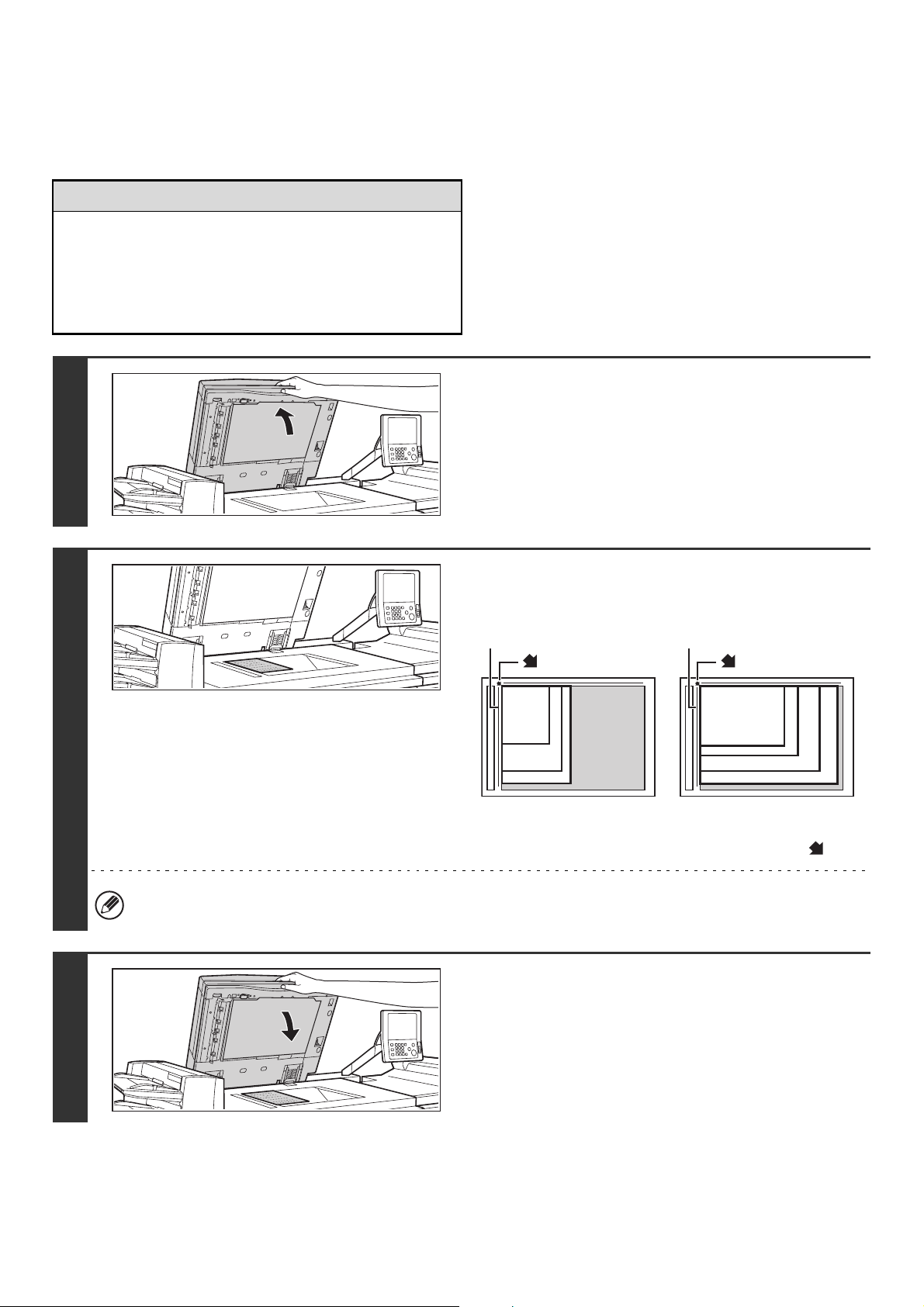
55
PLACING THE ORIGINAL ON THE DOCUMENT GLASS
This section explains how to place the original on the document glass.
Allowed original sizes
When a non-standard size original is placed in copy
mode, see "SPECIFYING THE ORIGINAL SIZE" in the
Copier Guide.
When a non-standard size original is placed for fax or
scanner transmission, see "IMAGE SETTINGS" in the
Image Send Guide.
Maximum original size
Standard sizes
11" (height) x 17" (width)
A3: 297 mm (height) x 420 mm (width)
Non-standard sizes
11-5/8" (height) x 17" (width)
297 mm (height) x 432 mm (width)
1
Open the automatic document feeder.
2
Place the original.
Place the original face down in the far left corner of the
document glass.
The original should always be placed in the far left corner,
regardless of its size.
Align the top left corner of the original with the tip of the mark.
If you are placing a small non-standard size original on the document glass, it is convenient to place a blank sheet of
8-1/2" x 11" or 5-1/2" x 8-1/2" (A4 or A5) paper on top of the original to facilitate detection of the original size.
3
Close the automatic document feeder.
After placing the original, be sure to close the automatic
document feeder. If left open, parts outside of the original will
be copied black, causing excessive use of toner.
8-1/2" x 11"R (A4R)
B5R
8-1/2" x 14" (B4)
11" x 17" (A3)
8-1/2" x 11" (A4)
5-1/2" x 8-1/2"
(A5)
B5
mark
Document glass scale
Document glass scale
mark
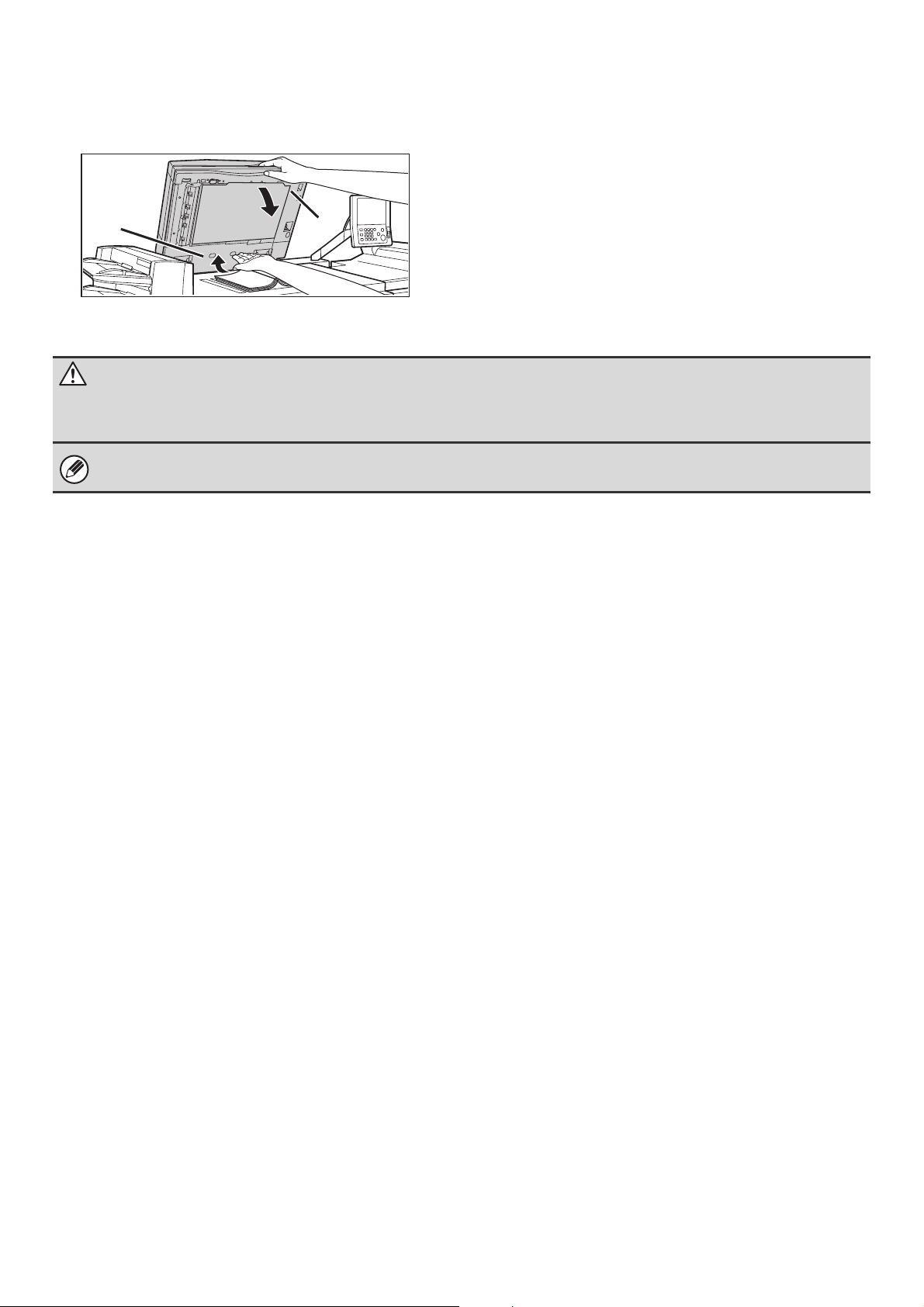
56
Placing a thick book
When scanning a thick book or other thick original, follow the steps below to press the book down.
(1) Push up the far side of the automatic
document feeder.
The hinges supporting the automatic document feeder
will release and the rear side of the automatic document
feeder will rise.
(2) Slowly close the automatic document
feeder.
(2)
(1)
Caution
• Close the automatic document feeder slowly. Abruptly closing the automatic document feeder may damage it.
• Take care that your fingers are not pinched when closing the automatic document feeder.
The automatic document feeder cannot be closed correctly in this state. To return the automatic document feeder to its
normal state, open it completely and then close it.
57
This chapter introduces the peripheral devices that can be used with the machine, explains the names of the output
devices such as the finisher and saddle stitch finisher, and explains manual finishing, which can be used when an
inserter is installed.
PERIPHERAL DEVICES
Peripheral devices can be installed on the machine to increase its range of functionality.
The peripheral devices are generally optional, however, some models include certain peripheral devices as standard
equipment.
(As of April, 2007)
4
PERIPHERAL DEVICES
Product name Product number Description
Large capacity tray
MX-LCX6
Additional tray. A maximum of 3500 sheets of paper can be
loaded in the tray. Requires the multi bypass tray (MX-MFX1).
MX-LCX3N
Additional tray. Supports wide sizes such as 12" x 18" (A3W). Up
to 3000 sheets can be loaded.
The special bypass tray (MX-MFX1) for the MX-M850 is
required.
Large capacity trays
MX-LCX4
Additional tray.
A combined total of 4550 sheets of paper can be loaded in the
three trays.
MX-LCX5
Additional tray. Supports wide sizes such as 12" x 18" (A3W).
A combined total of 4000 sheets of paper can be loaded in the
three trays.
Multi bypass tray
MX-MFX1
Additional tray. A maximum of 100 sheets of paper can be
loaded in the tray. Requires large capacity trays.
MX-MFX2
Additional tray. A maximum of 500 sheets of paper can be
loaded in the tray.
Finisher
MX-FNX5
Output device that enables the use of the staple function and
offset function.
Up to 100 sheets of paper can be stapled.
MX-FNX6
Output device that enables the use of the staple function and
offset function.
On the special finisher for the MX-M850, up to 50 sheets of
paper can be loaded.
Saddle stitch finisher MX-FNX7
Output device that enables use of the staple function, offset
function and saddle stitch function.
Only for the MX-M850.
Saddle unit MX-FNX8
Output device that enables the saddle stitch function. Requires
the finisher (MX-FNX5).
58
Punch module
MX-PNX3B
Punches holes in copies and other output. Requires the finisher
(MX-FNX5).
MX-PNX4B
Punches holes in copies and other output. Requires the finisher
(MX-FNX6) or a saddle stitch finisher.
Inserter MX-CFX2
Paper loaded in the inserter can be inserted into output as
covers and inserts. Manual stapling and hole punching is also
possible from the inserter. Requires a finisher (MX-FNX5).
Folding unit MX-FDX1
This folds the paper in half.
Requires a finisher (MX-FNX5).
Printer expansion kit MX-PBX2 Adds a PCL6 printer function.
Network scanner expansion kit MX-NSX1 Adds a network scanner function.
Barcode font kit AR-PF1 Adds barcode fonts to the machine.
PS3 expansion kit MX-PKX4
Enables the machine to be used as a Postscript compatible
printer.
Internet fax expansion kit MX-FWX1 Adds an Internet fax function.
Color expansion kit MX-EBX1
Adds barcode fonts to the machine. Use this when you wish to
store a scanned image in color.
Facsimile expansion kit MX-FXX1 Adds a fax function.
Application integration module MX-AMX1
The application integration module can be combined with the
network scanner function to append a metadata file to a scanned
image file.
Stamp unit AR-SU1 This stamps each scanned original page in image send mode.
Stamp cartridge AR-SV1 Ink cartridge and stamp for the stamp unit.
Product name Product number Description
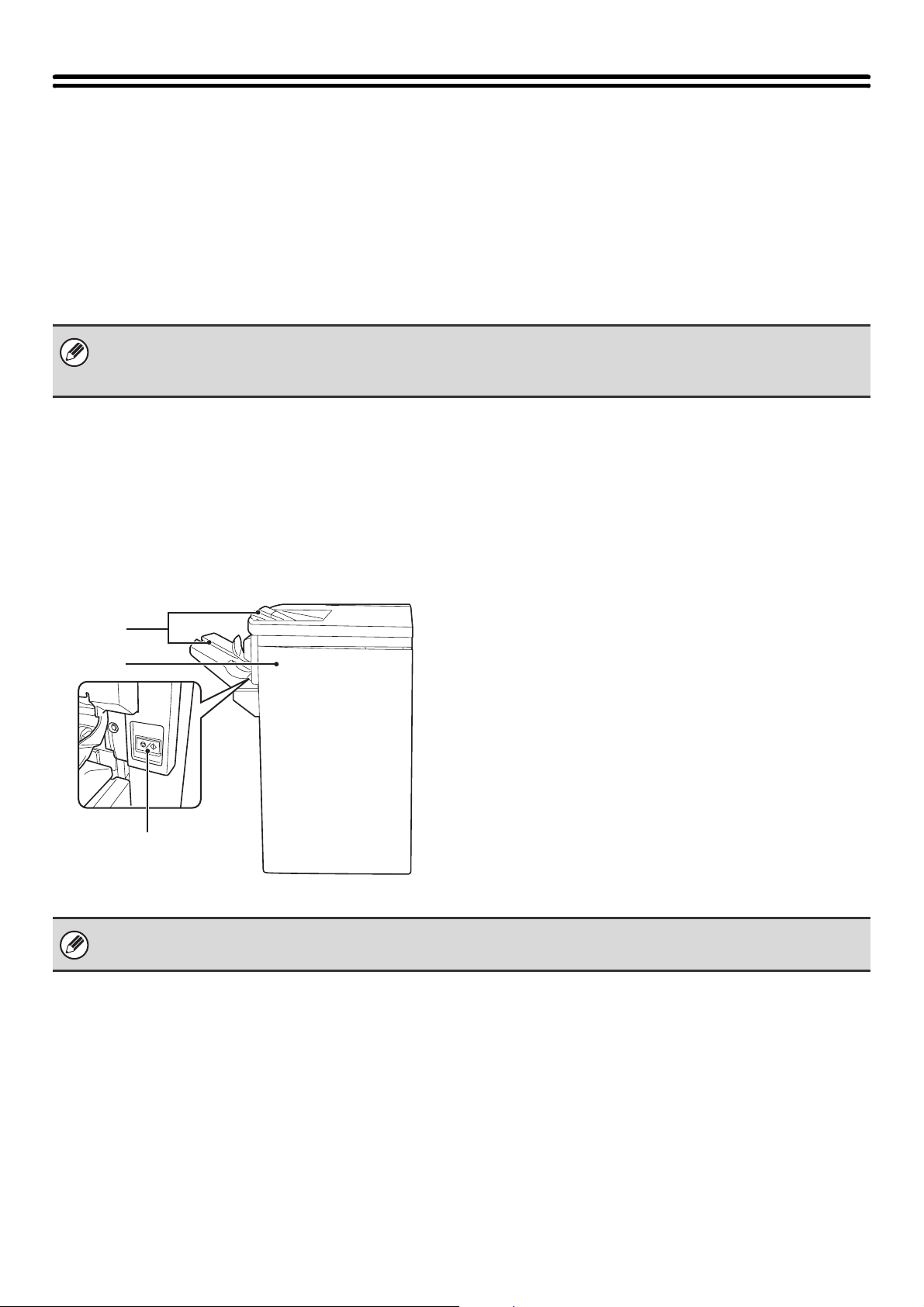
59
NAMES AND FUNCTIONS OF THE PARTS
OF THE PERIPHERAL DEVICE
This section explains the names and functions of the parts of the following peripheral devices:
FINISHER (page 59)
SADDLE UNIT (page 60)
FINISHER (FOR THE MX-M850) / SADDLE STITCH FINISHER (page 60)
FOLDING UNIT (page 61)
INSERTER (page 62)
FINISHER
The finisher is equipped with the offset function, which offsets each set of output from the previous set, and the staple
sort function, which staples each set of output.
A punch module can also be installed to punch holes in output.
Part names
(1) Output trays (top tray, offset tray)
Stapled and offset output is delivered to these trays.
The trays are slidable. For large-size output (larger than
8-1/2" x 11"R or A4R), extend the tray.
(2) Cover
Open this cover to remove a paper misfeed, replace the
staple cartridge or remove a staple jam.
(3) [STOP] button
This button temporarily stops printing to the offset tray.
This button can be used to pause printing and remove
output from the offset tray before the maximum tray
capacity is reached. To resume printing, press the button
once again.
• Do not place heavy objects on or press down on the peripheral devices
• For peripheral devices with an offset tray, note that the tray will move up and down when the power is turned on and during
output.
(1)
(2)
(3)
• The finisher cannot be installed when a finisher (for the MX-M850), or saddle stitch finisher is installed.
• Paper that can be punched is 5-1/2" x 8-1/2" to 11" x 17" (16 lbs. to 65 lbs. cover) (A5 to A3 (52 g/m
2
to 176 g/m
2
))
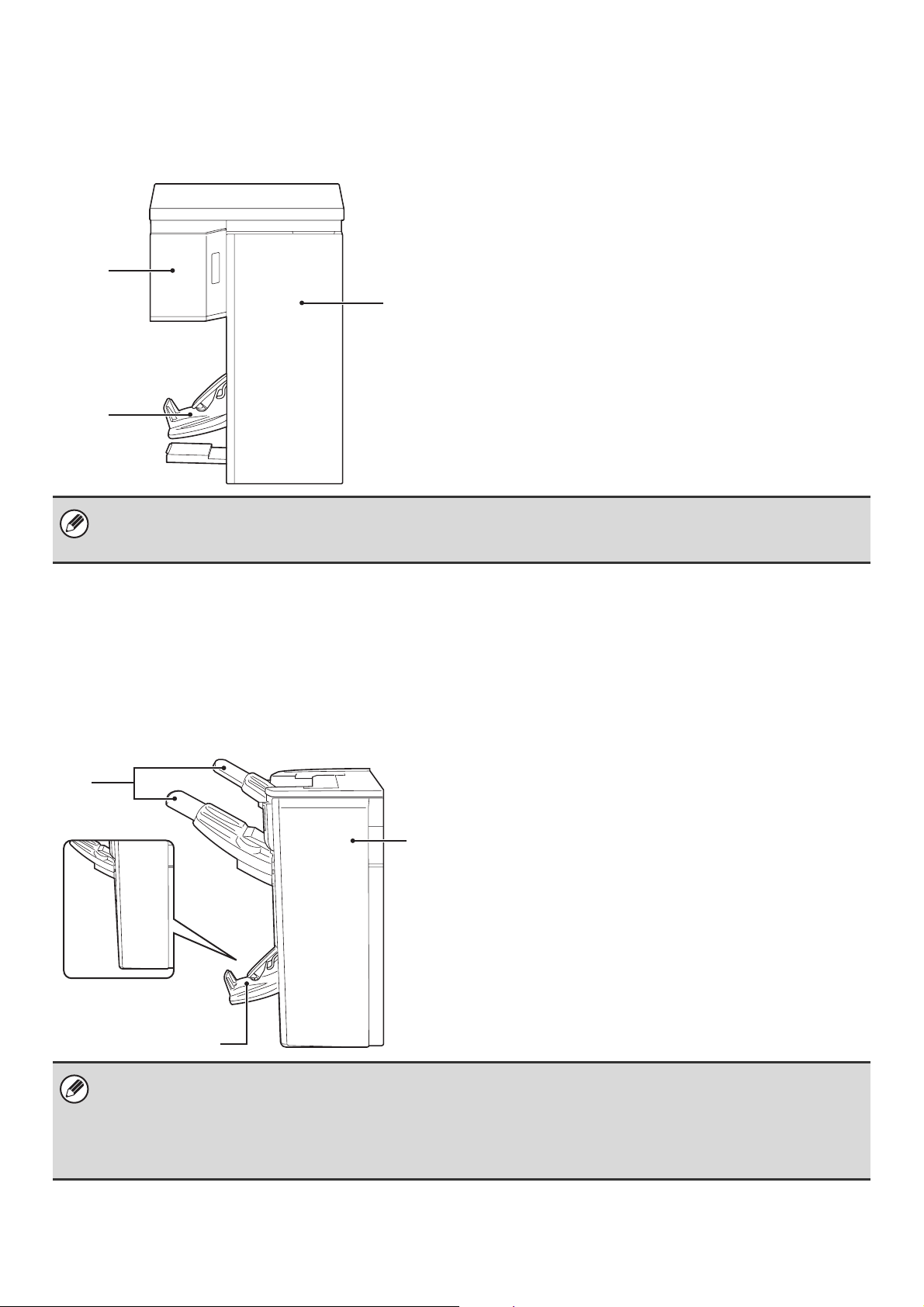
60
SADDLE UNIT
The saddle unit is equipped with the saddle stitch function, which automatically staples and folds each set of output at
the centerline.
Part names
(1) Left front cover
Open this cover to remove a paper misfeed.
(2) Saddle stitch tray
Stapled and folded output is delivered to this tray.
(3) Cover
Open this cover to remove a paper misfeed, replace the
staple cartridge or remove a staple jam.
FINISHER (FOR THE MX-M850) / SADDLE STITCH
FINISHER
The finisher (for the MX-M850) and saddle stitch finisher are equipped with the offset function, which offsets each set of
output from the previous set, and the staple sort function, which staples each set of output. The saddle stitch finisher is
also equipped with the saddle stitch function, which automatically staples and folds each set of output at the centerline.
A punch module can also be installed to punch holes in output.
Part names
(1) Output trays (top tray, offset tray)
Stapled and offset output is delivered to these trays.
The trays are slidable. For large-size output (larger than
8-1/2" x 11"R or A4R), extend the tray.
(2) Saddle stitch tray (Saddle stitch finisher only)
Stapled and folded output is delivered to this tray.
(3) Cover
Open this cover to remove a paper misfeed, replace the
staple cartridge or remove a staple jam.
(3)
(1)
(2)
• The saddle unit cannot be installed when a finisher (for the MX-M850), or saddle stitch finisher is installed.
• Paper that can be used for the saddle stitch function is 8-1/2" x 11"R to 12" x 18" (16 lbs. to 24 lbs.) (B5R to A3W
(60 g/m
2
to 90 g/m
2
)).
(3)
(2)
(1)
Finisher
(for the MX-M850)
• The saddle stitch finisher cannot be installed when a finisher, finisher (for the MX-M850), saddle unit, inserter, or folding
unit is installed. Similarly, the finisher (for the MX-M850) cannot be installed when a finisher, saddle unit, saddle stitch
finisher, inserter, or folding unit is installed.
• Paper that can be used for the saddle stitch function is 8-1/2" x 11"R to 12" x 18" (16 lbs. to 24 lbs.) (B5R to A3W (60
g/m
2
to 90 g/m
2
)).
• Paper that can be punched is 8-1/2" x 11R" to 11" x 17" (16 lbs. to 90 lbs. index) (B5 to A3 (52 g/m
2
to 163 g/m
2
))
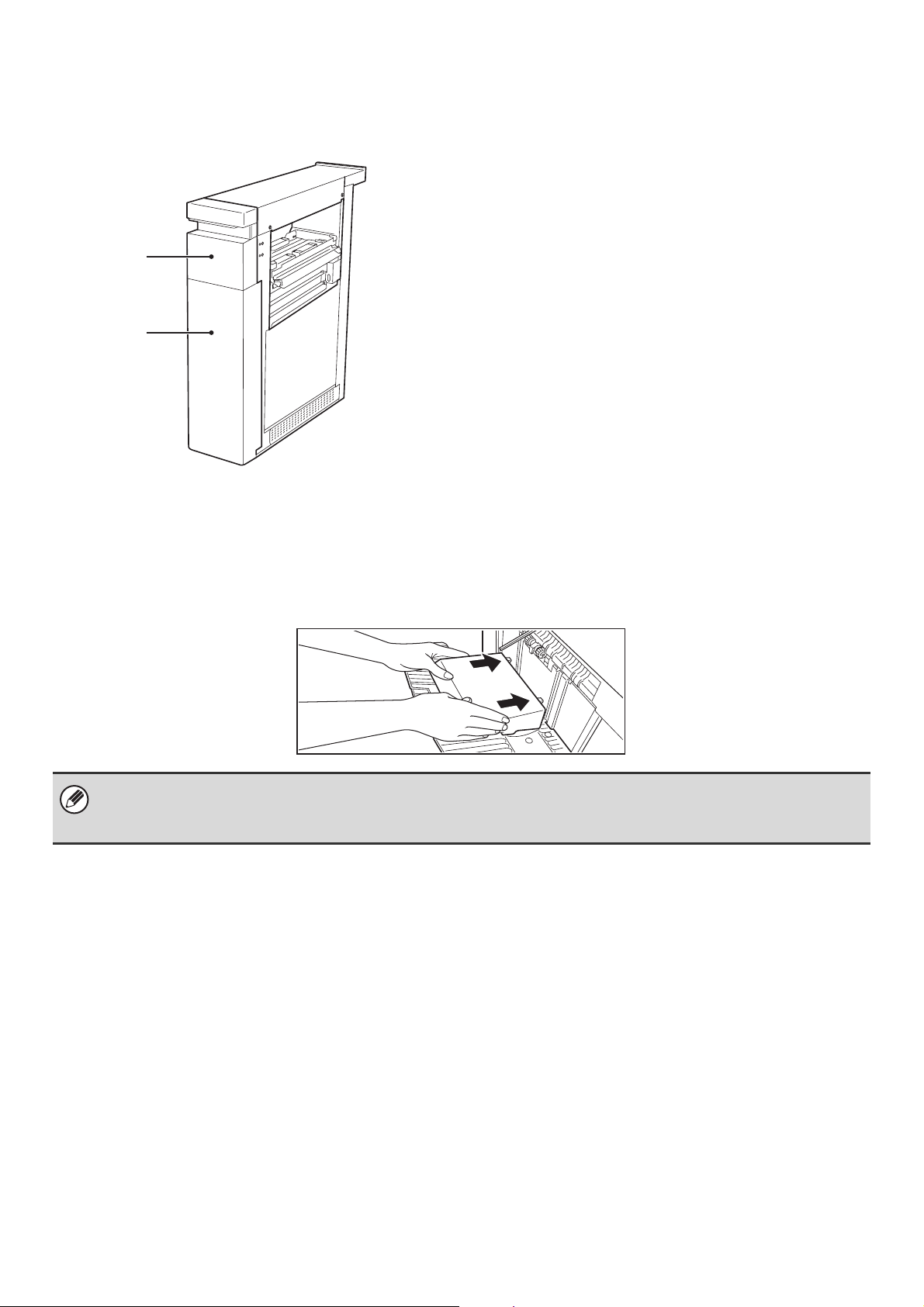
61
FOLDING UNIT
When the paper folding unit is installed, output can be folded to reduce the paper size by a half.
(1) Cover (upper)
Open this cover to remove a paper misfeed. To open the
cover, first pull it forward and then up.
(2) Cover (lower)
Open this cover to remove a paper misfeed. The cover
(upper) must be opened before this cover can be
opened.
When performing paper folding
When using the folding unit to fold paper, you may occasionally find that the paper does not stack neatly in the output
tray. In this event, attach the special guide. When you have finished paper folding, return the guide to its original
position.
(1)
(2)
• A folding unit is required to install a finisher (MX-FNX5).
• Paper sizes that can be folded using the paper folding function are 8-1/2" x 11"R, 8-1/2" x 14", 11" x 17", A4R, B4, and A3
(16 lbs. to 24 lbs. (60 g/m
2
to 90 g/m
2
)).
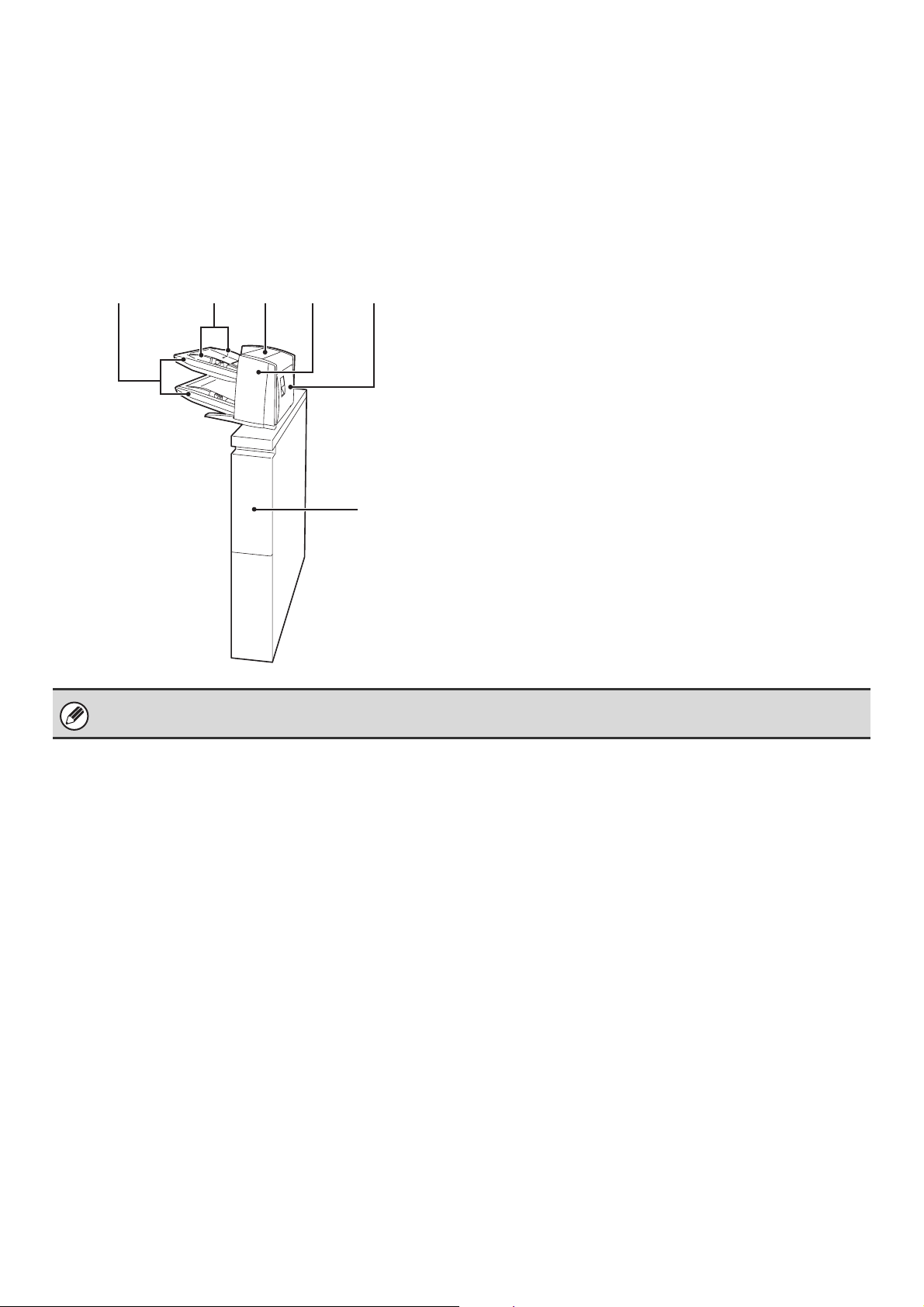
62
INSERTER
The inserter can be used to insert blank or pre-printed paper in printed output as inserts or covers without printing on the
inserts/covers.
In addition, the paper loaded in the inserter can be directly fed to peripheral devices such as the finisher or saddle unit
for stapling or punching.
☞ MANUAL FINISHING MODE (page 65)
For details on paper, see the specifications in the Safety Guide and "PAPER TRAY SETTINGS" (page 77) in the system
settings.
(1) Paper trays (upper/lower)
Place blank or pre-printed paper that you wish to insert
here. Up to 200 sheets can be placed on each tray.
(2) Paper guide
When loading paper, adjust this guide to the size of the
paper. To move the guide, squeeze the guide lock lever.
(3) Paper inserter cover
Open this cover to remove a paper misfeed. There is also
a lower cover.
(4) Front paper feeder cover
Open this cover to remove a paper misfeed.
(5) Right-side cover
Open this cover to remove a paper misfeed.
(6) Cover
Open this cover to remove a paper misfeed.
(6)
(3) (4) (5)(2)(1)
An inserter is required to install a finisher (MX-FNX5).
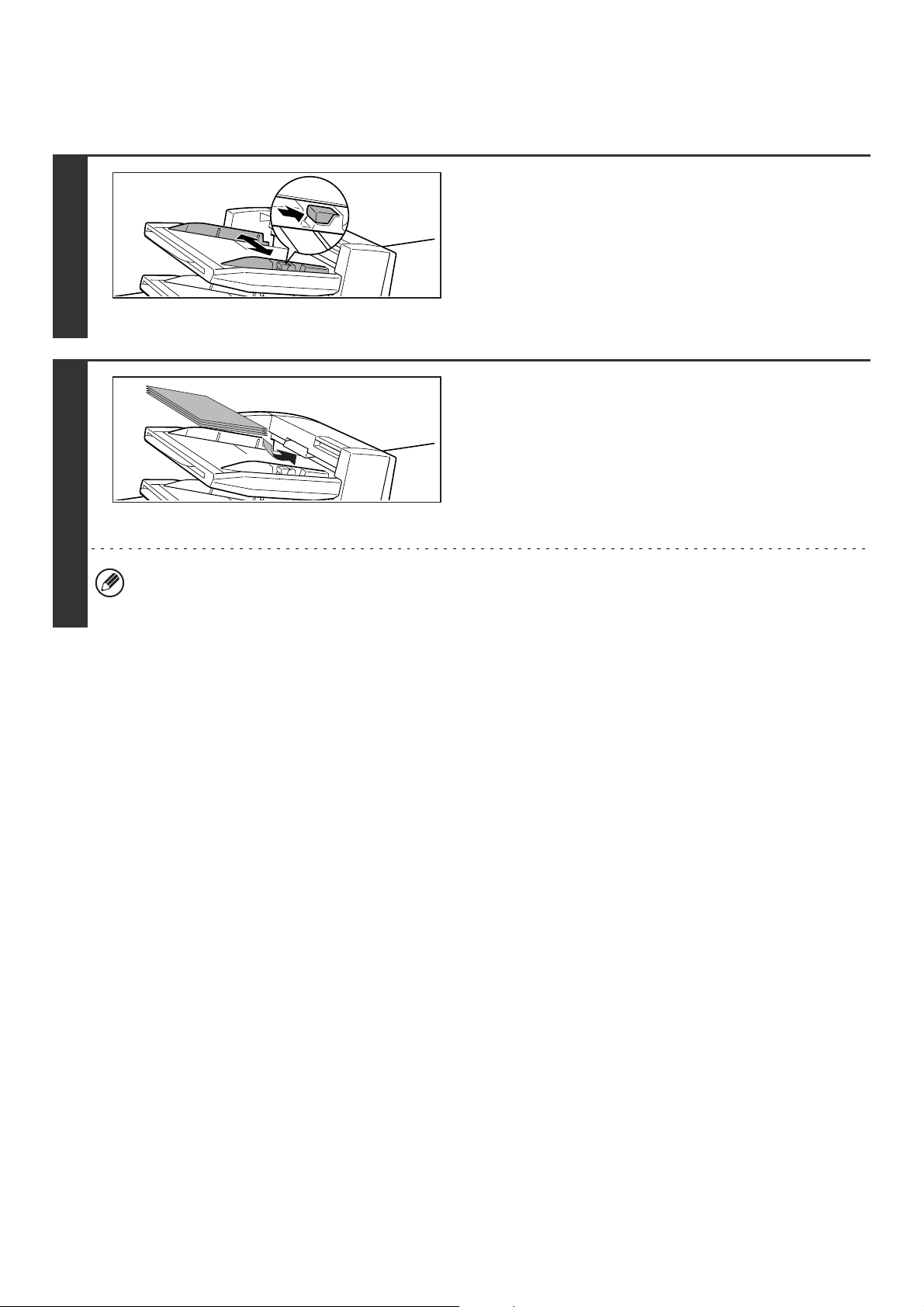
63
Loading paper
Follow the steps below to load paper in the inserter.
1
Adjust the guide to the size of the paper
you are loading.
Squeeze the guide lock lever to adjust the guide. When you
have finished moving the guide, release the lever.
When loading paper larger than 8-1/2" x 11"R or A4, be sure to
pull the tray extension all the way out. If the extension is not
pulled all the way out, the size of the loaded paper will not be
detected correctly.
2
Insert the paper along the guide as far as
it will go into the feeder.
Up to 200 sheets each can be loaded on the upper tray and the
lower tray.
The paper size is automatically detected. If the paper size is not
detected or you are using a special paper size, or if you need to
change the paper type, change the paper settings in "PAPER
TRAY SETTINGS" (page 77) in the system settings.
When loading paper, make sure that the guide is correctly adjusted to the width of the paper.
If there is a gap between the paper and the guide, or if the paper is bowed because the guide is adjusted to a narrower
width than the paper, a misfeed, skewed paper feeding, or creases in the paper may result.
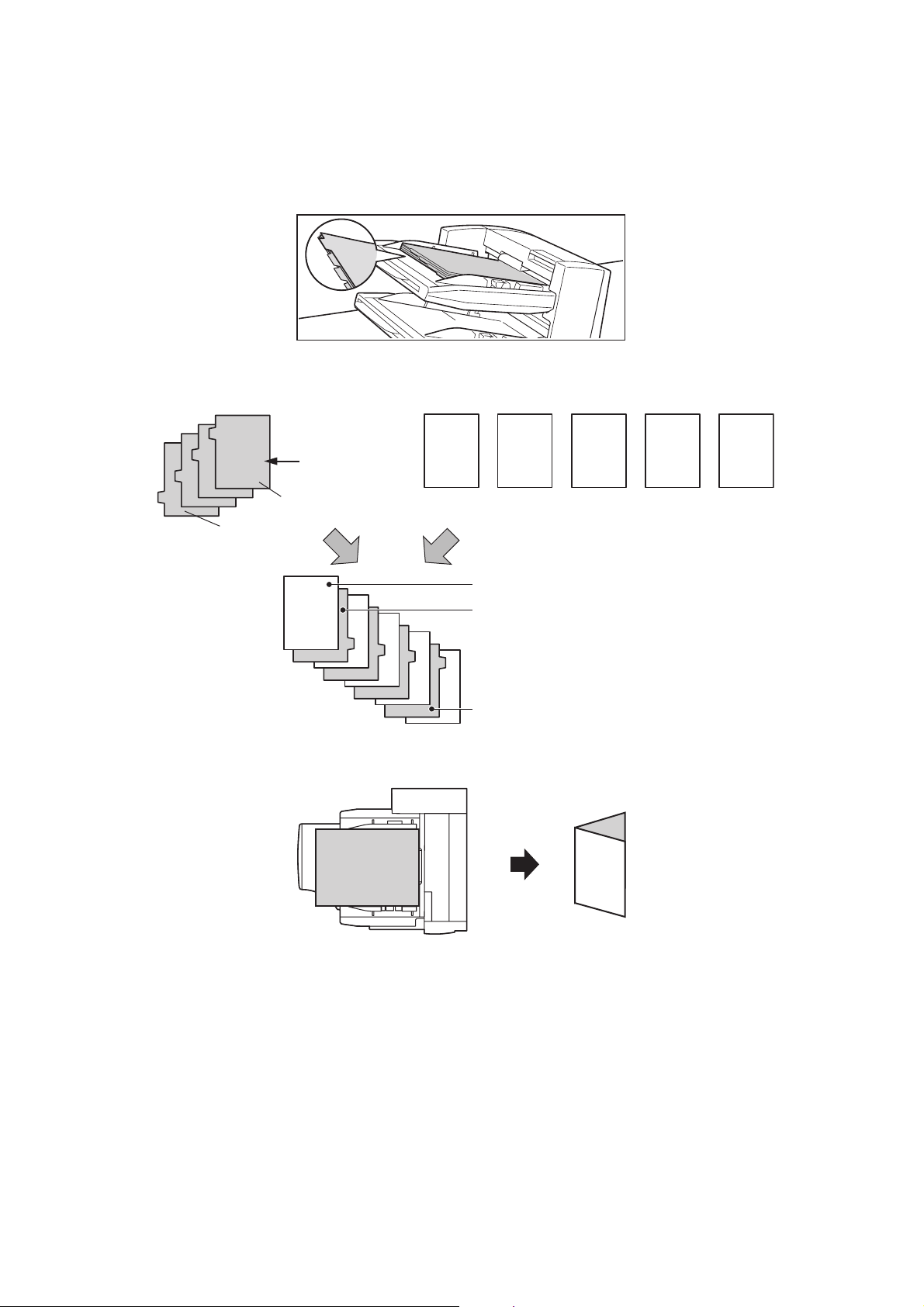
64
Paper loading orientation
When loading paper in the inserter, the front side of the paper should face up
When inserting covers or inserts in a copy job, load the paper in the same orientation as the originals.
Loading tab paper
When loading tab paper in the inserter, the front side of the tab paper should face up. The top side is inserted first.
The relation of copies and tab sheets is shown below.
Loading covers for saddle stitch
When loading cover paper for saddle stitch, load the cover paper with the print side face down.
Loaded tab paper
Inserted first.
Copies
Copy results
Front
side
1st sheet
4th sheet
1st
sheet
2nd
sheet
3rd
sheet
4th
sheet
5th
sheet
Reverse
side
Reverse
side
5th sheet
Tab paper 4th sheet (reverse side)
Tab paper 1st sheet (reverse side)
Reverse
side
AB
B
A
A
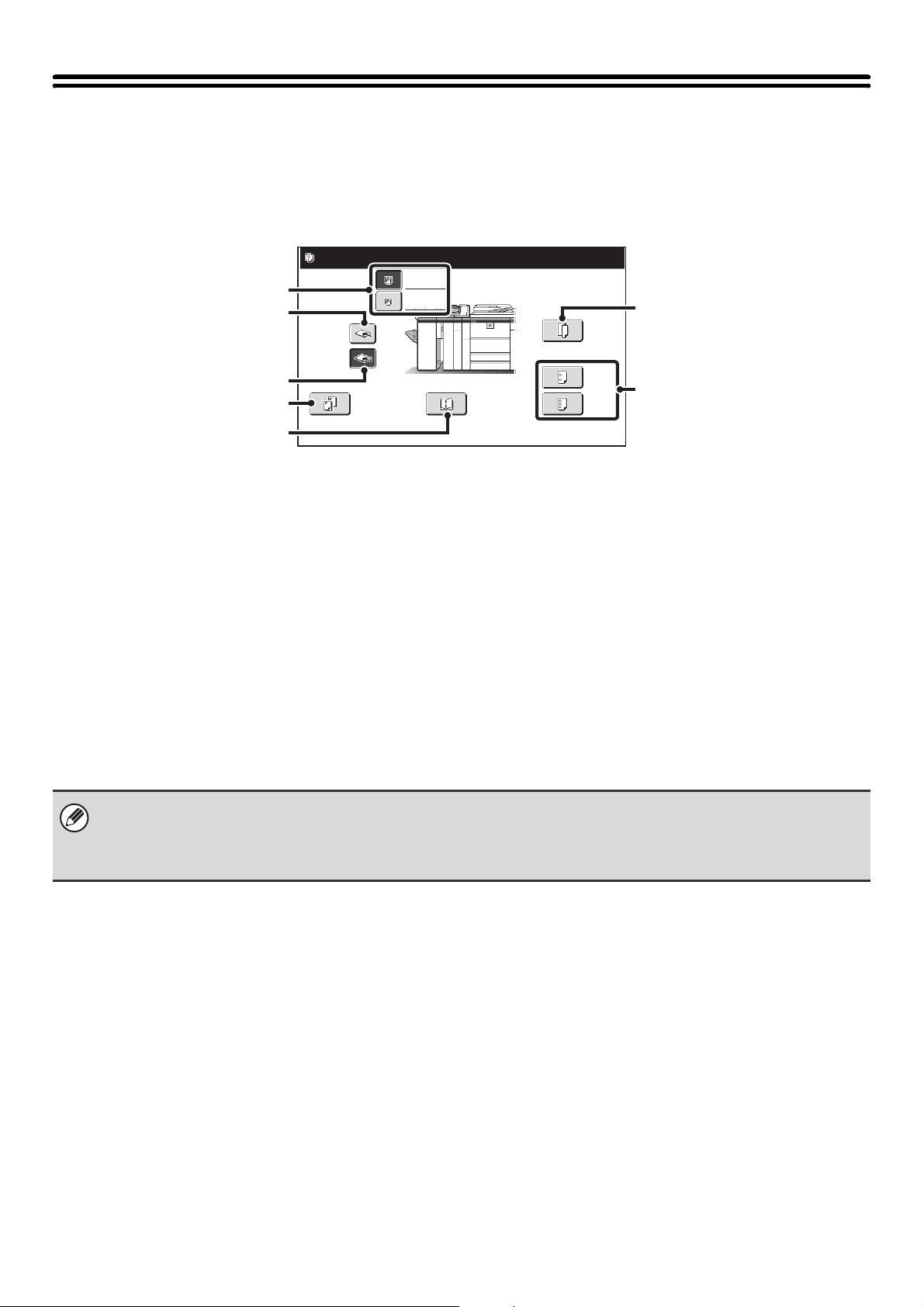
65
MANUAL FINISHING MODE
When the inserter is installed, finishing operations such as stapling or punching can be performed without performing a
copy or print operation.
Touch the [MANUAL FINISHING] key to change modes. The following screen will appear.
For information on manual finishing functions, see the following pages.
(1) Inserter (upper tray), inserter (lower tray) key
Use these keys to select the tray that you wish to use for
finishing. Load the paper to be used for finishing and then
select the tray on which the paper is loaded.
(2) [Top Tray] key
This sets the top tray as the output tray.
(3) [Offset Tray] key
This sets the offset tray as the output tray.
(4) [Staple] key
When selected, three keys appear to let you select the
staple position.
☞ STAPLE FUNCTION / SADDLE STITCH FUNCTION
(page 67)
(5) [Saddle Stitch] key
Use this to staple the output at the center and fold it into a
booklet.
☞ STAPLE FUNCTION / SADDLE STITCH FUNCTION
(page 67)
(6) [Fold] key
Use this to fold the output in half and then fold one side
back.
☞ PAPER FOLDING FUNCTION (page 70)
(7) [2 Hole Punch], [3 Hole Punch] key
Use these to punch holes in output.
☞ PUNCH FUNCTION (page 69)
Fold
2 Hole
Punch
3 Hole
Punch
Offset Tray
Staple
Top Tray
Plain
8½x11
Plain
8½x11
Saddle
Stitch
Set the output function.
(1)
(2)
(4)
(3)
(5)
(7)
(6)
• It may not be possible to use some functions, depending on the peripheral devices that have been installed. If the keys in
your screen are not the same as in the above screen, check what devices have been installed.
• While a finishing operation is being performed in manual finishing mode, it is not possible to switch to another mode.
Similarly, it is not possible to switch to manual finishing mode during output in another mode.
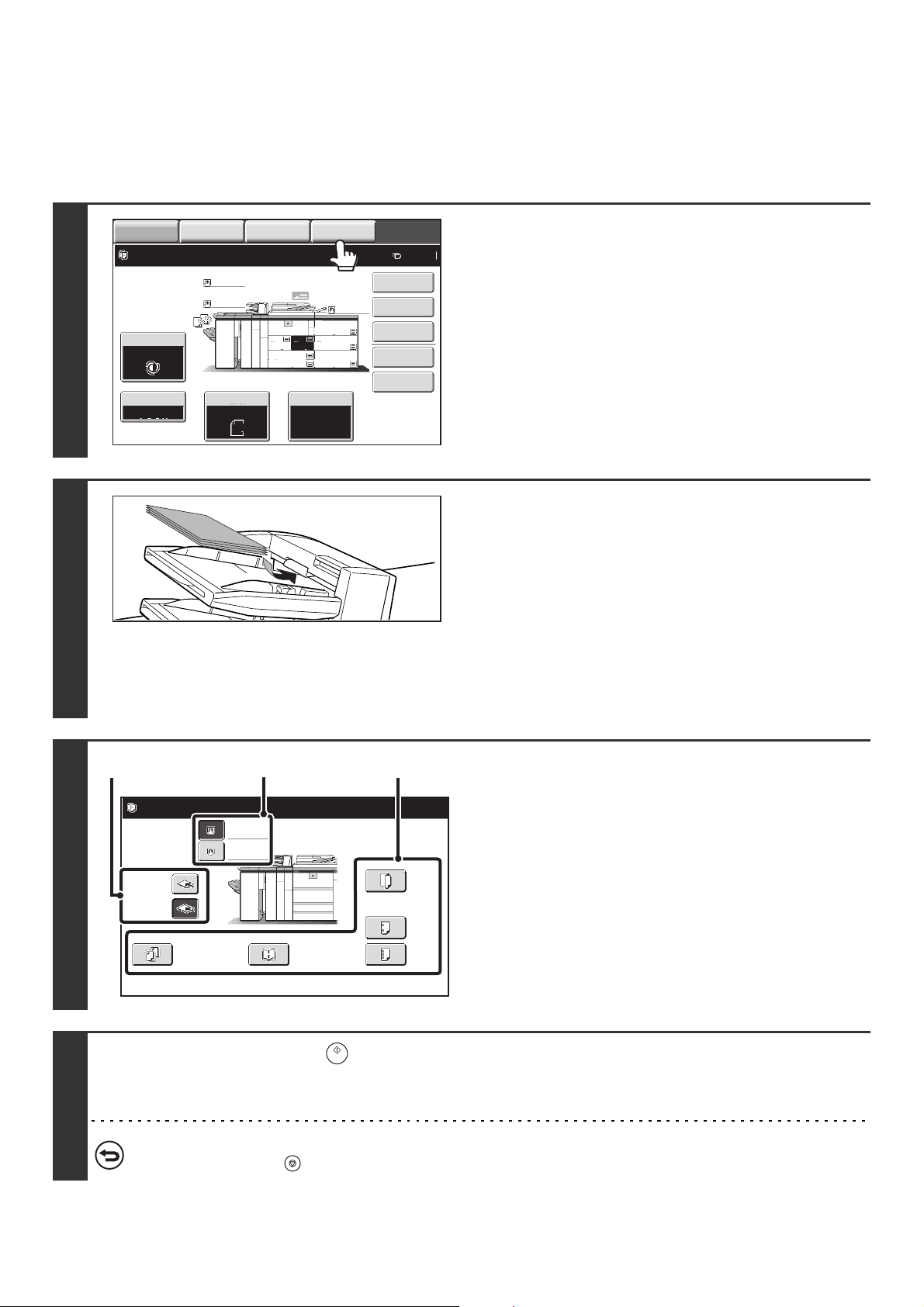
66
USING MANUAL FINISHING
The procedure for using manual finishing is explained below. Before beginning the procedure, configure the paper
settings in the system settings for the paper you will load in the inserter.
☞ PAPER TRAY SETTINGS (page 77)
1
Touch the [MANUAL FINISHING] key.
The base screen for manual finishing will appear.
2
Load the paper to be used for finishing
in the inserter.
For the procedure for loading paper on the paper tray, see
"INSERTER" (page 62).
The orientation in which the paper is loaded on the tray will vary
depending on which manual finishing function is used. Make
sure you load the paper in the correct orientation for the
function you are using.
☞ PAPER LOADING ORIENTATION (FOR THE STAPLE
AND PUNCH FUNCTIONS) (page 69)
☞
PAPER LOADING ORIENTATION (FOR FOLDING) (page 70)
3
Select the manual finishing function.
(1) Select the paper tray on which you loaded
paper.
(2) Select the function you wish to use.
(3) Select the output tray.
4
Press the [START] key ( )
Output takes place using the selected function.
When the staple or saddle stitch function is used, all sheets of paper loaded in the tray are stapled together as a single set.
To stop manual finishing...
Press the [STOP] key ( ).
IMAGE SEND
DOCUMENT
FILING
COPY
Special Modes
Plain
2-Sided Copy
Output
File
Quick File
Ready to scan for copy.
Copy Ratio
0
1.
2.
7.
8½x11
8½x11
Original Paper Select
Auto
8½x11
Plain
Auto
8½x11
Exposure
Auto
8½x14
4.
11x17
11x17
6.
11x17
5.
11x17
3.
8½x11
100%
MANUAL
FINISHING
Plain
Plain
Fold
2 Hole
Punch
3 Hole
Punch
Offset Tray
Staple
Top Tray
Plain
8
½x11
Plain
8½x11
Saddle
Stitch
Set the output function.
(1)
(3)
(2)
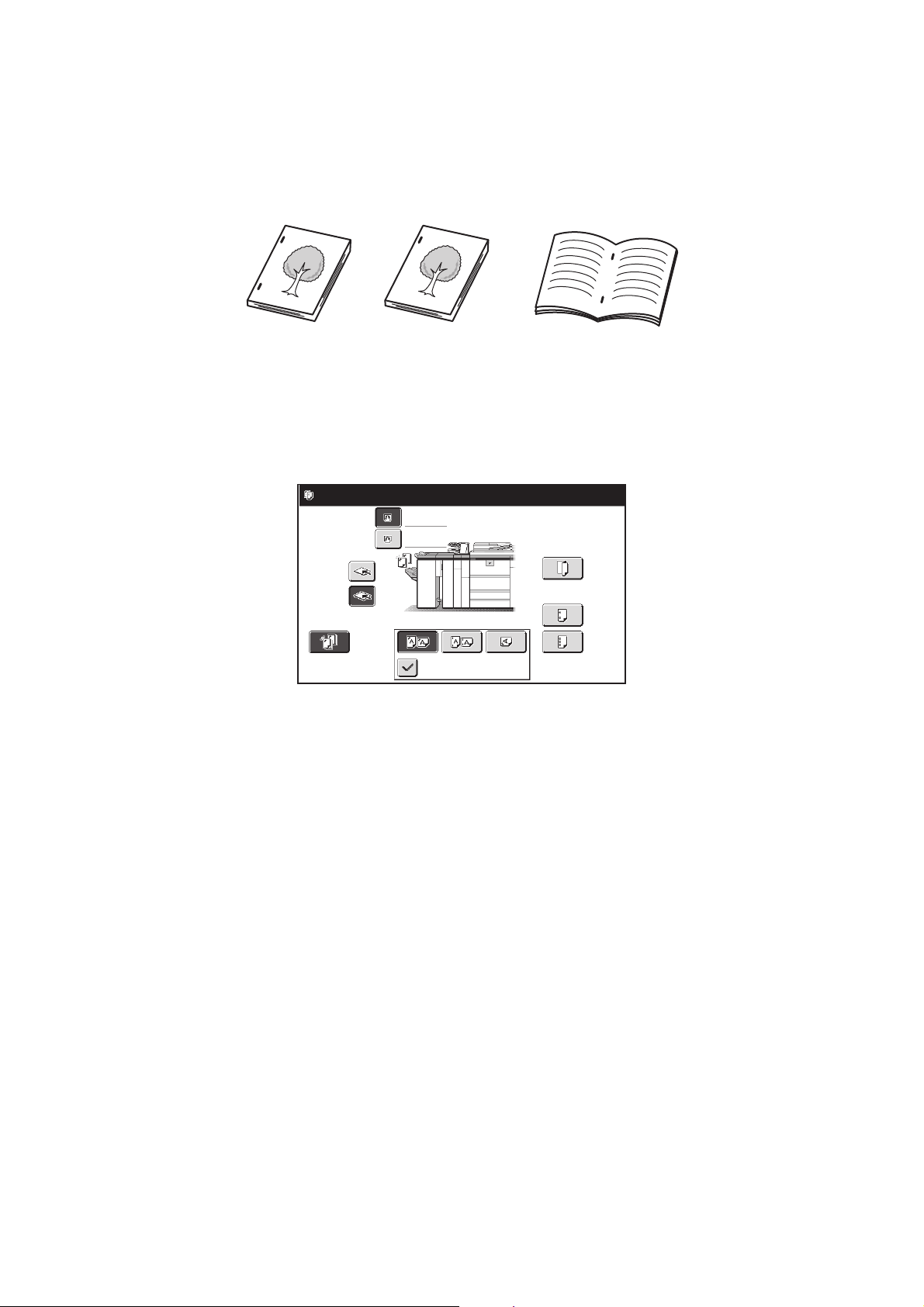
67
STAPLE FUNCTION / SADDLE STITCH FUNCTION
When a finisher or saddle stitch finisher is installed, the loaded paper can be stapled into a sheaf. (Staple function)
When a saddle unit or saddle stitch finisher is installed, the paper can be stapled in two places on the centerline and
folded to make a pamphlet. (Saddle stitch function)
For the sizes and number of paper sheets that can be stapled at once, see the specifications in the Safety Guide.
Staple function
Touch the [Staple] key in the manual finishing screen to display the following screen.
Touch the key of the desired stapling position.
4
5
Saddle stitchStaple
Fold
2 Hole
Punch
3 Hole
Punch
Offset Tray
Staple
Slant Staple
Top Tray
Plain
8½x11
Plain
8½x11
Set the output function.
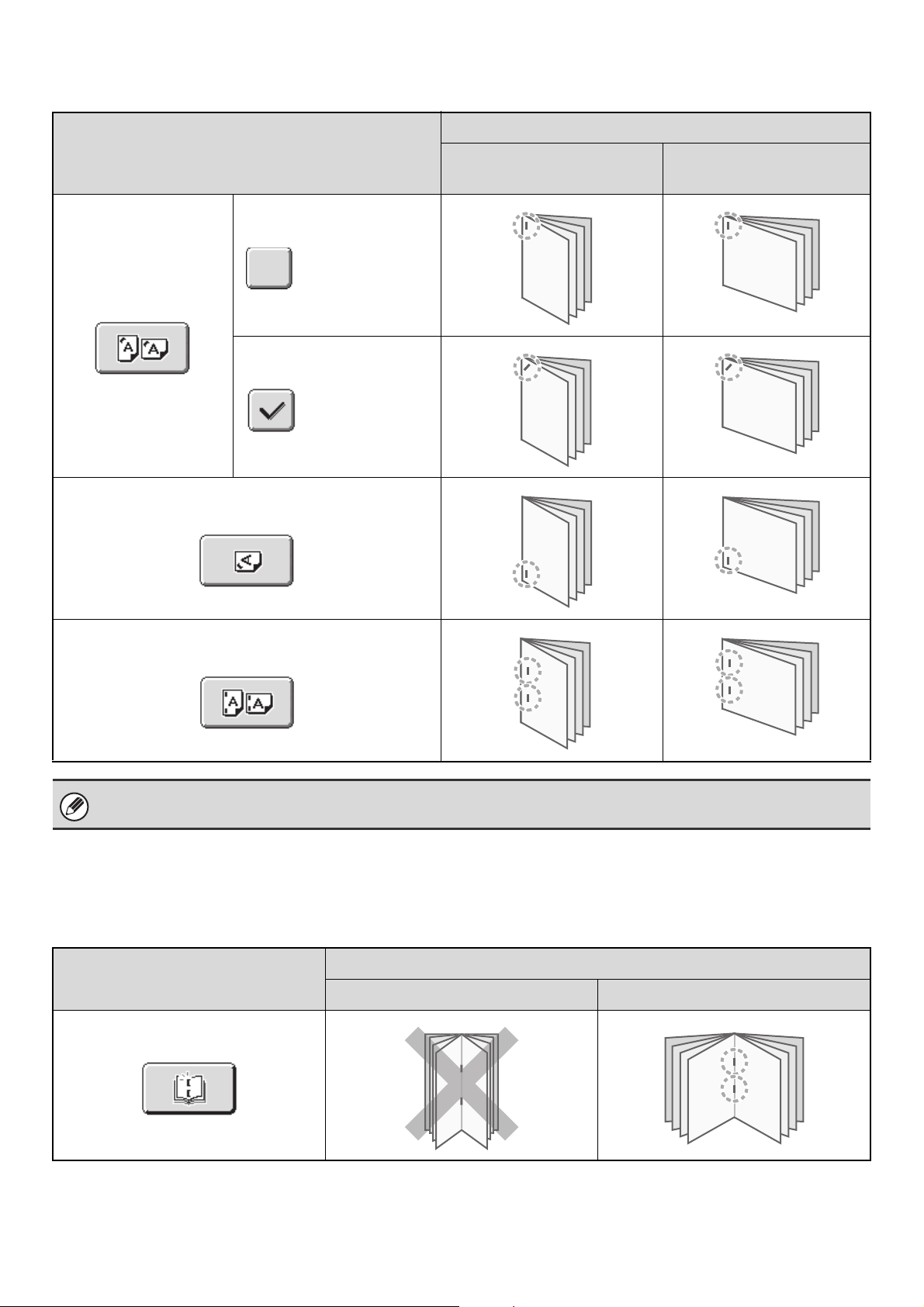
68
Stapling positions and stapling results
Saddle stitch function
To select saddle stitch, touch the [Saddle Stitch] key in the manual finishing screen.
Stapling positions
Stapling result
Vertically-oriented paper
Horizontally-oriented
paper
1 staple at top left corner
1 staple at bottom left corner
2 staples at left edge
Slant staple
Slant staple
Slanted stapling can be used when one staple at the top of the paper is selected
Saddle stitch
Result
Vertically-oriented paper Horizontally-oriented paper
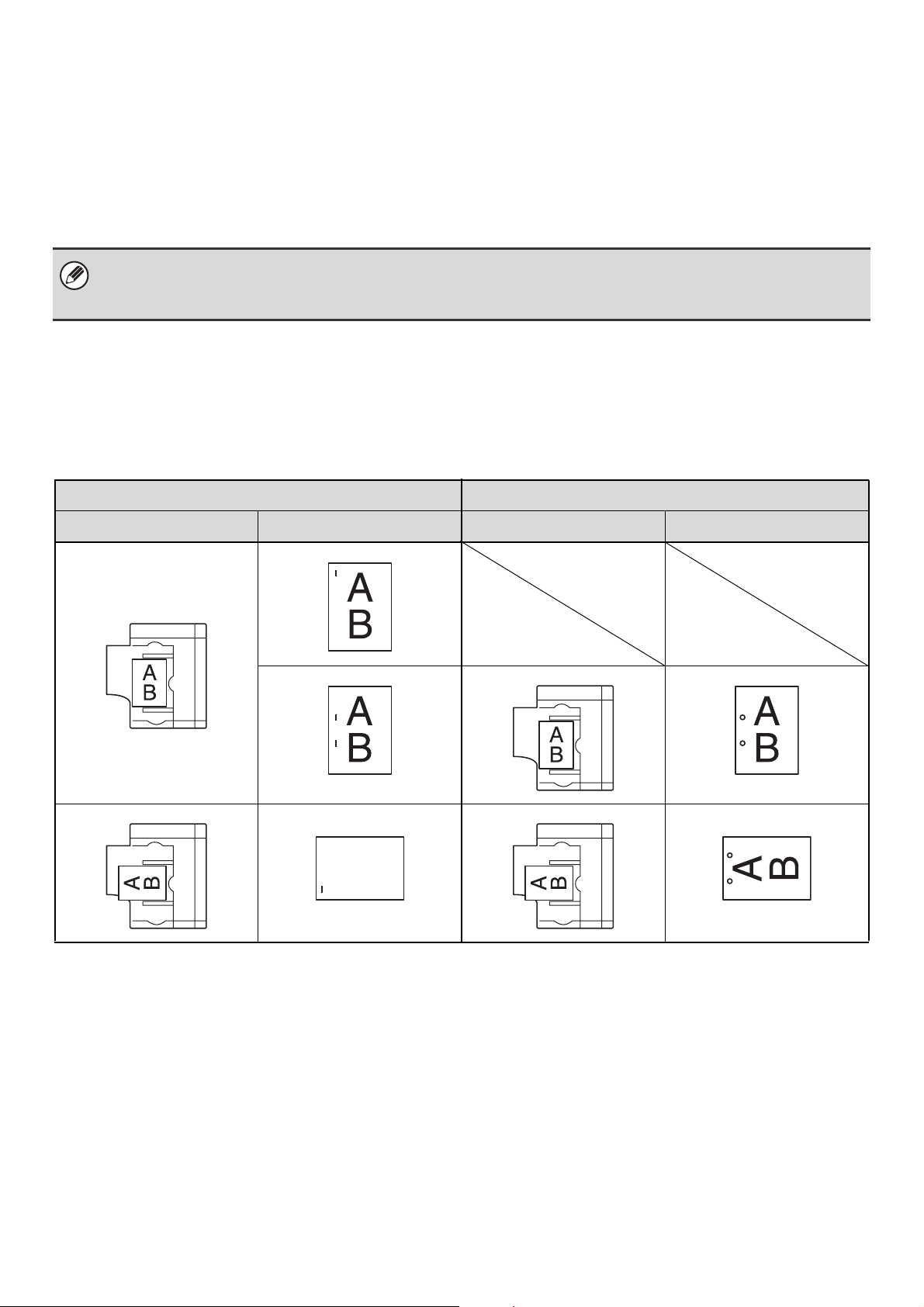
69
PUNCH FUNCTION
If an optional punch module is installed, holes can be punched in output.
The [2 Hole Punch] key can be touched in the manual finishing screen to selecting two-hole punching. The [3 Hole
Punch] key can be touched to select three-hole punching. When the finisher is installed, 5-1/2" x 8-1/2" to 11" x 17"
(16 lbs. to 65 lbs. cover) (A5 to A3 (52 g/m
2
to 176 g/m
2
)) paper can be used.
However, 12" x 18" (A3W) sized paper and special media such as transparency film and tab paper cannot be used.
For detailed information on the sizes and types of paper that can be punched, see the specifications in the Safety Guide.
PAPER LOADING ORIENTATION (FOR THE STAPLE
AND PUNCH FUNCTIONS)
When using the staple function or the punch function, the original must be placed as shown below to enable stapling or
punching in the desired position on the paper.
• When the hole punch function is selected, the saddle stitch or paper folding function cannot be used.
• When the finisher (for the MX-M850) or the saddle stitch finisher is installed, 8-1/2" x 11R" to 11" x 17" (16 lbs. to 90 lbs.
index) (B5R to A3 (52 g/m
2
to 163 g/m
2
)) paper can be used.
Staple Punch
Orientation Result Orientation Result
A
B
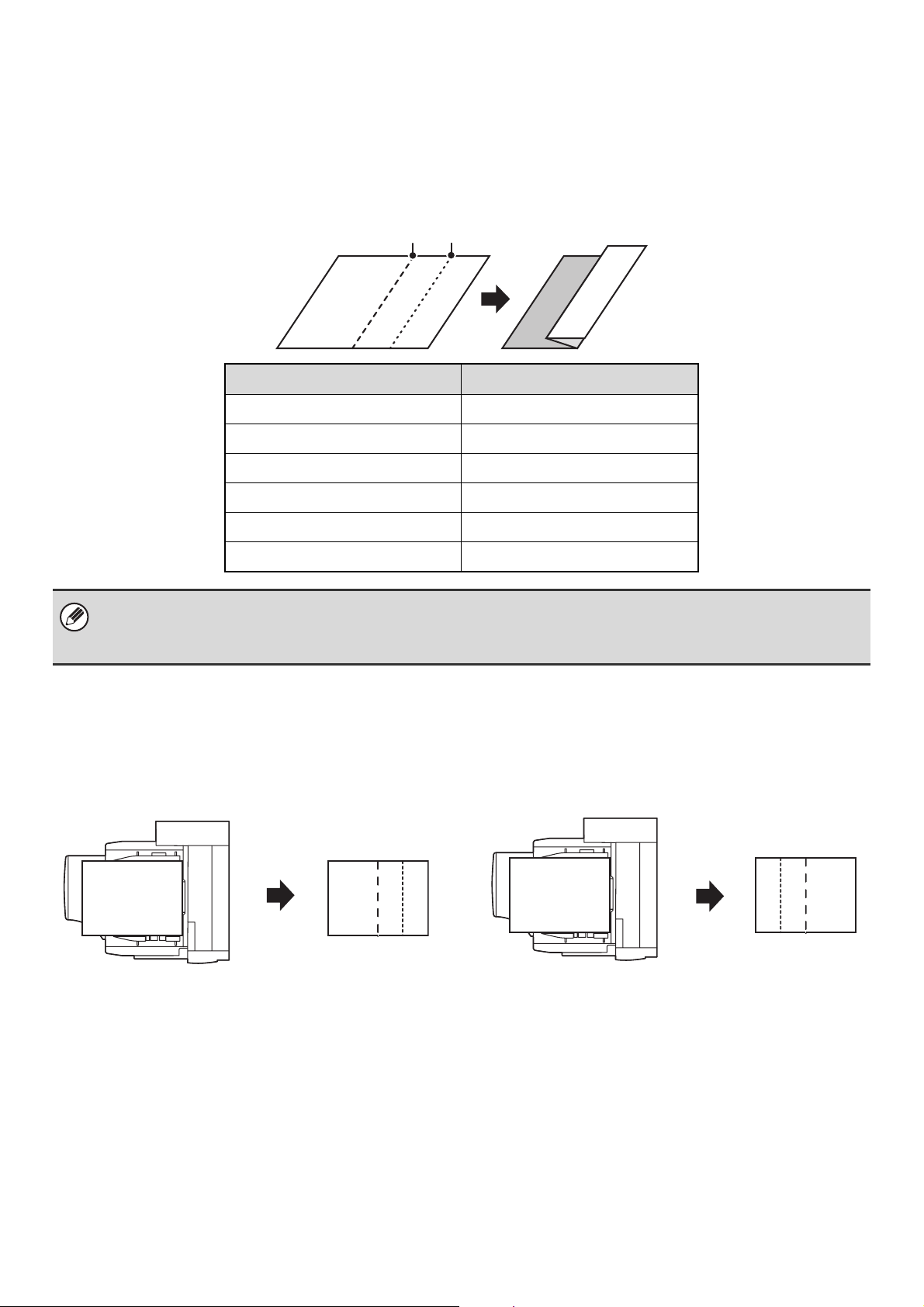
70
PAPER FOLDING FUNCTION
When the paper folding unit is installed, output can be folded to reduce the paper size by a half.
Paper sizes that can be folded using the paper folding function are 8-1/2" x 11"R, 8-1/2" x 14", 11" x 17", A4R, B4, and
A3.
For detailed information on the sizes and types of paper that can be folded, see the specifications in the Safety Guide.
When the fold function is selected, folding will take place automatically when one of the above paper sizes is loaded.
PAPER LOADING ORIENTATION (FOR FOLDING)
To have the paper folded at the desired position when using manual finishing, load the paper in the inserter in the
appropriate orientation below.
Loaded paper size Paper size after folding
8-1/2" x 11"R 5-1/2" x 8-1/2"
8-1/2" x 14 7" x 8-1/2"
11" x 17" 8-1/2" x 11"
A4R A5
B4 B5
A3 A4
• Special media such as transparency film and tab paper cannot be used.
• When folding 8-1/2" x 11"R, 8-1/2" x 14", or A4R paper, the staple function cannot be used.
• When the paper folding function is selected, saddle stitch or hole punch function cannot be used.
Fold in
Fold out
AB
AB
A
B
A
B
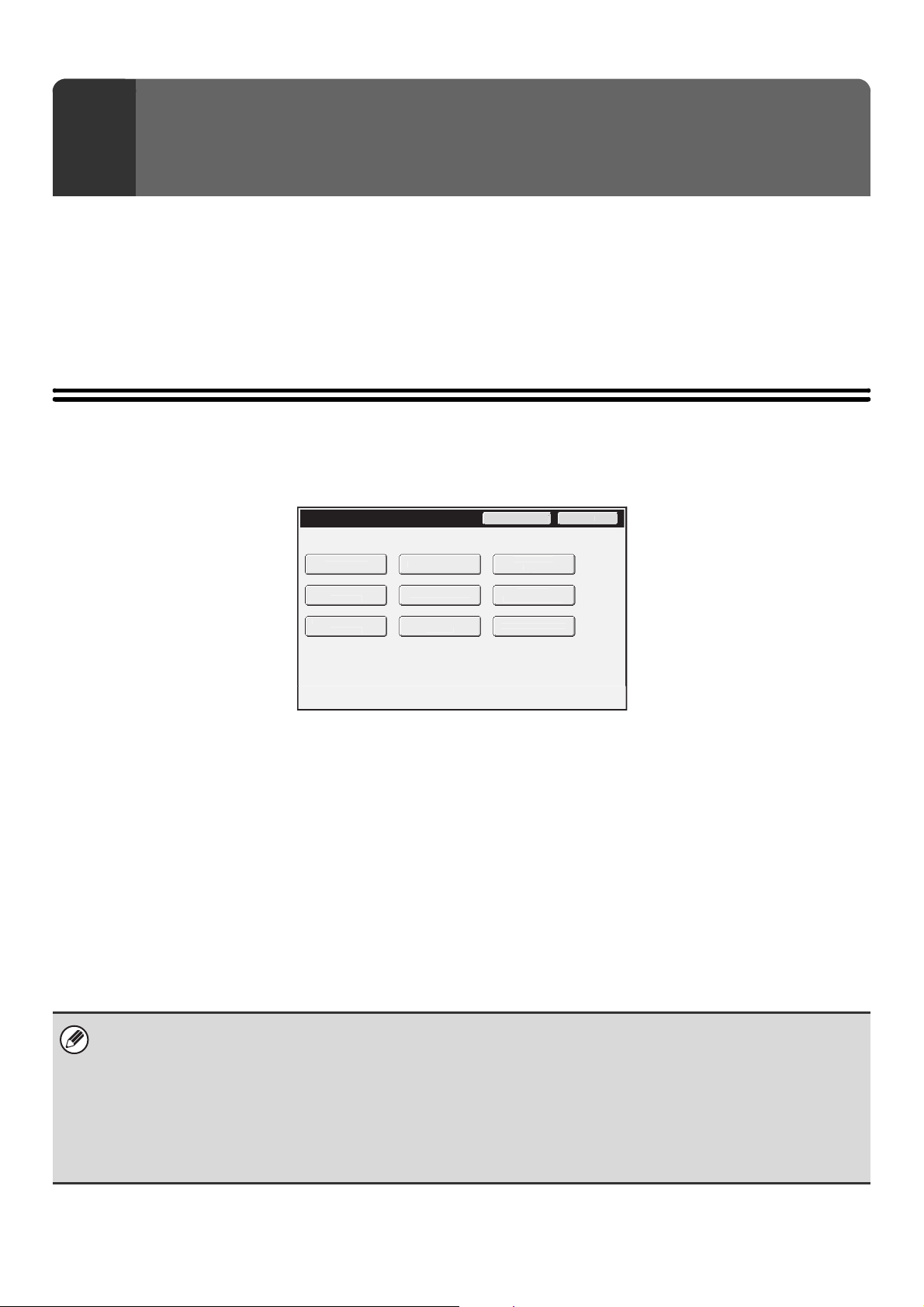
71
The system settings are used to configure a variety of parameters to suit the aims and needs of your workplace. The
system settings are also used to display or print out the current settings and status of the machine. The system settings
allow you to make the machine easier to use.
The system settings consist of settings that are used by general users, and settings that can only be configured by an
administrator of the machine. This chapter explains paper tray settings and other system settings that can be configured
by general users.
For system settings that require administrator rights, see the Administrator's Guide.
ACCESSING THE SYSTEM SETTINGS
Make sure that the machine is in the standby state and then press the [SYSTEM SETTINGS] key on the operation panel.
When the [SYSTEM SETTINGS] key is pressed, the following menu screen appears on the touch panel.
Touch the item in this screen that you wish to configure. For the procedure for configuring each setting, see the
explanation of the setting. The following settings are explained:
• TOTAL COUNT (page 74)
• DEFAULT SETTINGS (page 75)
• LIST PRINT (USER) (page 76)
• PAPER TRAY SETTINGS (page 77)
• USB-DEVICE CHECK (page 81)
• USER CONTROL* (page 82)
* When user authentication is enabled, this appears when a user who does not have the authority to configure the
system settings (administrator) logs in.
• Address Control, Fax Data Receive/Forward: Image Send Guide
• Printer Condition Settings: Printer Guide
• Document Filing Control: Document Filing Guide
5
SYSTEM SETTINGS
• To quit the system settings, touch the [Exit] key in the top right corner of the screen.
• For information on using the system settings screen, see "USING THE TOUCH PANEL (System Settings)" (page 14).
• For the procedure to follow when user authentication is enabled, see "USER AUTHENTICATION" (page 20).
• Web pages
The system settings can also be configured from the Web pages. To configure the system settings from the Web pages,
click [System Settings] in the Web page menu.
In addition to the system settings, network and security settings can also be configured in the Web pages. For information
on the settings, see Help in the Web pages.
System Settings
A
d
m
i
n P
ass
w
o
r
d
E
x
it
Total
Cou
n
t
P
aper Tra
y
S
ett
i
ngs
P
r
i
n
te
r
Co
n
ditio
n
S
ett
i
ngs
Document F
i
l
i
n
g
Co
n
t
r
ol
A
dd
r
ess
Co
n
t
r
ol
Fa
x D
ata
R
eceive/Forwar
d
US
B-D
e
v
ice
C
h
eck
Default Sett
i
ngs
List
Pr
i
n
t
(
User
)

72
SYSTEM SETTINGS LIST
When the system settings are accessed with general rights, the following items appear.
■ Total Count
■ Default Settings
■ List Print (User)
Depending on the machine specifications and peripheral devices installed, it may not be possible to use some settings.
Item Factory default setting Page
■ TOTAL COUNT
74
● JOB COUNT – 74
● DEVICE COUNT – 74
Item Factory default setting Page
■ DEFAULT SETTINGS
75
● CLOCK ADJUST
75
X Clock Adjust –
X Daylight Saving Time Setting –
X Date Format [MM/DD/YYYY], [/], [Last], [12-Hour]
● KEYBOARD SELECT English (US) 76
Item Factory default setting Page
■ LIST PRINT (USER)
76
● ALL CUSTOM SETTING LIST –
● PRINTER TEST PAGE –
● SENDING ADDRESS LIST –
● DOCUMENT FILING FOLDER LIST –
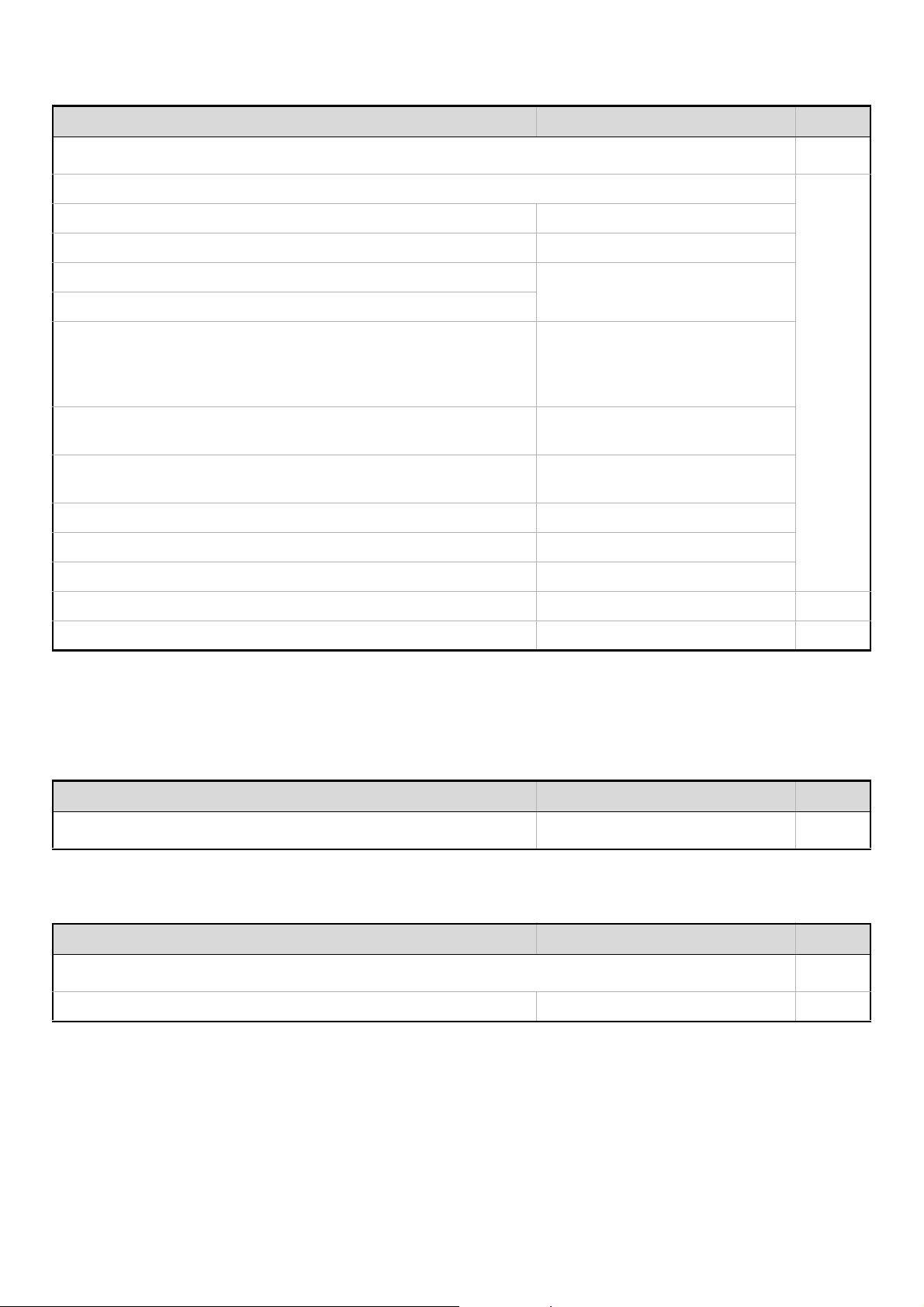
73
■ Paper Tray Settings
*1 When large capacity trays / large capacity tray are installed
*2 When large capacity trays are installed
*3 When an inserter is installed.
■ USB-Device Check
■ User Control
* When user authentication is enabled and the logged-in user does not have the authority to configure the system settings
(administrator) (excluding factory default users).
Item Factory default setting Page
■ PAPER TRAY SETTINGS
77
● TRAY SETTINGS
77
X Tray 1 Plain, 8-1/2" x 11"
X Tray 2 Plain, 8-1/2" x 11"
X Tray 3
Plain, Auto-Inch
X Tray 4
X Tray 5*
1
MX-LCX4: Plain, 8-1/2" x 11"
MX-LCX5: Plain, Auto-Inch
MX-LCX6: Plain, 8-1/2" x 11"
MX-LCX3N: Plain, 11" x 17"
X Tray 6*
2
MX-LCX4: Plain, 8-1/2" x 11"
MX-LCX5: Plain, Auto-Inch
X Tray 7*
2
MX-LCX4: Plain, 8-1/2" x 11"
MX-LCX5: Plain, Auto-Inch
X Bypass Plain, Auto-Inch
X Inserter (Upper Tray)*
3
Plain, Auto-Inch
X Inserter (Lower Tray)*
3
Plain, Auto-Inch
● PAPER TYPE REGISTRATION – 81
● AUTO TRAY SWITCHING Enabled 81
Item Factory default setting Page
■ USB-DEVICE CHECK
–
81
Item Factory default setting Page
■ USER CONTROL*
82
● MODIFY USER INFORMATION – 82
74
TOTAL COUNT
This function shows the page count in each mode. Touch the [Total Count] key to use the function.
JOB COUNT
This displays or prints out the counts of all jobs.
DEVICE COUNT
This is used to display or print the counts of the peripheral devices installed on the machine.
• 11" x 17" (A3) size paper is counted as two sheets.
• Each sheet of paper used for automatic two-sided copying is counted as two pages (11" x 17" (A3) paper is counted as
four pages).
• An entered paper size of 5-1/8" (384 mm) or larger is counted as two pages. (Four pages when two-sided copying is used.)
• Pages printed directly from the machine such as list prints are included in the "Other Prints" count.
• The items displayed (or printed) will vary depending on the machine specifications and peripheral devices installed.
• Document feeder
Each sheet is counted as two pages when two-sided scanning is performed.
• Stapler (when a finisher, saddle unit or saddle stitch finisher is installed)
Two-position stapling and saddle stitch are counted as "2".
• The items displayed (or printed) will vary depending on the machine specifications and peripheral devices installed.
75
DEFAULT SETTINGS
The default settings for operation of the machine can be configured. Touch the [Default Settings] key and select the settings.
CLOCK ADJUST
Use this to set the date and time in the machine's built-in clock.
Clock Adjust
Set the time.
Daylight Saving Time Setting
Enable daylight saving time.
Date Format
The format used to print the date on lists and other output can be changed.
Item Settings
Specify Time Zone
If your region is ahead of GMT (Greenwich Mean Time), select [+]. If your region is
behind GMT, select [-]. Next, specify the time difference between your region and
GMT in hours and minutes.
Date&Time Settings Select and set the year, month, day, hour, and minute.
Synchronize with Internet Time Server
This can be used when the machine is connected to the Internet. The machine's time
is automatically adjusted to the time of an Internet time server.
Item Settings
Daylight Saving Time Setting
Select whether or not the Daylight Saving Time Setting is enabled. If disabled, the
following settings will not be possible.
Select Setting Type
Specify whether the starting and ending day of daylight saving time are to be set
using the day of the week or the date.
Start Time
Set the starting time of daylight saving time. Set the starting month. If you selected
"Day of the Week" in "Select Setting Type", set the starting week of daylight saving
time and then the starting day. If you selected "Date" in "Select Setting Type", set the
starting date. Set the hour and minute and the UTC (Coordinated Universal Time)
setting.
Completing Time
Set the ending time of daylight saving time in the same way as you set the starting
time.
Adjustment Time Set the time that adjustment will take place when daylight saving time begins.
Item Settings
Format Set the order of display of the year, month, and day (YYYY/MM/DD).
Separator Select one of three symbols or a blank space for the separator used in the date.
Day-Name Position Select whether the day name appears before or after the date.
Time Display Select 12-hour format or 24-hour format for the time.
System Settings (Administrator): Disabling of Clock Adjustment
If this setting has been enabled in the system settings (administrator), the date and time cannot be set.
76
KEYBOARD SELECT
The layout of the keyboard that appears in text entry screens can be changed.
The following selections are available.
LIST PRINT (USER)
Lists showing the settings and information stored in the machine can be printed. Touch the [List Print (User)] key and
select the settings.
English (US) English (UK) French German
List name Description
All Custom Setting List
This list shows the hardware status, software status, printer condition settings,
system settings, and total counts.
Printer Test Page
This is used to print the PCL Symbol Set List, various font lists, and the NIC page
(network interface settings, etc.).
• PCL Symbol Set List
• PCL Internal Font List
• PCL Extended Font List
• PS Font List
• PS Extended Font List
• NIC Page
Sending Address List
Lists can be printed of various addresses stored in the machine.
• Individual List
• Group List
• Program List
• Memory Box List
• All Sending Address List
Document Filing Folder List This shows the folder names for document filing.
The items that appear will vary depending on the functions that have been added to the machine.
System Settings (Administrator): Prohibit Test Page Printing
If this setting has been enabled in the system settings (administrator), it will not be possible to print a test page.
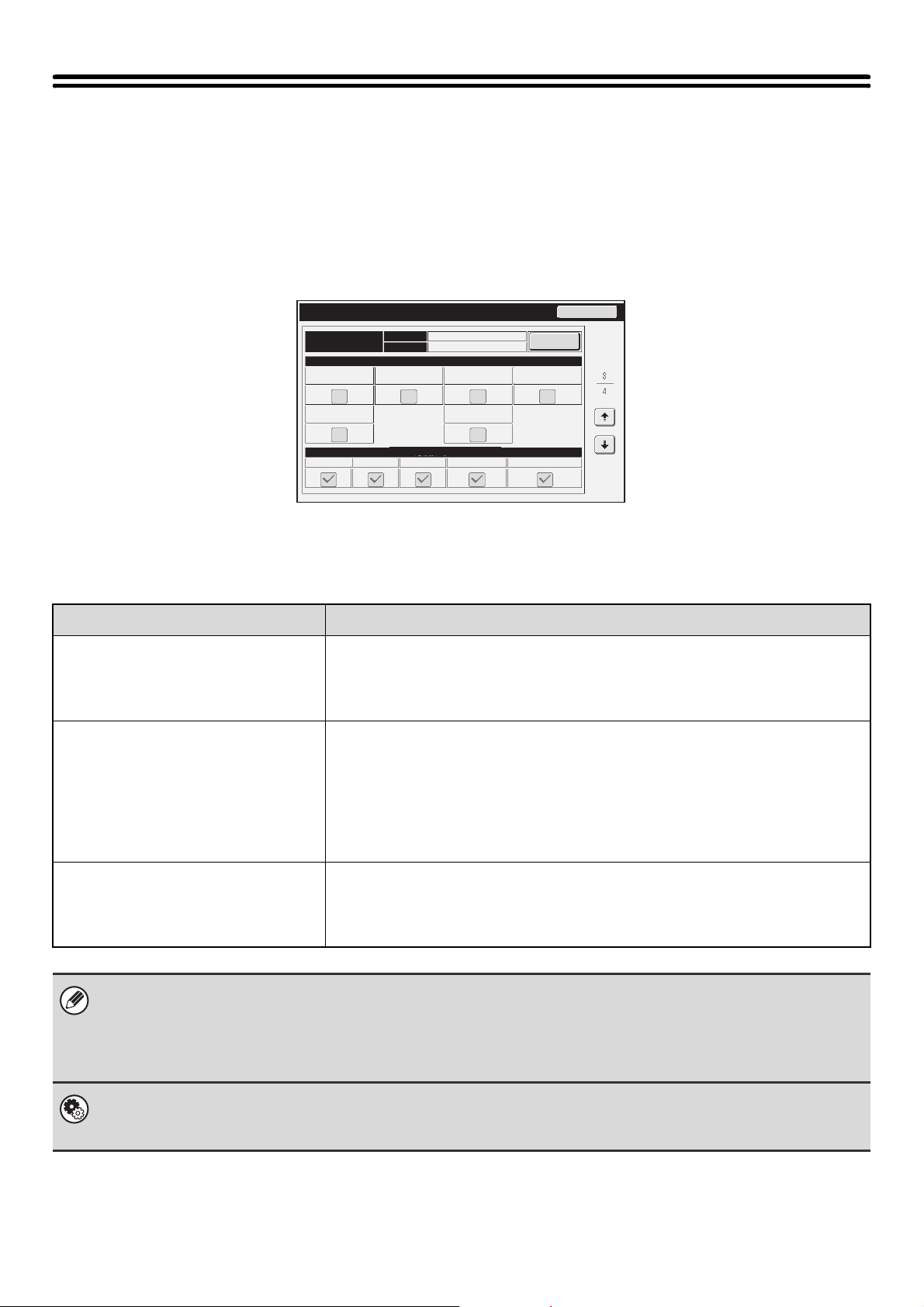
77
PAPER TRAY SETTINGS
Paper tray and paper type settings are explained in this section. Touch the [Paper Tray Settings] key to configure the
settings.
TRAY SETTINGS
These settings specify the paper type, paper size, and functions allowed for each paper tray.
When the [Tray Settings] key is touched, a list appears showing the trays and the current settings.
Settings of each tray
Touch the [Change] key in the above screen to change the settings.
The following settings can be configured.
Item Description
Type
Select the type of paper that is loaded in the tray.
The paper types that can be selected vary by paper tray. For more information, see
"Tray Settings" (page 78).
To store a new paper type, see "PAPER TYPE REGISTRATION" (page 81).
Size
Select the paper size from the list. The paper sizes that can be selected vary by tray.
The sizes that can be selected may also be restricted by the paper type selected
above. For more information, see "Tray Settings" (page 78).
If the desired size does not appear in the list, select [Custom Size] and directly enter
the size (Possible with tray 4, trays 5, 6, and 7 when the MX-LCX5 is installed, the
bypass tray, and the upper and lower trays on the inserter.). For more information,
see "Tray Settings" (page 78).
Feeding Approved Job
Select the modes that can be used. If there is a function that you do not wish to be
used with the selected tray, disable the function.
When the "Type" is other than plain paper, recycled paper, colored paper, or a user
type, [Fax] and [Internet Fax] cannot be selected.
• If the paper size specified here is different from the size of paper that is loaded in a tray, a problem or misfeed may result
when printing.
To change the paper size in a tray, see "2. LOADING PAPER" (page 26).
• Paper properties such as "Fixed Paper Side" are automatically set when the paper type is selected. The paper tray
properties cannot be changed in this screen.
System Settings (Administrator): Disabling of Tray Setting
If this setting has been enabled in the system settings (administrator), the tray settings (except for the bypass tray) cannot be
configured.
Back
Change
Disable Punch
Disable Staple
Disable Reverse
Fixed Paper Side
Type
Plain
Auto-Inch
Tray Settings
Size
Tray 3
Doc. Filing
I-FaxFaxPrintCopy
Disable Duplex
Disable Fold
Paper Property
Feeding Approved Job
78
Tray Settings
Paper Tray Paper Type Size
Tray 1
Plain, Pre-Printed,
Recycled, Letter Head,
Pre-Punched, Color, User
Type
8-1/2" x 11", A4
Tray 2
8-1/2" x 11", A4
Tray 3
In addition to the paper
types of trays 1 and 2,
Heavy Paper 1 to 3*
1
Auto-Inch (12" x 18", 11" x 17", 8-1/2" x 14"*
2
, 8-1/2" x 13-2/5"*
2
,
8-1/2" x 11", 8-1/2" x 11"R, 7-1/4" x 10-1/2"R), Auto-AB (A3W, A3, B4, A4,
A4R, B5, B5R, 8-1/2" x 13"), 9" x 12" (A4W), 8K, 16K, 16KR
Tray 4
In addition to the paper
types of trays 1 and 2,
Heavy Paper 1 to 3*
1
Auto-Inch (12" x 18", 11" x 17", 8-1/2" x 14"*
2
, 8-1/2" x 13-2/5"*
2
,
8-1/2" x 11", 8-1/2" x 11"R, 7-1/4" x 10-1/2"R, 5-1/2" x 8-1/2"R), Auto-AB
(A3W, A3, B4, A4, A4R, A5R, B5, B5R, 8-1/2" x 13"*
2
, 8-1/2" x 13-2/5"*
2
),
Custom Size-Inch, Custom Size-AB, Non-Standard Size, 9" x 12" (A4W),
8K, 16K, 16KR
Labels Auto-Inch (8-1/2" x 11", 8-1/2" x 11"R), Auto-AB (A4, A4R, B5, B5R),
Custom Size
Transparency Auto-Inch (8-1/2" x 11", 8-1/2" x 11"R), Auto-AB (A4, A4R)
Tab Paper Auto-Inch (8-1/2" x 11"), Auto-AB (A4)
Tray 5
(When large capacity
trays / large capacity tray
are installed)
MX-LCX4
In addition to the paper
types of trays 1 and 2,
Heavy Paper 1 to 3*
1
,
Thin paper,
Transparency, Tab
paper*
4
8-1/2" x 11", 5-1/2" x 8-1/2"R, A4, B5, A5R, 9" x 12" (A4W)
(Use the paper selector knob on the tray to change the paper size.)
☞ TRAY SETTINGS FOR THE LARGE CAPACITY TRAYS (MX-LCX4)
(page 37)
MX-LCX5
In addition to the paper
types of trays 1 and 2,
Heavy Paper 1 to 3*
1
,
Thin paper
Transparency*
4
, Tab
paper*
4
Auto-Inch (12" x 18", 11" x 17", 8-1/2" x 14"*
3
, 8-1/2" x 13-2/5"*
3
,
8-1/2" x 11", 8-1/2" x 11"R*
3
, 5-1/2" x 8-1/2"R, 7-1/4" x 10-1/2"R, 9" x 12"),
Auto-AB (A3W, A4W, A3, B4, A4, A4R*
3
, A5R, B5, B5R, 8-1/2" x 13"*
3
,
8-1/2" x 13-2/5"*
3
), Custom Size-Inch, Custom Size-AB, 320mm x 450mm,
225mm x 320mm, 234mm x 318mm, 220mm x 312mm, 318mm x 469mm,
312mm x 440mm, 8K, 16K, 16KR
MX-LCX6
In addition to the paper
types of trays 1 and 2,
Heavy Paper 1 to 3*
1
8-1/2" x 11", A4
(Paper size change must be performed by a service technician.)
MX-LCX3N
In addition to the paper
types of trays 1 and 2,
Heavy Paper 1 to 3*
1
12" x 18", 11" x 17", 8-1/2" x 14", 8-1/2" x 13", 8-1/2" x 11", 8-1/2" x 11"R,
A3W, A3, B4, A4, A4R, B5, 8K, 16K
79
Tray 6
(When large capacity
trays are installed)
MX-LCX4
In addition to the paper
types of trays 1 and 2,
Heavy Paper 1 to 3*
1
,
Thin paper, Labels*
4
,
Transparency*
4
, Tab
paper*
4
8-1/2" x 11", 5-1/2" x 8-1/2"R, A4, B5, A5R, 9" x 12" (A4W)
(Use the paper selector knob on the tray to change the paper size.)
☞ TRAY SETTINGS FOR THE LARGE CAPACITY TRAYS (MX-LCX4)
(page 37)
MX-LCX5
In addition to the paper
types of trays 1 and 2,
Heavy Paper 1 to 4*
1
,
Thin paper, Labels*
4
Transparency*
4
, Tab
paper*
4
Same as tray 5.
Tray 7
(When large capacity
trays are installed)
MX-LCX4
In addition to the paper
types of trays 1 and 2,
Heavy Paper 1 to 2*
1
,
Thin paper, Labels*
4
,
Transparency*
4
8-1/2" x 11", 5-1/2" x 8-1/2"R, A4, B5, A5R, 9" x 12" (A4W)
(Paper size change must be performed by a service technician.)
MX-LCX5
In addition to the paper
types of trays 1 and 2,
Heavy Paper 1 to 3*
1
,
Thin paper,
Transparency*
4
, Tab
paper*
4
Same as tray 5.
Bypass
(When a bypass tray is
installed)
MX-MFX1
In addition to the paper
types of trays 1 and 2,
Heavy Paper 1 to 4*
1
,
Thin paper, Labels*
4
,
Transparency*
4
, Tab
paper*
4
Auto-Inch (12" x 18", 11" x 17", 8-1/2" x 14"*
3
, 8-1/2" x 13-2/5"*
3
, 9" x 12",
8-1/2" x 11", 8-1/2" x 11"R*
3
, 7-1/4" x 10-1/2"R, 5-1/2" x 8-1/2"R, A3, A4,
B4, B5), Auto-AB (A3W, A4W, A3, B4, A4, A4R*
3
, A5R, B5, B5R, 11" x 17",
8-1/2" x 13"*
3
, 8-1/2" x 13-2/5"*
3
, 8-1/2" x 11"), Custom Size-Inch, Custom
Size-AB, 320mm x 450mm*
5
, 225mm x 320mm*
5
, 234mm x 318mm*
5
,
220mm x 312mm*
5
, 318mm x 469mm*
5
, 312mm x 440mm*
5
, 8K, 16K,
16KR
MX-LCX5
In addition to the paper
types of trays 1 and 2,
Heavy Paper 1 to 3*
1
,
Thin paper,
Transparency*
4
, Tab
paper*
4
Auto-Inch (12" x 18", 11" x 17", 8-1/2" x 14"*
3
, 8-1/2" x 13-2/5"*
3
, 9" x 12",
8-1/2" x 11", 8-1/2" x 11"R*
3
, 7-1/4" x 10-1/2"R, 5-1/2" x 8-1/2"R, A3, A4,
B4, B5), Auto-AB (A3W, A4W, A3, B4, A4, A4R*
3
, A5R, B5, B5R, 11" x 17",
8-1/2" x 13"*
3
, 8-1/2" x 13-2/5"*
3
, 8-1/2" x 11"), Custom Size-Inch, Custom
Size-AB, 8K, 16K, 16KR
Paper Tray Paper Type Size
80
*1 Heavy Paper 1: 28+ lbs. to 32 lbs. (106 g/m
2
to 128 g/m
2
) heavy paper
Heavy Paper 2: 32+ lbs., -65 lbs. cover (129 g/m
2
to 176 g/m
2
) heavy paper
Heavy Paper 3: 48 lbs., 110 lbs. index (177 g/m
2
to 205 g/m
2
) heavy paper
Heavy Paper 4: 140 lbs. index, -100 lbs. cover (206 g/m
2
to 300 g/m
2
) heavy paper
*2 When "Auto-AB" is selected in "Select Similar Sizes for Auto Detection" in the tray settings screen, it is possible to specify
selection of [8-1/2" x 13"] and [8-1/2" x 13-2/5"]. When "Auto-Inch" is selected, it is possible to specify selection of [Legal (8-1/2" x
14")] and [8-1/2" x 13-2/5"]. Paper sizes selected here are automatically detected by the tray, and paper sizes that are not selected
are not automatically detected.
*3 When "Auto-AB" is selected in "Select Similar Sizes for Auto Detection" in the tray settings screen, it is possible to specify
selection of [A4R], [8-1/2" x 13"] and [8-1/2" x 13-2/5"]. When "Auto-Inch" is selected, it is possible to specify selection of [Legal
(8-1/2" x 14")], [8-1/2" x 13-2/5"] and [8-1/2" x 11"R]. Paper sizes selected here are automatically detected by the tray, and paper
sizes that are not selected are not automatically detected.
*4 The sizes of label sheets, transparency film, and tab sheets that can be set are the same as for tray 4.
*5 This can only be used when large capacity trays (MX-LCX5) are installed.
Inserter (Upper Tray)
(When an inserter is
installed)
In addition to the paper
types of trays 1 and 2,
Heavy Paper 1 to 3*
1
Auto-Inch (12" x 18", 11" x 17", 8-1/2" x 14"*
3
, 8-1/2" x 13-2/5"*
3
, 9" x 12",
8-1/2" x 11", 8-1/2" x 11"R*
3
, 7-1/4" x 10-1/2"R, 5-1/2" x 8-1/2"R, A3, A4,
B4, B5), Auto-AB (A3W, A4W, A3, B4, A4, A4R*
3
, A5R, B5, B5R, 11" x 17",
8-1/2" x 13"*
3
, 8-1/2" x 13-2/5"*
3
, 8-1/2" x 11"), Custom Size-Inch, Custom
Size-AB, 320mm x 450mm, 225mm x 320mm, 234mm x 318mm,
220mm x 312mm, 318mm x 469mm, 312mm x 440mm, 8K, 16K, 16KR
Inserter (Lower Tray)
(When an inserter is
installed)
Same as Inserter (Upper Tray).
Paper Tray Paper Type Size
The numbers that can be entered when entering sizes vary by tray. Enter numbers within the number ranges shown on the
screen.
81
PAPER TYPE REGISTRATION
Store a paper type when the desired paper type does not appear as a selection or when you wish to create a new set of
paper properties.
Up to 10 paper types can be stored.
AUTO TRAY SWITCHING
When a tray runs out of paper during printing, this determines whether or not another tray with the same size and type of
paper is automatically selected and printing continues.
USB-DEVICE CHECK
This lets you check the connection when a USB device is connected to the machine. Touch the [USB-Device Check] key
to use this function.
Item Description
Type Name
Store any name.
The factory default names are "User Type 1" - "User Type 10".
Fixed Paper Side Enable this setting when paper with a front and reverse side is used.
Disable Duplex Enable this setting when paper is loaded that cannot used for two-sided printing.
Disable Reverse Enable this setting when you are using paper that cannot be turned over.
Disable Staple Enable this setting when paper is used that cannot be stapled.
Disable Punch Enable this setting when paper is used that cannot be punched.
Disable Fold Enable this setting when you are using paper that cannot be folded.
The settings that can be selected vary depending on the peripheral devices installed.
The status of a USB device that is not compatible with the machine will not appear.
82
USER CONTROL
This section explains settings for user control. Touch the [User Control] key to configure the settings.
MODIFY USER INFORMATION
The information of the currently logged in user can be edited.
Settings
• User Control settings can only be configured when "User Authentication Setting" in the system settings (administrator) is
enabled.
• Depending on the user that logged in, it may not be possible to use the settings below.
Item Description
User Name
Edit the name of the user (max. 32 characters). This user name is used as the key
name in the login screen, the document filing user name, and the sender name. (The
user name must be unique.)
Initial
Edit the initials (maximum of 5 characters). The initials determine where the user
name will appear in the user name list.
Index
Select the desired custom index. The custom index names are the same as those in
the address book.
User Number This cannot be edited.
Login Name This cannot be edited.
Password
Enter the password used for user authentication by login name and password (1 to
32 characters). (The password can be omitted.)
My Folder This cannot be edited.
E-mail Address This cannot be edited.
Authentication Settings This cannot be edited.
Pages Limit Group This cannot be edited.
Authority Group This cannot be edited.
Favorite Operation Group
The favorite operation group that will be applied at login appears.
Check with your administrator for the settings of the Favorite Operation Groups.
User Number This cannot be edited.
Deleting an account This cannot be edited.
The items that appear will vary depending on the user authentication method that is enabled.
83
This chapter provides solutions to possible printing problems. See the following table of contents to locate the
appropriate page for your question or problem.
6
TROUBLESHOOTING
PROBLEMS RELATED TO MACHINE OPERATION
• Specified machine functions cannot be used.. . . . . . . . . . . . . . . . . . . . . . . . . . . . . . . . . . . . . . . . . . . . 84
• The operation panel cannot be used. . . . . . . . . . . . . . . . . . . . . . . . . . . . . . . . . . . . . . . . . . . . . . . . . . . 85
• Printing is not possible or stops during a job. . . . . . . . . . . . . . . . . . . . . . . . . . . . . . . . . . . . . . . . . . . . . 85
• The original size is not automatically selected or the wrong size is selected. . . . . . . . . . . . . . . . . . . . 86
• The displayed bypass tray paper size is not correct. . . . . . . . . . . . . . . . . . . . . . . . . . . . . . . . . . . . . . . 86
PROBLEMS RELATED TO PAPER FEEDING AND OUTPUT
• The original misfeeds (automatic document feeder). . . . . . . . . . . . . . . . . . . . . . . . . . . . . . . . . . . . . . . 87
• The paper misfeeds. . . . . . . . . . . . . . . . . . . . . . . . . . . . . . . . . . . . . . . . . . . . . . . . . . . . . . . . . . . . . . . . 87
• Paper does not feed from the paper tray. . . . . . . . . . . . . . . . . . . . . . . . . . . . . . . . . . . . . . . . . . . . . . . . 88
• The image on paper is skewed. . . . . . . . . . . . . . . . . . . . . . . . . . . . . . . . . . . . . . . . . . . . . . . . . . . . . . . 88
• The automatic document feeder does not operate. . . . . . . . . . . . . . . . . . . . . . . . . . . . . . . . . . . . . . . . 88
PROBLEMS RELATED TO QUALITY / PRINT RESULTS
• Lines appear in the scanned image. . . . . . . . . . . . . . . . . . . . . . . . . . . . . . . . . . . . . . . . . . . . . . . . . . . . 89
• Smudges appear on printed output. . . . . . . . . . . . . . . . . . . . . . . . . . . . . . . . . . . . . . . . . . . . . . . . . . . . 89
• Toner does not adhere well or creases appear in the paper. . . . . . . . . . . . . . . . . . . . . . . . . . . . . . . . . 89
• Print quality is poor. . . . . . . . . . . . . . . . . . . . . . . . . . . . . . . . . . . . . . . . . . . . . . . . . . . . . . . . . . . . . . . . 89
• Part of the image is cut off. . . . . . . . . . . . . . . . . . . . . . . . . . . . . . . . . . . . . . . . . . . . . . . . . . . . . . . . . . . 90
• Printing takes place on the wrong side of the paper. . . . . . . . . . . . . . . . . . . . . . . . . . . . . . . . . . . . . . . 90
PROBLEMS RELATED TO PERIPHERAL DEVICES
• The connected USB device cannot be used. . . . . . . . . . . . . . . . . . . . . . . . . . . . . . . . . . . . . . . . . . . . . 90
• The finisher / saddle unit / saddle stitch finisher / inserter / folding unit does not operate.. . . . . . . . . . 90
• Stapling does not take place (including saddle stitch). . . . . . . . . . . . . . . . . . . . . . . . . . . . . . . . . . . . . . 91
• Punching does not take place. . . . . . . . . . . . . . . . . . . . . . . . . . . . . . . . . . . . . . . . . . . . . . . . . . . . . . . . 92
• The stapling position or punch position is not correct. . . . . . . . . . . . . . . . . . . . . . . . . . . . . . . . . . . . . . 92
OTHER PROBLEMS
• The touch panel screen is difficult to view. . . . . . . . . . . . . . . . . . . . . . . . . . . . . . . . . . . . . . . . . . . . . . . 93
• You were logged out without having performed logout yourself. . . . . . . . . . . . . . . . . . . . . . . . . . . . . . 93
• You forgot the administrator password. . . . . . . . . . . . . . . . . . . . . . . . . . . . . . . . . . . . . . . . . . . . . . . . . 93
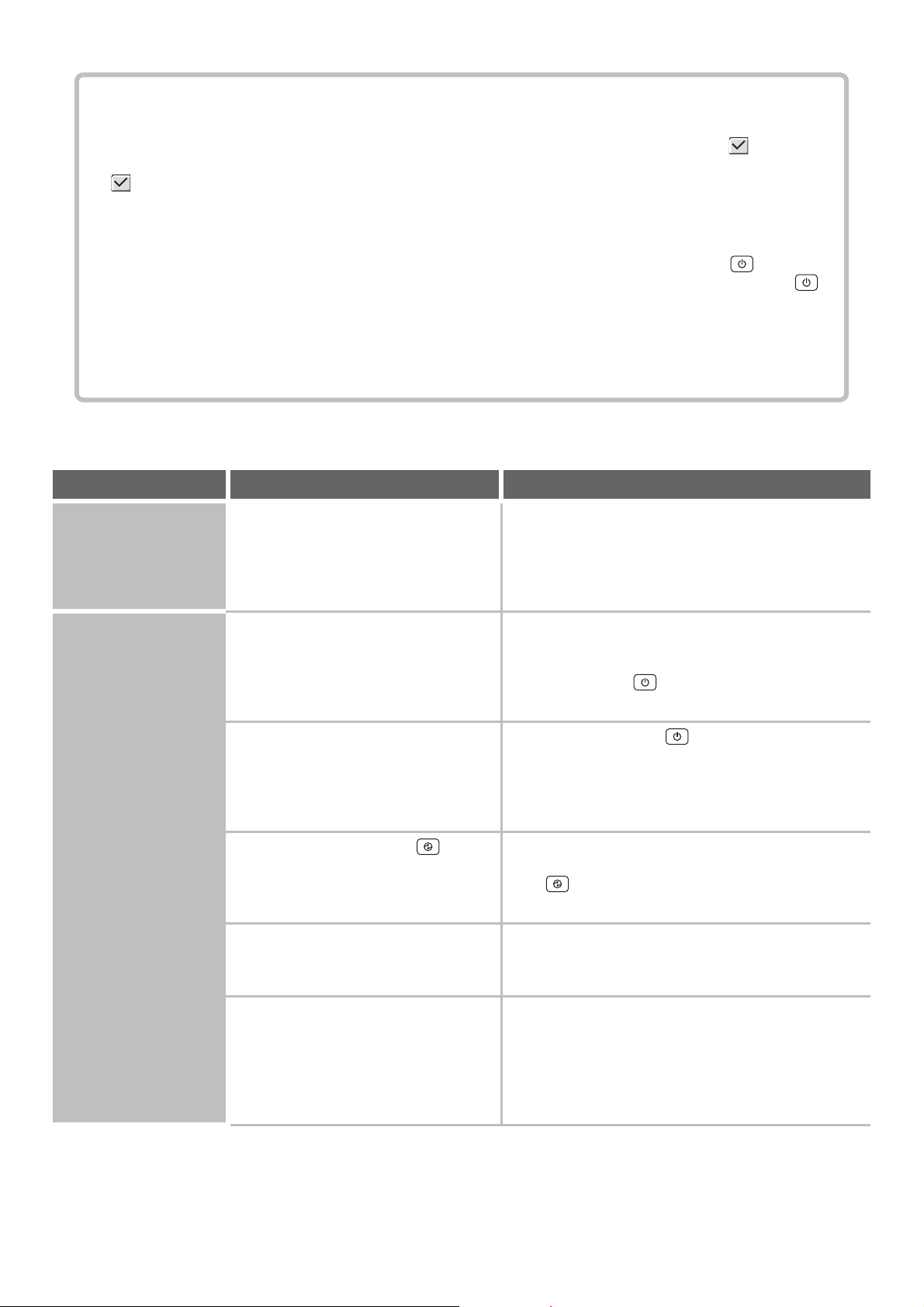
84
PROBLEMS RELATED TO MACHINE OPERATION
• System settings
Descriptions of system settings similar to the following example appear in this chapter.
Example:
➞ System Settings (Administrator) > "Copy Settings" > "Other Settings" > "Rotation Copy Setting" >
This is an abbreviated description of the procedure for selecting the setting. ">" indicates the setting sequence and
indicates the state of the setting after it has been enabled. Use these descriptions as a quick manual to help you
configure the settings. (For detailed explanations of the system settings (Administrator), see the Administrator's
Guide.)
•
For problems common to all functions of the machine and peripheral devices, see this manual.
• If you are unable to solve a problem using the solutions in this chapter, switch off the [POWER] key ( ) and the
main power switch. Wait at least 10 seconds, and then switch on the main power switch and the [POWER] key ( )
in that order.
* Do not turn off the machine's main power switch or remove the power plug while a job is being executed or
processed. This may damage the hard drive or cause the data being stored or received to be lost.
• If you are unable to solve a problem using the information in this chapter, please contact your dealer or nearest
SHARP Service Department.
Problem Point to check Solution
Specified machine
functions cannot be
used.
Have functions been disabled by the
administrator?
Some functions may have been disabled in the system
settings (administrator). Check with your administrator.
When user authentication is enabled, the functions that
you can use and page counts may be restricted in your
user settings. Check with your administrator.
The operation panel
cannot be used.
Is the main power indicator lit? If the main power indicator is not lit, make sure that the
power plug is firmly inserted in the power outlet, switch
the main power switch to the "on" position. Hold down
the [POWER] key ( ) and turn on the power.
☞ TURNING THE POWER ON AND OFF (page 18)
Did you just power on the machine? After the [POWER] key ( ) is turned on, the machine
requires some time to complete warmup operation.
During this time functions can be selected, however, a
job cannot be run. Wait until a message appears
indicating that the machine is ready.
Is the [POWER SAVE] key ( )
blinking?
Auto Power Shut-Off mode has activated. To return the
machine to normal operation, press the [POWER SAVE]
key ( ).
☞ TURNING THE POWER ON AND OFF (page 18)
Is a cover open or a device separated
from the machine?
A warning message will appear when a cover is open or
a device is separated from the machine. Read the
message and take appropriate action.
Did login fail three times in a row? When "A Warning when Login Fails" is enabled in the
system settings (administrator) and login fails 3 times in
a row, a warning will be displayed and operation will
lock for 5 minutes. After operation unlocks, log in using
the correct user information. (If you do not know your
user information, contact your administrator.)
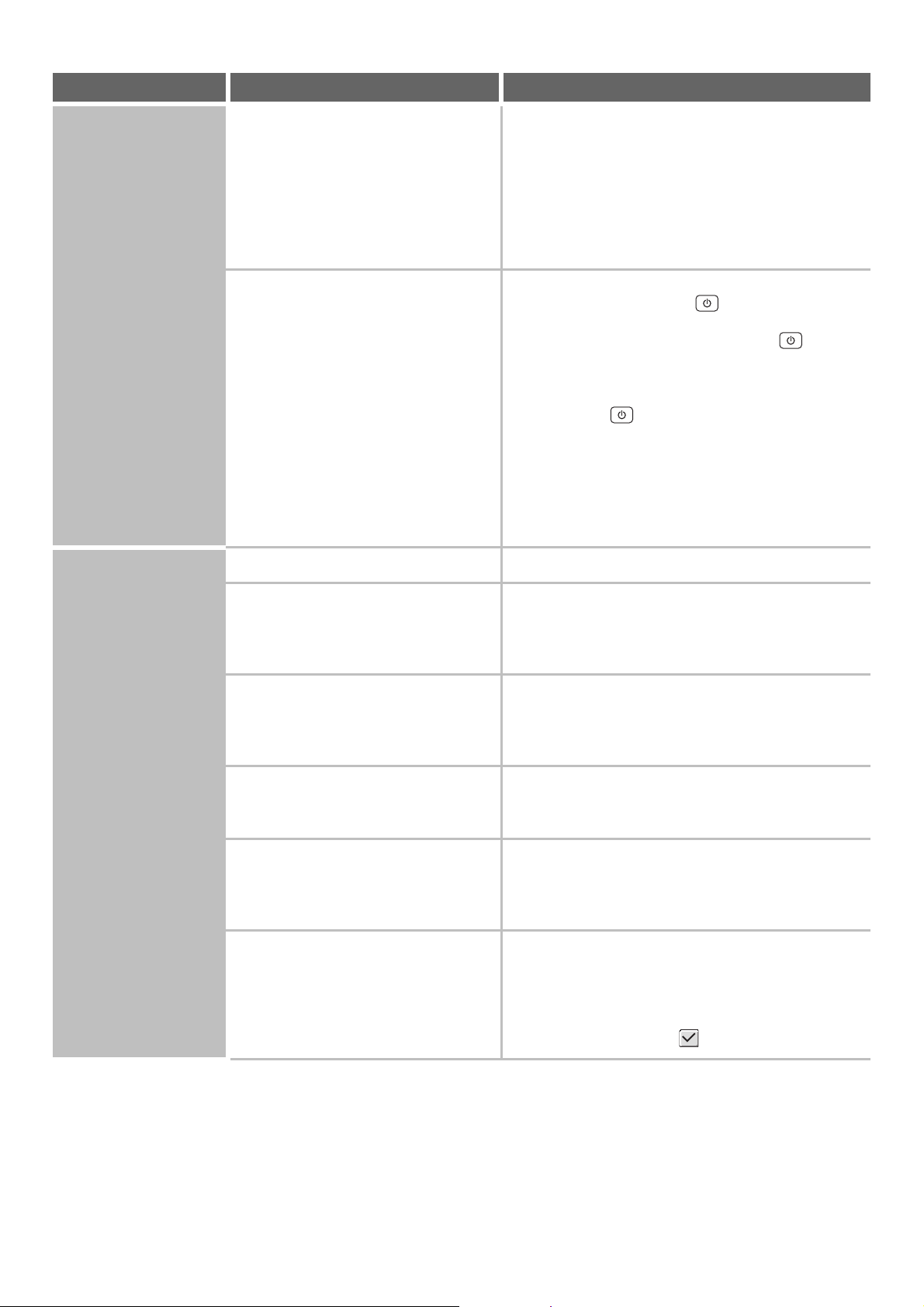
85
The operation panel
cannot be used.
Does a message appear indicating that
Auto Login failed?
Auto Login failed due to a problem on the network.
Contact your administrator.
If you are the administrator, touch the [Admin Password]
key, log in as an administrator, and temporarily change
the auto login settings in the system settings
(administrator). (Restore the changed settings to their
original state after the network problem has been
solved.)
Does the message "Call for service.
Code:xx-xx*." appear in the touch
panel?
*Letters and numbers appear in xx-xx.
Make sure that data is being sent or received and then
switch off the [POWER] key ( ) and the main power
switch. Wait at least 10 seconds and then switch the
main power switch and the [POWER] key ( ) back
on in that order.
☞ TURNING THE POWER ON AND OFF (page 18)
If the message still appears after switching the
[POWER] key ( ) and main power switch off and on
several times, it is likely that a failure has occurred that
requires service. In this event, stop using the machine,
unplug the power plug, and contact your dealer or
nearest SHARP Service Department. (When contacting
your dealer or nearest SHARP Service Department,
inform them of the displayed error code.)
Printing is not
possible or stops
during a job.
Is a tray out of paper?
Add paper as instructed by the message in the touch panel.
Is the machine out of toner? When toner runs low, a message will appear to inform
you that the toner cartridge must be replaced. To
replace the toner cartridge, see "REPLACING THE
TONER CARTRIDGE" in the Maintenance Guide.
Has a paper misfeed occurred? Remove the misfeed as instructed by the message in
the touch panel.
☞ "3. REMOVING MISFEEDS" in the Maintenance
Guide
Is the output tray full? When the output tray becomes full, a detector activates
and stops printing.
Remove the output from the tray and resume printing.
Is the toner collection container full? Replace the toner collection container as instructed by
the message in the touch panel.
☞ "REPLACING THE TONER COLLECTION
CONTAINER" in the Maintenance Guide
In the Paper Tray Settings of the system
settings, are restrictions placed on the
trays that can be used in each mode
(copy, print, fax, Internet fax, and
document filing)?
Check the Paper Tray Settings and see if checkmarks
appear in the checkboxes of each mode (Feeding
Approved Job). Functions without a checkmark cannot
be used for printing using that tray.
➞ System Settings > "Paper Tray Settings" > "Tray
Settings" > "Change" > (Each mode)
Problem Point to check Solution
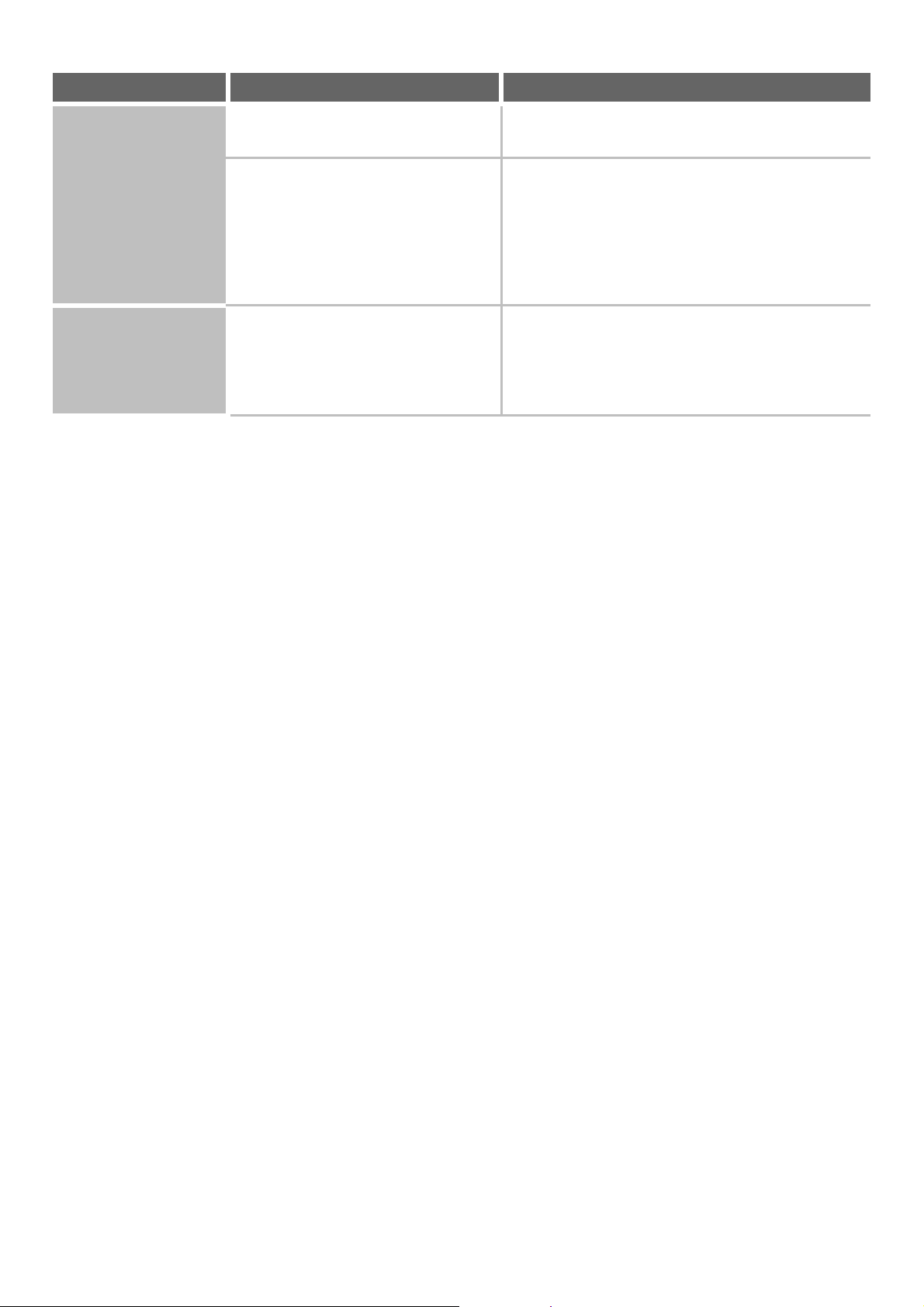
86
The original size is not
automatically selected
or the wrong size is
selected.
Is the original curled or folded? The correct original size cannot be detected if the
original is curled or folded. Straighten the original.
Did you place an original smaller than
5-1/2" x 8-1/2" (A5) size?
Original sizes smaller than 5-1/2" x 8-1/2" (A5) cannot
be detected. Enter the original size manually.
* When scanning a small original on the document
glass, it is convenient to place a blank sheet of paper
on top of the original which is the same size
(8-1/2" x 11" (A4), 8-1/2" x 11"R (A4R), etc.) as the
paper that you wish to use for printing.
The displayed bypass
tray paper size is not
correct.
Is the bypass tray extension pulled out? When loading paper in the bypass tray, be sure to pull
out the extension to enable the paper size to be
detected correctly.
☞ LOADING PAPER IN THE BYPASS TRAY (page
48)
Problem Point to check Solution
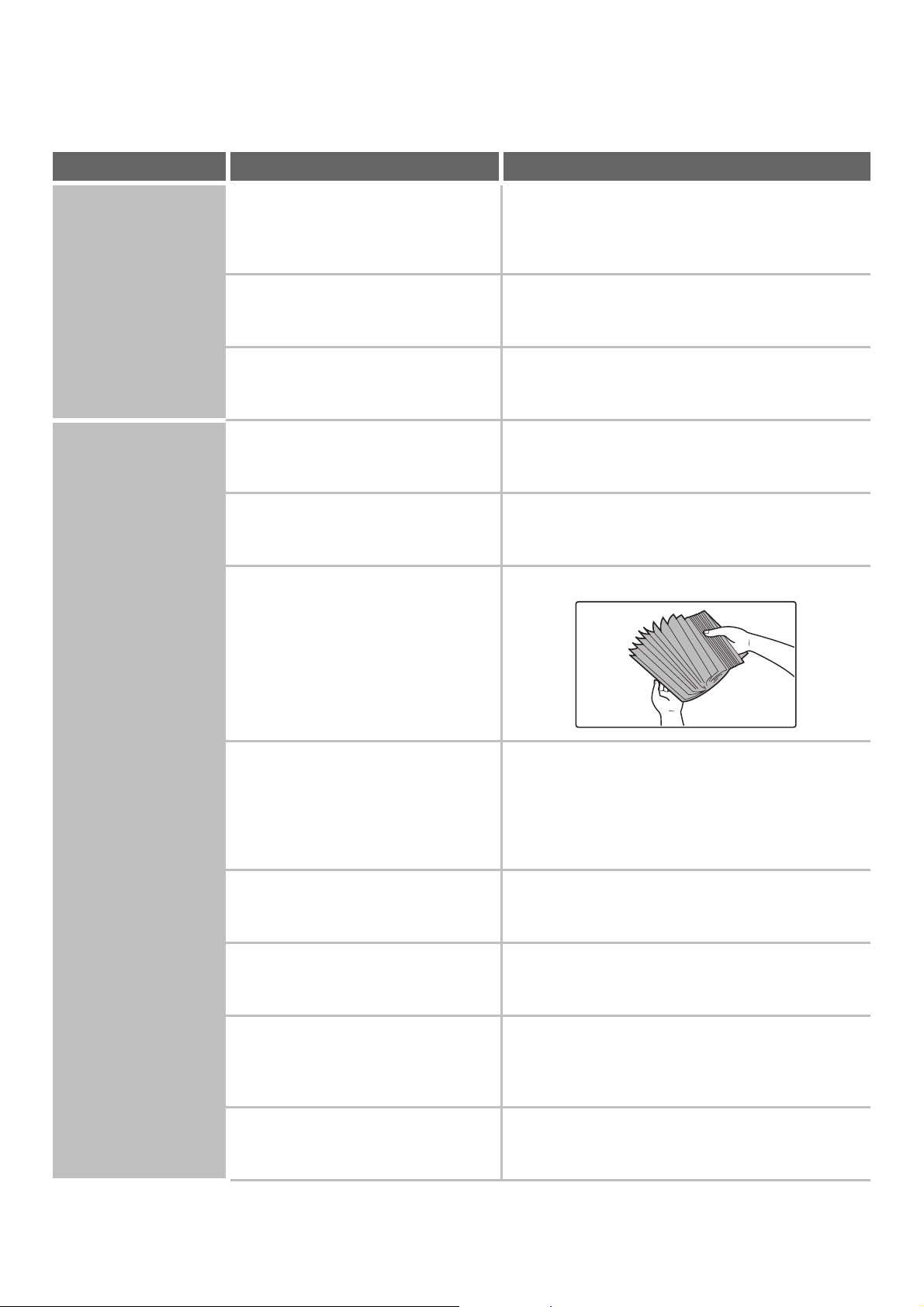
87
PROBLEMS RELATED TO PAPER FEEDING AND
OUTPUT
Problem Point to check Solution
The original misfeeds
(automatic document
feeder).
Is too much paper loaded in document
feeder tray?
Make sure that the stack of paper in the tray is not
higher than the indicator line.
☞ PLACING ORIGINALS IN THE AUTOMATIC
DOCUMENT FEEDER (page 53)
Is the original a long original? When using the automatic document feeder to scan a
long original, set the scan size to [Long Size]. (Note that
long originals cannot be copied using the copy function.)
Is the original on thin paper? Use the document glass to scan the original. If you need
to use the automatic document feeder, use slow scan
mode in the special modes to scan the original.
The paper misfeeds. Is a torn piece of paper remaining in the
machine?
Make sure all paper is removed.
☞ "3. REMOVING MISFEEDS" in the Maintenance
Guide
Is too much paper loaded in the tray? Make sure that the stack of paper in the tray is not
higher than the indicator line.
☞ 2. LOADING PAPER (page 26)
Are multiple sheets feeding at once? Fan the paper well before loading it.
Are you using paper that is not within
the specifications?
Use SHARP-recommended paper. Using paper that is
not supported may result in misfeeds, creases, or
smudges.
☞ "SUPPLIES" in the Safety Guide
* For paper that is prohibited or not recommended, see
"USEABLE PAPER" (page 27).
Has the paper in the tray absorbed
moisture?
If you will not be using paper in a tray for a long time,
remove the paper from the tray and store it in a bag in a
dark and dry location.
Are the bypass tray guides adjusted to
the width of the paper?
Adjust the bypass tray guides to the width of the paper.
☞ LOADING PAPER IN THE BYPASS TRAY (page
48)
Is the bypass tray extension pulled out? When loading a large size of paper, pull out the
extension.
☞ LOADING PAPER IN THE BYPASS TRAY (page
48)
Is the bypass feed roller dirty? Clean the surface of the bypass feed roller.
☞ "CLEANING THE BYPASS FEED ROLLER" in the
Maintenance Guide
88
The paper misfeeds. Is 5-1/2" x 8-1/2" (A5) size paper
loaded?
Load 5-1/2" x 8-1/2" (A5) size paper in tray 4 (the
second tray) or in the bypass tray.
For the paper trays in which A5 size paper can be
loaded, see "PAPER TRAY SETTINGS" (page 77).
* When loading 5-1/2" x 8-1/2" (A5) size paper, place
the paper in the horizontal (5-1/2" x 8-1/2"R (A5R))
orientation.
Has the correct paper size been set? If you are using a special size, be sure to specify the
paper size.
If the size of paper loaded in a tray was changed, be
sure to check the paper size setting.
☞ PAPER TRAY SETTINGS (page 77)
Did you add paper to the bypass tray? When adding paper, remove any paper remaining in the
bypass tray, combine it with the paper to be added, and
reload as a single stack. If paper is added without
removing the remaining paper, a misfeed may result.
☞ LOADING PAPER IN THE BYPASS TRAY (page
48)
Paper does not feed
from the paper tray.
Is the paper loaded correctly in the
paper tray?
Set the guides to the size of the paper. Make sure the
height of the paper does not exceed the indicator line.
☞ 2. LOADING PAPER (page 26)
In the Paper Tray Settings of the system
settings, are restrictions placed on the
trays that can be used in each mode
(copy, print, fax, Internet fax, and
document filing)?
Check the Paper Tray Settings and see if checkmarks
appear in the checkboxes of each mode (Feeding
Approved Job). Functions without a checkmark cannot
be used for printing using that tray.
☞ PAPER TRAY SETTINGS (page 77)
The image on paper is
skewed.
Is too much paper loaded in the bypass
tray?
Do not load more than the maximum number of sheets.
The maximum number of sheets varies depending on
the paper type setting. For more information, see the
specifications in the Safety Guide.
Are the bypass tray guides adjusted to
the width of the paper?
Adjust the bypass tray guides to the width of the paper.
☞ LOADING PAPER IN THE BYPASS TRAY (page
48)
Are the original guides adjusted to the
width of the paper?
Adjust the original guides to the width of the paper.
☞ PLACING ORIGINALS IN THE AUTOMATIC
DOCUMENT FEEDER (page 53)
The automatic
document feeder does
not operate.
Have functions been disabled by the
administrator?
Some functions may have been disabled in the system
settings (administrator). Check with your administrator.
Problem Point to check Solution
89
PROBLEMS RELATED TO QUALITY / PRINT RESULTS
Problem Point to check Solution
Lines appear in the
scanned image.
Are the scanning areas of the document
glass or automatic document feeder
dirty?
Clean the scanning areas of the document glass or
automatic document feeder.
☞ "CLEANING THE DOCUMENT GLASS AND
AUTOMATIC DOCUMENT FEEDER" in the
Maintenance Guide
Is the bypass feed roller dirty? Clean the surface of the bypass feed roller.
☞ "CLEANING THE BYPASS FEED ROLLER" in the
Maintenance Guide
Smudges appear on
printed output.
Are you using paper that is not within
the specifications?
Use SHARP-recommended paper. Using paper that is
for other models or special paper that is not supported
may result in misfeeds, creases, or smudges.
☞ "SUPPLIES" in the Safety Guide
Smudges appear on
printed output.
Are you printing on pre-punched paper? If the printed image overlaps the punch holes, smudges
may appear on the reverse side of the paper following
one-sided printing, or on both sides following two-sided
printing. Take care that the image does not overlap the
punch holes.
Does a message appear indicating the
need for maintenance?
Contact your dealer or nearest SHARP Service
Department as soon as possible.
Toner does not adhere
well or creases appear
in the paper.
Are you using paper that is not within
the specifications?
Use SHARP-recommended paper. Using paper that is
for other models or special paper that is not supported
may result in misfeeds, creases, or smudges.
☞ "SUPPLIES" in the Safety Guide
Did you set the correct paper type? Set the correct paper type in the tray settings. Make
sure that the following has not occurred:
• Heavy paper is being used, but a paper type other
than heavy paper is selected in the tray settings. (The
image may disappear if rubbed.)
• Paper other than heavy paper is being used, but
heavy paper is selected in the tray settings. (This may
cause creases and misfeeds.)
☞ PAPER TRAY SETTINGS (page 77)
Is the paper loaded so that printing
takes place on the reverse side?
If printing takes place on the wrong side of label sheets
or transparency film, the toner may not adhere well and
a clear image may not be obtained.
Print quality is poor. Is "Toner Save Mode" enabled? When "Toner Save Mode" is enabled, printing takes
place using less toner and thus the print result is lighter.
Check with your administrator.
90
PROBLEMS RELATED TO PERIPHERAL DEVICES
Part of the image is
cut off.
Has the correct paper size been set? If you are using a special size, be sure to specify the
paper size.
If the size of paper loaded in a tray was changed, be
sure to check the paper size setting.
☞ PAPER TRAY SETTINGS (page 77)
Was the original placed in the correct
position?
If you are using the document glass, be sure to place
the original in the far left corner of the document glass.
☞ PLACING ORIGINALS IN THE AUTOMATIC
DOCUMENT FEEDER (page 53)
Printing takes place
on the wrong side of
the paper.
Is the paper loaded with the print side
facing in the correct direction?
• Trays 1 to 4:
Load the paper with the front side facing down.
• Bypass tray and tray 5, 6 and 7:
Load the paper with the front side facing up.
Problem Point to check Solution
The connected USB
device cannot be
used.
Is the USB device compatible with the
machine?
Ask your dealer if the device is compatible with the
machine.
Is the connected USB device
recognized correctly?
Use "USB-Device Check" in the system settings to
check whether or not the device can be recognized.
☞ USB-DEVICE CHECK (page 81)
If it is not recognized, connect it once again.
The finisher / saddle
unit / saddle stitch
finisher / inserter /
folding unit does not
operate.
Does a message appear indicating that
you need to remove paper from the
stapler compiler?
Remove all remaining paper from the stapler compiler.
Is the [START] key ( ) indicator on
the operation panel turned off?
Configure the settings of punching or stapling on the
operation panel. For more information, see "MANUAL
FINISHING MODE" (page 65)
Does an error message appear? When the operation does not take place due to the
problem such as paper misfeeds, you will be informed
by the operation panel.
Does the following message appear in
the touch panel?
"Call for service. Code:xx-xx* Please
check the power of the finisher."
*Letters and numbers appear in xx-xx.
Check peripheral devices and the power plug. Remove
and then firmly reinsert the power plug, and restart the
machine.
Have functions been disabled by the
administrator?
Some functions may have been disabled in the system
settings (administrator). Check with your administrator.
Problem Point to check Solution
91
Stapling does not take
place (including
saddle stitch).
Does a message appear instructing you
to check the staple unit?
Remove jammed staples.
☞ "3. REMOVING MISFEEDS" in the Maintenance
Guide
Does a message appear instructing you
to add staples?
Replace the staple cartridge. Do not forget to replace
the staple case.
☞ "2. REPLACING SUPPLIES" in the Maintenance
Guide
Is a different width of paper mixed in? Stapling is not possible when paper of different widths
are mixed together. To perform mixed size stapling, use
paper of the same width and select the [Same Width]
setting. When copying, select [Same Width] from [Mixed
Size Original] in the special modes.
Are there more sheets than can be
stapled at once?
For the maximum number of sheets that can be stapled,
see the specifications in the Safety Guide.
Is a paper size that cannot be stapled
included in the print job?
For the paper sizes that can be stapled, see the
specifications in the Safety Guide.
Is the paper type setting of the tray
selected in the printer driver set to a
paper type that cannot be stapled?
Check the paper type settings in the machine and select
a tray that has paper that can be used for stapling*.
Click the [Tray Status] button in "Paper Selection" on
the [Paper] tab of the printer properties window and
check the paper type setting of each tray.
* Stapling is not possible on labels, tab paper,
transparency film, or envelopes. In addition, if "Disable
Staple" is selected in the user type, stapling will not be
possible.
Is the paper type setting of the selected
paper tray set to heavy paper?
Saddle stitch is not possible on heavy paper. (However,
when cover insertion is selected, saddle stitch is
possible when a single sheet of heavy paper is inserted
for use as a cover.)
Have functions been disabled by the
administrator?
Some functions may have been disabled in the system
settings (administrator). Check with your administrator.
Problem Point to check Solution
92
Punching does not
take place.
Does a message appear instructing you
to check the punch module?
Dispose of punch scraps.
☞ "DISCARDING PUNCH WASTE" in the
Maintenance Guide
Is a different size of paper mixed in? Punching is not possible when different widths of paper
are mixed together. To perform mixed size punching,
use paper of the same width and select the [Same
Width] setting. When copying, select [Same Width] for
[Mixed Size Original] in the special modes.
Is a paper size that cannot be punched
included in the print job?
For the paper sizes that can be punched, see the
specifications in the Safety Guide.
Is the tray selected in the printer driver
set to a paper type that cannot be
punched?
Check the paper type settings in the machine and select
a tray that has paper that can be used for punching*.
Click the [Tray Status] button in "Paper Selection" on
the [Paper] tab of the printer properties window and
check the paper type setting of each tray.
* Punching is not possible on labels, tab paper,
transparency film, and envelopes. In addition, if
"Disable Punch" is selected in the user type, punching
will not be possible.
Have functions been disabled by the
administrator?
Some functions may have been disabled in the system
settings (administrator). Check with your administrator.
The stapling position
or punch position is
not correct.
Is the stapling position set correctly? Check the stapling position setting.
☞ MANUAL FINISHING MODE (page 65)
☞ "OUT PUT" in the Copier Guide
Are the punching positions set
correctly?
Check the punch position settings.
☞ MANUAL FINISHING MODE (page 65)
☞ "OUT PUT" in the Copier Guide
Is the orientation of inserting the paper
correct?
(when using the inserter)
Check the orientation of the paper.
☞ INSERTER (page 62)
Paper folding does not
take place.
Are you using a paper size that cannot
be folded?
Only specific paper sizes can be folded. Make sure that
you are attempting to fold an allowed paper size.
☞ FOLDING UNIT (page 61)
Paper is folded in the
wrong place.
Was the paper loaded in the wrong
orientation?
Make sure that the paper is loaded in the correct
orientation for folding.
☞ MANUAL FINISHING MODE (page 65)
☞ "OUT PUT" in the Copier Guide
Problem Point to check Solution
93
OTHER PROBLEMS
Problem Point to check Solution
The touch panel
screen is difficult to
view.
Is the display contrast properly
adjusted?
Touch the brightness adjustment key ( ) on the
system bar in the touch panel to adjust the brightness.
☞ SYSTEM BAR (page 15)
You were logged out
without having
performed logout
yourself.
Did Auto Clear activate? When user authentication is used, the currently logged
in user will be automatically logged out if Auto Clear
activates. (Except when in PC scan mode.)
Log in again.
If you are the administrator, you can change the time
setting of Auto Clear or disable Auto Clear in "Auto
Clear Setting".
➞ System Settings (Administrator) > "Operation
Settings" > "Other Settings" > "Auto Clear Setting"
You forgot the
administrator
password.
Was the administrator password
changed from the factory default
setting?
Contact your dealer or nearest SHARP Service
Department.
* For the factory default administrator password, see
"TO THE ADMINISTRATOR OF THE MACHINE" in
the Safety Guide. After changing the password, take
special care to remember it.
94
This chapter explains the text entry screen.
FUNCTIONS OF THE MAIN KEYS
7
ENTERING TEXT
Key Description
This changes the text entry screen from the lower case screen to the upper case screen. The upper case
screen will continue to appear until the [Caps] key is touched again so that it is no longer highlighted. The
[Caps] key is convenient when you wish to enter all capital letters.
This key temporarily changes the keys in the text entry screen to upper case when lower case letters
appear, or to lower case when upper case letters appear.
Touch a letter key after touching the [Shift] key to enter that letter. After the letter is entered, the [Shift] key
will no longer be highlighted and the original text entry screen will appear.
The [Shift] key is convenient when you only need to enter one upper case letter or one lower case letter, or
when you need to enter one of the symbols assigned to the numeric keys.
To cancel selection of the [Shift] key, touch the [Shift] key again. The [Shift] key will no longer be highlighted.
Touch this key to enter a line break when entering the body text of an e-mail message.
Touch this key to delete the characters to the left of the cursor one character at a time.
Touch this key to temporarily change the key layout of character entry mode to a different language. Select
the key layout that you wish to use.
Touch this key to enter a space between letters.
This temporarily changes the entry screen to the accented letter and symbol entry screen. Touch a letter
key after touching the [AltGr] key to enter that letter. After the letter is entered, the [AltGr] key will no longer
be highlighted and the original text entry screen will appear.
To cancel selection of the [AltGr] key, touch the [AltGr] key again. The [AltGr] key will no longer be highlighted.
These keys move the cursor left and right.
These keys move the cursor to the line above or below the current line during entry of the body text of an e-mail message.
Touch this key to select character entry mode.
Touch this key to select symbol entry mode. Symbol mode is used to enter symbols and accented letters.
Use this to retrieve a previously stored subject for e-mail or other pre-set text.
Touch this key to return to the previous setting screen without entering text.
Touch this key to enter the text that currently appears and return to the previous setting screen.
Caps
Shift
Enter
Other Language
Space
AltGr
Characters
Symbols
Pre-Set Select
Cancel
OK
95
ENTERING TEXT FROM AN EXTERNAL KEYBOARD
An external keyboard can only be used as a alternative for the text entry screen that appears in the machine's touch
panel.
The layout of the keys in the text entry screen in the touch panel differs slightly from the layout of the keys on the
external keyboard.
Use a SHARP-recommended external keyboard.
For the recommended keyboards, please contact your dealer or nearest SHARP Service Department.
• " " in the text entry screen indicates how many characters can be entered. A number of characters greater than " "
cannot be entered.
• The key layouts that can be selected vary depending on the language selected in "MFP Display Language Setting" in the
system settings (administrator).
• The following symbols cannot be used when entering a file name or folder name.
\ ? / " ; : , < > ! * | & #
Some computer environments may not allow the use of spaces and the symbols indicated below. For example, hyperlinks
will not operate correctly or nonsense characters may appear.
$ % ' ( ) + - . = @ [ ] ^ ` { } _
MX1100-US-USR-Z2
User's Guide
MX-M850
MX-M950
MX-M1100
MODEL:
SHARP ELECTRONICS CORPORATION
Sharp Plaza, Mahwah, New Jersey 07430-1163.
www.sharpusa.com
SHARP ELECTRONICS OF CANADA LTD.
335 Britannia Road East, Mississauga, Ontario, L4Z 1W9
Copier Guide
MX-M850
MX-M950
MX-M1100
MODEL:

2
TABLE OF CONTENTS
ABOUT THIS MANUAL . . . . . . . . . . . . . . . . . . . . . . . . 4
• MANUALS PROVIDED WITH THE MACHINE . . . 5
1
BEFORE USING THE MACHINE AS A
COPIER
BASE SCREEN OF COPY MODE . . . . . . . . . . . . . . . . 6
COPYING SEQUENCE . . . . . . . . . . . . . . . . . . . . . . . . 9
ORIGINALS . . . . . . . . . . . . . . . . . . . . . . . . . . . . . . . . 12
• CHECKING THE ORIGINAL SIZE . . . . . . . . . . . . 12
PAPER TRAYS. . . . . . . . . . . . . . . . . . . . . . . . . . . . . . 14
2
BASIC PROCEDURE FOR MAKING
COPIES
MAKING COPIES . . . . . . . . . . . . . . . . . . . . . . . . . . . . 15
• USING THE AUTOMATIC DOCUMENT
FEEDER TO MAKE COPIES . . . . . . . . . . . . . . . . 15
• MAKING A COPY USING THE DOCUMENT
GLASS . . . . . . . . . . . . . . . . . . . . . . . . . . . . . . . . . 17
AUTOMATIC 2-SIDED COPYING . . . . . . . . . . . . . . . 19
• USING THE AUTOMATIC DOCUMENT
FEEDER TO MAKE 2-SIDED COPIES . . . . . . . . 19
• AUTOMATIC 2-SIDED COPYING USING THE
DOCUMENT GLASS . . . . . . . . . . . . . . . . . . . . . . 21
CHANGING THE EXPOSURE AND ORIGINAL
IMAGE TYPE . . . . . . . . . . . . . . . . . . . . . . . . . . . . . . . 24
• AUTOMATIC ADJUSTMENT OF THE
EXPOSURE AND ORIGINAL TYPE . . . . . . . . . . 24
• SELECTING THE ORIGINAL TYPE AND
MANUALLY ADJUSTING THE EXPOSURE . . . . 24
REDUCTION/ENLARGEMENT/ZOOM . . . . . . . . . . . 26
• AUTOMATIC RATIO SELECTION (Auto
Image) . . . . . . . . . . . . . . . . . . . . . . . . . . . . . . . . . 26
• MANUALLY SELECTING THE RATIO (Preset
ratios/Zoom) . . . . . . . . . . . . . . . . . . . . . . . . . . . . . 27
• ENLARGING/REDUCING THE LENGTH AND
WIDTH SEPARATELY (XY Zoom). . . . . . . . . . . . 29
ORIGINAL SIZES . . . . . . . . . . . . . . . . . . . . . . . . . . . . 30
• SPECIFYING THE ORIGINAL SIZE . . . . . . . . . . 30
• STORING FREQUENTLY USED ORIGINAL
SIZES . . . . . . . . . . . . . . . . . . . . . . . . . . . . . . . . . . 31
OUTPUT . . . . . . . . . . . . . . . . . . . . . . . . . . . . . . . . . . . 34
• SORT MODE . . . . . . . . . . . . . . . . . . . . . . . . . . . . 35
• GROUP MODE. . . . . . . . . . . . . . . . . . . . . . . . . . . 35
• OFFSET FUNCTION . . . . . . . . . . . . . . . . . . . . . . 35
• STAPLE SORT FUNCTION / SADDLE
STITCH FUNCTION . . . . . . . . . . . . . . . . . . . . . . . 36
• PUNCH FUNCTION . . . . . . . . . . . . . . . . . . . . . . . 38
• ORIGINAL PLACEMENT ORIENTATION
(FOR THE STAPLE SORT AND PUNCH
FUNCTIONS) . . . . . . . . . . . . . . . . . . . . . . . . . . . . 38
• PAPER FOLDING FUNCTION. . . . . . . . . . . . . . . 39
MAKING COPIES USING THE BYPASS TRAY . . . . 40
3
SPECIAL MODES
SPECIAL MODES . . . . . . . . . . . . . . . . . . . . . . . . . . . 43
ADDING MARGINS (Margin Shift) . . . . . . . . . . . . . . 45
ERASING PERIPHERAL SHADOWS (Erase)
. . . . . . . 47
COPYING EACH FACING PAGE OF A BOUND
DOCUMENT (Dual Page Copy). . . . . . . . . . . . . . . . . 49
MAKING COPIES IN PAMPHLET FORMAT
(Pamphlet Copy) . . . . . . . . . . . . . . . . . . . . . . . . . . . . 51
COPYING A LARGE NUMBER OF ORIGINALS
AT ONCE (Job Build) . . . . . . . . . . . . . . . . . . . . . . . . 54
USING TWO MACHINES TO MAKE A LARGE
NUMBER OF COPIES (Tandem Copy)
. . . . . . . . . . . . . . 56
USING A DIFFERENT PAPER TYPE FOR
COVERS (Covers/Inserts). . . . . . . . . . . . . . . . . . . . . 59
• INSERTING COVERS IN COPIES (Cover
Settings) . . . . . . . . . . . . . . . . . . . . . . . . . . . . . . . . 60
• INSERTING INSERT SHEETS IN COPIES
(Insert Settings) . . . . . . . . . . . . . . . . . . . . . . . . . . 63
• CHANGING COVER/INSERT SETTINGS
(Page Layout) . . . . . . . . . . . . . . . . . . . . . . . . . . . . 67
ADDING INSERTS WHEN COPYING ON
TRANSPARENCY FILM (Transparency Inserts) . . . 70
COPYING MULTIPLE ORIGINALS ONTO ONE
SHEET (Multi Shot) . . . . . . . . . . . . . . . . . . . . . . . . . . 72
COPYING A PAMPHLET (Book Copy) . . . . . . . . . . . 74
COPYING CAPTIONS ONTO TAB PAPER (Tab
Copy) . . . . . . . . . . . . . . . . . . . . . . . . . . . . . . . . . . . . . 78
• RELATION BETWEEN THE ORIGINALS AND
THE TAB PAPER . . . . . . . . . . . . . . . . . . . . . . . . . 78
COPYING BOTH SIDES OF A CARD ON ONE
SHEET OF PAPER (Card Shot) . . . . . . . . . . . . . . . . 81

3
PRINTING THE DATE AND A STAMP ON
COPIES (Stamp) . . . . . . . . . . . . . . . . . . . . . . . . . . . . 83
• GENERAL PROCEDURE FOR USING
STAMP . . . . . . . . . . . . . . . . . . . . . . . . . . . . . . . . . 84
• ADDING THE DATE TO COPIES (Date) . . . . . . . 87
• STAMPING COPIES (Stamp) . . . . . . . . . . . . . . . 89
• PRINTING PAGE NUMBERS ON COPIES
(Page Numbering) . . . . . . . . . . . . . . . . . . . . . . . . 91
• PRINTING TEXT ON COPIES (Text). . . . . . . . . . 95
• CHECKING THE STAMP LAYOUT (Layout) . . . . 99
[Image Edit] KEY . . . . . . . . . . . . . . . . . . . . . . . . . . . 101
• REPEATING PHOTOS ON A COPY (Photo
Repeat). . . . . . . . . . . . . . . . . . . . . . . . . . . . . . . . 102
• CREATING A LARGE POSTER (Multi-Page
Enlargement) . . . . . . . . . . . . . . . . . . . . . . . . . . . 104
• REVERSING THE IMAGE (Mirror Image) . . . . . 107
• COPYING WITHOUT CUTTING OFF THE
ORIGINAL (Full Bleed Copy) . . . . . . . . . . . . . . . 108
• COPYING IN THE CENTER OF THE PAPER
(Centering) . . . . . . . . . . . . . . . . . . . . . . . . . . . . . 110
• REVERSING WHITE AND BLACK IN A COPY
(B/W Reverse) . . . . . . . . . . . . . . . . . . . . . . . . . . 112
CHECKING THE NUMBER OF SCANNED
ORIGINAL SHEETS BEFORE COPYING
(Original Count). . . . . . . . . . . . . . . . . . . . . . . . . . . . 113
COPYING IN REVERSE ORDER (Reverse Order). 115
COPYING ORIGINALS OF DIFFERENT SIZES
(Mixed Size Original). . . . . . . . . . . . . . . . . . . . . . . . 116
COPYING THIN ORIGINALS (Slow Scan Mode) . . 119
4
CONVENIENT COPY FUNCTIONS
CHECKING COPIES BEFORE PRINTING (Proof
Copy) . . . . . . . . . . . . . . . . . . . . . . . . . . . . . . . . . . . . 121
INTERRUPTING A COPY RUN (Interrupt copy) . . 124
JOB STATUS SCREEN . . . . . . . . . . . . . . . . . . . . . . 125
• JOB QUEUE SCREEN AND COMPLETED
JOB SCREEN. . . . . . . . . . . . . . . . . . . . . . . . . . . 126
• CANCELING A JOB THAT IS WAITING IN
THE QUEUE. . . . . . . . . . . . . . . . . . . . . . . . . . . . 127
• GIVING PRIORITY TO A JOB IN THE QUEUE . 128
• CHECKING INFORMATION ON A COPY JOB
WAITING IN THE QUEUE . . . . . . . . . . . . . . . . . 128
STORING COPY OPERATIONS (Job Programs) .
. 129
• STORING (EDITING/DELETING) A JOB
PROGRAM . . . . . . . . . . . . . . . . . . . . . . . . . . . . . 130
5
TROUBLESHOOTING
• PROBLEMS RELATED TO COPYING
OPERATION . . . . . . . . . . . . . . . . . . . . . . . . . . . 133
• PROBLEMS RELATED TO COPY RESULTS . . 134
APPENDIX . . . . . . . . . . . . . . . . . . . . . . . . . . . . . . . . 135
4
ABOUT THIS MANUAL
Please note
• Considerable care has been taken in preparing this manual. If you have any comments or concerns about the manual, please
contact your dealer or nearest SHARP Service Department.
• This product has undergone strict quality control and inspection procedures. In the unlikely event that a defect or other problem
is discovered, please contact your dealer or nearest SHARP Service Department.
• Aside from instances provided for by law, SHARP is not responsible for failures occurring during the use of the product or its
options, or failures due to incorrect operation of the product and its options, or other failures, or for any damage that occurs due
to use of the product.
Warning
• Reproduction, adaptation or translation of the contents of the manual without prior written permission is prohibited, except as
allowed under copyright laws.
• All information in this manual is subject to change without notice.
Illustrations and the operation panel and touch panel shown in this manual
The peripheral devices are generally optional, however, some models include certain peripheral devices as standard equipment.
The explanations in this manual assume that a finisher, punch module, saddle unit, folding unit, inserter, large capacity trays, and
bypass tray are installed on the MX-M1100.
For some functions and procedures, the explanations assume that devices other than the above are installed.
The display screens, messages, and key names shown in the manual may differ from those on the actual machine
due to product improvements and modifications.
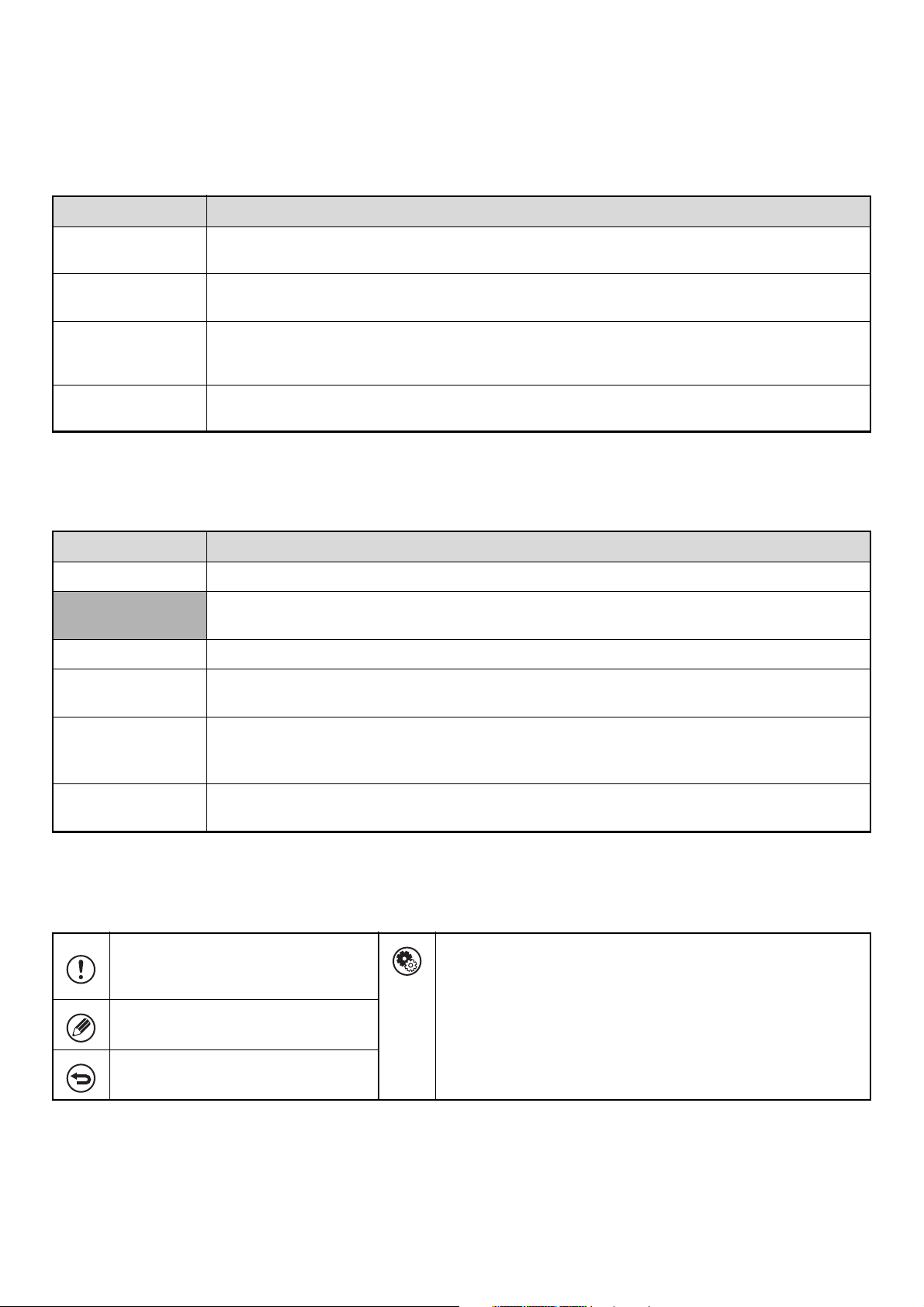
5
MANUALS PROVIDED WITH THE MACHINE
Printed manuals and manuals stored in PDF format on the machine's hard drive are provided with the machine. When
using the machine, read the appropriate manual for the feature you are using.
Printed manuals
Operation manuals in PDF format
The manuals in PDF format provide detailed explanations of the procedures for using the machine in each mode. To
view the PDF manuals, download them from the hard drive in the machine. The procedure for downloading the manuals
is explained in "How to download the manuals in PDF format" in the Quick Start Guide.
Icons used in the manuals
The icons in the manuals indicate the following types of information:
Manual name Contents
Safety Guide
This manual contains instructions for using the machine safely and lists the specifications of the machine
and its peripheral devices.
Software Setup
Guide
This manual explains how to install and configure the software that is required to use the printer function
and other functions of the machine that are used from a computer.
Quick Start Guide
This manual provides easy-to-understand explanations of all the functions of the machine in a single
volume.
Detailed explanations of each of the functions can be found in the manuals in PDF format.
Maintenance Guide
This manual explains maintenance procedures such as how to replace supplies and remove paper
misfeeds.
Manual name Contents
User's Guide This manual explains the basic procedures for using the machine, such as how to load paper.
Copier Guide
(This manual)
This manual provides detailed explanations of the procedures for using the copy function.
Printer Guide This manual provides detailed explanations of the procedures for using the print function.
Image Send Guide
This manual provides detailed explanations of the procedures for using the image send function (scan,
USB memory scan, Internet fax, fax, and data entry).
Document Filing
Guide
This manual provides detailed explanations of the procedures for using the document filing function. The
document filing function allows you to save the document data of a copy or fax job, or the data of a print
job, as a file on the machine's hard drive. The file can be called up as needed.
Administrator's
Guide
This manual explains the settings and functions that are used to manage and control the machine, such
as the system settings that require administrator rights.
This alerts you to a situation where
there is a risk of machine damage or
failure.
This indicates the name of a system setting and provides a brief
explanation of the setting.
When "System Settings:" appears:
A general setting is explained.
When "System Settings (Administrator):" appears:
A setting that can only be configured by an administrator is
explained. For detailed information on each system setting, see
the Administrator's Guide.
This provides a supplemental
explanation of a function or procedure.
This explains how to cancel or correct
an operation.
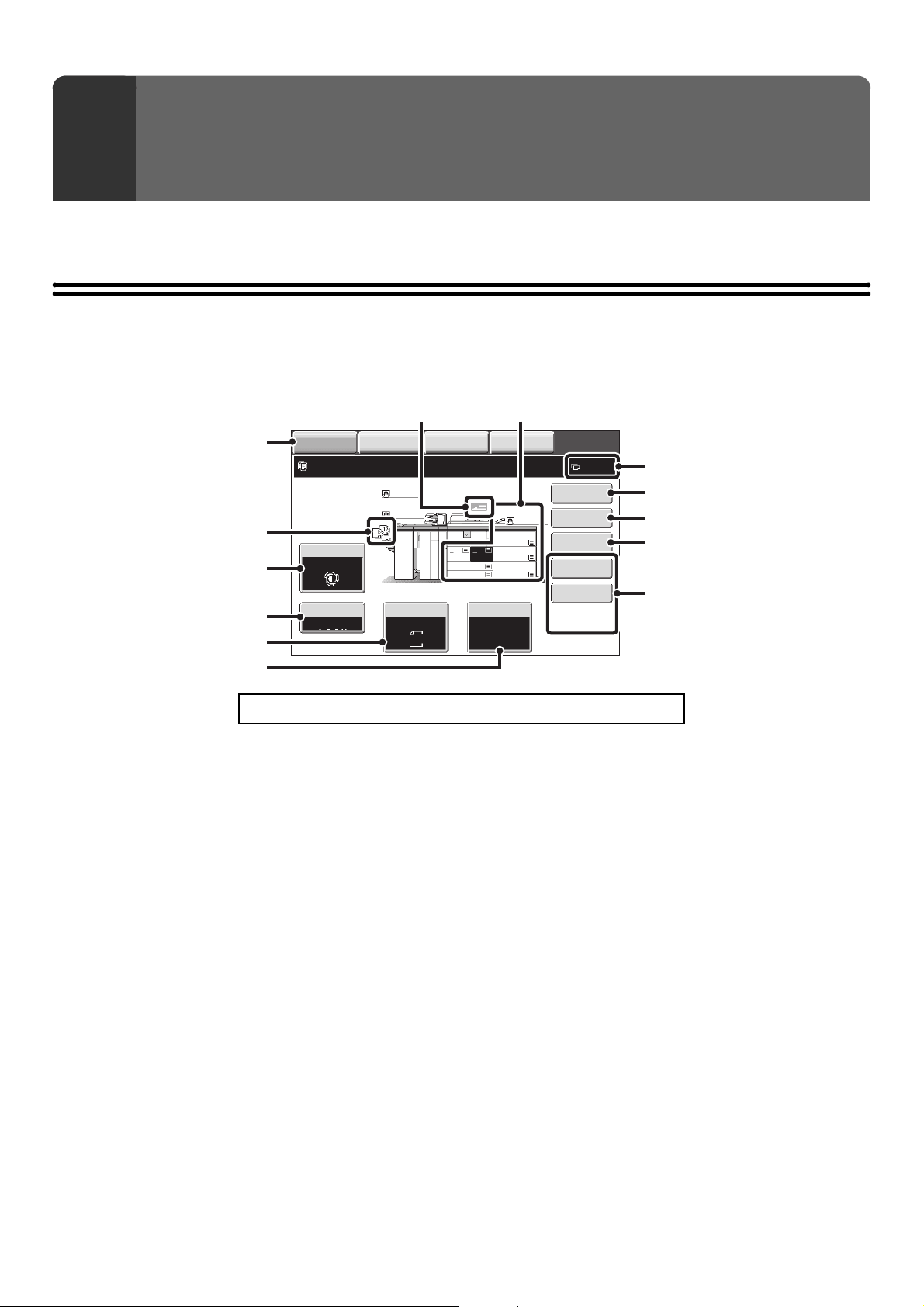
6
This section provides information that you should know before using the machine as a copier.
BASE SCREEN OF COPY MODE
Touch the [COPY] key in the touch panel to open the base screen of copy mode.
The base screen shows messages and keys necessary for copying, and settings that have been selected.
(1) Mode Select keys
Touch this key to change modes.
If you wish to switch to copy mode, touch the [COPY]
key.
(2) Output display
When one or more output functions such as sort, group,
staple sort, or saddle stitch have been selected, this
shows the icons of the selected functions.
☞ OUTPUT (page 34)
(3) [Exposure] key
This shows the current copy exposure and original type
settings. Touch this key to change the exposure or
original type setting.
☞ CHANGING THE EXPOSURE AND ORIGINAL
IMAGE TYPE (page 24)
(4) [Copy Ratio] key
This shows the current copy ratio. Touch this key to
adjust the copy ratio.
☞ REDUCTION/ENLARGEMENT/ZOOM (page 26)
(5) [Original] key
Touch this key to enter the original size manually.
When an original is placed, the detected original size is
displayed. If the original size is set manually, the set size
appears.
☞ ORIGINAL SIZES (page 30)
(6) [Paper Select] key
Touch this key to change the paper (tray) that is used.
The tray, paper size, and paper type will appear. Trays 1
to 7 can also be touched in the paper size display to open
the same screen.
☞ PAPER TRAYS (page 14)
(7) Original feed display
This appears when an original is inserted in the
automatic document feeder.
1
BEFORE USING THE MACHINE
AS A COPIER
Click a key in the screen to jump to an explanation of the key.
IMAGE SEND
DOCUMENT
FILING
COPY
Special Modes
Plain
2-Sided Copy
Output
File
Quick File
Ready to scan for copy.
Copy Ratio
0
1.
2.
7.
8½x11
8½x11
Original Paper Select
Auto
8½x11
Plain
Auto
8½x11
Exposure
Auto
8½x14
4.
11x17
11x17
6.
11x17
5.
11x17
3.
8½x11
100%
MANUAL
FINISHING
Plain
Plain
(8)(7)
(6)
(1)
(3)
(4)
(5)
(9)
(13)
(10)
(11)
(12)
(2)
7
(8) Paper select display
This shows the size of paper loaded in each tray.
For the bypass tray, the paper type appears above the
paper size.
The selected tray is highlighted.
The approximate amount of paper in each tray is
indicated by . Trays 1 to 7 can be touched to open
the same screen as when the [Paper Select] key is
touched.
☞ PAPER TRAYS (page 14)
(9) Number of copies display
This shows the number of copies set.
(10) [Special Modes] key
Touch this key to select special modes such as Margin
Shift, Edge Erase, and Dual Page Copy.
☞ SPECIAL MODES (page 43)
(11) [2-Sided Copy] key
Touch this key to select the 2-sided copying function.
☞ AUTOMATIC 2-SIDED COPYING (page 19)
(12) [Output] key
Touch this to select an output function such as sort,
group, offset, staple sort, saddle stitch, punch, or paper
folding.
☞ OUTPUT (page 34)
(13) Customized keys
The keys that appear here can be changed to show
settings or functions that you prefer. The following keys
appear by factory default:
☞ Customizing displayed keys (page 8)
[File] key, [Quick File] key
Touch one of these keys to use the File function or Quick
File function of document filing mode. These are the
same [File] and [Quick File] keys that appear when the
[Special Modes] key is touched. For information on the
document filing function, see the "Document Filing
Guide".
The screen explained in this section appears when a finisher, punch module, saddle unit, folding unit, inserter, large capacity
trays, and bypass tray are installed. The image will vary depending on the equipment installed.
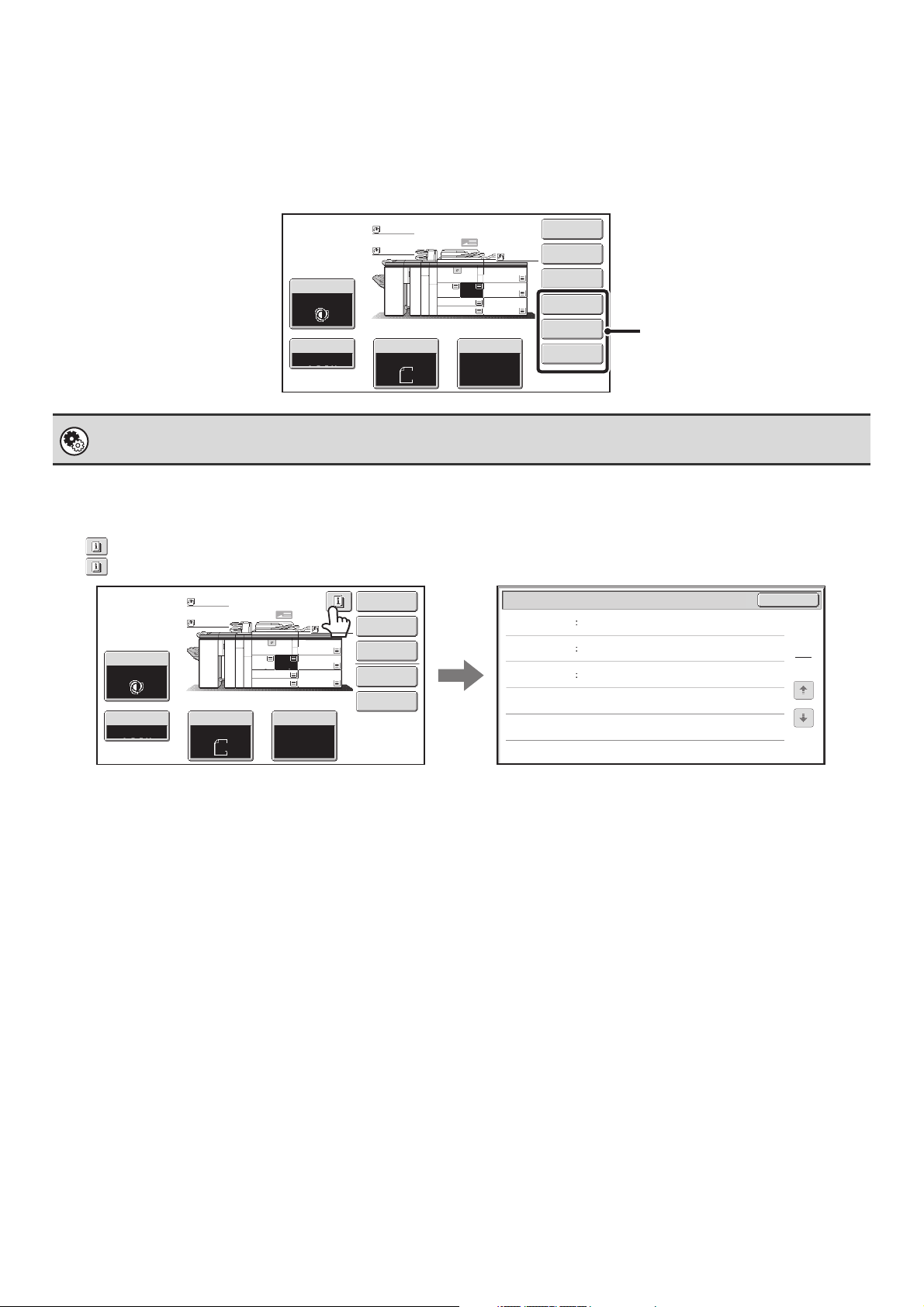
8
Customizing displayed keys
Special mode keys and other keys can be displayed in the base screen. By assigning frequently used functions to these
keys, you can access the functions with a single touch. To change the function that is assigned to a key, use "Customize
Key Setting" in the Web pages.
When "Erase", "Margin Shift", and "Pamphlet Copy" are assigned to the customized keys
Checking what special modes are selected
The key appears in the base screen when one or more special modes are selected.
The key can be touched to display the selected special modes. To close the screen, touch the [OK] key.
System Settings (Administrator): Customize Key Setting
Registration is performed in [System Settings] - [Operation Settings] - "Customize Key Setting" in the Web page menu.
Special Modes
Plain
2-Sided Copy
Output
Erase
Margin Shift
Pamphlet Copy
Copy Ratio
1.
2.
7.
8½x11
8½x11
Original Paper Select
Auto
8½x11
Plain
Auto
8½x11
Exposure
Auto
11x17
6.
11x17
5.
11x17
8½x11
100%
8½x14
4.
11x17
3.
Plain
Plain
These 3 keys can be changed
as desired.
OK
1
1
Function Review
Margin Shift
Erase
Shift:Right
Front:1/2inch/Back:1/2inch
Edge:1/2inch
Center:1/2inch
Covers/Inserts
Front:2-Sided/Back:Insert
Insertion A:10 Page/B:10 Page
Special Modes
Plain
2-Sided Copy
Output
File
Quick File
Copy Ratio
1.
2.
7.
8½x11
8½x11
Original Paper Select
Auto
8½x11
Plain
Auto
8½x11
Exposure
Auto
8½x14
4.
11x17
11x17
6.
11x17
5.
11x17
3.
8½x11
100%
Plain
Plain
9
COPYING SEQUENCE
This section explains the basic procedure for copying. Select settings in the order shown below to ensure that the copy
operation takes place smoothly.
For detailed procedures for selecting the settings, see the explanation of each setting in this manual.
Place the original.
Place the original in the document feeder tray of the automatic
document feeder, or on the document glass.
* Depending on the copy functions used, there are also cases
where functions are selected before the original is placed.
Basic copy settings
Select the basic copy settings.
The main settings are as follows:
• Exposure and original type
☞CHANGING THE
EXPOSURE AND ORIGINAL IMAGE TYPE (page 24)
• Copy ratio
☞REDUCTION/ENLARGEMENT/ZOOM
(page 26)
• Original size
☞ORIGINAL SIZES (page 30)
• Paper Settings
☞PAPER TRAYS (page 14)
2-sided copy settings
Select settings as needed for 2-sided copying and 2-sided
scanning of the original.
☞ AUTOMATIC 2-SIDED COPYING (page 19)
Special Modes
Plain
2-Sided Copy
Output
File
Quick File
Copy Ratio
1.
2.
7.
8½x11
8½x11
Original Paper Select
Auto
8½x11
Plain
Auto
8½x11
Exposure
Auto
8½x14
4.
11x17
11x17
6.
11x17
5.
11x17
3.
8½x11
100%
Plain
Plain
OK
2-Sided Copy
10
Output settings
Select copy output settings.
The main settings are as follows:
•Sort mode
☞SORT MODE (page 35)
• Group mode
☞GROUP MODE (page 35)
• Offset mode
☞OFFSET FUNCTION (page 35)
• Staple sort mode
☞STAPLE SORT FUNCTION / SADDLE STITCH
FUNCTION (page 36)
• Saddle stitch function
☞STAPLE SORT FUNCTION / SADDLE STITCH
FUNCTION (page 36)
• Punch function
☞PUNCH FUNCTION (page 38)
• Paper folding function
☞PAPER FOLDING FUNCTION
(page 39)
Special mode settings
Select special modes such as "Margin Shift" and "Erase".
☞ 3. SPECIAL MODES (page 43)
Number of copies (sets) setting
Set the number of copies (number of sets).
OK
Output
Sort
Fold
2 Hole
Punch
3 Hole
Punch
Offset
Offset Tray
Top Tray
Staple
Sort
Group
Saddle
Stitch
Special Modes
1
2
Card Shot
Multi Shot
OK
Dual Page
Copy
Tandem
Copy
Tab Copy
Transparency
Inserts
Erase
Job
Build
Book Copy
Covers/Inserts
Margin Shift
Pamphlet Copy
7
Plain
8½x11
Special Modes
2-Sided Copy
5.
11
Start copying.
Start scanning the original(s) and making copies.
• When one or more special modes are selected, the key appears in the base screen. Touch the key to display a
list of the selected special modes. This lets you check what special modes are selected and the settings of each mode.
☞ Checking what special modes are selected (page 8)
• To store a copy job using the document filing function, select copy settings and then touch the [File] key or the [Quick File]
key. For more information on the document filing function, see the Document Filing Guide.
To cancel all settings, press the [CLEAR ALL] key ( ).
When the [CLEAR ALL] key ( ) is pressed, all settings selected to that point are cleared and you will return to the base
screen.
To stop scanning of the original and copying, press the [STOP] key ( ).
When the [STOP] key ( ) is pressed, a message will appear asking you if you want to cancel the job. Touch the [Yes] key
in the message screen.
Start copying.
12
ORIGINALS
CHECKING THE ORIGINAL SIZE
When [Auto] appears in the [Original] key, the size of the placed original is automatically detected. The machine automatically
detects the original size when an original is placed and displays the size in the [Original] key in the base screen.
Example of base screen
The original size is displayed.
Standard sizes
Standard sizes are sizes that the machine can automatically detect. The standard sizes are set in "Original Size
Detector Setting" in the system settings (administrator). The factory default setting is "Inch-1".
List of original size detector settings
(A) "Auto" appears when the automatic original detection function
is operating.
(B) The original size is displayed. An icon shows the orientation of
the original.
Special Modes
Plain
2-Sided Copy
Output
File
Quick File
Copy Ratio
1.
2.
7.
8½x11
8½x11
Original Paper Select
Auto
8½x11
Plain
Auto
8½x11
Exposure
Auto
8½x14
4.
11x17
11x17
6.
11x17
5.
11x17
3.
8½x11
100%
Plain
Plain
(B)
(A)
Selections
Standard sizes (detected original sizes)
Document glass
Document feeder tray
(automatic document feeder)
INCH-1 11" x 17", 8-1/2" x 14", 8-1/2" x 11", 8-1/2" x 11"R,
5-1/2" x 8-1/2"
11" x 17", 8-1/2" x 14", 8-1/2" x 11", 8-1/2" x 11"R,
5-1/2" x 8-1/2", 5-1/2" x 8-1/2"R, A3, B4, A4, B5, B5R
INCH-2 11" x 17", 8-1/2"
x 13"
(216mm x 330mm
)
,
8-1/2" x 11", 8-1/2" x 11"R, 5-1/2" x 8-1/2"
11" x 17", 8-1/2" x 13" (216mm x 330mm),
8-1/2" x 11", 8-1/2" x 11"R, 5-1/2" x 8-1/2",
5-1/2" x 8-1/2"R, A3, B4, A4, B5, B5R
INCH-3 11" x 17", 8-1/2" x 13-2/5" (216mm x 340mm),
8-1/2" x 11", 8-1/2" x 11"R, 5-1/2" x 8-1/2"
11" x 17", 8-1/2" x 13-2/5" (216mm x 340mm),
8-1/2" x 11", 8-1/2" x 11"R, 5-1/2" x 8-1/2",
5-1/2" x 8-1/2"R, A3, B4, A4, B5, B5R
AB-1 A3, A4, A4R, A5, B4, B5, B5R A3, A4, A4R, A5, A5R, B4, B5, B5R, 11" x 17",
8-1/2" x 14", 8-1/2" x 11"
AB-2 A3, A4, A4R, A5, B5, B5R, 8-1/2" x 13"
(216mm x 330mm)
A3, A4, A4R, A5, A5R, B4, B5, B5R, 11" x 17",
8-1/2" x 11", 8-1/2"
x 13"
(216mm x 330mm
)
AB-3 A3, A4, A4R, A5, B4, 8K, 16K, 16KR
A3, A4, A4R, A5, A5R, B4, B5, B5R, 8K, 16K, 16KR,
11" x 17", 8-1/2" x 11", 8-1/2" x 13" (216mm x 330mm)
AB-4 A3, A4, A4R, A5, B5, B5R, 8-1/2" x 13-2/5"
(216mm x 340mm)
A3, A4, A4R, A5, A5R, B4, B5, B5R, 11" x 17",
8-1/2" x 11", 8-1/2" x 13-2/5" (216mm x 340mm)
• When the automatic original detection function is operating and the original is a non-standard size (an AB size or special
size), the closest standard size may be displayed or the original size may not appear. In this event, manually set the
correct original size.
☞ SPECIFYING THE ORIGINAL SIZE (page 30)
• When placing a non-standard size original on the document glass, you can make it easier for the size to be detected by
placing a blank sheet of 8-1/2" x 11 (A4), 5-1/2" x 8-1/2" (B5), or other standard size of paper on top of the original.
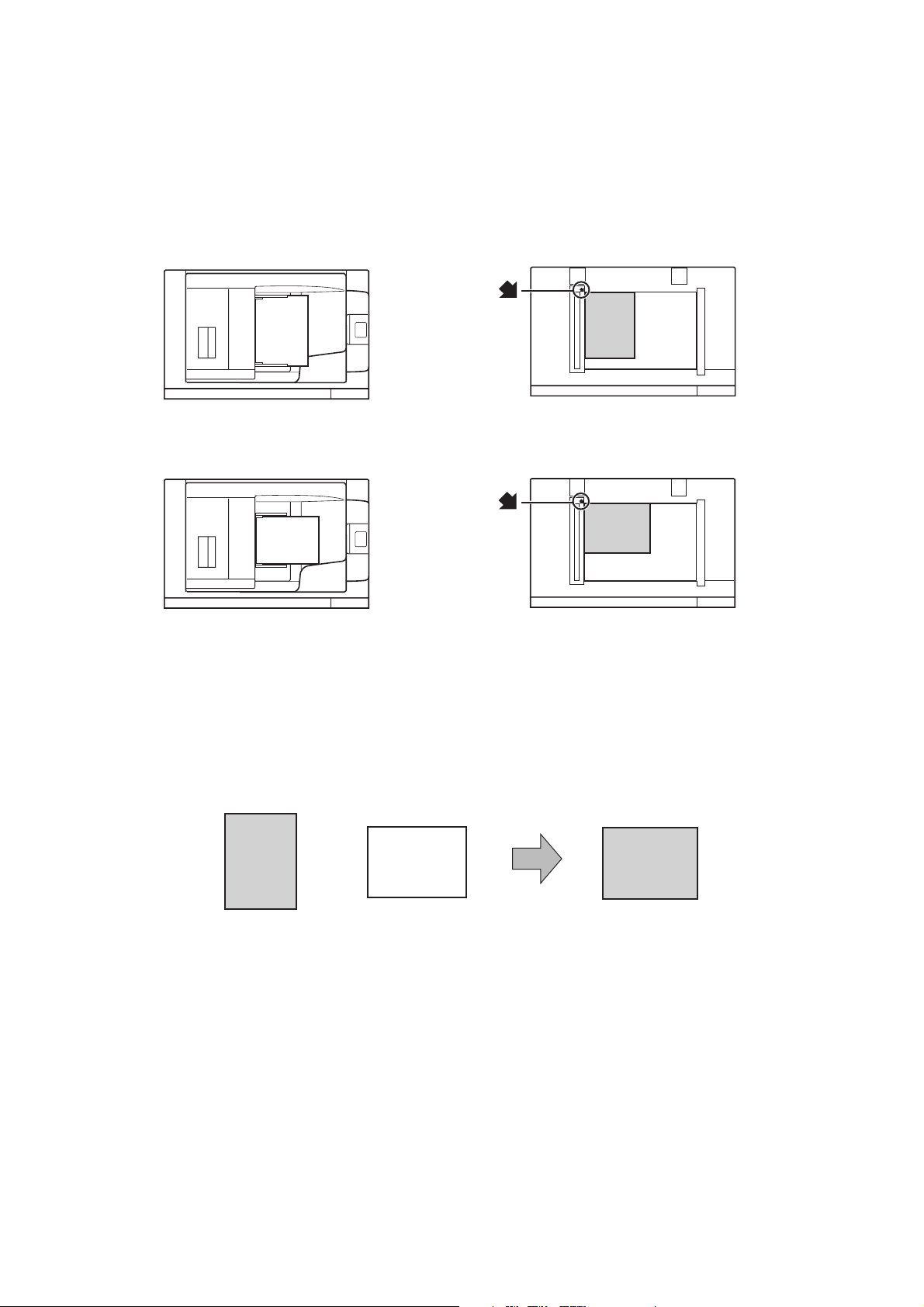
13
Standard original placement orientations
Place originals in the document feeder tray or on the document glass so that the top and bottom of the original are
oriented as shown in the illustration. If the original is not oriented correctly and a function such as stapling is selected,
the staple positions may not be correct. For more information on placing the original, see "3. ORIGINALS" in the User's
Guide.
[Example 1]
[Example 2]
Automatic copy image rotation (Rotation Copy)
If the orientation of the original and paper are different, the original image will be automatically rotated 90 degrees to
match the paper. (When an image is rotated, a message is displayed.)
[Example]
This function operates in both auto paper selection mode and auto image mode. Rotation can be disabled using
"Rotation Copy Setting" in the System Settings (Administrator).
A
B
A
B
Document glassDocument feeder tray
Place the originals
with the corners
aligned here.
A
B
A
B
Document glassDocument feeder Document feeder tray
Place the originals
with the corners
aligned here.
A
B
A
B
The image is rotated
90 degrees
Orientation of
placed original
Orientation
of paper
The original seen
from behind
The paper seen
from behind
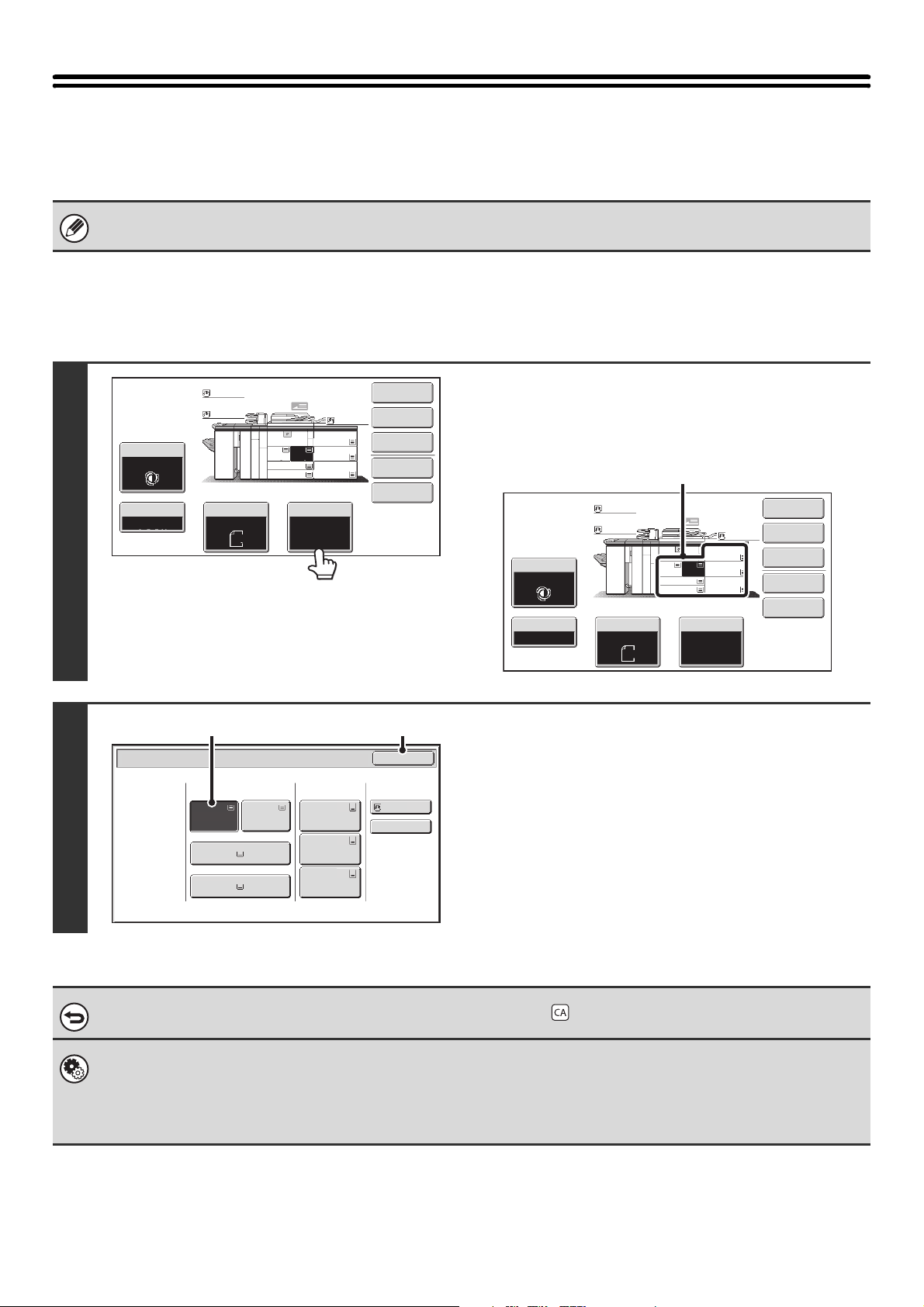
14
PAPER TRAYS
The machine is set to automatically select a tray containing plain or recycled paper of the same size as the original
(automatic paper selection).
Selecting the paper tray manually
If the correct paper size is not selected or you wish to change the paper size, you can select the paper tray manually.
If the selected tray runs out of paper during a copy job and there is another tray that has the same size and type of paper,
that tray will be automatically selected and the copy job will continue.
1
Touch the [Paper Select] key.
Open the paper tray settings screen.
You can also touch the paper size display (A) to open the paper
tray settings.
2
Select the tray that you want to use.
(1) Touch the key of the desired tray.
(2) Touch the [OK] key.
You will return to the base screen and the selected tray
will be highlighted.
To return to automatic paper tray selection, press the [CLEAR ALL] key ( ).
System Settings (Administrator): Paper Tray
Use this setting to change the tray that is selected by default.
System Settings (Administrator): Auto Selection Setting of Tray that is Supplied the Paper
If you added paper to a tray, the tray with the added paper will be automatically selected and the automatic paper tray
selection function will not operate.
Special Modes
Plain
2-Sided Copy
Output
File
Quick File
Copy Ratio
1.
2.
7.
8½x11
8½x11
Original Paper Select
Auto
8½x11
Plain
Auto
8½x11
Exposure
Auto
8½x14
4.
11x17
11x17
6.
11x17
5.
11x17
3.
8½x11
100%
Plain
Plain
Special Modes
Plain
2-Sided Copy
Output
File
Quick File
Copy Ratio
1.
2.
7.
8½x11
8½x11
Original Paper Select
Auto
8½x11
Plain
Auto
8½x11
Exposure
Auto
8½x14
4.
11x17
11x17
6.
11x17
5.
11x17
3.
8½x11
100%
Plain
Plain
(A)
Paper Select
Paper Tray
Bypass Tray
Large Capacity
Tray
OK
Plain
Plain
Plain
2. 8½x11 8½x11
Plain
Plain
5. 11x17
Plain
6. 11x17
Plain
7. 11x17
3. 11x17
4. 8½x14
1. 8½x11
Plain
(2)(1)
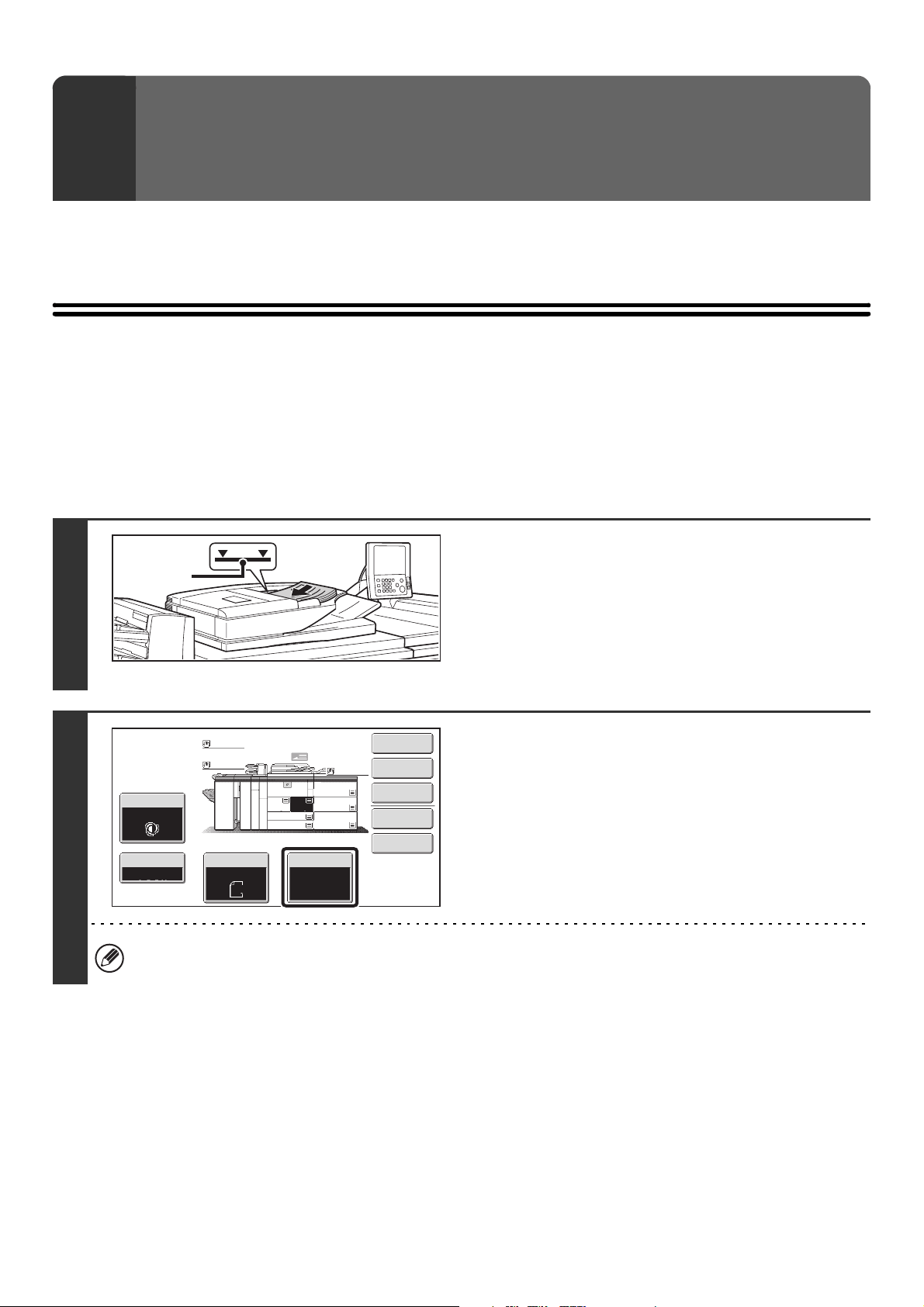
15
This chapter explains the basic procedures for making copies, including selection of the copy ratio and other copy
settings.
MAKING COPIES
USING THE AUTOMATIC DOCUMENT FEEDER TO
MAKE COPIES
This section explains how to make copies (1-sided copies of 1-sided originals) using the automatic document feeder.
2
BASIC PROCEDURE FOR
MAKING COPIES
1
Place the originals face up in the
document feeder tray with the edges
aligned evenly.
Insert the originals all the way into the document feeder tray.
Multiple originals can be placed in the document feeder tray.
The stack of originals must not be higher than the indicator line
on the tray.
2
Check the paper to be used.
Make sure that the desired paper (tray) is selected.
To change the paper (tray), touch the [Paper Select] key.
☞ PAPER TRAYS (page 14)
Depending on the size of the placed original, there may be cases where the same size of paper as the original is not
selected automatically. In this event, change the paper size manually.
Indicator
line
Special Modes
Plain
2-Sided Copy
Output
File
Quick File
Copy Ratio
1.
2.
7.
8½x11
8½x11
Original Paper Select
Auto
8½x11
Plain
Auto
8½x11
Exposure
Auto
8½x14
4.
11x17
11x17
6.
11x17
5.
11x17
3.
8½x11
100%
Plain
Plain
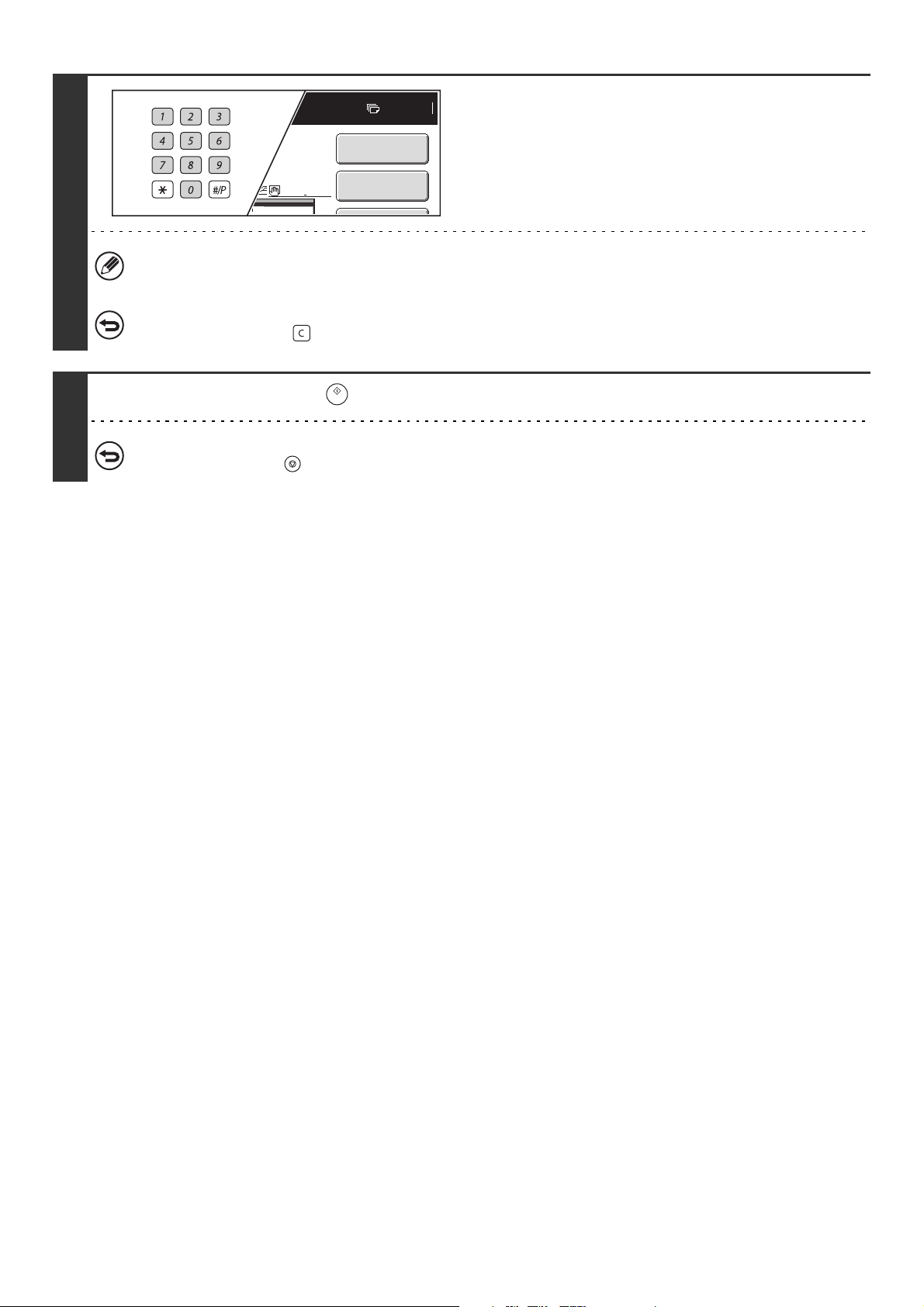
16
3
Set the number of copies (number of
sets) with the numeric keys.
• Up to 9999 copies (sets) can be set.
• A single copy can be made even if "0" appears for the number of copies.
If an incorrect number of copies is set...
Press the [CLEAR] key ( ) and then enter the correct number.
4
Press the [START] key ( ).
To cancel scanning of the original and copying...
Press the [STOP] key ( ).
7
Plain
8½x11
Special Modes
2-Sided Copy
5.
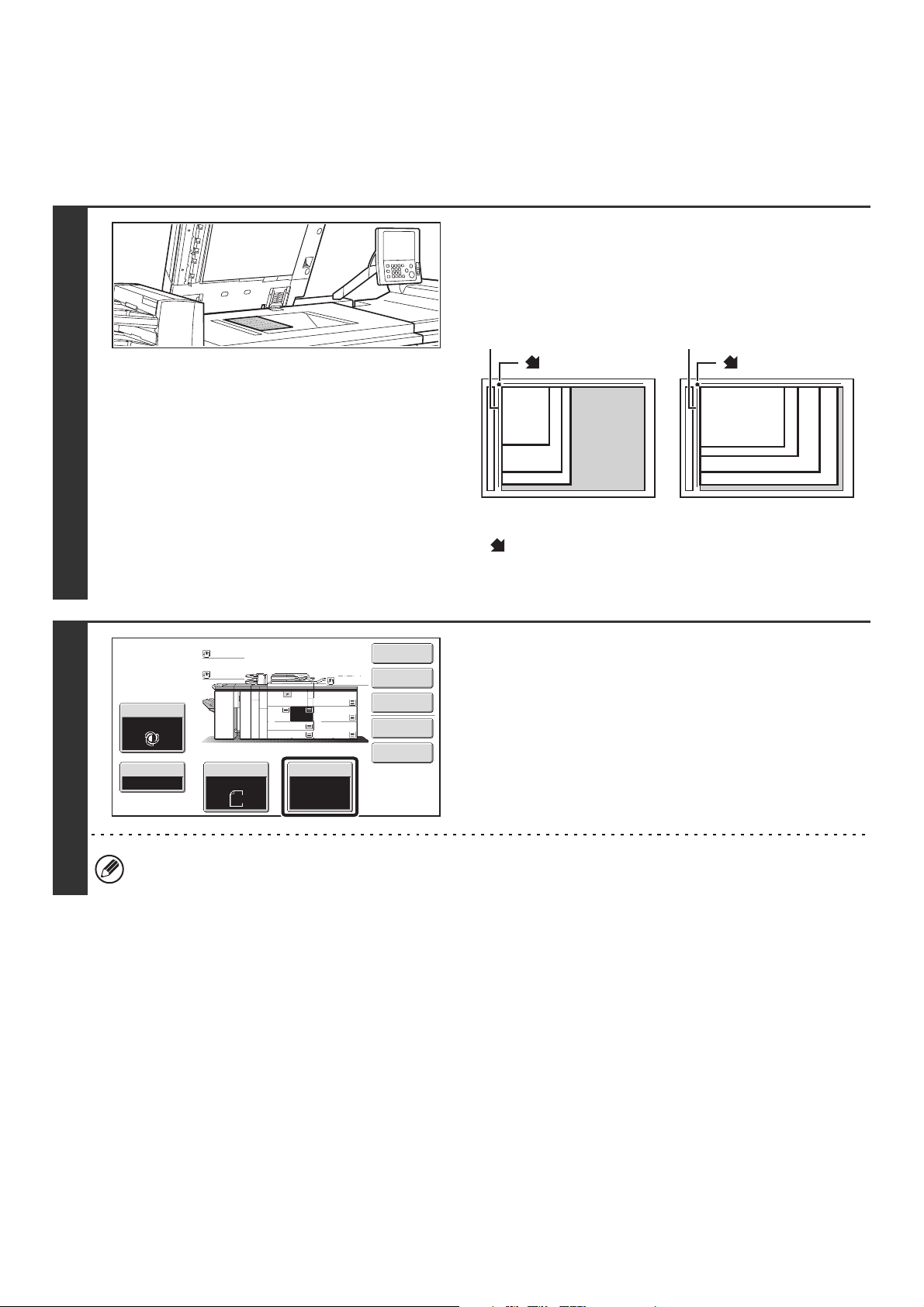
17
MAKING A COPY USING THE DOCUMENT GLASS
To make a copy of a book or other thick original that cannot be scanned with the automatic document feeder, open the
automatic document feeder and place the original on the document glass. This section explains how to make a copy
(1-sided copy of a 1-sided original) using the document glass.
1
Open the automatic document feeder,
place the original face down on the
document glass, and then gently close
the automatic document feeder.
• Align the corner of the original with the tip of the arrow mark
on the document glass scale.
• Place the original in the appropriate position for its size as
shown above.
2
Check the paper to be used.
Make sure that the desired paper (tray) is selected.
To change the paper (tray), touch the [Paper Select] key.
☞ PAPER TRAYS (page 14)
Depending on the size of the placed original, there may be cases where the same size of paper as the original is not
selected automatically. In this event, change the paper size manually.
8-1/2" x 11"R (A4R)
B5R
8-1/2" x 14" (B4)
11" x 17" (A3)
8-1/2" x 11" (A4)
5-1/2" x 8-1/2"
(A5)
B5
mark
Document glass scale
Document glass scale
mark
Special Modes
Plain
2-Sided Copy
Output
File
Quick File
Copy Ratio
1.
2.
7.
8½x11
8½x11
Original Paper Select
Auto
8½x11
Plain
Auto
8½x11
Exposure
Auto
8½x14
4.
11x17
11x17
6.
11x17
5.
11x17
3.
8½x11
100%
Plain
Plain
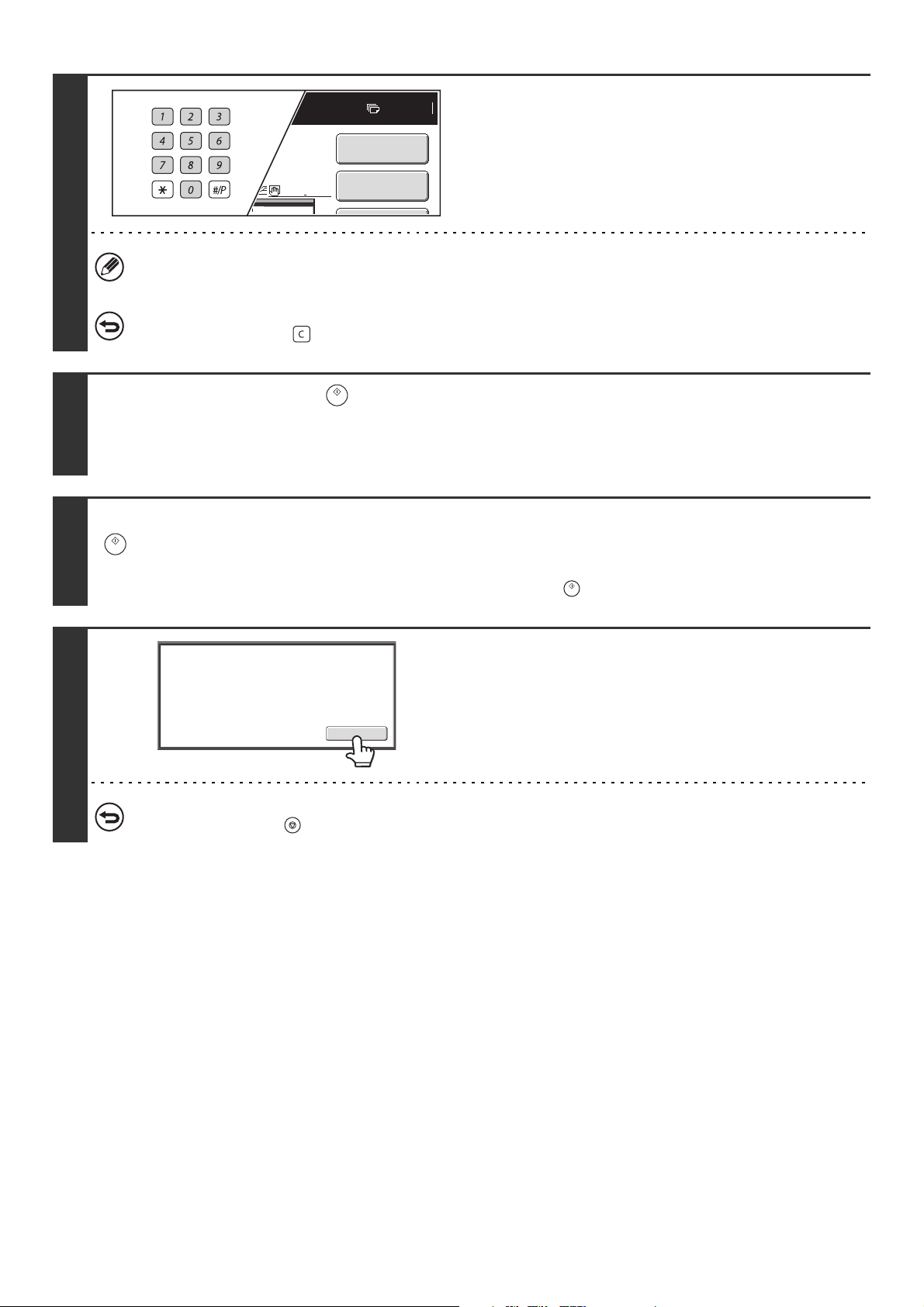
18
3
Set the number of copies (number of
sets) with the numeric keys.
• Up to 9999 copies (sets) can be set.
• A single copy can be made even if "0" appears for the number of copies.
If an incorrect number of copies is set...
Press the [CLEAR] key ( ) and then enter the correct number.
4
Press the [START] key ( ).
Normally copying will start.
Depending on the copy settings (2-sided copying, etc.), copying may not begin until all originals have been scanned. In this
case, go to the next step.
5
Remove the original and place the next original, and then press the [START] key
().
Repeat this step until all originals have been scanned.
For the second original and following originals, use the same [START] key ( ) as you did for the first original.
6
Touch the [Read-End] key.
To cancel scanning of the original and copying...
Press the [STOP] key ( ).
7
Plain
8½x11
Special Modes
2-Sided Copy
5.
Read-End
Place next original. Press [Start].
When finished, press [Read-End].
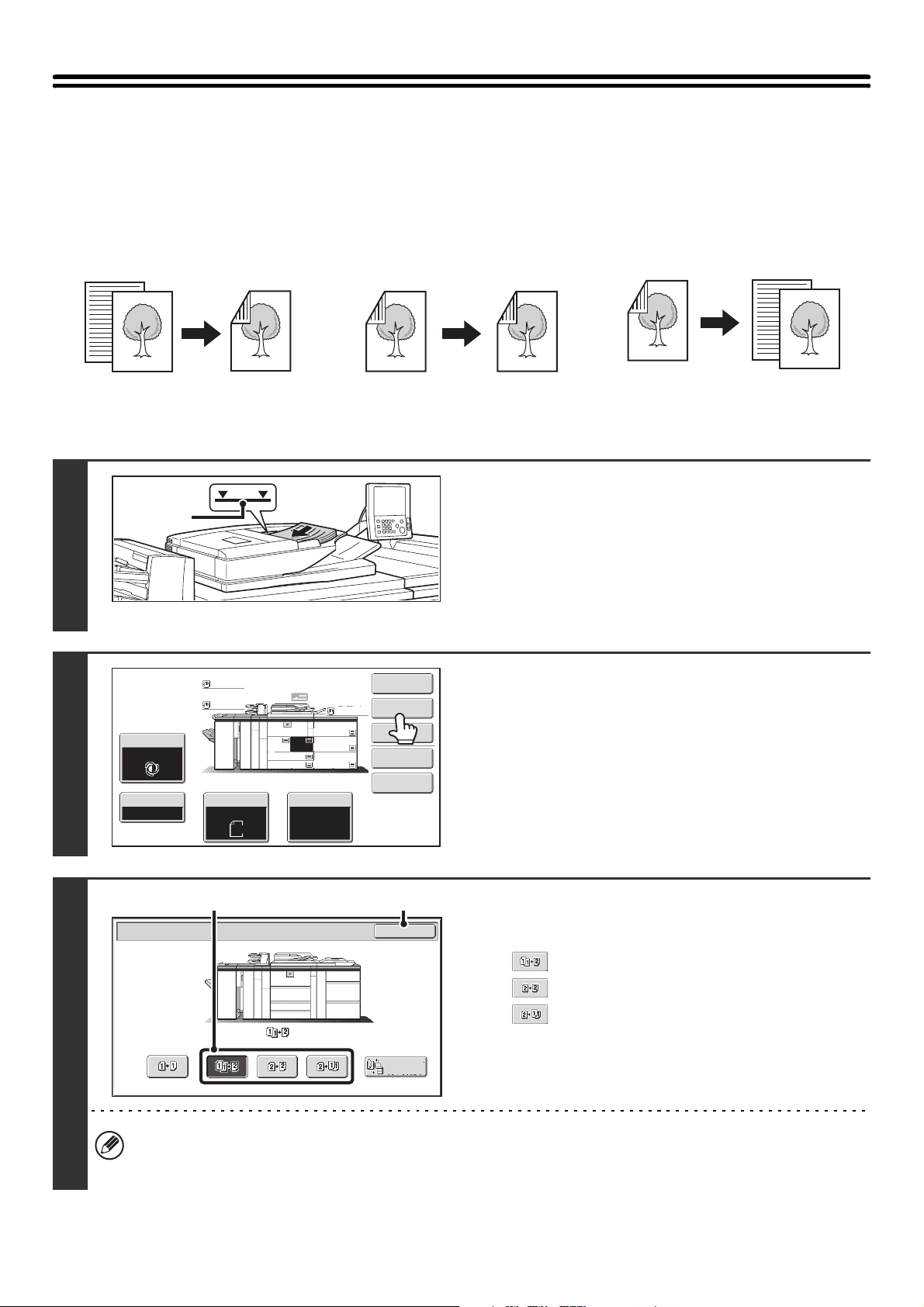
19
AUTOMATIC 2-SIDED COPYING
USING THE AUTOMATIC DOCUMENT FEEDER TO
MAKE 2-SIDED COPIES
Automatic 2-sided copying of 1-sided
originals
Automatic 2-sided copying of 2-sided
originals
1-sided copying of 2-sided originals
1
Place the originals face up in the
document feeder tray with the edges
aligned evenly.
Insert the originals all the way into the document feeder tray.
Multiple originals can be placed in the document feeder tray.
The stack of originals must not be higher than the indicator line
on the tray.
2
Touch the [2-Sided Copy] key.
3
Select the 2-sided copy mode.
(1) Touch the key of the desired mode.
: Automatic 2-sided copying of 1-sided originals
: Automatic 2-sided copying of 2-sided originals
: 1-sided copying of 2-sided originals
(2) Touch the [OK] key.
To make 2-sided copies of a 1-sided portrait original placed horizontally, or to invert the reverse side with respect to
the front side when copying a 2-sided original, touch the [Binding Change] key.
☞ Using the [Binding Change] key (page 20)
Originals
Copies
Originals
Copies
Originals
Copies
Indicator
line
Special Modes
Plain
2-Sided Copy
Output
File
Quick File
Copy Ratio
1.
2.
7.
8½x11
8½x11
Original Paper Select
Auto
8½x11
Plain
Auto
8½x11
Exposure
Auto
8½x14
4.
11x17
11x17
6.
11x17
5.
11x17
3.
8½x11
100%
Plain
Plain
OK
2-Sided Copy
Binding
Change
(1) (2)
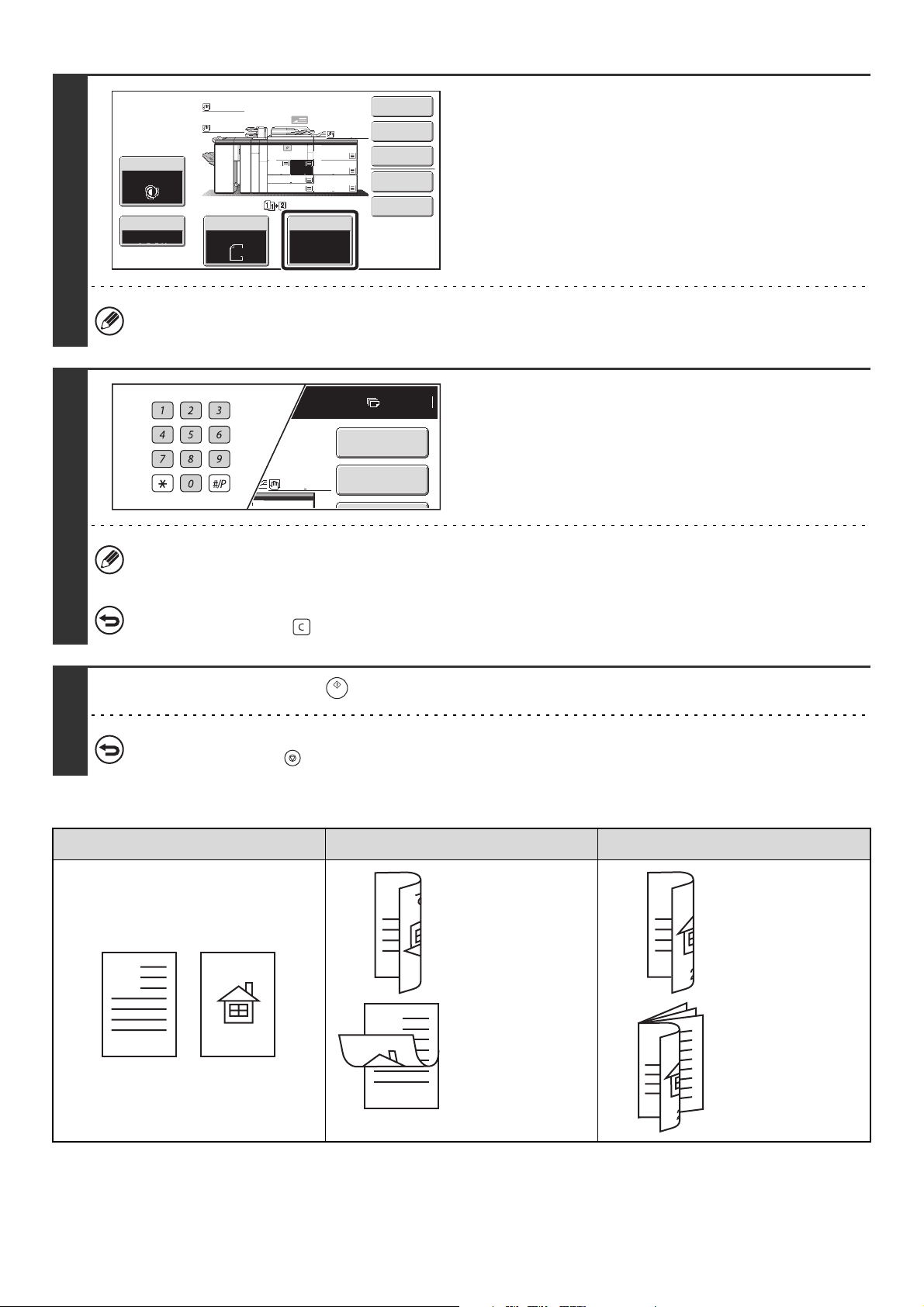
20
Using the [Binding Change] key
4
Check the paper to be used.
Make sure that the desired paper (tray) is selected.
To change the paper (tray), touch the [Paper Select] key.
☞ PAPER TRAYS (page 14)
Depending on the size of the placed original, there may be cases where the same size of paper as the original is not
selected automatically. In this event, change the paper size manually.
5
Set the number of copies (number of
sets) with the numeric keys.
• Up to 9999 copies (sets) can be set.
• If you are only making a single copy, the copy can be made with the copy number display showing "0".
If an incorrect number of copies is set...
Press the [CLEAR] key ( ) and then enter the correct number.
6
Press the [START] key ( ).
To cancel scanning of the original and copying...
Press the [STOP] key ( ).
Originals Binding Change is used Binding Change is not used
The reverse side
is upside down.
The reverse side
is not upside
down.
Select this when
the pages will be
bound into a
tablet.
Select this when
the pages will be
bound into a
booklet.
Special Modes
Plain
2-Sided Copy
Output
File
Quick File
Copy Ratio
1.
2.
7.
8½x11
8½x11
Original Paper Select
Auto
8½x11
Plain
Auto
8½x11
Exposure
Auto
8½x14
4.
11x17
11x17
6.
11x17
5.
11x17
3.
8½x11
100%
Plain
Plain
7
Plain
8½x11
Special Modes
2-Sided Copy
5.
A
12
A
A
A
3
A
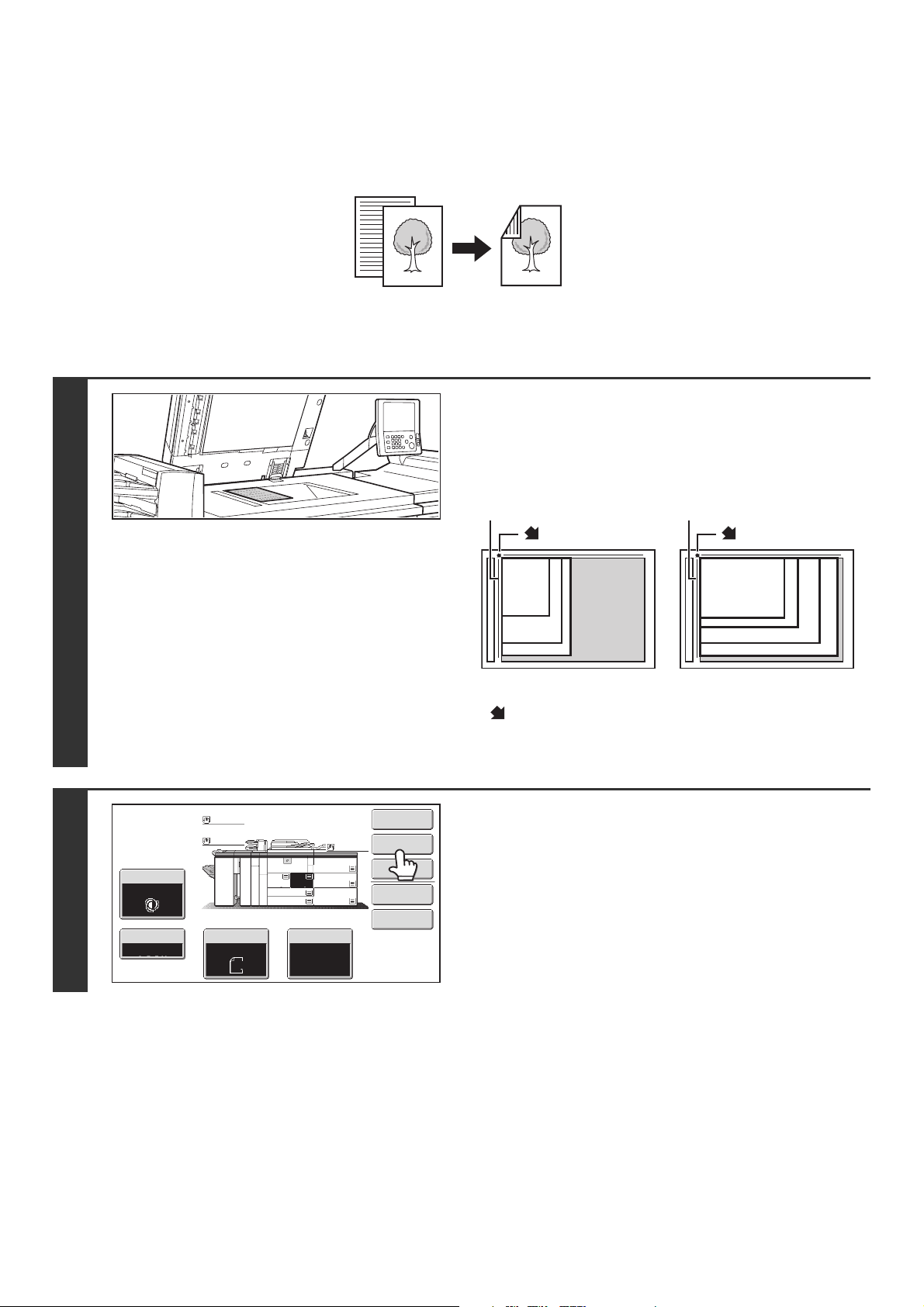
21
AUTOMATIC 2-SIDED COPYING USING THE
DOCUMENT GLASS
Automatic 2-sided copying of 1-sided
originals
1
Open the automatic document feeder,
place the original face down on the
document glass, and then gently close
the automatic document feeder.
• Align the corner of the original with the tip of the arrow mark
on the document glass scale.
• Place the original in the appropriate position for its size as
shown above.
2
Touch the [2-Sided Copy] key.
Originals
Copies
8-1/2" x 11"R (A4R)
B5R
8-1/2" x 14" (B4)
11" x 17" (A3)
8-1/2" x 11" (A4)
5-1/2" x 8-1/2"
(A5)
B5
mark
Document glass scale
Document glass scale
mark
Special Modes
Plain
2-Sided Copy
Output
File
Quick File
Copy Ratio
1.
2.
7.
8½x11
8½x11
Original Paper Select
Auto
8½x11
Plain
Auto
8½x11
Exposure
Auto
8½x14
4.
11x17
11x17
6.
11x17
5.
11x17
3.
8½x11
100%
Plain
Plain
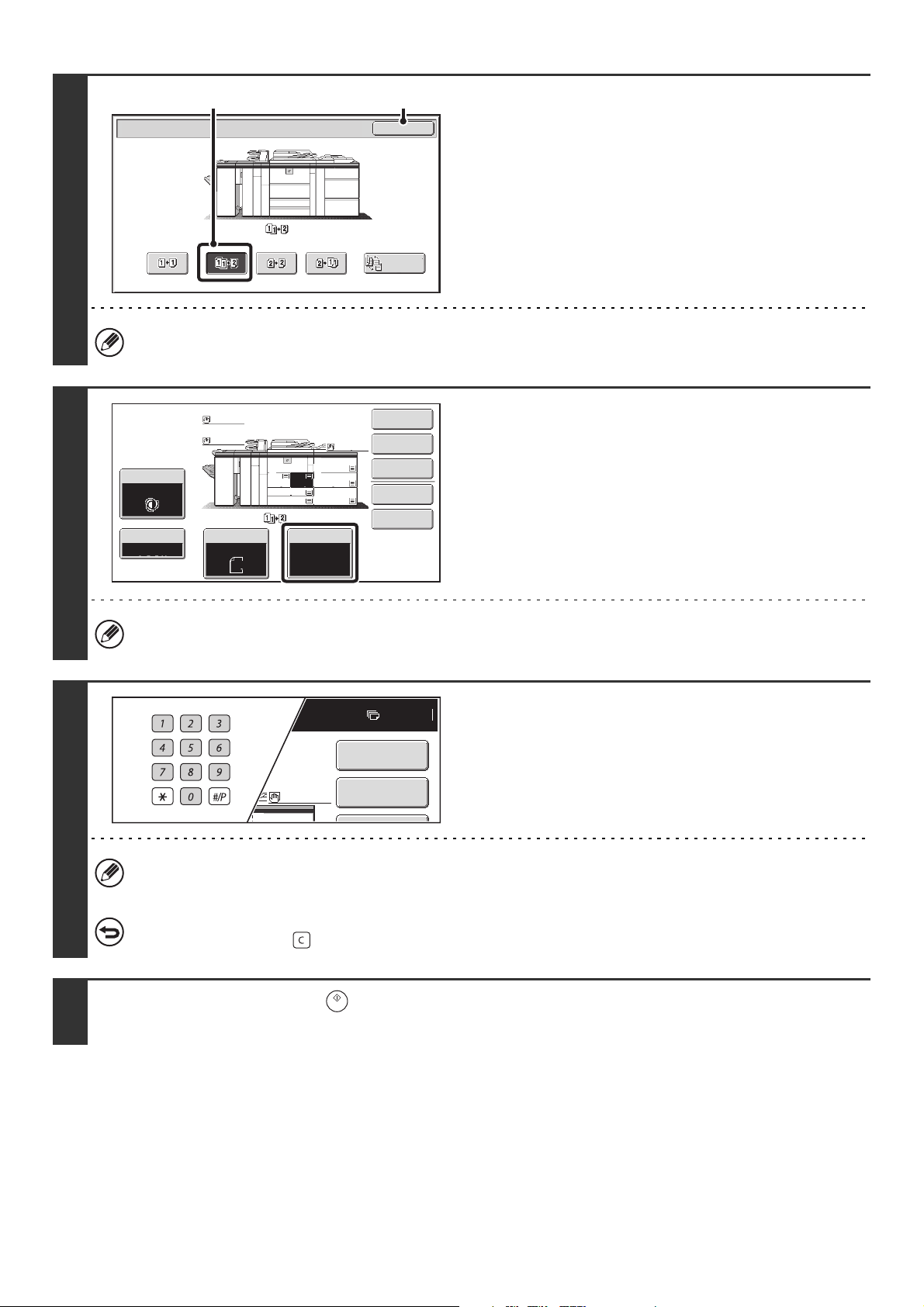
22
3
Select the 2-sided copy mode.
(1) Touch the [1-Sided to 2-Sided] key.
(2) Touch the [OK] key.
The [2-Sided to 2-Sided] key and [2-Sided to 1-Sided] key cannot be used when copying from the document glass.
4
Check the paper to be used.
Make sure that the desired paper (tray) is selected.
To change the paper (tray), touch the [Paper Select] key.
☞ PAPER TRAYS (page 14)
Depending on the size of the placed original, there may be cases where the same size of paper as the original is not
selected automatically. In this event, change the paper size manually.
5
Set the number of copies (number of
sets) with the numeric keys.
• Up to 9999 copies (sets) can be set.
• A single copy can be made even if "0" appears for the number of copies.
If an incorrect number of copies is set...
Press the [CLEAR] key ( ) and then enter the correct number.
6
Press the [START] key ( ).
Scanning begins.
OK
2-Sided Copy
Binding
Change
(1) (2)
Special Modes
Plain
2-Sided Copy
Output
File
Quick File
Copy Ratio
1.
2.
7.
8½x11
8½x11
Original Paper Select
Auto
8½x11
Plain
Auto
8½x11
Exposure
Auto
8½x14
4.
11x17
11x17
6.
11x17
5.
11x17
3.
8½x11
100%
Plain
Plain
7
Plain
8½x11
Special Modes
2-Sided Copy
5.
23
7
Remove the original and place the next original, and then press the [START] key
().
Repeat this step until all originals have been scanned.
For the second original and following originals, use the same [START] key ( ) as you did for the first original.
8
Touch the [Read-End] key.
To cancel scanning of the original and copying...
Press the [STOP] key ( ).
System Settings (Administrator): 2-Sided Copy
The default 2-sided copy mode can be changed.
Read-End
Place next original. Press [Start].
When finished, press [Read-End].
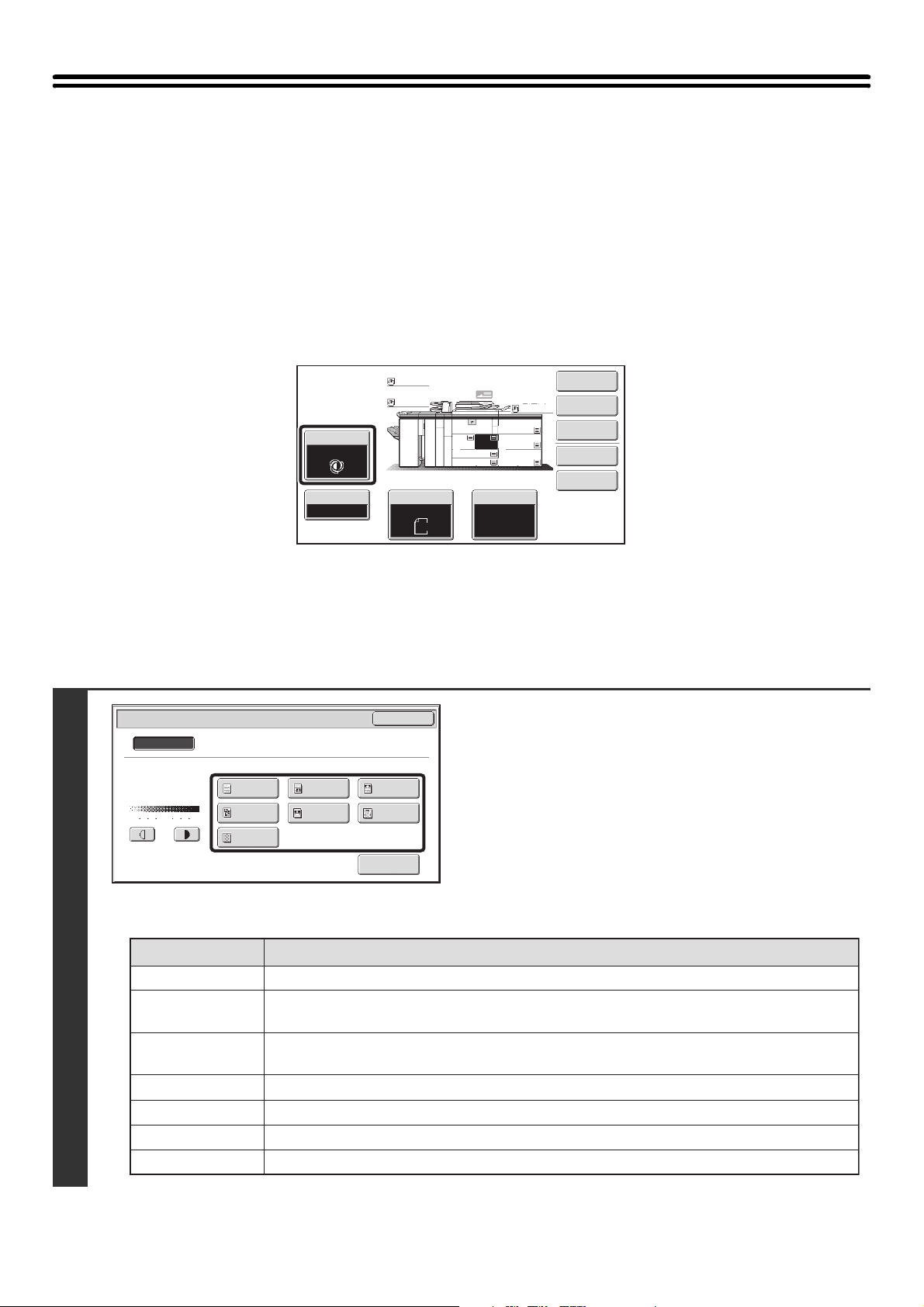
24
CHANGING THE EXPOSURE AND ORIGINAL
IMAGE TYPE
The exposure and original image type can be selected to obtain a clear copy.
AUTOMATIC ADJUSTMENT OF THE EXPOSURE AND
ORIGINAL TYPE
Automatic exposure adjustment operates by default to automatically adjust the exposure level and original type as
appropriate for the original being copied. ("Auto" is displayed.)
Automatic adjustment takes place to enable optimum copying.
SELECTING THE ORIGINAL TYPE AND MANUALLY
ADJUSTING THE EXPOSURE
If you wish to select the original type or manually adjust the exposure, touch the [Exposure] key in the base screen of
copy mode and follow the steps below.
1
Select the original image type.
Touch the appropriate original image type key for the original.
To change the resolution...
The resolution used to scan an original can be changed to
obtain a sharper copy. To set the resolution, touch the [Scan
Resolution] key .
☞ Changing the resolution (page 25)
● Original image type select keys
Special Modes
Plain
2-Sided Copy
Output
File
Quick File
Copy Ratio
1.
2.
7.
8½x11
8½x11
Original Paper Select
Auto
8½x11
Plain
Auto
8½x11
Exposure
Auto
8½x14
4.
11x17
11x17
6.
11x17
5.
11x17
3.
8½x11
100%
Plain
Plain
Exposure
OK
Manual
Original Image Type
1 3 5
Text/
Prtd.Photo
Photo
Text/Photo
Map
Text
Printed
Photo
Light
Original
Auto
Scan
Resolution
Mode Description
Tex t
Text/Prtd. Photo
Printed photo
Text/Photo
Map
Photo
Light Original
Use this mode for regular text documents.
This mode provides the best balance for copying an original which contains both text and
printed photographs, such as a magazine or catalogue.
This mode is best for copying printed photographs, such as photos in a magazine or catalogue.
This mode provides the best balance for copying an original which contains both text and
photographs, such as a text document with a photo pasted on.
This mode is best for copying the light color shading and fine text found on most maps.
Use this mode for originals with light pencil writing.
Use this mode to copy photos.

25
Changing the resolution
The resolution for scanning the original can be set separately for the automatic document feeder and the document glass.
How to select the resolution
For normal text originals, 600X300dpi produces an image that is sufficiently legible. To bring out the detail in a photo or
illustration image, or to clarify fine text, set the resolution to high resolution (600X600 dpi).
2
Adjust the exposure level.
Touch the key to make the copy darker.
Touch the key to make the copy lighter.
3
Touch the [OK] key.
1
Touch the [Scan Resolution] key and display the resolution settings screen.
2
Select the resolution.
(1) Touch the key of the desired resolution for
the automatic document feeder and for the
document glass.
(2) Touch the [OK] key.
Return to the screen of step 1 on page 24.
1 53
Exposure
OK
Manual
Text/
Prtd.Photo
Scan
Resolution
Photo
Text/Photo
Map
Text
Printed
Photo
Light
Original
Auto
Original Image Type
1 53
Exposure
Manual
Text/
Prtd.Photo
Photo
Text/Photo
Map
Text
Printed
Photo
Light
Original
Auto
Original Image Type
OK
Scan
Resolution
Scan Resolution
OK
600X400dpi
600X600dpi
600X300dpi
600X300dpi
600X400dpi
600X600dpi
Document Feeder
This setting is applied when copy ratio is set to 100%.
Document Glass
(2)(1)
If [Auto] is selected but the darkness or lightness of the image does not seem quite right...
If the image seems too light or too dark when [Auto] is selected, the exposure level can be adjusted using "Copy Exposure
Adjustment" in the system settings (administrator).
• System Settings (Administrator): Exposure Type
This is used to change the default original image type.
• System Settings (Administrator): Copy Exposure Adjustment
The exposure level used for automatic exposure adjustment can be adjusted.
• System Settings (Administrator): 600dpiX600dpi Scanning Mode for Document Feeder/Quick Scan from
Document Glass
The default resolution setting can be changed.
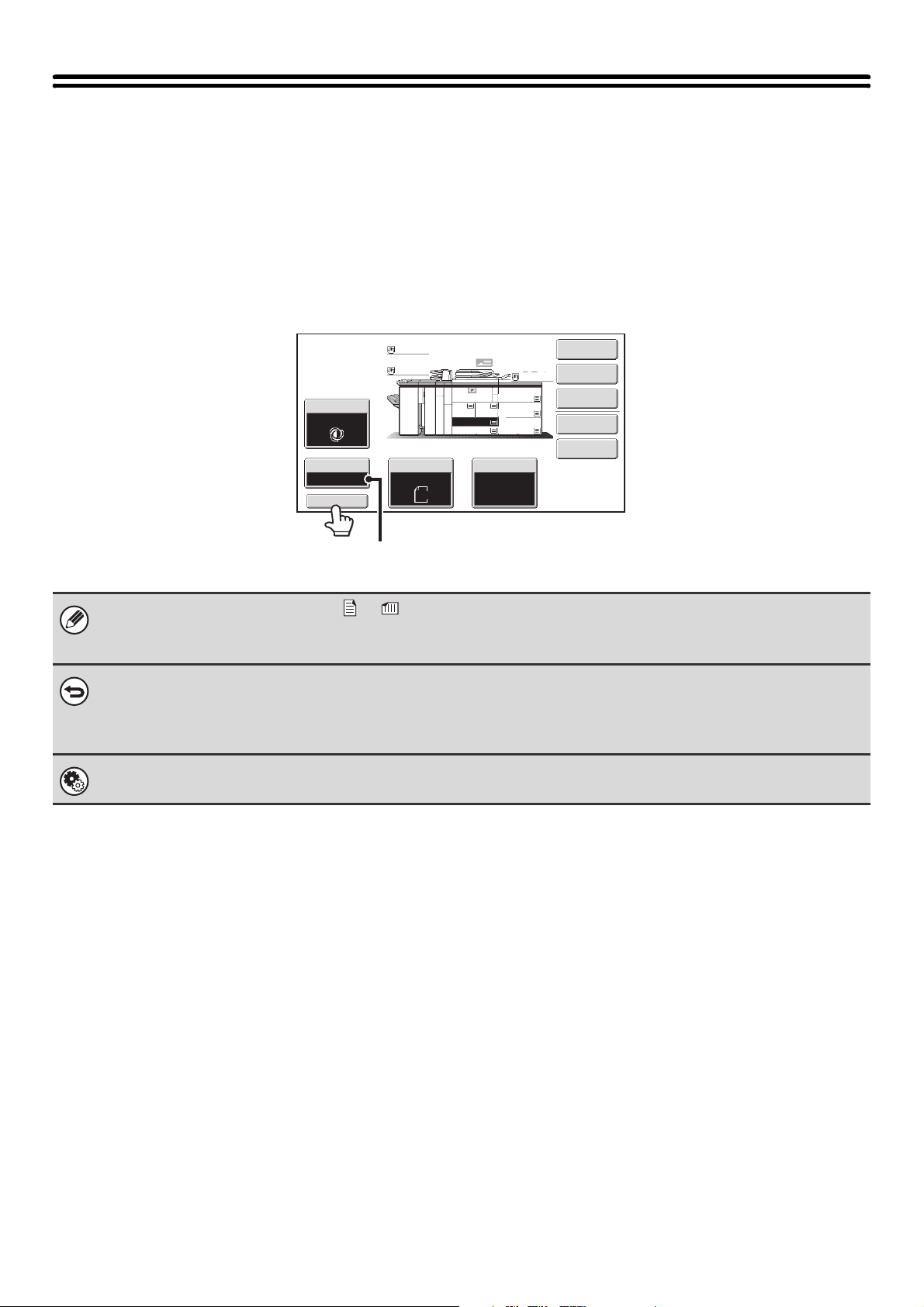
26
REDUCTION/ENLARGEMENT/ZOOM
AUTOMATIC RATIO SELECTION (Auto Image)
This section explains the automatic ratio selection function (Auto Image), which automatically selects the ratio to match
the paper size.
When the paper tray is manually changed, the [Auto Image] key appears in the base screen of copy mode. Touch the
[Auto Image] key to have the reduction or enlargement ratio automatically selected based on the original size and the
selected paper size.
First place the original and select the paper tray, and then touch the [Auto Image] key.
• If the message "Rotate original from to " is displayed, change the orientation of the original as indicated in the
message.
• For a non-standard size original, the size must be entered in order to use Auto Image.
• To cancel automatic ratio selection...
Touch the [Auto Image] key so that it is no longer highlighted.
• To return the ratio to 100%...
To return the ratio setting to 100%, touch the [Copy Ratio] key to display the ratio menu and then touch the [100%] key.
System Settings (Administrator): Copy Ratio
This is used to change the default copy ratio.
Auto Image
Special Modes
Plain
2-Sided Copy
Output
File
Quick File
Copy Ratio
1.
2.
7.
8½x11
8½x11
Original Paper Select
11x17
Plain
Auto
8½x11
Exposure
Auto
8½x14
4.
11x17
11x17
6.
11x17
5.
11x17
3.
8½x11
100%
Plain
Plain
The selected ratio will appear in the ratio display.
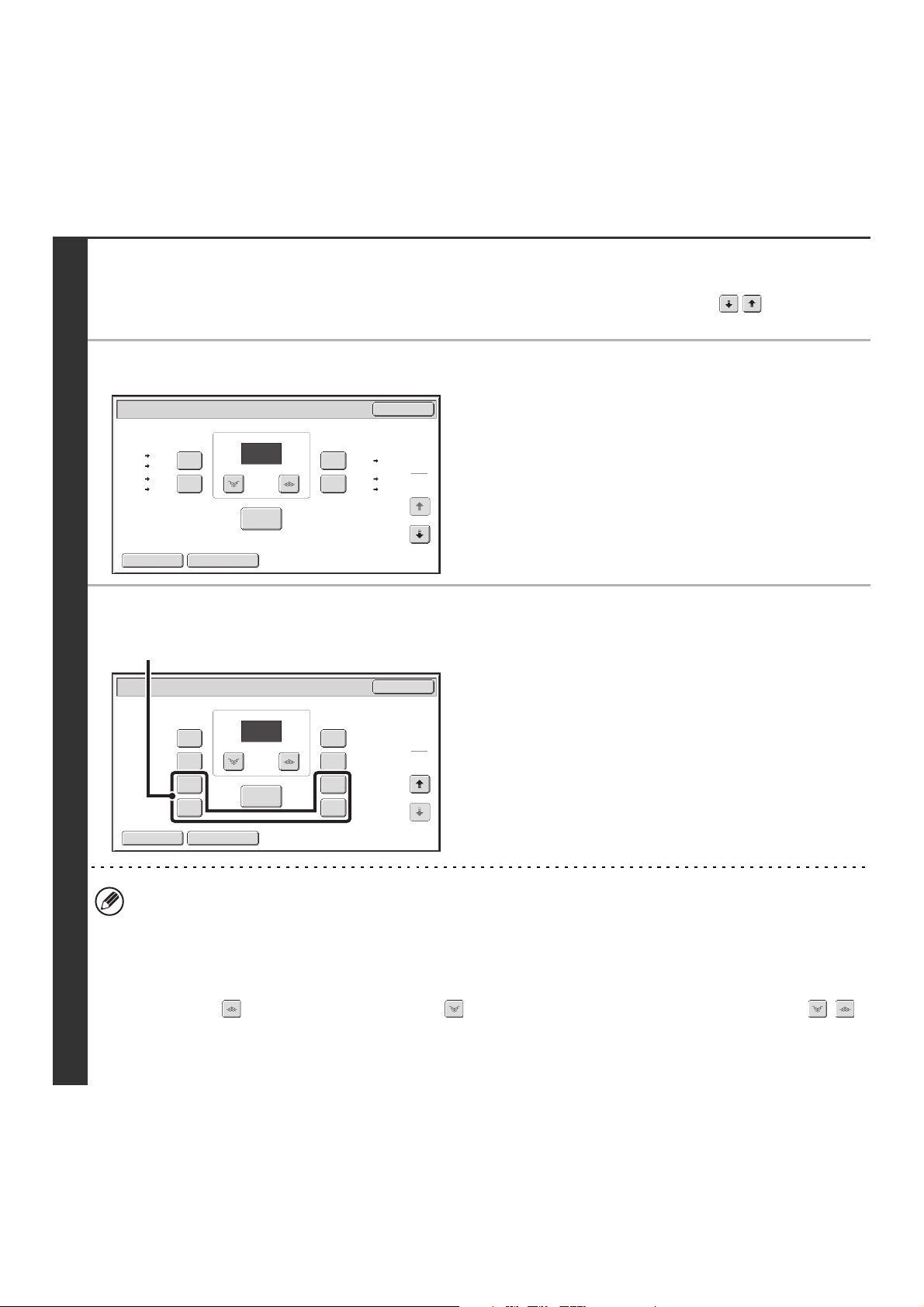
27
MANUALLY SELECTING THE RATIO (Preset
ratios/Zoom)
Touch the [Copy Ratio] key in the base screen of copy mode to select one of four preset enlargement ratios or four
preset reduction ratios (maximum 400%, minimum 25%).
In addition, the zoom keys can be used to select any ratio from 25% to 400% in increments of 1%.
1
Set the ratio.
Touch a preset ratio key and/or the zoom keys to set the ratio.
There are two setting screens. Use the keys to switch
between the screens.
● 1st screen
• Enlargement keys (2 ratios): 121% and 129%
• Reduction keys (2 ratios): 64% and 77%
• [100%] key
● 2nd screen
• Enlargement keys (2 to 4 ratios)
200%, 400%, any ratio (max. of two)
• Reduction keys (2 to 4 ratios)
25%, 50%, any ratio (max. of two)
• [100%] key
• (A) keys
The keys marked (A) can be set to show any ratio using "Add or Change Extra Preset Ratios" in the system settings
(administrator).
• To quickly select a ratio, touch a reduction or enlargement key to select a ratio close to the desired ratio and then
use the zoom keys for fine adjustment.
• The zoom keys can be used to select any ratio from 25% to 400% in increments of 1%.
Touch the key to increase the ratio, or the key to decrease the ratio. (If you continue to touch the /
key, the ratio will change automatically. After 3 seconds, the ratio will change rapidly.)
• If the message "Image is larger than the copy paper." appears when an enlargement ratio is selected, the image
may not fit on the paper.
Copy Ratio
OK
Auto Image XY Zoom
121%
129%
64%
77%
100%
%
Zoom
100
11x17
11x17
8½x11
8½x14 8½x11
8½x14
8½x11
5½x8½
8½x11
8½x14
5½x8½ 8½x11
11x17
11x17
1
2
Copy Ratio
200%
400%
300%
25%
50%
75%
350%
150%
100%
%
100
OK
Auto Image XY Zoom
Zoom
2
2
(A)
28
2
Touch the [OK] key.
After touching the [OK] key, make sure that a paper size
suitable for the ratio is selected.
When the automatic document feeder is used, the vertical and horizontal ratio selection ranges are both 25% to 200%.
To return the ratio to 100%...
To return the ratio setting to 100%, touch the [Copy Ratio] key to display the ratio menu and then touch the [100%] key.
System Settings (Administrator): Add or Change Extra Preset Ratios
Two enlargement preset ratios (101% to 400%) and two reduction preset ratios (25% to 99%) can be added. An added
preset ratio can also be changed.
Copy Ratio
OK
Auto Image XY Zoom
121%
129%
64%
77%
100%
%
Zoom
75
11x17
11x17
8½x11
8½x14 8½x11
8½x14
8½x11
5½x8½
8½x11
8½x14
5½x8½ 8½x11
11x17
11x17
1
2
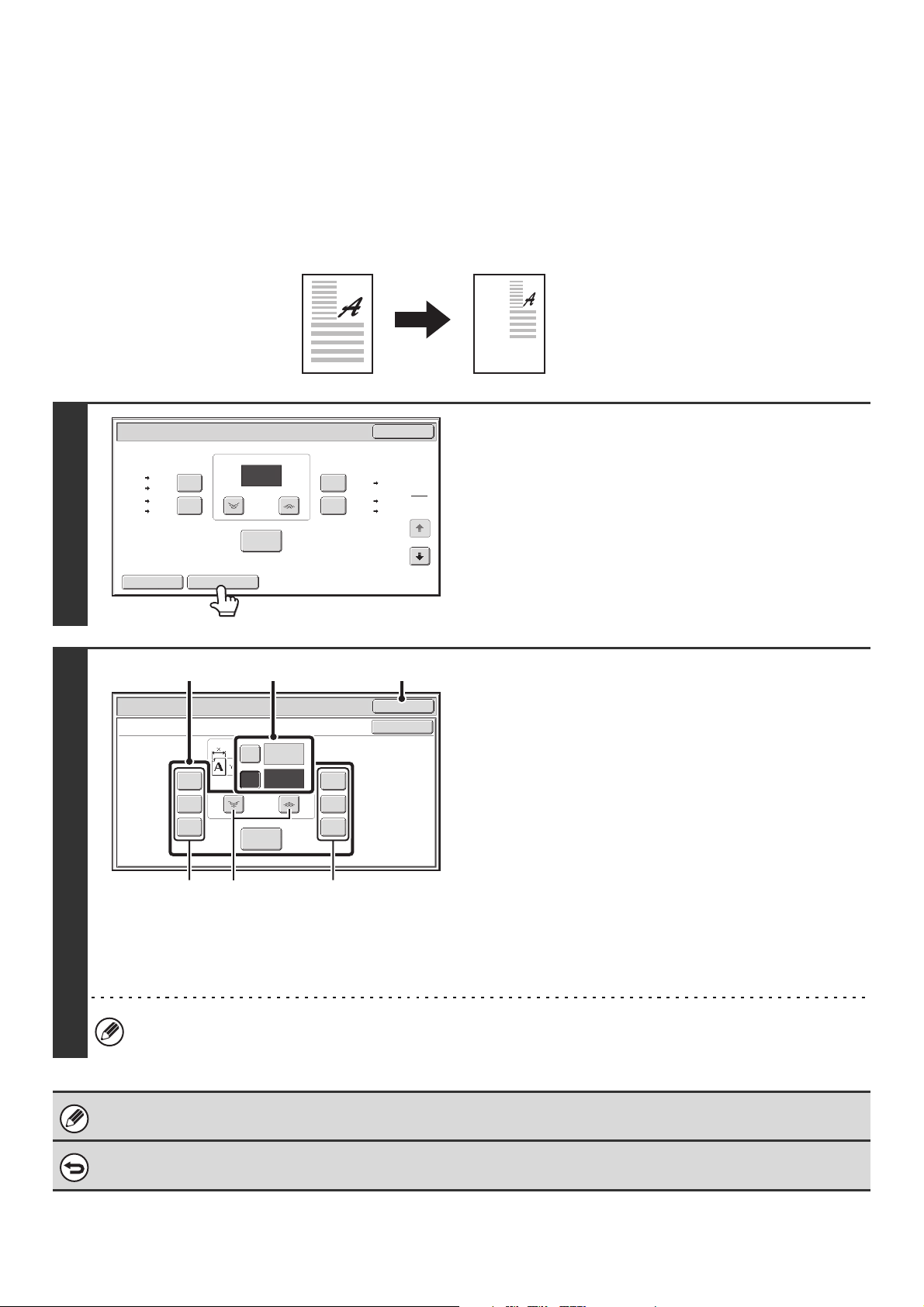
29
ENLARGING/REDUCING THE LENGTH AND WIDTH
SEPARATELY (XY Zoom)
The XY Zoom feature allows the horizontal and vertical copy ratios to be changed separately.
Both the horizontal and vertical ratios can be set from 25% to 400% in increments of 1%.
Touch the [Copy Ratio] key in the base screen of copy mode and then follow the steps below.
When 50% is selected for the horizontal ratio and 70% is selected for the vertical ratio
1
Touch the [XY Zoom] key.
2
Set the horizontal and vertical ratios.
(1) Touch the [X] key.
The [X] key will be highlighted and the horizontal ratio can
be set.
(2)
Touch one of the preset ratio keys (A) and the
zoom keys (B) to set the X (horizontal) ratio.
(A) A touched preset ratio key will not be highlighted.
(B) The zoom keys can be touched to set the ratio from
25% to 400% in increments of 1%.
(3) Touch the [Y] key and set the Y (vertical)
ratio in the same way as the [X] key.
(4) Touch the [OK] key.
After touching the [OK] key, make sure that a paper size
suitable for the ratio is selected.
To quickly select a ratio, touch a preset ratio key (A) to select a ratio close to the desired ratio and then use the zoom
keys (B) for fine adjustment.
When the automatic document feeder is used, the vertical and horizontal ratio selection ranges are both 25% to 200%.
To cancel an XY zoom setting...
To cancel an XY Zoom setting, touch the [XY Zoom] key or the [Cancel] key.
Original
Copy
Copy Ratio
OK
Auto Image XY Zoom
121%
129%
64%
77%
100%
%
Zoom
100
11x17
11x17
8½x11
8½x14 8½x11
8½x14
8½x11
5½x8½
8½x11
8½x14
5½x8½ 8½x11
11x17
11x17
1
2
Copy Ratio
OK
Cancel
XY Zoom
129%
200%
400%
50%
64%
77%
100%
%
Zoom
50
70
X
Y
%
(4)(1), (3)(2)
(A)
(B) (A)
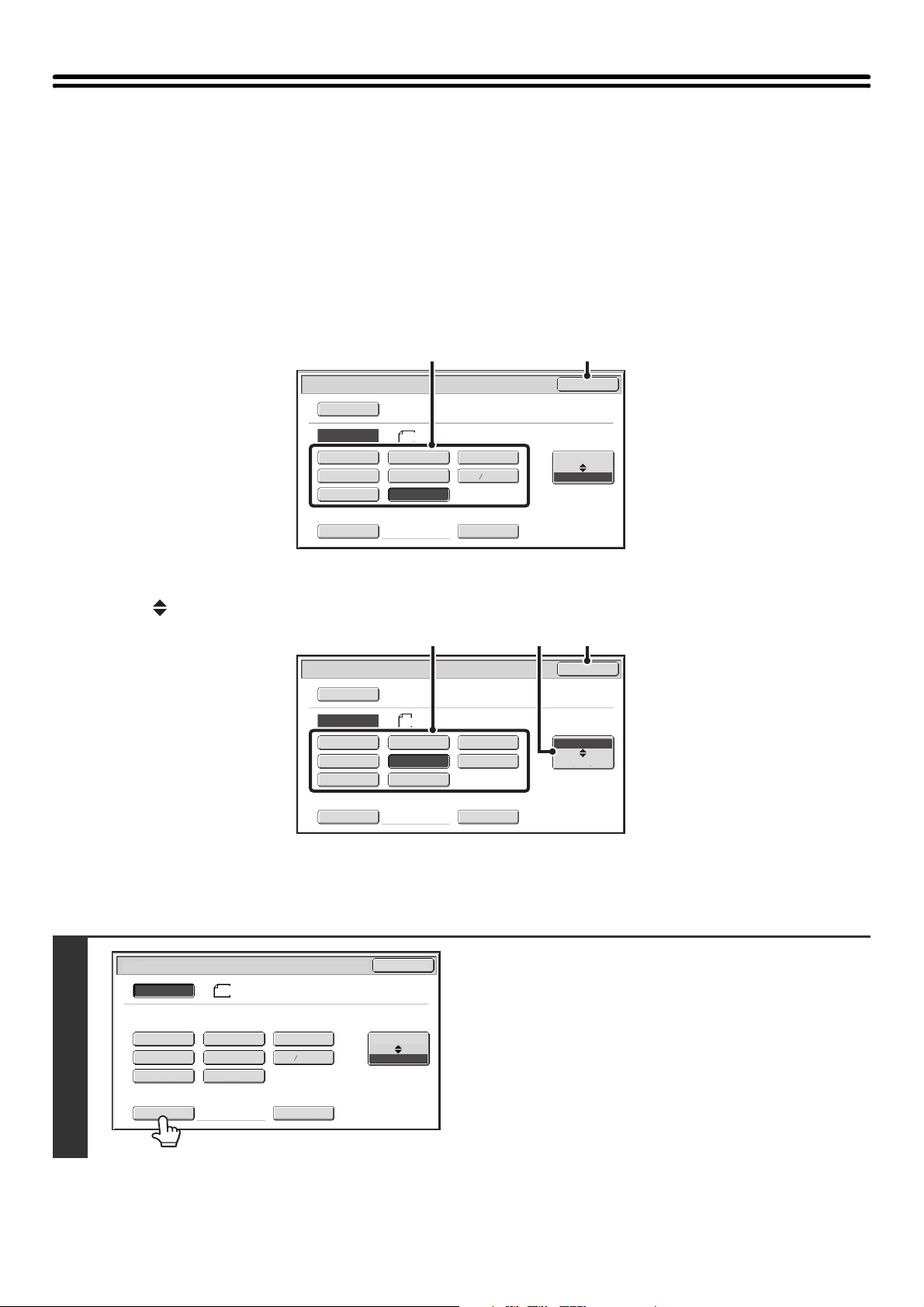
30
ORIGINAL SIZES
SPECIFYING THE ORIGINAL SIZE
When the original size is a non-standard size or is not detected correctly, manually specify the original size.
Touch the [Original] key in the base screen of copy mode and then follow the steps below.
Specifying an inch original size
Touch the appropriate original size key and then the [OK] key.
Specifying an AB original size
Touch the [AB Inch] key, touch the appropriate original size key, and then touch the [OK] key.
Specifying a non-standard original size
1
Touch the [Size Input] key.
5½x8½
5½x8½R
8½x11
8½x14
8½x13(216x330)
8½x13 (216x340)
8½x11R 11x17
Custom Size
Original
OK
Size Input
Inch
Auto
Manual
AB
Manual
(2)(1)
2
5
Original
OK
A5
A5R
B5
Size Input
A4R
A4
B5R B4
A3
Custom Size
Inch
Auto
Manual
AB
Manual
(3)(2) (1)
5½x8½
5½x8½R
8½x11
8½x14
8½x13(216x330)
8½x11R 11x17
Custom Size
Original
OK
Size Input
Inch
AB
8½x14
Auto
Manual
8½x13 (216x340)
2
5
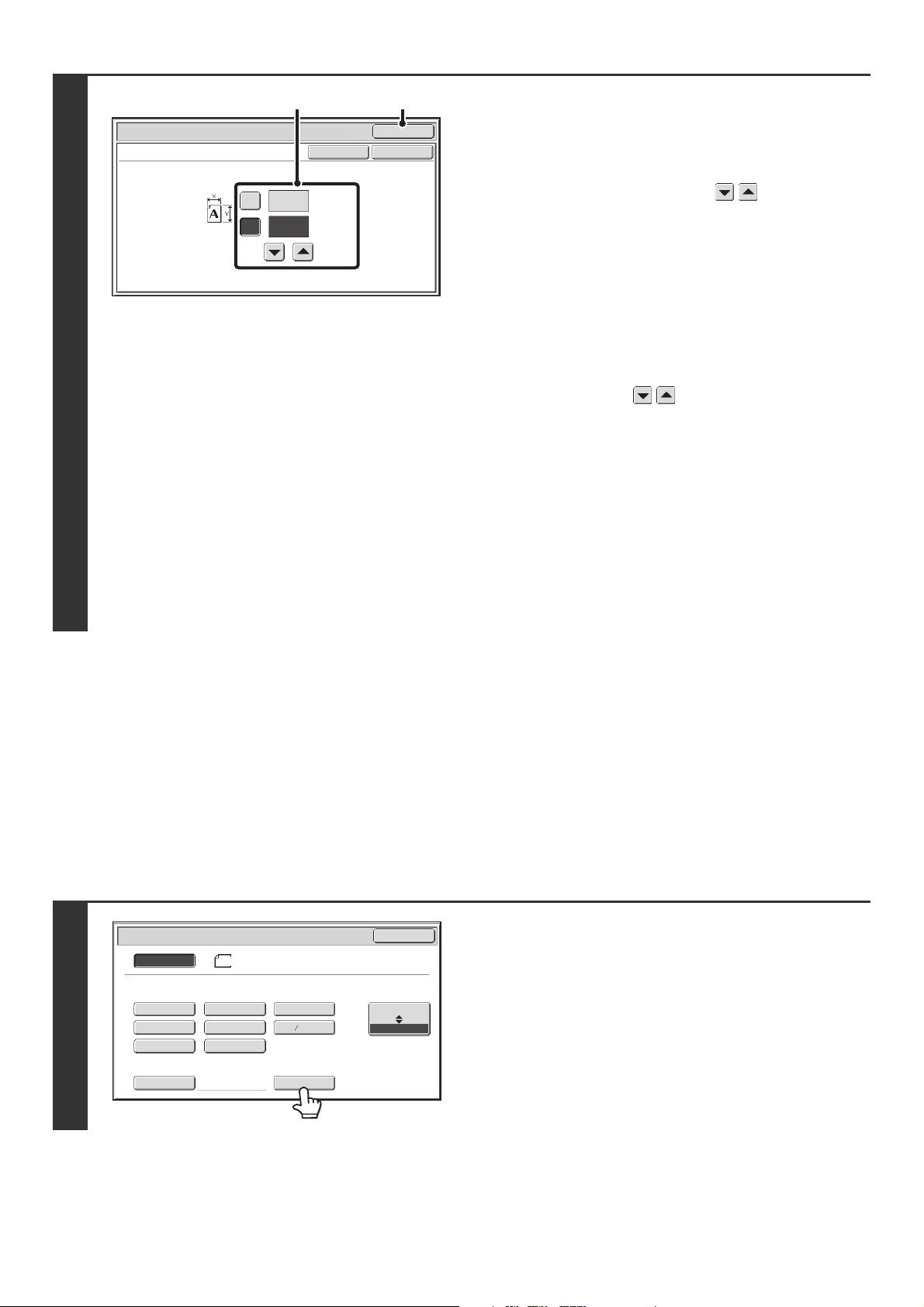
31
STORING FREQUENTLY USED ORIGINAL SIZES
You can save special original sizes that you frequently use. This section explains how to store, retrieve, change, and
delete special original sizes.
Storing original sizes (editing/clearing)
Up to 12 special original sizes can be stored.
Touch the [Original] key in the base screen of copy mode and then follow the steps below.
2
Enter the original size.
(1) Enter the X (horizontal) dimension of the
original.
With the [X] key highlighted, enter the X (horizontal)
dimension of the original with the keys. When the
document glass is used, a number from 2-1/2" to 17" (64
mm to 432 mm) can be entered.
When the automatic document feeder is used, a number
from 5-1/2" to 17" (140 mm to 432 mm) can be entered.
If the horizontal dimension of the original is less than
5-1/2" (140 mm), use the document glass.
(2) Enter the Y (vertical) dimension of the
original.
Touch the [Y] key and enter the Y (vertical) dimension of
the original with the keys. When the document
glass is used, a number from 2-1/2" to 11-5/8" (64 mm to
297 mm) can be entered.
When the automatic document feeder is used, a number
from 5-1/2" to 11-5/8" (140 mm to 297 mm) can be
entered.
If the vertical dimension of the original is less than 5-1/2"
(140 mm), use the document glass.
(3) Touch the [OK] key.
You will return to the base screen.
Make sure that the entered dimensions appear in the
[Original] key.
1
Touch the [Custom Size] key.
OK
OK
Cancel
(2 1/2~17)
inch
(2 1/2~11 5/8)
inch
17
X
Y
11
Original
Size Input
(3)(1), (2)
5½x8½
5½x8½R
8½x11
8½x14
8½x13(216x330)
8½x11R 11x17
Custom Size
Original
OK
Size Input
Inch
AB
8½x14
Auto
Manual
8½x13 (216x340)
2
5
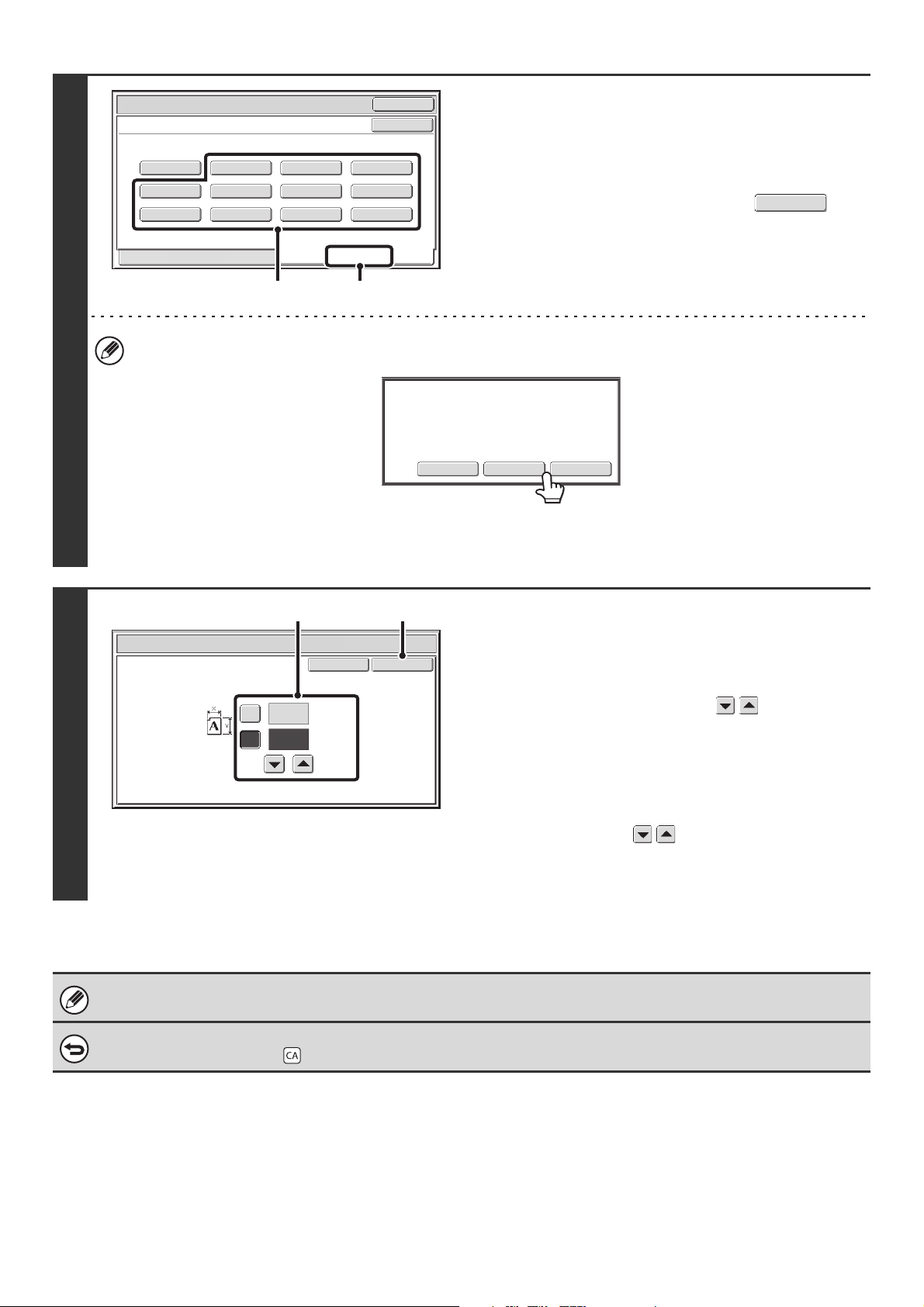
32
2
Store the original size.
(1) Touch the [Store/Delete] tab.
(2) Touch a key for storing a custom original
size.
Touch a key that does not show a size ( ).
If you wish to edit or clear a previously stored key...
Touch the key that you want to edit or clear. The following screen will appear.
• To edit the key, touch the [Modify] key and go to the next step.
• To clear the key, touch the [Delete] key. Make sure that the original size has been cleared and touch the [OK] key.
3
Enter the original size.
(1) Enter the X (horizontal) dimension of the
original.
With the [X] key highlighted, enter the X (horizontal)
dimension of the original with the keys. A
dimension from 2-1/2" to 17 (64 mm to 432 mm) can be
entered.
(2) Enter the Y (vertical) dimension of the
original.
Touch the [Y] key and enter the Y (vertical) dimension of
the original with the keys. A dimension from
2-1/2" to 11-5/8" (64 mm to 297 mm) can be entered.
(3) Touch the [OK] key.
The stored original size will be retained even if the main power is turned off.
To cancel the operation...
Press the [CLEAR ALL] key ( ).
Original
OK
OK
X15½ Y 8½
Recall
Store/Delete
Custom Size
(1)(2)
Modify
Delete
Cancel
A custom size has already been stored
in this location.
OK
Cancel
Original
(2 1/2~17)
inch
(2 1/2~11 5/8)
inch
17
X
Y
11
(3)(1), (2)
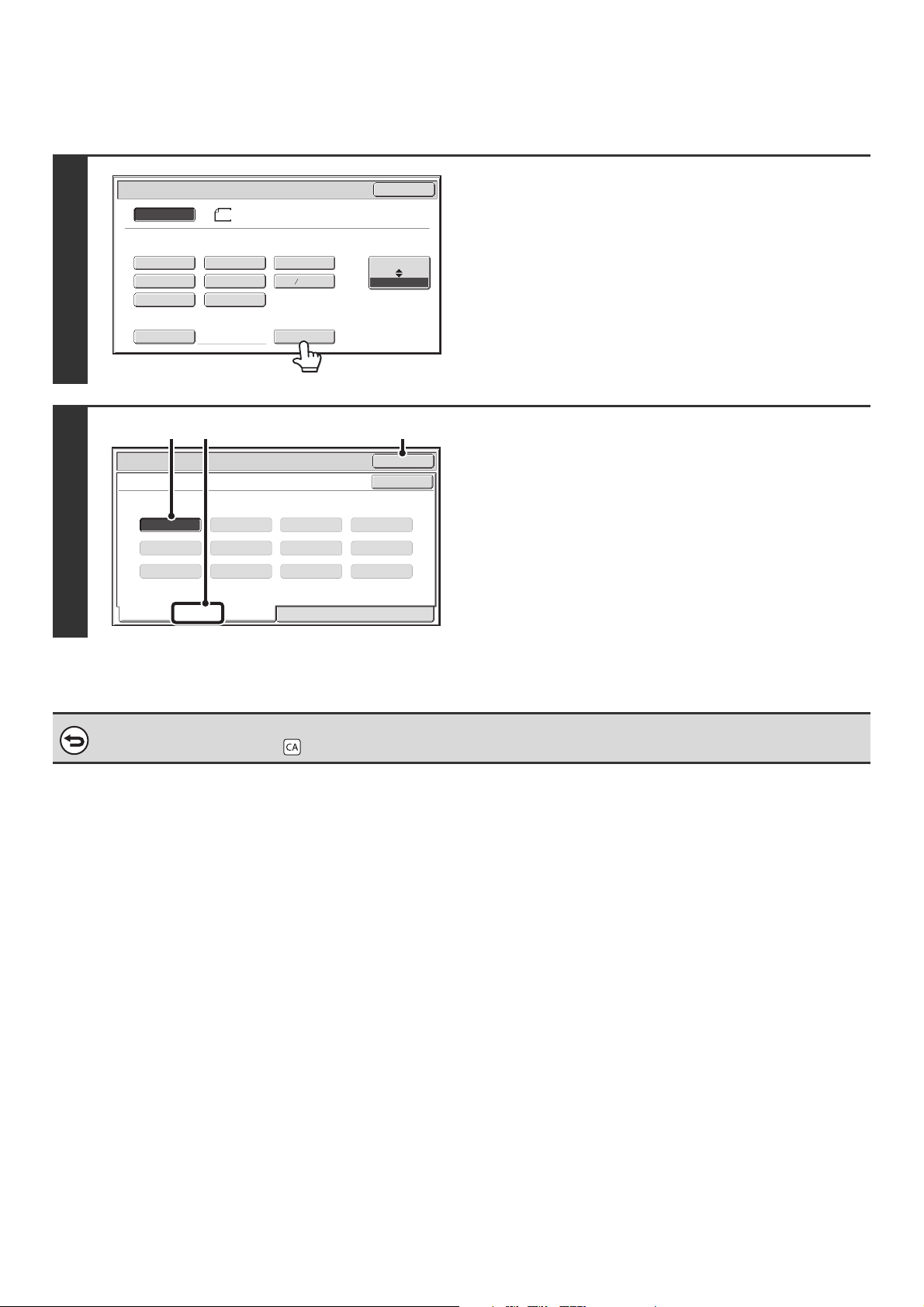
33
Retrieving a stored original size
To retrieve a stored original size, touch the [Original] key in the base screen of copy mode and perform the steps below.
1
Touch the [Custom Size] key.
2
Retrieve the desired stored original size.
(1) Touch the [Recall] tab.
(2) Touch the key of the original size that you
wish to retrieve.
(3) Touch the [OK] key.
To cancel the operation...
Press the [CLEAR ALL] key ( ).
5½x8½
5½x8½R
8½x11
8½x14
8½x13(216x330)
8½x11R 11x17
Custom Size
Original
OK
Size Input
Inch
AB
8½x14
Auto
Manual
8½x13 (216x340)
2
5
X15½ Y 8½
Custom Size
Original
OK
OK
Recall
Store/Delete
(3)(1)(2)
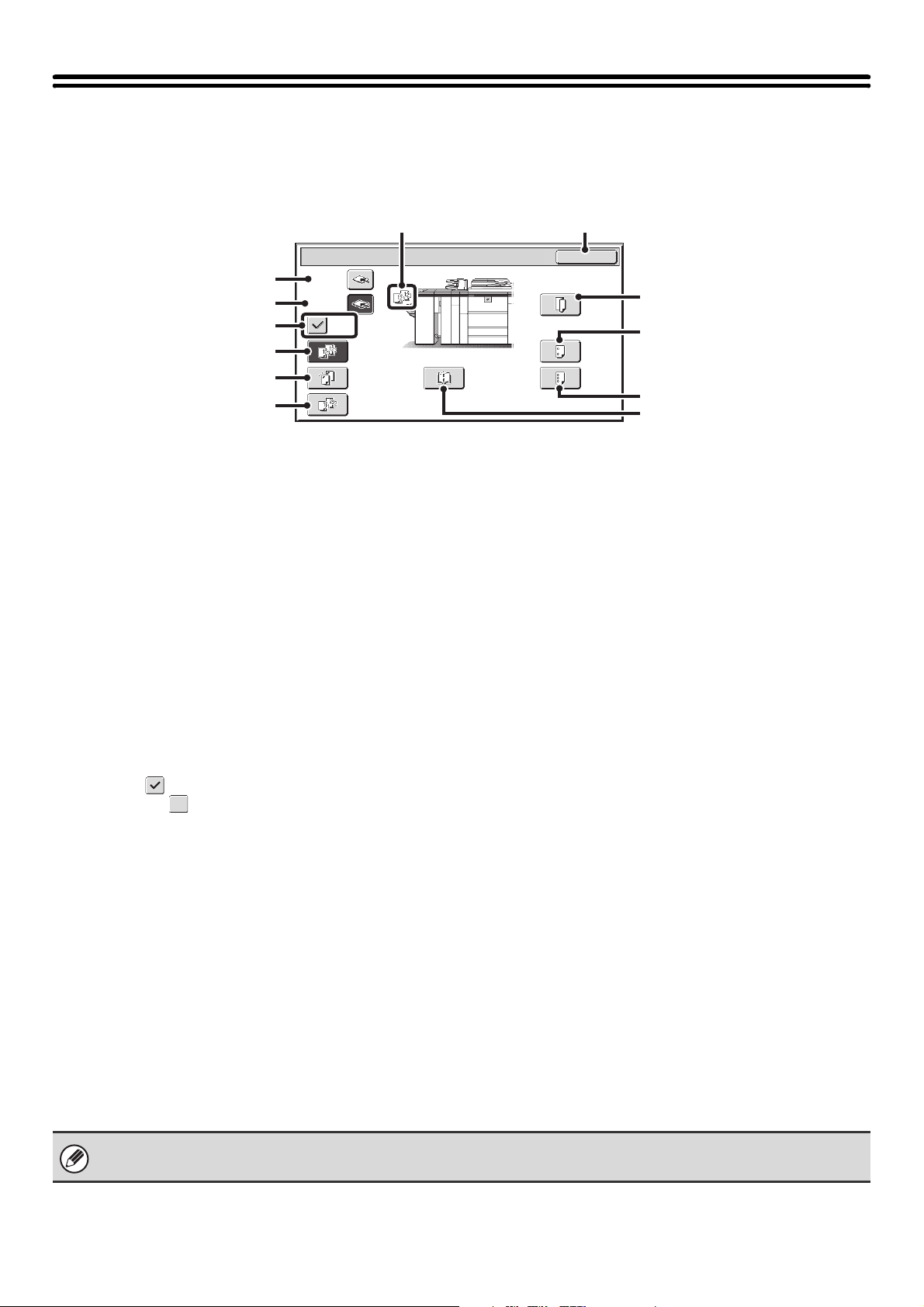
34
OUTPUT
The [Output] key can be touched in the base screen of copy mode to select sort, group, offset and other finishing
functions, as well as the output tray. All settings are explained below, and it is assumed that a finisher, punch module,
saddle unit, and paper folding unit are installed.
(1) [Top Tray] key ([Output Tray] key*)
When a finisher or saddle stitch finisher is installed,
output is delivered to the top tray. When the top tray is
selected, the offset, staple sort, and saddle stitch
functions cannot be used.
* When a finisher or saddle stitch finisher is not installed,
this key is the [Output Tray] key.
(2) [Offset Tray] key
When a finisher or saddle stitch finisher is installed,
output is delivered to the offset tray. When the [Staple
Sort] key is selected, the [Offset Tray] key is
automatically selected.
(3) [Offset] key
This is used to offset each set of output from the previous
set.
The offset function operates when the checkbox is
selected and does not operate when the checkbox is
not selected .
☞ OFFSET FUNCTION (page 35)
(4) [Sort] key
This is used to sort (collate) output into sets.
☞ SORT MODE (page 35)
(5) [Staple Sort] key
This is used to sort output into sets, staple each set, and
deliver the sets to the tray. (Note that the sets will not be
offset in the output tray.) When this function is selected,
three keys will appear for selecting the staple position.
☞ STAPLE SORT FUNCTION / SADDLE STITCH
FUNCTION (page 36)
(6) [Group] key
This is used to group copies by page.
☞ GROUP MODE (page 35)
(7) Output display
An icon will appear to indicate the output mode.
(8) [OK] key
Touch this key to close the output screen and return to
the base screen.
(9) [Fold] key
Touch this key to fold the paper in half and then fold one
side back.
This appears when a paper folding unit is installed.
☞ PAPER FOLDING FUNCTION(page 39)
(10) [2 Hole Punch] key
Two holes can be punched in printed paper.
This appears when a punch module is installed.
☞ PUNCH FUNCTION (page 38)
(11) [3 Hole Punch] key
Three holes can be punched in printed paper.
This appears when a punch module is installed.
☞ PUNCH FUNCTION (page 38)
(12) [Saddle Stitch] key
This is used to staple and fold each set of copies at the
centerline.
This appears when a saddle unit or saddle stitch finisher
is installed.
☞ STAPLE SORT FUNCTION / SADDLE STITCH
FUNCTION (page 36)
When this key is touched, the saddle stitch setting screen
appears. (Only when "Automatic Saddle Stitch" is
enabled in the system settings (administrator).)
OK
Output
Sort
Fold
2 Hole
Punch
3 Hole
Punch
Offset
Offset Tray
Top Tray
Staple
Sort
Group
Saddle
Stitch
(7) (8)
(4)
(5)
(6)
(9)
(10)
(11)
(12)
(1)
(2)
(3)
It may not be possible to use some functions, depending on the peripheral devices that have been installed. If the keys in
your screen are not the same as in the above screen, check what devices have been installed.
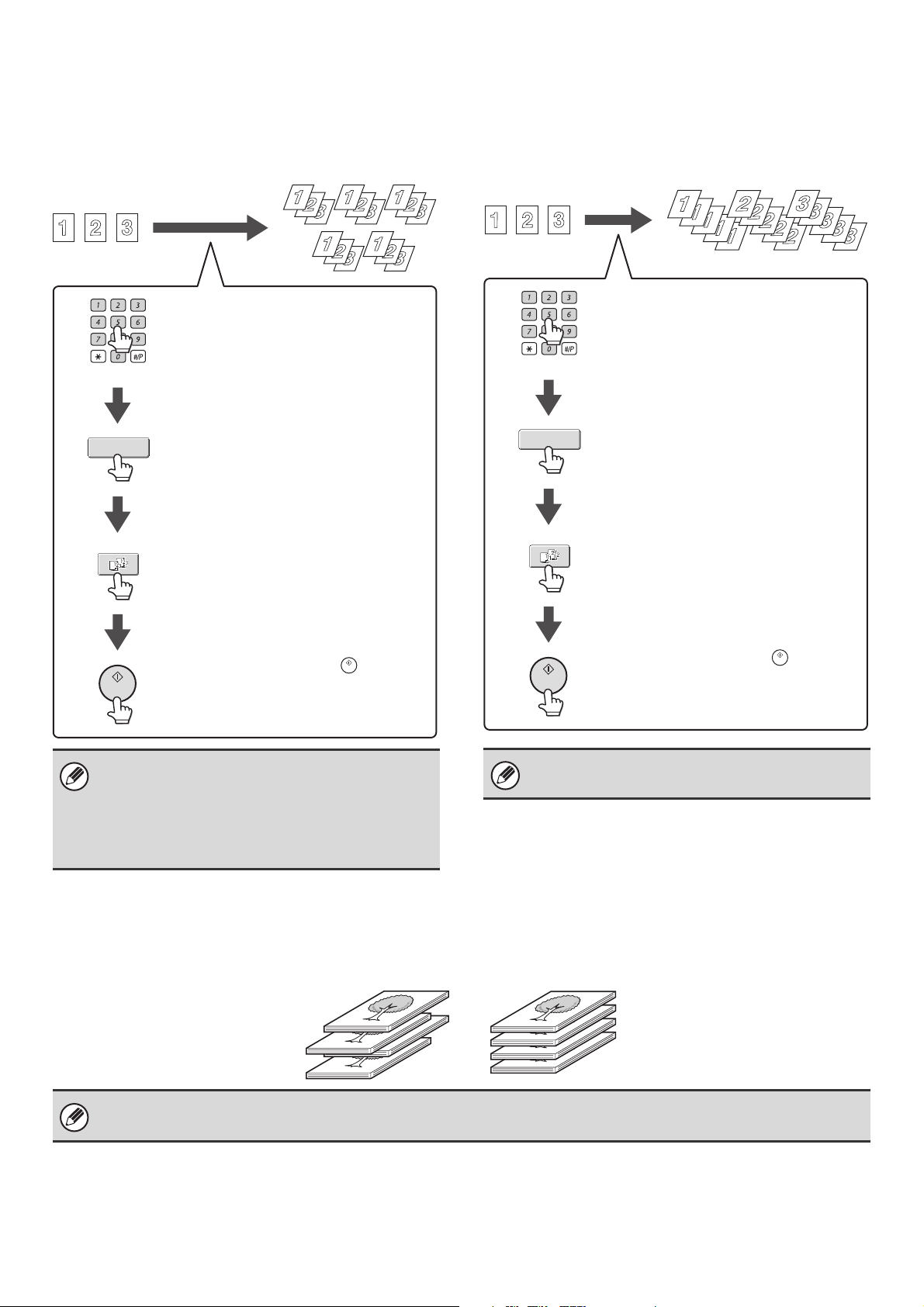
35
SORT MODE
This is used to sort (collate) output into sets.
Example: Sorting the output into 5 sets
GROUP MODE
This function groups copies by page.
Example: Groups of 5 copies of each page
OFFSET FUNCTION
This function offsets each set of copies from the previous set in the output tray, making it easy to separate sets of copies.
•
The sort function is automatically selected when
originals are placed in the automatic document feeder.
• When the Quick File Folder for document filing is
full, copying of a large number of originals using the
sort function will be impeded. Delete unneeded files
from the Quick File Folder.
Sort
Output
Originals Output
Set the number of copies (5).
Touch the [Output] key.
Touch the [Sort] key.
Press the [START] key ( ).
The group function is automatically selected when an
original is placed on the document glass.
Group
Output
Originals Output
Set the number of copies (5).
Touch the [Output] key.
Touch the [Group] key.
Press the [START] key ( ).
• The offset function can be used when a finisher or saddle stitch finisher is installed.
• The offset function cannot be selected when the staple sort function is selected.
Offset function "ON" Offset function "OFF"
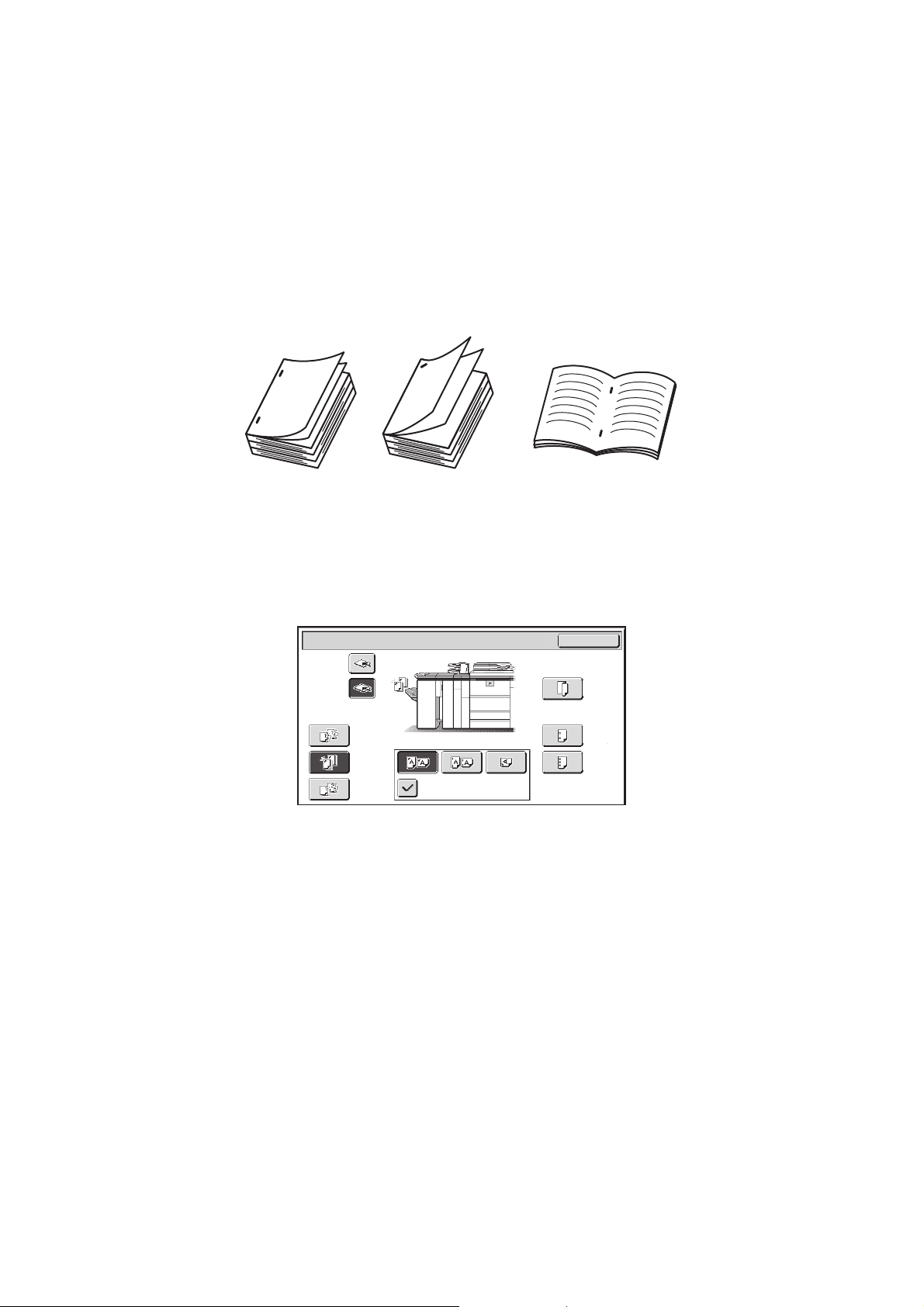
36
STAPLE SORT FUNCTION / SADDLE STITCH
FUNCTION
The staple sort function sorts output into sets, staples each set, and delivers the sets to the tray.
The saddle stitch function staples each set in 2 places at the centerline and folds the stapled set.
Paper that can be used for the saddle stitch function is 8-1/2" x 11"R to 12" x 18" (16 lbs. to 24 lbs.) (B5R to A3W
(60 g/m
2
to 90 g/m
2
)).
The relations between the stapling positions, paper orientation, permitted paper sizes for stapling, and number of sheets
that can be stapled are shown below.
For the sizes and number of paper sheets that can be stapled at once, see the specifications in the Safety Guide.
For original placement orientations, see "ORIGINAL PLACEMENT ORIENTATION (FOR THE STAPLE SORT AND
PUNCH FUNCTIONS)" (page 38).
Staple sort function
Touch the [Staple Sort] key in the output screen to display the following screen.
Touch the key of the desired stapling position, and touch the [OK] key.
4
1
2
3
1
2
3
5
Saddle stitchStaple sort
OK
Output
Sort
Fold
2 Hole
Punch
3 Hole
Punch
Offset Tray
Top Tray
Staple
Sort
Group Slant staple
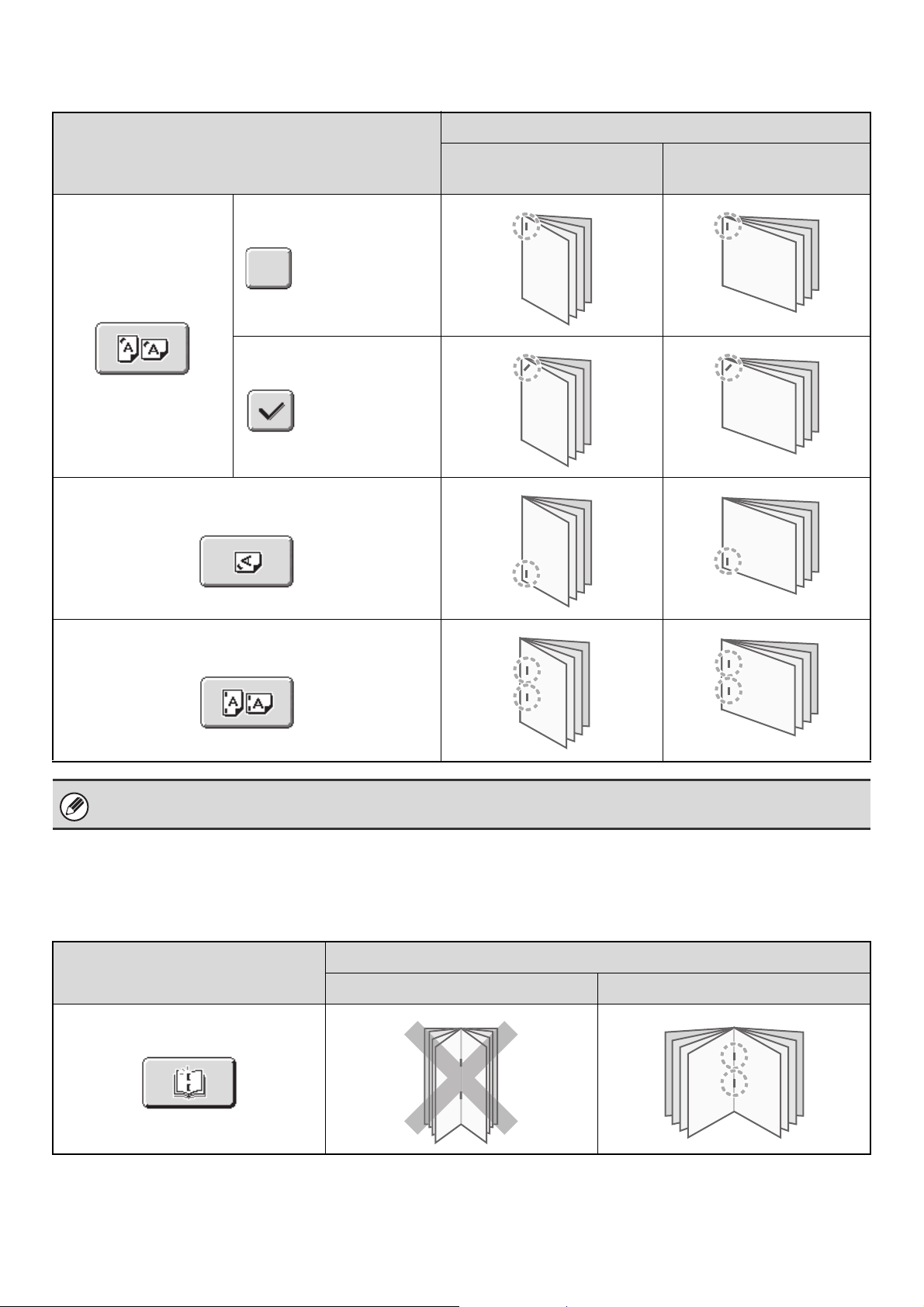
37
Stapling positions and stapling results
Saddle stitch function
To select saddle stitch, touch the [Saddle Stitch] key in the output screen. If "Automatic Saddle Stitch" is enabled in the
system settings (administrator), the saddle stitch settings screen in the special modes will automatically appear.
For information on saddle stitch, see "MAKING COPIES IN PAMPHLET FORMAT (Pamphlet Copy)" (page 51).
Stapling positions
Stapling result
Vertically-oriented paper
Horizontally-oriented
paper
1 staple at top left corner
1 staple at bottom left corner
2 staples at left edge
Slant staple
Slant staple
Slanted stapling can be used when one staple at the top of the paper is selected
Saddle stitch
Result
Vertically-oriented paper Horizontally-oriented paper
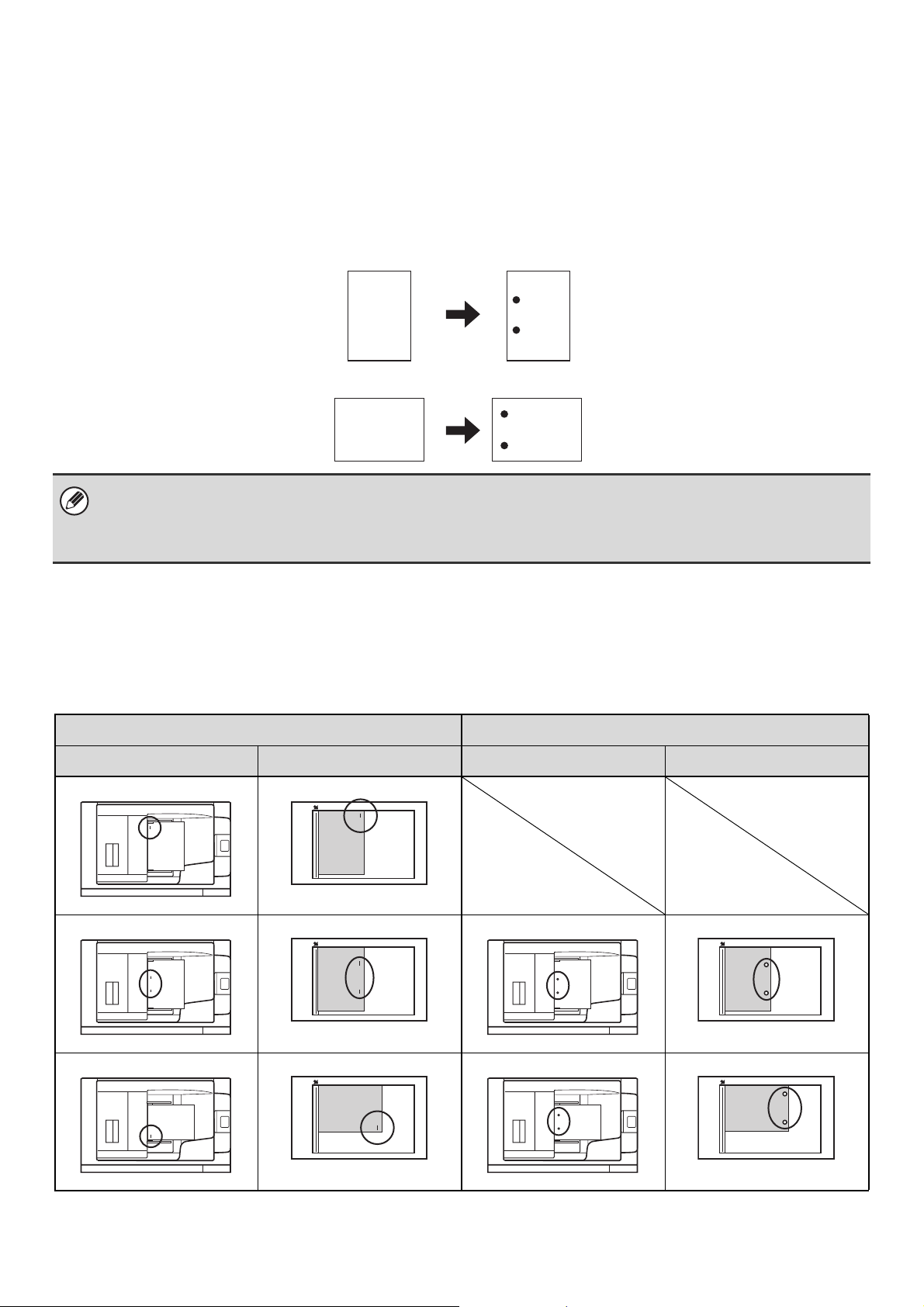
38
PUNCH FUNCTION
If an optional punch module is installed, holes can be punched in output.
The [2 Hole Punch] key can be touched in the output screen to selecting two-hole punching. The [3 Hole Punch] key can
be touched to select three-hole punching.
When the finisher is installed, 5-1/2" x 8-1/2" to 11" x 17" (16 lbs. to 65 lbs. cover) (A5 to A3 (52
g
/m
2
to 176
g
/m
2
)) paper can
be used. However, 12" x 18" (A3W) sized paper and special media such as transparency film and tab paper cannot be used.
For detailed information on the sizes and types of paper that can be punched, see the specifications in the Safety Guide.
ORIGINAL PLACEMENT ORIENTATION (FOR THE
STAPLE SORT AND PUNCH FUNCTIONS)
When using the staple sort function or the punch function, the original must be placed as shown below to enable stapling
or punching in the desired position on the paper.
• When the hole punch function is selected, the saddle stitch or paper folding function cannot be used.
• Tab paper can be punched manually using the inserter. For more information, see "INSERTER" in the User's Guide.
• When the finisher (for the MX-M850) or the saddle stitch finisher is installed, 8-1/2" x 11R" to 11" x 17" (16 lbs. to 90 lbs.
index) (B5R to A3 (52 g/m
2
to 163 g/m
2
)) paper can be used.
Staple sort Punch
Document feeder tray Document glass Document feeder tray Document glass
A
B
BA
A
B
BA
[Original 1] [Punch positions]
[Examples]
[Original 2] [Punch positions]
A
B
A
B
A
B
A
B
A
B
A
B
A
B
A
B
A
B
A
B
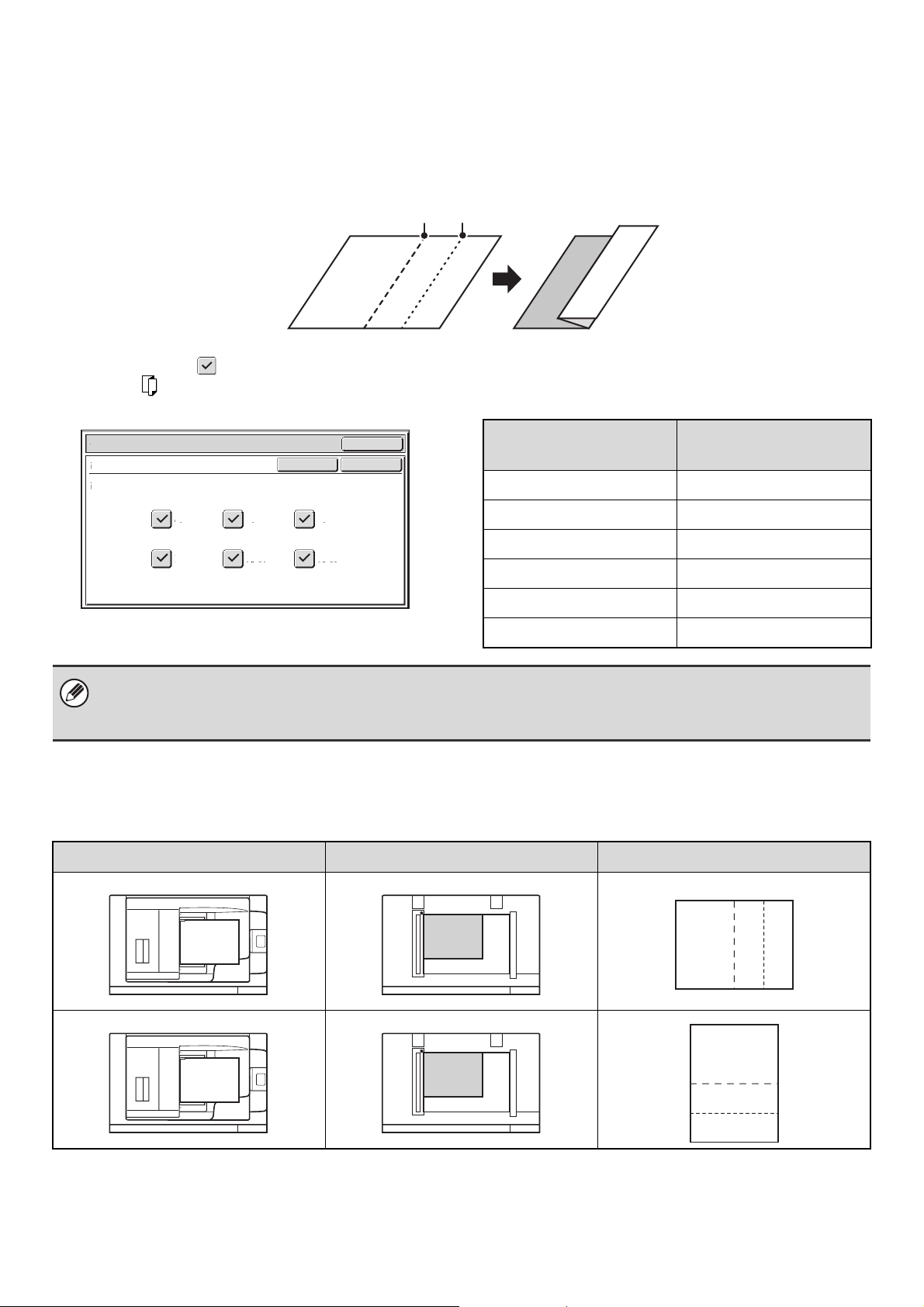
39
PAPER FOLDING FUNCTION
When the paper folding unit is installed, output can be folded to reduce the paper size by a half.
Paper sizes that can be folded using the paper folding function are 8-1/2" x 11"R, 8-1/2" x 14", 11" x 17", A4R, B4, and
A3. For detailed information on the sizes and types of paper that can be folded, see the specifications in the Safety
Guide.
The following screen appears when the paper folding key is touched.
Select the checkbox of the paper size that you wish to use for paper folding and then touch the [OK] key. The paper
folding icon ( ) will appear in the base screen.
Original placement orientation
Place the original in the appropriate position as shown below so that folding takes place at the desired location.
Fold in
Fold out
Output
OK
OK
Cancel
Fold
Select the paper size to be folded.
A3
11x17
8 x14
B4 A4R
1
/
2
8 x11R
1
/
2
Loaded paper size
Paper size after
folding
8-1/2" x 11"R 5-1/2" x 8-1/2"
8-1/2" x 14 7" x 8-1/2"
11" x 17" 8-1/2" x 11"
A4R A5
B4 B5
A3 A4
• Special media such as transparency film and tab paper cannot be used.
• When 8-1/2" x 11"R, 8-1/2" x 14" or A4R paper is folded, it cannot also be stapled.
• When the paper folding function is selected, the saddle stitch or hole punch function cannot be used.
Document feeder tray Document glass Result
AB
AB
AB
A
B
A
B
A
B
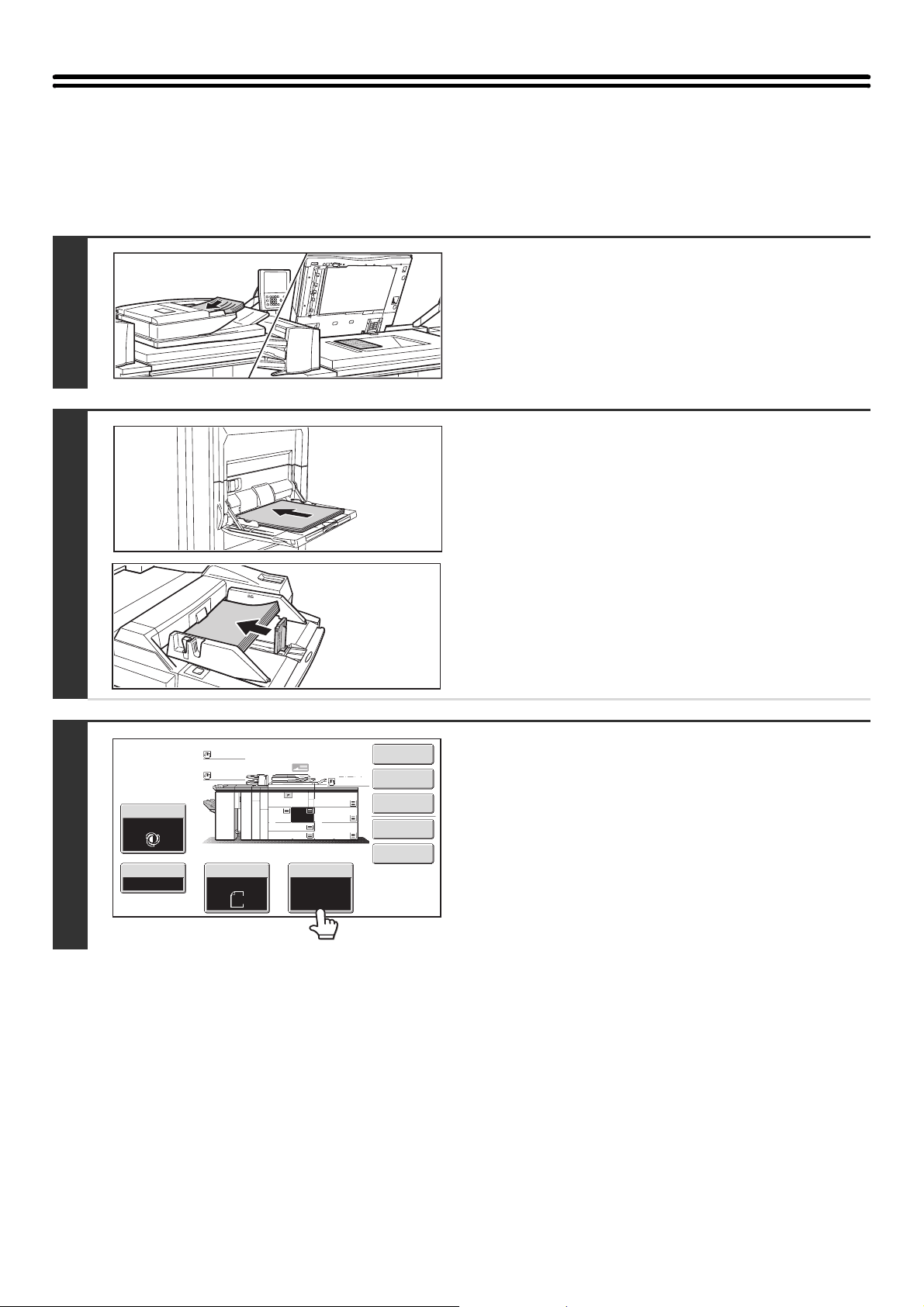
40
MAKING COPIES USING THE BYPASS TRAY
In addition to plain paper, transparency film, and tab paper can be loaded in the bypass tray.
For detailed information on paper that can be loaded in the bypass tray, see the Safety Guide. For precautions when
loading paper in the bypass tray, see "LOADING PAPER IN THE BYPASS TRAY" in the User's Guide.
1
Place the original.
Place the original face up in the document feeder tray, or face
down on the document glass.
2
Place paper in the bypass tray.
Insert the paper with print side face up.
The procedure for loading paper varies depending on the
bypass tray installed. For the procedures for loading paper, see
"LOADING PAPER IN THE BYPASS TRAY" in the User's
Guide.
3
Touch the [Paper Select] key.
Special Modes
Plain
2-Sided Copy
Output
File
Quick File
Copy Ratio
1.
2.
7.
8½x11
8½x11
Original Paper Select
Auto
8½x11
Plain
Auto
8½x11
Exposure
Auto
8½x14
4.
11x17
11x17
6.
11x17
5.
11x17
3.
8½x11
100%
Plain
Plain
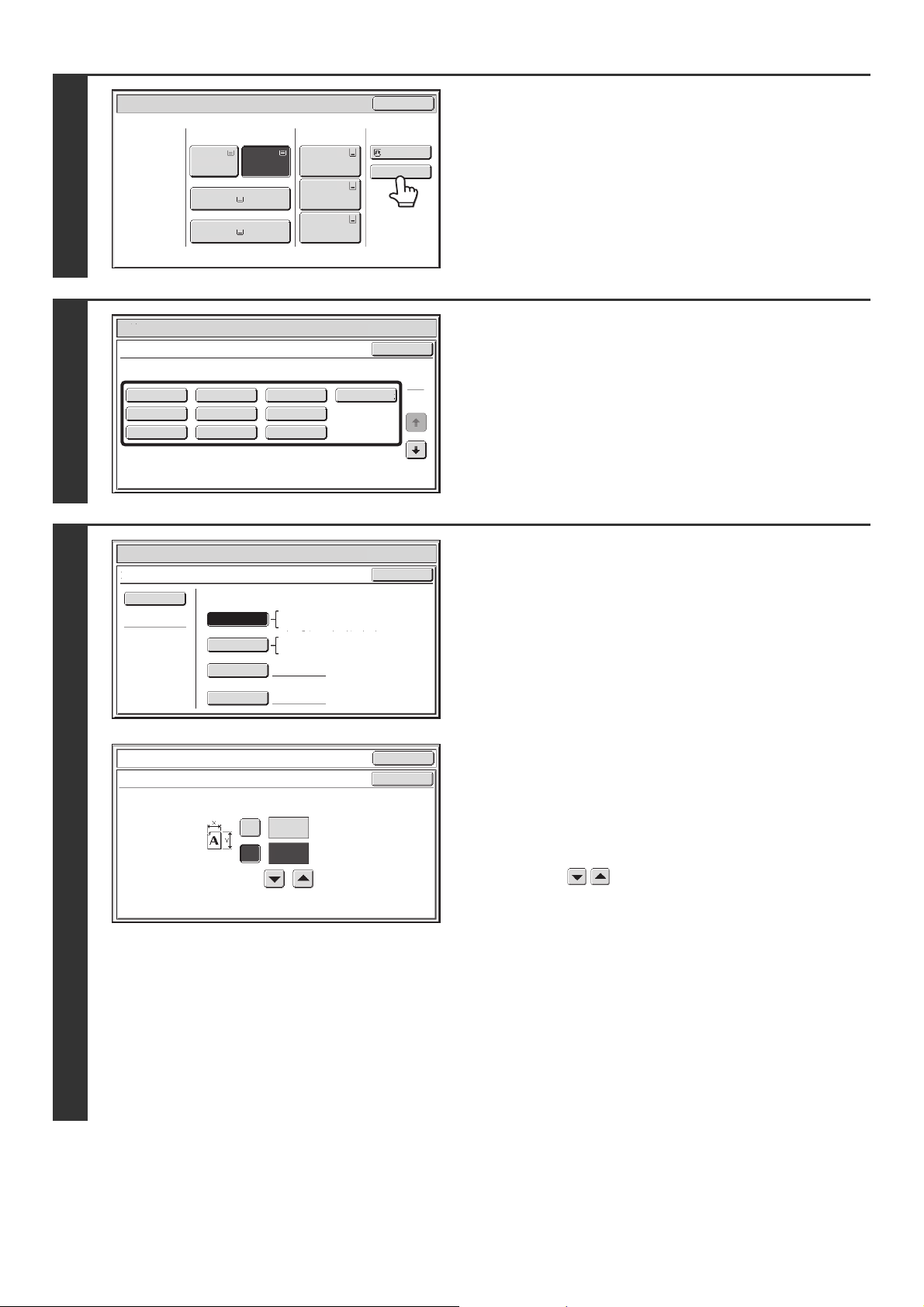
41
4
Check the paper type setting for the
bypass tray. If you need to change the
setting, touch the paper type key.
If you do not need to change the paper size and type that
appear under "Bypass Tray", go to step 7.
5
Select the type of paper used in the
bypass tray.
Select the paper type that you will use.
The paper types that can be set vary depending on the bypass
tray installed. For paper types that can be set, see "PAPER
THAT CAN BE USED IN THE PERIPHERAL DEVICE TRAYS"
in the User's Guide and the specifications in the Safety Guide.
6
Set the paper size.
[Auto-Inch] key
Touch this key when the loaded paper is an inch size (8-1/2" x
11", etc.). When the paper placed in the bypass tray is an inch
size, the paper size will be detected automatically and an
appropriate size set.
[Auto-AB] key
Touch this key when the loaded paper is an AB size (A4, etc.).
When the paper inserted in the bypass tray is an AB size, the
paper size will be detected automatically and an appropriate
size set.
[Custom Size] key
Touch this key when you know the size of the inserted paper
but it is not one of the inch or AB sizes.
When the [Custom Size] key is touched, the paper size entry
screen appears.
Touch the [X] key and enter the horizontal dimension of the
paper with the keys, and then touch the [Y] key and
enter the vertical dimension. When finished, touch the [OK]
key.
[Manual] key
Special standard sizes such as 320mm x 450mm,
225mm x 320mm, 318mm x 469mm, 234mm x 318mm,
312mm x 440mm, 220mm x 312mm, and 16K, 16KR, and 8K
(used in China) have been pre-stored. Touch the key of the
desired size.
(320mm x 450mm, 225mm x 320mm, 318mm x 469mm,
234mm x 318mm, 312mm x 440mm, and 220mm x 312mm
can only be used in the bypass tray when a large capacity trays
(MX-LCX5) is installed.)
Paper Select
Paper Tray
Bypass Tray
Large Capacity
Tray
OK
Plain
Plain
Plain
2. 8½x11 8½x11
Plain
Plain
5. 11x17
Plain
6. 11x17
Plain
7. 11x17
3. 11x17
4. 8½x14
1. 8½x11
Plain
Paper Select
Cancel
Plain
Pre-Punched
Heavy Paper 1
Pre-Printed
Color
Heavy Paper 2
Recycled
Thin Paper
Heavy Paper 3
Letter Head
Heavy Paper 1: 28+ - 32 lbs.bond (106 - 128 g/m
2
)
Bypass Tray Type/Size Setting
Select the paper type.
1
2
Heavy Paper 2: 32+ lbs.bond, -65 lbs.cover (129 - 176 g/m
2
)
Heavy Paper 3: 48 lbs.bond, 110 lbs.index (177 - 205 g/m
2
)
Paper Select
Bypass Tray Type/Size Setting
OK
Type
Auto-Inch
Recycled
Custom Size
Manual
X11 Y17
Auto-AB
Size
12x18(A3W),11x17,8½x14
8½x11,5½x8½R
7¼x10½R,9x12(A4W),A3,A4,B4
A3W(12x18),A3,B4,A4,A5R,B5
B5R,A4W(9x12)11x17,8½x11
A4R
OK
OK
(4~12 5/8)
inch
(5 1/2~18 1/2)
inch
11
X
Y
17
Bypass Tray Type/Size Setting
Size Input
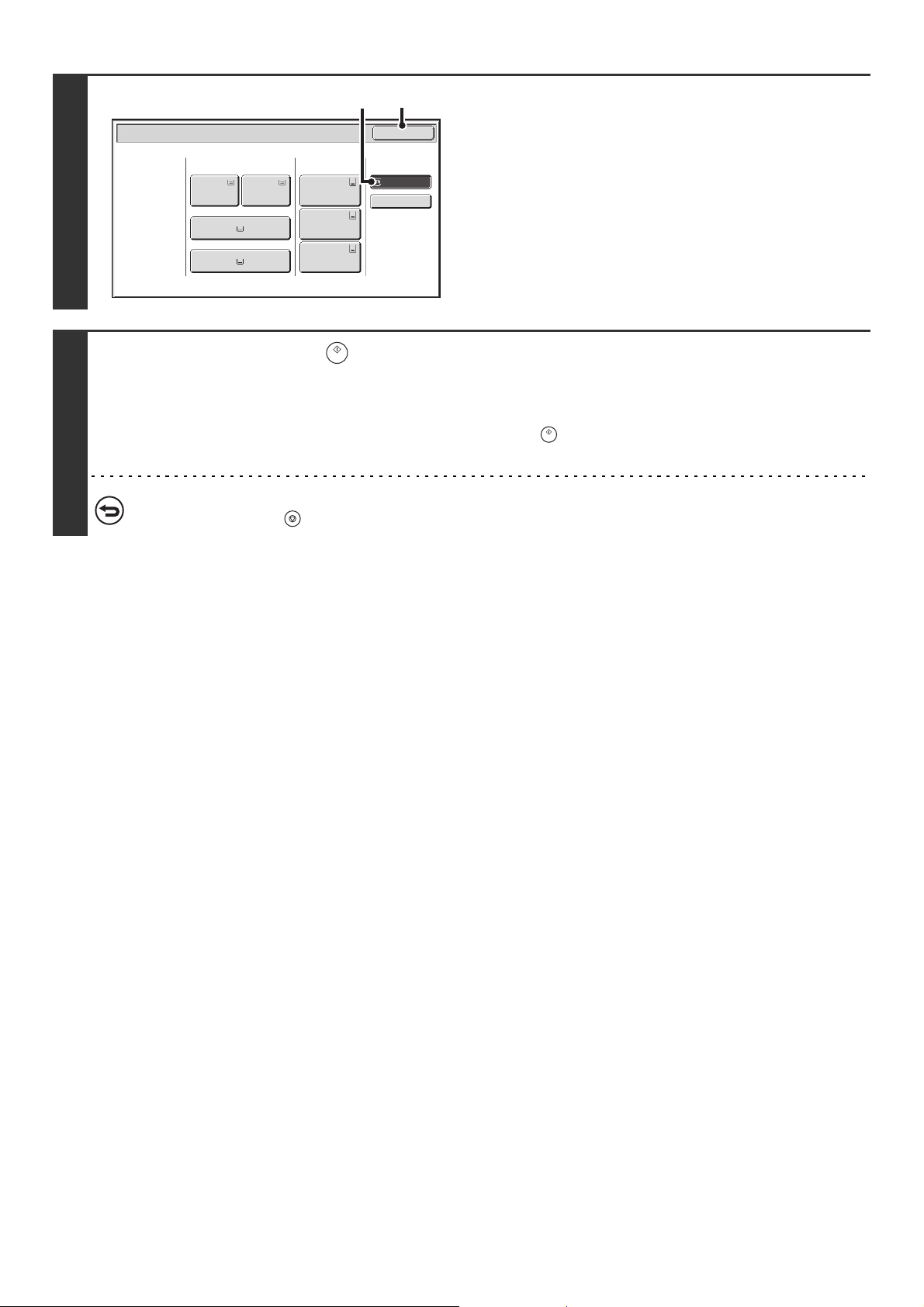
42
7
Select the bypass tray.
(1) Touch the paper size key of the bypass tray.
(2) Touch the [OK] key.
8
Press the [START] key ( ).
Scanning begins.
• If the originals were placed in the document feeder tray, the originals are copied.
• If you placed the originals on the document glass, scan each page one page at a time.
When using sort mode, change originals and press the [START] key ( ). Repeat until all pages have been scanned and
then press the [Read-End] key.
To cancel scanning of the original and copying...
Press the [STOP] key ( ).
Paper Select
Paper Tray
Bypass Tray
Large Capacity
Tray
OK
PlainPlain
Plain
Plain
2. 8½x11 8½x11
Plain
Recycled
5. 11x17
Plain
6. 11x17
Plain
7. 11x17
3. 11x17
4. 8½x14
1. 8½x11
(1)
(2)
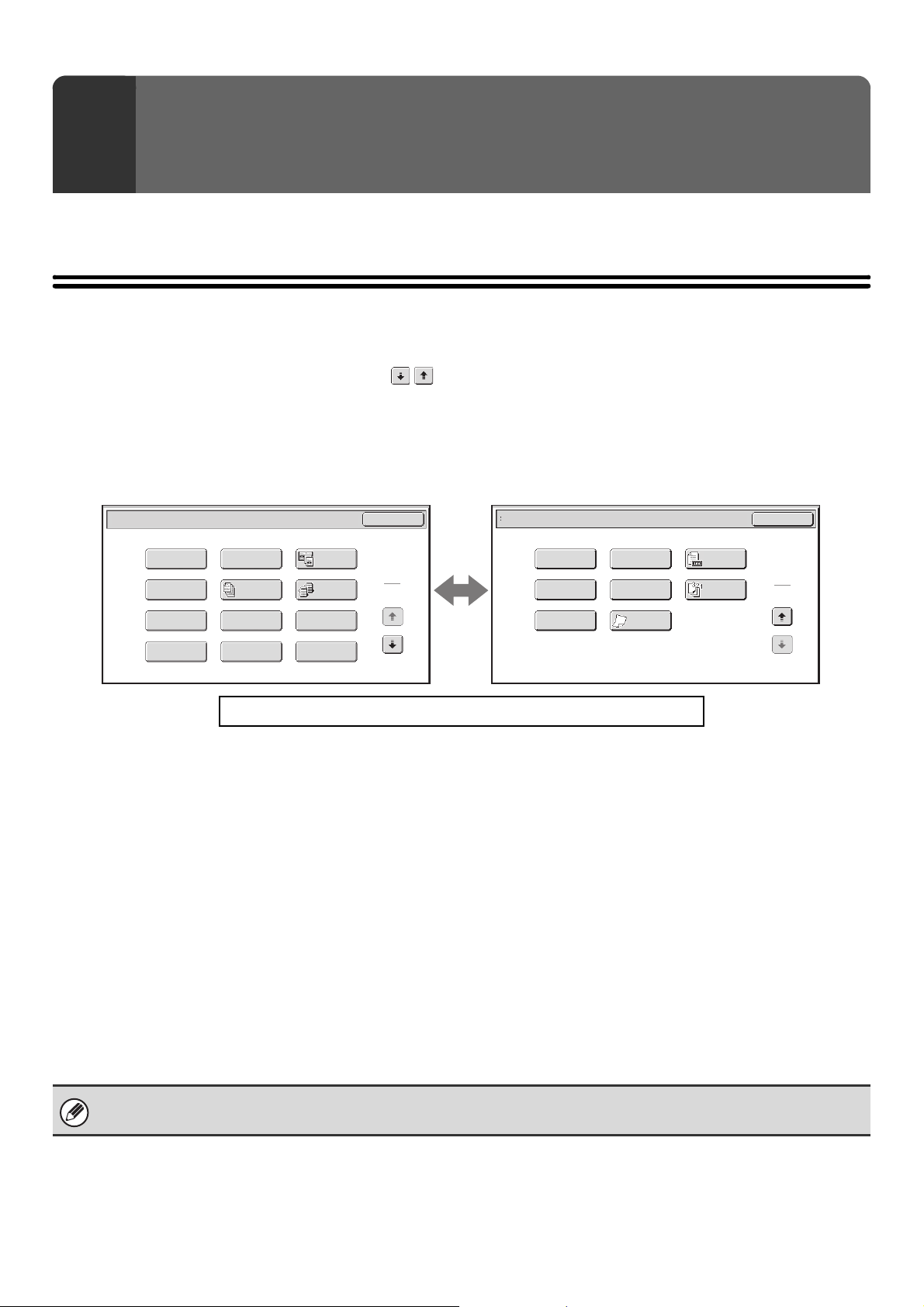
43
This chapter explains Margin Shift, Erase, Dual Page Copy, and other special modes.
SPECIAL MODES
When the [Special Modes] key is pressed in the base screen, the special modes menu screen appears. The special
modes menu consists of two screens. Touch the keys to move between the screens. After selecting special
mode settings, touch the [OK] key in the special modes menu screen to complete the settings and return to the base
screen of copy mode.
☞ BASE SCREEN OF COPY MODE (page 6)
1st screen 2nd screen
(1) [Margin Shift] key (page 45)
(2) [Erase] key (page 47)
(3) [Dual Page Copy] key (page 49)
(4) [Pamphlet Copy] key (page 51)
(5) [Job Build] key (page 54)
(6) [Tandem Copy] key (page 56)
(7) [Covers/Inserts] key (page 59)
(8) [Transparency Inserts] key (page 70)
(9) [Multi Shot] key (page 72)
(10) [Book Copy] key (page 74)
(11) [Tab Copy] key (page 78)
(12) [Card Shot] key (page 81)
(13) [Stamp] key (page 83)
(14) [Image Edit] key (page 101)
(15) [Original Count] key (page 113)
(16) [File] key
This saves a job in a folder of the document filing
function. For more information on File, see the
"Document Filing Guide".
(17) [Quick File] key
This saves a job in the Quick File folder of the document
filing function. For more information on Quick File, see
the "Document Filing Guide".
(18) [Reverse Order] key (page 115)
(19) [Mixed Size Original] key (page 116)
(20) [Slow Scan Mode] key (page 119)
3
SPECIAL MODES
To show an explanation page for a key on the screen, click the key.
Special Modes
1
2
Card Shot
Multi Shot
OK
Dual Page
Copy
Tandem
Copy
Tab Copy
Transparency
Inserts
Erase
Job
Build
Book Copy
Covers/Inserts
Margin Shift
Pamphlet Copy
Special Modes
2
2
OK
Image Edit
Quick File
Slow Scan
Mode
Mixed Size
Original
Stamp
File
Original
Count
Reverse
Order
(1) (2) (3)
(4) (5) (6)
(7) (8) (9)
(10) (11) (12)
(13) (14) (15)
(16) (17) (18)
(19) (20)
Special modes can generally be combined with other special modes, however, there are some combinations that are not
possible. In this case, a message indicating that the combination is not possible will be displayed.
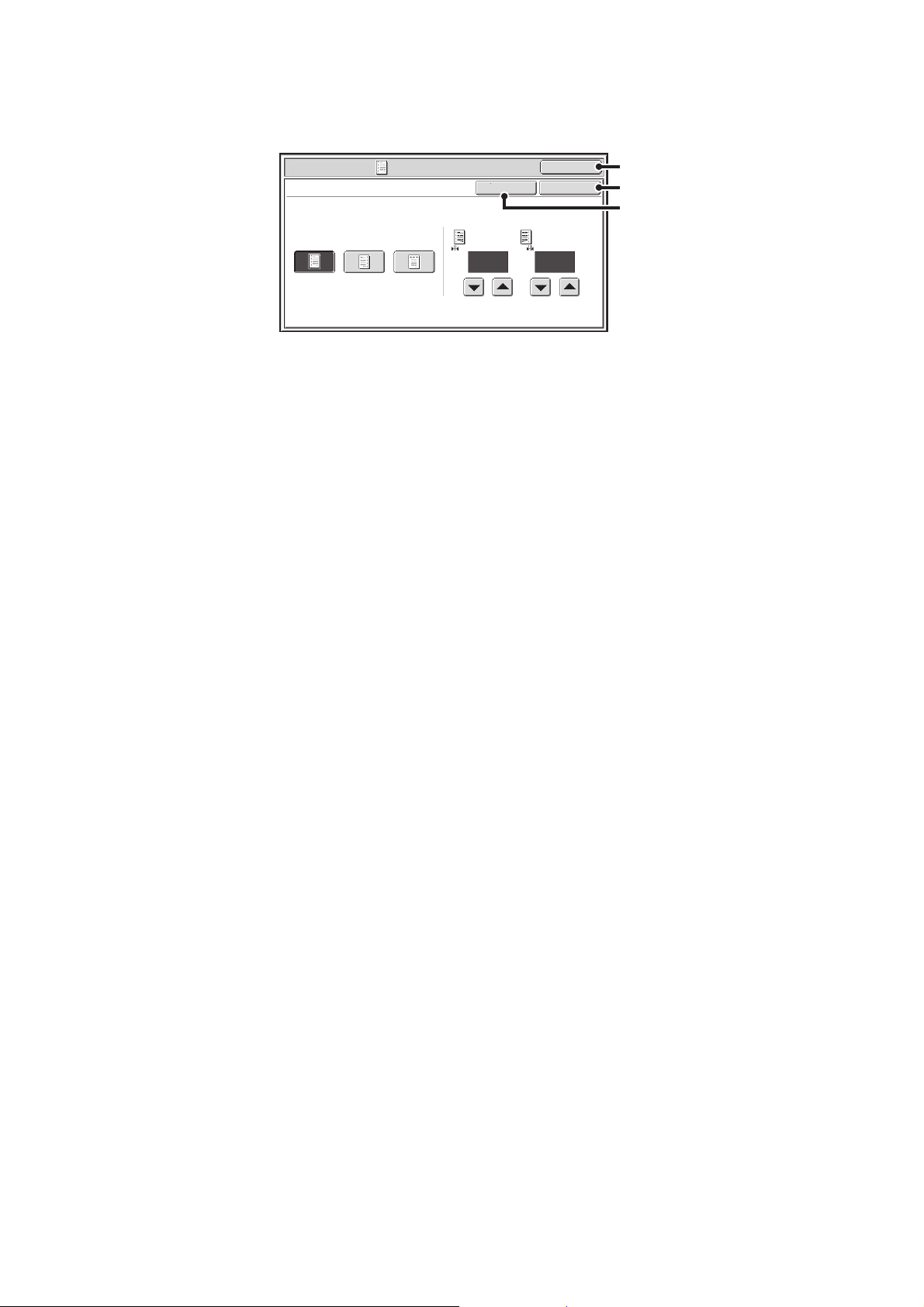
44
[OK] key and [Cancel] key
In some cases two [OK] keys and one [Cancel] key will appear in the special mode screens. The keys are used as
follows:
(A) Enter the selected special mode settings and return to the base screen of copy mode.
(B) Enter the selected special mode settings and return to the special modes menu screen. Touch this key when you
wish to continue selecting other special mode settings.
(C) During selection of special mode settings, this key returns you to the special modes menu screen without saving the
settings. When settings have been completed, this cancels the settings and returns you to the special modes menu
screen.
Special Modes
OK
1/2
Margin Shift
Right Left Down Side 1
(0~1)
inch
1/2
Side 2
(0~1)
inch
OKCancel
(C)
(A)
(B)
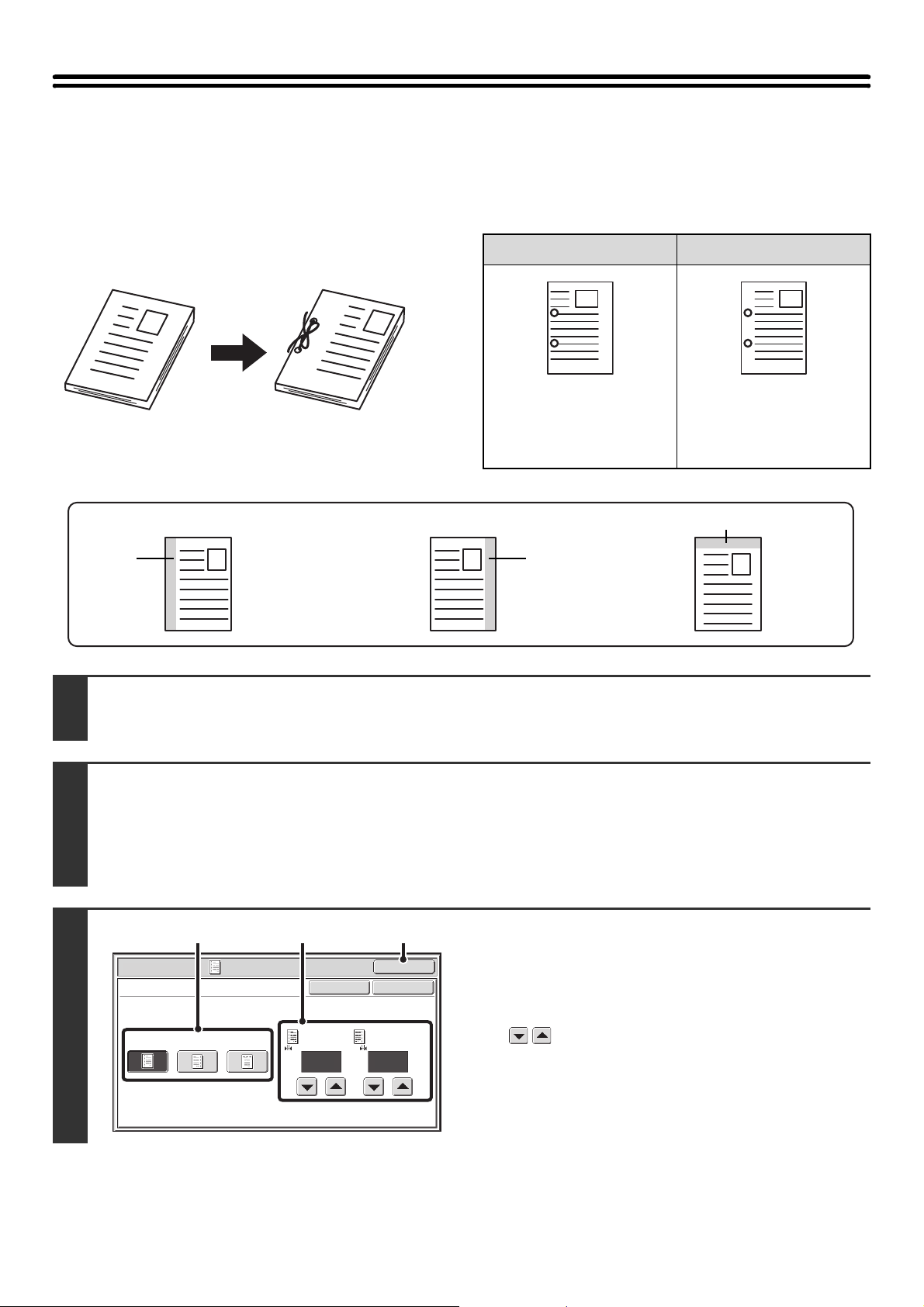
45
ADDING MARGINS (Margin Shift)
This function is used to shift the copy image right, left or down to adjust the margin.
This is convenient when you wish to bind the copies with a string or in a binder.
Shifting the image to the right so the copies can be bound at the left edge with a string
Margin shift positions
1
1
Not using margin shift Using margin shift
The punch holes cut off
part of the image
The image is moved to
allow space for the string
holes so the image is not
cut off.
1
1
1
Place the original.
Place the original face up in the document feeder tray, or face down on the document glass.
2
Select the special modes.
(1) Touch the [Special Modes] key.
(2) Touch the [Margin Shift] key.
☞ SPECIAL MODES (page 43)
3
Set the margin shift.
(1) Touch the margin shift position.
Select one of the three positions.
(2) Set the amount of the margin shift with
.
0" to 1" (0 mm to 20 mm) can be entered.
(3) Touch the [OK] key.
You will return to the base screen of copy mode.
Left
edge
Right
edge
Top edge
Special Modes
OK
1/2
Margin Shift
Right Left Down Side 1
(0~1)
inch
1/2
Side 2
(0~1)
inch
OKCancel
(1) (2) (3)
46
4
Press the [START] key ( ).
Copying will begin.
If you are using the document glass to copy multiple original pages, copying will take place as you scan each original. If you
have selected sort mode, change originals and press the [START] key ( ). Repeat until all pages have been scanned and
then touch the [Read-End] key.
To cancel scanning of the original and copying...
Press the [STOP] key ( ).
Rotation copy cannot be used in combination with margin shift.
To cancel the margin shift setting...
Touch the [Cancel] key in the screen of step 3.
System Settings (Administrator): Initial Margin Shift Setting
The default margin shift setting can be set from 0" to 1" (0 mm to 20 mm). The factory default setting is 1/2" (10 mm).
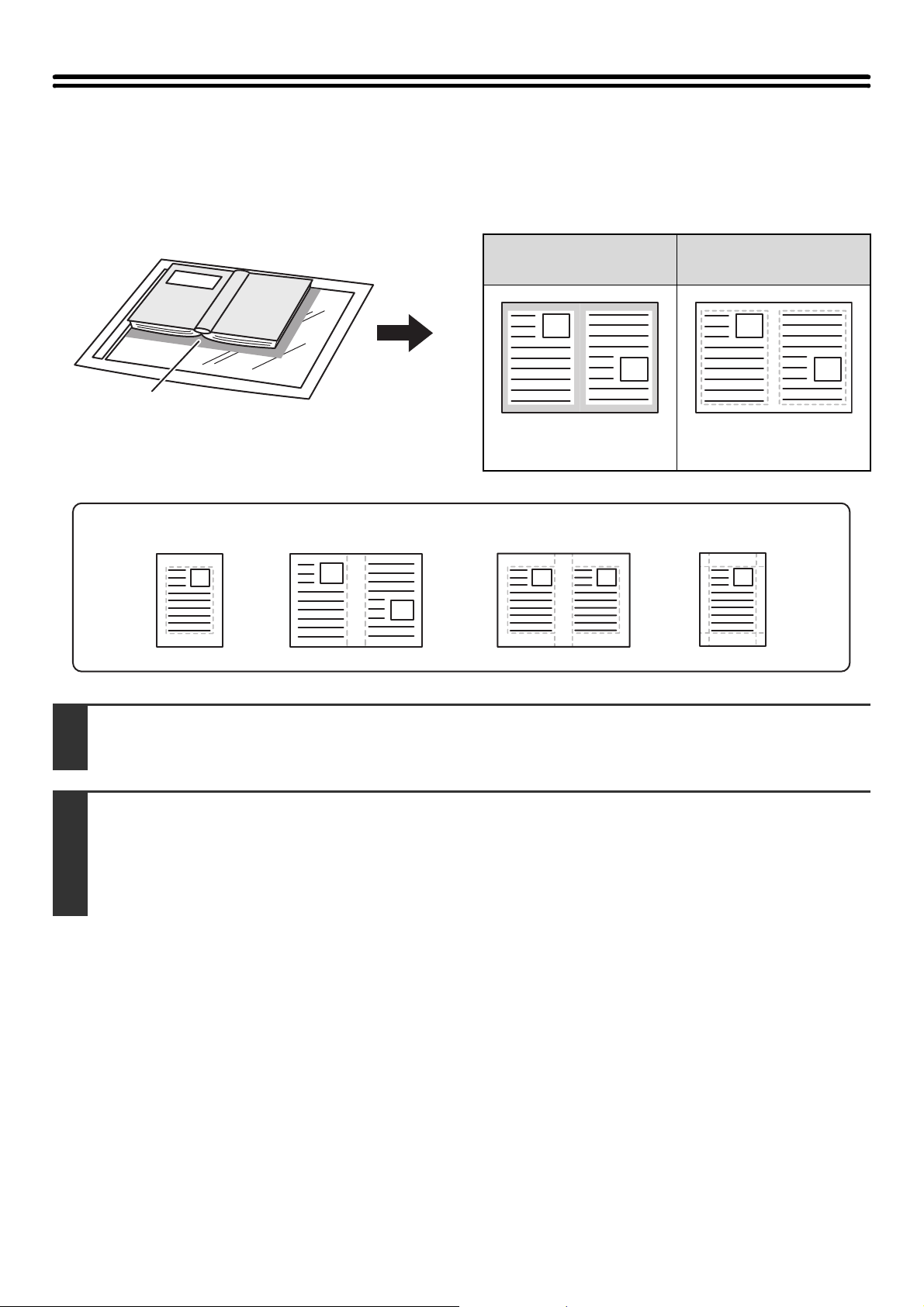
47
ERASING PERIPHERAL SHADOWS (Erase)
The erase function is used to erase shadows around the edges of copies that occur when copying thick originals or
books.
When a thick book is copied
Erase modes
Shadows appear here
Not using the erase
function
Using the erase
function
Shadows appear on the
copy.
Shadows do not appear on
the copy.
1
Place the original.
Place the original face up in the document feeder tray, or face down on the document glass.
2
Select the special modes.
(1) Touch the [Special Modes] key.
(2) Touch the [Erase] key.
☞ SPECIAL MODES (page 43)
Edge Erase Center Erase Edge + Center Erase Side Erase
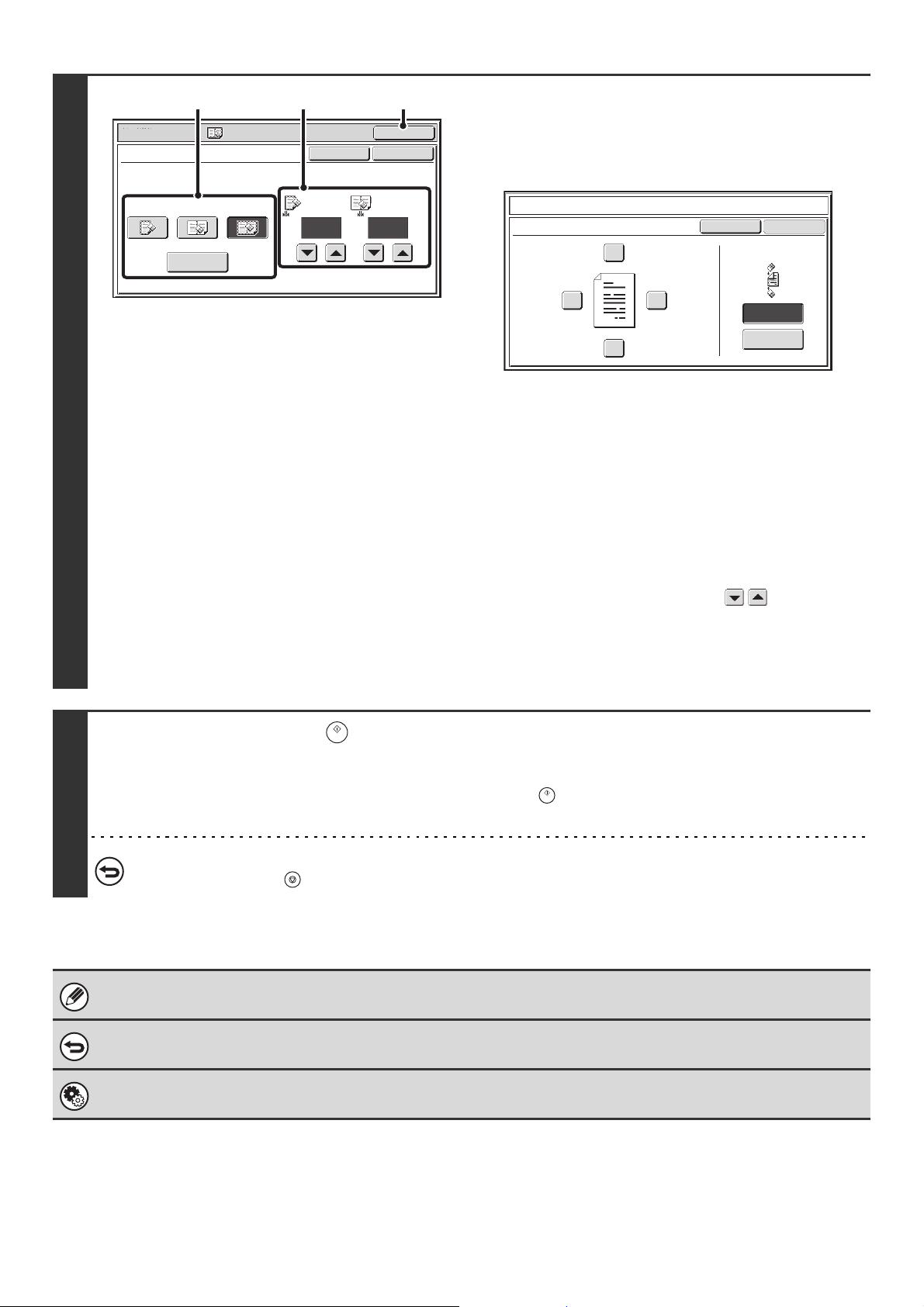
48
3
Select the erase settings.
(1) Touch the desired erase mode.
Select one of the four positions.
Touch the [Side Erase] key to open the following screen.
Touch the checkbox of the edge that you wish to erase
and make sure that a checkmark appears.
When performing 1-sided to 2-sided copying or 2-sided to
2-sided copying, set the erase edge on the reverse side.
• If you touch the [Same Side as Side 1] key, the edge in
the same position as on the front side will be erased.
• If you touch the [Different Side from Side 1], the edge in
the position opposite to the erased edge on the front
side will be erased.
When you have completed the erase edge settings, touch
the [OK] key.
(2) Set the erasure width with .
0" to 1" (0 mm to 20 mm) can be entered.
(3) Touch the [OK] key.
You will return to the base screen of copy mode.
4
Press the [START] key ( ).
Copying will begin.
If you are using the document glass to copy multiple original pages, copying will take place as you scan each original. If you
have selected sort mode, change originals and press the [START] key ( ). Repeat until all pages have been scanned and
then touch the [Read-End] key.
To cancel scanning of the original and copying...
Press the [STOP] key ( ).
If a ratio setting is used in combination with an erase setting, the erase width will change according to the selected ratio.
For example, if the erase width setting is 1" (20 mm) and the image is reduced to 50%, the erase width will be 1/2" (10 mm).
To cancel the erase setting...
Touch the [Cancel] key in the screen of step 3.
System Settings (Administrator): Erase Width Adjustment
The default erase width can be set from 0" to 1" (0 mm to 20 mm). The factory default setting is 1/2" (10 mm).
Special Modes
OK
1/2
Erase
Edge
Erase
Edge
(0~1)
inch
1/2
Center
(0~1)
inch
OKCancel
Center
Erase
Edge+Center
Erase
Side Erase
(2) (3)(1)
Different Side
from Side 1
Erase
Up
Erase position
for Side 2
Same Side as
Side 1
Cancel
Side Erase
Left
Right
Down
OK
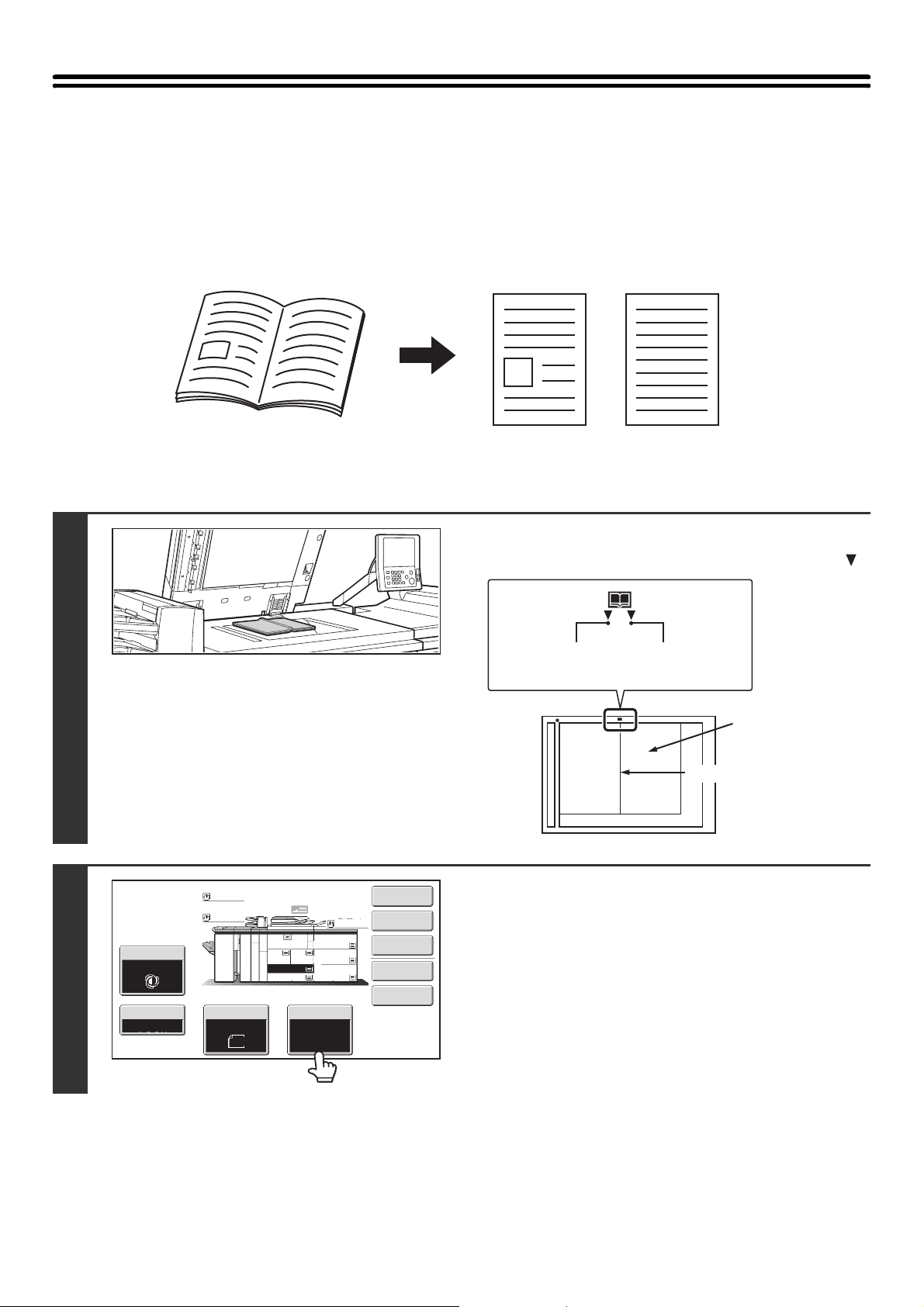
49
COPYING EACH FACING PAGE OF A
BOUND DOCUMENT (Dual Page Copy)
The dual page copy function produces separate copies of two document pages that are placed side by side on the
document glass. This function is useful when making copies of the facing pages of a book or other bound document.
Copying the facing pages of a book or bound document
1
Place the original on the document glass.
Align the center of the original with the appropriate size mark .
2
Select 8-1/2" x 11" (A4) size paper.
Select the paper as explained in "PAPER TRAYS" (page 14).
5
6
56
Book or bound document
The facing pages are copied
onto 2 separate pages.
11" x 17"
(A3)
Size mark
The page on this
side is copied first.
Centerline of
A3 original
Centerline of
11" x 17" original
Centerline of original
Special Modes
Plain
2-Sided Copy
Output
File
Quick File
Copy Ratio
1.
2.
7.
8½x11
8½x11
Original Paper Select
Auto
11x17
Plain
Auto
11x17
Exposure
Auto
8½x14
4.
11x17
11x17
6.
11x17
5.
11x17
3.
8½x11
100%
Plain
Plain
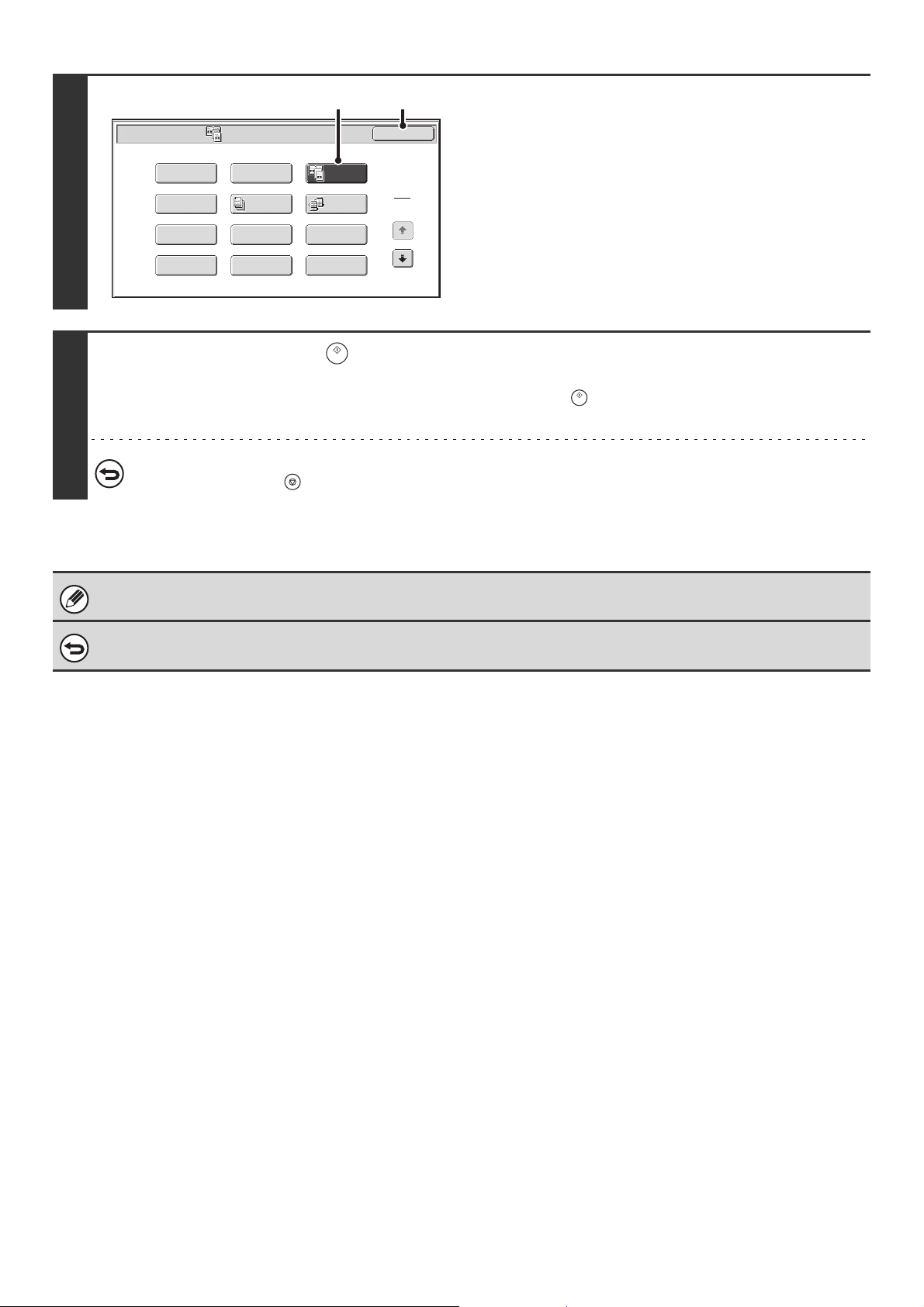
50
3
Select Dual Page Copy.
(1) Touch the [Special Modes] key.
☞ SPECIAL MODES (page 43)
(2) Touch the [Dual Page Copy] key so that it is
highlighted.
(3) Touch the [OK] key.
You will return to the base screen of copy mode.
4
Press the [START] key ( ) .
Copying will begin.
If you have selected sort mode, change originals and press the [START] key ( ). Repeat until all pages have been scanned
and then touch the [Read-End] key.
To cancel scanning of the original and copying...
Press the [STOP] key ( ).
When using dual page copy, the original must be placed on the document glass.
To cancel dual page copy...
Touch the [Dual Page Copy] key in the screen of step 3 so that it is not highlighted.
Special Modes
1
2
Card Shot
Multi Shot
OK
Dual Page
Copy
Tandem
Copy
Tab Copy
Transparency
Inserts
Erase
Job
Build
Book Copy
Covers/Inserts
Margin Shift
Pamphlet Copy
(2) (3)
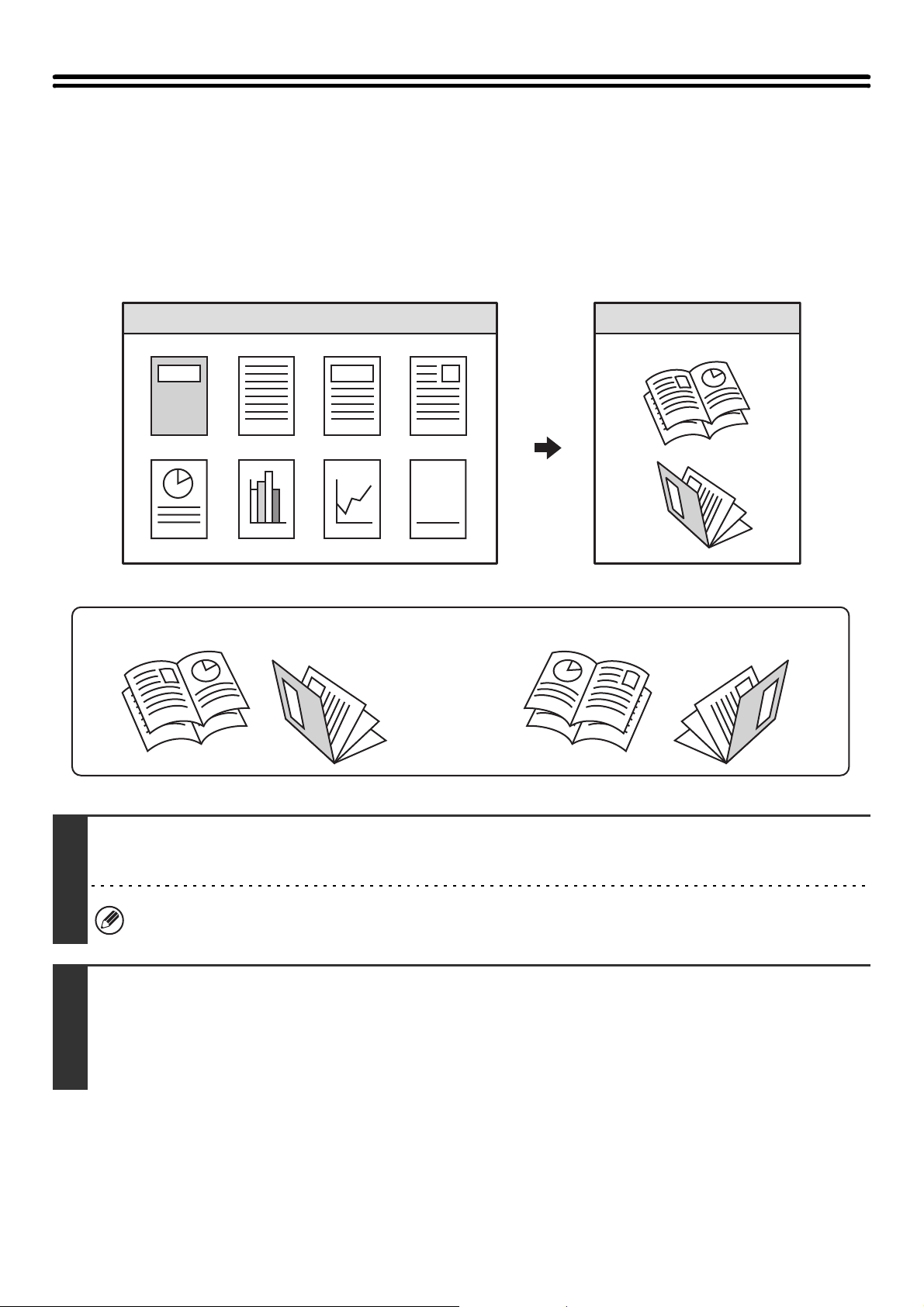
51
MAKING COPIES IN PAMPHLET FORMAT
(Pamphlet Copy)
This function copies 2 original pages onto the front side and 2 original pages onto the reverse side of each sheet of
paper so that the copies can be folded at the centerline to form a pamphlet.
This function is convenient for arranging copies into an attractive booklet or pamphlet.
Pamphlet copy using 8 original pages
1
Place the original.
Place the original face up in the document feeder tray, or face down on the document glass.
If the originals are 2-sided, place them in the document feeder tray.
2
Select the special modes.
(1) Touch the [Special Modes] key.
(2) Touch the [Pamphlet Copy] key.
☞ SPECIAL MODES (page 43)
7
2
2 3 4
5 6 7
5
3
7
5
4
Originals
7
2
7
5
3
5
4
7
2
7
5
3
4
5
Left binding Right binding
In pamphlet form
1st page 2nd page 3rd page 4th page
5th page 6th page 7th page 8th page
Binding side
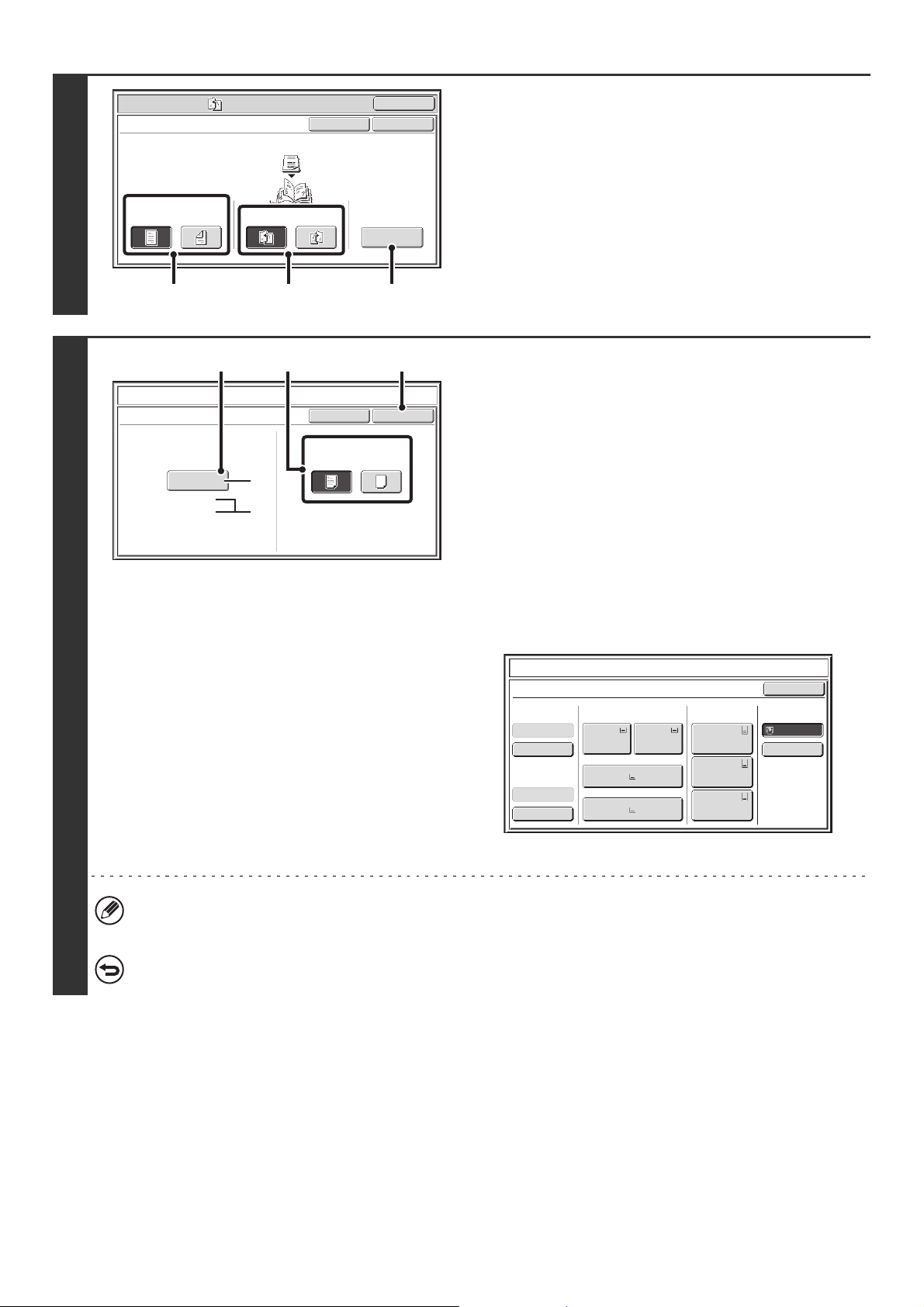
52
3
Select pamphlet copy settings.
(1) If the original is 1-sided, touch the [1-Sided]
key. If the original is 2-sided, touch the
[2-Sided] key.
(2) Select the binding edge ([Left Binding] or
[Right Binding]).
(3) To insert a cover, touch the [Cover Setting]
key.
If you do not want to add a cover, go to step 5.
4
Select cover settings.
(1) If the cover sheet will be copied on, touch
the [Yes] key. Otherwise, touch the [No]
key.
(2) Select paper settings for the cover.
(A) The currently selected paper tray for the cover is
displayed.
(B) The size and type of paper in the currently selected
tray is displayed.
To change the paper tray for the cover, touch the "Paper
Tray" key.
When the "Paper Tray" key is touched, a tray selection
screen appears. Select the paper tray for the cover in the
tray selection screen and touch the [OK] key.
(3) Touch the [OK] key.
• If the cover will be copied on, label sheets, transparency film, and tab paper cannot be used.
• When the cover paper is fed from the inserter, the cover cannot be copied on.
To cancel cover settings...
Touch the [Cancel] key.
Special Modes
OK
Pamphlet Copy
1-Sided 2-Sided
Left
Binding
Right
Binding
Original
OK
Cover
Setting
Cancel
(1) (2) (3)
Cover Setting
Pamphlet Copy
OK
Cancel
Bypass
Tray
Paper Tray
11x17
Plain
Print on Cover(2-Sided)
Yes No
(2) (3)(1)
(A)
(B)
Pamphlet Copy
Cover Setting
8½x11
8½x11
Plain
Plain
Paper TrayInserter(Upper)
Inserter(Lower)
Bypass Tray
Large Capacity
Tray
OK
Plain
Plain
Plain
2. 8½x11
Plain
1. 8½x11
8½x11
Plain
Plain
5. 11x17
Plain
6. 11x17
Plain
7. 11x17
3. 11x17
4. 8½x14
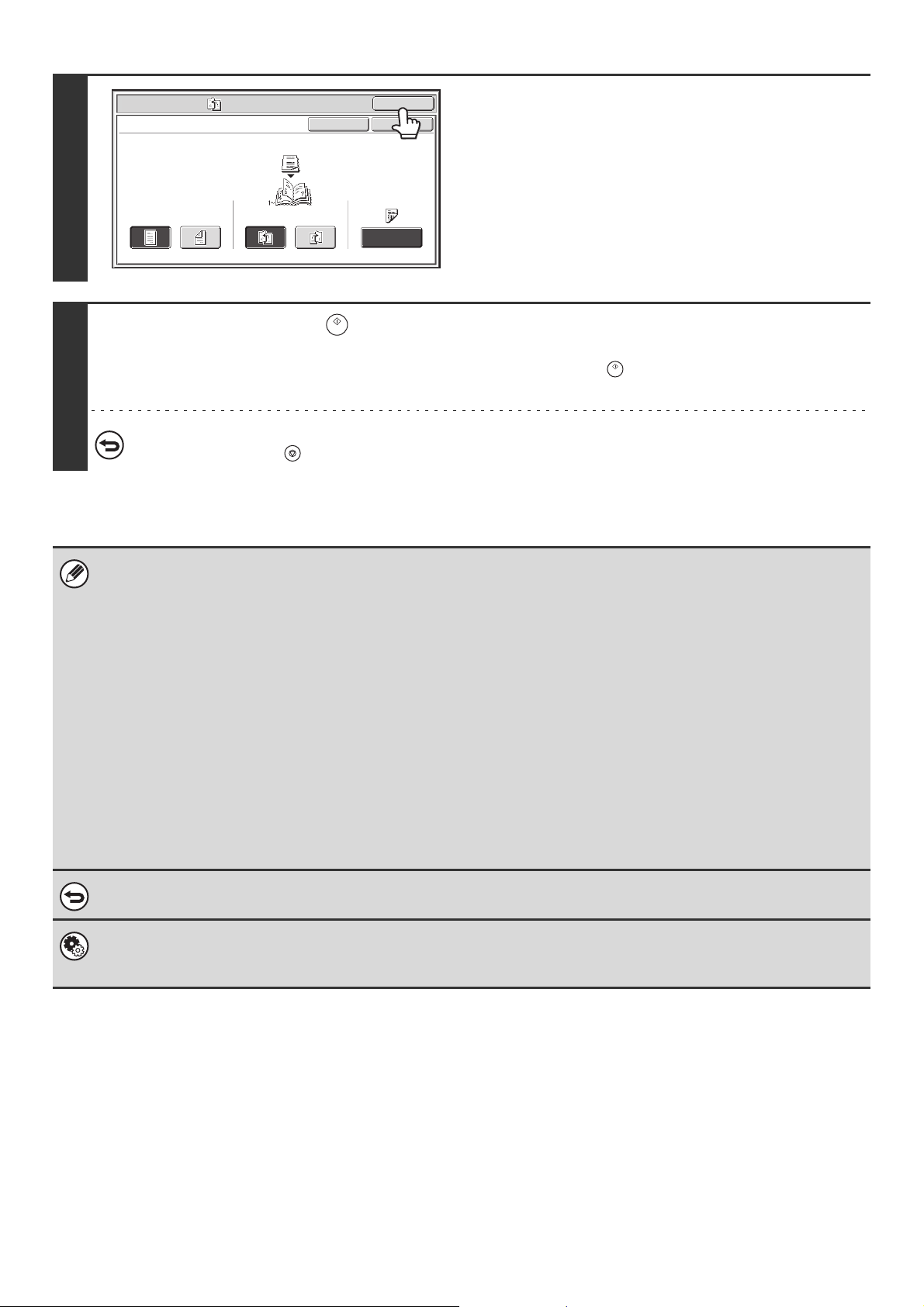
53
5
Touch the [OK] key.
You will return to the base screen of copy mode.
6
Press the [START] key ( ).
Copying will begin.
If you are using the document glass, change originals and press the [START] key ( ). Repeat until all pages have been
scanned and then touch the [Read-End] key.
To cancel scanning of the original and copying...
Press the [STOP] key ( ).
• To make pamphlet copies of a book or other bound original, use the book copy function.
• Pamphlet copy cannot be used when transparency film or other media that cannot be turned over is used. (However, when
the inserter is used to insert the paper as covers or inserts, pamphlet copying is possible.)
• When the pamphlet copy function is selected, 2-sided copying mode is automatically selected. When settings are selected
that prevent 2-sided copying, the pamphlet copy function cannot be used.
• Scan the originals in order from the first page to the last page. The order of copying will be automatically adjusted by the
machine. Four original pages will be copied onto each sheet of paper. Blank pages will be automatically produced at the
end if the number of original pages is not a multiple of four.
• When a saddle unit/saddle stitch finisher is installed, the saddle stitch function can be used.
When pamphlet copy is used in combination with the saddle stitch function and the number of originals is greater than the
number of sheets that can be stapled, a message will appear showing the [Cancel] key, the [Continue] key, and the
[Divide] key.
To cancel the job, touch the [Cancel] key. To make pamphlet copies without stapling, touch the [Continue] key. To divide
the pages into sets that can be stapled, touch the [Divide] key.
If you selected cover insertion settings, it will not be possible to select "Divide". You can either continue pamphlet copying
without stapling, or cancel the job.
To cancel pamphlet copy...
Touch the [Cancel] key in the screen of step 3.
System Settings (Administrator): Automatic Saddle Stitch
When a saddle unit/saddle stitch finisher is installed, this setting can be enabled to have saddle stitch take place
automatically when the pamphlet copy function is selected.
Special Modes
OK
Pamphlet Copy
1-Sided 2-Sided
Left
Binding
Right
Binding
Original
OK
Cover
Setting
Cancel
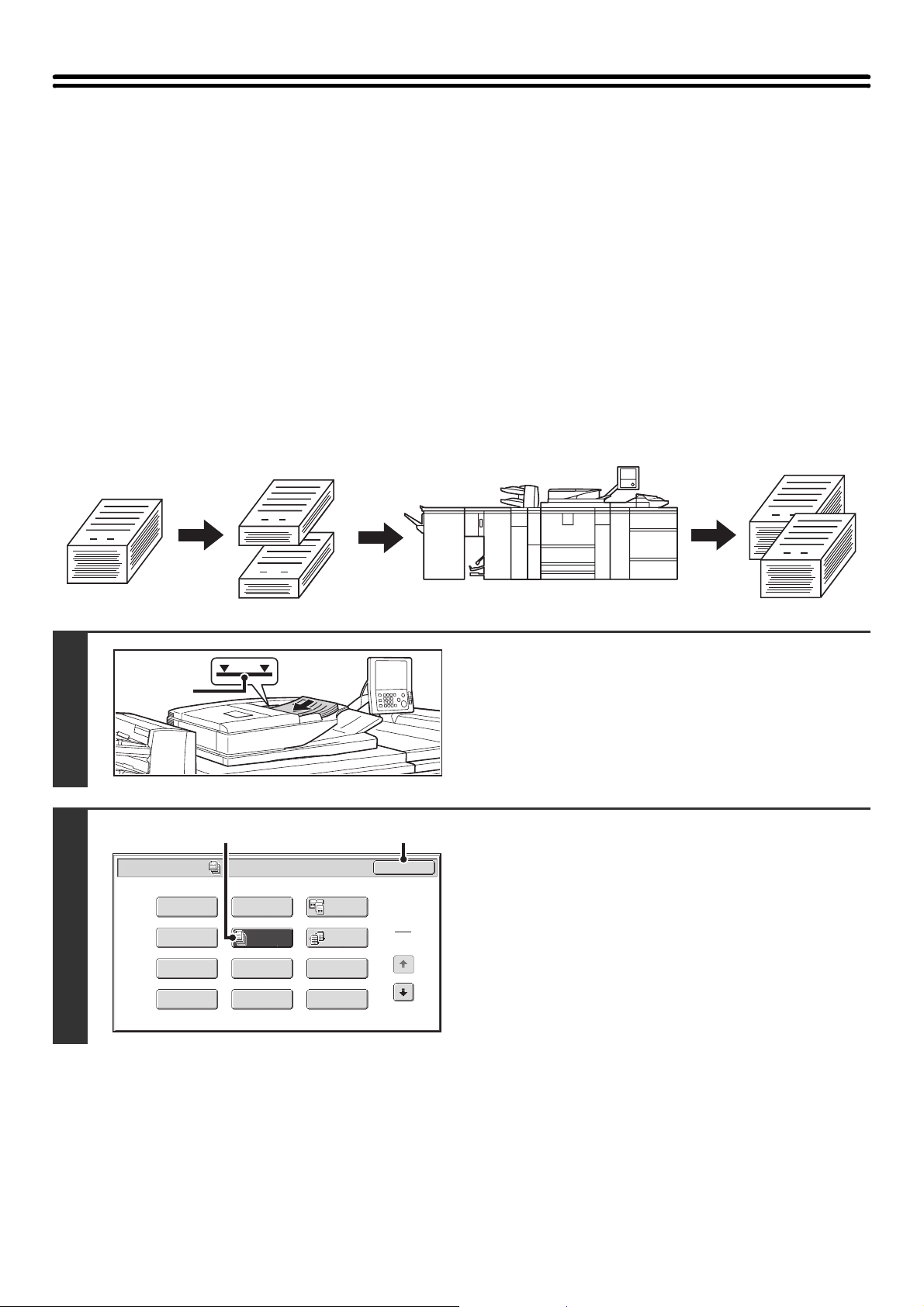
54
COPYING A LARGE NUMBER OF
ORIGINALS AT ONCE (Job Build)
When copying a very large number of originals, this function allows you to divide the originals into sets and feed each
set through the automatic document feeder one set at a time.
Use this function when you wish to copy all of the originals as a single job but the number of originals exceeds the
maximum number that can be inserted.
This function is convenient when you wish to sort copies of a large number of originals into multiple sets. Because all
originals are copied as a single job, you are saved the trouble of sorting the copies that would be required if the originals
were divided into separate copy jobs.
When scanning originals in sets, divide the sheets so that no set has more than the number of paper that can be loaded,
and then scan from the set with the first page. The settings that you select for the first set can be used for all remaining
sets.
Sorting the copies of a large number of originals into 2 sets
1
Insert the originals face up in the
document feeder tray.
Insert the originals all the way into the document feeder tray.
Multiple originals can be placed in the document feeder tray.
The stack of originals must not be higher than the indicator line
on the tray.
2
Select Job Build.
(1) Touch the [Special Modes] key.
☞ SPECIAL MODES (page 43)
(2) Touch the [Job Build] key so that it is
highlighted.
(3) Touch the [OK] key.
You will return to the base screen of copy mode.
1
1
1
101
1
Originals
Originals are
scanned in
separate sets
Indicator
line
Special Modes
1
2
Card Shot
Multi Shot
OK
Dual Page
Copy
Tandem
Copy
Tab Copy
Transparency
Inserts
Erase
Job
Build
Book Copy
Covers/Inserts
Margin Shift
Pamphlet Copy
(3)(2)
55
3
Press the [START] key ( ) to scan the first set of originals.
Scanning begins.
To cancel scanning...
Press the [STOP] key ( ).
4
Insert the next set of originals and press the [START] key ( ).
Repeat this step until all originals have been scanned.
To cancel scanning...
Press the [STOP] key ( ). All scanned data will be cleared.
5
Touch the [Read-End] key.
To cancel copying...
Press the [STOP] key ( ).
If the Quick File Folder of document filing mode is full, copying in job build mode will be impeded. Delete unneeded files from
the Quick File Folder.
To cancel job build mode....
Touch the [Job Build] key in the screen of step 2 so that it is not highlighted.
Read-End
Place next original. Press [Start].
When finished, press [Read-End].
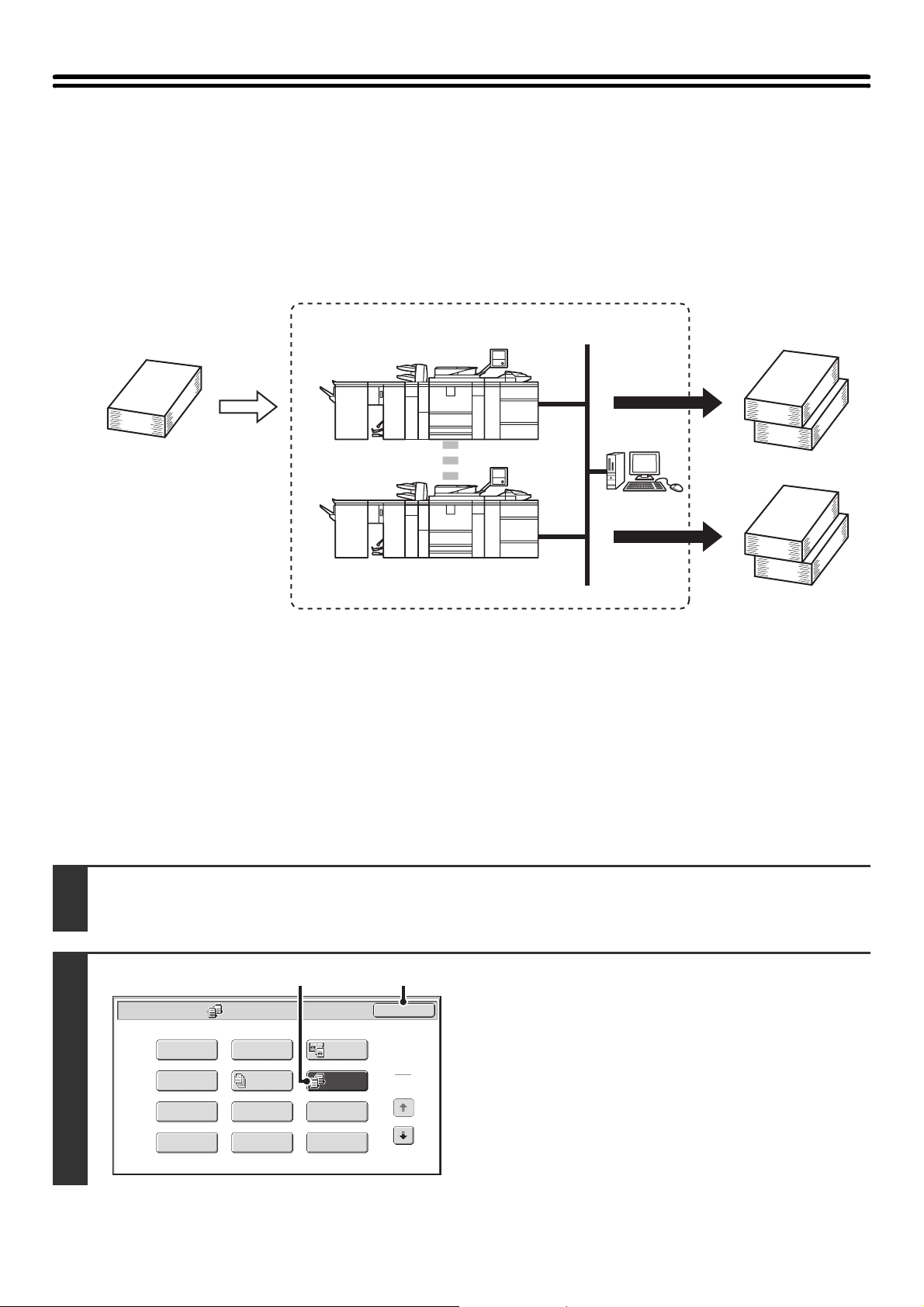
56
USING TWO MACHINES TO MAKE A LARGE
NUMBER OF COPIES (Tandem Copy)
Two machines connected to the same network can be used to run a large copy job in parallel.
Each machine prints half of the copies, reducing the time required to complete the job.
Master machine and slave machine
In the following explanation, the master machine is the machine that is used to scan the originals. The slave machine is
another machine specified in the master machine that only helps print the copies; it is not used to scan the originals.
Before using tandem copy
• To use this function, two machines must be connected to your network. Even if more machines are connected to the
network, this function can only be used to have one other machine share a job.
• To use the tandem copy function, "Tandem Connection Setting" must be configured in the system settings
(administrator).
• When configuring the system settings in the master machine, the IP address of the slave machine is required. For the
port number, it is best to use the initial setting (50001). Unless you experience difficulty with this setting, do not
change the port number. The tandem settings should be configured by your network administrator. If the master
machine and slave machine will switch roles, configure the IP address of the master machine in the slave machine.
The same port number can be used for both machines.
1
Place the original.
Place the original face up in the document feeder tray, or face down on the document glass.
2
Select tandem copy.
(1) Touch the [Special Modes] key.
☞ SPECIAL MODES (page 43)
(2) Touch the [Tandem Copy] key so that it is
highlighted.
(3) Touch the [OK] key.
You will return to the base screen of copy mode.
Master machine
4 sets of copies are
made
2 sets of
copies
Network environment
Slave machine
2 sets of
copies
Special Modes
1
2
Card Shot
Multi Shot
OK
Dual Page
Copy
Tandem
Copy
Tab Copy
Transparency
Inserts
Erase
Job
Build
Book Copy
Covers/Inserts
Margin Shift
Pamphlet Copy
(3)(2)
57
3
Set the number of copies (number of
sets) with the numeric keys.
Up to 9999 copies (sets) can be set. When the [START] key
( ) is pressed, the copies will automatically be divided
between the master and slave machines.
If an odd number of copies is set, the master machine will print
the extra set.
If an incorrect number of copies is set...
Press the [CLEAR] key ( ) and then enter the correct number.
4
Press the [START] key ( ).
Copying will begin.
If you are using the document glass, change originals and press the [START] key. Repeat until all pages have been scanned
and then touch the [Read-End] key.
The following screen appears when the [START] key ( ) is pressed.
After the message appears, tandem copying begins.
If tandem copying is not possible, the following screen appears.
To have the master machine make all copies, touch the [OK] key. To cancel the job, touch the [Cancel] key.
• To cancel scanning...
Press the [STOP] key ( ).
• To cancel tandem copying...
Touch the [STOP] keys ( ) on both the master machine and the slave machine.
Starting tandem operation.
Please wait.
Tandem output is not allowed.
Output all sets using master machine?
(Cancel will delete the job.)
Cancel
OK
58
In this situation...
A punch module is installed on the master machine but not on the slave machine.
• Copying without punching: tandem copy is possible.
• Copying with punching: tandem copy is not possible.
In this way, if tandem copying is executed using a function that the slave machine does not have, a message will appear. To
have the master machine make all copies, touch the [OK] key. To cancel the job, touch the [Cancel] key.
If a machine runs out of paper
If either the master machine or the slave machine run out of paper, the machine that ran out of paper will hold the job while
the machine that still has paper continues the job. When paper is added to the machine that ran out, the job resumes.
When user authentication is enabled
User authentication is enabled in the master machine: tandem copying is possible.
User authentication is enabled in the slave machine but not in the master machine: tandem copying is not possible.
If tandem copying is performed without setting the number of copies
A message will appear and the master machine and slave machine will each make one set of copies (total of two sets).
To cancel tandem copy...
Touch the [Tandem Copy] key in the screen of step 2 so that it is not highlighted.
System Settings (Administrator): Tandem Connection Setting
This must be configured to use the tandem function. This can also be used to disable the tandem function.
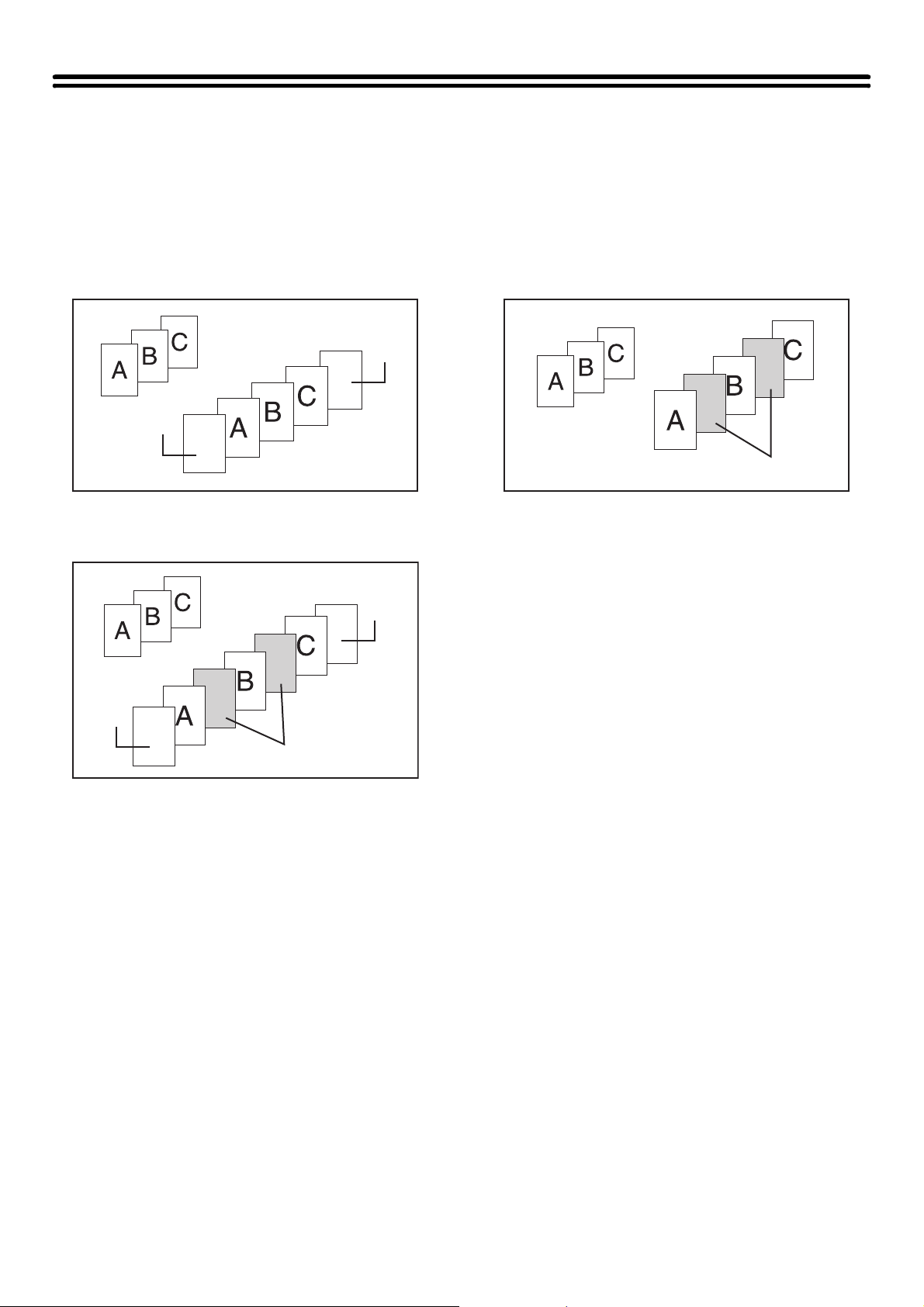
59
USING A DIFFERENT PAPER TYPE FOR
COVERS (Covers/Inserts)
A different type of paper can be inserted in positions corresponding to front and back covers of a copy job when the
automatic document feeder is used. A different type of paper can also be automatically added as an insert at specified
pages.
Example of adding covers
Example of adding covers/inserts
Example of adding inserts
About the explanations of covers and
inserts
There are various ways of using covers and inserts. To
keep the explanations simple, covers and inserts are
explained separately. For specific examples, see
"Examples of covers and inserts" (page 135).
Preparations for using covers and inserts
• Load the cover/insert paper in the tray before using the cover/insert function.
• Before selecting the cover/insert function, place the originals in the document feeder tray, select 1-sided or 2-sided
copying, and select the number of copies and any other desired copy settings. When these settings have been
completed, perform the procedure to select covers/inserts.
• The originals must be scanned using the automatic document feeder. The document glass cannot be used.
• For covers, only one sheet can be inserted for the front cover and only one sheet can be inserted for the back cover.
For inserts, up to 100 sheets can be inserted. Note that two insert sheets cannot be inserted between the same two
pages.
• When performing 2-sided copying of 2-sided originals, an insert cannot be inserted between the front and reverse
sides of an original.
• Covers/inserts cannot be inserted in transparency film and other media that cannot be turned over before output.
(However, when the inserter is used without performing cover or insert copying, insertion is possible.)
Back
cover
Front cover
Originals
Inserts
Back
cover
Originals
Front
cover
Originals
Inserts
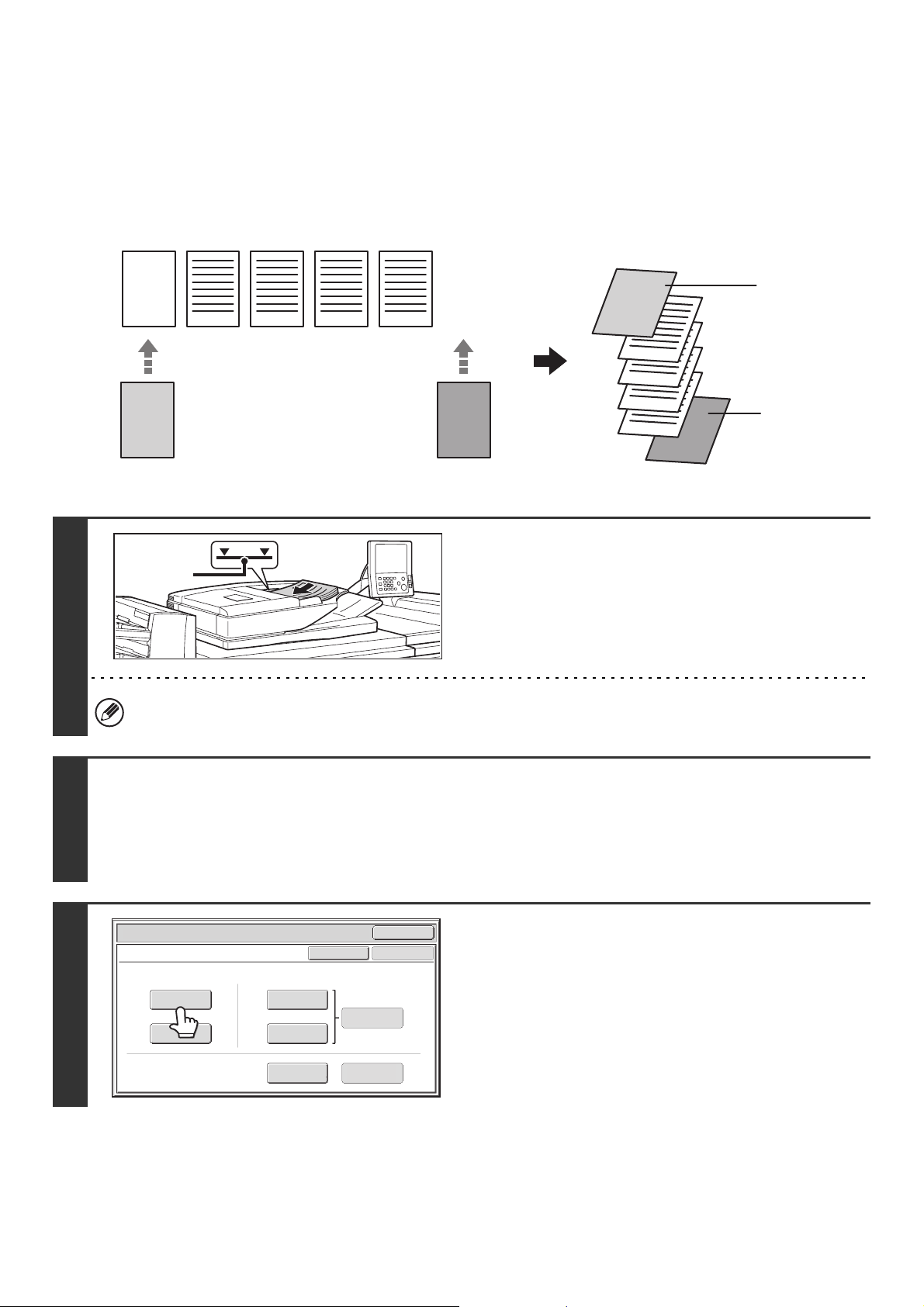
60
INSERTING COVERS IN COPIES (Cover Settings)
A different type of paper can be inserted at the positions corresponding to the front and back covers of a copy job.
This is useful for arranging documents in an attractive format and for using a different type of paper as a cover on an
estimate sheet or similar document.
Covers can be used in combination with inserts.
Copying on a front cover and inserting together with a back cover
1
Insert the originals face up in the
document feeder tray.
Insert the originals all the way into the document feeder tray.
Multiple originals can be placed in the document feeder tray.
The stack of originals must not be higher than the indicator line
on the tray.
The document glass cannot be used.
2
Select the special modes.
(1) Touch the [Special Modes] key.
(2) Touch the [Covers/Inserts] key.
☞ SPECIAL MODES (page 43)
3
Touch the [Front Cover] key.
5
4
2 3 4 51
3
2
1
AAA
AAA
Originals
Front cover paper Back cover paper
Front cover
Back cover
Copies
Indicator
line
Special Modes
OK
Cancel
OK
Front
Cover
Back
Cover
Insertion
Type B
Insertion
Type A
Insertion
Settings
Tray Settings
Inserts Setting
Cover Setting
Covers/Inserts
Page Layout
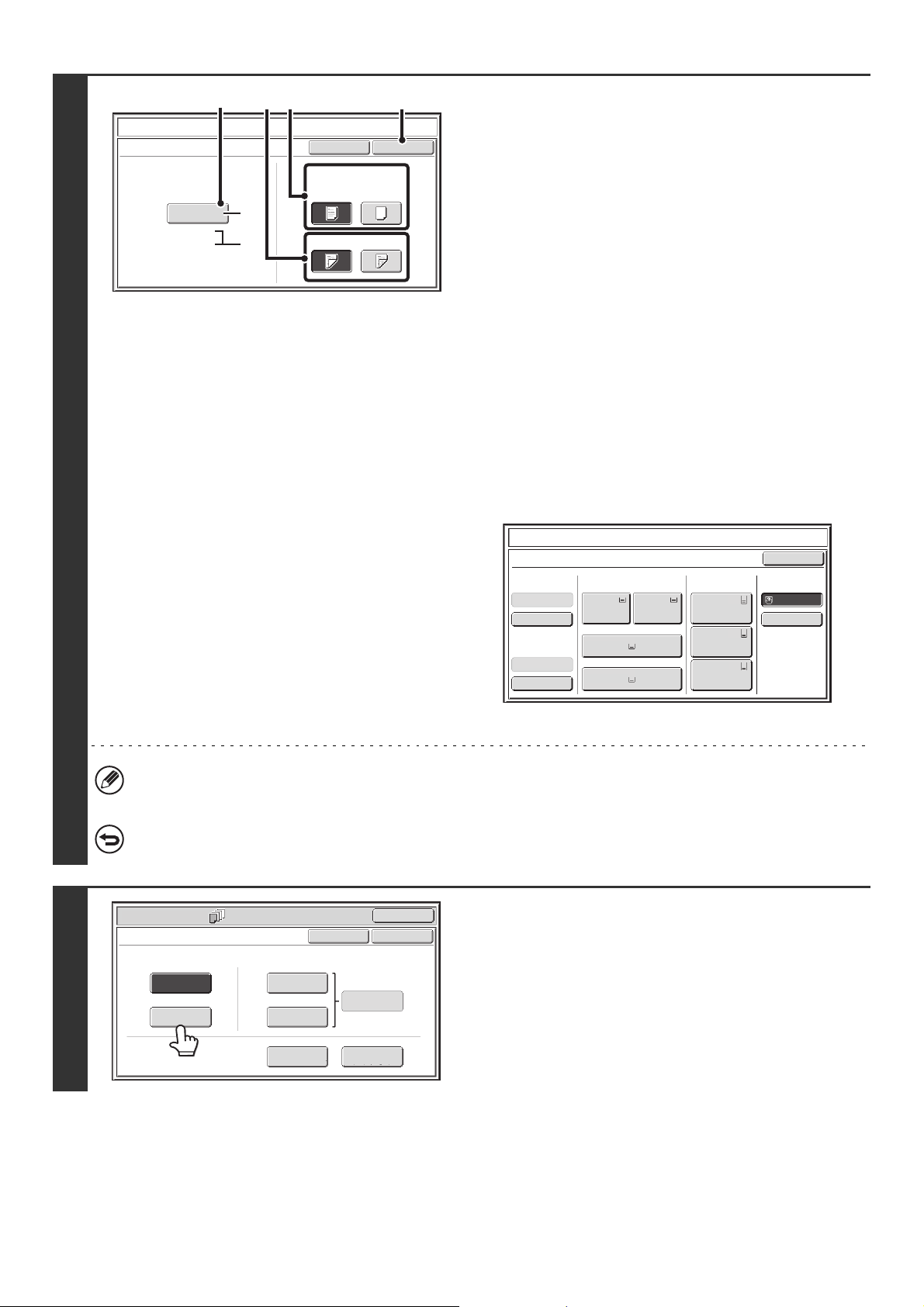
61
4
Select cover settings.
(1) If the cover sheet will be copied on, touch
the [Yes] key. Otherwise, touch the [No]
key.
If the [No] key is touched, only cover insertion will be
performed.
In this case, go to step (3).
(2) To copy on one side of the cover, touch the
[1-Sided] key. To copy on both sides of the
cover, touch the [2-Sided] key.
(3) Select paper settings for the cover.
(A) The currently selected paper tray for the cover is
displayed.
(B) The size and type of paper in the currently selected
tray is displayed.
To change the paper tray for the cover, touch the "Paper
Tray" key.
When the "Paper Tray" key is touched, a tray selection
screen appears. Select the paper tray for the cover in the
tray selection screen and touch the [OK] key.
(4) Touch the [OK] key.
• If the cover will be copied on, label sheets and tab paper cannot be used.
• When the cover paper is fed from the inserter, the cover cannot be copied on.
To cancel cover settings...
Touch the [Cancel] key.
5
If you wish to insert a back cover, touch
the [Back Cover] key.
The screen of step 4 appears. The procedures are the same as
for the front cover. Follow the procedures in step 4.
When following the procedures, substitute "Back Cover" for
"Front Cover".
Covers/Inserts
Cancel
Front Cover Setting
OK
Paper Tray
Print on Front Cover
Yes
8½x11
Plain
No
2-Sided1-Sided
Bypass
Tray
(3) (4)(1)(2)
(A)
(B)
Covers/Inserts
Front Cover
8½x11
8½x11
Plain
Plain
Paper TrayInserter(Upper)
Inserter(Lower)
Bypass Tray
Large Capacity
Tray
OK
Plain
Plain
Plain
2. 8½x11
Plain
1. 8½x11
8½x11
Plain
Plain
5. 11x17
Plain
6. 11x17
Plain
7. 11x17
3. 11x17
4. 8½x14
Special Modes
OK
Cancel
OK
Front
Cover
Back
Cover
Insertion
Type B
Insertion
Type A
Insertion
Settings
Tray Settings
Inserts Setting
Cover Setting
Covers/Inserts
Page Layout
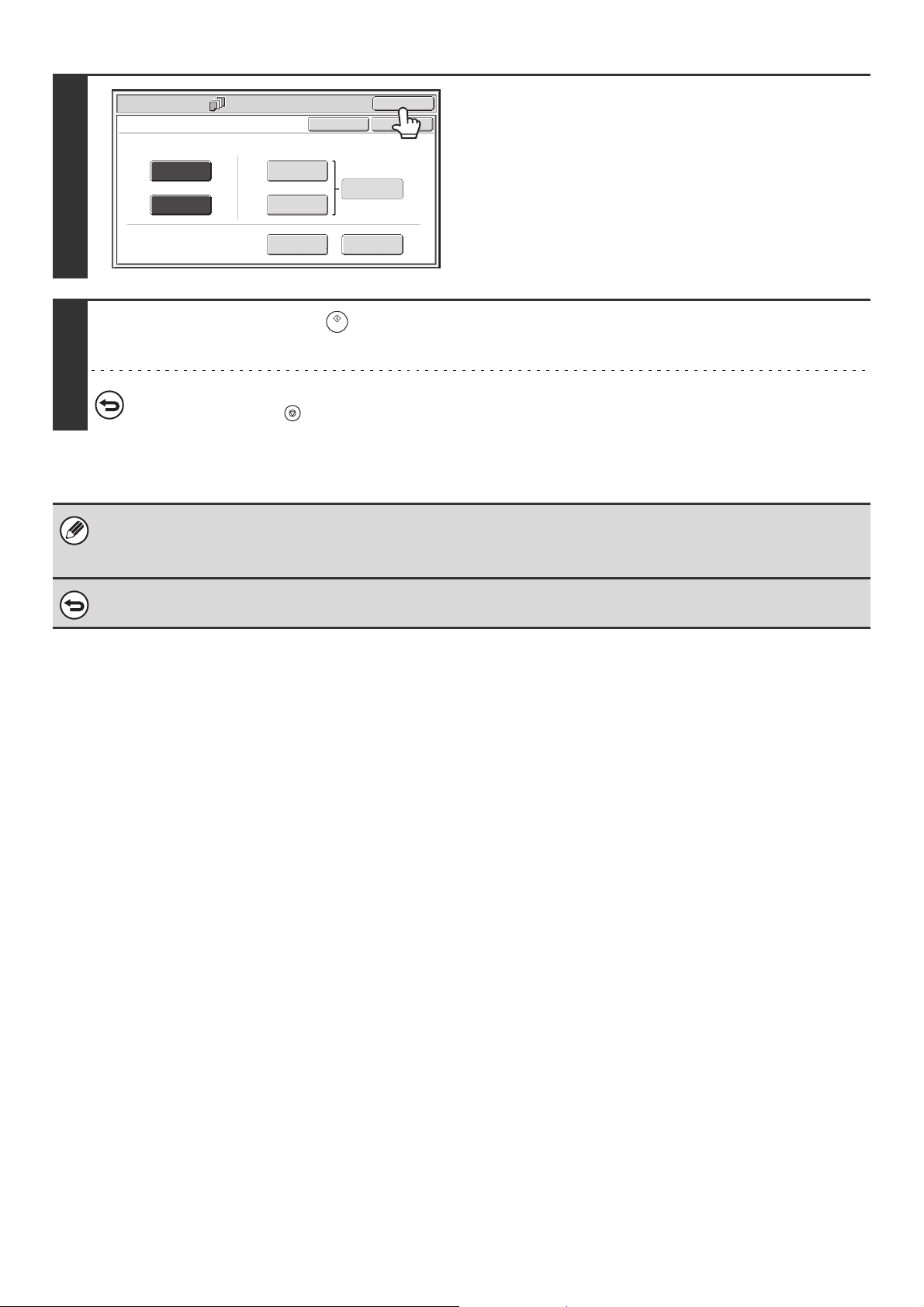
62
6
Touch the [OK] key.
You will return to the base screen of copy mode.
You can touch the [Insertion Type A] key or the [Insertion Type
B] key to select insert settings.
☞ INSERTING INSERT SHEETS IN COPIES (Insert
Settings) (page 63)
To check your settings, touch the [Page Layout] key.
☞ CHANGING COVER/INSERT SETTINGS (Page Layout)
(page 67)
7
Press the [START] key ( ).
Copying of the originals in the document feeder tray begins.
To cancel scanning and copying...
Press the [STOP] key ( ).
• This function cannot be used in combination with the saddle stitch function.
• The document glass cannot be used.
• Cover settings cannot be selected if insertion of covers and inserts is disabled in the system settings (administrator).
To cancel cover sheet insertion...
Touch the [Cancel] key in the screen of step 3.
Special Modes
OK
Cancel
OK
Front
Cover
Back
Cover
Insertion
Type B
Insertion
Type A
Insertion
Settings
Tray Settings
Inserts Setting
Cover Setting
Covers/Inserts
Page Layout
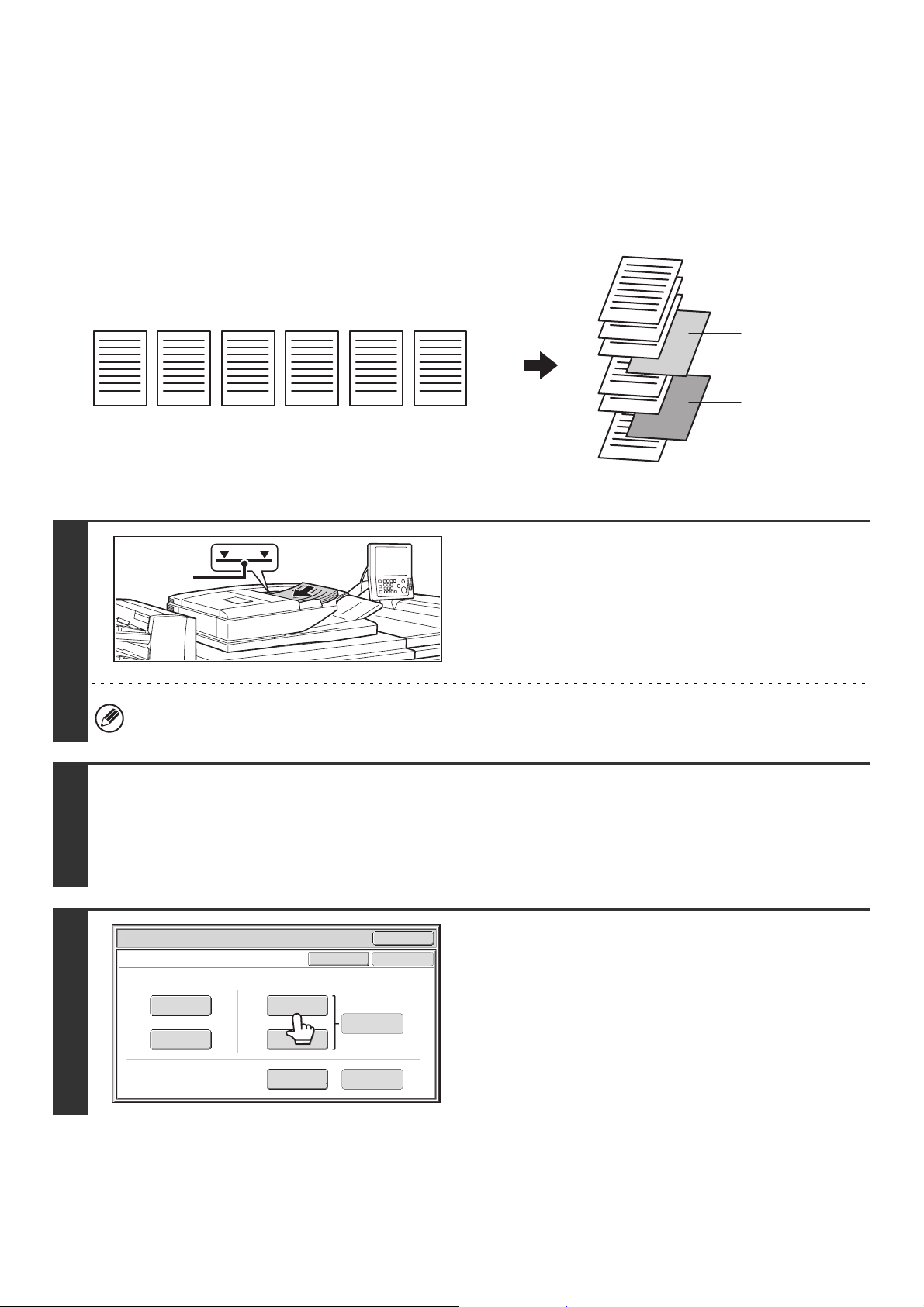
63
INSERTING INSERT SHEETS IN COPIES
(Insert Settings)
You can have different paper automatically inserted as inserts at specified pages of copies. Two types of paper can be
used as inserts, and the insertion positions can be specified separately for each.
Covers can be used in combination with inserts.
Example: Insert A after page 3 and insert B after page 5.
1
Insert the originals face up in the
document feeder tray.
Insert the originals all the way into the document feeder tray.
Multiple originals can be placed in the document feeder tray.
The stack of originals must not be higher than the indicator line
on the tray.
The document glass cannot be used.
2
Select the special modes.
(1) Touch the [Special Modes] key.
(2) Touch the [Covers/Inserts] key.
☞ SPECIAL MODES (page 43)
3
Touch the [Insertion Type A] key.
6
5
4
2 3 4 5 61
3
2
1
1
Originals
Copies
Insert A
Insert B
Indicator
line
Special Modes
OK
Cancel
OK
Front
Cover
Back
Cover
Insertion
Type B
Insertion
Type A
Insertion
Settings
Tray Settings
Inserts Setting
Cover Setting
Covers/Inserts
Page Layout
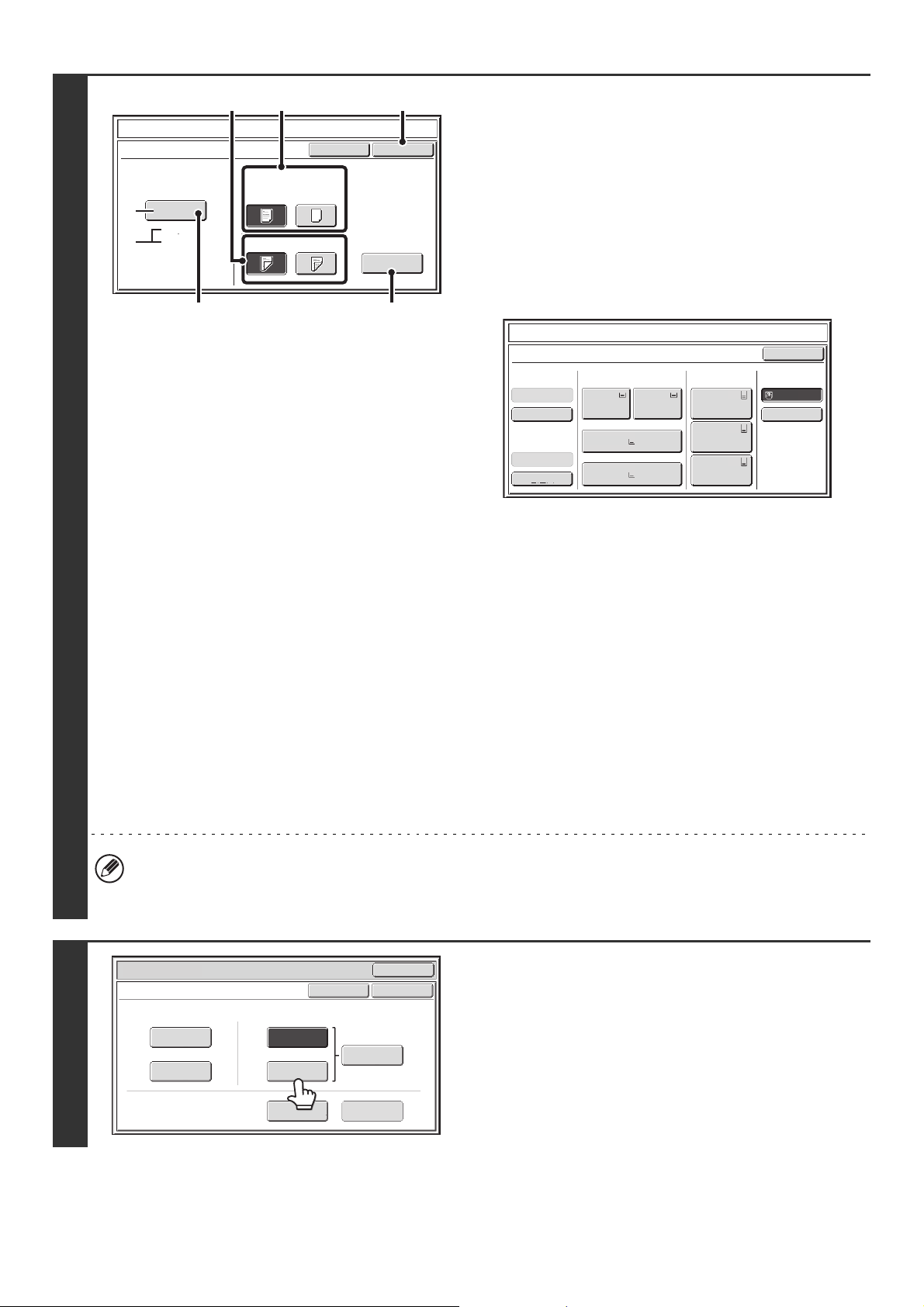
64
4
Select insert settings.
(1) Select insert paper settings.
(A) The currently selected paper tray for the insert is
displayed.
(B) The size and type of paper in the currently selected
tray is displayed.
To change the paper tray for the inserts, touch the "Paper
Tray" key.
When the "Paper Tray" key is touched, a tray selection
screen appears. Select the desired paper tray in the tray
selection screen and touch the [OK] key.
(2) If the insert will be copied on, touch the
[Yes] key. Otherwise, touch the [No] key.
If the [No] key is touched, only insert sheet insertion will
be performed.
In this case, go to step (5).
(3) To copy on one side of the insert, touch the
[1-Sided] key. To copy on both sides, touch
the [2-Sided] key.
(4) If you wish to perform tab copying, touch
the [Tab Copy] key.
When tab paper is used for inserts, the tab paper can be
copied on. To select tab copying, see "COPYING
CAPTIONS ONTO TAB PAPER (Tab Copy)" (page 78).
(5) Touch the [OK] key.
• If both sides of the insert will be copied on, label sheets and tab paper cannot be used.
• When the insert paper is fed from the inserter, the insert cannot be copied on.
• If tab copy is selected in the insert settings, two-sided copying on the inserts is not possible.
5
If you wish to insert a different type of
insert sheet, touch the [Insertion Type B]
key.
The screen of step 4 appears. Settings are selected in the
same way as for insert type A. Follow the procedures in step 4.
When following the procedures, substitute "Insert Type B" for
"Insert Type A".
Covers/Inserts
Cancel
Insertion Type A Settings
OK
Paper Tray
Print on Insert Sheets
Yes
8½x11
Plain
No
2-Sided1-Sided
Bypass
Tray
Tab Copy
(5)
(4)(1)
(3)
(B)
(A)
(2)
Covers/Inserts
Insertion Type A
8½x11
8½x11
Plain
Plain
Paper TrayInserter(Upper)
Inserter(Lower)
Bypass Tray
Large Capacity
Tray
OK
Plain
Plain
Plain
2. 8½x11
Plain
1. 8½x11
8½x11
Plain
Plain
5. 11x17
Plain
6. 11x17
Plain
7. 11x17
3. 11x17
4. 8½x14
Special Modes
OK
OK
Cancel
Front
Cover
Back
Cover
Insertion
Type B
Insertion
Type A
Insertion
Settings
Tray Settings
Inserts Setting
Cover Setting
Covers/Inserts
Page Layout
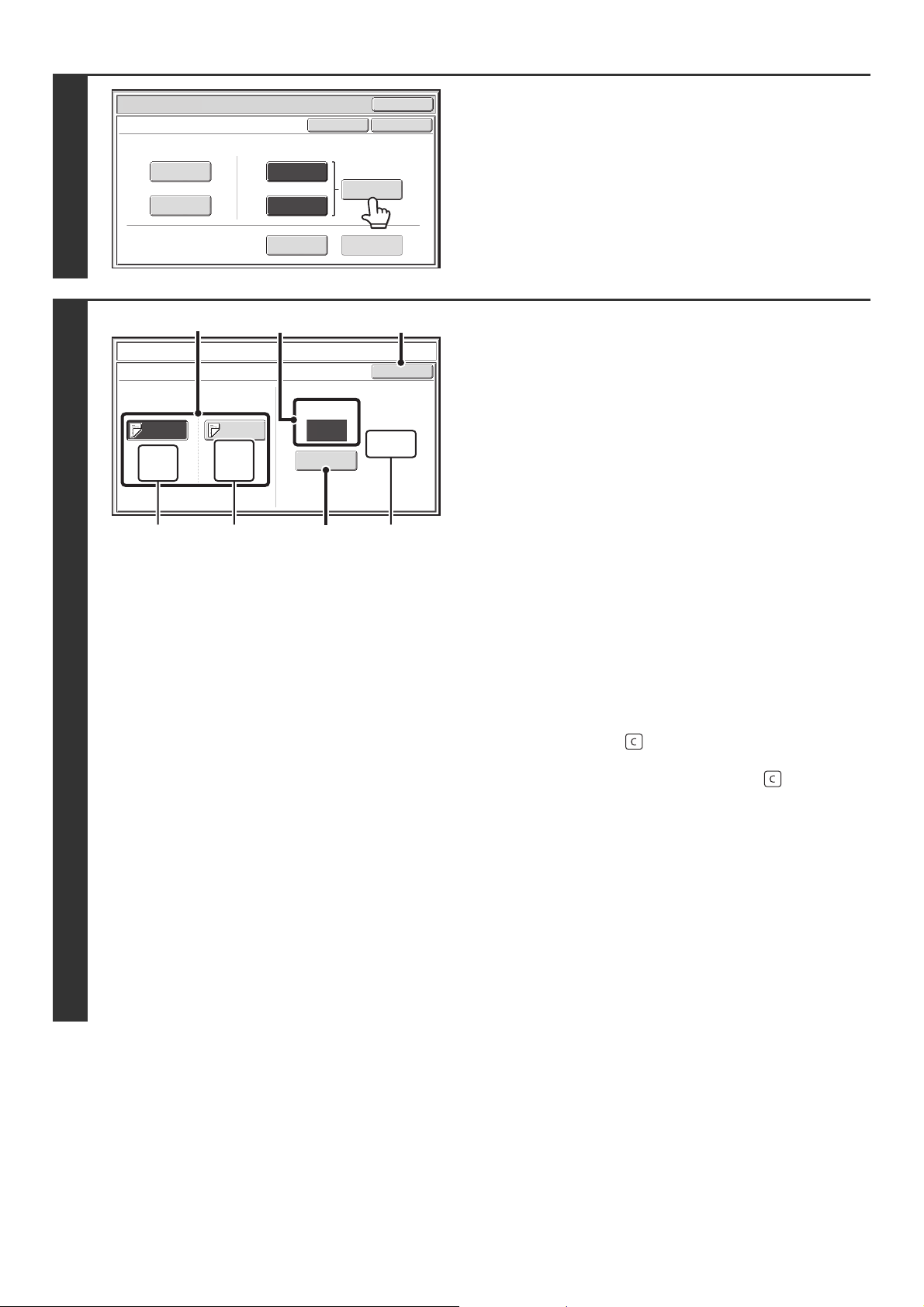
65
6
Touch the [Insertion Settings] key.
7
Specify the pages where inserts A and B
will be inserted.
(1) Touch the [Insertion Type A] key or the
[Insertion Type B] key.
Specify the page where the highlighted insert will be
inserted.
(A) This shows the tray selected for insert type A and the
paper size and type.
(B) This shows the tray selected for insert type B and the
paper size and type.
When the [Insertion Type A] key is highlighted, the insert
sheet insertion settings are applied to [Insertion Type A].
When the [Insertion Type B] key is highlighted, the insert
settings are applied to [Insertion Type B].
(2) Enter the page number where the insert
sheet will be inserted with the numeric
keys.
For more information, see "Inserts (copying of 1-sided
originals)" (page 140) and "Inserts (copying of 2-sided
originals)" (page 140).
The [CLEAR] key ( ) can be pressed to return the
setting of the selected item to the default value. If you
make a mistake, press the [CLEAR] key ( ) and then
enter the correct number.
(3) Touch the [Enter] key.
(C) This shows the total number of inserts. Up to 100
insert sheets can be inserted. To insert multiple
inserts, touch the [Enter] key after entering each
insertion page number (insertion position) with the
numeric keys.
(4) To insert another insert sheet, repeat steps
(1) to (3).
(5) Touch the [OK] key.
Special Modes
OK
OK
Cancel
Front
Cover
Back
Cover
Insertion
Type B
Insertion
Type A
Insertion
Settings
Tray Settings
Inserts Setting
Cover Setting
Covers/Inserts
Page Layout
Covers/Inserts
Insertion Settings
OK
Insertion
Type B
Insertion
Type A
10
Insertion
Total:4
8½x11
Plain
Tray 2
Bypass
Tray
8½x11
Plain
Enter
Insertion Page
(1) (5)(2)
(A)
(B) (C)(3)
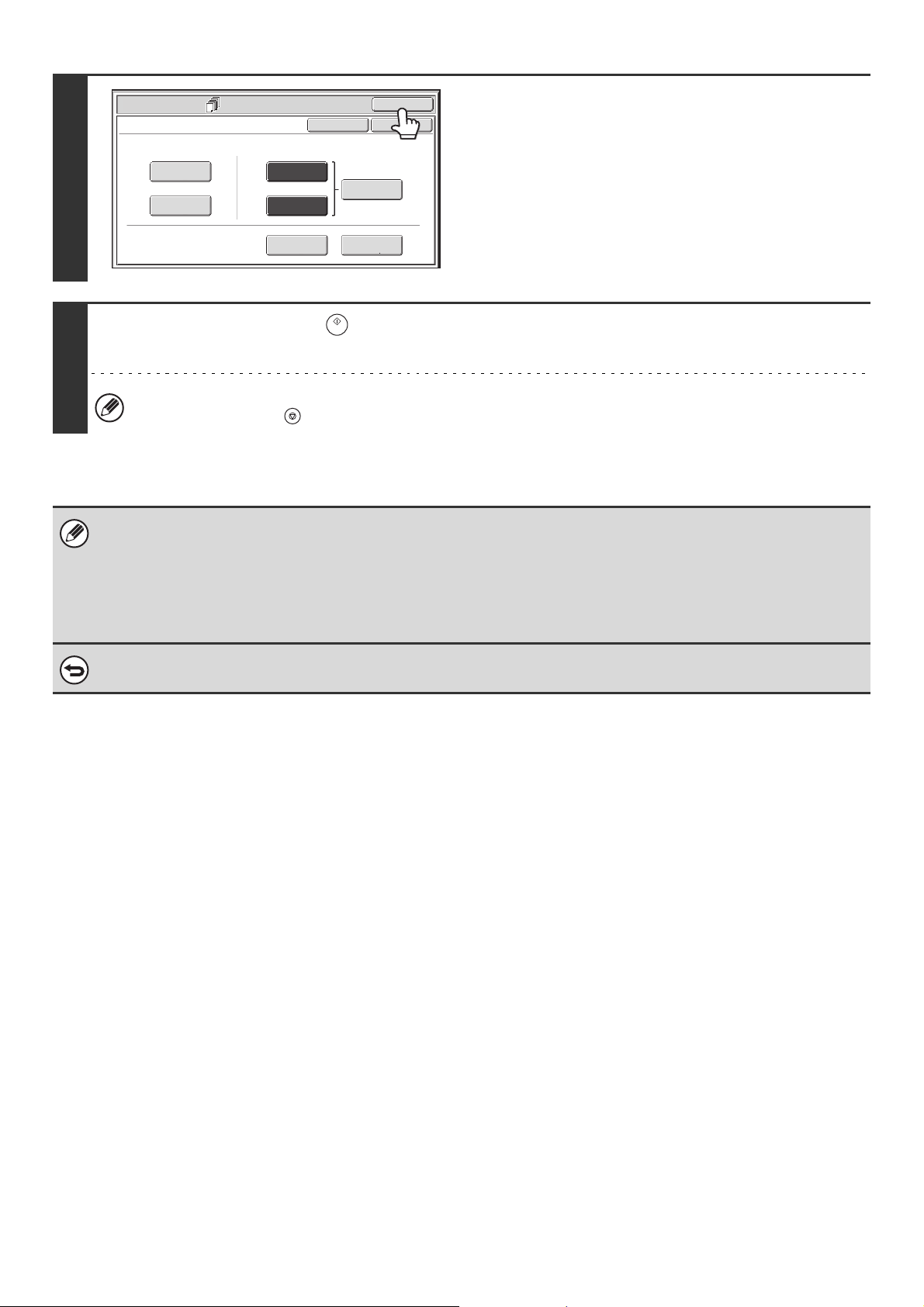
66
8
Touch the [OK] key.
You will return to the base screen of copy mode.
To select cover settings, touch the [Front Cover] key or the
[Back Cover] key.
☞ INSERTING COVERS IN COPIES (Cover Settings) (page
60)
To check your settings, touch the [Page Layout] key.
☞ CHANGING COVER/INSERT SETTINGS (Page Layout)
(page 67)
9
Press the [START] key ( ).
Copying of the originals in the document feeder tray begins.
To cancel scanning and copying...
Press the [STOP] key ( ).
• Use the same size of paper for the inserts as for the copies.
• Up to 100 insert sheets can be added. Note that two insert sheets cannot be inserted between the same two pages.
• When performing 2-sided copying of 2-sided originals, an insert cannot be added between the front and reverse sides of
an original page.
• This function cannot be used in combination with the saddle stitch function.
• Cover/insert settings cannot be selected if insertion of covers and inserts is disabled in the system settings (administrator).
To cancel cover sheet insertion...
Touch the [Cancel] key in the screen of step 3.
Special Modes
OK
Cancel
OK
Front
Cover
Back
Cover
Insertion
Type B
Insertion
Type A
Insertion
Settings
Tray Settings
Inserts Setting
Cover Setting
Covers/Inserts
Page Layout
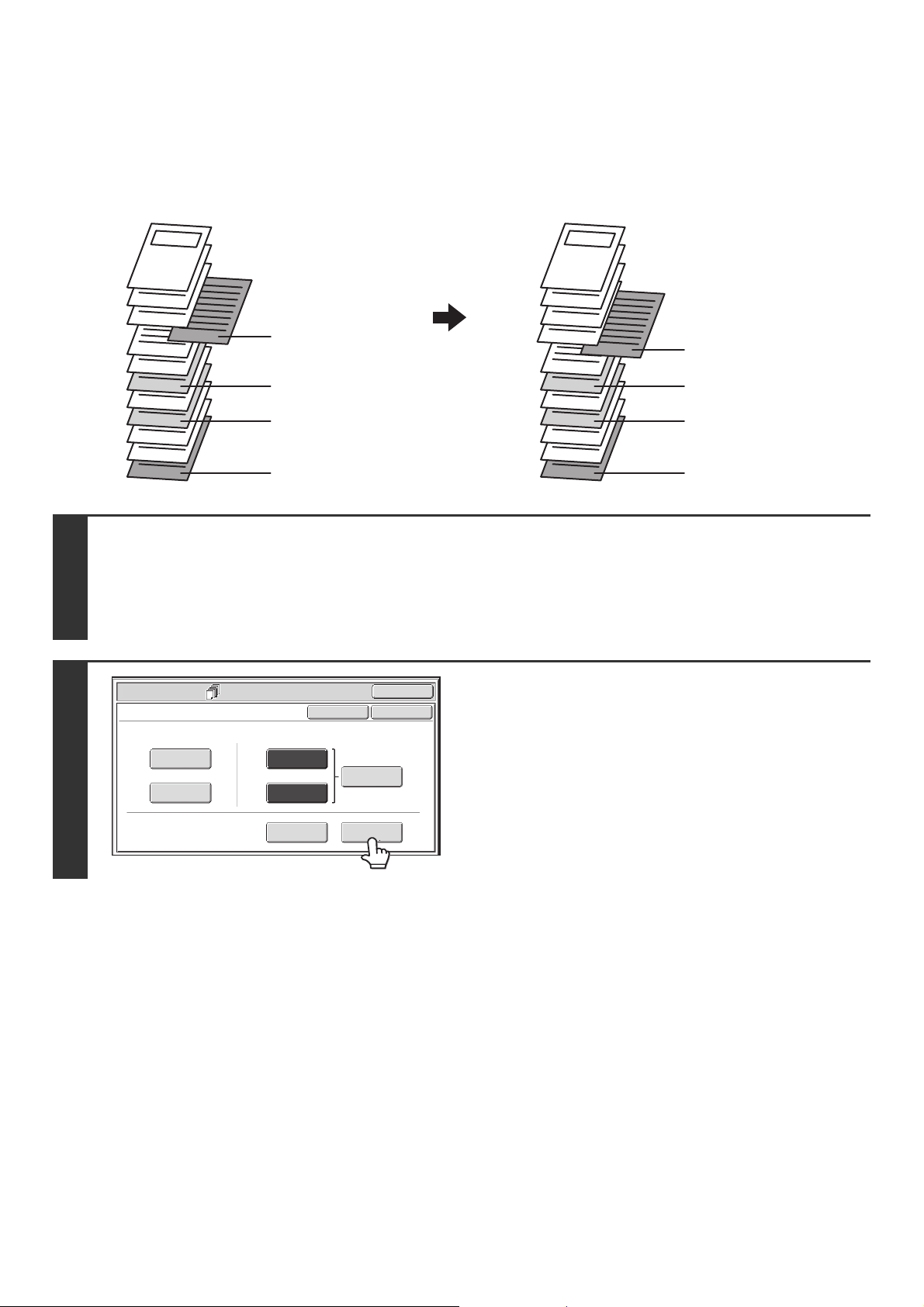
67
CHANGING COVER/INSERT SETTINGS (Page Layout)
Cover settings and insert settings can be combined.
This section explains how to check completed cover and insert insertion page settings, and change or delete insertion
pages.
Changing insert A from page 4 to page 5
1
Select the special modes.
(1) Touch the [Special Modes] key.
(2) Touch the [Covers/Inserts] key.
☞ SPECIAL MODES (page 43)
2
Touch the [Page Layout] key.
12
11
10
9
8
7
6
5
4
3
2
1
12
11
10
9
8
7
6
5
4
3
2
1
4th page, insert A
7th page, insert B
9th page, insert B
12th page, insert A
5th page, insert A
7th page, insert B
9th page, insert B
12th page, insert A
Special Modes
OK
Cancel
OK
Front
Cover
Back
Cover
Insertion
Type B
Insertion
Type A
Insertion
Settings
Tray Settings
Inserts Setting
Cover Setting
Covers/Inserts
Page Layout
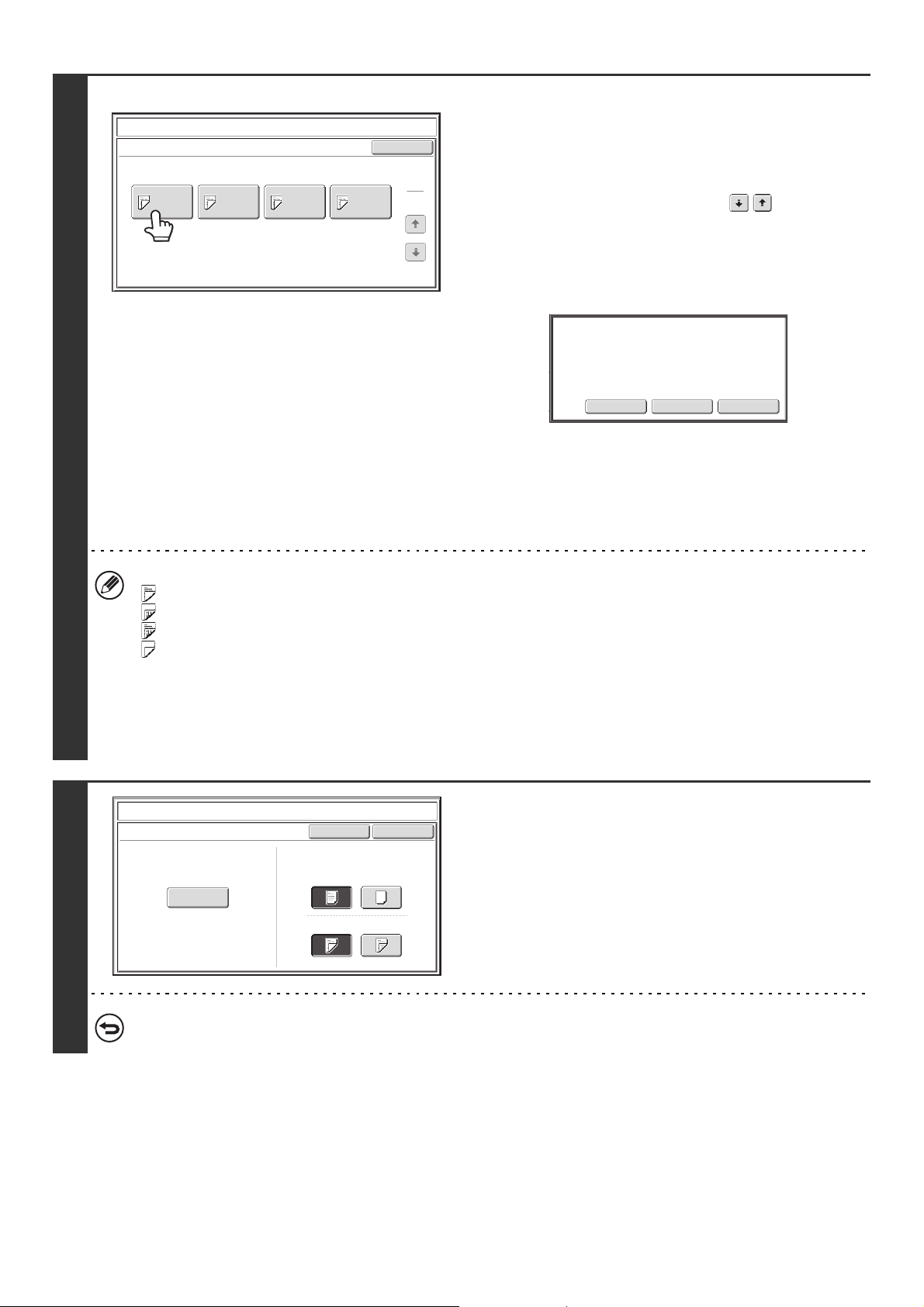
68
3
Example: Touch insert A at page 4
Touch the key of the page that you wish
to delete or change.
If you do not need to change the setting, touch the [OK] key
and go to step 6.
• Each key shows a print image icon and the insertion page.
• If there are multiple screens, touch the keys to move
through the screens.
To edit a cover, touch the [Front Cover] key or the [Back Cover]
key and go to step 4.
Touch the key of the insertion page that you want to edit or
clear. The following screen will appear.
• To delete the page, touch the [Delete] key. After deleting the
key, touch the [OK] key and go to step 6.
• To edit the page, touch the [Modify] key.
To edit an insert, touch the [Insertion Type A] key or the
[Insertion Type B] key and go to step 5.
• To cancel, touch the [Cancel] key.
Icons
: Copy on front side only
: Copy on reverse side only
: 2-sided copy
: Do not copy
For inserts, the insertion page also appears.
* represents a page number.
*/-: Copy only on front side at page *
*/*: 2-sided copy at page */*
<*: Insert without copying at page *
4
Change the front/back cover settings.
The settings are changed in the same way as they are initially
configured. See step 4 of "INSERTING COVERS IN COPIES
(Cover Settings)" (page 60) to change the cover settings.
After changing the settings, touch the [OK] key and return to
step 3.
To cancel cover settings...
Touch the [Cancel] key.
Covers/Inserts
Page Layout
OK
1
1
Insertion
Type A
4/-
Insertion
Type B
7/-
Insertion
Type B
9/-
Insertion
Type A
12/-
Modify
the insertion?
ModifyDeleteCancel
Co
vers/Inserts
Cancel
Front Cover Setting
OK
Paper Tray
Print on Front Cover
Yes
8½x11
Plain
No
2-Sided1-Sided
Bypass
Tray
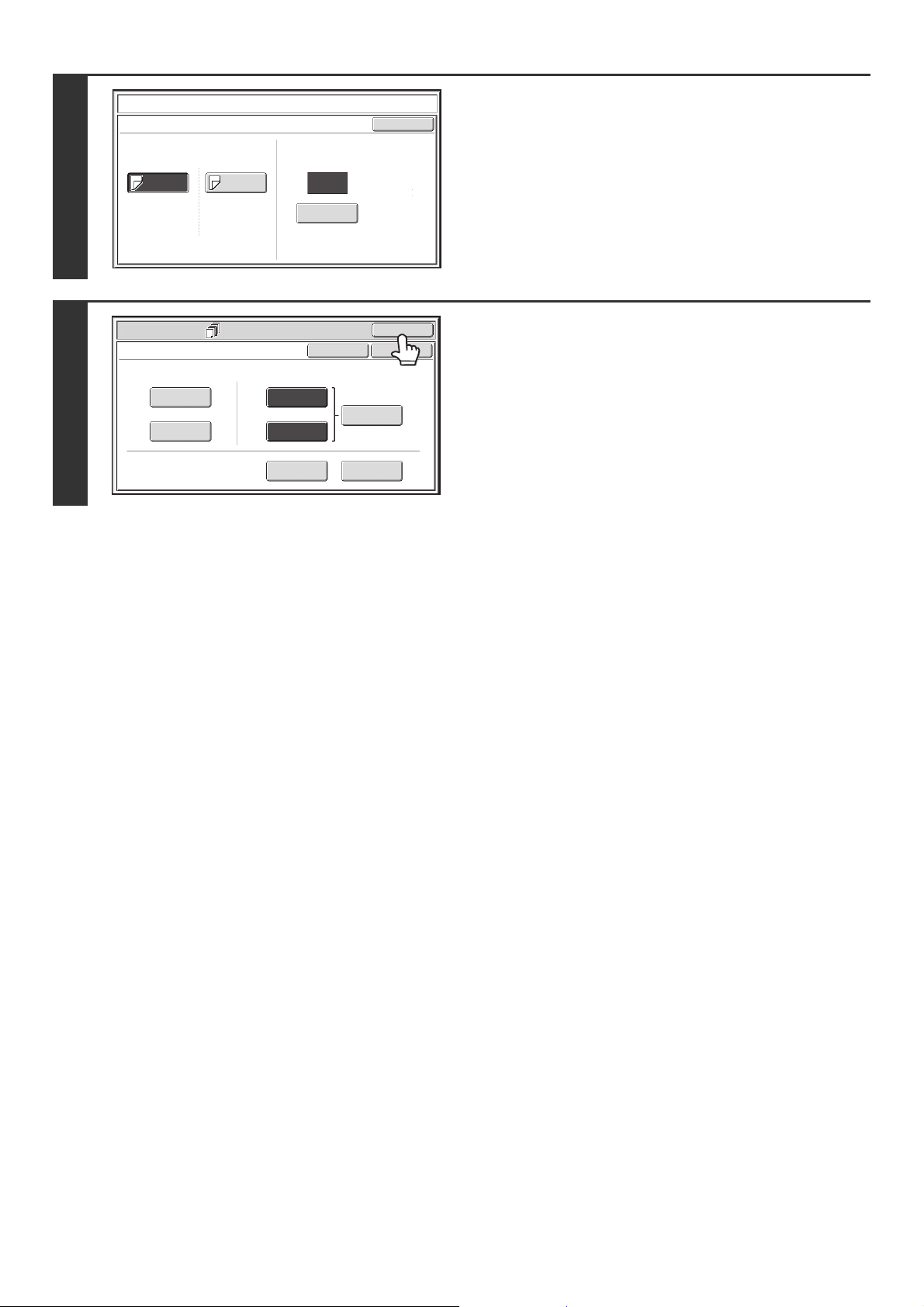
69
5
Change the settings for insert type A/B.
The settings are changed in the same way as they are initially
configured. See step 7 of "INSERTING INSERT SHEETS IN
COPIES (Insert Settings)" (page 63) to change the insert
settings.
After changing the settings, touch the [OK] key and return to
step 3.
6
Touch the [OK] key.
You will return to the base screen of copy mode.
Covers/Inserts
Insertion Modify
OK
Insertion
Type B
Insertion
Type A
5
Insertion
Total:4
8½x11
Plain
Tray 2
Bypass
Tray
8½x11
Plain
Enter
Insertion Page
Special Modes
OK
Cancel
OK
Front
Cover
Back
Cover
Insertion
Type B
Insertion
Type A
Insertion
Settings
Tray Settings
Inserts Setting
Cover Setting
Covers/Inserts
Page Layout
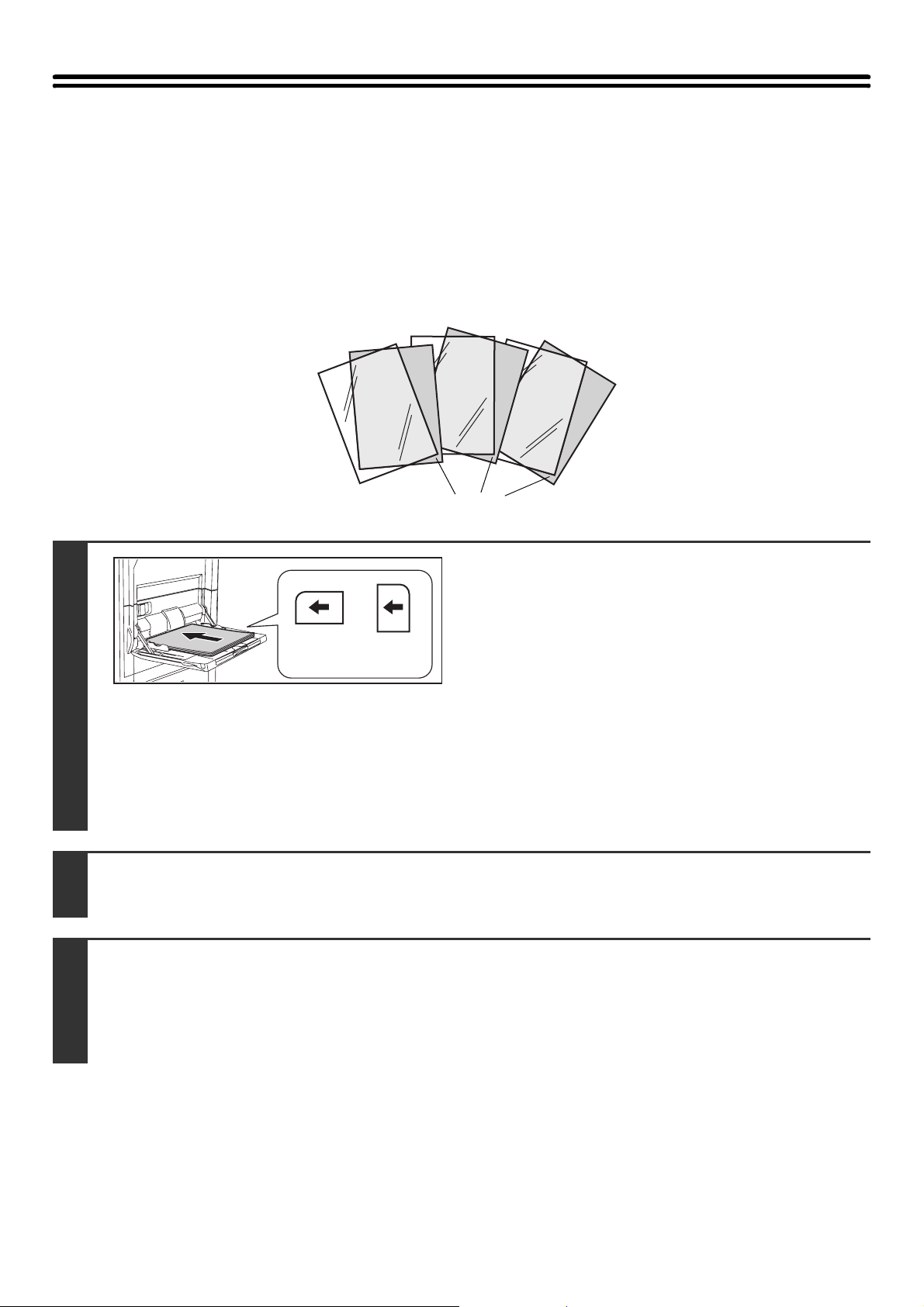
70
ADDING INSERTS WHEN COPYING ON
TRANSPARENCY FILM
(Transparency Inserts)
When copying on transparency film, the sheets may stick together due to static electricity. The transparency inserts
function can be used to automatically insert a sheet of paper between each sheet of transparency film, making the
sheets easy to handle.
It is also possible to copy on the inserts.
1
Load the transparency film.
• If you are using the bypass tray, load the transparency film
face up in the tray.
When placing the transparency film, the rounded corner of
the film should be:
• At the back and left if the film is oriented horizontally.
• At the back and right if the film is oriented vertically.
• After loading the transparency film, configure the bypass tray
settings as explained in "MAKING COPIES USING THE
BYPASS TRAY" (page 40).
• If you wish to load transparency film in a tray other than the
bypass tray, see "2. Loading Paper" in the User's Guide.
After loading transparency film in a tray, see "PAPER
TRAYS" (page 14) to select the tray.
2
Place the original.
Place the original face up in the document feeder tray, or face down on the document glass.
3
Select the special modes.
(1) Touch the [Special Modes] key.
(2) Touch the [Transparency Inserts] key.
☞ SPECIAL MODES (page 43)
C
B
A
Inserts
Oriented
horizontally
Oriented
vertically
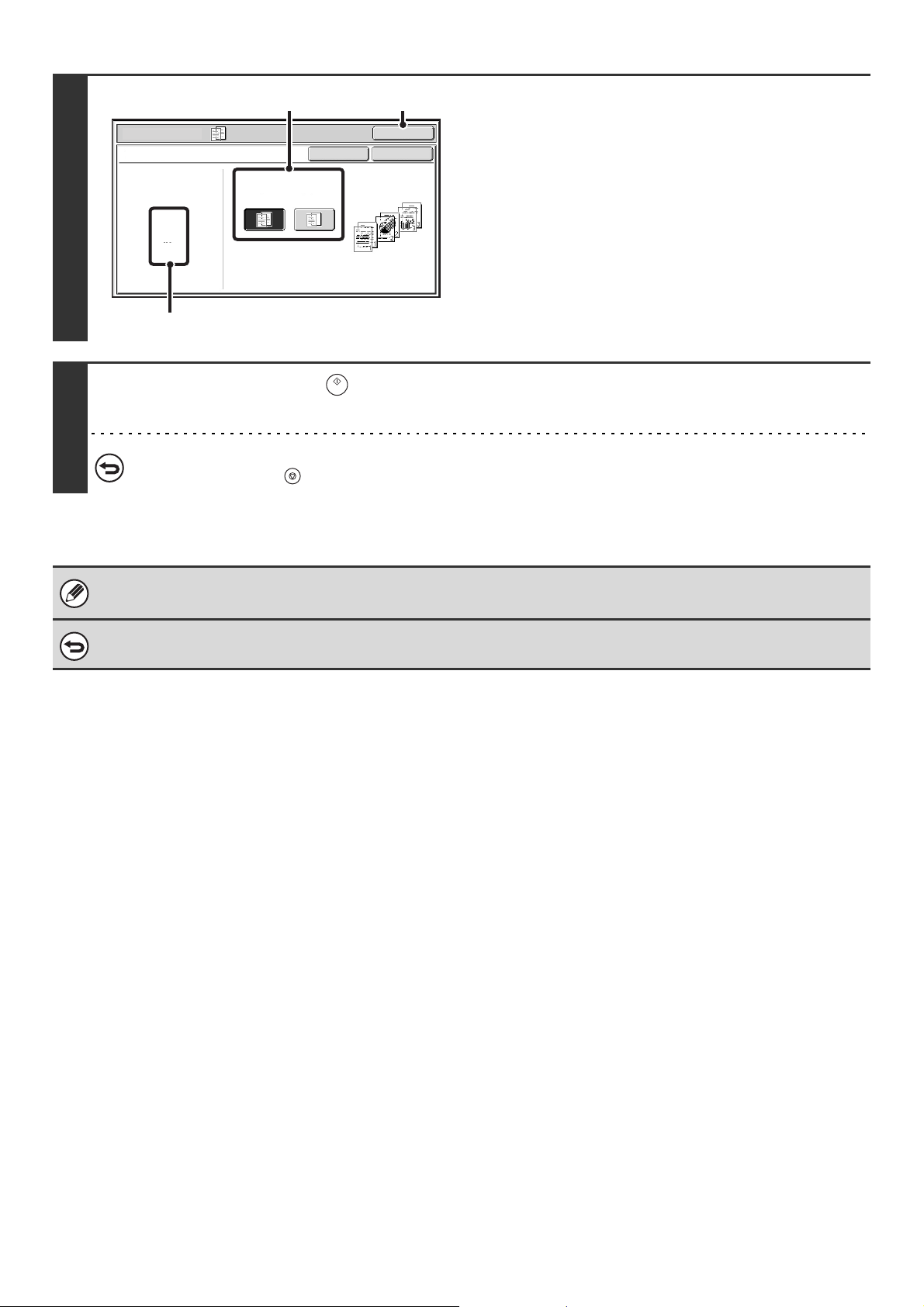
71
4
Select insert settings.
(1) Select whether or not the insert paper will
be copied on ([Yes] or [No]).
(2) Touch the [OK] key.
You will return to the base screen of copy mode.
Explanation of (A)
When transparency inserts is selected, paper suitable for
the inserts is automatically selected. The automatically
selected paper tray, paper size, and paper type are
indicated here.
5
Press the [START] key ( ).
Copying will begin.
To cancel scanning and copying...
Press the [STOP] key ( ).
• The number of copies cannot be selected in this mode.
• When performing 2-sided copying, only "2-sided to 1-sided" mode can be used.
To cancel the transparency inserts setting...
Touch the [Cancel] key in the screen of step 4.
Special Modes
OK
Cancel
OK
Transparency Inserts
Paper Tray
8½x11
Plain
Tray2
Print on Insert Sheets
Yes No
(1)
(A)
(2)
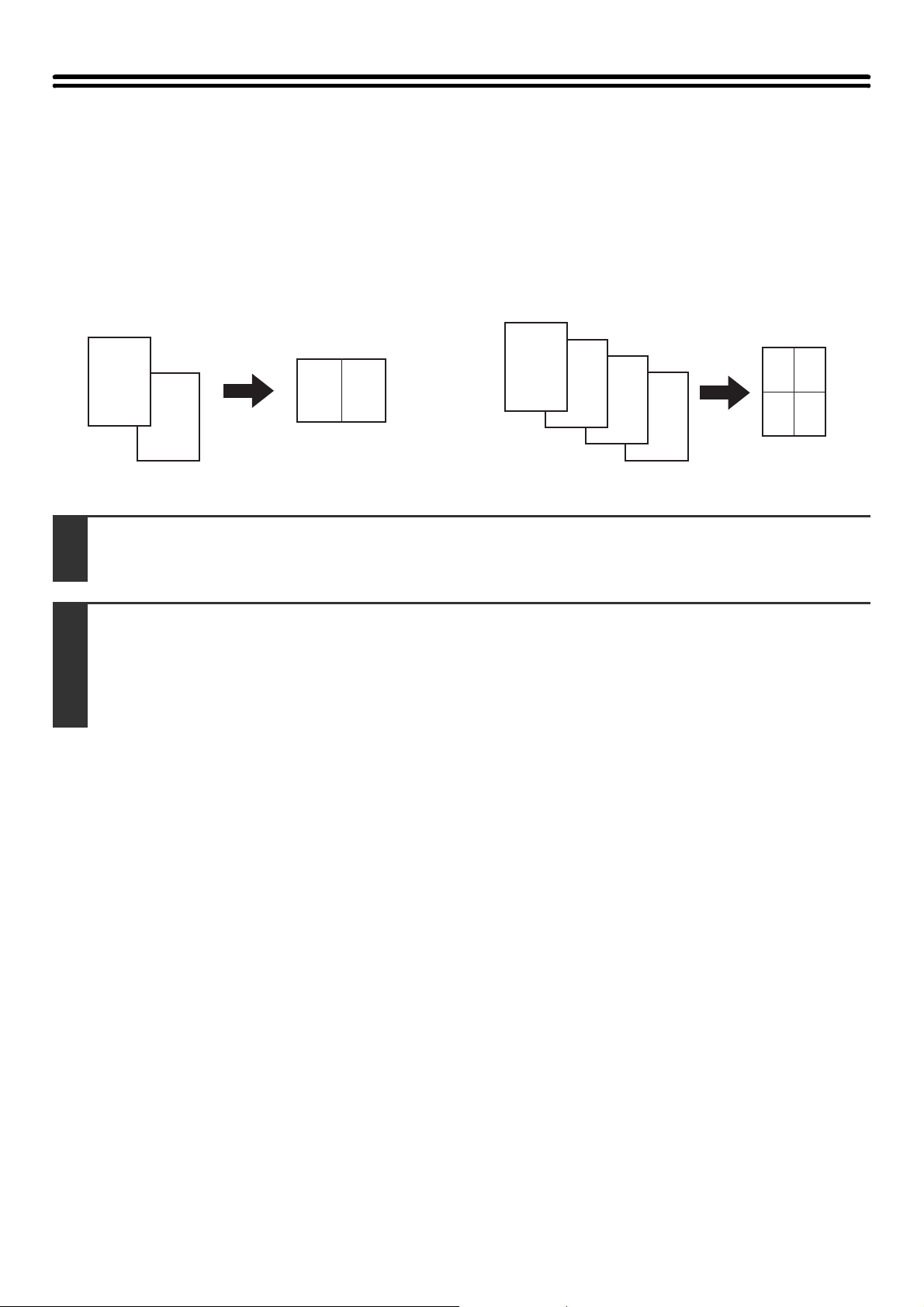
72
COPYING MULTIPLE ORIGINALS ONTO
ONE SHEET (Multi Shot)
Multiple original pages can be copied onto a single sheet of paper in a uniform layout. Select 2in1 to copy two original
pages onto one sheet, or 4in1 to copy four original pages onto one sheet. This function is convenient when you wish to
present multiple pages in a compact format, or show a view of all pages in a document.
2in1 copying 4in1 copying
B
A
A B
D
C
B
A
AB
C
D
1
Place the original.
Place the original face up in the document feeder tray, or face down on the document glass.
2
Select the special modes.
(1) Touch the [Special Modes] key.
(2) Touch the [Multi Shot] key.
☞ SPECIAL MODES (page 43)
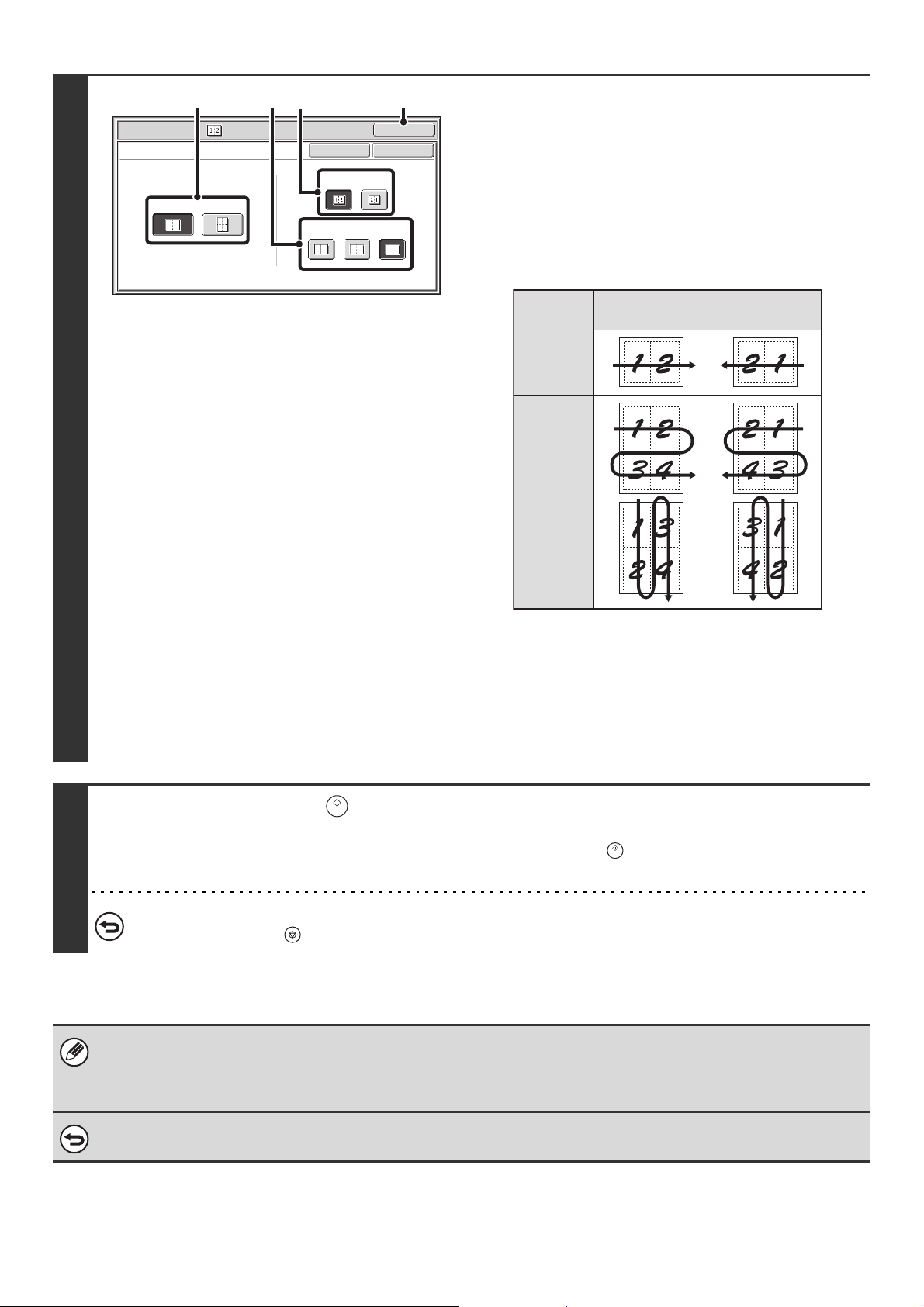
73
3
Select the number of originals to be
copied onto one sheet of paper, the
layout, and the border.
(1) Touch the [2in1] key or the [4in1] key.
If needed, the images will be rotated.
(2) Select the layout.
Select the order in which the originals will be arranged on
the copy.
The arrows in the above diagram indicate how the images
are arranged.
(3) Select the border.
Solid lines, broken lines, or no lines can be selected.
(4) Touch the [OK] key.
You will return to the base screen of copy mode.
4
Press the [START] key ( ).
Copying will begin.
If you are using the document glass, change originals and press the [START] key ( ). Repeat until all pages have been
scanned and then touch the [Read-End] key.
To cancel scanning and copying...
Press the [STOP] key ( ).
When using the multi shot function, the appropriate copy ratio will be automatically set based on the original size, paper size,
and the number of originals to be copied onto one sheet. The minimum possible reduction ratio is 25%. The original size,
paper size, and selected number of original pages may require that the ratio be less than 25%. As copying will take place at
25% in this case, part of the original images may be cut off.
To cancel a multi shot setting...
Touch the [Cancel] key in the screen of step 3.
Special Modes
OK
Cancel
OK
Multi Shot
2in1 4in1
Layout
Border
(1) (4)(3)
(2)
Layout
Number
of pages
2in1
4in1
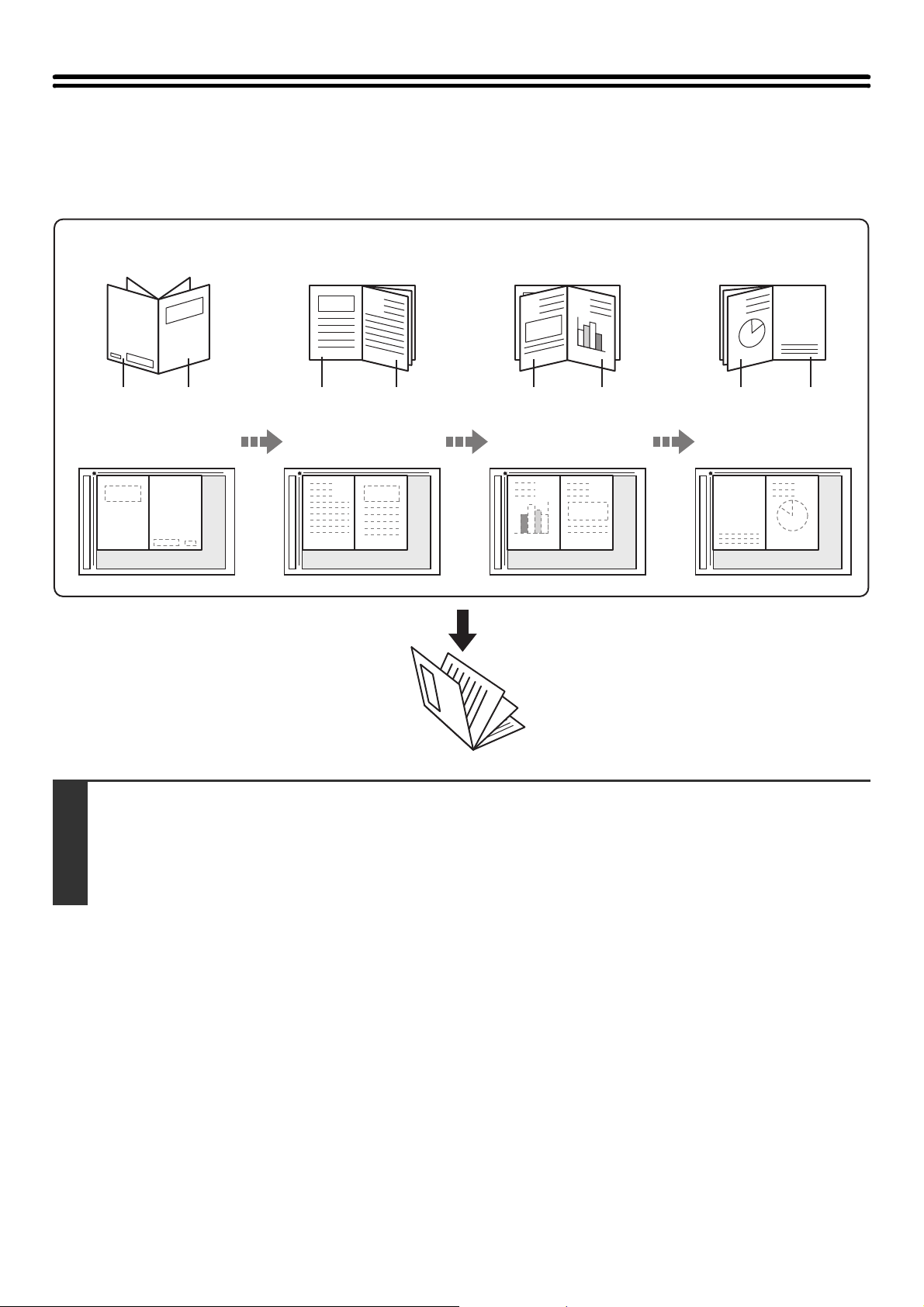
74
COPYING A PAMPHLET (Book Copy)
This function is used to make a copy of the two facing pages of an open book or other bound document.
Copies made with this function can be folded at the center to create a booklet.
This function is convenient for arranging copies into an attractive booklet or pamphlet.
1
Select the special modes.
(1) Touch the [Special Modes] key.
(2) Touch the [Book Copy] key.
☞ SPECIAL MODES (page 43)
C
3
B
2
A
1
D
4
A
1
B
2
C
3
D
4
3
1
2nd pageBack cover
Originals
Cover
Inside of
cover
3rd page
1st page
4th page Inside of
back cover
Place the original
The copies are in the same
layout as the original.
How to place the original
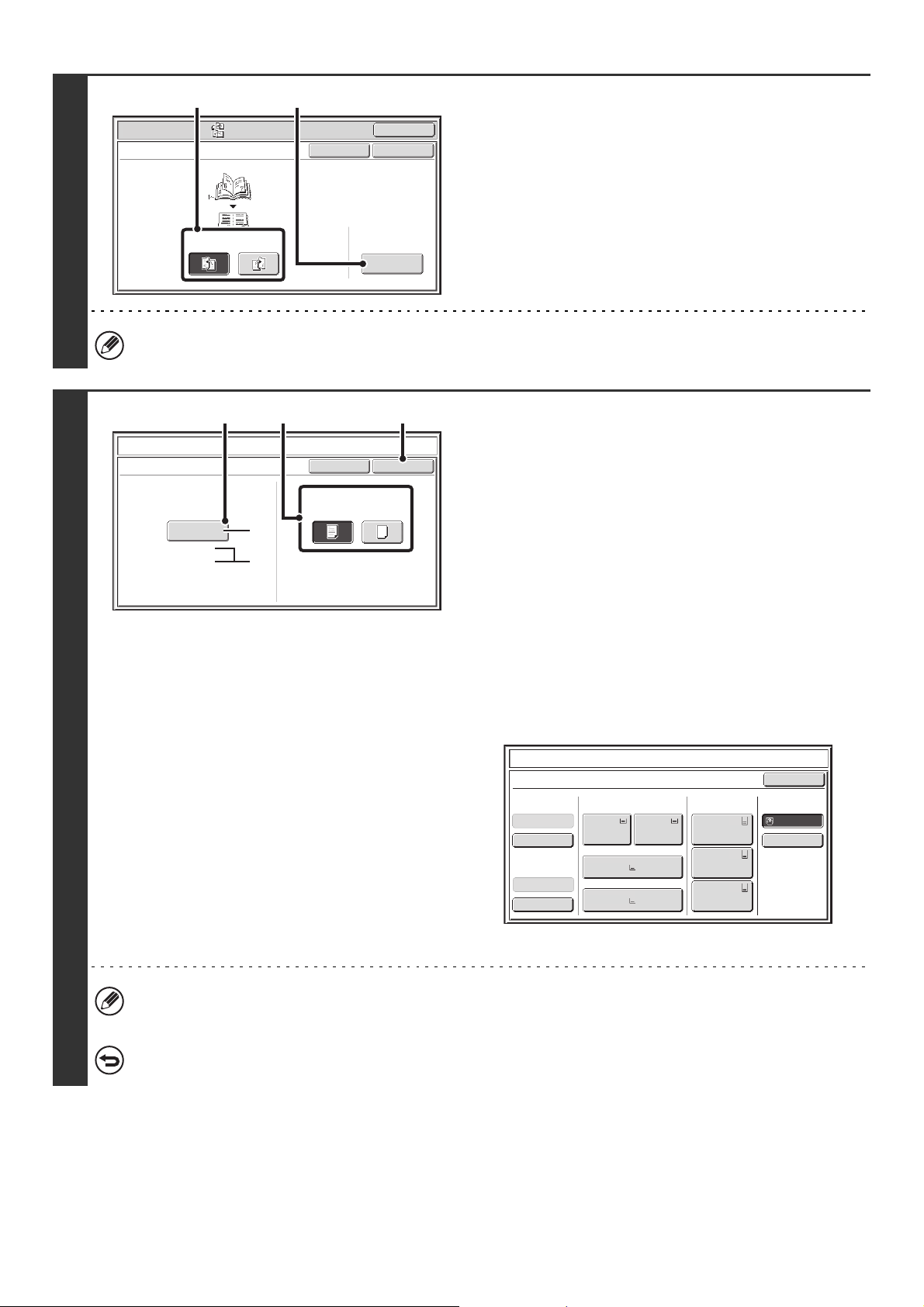
75
2
Select book copy settings.
(1) Select the binding position ([Left Binding]
or [Right Binding]).
(2) To insert a cover, touch the [Cover Setting]
key.
If a cover will not be added, go to step 4.
Cover settings cannot be selected if insertion of covers and inserts is disabled in the system settings (administrator).
3
Select cover settings.
(1) If the cover sheet will be copied on, touch
the [Yes] key. Otherwise, touch the [No]
key.
(2) Select paper settings for the cover.
(A) The currently selected paper tray for the cover is
displayed.
(B) The size and type of paper in the currently selected
tray is displayed.
In the example screen, 8-1/2" x 11" (A4) size plain paper
is loaded in the bypass tray.
To change the paper tray for the cover, touch the "Paper
Tray" key.
When the "Paper Tray" key is touched, a tray selection
screen appears. Select the desired paper tray in the tray
selection screen and touch the [OK] key.
(3) Touch the [OK] key.
• If the cover will be copied on, label sheets, transparency film, and tab paper cannot be used.
• When the cover paper is fed from the inserter, the cover cannot be copied on.
To cancel cover settings...
Touch the [Cancel] key.
Special Modes
OK
Cancel
OK
Book Copy
Left
Binding
Right
Binding
Cover
Setting
(1) (2)
Book Copy
Cancel
Cover Setting
OK
Paper Tray
Print on Cover (2-sided)
Yes
11x17
Plain
No
Bypass
Tray
(2) (3)(1)
(A)
(B)
Book Copy
Cover Setting
8½x11
8½x11
Plain
Plain
Paper TrayInserter(Upper)
Inserter(Lower)
Bypass Tray
Large Capacity
Tray
OK
Plain
Plain
Plain
2. 8½x11
Plain
1. 8½x11
8½x11
Plain
Plain
5. 11x17
Plain
6. 11x17
Plain
7. 11x17
3. 11x17
4. 8½x14
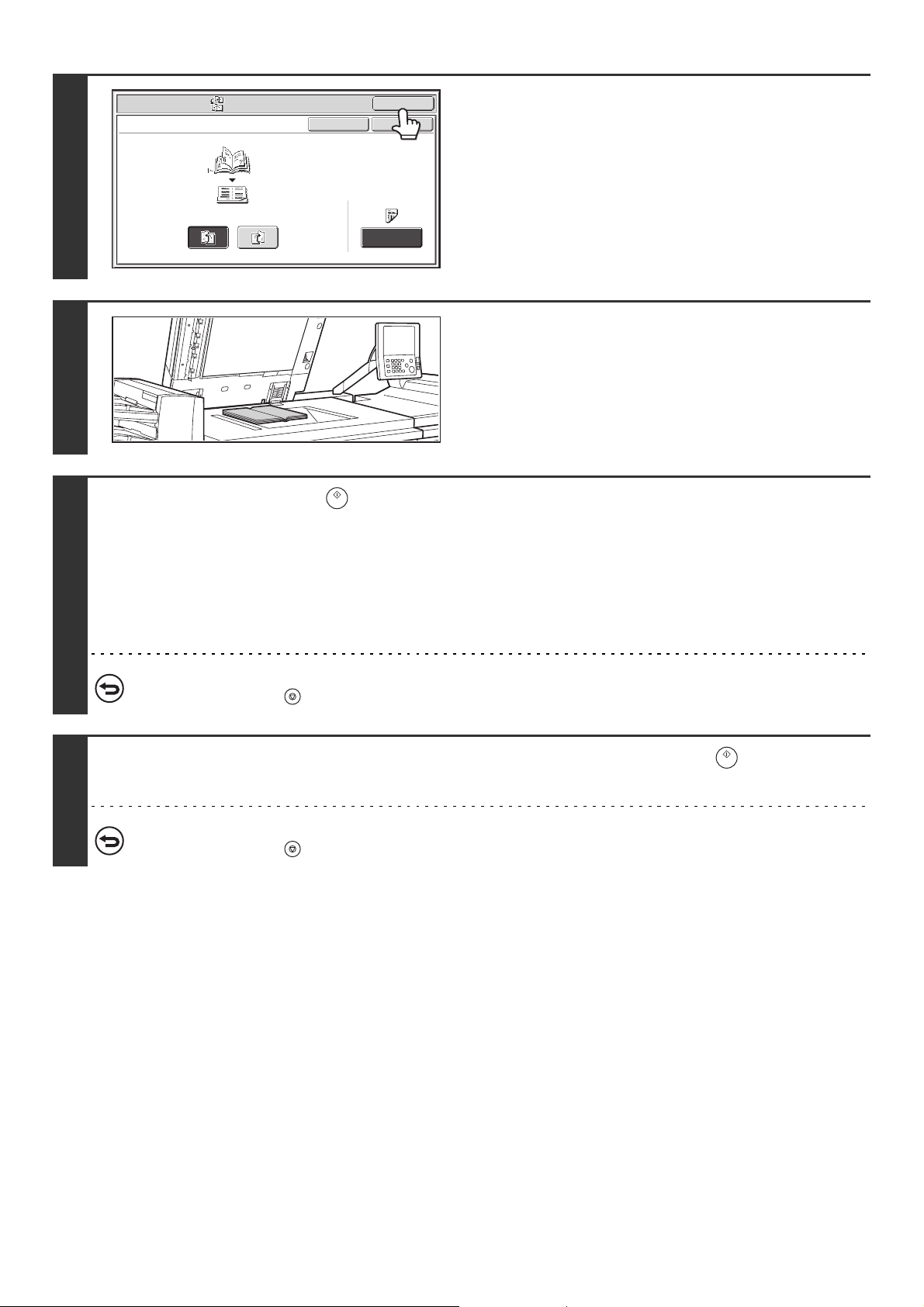
76
4
Touch the [OK] key.
You will return to the base screen of copy mode.
5
Place the original face down on the
document glass.
Place the opened front cover and back cover face down.
6
Press the [START] key ( ) to scan the first original.
Scanning begins.
Scan the remaining original pages in the following order:
Opened inside of front cover and 1st page
Opened 2nd and 3rd page
·
·
·
Opened last page and inside of back cover
To cancel scanning...
Press the [STOP] key ( ).
7
Place the next pair of opened pages and press the [START] key ( ).
Repeat this step until all original pages have been scanned.
To cancel scanning...
Press the [STOP] key ( ).
Special Modes
OK
Cancel
OK
Book Copy
Left
Binding
Right
Binding
Cover
Setting
77
8
Touch the [Read-End] key.
Copying will begin.
To cancel scanning and copying...
Press the [STOP] key ( ).
• Four original pages will be copied onto each sheet of paper. Blank pages will be automatically added at the end if the total
number of original pages is not a multiple of four.
• If a saddle unit/saddle stitch finisher is installed, the book copy function can be used in combination with the saddle stitch
function.
• Book copy cannot be used when transparency film or other media that cannot be turned over is used.
(However, if this media is only used for covers or inserts and is not copied on, book copy can be used.)
• When book copy is selected, 2-sided copying is automatically selected. When settings are selected that prevent 2-sided
copying, the book copy function cannot be used.
To cancel book copy...
Touch the [Cancel] key in the screen of step 2.
Read-End
Place next original. Press [Start].
When finished, press [Read-End].
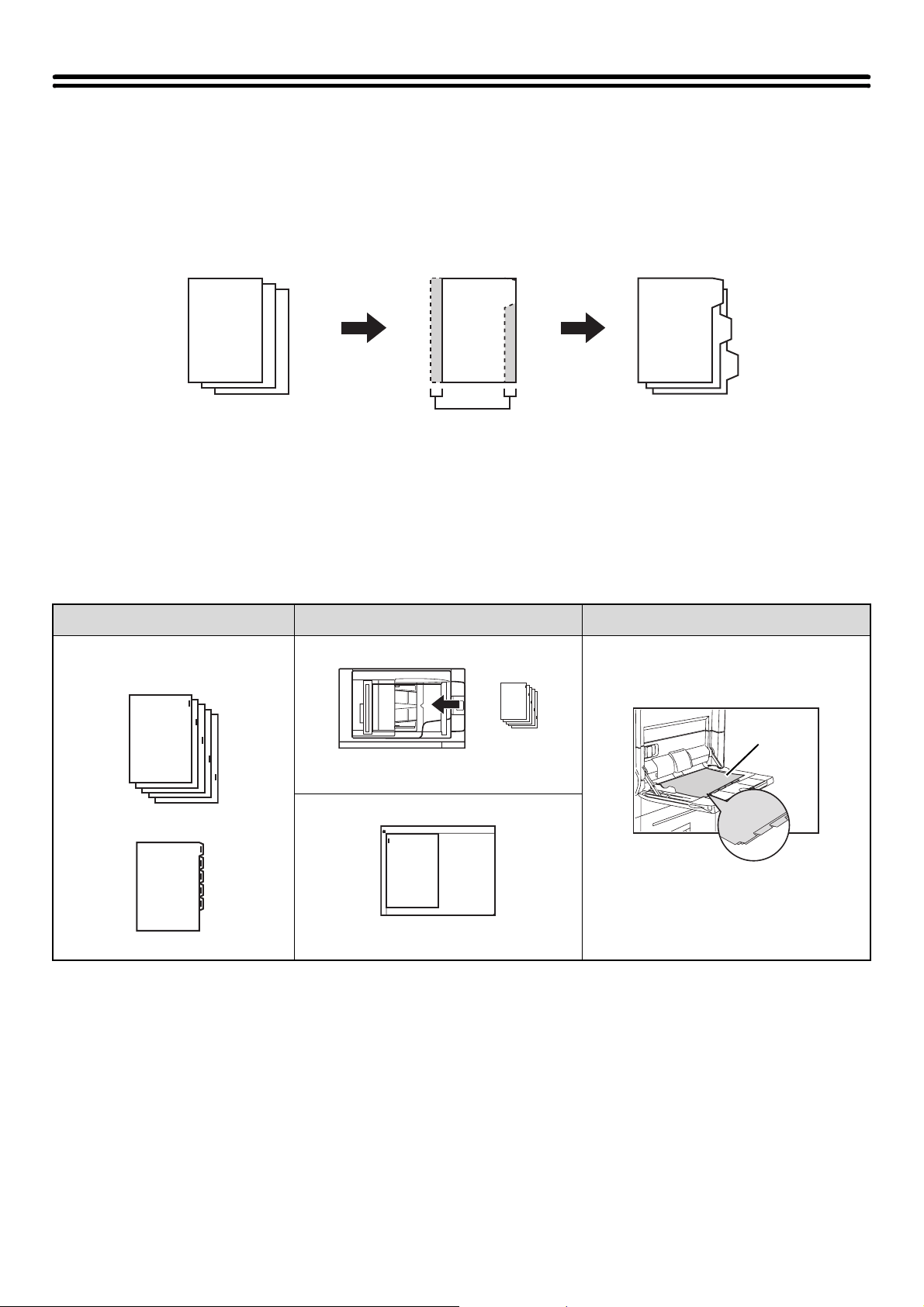
78
COPYING CAPTIONS ONTO TAB PAPER
(Tab Copy)
Captions can be copied onto the tabs of tab paper. Prepare appropriate originals for the tab captions.
Tab copy is possible from both tray 4 and the bypass tray. The following explanation uses the bypass tray (MX-MFX1)
as an example.
RELATION BETWEEN THE ORIGINALS AND THE TAB
PAPER
Tab copying with a left binding
Originals Placing the originals Loading tab paper
• Document feeder tray
Insert the originals so that the side with no
tab text enters first.
Load the tab paper so that the tab on the
first sheet is away from you.
• Document glass
Place so that the side with the tab text is
on the left.
GHI
DEF
ABC
GHI
DEF
ABC
ABC
Prepare originals that
match the tab positions.
The image is shifted
by the width of the tab
1
Final image
Originals
1
Front
side
1
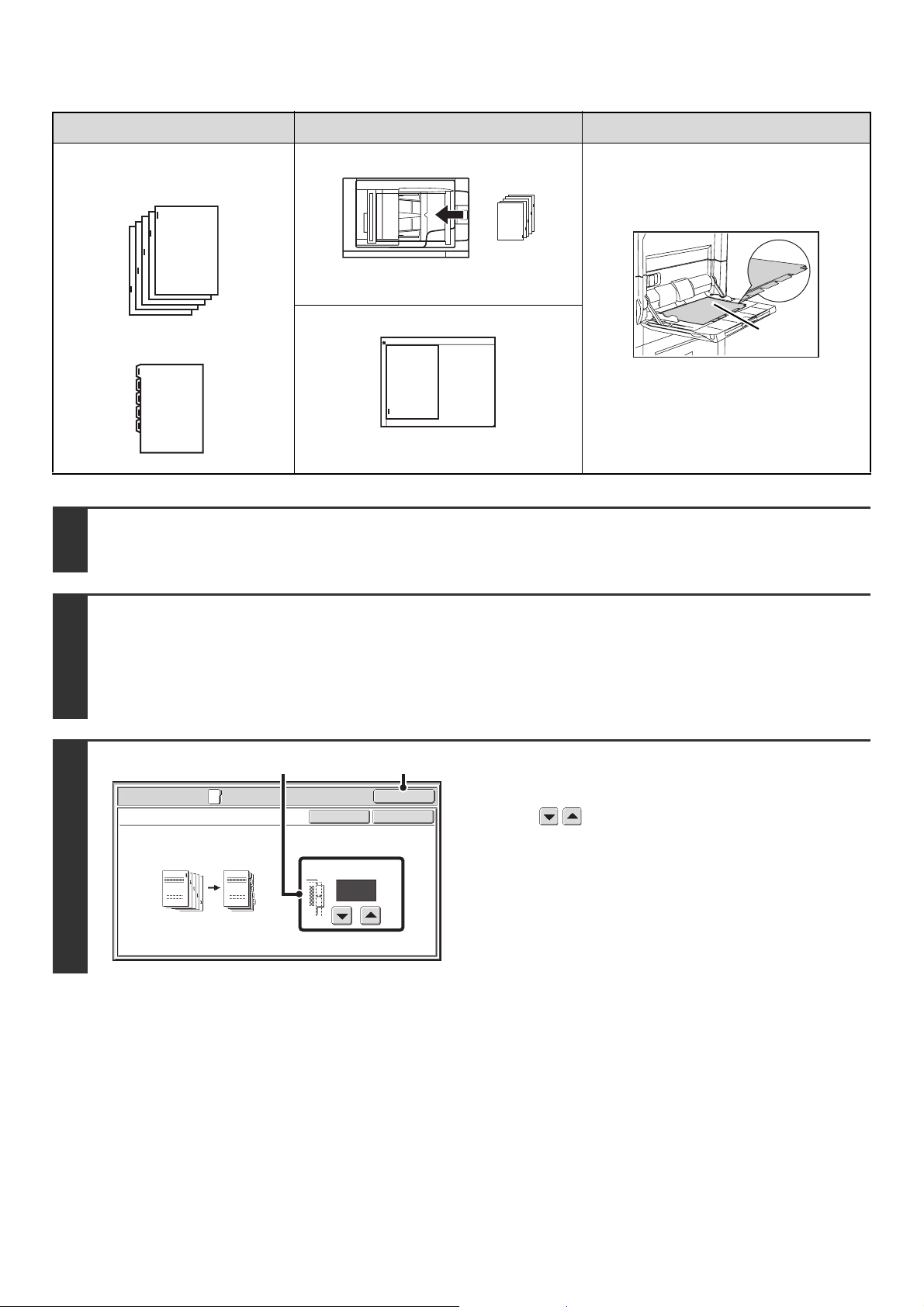
79
Tab copying with a right binding
Originals Placing the originals Loading tab paper
• Document feeder tray
Insert the originals so that the side with no
tab text enters first.
Load the tab paper so that the tab on the
first sheet is toward you.
• Document glass
Place so that the side with the tab text is
on the left.
1
Place the original.
Place the original face up in the document feeder tray, or face down on the document glass.
2
Select the special modes.
(1) Touch the [Special Modes] key.
(2) Touch the [Tab Copy] key.
☞ SPECIAL MODES (page 43)
3
Set the tab width.
(1) Set the image shift width (tab width) with
the keys.
0" to 5/8" (0 mm to 20 mm) can be entered.
(2) Touch the [OK] key.
You will return to the base screen of copy mode.
If the [Tab Copy] key for inserts was touched and tab copy
settings were selected, the insert settings screen will
reappear after the [OK] key is touched.
1
Final image
Originals
1
Front
side
1
Special Modes
OK
Cancel
OK
Tab Copy
1/2
(0~5/8)
inch
Image Shift
CopyOriginal
(2)(1)
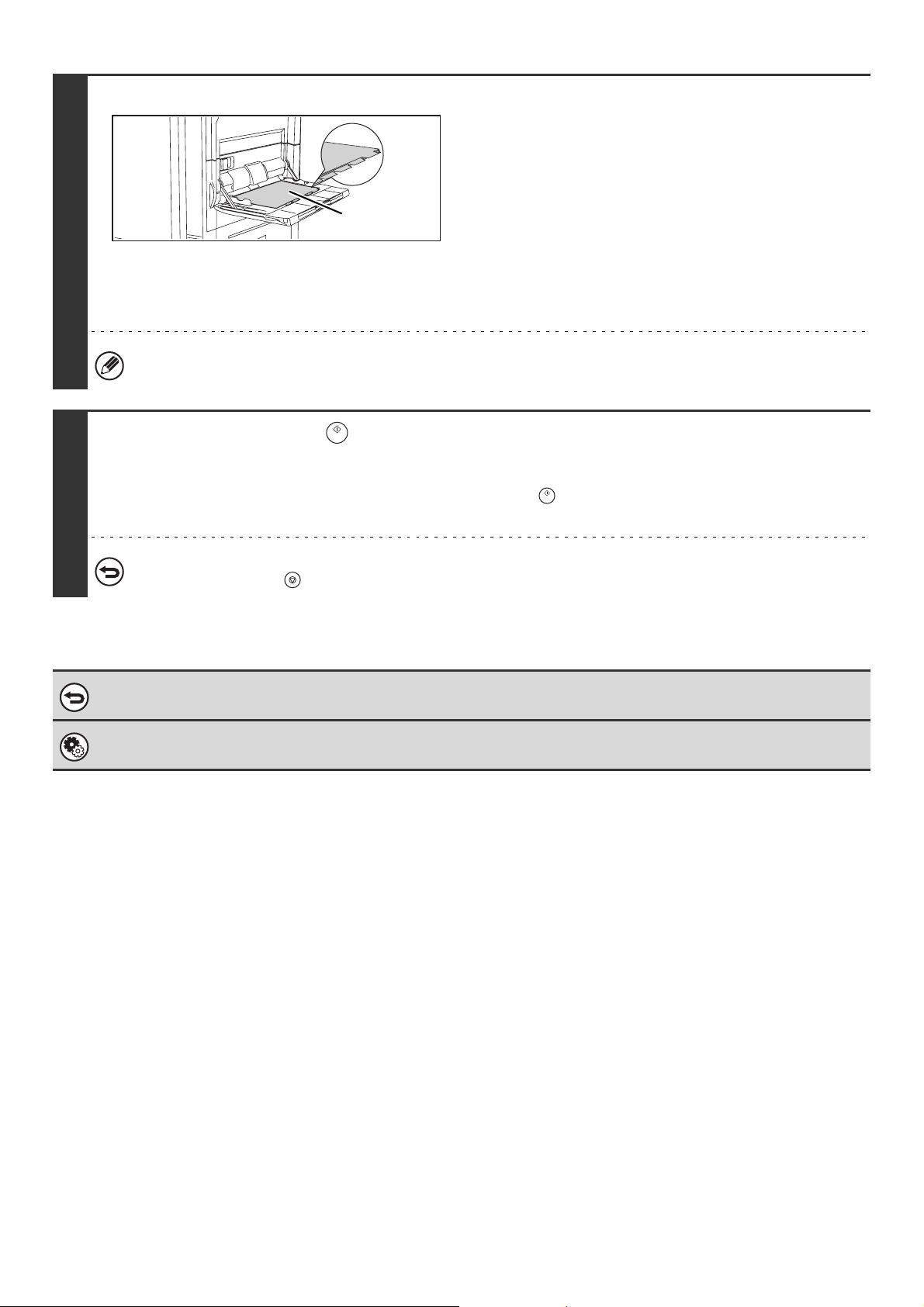
80
4
Load the tab paper.
• When using the bypass tray, place the paper with the print
side up.
Place the paper so that the sides with the tabs enter the
machine last.
After loading the tab paper, configure the bypass tray
settings as explained in "MAKING COPIES USING THE
BYPASS TRAY" (page 40).
• If tab paper is loaded in a tray other than the bypass tray, see
"2. Loading Paper" in the User's Guide. After loading tab
paper in a tray, see "PAPER TRAYS" (page 14) to select the
tray.
The width of the tab paper can be as wide as 8-1/2" x 11" paper (8-1/2") plus 5/8" (or A4 width (210 mm) plus 20 mm).
5
Press the [START] key ( ).
Copying will begin.
If you are using the document glass to copy multiple original pages, copying will take place as you scan each original. If you
have selected sort mode, change originals and press the [START] key ( ). Repeat until all pages have been scanned and
then touch the [Read-End] key.
To cancel scanning and copying...
Press the [STOP] key ( ).
To cancel tab copy...
Touch the [Cancel] key in the screen of step 3.
System Settings (Administrator): Initial Tab Copy Setting
The default image shift width can be set from 0" to 5/8" (0 mm to 20 mm). The factory default setting is "1/2" (10 mm)".
Front side
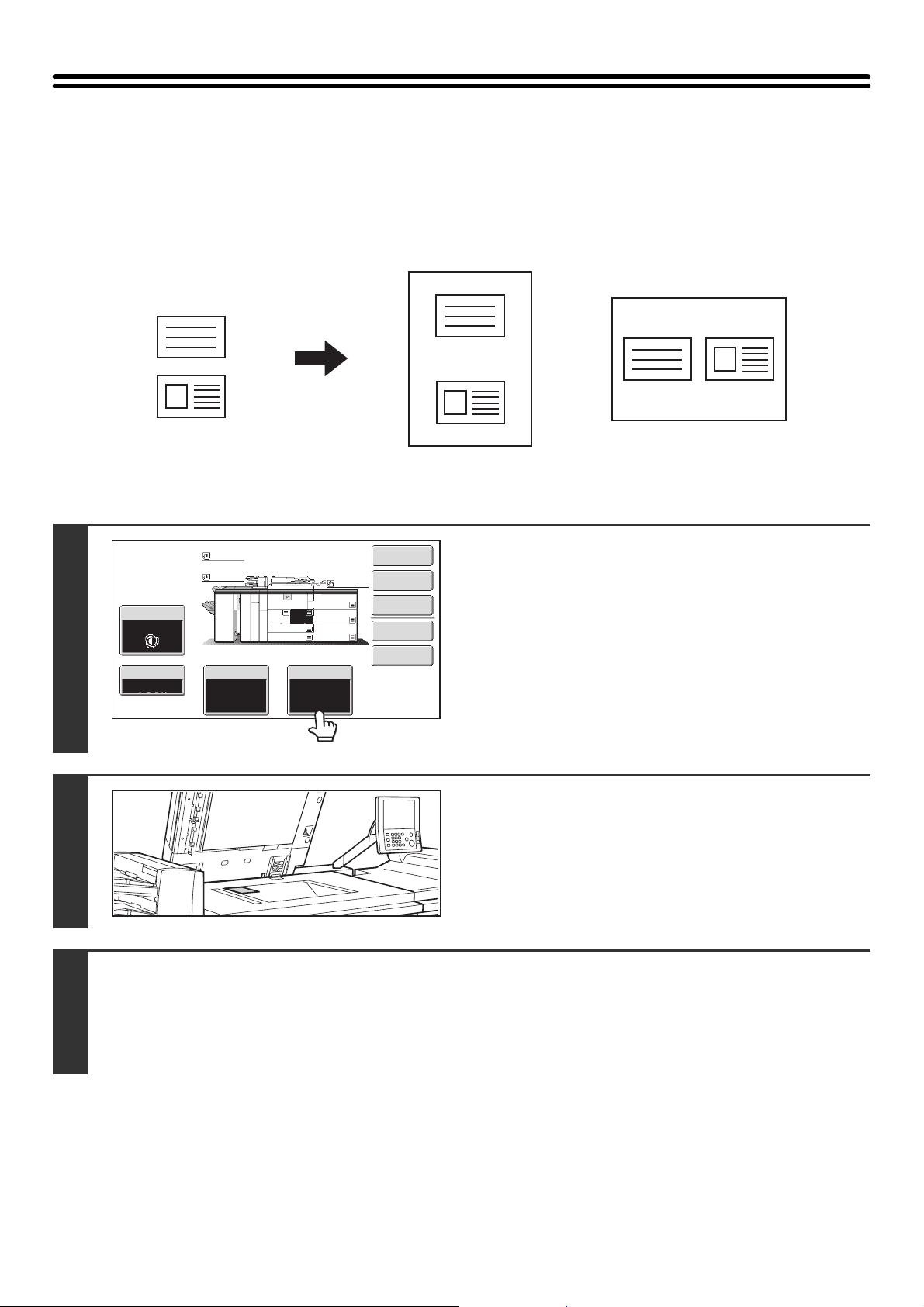
81
COPYING BOTH SIDES OF A CARD ON ONE
SHEET OF PAPER (Card Shot)
When copying a card, this function allows you to copy the front and reverse sides together onto a single sheet of paper.
This function is convenient for making copies for identification purposes and helps save paper.
1
Select the paper to be used for card
shot.
Select the paper as explained in "PAPER TRAYS" (page 14).
2
Place the original face down on the
document glass.
3
Select the special modes.
(1) Touch the [Special Modes] key.
(2) Touch the [Card Shot] key.
☞ SPECIAL MODES (page 43)
Front
Back
Originals
Copies
Example of an 8-1/2" x 11"
(A4) size portrait copy
Example of an 8-1/2" x 11"
(A4) size landscape copy
Special Modes
Plain
2-Sided Copy
Output
File
Quick File
Copy Ratio
1.
2.
7.
8½x11
8½x11
Original Paper Select
Auto
8½x11
Plain
Auto
Exposure
Auto
8½x14
4.
11x17
11x17
6.
11x17
5.
11x17
3.
8½x11
100%
Plain
Plain
82
4
Select card shot settings.
(1) Enter the original size.
With the [X] key highlighted, enter the X (horizontal)
dimension of the original with the keys.
Touch the [Y] key and enter the Y (vertical) dimension of
the original with the keys.
(A) To enlarge or reduce the images to fit the paper
based on the entered original size, touch the [Fit to
Page] key.
(B) The [Size Reset] key can be pressed to return the
horizontal and vertical dimensions to the values set in
"Card Shot Settings" in the system settings
(administrator).
(2) Touch the [OK] key.
You will return to the base screen of copy mode. Make sure
that the entered dimensions appear in the [Original] key.
5
Press the [START] key ( ) to scan the front side of the card.
To cancel scanning...
Press the [STOP] key ( ).
6
Turn the card over and press the [START] key ( ) to scan the reverse side of
the card.
To cancel scanning...
Press the [STOP] key ( ).
7
Touch the [Read-End] key.
Copying will begin.
To cancel copying...
Press the [STOP] key ( ).
• The original must be placed on the document glass.
• Copying is only possible on standard size paper.
• XY Zoom cannot be used when using this function.
• The image cannot be rotated when using this function.
To cancel card shot...
Touch the [Cancel] key in the screen of step 4.
System Settings (Administrator): Card Shot Settings
This is used to set the values to which the size returns when the [Size Reset] key is pressed. 1" to 8-1/2" (25 mm to 210 mm)
can be entered for both the horizontal and vertical dimensions.
The factory default settings are 3-3/8" (86 mm) for X (the width) and 2-1/8" (54 mm) for Y (the height).
Special Modes
OK
Card Shot
OKCancel
Fit to
Page
Size Reset
(1~8 1/2)
inch
(1~8 1/2)
inch
X
Y
3
8
3
2
8
1
(2)(1)
(A)
(B)
Read-End
Place next original. Press [Start].
When finished, press [Read-End].
83
PRINTING THE DATE AND A STAMP ON
COPIES (Stamp)
Use this function to print the date, a stamp, the page number, and text on copies.
Six printing positions are available: top left, top center, top right, bottom left, bottom center, and bottom right.
The printing positions are separated into areas that are used for the date, page number and text (A below), and areas
that are used for a stamp (B below).
When used in combination with other special modes
When Stamp is used in combination with the following special modes, the special modes are reflected in the stamp
content.
B
A
Top center
Top rightTop left
Bottom left Bottom right
Bottom center
Stamp Print area
Maximum number
of positions
Date A 1 position only
Stamp B 6 positions
Page
Numbering
A 1 position only
Text A 6 positions
• If the selected stamp content of one position overlaps the stamp content of another position, priority will be given in the
following order: right side, left side, center. Content that is hidden due to overlapping will not be printed.
• Text will be printed at the preset size regardless of the copy ratio or paper size setting.
• Text will be printed at the preset exposure regardless of the exposure setting.
• Depending on the size of the paper, some printed content may be cut off or shifted out of position.
Special Modes Printing
Margin Shift Together with the image, the stamp content is shifted the amount of the margin width.
Tab Copy
Centering
Unlike a copy image that moves, the image will be printed in the position set in the stamp.
Dual Page Copy
Multi Shot
Card Shot
The stamp is printed on each copy sheet.
Pamphlet Copy
Book Copy
The stamp is printed on each page of the resulting pamphlet or book.
Covers/Inserts
Use the stamp settings to select whether or not the item is printed on inserted covers and
inserts.
When used in combination with "Erase", "Job Build", "Full Bleed Copy", "Mirror Image", or "B/W Reverse", the stamp is
printed in the set position as usual.
84
GENERAL PROCEDURE FOR USING STAMP
To select stamp settings, follow the steps below.
1
Place the original.
Place the original face up in the document feeder tray, or face down on the document glass.
2
Select the special modes.
(1) Touch the [Special Modes] key.
(2) Touch the keys to switch through the screens.
(3) Touch the [Stamp] key.
☞ SPECIAL MODES (page 43)
3
Select the print position.
Select from 6 positions: top left, top center, top right, bottom
left, bottom center, bottom right.
You can also skip this step and go directly to the next step. In
this case, the stamp items will be printed in the following
positions:
Date: Top right Stamp: Top left
Page number: Bottom center Text: Top left
Print positions
The keys that show the print positions will appear as follows
depending on the state of the settings.
The above key is the top left key. The appearance of each key
varies depending on the position of the key.
• "Date" and "Page Numbering" cannot be selected in multiple positions. If the [Date] key or [Page Numbering] key is
touched when "Date" or "Page Numbering" has already been selected for a position, a message will appear asking
you if you wish to move that item to the selected position. To move the item, touch the [Yes] key. Otherwise, press
the [No] key.
• If you attempt to set "Date", "Text", or "Page Numbering" in a position where one of these items is already set, a
message will appear. To change the previously selected item to the new item, touch the [Yes] key. To keep the
previous item, touch the [No] key.
OK
Special Modes
Stamp
OK
Layout
Cancel
Date
Page
Numbering
Text
Stamp
1
2
Not selected, stamp setting has not
been selected.
Selected during selection of the stamp
setting.
Not available, stamp setting has already
been selected.
85
4
Select Stamp.
For detailed information on each of the stamp items, see the
following sections:
Date: ADDING THE DATE TO COPIES (Date)
(page 87)
Stamp: STAMPING COPIES (Stamp) (page 89)
Page numbering: PRINTING PAGE NUMBERS ON COPIES
(Page Numbering) (page 91)
Text: PRINTING TEXT ON COPIES (Text) (page
95)
5
When you have finished selecting stamp
settings, touch the key.
6
Select settings for the original and
covers/inserts.
(1) Touch the [Original Orientation] key and
specify the orientation of the placed
original.
If 2-sided originals have been placed, touch the
key and specify the binding position (booklet binding or
tablet binding) of the originals.
(2) Select stamp settings for covers/inserts.
If you do not want to print the stamp items on
covers/inserts, touch the checkbox to remove the
checkmark .
(3) Touch the [OK] key.
You will return to the base screen of copy mode.
To edit a stamp position or delete a stamp item, touch the
[Layout] key.
☞ CHECKING THE STAMP LAYOUT (Layout) (page
99)
• When copying on covers/inserts is not selected, printing will not take place even if a checkmark appears.
• This setting cannot be selected if insertion of covers and inserts is disabled in the system settings (administrator).
OK
Special Modes
Stamp
OK
Layout
Cancel
Date
Page
Numbering
Text
Stamp
1
2
OK
Special Modes
Stamp
OK
Layout
Cancel
Date
Page
Numbering
Text
Stamp
1
2
Special Modes
OK
OK
Stamp
Cancel
Original Orientation
Print on Covers/Inserts when Copying on Covers/Inserts
2-Sided Original Type
2
2
Layout
(2) (1)
(3)
86
7
Press the [START] key ( ).
Copying will begin.
If you are using the document glass to copy multiple original pages, copying will take place as you scan each original. If you
have selected sort mode, change originals and press the [START] key ( ). Repeat until all pages have been scanned and
then touch the [Read-End] key.
To cancel scanning and copying...
Press the [STOP] key ( ).
To cancel Stamp...
Touch the [Cancel] key in the screen of step 3.
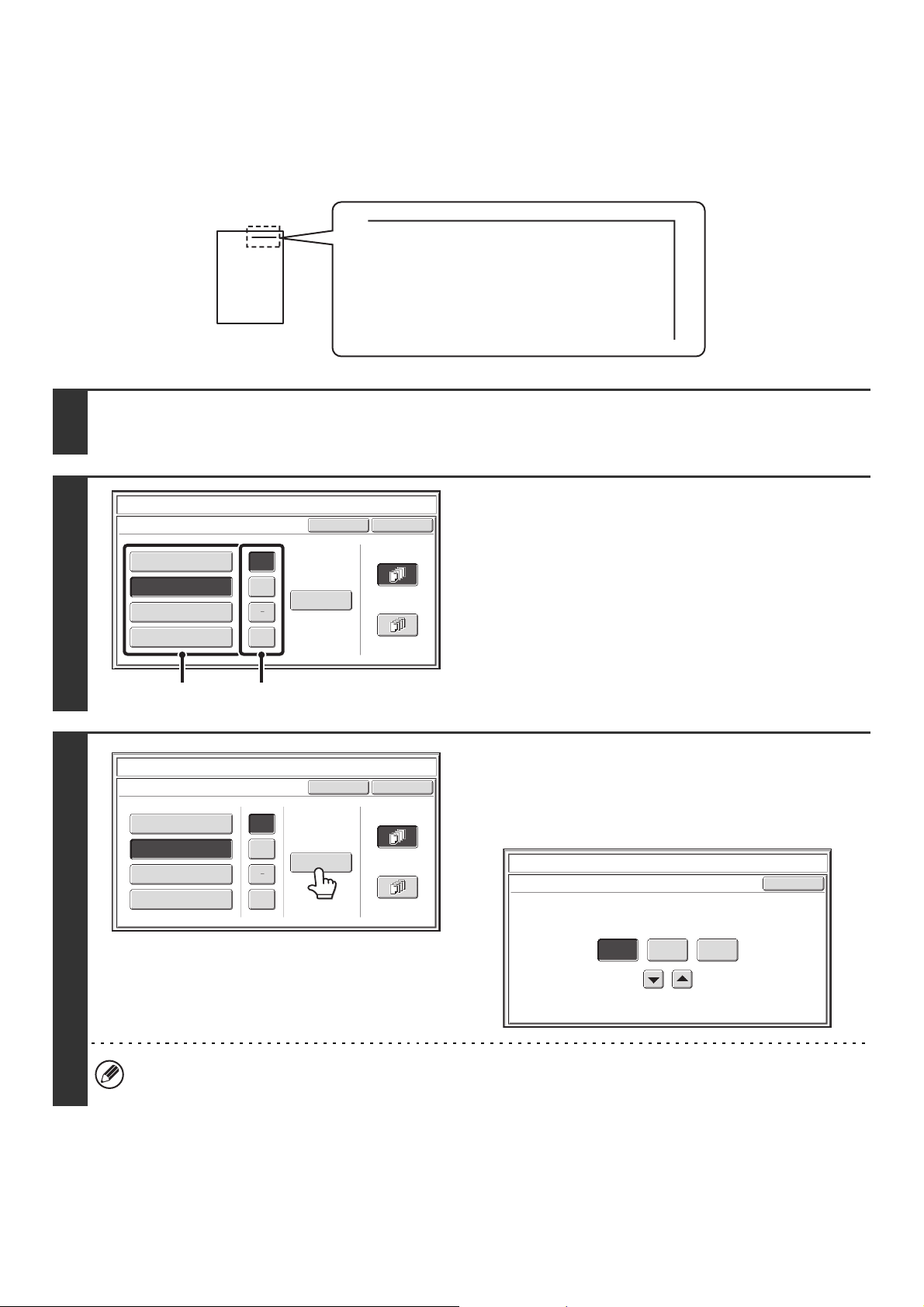
87
ADDING THE DATE TO COPIES (Date)
The date can be printed on copies. The position of the date, format, and page (first page only or all pages) can be
selected.
Example: Printing APRIL 4, 2010 in the top right corner of the paper.
1
Touch the [Date] key in the stamp selection screen.
See steps 1 to 4 of "GENERAL PROCEDURE FOR USING STAMP" (page 84).
2
Set the date format.
(1) Touch the key that shows the desired date
format.
(2) If you selected [YYYY/MM/DD],
[MM/DD/YYYY], or [DD/MM/YYYY], touch the
[/], [.], [-], or [ ] key to select the separator.
3
Check the displayed date. If you need to
change the date, touch the [Date
Change] key.
Set the date that you wish to use and touch the [OK] key.
• If you select a date that does not exist (such as Feb. 30), the [OK] key will be grayed out to prevent entry.
• Changing the date here will not change the date that is set in the machine using "Clock" in the system settings.
APR/04/2010
Cancel
OK
Date Change
MM DD, YYYY
DD/MM/YYYY
MM/DD/YYYY
YYYY/MM/DD
APR/04/2010
All Pages
First Page
Stamp
Date
/
.
(1) (2)
Cancel
OK
Date Change
MM DD, YYYY
DD/MM/YYYY
MM/DD/YYYY
YYYY/MM/DD
APR/04/2010
All Pages
First Page
Stamp
Date
/
.
Stamp
Date Change
OK
04 042010
Year Month Day
88
4
Select the pages that the date will be
printed on and touch the [OK] key.
Select printing on the first page only, or printing on all pages.
After touching the [OK] key, continue from step 5 of "GENERAL
PROCEDURE FOR USING STAMP" (page 84) to complete the
copy procedure.
To cancel the date print setting...
Touch the [Cancel] key in the screen of step 2.
Cancel
OK
Date Change
MM DD, YYYY
DD/MM/YYYY
MM/DD/YYYY
YYYY/MM/DD
APR/04/2010
All Pages
First Page
Stamp
Date
/
.
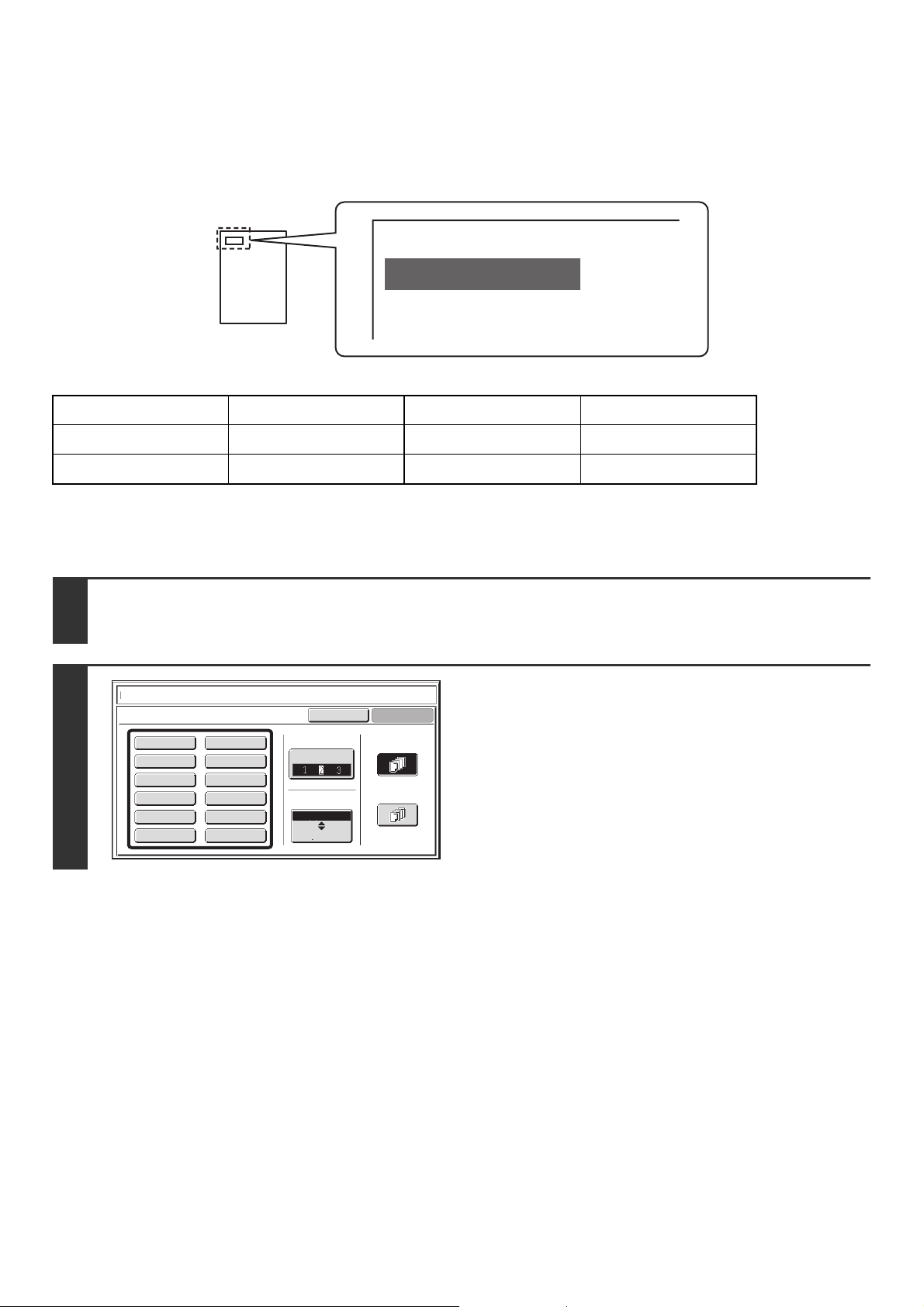
89
STAMPING COPIES (Stamp)
Text such as "CONFIDENTIAL" can be printed in white on a dark background as a "stamp" on copies.
The position, size, density, and pages (first page only or all pages) can be selected for a stamp.
Printing "CONFIDENTIAL" in the top left corner of a copy
The following 12 selections are available for the stamp text.
Three levels can be selected for the density of the stamp background.
Two stamp sizes can be selected.
CONFIDENTIAL PRIORITY PRELIMINARY FINAL
FOR YOUR INFO. DO NOT COPY IMPORTANT COPY
URGENT DRAFT TOP SECRET PLEASE REPLY
1
Touch the [Stamp] key in the stamp selection screen.
See steps 1 to 4 of "GENERAL PROCEDURE FOR USING STAMP" (page 84).
2
Touch the key of the stamp that you
wish to use.
CONFIDENTIAL
Cancel
OK
PRIORITYCONFIDENTIAL
DO NOT COPYFOR YOUR INFO.
DRAFTURGENT
FINALPRELIMINARY
COPYIMPORTANT
PLEASE REPLYTOP SECRET
Larger
Smaller
Exposure
All Pages
First Page
Size
Stamp
Stamp
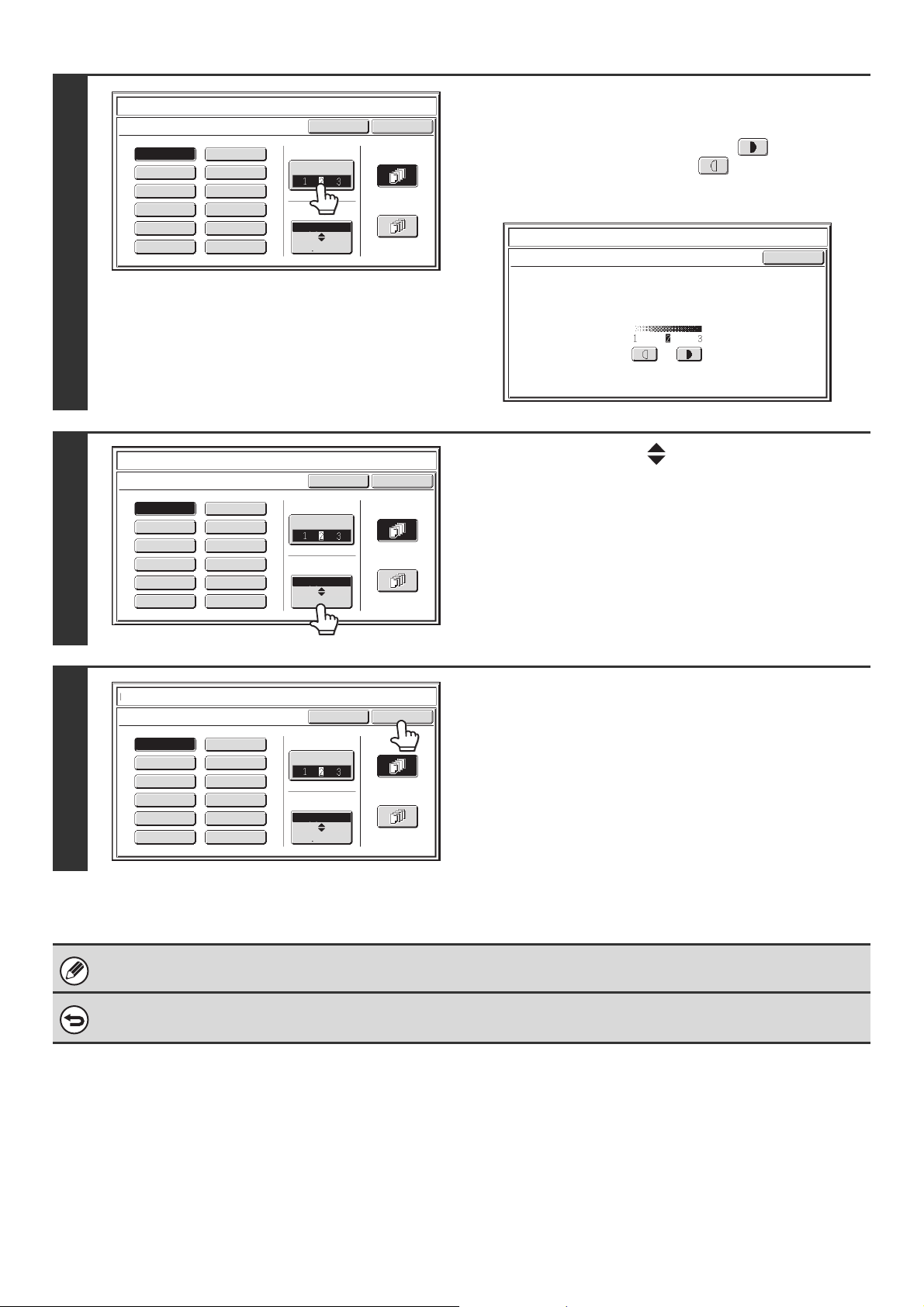
90
3
Touch the [Exposure] key and set the
density.
If you wish to darken the image, touch the key. If you
wish to lighten the image, touch the key.
When you have finished selecting the settings, touch the [OK]
key.
4
Touch the [Larger Smaller] key to
select the size of the stamp.
5
Select the pages that the date will be
printed on and touch the [OK] key.
Select printing on the first page only, or printing on all pages.
After touching the [OK] key, continue from step 5 of "GENERAL
PROCEDURE FOR USING STAMP" (page 84) to complete the
copy procedure.
The stamp text cannot be edited.
To cancel a stamp setting...
Touch the [Cancel] key in the screen of step 2.
Cancel
OK
PRIORITYCONFIDENTIAL
DO NOT COPYFOR YOUR INFO.
DRAFTURGENT
FINALPRELIMINARY
COPYIMPORTANT
PLEASE REPLYTOP SECRET
Larger
Smaller
Exposure
All Pages
First Page
Size
Stamp
Stamp
OK
Exposure
Stamp
Exposure
Cancel
OK
PRIORITY
CONFIDENTIAL
DO NOT COPY
Exposure
FOR YOUR INFO.
DRAFT
URGENT
FINAL
PRELIMINARY
COPY
IMPORTANT
PLEASE REPLY
TOP SECRET
Larger
Smaller
All Pages
First Page
Size
Stamp
Stamp
Cancel
OK
PRIORITYCONFIDENTIAL
DO NOT COPYFOR YOUR INFO.
DRAFTURGENT
FINALPRELIMINARY
COPY
IMPORTANT
PLEASE REPLYTOP SECRET
Larger
Smaller
Exposure
All Pages
First Page
Size
Stamp
Stamp
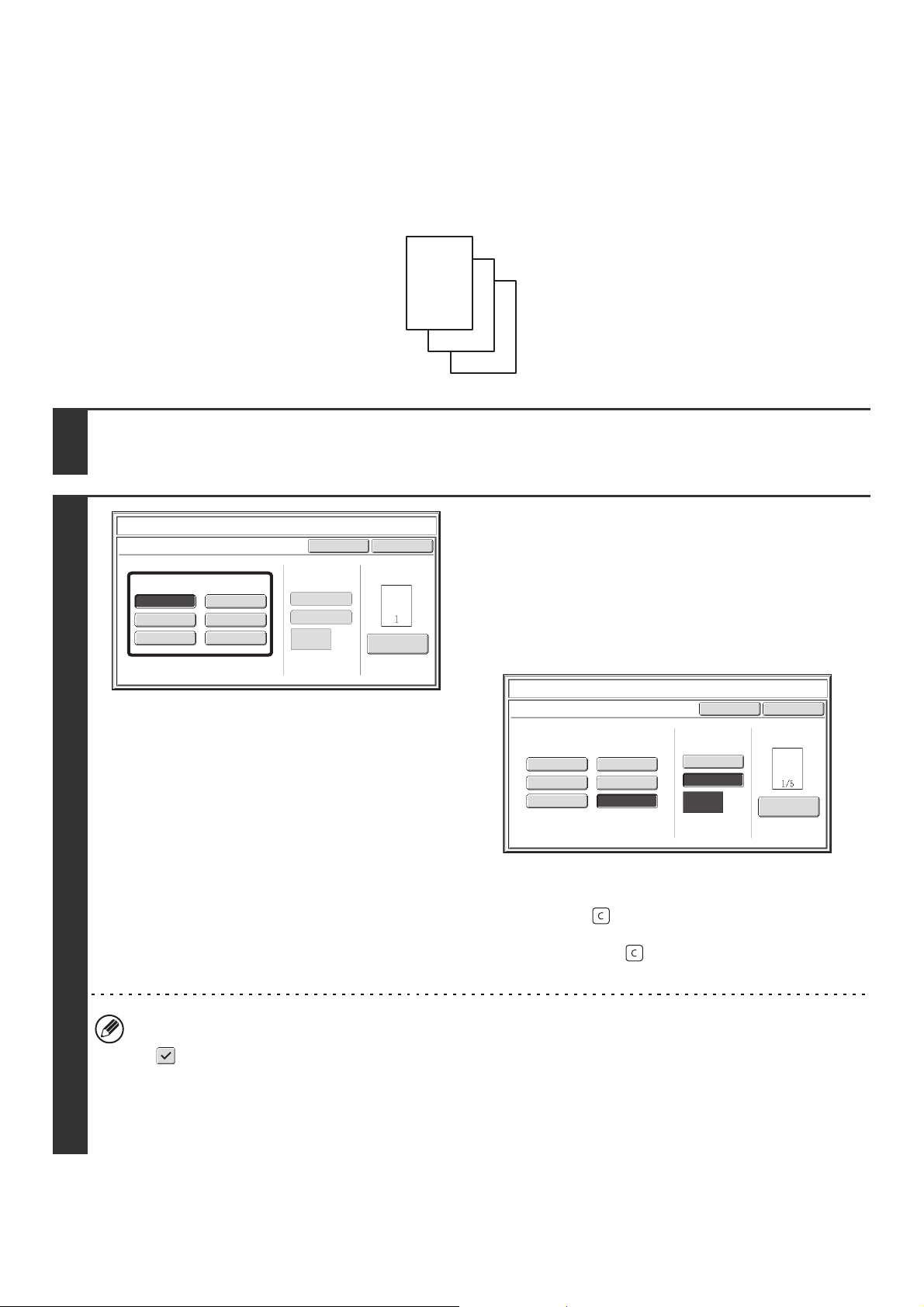
91
PRINTING PAGE NUMBERS ON COPIES
(Page Numbering)
Page numbers can be printed on copies.
The position, format, and page number can be selected for page numbering.
Printing the page number at the bottom center of the paper.
1
Touch the [Page Numbering] key in the stamp selection screen.
See steps 1 to 4 of "GENERAL PROCEDURE FOR USING STAMP" (page 84).
2
Select a format for the page number.
If the [1/5, 2/5, 3/5] key is selected,
"Page number / total pages" will be printed. "AUTO" is initially
selected for the total pages, which means that the number of
scanned original pages is automatically set as the total pages.
If you need to set the total pages manually, such as when a
large number of originals are divided into sets for scanning,
touch the [Manual] key to display the total pages entry screen.
Enter the total pages (1 to 9999) with the numeric keys and
touch the [OK] key.
The [CLEAR] key ( ) can be pressed to return the setting of
the selected item to the default value. If you make a mistake,
press the [CLEAR] key ( ) and then enter the correct
number.
• When 2-sided copying is performed, the total pages is the total number of sides of the paper. If the final page is
blank, it is not counted. However, if a back cover will be added and the [Count Back Cover] checkbox is selected
, the final page is counted. (See step 6.)
• When used in combination with "Dual Page Copy", "Multi Shot", or "Card Shot", the number of sides of the paper
copied on is the total pages.
• When used in combination with "Pamphlet Copy" or "Book Copy", the total number of pages in the resulting
pamphlet or booklet is the total pages.
1
2
3
Page Number
Cancel
Auto
Manual
(1),(2),(3)..
1,2,3..
P.1,P.2,P.3..
-1-,-2-,-3-..
1/5,2/5,3/5..
<1>,<2>,<3>..
OK
1
Page
Total Page
Page Numbering Format
Stamp
Page Numbering
Page Number
Cancel
Auto
Manual
(1),(2),(3)..
1,2,3..
P.1,P.2,P.3..
-1-,-2-,-3-..
1/5,2/5,3/5..
<1>,<2>,<3>..
OK
1
Page
Total Page
Page Numbering Format
Stamp
Page Numbering
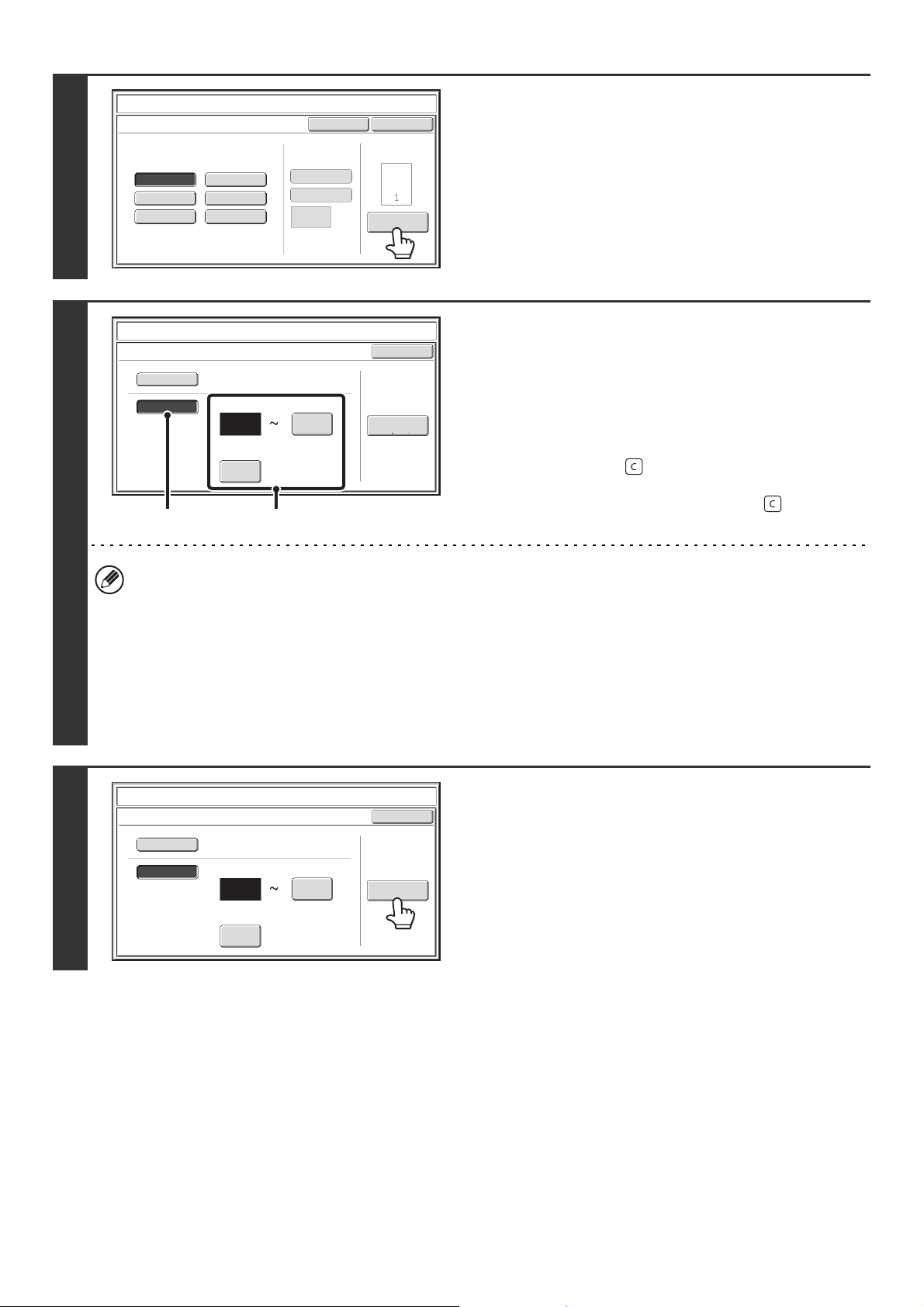
92
3
To configure page number settings,
touch the [Page Number] key.
If you do not need to configure page number settings, go to
step 8.
4
Select page number settings.
(1) Touch the [Manual] key.
(2) Set the first number, the last number, and
the "Printing Starts from Page" number.
Touch each key and enter a number with the numeric
keys (1 to 9999).
The [CLEAR] key ( ) can be pressed to return the
setting of the selected item to the default value. If you
make a mistake, press the [CLEAR] key ( ) and then
enter the correct number.
• A "Last Number" smaller than the "First Number" cannot be set.
• The "Last Number" is initially set to "Auto", which means that page numbers are automatically printed through the
last page based on the "First Number" and "Printing Start from Page" settings.
• If the "Last Number" is set to a number smaller than the "Total Pages", page numbers are not printed on pages after
the page set as the "Last Number".
• "Printing Starts from Page" is used to set the page number from which you want to begin printing page numbers.
For example, if "3" is set and 1-sided copying is being performed, page numbers will be printed beginning from the
3rd copy sheet (the 3rd original page). If 2-sided copying is being performed, page numbers will be printed
beginning from the front side of the 2nd copy sheet (the 3rd original page).
5
If covers/inserts will be inserted, touch
the [Covers/Inserts Counting] key if you
want to include the covers/inserts in the
page number count and want page
numbers printed on the covers/inserts.
Page Number
Cancel
Auto
Manual
(1),(2),(3)..
1,2,3..
P.1,P.2,P.3..
-1-,-2-,-3-..
1/5,2/5,3/5..
<1>,<2>,<3>..
OK
1
Page
Total Page
Page Numbering Format
Stamp
Page Numbering
OK
Auto
Manual
1
1
Covers/Inserts
Counting
Auto
First Number Last Number
Printing Starts from Page
Stamp
Page Number
(2)(1)
OK
Auto
Manual
1
1
Covers/Inserts
Counting
Auto
First Number Last Number
Printing Starts from Page
Stamp
Page Number
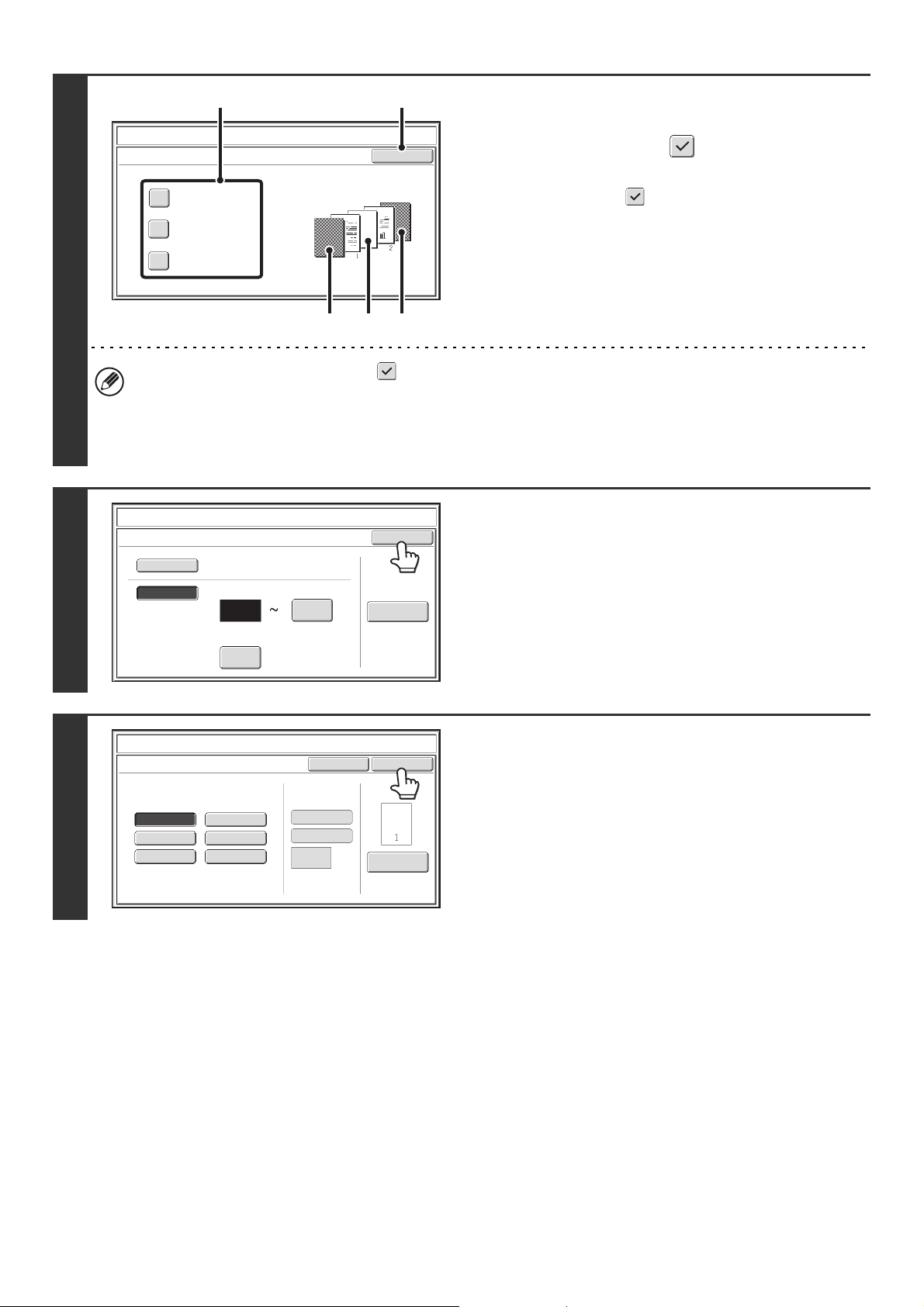
93
6
Touch each item that you want counted
in the page numbers so that a
checkmark appears , and then touch
the [OK] key.
Items with a checkmark will be reflected in the print image
on the right side of the screen.
(A): Front cover image
(B): Insert image
(C): Back cover image
• When the checkboxes are selected , each inserted sheet of paper (front cover, insert, or back cover) will be
counted as one page in the case of 1-sided copying, or two pages in the case of 2-sided copying. However, when
the body sheets are 1-sided copies and the inserted sheets are 2-sided copies, each body sheet is counted as one
page and each inserted sheet is counted as two pages.
• Page numbers are printed on covers/inserts if the covers/inserts are counted and if they are copied on.
7
Touch the [OK] key.
8
Touch the [OK] key.
After touching the [OK] key, continue from step 5 of "GENERAL
PROCEDURE FOR USING STAMP" (page 84) to complete the
copy procedure.
OK
Count Front Cover
Count Inserts
Count Back Cover
Stamp
Covers/Inserts Counting
(1) (2)
(A)
(B) (C)
OK
Auto
Manual
1
1
Covers/Inserts
Counting
Auto
First Number Last Number
Printing Starts from Page
Stamp
Page Number
Page Number
Cancel
Auto
Manual
(1),(2),(3)..
1,2,3..
P.1,P.2,P.3..
-1-,-2-,-3-..
1/5,2/5,3/5..
<1>,<2>,<3>..
OK
1
Page
Total Page
Page Numbering Format
Stamp
Page Numbering
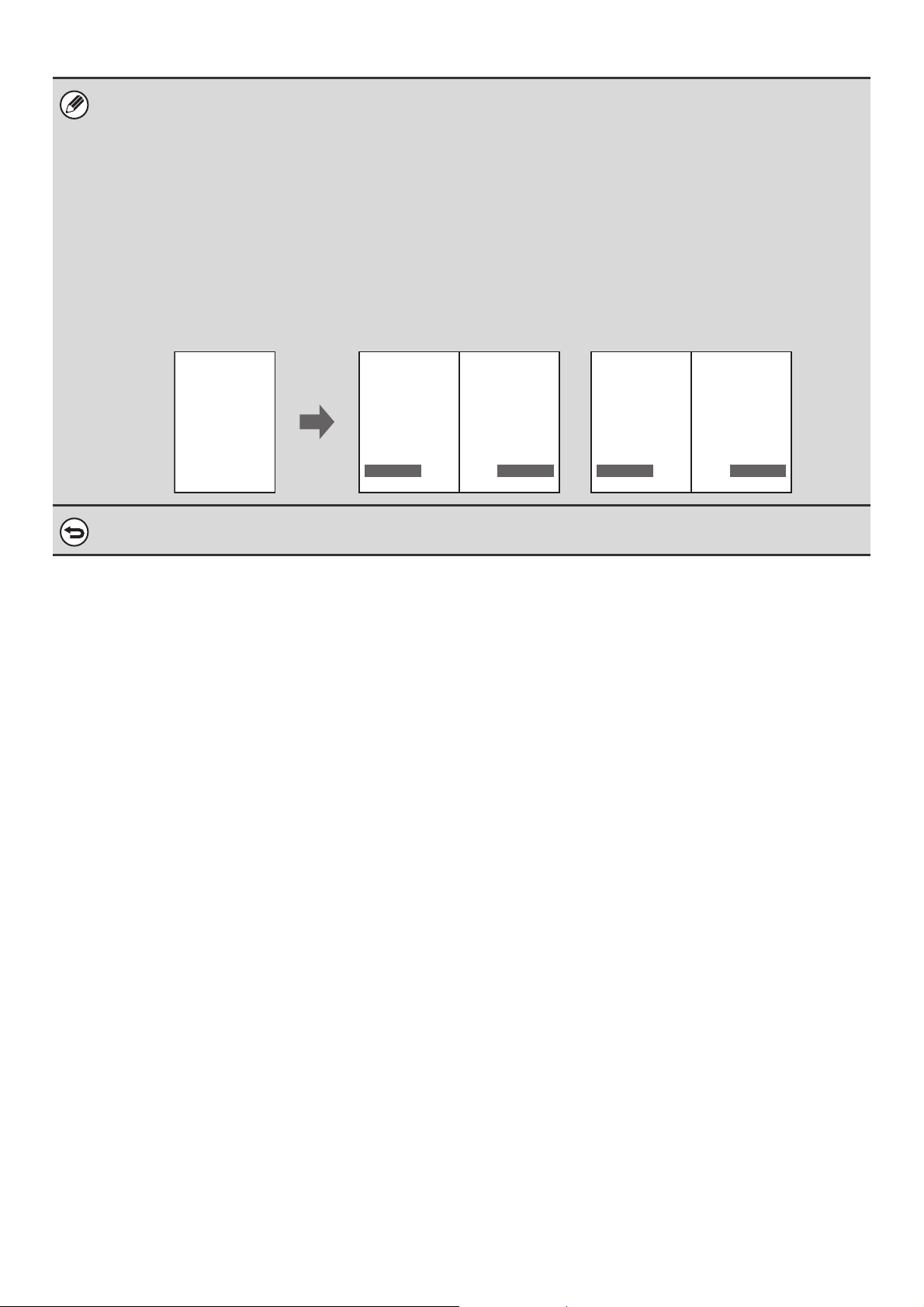
94
• When Page Numbering is selected, copying in group mode is not possible. The mode automatically changes to sort mode.
• When the page number printing position is set to the right side or left side and pamphlet copy or book copy is used, the
print position is changed so that the page numbers always appear on the outer side of each opened page (the left and right
sides of the opened pages). If a stamp is set in the area where page numbering is set, the position of the stamp changes in
the same way as the page number.
If another stamp item is set in this changing position, the page numbers will alternate sides with this stamp item.
A stamp item that is in a position not affected by the changing page number position will be printed in its original set
position.
Example: When four pages are copied using pamphlet copy and the page number format is "1, 2, 3...", the result is as
follows:
In this example, the page number is set at the bottom of the page and the date is set at the top, and thus the
date does not move.
To cancel the page numbering setting...
Touch the [Cancel] key in the screen of step 2.
Date
Text
Stamp
4
AAA AAA
12
AAA AAA
3No.
APR/04/2010 APR/04/2010 APR/04/2010 APR/04/2010
CONFIDENTIAL CONFIDENTIAL CONFIDENTIALCONFIDENTIAL
Print settings Side 1 Side 2
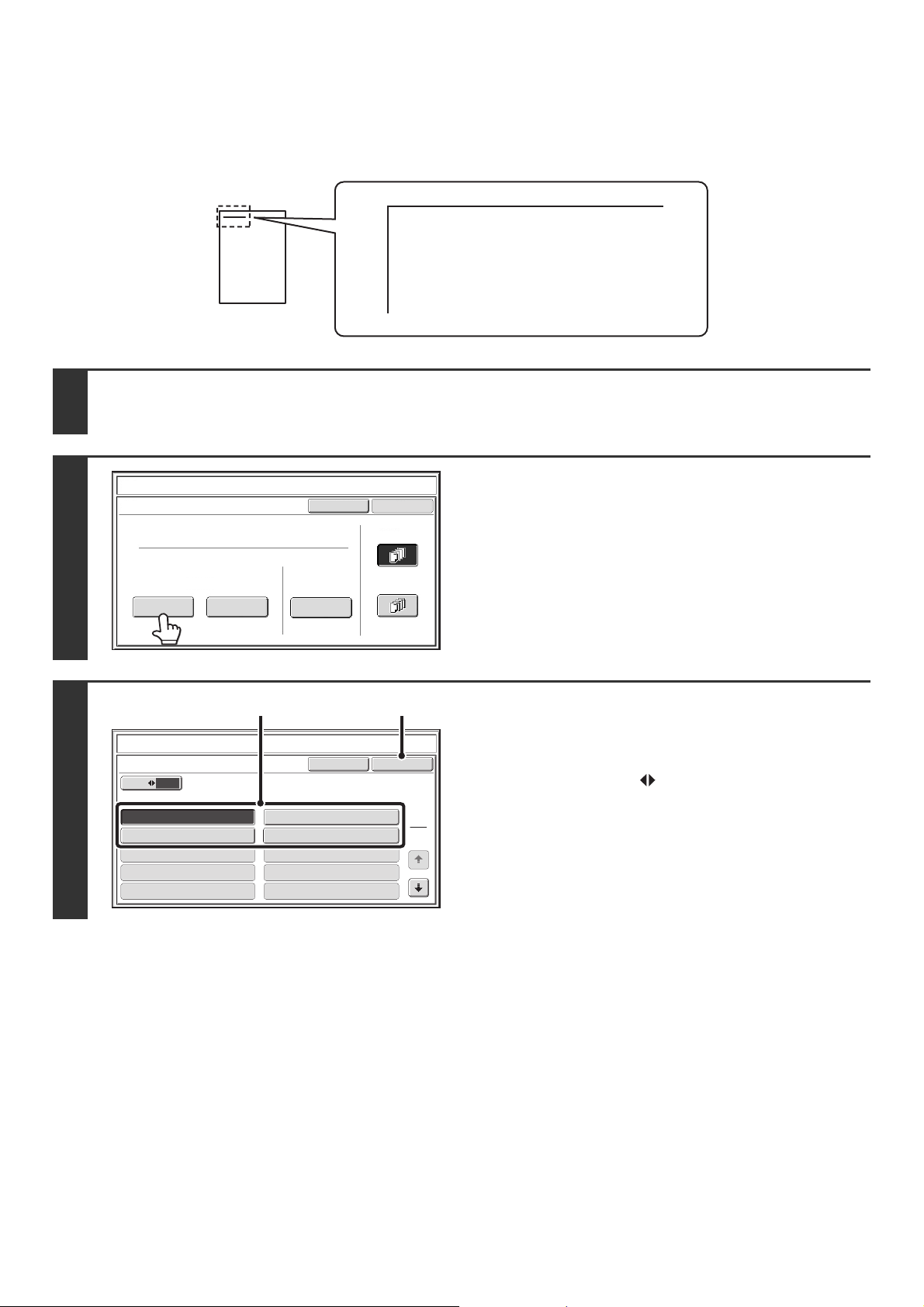
95
PRINTING TEXT ON COPIES (Text)
Entered text can be printed on copies. Up to 30 frequently used text strings can be stored.
Example: Printing "April 2010 Planning Meeting" in the top left corner of the paper
1
Touch the [Text] key in the stamp selection screen.
See steps 1 to 4 of "GENERAL PROCEDURE FOR USING STAMP" (page 84).
2
Touch the [Recall] key.
The [Direct Entry] key can be touched to display the text entry
screen. To enter text, see "7. ENTERING TEXT" in the User's
Guide. When all characters have been entered, touch the [OK]
key.
To store or delete a text string, touch the [Store/Delete] key.
☞ Storing, editing, and deleting text strings (page 97)
3
Specify the text to be printed.
(1) Touch the text string that you wish to
select.
You can touch the [5 10] key to switch the number of
keys displayed in the screen between 5 and 10. When
5-key display is selected, the entire text string appears in
each key.
(2) Touch the [OK] key.
April 2010 Planning Meeting
Cancel
OK
Pre-Set
First Page
All Pages
Store/Delete
Recall
Direct Entry
Stamp
Text
Cancel
10
5
Recall
No.05
No.07
No.09
No.06
No.08
No.10
OK
1
3
Stamp
Text
No.01 AAA AAA
No.03 CCC CCC No.04 DDD DDD
No.02 BBB BBB
(1) (2)
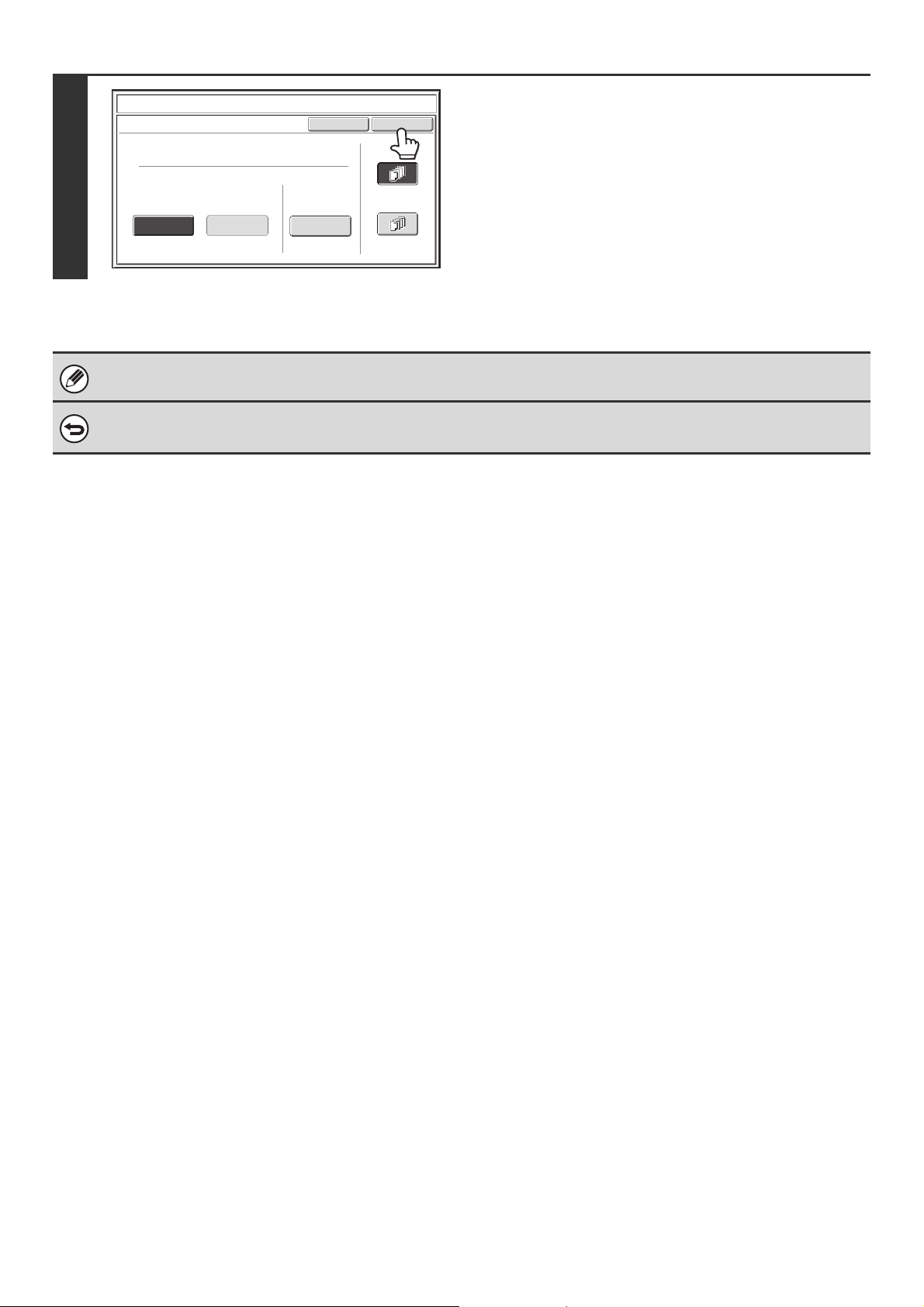
96
4
Select the pages to be printed on and
touch the [OK] key.
Select printing on the first page only, or printing on all pages.
After touching the [OK] key, continue from step 5 of "GENERAL
PROCEDURE FOR USING STAMP" (page 84) to complete the
copy procedure.
Text settings can also be configured in the Web pages. Click [Application Settings], [Copy settings] and then [Text Settings
(Stamp)] in the Web page menu.
To cancel a text setting...
Touch the [Cancel] key in the screen of step 2.
Cancel
OK
Pre-Set
First Page
All Pages
Store/Delete
Recall
Direct Entry
Stamp
Text
AAA AAA
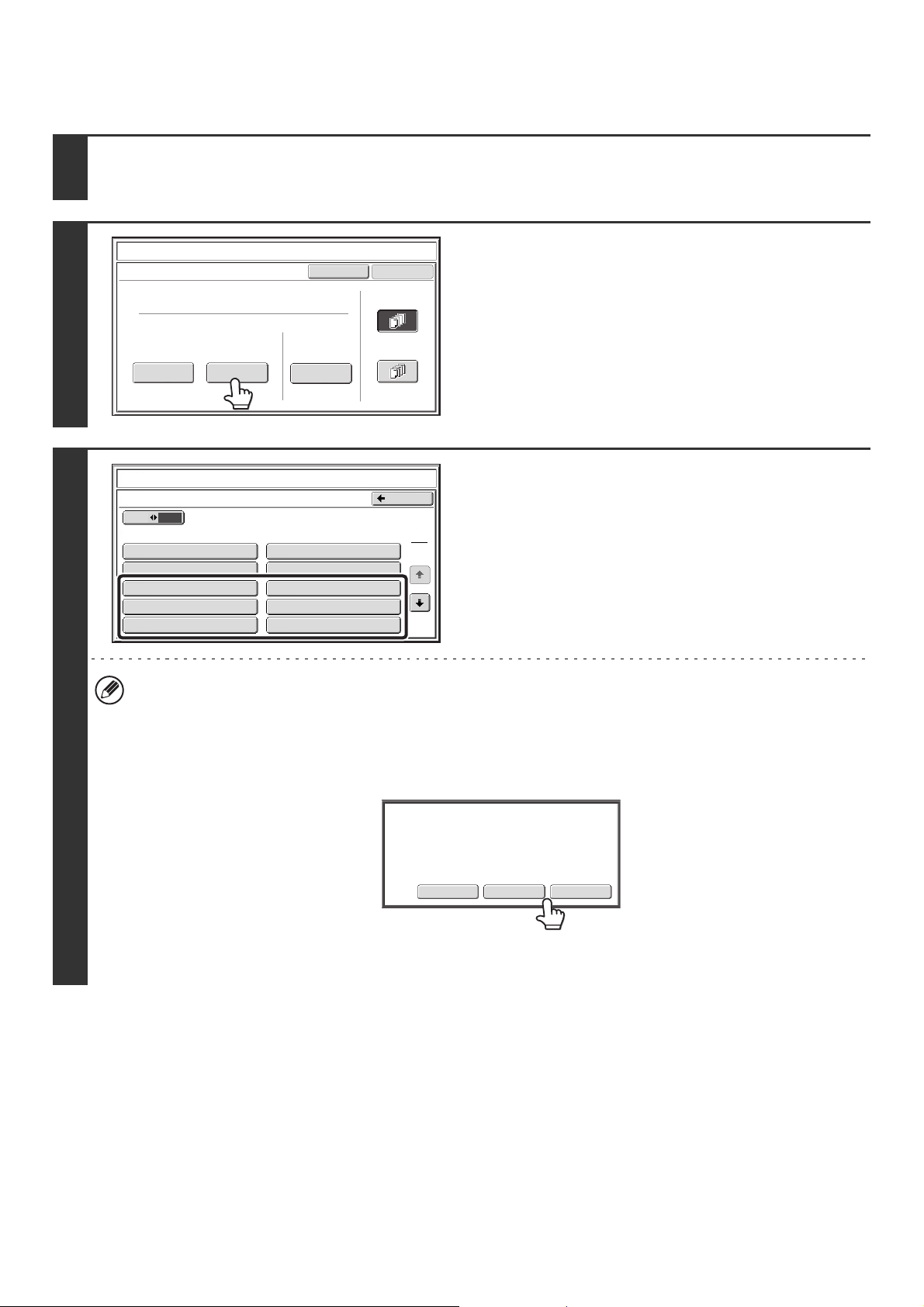
97
Storing, editing, and deleting text strings
1
Touch the [Text] key in the stamp selection screen.
See steps 1 to 4 of "GENERAL PROCEDURE FOR USING STAMP" (page 84).
2
Touch the [Store/Delete] key.
3
Store a text string, or edit/delete a stored
text string.
• To store a text string, touch a key with no text stored.
A text entry screen will appear. A maximum of 50 characters
can be entered. To enter text, see "7. ENTERING TEXT" in
the User's Guide. When you have finished entering the text,
touch the [OK] key. The text entry screen will close.
• To edit or delete a text string, follow the instructions below.
To edit or delete a text string...
• When the key with the text string is touched, the following screen appears.
When the [Modify] key is touched, a text entry screen appears. The stored text string appears in the text entry
screen. Edit the text. To enter text, see "7. ENTERING TEXT" in the User's Guide. When you have finished entering
the text, touch the [OK] key. The text entry screen will close.
• When the [Delete] key is touched, the stored text is deleted.
• Text settings can also be configured in the Web pages. Click [Application Settings], [Copy settings] and then [Text
Settings (Stamp)] in the Web page menu.
Cancel
OK
Pre-Set
First Page
All Pages
Store/Delete
Recall
Direct Entry
Stamp
Text
10
5
Store/Delete
No.01 AAA AAA
No.03 CCC CCC No.04 DDD DDD
No.02 BBB BBB
No.05
No.07
No.08
No.09
No.10
No.06
Back
1
3
Stamp
Text
ModifyDeleteCancel
A text has been already stored to this
location. Change the text?
99
CHECKING THE STAMP LAYOUT (Layout)
After stamp items have been selected, you can check the print layout, change the print position, and delete stamp items.
1
Touch the [Layout] key.
The [Layout] key can only be touched when stamp items have been selected.
2
If the layout is correct, touch the [OK]
key.
Touch the key of the stamp item that you want to delete or
whose position you want to change.
A maximum of 14 characters appear in each key.
3
To change the position of the item,
touch the [Move] key. To delete the item,
touch the [Delete] key.
• If the [Move] key is touched, a screen for selecting the
destination position appears.
• If the [Delete] key is touched, the item is deleted. (Go to step
6.)
OK
Special Modes
Special Modes
OK
Layout
Cancel
Date
Page
Numbering
Text
Stamp
1
2
AAA AAA
CONFIDENTIAL
1,2,3..
DO NOT COPY
Stamp
Layout
OK
Mo
ve
DeleteCancel
Do you want to move or delete the
selected item?
100
4
Touch the key of the desired destination
position.
The touched position key is highlighted and the print position
changes.
The keys that show the print positions will appear as follows
depending on the state of the settings.
The above key is the top left key. The appearance of each key
varies depending on the position of the key.
If you wish to swap the position of the selected stamp item with the position of another stamp item, temporarily move
either one of the items to an unoccupied position and then switch the print positions.
5
Touch the [OK] key.
If you attempt to move the stamp item to a position that is
already occupied by another stamp item, a message will
appear asking you if you wish to overwrite the other stamp
item. To overwrite the other stamp item, touch the [Yes] key. To
cancel the move, touch the [No] key.
6
Touch the [OK] key.
Select the location to move the selected item.
OK
Stamp
Move
Not selected, stamp setting has not
been selected.
Selected during selection of the stamp
setting.
Not available, stamp setting has already
been selected.
Select the location to move the selected item.
OK
Stamp
Move
YesNo
An item has been already selected to
this location. Overwrite the item?
AAA AAA
CONFIDENTIAL
1
,2,3..
DO NOT COPY
Stamp
Layout
OK
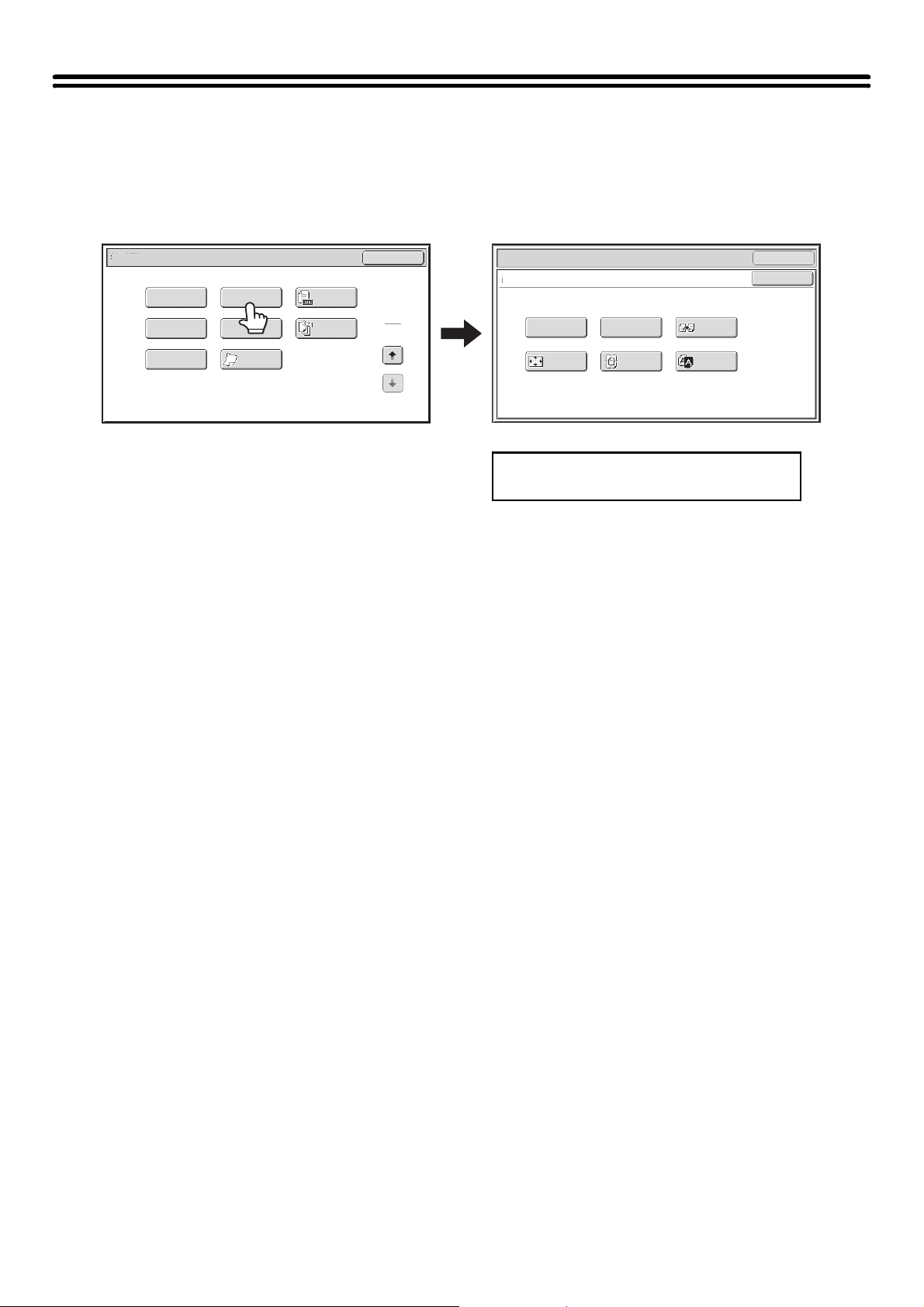
101
[Image Edit] KEY
When the [Image Edit] key is touched in the 2nd special modes menu screen, the image edit menu screen opens.
Image edit menu screen
(1) [Photo Repeat] key (page 102)
(2) [Multi-Page Enlargement] key (page 104)
(3) [Mirror Image] key (page 107)
(4) [Full Bleed Copy] key (page 108)
(5) [Centering] key (page 110)
(6) [B/W Reverse] key (page 112)
Click a key in the screen to jump to an
explanation of the key.
Special Modes
2
2
OK
Image Edit
Slow Scan
Mode
Original
Count
Reverse
Order
Mixed Size
Original
Stamp
File
OK
Mirror
Image
B/W
Reverse
Multi-Page
Enlargement
Centering
Full Bleed
Copy
Photo Repeat
OK
Special Modes
Image Edit
Quick File
(1) (2) (3)
(4) (5) (6)
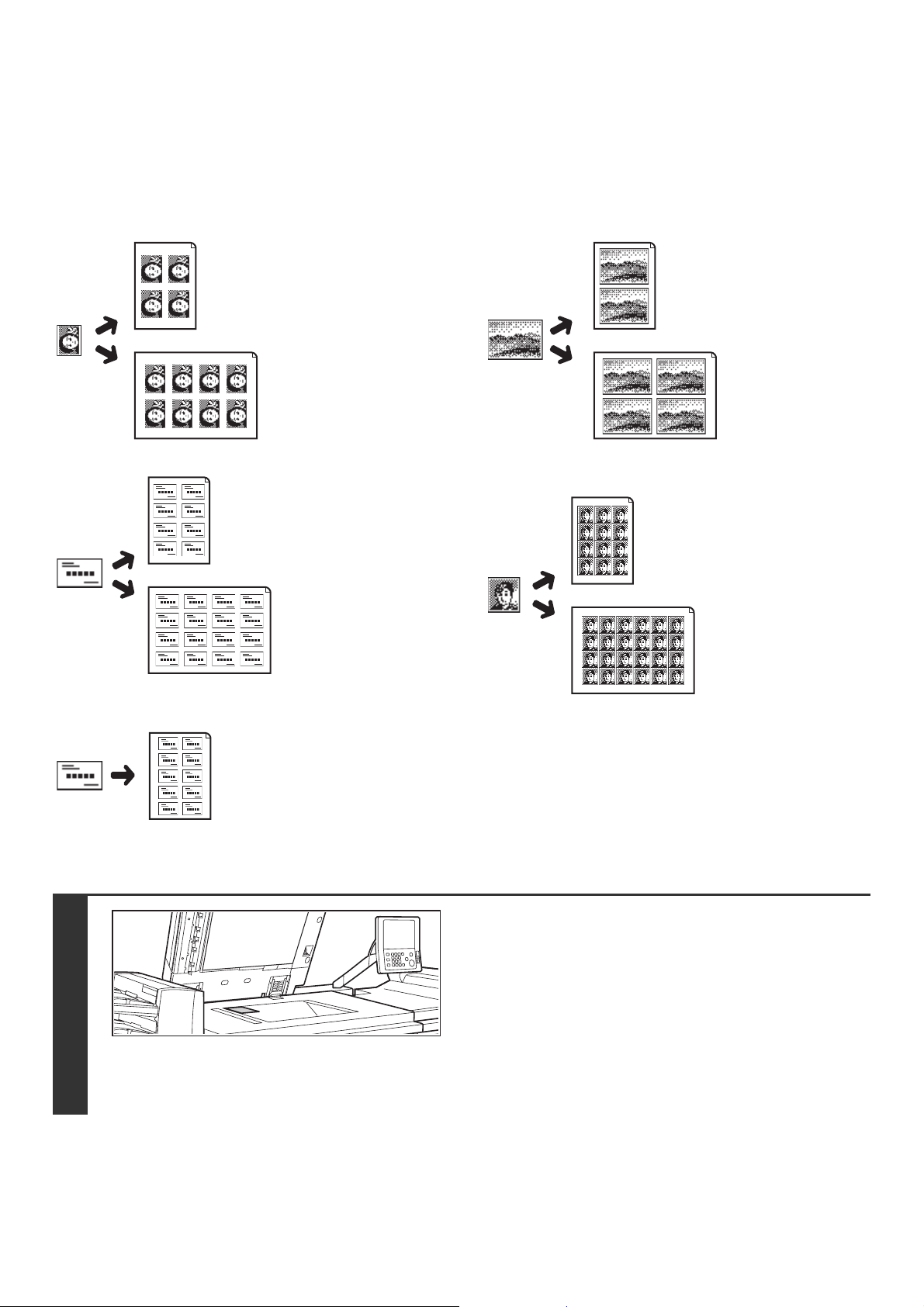
102
REPEATING PHOTOS ON A COPY (Photo Repeat)
Photo Repeat is used to create repeated images of a photo-size original (3" x 5" size, 5" x 7" size, 2-1/2" x 4" size,
2-1/2" x 2-1/2" size or 2-1/8" x 3-5/8" size (130 mm x 90 mm size, 100 mm x 150 mm size, 70 mm x 100 mm size,
65 mm x 70 mm size or 57 mm x 100 mm size)) on a single sheet of copy paper as shown below. Up to 24 images
(when the image is 2-1/2" x 2-1/2" size (65 mm x 70 mm size)) can be repeated on a single sheet of paper.
• Original sizes up to 3" x 5" (130 mm x 90 mm)
• Original sizes up to 2-1/2" x 4" (70 mm x 100 mm)
• Original sizes up to 2-1/8" x 3-5/8"
(57 mm x 100 mm)
• Original sizes up to 5" x 7" (100 mm x 150 mm)
• Original sizes up to 2-1/2" x 2-1/2"
(65 mm x 70 mm)
Copying on 8-1/2" x 11" (A4)
size paper
4 copies are made.
Copying on 11" x 17"
(A3) size paper
8 copies are made.
Copying on 8-1/2" x 11" (A4)
size paper
8 copies are made.
Copying on 11" x 17"
(A3) size paper
16 copies are made.
Copying on 8-1/2" x 11" (A4)
size paper (Ratio 95%)
10 copies are made.
Copying on 8-1/2" x 11" (A4)
size paper
2 copies are made.
Copying on
11" x 17" (A3) size
paper
4 copies are made.
Copying on 8-1/2" x 11" (A4)
size paper
12 copies are made.
Copying on 11" x 17"
(A3) size paper
24 copies are made.
1
Place the original face down on the
document glass.
• When placing a 3" x 5", 5" x 7", 2-1/2" x 4", 2-1/2" x 2-1/2" or
2-1/8" x 3-5/8" (130 mm x 90 mm, 100 mm x 150 mm,
70 mm x 100 mm, 65 mm x 70 mm or 57 mm x 100 mm)
photo size original, place the original with the long side
aligned against the left side of the document glass.
• When placing a business card size original, place the original
with the long side aligned against the far side of the
document glass.
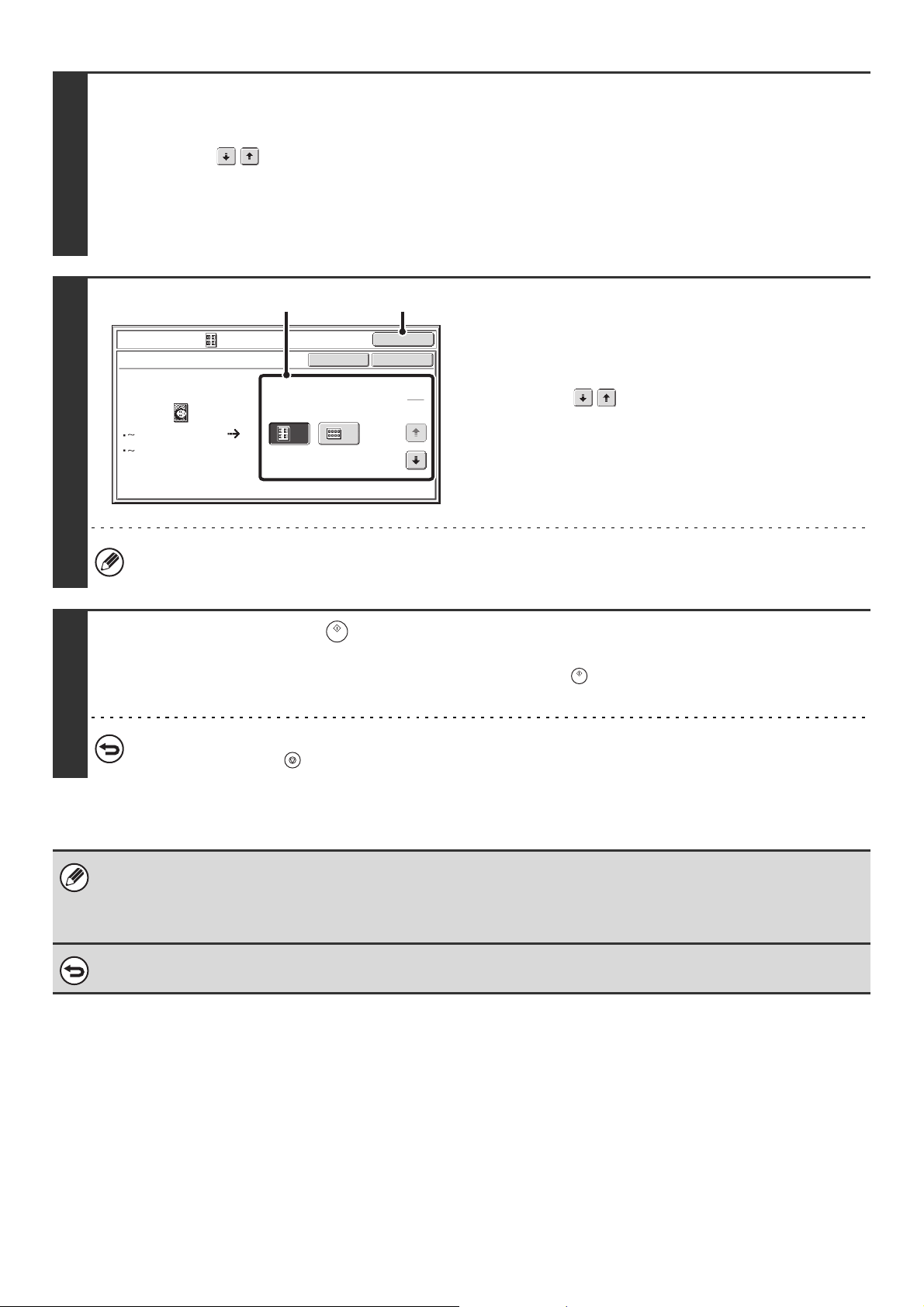
103
2
Select the special modes.
(1) Touch the [Special Modes] key.
(2) Touch the keys to switch through the screens.
(3) Touch the [Image Edit] key.
(4) Touch the [Photo Repeat] key.
☞ [Image Edit] KEY (page 101)
3
Select Photo Repeat settings.
(1) Touch the key showing the original type
and paper size combination that you want
to use.
Touch the keys to switch through the screens and
touch the desired repeat type key (8-1/2" x 11" or
11" x 17" (A4 or A3)).
(2) Touch the [OK] key.
You will return to the special modes screen. Touch the
[OK] key to return to the base screen of copy mode.
When making repeat copies of a business card size original (up to 2-1/8" x 3-5/8" (57 mm x 100 mm)), only 8-1/2" x
11" (A4) can be selected for the paper size.
4
Press the [START] key ( ).
Copying will begin.
If you have selected sort mode, change originals and press the [START] key ( ). Repeat until all pages have been scanned
and then touch the [Read-End] key.
To cancel scanning and copying...
Press the [STOP] key ( ).
• The original must be placed on the document glass.
• Only 8-1/2" x 11" (A4) or 11" x 17" (A3) size paper can be used.
• The copy ratio is 100% when this function is used. (The ratio cannot be changed.) However, for a business card size
original (up to 2-1/8" x 3-5/8" (57 mm x 100 mm)), the images are reduced to 95%.
To cancel the photo repeat setting...
Touch the [Cancel] key in the screen of step 3.
OK
OK
Cancel
Image Edit
Photo Repeat
Original Size Repeat Type
A4/8½x11 A3/11x17
4 8
1
5
3x 5"
130x 90mm
(1) (2)
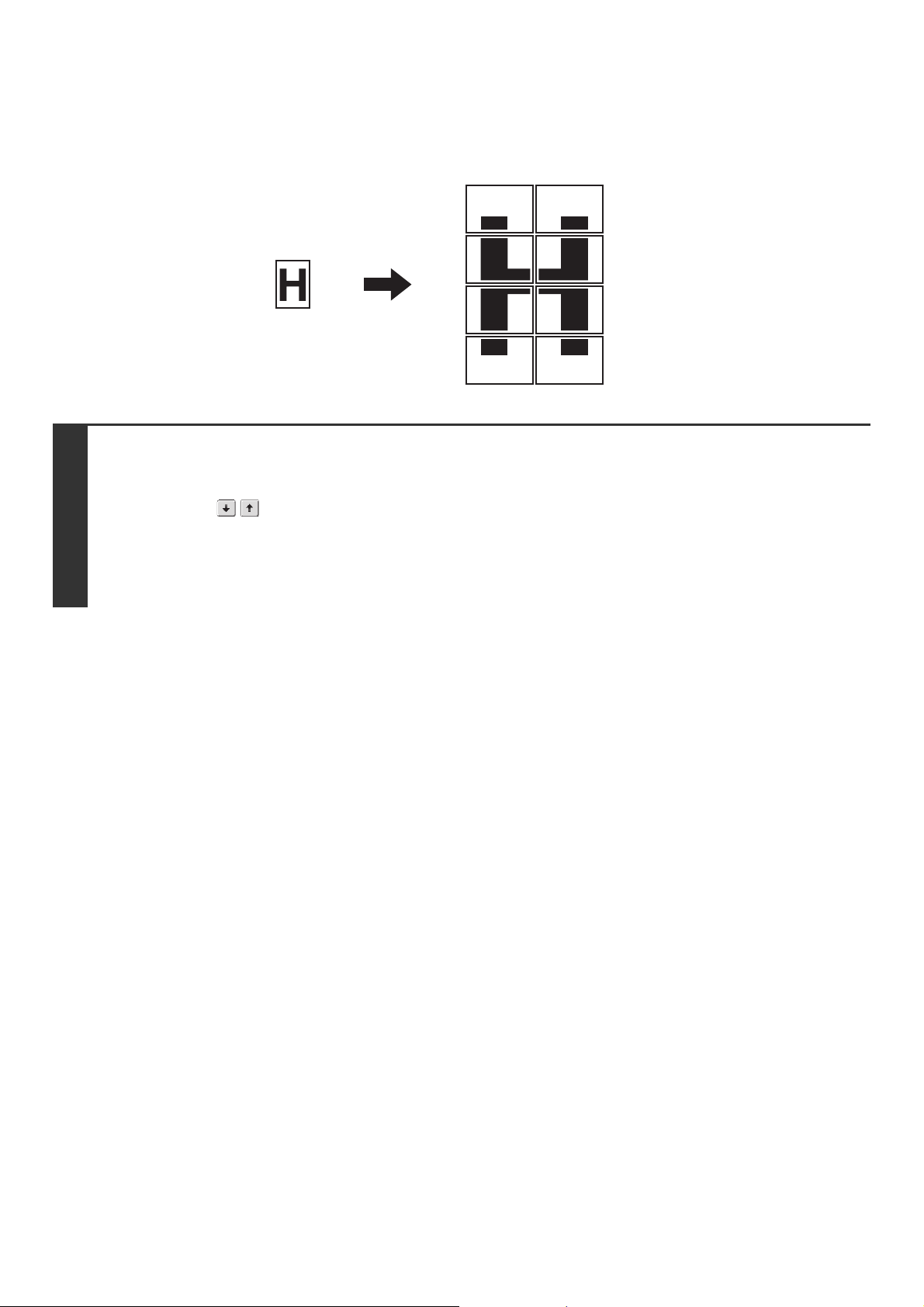
104
CREATING A LARGE POSTER (Multi-Page
Enlargement)
This function is used to enlarge an image of an original and print it as a composite image using multiple sheets of paper.
1
Select the special modes.
(1) Touch the [Special Modes] key.
(2) Touch the keys to switch through the screens.
(3) Touch the [Image Edit] key.
(4) Touch the [Multi-Page Enlargement] key.
☞ [Image Edit] KEY (page 101)
Original
(8-1/2" x 11" (A4) size)
Copy (enlarged image on 8
sheets of 11" x 17" (A3) paper)
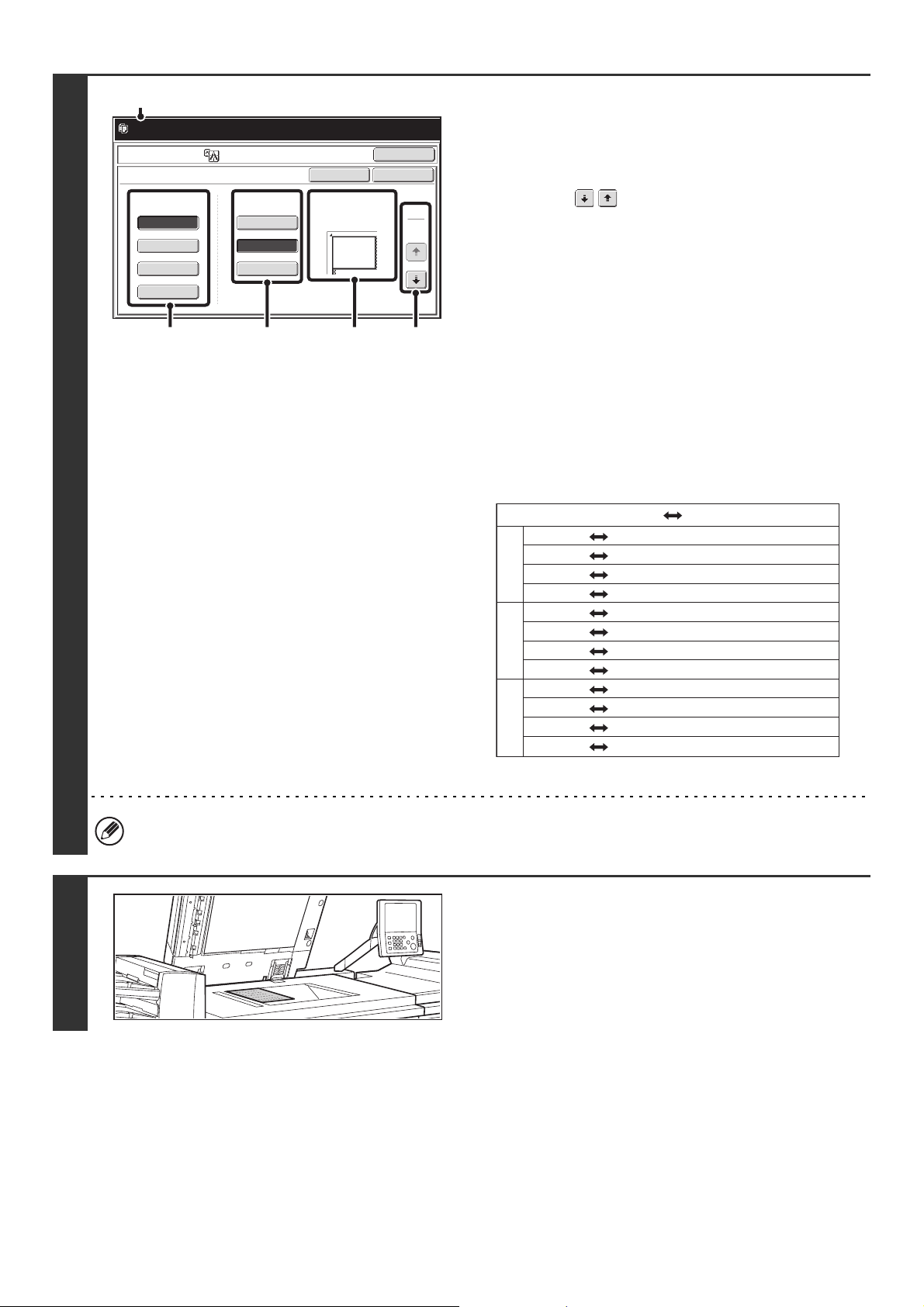
105
2
Set the enlargement size and the original
size.
(1) Select the size system that you wish to use
for multi-page enlargement.
Touch the keys to display the screen that shows
the desired group of sizes.
• 1st screen: Inch system
• 2nd screen: A system
• 3rd screen: B system
(2) Select the enlargement size.
(3) Select the size of the original to be used.
A suitable original placement orientation (A) and the
number of sheets of paper required for the enlarged
image (B) are displayed based on the selected original
size and enlargement size.
Check the placement orientation and number of sheets.
The following combinations of original sizes and
enlargement sizes are possible for multi-page
enlargement.
* The size that is twice A0 size.
An A size original cannot be enlarged to a B size, and a B size original cannot be enlarged to an A size.
3
Place the original face down on the
document glass in the orientation
indicated in the screen.
Ready to scan for copy. Copies will be
delivered in 2 parts.
OK
OK
Cancel
Image Edit
M.Page Enlarge
22x17
8½x14
22x34
34x44
44x68
11x17
8½x11
Enlargement Size
(Inch)
Original Size Original Orientation
1
3
(2) (A) (1)(3)
(B)
22" x 17" 11" x 17", 8-1/2" x 14", 8-1/2" x 11"
22" x 34" 11" x 17", 8-1/2" x 14", 8-1/2" x 11"
34" x 44" 11" x 17", 8-1/2" x 14", 8-1/2" x 11"
44" x 68" 11" x 17"
A2 A3, A4, A5
A1 A3, A4, A5
A0 A3, A4
A0 x 2* A3
B3 B4, B5
B2 B4, B5
B1 B4, B5
B0 B4
Enlargement size Original size
Inch system
B systemA system
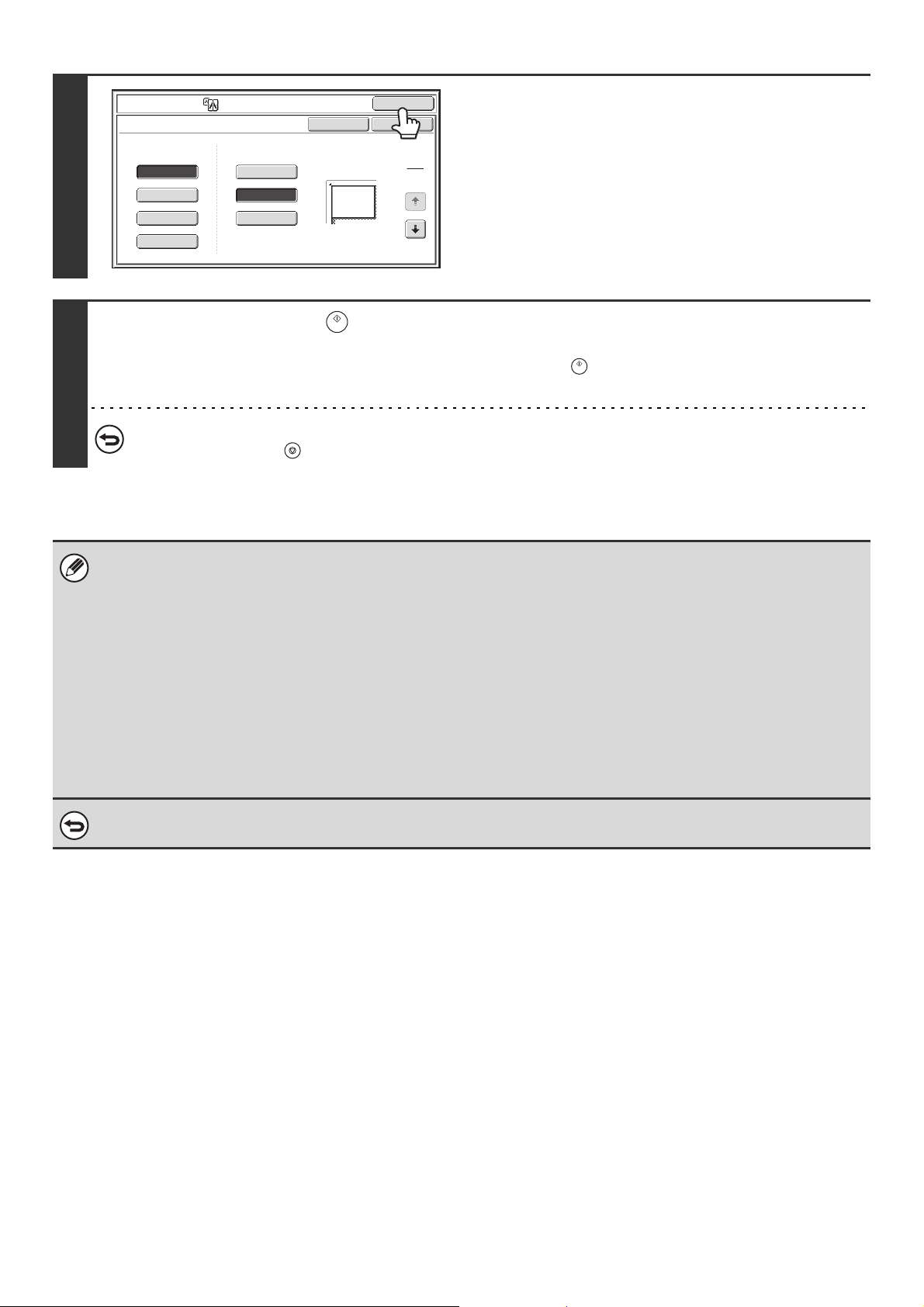
106
4
Touch the [OK] key.
You will return to the special modes screen. Touch the [OK] key
to return to the base screen of copy mode.
5
Press the [START] key ( ).
Copying will begin.
If you have selected sort mode, change originals and press the [START] key ( ). Repeat until all pages have been scanned
and then touch the [Read-End] key.
To cancel scanning and copying...
Press the [STOP] key ( ).
• The original must be placed on the document glass.
• Overlap of sections of image
• There will be a margin around the edges of each copy.
• Areas for overlapping the copies will be created at the leading and trailing edges of each copy.
• If an original size is selected first, a message will appear indicating the enlargement sizes that can be selected. If an
enlargement size is selected first, a message will appear indicating the original sizes that can be selected.
• If a combination of settings is selected for which multi-page enlargement is not possible, invalid selection beeps will sound.
• The paper size, number of sheets required for the enlarged image, and the ratio are automatically selected based on the
selected original size and enlargement size.
(The paper size and ratio cannot be selected manually.)
• If no paper trays have the size of paper that was automatically selected, "Load XXX paper" will appear. Change the paper
in one of the trays or the bypass tray to the indicated size of paper.
To cancel the multi-page enlargement setting...
Touch the [Cancel] key in the screen of step 2.
Original Orientation
OK
OK
Cancel
Image Edit
M.Page Enlarge
Original Size
1
3
22x17
8½x14
22x34
34x44
44x68
11x17
8½x11
Enlargement Size
(Inch)
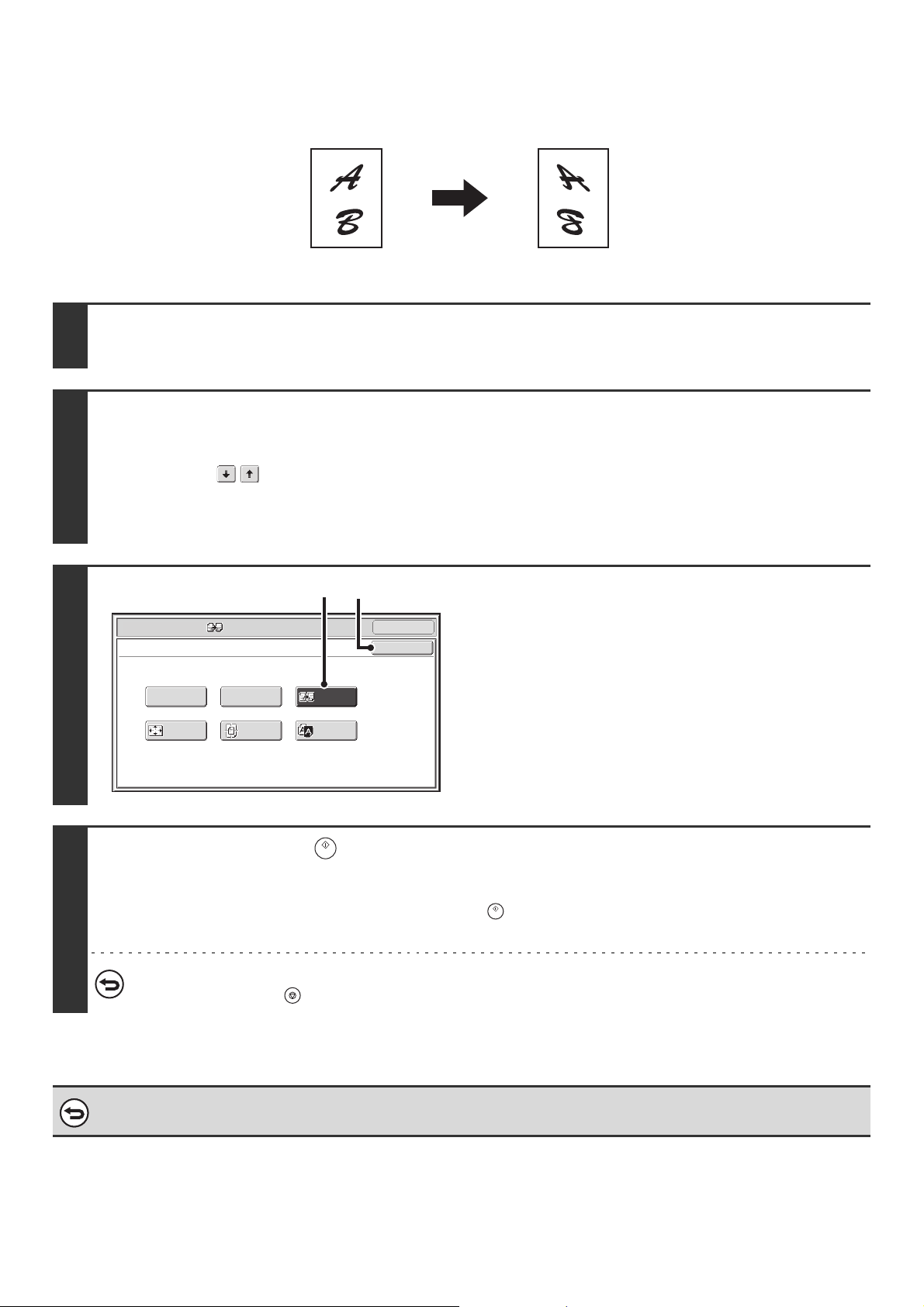
107
REVERSING THE IMAGE (Mirror Image)
This feature is used to make a copy that is a mirror image of the original.
1
Place the original.
Place the original face up in the document feeder tray, or face down on the document glass.
2
Select the special modes.
(1) Touch the [Special Modes] key.
(2) Touch the keys to switch through the screens.
(3) Touch the [Image Edit] key.
☞ [Image Edit] KEY (page 101)
3
Select Mirror Image.
(1) Touch the [Mirror Image] key so that it is
highlighted.
(2) Touch the [OK] key.
You will return to the special modes screen. Touch the
[OK] key to return to the base screen of copy mode.
4
Press the [START] key ( ).
Copying will begin.
If you are using the document glass to copy multiple original pages, copying will take place as you scan each original. If you have
selected sort mode, change originals and press the [START] key ( ). Repeat until all pages have been scanned and then touch
the [Read-End] key.
To cancel scanning and copying...
Press the [STOP] key ( ).
To cancel a mirror image setting...
Touch the [Mirror Image] key in the screen of step 3 so that it is not highlighted.
Original Mirror image copy
OK
Mirror
Image
B/W
Reverse
Multi-Page
Enlargement
Centering
Full Bleed
Copy
Photo Repeat
OK
Special Modes
Image Edit
(1) (2)
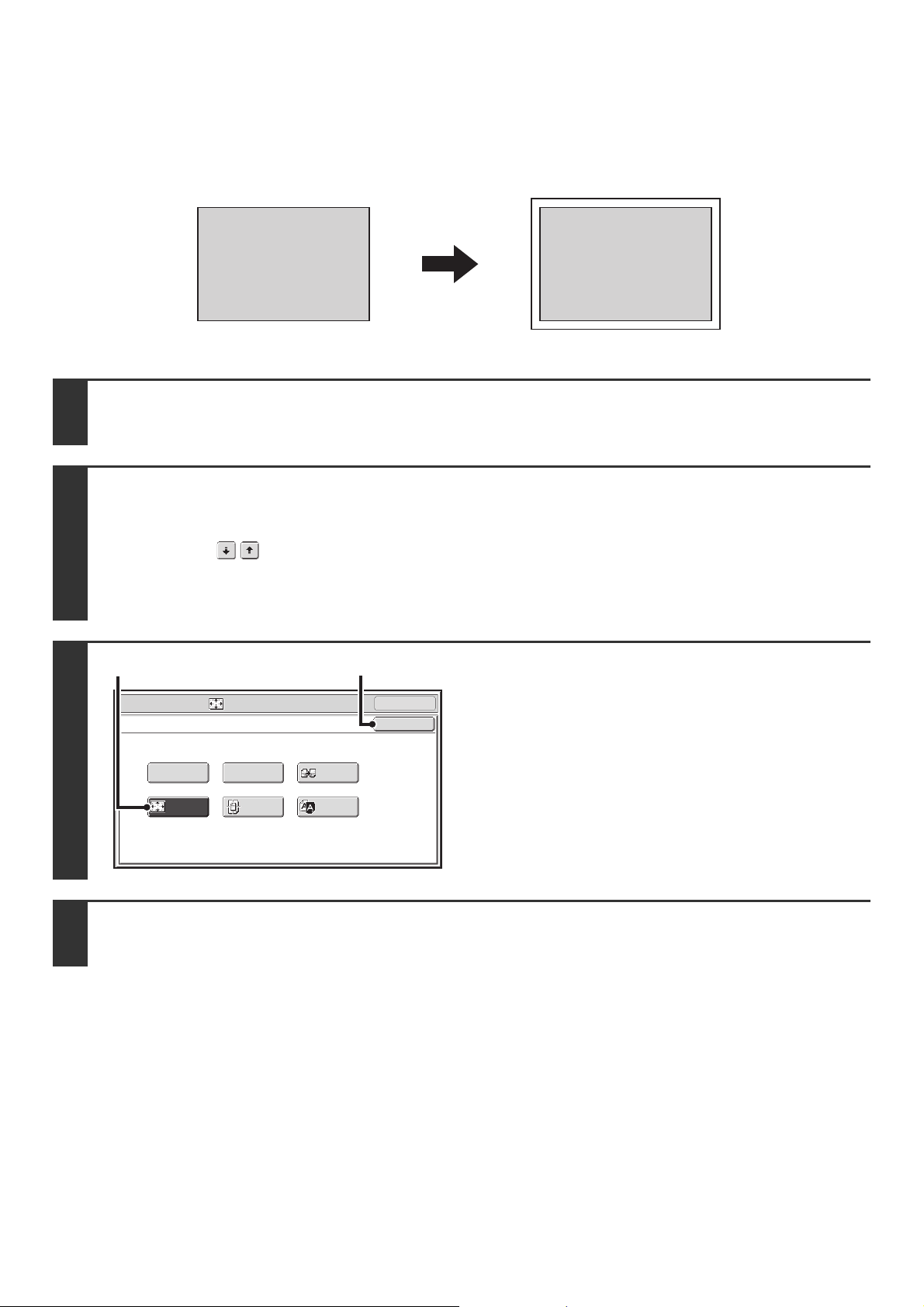
108
COPYING WITHOUT CUTTING OFF THE ORIGINAL (Full
Bleed Copy)
An entire original can be copied at full size, without cutting off the edges, using paper larger than the original.
1
Place the original.
Place the original face up in the document feeder tray, or face down on the document glass.
2
Select the special modes.
(1) Touch the [Special Modes] key.
(2) Touch the keys to switch through the screens.
(3) Touch the [Image Edit] key.
☞ [Image Edit] KEY (page 101)
3
Select Full Bleed Copy.
(1) Touch the [Full Bleed Copy] key so that it is
highlighted.
(2) Touch the [OK] key.
You will return to the special modes screen. Touch the
[OK] key to return to the base screen of copy mode.
4
Select paper larger than the original.
Select the paper as explain in "PAPER TRAYS" (page 14).
AA
Original
Full bleed copy
OK
Mirror
Image
B/W
Reverse
Multi-Page
Enlargement
Centering
Full Bleed
Copy
Photo Repeat
Special Modes
Image Edit
OK
(1) (2)
109
5
Press the [START] key ( ).
Copying will begin.
If you have selected sort mode, change originals and press the [START] key ( ). Repeat until all pages have been scanned
and then touch the [Read-End] key.
To cancel scanning and copying...
Press the [STOP] key ( ).
• The copy ratio is 100% when this function is used. The ratio cannot be changed.
• The punch function cannot be used.
To cancel Full Bleed Copy...
Touch the [Full Bleed Copy] key in the screen of step 3 so that it is not highlighted.
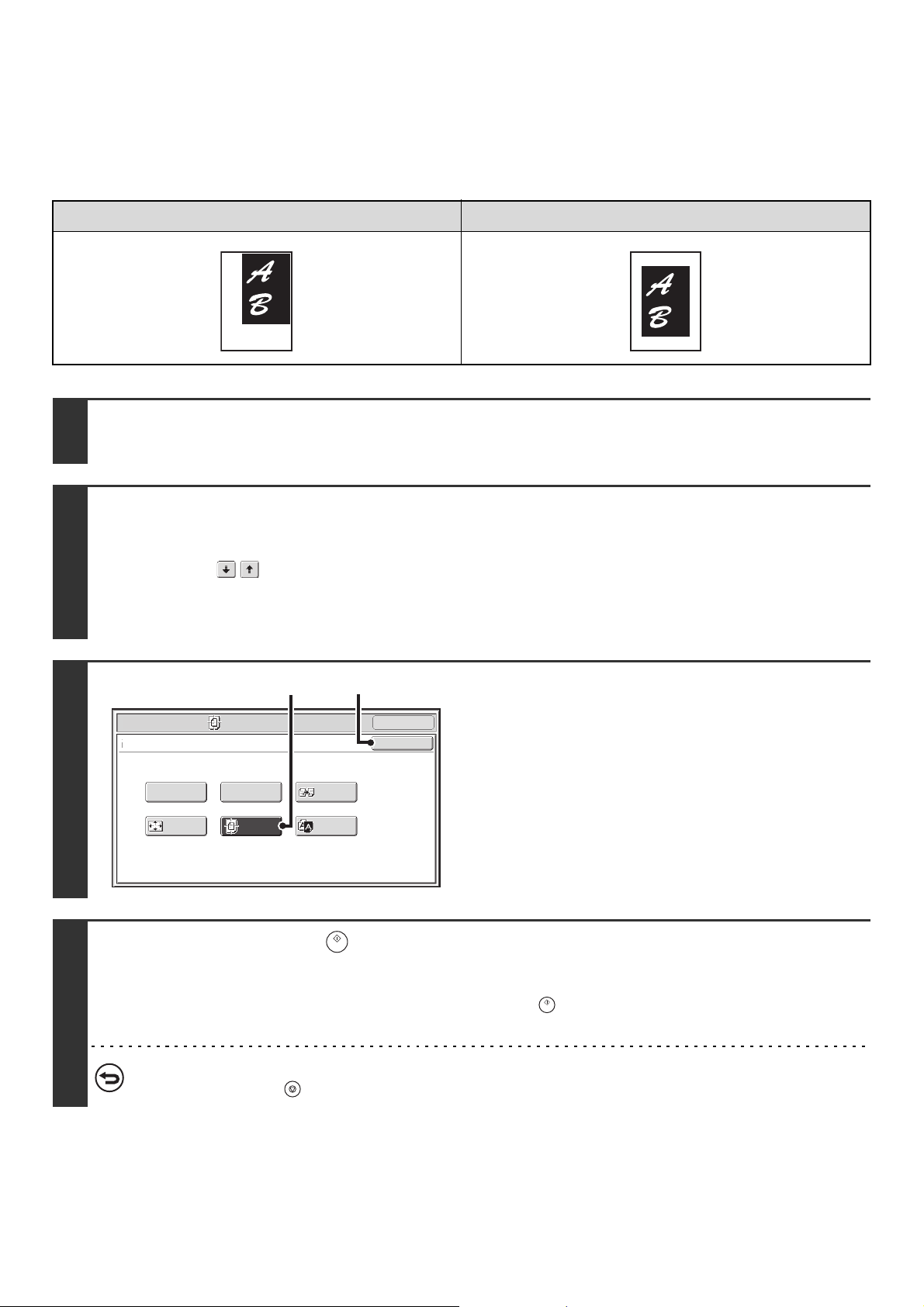
110
COPYING IN THE CENTER OF THE PAPER (Centering)
This is used to center the copied image on the paper.
This lets you place the image in the center of the paper when the original size is smaller than the paper size or when the
image is reduced.
Not using the centering function Using the centering function
1
Place the original.
Place the original face up in the document feeder tray, or face down on the document glass.
2
Select the special modes.
(1) Touch the [Special Modes] key.
(2) Touch the keys to switch through the screens.
(3) Touch the [Image Edit] key.
☞ [Image Edit] KEY (page 101)
3
Select Centering.
(1) Touch the [Centering] key so that it is
highlighted.
(2) Touch the [OK] key.
You will return to the special modes screen. Touch the
[OK] key to return to the base screen of copy mode.
4
Press the [START] key ( ).
Copying will begin.
If you are using the document glass to copy multiple original pages, copying will take place as you scan each original. If you
have selected sort mode, change originals and press the [START] key ( ). Repeat until all pages have been scanned and
then touch the [Read-End] key.
To cancel scanning and copying...
Press the [STOP] key ( ).
OK
Mirror
Image
B/W
Reverse
Multi-Page
Enlargement
Centering
Photo Repeat
Special Modes
Image Edit
Full Bleed
Copy
OK
(1) (2)
111
• The image can be reduced when using the centering function, but not enlarged.
• When the original size or the paper size is displayed as a special size, this function cannot be used.
To cancel centering...
Touch the [Centering] key in the screen of step 3 so that it is not highlighted.
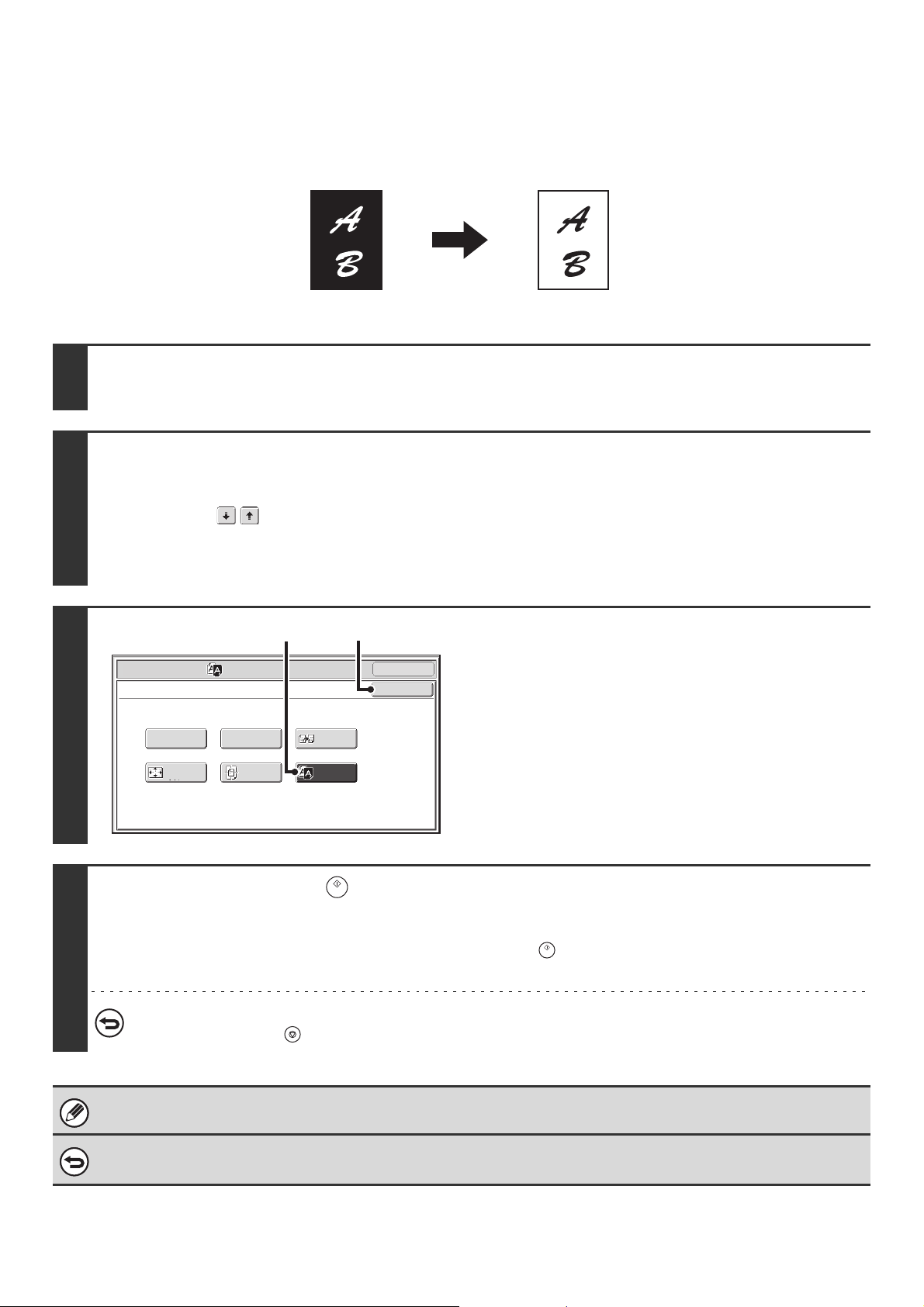
112
REVERSING WHITE AND BLACK IN A COPY (B/W Reverse)
This is used to reverse black and white in a copy to create a negative image.
Originals with large black areas (which use a large amount of toner) can be copied using Black/White Reverse to reduce
toner consumption.
1
Place the original.
Place the original face up in the document feeder tray, or face down on the document glass.
2
Select the special modes.
(1) Touch the [Special Modes] key.
(2) Touch the keys to switch through the screens.
(3) Touch the [Image Edit] key.
☞ [Image Edit] KEY (page 101)
3
Select B/W Reverse.
(1) Touch the [B/W Reverse] key so that it is
highlighted.
(2) Touch the [OK] key.
You will return to the special modes screen. Touch the
[OK] key to return to the base screen of copy mode.
4
Press the [START] key ( ).
Copying will begin.
If you are using the document glass to copy multiple original pages, copying will take place as you scan each original. If you
have selected sort mode, change originals and press the [START] key ( ). Repeat until all pages have been scanned and
then touch the [Read-End] key.
To cancel scanning and copying...
Press the [STOP] key ( ).
When this function is selected, the "Original Image Type" setting for exposure adjustment automatically changes to "Text".
To cancel B/W reverse...
Touch the [B/W Reverse] key in the screen of step 3 so that it is not highlighted.
Originals B/W Reverse copy
Full Bleed
Copy
OK
Mirror
Image
B/W
Reverse
Multi-Page
Enlargement
Centering
Photo Repeat
Special Modes
Image Edit
OK
(1) (2)
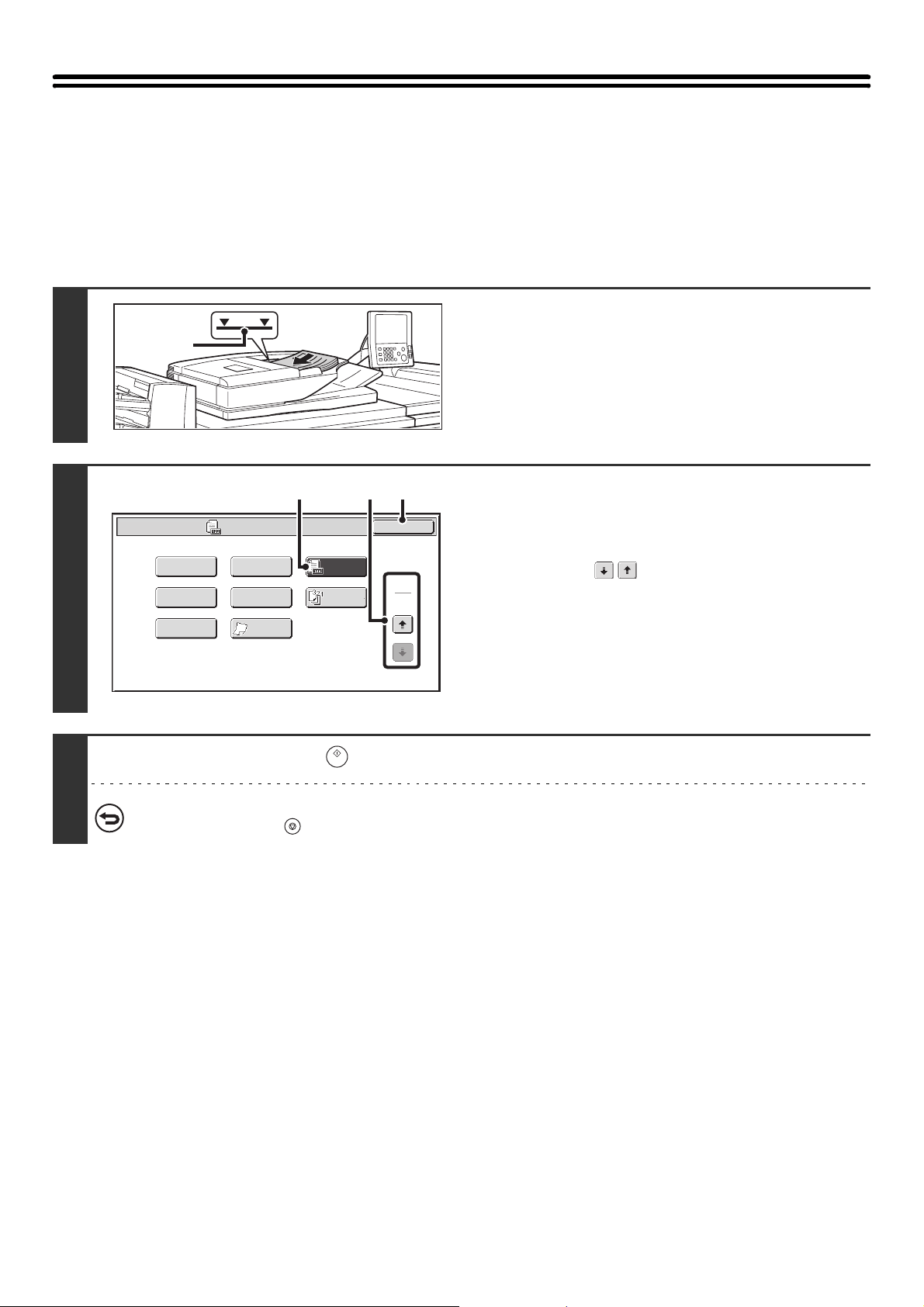
113
CHECKING THE NUMBER OF SCANNED
ORIGINAL SHEETS BEFORE COPYING
(Original Count)
The number of scanned original sheets can be counted and displayed before copying is executed. By allowing you to check
the number of original sheets that were scanned, this helps reduce the occurrence of copy mistakes.
1
Insert the originals face up in the
document feeder tray.
Insert the originals all the way into the document feeder tray.
Multiple originals can be placed in the document feeder tray.
The stack of originals must not be higher than the indicator line
on the tray.
2
Select Original Count.
(1) Touch the [Special Modes] key.
☞ SPECIAL MODES (page 43)
(2) Touch the keys to switch through the
screens.
(3) Touch the [Original Count] key so that it is
highlighted.
(4) Touch the [OK] key.
You will return to the base screen of copy mode.
3
Press the [START] key ( ).
To cancel scanning and copying...
Press the [STOP] key ( ).
Indicator
line
Special Modes
2
2
OK
Image Edit
Slow Scan
Mode
Reverse
Order
Original
Count
Mixed Size
Original
Stamp
File Quick File
(4)(2)(3)
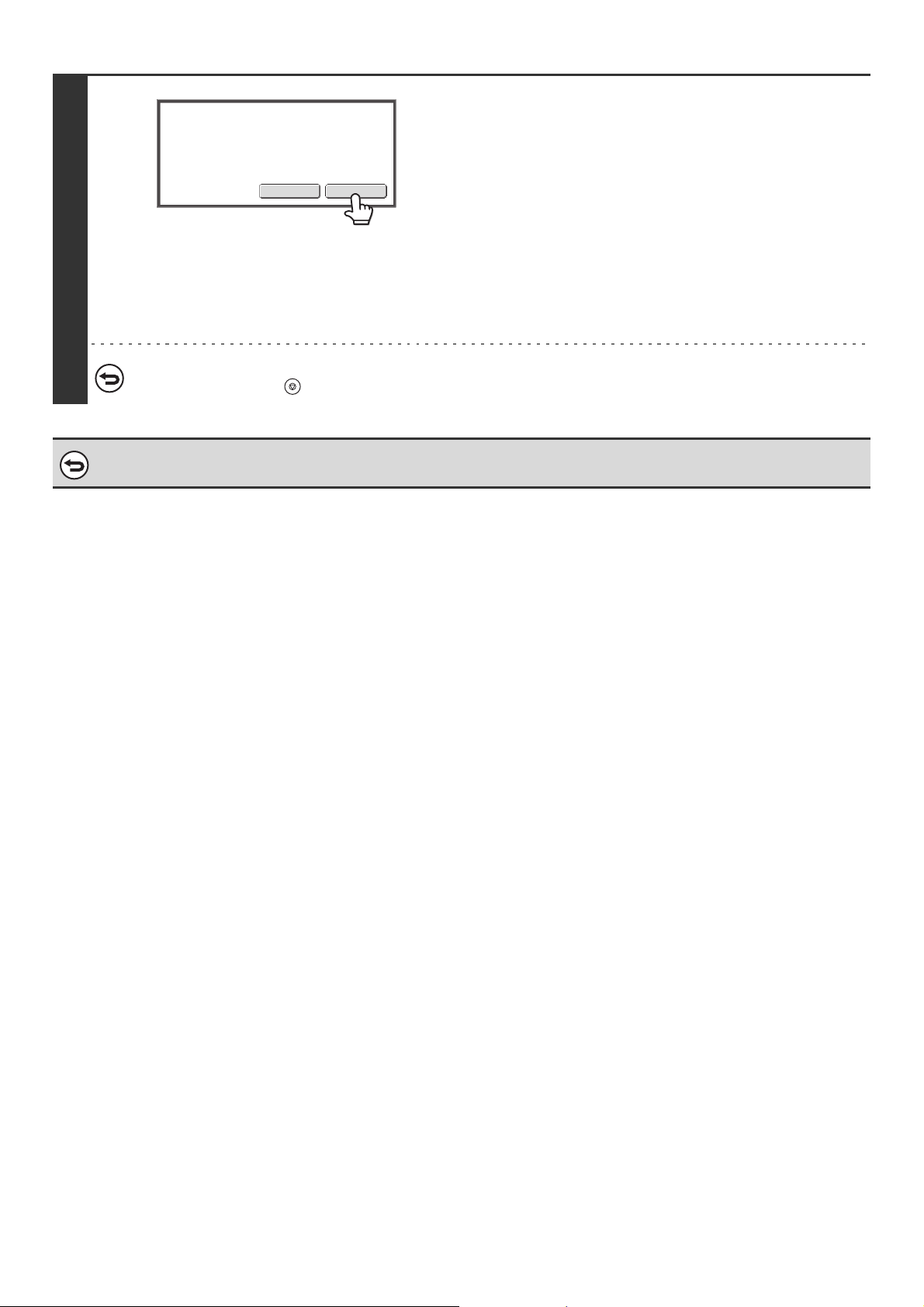
114
4
After scanning is finished, check the
number of sheets that were scanned and
touch the [OK] key.
Copying will begin.
• When job build mode is used, the number of scanned sheets
appears when the [Read-End] key is touched.
• The number that is displayed is the number of scanned
original sheets, not the number of scanned original pages.
For example, when two-sided copying is performed using
one original, the number "1" will appear to indicate that one
original sheet was scanned, not "2" to indicate the front-side
page and the reverse side page.
If the displayed number of original sheets is different from the actual number of original sheets...
Press the [STOP] key ( ).
To cancel the original count mode setting...
Touch the [Original Count] key in the screen of step 2 so that it is not highlighted.
OKCancel
130 pages of original
have been scanned.
Copy the scanned data?
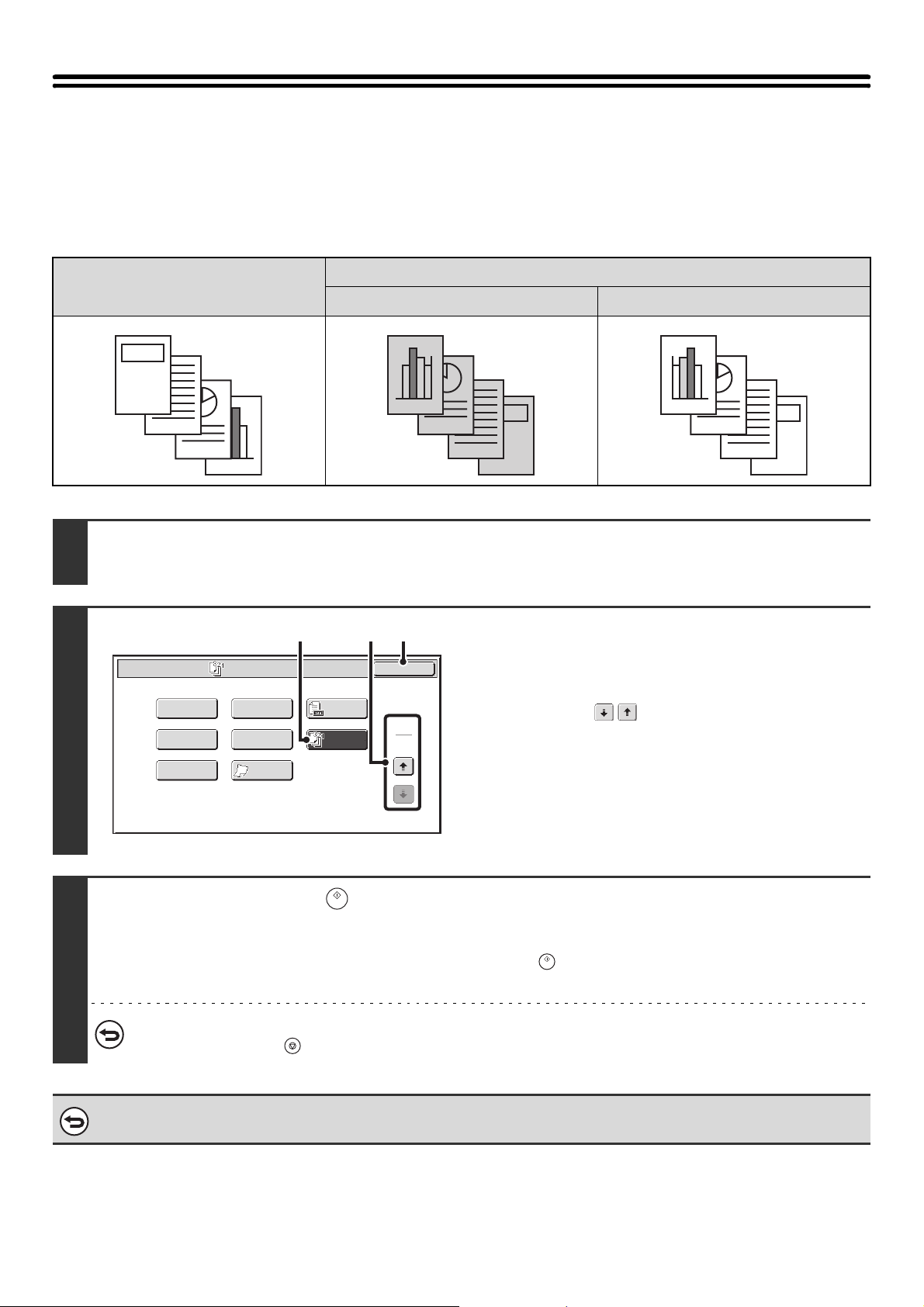
115
COPYING IN REVERSE ORDER (Reverse
Order)
With normal copying, the copies are delivered face down in order beginning from the first page, which means that the
copies are in the same order as the pages of the original. When reverse order copying is used, the copies are delivered
face up in order beginning from the first page, which means that the copies are in the reverse order of the original pages.
Originals
Result
Normal copying Reverse order copying
1
Place the original.
Place the original face up in the document feeder tray, or face down on the document glass.
2
Select Reverse Order.
(1) Touch the [Special Modes] key.
☞ SPECIAL MODES (page 43)
(2) Touch the keys to switch through the
screens.
(3) Touch the [Reverse Order] key so that it is
highlighted.
(4) Touch the [OK] key.
You will return to the base screen of copy mode.
3
Press the [START] key ( ).
Copying will begin.
If you are using the document glass to copy multiple original pages, copying will take place as you scan each original. If you
have selected sort mode, change originals and press the [START] key ( ). Repeat until all pages have been scanned and
then touch the [Read-End] key.
To cancel scanning and copying...
Press the [STOP] key ( ).
To cancel the reverse order copying...
Touch the [Reverse Order] key in the screen of step 2 so that it is not highlighted.
4
3
2
1
1
2
3
4
1
2
3
4
Special Modes
2
2
OK
Image Edit
Quick File
Slow Scan
Mode
Mixed Size
Original
Stamp
File
Original
Count
Reverse
Order
(4)(2)(3)
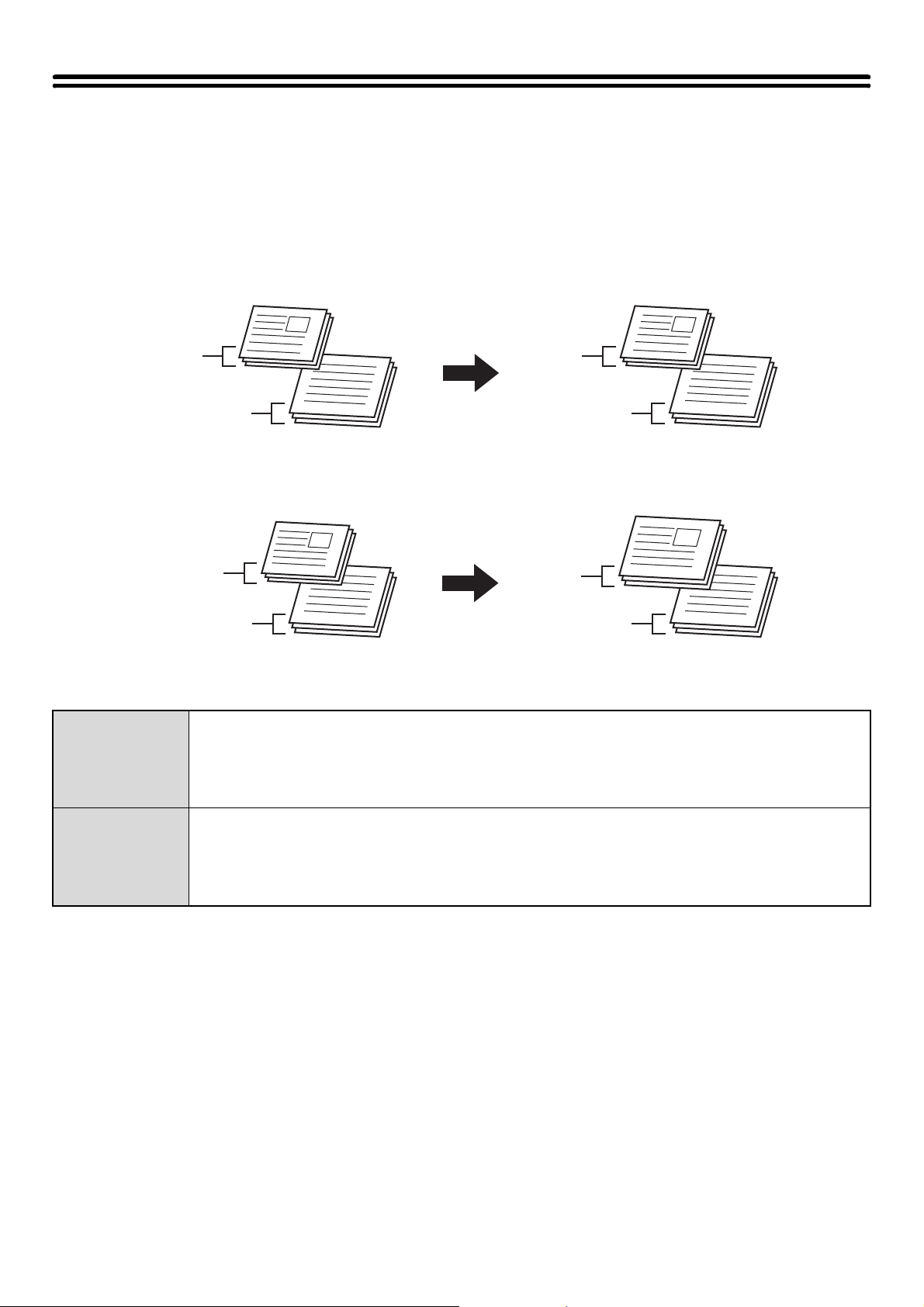
116
COPYING ORIGINALS OF DIFFERENT SIZES
(Mixed Size Original)
Even when 8-1/2" x 14" (B4) originals are mixed in with 11" x 17" (A3) originals, all originals can be copied at once. When
scanning the originals, the machine automatically detects the size of each original and uses paper appropriate for that size.
When mixed size original is combined with auto ratio selection, the ratio is adjusted individually for each original according
to the selected paper size, enabling output on a uniform paper size.
When mixed size original is combined with auto ratio selection
(Auto ratio selection and 11" x 17" (A3) are selected)
There are two settings for mixed size originals.
Same Width
Use this setting for originals that are different sizes but have sides that are the same length. The originals
are inserted in the document feeder tray with the sides that are the same length aligned together on the left.
• 11" x 17" and 8-1/2" x 11" • 8-1/2" x 14" and 8-1/2" x 11"R • 8-1/2" x 14" and 5-1/2" x 8-1/2"
• 8-1/2" x 13" and 8-1/2" x 11"R • 8-1/2" x 13" and 5-1/2" x 8-1/2" • 8-1/2" x 11"R and 5-1/2" x 8-1/2"
• A3 and A4 • B4 and B5 • A4R and A5
Different Width
Use this setting when the originals are different sizes and do not have sides that are the same length. This
setting can only be used for the following combinations of sizes:
• 11" x 17" and 8-1/2" x 14" • 11" x 17" and 8-1/2" x 13" • 11" x 17" and 5-1/2 x 8-1/2"
• A3 and B4 • A3 and B5 • B4 and A4 • A4 and B5 • B4 and A4R • B4 and A5
• B5 and A4R • B5 and A5
Originals
Copies
11" x 17"
8-1/2" x 14"
11" x 17"
8-1/2" x 14"
Originals
Copies
An 8-1/2" x 14" (B4) size original will be
enlarged to 11" x 17" (A3) size.
11" x 17"
8-1/2" x 14"
11" x 17"
11" x 17"
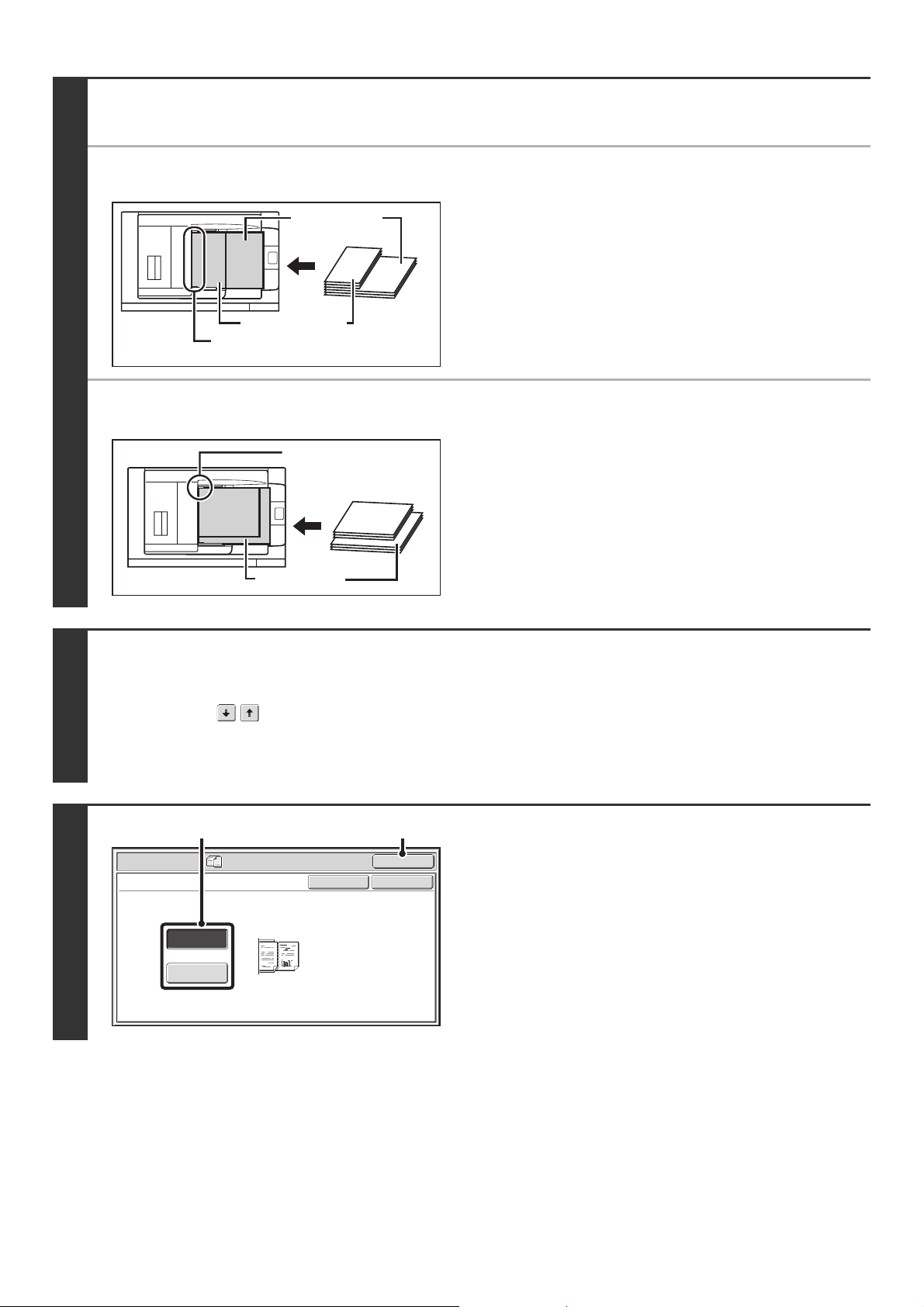
117
1
Insert the originals face up in the
document feeder tray.
● When "Same Width" is used
Place the originals with the sides that are the same length
aligned on the left.
● When "Different Width" is used
Place the originals with the corners aligned in the far left corner
of the document feeder tray.
2
Select the special modes.
(1) Touch the [Special Modes] key.
(2) Touch the keys to switch through the screens.
(3) Touch the [Mixed Size Original] key.
☞ SPECIAL MODES (page 43)
3
Select Mixed Size Original settings.
(1) Touch the [Same Width] key or the
[Different Width] key as appropriate for the
originals.
(2) Touch the [OK] key.
You will return to the base screen of copy mode.
11" x 17" (A3)
8-1/2" x 11" (A4)
Place with the sides that are the
same length aligned on the left.
8-1/2" x 14"
(B4)
11" x 17" (A3)
8-1/2" x 14"
(B4)
Place the originals
aligned to the far left
corner.
OKCancel
Same Width
Different
Width
OK
Special Modes
Mixed Size Original
Place the same width
originals.
(1) (2)
118
4
Press the [START] key ( ).
Copying will begin.
To cancel scanning and copying...
Press the [STOP] key ( ).
• When "1-sided to 2-sided" mode of automatic 2-sided copying is performed with [Different Width] selected, 2-sided copying
will only be performed when two originals of the same size are grouped together.
• When [Different Width] is selected, the staple function cannot be used.
• The mixed size original function cannot be used to copy originals that are the same size but are placed in different
orientations (8-1/2" x 11" and 8-1/2" x 11"R (A4 and A4R), etc.).
To cancel the mixed size original setting...
Touch the [Cancel] key in the screen of step 3.
System Settings (Administrator): Original Feeding Mode
The original feeding mode can be set to always scan mixed size originals.
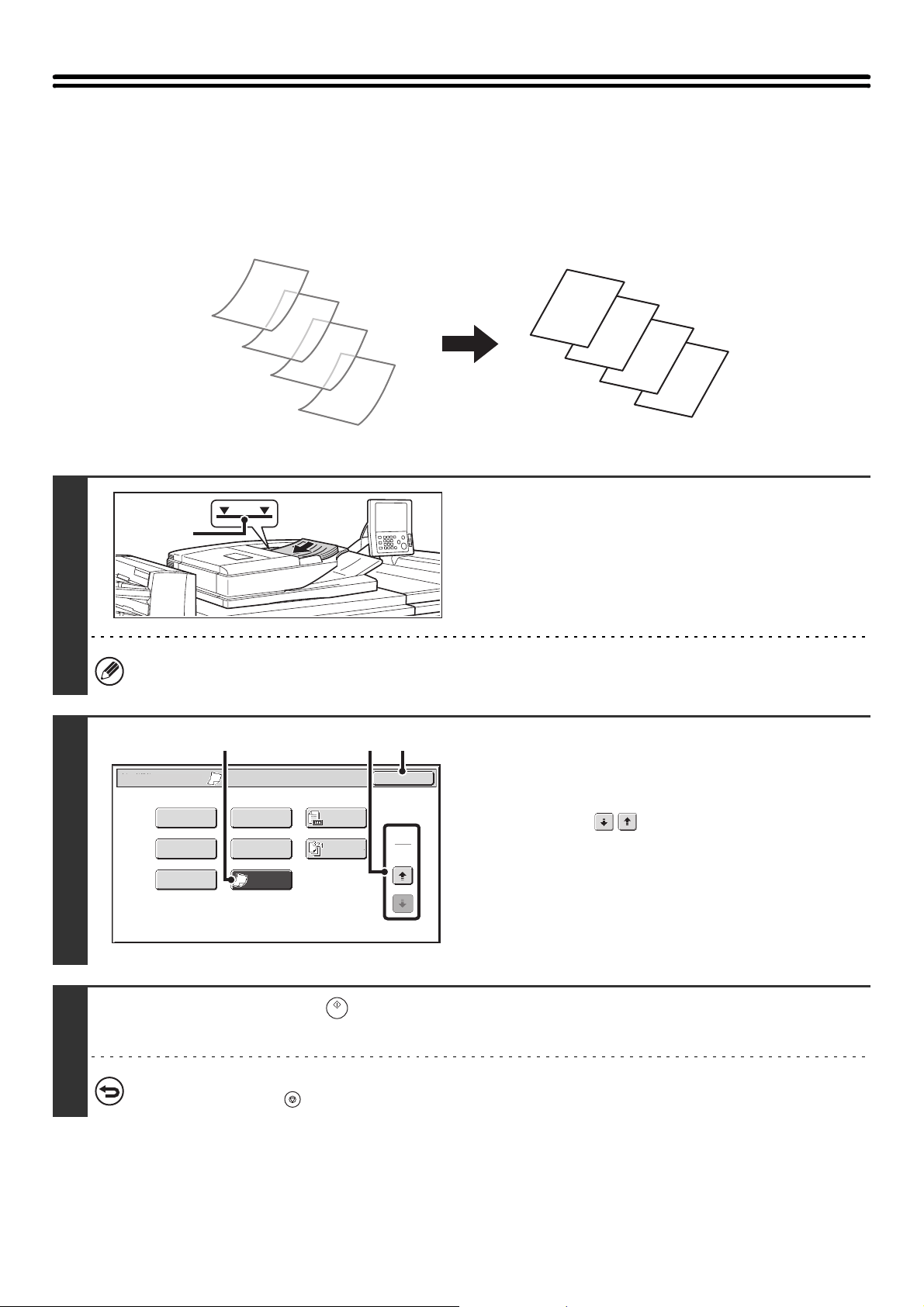
119
COPYING THIN ORIGINALS (Slow Scan
Mode)
Use this function when you wish to scan thin originals using the automatic document feeder. This function helps prevent
thin originals from misfeeding.
1
Insert the originals face up in the
document feeder tray.
Insert the originals all the way into the document feeder tray.
Multiple originals can be placed in the document feeder tray.
The stack of originals must not be higher than the indicator line
on the tray.
If the originals are inserted with too much force, they may crumple and misfeed.
2
Select Slow Scan Mode.
(1) Touch the [Special Modes] key.
☞ SPECIAL MODES (page 43)
(2) Touch the keys to switch through the
screens.
(3) Touch the [Slow Scan Mode] key so that it is
highlighted.
(4) Touch the [OK] key.
You will return to the base screen of copy mode.
3
Press the [START] key ( ).
Copying will begin.
To cancel scanning and copying...
Press the [STOP] key ( ).
D
C
B
A
D
C
B
A
Indicator
line
Special Modes
2
2
OK
Image Edit
Quick File
Slow Scan
Mode
Reverse
Order
Original
Count
Mixed Size
Original
Stamp
File
(4)(2)(3)
120
The "2-Sided to 2-Sided" and "2-Sided to 1-Sided" modes of automatic 2-sided copying cannot be used.
To cancel the slow scan mode setting...
Touch the [Slow Scan Mode] key in the screen of step 2 so that it is not highlighted.
System Settings (Administrator): Original Feeding Mode
This is used to have scanning always take place in slow scan mode.
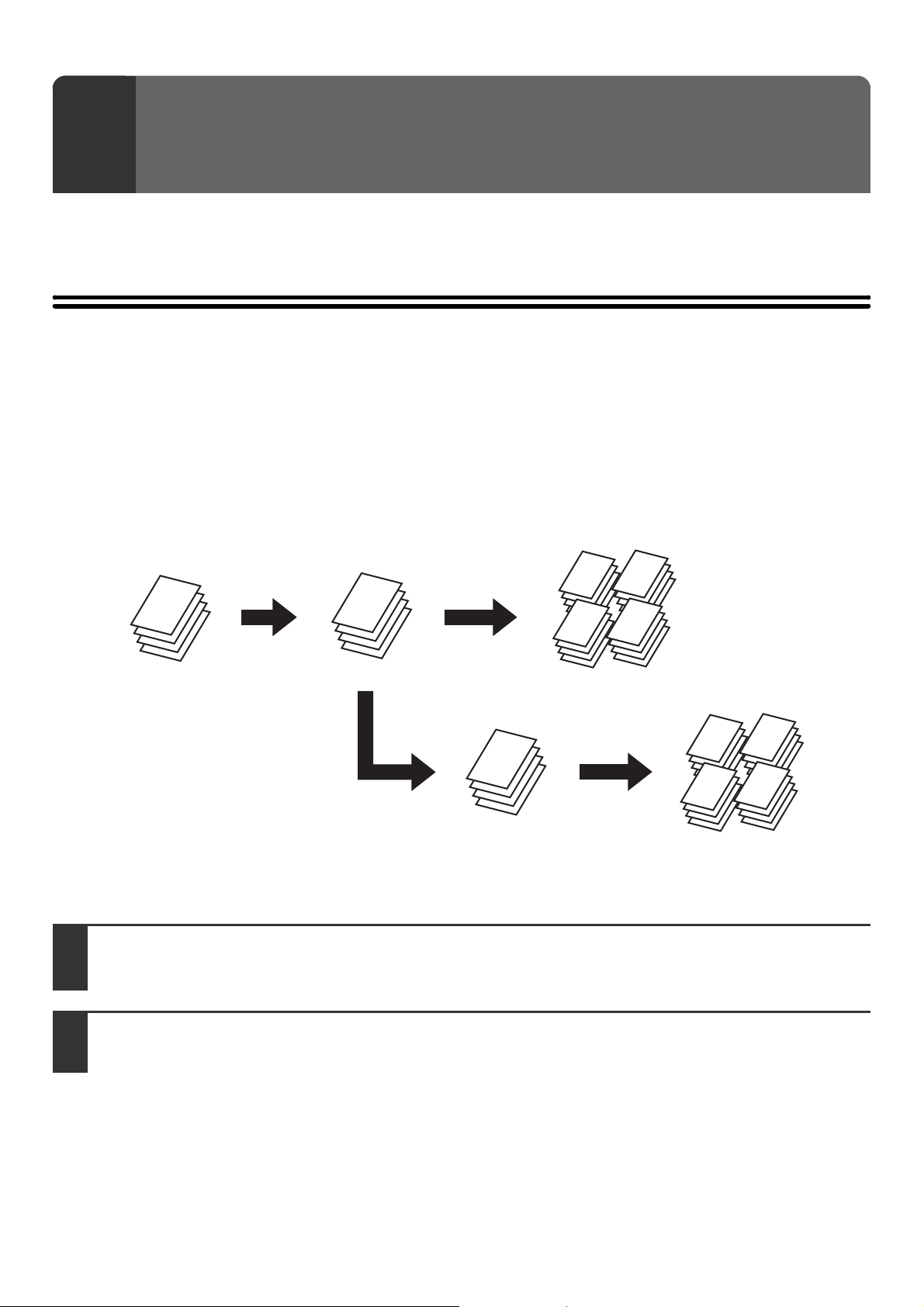
121
This chapter explains convenient copy functions such as checking copies before printing, interrupting a copy run,
changing the order of reserved copy jobs, and storing copy settings in a program.
CHECKING COPIES BEFORE PRINTING
(Proof Copy)
This feature prints only one set of copies, regardless of how many sets have been specified. After the first set is checked
for errors, the remaining sets can be printed. Previously it was necessary to re-scan the original each time changes to
settings were required. However, this feature makes it possible to change settings for the scanned original without
scanning it again, allowing you perform copying more efficiently.
4
CONVENIENT COPY FUNCTIONS
1
Place the original.
Place the original face up in the document feeder tray, or face down on the document glass.
2
Select copy settings in the base screen.
A
A
A
A
A
A
A
A
A
A
A
A
A
A
A
A
A
A
A
A
A
A
A
A
A
A
A
A
A
A
A
A
A
A
A
A
A
A
A
A
A
A
A
A
If OK
After adjustments are
made, 1 set is printed
for you to check
The remaining 4 sets
are printed
Adjust the
settings
If OK
1 set of copies is
printed for you to
check
"Proof Copy" is
selected and 5 sets of
copies are executed
The remaining 4
sets are printed
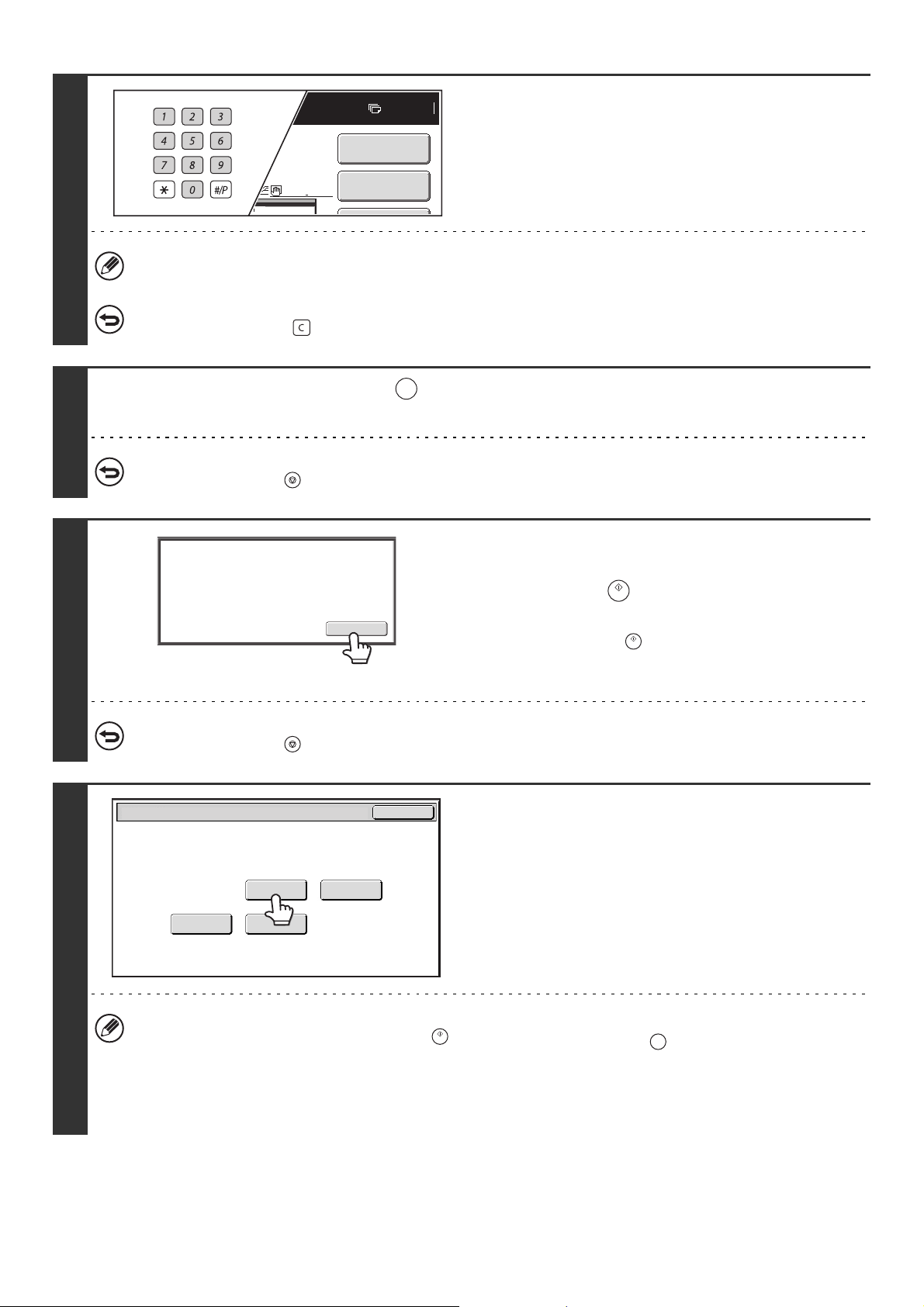
122
3
Set the number of copies (number of
sets) with the numeric keys.
If you will copy multiple originals using the document glass,
switch to sort mode after this step.
☞ SORT MODE (page 35)
Up to 9999 copies (sets) can be set.
If an incorrect number of copies is set...
Press the [CLEAR] key ( ) and then enter the correct number.
4
Press the [PROOF COPY] key ( ).
One set of copies is printed.
To cancel copying...
Press the [STOP] key ( ).
5
Check the printed set of copies. If the
copies are acceptable, press the
[START] key ( ). If you need to change
the settings, touch the [Change] key.
When the [START] key ( ) is pressed, the remaining sets are
printed.
If you touched the [Change] key, go to the next step.
To cancel copying...
Press the [STOP] key ( ).
6
Change the settings.
(1) Touch the key of the setting that you want
to change.
The setting screen of the touched key opens. Change the
settings and touch the [OK] key.
(2) Touch the [OK] key.
• To change the number of sets printed, set the desired number of copies (sets) with the numeric keys. After changing
the number of sets, press the [START] key ( ) (not the [PROOF COPY] key ( )) to print the sets.
• Special modes that can be adjusted are Margin Shift, Pamphlet Copy, Tandem Copy, Covers/Inserts, Transparency
Inserts, Multi-Shot, and Stamp.
• For Pamphlet Copy, Covers/Inserts, and Multi Shot, only changes to the settings of the functions can be made; the
functions cannot be newly added or deleted.
7
Plain
8½x11
Special Modes
2-Sided Copy
5.
PROOF COPY
Change
Press [Start] to continue.
To make a proof copy again, press
[Proof Copy].
Paper
Select
2-Sided Copy
Special ModesOutput
OK
Proof Copy
PROOF COPY
123
7
Press the [PROOF COPY] key ( ).
One set of copies is printed again using the adjusted settings. Check the results. If further adjustments are needed, repeat
steps 5 through 7. (Repeating Proof Copy does not decrease the remaining number of sets to be printed.)
8
Press the [START] key ( ).
You will return to the base screen of copy mode and the remaining sets will be printed.
To cancel scanning and copying...
Press the [STOP] key ( ).
• If Proof Copy is executed while the machine is printing another job, the other job is interrupted and the proof copies are
printed. The previous job will resume after the proof copies are printed.
• If the [End] key is touched to execute printing of the remaining sets while the machine is printing another job, the remaining
sets will be printed after all previously reserved jobs are completed.
• When Proof Copy for 2 sets is combined with Tandem Copy, the proof set is printed by the master machine and only one
set remains. When the [START] key ( ) is pressed, the message appears. Touch the [OK] key to print the remaining set
on the slave machine.
PROOF COPY
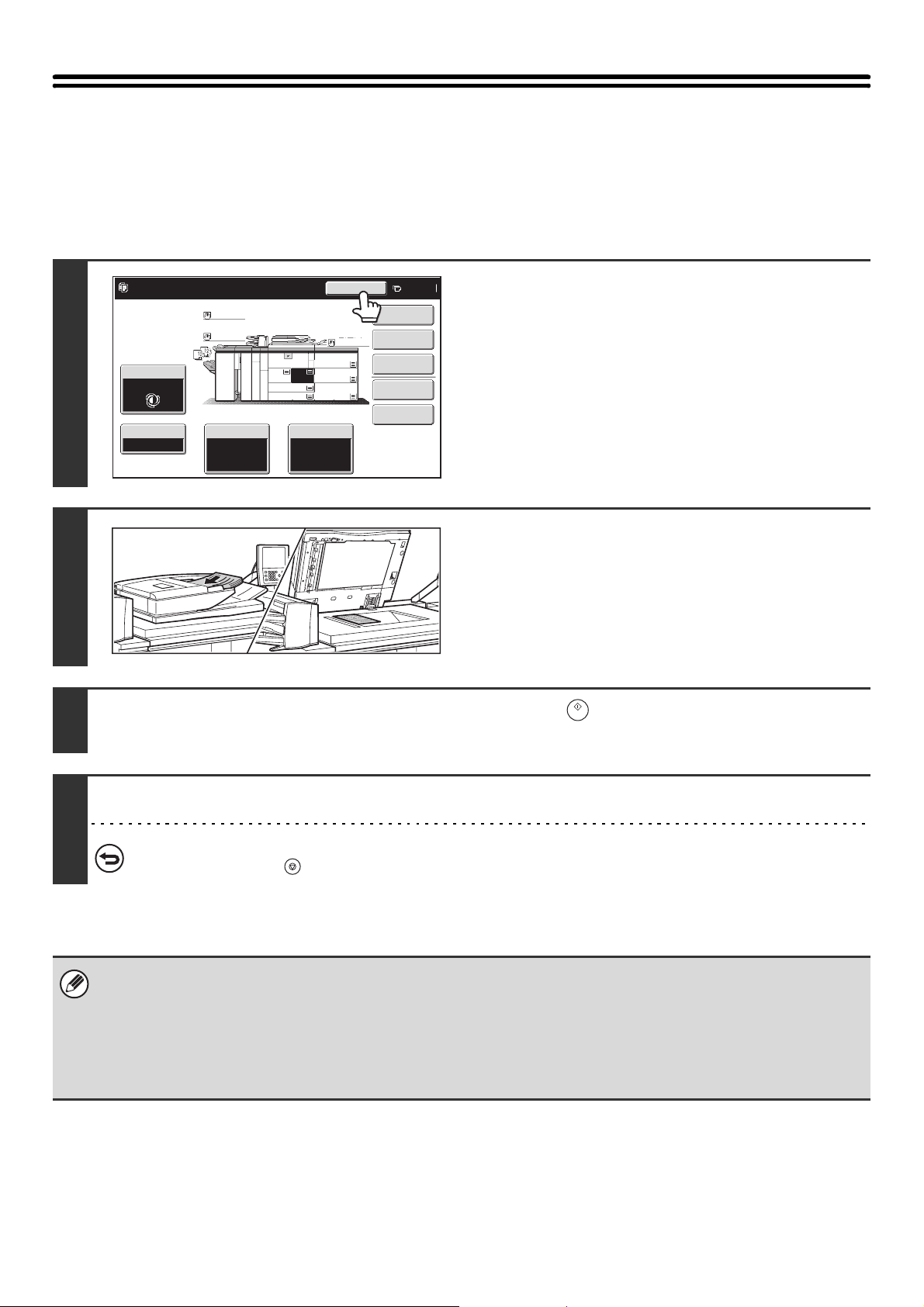
124
INTERRUPTING A COPY RUN
(Interrupt copy)
When you need to make an urgent copy and the machine is busy with a long copy run or other job, use interrupt copy.
Interrupt copy temporarily stops the job in progress and lets you perform the interrupt copy job first.
1
Touch the [Interrupt] key.
The [Interrupt] key does not appear while an original is being
scanned.
2
Place the original.
Place the original face up in the document feeder tray, or face
down on the document glass.
3
Select copy settings and press the [START] key ( ).
The interrupt copy job begins.
4
When the interrupt copy job is completed, the interrupted job resumes.
To cancel scanning and copying...
Press the [STOP] key ( ).
• If user authentication is enabled, the login screen will appear when the [Interrupt] key is pressed. Enter your user name
and password to log in. The number of copies made will be added to the count of the user that logged in.
• Depending on the settings of the job in progress, the [Interrupt] key may not appear.
• Interrupt copy cannot be used in combination with the Proof Copy and the following special modes:
Job Build, Tandem Copy, Book Copy, Card Shot, Multi-Page Enlargement
• If the document glass is used for an interrupt copy job, 2-sided copying, sort copying, and staple sort copying cannot be
selected. If any of these functions are necessary, use the automatic document feeder.
Copies in progress from tray 2.
Ready to scan for next copy job.
7
Interrupt
Special Modes
Plain
2-Sided Copy
Output
File
Quick File
Copy Ratio
1.
2.
7.
8½x11
8½x11
Original Paper Select
Auto
8½x11
Plain
Auto
Exposure
Auto
8½x14
4.
11x17
11x17
6.
11x17
5.
11x17
3.
8½x11
100%
Plain
Plain
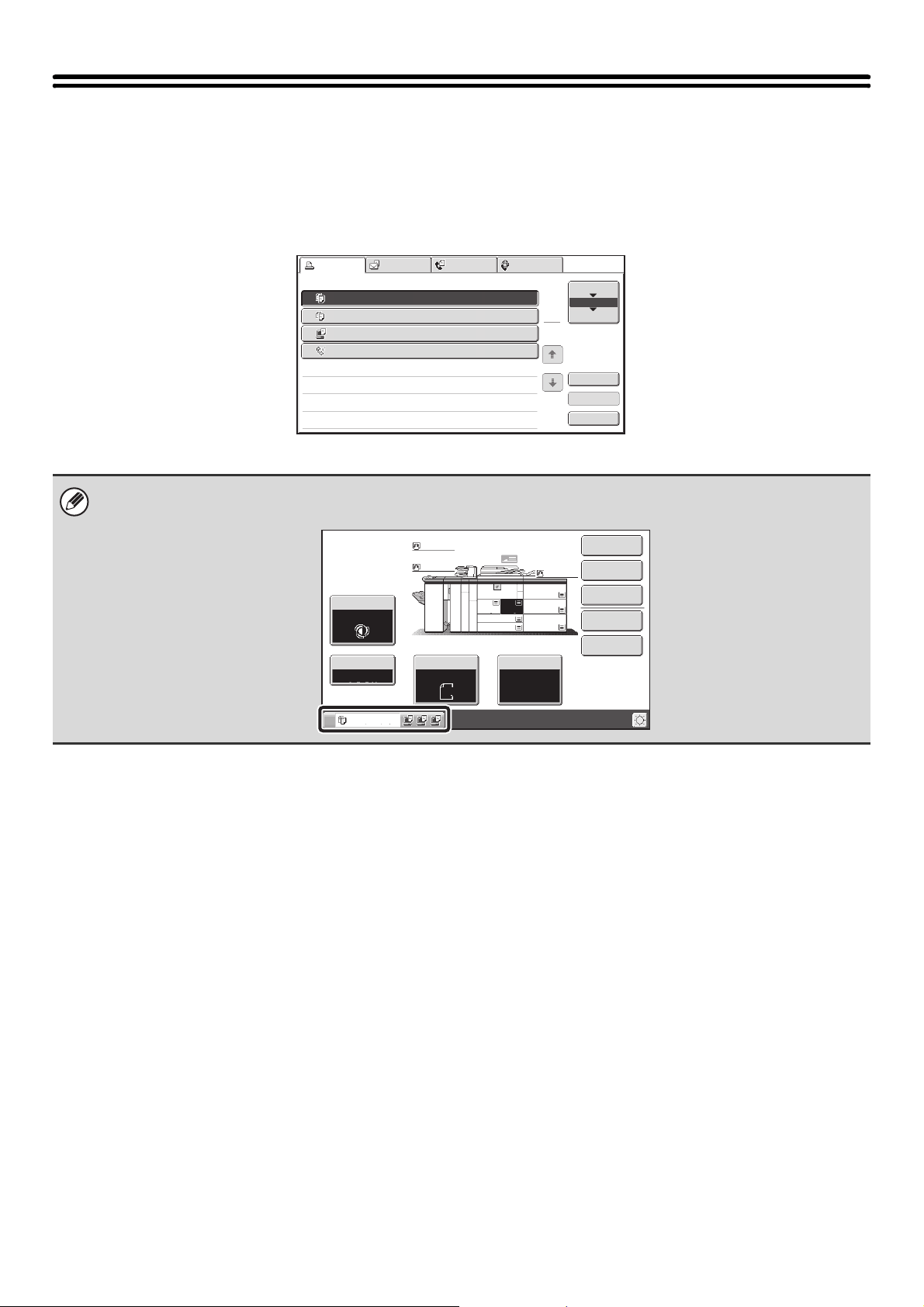
125
JOB STATUS SCREEN
The job status screen is displayed when the [JOB STATUS] key on the operation panel is pressed. The job status
screen shows the status of jobs by mode. When the [JOB STATUS] key is pressed, the job status screen of the mode
that was being used before the key was pressed appears.
Example: Pressing the key in copy mode
The job status display is in the lower left corner of the touch panel. The job status display can be touched to display the job
status screen.
Detail
Spool
Complete
Stop/Delete
Copy2
3
4
0002 / 0000
Waiting
Computer01
0002 / 0000
Waiting
0312345678 0001 / 0000
Waiting
Print Job
Job Queue Sets / Progress Status
Scan to Fax Job Internet Fax
Priority
1
1
Job Queue
Copy1 0020 / 0001 Copying
Copying
Special
Modes
Plain
2-Sided Copy
Output
File
Quick File
Copy Ratio
1.
2.
7.
8½x11
8½x11
Original Paper Select
Auto
8½x11
Plain
Auto
8½x11
Exposure
Auto
8½x14
4.
11x17
11x17
6.
11x17
5.
11x17
3.
8½x11
100%
Plain
Plain
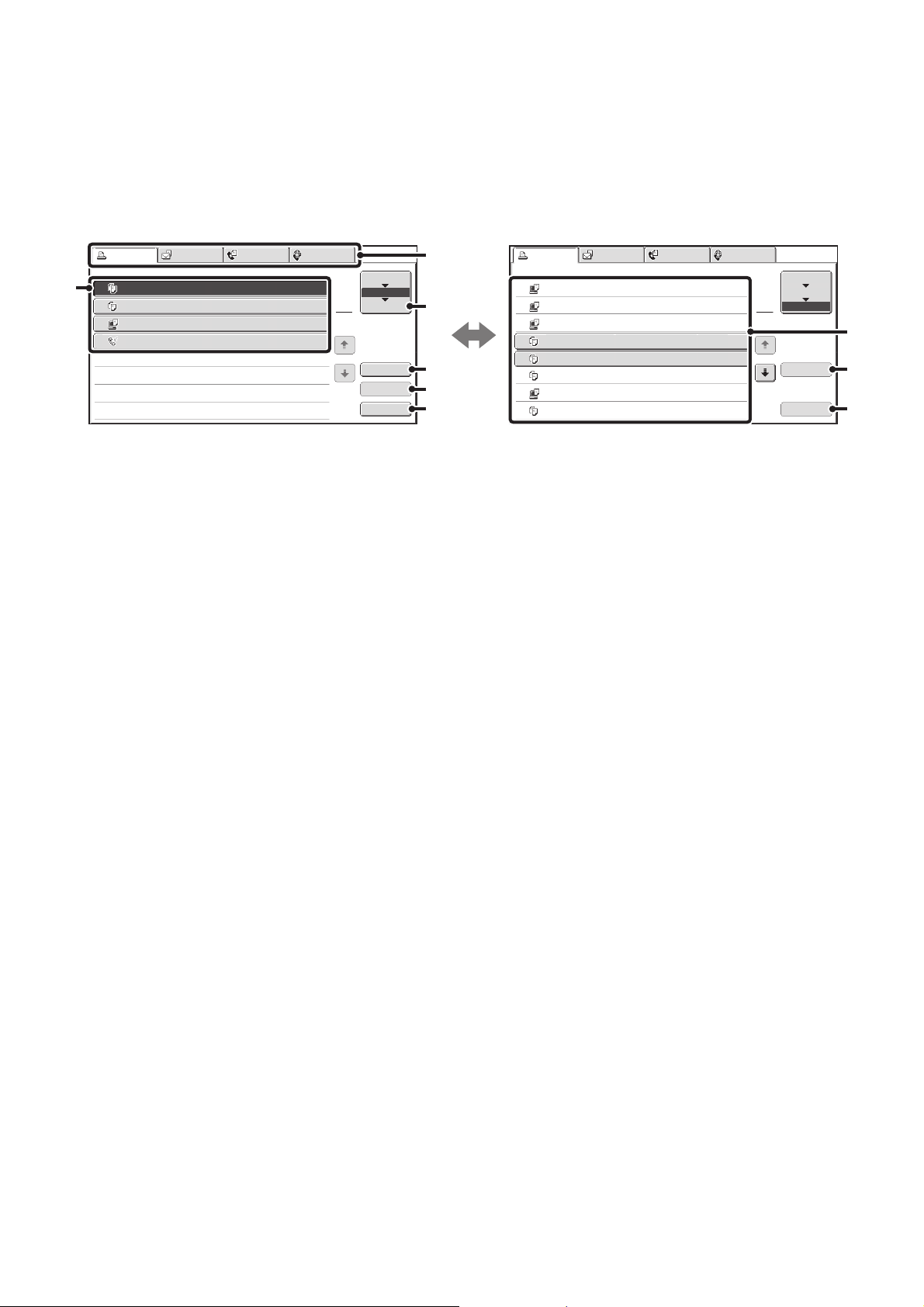
126
JOB QUEUE SCREEN AND COMPLETED JOB SCREEN
The job status screen consists of the job queue screen that shows copy and print jobs waiting to be printed and the job
currently in progress, the completed job screen that shows jobs that have been completed, and the spool screen that
shows print jobs that have been spooled and encrypted PDF jobs that are waiting for a password to be entered. This
section explains the job queue screen and the completed jobs screen, which are related to copy mode. The job status
screen switches between the job queue screen and the completed jobs screen each time the job status screen selector
key is touched.
(1) Job list (job queue screen)
Jobs waiting to be printed appear in the job queue as
keys. The jobs are printed in order from the top of the
queue. Each job key shows information on the job and
the current status of the job.
(2) Mode select tabs
Use these tabs to select the mode that is shown in the
job status screen.
The status of copy jobs can be checked by touching the
[Print Job] tab.
(3) Job status screen selector key
Touch this key to switch through the job queue screen,
the completed jobs screen, and the spool screen.
(4) [Detail] key (job queue screen)
Touch this key to display detailed information on a job.
(5) [Priority] key
Touch this key to give priority to a selected job.
(6) [Stop/Delete] key
Touch this key to stop or delete a selected job.
(7) Job list (completed jobs screen)
This shows up to 99 completed jobs. The result (status)
of each completed job is shown. Copy jobs that used the
document filing function are indicated as keys.
(8) [Detail] key (completed jobs screen)
When a job is shown as a key in the job list, the [Detail]
key can be touched to show detailed information on the
job.
(9) [Call] key
Touch this key to retrieve and use a copy job stored
using the document filing function.
Spool
Computer02 11:00 04/010001/0001 OK
Computer03 10:33 04/010010/0010 OK
Computer04 10:31 04/010013/0013 OK
Copy 10:03 04/010001/0001 OK
Computer05 10:01 04/010003/0003 OK
Copy 10:00 04/010010/0010 OK
file-01 10:30 04/010010/0010 OK
Copy 10:13 04/010001/0001 OK
Print Job
Jobs Completed Set Time Sets Status
Scan to Fax Job Internet Fax
Detail
Call
1
2
Job Queue
Complete
4
5
1
2
3
6
7
8
Detail
Spool
Complete
Stop/Delete
Copy
2
3
4
0002 / 0000
Waiting
Computer01 0002 / 0000
Waiting
0312345678 0001 / 0000
Waiting
Print Job
Job Queue Sets / Progress Status
Scan to Fax Job Internet Fax
Priority
1
1
Job Queue
Copy
1
0020 / 0001
Copying
(1)
(2)
(3)
(4)
(5)
(6)
(7)
(8)
(9)
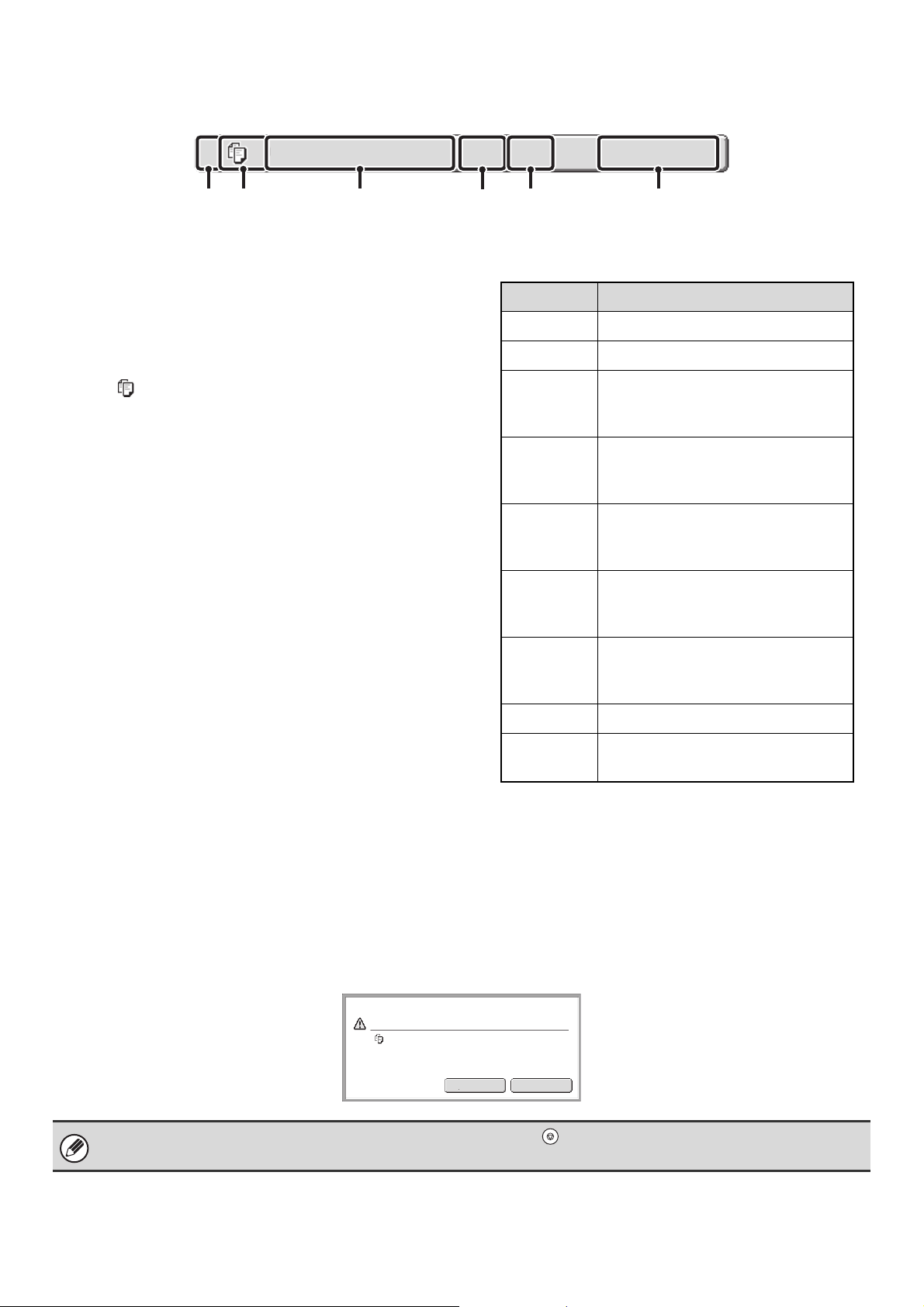
127
Job key display
Each job key shows the position of the job in the job queue and the current status of the job.
(1) Indicates the number (position) of the job in the job
queue.
When the job currently being printed is finished, the job
moves up one position in the job queue.
This number does not appear in keys in the completed
jobs screen.
(2) Mode icon
The icon appears when the job is a copy job.
(3) Job name
"Copy" appears for a copy job.
When user authentication is enabled, the name of the
user that performed the job appears.
(4) Number of copies (sets) entered
This shows the number of copies (sets) specified.
(5) Number of completed copies
This shows the number of copies (sets) completed.
"0000" appears while the job is waiting in the job queue.
(6) Status
Shows the job status.
CANCELING A JOB THAT IS WAITING IN THE QUEUE
To cancel a job that is waiting in the queue, touch the job key and then the [Stop/Delete] key. The following screen will
appear. Touch the [Yes] key.
The job will be deleted from the queue.
Copy2 0002/0000 Waiting
(1) (2) (3)
(4)
(5) (6)
Message Status
"Copying" Copying is in progress.
"Waiting" The job is waiting to be executed.
"Toner
Empty"
The toner cartridge is out of toner.
Replace the toner cartridge with a
new cartridge.
"Paper
Empty"
The paper used for the job has run
out. Add paper or change to a
different paper tray.
"Limit" The copy page limit has been
exceeded. Check with the
administrator of the machine.
"Error" An error occurred while the job was
being executed. Clear the error
condition.
"Jam" A paper jam occurred while the job
was being executed. Remove the
misfed paper.
"Stopped" The job was stopped.
"Warming
Up"
Warming up.
If the job in progress is a copy job, you can also press the [STOP] key ( ) to display the above screen.
To cancel, touch the [Yes] key.
Yes
No
Delete the job?
Copy
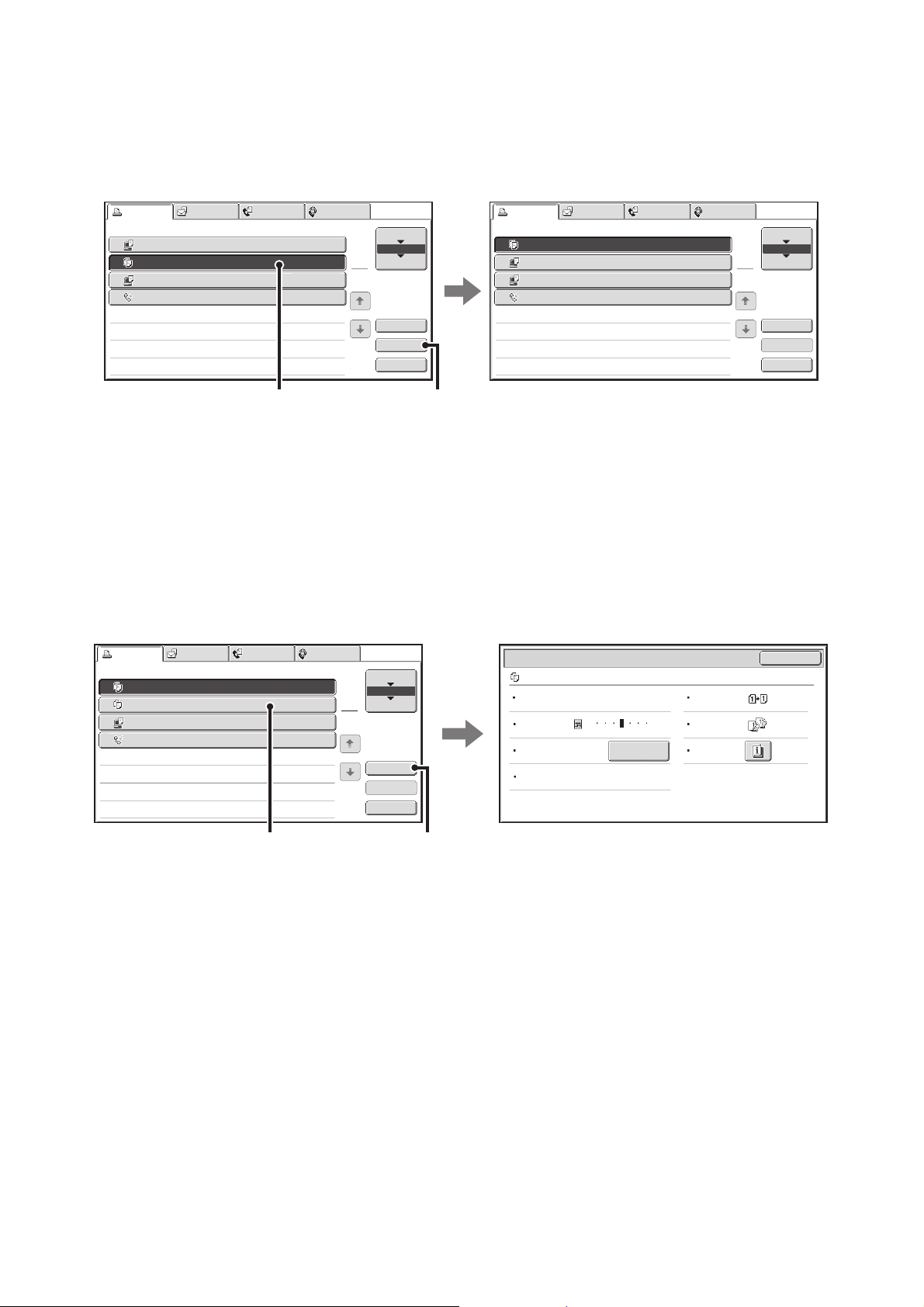
128
GIVING PRIORITY TO A JOB IN THE QUEUE
If a copy job is begun when there are already multiple jobs in the queue, the copy job will appear at the end of the queue.
However, if you have an urgent copy job, you can give priority to the job and have it executed first.
Touch the key of the urgent job and then touch the [Priority] key. The job will move to the top of the queue and copying
will begin.
The job that was in progress will be moved to the second position in the queue and will wait. The job will resume when
the priority job is finished.
CHECKING INFORMATION ON A COPY JOB WAITING
IN THE QUEUE
Detailed information can be displayed on a copy job waiting in the queue.
Touch the key of the job that you wish to check and then touch the [Detail] key. The job information screen will appear.
[Paper Select] key
If a copy job is stopped because the paper ran out, the [Paper Select] key can be pressed to change to a different paper
tray.
When the [Paper Select] key is pressed, the paper tray selection screen appears.
☞ PAPER TRAYS (page 14)
Touch the key of the tray that has the size of paper that you wish to use and then touch the [OK] key. The stopped copy
job will resume.
3
4
Computer02 0002 / 0000
Waiting
1
Computer01 0020 / 0001
Printing
0312345678 0001 / 0000
Waiting
Internet Fax
1
1
2
0002 / 0001
Waiting
3
4
Computer02 0002 / 0000 Waiting
2
Computer01 0020 / 0001 Waiting
0312345678 0001 / 0000
Waiting
Internet Fax
1
1
1
0002 / 0001 Copying
Detail
Spool
Complete
Stop/Delete
Copy
Print Job
Job Queue Sets / Progress Status
Scan to Fax Job
Priority
Job Queue
Detail
Spool
Complete
Stop/Delete
Copy
Print Job
Job Queue Sets / Progress Status
Scan to Fax Job
Priority
Job Queue
(1)
(2)
Copy 0002 / 0000
Waiting
Computer01 0002 / 0000
Waiting
0312345678 0001 / 0000
Waiting
Detail
Spool
Complete
Stop/Delete
Print Job
Job Queue Sets / Progress Status
Scan to Fax Job
Priority
Job Queue
Copy
Internet Fax
1
1
0020 / 0001
Copying
OK
Detail
Copy 020 / 000 Waiting
B/W
2-Sided
Copy:
Exposure: 1 5
3
Output:
Paper:
8½x11
Plain
Special
Modes:
Copy Ratio: X100% Y100%
Paper Select
2
3
4
1
(1) (2)
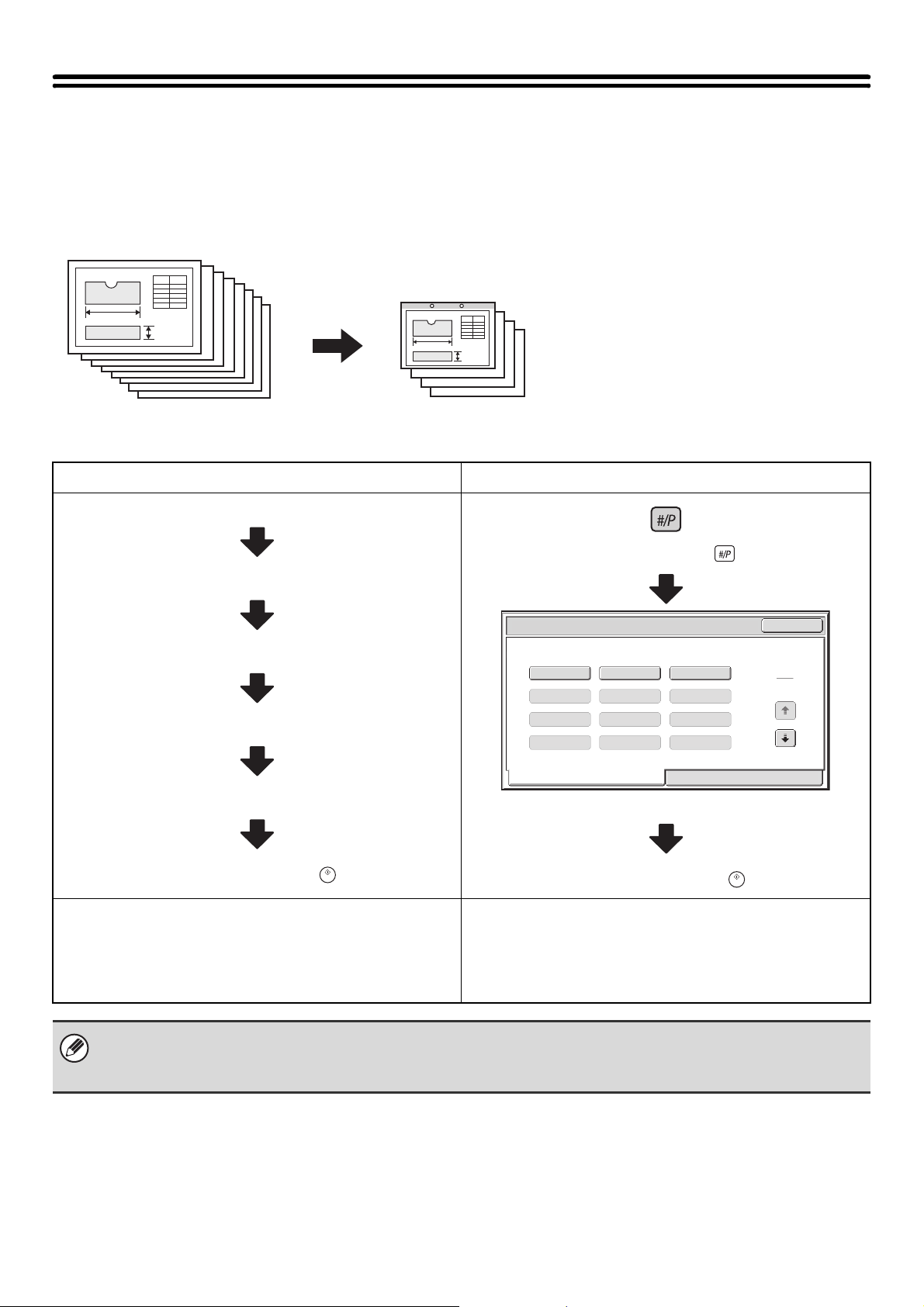
129
STORING COPY OPERATIONS (Job Programs)
A job program is a group of copy settings stored together. When copy settings are stored in a job program, the settings
can be retrieved and used for a copy job by means of a simple operation.
For example, suppose 11" x 17" (A3) size CAD drawings are copied once a month for archive purposes using the
following settings:
(1) The 11" x 17" (A3) size CAD drawings are
reduced to 8-1/2" x 11"(A4) size.
(2) The drawings have fine lines that do not
show clearly, and thus a dark exposure
setting (level 4) is used.
(3) To reduce paper use by half, 2-sided
copying is used.
(4) Margin shift is used so that holes can be
punched for filing.
When a job program is not stored When a job program is stored
Set 11" x 17" (A3) to 8-1/2" x 11" (A4) reduction
Change the exposure setting
Select 2-sided copying
Select margin shift
Select punch hole settings
Press the [START] key ( ).
Press the [#/P] key ( ).
Touch the stored program key.
Press the [START] key ( ).
Considerable time is required to copy the drawings each
month because the above settings must be selected.
In addition, mistakes are occasionally made when selecting
the settings, so some copies must be redone.
The settings are stored in a job program, so they can be
selected by the touch of a key. This is simple and takes no time.
In addition, the settings are all stored so there are no chances
for mistakes, and thus no need to redo copies due to setting
mistakes.
• Up to 48 job programs can be stored. The job programs are retained even if an interruption occurs in the power supply.
• Job programs can also be stored in the Web pages. Click [Job program] and then [Copy] in the Web page menu to store a
job program.
11" x 17" (A3) size CAD drawings
Copies
Exit
Job Programs
Press program number.
1 2 3
Recall Store/Delete
1
4
4
5 6
7 8 9
10 11 12
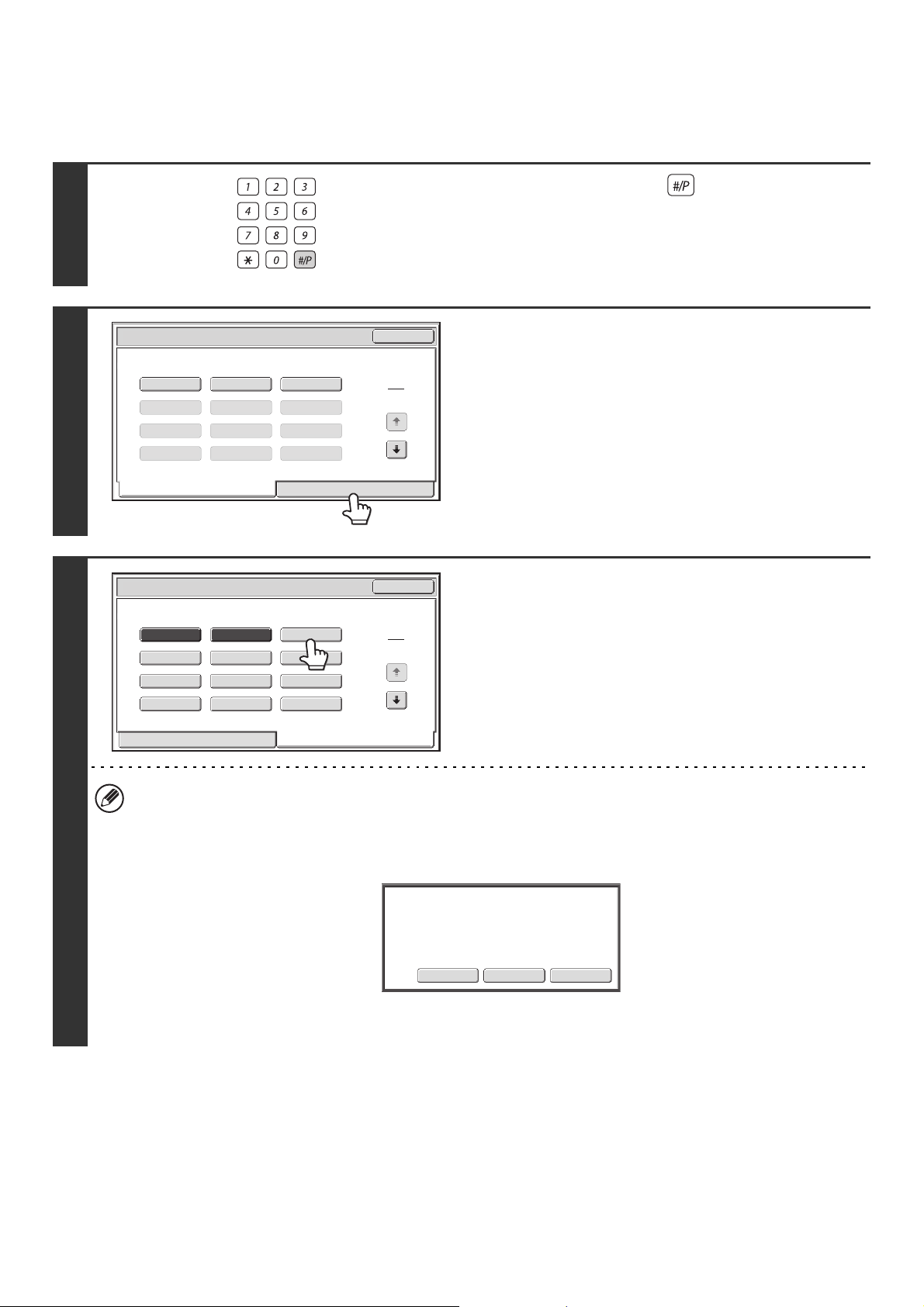
130
STORING (EDITING/DELETING) A JOB PROGRAM
The procedures for storing copy settings in a job program and deleting a job program are explained below.
1
Press the [#/P] key ( ).
2
Touch the [Store/Delete] tab.
3
Touch a numeric key.
Numeric keys in which job programs are already stored are
highlighted.
• To store a job program, touch a numeric key that is not
highlighted.
• To edit or delete a job program, touch the key in which the
job program is stored (highlighted key).
Editing or deleting a job program...
When a highlighted numeric key is touched, the following screen appears.
The [Store] key can be touched to delete the stored settings and store new settings. Go to the next step.
When the [Delete] key is touched, the stored settings are deleted. After the deletion is finished, touch the [Exit] key to
return to the base screen.
When "Disabling Deletion of Job Programs" is enabled in the system settings, a stored job program cannot be edited
or deleted.
LOGOUT
1 2 3
4
1
4
5 6
7 8 9
10 11 12
Exit
Job Programs
Press program number.
Recall Store/Delete
1 2 3
Recall Store/Delete
4
7
10 11 12
8 9
5 6
1
4
Exit
Job Programs
Press program number.
StoreDeleteCancel
A
job program has been already stored
in this location.
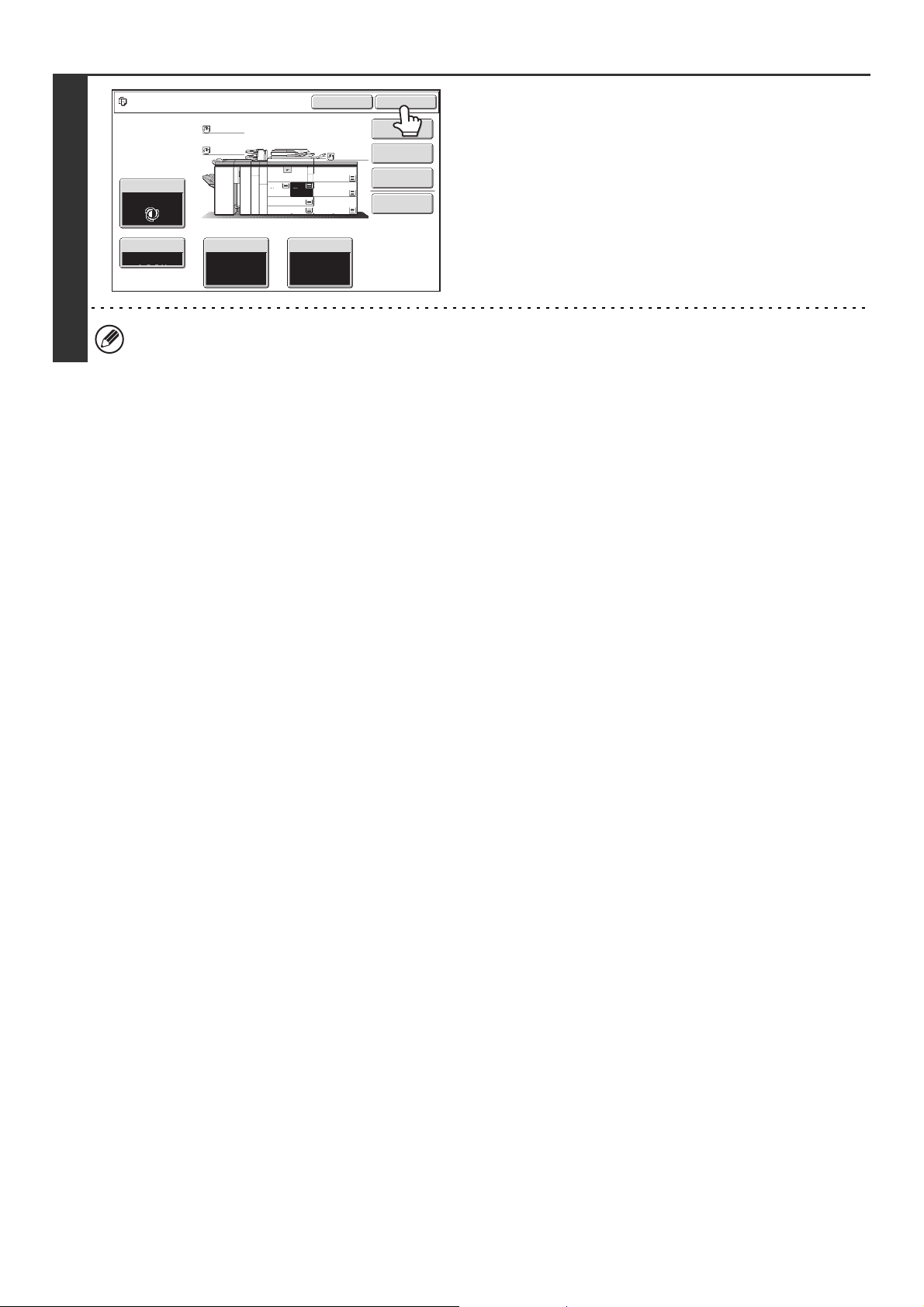
131
4
Select the copy settings that you wish to
store in the job program and touch the
[OK] key.
To assign a name to the program, touch the [Program Name]
key. A text entry screen will appear.
Up to 10 characters can be entered for the name.
To enter text, see "7. ENTERING TEXT" in the User's Guide.
When you have finished, touch the [OK] key.
You will return to the base screen with the stored information
reflected in the screen.
The number of copies cannot be stored.
To store, make selections and press
[OK], to delete, press [Cancel].
Cancel OK
Special Modes
Plain
2-Sided Copy
Output
Program Name
Copy Ratio
1.
2.
7.
8½x11
8½x11
Original Paper Select
Auto
8½x11
Plain
Auto
Exposure
Auto
8½x14
4.
11x17
11x17
6.
11x17
5.
11x17
3.
8½x11
100%
Plain
Plain
132
This chapter provides solutions to possible copying problems. See the following table of contents to locate the
appropriate page for your question or problem.
5
TROUBLESHOOTING
PROBLEMS RELATED TO COPYING OPERATION
• Copying does not take place. . . . . . . . . . . . . . . . . . . . . . . . . . . . . . . . . . . . . . . . . . . . . . . . . . . . . . . . 133
• Image rotation does not take place. . . . . . . . . . . . . . . . . . . . . . . . . . . . . . . . . . . . . . . . . . . . . . . . . . . 133
• Two-sided copying does not take place.. . . . . . . . . . . . . . . . . . . . . . . . . . . . . . . . . . . . . . . . . . . . . . . 133
• The paper size of a tray cannot be set.. . . . . . . . . . . . . . . . . . . . . . . . . . . . . . . . . . . . . . . . . . . . . . . . 133
PROBLEMS RELATED TO COPY RESULTS
• The image is too light or too dark.. . . . . . . . . . . . . . . . . . . . . . . . . . . . . . . . . . . . . . . . . . . . . . . . . . . . 134
• Part of the image is cut off. . . . . . . . . . . . . . . . . . . . . . . . . . . . . . . . . . . . . . . . . . . . . . . . . . . . . . . . . . 134
• Copies come out blank. . . . . . . . . . . . . . . . . . . . . . . . . . . . . . . . . . . . . . . . . . . . . . . . . . . . . . . . . . . . 134
• System settings
Descriptions of system settings similar to the following example appear in this chapter.
Example:
➞ System Settings (Administrator) > "Copy Settings" > "Other Settings" > "Rotation Copy Setting" >
This is an abbreviated description of the procedure for selecting the setting. ">" indicates the setting sequence and
indicates the state of the setting after it has been enabled. Use these descriptions as a quick manual to help you
configure the settings. (For detailed explanations of the system settings (Administrator), see the Administrator's
Guide.)
•
For problems common to all functions of the machine and peripheral devices, see the User's Guide.
• If you are unable to solve a problem using the solutions in this chapter, switch off the [POWER] key ( ) and the
main power switch. Wait at least 10 seconds, and then switch on the main power switch and the [POWER] key ( )
in that order.
* Do not turn off the machine's main power switch or remove the power plug while a job is being executed or
processed. This may damage the hard drive or cause the data being stored or received to be lost.
• If you are unable to solve a problem using the information in this chapter, please contact your dealer or nearest
SHARP Service Department.
133
PROBLEMS RELATED TO COPYING OPERATION
Problem Point to check Solution
Copying does not take
place.
Have functions been disabled by the
administrator?
When user authentication is enabled, the functions that
you can use may be restricted in your user settings.
Check with your administrator.
Image rotation does
not take place.
Did you select the paper size or copy
ratio manually?
Copy using automatic paper selection and automatic
ratio selection.
☞ PAPER TRAYS (page 14)
☞ AUTOMATIC RATIO SELECTION (Auto Image)
(page 26)
Are you copying using settings that do
not allow rotate copying?
Rotate copying can generally be combined with other
special modes, however, some combinations are not
possible. If a prohibited combination is selected, a
message will appear in the touch panel.
Is "Rotation Copy Setting" disabled in
the system settings (administrator)?
Check with your administrator.
If you are the administrator, enable "Rotation Copy
Setting".
➞ System Settings (Administrator) > "Copy Settings" >
"Other Settings" > "Rotation Copy Setting" >
Two-sided copying
does not take place.
Does the paper type setting of the
selected tray specify a type of paper that
cannot be used for two-sided copying?
Check "Tray Settings" in the system settings. If the
[Disable Duplex] checkbox is selected , two-sided
copying using that tray will not be possible. Change the
paper type setting to a type that can be used for
two-sided printing.
➞ System Settings > "Paper Tray Settings" > "Tray
Settings" > "Change"
☞ User's Guide "6. SYSTEM SETTINGS"
Are you using a special size or type of
paper?
For the paper types and sizes that can be used for
two-sided copying, see the specifications in the Safety
Guide.
Are you copying using settings that do
not allow two-sided copying?
Two-sided copying can generally be combined with
other special modes, however, some combinations are
not possible. If a prohibited combination is selected, a
message will appear in the touch panel.
Have functions been disabled by the
administrator?
Some functions may have been disabled in the system
settings (administrator). Check with your administrator.
When user authentication is enabled, the functions that
you can use may be restricted in your user settings.
Check with your administrator.
The paper size of a
tray cannot be set.
Have functions been disabled by the
administrator?
Some functions may have been disabled in the system
settings (administrator). Check with your administrator.
134
PROBLEMS RELATED TO COPY RESULTS
Problem Point to check Solution
The image is too light
or too dark.
Is the image too light or too dark? Select an appropriate exposure mode for the original
being copied and adjust the exposure level manually.
☞ CHANGING THE EXPOSURE AND ORIGINAL
IMAGE TYPE (page 24)
Has an appropriate exposure mode for
the original type been selected?
Select one of the following modes depending on the
original type.
☞
SELECTING THE ORIGINAL TYPE AND MANUALLY
ADJUSTING THE EXPOSURE (page 24)
• Text
Use this mode for regular text documents.
• Text/Prtd.Photo
This mode provides the best balance for copying an
original which contains both text and printed
photographs, such as a magazine or catalogue.
• Text/Photo
This mode provides the best balance for copying an
original which contains both text and photographs,
such as a text document with a photo pasted on.
• Printed Photo
This mode is best for copying printed photographs,
such as photos in a magazine or catalogue.
• Photo
Use this mode to copy photos.
• Map
This mode is best for copying the light color shading
and fine text found on most maps.
• Light original
Use this mode for originals with light pencil writing.
Part of the image is
cut off.
Has an appropriate ratio been selected
for the original size and paper size?
Select an appropriate ratio setting.
☞ REDUCTION/ENLARGEMENT/ZOOM (page 26)
Are you using an AB size original? When copying an AB size original, specify the original
size manually.
☞ SPECIFYING THE ORIGINAL SIZE (page 30)
Copies come out
blank.
Is the original placed face up or face
down correctly?
When using the document glass, the original must be
placed face down. When using the automatic document
feeder, the original must be placed face up.
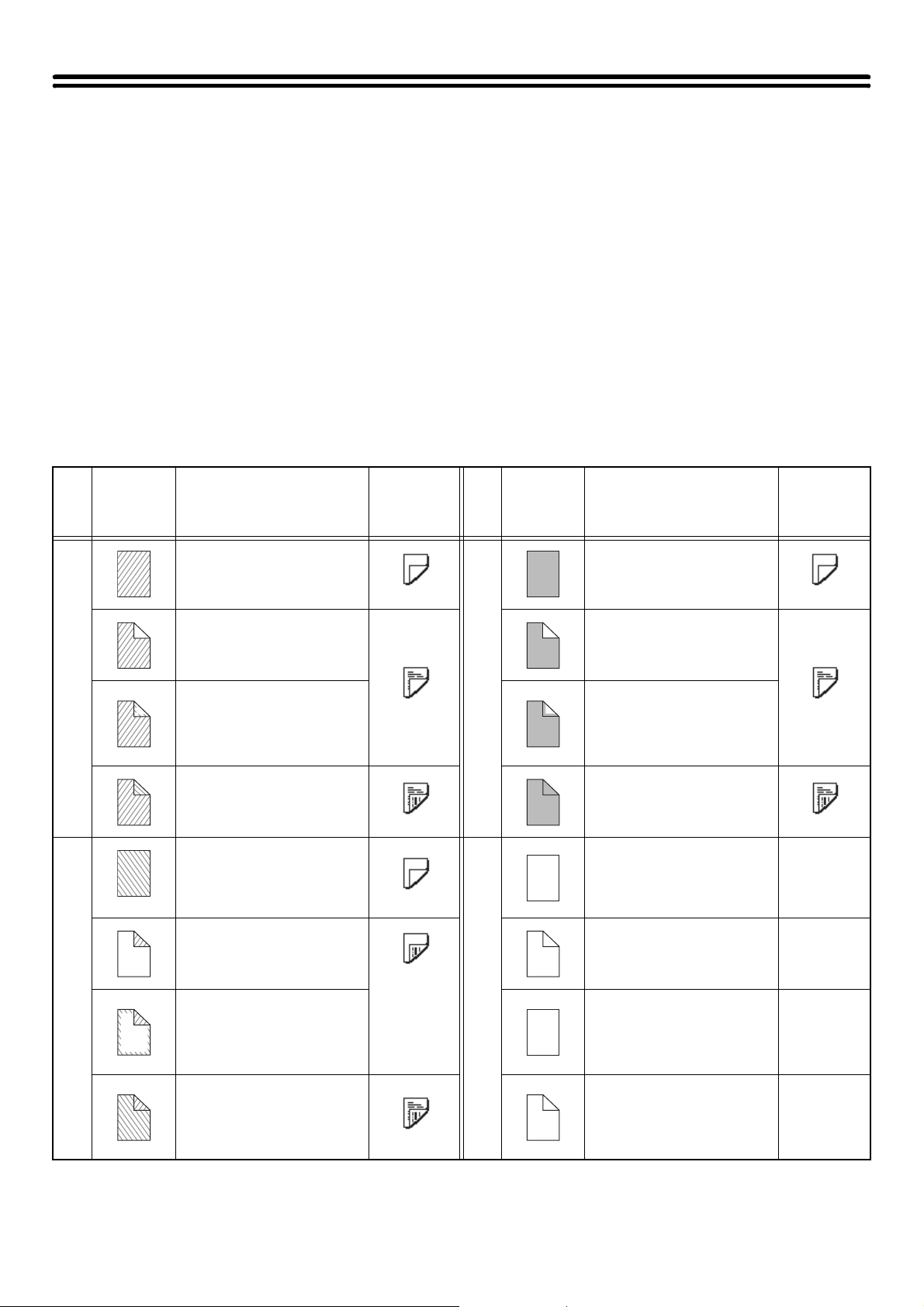
135
APPENDIX
Examples of covers and inserts
The relations between the originals and finished copies when covers or inserts are inserted are shown on the following
pages.
Covers
• 1-sided copying of 1-sided originals
• 1-sided copying of 2-sided originals
• 2-sided copying of 1-sided originals
• 2-sided copying of 2-sided originals
Inserts
• 1-sided copying of 1-sided originals
• 1-sided copying of 2-sided originals
• 2-sided copying of 1-sided originals
• 2-sided copying of 2-sided originals
Symbols used for covers and inserts
The following symbols are used to make the explanations easier to understand.
The numbers that appear indicate what original a copy corresponds to, and will vary depending on the settings.
Type
Symbol Meaning
Icon
appearing
in display
Type
Symbol Meaning
Icon
appearing
in display
Front cover
Front cover when not
copied on.
Inserts
Insert when not copied on.
Front cover when one side
is copied on.
Insert when one side is
copied on.
Front cover when a 2-sided
original is copied on one
side of the cover. (One
page is not copied.)
Insert when a 2-sided
original is copied on one
side of the insert. (One
page is not copied.)
Front cover when both
sides are copied on.
Insert when both sides are
copied on.
Back cover
Back cover when not
copied on.
Other symbols
1-sided original or output
page of regular 1-sided
copying.
Back cover when a 1-sided
original is copied on one
side of the back cover.
2-sided original or output
page of regular 2-sided
copying.
Back cover when a 2-sided
original is copied on one
side of the back cover.
(One page is not copied.)
1-sided original or output
page of regular 1-sided
copying.
Back cover when both
sides are copied on.
Output page of 2-sided
copying when only 1 side is
copied on due to lack of
originals.
1
3
1
3
1
2
3
4
1
6
1
2
6
6
6
5 5
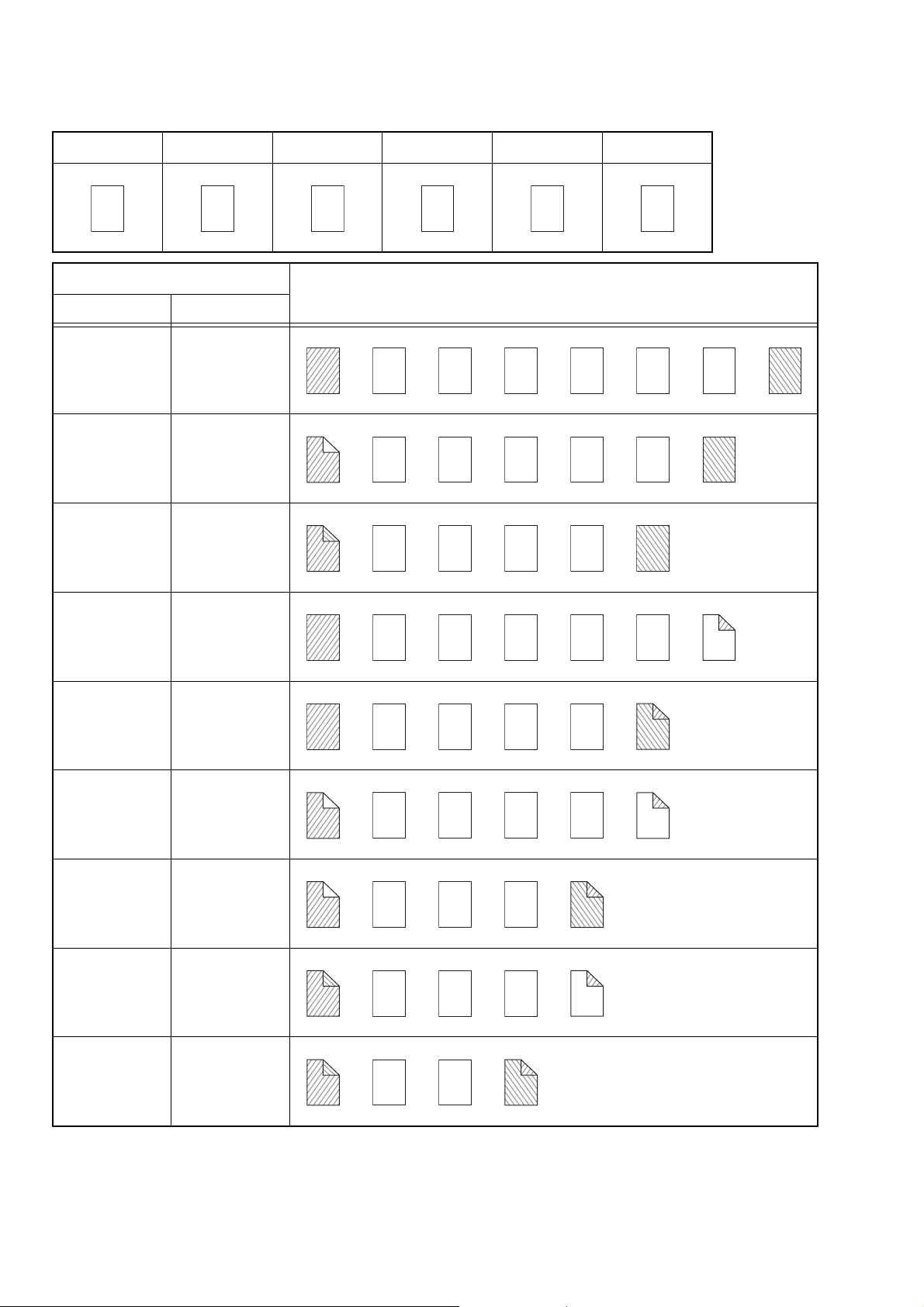
136
Covers (1-sided copying of 1-sided originals)
1-sided copies are made of the following 1-sided originals.
1st page 2nd page 3rd page 4th page 5th page 6th page
Cover copying condition
Resulting copies
Front cover Back cover
No copying No copying
1-sided
copying
No copying
2-sided
copying
No copying
No copying
1-sided
copying
No copying
2-sided
copying
1-sided
copying
1-sided
copying
1-sided
copying
2-sided
copying
2-sided
copying
1-sided
copying
2-sided
copying
2-sided
copying
1
2 3 4 5 6
1 2 3 4 5 6
1
2 3 4 5 6
1
2
3 4 5 6
1 2 3 4 5
6
1 2 3 4
6
5
1
2 3 4 5
6
1
2 3 4
6
5
1
2
3 4 5
6
1
2
3 4
6
5
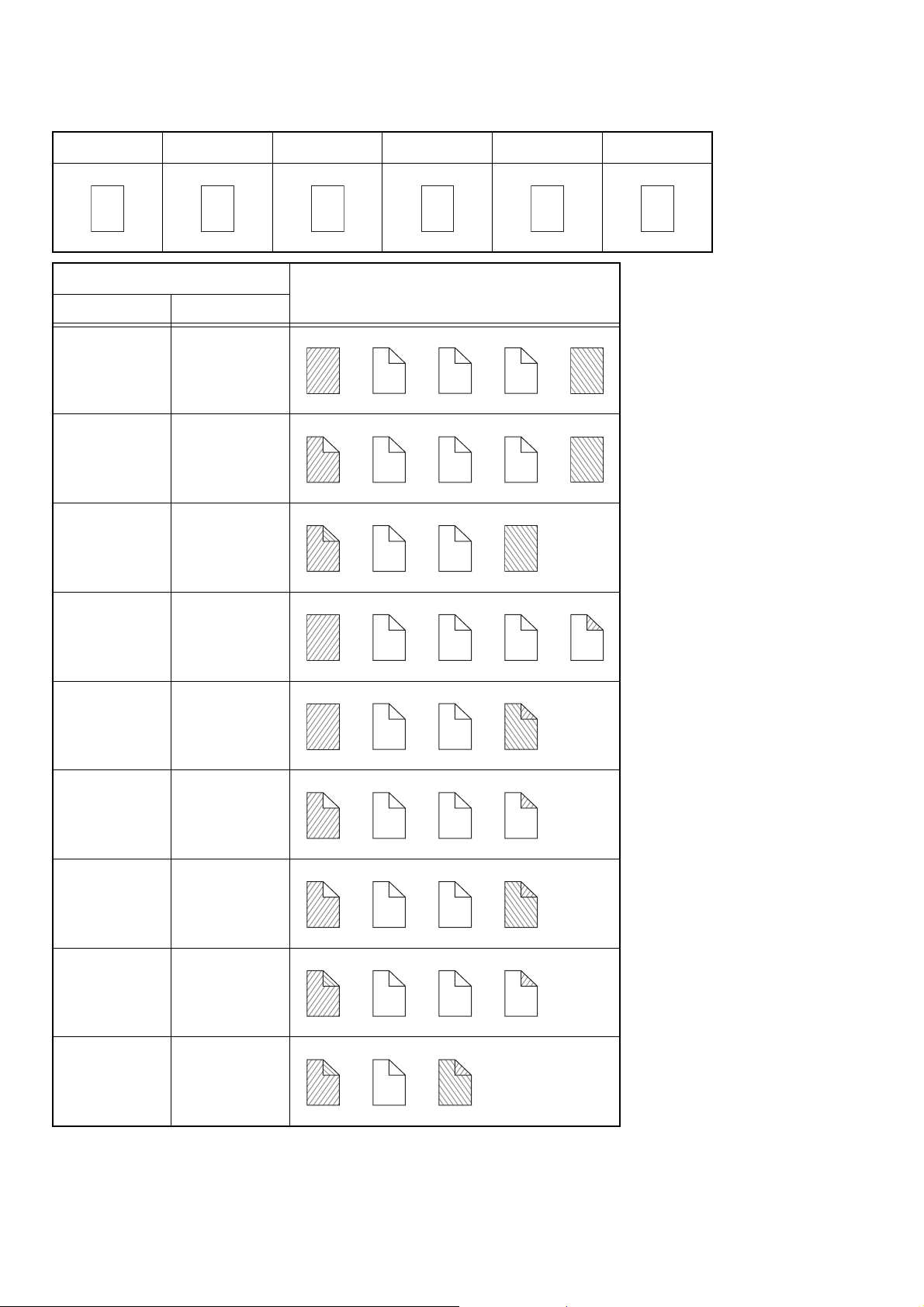
137
Covers (2-sided copying of 1-sided originals)
2-sided copies are made of the following 1-sided originals.
1st page 2nd page 3rd page 4th page 5th page 6th page
Cover copying condition
Resulting copies
Front cover Back cover
No copying No copying
1-sided
copying
No copying
2-sided
copying
No copying
No copying
1-sided
copying
No copying
2-sided
copying
1-sided
copying
1-sided
copying
1-sided
copying
2-sided
copying
2-sided
copying
1-sided
copying
2-sided
copying
2-sided
copying
1
2 3 4 5 6
1
2
3
4
5
6
1 2
3
4
5
6
1
2
3
4
5
6
1
2
3
4
5
6
1
2
3
4
6
5
1 2
3
4
5
6
1 2
3
4
6
5
1
2
3
4
5
6
1
2
3
4
6
5
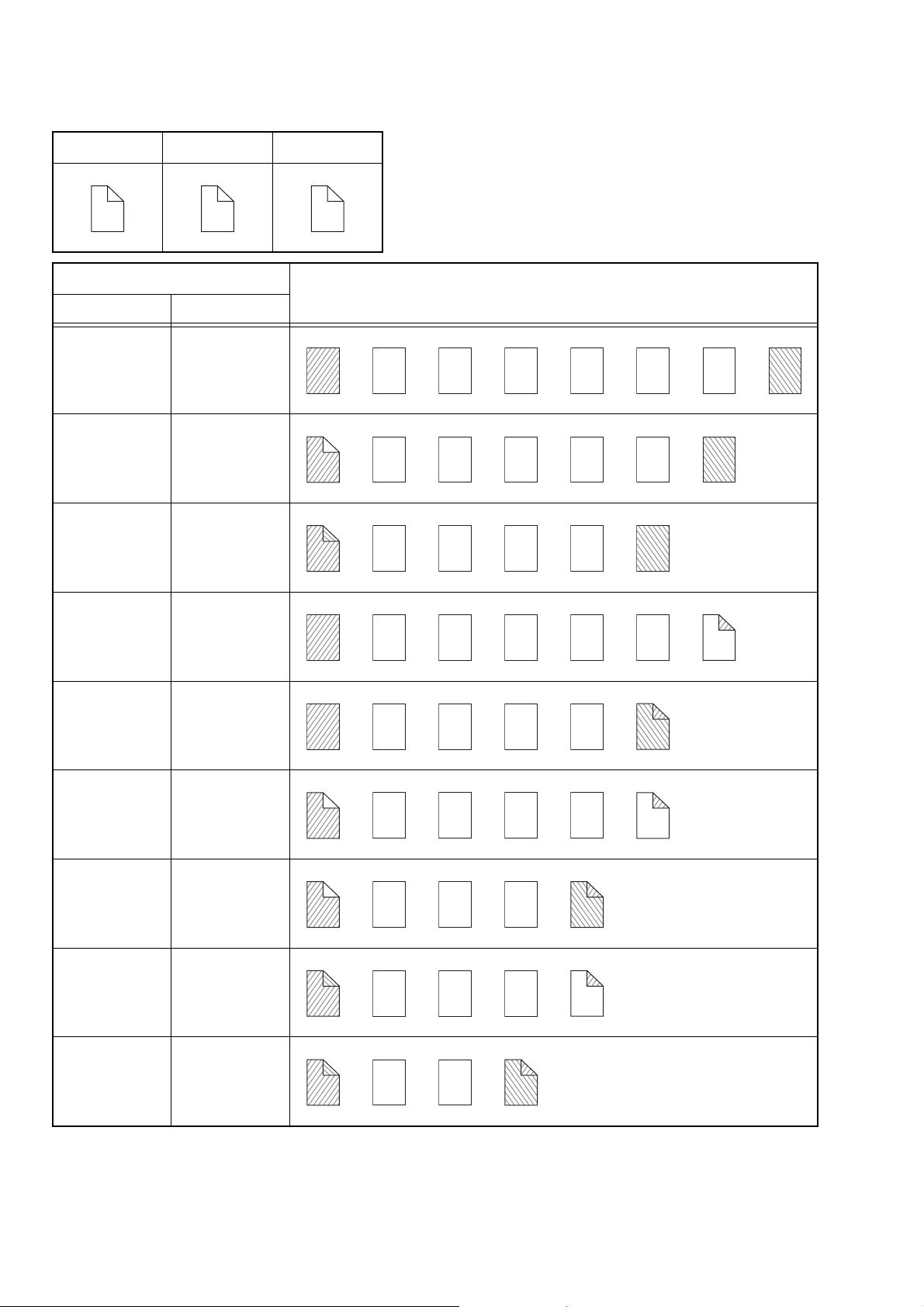
138
Covers (1-sided copying of 2-sided originals)
1-sided copies are made of the following 2-sided originals.
1st page 2nd page 3rd page
Cover copying condition
Resulting copies
Front cover Back cover
No copying No copying
1-sided
copying
No copying
2-sided
copying
No copying
No copying
1-sided
copying
No copying
2-sided
copying
1-sided
copying
1-sided
copying
1-sided
copying
2-sided
copying
2-sided
copying
1-sided
copying
2-sided
copying
2-sided
copying
1
2
3
4
5
6
1 2 3 4 5 6
1
2 3 4 5 6
1
2
3 4 5 6
1 2 3 4 5
6
1 2 3 4
6
5
1
2 3 4 5
6
1
2 3 4
6
5
1
2
3 4 5
6
1
2
3 4
6
5
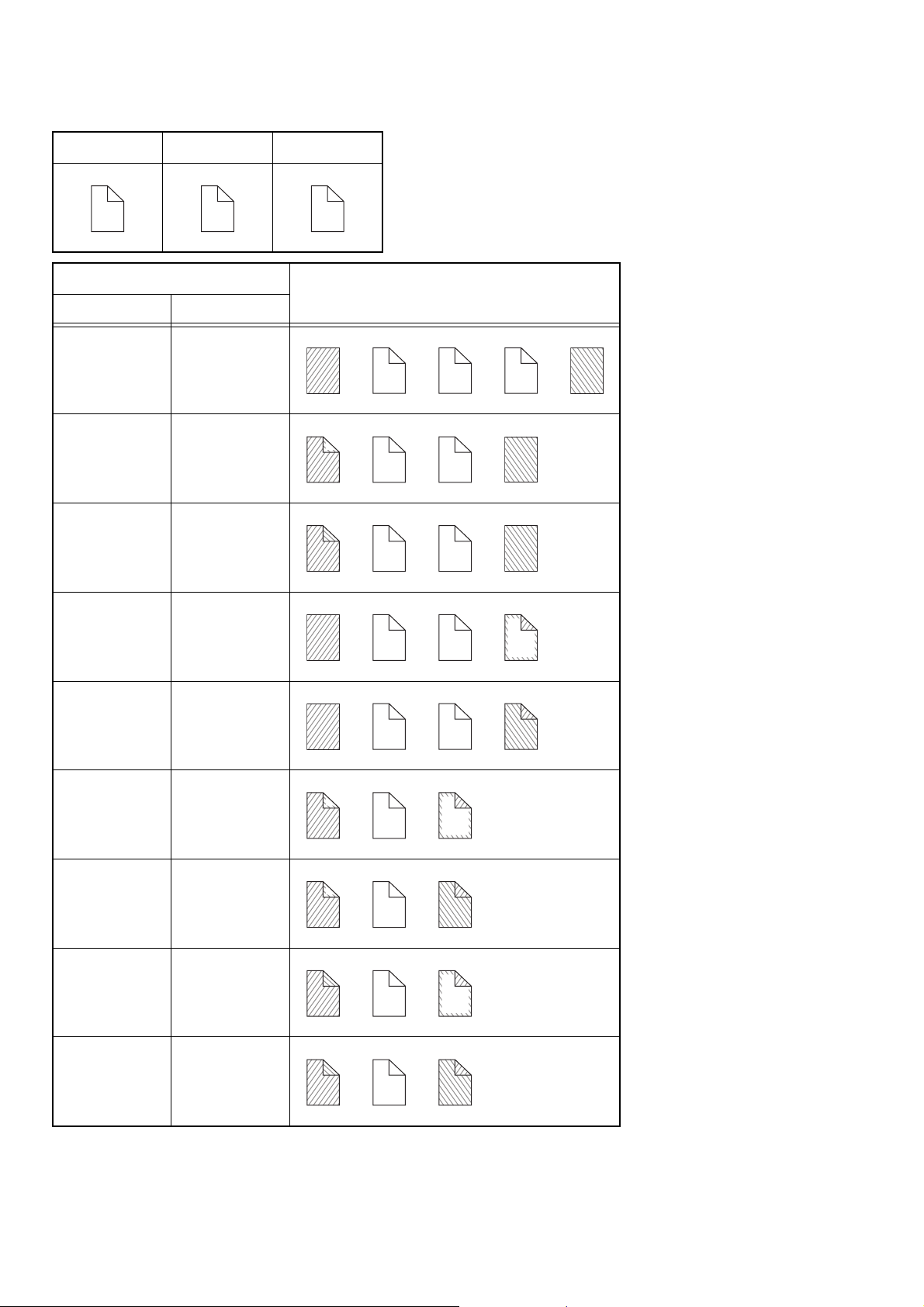
139
Covers (2-sided copying of 2-sided originals)
2-sided copies are made of the following 2-sided originals.
1st page 2nd page 3rd page
Cover copying condition
Resulting copies
Front cover Back cover
No copying No copying
1-sided
copying
No copying
2-sided
copying
No copying
No copying
1-sided
copying
No copying
2-sided
copying
1-sided
copying
1-sided
copying
1-sided
copying
2-sided
copying
2-sided
copying
1-sided
copying
2-sided
copying
2-sided
copying
1
2
3
4
5
6
1
2
3
4
5
6
1
3
4
5
6
1
2
3
4
5
6
1
2
3
4
6
1
2
3
4
6
5
1
3
4
6
1
3
4
6
5
1
2
3
4
6
1
2
3
4
6
5
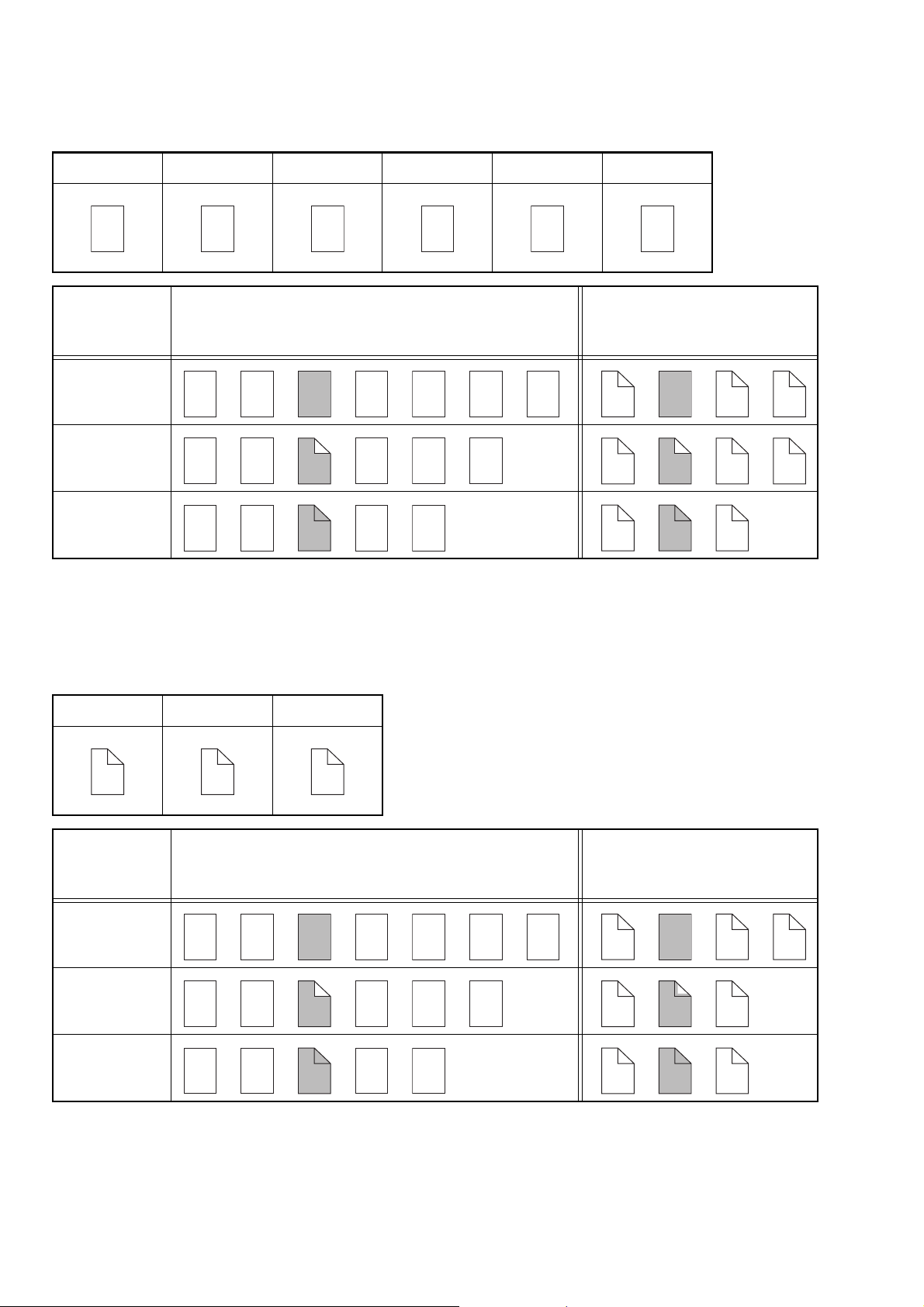
140
Inserts (copying of 1-sided originals)
1-sided and 2-sided copying of the following 1-sided originals. The example of adding an insert at the 3rd sheet is
shown. (when "Insertion Page" is set to "3" in the insertion settings of the insert settings in the special modes)
Inserts (copying of 2-sided originals)
1-sided and 2-sided copying of the following 2-sided originals. The example of adding an insert at the 3rd sheet is
shown. (when "Insertion Page" is set to "3" in the insertion settings of the insert settings in the special modes)
1st page 2nd page 3rd page 4th page 5th page 6th page
Insert
copying
condition
Resulting copies (1-sided copying)
Resulting copies
(2-sided copying)
No copying
1-sided
copying
2-sided
copying
1st page 2nd page 3rd page
Insert
copying
condition
Resulting copies (1-sided copying)
Resulting copies
(2-sided copying)
No copying
1-sided
copying
2-sided
copying
1
2 3 4 5 6
1 2 3 4 5 6
1
2
3
4
5
6
1 2
3
4 5 6
1
2
3 4
5
6
1
2
3
4
5 6
1
2
3
4
5
6
1
2
3
4
5
6
1
2 3 4 5 6
1
2
3
4
5
6
1
2
3
4 5 6
1
2
3 5
6
1
2
3
4
5 6
1
2
3
4
5
6
MX1100-US-CPY-Z1
Copier Guide
MX-M850
MX-M950
MX-M1100
MODEL:
SHARP ELECTRONICS CORPORATION
Sharp Plaza, Mahwah, New Jersey 07430-1163.
www.sharpusa.com
SHARP ELECTRONICS OF CANADA LTD.
335 Britannia Road East, Mississauga, Ontario, L4Z 1W9
Printer Guide
MX-M850
MX-M950
MX-M1100
MODEL:
2
CONTENTS
ABOUT THIS MANUAL . . . . . . . . . . . . . . . . . . . . . . . . 4
• MANUALS PROVIDED WITH THE MACHINE . . . 5
PRINTER FUNCTION OF THE MACHINE. . . . . . . . . . 6
1
PRINTING FROM WINDOWS
BASIC PRINTING PROCEDURE . . . . . . . . . . . . . . . . . 7
• SELECTING THE PAPER . . . . . . . . . . . . . . . . . . . 9
PRINTING WHEN THE USER AUTHENTICATION
FUNCTION IS ENABLED. . . . . . . . . . . . . . . . . . . . . . 10
VIEWING PRINTER DRIVER HELP. . . . . . . . . . . . . . 12
SAVING FREQUENTLY USED PRINT SETTINGS . . 13
• SAVING SETTINGS AT THE TIME OF
PRINTING . . . . . . . . . . . . . . . . . . . . . . . . . . . . . . 13
• USING SAVED SETTINGS . . . . . . . . . . . . . . . . . 15
CHANGING THE PRINTER DRIVER DEFAULT
SETTINGS . . . . . . . . . . . . . . . . . . . . . . . . . . . . . . . . . 16
2
PRINTING FROM A MACINTOSH
BASIC PRINTING PROCEDURE . . . . . . . . . . . . . . . . 18
• SELECTING PAPER SETTINGS . . . . . . . . . . . . . 18
• PRINTING . . . . . . . . . . . . . . . . . . . . . . . . . . . . . . 20
• SELECTING THE PAPER . . . . . . . . . . . . . . . . . . 23
PRINTING WHEN THE USER AUTHENTICATION
FUNCTION IS ENABLED. . . . . . . . . . . . . . . . . . . . . . 24
3
FREQUENTLY USED FUNCTIONS
TWO-SIDED PRINTING . . . . . . . . . . . . . . . . . . . . . . . 27
FITTING THE PRINT IMAGE TO THE PAPER . . . . . 29
PRINTING MULTIPLE PAGES ON ONE PAGE . . . . 30
STAPLING OUTPUT/PUNCHING HOLES IN
OUTPUT . . . . . . . . . . . . . . . . . . . . . . . . . . . . . . . . . . . 32
4
CONVENIENT PRINTING
FUNCTIONS
CONVENIENT FUNCTIONS FOR CREATING
PAMPHLETS AND POSTERS . . . . . . . . . . . . . . . . . . 34
• CREATING A PAMPHLET
(Pamphlet/Pamphlet Staple). . . . . . . . . . . . . . . . . 34
• INCREASING THE MARGIN (Margin Shift) . . . . . 36
•
CREATING A LARGE POSTER (Poster Printing)
. . 37
FUNCTIONS TO ADJUST THE SIZE AND
ORIENTATION OF THE IMAGE. . . . . . . . . . . . . . . . . 38
• ROTATING THE PRINT IMAGE 180
DEGREES (Rotate 180 degrees) . . . . . . . . . . . . . 38
• ENLARGING/REDUCING THE PRINT IMAGE
(Zoom/XY-Zoom) . . . . . . . . . . . . . . . . . . . . . . . . . 39
• REVERSING THE IMAGE (Mirror Image) . . . . . . 41
IMAGE ADJUSTMENT FUNCTION . . . . . . . . . . . . . . 42
•
ADJUSTING THE BRIGHTNESS AND
CONTRAST OF THE IMAGE (Image Adjustment)
. . 42
• PRINTING FAINT TEXT AND LINES IN
BLACK (Text To Black/Vector To Black) . . . . . . . 43
FUNCTIONS THAT COMBINE TEXT AND IMAGES.
. . 44
• ADDING A WATERMARK TO PRINTED
PAGES (Watermark) . . . . . . . . . . . . . . . . . . . . . . 44
• PRINTING AN IMAGE OVER THE PRINT
DATA (Image Stamp) . . . . . . . . . . . . . . . . . . . . . . 45
• CREATING OVERLAYS FOR PRINT DATA
(Overlays) . . . . . . . . . . . . . . . . . . . . . . . . . . . . . . . 46
PRINT FUNCTIONS FOR SPECIAL PURPOSES . . . 47
• PRINTING SPECIFIED PAGES ON
DIFFERENT PAPER (Different Paper). . . . . . . . . 47
•
ADDING INSERTS WHEN PRINTING ON
TRANSPARENCY FILM (Transparency Inserts) .
. . 49
• PRINTING A CARBON COPY (Carbon Copy) . . . 50
• PRINTING TEXT ON TABS OF TAB PAPER
(Tab Printing) . . . . . . . . . . . . . . . . . . . . . . . . . . . . 51
• TWO-SIDED PRINTING WITH SPECIFIC
PAGES PRINTED ON THE FRONT SIDE
(Chapter Inserts Printing) . . . . . . . . . . . . . . . . . . . 53
• FOLDING SPECIFIED PAPER IN HALF
BEFORE PRINTING (Paper Fold Print) . . . . . . . . 54
• PRINTING THE PAGES IN REVERSE
ORDER (Reverse Order Print) . . . . . . . . . . . . . . . 55
CONVENIENT PRINTER FUNCTIONS . . . . . . . . . . . 57
• USING TWO MACHINES TO PRINT A LARGE
PRINT JOB (Tandem Print) . . . . . . . . . . . . . . . . . 57
• SAVING AND USING PRINT FILES
(Retention/Document Filing). . . . . . . . . . . . . . . . . 58
3
5
PERFORMING PRINTING AT THE
MACHINE
DIRECTLY PRINTING FROM THE MACHINE. . . . . . 61
• DIRECTLY PRINTING A FILE ON AN FTP
SERVER. . . . . . . . . . . . . . . . . . . . . . . . . . . . . . . . 62
•
DIRECTLY PRINTING A FILE IN USB MEMORY
. . 63
•
PRINT SETTINGS SCREEN
. . . . . . . . . . . . . . . . . . 65
DIRECTLY PRINTING FROM A COMPUTER . . . . . . 66
• SUBMIT PRINT JOB . . . . . . . . . . . . . . . . . . . . . . 66
• FTP PRINT . . . . . . . . . . . . . . . . . . . . . . . . . . . . . . 66
• E-MAIL PRINT . . . . . . . . . . . . . . . . . . . . . . . . . . . 67
PRINTING AN ENCRYPTED PDF FILE. . . . . . . . . . . 68
GIVING A PRINT JOB PRIORITY/CANCELING A
PRINT JOB . . . . . . . . . . . . . . . . . . . . . . . . . . . . . . . . . 69
• GIVING A PRINT JOB PRIORITY . . . . . . . . . . . . 69
• CANCELING A PRINT JOB . . . . . . . . . . . . . . . . . 70
CHANGING TO ANOTHER PAPER SIZE AND
PRINTING WHEN PAPER RUNS OUT . . . . . . . . . . . 71
6
SYSTEM SETTINGS
ACCESSING THE SYSTEM SETTINGS . . . . . . . . . . 72
SYSTEM SETTINGS LIST . . . . . . . . . . . . . . . . . . . . . 73
PRINTER CONDITION SETTINGS . . . . . . . . . . . . . . 74
• PRINTER DEFAULT SETTINGS . . . . . . . . . . . . . 74
• PCL SETTINGS . . . . . . . . . . . . . . . . . . . . . . . . . . 75
• POSTSCRIPT SETTING . . . . . . . . . . . . . . . . . . . 75
7
TROUBLESHOOTING
• PROBLEMS RELATED TO PRINTING
OPERATION . . . . . . . . . . . . . . . . . . . . . . . . . . . . 77
• PROBLEMS RELATED TO PRINT RESULTS. . . 79
8
PRINTER DRIVER SPECIFICATIONS
PRINTER DRIVER SPECIFICATION LIST . . . . . . . . 81
4
ABOUT THIS MANUAL
Please note
• For information on installing the drivers and software cited in this manual, please refer to the Software Setup Guide.
• For information on your operating system, please refer to your operating system manual or the online Help function.
• The explanations of screens and procedures in a Windows environment are primarily for Windows
®
XP. The screens may vary
depending on the version of the operating system or the software application.
• The explanations of screens and procedures in a Macintosh environment are based on Mac OS X v10.4 in the case of Mac OS
X, and on Mac OS 9.2.2 in the case of Mac OS 9. The screens may vary depending on the version of the operating system or
the software application.
• Wherever "MX-xxxx" appears in this manual, please substitute your model name for "xxxx".
• Considerable care has been taken in preparing this manual. If you have any comments or concerns about the manual, please
contact your dealer or nearest SHARP Service Department.
• This product has undergone strict quality control and inspection procedures. In the unlikely event that a defect or other problem
is discovered, please contact your dealer or nearest SHARP Service Department.
• Aside from instances provided for by law, SHARP is not responsible for failures occurring during the use of the product or its
options, or failures due to incorrect operation of the product and its options, or other failures, or for any damage that occurs due
to use of the product.
Warning
• Reproduction, adaptation or translation of the contents of the manual without prior written permission is prohibited, except as
allowed under copyright laws.
• All information in this manual is subject to change without notice.
Illustrations and the operation panel and touch panel shown in this manual
The peripheral devices are generally optional, however, some models include certain peripheral devices as standard equipment.
The explanations in this manual assume that a finisher, punch module, saddle unit, folding unit, inserter, large capacity trays, and
bypass tray are installed on the MX-M1100.
For some functions and procedures, the explanations assume that devices other than the above are installed.
The display screens, messages, and key names shown in the manual may differ from those on the actual machine
due to product improvements and modifications.
5
MANUALS PROVIDED WITH THE MACHINE
Printed manuals and manuals stored in PDF format on the machine's hard drive are provided with the machine. When
using the machine, read the appropriate manual for the feature you are using.
Printed manuals
Operation manuals in PDF format
The manuals in PDF format provide detailed explanations of the procedures for using the machine in each mode. To
view the PDF manuals, download them from the hard drive in the machine. The procedure for downloading the manuals
is explained in "How to download the manuals in PDF format" in the Quick Start Guide.
Icons used in the manuals
The icons in the manuals indicate the following types of information:
Manual name Contents
Safety Guide
This manual contains instructions for using the machine safely and lists the specifications of the machine
and its peripheral devices.
Software Setup
Guide
This manual explains how to install and configure the software that is required to use the printer function
and other functions of the machine that are used from a computer.
Quick Start Guide
This manual provides easy-to-understand explanations of all the functions of the machine in a single
volume.
Detailed explanations of each of the functions can be found in the manuals in PDF format.
Maintenance Guide
This manual explains maintenance procedures such as how to replace supplies and remove paper
misfeeds.
Manual name Contents
User's Guide This manual explains the basic procedures for using the machine, such as how to load paper.
Copier Guide This manual provides detailed explanations of the procedures for using the copy function.
Printer Guide
(This manual)
This manual provides detailed explanations of the procedures for using the print function.
Image Send Guide
This manual provides detailed explanations of the procedures for using the image send function (scan,
USB memory scan, Internet fax, fax, and data entry).
Document Filing
Guide
This manual provides detailed explanations of the procedures for using the document filing function. The
document filing function allows you to save the document data of a copy or fax job, or the data of a print
job, as a file on the machine's hard drive. The file can be called up as needed.
Administrator's
Guide
This manual explains the settings and functions that are used to manage and control the machine, such
as the system settings that require administrator rights.
This alerts you to a situation where
there is a risk of machine damage or
failure.
This indicates the name of a system setting and provides a brief
explanation of the setting.
When "System Settings:" appears:
A general setting is explained.
When "System Settings (Administrator):" appears:
A setting that can only be configured by an administrator is
explained. For detailed information on each system setting, see
the Administrator's Guide.
This provides a supplemental
explanation of a function or procedure.
This explains how to cancel or correct
an operation.
6
PRINTER FUNCTION OF THE MACHINE
To use the machine's print function, the expansion kit must be installed in the machine in accordance with your
environment. Printing will be possible from your computer after you have installed the printer driver from the CD-ROM
that accompanies the expansion kit.
See the table below to determine which printer driver to use in your environment.
Installing the printer driver in a Windows environment
To install the printer driver and configure settings in a Windows environment, see "2. SETUP IN A WINDOWS
ENVIRONMENT" in the Software Setup Guide.
Installing the printer driver in a Macintosh environment
In a Macintosh environment, the PS3 expansion kit must be installed to use the machine as a network printer.
To install the printer driver and configure settings in a Macintosh environment, see "3. SETUP IN A MACINTOSH
ENVIRONMENT" in the Software Setup Guide.
Environment Printer driver type Remarks
Windows
PCL6, PCL5e
The machine supports the Hewlett-Packard PCL6 and PCL5e printer
control languages. It is recommended that you use the PCL6 printer
driver. If you have a problem printing from older software using the PCL6
printer driver, use the PCL5e printer driver.
The printer expansion kit is
required.
PS
This printer driver supports the PostScript 3 page description language
developed by Adobe Systems Incorporated, and enables the machine to
be used as a PostScript 3 compatible printer.
(A PPD file is available if it is desired to use the Windows standard PS
printer driver.)
The printer expansion kit
and PS3 expansion kit are
required.
Macintosh
This manual assumes that the printer expansion kit has been installed. Print functions that require the PS3 expansion kit also
require installation of the printer expansion kit.
The explanations in this manual of printing in a Windows environment generally use the screens of the PCL6 printer driver.
The printer driver screens may differ slightly depending on the printer driver that you are using.
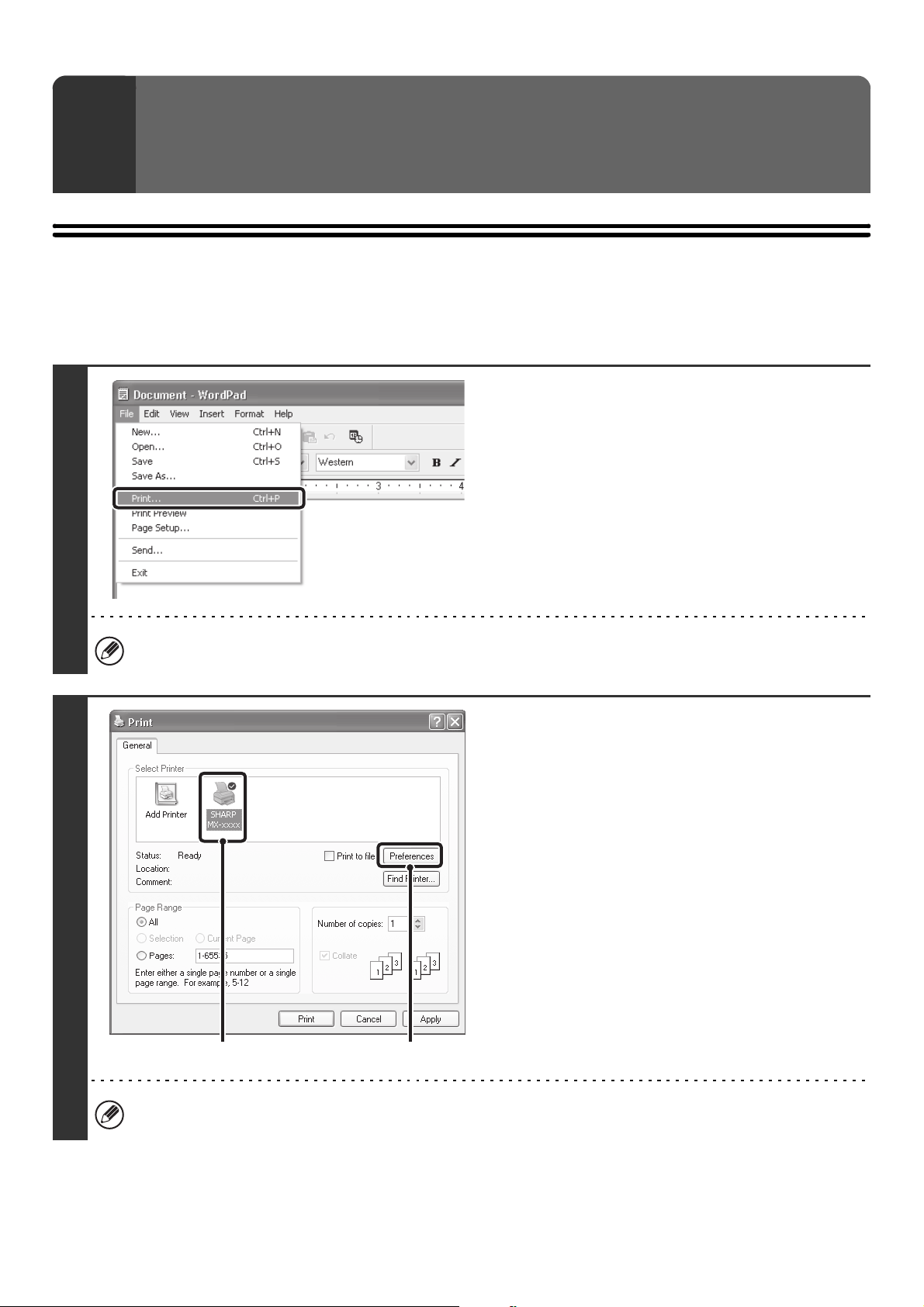
7
BASIC PRINTING PROCEDURE
The following example explains how to print a document from "WordPad", which is a standard accessory program in
Windows.
1
PRINTING FROM WINDOWS
1
Select [Print] from the [File] menu of
WordPad.
The menu used to execute printing may vary depending on the software application.
2
Open the printer driver properties
window.
(1) Select the printer driver of the machine.
• If the printer drivers appear as icons, click the icon
of the printer driver to be used.
• If the printer drivers appear as a list, select the
name of the printer driver to be used from the list.
(2) Click the [Preferences] button.
• In Windows 98/Me/NT 4.0, click the [Properties]
button.
• If you are using Windows 2000, the [Preferences]
button does not appear. Click a tab on the "Print"
dialog box to adjust the settings on that tab.
The button that is used to open the printer driver properties window (usually [Properties] or [Printing Preferences])
may vary depending on the software application.
(1)
(2)
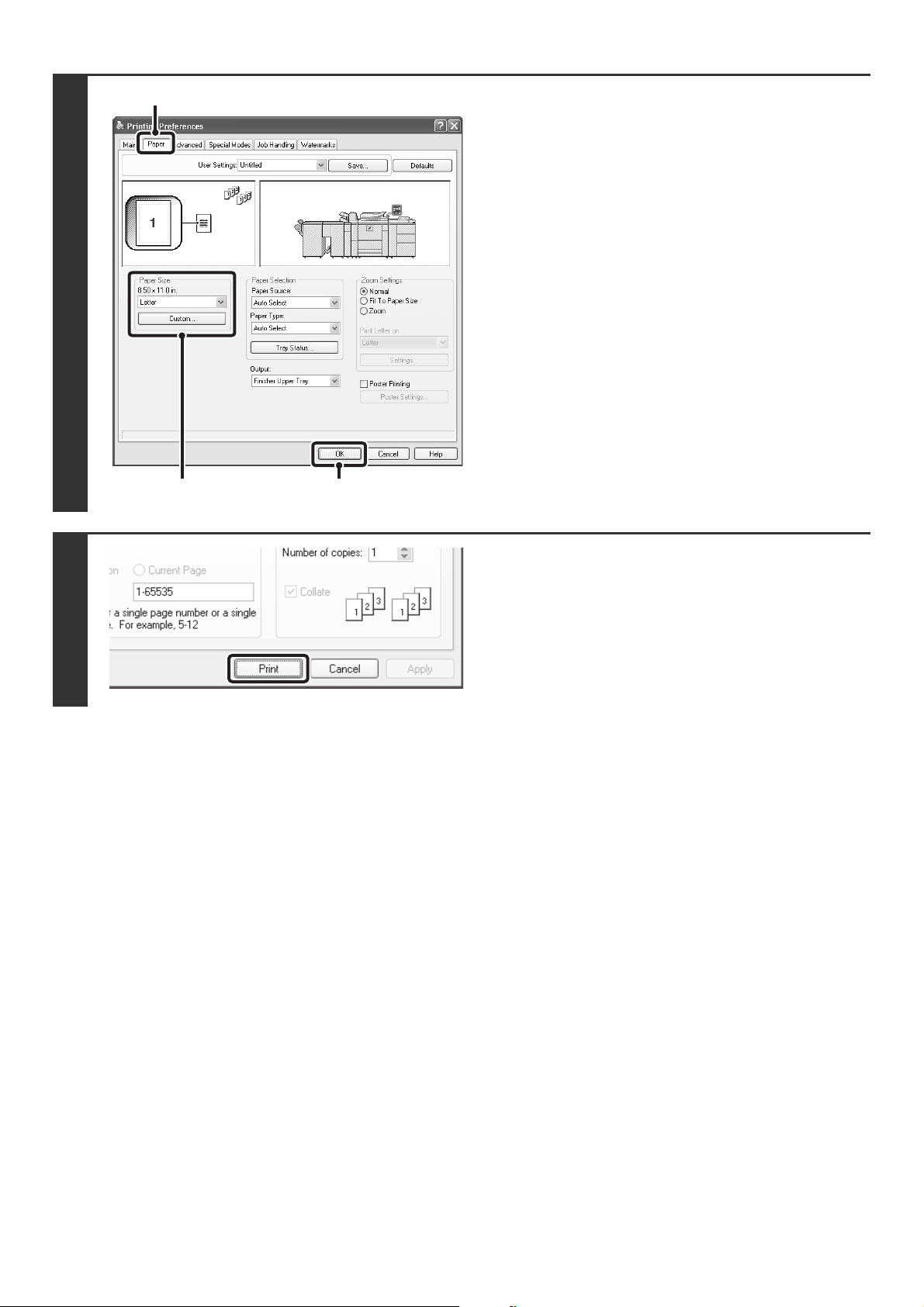
8
3
Select print settings.
(1) Click the [Paper] tab.
(2) Select the paper size.
To select settings on other tabs, click the desired tab
and then select the settings.
(3) Click the [OK] button.
4
Click the [Print] button.
Printing begins.
In Windows 98/Me/NT 4.0, click the [OK] button.
(1)
(2) (3)
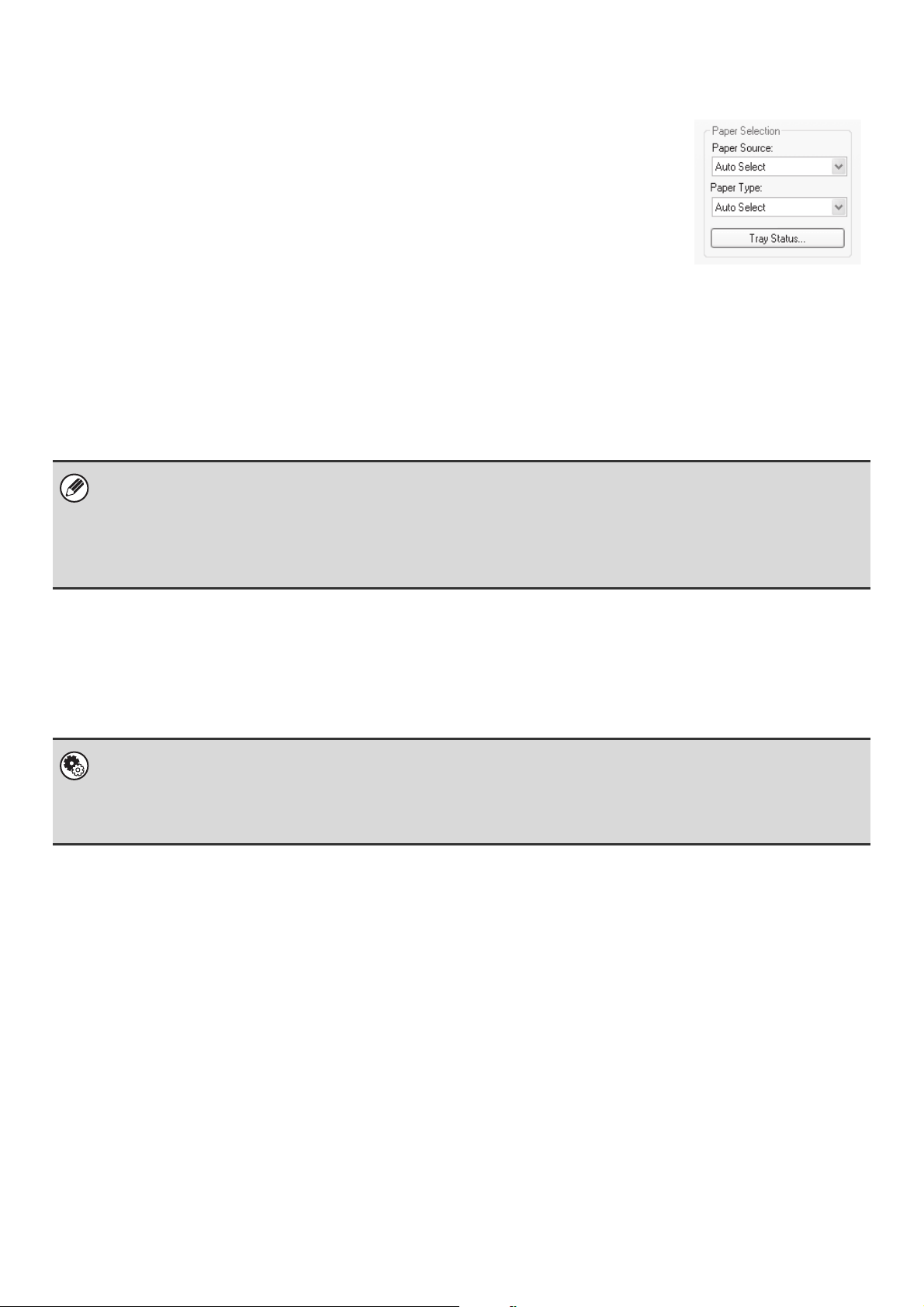
9
SELECTING THE PAPER
This section explains how to configure the "Paper Selection" setting on the [Paper] tab of
the printer driver properties window.
Before printing, check the paper sizes, paper types, and paper remaining in the machine's
trays. To view the most recent tray information, click the [Tray Status] button.
• When [Auto Select] is selected in "Paper Source"
The tray that has the size and type of paper selected in "Paper Size" and "Paper Type" on the [Paper] tab is
automatically selected.
• When other than [Auto Select] is selected in "Paper Source"
The specified tray is used for printing regardless of the "Paper Size" setting.
When [Bypass Tray] is selected
The "Paper Type" must also be selected. Check the bypass tray and make sure that the desired type of paper is
loaded, and then select the appropriate "Paper Type" setting.
• When [Auto Select] is selected in "Paper Type"
A tray with plain paper or recycled paper of the size specified in "Paper Size" is automatically selected. (The factory
default setting is plain paper only.)
• When other than [Auto Select] is selected in "Paper Type"
A tray with the specified type of paper and the size specified in "Paper Size" is used for printing.
• Special media can also be placed in the bypass tray. For the procedure for loading paper and other media in the bypass
tray, see "LOADING PAPER IN THE BYPASS TRAY" in the User's Guide.
• When "Enable Detected Paper Size in Bypass Tray" (disabled by factory default) or "Enable Selected Paper Type in
Bypass Tray" (enabled by factory default) is enabled in the system settings (administrator), printing will not take place if the
paper size or paper type specified in the printer driver is different from the paper size or paper type specified in the settings
of the bypass tray.
System Settings (Administrator): Exclude Bypass-Tray from Auto Paper Select
When [Auto Select] is selected in "Paper Selection", specify whether or not the paper in the bypass tray will be excluded from
the paper that can be selected. This setting is disabled by factory default, and thus paper in the bypass tray is included in the
paper that can be automatically selected. If special media are frequently loaded in the bypass tray, it is recommended that
this setting be enabled.
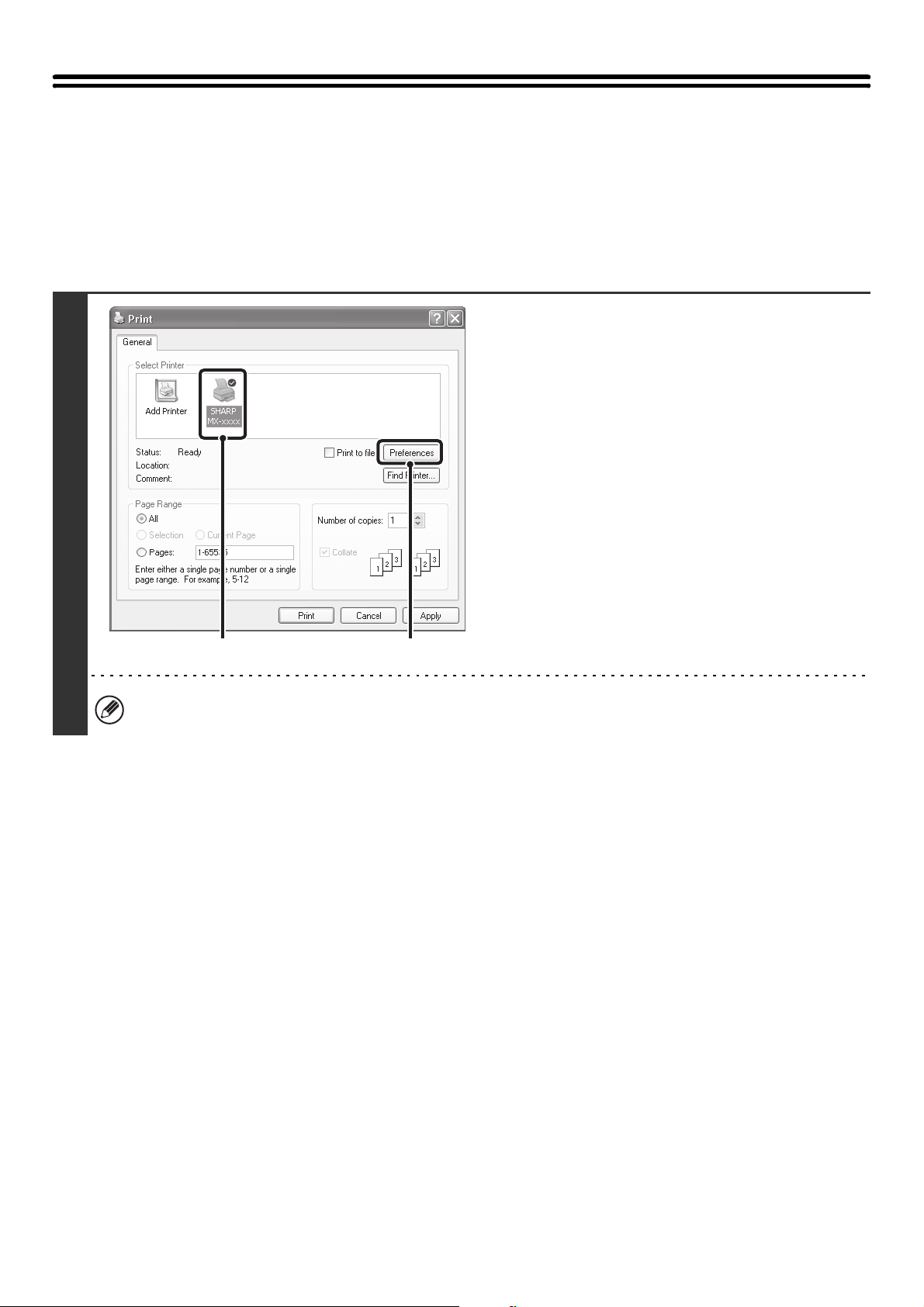
10
PRINTING WHEN THE USER
AUTHENTICATION FUNCTION IS ENABLED
When the user authentication function is enabled in the machine's system settings (administrator), your user information
(login name, password, etc.) must be entered in the printer driver properties window before you can print. The
information that must be entered varies depending on the authentication method being used, so check with the
administrator of the machine before printing.
1
Open the printer driver properties
window from the print window of the
software application.
(1) Select the printer driver of the machine.
(2) Click the [Preferences] button.
The button that is used to open the printer driver properties window (usually [Properties] or [Printing Preferences])
may vary depending on the software application.
(1)
(2)
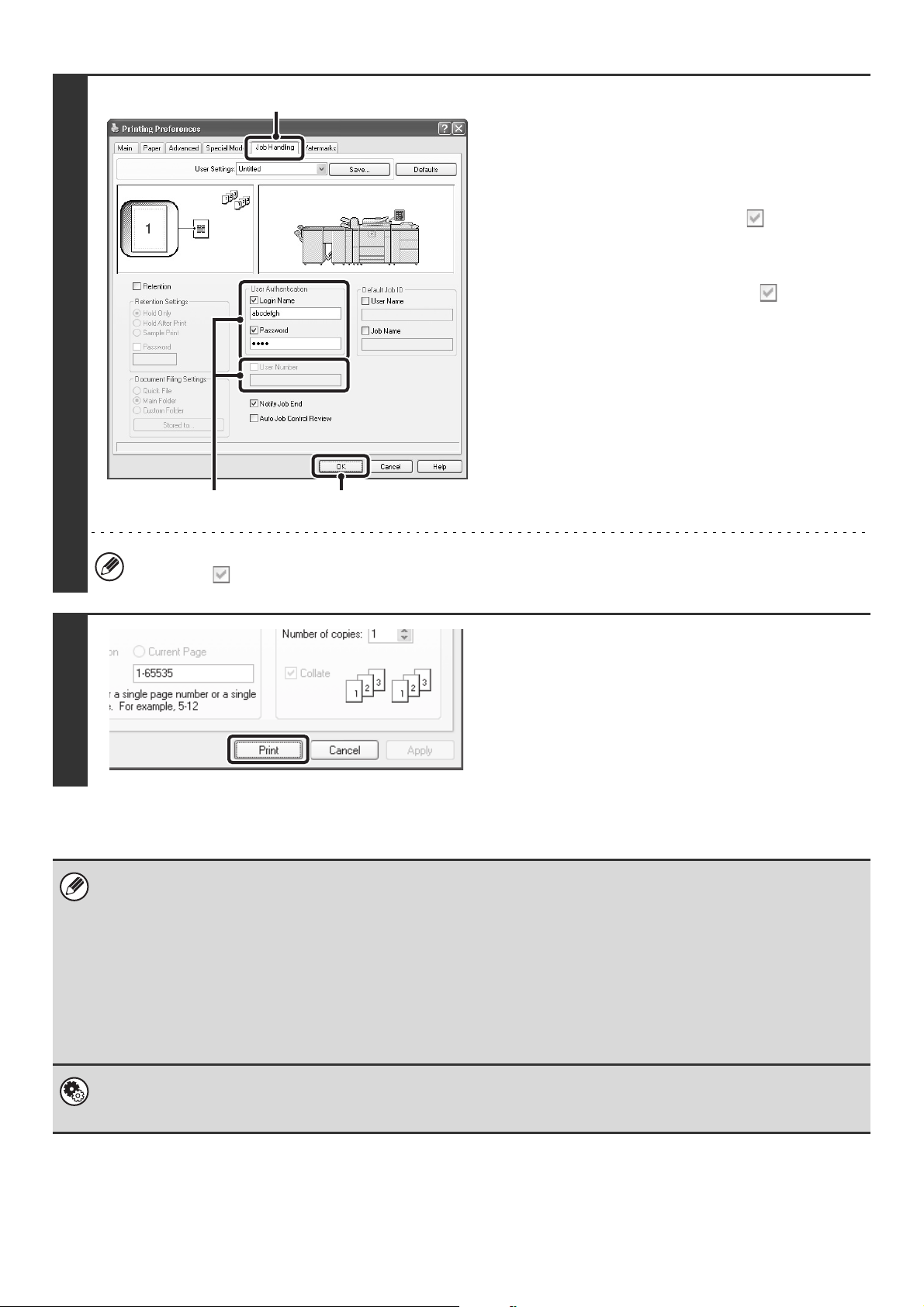
11
2
Enter your login name and password.
(1) Click the [Job Handling] tab.
(2) Enter your user information.
• When authentication is by login name/password
Select the [Login Name] and [Password]
checkboxes so that checkmarks appear, and
enter your login name and password. Enter 1 to 32
characters for the password.
• When authentication is by user number
Click the [User Number] checkbox and enter a
user number (5 to 8 digits).
(3) Click the [OK] button.
To have a confirmation window appear before printing starts, select the [Auto Job Control Review] checkbox so that a
checkmark appears.
3
Start printing.
• Normally printing is possible without entering your user information. (In this case, the printed pages will be added to the
"Others" count.) When printing by invalid users is prohibited in the system settings (administrator), printing is not permitted
when user information is not entered or incorrect information is entered.
• The machine's user authentication function cannot be used when the PPD file* is installed and the Windows standard PS
printer driver is used. For this reason, printing will not be possible if printing by invalid users is prohibited in the system
settings (administrator).
* The PPD file enables the machine to print using the standard PS printer driver of the operating system.
• When user authentication is enabled in the system settings (administrator) of the machine, the print function may restricted
if printing is attempted without entering user information. For more information, see "User Control" in the Administrator's
Guide.
System Settings (Administrator): Disable Printing by Invalid User
This is used to prohibit printing of print jobs by users whose user information is not stored in the machine. When this function
is enabled, printing is not allowed when user information is not entered or incorrect information is entered.
(3)
(1)
(2)
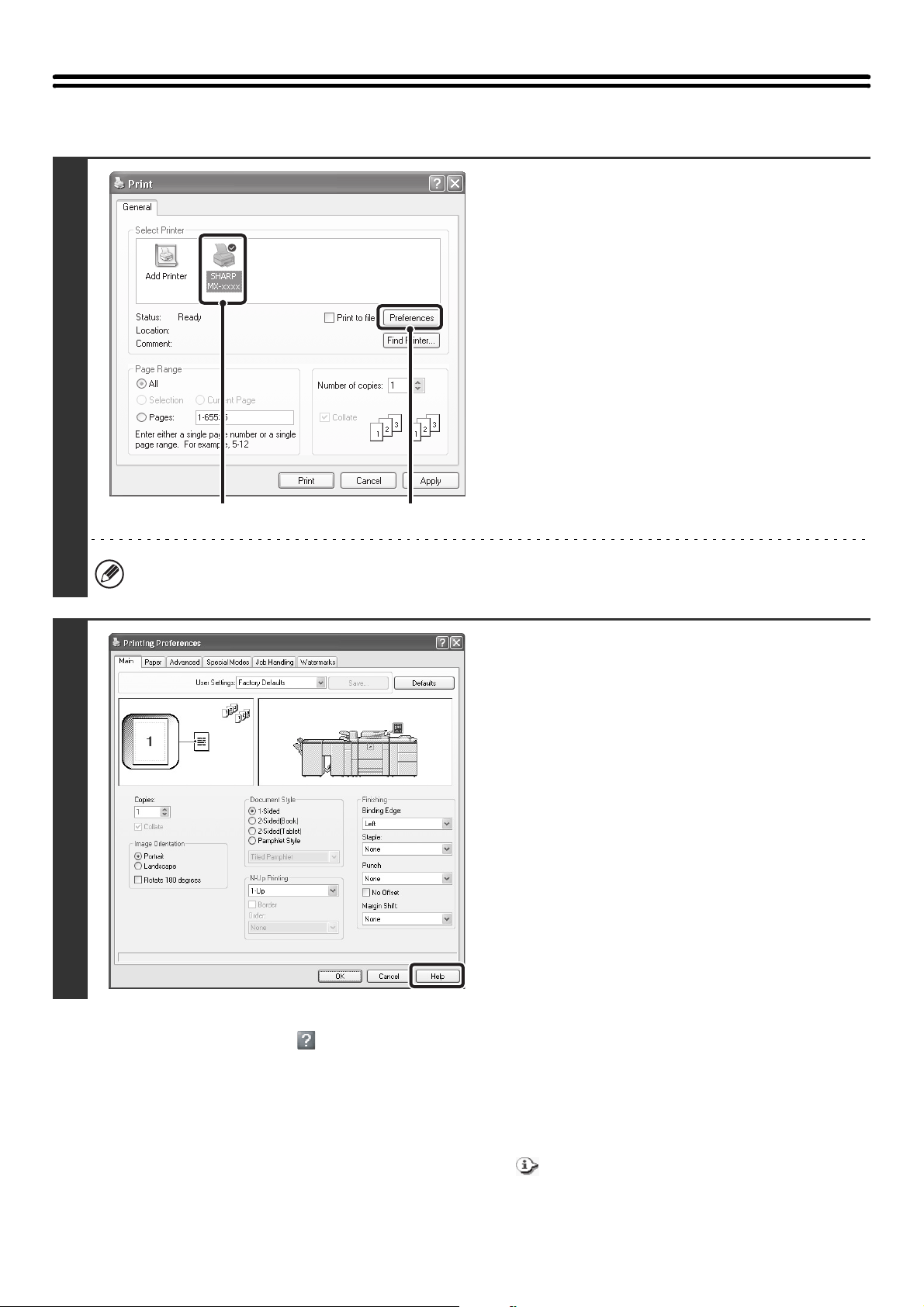
12
VIEWING PRINTER DRIVER HELP
When selecting settings in the printer driver, you can display Help to view explanations of the settings.
Pop-up help
To view Help for a setting, click the button in the upper right-hand corner of the printer driver properties window and
then click the setting.
You can also view the same Help by right-clicking the setting and clicking the [Help] box that appears.
* In Windows Vista, pop-up Help will not appear. Help can be displayed for a setting by moving the cursor to the setting
and clicking the [F1] key.
Information icon
Some restrictions exist on the combinations of settings that can be selected in the printer driver properties window.
When a restriction exists on a selected setting, an information icon ( ) will appear next to the setting. Click the icon to
view an explanation of the restriction.
1
Open the printer driver properties
window from the print window of the
software application.
(1) Select the printer driver of the machine.
(2) Click the [Preferences] button.
The button that is used to open the printer driver properties window (usually [Properties] or [Printing Preferences])
may vary depending on the software application.
2
Click the [Help] button.
The Help window will open to let you view explanations of
the settings on the tab.
To view Help for settings in a dialog box, click the
underlined text at the top of the Help window.
(1)
(2)
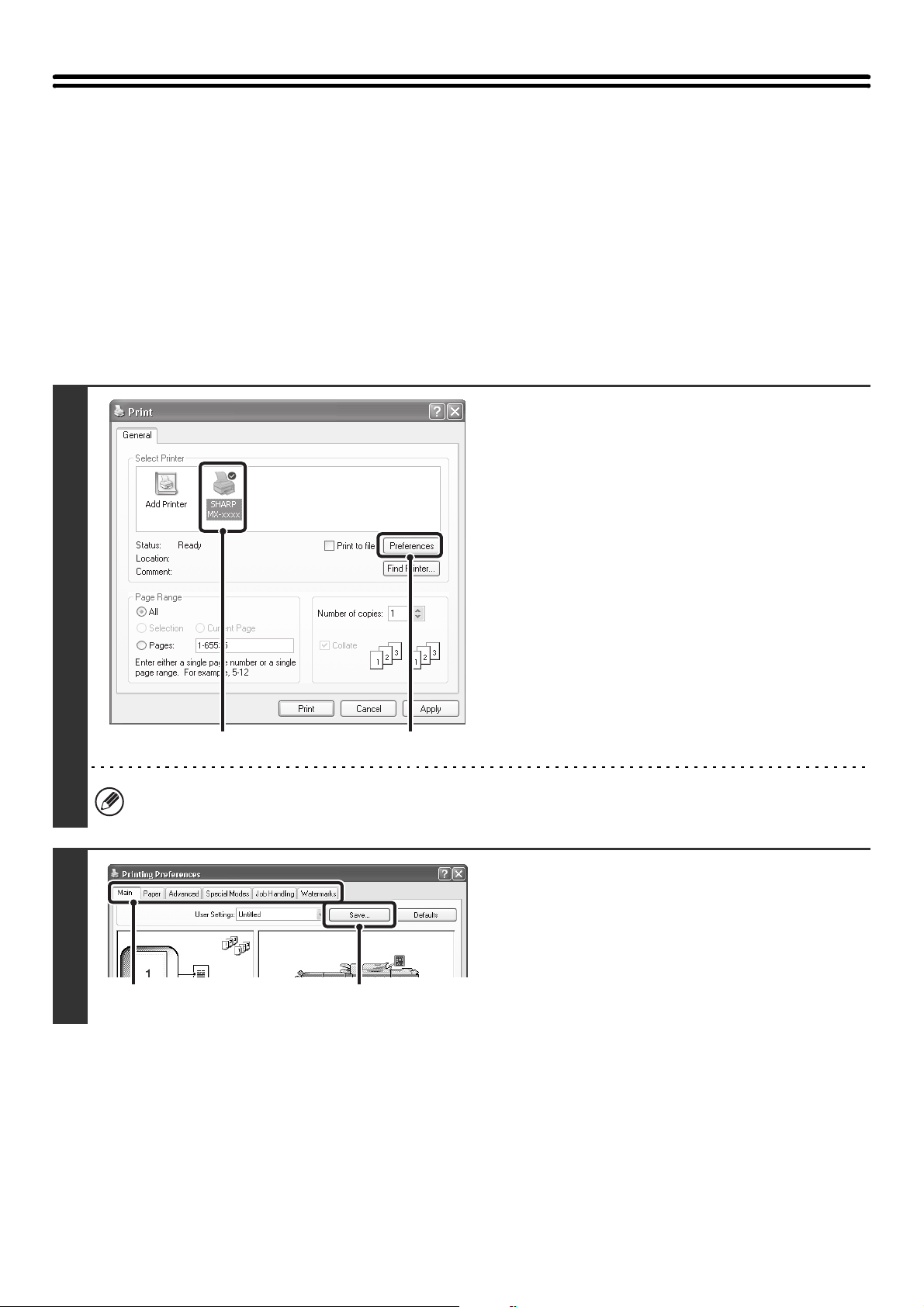
13
SAVING FREQUENTLY USED PRINT
SETTINGS
Settings configured on each of the tabs at the time of printing can be saved as user settings. Saving frequently used
settings or complex settings under an assigned name makes it easy to select those settings the next time you need to
use them.
SAVING SETTINGS AT THE TIME OF PRINTING
Settings can be saved from any tab of the printer driver properties window. Settings configured on each tab are listed at
the time of saving, allowing you to check the settings as you save them.
1
Open the printer driver properties
window from the print window of the
software application.
(1) Select the printer driver of the machine.
(2) Click the [Preferences] button.
The button that is used to open the printer driver properties window (usually [Properties] or [Printing Preferences])
may vary depending on the software application.
2
Save the print settings.
(1) Configure print settings on each tab.
(2) Click the [Save] button.
(1)
(2)
(2)(1)
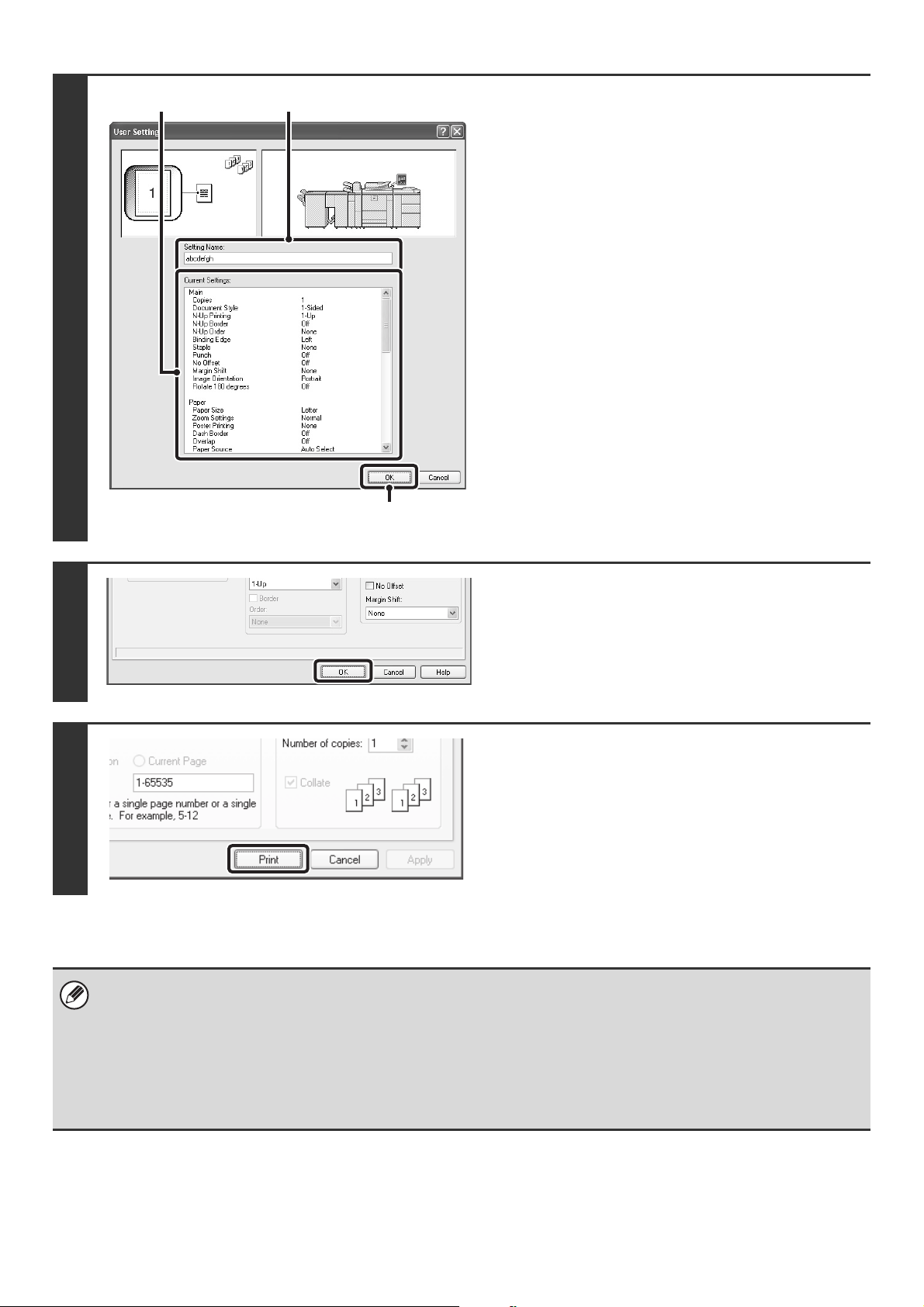
14
3
Check and save the settings.
(1) Check the displayed settings.
(2) Enter a name for the settings (maximum
of 20 characters).
(3) Click the [OK] button.
4
Click the [OK] button.
5
Start printing.
• Up to 30 sets of user settings can be saved.
• The following items cannot be saved in user settings.
• A watermark that you created
• Paper insertion settings
•Overlay file
• [Tab Paper Print] settings on the [Paper] tab (PCL6 only)
• The login name, password, user name, and job name entered in the [Job Handling] tab
(3)
(2)
(1)
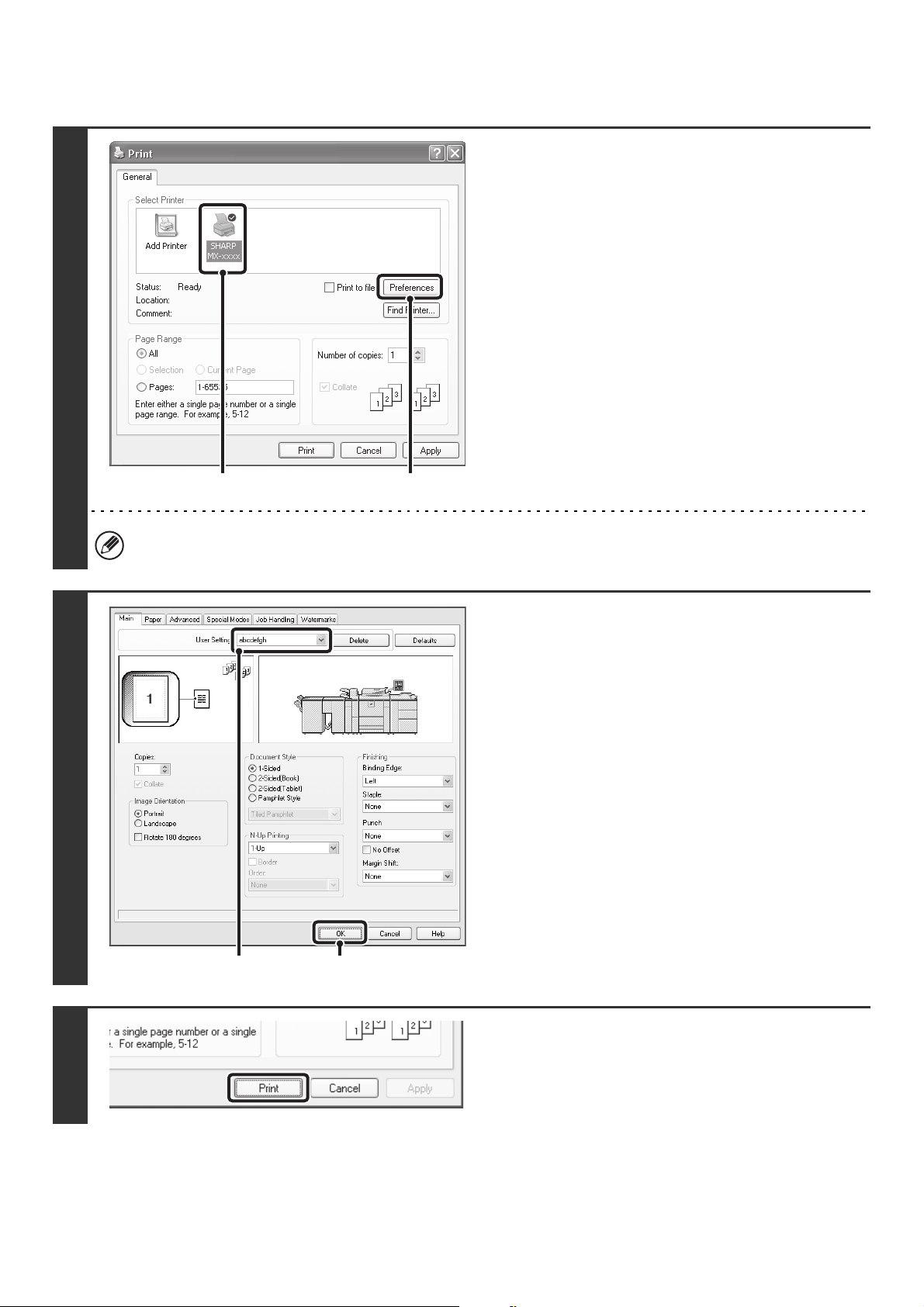
15
USING SAVED SETTINGS
Deleting saved settings
Select the user settings that you want to delete in (1) of step 2 above, and click the [Delete] button.
1
Open the printer driver properties
window from the print window of the
software application.
(1) Select the printer driver of the machine.
(2) Click the [Preferences] button.
The button that is used to open the printer driver properties window (usually [Properties] or [Printing Preferences])
may vary depending on the software application.
2
Select the print settings.
(1) Select the user settings that you wish to
use.
(2) Click the [OK] button.
3
Start printing.
(1)
(2)
(1) (2)
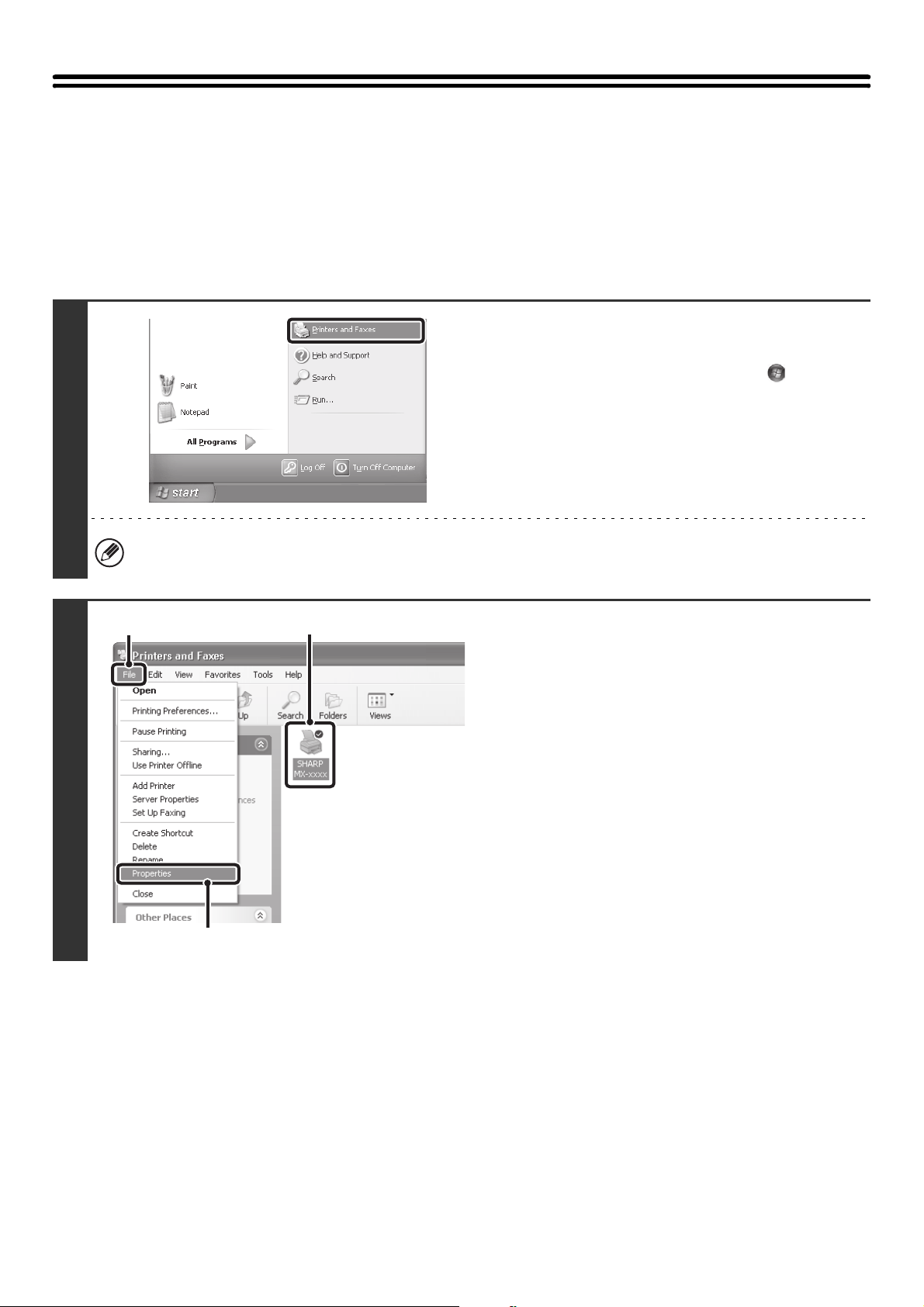
16
CHANGING THE PRINTER DRIVER
DEFAULT SETTINGS
The default settings of the printer driver can be changed using the procedure below. The settings selected using this
procedure are saved and become the default settings when printing from a software application. (Settings selected in
the printer driver properties window when printing from an application remain in effect only while the application is in
use.)
1
Click the [start] button and then click
[Printers and Faxes].
• In Windows Vista, click the [Start] button ( ) and select
[Control Panel] and then [Printer].
• In Windows 98/Me/NT 4.0/2000, click the [Start] button,
point to [Settings], and then select [Printers].
In Windows XP, if [Printers and Faxes] does not appear in the [start] menu, select [Control Panel], select [Printers and
Other Hardware], and then select [Printers and Faxes].
2
Open the printer properties window.
(1) Click the icon of the printer driver of the
machine.
(2) Click the [File] menu.
In Windows Vista, click the [Organize] menu.
(3) Select [Properties].
In Windows NT 4.0, select [Document Defaults] from
the [File] menu to open the printer driver properties
window. Go to step 4.
(1)
(2)
(3)
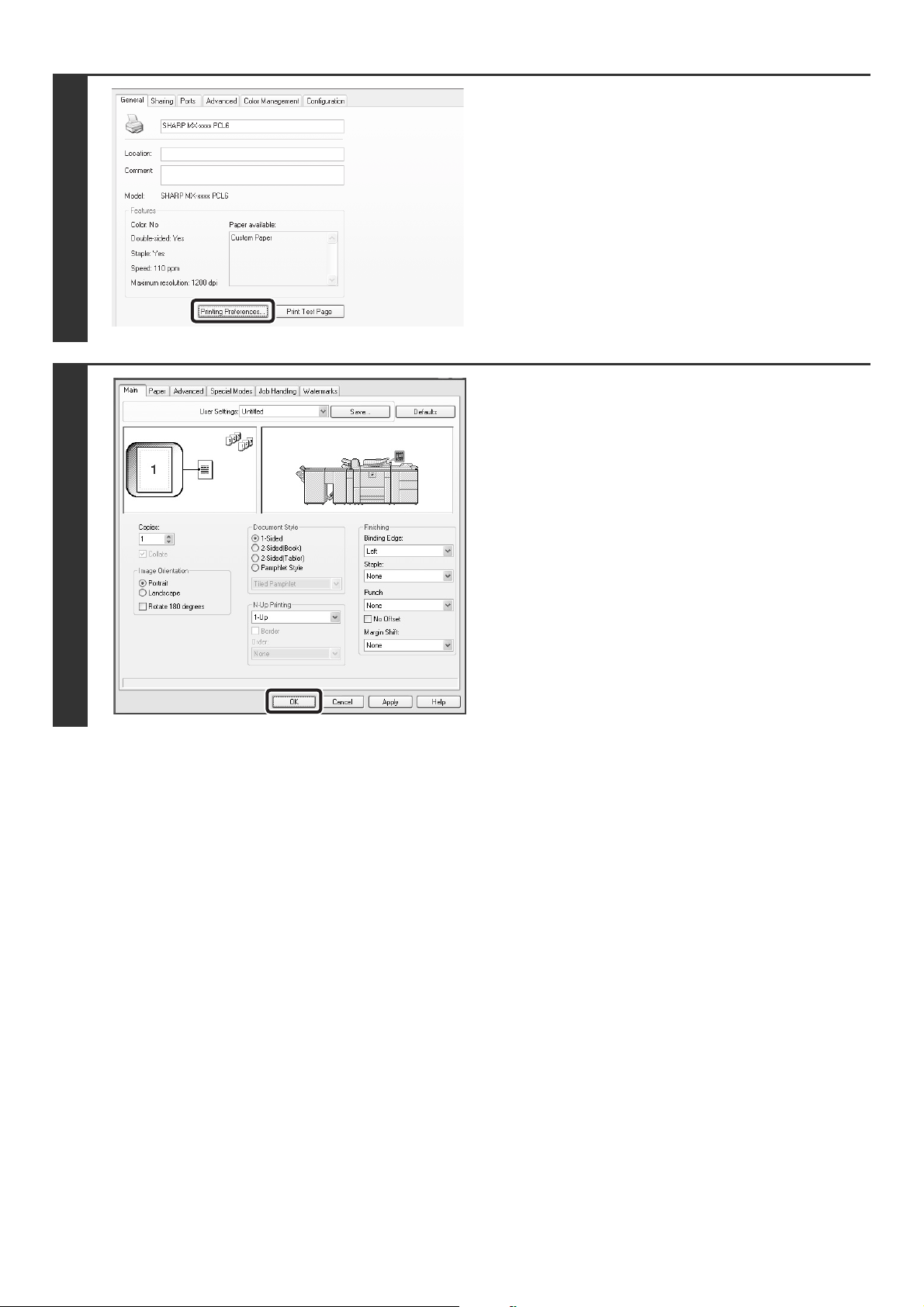
17
3
Click the [Printing Preferences] button
on the [General] tab.
In Windows 98/Me, click the [Setup] tab.
4
Configure the settings and click the
[OK] button.
For explanations of the settings, see printer driver Help.
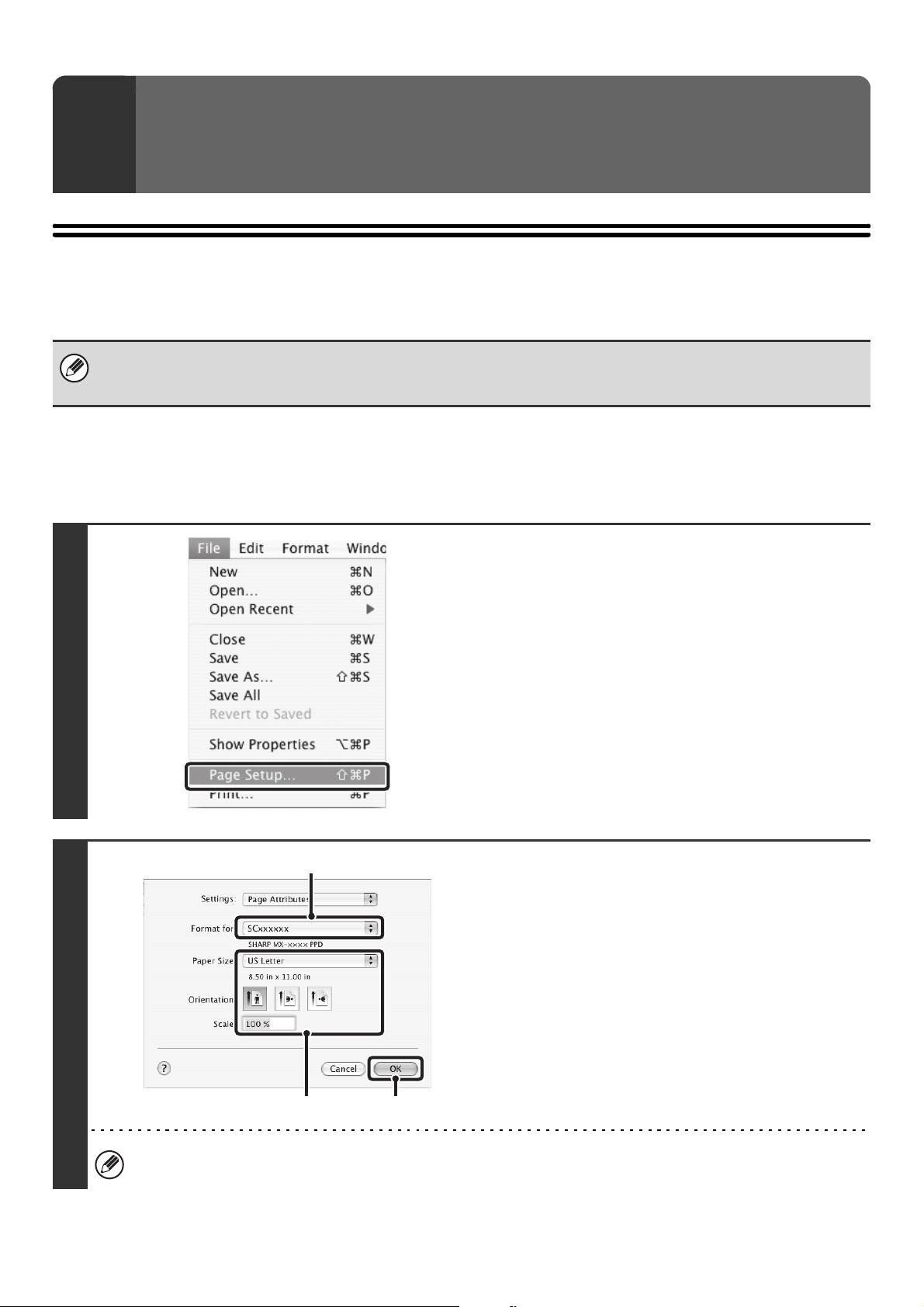
18
BASIC PRINTING PROCEDURE
The following example explains how to print a document from the standard accessory program "TextEdit" in Mac OS X
("SimpleText" in Mac OS 9).
SELECTING PAPER SETTINGS
Select paper settings in the printer driver before selecting the print command.
Mac OS X
2
PRINTING FROM A MACINTOSH
To use the machine as a printer for the Macintosh, the PS3 expansion kit must be installed in the machine and the machine
must be connected to a network. To install the PPD file and configure printer driver settings, see "3. SETUP IN A
MACINTOSH ENVIRONMENT" in the Software Setup Guide.
1
Select [Page Setup] from the [File]
menu of TextEdit.
2
Select paper settings.
(1) Make sure that the correct printer is
selected.
(2) Select paper settings.
The paper size, paper orientation, and enlarge/reduce
can be selected.
(3) Click the [OK] button.
The machine name that appears in the "Format for" menu is normally [SCxxxxxx]. ("xxxxxx" is a sequence of
characters that varies depending on your machine model.)
(1)
(2)
(3)
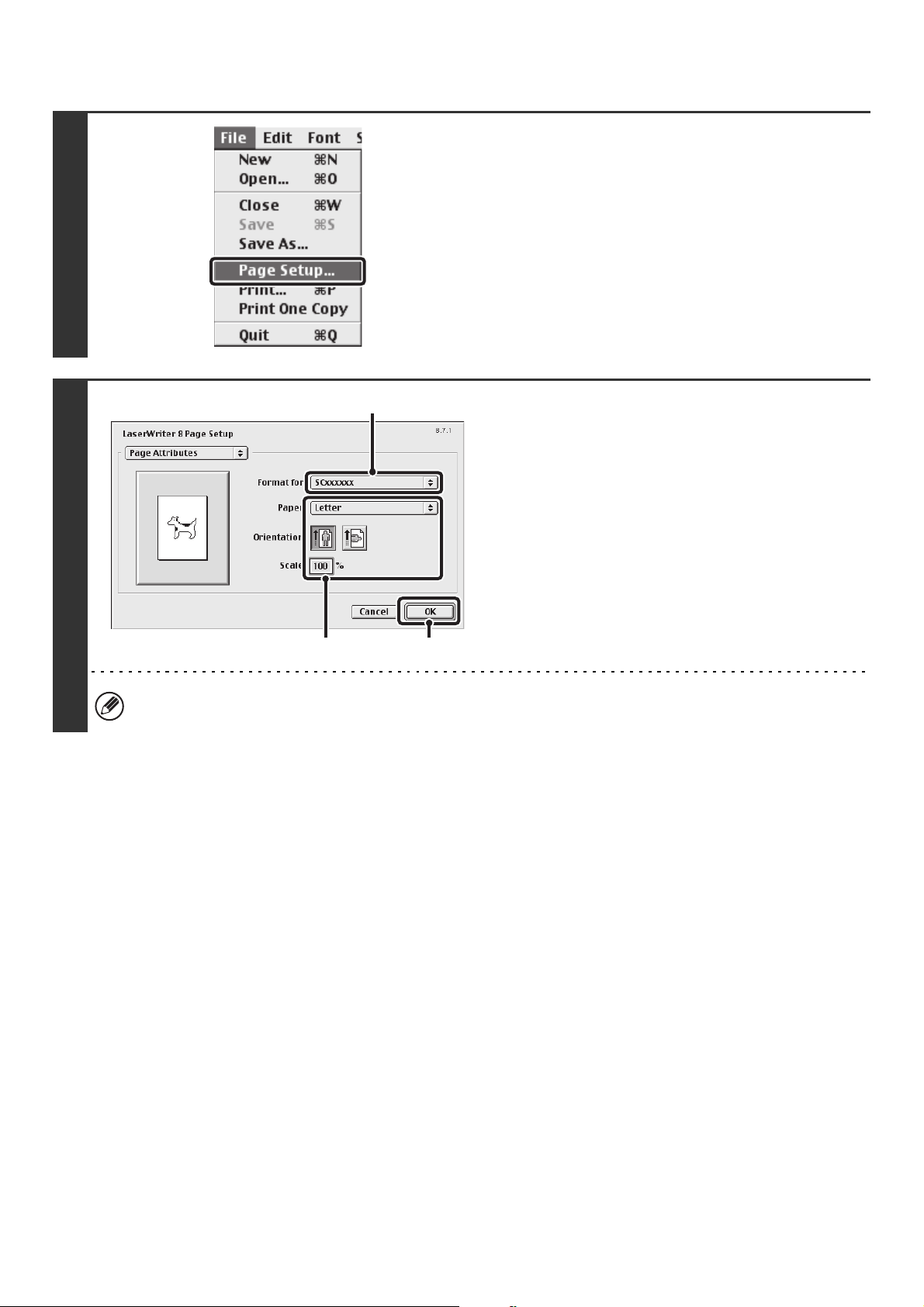
19
Mac OS 9
1
Select [Page Setup] from the [File]
menu of SimpleText.
2
Select paper settings.
(1) Make sure that the correct printer is
selected.
(2) Select paper settings.
The paper size, paper orientation, and enlarge/reduce
can be selected.
(3) Click the [OK] button.
The machine name that appears in the "Format for" menu is normally [SCxxxxxx]. ("xxxxxx" is a sequence of
characters that varies depending on your machine model.)
(1)
(2)
(3)
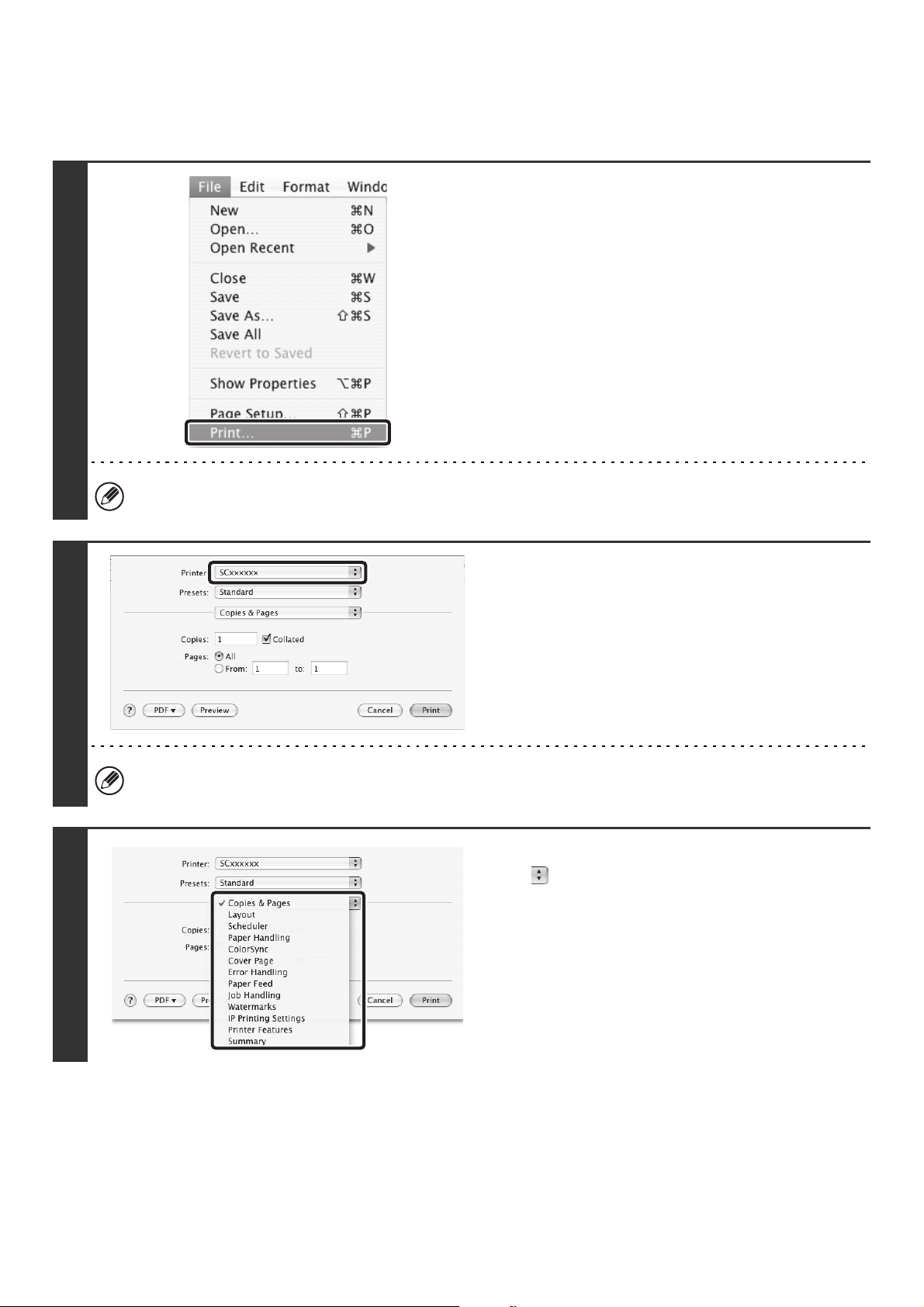
20
PRINTING
Mac OS X
1
Select [Print] from the [File] menu of
TextEdit.
The menu used to execute printing may vary depending on the software application.
2
Make sure that the correct printer is
selected.
The machine name that appears in the "Printer" menu is normally [SCxxxxxx]. ("xxxxxx" is a sequence of characters
that varies depending on the machine model.)
3
Select print settings.
Click next to [Copies & Pages] and select the settings
that you wish to configure from the pull-down menu. The
corresponding setting screen will appear.
21
Mac OS 9
4
Click the [Print] button.
Printing begins.
1
Select [Print] from the [File] menu of
SimpleText.
The menu used to execute printing may vary depending on the software application.
2
Make sure that the correct printer is
selected.
The machine name that appears in the "Printer" menu is normally [SCxxxxxx]. ("xxxxxx" is a sequence of characters
that varies depending on your machine model.)
22
3
Select print settings.
Click next to [General] and select the settings that you
wish to configure from the pull-down menu. The
corresponding setting screen will appear.
4
Click the [Print] button.
Printing begins.
23
SELECTING THE PAPER
This section explains the [Paper Feed] settings ("Paper Source" setting in [General] in Mac OS 9) in the print settings
window.
• When [Auto Select] is selected
A tray with plain paper or recycled paper (the factory default setting is plain paper only) of the size specified in "Paper
Size" in the page settings window is automatically selected.
• When a paper tray is selected
The specified tray is used for printing regardless of the "Paper Size" setting in the page settings window.
For the bypass tray, a paper type can also be specified. Make sure that the paper type setting for the bypass tray is
correct and that the set type of paper is actually loaded in the bypass tray, and then select the appropriate bypass tray
(paper type).
• When a paper type is selected
A tray with the specified type of paper and the size specified in "Paper Size" in the page settings window is used for
printing.
• Special media can also be placed in the bypass tray. For the procedure for loading paper and other media in the bypass
tray, see "LOADING PAPER IN THE BYPASS TRAY" in the User's Guide.
• When "Enable Detected Paper Size in Bypass Tray" (disabled by factory default) or "Enable Selected Paper Type in
Bypass Tray" (enabled by factory default) is enabled in the system settings (administrator), printing will not take place if the
paper size or paper type specified in the printer driver is different from the paper size or paper type specified in the settings
of the bypass tray.
System Settings (Administrator): Exclude Bypass-Tray from Auto Paper Select
When [Auto Select] is used for printing, this setting determines whether or not the paper in the bypass tray will be excluded
from the paper that can be selected. This setting is disabled by factory default, and thus paper in the bypass tray is included
in the paper that can be automatically selected. If special media are frequently loaded in the bypass tray, it is recommended
that this setting be enabled.
24
PRINTING WHEN THE USER
AUTHENTICATION FUNCTION IS ENABLED
When the user authentication function is enabled in the machine's system settings (administrator), you must enter your
user information (login name, password, etc.) in order to print. The information that must be entered varies depending on
the authentication method being used, so check with the administrator of the machine before printing.
Mac OS X
(This function cannot be used in Mac OS X v10.1.5.)
1
Select [Print] from the application's
[File] menu.
The menu used to execute printing may vary depending on the software application.
2
Display the job handling screen.
(1) Make sure that the machine's printer
name is selected.
(2) Select [Job Handling].
The machine name that appears in the "Printer" menu is normally [SCxxxxxx]. ("xxxxxx" is a sequence of characters
that varies depending on the machine model.)
(1)
(2)
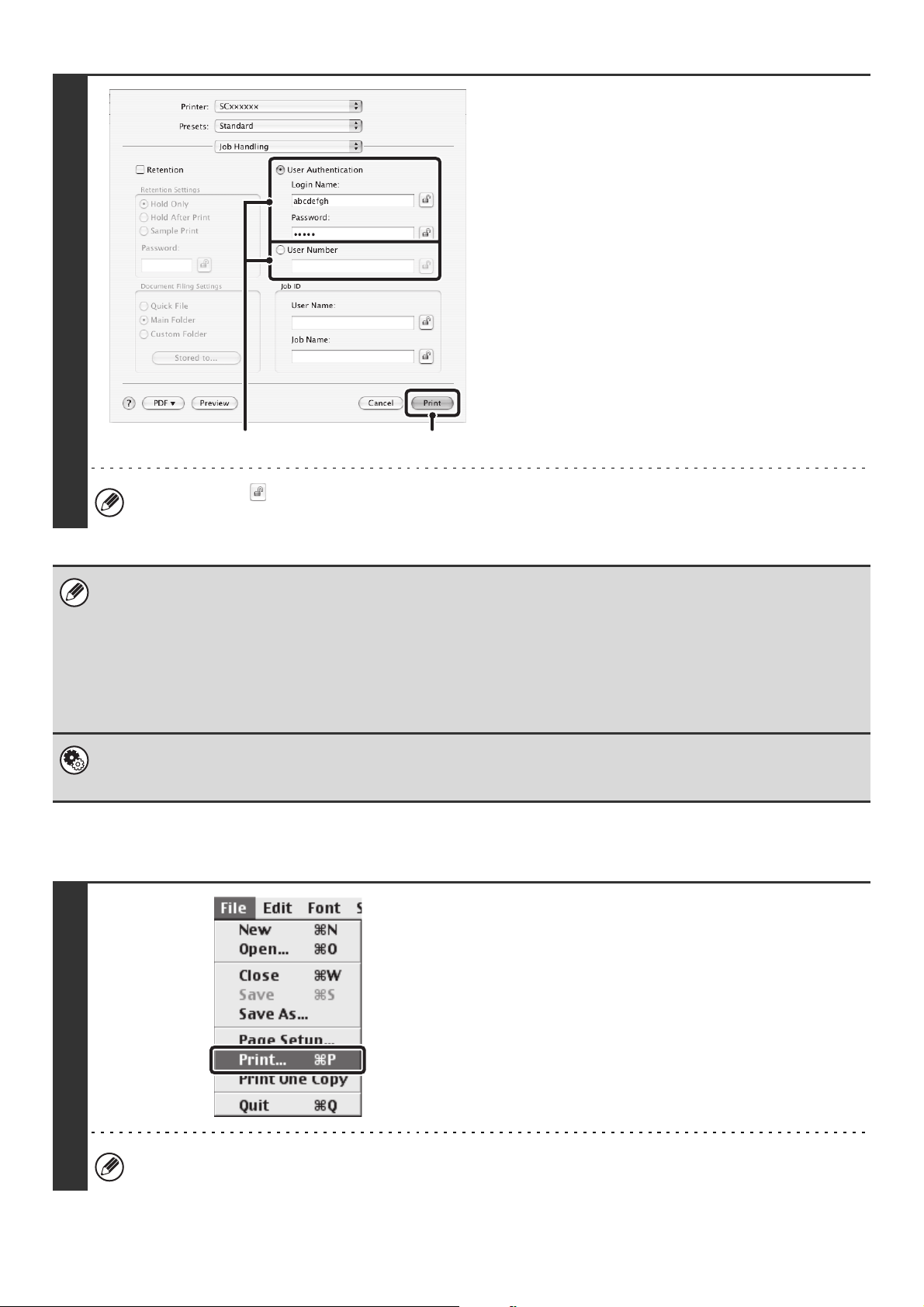
25
Mac OS 9
3
Start printing.
(1) Enter your user information.
• When authentication is by login name/password
Enter your login name in "Login Name" and your
password in "Password" (1 to 32 characters).
• When authentication is by user number
Enter your user number (5 to 8 digits) in "User
Number".
(2) Click the [Print] button.
You can click the (lock) button after entering your login name and password, or user number, to simplify operation
the next time you wish to print based on the same user authentication.
• Normally printing is possible without entering your user information. (In this case, the printed pages will be added to the
"Others" count.) When printing by invalid users is prohibited in the system settings (administrator), printing is not permitted
when user information is not entered or incorrect information is entered.
• If you are using Mac OS X v10.1.5, the user authentication function of the machine is not available. For this reason,
printing will not be possible if printing by invalid users is prohibited in the system settings (administrator).
• When user authentication is enabled in the system settings (administrator) of the machine, the print function may restricted
if printing is attempted without entering user information. For more information, see "User Control" in the Administrator's
Guide.
System Settings (Administrator): Disable Printing by Invalid User
This is used to prohibit printing of print jobs by users whose user information is not stored in the machine. When this function
is enabled, printing is not allowed when user information is not entered or incorrect information is entered.
1
Select [Print] from the application's
[File] menu.
The menu used to execute printing may vary depending on the software application.
(2)(1)
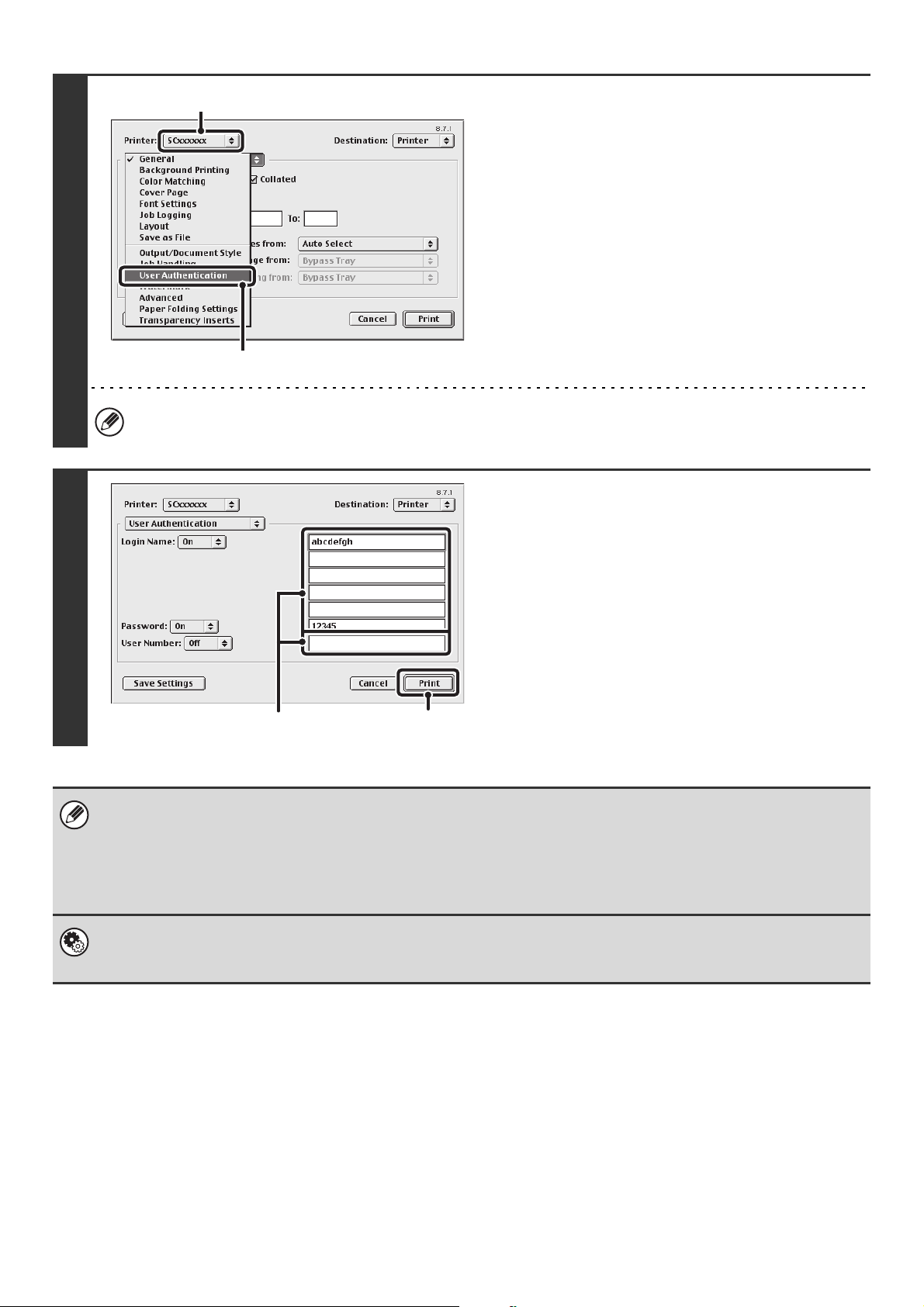
26
2
Display the user authentication
screen.
(1) Make sure that the machine's printer
name is selected.
(2) Select [User Authentication].
The machine name that appears in the "Printer" menu is normally [SCxxxxxx]. ("xxxxxx" is a sequence of characters
that varies depending on the machine model.)
3
Start printing.
(1) Enter your user information.
• When authentication is by login name/password
Enter your login name in "Login Name" and your
password in "Password" (1 to 32 characters).
• When authentication is by user number
Enter your user number (5 to 8 digits) in "User
Number".
(2) Click the [Print] button.
• Normally printing is possible without entering your user information. (In this case, the printed pages will be added to the
"Others" count.) When printing by invalid users is prohibited in the system settings (administrator), printing is not permitted
when user information is not entered or incorrect information is entered.
• When user authentication is enabled in the system settings (administrator) of the machine, the print function may restricted
if printing is attempted without entering user information. For more information, see "User Control" in the Administrator's
Guide.
System Settings (Administrator): Disable Printing by Invalid User
This is used to prohibit printing of print jobs by users whose user information is not stored in the machine. When this function
is enabled, printing is not allowed when user information is not entered or incorrect information is entered.
(1)
(2)
(2)
(1)
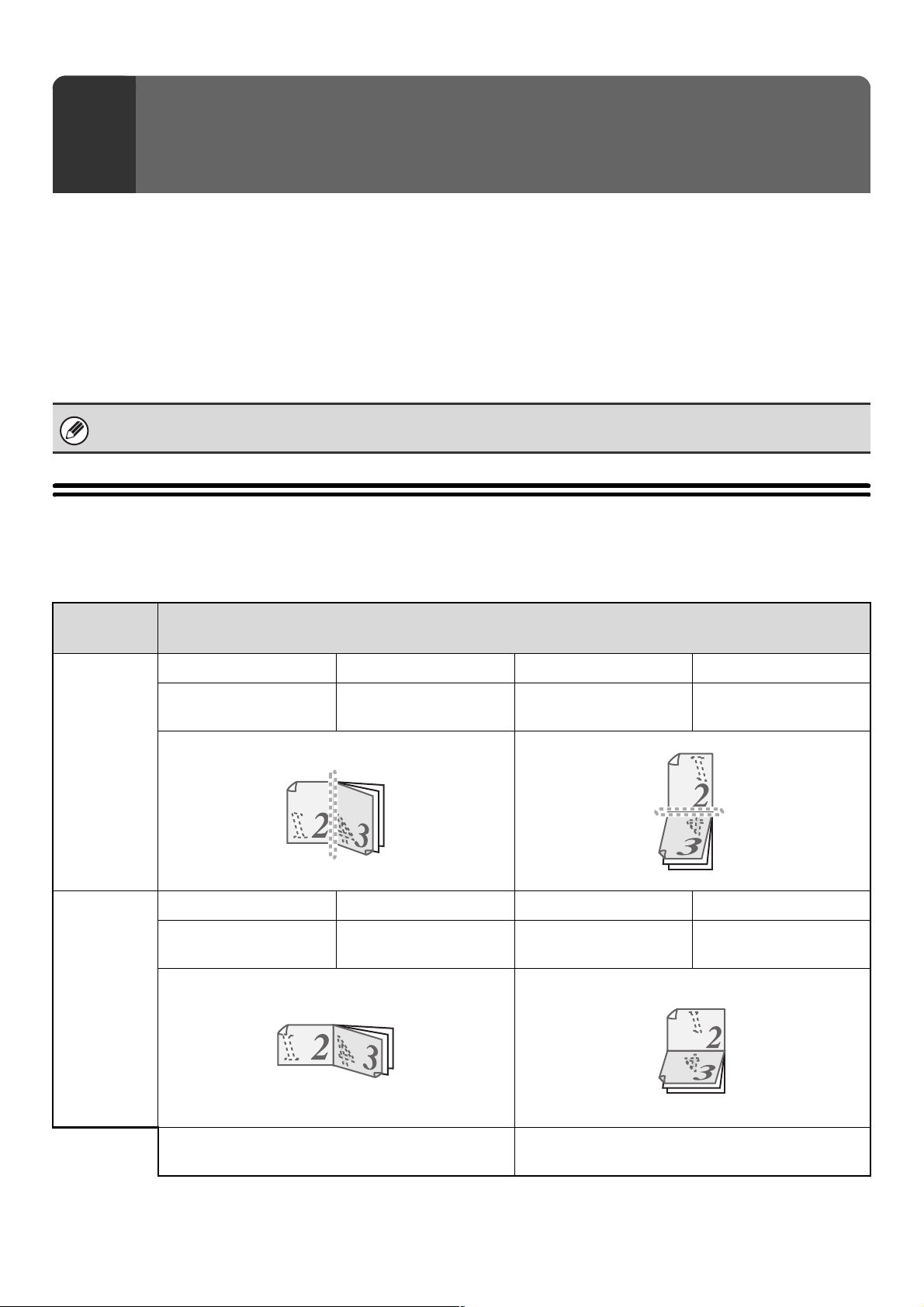
27
This chapter explains frequently used functions.
• TWO-SIDED PRINTING
•
FITTING THE PRINT IMAGE TO THE PAPER (page 29)
•
PRINTING MULTIPLE PAGES ON ONE PAGE (page 30)
• STAPLING OUTPUT/PUNCHING HOLES IN
OUTPUT (page 32)
The explanations assume that the paper size and other basic settings have already been selected. For the basic
procedure for printing and the steps for opening the printer driver properties window, see the following section:
☞ Windows: BASIC PRINTING PROCEDURE (page 7)
☞ Macintosh: BASIC PRINTING PROCEDURE (page 18)
TWO-SIDED PRINTING
The machine can print on both sides of the paper. This function is useful for many purposes, and is particularly
convenient when you want to create a simple pamphlet. Two-sided printing also helps conserve paper.
3
FREQUENTLY USED FUNCTIONS
In Windows, view printer driver Help for details on printer driver settings for each printing function.
Paper
orientation
Print results
Vertical
Windows Macintosh Windows Macintosh
2-Sided(Book)
Long-edged binding
(Flip on long edge)
2-Sided(Tablet)
Short-edged binding
(Flip on short edge)
Horizontal
Windows Macintosh Windows Macintosh
2-Sided(Book)
Short-edged binding
(Flip on short edge)
2-Sided (Tablet)
Long-edged binding
(Flip on long edge)
The pages are printed so that they can be bound at
the side.
The pages are printed so that they can be bound at
the top.
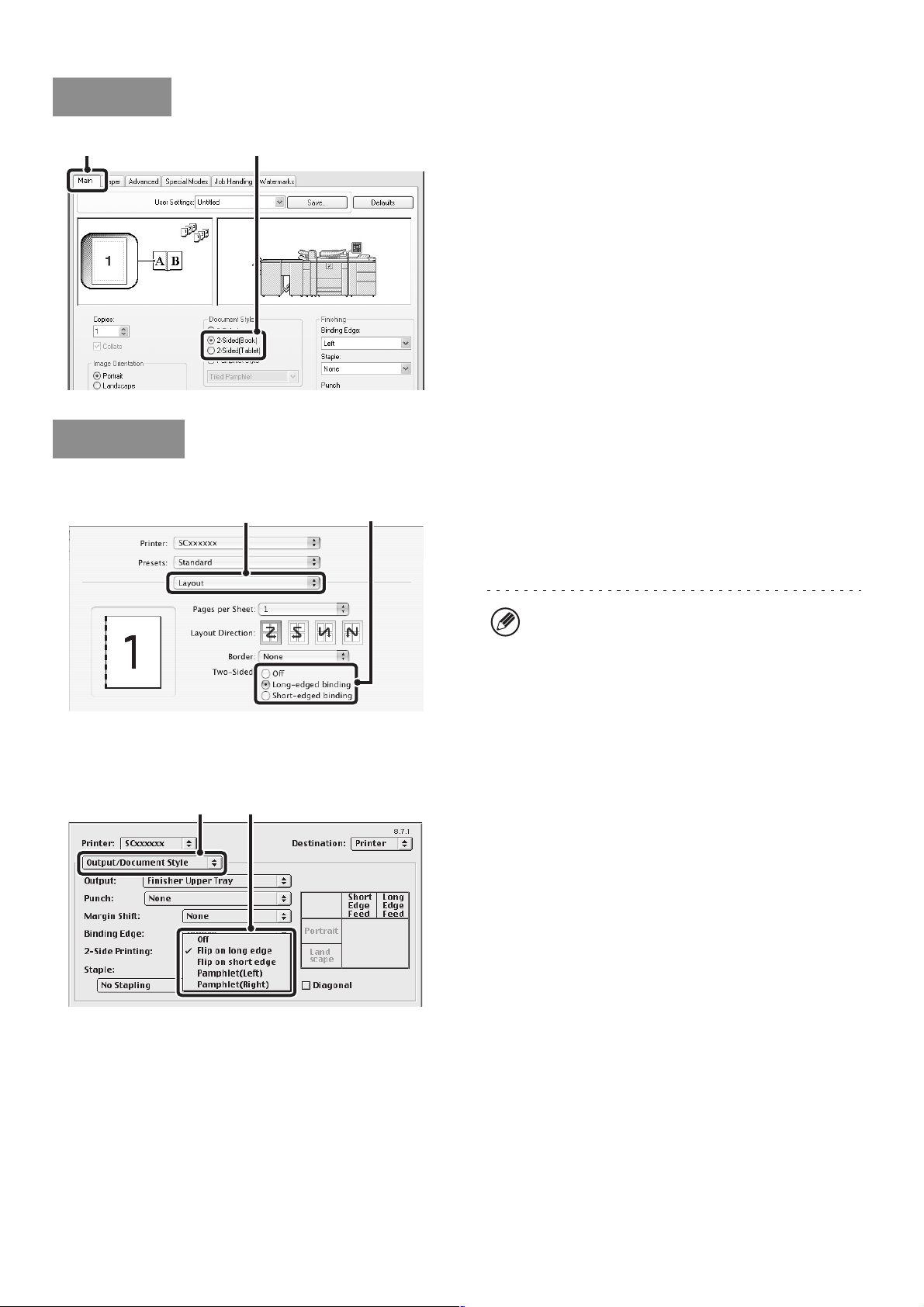
28
(1) Configure the settings on the [Main] tab.
(2) Select [2-Sided(Book)] or [2-Sided(Tablet)].
Mac OS X
(1) Select [Layout].
(2) Select [Long-edged binding] or
[Short-edged binding].
Mac OS 9
(1) Select [Output/Document Style].
(2) Select [Flip on long edge] or [Flip on short
edge].
Windows
(1) (2)
Macintosh
(1)
(2)
• In Mac OS X v10.1.5, select the settings in [Duplex].
• In Mac OS X v10.2.8, select the settings in
[Advanced].
(1) (2)
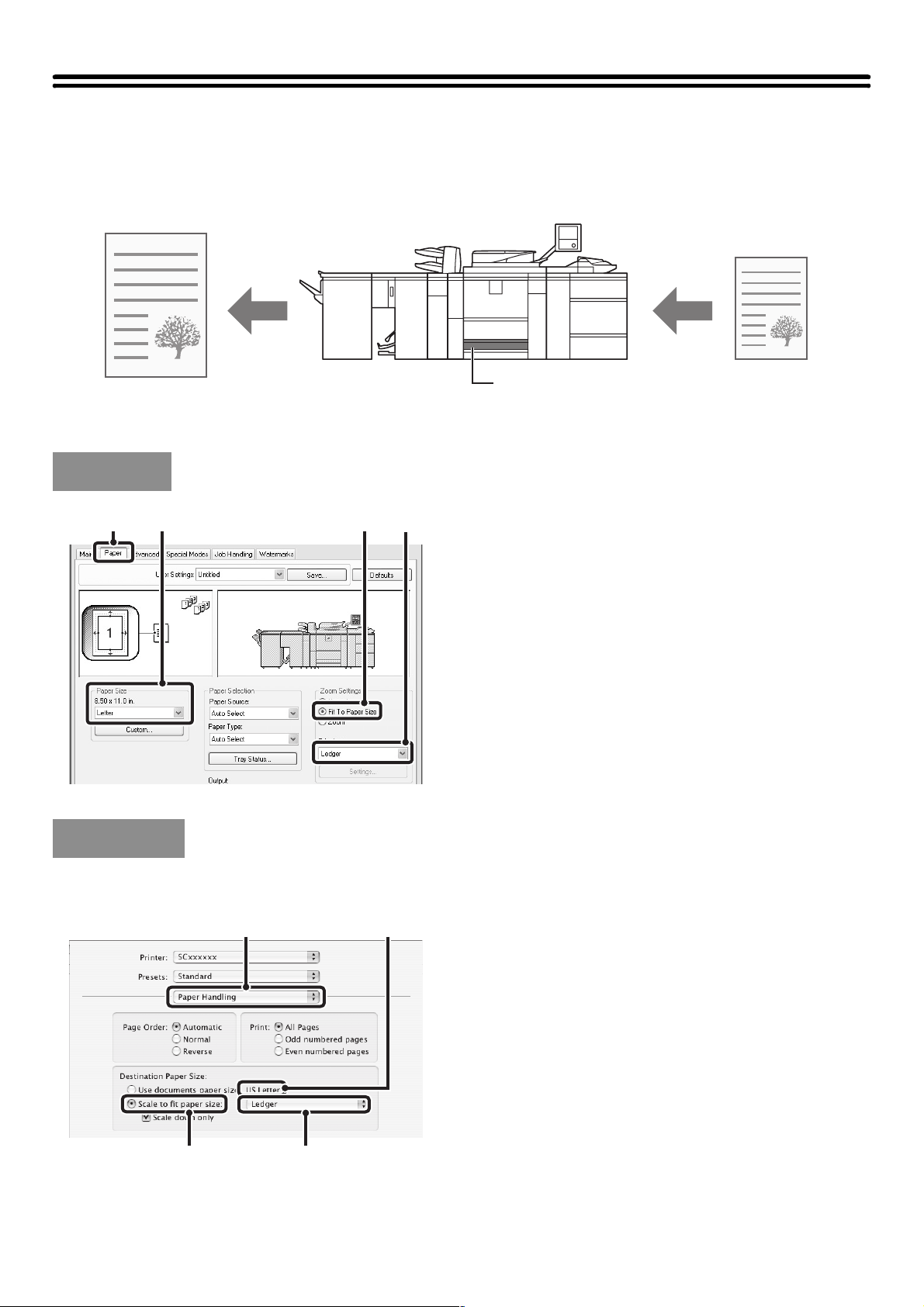
29
FITTING THE PRINT IMAGE TO THE PAPER
This function is used to automatically enlarge or reduce the printed image to match the size of the paper loaded in the machine.
This is convenient for such purposes as enlarging a letter or A4 size document to ledger or A3 size to make it easier to
view, and to print when the same size of paper as the document image is not loaded in the machine.
The following example explains how to print a letter size document on ledger size paper.
(1) Click the [Paper] tab.
(2) Select the size of the print image (for
example: Letter).
(3) Select [Fit To Paper Size].
(4) Select the actual paper size to be used for
printing (for example: Ledger).
(This function can only be used in Mac OS X v10.4 to 10.4.8.)
(1) Select [Paper Handling].
(2) Check the size of the print image (for
example: Letter).
To change the print image size, use the "Paper Size"
menu that appears when [Page Setup] is selected.
(3) Select [Scale to fit paper size].
(4) Select the actual paper size to be used for
printing (for example: Ledger).
Windows
Ledger or A3 Letter or A4
(1) (2) (3)
(4)
Macintosh
(1)
(2)
(3) (4)
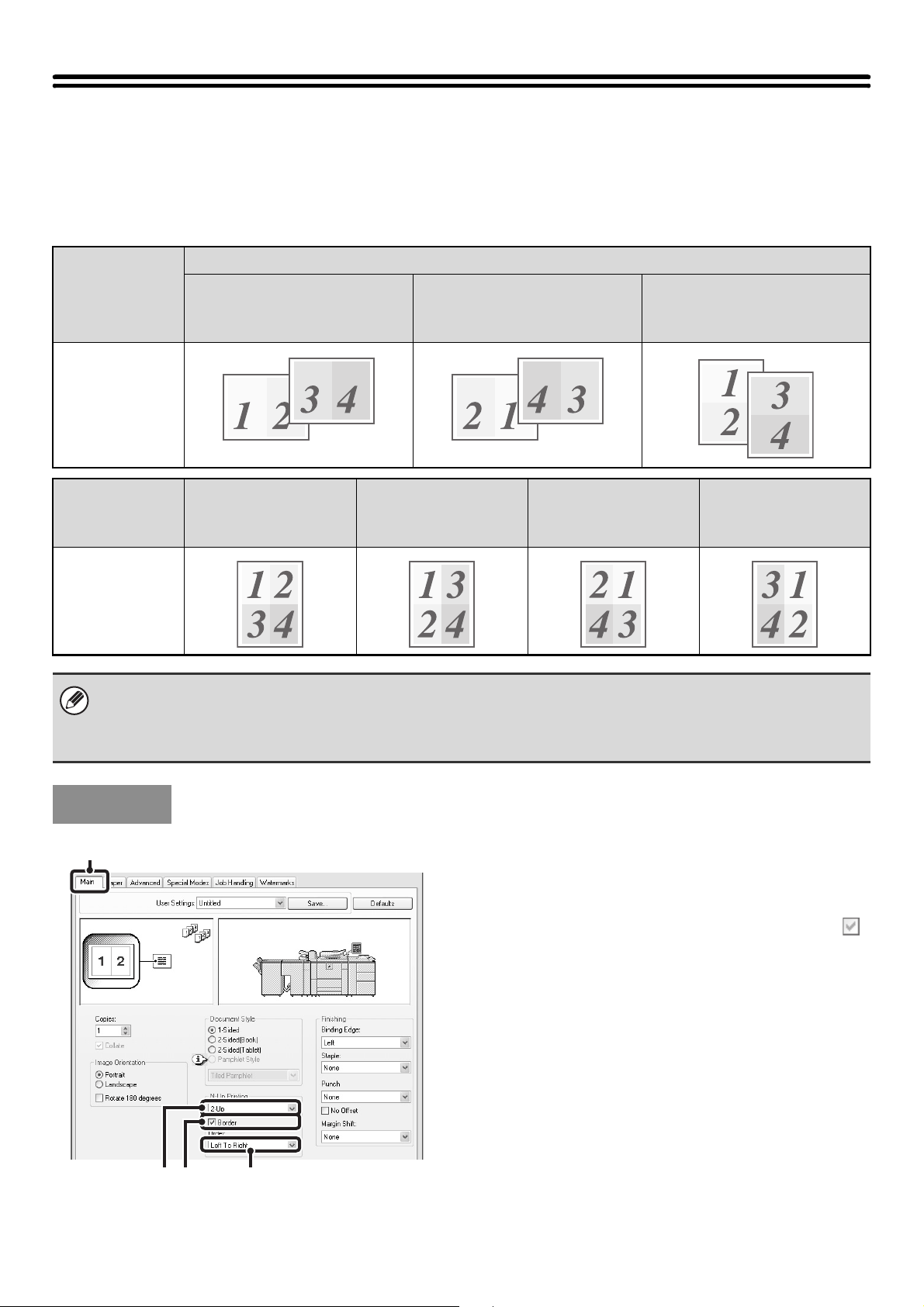
30
PRINTING MULTIPLE PAGES ON ONE PAGE
This function can be used to reduce the print image and print multiple pages on a single sheet of paper.
This is convenient when you want to print multiple images such as photos on a single sheet of paper, and when you want to
conserve paper. This function can also be used in combination with two-sided printing for maximum conservation of paper.
For example, when [2-Up] (2 pages per sheet) and [4-Up] (4 pages per sheet) are selected, the following print results will
be obtained, depending on the order selected.
(1) Configure the settings on the [Main] tab.
(2) Select the number of pages per sheet.
(3) If you wish to print borderlines, click the
[Border] checkbox so that a checkmark
appears.
(4) Select the order of the pages.
N-Up
(Pages per
sheet)
Print results
Left To Right Right To Left
Top To Bottom
(When the print orientation
is landscape)
2-Up
(2 pages per
sheet)
N-Up
(Pages per
sheet)
Right, and Down Down, and Right Left, and Down Down, and Left
4-Up
(4 pages per
sheet)
• The page orders for 6-Up, 8-Up, 9-Up, and 16-Up are the same as for 4-Up.
• In a Windows environment, the page order can be viewed in the print image in the printer driver properties window.
In a Macintosh environment, the page orders are displayed as selections.
• In a Macintosh environment, the number of pages that can be printed on a single sheet is 2, 4, 6, 9, or 16.
Windows
(2) (3) (4)
(1)
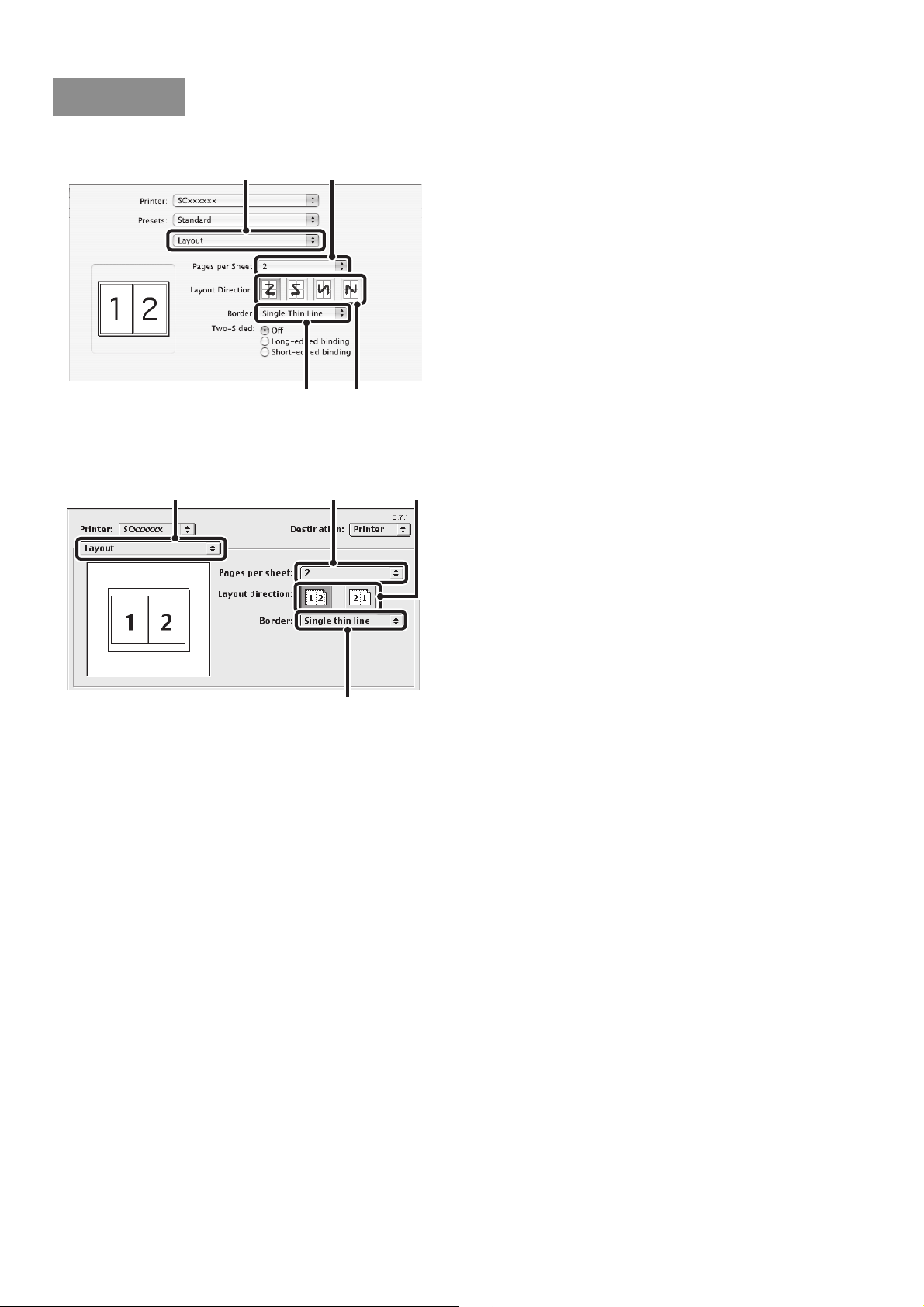
31
Mac OS X
(1) Select [Layout].
(2) Select the number of pages per sheet.
(3) Select the order of the pages.
(4) If you wish to print borderlines, select the
desired type of borderline.
Mac OS 9
(1) Select [Layout].
(2) Select the number of pages per sheet.
(3) Select the order of the pages.
(4) If you wish to print borderlines, select the
desired type of borderline.
Macintosh
(1) (2)
(3)(4)
(1) (2) (3)
(4)
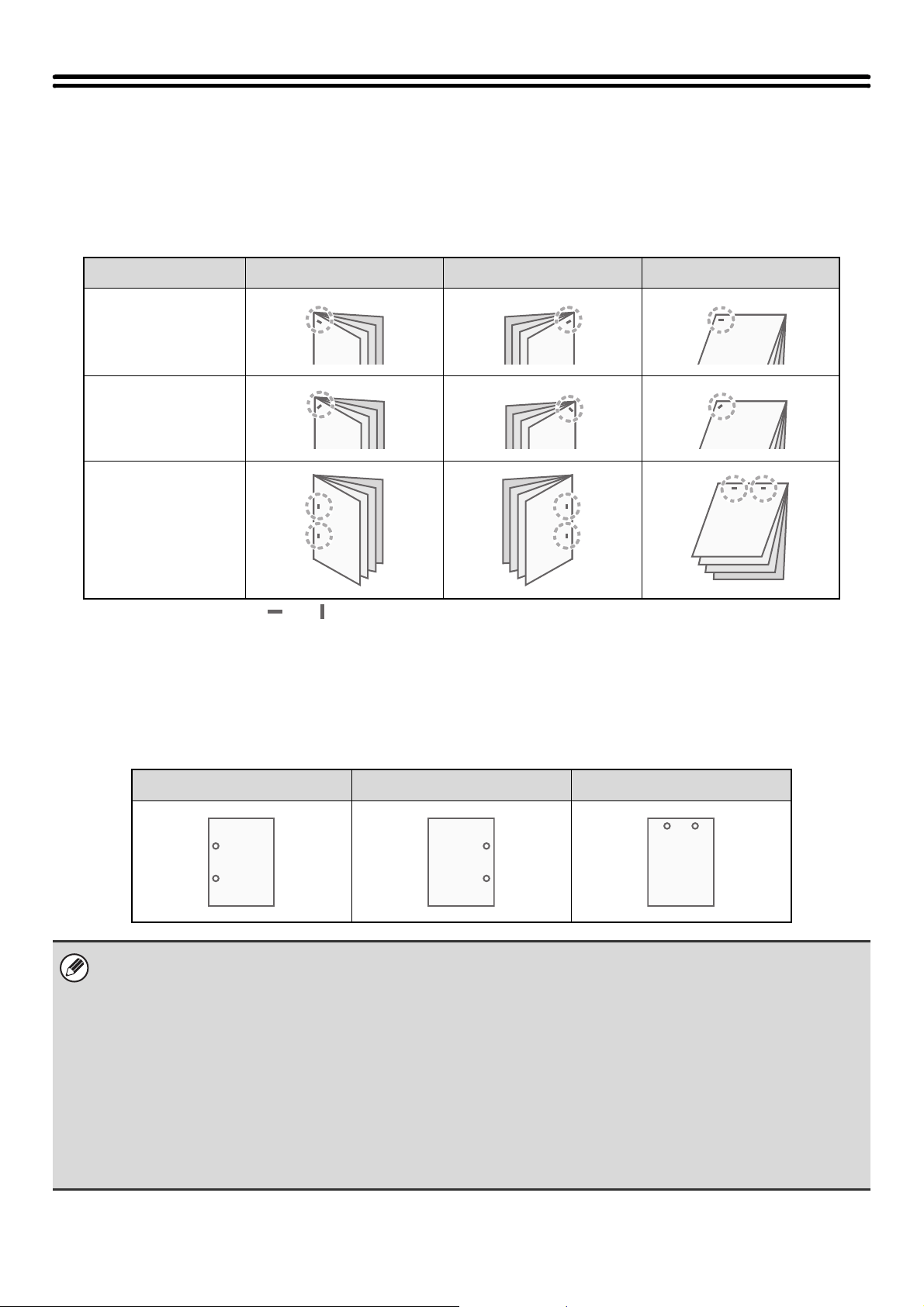
32
STAPLING OUTPUT/PUNCHING HOLES IN OUTPUT
Staple function
The staple function can be used to staple output.
This function saves considerable time when preparing handouts for a meeting or other stapled materials. The staple
function can also be used in combination with two-sided printing to create materials with a more sophisticated appearance.
Stapling positions and the number of staples can be selected to obtain the following stapling results.
*1 The staple orientation (" " or " ") varies depending on the size and orientation of the paper.
*2 Slanted stapling may not be possible for some paper sizes and orientations.
Punch function
The punch function can be selected to punch holes in printed output. Punch hole positions can be set by selecting the
binding edge.
An example of two-hole punching is shown below.
Staples Left Right Top
1 Staple*
1
1 Staple (Diagonal)*
2
2 Staples
Left Right Top
• To use the staple function, a finisher or saddle stitch finisher is required.
• To use the punch function, a punch module must be installed on the finisher or saddle stitch finisher.
• Paper that can be punched is 5-1/2" x 8-1/2" to 12" x 18" (16 lbs. to 90 lbs. Index) (B5R to A3 (52g/m
2
to 163g/m
2
)) when a
punch module of the finisher (for the MX-M850) and of the saddle stitch finisher is installed.
• For the maximum number of sheets that can be stapled, see "SPECIFICATIONS" in the Safety Guide.
The maximum number of sheets that can be stapled at once includes any covers and/or inserts that are inserted.
• The staple function cannot be used in combination with the offset function, which offsets the position of each output job
from the previous job.
• When the finisher is disabled in the machine's system settings (administrator), the staple function and punch function
cannot be used.
• When the staple function or the punch function is disabled in the machine's system settings (administrator), stapling or
punching is not possible.
• For information on the saddle stitch function, see "CREATING A PAMPHLET (Pamphlet/Pamphlet Staple)" (page 34).
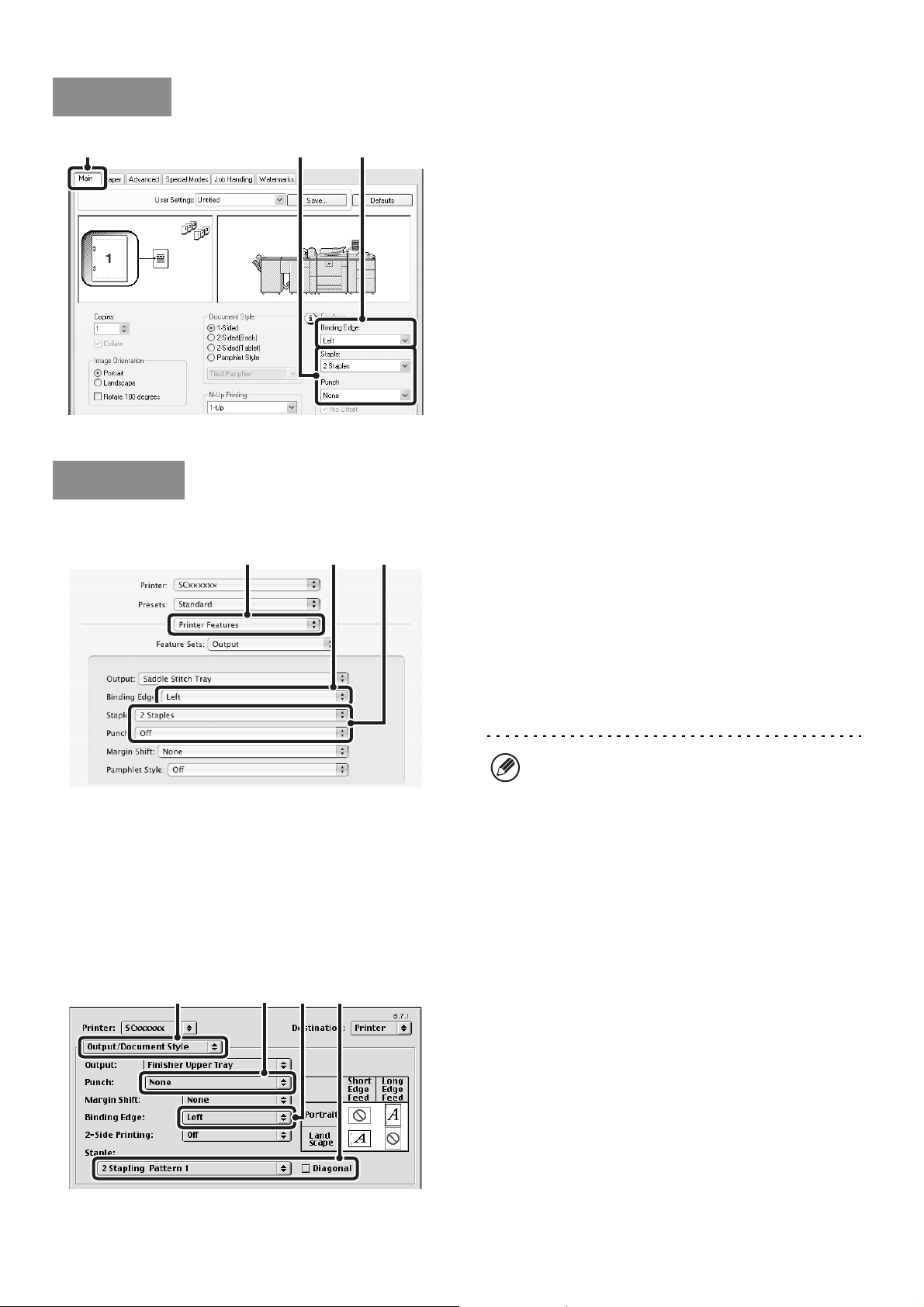
33
(1) Configure the settings on the [Main] tab.
(2) Select the "Binding Edge".
(3) Select the staple function or the punch
function.
• For the staple function, select the number of staples in
the "Staple" menu.
• To punch holes in output, select the number of holes in
the "Punch" menu.
Mac OS X
(1) Select [Printer Features].
(2) Select the "Binding Edge".
(3) Select the staple function or the punch
function.
• For the staple function, select the number of staples in
the "Staple" menu.
• To punch holes in output, select the number of holes in
the "Punch" menu.
Mac OS 9
(1) Select [Output/Document Style].
(2) Select the "Binding Edge".
(3) Select the staple function or the punch
function.
• If you are stapling, select the stapling pattern from the
"Staple" menu. After a pattern is selected, a print image
showing the binding edge will appear.
• To punch holes in output, select the number of holes in
the "Punch" menu.
Windows
(3) (2)(1)
Macintosh
(1) (2)
(3)
• In Mac OS X v10.1.5, the binding edge cannot be
selected. If the paper is oriented vertically, the
binding edge will be the left edge. If the paper is
oriented horizontally, the binding edge will be the
bottom edge. Select the staple settings or punch
settings on the [Output] tab of [Printer Features].
• In Mac OS X v10.2.8, select the settings in
[Advanced].
(1)
(2)(3) (3)
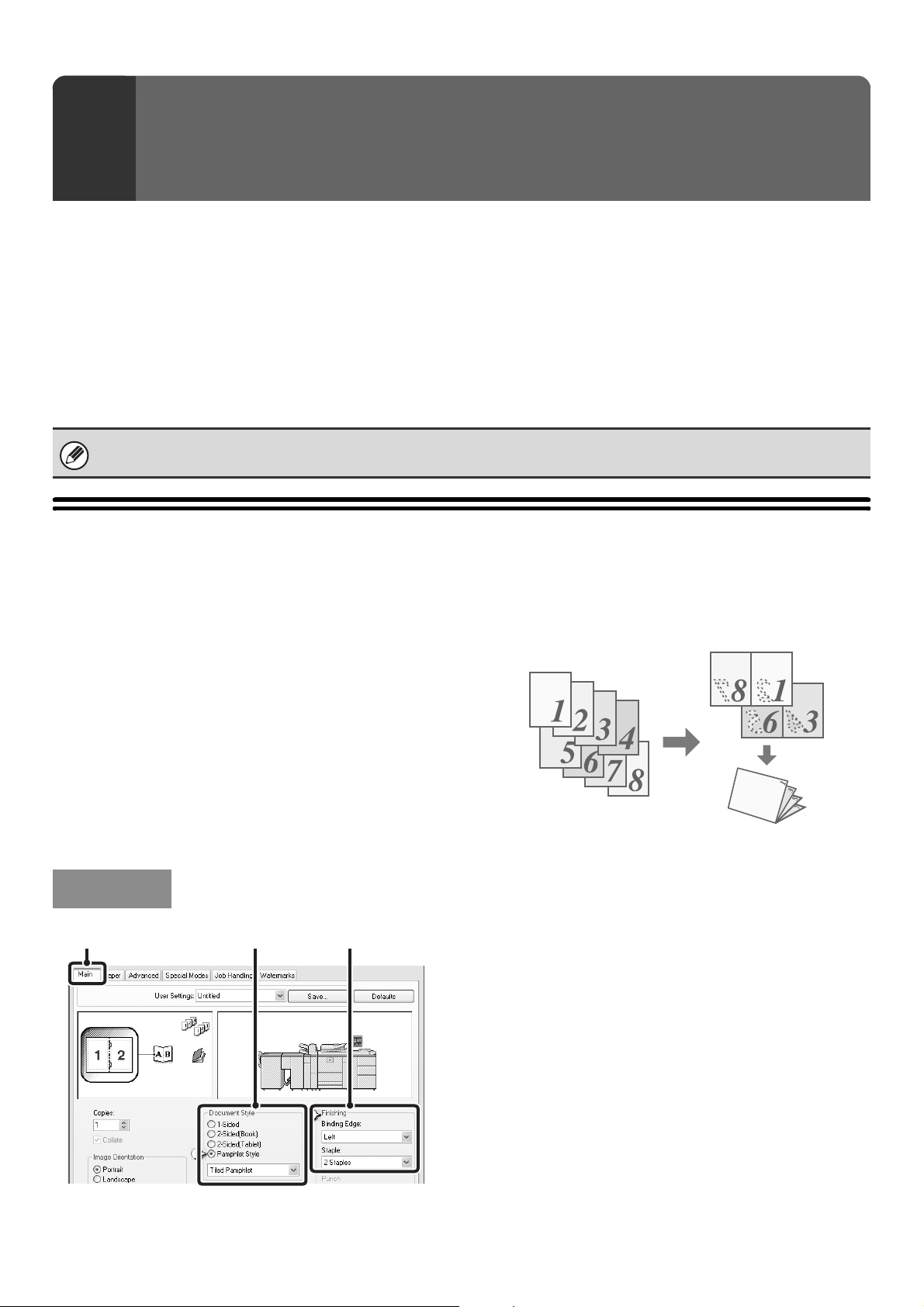
34
This chapter explains convenient functions for specific printing objectives.
• CONVENIENT FUNCTIONS FOR CREATING
PAMPHLETS AND POSTERS
• FUNCTIONS TO ADJUST THE SIZE AND
ORIENTATION OF THE IMAGE (page 38)
• IMAGE ADJUSTMENT FUNCTION (page 42)
• FUNCTIONS THAT COMBINE TEXT AND IMAGES
(page 44)
• PRINT FUNCTIONS FOR SPECIAL PURPOSES
(page 47)
• CONVENIENT PRINTER FUNCTIONS (page 57)
The explanations assume that the paper size and other basic settings have already been selected. For the basic
procedure for printing and the steps for opening the printer driver properties window, see the following section:
☞ Windows: BASIC PRINTING PROCEDURE (page 7)
☞ Macintosh: BASIC PRINTING PROCEDURE (page 18)
CONVENIENT FUNCTIONS FOR CREATING
PAMPHLETS AND POSTERS
CREATING A PAMPHLET (Pamphlet/Pamphlet Staple)
The pamphlet function prints on the front and back of
each sheet of paper so that the sheets can be folded and
bound to create a pamphlet. This is convenient when
you wish to compile printed output into a pamphlet.
When a finisher and saddle unit are installed, or a saddle
stitch finisher is installed, pamphlet printing and stapling
can be selected to have output automatically folded into
a booklet and stapled. This allows you to conveniently
use the output as a handout or pamphlet without the
need for any further work.
* Paper that can be used for saddle stitch function is
5-1/2" x 11" to 12" x 18" (16 lbs. to 24 lbs.) (B5R to
A3W (60g/m
2
to 90g/m
2
)).
(1) Configure the settings on the [Main] tab.
(2) Select [Pamphlet Style].
The pamphlet printing method can be selected from the
pull-down menu.
(3) Select the "Binding Edge".
[2 Staples] in "Staple" can be selected when a finisher
and saddle unit are installed, or when a saddle stitch
finisher is installed.
4
CONVENIENT PRINTING
FUNCTIONS
In Windows, view printer driver Help for details on printer driver settings for each printing function.
Windows
(1) (2) (3)
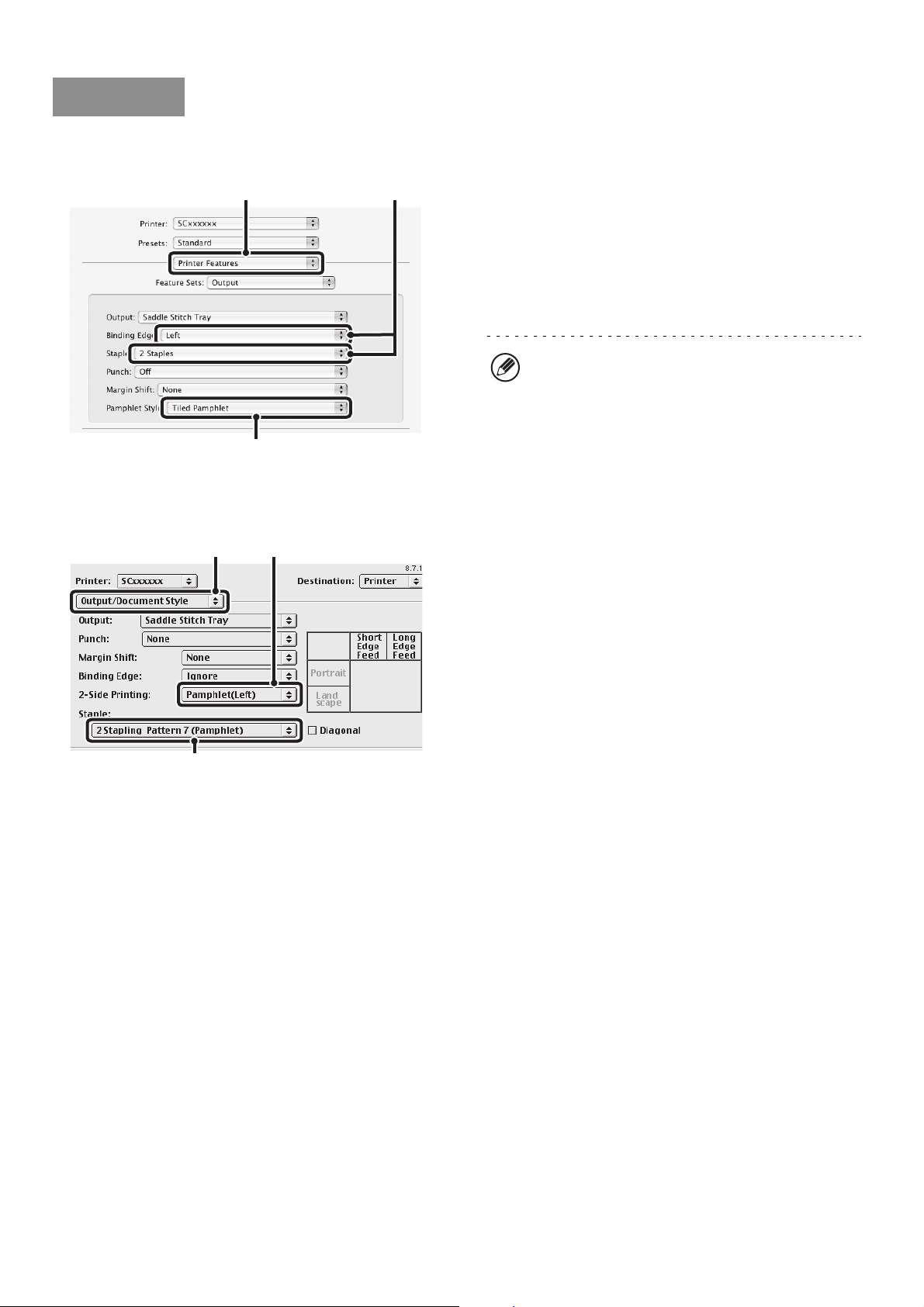
35
Mac OS X
(This function cannot be used in Mac OS X v10.1.5.)
(1) Select [Printer Features].
(2) Select the "Binding Edge".
[2 Staples] in "Staple" can be selected when a finisher
and saddle unit are installed, or when a saddle stitch
finisher is installed.
(3) Select [Tiled Pamphlet] or [2-Up Pamphlet].
Mac OS 9
(1) Select [Output/Document Style].
(2) Select [Pamphlet(Left)] or
[Pamphlet(Right)].
(3) To staple, select [2 Stapling Pattern 7
(Pamphlet)].
[2 Stapling Pattern 7 (Pamphlet)] can be selected when a
finisher and saddle unit are installed, or when a saddle
stitch finisher is installed.
Macintosh
(3)
(1) (2)
In Mac OS X v10.2.8, select from the "2-Side Printing"
and "Binding Edge" menus in [Advanced].
(3)
(1)
(2)
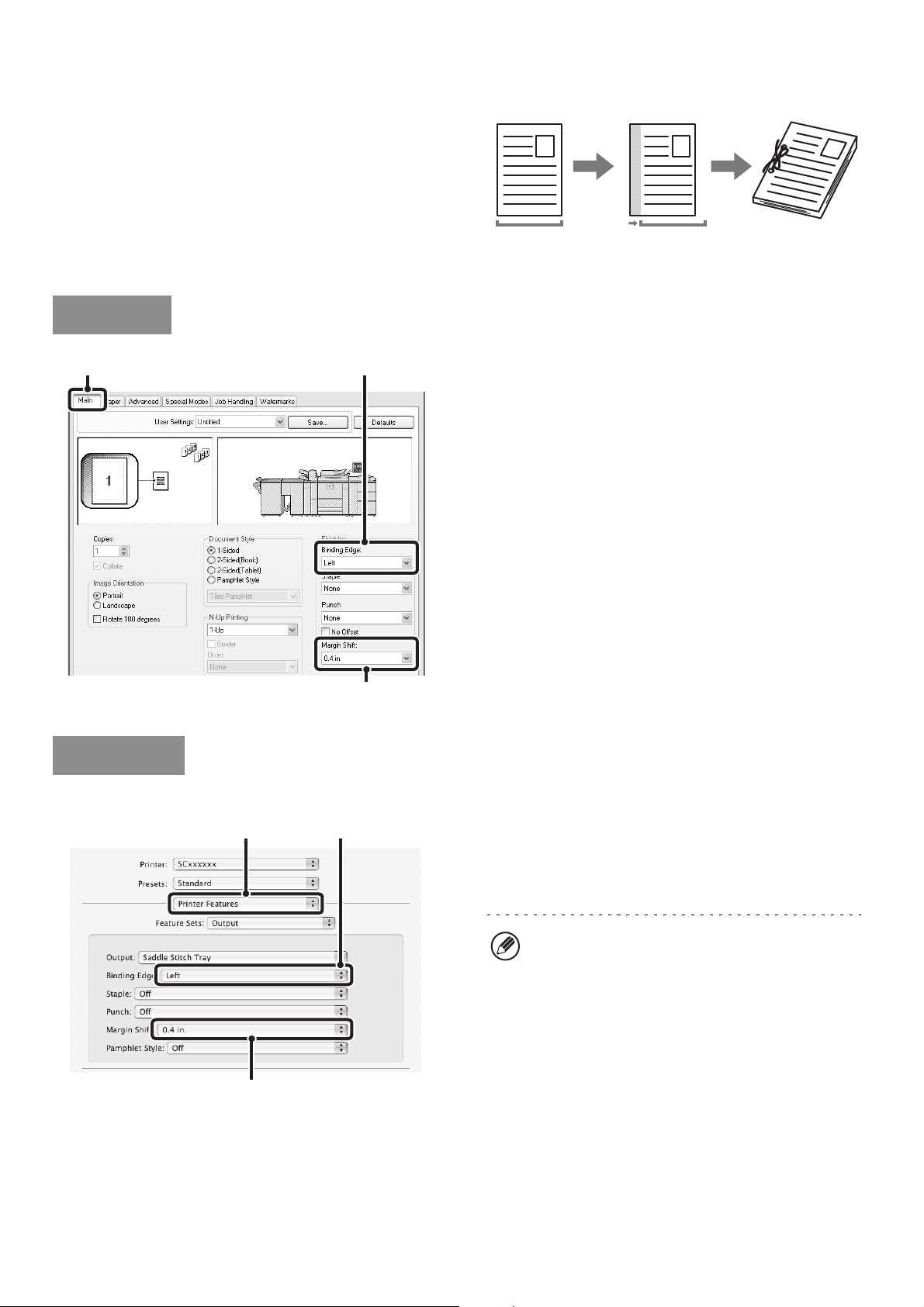
36
INCREASING THE MARGIN (Margin Shift)
This function is used to shift the print image to increase
the margin at the left, right, or top of the paper. This is
convenient when you wish to staple or punch the output
but the binding area overlaps the text. When a finisher or
saddle stitch finisher is installed, the staple function or
the punch function can be used with this function.
(1) Configure the settings on the [Main] tab.
(2) Select the "Binding Edge".
(3) Select the "Margin Shift".
Mac OS X
(1) Select [Printer Features].
(2) Select the "Binding Edge".
(3) Select the "Margin Shift".
Windows
(2)(1)
(3)
Macintosh
(3)
(1) (2)
• In Mac OS X v10.1.5, the binding edge cannot be
selected. If the paper is oriented vertically, the
binding edge will be the left edge. If the paper is
oriented horizontally, the binding edge will be the
bottom edge. Select the margin shift setting from
the "Margin Shift" menu on the [Output] tab of
[Printer Features].
• In Mac OS X v10.2.8, select from the "Binding
Edge" and "Margin Shift" menus in [Advanced].
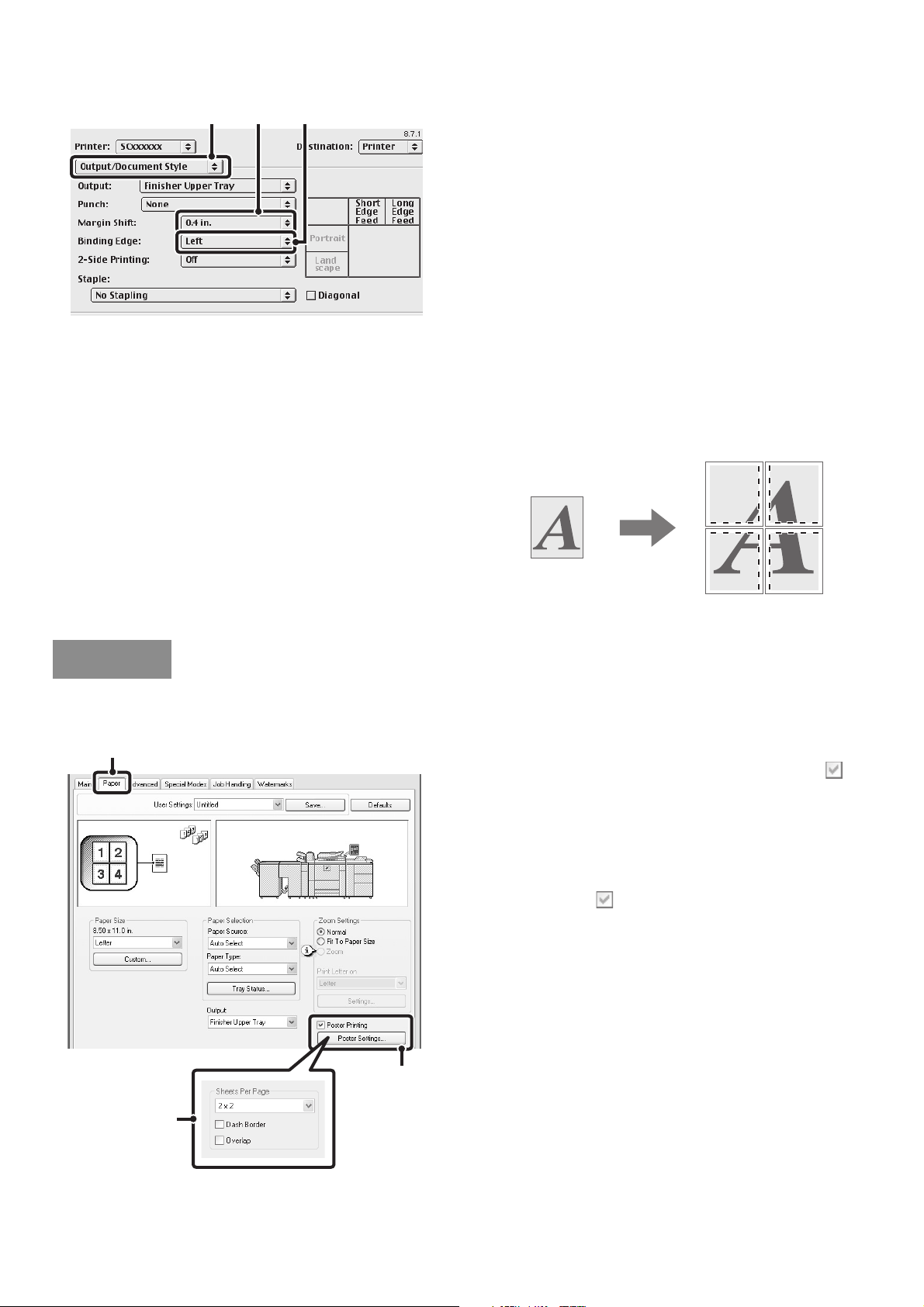
37
Mac OS 9
(1) Select [Output/Document Style].
(2) Select the "Margin Shift".
(3) Select the "Binding Edge".
CREATING A LARGE POSTER (Poster Printing)
(This function is only available in Windows.)
One page of print data can be enlarged and printed
using multiple sheets of paper (4 sheets (2 x 2), 9 sheets
(3 x 3) or 16 sheets (4 x 4)). The sheets can then be
attached together to create a large poster. To enable
precise alignment of the edges of the sheets during
attachment, borderlines can be printed and overlapping
edges can be created (overlap function).
(This function can be used when the PCL6 or PS printer driver is used.)
(1) Click the [Paper] tab.
(2) Select the [Poster Printing] checkbox
and click the [Poster Settings] button.
(3) Select poster settings.
Select the number of sheets of paper to be used from the
pull-down menu. If you wish to print borderlines and/or
use the overlap function, select the corresponding
checkboxes .
(1)
(3)
(2)
Windows
(1)
(2)
(3)
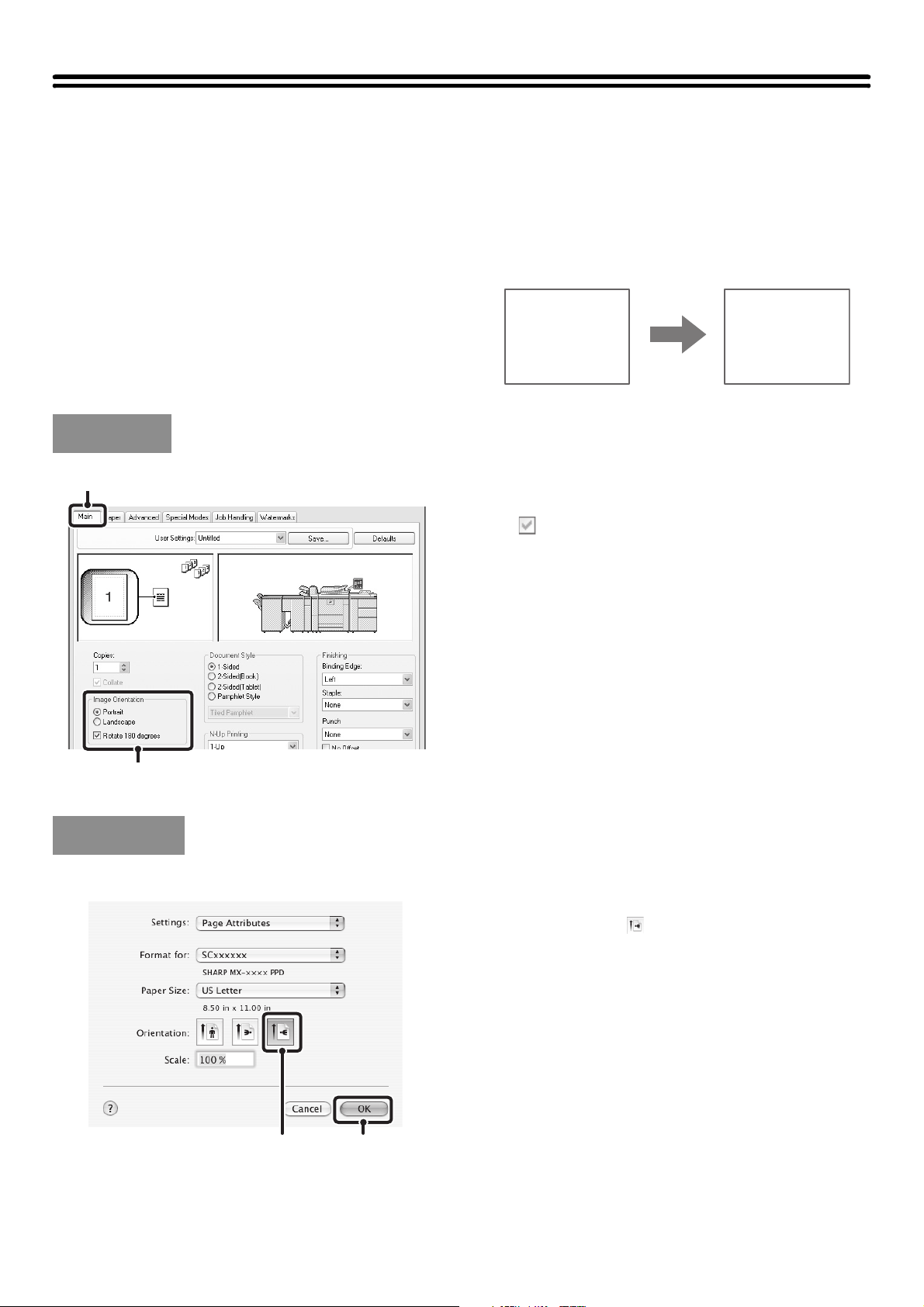
38
FUNCTIONS TO ADJUST THE SIZE AND
ORIENTATION OF THE IMAGE
ROTATING THE PRINT IMAGE 180 DEGREES
(Rotate 180 degrees)
This feature rotates the image 180 degrees so that it can
be printed correctly on paper that can only be loaded in
one orientation (such as paper with punch holes). (In
Mac OS X, a portrait image cannot be rotated 180
degrees.)
(1) Select the setting on the [Main] tab.
(2) Select the [Rotate 180 degrees] checkbox
.
Mac OS X
(1) Select [Page Setup] from the [File] menu
and click the button.
(2) Click the [OK] button.
ABCD
ABCD
Windows
(1)
(2)
Macintosh
(1)
(2)
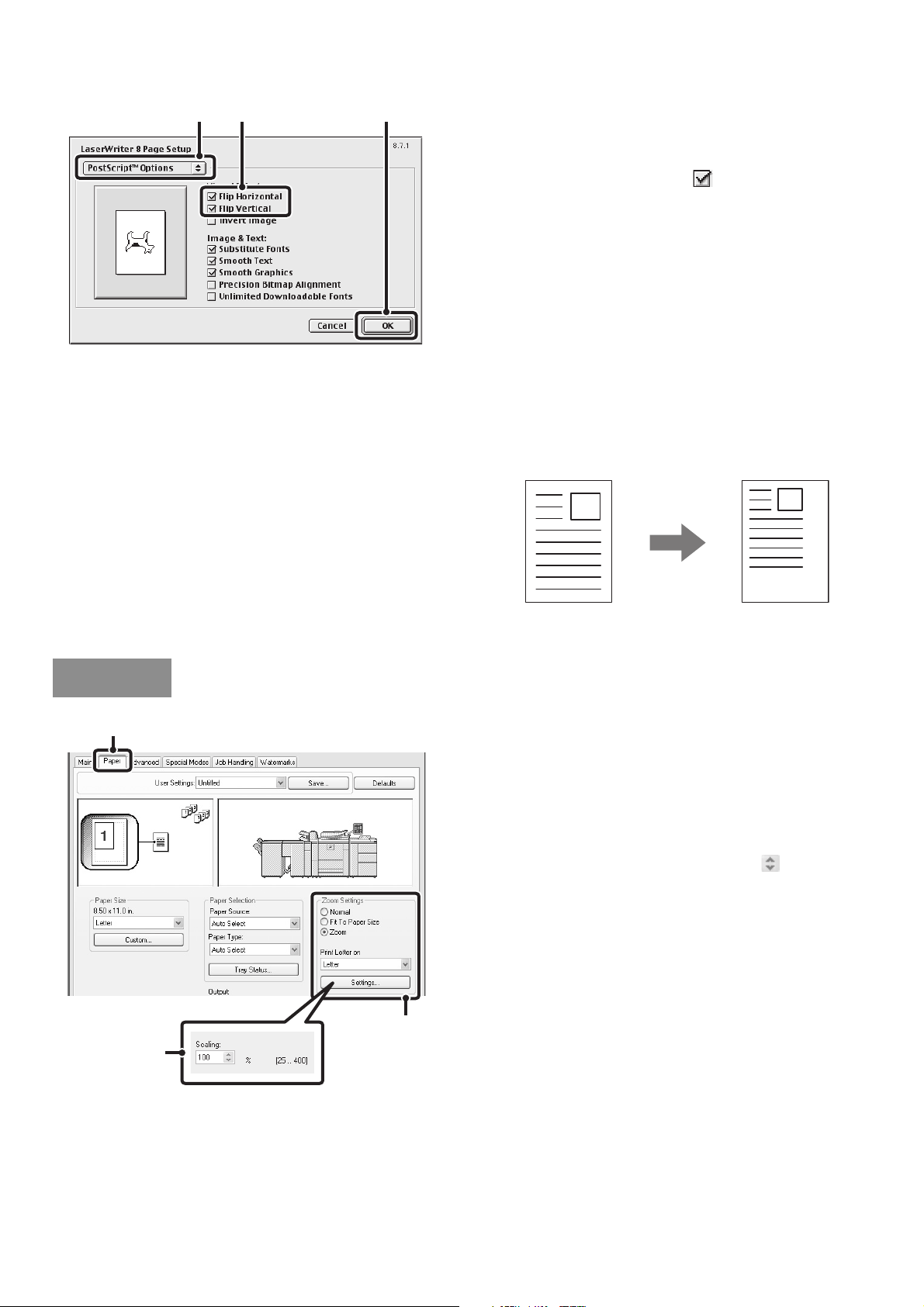
39
Mac OS 9
(1) Select [Page Setup] from the [File] menu
and select [PostScript Options].
(2) Select the [Flip Horizontal] and [Flip
Vertical] checkboxes .
The print image will show an image of the print result.
(3) Click the [OK] button.
ENLARGING/REDUCING THE PRINT IMAGE
(Zoom/XY-Zoom)
This function is used to enlarge or reduce the image to a
selected percentage. This allows you to enlarge a small
image or add margins to the paper by slightly reducing
an image.
When using the PS printer driver (Windows), you can set
the width and length percentages separately to change
the proportions of the image. (XY-Zoom)
(1) Click the [Paper] tab.
(2) Select [Zoom] and click the [Settings]
button.
The actual paper size to be used for printing can be
selected from the pull-down menu.
(3) Select the zoom ratio.
Directly enter a number (%) or click the button to
change the ratio in increments of 1%.
(1) (2)
(3)
Windows
(1)
(2)
(3)
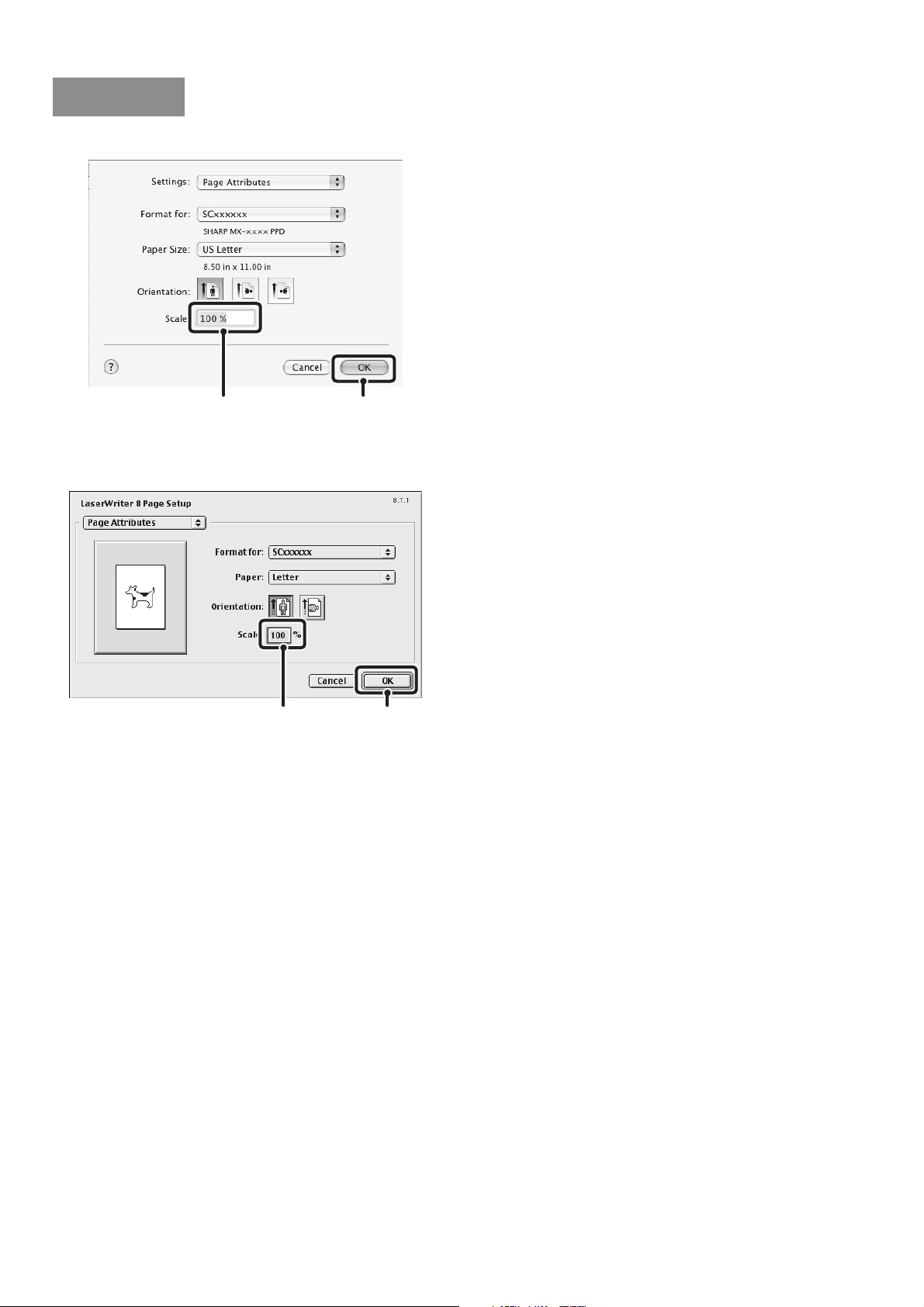
40
Mac OS X
(1) Select [Page Setup] from the [File] menu
and enter the ratio (%).
(2) Click the [OK] button.
Mac OS 9
(1) Select [Page Setup] from the [File] menu
and enter the ratio (%).
(2) Click the [OK] button.
Macintosh
(1)
(2)
(2)(1)
41
REVERSING THE IMAGE (Mirror Image)
The image can be reversed to create a mirror image.
This function can be used to conveniently print a design
for a woodblock print or other printing medium.
(This function can be used when the PS printer driver is used.)
(1) Click the [Advanced] tab.
(2) Select a mirror image setting.
If you wish to reverse the image horizontally, select
[Horizontal]. If you wish to reverse the image vertically,
select [Vertical].
(This function can only be used in Mac OS 9.)
(1) Select [Page Setup] from the [File] menu
and select [PostScript Options].
(2) Select "Visual Effects".
To reverse the image horizontally, select [Flip Horizontal].
To reverse the image vertically, select [Flip Vertical].
(3) Click the [OK] button.
B
B
Windows
(1)
(2)
Macintosh
(1) (2)
(3)
42
IMAGE ADJUSTMENT FUNCTION
ADJUSTING THE BRIGHTNESS AND CONTRAST OF
THE IMAGE (Image Adjustment)
(This function is only available in Windows.)
The brightness and contrast can be adjusted in the print settings when printing a photo or other image. These settings
can be used for simple corrections when you do not have image editing software installed on your computer.
(This function can be used when the PCL6 or PS printer driver is used.)
(1) Click the [Advanced] tab.
(2) Click the [Image Adjustment] button.
(3) Adjust the image settings.
To adjust a setting, drag the slide bar or click the
or button.
Windows
(1)
(2)
(3)

43
PRINTING FAINT TEXT AND LINES IN BLACK
(Text To Black/Vector To Black)
(This function is only available in Windows.)
When printing a color image, color text and lines that are
faint can be printed in black. (Raster data such as bitmap
images cannot be adjusted.) This allows you to bring out
color text and lines that are faint and difficult to see.
• [Text To Black] can be selected to print all text other
than white text in black.
• [Vector To Black] can be selected to print all vector
graphics other than white lines and areas in black.
(1) Click the [Advanced] tab.
(2) Select the [Text To Black] checkbox
and/or the [Vector To Black] checkbox .
ABCD ABCD
Windows
(1)
(2)
44
FUNCTIONS THAT COMBINE TEXT AND
IMAGES
ADDING A WATERMARK TO PRINTED PAGES
(Watermark)
Faint shadow-like text can be added to the background
of the printed image as a watermark. The size and angle
of the watermark text can be adjusted. The text can be
selected from a pre-stored list, or entered to create an
original watermark.
(1) Click the [Watermarks] tab.
(2) Select the watermark settings.
Select a stored water mark from the pull-down menu. You
can click the [Edit] button to edit the font and select other
detailed settings.
Mac OS X
(1) Select [Watermarks].
(2) Click the [Watermark] checkbox and
configure watermark settings.
Detailed watermark settings can be configured such as
selection of the text and editing of the font. Adjust the size
and angle of the text by dragging the slide bar .
CONFIDENTIAL
Windows
(1)
(2)
If you wish to create a new watermark...
Enter text in "Text" and click [Edit] to adjust the text.
[Add] can be clicked to store the watermark for
convenient reuse in the future. (The size adjustment
and angle information will also be stored.)
Macintosh
(1)(2)
In Mac OS X v10.1.5, adjust the watermark settings on
the [Watermarks] tab of [Printer Features].
45
Mac OS 9
(1) Select [Watermark].
(2) Configure watermark settings.
Detailed watermark settings can be configured such as
selection of the text. Select the text from the "Watermark"
menu. Select the size and angle of the text from the
corresponding menus.
PRINTING AN IMAGE OVER THE PRINT DATA
(Image Stamp)
(This function is only available in Windows.)
A bitmap or JPEG image stored on your computer can
be printed over the print data. The size, position, and
angle of the image can be adjusted. This feature can be
used to "stamp" the print data with a frequently used
image or an icon of your own creation.
(This function can be used when the PCL6 or PS printer driver is used.)
(1) Click the [Watermarks] tab.
(2) Select the image stamp setting.
Select a stored image stamp from the pull-down menu.
(2)(1)
MEMO
MEMO
Windows
(1) (2)
If you wish to create a new image stamp...
Click [Image File] and specify an image stored on the
computer. [Add] can be clicked to store the specified
image for convenient reuse in the future. (The size
adjustment and angle information will also be stored.)
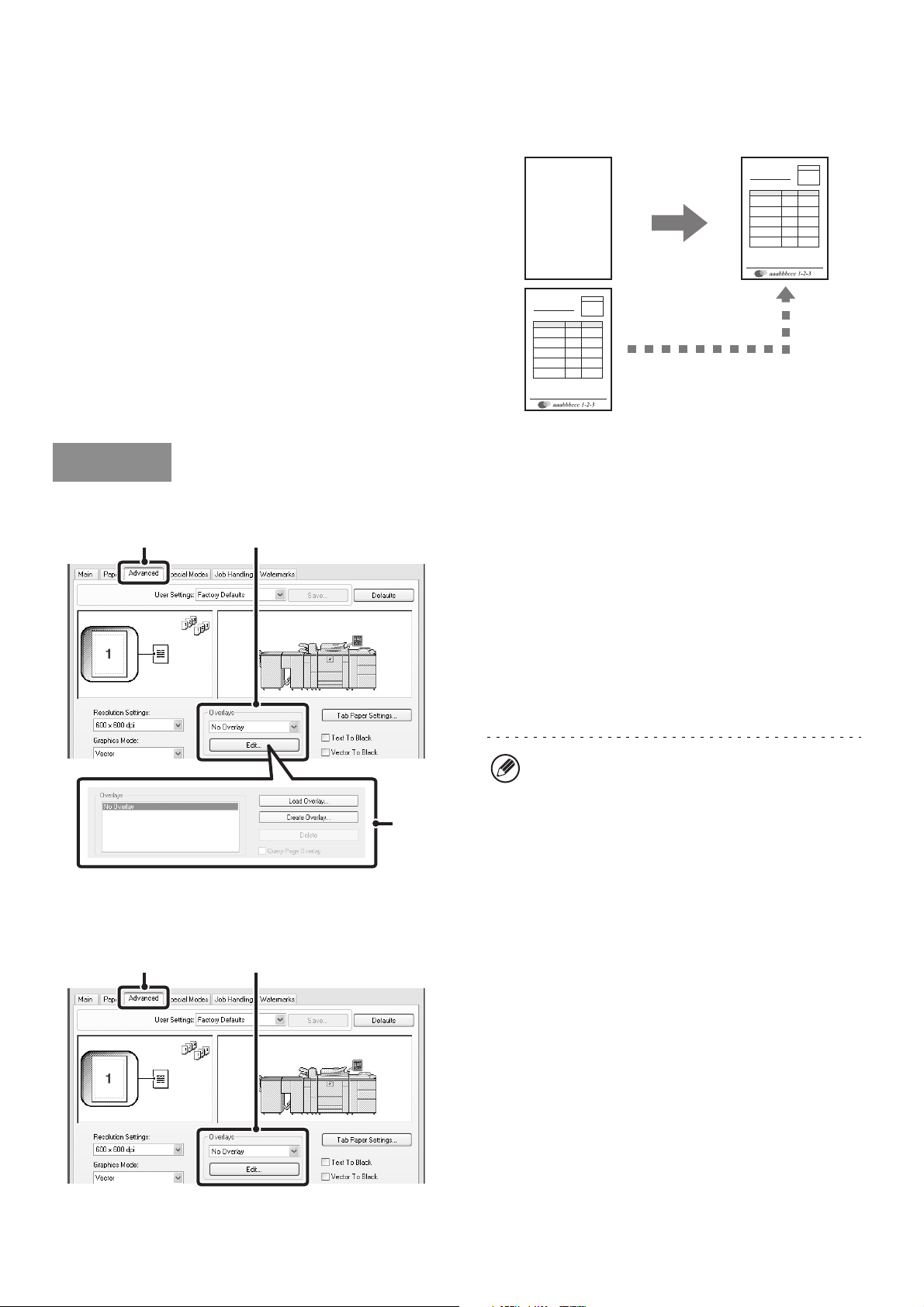
46
CREATING OVERLAYS FOR PRINT DATA (Overlays)
(This function is only available in Windows.)
The print data can be printed in a previously created
overlay. By creating table rulings or a decorative frame
in an application different from that of the text file and
registering the data as an overlay file, an attractive print
result can be easily obtained without the need for
complex manipulations.
Create an overlay file
(1) Click the [Advanced] tab.
Configure the printer driver settings from the software
application that you wish to use to create the overlay file.
(2) Click the [Edit] button.
(3) Create an overlay file.
Click the [Create Overlay] button and specify the name
and folder to be used for the overlay file that you wish to
create. The file will be created when the settings are
completed and printing is started.
Printing with an overlay file
(1) Click the [Advanced] tab.
Configure the printer driver settings from the application
from which you wish to print using the overlay file.
(2) Select the overlay file.
A previously created or stored overlay file can be selected
from the pull-down menu.
XXXX
XXX 1 100
XXXX 10 150
XXX 0 120
XXXX 10 250
XXXX
XXX 1 100
XXXX 10 150
XXX 0 120
XXXX 10 250
Overlay file
Windows
(1) (2)
(3)
• When printing is started, a confirmation message
will appear. The overlay file will not be created until
the [Yes] button is clicked.
• To register a previously existing overlay file, click
the [Load Overlay] button.
(1) (2)
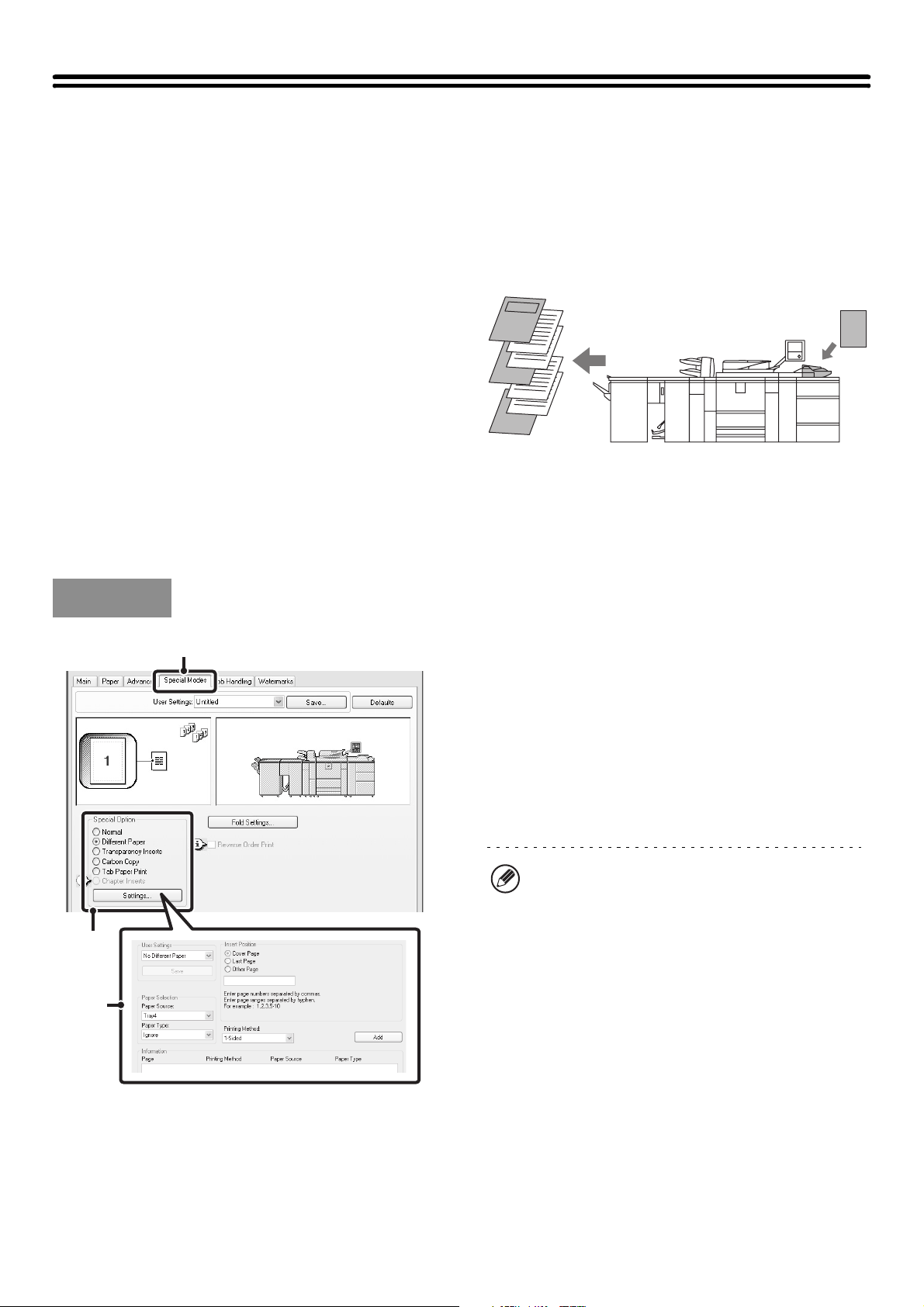
47
PRINT FUNCTIONS FOR SPECIAL
PURPOSES
PRINTING SPECIFIED PAGES ON DIFFERENT PAPER
(Different Paper)
• Using this function in a Windows environment
The front and back cover and specified pages of a
document can be printed on paper that is different
from the other pages. Use this function when you wish
to print the front and back cover on heavy paper, or
insert colored paper or a different paper type at
specified pages. You can also insert paper as an
insert without printing on it.
• Using this function in a Macintosh environment
The front cover can be printed using paper that is
different from the other pages. This function can be
used, for example, when you want to print only the
cover on thick paper.
(1) Click the [Special Modes] tab.
(2) Select [Different Paper] and click the
[Settings] button.
(3) Select paper insertion settings.
Select the insertion position, paper source, and printing
method from the corresponding menus. Click the [Add]
button to show the selected settings in "Information".
When you have completed the settings, click the [Save]
button in "User Settings" to save the settings.
5
4
3
2
1
Windows
(1)
(2)
(3)
• When [Bypass Tray] is selected in "Paper Source",
be sure to select the "Paper Type".
• About paper insertion settings
When [Other Page] is selected for "Insert Position",
the insert position can be specified by directly
entering a page number. However, inserts cannot
be successively inserted at the same page. When
"Printing Method" is set to [2-Sided], the specified
page and the next page after it will be printed on the
front and reverse side of the paper, and thus an
insert setting at a page printed on the reverse side
will not be effective.
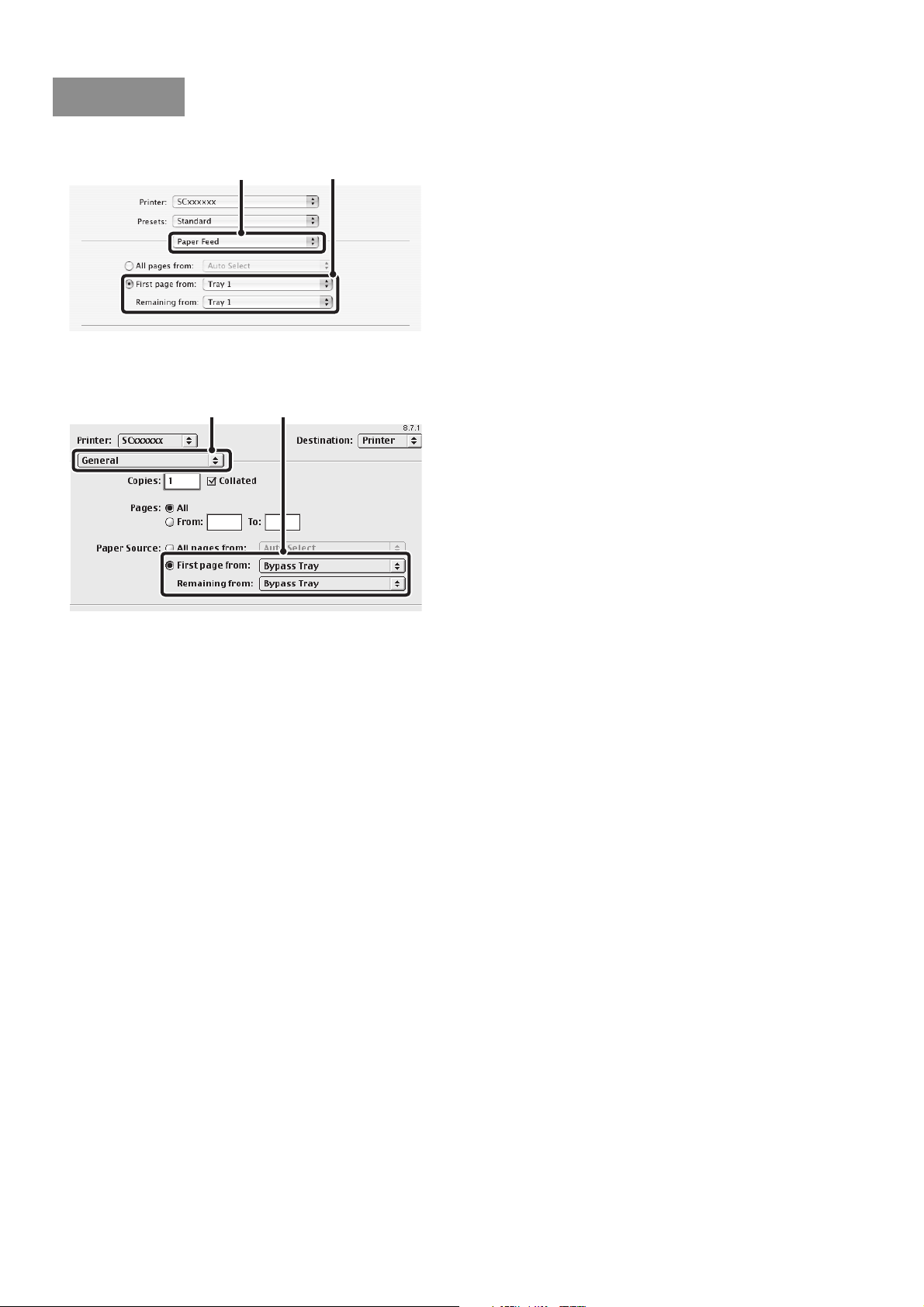
48
Mac OS X
(1) Select [Paper Feed].
(2) Select cover insertion settings.
Select the paper tray or paper type for the first page in
"First page from", and then select the paper tray or paper
type used for the remaining pages in "Remaining from".
Mac OS 9
(1) Select [General].
(2) Select cover insertion settings.
Select the paper tray or paper type for the first page in
"First page from", and then select the paper tray or paper
type used for the remaining pages in "Remaining from".
Macintosh
(1)
(2)
(2)(1)
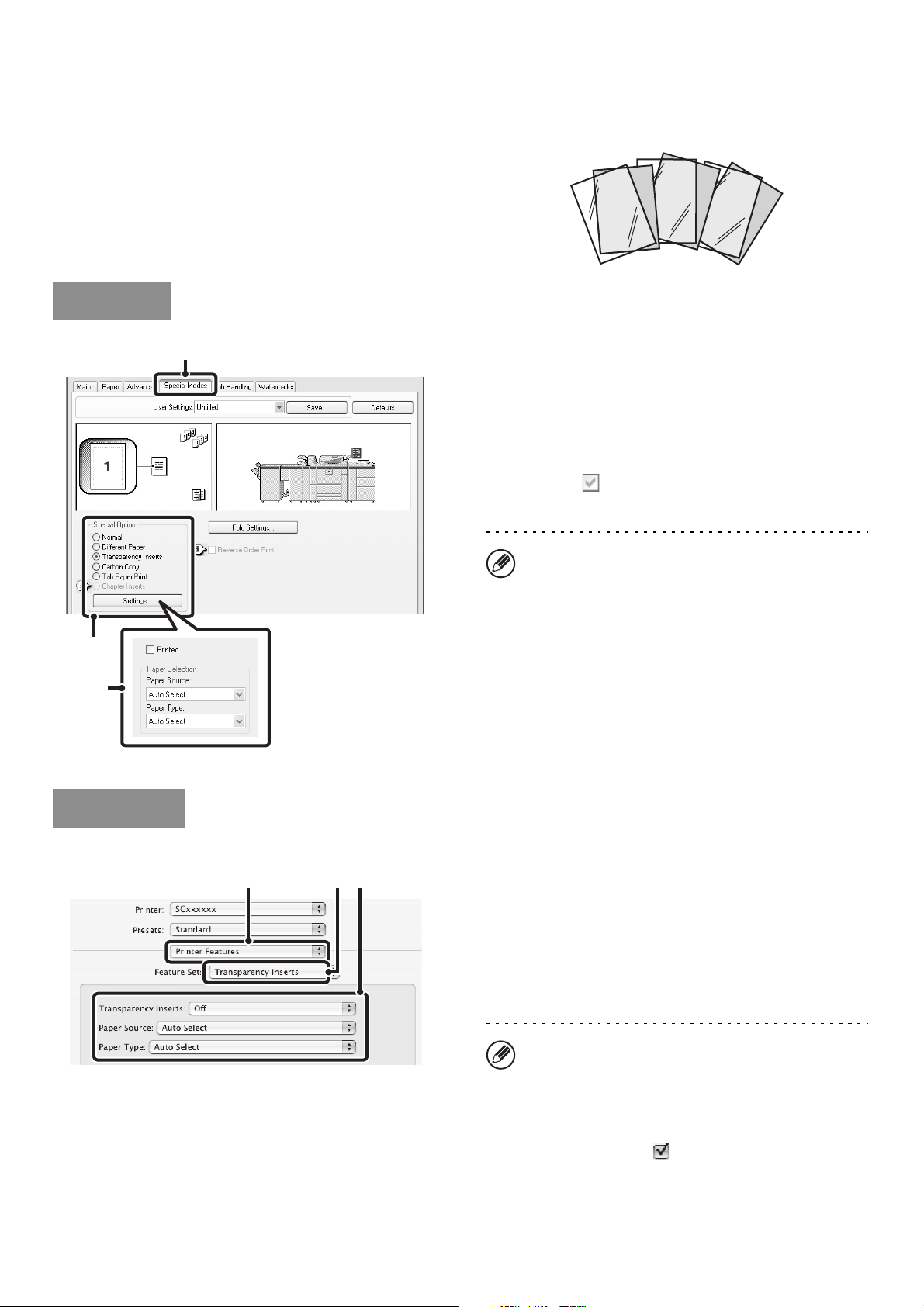
49
ADDING INSERTS WHEN PRINTING ON
TRANSPARENCY FILM (Transparency Inserts)
When printing on transparency film, this function helps
prevent the sheets of transparency film from sticking
together by inserting a sheet of paper between each
sheet of film. It is also possible to print the same content
on each inserted sheet of paper as is printed on the
corresponding sheet of transparency film.
(1) Click the [Special Modes] tab.
(2) Select [Transparency Inserts] and click the
[Settings] button.
(3) Select transparency insert settings.
To print the same content on the insert as is printed on
the sheet of transparency film, select the [Printed]
checkbox . Select the paper source and type if
needed.
Mac OS X
(1) Select [Printer Features].
(2) Select [Transparency Inserts].
(3) Select transparency insert settings.
To print the same content on the insert as is printed on the
sheet of transparency film, select [Print] in "Transparency
Inserts". Select the paper source and type if needed.
C
B
A
Windows
(1)
(2)
(3)
When [Bypass Tray] is selected in "Paper Source", be
sure to select the "Paper Type".
Macintosh
(3)(1) (2)
• When [Bypass Tray] is selected in "Paper Source",
be sure to select the "Paper Type".
• In Mac OS X v10.1.5, select the settings in
"Transparency Inserts" on the [Advanced] tab of
[Printer Features].
• In Mac OS X v10.2.8, select the [Transparency
Inserts] checkbox in [Advanced].
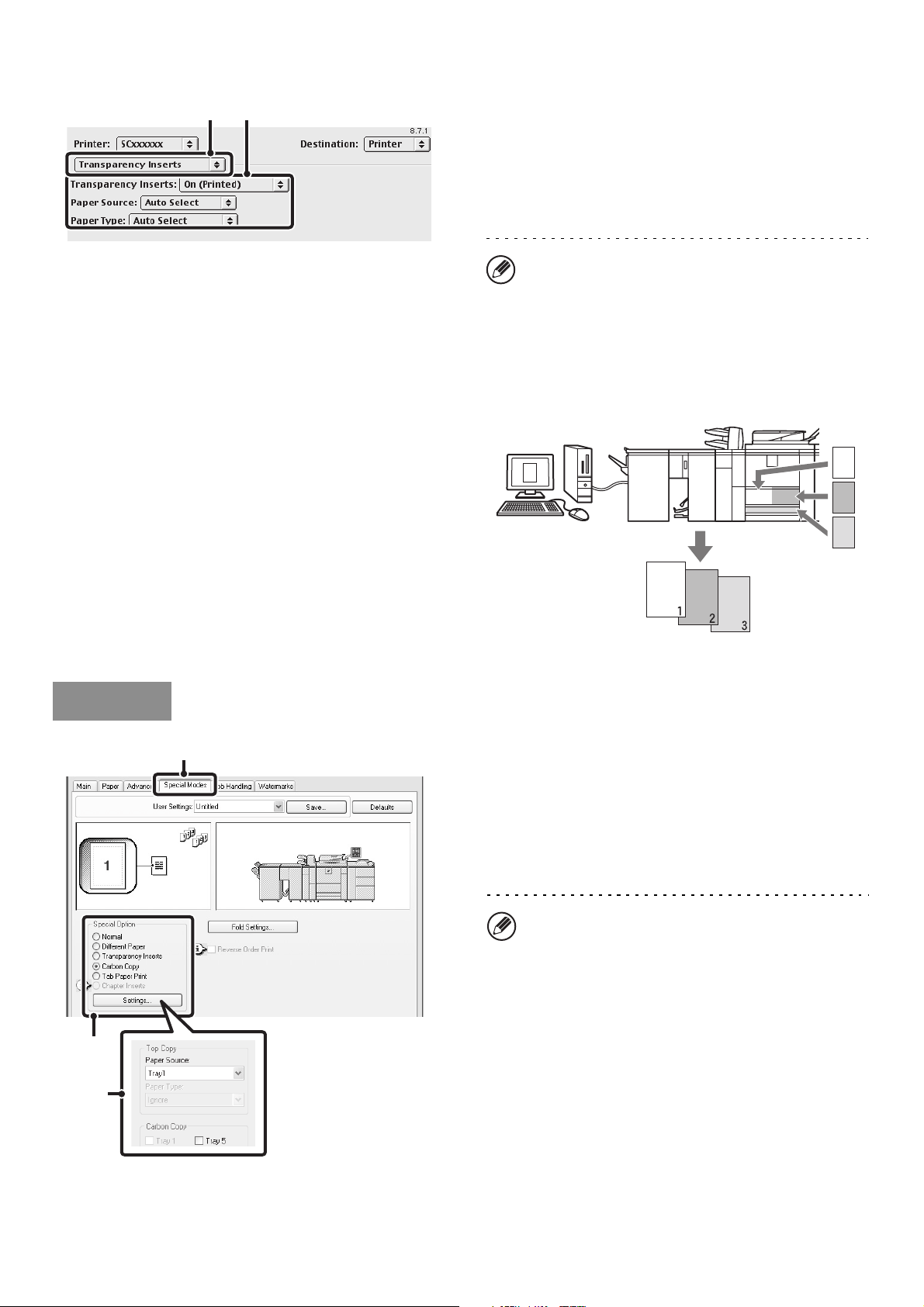
50
Mac OS 9
(1) Select [Transparency Inserts].
(2) Select the transparency insert settings.
To print the same content on the insert as is printed on
the sheet of transparency film, select [On (Printed)] from
the "Transparency Inserts" menu. Select the paper
source and type if needed.
PRINTING A CARBON COPY (Carbon Copy)
(This function is only available in Windows.)
This function is used to print an additional copy of the
print image on paper that is the same size but from a
different paper tray.
For example, if carbon copy print is selected when
standard paper is loaded in tray 1 and colored paper is
loaded in tray 2, a print result similar to a carbon copy
slip can be obtained with a single selection of the print
command. As another example, if standard paper is
loaded in tray 1 and recycled paper is loaded in tray 2,
Carbon Copy can simultaneously print one copy for
presentation and one copy as a duplicate.
(1) Click the [Special Modes] tab.
(2) Select [Carbon Copy] and click the
[Settings] button.
(3) Select the carbon copy settings.
Select the tray for the "Top Copy" and then select the tray
for the carbon copy (or copies) in "Carbon Copy".
(2)(1)
When [Bypass Tray] is selected in "Paper Source", be
sure to select the "Paper Type".
A
A
A
A
Windows
(1)
(2)
(3)
When the bypass tray is selected, be sure to select
the "Paper Type".
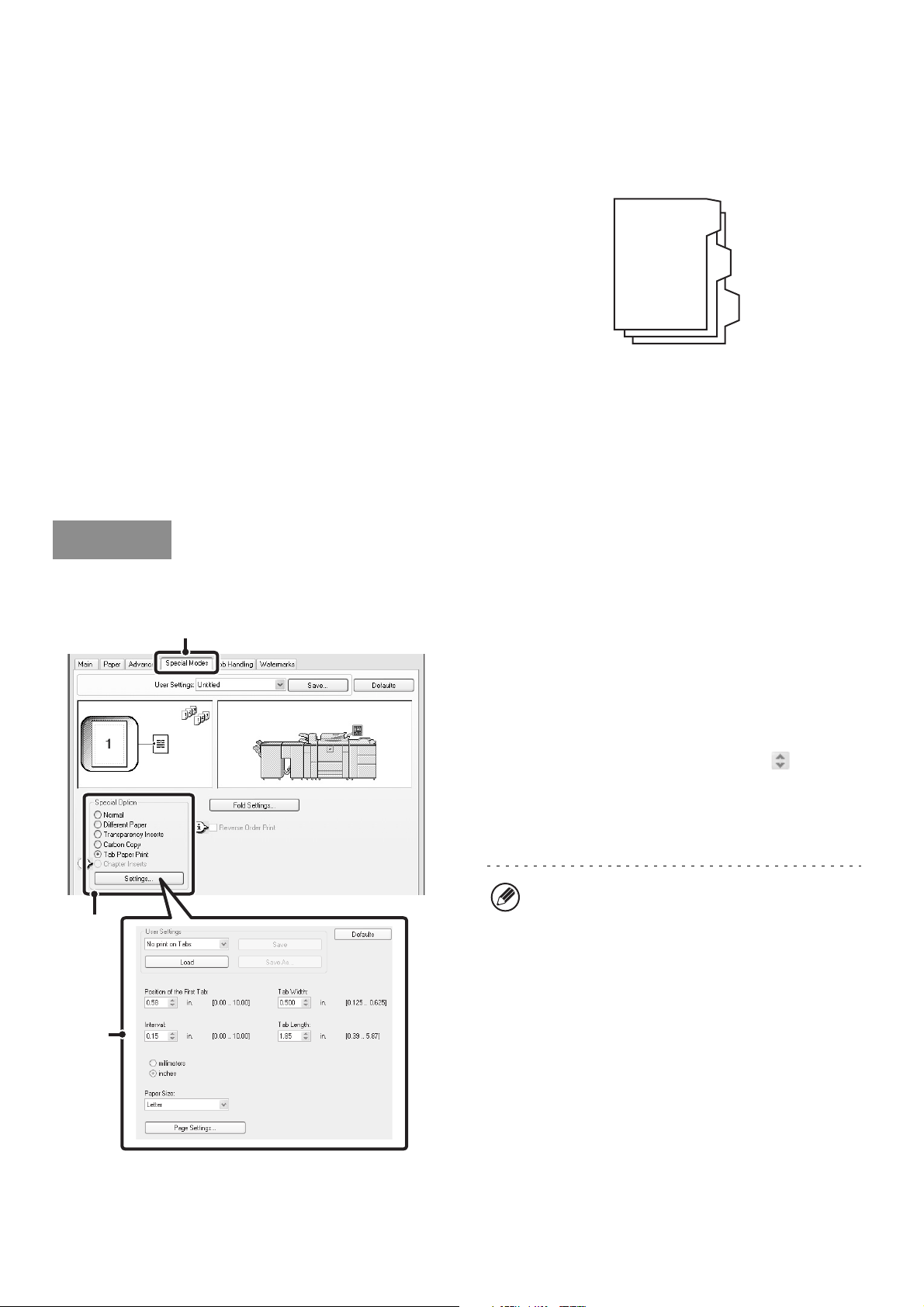
51
PRINTING TEXT ON TABS OF TAB PAPER
(Tab Printing)
(This function is only available in Windows.)
This function is used to print text on the tabs of tab paper.
Printing tab text created in the printer driver (PCL6 only)
Text to be printed on tabs can be entered in [Tab Paper
Print] on the [Special Modes] tab of the printer driver
properties window, and detailed settings can be
configured such as the size of the tabs, the starting
position, the distance between tabs, and the page
numbers where tab sheets will be inserted.
Printing tab text created in a software application
Text to be printed on tabs can be created in a software
application, and then [Tab Paper Settings] on the
[Advanced] tab of the printer driver properties window
can be used to specify how far the text needs to be
shifted for tab printing.
Printing tab text created in the printer driver (PCL6 only)
(1) Click the [Special Modes] tab.
(2) Select [Tab Paper Print] and click the
[Settings] button.
(3) Select the tab paper settings.
The position of the first tab, the distance between tabs,
and the horizontal and vertical dimensions of the tab can
be directly entered or changed using the button. In
addition, the size of the tab paper can be selected in
"Paper Size". To enter text to be printed on tab paper or
specify the page numbers where tab sheets will be
inserted, click the [Page Settings] button.
GHI
DEF
ABC
Windows
(1)
(2)
(3)
The tab paper settings can be stored and a stored file
opened in "User Settings".
52
Printing tab text created in a software application
(1) Click the [Advanced] tab.
(2) Click the [Tab Paper Settings] button.
(3) Select the tab paper settings.
To shift the image, directly enter a number or click the
button.
(1)
(2)
(3)
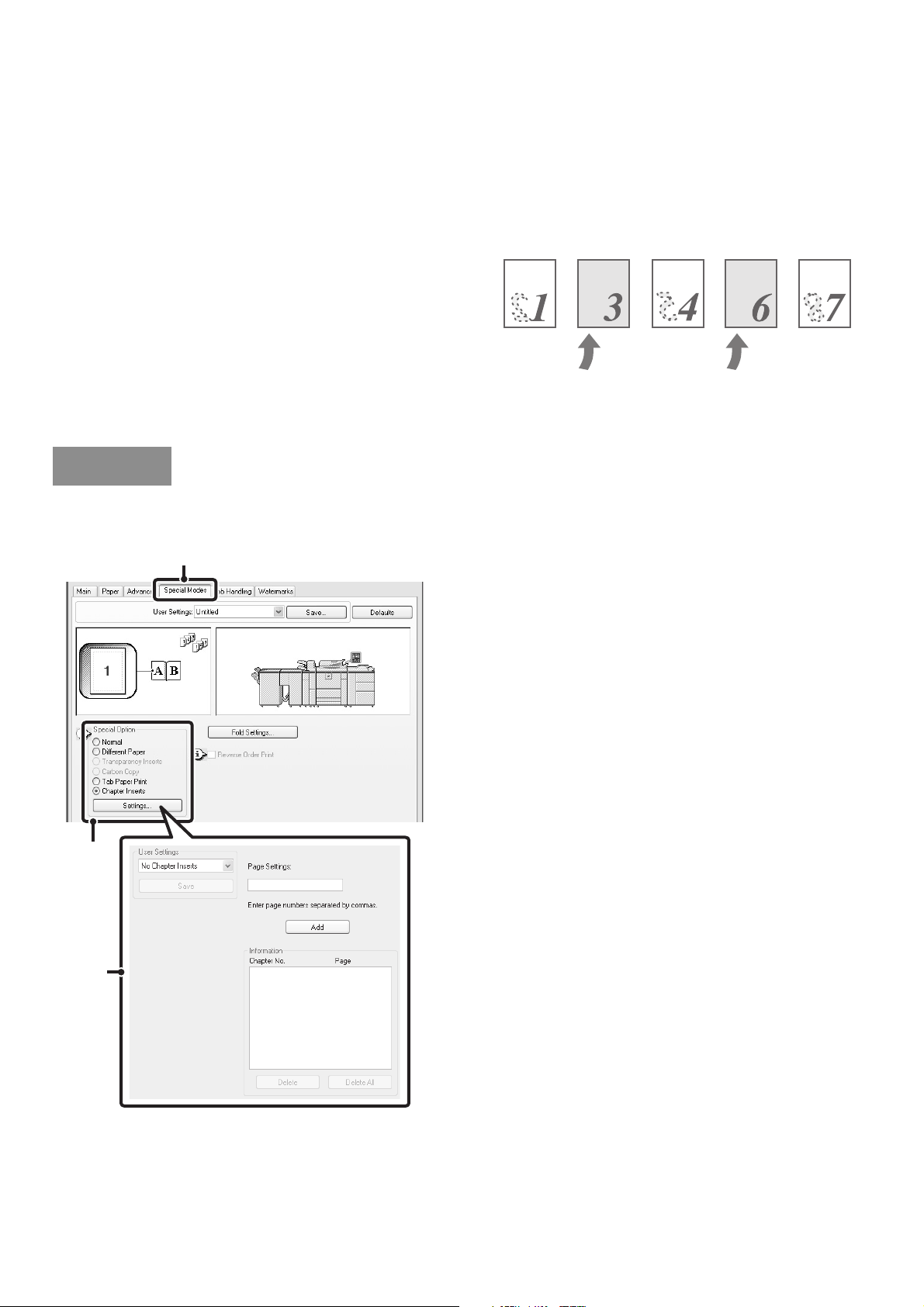
53
TWO-SIDED PRINTING WITH SPECIFIC PAGES PRINTED
ON THE FRONT SIDE (Chapter Inserts Printing)
(This function is only available in Windows.)
When performing two-sided printing, you can keep
specific pages from being printed on the reverse side of
the paper and have them printed on the front side of the
next page.
By printing printed matter consisting of chapters with the
first page of each chapter on the front side, a fixed
design can be added to each chapter.
(This function can be used when the PCL6 printer driver is used.)
(1) Click the [Special Modes] tab.
(2) Select [Chapter Inserts] and click the
[Settings] button.
(3) Select the chapter settings.
Enter the page numbers that are to begin chapters in
"Page Settings". Click the [Add] button and your settings
will appear in "Information". When you have finished
selecting settings, click the [Save] button in "User
Settings" to save the settings.
Example:
When pages 4 and 7 are specified as page settings.
Blank page
Blank page
Windows
(1)
(2)
(3)
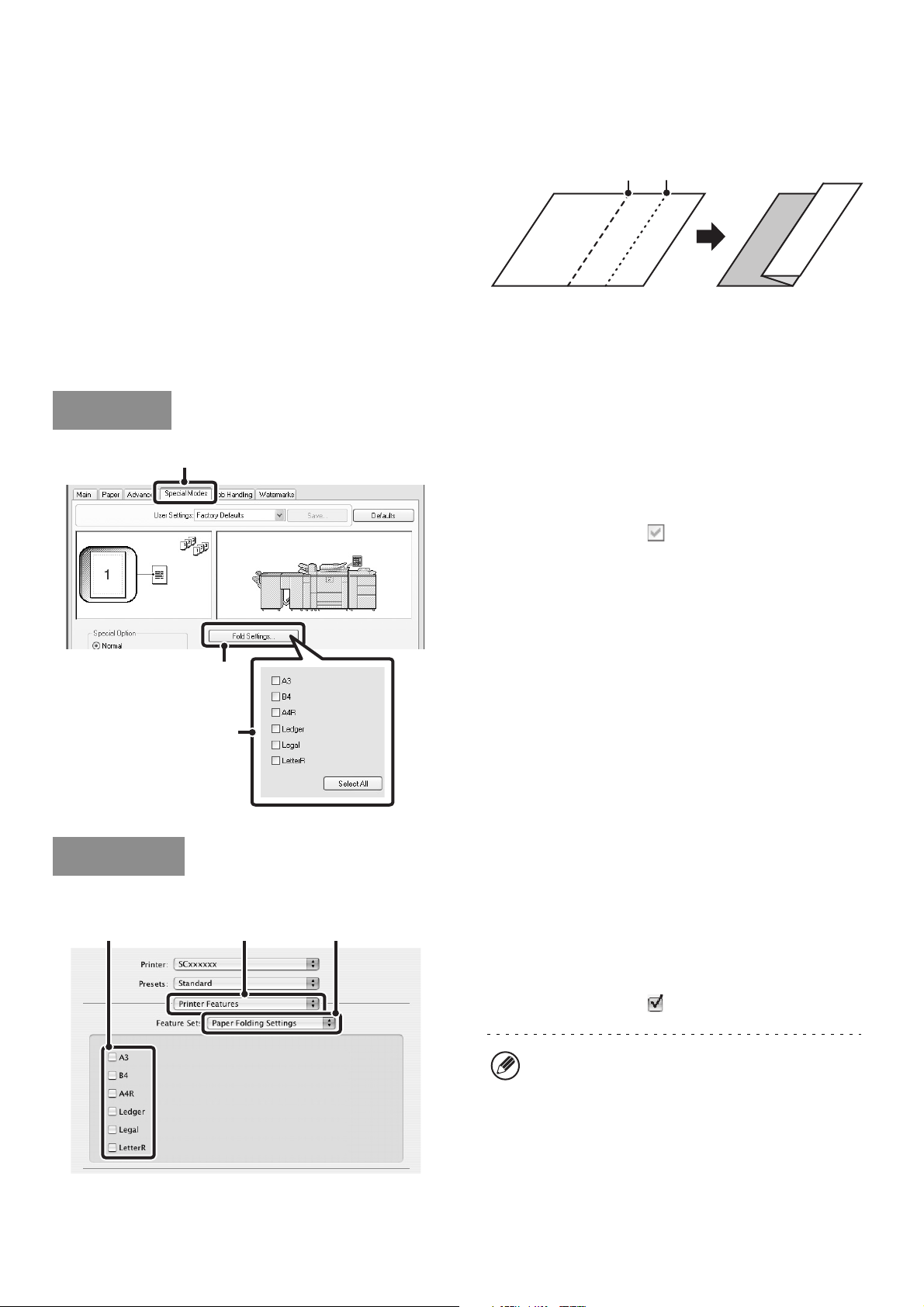
54
FOLDING SPECIFIED PAPER IN HALF BEFORE
PRINTING (Paper Fold Print)
When a folding unit is installed, the paper can be folded
in half so that the printed output is half the paper size.
As an example, when the print data consists of mixed
letter (A4) and ledger (A3) sizes, ledger (A3) size can be
folded into letter (A4) size so that the actual width of all
pages of the printed output is letter (A4) width. The
folded paper can also be stapled (excluding sizes A4R,
Legal, and LetterR).
(1) Click the [Special Modes] tab.
(2) Click the [Fold Settings] button.
(3) Select the paper folding settings.
Select the checkbox of the paper size to be folded.
You can also click the [Select All] button to select all
paper sizes.
Mac OS X
(1) Select [Printer Features].
(2) Select [Paper Folding Settings].
(3) Select the paper folding settings.
Select the checkbox of the paper size to be folded.
Fold in Fold out
Windows
(1)
(2)
(3)
Macintosh
(3)
(1)
(2)
In Mac OS X v10.1.5, select the settings in "Paper
Folding Settings" on the [Advanced] tab of [Printer
Features].
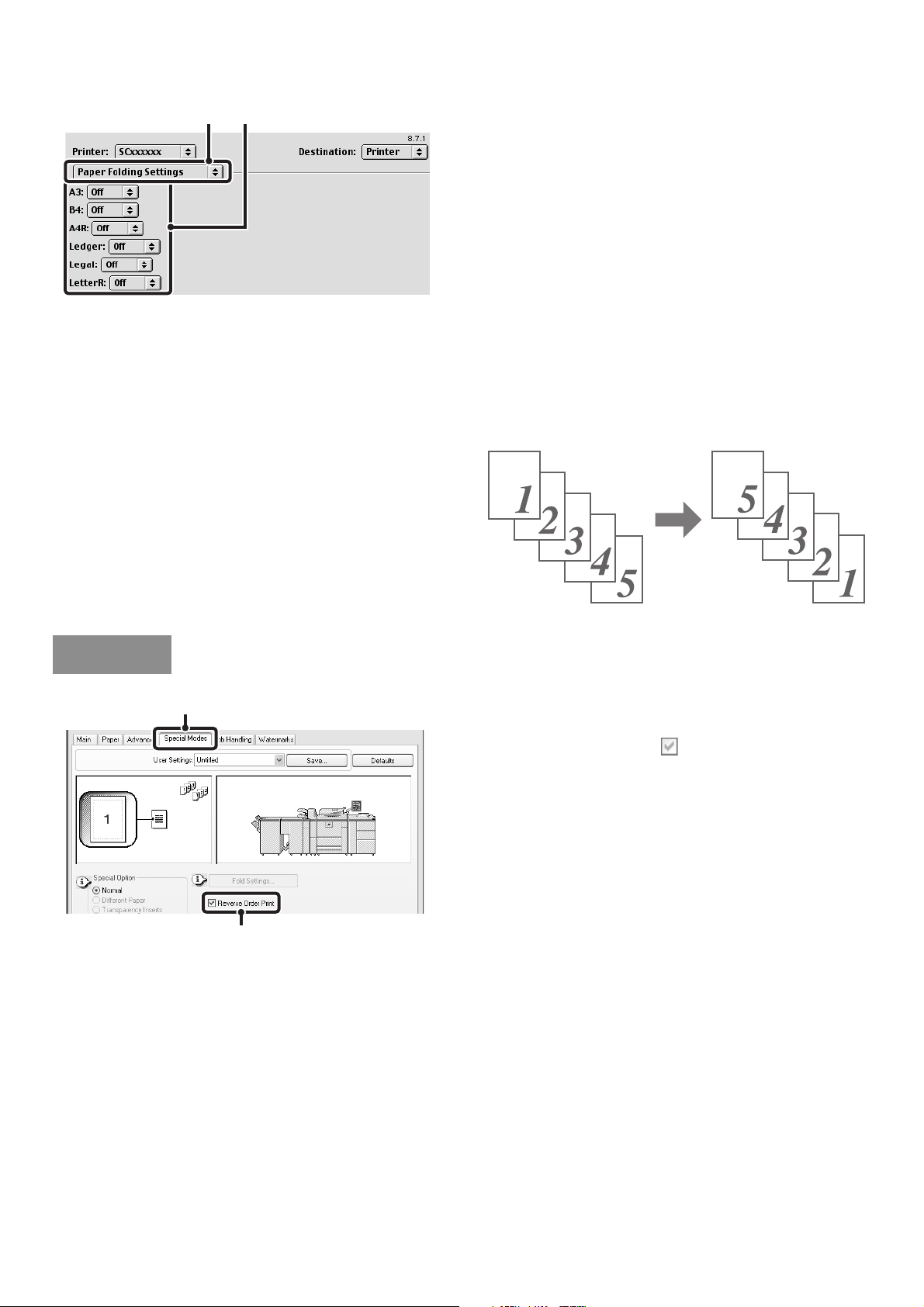
55
Mac OS 9
(1) Select [Paper Folding Settings].
(2) Select the paper folding settings.
Select [On] from the menu of the paper size to be folded.
PRINTING THE PAGES IN REVERSE ORDER
(Reverse Order Print)
When normal printing is used, the pages are output face
down in order from the first page so that the output is in
the same order as the original document. When reverse
print is used, the pages are output face up in order from
the first page so that the output is in reverse order.
(1) Click the [Special Modes] tab.
(2) Click the [Reverse Order Print] checkbox so
that it is selected
.
(1) (2)
Windows
(1)
(2)
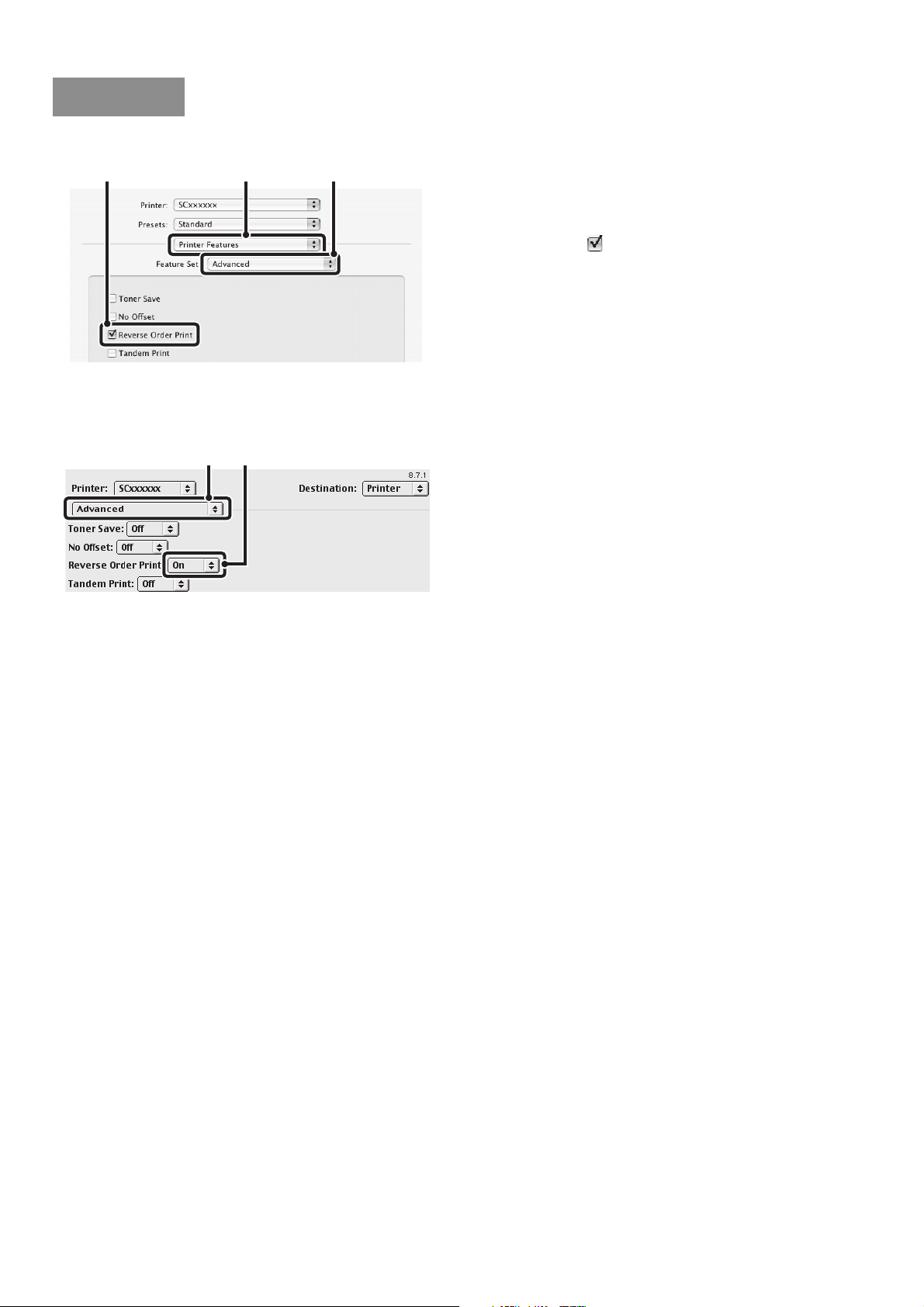
56
Mac OS X
(1) Select [Printer Features].
(2) Select [Advanced].
(3) Click the [Reverse Order Print] checkbox to
select it .
Mac OS 9
(1) Select [Advanced].
(2) Select [On] from the "Reverse Order Print"
menu.
Macintosh
(3)
(1)
(2)
(1) (2)
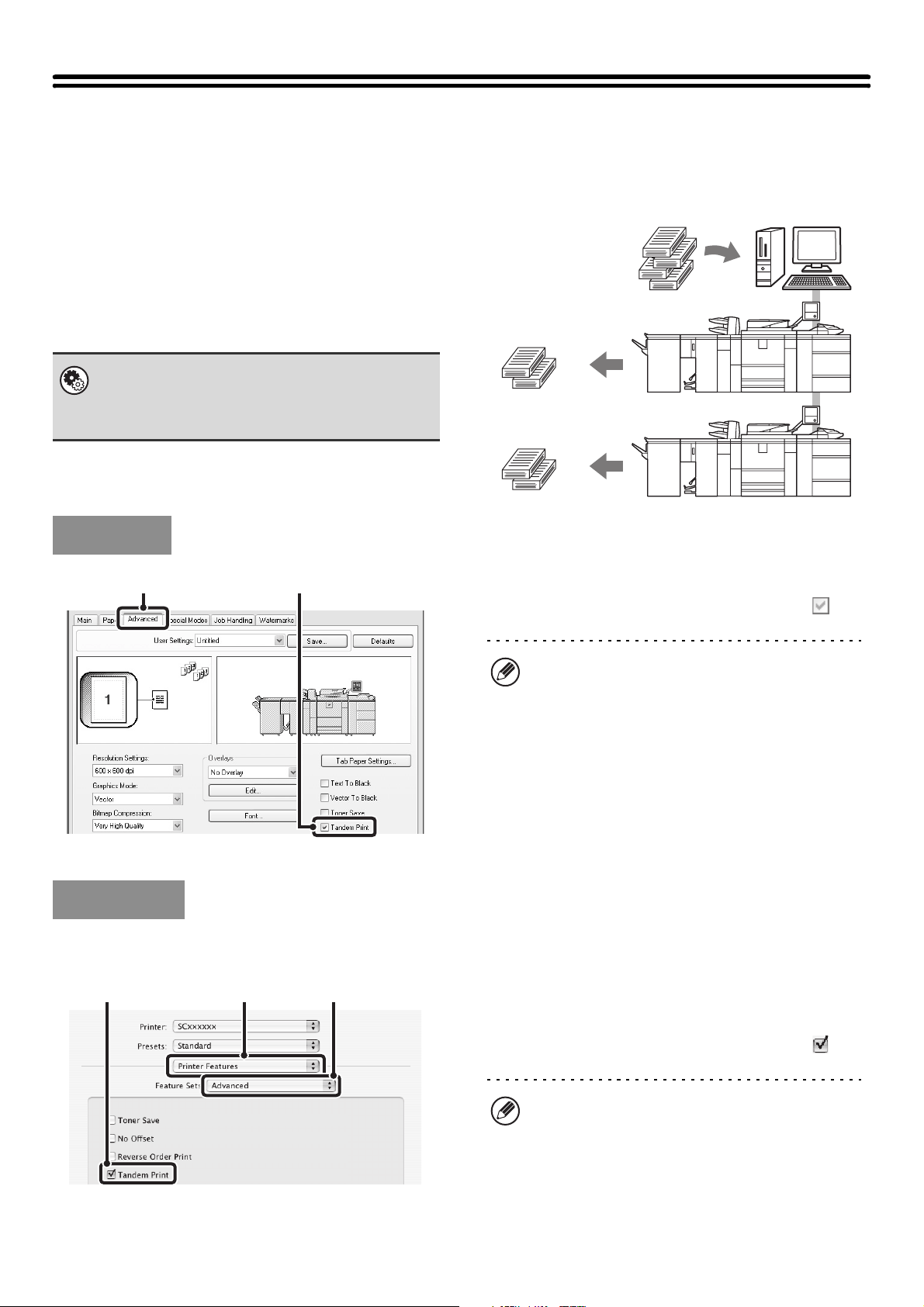
57
CONVENIENT PRINTER FUNCTIONS
USING TWO MACHINES TO PRINT A LARGE PRINT
JOB (Tandem Print)
Two machines are required to use this function.
Tandem Print allows you to divide a large print job
between two machines connected to your network.
The machines simultaneously print each half of the job,
making it possible to shorten the printing time when
printing a large number of sets.
(1) Click the [Advanced] tab.
(2) Select the [Tandem Print] checkbox .
Mac OS X
(This function cannot be used in Mac OS X v10.1.5.)
(1) Select [Printer Features].
(2) Select [Advanced].
(3) Select the [Tandem Print] checkbox .
System Settings (Administrator):
Tandem Connection Setting
Use this to set the IP address and port number of the
slave machine to be used for tandem printing.
Example:
Printing 4 sets of copies
2 sets of
copies
2 sets of
copies
Windows
(1) (2)
The tandem print function does not support SSL
(encrypted communication) between the master
machine and slave machine.
Macintosh
(3) (1) (2)
The tandem print function does not support SSL
(encrypted communication) between the master
machine and slave machine.
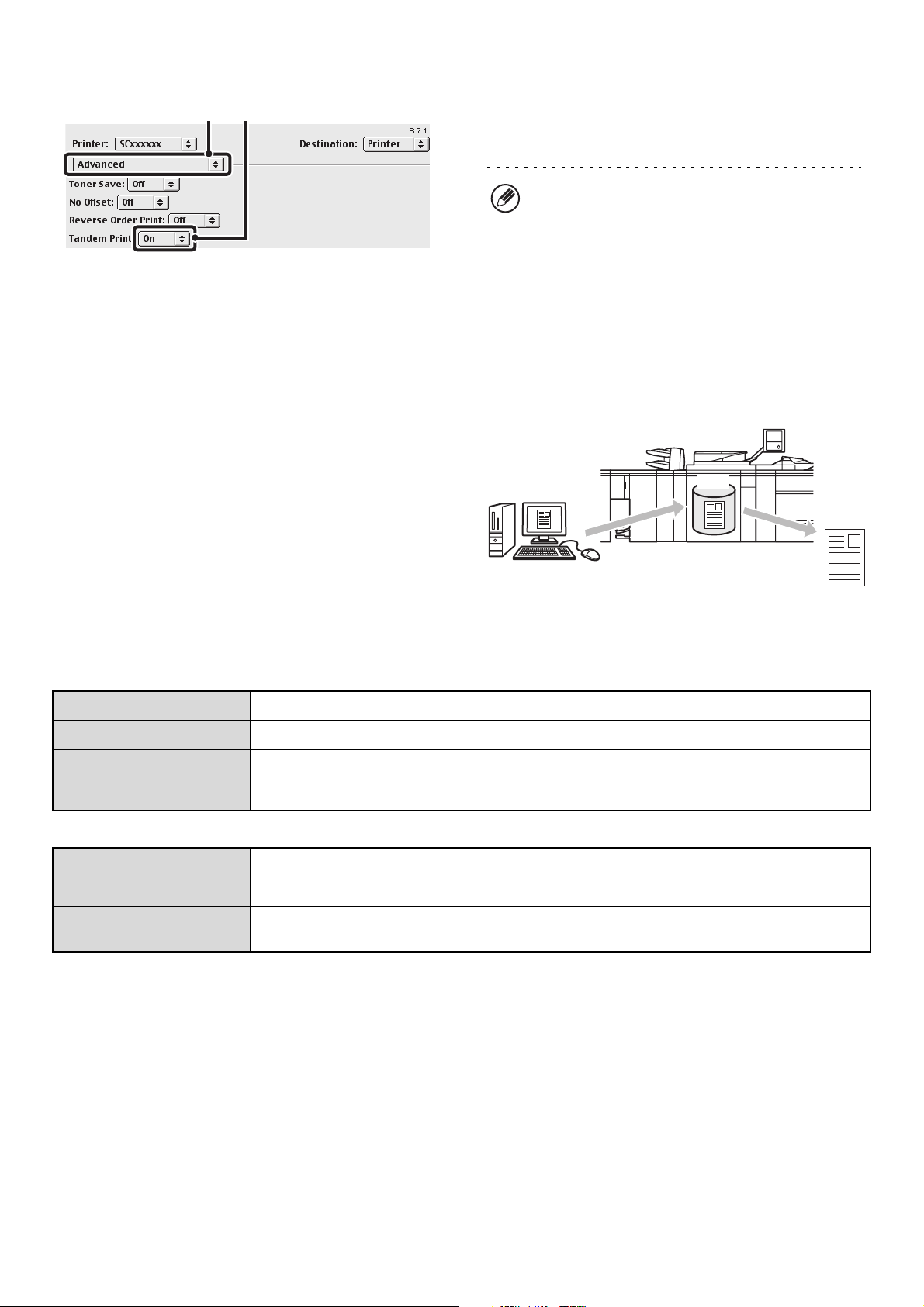
58
Mac OS 9
(1) Select [Advanced].
(2) Select [On] from the "Tandem Print" menu.
SAVING AND USING PRINT FILES
(Retention/Document Filing)
This function is used to store a print job as a file on the
machine's hard drive, allowing the job to be printed from
the operation panel when needed. The location for
storing a file can be selected to prevent the file from
being mixed together with files of other users.
When printing from a computer, a password (5 to 8
digits) can be set to maintain the secrecy of information
in a stored file.
When a password is set, the password must be entered
to print a stored file from the machine.
Retention Settings
Document Filing Settings
To print files stored on the machine's hard drive, see the Document Filing Guide.
(1) (2)
The tandem print function does not support SSL
(encrypted communication) between the master
machine and slave machine.
HDD
Hold Only The print job is stored on the machine's hard drive without being printed.
Hold After Print The print job is printed and stored on the hard drive.
Sample Print
When printing multiple copies of a print job, this setting is used to initially print only one set. After
you check the first set, you can print the remaining sets from the operation panel of the machine.
This prevents the occurrence of a large number of misprints.
Quick File This setting is used to store a print job in the "Quick File Folder" of the machine.
Main Folder This setting is used to store a print job in the "Main Folder" of the machine.
Custom Folder
This setting is used to store a print job in a folder created using the system settings of the
machine.
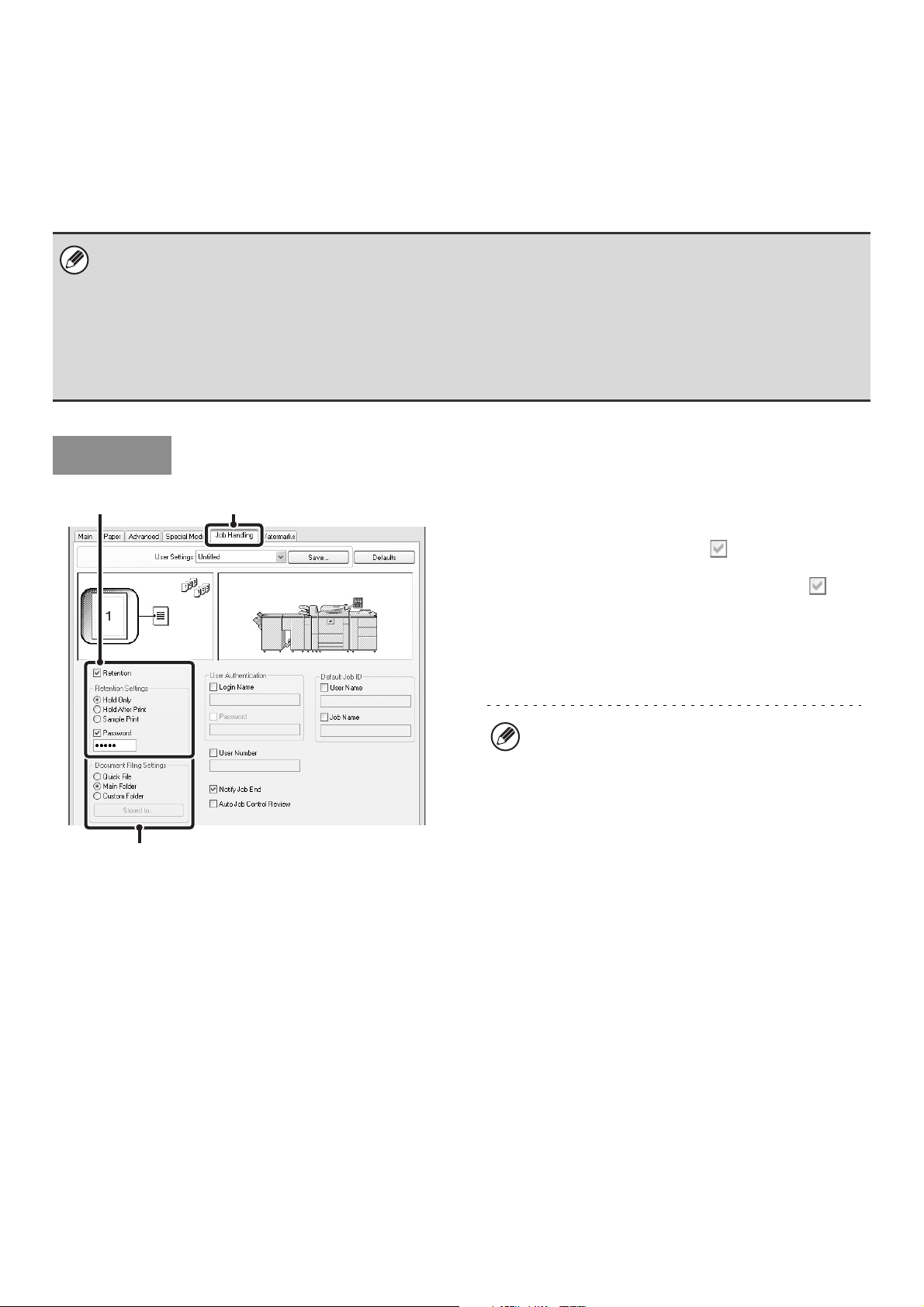
59
User Name and Job Name
When a "User Name" and "Job Name" are entered in the printer driver, the entered names appear in the machine's
touch panel as the user name and job name. When document filing settings are configured, the entered "User Name"
and "Job Name" are used as the "User Name" and "File Name" for document filing. For this reason, when you wish to
print a file stored in the machine, use the "User Name" or "Job Name (File Name)" that was entered in the printer driver
to specify the file.
(1) Click the [Job Handling] tab.
(2) Select the retention setting.
Click the [Retention] checkbox . Select the retention
method in "Retention Settings". To enter a password (5 to
8 digit number), click the [Password] checkbox .
(3) Select document filing settings.
Select the folder for storing the file in "Document Filing
Settings". If you selected [Custom Folder], click the
[Stored to] button to select the folder.
• When entering the "User Name" to store a file using document filing, it is convenient to enter the user name that is stored
in "User Registration" in the system settings (administrator), as this will enable you to simultaneously specify files of the
same user name when searching for files or performing batch printing.
• If you store a file without entering a "Job Name", a file name in the following format will be automatically assigned.
File Name: Print_Month-Day-Year_Hour-Minute-Second
(Example: Print_04042010_102030AM)
• After a file is stored in the machine with a "Job Name (File Name)" that was set using the printer driver, the name can be
changed using the information function of the file operation screen.
Windows
(1)(2)
(3)
• When [Quick File] is selected, "Retention Settings"
will be set to [Hold After Print].
• When [Quick File] is selected, the password entered
in "Retention Settings" is cleared and cannot be
used.
• To store a file in a custom folder, the custom folder
must first be created using "Document Filing
Control" in the system settings. If a password has
been established for a custom folder, enter the
"Folder Password" in the folder selection screen. If
a password is not set, the file is stored in the "Main
Folder".
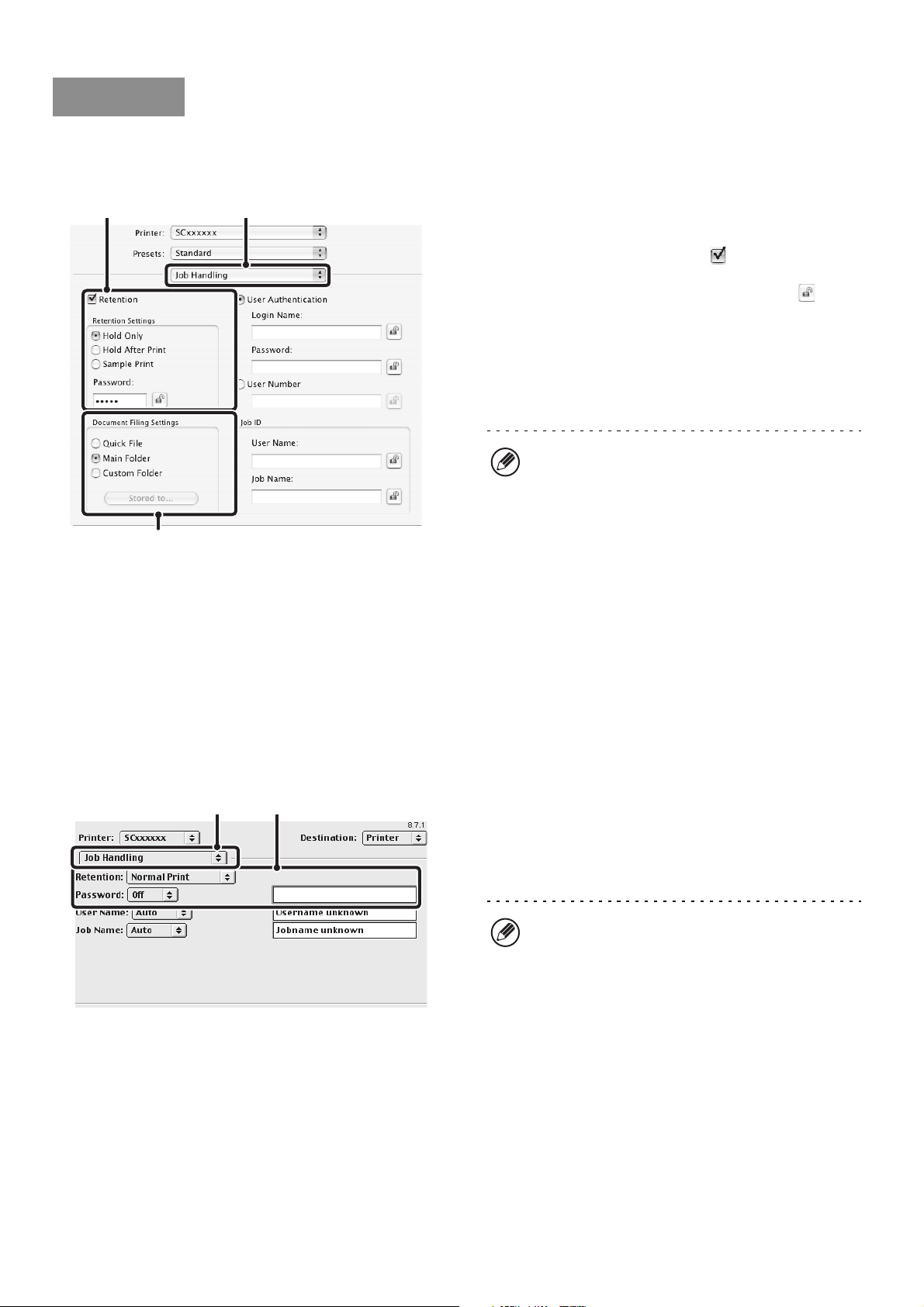
60
Mac OS X
(This function cannot be used in Mac OS X v10.1.5.)
(1) Select [Job Handling].
(2) Select the retention setting.
Click the [Retention] checkbox . Select the retention
method in "Retention Settings". To simplify operation the
next time the same password is set, click the (lock)
button after entering the password (5 to 8 digit number).
(3) Select document filing settings.
Select the folder for storing the file in "Document Filing
Settings". If you selected [Custom Folder], click the
[Stored to] button to select the folder.
Mac OS 9
(The document filing function cannot be used.)
(1) Select [Job Handling].
(2) Select the retention setting.
Select the retention method from the "Retention" menu. If
needed, enter a password (5 to 8 digit number).
Macintosh
(3)
(1)(2)
• When [Quick File] is selected, "Retention Settings"
will be set to [Hold After Print].
• When [Quick File] is selected, the password entered
in "Retention Settings" is cleared and cannot be
used.
• To store a file in a custom folder, the custom folder
must first be created using "Document Filing
Control" in the system settings. If a password has
been established for a custom folder, enter the
"Folder Password" in the folder selection screen. If
a password is not set, the file is stored in the "Main
Folder".
(2)(1)
In Mac OS 9, there are no document filing settings,
and thus the folder for storing a file cannot be
specified. Files that are stored by enabling "Retention"
are all stored in the "Main Folder" of the machine.
61
When you do not have the printer driver installed on your computer, or when the software application used to open a file
that you wish to print is not available, you can print directly to the machine without using the printer driver.
The file types (and corresponding extensions) that can be printed directly are shown below.
DIRECTLY PRINTING FROM THE MACHINE
A file on an FTP server or in a USB memory device connected to the machine can be selected and printed from the
operation panel of the machine without using the printer driver.
5
PERFORMING PRINTING AT THE
MACHINE
File Type
TIFF JPEG PCL
PDF/
Encrypted PDF
PS
Extension
tiff, tif
jpeg, jpg,
jpe, jfif
pcl pdf ps
• To print PDF and PS files, the PS3 expansion kit must be installed.
• Depending on the file type, it may not be possible to print some files in the above table.
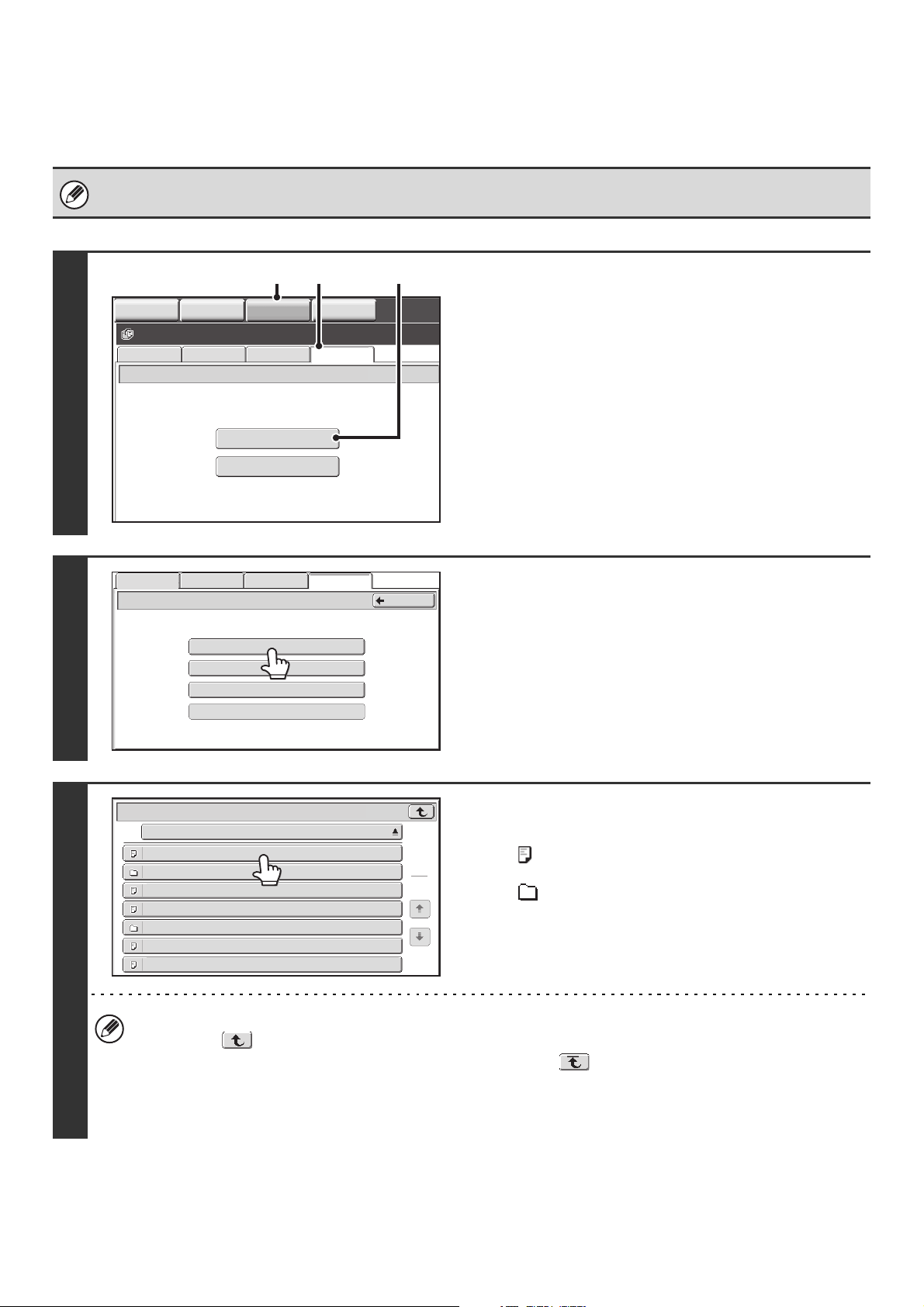
62
DIRECTLY PRINTING A FILE ON AN FTP SERVER
When an FTP server is configured in the machine's Web pages, you can specify and print a file on the FTP server from
the operation panel of the machine. This saves you the trouble of downloading the file and printing it from a computer.
To configure FTP server settings, click [Application Settings] and then [FTP Print Settings] in the Web page menu, and
configure the settings in "FTP Print Settings from Operation Panel". (Administrator rights are required.)
1
Access the FTP server.
(1) Touch the [DOCUMENT FILING] key.
(2) Touch the [Ex Data Access] tab.
(3) Touch the [FTP] key.
2
Touch the key of the FTP server that you
wish to access.
3
Touch the key of the file that you wish to
print.
• The icon appears to the left of keys of files that can be
printed.
• The icon is displayed to the left of keys of folders on the
FTP server. To display the files and folders in a folder, touch
the key of the folder.
• A total of 100 keys of files and folders can be displayed.
• Touch the key to move up one folder level.
• When you move down a folder level by touching a folder key, the key appears in the top right corner of the
screen. Touch this key to return to the root folder (the top folder level of the selected FTP server).
• Touch the [File or Folder Name] key (or the [File Name] key) to change the order of the files and folders displayed
on the screen. The order switches between ascending order and descending order each time you touch the key.
FTP
USB Memory
External Data Access
File Retrieve
Scan to HDD HDD Status
Ex Data Access
IMAGE SEND
DOCUMENT
FILING
MANUAL
FINISHING
COPY
(1)
(2) (3)
Server 1
FTP
Server 2
Server 3
Back
File Retrieve
Scan to HDD HDD Status
Ex Data Access
File or Folder Name
Server 1
File-01.tiff
File-02.tiff
File-03.tiff
File-04.tiff
File-05.tiff
Folder01
Folder02
1
1
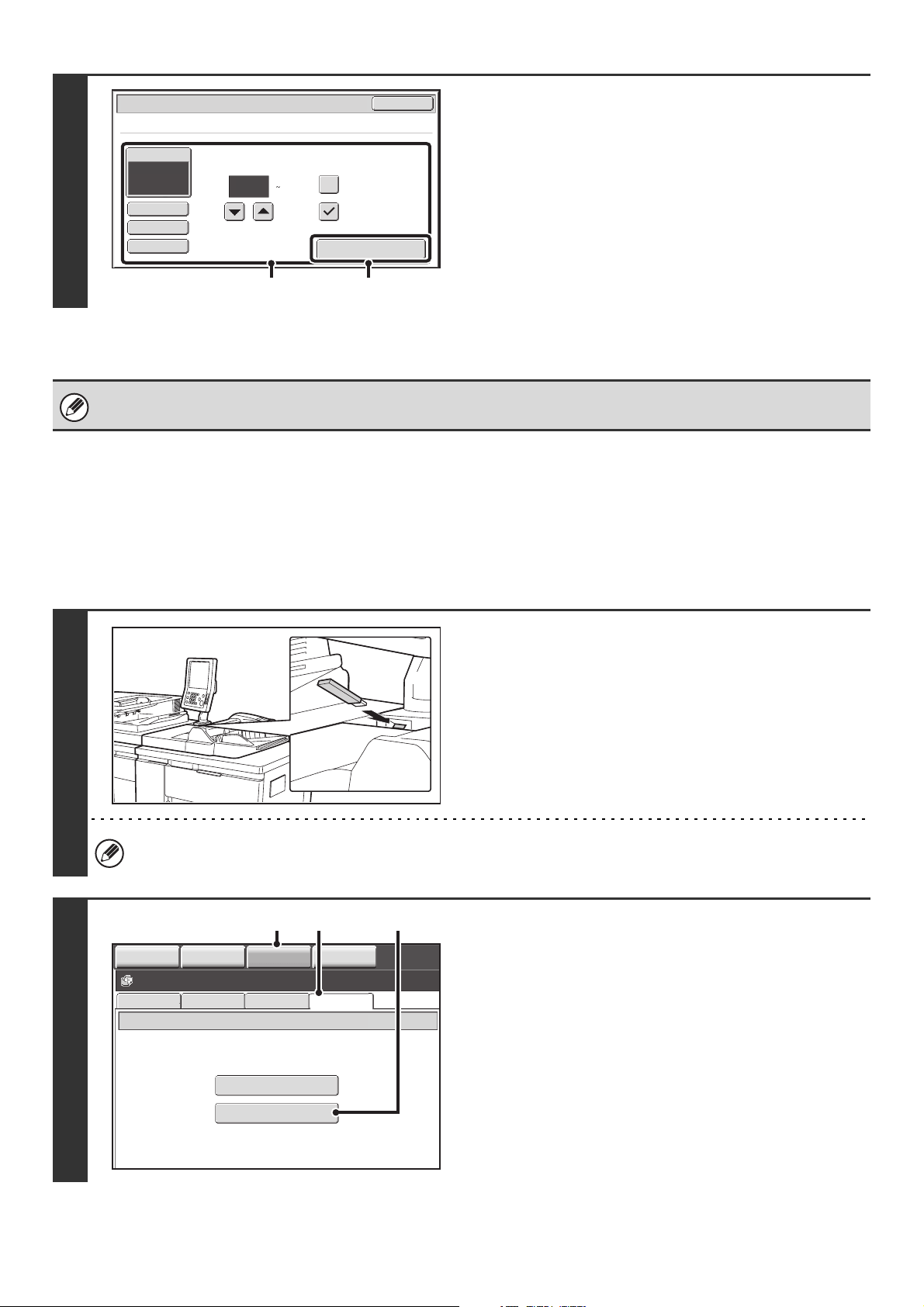
63
DIRECTLY PRINTING A FILE IN USB MEMORY
A file in a USB memory device connected to the machine can be printed from the operation panel of the machine without
using the printer driver. When the printer driver of the machine is not installed on your computer, you can copy a file into
a commercially available USB memory device and connect the device to the machine to print the file directly.
4
Print the selected file.
(1) Select print conditions.
• For details on the settings, see "PRINT SETTINGS
SCREEN" (page 65).
• If you selected a file (PCL or PS) in step 3 that includes
print settings, the settings will be applied.
(2) Touch the [Print] key.
Printing begins. When the message "Job stored. ..."
appears in the touch panel, touch the [OK] key.
When you select a PDF file that has a password, you must enter the password in the job status screen to begin printing.
☞ PRINTING AN ENCRYPTED PDF FILE (page 68)
1
Connect the USB memory device to the
machine.
Consult your dealer for USB memory devices that can be used.
2
Access the USB memory device.
(1) Touch the [DOCUMENT FILING] key.
(2) Touch the [Ex Data Access] tab.
(3) Touch the [USB Memory] key.
1
Output
2-Sided
Quick File
Paper Select
Auto
Print
Cancel
Tandem Print
Fit To Page
Print
File-01.tiff
Number of Prints
(1 9999)
(1) (2)
FTP
USB Memory
External Data Access
File Retrieve
Scan to HDD HDD Status
Ex Data Access
IMAGE SEND
DOCUMENT
FILING
MANUAL
FINISHING
COPY
(1)
(2) (3)
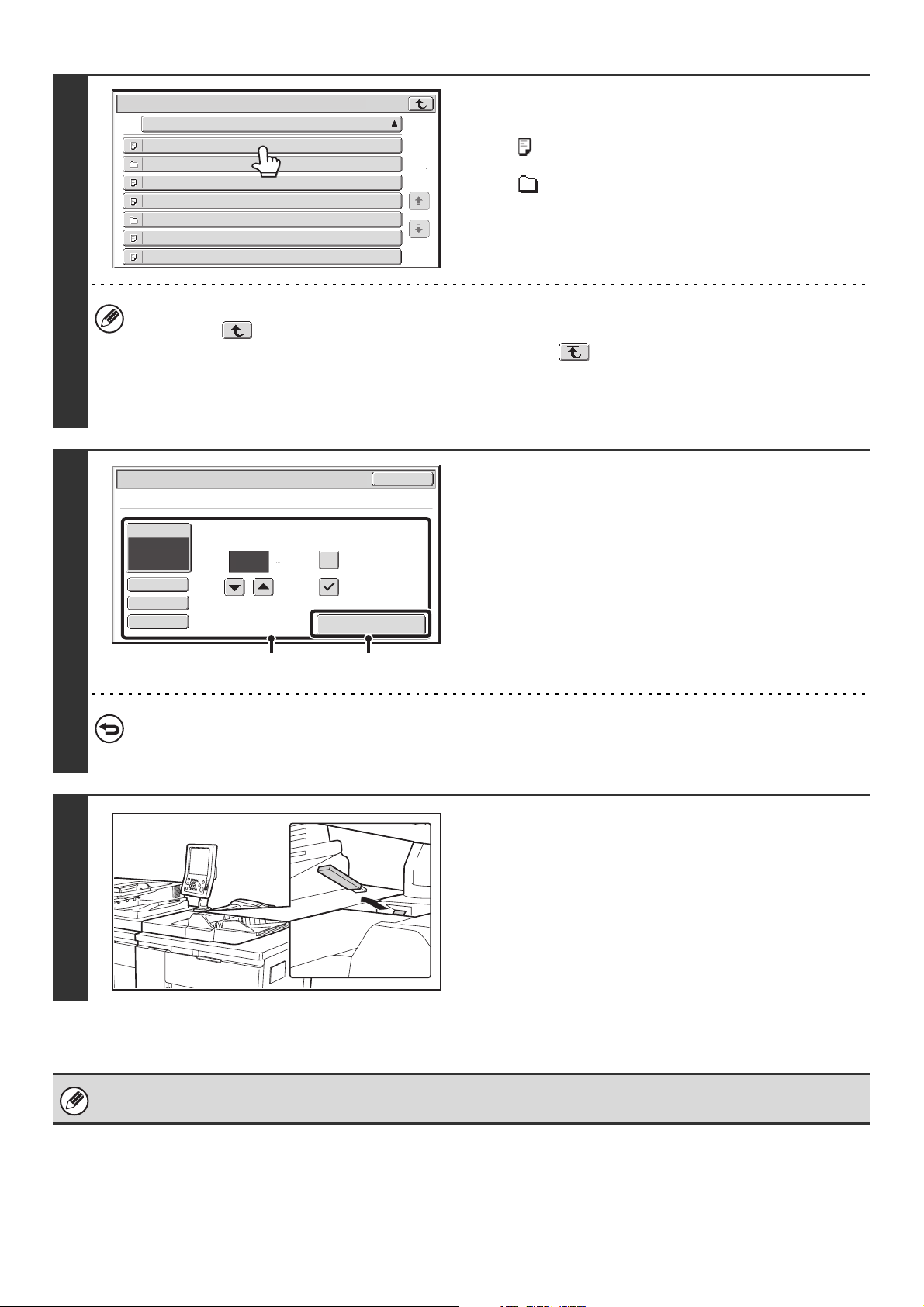
64
3
Touch the key of the file that you wish to
print.
• The icon appears to the left of keys of files that can be
printed.
• The icon is displayed to the left of keys of folders in the
USB memory. To display the files and folders in a folder,
touch the key of the folder.
• A total of 100 keys of files and folders can be displayed.
• Touch the key to move up one folder level.
• When you move down a folder level by touching a folder key, the key appears in the top right corner of the
screen. Touch this key to return to the root folder (the top folder level of the selected USB memory).
• Touch the [File or Folder Name] key (or the [File Name] key) to change the order of the files and folders displayed
on the screen. The order switches between ascending order and descending order each time you touch the key.
4
Print the selected file.
(1) Select print conditions.
• For details on the settings, see "PRINT SETTINGS
SCREEN" (page 65).
• If you selected a file (PCL or PS) in step 3 that includes
print settings, the settings will be applied.
(2) Touch the [Print] key.
Printing begins after the selected file is transferred. When
the message "Job stored. ..." appears in the touch panel,
touch the [OK] key.
To cancel printing...
To cancel printing while the file is being transferred, touch the [Cancel] key in the message screen that appears in the
touch panel.
5
Remove the USB memory device from
the machine.
When you select a PDF file that has a password, you must enter the password in the job status screen to begin printing.
☞ PRINTING AN ENCRYPTED PDF FILE (page 68)
File or Folder Name
USB Memory
File-01.tiff
File-02.tiff
File-03.tiff
File-04.tiff
File-05.tiff
Folder01
Folder02
1
1
1
Output
2-Sided
Quick File
Paper Select
Auto
Print
Cancel
Tandem Print
Fit To Page
Print
File-01.tiff
Number of Prints
(1 9999)
(1) (2)
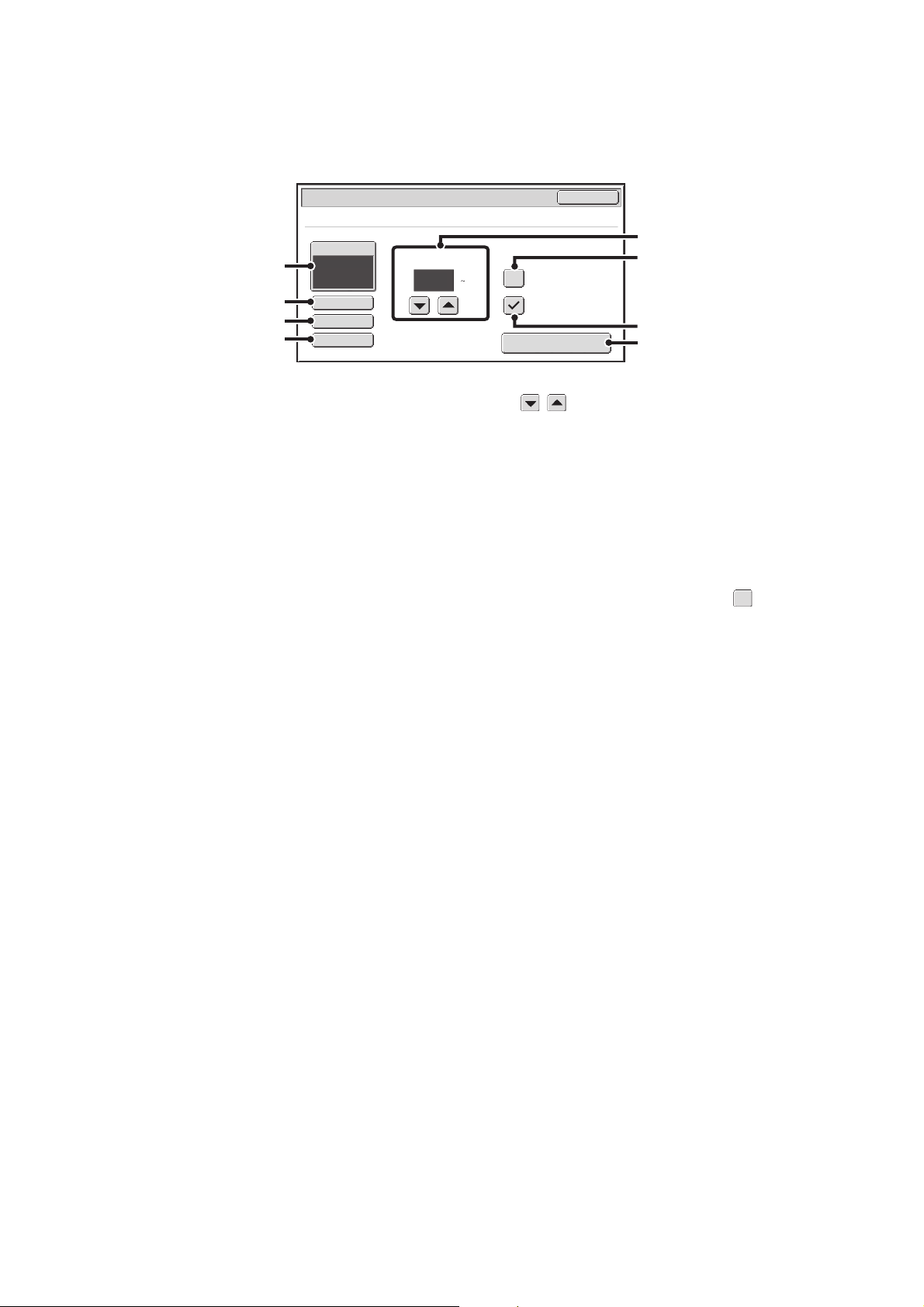
65
PRINT SETTINGS SCREEN
The print settings screen for printing a file on an FTP server or a file in USB memory connected to the machine is
explained below.
(1) [Paper Select] key
This sets the paper size.
(2) [Output] key
Use this to select output settings such as staple, punch,
and paper folding, and to select the output tray.
For the staple function and the punch function, see
"STAPLING OUTPUT/PUNCHING HOLES IN OUTPUT"
(page 32).
For the paper folding function, see "FOLDING
SPECIFIED PAPER IN HALF BEFORE PRINTING
(Paper Fold Print)" (page 54).
(3) [2-Sided] key
Select this to print on both sides of the paper. The
orientation of the image on the reverse side of the paper
can be changed by selecting [2-Sided Booklet] or
[2-Sided Tablet].
For two-sided printing, see "TWO-SIDED PRINTING"
(page 27).
(4) [Quick File] key
This stores a job as a file in the machine's "Quick File
Folder" using the document filing function.
(5) keys
Use these to set the number of prints.
(6) [Tandem Print] checkbox
Use this to perform tandem printing.
For the tandem print function, see "USING TWO
MACHINES TO PRINT A LARGE PRINT JOB (Tandem
Print)" (page 57).
(7) [Fit To Page] checkbox
If you do not wish to use the Fit To Page function, make
sure this checkbox is not selected . When printing a
file that includes print conditions (PCL or PS), this key
cannot be selected.
For the Fit To Page function, see "FITTING THE PRINT
IMAGE TO THE PAPER" (page 29).
(8) [Print] key
Touch this to begin printing.
1
Output
2-Sided
Quick File
Paper Select
Auto
Print
Cancel
Tandem Print
Fit To Page
Print
File-01.tiff
Number of Prints
(1 9999)
(1)
(2)
(3)
(4)
(5)
(8)
(6)
(7)
66
DIRECTLY PRINTING FROM A COMPUTER
Settings can be configured in the Web pages of the machine to enable direct printing from a computer without using the
printer driver.
SUBMIT PRINT JOB
You can specify a file to be printed directly without using the printer driver.
In addition to a file on your computer, this procedure can be used to print any file that can be accessed from your
computer, such as a file on another computer connected to the same network.
To directly print a file on a computer, click [Document Operations] and then [Submit Print Job] in the Web page menu.
FTP PRINT
You can print a file from your computer by simply dragging and dropping the file onto the FTP server of the machine.
• Configuring settings
To enable FTP Print, click [Application Settings] and then [FTP Print Settings] in the Web page menu, enable FTP
Print in "FTP Print Settings from Client PC", and configure the port number. (Administrator rights are required.)
• Performing FTP Print
Type "ftp://" and then the IP address of the machine in the address bar of your computer's Web browser as shown
below.
(Example)
ftp://192.168.1.28
Drag and drop the file that you wish to print onto the "lp" folder that appears in your Web browser. The file will
automatically begin printing.
• If you printed a file (PCL or PS) that includes print settings, the settings will be applied.
• When user authentication is enabled in the system settings (administrator) of the machine, the print function may be
restricted. For more information, see "User Control" in the Administrator's Guide.
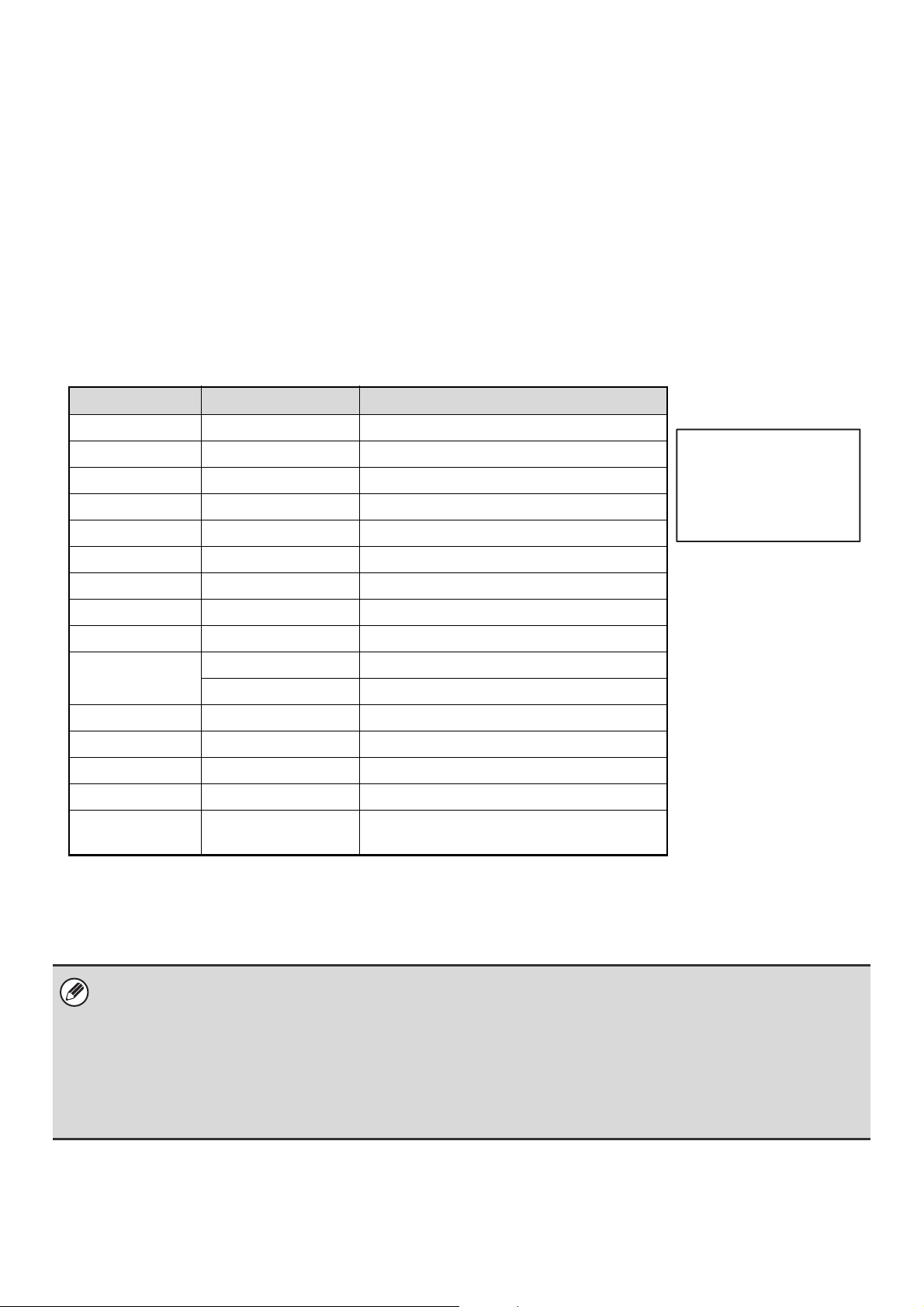
67
E-MAIL PRINT
An e-mail account can be configured in the machine to have the machine periodically check your mail server and
automatically print received e-mail attachments without using the printer driver.
• Configuring settings
To use E-mail Print, you must first configure an e-mail account in the machine. To configure an account, click
[Application Settings] and then [E-mail Print Settings] in the Web page menu. (Administrator rights are required.)
• Using E-mail Print
To print a file using E-mail Print, use your e-mail program on your computer to send the file as an attachment to the
machine's e-mail address.
Control commands can be entered in the message of the e-mail to specify the number of prints and print format.
Commands are entered in the format "command name = value".
As an example, the control commands include the following:
*1 Only effective when a finisher or saddle stitch finisher is installed.
*2 Only effective when a punch module is installed on a finisher or saddle stitch finisher.
*3 Can be omitted except when authentication is by user number.
*4 Only effective when a folding unit is installed.
Function Command name Values Example
Copies COPIES 1-9999
Staples*
1
STAPLEOPTION NONE, ONE, TWO, ONEANGLED, SADDLE
Punch*
2
PUNCH OFF, ON
Punch number*
2
PUNCH-NUMBER TWO, THREE, NONE
Output COLLATE OFF, ON
2-sided print DUPLEX OFF, TOP, LEFT, RIGHT
Account number*
3
ACCOUNTNUMBER Number (5 to 8 digits)
File type LANGUAGE PCL, PCLXL, POSTSCRIPT, PDF, TIFF, JPG
Paper PAPER Name of available paper (LETTER, A4, etc.)
Document Filing FILE OFF, ON
FOLDERNAME 30 characters
Quick File QUICKFILE OFF, ON
Output tray*
1
OUTPUTTRAY TOPTRAY, OFFSETTRAY
Fit to page FITIMAGETOPAGE OFF, ON
Tandem print TANDEM OFF, ON
Paper fold*
4
FOLD Names of paper that can be folded (LEDGER,
A3, etc.)
• Enter the commands in Plain Text format. If entered in Rich Text format (HTML), the commands will have no effect.
• To receive a list of the control commands, enter the command "Config" in the e-mail message.
• If nothing is entered in the body text (message) of the e-mail, printing will take place according to the "Printer Default
Settings" in the system settings. For information on the settings, see "PRINTER DEFAULT SETTINGS" (page 74). If you
printed a file (PCL or PS) that includes print settings, the settings will be applied.
• To print PDF and PS files, the PS3 expansion kit must be installed.
• Only enter a "File type" when you are specifying a page-description language. Normally there is no need to enter a file
type.
COPIES=2
DUPLEX=LEFT
ACCOUNTNUMBER=11111
PAPER=LETTER
QUICKFILE=ON
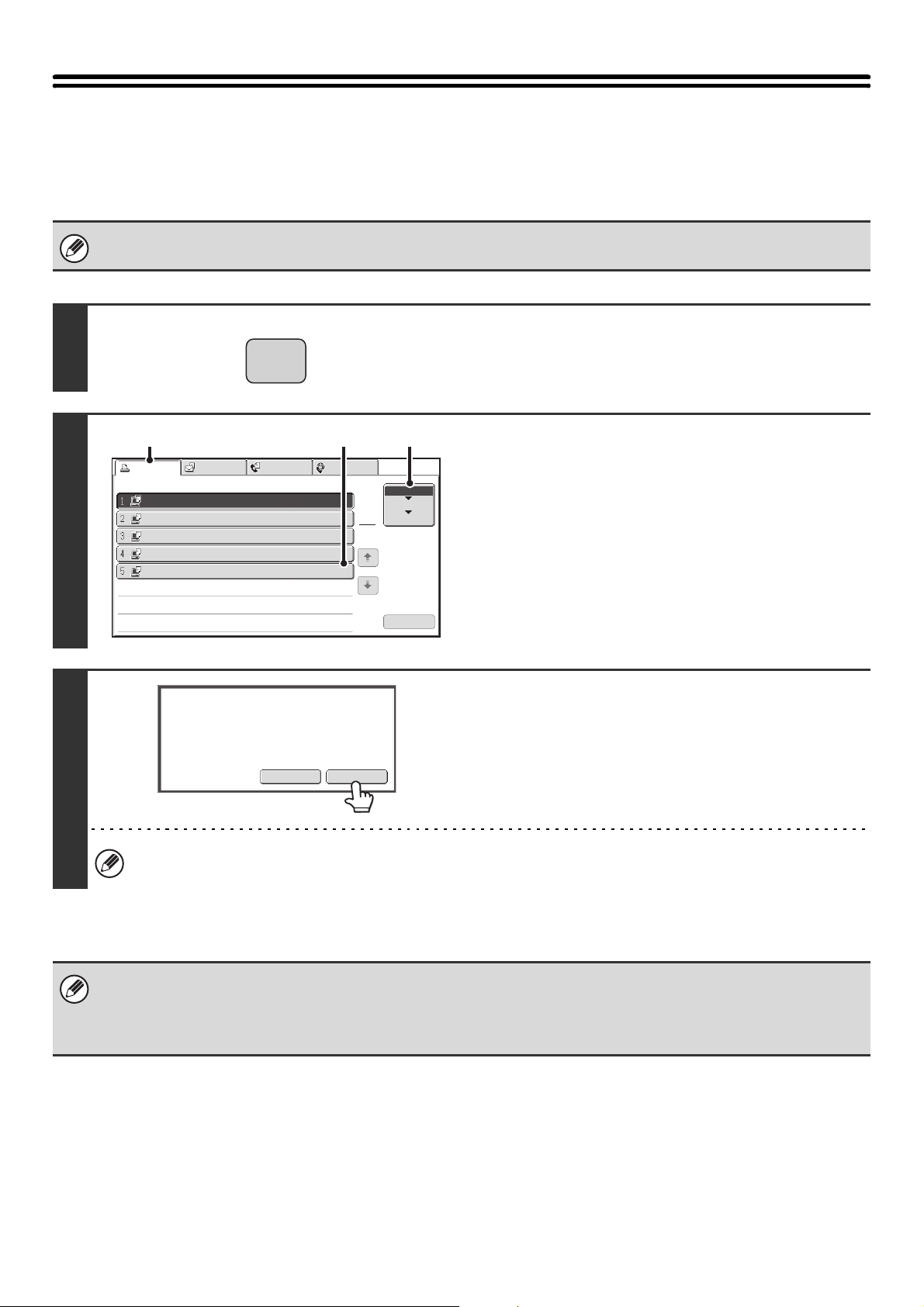
68
PRINTING AN ENCRYPTED PDF FILE
Encrypted PDF is used to protect a PDF file by requiring the entry of a password to print or edit the file. To directly print
an encrypted PDF file on an FTP server or in a USB memory device connected to the machine, follow the steps below to
enter the password and begin printing.
The PS3 expansion kit is required to use this function.
1
Press the [JOB STATUS] key.
2
Select the encrypted PDF print job.
(1) Touch the [Print Job] tab.
(2) Change the print job status mode to
[Spool].
Touch this key to change modes. The selected mode will
be highlighted.
(3) Touch the print job key of the PDF file that
has the password.
3
Touch the [Yes] key.
A text entry screen appears. Enter the password (32 characters
or less) and touch the [OK] key. The print job is released and
moved to the [Job Queue].
When both a master password and a user password (which is used to open the file) have been set, enter the master
password.
• To print an encrypted PDF file using the printer driver, enter the password when opening the file on your computer.
• Printing is not possible if you do not know the password for an encrypted PDF file. To delete a spooled print job, touch the
[No] key in the screen of step 3 and touch the [Stop/Delete] key.
• Encrypted PDF versions that can be directly printed are 1.5 (Adobe
®
Acrobat
®
6.0) and earlier.
JOB STATUS
Print Job
Scan to
Fax Job
Internet Fax
Computer01
Computer02
Computer03
Computer04
Computer05
0020 / ----
0020 / ----
---- / ----
---- / ----
0002
/ ----
Ripping
Spooling
Spooling
Spooling
Encrypt PDF
Job Queue
Sets / Progress Status
Spool
Job Queue
Complete
Stop/Delete
1
1
(1) (2)(3)
Enter the password?
No
Yes
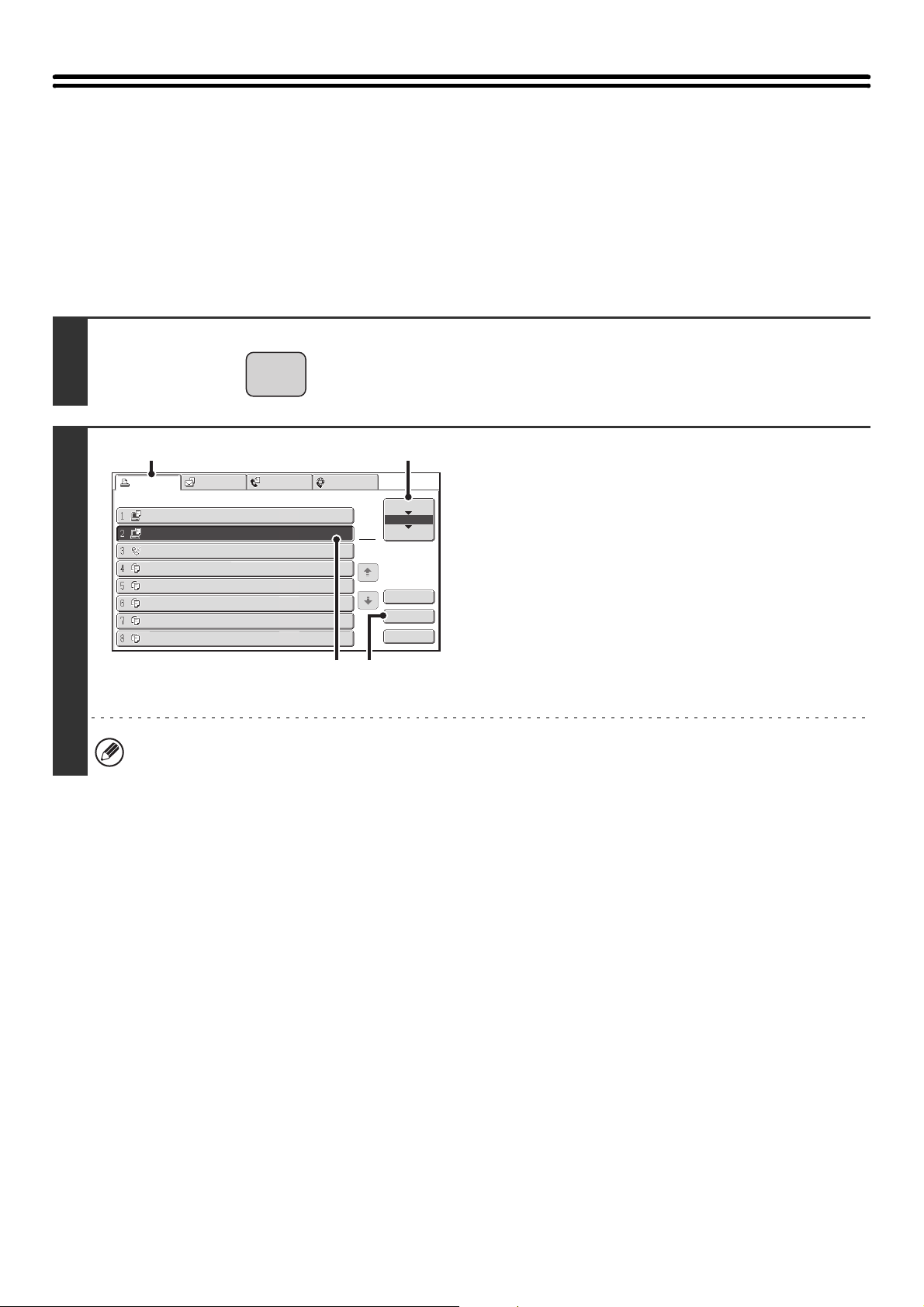
69
GIVING A PRINT JOB
PRIORITY/CANCELING A PRINT JOB
GIVING A PRINT JOB PRIORITY
When the machine is busy copying or printing a received fax or other job, you can give priority to a print job that is
waiting to be printed and print it ahead of the other jobs.
1
Press the [JOB STATUS] key.
2
Give the desired job priority.
(1) Touch the [Print Job] tab.
(2) Change the print job status mode to [Job
Queue].
Touch this key to change modes. The selected mode will
be highlighted.
(3) Touch the key of the print job to which you
want to give priority.
(4) Touch the [Priority] key.
The job being printed stops and the job selected in (3) is
printed.
To check print information on the selected job, touch the [Detail] key.
JOB STATUS
Computer01
Computer02
0312345678
Copy
0020 / 0001
0020
/ 0000
0002 / 0000
0002 / 0000
Printing
Waiting
Waiting
Waiting
Copy
0002 / 0000
Waiting
Copy
0002 / 0000
Waiting
Copy
0002 / 0000
Waiting
Copy
0002 / 0000
Waiting
Spool
Job Queue
Complete
Detail
Priority
Stop/Delete
1
1
Print Job
Scan to
Fax Job
Internet Fax
Job Queue
Sets / Progress Status
(4)(3)
(1)
(2)
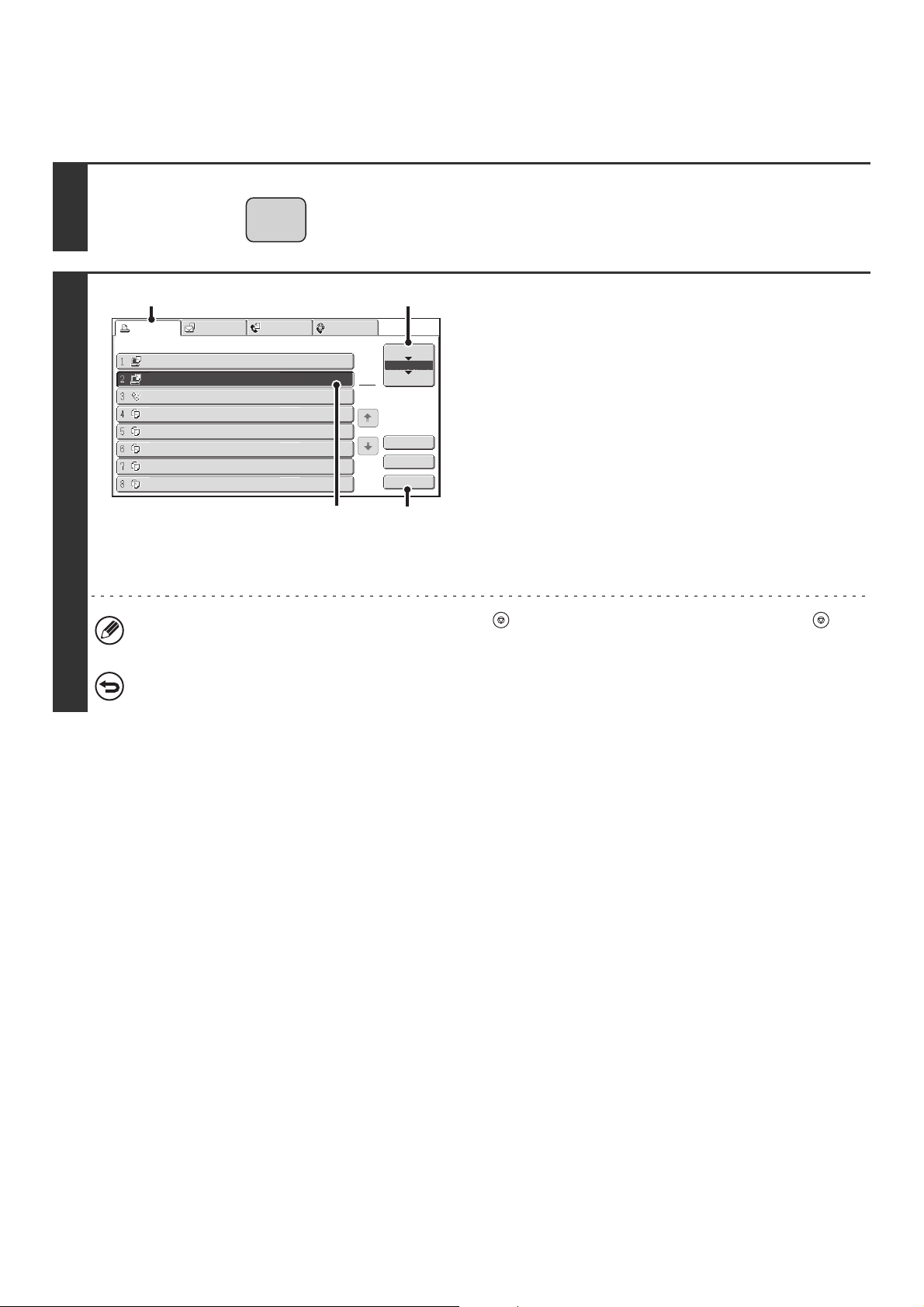
70
CANCELING A PRINT JOB
A job being printed, a job waiting to be printed, or a spooled job can be canceled.
1
Press the [JOB STATUS] key.
2
Cancel the job.
(1) Touch the [Print Job] tab.
(2) Change the print job status mode to [Spool]
or [Job Queue].
Touch this key to change modes. The selected mode will
be highlighted.
(3) Touch the key of the print job that you wish
to cancel.
(4) Touch the [Stop/Delete] key.
(5) A message appears to confirm the
cancelation. Touch the [Yes] key.
The selected job key is deleted and printing is canceled.
It is also possible to cancel printing with the [STOP] key ( ) on the operation panel. When the [STOP] key ( ) is
pressed, a message will appear asking you if you want to cancel the job.
If you do not want to cancel the selected print job...
Touch the [No] key in step (5).
JOB STATUS
Computer01
Computer02
0312345678
Copy
0020 / 0001
0020 / 0000
0002
/ 0000
0002
/ 0000
Printing
Waiting
Waiting
Waiting
Copy
0002 / 0000
Waiting
Copy
0002 / 0000
Waiting
Copy
0002 / 0000
Waiting
Copy
0002 / 0000
Waiting
Spool
Job Queue
Complete
Detail
Priority
Stop/Delete
1
1
Print Job
Scan to
Fax Job
Internet Fax
Job Queue
Sets / Progress Status
(4)(3)
(1)
(2)
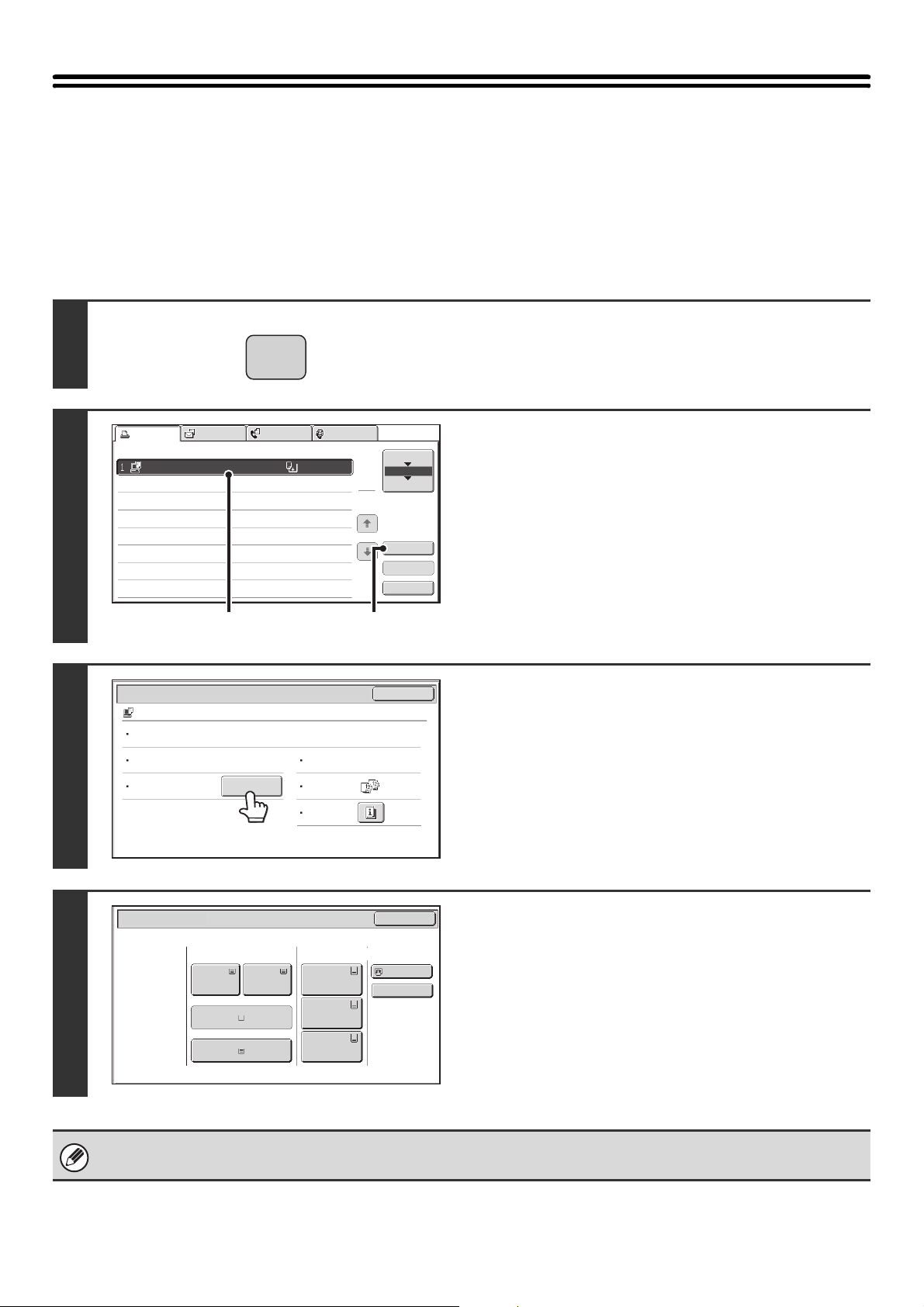
71
CHANGING TO ANOTHER PAPER SIZE AND
PRINTING WHEN PAPER RUNS OUT
If printing stops because the machine ran out of paper, or if the size of paper specified in the printer driver is not loaded
in the machine, a message will appear in the touch panel. Printing will begin automatically when the [OK] key is touched
and paper is loaded in the machine. If you wish to print on paper in another tray because the desired size of paper is not
immediately available, follow the steps below.
1
Press the [JOB STATUS] key.
2
Display details on the print job for which
there is no paper.
(1) Touch the key of the job for which "Paper
Empty" appeared.
(2) Touch the [Detail] key.
3
Touch the [Paper Select] key.
4
Touch the key of the tray that has the
paper you wish to use.
Printing begins.
If you changed to a different paper size, printing may not take place correctly; for example part of the text or image may run
off the paper.
JOB STATUS
Computer01
0020 / 0001
Paper Empty
Priority
Spool
Job Queue
Complete
Detail
Stop/Delete
1
1
Print Job
Scan to
Fax Job
Internet Fax
Job Queue
Sets / Progress Status
(1)
(2)
Detail
OK
Computer01 0020 / 0000 Paper Empty
Data : File-01.tiff
Paper :
11x17
Plain
Paper Select
Document
Style:
Storage
Format:
Special
Modes:
Output :
2-Sided
(Book)
Mono2
Paper Select
OK
Paper Tray
Large Capacity
Tray
Bypass Tray
Plain
1.8-½x11
Plain
Plain
Plain
2.8-½x11
5.8-½x11
8-½x11
Plain
6.8-½x11
Plain
7.8-½x11
Plain
4.8-½x14
3.11x17
Plain
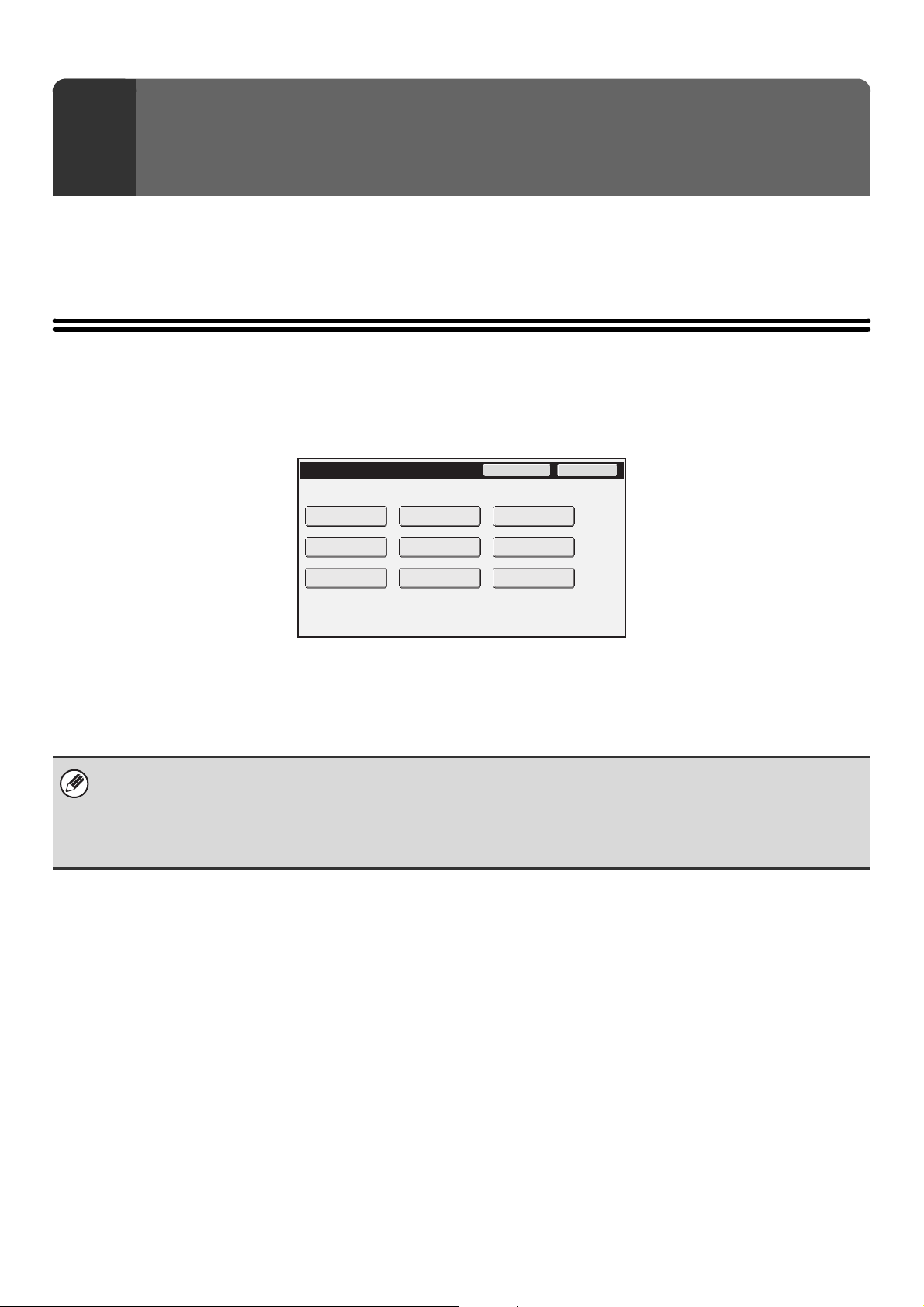
72
This chapter explains the system settings for the printer function that can be configured by general users.
For information on configuring the system settings, see the User's Guide. For system settings that require administrator
rights, see the Administrator's Guide.
ACCESSING THE SYSTEM SETTINGS
Make sure that the machine is in the standby state and then press the [SYSTEM SETTINGS] key on the operation
panel.
When the [SYSTEM SETTINGS] key is pressed, the following menu screen appears on the touch panel.
Touch the item in this screen that you wish to configure. For the procedure for configuring each setting, see the
explanation of the setting. The following settings are explained:
• PRINTER CONDITION SETTINGS (page 74)
6
SYSTEM SETTINGS
• To quit the system settings, touch the [Exit] key in the top right corner of the screen.
• For the procedure to follow when user authentication is enabled, see "USER AUTHENTICATION" in the User's Guide.
• Web pages
The system settings can also be configured from the Web pages. To configure the system settings from the Web pages,
click [System Settings] in the Web page menu.
System Settings
Admin Password Exit
Total Count
Paper Tray
Settings
Printer Condition
Settings
Document Filing
Control
Address Control
Fax Data
Receive/Forward
USB-Device Check
Default Settings
List Print
(User)
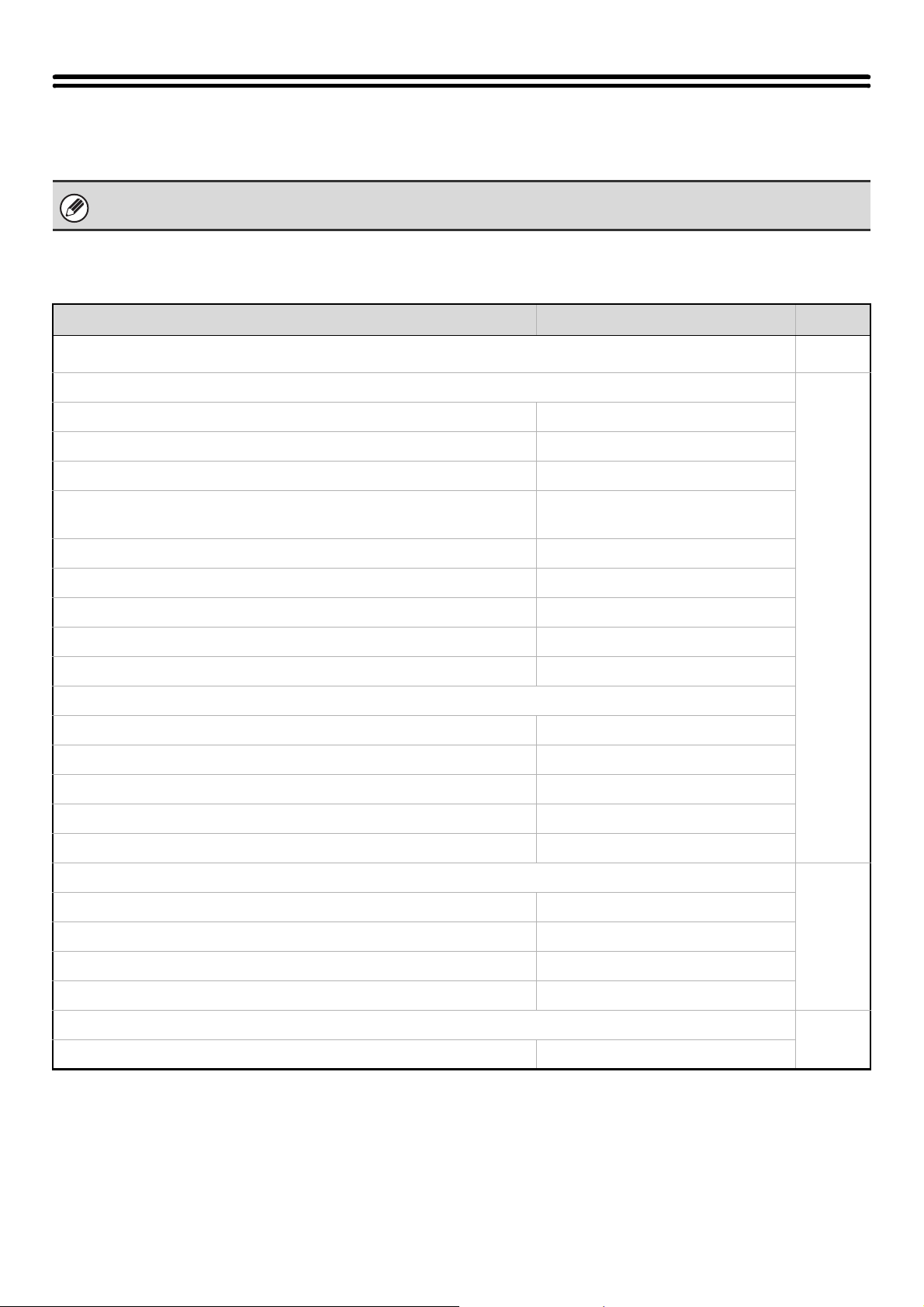
73
SYSTEM SETTINGS LIST
When the system settings are accessed with general rights, the following items appear.
■ Printer Condition Settings
*1 When a finisher or saddle stitch finisher is installed.
*2 When a punch module is installed.
*3 When a folding unit is installed.
*4 When the PS3 expansion kit is installed.
Depending on the machine specifications and peripheral devices installed, it may not be possible to use some settings.
Item Factory default setting Page
■ PRINTER CONDITION SETTINGS
74
● PRINTER DEFAULT SETTINGS
74
X Copies 1
X Orientation Portrait
X Default Paper Size 8-1/2" x 11"
X Default Output Tray Varies depending on the machine
configuration
X Default Paper Type Plain Paper
X Line Thickness 5
X 2-Sided Print 1-Sided
X N-Up Print 1-Up
X Fit To Page Enabled
X Output
Print per Unit Disabled
Staple Position*
1
Off
Punch*
2
Disabled
Fold Size Setting*
3
All Invalid
X Quick File Disabled
● PCL SETTINGS
75
X PCL Symbol Set Setting PC-8
X PCL Font Setting Internal Font, Courier
X PCL Line Feed Code 0.CR=CR:LF=LF:FF=FF
X Wide A4 Disabled
● POSTSCRIPT SETTING*
4
75
X Print PS Errors Disabled
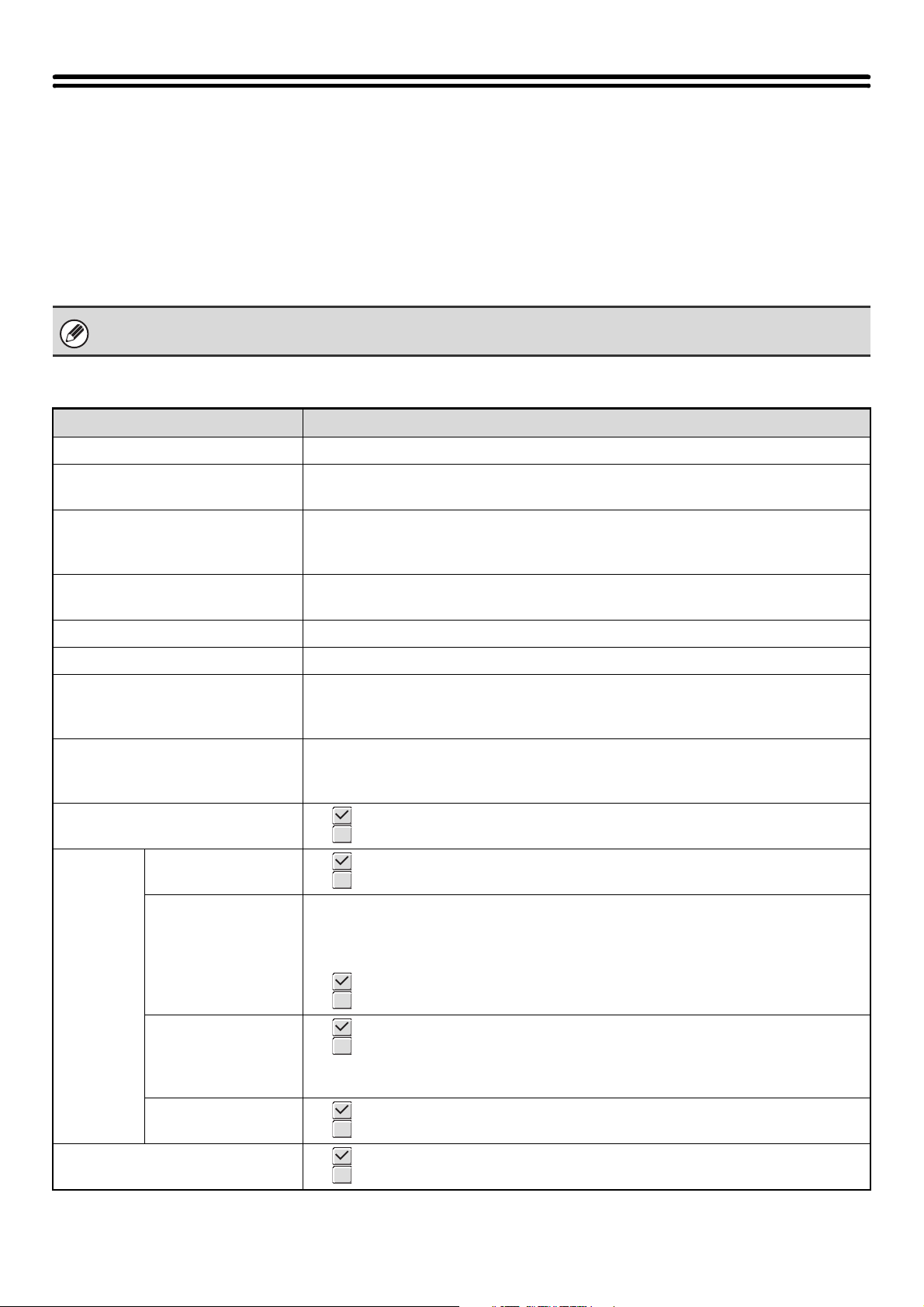
74
PRINTER CONDITION SETTINGS
The Printer Condition Settings are used to configure basic printer settings and settings for printing from a DOS
application. To configure the settings, touch the [Printer Condition Settings] key.
PRINTER DEFAULT SETTINGS
The default settings are used to set advanced print conditions for printing in an environment where the print driver is not
used (such as printing from MS-DOS or from a computer that does not have the provided print driver installed).
Settings
When printing using the printer driver, the printer driver settings take precedence over the printer condition settings.
Item Selections
Copies 1 - 9999 sets
Orientation
• Portrait
•Horizontal
Default Paper Size
12" x 18", 11" x 17", 8-1/2" x 14", 8-1/2" x 13-2/5", 8-1/2" x 13", 8-1/2" x 11", 5-1/2" x 8-1/2",
7-1/4" x 10-1/2", 9" x 12", A3, B4, A4, B5, A5, 320mm x 450mm, 225mm x 320mm,
318mm x 234mm, 312mm x 220mm, 318mm x 469mm, 312mm x 440mm, 8k, 16k
Default Output Tray*
1
•Top Tray
•Offset Tray
Default Paper Type Plain Paper, Letter Head, Pre-Printed, Pre-Punched, Recycle Paper, Color
Line Thickness*
2
0-9
2-Sided Print
•1-Sided
• 2-Sided (Book)
• 2-Sided (Tablet)
N-Up Print*
3
•1-Up
•2-Up
•4-Up
Fit To Page*
4
• (Use Fit to Page)
• (Do not use Fit to Page)
Output
Print per Unit
• (Print per Unit)
• (Do not Print per Unit)
Staple Position*
1
• Disabled
• 1 Staple at Back
•2 Staples
• 2 Staples (Top)
• (Slant staple)*
5
• (No Slant staple)*
5
Punch*
6
• (Punch)
• (No Punch)
• 2-Hole Punch
• 3-Hole Punch
Fold Size Setting*
7
•
(Set 11" x 17", 8-1/2" x 14", 8-1/2" x 11"R, A3, B4, and A4R as paper folding sizes)
• (Do not set paper folding sizes)
Quick File
• (Quick File)
• (No Quick File)
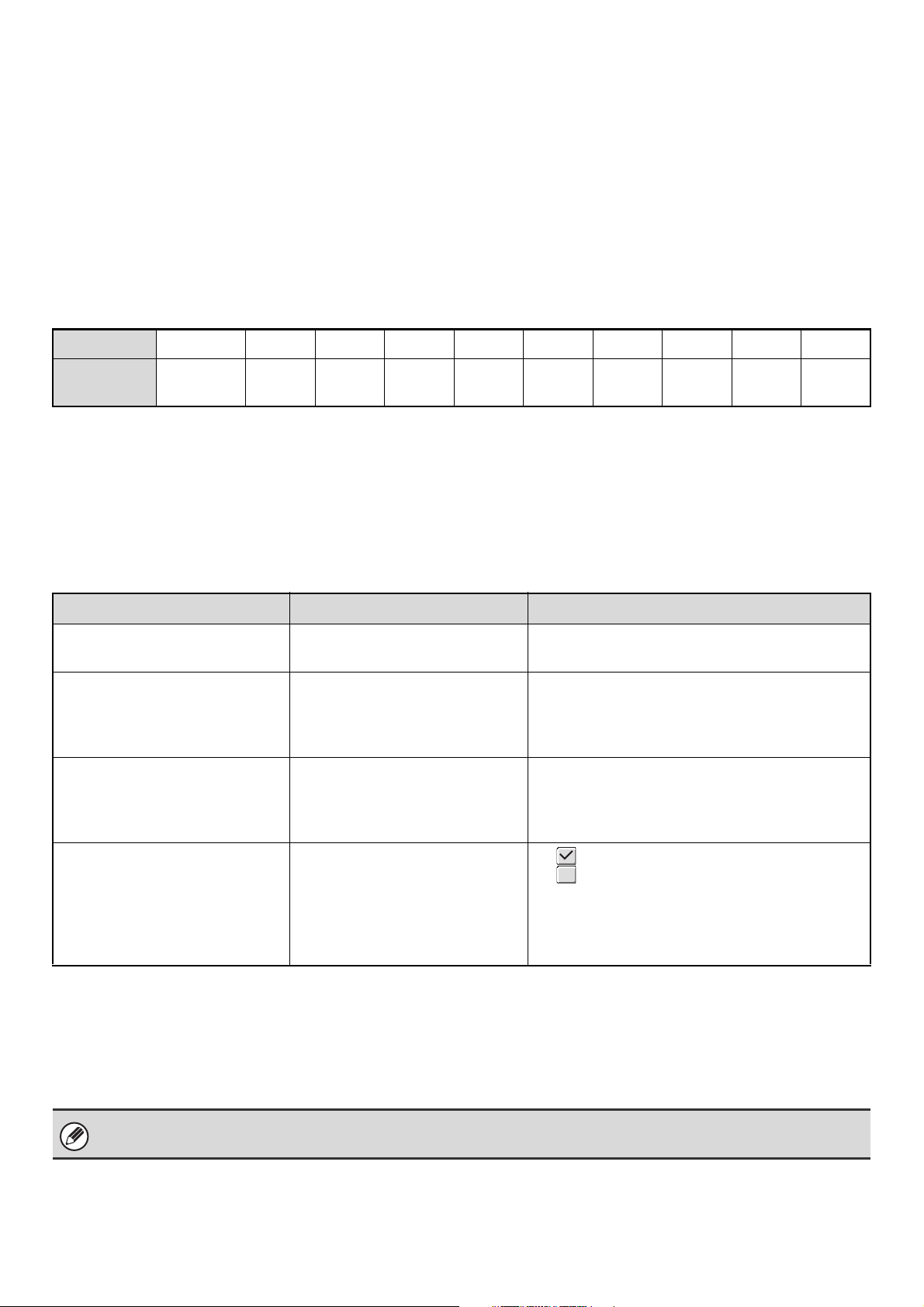
75
*1 Only effective when a finisher or saddle stitch finisher is installed.
*2 This setting is used to adjust the line width of vector graphics. Except for CAD and other specialized uses, there is
normally no need to change this setting. Information on the selections is shown in "Selections for the line thickness
setting" (Table below).
*3 Paper sizes that can be used with this function are 11" x 17", 8-1/2" x 14", 8-1/2" x 11", A3, B4, and A4. (This function
may not take effect with some print methods.)
*4 Only effective when printing PDF, JPEG, and TIFF files.
*5 Can only be selected when [1 Staple at Back] is selected.
*6 Only effective when a punch module is installed on a finisher or saddle stitch finisher.
*7 Can only be selected when a folding unit is installed.
Selections for the line thickness setting
* All lines are the minimum line width.
PCL SETTINGS
This is used to set the symbol sets, fonts, and line feed code used in a PCL environment.
Settings
POSTSCRIPT SETTING
When a PS (PostScript) error occurs during PostScript printing, this setting determines whether or not an error notice is
printed.
Selection 0 1 2 3 4 5 6 7 8 9
Percentage
Minimum
line width*
50% 75% 90% 95% 100% 105% 110% 125% 150%
Item Description Selections
PCL Symbol Set Setting
Specify the symbol set used for
printing.
Select from 35 items.
PCL Font Setting
Use this to select the font used for
printing.
• Internal Font
• Extended Font
(List of internal fonts when extended fonts are not
installed.)
PCL Line Feed Code
This setting is used to select how
the printer responds when a line
feed command is received.
• 0.CR=CR; LF=LF; FF=FF
• 1.CR=CR+LF; LF=LF;FF=FF
• 2.CR=CR; LF=CR+LF; FF=CR+FF
• 3.CR=CR+LF; LF=CR+LF; FF=CR+FF
Wide A4
When this is enabled, 80
characters per line can be printed
on A4 size paper using a 10-pitch
font. (When this setting is
disabled, up to 78 characters can
be printed per line.)
• (Enabled)
• (Disabled)
This setting can be configured when the PS3 expansion kit is installed.
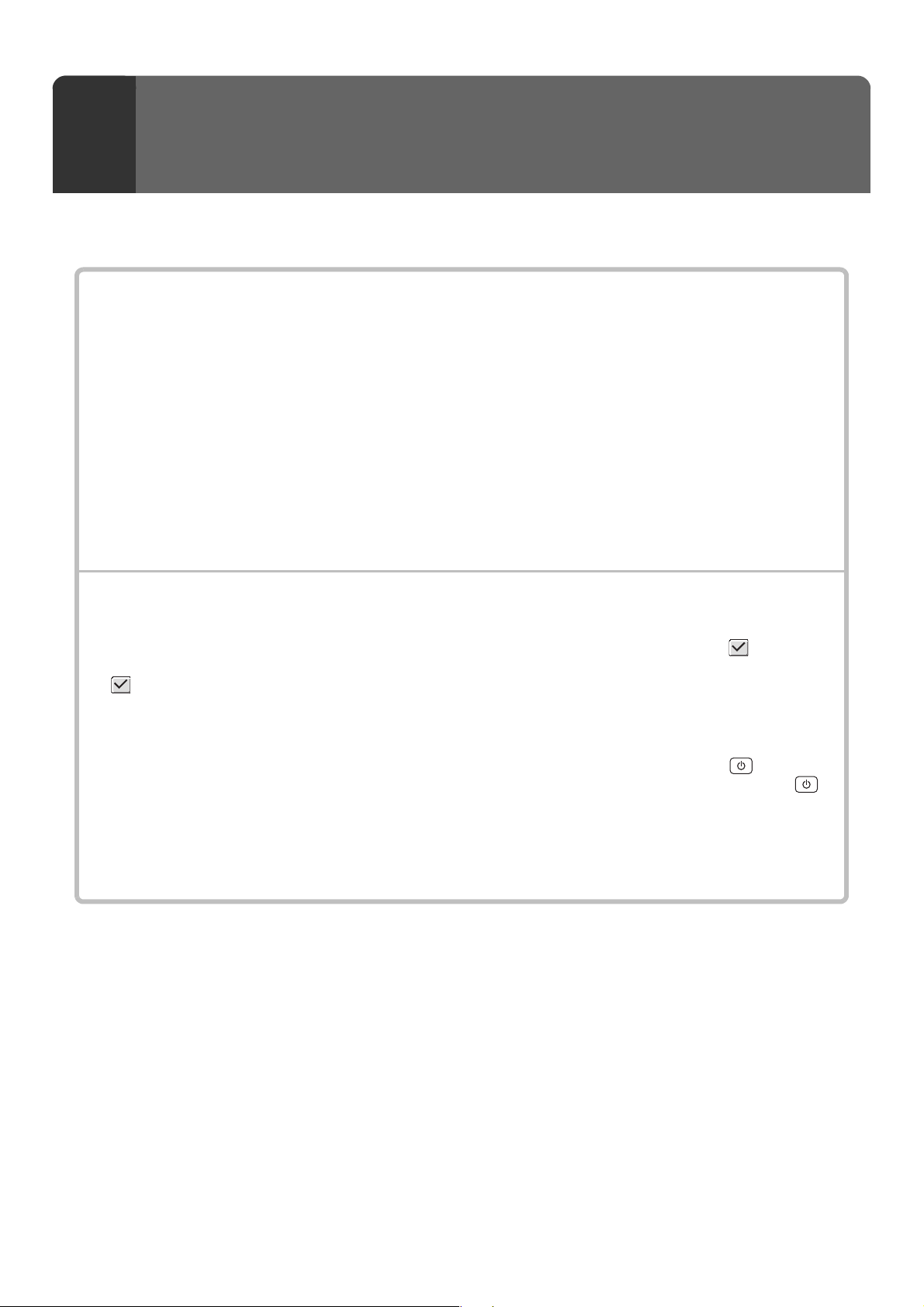
76
This chapter provides solutions to possible printing problems. See the following table of contents to locate the
appropriate page for your question or problem.
7
TROUBLESHOOTING
PROBLEMS RELATED TO PRINTING OPERATION
• Printing does not take place.. . . . . . . . . . . . . . . . . . . . . . . . . . . . . . . . . . . . . . . . . . . . . . . . . . . . . . . . . 77
• Two-sided printing does not take place. . . . . . . . . . . . . . . . . . . . . . . . . . . . . . . . . . . . . . . . . . . . . . . . . 78
• A tray, finisher, or other peripheral device installed on the machine cannot be used. . . . . . . . . . . . . . 78
PROBLEMS RELATED TO PRINT RESULTS
• The image is grainy. . . . . . . . . . . . . . . . . . . . . . . . . . . . . . . . . . . . . . . . . . . . . . . . . . . . . . . . . . . . . . . . 79
• The image is too light or too dark.. . . . . . . . . . . . . . . . . . . . . . . . . . . . . . . . . . . . . . . . . . . . . . . . . . . . . 79
• Text and lines are faint and difficult to see.. . . . . . . . . . . . . . . . . . . . . . . . . . . . . . . . . . . . . . . . . . . . . . 79
• Part of the image is cut off. . . . . . . . . . . . . . . . . . . . . . . . . . . . . . . . . . . . . . . . . . . . . . . . . . . . . . . . . . . 79
• The image is upside down. . . . . . . . . . . . . . . . . . . . . . . . . . . . . . . . . . . . . . . . . . . . . . . . . . . . . . . . . . . 80
• Many nonsense characters are printed. . . . . . . . . . . . . . . . . . . . . . . . . . . . . . . . . . . . . . . . . . . . . . . . . 80
• System settings
Descriptions of system settings similar to the following example appear in this chapter.
Example:
➞ System Settings (Administrator) > "Copy Settings" > "Other Settings" > "Rotation Copy Setting" >
This is an abbreviated description of the procedure for selecting the setting. ">" indicates the setting sequence and
indicates the state of the setting after it has been enabled. Use these descriptions as a quick manual to help you
configure the settings. (For detailed explanations of the system settings (administrator), see the Administrator's
Guide.)
•
For problems common to all functions of the machine and peripheral devices, see the User's Guide.
• If you are unable to solve a problem using the solutions in this manual, switch off the [POWER] key ( ) and the
main power switch. Wait at least 10 seconds, and then switch on the main power switch and the [POWER] key ( )
in that order.
* Do not turn off the machine's main power switch or remove the power plug while a job is being executed or
processed. This may damage the hard drive or cause the data being stored or received to be lost.
• If you are unable to solve a problem using the information in this chapter, please contact your dealer or nearest
SHARP Service Department.
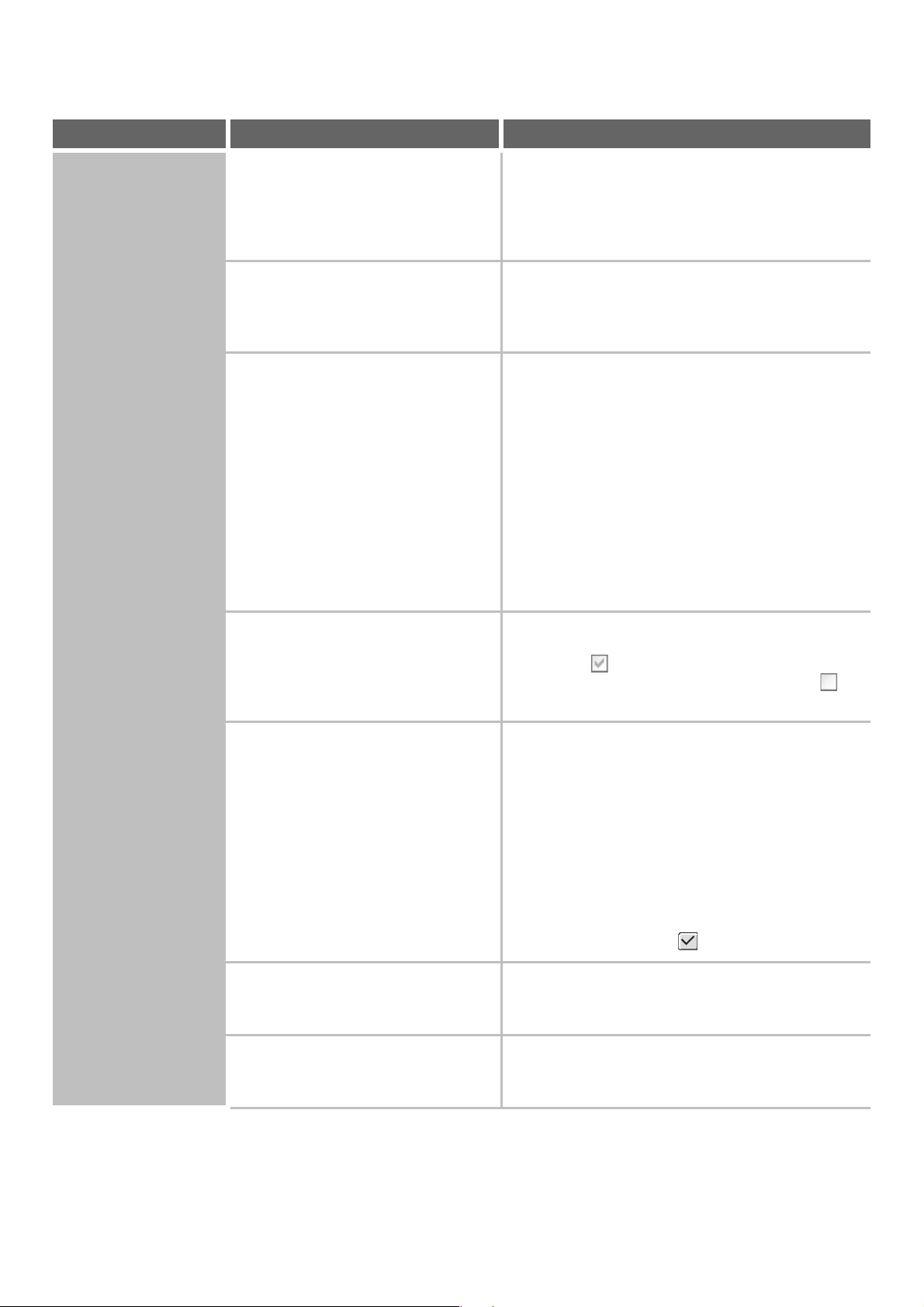
77
PROBLEMS RELATED TO PRINTING OPERATION
Problem Point to check Solution
Printing does not take
place.
Is your computer connected correctly to
the machine?
Make sure that the cable is connected securely to the
LAN connector or the USB connector on your computer
and the machine.
If you are on a network, check the connections at the
hub as well.
Is the machine connected to the same
network (LAN, etc.) as your computer?
The machine must be connected to the same network
as your computer.
If you do not know which network the machine is
connected to, ask the network administrator.
Is the IP address selected correctly?
(Windows)
If the machine does not have a permanent IP address
(the machine receives an IP address from a DHCP
server), printing will not be possible if the IP address
changes. Print the "All Custom Setting List" in the
system settings and check the IP address of the
machine. If the IP address has changed, change the
port setting in the printer driver.
➞ System Settings > "List Print (User)" > "All Custom
Setting List"
☞ Software Setup Guide
If the IP address changes frequently, it is recommended
that a permanent IP address be assigned to the machine.
➞ System Settings (Administrator) > "Network Settings"
Are you using a printer port created
using Standard TCP/IP Port?
(Windows 2000/XP/Server 2003/Vista)
When a port created with Standard TCP/IP Port in
Windows is used and the [SNMP Status Enabled]
checkbox is , it may not be possible to print correctly.
Change the [SNMP Status Enabled] checkbox to .
☞ Software Setup Guide
Is AppleTalk active?
(Macintosh)
In Mac OS X, click [Network] in [System Preferences]
and select "Built-in Ethernet" in "Show". Click the
[AppleTalk] tab and make sure that [Make AppleTalk
Active] is selected.
In Mac OS 9, open the [Chooser] from the Apple menu
and make sure that [Active] is selected. Printing is not
possible if [Active] is not selected.
Ask your administrator to check if "Enable EtherTalk" is
enabled in the system settings (administrator). (The
factory default setting is "Enable".)
➞ System Settings (Administrator) > "Network Settings"
> "Enable EtherTalk" >
Is "Connect via" set to [Ethernet] for
AppleTalk?
(Mac OS 9)
Open [AppleTalk] from the [Control Panels] and make
sure that [Ethernet] is selected in the "Connect via"
menu. Printing is not possible if [Ethernet] is not selected.
Is your computer in an unstable state? Printing is sometimes not possible when you run
multiple applications at once or there is insufficient
memory or hard drive space. Restart your computer.
78
Printing does not take
place.
Is the machine specified correctly in the
software application that you are using
for printing?
Make sure that the printer driver of the machine is
selected in the Print window of the application.
If the printer driver does not appear in the list of
available printer drivers, it may not be installed correctly.
Remove the printer driver and then install it once again.
☞ Software Setup Guide
Are the network connection devices
operating normally?
Make sure that the routers and other network
connection devices are operating correctly. If a device is
not powered on or is in an error state, see the manual of
the device to correct the problem.
Is the I/O timeout setting too short?
If the I/O timeout setting is too short, errors may occur
while writing to the printer. Ask the administrator of the
machine to configure an appropriate time in "I/O Timeout".
➞ System Settings (Administrator) > "Printer Settings" >
"Interface Settings" > "I/O Timeout"
Was a Notice Page printed? A Notice Page will be printed to indicate the cause of the
problem if a print job cannot be performed as specified
and the cause is not shown in the display. Read the
printed page and take appropriate action.
For example, a notice page will be printed in the
following situations.
• The print job is too large to fit in memory.
• A function that has been prohibited by the
administrator is specified.
* By factory default, Notice Pages are not printed.
Have functions been disabled by the
administrator?
When user authentication is enabled, the functions that
you can use may be restricted in your user settings.
Check with your administrator.
Two-sided printing
does not take place.
Does the paper type setting of the
selected tray specify a type of paper that
cannot be used for two-sided printing?
Check "Tray Settings" in the system settings.
If the [Disable Duplex] checkbox is selected ,
two-sided printing using that tray will not be possible.
Change the paper type setting to a type that can be
used for two-sided printing.
➞ System Settings > "Paper Tray Settings" > "Tray
Settings" > "Change"
Are you using a special size or type of
paper?
For the paper types and sizes that can be used for
two-sided printing, see "SPECIFICATIONS" in the
Safety Guide.
Have functions been disabled by the
administrator?
Some functions may have been disabled in the system
settings (administrator). Check with your administrator.
When user authentication is enabled, the functions that
you can use may be restricted in your user settings.
Check with your administrator.
A tray, finisher, or
other peripheral
device installed on the
machine cannot be
used.
Have the peripheral devices that are
installed on the machine been
configured in the printer driver?
Open the printer properties and click the [Auto
Configuration] button on the [Configuration] tab.
(Windows)
* If auto configuration cannot be executed, see the
Software Setup Guide.
Problem Point to check Solution
79
PROBLEMS RELATED TO PRINT RESULTS
Problem Point to check Solution
The image is grainy. Are the printer driver settings
appropriate for the print job?
(Windows)
The resolution can be set to [1200 x 1200 dpi] or [600 x
600 dpi] at the time of printing. If you need a finely
detailed image, select [1200 x 1200 dpi].
The resolution setting is selected in the [Advanced] tab
of the printer driver properties window.
The image is too light
or too dark.
Does the image (particularly a photo)
need correction?
(Windows)
Brightness and contrast can be corrected by performing
[Image Adjustment] on the [Advanced] tab of the printer
driver. These settings can be used for simple
corrections when you do not have image editing
software installed on your computer. For details, see
"ADJUSTING THE BRIGHTNESS AND CONTRAST
OF THE IMAGE (Image Adjustment)" (page 42).
Text and lines are faint
and difficult to see.
Was color data printed?
(Windows)
When color text and lines are printed, they may become
faint and difficult to see.
Non-white text and lines can be changed to black in the
PCL6, PCL5e, or PS printer driver. For details, see
"PRINTING FAINT TEXT AND LINES IN BLACK (Text
To Black/Vector To Black)" (page 43).
Part of the image is
cut off.
Does the paper size specified by the job
match the size of paper loaded in the
tray?
Make sure that the paper size setting matches the size
of paper loaded in the tray.
The paper size setting is selected as follows:
Windows:
On the [Paper] tab of the printer driver.
Macintosh:
In the [Page Setup] menu.
When the Fit To Page function is selected, make sure
that the print image size is appropriate for the actual
size of the paper to be used for printing. For the Fit To
Page function, see "FITTING THE PRINT IMAGE TO
THE PAPER" (page 29).
Is the print orientation setting (portrait or
landscape) correct?
Set the print orientation to match the image.
The print orientation is selected as follows:
Windows: On the [Main] tab of the printer driver.
Macintosh: In the [Page Setup] menu.
Are the margins set correctly in the
layout settings of the application?
If the edge of the image extends outside the printable
area of the machine, the edge will be cut off. Select an
appropriate paper size and margins in the layout
settings of the application.
80
The image is upside
down.
Are you using a type of paper (tab
paper, punch paper, etc.) that can only
be loaded in a fixed orientation?
When the image size and paper size are the same but
the orientations are different, the orientation of the
image is automatically rotated to match the paper.
However, when the paper can only be loaded in a fixed
orientation, this may result in the image being printed
upside down. In this event, rotate the image 180
degrees before printing.
For the 180 degrees rotate setting, see "ROTATING
THE PRINT IMAGE 180 DEGREES (Rotate 180
degrees)" (page 38).
Is the correct binding position selected
for two-sided printing?
When two-sided printing is performed, every other page
is printed upside down when tablet binding is selected
for the binding position. Be sure to set the appropriate
binding position.
For two-sided printing and booklet-style and tablet-style
bindings, see "TWO-SIDED PRINTING" (page 27).
Many nonsense
characters are printed.
Is your computer or the machine in an
unstable state?
If little free space remains in the memory or hard drive of
your computer, or many jobs have been spooled on the
machine and it has little free memory remaining, printed
text may turn into nonsense characters. In this situation,
cancel printing, restart your computer and the machine,
and try printing again.
To cancel printing
Windows:
Double-click the printer icon that appears at the lower
right of the task bar and click "Cancel All Documents"
(or "Purge Print Documents") in the [Printer] menu.
Macintosh:
Double-click the name of the machine in the printer
list, select the job that you wish to delete, and delete
it. (In Mac OS 9, double-click the printer icon on the
desktop, select the print job that you wish to delete,
and delete it.)
At the machine:
See "CANCELING A PRINT JOB" (page 70).
If nonsense characters are still printed after restarting,
ask your administrator to lengthen the timeout setting of
"I/O Timeout" in the system settings (administrator).
➞ System Settings (Administrator) > "Printer Settings" >
"Interface Settings" > "I/O Timeout"
* If nonsense characters are still printed after taking the
above measures, remove and then reinstall the printer
driver.
Problem Point to check Solution
81
PRINTER DRIVER SPECIFICATION LIST
8
PRINTER DRIVER
SPECIFICATIONS
Function PCL6 PCL5e PS
Windows
PPD
*1
Macintosh
PPD
*1
Frequently
used functions
Copies 1-9999 1-9999 1-9999 1-9999 1-9999
Orientation Yes Yes Yes Yes Yes
N-Up
Number
of pages
2,4,6,8,9,16 2,4,6,8,9,16 2,4,6,8,9,16 2,4,6,9,16*
2,3
2,4,6,9,16
Order Selectable Selectable Selectable Selectable Selectable
Border On/Off On/Off On/Off No Selectable
2-Sided Print Yes Yes Yes Yes Yes
Fit To Page Yes Yes Yes No Yes*
4
Binding Edge Selectable Selectable Selectable No Yes*
5
Staple*
6
Yes Yes Yes Yes Yes
Punch*
6
Yes Yes Yes Yes Yes
Paper Paper Size Yes Yes Yes Yes Yes
Custom Paper 1 size 1 size 1 size Yes*
2
Yes*
5
Paper Selection Yes Yes Yes Yes Yes
Output tray Yes Yes Yes Yes Yes
Convenient
printer functions
Pamphlet/Pamphlet
Staple*
7
Yes Yes Yes Yes Yes
Margin Shift 0.4 in./0.8 in./
1.2 in.
0.4 in./0.8 in./
1.2 in.
0.4 in./0.8 in./
1.2 in.
Yes Yes
Poster Printing Yes No Yes No No
Rotate 180 degrees Yes Yes Yes Yes Yes*
5
Zoom/XY-Zoom Yes*
8
Yes*
8
Yes Yes*
8
Yes*
8
Mirror Image No No Yes Yes Yes*
9
82
*1 The specifications of each function in Windows PPD and Macintosh PPD vary depending on the operating system
version and the software application.
*2 Cannot be used in Windows NT 4.0.
*3 Only 2-Up and 4-Up printing can be used in Windows 98.
*4 Only Mac OS X v10.4 to 10.4.8 can be used.
*5 Cannot be used in Mac OS X v10.1.5.
*6 Can be used when a finisher or saddle stitch finisher is installed. (To use the punch function, a punch module must
be also installed.)
*7 To use the pamphlet staple function, a finisher and saddle unit are required, or a saddle stitch finisher is required.
*8 The horizontal and vertical proportion cannot be set separately.
*9 Only Mac OS 9.0 to 9.2.2 can be used.
*10 Only covers can be inserted.
*11 Only the amount of the shift of the text string data created in the software application can be set.
*12 Cannot be used in Mac OS 9.0 to 9.2.2.
*13 This setting may not operate in some software applications and operating systems.
*14 The number of available resident fonts is 35 in Windows NT 4.0.
*15 True Type and Type1 can be selected in some versions of LaserWriter.
*16 Cannot be used in Mac OS X v10.2.8.
Special
functions
Different Paper Yes Yes Yes No Yes
*10
Transparency Inserts
Yes Yes Yes No Yes
Carbon Copy Yes Yes Yes No No
Tab Printing Yes Yes
*11
Yes
*11
No No
Chapter Inserts
Printing
Yes No No No No
Paper Fold Print Yes Yes Yes Yes Yes
Reverse Order Print Yes Yes Yes Yes Yes
Tandem Print Yes Yes Yes Yes Yes
*5
Retention Yes Yes Yes No Yes
*5
Document Filing Yes Yes Yes No Yes
*5,12
Image adjusting
function
Image Adjustment Yes No Yes No No
Text To Black/
Vector To Black
Yes Yes Yes No No
Functions to
combine text
and images
Watermark Yes Yes Yes Yes Yes
Image Stamp Yes No Yes No No
Overlay Yes Yes Yes No No
Image Quality Resolution 600 x 600 dpi/
1200 x 1200 dpi
600 x 600 dpi
600 x 600 dpi/
1200 x 1200 dpi
600 x 600 dpi 600 x 600 dpi
Graphics Mode
Selection
Yes Yes No No No
Toner Save*
13
Yes Yes Yes Yes Yes
Font Resident font 80 fonts 80 fonts 136 fonts 136 fonts*
14
35 fonts
Selectable download
font
bitmap,
TrueType,
Graphics
bitmap,
TrueType,
Graphics
bitmap,
TrueType,
Type1
bitmap,
TrueType,
Type1
No*
15
Other functions
Auto Configuration Yes Yes Yes No Yes
*5,16
User Authentication
Yes Yes Yes No Yes
*5
Function PCL6 PCL5e PS
Windows
PPD
*1
Macintosh
PPD
*1
MX1100-US-PRT-Z1
Printer Guide
MX-M850
MX-M950
MX-M1100
MODEL:
SHARP ELECTRONICS CORPORATION
Sharp Plaza, Mahwah, New Jersey 07430-1163.
www.sharpusa.com
SHARP ELECTRONICS OF CANADA LTD.
335 Britannia Road East, Mississauga, Ontario, L4Z 1W9
Image Send Guide
MX-M850
MX-M950
MX-M1100
MODEL:

2
TABLE OF CONTENTS
ABOUT THIS MANUAL . . . . . . . . . . . . . . . . . . . . . . . . 5
• MANUALS PROVIDED WITH THE MACHINE . . . 6
1
BEFORE USING THE IMAGE SEND
FUNCTION
IMAGE SEND FUNCTION OF THE MACHINE . . . . . . 7
PREPARATIONS FOR USING THE IMAGE SEND
FUNCTION . . . . . . . . . . . . . . . . . . . . . . . . . . . . . . . . . . 9
• MAKE SURE THE MAIN POWER SWITCH IS
IN THE "ON" POSITION. . . . . . . . . . . . . . . . . . . . . 9
• CHECKING THE DATE AND TIME . . . . . . . . . . . . 9
• STORING SENDER INFORMATION . . . . . . . . . . 10
• SETTINGS REQUIRED IN THE WEB PAGES . . 10
• STORING DESTINATION ADDRESSES FOR
EACH SCAN MODE IN THE ADDRESS BOOK. . 11
•
STORING A DESTINATION FOR SCAN TO DESKTOP . .
. . 12
• PREPARATIONS FOR FAX. . . . . . . . . . . . . . . . . 13
BASE SCREEN . . . . . . . . . . . . . . . . . . . . . . . . . . . . . 15
• BASE SCREEN . . . . . . . . . . . . . . . . . . . . . . . . . . 16
• ADDRESS BOOK SCREEN. . . . . . . . . . . . . . . . . 19
• CHANGING THE DISPLAY OF ONE-TOUCH
KEYS IN THE ADDRESS BOOK SCREEN . . . . . 20
IMAGE SEND SEQUENCE . . . . . . . . . . . . . . . . . . . . 22
ORIGINAL SIZES . . . . . . . . . . . . . . . . . . . . . . . . . . . . 24
• TRANSMITTABLE ORIGINAL SIZES . . . . . . . . . 24
• THE SIZE OF THE PLACED ORIGINAL . . . . . . . 24
2
ENTERING DESTINATIONS
RETRIEVING A DESTINATION FROM THE
ADDRESS BOOK. . . . . . . . . . . . . . . . . . . . . . . . . . . . 25
• RETRIEVING A DESTINATION . . . . . . . . . . . . . . 26
• CHECKING AND DELETING THE SELECTED
DESTINATIONS . . . . . . . . . . . . . . . . . . . . . . . . . . 27
USING A SEARCH NUMBER TO RETRIEVE A
DESTINATION . . . . . . . . . . . . . . . . . . . . . . . . . . . . . . 28
ENTERING AN ADDRESS MANUALLY . . . . . . . . . . 29
RETRIEVING A DESTINATION FROM A
GLOBAL ADDRESS BOOK. . . . . . . . . . . . . . . . . . . . 30
USING THE RESEND FUNCTION . . . . . . . . . . . . . . . 33
ENTERING FAX NUMBERS . . . . . . . . . . . . . . . . . . . 34
• ENTERING A FAX NUMBER WITH THE
NUMERIC KEYS . . . . . . . . . . . . . . . . . . . . . . . . . 34
• CHAIN DIALING . . . . . . . . . . . . . . . . . . . . . . . . . . 35
3
TRANSMITTING AN IMAGE
SENDING AN IMAGE IN SCAN MODE . . . . . . . . . . . 36
• CHANGING THE SUBJECT, FILE NAME,
REPLY-TO, AND BODY TEXT. . . . . . . . . . . . . . . 40
SENDING AN IMAGE IN USB MEMORY MODE. . . . 43
• ENTERING A FILE NAME . . . . . . . . . . . . . . . . . . 47
SENDING A FAX IN INTERNET FAX MODE. . . . . . . 48
• CHANGING THE SUBJECT, FILE NAME,
AND BODY TEXT. . . . . . . . . . . . . . . . . . . . . . . . . 51
SENDING AN IMAGE IN FAX MODE . . . . . . . . . . . . 54
• MEMORY TRANSMISSION MODE . . . . . . . . . . . 54
• DIRECT TRANSMISSION MODE . . . . . . . . . . . . 57
• TRANSMISSION USING THE SPEAKER . . . . . . 59
• FAX DESTINATION CONFIRMATION MODE. . . 61
• WHEN THE LINE IS BUSY . . . . . . . . . . . . . . . . . 62
• WHEN A COMMUNICATION ERROR
OCCURS . . . . . . . . . . . . . . . . . . . . . . . . . . . . . . . 62
• AUTOMATIC REDUCTION OF THE
TRANSMITTED IMAGE . . . . . . . . . . . . . . . . . . . . 62
SENDING THE SAME IMAGE TO MULTIPLE
DESTINATIONS (Broadcast Transmission) . . . . . . 63
• BROADCAST TRANSMISSIONS THAT
INCLUDE INTERNET FAX OR FAX
DESTINATIONS . . . . . . . . . . . . . . . . . . . . . . . . . . 66
IMAGE SETTINGS . . . . . . . . . . . . . . . . . . . . . . . . . . . 68
• AUTOMATICALLY SCANNING BOTH SIDES
OF AN ORIGINAL (2-Sided Original) . . . . . . . . . . 69
• SPECIFYING THE ORIGINAL SCAN SIZE
AND SEND SIZE (Enlarge/Reduce) . . . . . . . . . . . 70
• CHANGING THE EXPOSURE AND
EXPOSURE MODE (ORIGINAL IMAGE TYPE). . 76
• CHANGING THE RESOLUTION . . . . . . . . . . . . . 78
• CHANGING THE FILE FORMAT . . . . . . . . . . . . . 81
• CHANGING THE COLOR MODE . . . . . . . . . . . . 85
SENDING A COMPUTER FILE . . . . . . . . . . . . . . . . . 86

3
4
SPECIAL MODES
SPECIAL MODES . . . . . . . . . . . . . . . . . . . . . . . . . . . 87
STORING FAX OPERATIONS (Program). . . . . . . . . 90
ERASING PERIPHERAL SHADOWS ON THE
IMAGE (Erase) . . . . . . . . . . . . . . . . . . . . . . . . . . . . . . 92
SENDING AN ORIGINAL AS TWO SEPARATE
PAGES (Dual Page Scan) . . . . . . . . . . . . . . . . . . . . . 95
SENDING A FAX AT A SPECIFIED TIME (Timer) . . 98
WHITENING FAINT COLORS IN THE IMAGE
(Suppress Background) . . . . . . . . . . . . . . . . . . . . . 100
SENDING BOTH SIDES OF A CARD AS A
SINGLE PAGE (Card Shot) . . . . . . . . . . . . . . . . . . . 102
SENDING A LARGE NUMBER OF PAGES (Job
Build) . . . . . . . . . . . . . . . . . . . . . . . . . . . . . . . . . . . . 105
TRANSMITTING ORIGINALS OF DIFFERENT
SIZES (Mixed Size Original) . . . . . . . . . . . . . . . . . . 107
SCANNING THIN ORIGINALS (Slow Scan Mode) . 109
CHECKING THE NUMBER OF SCANNED
ORIGINAL SHEETS BEFORE TRANSMISSION
(Original Count). . . . . . . . . . . . . . . . . . . . . . . . . . . . 111
STAMPING SCANNED ORIGINALS (Verif.
Stamp) . . . . . . . . . . . . . . . . . . . . . . . . . . . . . . . . . . . 113
SENDING TWO PAGES AS A SINGLE PAGE
(2in1). . . . . . . . . . . . . . . . . . . . . . . . . . . . . . . . . . . . . 115
CHANGING THE PRINT SETTINGS FOR THE
TRANSACTION REPORT (Transaction Report) . . 118
ADDING YOUR SENDER INFORMATION TO
FAXES (Own number sending) . . . . . . . . . . . . . . . 120
•
TEMPORARILY CHANGING THE FAX SENDER
INFORMATION (Own Name Select) . . . . . . . . . .
. 121
5
SPECIAL FAX FUNCTIONS
CALLING A FAX MACHINE AND INITIATING
RECEPTION (Polling) . . . . . . . . . . . . . . . . . . . . . . . 122
• INITIATING POLLING RECEPTION
MANUALLY . . . . . . . . . . . . . . . . . . . . . . . . . . . . 124
SENDING A FAX WHEN ANOTHER MACHINE
POLLS YOUR MACHINE (Polling Memory) . . . . . . 125
• RESTRICTING POLLING ACCESS (Polling
security) . . . . . . . . . . . . . . . . . . . . . . . . . . . . . . . 125
• SCANNING A DOCUMENT INTO POLLING
MEMORY . . . . . . . . . . . . . . . . . . . . . . . . . . . . . . 126
• PRINTING A DOCUMENT STORED IN THE
PUBLIC BOX . . . . . . . . . . . . . . . . . . . . . . . . . . . 128
• DELETING A DOCUMENT FROM THE
PUBLIC BOX . . . . . . . . . . . . . . . . . . . . . . . . . . . 129
F-CODE COMMUNICATION . . . . . . . . . . . . . . . . . . 130
• HOW F-CODES WORK . . . . . . . . . . . . . . . . . . . 130
• CREATING MEMORY BOXES IN THE
MACHINE FOR F-CODE COMMUNICATION . . 131
• F-CODE DIALING . . . . . . . . . . . . . . . . . . . . . . . 131
CONFIDENTIAL COMMUNICATION USING
F-CODES . . . . . . . . . . . . . . . . . . . . . . . . . . . . . . . . . 132
• F-CODE CONFIDENTIAL TRANSMISSION . . . 133
• PRINTING A FAX RECEIVED BY F-CODE
CONFIDENTIAL RECEPTION . . . . . . . . . . . . . . 134
POLLING RECEPTION USING F-CODES. . . . . . . . 136
POLLING MEMORY TRANSMISSION USING
F-CODES . . . . . . . . . . . . . . . . . . . . . . . . . . . . . . . . . 138
•
SCANNING A DOCUMENT INTO A MEMORY
BOX FOR F-CODE POLLING TRANSMISSION .
. 138
• PRINTING A DOCUMENT STORED FOR
F-CODE POLLING TRANSMISSION. . . . . . . . . 141
• DELETING A DOCUMENT STORED FOR
F-CODE POLLING TRANSMISSION. . . . . . . . . 142
RELAY REQUEST TRANSMISSION USING
F-CODES . . . . . . . . . . . . . . . . . . . . . . . . . . . . . . . . . 143
RELAY BROADCAST TRANSMISSION USING
F-CODES . . . . . . . . . . . . . . . . . . . . . . . . . . . . . . . . . 145
USING AN EXTENSION PHONE . . . . . . . . . . . . . . . 146
• CONNECTING AND USING AN EXISTING
PHONE (Extension Phone Connection) . . . . . . . 146
• RECEIVING A FAX AFTER ANSWERING A
CALL ON THE EXTENSION PHONE (Remote
Reception) . . . . . . . . . . . . . . . . . . . . . . . . . . . . . 147
• MAKING AND RECEIVING PHONE CALLS . . . 147

4
6
RECEPTION FUNCTIONS
RECEIVING AN INTERNET FAX . . . . . . . . . . . . . . . 148
• RECEIVING INTERNET FAXES MANUALLY . . 149
RECEIVING FAXES . . . . . . . . . . . . . . . . . . . . . . . . . 150
• FAX RECEPTION MODES . . . . . . . . . . . . . . . . 151
• RECEIVING A FAX MANUALLY . . . . . . . . . . . . 151
PRINTING A PASSWORD-PROTECTED FAX
(Hold Setting For Received Data Print) . . . . . . . . . 152
FORWARDING RECEIVED FAXES TO AN
E-MAIL ADDRESS (Inbound Routing Settings) . . 153
• CONFIGURING INBOUND ROUTING
SETTINGS . . . . . . . . . . . . . . . . . . . . . . . . . . . . . 153
7
METADATA DELIVERY
METADATA DELIVERY (Data Entry) . . . . . . . . . . . 156
PREPARATIONS FOR METADATA
TRANSMISSION. . . . . . . . . . . . . . . . . . . . . . . . . . . . 157
•
SETTINGS REQUIRED IN THE WEB PAGES . .
. 157
• METADATA TRANSMISSION FOR SCAN TO
DESKTOP . . . . . . . . . . . . . . . . . . . . . . . . . . . . . 157
TRANSMITTING METADATA . . . . . . . . . . . . . . . . . 158
• METADATA FIELDS . . . . . . . . . . . . . . . . . . . . . 160
8
CHECKING THE STATUS OF
TRANSMISSION/RECEPTION JOBS
JOB STATUS SCREEN . . . . . . . . . . . . . . . . . . . . . . 161
• JOB QUEUE SCREEN AND COMPLETED
JOB SCREEN. . . . . . . . . . . . . . . . . . . . . . . . . . . 162
• OPERATION WHEN A JOB IN THE JOB
QUEUE IS COMPLETED . . . . . . . . . . . . . . . . . . 165
• CHECKING A RESERVED JOB OR THE JOB
IN PROGRESS (FAX MODE) . . . . . . . . . . . . . . 166
• CHECKING COMPLETED JOBS. . . . . . . . . . . . 167
CANCELING A JOB IN PROGRESS OR A
RESERVED JOB . . . . . . . . . . . . . . . . . . . . . . . . . . . 168
GIVING PRIORITY TO A RESERVED JOB . . . . . . . 169
CHECKING THE ACTIVITY LOG (Image Sending
Activity Report) . . . . . . . . . . . . . . . . . . . . . . . . . . . . 170
• IMAGE SENDING ACTIVITY REPORT . . . . . . . 170
• INFORMATION APPEARING IN THE RESULT
COLUMN . . . . . . . . . . . . . . . . . . . . . . . . . . . . . . 170
9
SYSTEM SETTINGS
ACCESSING THE SYSTEM SETTINGS . . . . . . . . . 172
SYSTEM SETTINGS LIST . . . . . . . . . . . . . . . . . . . . 173
ADDRESS CONTROL . . . . . . . . . . . . . . . . . . . . . . . 174
• ADDRESS BOOK. . . . . . . . . . . . . . . . . . . . . . . . 174
• CUSTOM INDEX . . . . . . . . . . . . . . . . . . . . . . . . 177
• PROGRAM . . . . . . . . . . . . . . . . . . . . . . . . . . . . . 177
• F-CODE MEMORY BOX . . . . . . . . . . . . . . . . . . 179
FAX DATA RECEIVE/FORWARD . . . . . . . . . . . . . . 181
• I-FAX SETTINGS . . . . . . . . . . . . . . . . . . . . . . . . 181
• FAX SETTINGS . . . . . . . . . . . . . . . . . . . . . . . . . 182
10
TROUBLESHOOTING
•
PROBLEMS RELATED TO TRANSMISSION . . .
. 185
•
PROBLEMS RELATED TO SCAN RESULTS . . . . . 187
• PROBLEMS RELATED TO ONE-TOUCH
INDIVIDUAL KEYS/GROUP KEYS . . . . . . . . . . 188
• PROBLEMS RELATED TO RECEPTION . . . . . 189
• FAX PROBLEMS . . . . . . . . . . . . . . . . . . . . . . . . 190
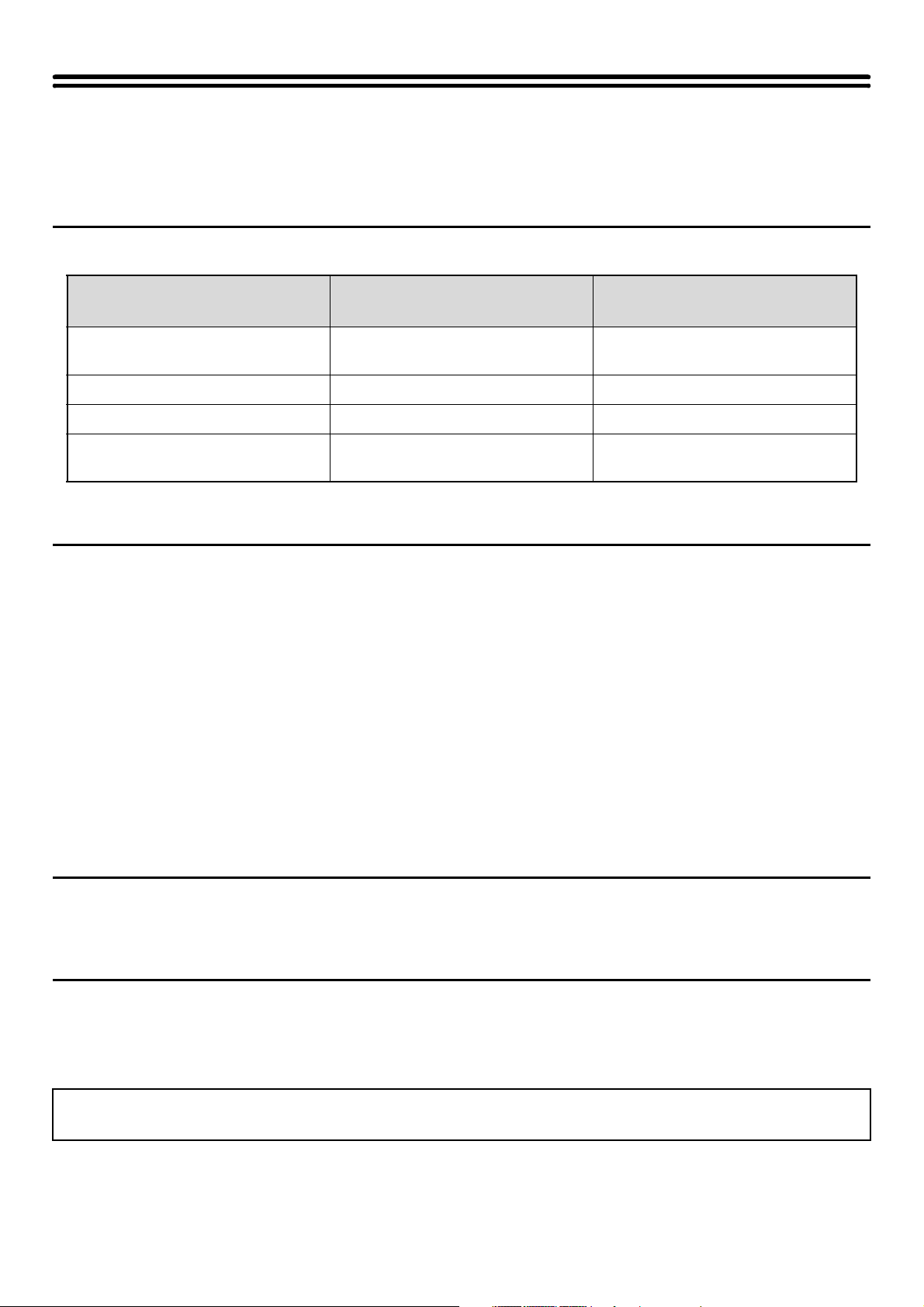
5
ABOUT THIS MANUAL
This manual explains the procedures for using image send function (scan mode, USB memory mode, Internet fax mode,
fax mode and data entry mode) on the machine.
Required expansion kits
To use each mode of the image send function, the expansion kits below are required. The explanations in this manual assume
that all expansion kits are installed.
* When the color expansion kit is not installed, the color mode is fixed at Mono2.
Please note
• In order to use the network scanner function, basic network scanner settings, server settings including SMTP and DNS server
settings, destinations, and the sender address must be configured in the Web pages. Configure and store the settings as
explained in this manual. These settings require a knowledge of your network environment and therefore must be configured by
your network administrator.
• For information on your operating system, please refer to your operating system manual or the online Help function.
• The explanations of screens and procedures in this manual are primarily for Windows
®
XP. The screens may vary depending
on the version of the operating system.
• Wherever "MX-xxxx" appears in this manual, please substitute your model name for "xxxx".
• Considerable care has been taken in preparing this manual. If you have any comments or concerns about the manual, please
contact your dealer or nearest SHARP Service Department.
• This product has undergone strict quality control and inspection procedures. In the unlikely event that a defect or other problem
is discovered, please contact your dealer or nearest SHARP Service Department.
• Aside from instances provided for by law, SHARP is not responsible for failures occurring during the use of the product or its
options, or failures due to incorrect operation of the product and its options, or other failures, or for any damage that occurs due
to use of the product.
Warning
• Reproduction, adaptation or translation of the contents of the manual without prior written permission is prohibited, except as
allowed under copyright laws.
• All information in this manual is subject to change without notice.
Illustrations and the operation panel and touch panel shown in this manual
The peripheral devices are generally optional, however, some models include certain peripheral devices as standard equipment.
The explanations in this manual assume that a finisher, punch module, saddle unit, folding unit, inserter, large capacity trays, and
bypass tray are installed on the MX-M1100.
For some functions and procedures, the explanations assume that devices other than the above are installed.
Modes Required expansion kits
Expansion kits required for full
color and grayscale scanning
Scan mode*,
USB memory mode*
Network scanner expansion kit Color expansion kit
Internet fax mode Internet fax expansion kit –
Fax mode Facsimile expansion kit –
Data entry mode* • Network scanner expansion kit
• Application integration module
Color expansion kit
The display screens, messages, and key names shown in the manual may differ from those on the actual machine
due to product improvements and modifications.
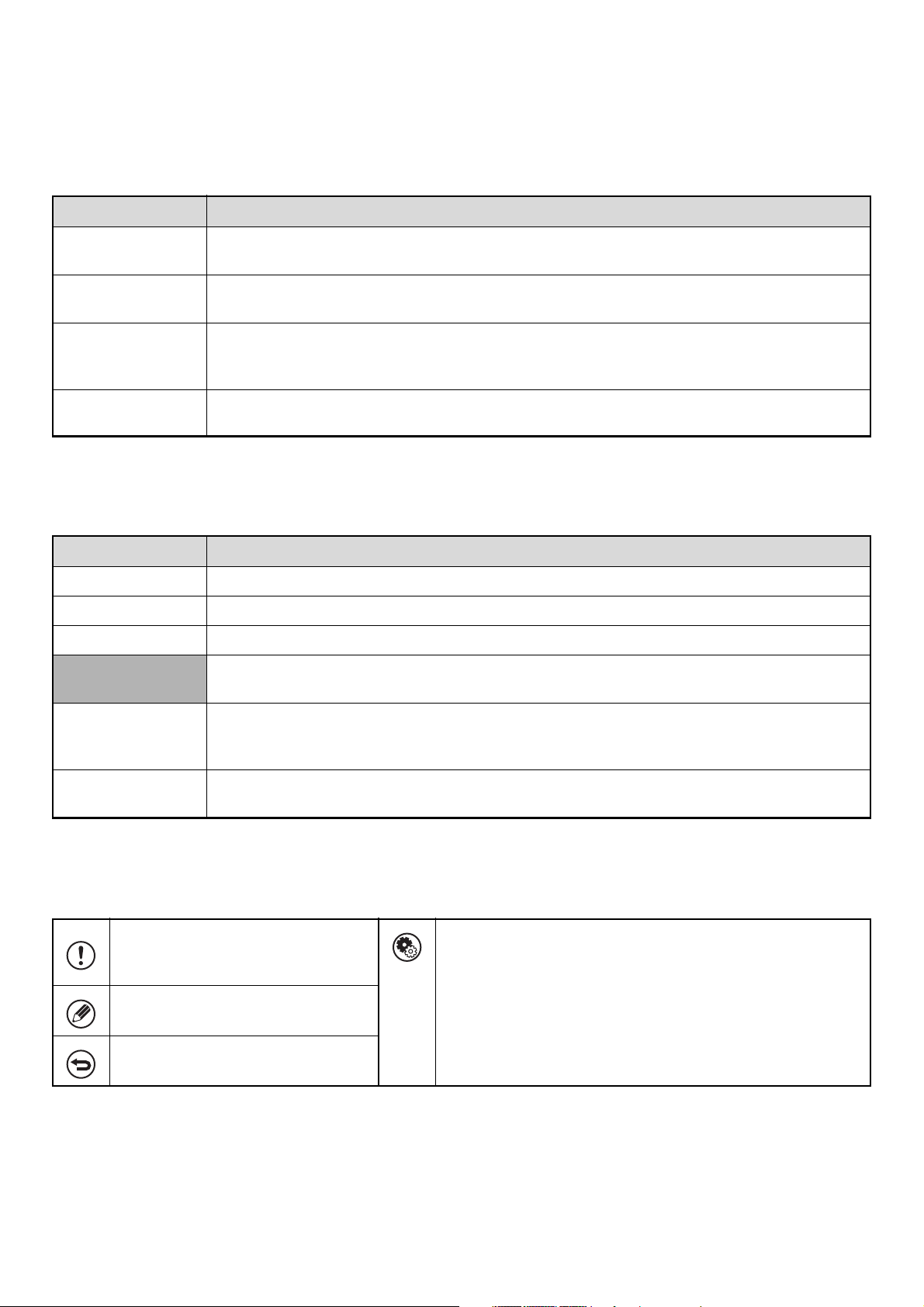
6
MANUALS PROVIDED WITH THE MACHINE
Printed manuals and manuals stored in PDF format on the machine's hard drive are provided with the machine. When
using the machine, read the appropriate manual for the feature you are using.
Printed manuals
Operation manuals in PDF format
The manuals in PDF format provide detailed explanations of the procedures for using the machine in each mode. To
view the PDF manuals, download them from the hard drive in the machine. The procedure for downloading the manuals
is explained in "How to download the manuals in PDF format" in the Quick Start Guide.
Icons used in the manuals
The icons in the manuals indicate the following types of information:
Manual name Contents
Safety Guide
This manual contains instructions for using the machine safely and lists the specifications of the machine
and its peripheral devices.
Software Setup
Guide
This manual explains how to install and configure the software that is required to use the printer function
and other functions of the machine that are used from a computer.
Quick Start Guide
This manual provides easy-to-understand explanations of all the functions of the machine in a single
volume.
Detailed explanations of each of the functions can be found in the manuals in PDF format.
Maintenance Guide
This manual explains maintenance procedures such as how to replace supplies and remove paper
misfeeds.
Manual name Contents
User's Guide This manual explains the basic procedures for using the machine, such as how to load paper.
Copier Guide This manual provides detailed explanations of the procedures for using the copy function.
Printer Guide This manual provides detailed explanations of the procedures for using the print function.
Image Send Guide
(This manual)
This manual provides detailed explanations of the procedures for using the image send function (scan,
USB memory scan, Internet fax, fax, and data entry).
Document Filing
Guide
This manual provides detailed explanations of the procedures for using the document filing function. The
document filing function allows you to save the document data of a copy or fax job, or the data of a print
job, as a file on the machine's hard drive. The file can be called up as needed.
Administrator's
Guide
This manual explains the settings and functions that are used to manage and control the machine, such
as the system settings that require administrator rights.
This alerts you to a situation where
there is a risk of machine damage or
failure.
This indicates the name of a system setting and provides a brief
explanation of the setting.
When "System Settings:" appears:
A general setting is explained.
When "System Settings (Administrator):" appears:
A setting that can only be configured by an administrator is
explained. For detailed information on each system setting, see
the Administrator's Guide.
This provides a supplemental
explanation of a function or procedure.
This explains how to cancel or correct
an operation.
7
This chapter provides information that you should know before using the image send function of the machine.
IMAGE SEND FUNCTION OF THE MACHINE
The image send function of the machine can be used to send a scanned document by a variety of different methods.
The modes and transmission methods that can be used are explained below.
☞SENDING AN IMAGE IN SCAN MODE (page 36)
Scan to E-mail
The scanned file is sent by e-mail.
Scan to FTP
The scanned file is sent to a specified directory of an FTP server.
When the file is sent, it is also possible to send an e-mail to a previously stored e-mail
address to inform the recipient of the location of the file. (This is called "Scan to FTP
(Hyperlink)".)
Scan to Desktop
The scanned file is sent to a specified folder on your computer.
To use Scan to Desktop, software must be installed from the "Sharpdesk/Network Scanner
Utilities" CD-ROM that accompanies the network scanner expansion kit. For the system
requirements of the software, see the manual (PDF format) or the Readme file on the
CD-ROM. For the installation procedure, see the "Sharpdesk Installation Guide" that
accompanies the network scanner expansion kit.
Scan to Network Folder
The scanned file is sent to a shared folder on a Windows computer on the same network as
the machine.
Transmission is possible to computers running the following operating systems: Windows
98/Me/NT 4.0/2000/XP/Server 2003/Vista
1
BEFORE USING THE IMAGE
SEND FUNCTION
To use the image send function of the machine, an expansion kit is required for each mode. See "Required expansion kits"
(page 5).
Scan modes
8
☞SENDING AN IMAGE IN USB MEMORY MODE (page 43)
USB Memory Scan
The scanned file is sent to and stored in a USB memory device connected to the machine.
☞SENDING A FAX IN INTERNET FAX MODE (page 48)
Internet fax transmission
The scanned file is sent as an Internet fax. Reception of Internet faxes is also possible.
☞SENDING AN IMAGE IN FAX MODE (page 54)
Fax transmission
This mode is used to send and received faxes. Fax mode also supports F-codes to increase
the security of communication. An extension phone can be connected to allow use as a
telephone.
☞7. METADATA DELIVERY (page 156)
Metadata delivery
The application integration module can be combined with the network scanner function to append a metadata* file to a
scanned image file. (This is called metadata delivery.)
Information entered using the touch panel or automatically generated by the machine can be sent to a directory on an
FTP server or an application on a computer as a metadata file in XML format.
*Metadata is information about a file, how it is to be processed, and its relation to other objects.
USB memory mode
Internet fax mode
Fax mode
Data entry mode
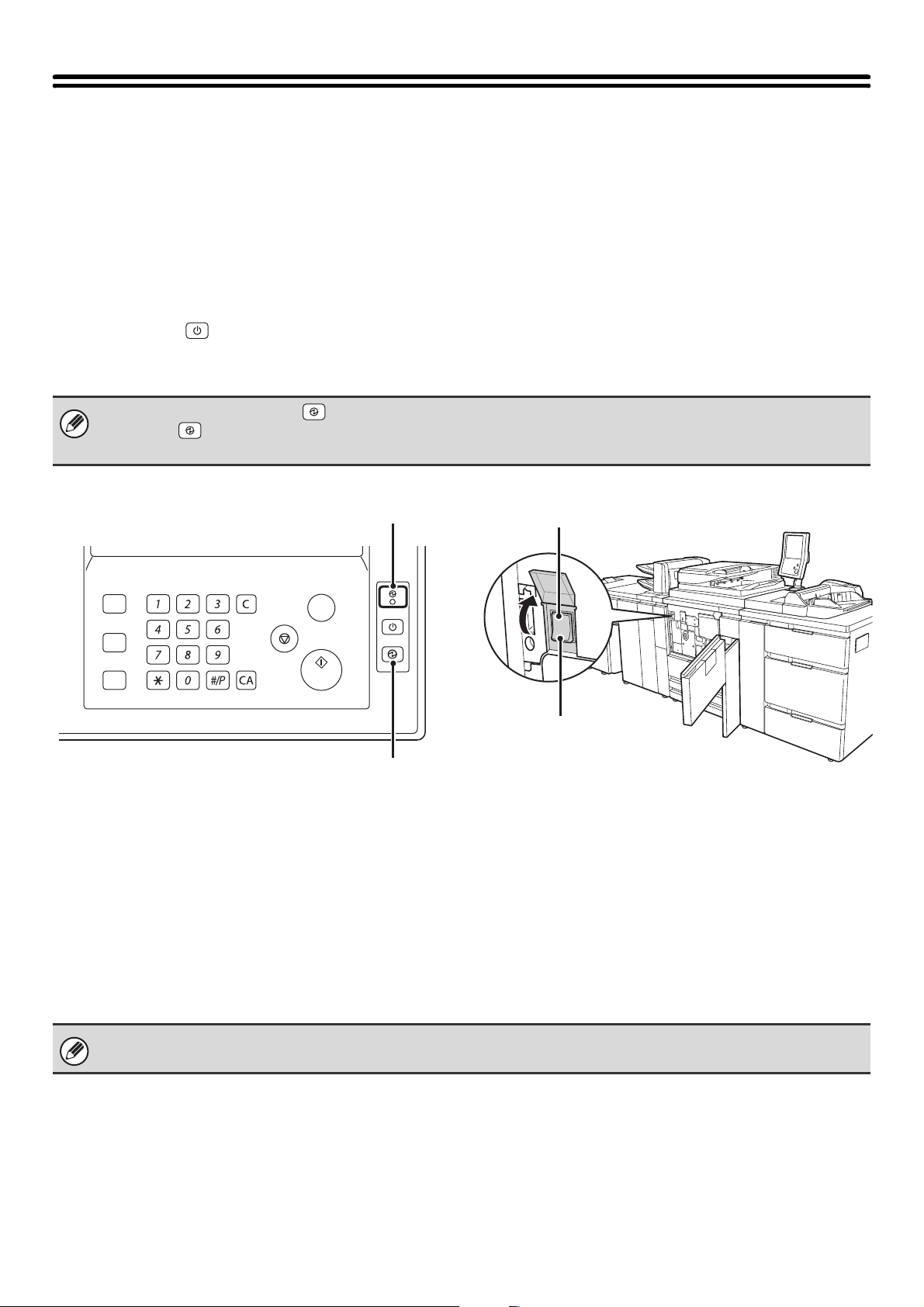
9
PREPARATIONS FOR USING THE IMAGE
SEND FUNCTION
MAKE SURE THE MAIN POWER SWITCH IS IN THE
"ON" POSITION
The main power is "on" when the main power indicator on the right side of the operation panel is lit.
If the main power indicator is not lit, the main power is "off". Switch the main power switch to the "on" position and press
the [POWER] key ( ) on the operation panel.
If the Internet fax function or the fax function will be used, and in particular if reception or timer transmission will take
place at night, always keep the main power switch in the "on" position.
CHECKING THE DATE AND TIME
Verify that the correct date and time are set in the machine.
The date and time are set in the system settings of the machine. When the [SYSTEM SETTINGS] key is pressed, the
system settings menu screen appears on the touch panel. Select [Default Settings], [Clock Adjust], and [Clock Adjust],
and set the year, month, day, hour, and minute.
When the [POWER SAVE] key ( ) indicator light is blinking, the machine is in auto power shut-off mode. If the [POWER
SAVE] key ( ) is pressed when the indicator is blinking, the indicator will turn off and the machine will return to the ready
state after a brief interval.
PROOF COPY
LOGOUT
SYSTEM
SETTINGS
HOME
JOB STATUS
Main power indicator
[POWER SAVE] key/indicator
Main power switch
"On" position
If "Disabling of Clock Adjustment" has been enabled in the system settings (administrator), the date and time cannot be set.
10
STORING SENDER INFORMATION
Before using Scan to E-mail
Store a default sender name in "Sender Name" and a reply e-mail address in "Reply E-mail Address". These will be
used when a sender is not selected.
Before using the Internet fax function
Store a sender name in "Sender Name" and a sender Internet fax address in "Own Address".
Before using the fax function
Store the user name and fax number in "Fax Own Name and Number Set".
SETTINGS REQUIRED IN THE WEB PAGES
To use scan mode and Internet fax mode, the basic network scanner settings, server settings such SMTP and DNS
server settings, and sender addresses must be configured in the Web pages.
• Server settings
To configure server settings, click [Network Settings] and then [Service Settings] in the Web page menu.
(Administrator rights are required.)
• Network scanner settings
To configure the network scanner settings, click [Application Settings] and then [Network Scanner Settings] in the
Web page menu. (Administrator rights are required.)
• Internet Fax settings
To configure the network scanner settings, click [Application Settings] and then [Internet Fax Settings] in the Web
page menu. (Administrator rights are required.)
System Settings (Administrator): Default Sender Set
This is used to store the sender name and e-mail address that is used when a sender is not selected.
System Settings (Administrator): I-Fax Own Name and Address Set (Internet Fax Default Settings)
Use this setting to program the sender name and sender address.
System Settings (Administrator): Fax Own Name and Number Set (Fax Default Settings)
Use this setting to program the sender name and sender fax number.
11
STORING DESTINATION ADDRESSES FOR EACH
SCAN MODE IN THE ADDRESS BOOK
To use Scan to FTP, Scan to Desktop, and Scan to Network Folder, destinations must be stored in the address book.
Although destinations for Scan to E-mail, Internet fax, and fax do not need to be stored in the address book (they can be
entered directly or looked up in a global address book at the time of transmission), storing these types of destinations in
the address book makes it easy to select them. Store each type of destination as explained below.
Scan mode destinations
• Scan to FTP: Click [Address Book] in the Web page menu and then click the [Add] button. Select [FTP] in
[Address Type] and store an address.
• Scan to Network Folder: Click [Address Book] in the Web page menu and then click the [Add] button. Select [Network
Folder] in [Address Type] and store an address.
• Scan to E-mail: Click [Address Book] in the Web page menu and then click the [Add] button. Select [E-mail]
in [Address Type] and store an address. Addresses can also be stored in the system
settings.
• Scan to Desktop: See "STORING A DESTINATION FOR SCAN TO DESKTOP" (page 12). Scan to Desktop
destinations can also be stored in the Web pages. Click [Address Book] in the Web page
menu and then click the [Add] button. Select [Desktop] in [Address Type] and store an
address.
Internet fax mode: Click [Address Book] in the Web page menu and then click the [Add] button. Select [Internet Fax]
in [Address Type] and store an address. Addresses can also be stored in the system settings.
Fax mode: Click [Address Book] in the Web page menu and then click the [Add] button. Select [Fax] in
[Address Type] and store an address. Addresses can also be stored in the system settings.
System Settings: ADDRESS BOOK (page 174)
This is used to store destination addresses for Scan to E-mail, Internet fax and Fax.
12
STORING A DESTINATION FOR SCAN TO DESKTOP
To store your computer in the machine as a destination for Scan to Desktop, Network Scanner Tool must be installed
from the "Sharpdesk/Network Scanner Utilities" CD-ROM that accompanies the network scanner expansion kit. To scan
an image to your computer, Network Scanner Tool must be running on your computer.
INSTALLING NETWORK SCANNER TOOL
To install Network Scanner Tool, see the "Sharpdesk Installation Guide" that accompanies the network scanner
expansion kit. When a standard installation is performed, Network Scanner Tool is installed with Sharpdesk.
When you restart your computer after installing Network Scanner Tool, the Setup Wizard will start automatically. Follow
this wizard to set up Network Scanner Tool. This will store your computer in the machine as a destination for Scan to
Desktop. The stored destination will be displayed as a one-touch key in the address book screen.
The following window appears while Network Scanner Tool is being set up. The item selected in "My Profiles" (C) will be
the name of the one-touch key.
The profile name is determined by the combination of the text entered in "Prefix" (A) and the profile*.
The one-touch key is assigned to an index tab in the address book screen based on the text entered in "Initial" (B).
* This defines how an image sent to your computer is processed. For more information, see profile explanation (D).
ADDING DESTINATIONS
For the number of computers that can be stored in the machine as destinations of Scan to Desktop, see the number of
licenses indicated in the "Sharpdesk Installation Guide". To store more destinations, a license kit is required. Store Scan
to Desktop destinations by installing Network Scanner Tool on each computer.
ABCD
Freq.
EFGHI JKLMN OPQRST UVWXYZ
1
2
AAA HHH
AAA FFF
AAA DDD
Comp-DESKTOP
AAA AAA
AAA III
AAA GGG
AAA EEE
AAA CCC
AAA BBB
5
15
10
Auto Auto
Auto
Global
Address Search
Address Entry
Sort Address
Address Review
Condition
Settings
File
Quick File
Address Review
Send Settings
Address Entry
Address Book
To Cc
Data EntryFaxInternet Fax
Special Modes
Color Mode
File Format
Resolution
Exposure
Original
Scan:
Scan
Send:
Text
200X200dpi
PDF
Mono2
PDF
USB Mem. Scan
Auto Reception
Fax Memory:100%
(B)
(A)
(B)
(C)
(D)
13
PREPARATIONS FOR FAX
To use the machine as a fax, the telephone line must be connected and the type of line set.
Connection to the telephone line
Be sure to use the provided telephone line cord to connect the machine to the wall telephone jack. Connect the end of
the line cord that has the core to the "LINE" jack on the machine. Insert the other end (the end without the core) into a
telephone line jack.
Click!
Core
"LINE" jack
Insert the end of the cord with the
core into the "LINE" jack.
14
Setting the telephone line type
The machine's dial mode setting must be set to the type of telephone line you are using.
If the setting is not correct, dialing will not be possible.
Touch the [Auto Select] key in "Dial Mode Setting" in the system settings (administrator). The machine will automatically
set the dial mode to the type of line you are using.
You can also set the "Dial Mode Setting" manually.
After setting the dial mode, do not change the setting unless you have a specific reason for changing it.
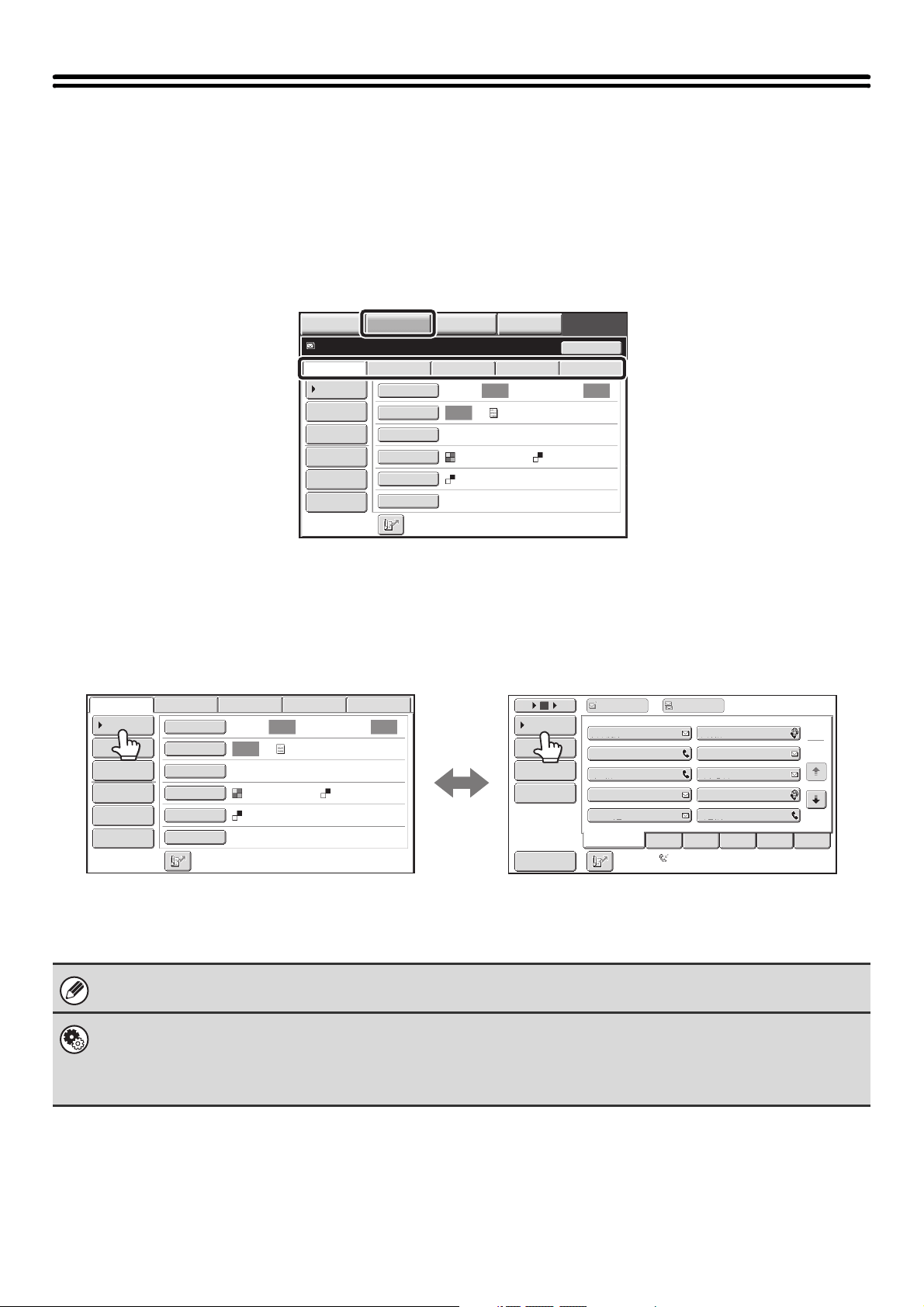
15
BASE SCREEN
Scan mode, USB memory mode, Internet fax mode, and fax mode are used by selecting operations and settings in the
base screens of those modes. To display the base screen of a mode, touch the [IMAGE SEND] key in the touch panel
and then touch the tab of the mode that you wish to use.
The screen that initially appears when the [IMAGE SEND] key is touched varies depending on what peripheral devices
have been installed. The screen that initially appears can be changed in the system settings.
The procedures in this manual assume that the base screen of scan mode appears when the [IMAGE SEND] key is
touched.
When sending an image, you can retrieve a stored destination from the address book screen. The same address book is
used in each mode.
Touch the [Address Book] key in the base screen to switch to the address book screen. Touch the [Condition Settings]
key in the address book screen to switch to the base screen.
This manual uses the base screen of scan mode as an example when operations common to all modes are explained.
System Settings (Administrator): Default Display Settings
One of the following screens can be selected for the initial screen that appears when the [IMAGE SEND] key is touched.
• Base screen of each mode (scan, Internet fax, fax, or data entry mode)
• Address book screen
MANUAL
FINISHING
Auto Auto
Auto
File
Quick File
Address Review
Send Settings
Address Entry
Address Book
Data EntryFaxInternet Fax
Special Modes
Color Mode
File Format
Resolution
Exposure
Original
Scan:
Scan
Send:
Text
200X200dpi
PDF
Mono2
PDF
USB Mem. Scan
Resend
Ready to send.
IMAGE SEND
DOCUMENT
FILING
COPY
The tabs of modes that cannot
be used because the required
peripheral devices are not
installed do not appear.
☞ Required expansion kits
(page 5)
Auto Auto
Auto
File
Quick File
Address Review
Send Settings
Address Entry
Address Book
Data EntryFaxInternet Fax
Special Modes
Color Mode
File Format
Resolution
Exposure
Original
Scan:
Scan
Send:
Text
200X200dpi
PDF
Mono2
PDF
ABCD
Frequent Use
EFGHI JKLMN OPQRST UVWXYZ
1
2
5
15
10
Global
Address Search
Address Entry
Sort Address
Address Review
Condition
Settings
To Cc
III III
GGG GGG
EEE EEE
CCC CCC
AAA AAA
JJJ JJJ
HHH HHH
FFF FFF
DDD DDD
BBB BBB
USB Mem. Scan
Auto Reception
Fax Memory:100%
Base screen of scan mode
Address book screen
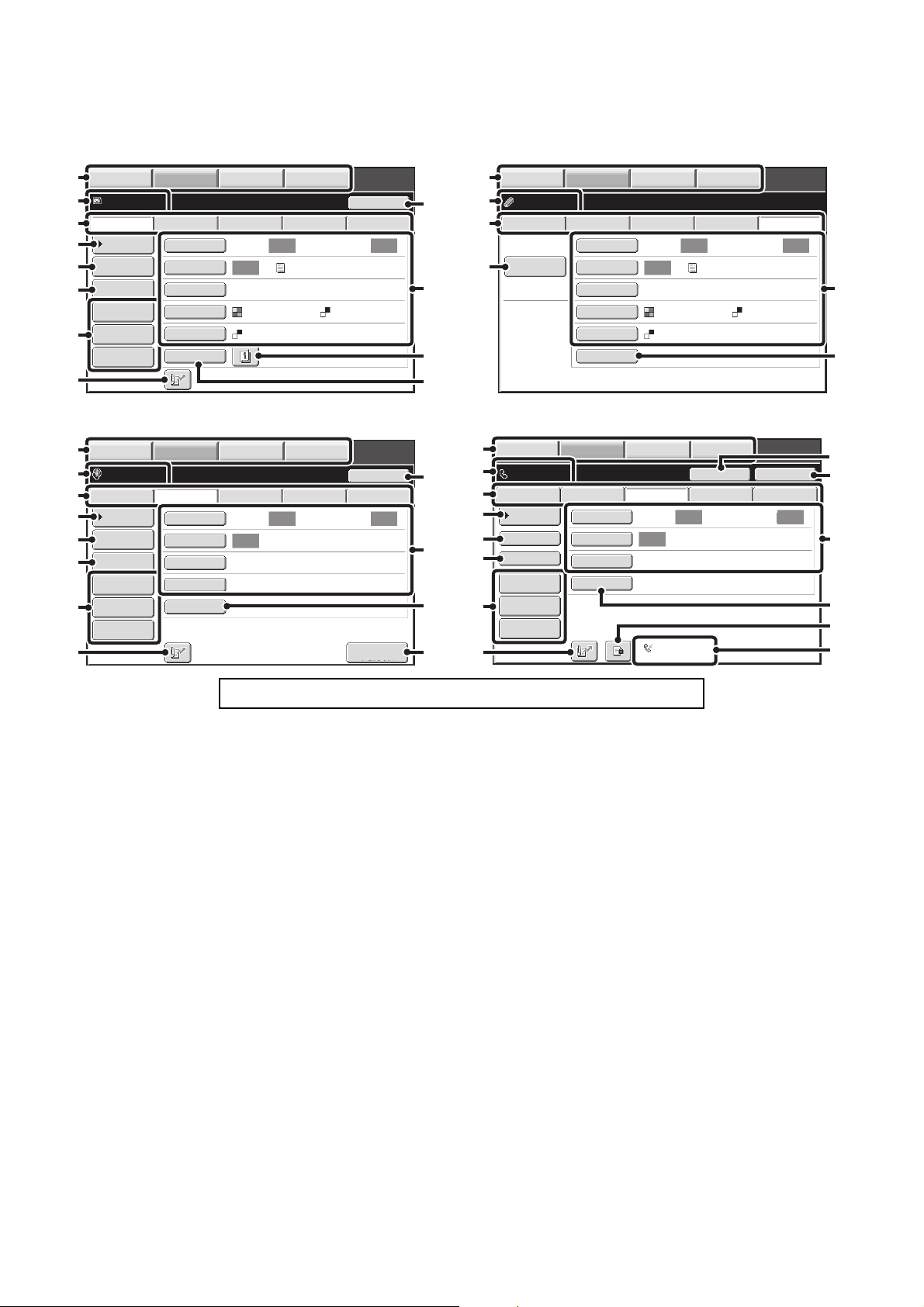
16
BASE SCREEN
This screen is used to select settings and operations in each mode.
(1) Mode select keys
Use these keys to change modes.
To switch to image send mode, touch the [IMAGE SEND]
key.
(2) Various messages are displayed here.
The icon of the selected mode appears on the left.
(3) Send mode tabs
Touch one of these tabs to change the image send
mode.
The tabs of modes that cannot be used because the
required peripheral devices are not installed do not
appear.
The [Data Entry] tab appears when the application
integration module kit is installed. For information on
metadata delivery using the [Data Entry] tab, see "7.
METADATA DELIVERY" (page 156).
(4) [Address Book] key
Touch this key to use a one-touch key or a group key.
When the key is touched, the address book screen
appears.
☞ RETRIEVING A DESTINATION FROM THE
ADDRESS BOOK (page 25)
(5) [Address Entry] key
Touch this key to manually enter a destination address
instead of using a one-touch key.
☞ ENTERING AN ADDRESS MANUALLY (page 29)
(6) [Send Settings] key
Touch this key to select or enter the subject, file name,
sender name, or body text, which has been previously
stored in the Web page.
Scan mode:
☞ CHANGING THE SUBJECT, FILE NAME,
REPLY-TO, AND BODY TEXT (page 40)
Internet fax mode:
☞ CHANGING THE SUBJECT, FILE NAME, AND
BODY TEXT (page 51)
(7) Customized keys
The keys that appear here can be changed to show
settings or functions that you prefer.
☞ Customizing displayed keys (page 18)
Click a key in the screen to jump to an explanation of the key.
Auto Auto
Auto
File
Quick File
Address Review
Send Settings
Address Entry
Address Book
Data EntryFaxInternet Fax
Resend
Special Modes
Color Mode
File Format
Resolution
Exposure
Original
Scan:
Scan
Send:
Text
200X200dpi
PDF
Mono2
PDF
Ready to send.
IMAGE SEND
DOCUMENT
FILING
COPY
MANUAL
FINISHING
USB Mem. Scan
(1)
(2)
(3)
(7)
(8)
(4)
(5)
(6)
(9)
(11)
(10)
(12)
Auto Auto
Auto
File Name
Data EntryFaxScan
Special Modes
Color Mode
File Format
Resolution
Exposure
Original
Scan:
Internet Fax
Send:
Text
200X200dpi
PDF
Mono2
PDF
Ready to send.
IMAGE SENDCOPY
USB Mem. Scan
DOCUMENT
FILING
MANUAL
FINISHING
(1)
(2)
(3)
(13)
(12)
(10)
I-Fax Manual
Reception
TIFF-F
Auto Auto
Auto
File
Quick File
Address Review
Send Settings
Address Entry
Address Book
Data EntryFaxInternet Fax
Resend
Special Modes
File Format
Resolution
Exposure
Original
Scan:
Scan
Send:
200X100dpi
Ready to send.
IMAGE SENDCOPY
USB Mem. Scan
DOCUMENT
FILING
MANUAL
FINISHING
(1)
(2)
(3)
(7)
(8)
(4)
(5)
(6)
(9)
(12)
(10)
(14)
Auto Auto
Auto
File
Quick File
Address Review
Direct TX
Sub Address
Address Book
FaxInternet Fax
Special Modes
Resolution
Exposure
Original
Scan:
Scan
Send:
Standard
Auto Reception
Fax Memory:100%
Speaker
Ready to send.
Resend
IMAGE SENDCOPY
DOCUMENT
FILING
MANUAL
FINISHING
Data Entry USB Mem. Scan
(1)
(2)
(17)
(3)
(4)
(15)
(16)
(18)
(7)
(8)
(19)
(12)
(10)
(9)
Base screen o
f
scan mode Base screen o
f
U
S
B memory mode
Base screen of Internet fax mode Base screen of fax mode

17
(8) key
Touch this key to specify a destination using a search
number
*
.
* 3-digit number assigned to a destination when it is
stored.
☞ USING A SEARCH NUMBER TO RETRIEVE A
DESTINATION (page 28)
(9) [Resend] key/[Next Address] key
The destinations of the most recent 8 transmissions by
Scan to E-mail, fax and/or Internet fax are stored. Touch
this key to select one of these destinations. When a
destination is selected or entered, this key changes to the
[Next Address] key.
☞ USING THE RESEND FUNCTION (page 33)
RETRIEVING A DESTINATION (page 26)
(10) Image settings
Image settings (original size, exposure, resolution, file
format, and color mode) can be selected.
☞ IMAGE SETTINGS (page 68)
(11) key
This key appears when a special mode or 2-sided
scanning is selected. Touch the key to display the
selected special modes.
☞ Checking what special modes are selected (page 18)
(12) [Special Modes] key
Touch this key to use a special mode.
☞ 4. SPECIAL MODES (page 87)
(13) [File Name] key
Touch this key to enter a file name when storing a file to
USB memory.
☞ ENTERING A FILE NAME (page 47)
(14) [I-Fax Manual Reception] key
Touch this key to receive an Internet fax manually.
☞ RECEIVING INTERNET FAXES MANUALLY (page
149)
(15) [Direct TX] key
Touch this key to send a fax by direct transmission.
When the [Direct TX] key is not highlighted, normal
transmission (memory TX mode) is selected.
☞ DIRECT TRANSMISSION MODE (page 57)
(16) [Sub Address] key
Touch this key to enter a sub-address and passcode for
F-code transmission.
☞ F-CODE DIALING (page 131)
(17) [Speaker] key/[Pause] key/[Space] key
Touch this key to dial using the speaker.
When entering a fax number to be dialed, the key
changes to the [Pause] key. When entering a
sub-address, the key changes to the [Space] key.
☞ TRANSMISSION USING THE SPEAKER (page 59)
(18) key
When "Hold Setting for Received Data Print" is enabled,
this appears when a fax has been received. Touch this
key to open a password entry screen. Enter the set
password to print the received fax.
☞ PRINTING A PASSWORD-PROTECTED FAX (Hold
Setting For Received Data Print) (page 152)
(19) This shows the currently selected fax reception
mode and the amount of free memory remaining.
☞ RECEIVING FAXES (page 150)
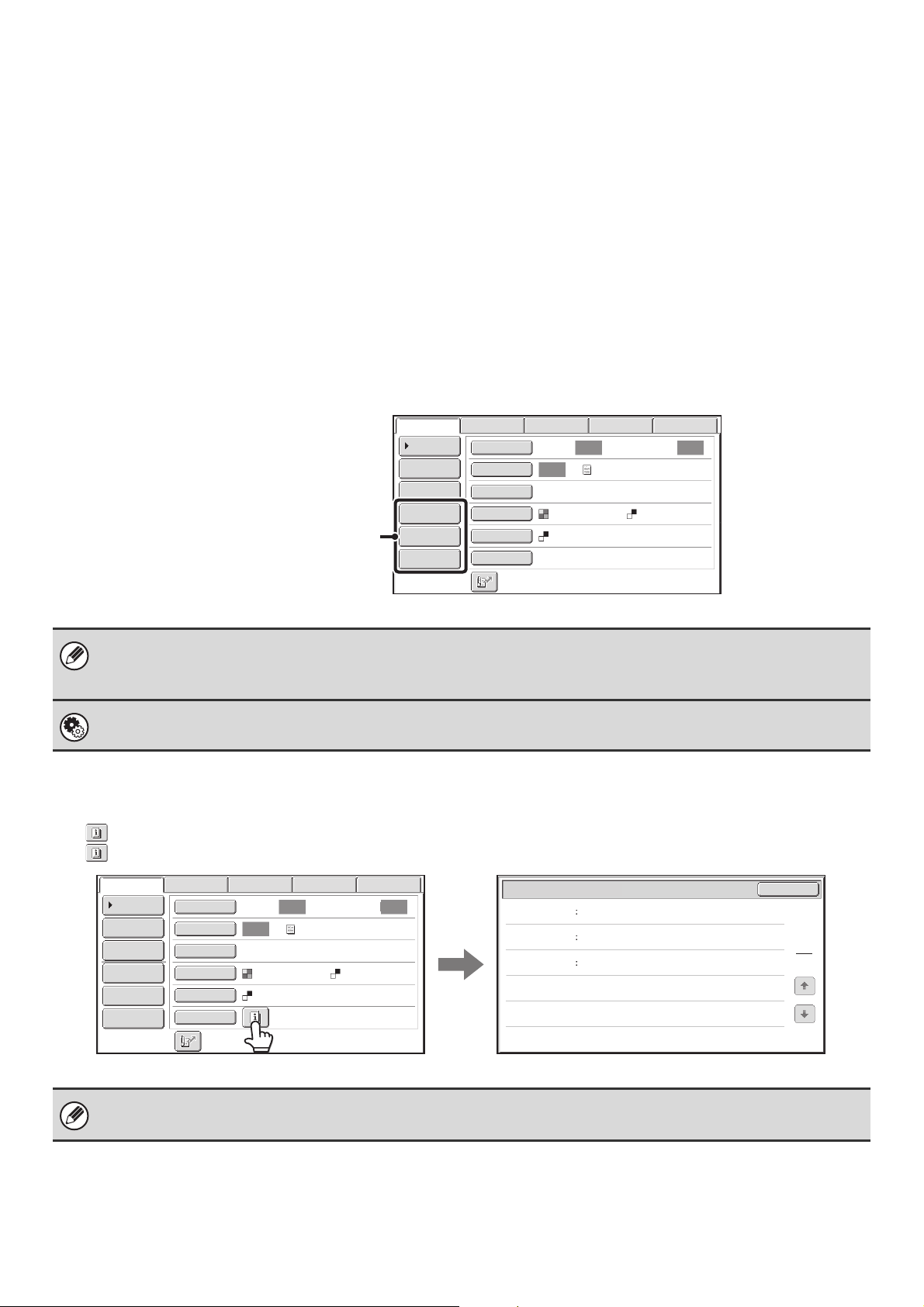
18
Customizing displayed keys
Special mode keys and other keys can be displayed in the base screen. Set these keys to functions that you frequently
use to access the functions with a single touch. The customized keys are configured using "Customize Key Setting" in
the Web pages. The following keys appear by factory default:
• [Address Review] key
Touch this key to display a list of the destinations that have been selected in the address book. This is the same key
as the [Address Review] key in the address book screen.
• [File] key, [Quick File] key
Touch either of these keys to use the File function or Quick File function of document filing mode. For more
information on the document filing function, see the Document Filing Guide.
In USB memory mode...
Customized keys do not initially appear, however, up to three keys can be added.
Example: When "Dual Page Scan", "Job Build", and "Mixed Size Original" are assigned to the customized keys
Checking what special modes are selected
The key appears in the base screen when a special mode or 2-sided scanning is selected.
The key can be touched to display the selected special modes. To close the screen, touch the [OK] key.
• Displaying a program key in the base screen will enable you to retrieve the program by simply touching the key.
☞ STORING FAX OPERATIONS (Program) (page 90)
• The functions that can be selected for the customized keys vary depending on the mode.
System Settings (Administrator): Customize Key Setting
Registration is performed in [System Settings] - [Operation Settings] - "Customize Key Setting" in the Web page menu.
The special mode settings cannot be changed from the review screen. To change a setting, touch the [OK] key to close the
review screen and then touch the [Special Modes] key and select the setting that you wish to change.
Auto
Auto
Auto
Job Build
Mixed Size Org
Dual Page Scan
Send Settings
Address Entry
Address Book
Data EntryFaxInternet Fax
Special Modes
Color Mode
File Format
Resolution
Exposure
Original
Scan:
Scan
Send:
Text
200X200dpi
PDF
Mono2
PDF
USB Mem. Scan
These three keys can be changed
as desired.
Timer
Erase
Mixed Size
Original
On
Day of the Week:Monday
Time:21:30
Edge:1/2inch
Center:1/2inch
Function Review
OK
1
1
Auto Auto
Auto
File
Quick File
Address Review
Send Settings
Address Entry
Address Book
Data EntryFaxInternet Fax
Special Modes
Color Mode
File Format
Resolution
Exposure
Original
Scan:
Scan
Send:
Text
200X200dpi
PDF
Mono2
PDF
USB Mem. Scan
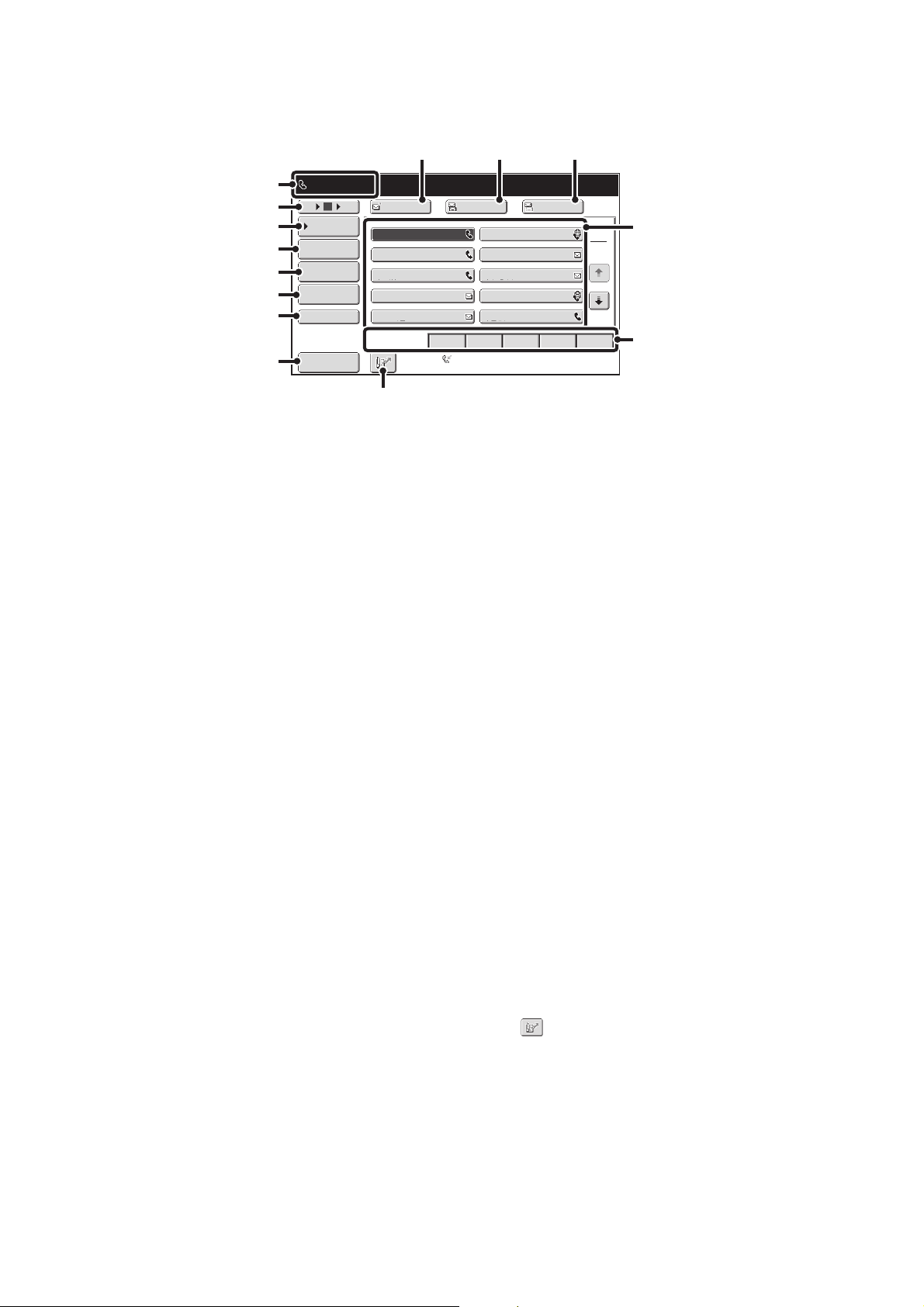
19
ADDRESS BOOK SCREEN
This screen is used to select transmission destinations.
(1) This shows the selected destination.
(2) Number of displayed items selector key
Touch this key to change the number of destinations
(one-touch keys) displayed in the address book screen.
Select 5, 10, or 15 keys.
(3) [Condition Settings] key
Touch this key to select transmission settings. When the
key is touched, the base screen appears.
☞ BASE SCREEN (page 16)
(4) [Address Review] key
Touch this key to view a list of the selected destinations.
Destination selections can be changed.
☞ CHECKING AND DELETING THE SELECTED
DESTINATIONS (page 27)
(5) [Address Entry] key
Touch this key to manually enter a destination address
instead of using a one-touch key.
☞ ENTERING AN ADDRESS MANUALLY (page 29)
(6) [Global Address Search] key
When the use of an LDAP server has been enabled in
the machine's Web pages, a transmission address can
be obtained from a global address book.
☞ RETRIEVING A DESTINATION FROM A GLOBAL
ADDRESS BOOK (page 30)
(7) [Sub Address] key
Touch this key to enter a sub-address and passcode for
F-code transmission. This key only appears when a key
for a fax destination has been selected.
☞ F-CODE DIALING (page 131)
(8) [Sort Address] key
Touch this key to change the index tabs to custom
indexes or to display one-touch keys by send mode.
☞ CHANGING THE DISPLAY OF ONE-TOUCH KEYS
IN THE ADDRESS BOOK SCREEN (page 20)
(9) [To] key
Touch this key to enter the selected destination
(one-touch key).
☞ RETRIEVING A DESTINATION (page 26)
This key only appears when the network scanner
function or Internet fax function has been added.
(10) [Cc] key
When using Scan to E-mail, touch the [Cc] key when you
wish to send a "Carbon copy" of the e-mail to an
additional destination.
(11) [Bcc] key
When using Scan to E-mail, touch the [Bcc] key when
you wish to send a "Blind carbon copy" of the e-mail to an
additional destination.
When an address is specified as a Bcc recipient, other
recipients will not know that the address is a recipient.
This key only appears when Bcc has been enabled using
"Bcc Setting" in the system settings (administrator).
(12) One-touch key display
The destinations (one-touch keys) stored in each index
are displayed. This manual refers to keys in which
destinations and groups are stored as one-touch keys.
An icon indicating the send mode appears in each
one-touch key.
☞ RETRIEVING A DESTINATION FROM THE
ADDRESS BOOK (page 25)
(13) Index tabs
Touch this to change the displayed index tab.
☞ Index display (page 21)
(14) key
Touch this key to specify a destination using a search
number
*
.
* A 3-digit number assigned to a one-touch key or group
key when it is stored.
☞ USING A SEARCH NUMBER TO RETRIEVE A
DESTINATION (page 28)
Frequent Use
ABCD EFGHI JKLMN OPQRST UVWXYZ
1
2
III III
GGG GGG
EEE EEE
CCC CCC
AAA AAA
JJJ JJJ
HHH HHH
FFF FFF
DDD DDD
BBB BBB
5
15
10
Global
Address Search
Address Entry
Sort Address
Address Review
Condition
Settings
To Cc Bcc
AAA AAA
0123456789
Sub Address
Auto Reception
Fax Memory:100%
(14)
(3)
(2)
(4)
(5)
(6)
(7)
(8)
(13)
(12)
(9)
(1)
(10) (11)
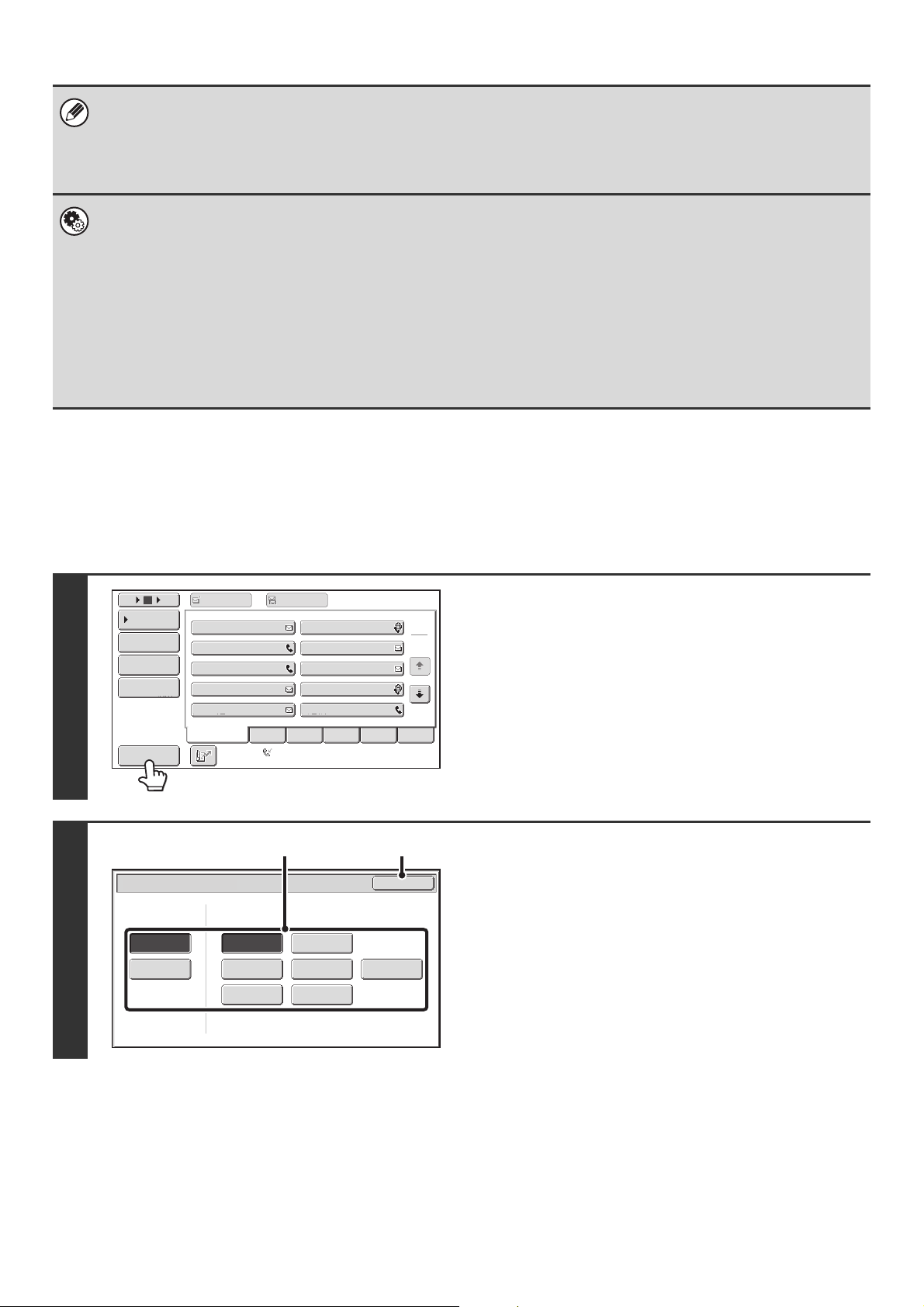
20
CHANGING THE DISPLAY OF ONE-TOUCH KEYS IN
THE ADDRESS BOOK SCREEN
You can show destinations of only a specific transmission mode in the address book screen, or change the displayed
index tabs from the alphabetical tabs to the custom tabs. The procedure for selecting destinations does not change.
• For information on storing addresses in the address book, see "STORING DESTINATION ADDRESSES FOR EACH
SCAN MODE IN THE ADDRESS BOOK" (page 11).
• To store destinations for Scan to Desktop, Network Scanner Tool must be installed from the CD-ROM that accompanies
the network scanner expansion kit. For more information on storing destinations for Scan to Desktop, see "STORING A
DESTINATION FOR SCAN TO DESKTOP" (page 12).
• System Settings: ADDRESS BOOK (page 174)
This is used to store Scan to E-mail, Internet fax, and fax destinations in one-touch keys.
• System Settings (Administrator): The Number of Direct Address Keys Displayed Setting
This is used to change the default setting for the number of one-touch keys displayed in the address book screen.
• System Settings (Administrator): Bcc Setting
This setting enables or disables Bcc delivery. When enabled, the [Bcc] key appears in the address book screen.
• System Settings (Administrator): Address Book Default Selection
The following settings are available for the method of sorting the addresses that appear in the address book.
• Index type (alphabetical, custom)
• Address type (all, group, E-mail, FTP/Desktop, Network Folder, Internet fax, fax)
1
Touch the [Sort Address] key.
2
Change the display mode.
(1) Touch the key of the mode or tab that you
wish to display.
• To show only the one-touch keys of a particular send
mode, touch the desired mode key under "Address
Type".
• To change the index tabs to the custom indexes, touch
the [User] key under "Tab Switch".
(2) Touch the [OK] key.
III III
GGG GGG
EEE EEE
CCC CCC
AAA AAA
JJJ JJJ
HHH HHH
FFF FFF
DDD DDD
BBB BBB
ABCD
Frequent Use
EFGHI JKLMN OPQRST UVWXYZ
1
2
5
15
10
Global
Address Search
Address Entry
Sort Address
Address Review
Condition
Settings
To Cc
Auto Reception
Fax Memory:100%
Sort Address
OK
Group
FTP/Desktop Network Folder
Fax
All
E-mail
ABC
User
Address TypeTab Switch
Internet Fax
(1) (2)
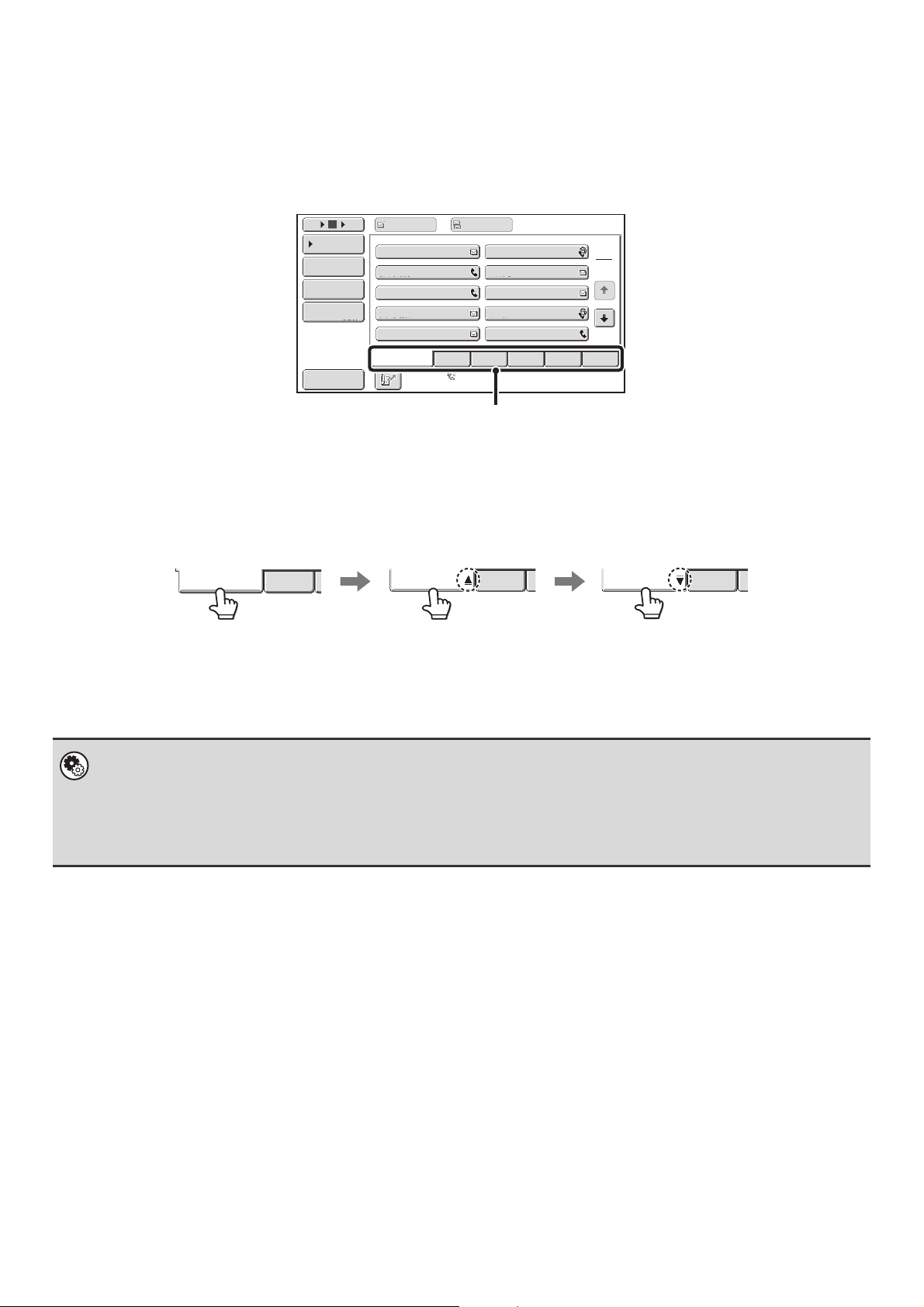
21
Index display
Indexes make it easy to search for a destination (one-touch key). Destinations are grouped on alphabetical index tabs.
To display a stored destination, touch the appropriate index tab. It is convenient to store frequently used destinations in
the [Frequent Use] index. Specify that a destination be displayed in the [Frequent Use] index when you store the
destination.
☞ ADDRESS CONTROL (page 174)
The destinations can also be displayed in alphabetical order by initial.
Each time the displayed index tab is touched, the display order changes in the following order: search numbers (page
28), ascending names, descending names. When the display order is changed, the display order of the other index tabs
also changes.
Index names can be changed using "Custom Index" in the system settings, allowing you to create groups of one-touch
keys that can be easily recognized.
• System Settings: CUSTOM INDEX (page 177)
This setting is used to store custom index names. The custom index where a one-touch key appears is specified when the
transmission destination is stored in the key.
• System Settings (Administrator): Disable Switching of Display Order
This is used to disable switching of the order of display of the one-touch keys in the address book screen. The currently
selected display order will be the order that is used after this setting is enabled.
III III
GGG GGG
EEE EEE
CCC CCC
AAA AAA
JJJ JJJ
HHH HHH
FFF FFF
DDD DDD
BBB BBB
ABCD
Frequent Use
EFGHI JKLMN OPQRST UVWXYZ
1
2
5
15
10
Global
Address Search
Address Entry
Sort Address
Address Review
Condition
Settings
To Cc
Auto Reception
Fax Memory:100%
Index tabs
Frequent Use
ABCD
Frequent Use
ABCD
Frequent Use
ABCD
Ordered by search number
(default)
Ascending names Descending names
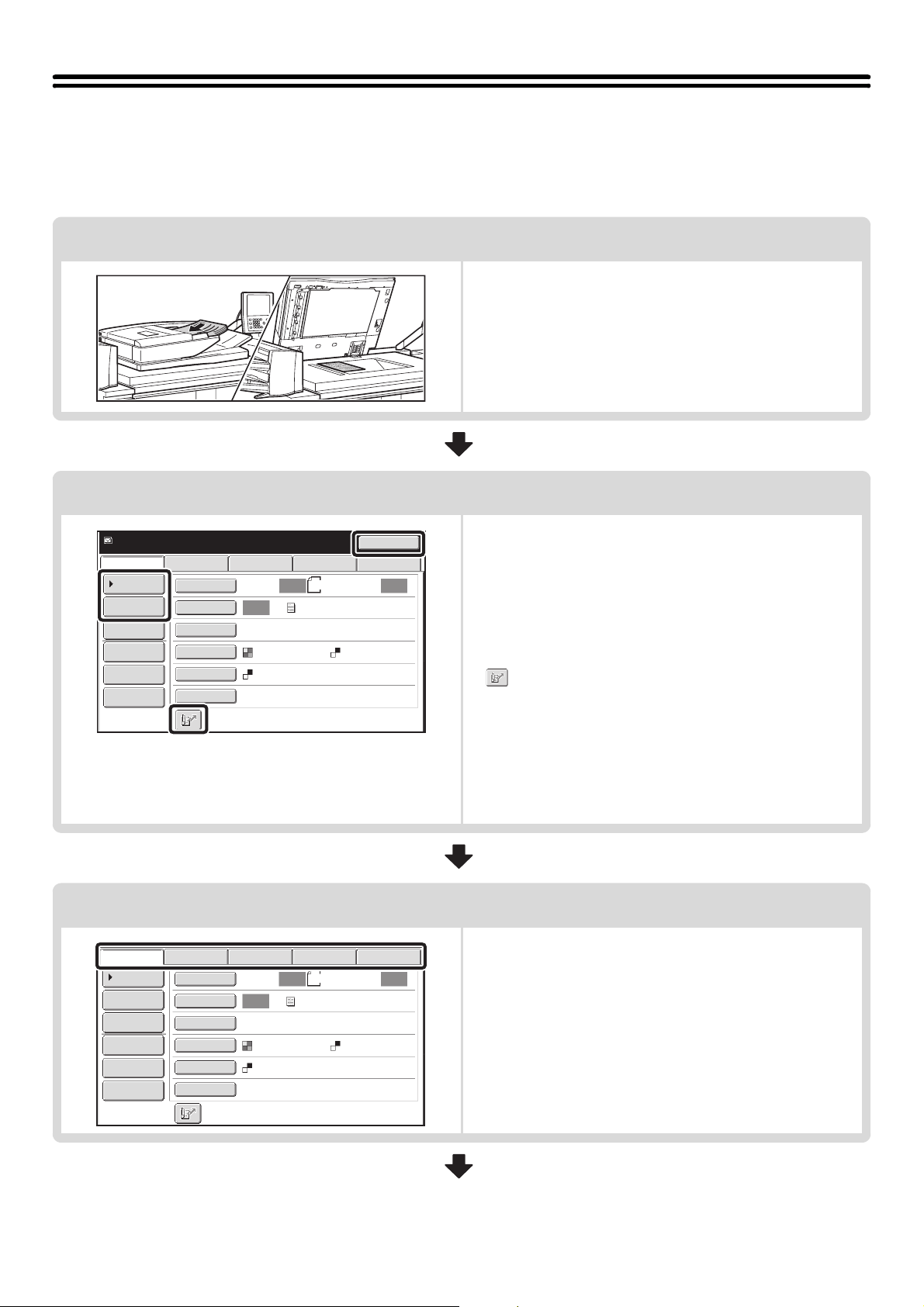
22
IMAGE SEND SEQUENCE
This section explains the basic procedure for sending an image. Select settings in the order shown below to ensure
smooth transmission.
For the detailed procedures for selecting the settings, see the explanation of each setting in this manual.
Place the original.
Place the original in the document feeder tray of the automatic
document feeder, or on the document glass.
☞
ORIGINAL SIZES (page 24)
SENDING AN IMAGE IN SCAN MODE (page 36)
SENDING AN IMAGE IN USB MEMORY MODE (page 43)
SENDING A FAX IN INTERNET FAX MODE (page 48)
SENDING AN IMAGE IN FAX MODE (page 54)
Enter the destination
Specify the destination of the scan transmission.
• [Address Book] key:
☞ RETRIEVING A DESTINATION FROM THE ADDRESS
BOOK (page 25)
RETRIEVING A DESTINATION FROM A GLOBAL
ADDRESS BOOK (page 30)
• [Address Entry] key:
☞ ENTERING AN ADDRESS MANUALLY (page 29)
• key:
☞ USING A SEARCH NUMBER TO RETRIEVE A
DESTINATION (page 28)
• [Resend] key:
☞ USING THE RESEND FUNCTION (page 33)
• Numeric keys (fax mode):
☞ ENTERING A FAX NUMBER WITH THE NUMERIC
KEYS (page 34)
Change the mode.
Select the image send mode that you wish to use.
☞ BASE SCREEN (page 15)
Resend
Scan
Ready to send.
8½x11
Data EntryFaxInternet Fax
Quick File
File
Address Review
Send Settings
Address Entry
Address Book
Auto Auto
Auto
Special Modes
Color Mode
File Format
Resolution
Exposure
Original
Scan: Send:
Text
200X200dpi
PDF
Mono2
PDF
USB Mem. Scan
8½x11
Auto Auto
Auto
File
Quick File
Address Review
Send Settings
Address Entry
Address Book
Data EntryFaxInternet Fax
Special Modes
Color Mode
File Format
Resolution
Exposure
Original
Scan:
Scan
Send:
Text
200X200dpi
PDF
Mono2
PDF
USB Mem. Scan
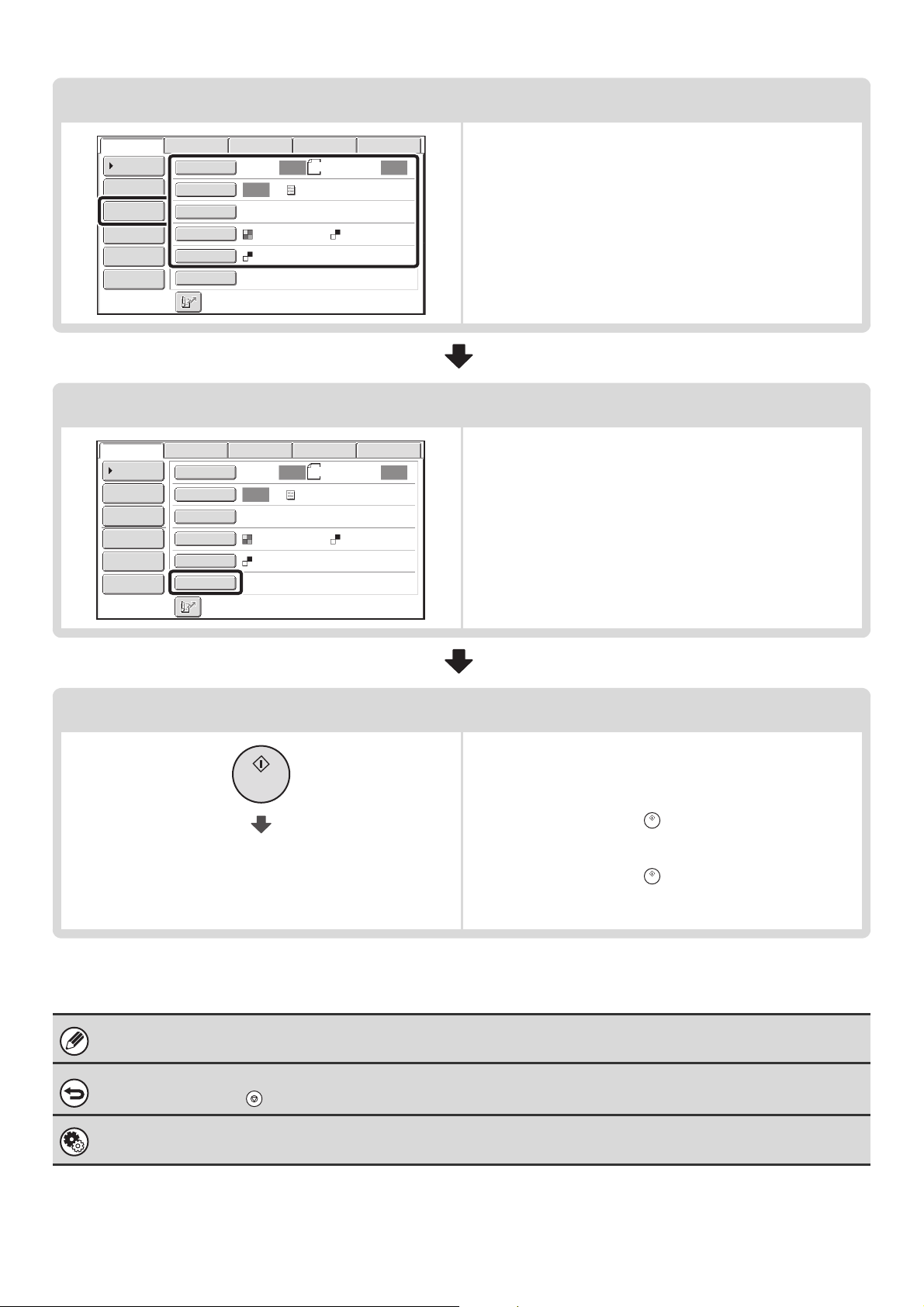
23
Select settings
Settings can be selected for scanning the original.
☞ IMAGE SETTINGS (page 68)
☞ Send Settings
• Scan mode, Data entry mode: page 40
• USB memory mode (File Name): page 47
• Internet fax mode: page 51
Special mode settings
Special modes can be selected.
☞ 4. SPECIAL MODES (page 87)
Begin transmission
Transmission begins
Scan the original and send the fax.
If the original is placed on the document glass, follow these
steps to start scanning and transmission:
(1) Press the [START] key ( ).
(2) When scanning is finished, replace the original with the
next original.
(3) Press the [START] key ( ).
(4) Repeat (2) and (3) until all originals have been scanned.
(5) Touch the [Read-End] key.
When transmission ends, image settings and convenient special mode settings are cleared.
To cancel scanning...
Press the [STOP] key ( ) to cancel the operation.
System Settings (Administrator): Default Display Settings
The settings can be kept in effect a fixed period of time after scanning is completed.
8½x11
Auto Auto
Auto
File
Quick File
Address Review
Send Settings
Address Entry
Address Book
Data EntryFaxInternet Fax
Special Modes
Color Mode
File Format
Resolution
Exposure
Original
Scan:
Scan
Send:
Text
200X200dpi
PDF
Mono2
PDF
USB Mem. Scan
8½x11
Auto Auto
Auto
File
Quick File
Address Review
Send Settings
Address Entry
Address Book
Data EntryFaxInternet Fax
Special Modes
Color Mode
File Format
Resolution
Exposure
Original
Scan:
Scan
Send:
Text
200X200dpi
PDF
Mono2
PDF
USB Mem. Scan
24
ORIGINAL SIZES
TRANSMITTABLE ORIGINAL SIZES
The following original sizes can be transmitted
* A long original can be transmitted. (The original will be scanned in Mono2.)
THE SIZE OF THE PLACED ORIGINAL
When a standard size original is placed, the original size is automatically detected and displayed in "Scan" in the base
screen.
When the automatic original detection function is operating and the original is a non-standard size, the closest standard
size may be displayed or the original size may not appear. In this event, manually set the correct original size.
☞ Specifying the original scan size (by paper size) (page 71)
Specifying the original scan size (by numerical values) (page 72)
Standard Sizes
Standard sizes are sizes that the machine can automatically detect. The standard sizes are set in "Original Size
Detector Setting" in the system settings (administrator). The factory default setting is "Inch-1".
List of original size detector settings
Minimum original size Maximum original size
Using the automatic document feeder 5-1/8" (height) x 5-1/2" (width)
(131 mm (height) x 140 mm (width))
11" (height) x 31-1/2"* (width)
(297 mm (height) x 800 mm* (width))
Using the document glass
–
11" (height) x 17" (width)
(297 mm (height) x 432 mm (width))
Selections
Standard sizes (detected original sizes)
Document glass
Document feeder tray
(automatic document feeder)
Inch-1 11" x 17", 8-1/2" x 14", 8-1/2" x 11", 8-1/2" x 11"R,
5-1/2" x 8-1/2"
11" x 17", 8-1/2"
x 14"
, 8-1/2" x 11", 8-1/2" x 11"R,
5-1/2" x 8-1/2", 5-1/2" x 8-1/2"R, A3, B4, A4, B5, B5R
Inch-2 11" x 17", 8-1/2"
x 13"
(216mm x 330mm
)
,
8-1/2" x 11", 8-1/2" x 11"R, 5-1/2" x 8-1/2"
11" x 17", 8-1/2" x 13" (216mm x 330mm),
8-1/2" x 11", 8-1/2" x 11"R, 5-1/2" x 8-1/2",
5-1/2" x 8-1/2"R, A3, B4, A4,
B5, B5R
Inch-3 11" x 17", 8-1/2" x 13-2/5" (216mm x 340mm
)
,
8-1/2" x 11", 8-1/2" x 11"R, 5-1/2" x 8-1/2"
11" x 17", 8-1/2" x 13-2/5" (216mm x 340mm
)
,
8-1/2" x 11", 8-1/2" x 11"R, 5-1/2" x 8-1/2",
5-1/2" x 8-1/2"R, A3,
B4,
A4,
B5, B5R
AB-1 A3, A4, A4R, A5, B4, B5, B5R A3, A4, A4R, A5, A5R, B4, B5, B5R, 11" x 17",
8-1/2" x 14", 8-1/2" x 11"
AB-2 A3, A4, A4R, A5, B5, B5R,
8-1/2" x 13" (216mm x 330mm)
A3, A4, A4R, A5, A5R, B4, B5, B5R, 11" x 17",
8-1/2" x 11", 8-1/2"
x 13"
(216mm x 330mm
)
AB-3 A3, A4, A4R, A5, B4, 8K, 16K, 16KR
A3, A4, A4R, A5, A5R, B4, B5, B5R, 8K, 16K, 16KR,
11" x 17", 8-1/2" x 11", 8-1/2" x 13" (216mm x 330mm)
AB-4 A3, A4, A4R, A5, B5, B5R,
8-1/2" x 13-2/5" (216mm x 340mm
)
A3, A4, A4R, A5, A5R, B4, B5, B5R, 11" x 17",
8-1/2" x 11", 8-1/2" x 13-2/5" (216mm x 340mm
)
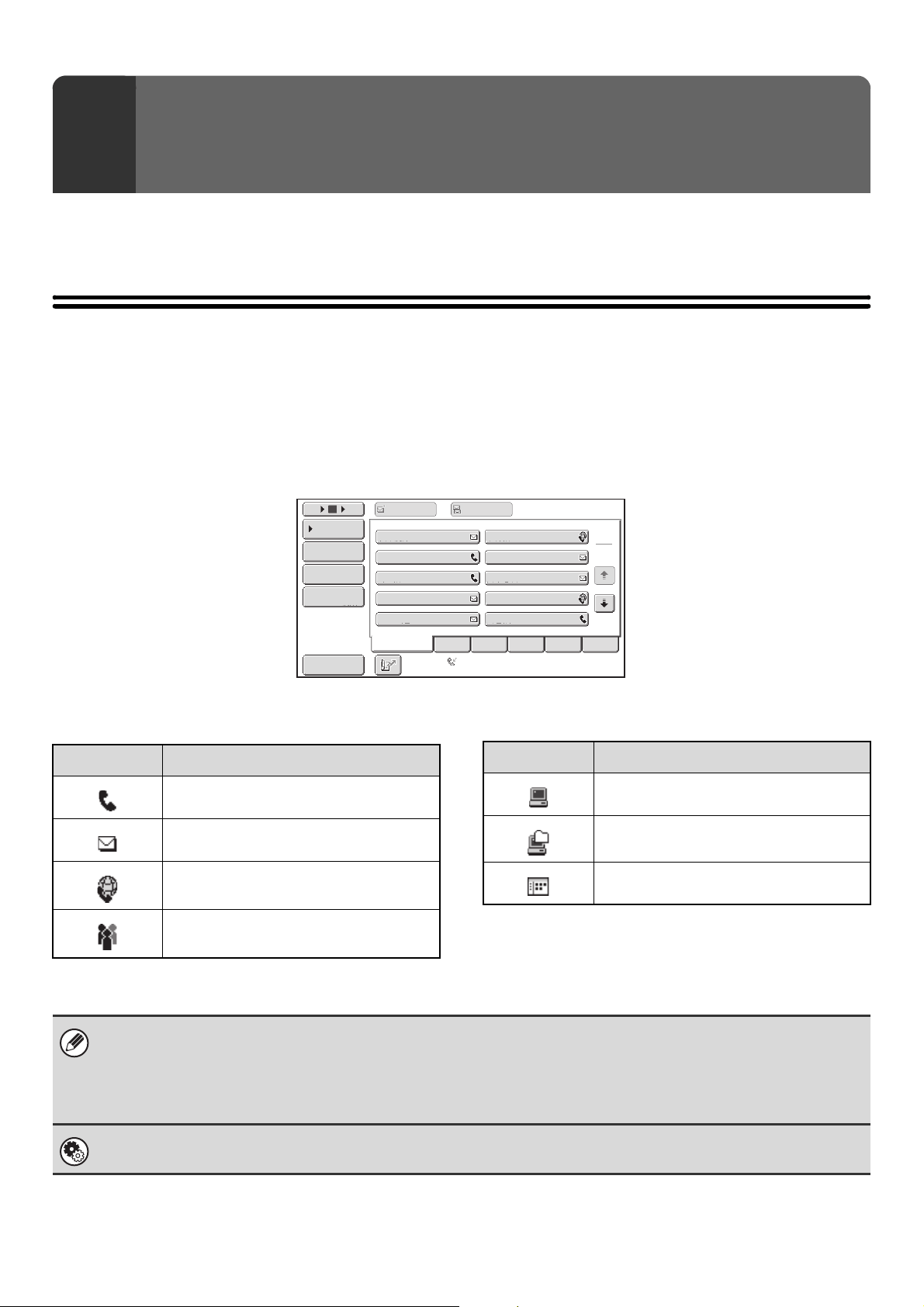
25
This chapter explains how to specify destination addresses, including selecting an address from the address book and
retrieving an address by entering a search number.
RETRIEVING A DESTINATION FROM THE
ADDRESS BOOK
The address book screen shows stored destinations as one-touch keys.
The destinations are displayed in order by search number. To make it easy to find a destination, the destinations are
grouped by name on alphabetical index tabs.
The address book screen shows the destinations of all modes of the image send function. Each one-touch key shows
the name of the destination and an icon indicating the mode to be used.
2
ENTERING DESTINATIONS
III III
GGG GGG
EEE EEE
CCC CCC
AAA AAA
JJJ JJJ
HHH HHH
FFF FFF
DDD DDD
BBB BBB
ABCD
Frequent Use
EFGHI JKLMN OPQRST UVWXYZ
1
2
5
15
10
Global
Address Search
Address Review
Address Entry
Sort Address
Condition
Settings
To Cc
Auto Reception
Fax Memory:100%
Icon Mode
Fax
Scan to E-mail
Internet Fax
Group key containing multiple
destinations
Scan to FTP
Scan to Network Folder
Scan to Desktop
Icon Mode
• For information on storing addresses in the address book, see "STORING DESTINATION ADDRESSES FOR EACH
SCAN MODE IN THE ADDRESS BOOK" (page 11).
• To store destinations for Scan to Desktop, Network Scanner Tool must be installed from the CD-ROM that accompanies
the network scanner expansion kit. For more information on storing destinations for Scan to Desktop, see "STORING A
DESTINATION FOR SCAN TO DESKTOP" (page 12).
System Settings: ADDRESS BOOK (page 174)
This is used to store Scan to E-mail, Internet fax, and fax destinations in one-touch keys.
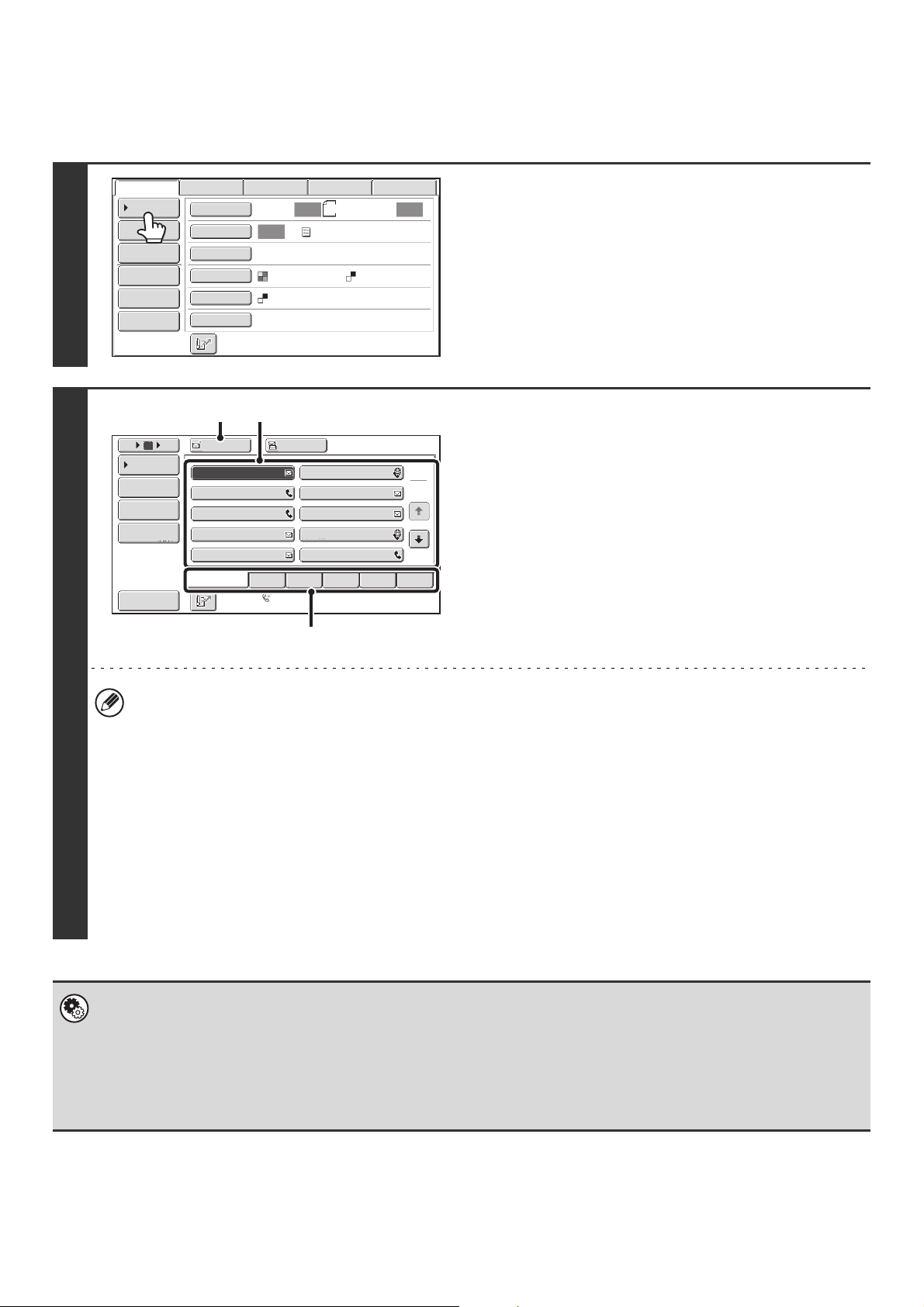
26
RETRIEVING A DESTINATION
A destination is retrieved by selecting its one-touch key.
1
Touch the [Address Book] key.
2
Specify the destination.
(1) Touch the index tab where the destination
is stored.
(2) Touch the one-touch key of the desired
destination.
If you select an incorrect destination, touch the key again
to cancel the selection.
(3) Touch the [To] key.
This enters the selected destination.
If you selected a one-touch key for a fax destination, this
step is not necessary.
• It is convenient to store frequently used destinations in the [Frequent Use] index. Specify that a destination be
displayed in the [Frequent Use] index when you store the destination.
☞ ADDRESS CONTROL (page 174)
• To continue specifying other destinations...
It is possible to specify multiple scan mode (Scan to E-mail, Scan to FTP, Scan to Desktop), Internet fax, and fax
mode destinations when performing a broadcast transmission (maximum of 500 destinations). To specify multiple
destinations, repeat (1) through (3) of this step. If "Must Input Next Address Key at Broadcast Setting" is enabled in
the system settings (administrator), touch the [Next Address] key before specifying the next destination.
When performing Scan to E-mail, you can select a one-touch key and then touch the [Cc] key or the [Bcc] key to
send Cc or Bcc copies of the e-mail.
• Fax mode:
If the network scanner expansion kit and Internet fax expansion kit are not installed, the [To] key and [Cc] key will
not appear.
• System Settings (Administrator): Settings to Disable Transmission
This is used to prohibit the selection of destinations of modes that are prohibited in "Disable selection from address book".
• System Settings (Administrator): Bcc Setting
This setting enables or disables Bcc delivery. When enabled, the [Bcc] key appears in the address book screen.
• System Settings (Administrator): Must Input Next Address Key at Broadcast Setting
This setting determines whether or not the [Next Address] key can be omitted before specifying the next destination.
Factory default setting: the [Next Address] key can be omitted.
8½x11
Auto Auto
Auto
File
Quick File
Address Review
Send Settings
Address Entry
Address Book
Data EntryFaxInternet Fax
Special Modes
Color Mode
File Format
Resolution
Exposure
Original
Scan:
Scan
Send:
Text
200X200dpi
PDF
Mono2
PDF
USB Mem. Scan
1
2
III III
GGG GGG
EEE EEE
CCC CCC
AAA AAA
JJJ JJJ
HHH HHH
FFF FFF
DDD DDD
BBB BBB
To Cc
5
15
10
Global
Address Search
Address Entry
Sort Address
Address Review
Condition
Settings
ABCD
Frequent Use
EFGHI JKLMN OPQRST UVWXYZ
Auto Reception
Fax Memory:100%
(3) (2)
(1)
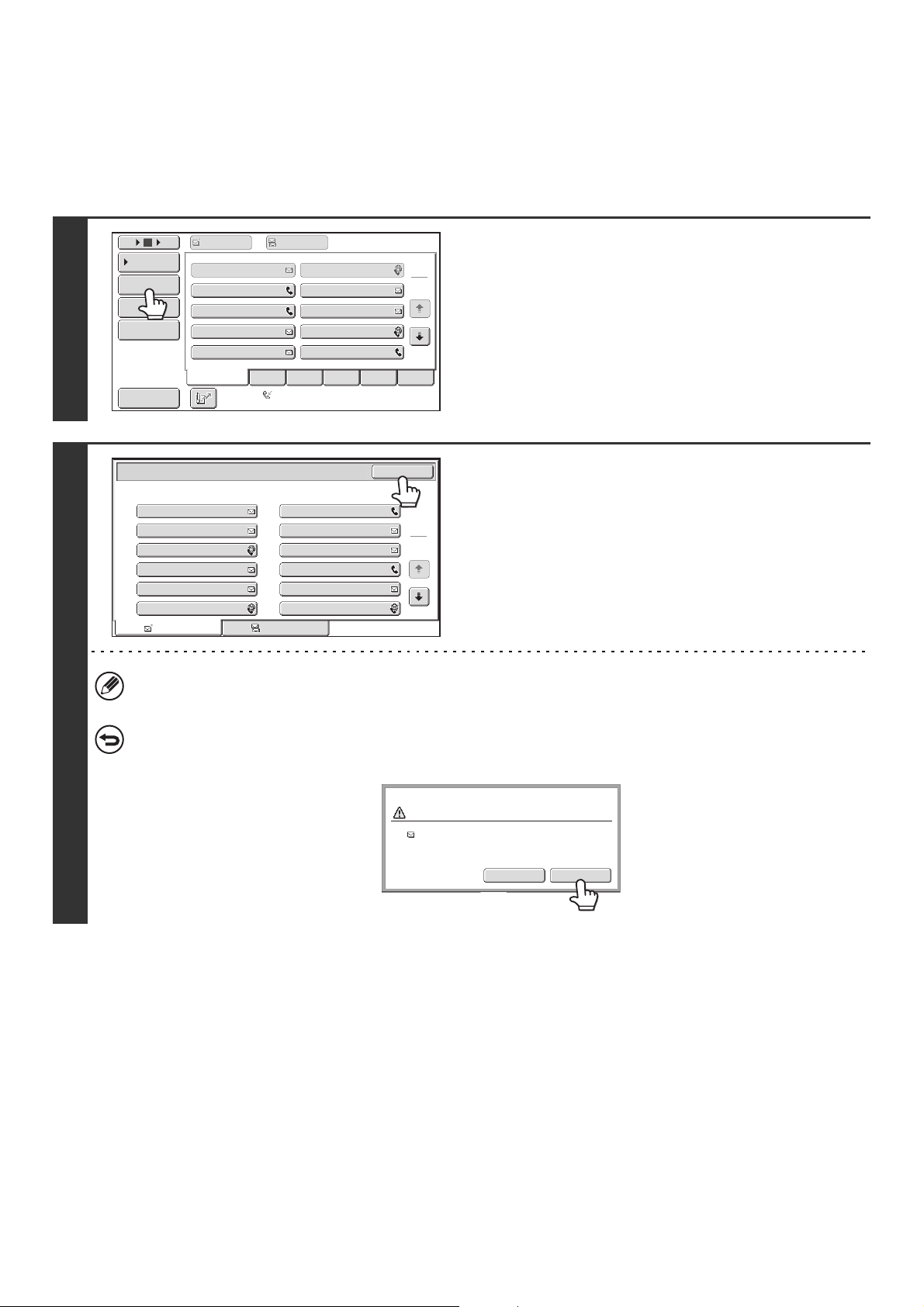
27
CHECKING AND DELETING THE SELECTED
DESTINATIONS
When multiple destinations have been selected, you can display and check the destinations. You can also delete a
destination from the list (cancel selection of the destination).
1
Touch the [Address Review] key.
2
Check the destinations and then touch
the [OK] key.
To check Cc or Bcc destinations, touch the corresponding tab.
To cancel a specified destination...
Touch the one touch-key of the destination that you wish to cancel. A message appears to confirm the cancelation.
Touch the [Yes] key.
AAA AAA BBB BBB
To Cc
ABCD
Frequent Use
EFGHI JKLMN OPQRST UVWXYZ
1
2
5
15
10
Global
Address Search
Address Entry
Sort Address
Address Review
Condition
Settings
III III
GGG GGG
EEE EEE
CCC CCC
JJJ JJJ
HHH HHH
DDD DDD
FFF FFF
Auto Reception
Fax Memory:100%
To
001
003
005
007
009
011
002
004
006
008
010
012
Cc
1
2
Address Review
OK
AAA AAA
KKK KKK
MMM MMM
OOO OOO
QQQ QQQ
SSS SSS
BBB BBB
LLL LLL
NNN NNN
PPP PPP
RRR RRR
TTT TTT
Yes
No
Deselect the address?
AAA AAA
28
USING A SEARCH NUMBER TO RETRIEVE
A DESTINATION
A destination stored in the address book can be retrieved using the key. This can be done in the base screen of any
of the modes or in the address book screen.
1
Touch the key.
2
Enter the 3-digit search number of the
address with the numeric keys.
When the 3-digit search number is entered, the stored address
is retrieved and specified as a destination.
• The search number is programmed when the destination is stored in the address book.
• If you do not know the search number, print the one-touch address list using "Sending Address List" in the system
settings.
• When entering search numbers such as "001" and "011", "0" can be omitted. For example to enter "001", enter "1"
and touch the key or the [Next Address] key.
If an incorrect search number is entered...
Press the [CLEAR] key ( ) to clear the number and enter the correct number.
8½x11
Auto
Auto
Auto
File
Quick File
Address Review
Send Settings
Address Entry
Address Book
Data EntryFaxInternet Fax
Special Modes
Color Mode
File Format
Resolution
Exposure
Original
Scan:
Scan
Send:
Text
200X200dpi
PDF
Mono2
PDF
USB Mem. Scan
29
ENTERING AN ADDRESS MANUALLY
Destination addresses for Scan to E-mail and Internet fax can be entered manually.
For manual entry (using the numeric keys) of fax destinations, see "ENTERING FAX NUMBERS" (page 34).
1
Display the address input screen.
(1) Touch the tab of the mode that you wish to
use.
(2) Touch the [Address Entry] key.
You can also display the address entry screen by touching the [Address Entry] key in the address book screen.
2
Enter the destination address.
(1) If you are in scan mode, touch the key of the
desired delivery method.
Normally the [To] key is touched. This specifies that the
entered e-mail address will be a recipient.
(2) Enter the destination address in the text
entry screen that appears.
Enter the destination address and touch the [OK] key.
For the procedure for entering text, see "7. ENTERING
TEXT" in the User's Guide.
• If you wish the destination to be a Cc destination, touch the [Cc] key.
• The [Bcc] key only appears when Bcc has been enabled using "Bcc Setting" in the system settings (administrator).
If you wish the destination to be a Bcc destination, touch the [Bcc] key.
• When Internet fax mode is selected, the base screen appears after the destination address is entered. However, if
"I-Fax Reception Report On/Off Setting" is enabled in the system settings (administrator), the reception report
request screen will appear. If you wish to receive a report, touch the [Yes] key. If not, touch the [No] key.
• System Settings (Administrator): I-Fax Reception Report On/Off Setting
This setting is used to request a reception report when an Internet fax is sent. When the destination is specified by directly
entering the address, a message will appear asking you if you wish to receive a report.
• System Settings (Administrator): Bcc Setting
This setting enables or disables Bcc delivery. When enabled, the [Bcc] key appears in the address book screen and the
delivery type selection screen.
8½x11
Auto Auto
Auto
File
Quick File
Address Review
Send Settings
Address Entry
Address Book
Data EntryFaxInternet Fax
Special Modes
Color Mode
File Format
Resolution
Exposure
Original
Scan:
Scan
Send:
Text
200X200dpi
PDF
Mono2
PDF
USB Mem. Scan
(1)
(2)
Cc
To
Select addressee type.
30
RETRIEVING A DESTINATION FROM A
GLOBAL ADDRESS BOOK
To use a global address book on the network to which the machine is connected, configure LDAP server settings in the
Web pages. This will allow you to retrieve and use destinations that have been stored in the global address book.
1
Open the global address search screen.
(1) Touch the [Address Book] key in the base
screen.
(2) Touch the [Global Address Search] key.
2
Search for the destination.
If only one LDAP server has been stored, (1) and (2) are not
necessary. Go directly to (3).
(1) Touch the key of the LDAP server that you
wish to use.
(2) Touch the [OK] key.
(3) Search for the destination in the search
screen.
Enter search characters for the destination and touch the
[Search] key. The search results will appear after a brief
interval.
For the procedure for entering text, see "7. ENTERING
TEXT" in the User's Guide.
How to search
Enter the search characters (maximum of 64 characters). The system will look for names starting with the entered
letters.
An asterisk can be used as follows:
XXX :Names beginning with "XXX".
XXX:Names that end with "XXX".
XXX :Names that include "XXX".
AA XX:Names that start with "AA" and end with "XX".
ABCD
Frequent Use
EFGHI JKLMN OPQRST UVWXYZ
1
2
5
15
10
Global
Address Search
Address Entry
Sort Address
Address Review
Condition
Settings
To Cc
III III
GGG GGG
EEE EEE
CCC CCC
AAA AAA
JJJ JJJ
HHH HHH
FFF FFF
DDD DDD
BBB BBB
Auto Reception
Fax Memory:100%
(2)
Server Change
Cancel OK
Server 2
Server 1
Server 3
Server 4
Server 5
Server 6
Server 7
(1) (2)
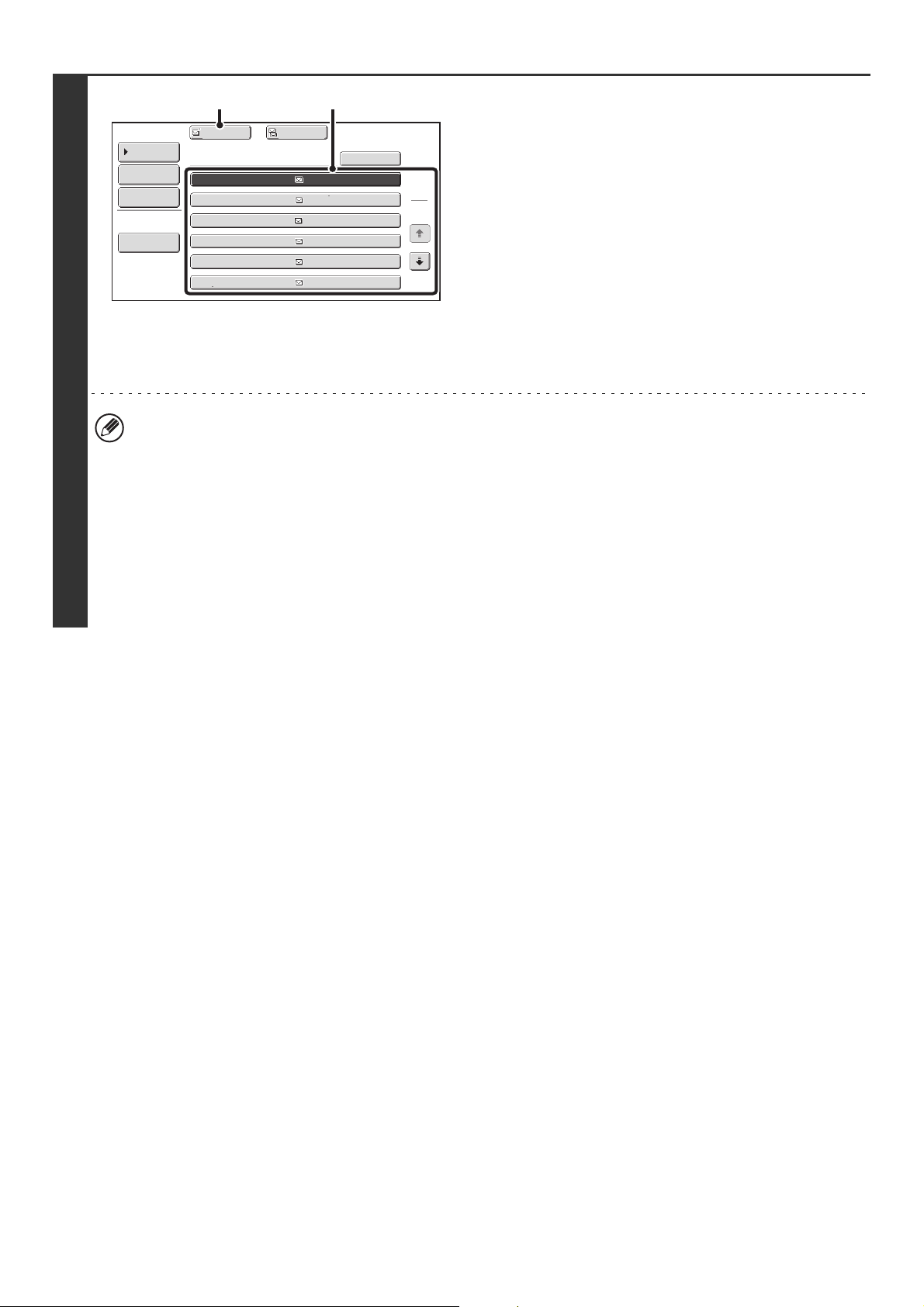
31
3
Select the destination.
(1) Touch the key of the desired destination.
If no names are found that match the search characters, a
message will appear. Touch the [OK] key to close the
message and touch the [Search Again] key to search
again.
(2) Touch the [To]* key.
This enters the selected destination.
If you wish to enter another destination, repeat (1) and (2)
of this step.
*If machine functionality has not been expanded to
enable use of the network scanner function or Internet
fax function, the [Add Selected] key will appear instead
of the [To] key.
• If more than 30 matches are found, a message will appear in the screen. Touch the [OK] key to close the message.
Up to 300 matches can appear. If no names are found that match the search letters, touch the [Search Again] key to
search again using more search letters.
• To check the information stored in a destination...
Touch the key of the destination and then touch the [Detail] key. The information stored for the selected destination
will appear. Check the information and then touch the [OK] key to return to the search results screen.
• If a screen for selecting the item of the destination to be used appears...
If the selected destination contains an e-mail address, an Internet fax address, and a fax number, select which item
you wish to use. To select the item, touch the [E-mail], [Internet fax], or [Fax] key. However, if [Allow selection on
operation panel] is not selected in "Global Address Book Settings" in the Web pages, the item of the mode specified
in the Web pages will be used.
1
2
XXX EEE
XXX FFF
XXX DDD
XXX CCC
XXX BBB
XXX AAA
Address Book
Search Again
Address Review
Condition
Settings
To Cc
Detail
XXX
(2) (1)
32
Storing a destination from a global address book in the machine's
address book
A destination from a global address book can be stored in the machine's address book as a one-touch key.
Touch the [Detail] key in the search results screen of the global address book (the screen of step 3 on page 31) to
display information on the selected destination. Touch the [Register] key in the detailed information screen and then
touch the item to be used ([E-mail], [Internet Fax], or [Fax]). The address registration screen will appear.
Example: E-mail address registration screen
The information stored in the global address book is automatically entered. (The settings can be changed if needed. For
detailed information on each item, see "ADDRESS CONTROL" (Page 174).) However, configure the items below
manually.
To complete the storing procedure, touch the [Exit] key.
Items common to each mode
• [Initial] key: Enter the initials that determine where the destination will appear in the alphabetical index and the order
of one-touch key display. Enter up to 5 characters for the initials.
• [Index] key: Select the custom index in which the address will appear. You can also select whether or not the
destination will be included on the [Frequent Use] tab of the address book.
Scan to E-mail
• [File Format] key: Set the format for Scan to E-mail. Default format settings have already been configured; however,
selecting format settings when you store a destination saves you the trouble of selecting the
settings each time you transmit to that destination.
Internet fax
• [Compression] key: Touch this key to set the compression mode when sending an Internet fax.
• [I-Fax Report] key: Touch this key to request a reception report when sending an Internet fax.
Fax
• [Mode] key: Touch this key to configure the "Transmission Speed" and "International Correspondence Mode" settings.
These settings have already been configured, however, if the destination is an international destination,
or if you find that communication errors frequently occur when communicating with that destination, you
can try changing the settings.
E-mail
Internet Fax
Fax
Direct Address / Individual
Exit
Search Number
Name
Initial
Index
Address
Key Name
File Format
001
AAA AAA
AAA AAA
Color/Gray :PDF/Medium
:PDF/MMR(G4)
B/W
A
User 1
The stored information varies
depending on the selected item
(E-mail, Internet fax, or fax).
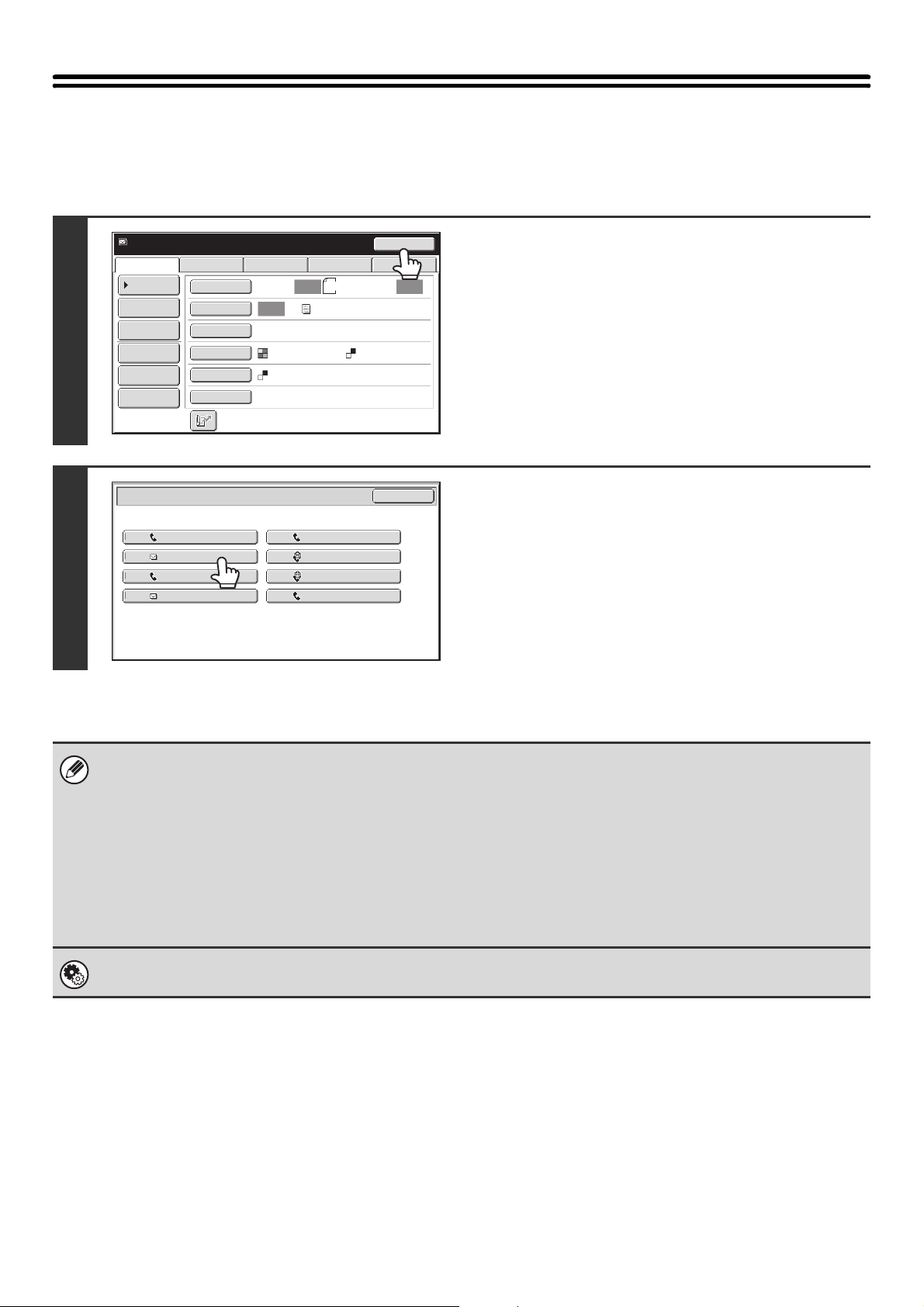
33
USING THE RESEND FUNCTION
The destinations of the most recent 8 transmissions by Scan to E-mail, Internet fax and/or fax are stored. One of these
can be selected to resend to that destination.
1
Touch the [Resend] key.
2
Touch the key of the desired address.
The last 8 addresses used for transmission are displayed.
When a Scan to E-mail address is selected, a selection screen
for the delivery method will appear. Normally the [To] key is
selected in this screen.
• When the [Resend] key is touched and a destination selected, the mode of the selected destination is automatically
selected.
• Resending is not possible to the following destinations.
- A one-touch key in which multiple destinations are stored (group key).
- Scan to FTP, Scan to Desktop, and Scan to Network Folder addresses.
- Broadcasting destinations
- Addresses used only for BCC delivery
- Destinations transmitted to using a program
•Fax mode:
If numeric keys were pressed during the previous transmission, the [Resend] key may not dial the correct number.
System Settings (Administrator): Settings to Disable Transmission
When "Disable [Resend] on Image Send Mode" is enabled, the resend function cannot be used.
Resend
Scan
Ready to send.
8½x11
Data EntryFaxInternet Fax
File
Quick File
Address Review
Send Settings
Address Entry
Address Book
Auto Auto
Auto
Special Modes
Color Mode
File Format
Resolution
Exposure
Original
Scan: Send:
Text
200X200dpi
PDF
Mono2
PDF
USB Mem. Scan
Resend
Cancel
No.01
No.03
No.05
No.07
EEE EEE
CCC CCC
AAA AAA
GGG GGG
No.02
No.04
No.06
No.08
FFF FFF
DDD DDD
BBB BBB
HHH HHH
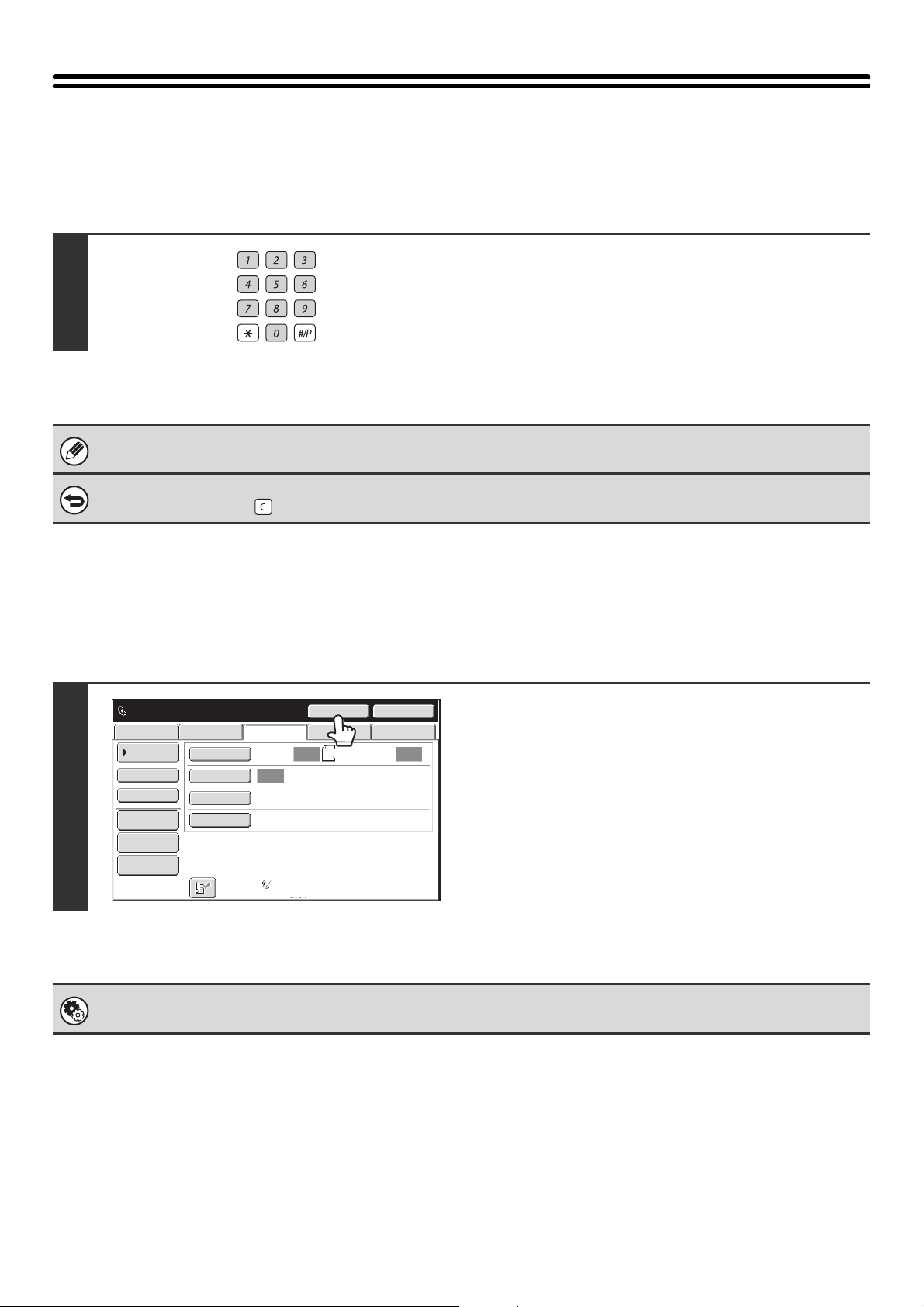
34
ENTERING FAX NUMBERS
ENTERING A FAX NUMBER WITH THE NUMERIC KEYS
Entering a pause between digits of the number
Enter a pause after the number used to dial out from a PBX (for example, after "0"), or after the country code when
dialing an international number.
Enter the destination fax number with
the numeric keys.
Take care to enter the correct number.
If an incorrect number is entered...
Press the [CLEAR] key ( ) to clear the number and then enter the correct number.
Touch the [Pause] key.
A hyphen "-" is entered when the [Pause] key is touched once.
System Settings (Administrator): Pause Time Setting
This is used to set the length of pauses. The default setting is 2 seconds.
Auto Auto
Auto
File
Quick File
Address Review
Direct TX
Sub Address
Address Book
Data EntryFaxInternet Fax
Special Modes
Resolution
Exposure
Original
Scan:
Scan
Send:
Standard
Auto Reception
Fax Memory:100%
Pause
1234567890-
Next Address
8½x11
USB Mem. Scan
35
CHAIN DIALING
Number sequences entered with the numeric keys and/or one-touch keys can be linked together with pauses and dialed
as a single number.
Use chain dialing to dial a long number (such as an international number) when the country code and/or area code are
stored separately in one-touch keys.
Example: Using chain dialing to dial an international number
System Settings (Administrator): Pause Time Setting
This is used to set the length of pauses. The default setting is 2 seconds.
XXX 010
00 XX XXXX
XXX
010
Number to access
international telephone
service
Country
code
Area code
Number of other
party
Using a one-touch
key
Using the
numeric keys
CCC CCC
Pause
Number to be dialed
Entry
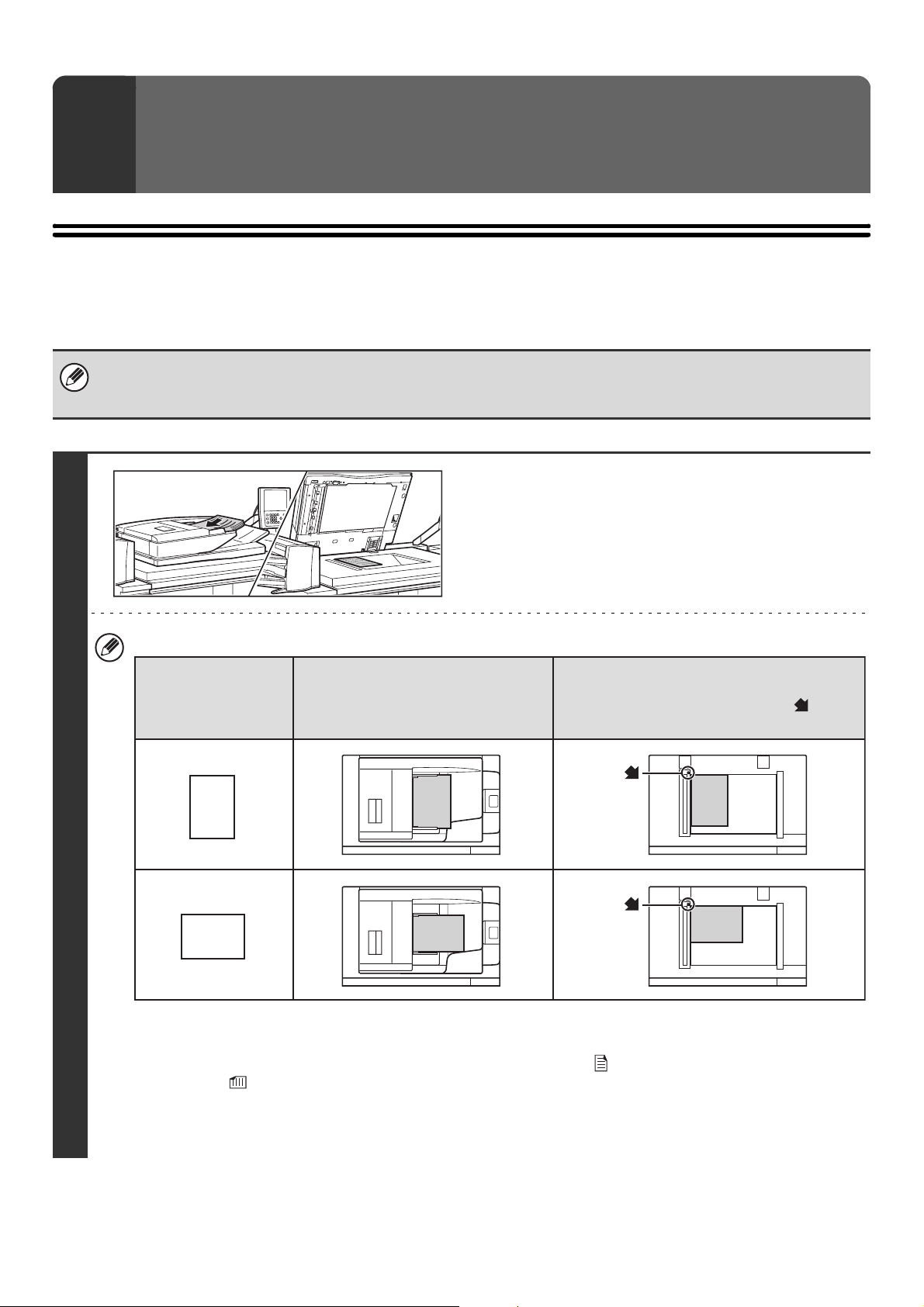
36
SENDING AN IMAGE IN SCAN MODE
This section explains the basic procedure for transmission in scan mode (Scan to E-mail, Scan to FTP, Scan to
Desktop, and Scan to Network Folder).
3
TRANSMITTING AN IMAGE
When a default address is configured in "Default Address Setting" in the system settings (administrator), the mode cannot be
changed, the destination cannot be changed, and destinations cannot be added. If you wish to change the mode or
destination, touch the [Cancel] key in the touch panel and then follow the procedure below.
1
Place the original.
• When placing the originals, orient them as shown below.
* To place a large portrait-oriented original, place it as shown above in "Landscape orientation" and specify the
placement orientation in step 4.
• Place 5-1/2" x 8-1/2" (A5) size originals in portrait (vertical) orientation ( ). If placed in landscape (horizontal)
orientation ( ), an incorrect size will be detected. For a 5-1/2" x 8-1/2"R (A5R) size original, enter the original size
manually.
• Originals cannot be scanned in succession from both the automatic document feeder and the document glass and
sent in a single transmission.
A
B
AB
A
B
A
B
AB
AB
Document feeder tray
Place the original face up.
Portrait orientation*
Landscape orientation
Document glass
Place the original face down and align the
corner with the tip of the arrow mark in the
top left corner of the document glass scale.
Originals
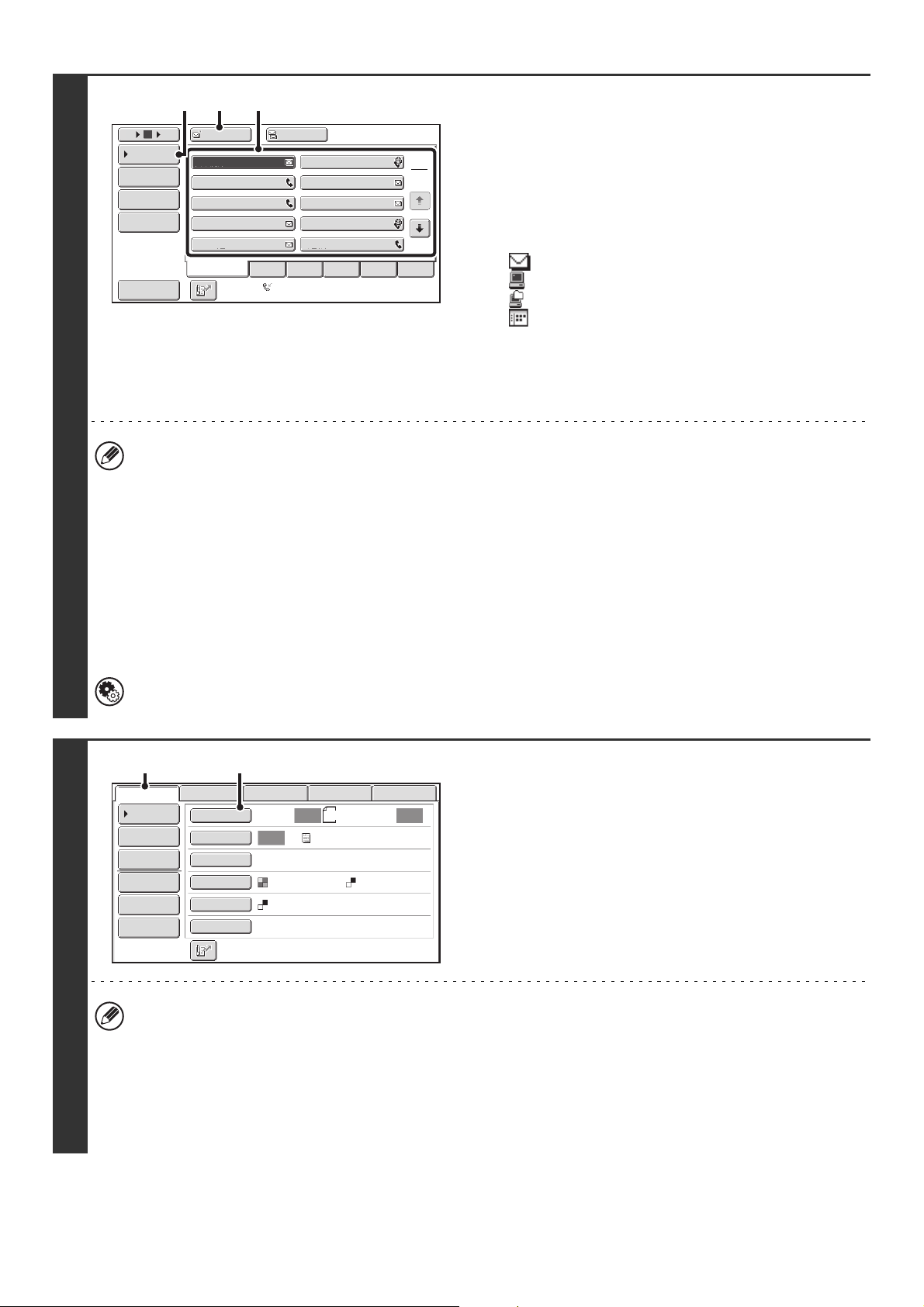
37
2
Specify the destination.
(1) Touch the [Address Book] key in the base
screen.
(2) Touch the one-touch key of the desired
destination.
The icon on the key indicates the type of destination
stored in the key.
:Scan to E-mail
:Scan to FTP
:Scan to Network Folder
:Scan to Desktop
(3) Touch the [To] key.
The destination is specified.
(4) Touch the [Condition Settings] key.
• After a one-touch key is touched, if the screen is changed without touching the [To] key, the destination is
automatically specified.
• When performing Scan to E-mail, you can also send Cc or Bcc copies to other destinations. Touch the desired
destination and then touch the [Cc] key or the [Bcc] key.
• Multiple destinations can be specified. To specify multiple destinations, repeat steps (2) and (3). Note that multiple
destinations cannot be specified when a Scan to Network Folder destination is specified.
• You can also select multiple one-touch keys and then touch the [To] key (or the [Cc] or [Bcc] key) to specify all
selected keys at once.
• In addition to specification by a one-touch key, a destination can also be specified by a search number. For a Scan
to E-mail destination, you can enter an address manually or retrieve an address from a global address book. For
more information, see "2. ENTERING DESTINATIONS" (page 25).
System Settings (Administrator): Bcc Setting
This setting enables or disables Bcc delivery. When enabled, the [Bcc] key appears in the address book screen.
3
Display the original settings screen.
(1) Make sure that scan mode is selected.
If scan mode is not selected, touch the [Scan] tab.
(2) Touch the [Original] key.
The current settings for [Original], [Exposure], [Resolution], [File Format], and [Color Mode] are indicated at the right of
each key. To change a setting, touch the appropriate key. The [Color Mode] key will only appear if the color expansion
kit has been installed.
☞ AUTOMATICALLY SCANNING BOTH SIDES OF AN ORIGINAL (2-Sided Original) (page 69), SPECIFYING THE
ORIGINAL SCAN SIZE AND SEND SIZE (Enlarge/Reduce) (page70), CHANGING THE EXPOSURE AND
EXPOSURE MODE (ORIGINAL IMAGE TYPE) (page 76), CHANGING THE RESOLUTION (page 78),
CHANGING THE FILE FORMAT (page 81), CHANGING THE COLOR MODE (page 85), 4. SPECIAL MODES
(page 87)
AAA AAA
To Cc
III III
GGG GGG
EEE EEE
CCC CCC
HHH HHH
FFF FFF
DDD DDD
BBB BBB
ABCD
Frequent Use
EFGHI JKLMN OPQRST UVWXYZ
1
2
5
15
10
Global
Address Search
Address Entry
Sort Address
Address Review
Condition
Settings
JJJ JJJ
Auto Reception
Fax Memory:100%
(3)(4) (2)
8½x11
Auto Auto
Auto
File
Quick File
Address Review
Send Settings
Address Entry
Address Book
Data EntryFaxInternet Fax
Special Modes
Color Mode
File Format
Resolution
Exposure
Original
Scan:
Scan
Send:
Text
200X200dpi
PDF
Mono2
PDF
USB Mem. Scan
(1) (2)
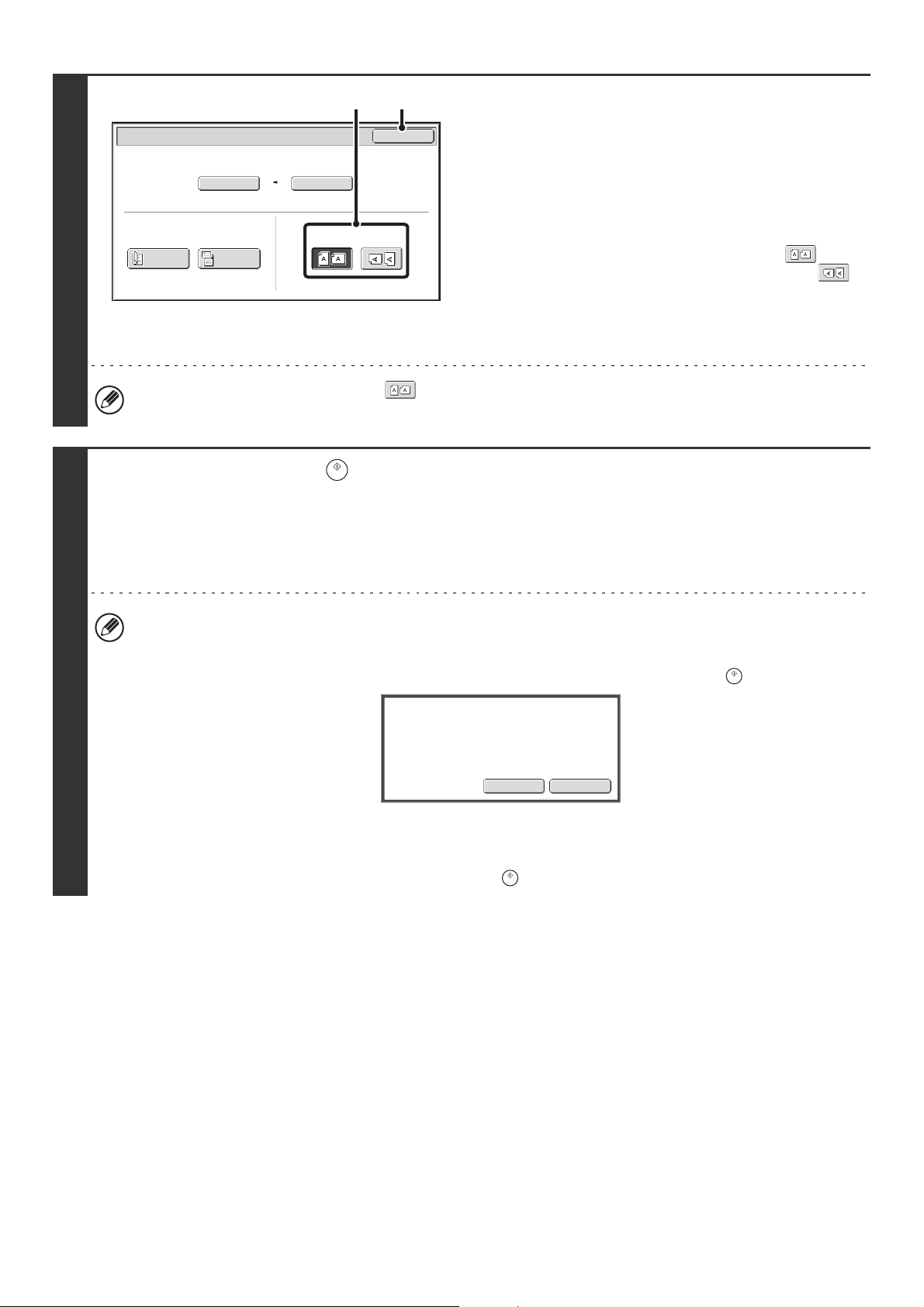
38
4
Specify the orientation in which the
original is placed.
To enable the original to be scanned in the correct orientation
(the orientation of the top edge of the original that is shown at
the top of the display), specify the orientation in which the
original was placed in step 1.
(1) Touch the appropriate orientation key.
If the top edge of the original is up, touch the key. If
the top edge of the original is to the left, touch the
key.
(2) Touch the [OK] key.
You will return to the screen of step 3.
The original orientation is initially set to . If the original was placed with the top edge up, this step is not
necessary.
5
Press the [START] key ( ).
Scanning begins.
• If the original is placed on the document glass, the [Read-End] key appears in the touch panel. If the original is only one
page, go to step 7. To scan more pages, go to the next step.
• If the original was inserted in the document feeder tray, a beep will sound when scanning is completed and transmission
will take place.
• If the color expansion kit is installed and the color mode is set to [Auto], the color used in the original is automatically
detected and scanning takes place in full color, grayscale, or mono2. If the color expansion kit is not installed,
scanning takes place in mono2.
• If the file type is [Encrypt PDF], a password entry screen will appear when the [START] key ( ) is pressed.
Touch the [Entry] key to open the keyboard screen, enter a password (maximum of 32 characters), and touch the
[OK] key. The recipient must use the password entered here to open the encrypted PDF file.
To cancel encrypted PDF, touch the [Cancel] key. The format settings screen will appear to let you change the file
type. Select a new file type and press the [START] key ( ) to begin transmission.
Scan/Original
OK
Auto
Auto 8½x11
Scan Size
2-Sided
Tablet
2-Sided
Booklet
Send Size
100%
Image Orientation
(2)(1)
EntryCancel
Please enter encrypt PDF
password.
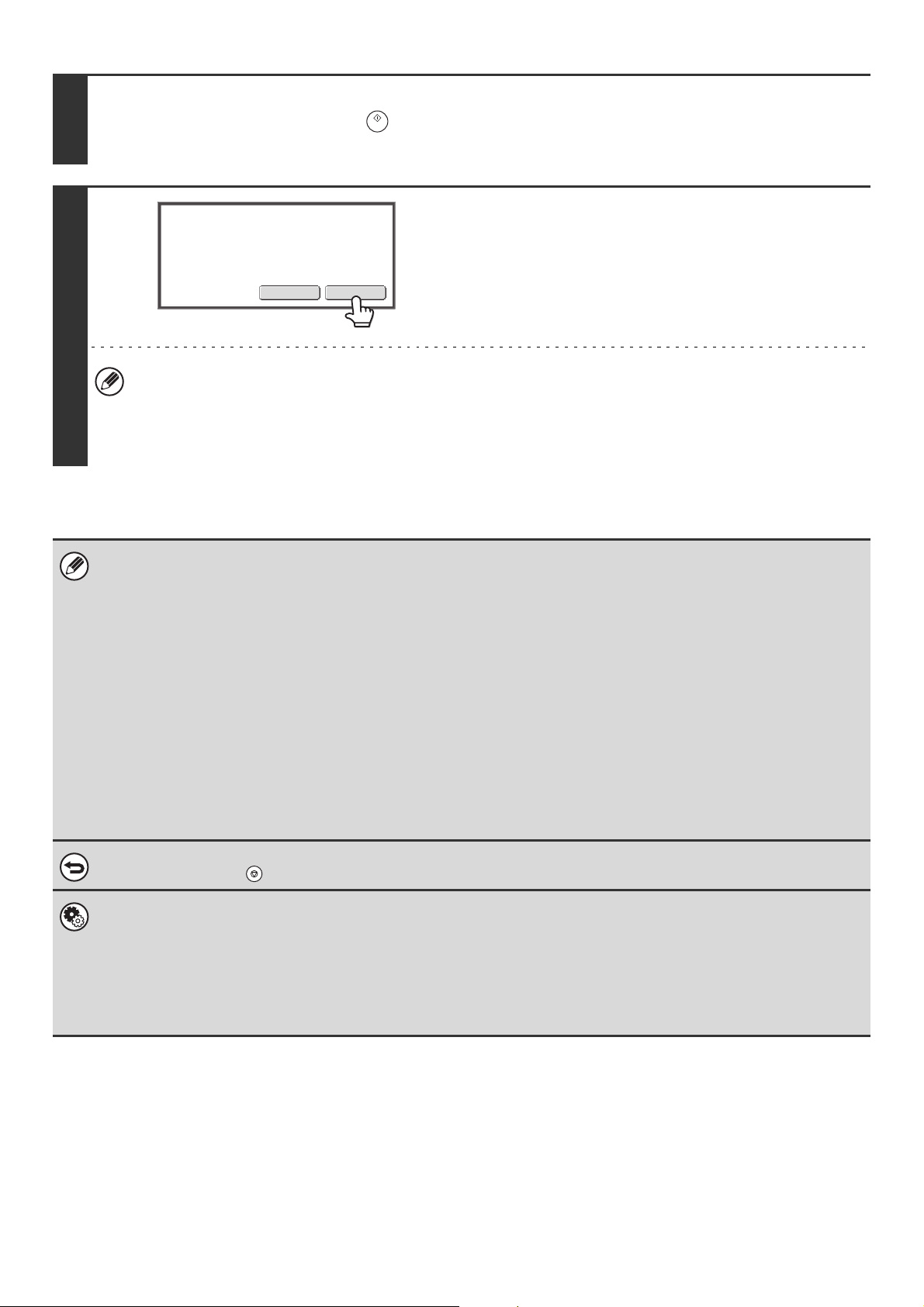
39
6
If the original was placed on the document glass, replace it with the next original
and press the [START] key ( ).
Repeat until all originals have been scanned.
7
Touch the [Read-End] key.
A beep will sound to indicate that the operation is completed.
Open the automatic document feeder and remove the original.
• If no action is taken for one minute after the confirmation screen appears, scanning automatically ends and the
transmission is reserved.
• The [Configure] key can be touched to change the exposure, resolution, scan size, and send size for each original
page scanned. However, when "Card Shot" is selected in the special modes, only the exposure can be changed
when scanning an even-numbered original page.
• When scanning is completed, "Job stored." will be displayed together with a job control number. This number can be used
to locate the job in the Transaction Report or in the Image Sending Activity Report. If the job is a broadcast transmission,
this number will also appear in the key of the job in the job status screen. For this reason, making a note of the number is
useful for checking the result.
• If the memory becomes full while the originals are being scanned, a message will appear and scanning will stop.
• When performing Scan to E-mail, take care not to send a file that is too large. In particular, multi-page files tend to be large.
When sending a multi-page file or other large file, it may be necessary to reduce the number of scanned pages or reduce
the send size.
• Storing a mail signature
A signature can be automatically appended to the end of the body text of e-mail. This is convenient when you wish to have
a corporate policy or other preset text appear at the bottom of e-mail messages. To store the text for the mail signature,
click [Application Settings], [Network Scanner Settings] and then [Administration Settings] in the Web page menu.
(Administrator rights are required.) Up to 900 characters can be entered. (The mail signature is not included in the
maximum number of characters that can be entered in the e-mail message.)
Use "Pre-Setting Mail Signature" in the system settings (administrator) to specify whether or not a mail signature is added.
To cancel scanning...
Press the [STOP] key ( ) to cancel the operation.
• System Settings (Administrator): Image Send Settings
Use this to configure scanner transmission settings, including the default resolution and exposure settings, the default
color mode and file format, the file compression method for broadcasting, the file size limit for Scan to E-mail, and the
default sender and destination.
• System Settings (Administrator): Pre-Setting Mail Signature
Use this setting to specify whether or not a mail signature is added at the end of e-mail messages. By factory default, a
mail signature is not added.
Read-EndConfigure
Place next original. (Pg.No.x)
Press [Start].
When finished, press [Read-End].
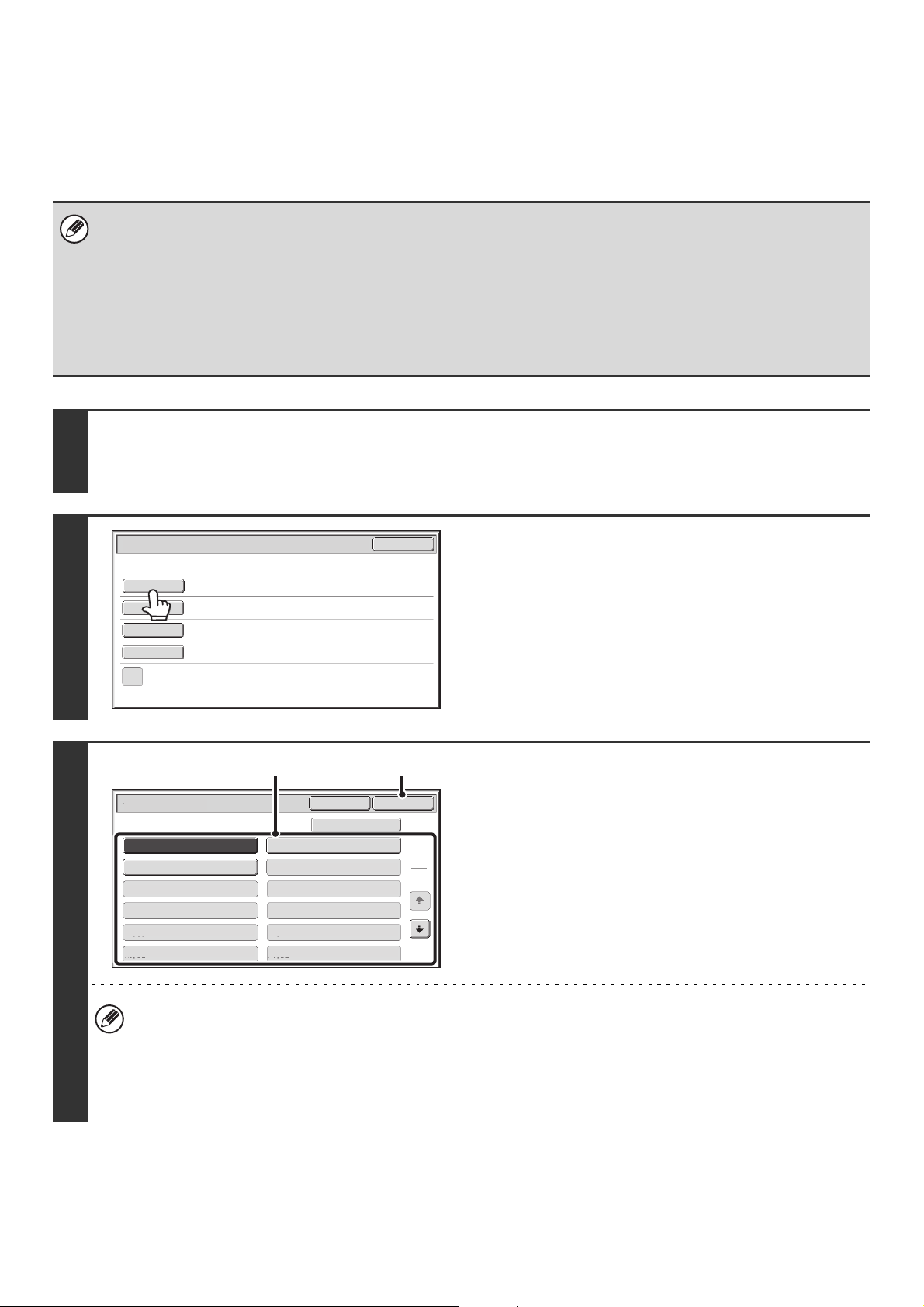
40
CHANGING THE SUBJECT, FILE NAME, REPLY-TO,
AND BODY TEXT
The subject, file name, reply-to, and body text can be changed when performing a scan transmission. Preset items can
be selected or text can be directly entered.
• When performing Scan to FTP, Scan to Desktop, or Scan to Network Folder, only the file name is used.
• If the subject and file name are not changed, the settings in the Web page are used.
• If the sender name is not changed, the name set in "Default Sender Set" in the system settings is used. If this is not
configured, the reply address in [Network Settings] - [Services Settings] - [SMTP Settings] in the Web pages is used.
(Administrator rights are required.)
• Selections for the subject, file name, and body text are configured by clicking [Application Settings] and then [Network
Scanner Settings] in the Web page menu.
• For the procedure for entering text, see "7. ENTERING TEXT" in the User's Guide.
1
Touch the [Send Settings] key in the base screen.
☞
BASE SCREEN (page 16)
If you are sending to a Scan to FTP, Scan to Desktop, or Scan to Network Folder destination, go to step 4.
2
To change the subject, touch the
[Subject] key.
3
Enter the subject.
(1) Touch a pre-set text key.
(2) Touch the [OK] key.
• If you wish to directly enter the text, touch the [Direct Entry] key to open the text entry screen. Enter the text and
touch the [OK] key.
• The text in a pre-set text key can be edited by touching the pre-set text key and then the [Direct Entry] key. The text
entry screen will appear with the selected pre-set text entered. (When a destination is stored using the Web page,
up to 80 characters can be entered. However, only 60 characters* can be edited in the touch panel.)
* When the number of preset keys displayed is 6
Send Settings
OK
Subject
File Name
Reply-To
Body Text
Add 'Reply to' to Cc
No.01 Sub: Schedule coordination
No.02 Sub: Monthly Schedule
No.04
No.06No.05
No.08No.07
No.10No.09
No.12No.11
No.03 Sub: Minutes of planning m
Subject
OK
Cancel
Direct Entry
1
5
(2)(1)
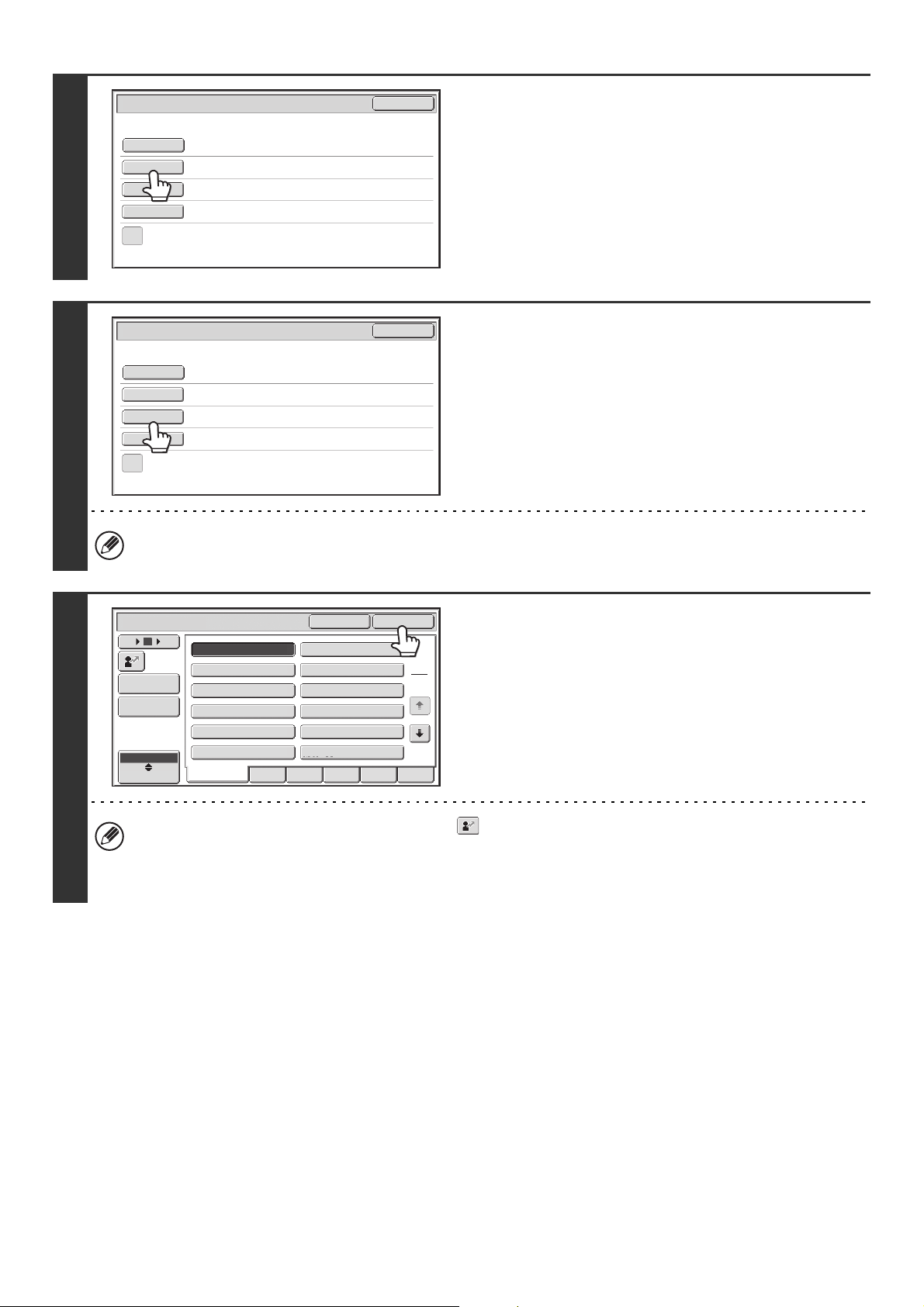
41
4
To change the file name, touch the [File
Name] key.
• The file name is entered in the same way as the subject.
• If you are sending to a Scan to FTP, Scan to Desktop, or
Scan to Network Folder destination, go to step 9.
5
To change "Reply-To", touch the
[Reply-To] key.
If user authentication is being used, the information of the user that logged in will be applied, and thus "Reply-To"
cannot be changed.
6
Specify a user for "Reply-To" and touch
the [OK] key.
• Touch the key that you wish to use for "Reply-To".
• You can touch the [Global Address Search] key to specify a
user stored in a global address book for "Reply-To". You can
also touch the [Address Entry] key to directly enter an e-mail
address.
• To specify the return address, you can touch the key and enter a user number that has been previously stored
using "User List" in the system settings (administrator).
• A key can only be selected for the return address if an e-mail address has been stored for that user in "User List" in
the system settings (administrator).
Send Settings
OK
Subject
File Name
Reply-To
Body Text
Add 'Reply to' to Cc
Sub: Schedule coordination meeting
Sub: Schedule coordination meeting
Material for planning meeting
Send Settings
OK
Subject
File Name
Reply-To
Body Text
Add 'Reply to' to Cc
All
ABCD EFGHI JKLMN OPQRST UVWXYZ
1
3
III III
GGG GGG
EEE EEE
CCC CCC
AAA AAA
JJJ JJJ
KKK KKK LLL LLL
HHH HHH
FFF FFF
DDD DDD
BBB BBB
Global
Address Search
Address Entry
Reply-To
User
ABC
OK
Cancel
12
186
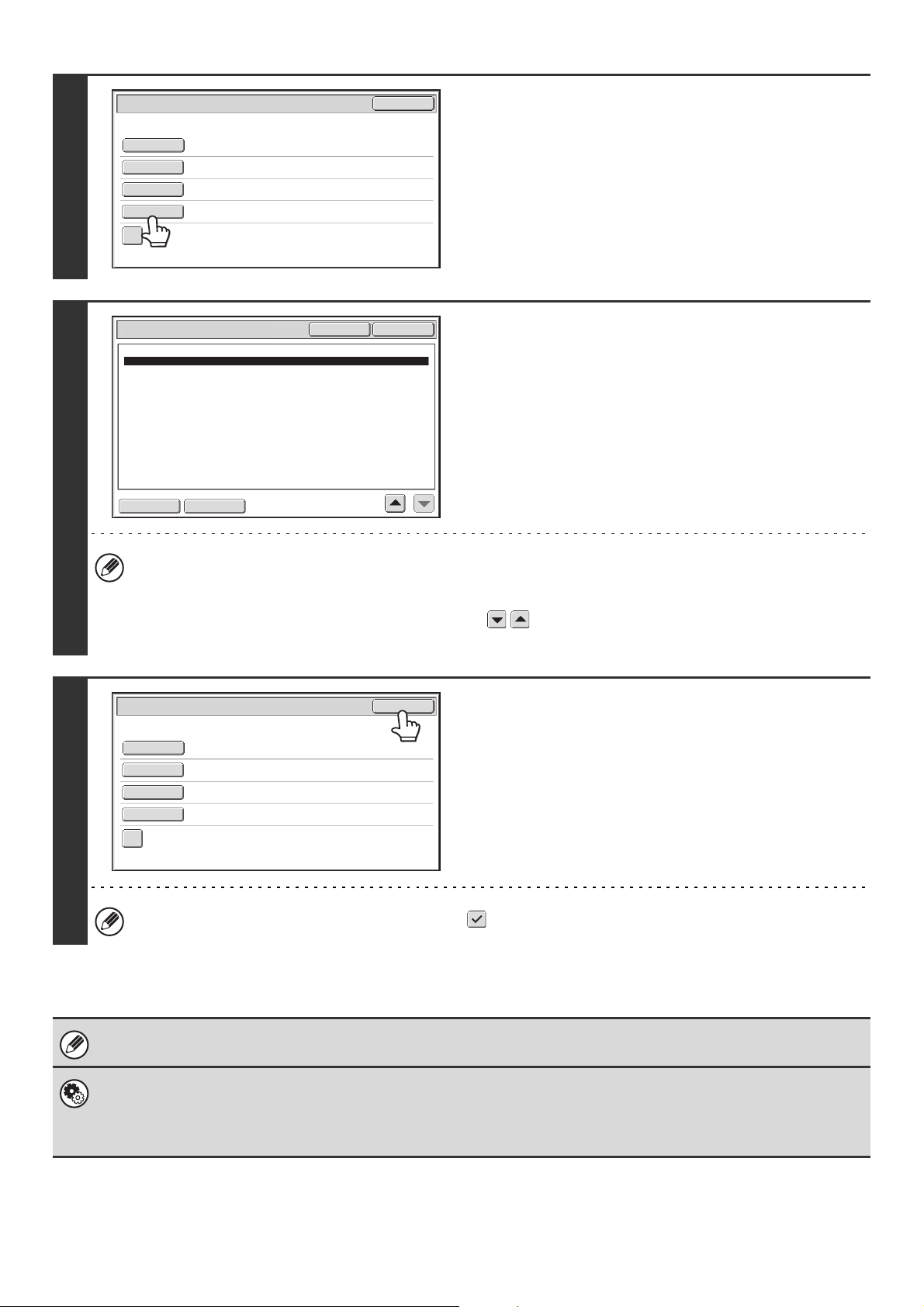
42
7
To change the body text, touch the
[Body Text] key.
8
Enter the body text and touch the [OK]
key.
• To select a pre-set message previously stored in the Web
page, touch the [Pre-Set Select] key.
• To directly enter the message, touch the [Edit] key.
• 1800 characters can be entered. (A line break counts as one character.)
• To clear all entered text, touch the [Clear All] key. This key clears not only the selected line but also the entire
message.
• Each line of the entered text can be selected with the keys. To edit the selected line, touch the [Edit] key.
The text entry screen will appear with the selected text entered.
9
Touch the [OK] key.
The [Add 'Reply to' to Cc] checkbox can be selected to send a Cc copy to the sender.
When storing pre-set text for the subject and file name in the Web pages, up to 80 characters can be entered.
• System Settings (Administrator): The Number of File Name/Subject/Body Keys Displayed Setting
The setting for the number of subject keys and file name keys displayed in one screen can be changed to 6, 12, or 18.
• System Settings (Administrator): Default Sender Set
This is used to store the sender name and e-mail address that is used when a sender is not selected.
Sub: Schedule coordination meeting
Material for planning meeting
AAA AAA
Send Settings
OK
Subject
File Name
Reply-To
Body Text
Add 'Reply to' to Cc
Body Entry
Thank you for your continuous support. We have attached scanned data,
which you have requested.
Clear All
OK
Edit
Pre-Set Select
Sub: Schedule coordination meeting
Material for planning meeting
AAA AAA
Thank you for your continuous support. We have attached sca
Send Settings
OK
Subject
File Name
Reply-To
Body Text
Add 'Reply to' to Cc
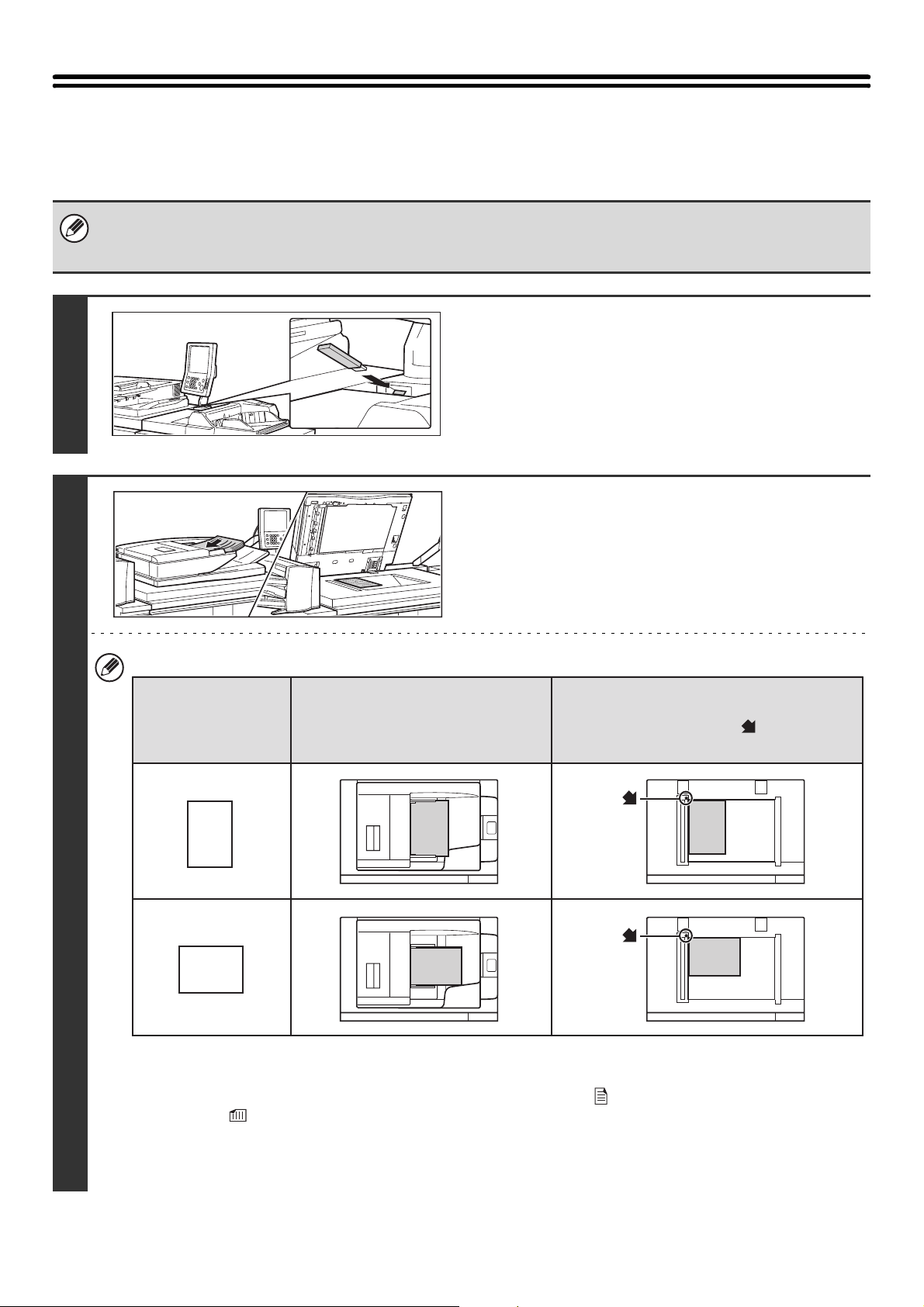
43
SENDING AN IMAGE IN USB MEMORY MODE
Follow the steps below to send a scanned image to a commercially available USB memory device that has been
connected to the machine. This stores the file in the USB device.
• Consult your dealer or retailer for USB memory devices that can be used.
• When a default address is configured in "Default Address Setting" in the system settings (administrator), the mode cannot
be changed. To switch to USB memory mode, touch the [Cancel] key in the touch panel and then follow the steps below.
1
Connect the USB memory to the USB
connector (Type A) on the machine.
2
Place the original.
• When placing the originals, orient them as shown below.
* To place a large portrait-oriented original, place it as shown above in "Landscape orientation" and specify the
placement orientation in step 4.
• Place 5-1/2" x 8-1/2" (A5) size originals in portrait (vertical) orientation ( ). If placed in landscape (horizontal)
orientation ( ), an incorrect size will be detected. For a 5-1/2" x 8-1/2"R (A5R) size original, enter the original size
manually.
• Originals cannot be scanned in succession from both the automatic document feeder and the document glass and
sent in a single transmission.
A
B
AB
A
B
A
B
AB
AB
Document feeder tray
Place the original face up.
Portrait orientation*
Landscape orientation
Document glass
Place the original face down and align the corner
with the tip of the arrow mark in the top left
corner of the document glass scale.
Originals
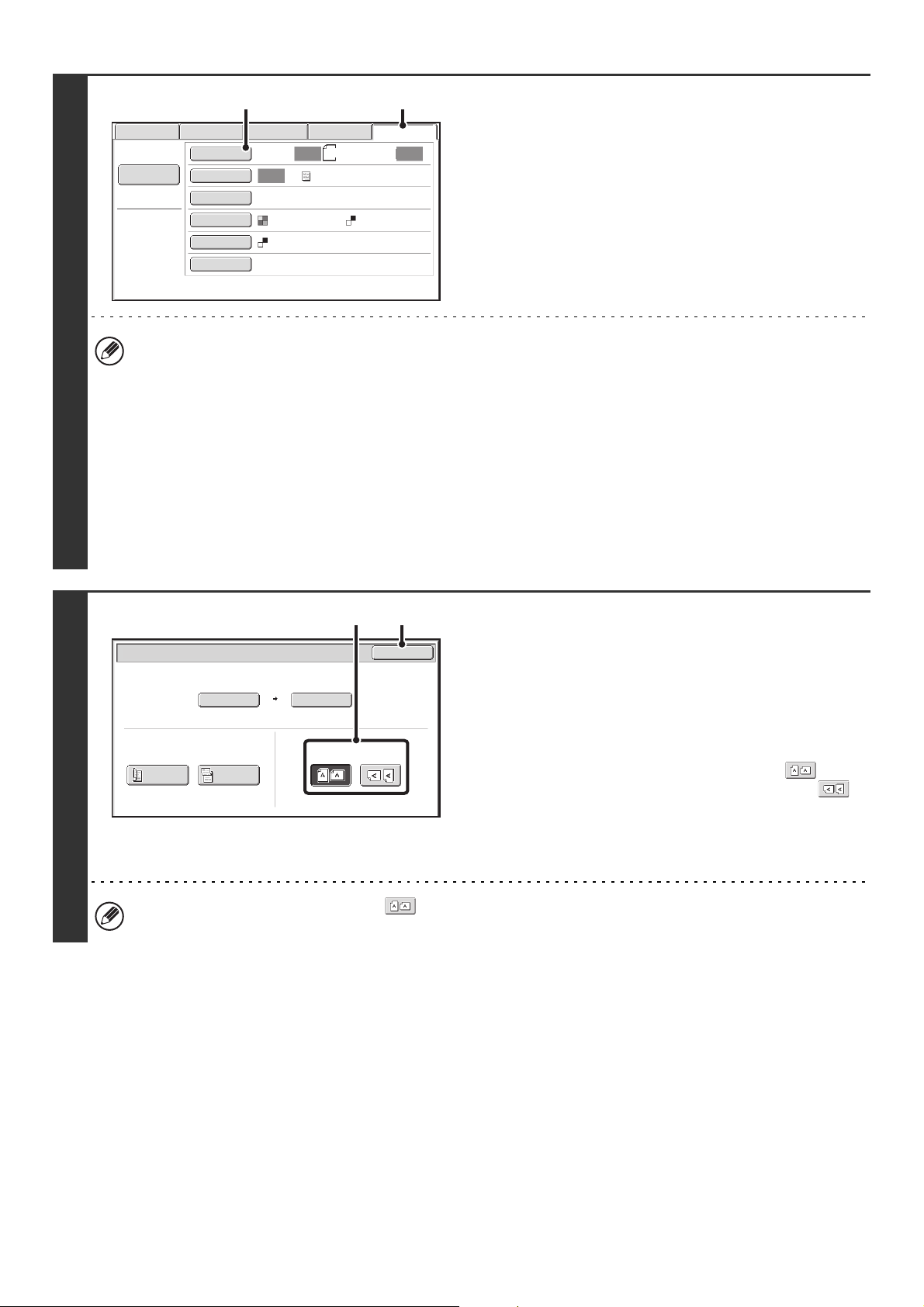
44
3
Switch to USB memory mode and
display the image settings screen.
(1) Touch the [USB Mem. Scan] tab
(2) Touch the [Original] key.
• When scanning to USB memory, there is no need to specify the destination.
• If a destination of another mode has been previously specified, a message will appear when you change to USB
memory mode indicating that the destination setting will be cleared. Touch the [OK] key in the message screen and
go to the next step.
• The current settings for [Original], [Exposure], [Resolution], [File Format], and [Color Mode] are indicated at the right
of each key. To change a setting, touch the appropriate key. The [Color Mode] key will only appear if the color
expansion kit has been installed.
☞ AUTOMATICALLY SCANNING BOTH SIDES OF AN ORIGINAL (2-Sided Original) (page 69), SPECIFYING THE
ORIGINAL SCAN SIZE AND SEND SIZE (Enlarge/Reduce) (page70), CHANGING THE EXPOSURE AND
EXPOSURE MODE (ORIGINAL IMAGE TYPE) (page 76), CHANGING THE RESOLUTION (page 78),
CHANGING THE FILE FORMAT (page 81), CHANGING THE COLOR MODE (page 85), 4. SPECIAL MODES
(page 87)
4
Specify the orientation in which the
original is placed.
To enable the original to be scanned in the correct orientation
(the orientation in which the top edge of the original appears at
the top of the display), specify the orientation in which the
original was placed in step 2.
(1) Touch the appropriate orientation key.
If the top edge of the original is up, touch the key. If
the top edge of the original is to the left, touch the
key.
(2) Touch the [OK] key.
You will return to the screen of step 3.
The original orientation is initially set to . If the original was placed with the top edge up, this step is not
necessary.
Data EntryFaxInternet Fax
Scan
Auto
Auto
Scan:
Send:
Auto
Text
200X200dpi
PDF
Mono2
PDF
Special Modes
Color Mode
File Format
Resolution
Exposure
Original
File Name
8½x11
USB Mem. Scan
(1)(2)
USB Mem. Scan/Original
OK
Auto
Auto 8½x11
Scan Size
2-Sided
Tablet
2-Sided
Booklet
Send Size
100%
Image Orientation
(2)(1)
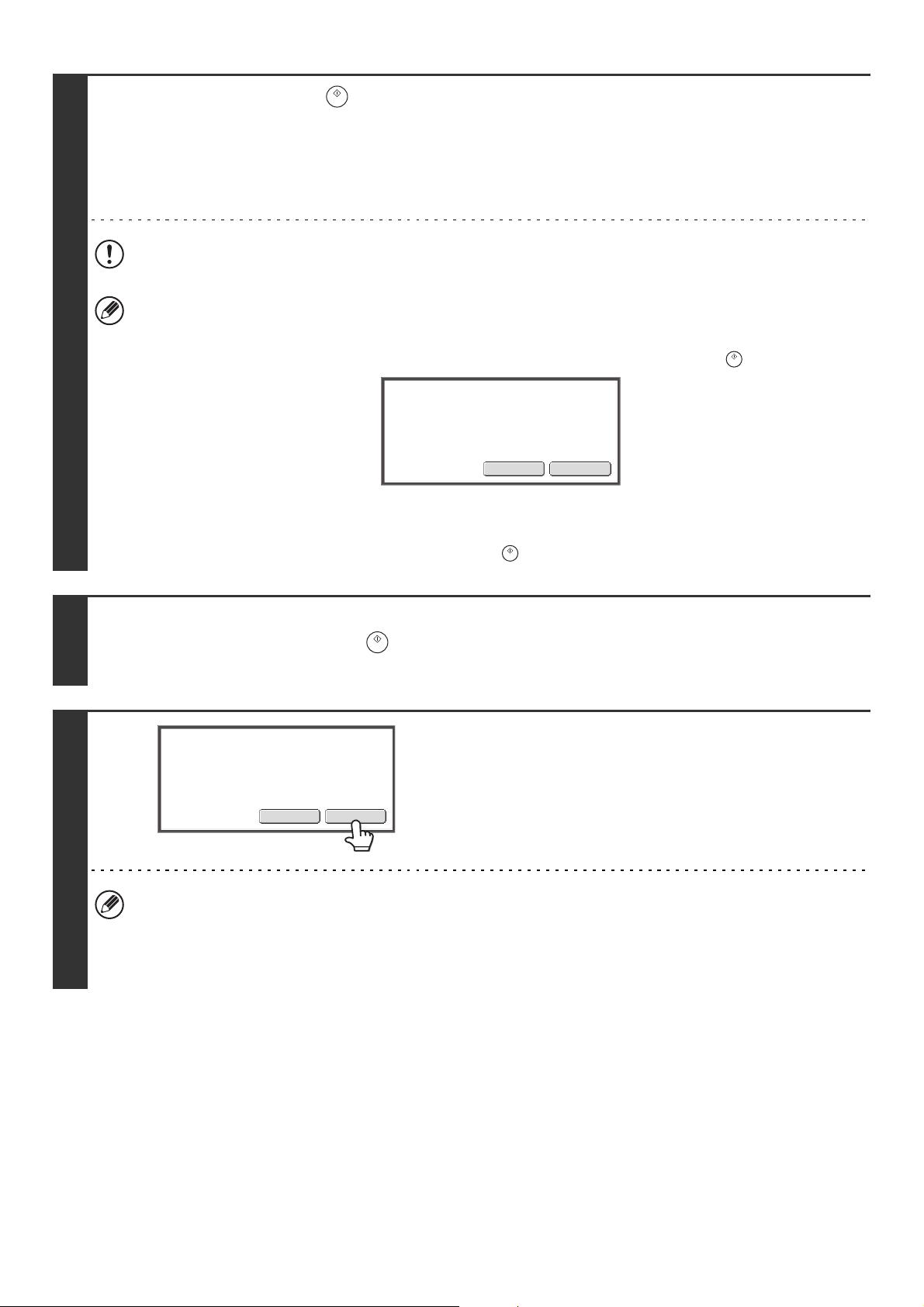
45
5
Press the [START] key ( ).
Scanning begins.
• If the original is placed on the document glass, the [Read-End] key appears in the touch panel. If the original is only one
page, go to step 7. To scan more pages, go to the next step.
• If the original was inserted in the document feeder tray, a beep will sound when scanning is completed and transmission
will take place. Go to step 8.
Do not disconnect the USB memory until "Sending data has been completed." appears in the touch panel.
• If the color expansion kit is installed and the color mode is set to [Auto], the color used in the original is automatically
detected and scanning takes place in full color, grayscale, or mono2. If the color expansion kit is not installed,
scanning takes place in mono2.
• If the file type is [Encrypt PDF], a password entry screen will appear when the [START] key ( ) is pressed.
Touch the [Entry] key to open the keyboard screen, enter a password (maximum of 32 characters), and touch the
[OK] key. The recipient must use the password entered here to open the encrypted PDF file.
To cancel encrypted PDF, touch the [Cancel] key. The format settings screen will appear to let you change the file
type. Select a new file type and press the [START] key ( ) to begin transmission.
6
If the original was placed on the document glass, replace it with the next original
and press the [START] key ( ).
Repeat until all originals have been scanned.
7
Touch the [Read-End] key.
A beep will sound to indicate that the operation is completed.
Open the automatic document feeder and remove the original.
• If no action is taken for one minute after the confirmation screen appears, scanning automatically ends and the
transmission is reserved.
• The [Configure] key can be touched to change the exposure, resolution, scan size, and send size for each original
page scanned. However, when "Card Shot" is selected in the special modes, only the exposure can be changed
when scanning an even-numbered original page.
EntryCancel
Please enter encrypt PDF
password.
Read-EndConfigure
Place next original. (Pg.No.x)
Press [Start].
When finished, press [Read-End].
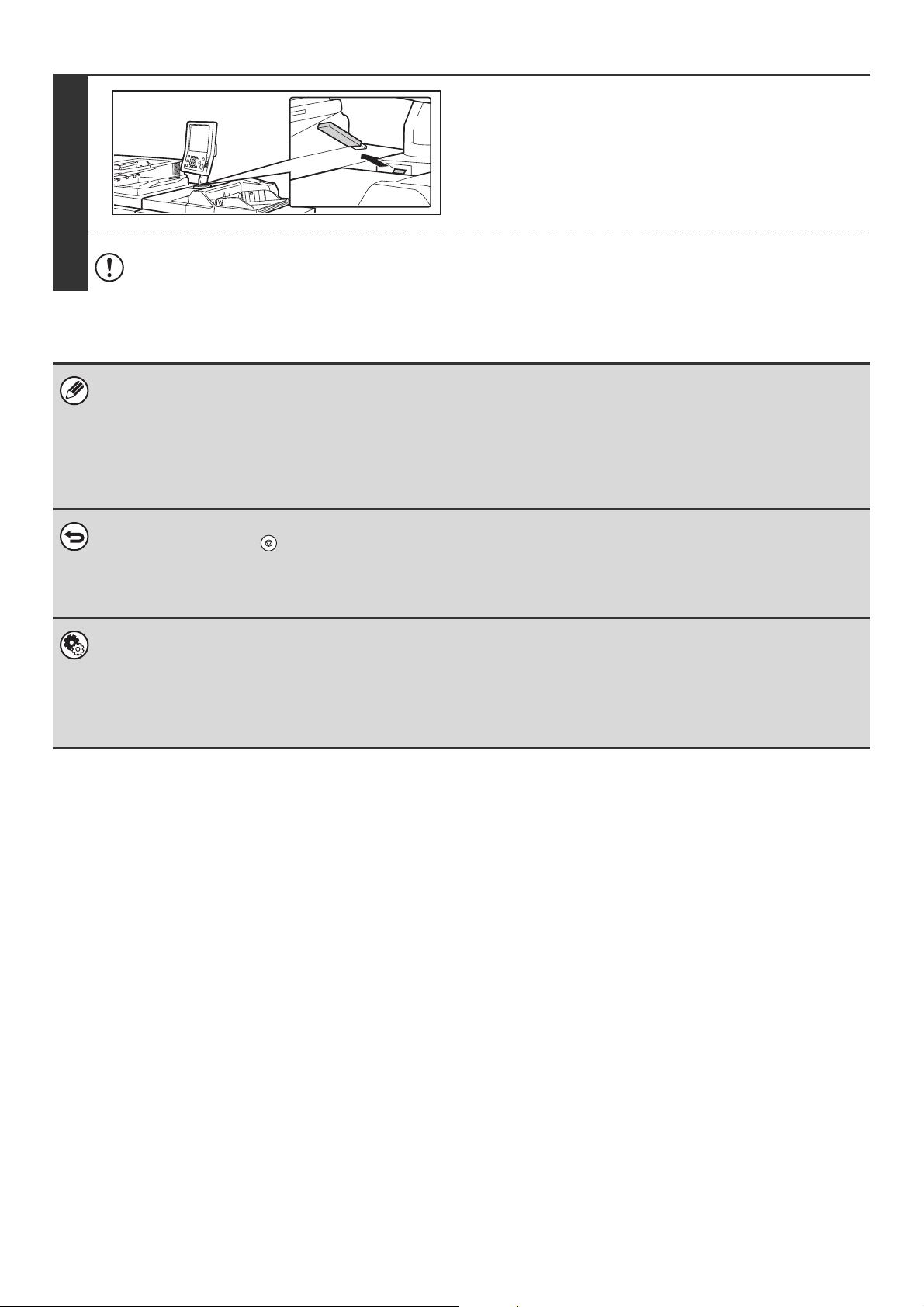
46
8
When "Sending data has been
completed." appears in the touch panel,
disconnect the USB memory.
Do not disconnect the USB memory while "Processing data." or "Sending data." appears in the touch panel.
• When transmission to USB memory is completed, "Sending data has been completed." is displayed. After a brief interval
the message is cleared and the base screen of image send mode reappears. (The base screen of image send mode is the
screen that appears when the [IMAGE SEND] key is touched.)
• If the USB memory becomes full during scanning...
A message will appear and scanning will stop. The scanned data will not be stored. However, if the file format is set to
JPEG and the [Specified Pages per File] checkbox is selected, files for which scanning is completed will be stored in USB
memory.
• To cancel scanning...
Press the [STOP] key ( ) to cancel the operation.
• To cancel scanning to USB memory...
While scanned data is being stored in the USB memory, the message "Sending data." and the [Cancel] key appear in the
touch panel. To cancel the storing operation, touch the [Cancel] key.
• System Settings: USB-Device Check
This is used to check the connection of a USB device to the machine.
• System Settings (Administrator): Scan Settings
This is used to set the default color mode and file format.
• System Settings (Administrator): Disable Scan Function
The use of USB memory mode can be prohibited.
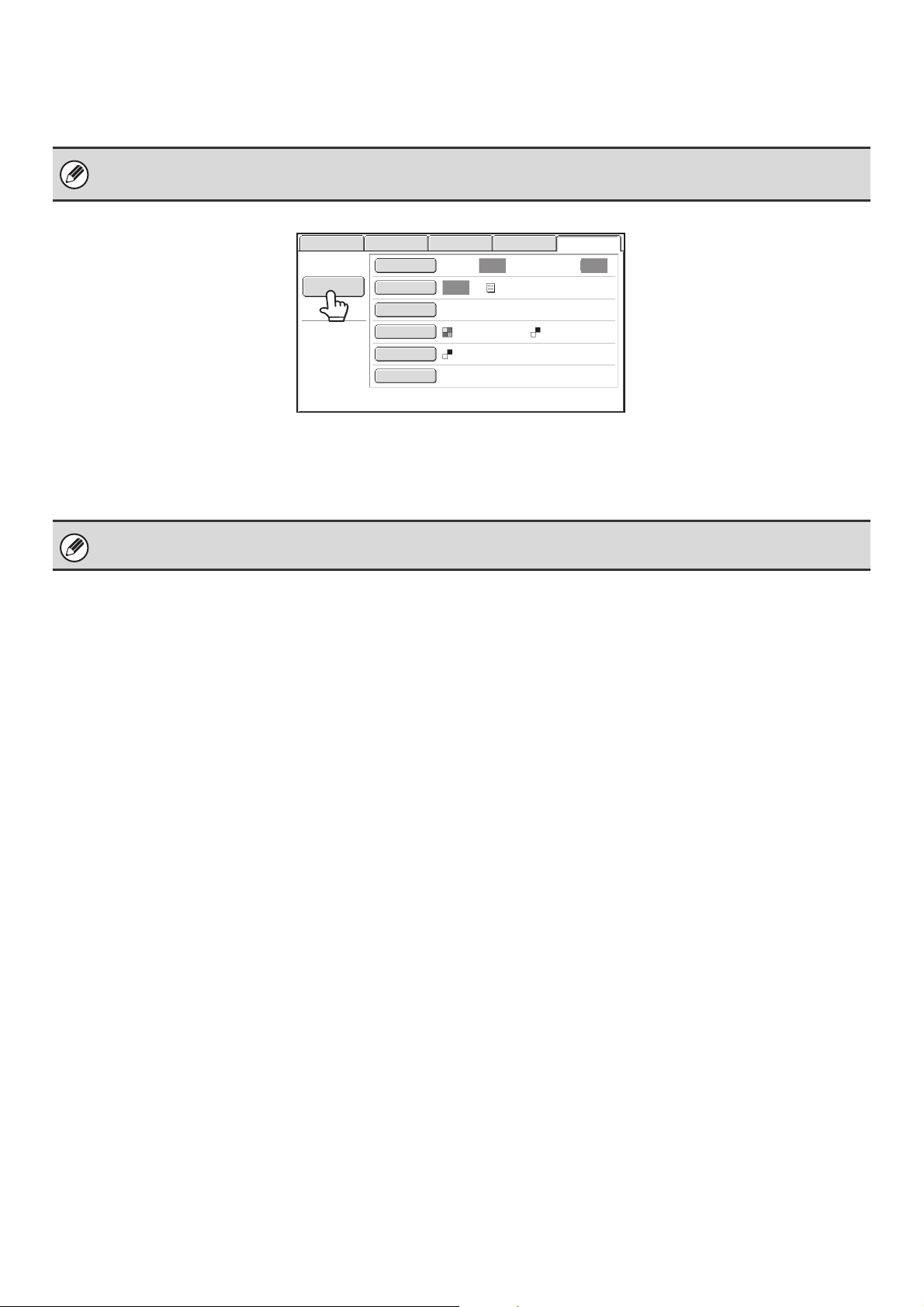
47
ENTERING A FILE NAME
The file name can be directly entered when performing a scan transmission.
Touch the [File Name] key. A text entry screen will appear. Enter the file name and touch the [OK] key.
• If the file name is not entered, the settings in the Web page are used.
• For the procedure for entering text, see "7. ENTERING TEXT" in the User's Guide.
To edit the entered file name, touch the [File Name] key once again.
Data EntryFaxInternet Fax
Scan
Auto
Auto
Scan: Send:
Auto
Text
200X200dpi
PDF
Mono2
PDF
Special Modes
Color Mode
File Format
Resolution
Exposure
Original
File Name
USB Mem. Scan
File Name:
Planning meeting
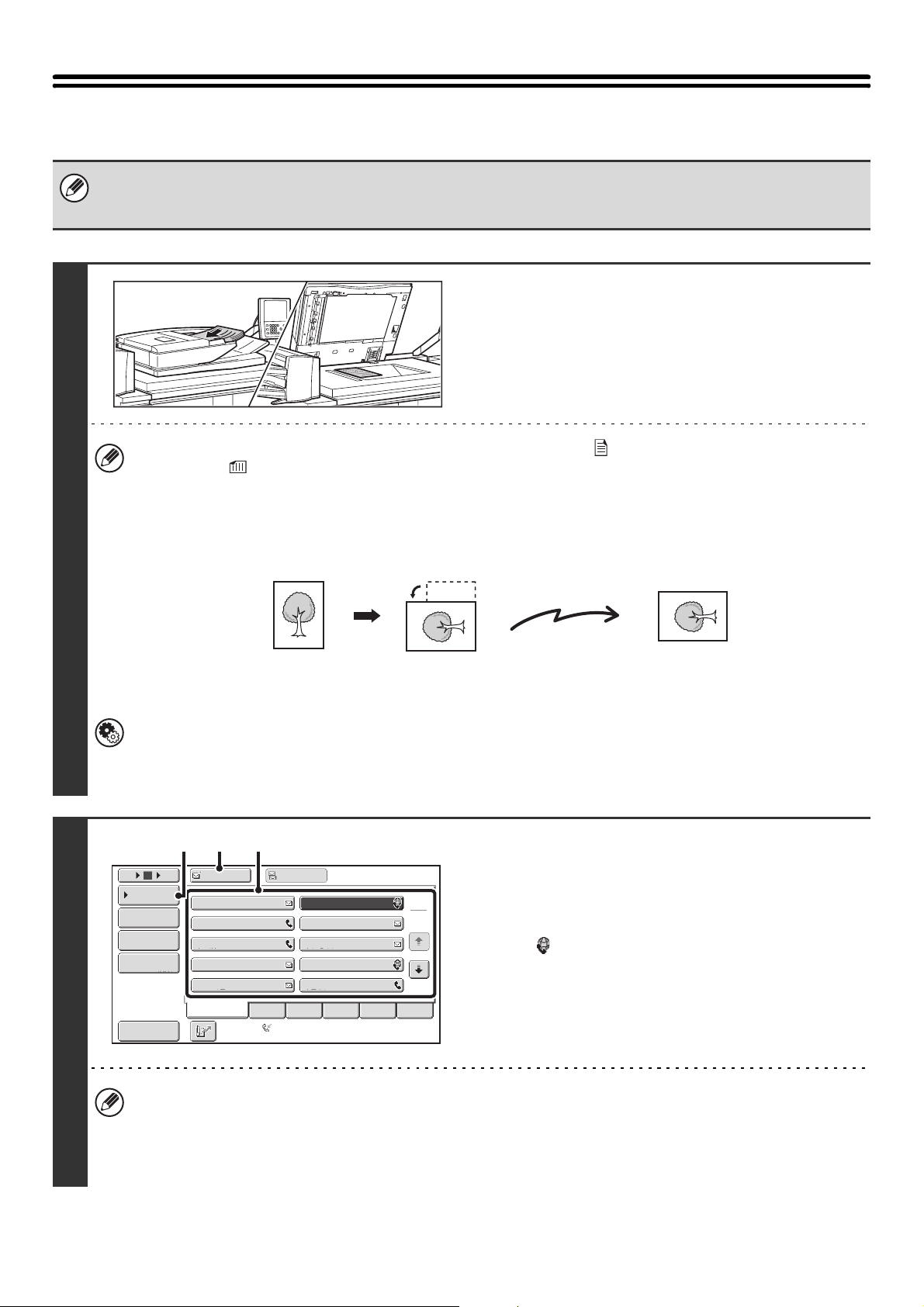
48
SENDING A FAX IN INTERNET FAX MODE
When a default address is configured in "Default Address Setting" in the system settings (administrator), the mode cannot be
changed, the destination cannot be changed, and destinations cannot be added. To switch to Internet fax mode, touch the
[Cancel] key in the touch panel and follow the steps below.
1
Place the original.
Place the original face up in the document feeder tray, or face
down on the document glass.
• Place 5-1/2" x 8-1/2" (A5) size originals in portrait (vertical) orientation ( ). If placed in landscape (horizontal)
orientation ( ), an incorrect size will be detected. For a 5-1/2" x 8-1/2"R (A5R) size original, enter the original size
manually.
• Image rotation
8-1/2" x 11" and 5-1/2" x 8-1/2"R (A4, B5R, and A5R) originals are rotated 90 degrees and transmitted in
8-1/2" x 11"R or 5-1/2" x 8-1/2" (A4R, B5, or A5) orientation. 8-1/2" x 11"R and 5-1/2" x 8-1/2" (A4R, B5, and A5)
originals cannot be rotated for transmission.
• Originals cannot be scanned in succession from both the automatic document feeder and the document glass and
sent in a single transmission.
System Settings (Administrator): Rotation Sending Setting
This is used to select whether or not a scanned original image is rotated before transmission.
The factory default setting is: rotate 8-1/2" x 11" to 8-1/2" x 11"R, and 5-1/2" x 8-1/2"R to 5-1/2" x 8-1/2" (A4 to A4R,
B5R to B5, and A5R to A5).
2
Specify the destination.
(1) Touch the [Address Book] key in the base
screen.
(2) Touch the key of the desired destination.
The icon appears in one-touch keys in which Internet
fax addresses are stored.
(3) Touch the [To] key.
The destination is specified.
(4) Touch the [Condition Settings] key.
• After a one-touch key is touched, if the screen is changed without touching the [To] key, the destination is
automatically specified.
• In addition to specification by a one-touch key, a destination can also be specified by a search number. You can
also manually enter a destination or look up a destination in a global address book. For more information, see "2.
ENTERING DESTINATIONS" (page 25).
Transmission
III III
GGG GGG
EEE EEE
CCC CCC
AAA AAA
JJJ JJJ
HHH HHH
FFF FFF
DDD DDD
BBB BBB
To Cc
ABCD
Frequent Use
EFGHI JKLMN OPQRST UVWXYZ
1
2
5
15
10
Global
Address Search
Address Entry
Sort Address
Address Review
Condition
Settings
Auto Reception
Fax Memory:100%
(3) (2)(4)
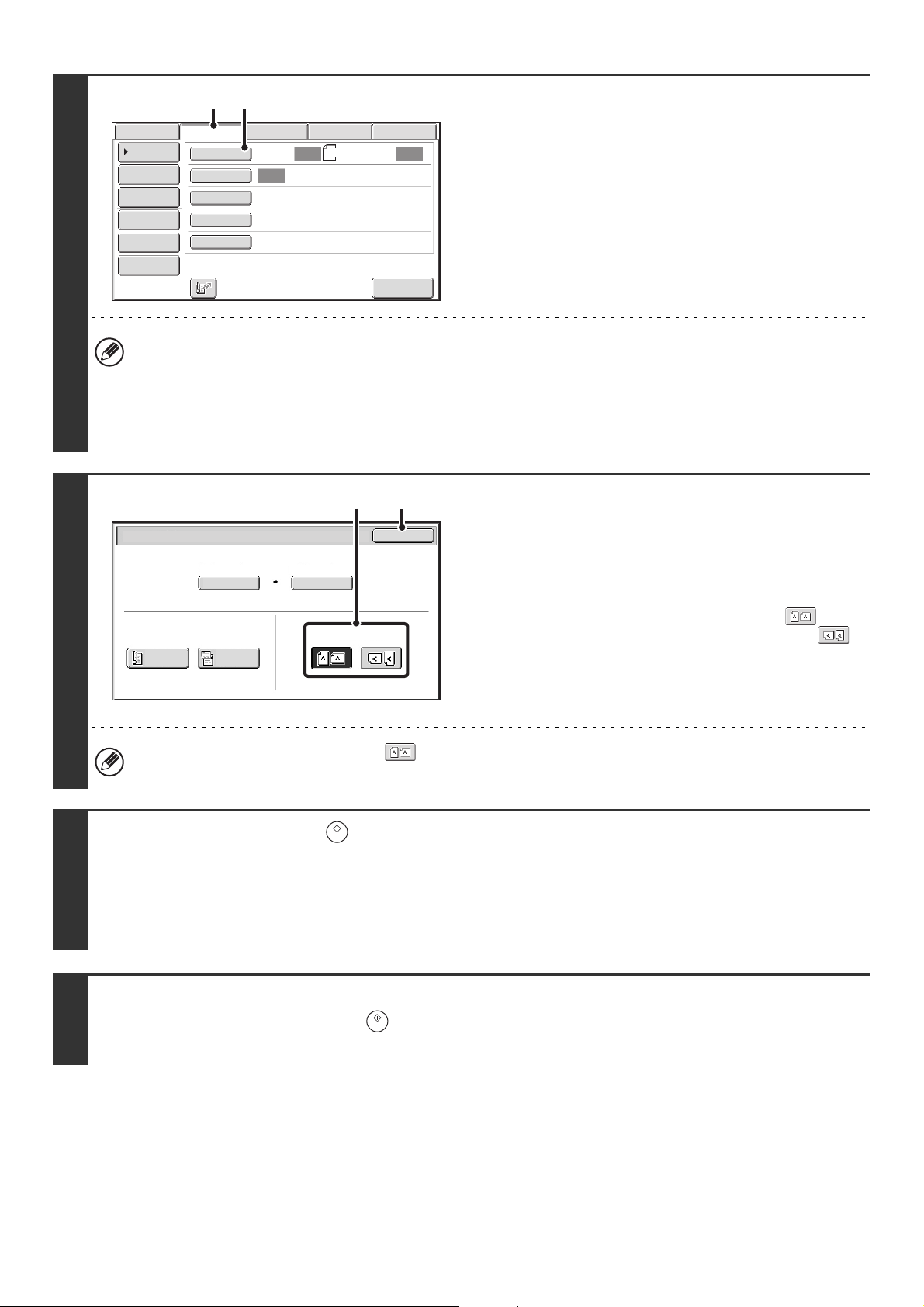
49
3
Display the original settings screen.
(1) Make sure that Internet fax mode is
selected.
If Internet fax mode is not selected, touch the [Internet fax]
tab.
(2) Touch the [Original] key.
The current settings for [Original], [Exposure], [Resolution], and [File Format] are indicated at the right of each key. To
change a setting, touch the appropriate key.
☞ AUTOMATICALLY SCANNING BOTH SIDES OF AN ORIGINAL (2-Sided Original) (page 69), SPECIFYING THE
ORIGINAL SCAN SIZE AND SEND SIZE (Enlarge/Reduce) (page 70), CHANGING THE EXPOSURE AND
EXPOSURE MODE (ORIGINAL IMAGE TYPE) (page 76), CHANGING THE RESOLUTION (page 78),
CHANGING THE FILE FORMAT (page 81), 4. SPECIAL MODES (page 87)
4
Specify the orientation in which the
original is placed.
When specifying the orientation of the image to be transmitted,
specify the orientation of the original placed in step 1.
(1) Touch the appropriate orientation key.
If the top edge of the original is up, touch the key. If
the top edge of the original is to the left, touch the
key.
(2) Touch the [OK] key.
You will return to the screen of step 3.
The original orientation is initially set to . If the original was placed with the top edge up, this step is not
necessary.
5
Press the [START] key ( ).
Scanning begins.
• If the original is placed on the document glass, the [Read-End] key appears in the touch panel. If the original is only one
page, go to step 7. To scan more pages, go to the next step.
• If the original was inserted in the document feeder tray, a beep will sound when scanning is completed and transmission
will take place.
6
If the original was placed on the document glass, replace it with the next original
and press the [START] key ( ).
Repeat until all originals have been scanned.
Auto Auto
Auto
File
Quick File
I-Fax Manual
Reception
Address Review
Send Settings
Address Entry
Address Book
Data EntryFaxInternet Fax
Special Modes
File Format
Resolution
Exposure
Original
Scan:
Scan
Send:
200X100dpi
TIFF-F
8½x11
USB Mem. Scan
(1) (2)
Internet Fax/Original
OK
Auto
Auto 8½x11
Scan Size
2-Sided
Tablet
2-Sided
Booklet
Send Size
100%
Image Orientation
(2)(1)
50
7
Touch the [Read-End] key.
A beep will sound to indicate that the operation is completed.
Open the automatic document feeder and remove the original.
• If no action is taken for one minute after the confirmation screen appears, scanning automatically ends and the
transmission is reserved.
• The [Configure] key can be touched to change the exposure, resolution, scan size, and send size for each original
page scanned. However, when "2in1" or "Card Shot" is selected in the special modes, only the exposure can be
changed when scanning an even-numbered original page.
• When scanning is completed, "Job stored." will be displayed together with a job control number. This number can be used
to locate the job in the Transaction Report or in the Image Sending Activity Report. If the job is a broadcast transmission,
this number will also appear in the key of the job in the job status screen. For this reason, making a note of the number is
useful for checking the result.
• If the memory becomes full while the originals are being scanned, a message will appear and scanning will stop.
• Storing a mail signature
A signature can be automatically appended to the end of the body text of e-mail. This is convenient when you wish to have
a corporate policy or other preset text appear at the bottom of e-mail messages. To store the text for the mail signature,
click [Application Settings], [Network Scanner Settings] and then [Administration Settings] in the Web page menu.
(Administrator rights are required.) Up to 900 characters can be entered. (The mail signature is not included in the
maximum number of characters that can be entered in the e-mail message.)
Use "Pre-Setting Mail Signature" in the system settings (administrator) to specify whether or not a mail signature is added.
To cancel scanning...
Press the [STOP] key ( ) to cancel the operation.
• System Settings (Administrator): I-Fax Send Settings
This is used to select Internet fax transmission settings such as the receive report setting, rotation setting, size restriction
setting, and sender information attachment setting.
• System Settings (Administrator): Pre-Setting Mail Signature
Use this setting to specify whether or not a mail signature is added at the end of e-mail messages. By factory default, a
mail signature is not added.
Read-End
Configure
Place next original. (Pg.No.x)
Press [Start].
When finished, press [Read-End].
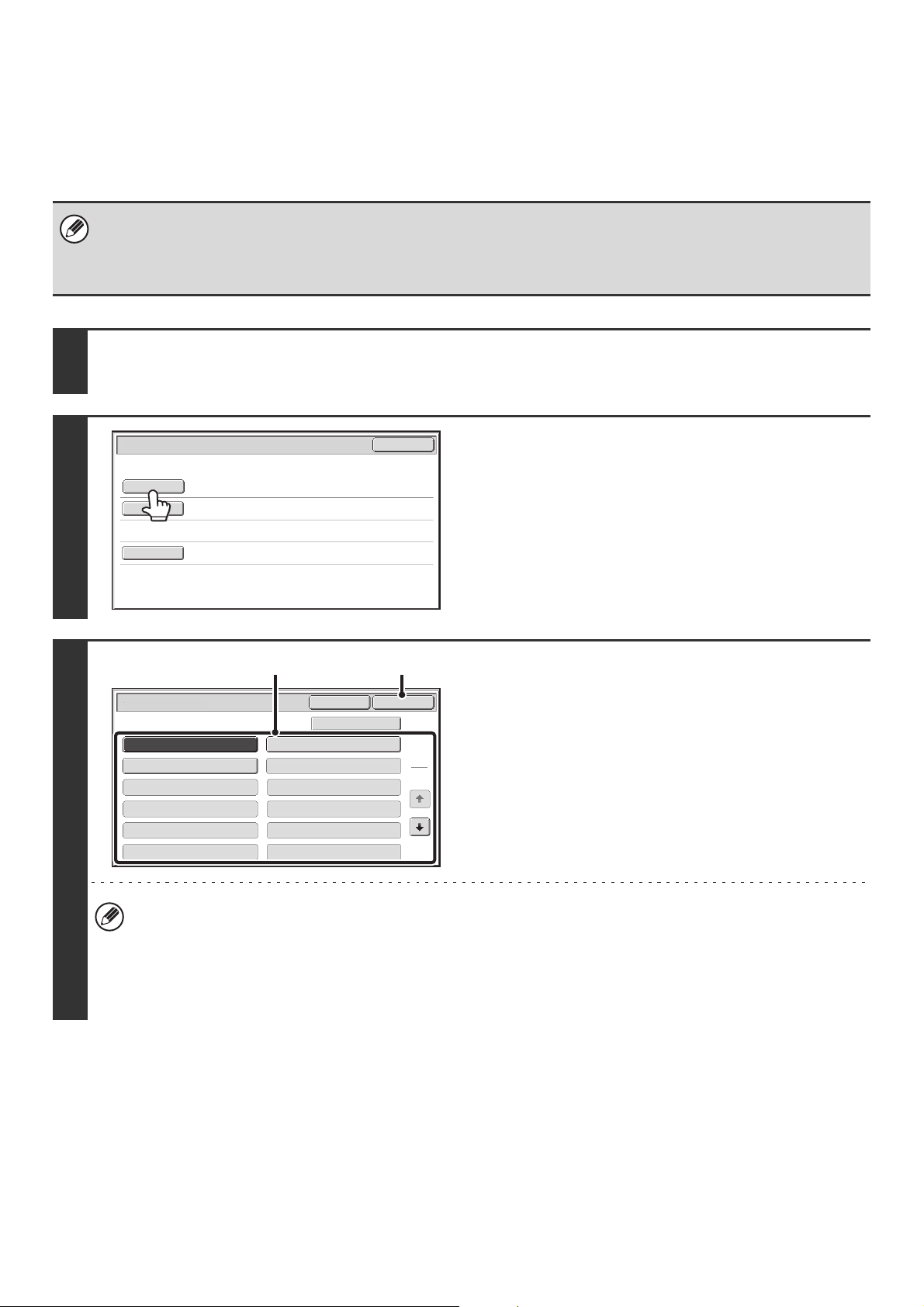
51
CHANGING THE SUBJECT, FILE NAME, AND BODY
TEXT
The subject, file name, and body text can be changed when performing an Internet fax transmission. Preset items can
be selected or text can be directly entered.
• If the subject and file name are not changed, the settings in the Web page are used.
• Selections for the subject, file name, and body text are configured by clicking [Application Settings] and then [Network
Scanner Settings] in the Web page menu.
• For the procedure for entering text, see "7. ENTERING TEXT" in the User's Guide.
1
Touch the [Send Settings] key in the base screen.
☞
BASE SCREEN (page 16)
2
To change the subject, touch the
[Subject] key.
3
Enter the subject.
(1) Touch a pre-set text key.
(2) Touch the [OK] key.
• If you wish to directly enter the text, touch the [Direct Entry] key to open the text entry screen. Enter the text and
touch the [OK] key.
• The text in a pre-set text key can be edited by touching the pre-set text key and then the [Direct Entry] key. The text
entry screen will appear with the selected pre-set text entered. (When a destination is stored using the Web page,
up to 80 characters can be entered. However, only 60 characters* can be edited in the touch panel.)
* When the number of preset keys displayed is 6.
Send Settings
OK
Subject
File Name
Body Text
No.01 Sub: Schedule coordination
No.02 Sub: Monthly Schedule
No.04
No.06No.05
No.08No.07
No.10No.09
No.12No.11
No.03 Sub: Minutes of planning m
Subject
OK
Cancel
Direct Entry
1
5
(2)(1)
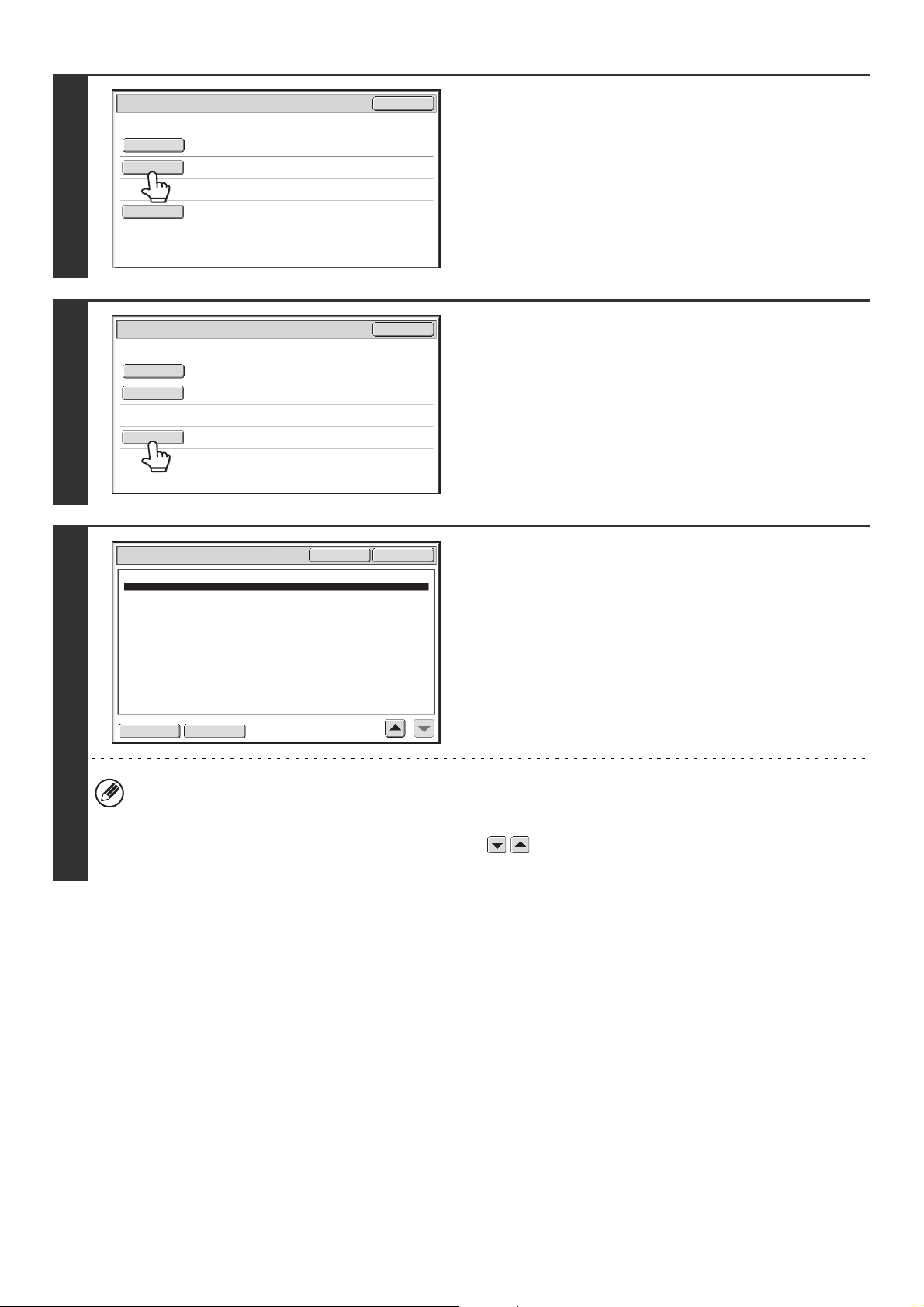
52
4
To change the file name, touch the [File
Name] key.
The file name is entered in the same way as the subject.
5
To change the body text, touch the
[Body Text] key.
6
Enter the body text and touch the [OK]
key.
• To select a pre-set message previously stored in the Web
page, touch the [Pre-Set Select] key.
• To directly enter the message, touch the [Edit] key.
• 1800 characters can be entered. (A line break counts as one character.)
• To clear all entered text, touch the [Clear All] key. This key clears not only the selected line but also the entire
message.
• Each line of the entered text can be selected with the keys. To edit the selected line, touch the [Edit] key.
The text entry screen will appear with the selected text entered.
Send Settings
OK
Subject
File Name
Body Text
Sub: Schedule coordination meeting
Sub: Schedule coordination meeting
Material for planning meeting
Send Settings
OK
Subject
File Name
Body Text
Body Entry
Thank you for your continuous support. We have attached scanned data,
which you have requested.
Clear All
OK
Edit
Pre-Set Select
53
7
Touch the [OK] key.
When storing pre-set text for the subject and file name in the Web pages, up to 80 characters can be entered.
System Settings (Administrator): The Number of File Name/Subject/Body Keys Displayed Setting
The setting for the number of subject keys and file name keys displayed in one screen can be changed to 6, 12, or 18.
Sub: Schedule coordination meeting
Material for planning meeting
Thank you for your continuous support. We have attached sca
Send Settings
OK
Subject
File Name
Body Text
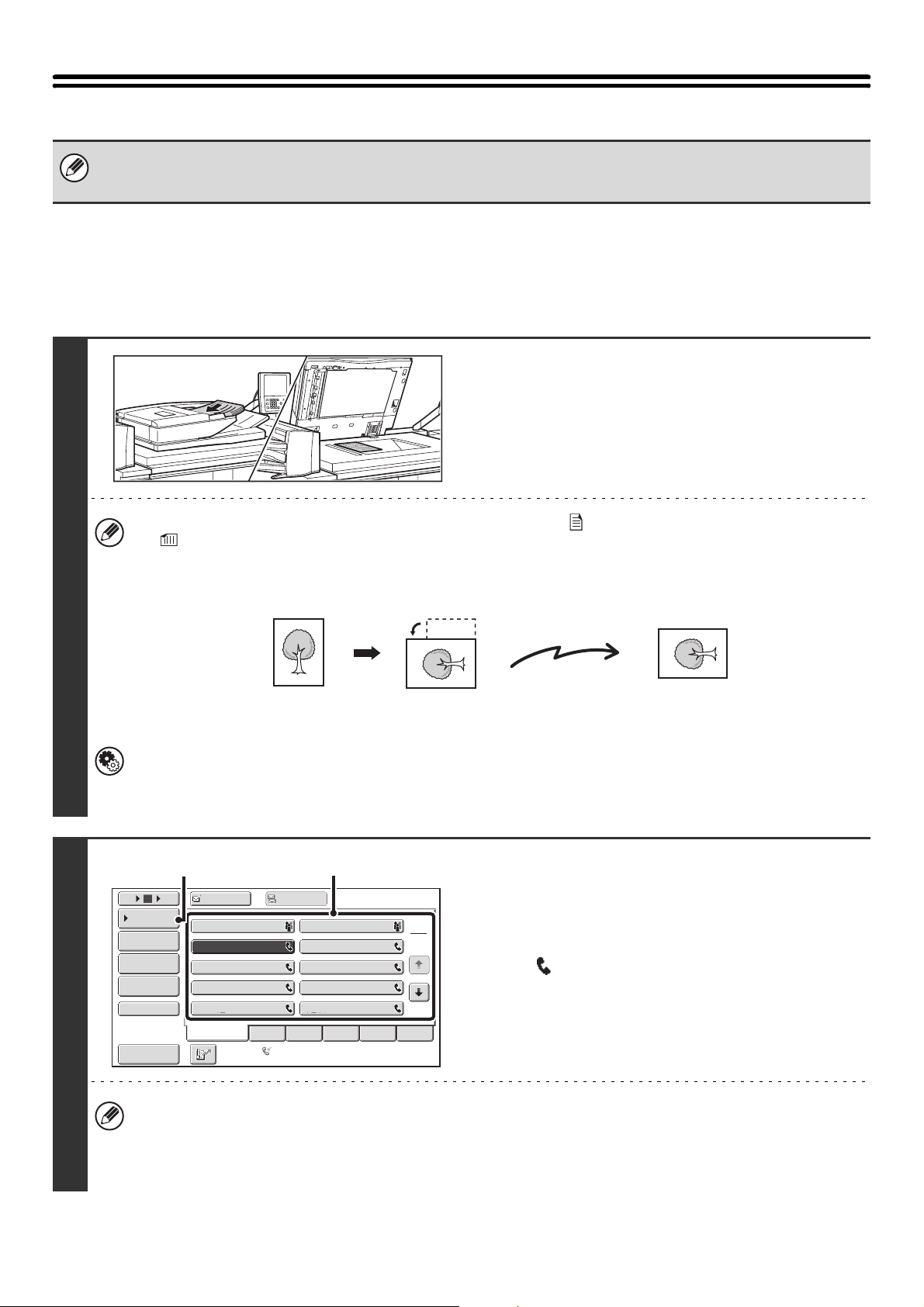
54
SENDING AN IMAGE IN FAX MODE
MEMORY TRANSMISSION MODE
Normally this mode is used. The originals will be scanned into memory and then transmitted (memory transmission).If
multiple originals are placed in the automatic document feeder and the machine is not busy with another transmission
job, transmission will begin as soon as the first original is scanned and will continue while the remaining originals are
scanned (quick online transmission). If transmission cannot begin immediately because the line is in use, all pages will
be scanned into memory and the transmission will be reserved.
When a default address is configured in "Default Address Setting" in the system settings (administrator), the mode cannot be
changed, the destination cannot be changed, and destinations cannot be added. To switch to Internet fax mode, touch the
[Cancel] key in the touch panel and follow the steps below.
1
Place the original.
Place the original face up in the document feeder tray, or face
down on the document glass.
•
Place 5-1/2" x 8-1/2" (A5) size originals in portrait (vertical) orientation ( ). If placed in landscape (horizontal) orientation
( ), an incorrect size will be detected. For a 5-1/2" x 8-1/2"R (A5R) size original, enter the original size manually.
• Image rotation
8-1/2" x 11" and 5-1/2" x 8-1/2"R (A4, B5R, and A5R) originals are rotated 90 degrees and transmitted in
8-1/2" x 11"R or 5-1/2" x 8-1/2" (A4R, B5, or A5) orientation. 8-1/2" x 11"R and 5-1/2" x 8-1/2" (A4R, B5, and A5)
originals cannot be rotated for transmission.
• Originals cannot be scanned in succession from both the automatic document feeder and the document glass and
sent in a single transmission.
System Settings (Administrator): Rotation Sending Setting
This is used to select whether or not a scanned original image is rotated before transmission.
The factory default setting is: rotate 8-1/2" x 11" to 8-1/2" x 11"R, and 5-1/2" x 8-1/2"R to 5-1/2" x 8-1/2" (A4 to A4R,
B5R to B5, and A5R to A5).
2
Specify the destination.
(1) Touch the [Address Book] key in the base
screen.
(2) Touch the key of the desired destination.
The icon appears in one-touch keys that contain fax
numbers.
(3) Touch the [Condition Settings] key.
• There is no need to touch the [To] key.
•
If the network scanner expansion kit and Internet fax expansion kit are not installed, the [To] key and [Cc] key will not appear.
• In addition to specification by a one-touch key, a destination can also be specified by a search number. You can
also manually enter a destination or look up a destination in a global address book. For more information, see "2.
ENTERING DESTINATIONS" (page 25).
Transmission
Frequent Use
ABCD EFGHI JKLMN OPQRST UVWXYZ
1
2
105 15
To
Cc
III III
GGG GGG
EEE EEE
CCC CCC
AAA AAA
JJJ JJJ
HHH HHH
FFF FFF
DDD DDD
BBB BBB
Global
Address Search
Address Entry
Sort Address
Sub Address
Address Review
Condition
Settings
Auto Reception
Fax Memory:100%
(2)
(3)
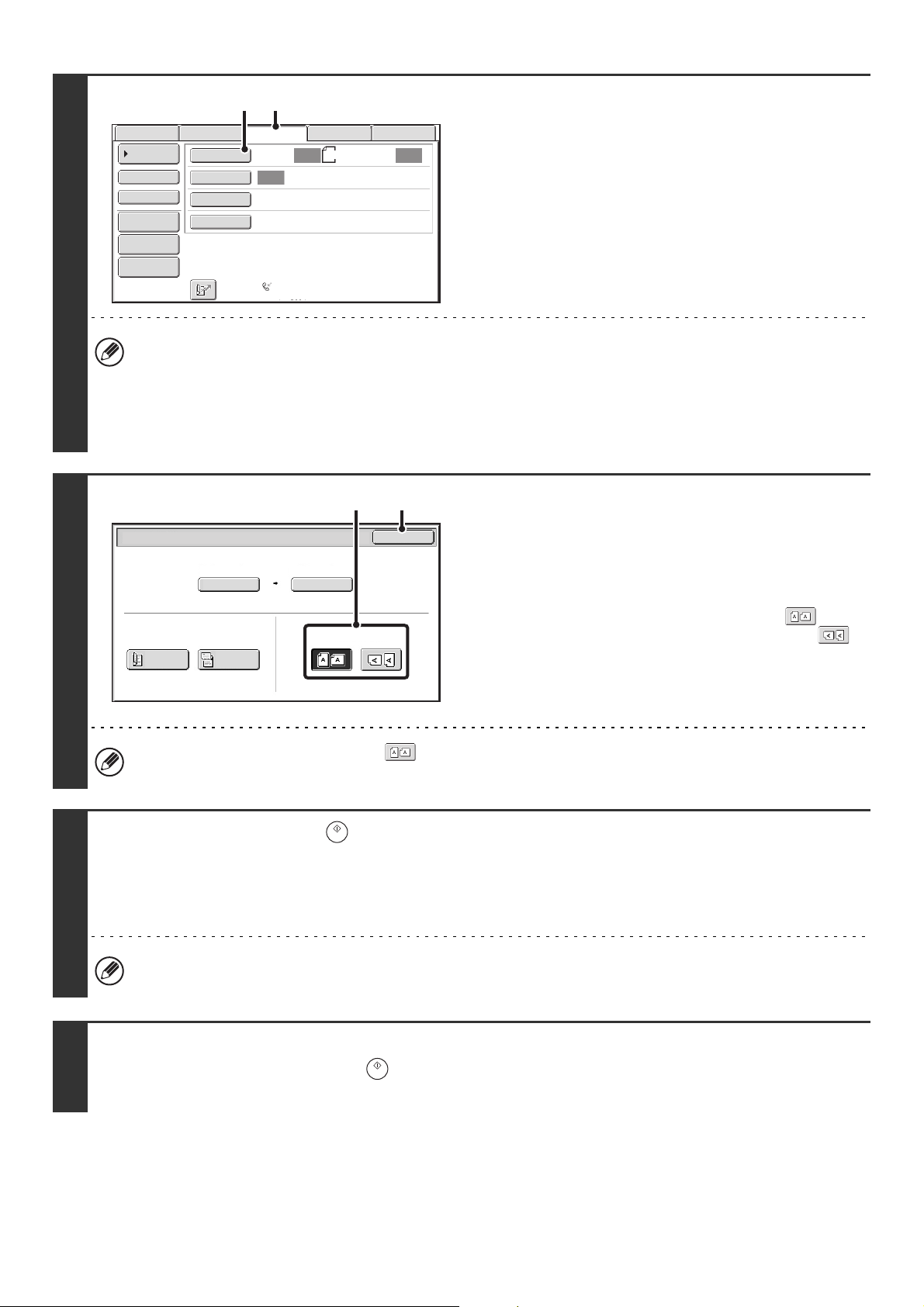
55
3
Display the original settings screen.
(1) Make sure that fax mode is selected.
If fax mode is not selected, touch the [Fax] tab.
(2) Touch the [Original] key.
The current settings for [Original], [Exposure], and [Resolution], are indicated at the right of each key. To change a
setting, touch the appropriate key.
☞ AUTOMATICALLY SCANNING BOTH SIDES OF AN ORIGINAL (2-Sided Original) (page 69), SPECIFYING THE
ORIGINAL SCAN SIZE AND SEND SIZE (Enlarge/Reduce) (page 70), CHANGING THE EXPOSURE AND
EXPOSURE MODE (ORIGINAL IMAGE TYPE) (page 76), CHANGING THE RESOLUTION (page 78), 4.
SPECIAL MODES (page 87)
4
Specify the orientation in which the
original is placed.
When specifying the orientation of the image to be transmitted,
specify the orientation of the original placed in step 1.
(1) Touch the appropriate orientation key.
If the top edge of the original is up, touch the key. If
the top edge of the original is to the left, touch the
key.
(2) Touch the [OK] key.
You will return to the screen of step 3.
The original orientation is initially set to . If the original was placed with the top edge up, this step is not
necessary.
5
Press the [START] key ( ).
Scanning begins.
• If the original is placed on the document glass, the [Read-End] key appears in the touch panel. If the original is only one
page, go to step 7. To scan more pages, go to the next step.
• If the original was inserted in the document feeder tray, a beep will sound when scanning is completed.
If "Fax Dest. Confirmation Mode" is enabled in the system settings (administrator), a destination confirmation message
will appear. See "FAX DESTINATION CONFIRMATION MODE" (page 61).
6
If the original was placed on the document glass, replace it with the next original
and press the [START] key ( ).
Repeat until all originals have been scanned.
Auto
Auto
Auto
FaxInternet Fax
Scan:
Scan
Send:
Standard
Auto Reception
Fax Memory:100%
8½x11
File
Quick File
Address Review
Direct TX
Sub Address
Address Book
Special Modes
Resolution
Exposure
Original
USB Mem. Scan
Data Entry
(1)(2)
Fax/Original
OK
Auto
Auto 8½x11
Scan Size
2-Sided
Tablet
2-Sided
Booklet
Send Size
100%
Image Orientation
(2)(1)
56
7
Touch the [Read-End] key.
A beep sounds.
Open the automatic document feeder and remove the original.
• If no action is taken for one minute after the confirmation screen appears, scanning automatically ends and the
transmission is reserved.
• The [Configure] key can be touched to change the exposure, resolution, scan size, and send size for each original
page scanned. However, when "2in1" or "Card Shot" is selected in the special modes, only the exposure can be
changed when scanning an even-numbered original page.
• When scanning is completed, "Job stored." will be displayed together with a job control number. This number can be used
to locate the job in the Transaction Report or in the Image Sending Activity Report. If the job is a broadcast transmission,
this number will also appear in the key of the job in the job status screen. For this reason, making a note of the number is
useful for checking the result.
• If a fax is being received when the transmission operation is performed, the transmission will be reserved and transmission
will take place after fax reception is completed.
• If the memory becomes full while the originals are being scanned, a message will appear and scanning will stop. If Quick
Online transmission is taking place, the originals that were scanned will be transmitted. If Quick Online is not enabled, the
transmission will be canceled.
• If memory becomes full while the first original page is being scanned, transmission will stop.
• When the document glass is being used for a transmission, Quick Online transmission will not operate.
• In the following situations, the transmission will be automatically reserved (memory transmission)
- When the line is busy or a communication error occurs and automatic resending is enabled.
☞ WHEN THE LINE IS BUSY (page 62), WHEN A COMMUNICATION ERROR OCCURS (page 62)
- The machine is already using the line to send or receive a fax.
- Another fax transmission was reserved ahead of your fax.
- One of the following functions is being used for transmission.
Broadcast transmission, F-code transmission, timer transmission, dual page scan, card shot, job build mode, original
count
- The document glass is being used (except when the speaker is being used to dial).
• Up to 94 transmission jobs can be reserved.
• When the transmission is finished, the scanned original pages are cleared from memory. However, when the document
filing function is used, the transmitted fax is stored.
☞ Document Filing Guide
• When a fax transmission or reception is already in progress, the following procedure can be performed to reserve a
transmission job. To check reserved transmission jobs, display the job status screen.
☞ 8. CHECKING THE STATUS OF TRANSMISSION/RECEPTION JOBS (page 161)
To cancel scanning...
Press the [STOP] key ( ) to cancel the operation.
System Settings (Administrator): Scan Complete Sound Setting
The scan complete sound can be selected.
System Settings (Administrator): Quick On Line Sending
This is used to disable Quick Online transmission. In this case, faxes will be sent by memory transmission (reserved and then
transmitted).
Read-End
Configure
Place next original. (Pg.No.x)
Press [Start].
When finished, press [Read-End].
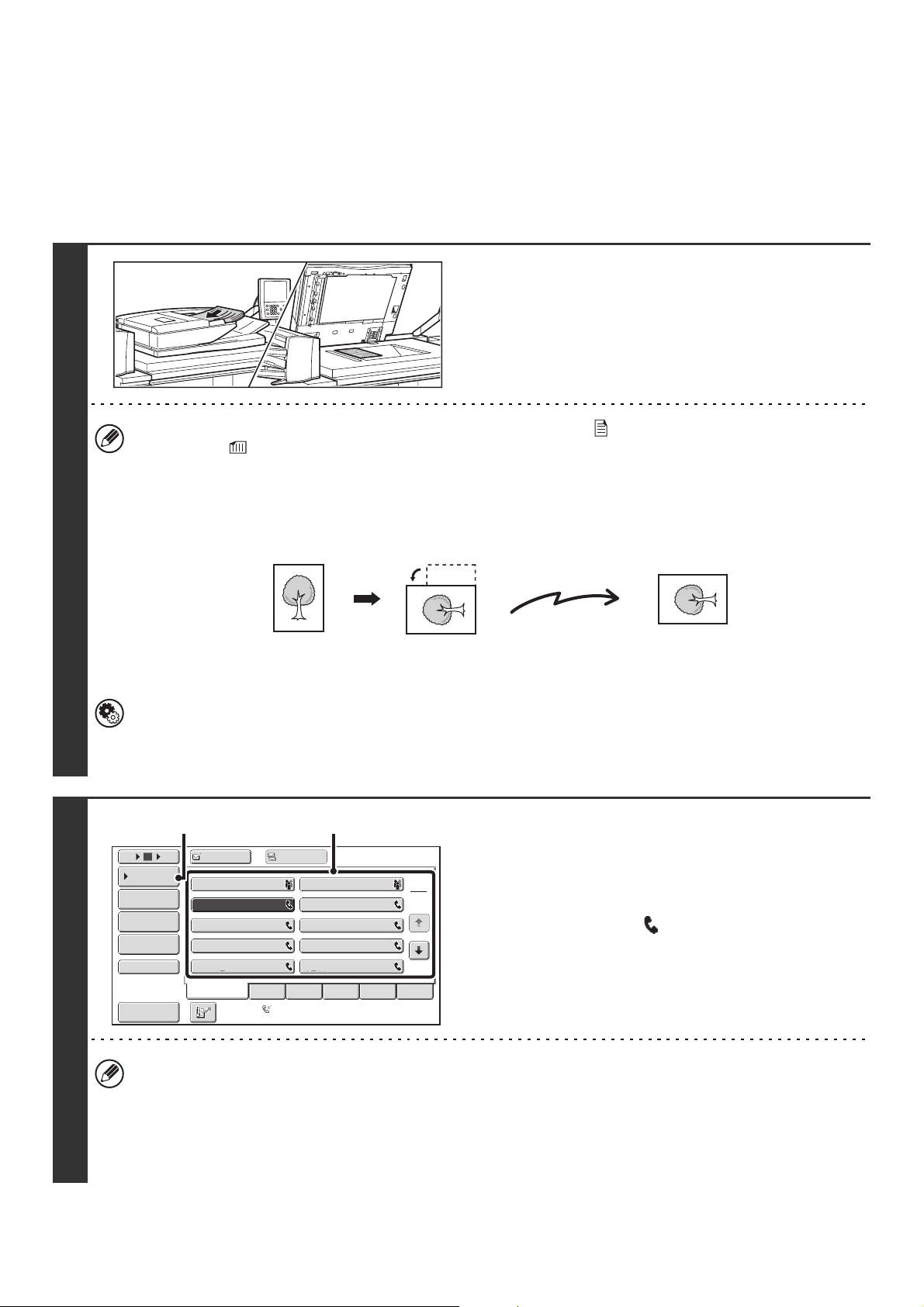
57
DIRECT TRANSMISSION MODE
If you wish to send a fax ahead of other previously reserved fax transmissions, use direct transmission mode. The
original is transmitted directly to the receiving fax machine without being scanned into memory. When direct
transmission mode is used, transmission will begin as soon as the transmission in progress is completed (ahead of any
previously reserved transmissions).
When sending a fax from the document glass in direct transmission mode, only one page can be transmitted.
1
Place the original.
Place the original face up in the document feeder tray, or face
down on the document glass.
• Place 5-1/2" x 8-1/2" (A5) size originals in portrait (vertical) orientation ( ). If placed in landscape (horizontal)
orientation ( ), an incorrect size will be detected. For a 5-1/2" x 8-1/2"R (A5R) size original, enter the original size
manually.
• Image rotation
8-1/2" x 11" and 5-1/2"x8-1/2"R (A4, B5R, and A5R) originals are rotated 90 degrees and transmitted in
8-1/2" x 11"R or 5-1/2" x 8-1/2" (A4R, B5, or A5) orientation. 8-1/2" x 11"R and 5-1/2" x 8-1/2" (A4R, B5, and A5)
originals cannot be rotated for transmission.
• Originals cannot be scanned in succession from both the automatic document feeder and the document glass and
sent in a single transmission.
System Settings (Administrator): Rotation Sending Setting
This is used to select whether or not a scanned original image is rotated before transmission.
The factory default setting is: rotate 8-1/2" x 11" to 8-1/2" x 11"R, and 5-1/2" x 8-1/2"R to 5-1/2" x 8-1/2" (A4 to A4R,
B5R to B5, and A5R to A5).
2
Enter the destination fax number.
(1) Touch the [Address Book] key in the base
screen.
(2) Touch the one-touch key of the desired
destination. The icon appears in
one-touch keys that contain fax numbers.
(3) Touch the [Condition Settings] key.
•
Only one destination can be entered. A one-touch key in which multiple destinations are stored (group key) cannot be used.
• There is no need to touch the [To] key.
•
If the network scanner expansion kit and Internet fax expansion kit are not installed, the [To] key and [Cc] key will not appear.
• In addition to specification by a one-touch key, a destination can also be specified by a search number. You can
also manually enter a destination or look up a destination in a global address book. For more information, see "2.
ENTERING DESTINATIONS" (page 25).
Transmission
Frequent Use
ABCD EFGHI JKLMN OPQRST UVWXYZ
1
2
105 15
To
Cc
III III
GGG GGG
EEE EEE
CCC CCC
AAA AAA
JJJ JJJ
HHH HHH
FFF FFF
DDD DDD
BBB BBB
Global
Address Search
Address Entry
Sort Address
Sub Address
Address Review
Condition
Settings
Auto Reception
Fax Memory:100%
(2)
(3)
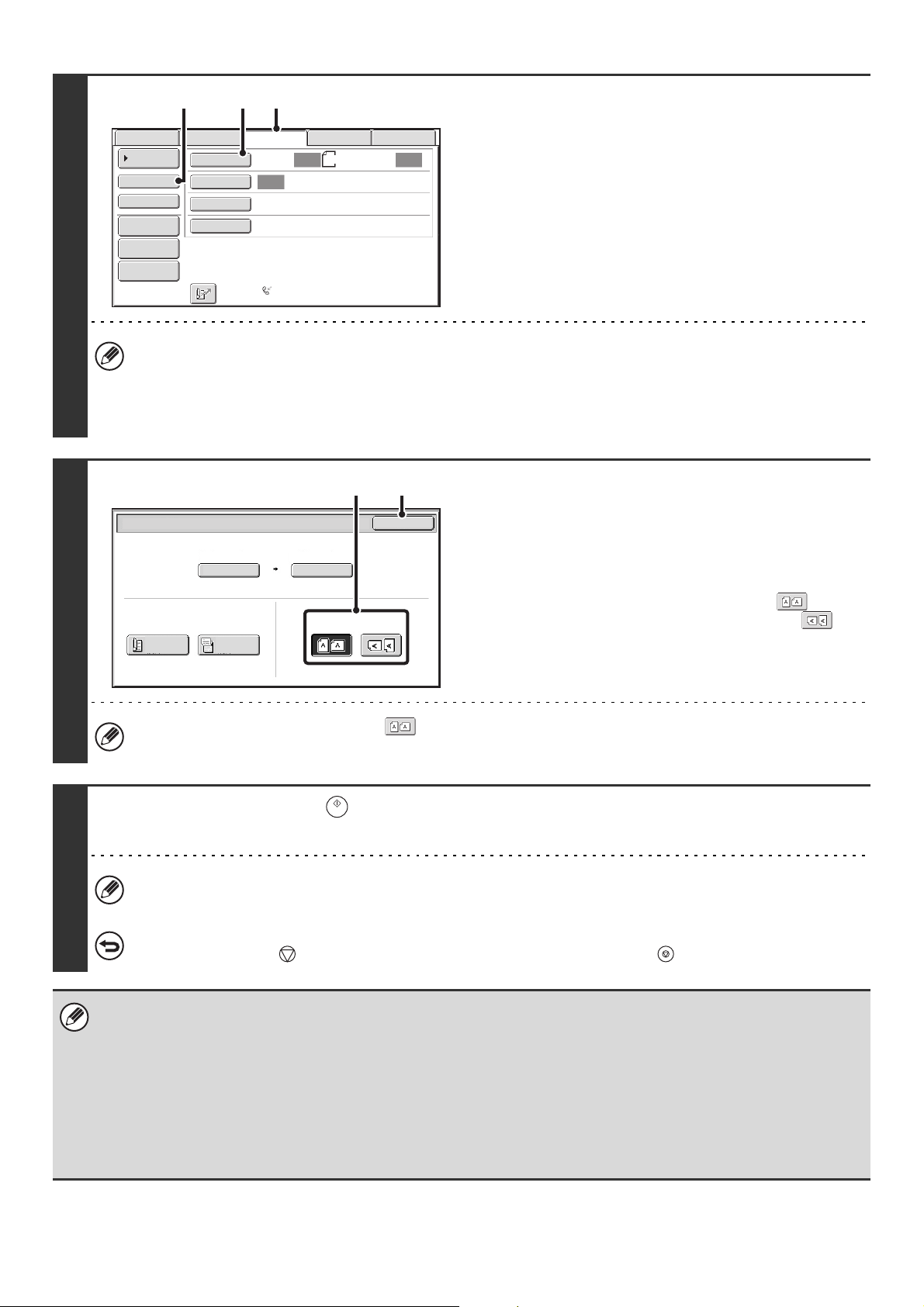
58
3
Change to direct transmission mode and
display the original settings screen.
(1) Make sure that fax mode is selected.
If fax mode is not selected, touch the [Fax] tab.
(2) Touch the [Direct TX] key.
(3) Touch the [Original] key.
The current settings for [Original], [Exposure], and [Resolution] are indicated at the right of each key. To change a
setting, touch the appropriate key.
☞
AUTOMATICALLY SCANNING BOTH SIDES OF AN ORIGINAL (2-Sided Original) (page 69), SPECIFYING THE
ORIGINAL SCAN SIZE AND SEND SIZE (Enlarge/Reduce) (page 70), CHANGING THE EXPOSURE AND EXPOSURE
MODE (ORIGINAL IMAGE TYPE) (page 76), CHANGING THE RESOLUTION (page 78), 4. SPECIAL MODES (page 87)
4
Specify the orientation in which the
original is placed.
When specifying the orientation of the image to be transmitted,
specify the orientation of the original placed in step 1.
(1) Touch the appropriate orientation key.
If the top edge of the original is up, touch the key. If
the top edge of the original is to the left, touch the key.
(2) Touch the [OK] key.
You will return to the screen of step 3.
The original orientation is initially set to . If the original was placed with the top edge up, this step is not
necessary.
5
Press the [START] key ( ).
Transmission begins.
If "Fax Dest. Confirmation Mode" is enabled in the system settings (administrator), a destination confirmation message
will appear. For more information, see "FAX DESTINATION CONFIRMATION MODE" (page 61).
To cancel transmission...
While "Dialing. Press [ ] to cancel" appears in the display, press the [STOP] key ( ).
• The following functions cannot be used with direct transmission:
Program, Timer, 2in1, Card Shot, Job Build, Original Count, Polling Memory, File, Quick File, 2-Sided Original Scanning,
Global Address Search
• Resending will not take place when a direct transmission is not successful due to a communication error or other reason.
•
If a fax transmission is already in progress when the direct transmission operation is performed, the direct transmission will wait until
the previous transmission is finished. When the previous transmission is completed, the direct transmission will begin. While the job is
waiting for transmission, you can press the [JOB STATUS] key to display the job status screen. No other operations can be performed.
☞ 8. CHECKING THE STATUS OF TRANSMISSION/RECEPTION JOBS (page 161)
•
When transmission in direct transmission mode ends, the mode automatically changes back to memory transmission mode.
Auto
Auto
Auto
FaxInternet Fax
Scan:
Scan
Send:
Standard
Auto Reception
Fax Memory:100%
8½x11
File
Quick File
Address Review
Direct TX
Sub Address
Address Book
Special Modes
Resolution
Exposure
Original
USB Mem. Scan
Data Entry
(3) (1)(2)
Fax/Original
OK
Auto
Auto 8½x11
Scan Size
2-Sided
Tablet
2-Sided
Booklet
Send Size
100%
Image Orientation
(2)(1)
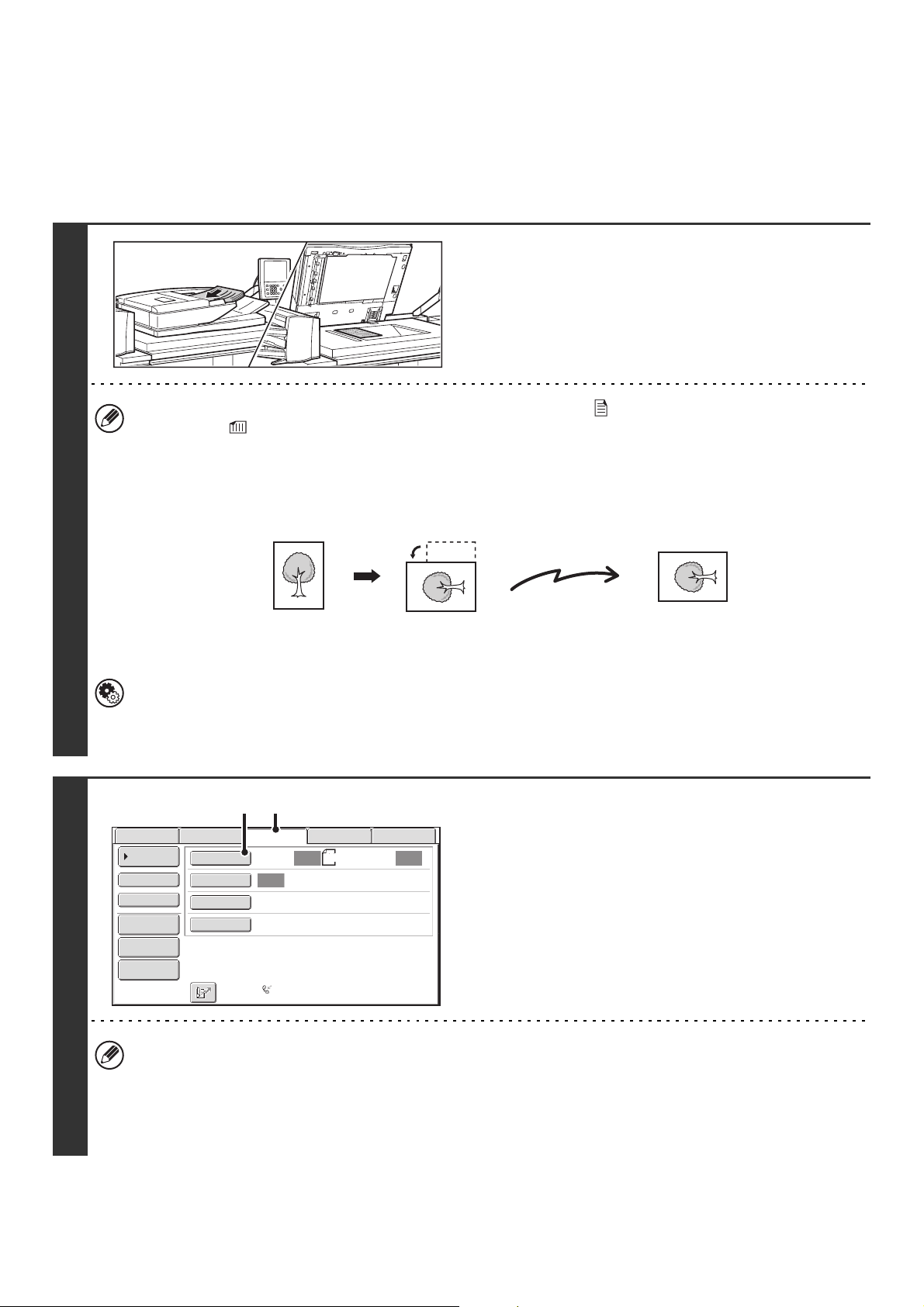
59
TRANSMISSION USING THE SPEAKER
When the speaker is used to dial, the fax is sent after the number is dialed and the connection is established. If a person
answers, you will be able to hear his or her voice, but you will not be able to speak.
When the speaker is used and the original is sent from the document glass, only one original page can be sent per
transmission.
1
Place the original.
Place the original face up in the document feeder tray, or face
down on the document glass.
• Place 5-1/2" x 8-1/2" (A5) size originals in portrait (vertical) orientation ( ). If placed in landscape (horizontal)
orientation ( ), an incorrect size will be detected. For a 5-1/2" x 8-1/2"R (A5R) size original, enter the original size
manually.
• Image rotation
8-1/2" x 11" and 5-1/2" x 8-1/2"R (A4, B5R, and A5R) originals are rotated 90 degrees and transmitted in
8-1/2" x 11"R or 5-1/2" x 8-1/2" (A4R, B5, or A5) orientation. 8-1/2" x 11"R and 5-1/2" x 8-1/2" (A4R, B5, and A5)
originals cannot be rotated for transmission.
• Originals cannot be scanned in succession from both the automatic document feeder and the document glass and
sent in a single transmission.
System Settings (Administrator): Rotation Sending Setting
This is used to select whether or not a scanned original image is rotated before transmission.
The factory default setting is: rotate 8-1/2" x 11" to 8-1/2" x 11"R, and 5-1/2" x 8-1/2"R to 5-1/2" x 8-1/2" (A4 to A4R,
B5R to B5, and A5R to A5).
2
Switch to fax mode and display the
image settings screen.
(1) Touch the [Fax] tab.
(2) Touch the [Original] key.
The current settings for [Original], [Exposure], and [Resolution] are indicated at the right of each key. To change a
setting, touch the appropriate key.
☞ AUTOMATICALLY SCANNING BOTH SIDES OF AN ORIGINAL (2-Sided Original) (page 69), SPECIFYING THE
ORIGINAL SCAN SIZE AND SEND SIZE (Enlarge/Reduce) (page 70), CHANGING THE EXPOSURE AND
EXPOSURE MODE (ORIGINAL IMAGE TYPE) (page 76), CHANGING THE RESOLUTION (page 78), 4.
SPECIAL MODES (page 87)
Transmission
Auto
Auto
Auto
FaxInternet Fax
Scan:
Scan
Send:
Standard
Auto Reception
Fax Memory:100%
8½x11
File
Quick File
Address Review
Direct TX
Sub Address
Address Book
Special Modes
Resolution
Exposure
Original
USB Mem. Scan
Data Entry
(1)(2)
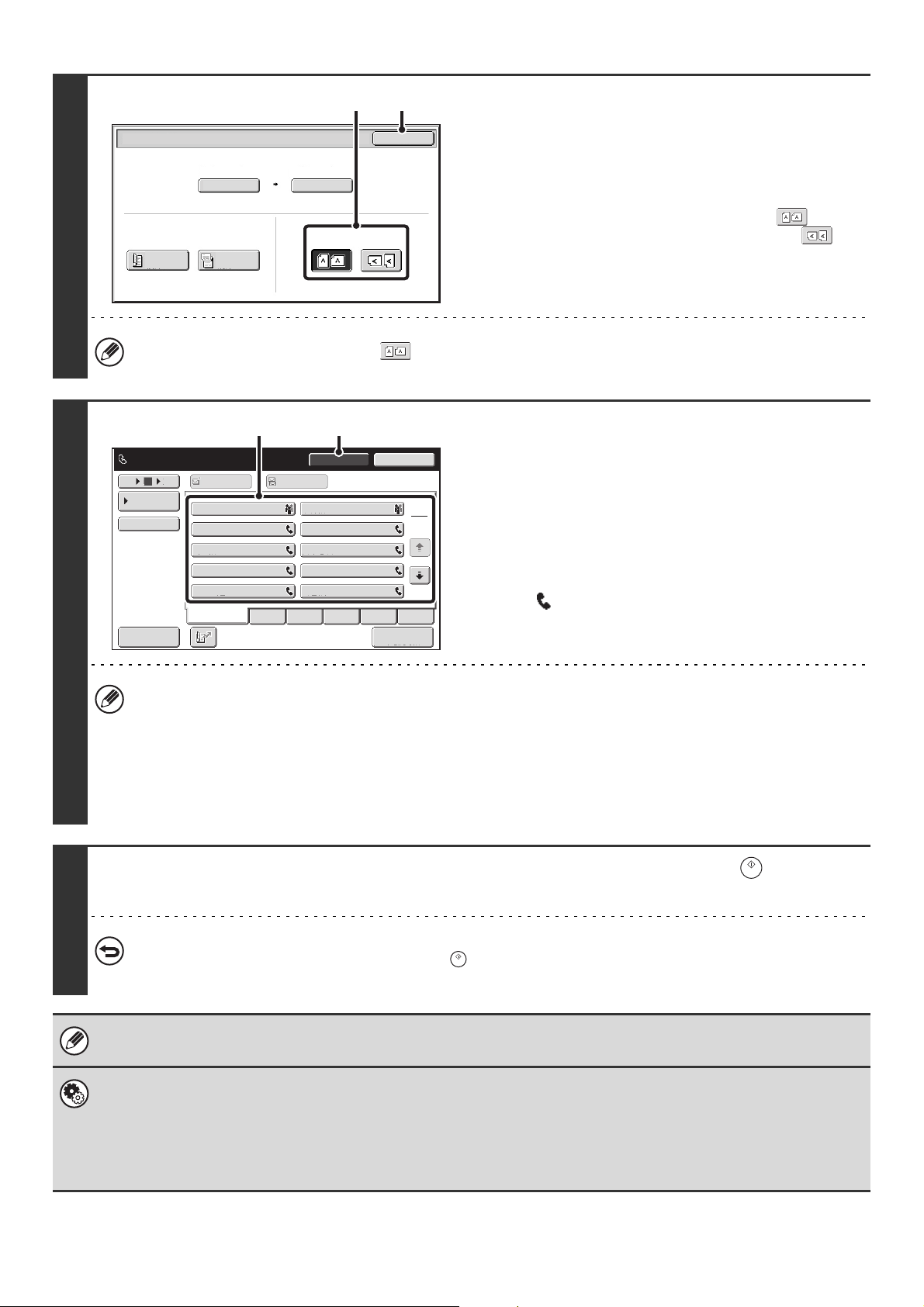
60
3
Specify the orientation in which the
original is placed.
When specifying the orientation of the image to be transmitted,
specify the orientation of the original placed in step 1.
(1) Touch the appropriate orientation key.
If the top edge of the original is up, touch the key. If
the top edge of the original is to the left, touch the key.
(2) Touch the [OK] key.
You will return to the screen of step 2.
The original orientation is initially set to . If the original was placed with the top edge up, this step is not necessary.
4
Enter the destination fax number.
(1) Touch the [Speaker] key.
You will hear the dial tone through the machine's speaker.
(2) Touch the [Address Book] key in the base
screen.
(3) Touch the one-touch key of the desired
destination.
The icon appears in one-touch keys that contain fax
numbers.
• Only one destination can be entered. A one-touch key in which multiple destinations are stored (group key) cannot
be used.
• In addition to specification by a one-touch key, a destination can also be specified by a search number. You can
also manually enter a fax number with the numeric keys or look up a destination in a global address book. For more
information, see "2. ENTERING DESTINATIONS" (page 25).
• After touching the [Speaker] key, you can touch the [Speaker Volume] key to adjust the volume of the speaker. The
speaker volume changes each time the [Speaker Volume] key is touched. Adjust the volume to the desired level.
5
Wait until the connection is made and then press the [START] key ( ).
Transmission begins.
To cancel transmission...
Touch the [Speaker] key before the [START] key ( ) is pressed. The line will be disconnected and transmission will
be canceled.
• When the speaker is used, transmission takes place without scanning the original into memory.
• A destination that includes an F-code (sub-address and passcode) cannot be used.
System Settings (Administrator): Fax Dest. Confirmation Mode
This setting is used to have a destination confirmation message appear when a fax is sent. When this function is enabled, a
group key or program key containing fax destinations cannot be selected. In addition, the speaker key cannot be used and a
broadcast transmission cannot be performed.
System Settings (Administrator): Speaker Settings
The default volume level of the speaker can be changed in the "Speaker Settings".
Fax/Original
OK
Auto
Auto 8½x11
Scan Size
2-Sided
Tablet
2-Sided
Booklet
Send Size
100%
Image Orientation
(2)(1)
1
2
III III
GGG GGG
EEE EEE
CCC CCC
AAA AAA
JJJ JJJ
HHH HHH
FFF FFF
DDD DDD
BBB BBB
105 15
Sort Address
Speaker Volume
To Cc
Telephone mode.
Fax Manual
Reception
ResendSpeaker
Frequent Use
ABCD EFGHI JKLMN OPQRST UVWXYZ
Condition
Settings
Fax Memory:100%
(3) (1)
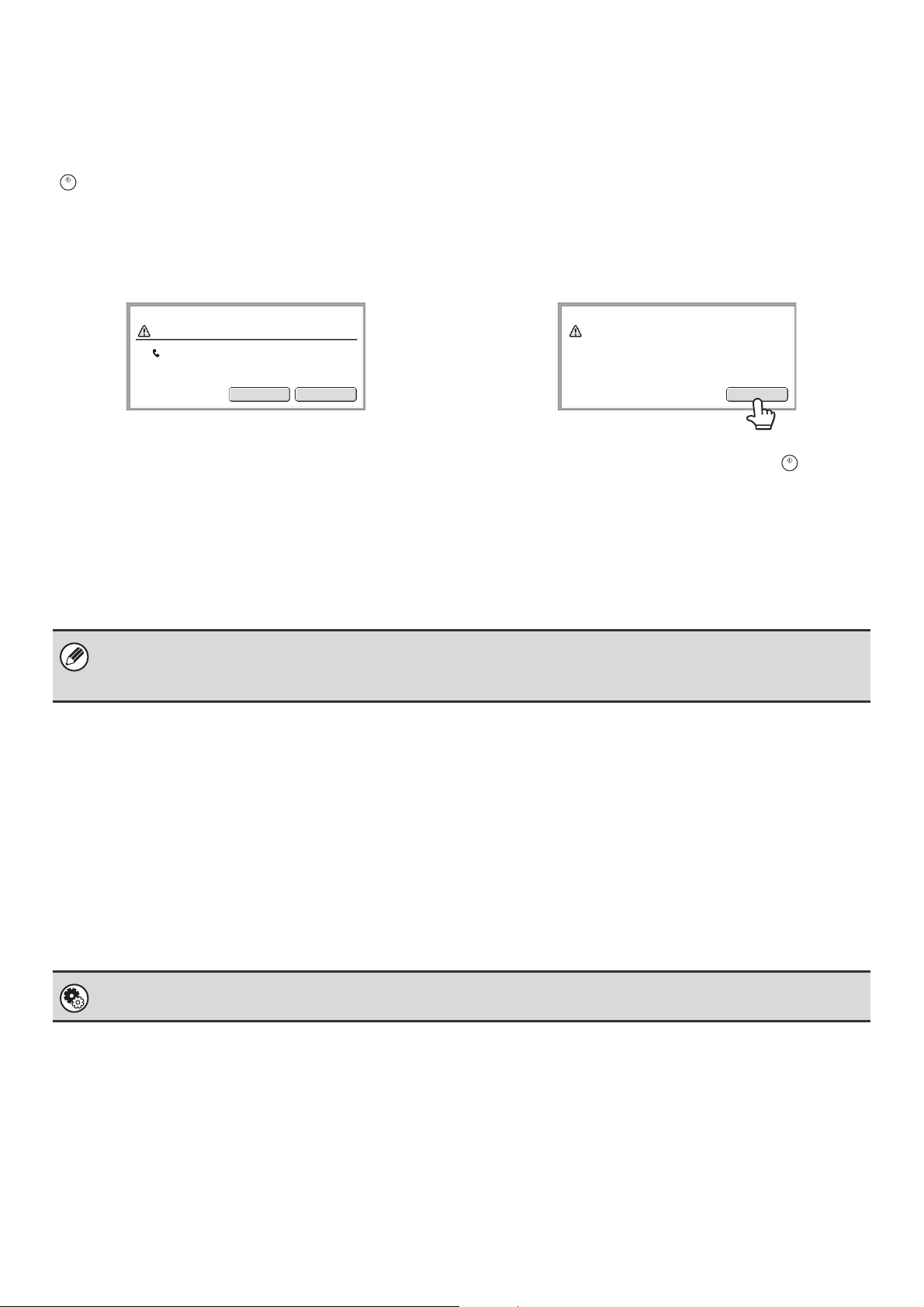
61
FAX DESTINATION CONFIRMATION MODE
The fax destination confirmation mode displays a destination confirmation message when a fax transmission is
performed to prevent accidental transmission to the wrong destination. This function is enabled in the system settings
(administrator). When the function is enabled, a message will appear to confirm the destination when the [START] key
( ) is pressed to begin fax transmission.
The message that appears will vary depending on the method used to specify the destination.
Destination specified by one-touch key/search
number
Make sure that the destination indicated in the message
is correct and touch the [OK] key. Scanning will begin.
If the destination is not correct, touch the [Cancel] key
and select the destination again.
Destination specified by the numeric keys, [Resend]
key, or [Global Address Search] key
Touch the [OK] key, re-enter the destination with the
numeric keys, and press the [START] key ( ).
If the re-entered destination is correct, scanning will
begin.
If the re-entered destination is not correct, a message
will appear. Touch the [OK] key and re-enter the
destination. If an incorrect number is entered for
confirmation 3 times in a row, the screen will revert to the
base screen.
Functions that cannot be used
When the fax destination confirmation function is enabled, only one destination is allowed, and thus the following
functions cannot be used.
• Broadcast transmission to multiple destinations including fax destinations
Group keys and program keys that contain multiple fax destinations cannot be used. After one destination is specified,
keys such as another one-touch key, the [Next Address] key, the [Address Entry] key, and the [Global Address
Search] key cannot be touched.
• Transmission using the speaker key
A destination cannot be specified after the [Speaker] key is pressed.
Number Confirmation
BBB BBB
0312345678
Cancel
OK
Enter
the number again and
press the Start key.
OK
• If the [Sub Address] key was used to enter a sub-address and passcode, the fax number must be re-entered during
confirmation. After re-entering the fax number, touch the [Sub Address] key and enter the sub-address and passcode.
• If chain dialing was used, touch the [Pause] key to enter "-" during confirmation.
System Settings (Administrator): Fax Dest. Confirmation Mode
This setting is used to have a destination confirmation message appear when a fax is sent.
62
WHEN THE LINE IS BUSY
If the line is busy when you send a fax, transmission will be re-attempted automatically after a preset interval. This
function only operates in memory transmission mode. In direct transmission mode or manual transmission mode, the
transmission will be canceled. Wait briefly and then try sending the fax again.
WHEN A COMMUNICATION ERROR OCCURS
If a communication error occurs or the other fax machine does not answer the call within a preset period of time,
transmission will be re-attempted automatically after a preset interval. This function only operates in memory
transmission mode.
AUTOMATIC REDUCTION OF THE TRANSMITTED
IMAGE
If the width of the transmitted image is larger than the width of the paper in the receiving machine, the image will be
automatically reduced to fit the receiving machine's paper width.
Example: Reduced sizes and reduction ratios
To cancel transmission...
Cancel the transmission from the job status screen.
☞ CANCELING A JOB IN PROGRESS OR A RESERVED JOB (page 168)
System Settings (Administrator): Recall in Case of Line Busy
This is used to set the number of recall attempts and the interval between attempts when the connection cannot be
established because the line is busy. The factory default setting is 2 attempts at an interval of 3 minutes.
To cancel transmission...
Cancel the transmission from the job status screen.
☞ CANCELING A JOB IN PROGRESS OR A RESERVED JOB (page 168)
System Settings (Administrator): Recall in Case of Communication Error
This is used to set the number of recall attempts and the interval between attempts when a transmission fails due to an error.
The factory default setting is attempt at an interval of 3 minutes.
Transmitted image
width
Receiving machine's
paper width
Reduced size Ratio
A3 B4 B4 1 : 0.84
11" x 17" (A3)
8-1/2" x 14", 8-1/2" x 11" (A4)
8-1/2" x 14", 8-1/2" x 11"R (A4R)
1 : 0.71
B4 A4 A4R 1 : 0.84
System Settings (Administrator): Auto Reduction Sending Setting
The factory default setting is automatic reduction enabled. If this setting is disabled, the image will be sent at full size and part
of the image may be cut off.
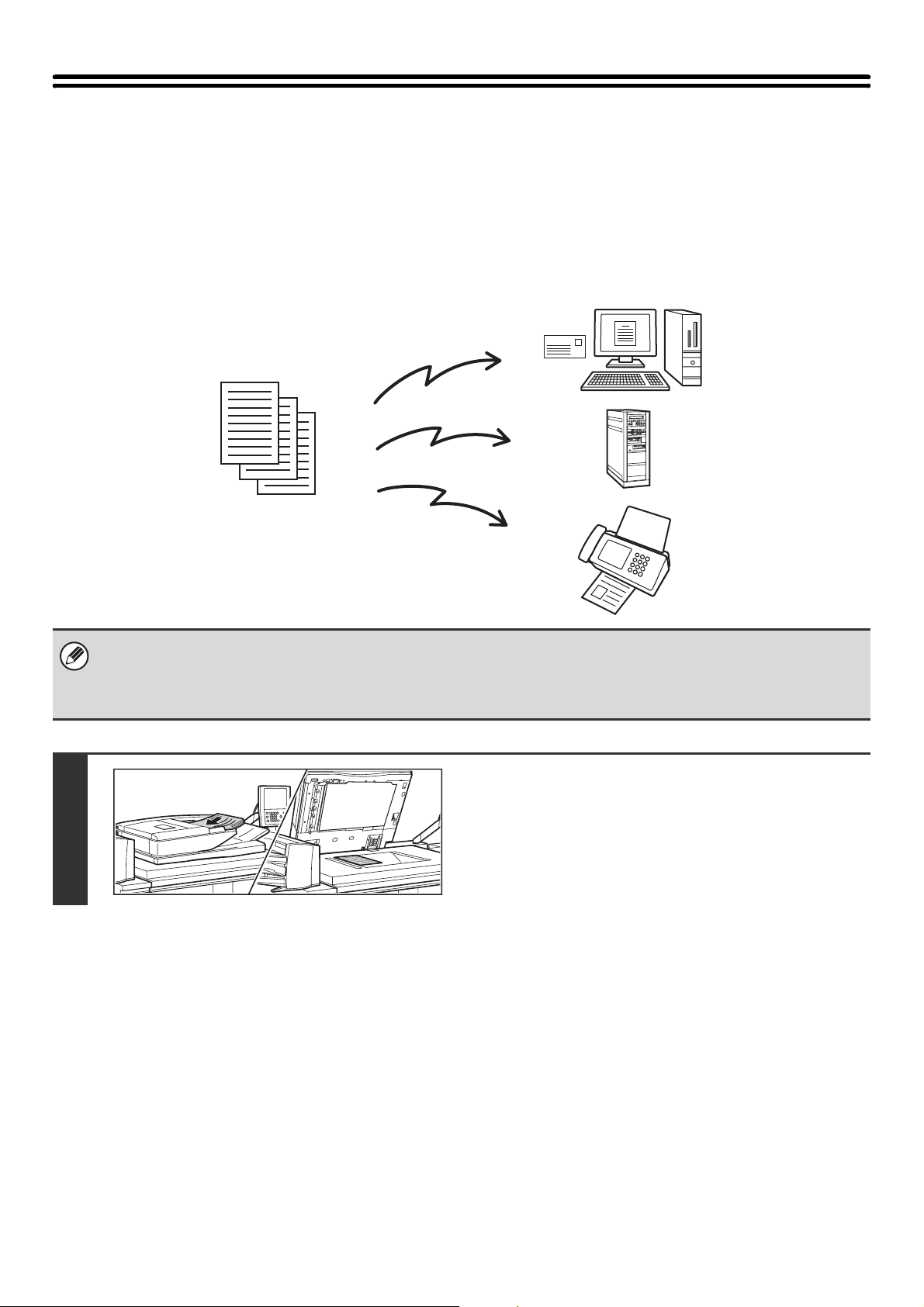
63
SENDING THE SAME IMAGE TO MULTIPLE
DESTINATIONS
(Broadcast Transmission)
The same scanned image can be sent to multiple scan modes (Scan to E-mail, Scan to FTP, and Scan to Desktop),
Internet fax mode, and fax mode destinations in a single operation. Up to 500 destinations (including a combined
maximum of 200 Scan to FTP and Scan to Desktop destinations) can be selected in one broadcast operation.
• If you frequently use broadcasting to send images to the same group of destinations, it is convenient to store those
destinations in a group key. To store group keys, see "ADDRESS CONTROL" (page 174).
• When a group key is used, the number of destinations is the number of destinations stored in the group key. When 10
destinations are stored in a group key, the number of destinations is 10.
1
Place the original.
Place the original face up in the document feeder tray, or face
down on the document glass.
Originals
Transmission
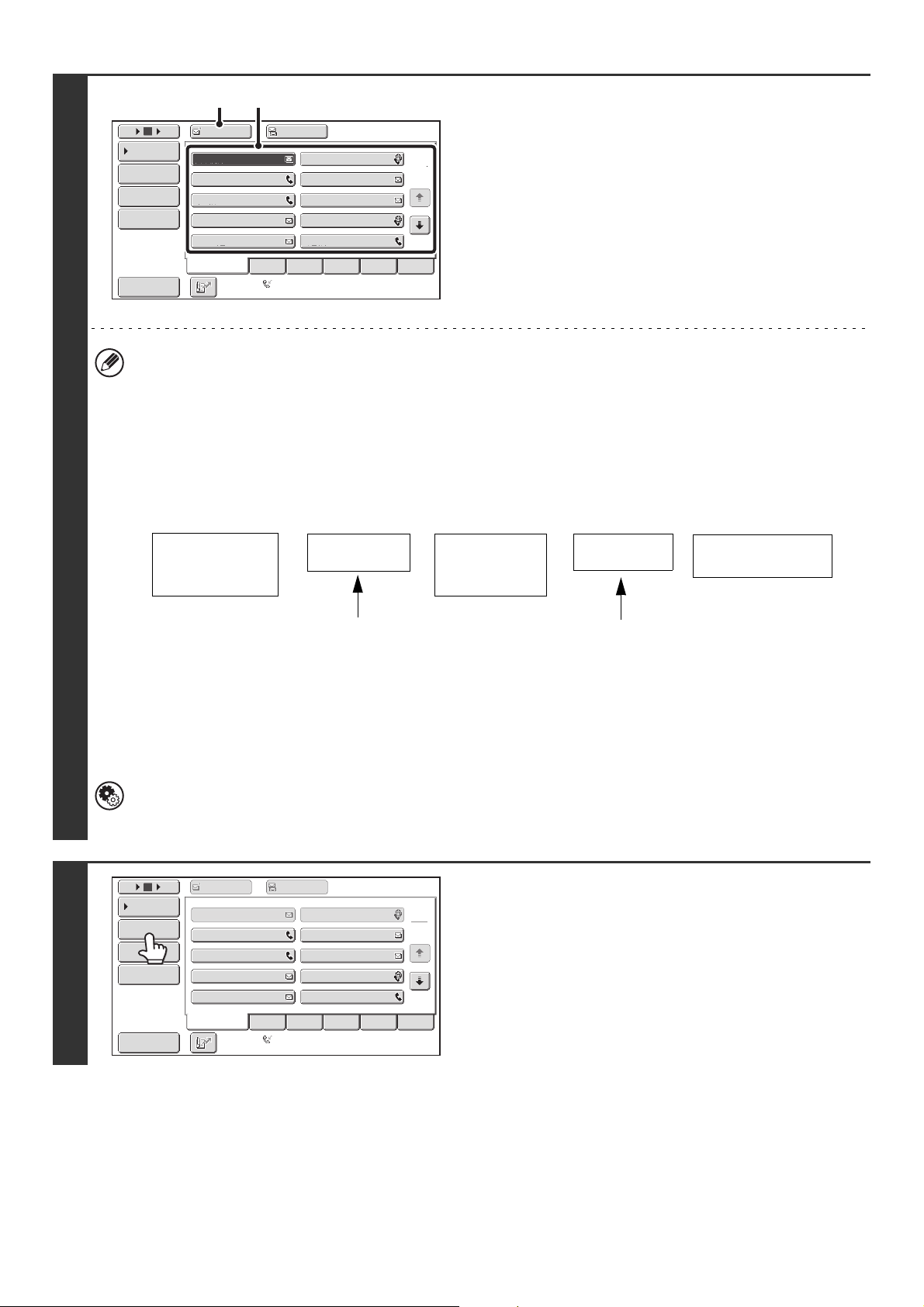
64
2
Specify the destination.
(1) Touch the [Address Book] key in the base
screen.
(2) Touch the one-touch key of the desired
destination.
(3) Touch the [To] key.
The destination is specified.
(4) Repeat steps (2) and (3) until all
destinations are selected.
• In addition to specification by a one-touch key, a destination can also be specified by a search number. You can
also manually enter a destination or look up a destination in a global address book. For more information, see "2.
ENTERING DESTINATIONS" (page 25).
• To add Cc or Bcc recipients, select a recipient and touch the [Cc] key or the [Bcc] key.
• After entering a destination with the numeric keys, if you wish to enter another destination with the numeric keys,
touch the [Next Address] key before entering the next destination. The [Next Address] key can be omitted before or
after a destination entered using a one-touch key. However, if "Must Input Next Address Key at Broadcast Setting"
is enabled in the system settings (administrator), the [Next Address] key must be touched before entering the next
destination.
• One-touch keys that cannot be used for broadcast transmission are grayed out to prevent selection.
• If a Scan to FTP (Hyperlink) address is specified in a broadcast transmission, hyperlink e-mail transmission will not
take place.
System Settings (Administrator): Must Input Next Address Key at Broadcast Setting
This setting is used to prohibit omission of the [Next Address] key when entering destinations for broadcast
transmissions.
3
Touch the [Address Review] key.
AAA AAA
To Cc
III III
GGG GGG
EEE EEE
CCC CCC
HHH HHH
FFF FFF
DDD DDD
BBB BBB
ABCD
Frequent Use
EFGHI JKLMN OPQRST UVWXYZ
1
2
5
15
10
Global
Address Search
Address Entry
Sort Address
Address Review
Condition
Settings
JJJ JJJ
Auto Reception
Fax Memory:100%
(3) (2)
Fax number
entered with the
numeric keys
Fax number
entered with the
numeric keys
Destination entered
with a one-touch key
[Next Address]
key
[Next Address]
key
Cannot be omitted
Can be omitted*
* Cannot be omitted if "Must Input Next
Address Key at Broadcast Setting" is enabled
in the system settings (administrator).
AAA AAA BBB BBB
To Cc
ABCD
Frequent Use
EFGHI JKLMN OPQRST UVWXYZ
1
2
5
15
10
Global
Address Search
Address Entry
Sort Address
Address Review
Condition
Settings
III III
GGG GGG
EEE EEE
CCC CCC
JJJ JJJ
HHH HHH
DDD DDD
FFF FFF
Auto Reception
Fax Memory:100%
65
4
Check the destinations and then touch
the [OK] key.
If the transmission includes Cc or Bcc destinations, touch the [Cc] tab or the [Bcc] tab to check those destinations.
To cancel a specified destination...
Touch the one touch-key of the destination that you wish to cancel. A message appears to confirm the cancelation.
Touch the [Yes] key.
☞ CHECKING AND DELETING THE SELECTED DESTINATIONS (page 27)
5
Press the [START] key ( ).
Scanning begins.
• If you inserted the original pages in the document feeder tray, all pages are scanned.
A beep will sound to indicate that scanning is finished.
• If you are scanning the original on the document glass, scan each page one page at a time.
When scanning of one page finishes, replace it with the next page and press the [START] key ( ). Repeat until all pages
have been scanned and then touch the [Read-End] key.
A beep will sound to indicate that scanning is finished.
If Internet fax or fax destinations are included in the broadcast transmission, scanning will take place in Mono2.
To cancel scanning...
Press the [STOP] key ( ) to cancel the operation.
• A broadcast transmission can be used in combination with the timer transmission function to transmit at night or any other
desired time.
•Fax mode:
Only memory transmission mode can be used for a fax broadcast transmission.
System Settings (Administrator): Fax Dest. Confirmation Mode
When this function is enabled, broadcast transmissions that include fax destinations cannot be performed.
To
001
003
005
007
009
011
002
004
006
008
010
012
Cc
1
2
Address Review
OK
AAA AAA
KKK KKK
MMM MMM
OOO OOO
QQQ QQQ
SSS SSS
BBB BBB
LLL LLL
NNN NNN
PPP PPP
RRR RRR
TTT TTT
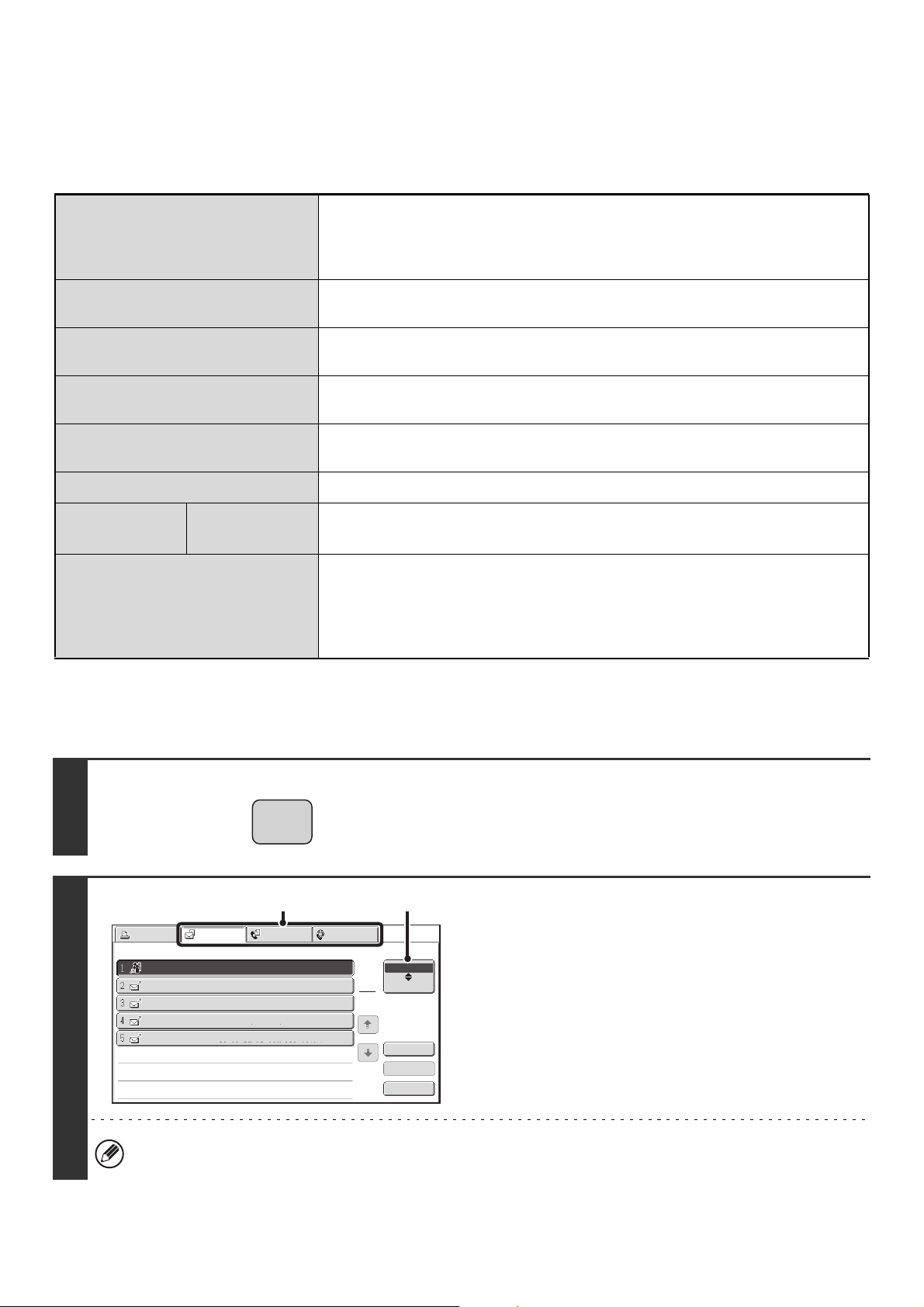
66
BROADCAST TRANSMISSIONS THAT INCLUDE
INTERNET FAX OR FAX DESTINATIONS
When performing a broadcast transmission that includes mixed scan mode, Internet fax mode, and fax mode
destinations, note the following:
Resending to unsuccessful broadcast transmission destinations
The results of a completed broadcast transmission can be checked in the job status screen. If transmission to any of the
addresses failed, resend the image to those addresses.
Original placement orientation
The orientation of Internet fax mode or fax mode is given priority. When "Rotation
Sending Setting" is enabled in the system settings (administrator), the image is
rotated 90 degrees. For this reason, in some cases the image may not be displayed in
the correct orientation.
Send size
When the file format is set to [TIFF-S] in Internet fax mode, transmission is only
possible in 8-1/2" x 11"R (A4R) size.
Exposure
The Internet fax mode/fax mode setting takes priority. (Exposure settings for Internet
fax mode and fax mode are linked.)
Resolution
The order of priority of the settings is fax, Internet fax, scan. However, if the format of
Internet fax mode is set to [TIFF-S], the Internet fax setting takes priority .
File compression mode
The compression mode will be changed to the compression mode set in
"Compression Mode at Broadcasting" in the system settings (administrator).
Color scanning
Scanning will take place in Mono2 regardless of the color mode setting.
Special
modes
2in1
This cannot be selected in scan mode, however, if selected in Internet fax mode or
fax mode, it will also be applied to scan destinations.
Scan file size
If a broadcast transmission is performed that includes destinations for which an
attachment size limit has been set using "Maximum Size of E-mail Attachments
(E-mail)" or "Maximum Size of Data Attachments (FTP/Desktop/Network Folder)" in
the system settings (administrator), the limit will also apply to destinations for which a
limit is not set. (The limitation setting of Scan to E-mail or Internet fax is given priority.)
1
Press the [JOB STATUS] key.
2
Display the jobs completed screen.
(1) Touch the tab of the mode that you wish to
display.
(2) Touch the [Complete] key.
If the broadcast transmission included destinations of different modes, the same broadcast transmission key will
appear in each of those modes.
JOB STATUS
Print Job
Fax Job
Internet Fax
Scan to
Address Set Time
Pages
Status
Broadcast0001 10:00 04/04 020/003 Connecting
AAA AAA
BBB BBB
CCC CCC
DDD DDD
10:05 04/04 000/001
Waiting
10:22 04/04 000/004
Waiting
10:30 04/04 000/010
Waiting
10:33 04/04 000/010
Waiting
1
1
Complete
Detail
Stop/Delete
Job Queue
Priority
(1) (2)
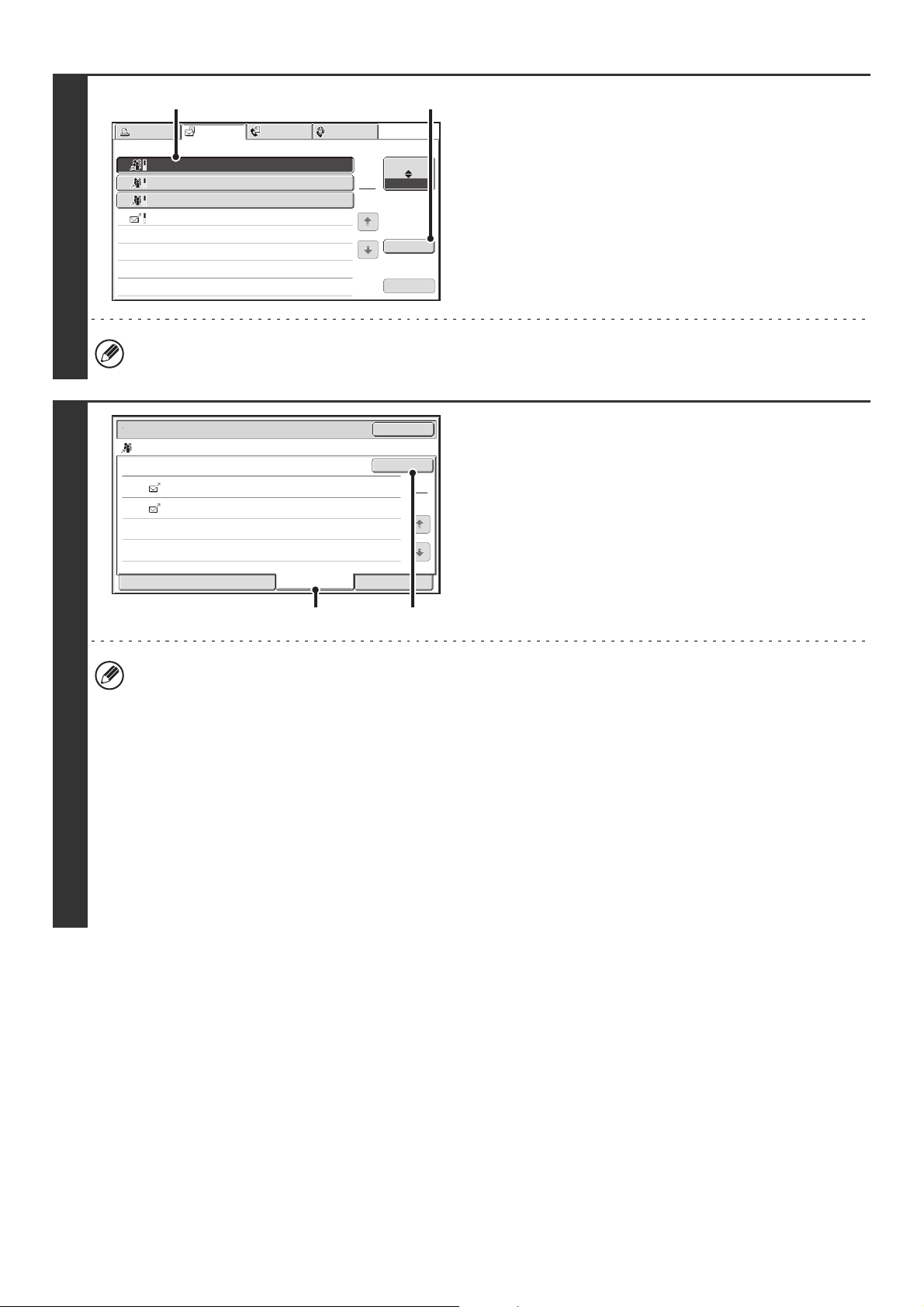
67
3
Display details on the broadcast
transmission.
(1) Touch the key of the completed broadcast
transmission.
(2) Touch the [Detail] key.
"Broadcastxxxx" will appear as the address of the broadcast job key. The job control number that appeared in the
touch panel when scanning ended appears in "xxxx".
4
Resend the image to the unsuccessful
destinations.
(1) Touch the [Failed] tab.
(2) Touch the [Retry] key.
• The procedure after the [Retry] key is touched varies depending on whether or not the document filing function was
used.
Not using document filing
You will return to the base screen with the unsuccessful destinations entered. Place the original and perform the
steps of the broadcast transmission.
Using document filing
You will return to the document filing resend screen with the unsuccessful destinations entered. Perform the
document filing resend procedure. (There is no need to rescan the original.)
Fax mode:
If the job was stored in a confidential folder or was stored as confidential file, a password entry screen will appear
after you touch the [Retry] key. Enter the password.
For more information, see the Document Filing Guide.
• If the [All Destinations] tab is touched in (1), all destinations will be displayed. The [Retry] key that appears in the
screen can be touched to resend to all the destinations.
Broadcast0001 10:00 04/04 010/003 NG000000
Broadcast0002
Broadcast0003
DDD DDD
10:05 04/04 001/001
Send OK
10:22 04/04 004/004
Send OK
10:30 04/04 010/010
Send OK
1
1
Complete
Detail
Call
Job Queue
Print Job
Fax Job
Internet Fax
Scan to
Address Start Time
Pages
Status
(1) (2)
Detail
OK
Retry
Broadcast0001
EEE EEE NG000000
NG000000FFF FFF
Start TimeAddress Status
10:01 04/04
10:10
002
010 04/04
1
1
Failed
File
All Destinations
(1) (2)
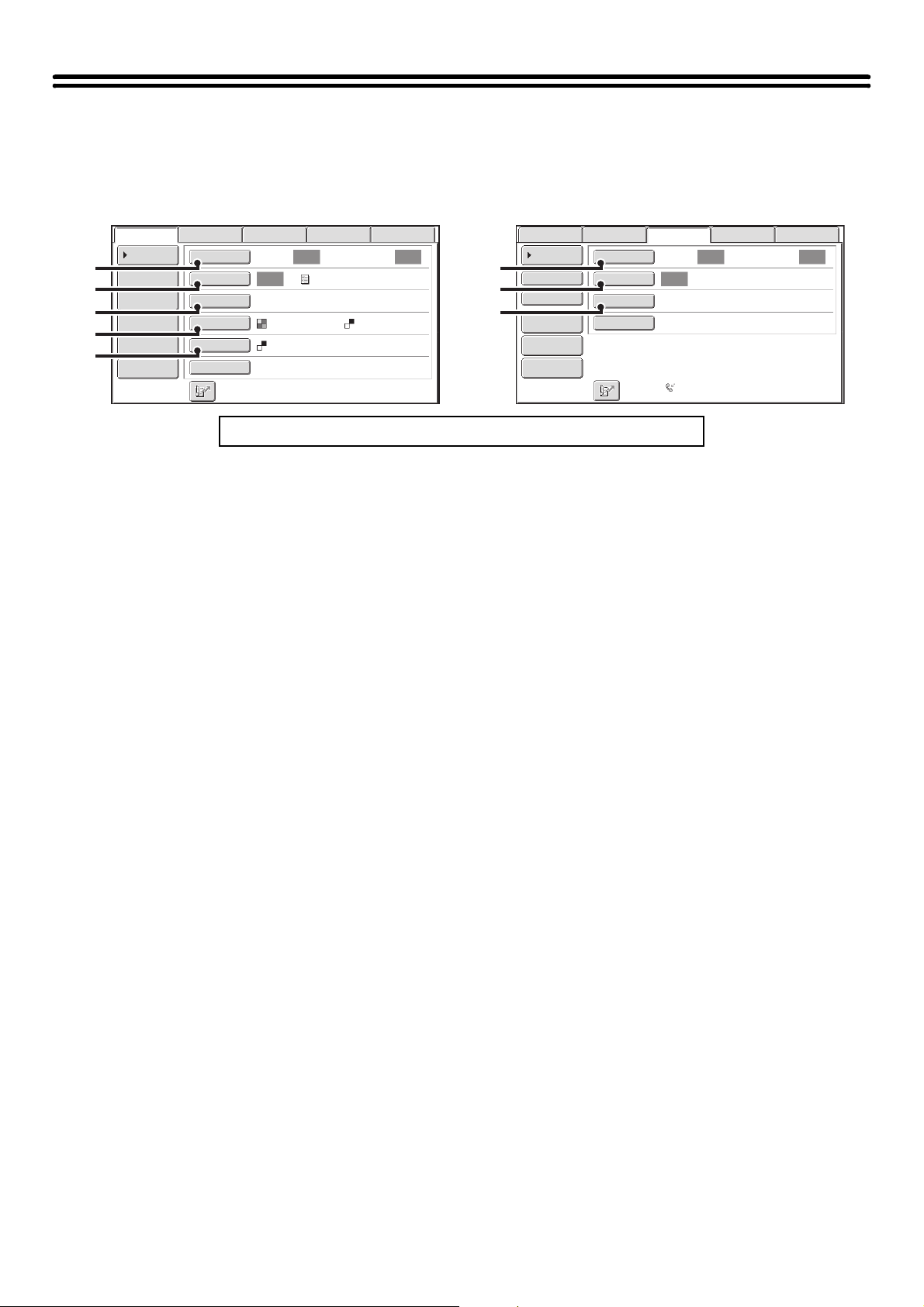
68
IMAGE SETTINGS
Settings for scanning the original are selected in the base screen of each mode. The current state of each setting
appears to the right of the key used to select the setting.
(1) [Original] key
Touch this key to set the scan size, send size, and
orientation of the original, and select 2-sided scanning
settings.
☞ AUTOMATICALLY SCANNING BOTH SIDES OF
AN ORIGINAL (2-Sided Original) (page 69),
SPECIFYING THE ORIGINAL SCAN SIZE AND
SEND SIZE (Enlarge/Reduce) (page 70)
(2) [Exposure] key
Touch this key to select the exposure for scanning.
☞ CHANGING THE EXPOSURE AND EXPOSURE
MODE (ORIGINAL IMAGE TYPE) (page 76)
(3) [Resolution] key
Touch this key to select the resolution for scanning.
☞ CHANGING THE RESOLUTION (page 78)
(4) [File Format] key
Touch this key to change the format (file type) of the
scanned image file.
☞ CHANGING THE FILE FORMAT (page 81)
(5) [Color Mode] key
Touch this key to select the color mode for scanning.
The [Color Mode] key will only appear if the color
expansion kit has been installed. This key does not
appear in Internet fax mode.
☞ CHANGING THE COLOR MODE (page 85)
Click a key in the screen to jump to an explanation of the key.
Auto Auto
Auto
File
Quick File
Address Review
Send Settings
Address Entry
Address Book
Data EntryFaxInternet Fax
Special Modes
Color Mode
File Format
Resolution
Exposure
Original
Scan:
Scan
Send:
Text
200X200dpi
PDF
Mono2
PDF
USB Mem. Scan
(1)
(2)
(3)
(4)
(5)
Auto Auto
Auto
Data EntryFaxInternet Fax
Scan:
Scan
Send:
Standard
Auto Reception
Fax Memory:100%
File
Quick File
Address Review
Direct TX
Sub Address
Address Book
Special Modes
Resolution
Exposure
Original
USB Mem. Scan
(1)
(2)
(3)
Example: Base screen of scan mode Base screen of fax mode
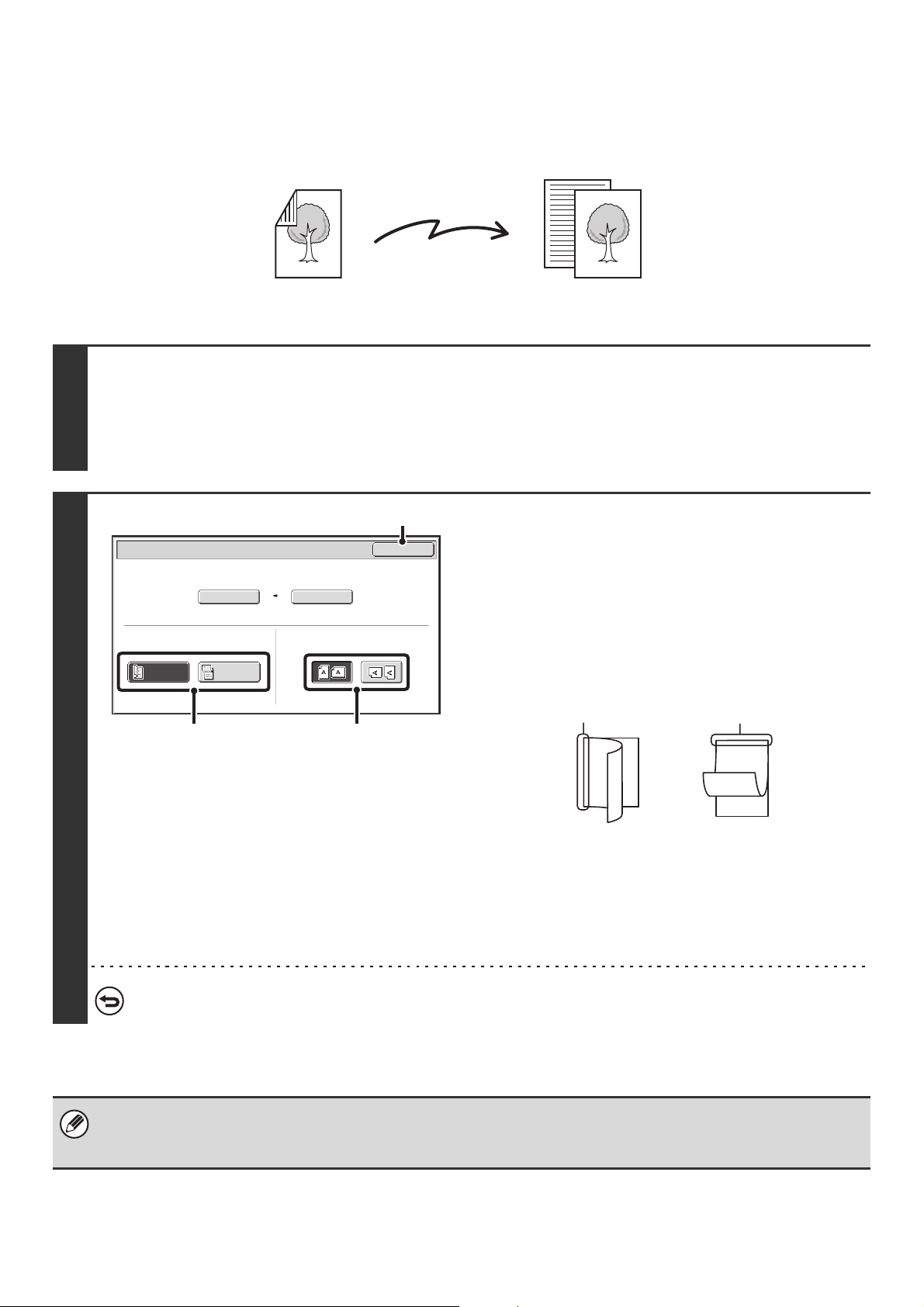
69
AUTOMATICALLY SCANNING BOTH SIDES OF AN
ORIGINAL (2-Sided Original)
The automatic document feeder can be used to automatically scan both sides of an original.
1
Select the mode and display the image settings screen.
(1) Touch the tab of the mode that you wish to use.
(2) Touch the [Original] key.
☞ IMAGE SETTINGS (page 68)
2
Specify the binding style of the 2-sided
original (book or tablet) and the
orientation in which the original is
placed.
(1) Touch the [2-Sided Booklet] key or the
[2-Sided Tablet] key.
A book and a tablet are bound as shown below.
(2) Touch the appropriate [Image Orientation]
key.
If this setting is not correct, a suitable image may not be
transmitted.
(3) Touch the [OK] key.
To cancel 2-sided scanning, touch the highlighted key so that it is no longer highlighted.
• 2-sided scanning automatically turns off after the transmission operation is completed.
•Fax mode:
When direct transmission mode is selected, 2-sided scanning cannot be used.
2-sided original Front and reverse sides are scanned
Scan transmission
Scan/Original
OK
Auto
Auto 8½x11
Scan Size
2-Sided
Tablet
2-Sided
Booklet
Send Size
100%
Image Orientation
(1) (2)
(3)
A
C
E
G
AB
EF
J
L
KL
Book
Tablet
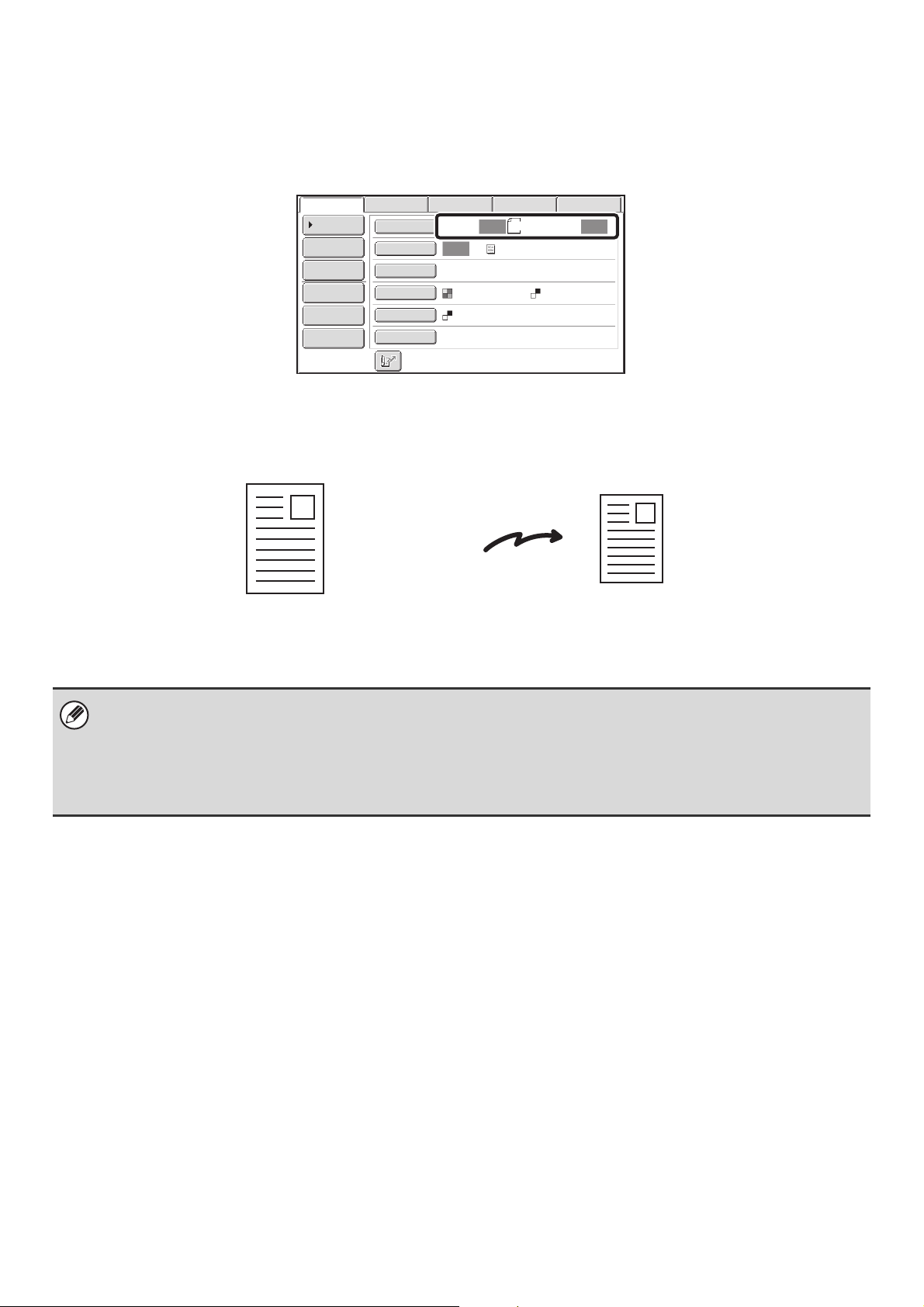
70
SPECIFYING THE ORIGINAL SCAN SIZE AND SEND
SIZE (Enlarge/Reduce)
When the original is placed, its size is automatically detected and displayed in the base screen.
The size of the placed original is indicated as the scan size, and the size to be transmitted is indicated as the send size.
In the above screen, the scan size (the placed original) is 8-1/2" x 11" (A4) and the send size is auto. For example, if the
scan size is 8-1/2" x 11" (A4) and the send size is 5-1/2" x 8-1/2" (B5), the image will be reduced before transmission.
• Only standard original sizes can be automatically detected.
☞ Standard Sizes (page 24)
• When the original size is a non-standard size, or if the size is not detected correctly, manually specify the original scan
size.
☞ Specifying the original scan size (by paper size) (page 71)
Specifying the original scan size (by numerical values) (page 72)
8½x11
Auto Auto
Auto
File
Quick File
Address Review
Send Settings
Address Entry
Address Book
Data EntryFaxInternet Fax
Special Modes
Color Mode
File Format
Resolution
Exposure
Original
Scan:
Scan
Send:
Text
200X200dpi
PDF
Mono2
PDF
USB Mem. Scan
8-1/2" x 11" (A4)
The image is reduced to
5-1/2" x 8-1/2" (B5)
before transmission
"Scan Size"
"Send Size" is set to
5-1/2" x 8-1/2" (B5)
Transmission
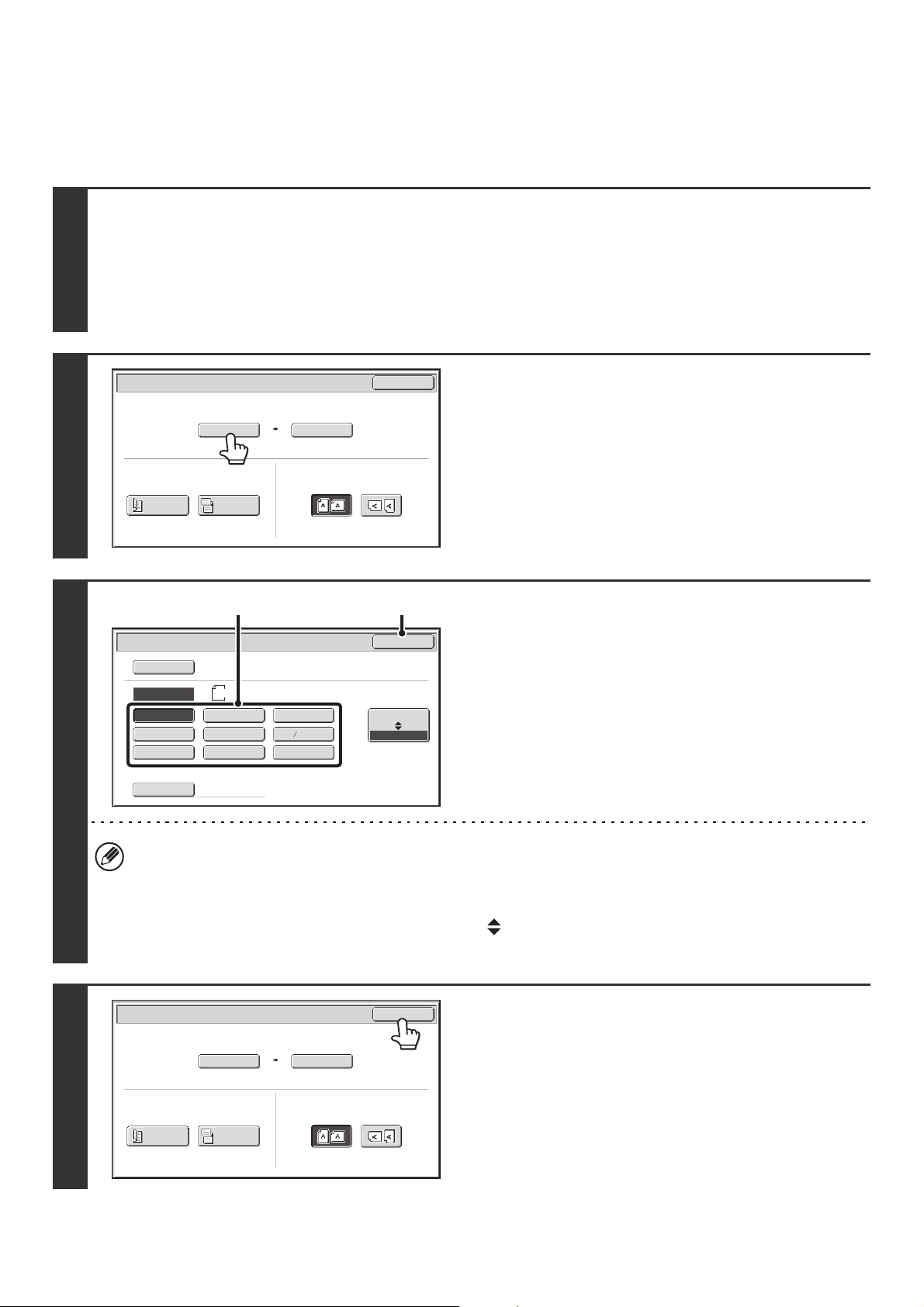
71
Specifying the original scan size (by paper size)
If you place a non-standard size original or wish to change the scan size, you must touch the [Original] key and specify
the original size manually. Follow the steps below after placing the original in the document feeder tray or on the
document glass.
1
Select the mode and display the image settings screen.
(1) Touch the tab of the mode that you wish to use.
(2) Touch the [Original] key.
The automatically detected original size appears to the right of the [Original] key.
☞ IMAGE SETTINGS (page 68)
2
Touch the [Scan Size] key.
3
Specify the scan size.
(1) Touch the appropriate original size key.
(2) Touch the [OK] key.
• If you are sending a long original, touch the [Long Size] key. Use the automatic document feeder to scan a long
original. The maximum width that can be scanned is 31-1/2" (800 mm) (the maximum height is 11" (297 mm)).
• When [Long Size] is selected, the 2-sided scanning setting and send size cannot be changed. Scanning will take
place in mono2.
• To specify an AB size for the scan size, touch the [AB Inch] key to highlight the [AB] side and then specify the
scan size.
4
Touch the [OK] key.
Scan/Original
OK
Auto
Auto 8½x11
Scan Size
2-Sided
Tablet
2-Sided
Booklet
Send Size
100%
Image Orientation
Scan
/Original
OK
Auto
5½x8½
5½x8½R
8½x11
8½x11R
8½x13(216x330)
11x17
8½x14
Size Input
Long Size
Inch
AB
Manual
Manual
8½x13 (216x340)
2
5
(2)(1)
Scan/Original
OK
Auto
5½x8½
Scan Size
2-Sided
Tablet
2-Sided
Booklet
Send Size
100%
Image Orientation
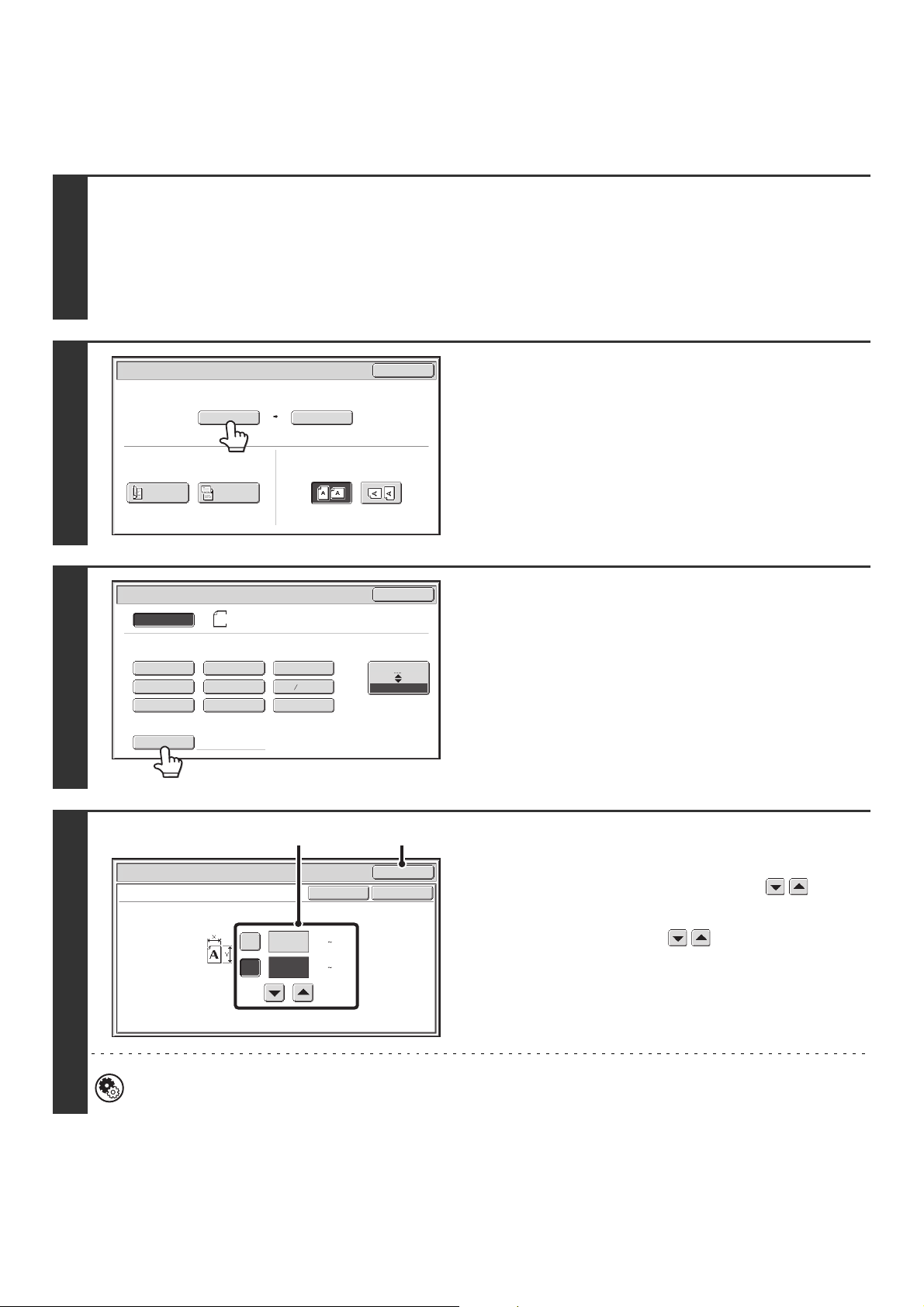
72
Specifying the original scan size (by numerical values)
When scanning a non-standard size original such as a card, follow these steps to specify the original size. The width can
be from 2-1/2" to 17" (64mm to 432mm), and the height can be from 2-1/2" to 11-5/8" (64mm to 297mm).
1
Select the mode and display the image settings screen.
(1) Touch the tab of the mode that you wish to use.
(2) Touch the [Original] key.
The automatically detected original size appears to the right of the [Original] key.
☞ IMAGE SETTINGS (page 68)
2
Touch the [Scan Size] key.
3
Touch the [Size Input] key.
4
Enter the scan size (original size).
(1) Touch the [X] key and enter the X
(horizontal) dimension with the keys.
(2) Touch the [Y] key and enter the Y (vertical)
dimension with the keys.
(3) Touch the [OK] key.
Touch the [OK] key next to the [Cancel] key to complete
the setting and return to the screen of step 3.
System Settings (Administrator): Original Size Detector Setting
This is used to set the size entry screen to "inch units" or "mm units".
Scan/Original
OK
Auto
Auto 8½x11
Scan Size
2-Sided
Tablet
2-Sided
Booklet
Send Size
100%
Image Orientation
Scan/Original
OK
Auto
5½x8½
5½x8½R
8½x11
8½x11R
8½x13(216x330)
11x17
8½x14
Size Input
Long Size
Inch
AB
Manual
8½x11
8½x13 (216x340)
2
5
Size Input
Scan/Original
OK
OK
Cancel
11
17
(2 1/2 17)
inch
(2 1/2 11 5/8)
inch
X
Y
(3)(1), (2)
73
5
Touch the [OK] key.
The specified size appears in the [Scan Size] key.
• When the scan size is specified by numerical values, the send size cannot be specified.
• When the automatic document feeder is used, an original longer than 17" (432mm) can be scanned (maximum width
31-1/2" (800mm)). In this case, touch the [Long Size] key in the screen of step 3.
☞ Specifying the original scan size (by paper size) (page 71)
Scan/Original
OK
Auto
X17 Y11
Scan Size
2-Sided
Tablet
2-Sided
Booklet
Send Size
Image Orientation
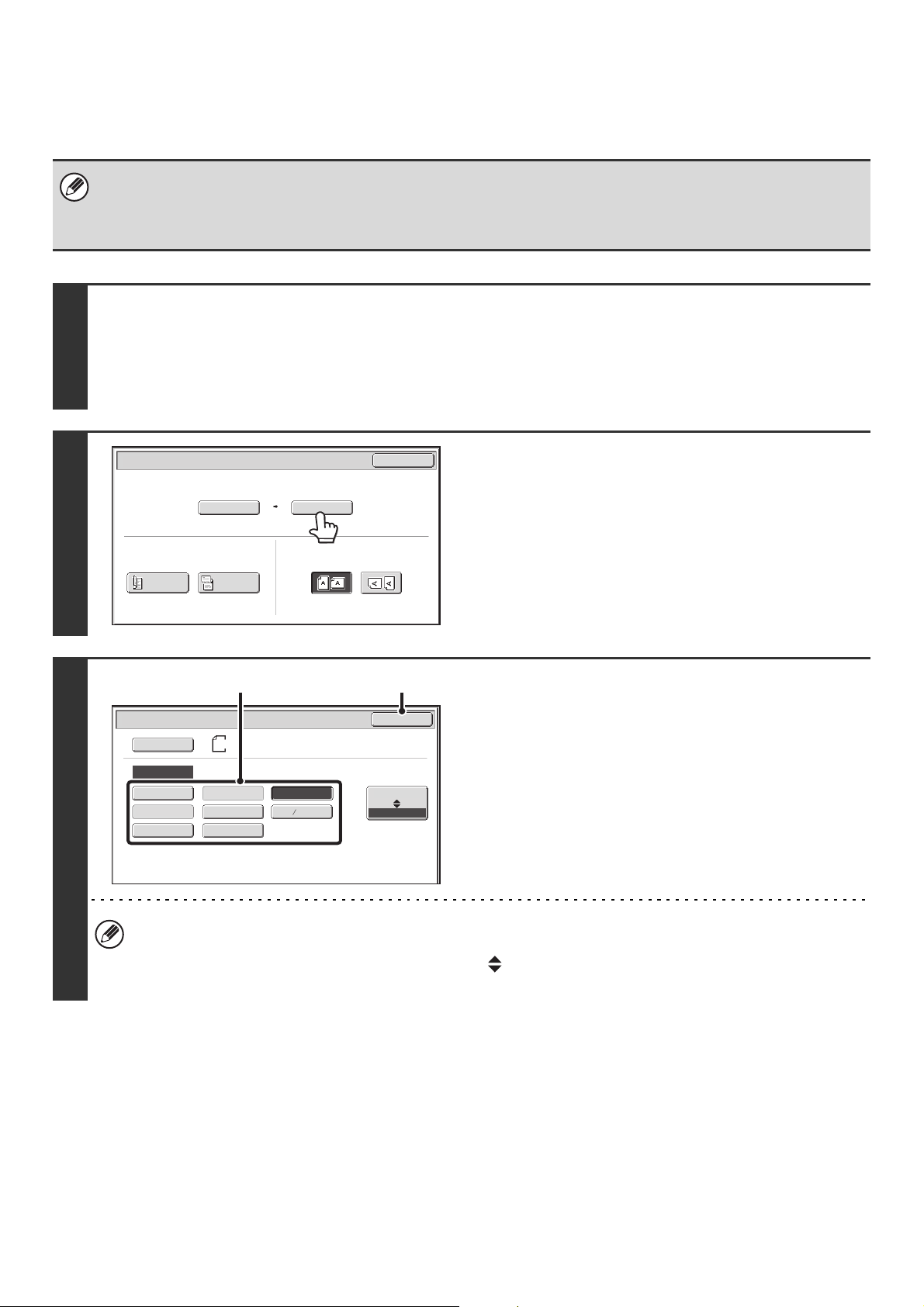
74
Specifying the send size of the image
Specify the send size as a paper size. If a send size bigger than the scan size is selected, the image will be enlarged. If
a send size smaller than the scan size is selected, the image will be reduced.
• The send size cannot be specified when [Long Size] is selected for the scan size, or when the scan size is specified by
numerical values.
• The send size cannot be specified when [TIFF-S] is selected for the format in Internet fax mode. (The send size is fixed at
8-1/2" x 11"R (A4R).)
1
Select the mode and display the image settings screen.
(1) Touch the tab of the mode that you wish to use.
(2) Touch the [Original] key.
☞ IMAGE SETTINGS (page 68)
2
Touch the [Send Size] key.
3
Specify the send size.
(1) Touch the desired send size key.
(2) Touch the [OK] key.
• Depending on the paper size specified for the "Scan Size", it may not be possible to select some sizes for the "Send
Size". Size keys that cannot be specified for the "Send Size" are grayed out to prevent selection.
• To specify an AB size for the send size, touch the [AB Inch] key to highlight the [AB] side and then specify the
send size.
Auto 8½x11
Scan/Original
OK
Auto
Scan Size
2-Sided
Tablet
2-Sided
Booklet
Send Size
100%
Image Orientation
Scan
/Original
OK
Auto
5½x8½
5½x8½R
8½x11
8½x11R
8½x13(216x330)
11x17
8½x14
Inch
AB
Manual
8½x11
8½x13 (216x340)
2
5
(2)(1)
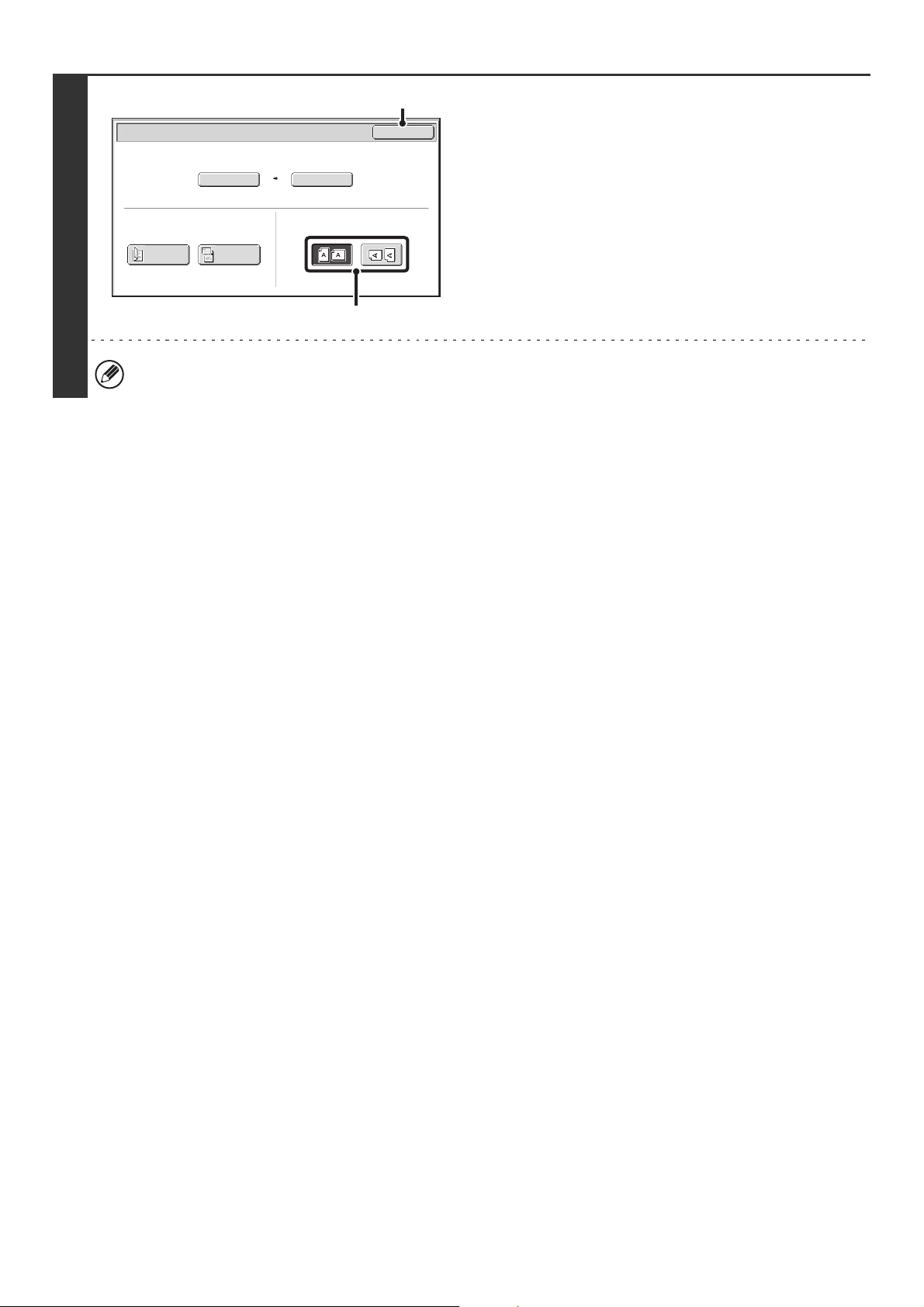
75
4
Specify the orientation in which the
original is placed.
(1) Touch the "Image Orientation" key with the
same orientation as the original image.
If this setting is not correct when sending an image with a
changed ratio, a suitable image may not be transmitted.
(2) Touch the [OK] key.
The ratio used for reduction or enlargement of the original will appear between the "Scan Size" and the "Send Size".
Scan/Original
OK
11x17
Auto 8½x11
Scan Size
2-Sided
Tablet
2-Sided
Booklet
Send Size
129%
Image Orientation
(1)
(2)
76
CHANGING THE EXPOSURE AND EXPOSURE MODE
(ORIGINAL IMAGE TYPE)
The exposure can be changed to match the darkness of the original. In scan mode and USB memory mode, the
exposure mode can be set to match the original type.
Refer the following tables to select appropriate settings.
How to select the exposure
How to select the original image type
Exposure When to select
Auto This setting automatically adjusts the exposure for light and dark parts of the original.
Manual 1-2 Select this setting when the original consists of dark text.
3 Select this setting for a normal original (neither dark nor light).
4-5 Select this setting when the original consists of faint text.
Setting Description
Text/Prtd. Photo This mode provides the best balance for scanning an original which contains both text and
printed photographs, such as a magazine or catalogue.
Text/Photo This mode provides the best balance for scanning an original which contains both text and
photographs, such as a text document with a photo pasted on.
Text Use this mode for regular text documents.
Photo Use this mode to scan photos.
Printed Photo This mode is best for scanning printed photographs, such as photos in a magazine or
catalogue.
Map This mode is best for scanning the color shading and fine details found on most maps.
1
Select the mode and display the exposure settings screen.
(1) Touch the tab of the mode that you wish to use.
(2) Touch the [Exposure] key.
☞ IMAGE SETTINGS (page 68)
2
Read the displayed message and touch
the [OK] key.
A message does not appear in USB memory mode, Internet fax
mode, or fax mode. Go to the next step.
When a broadcast transmission is performed using mixed send modes, the exposure setting of Internet fax/fax mode
takes priority.
When Fax/I-Fax address is included,
exposure setting shared among Fax/
I-Fax/ Scanner mode is selected.
OK
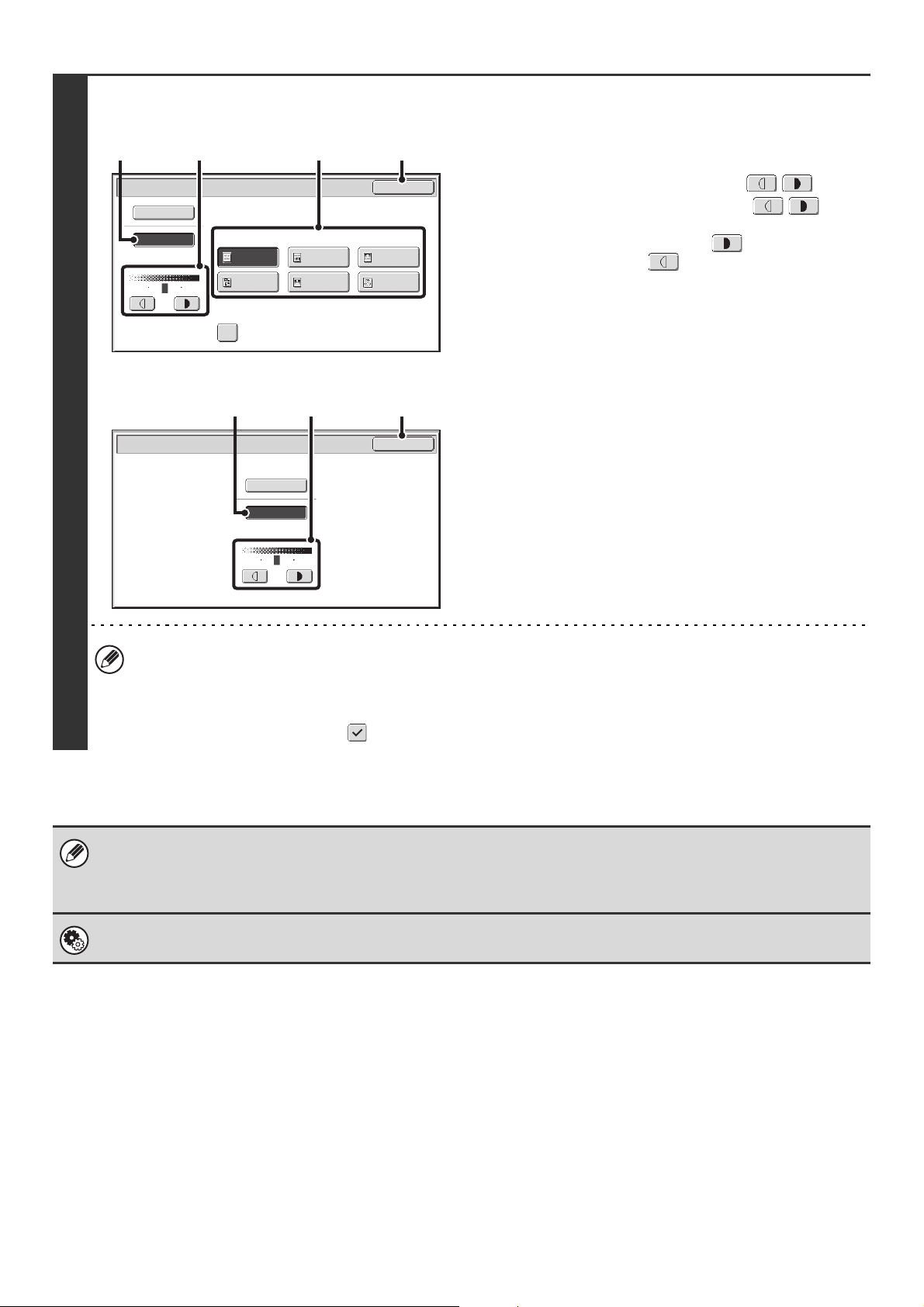
77
3
Scan mode, USB memory mode
Internet fax mode, fax mode:
Select the exposure and original image
type.
(1) Touch the [Manual] key.
(2) Adjust the exposure with the keys.
When the exposure is set to [Auto], the keys
cannot be used.
The exposure darkens when the key is touched,
and lightens when the key is touched.
To return to auto exposure adjustment, touch the [Auto]
key.
(3) Select the original image type.
Touch the original image type key that matches the
original image type.
(4) Touch the [OK] key.
• In Internet fax/fax mode, the original image type and moiré reduction cannot be selected.
• When the exposure is set to [Auto], [Printed Photo], [Photo] and [Map] do not appear.
• When the original image type is set to [Printed Photo], [Photo], or [Map], [Auto] will not appear.
• To reduce the occurrence of line patterns (moiré effect) when scanning printed matter, touch the [Moiré Reduction]
checkbox so that a checkmark appears.
When using the document glass to scan multiple original pages, the exposure setting can be changed each time you change
pages. When using the automatic document feeder, the exposure setting cannot be changed once scanning has begun.
(However, when "Job Build" is used in the special modes, the exposure can be changed each time a new set of originals is
inserted.)
System Settings (Administrator): Default Exposure Settings
This is used to change the default exposure setting.
Moiré Reduction
Scan/Exposure
OK
Original Image Type
Text/
Prtd.Photo
Text/Photo
Photo
Printed
Photo
Text
Map
Auto
Manual
3
1
5
(4)(2) (3)(1)
Internet Fax/Exposure
OK
Auto
Manual
3
1
5
(4)(2)(1)
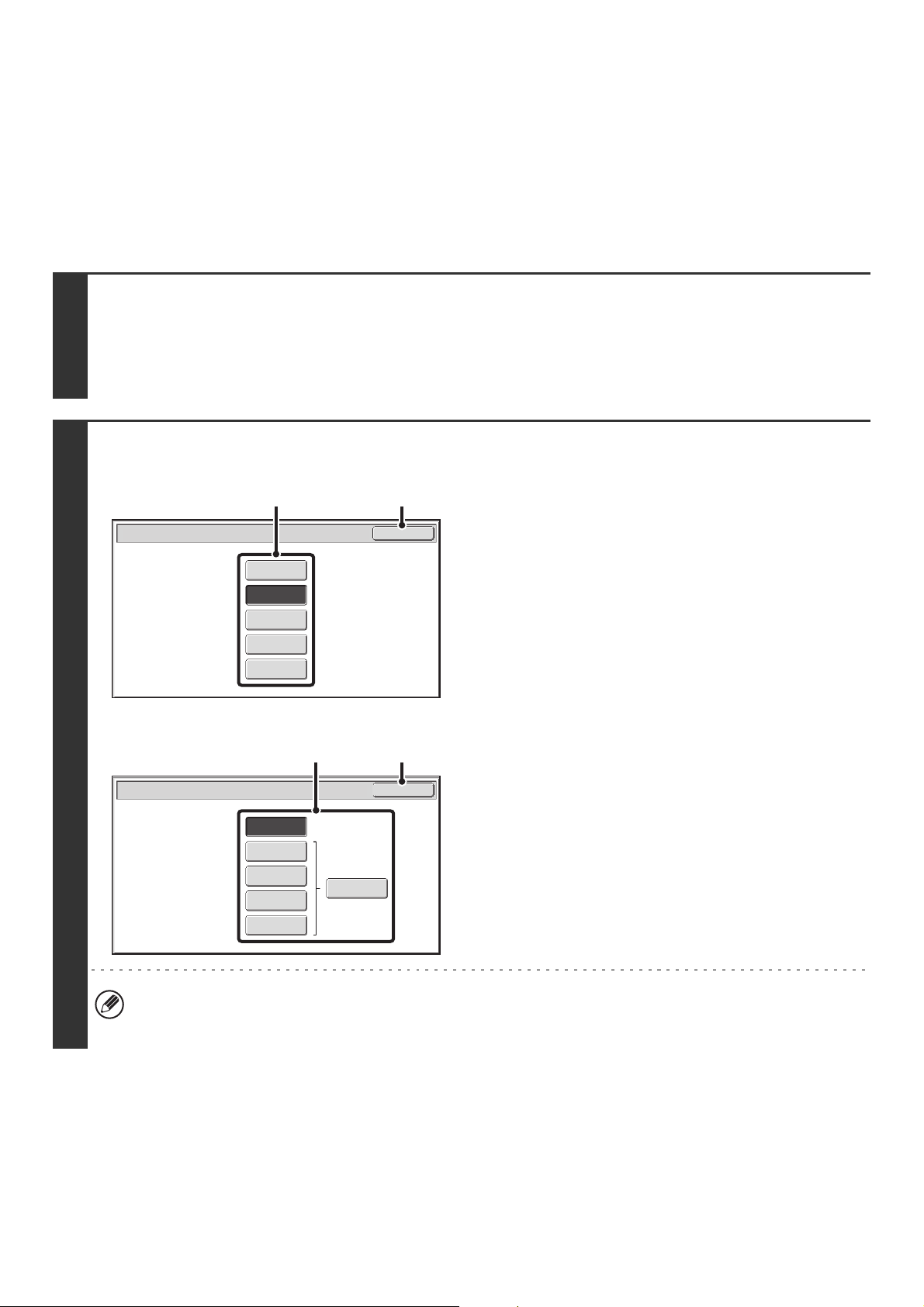
78
CHANGING THE RESOLUTION
The resolution can be selected to match the characteristics of the original, such as text or photo, the size of the text, and
the darkness of the image.
☞ Scan mode, USB memory mode, Internet fax mode (see below)
Fax mode (page 80)
Scan mode, USB memory mode, Internet fax mode
1
Select the mode and display the image settings screen.
(1) Touch the tab of the mode that you wish to use.
(2) Touch the [Resolution] key.
☞ IMAGE SETTINGS (page 68)
2
Scan mode, USB memory mode
Internet fax mode
Select the resolution.
(1) Touch the key of the desired resolution.
(2) Touch the [OK] key.
In Internet fax mode, the [Half Tone] key can be touched to select halftone (except when [200X100dpi] is selected).
When the original has many gradations of light and dark such as a photo or color illustration, halftone provides a more
attractive image than regular transmission.
Scan/Resolution
OK
300X300dpi
200X200dpi
100X100dpi
400X400dpi
600X600dpi
(2)(1)
Internet Fax/Resolution
OK
200X400dpi
200X100dpi
200X200dpi
400X400dpi
600X600dpi
Half Tone
(2)(1)
79
How to select the resolution
For normal text originals, 200X200dpi (200X100dpi in Internet fax mode) produces an image that is sufficiently legible.
For photos and illustrations, a high resolution setting (600X600dpi, etc.) will produce a sharp image. However, a high
resolution setting will result in a large file, and if the file is too large, transmission may not be possible. In this event,
reduce the number of pages scanned or take other measures to decrease the file size.
☞ CHANGING THE FILE FORMAT (page 81)
Specifying the send size of the image (page 74)
• When using the document glass to scan multiple original pages, the resolution setting can be changed each time you
change pages. When using the automatic document feeder, the resolution setting cannot be changed once scanning has
begun. (However, when "Job Build" is used in the special modes, the resolution can be changed each time a new set of
originals is inserted.)
• When [TIFF-S] is selected for the format in Internet fax mode, only [200X100dpi] or [200X200dpi] can be selected.
System Settings (Administrator): Initial Resolution Setting
This is used to change the default resolution setting.
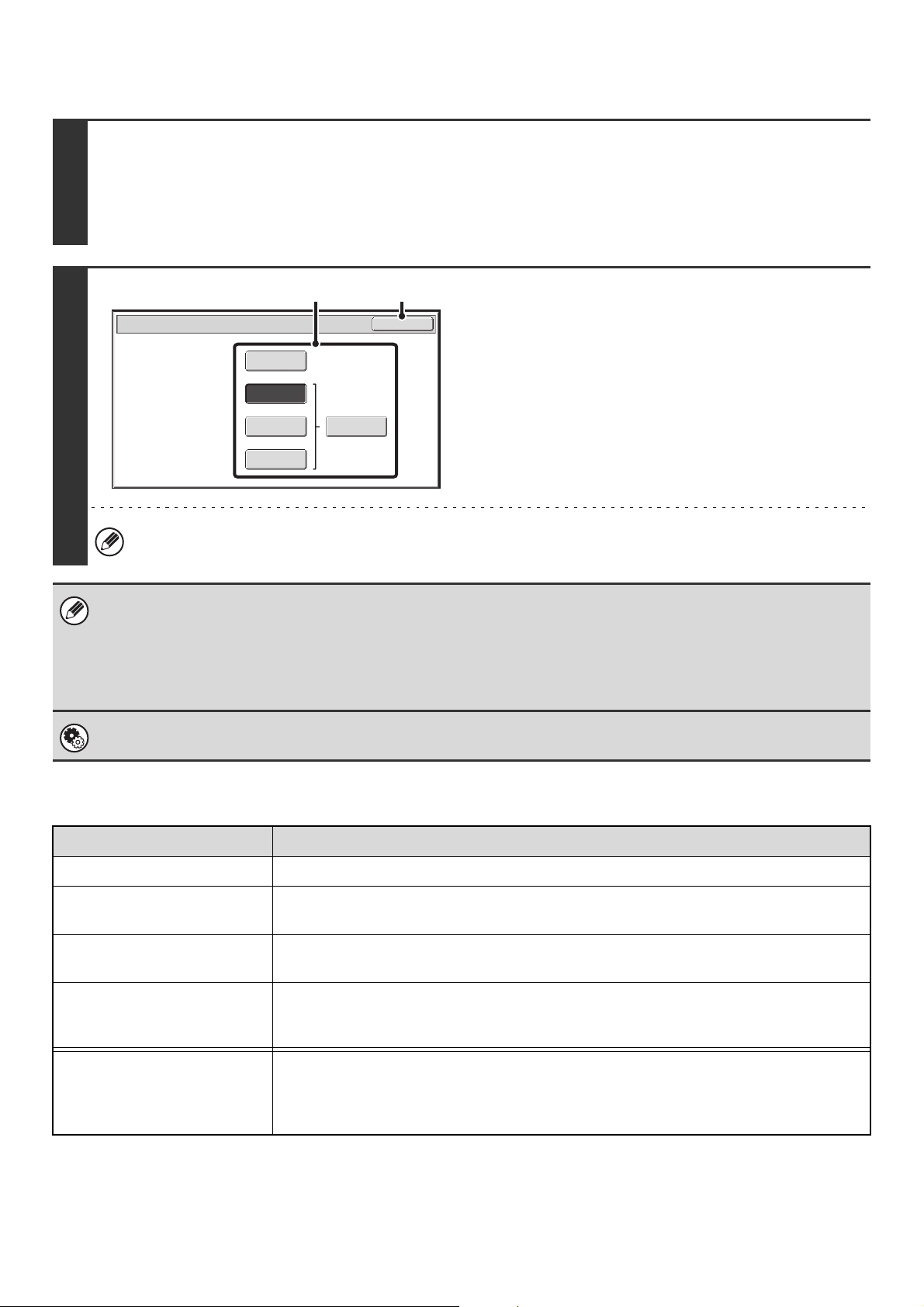
80
Fax mode
How to select the resolution
1
Switch to fax mode and display the resolution settings screen.
(1) Touch the [Fax] tab.
(2) Touch the [Resolution] key.
☞ IMAGE SETTINGS (page 68)
2
Select the resolution.
(1) Touch the key of the desired resolution.
(2) Touch the [OK] key.
When [Fine], [Super Fine], or [Ultra Fine] is selected, the [Half Tone] key can be touched to select halftone.
• When using the document glass to scan multiple original pages, the resolution setting can be changed each time you
change pages. When using the automatic document feeder, the resolution setting cannot be changed once scanning has
begun. (However, when "Job Build" in the special modes is used, the resolution can be changed each time a new set of
originals is inserted.)
• When a fax is sent at [Ultra Fine], [Super Fine], or [Fine] resolution, a lower resolution will be used if the receiving machine
does not have that resolution.
System Settings (Administrator): Initial Resolution Setting
This is used to change the default resolution setting.
Resolution When to select
Standard
Select this setting when your original consists of normal-sized text (like the text in this manual).
Fine Select this setting when your original has small text or diagrams with fine lines.
The original will be scanned at twice the resolution of the [Standard] setting.
Super Fine Select this setting when your original has intricate pictures or diagrams.
A higher-quality image will be produced than with the [Fine] setting.
Ultra Fine Select this setting when your original has intricate pictures or diagrams.
This setting gives the best image quality. However, transmission will take longer than with the
other settings.
Half Tone Select this setting when your original is a photograph or has gradations of color (such as a
color original).
This setting will produce a clearer image than [Fine], [Super Fine], or [Ultra Fine] used alone.
Halftone cannot be selected when [Standard] is used.
Fax/Resolution
OK
Standard
Super Fine Half Tone
Fine
Ultra Fine
(1) (2)
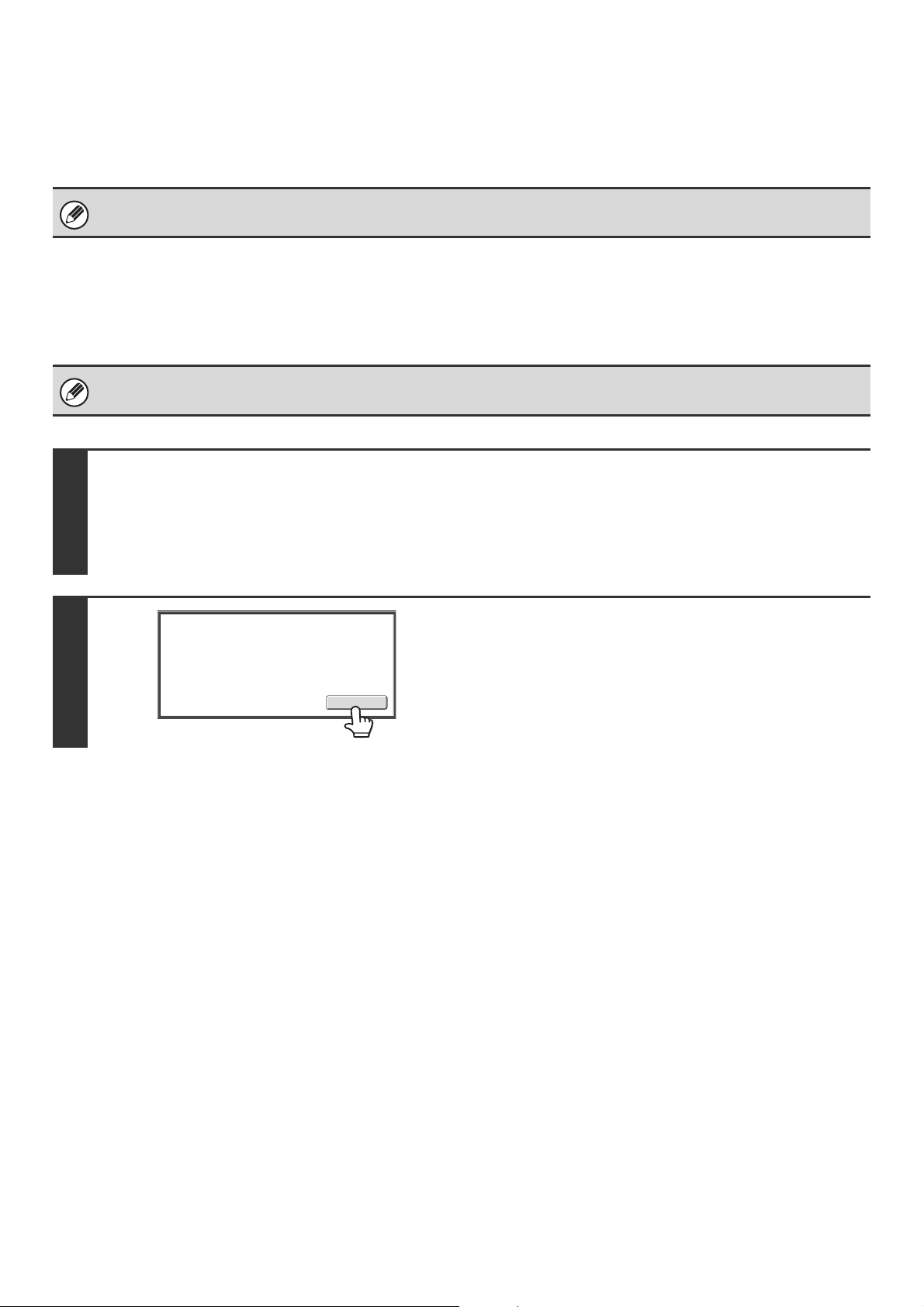
81
CHANGING THE FILE FORMAT
You can change the file format when sending an image.
☞ Scan mode, USB memory mode (see below)
Internet fax mode (page 84)
Scan mode, USB memory mode
The file format (file type and compression mode/compression ratio) for sending a scanned image can be changed at the
time of transmission. In addition, if the scanned originals are divided into separate files, the number of pages per file can
be changed.
This function cannot be used in fax mode.
The file format for sending a scanned image is specified when the destination is stored in a one-touch key, however, you can
change the format at the time of transmission.
1
Select the mode and display the image settings screen.
(1) Touch the tab of the mode that you wish to use.
(2) Touch the [File Format] key.
☞ IMAGE SETTINGS (page 68)
2
Read the displayed message and touch
the [OK] key.
Does not appear in USB memory mode. Go to the next step.
Select a file format to apply it to
all scan destinations.
OK
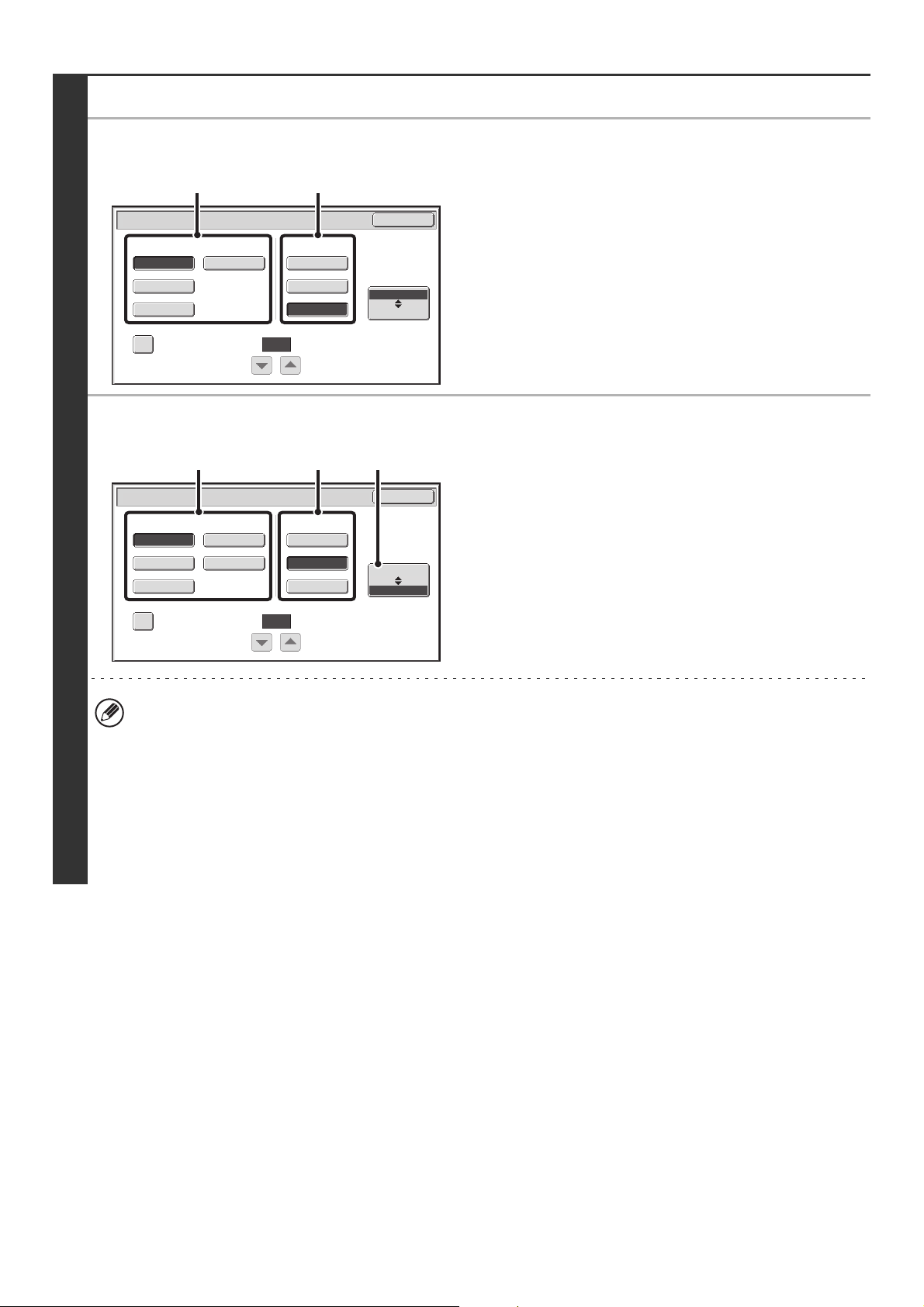
82
3
Set the format.
● Scanning in Mono2
(1) Select the file type.
(2) Select the compression mode.
● Scanning in color/grayscale
(1) Touch the indicated key to select
[Color/Gray] mode.
When [Color/Gray] is highlighted, [Color/Gray] mode is
selected.
(2) Select the file type.
(3) Select the compression ratio.
High compression results in a smaller file size, however,
the image quality is slightly degraded.
• The [Programmed] key does not appear in USB memory mode.
• The [Color/Gray] mode settings screen only appears if the color expansion kit is installed.
• When this screen is displayed, the setting screen of [B/W] mode initially appears.
• The format setting of [B/W] mode is the file format when the color mode is set to [Mono2]. (If the color expansion kit
is not installed, this file format will be used.)
• The format setting of [Color/Gray] mode is the file format when the color mode is set to [Auto], [Full Color], or
[Grayscale].
• The file type of [B/W] mode and the file type of [Color/Gray] mode are linked. The file type cannot be set separately
for each. (When [JPEG] is selected for [Color/Gray] mode, [TIFF] is automatically selected for [B/W] mode.)
Scan/File Format
OK
PDF
MMR (G4)
B/W
TIFF
Encrypt PDF
Programmed
None
MH (G3)
Color/Gray
Specified Pages per File
File Type
(1-99)
Compression Mode
(1) (2)
Medium
B/W
JPEG
High
Color/Gray
Scan/File Format
OK
PDF
TIFF
Encrypt PDF
Programmed
Low
Specified Pages per File
File Type
(1-99)
Compression Ratio
(2) (3) (1)
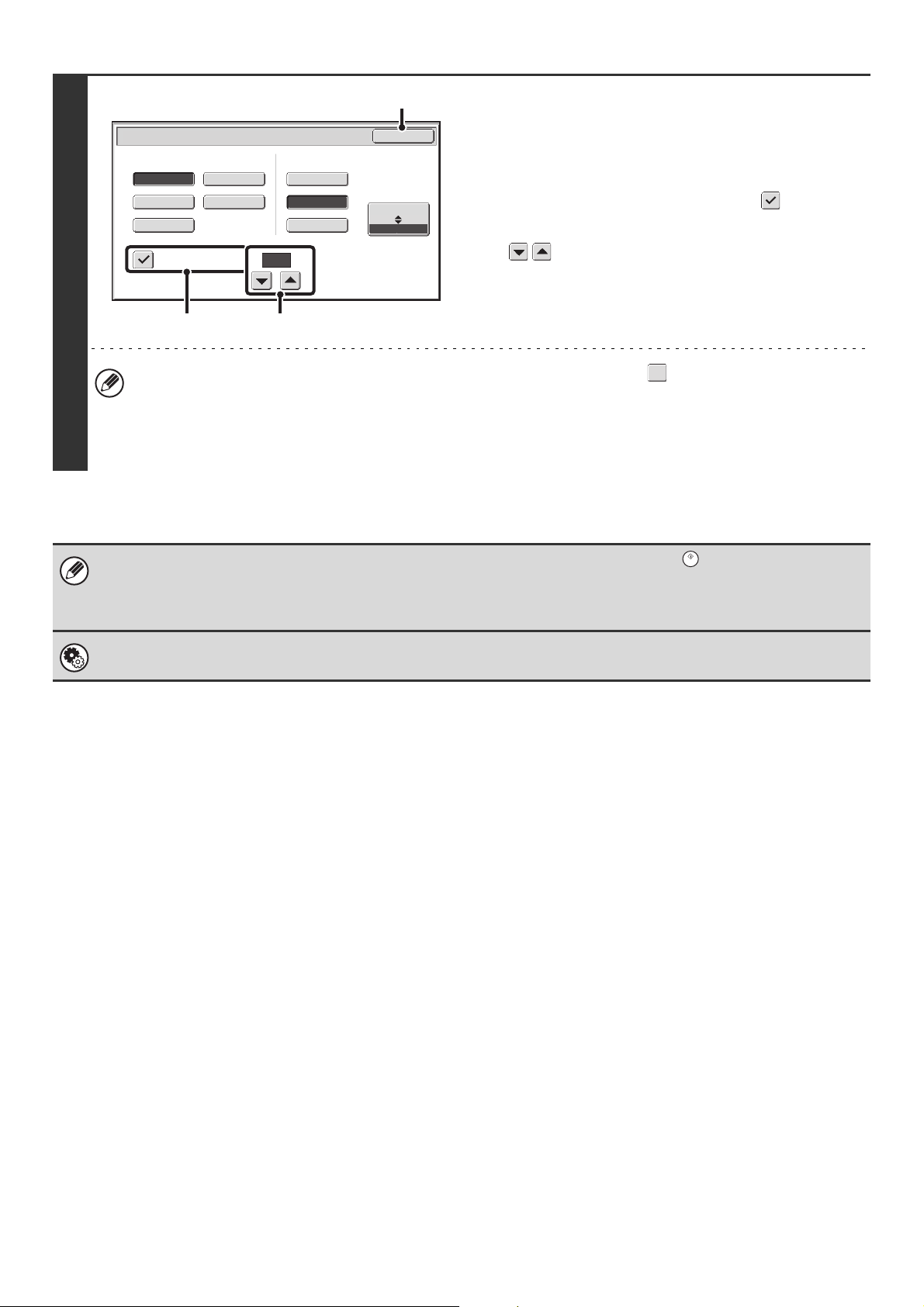
83
4
To change the number of pages per file,
enter the number of pages and exit the
format settings.
(1) Touch the [Specified Pages per File]
checkbox so that a checkmark appears.
(2) Set the number of pages per file with the
keys.
(3) Touch the [OK] key.
• When a checkmark does not appear in the [Specified Pages per File] checkbox , one file is created for all
scanned pages.
• When [Specified Pages per File] is selected, consecutive numbers are added to the created file names.
• When [JPEG] is selected for the file type, one file is created for each page (a file cannot be created for multiple
pages). For this reason, the [Specified Pages per File] checkbox does not appear.
When [Encrypt PDF] is selected, a password entry screen will appear when the [START] key ( ) is pressed to begin
scanning and transmission.
Touch the [Entry] key in the displayed screen to open the keyboard screen. Enter a password (maximum of 32 characters)
and touch the [OK] key. Scanning and transmission will begin.
System Settings (Administrator): Initial File Format Setting
This sets the default file format setting for scanner transmission.
Medium
B/W
JPEG
High
Color/Gray
Scan/File Format
OK
PDF
TIFF
Encrypt PDF
Programmed
Low
Specified Pages per File
File Type
(1-99)
Compression Ratio
(3)
(1)
(2)
1
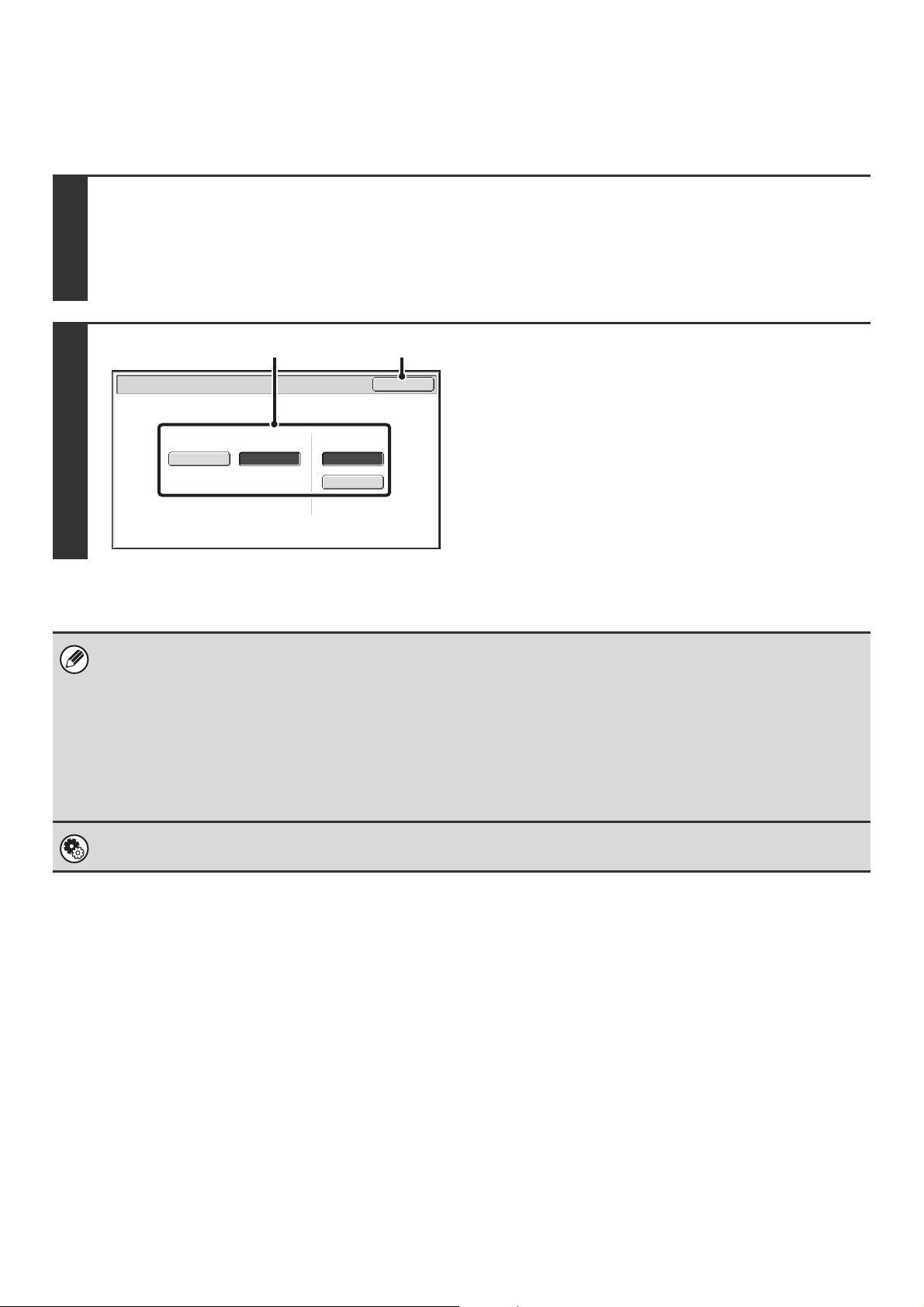
84
Internet fax mode
The file format for sending an Internet fax is normally set to [TIFF-F]. If the destination Internet fax machine does not
support full mode (it only supports simple mode), follow the steps below to select [TIFF-S].
1
Switch to Internet fax mode and display the file format settings screen.
(1) Touch the [Internet Fax] tab.
(2) Touch the [File Format] key.
☞ IMAGE SETTINGS (page 68)
2
Select the file format.
(1) Touch the key of the desired format.
If you selected [TIFF-F], select the compression mode.
(2) Touch the [OK] key.
When [TIFF-S] is selected, the transmission settings are restricted as follows:
• Resolution: The selections are [200X100dpi] and [200X200dpi]. If [TIFF-S] is selected after [200X400dpi], [400X400dpi] or
[600X600dpi] is selected, the resolution automatically changes to [200X200dpi].
• Send size: Always 8-1/2" x 11"R (A4R). If [TIFF-S] is selected after the send size is changed, the send size is
automatically changed to 8-1/2" x 11"R (A4R). If a size larger than 8-1/2" x 11" (A4) is scanned, the size will
automatically be reduced to 8-1/2" x 11"R (A4R). When this format is included in a broadcast transmission, the
image will be transmitted to all destinations at 8-1/2" x 11"R (A4R).
• Special modes: When a ratio setting is selected and the original size is entered, Dual Page Scan, Card Shot, 2in1, and
Mixed Size Original cannot be used.
System Settings (Administrator): Compression Setting
This is used to set the default compression mode for Internet fax transmission.
Internet Fax/File Format
OK
MMR (G4)
MH (G3)
Compression Mode
TIFF-F
TIFF-S
File Type
(2)(1)
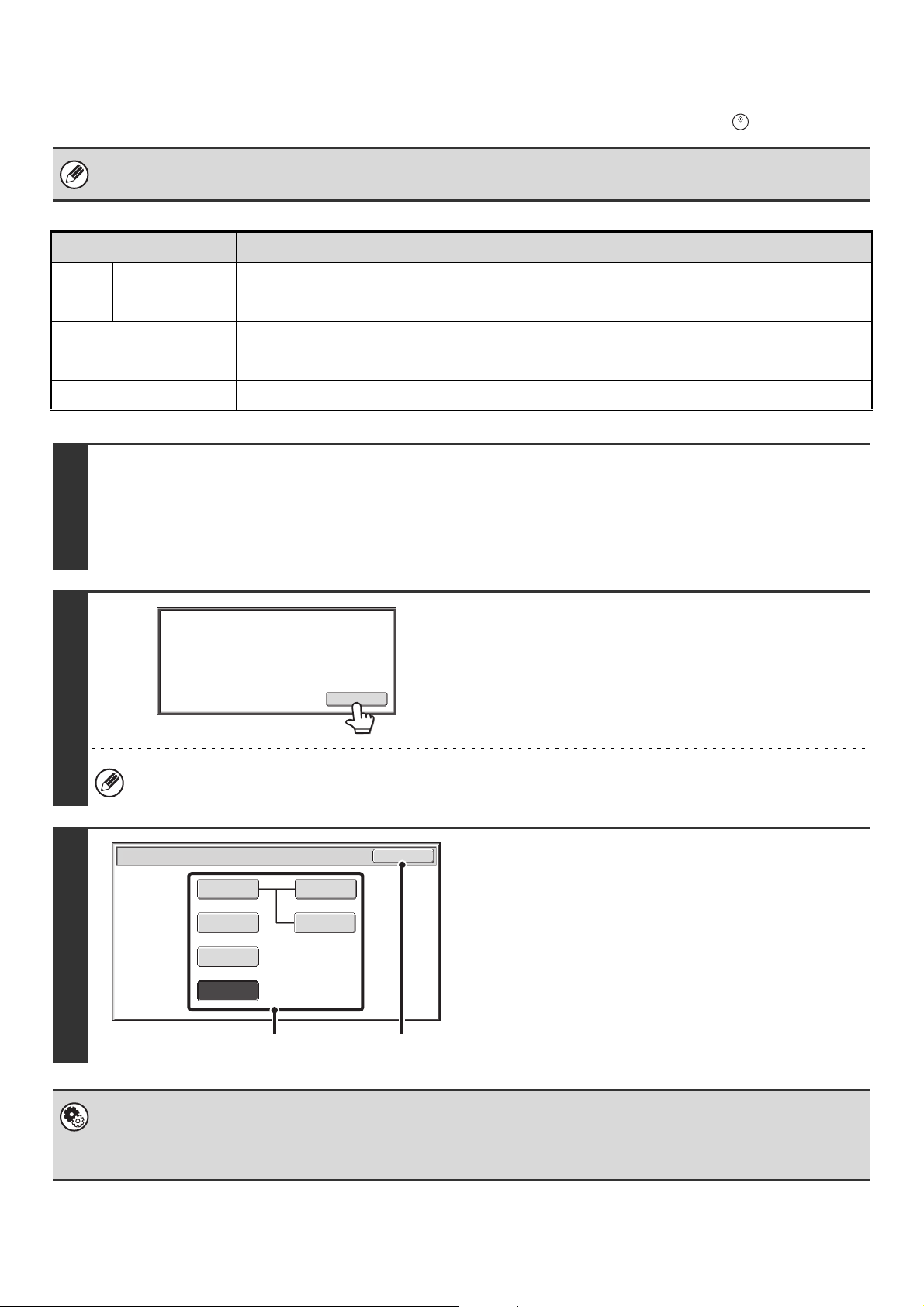
85
CHANGING THE COLOR MODE
This procedure is used to change the color mode used to scan the original when the [START] key ( ) is pressed.
• This function cannot be used in Internet fax mode and in fax mode.
• The [Color Mode] key will only appear if the color expansion kit has been installed.
Mode Scanning method
Auto Grayscale
The machine detects whether the original is color or black and white and automatically selects full
color or black and white (Mono2 or Grayscale) scanning.
Mono2
Full Color The original is scanned in full color. This mode is best for full color originals such as catalogues.
Grayscale The colors in the original are scanned in black and white as shades of gray (grayscale).
Mono2 Colors in the original are scanned as black or white. This mode is best for text-only originals.
1
Select the mode and display the color mode settings screen.
(1) Touch the tab of the mode that you wish to use.
(2) Touch the [Color Mode] key.
☞ IMAGE SETTINGS (page 68)
2
Read the displayed message and touch
the [OK] key.
A message does not appear in USB memory mode. Go to the
next step.
When a broadcast transmission is performed using mixed send modes, the image is sent in Mono2.
3
Select the color mode.
(1) Touch the key of the desired color mode.
If [Auto] is selected, select whether or not the original will
be scanned in grayscale or mono2 when it is detected that
the original is a black & white original. Note that if the file
format is set to JPEG, scanning will take place in
grayscale.
(2) Touch the [OK] key.
• System Settings (Administrator): Default Color Mode Settings
The default color mode can be changed.
• System Settings (Administrator): Disable Change of B/W Setting in Auto Mode
This prohibits selection of the black and white original scanning setting when [Auto] is selected for the color mode.
Image will be sent in [Mono2]
if Fax or I-Fax destination is included.
OK
Scan/Color Mode
OK
Mono2
Grayscale
Mono2
Mono2
Grayscale
Auto
Full Color
(1) (2)
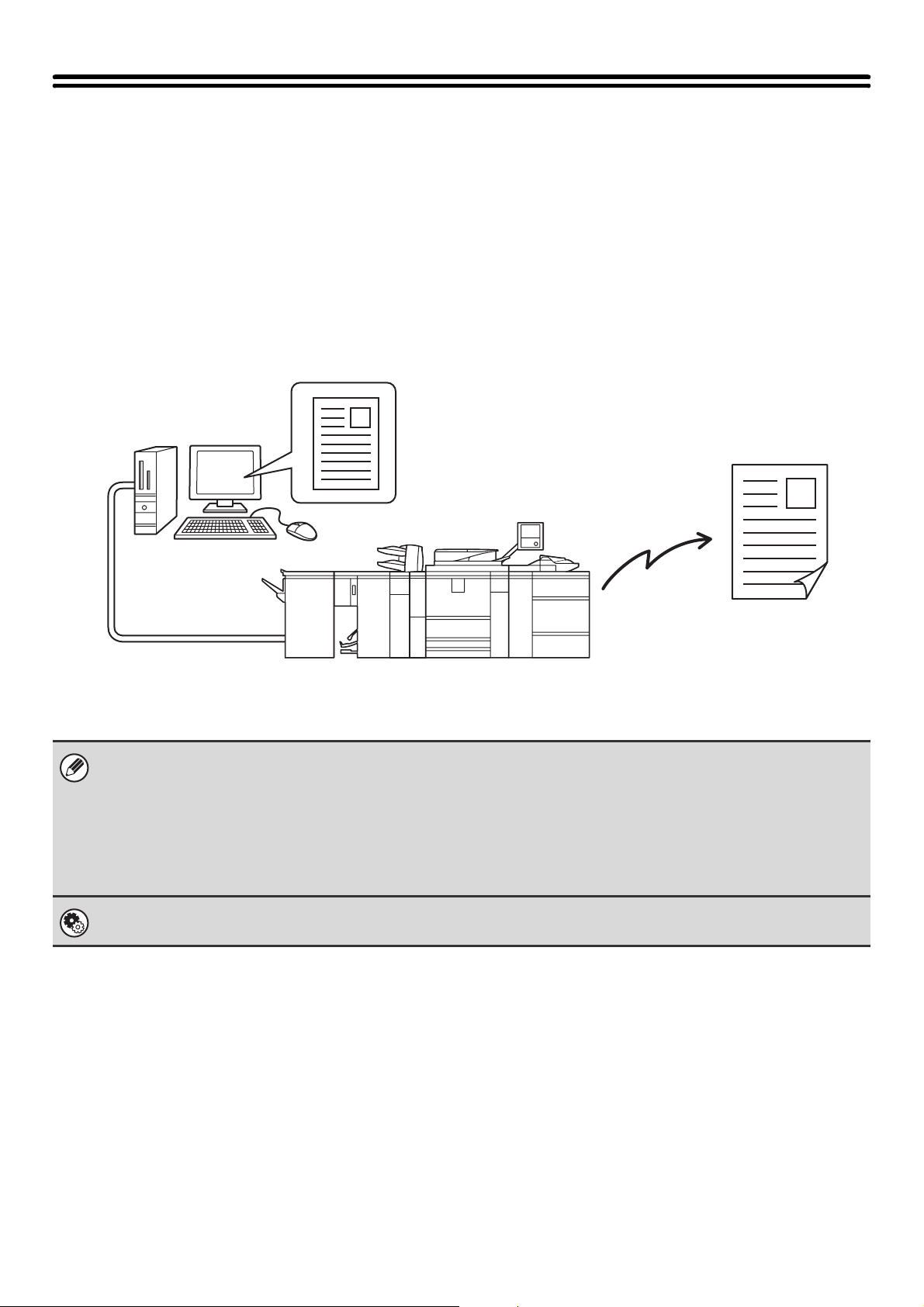
86
SENDING A COMPUTER FILE
PC-I-Fax (When the Internet fax
expansion kit is installed)
A file on a computer can be sent via the machine as an
Internet fax (PC-I-Fax function). Internet faxes are sent
using the PC-I-Fax function in the same way as
documents are printed. Select the PC-Fax driver as the
printer driver for your computer and then select the Print
command in the software application. Image data for
transmission will be created and sent as an Internet fax.
PC-Fax (When the facsimile
expansion kit is installed)
A file on a computer can be sent via the machine as a
fax (PC-Fax function). Faxes are sent using the PC-Fax
function in the same way as documents are printed.
Select the PC-Fax driver as the printer driver for your
computer and then select the Print command in the
software application. Image data for transmission will be
created and sent as a fax.
For the procedures for using the PC-I-Fax and PC-Fax functions, see the PC-Fax driver Help.
• To use the PC-Fax function, the PC-Fax driver must be installed. For more information, see the Software Setup Guide.
• The PC-Fax driver is on the CD-ROM that accompanies the printer expansion kit. To obtain the PC-Fax driver when the
printer expansion kit is not installed, consult your dealer.
• To send an Internet fax using the PC-I-Fax function, the PC-Fax driver must be installed and then updated using the
CD-ROM that accompanies the Internet fax expansion kit. For more information, see the Software Setup Guide.
• This function can only be used on a Windows computer.
• This function can only be used for transmission. Faxes cannot be received to your computer.
System Settings (Administrator): Settings to Disable Transmission
When transmission is disabled in the system settings, this function cannot be used.
Transmission
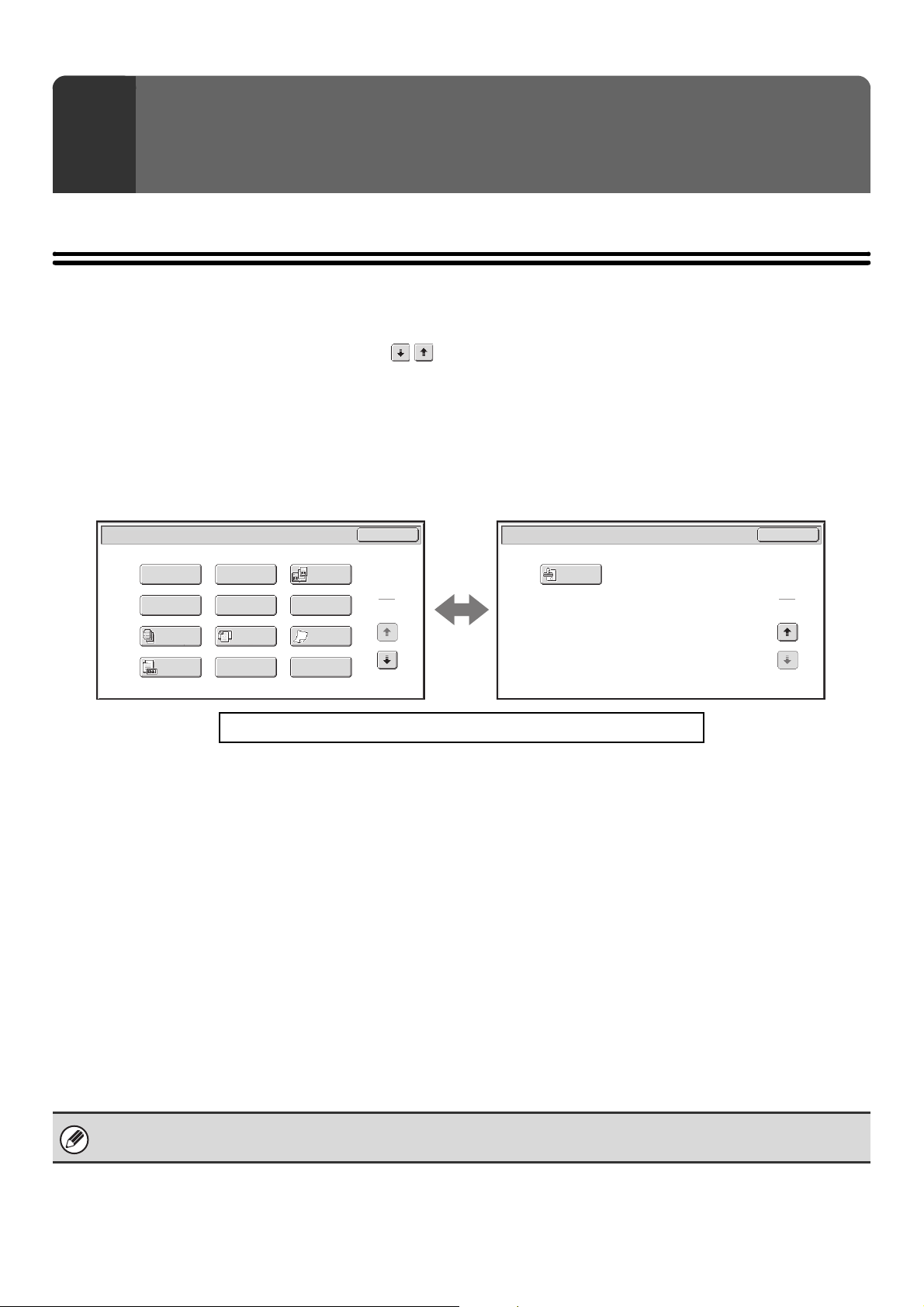
87
This chapter explains special modes that can be used in scan send mode.
SPECIAL MODES
When the [Special Modes] key is touched in the base screen, the special modes menu screen appears. The special
modes menu consists of two screens. Touch the key to switch between the two screens. When the [OK] key is
touched in the special modes screen, the selected settings are entered and the base screen reappears.
☞ Internet fax mode (page 88)
Fax mode (page 88)
Scan mode, USB memory mode, Data entry mode
1st screen 2nd screen
(1) [Program] key*
1, 2
(page 90)
(2) [Erase] key (page 92)
(3) [Dual Page Scan] key (page 95)
(4) [Timer] key*
1
(page 98)
(5) [Suppress Background] key*
3
(page 100)
(6) [Card Shot] key (page 102)
(7) [Job Build] key (page 105)
(8) [Mixed Size Original] key (page 107)
(9) [Slow Scan Mode] key (page 109)
(10) [Original Count] key*
1
(page 111)
(11) [File] key*
1
Touch this to use the File function of document filing
mode. For more information on File, see the Document
Filing Guide.
(12) [Quick File] key*
1
Touch this to use the Quick File function of document
filing mode. For more information on Quick File, see the
Document Filing Guide.
(13) [Verif. Stamp] key*
4
(page 113)
*1 Does not appear in USB memory mode.
*2 Does not appear in data entry mode.
*3 Does not appear when the color expansion kit is not installed.
*4 Does not appear when the stamp unit is not installed.
4
SPECIAL MODES
Click a key in the screen to jump to an explanation of the key.
Scan/Special Modes
Card Shot
OK
Dual Page
Scan
Slow Scan
Mode
Quick File
Mixed Size
Original
Erase
Job
Build
Original
Count
File
Suppress
Background
Program
Timer
1
2
Scan/Special Modes
OK
2
2
Verif.
Stamp
(1)
(13)
(2) (3)
(4) (5) (6)
(7) (8) (9)
(10)
(11)
(12)
Special modes can generally be combined with other special modes, however, there are some combinations that are not
possible. If a prohibited combination is selected, a message will appear in the touch panel.
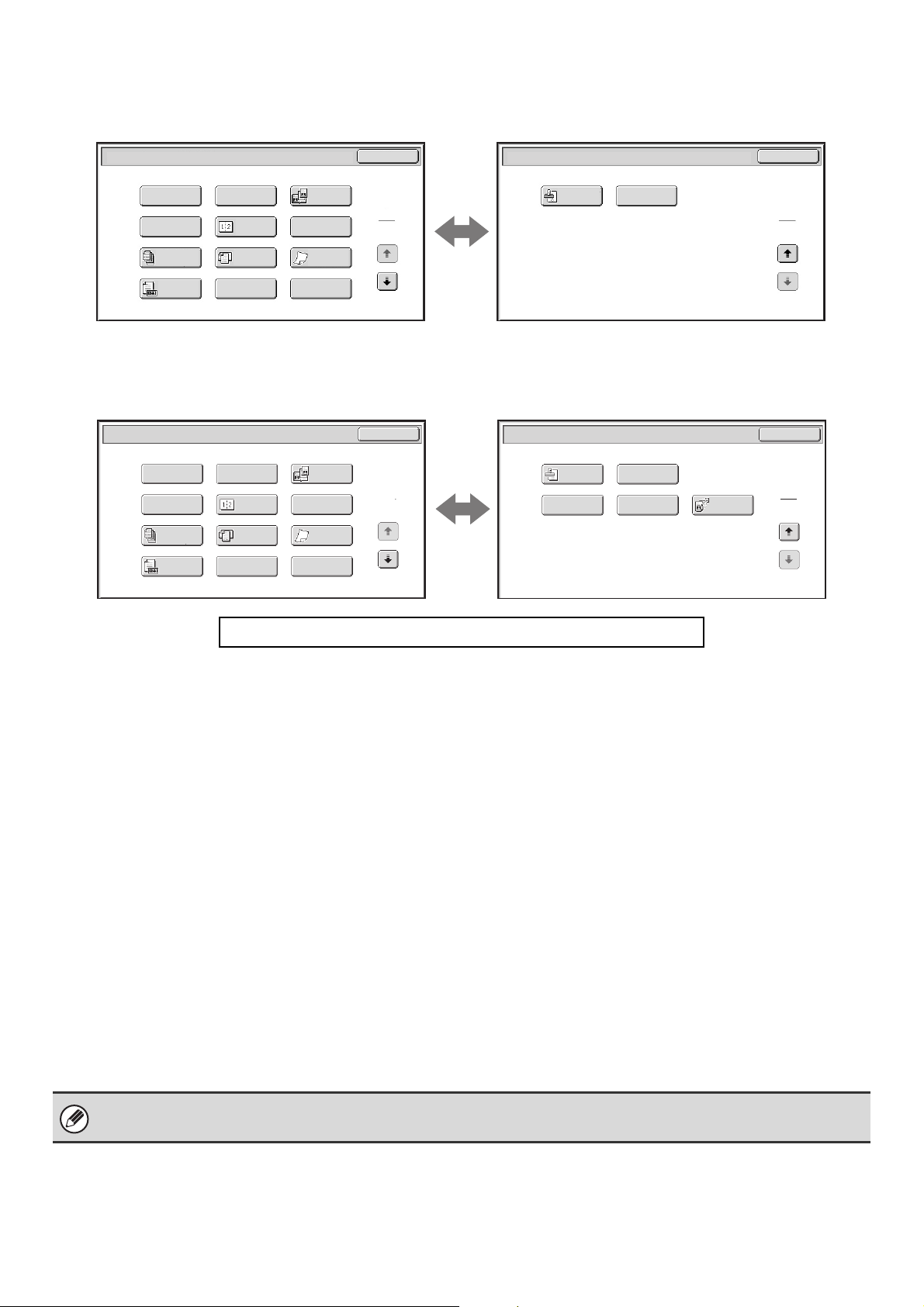
88
Internet fax mode
1st screen 2nd screen
Fax mode
1st screen 2nd screen
(1) [Program] key (page 90)
(2) [Erase] key (page 92)
(3) [Dual Page Scan] key (page 95)
(4) [Timer] key (page 98)
(5) [2in1] key (page 115)
(6) [Card Shot] key (page 102)
(7) [Job Build] key (page 105)
(8) [Mixed Size Original] key (page 107)
(9) [Slow Scan Mode] key (page 109)
(10) [Original Count] key (page 111)
(11) [File] key
Touch this to use the File function of document filing
mode. For more information on File, see the Document
Filing Guide.
(12) [Quick File] key
Touch this to use the Quick File function of document
filing mode. For more information on Quick File, see the
Document Filing Guide.
(13) [Verif. Stamp] key* (page 113)
(14) [Transaction Report] key (page 118)
(15) [Own Name Select] key (page 121)
(16) [Memory Box] key (page 125)
(17) [Polling] key (page 122)
* Does not appear when the stamp unit is not installed.
2in1
Internet Fax/Special Modes
OK
Transaction
Report
2
2
Internet Fax/Special Modes
Card Shot
OK
Dual Page
Scan
Slow Scan
Mode
Quick File
Mixed Size
Original
Erase
Job
Build
Original
Count
File
Program
Timer
1
2
Verif.
Stamp
(1) (2) (3)
(4) (5) (6)
(7) (8) (9)
(10)
(11)
(12)
(13) (14)
Click a key in the screen to jump to an explanation of the key.
Transaction
Report
Own Name
Select
Memory Box
Polling
OK
Fax/Special Modes
2
2
Verif.
Stamp
2in1
Fax/Special Modes
Card Shot
OK
Dual Page
Scan
Slow Scan
Mode
Quick File
Mixed Size
Original
Erase
Job
Build
Original
Count
File
Program
Timer
1
2
(1) (2) (3)
(4) (5) (6)
(7) (8) (9)
(10)
(11)
(12)
(13) (14)
(15) (16) (17)
Special modes can generally be combined with other special modes, however, there are some combinations that are not
possible. If a prohibited combination is selected, a message will appear in the touch panel.
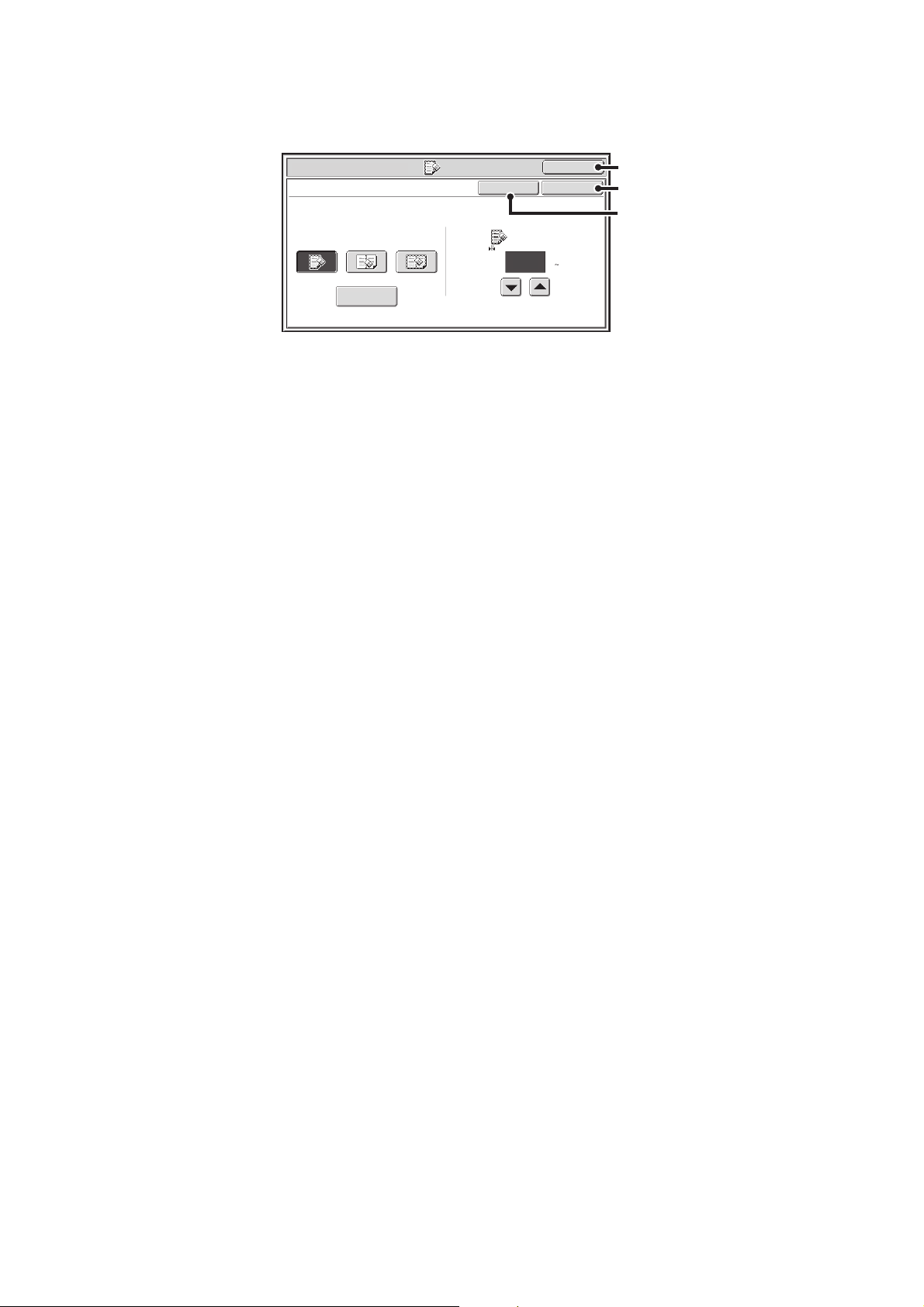
89
[OK] key and [Cancel] key
In some cases two [OK] keys and one [Cancel] key will appear in the special mode screens. The keys are used as
follows:
(A) Enter the selected special mode setting and return to the base screen.
(B) Enter the selected special mode setting and return to the special modes menu screen. Touch this key when you wish
to continue selecting other special mode settings.
(C) During selection of special mode settings, this key returns you to the special modes menu screen without saving the
settings. When settings have been completed, this cancels the settings and returns you to the special modes menu
screen.
Scan/Special Modes
OK
Erase
Edge
1/2
(0 1)
inch
Center
Erase
Edge+Center
Erase
OKCancel
Edge
Erase
Side Erase
(C)
(A)
(B)
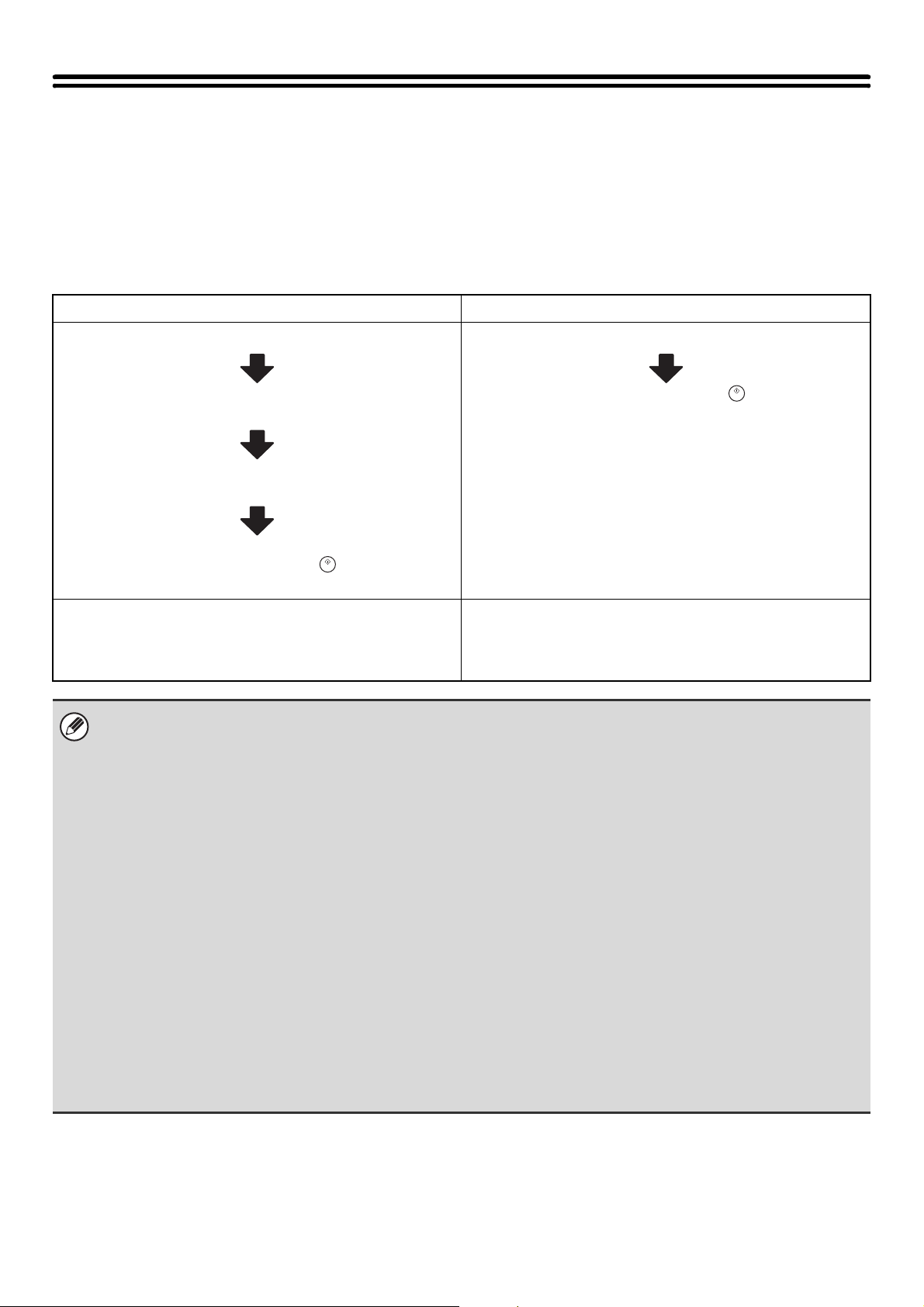
90
STORING FAX OPERATIONS (Program)
A destination, original settings, and functions can be stored in a program. When you wish to use those settings to send
an image, they can be retrieved with ease.
For example, suppose 8-1/2" x 11" (A4) size documents are scanned into a file and sent to each branch office once a
month.
(1) The same documents are sent to each branch office
(2) Each page of a bound document is successively transmitted
(3) Smudges on the edges of the documents are erased before transmission
When a job program is not stored When a job program is stored
Enter the address of each branch office.
Select Dual Page Scan.
Select Erase settings.
Press the [START] key ( ).
The originals are scanned and transmitted.
Touch a stored program key.
Press the [START] key ( ).
The originals are scanned and transmitted.
Considerable time is required to send the documents each
month because the above settings must be selected.
In addition, mistakes may occasionally be made when
selecting the settings, so incorrect transmissions may occur.
When a program is used, settings are selected with ease by
simply pressing the stored key.
In addition, transmission takes place based on the stored
settings so there are no chances for mistakes.
•
Programs are stored, edited, and deleted using "Address Control" in the system settings. See "ADDRESS CONTROL"
(page 174).
• Programs can also be stored in the Web pages. Click [Job Programs] and then [Image Send] in the Web page menu.
• The settings stored in a program will be retained even after the program is used for transmission. The same settings can
be used repeatedly for transmission.
• The following settings can be stored in programs.
Scan mode, Internet fax mode
- Destinations
- Image settings: Resolution, Exposure
- Special modes: Erase, Dual Page Scan, Suppress Background, 2in1
Fax mode
- Destinations
- Image setting: Resolution, Exposure
- Special modes: Polling Reception, Erase, Dual Page Scan, 2in1
- F-code communication: A destination that includes an F-code can be stored to perform an F-code operation.
• Up to 48 programs can be stored.
• Up to 500 destinations can be stored in one program. (If a Scan to Network Folder destination is selected, only one
destination can be stored.)
• This function cannot be used in USB memory mode or data entry mode.
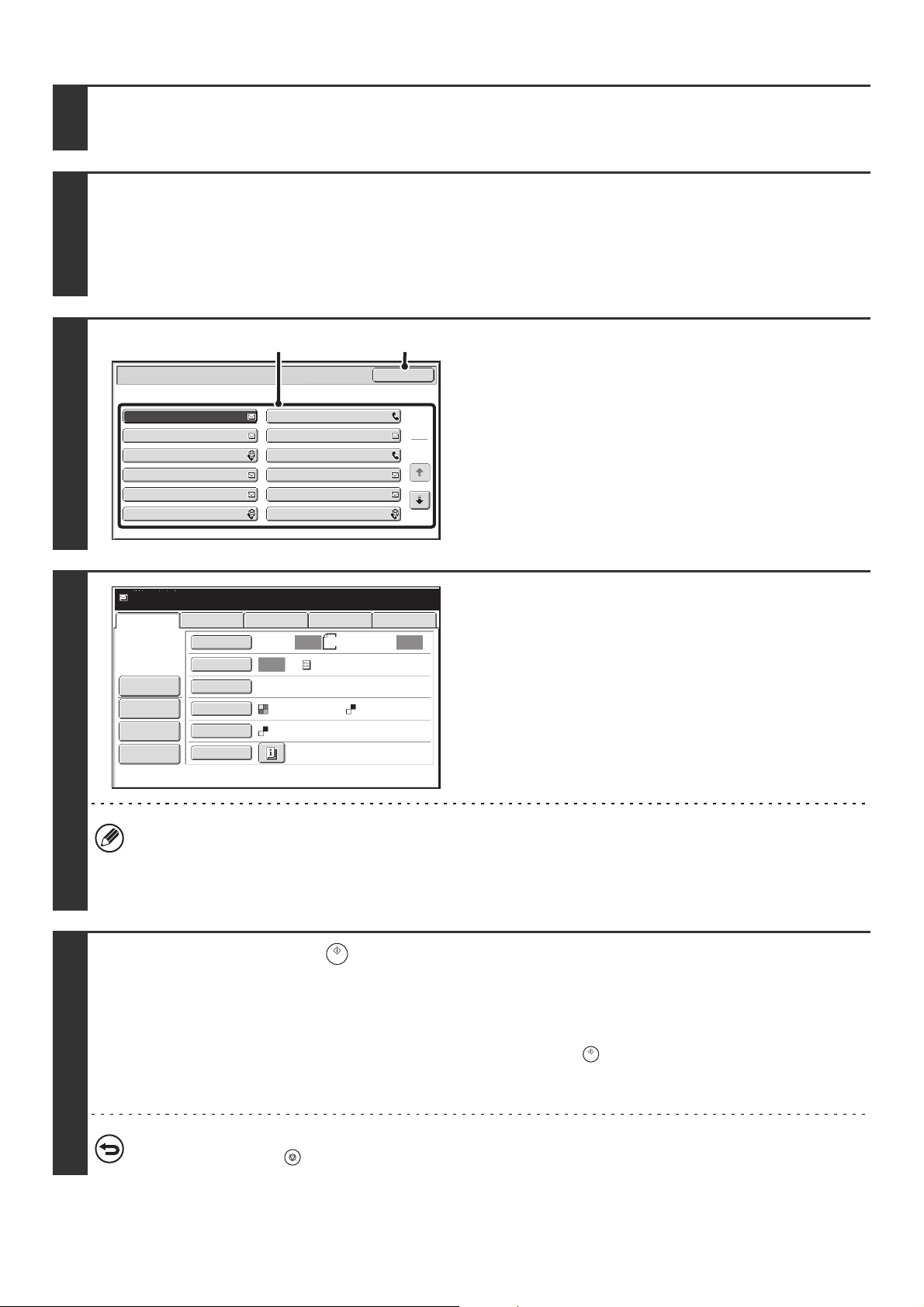
91
1
Place the original.
Place the original in the document feeder tray or on the document glass as appropriate for the functions stored in the program.
2
Select the special modes.
(1) Touch the [Special Modes] key.
(2) Touch the [Program] key.
☞ SPECIAL MODES (page 87)
3
Retrieve the stored program.
(1) Touch the desired program key.
(2) Touch the [OK] key.
4
Select additional settings.
Select any settings or functions that you wish to use that cannot
be stored in a program. The following items can be selected.
• Image Settings: original scan size, send size, 2-sided
scanning, file format, color mode
• Send settings
• Special modes: Timer Transmission, Card Shot, Job Build,
Mixed Size Original, Slow Scan Mode, Verif. Stamp, File,
Quick File, Transaction Report, Own Name Select, Original
Count
• The [Color Mode] key will only appear if the color expansion kit has been installed.
• The screen that appears will vary depending on the destination stored in the program.
• The mode cannot be changed here.
• Functions stored in the program cannot be canceled here.
5
Press the [START] key ( ).
Scanning begins.
• If you inserted the original pages in the document feeder tray, all pages are scanned.
A beep will sound to indicate that scanning is finished.
• If you are scanning the original on the document glass, scan each page one page at a time.
When scanning finishes, place the next original and press the [START] key ( ). Repeat until all pages have been
scanned and then touch the [Read-End] key.
A beep will sound to indicate that scanning is finished.
To cancel scanning...
Press the [STOP] key ( ) to cancel the operation.
Program
Program 3
Program 1
Program 5
Program 7
Program 9
Program 11
Program 4
Program 2
Program 6
Program 8
Program 10
Program 12
1
2
OK
(1) (2)
Auto Auto
Auto
File
Quick File
Send Settings
Data EntryFaxInternet Fax USB Mem. Scan
Special Modes
Color Mode
File Format
Resolution
Exposure
Original
Scan:
Scan
Send:
Text
200X200dpi
PDF
Mono2
PDF
8½x11
Program:Program 1
Address Review
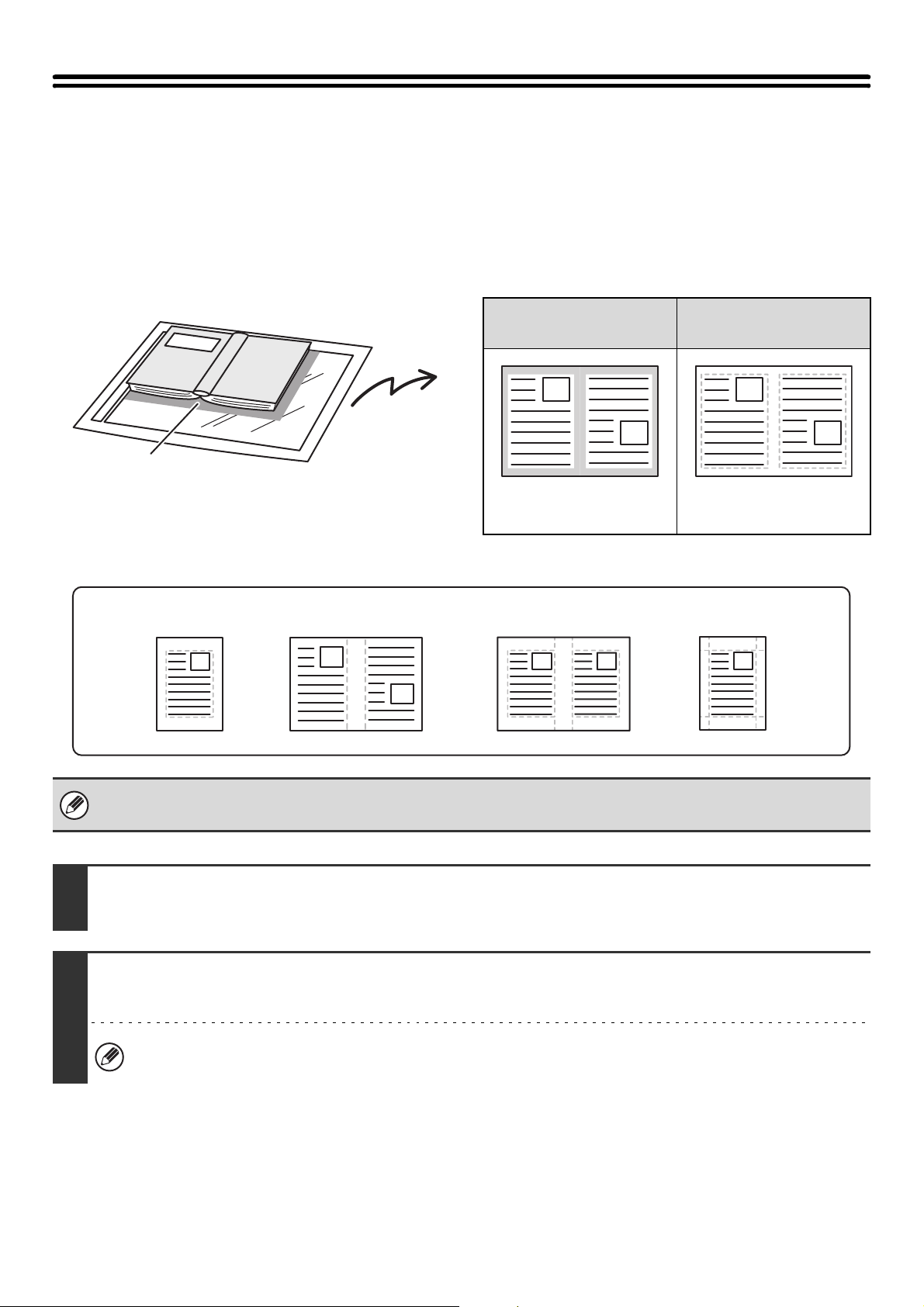
92
ERASING PERIPHERAL SHADOWS ON THE
IMAGE (Erase)
The erase function is used to erase shadows on images produced when scanning thick originals or books. (This function
erases the parts of the image where shadows tend to form. The function does not detect shadows and erase only the
shadows.)
Scanning a thick book
Erase modes
Shadows appear here
Not using the erase
function
Using the erase
function
Shadows appear in the
image.
No shadows appear.
• Shadows at the edges of the original can also be erased when the automatic document feeder is used.
• When using USB memory mode, connect the USB memory device to the machine before performing the procedure below.
1
Place the original.
Place the original face up in the document feeder tray, or face down on the document glass.
2
Specify the destination.
☞
2. ENTERING DESTINATIONS (page 25)
When scanning to USB memory in USB memory mode, there is no need to specify the destination. Go to step 3.
Edge Erase
Center Erase Edge + Center Erase
Side Erase
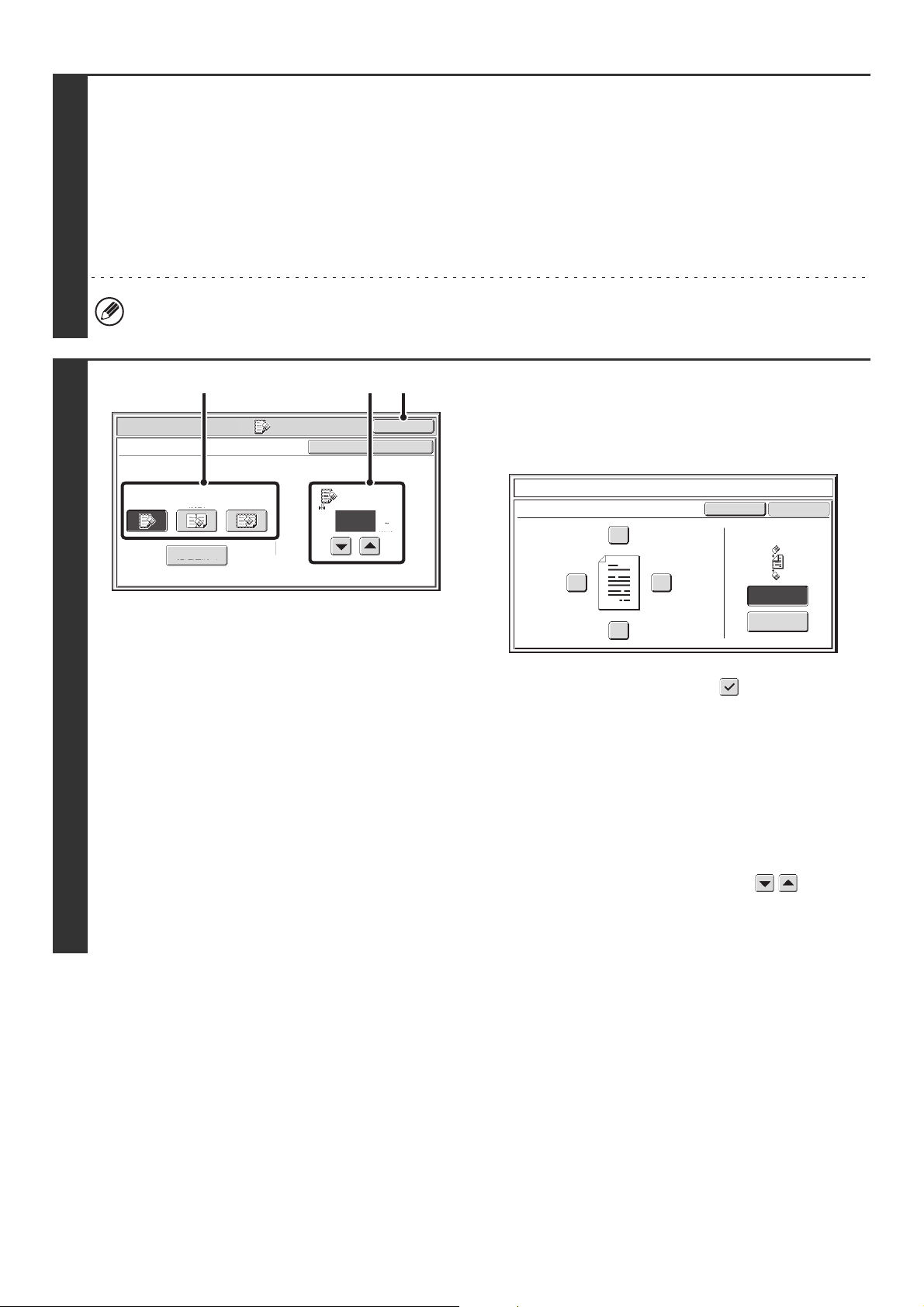
93
3
Select the special modes.
If the base screen is not displayed, touch the [Condition Settings] key.
(1) Make sure that the desired mode is selected.
If the desired mode is not selected, touch the tab of that mode.
(2) Touch the [Special Modes] key.
(3) Touch the [Erase] key.
☞ SPECIAL MODES (page 87)
When you return to the base screen after specifying the destination, the base screen of the mode of the specified
destination appears.
4
Select the erase settings.
(1) Touch the desired erase mode.
Select one of the 4 erase modes.
Touch the [Side Erase] key to open the following screen.
Touch the checkbox of the edge that you wish to erase
and make sure that a checkmark ( ) appears.
When performing two-sided scanning, set the erase edge
on the reverse side.
• If you touch the [Same Side as Side 1] key, the edge in
the same position as on the front side will be erased.
• If you touch the [Different Side from Side 1], the edge in
the position opposite to the erased edge on the front
side will be erased.
When you have completed the settings, touch the [OK]
key.
(2) Set the erasure width with the keys.
0" to 1" (0 mm to 20 mm) can be entered.
(3) Touch the [OK] key.
Scan/Special Modes
OK
Erase
Edge
Erase
Edge
1/2
(0 1)
inch
Center
Erase
Edge+Center
Erase
OKCancel
Side Erase
(2) (3)(1)
Different Side
from Side 1
Erase
Up
Erase position
for Side 2
Same Side as
Side 1
Cancel
Side Erase
Left
Right
Down
OK
94
5
Press the [START] key ( ).
Scanning begins.
• If you inserted the original pages in the document feeder tray, all pages are scanned.
A beep will sound to indicate that scanning is finished.
• If you are scanning the original on the document glass, scan each page one page at a time.
When scanning finishes, place the next original and press the [START] key ( ). Repeat until all pages have been
scanned and then touch the [Read-End] key.
A beep will sound to indicate that scanning is finished.
To cancel scanning...
Press the [STOP] key ( ) to cancel the operation.
When the erase function is used, erase takes place at the edges of the original image. If you also use a reduction or an
enlargement setting, the erase width will change according to the selected ratio. For example, if the erase width setting is 1"
(20 mm) and the image is reduced to 50%, the erase width will be 1/2" (10 mm).
To cancel the erase setting...
Touch the [Cancel] key in the screen of step 4.
System Settings (Administrator): Erase Width Adjustment
The default erase width setting is linked to the copy mode system setting, and can be set from 0" to 1" (0 mm to 20 mm). The
factory default setting is 1/2" (10 mm).
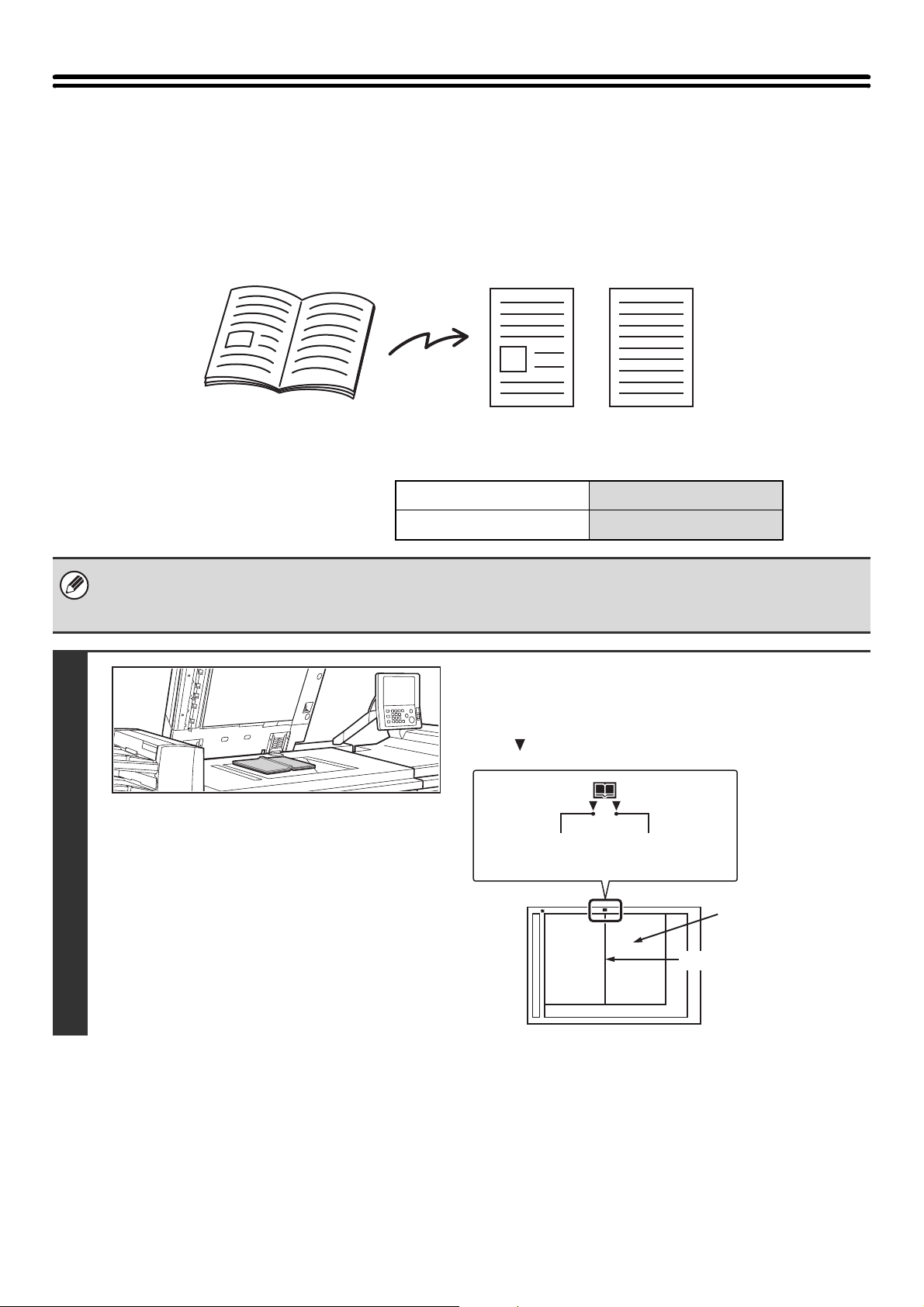
95
SENDING AN ORIGINAL AS TWO
SEPARATE PAGES (Dual Page Scan)
The left and right sides of an original can be scanned as two separate pages. This function is useful when you wish to
successively scan each page of a book or other bound document.
Example: Faxing the left and right pages of a book
Example:
Book or bound document
The pages are scanned and transmitted
as two separate pages.
Original scan size Transmitted image
11" x 17" (A3) x 1 page 8-1/2" x 11" (A4) x 2 pages
• When using dual page scan, the original must be placed on the document glass.
• The send size cannot be changed.
• When using USB memory mode, connect the USB memory device to the machine before performing the procedure below.
1
Place the original face down on the
document glass.
Align the center of the original with the appropriate size
mark .
11" x 17"
(A3)
Size mark
The page on this
side is scanned first.
Centerline of
A3 original
Centerline of
11" x 17" original
Centerline of original
96
2
Specify the destination.
☞
2. ENTERING DESTINATIONS (page 25)
When scanning to USB memory in USB memory mode, there is no need to specify the destination. Go to step 3.
3
Select the special modes.
If the base screen is not displayed, touch the [Condition Settings] key.
(1) Make sure that the desired mode is selected.
If the desired mode is not selected, touch the tab of that mode.
(2) Touch the [Special Modes] key.
☞ SPECIAL MODES (page 87)
When you return to the base screen after specifying the destination, the base screen of the mode of the specified
destination appears.
4
Select Dual Page Scan.
(1) Touch the [Dual Page Scan] key so that it is
highlighted.
(2) Touch the [OK] key.
5
Press the [START] key ( ) to scan the first original.
To cancel scanning...
Press the [STOP] key ( ) to cancel the operation.
6
If you have more pages to scan, change pages and then press the [START] key
().
Repeat this step until all pages have been scanned.
Dual Page
Scan
Scan/Special Modes
Card Shot
OK
Slow Scan
Mode
Quick File
Mixed Size
Original
Erase
Job
Build
File
Suppress
Background
Program
Timer
1
2
Original
Count
(1) (2)
97
7
Touch the [Read-End] key.
The [Configure] key can be touched to change the exposure, resolution and scan size for each original page scanned.
The send size cannot be changed.
To cancel scanning...
Press the [STOP] key ( ) to cancel the operation.
• To erase shadows caused by the binding of a book or other bound document, use the erase function. (Note, however, that
"Center Erase" and "Edge + Center Erase" cannot be used.)
• When the scan size of the original is specified by numerical values, this function cannot be used.
To cancel the dual page scan setting...
Touch the [Dual Page Scan] key in the screen of step 4 so that it is no longer highlighted, and touch the [OK] key.
Place next original.
Press [Start].
When finished, press [Read-End].
(Pg.No.x)
Configure Read-End
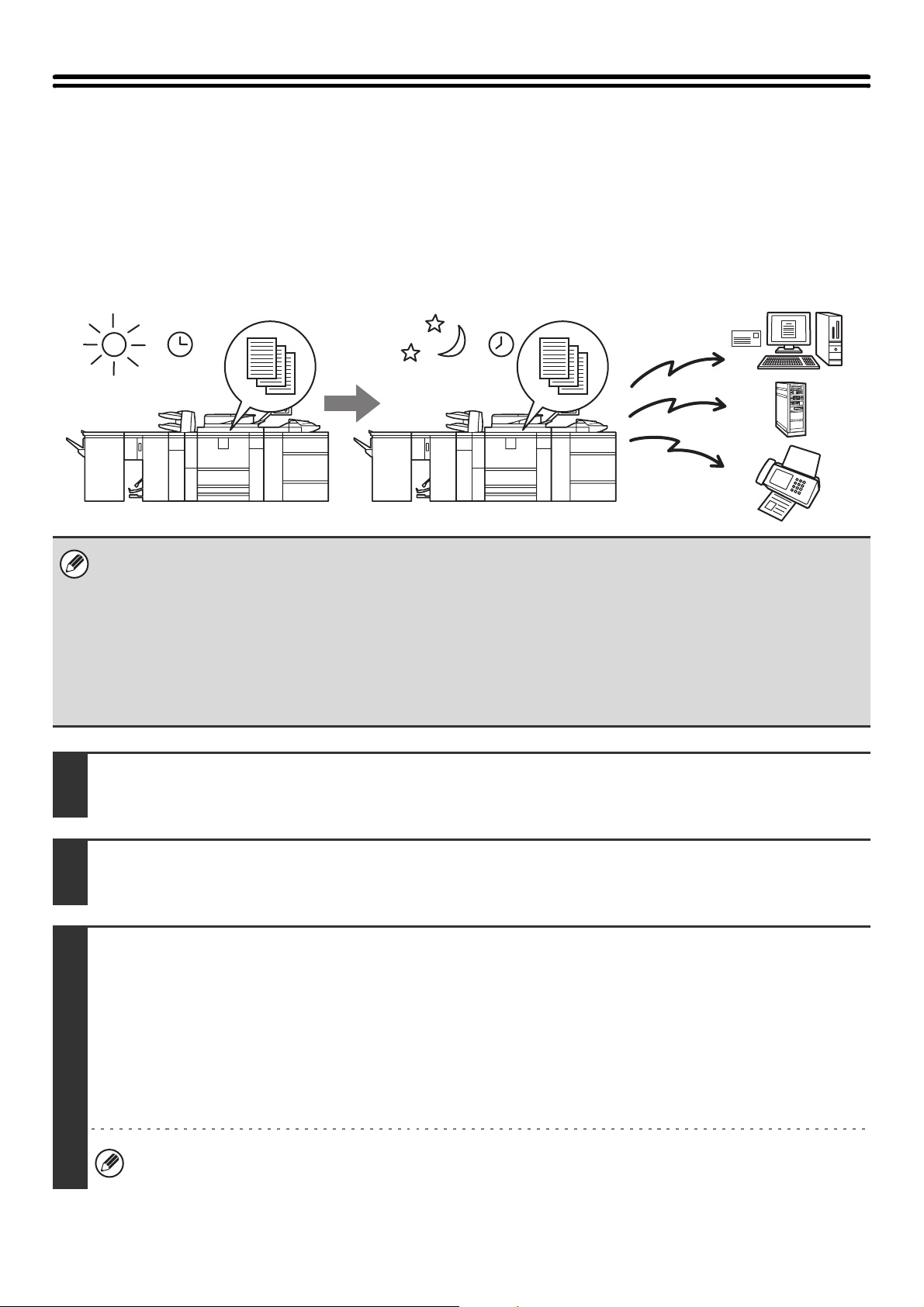
98
SENDING A FAX AT A SPECIFIED TIME
(Timer)
This function lets you specify a time at which a transmission or broadcast transmission will automatically take place.
Transmission begins automatically at the specified time.
For fax, this function is convenient for performing a transmission reservation or broadcast transmission when you are
not present or at night when telephone charges are less expensive. A timer setting can also be specified for polling
reception to receive a fax when you are not present.
• When a timer transmission is stored, keep the main power switch in the "on" position. If the main power switch is in the "off"
position at the specified time, transmission will not take place.
• When performing a timer transmission, you must scan the original into memory when you set up the transmission. It is not
possible to leave the document in the auto document feeder or on the document glass and have it scanned at the specified
time of transmission.
• Settings selected for a timer transmission (exposure, resolution, special modes, etc.) are automatically cleared after the
transmission is finished. (However, when the document filing function is used, the scanned original and settings are stored
on the built-in hard drive. For more information on the document filing function, see the Document Filing Guide.)
• This function cannot be used in USB memory mode.
1
Place the original.
Place the original face up in the document feeder tray, or face down on the document glass.
2
Specify the destination.
☞
2. ENTERING DESTINATIONS (page 25)
3
Select the special modes.
If the base screen is not displayed, touch the [Condition Settings] key.
(1) Make sure that the desired mode is selected.
If the desired mode is not selected, touch the tab of that mode.
(2) Touch the [Special Modes] key.
(3) Touch the [Timer] key.
☞ SPECIAL MODES (page 87)
When you return to the base screen after specifying the destination, the base screen of the mode of the specified
destination appears.
Set a transmission to take place at 20:00 At 20:00, the transmission begins automatically
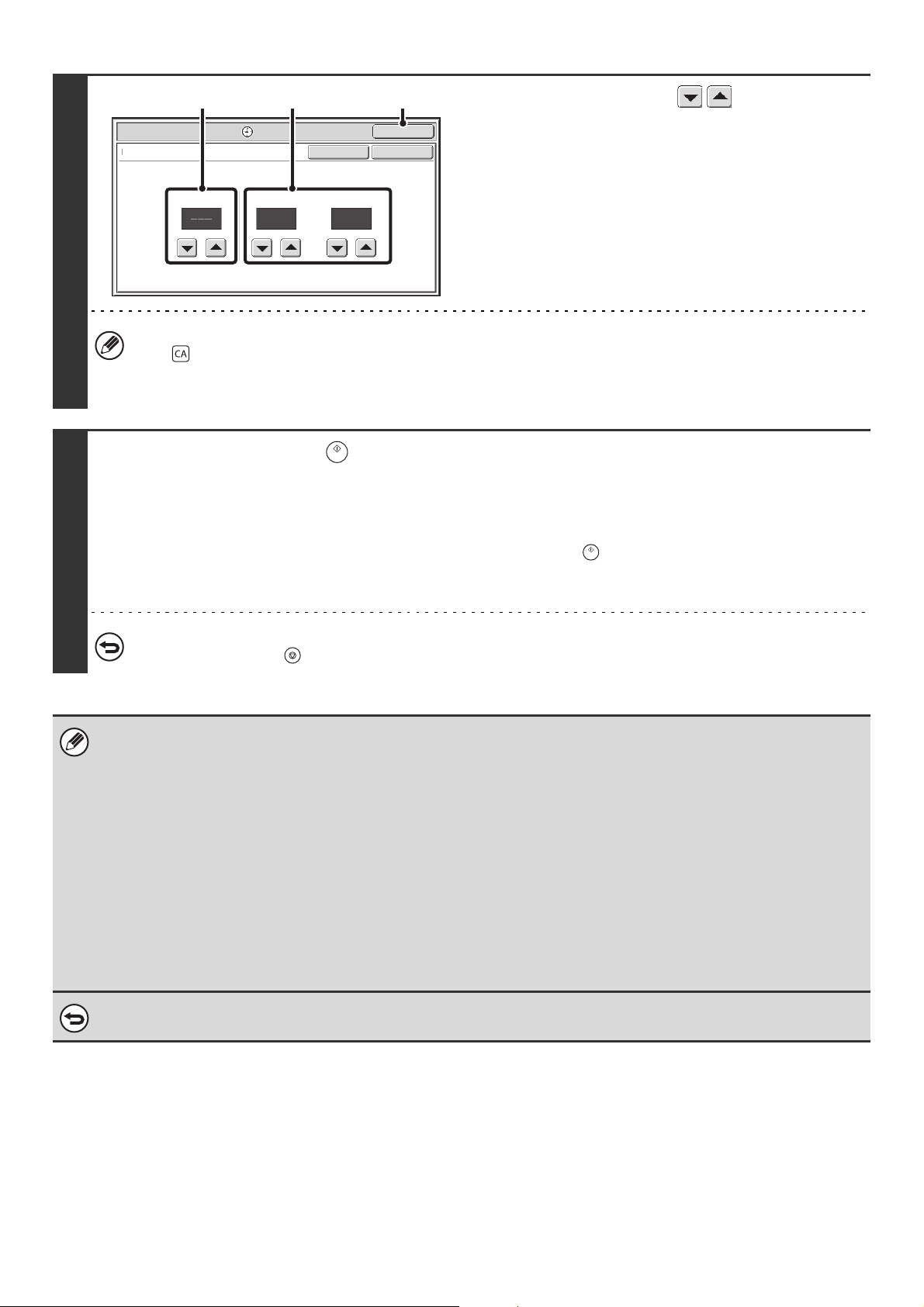
99
4
Set the time with the keys.
(1) Specify the day.
If you do not wish to specify the day, select [---]. In this
case, transmission will begin when the time specified in
(2) arrives.
(2) Specify the time (hour, minute)
Select the time in 24-hour format.
(3) Touch the [OK] key.
When this screen is opened, the setting will show the current time. If the time is not correct, press the [CLEAR ALL]
key ( ) to cancel the operation. Correct the time in the system settings and then perform the timer transmission
procedure.
☞ CHECKING THE DATE AND TIME (page 9)
5
Press the [START] key ( ).
Scanning begins.
• If you inserted the original pages in the document feeder tray, all pages are scanned.
A beep will sound to indicate that scanning is finished.
• If you are scanning the original on the document glass, scan each page one page at a time.
When scanning finishes, place the next original and press the [START] key ( ). Repeat until all pages have been
scanned and then touch the [Read-End] key.
A beep will sound to indicate that scanning is finished.
To cancel scanning...
Press the [STOP] key ( ) to cancel the operation.
• The time can be specified up to a week in advance.
• Up to 94 timer transmissions can be stored at once.
• If another transmission is in progress when the specified time arrives, the timer transmission will begin after that
transmission is finished.
• Other transmissions can be performed as usual after a timer transmission is stored.
• A timer transmission can be deleted in the job status screen.
• If a timer transmission is given priority in the job status screen, the time specification is canceled. The transmission will
begin as soon as the job in progress is completed.
☞ GIVING PRIORITY TO A RESERVED JOB (page 169)
Fax mode:
• Only one timer polling operation can be stored at once. If you wish to poll multiple machines, store a serial polling timer
operation.
• This function cannot be used in direct transmission mode or when the speaker is used to dial.
To cancel timer transmission...
Touch the [Cancel] key in the screen of step 4.
Scan/Special Modes
OK
10 00
Timer
Time
Day of the Week
hh. mm.
OKCancel
(1) (2) (3)
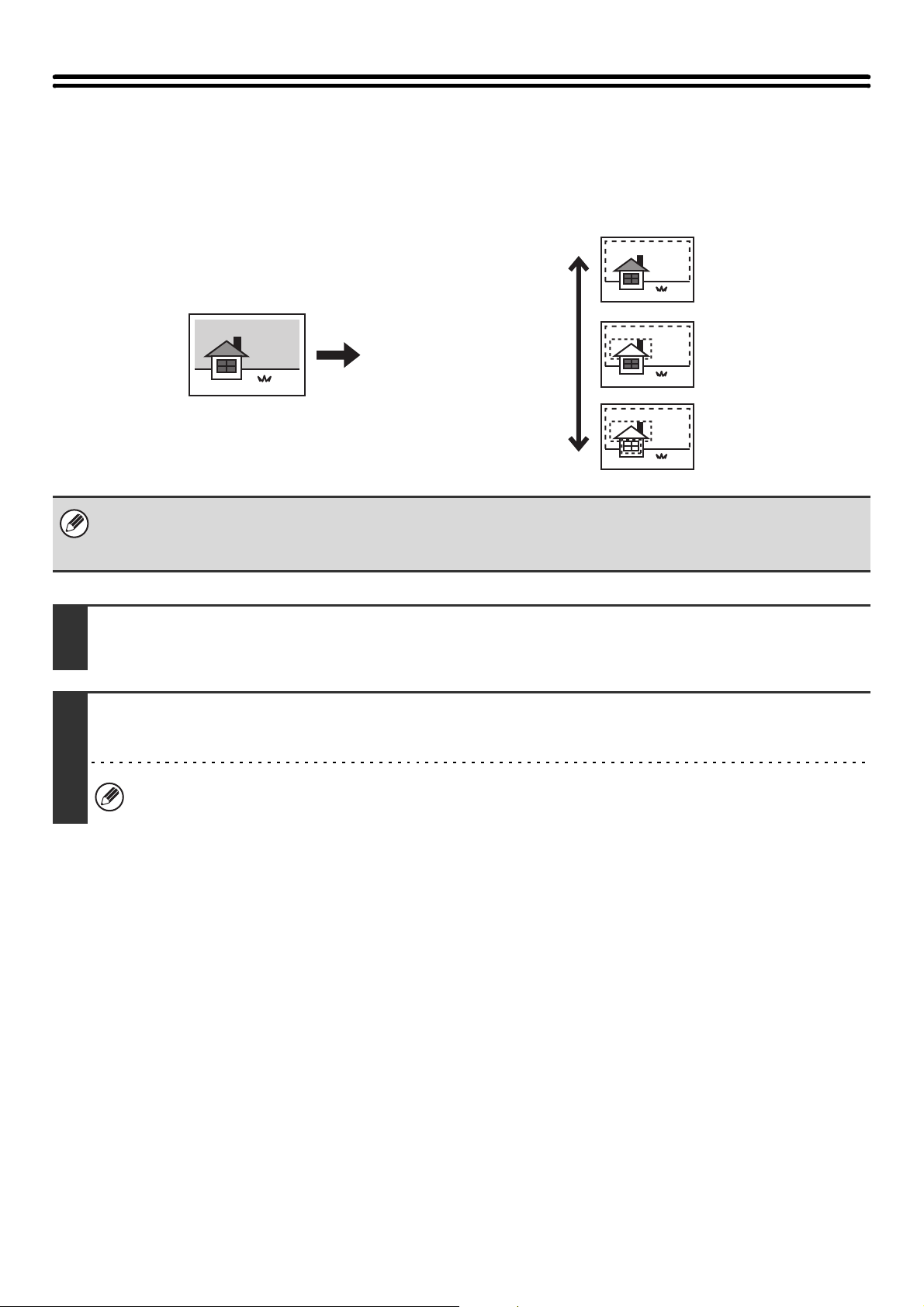
100
WHITENING FAINT COLORS IN THE IMAGE
(Suppress Background)
This feature is used to suppress light background areas.
• This function cannot be used in Internet fax mode and in fax mode.
• To use this function, the color expansion kit must be installed.
• When using USB memory mode, connect the USB memory device to the machine before performing the procedure below.
1
Place the original.
Place the original face up in the document feeder tray, or face down on the document glass.
2
Specify the destination.
☞
2. ENTERING DESTINATIONS (page 25)
When scanning to USB memory in USB memory mode, there is no need to specify the destination. Go to step 3.
The lightness level at which
suppression takes place
can be adjusted.
Level [+]
Level [-]
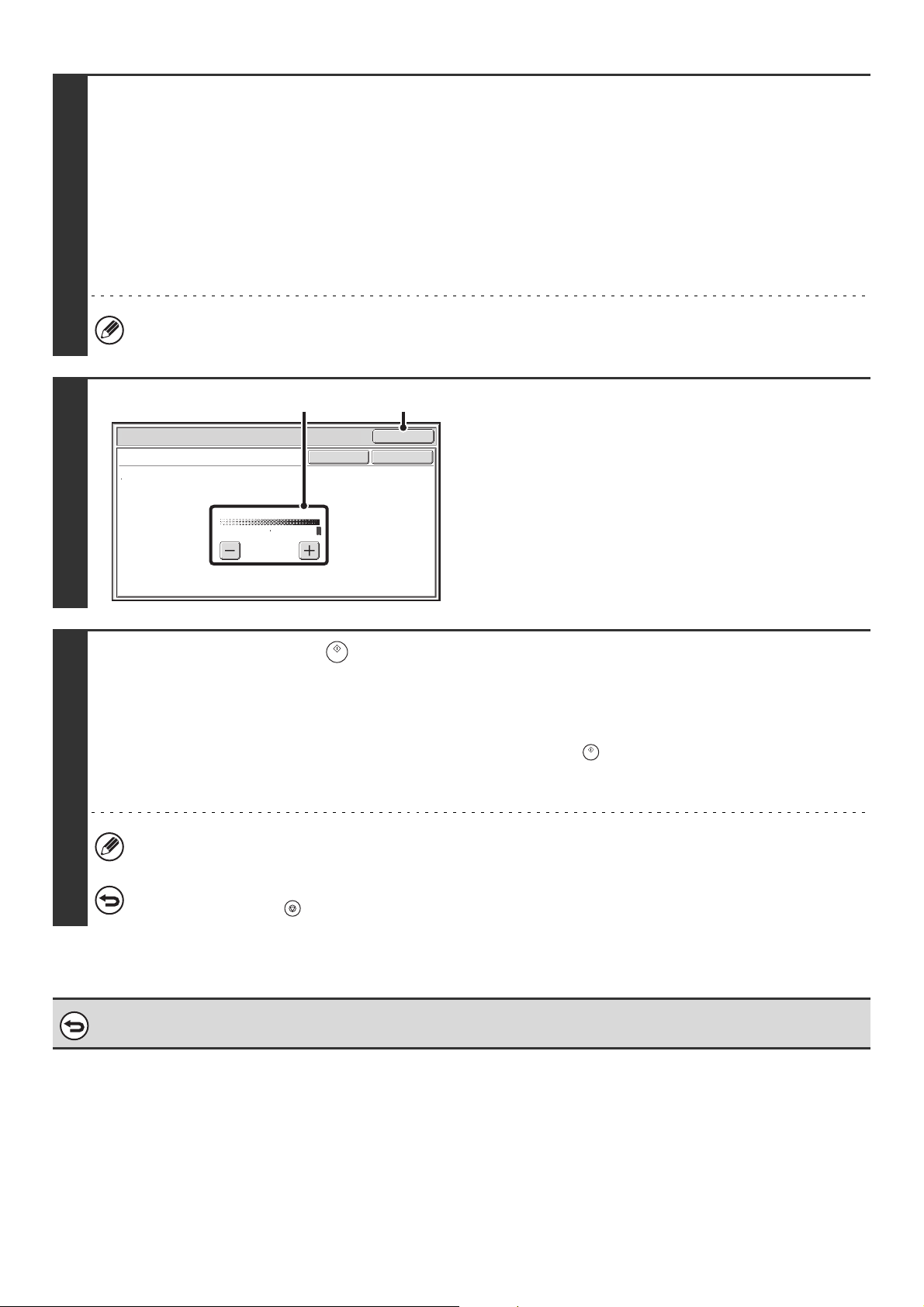
101
3
Select the special modes.
If the base screen is not displayed, touch the [Condition Settings] key.
(1) Make sure that the desired mode is selected.
If the desired mode is not selected, touch the tab of that mode.
(2) Touch the [Special Modes] key.
(3) Touch the [Suppress Background] key.
Read the message that appears and then touch the [OK] key.
☞ SPECIAL MODES (page 87)
When you return to the base screen after specifying the destination, the base screen of the mode of the specified
destination appears.
4
Select the suppress background setting.
(1) Adjust the background suppression level.
Touch the [+] key to suppress only faint background.
Touch the [-] key to suppress faint to dark background.
(2) Touch the [OK] key.
5
Press the [START] key ( ).
Scanning begins.
• If you inserted the original pages in the document feeder tray, all pages are scanned.
A beep will sound to indicate that scanning is finished.
• If you are scanning the original on the document glass, scan each page one page at a time.
When scanning finishes, place the next original and press the [START] key ( ). Repeat until all pages have been
scanned and then touch the [Read-End] key.
A beep will sound to indicate that scanning is finished.
When the original is scanned in [Mono2], the suppress background function will not operate.
To cancel scanning...
Press the [STOP] key ( ) to cancel the operation.
To cancel the background suppression setting...
Touch the [Cancel] key in the screen of step 4.
Scan/Special Modes
OK
Suppress Background
Light areas of the original may be suppressed as background.
OKCancel
1
3
(1) (2)
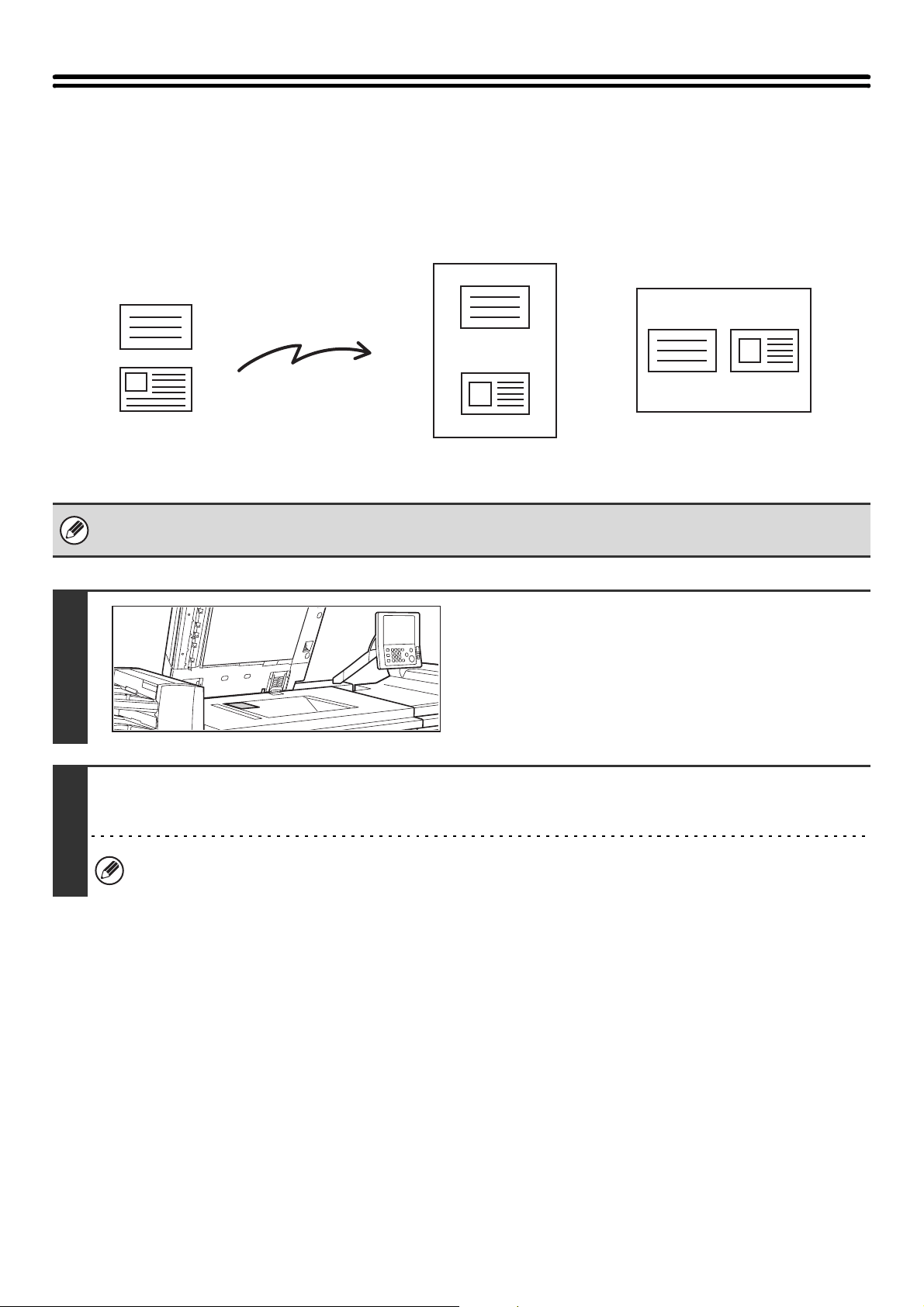
102
SENDING BOTH SIDES OF A CARD AS A
SINGLE PAGE (Card Shot)
This function lets you send the front and reverse sides of a card as a single page, without the need to send each side
separately.
• When using card shot, the original must be placed on the document glass.
• When using USB memory mode, connect the USB memory device to the machine before performing the procedure below.
1
Place the original face down on the
document glass.
2
Specify the destination.
☞
2. ENTERING DESTINATIONS (page 25)
When scanning to USB memory in USB memory mode, there is no need to specify the destination. Go to step 3.
Transmission
Front
Back
Transmitted image
Originals
Example of an 8-1/2" x 11" (A4)
size portrait scan transmission
Example of an 8-1/2" x 11" (A4)
size landscape scan transmission
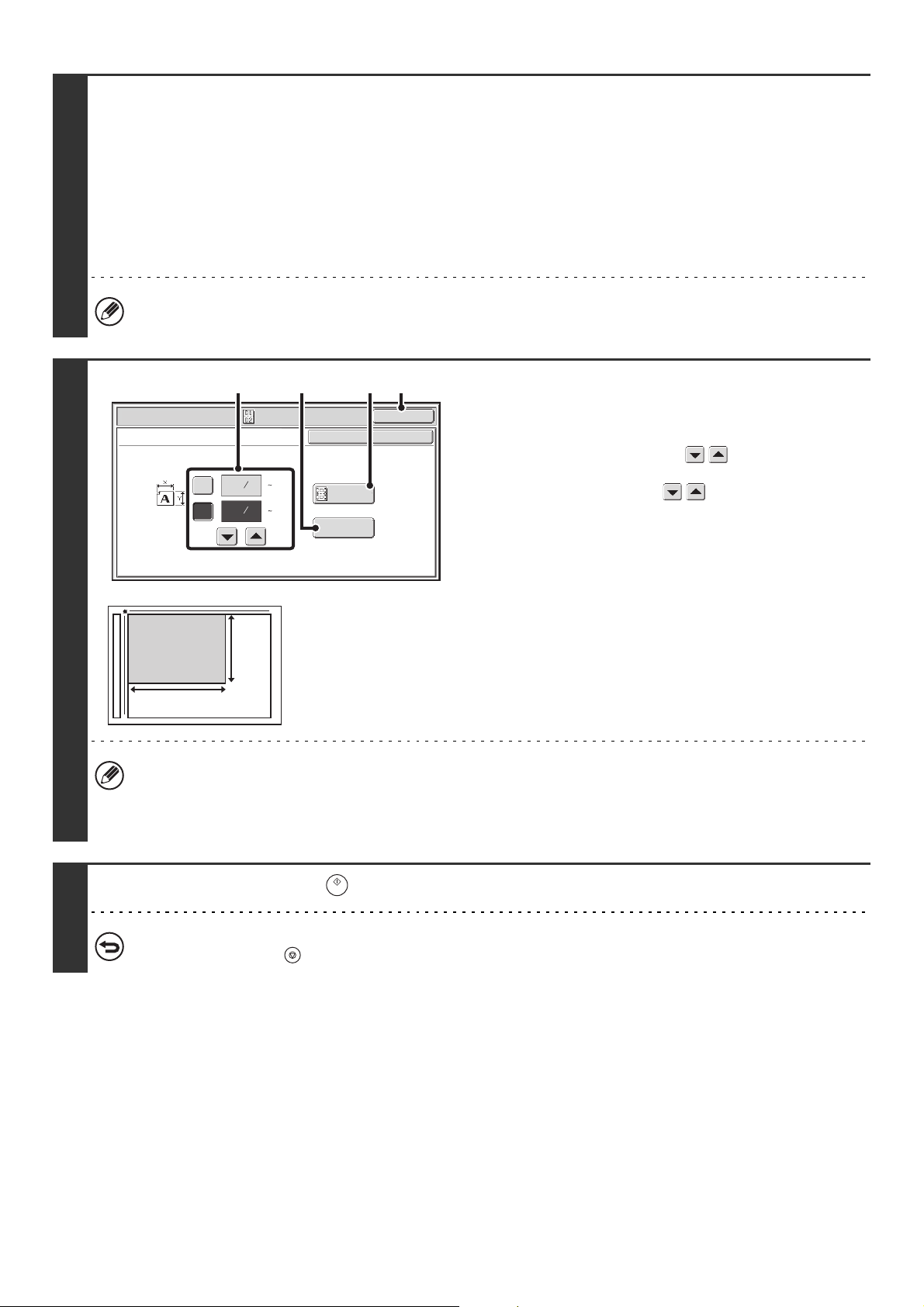
103
3
Select the special modes.
If the base screen is not displayed, touch the [Condition Settings] key.
(1) Make sure that the desired mode is selected.
If the desired mode is not selected, touch the tab of that mode.
(2) Touch the [Special Modes] key.
(3) Touch the [Card Shot] key.
☞ SPECIAL MODES (page 87)
When you return to the base screen after specifying the destination, the base screen of the mode of the specified
destination appears.
4
Specify the original size.
(1) Enter the original size.
• Touch the [X] key and enter the horizontal dimension
(X) of the original with the keys.
• Touch the [Y] key and enter the vertical dimension (Y)
of the original with the keys.
(A)To return the original size to the default size, touch the
[Size Reset] key.
(B)To automatically enlarge or reduce the image to fit the
send size, touch the [Fit to Send Size] key. If you wish
to scan the original at the entered original size, there is
no need to touch this key.
(2) Touch the [OK] key.
• The send size will be selected automatically based on the entered original size.
• After selecting Card Shot, you can touch the [Original] key in the base screen to change the original scan size or the
send size. In this case, the screen of this step appears when you touch the scan size key. For the procedure for
setting the send size, see "Specifying the send size of the image" (page 74).
5
Press the [START] key ( ) to scan the front of the card.
To cancel scanning...
Press the [STOP] key ( ) to cancel the operation.
Scan/Special Modes
OK
Card Shot
(1 8 1/2)
inch
(1 8 1/2)
inch
OKCancel
Fit to
Send Size
Size Reset
X
Y
3
8
3
2
8
1
(1) (B) (2)
(A)
X
Y
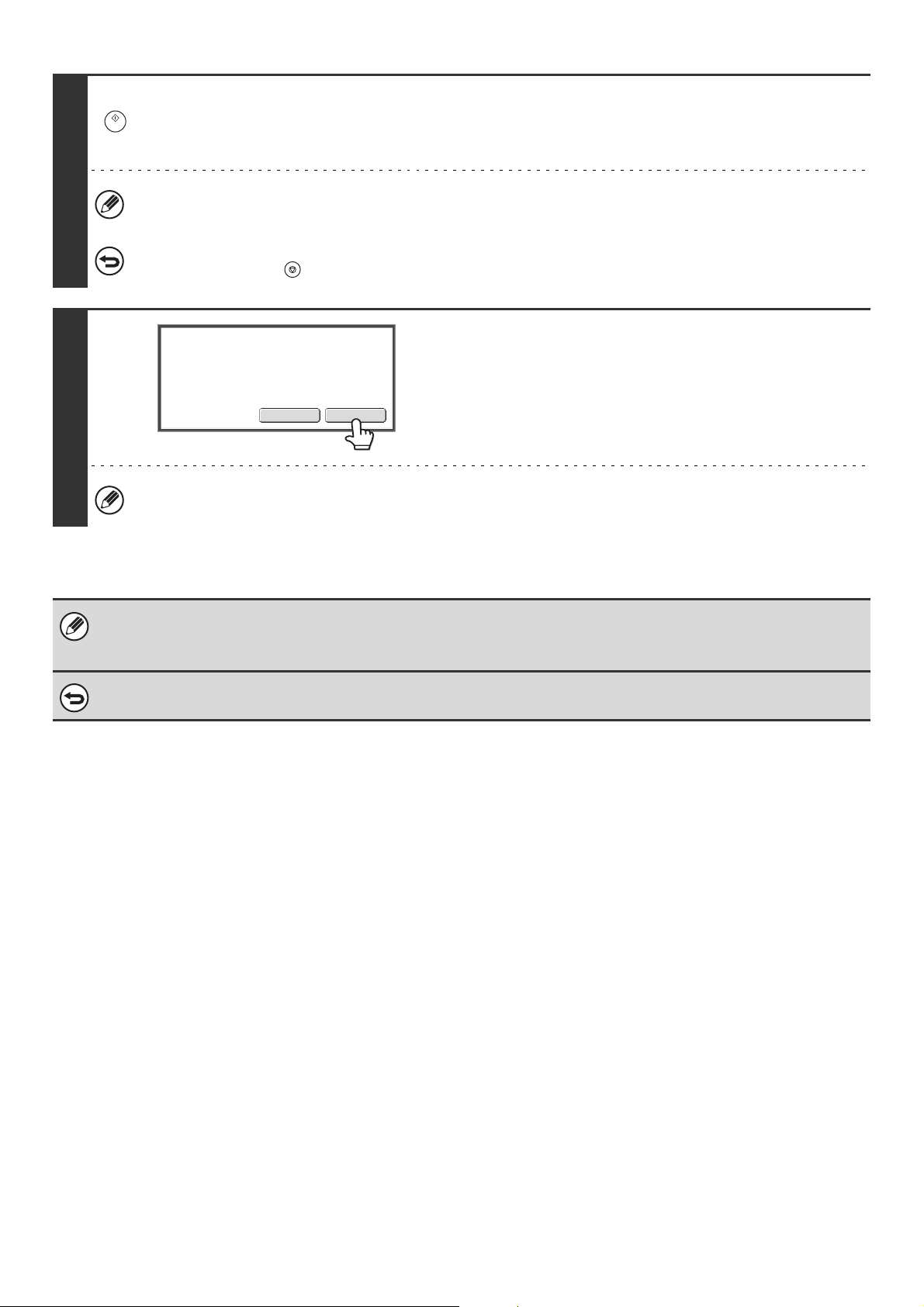
104
6
Turn the card over so that the back is face down, and press the [START] key
( ) to scan the back of the card.
The back of the card will be scanned using the same color mode as the front.
Before scanning the back of the card, you can touch the [Configure] key in the touch panel to change the exposure.
To cancel scanning...
Press the [STOP] key ( ) to cancel the operation.
7
Touch the [Read-End] key.
If you will continue by scanning the front of the card, you can touch the [Configure] key to change the exposure,
resolution, scan size, and send size.
• The ratio cannot be specified and "Rotation Sending Setting" cannot be selected.
•Fax mode:
This function cannot be used in direct transmission mode or when the speaker is used to dial.
To cancel Card Shot...
Touch the [Cancel] key in the screen of step 4.
Read-EndConfigure
Place next original. (Pg.No.x)
Press [Start].
When finished, press [Read-End].
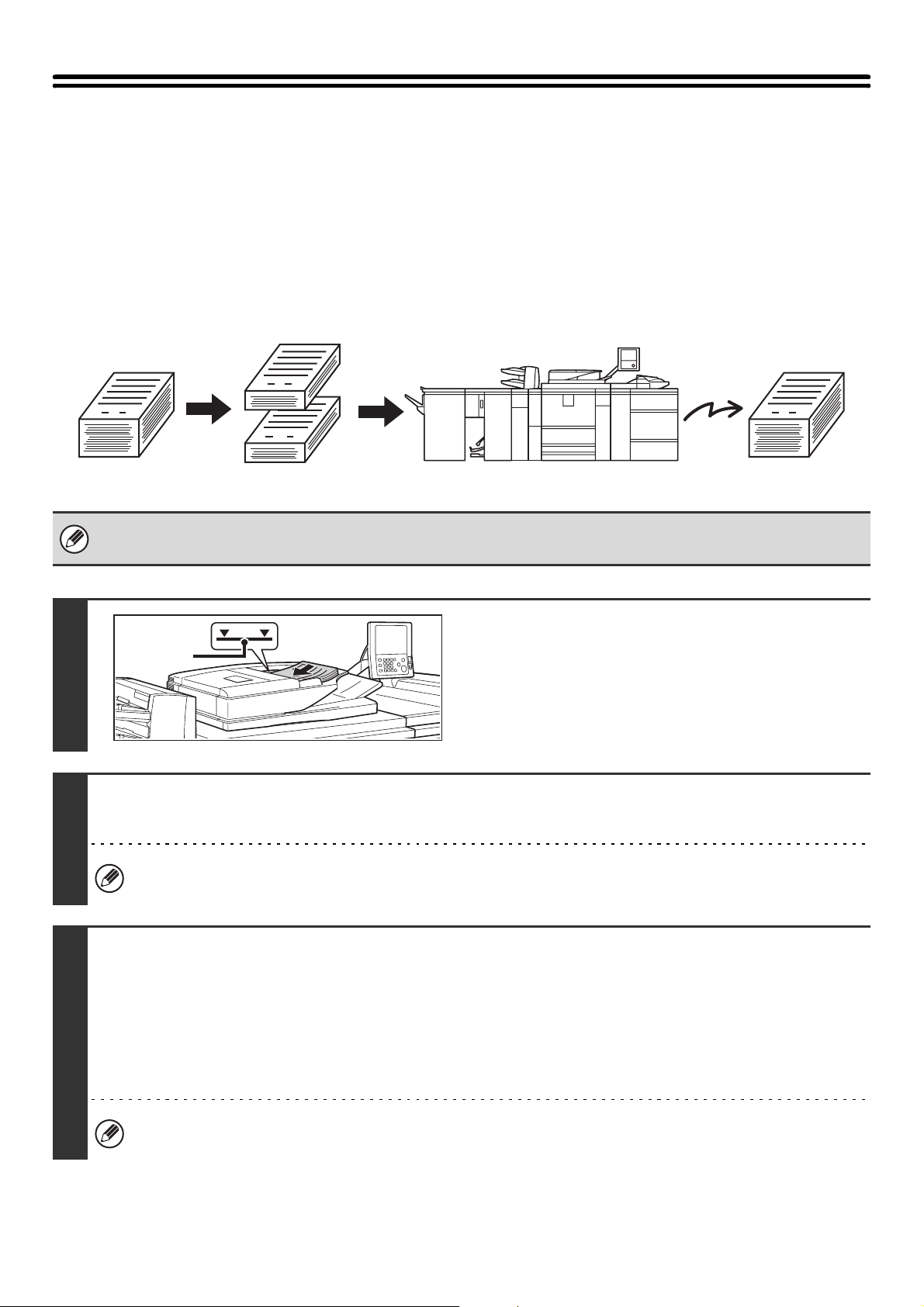
105
SENDING A LARGE NUMBER OF PAGES
(Job Build)
This function lets you separate an original consisting of numerous pages into sets, scan each set using the automatic
document feeder, and transmit the pages in a single transmission. Use this function when the number of originals that
you wish to scan exceeds the maximum number of sheets that can be inserted in the automatic document feeder at
once.
When scanning originals that are separated into sets, scan the set that has the first page first. The settings that you
select for the first set can be used for all remaining sets.
• Up to 999 pages can be scanned. Note that when the memory is being used for other jobs, fewer pages can be scanned.
• When using USB memory mode, connect the USB memory device to the machine before performing the procedure below.
1
Insert the originals face up in the
document feeder tray.
Insert the originals all the way into the document feeder tray.
Multiple originals can be placed in the document feeder tray.
The stack of originals must not be higher than the indicator line
on the tray.
2
Specify the destination.
☞
2. ENTERING DESTINATIONS (page 25)
When scanning to USB memory in USB memory mode, there is no need to specify the destination. Go to step 3.
3
Select the special modes.
If the base screen is not displayed, touch the [Condition Settings] key.
(1) Make sure that the desired mode is selected.
If the desired mode is not selected, touch the tab of that mode.
(2) Touch the [Special Modes] key.
☞ SPECIAL MODES (page 87)
When you return to the base screen after specifying the destination, the base screen of the mode of the specified
destination appears.
11
101
1
Originals
Originals are
scanned in
separate sets
Transmission
Indicator
line
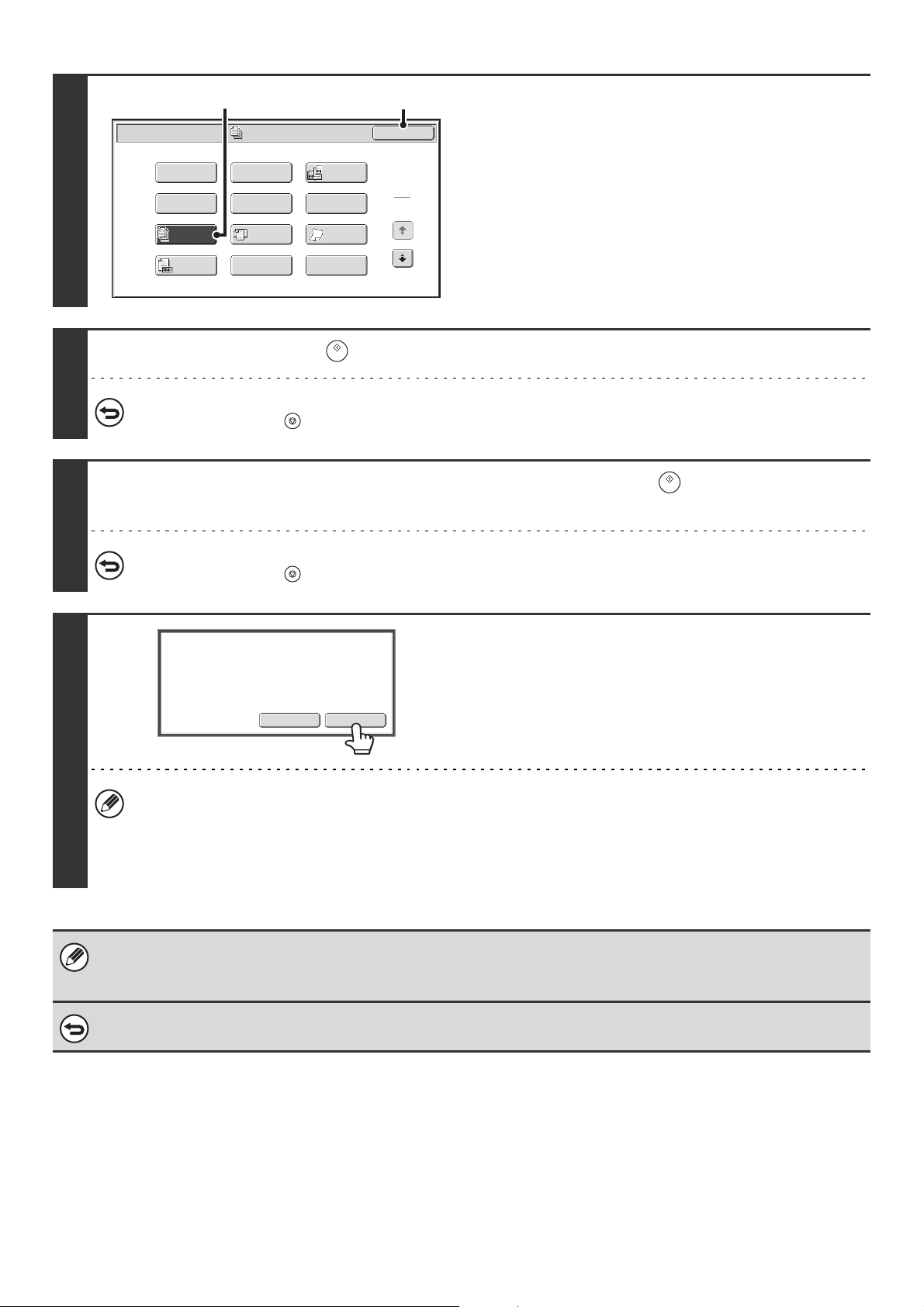
106
4
Select job build mode.
(1) Touch the [Job Build] key so that it is
highlighted.
(2) Touch the [OK] key.
5
Press the [START] key ( ) to scan the first original.
To cancel scanning...
Press the [STOP] key ( ) to cancel the operation.
6
Insert the next set of originals and press the [START] key ( ).
Repeat until all originals have been scanned.
To cancel scanning...
Press the [STOP] key ( ) to cancel the operation. All scanned data will be cleared.
7
Touch the [Read-End] key.
• If no action is taken for one minute after the confirmation screen appears, scanning automatically ends and the
transmission is reserved.
• The [Configure] key can be touched to change the exposure, resolution, scan size, and send size for each original
page scanned. However, when Job Build is used in combination with "2in1" in the special modes, only the exposure
can be changed when scanning each even-numbered page of the original pages.
• If the memory becomes full during scanning, a message will appear and the transmission will be canceled.
•Fax mode:
This function cannot be used in direct transmission mode or when the speaker is used to dial.
To cancel the job build function....
Touch the [Job Build] key in the screen of step 4 so that it is not highlighted.
Job
Build
Scan/Special Modes
Card Shot
OK
Dual Page
Scan
Slow Scan
Mode
Quick File
Mixed Size
Original
Erase
File
Suppress
Background
Program
Timer
Original
Count
1
2
(2)
(1)
Read-EndConfigure
Place next original. (Pg.No.x)
Press [Start].
When finished, press [Read-End].
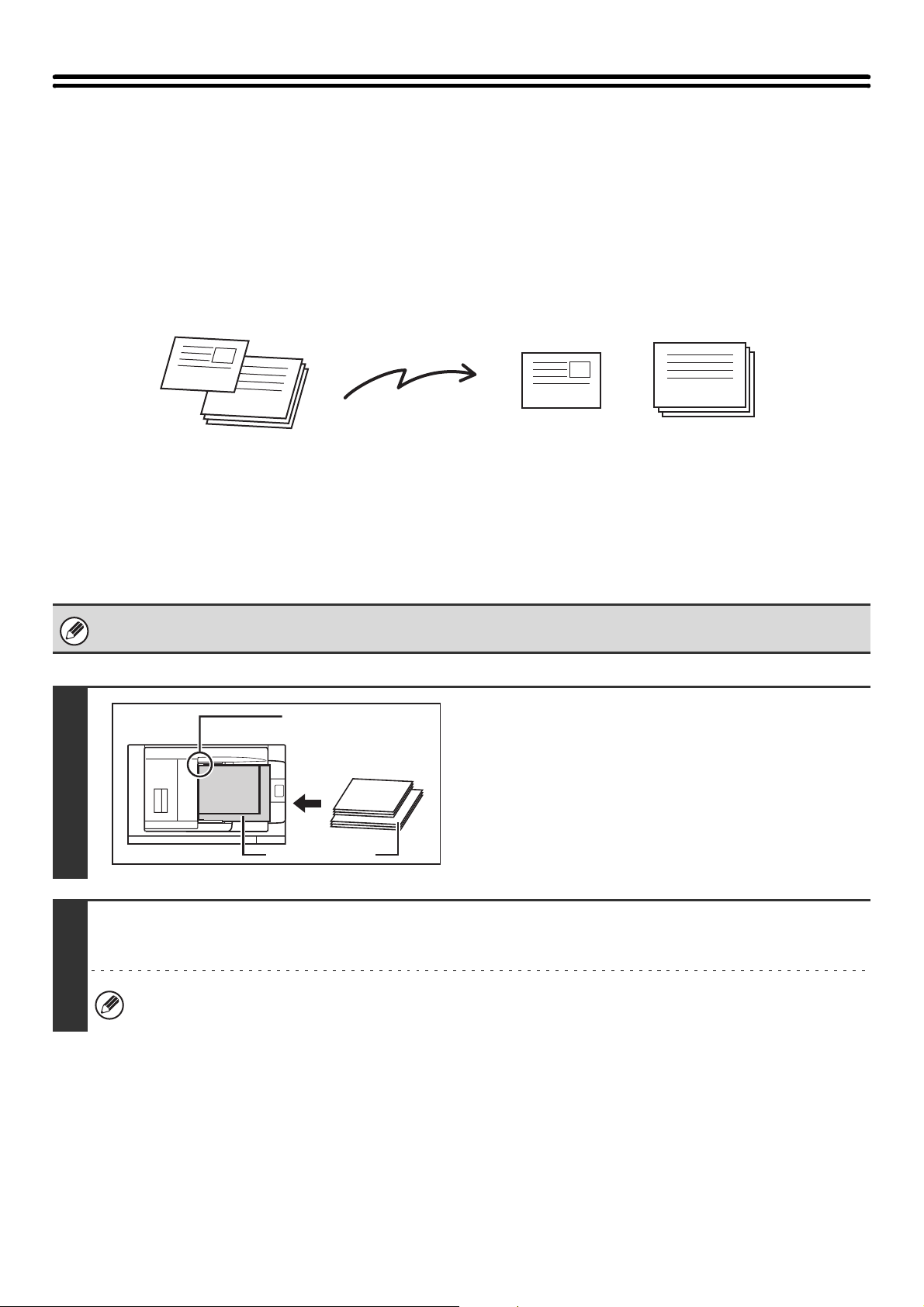
107
TRANSMITTING ORIGINALS OF DIFFERENT
SIZES (Mixed Size Original)
This feature lets you send originals of different sizes at the same time; for example, 8-1/2" x 14" (B4) size originals
mixed together with 11" x 17" (A3) size originals. When scanning the originals, the machine automatically detects the
size of each original.
This feature can only be used with the following combinations of original sizes:
• 11" x 17" and 8-1/2" x 14" • 11" x 17" and 8-1/2" x 13" • 11" x 17" and 5-1/2" x 8-1/2"
• A3 and B4 • A3 and B5 • B4 and A4 • A4 and B5
• A4R and B5 • B4 and A4R • B4 and A5 • B5 and A5
When using USB memory mode, connect the USB memory device to the machine before performing the procedure below.
1
Insert the originals face up in the
document feeder tray.
Insert the originals with the corners aligned together in the far
left corner of the document feeder tray.
2
Specify the destination.
☞
2. ENTERING DESTINATIONS (page 25)
When scanning to USB memory in USB memory mode, there is no need to specify the destination. Go to step 3.
11" x 17"
8-1/2" x 14"
11" x 17"
8-1/2" x 14"
Originals
(8-1/2" x 14" (B4) original mixed in
with 11" x 17" (A3) originals)
1st page 2nd to 4th pages
Scanned in at
8-1/2" x 14"
(B4) size
Scanned in
at 11" x 17"
(A3) size
Files created
8-1/2" x 14"
(B4)
11" x 17" (A3)
8-1/2" x 14"
(B4)
Place the originals with
the corners aligned
together in the far left
corner.
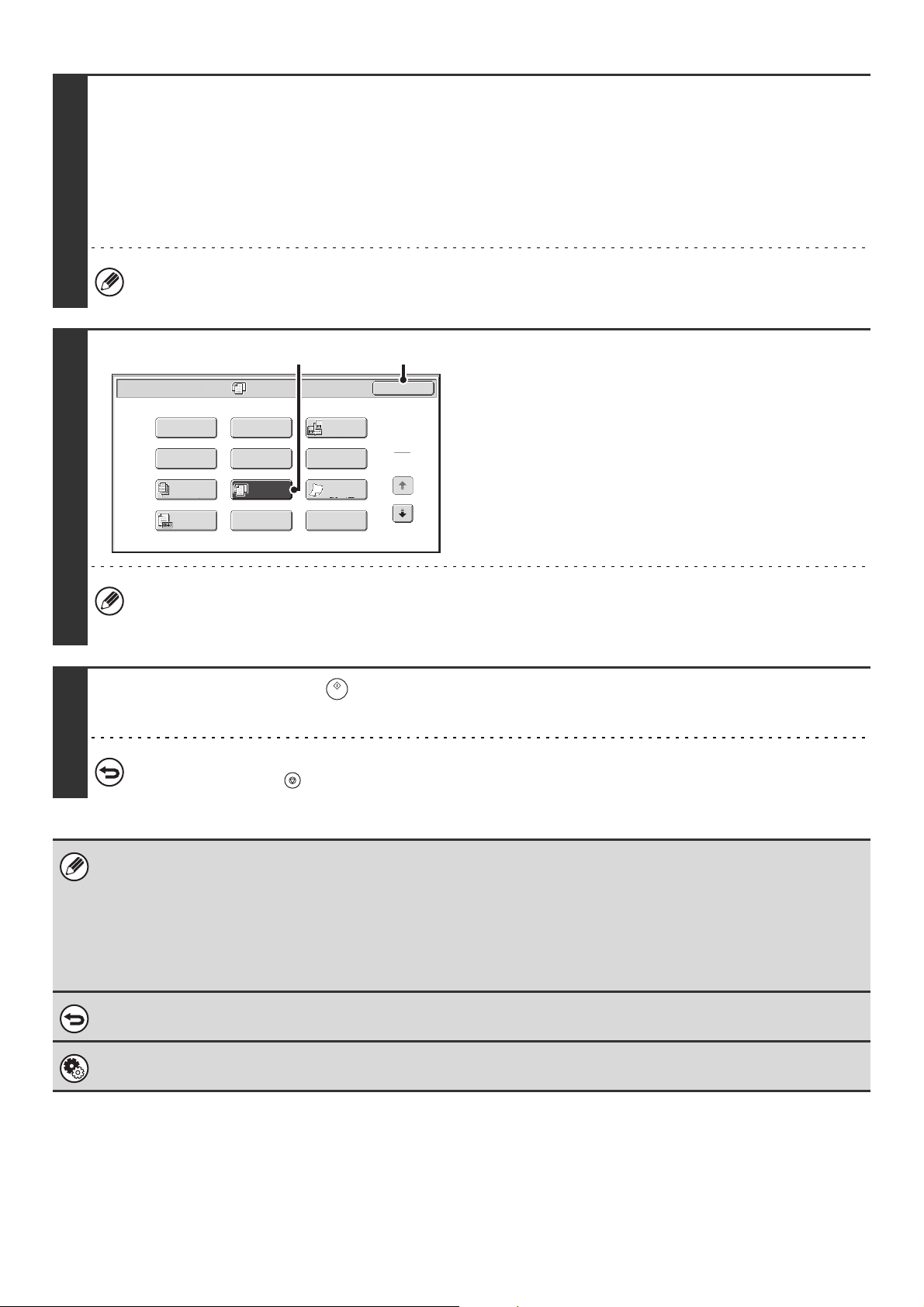
108
3
Select the special modes.
If the base screen is not displayed, touch the [Condition Settings] key.
(1) Make sure that the desired mode is selected.
If the desired mode is not selected, touch the tab of that mode.
(2) Touch the [Special Modes] key.
☞ SPECIAL MODES (page 87)
When you return to the base screen after specifying the destination, the base screen of the mode of the specified
destination appears.
4
Select the mixed size original setting.
(1) Touch the [Mixed Size Original] key so that
it is highlighted.
(2) Touch the [OK] key.
If an original scan size has been specified, a message will appear when the [Mixed Size Original] key is touched. To
enable the Mixed Size Original setting, change the scan size setting to auto and then touch the [Mixed Size Original]
key again.
5
Press the [START] key ( ).
Scanning begins. A beep will sound to indicate that scanning is finished.
To cancel scanning...
Press the [STOP] key ( ) to cancel the operation.
• If an original scan size is specified after selecting the "Mixed Size Original" setting, the original scan size setting will be
enabled and the "Mixed Size Original" setting will be cleared.
• Mixed Size Original cannot be enabled when an original scan size is set. To enable Mixed Size Original, the scan size
must be set to [Auto].
• Mixed Size Original cannot be enabled when the detection size of "Original Size Detector Setting" in the system settings
(administrator) is set to [AB-3].
• When the mixed size original setting is selected, rotation sending does not operate.
To cancel the Mixed Size Original setting...
Touch the [Mixed Size Original] key in the screen of step 4 so that it is not highlighted.
System Settings (Administrator): Original Feeding Mode
The original feeding mode can be set to always scan mixed size originals.
Mixed Size
Original
Scan/Special Modes
Card Shot
OK
Dual Page
Scan
Slow Scan
Mode
Quick File
Erase
Job
Build
File
Suppress
Background
Program
Timer
1
2
Original
Count
(2)
(1)
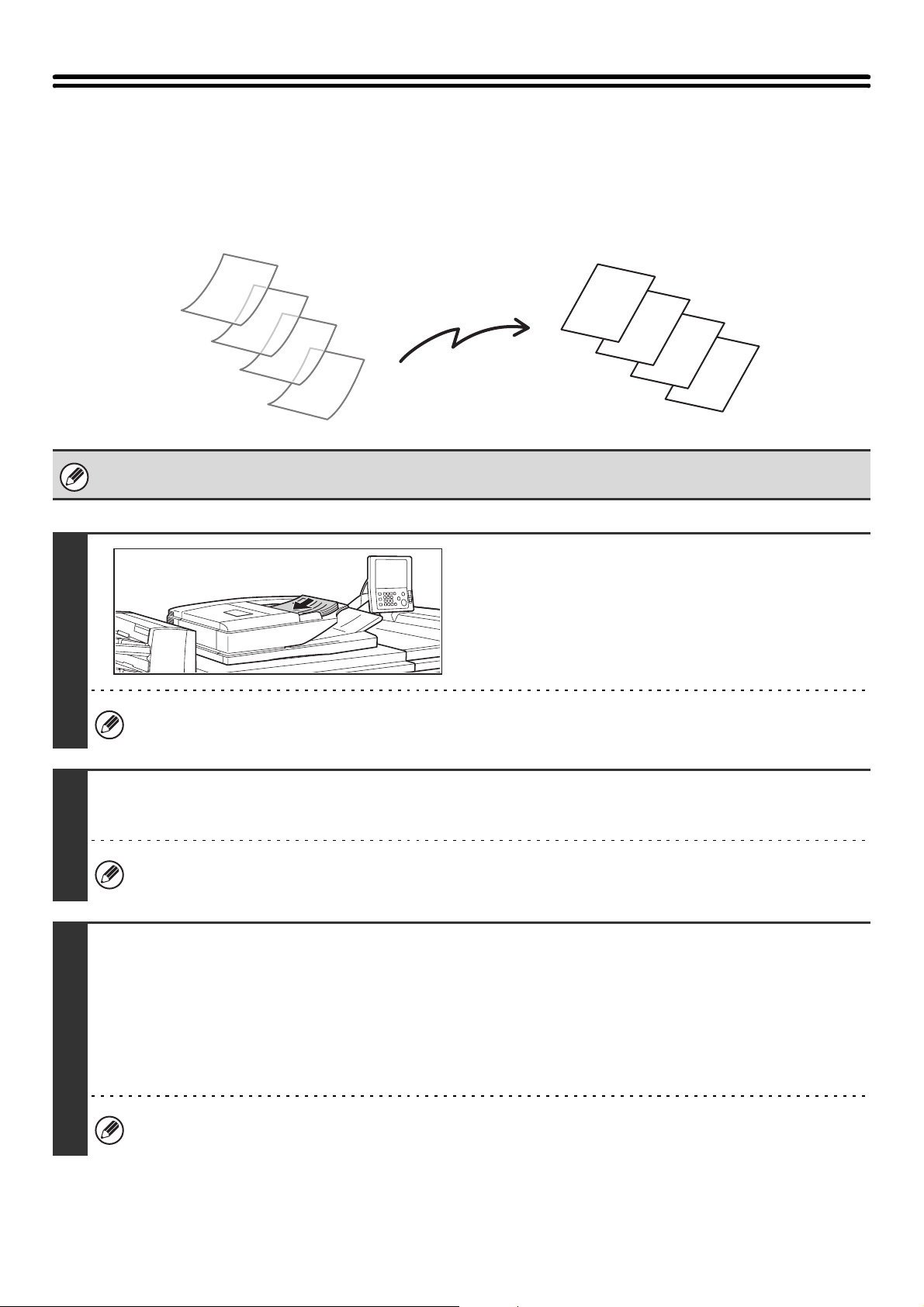
109
SCANNING THIN ORIGINALS
(Slow Scan Mode)
Use this function when you wish to scan thin originals using the automatic document feeder. This function helps prevent
thin originals from misfeeding.
When using USB memory mode, connect the USB memory device to the machine before performing the procedure below.
1
Insert the originals face up in the
document feeder tray.
Adjust the original guides slowly.
If the originals are inserted with too much force, they may crumple and misfeed.
2
Specify the destination.
☞
2. ENTERING DESTINATIONS (page 25)
When scanning to USB memory in USB memory mode, there is no need to specify the destination. Go to step 3.
3
Select the special modes.
If the base screen is not displayed, touch the [Condition Settings] key.
(1) Make sure that the desired mode is selected.
If the desired mode is not selected, touch the tab of that mode.
(2) Touch the [Special Modes] key.
☞ SPECIAL MODES (page 87)
When you return to the base screen after specifying the destination, the base screen of the mode of the specified
destination appears.
D
C
B
A
D
C
B
A
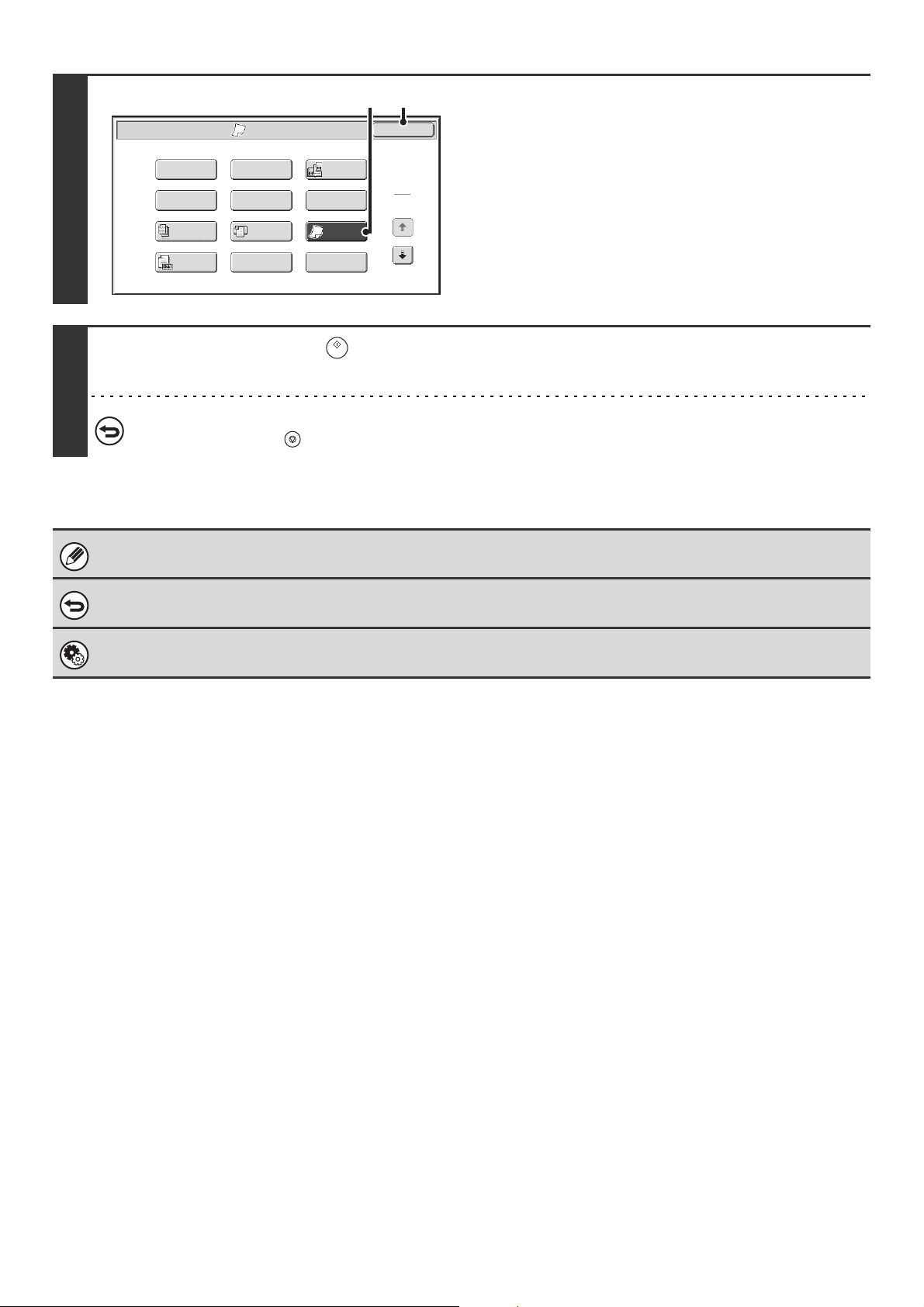
110
4
Select slow scan mode.
(1) Touch the [Slow Scan Mode] key so that it is
highlighted.
(2) Touch the [OK] key.
5
Press the [START] key ( ).
Scanning begins. A beep will sound to indicate that scanning is finished.
To cancel scanning...
Press the [STOP] key ( ) to cancel the operation.
When this function is selected, automatic 2-sided scanning is not possible.
To cancel slow scan mode...
Touch the [Slow Scan Mode] key in the screen of step 4 so that it is not highlighted.
System Settings (Administrator): Original Feeding Mode
This is used to have scanning always take place in slow scan mode.
Slow Scan
Mode
Scan/Special Modes
Card Shot
OK
Dual Page
Scan
Quick File
Mixed Size
Original
Erase
Job
Build
File
Suppress
Background
Program
Timer
1
2
Original
Count
(2)
(1)
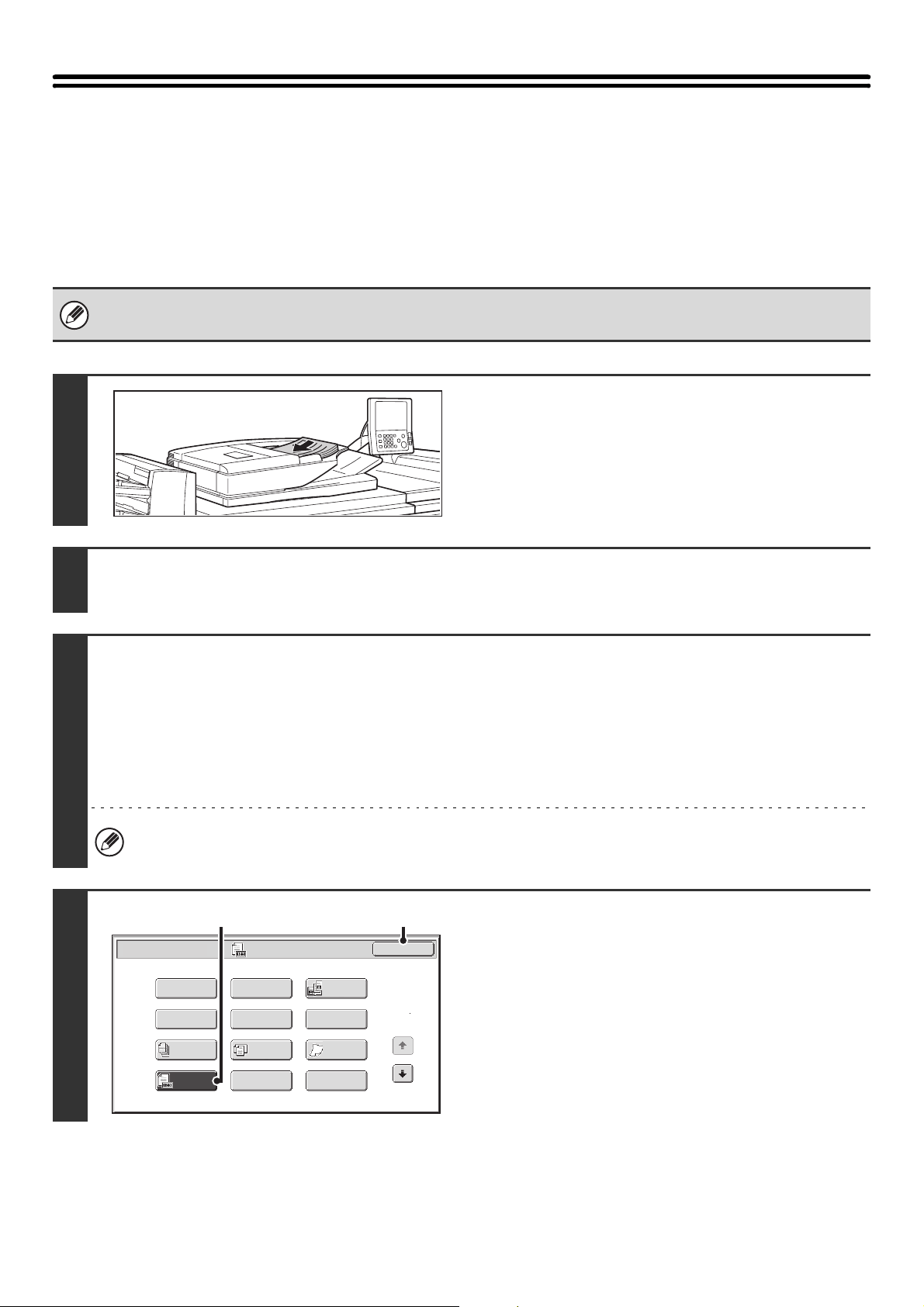
111
CHECKING THE NUMBER OF SCANNED
ORIGINAL SHEETS BEFORE TRANSMISSION
(Original Count)
The number of scanned original sheets can be counted and displayed before transmission. Checking the number of
scanned original sheets before transmission helps prevent transmission mistakes.
• This function cannot be used in USB memory mode.
• The setting can be enabled separately for each mode.
1
Insert the originals face up in the
document feeder tray.
Insert the originals all the way into the document feeder tray.
Multiple originals can be placed in the document feeder tray.
The stack of originals must not be higher than the indicator line
on the tray.
2
Specify the destination.
☞
2. ENTERING DESTINATIONS (page 25)
3
Select the special modes.
If the base screen is not displayed, touch the [Condition Settings] key.
(1) Make sure that the desired mode is selected.
If the desired mode is not selected, touch the tab of that mode.
(2) Touch the [Special Modes] key.
☞ SPECIAL MODES (page 87)
When you return to the base screen after specifying the destination, the base screen of the mode of the specified
destination appears.
4
Select the original count function.
(1) Touch the [Original Count] key.
(2) Touch the [OK] key.
Slow Scan
Mode
Scan/Special Modes
Card Shot
OK
Dual Page
Scan
Quick File
Mixed Size
Original
Erase
Job
Build
File
Suppress
Background
Program
Timer
1
2
Original
Count
(2)
(1)
112
5
Press the [START] key ( ).
Scanning begins.
To cancel scanning...
Press the [STOP] key ( ) to cancel the operation. All scanned data will be cleared.
6
When scanning ends, check the number
of original sheets scanned and touch the
[OK] key.
Transmission will begin.
• When Job Build mode is used, the confirmation message will
appear after the [Read-End] key is touched.
• The message on the screen shows the number of sheets
scanned in (A), and the number of pages (sheet sides)
scanned in (B). For example, if both sides of one original
sheet are scanned, "1" will appear in (A) and "2" will appear
in (B).
If this step is not performed for one minute while the above confirmation screen appears, the scanned image and
settings will be cleared and the base screen will reappear. Scanning will not be completed automatically and the
image will not be reserved for transmission.
If the displayed number of original sheets is different from the actual number of sheets...
Touch the [Cancel] key and then touch the [OK] key in the message screen to clear all scanned data. Scan settings
and destination settings will not be cleared. Insert the original sheets in the automatic document feeder again and
press the [START] key ( ) to re-scan.
When a broadcast transmission is performed, if the original count function is selected in any of the modes, the function will
operate for all destinations.
To cancel the Original Sheet Count function...
Touch the [Original Count] key in the screen of step 4 so that it is no longer highlighted.
System Settings (Administrator): Initial Original Count Setting
This can be enabled to have the number of original sheets always counted. The setting can be enabled separately for each
mode.
XX pages of original have been scanned. (P.x)
Send the scanned data?
OKCancel
(A) (B)
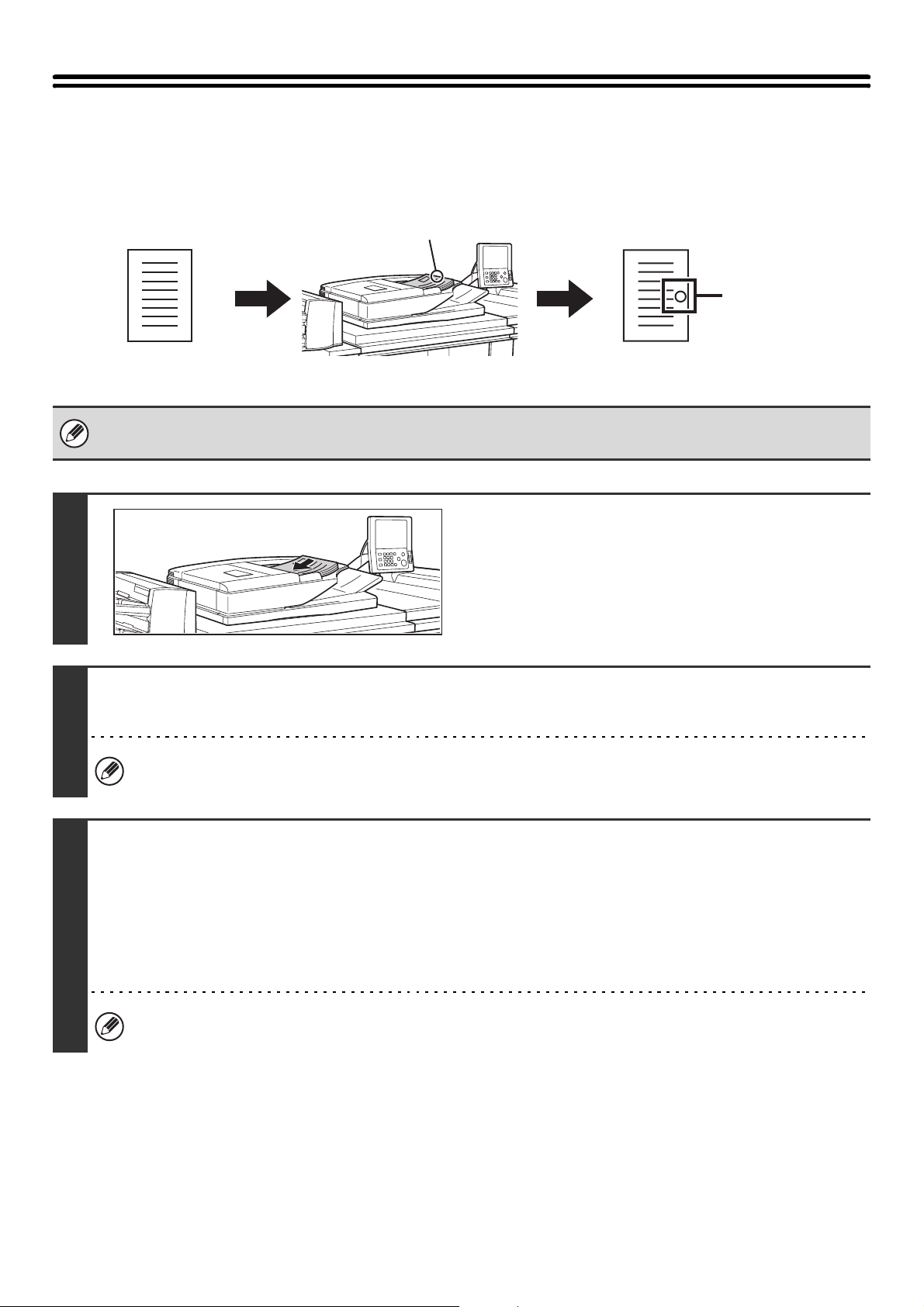
113
STAMPING SCANNED ORIGINALS (Verif. Stamp)
This function stamps each original that is scanned using the automatic document feeder, allowing you to verify that all
originals were correctly scanned.
• To use this function, the optional stamp unit must be installed.
• When using USB memory mode, connect the USB memory device to the machine before performing the procedure below.
1
Insert the originals face up in the
document feeder tray.
Insert the originals all the way into the document feeder tray.
Multiple originals can be placed in the document feeder tray.
The stack of originals must not be higher than the indicator line
on the tray.
2
Specify the destination.
☞
2. ENTERING DESTINATIONS (page 25)
When scanning to USB memory in USB memory mode, there is no need to specify the destination. Go to step 3.
3
Select the special modes.
If the base screen is not displayed, touch the [Condition Settings] key.
(1) Make sure that the desired mode is selected.
If the desired mode is not selected, touch the tab of that mode.
(2) Touch the [Special Modes] key.
☞ SPECIAL MODES (page 87)
When you return to the base screen after specifying the destination, the base screen of the mode of the specified
destination appears.
An "O" mark is
stamped
in fluorescent
pink.
Originals are
scanned
Position of stamp
Originals
114
4
Select "Verif. Stamp".
(1) Touch the keys to switch through the
screens.
(2) Touch the [Verif. Stamp] key so that it is
highlighted.
(3) Touch the [OK] key.
5
Press the [START] key ( ).
Scanning begins. A beep will sound to indicate that scanning is finished.
To cancel scanning...
Press the [STOP] key ( ) to cancel the operation.
• When two-sided scanning is selected, the front side of the original is stamped twice.
• If an error occurs during scanning, an orignial that was not scanned may be stamped.
• When the "O" mark that is stamped on originals starts to become faint, replace the stamp cartridge. For the procedure for
replacing the stamp cartridge, see "REPLACING THE STAMP CARTRIDGE" in the Maintenance Guide.
To cancel the stamp function...
Touch the [Verif. Stamp] key in the screen of step 4 so that it is no longer highlighted.
System Settings (Administrator): Default Verification Stamp
This setting is used to always have originals stamped.
Verif.
Stamp
Scan/Special Modes
OK
(3)
(2)
(1)
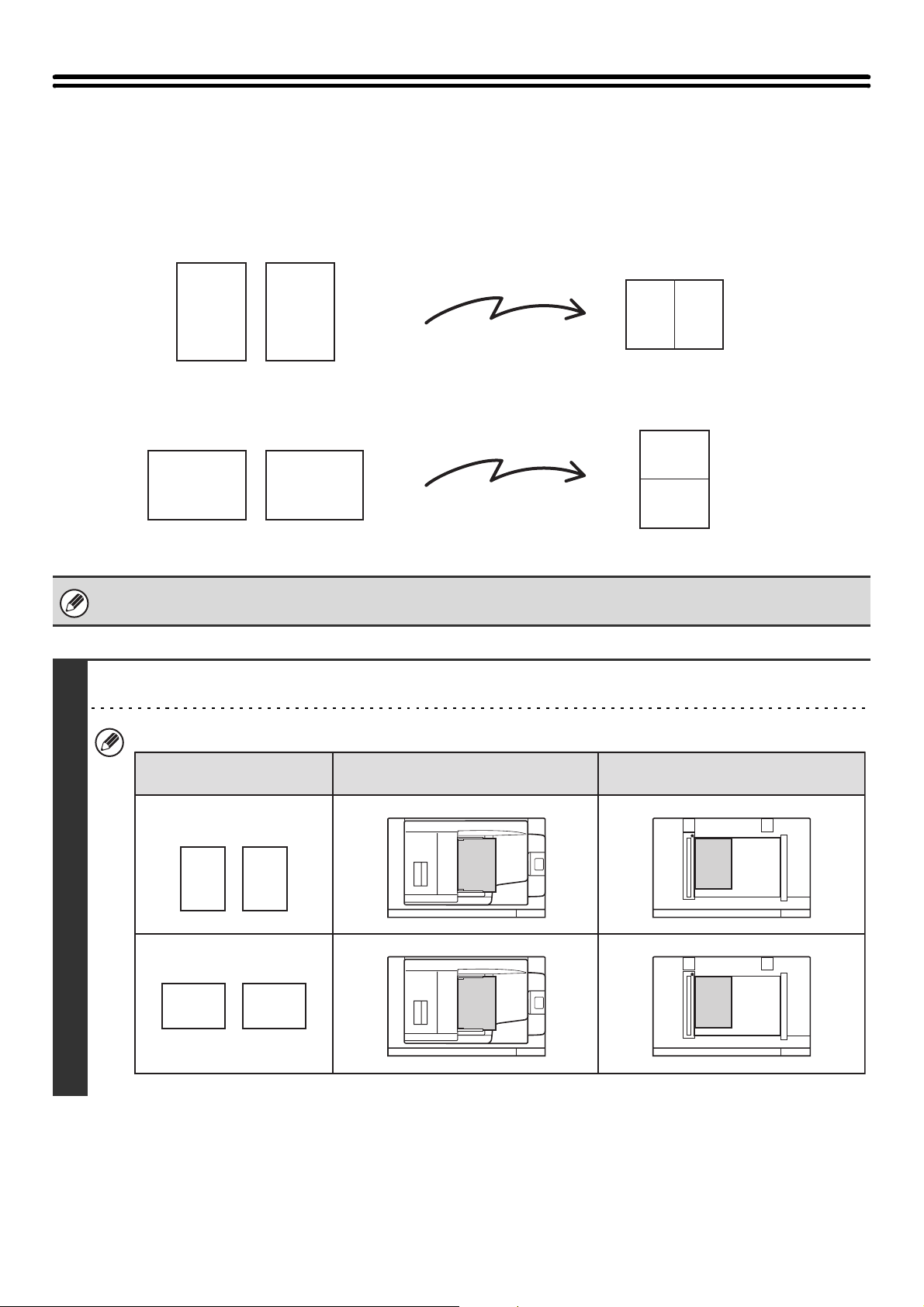
115
SENDING TWO PAGES AS A SINGLE PAGE
(2in1)
Two original pages can be reduced to half their original size and sent together as a single page.
This function can be used in Internet Fax mode and fax mode.
1
Place the original.
When placing the originals, orient them as shown below.
A
B
C
D
AB CD
A
B
C
D
AB
CD
Portrait-oriented originals
Landscape-oriented originals
Transmission
Transmission
A
B
A
B
AB
AB
A
B
C
D
AB CD
Document feeder tray
Place the originals face up.
Portrait orientation
Landscape orientation
Document glass
Place the originals face down.
Originals
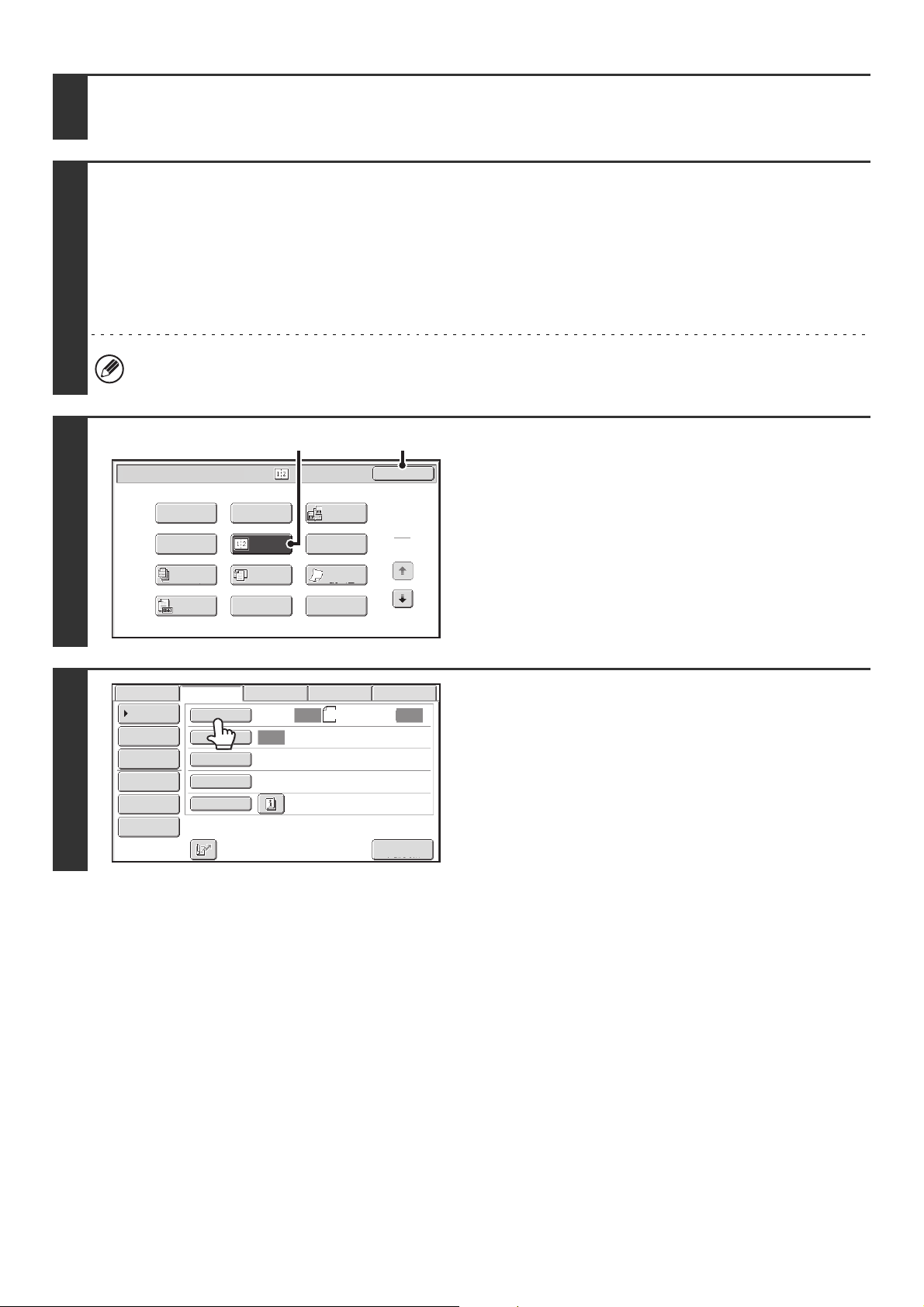
116
2
Specify the destination.
☞
2. ENTERING DESTINATIONS (page 25)
3
Select the special modes.
If the base screen is not displayed, touch the [Condition Settings] key.
(1) Make sure that the desired mode is selected.
If the desired mode is not selected, touch the tab of that mode.
(2) Touch the [Special Modes] key.
☞ SPECIAL MODES (page 87)
When you return to the base screen after specifying the destination, the base screen of the mode of the specified
destination appears.
4
Select 2in1.
(1) Touch the [2in1] key so that it is
highlighted.
(2) Touch the [OK] key.
5
Touch the [Original] key.
1
2
2in1
Internet Fax/Special Modes
Card Shot
OK
Dual Page
Scan
Slow Scan
Mode
Quick File
Mixed Size
Original
Erase
Job
Build
File
Program
Timer
Original
Count
(2)
(1)
Auto Auto
Auto
File
Quick File
I-Fax Manual
Reception
Address Review
Send Settings
Address Entry
Address Book
Data EntryFaxInternet Fax USB Mem. Scan
Special Modes
File Format
Resolution
Exposure
Original
Scan:
Scan
Send:
200X100dpi
TIFF-F
8½x11

117
6
Specify the orientation in which the
original is placed.
(1) Touch the "Image Orientation" key with the
same orientation as the original image.
If this setting is not correct, a suitable image may not be
transmitted.
(2) Touch the [OK] key.
7
Press the [START] key ( ).
Scanning begins.
• If you inserted the original pages in the document feeder tray, all pages are scanned.
A beep will sound to indicate that scanning is finished.
• If you are scanning the original on the document glass, scan each page one page at a time.
When scanning finishes, place the next original and press the [START] key ( ). Repeat until all pages have been
scanned and then touch the [Read-End] key.
A beep will sound to indicate that scanning is finished.
The [Configure] key can be touched in the scan-end confirmation screen to change the exposure, resolution, scan
size, and send size. (However, when scanning each even-numbered page of the original, only the exposure can be
changed.)
To cancel scanning...
Press the [STOP] key ( ) to cancel the operation.
• Transmission is not possible at a size smaller than the original size.
• The 2in1 function cannot be used when the original is other than 8-1/2" x 11" or 5-1/2" x 8-1/2" (A4, B5, or A5) size.
• When the scan size of the original is specified by numerical values, this function cannot be used.
•Fax mode:
This function cannot be used in direct transmission mode or when the speaker is used to dial.
To cancel 2in1...
Touch the [2in1] key in the screen of step 4 so that it is not highlighted.
Internet Fax/Original
OK
2-Sided
Booklet
2-Sided
Tablet
Auto 8½x11
Scan Size Send Size100%
Auto
Image Orientation
(2)
(1)
118
CHANGING THE PRINT SETTINGS FOR THE
TRANSACTION REPORT (Transaction
Report)
A transaction report is automatically printed out to alert you when a transmission fails or when a broadcast transmission
is performed. The transaction report contains a description of the transmission (date, start time, name of other party,
time required, number of pages, result, etc.).
☞ INFORMATION APPEARING IN THE RESULT COLUMN (page 170)
Transaction reports are printed based on conditions set in the system settings; however, you can temporarily select
different conditions for a transmission. To change the transaction report print conditions at the time of transmission,
follow the steps below.
This function can be used in Internet Fax mode and fax mode.
1
Place the original.
Place the original face up in the document feeder tray, or face down on the document glass.
2
Specify the destination.
☞
2. ENTERING DESTINATIONS (page 25)
3
Select the special modes.
If the base screen is not displayed, touch the [Condition Settings] key.
(1) Make sure that the desired mode is selected.
If the desired mode is not selected, touch the tab of that mode.
(2) Touch the [Special Modes] key.
(3) Touch the keys to switch through the screens.
(4) Touch the [Transaction Report] key.
☞ SPECIAL MODES (page 87)
When you return to the base screen after specifying the destination, the base screen of the mode of the specified
destination appears.
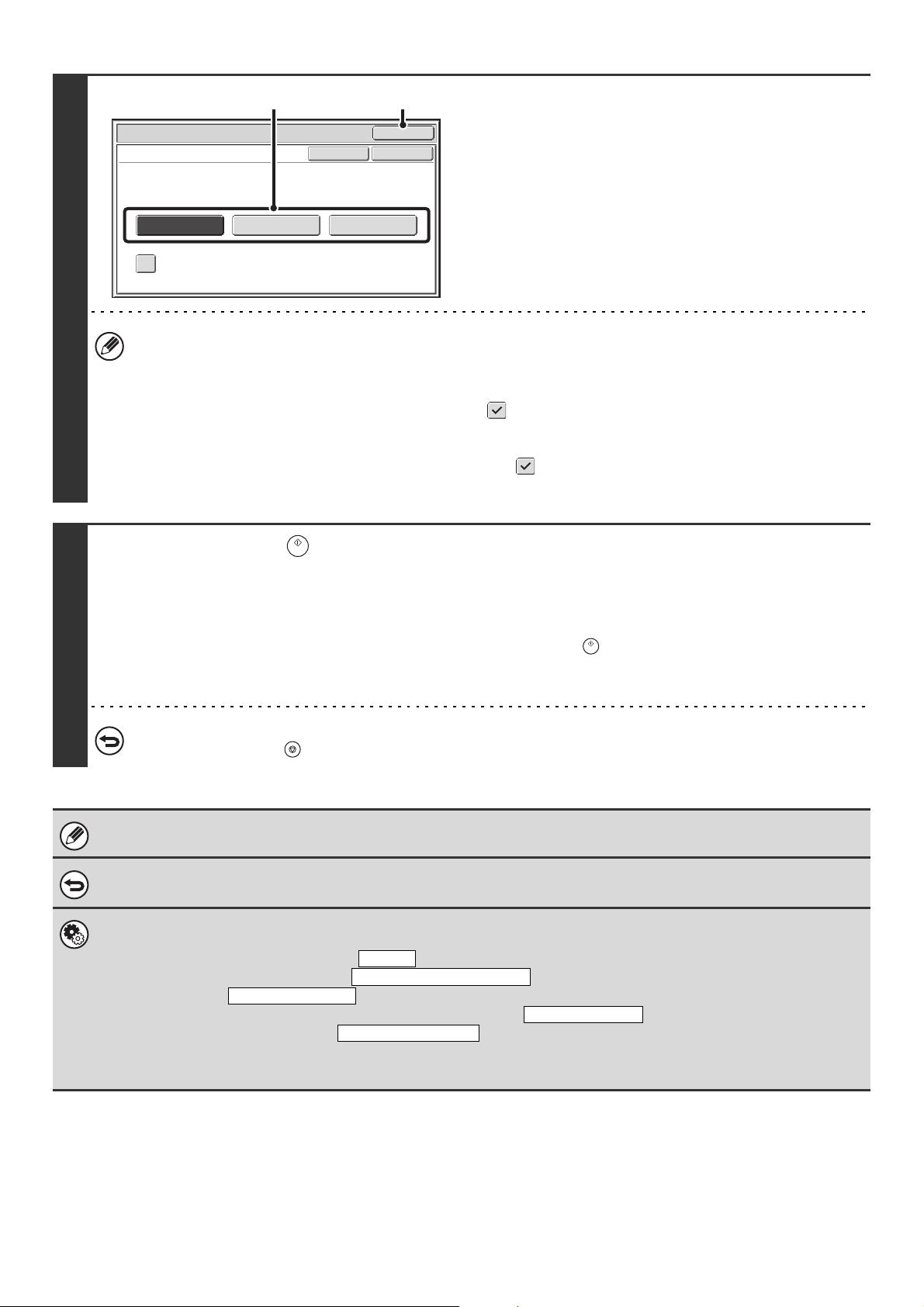
119
4
Select print conditions.
(1) Select the print conditions.
(2) Touch the [OK] key.
• The print conditions for a transaction report are as follows:
"Always Print": A transaction report is printed no matter whether the transmission succeeds or fails.
"Print at Error": A transaction report is printed when transmission fails.
"Do not Print": Do not print a transaction report.
• When the [Print Original Image] checkbox is selected , part of the transmitted original is included on the
transaction report.
• Fax mode:
Even when the [Print Original Image] checkbox is selected , the original cannot be printed when speaker is used
to dial, or when direct transmission or polling reception is used.
5
Press the [START] ( ) key.
Scanning begins.
• If you inserted the original pages in the document feeder tray, all pages are scanned.
A beep will sound to indicate that scanning is finished.
• If you are scanning the original on the document glass, scan each page one page at a time.
When scanning finishes, place the next original and press the [START] key ( ). Repeat until all pages have been
scanned and then touch the [Read-End] key.
A beep will sound to indicate that scanning is finished.
To cancel scanning...
Press the [STOP] key ( ) to cancel the operation.
For a broadcast transmission, changes to the transaction report print conditions apply to all destinations.
To cancel the transaction report setting...
Touch the [Cancel] key in the screen of step 4.
• System Settings (Administrator): Transaction Report Print Select Setting
This is used to set the conditions for printing transaction reports.
The factory default settings are print at below.
Single Sending: Print Out All Report/ /No Printed Report
Broadcasting: /Print Out Error Report Only/No Printed Report
Receiving: Print Out All Report/Print Out Error Report Only/
Confidential reception (fax mode): /No Printed Report
• System Settings (Administrator): Original Print on Transaction Report
This is used to have part of the transmitted original printed on the transaction report.
Internet Fax/Special Modes
OK
Transaction Report
Print Original Image
OKCancel
Always Print
Print at Error Do not Print
(1) (2)
Print Out Error Report Only
Print Out All Report
No Printed Report
Print Out Notice Page
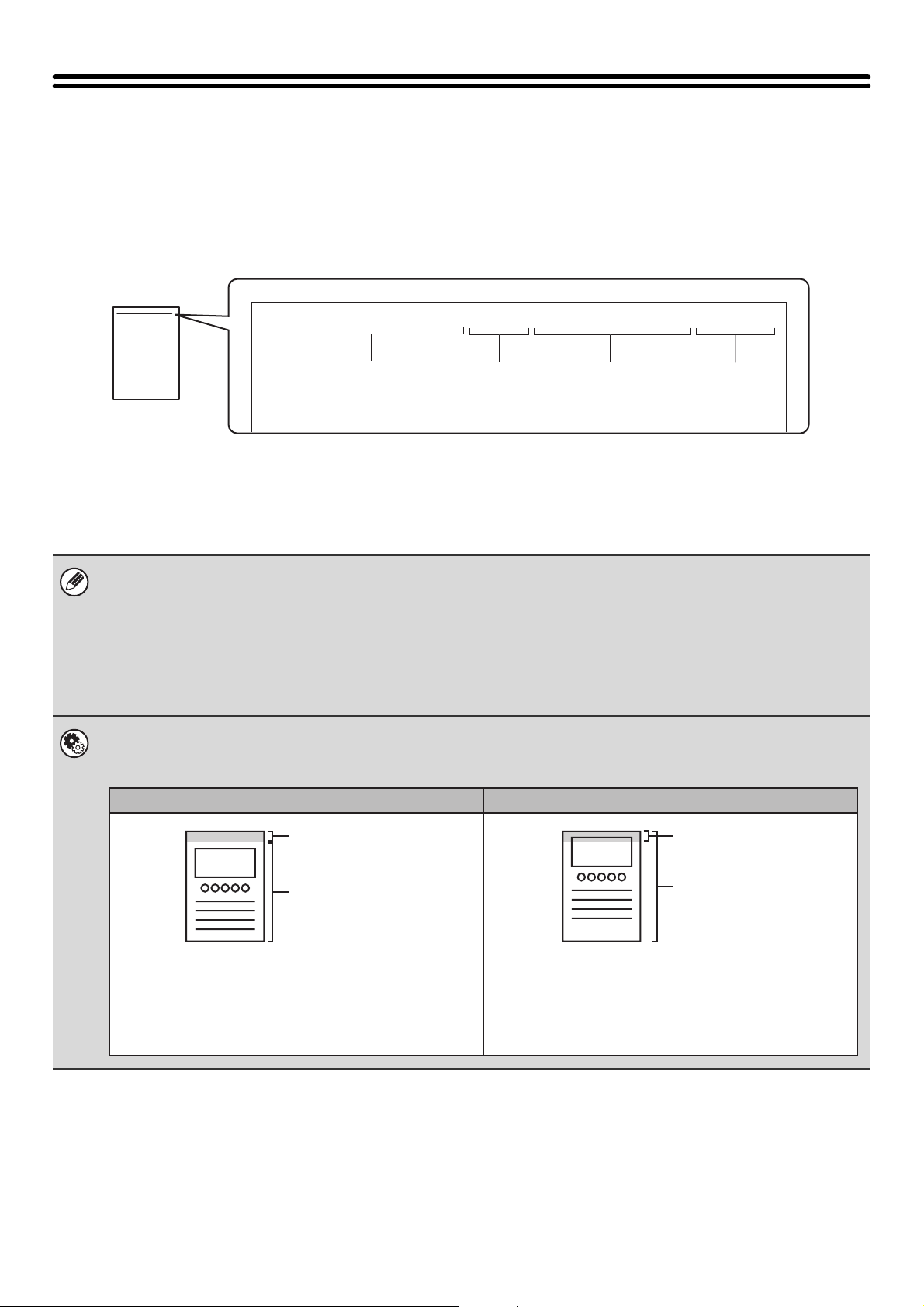
120
ADDING YOUR SENDER INFORMATION TO
FAXES (Own number sending)
Your sender information (date, time, sender name, sender fax number, number of pages) is automatically added to the
top of each fax page you transmit.
Example of the sender information printed
(1) Date, time: The date and time of transmission.
(2) Sender name: The sender name programmed in the machine.
(3) Sender fax number: The sender fax number programmed in the machine.
(4) Page numbers: Page number / total pages (the total page number is only printed
when the fax is sent by memory transmission.)
Information programmed in Own Number Sending
Date, time: To set or check the date and time, see the Administrator's Guide.
Sender name, sender fax number: Program the sender name and fax number in "Fax Own Name and Number Set" in the
system settings (administrator).
Page numbers: Select whether or not to include page numbers in "Printing Page Number at Receiver" in
the system settings (administrator).
Page numbers appear in the format "page number / total pages". Only the page number
is printed when manual transmission or quick online transmission is used.
System Settings (Administrator): Date/Own Number Print Position Setting
This is used to set the position where the sender information is printed. The sender information can be printed outside the
scanned original image or inside the scanned original image.
APR/04/2010/Sun 3:00 PM AAAAA FAX No. 0123456789 P.001/001
(1) (2) (3) (4)
Sender
information
Sender
information
Originals
Originals
Outside scanned image (factory default setting) Inside scanned image
The transmitted image length will be: length of sender
information + length of original image. When the fax is
printed by the receiving machine, it may be reduced or
divided onto two pages.
The sender information is printed inside the original
image, and thus the transmitted image length is the
length of the original. Note that the sender information
will overlap part of the original image (the overlapped
part of the original image will not appear).
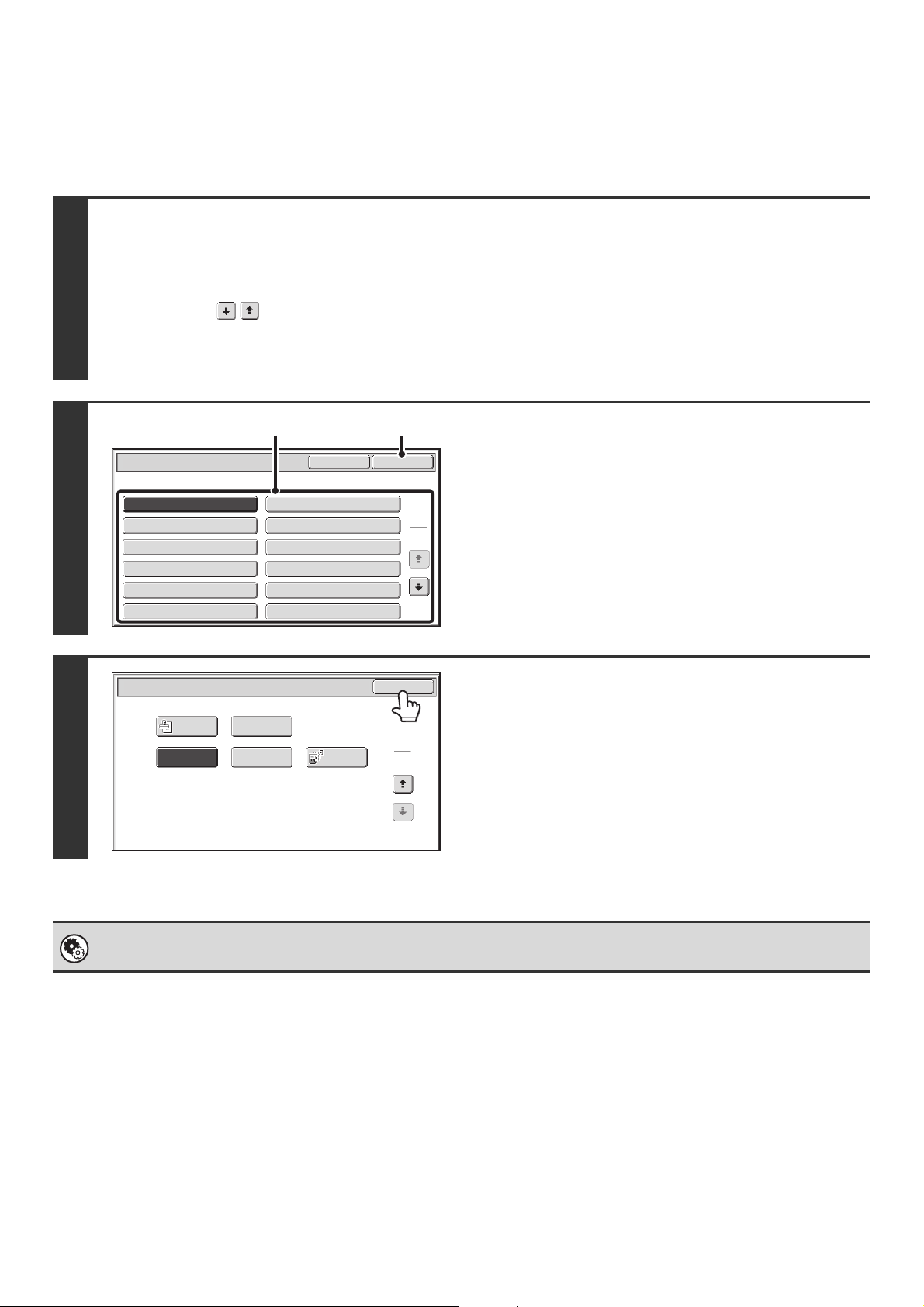
121
TEMPORARILY CHANGING THE FAX SENDER
INFORMATION (Own Name Select)
You can select the sender information printed on a transmitted fax from a list of stored senders.
1
Select the special modes.
(1) Touch the [Fax] tab.
(2) Touch the [Special Modes] key.
(3) Touch the keys to switch through the screens.
(4) Touch the [Own Name Select] key.
☞ SPECIAL MODES (page 87)
2
Select the sender information.
(1) Touch the desired sender information key.
(2) Touch the [OK] key.
3
Touch the [OK] key.
System Settings (Administrator): Registration of Own Name Select
This is used to store sender information for Own Name Select.
Own Name Select
Cancel
OK
1
2
AAAAA
CCCCC
EEEEE
GGGGG
IIIII
KKKKK
BBBBB
DDDDD
FFFFF
HHHHH
JJJJJ
LLLLL
(1) (2)
Transaction
Report
Own Name
Select
Memory Box
Polling
OK
Fax/Special Modes
2
2
Verif.
Stamp
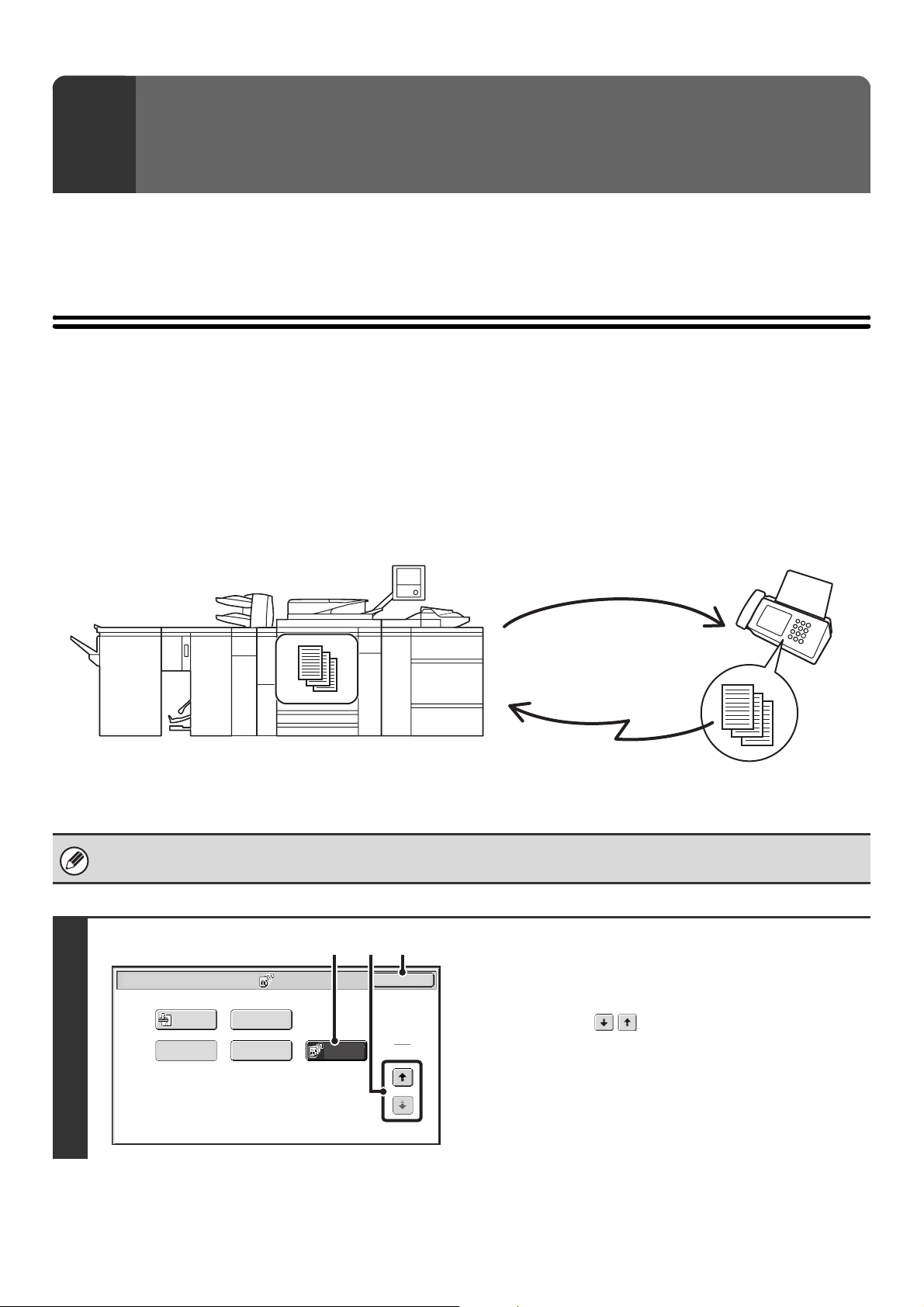
122
This chapter explains special functions for fax, including polling, F-code communication, and using an extension phone.
The explanations in this chapter assume that fax mode has been selected (the [Fax] tab has been selected in the send
mode selection tabs).
CALLING A FAX MACHINE AND INITIATING
RECEPTION (Polling)
The Polling function allows the receiving machine to call the transmitting machine and initiate reception of a document in
that machine.
Because the receiving machine initiates reception of a document, this is called "Polling Reception".
5
SPECIAL FAX FUNCTIONS
Make sure that an original is not placed in the machine when using the polling reception function.
1
Select polling reception.
(1) Touch the [Special Modes] key.
☞ SPECIAL MODES (page 87)
(2) Touch the keys to switch through the
screens.
(3) Touch the [Polling] key so that it is
highlighted.
(4) Touch the [OK] key.
(1) Requests fax transmission.
Transmission
(2) The previously prepared
document is transmitted.
(3) The fax is received.
Transaction
Report
Own Name
Select
Memory Box
Polling
OK
Fax/Special Modes
2
2
Verif.
Stamp
(2) (4)(3)
123
2
Enter the destination fax number.
☞
2. ENTERING DESTINATIONS (page 25)
• Multiple fax numbers can be entered.
Polling will take place in the order that the numbers were entered.
Polling multiple machines is called "Serial Polling".
Up to 500 fax numbers can be entered. In this procedure, one-touch keys that have a sub-address and passcode
cannot be used.
• To enter multiple fax numbers, touch the [Next Address] key after entering a fax number and enter the next fax
number.
• When the fax destination confirmation function is selected in the system settings (administrator), multiple
destinations cannot be entered.
3
Press the [START] key ( ).
Your machine will call the other machine and initiate reception of the fax.
• Polling reception can be used in combination with the timer function to poll at any specified time, such as at night or when
you are not present.
• This function can only be used when the other machine is Super G3 or G3 compatible and has a polling function.
• The receiving machine bears the expense (phone charges) of the polling reception.
To cancel polling reception...
Touch the [Polling] key in the screen of step 1 so that it is not highlighted.
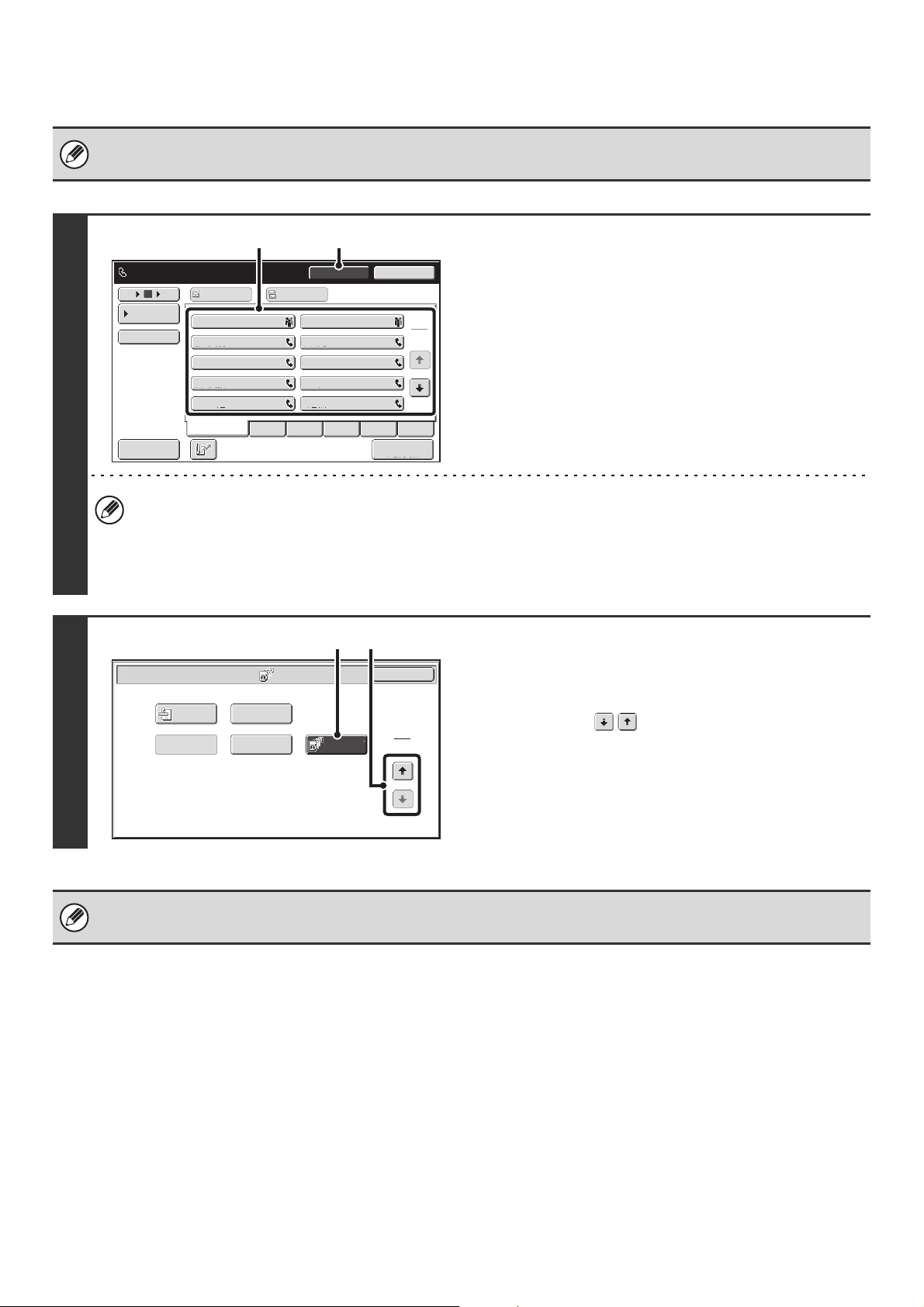
124
INITIATING POLLING RECEPTION MANUALLY
• Make sure that an original is not placed in the machine when using the polling reception function.
• This function cannot be used to poll multiple machines (serial polling).
1
Enter the destination fax number.
(1) Touch the [Speaker] key.
You will hear the dial tone through the machine's speaker.
(2) Touch the [Address Book] key in the base
screen.
(3) Touch the one-touch key of the desired
destination.
A group key cannot be used.
• In addition to specification by one-touch key, a destination can also be specified using a search number. You can
also directly enter a fax number with the numeric keys or look up a destination in a global address book. For more
information, see "2. ENTERING DESTINATIONS" (page 25).
• After touching the [Speaker] key, you can touch the [Speaker Volume] key to adjust the volume of the speaker. The
speaker volume changes each time the [Speaker Volume] key is touched. Adjust the volume to the desired level.
2
Receive the fax.
(1) Touch the [Special Modes] key.
☞ SPECIAL MODES (page 87)
(2) Touch the keys to switch through the
screens.
(3) When you hear the fax tone, touch the
[Polling] key.
The fax is received.
1
2
III III
GGG GGG
EEE EEE
CCC CCC
AAA AAA
JJJ JJJ
HHH HHH
FFF FFF
DDD DDD
BBB BBB
105 15
Sort Address
Speaker Volume
To Cc
Telephone mode.
Fax Manual
Reception
Resend
Speaker
Frequent Use
ABCD EFGHI JKLMN OPQRST UVWXYZ
Condition
Settings
Fax Memory:100%
(3) (1)
Transaction
Report
Own Name
Select
Memory Box
Polling
OK
Fax/Special Modes
2
2
Verif.
Stamp
(2)(3)
• This function can only be used when the other machine is Super G3 or G3 compatible and has a polling function.
• The receiving machine bears the expense (phone charges) of the polling reception.
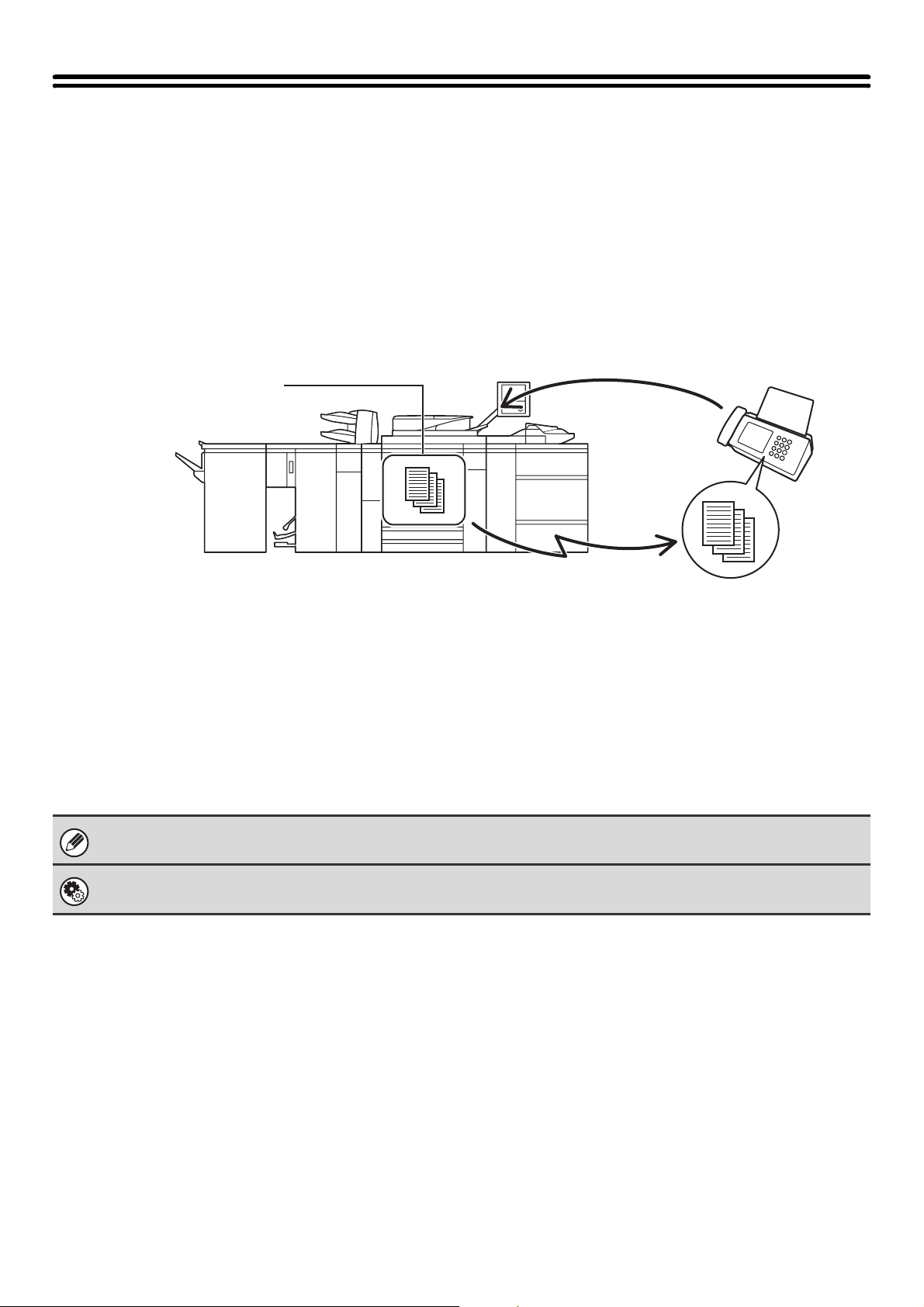
125
SENDING A FAX WHEN ANOTHER
MACHINE POLLS YOUR MACHINE
(Polling Memory)
Sending a document that has been scanned into memory when another machine polls your machine is called "Polling
Memory".
Prior to polling, the document that will be faxed to the other machine must be scanned into a polling memory box.
This function can only be used when the other machine is Super G3 or G3 compatible and has a polling function.
RESTRICTING POLLING ACCESS (Polling security)
To only allow specified machines to poll your machine, you can restrict polling to machines whose programmed sender
fax number matches a fax number stored in your machine as a polling passcode number. This is called "Polling
Security".
To use this function, first store polling passcode numbers (the sender fax numbers programmed in the other machines)
in the machine's system settings, and then enable polling security.
Up to 10 fax numbers can be stored as polling passcode numbers.
System Settings (Administrator): Fax Polling Security
This is used to enable polling security. This is used to store fax numbers as polling passcode numbers.
(1) Requests fax transmission.
(3) The fax is received.
(2) The document in the memory box is
transmitted.
Polling
memory box
Transmission
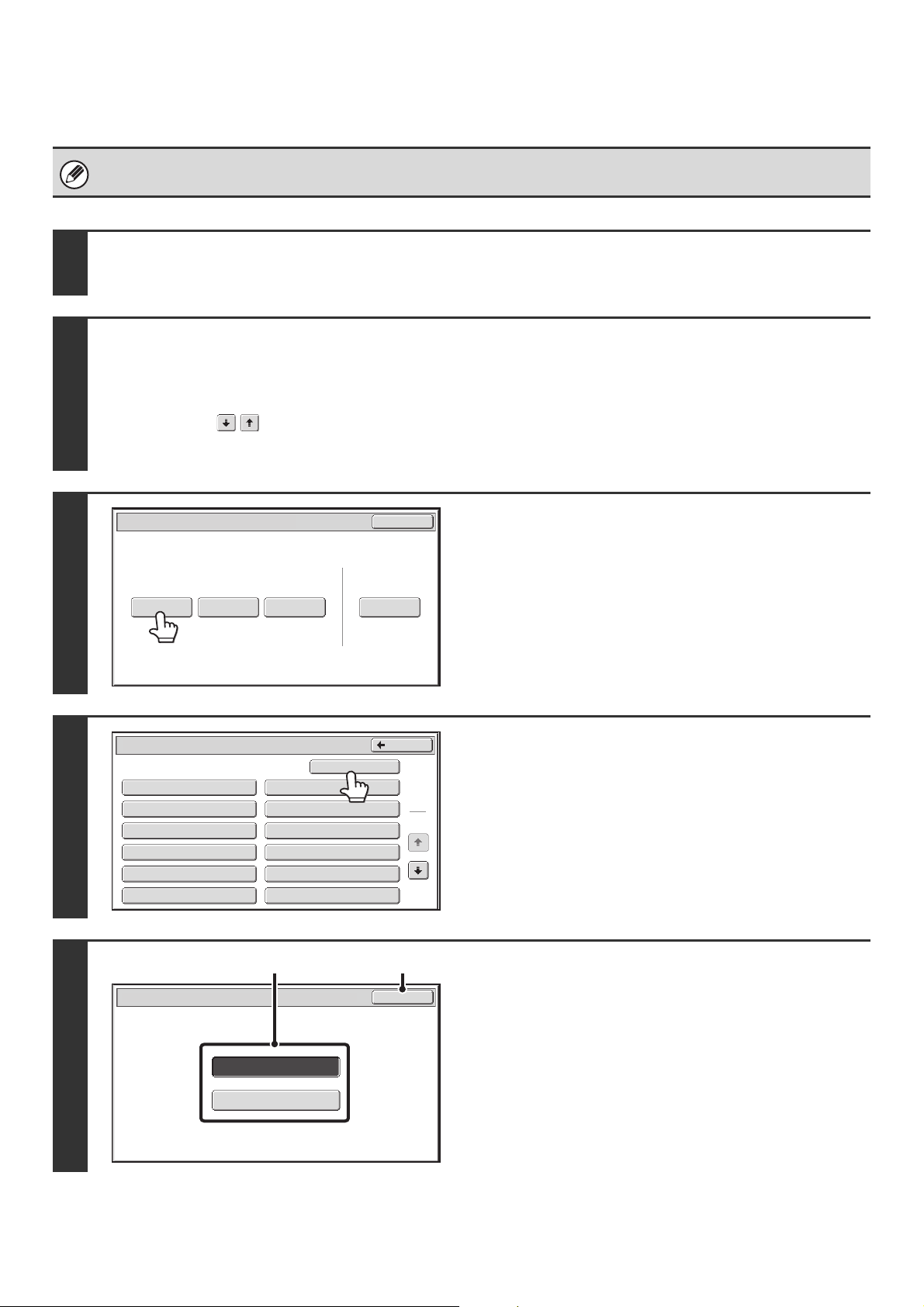
126
SCANNING A DOCUMENT INTO POLLING MEMORY
Follow these steps to scan a document into the memory box for polling transmission (Public Box).
A document cannot be scanned into the Public Box while it is in use for communication.
1
Place the original.
Place the original face up in the document feeder tray, or face down on the document glass.
2
Select the special modes.
(1) Touch the [Special Modes] key.
☞ SPECIAL MODES (page 87)
(2) Touch the keys to switch through the screens.
(3) Touch the [Memory Box] key.
3
Touch the [Data Store] key.
4
Touch the [Public Box] key.
5
Specify the number of polling times.
(1) Touch the key for the desired number of
times.
Touch the [Once] key if you want the document cleared
from memory after it is transmitted. Touch the [Unlimited]
key to allow polling an unlimited number of times.
(2) Touch the [OK] key.
Polling Memory
Confidential
Reception
Print Data Delete Data
Data Store
Memory Box
Print Data
Exit
Memory Box - Data Store
Public Box
Back
1
2
Box 1
Box 3
Box 5
Box 7
Box 9
Box 11
Box 2
Box 4
Box 6
Box 8
Box 10
Box 12
Unlimited
Once
OK
Memory Box - Data Store
(1) (2)
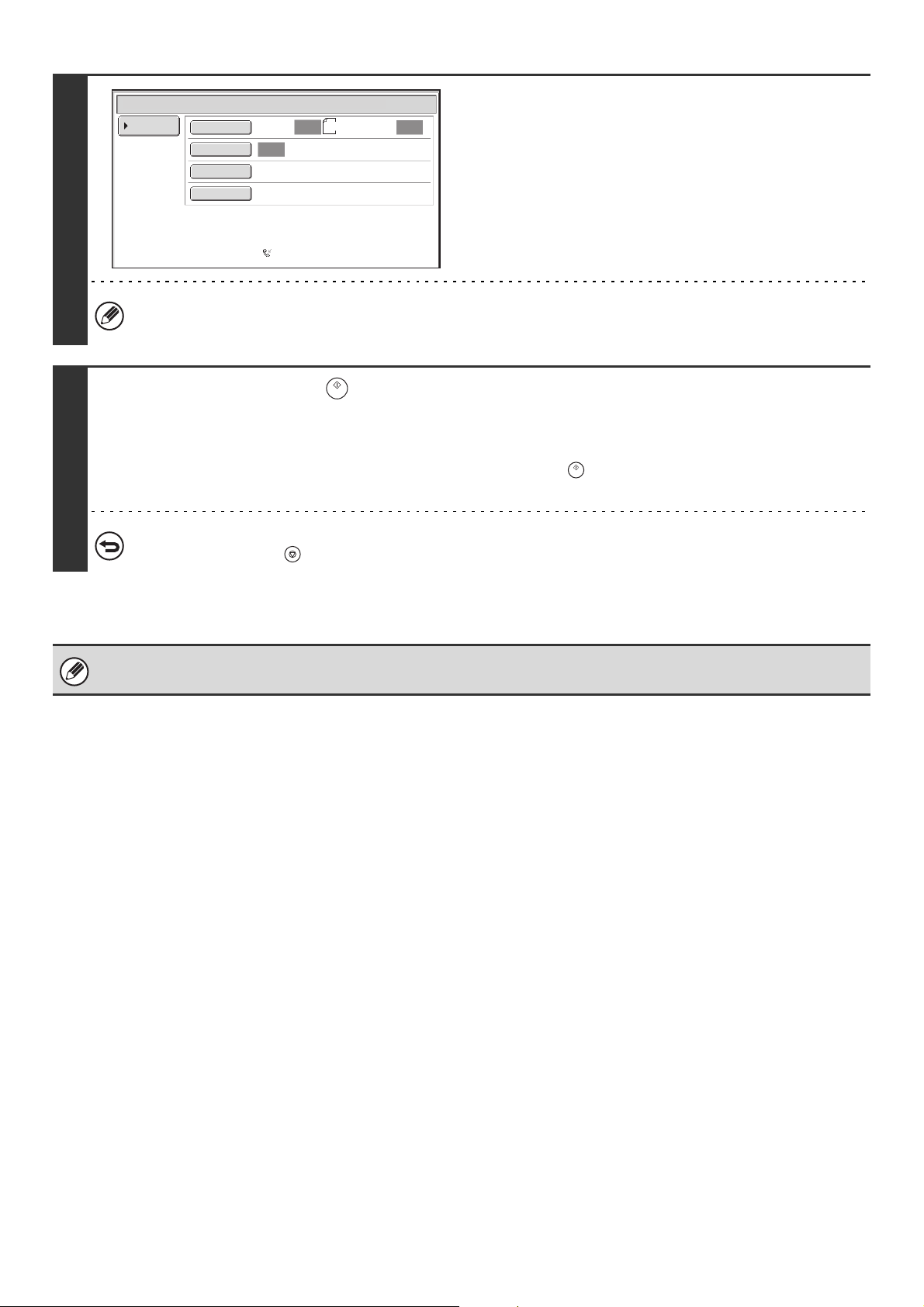
127
6
Select image settings and special
modes.
• A program, timer setting, transaction report, polling, and document filing cannot be selected.
• To return to the screen of step 4, touch the [Memory Box List] key.
7
Press the [START] key ( ).
Scanning begins.
• If you inserted the original pages in the document feeder tray, all pages are scanned.
• If you are scanning the original on the document glass, scan each page one page at a time.
When scanning finishes, place the next original and press the [START] key ( ). Repeat until all pages have been scanned
and then touch the [Read-End] key.
To cancel scanning...
Press the [STOP] key ( ) while the original is being scanned.
If another document remains in the memory box (Public Box), the newly scanned document is added to the previous
document. In this case, the number of polling times will be the number set for the newly scanned document.
Standard
Auto Reception
Fax Memory:100%
Scan: Send:
Auto
Auto
Auto
Memory Box - Data Store
Memory Box
List
8½x11
Special Modes
Resolution
Exposure
Original
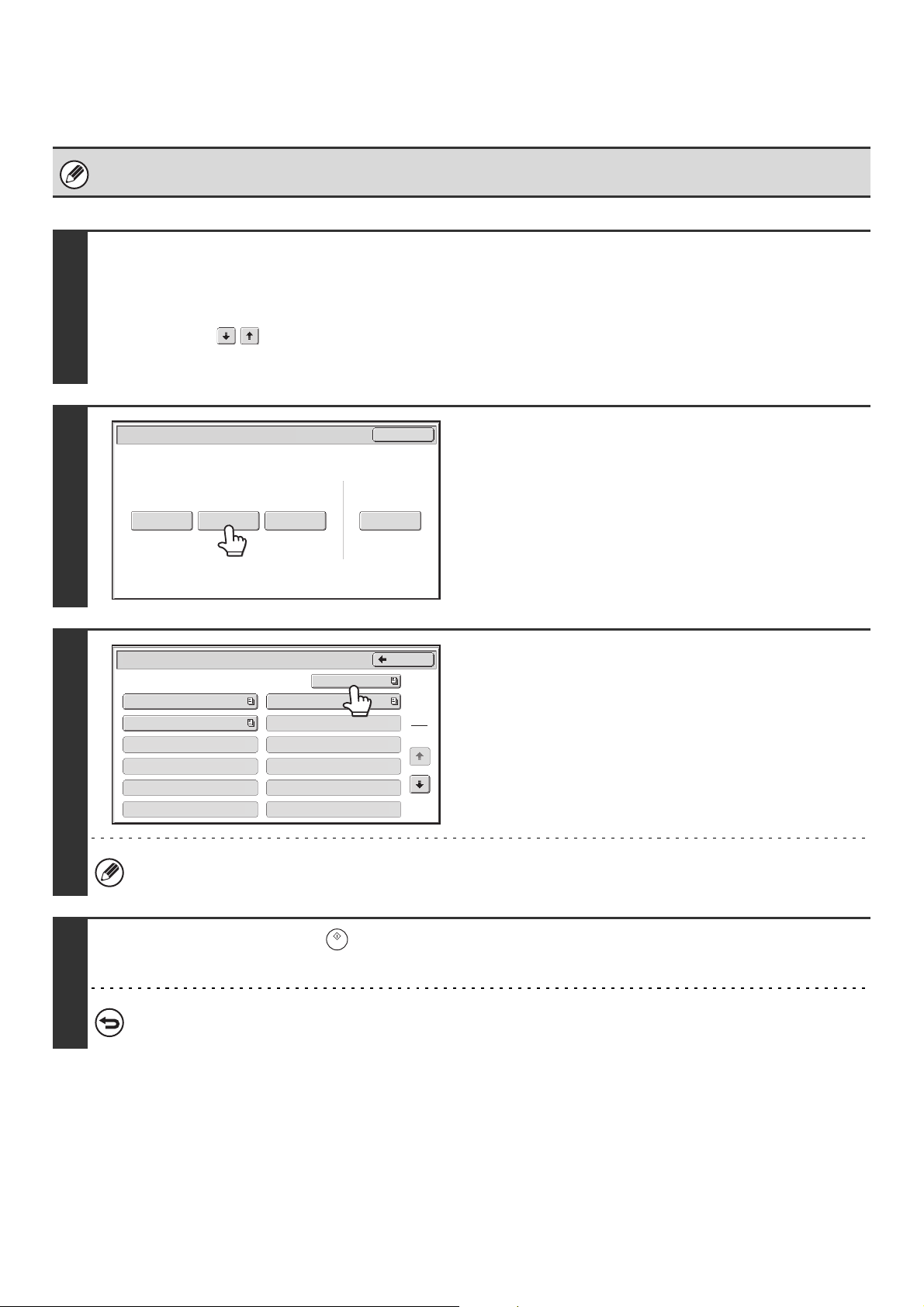
128
PRINTING A DOCUMENT STORED IN THE PUBLIC BOX
To check a document stored in the Public Box for polling transmission, follow the steps below to print the document.
Document data in the Public Box cannot be printed while the Public Box is in use for communication.
1
Select the special modes.
(1) Touch the [Special Modes] key.
☞ SPECIAL MODES (page 87)
(2) Touch the keys to switch through the screens.
(3) Touch the [Memory Box] key.
2
Touch the [Print Data] key.
3
Touch the [Public Box] key.
When nothing is stored in the Public Box, the [Public Box] key will be grayed out.
4
Press the [START] key ( ).
The stored document is printed.
To cancel printing...
Touch the [Cancel] key in the touch panel.
Polling Memory
Confidential
Reception
Print Data
Delete Data
Data Store
Memory Box
Print Data
Exit
Memory Box - Print Data
Public Box
Back
1
2
Box 1
Box 3
Box 5
Box 7
Box 9
Box 11
Box 2
Box 4
Box 6
Box 8
Box 10
Box 12
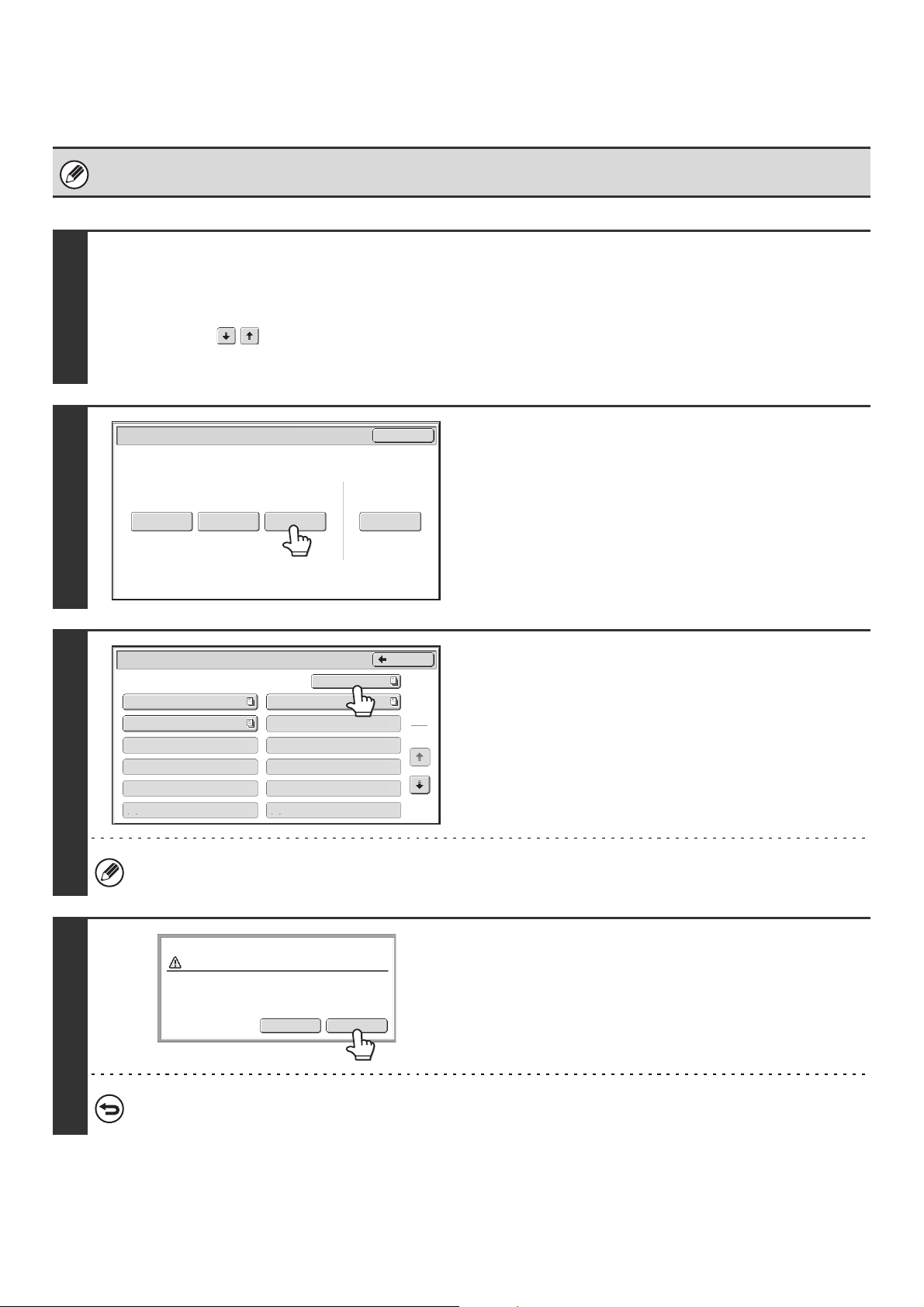
129
DELETING A DOCUMENT FROM THE PUBLIC BOX
Delete a document from the Public Box when it is no longer needed.
Document data in the Public Box cannot be deleted while the Public Box is in use for communication.
1
Select the special modes.
(1) Touch the [Special Modes] key.
☞ SPECIAL MODES (page 87)
(2) Touch the keys to switch through the screens.
(3) Touch the [Memory Box] key.
2
Touch the [Delete Data] key.
3
Touch the [Public Box] key.
When nothing is stored in the Public Box, the [Public Box] key will be grayed out.
4
Touch the [Yes] key.
The document is deleted and you return to the screen of step 3.
To cancel the deletion...
Touch the [NO] key. You will return to the screen of step 3.
Polling Memory
Confidential
Reception
Print Data Delete DataData Store
Memory Box
Print Data
Exit
Memory Box - Delete Data
Back
1
2
Box 1
Box 3
Box 5
Box 7
Box 9
Box 11
Box 2
Box 4
Box 6
Box 8
Box 10
Box 12
Public Box
Yes
No
Delete the data in the memory box?
Public Box
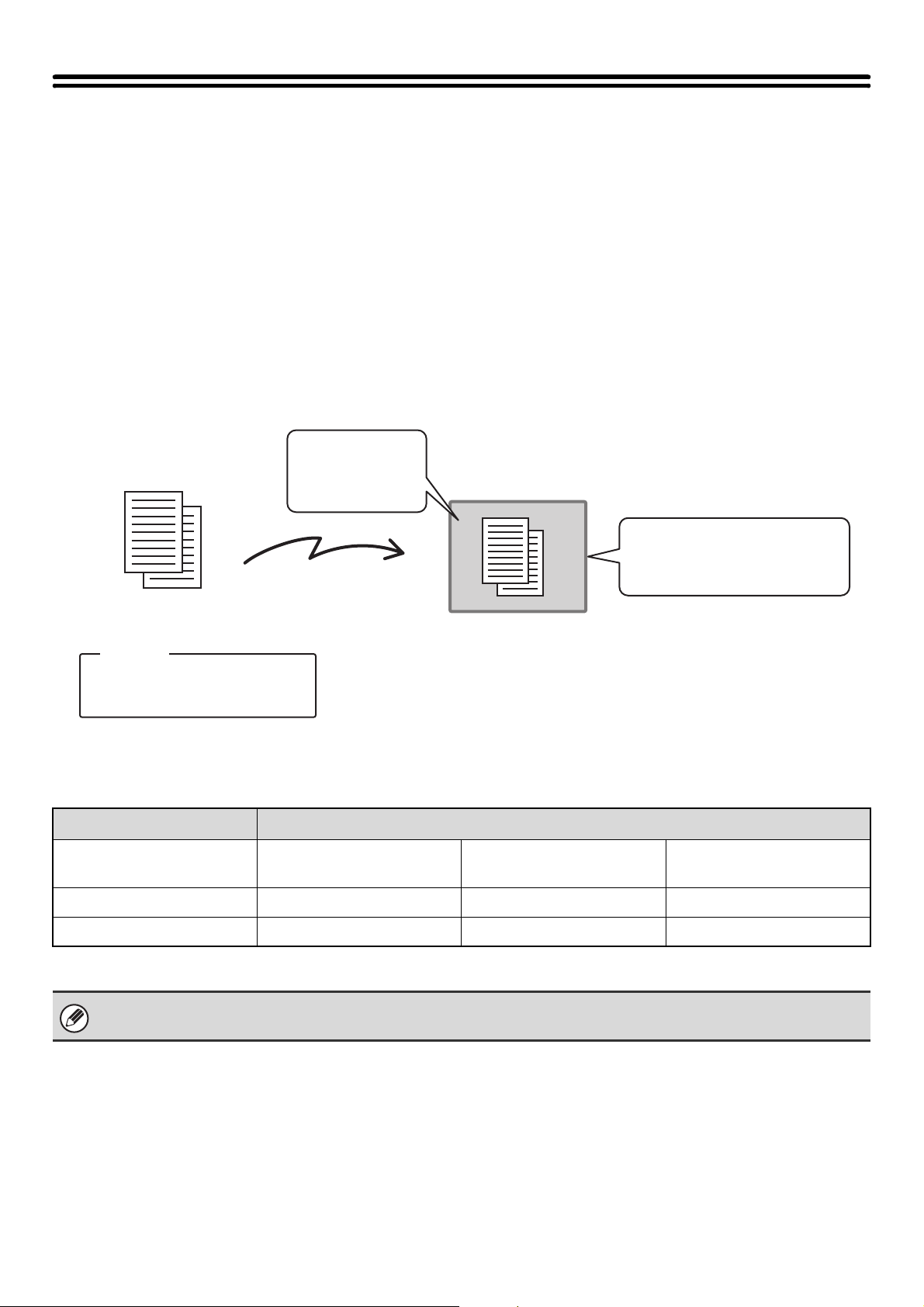
130
F-CODE COMMUNICATION
Exchange of confidential documents (confidential communication), retrieval (polling) and distribution (polling memory) of
information, distribution of information to multiple destinations (relay broadcast transmission) are possible with other
machines that support F-code communication.
An F-code* is specified in each communication, enabling a higher level of security.
*F-code is a communication function based on the G3 standard of the ITU-T.
HOW F-CODES WORK
A fax that is transmitted with an F-code is received to the memory box in the receiving machine specified by the F-code
(sub-address and passcode). If the F-code sent by the transmitting machine does not match the F-code in the receiving
machine, reception will not take place.
The products of other manufacturers may use different terms for "sub-address" and "passcode". If you need to contact
the operator of another machine regarding sub-addresses and passcodes, refer to the terms used by the ITU-T in the
table below.
The machine ITU-T
F-code polling memory box F-code confidential box
F-code relay broadcast
memory box
Sub Address SEP SUB SUB
Passcode PWD SID SID
An F-code consists of a sub-address and passcode, and cannot be longer than 20 digits.
Fax number of other
machine
+
F-code
Sub-address: AAAAAAAA
Passcode: XXXXXXXX
Box name: BBBB
Sub-address: AAAAAAAA
Passcode: XXXXXXXX
Memory box for
F-code
communication
The fax is received to
the memory box
specified by the
F-code
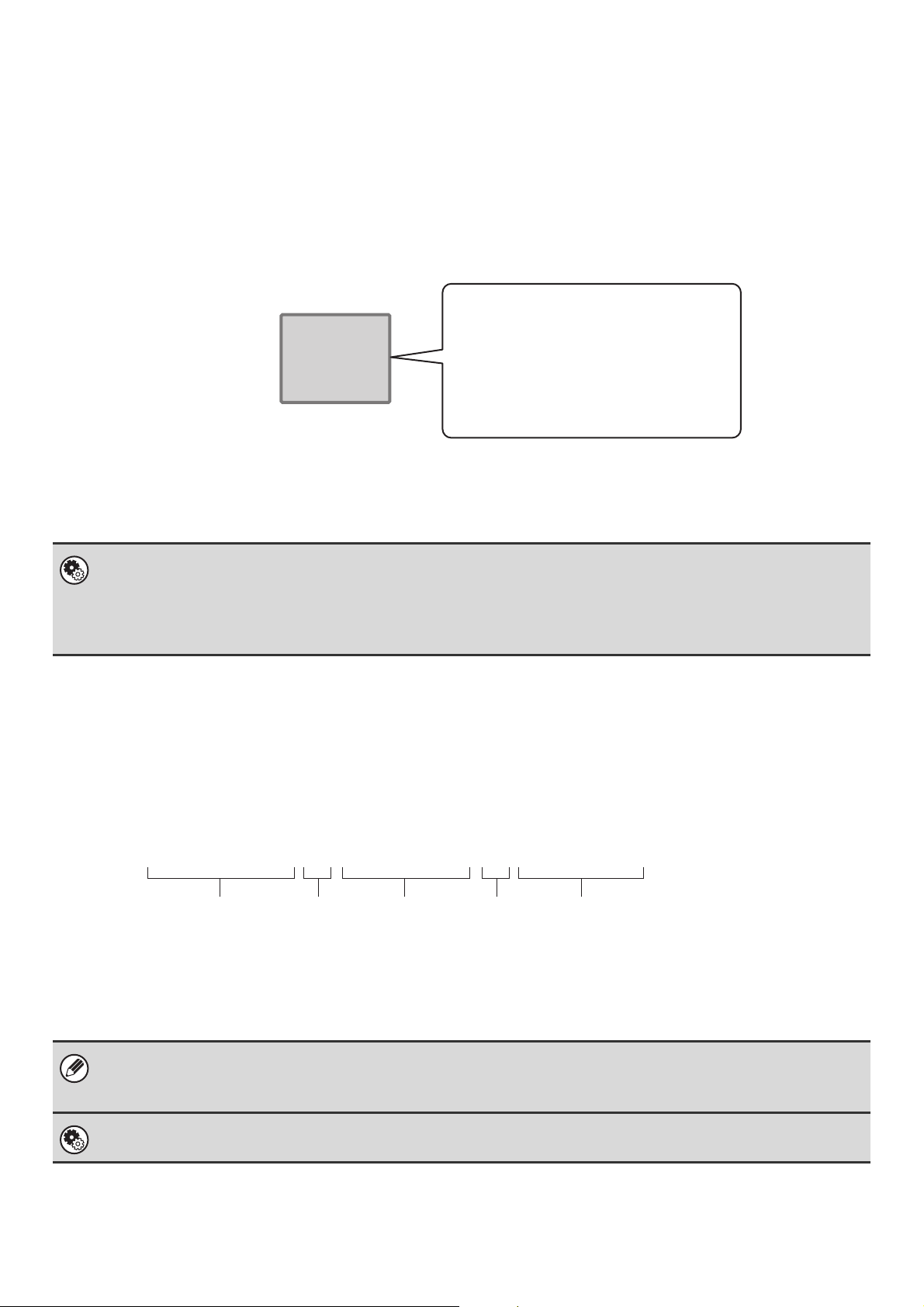
131
CREATING MEMORY BOXES IN THE MACHINE FOR
F-CODE COMMUNICATION
Before the F-code communication function can be used, special memory boxes must be created using "F-Code Memory
Box" in the system settings.
A box name and F-code (sub-address and passcode) are programmed in each box, and an F-code communication
function is assigned to each box.
After you have created a memory box, inform the other party of the sub-address and passcode of the box.
To use the following F-code communication functions, F-code memory boxes must be created in your machine.
F-code confidential reception, F-code polling memory, F-code relay broadcast transmission
To use the following F-code communication functions, F-code memory boxes must be created in the other machine.
F-code confidential transmission, F-code polling reception, F-code relay request transmission
F-CODE DIALING
When performing an F-code operation, the F-code (sub-address and passcode) is appended to the fax number that is
dialed. Check the F-code (sub-address and passcode) programmed in the memory box in the other machine before you
perform an F-code transmission. It is convenient to store an F-code together with the fax number in a one-touch key or
group key.
When the following F-code functions are used, your machine dials the other machine.
F-code confidential transmission, F-code polling reception, F-code relay request transmission
When the following F-code functions are used, the other machine dials your machine.
F-code confidential reception, F-code polling memory, F-code relay broadcast transmission
System Settings: F-CODE MEMORY BOX (page 179)
This is used to configure memory boxes for F-code communication.
• Up to 100 memory boxes can be created.
• The memory box name cannot be longer than 18 characters, and the sub-address and passcode cannot be longer than 20
digits.
• If the destination machine does not have a passcode configured in the F-code, do not enter a passcode when dialing that
machine.
• F-code communication cannot be performed when using the speaker or performing manual transmission.
System Settings: ADDRESS BOOK (page 174)
This is used to store and edit one-touch keys and group keys.
•Box Name
• Sub Address
•Passcode
• End receiving machines (only in an
F-code relay broadcast memory box)
• Print PIN (only for F-code
confidential reception)
Memory box for
F-code
communication
0123456789
/
AAAAAAAA
/
XXXXXXXX
Fax number of other
machine
Sub Address Passcode
* Touch the [Sub Address] key
in the screen to enter "/".
*
*
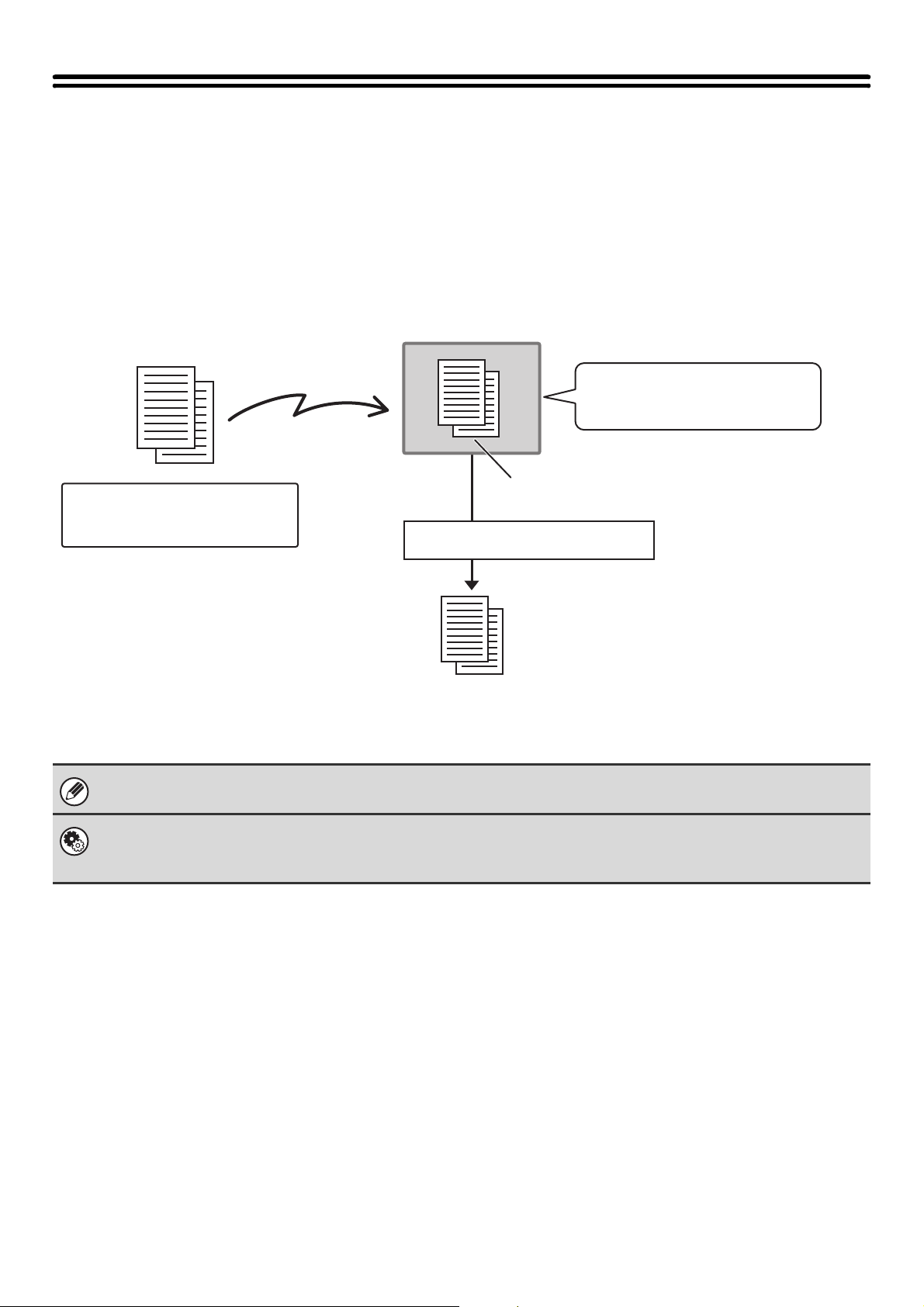
132
CONFIDENTIAL COMMUNICATION USING
F-CODES
By sending a fax to an F-code memory box (confidential) in the receiving machine (your machine or the other machine),
the sender can direct the transmission specifically to the user of the box.
This is convenient for sending sensitive documents that you do not wish people other than the recipient to see, or when
the receiving machine is shared by multiple departments.
To print an F-code confidential fax, the print passcode must be entered.
The F-code (sub-address and passcode) of the memory box to be used should be verified by the sender and the recipient
before the fax is sent.
System Settings: F-CODE MEMORY BOX (page 179)
This is used to create memory boxes for F-code confidential communication (confidential reception).
A memory box name, sub-address, passcode, and print passcode are programmed in each box.
Sub-address: AAAAAAAA
Passcode: XXXXXXXX
Sub-address: AAAAAAAA
Passcode: XXXXXXXX
Transmission with an
F-code
Reception in F-code Memory Box
Print passcode: Enter BBBB
The fax is printed.
Sender
Receiver
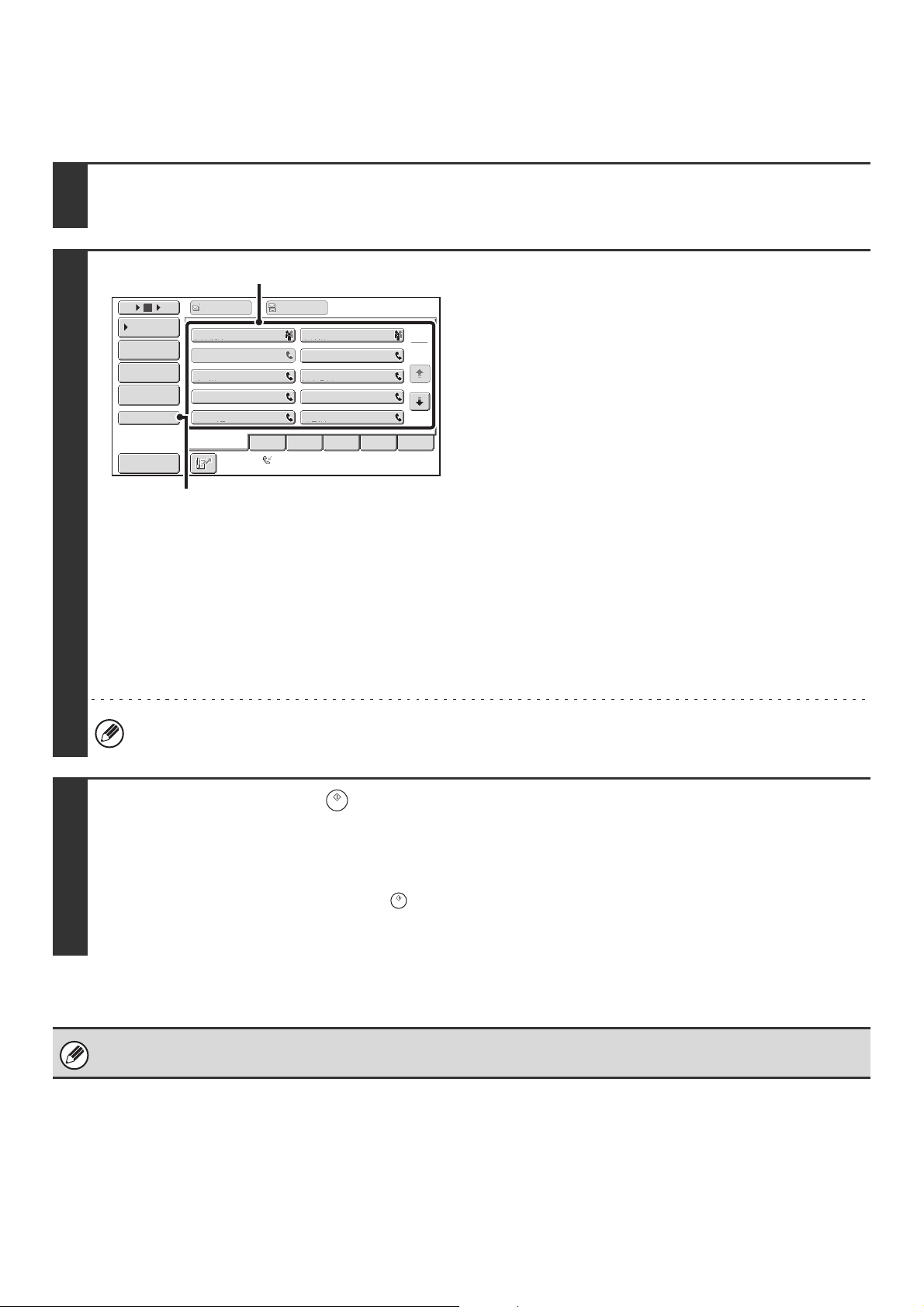
133
F-CODE CONFIDENTIAL TRANSMISSION
Follow the steps below to send a confidential fax by adding an F-code to the fax number.
1
Place the original.
Place the original face up in the document feeder tray, or face down on the document glass.
2
Enter the destination fax number.
(1) Touch the [Address Book] key in the base
screen.
(2) Touch the one-touch key of the desired
destination.
If the destination is not stored in the address book, enter
the fax number with the numeric keys.
If the sub-address and passcode are stored in the one-touch
key, the following sub-steps are not necessary. Go to step 3.
(3) Touch the [Sub Address] key.
"/" appears.
(4) Enter the sub-address with the numeric
keys.
(5) Touch the [Sub Address] key.
"/" appears.
(6) Enter the passcode with the numeric keys.
If a passcode has been omitted in the memory box of the other machine, (5) and (6) are not necessary.
3
Press the [START] key ( ).
Scanning begins.
• If you inserted the original pages in the document feeder tray, all pages are scanned.
A beep will sound to indicate that scanning is finished.
• If you are scanning the original on the document glass, scan each page one page at a time. When scanning finishes, place
the next original and press the [START] key ( ). Repeat until all pages have been scanned and then touch the
[Read-End] key.
A beep will sound to indicate that scanning is finished.
This function can be used in combination with a broadcast transmission or timer transmission. This function can also be
stored in a program.
Frequent Use
ABCD EFGHI JKLMN OPQRST UVWXYZ
1
2
105 15
To
Cc
III III
GGG GGG
EEE EEE
CCC CCC
AAA AAA
JJJ JJJ
HHH HHH
FFF FFF
DDD DDD
BBB BBB
Global
Address Search
Address Entry
Sort Address
Sub Address
Address Review
Condition
Settings
Auto Reception
Fax Memory:100%
(2)
(3), (5)
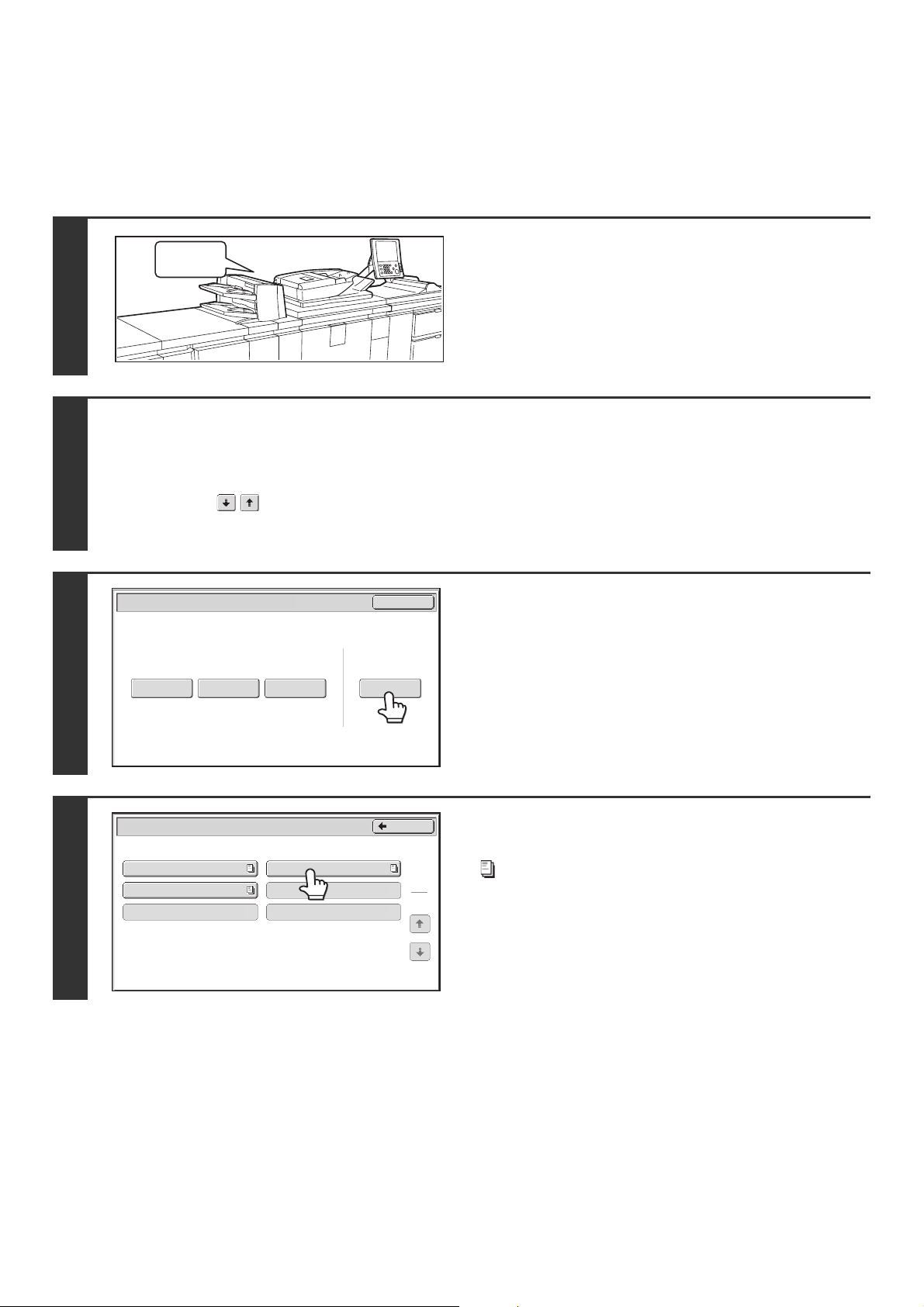
134
PRINTING A FAX RECEIVED BY F-CODE
CONFIDENTIAL RECEPTION
When an F-code confidential fax is sent to your machine, the fax is received to the memory box specified by the F-code.
To print the received fax, enter the print passcode.
1
The machine rings and the fax is
received.
A beep sounds when reception ends.
2
Select the special modes.
(1) Touch the [Special Modes] key.
☞ SPECIAL MODES (page 87)
(2) Touch the keys to switch through the screens.
(3) Touch the [Memory Box] key.
3
Touch the [Print Data] key.
4
Touch the key of the memory box
containing the confidential fax.
" " appears in the keys of memory boxes that have received
faxes. The keys of memory boxes that have not received faxes
are grayed out and cannot be selected.
Beep
Exit
Polling Memory
Confidential
Reception
Print Data Delete Data
Data Store
Memory Box
Print Data
1
1
Memory Box - Confidential Reception
Back
Box 1
Box 3
Box 5
Box 2
Box 4
Box 6
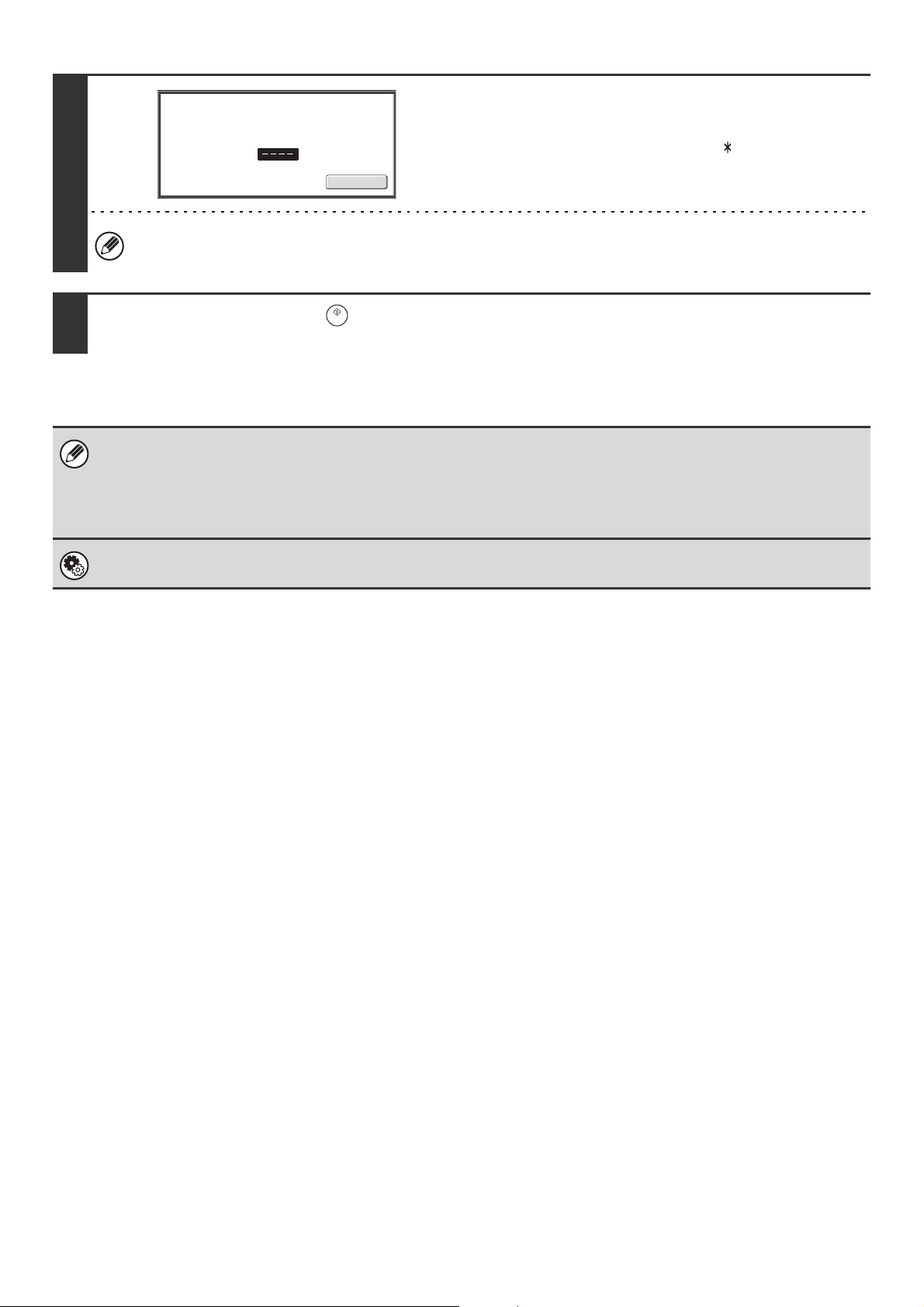
135
5
Enter the print passcode with the
numeric keys.
As each digit is entered, "-" changes to " ".
Take care to enter the correct print passcode. If you make a mistake, a message will appear and you will return to the
entry screen. You can touch the [Cancel] key to return to step 4.
6
Press the [START] key ( ).
• The confidential fax is automatically given priority in the print job queue.
• The fax is automatically cleared from the memory box after printing.
• If you forget the print passcode...
There is no way to check a forgotten passcode on the machine. Take care not to forget the passcode. In the event that you
forget the passcode or need to verify the passcode, contact your dealer or nearest SHARP Service Department.
System Settings (Administrator): Transaction Report Print Select Setting (Fax Default Settings)
This setting can be used to have a transaction report printed automatically when an F-code confidential fax is received.
Cancel
Enter PIN via the 10-key.
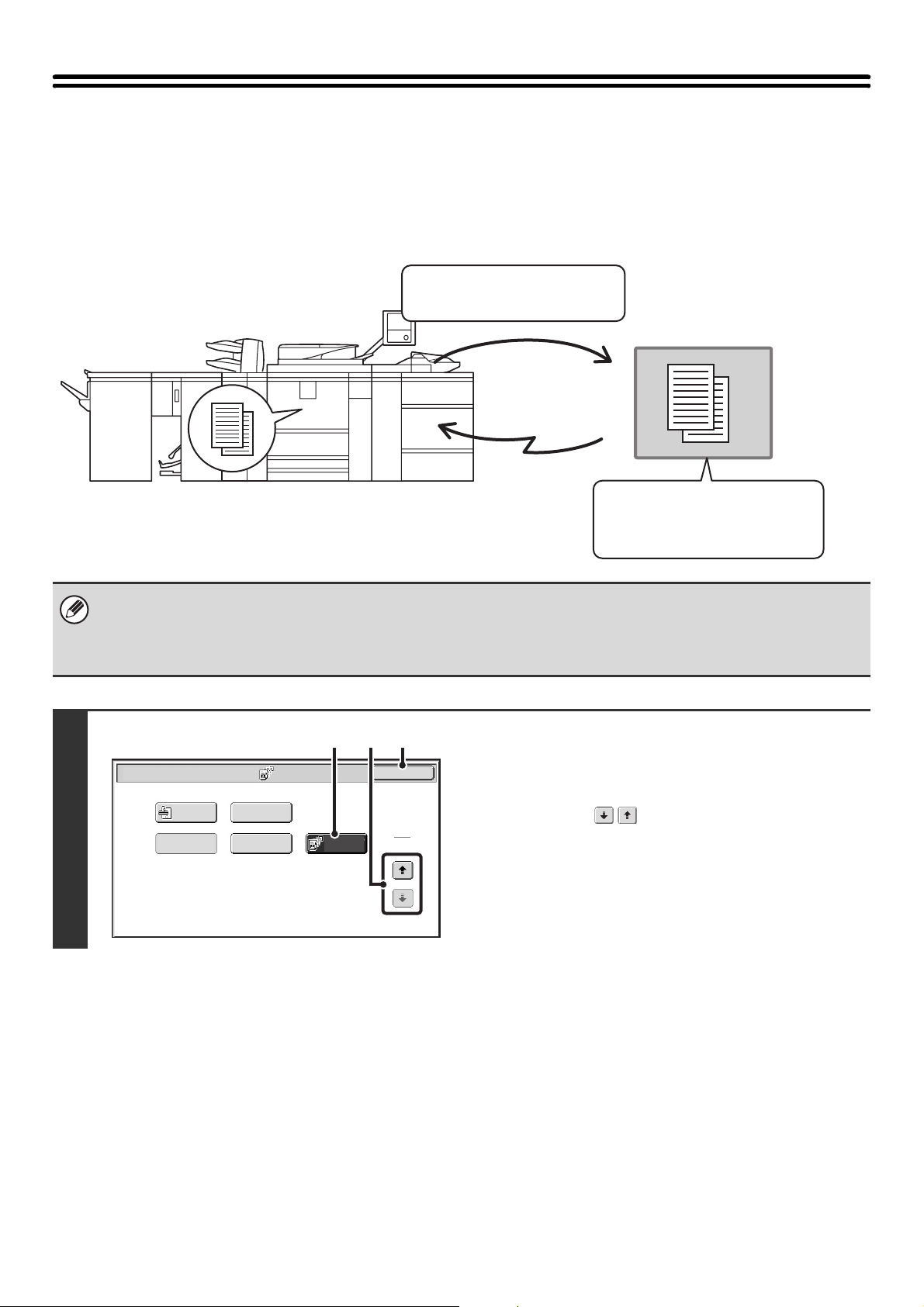
136
POLLING RECEPTION USING F-CODES
This function enables your machine to call another machine and initiate reception of a fax stored in an F-code memory
box (polling memory) in the other machine. During the polling operation, your machine must correctly specify the F-code
(sub-address and passcode) configured in the other machine or polling reception will not take place.
• Verify the F-code (sub-address and passcode) of the memory box in the other machine before you perform F-code polling
reception.
• Do not place an original in the automatic document feeder or on the document glass when using this function.
• The receiving machine bears the phone charges of the transmission.
1
Select polling.
(1) Touch the [Special Modes] key.
☞ SPECIAL MODES (page 87)
(2) Touch the keys to switch through the
screens.
(3) Touch the [Polling] key so that it is
highlighted.
(4) Touch the [OK] key.
Transmission
The other machine
F-code polling memory box
Box name: BBBB
Sub-address: AAAAAAAA
Passcode: XXXXXXXX
Sub-address: AAAAAAAA
Passcode: XXXXXXXX
Transmission request (polling) using an F-code
The machine
Transaction
Report
Own Name
Select
Memory Box
Polling
OK
Fax/Special Modes
2
2
Verif.
Stamp
(2) (4)(3)
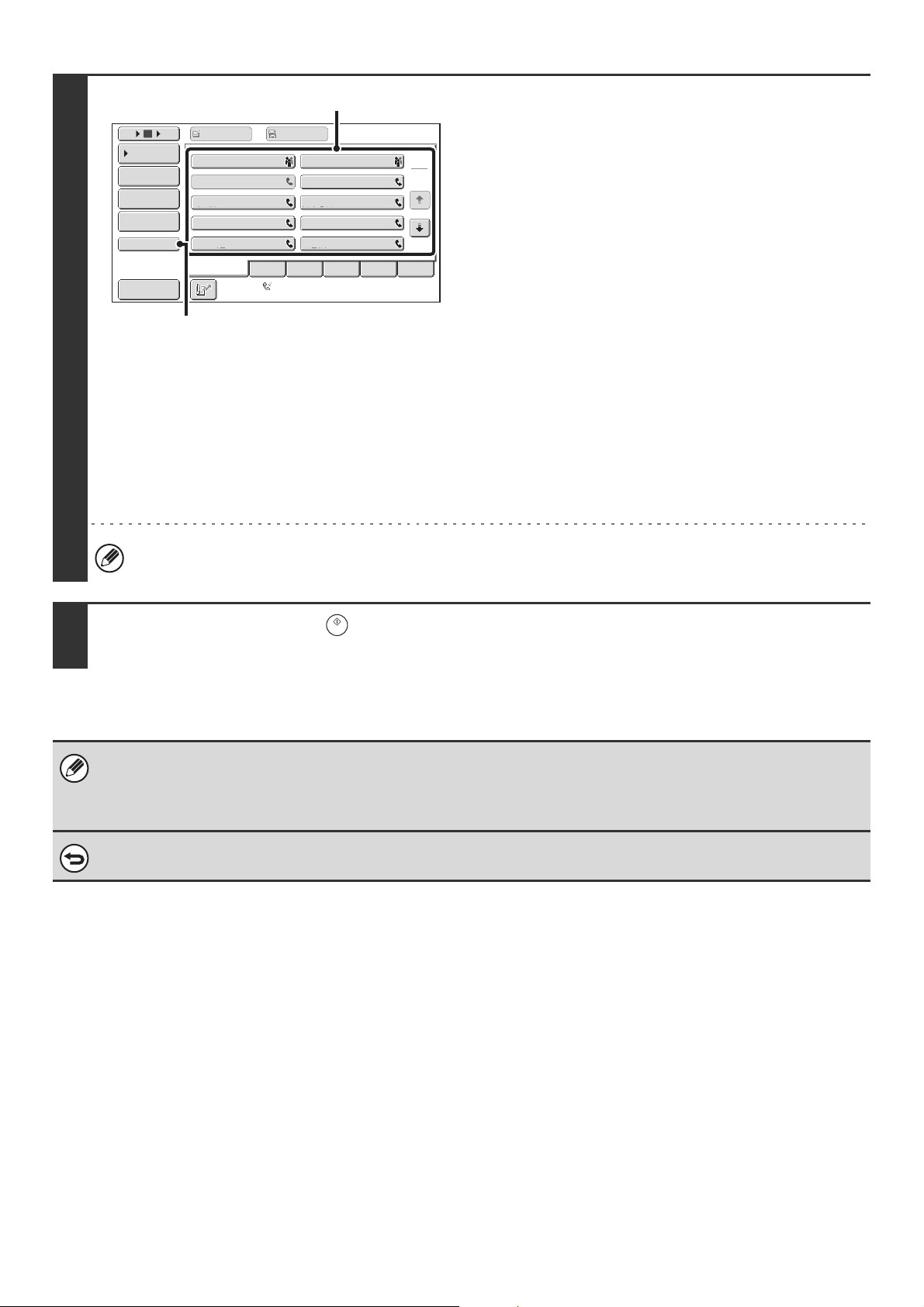
137
2
Enter the destination fax number.
(1) Touch the [Address Book] key in the base
screen.
(2) Touch the one-touch key of the desired
destination.
If the destination is not stored in the address book, enter
the fax number with the numeric keys.
If the sub-address and passcode are stored in the one-touch
key, the following sub-steps are not necessary. Go to step 3.
(3) Touch the [Sub Address] key.
"/" appears.
(4) Enter the sub-address with the numeric
keys.
(5) Touch the [Sub Address] key.
"/" appears.
(6) Enter the passcode with the numeric keys.
If a passcode has been omitted in the memory box of the other machine, (5) and (6) are not necessary.
3
Press the [START] key ( ).
Your machine will call the other machine and initiate reception of the fax.
• Polling multiple machines (serial polling) is not possible.
• F-code polling reception can be used in combination with a timer setting. Only one polling reception operation with a timer
setting can be stored at a time.
☞ SENDING A FAX AT A SPECIFIED TIME (Timer) (page 98)
To cancel polling...
Touch the [Polling] key in the screen of step 1 so that it is not highlighted.
Frequent Use
ABCD EFGHI JKLMN OPQRST UVWXYZ
1
2
105 15
III III
GGG GGG
EEE EEE
CCC CCC
AAA AAA
JJJ JJJ
HHH HHH
FFF FFF
DDD DDD
BBB BBB
Global
Address Search
Address Entry
Sort Address
Sub Address
Address Review
Condition
Settings
To
Cc
Auto Reception
Fax Memory:100%
(2)
(3), (5)
138
POLLING MEMORY TRANSMISSION USING
F-CODES
When your machine receives a transmission request from another machine, this function sends a fax stored in an
F-code memory box (polling memory) in your machine to that machine. The other machine must correctly specify the
F-code configured in your machine or transmission will not take place.
The document to be transmitted must be scanned into an F-code polling memory box.
SCANNING A DOCUMENT INTO A MEMORY BOX FOR
F-CODE POLLING TRANSMISSION
Follow these steps to scan a document into a memory box (polling memory) for F-code polling transmission.
System Settings: F-CODE MEMORY BOX (page 179)
This is used to create memory boxes (polling memory) for F-code polling memory transmission.
A memory box name, sub-address, and passcode are programmed in each box.
Transmission
The machine
F-code polling memory box
The other
machine
Box name: BBBB
Sub-address: AAAAAAAA
Passcode: XXXXXXXX
Sub-address: AAAAAAAA
Passcode: XXXXXXXX
Transmission request (polling)
using an F-code
A document cannot be scanned into a memory box while it is in use for communication.
1
Place the original.
Place the original face up in the document feeder tray, or face down on the document glass.
2
Select the special modes.
(1) Touch the [Special Modes] key.
☞ SPECIAL MODES (page 87)
(2) Touch the keys to switch through the screens.
(3) Touch the [Memory Box] key.
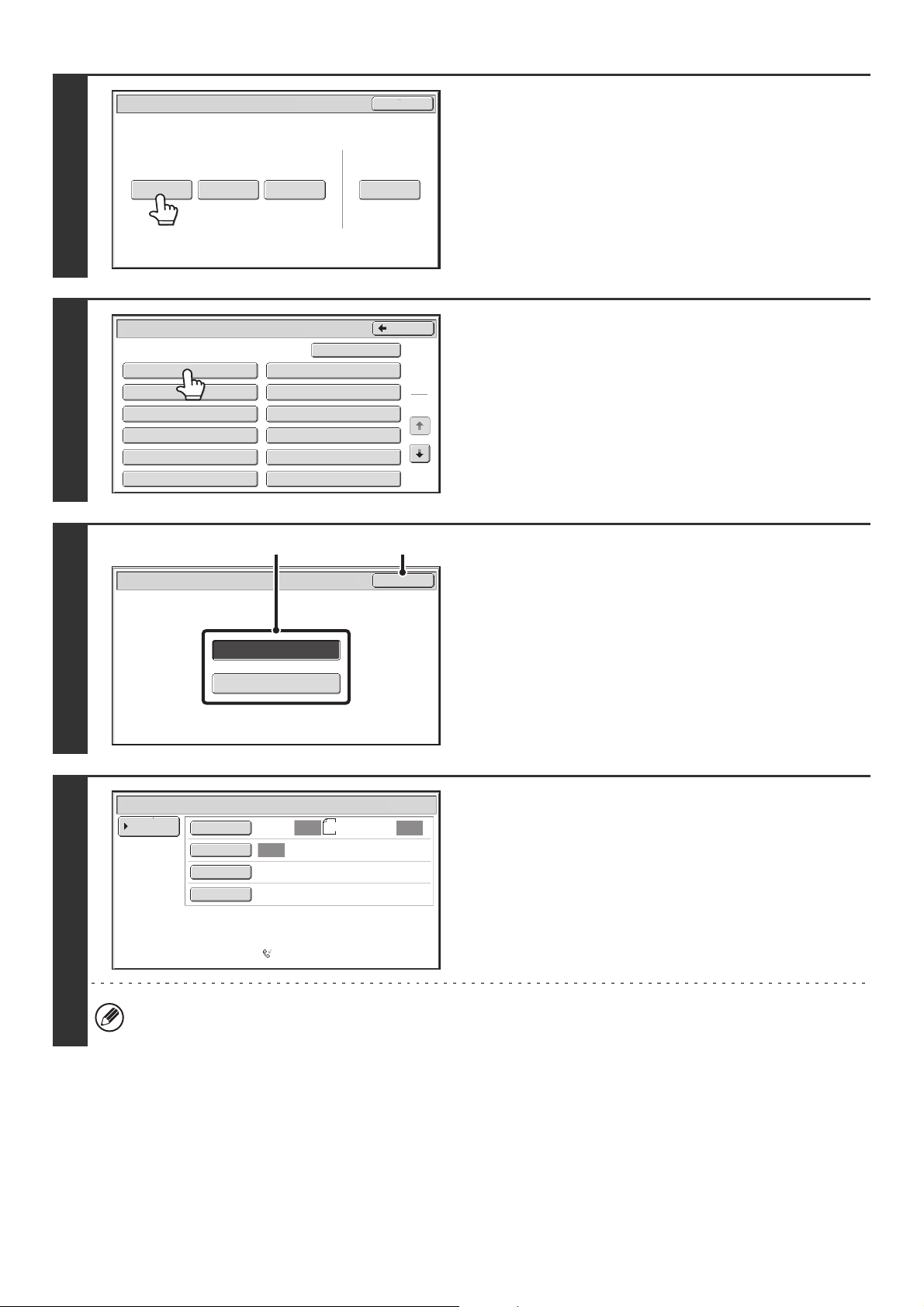
139
3
Touch the [Data Store] key.
4
Touch the key of the F-code memory
polling box.
5
Specify the number of polling times.
(1) Touch the key for the desired number of
times.
Touch the [Once] key if you want the document cleared
from memory after it is transmitted. Touch the [Unlimited]
key to allow polling an unlimited number of times.
(2) Touch the [OK] key.
6
Select image settings and special
modes.
• A program, timer setting, transaction report, polling, and document filing cannot be selected.
• To return to the screen of step 4, touch the [Memory Box List] key.
Polling Memory
Confidential
Reception
Print Data Delete Data
Data Store
Memory Box
Print Data
Exit
Memory Box - Data Store
Public Box
Back
1
2
Box 1
Box 3
Box 5
Box 7
Box 9
Box 11
Box 2
Box 4
Box 6
Box 8
Box 10
Box 12
Unlimited
Once
OK
Memory Box - Data Store
(1) (2)
Standard
Auto Reception
Fax Memory:100%
Scan: Send:
Auto
Auto
Auto
Special Modes
Resolution
Exposure
Original
Memory Box - Data Store
Memory Box
List
8½x11
140
7
Press the [START] key ( ).
Scanning begins.
• If you inserted the original pages in the document feeder tray, all pages are scanned.
• If you are scanning the original on the document glass, scan each page one page at a time.
When scanning finishes, place the next original and press the [START] key ( ). Repeat until all pages have been scanned
and then touch the [Read-End] key.
To cancel scanning...
Press the [STOP] key ( ) while the original is being scanned.
• If other documents have already been stored in the memory box, the document is added to the previously stored
documents.
• The factory default setting for the number of polling times is "Once" (after the document is transmitted to the receiving
machine, it is automatically cleared).
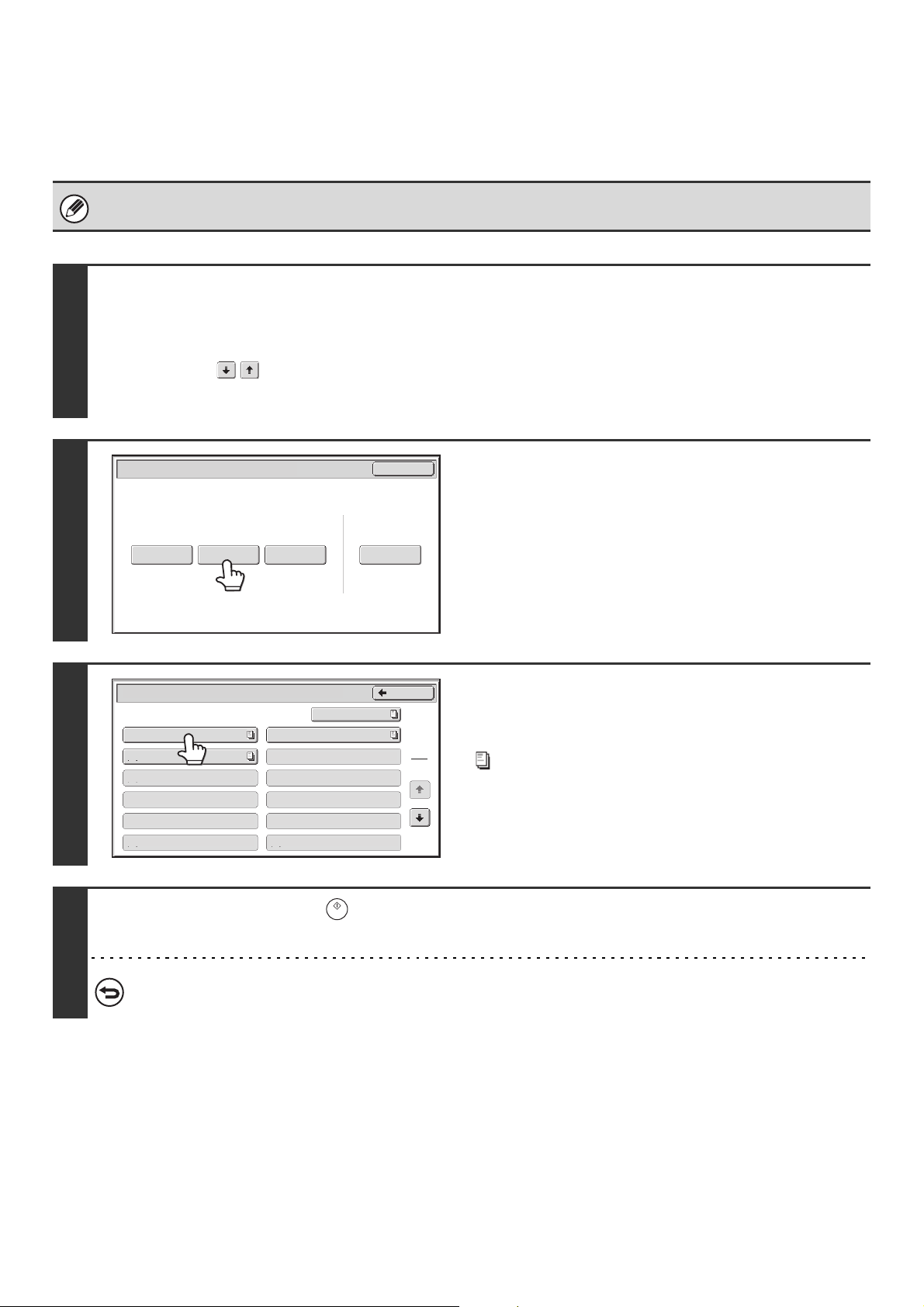
141
PRINTING A DOCUMENT STORED FOR F-CODE
POLLING TRANSMISSION
You can check a document in an F-code memory polling box by printing it out.
A document in a memory box cannot be printed while the document is being transmitted.
1
Select the special modes.
(1) Touch the [Special Modes] key.
☞ SPECIAL MODES (page 87)
(2) Touch the keys to switch through the screens.
(3) Touch the [Memory Box] key.
2
Touch the [Print Data] key.
3
Touch the key of the F-code memory
polling box where the document you
wish to print is stored.
appears in keys that have documents stored.
4
Press the [START] key ( ).
The document in the selected memory box is printed.
To cancel printing...
Touch the [Cancel] key.
Polling Memory
Confidential
Reception
Print Data Delete DataData Store
Memory Box
Print Data
Exit
Memory Box - Print Data
Public Box
Back
1
2
Box 1
Box 3
Box 5
Box 7
Box 9
Box 11
Box 2
Box 4
Box 6
Box 8
Box 10
Box 12
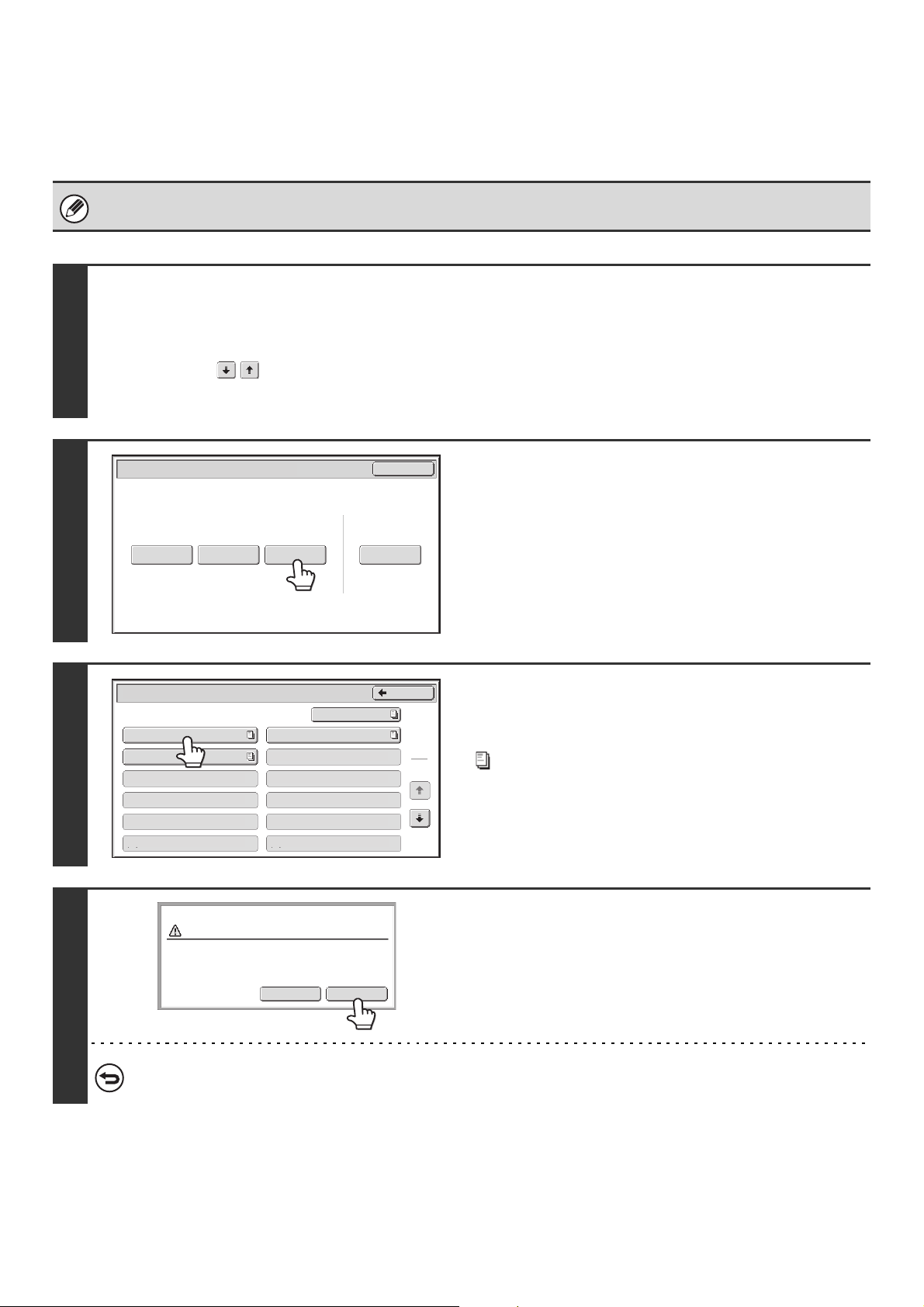
142
DELETING A DOCUMENT STORED FOR F-CODE
POLLING TRANSMISSION
When a document in an F-code memory polling box is no longer needed, follow the steps below to delete it.
A document in a memory box cannot be deleted while the document is being transmitted.
1
Select the special modes.
(1) Touch the [Special Modes] key.
☞ SPECIAL MODES (page 87)
(2) Touch the keys to switch through the screens.
(3) Touch the [Memory Box] key.
2
Touch the [Delete Data] key.
3
Touch the key of the F-code memory
polling box that has the document you
wish to delete.
appears in keys that have documents stored.
4
Touch the [Yes] key.
The document in the selected memory box is deleted and you
return to the screen of step 3.
To cancel the deletion...
Touch the [No] key. You will return to the screen of step 3 without deleting the document.
Polling Memory
Confidential
Reception
Print Data Delete DataData Store
Memory Box
Print Data
Exit
Memory Box - Delete Data
Back
1
2
Box 1
Box 3
Box 5
Box 7
Box 9
Box 11
Box 2
Box 4
Box 6
Box 8
Box 10
Box 12
Public Box
Yes
No
Delete the data in the memory box?
Box 1
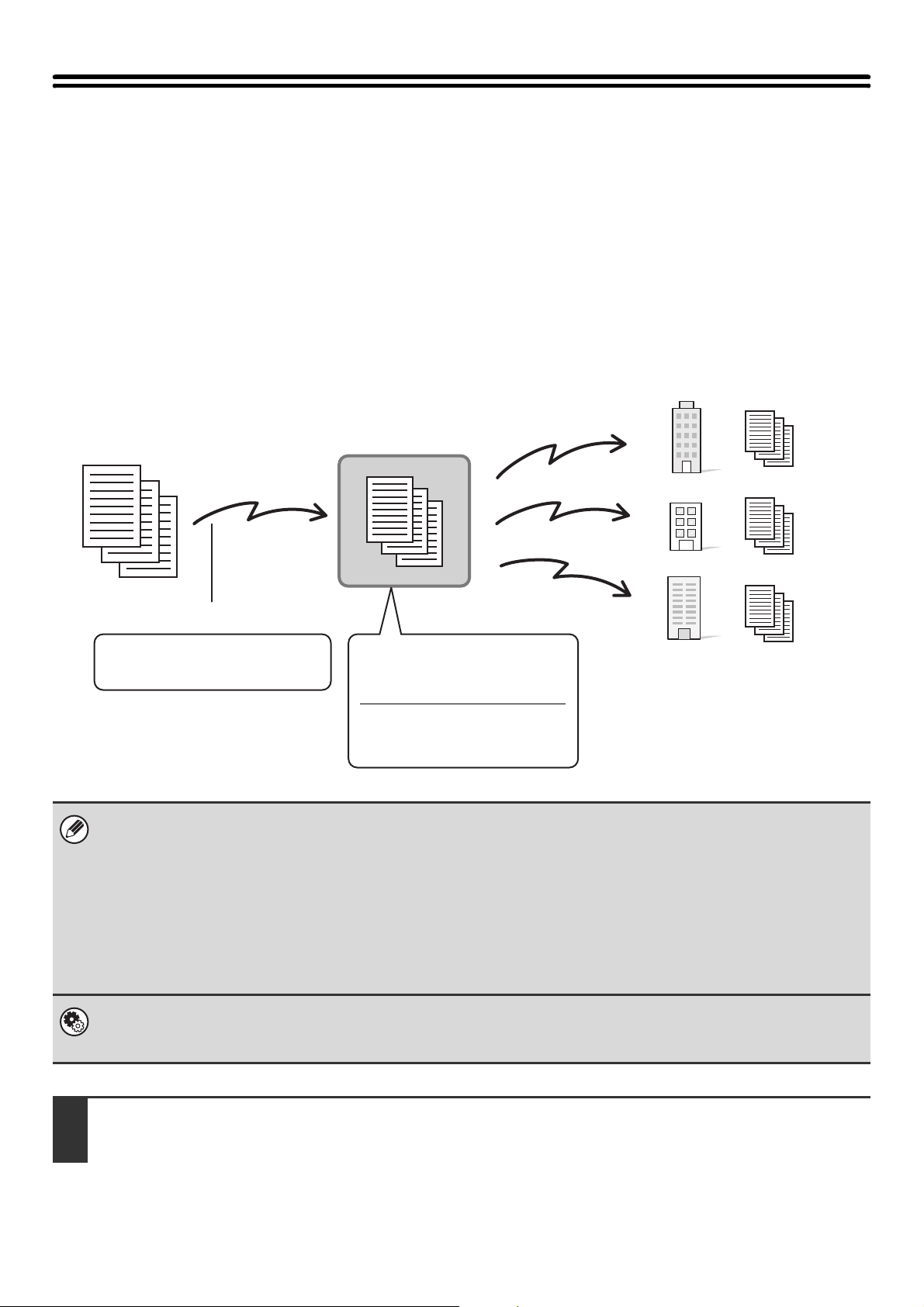
143
RELAY REQUEST TRANSMISSION USING
F-CODES
This function is used to send a fax to an F-code relay broadcast memory box in another machine and have that machine
relay the fax to multiple end receiving machines.
When the end receiving machines are far from your machine, sending the fax to a relay machine that is close to the end
receiving machines can help reduce phone charges. A relay request transmission can be used in combination with the
timer transmission function to further reduce phone costs.
☞ SENDING A FAX AT A SPECIFIED TIME (Timer) (page 98)
• Verify the F-code (sub-address and passcode) and end receiving machines programmed in the relay broadcast memory
box in the relay machine before you perform an F-code relay request transmission.
• Before this function can be used, the end receiving machines must be programmed in the F-code relay broadcast memory
box in the relay machine.
• The end receiving machines do not need to support F-code communication.
• This function can be used in combination with a broadcast transmission or timer transmission. This function can also be
stored in a program.
• Your machine (the machine that requests a relay broadcast transmission) only bears the cost of sending the fax to the
relay machine. The relay machine bears the cost of sending the fax to each of the end receiving machines.
System Settings: F-CODE MEMORY BOX (page 179)
This is used to create memory boxes for F-code relay broadcast transmission.
A memory box name, sub-address, passcode, and end receiving machines are programmed in each box.
1
Place the original.
Place the original face up in the document feeder tray, or face down on the document glass.
The machine
Transmission
The fax is transmitted to
each of the end receiving
machines programmed in
the F-code relay broadcast
memory box.
Relay machine
F-code relay
broadcast memory
box
Box name: BBBB
Sub-address: AAAAAAAA
Passcode: XXXXXXXX
Sub-address: AAAAAAAA
Passcode: XXXXXXXX
Transmission specifying an F-code
End receiving machines are
programmed in this box
End receiving
machines
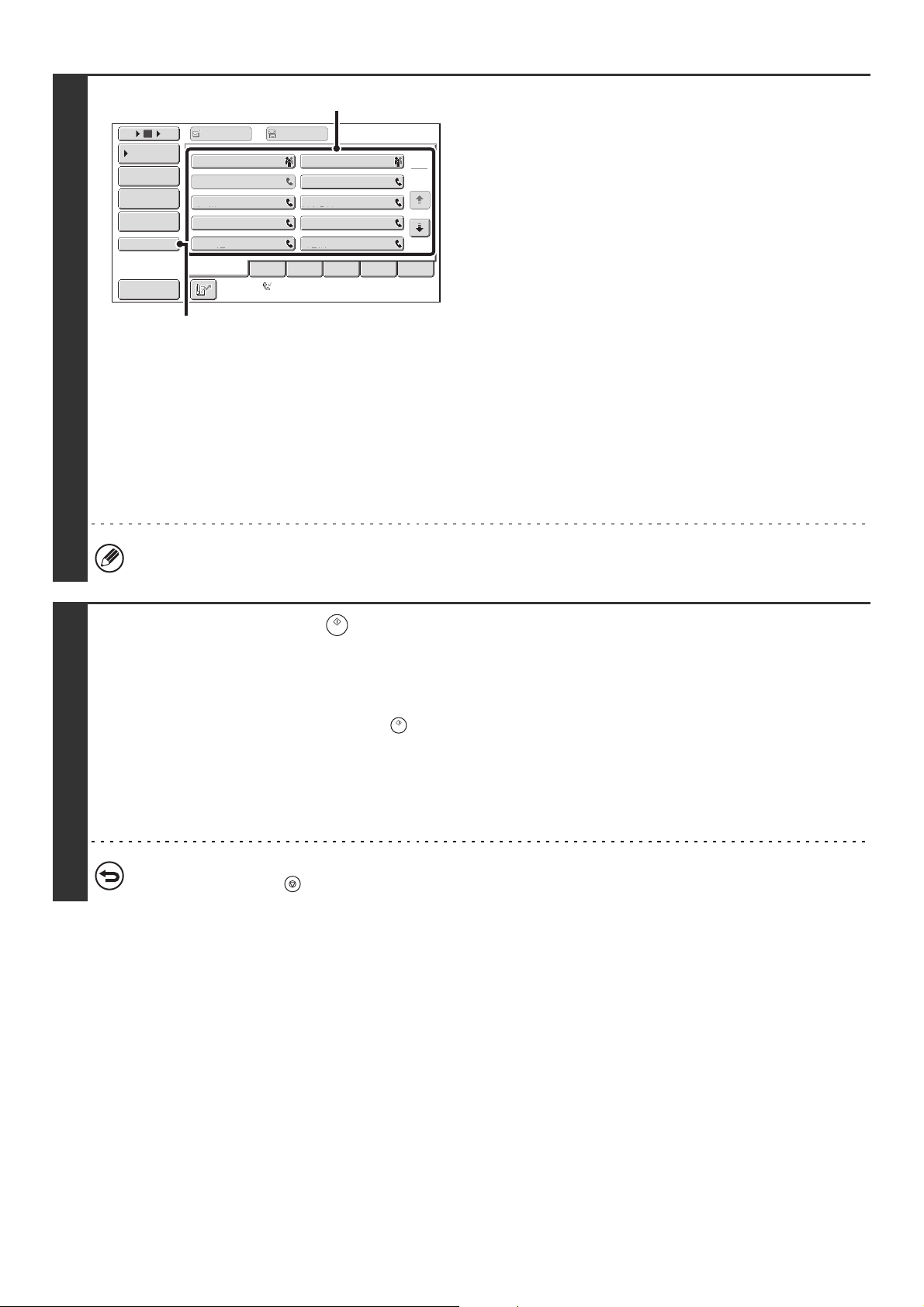
144
2
Enter the destination fax number.
(1) Touch the [Address Book] key in the base
screen.
(2) Touch the one-touch key of the desired
destination.
If the destination is not stored in the address book, enter
the fax number with the numeric keys.
If the sub-address and passcode are stored in the one-touch
key, the following sub-steps are not necessary. Go to step 3.
(3) Touch the [Sub Address] key.
"/" appears.
(4) Enter the sub-address with the numeric
keys.
(5) Touch the [Sub Address] key.
"/" appears.
(6) Enter the passcode with the numeric keys.
If a passcode has been omitted in the memory box of the other machine, (5) and (6) are not necessary.
3
Press the [START] key ( ).
Scanning begins.
• If you inserted the original pages in the document feeder tray, all pages are scanned.
A beep will sound to indicate that scanning is finished.
• If you are scanning the original on the document glass, scan each page one page at a time. When scanning finishes, place
the next original and press the [START] key ( ). Repeat until all pages have been scanned and then touch the
[Read-End] key.
A beep will sound to indicate that scanning is finished.
When the relay machine receives the fax, it will automatically transmit the fax to each of the end receiving machines
programmed in the memory box.
To cancel scanning...
Press the [STOP] key ( ) while the original is being scanned.
Frequent Use
ABCD EFGHI JKLMN OPQRST UVWXYZ
1
2
105 15
III III
GGG GGG
EEE EEE
CCC CCC
AAA AAA
JJJ JJJ
HHH HHH
FFF FFF
DDD DDD
BBB BBB
Global
Address Search
Address Entry
Sort Address
Sub Address
Address Review
Condition
Settings
To
Cc
Auto Reception
Fax Memory:100%
(2)
(3), (5)
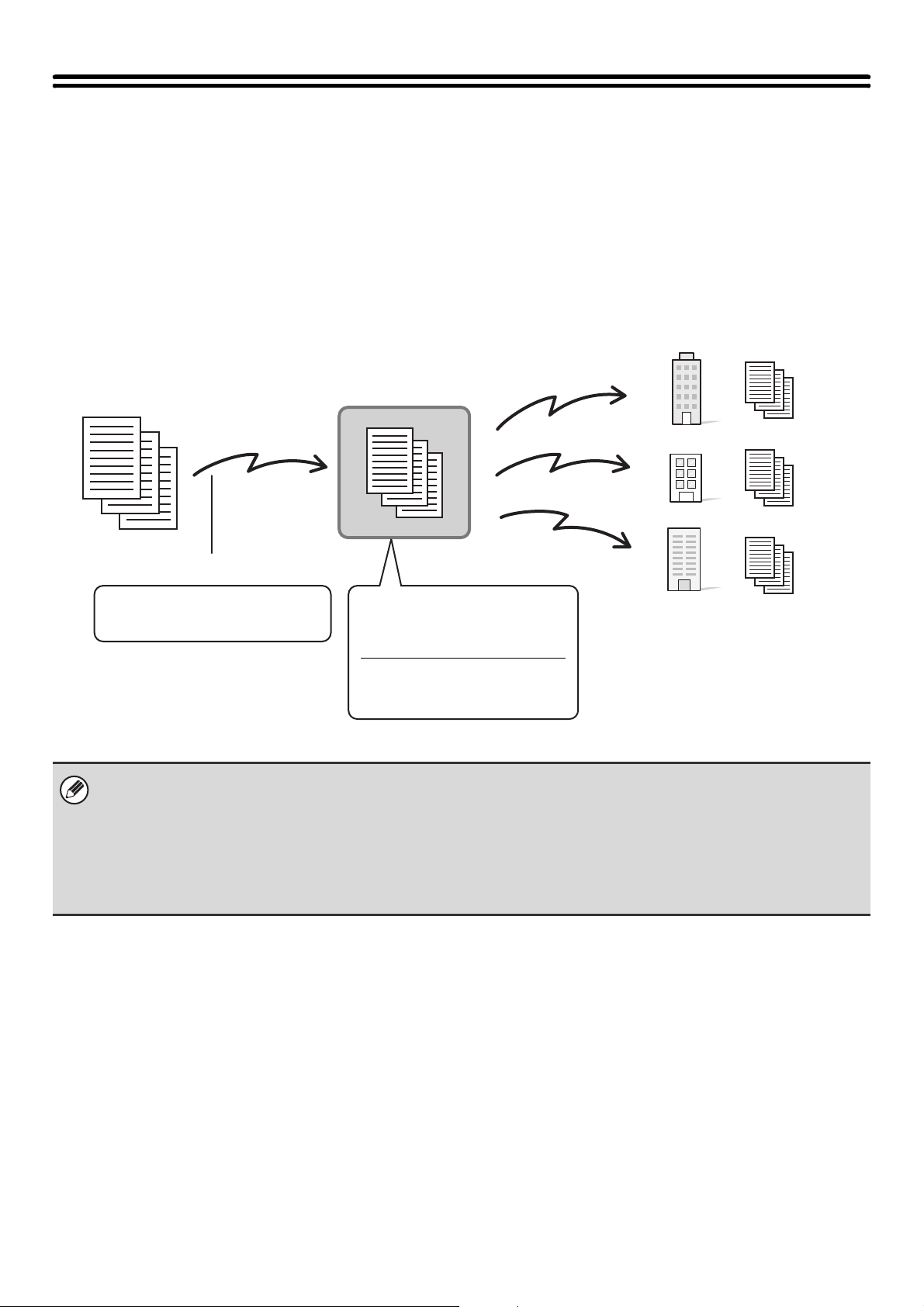
145
RELAY BROADCAST TRANSMISSION
USING F-CODES
When your machine receives an F-code relay request transmission, the fax is received to an F-code relay broadcast
memory box in your machine. Your machine then relays the fax to each of the end receiving machines programmed in
the memory box. Transmission to the end receiving machines takes place automatically.
• Prior to the operation, inform the requesting party of the sub-address and passcode of the relay broadcast memory box in
your machine.
• Program the end receiving machines in the F-code relay broadcast memory box when you create the box in your machine.
☞ F-CODE MEMORY BOX (page 179)
• The end receiving machines do not need to support F-code communication.
• The machine that requests a relay broadcast transmission only bears the cost of sending the fax to your machine (the relay
machine). Your machine bears the cost of sending the fax to each of the end receiving machines.
The other machine
Transmission
The fax is transmitted to
each of the end receiving
machines programmed in
the F-code relay broadcast
memory box.
The machine
F-code relay broadcast
memory box
Box name: BBBB
Sub-address: AAAAAAAA
Passcode: XXXXXXXX
Sub-address: AAAAAAAA
Passcode: XXXXXXXX
Transmission specifying an F-code
End receiving machines are
programmed in this box
End receiving
machines
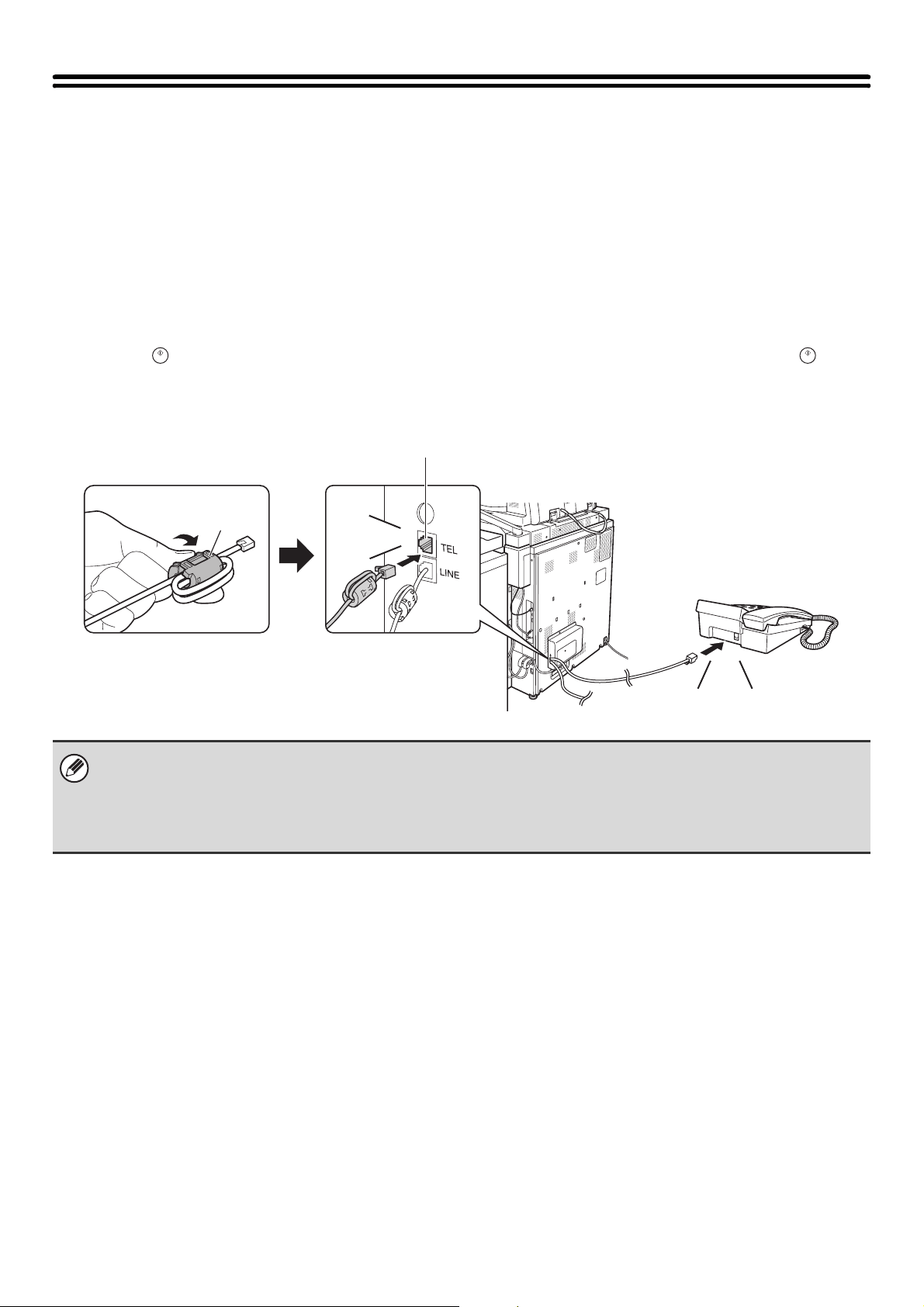
146
USING AN EXTENSION PHONE
This section explains how to use an extension phone to make voice calls and receive a fax after talking with the other
party.
CONNECTING AND USING AN EXISTING PHONE
(Extension Phone Connection)
You can connect an existing extension phone to the machine.
The phone can be used for voice calls and to start fax reception on the machine.
As an example, you can make a phone call using the existing phone, speak to the other party, and then press the
[START] key ( ) to fax an original that has been placed to that party. You can also press the [START] key ( ) when
an original is not placed to receive a fax.
Connect the extension phone as shown below.
• Connect an extension phone that has a modular jack.
• Use standard phone line cable to connect the phone. If other than a standard phone line cable is used, the connection may
not work correctly.
• If the plug on the telephone line cord does not fit into the jack on your extension phone, contact your dealer or nearest
SHARP Service Department.
Attach the provided core to
your extension telephone cord
and then connect the cord to
the machine.
Existing extension
phone (example)
Extension phone jack
Click!
Click!
Core
Make sure you hear a
"click" sound indicating
that the cord is securely
connected.
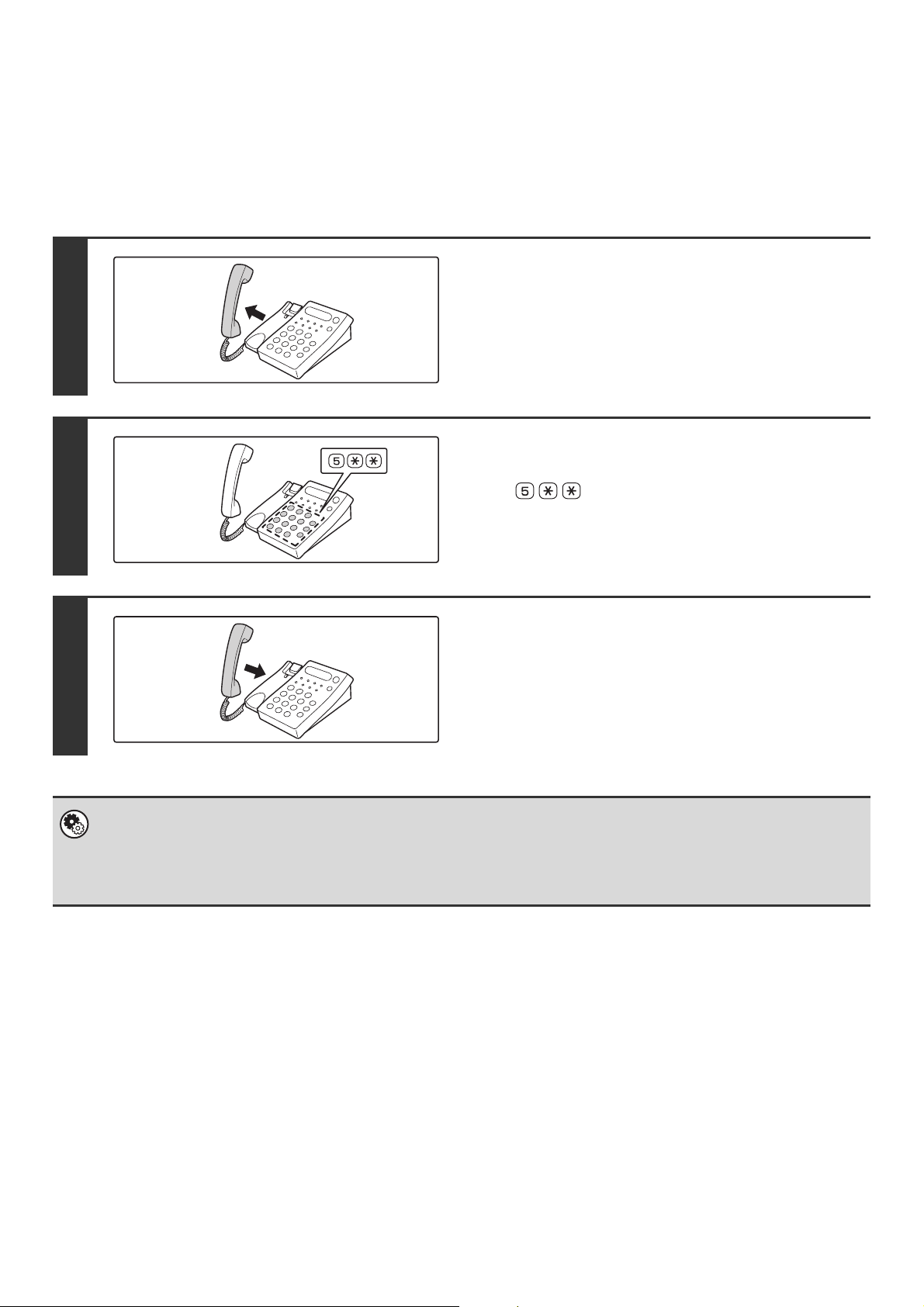
147
RECEIVING A FAX AFTER ANSWERING A CALL ON
THE EXTENSION PHONE (Remote Reception)
Follow the steps below if you need to start fax reception after answering a call and speaking on the extension phone.
If you are on a pulse-dial (rotary) line, set the extension phone to issue tone signals.
For details on receiving faxes, see "RECEIVING FAXES" (page 150).
MAKING AND RECEIVING PHONE CALLS
You can make and receive calls like normal on your extension phone. A phone call can also be made by dialing on the
machine.
1
When you hear ringing, answer the call
on the extension phone.
2
Signal the machine to start fax
reception.
Press on the keypad of the extension phone.
3
Replace the extension phone.
The machine sounds a beep when reception ends.
• System Settings: Receive Setting (Fax Settings)
To use remote fax reception, set this setting to "Manual Reception".
☞ FAX DATA RECEIVE/FORWARD (page 181)
• System Settings (Administrator): Remote Reception Number Setting
This is used to change the number used for remote fax reception. The factory default setting is "5".
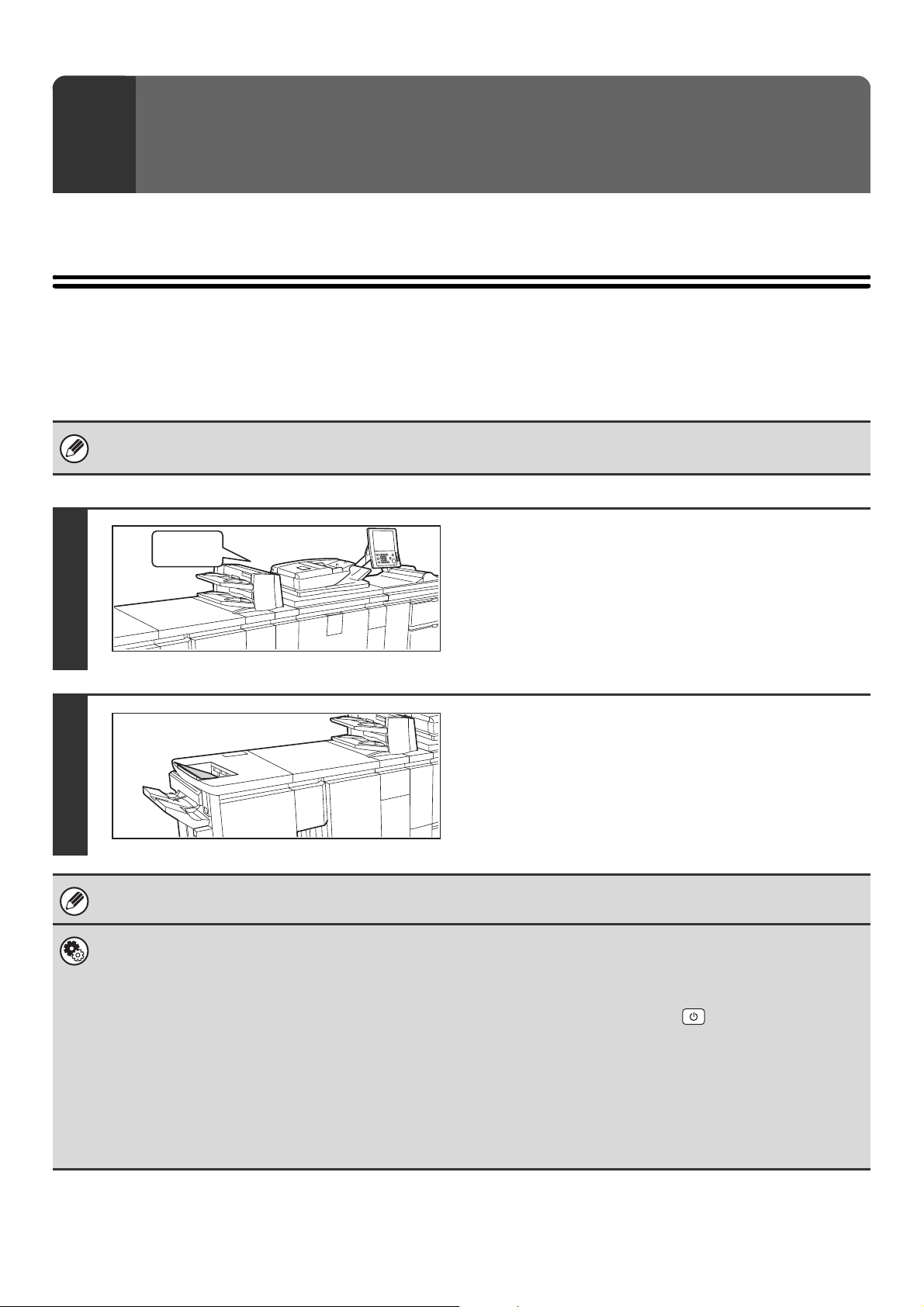
148
This chapter explains how to receive faxes and Internet faxes, and how to use the forwarding functions.
RECEIVING AN INTERNET FAX
The Internet fax function periodically* connects to the mail server (POP3 server) and checks whether or not Internet
faxes have been received. When faxes have been received, the faxes are automatically retrieved and printed.
* The factory default setting is once every 5 minutes.
6
RECEPTION FUNCTIONS
• If faxes will be received at night, keep the main power switch in the "on" position.
• For details on receiving faxes, see "RECEIVING FAXES" (page 150).
1
Internet faxes are received
automatically.
A beep sounds when reception ends.
2
The faxes are printed automatically.
If a password entry screen appears instead of the faxes being
printed, enter the password to print the faxes. See "PRINTING
A PASSWORD-PROTECTED FAX (Hold Setting For Received
Data Print)" (page 152).
If the machine is out of paper or there is no paper that matches the size of the received fax, a message will appear in the
touch panel. Follow the instructions in the message to load an appropriate size of paper.
• System Settings: FAX DATA RECEIVE/FORWARD (I-Fax Settings) (page 181)
When printing is not possible because the machine has run out of paper or toner, received Internet faxes can be forwarded
to and printed by another previously stored Internet fax machine.
• System Settings (Administrator): I-Fax Default Settings
These settings are used to select how received faxes are handled when the [POWER] key ( ) is "off" (the main power
switch is "on"), the volume of the beep that sounds when reception ends, and whether or not received e-mail messages
are printed.
• System Settings (Administrator): I-Fax Receive Settings
These settings are used to specify Internet fax reception parameters such as the reception checking interval, two-sided
reception, output settings, and automatic print reduction.
• System Settings (Administrator): Anti Junk Mail/Domain Name Setting
This setting is used to allow/refuse reception from stored addresses and domains.
Beep
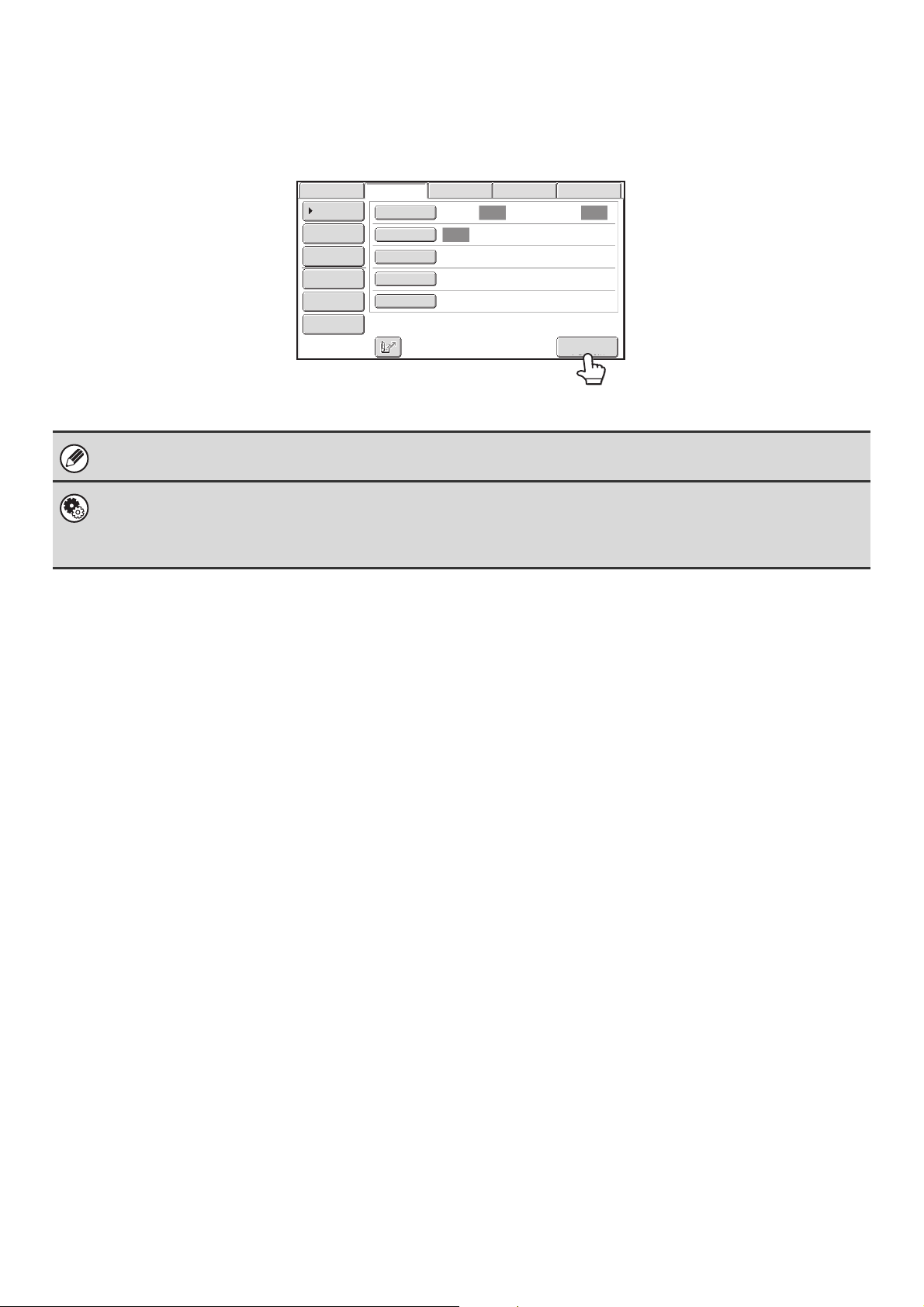
149
RECEIVING INTERNET FAXES MANUALLY
If the interval for checking for received faxes is somewhat long and you wish to check immediately, you can manually
initiate reception.
Touch the [I-Fax Manual Reception] key to connect to the mail server and retrieve received faxes.
If POP3 server settings are not configured in the Web pages, the [I-Fax Manual Reception] key is grayed out to prevent
selection.
System Settings: FAX DATA RECEIVE/FORWARD (I-Fax Settings) (page 181)
This setting is used to hide the [I-Fax Manual Reception] key that appears in the base screen of Internet Fax mode. When the
[I-Fax Manual Reception] key is hidden, manual reception is initiated by touching the [Reception Start] key in the screen that
appears when "Fax Data Receive/Forward" - "I-Fax Settings" is selected.
Auto Auto
Auto
File
Quick File
I-Fax Manual
Reception
Send Settings
Address Entry
Address Book
Data EntryFaxInternet Fax
Special Modes
File Format
Resolution
Exposure
Original
Scan:
Scan
Send:
200X100dpi
TIFF-F
Address Review
USB Mem. Scan
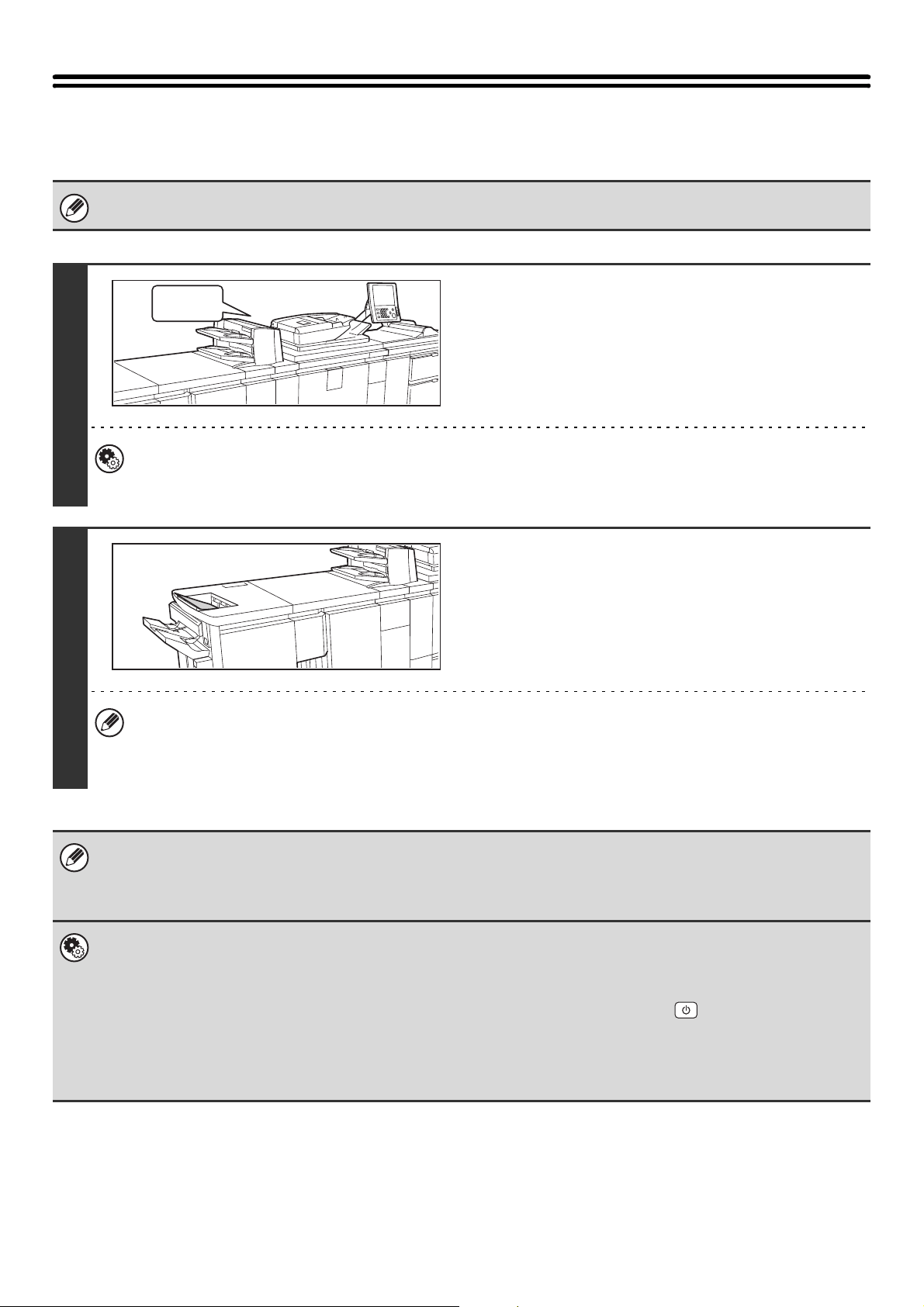
150
RECEIVING FAXES
To have the machine automatically receive and print faxes, set the reception mode to "Auto Reception".
If faxes will be received at night, keep the main power switch in the "on" position.
1
The machine rings and fax reception
begins automatically.
A beep sounds when reception ends.
System Settings (Administrator): Number of Calls in Auto Reception
This is used to change the number of rings on which fax reception begins automatically. To receive faxes without the
machine ringing, select "0" rings.
2
The fax is automatically printed.
If a password entry screen appears instead of the faxes being
printed, enter the password to print the faxes. See "PRINTING
A PASSWORD-PROTECTED FAX (Hold Setting For Received
Data Print)" (page 152).
The output tray and stapling (when a finisher/saddle stitch finisher is installed) can be selected.
The number of copies of received faxes that are printed and the output tray can be selected. When a finisher/saddle
stitch finisher is installed, the number of copies printed, the output tray, and stapling can be selected. For more
information, see the Administrator's Guide.
• If printing of a copy job or print job is in progress when a fax is received, the fax will not be printed until the previously
reserved job is completed.
• If the machine is out of paper or there is no paper that matches the size of the received fax, a message will appear in the
touch panel. Follow the instructions in the message to load an appropriate size of paper.
System Settings: FAX DATA RECEIVE/FORWARD (Fax Settings) (page 181)
When printing is not possible because the machine has run out of paper or toner, received faxes can be forwarded to and
printed by another previously stored fax machine.
System Settings (Administrator): Fax Default Settings
These settings are used to specify how received faxes are handled when the [POWER] key ( ) is "off" (the main power
switch is "on"), the volume of the beep that signals the end of reception, and other default fax settings.
System Settings (Administrator): Fax Receive Setting
These settings are used to specify two-sided reception, output settings, auto print reduction, and other fax reception
parameters.
Beep
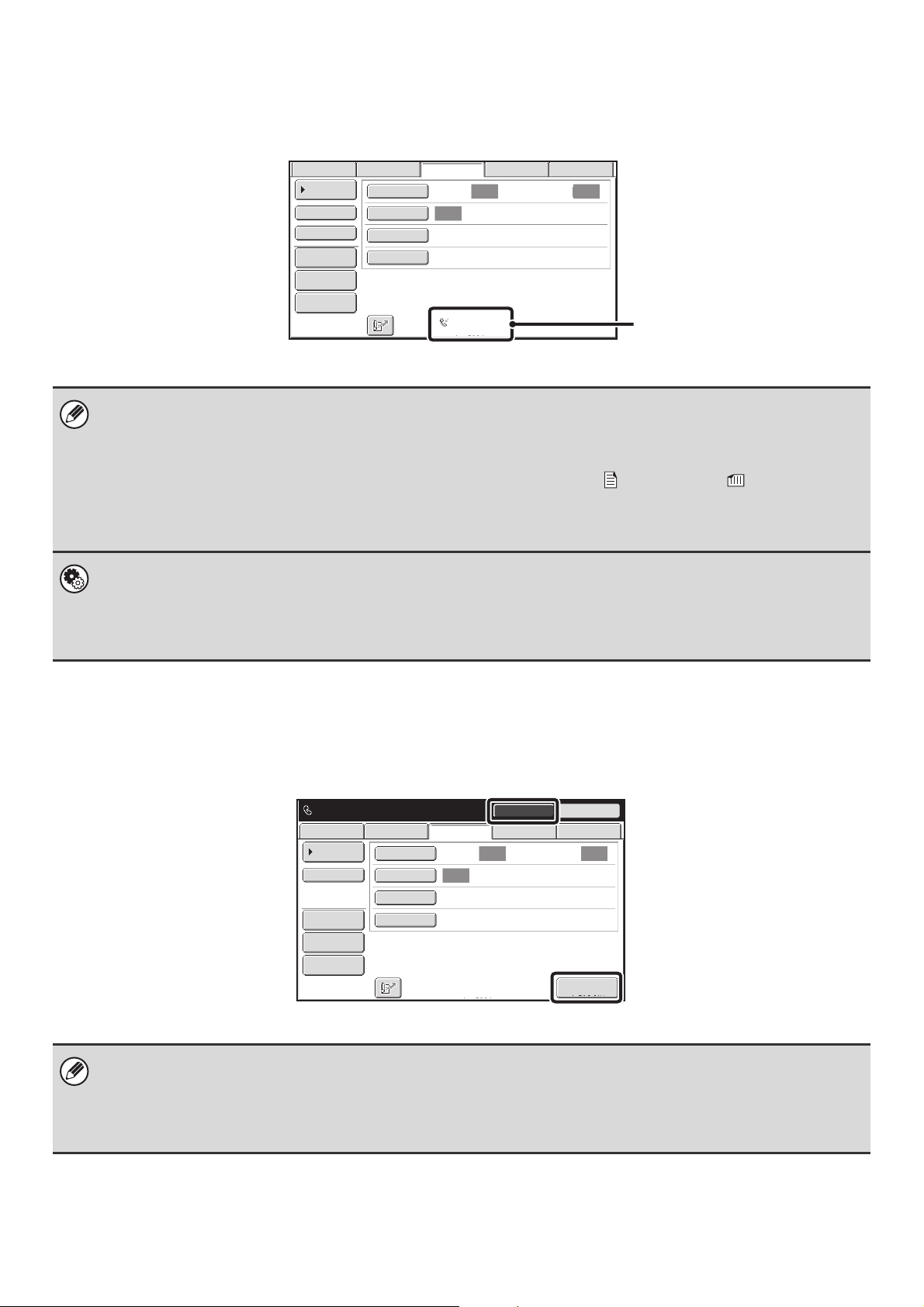
151
FAX RECEPTION MODES
The fax reception mode is shown in the base screen. Normally the reception mode should be set to "Auto Reception".
Select "Manual Reception" when an extension phone is connected to the machine.
RECEIVING A FAX MANUALLY
A fax can be received manually using the touch panel. While the machine rings, touch the [Speaker] key in the base
screen and then touch the [Fax Manual Reception] key that appears.
• When fax reception is in progress, it is possible to reserve a transmission by performing the transmission in memory
transmission mode.
☞ MEMORY TRANSMISSION MODE (page 54)
• To print received faxes, make sure that the required paper is loaded in the machine's paper trays. It is not necessary to
load 8-1/2" x 11" (A4) paper and 5-1/2" x 8-1/2" (B5) paper in both the vertical ( ) and horizontal ( ) orientations.
Differences in orientation are automatically adjusted when faxes are received.
When a fax smaller than 8-1/2" x 11" (A4) size is received, the size of the paper used for printing will vary depending on the
orientation (vertical or horizontal) in which the sender placed the original.
• System Settings: Receive Setting
Use this setting to select the fax reception mode.
☞ FAX DATA RECEIVE/FORWARD (Fax Settings) (page 181)
• System Settings (Administrator): Anti Junk Fax Setting
This setting is used to enter fax numbers from which you wish to block reception.
• When a call is answered by touching the [Speaker] key, you will be able to hear the other party, however, you will not be
able to speak.
• Even when you use an extension phone to answer a call, you can touch the [Fax Manual Reception] key in the touch panel
to begin fax reception. You can also use the extension phone to begin fax reception.
☞ RECEIVING A FAX AFTER ANSWERING A CALL ON THE EXTENSION PHONE (Remote Reception) (page 147)
Auto Auto
Auto
Data EntryFaxScan
Standard
Auto Reception
Fax Memory:100%
Internet Fax
Scan: Send:
File
Quick File
Address Review
Direct TX
Sub Address
Address Book
Special Modes
Resolution
Exposure
Original
USB Mem. Scan
This shows the current fax
reception mode and the amount
of free memory remaining.
Auto Auto
Auto
Speaker Volume
Data EntryFax
Special Modes
Resolution
Exposure
Original
Scan
Standard
Fax Memory:100%
Speaker
Telephone mode.
Resend
Fax Manual
Reception
Internet Fax
Scan: Send:
Address Book
Address Review
File
Quick File
USB Mem. Scan
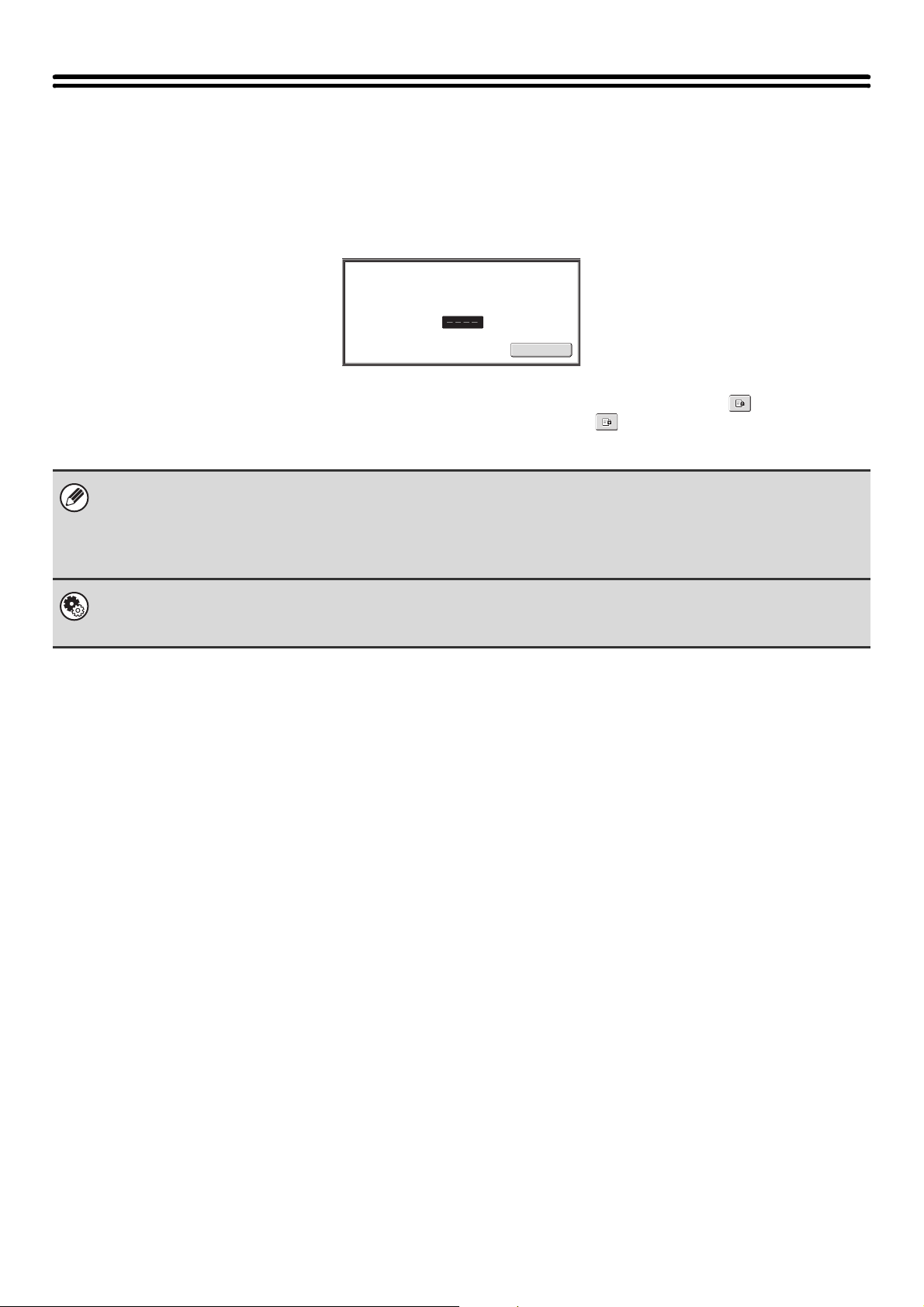
152
PRINTING A PASSWORD-PROTECTED FAX
(Hold Setting For Received Data Print)
"Hold Setting for Received Data Print" in the system settings (administrator) can be enabled to have faxes received to
memory without being printed. To print the faxes, a password must be entered. When this function is enabled, a
password entry screen appears in the touch panel when received Internet faxes or faxes are retrieved.
When the previously programmed 4-digit password is entered with the numeric keys, printing begins.
The [Cancel] key can be touched to close the password entry screen. If this is done, the data in memory key ( ) will blink in the
touch panel. The password entry screen will reappear when you touch the blinking key ( ) or change modes.
• The received faxes will be retained in memory regardless of whether they were received automatically or manually. If a
transaction report is set to print when a fax is received, the transaction report will also be retained in memory.
• If "Fax Data Receive/Forward" is enabled in the system settings so that received faxes are forwarded to another machine,
faxes retained in memory are also forwarded. At that time, the same password entry screen will appear as for printing.
Forwarding will not take place unless the password is entered.
System Settings (Administrator): Hold Setting for Received Data Print
Enable this setting to have faxes received to memory without being printed. This setting is also used to program the
password that must be entered to print the faxes.
Cancel
Received data is stored.
Enter password via the 10-key.
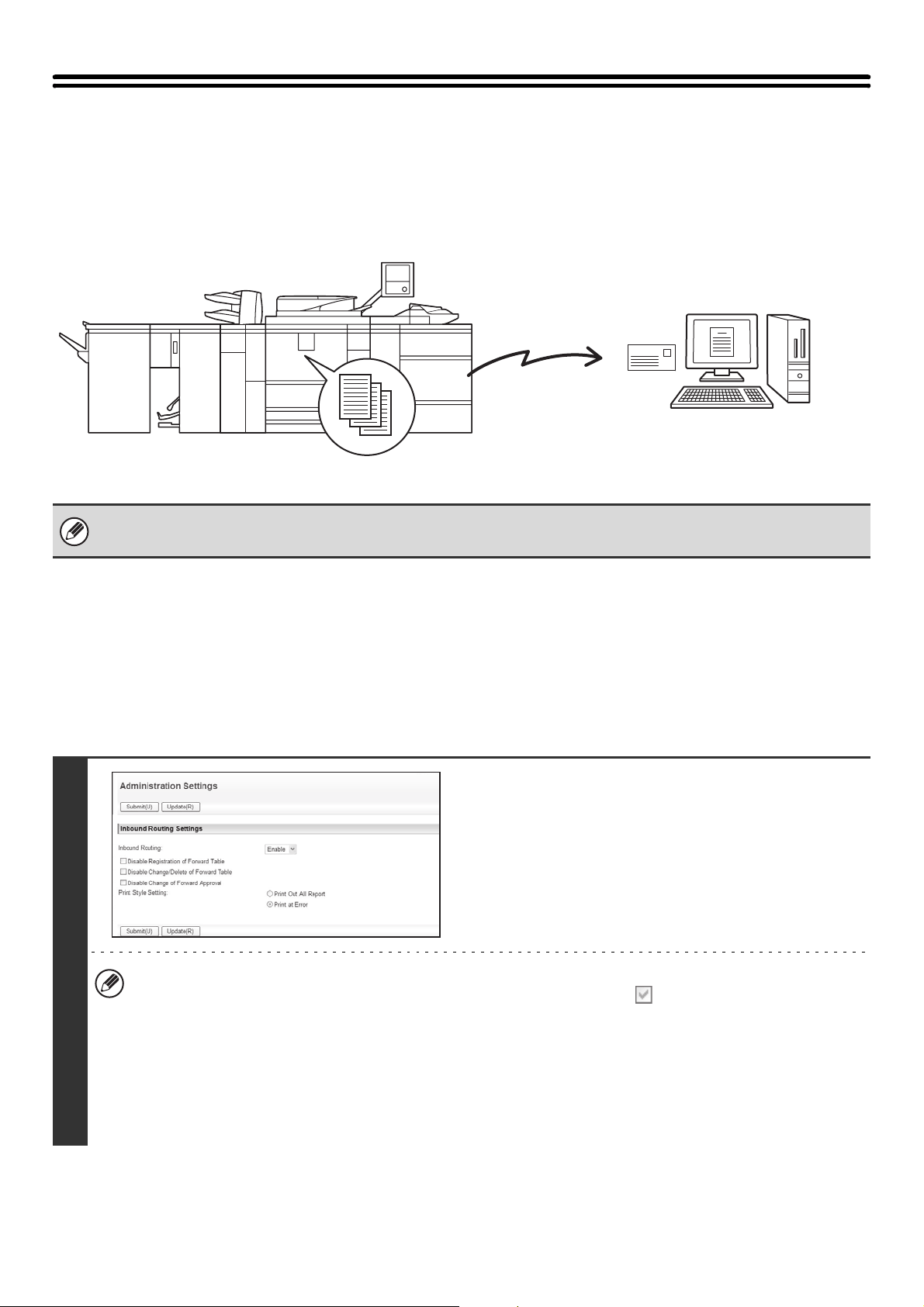
153
FORWARDING RECEIVED FAXES TO AN
E-MAIL ADDRESS (Inbound Routing Settings)
You can have received faxes and Internet faxes automatically forwarded to an e-mail address. For example, this
function can be used to forward received faxes directly to a specified e-mail address without printing the faxes.
CONFIGURING INBOUND ROUTING SETTINGS
All inbound routing settings are configured in the Web pages. For the procedure for accessing the Web pages, see the
Quick Start Guide.
The following explanation assumes that the Web pages have been accessed with administrator rights.
To configure inbound routing settings, follow the steps below.
• To use this function, the network scanner expansion kit must be installed.
• This function cannot be used for faxes received by confidential reception.
1
Enabling the inbound routing function.
(1) In the Web page menu, click [Application
Settings], [Inbound Routing Settings], and
then [Administration Settings].
(2) Select [Enable] in "Inbound Routing" and
click the [Submit] button.
Users without administrator rights can be prohibited from storing, editing, and deleting forwarding tables in this screen,
and from specifying which table is used. To do so, select the checkboxes below .
• Disable Registration of Forward Table • Disable Change/Delete of Forward Table • Disable Change of Forward
Approval
When inbound routing is enabled, you can also specify whether or not you wish the machine to print the forwarded
faxes.
To have all received faxes printed before being forwarded, select "Print Out All Report" in "Print Style Setting". To
have received faxes printed only when an error prevents forwarding, select "Print at Error".
After configuring the settings, be sure to click the [Submit] button.
Forwarding
Received fax
The machine
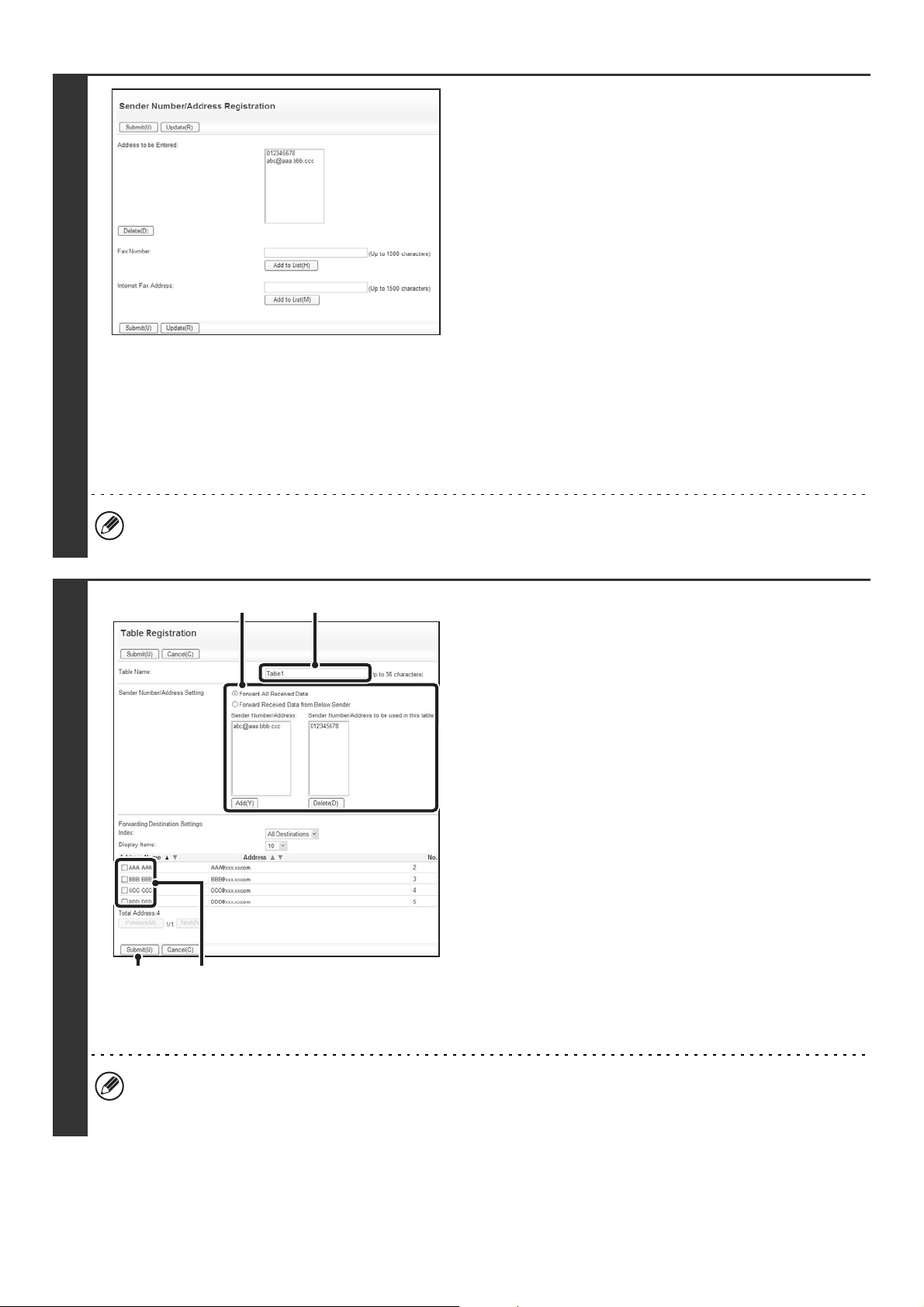
154
2
Storing sender addresses.
If you wish to have only faxes from specified addresses
forwarded, store the desired sender addresses. Send
addresses stored here can be selected from a list when you
store a forwarding table.
(1) Click [Sender Number/Address
Registration] in the [Inbound Routing
Settings] menu in the Web page.
(2) Enter the sender address in "Internet Fax
Address" or "Fax Number" as appropriate,
and click the [Add to List] button.
The entered address will be added to the "Address to be
Entered" list.
• Enter the address directly. (Up to 1500 characters can
be entered.)
• To store multiple addresses, repeat this step.
(3) When you have finished adding addresses,
click the [Submit] button.
• A maximum of 500 sender numbers/addresses can be stored.
• To delete an entered address, select the address in "Address to be Entered" and click the [Delete] button.
3
Store a forwarding table.
Follow the steps below to store a forwarding table that
combines a specified sender and forwarding address.
(1) Click [Inbound Routing Settings] in the Web
page menu and click the [Add] button.
(2) Enter a "Table Name".
(3) Select the sender whose faxes will be
forwarded.
• To forward all received faxes, select [Forward All
Received Data].
• To forward faxes received from a specific sender only,
select [Forward Received Data from Below Sender],
select the sender from the list, and then click the [Add]
button.
(4) Select the forwarding address.
The forwarding address can be selected from e-mail
addresses stored in the machine's address book.
(Multiple addresses can be specified.)
(5) Click [Submit].
• When selecting senders from the "Sender Number/Address Setting" list, you can use the [Shift] key or the [Ctrl] key
on your keyboard to select multiple senders.
• A maximum of 50 forwarding tables can be stored.
(5) (4)
(3)
(2)
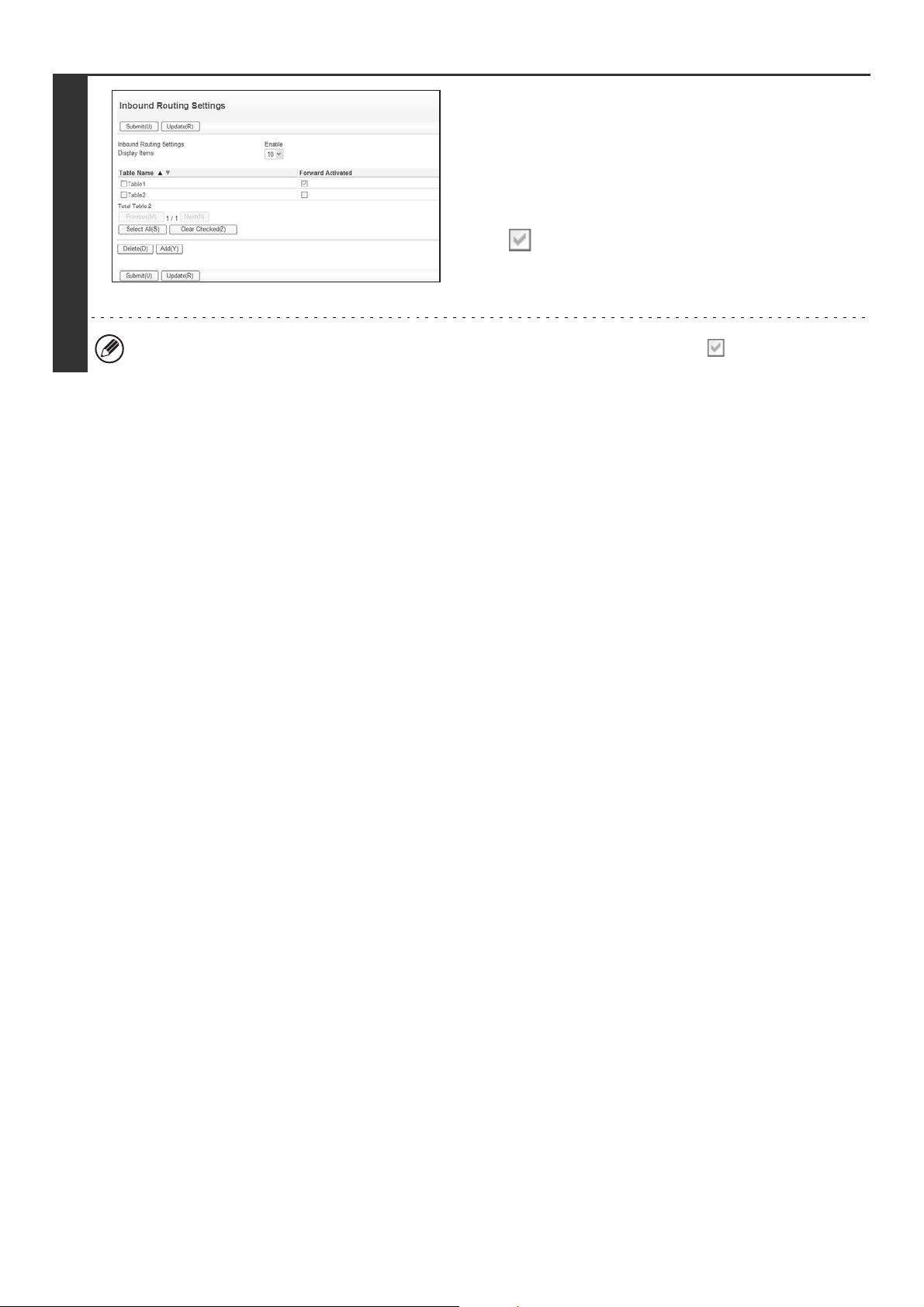
155
4
Specifying forwarding tables to be used.
To use the inbound routing function, enable the forwarding
tables that you wish to use from among the stored tables.
(1) Click [Inbound Routing Settings] in the Web
page menu.
(2) Select the "Forward Activated" checkbox
of each forwarding table that you wish
to use.
(3) Click [Submit].
To delete a forwarding table, click the checkbox next to the table name so that it is selected and click [Delete].
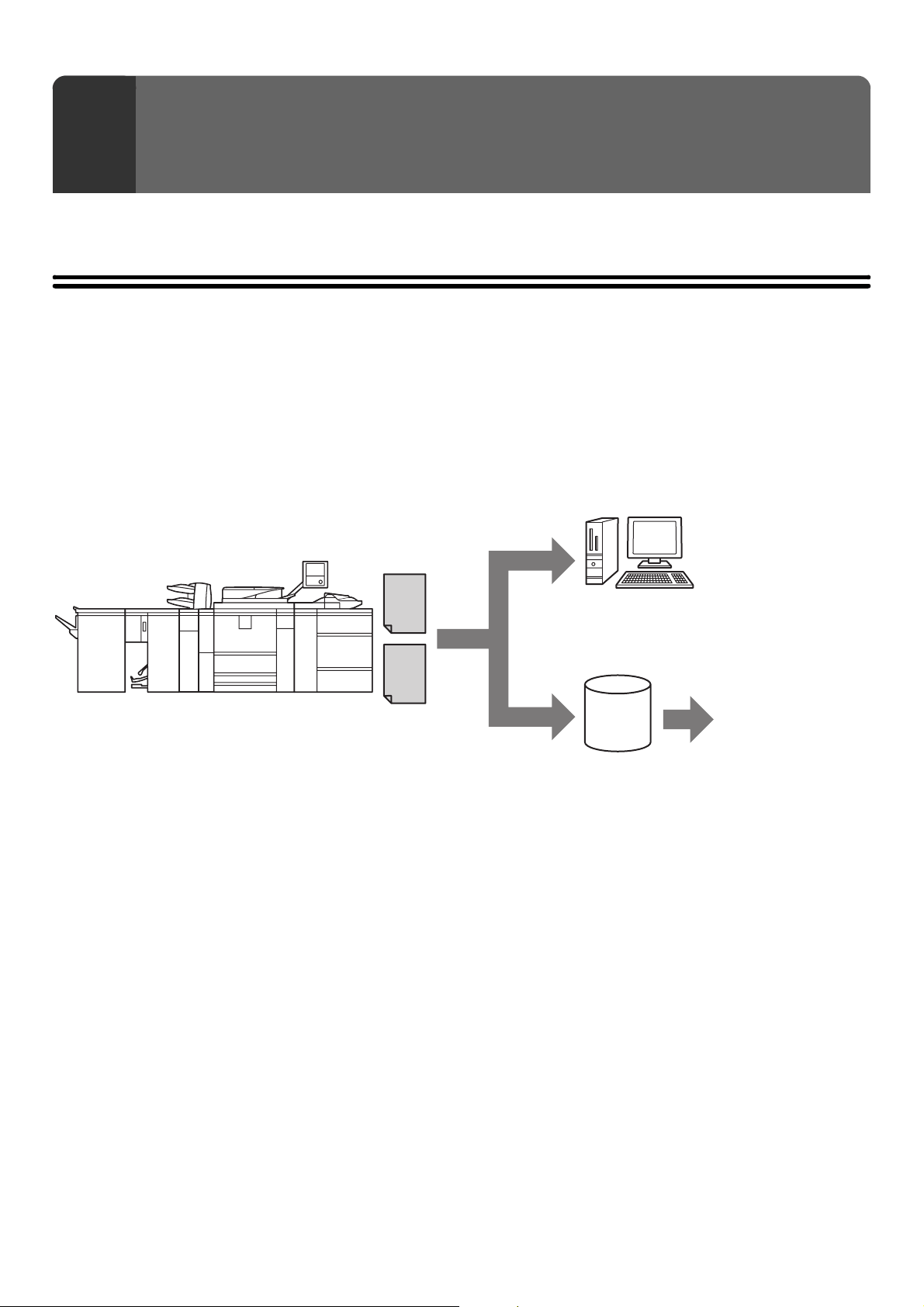
156
This chapter explains metadata delivery, which can be used when the application integration module is installed.
METADATA DELIVERY (Data Entry)
When the application integration module is installed and an image file is generated for a scan send transmission,
metadata (data indicating the attributes of the image file and how it is to be processed) can be generated based on
pre-stored information and transmitted as a separate file. The metadata file is created in XML format. By linking the
metadata with applications such as document management software, a workflow application, or an encryption server, a
sophisticated document solution environment can be built.
Using the application integration module, information on a generated image file can be entered at the touch panel and
transmitted along with the image as an XML file.
7
METADATA DELIVERY
Metadata
(XML file)
Image file
Scan to
Desktop
Scan to E-mail
Scan to FTP
Scan to Network Folder
Client PC that uses Network
Scanner Tool
Server
Fax server, document
management software,
workflow application,
encryption server, etc.
157
PREPARATIONS FOR METADATA
TRANSMISSION
SETTINGS REQUIRED IN THE WEB PAGES
All settings related to metadata are configured in the Web pages. (Administrator rights are required.)
To configure metadata settings, click [Application Settings] and then [Metadata Settings] in the Web page menu.
When configuring settings, be sure to enable metadata transmission.
Storing Metadata Sets
Store the items (the metadata set) that are written to the XML file that is generated during scanning. Up to 10 metadata
items can be configured in a metadata set. A stored metadata set can be selected at the time of transmission.
METADATA TRANSMISSION FOR SCAN TO DESKTOP
When Network Scanner Tool is used in its factory default configuration, a file will be generated with a new file name on
the computer. When Network Scanner Tool is used as a means of sending a metadata file to a third party software
application, this setting must be disabled to allow cross referencing between the image file and XML file by means of the
file name generated by the computer. (When setting the file name in [Send Settings], to ensure that a previously existing
file on a computer is not overwritten by a transmitted file of the same name, be sure to configure the file name so that
name duplication cannot occur; for example, by including a unique extension (the date, etc.) in the generated file name.
If the file name setting is left blank, the machine will automatically generate a file name that is unique.)
Addresses specified in "Address Type Allowing Metadata Entry" when a metadata set is stored can be selected as
transmission destinations at the time of transmission using one-touch keys, manual entry, and/or a global address book
search. (Addresses for which metadata entry is not allowed cannot be specified as transmission destinations.)
• It is recommended that you use Network Scanner Tool to receive metadata. For more information, see the Network
Scanner Tool User's Guide (PDF format) on the "Sharpdesk/Network Scanner Utilities" CD-ROM.
• For information on the license agreement and how to use the CD-ROM that accompanies the application integration
module, see the separate "Sharpdesk license kit" manual.
• Using third party software applications
Various types of third party software applications exist. Some applications can start automatically from Network Scanner
Tool and some cannot. When the auto-run function of an application is enabled, Network Scanner Tool will start the
application with the ".exe" command using the file name as a parameter. Normally an application is started twice, once for
the image file and once for the XML file. For example, when Network Scanner Tool is set to start the application
"APP.EXE", the following commands are applied when the two files "IMG.TIF" and "IMG.XML" are received.
APP.EXE IMG.TIF
APP.EXE IMG.XML
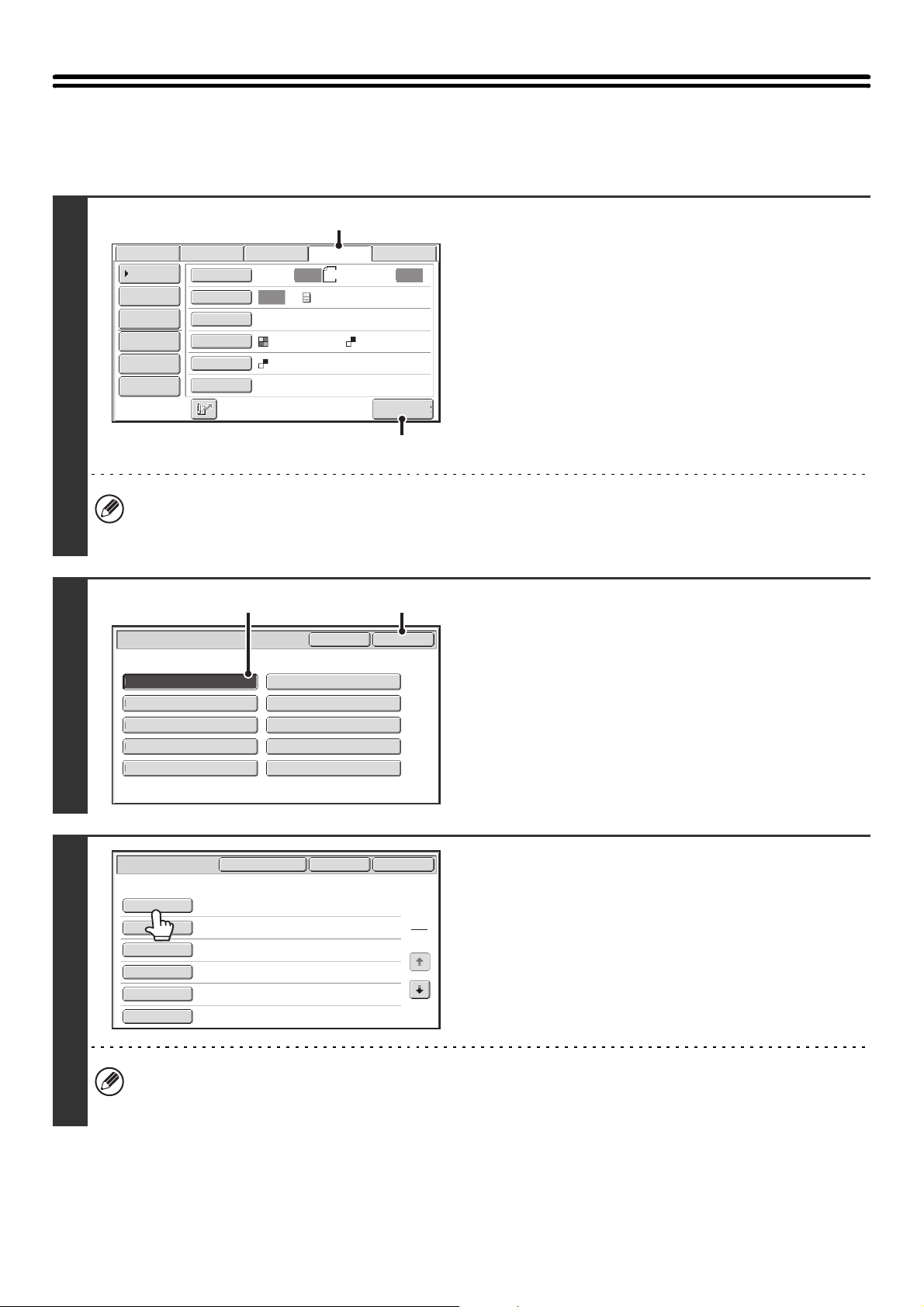
158
TRANSMITTING METADATA
Follow the steps below to select a metadata set, enter each item, and perform metadata transmission.
1
Switch to data entry mode and display
the metadata set screen.
(1) Touch the [Data Entry] tab.
(2) Touch the [Metadata Entry] key.
• If no metadata sets have been stored, the [Data Entry] tab cannot be selected. Store a metadata set in the Web
pages and then perform the transmission procedure.
• If a specific metadata set has been specified as the default set, go to step 3.
2
Select a metadata set.
(1) Touch the key of the metadata set that you
wish to use.
(2) Touch the [OK] key.
3
The keys of the items stored in the
metadata set will appear. Touch the key
of the item that you want to enter.
If you accidentally selected the wrong metadata set or wish to use a different metadata set when a default metadata
set has been set, touch the [Metadata Set] key. Touch the [Yes] key in the message screen that appears. You will
return to the screen of step 2. Metadata items entered to that point will be canceled.
Auto Auto
Auto
File
Quick File
Send Settings
Address Entry
Address Book
Data EntryFaxInternet Fax
Special Modes
Color Mode
File Format
Resolution
Exposure
Original
Scan:
Scan
Send:
Text
200X200dpi
PDF
Mono2
PDF
8½x11
Metadata Entry
Address Review
USB Mem. Scan
(1)
(2)
Metadata Set
OKCancel
Metadata 1
Set Name:Metadata 1
Metadata 2
Metadata 3 Metadata 4
Metadata 5 Metadata 6
Metadata 7 Metadata 8
Metadata 9 Metadata 10
(2)(1)
Data Entry
Set Name:Metadata 1
OK
Cancel
Metadata Set
1
2
User ID
From Name
Reply To
AccessPassword
BillCode1
DocumentPassword
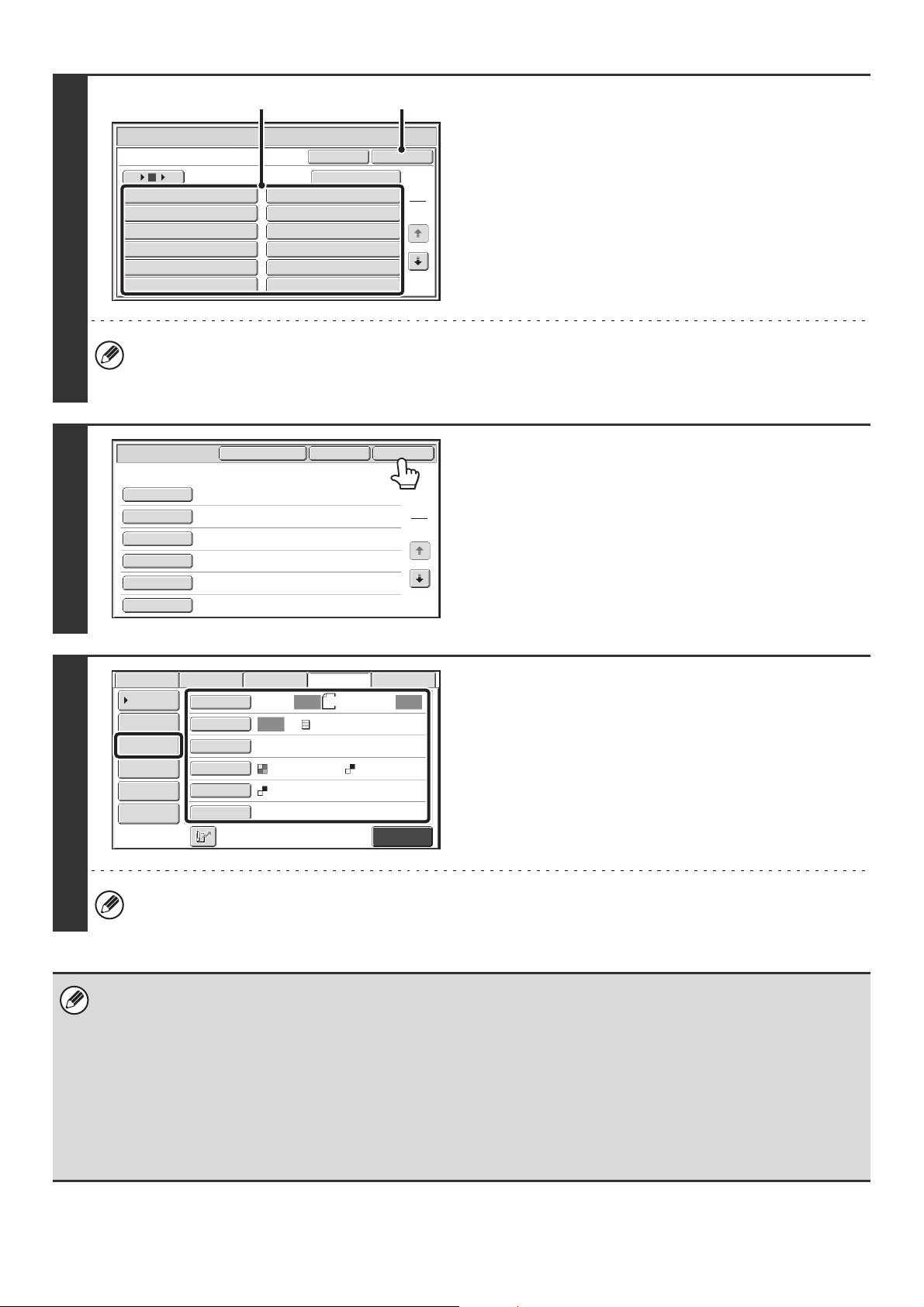
159
4
Enter the selected metadata item.
(1) Touch the key of the value that you wish to
enter.
• When the entry values of the metadata item are in the
form of selections, the selections are shown as keys.
When a value is editable, you can touch the [Direct
Entry] key to manually enter the value.
• If the metadata item requires the entry of text, a text
entry screen will appear. Enter the required information.
(2) Touch the [OK] key.
• To change the number of items displayed in the screen, touch the number of displayed items selector key. Select 6,
12, or 18 keys.
• For the procedure for entering text, see "7. ENTERING TEXT" in the User's Guide.
5
When you have finished entering all
items, touch the [OK] key.
6
Select image settings and any other
settings, and perform the scan send
procedure.
• The procedures for selecting settings and performing
transmission are the same as in the other modes.
• To make changes to entered values, touch the [Metadata
Entry] key once again. The entry screen of the selected
metadata set will appear.
The [Color Mode] key will only appear if the color expansion kit has been installed.
• Transmission cannot be performed if the [Data Entry] tab is displayed and no metadata settings have been configured. To
perform transmission without sending metadata, switch to a different mode by touching the tab of that mode and then
perform transmission.
• Before configuring metadata settings, you can specify addresses in all modes to be used. After metadata settings have
been configured, only addresses in modes that are allowed in the selected metadata set can be specified.
• When metadata settings have been configured or an address is specified in the [Data Entry] tab, it will not be possible to
switch to another mode.
• Metadata delivery is possible using the document filing function. The [Data Entry] tab appears in the transmission settings
screen of document filing mode to allow metadata delivery. In addition, metadata delivery using document filing can be
performed in [Document Operations] in the Web pages.
Data Entry
User ID
OK
Cancel
Direct Entry
1
2
Value 1 Value 2
Value 3 Value 4
Value 5 Value 6
Value 7 Value 8
Value 9 Value 10
Value 11 Value 12
6 18
12
(1) (2)
Value 1
xxxx xxxx
xxxxxx
xxxxxx
xxxx xxxx
Data Entry
Set Name:Metadata 1
OK
Cancel
Metadata Set
1
2
User ID
From Name
Reply To
AccessPassword
BillCode1
DocumentPassword
Metadata Entry
Auto Auto
Auto
File
Quick File
Send Settings
Address Entry
Address Book
Data EntryFaxInternet Fax
Special Modes
Color Mode
File Format
Resolution
Exposure
Original
Scan:
Scan
Send:
Text
200X200dpi
PDF
Mono2
PDF
Address Review
8½x11
USB Mem. Scan
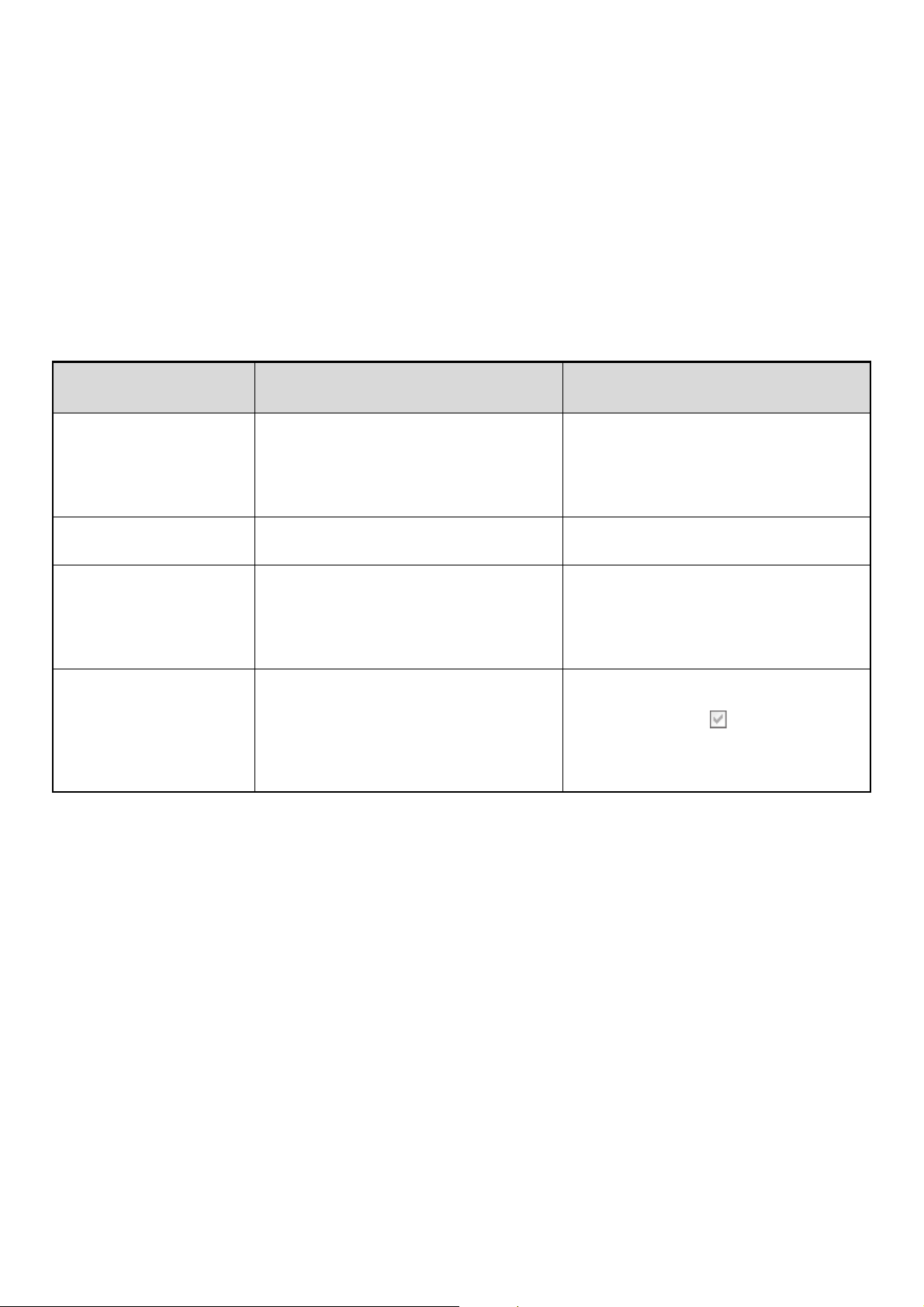
160
METADATA FIELDS
The following three types of metadata are included in the XML file that is transmitted.
• Data automatically generated by the machine: These data are always included in the XML file and are automatically
stored on your computer.
• Previously defined fields: These fields are automatically recognized by the machine and
assigned to appropriate XML tags. These fields are selectable, and
can only be included in the XML file if enabled in the Web pages.
• User defined fields: Custom fields can be added to the XML file. These fields are selectable
and can be defined in the Web pages.
If a defined metadata field is one of the following fields, a message will appear informing you that the field cannot be
entered. Enter appropriate information in the related items of the send settings.
Name entered in
metadata field
Description Where entered
fromName Name of the user who sent the job. If the
name is not entered as metadata, the sender
name determined by the usual rules for
determining the sender name will be applied
as metadata.
[Reply-To]
(Sender name of selected sender)
replyTo E-mail address to which the transmission
result will be sent.
[Reply-To]
(E-mail address of selected sender)
documentSubject Job name appearing in the e-mail "Subject"
line, or job name on the fax cover sheet.
When the user enters a [Subject] in the send
settings screen in the touch panel, the
entered value is applied as metadata.
[Subject]
(Blank until a value is set in the send settings
screen.)
fileName Enter the file name of the image to be sent. [File Name]
(Only when the [Allow Custom Filenames]
checkbox is selected in the metadata
settings screen in the Web pages.)
(Blank until a value is set in the send settings
screen.)
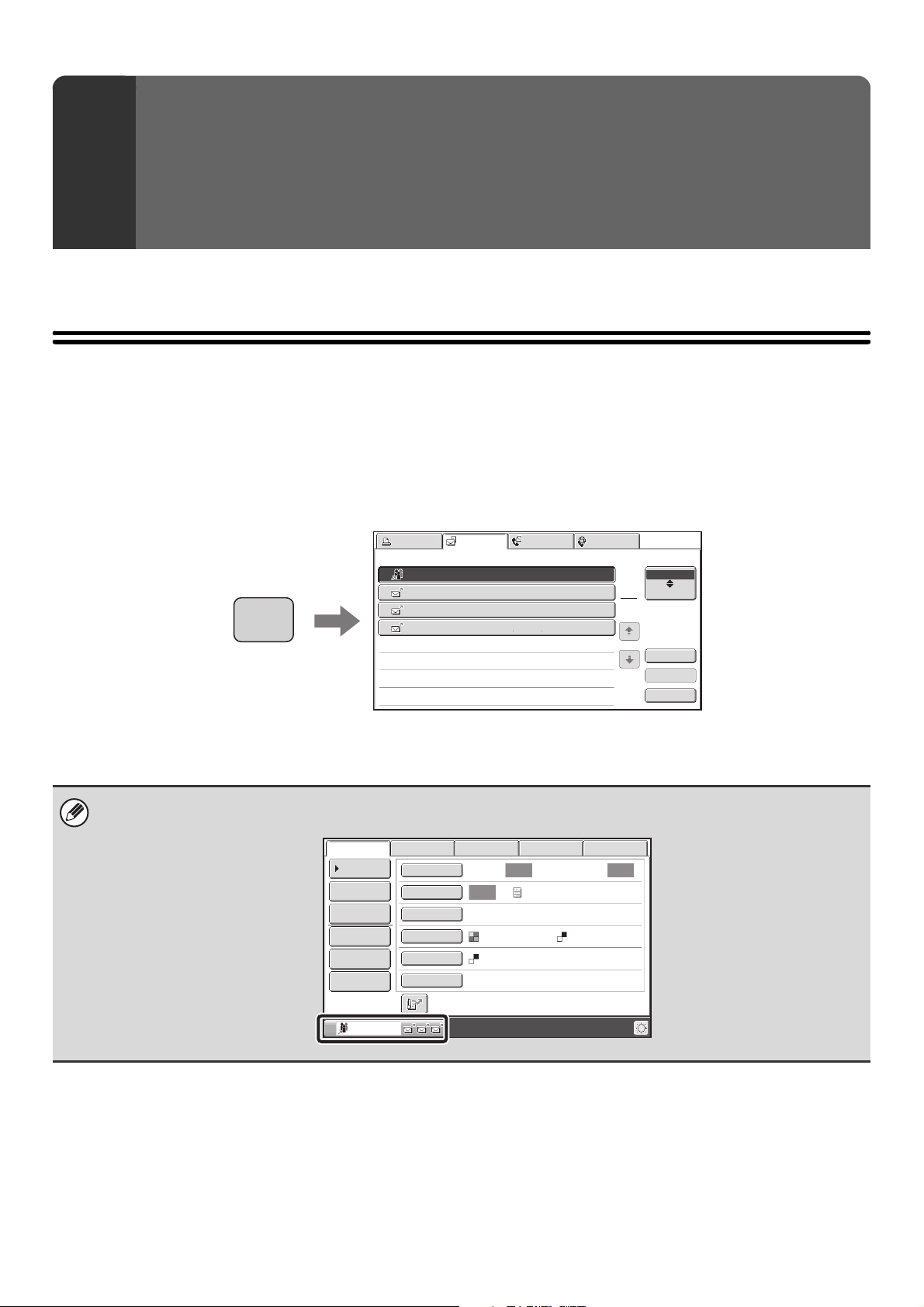
161
This chapter explains how to check the status of transmission jobs and reception jobs.
JOB STATUS SCREEN
The job status screen is displayed when the [JOB STATUS] key on the operation panel is pressed. The job status
screen shows the status of jobs by mode. When the [JOB STATUS] key is pressed, the job status screen of the mode
that was being used before the key was pressed appears.
Reserved transmissions and received faxes are referred to as jobs here.
Example: Pressing the tab in scan mode
8
CHECKING THE STATUS OF
TRANSMISSION/RECEPTION
JOBS
The job status display is in the lower left corner of the touch panel. The job status display can be touched to display the job
status screen.
Print Job
Fax Job
Internet Fax
Scan to
Address Set Time
Pages
Status
Broadcast0001
1
2
3
4
10:00 04/04 020/003 Connecting
AAA AAA
BBB BBB
CCC CCC
10:05 04/04 000/001
Waiting
10:22 04/04 000/004
Waiting
10:30 04/04 000/010
Waiting
1
1
Complete
Detail
Stop/Delete
Job Queue
Priority
JOB STATUS
Sending
Auto
Auto
Auto
File
Quick File
Send Settings
Address Entry
Address Book
FaxInternet Fax
Special Modes
Color Mode
File Format
Resolution
Exposure
Original
Scan:
Scan
Send:
Text
200X200dpi
PDF
Mono2
PDF
Address Review
Data Entry USB Mem. Scan
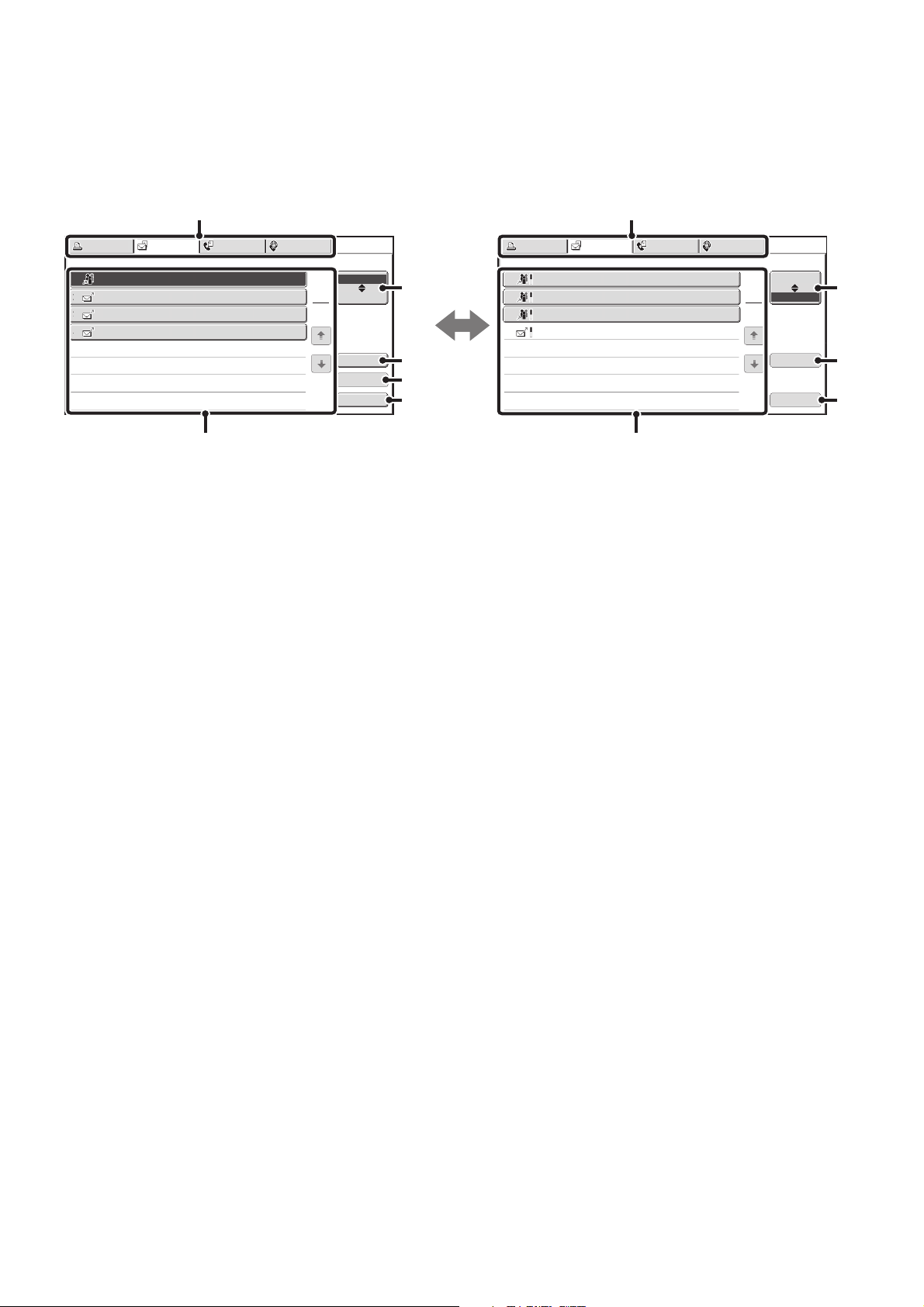
162
JOB QUEUE SCREEN AND COMPLETED JOB SCREEN
The job status screen consists of two screens: the job queue screen that shows reserved jobs and the job currently in
progress, and the completed jobs screen. To switch between the two screens, touch the job status screen selector key
((2) below).
Job queue screen Complete screen
(1) Mode switch tabs
Use these tabs to change the job status screen mode.
(2) Job status screen selector key
Touch this key to switch between the job queue screen
and the completed jobs screen.
(3) Job queue screen [Detail] key
This shows details on and the status of broadcast
transmission jobs that have been reserved or are in
progress. Select the key of the desired job in the job
queue screen (6) and then touch the [Detail] key.
CHECKING A RESERVED JOB OR THE JOB IN
PROGRESS (FAX MODE) (page 166)
(4) [Priority] key
Touch this key to give priority to a selected job.
☞ GIVING PRIORITY TO A RESERVED JOB (page
169)
(5) [Stop/Delete] key
Touch this key to stop or delete a selected job.
☞ CANCELING A JOB IN PROGRESS OR A
RESERVED JOB (page 168)
(6) Job queue screen
Jobs are shown as keys in the order they were reserved.
Each key shows information on the job and its current
status.
☞ Job key display (page 163)
(7) Completed jobs screen [Detail] key
This shows detailed information on the results of
completed broadcast transmissions and jobs that used
the document filing function. Select the key of the desired
job in the completed jobs screen (9) and then touch the
[Detail] key.
From the details screen, it is possible to resend the fax to
destinations to which transmission was not successful.
☞ CHECKING COMPLETED JOBS (page 167)
(8) [Call] key
Touch this key to call up and use a transmission or
reception job stored with the document filing function.
(9) Completed jobs screen
This shows up to 99 completed transmission or reception
jobs in each mode. A description of the job and the result
(status) are shown.
Jobs that used document filing function, broadcast
transmission jobs, and received Internet fax forwarding
jobs are indicated as keys.
Broadcast0001
1
2
3
4
10:00 04/04 020/003 Connecting
AAA AAA
BBB BBB
CCC CCC
10:05 04/04 000/001
Waiting
10:22 04/04 000/004
Waiting
10:30 04/04 000/010
Waiting
Broadcast0001
10:00 04/04 010/003 NG000000
Broadcast0002
Broadcast0003
DDD DDD
10:05 04/04 001/001
Send OK
10:22 04/04 004/004
Send OK
10:30 04/04 010/010
Send OK
Complete
Detail
Call
Job Queue
Print Job
Fax Job
Internet Fax
Scan to
Address Set Time
Pages
Status
1
1
Complete
Detail
Stop/Delete
Job Queue
Print Job
Fax Job
Internet Fax
Scan to
Address Start Time
Pages
Status
1
1
Priority
(1)
(1)
(6)
(9)
(2)
(3)
(4)
(5)
(2)
(7)
(8)
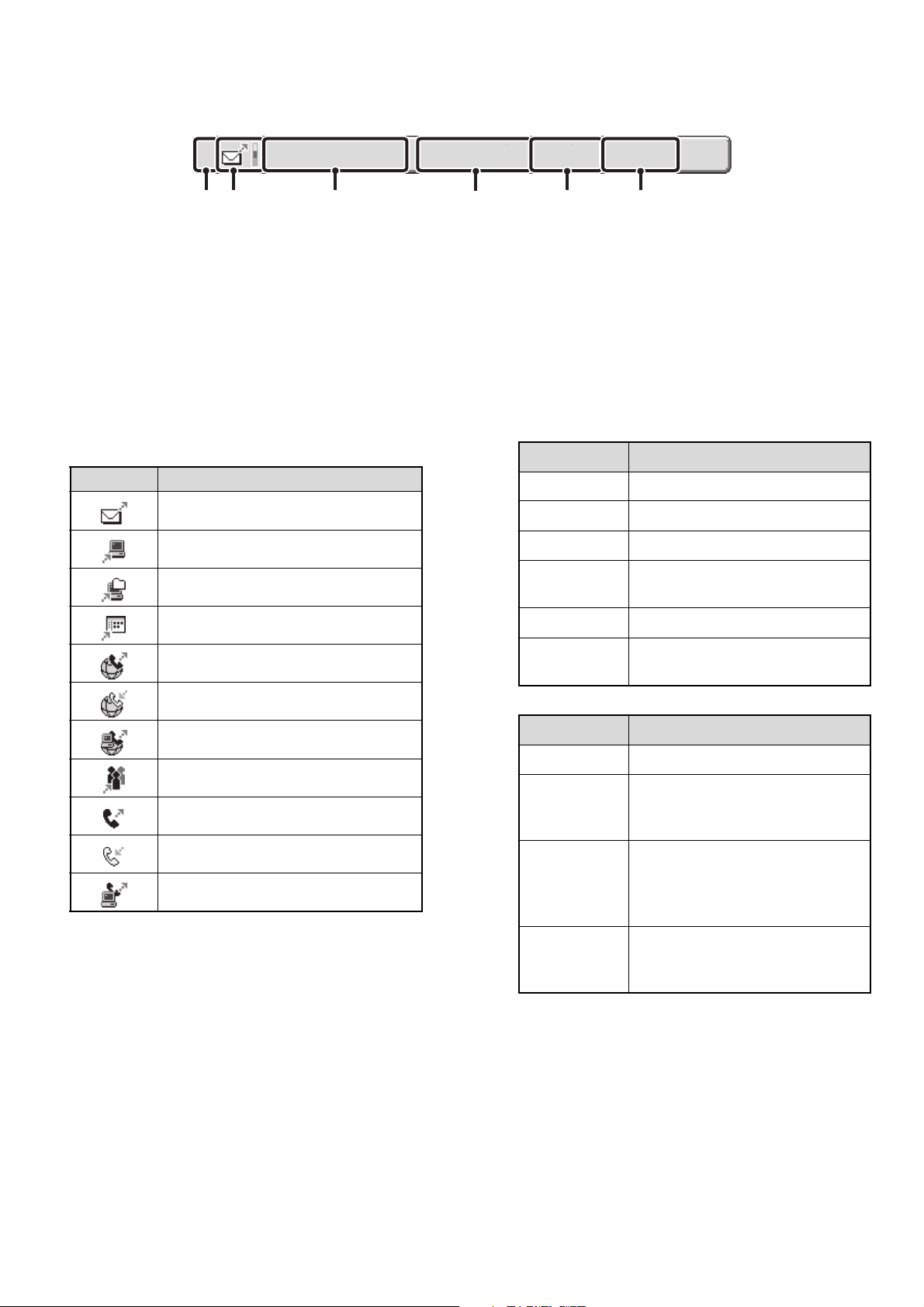
163
Job key display
The following information is shown in the job queue keys and completed job keys that appear in the job status screen.
(1) Displays the number (position) of the job in the job
queue.
When the job currently being transmitted is finished, the
job moves up one position in the job queue.
This number does not appear in keys in the complete
screen.
(2) Mode icon
This indicates the type of job. In the completed jobs
screen, a color bar appears next to the icon to indicate
whether the job was executed in color or black & white.
(However, the color bar icon does not appear in the key
of a job stored using the document filing function.)
(3) Name of communicating party (address)
For a transmission, the name or address of the destination.
For a reception, the address of the sending party.
For a broadcast transmission or serial polling operation, the
function name and a broadcast control number (4-digits).
For a fax transmission job, normally "Registered No."*
1
or
"Direct Entry"*
2
appears. The key can be touched to
show the destination name or destination number,
depending on how the destination was selected.
*1 This appears when a destination stored in the address
book was selected.
*2 This appears when the fax number was directly
entered with the numeric keys or was selected from a
global address book.
(4) Time reserved/Time started
In the job queue screen, the date and time the job was
reserved. In the completed jobs screen, the date and
time the job was started.
(5) Number of pages
Shows the number of pages transmitted/total number of
original pages.
(6) Status
Shows the job status.
• Job in progress
• Job waiting to be executed
3
AAA AAA
10:22
04/04 000/004
Waiting
(4)
(1) (2) (3)
(5) (6)
Icon Job type
Scan to E-mail
Scan to FTP
Scan to Network Folder
Scan to Desktop
Internet fax transmission
Internet fax reception
PC-I-Fax transmission
Broadcast transmission or serial polling
Fax transmission
Fax reception
PC-Fax transmission
Display Status
"Connecting" Connecting to the destination.
"Sending" Sending data.
"Receiving" Receiving
"Tel" Speaking with the other party using
an extension phone
"Stopped" The job has been stopped.
"Error" An error occurred while the job was
being executed.
Display Status
"Waiting" The job is waiting to be executed.
"Retry Mode" The job is being re-attempted due
to a communication error or other
problem.
"Report Wait" An Internet fax has been sent for
which a receive report was
requested, and the machine is
waiting for the receive report.
A day and
time is
displayed
Timer transmission job (the
specified time is displayed)
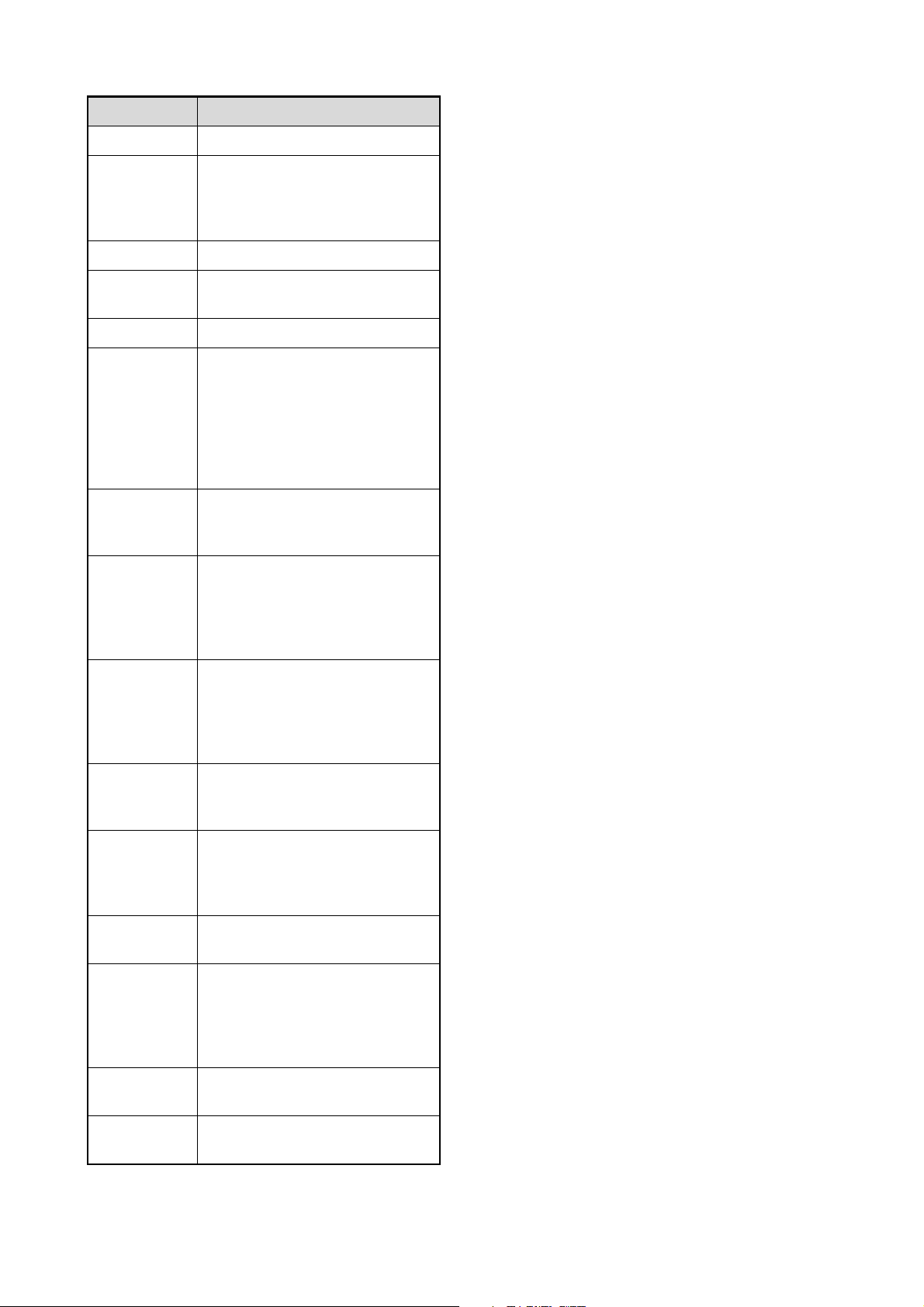
164
• Completed job
Display Status
"Send OK" Transmission was completed.
"In Memory" Reception completed but the fax
has not been printed. (The
received fax is being held by the
print hold function.)
"Printed" Finished printing the received fax
"Forward OK" The received fax has been
forwarded.
"Stopped" The job was stopped.
"Number of
successful
transmission
destinations/
Total
destinations
OK"
Broadcast transmission or serial
polling completed.
If transmission to 3 destinations
was successful out of a total of 5,
"003/005 OK" will appear.
"No
Response"
An error occurred because there
was no response from the
destination.
"OK Report" A receive report was requested for
a transmission, the transmission
was completed normally, and the
receive report was received from
the destination.
"NG Report" A receive report was requested for
a transmission, however, the
transmission did not take place
correctly and a transmission failed
report was received.
"No Report" An e-mail was received without an
attached file and thus printing was
not possible.
"Received" An e-mail was received, however,
the attached file was not a TIFF-F
file or there was no attached file,
and thus printing was not possible.
"Rejected" A fax was sent from a party that
has been blocked.
"NGxxxxxx" Transmission/reception was not
successful because a
communication error occurred (a
6-digit error code appears in
xxxxxx.)
"Error" An error occurred while the job was
being executed.
"Busy" An error occurred because the
other party was busy.

165
OPERATION WHEN A JOB IN THE JOB QUEUE IS
COMPLETED
When a normal transmission job is completed, it moves to the completed jobs screen and "Send OK" appears in the
status column.
Reception jobs, timer transmission jobs, forwarding jobs, and retry jobs are handled as explained below in the job status
screen.
Received jobs
While an Internet fax or a fax is being received, "Receiving" appears.
When reception is completed, the job moves to the completed jobs screen and "In Memory" appears.
After the fax is printed, the status changes to "Printed".
Timer transmission jobs
A timer transmission job appears at the bottom of the job queue until the specified time arrives.
When the specified time arrives, the job is executed. If another job is in progress, the timer job is started when the other
job is completed.
Internet fax transmission jobs that request a receive report
After completion of an Internet fax transmission job that requests a receive report, the job is placed on standby at the
bottom of the job queue screen. "Report Wait" appears in the status column. When the receive report is received from
the destination, or if the report is not received within the timeout time, the job moves to the completed jobs screen.
Reception jobs when "Inbound Routing Settings" are enabled
When "Inbound Routing Settings" are enabled, reception jobs are handled as follows depending on the print setting.
☞ FORWARDING RECEIVED FAXES TO AN E-MAIL ADDRESS (Inbound Routing Settings) (page 153)
• Received fax is not printed
"Receiving" appears while the fax is being received. When reception is completed, the job moves to the job queue of
the job status screen of scan mode.
• Received fax is printed
When reception is completed, the job moves to the complete screen and "In Memory" appears. After the fax is printed,
"Printed" appears. In addition, the job is added to the job queue of the job status screen of scan mode. When
forwarding is finished, "Forward OK" appears.
Retry jobs (fax mode)
A retry job appears at the bottom of the job queue screen. When the set retry interval elapses, the job is executed. If
there are jobs reserved ahead of the retry job, the retry job is reserved at the bottom of the job queue and executed
when its turn arrives.
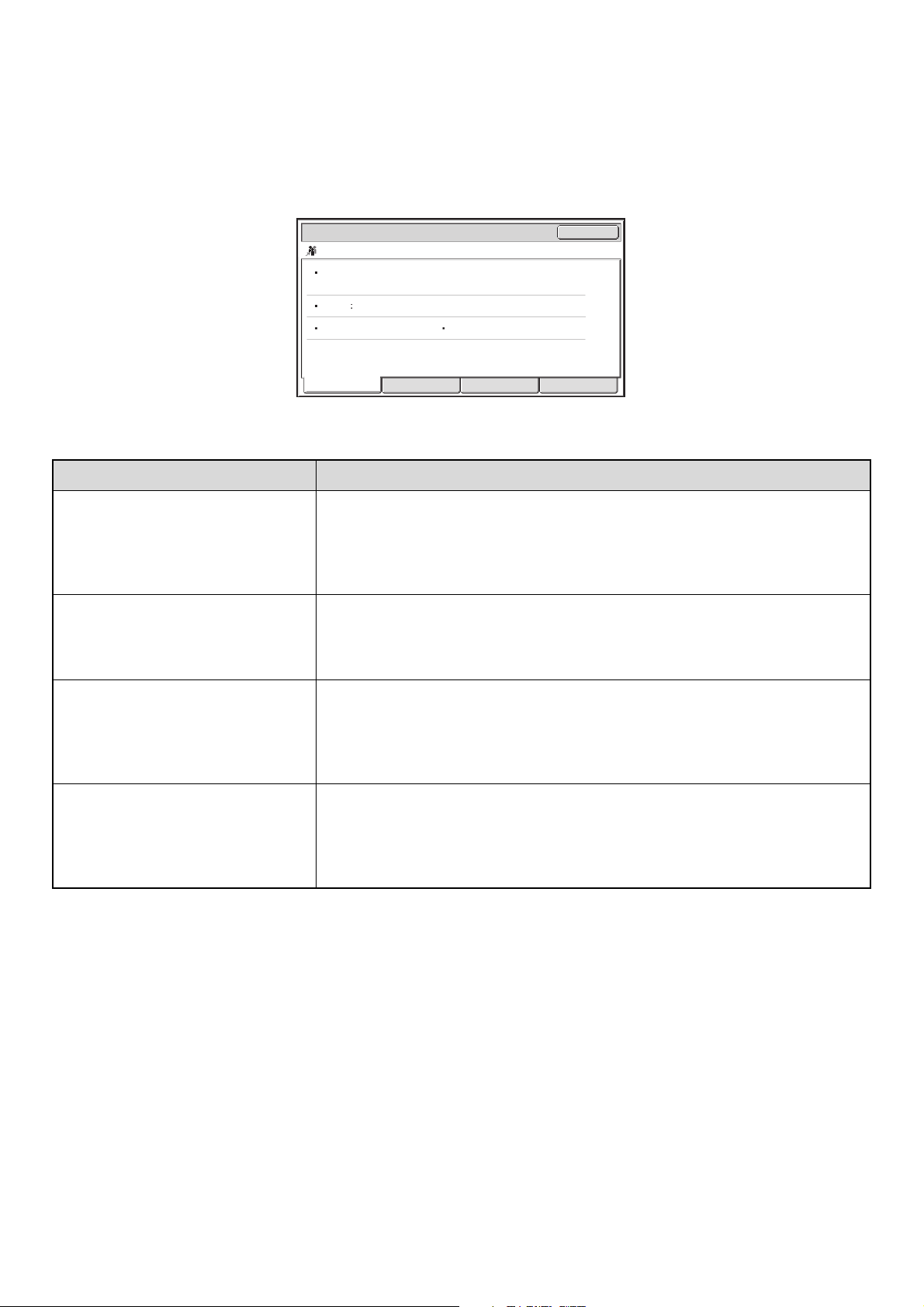
166
CHECKING A RESERVED JOB OR THE JOB IN
PROGRESS (FAX MODE)
The detailed contents of a broadcast transmission or serial polling job can be displayed. Select (touch) the key of the job
that you wish to check and touch the [Detail] key. The job details screen will appear (see below).
The job name and progress (number of completed destinations / total destinations) appear at the top of the screen.
To view details on the job, touch one of the tabs. The following information appears on each tab.
Tab name Information displayed
Fax Connecting Information on the current destination appears.
Fax No.: The fax number of the destination
Name: The name of the destination
Number: The broadcast control number (3-digits)
Pages: Number of pages completed / total number of pages
Fax Waiting This shows information on the destinations that are waiting. A broadcast control
number (3-digits) appears in front of each destination.
Address: The name of the other destination
Status: The status of communication
Failed This shows information on destinations for which communication failed. A broadcast
control number (3-digits) appears in front of each destination.
Address: The name or fax number of the destination
Start time: The time at which communication began
Status: The status of communication
All Destinations This shows all destinations specified in the job. A broadcast control number (3-digits)
appears in front of each destination.
Address: The name or fax number of the destination
Start time: The time at which communication began
Status: The status of communication
Name:
Number:
050
Pages:
005/010
AAA AAA
0123456789
Progress:Broadcast0001 050/100
Fax No. :
Fax Connecting
Fax Waiting Failed All Destinations
Detail
OK
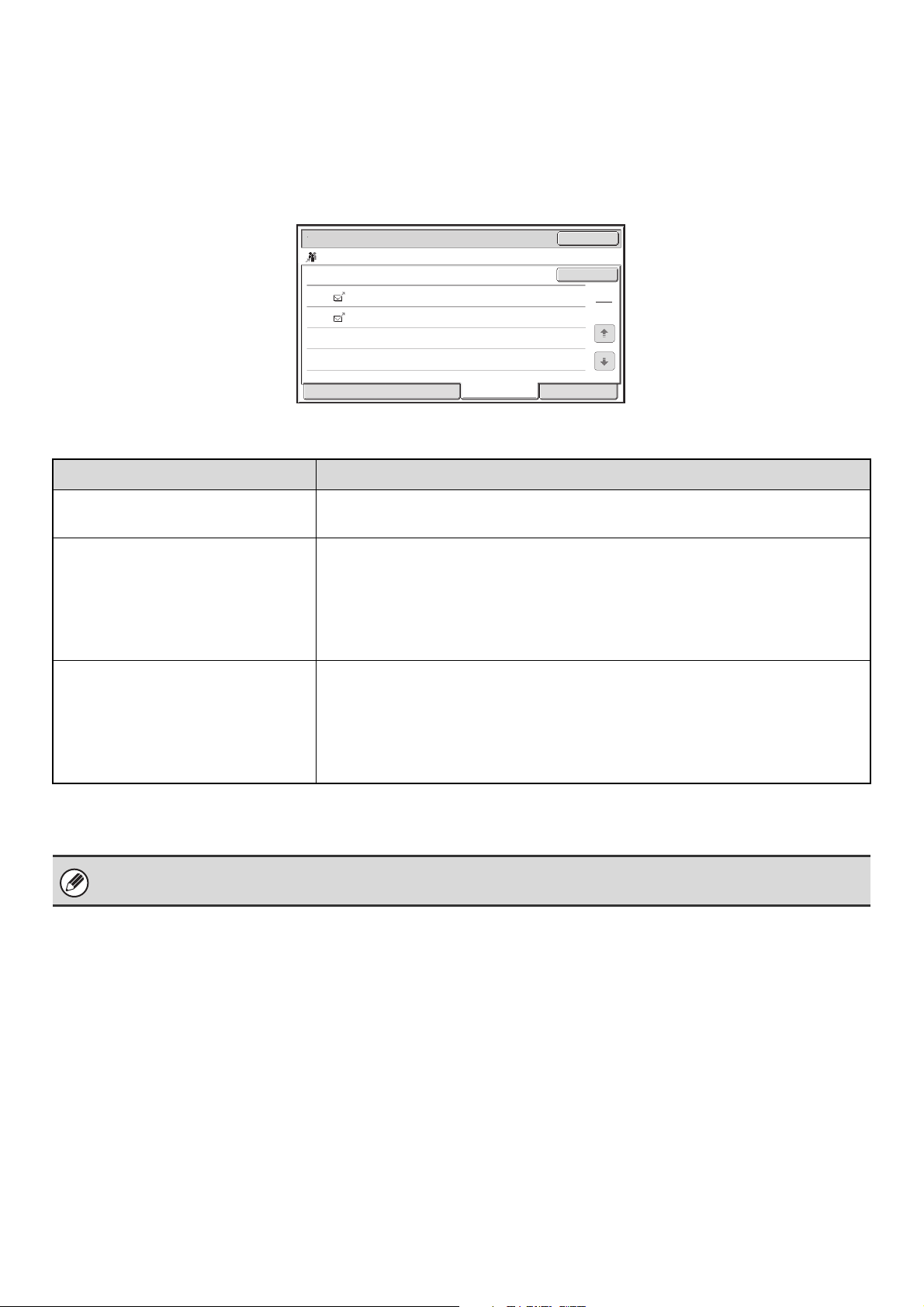
167
CHECKING COMPLETED JOBS
You can check a list of the destinations, the destinations for which transmission failed, and other detailed information on
completed jobs that used document filing function, broadcast transmission jobs, inbound routing jobs and serial polling
jobs. Touch the key of the job for which you wish to display information in the completed jobs screen and touch the
[Detail] key. The job detail screen (see below) will appear.
The job name appears at the top of the job detail screen.
To view details on the job, touch one of the tabs. The following information appears on each tab.
Tab name Information displayed
File Shows information on a transmission/reception that used document filing function.
To call up the file and use it, touch the [Call] key.
Failed This shows information on destinations for which communication failed. A broadcast
control number (3-digits) appears in front of each destination.
Address: Address name or number
Start time: Time at which communication began
Status: Description of failure (error)
The [Retry] key can be touched to re-attempt transmission to that address.
All Destinations Shows all addresses specified in the job. A broadcast control number (3-digits)
appears in front of each destination.
Address: Address name or number
Start time: Time at which communication began
Status: Communication result
The [Retry] key can be touched to transmit to all addresses again.
When Scan to FTP or Scan to Desktop destinations are included in a broadcast transmission, the retry function cannot be
used.
Detail
OK
Retry
Broadcast0001
EEE EEE NG000000
NG000000FFF FFF
Start TimeAddress Status
10:01 04/04
10:10
002
010 04/04
1
1
Failed
File
All Destinations
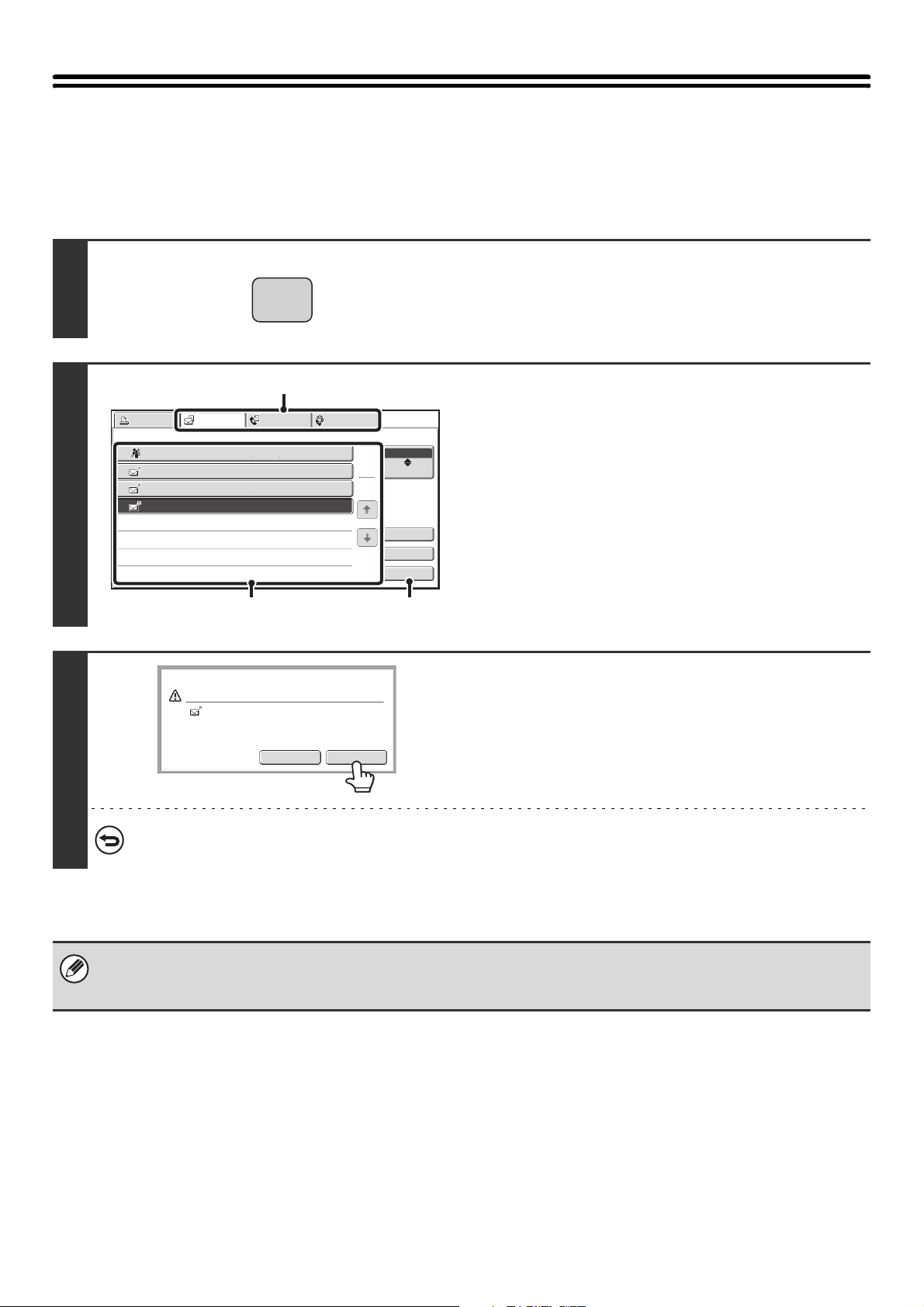
168
CANCELING A JOB IN PROGRESS OR A
RESERVED JOB
Follow the steps below to stop a job that is being transmitted or is waiting to be transmitted.
1
Press the [JOB STATUS] key.
2
Select the job that you wish to stop.
(1) Touch the mode tab of the job to be
stopped.
(2) Touch the key of the job to be stopped.
(3) Touch the [Stop/Delete] key.
3
Touch the [Yes] key.
If you do not want to stop the selected job...
Touch the [No] key.
Received fax print jobs, Internet fax jobs being received or waiting for a send confirmation, jobs being forwarded by inbound
routing, and F-code relay broadcast transmission jobs cannot be canceled.
☞ FORWARDING RECEIVED FAXES TO AN E-MAIL ADDRESS (Inbound Routing Settings) (page 153)
JOB STATUS
Broadcast0001
1
2
4
10:00 04/04 020/003 Connecting
AAA AAA
CCC CCC
10:05 04/04 000/001
Waiting
10:30 04/04 000/010
Waiting
Priority
3
BBB BBB
10:22 04/04 000/004
Waiting
Print Job
Fax Job
Internet Fax
Scan to
Address Set Time
Pages
Status
1
1
Complete
Detail
Stop/Delete
Job Queue
(3)(2)
(1)
Yes
No
Delete the job?
CCC CCC 10:31 04/04
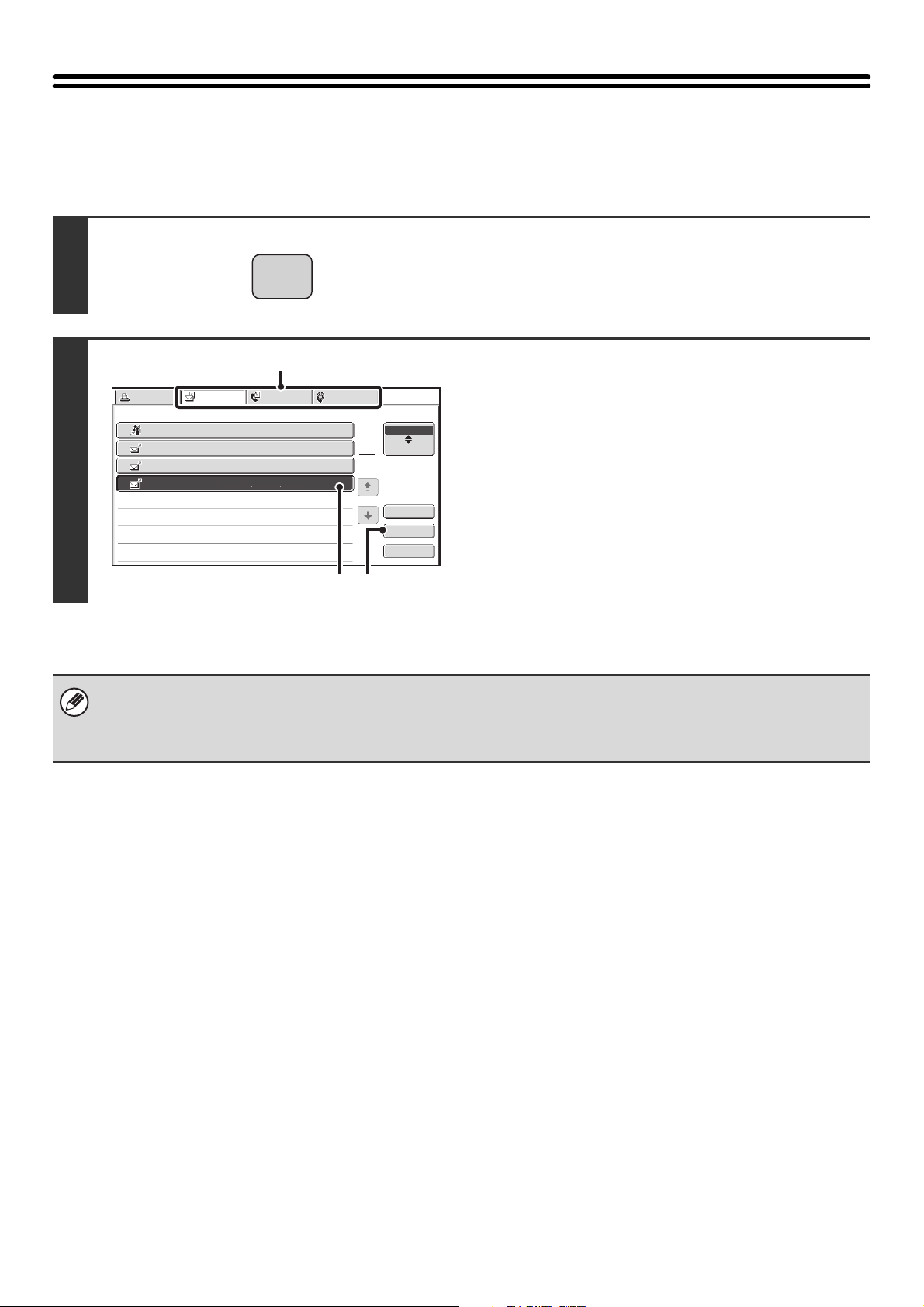
169
GIVING PRIORITY TO A RESERVED JOB
When multiple jobs are waiting to be transmitted, the jobs are normally transmitted in the order they were reserved. If
you need to give priority to a job and send it ahead of the other jobs, follow the steps below.
1
Press the [JOB STATUS] key.
2
Select the job to which you wish to give
priority.
(1) Touch the mode tab of the job to be given
priority.
(2) Touch the key of the job to be given priority.
(3) Touch the [Priority] key.
The selected job moves up to the position immediately
following the job in progress. The job will be executed
when the job in progress is completed.
Fax mode:
If the job in progress is a broadcast transmission job or a serial polling job, the priority job will be transmitted between
destinations of the broadcast transmission or serial polling job. However, if the priority job is a broadcast transmission job or
a serial polling job, it will be executed after the current job is completed.
JOB STATUS
Broadcast0001
1
2
4
10:00 04/01 020/003 Connecting
AAA AAA
CCC CCC
10:05 04/01 000/001
Waiting
10:30 04/01 000/010
Waiting
Priority
3
BBB BBB
10:22 04/01 000/004
Waiting
Print Job
Fax Job
Internet Fax
Scan to
Address Set Time
Pages
Status
1
1
Complete
Detail
Stop/Delete
Job Queue
(2) (3)
(1)
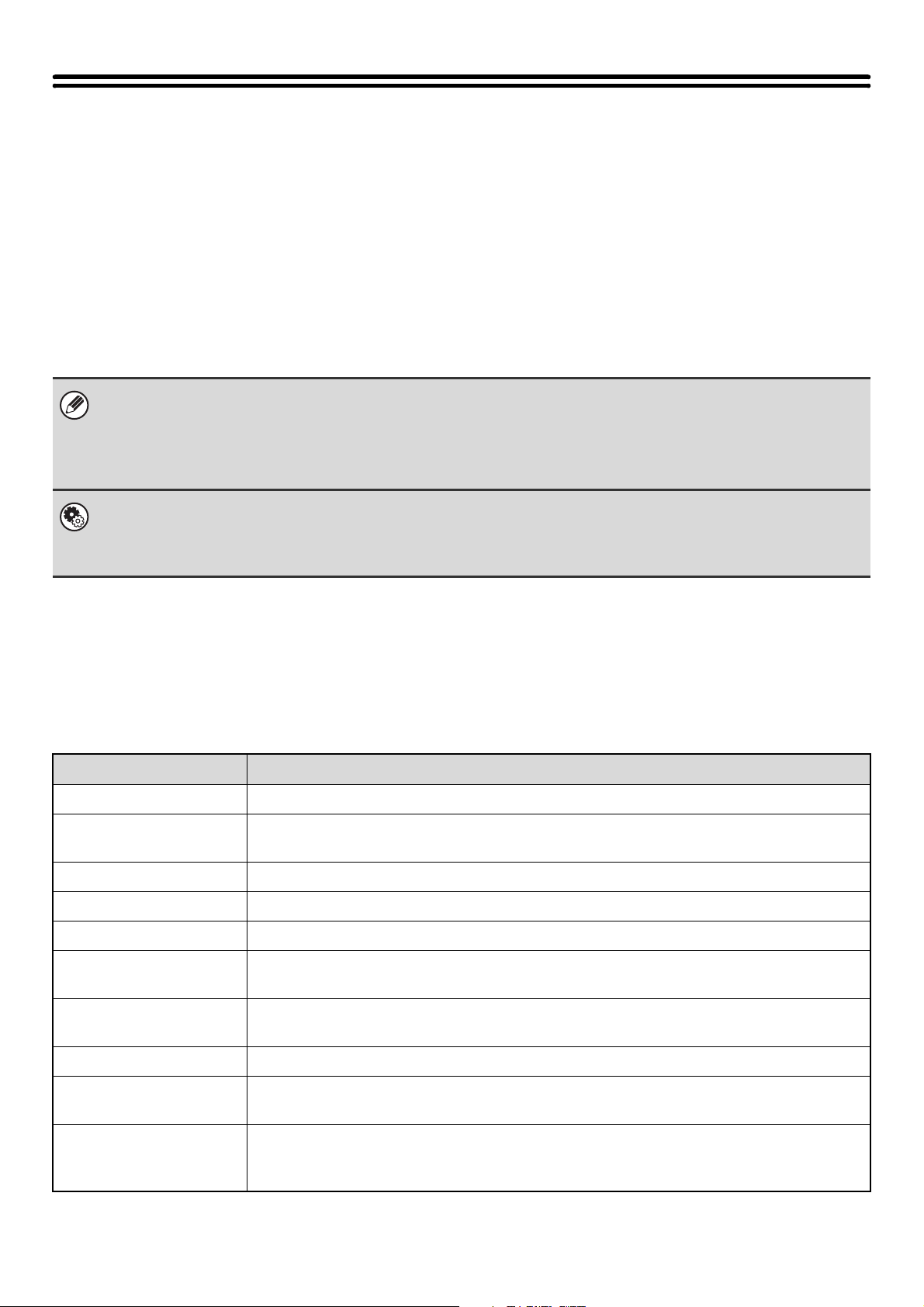
170
CHECKING THE ACTIVITY LOG
(Image Sending Activity Report)
IMAGE SENDING ACTIVITY REPORT
You can have the machine print a log of recent image sending activity (date, name of other party, time required, result,
etc.). The Image Sending Activity Report contains useful information such as the types of errors that occurred.
The most recent 199 transactions are included in the report.
You can have the machine print the Image Sending Activity Report each time the number of transactions reaches 200,
or at a specified time (once a day only).
INFORMATION APPEARING IN THE RESULT COLUMN
Error types and other information are printed in the result column of transaction and activity reports. When a transaction
report or activity report is printed, check the result of the transaction in the result column and take action as needed.
Examples of messages that are printed in the result column
• The contents of the Image Sending Activity Report are erased when the report is printed, and thus it cannot be reprinted.
• The Image Sending Activity Report can also be printed manually. For details, see "List Print (Administrator)" in the
Administrator's Guide.
• For the information that appears in the result column, see "INFORMATION APPEARING IN THE RESULT COLUMN"
(page 170).
System Settings (Administrator): Activity Report Print Select Setting (I-Fax Settings/Fax Settings)
This is used to set the conditions for printing activity reports. The factory default setting is not to print.
The Image Sending Activity Report can be set to print each time the number of transactions reaches 200, or at a specified
time (once a day only).
Message Explanation
OK The transaction was completed normally.
OK REPORT A receive report was requested for a transmission, the transmission was completed normally, and
the receive report was received from the destination.
CANCEL A transmission was stopped while in progress, or a reserved transmission job was canceled.
MEM. FULL The memory became full during reception.
REJECTED A fax was sent from a party that is blocked.
NG REPORT A receive report was requested for a transmission, however, the transmission did not take place
correctly and a transmission failed report was received.
NO REPORT A receive report was requested for a transmission, however, a report was not received within the
timeout time.
NG LIMIT Transmission was not possible because the file size exceeded the machine's file size limit setting.
RECEIVED An e-mail was received, however, the attached file was not a TIFF-F file or there was no attached
file, and thus printing was not possible.
FAIL xx (xxxx) The transaction failed due to a communication error.
First 2 digits of communication error number: Error code from 00 to 99.
Last 4 digits of communication error number: Code for use by service technicians.
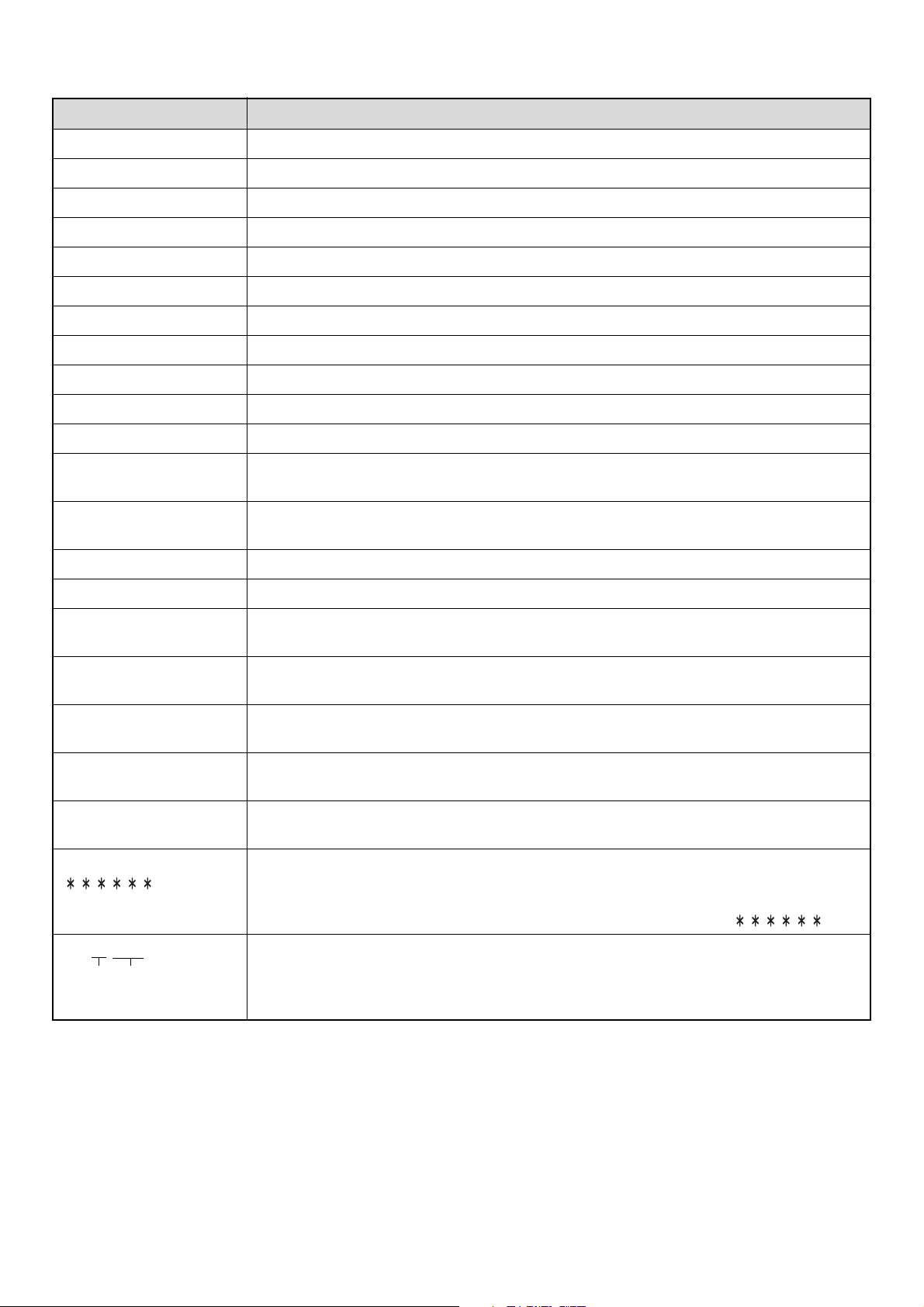
171
Printed transmission result messages that may appear in fax mode
Message Explanation
G3 Communication took place in G3 mode.
ECM Communication took place in G3 ECM mode.
SG3 Communication took place in Super G3 mode.
Forwarding The received data was forwarded.
NO RESPONSE No response from the receiving party.
BUSY Transmission was not possible because the other party was already using the line.
MEMORY OVER The memory became full during quick on-line transmission.
LENGTH OVER The transmitted fax was over 1.5 m (59") long and therefore could not be received.
ORIGINAL ERROR Direct transmission or manual transmission was not successful because a misfeed occurred.
PASS# NG The connection was broken because the polling passcode was not correct.
NO RX POLL The machine that was polled does not have a polling function.
RX POLL FAIL The other machine refused the polling operation, or your machine broke the connection when
polled because no data was in memory.
F-CODE RX POLL FAIL The other machine refused an F-code polling operation, or your machine broke the connection
when polled because no data was in its F-code memory polling box.
RX POLL# NG The connection was broken because the sub-address for F-code polling memory was not valid.
F POLL PASS# NG The connection was broken because the passcode for F-code polling memory was not valid.
BOX NO. NG Your machine broke the connection because the specified sub-address for an F-code memory
box does not exist.
F PASS# NG Your machine broke the connection because the other machine sent an incorrect passcode for
F-code communication.
RX NO F-CODE POLL F-code polling was attempted, however, the other machine did not have an F-code polling
memory box.
NO F FUNC F-code communication was attempted, however, the other machine does not support F-code
communication.
NO F-CODE F-code communication was refused by the other machine because of an incorrect sub-address or
other reason.
M. BOX: [xxxxxx] Data was received to a confidential or relay broadcast memory box, or data was sent from a
memory polling box.
The name of the memory box appears in [xxxxxx], and the type of F-code operation (relay request
reception, polling memory transmission, or confidential reception) appears in .
NG xx (xxxx) The communication handshake signals or image signals were distorted due to line conditions or
other reasons, and communication was not successful.
(1) First 2 digits of communication error number: Error code from 00 to 99.
(2) Last 4 digits of communication error number: Code for use by service technicians.
(1)
(2)
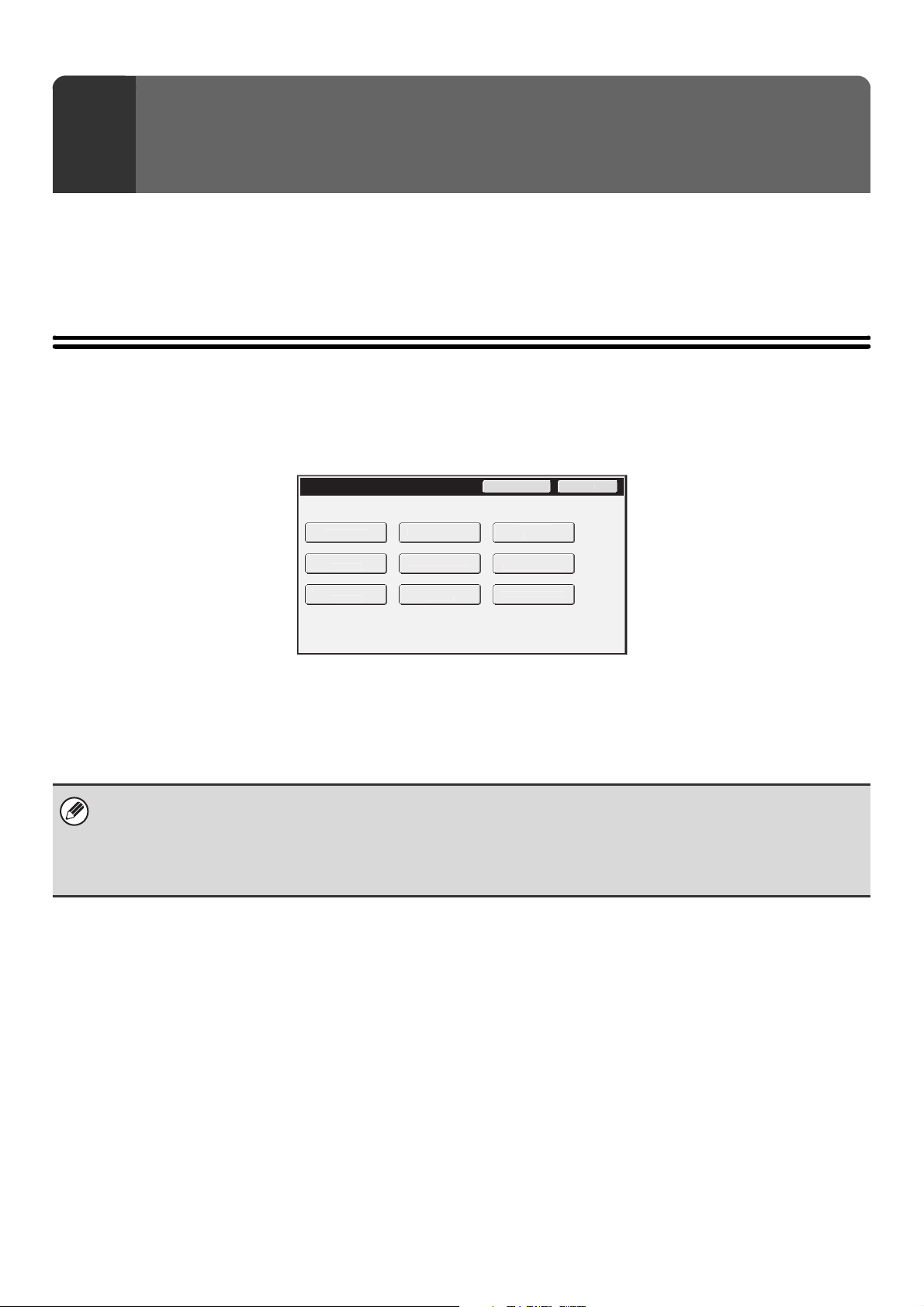
172
This chapter explains the system settings for the image send function that can be configured by general users.
For information on configuring the system settings, see the User's Guide. For system settings that require administrator
rights, see the Administrator's Guide.
ACCESSING THE SYSTEM SETTINGS
Make sure that the machine is in the standby state and then press the [SYSTEM SETTINGS] key on the operation
panel.
When the [SYSTEM SETTINGS] key is pressed, the following menu screen appears on the touch panel.
Touch the item in this screen that you wish to configure. For the procedure for configuring each setting, see the
explanation of the setting. The following settings are explained:
• ADDRESS CONTROL (page 174)
• FAX DATA RECEIVE/FORWARD (page 181)
9
SYSTEM SETTINGS
System Settings
A
d
m
i
n P
ass
w
o
r
d
E
x
it
Total
Cou
n
t
P
aper Tra
y
S
ett
i
ngs
P
r
i
n
te
r
Co
n
ditio
n
S
ett
i
ngs
Document F
i
l
i
n
g
Co
n
t
r
ol
A
dd
r
ess
Co
n
t
r
ol
Fa
x D
ata
R
eceive/Forwar
d
US
B-D
e
v
ice
C
h
eck
Default Sett
i
ngs
List
Pr
i
n
t
(
User
)
• To quit the system settings, touch the [Exit] key in the top right corner of the screen.
• For the procedure to follow when user authentication is enabled, see "USER AUTHENTICATION" in the User's Guide.
• Web pages
The system settings can also be configured from the Web pages. To configure the system settings from the Web pages,
click [System Settings] in the Web page menu.
173
SYSTEM SETTINGS LIST
A list of the system setting items explained in this manual and the factory default settings is shown below.
■ Address Control
■ Fax Data Receive/Forward
*1 When a saddle stitch finisher or finisher is installed.
*2 When a folding unit is installed.
Depending on the machine specifications and peripheral devices installed, it may not be possible to use some settings.
Item Factory default setting Page
■ ADDRESS CONTROL
174
● ADDRESS BOOK - 174
● CUSTOM INDEX - 177
● PROGRAM - 177
● F-CODE MEMORY BOX - 179
Item Factory default setting Page
■ FAX DATA RECEIVE/FORWARD
181
● I-FAX SETTINGS 181
X Reception Start -
X Manual Reception Key in Initial Screen Enabled
X Forward Received Data -
● FAX SETTINGS 182
X Receive Setting Auto Reception
X Multiple Set Print Disabled
X Staple*
1
Disabled
X Fold*
2
Disabled
X Forward Received Data -
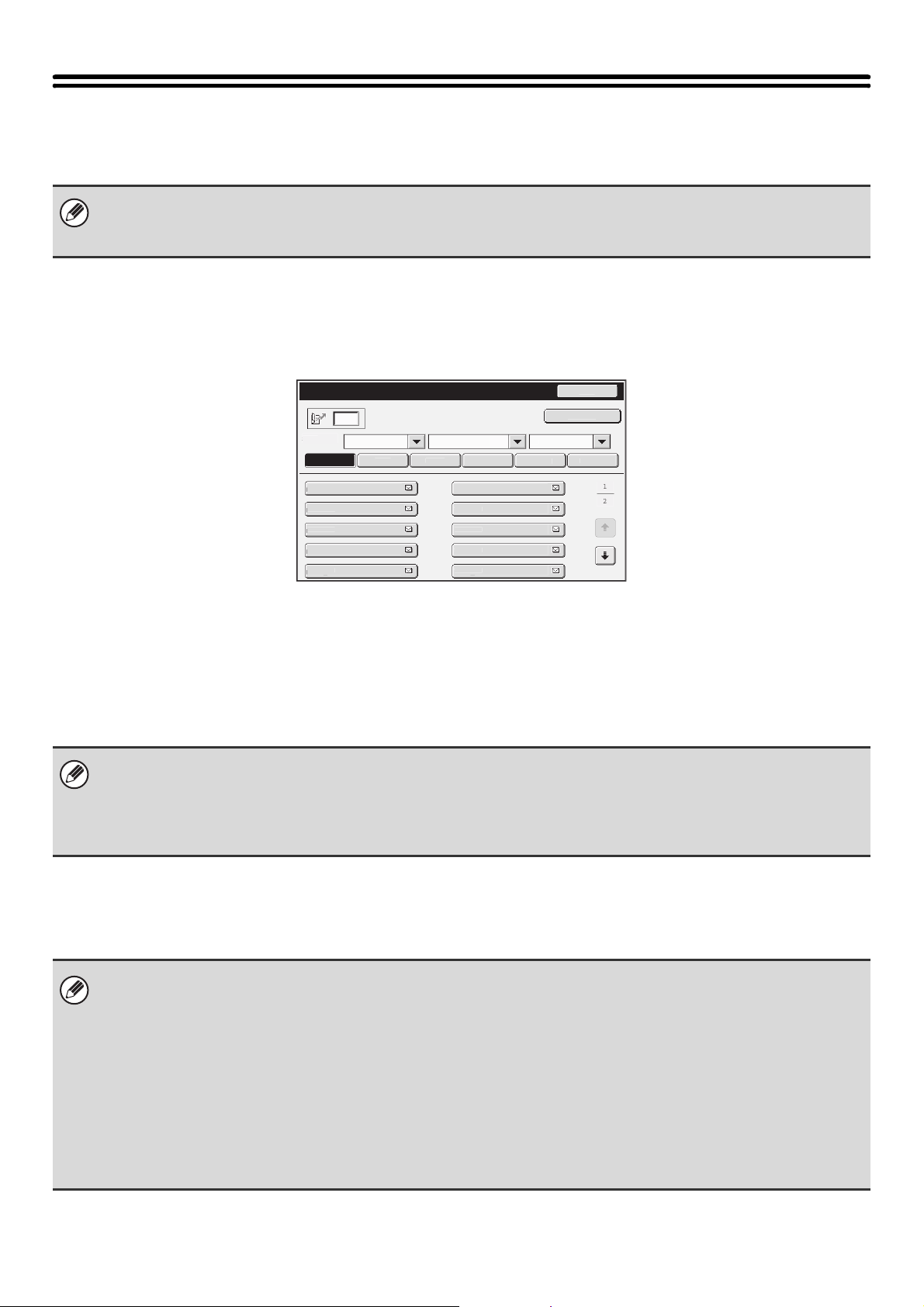
174
ADDRESS CONTROL
Select this item to store, edit, and delete one-touch keys, group keys, program keys, user indexes, and F-code memory
boxes. Touch the [Address Control] key to configure the settings.
ADDRESS BOOK
Destinations can be stored in the address book for easy retrieval.
Press the [SYSTEM SETTINGS] key and touch the [Address Control] key followed by the [Address Book] key to display
the following screen.
• [Add New] key
Use this to add a new address.
• List display
This displays a list of the currently stored addresses.
An address can be selected to open an edit/delete
screen for the address.
Storing addresses
Touch the [Add New] key in the above screen to store an address. Up to 999 addresses can be stored.
For more information, see "Settings" (page 175).
Editing and deleting addresses
An address can be selected from the list in the above screen to open an edit/delete screen for the address.
For more information, see "Settings" (page 175).
Delete an address with the [Delete] key.
• The settings that can be selected vary depending on the peripheral devices installed.
• When the application integration module is installed, fax destinations can be stored even if the facsimile expansion kit is
not installed.
Address Book
AAA AAA
Freq.
So
r
t
AB
C
All
UP
2
1
AB
CD
E
F
G
H
I
J
KLM
N
OP
Q
RS
T
UVW
XYZ
B
ack
A
dd
New
CCC
CCC
E
EE EE
E
GGG
GGG
III III
BBB BBB
DDD DD
D
F
FF FFF
HHH HHH
JJJ
JJJ
• If "Disable Registering Destination from Operation Panel" is enabled for any of the modes, destinations for those modes
cannot be stored.
• To store addresses for Scan to FTP, Scan to Network Folder, and Scan to Desktop...
Store Scan to FTP and Scan to Network addresses in the Web pages. Store Scan to Desktop addresses using Network
Scanner Tool. A combined maximum of 200 addresses can be stored for these three scanning methods.
If you cannot edit or delete an individual (one-touch) key or group key...
•
If the individual key or group key that you are attempting to edit or delete is being used in a reserved transmission (including
a timer transmission) or a transmission in progress, wait until the transmission is finished or cancel the transmission.
• If the individual key or group key that you are attempting to edit or delete is included in a group key or program, delete the
key from the group or program and then edit or delete the key.
• Editing and deleting will not be possible if the administrator has configured a "Default Address Setting" in the system
settings (administrator) or has enabled "Inbound Routing Settings" or "Document Administration Function" in the Web
pages. Have the key deleted from the above settings and then edit or delete the key.
•Fax mode:
If the one-touch key or group key that you wish to edit or delete is stored as a forwarding destination in an F-code relay
transmission group, first delete the key from the group and then edit or delete it.
175
Settings
Item Description
General items stored
Address Type Select the type of address to be stored in the address book.
• E-mail: Store an e-mail address in a one-touch key.
• Internet Fax: Store an Internet fax address in a one-touch key.
• Fax: Store a fax number in a one-touch key.
• Group: Store multiple addresses as a group for a broadcast transmission.
Search Number Set a search number. The lowest available number is automatically entered. To
change the number, enter a number from 001 to 999. A search number that has
already been stored cannot be used.
Address Name Enter a maximum of 36 characters for the address name.
Initial Enter up to 5 characters for the initials. The initials you enter here determine the
position of the one-touch key in the alphabetical index.
Key Name Enter the name that you wish to appear in the address book (this is different from the
address name).
Custom Index Select the custom index in which the address will appear.
Register this Address to be added to the
[Frequent Use] index.
Frequently used addresses can be stored in the [Frequent Use] index.
Items appearing when an e-mail address is stored
E-mail Address Enter an e-mail address (max. 64 characters).
File Format Specify the format of the file to be generated and the compression mode for black &
white mode and color mode.
• File Type: Set the format of the file to be generated. [JPEG] will not appear if
the color expansion kit is not installed.
• Compression Mode (Black & White): Select the compression mode for black &
white transmission.
• Compression Ratio (Color/Grayscale):Select the compression ratio for
color/grayscale transmission. Does not
appear when the color expansion kit is not
installed.
Items appearing when an Internet fax address is stored
I-Fax Address Enter an Internet fax address (max. 64 characters).
Compression Mode Select the compression mode for transmission.
Request Internet Fax Reception Report Select whether or not you wish to receive a reception report by e-mail after
transmission is completed.
Items appearing when a group is stored
Address Book Select addresses from the address book to be stored in the group. Up to 500
addresses can be stored.
Direct Entry An address that is not stored in the address book can be directly entered. Enter the
address in the same way as when storing an address for a mode. Note that when an
Internet fax address is directly entered, the compression mode and reception report
cannot be selected. When storing an e-mail address, [JPEG] can only be selected for
the "Format" if the color expansion kit is installed.
Address Review This displays a list of the selected addresses. Addresses can be deleted from this list
if needed.
176
Item Description
Items that appear when a fax destination is stored
Fax Number Enter the fax number of the destination (maximum of 64 digits).
Entering a pause between digits of the number
Touch the [Pause] key at the place where you wish to enter a pause.
To enter an F-code (sub-address and passcode)...
(1) Enter the destination fax number.
(2) Touch the [Sub Address] key.
(3) Enter the sub address (maximum of 20 digits).
(4) Touch the [Passcode] key.
(5) Enter the passcode (maximum of 20 digits).
A passcode is not necessary if the destination machine does not use a
passcode.
The destination fax number can be a maximum of 64 digits including all numbers
and characters. However, only the first 32 digits will appear in the display.
Transmission Mode Set the transmission speed and the International Correspondence Mode.
Selecting appropriate settings for these items may help eliminate communication
errors.
Transmission Speed
33.6 kbps, 14.4 kbps, 9.6 kbps or 4.8 kbps can be selected for the transmission
speed. Higher numbers are higher transmission speeds.
Set the transmission speed only when you know what speed is most suitable,
such as when you are sending a fax to a foreign country and telephone line
conditions are bad. If you do not know the line conditions, do not change this
setting.
Transmission Mode
None, Mode1, Mode2, or Mode3 can be selected for the International
Correspondence Mode.
When sending a fax to a foreign country, telephone line conditions can sometimes
distort the fax or interrupt the transmission. If errors frequently occur when
sending a fax to a foreign country, try each of modes 1 to 3 and select the mode
that enables the best transmission.
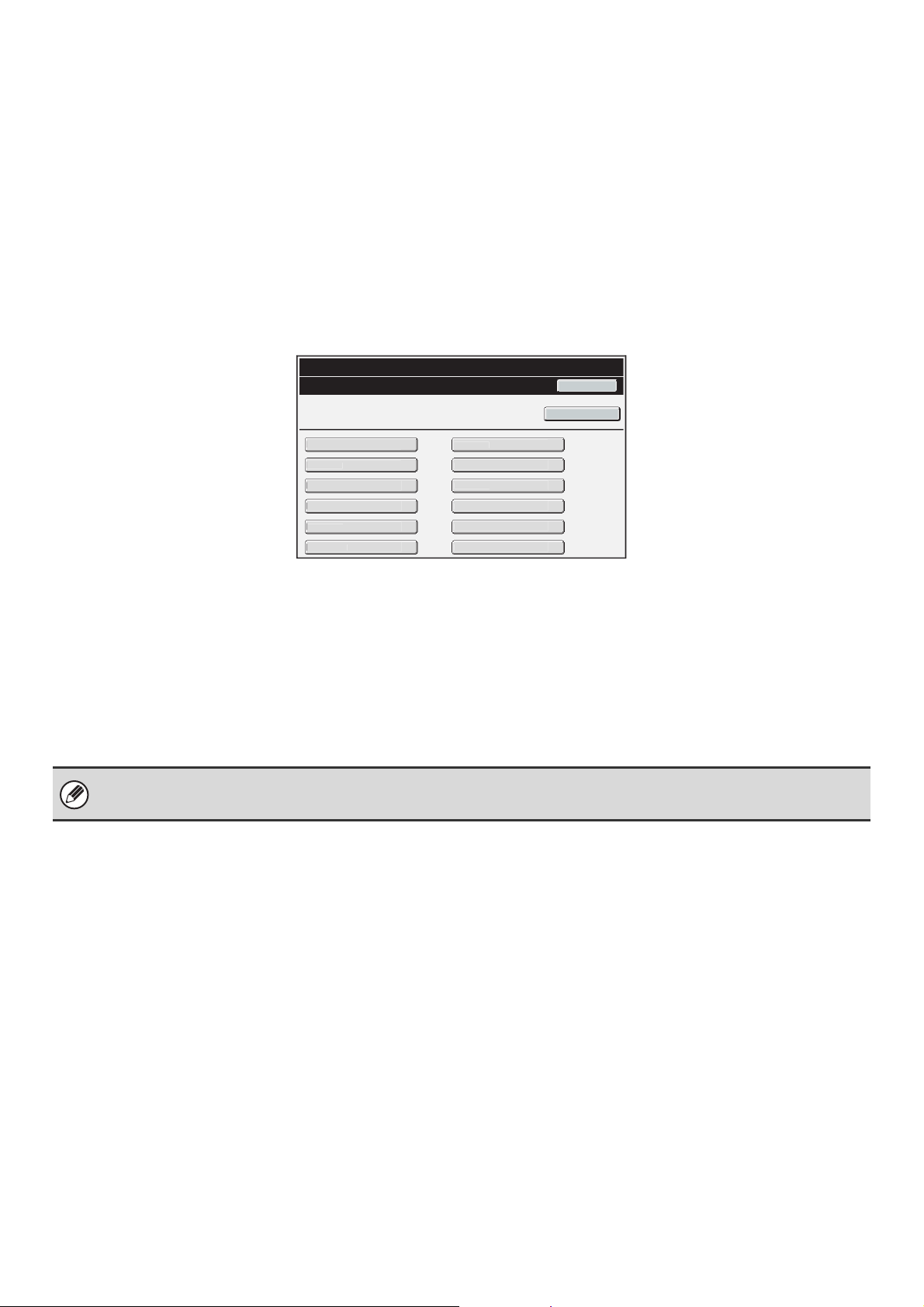
177
CUSTOM INDEX
The name of a custom index can be changed for greater ease of use.
Delete the previously entered name and enter a new name (maximum of 6 characters).
The factory default names for the custom indexes are "User 1" to "User 6".
PROGRAM
If you frequently use the same settings and/or functions to transmit to the same destination or destinations, the settings
and destinations can be stored in a program. This allows the settings and destinations to be selected by simply selecting
the program.
When the [Program] key is touched, the following screen appears.
• [Add New] key
Use this to add a new program.
• List display
This displays a list of the currently stored programs. A
program can be selected to open an edit/delete screen
for the program.
Storing a program
Touch the [Add New] key in the above screen to open a registration screen. Up to 48 programs can be stored.
For more information, see "Settings" (page 178).
Editing and deleting programs
A program can be selected from the list in the above screen to open an edit/delete screen for the program.
For more information, see "Settings" (page 178).
Delete a program with the [Delete] key.
System Settings
Program
P
rogram
3
P
rogram
1
B
ack
A
dd
New
P
rogram
5
P
rogram
7
P
rogram
9
P
rogram
11
P
rogram
2
P
rogram
4
P
rogram
6
P
rogram
8
P
rogram
10
P
rogram
12
• A timer setting cannot be included in a program.
• At least one one-touch key must be specified in a program or the program cannot be stored.
178
Settings
Item Description
Program Number Set the number to be assigned to the program. The lowest available number is
automatically entered. If you wish to change the number, enter a number from 01 to
48. A number that is already in use cannot be assigned.
Program Name Enter a maximum of 18 characters for the program name.
Address Book Select the address(es) to be used in the program from the address book. Up to 500
destinations can be stored in one program. (If a Scan to Network Folder destination
is selected, only one destination can be stored.)
Address Book screen This displays a list of the currently stored addresses.
Address Review This displays a list of the selected addresses. Addresses can be deleted from this list
if needed.
Condition Settings Select the mode in which the address is used (Internet fax, scan, etc.). When a mode
is selected, the settings for that mode appear.
Mode Settings Frequently used settings can be stored in the same way as when they are selected
for a mode. For more information, see the manuals for each mode.
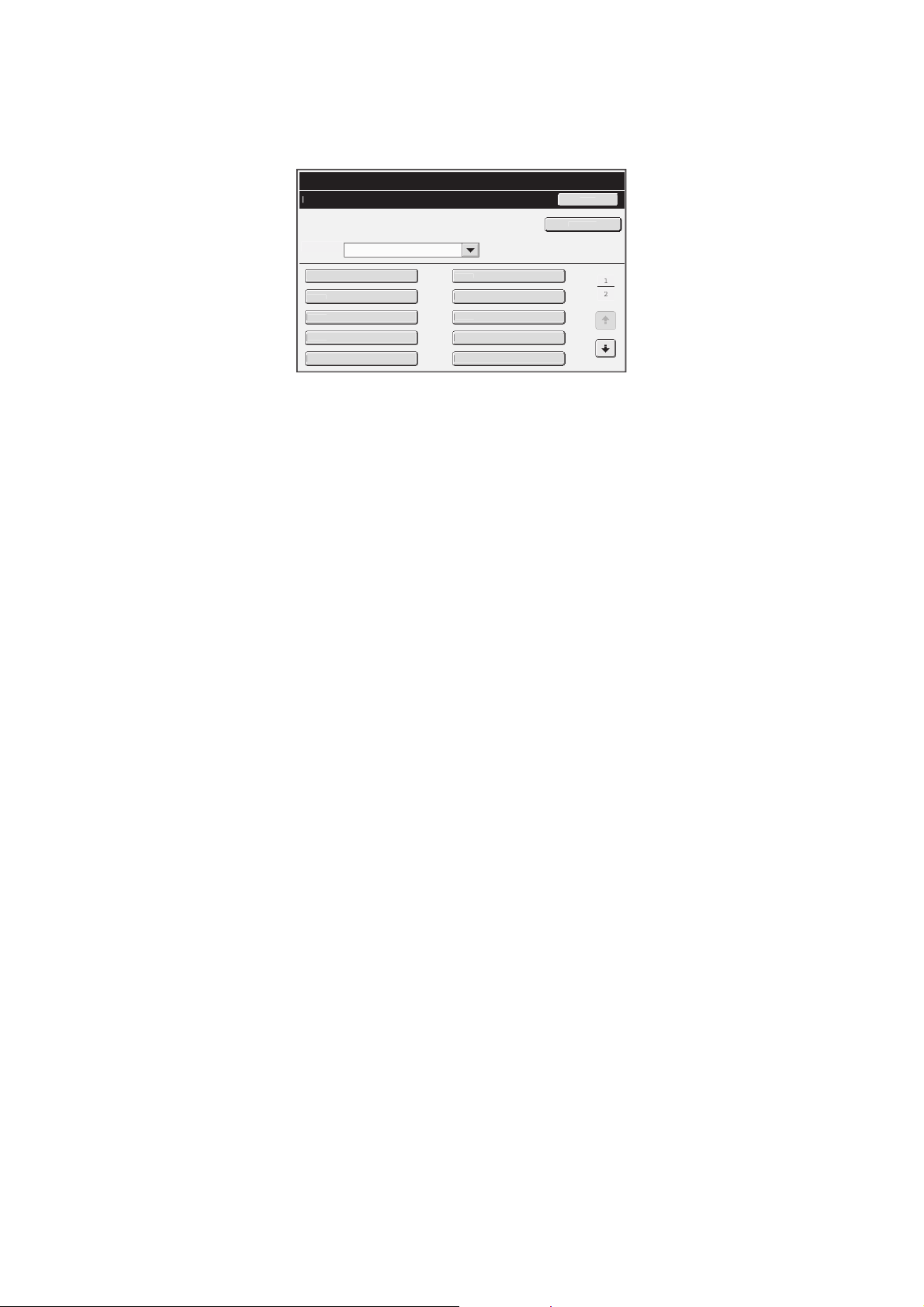
179
F-CODE MEMORY BOX
This section explains how to store memory boxes for various types of F-code communication.
When the [F-Code Memory Box] key is touched, the following screen appears.
• [Add New] key
Use this to add a new memory box.
• List display
This displays a list of the currently stored memory
boxes. A memory box can be selected to open an
edit/delete screen for the memory box.
Storing a memory box
Touch the [Add New] key in the above screen to open a registration screen. A total of 100 F-code memory boxes for all
functions (polling memory, confidential, and relay broadcast) can be stored.
For more information, see "Settings" (page 180).
Editing and deleting a memory box
A memory box can be selected from the list in the above screen to open an edit/delete screen for the box.
For more information, see "Settings" (page 180).
Delete a memory box with the [Delete] key.
System Settings
F-Code Memory Box
B
o
x
3
B
o
x
1
So
r
t
P
oll
i
ng Memor
y
B
ack
A
dd
New
B
o
x
5
B
o
x
7
B
o
x
9
B
o
x
2
B
o
x
4
B
o
x
6
B
o
x
8
B
o
x
10
2
1
180
Settings
Item Description
Items common to all types
Box Type Select the type of box.
• Polling Memory: Store a memory box for F-code polling memory. The
sub-address and passcode that you program in the memory
box are necessary for the other machine to poll your machine
(request transmission) using F-code communication.
• Confidential: Store a memory box for F-code confidential reception. In
addition, store a "Print PIN" in the memory box to print faxes
received by confidential reception. The sub-address and
passcode that you program in the memory box are
necessary for the other machine to send a fax to your
machine by F-code confidential transmission.
• Relay Broadcast: Store a memory box for F-code relay broadcast transmission.
Store the fax numbers of the end recipients (up to 30) in the
memory box. The sub-address and passcode that you
program in the memory box are necessary for the other
machine to perform an F-code relay request transmission
(ask your machine to relay a fax).
Memory Box Name Enter a name (maximum of 18 characters) for the memory box.
Sub Address/Passcode Enter a sub-address and passcode. Separate a sub-address and passcode by a
slash "/". Touch the [Passcode] key in the screen to enter "/".
A maximum of 20 digits each can be entered for the sub-address and passcode,
for a total of 41 digits including the slash "/".
Items displayed when storing a confidential memory box
Print PIN Set a "Print PIN" for confidential reception. Enter a 4-digit number.
Items displayed when storing a relay broadcast memory box
Recipients Select the end recipients of the relay broadcast. Select the recipients from the
address book.
• Address Review: This displays a list of the selected recipients. Addresses can
be deleted from this list if needed.
• Direct Entry: An address that is not stored in the address book can be
directly entered. Enter the address in the same way as when
storing an address for a mode.
• When programming a new memory box, a sub-address that is already programmed for another box cannot be used.
However, the same passcode can be used for more than one memory box.
• A passcode can be omitted.
• [ ] and [#] cannot be used in a sub-address.
• Do not forget the Print PIN. In the event that you forget the Print PIN or need to verify the Print PIN, contact your SHARP
dealer or nearest SHARP customer service center.
181
FAX DATA RECEIVE/FORWARD
This section explains settings for reception and forwarding. Touch the [Fax Data Receive/Forward] key and configure
the settings.
I-FAX SETTINGS
These settings can be configured when the Internet fax expansion kit is installed.
Reception Start
The machine will connect to your mail server (POP3 server) and check for received Internet faxes. If you have received
Internet faxes, the faxes will be retrieved and printed.
Manual Reception Key in Initial Screen
This displays the [I-Fax Manual Reception] key in the base screen of Internet fax mode.
Forward Received Data
When the machine cannot print because it is out of paper or out of toner, received faxes can be forwarded to another
Internet fax machine.
To use this function, POP3 server settings must be configured. Configure these settings in the screen that appears when
[Application Settings] - [Internet Fax Settings] is selected in the Web page menu.
• A forwarding address is stored in "Set Address for Data Forwarding" in the system settings (administrator).
• If forwarding was not successful because the transmission was canceled or a communication error occurred, the faxes that
were to be forwarded will return to the print queue on the machine.
• If the initial pages of a fax were successfully printed, only those pages that were not printed will be forwarded.
• Forwarding is not possible if no faxes were received or a forwarding fax number is not programmed.
• If "Hold Setting for Received Data Print" is enabled in the system settings (administrator), you will be prompted to enter the
passcode. Enter the correct password with the numeric keys.
To cancel forwarding...
Press the [JOB STATUS] key, and then cancel the forwarding job in the same way as a transmission job.
182
FAX SETTINGS
The following items appear when the "Fax Settings" are configured.
Item Description
Receive Setting Set the fax reception method.
• Auto Reception: When a call comes in, the machine rings and then
automatically begins fax reception.
• Manual Reception:This can be used when an existing extension phone is
connected to the machine. Fax reception is begun by
manual operation after answering on the extension phone.
Multiple Set Print Specify whether or not two or more copies of received faxes will be printed. The
number of copies is set in "Fax Output Settings" in the system settings
(administrator).
Staple Specify whether or not stapling is performed. (Only when a finisher or saddle
stitch finisher is installed.)
Binding settings are configured in "Fax Output Settings" in the system settings
(administrator).
Fold Specify whether or not output is folded. (Only when a folding unit is installed.)
Paper sizes to be folded are selected in "Fax Output Settings" in the system
settings (administrator).
Forward Received Data When the machine cannot print because it is out of paper or out of toner, received
faxes can be forwarded to another previously stored fax machine.
• If some pages of a fax that is being forwarded were successfully printed, only those pages that were not printed will be
forwarded.
• A forwarded fax becomes a fax transmission job. If transmission does not take place because the transmission was
canceled or an error occurred, the fax will be held in memory until it can be printed.
• All faxes received are forwarded. Note, however, that faxes received to an F-code confidential memory box cannot be
forwarded.
• The forwarding fax number is stored in "Set the Telephone Number for Data Forwarding".
• Forwarding is not possible if no faxes were received or a forwarding fax number is not programmed.
• If "Hold Setting for Received Data Print" is enabled in the system settings (administrator), you will be prompted to enter the
passcode. Enter the correct password with the numeric keys.
183
This chapter provides solutions to possible image sending problems. See the following table of contents to locate the
appropriate page for your question or problem.
10
TROUBLESHOOTING
PROBLEMS RELATED TO TRANSMISSION
General problems common to all modes
• Transmission does not take place. . . . . . . . . . . . . . . . . . . . . . . . . . . . . . . . . . . . . . . . . . . . . . . . . . . . 185
• A destination cannot be specified. . . . . . . . . . . . . . . . . . . . . . . . . . . . . . . . . . . . . . . . . . . . . . . . . . . . 185
• Mode cannot be selected.. . . . . . . . . . . . . . . . . . . . . . . . . . . . . . . . . . . . . . . . . . . . . . . . . . . . . . . . . . 185
• A destination is pre-selected. . . . . . . . . . . . . . . . . . . . . . . . . . . . . . . . . . . . . . . . . . . . . . . . . . . . . . . . 185
• Transmission does not begin at the specified time. . . . . . . . . . . . . . . . . . . . . . . . . . . . . . . . . . . . . . . 185
Scan mode, USB memory mode, Internet fax mode
• Transmission does not take place. . . . . . . . . . . . . . . . . . . . . . . . . . . . . . . . . . . . . . . . . . . . . . . . . . . . 186
• Auto selection of the color mode does not take place correctly. (When the color expansion kit is
installed.). . . . . . . . . . . . . . . . . . . . . . . . . . . . . . . . . . . . . . . . . . . . . . . . . . . . . . . . . . . . . . . . . . . . . . . 186
• The received image file cannot be opened. . . . . . . . . . . . . . . . . . . . . . . . . . . . . . . . . . . . . . . . . . . .. 186
• Transmission takes a long time. . . . . . . . . . . . . . . . . . . . . . . . . . . . . . . . . . . . . . . . . . . . . . . . . . . . . . 186
• Cannot write to USB memory. (When using USB Memory Scan.) . . . . . . . . . . . . . . . . . . . . . . . . . . . 187
PROBLEMS RELATED TO SCAN RESULTS
• The scanned image is clipped. . . . . . . . . . . . . . . . . . . . . . . . . . . . . . . . . . . . . . . . . . . . . . . . . . . . . . . 187
• The quality of the scanned image is poor. . . . . . . . . . . . . . . . . . . . . . . . . . . . . . . . . . . . . . . . . . . . . . 187
• The scanned image is blank. . . . . . . . . . . . . . . . . . . . . . . . . . . . . . . . . . . . . . . . . . . . . . . . . . . . . . . . 187
• The scanned image is upside down or on its side. . . . . . . . . . . . . . . . . . . . . . . . . . . . . . . . . . . . . . . . 188
• The scanned image is black and white. . . . . . . . . . . . . . . . . . . . . . . . . . . . . . . . . . . . . . . . . . . . . . . . 188
• JPEG was selected for the file type but the file was created as a TIFF file. . . . . . . . . . . . . . . . . . . . . 188
PROBLEMS RELATED TO ONE-TOUCH INDIVIDUAL KEYS/GROUP KEYS
• A one-touch individual key or group key cannot be stored. . . . . . . . . . . . . . . . . . . . . . . . . . . . . . . . . 188
• A one-touch individual key or group key cannot be edited or deleted. . . . . . . . . . . . . . . . . . . . . . . . . 188
• You wish to delete or edit an individual key but do not know which group key it is stored in. . . . . . . 189
• You wish to delete or edit an individual or group key but do not know which program key it is
stored in. . . . . . . . . . . . . . . . . . . . . . . . . . . . . . . . . . . . . . . . . . . . . . . . . . . . . . . . . . . . . . . . . . . . . . . . 189
PROBLEMS RELATED TO RECEPTION
• Printing does not take place after reception.. . . . . . . . . . . . . . . . . . . . . . . . . . . . . . . . . . . . . . . . . . . . 189
• The received image is faint. . . . . . . . . . . . . . . . . . . . . . . . . . . . . . . . . . . . . . . . . . . . . . . . . . . . . . . . . 189
184
FAX PROBLEMS
Problems related to transmission
• Transmission does not take place. . . . . . . . . . . . . . . . . . . . . . . . . . . . . . . . . . . . . . . . . . . . . . . . . . . . 190
• Broadcast transmission is not possible. . . . . . . . . . . . . . . . . . . . . . . . . . . . . . . . . . . . . . . . . . . . . . . . 191
• Transmission is not possible using the speaker. . . . . . . . . . . . . . . . . . . . . . . . . . . . . . . . . . . . . . . . . 191
• The transmitted fax prints out blank at the receiving side. . . . . . . . . . . . . . . . . . . . . . . . . . . . . . . . . . 191
• The transmitted fax is reduced by the receiving fax machine. . . . . . . . . . . . . . . . . . . . . . . . . . . . . . . 191
Problems related to reception
• Printing does not take place after reception.. . . . . . . . . . . . . . . . . . . . . . . . . . . . . . . . . . . . . . . . . . . . 191
• The machine does not begin fax reception. . . . . . . . . . . . . . . . . . . . . . . . . . . . . . . . . . . . . . . . . . . .. 192
• Manual reception / polling reception are not possible. . . . . . . . . . . . . . . . . . . . . . . . . . . . . . . . . . . . . 192
Problems related to one-touch individual keys / group keys
• A one-touch individual key or group key cannot be edited or deleted. . . . . . . . . . . . . . . . . . . . . . . . . 192
Problems related to telephone
• Dialing is not possible. . . . . . . . . . . . . . . . . . . . . . . . . . . . . . . . . . . . . . . . . . . . . . . . . . . . . . . . . . . . . 193
• You cannot talk to the other party. . . . . . . . . . . . . . . . . . . . . . . . . . . . . . . . . . . . . . . . . . . . . . . . . . . . 193
Problems related to audible signals
• The sound is too soft (or cannot be heard) . . . . . . . . . . . . . . . . . . . . . . . . . . . . . . . . . . . . . . . . . . . . . 193
• System settings
Descriptions of system settings similar to the following example appear in this chapter.
Example:
➞ System Settings (Administrator) > "Copy Settings" > "Other Settings" > "Rotation Copy Setting" >
This is an abbreviated description of the procedure for selecting the setting. ">" indicates the setting sequence and
indicates the state of the setting after it has been enabled. Use these descriptions as a quick manual to help you
configure the settings. (For detailed explanations of the system settings (administrator), see the Administrator's
Guide.)
• For problems common to all functions of the machine and peripheral devices, see the User's Guide.
• If you are unable to solve a problem using the solutions in this chapter, switch off the [POWER] key ( ) and the
main power switch. Wait at least 10 seconds, and then switch on the main power switch and the [POWER] key ( )
in that order.
* Do not turn off the machine's main power switch or remove the power plug while a job is being executed or
processed. This may damage the hard drive or cause the data being stored or received to be lost.
• If you are unable to solve a problem using the information in this chapter, please contact your dealer or nearest
SHARP Service Department.
185
PROBLEMS RELATED TO TRANSMISSION
General problems common to all modes
Problem Point to check Solution
Transmission does
not take place.
Did you select the correct destination?
Is the correct information (e-mail
address or FTP server information)
stored for that destination?
Make sure that the correct destination information is
stored for the destination and that the destination is
correctly selected. If delivery by e-mail (Scan to E-mail)
is unsuccessful, an error message such as "Undelivered
Message" may be sent to the designated administrator's
e-mail address. This information may help you
determine the cause of the problem.
Did you place a long size original on the
document glass when it is scanned?
A long size original cannot be scanned from the
document glass. Place originals in the document feeder
tray of the automatic document feeder.
Did you place an original that is folded? If a folded original is placed in the automatic document
feeder, an error will occur and scanning will be canceled
when the actual original size is detected during
scanning.
Following the instructions in the display, unfold the
original, place it in the automatic document feeder
again, and rescan.
Does a message appear notifying you
that the original size was not detected?
Place the original again. If the original size is still not
detected correctly, specify the original size manually.
A destination cannot
be specified.
Have functions been disabled by the
administrator?
Some functions may have been disabled in the system
settings (administrator). Check with your administrator.
When user authentication is enabled, the functions that
you can use and page counts may be restricted in your
user settings. Check with your administrator.
Mode cannot be
selected.
A destination is
pre-selected.
Is "Default Address Setting" enabled in
the system settings (administrator)?
If you wish to send to a destination other than the
default destination, touch the [Cancel] key.
If you are the administrator and wish to change or
disable the default destination, change the settings as
appropriate in "Default Address Setting".
➞ System Settings (Administrator) > "Image Send
Settings" > "Scan Settings" > "Default Address
Setting"
Transmission does
not begin at the
specified time.
Is the machine's clock set to the correct
time?
Set the clock to the correct time.
➞ System Settings > "Default Settings" > "Clock Adjust"
> "Clock Adjust"
Is a transmission in progress? If another transmission is in progress when the specified
time arrives, the timer operation will begin after that
transmission is finished.
186
Scan mode, USB memory mode, Internet fax mode
Problem Point to check Solution
Transmission does
not take place.
Does the image file exceed the e-mail
attachment limit set in the system
settings (administrator)?
If your administrator has set a limit on the size of
transmitted files, a file that exceeds the limit cannot be
transmitted. Check with your administrator.
Did the image file exceed the file
attachment size limit of your mail
server?
(When Scan to E-mail is used.)
Reduce the size of the file attachment (reduce the
number of pages scanned). The size of the file can also
be reduced by scanning using a lower resolution setting.
Ask your mail server administrator what the file size limit
is for one e-mail transmission.
Has the folder on the destination
computer been set as a shared folder so
that files can be sent to it?
(When using Scan to Network Folder.)
If the destination folder is not configured as a shared
folder, select "share" in the folder properties.
If the folder was moved or otherwise changed, the
"share" setting may have been canceled.
Auto selection of the
color mode does not
take place correctly.
(When the color
expansion kit is
installed.)
Are you scanning one of the following
types of originals?
When Black & White is not selected:
• Are there colors or coloring in the
paper?
When Color is not selected:
• Is the color in the original very light?
• Is the color in the original very dark,
almost black?
• Is only a very small area of the
original colored?
When the color mode is set to "Auto", the machine
detects whether the original is black and white or color
when the [START] key ( ) is pressed; however, in the
cases at left, automatic detection may not give the
correct result. In this event, specify the color mode
manually.
The received image
file cannot be opened.
Does the viewer program used by the
recipient support the format of the
received image data?
The recipient may be able to open the file if you change
the file type and compression mode selected at the time
of transmission. Use a software program that is capable
of opening the selected file type and compression
mode.
Does a message appear prompting you
to enter your password?
The received file is an encrypted PDF file. Ask the
sender for the password, or have the image sent again
in a non-encrypted format.
Transmission takes a
long time.
Is the resolution setting appropriate at
the time of scanning?
To select resolution and data compression settings that
are suited to the purpose of transmission and create
image data that is balanced in terms of resolution and
file size, pay attention to the following points:
Resolution settings
The default resolution setting is [200X200dpi] in
scanner and USB memory mode, and [200X100dpi] in
Internet fax mode. If the original does not contain a
halftone image such as a photo or illustration,
scanning at the default resolution will create a
practical and useful image. A higher resolution setting
or the "Half Tone" setting (in Internet fax mode)
should only be selected if the original contains a photo
and you wish to give priority to the quality of the photo
image. Exercise caution in this case as a larger file
will be created than when the default setting is used.
187
PROBLEMS RELATED TO SCAN RESULTS
Cannot write to USB
memory.
(When using USB
Memory Scan.)
Is the USB memory device connected
securely to the machine?
Make sure that the USB memory device is connected
securely.
Problem Point to check Solution
The scanned image is
clipped.
Is the original scan size setting smaller
than the actual original size?
Set the scan size to the actual original size.
If you have intentionally set a smaller size than the
actual original size, note carefully the placement
position of the selected scan size when placing the
original. For example, when scanning an 8-1/2" x 11"
(A4) original using a 5-1/2" x 8-1/2" (B5) setting on the
document glass, align the original using the document
glass scale at the left edge to fit the area you wish to
scan into the 5-1/2" x 8-1/2" (B5) scanning area.
For the procedure for placing the original, see the User's
Guide.
The quality of the
scanned image is
poor.
Is the original printed matter such as a
book or magazine?
When the original is printed matter, vertical patterns
(moiré) may occur. Touch the [Exposure] key in the
base screen to open the exposure setting screen. The
[Moiré Reduction] checkbox appears in this screen. This
checkbox can be selected to reduce the moiré
effect. (only in scan mode and USB memory scan
mode) It may also be possible to reduce the moiré effect
by changing the resolution setting or shifting the original
(or changing its angle) slightly on the document glass.
When scanning a color or grayscale
original, is the color mode set to
"Mono2"?
Setting the color mode to "Mono2" replaces the colors in
the original with either black or white. This is suitable for
text-only originals; however, originals with illustrations
should be scanned with the color mode set to
[Grayscale], [Full Color], or [Auto] - [Grayscale].
If the color expansion kit is not installed, scanning will
only be possible in black and white.
Is a destination included that has
[TIFF-S] selected for the format?
When a broadcast transmission is performed that
includes both scan mode destinations and Internet fax
destinations that have [TIFF-S] selected for the format,
the resolution will remain fixed at [200X200dpi] even if a
different resolution setting is selected. If you wish to
send an image scanned at high resolution to scan mode
destinations, send the image in a separate
transmission.
The scanned image is
blank.
Is the original placed face up or face
down correctly?
When using the document glass, the original must be
placed face down. When using the automatic document
feeder, the original must be placed face up.
Problem Point to check Solution
188
PROBLEMS RELATED TO ONE-TOUCH INDIVIDUAL
KEYS/GROUP KEYS
The scanned image is
upside down or on its
side.
Are Internet fax or fax destinations
included?
When performing a broadcast transmission that
includes Internet fax or fax destinations, the
transmission orientation of the Internet faxes or faxes is
given priority, and thus an image file may not appear in
the correct orientation on a computer. If this problem
occurs, transmit to the Internet fax and fax destinations
separately.
The scanned image is
black and white.
Are Internet fax or fax destinations
included?
If Internet fax or fax destinations are included, scanning
will only take place in black and white.
Is the color expansion kit installed? If the color expansion kit is not installed, scanning will
only be possible in black and white.
JPEG was selected for
the file type but the file
was created as a TIFF
file.
Is the color mode set to [Mono2]? When [JPEG] is selected for the file type and the image
is scanned in Mono2, the file will be created as a TIFF
file. To create the file as a JPEG file, change the color
mode to [Full Color] and then press the [START] key
().
Problem Point to check Solution
A one-touch individual
key or group key
cannot be stored.
Has the maximum number of keys been
stored?
Delete one-touch keys and group keys that are not
being used.
Have functions been disabled by the
administrator?
Some functions may have been disabled in the system
settings (administrator). Check with your administrator.
A one-touch individual
key or group key
cannot be edited or
deleted.
If the key is an individual key, is the key
included in a group?
Remove the key from the group and then edit or delete
the key.
➞ System Settings > "Address Control" > "Program"
Is the key being used in a reserved
transmission or a transmission in
progress?
Wait until the transmission is finished or cancel the
transmission and then edit or delete the key.
Is the key included in a program key? Remove the key from the program and then edit or
delete the key.
➞ System Settings > "Address Control" > "Program"
Have functions been disabled by the
administrator?
Some functions may have been disabled in the system
settings (administrator). Check with your administrator.
Has your administrator enabled a
function that prevents editing/deleting?
If your administrator has enabled "Default Address
Setting" (on the machine) or "Inbound Routing Settings"
(in the Web pages), editing/deleting will not be possible.
Check with your administrator.
Problem Point to check Solution
189
PROBLEMS RELATED TO RECEPTION
You wish to delete or
edit an individual key
but do not know which
group key it is stored
in.
Are multiple group keys stored? If multiple group keys have been stored, print the Group
List in "Sending Address List" in the system settings.
The list will show where the key is stored.
➞ System Settings > "List Print (User)" > "Sending
Address List" > "Group List"
You wish to delete or
edit an individual or
group key but do not
know which program
key it is stored in.
Are multiple program keys stored? If multiple program keys have been stored, print the
Program List in "Sending Address List" in the system
settings. The list will show where individual and group
keys are stored.
➞ System Settings > "List Print (User)" > "Sending
Address List" > "Program List"
Problem Point to check Solution
Printing does not take
place after reception.
Does a message appear in the display
instructing you to add toner or paper?
(Printing is not possible when this
screen appears.)
Restore printing capability as instructed by the
message.
Does a password entry screen appear? "Hold Setting for Received Data Print" is enabled. Enter
the correct password with the numeric keys.
If you do not know the password, check with your
administrator.
Is forwarding (Inbound Routing function)
selected in the Web page for a received
fax?
When the Inbound Routing function is enabled in the
Web pages, received faxes are automatically forwarded
to a specified E-mail address. If "Print at Error" is
selected when Inbound Routing is enabled, received
faxes will only be printed when an error occurs. If you
need to print a received fax, ask your administrator.
The received image is
faint.
Is the original that was faxed also faint? Ask the other party to send the fax again using a
suitable (darker) exposure setting.
Problem Point to check Solution
190
FAX PROBLEMS
Problems related to transmission
Problem Point to check Solution
Transmission does
not take place.
Is the telephone line connected
securely?
Check the telephone line jack, the wall jack, and any
extension adapters to make sure that all connections
are secure.
☞ PREPARATIONS FOR FAX (page 13)
Is the correct dial mode set for your
line?
Ask your administrator to verify that "Dial Mode Setting"
is set correctly for the line you are using.
➞ System Settings (Administrator) > "Image Send
Settings" > "Fax Settings" > "Fax Default Settings" >
"Dial Mode Setting"
Is a busy signal received? If a busy signal is received, the transmission is
temporarily canceled and then automatically
re-attempted after a brief interval. (Factory default
setting: 2 attempts, 3 min. intervals)
➞ System Settings (Administrator) > "Image Send
Settings" > "Fax Settings" > "Fax Send Settings" >
"Recall in Case of Line Busy"
To cancel the transmission, press the [JOB STATUS]
key, touch the key of the job that you wish to cancel,
and then touch the [Stop/Delete] key. A message
appears to confirm the cancelation. Touch the [Yes]
key.
Did a communication error occur? If an error occurs that prevents transmission, the
transmission is temporarily canceled and then
automatically re-attempted after a brief interval. (Factory
default setting: 3 min. intervals)
➞ System Settings (Administrator) > "Image Send
Settings" > "Fax Settings" > "Fax Send Settings" >
"Recall in Case of Communication Error"
To cancel the transmission, press the [JOB STATUS]
key, touch the key of the job that you wish to cancel,
and then touch the [Stop/Delete] key. A message
appears to confirm the cancelation. Touch the [Yes]
key.
The machine supports error correction mode (ECM) and
is configured to automatically resend any part of a fax
that is distorted due to noise on the line.
➞ System Settings (Administrator) > "Image Send
Settings" > "Fax Settings" > "Fax Default Settings" >
"ECM"
Does a message appear indicating that
the memory is full?
If the memory becomes full, the transmission will be
canceled. Divide the originals into sets and fax each set
separately, or use direct transmission.
191
Problems related to reception
Transmission does
not take place.
Does the job status screen (completed
jobs) or a transaction report indicate that
the transmission was not successful?
Perform the transmission again.
If the transmission is still not successful after recalling is
performed as set in "Recall in Case of Line Busy" or
"Recall in Case of Communication Error", the
transmission failure will be indicated in the job status
screen and the transaction report.
➞ System Settings (Administrator) > "Image Send
Settings" > "Fax Settings" > "Fax Send Settings" >
"Recall in Case of Line Busy"
➞ System Settings (Administrator) > "Image Send
Settings" > "Fax Settings" > "Fax Send Settings" >
"Recall in Case of Communication Error"
Are the sub-address and passcode
correct? (When using F-code
communication)
Check with the operator of the other machine to make
sure that the sub-address and passcode are correct.
Broadcast
transmission is not
possible.
Is "Fax Dest. Confirmation Mode"
enabled in the system settings
(administrator)?
When "Fax Dest. Confirmation Mode" is enabled, a
broadcast transmission that includes fax destinations
cannot be performed. (Group keys and program keys
that include fax destinations cannot be selected.) Also, it
is not possible to perform a broadcast transmission
using the speaker. Check with your administrator.
Transmission is not
possible using the
speaker.
The transmitted fax
prints out blank at the
receiving side.
Is the original placed face up or face
down correctly?
When using the document glass, the original must be
placed face down. When using the automatic document
feeder, the original must be placed face up. Place the
original correctly and send the fax again.
If the receiving machine is using thermal
paper, was the thermal paper loaded
with the wrong side out?
Check with the operator of the other machine.
The transmitted fax is
reduced by the
receiving fax machine.
Has image rotation been enabled? When "Rotation Sending Setting" is not enabled (the
image is not rotated), an original placed in the vertical
orientation may be reduced by the receiving machine.
Enable "Rotation Sending Settings" before
transmission.
➞ System Settings (Administrator) > "Image Send
Settings" > "Fax Settings" > "Fax Send Settings" >
"Rotation Sending Setting" >
Problem Point to check Solution
Printing does not take
place after reception.
Has cut-off printing been disabled in the
system settings (administrator)?
If "Print Actual Size Cut off Disabled" is enabled in "Print
Style Setting" in the system settings (administrator) and
a fax is received that is larger than any paper that is
loaded, the fax will be received to memory without being
printed. (However, when a fax longer than
11" x 17" (A3) size is received, it will be printed using
multiple sheets of paper.)
Load the same size of paper as the received fax.
Problem Point to check Solution
192
Problems related to one-touch individual keys / group keys
The machine does not
begin fax reception.
Has the reception mode been set to
"Manual Reception" in the system
settings?
When the reception mode is set to "Manual Reception",
the machine will not receive faxes automatically. To
have the machine receive faxes automatically, set the
reception mode to "Auto Reception".
➞ System Settings > "Fax Data Receive/Forward" >
"Fax Settings" > "Receive Setting"
Is little free memory remaining? Free memory by printing faxes received by confidential
reception and other received data that is protected by a
password, and by deleting data stored in memory
boxes.
Manual reception /
polling reception are
not possible.
Is little free memory remaining? Free memory by printing faxes received by confidential
reception and other received data that is protected by a
password, and by deleting data stored in memory
boxes.
Problem Point to check Solution
A one-touch individual
key or group key
cannot be edited or
deleted.
Is the key that you wish to edit or delete
stored as a relay destination of an
F-code relay broadcast transmission?
An individual or group one-touch key that is stored as a
relay destination cannot be edited or deleted. Remove
the key from the relay destinations of the F-code relay
broadcast transmission and then edit or delete the key.
➞ System Settings > "Address Control" > "F-Code
Memory Box"
If multiple memory boxes have been stored, print the
memory box list in "Sending Address List" in the system
settings. The list will show where the key is stored.
➞ System Settings > "List Print (User)" > "Sending
Address List" > "Memory Box List"
Problem Point to check Solution
193
Problems related to telephone
Problems related to audible signals
Problem Point to check Solution
Dialing is not possible. Is the extension phone connected? Check the telephone line jack, the extension phone
jack, the wall jack, and any extension adapters to make
sure that all connections are secure.
You cannot talk to the
other party.
Did you dial using the speaker? When you dial using the speaker, you will be able to
hear the voice of the other party, but he or she will not
hear your voice. Use the extension phone. (When the
extension phone is not installed, you cannot talk to the
other party.)
Problem Point to check Solution
The sound is too soft
(or cannot be heard)
• Speaker
• Ringer Volume
• Line Monitor
• Fax Receive
Complete Signal
• Fax Send Complete
Signal
• Fax Communication
Error Signal
Is the volume set to "Small" or "No
Sound" in the system settings
(Administrator)?
Ask your administrator to adjust the appropriate
volumes in the "Speaker Settings".
➞ System Settings (Administrator) > "Image Send
Settings" > "Fax Settings" > "Fax Default Settings" >
"Speaker Settings"
MX1100-US-IMS-Z2
Image Send Guide
MX-M850
MX-M950
MX-M1100
MODEL:
SHARP ELECTRONICS CORPORATION
Sharp Plaza, Mahwah, New Jersey 07430-1163.
www.sharpusa.com
SHARP ELECTRONICS OF CANADA LTD.
335 Britannia Road East, Mississauga, Ontario, L4Z 1W9
Document Filing Guide
MX-M850
MX-M950
MX-M1100
MODEL:
2
TABLE OF CONTENTS
ABOUT THIS MANUAL . . . . . . . . . . . . . . . . . . . . . . . . 3
• MANUALS PROVIDED WITH THE MACHINE . . . 4
1
DOCUMENT FILING
OVERVIEW . . . . . . . . . . . . . . . . . . . . . . . . . . . . . . . . . . 5
• TYPES OF DOCUMENT FILING . . . . . . . . . . . . . . 5
• USES OF DOCUMENT FILING . . . . . . . . . . . . . . . 6
• BEFORE USING DOCUMENT FILING . . . . . . . . . 7
• IMPORTANT POINTS WHEN USING
DOCUMENT FILING . . . . . . . . . . . . . . . . . . . . . . 10
• USING DOCUMENT FILING IN EACH MODE . . 11
BASE SCREEN OF DOCUMENT FILING MODE . . . 13
2
SAVING FILES WITH DOCUMENT
FILING
SAVING A FILE WITH "Quick File" . . . . . . . . . . . . . 14
SAVING A FILE WITH "File" . . . . . . . . . . . . . . . . . . . 16
• FILE INFORMATION . . . . . . . . . . . . . . . . . . . . . . 18
SAVING A DOCUMENT FILE ONLY (Scan to
HDD) . . . . . . . . . . . . . . . . . . . . . . . . . . . . . . . . . . . . . . 22
• "Scan to HDD" SCREEN . . . . . . . . . . . . . . . . . . . 22
• PERFORMING "Scan to HDD". . . . . . . . . . . . . . . 26
3
USING STORED FILES
SEQUENCE FOR USING A STORED FILE. . . . . . . . 27
FOLDER AND FILE SELECTION SCREENS . . . . . . 29
• FOLDER SELECTION SCREEN . . . . . . . . . . . . . 29
• FILE SELECTION SCREEN. . . . . . . . . . . . . . . . . 30
SELECTING A FILE . . . . . . . . . . . . . . . . . . . . . . . . . . 31
• JOB SETTINGS SCREEN . . . . . . . . . . . . . . . . . . 32
PRINTING A STORED FILE. . . . . . . . . . . . . . . . . . . . 33
• PRINT SETTINGS SCREEN . . . . . . . . . . . . . . . . 34
• BATCH PRINTING . . . . . . . . . . . . . . . . . . . . . . . . 35
SENDING A STORED FILE . . . . . . . . . . . . . . . . . . . . 37
• SEND SETTINGS SCREEN. . . . . . . . . . . . . . . . . 38
PROPERTIES OF STORED FILES . . . . . . . . . . . . . . 39
• FILE PROPERTIES . . . . . . . . . . . . . . . . . . . . . . . 39
• CHANGING THE PROPERTY . . . . . . . . . . . . . . . 39
MOVING A STORED FILE . . . . . . . . . . . . . . . . . . . . . 41
DELETING A STORED FILE . . . . . . . . . . . . . . . . . . . 43
RETRIEVING AND USING A FILE FROM THE
JOB STATUS SCREEN . . . . . . . . . . . . . . . . . . . . . . . 44
SEARCHING FOR A STORED FILE . . . . . . . . . . . . . 45
4
SYSTEM SETTINGS
ACCESSING THE SYSTEM SETTINGS . . . . . . . . . . 51
DOCUMENT FILING CONTROL . . . . . . . . . . . . . . . . 52
5
TROUBLESHOOTING
• PROBLEMS RELATED TO FILING . . . . . . . . . . . 54
• PROBLEMS RELATED TO FILE
MANAGEMENT . . . . . . . . . . . . . . . . . . . . . . . . . . 54
3
ABOUT THIS MANUAL
Please note
• Considerable care has been taken in preparing this manual. If you have any comments or concerns about the manual, please
contact your dealer or nearest SHARP Service Department.
• This product has undergone strict quality control and inspection procedures. In the unlikely event that a defect or other problem
is discovered, please contact your dealer or nearest SHARP Service Department.
• Aside from instances provided for by law, SHARP is not responsible for failures occurring during the use of the product or its
options, or failures due to incorrect operation of the product and its options, or other failures, or for any damage that occurs due
to use of the product.
Warning
• Reproduction, adaptation or translation of the contents of the manual without prior written permission is prohibited, except as
allowed under copyright laws.
• All information in this manual is subject to change without notice.
Illustrations and the operation panel and touch panel shown in this manual
The peripheral devices are generally optional, however, some models include certain peripheral devices as standard equipment.
The explanations in this manual assume that a finisher, punch module, saddle unit, folding unit, inserter, large capacity trays, and
bypass tray are installed on the MX-M1100.
For some functions and procedures, the explanations assume that devices other than the above are installed.
Scope of the explanations in this manual
• The explanations of the document filing function assume that the user is already familiar with copy mode, and the other modes
of the machine.
This manual does not contain detailed explanations of the other modes that are used in conjunction with the document filing function.
If you have any questions regarding one of the other modes, see the manual for that mode.
• To further explain certain functions and uses, some explanations assume that additional peripheral devices (Internet fax
expansion kit etc.) are installed.
• The function that cannot be used according to the state of the installation of the peripheral devices is provided.
The display screens, messages, and key names shown in the manual may differ from those on the actual machine
due to product improvements and modifications.
4
MANUALS PROVIDED WITH THE MACHINE
Printed manuals and manuals stored in PDF format on the machine's hard drive are provided with the machine. When
using the machine, read the appropriate manual for the feature you are using.
Printed manuals
Operation manuals in PDF format
The manuals in PDF format provide detailed explanations of the procedures for using the machine in each mode. To
view the PDF manuals, download them from the hard drive in the machine. The procedure for downloading the manuals
is explained in "How to download the manuals in PDF format" in the Quick Start Guide.
Icons used in the manuals
The icons in the manuals indicate the following types of information:
Manual name Contents
Safety Guide
This manual contains instructions for using the machine safely and lists the specifications of the machine
and its peripheral devices.
Software Setup
Guide
This manual explains how to install and configure the software that is required to use the printer function
and other functions of the machine that are used from a computer.
Quick Start Guide
This manual provides easy-to-understand explanations of all the functions of the machine in a single
volume.
Detailed explanations of each of the functions can be found in the manuals in PDF format.
Maintenance Guide
This manual explains maintenance procedures such as how to replace supplies and remove paper
misfeeds.
Manual name Contents
User's Guide This manual explains the basic procedures for using the machine, such as how to load paper.
Copier Guide This manual provides detailed explanations of the procedures for using the copy function.
Printer Guide This manual provides detailed explanations of the procedures for using the print function.
Image Send Guide
This manual provides detailed explanations of the procedures for using the image send function (scan,
USB memory scan, Internet fax, fax, and data entry).
Document Filing
Guide
(This manual)
This manual provides detailed explanations of the procedures for using the document filing function. The
document filing function allows you to save the document data of a copy or fax job, or the data of a print
job, as a file on the machine's hard drive. The file can be called up as needed.
Administrator's
Guide
This manual explains the settings and functions that are used to manage and control the machine, such
as the system settings that require administrator rights.
This alerts you to a situation where
there is a risk of machine damage or
failure.
This indicates the name of a system setting and provides a brief
explanation of the setting.
When "System Settings:" appears:
A general setting is explained.
When "System Settings (Administrator):" appears:
A setting that can only be configured by an administrator is
explained. For detailed information on each system setting, see
the Administrator's Guide.
This provides a supplemental
explanation of a function or procedure.
This explains how to cancel or correct
an operation.
5
This chapter provides information that you should know before using the document filing function, including an overview
of document filing, the features and functions of document filing, and points to keep in mind when using document filing.
OVERVIEW
The document filing function allows you to save the document image of a copy or image send job, or the data of a print
job, as a file on the machine's hard drive.
The stored file can be retrieved and printed or transmitted as needed.
TYPES OF DOCUMENT FILING
There are three ways to save a file using document filing: "Quick File", "File", and "Scan to HDD".
1
DOCUMENT FILING
Quick File
As a copy, scan send, or other job is performed, this function saves the document data to the hard
drive. Use this function when you want to quickly and easily store document data without specifying a
file name or other information.
The stored file can also be used by other people. Do not use this method to save files that you do not
want others to use, such as files containing sensitive or confidential information.
File
As a copy, scan send, or other job is performed, this function saves the document data to the hard
drive. Unlike Quick File, various types of information can be appended to the file when the file is saved
to enable efficient file management.
A password can also be established to prevent the file from being retrieved up by others.
Scan to HDD
This function scans a document and stores it as a file. Like File, various types of information can be
appended to the file when it is stored.
Print
Hard drive
Internet Fax
Fax
Scan to HDD
Send
Copy
Print
Scan
Hard drive
Saving a file Retrieving and using a stored file
A stored file can be printed. A stored file can also be
sent as a fax or sent to another computer over a
network. A stored file can also be kept for archive
purposes.
Document information used in any of the modes
is saved to the hard drive as a file.
6
USES OF DOCUMENT FILING
Quickly using a file
Example: You prepared handouts consisting of numerous pages for a meeting, however, another handout is
needed for a newly added participant.
As shown in the example, storing a job with the document filing function frees you of the need to rescan the original and
select settings, saving considerable time.
Convenient for managing frequently used documents
Example: Managing a large number of business forms
Application forms, report forms, and other business forms can be stored on the hard drive for easy retrieval, letting you
print the number of copies you need when you need them.
The handout was not saved using document filing The handout was saved using document filing
Not likely to be completed in time for the meeting... Printing is accomplished quickly and the handout is ready in
time for the meeting!
Copy settings must be reselected and the original must be
rescanned.
As indicated above, to obtain another set of output, the
settings must be selected all over again. If you don't remember
the settings, much effort may be expended to get the same
output result as the previous time.
By retrieving a job stored using document filing, there is no
need to reselect copy settings or rescan the original.
The job can be retrieved and printed using the same settings
quickly and easily.
Ratio and special mode settings must be
reselected.
The numerous original pages must all be
rescanned.
The stored file is simply retrieved and
printed.
Paid holiday forms?
Daily report forms?
Business trip forms?
Main Folder
File Name
Paid holiday forms Name 1 04/04/2010
Daily report forms Name 1 04/04/2010
Business trip forms Name 1 04/04/2010
Daily report forms
Name 1
04/04/2010
Daily report forms
Name 1
04/04/2010
User Name Date
All Files Filter by Job
1
2
BackSearch
Batch Print
File Retrieve Scan to HDD HDD Status Ex Data Access
Not using document filing
It takes time to find the form you need.
Using document filing
The required form can be easily retrieved from the
document filing list,
and document management is much more efficient.
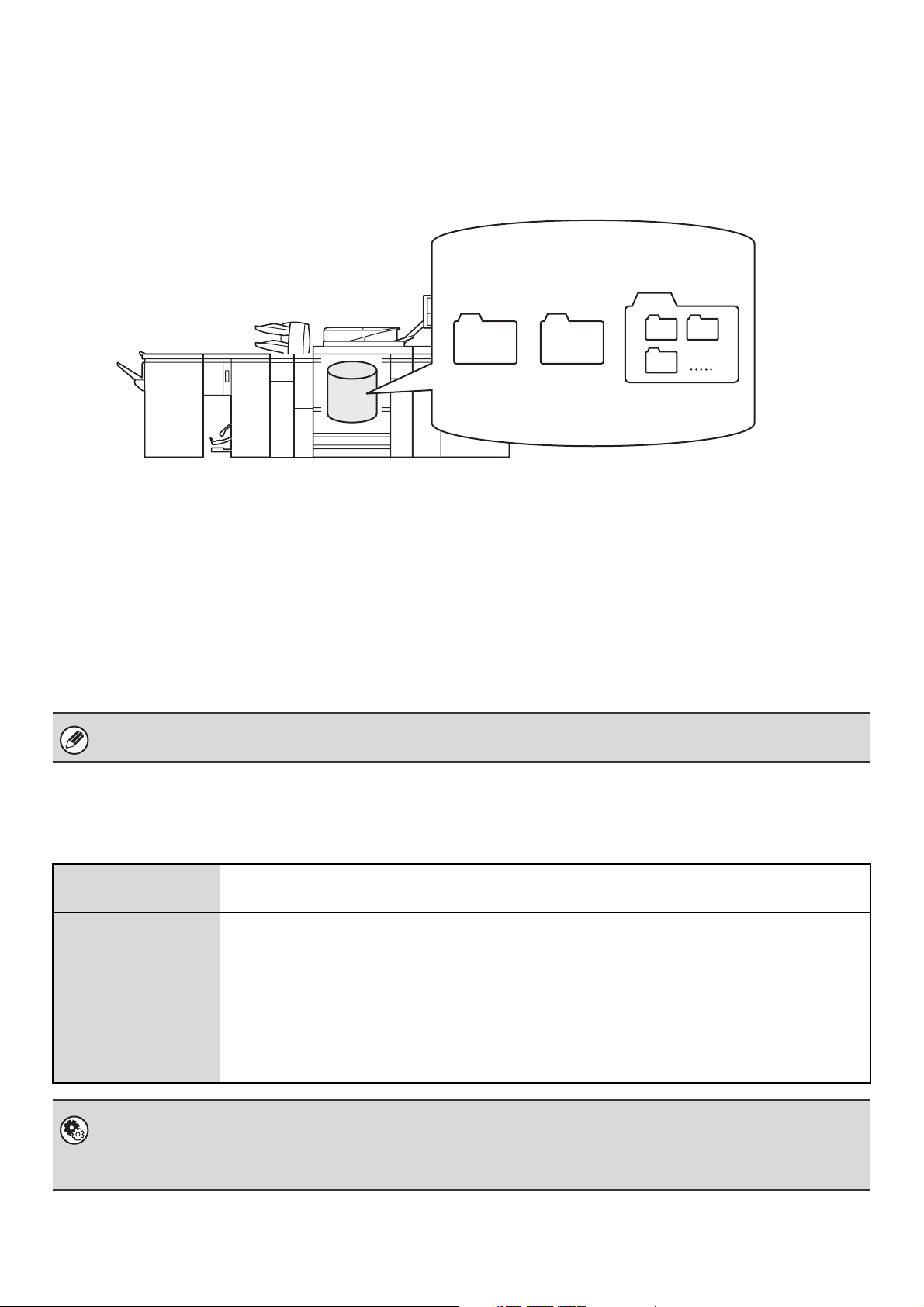
7
BEFORE USING DOCUMENT FILING
This section provides information that you should know before using the document filing function.
Folders
Three types of folders are used to store files by document filing.
Quick File Folder
Documents scanned using the [Quick File] key are stored in this folder. A user name and file name are automatically
assigned to each job.
Main Folder
Documents scanned using the [File] key are stored in this folder.
When you store a job in the Main folder, you can specify a previously stored user name and assign a file name.
A password can also be set when storing a file ([Confidential] save).
Custom Folder
Folders with custom names can be created inside this folder.
When a document is scanned using the [File] key and a folder is selected, the document is stored in the specified folder.
Like the Main folder, a custom folder allows you to specify a previously stored user name and assign a file name when storing a job.
Passwords can be established for custom folders and for files saved in custom folders.
Items convenient to store
When storing a job using "File" or "Scan to HDD", it is convenient to store the items below. These settings are not
needed when storing a job using "Quick File".
A maximum of 500 custom folders can be created on the hard drive.
User Name
This is necessary if you will be assigning a user name to stored files. User names are stored in "User List" in
the system settings (administrator). A user name is also used as a search condition when searching for a file.
Custom Folder
The Main folder is initially available as a location for storing files by "File" and "Scan to HDD". When
custom folders have been created using "Document Filing Control" in the system settings, a custom
folder can be specified as a location for storing files. A password can also be established for a custom
folder to restrict access to the folder.
My Folder
"My Folder" is specified using "User List" in the system settings (administrator). A previously created
custom folder can be selected as "My Folder", or a new folder created as "My Folder". When "My
Folder" has been configured and user authentication is used, "My Folder" will always be selected as
the destination of "File" and "Scan to HDD".
• System Settings: DOCUMENT FILING CONTROL (page 52)
This is used to create custom folders for document filing. A password can also be established for a custom folder.
• System Settings (Administrator): User List
This is used to store a user name and specify a folder as "My Folder".
Folders on the hard drive
Quick File
Folder
Main Folder
Custom Folder
8
Approximate number of pages and files that can be stored by document filing
Combined total number of pages and total number of files that can be stored in main folders
and in the custom folder
Number of pages and number of files that can be stored in the Quick File folder
*1 The indicated numbers are guidelines for the number of pages that can be stored when all pages are full color, and
when all pages are black & white.
*2 To store a document in full color, the color expansion kit is necessary.
Copying in electrical sort mode uses the same memory area as the Quick File folder. For this reason, when too much
data has been stored in the Quick File folder, it may not be possible to perform a large copy job using electrical sort
mode. Delete unneeded files.
☞ DELETING A STORED FILE (page 43)
The examples of data above are examples to make the explanation easier to understand. The actual number of pages
and number of files that can be stored will vary depending on the contents of the data.
Example of data Number of pages*
1
Number of files
Black & white data
(Text)
Size: 8-1/2" x 11" (A4)
Max. 45,000
Max. 3,000
Gray data
(Text)
Size: 8-1/2" x 11" (A4)
Max. 8,000
Gray data
(Text and photo example)
Size: 8-1/2" x 11" (A4)
Max. 3,000
Full color data*
2
(Text and photo example)
Size: 8-1/2" x 11" (A4)
Max. 1,600
Example of data Number of pages*
1
Number of files
Black & white data
(Text)
Size: 8-1/2" x 11" (A4)
Max. 14,000
Max. 1,000
Gray data
(Text)
Size: 8-1/2" x 11" (A4)
Max. 2,500
Gray data
(Text and photo example)
Size: 8-1/2" x 11" (A4)
Max. 1,000
Full color data*
2
(Text and photo example)
Size: 8-1/2" x 11" (A4)
Max. 500
9
Automatic deletion of files
You can have document filing data in specified folders automatically deleted at regular intervals by specifying the folders
and the time. Periodic deletion of files stored in the machine helps to prevent the leaking of sensitive information and
frees space on the hard drive.
Every day, every week, or every month can be selected for the deletion cycle, and a time can be set for each selection.
For example, you can set file deletion to take place every week on Friday at 6:00 PM.
Automatic file deletion settings are configured in "Automatic Deletion of File Settings" in the system settings
(administrator).
To check the settings, print the following list in the system settings.
To check information on the deletion cycle: Print the "Administrator Settings List" in the system settings (administrator).
To check information on the folders selected for file deletion: Print the "Document Filing Folder List" in the system settings.
When "Automatic Deletion of File Settings" is enabled in the system settings (administrator), all files in the specified folders
will be deleted when the set time arrives. Take care not to store files that you wish to keep in folders specified for file deletion.
• System Settings: Document Filing Folder List
This shows a list of the folder names for document filing.
☞ User's Guide
• System Settings (Administrator): Automatic Deletion of File Settings
Configure settings for automatic deletion at regular intervals of files stored using the document filing function.
• System Settings (Administrator): Administrator Settings List
Use this to print a list of the administrator settings, including document filing settings.
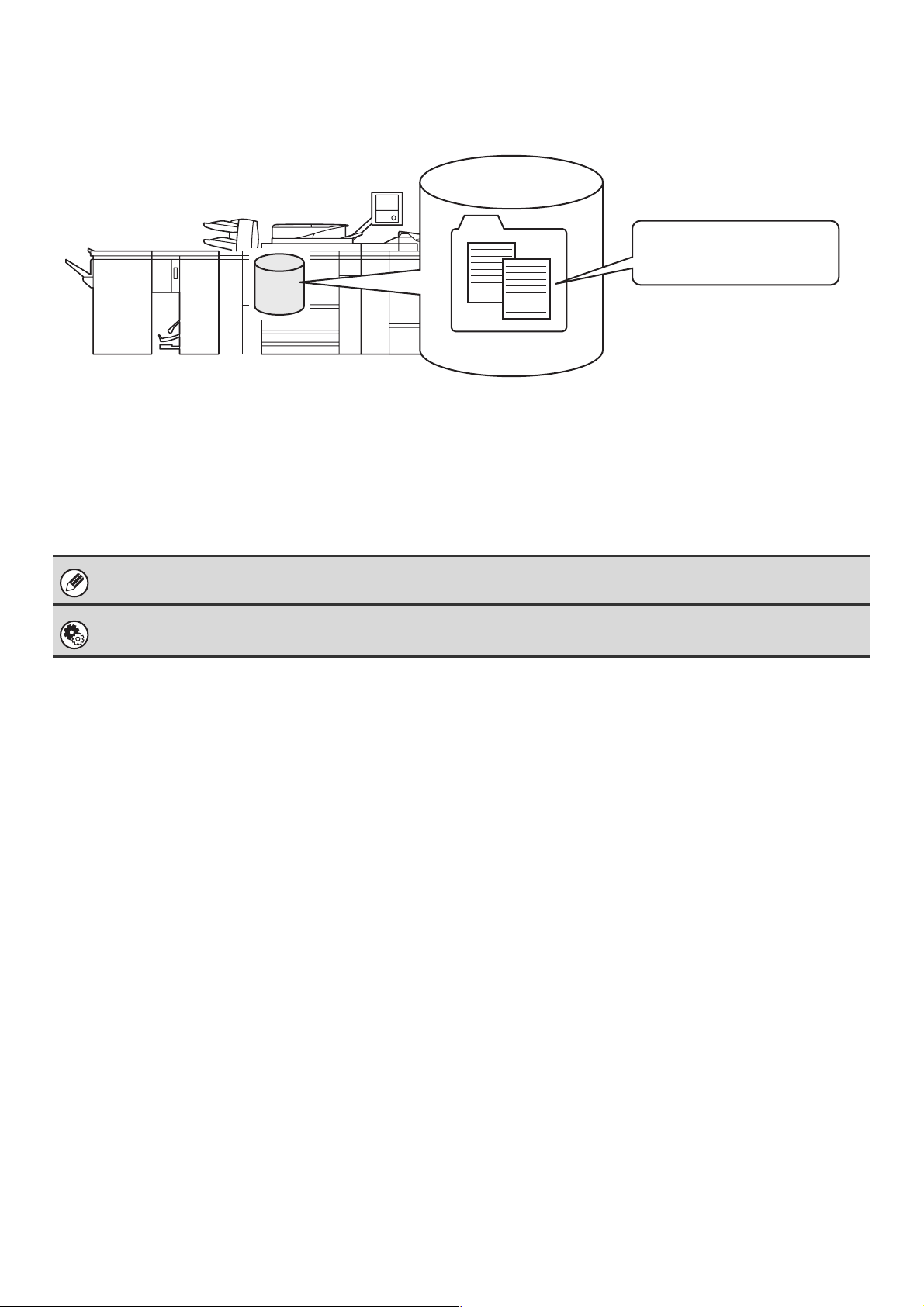
10
Files
When a file is saved using "File", the following information can be appended.
Saving a file with this information allows you to distinguish it from other files.
User name: Use this to specify the owner of the file. The user name must first be stored in "User List" in the system
settings.
File Name: A file name can be entered.
Folder: Select which folder the file will be saved in.
Confidential: A password (5 to 8 digits) can be established to prevent others from using the file.
IMPORTANT POINTS WHEN USING DOCUMENT FILING
Note the following when using document filing:
• Files saved using "Quick File" are assigned the "Sharing" property. "Sharing" files can be retrieved and printed or
transmitted by anyone, and thus Quick File should not be used to save sensitive or confidential documents that you do
not wish others to use.
• When saving a file with "File", use the "Confidential" property. A password can be set for a "Confidential" file to
prevent the file from being used by other people. Take care to keep the password of a stored "Confidential" file secret.
• The property of a stored "Confidential" file can be changed to "Sharing" by "Property Change" when the file is used.
Do not store sensitive documents or documents that you do not want to be used by others.
• Except in cases provided for by law, SHARP Corporation bears no responsibility for any damages that result from the
leaking of sensitive information due to manipulation by a third party of any data saved using the Quick File function or
File function, or incorrect operation of the Quick File function or File function by the operator that saves the data.
The above information cannot be specified when a file is saved with Quick File.
System Settings (Administrator): User List
This is used to store user names.
"Meeting minutes" folder
User Name: Name 1
File Name: Meeting handout
Password: 12345678
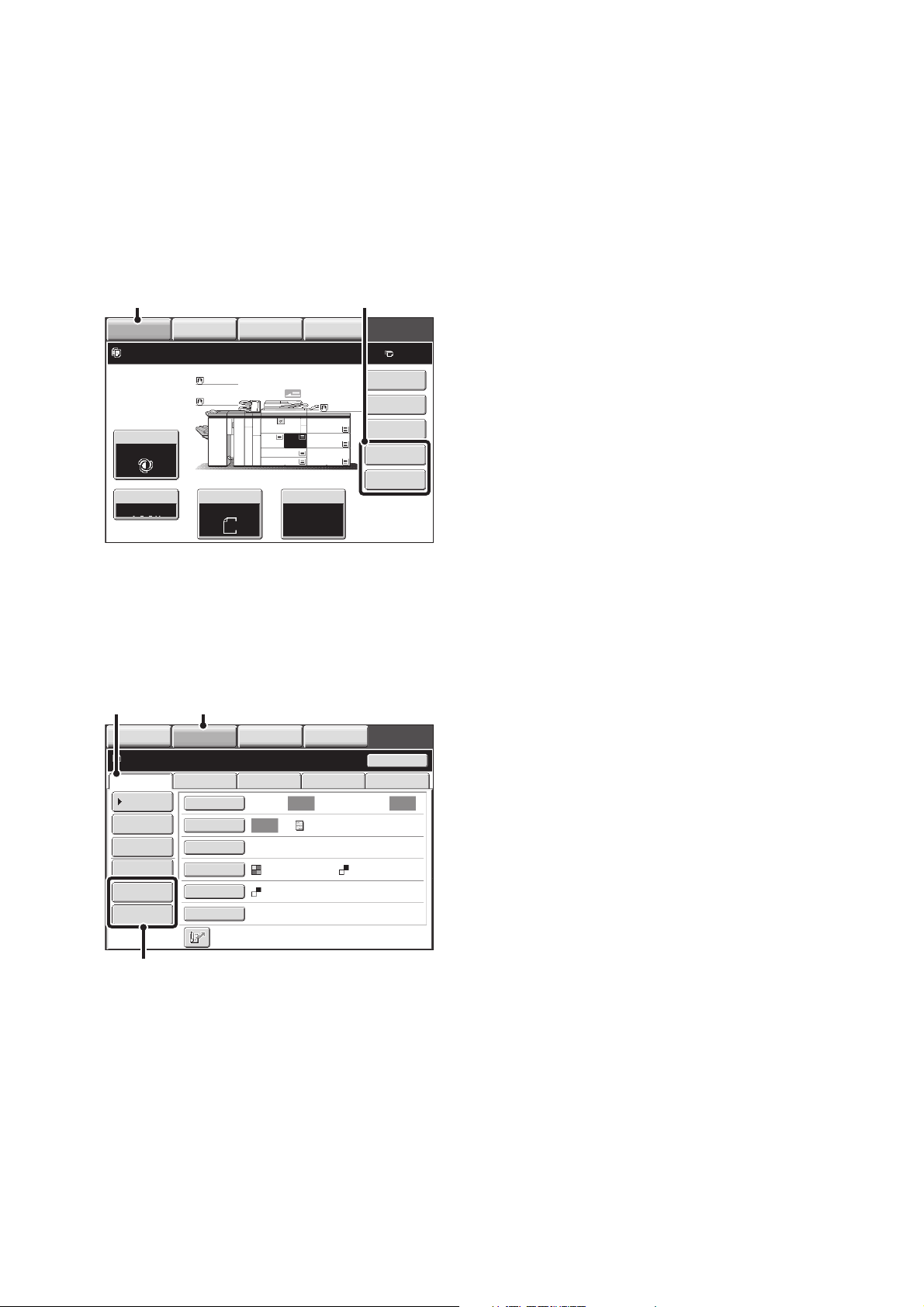
11
USING DOCUMENT FILING IN EACH MODE
In copy or image send mode, the original can be saved as a file on the hard drive at the same time it is copied or
transmitted. In addition, Scan to HDD can be used to save the scanned data of an original to the hard drive without
copying or transmitting the data.
Copy mode
The original is saved as an image file at the same time it is copied.
Image Send mode
Example: Base screen of scan mode
The original is saved as an image file at the same time it is scanned and transmitted.
(1) Touch the [COPY] key.
(2) Touch the [File] key or the [Quick File]
key.
(1) Touch the [IMAGE SEND] key.
(2) Touch the [Scan] tab.
(3) Touch the [File] key or the [Quick File]
key.
IMAGE SEND
DOCUMENT
FILING
MANUAL
FINISHING
COPY
Special Modes
Plain
2-Sided Copy
Output
File
Quick File
Ready to scan for copy.
Copy Ratio
100%
0
11x17
11x17
11x17
11x17
3.
1. 2.
8½x118½x11
Original Paper Select
Auto
8½x11
Plain
Auto
8½x11
Exposure
Auto
8½x14
4.
7.
6.
5.
8½x11
Plain
Plain
(1) (2)
Auto Auto
Auto
File
Quick File
Address Review
Send Settings
Address Entry
Address Book
Data EntryFaxInternet Fax USB Mem. Scan
Resend
Special Modes
Color Mode
File Format
Resolution
Exposure
Original
Scan:
Scan
Send:
Text
200X200dpi
PDF
Mono2
PDF
Ready to send.
IMAGE SEND
DOCUMENT
FILING
MANUAL
FINISHING
COPY
(3)
(1)(2)
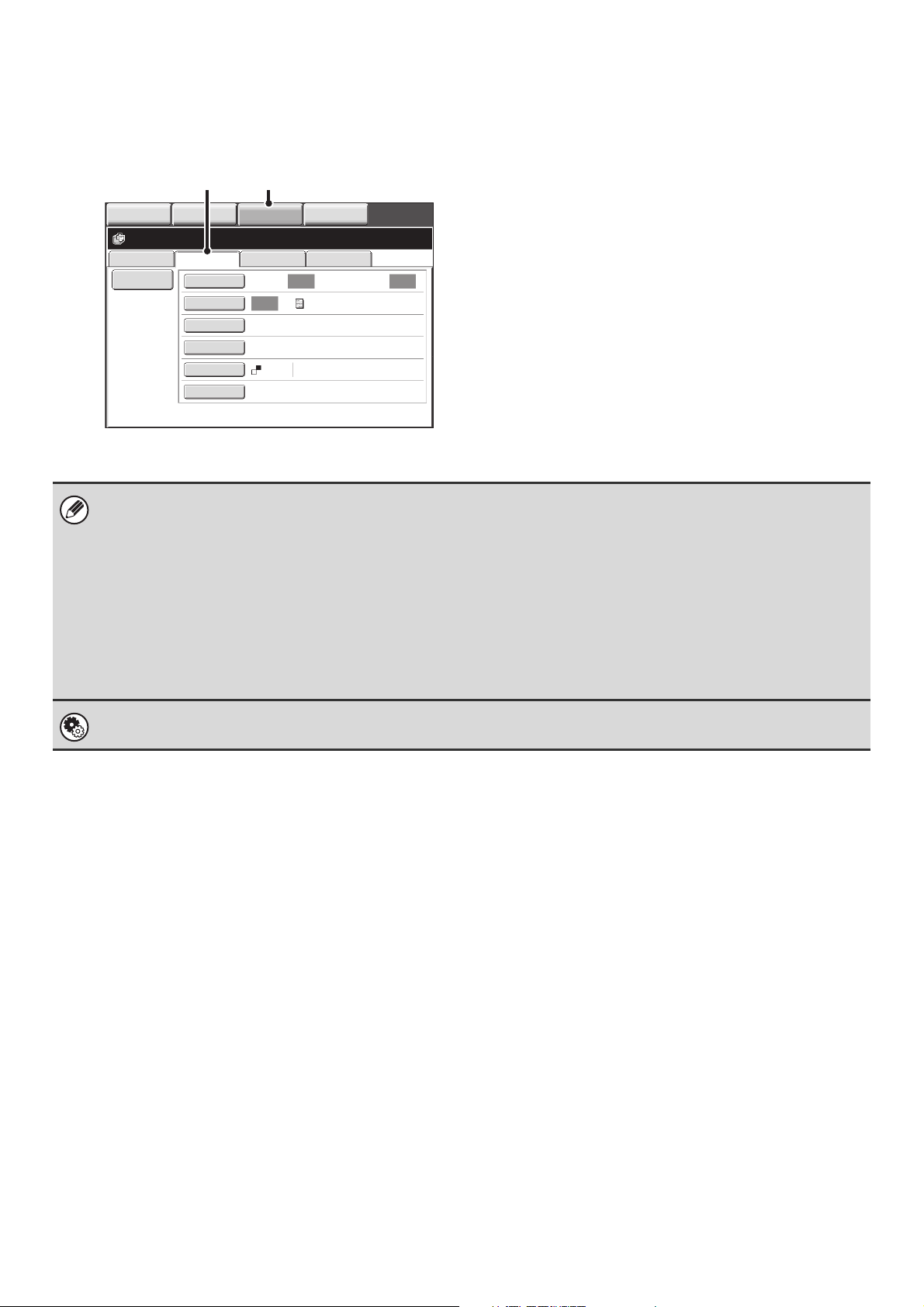
12
Scan to HDD mode
The scanned original is saved as an image file. Neither printing nor transmission are performed when Scan to HDD is
used.
(1) Touch the [DOCUMENT FILING] key.
(2) Touch the [Scan to HDD] tab.
[File] key and [Quick File] key
The "File" key and/or "Quick File" key will not appear in the base screen of copy mode or image send mode if one or both of
the keys has been changed to a different function using "Customize Key Setting" in the Web page menu. In this case, touch
the [Special Modes] key in the base screen of either mode. Document filing can be performed by touching the [Quick File]
key or [File] key in the special modes menu.
Using document filing in print mode
To use document filing in print mode, select document filing in the printer driver. For more information on using document
filing in print mode, see "CONVENIENT PRINTER FUNCTIONS" in the Printer Guide.
Using document filing in PC-Fax/PC-I-Fax mode
To use document filing in PC-Fax or PC-I-Fax mode, select document filing settings in the PC-Fax driver. For more
information, see Help in the PC-Fax driver.
System Settings (Administrator): Customize Key Setting
Registration is performed in [System Settings] - [Operation Settings] - "Customize Key Setting" in the Web page menu.
File Retrieve Scan to HDD HDD Status
Ex Data Access
File
Information
Original
Exposure
Resolution
Comp. Ratio
Color Mode
Special Modes
200X200dpi
Medium
Auto Auto
Auto
Mono2
Text
Ready to scan to HDD.
Press [Start] to scan original.
Scan: Store:
IMAGE SEND
DOCUMENT
FILING
MANUAL
FINISHING
COPY
(1)(2)
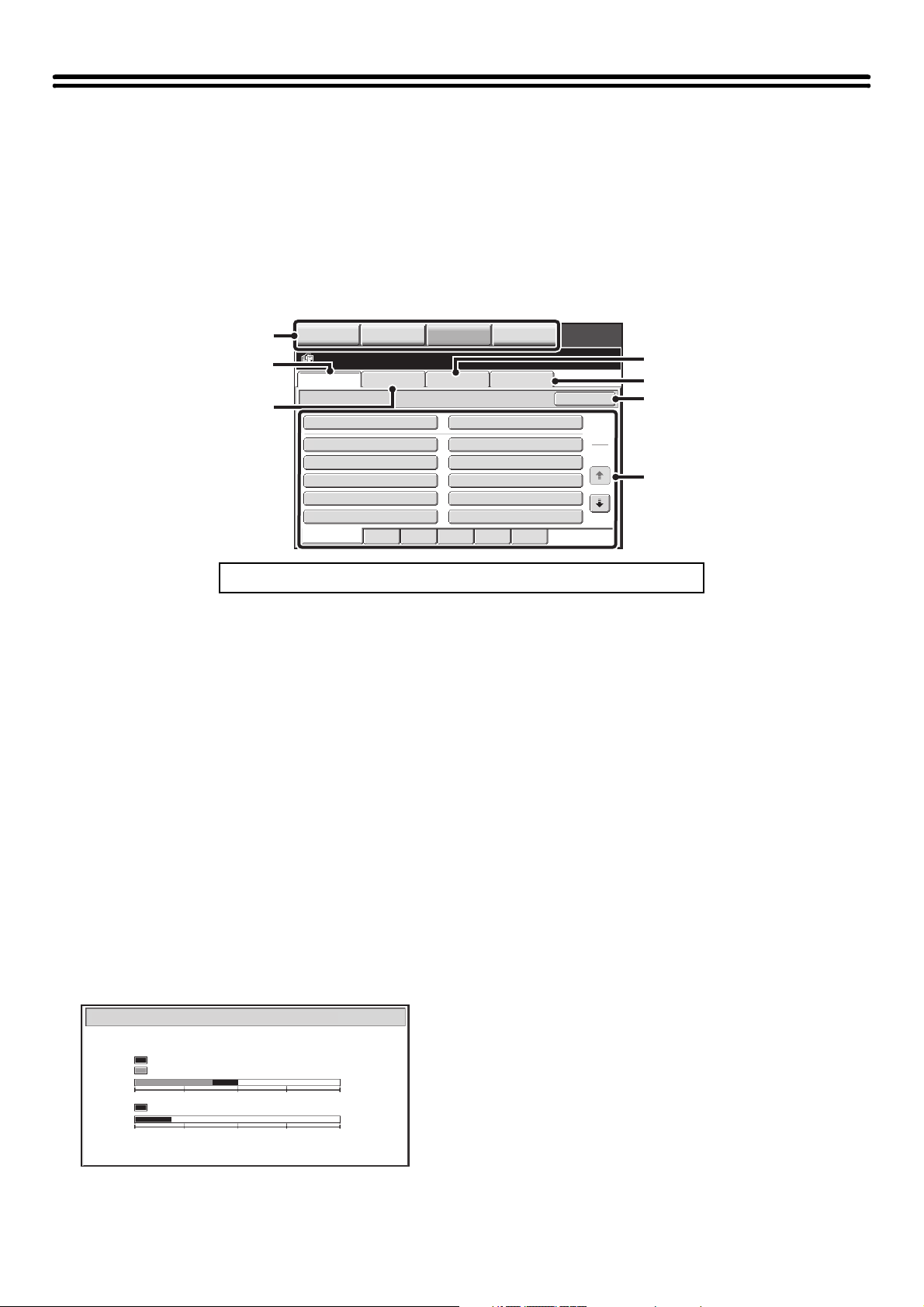
13
BASE SCREEN OF DOCUMENT FILING
MODE
Touch the [DOCUMENT FILING] key in the touch panel to open the base screen of document filing mode. Files stored
on the hard drive in the machine can be retrieved from this screen.
When user authentication is used and My Folder is configured, the file selection screen of My Folder will appear. If the
user that logged in does not have My Folder configured, the folder selection screen will appear.
☞ FOLDER SELECTION SCREEN (page 29)
FILE SELECTION SCREEN (page 30)
(1) Mode switch keys
Use these keys to change modes.
To switch to document filing mode, touch the
[DOCUMENT FILING] key.
(2) [File Retrieve] tab
Touch this tab to retrieve a file stored by document filing.
The folder selection screen will appear.
☞ FOLDER SELECTION SCREEN (page 29)
(3) [Scan to HDD] tab
Touch this key to select Scan to HDD. Neither printing
nor transmission are performed.
The file will be stored in the Main folder or a custom
folder.
☞ SAVING A DOCUMENT FILE ONLY (Scan to HDD)
(page 22)
(4) [HDD Status] tab
Touch this key to check how much of the machine's hard
drive is being used.
The amount used is shown as a percentage.
(5) [External Data Access] tab
This can be selected when an FTP server is stored or a
USB memory device is connected to the machine.
☞ "DIRECTLY PRINTING FROM THE MACHINE" in
the Printer Guide
(6) [Search] key
Touch this key to search for a file stored in a folder.
You can search using the user name, file name, or folder
name.
☞ SEARCHING FOR A STORED FILE (page 45)
(7) When retrieving a stored file, use this to select the
folder where the file is stored.
☞ FOLDER SELECTION SCREEN (page 29)
To show an explanation page for a key on the screen, click the key.
File Retrieve Scan to HDD HDD Status
Ex Data Access
Main Folder
User 1
User 3
User 5
User 7
User 9
User 2
User 4
User 6
User 8
User 10
Quick File Folder
Search
Folder Select
1
2
All Folders ABCD EFGHI JKLMN OPQRST UVWXYZ
IMAGE SEND
DOCUMENT
FILING
MANUAL
FINISHING
COPY
(1)
(3)
(4)
(5)
(6)
(7)
(2)
HDD Status
Main Folder:10%
Custom Folder:40%
Quick File Folder:20%
Free Space:50%
Free Space:80%
0 25 50 75 100%
0 25 50 75 100%
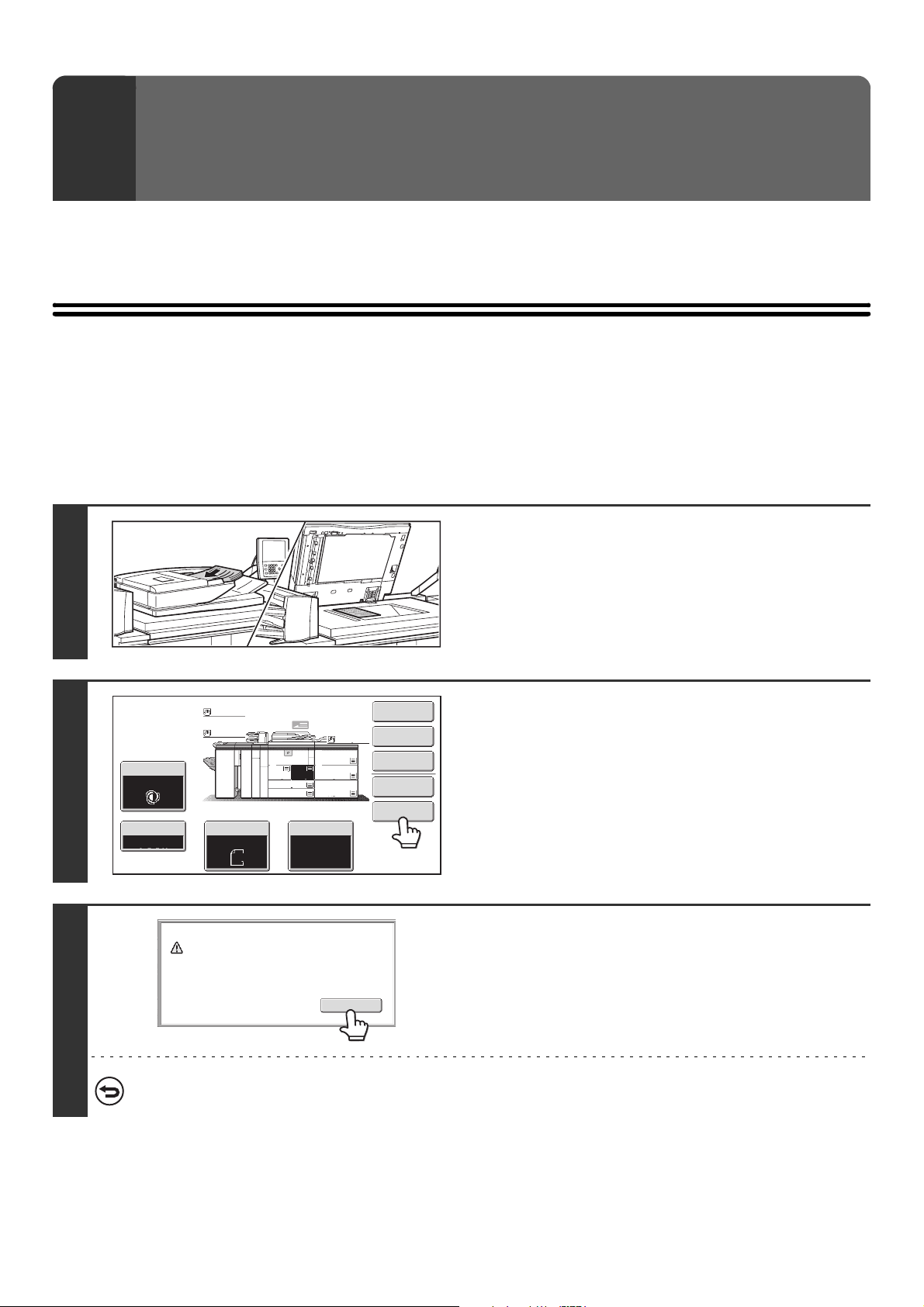
14
This chapter explains how to save an original as an image file using the Quick File, File, and Scan to HDD functions of
document filing mode.
SAVING A FILE WITH "Quick File"
When copying, printing or transmitting a document in copy mode, print mode, or image send mode (excluding USB
memory scan mode), "Quick File" can be selected to save an image of the document to the Quick File folder.
The image can retrieved at a later time, allowing you to print or transmit the document without having to locate the
original.
As an example, the procedure for storing a document in the Quick File folder while copying is explained below.
2
SAVING FILES WITH DOCUMENT
FILING
1
Place the original.
Place the original face up in the document feeder tray, or face
down on the document glass.
2
Touch the [Quick File] key.
3
Touch the [OK] key.
You will return to the base screen of copy mode and the [Quick
File] key will be highlighted.
To cancel Quick File...
Touch the [Quick File] key in the screen of step 2 so that it is not highlighted after you touch the [OK] key.
Special Modes
2-Sided Copy
Output
File
Quick File
Copy Ratio
100%
Original Paper Select
Auto
8½x11
Plain
Auto
8½x11
Exposure
Auto
Plain
Plain
Plain
11x17
11x17
11x17
11x17
3.
1. 2.
8½x118½x11
8½x14
4.
7.
6.
5.
8½x11
OK
Scanned data is automatically stored
in the quick file folder. Do not store
confidential data to the folder.
15
4
Select copy settings and then press the [START] key ( ).
• Copying begins and the scanned document image is saved to the hard drive.
The selected copy settings are also saved.
• To prevent accidental saving of the document, the message "The scanned data is stored in the quick file folder." appears
for 6 seconds (default setting) after the [START] key ( ) is pressed.
The message display time can be changed using "Message Time Setting" in the system settings (administrator).
• If you inserted the original pages in the document feeder tray, all pages are scanned.
• If you placed the original on the document glass, scan each page one page at a time.
When scanning of one page finishes, replace it with the next page and press the [START] key ( ).
Repeat until all pages have been scanned and then press the [Read-End] key.
To cancel scanning...
Press the [STOP] key ( ).
• When a file is stored using Quick File, the following user name and file name are automatically assigned to the file.
User Name: User Unknown
File Name: Mode_Month-Day-Year_Hour-Minute-Second
(Example: Copy_04042010_112030AM)
Stored to: Quick File Folder
When user authentication is used, the user name that was used for login is automatically selected.
Only the file name and location of a file stored in the Quick File Folder can be changed.
• The storage format used for Quick File is specified by "Default Storage Format Setting" in the system settings
(administrator). "Default Storage Format Setting" is initially set to [Hi-Speed Print Mode].
To cancel Quick File...
Touch the [Quick File] key in the screen of step 2 so that it is no longer highlighted.
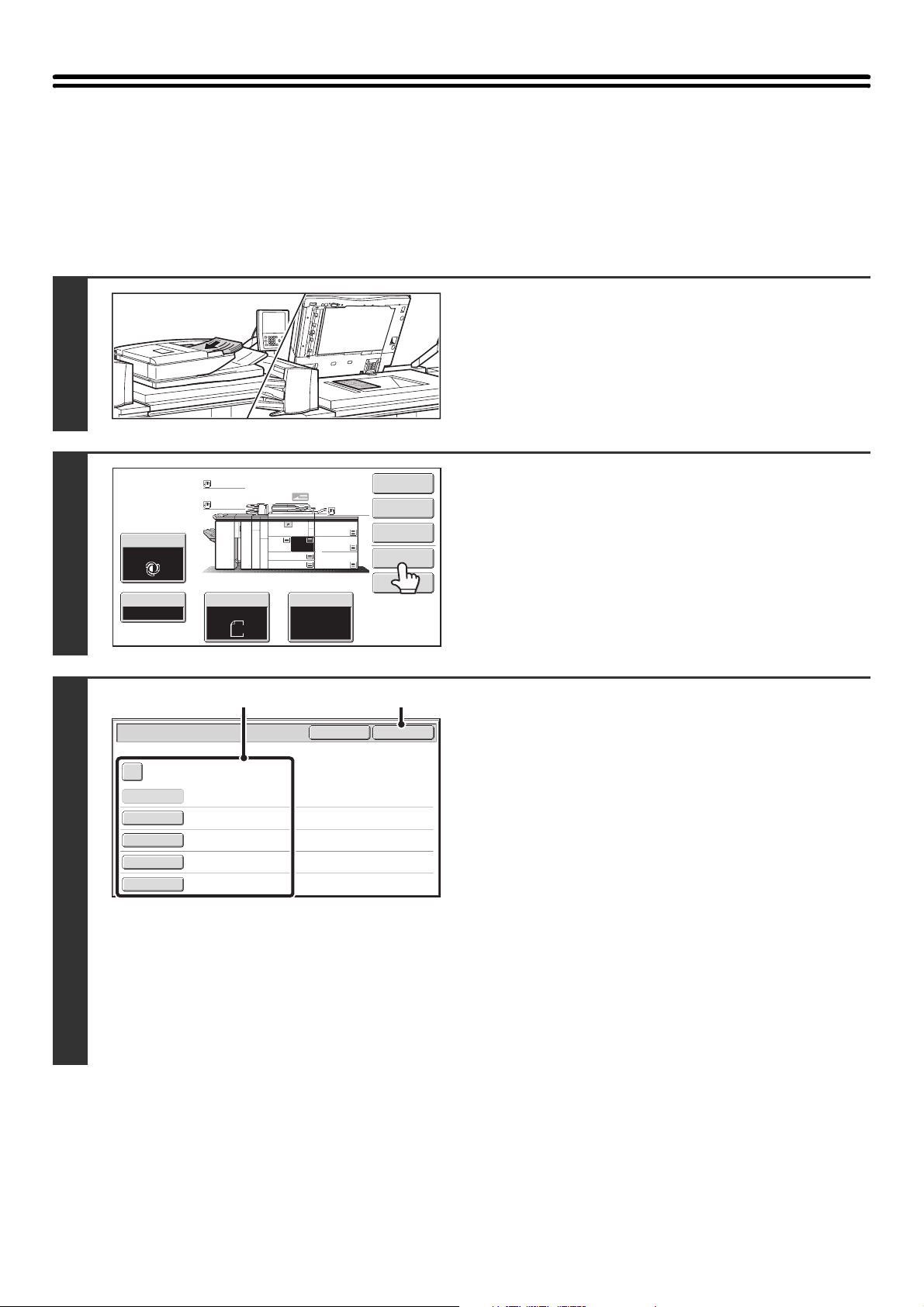
16
SAVING A FILE WITH "File"
When copying, printing or transmitting a document in copy mode, print mode, or image send mode (excluding USB
memory scan mode), "File" can be selected to save an image of the document to the Main folder or a previously created
custom folder. The image can retrieved at a later time, allowing you to print or transmit the document without having to
locate the original.
As an example, the procedure for using "File" while copying is explained below.
1
Place the original.
Place the original face up in the document feeder tray, or face
down on the document glass.
2
Touch the [File] key.
3
Select the "File" settings.
(1) Select file information settings.
To select the user name, file name, folder, and
confidential setting, see "FILE INFORMATION" (page 18).
• Specifying a user name: (page 18)
• Assigning a file name: (page 19)
• Specifying the folder: (page 19)
• Storing a file as a confidential file: (page 20)
• Set the file storage format: (page 21)
When the color expansion kit is installed, the [Storage
Format] key does not appear.
After configuring the above settings, you will return to this
screen. Go to the next step.
If you do not wish to assign a user name or other
information to the file, go to the next step.
(2) Touch the [OK] key.
You will return to the base screen of copy mode and the
[File] key will be highlighted.
Special Modes
2-Sided Copy
Output
File
Quick File
Copy Ratio
100%
Original Paper Select
Auto
8½x11
Plain
Auto
8½x11
Exposure
Auto
Plain
Plain
Plain
11x17
11x17
11x17
11x17
3.
1. 2.
8½x118½x11
8½x14
4.
7.
6.
5.
8½x11
File Information
OKCancel
Confidential
User Name
User Unknown
Copy_04042010_112030AM
Main Folder
Hi-Speed Print Mode
File Name
Stored to:
Storage Format
Password
(1) (2)
17
4
Select copy settings and then press the [START] key ( ).
• Copying begins and the scanned document image is saved to the hard drive.
The selected copy settings are also saved.
• For the procedure for placing the original, see step 4 of "SAVING A FILE WITH "Quick File"" (page 14).
To cancel scanning...
Press the [STOP] key ( ).
When a file is stored using File without appending file information, the following user name and file name are automatically
assigned to the file.
User Name: User Unknown
File Name: Mode_Month-Day-Year_Hour-Minute-Second
(Example: Copy_04042010_112030AM)
Stored to: Main Folder
When user authentication is used, the user name that was used for login is automatically selected.
To cancel the File operation...
Touch the [Cancel] key in the screen of step 3.
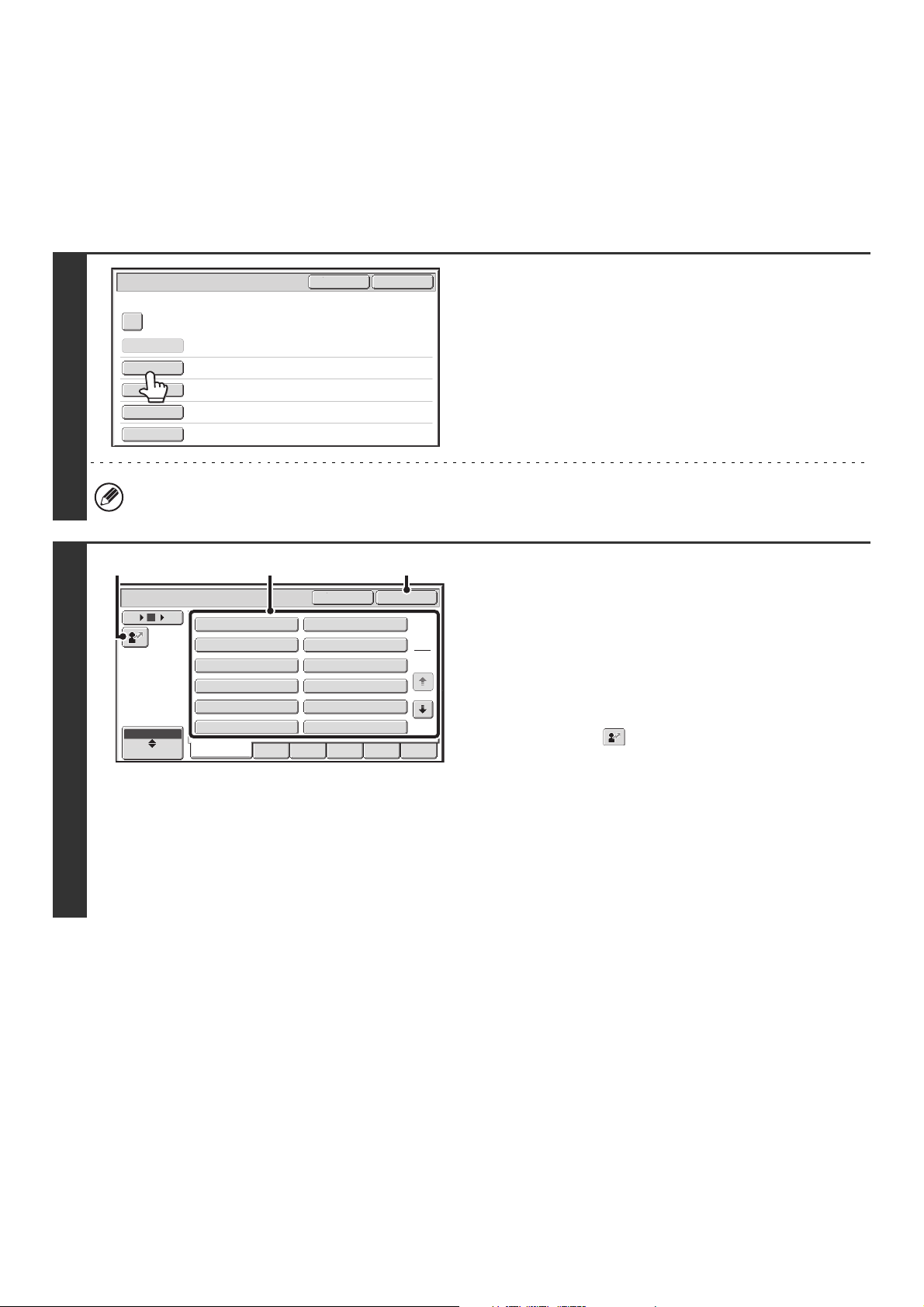
18
FILE INFORMATION
This section explains the settings that are configured in step 3 of "SAVING A FILE WITH "File"" (page 16). Specifying a
user name, file name, folder, and confidential setting makes it easier to manage and search for a file. In addition, when
confidential is selected and a password is established, other people will not be able to view the file without permission.
Specifying a user name
1
Touch the [User Name] key.
When user authentication is used, the user name that was used
for login is automatically selected. In this case, this step is not
needed.
The user name must be previously stored in "User List" in the system settings (administrator).
2
Touch the desired user name in the list
of user names that is displayed.
(1) Select the user name.
There are two ways to select the user name:
(A) Touch the key of the user name.
The touched user name is highlighted.
If you accidentally select the wrong user name, touch
the key of the correct name.
(B) Touch the key.
An area for entering the "Registration No." [---]
appears in the message display. Enter the
"Registration No." set during user registration. This
will allow you to select the user name.
(2) Touch the [OK] key.
The user name that you touched is selected and you
return to the screen of step 1. The selected user name
appears.
File Information
OKCancel
Confidential
User Name
User Unknown
Copy_04042010_112030AM
Main Folder
Hi-Speed Print Mode
File Name
Stored to:
Storage Format
Password
User Name
Cancel OK
6
18
ABC
User
Name 1
Name 3
Name 5
Name 7
Name 9
Name 11
Name 2
Name 4
Name 6
Name 8
Name 10
Name 12
1
2
All Users ABCD EFGHI JKLMN OPQRST UVWXYZ
12
(A) (2)
(B)
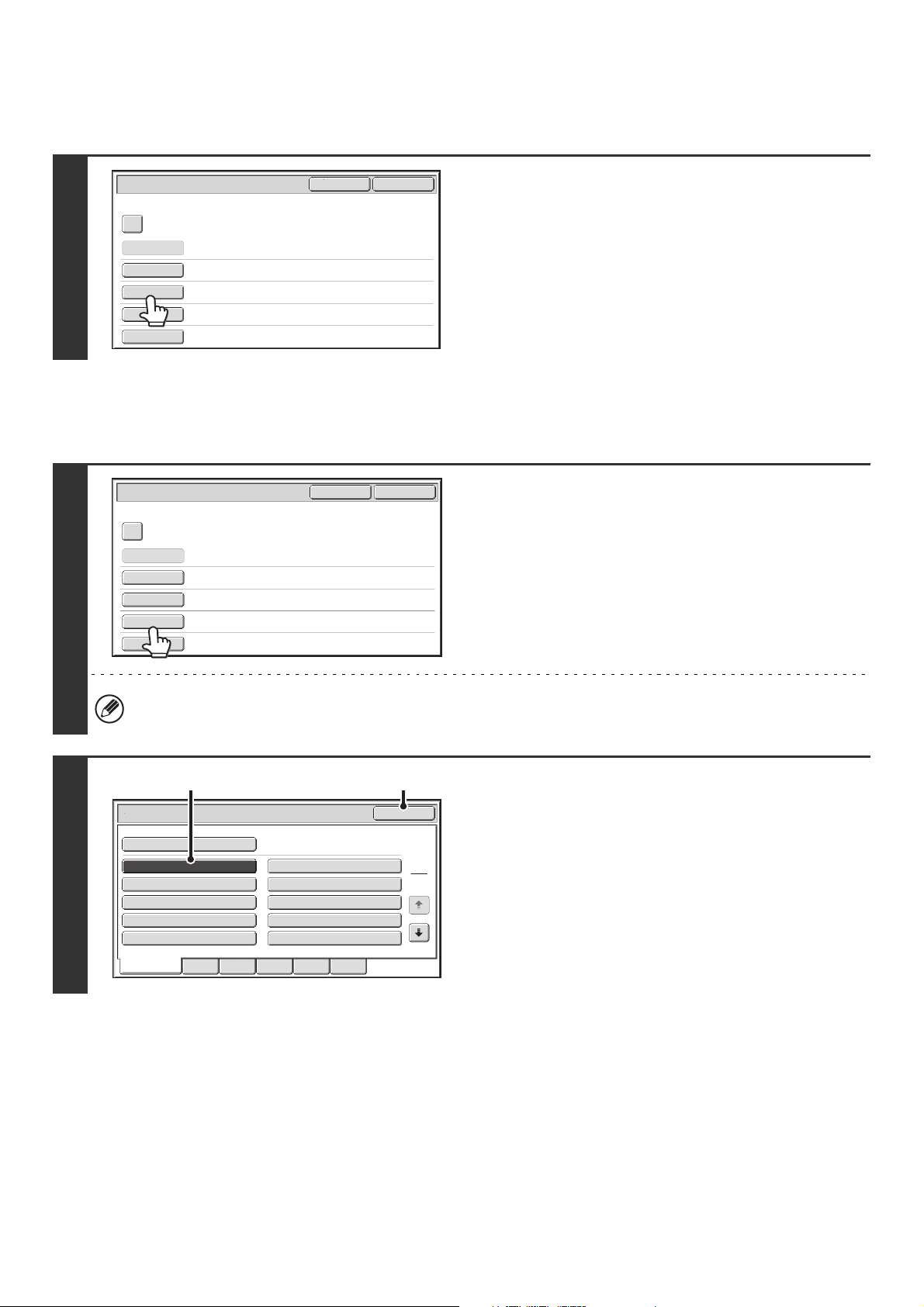
19
Assigning a file name
A file name can be assigned to the file.
Specifying the folder
Touch the [File Name] key.
A text entry screen will appear. Enter the file name and touch
the [OK] key.
A maximum of 30 characters can be entered.
For the procedure for entering text, see "7. ENTERING TEXT"
in the User's Guide.
1
Touch the [Stored to:] key.
When user authentication is used, "My Folder" of the user that logged in is automatically selected. If the user that
logged in does not have "My Folder" configured, the Main folder will appear.
2
Select the folder in which you want to
store the file.
(1) Touch the key of the folder where you want
to store the file.
If a password has been set for the folder, a password
entry screen appears. Enter the password of the touched
folder with the numeric keys (5 to 8 digits) and touch the
[OK] key.
(2) Touch the [OK] key.
File Information
OKCancel
Confidential
User Name
User Unknown
Copy_04042010_112030AM
Main Folder
Hi-Speed Print Mode
File Name
Stored to:
Storage Format
Password
File Information
OKCancel
Confidential
User Name
Name 1
file-01
Main Folder
Hi-Speed Print Mode
File Name
Stored to:
Storage Format
Password
Main Folder
User 1
User 3
User 5
User 7
User 9
User 2
User 4
User 6
User 8
User 10
OK
Stored to:
1
2
All Folders ABCD EFGHI JKLMN OPQRST UVWXYZ
(1) (2)
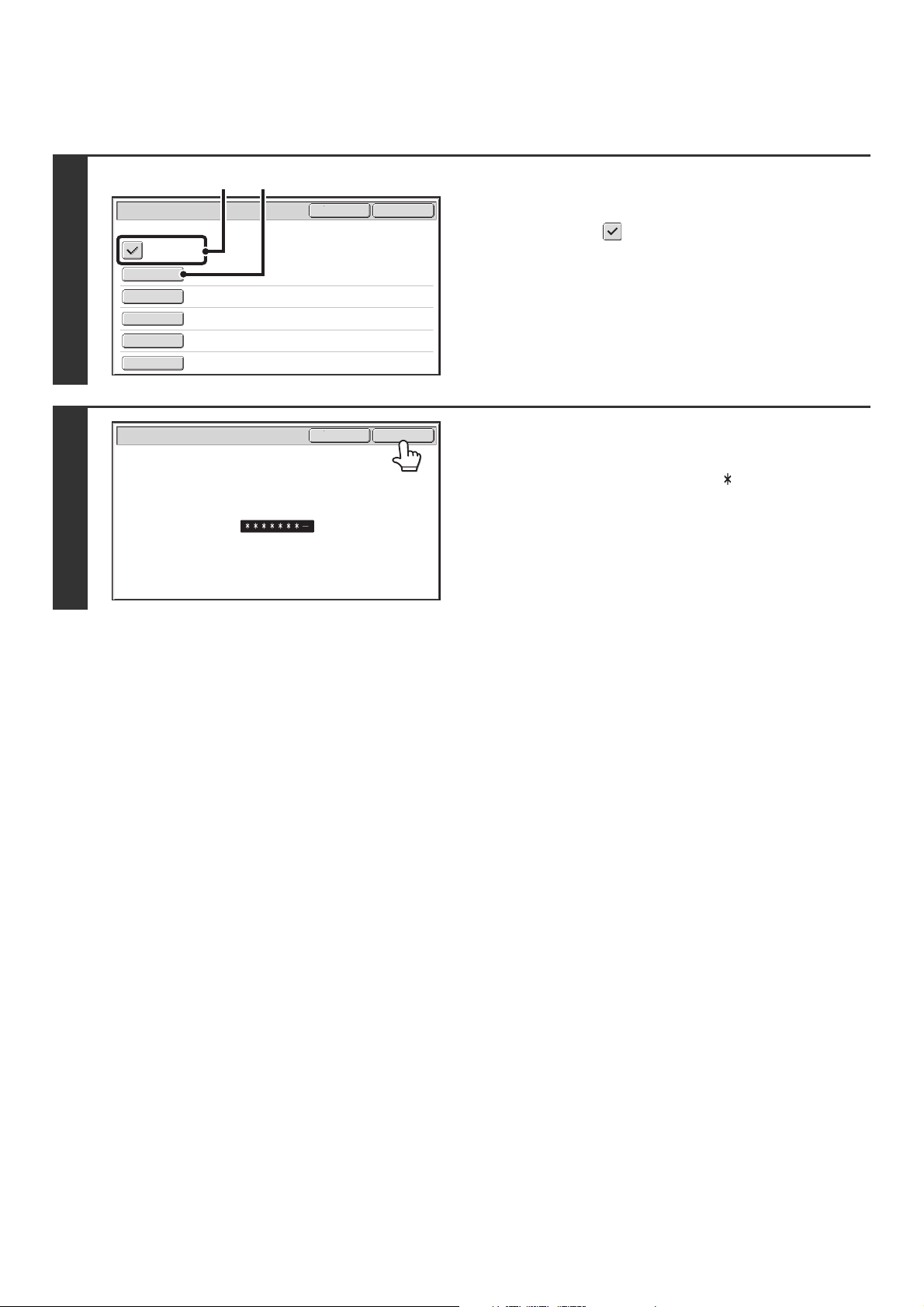
20
Storing a file as a confidential file
A password can be set for the file to prevent others from viewing it. Set a password (5 to 8 digits) with the numeric keys.
1
Enable the confidential property.
(1) Select the [Confidential] checkbox so that a
checkmark appears.
Confidential mode is enabled and a password can be
entered.
(2) Touch the [Password] key.
2
Enter a password (5 to 8 digits) with the
numeric keys and touch the [OK] key.
As each digit is entered, "-" changes to " ".
File Information
OKCancel
Confidential
User Name
Password
Name 1
file-01
User 1
Hi-Speed Print Mode
File Name
Stored to:
Storage Format
(1) (2)
Password
Enter password via the 10-Key pad.
OKCancel
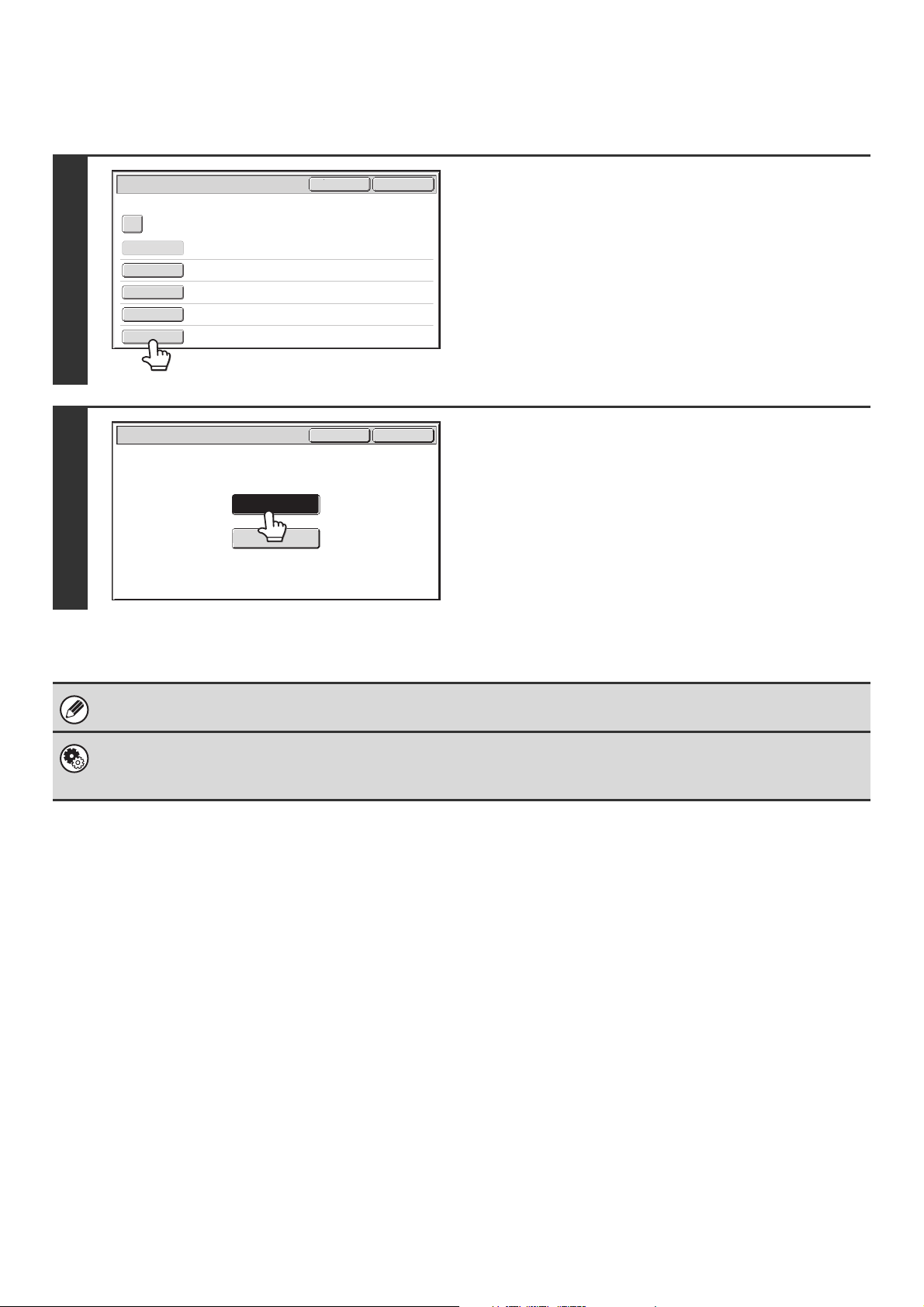
21
Set the file storage format
Set the format that is appropriate for the use of the file.
1
Touch the [Storage Format] key.
2
Touch the key of the desired storage
format.
"Hi-Speed Print Mode" or "Send Allowed Mode" can be
selected for the storage format.
Storing a file in "Hi-Speed Print Mode" allows it to be printed
more quickly than "Send Allowed Mode", however, the file
cannot be transmitted. If you will need to transmit the stored file
later, store the file using "Send Allowed Mode".
When scanning a long size document, the storage format cannot be set to "Hi-Speed Print Mode".
System Settings (Administrator): Default Storage Format Setting
This is used to change the default format for storing files (default storage format setting).
The default storage format setting is initially set to "Hi-Speed Print Mode", which gives priority to print speed.
File Information
OKCancel
Confidential
User Name
Password
Name 1
file-01
User 1
Hi-Speed Print Mode
File Name
Stored to:
Storage Format
Storage Format
OKCancel
Send Allowed Mode
Hi-Speed Print Mode
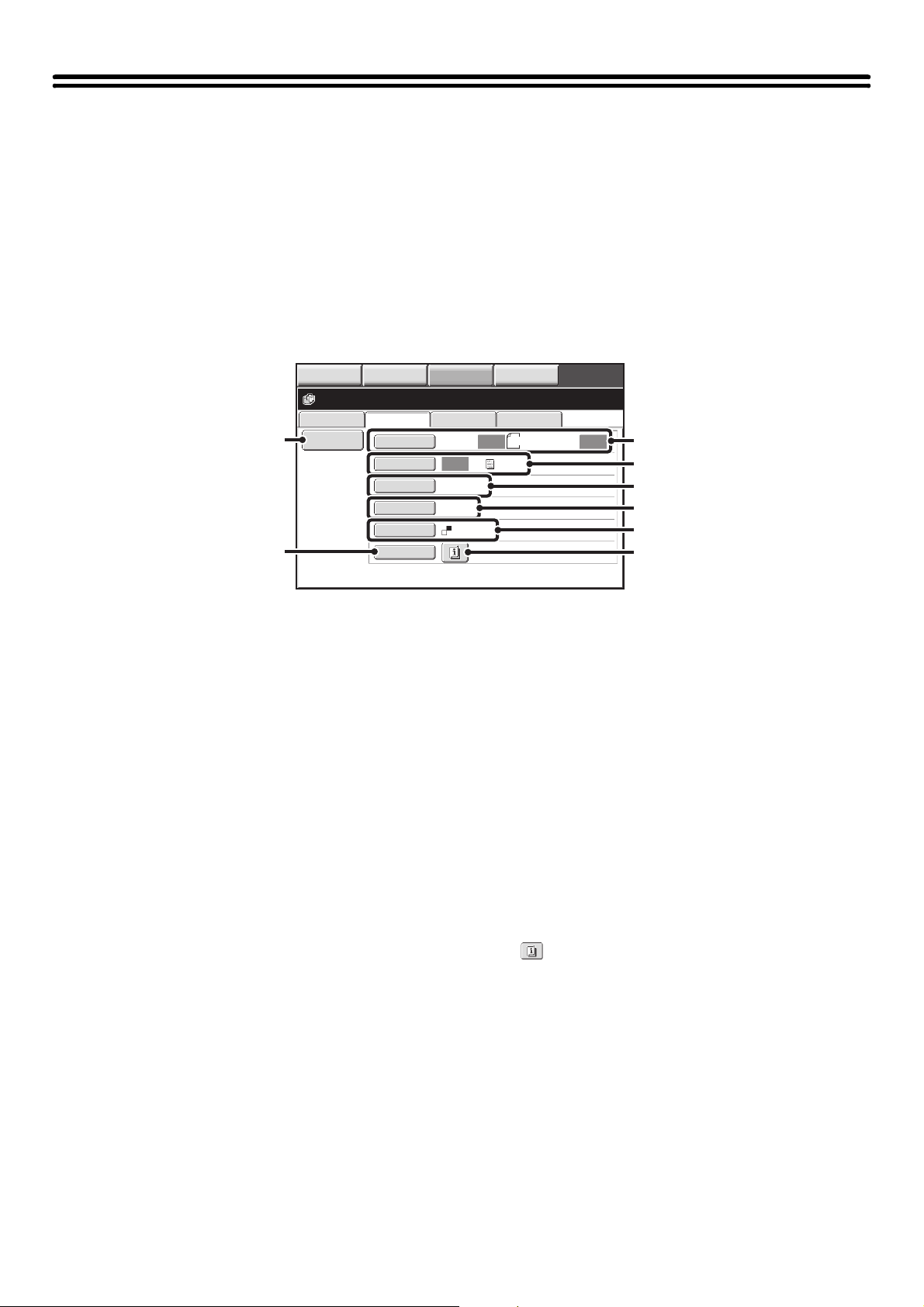
22
SAVING A DOCUMENT FILE ONLY (Scan to
HDD)
Scan to HDD is used to store a scanned document in the Main folder or a custom folder. Neither printing nor
transmission are performed.
"Scan to HDD" SCREEN
The following screen appears when the [Scan to HDD] tab is touched in document filing mode. Touch the keys below to
select Scan to HDD settings.
The current setting of each key appears to the right of the key.
(1) [File Information] key
Information can be appended to a file stored by Scan to
HDD. The settings are configured in the same way as file
information for "File".
☞ FILE INFORMATION (page 18)
(2) [Original] key
Touch this key to set the scanning size, storing size and
orientation of the original, and select 2-sided scanning
settings.
☞ [Original] key (page 23)
(3) [Exposure] key
Touch this key to select the exposure for scanning.
☞ [Exposure] key (page 23)
(4) [Resolution] key*
Use this to select the resolution that will be used when
the file is transmitted.
(5) [Comp. Ratio] key* (when the color expansion kit is
installed)
Use this to set the compression ratio for transmission of
the file.
If the color expansion kit is not installed, this key will not
appear.
(6) [Color Mode] key (when the color expansion kit is
installed)
Use this key to select the color mode when storing a
document.
If the color expansion kit is not installed, this key will not
appear.
☞ [Color Mode] key (page 24)
(7) [Special Modes] key
Use this key to select special modes for Scan to HDD.
☞ Special modes screen for Scan to HDD (page 25)
(8) key
This key appears when a special mode or 2-sided
scanning is selected. Touch the key to display the
selected special modes.
* This specifies a default setting for transmission of a stored file. It is not a setting that affects the stored file itself.
File Retrieve Scan to HDD HDD Status
Ex Data Access
File
Information
Original
Exposure
Resolution
Comp. Ratio
Color Mode
Special Modes
Scan:
200X200dpi
Medium
Auto
Store:
Text
Auto
Auto
Mono2
Ready to scan to HDD.
Press [Start] to scan original.
8½x11
IMAGE SEND
DOCUMENT
FILING
MANUAL
FINISHING
COPY
(1)
(7)
(2)
(3)
(4)
(5)
(6)
(8)
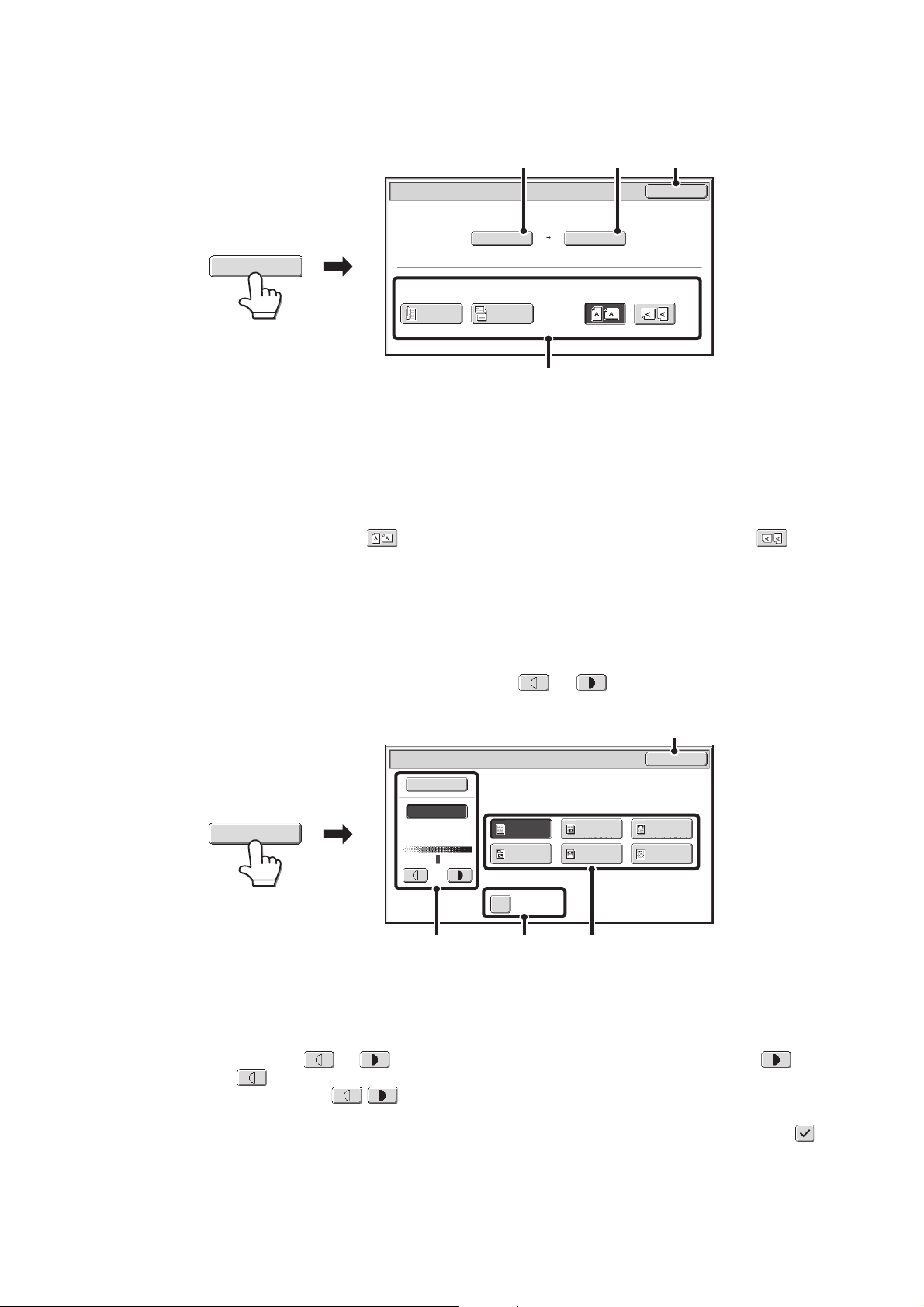
23
[Original] key
When the [Original] key is touched, the following screen appears. This screen is used to change the original size and
select scanning settings for 2-sided originals.
(1) Touch the [Scan Size] key.
If the original is a non-standard size that cannot be detected by auto original size detection, touch the [Scan Size] key and specify the original size.
When scanning a long size document, the storage format cannot be set to "Hi-Speed Print Mode".
(2) Touch the [Store Size] key.
If you wish to store the file at a different size than the original size, touch the [Store Size] key and change the store size.
(3) Touch the appropriate orientation key.
If the top edge of the original is up, touch the key. If the top edge of the original is to the left, touch the key.
If the original is a 2-sided original, touch the [2-Sided Booklet] key or the [2-Sided Tablet] key as appropriate for the original type.
(4) Touch the [OK] key.
The settings are stored and you return to the Scan to HDD screen.
[Exposure] key
To adjust the exposure, touch the [Exposure] key.
Select an appropriate exposure mode for the original and touch the or key to adjust the exposure level.
When finished, touch the [OK] key.
(1) Select the appropriate original type for the original to be scanned.
When the exposure is set to [Auto], the exposure modes [Printed Photo], [Photo], and [Map] do not appear.
If the color expansion kit is not installed, the original image type key will not appear.
(2) Select [Auto] or [Manual].
If you selected [Manual], touch the or key to adjust the exposure. (For a darker image, touch the key. For a
lighter image, touch the key.)
When the exposure is set to [Auto], the keys cannot be used.
(A): Moirè Reduction
To reduce the moirè effect when scanning printed matter, touch the [Moirè Reduction] checkbox so that a checkmark appears.
(3) Touch the [OK] key.
The settings are stored and you return to the Scan to HDD screen.
Scan to HDD/Original
OK
Scan Size Store Size100%
2-Sided
Booklet
2-Sided
Tablet
Auto 8½x11 Auto
Image Orientation
(3)
(1) (2) (4)
Original
Scan to HDD/Exposure
OK
Manual
1 3 5
Text/
Prtd.Photo
Photo
Text/Photo
Map
Text
Printed
Photo
Moiré
Reduction
Auto
Original Image Type
(1)(A)(2)
(3)
Exposure
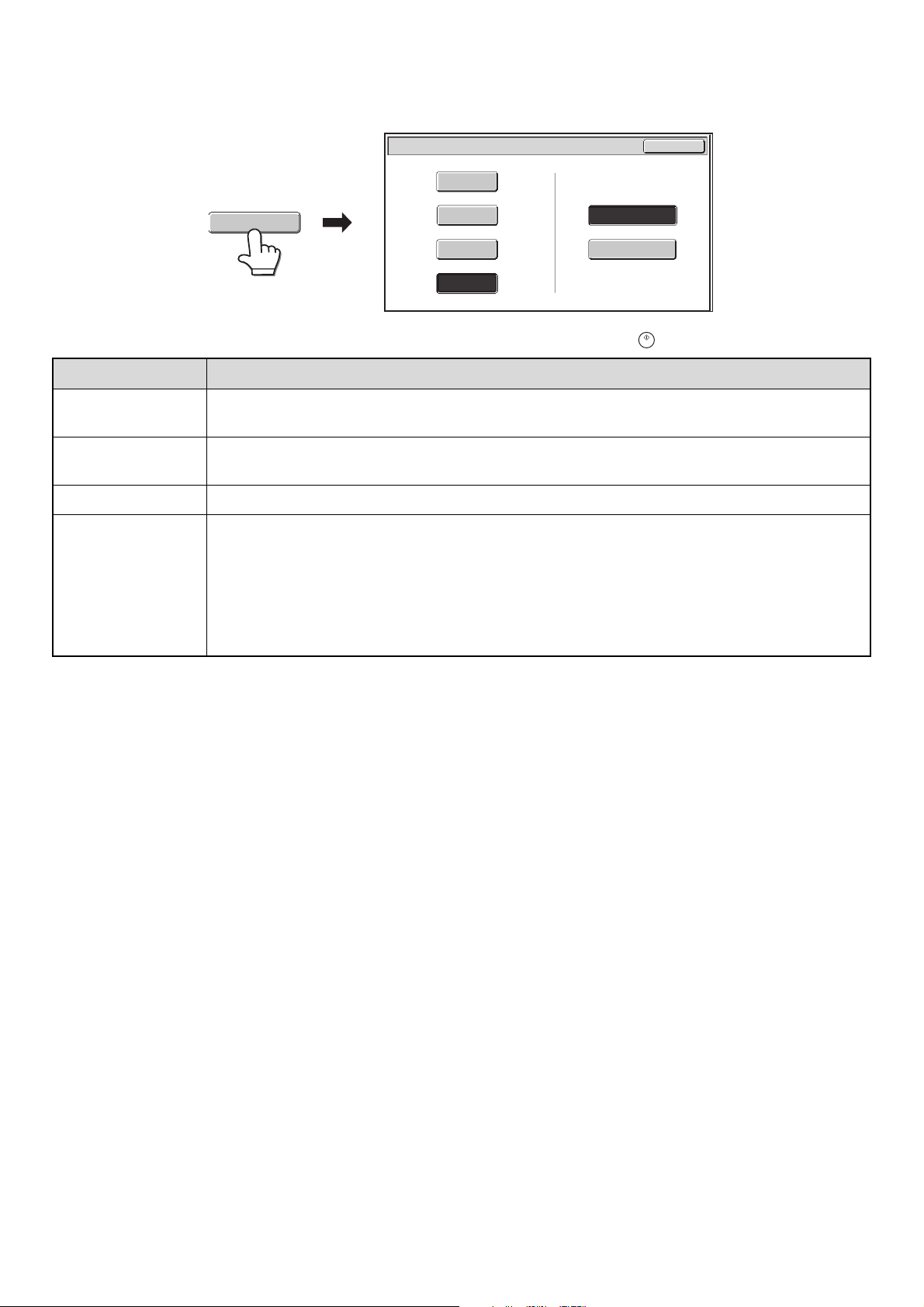
24
[Color Mode] key
Touch the [Color Mode] key to open the color mode setting screen for Scan to HDD.
The following settings can be selected for the scanning color when the [START] key ( ) is pressed.
When you have finished selecting the mode, touch the [OK] key.
Mode Scanning method
Auto
The machine detects whether the original is color or black and white and automatically selects full color
or black and white (grayscale) scanning.
Full Color
The original is scanned in full color. This mode is best for full color originals such as catalogues.
Even when the original is black and white, it is scanned as a full color original.
Grayscale The colors in the original are scanned in black and white as shades of gray (grayscale).
Mono2
Colors in the original are scanned as black or white. This mode is best for text-only originals.
When [Mono2] is selected, you must also set the file storage format.
Hi-Speed Print Mode: This storage format is used for high-speed printing. A file stored in this format
cannot be transmitted.
When scanning a long size document, the storage format cannot be set to
"Hi-Speed Print Mode".
Send Allowed Mode: Use this mode for files that will be transmitted.
Scan to HDD/Color Mode
OK
Auto
Full Color
Mono2
Grayscale
Storage Format of Mono2
Hi-Speed Print Mode
Send Allowed Mode
Color Mode
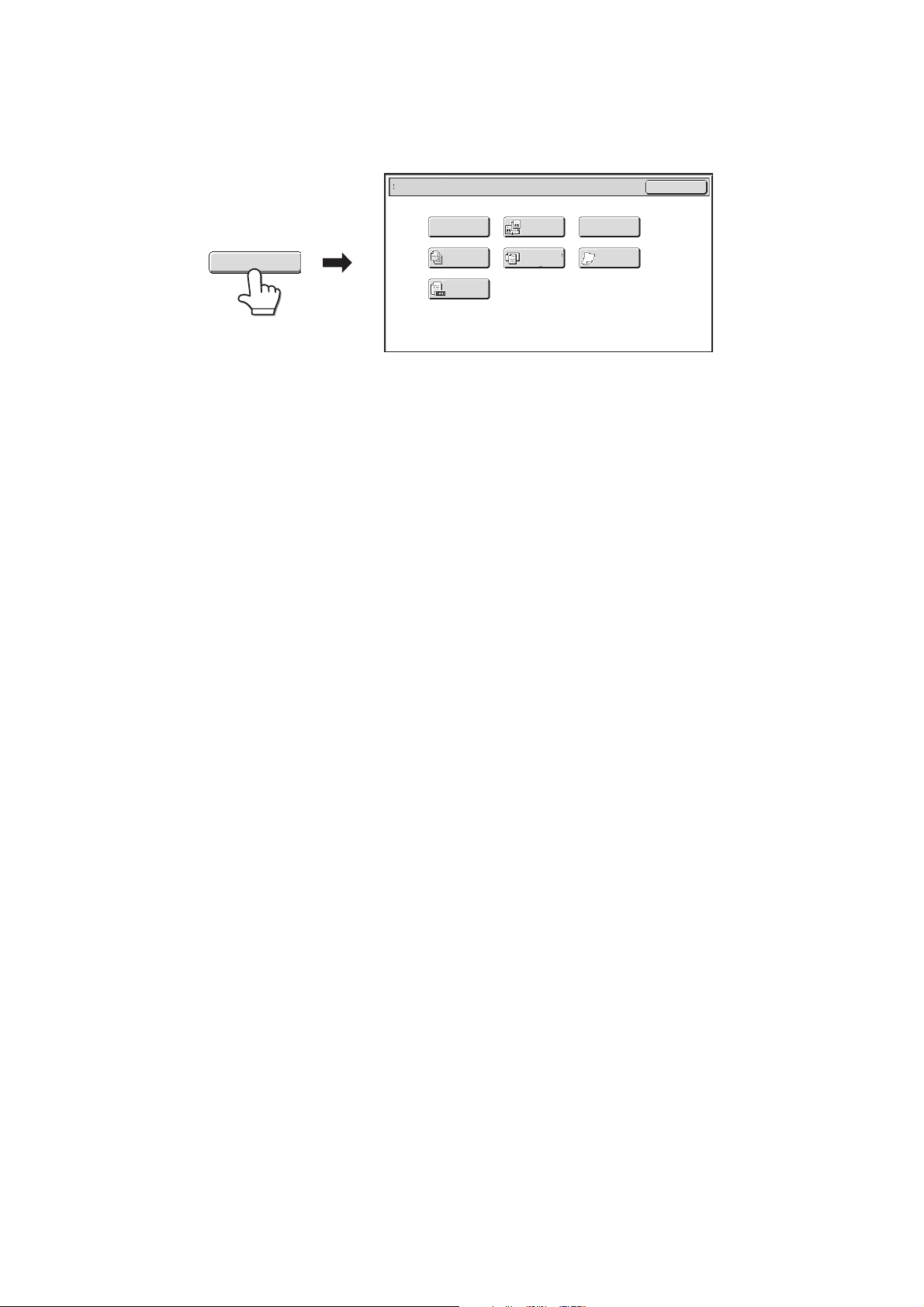
25
Special modes screen for Scan to HDD
When the [Special Modes] key is touched, the following screen appears. For more information on each setting, see "4.
SPECIAL MODES" in the Image Send Guide.
(1) [Erase] key
The erase function is used to erase shadow lines on
images produced when scanning thick originals or books
on the document glass.
(2) [Dual Page Scan] key
The left and right sides of an original can be scanned as
two separate pages. This function is useful when you
wish to successively scan each page of a book or other
bound document.
(3) [Card Shot] key
This function lets you store the front and reverse sides of
a card as a single file.
(4) [Job Build] key
This function lets you separate a many-page original into
sets, scan each set using the automatic document
feeder, and store all pages as a single file. Use this
function when there are more original pages than can be
placed at once in the auto document feeder.
(5) [Mixed Size Original] key
This feature lets you scan originals of different sizes at
the same time; for example, 8-1/2" x 14" (B4) size
originals mixed together with 11" x 17" (A3) size
originals. When scanning the originals, the machine
automatically detects the size of each original.
Originals of mixed widths and sizes can be scanned
(11" x 17" and 8-1/2" x 14", 11" x 17" and 8-1/2" x 13",
11" x 17" and 5-1/2" x 8-1/2" (A3 and B4, A3 and B5, A4
and B4, A4 and B5, B4 and A4R, B4 and A5, B5 and
A4R, B5 and A5)).
(6) [Slow Scan Mode] key
Use this function when you wish to scan thin originals
using the automatic document feeder. This function helps
prevent thin originals from misfeeding.
(7) [Original Count] key
When using the automatic document feeder to scan an
original, you can check whether or not the correct
number of pages were scanned before storing the
document.
Scan to HDD/Special Modes
OK
Dual Page
Scan
Mixed Size
Original
Slow Scan
Mode
Job
Build
Original
Count
Erase Card Shot
(5)(4)
(7)
(6)
(2)(1) (3)
Special Modes
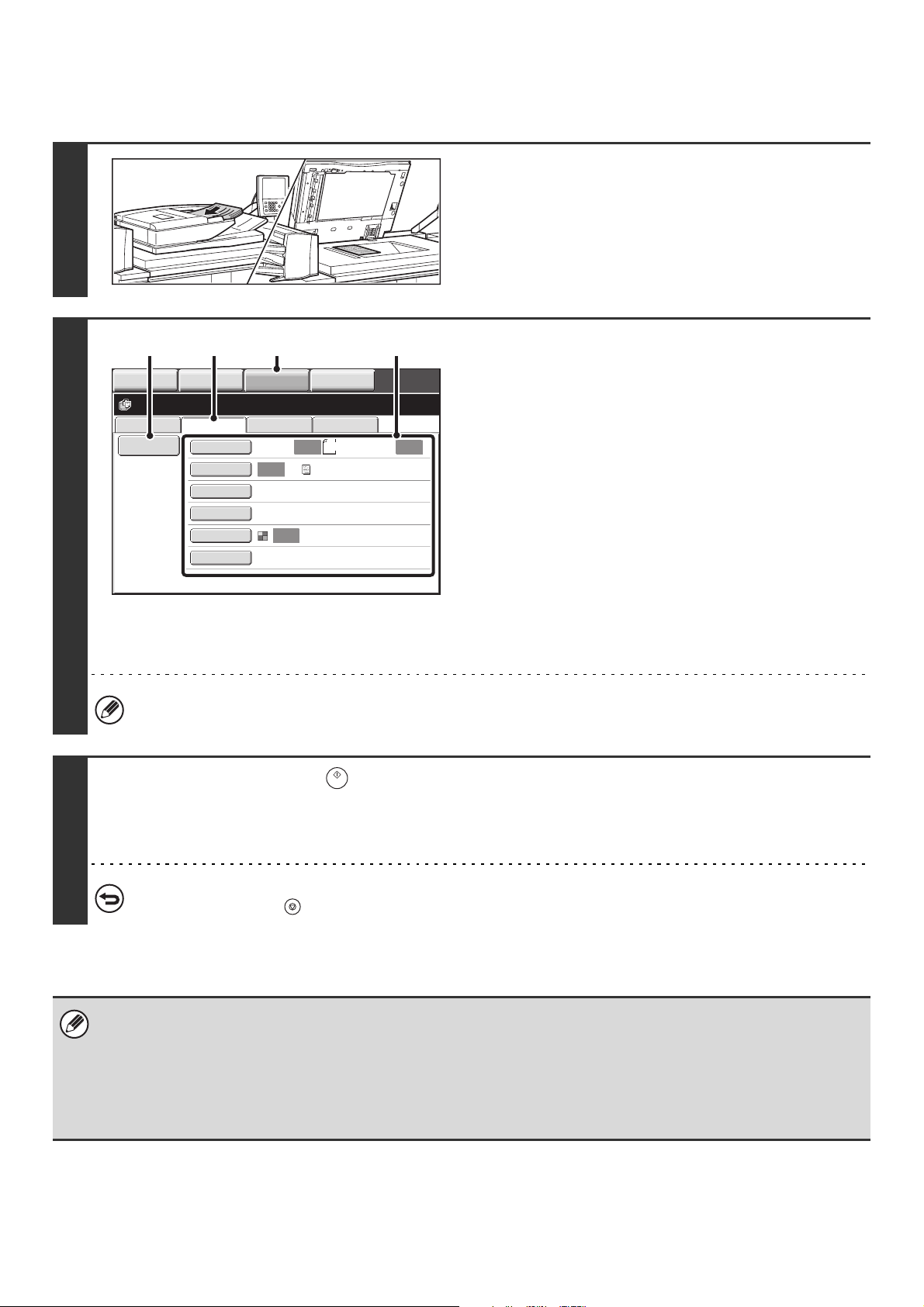
26
PERFORMING "Scan to HDD"
1
Place the original.
Place the original face up in the document feeder tray, or face
down on the document glass.
2
Switch to document filing mode and
select Scan to HDD settings.
(1) Touch the [DOCUMENT FILING] key.
(2) Touch the [Scan to HDD] tab.
If you do not wish to select settings, go to the next step.
(3) Select the original size, exposure,
resolution, compression ratio, color mode,
and special modes.
See ""Scan to HDD" SCREEN" (page 22).
(4) Touch the [File Information] key.
The settings are the same as for "File". See "FILE
INFORMATION" (page 18). When the color expansion kit
is installed, the [Storage Format] key does not appear in
the file information of Scan to HDD.
If the original is 2-sided, be sure to touch the [Original] key and then touch the [2-Sided Booklet] key or the [2-Sided
Tablet] key as appropriate for the original.
3
Press the [START] key ( ).
Scanning begins.
For the procedure for placing the original, see step 4 of "SAVING A FILE WITH "Quick File"" (page 14).
A beep will sound to indicate that Scan to HDD is completed.
To cancel scanning...
Press the [STOP] key ( ).
When Scan to HDD is performed without appending file information, the following user name and file name are automatically
assigned to the file.
User Name: User Unknown
File Name: Mode_Month-Day-Year_Hour-Minute-Second
(Example: HDD_04042010_112030AM)
Stored to: Main Folder
When user authentication is used, the user name that was used for login is automatically selected.
File Retrieve Scan to HDD HDD Status
Ex Data Access
File
Information
Original
Exposure
Resolution
Comp. Ratio
Color Mode
Special Modes
Scan:
200X200dpi
Medium
Auto
Store:
Text
Auto
Auto
Auto
8½x11
Ready to scan to HDD.
Press [Start] to scan original.
IMAGE SEND
DOCUMENT
FILING
MANUAL
FINISHING
COPY
(3)(1)(2)(4)
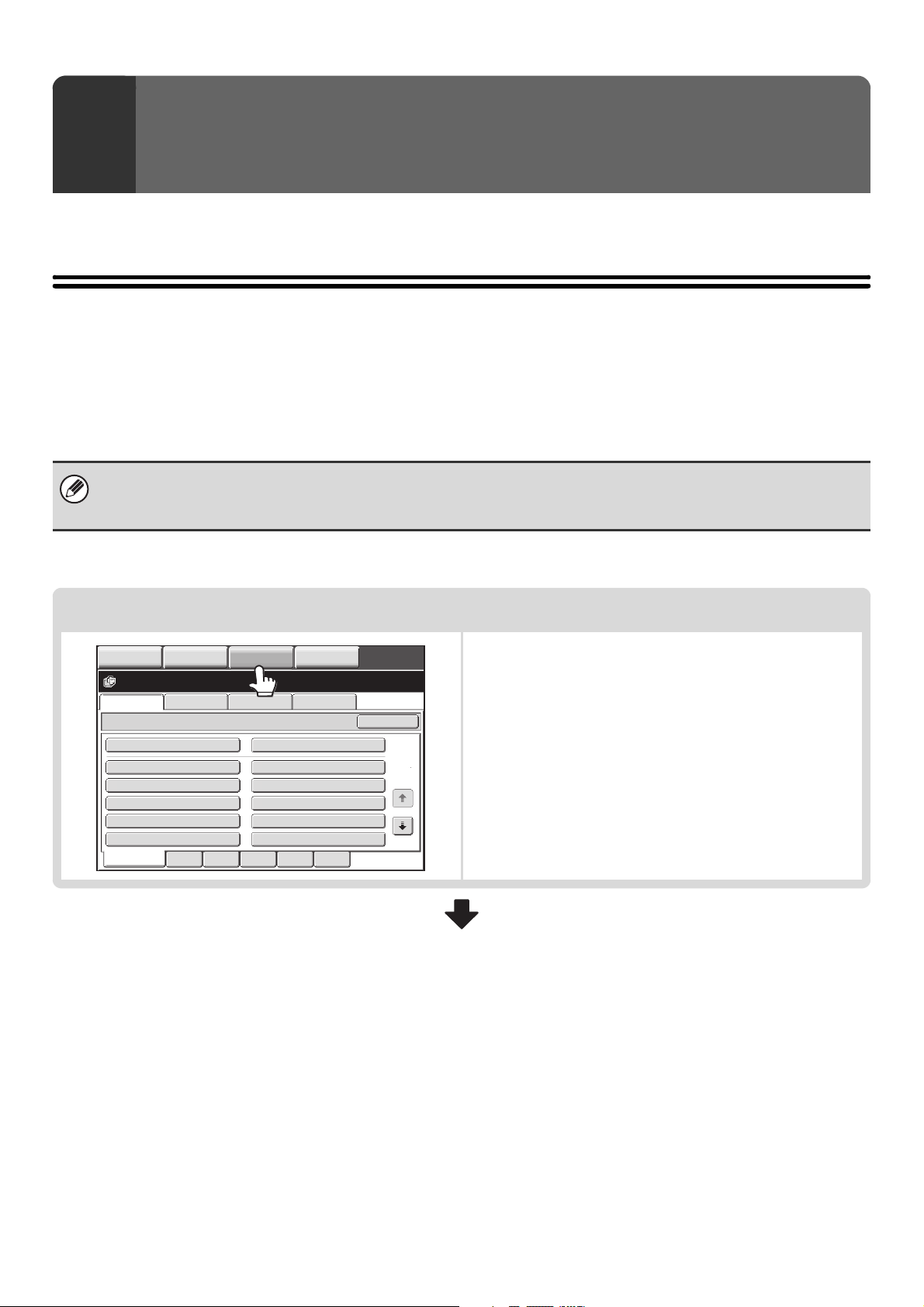
27
This chapter explains how to retrieve a file stored by document filing and print or transmit the file.
SEQUENCE FOR USING A STORED FILE
This section explains the basic procedure for retrieving and using a stored file. The screens and procedures differ
depending on whether or not user authentication is enabled.
See the sequence that applies to your situation.
For information on user authentication procedures, see "USER AUTHENTICATION" in the User's Guide. For information
on enabling user authentication and storing user names, see "User Control" in the Administrator's Guide.
3
USING STORED FILES
Files stored by document filing can also be retrieved and used from the Web pages. Click [Document Operations] and then
[Document Filing] in the Web page menu, and select the folder that contains the file you wish to use.
You can also show a preview of a stored file in the Web pages.
Change the mode.
Switch to document filing mode.
☞ BASE SCREEN OF DOCUMENT FILING MODE
(page 13)
File Retrieve Scan to HDD HDD Status
Ex Data Access
Main Folder
User 1
User 3
User 5
User 7
User 9
User 2
User 4
User 6
User 8
User 10
Quick File Folder
Search
Folder Select
1
2
All Folders ABCD EFGHI JKLMN OPQRST UVWXYZ
IMAGE SEND
DOCUMENT
FILING
MANUAL
FINISHING
COPY
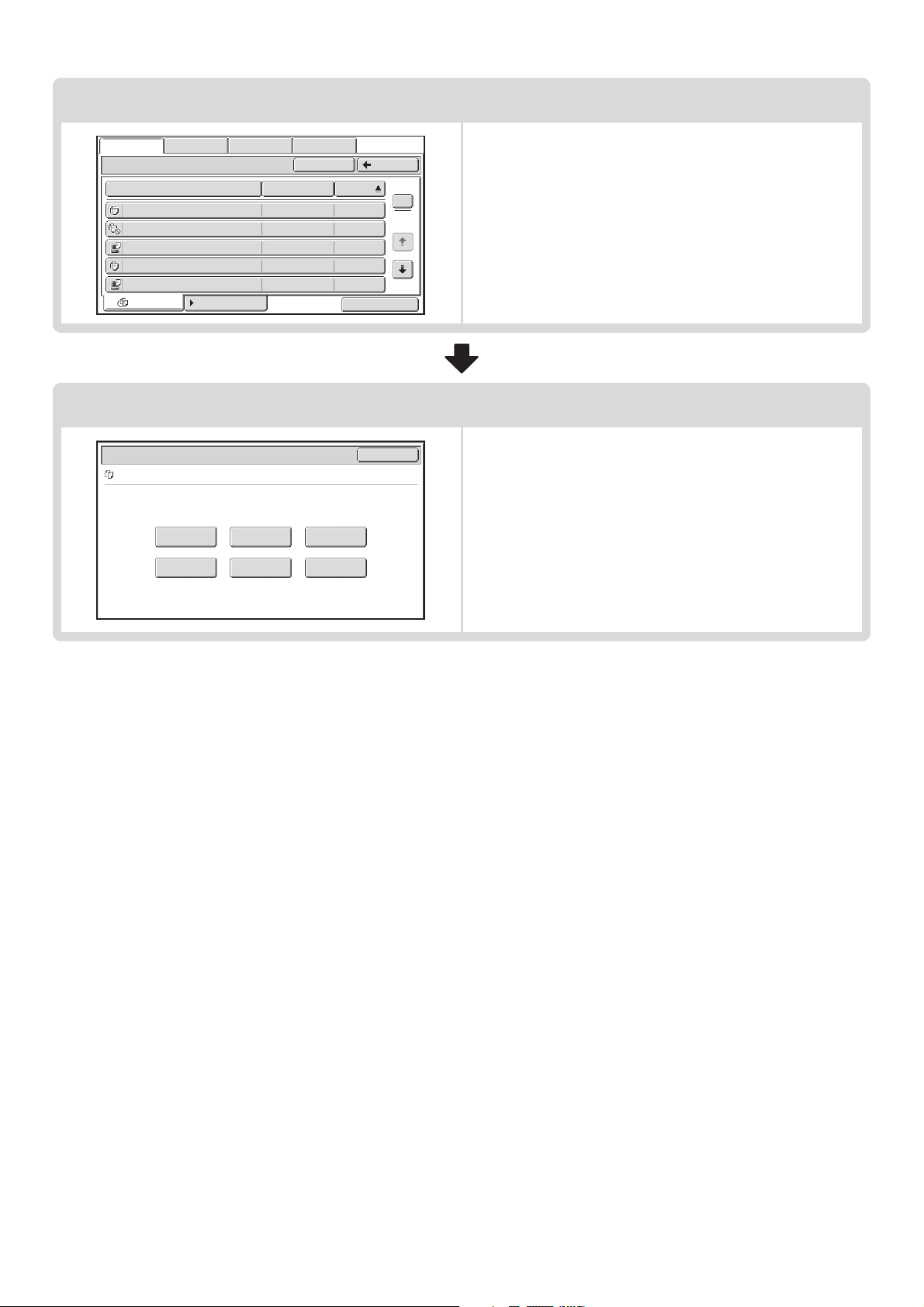
28
Select the file that you wish to retrieve.
• Select the folder in the folder selection screen.
When the folder is selected, the files in the folder will
appear. Select the file that you wish to retrieve.
☞ FILE SELECTION SCREEN (page 30)
SELECTING A FILE (page 31)
• The search function can be used to retrieve a file.
☞ SEARCHING FOR A STORED FILE (page 45)
Select the operation.
Select the desired operation and configure settings.
☞ JOB SETTINGS SCREEN (page 32)
PRINTING A STORED FILE (page 33)
SENDING A STORED FILE (page 37)
PROPERTIES OF STORED FILES (page 39)
MOVING A STORED FILE (page 41)
DELETING A STORED FILE (page 43)
Main Folder
File Name
file-01 Name 1 04/04/2010
file-02 Name 2 04/04/2010
file-03 Name 3 04/04/2010
file-04 Name 4 04/04/2010
file-05 Name 5 04/04/2010
User Name Date
All Files Filter by Job
1
2
BackSearch
Batch Print
File Retrieve Scan to HDD HDD Status Ex Data Access
Job Settings
Cancel
file-01 Name 1 8½x11 B/W
Print Send
Property
Change
Move Delete Detail
Select the job.
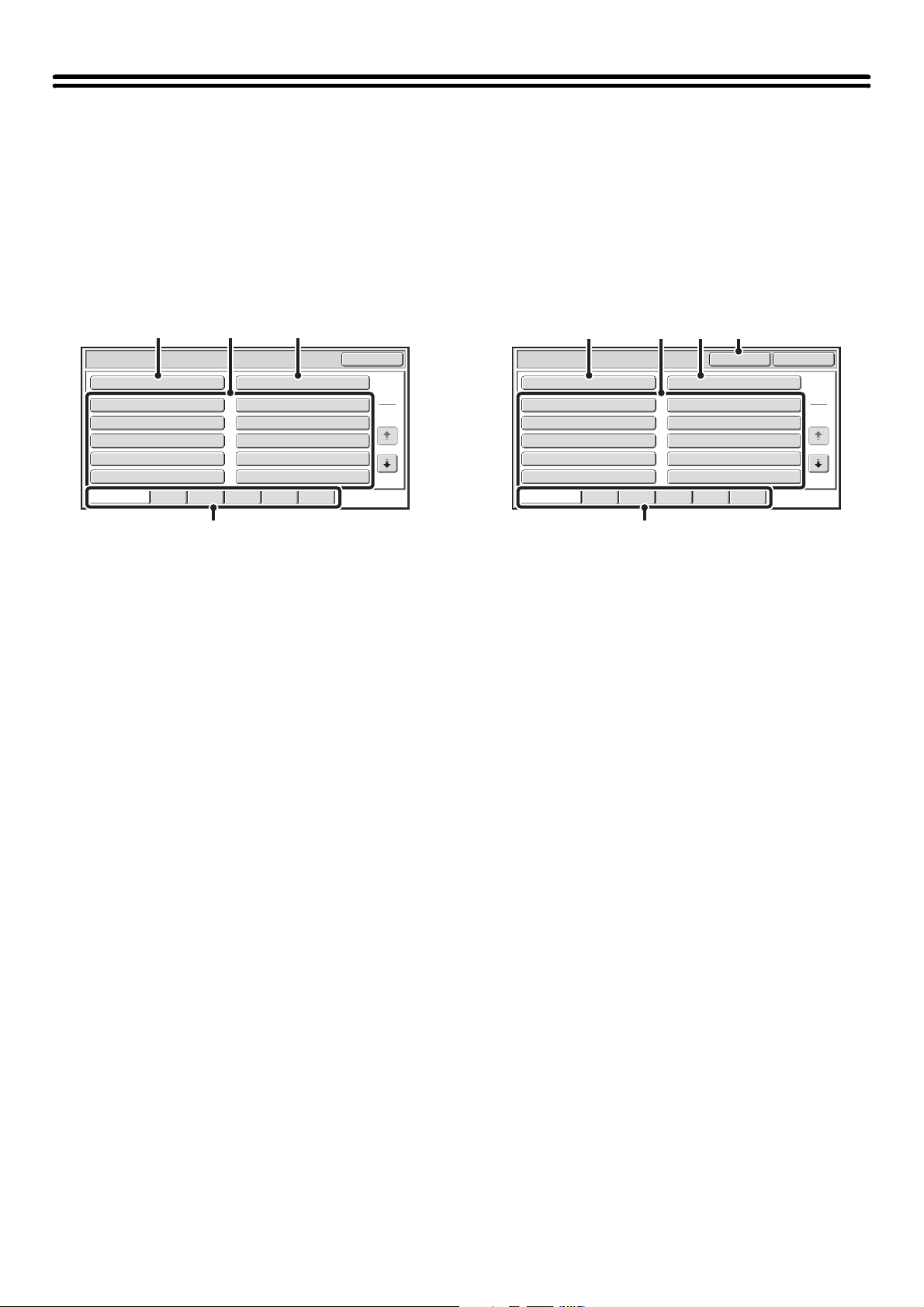
29
FOLDER AND FILE SELECTION SCREENS
To use a file stored by document filing, the folder and file must be selected. The folder selection screen and file selection
screen are explained below.
FOLDER SELECTION SCREEN
Two different screens appear depending on whether or not user authentication is enabled on the machine.
When user authentication is not enabled When user authentication is enabled
(1) [Main Folder] key
Touch this key to retrieve a file from the Main folder. The
files in the Main folder will appear.
(2) Custom folder keys
The custom folders that have been created using
"Document Filing Control" in the system settings are
displayed. Touch a key to display the files in that folder.
If a password has been set for a custom folder, a
password entry screen will appear when the folder is
touched. The password must be entered.
(3) [Quick File Folder] key
Touch this key to retrieve a file from the Quick File folder.
The files in the Quick File folder will appear.
☞ SAVING A FILE WITH "Quick File" (page 14)
(4) Index tabs
All folders appear on the [All Folders] tab.
Touch a tab to display the custom folders whose initials
(set in "Document Filing Control" in the system settings)
match the letters on the tab.
(5) [My Folder] key
This key appears when user authentication is enabled.
Touch the key to display the file selection screen of "My
Folder".
Main Folder
User 1
User 3
User 5
User 7
User 9
User 2
User 4
User 6
User 8
User 10
Quick File Folder
Search
Folder Select
1
2
All Folders ABCD EFGHI JKLMN OPQRST UVWXYZ
(2)(1) (3)
(4)
Main Folder
User 1
User 3
User 5
User 7
User 9
User 2
User 4
User 6
User 8
User 10
Quick File Folder
SearchMy Folder
Folder Select
1
2
All Folders ABCD EFGHI JKLMN OPQRST UVWXYZ
(2)(1) (3) (5)
(4)
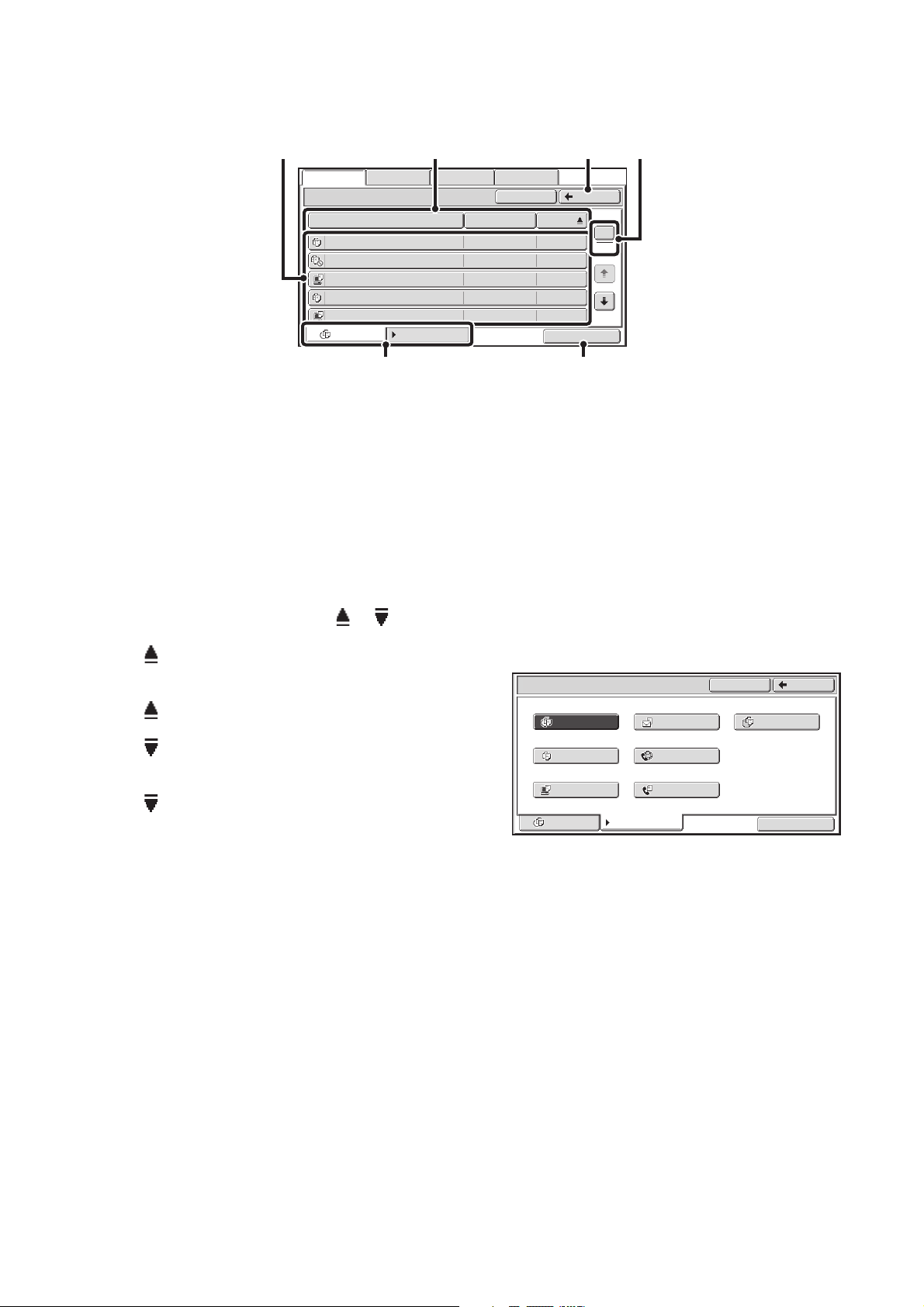
30
FILE SELECTION SCREEN
The file selection screen of the Quick File folder, Main folder, and custom folders is explained below.
(1) File keys
The stored files are displayed. An icon showing which
mode the file was stored from, the file name, the user
name, and the date the file was stored appear in each file
key.
When a file is touched, the job setting screen appears.
For the bar icons, see "SYSTEM BAR" in the User's
Guide.
(2) [File Name] key, [User Name] key, [Date] key
Use these keys to change the order of display of the file
keys. When one of the keys is touched, or
appears in the key.
• When appears in the [File Name] key or [User
Name] key, the files appear by file name or user name
in ascending order.
When appears in the [Date] key, the files appear in
order from the oldest date.
• When appears in the [File Name] key or [User
Name] key, the files appear by file name or user name
in descending order.
When appears in the [Date] key, the files appear in
order from the most recent date.
(3) [Back] key
Touch this key to return to the base screen of document
filing mode.
☞ FOLDER SELECTION SCREEN (page 29)
(4) Page key
When multiple pages exist, use this key to enter the
number of a page that you want to display. When the key
is touched, a page number entry screen appears. Enter
the desired page number (3 digits) with the numeric keys.
For example, to display page 3, enter "003".
(5) Select displayed files by job type.
You can select the file keys that are displayed by job
type.
The currently selected job type appears in the left tab. [All
Files] is initially selected.
Touch the [Filter by Job] tab on the right to open the
following screen.
Touch a mode key to show a list of the files that were
stored from that mode.
(6) [Batch Print] key
Touch this key to print all files in a folder.
☞ BATCH PRINTING (page 35)
Main Folder
File Name
file-01 Name 1 04/04/2010
file-02 Name 2 04/04/2010
file-03 Name 3 04/04/2010
file-04 Name 4 04/04/2010
file-05 Name 5 04/04/2010
User Name Date
All Files Filter by Job
1
2
BackSearch
Batch Print
File Retrieve Scan to HDD HDD Status Ex Data Access
(2) (3) (4)(1)
(6)
(5)
Main Folder
Search
Back
All Files
All Files Filter by Job
Copy
Printer
Internet Fax
Scan Scan to HDD
Fax
Batch Print
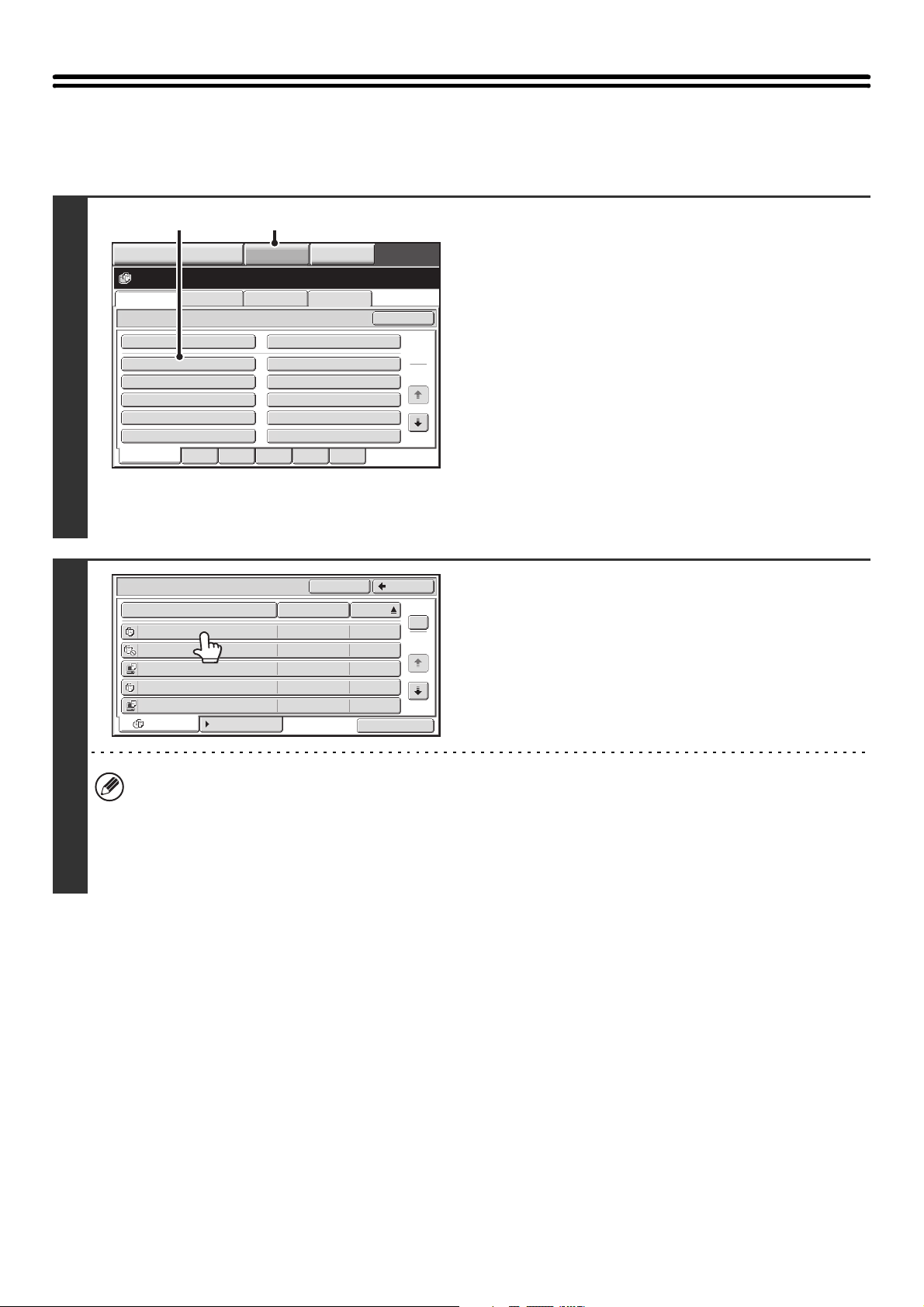
31
SELECTING A FILE
This section explains how to select a file to be used.
1
Select the folder that contains the file
you wish to use.
(1) Touch the [DOCUMENT FILING] key.
The folder selection screen will appear. If a different tab
appears, touch the [File Retrieve] tab.
When user authentication is enabled and "My Folder" is
configured in "User List" in the system settings, the
custom folder specified as "My Folder" opens. To display
the folder selection screen, touch the [Back] key.
(2) Touch the key of the folder that contains the
desired file.
If a password is set for the selected folder, a password
entry screen will appear.
Enter the password with the numeric keys (5 to 8 digits)
and touch the [OK] key.
2
Touch the key of the desired file.
If a password is set for the selected file, a password entry
screen will appear.
Enter the password with the numeric keys (5 to 8 digits) and
touch the [OK] key.
• The [Filter by Job] tab can be touched to show the mode keys (copy mode, scan mode, etc.). Touch a mode key to
show a list of the files that were stored from that mode.
When you know the mode from which a file was stored, touching the [Filter by Job] tab lets you find the file quickly.
• You can touch the [File Name] key, the [User Name] key, or the [Date] key to change the order of display of the files.
• To print all files in the folder, touch the [Batch Print] key.
☞ BATCH PRINTING (page 35)
File Retrieve Scan to HDD HDD Status
Ex Data Access
Main Folder
User 1
User 3
User 5
User 7
User 9
User 2
User 4
User 6
User 8
User 10
Quick File Folder
Search
Folder Select
1
2
All Folders ABCD EFGHI JKLMN OPQRST UVWXYZ
IMAGE SEND
DOCUMENT
FILING
MANUAL
FINISHING
COPY
(1)(2)
User 1
File Name
file-01 Name 1 04/04/2010
file-02 Name 2 04/04/2010
file-03 Name 3 04/04/2010
file-04 Name 4 04/04/2010
file-05 Name 5 04/04/2010
User Name Date
All Files Filter by Job
1
2
BackSearch
Batch Print
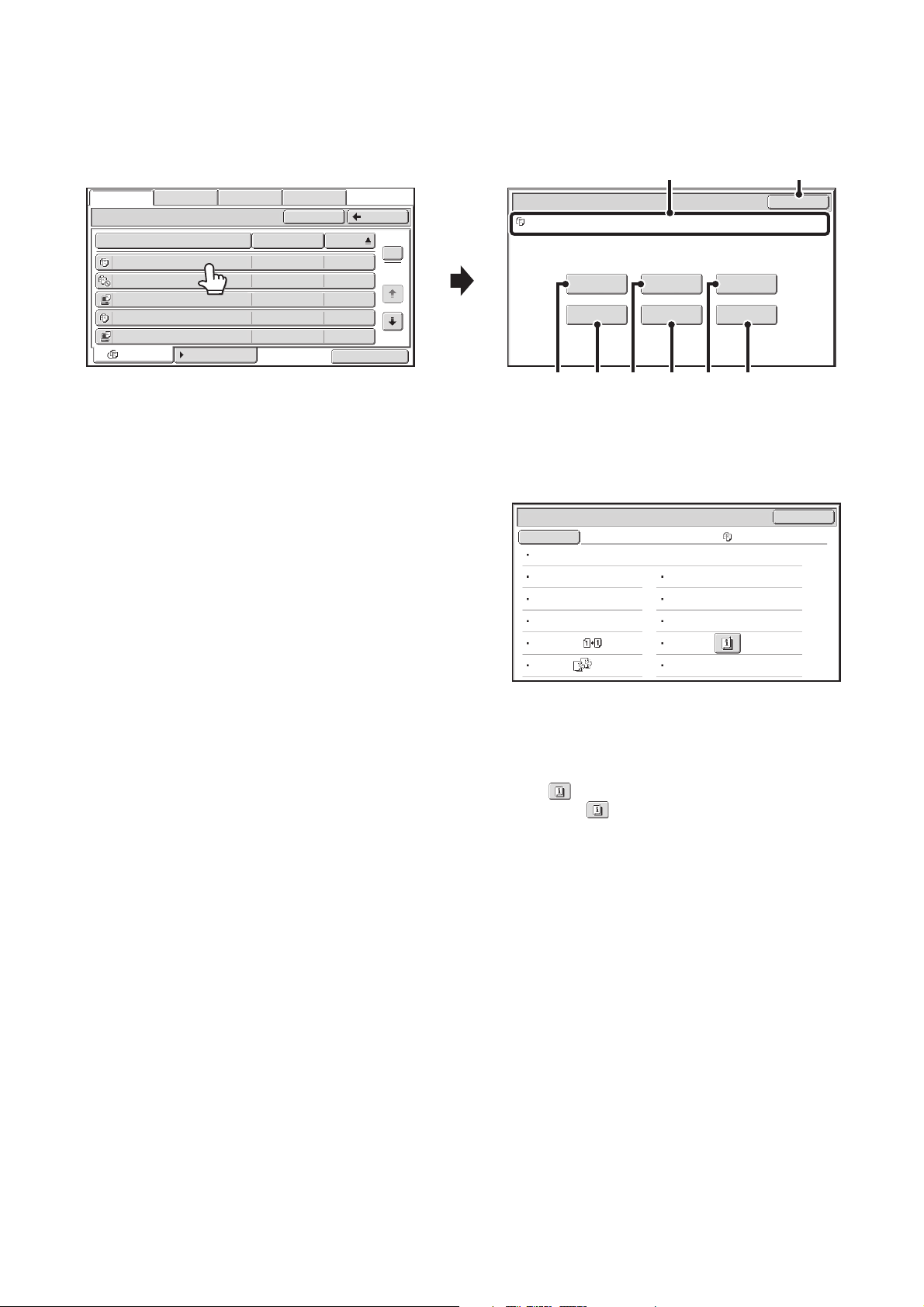
32
JOB SETTINGS SCREEN
When a file key is touched, the following screen appears. Touch the key of the operation that you wish to perform and
select settings.
(1) File display
This shows information on the currently selected file (job
icon, file name, user name, store size, and color mode).
(2) [Cancel] key
Touch this key to cancel the operation and return to the
file selection screen.
(3) [Print] key
Touch this key to print the selected file.
☞ PRINTING A STORED FILE (page 33)
(4) [Move] key
Use this procedure to change the location of a file (move
a file to a different folder).
☞ MOVING A STORED FILE (page 41)
(5) [Send] key
A stored file can be sent by fax, Internet fax, or scan
transmission.
☞ SENDING A STORED FILE (page 37)
(6) [Delete] key
Touch this key to delete a file that is no longer needed.
☞ DELETING A STORED FILE (page 43)
(7) [Property Change] key
Use this key to change the property ("Sharing", "Protect",
or "Confidential") of a stored file.
☞ PROPERTIES OF STORED FILES (page 39)
(8) [Detail] key
Touch this key to show detailed information on the
selected file.
When this key is touched, the following screen appears.
If you wish to change the file name, touch the [File Name]
key in this screen.
A text entry screen will appear. Enter the desired file
name. For the procedure for entering text, see "7.
ENTERING TEXT" in the User's Guide.
The key appears when a special mode is selected.
Touch the key to display the special mode selection
confirmation screen.
Main Folder
File Name
file-01 Name 1 04/04/2010
file-02 Name 2 04/04/2010
file-03 Name 3 04/04/2010
file-04 Name 4 04/04/2010
file-05 Name 5 04/04/2010
User Name Date
All Files Filter by Job
1
2
BackSearch
Batch Print
File Retrieve Scan to HDD HDD Status Ex Data Access
Job Settings
Cancel
file-01 Name 1 8½x11 B/W
Print Send
Property
Change
Move Delete Detail
Select the job.
(2)(1)
(4)
(6) (8)(5)(3) (7)
Job Settings / Detail
OK
File Name
file-01 Name 1
Folder:Main Folder
Size:8½x11
Date:04/04/2010 11:20 AM
Data Size:40B
Document
Style:
Output:
Resolution:600X600dpi
Color / B/W:
Pages:10
Special
Modes:
File Type:
B/W
Hi-Speed Print Mode
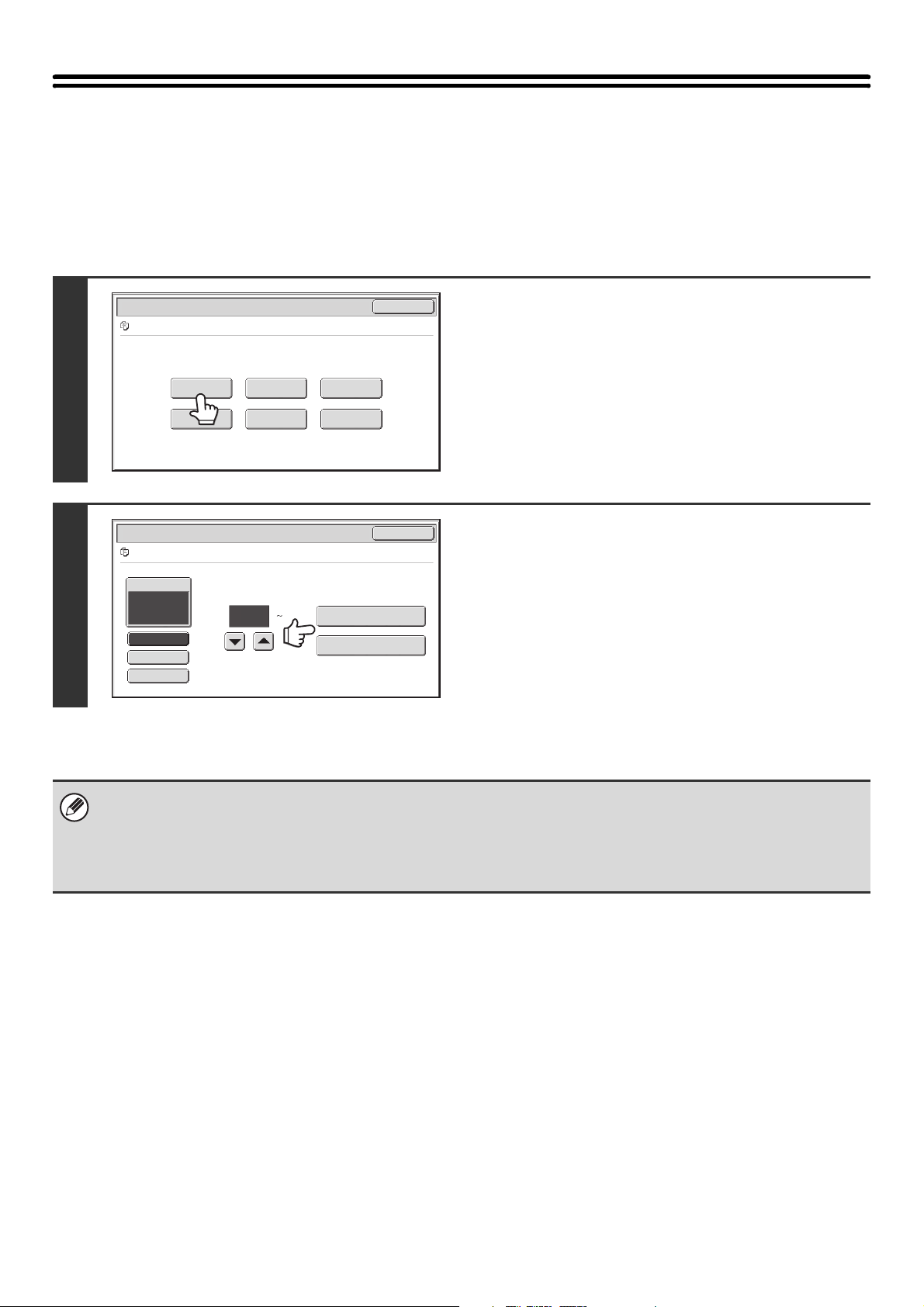
33
PRINTING A STORED FILE
A file stored using document filing can be retrieved and printed when needed. The settings used when the file was
stored are also stored, and thus the file can be printed again using those settings. The file can also be modified before
printing by changing the print settings.
After selecting the desired file, follow the steps below.
☞ SELECTING A FILE (page 31)
1
Touch the [Print] key.
2
Touch the [Print and Delete the Data] key
or the [Print and Save the Data] key.
If the [Print and Delete the Data] key is touched, the files will be
automatically deleted after printing.
If the [Print and Save the Data] key is touched, the files will be
saved after printing.
Output settings, 2-sided printing, special modes, the number of
copies, and other settings can be selected. For more
information, see "PRINT SETTINGS SCREEN" (page 34).
• When a long size document is stored from Scan to HDD or scan mode, the file cannot be printed. A file stored from scan
mode that included fax mode or Internet fax mode destinations in a broadcast transmission can be printed.
• If print settings are changed when a stored file is printed, the only changed setting that can be stored is the number of
copies.
• The printing speed may be somewhat slow depending on the resolution and exposure mode settings of the stored file.
Job Settings
Cancel
file-01 Name 1 8½x11 B/W
Print Send
Property
Change
Move Delete Detail
Select the job.
Output
2-Sided
Special Modes
Paper Select
Auto
file-01 Name 1 8½x11 B/W
Job Settings / Print
Cancel
Number of Prints
1
(1 9999)
Print and Delete the Data
Print and Save the Data
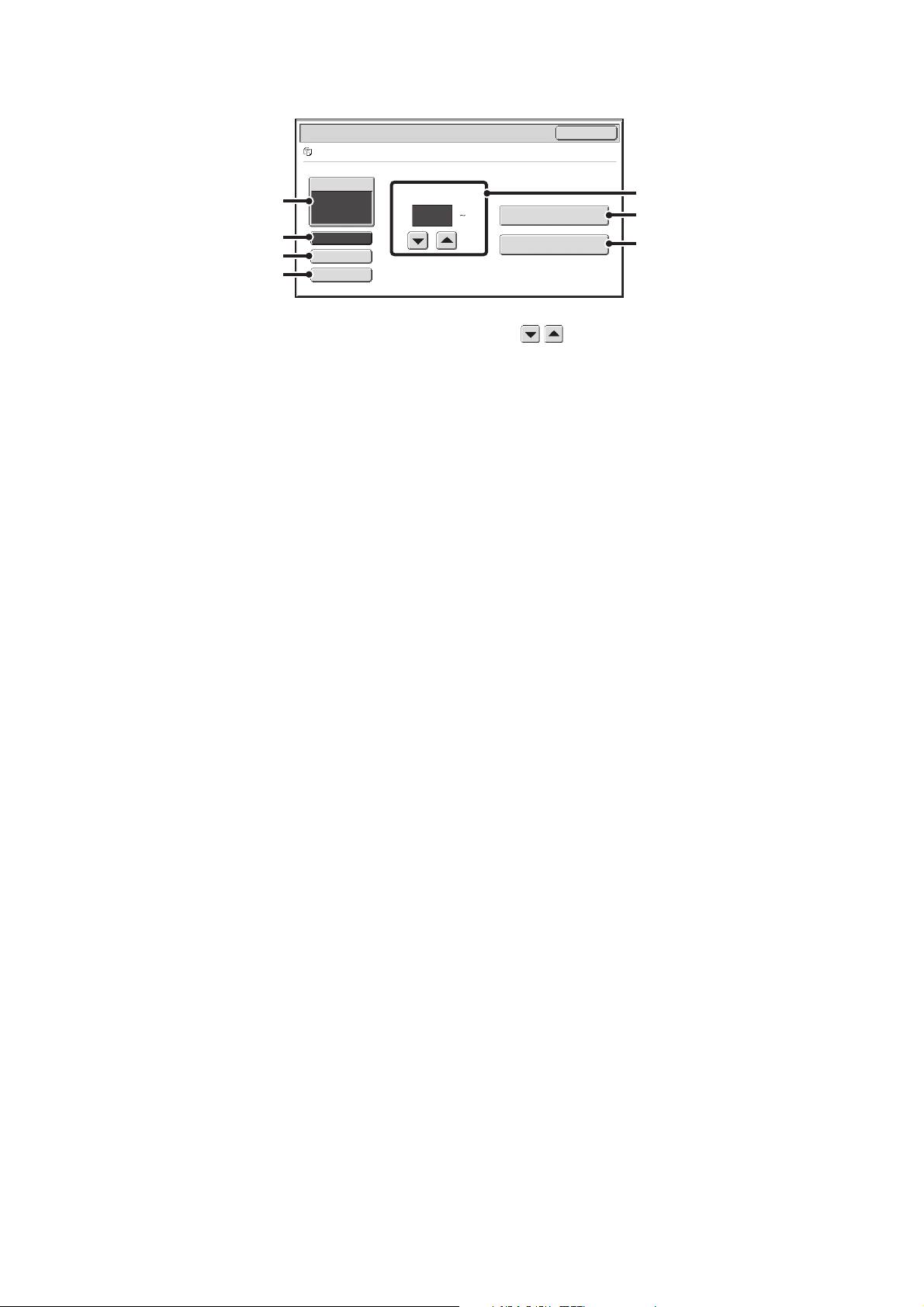
34
PRINT SETTINGS SCREEN
(1) [Paper Select] key
Use this key to set the paper size.
(2) [Output] key
Use this key to select Sort, Group or Staple Sort, and to
select the output tray.
(3) [2-Sided] key
Use this key to select the orientation of the image on the
reverse side of the paper for 2-sided printing. To have the
front and back images oriented in the same direction,
touch the [2-Sided Booklet] key. To have the front and
back images oriented opposite to each other, touch the
[2-Sided Tablet] key. Note that the size and orientation of
the saved image may cause these keys to have the
opposite effect. If neither of these keys is selected
(neither is highlighted), 1-sided printing will take place.
(4) [Special Modes] key
Touch this key to select "Margin Shift", "Pamphlet Copy",
"Multi Shot", "Tandem Print", "Stamp", or "Reverse
Order".*
* The following special modes cannot be selected for
files stored using the "Hi-Speed Print Mode" format.
Pamphlet Copy, Multi Shot, Stamp
(5) key
Use these keys to set the number of copies. The number
of copies can also be set with the numeric keys.
(6) [Print and Delete the Data] key
Printing begins when this key is touched. When printing
is finished, the file will be automatically deleted.
(7) [Print and Save the Data] key
Printing begins when this key is touched. The file will not
be deleted after printing.
Output
2-Sided
Special Modes
Paper Select
Auto
file-01 Name 1 8½x11 B/W
Job Settings / Print
Cancel
Number of Prints
1
(1 9999)
Print and Delete the Data
Print and Save the Data
(5)
(6)
(7)
(1)
(2)
(3)
(4)
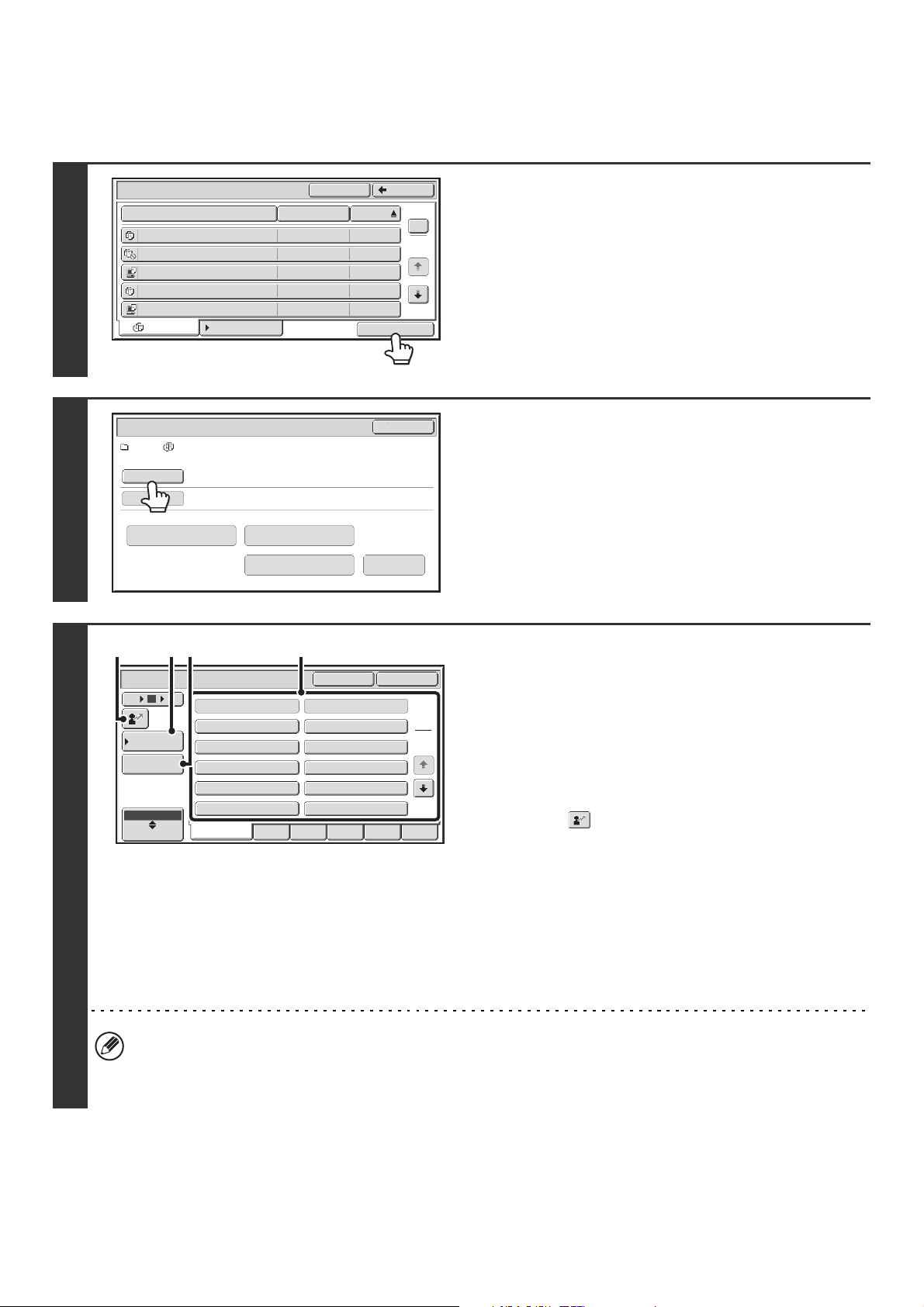
35
BATCH PRINTING
All files in a folder that have the same user name and password can be printed at once.
1
Touch the [Batch Print] key.
To batch print only the files of a certain job type, touch the
[Filter by Job] tab to change the displayed files, and touch the
[Batch Print] key.
2
Touch the [User Name] key.
When user authentication is used, the user name that was used
for login is automatically selected.
3
Select the user name.
There are four ways to select the user name:
(A) Touch the key of the user name.
The touched user name is highlighted.
If you accidentally select the wrong user name, touch the
key of the correct name.
(B) Touch the [Default User] key.
The user name can be selected from the factory stored
users.
(C) Touch the key.
An area for entering the "Registration No." [---] appears in
the message display. Enter the "Registration No." set
during user registration. This will allow you to select the
user name.
(D) Touch the [Direct Entry] key.
A text entry screen appears. Directly enter the user name.
To enter text, see "7. ENTERING TEXT" in the User's
Guide.
After selecting the user name, touch the [OK] key.
When [Selection of [All Users] is not allowed.] checkbox and [Selection of [User Unknown] is not allowed.] checkbox
are disabled in the system settings (administrator), the [All Users] key and [User Unknown] key can be selected.
The [All Users] key can be touched to select all files in the folder (the files of all users).
The [User Unknown] key can be touched to select all files in the folder that do not have a user name.
User 1
File Name
file-01 Name 1 04/04/2010
file-02 Name 2 04/04/2010
file-03 Name 3 04/04/2010
file-04 Name 4 04/04/2010
file-05 Name 5 04/04/2010
User Name Date
All Files Filter by Job
1
2
BackSearch
Batch Print
User 1/ All Files
Batch Print
Cancel
Delete the
Data
Print and Delete the Data
Print and Save the Data Change PRT.No.
User Name
Password
User Name
OKCancel
6 18
12
ABC
User
All Users
User Unknown
Name 1
Name 3
Name 5
Name 7
Name 9
Name 2
Name 4
Name 6
Name 8
Name 10
1
2
All Users ABCD EFGHI JKLMN OPQRST UVWXYZ
Default User
Direct Entry
(A)(B)
(D)
(C)
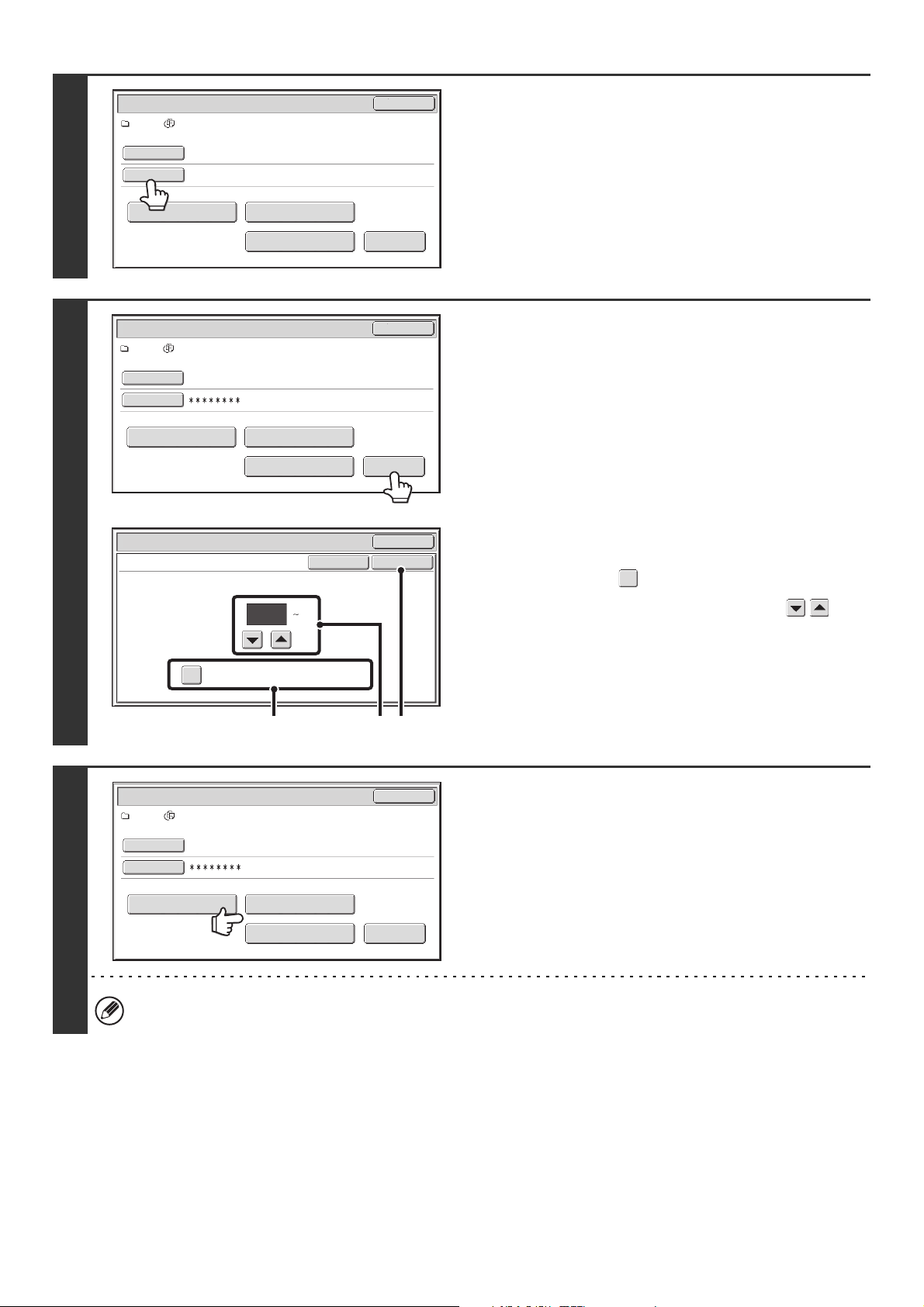
36
4
If a password has been established,
touch the [Password] key.
Enter the password with the numeric keys (5 to 8 digits) and
touch the [OK] key. Only files that have the same password will
be selected.
If you do not wish to enter a password, go to the next step.
5
To set the number of copies, touch the
[Change PRT.No.] key.
If you wish to use the number of copies stored with each file, go
to step 6.
(1) Touch the [Apply the Number from Stored
Setting of Each Job] checkbox so that it is
not selected ( ).
(2) Set the number of copies with the
keys.
The number of copies can be also set with the numeric
keys.
(3) Touch the [OK] key.
6
Touch the [Print and Delete the Data] key
or the [Print and Save the Data] key.
If the [Print and Delete the Data] key is touched, the files will be
automatically deleted after printing.
If the [Print and Save the Data] key is touched, the files will be
saved after printing.
If there are no files that match the search conditions, you will
return to the file list screen.
All files that match the current search conditions can be deleted by touching the [Delete the Data] key.
User 1/ All Files
Batch Print
Cancel
Delete the
Data
Print and Delete the Data
Print and Save the Data
Change PRT.No.
User Name
Password
Name 1
User 1/ All Files
Batch Print
Cancel
Delete the
Data
Print and Delete the Data
Print and Save the Data
Change PRT.No.
User Name
Password
Name 1
Change Print Number
Batch Print
Cancel
OKCancel
Apply the Number from Stored Setting of
Each Job.
1
(1 9999)
(1) (3)(2)
User 1/ All Files
Batch Print
Cancel
Delete the
Data
Print and Delete the Data
Print and Save the Data
Change PRT.No.
User Name
Password
Name 1
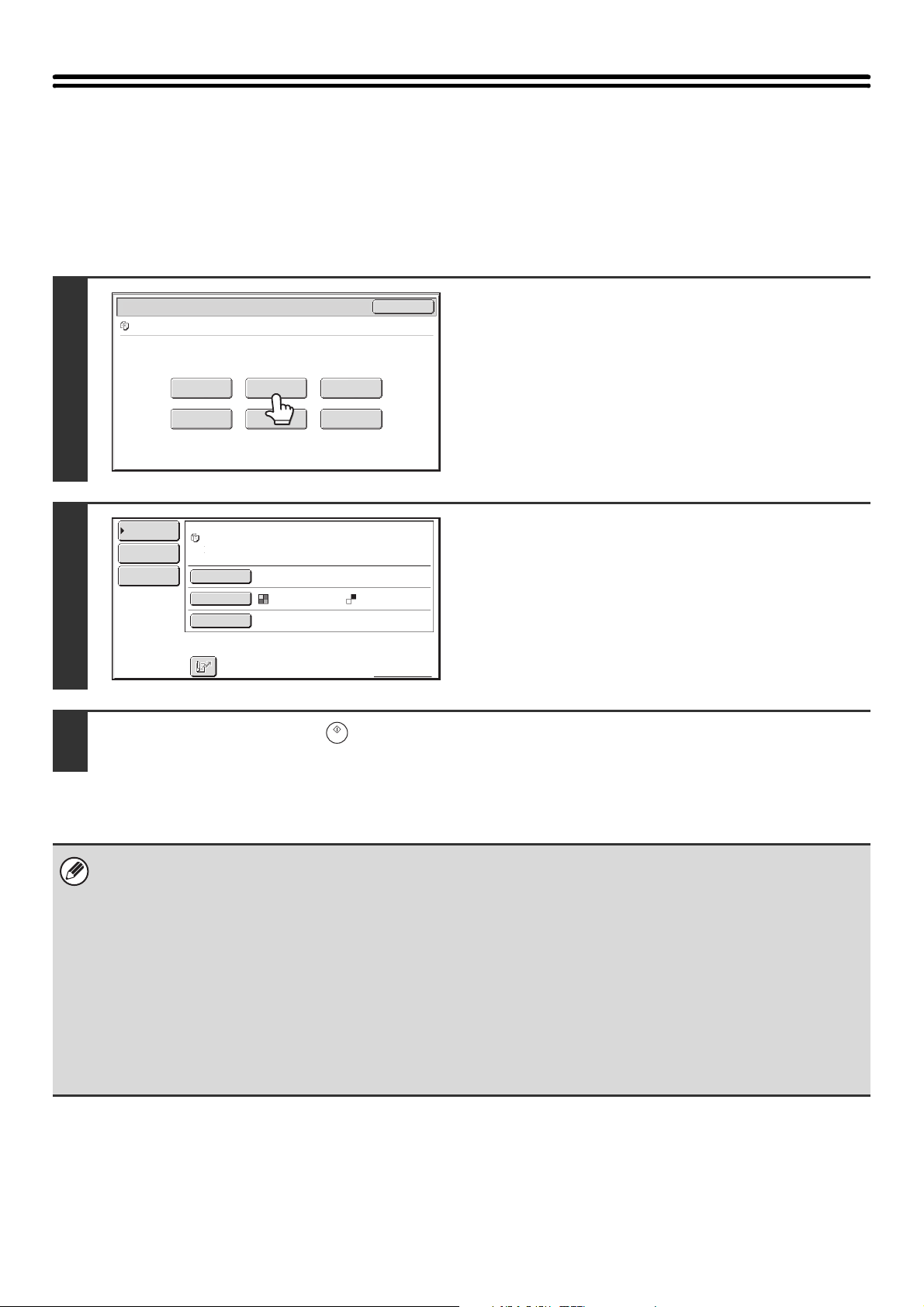
37
SENDING A STORED FILE
A file stored by document filing can be retrieved and transmitted whenever needed. The settings used when the file was
stored are also stored, and thus the file can be transmitted using those settings. If needed, you can also change the
transmission settings to modify the retrieved file.
After selecting the desired file, follow the steps below.
☞ SELECTING A FILE (page 31)
1
Touch the [Send] key.
2
Select transmission settings.
For information on the settings, see "SEND SETTINGS
SCREEN" (page 38).
3
Press the [START] key ( ).
• A file saved in black and white or grayscale cannot be transmitted in color.
• Print files and files for which the storage format is "Hi-Speed Print Mode" cannot be transmitted. Check the storage format
in the [Detail] screen.
• These transmission methods require installation of the corresponding options.
• If any of the following special modes were included in the saved file, the file cannot be transmitted.
"Pamphlet Copy", "Covers/Inserts", "Photo Repeat", "Multi-Page Enlargement", "Multi Shot" for copying.
•
If any of the following special modes were included in the saved file, the file can be transmitted but the special modes will
not be executed.
"Margin Shift", "Transparency Inserts", "Book Copy", "Tab Copy", "Stamp", "Centering"
• Depending on the reduction or enlargement ratio used when storing a file, it may not be possible to send the stored file
using a selected resolution setting. In this event, try changing the resolution.
However, when sending a stored file by Internet fax, transmission may not be possible even if the resolution is changed.
Job Settings
Cancel
file-01 Name 1 8½x11 B/W
Print Send
Property
Change
Move Delete Detail
Select the job.
Address Book
Address Entry
Send Settings
Resolution
File Format
Special Modes
file-01
B/W
200X200dpi
PDF PDF
Name 1
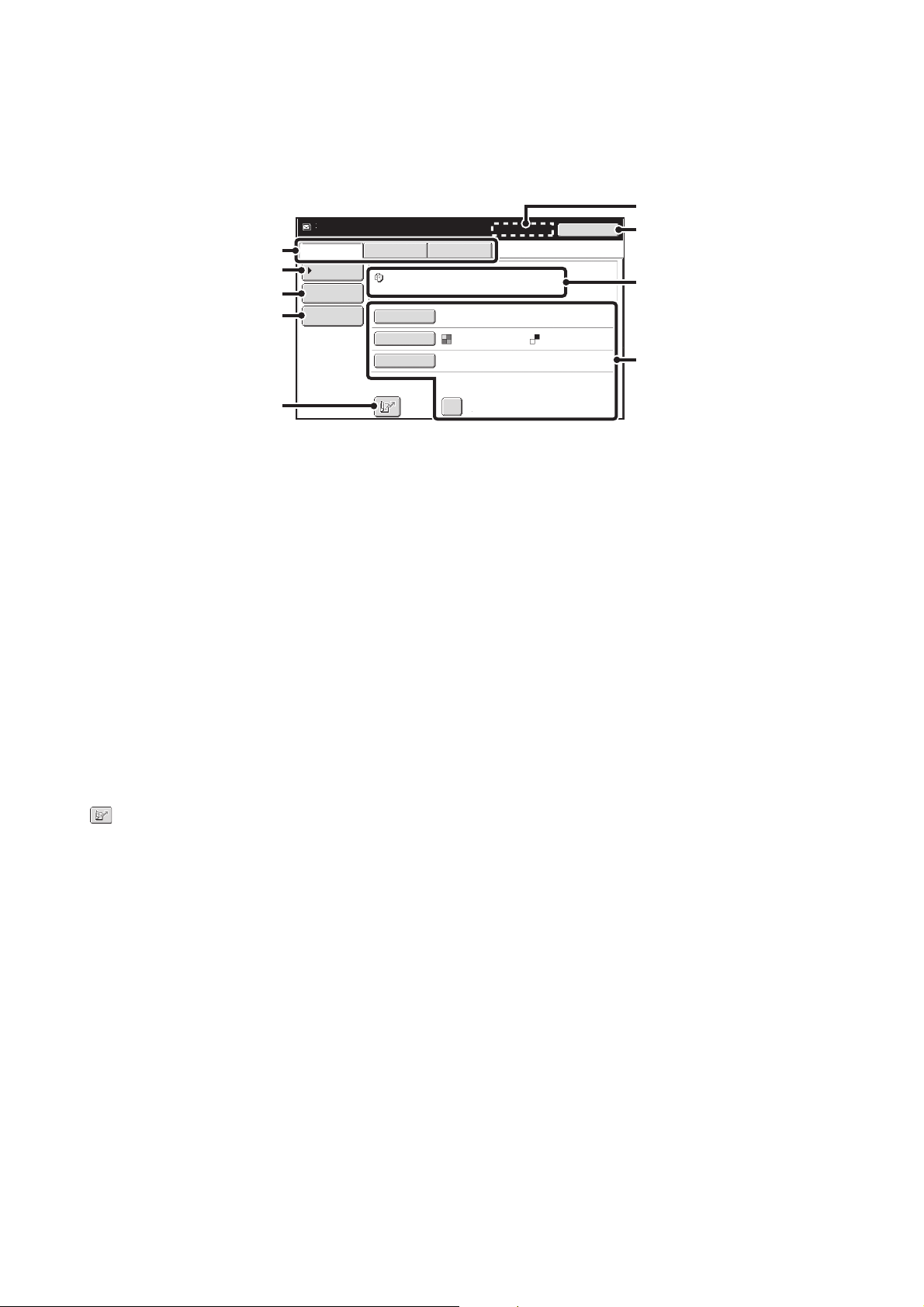
38
SEND SETTINGS SCREEN
The keys that appear in the send settings are explained below. For more information on each of the settings, see "BASE
SCREEN" in the Image Send Guide.
Example of scan mode
(1) Send mode tabs
Touch the appropriate tab to select fax mode, scan
mode, or Internet fax mode.
(2) [Address Book] key
Touch this key to display the destinations stored in the
address book.
(3) [Address Entry] key or [Sub Address] key
Use this key to directly enter an address when sending a
file in scan mode or Internet Fax mode.
In fax mode this appears as the "Sub Address" key. Use
this key to enter a sub-address and password for F-code
communication.
(4) [Send Settings] key
This key appears in scan mode and Internet fax mode.
Touch the key to enter a subject and a file name when
performing a transmission. In scan mode, a sender can
also be specified.
(5) key
The 3-digit search number that was assigned to a
one-touch key or group key when the key was stored can
be entered to specify a destination.
(6) [Next Address] key
This key appears when at least one address has been
entered. Use this key when you are sending a file to
multiple destinations.
(7) [Cancel] key
This returns you to the job settings screen.
(8) File name / User name display
This shows the icon of the file to be sent, the file name,
the user name, and the color mode (color/black & white).
(9) Any of these keys can be touched to change the
corresponding settings of the file to be sent. The
settings that can be selected vary by mode.
• Scan mode
[Resolution] key
Use this to select the resolution. A resolution setting
higher than the resolution at which the file was stored
cannot be selected.
[File Format] key
This lets you select the file type and compression ratio.
[Special Modes] key
This displays the [Timer] key.
[B/W Send] checkbox
Select this checkbox to send a full color file in black
and white.
If the color expansion kit is not installed, or if a black &
white file is being sent, this checkbox will not appear.
• Internet fax mode
[Resolution] key
Use this to select the resolution. A resolution setting
higher than the resolution at which the file was stored
cannot be selected.
[File Format] key
Use this to select the file type and compression ratio.
[Special Modes] key
This displays the [Timer] and [Transaction Report]
keys.
• Fax mode
[Resolution] key
Use this to select the resolution. A resolution setting
higher than the resolution at which the file was stored
cannot be selected.
[Special Modes] key
This displays the [Timer], [Own Name Select], and
[Transaction Report] keys.
Address Book
Address Entry
Send Settings
Resolution
File Format
Special Modes
file-01
F.Color
200X200dpi
B/W Send
PDF PDF
Name 1
Scan Internet Fax Fax
Ready to send.
Cancel
(6)
(1)
(2)
(3)
(4)
(5)
(8)
(9)
(7)
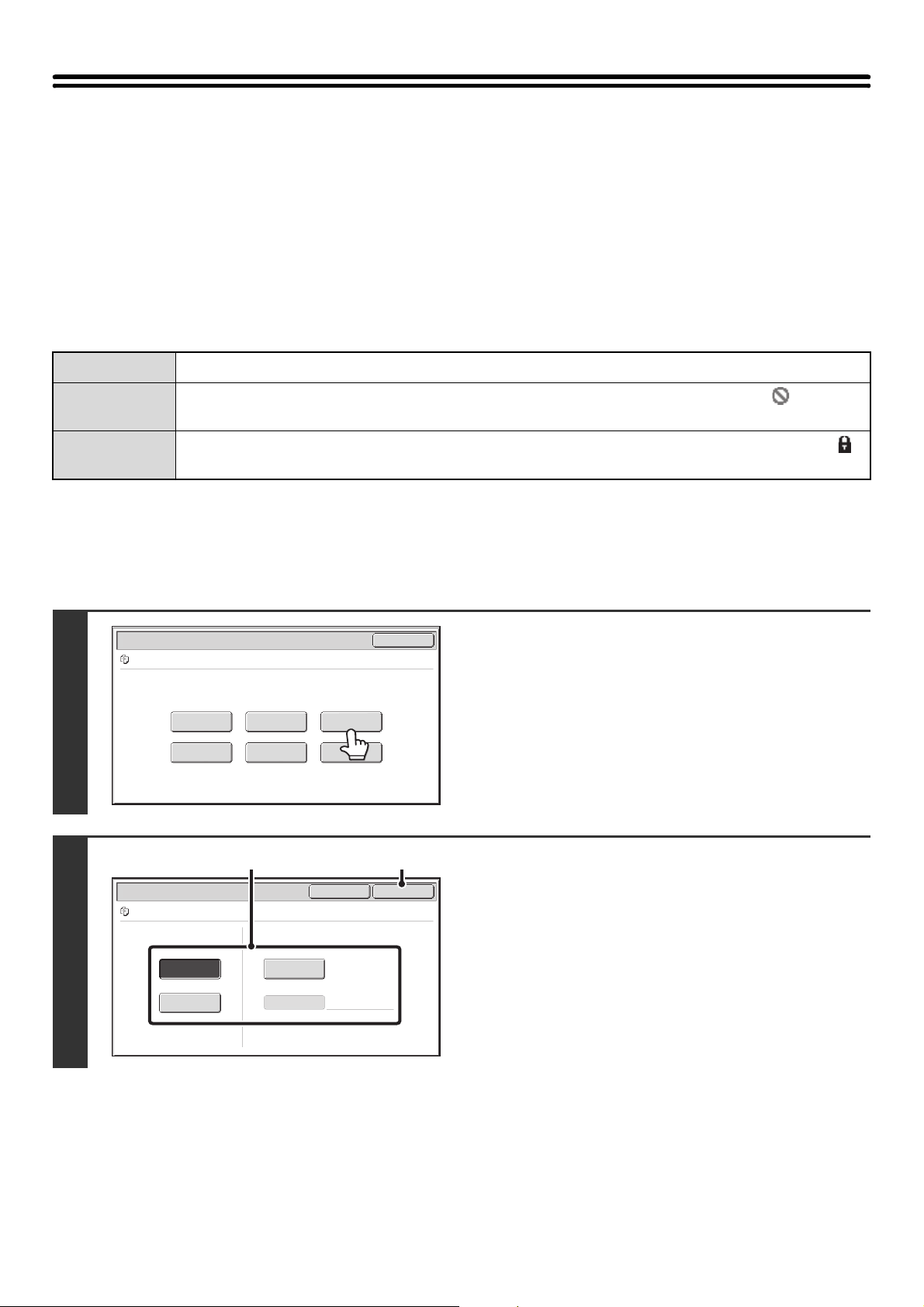
39
PROPERTIES OF STORED FILES
FILE PROPERTIES
A protect setting can be selected for files saved with the document filing function. This prevents a file from being moved,
or automatically or manually deleted.
Three properties are available for saved files: [Sharing], [Protect], and [Confidential]. When saved with the [Sharing]
property, a file is not protected. When saved with the [Protect] or [Confidential] property, a file is protected.
Files saved to the Quick File folder are all saved as [Sharing] files. When a file is saved to the Main folder or a custom
folder, [Sharing] or [Confidential] can be selected.
CHANGING THE PROPERTY
After selecting the desired file, follow the steps below.
☞ SELECTING A FILE (page 31)
Sharing
A [Sharing] file can be changed to [Protect] or [Confidential] using [Property Change] in the Job Settings.
Protect
"Protect" prevents a file from being moved or deleted. A password cannot be established. The icon
appears with the mode icon in the file key of a protected file.
Confidential
To protect a "Confidential" file, a password is set. (The password must be entered to retrieve the file.) The
icon appears with the mode icon in the file key of a confidential file.
1
Touch the [Property Change] key.
2
Select the property.
(1) Touch the key of the desired property.
When the [Confidential] key is touched, the [Password]
key can be touched.
Touch the [Password] key, enter a password (5 to 8 digits)
with the numeric keys, and touch the [OK] key.
(2) Touch the [OK] key.
Job Settings
Cancel
file-01 Name 1 8½x11 B/W
Print Send
Property
Change
Move Delete Detail
Select the job.
Job Settings / Property Change
OKCancel
file-01 Name 1 8½x11 B/W
Confidential
Sharing
Protect
Password
(1) (2)
40
Restrictions on changing the property
• A file that is set to "Sharing" can be changed to "Protect" or "Confidential". However, a "Sharing" file that is saved in the
Quick File folder can only be changed to "Protect".
• A file that is set to "Protect" can be changed to "Sharing" or "Confidential". However, a "Protect" file that is saved in the
Quick File folder can only be changed to "Sharing".
• A file that is saved in the Quick File folder cannot be changed to "Confidential". If the file is moved to the Main folder or a
custom folder, the property can be changed to "Confidential".
• Two properties cannot be selected for a single file.
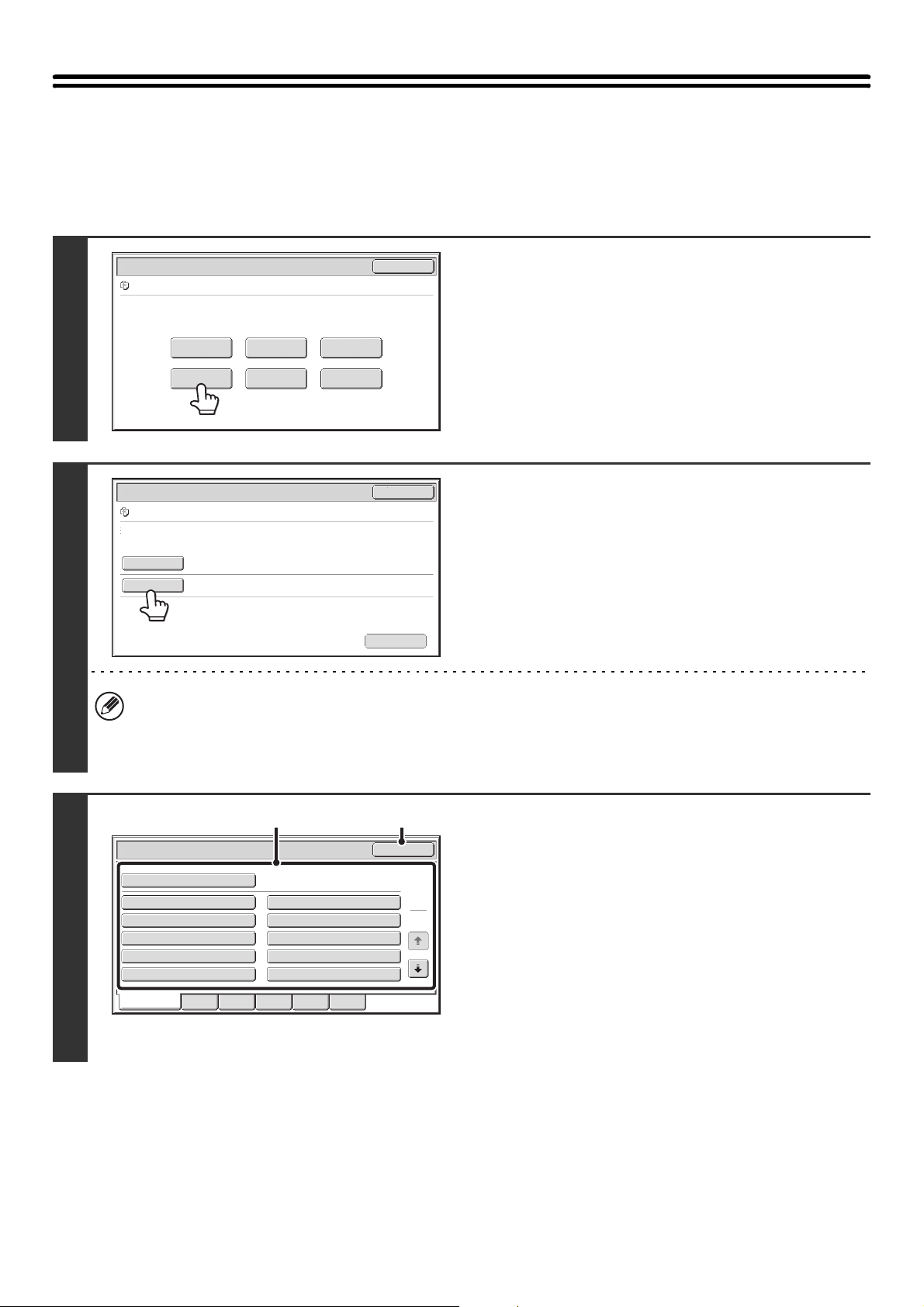
41
MOVING A STORED FILE
Use this procedure to change the location of a file (move a file to a different folder).
After selecting the desired file, follow the steps below.
☞ SELECTING A FILE (page 31)
1
Touch the [Move] key.
2
Touch the [Move to:] key.
• A file cannot be moved to the Quick File Folder. With this procedure, the original name is changed and the file is
moved to the specified folder. (Unlike the "Save As" command on a computer, the file is not copied to the specified
folder with the original file remaining in the original location.)
• To change the file name, touch the [File Name] key.
3
The above screen shows the custom folders as an
example.
Select the destination folder.
(1) Touch the key of the folder to which you
want to move the file.
If a password is set for the selected folder, a password
entry screen will appear.
Enter the password with the numeric keys (5 to 8 digits)
and touch the [OK] key.
(2) Touch the [OK] key.
Job Settings
Cancel
file-01 Name 1 8½x11 B/W
Print Send
Property
Change
Move Delete Detail
Select the job.
Job Settings / Move
Cancel
file-01 Name 1 B/W
File Name
Move to:
Select the folder the file is moved to.
file-01
Move
8½x11
Main Folder
OK
Job Settings / Move
1
2
All Folders ABCD EFGHI JKLMN OPQRST UVWXYZ
User 1
User 3
User 5
User 7
User 9
User 2
User 4
User 6
User 8
User 10
(1) (2)
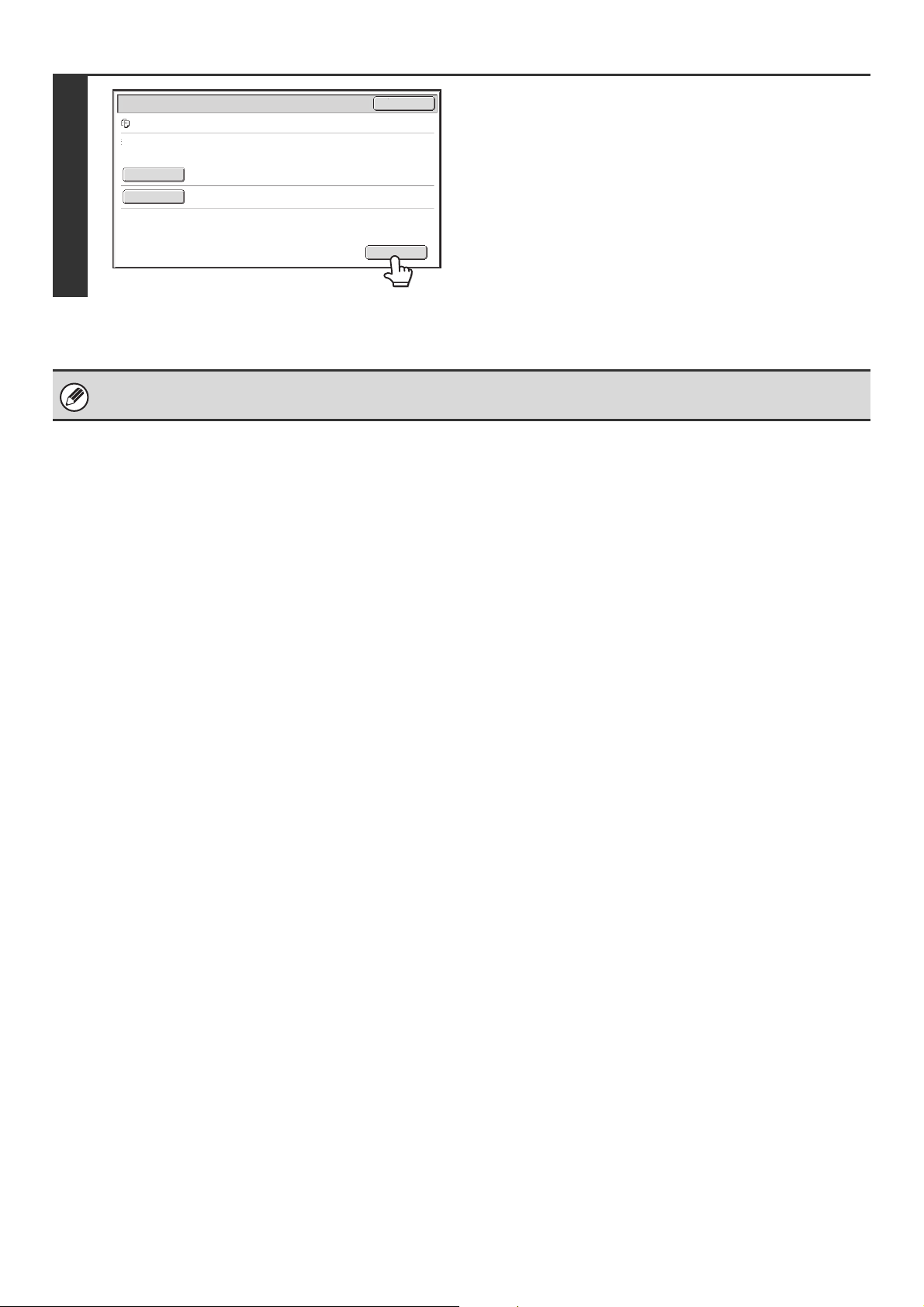
42
4
Touch the [Move] key.
A file whose property is "Protect" cannot be moved. To move a protected file, change its property to "Sharing" or
"Confidential".
User 2
Move
Job Settings / Move
Cancel
file-01 Name 1 B/W
File Name
Move to:
Select the folder the file is moved to.
file-01
8½x11
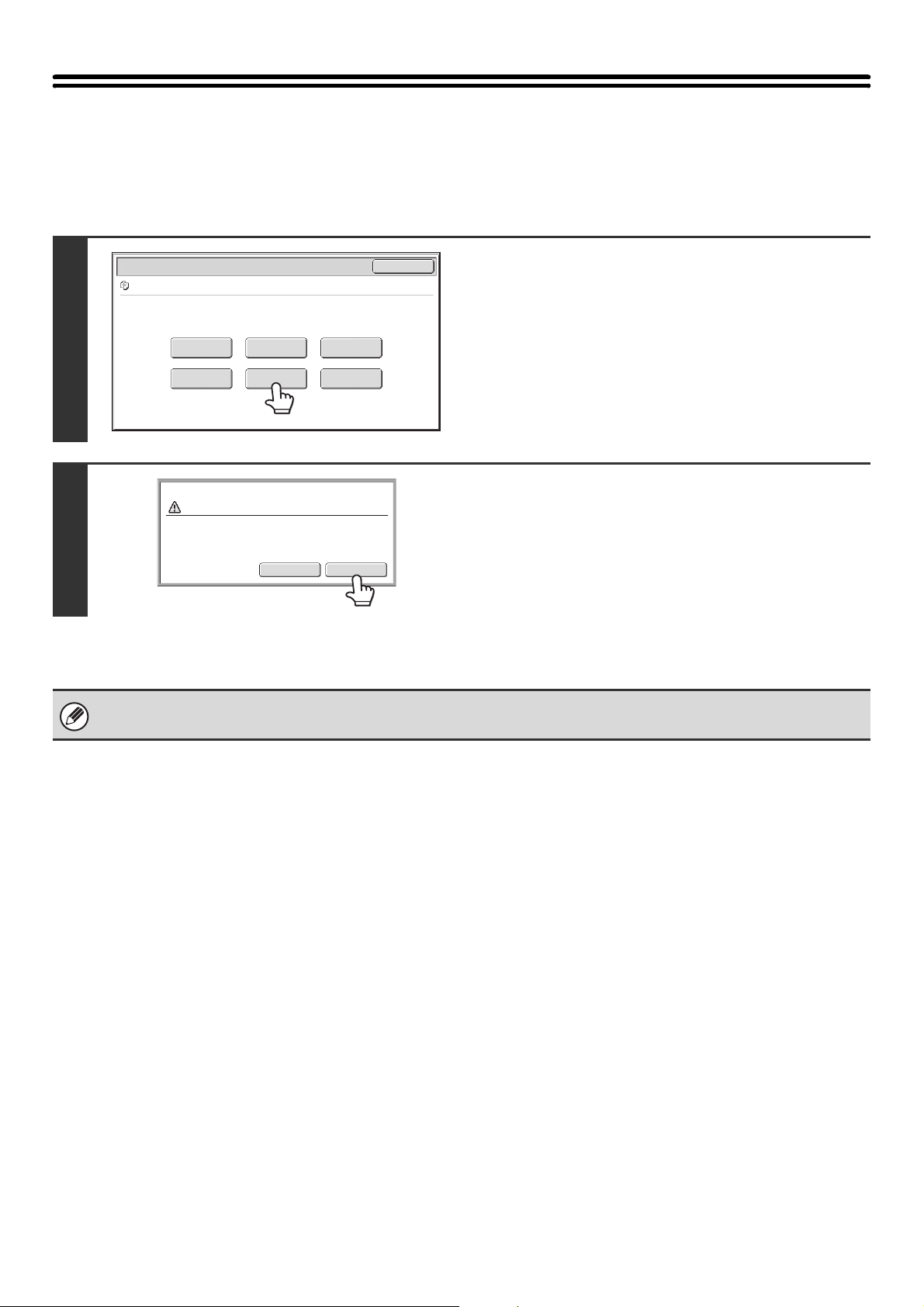
43
DELETING A STORED FILE
Stored files that are no longer needed can be deleted.
Select the file that you wish to delete and touch the [Delete] key.
☞ SELECTING A FILE (page 31)
1
Touch the [Delete] key.
2
Check the file and then touch the [Yes]
key.
A file whose property is "Protect" cannot be deleted. To delete a protected file, change its property to "Sharing" or
"Confidential".
Job Settings
Cancel
file-01 Name 1 B/W
Print Send
Property
Change
Move Delete Detail
Select the job.
8½x11
YesNo
Delete the file data?
Name 1
file-01
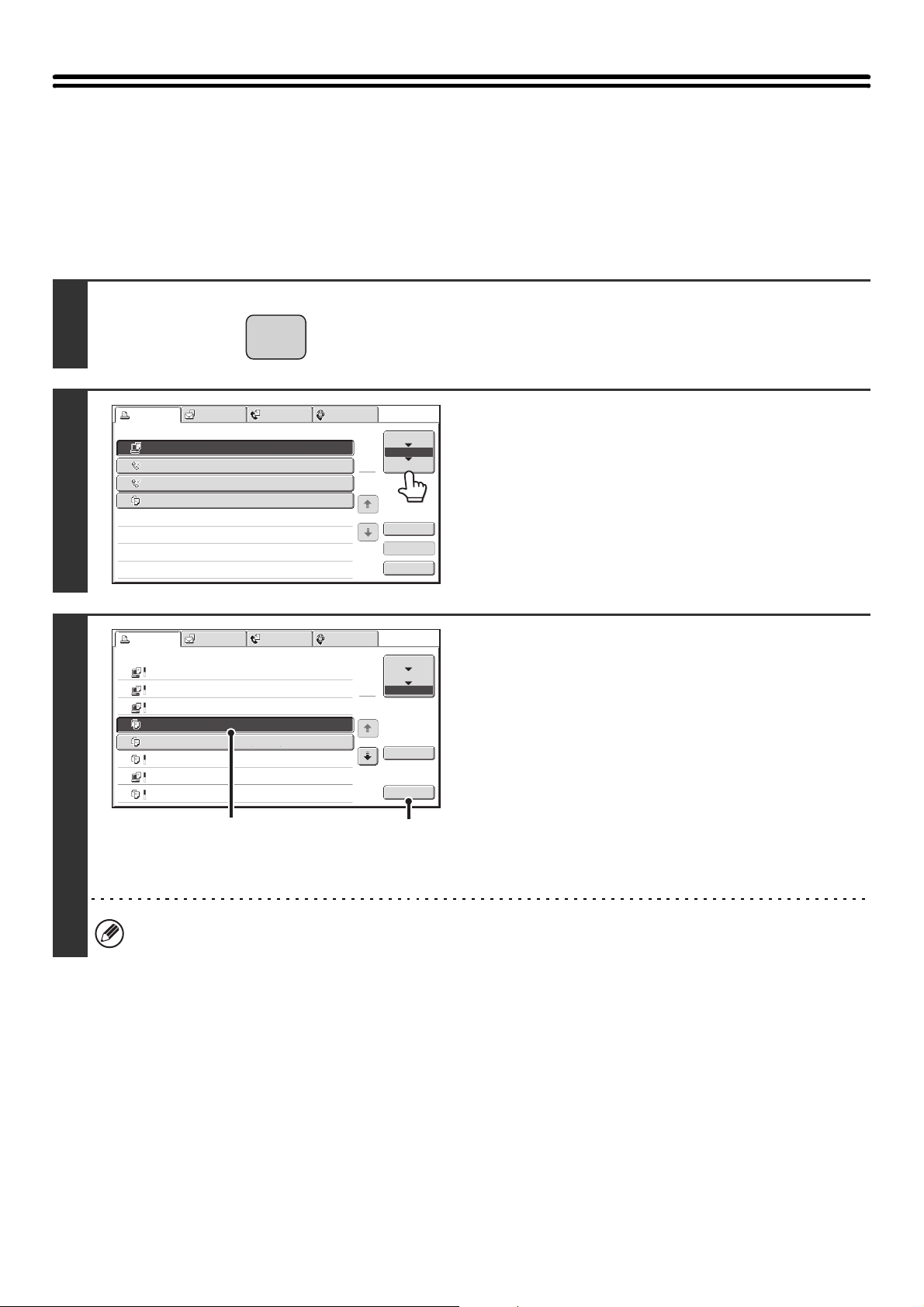
44
RETRIEVING AND USING A FILE FROM THE
JOB STATUS SCREEN
Files stored using File and Quick File appear as keys in the job status complete screen.
This is convenient when you need to quickly print the saved data of a copy job or quickly send a saved fax to another
destination.
1
Press the [JOB STATUS] key.
2
Touch the job status selector key so that
[Complete] is highlighted.
3
Select the desired file in the completed
jobs.
(1) Touch the key of the desired file.
(2) Touch the [Call] key.
The job settings screen appears.
Select and perform the desired operation.
☞ JOB SETTINGS SCREEN (page 32)
PRINTING A STORED FILE (page 33)
SENDING A STORED FILE (page 37)
PROPERTIES OF STORED FILES (page 39)
MOVING A STORED FILE (page 41)
DELETING A STORED FILE (page 43)
To view information on a file, select the file and then touch the [Detail] key.
JOB STATUS
Print Job Scan to Fax Job Internet Fax
Computer01 0002/0001 Printing
Direct Entry 0002/0000 Waiting
Direct Entry 0002/0000 Waiting
Copy 0002/0000 Waiting
Spool
Job Queue
Complete
Job Queue Sets / Progress Status
1
1
Detail
Stop/Delete
Priority
1
2
3
4
Print Job Scan to Fax Job Internet Fax
Computer02 11:00 04/04 0001/0001 OK
10:33 04/04 0010/0010 OK
10:31 04/04 0013/0013 OK
10:30 04/04 0010/0010 OK
Computer03
Computer04
file-01
10:13 04/04 0001/0001 OKCopy
10:03 04/04 0001/0001 OKCopy
10:01 04/04 0003/0003 OKComputer05
10:00 04/04 0010/0010 OKCopy
Spool
Job Queue
Complete
Jobs Completed
Set Time StatusSets
1
1
Detail
Call
(2)
(1)
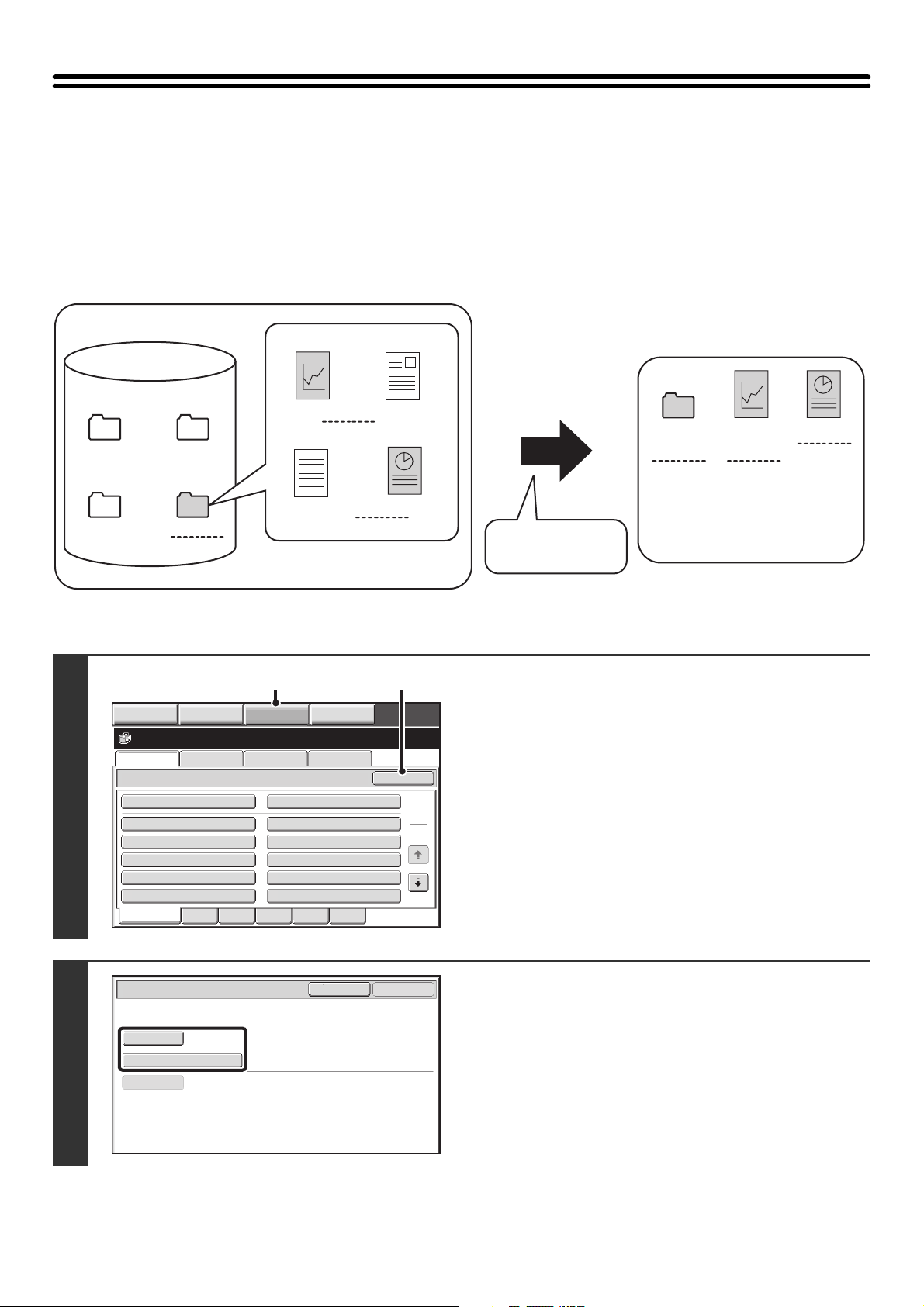
45
SEARCHING FOR A STORED FILE
When there are many stored files, it may take time to find a file. The search function of document filing mode can be
used to find a file quickly.
This section explains how to search for a file or folder on the machine's hard drive.
Searching is possible even when you only know part of the file name or folder name. A folder can also be specified as a
search range.
Example: Only part of a file name is known: "Meeting"
1
Open the file search screen.
(1) Touch the [DOCUMENT FILING] key.
(2) Touch the [Search] key.
2
Touch the [User Name] key or the [File
or Folder Name] key.
If you know the user name, touch the [User Name] key and go
to "Using the user name to search" in step 3.
If you know the file name, touch the [File or Folder Name] key
and go to "Using the file name or folder name to search" in step
3.
When you search
using "Meeting"...
All folders and files that
include "Meeting" will be
listed.
[Search results]
Text 1
Report
Regular meeting
Regular
meeting
Meeting graphs
Meeting
graphs
Main
Quick File
For individuals
For meetings
For
meetings
[Hard drive]
File Retrieve Scan to HDD HDD Status
Ex Data Access
Main Folder
User 1
User 3
User 5
User 7
User 9
User 2
User 4
User 6
User 8
User 10
Quick File Folder
Search
Folder Select
1
2
All Folders ABCD EFGHI JKLMN OPQRST UVWXYZ
IMAGE SEND
DOCUMENT
FILING
MANUAL
FINISHING
COPY
(1) (2)
Search
Cancel
Start Search
User Name
File or Folder Name
Password
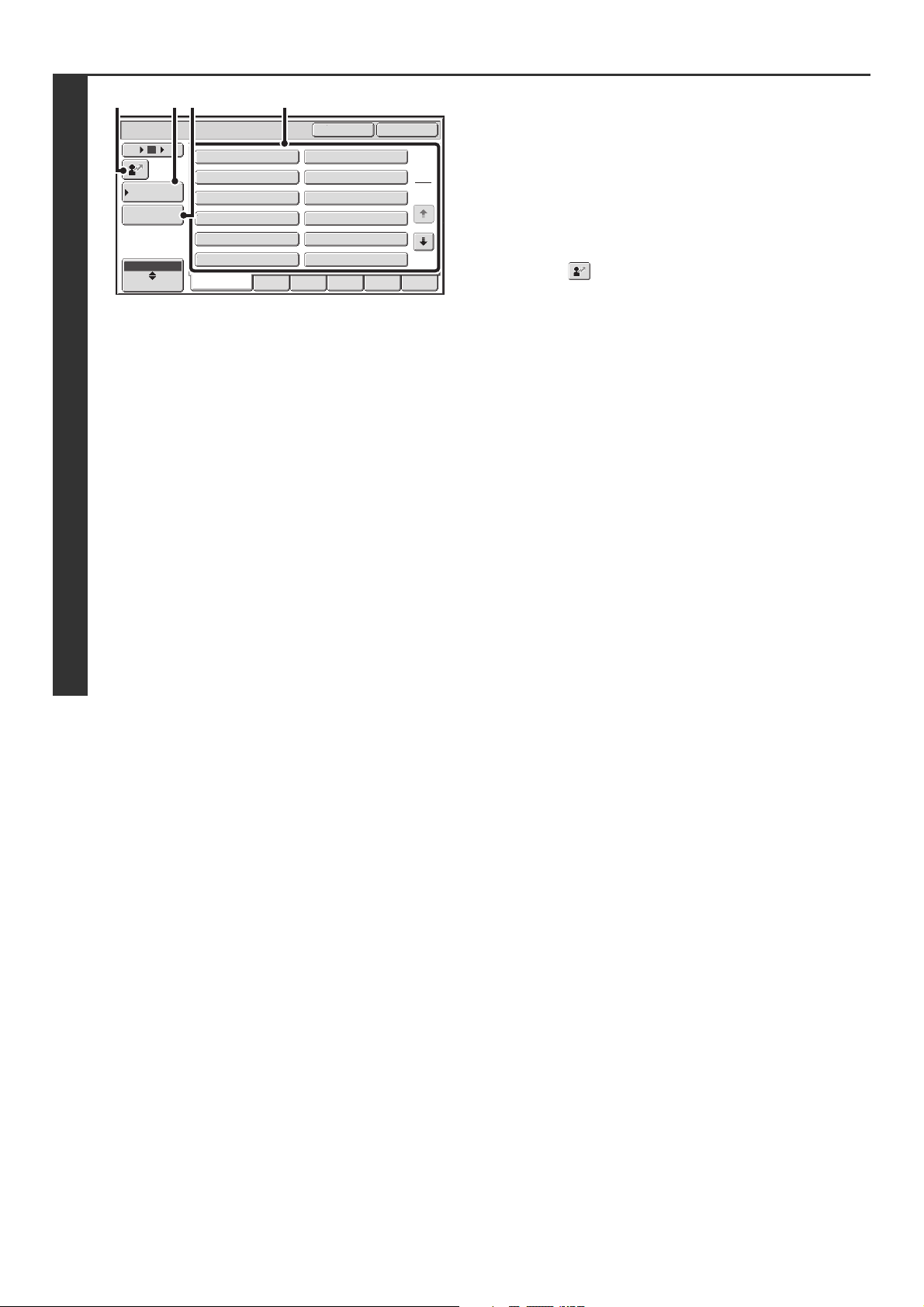
46
3
Using the user name to search
There are four ways to select the user name:
(A) Touch the key of the user name.
The touched user name is highlighted.
If you accidentally select the wrong user name, touch the
key of the correct name.
(B) Touch the [Default User] key.
The user name can be selected from the factory stored
users.
(C) Touch the key.
An area for entering the "Registration No." [---] appears in
the message display. Enter the "Registration No." set
during user registration. This will allow you to select the
user name.
(D) Touch the [Direct Entry] key.
A text entry screen appears. Directly enter the user name.
To enter text, see "7. ENTERING TEXT" in the User's
Guide. Searching is possible even if you only enter the first
several letters of the user name.
After selecting the user name, touch the [OK] key.
After the user name is selected, the [Password] key can be
touched. To search for files of the selected user name that
have a certain password, touch the [Password] key and enter
the password.
(It is not possible to search using a password only.)
Using the file name or folder name to
search
Enter the file name or folder name in the text entry screen that
appears and touch the [OK] key.
User Name
OK
Cancel
6 18
12
ABC
User
Name 3
Name 1
Name 5
Name 7
Name 9
Name 11
Name 2
Name 4
Name 6
Name 8
Name 10
Name 12
1
2
All Users ABCD EFGHI JKLMN OPQRST UVWXYZ
Default User
Direct Entry
(A)
(B)
(D)
(C)
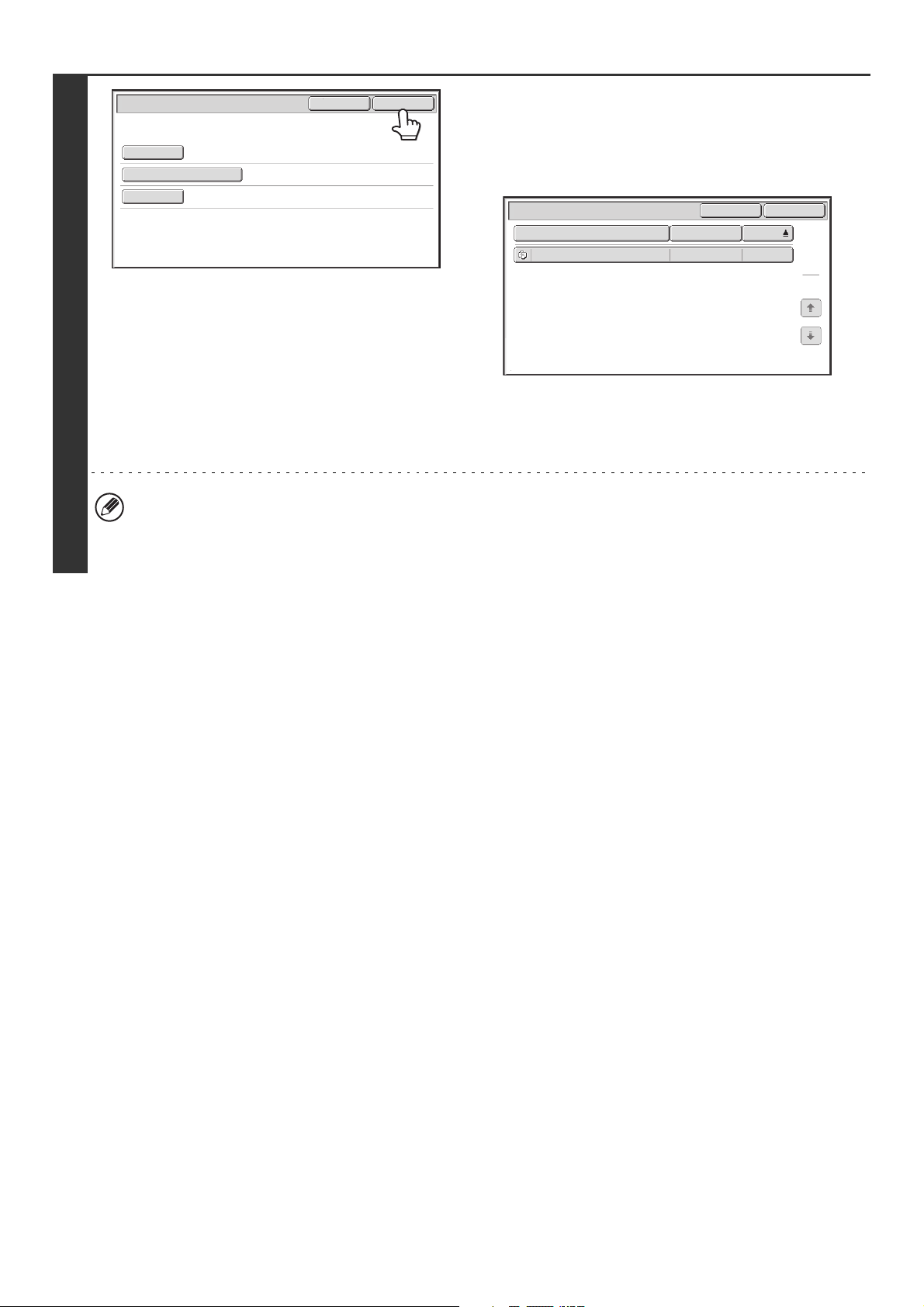
47
4
Touch the [Start Search] key.
The search results will appear in a screen similar to the
following screen. A list of the files that match your search
criteria will appear. Select the desired file from the list.
The job settings screen will appear.
To return to the base screen of document filing mode,
touch the [Cancel] key.
To return to the file search screen, touch the [Search
Again] key.
• When you search using [File or Folder Name], custom folders that match the search characters will also appear in
the list. When a folder key is touched, a list of the files in the folder appears. Touch the desired file in the list.
• You can also use the Web pages to search for a file. Click [Document Operations], [Document Filing], and then
[Search] in the Web page menu.
Start Search
Password
file-01
Name 1
Search
Cancel
User Name
File or Folder Name
Search
File or Folder Name
file-01
Name 1
04/04/2010
User Name Date
1
1
Search AgainCancel
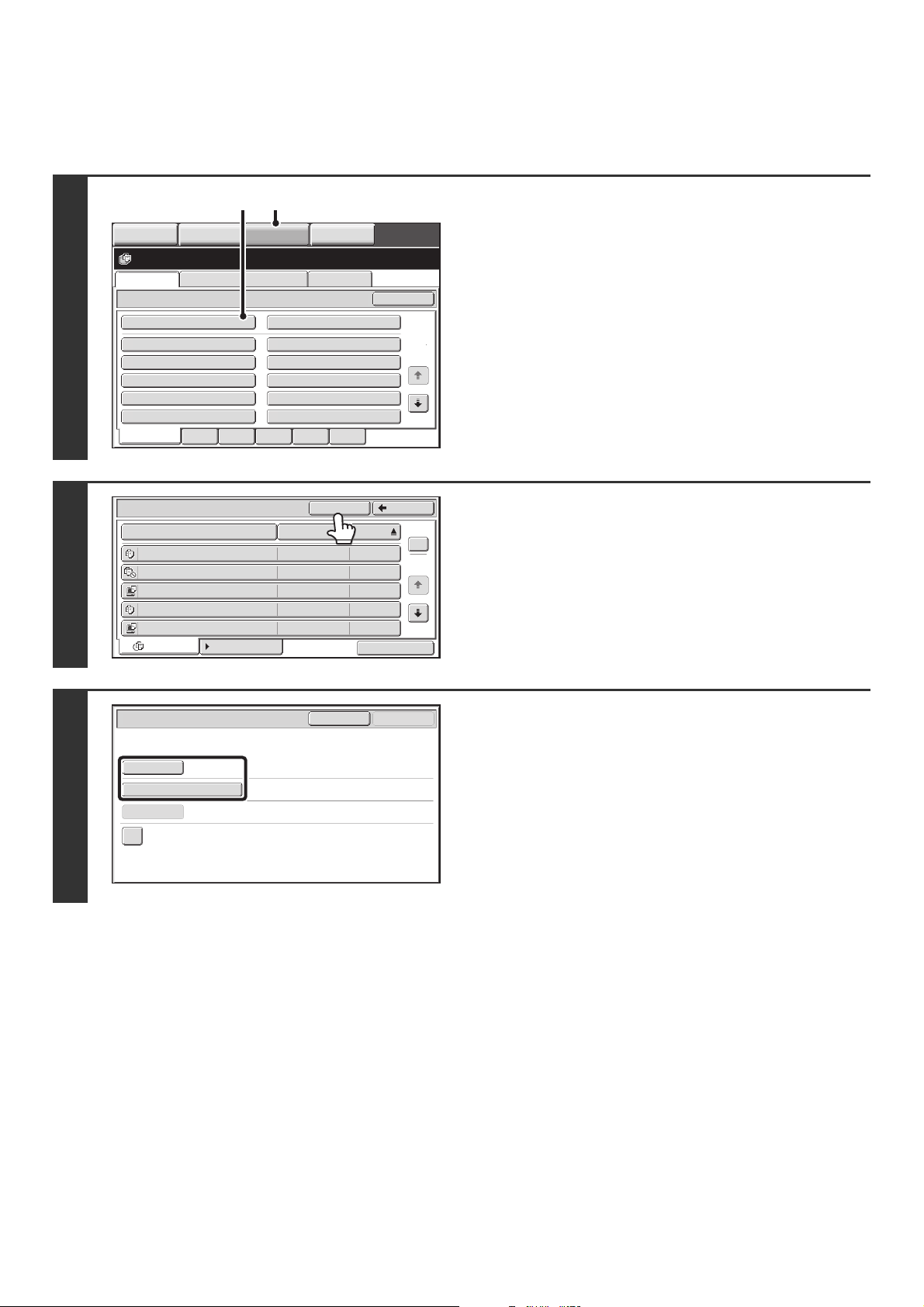
48
Searching within a folder
You can specify a folder to restrict the search range to that folder. To search within a specified folder, follow the steps
below.
1
Open the folder that you wish to search.
(1) Touch the [DOCUMENT FILING] key.
(2) Touch the key of the folder that you wish to
search.
If a password is set for the selected folder, a password
entry screen will appear.
Enter the password with the numeric keys (5 to 8 digits)
and touch the [OK] key.
2
Touch the [Search] key.
3
Touch the [User Name] key or the [File
or Folder Name] key.
If you know the user name, touch the [User Name] key and go
to "Using the user name to search" in step 4.
If you know the file name, touch the [File or Folder Name] key
and go to "Using the file name or folder name to search" in step
4.
File Retrieve Scan to HDD HDD Status
Ex Data Access
Main Folder
User 1
User 3
User 5
User 7
User 9
User 2
User 4
User 6
User 8
User 10
Quick File Folder
Search
Folder Select
1
2
All Folders ABCD EFGHI JKLMN OPQRST UVWXYZ
IMAGE SEND
DOCUMENT
FILING
MANUAL
FINISHING
COPY
(1)(2)
User 1
File Name
file-01 Name 1 04/04/2010
file-02 Name 2 04/04/2010
file-03 Name 3 04/04/2010
file-04 Name 4 04/04/2010
file-05 Name 5 04/04/2010
User Name Date
All Files Filter by Job
1
2
BackSearch
Batch Print
Search within Current Folder
Search
Cancel
Start Search
User Name
File or Folder Name
Password
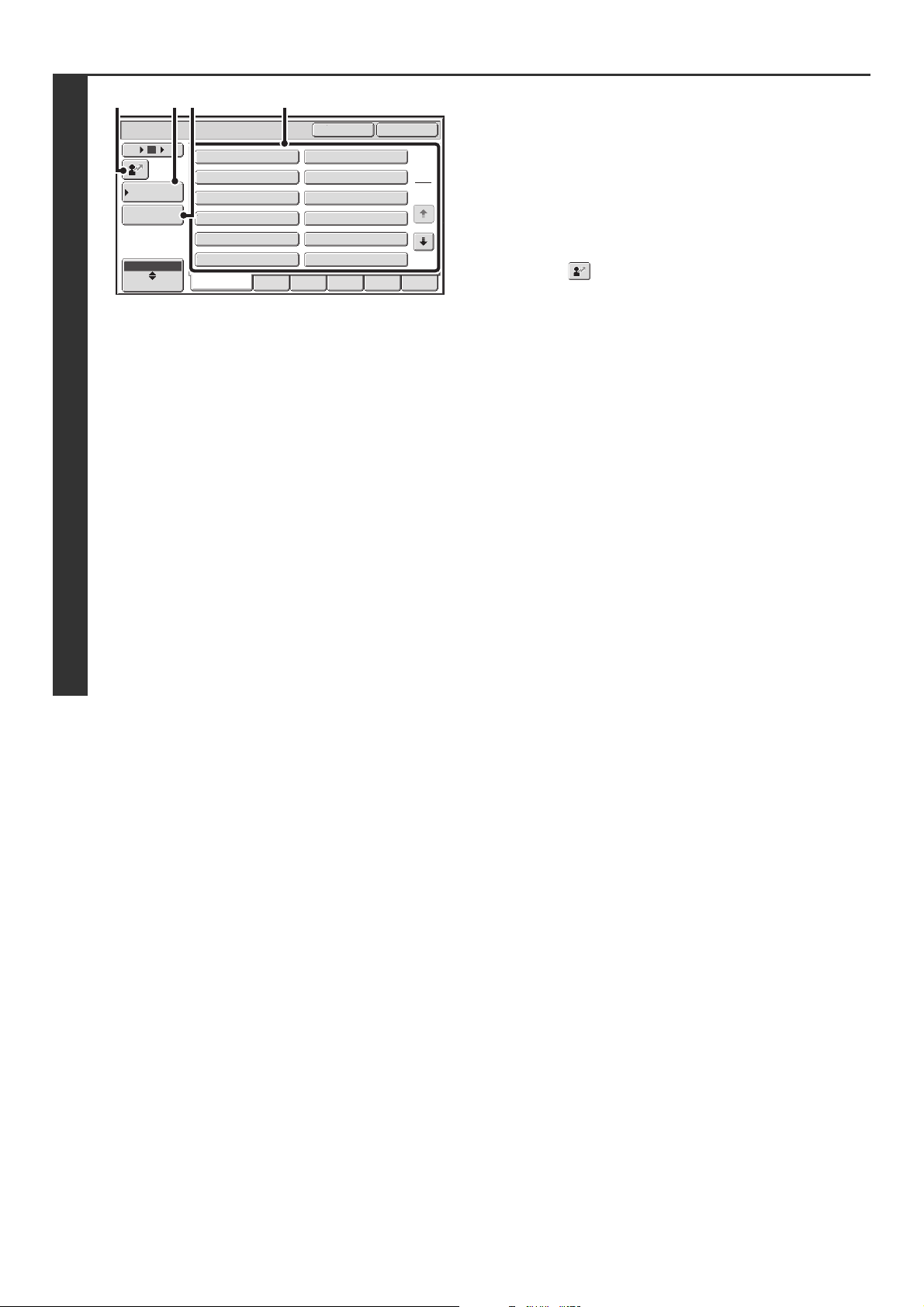
49
4
Using the user name to search
There are four ways to select the user name:
(A) Touch the key of the user name.
The touched user name is highlighted.
If you accidentally select the wrong user name, touch the
key of the correct name.
(B) Touch the [Default User] key.
The user name can be selected from the factory stored
users.
(C) Touch the key.
An area for entering the "Registration No." [---] appears in
the message display. Enter the "Registration No." set
during user registration. This will allow you to select the
user name.
(D) Touch the [Direct Entry] key.
A text entry screen appears. Directly enter the user name.
To enter text, see "7. ENTERING TEXT" in the User's
Guide. Searching is possible even if you only enter the first
several letters of the user name.
After selecting the user name, touch the [OK] key.
After the user name is selected, the [Password] key can be
touched. To search for files of the selected user name that
have a certain password, touch the [Password] key and enter
the password.
(It is not possible to search using a password only.)
Using the file name or folder name to
search
Enter the file name in the text entry screen that appears and
touch the [OK] key.
User Name
OK
Cancel
6 18
12
ABC
User
Name 3
Name 1
Name 5
Name 7
Name 9
Name 11
Name 2
Name 4
Name 6
Name 8
Name 10
Name 12
1
2
All Users ABCD EFGHI JKLMN OPQRST UVWXYZ
Default User
Direct Entry
(A)
(B)
(D)
(C)
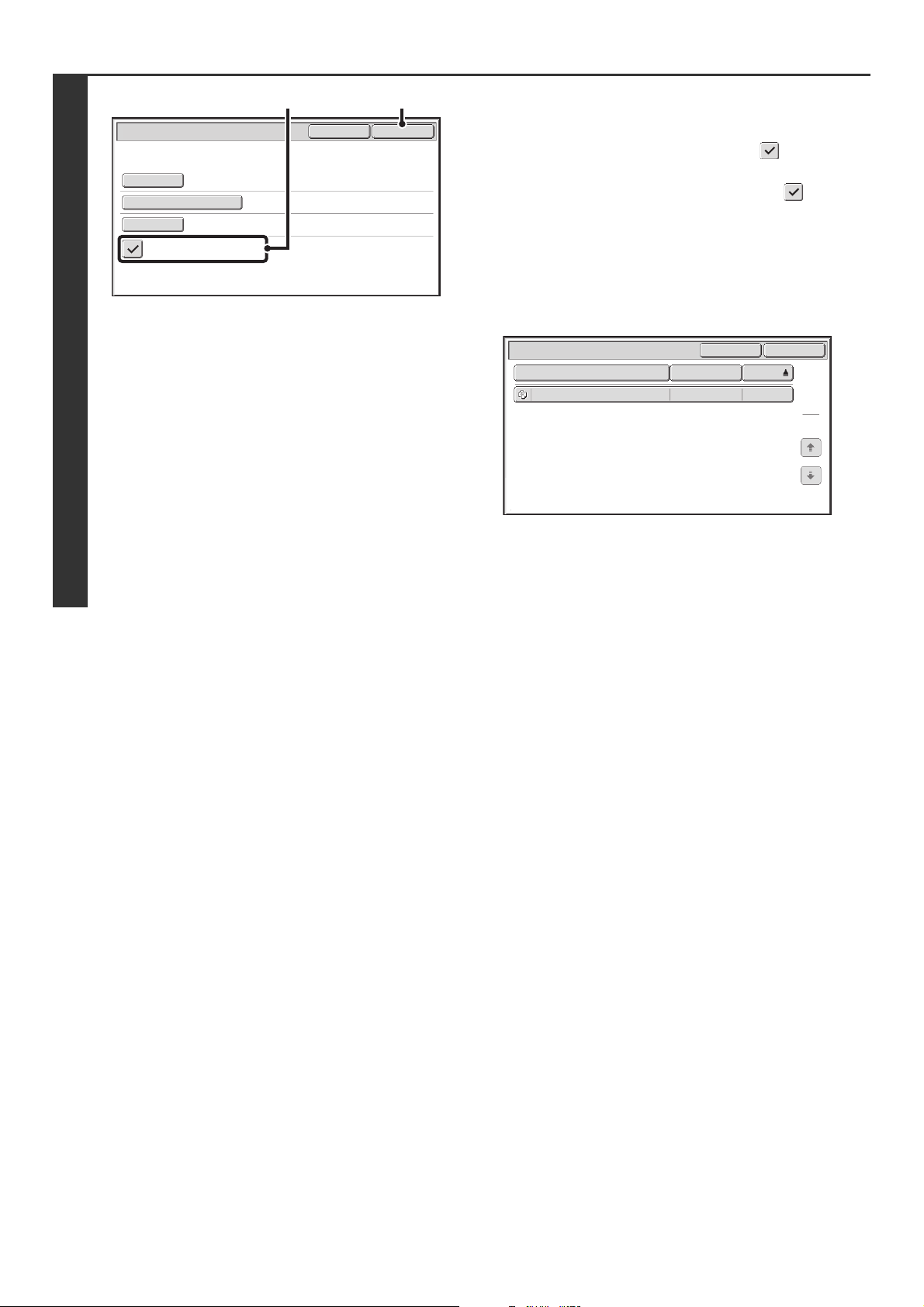
50
5
Start searching.
(1) Touch the [Search within Current Folder]
checkbox so that it is selected .
To search only files that are in the current folder, select
the [Search within Current Folder] checkbox .
Use this method to search for a file in a confidential folder.
(2) Touch the [Start Search] key.
The search results will appear in a screen similar to the
following screen. A list of the files that match your search
criteria will appear. Select the desired file from the list.
The job settings screen will appear.
To return to the base screen of document filing mode,
touch the [Cancel] key.
To return to the file search screen, touch the [Search
Again] key.
Start Search
Password
file-01
Name 1
Search within Current Folder
Search
Cancel
User Name
File or Folder Name
(2)(1)
Search
File or Folder Name
file-01
Name 1
04/04/2010
User Name Date
1
1
Search AgainCancel
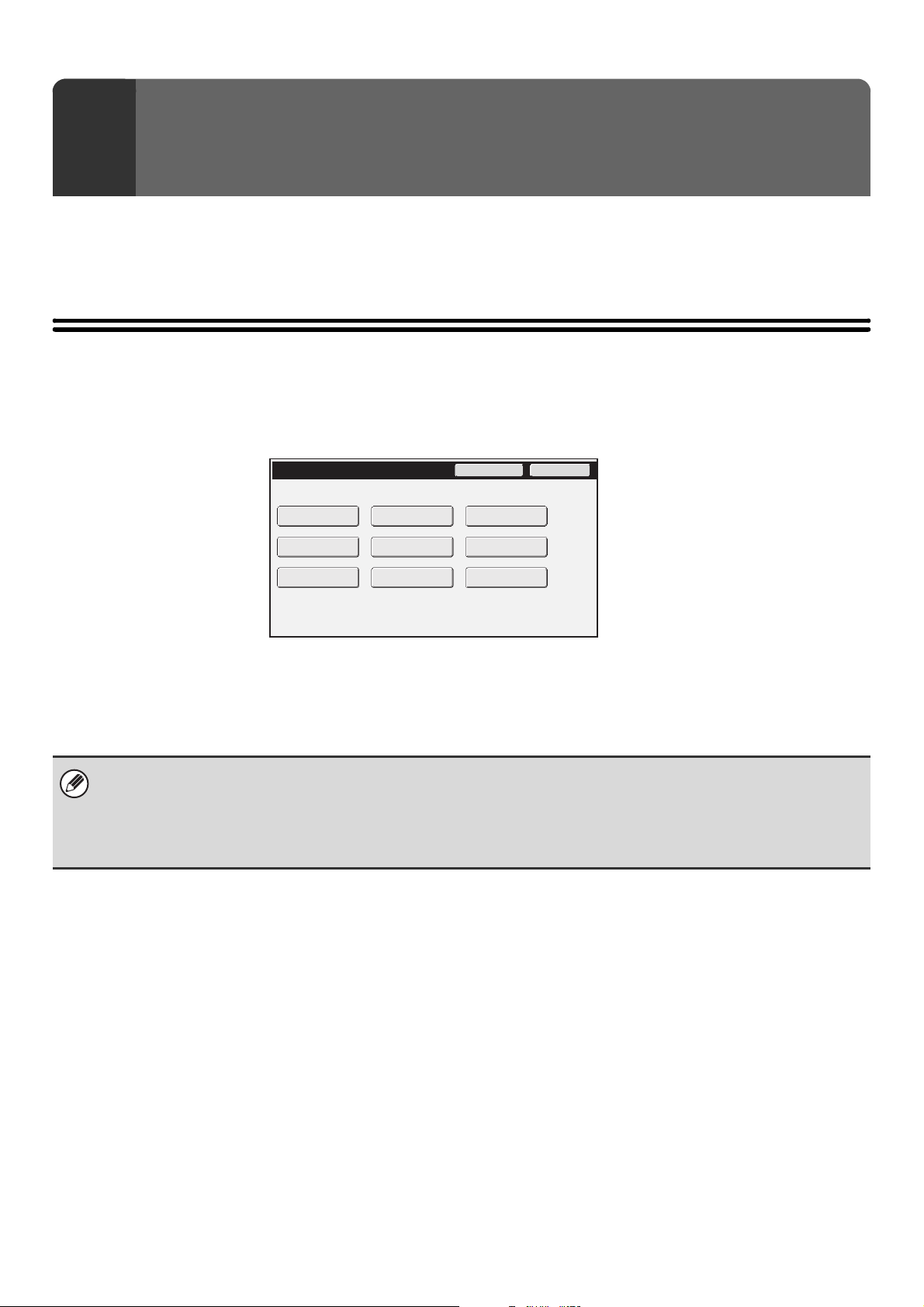
51
This chapter explains the system settings for the document filing function that can be configured by general users.
For information on configuring the system settings, see the User's Guide. For system settings that require administrator
rights, see the Administrator's Guide.
ACCESSING THE SYSTEM SETTINGS
Make sure that the machine is in the standby state and then press the [SYSTEM SETTINGS] key on the operation
panel.
When the [SYSTEM SETTINGS] key is pressed, the following menu screen appears on the touch panel.
Touch the item in this screen that you wish to configure. For the procedure for configuring each setting, see the
explanation of the setting. The following settings are explained:
• DOCUMENT FILING CONTROL (page 52)
4
SYSTEM SETTINGS
System Settings
Admin Password
Exit
Total Count
Paper Tray
Settings
Printer Condition
Settings
Document Filing
Control
Address Control
Fax Data
Receive/Forward
USB-Device Check
Default Settings
List Print
(User)
• To quit the system settings, touch the [Exit] key in the top right corner of the screen.
• For the procedure to follow when user authentication is enabled, see "USER AUTHENTICATION" in the User's Guide.
• Web pages
The system settings can also be configured from the Web pages. To configure the system settings from the Web pages,
click [System Settings] in the Web page menu.
52
DOCUMENT FILING CONTROL
Document Filing Control is used to create, edit, and delete custom folders for document filing. Touch the [Document
Filing Control] key to configure the settings.
When the [Document Filing Control] key is touched, the following screen will appear.
• [Add New] key
Use this to add a new custom folder.
• List display
This displays a list of the currently configured custom
folders. A folder can be selected to open an edit/delete
screen for the folder.
Creating a custom folder
Touch the [Add New] key in the above screen to open a registration screen. Up to 500 custom folders can be created.
For more information, see "Settings".
Editing/deleting a custom folder
A custom folder can be selected from the list in the above screen to open an edit/delete screen for the folder.
For more information, see "Settings".
Delete a folder with the [Delete] key.
Settings
Folder List
User 1
All Folders
ABC
2
1
ABCD EFGHI JKLMN OPQRST UVWXYZ
Back
Add New
User 3
User 5
User 7
User 9
User 2
User 4
User 6
User 8
User 10
Sort
• If the folder has a password, the correct password must be entered before a file can be deleted.
• A folder that contains files cannot be deleted. Either move the files to a different folder or delete them before deleting the
folder.
Item Description
Folder Name
Enter a name (maximum of 28 characters) for the custom folder to be created. A
name cannot be stored if it is already being used for another folder.
Initial of Folder
Enter up to 5 characters for the initials. The initials you enter here determine the
position of the one-touch key in the alphabetical index.
Password of Folder To set a password for the folder, enter the desired number (5 to 8 digits).
Select User Name Select the desired user name from the user list.
53
This chapter provides solutions to possible document filing problems. See the following table of contents to locate the
appropriate page for your question or problem.
5
TROUBLESHOOTING
PROBLEMS RELATED TO FILING
• Document filing does not take place. . . . . . . . . . . . . . . . . . . . . . . . . . . . . . . . . . . . . . . . . . . . . . . . . . . 54
• A filed data can not be printed. . . . . . . . . . . . . . . . . . . . . . . . . . . . . . . . . . . . . . . . . . . . . . . . . . . . . . . . 54
• A stored file cannot be transmitted. . . . . . . . . . . . . . . . . . . . . . . . . . . . . . . . . . . . . . . . . . . . . . . . . . . . 54
• A job cannot be stored in a custom folder. . . . . . . . . . . . . . . . . . . . . . . . . . . . . . . . . . . . . . . . . . . . . . . 54
PROBLEMS RELATED TO FILE MANAGEMENT
• A stored file has disappeared. . . . . . . . . . . . . . . . . . . . . . . . . . . . . . . . . . . . . . . . . . . . . . . . . . . . . . . . 54
• A file cannot be deleted. . . . . . . . . . . . . . . . . . . . . . . . . . . . . . . . . . . . . . . . . . . . . . . . . . . . . . . . . . . . . 54
• The property of a file cannot be set to [Confidential]. . . . . . . . . . . . . . . . . . . . . . . . . . . . . . . . . . . . . . . 54
• A confidential file or confidential folder cannot be opened.. . . . . . . . . . . . . . . . . . . . . . . . . . . . . . . . . . 55
• A file name cannot be stored or changed. . . . . . . . . . . . . . . . . . . . . . . . . . . . . . . . . . . . . . . . . . . . .. . 55
• A custom folder name cannot be stored or changed. . . . . . . . . . . . . . . . . . . . . . . . . . . . . . . . . . . . . . . 55
• A file name is cut off.. . . . . . . . . . . . . . . . . . . . . . . . . . . . . . . . . . . . . . . . . . . . . . . . . . . . . . . . . . . . . . . 55
• System settings
Descriptions of system settings similar to the following example appear in this chapter.
Example:
➞ System Settings (Administrator) > "Copy Settings" > "Other Settings" > "Rotation Copy Setting" >
This is an abbreviated description of the procedure for selecting the setting. ">" indicates the setting sequence and
indicates the state of the setting after it has been enabled. Use these descriptions as a quick manual to help you
configure the settings. (For detailed explanations of the system settings (administrator), see the Administrator's
Guide.)
•
For problems common to all functions of the machine and peripheral devices, see the User's Guide.
• If you are unable to solve a problem using the solutions in this chapter, switch off the [POWER] key ( ) and the
main power switch. Wait at least 10 seconds, and then switch on the main power switch and the [POWER] key ( )
in that order.
* Do not turn off the machine's main power switch or remove the power plug while a job is being executed or
processed. This may damage the hard drive or cause the data being stored or received to be lost.
• If you are unable to solve a problem using the information in this chapter, please contact your dealer or nearest
SHARP Service Department.
54
PROBLEMS RELATED TO FILING
PROBLEMS RELATED TO FILE MANAGEMENT
Problem Point to check Solution
Document filing does
not take place.
Did you select document filing settings
in the printer driver?
In print mode, enable document filing on the [Job
Handling] tab of the printer driver.
In copy mode or image send mode, touch the [Quick
File] key or the [File] key and then use the document
filing function.
Have functions been disabled by the
administrator?
Some functions may have been disabled in the system
settings (administrator). Check with your administrator.
When user authentication is enabled, the functions that
you can use may be restricted in your user settings.
Check with your administrator.
A filed data can not be
printed.
Have functions been disabled by the
administrator?
Some functions may have been disabled in the system
settings (administrator). Check with your administrator.
When user authentication is enabled, the functions that
you can use may be restricted in your user settings.
Check with your administrator.
A stored file cannot be
transmitted.
Was the file stored using the [Hi-Speed
Print Mode] format?
Files stored in [Hi-Speed Print Mode] format cannot be
transmitted. Store files that you wish to transmit in [Send
Allowed Mode].
A job cannot be stored
in a custom folder.
Do custom folders appear in "Folder
Information"?
(When printing)
Click the [Get Folder Name] button in the document
filing save screen of the printer driver to call up the
custom folders that have been created on the machine.
Does the custom folder have a
password?
Enter the password configured in the machine in the
document filing save screen.
Problem Point to check Solution
A stored file has
disappeared.
Did you touch the [Print and Delete the
Data] key to print a stored file?
A file that is printed using the [Print and Delete the Data]
key is automatically deleted after being printed. To print
a file without deleting it, use the [Print and Save the
Data] key.
The file property can be set to "Protect" to prevent the
file from being easily deleted.
A file cannot be
deleted.
Is the property of the file set to
[Protect]?
A file cannot be deleted when its property is set to
[Protect]. Change the property to [Sharing] and then
delete the file.
The property of a file
cannot be set to
[Confidential].
Is the file in the Quick File folder? "Confidential" cannot be specified for a file in the Quick
File folder. Move the file to a different folder and then
specify "Confidential". (Note that "Protect" can be
specified for a file in the Quick File folder to prevent it
from being easily deleted.)
55
A confidential file or
confidential folder
cannot be opened.
Did you enter the wrong password? If you cannot remember the password, it is possible to
change the file or folder password to a new password in
the system settings (administrator). Ask your
administrator.
A file name cannot be
stored or changed.
Does the name include characters that
cannot be used in a file or folder name?
The following characters cannot be used in a file or
folder name:
\ ? / " ; : , < > ! * & # |
A custom folder name
cannot be stored or
changed.
A file name is cut off. Was the file name stored in the
advanced transmission settings during a
scan or Internet fax transmission?
If the name was stored in the advanced transmission
settings before Quick File or File settings were
configured, that name will be used for the stored file. If
the number of characters in the name exceeds the
maximum number of characters allowed for a Quick File
name (30 characters), the characters after the 30th
character will be discarded.
Problem Point to check Solution
MX1100-US-FIL-Z3
Document Filing Guide
MX-M850
MX-M950
MX-M1100
MODEL:
SHARP ELECTRONICS CORPORATION
Sharp Plaza, Mahwah, New Jersey 07430-1163.
www.sharpusa.com
SHARP ELECTRONICS OF CANADA LTD.
335 Britannia Road East, Mississauga, Ontario, L4Z 1W9

Administrator's Guide
MX-M850
MX-M950
MX-M1100
MODEL:
2
Table of Contents
About This Manual . . . . . . . . . . . . . . . . . . . . . . . . . . . 3
• Manuals Provided with the Machine. . . . . . . . . . . . 4
1
SYSTEM SETTINGS
(ADMINISTRATOR)
System Settings (Administrator) . . . . . . . . . . . . . . . . 5
Accessing the System Settings (Administrator) . . . 7
• When User Authentication is not Enabled . . . . . . . 7
• When User Authentication is Enabled . . . . . . . . . . 8
System Settings (Administrator) List . . . . . . . . . . . 10
User Control . . . . . . . . . . . . . . . . . . . . . . . . . . . . . . . 25
• User Authentication Setting . . . . . . . . . . . . . . . . . 25
• Other Settings. . . . . . . . . . . . . . . . . . . . . . . . . . . . 26
• User List . . . . . . . . . . . . . . . . . . . . . . . . . . . . . . . . 27
• Page Limit Group List . . . . . . . . . . . . . . . . . . . . . . 30
• Authority Group List . . . . . . . . . . . . . . . . . . . . . . . 31
• Favorite Operation Group List . . . . . . . . . . . . . . . 34
• User Count . . . . . . . . . . . . . . . . . . . . . . . . . . . . . . 36
Energy Save. . . . . . . . . . . . . . . . . . . . . . . . . . . . . . . . 38
Operation Settings . . . . . . . . . . . . . . . . . . . . . . . . . . 39
• Other Settings. . . . . . . . . . . . . . . . . . . . . . . . . . . . 39
• Customize Key Setting . . . . . . . . . . . . . . . . . . . . . 41
• Home Screen Settings . . . . . . . . . . . . . . . . . . . . . 41
• MFP Display Pattern Setting . . . . . . . . . . . . . . . . 41
Device Control. . . . . . . . . . . . . . . . . . . . . . . . . . . . . . 42
• Other Settings. . . . . . . . . . . . . . . . . . . . . . . . . . . . 42
• Original Size Detector Setting . . . . . . . . . . . . . . . 44
• Disabling of Devices . . . . . . . . . . . . . . . . . . . . . . . 45
Copy Settings . . . . . . . . . . . . . . . . . . . . . . . . . . . . . . 46
• Initial Status Settings . . . . . . . . . . . . . . . . . . . . . . 46
• Other Settings. . . . . . . . . . . . . . . . . . . . . . . . . . . . 47
Network Settings. . . . . . . . . . . . . . . . . . . . . . . . . . . . 49
Printer Settings . . . . . . . . . . . . . . . . . . . . . . . . . . . . . 51
• Default Settings . . . . . . . . . . . . . . . . . . . . . . . . . . 51
• Interface Settings . . . . . . . . . . . . . . . . . . . . . . . . . 52
Image Send Settings . . . . . . . . . . . . . . . . . . . . . . . . . 53
• Operation Settings . . . . . . . . . . . . . . . . . . . . . . . . 53
• Scan Settings . . . . . . . . . . . . . . . . . . . . . . . . . . . . 56
• I-Fax Settings . . . . . . . . . . . . . . . . . . . . . . . . . . . . 58
Document Filing Settings . . . . . . . . . . . . . . . . . . . . . 62
• Other Settings. . . . . . . . . . . . . . . . . . . . . . . . . . . . 62
• Document Output Options . . . . . . . . . . . . . . . . . . 64
• Automatic Deletion of File Settings. . . . . . . . . . . . 64
List Print (Administrator) . . . . . . . . . . . . . . . . . . . . . 65
Security Settings . . . . . . . . . . . . . . . . . . . . . . . . . . . . 66
Enable/Disable Settings . . . . . . . . . . . . . . . . . . . . . . 67
Change Administrator Password. . . . . . . . . . . . . . . 70
Product Key . . . . . . . . . . . . . . . . . . . . . . . . . . . . . . . . 71
Data Backup . . . . . . . . . . . . . . . . . . . . . . . . . . . . . . . 72
Storing/Calling of System Settings . . . . . . . . . . . . . 73
Administrator Adjustment . . . . . . . . . . . . . . . . . . . . 74
• Image Adjustment. . . . . . . . . . . . . . . . . . . . . . . . . 74
• Option Adjustment . . . . . . . . . . . . . . . . . . . . . . . . 75
2
SYSTEM SETTINGS FOR FAX
(ADMINISTRATOR)
System Settings for Fax (Administrator) List . . . . . 76
Image Send Settings . . . . . . . . . . . . . . . . . . . . . . . . . 78
• Fax Settings . . . . . . . . . . . . . . . . . . . . . . . . . . . . . 78
3
CONVENIENT FUNCTIONS
Control Settings in the Web Pages . . . . . . . . . . . . . 84
• Releasing the Lock on the Machine Operation
Panel . . . . . . . . . . . . . . . . . . . . . . . . . . . . . . . . . . 84
3
About This Manual
Please note
• Considerable care has been taken in preparing this manual. If you have any comments or concerns about the manual, please
contact your dealer or nearest SHARP Service Department.
• This product has undergone strict quality control and inspection procedures. In the unlikely event that a defect or other problem
is discovered, please contact your dealer or nearest SHARP Service Department.
• Aside from instances provided for by law, SHARP is not responsible for failures occurring during the use of the product or its
options, or failures due to incorrect operation of the product and its options, or other failures, or for any damage that occurs due
to use of the product.
Warning
• Reproduction, adaptation or translation of the contents of the manual without prior written permission is prohibited, except as
allowed under copyright laws.
• All information in this manual is subject to change without notice.
Illustrations and the operation panel and touch panel shown in this manual
The peripheral devices are generally optional, however, some models include certain peripheral devices as standard equipment.
The explanations in this manual assume that a finisher, punch module, saddle unit, folding unit, inserter, large capacity trays, and
bypass tray are installed on the MX-M1100.
For some functions and procedures, the explanations assume that devices other than the above are installed.
The display screens, messages, and key names shown in the manual may differ from those on the actual machine
due to product improvements and modifications.
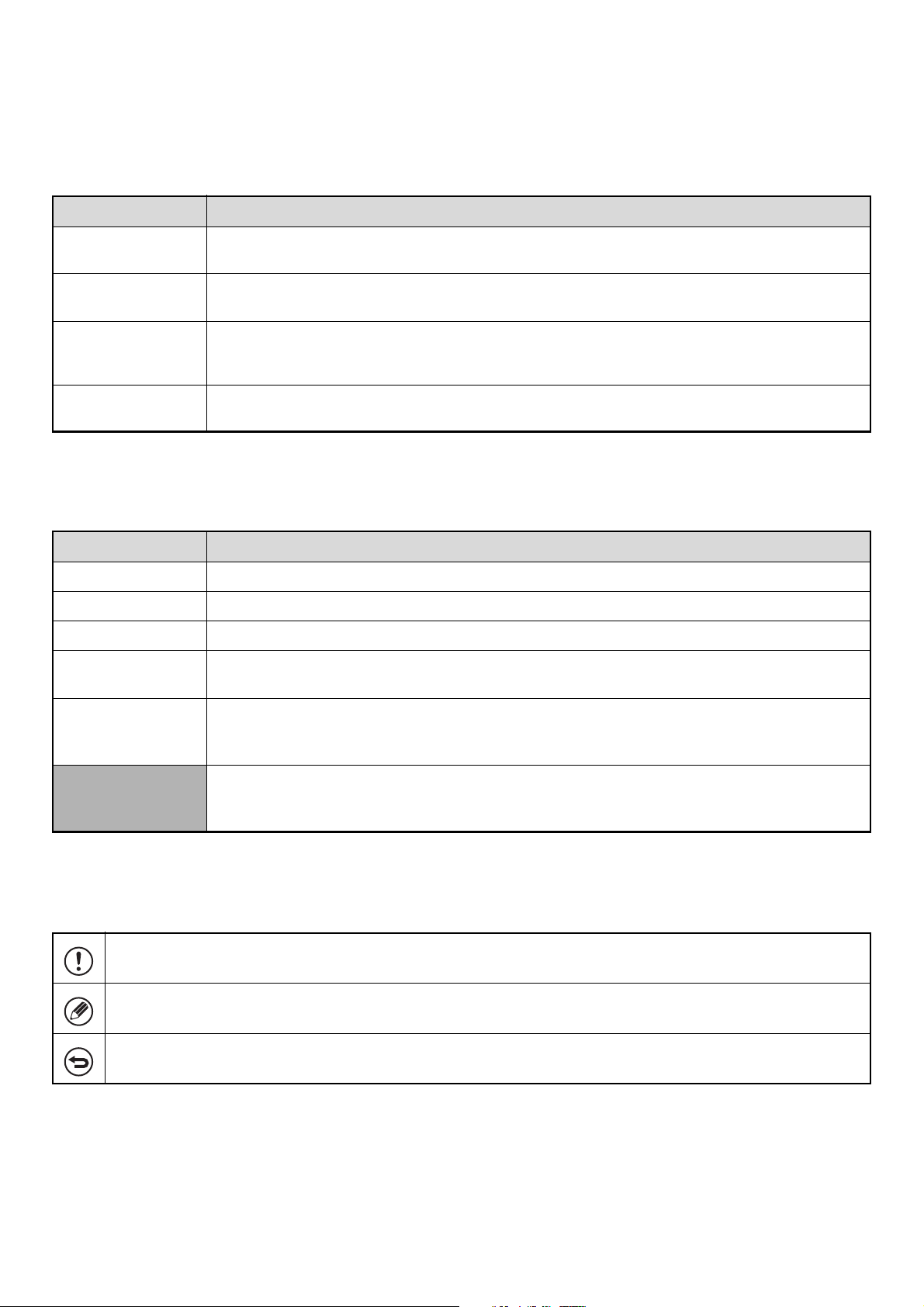
4
Manuals Provided with the Machine
Printed manuals and manuals stored in PDF format on the machine's hard drive are provided with the machine. When
using the machine, read the appropriate manual for the feature you are using.
Printed manuals
Operation manuals in PDF format
The manuals in PDF format provide detailed explanations of the procedures for using the machine in each mode. To
view the PDF manuals, download them from the hard drive in the machine. The procedure for downloading the manuals
is explained in "How to download the manuals in PDF format" in the Quick Start Guide.
Icons used in the manuals
The icons in the manuals indicate the following types of information:
Manual name Contents
Safety Guide
This manual contains instructions for using the machine safely and lists the specifications of the machine
and its peripheral devices.
Software Setup
Guide
This manual explains how to install and configure the software that is required to use the printer function
and other functions of the machine that are used from a computer.
Quick Start Guide
This manual provides easy-to-understand explanations of all the functions of the machine in a single
volume.
Detailed explanations of each of the functions can be found in the manuals in PDF format.
Maintenance Guide
This manual explains maintenance procedures such as how to replace supplies and remove paper
misfeeds.
Manual name Contents
User's Guide This manual explains the basic procedures for using the machine, such as how to load paper.
Copier Guide This manual provides detailed explanations of the procedures for using the copy function.
Printer Guide This manual provides detailed explanations of the procedures for using the print function.
Image Send Guide
This manual provides detailed explanations of the procedures for using the image send function (scan,
USB memory scan, Internet fax, fax, and data entry).
Document Filing
Guide
This manual provides detailed explanations of the procedures for using the document filing function. The
document filing function allows you to save the document data of a copy or fax job, or the data of a print
job, as a file on the machine's hard drive. The file can be called up as needed.
Administrator's
Guide
(This manual)
This manual explains the settings and functions that are used to manage and control the machine, such
as the system settings that require administrator rights.
This alerts you to a situation where there is a risk of machine damage or failure.
This provides a supplemental explanation of a function or procedure.
This explains how to cancel or correct an operation.
5
This chapter explains the system settings that are configured by the administrator of the machine.
System Settings (Administrator)
The system settings are used to configure a variety of parameters to suit the aims and needs of your workplace. The
system settings are also used to display or print out the current settings and status of the machine. The system settings
allow you to make the machine easier to use.
The system settings consist of settings that are used by general users, and settings that can only be configured by an
administrator of the machine. This manual indicates system settings that can only be used by administrators (and users
with administrator rights) as "System Settings (Administrator)". Detailed information is shown in the table below.
1
SYSTEM SETTINGS
(ADMINISTRATOR)
System Settings
System Settings (Administrator)
*Login Required
System settings that can be configured by general users
(including the administrator). For example, the following
settings can be configured:
• Date and time settings
• Paper tray settings (paper size and paper type)
• Storing destinations for the fax and scanner functions
• Settings related to the printer function
• Creating folders for document filing
• Displaying the number of pages printed, scanned, and
faxed.
Explanations of these items can be found in the corresponding
manuals for each function. For more information, see
"SYSTEM SETTINGS" in the Quick Start Guide.
System settings that can be configured by the administrator.
To configure these settings, login as an administrator is
required. For example, the following settings can be
configured:
• Storing users of the machine
• Energy save settings
• Settings related to the operation panel
• Settings for peripheral devices installed on the machine.
• Settings related to the copy function
• Network connection settings
• Transmission/reception settings for faxes and scanned
images
• Advanced settings for the document filing function
Settings for general users
Settings for administrators
6
• Procedures for using the settings
For the specific procedures for using the system settings, see "TOUCH PANEL" in the User's Guide.
For the procedure for entering text, see "7. ENTERING TEXT" in the User's Guide.
• Administrator password
To maintain security, the administrator of the machine should promptly change the password after the machine is
purchased. (For the factory default administrator password, see "TO THE ADMINISTRATOR OF THE MACHINE" in the
Safety Guide.) To change the password, see "Change Administrator Password" (page 70).
*To ensure a high level of security, change the password at regular intervals.
• The term "System Settings (Administrator)" is used for convenience in the explanations of the settings. The actual touch
panel does not show the word "(Administrator)".
• For fax settings, see "2. SYSTEM SETTINGS FOR FAX (ADMINISTRATOR)" (page 76).
• Web pages
The system settings can also be configured from the Web pages. To configure the system settings from the Web pages,
click [System Settings] in the Web page menu.
In addition to the system settings, network and security settings can also be configured in the Web pages. For information
on the settings, see Help in the Web pages.
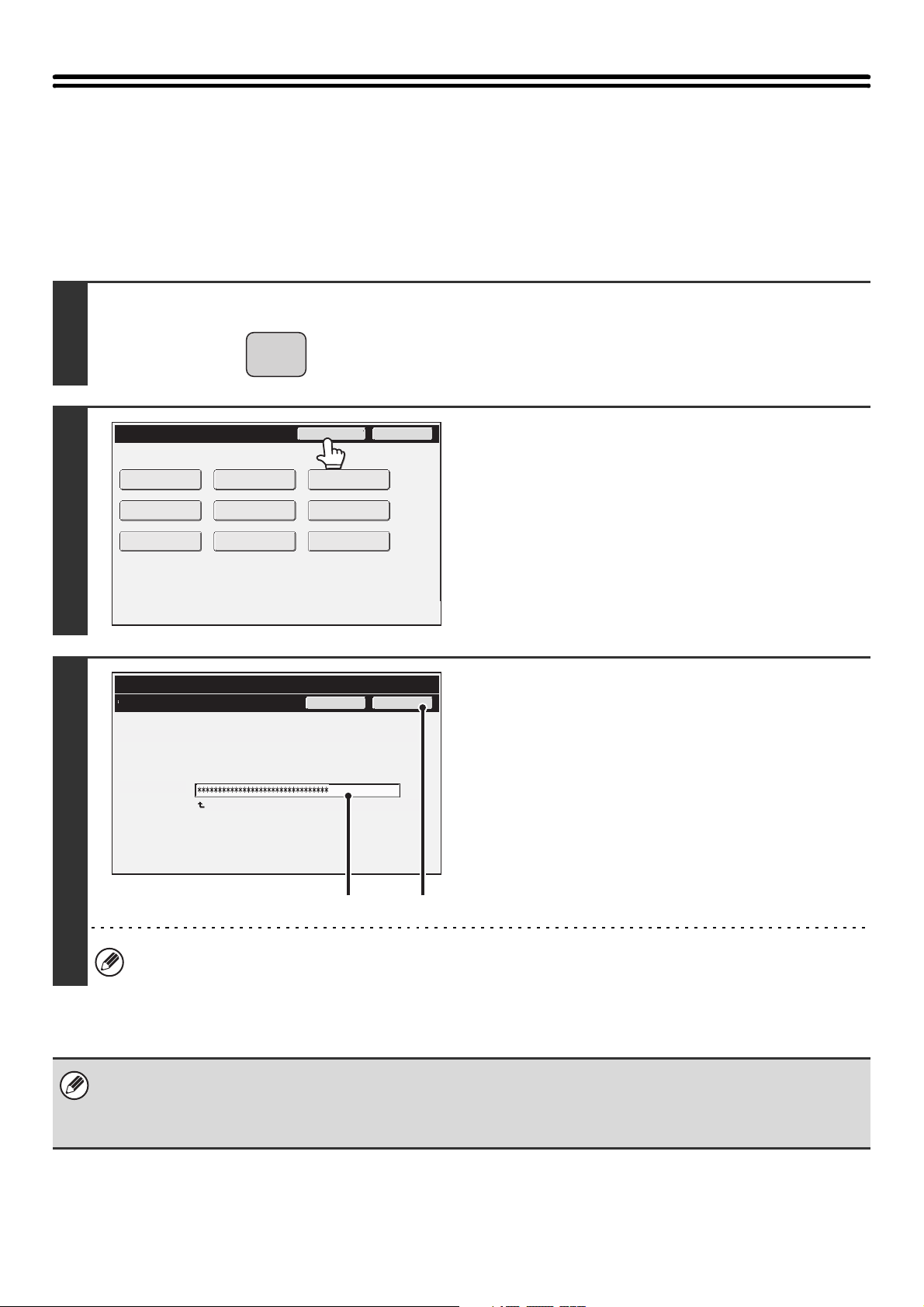
7
Accessing the System Settings (Administrator)
To access the system settings (administrator), the administrator must log in as explained below.
When User Authentication is not Enabled
When "User Authentication Setting" (page 25) is not enabled, follow the procedure below to log in.
1
Press the [SYSTEM SETTINGS] key.
2
Touch the [Admin Password] key.
3
Log in.
(1) Touch the "Password" text box and enter
the administrator password.
(2) Touch the [OK] key.
This completes the administrator login procedure. The system settings (administrator) can be used.
• User authentication is initially disabled (factory default setting).
• To logout...
Touch the [Logout] key in the top right corner of the screen. You can also touch the [Exit] key to quit the system settings.
(If Auto Clear activates, logout will automatically take place.)
SYSTEM
SETTINGS
System Settings
Admin Password Exit
Total Count
Paper Tray
Settings
Printer Condition
Settings
Document Filing
Control
Address Control
Fax Data
Receive/Forward
USB-Device Check
Default Settings
List Print
(User)
System Settings
Administrator Password
Enter the administrator password. (From 5 to 32 characters)
Press here for keyboard.
Password
Cancel OK
(1) (2)
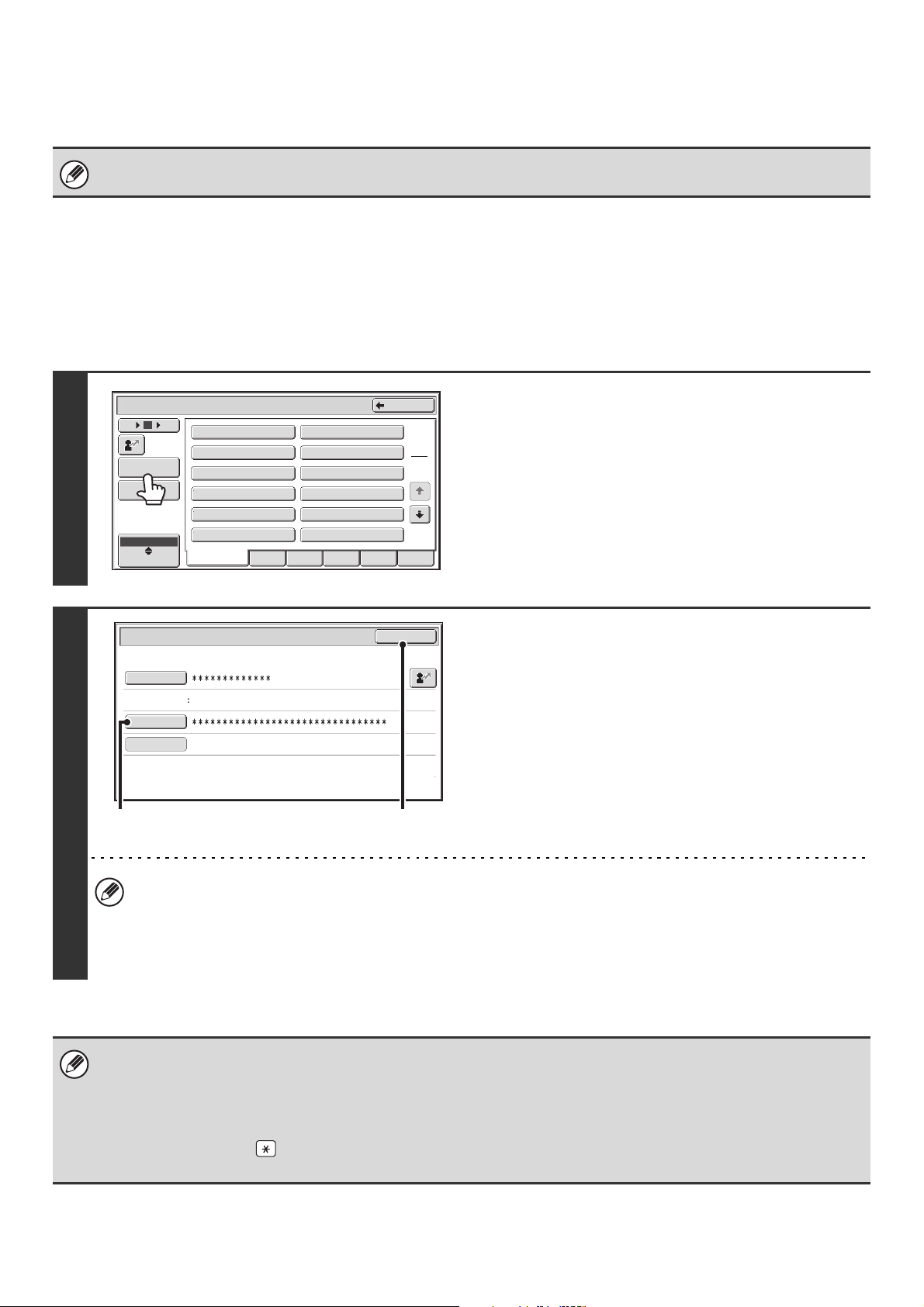
8
When User Authentication is Enabled
When "User Authentication Setting" (page 25) is enabled, follow the procedure below to log in.
When user authentication is by login name and password (and e-mail
address)
Administrator login is performed in the user selection screen. For more information on the login procedure when user
authentication is enabled, see "USER AUTHENTICATION" in the User's Guide.
When auto login is enabled, the login screen will not appear.
1
Touch the [Admin Login] key.
2
Log in.
(1) Touch the [Password] key.
Enter the administrator password in the administrator
password entry screen.
(2) Touch the [OK] key.
• If login name / password / e-mail address is selected for the authentication method, the [E-mail Address] key will
appear below the "User Name".
• For the factory default administrator password, see "TO THE ADMINISTRATOR OF THE MACHINE" in the Safety
Guide.
• This completes the administrator login procedure. The system settings (administrator) can be used.
• In addition to login by touching the [Admin Login] key, the system settings (administrator) can also be accessed when login
is performed by selecting a user with administrator rights from the user list or by entering a user number with administrator
rights. For more information on login procedures when user authentication is enabled, see "USER AUTHENTICATION" in
the User's Guide.
• To logout...
Press the [LOGOUT] ( ) key. (Except when entering a fax number.)
(If Auto Clear activates, logout will automatically take place.)
All Users
ABCD EFGHI JKLMN OPQRST UVWXYZ
1
2
Name 11
Name 9
Name 7
Name 5
Name 3
Name 1
Device Account Mode User Selection
Name 12
Name 10
Name 8
Name 6
Name 4
Name 2
Back
12 186
Direct Entry
User
ABC
Admin Login
User Authentication
OK
Login Name
Login Locally
User Name
Administrator
Password
Auth to:
(2)
(1)
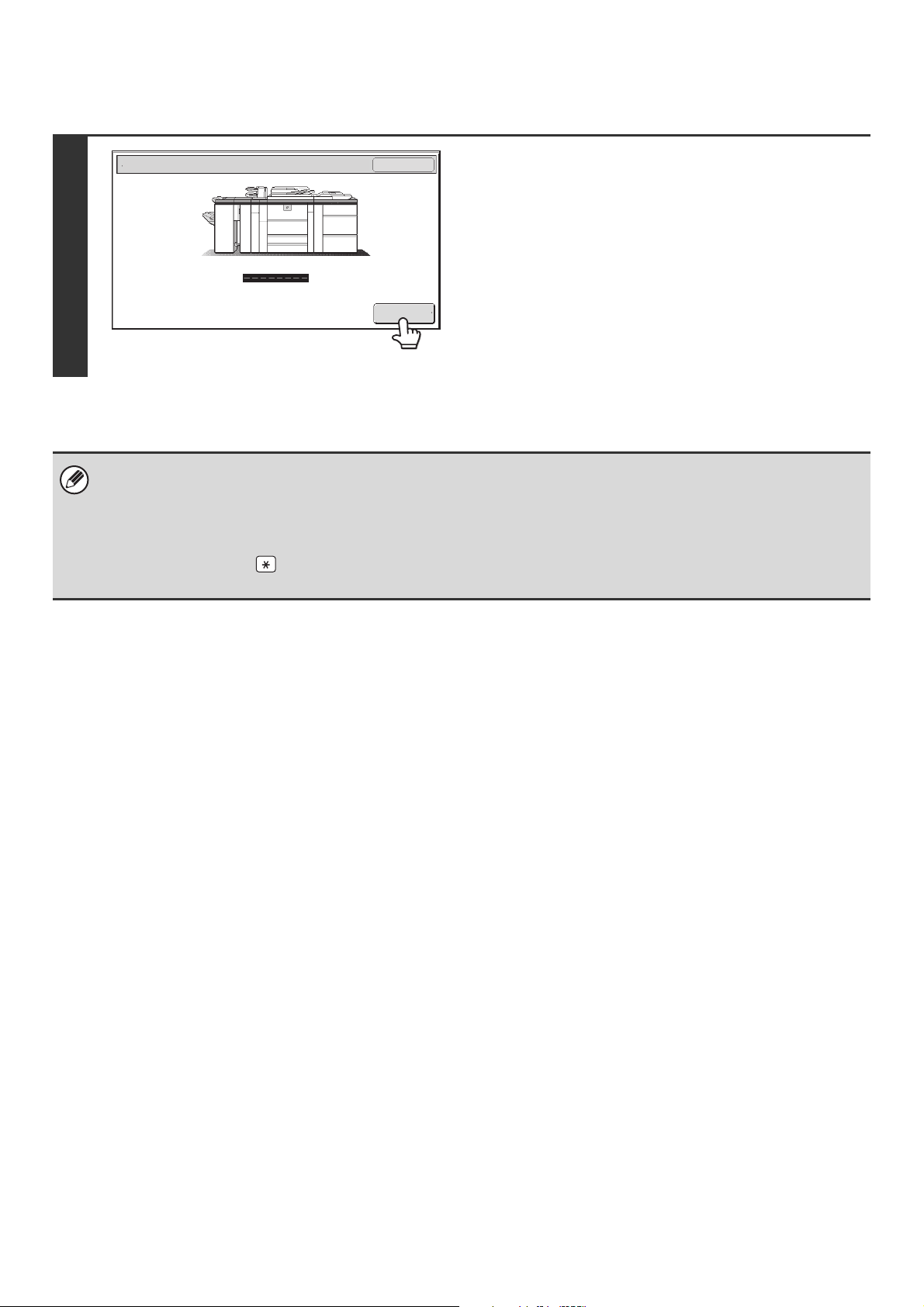
9
Login by user number
Touch the [Admin Login] key.
Enter the administrator password in the administrator password
entry screen.
This completes the administrator login procedure. The system
settings (administrator) can be used.
• In addition to login by touching the [Admin Login] key, the system settings (administrator) can also be accessed when login
is performed by selecting a user with administrator rights from the user list or by entering a user number with administrator
rights. For more information on login procedures when user authentication is enabled, see "USER AUTHENTICATION" in
the User's Guide.
• To logout...
Press the [LOGOUT] ( ) key. (Except when entering a fax number.)
(If Auto Clear activates, logout will automatically take place.)
User Authentication
OK
Admin Login
10
System Settings (Administrator) List
The system settings that appear following administrator login are shown below. The default setting for each item is also
shown.
■ User Control
* This cannot be set on the machine. Set this in "User Control" in the Web pages.
• Depending on the machine specifications and peripheral devices installed, it may not be possible to use some settings.
• For explanations of settings related to the fax function, see "2. SYSTEM SETTINGS FOR FAX (ADMINISTRATOR)" (page
76).
Item Factory default setting Page
■ User Control
25
● User Authentication Setting 25
X User Authentication Disabled 25
X Authentication Method Setting Authenticate a User by Login Name
and Password
25
X Device Account Mode Setting Disabled 25
● Other Settings 26
X Actions when the Limit of Pages for Output Jobs Job is Completed even when the Limit
of Pages is Reached
26
X
The Number of User Name Displayed Setting on Operation Panel
12 26
X A Warning when Login Fails Disabled 26
X Disabling of Printing by Invalid User Disabled 26
X Default Network Authentication Server Setting – 26
X Display Usage Status after Login Enabled 26
X User Information Print – 26
● User List – 27
● Page Limit Group List – 30
● Authority Group List – 31
● Favorite Operation Group List* – 34
X Favorite Operation Group Registration* – 34
X Home Screen List* – 35
● User Count – 36
11
■ Energy save
■ Operation Settings
Item Factory default setting Page
■ Energy Save
38
● Toner Save Mode
38X Print Disabled
X Copy Disabled
● Auto Power Shut-Off Enabled 38
● Auto Power Shut-Off Timer 90 min. 38
● Preheat Mode Setting 15 min. 38
Item Factory default setting Page
■ Operation Settings
39
● Other Settings 39
X Keys Touch Sound Middle
39
Key Touch Sound at Initial Point Disabled
X Auto Clear Setting 60 sec.
39
Cancel Auto Clear Timer Disabled
X Message Time Setting 6 sec. 39
X MFP Display Language Setting American English 39
X Disabling of Job Priority Operation Disabled 39
X Disabling of Bypass Printing Disabled 39
X Key Operation Setting 0.0 sec.
39
Disable Auto Key Repeat Disabled
X Disabling of Clock Adjustment Disabled 40
X Disabling of Covers/Inserts Mode Disabled 40
X Disable Manual Finishing*
1
Disabled 40
X Initial Original Count Setting All Disabled 40
● Customize Key Setting*
2
41
X Copier
Customize 1 File
Customize 2 Quick File
Customize 3 –
12
*1 When the Inserter is installed.
*2 This cannot be set on the machine. Set this in the system settings in the Web pages.
*3 When the network scanner expansion kit is installed.
*4 When the Internet fax expansion kit is installed.
*5 When the facsimile expansion kit is installed.
*6 When the application integration module is installed.
■ Device Control
X Image Send-Scanner*
3
41
Customize 1 Address Review
Customize 2 File
Customize 3 Quick File
X Image Send-Internet Fax*
4
(Same as Scan)
X Image Send-Fax*
5
(Same as Scan)
X Image Send-USB Memory Scan
Customize 1 –
Customize 2 –
Customize 3 –
X Image Send-Data Entry*
6
(Same as Scan)
● Home Screen Settings*
2
– 41
● MFP Display Pattern Setting Pattern 1 41
Item Factory default setting Page
■ Device Control
42
● Other Settings 42
X Original Feeding Mode All Disabled 42
X Saddle Stitch Position Adjust*
1
0 mm 42
X Auto Paper Selection Setting Plain Paper 42
X Tandem Connection Setting
42
IP Address of Slave Machine 0.0.0.0
Port Number 50001
Disabling of Master Machine Mode Disabled
Disabling of Slave Machine Mode Disabled
X Detect Standard in Auto Color Mode*
2
3 43
X Double Feed Detection Setting*
3
All Enabled 43
X Status Indicator Setting Pattern 1 43
Item Factory default setting Page
13
*1 When a saddle stitch finisher or saddle unit is installed.
*2 When the color expansion kit is installed.
*3 MX-M950/M1100 only
*4 When a large capacity tray is installed.
*5 When a bypass tray is installed.
*6 When an inserter is installed.
*7 When a saddle stitch finisher or finisher is installed.
*8 When a punch module is installed.
*9 When a folding unit is installed.
■ Copy Settings
X Optimization of a Hard Disk – 43
X Clear All Job Log Data – 43
● Original Size Detector Setting
44X Original Detection Size Combination Inch-1
X Cancel Detection at Document Glass Disabled
● Disabling of Devices 45
X Disabling of Document Feeder Disabled 45
X Disabling of Duplex Disabled 45
X Disabling of Large Capacity Cassette*
4
Disabled 45
X Disabling of Tray Settings Disabled 45
X Disabling of Bypass-Tray*
5
Disabled 45
X Disabling of Inserter*
6
Disabled 45
X Disabling of Offset*
7
Disabled 45
X Disabling of Stapler*
7
Disabled 45
X Disabling of Saddle Stitch*
1
Disabled 45
X Disabling of Punch*
8
Disabled 45
X Disabling of Fold*
9
Disabled 45
Item Factory default setting Page
■ Copy Settings
46
● Initial Status Settings
46
X Paper Tray Varies depending on the machine
configuration
X Exposure Type Auto
X Copy Ratio 100%
X 2-Sided Copy 1-Side to 1-Side
X Output –
Item Factory default setting Page
14
* When a saddle stitch finisher or saddle unit is installed.
■ Network Settings
● Other Settings 47
X Copy Exposure Adjustment 5 47
X Rotation Copy Setting Enabled 47
X Add or Change Extra Preset Ratios – 47
X Setting a Maximum Number of Copies 9999 47
X Initial Margin Shift Setting
47 Side 1 1/2"
Side 2 1/2"
X Erase Width Adjustment
47 Edge Clearance Width 1/2"
Center Clearance Width 1/2"
X Card Shot Settings
47 Original Size X: 3-3/8", Y: 2-1/8"
Fit to Page Disabled
X Automatic Saddle Stitch* Enabled 47
X Initial Tab Copy Setting 1/2" 48
X Disabling Deletion of Job Programs Disabled 48
X Disabling of Bypass-Tray in Duplex Copy Disabled 48
X Disabling of Auto Paper Selection Disabled 48
X Auto Selection Setting of Tray that is Supplied the Paper Disabled 48
X 600dpi x 600dpi Scanning Mode for Document Feeder Disabled 48
X Quick Scan from Document Glass Enabled 48
Item Factory default setting Page
■ Network Settings
49
● IP Address Setting DHCP 49
● Enable TCP/IP Enabled 49
● Enable NetWare Enabled 49
● Enable EtherTalk Enabled 50
● Enable NetBEUI Enabled 50
● Reset the NIC – 50
● Ping Command – 50
Item Factory default setting Page
15
■ Printer Settings
*1 When the printer expansion kit is installed.
*2 When a bypass tray is installed.
■ Image Send Settings
Item Factory default setting Page
■ Printer Settings*
1
51
● Default Settings 51
X Prohibit Notice Page Printing Enabled 51
X Prohibit Test Page Printing Disabled 51
X A4/Letter Size Auto Change Disabled 51
X Print Density Level 3 51
X Bypass Tray Settings*
2
51
Enable Detected Paper Size in Bypass Tray Disabled 51
Enable Selected Paper Type in Bypass Tray Enabled 51
Exclude Bypass-Tray from Auto Paper Select Disabled 51
X Job Spool Queuing Enabled 51
● Interface Settings 52
X Hexadecimal Dump Mode Disabled 52
X I/O Timeout 60 sec. 52
X Enable USB Port Enabled 52
X USB Port Emulation Switching Auto 52
X Enable Network Port Enabled 52
X Network Port Emulation Switching Auto 52
X Port Switching Method Switch at End of Job 52
Item Factory default setting Page
■ Image Send Settings
53
● Operation Settings 53
X Other Settings 53
Default Display Settings Varies depending on the machine
configuration
53• Hold settings for a while after scanning has been
completed
Disabled
• Switch Automatically to Copy Mode Screen Enabled
Address Book Default Selection
53•Tab Switch ABC
• Address Type All

16
Initial Resolution Setting
53
• Apply the Resolution Set when Stored Disabled
•Scan*
1
200 X 200 dpi
• Internet Fax*
2
200 X 100 dpi
•Fax*
3
Standard
Default Exposure Settings Auto 54
Default Original Image Type Text
54
• Moiré Reduction Disabled
Must Input Next Address Key at Broadcast Setting Disabled 54
Scan Complete Sound Setting Middle 54
The Number of File Name/Subject/Body Keys Displayed
Setting
12
54
The Number of Direct Address Keys Displayed Setting 10 54
Disable Switching of Display Order Disabled 54
Hold Setting for Received Data Print*
2,3
Disabled 54
Default Verification Stamp*
4
Disabled 54
X Settings to Disable Registration 55
Disable Registering Destination from Operation Panel All Disabled 55
Disable Registering Destination on Web Page All Disabled 55
Disable Registration Using Network Scanner Tool Disabled 55
X Settings to Disable Transmission 55
Disable [Resend] on Image Send Mode Disabled 55
Disable Selection from Address Book All Disabled 55
Disable Direct Entry All Disabled 55
Disable PC-I-Fax Transmission*
2
Disabled 55
Disable PC-Fax Transmission*
3
Disabled 55
● Scan Settings*
1
56
X Other Settings 56
Default Sender Set – 56
Default Color Mode Settings*
5
Mono2
56
• Disable Change of B/W Setting in Auto Mode Disabled
Item Factory default setting Page

17
Initial File Format Setting
56
• File Type PDF
• Black & White MMR (G4)
• Color/Grayscale*
5
Medium
• Specified Pages per File Disabled
Compression Mode at Broadcasting
56• Black & White MH (G3)
• Color/Grayscale*
5
Medium
Maximum Size of E-mail Attachments (E-mail) Unlimited 57
Maximum Size of Data Attachments (FTP/Desktop/Network
Folder)
Unlimited
57
Bcc Setting
57• Enable Bcc Disabled
• Display Bcc Address on the Job Status Screen Disabled
Disable Scan Function
57
• USB Memory Scan Disabled
Pre-Setting Mail Signature Disabled 57
X Default Address Setting Disabled 57
● I-Fax Settings*
2
58
X I-Fax Default Settings 58
I-Fax Own Name and Address Set – 58
Auto Wake Up Print Enabled 58
Compression Setting MH (G3) 58
Speaker Volume Setting
58• Receive Signal Middle
• Communication Error Signal Middle
Original Print on Transaction Report Print Out Error Report Only 58
Transaction Report Print Select Setting
58
• Single Sending Print Out Error Report Only
• Broadcasting Print Out All Report
• Receiving No Printed Report
Activity Report Print Select Setting
59• Auto Print at Memory Full Disabled
• Print Daily at Designated Time Disabled
Body Text Print Select Setting Disabled 59
Pre-Setting Mail Signature Disabled 59
Item Factory default setting Page
18
*1 When the network scanner expansion kit is installed.
*2 When the Internet fax expansion kit is installed.
*3 When the facsimile expansion kit is installed.
*4 When a stamp unit is installed.
*5 When the color expansion kit is installed.
*6 When a saddle stitch finisher or finisher is installed.
■ Document Filing Settings
X I-Fax Send Settings 59
I-Fax Reception Report On/Off Setting Disabled 59
I-Fax Reception Report Request Timeout Setting 1 hour 59
Number of Resend Times at Reception Error 2 59
Maximum Size of E-mail Attachments Unlimited 59
Rotation Sending Setting All Enabled 60
Printing Page Number at Receiver Enabled 60
X I-Fax Receive Settings 60
Auto Receive Reduce Setting Enabled 60
Duplex Reception Setting Disabled 60
Set Address for Data Forwarding – 60
A3 RX Reduce Disabled 60
POP3 Communication Timeout Setting 60 sec. 60
Reception Check Interval Setting 5 min. 61
I-Fax Output Setting*
6
Offset Tray 61
X Anti Junk Mail/Domain Name Setting All Invalid 61
Item Factory default setting Page
■ Document Filing Settings
62
● Other Settings 62
X Default Mode Settings Sharing Mode 62
X Sort Method Setting Date 62
X Administrator Authority Setting
62
Delete File Disabled
Delete Folder Disabled
Password Change Disabled
X Delete All Quick Files
62 Delete –
Delete quick files at power up. (Protected files excluded) Enabled
Item Factory default setting Page

19
X Default Color Mode Settings*
1
Mono2 62
X Default Storage Format Setting*
2
Hi-Speed Print Mode 62
X Default Exposure Settings Auto 63
X Default Original Image Type Text
63
Moiré Reduction Disabled
X Initial Resolution Settings 600 x 600 dpi 63
X Color Data Compression Ratio Setting*
1
Medium 63
X Scan Complete Sound Setting Middle 63
X Default Output Tray*
3
Offset Tray 63
X Disable Stamp for Reprinting Disabled 63
X Batch Print Settings
63 Selection of [All Users] is not allowed. Enabled
Selection of [User Unknown] is not allowed. Enabled
● Document Output Options
64
X Print
Copy Enabled
Print Enabled
Scan Send Disabled
Internet Fax Send (Incl. PC-I-Fax)*
4
Disabled
Fax Send (Incl. PC-Fax)*
5
Disabled
Scan to HDD Enabled
X Scan Send
Copy Disabled
Scan Send Enabled
Internet Fax Send (Incl. PC-I-Fax)*
4
Disabled
Fax Send (Incl. PC-Fax)*
5
Disabled
Scan to HDD Enabled
X Internet Fax Send*
4
Copy Disabled
Scan Send Disabled
Internet Fax Send (Incl. PC-I-Fax) Enabled
Fax Send (Incl. PC-Fax)*
5
Disabled
Scan to HDD Disabled
Item Factory default setting Page
20
*1 When the color expansion kit is installed.
*2 When the color expansion kit is not installed.
*3 When a saddle stitch finisher or finisher is installed.
*4 When the Internet fax expansion kit is installed.
*5 When the facsimile expansion kit is installed.
■ List Print (Administrator)
* It may not be possible to use some settings, depending on the peripheral devices installed.
■ Security Settings
X Fax Send*
5
64
Copy Disabled
Scan Send Disabled
Internet Fax Send (Incl. PC-I-Fax)*
4
Disabled
Fax Send (Incl. PC-Fax) Enabled
Scan to HDD Disabled
● Automatic Deletion of File Settings – 64
Item Factory default setting Page
■ List Print (Administrator)*
65
● Administrator Settings List – 65
● Image Sending Activity Report – 65
● Data Receive/Forward List – 65
● Web Settings List – 65
● Metadata Set List – 65
Item Factory default setting Page
■ Security Settings
66
● SSL Settings
66
X HTTPS Disabled
X IPP-SSL Disabled
X FTPS Enabled
X SMTP-SSL Enabled
X POP3-SSL Enabled
X LDAP-SSL Enabled
X Level of Encryption Low
Item Factory default setting Page

21
■ Enable/Disable Settings
Item Factory default setting Page
■ Enable/Disable Settings
67
● User Control 67
X Disabling of Printing by Invalid User Disabled 67
● Operation Settings 67
X Cancel Auto Clear Timer Disabled 67
X Disabling of Job Priority Operation Disabled 67
X Disabling of Bypass Printing Disabled 67
X Disable Auto Key Repeat Disabled 67
X Disabling of Clock Adjustment Disabled 67
X Disabling of Covers/Inserts Mode Disabled 67
X Disable Manual Finishing*
1
Disabled 67
● Device Control 67
X Disabling of Document Feeder Disabled 67
X Disabling of Duplex Disabled 67
X Disabling of Large Capacity Cassette*
2
Disabled 67
X Disabling of Tray Settings Disabled 67
X Disabling of Bypass-Tray*
3
Disabled 67
X Disabling of Inserter*
1
Disabled 67
X Disabling of Offset*
4
Disabled 67
X Disabling of Stapler*
4
Disabled 67
X Disabling of Saddle Stitch*
5
Disabled 67
X Disabling of Punch*
6
Disabled 68
X Disabling of Fold*
7
Disabled 68
X Disabling of Master Machine Mode Disabled 68
X Disabling of Slave Machine Mode Disabled 68
● Copy Function Settings 68
X Disabling Deletion of Job Programs Disabled 68
X Disabling of Bypass-Tray in Duplex Copy Disabled 68
X Disabling of Auto Paper Selection Disabled 68
● Printer Settings 68
X Prohibit Notice Page Printing Enabled 68
X Prohibit Test Page Printing Disabled 68
X Exclude Bypass-Tray from Auto Paper Select Disabled 68

22
*1 When an inserter is installed.
*2 When a large capacity tray is installed.
*3 When a bypass tray is installed.
*4 When a saddle stitch finisher or finisher is installed.
*5 When a saddle unit is installed.
*6 When a punch module is installed.
*7 When a folding unit is installed.
*8 When the Internet fax expansion kit is installed.
*9 When the facsimile expansion kit is installed.
● Image Send Settings 68
X Other Disabling 68
Disable Switching of Display Order Disabled 68
Disable Scan Function
68
• USB Memory Scan Disabled
X Settings to Disable Registration 68
Disable Registering Destination from Operation Panel Disabled 68
Disable Registering Destination on Web Page Disabled 69
Disable Registration Using Network Scanner Tools Disabled 69
X Settings to Disable Transmission 69
Disable [Resend] on Image Send Mode Disabled 69
Disable Selection from Address Book Disabled 69
Disable Direct Entry Disabled 69
Disable PC-I-Fax Transmission*
8
Disabled 69
Disable PC-Fax Transmission*
9
Disabled 69
● Document Filing Settings 69
X Disable Stamp for Reprinting Disabled 69
X Batch Print Settings
69 Selection of [All Users] is not allowed. Enabled
Selection of [User Unknown] is not allowed. Enabled
Item Factory default setting Page
23
■ Change Administrator Password
■ Product Key
* It may not be possible to use some settings, depending on the peripheral devices installed.
■ Data Backup
■ Storing/Calling of System Settings
Item Factory default setting Page
■ Change Administrator Password
See "TO THE ADMINISTRATOR OF
THE MACHINE" in the Safety Guide.
70
Item Factory default setting Page
■ Product Key*
71
● Serial Number – 71
● Network Scanner Expansion Kit – 71
● Printer Expansion Kit – 71
● PS3 Expansion Kit – 71
● Color Expansion Kit – 71
● Internet Fax Expansion Kit – 71
● E-mail Alert and Status – 71
● Application Integration Module – 71
Item Factory default setting Page
■ Data Backup
72
● Storage Backup – 72
● Device Cloning – 72
Item Factory default setting Page
■ Storing/Calling of System Settings
73
● Restore Factory Defaults – 73
● Store Current Configuration – 73
● Restore Configuration – 73

24
■ Administrator Adjustment
*1 When a finisher (MX-FNX5) is installed.
*2 When a punch module is installed.
*3 When a finisher (MX-FNX6) or saddle stitch finisher (MX-FNX7) is installed.
*4 When a saddle stitch finisher (MX-FNX7) is installed.
*5 When a saddle unit is installed.
*6 When a folding unit is installed.
Item Factory default setting Page
■ Administrator Adjustment
74
● Image Adjustment 74
X Edge Adjustment
74
Copy Edge Adjustment (Original Edge Standard Position) –
Copy Edge Adjustment (Registration Motor ON Timing) –
SPF Original Edge Adjustment (Original Scan Start Position) –
X Off-Center Adjustment
74 Print Off-Center Adjustment –
Original Off-Center Adjustment –
● Option Adjustment 75
X Finisher*
1
75 Staple Position All 50
Punch Position (Vertical Scan Direction)*
2
50
X Finisher*
3
75
Staple Position 50
Punch Position (Vertical Scan Direction)*
2
50
Punch Position (Main Scan Direction)*
2
50
Saddle Stitch Position*
4
All 50
Saddle Fold Position*
4
All 50
X Saddle Unit*
5
75 Saddle Stitch Position All 50
Saddle Fold Position All 50
X Paper Folding Unit*
6
75 First Fold Position All 50
Second Fold Position All 50
25
User Control
User Control is used to configure settings for user authentication. Touch the [User Control] key to configure the settings.
User Authentication Setting
These settings enable or disable user authentication and specify the authentication method.
When user authentication is enabled, each user of the machine is registered. When a user logs in, settings for that user
are applied. This function allows greater control of security and cost management than on previous machines.
In addition, even if the user information is not stored in the machine, it is possible to log in by directly entering user
information stored on an LDAP server. In this case, the login user will be the factory-stored "User". For more information,
see "Factory-stored users" (page 29).
User Authentication
When [User Authentication] is enabled, the login screen
appears before an operation is begun in any mode
except the job status screen*. You must log in as one of
the stored users. (After logging in, you can move freely
through the modes.)
* The login screen appears when a document filing file is
used or when a broadcast transmission is reattempted
from the job status screen.
Authentication Method Setting
This selects the authentication method. When using user
authentication, be sure to configure this setting first. The
items configured for users stored after the user
authentication method is set vary depending on the
selected authentication method.
Authenticate a User by Login Name and Password
Standard authentication method using a login name and
password.
Authenticate a User by Login Name, Password and
E-mail Address
In addition to a login name and password, this
authentication method also requires the entry of an
e-mail address.
Authenticate a User by User Number Only
This can be used as a simple authentication method
when network authentication is not used.
Device Account Mode Setting
A specific user can be stored as an auto login user.
When this setting is enabled, login can be performed
automatically.
This function eliminates the bother of logging in but still
allows the settings of the selected user (network
settings, favorite operations, etc.) to be applied.
• For the procedure for storing users, see "User List" (page 27).
• For more information on login procedures when user authentication is enabled, see "USER AUTHENTICATION" in the
User's Guide.
• The login screen will vary depending on the
authentication method that is selected. For more
information, see "USER AUTHENTICATION" in the
User's Guide.
• When "Authenticate a User by User Number Only"
is selected for the authentication method, network
authentication cannot be used.
If auto login fails for some reason when auto login is
enabled, or the login user does not have administrator
rights, all system settings or the system settings
(administrator) will lock. In this event, the administrator
should touch the [Admin Password] key in the system
settings screen and log in again.
26
Other Settings
Actions when the Limit of Pages
for Output Jobs
This setting determines whether or not a job will be
completed if the page limit is reached while the job is in
progress.
The following selections are available.
• Job is Stopped when the Limit of Pages is Reached
• Job is Completed even when the Limit of Pages is
Reached
The Number of User Name
Displayed Setting on Operation
Panel
The number of users that are displayed in the user
selection screen can be selected (6, 12, or 18 users).
A Warning when Login Fails
This setting is used to display a warning and prohibit
login for five minutes if login fails three times in a row.
This prevents an unauthorized person from attempting to
guess a password. (The number of failed login attempts
is retained even if the power is turned off.)
Disabling of Printing by Invalid
User
Printing by users whose information is not stored in the
machine, such as printing without entering valid user
information in the printer driver or printing of a file on an
FTP server from the Web pages, can be prohibited.
Default Network Authentication
Server Setting
Use this to set the default network authentication server.
When a user logs in from the Web page or sends a print
job to the machine using user information that is not
stored on the machine, the authentication server is not
known. This setting is used to specify one of the LDAP
servers stored on the machine as the authentication
server.
Display Usage Status after Login
When user authentication is enabled, this setting
specifies whether or not the page counts of a user
appear when the user logs in.
User Information Print
The following lists can be printed.
•User List
• List of Number of Pages Used
• Page Limit Group List*
• Authority Group List
• Favorite Operation Group List*
• All User Information Print
Touch the key of the desired list to begin printing.
* Cannot be printed when no groups are stored.
This setting also applies to the user selection screen
of document filing and the sender selection screen.
Locking of the operation panel for 5 minutes can be
canceled by clicking [User Control] - [Default Settings]
- [Release the Lock on Machine Operation Panel] in
the Web page menu.
When a print job is executed by a user that is not
stored in the machine, the factory-stored "Other User"
is used as the login user. For more information, see
"Factory-stored users" (page 29).
When login is performed by network authentication
using user information that is not stored in the
machine, the login user will be the factory-stored
"User". For more information, see "Factory-stored
users" (page 29).
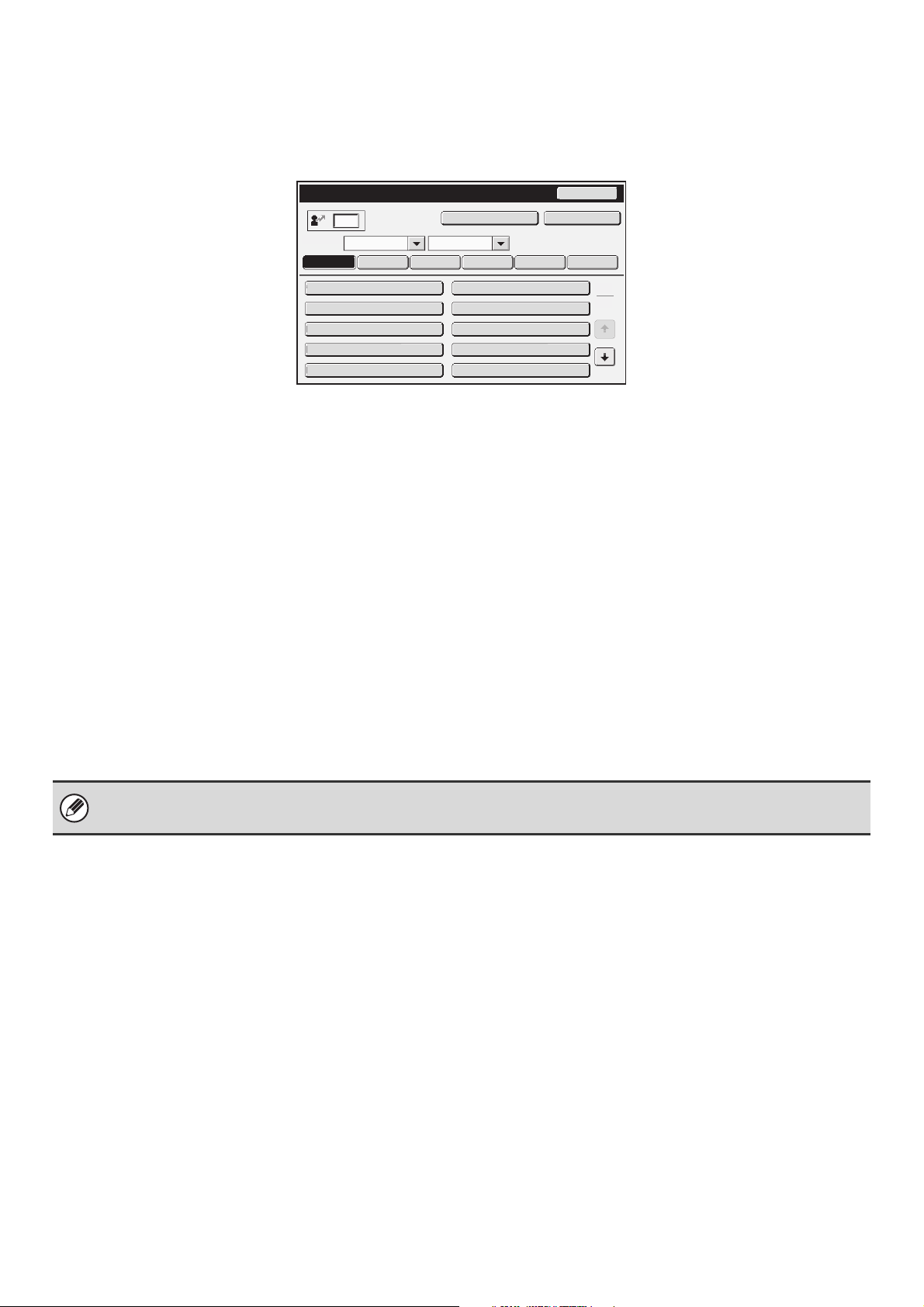
27
User List
This is used to store, edit, and delete users when user authentication is enabled.
When the [User List] key is touched, the following screen appears.
• [Add New] key
Use this to add a new user.
• [Delete All Users] key
Use this to delete all stored users. (Excluding factory
stored users.) This operation can only be performed
by an administrator.
• User List
This shows the factory-stored users and the currently
stored users. A user can be selected to open an
edit/delete screen for the user.
Storing a user
Touch the [Add New] key in the above screen to open a registration screen. Up to 1000 users can be stored.
For more information, see "Settings" (page 28).
Editing/deleting a user
A user can be selected from the list in the above screen to open an edit/delete screen for the user.
For more information, see "Settings" (page 28).
Delete a user with the [Delete] key.
User List
Administrator
All Users
Sort
ABC UP
2
1
ABCD
EFGHI
JKLMN OPQRST UVWXYZ
Back
Add NewDelete All Users
Other User
Name 2
Name 4
Name 6
User
Name 1
Name 3
Name 5
Name 7
• When auto login is enabled, "Delete All Users" cannot be used.
• The factory-stored users cannot be deleted.
28
Settings
*1 Does not appear when "User Number" is selected for the authentication method.
*2 Only appears when "User Number" is selected for the authentication method.
*3 Not required when network authentication is used, as the password stored in the LDAP server is used.
Item Description
User Name (Required)
Store the name of the user (max. 32 characters). This user name is used as the key name in
the login screen, the document filing user name, and the sender name. (The user name must
be unique.)
Apply User Name to Log-in
Name.*
1
Touch this key to enter the entered user name in the login name.
Initial (Optional)
This determines where the user name will appear in the user list. Up to 5 characters can be
entered.
Index
Select the desired custom index. The custom index names are the same as those in the
address book.
User Number*
2
Enter a user number (5 to 8 digits).
Login Name*
1
Enter the login name used when authentication by login name/password is enabled
(maximum of 255 characters). (The login name must be unique.)
Password*
1, 3
Enter the password used when authentication by login name/password is enabled (1 to 32
characters).
E-mail Address
Enter the e-mail address used in the sender list and for LDAP authentication (maximum of 64
characters).
My Folder
A folder ("My Folder") can be specified as the folder used by the user for document filing. A
previously created folder can be selected or you can create and select a new folder.
Authentication Settings*
1
Select [Login Locally] or [Network Authentication] (when LDAP is enabled) for "Authentication
Settings".
Authentication Server
When [Network Authentication] is selected, select the server to be used for user
authentication from the list of LDAP servers stored in the Web pages.
Pages Limit Group
Specify page limits for the user by selecting one of the stored page limit groups. The factory
default setting is [Unlimited].
For more information, see "Page Limit Group List" (page 30) .
Authority Group
Specify the authority of the user by selecting one of the stored authority groups. The factory
default setting is [User].
For more information, see "Authority Group List" (page 31) .
Favorite Operation Group
The favorite operation group that will be applied at login appears.
The setting can be changed in the [User Control] menu in the Web pages.
29
Factory-stored users
The following users are stored in the machine at the factory.
• Administrator: Factory-stored account for the administrator of the machine.
• User: This is used when network authentication is used and a login name not stored in the machine is
directly entered. (This cannot be selected in the login user screen.)
• Other User: This is used when a print job is executed using invalid user information. (This cannot be selected in
the login user screen.)
For settings related to each of the users, see the following table.
*1 Items that can be changed.
*2 For detailed information of each of the settings, see "List of settings and factory default settings of template groups" (page 32).
User Name
Administrator User Other User
Login Name
admin users Other
Password
(See the Safety Guide.)*
1
users*
1
–
My Folder
Main Folder
Authentication Settings
Login Locally –
Pages Limit Group
Unlimited*
1
Authority Group*
2
Admin User*
1
Guest*
1
Favorite Operation Group
Following the System Settings*
1
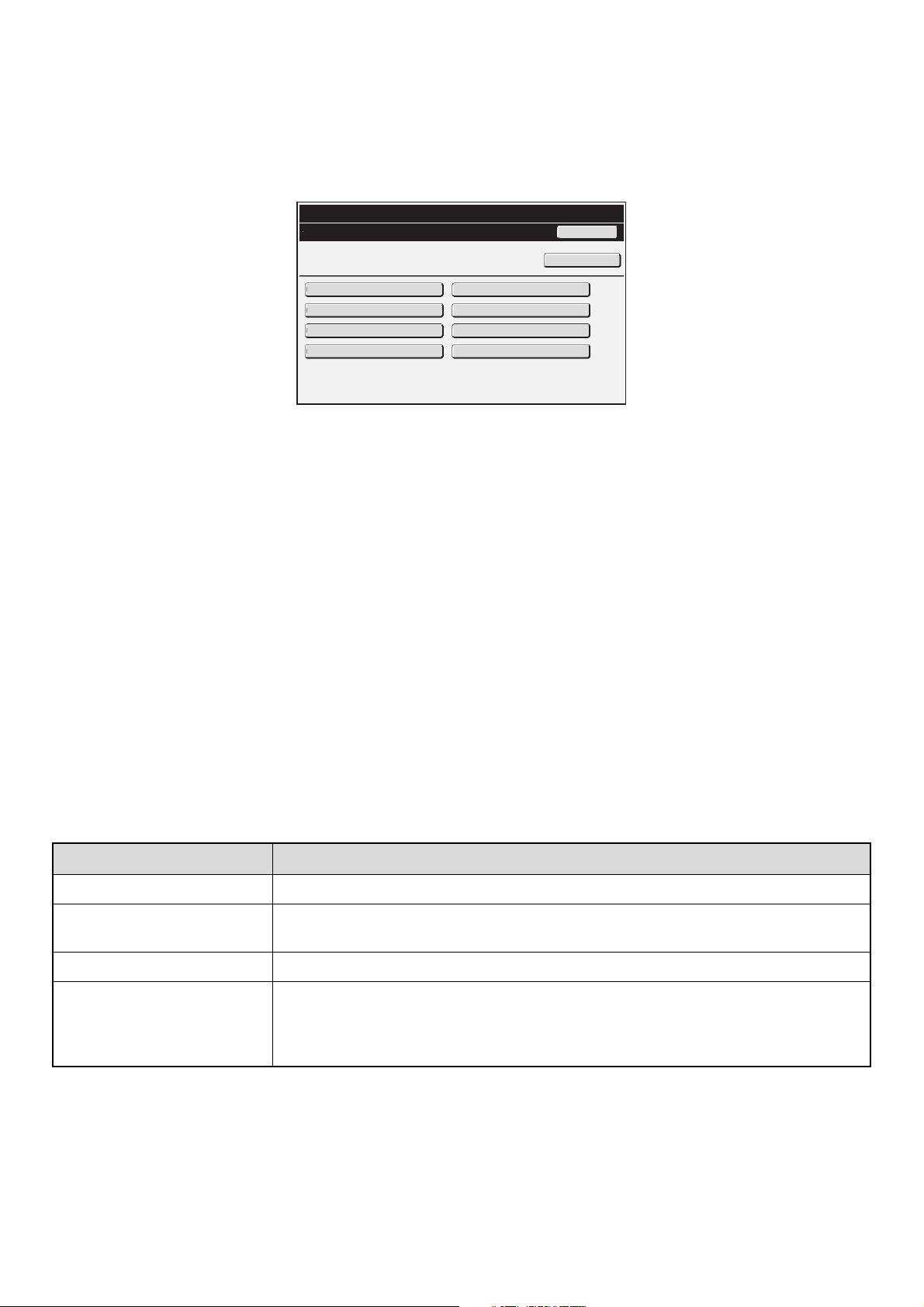
30
Page Limit Group List
This is used to store groups of Account Limit Settings. The page limits for each user are specified by selecting one of
these stored groups when the user is stored.
When the [Page Limit Group List] key is touched, the following screen appears.
• [Add New] key
Use this to add a new group.
• List display
This shows the currently stored groups. A group name
can be selected to open an edit/delete screen for that
group.
Storing a page limit group
Touch the [Add New] key in the above screen to open a registration screen. Up to 8 groups can be stored.
For more information, see "Settings".
Editing a page limit group
A group can be selected from the list in the above screen to open an edit/delete screen for the group.
For information on the settings, see "Settings".
To return a group to the factory default state, set "Select the Group Name to be the Registration Model" to [Unlimited] in
the editing screen.
Settings
System Settings
Page Limit Group List
Group 3
Group 1
Back
Add New
Group 5
Group 7
Group 2
Group 4
Group 6
Group 8
Item Description
Group Name Store the name of the group (max. 32 characters).
Select the Group Name to be
the Registration Model
Select one of the previously stored groups for use as a template for the new group. When
selected, the group's settings are applied.
Function names The names of the functions that can be configured are displayed. Set a limit for each function.
Page Limit
When [Prohibited] is selected for a mode, input and output from the mode are prohibited.
When [Unlimited] is selected for a mode, there is no limit to the number of pages that can be
input/output in that mode.
When [Limited] is selected, enter a limit (1 to 99999999 pages).
31
Authority Group List
Use this to store groups of user authority settings. The authority of each user is specified by selecting one of these
stored groups when the user is stored.
When the [Authority Group List] key is touched, the following screen appears.
• [Add New] key
Use this to add a new group.
• List display
This shows the currently stored groups. A group name
can be selected to open an edit/delete screen for that
group.
Storing an authority group
Touch the [Add New] key in the above screen to open a registration screen. Up to 8 groups can be stored.
For information on the settings, see "List of settings and factory default settings of template groups" (page 32).
Editing an authority group
A group can be selected from the list in the above screen to open an edit/delete screen for the group. For information on
the settings, see "List of settings and factory default settings of template groups" (page 32).
To return a group to the factory default state, set "Select the Group Name to be the Registration Model" to [Admin],
[User], or [Guest].
System Settings
Authority Group List
Group 3
Group 1
Back
Add New
Group 5
Group 7
Group 2
Group 4
Group 6
Group 8
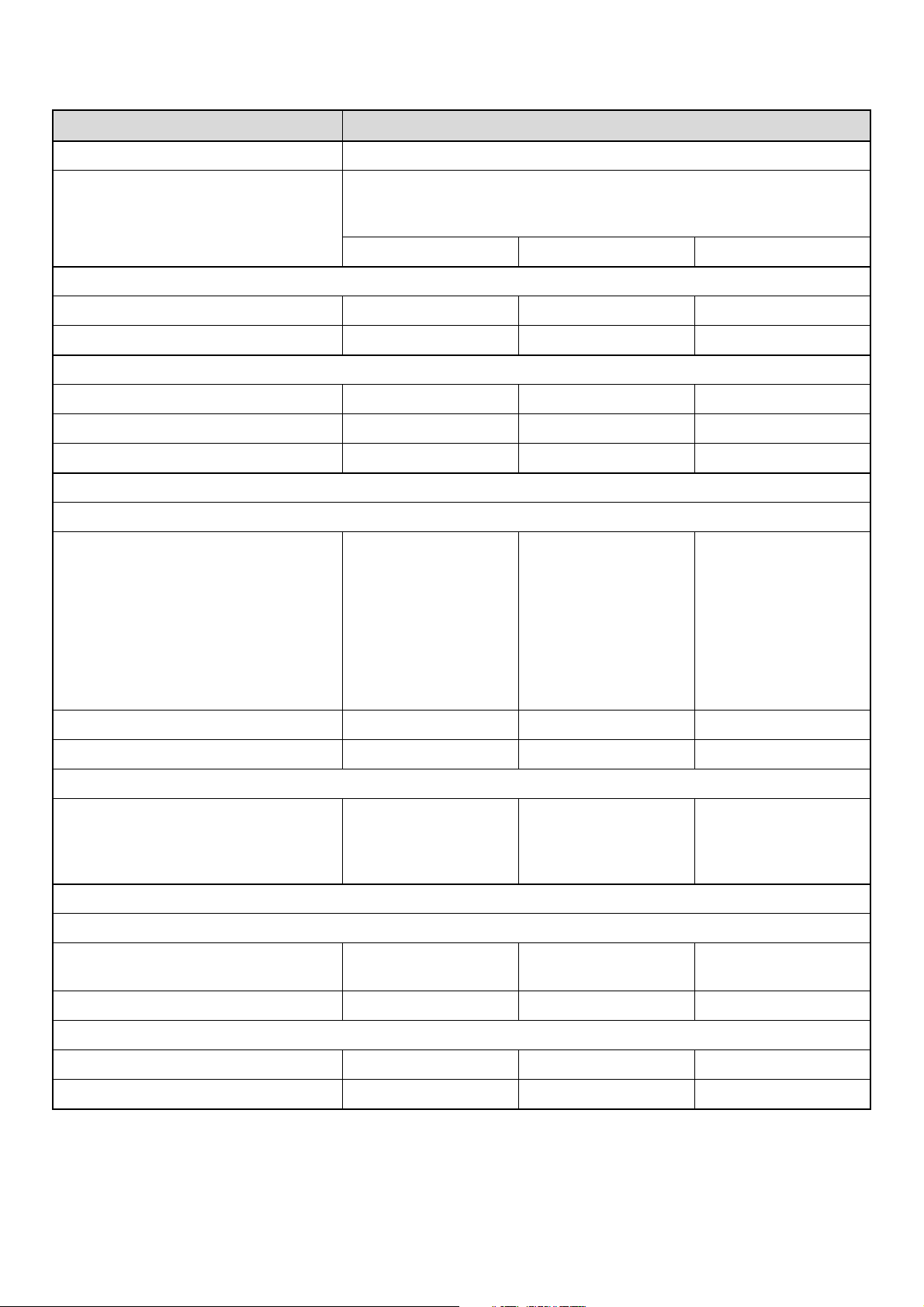
32
List of settings and factory default settings of template groups
Item Description
Group Name Store the name of the group (max. 32 characters).
Select the Group Name to be the
Registration Model
Select one of the previously stored groups for use as a template for the new
group. When selected, the group's settings are applied.
The factory default groups and their settings are shown below.
Admin User Guest
Copy
Copy Allowed Allowed Allowed
Special Modes Usage Allowed Allowed Prohibited
Printer
Printer Allowed Allowed Allowed
FTP Pull Print Allowed Allowed Prohibited
USB Memory Direct Print Allowed Allowed Prohibited
Image Send
Approval Settings for Each Mode
• E-mail
•FTP
• Desktop
• Network Folder
• USB Memory
• Internet Fax Send
• PC-I-Fax Send
•Fax Send
•PC-Fax Send
All allowed All allowed All allowed
Color Scan Allowed Allowed Prohibited
Special Modes Usage Allowed Allowed Prohibited
Approval Setting for Addressing
• Approval Setting for Direct Entry
•
Approval Setting to Use a Local Address Book
• Approval Settings to Use a Global
Address Book
All allowed All allowed All allowed
Document Filing
Scan to HDD
• Color Mode Approval Setting All allowed All allowed
Only Black & White
Allowed
• Special Modes Usage Allowed Allowed Prohibited
Prints (Document Filing)
• Prints (Document Filing) Allowed Allowed Allowed
• Special Modes Usage Allowed Allowed Prohibited
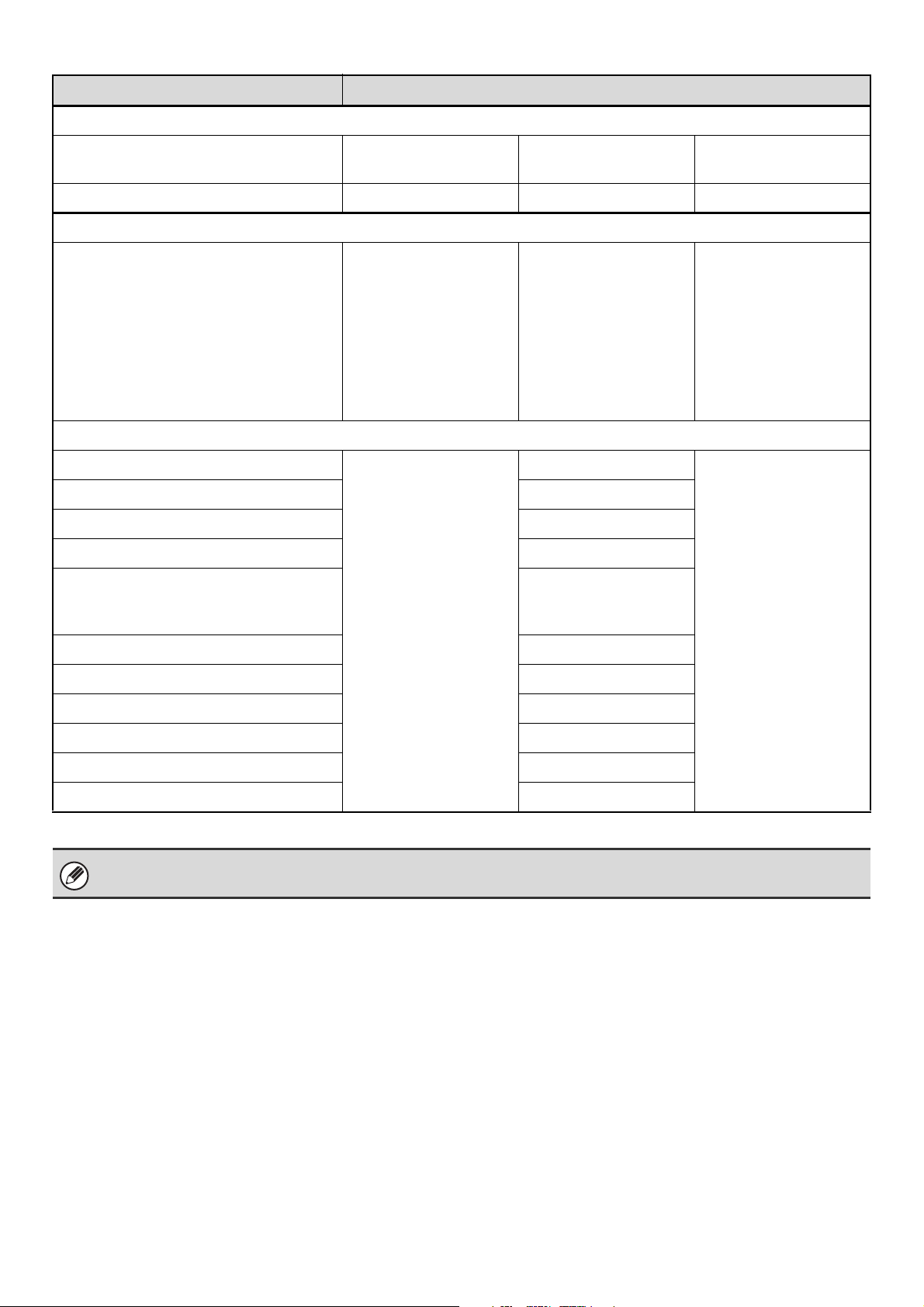
33
* For detailed information, see the system setting explanations in this manual and the manuals for each of the modes.
Common Functions
Approval Settings for 2-Sided Print
1-Sided/2-Sided
Approved
1-Sided/2-Sided
Approved
1-Sided/2-Sided
Approved
Output Approval Settings All allowed All allowed All allowed
System Settings
System Settings*
Allowed
However you do not
have the authority to set
the item below.
• Change Administrator
Password
• Device Cloning
• Administrator
Adjustment
Only user authority
settings
are allowed
All settings prohibited
Web Settings Operational Authority
Display of Device /Network Status
Allowed
Allowed
Prohibited
Power Reset Prohibited
Machine Identification Prohibited
Network Settings Prohibited
Application Settings (Excluding
Registration of Pre-set Text/Forward
Table)
Prohibited
Registration of Pre-set Text/Forward Table Allowed
E-mail Alert and Status Prohibited
Job Log Setting Prohibited
Port Control/ Filter Settings Prohibited
Storage Backup Prohibited
Custom Link Setting Prohibited
Depending on the machine specifications and peripheral devices installed, it may not be possible to use some settings.
Item Description
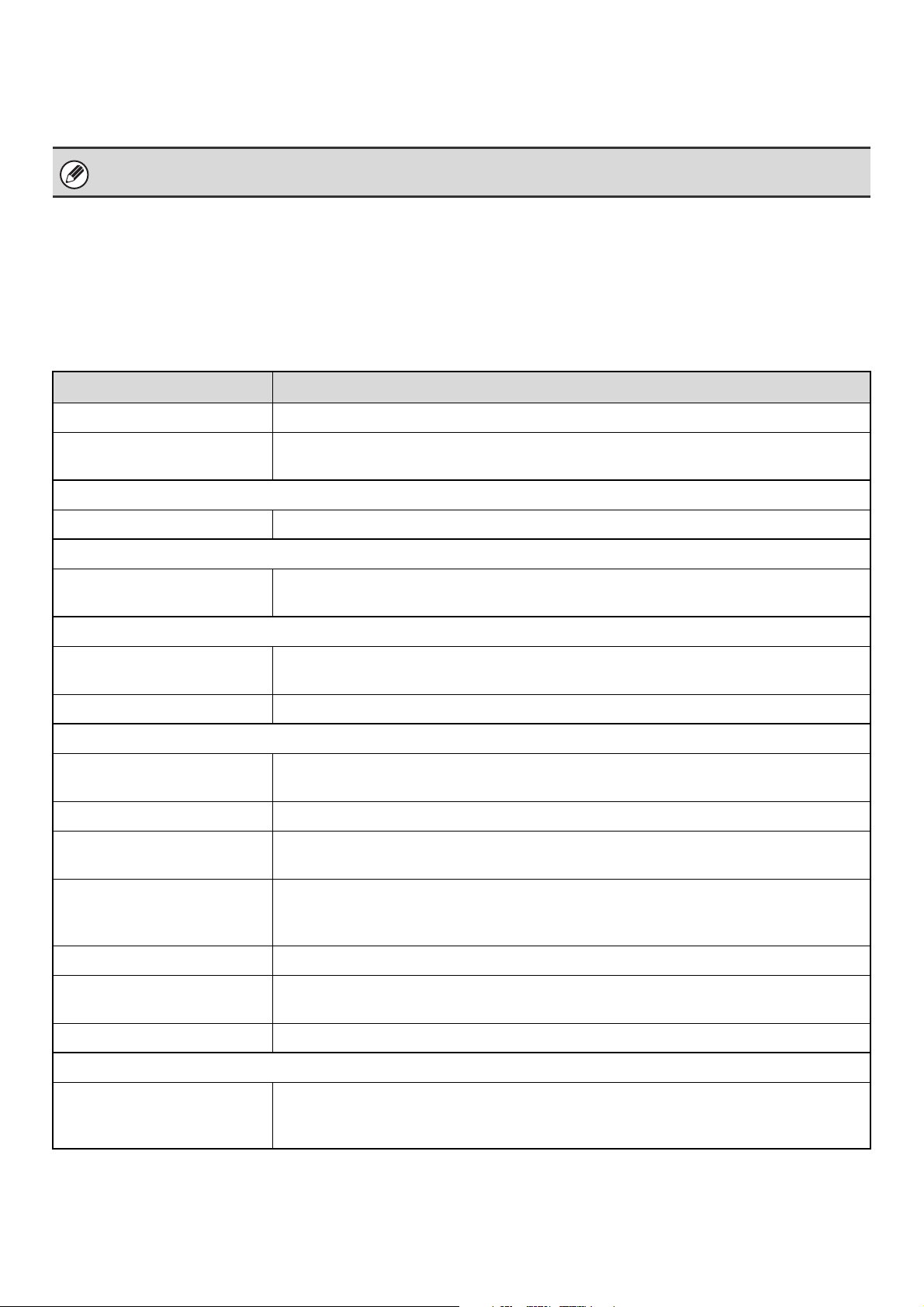
34
Favorite Operation Group List
This is used to store favorite operation groups and home screens.
Favorite Operation Group Registration
Sets of preferred settings can be as groups. For example, a user who speaks a different language would normally have
to change the display language each time he or she uses the machine; however, by storing the language in a favorite
operation group, the language is automatically selected when the user logs in.
Settings
This setting can only be configured in the Web pages. It cannot be configured in the touch panel of the machine.
Item Description
Group Name Store the name of the group (max. 32 characters).
Select the Group Name to be
the Registration Model
Select one of the previously stored groups for use as a template for the new group. When
selected, the group's settings are applied.
Copy
Initial Status Settings Select settings for Paper Tray, Exposure Type, Copy Ratio, Duplex, and Output.
Image Send
Initial Status Settings Select settings for Resolution, Exposure, and File Format. Store the default fax sender name
and number.
Document Filing
Scan to HDD: Initial Status
Settings
Select settings for Color Mode, Default Storage Format, Resolution, Exposure, and
Compression Ratio.
Prints (Document Filing) Set the default output tray for document filing print.
System Settings
Original Size Detector Setting Select whether inch sizes or AB sizes are detected, or disable detection on the document
glass.
MFP Display Language Setting The language that appears in the touch panel can be changed.
Key Operation Setting This sets the amount of time until key input is registered when a key is touched. This can also
be used to disable key repeat.
Keys Touch Sound This setting is used to adjust (or turn off) the volume of the beep that sounds when you touch
a key. You can also have three beeps sound at initial values when setting the ratio in copy
mode or when adjusting the exposure in any mode.
Keyboard Select The layout of the keyboard that appears in text entry screens can be changed.
MFP Display Pattern Setting One of six color patterns can be selected for the color pattern in the touch panel.
A sample of the selected pattern can be viewed.
Home Screen Settings Use this to configure the home screen that appears when the [HOME] key is pressed.
Customize Key Setting
Customize Key Setting Short-cuts to functions that are frequently used can be displayed in the base screen of each
mode.
For more information, see the manuals for each mode.
35
Home Screen List
Home screen settings must be previously stored. Select a home screen when storing a favorite operation group.
Settings
Item Description
Home Screen Name Enter a maximum of 32 characters for the home screen name.
Select the Home Screen to be
the Registration Model
Select one of the previously stored home screens as a template for the new home screen.
When selected, the home screen's settings are applied.
Display Title Show a title on the home screen.
Title Enter a maximum of 70 characters for the title name.
Display User Name Show the currently logged-in user name on the home screen.
Display Date Show the date and time on the home screen.
Background Image
The background image can be selected from the list. A sample view of the selected image will
appear.
Select Template
A template for the design of the home screen can be selected from the list. A sample of the
selected template can be viewed.
Key Layout of the Screen The layout of the keys in the home screen is displayed.
Key Number Select the number of the key that you want to set, referring to "Key Layout of the Screen".
Key Name The name of the key selected in "Key Number" can be changed (maximum of 48 characters).
Link Item Specify the function that you want to use in the key selected in "Key Number".
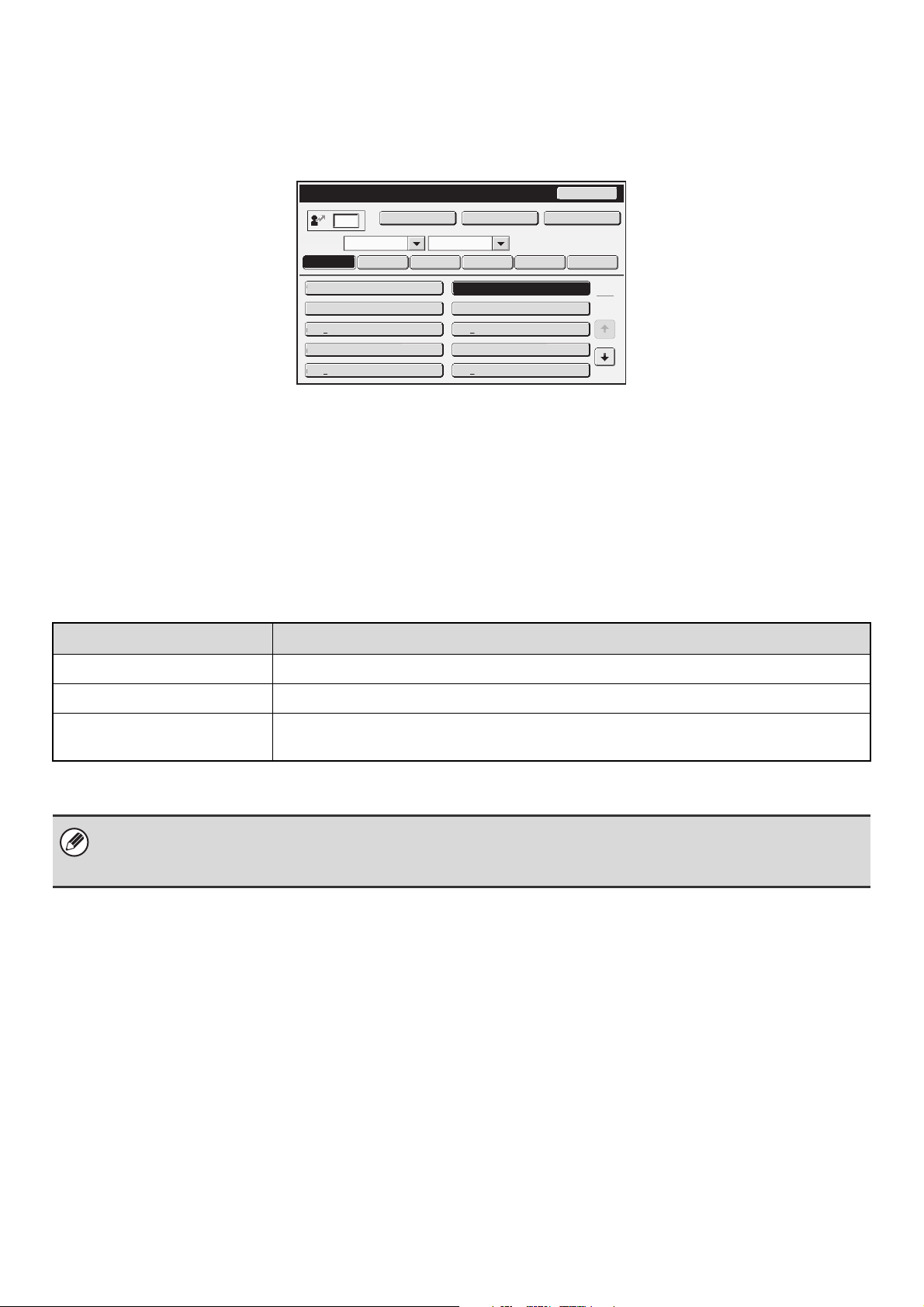
36
User Count
This displays the total number of pages printed by each user.
When the [User Count] key is touched, the following screen appears.
• [Select All Users] key
This selects all users.
• [Show] key
This shows the counts of the selected user.
• [Reset] key
Use this to reset the counts of the selected user.
• User List
This shows the factory-stored users and the currently
stored users. To select a user, select the user name.
Showing user count
Select a user in the above screen and touch the [Show] key. The counts of that user will appear.
Administrator
2
1
Other User
Name 2
Name 4
Name 6
User
Name 1
Name 3
Name 5
Name 7
User Count
All Users
ABC UP
ABCD EFGHI JKLMN OPQRST
UVWXYZ
Back
Reset
ShowSelect All Users
Sort
Item Settings
Previous This shows the previous user (in the order of the registration numbers).
Next This shows the next user (in the order of the registration numbers).
Show Counts The counts and the number of pages remaining of the selected user are shown by function.
The page limit set for the user appears in parentheses below the count.
• Counts of devices that are not installed do not appear.
• A user count can be saved in the screen that appears when [User Control] - [User Count] - [Save User Count] is selected
in the Web page menu.
37
Resetting user counts
Select a user in the setting screen and touch the [Reset] key. A count reset screen for that user will appear.
The reset screen will vary depending on whether a single user or multiple users were selected. The items displayed in
each case are described in the table below.
When a single user is selected
When multiple users are selected
Item Description
Previous This shows the previous user (in the order of the registration numbers).
Next This shows the next user (in the order of the registration numbers).
Clear All Counts Reset all items of the selected user to "0".
Clear Count Reset the count of the selected item to "0".
Show Counts The counts and the number of pages remaining of the selected user are shown by function.
Item Description
Clear All Count Reset all items of the selected users to "0".
Clear Count Reset the count of the selected item to "0".
38
Energy Save
The Energy Save settings help reduce power costs. From an environmental perspective, these settings also help reduce
pollution and conserve natural resources. Touch the [Energy Save] key to configure the settings.
Toner Save Mode
You can reduce the amount of toner used for printing.
Auto Power Shut-Off
This setting enables or disables Auto Power Shut-Off.
Remove the checkmark if you prefer that Auto Power
Shut-Off does not operate.
When the set duration of time elapses after printing
ends, Auto Power Shut-Off activates and causes to
machine to go on standby at a minimal level of power
consumption.
This function reduces your power costs, and at the same
time helps conserve natural resources and reduce
pollution.
If you prefer that auto power shut-off activates as little as
possible, it is recommended that you try lengthening the
time setting after which activation takes place rather than
disabling the function altogether. (The time setting is
changed using "Auto Power Shut-Off Timer" below.)
Auto Power Shut-Off Timer
The time until Auto Power Shut-Off activates can be set
to any number of minutes from 1 to 240.
Select the time that best suits your workplace needs.
Preheat Mode Setting
The time until Preheat Mode activates can be set to any
number of minutes from 1 to 240.
Preheat Mode will activate when the set duration of time
elapses after printing ends and no further operations are
performed. This function reduces your power costs, and
at the same time helps conserve natural resources and
reduce pollution.
Select the time that best suits the needs of your
workplace.
[Print] in Toner Save Mode is only effective when the
machine's printer driver is not used. When the printer
driver is used, the printer driver setting takes
precedence.
This function may not operate in some applications
and operating systems.
Print
data
Print example
when "Toner
Save Mode"
is enabled
The timer setting will not be effective if Auto Power
Shut-Off is disabled using "Auto Power Shut-Off
".
Preheat mode cannot be disabled.
39
Operation Settings
Settings related to machine operation can be configured. Touch the [Operation Settings] key to configure the settings.
Other Settings
Keys Touch Sound
This setting is used to adjust (or turn off) the volume of the
beep that sounds when you touch a key. You can also have
three beeps sound at initial values when setting the ratio in
copy mode or when adjusting the exposure in any mode.
Auto Clear Setting
The time until Auto Clear activates can be set to any
number of minutes from 10 to 240.
If the machine is not used for the duration of time set
here, the auto clear function will clear any settings that
have been selected and return the screen to the base
screen of copy mode or the job status screen.
Cancel Auto Clear Timer
This is used to disable the auto clear function.
Message Time Setting
The duration of time that messages appear in the touch
panel (the time until a message is automatically cleared)
can be set to any number of seconds from 1 to 12.
MFP Display Language Setting
The language that appears in the touch panel can be changed.
Disabling of Job Priority Operation
This disables the job priority function and hides the
[Priority] key in the job status screen.
Disabling of Bypass Printing
This is used to disable bypass printing (printing other
jobs ahead of a job that has been stopped* because the
paper required for the job is not in any of the trays).
* This does not include cases where the paper ran out
during the job.
Key Operation Setting
This setting determines how long a key in the touch
panel must be touched until the key input is registered.
The time can be set from 0 to 2 seconds in increments of
0.5 seconds.
By lengthening the time setting, key input can be
prevented when a key is touched accidentally. Keep in
mind, however, that when a longer setting is selected
more care is required when touching keys to ensure that
key input is registered.
Disable Auto Key Repeat
This is used to disable key repeat.
Key repeat causes a setting to change continuously
while a key is touched, not only each time the key is
touched.
Screen in which setting is effective
Initial
value
Ratio setting screen in base screen of
copy mode
Ratio 100%
Exposure adjustment screen in base
screen of copy mode
Exposure
level:
3 (medium)
Exposure adjustment screen in base screen of
fax, Internet fax, and network scanner modes
Exposure adjustment screen for Scan to
HDD in document filing mode
When user authentication is enabled and a display
language is specified in the favorite operation group,
that setting is given priority.

40
Disabling of Clock Adjustment
This setting is used to prohibit changing of the date and
time.
Disabling of Covers/Inserts Mode
This setting is used to prohibit the use of the covers and
inserts function.
Disable Manual Finishing
(When the Inserter is installed.)
This prohibits off-line output.
Initial Original Count Setting
This specifies whether or not "Original Count" in the
special functions is enabled for each function.
Copy
• Copy
Image Send
• Scan
• Internet Fax
• Fax Job
• Data Entry
Document Filling
• Scan to HDD
41
Customize Key Setting
Short-cuts to functions that are frequently used can be displayed in the base screen of each mode.
For more information, see the manuals for each mode.
The settings are shown below.
Home Screen Settings
Use this to configure the home screen that appears when the [HOME] key is pressed.
The settings are shown below.
* Does not appear when user authentication is not enabled.
MFP Display Pattern Setting
One of six color patterns can be selected for the color pattern in the touch panel.
A sample of the selected pattern can be viewed.
Item Description
Customized Keys 1 - 3 Enter a name for the customized key (maximum of 14 characters).
Item
Select the function that you want to assign to the key. The functions that can be
selected vary by mode.
Return to the Defaults This returns all customized keys to their factory default state.
This setting can only be configured in the Web pages. It cannot be configured in the touch panel of the machine.
Item Description
Display Title Show a title on the home screen.
Title Enter a maximum of 70 characters for the title name.
Display User Name* Show the currently logged-in user name on the home screen.
Display Date Show the date and time on the home screen.
Background Image
The background image can be selected from the list. A sample view of the selected image will
appear.
Select Template
A template for the design of the home screen can be selected from the list. A sample of the
selected template can be viewed.
Key Layout of the Screen The layout of the keys in the home screen is displayed.
Key Number
Select the number of the key that you want to configure, referring to "Key Layout of the
Screen".
Key Name The name of the key selected in "Key Number" can be changed (maximum of 48 characters).
Link Item Specify the function that you want to use in the key selected in "Key Number".
This setting can only be configured in the Web pages. It cannot be configured in the touch panel of the machine.
42
Device Control
These settings control devices installed on the machine. Touch the [Device Control] key to configure the settings.
Other Settings
Original Feeding Mode
The following original feeding modes can be set to
operate by default in copy, Scan to HDD, and image
send modes. When a mode is frequently used, this
saves you from having to select the mode in the special
modes each time you need to use it.
• Mixed Size Original (Same Width/Different Width)
• Slow Scan Mode
Saddle Stitch Position Adjust
(When a saddle stitch finisher or saddle unit is
installed.)
This setting is used to adjust the stapling position
(folding position) of the pamphlet staple function.
The value can be adjusted in increments of 0.2 mm
within a range of ±3.0 mm from the home position of
each paper size.
Auto Paper Selection Setting
The paper types* that the Auto Paper Selection function will
select can be specified. Select one of the following settings:
• Plain Paper
• Plain and Recycle Paper
•Recycle Paper
The Auto Paper Selection function will not select any
paper types other than the paper types specified with
this setting.
* The paper type set for each paper tray using "Paper
Tray Settings" in the system settings.
Tandem Connection Setting
When two machines are used as network printers using
TCP/IP protocol, use this setting to configure the port
number and IP address of the machine used as the
tandem slave machine.
Disabling of Master Machine Mode
To prohibit tandem transmission, enable this setting.
(There is normally no need to enable this setting.)
Disabling of Slave Machine Mode
To prohibit tandem reception, enable this setting. (There
is normally no need to enable this setting.)
Depending on the saddle unit / saddle finisher settings
in "Option Adjustment" (page 75) (saddle stitch
position, folding position), adjustment within ±3 mm
may not be possible.
1
2
12
11
Position
moved in
the minus direction
.
Position moved in
the plus direction.
Max. + 3 mm Min. - 3 mm
Reference position
• The factory default setting for the port number is
[50001]. Unless you experience difficulty with this
setting, do not change the port number.
• To use the tandem function when user
authentication is enabled, the same login name and
password must be used on both the master
machine and slave machine. If the same login name
and password are not used, the page count may not
be added to the appropriate user count or only the
master machine may print.
43
Detect Standard in Auto Color
Mode
(When the color expansion kit is installed.)
When the color mode is set to auto in image send mode,
the discrimination point for detecting whether originals
are color or black and white can be set to one of 5 levels.
To make it easier to detect a black and white original,
adjust the setting toward [Closer B/W]. To make it easier
to detect a color original, adjust the setting toward
[Closer color].
Double Feed Detection Setting
(MX-M950/M1100 only)
When this function is enabled, a detection function will
activate, feeding will stop, and a message will appear if a
paper or original double-feed occurs. In this event, follow
the instructions in the message.
This function can be enabled separately for the
automatic document feeder and for each tray.
Status Indicator Setting
The illumination pattern when the status indicator is
green can be specified. Select pattern 1 or pattern 2.
Pattern 1
Solidly lit: Paper feeding or output
Blinking: Scanning original
Off: Standby
Pattern 2
Solidly lit: Ready to receive job
Blinking: Processing job (scanning original, paper
feeding, output)
Off: Not ready to receive job
Optimization of a Hard Disk
This function optimizes the hard drive of the machine by
defragmenting data. If a job is in progress, a message
will appear and optimization will not begin until the job is
finished. During optimization, the following operations
are not possible:
• Web page access, reception of print data
• Use of keys on the operation panel
• Turning off the power with the main power switch of
the machine.
• Auto Power Shut-Off
When optimization is completed, the machine will
automatically restart.
Clear All Job Log Data
This is used to clear the entire job log. (There is normally
no need to use this function.)
A log file is kept of jobs run on the machine. The job log
can be used to check general use of the machine. The
job log can be written to a computer in CSV format using
a Web browser.
• The detection function does not operate when
transparency film or label sheets are used.
• When media with a special coating is used, the
detection function may activate even though a
double-feed has not occurred.
When the document filing function is frequently used
and output of files seems somewhat slow, optimizing
the hard drive may improve performance.
44
Original Size Detector Setting
One of the 7 groups of standard original sizes shown below can be selected for detection by the original size detection
function.
Cancel Detection at Document Glass
Original size detection on the document glass can be disabled. When this is done, all originals placed on the document
glass are treated as special size originals.
Selections
Detectable original sizes
Document Glass
Document Feeder
(automatic document feeder)
AB-1
A3, A4, A4R, A5, B4, B5, B5R A3, A4, A4R, A5, A5R, B4, B5, B5R,
8-1/2" x 11", 8-1/2" x 14", 11" x 17"
AB-2
A3, A4, A4R, A5, B5, B5R,
216 mm x 330 mm (8-1/2" x 13")
A3, A4, A4R, A5, A5R, B4, B5, B5R,
8-1/2" x 11", 11" x 17",
216 mm x 330 mm (8-1/2" x 13")
AB-3
A3, A4, A4R, A5, B4, 8K, 16K, 16KR A3, A4, A4R, A5, A5R, B4, B5, B5R, 8K, 16K,
16KR, 8-1/2" x 11", 11" x 17",
216 mm x 330 mm (8-1/2" x 13")
AB-4
A3, A4, A4R, A5, B5, B5R, 8-1/2" x 13-2/5" A3, A4, A4R, A5, A5R, B4, B5, B5R, 11" x 17",
8-1/2" x 11", 8-1/2" x 13-2/5"
INCH-1
11" x 17", 8-1/2" x 14", 8-1/2" x 11",
8-1/2" x 11"R, 5-1/2" x 8-1/2"
11" x 17", 8-1/2" x 14", 8-1/2" x 11",
8-1/2" x 11"R, 5-1/2" x 8-1/2", 5-1/2" x 8-1/2"R,
A3, A4, B4, B5, B5R
INCH-2
11" x 17", 216 mm x 330 mm (8-1/2" x 13" ),
8-1/2" x 11", 8-1/2" x 11"R, 5-1/2" x 8-1/2"
11" x 17", 216 mm x 330 mm (8-1/2" x 13"),
8-1/2" x 11", 8-1/2" x 11"R, 5-1/2" x 8-1/2",
5-1/2" x 8-1/2"R, A3, A4, B4, B5, B5R
INCH-3
11" x 17", 8-1/2" x 13-2/5", 8-1/2" x 11",
8-1/2" x 11"R, 5-1/2" x 8-1/2"
11" x 17", 8-1/2" x 13-2/5", 8-1/2" x 11",
8-1/2" x 11"R, 5-1/2" x 8-1/2", 5-1/2" x 8-1/2"R,
A3, A4, B4, B5, B5R

45
Disabling of Devices
Use these settings when a peripheral device on the machine has failed or when you wish to temporarily disable a device.
Disabling of Document Feeder
Use this setting to prohibit the use of the automatic
document feeder, such as when the feeder malfunctions.
(When the setting is enabled, scanning is still possible
using the document glass.)
Disabling of Duplex
This is used to disable two-sided printing, such as when
the duplex module malfunctions.
Disabling of Large Capacity
Cassette
(When a large capacity tray is installed.)
This setting is used to prohibit the use of the large
capacity tray, such as when it malfunctions.
Disabling of Tray Settings
This setting is used to prohibit tray settings (except for
the bypass tray).
Disabling of Bypass-Tray
(When a bypass tray is installed.)
Use this setting to prohibit the use of the bypass tray,
such as when it fails.
Disabling of Inserter
(When an inserter is installed.)
This setting is used to prohibit the use of the inserter,
such as when it malfunctions.
Disabling of Offset
(When a saddle stitch finisher or finisher is
installed.)
This setting is used to disable the offset function.
Disabling of Stapler
(When a saddle stitch finisher or finisher is
installed.)
This setting is used to prohibit stapling, such as when
the stapler unit of the finisher or the saddle stitch finisher
malfunctions.
Disabling of Saddle Stitch
(When a saddle unit is installed.)
Use this setting to prohibit pamphlet stapling, such as
when the saddle stitch unit fails.
Disabling of Punch
(When a punch module is installed.)
This setting is used to prohibit punching, such as when
the punch module of the finisher or the saddle stitch
finisher malfunctions.
Disabling of Fold
(When a folding unit is installed.)
Use this to prohibit paper folding, such as when the
folding unit fails.
46
Copy Settings
The following settings are related to copying. Touch the [Copy Settings] key to configure the settings.
Default settings selected with these settings apply to all functions of the machine (not just the copy function).
Initial Status Settings
The copier settings are reset when the [POWER] key ( ) is turned on, when the [CLEAR ALL] key ( ) is pressed, or
when the auto clear interval has elapsed. These settings are used to change the default settings for copy mode.
The following settings can be changed:
Item Description
Paper Tray Specify the paper tray that is selected by default.
Exposure Type Configure exposure mode settings.
Copy Ratio Specify the copy ratio that is selected by default.
2-Sided Copy
Configure the 2-sided mode settings that are selected by default.
If this setting is used to change the default setting for the duplex function to other than "1-Side to 1-Side"
and the duplex function or automatic document feeder fails or is disabled, the setting will revert to
"1-Side to 1-Side".
Output Set the print output method and output tray that are selected by default.
Return to the
Defaults
This returns all items to the factory default settings.
47
Other Settings
Copy Exposure Adjustment
This is used to adjust the exposure level when [Auto] is
used for the copy exposure.
Select separate settings for the document glass and for
the automatic document feeder.
Rotation Copy Setting
When the original and paper are placed in different
orientations, this function automatically rotates the image
90 degrees to enable correct copying on the paper.
Add or Change Extra Preset Ratios
Two enlargement preset ratios (101% to 400%) and two
reduction preset ratios (25% to 99%) can be added. An
added preset ratio can also be changed.
Setting a Maximum Number of Copies
This is used to set the maximum number that can be
entered for the number of copies (number of continuous
copies). Any number from 1 to 9999 can be specified.
Initial Margin Shift Setting
This is used to set the default margin shift amount.
Specify a value from 0" (0 mm) to 1" (20 mm) in
increments of
1/8" (1 mm) for both the front and reverse
sides.
Erase Width Adjustment
This is used to set the default erase width for erase
copy. Specify a value from 0" (0 mm) to 1" (20 mm) in
increments of 1/8" (1 mm) for both edge erase and
center erase.
Card Shot Settings
This is used to set the default original size for the card
shot function.
Both the X (horizontal) and Y (vertical) dimensions of the
original can be set from 1" (25 mm) to 8-1/2" (210 mm) in
increments of 1/8" (1 mm).
Fit to Page
Enable this setting to have the [Fit to Page] key always
appear in the card shot screen.
Automatic Saddle Stitch
(When a saddle stitch finisher or saddle unit is
installed.)
This is used to have saddle stitch stapling take place
automatically when the pamphlet copy function is used.
•
Image rotation can only take place when automatic
paper selection or automatic ratio selection is enabled.
• The Rotation Copy setting must be enabled when
copying a 5-1/2" x 8-1/2" (A5) size original on
5-1/2" x 8-1/2"R (A5R) paper.
Preset ratios other than added preset ratios cannot be
changed.
The default settings configured here are applied to
copy mode, document filing mode, and image send
mode.
The default settings configured here are applied to
copy mode and document filing mode. The default
settings are not applied to "Card Shot" of image send
mode.
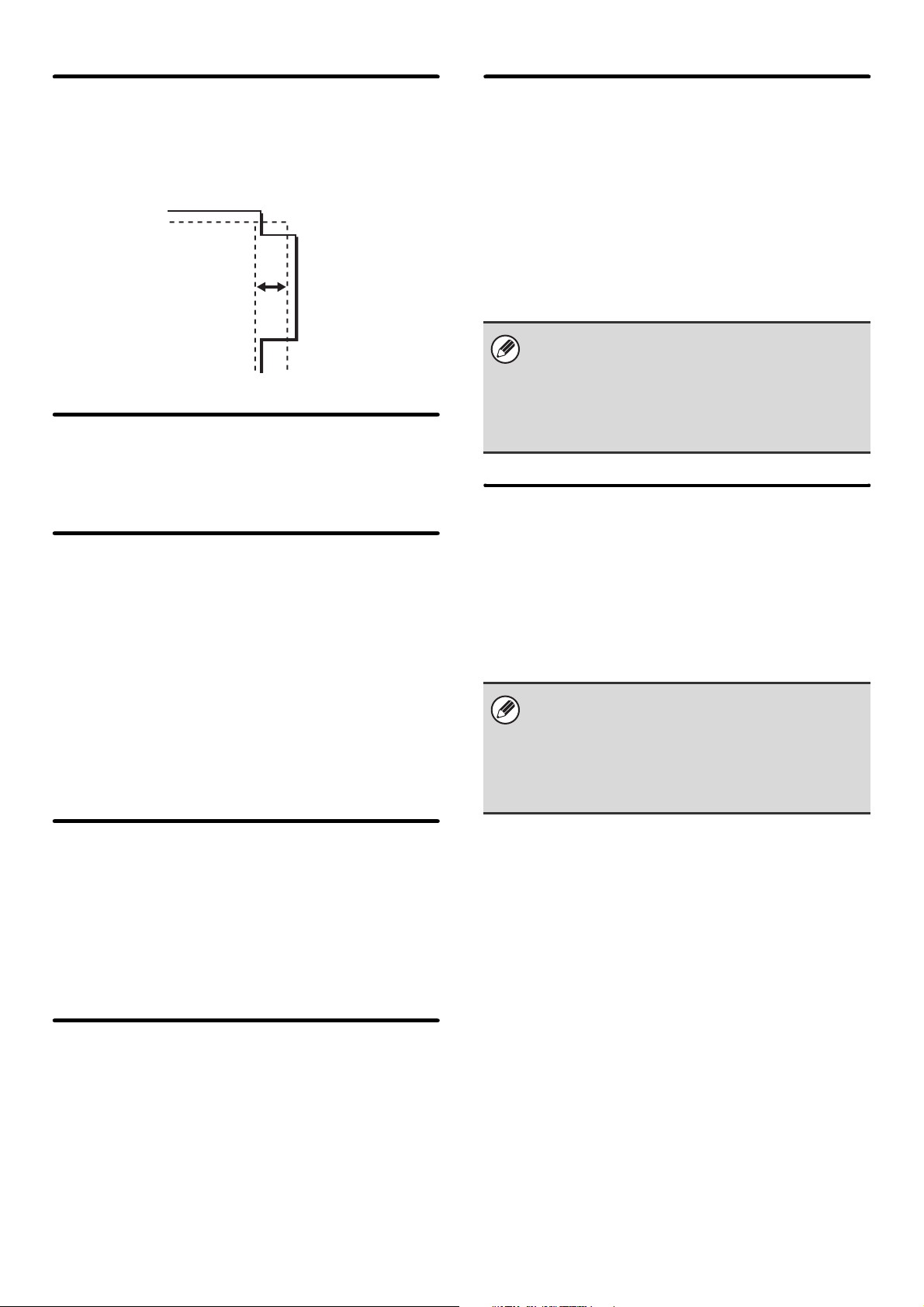
48
Initial Tab Copy Setting
This is used to set the default image shift width (tab
width) for tab copying.
The default width can be set from 0" (0 mm) to 5/8"
(20 mm) in increments of 1/8" (1 mm).
Disabling Deletion of Job Programs
This is used to prohibit the deletion and changing of copy
settings stored in job programs.
Disabling of Bypass-Tray in
Duplex Copy
This is used to prohibit the use of the bypass tray when
making two-sided copies.
The bypass tray is often used to feed label sheets,
transparency film, and other special media for which
two-sided copying is prohibited. If a sheet of one of these
special media enters the reversing unit, a misfeed or
damage to the unit may result. If special media for which
two-sided copying is prohibited is often used, it is
recommended that you enable this setting.
Disabling of Auto Paper Selection
This setting is used to disable the Auto Paper Selection
function.
When this setting is enabled, automatic selection of
paper that is the same size as the original on the
document glass or in the automatic document feeder
does not take place.
Auto Selection Setting of Tray that
is Supplied the Paper
When this setting is enabled and paper is loaded in a
tray while the machine is on standby in copy mode, that
tray is automatically selected.
600dpi x 600dpi Scanning Mode for
Document Feeder
The resolution used when scanning originals on the
document glass can be set to 600 x 600 dpi (high quality
mode).
When this setting is disabled, originals are scanned at
600 x 300 dpi.
When high quality mode is used, fine print and thin lines
are reproduced with greater clarity, however, the
scanning speed is slower.
Quick Scan from Document Glass
The resolution used when scanning originals on the
document glass can be set to 600 x 300 dpi (speed
priority mode).
When this setting is disabled, originals are scanned at
600 x 600 dpi.
When high speed mode is selected, the first copy time is
quicker, however, the copy image is not as clear.
When this setting is enabled to give priority to job
speed, the following conditions must all be met in
order for scanning to take place at the set resolution.
• The copy ratio must be set to 100%.
• Do not select a special mode that will change the
ratio.
When this setting is disabled to give priority to job
speed, the following conditions must all be met in
order for scanning to take place at the set resolution.
• The copy ratio must be set to 100%.
• Do not select a special mode that will change the
ratio.
49
Network Settings
Network settings are described below. Touch the [Network Settings] key to configure the settings.
IP Address Setting
When using the machine on a TCP/IP (IPv4) network,
use this setting to configure the IP address of the
machine.
The settings are shown below.
IP Address
Enter the IP address of the machine.
IP Subnet Mask
Entry the IP Subnet Mask.
IP Gateway
Enter the IP Gateway address.
DHCP
Use this setting to have the IP address obtained
automatically using DHCP (Dynamic Host Configuration
Protocol). When this setting is enabled, it is not
necessary to manually enter an IP address.
Enable TCP/IP
To use the machine on a TCP/IP network, this setting
must be enabled.
Enable NetWare
To use the machine on a NetWare network, this setting
must be enabled.
When any of these settings are changed, you must exit the system settings, turn off the [POWER] key ( ), wait a brief
interval, and then turn the [POWER] key ( ) back on to make the new settings take effect.
• If the machine will be used on a TCP/IP network, be
sure to enable "Enable TCP/IP
" below.
• If DHCP is used, the IP address assigned to the
machine may change automatically. If the IP
address changes, printing will not be possible.

50
Enable EtherTalk
To use the machine on an EtherTalk network, this
setting must be enabled.
Enable NetBEUI
To use the machine on a NetBEUI network, this setting
must be enabled.
Reset the NIC
This returns all "Network Settings" to the factory default
settings.
Ping Command
Use this function to check if the machine can
communicate with a computer on the network.
Specify the IP address of the desired computer and
touch the [Execute] key. A message will appear
indicating whether or not the computer responded.

51
Printer Settings
Settings related to the printer function can be configured. Touch the [Printer Settings] key to configure the settings.
Default Settings
Printer condition settings are described below.
Prohibit Notice Page Printing
This setting is used to disable printing of notice pages.
Prohibit Test Page Printing
This setting is used to disable printing of test pages.
When this setting is enabled, "Printer Test Page" in the
system settings cannot be used to print test pages.
A4/Letter Size Auto Change
When printing an A4 size image, this setting allows letter
size paper to be used if A4 size paper is not loaded.
Print Density Level
This lightens or darkens the print density of images. The
print density can be adjusted to five levels.
Bypass Tray Settings
(When a bypass tray is installed.)
Enable Detected Paper Size in Bypass Tray
This is used to prohibit printing when the paper size
specified for a print job is different from the paper size
inserted in the bypass tray.
Enable Selected Paper Type in Bypass Tray
This is used to prohibit printing when the paper type
specified for a print job is different from the paper type
inserted in the bypass tray.
Exclude Bypass-Tray from Auto Paper Select
When [auto] is selected for paper type selection, the
bypass tray can be excluded from the trays that can be
selected. This is recommended when special media is
often placed in the bypass tray.
Job Spool Queuing
When this function is enabled, received print jobs are
displayed in the spool queue of the job status screen.
The jobs are moved to the job queue after they have
been analyzed by the machine. Multiple jobs that have
not yet been analyzed can appear in the spool queue.
When this function is disabled, received print jobs are
displayed in the job queue without being displayed in the
spool queue. However, when an encrypted PDF job is
printed, the job appears in the spool queue.
These settings can be configured when the printer expansion kit is installed.
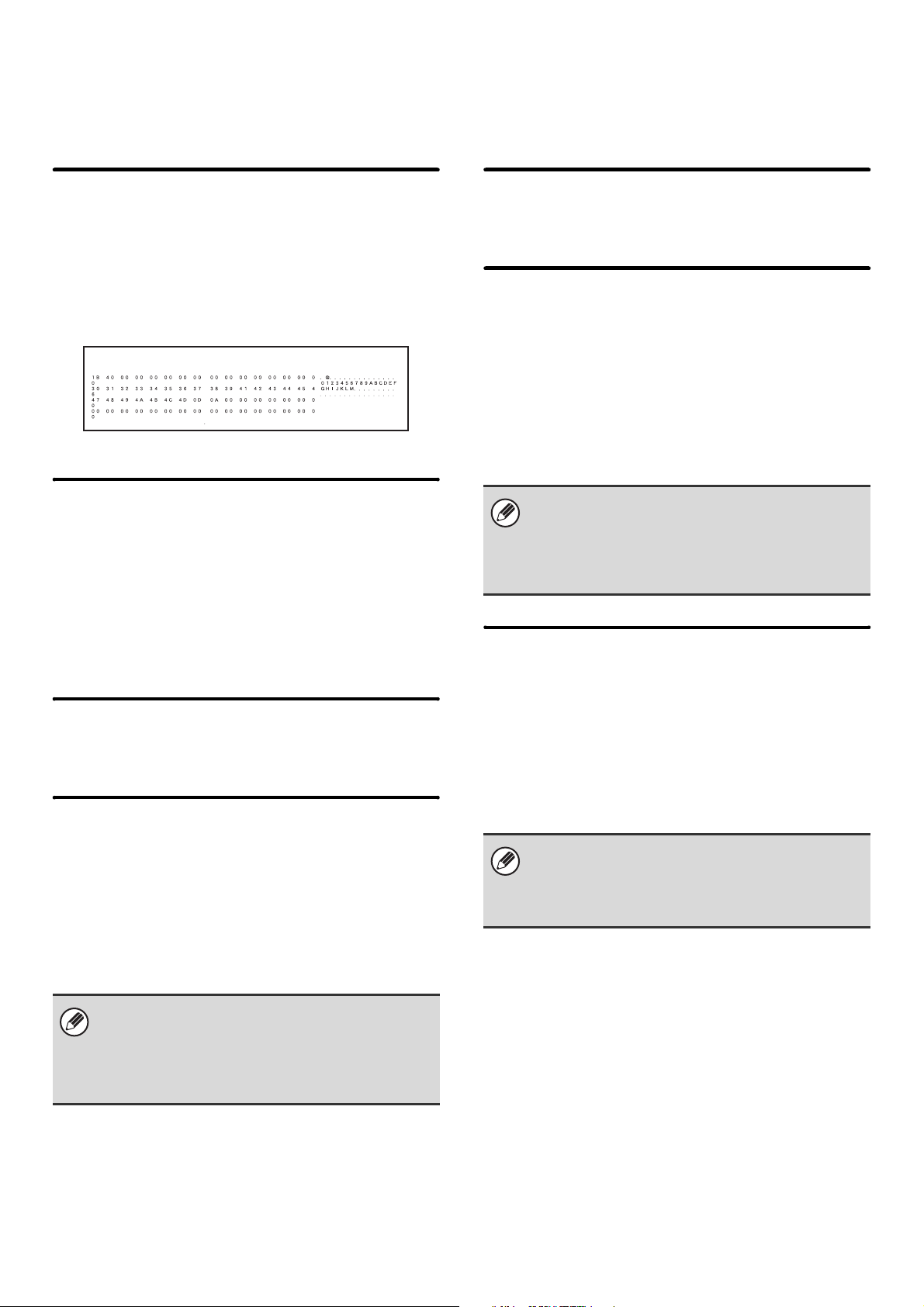
52
Interface Settings
These settings are used to control and monitor data transmitted to the USB port or network port of the machine.
Hexadecimal Dump Mode
This function is used to print the print data from a
computer in hexadecimal format together with the
corresponding ASCII text. This allows you to check
whether or not print data from the computer is being
transmitted to the machine correctly.
Example of a hexadecimal dump
I/O Timeout
The I/O timeout can be set to any number of seconds
from 1 to 999.
The I/O timeout function temporarily breaks the
connection if the set duration of time elapses without any
data being received by the port. After the connection is
broken, the port is set to auto selection or the next print
job is begun.
Enable USB Port
This is used to enable printing from the USB port.
USB Port Emulation Switching
If the machine is connected using the USB port, select
the emulated printer language.
The settings are shown below.
•Auto
• PostScript*
•PCL
* When the PS3 expansion kit is installed.
Enable Network Port
This is used to enable printing from the network port.
Network Port Emulation Switching
This setting is used to select the emulated printer
language when the machine is connected by a network
port.
The settings are shown below.
•Auto
• PostScript*
•PCL
* When the PS3 expansion kit is installed.
Port Switching Method
This setting is used to select when port switching takes
place.
Switch at End of Job
The port changes to auto selection when printing ends.
Switch after I/O Timeout
When the time set in "I/O Timeout" elapses, the port
changes to auto selection.
• The settings are the same as those of "Network Port
Emulation Switching".
• Unless printer errors occur frequently, it is
recommended that you use the factory default
setting "Auto".
• The settings are the same as those of "USB Port
Emulation Switching".
• Unless printer errors occur frequently, it is
recommended that you use the factory default
setting "Auto".
The following two print ports are available on the
machine:
• USB port
• Network port
53
Image Send Settings
Settings related to the image send function (scan, Internet fax, etc.) can be configured. Touch the [Image Send Settings]
key to configure the settings.
Operation Settings
The operation settings below apply to all image send functions.
Default Display Settings
You can select one of 5 base screen types for the base
screen that appears when the [IMAGE SEND] key is
touched or when the [CLEAR ALL] ( ) key is pressed
in image send mode.
• Address Book
• Scan
• Internet Fax
•Fax
• Data Entry
Hold settings for a while after scanning has been completed
Use this setting to hold the settings after scanning is
completed (until Auto Clear Mode activates).
Switch Automatically to Copy Mode Screen
Enable this setting to have the screen automatically
switch to the copy mode screen if no action is taken in
the image send mode screen for 20 seconds.
Address Book Default Selection
One of the following screens can be specified for the
initial address book screen.
Tab Switch
• ABC
•Group
Address Type
•All
•E-mail
• FTP/Desktop
• Network Folder
• Internet Fax
•Fax
•Group
Initial Resolution Setting
The following settings are available for the default
resolutions of scan, Internet fax, and fax mode.
Scan : 100X100 dpi, 200X200 dpi, 300X300 dpi,
400X400 dpi, 600X600 dpi
Internet fax : 200X100 dpi
200X200 dpi
200X400 dpi
400X400 dpi
600X600 dpi
Fax: Standard
Fine
Super Fine
Ultra Fine
Apply the Resolution Set when Stored
When an image stored by document filing is used, this
applies the resolution setting that was stored with the
image.
For explanations of settings related to the fax function, see "2. SYSTEM SETTINGS FOR FAX (ADMINISTRATOR)"
(page 76).
Other Settings
Half Tone
Half Tone
54
Default Exposure Settings
This is used to set the default exposure settings for
scanning a document in image send mode. Select [Auto]
or [Manual]. When [Manual] is selected, the exposure
can be set to one of 5 levels.
Default Original Image Type
Select the original type beforehand to enable
transmission at a resolution suitable for the original (only
in scan mode, data entry mode, and USB memory
mode).
The settings are shown below.
• Text/Printed Photo
• Text/Photo
•Text
•Photo*
• Printed Photo*
•Map*
* Does not appear when the exposure is set to [Auto].
Moiré Reduction
This reduces the moiré effect (line pattern) that occurs
when printed matter is scanned (only in scan mode, data
entry mode, and USB memory mode).
Must Input Next Address Key at
Broadcast Setting
This setting is used to require that the [Next Address]
key be touched before the next address is entered when
performing a broadcast transmission.
When this setting is enabled, the [Next Address] key
cannot be omitted even if the next address is entered
with a one-touch key.
If a user attempts to enter the next address without
touching the [Next Address] key, a double-beep alarm
will sound and the entry will be rejected.
Scan Complete Sound Setting
The scan complete sound can be selected.
The Number of File Name/Subject/Body
Keys Displayed Setting
This setting is used to select the number of file name /
subject keys that are displayed in the screen. The
number of keys can be set to 6, 12, or 18.
The Number of Direct Address
Keys Displayed Setting
Select 5, 10, or 15 for the number of one-touch keys that
appear in the address book screen.
Disable Switching of Display Order
This is used to prohibit changes to the order of display
(search number order, ascending, descending) in the
address book.
When this setting enabled, touching a tab on the
address book screen does not change the order. The
display order will remain fixed at the order that is in effect
when this setting is enabled.
Hold Setting for Received Data Print
(When the Internet fax expansion kit / facsimile
expansion kit is installed.)
This function holds received faxes and Internet faxes in
memory without printing them. The faxes can be printed
by entering a password (factory default setting: 0000)
with the numeric keys.
Password
When [Hold Setting for Received Data Print] is enabled,
the password (4-digit number) can be changed.
Default Verification Stamp
(When a stamp unit is installed.)
When the automatic document feeder is used, this
setting can be enabled to have each original page
stamped after it is scanned.
These settings can only be configured when there is
no received data in the machine's memory (excluding
data in a confidential or relay broadcast memory box).

55
This is used to prohibit the storing of destinations.
Storing from the machine, storing from the Web page,
and storing from a computer can each be separately
prohibited.
Disable Registering Destination
from Operation Panel
This disables address control from the machine.
Configure the setting for each of the following items:
•Group
•E-mail
• Internet Fax
•Fax
Select All: Select all items.
Clear Checked: Clear all selections.
Disable Registering Destination on
Web Page
This disables address control from the Web pages.
Configure the setting for each of the following items:
•Group
•E-mail
• FTP
•Desktop
• Network Folder
• Internet Fax
•Fax
Select All: Select all items.
Clear Checked: Clear all selections.
Disable Registration Using
Network Scanner Tool
This disables address control from the Network Scanner
Tool.
These settings are used to disable the following
transmission operations.
Disable [Resend] on Image Send
Mode
This setting disables the [Resend] key in the base
screen of image send mode.
Disable Selection from Address
Book
This disables the selection of destinations from the
Address Book.
Configure the setting for each of the following items:
• E-mail
• FTP
• Desktop
• Network Folder
• Internet Fax
•Fax
Select All: Select all items.
Clear Checked: Clear all selections.
Disable Direct Entry
This prohibits the direct entry of addresses.
Configure the setting for each of the following items:
• E-mail
• Internet Fax
•Fax
Select All: Select all items.
Clear Checked: Clear all selections.
Disable PC-I-Fax Transmission
(When the Internet fax expansion kit is installed.)
This prohibits PC-I-Fax transmission.
Disable PC-Fax Transmission
(When facsimile expansion kit is installed.)
This prohibits PC-Fax transmission.
Settings to Disable Registration
Settings to Disable Transmission
56
Scan Settings
Settings related to scanning can be configured.
Default Sender Set
The information stored here is used if you do not specify
[Reply-To] in the send settings when performing Scan to
E-mail.
Sender Name
Enter a default sender name (maximum of 20
characters).
Reply E-mail Address
Enter a default reply address (maximum of 64
characters).
Default Color Mode Settings
(When the color expansion kit is installed.)
Select a default color mode setting in scan mode. The
settings are shown below.
• Auto (Mono2, Grayscale*)
• Full Color
• Grayscale
• Mono2
* File format for saving black & white originals scanned
using [Auto]
Disable Change of B/W Setting in Auto Mode
This prohibits black & white settings from the base
screen when the color mode is set to Auto.
Initial File Format Setting
This is used to set the default file format for Scan to
E-mail and USB memory mode when the e-mail address
is entered manually by touching the [Address Entry] key.
File Type
PDF, TIFF, JPEG (B/W:TIFF)*, Encrypt PDF
Compression Mode (Compression Ratio)
Black & White: None, MH(G3), MMR(G4)
Color/Grayscale*: Low, Medium, High
Specified Pages per File
When multiple pages are scanned, this is used to
generate a separate file for each scanned page (or
specified number of pages).
When this setting is enabled, the number of pages per
file can be specified.
* When the color expansion kit is installed.
Compression Mode at Broadcasting
This is used to set the compression mode for
broadcasting using Scan to E-mail or Internet fax. The
compression mode set here is used for all destinations
regardless of their individual compression mode settings.
Black & White
MH(G3), MMR(G4)
Color/Grayscale*
Low, Medium, High
* When the color expansion kit is installed.
These settings can be configured when the network scanner expansion kit is installed.
Other Settings
If only the sender name is stored, it will not be used as
sender information.
When [JPEG] is selected for the file type, [Specified
Pages per File] cannot be selected.
57
Maximum Size of E-mail
Attachments (E-mail)
To prevent the transmission of excessively large image
files by Scan to E-mail, a file size limit can be set from
1 MB to 10 MB in increments of 1 MB. If the total size of
the image files created by scanning the original exceeds
the limit, the image files are discarded.
If you do not wish to set a limit, select [Unlimited].
Maximum Size of Data Attachments
(FTP/Desktop/Network Folder)
A limit can be set for the size of files that can be sent by
Scan to FTP, Scan to Desktop, and Scan to Network
Folder. Limits that can be selected are 50 MB, 150 MB,
and 300 MB. If the total size of the image files created by
scanning the original exceeds the limit, the image files
are discarded.
If you do not wish to set a limit, select [Unlimited].
Bcc Setting
Enable Bcc
Enable this setting if you wish to use Bcc delivery. When
the setting is enabled, the [Bcc] key will appear in the
image send address book screen.
Display Bcc Address on the Job Status Screen
This displays Bcc addresses on the job status screen
and address list tab.
Disable Scan Function
This is used to disable USB memory scan.
Pre-Setting Mail Signature
A signature can be automatically appended to the end of
the body text of e-mail. This is convenient when it is a
corporate policy to append a specific signature at the
end of e-mail.
The mail signature to be appended is configured in the
Web pages. This setting simply enables or disables the
signature.
A default address can be stored that makes it possible to
transmit by simply pressing the [START] key ( )
without specifying an address.
This setting is linked to "Maximum Size of E-mail
Attachments" (page 59) in the Internet Fax Send
Settings.
When a broadcast transmission is performed that
includes both e-mail and Internet fax destinations, the
limit set in "Maximum Size of E-mail Attachments
(E-mail)" is given priority.
This setting is linked to "Pre-Setting Mail Signature"
(page 59) in the Internet Fax Initial Settings.
Default Address Setting
• When this setting is enabled, the base screen
changes to scan mode.
• Only a single default address can be set for Scan to
E-mail, Scan to FTP, Scan to Desktop, and Scan to
Network Folder.
58
I-Fax Settings
These settings are used to configure the default settings
for Internet fax.
I-Fax Own Name and Address Set
This is used to configure the sender name and address
for Internet fax. The entered sender name and address
are printed at the top of each fax page you send.
Sender Name
Enter a default sender name (max. of 40 characters).
Own Address
Enter a default sender address (maximum of 56
characters).
Auto Wake Up Print
When the [POWER] key ( ) is "off" (but the main
power switch is "on") and an Internet fax is received, this
function activates the machine and prints the fax.
When this function is disabled, received Internet faxes
are not printed until the [POWER] key ( ) is switched
"on".
Compression Setting
This is used to set the default compression mode for
Internet fax transmission.
The settings are shown below.
•MH (G3)
• MMR (G4)
Speaker Volume Setting
This is used to adjust the volume of fax receive signals
and communication error signals heard through the
speaker.
A fax receive signal sounds after the machine checks
the mail server and retrieves received faxes. A
communication error signal sounds when a delivery
failed e-mail is received from the destination Internet fax
machine.
Original Print on Transaction
Report
When a transaction report is printed, this is used to print
part of the first page of the transmitted original on the
transaction report. Select one of the settings below.
• Print Out All Report
• Print Out Error Report Only
• No Printed Report
This setting will not be effective if "Transaction Report
Print Select Setting" below is set to "No Printed Report".
Transaction Report Print Select
Setting
This is used to select whether or not a transaction report
will be printed, and if printed, the condition for being
printed. Select a setting for each of the following
operations:
Single Sending
• Print Out All Report
• Print Out Error Report Only
• No Printed Report
Broadcasting
• Print Out All Report
• Print Out Error Report Only
• No Printed Report
Receiving
• Print Out All Report
• Print Out Error Report Only
• No Printed Report
When a transaction report is printed, you can have part
of the first page of the transmitted original printed on the
transaction report. For more information, see "Original
Print on Transaction Report".
These settings can be configured when the Internet fax expansion kit is installed.
I-Fax Default Settings
59
Activity Report Print Select Setting
This is used to have the Image Sending Activity Report
stored in the machine's memory automatically print at
specified times.
The Image Sending Activity Report can be set to
automatically print each time the number of transactions
reaches 200, and it can also be set to automatically print
at a specified time (once a day only). (The settings can
be simultaneously enabled.)
Body Text Print Select Setting
Image files attached to Internet faxes are normally
printed. This setting can be enabled to also have the
e-mail body text (subject and message) printed.
This setting also applies to printing of the body text of
e-mail messages without file attachments.
Pre-Setting Mail Signature
A signature can be automatically appended to the end of
the body text of e-mail. This is convenient when it is a
corporate policy to append a certain signature at the end
of e-mail.
The mail signature to be appended is configured in the
Web pages. This setting simply enables or disables the
signature.
I-Fax Send Settings are described below.
I-Fax Reception Report On/Off
Setting
This setting is used to request a reception report when
an Internet fax is sent.
The reception report is returned to the sender address
stored in "I-Fax Own Name and Address Set" (page 58).
I-Fax Reception Report Request
Timeout Setting
The duration of time that the machine will wait for a
reception report from the destination machine can be set
by any number from 0 minutes to 240 hours in
increments of 1 minute.
Number of Resend Times at
Reception Error
The number of resend attempts when an error message
is received from an I-Fax recipient can be set to any
number from 0 to 15.
Maximum Size of E-mail
Attachments
To prevent the transmission of excessively large image
files by Internet fax, a file size limit can be set from 1 MB
to 10 MB in increments of 1 MB. If the total size of the
image files created by scanning the original exceeds the
limit, the image files are discarded.
If you do not wish to set a limit, select [Unlimited].
• If you only enable the [Print Daily at Designated
Time] setting and the number of recorded
transactions exceeds 200 before the specified time,
each new transaction will delete the oldest
transaction (the oldest transaction will not be
printed).
• The Image Sending Activity Report can also be
printed manually. See "List Print (Administrator)"
(page 65) in the system settings (administrator).
A maximum of 5 pages of body text can be printed.
This setting is linked to "Pre-Setting Mail Signature"
(page 57) in the Scan Settings.
I-Fax Send Settings
This setting is only effective when "I-Fax Reception
Report On/Off Setting" is enabled.
This setting is only effective when "I-Fax Reception
Report On/Off Setting" is enabled.
This setting is linked to "Maximum Size of E-mail
Attachments (E-mail)" (page 57) in the Scan Settings.
60
Rotation Sending Setting
When transmitting an image that is one of the following
sizes, this function rotates the image counterclockwise
90 degrees. (The setting can be configured separately
for each size.)
8-1/2 x 11", 5-1/2" x 8-1/2"R, A4, B5R, A5R, 16K
Printing Page Number at Receiver
When the transmitted image is printed by the receiving
machine, the page number can be added to the top of
each printed page.
I-Fax Receive Settings are described below.
Auto Receive Reduce Setting
When a fax is received that includes printed information
such as the sender's name and address, the received image
is slightly larger than the standard size. This setting is used
to automatically reduce the image to fit the standard size.
Duplex Reception Setting
This is used to select whether or not received faxes are
printed on both sides of the paper.
When this setting is enabled and a fax consisting of 2 or
more pages is received (the pages must be the same
size), the pages are printed on both sides of the paper.
Set Address for Data Forwarding
When the machine is unable to print a received fax, the
fax can be forwarded to another machine. This setting is
used to configure the address of the other machine.
Enter the forwarding address (maximum of 64 characters).
A3 RX Reduce
When an A3 size fax is received, this function reduces
the fax to W letter size.
POP3 Communication Timeout Setting
The duration of time the machine waits until stopping
reception when a response is not received from the mail
server (POP3 server) can be set from 30 to 300 seconds
in increments of 30 seconds.
8-1/2"x11"R and A4R size images are not rotated.
I-Fax Receive Settings
• If Auto Receive Reduce is disabled, the edges of
the image outside the standard size will be cut off.
However, the image will be clearer because it will
be printed at the same size as the original.
• Standard sizes are sizes such as 8-1/2" x 11" and
8-1/2" x 5-1/2" (A4 and B5).
Multiple forwarding addresses cannot be stored.
When this setting is enabled, W letter size faxes are
also reduced.
61
Reception Check Interval Setting
This is used to specify the interval at which the machine
automatically checks the mail server (POP3 server) for
received Internet faxes. The interval can be set from 0
minutes to 8 hours in increments of 1 minute.
When 0 hours 0 minutes is specified, the machine does
not automatically check the mail server for received
Internet faxes.
I-Fax Output Setting
(When a saddle stitch finisher or finisher is
installed.)
This sets the output tray for received Internet faxes.
The items that appear will vary depending the machine
configuration.
This setting is used to allow or refuse reception from
specified addresses/domains.
The machine also checks the mail server (POP3
server) for received Internet faxes when the main
power is switched on. (Except when 0 hours 0 minutes
is specified.)
Anti Junk Mail/Domain Name
Setting
Item Description
All Invalid
Reception from any address and domain
is allowed, regardless of whether or not
any addresses or domains have been
stored.
Allow
Reception
Reception from the stored
address/domain is allowed.
Reject
Reception
Reception from the stored
address/domain is not allowed.
Add New
Use this to add a new address or domain
(maximum of 50) from which reception is
to be rejected or allowed.
If the first character of the entry is not
"@", the entry is identified as an address.
If the first character is "@", the entry is
identified as a domain. ([email protected]
is treated as an address, and
@xx.xxx.com is treated as a domain.)
Storing an address specifies only that
address. Storing a domain specifies all
addresses that include that domain.
Stored
address /
domain list
This shows a list of the stored addresses
and domains. An address or domain can
be selected in this screen to delete it from
the list.
When there are no stored anti junk mail addresses,
only the [Add New] key can be selected.
62
Document Filing Settings
Document filing settings are described below. Touch the [Document Filing Settings] key to configure the settings.
Other Settings
Default Mode Settings
This is used to specify which mode, Sharing or
Confidential, is used as the default mode when storing a
file.
When [Confidential Mode] is selected, the [Confidential]
checkbox in the information screen for filing will be
selected .
Sort Method Setting
This setting is used to select the order of display of files
stored in the Main Folder, Custom Folder, and Quick File
Folder. Select one of the following settings:
• File Name
• User Name
•Date
Administrator Authority Setting
Instead of entering the password that is set for a
confidential file or confidential folder, the administrator
password can be entered to perform the following
operations:
Delete File
The administrator password can be entered to delete a
file.
Delete Folder
The administrator password can be entered to delete a
folder.
Password Change
The administrator password can be entered to change
the password that has been set for a file or folder.
Delete All Quick Files
This function deletes all files except protected files from
the Quick File Folder.
Delete quick files at power up. (Protected files
exclude)
This is used to automatically delete all files in the Quick
File Folder (with the exception of protected files) when
the [POWER] key ( ) is turned "on".
Default Color Mode Settings
(When the color expansion kit is installed.)
This sets the default color mode settings when Scan to
HDD is used.
The settings are shown below.
•Auto
• Full Color
• Grayscale
• Mono2 (Hi-Speed Print Mode, Send Allowed Mode)
Default Storage Format Setting
(When the color expansion kit is not installed)
Set the default format for saving document filing and
Scan to HDD files to "Hi-Speed Print Mode" or "Send
Allowed Mode".

63
Default Exposure Settings
Default exposure settings for document filing can be
configured. Select [Auto] or [Manual]. If you select
[Manual], set the exposure to one of 5 levels.
Default Original Image Type
Select the original type beforehand to enable scanning
at a resolution suitable for the original.
The settings are shown below.
• Text/Printed Photo
• Text/Photo
•Text
• Printed Photo*
•Photo*
•Map*
* Does not appear when the exposure is set to [Auto].
Moiré Reduction
This reduces the moiré effect (line pattern) that occurs
when printed matter is scanned.
Initial Resolution Settings
One of the following resolutions can be selected for the
default resolution for Scan to HDD.
• 100X100 dpi
• 200X200 dpi
• 300X300 dpi
• 400X400 dpi
• 600X600 dpi
Color Data Compression Ratio
Setting
(When the color expansion kit is installed.)
[Low], [Medium], or [High] can be selected for the default
compression ratio for color files stored by Scan to HDD.
Scan Complete Sound Setting
This setting adjusts the volume of the beep that sounds
when scanning ends. The beep can also be turned off.
Default Output Tray
(When a saddle stitch finisher or finisher is
installed.)
"Top Tray" or "Offset Tray" can be selected for the
default output tray for printing files saved using Scan to
HDD.
Disable Stamp for Reprinting
When a stored file is retrieved and printed, this setting
prohibits the selection of a "Stamp" setting in the special
modes. If a stamp setting is already selected, it will not
be possible to change the stamp setting.
This function can be used to prevent inconsistencies in
the printed information, such as that of the original date
in the file and the date the file is retrieved and printed.
Batch Print Settings
When printing files by batch printing, this setting is used
to prohibit the selection of the [All Users] key and the
[User Unknown] key in the user selection screen.
64
Document Output Options
The use of a stored file can be allowed or prohibited by operation type and by the mode from which the file was stored.
Automatic Deletion of File Settings
Time and folder settings can be configured to have files in specified folders (stored by document filing) automatically
deleted at a specified time. Up to 3 settings can be stored to be automatically deleted.
The procedure for using this function is as follows:
(1) Select one of [Setting 1] to [Setting 3].
(2) Set the time and date of automatic deletion.
(3) Select the desired folder.
(4) Specify whether or not protected files and confidential files are to be deleted.
(5) Enable the stored settings.
Delete Now
When this is executed with a folder selected, all files in the folder will be immediately deleted regardless of the date and
time setting.
The items that appear will vary depending on the functions that have been added to the machine.
Item Description
Print For each mode, select whether or not printing of stored files is allowed.
Scan Send For each mode, select whether or not scan send of stored files is allowed.
Internet Fax Send For each mode, select whether or not I-Fax transmission of stored files is allowed.
Fax Send For each mode, select whether or not fax transmission of stored files is allowed.
Item Description
Schedule Select the automatic deletion cycle.
• Every Day: Auto deletion every day at the specified time.
• Every Week: Auto deletion at the specified time on the specified day of the week.
• Every Month: Auto deletion at the specified time on the specified day of the month.
Folders To select the folder separately, select [Folder Select] and select the desired folder. To select all
folders, including the folder currently being created, select [All Folders (Including folders
registered hereafter)].
Delete Protected File Enable this setting to include protected files in the deletion.
Delete Confidential File Enable this setting to include confidential files in the deletion.
65
List Print (Administrator)
This is used to print lists and reports that are only for use by the administrator of the machine. Touch the [List Print
(Administrator)] key to configure the settings.
Administrator Settings List
Lists of the administrator settings for the following modes
can be printed.
• Copy
•Print
• Image Send
• Document Filing
• Security
•Common
• All Administrator Settings List
Image Sending Activity Report
The following Image Sending Activity Reports can each
be separately printed.
• Image Sending Activity Report (Fax)
• Image Sending Activity Report (Scan)
• Image Sending Activity Report (Internet Fax)
Data Receive/Forward List
The following lists showing reception settings and
forwarding settings can be printed.
• Anti Junk Fax Number List
• Anti Junk Mail/Domain Name List
• Inbound Routing List
• Document Admin List
Web Settings List
This prints a list of the settings that are configured in the
Web pages.
Metadata Set List
This prints a list of the metadata sets stored in the Web
pages.
It may not be possible to use some settings, depending on the peripheral devices installed.

66
Security Settings
The following settings are related to security. Touch the [Security Settings] key to configure the settings.
SSL Settings
SSL can be used for data transmission over a network.
SSL is a protocol that enables the encryption of
information communicated over a network. Encrypting
data makes it possible to transmit and receive sensitive
information safely.
SSL can be enabled for the following protocols:
Server Port
• HTTPS: Apply SSL encryption to HTTP
communication.
• IPP-SSL: Apply SSL encryption to IPP
communication.
Client Port
• FTPS: Apply SSL encryption to FTP
communication.
• SMTP-SSL: Apply SSL encryption to SMTP
communication.
• POP3-SSL: Apply SSL encryption to POP3
communication.
• LDAP-SSL: Apply SSL encryption to LDAP
communication.
Level of Encryption
The encryption strength can be set to one of three levels.
67
Enable/Disable Settings
The following settings are used to prohibit the use of certain functions. Touch the [Enable/Disable Settings] key to
configure the settings.
User Control
Disabling of Printing by Invalid User
Printing by users whose information is not stored in the
machine, such as printing without entering valid user
information in the printer driver or printing of a file on an
FTP server from the Web pages, can be prohibited.
Operation Settings
Cancel Auto Clear Timer
This setting is used to disable Auto Clear.
Disabling of Job Priority Operation
The job priority function can be disabled. When this is
done, the [Priority] key will not appear in the job status
screen.
Disabling of Bypass Printing
This setting is used to disable bypass printing (printing
other jobs ahead of a job that has been stopped*
because the paper required for the job is not in any of
the trays).
* This does not include cases where the paper ran out
during the job.
Disable Auto Key Repeat
This setting is used to disable the auto key repeat
function.
Disabling of Clock Adjustment
This setting is used to prohibit changing of the date and
time.
Disabling of Covers/Inserts Mode
This setting is used to prohibit the use of the covers and
inserts function.
Disable Manual Finishing
(When the Inserter is installed.)
This prohibits off-line output.
Device Control
Disabling of Document Feeder
Use this setting to prohibit the use of the automatic
document feeder, such as when the feeder malfunctions.
(When the setting is enabled, scanning is still possible
using the document glass.)
Disabling of Duplex
This is used to disable two-sided printing, such as when
the duplex module malfunctions.
Disabling of Large Capacity Cassette
(When a large capacity tray is installed.)
This setting is used to prohibit the use of the large
capacity tray, such as when it malfunctions.
Disabling of Tray Settings
This setting is used to prohibit tray settings.
Disabling of Bypass-Tray
(When a bypass tray is installed.)
Use this setting to prohibit the use of the bypass tray,
such as when it fails.
Disabling of Inserter
(When an inserter is installed)
This setting is used to prohibit the use of the inserter,
such as when it malfunctions.
Disabling of Offset
(When a finisher or saddle stitch finisher is installed.)
This setting is used to disable the offset function.
Disabling of Stapler
(When a finisher or saddle stitch finisher is installed.)
This setting is used to prohibit stapling, such as when
the stapler unit of the finisher or the saddle stitch finisher
malfunctions.
Disabling of Saddle Stitch
(When a saddle unit is installed.)
Use this setting to prohibit pamphlet stapling, such as
when the saddle stitch unit fails.
The Enable/Disable Settings control the same parameters as the enable/disable settings in other settings. The settings are
linked together (changing one setting changes the other).

68
Disabling of Punch
(When a punch module is installed.)
This setting is used to prohibit punching, such as when
the punch module of the finisher or the saddle stitch
finisher malfunctions.
Disabling of Fold
(When a folding unit is installed.)
Use this to prohibit paper folding, such as when the
folding unit fails.
Disabling of Master Machine Mode
This prohibits the use of the machine as a master
machine for tandem printing.
(Normally this setting is not necessary.)
Disabling of Slave Machine Mode
This prohibits the use of the machine as a slave machine
for tandem printing.
(Normally this setting is not necessary.)
Copy Function Settings
Disabling Deletion of Job Programs
This is used to prohibit the deletion and changing of copy
settings stored in job programs.
Disabling of Bypass-Tray in Duplex Copy
This is used to prohibit the use of the bypass tray when
making two-sided copies.
The bypass tray is often used to feed label sheets,
transparency film, and other special media for which
two-sided copying is prohibited. If a sheet of one of these
special media enters the reversing unit, a misfeed or
damage to the unit may result. If special media for which
two-sided copying is prohibited is often used, it is
recommended that you enable this setting.
Disabling of Auto Paper Selection
This setting is used to disable the Auto Paper Selection
function.
When this setting is enabled, automatic selection of
paper that is the same size as the original on the
document glass or in the automatic document feeder
does not take place.
Printer Settings
Prohibit Notice Page Printing
This setting is used to disable printing of notice pages.
Prohibit Test Page Printing
This setting is used to disable printing of test pages.
When this setting is enabled, "Printer Test Page" in the
system settings cannot be used to print test pages.
Exclude Bypass-Tray from Auto Paper Select
When [Auto] is selected for paper type selection, the
bypass tray can be excluded from the trays that can be
selected. This is recommended when special paper is
often placed in the bypass tray.
Image Send Settings
Other Disabling
Disable Switching of Display Order
This is used to prohibit changes to the order of display
(search number order, ascending, descending) in the
address book.
When this setting is enabled, touching a tab on the
address book screen does not change the order. The
currently selected display order will be the order that is
used after the setting is selected.
Disable Scan Function
This is used to disable USB memory scan.
Settings to Disable Registration
Disable Registering Destination from Operation
Panel
This disables address control from the machine.
Configure the setting for each of the following items:
•Group
• E-mail
• Internet Fax
•Fax
Select All: Select all items.
Clear Checked: Clear all selections.

69
Disable Registering Destination on Web Page
This disables address control from the Web pages.
Configure the setting for each of the following items:
•Group
•E-mail
• FTP
•Desktop
• Network Folder
• Internet Fax
•Fax
Select All: Select all items.
Clear Checked: Clear all selections.
Disable Registration Using Network Scanner Tools
This disables address control from the Network Scanner
Tool.
Settings to Disable Transmission
These settings are used to disable the following
transmission operations.
Disable [Resend] on Image Send Mode
This setting disables the [Resend] key in the base
screen of image send mode.
Disable Selection from Address Book
This disables the selection of destinations from the
address book.
Configure the setting for each of the following items:
•E-mail
• FTP
•Desktop
• Network Folder
• Internet Fax
•Fax
Select All: Select all items.
Clear Checked: Clear all selections.
Disable Direct Entry
This prohibits the direct entry of addresses.
Configure the setting for each of the following items:
•E-mail
• Internet Fax
•Fax
Select All: Select all items.
Clear Checked: Clear all selections.
Disable PC-I-Fax Transmission
(When the Internet fax expansion kit is installed.)
This prohibits PC-I-Fax transmission.
Disable PC-Fax Transmission
(When the facsimile expansion kit is installed.)
This prohibits PC-Fax transmission.
Document Filing Settings
Disable Stamp for Reprinting
When a stored file is retrieved and printed, this setting
prohibits the selection of a "Stamp" setting in the special
modes. If a stamp setting is already selected, it will not
be possible to change the stamp setting.
This function can be used to prevent inconsistencies in
the printed information, such as that of the original date
in the file and the date the file is retrieved and printed.
Batch Print Settings
When printing files by batch printing, this setting is used
to prohibit the selection of the [All Users] key and the
[User Unknown] key in the user selection screen.
70
Change Administrator Password
This is used to change the administrator password. Touch the [Change Administrator Password] key to change the
password.
When changing the password, be sure to remember the new password.
It is recommended that you periodically change the administrator password.
Password
Enter the new administrator password (5 to 32 characters).
Password (confirmation)
Enter the new password once again for confirmation purposes.
For the factory default administrator password, see "TO THE ADMINISTRATOR OF THE MACHINE" in the Safety Guide.
71
Product Key
The procedures for entering the product keys of the expansion kits are explained below. Touch the [Product Key] key to
configure the settings.
Serial Number
This displays the serial number that is required to obtain
the product key.
Network Scanner Expansion Kit
Enter the product key of the Network Scanner Expansion
Kit.
Printer Expansion Kit
Enter the product key of the Printer Expansion Kit.
PS3 Expansion Kit
Enter the product key of the PS3 expansion kit.
Color Expansion Kit
Enter the product key of the Color Expansion Kit.
Internet Fax Expansion Kit
Enter the product key of the Internet fax expansion kit.
E-mail Alert and Status
Enter the product key of e-mail alert and status.
Application Integration Module
Enter the product key of the application integration
module.
• It may not be possible to use some settings, depending on the peripheral devices installed.
• For the product key to be entered, contact your dealer.
When the fax function is enabled, this is displayed as
"E-mail Status".
72
Data Backup
Settings and information stored in the machine can be saved to USB memory.
Storage Backup
Address book information and user information stored in
the machine can be saved to and retrieved from USB
memory.
Export
This exports data to USB memory.
Import
Use "Export" to import data written to USB memory back
into the machine.
Device Cloning
Device cloning is used to save the machine's setting
information in XML format and copy the information to
another machine.
This function saves you the trouble of repeatedly
configuring the same settings in multiple machines.
Export
This exports data to USB memory.
Import
Use "Export" to import data written to USB memory back
into the machine.
• This function can be enabled when a USB memory device is installed.
• This function cannot be used while the system settings are in use or while a job is being executed.
• Data cannot be imported to models other than the MX-M850/M950/M1100.
The following data is not copied when device cloning
is performed:
• List print and fax forwarding items.
• Count and device status display items.
• IP address of the machine, device name,
administrator password, sender names for image
send, and other information that is specific to the
machine.
• Screen contrast, color adjustment, pamphlet
stapling positions, and other adjusted values
particular to each hardware device.
73
Storing/Calling of System Settings
The current system settings can be stored, previously stored system settings can be retrieved, and the factory default
system settings can be restored. Touch the [Storing/Calling of System Settings] key to configure the settings.
Restore Factory Defaults
This is used to return the system settings to the factory
default settings. If you wish to create a record of the
current settings before restoring the factory default
settings, print the current settings using "List Print
(Administrator)" (page 65) in the system settings
(administrator).
Store Current Configuration
This is used to store the currently configured system
settings. The stored settings will be retained even if the
[POWER] key ( ) is turned off. To retrieve the stored
settings, use "Restore Configuration" below.
Items not stored
• Network Settings: These are not stored as unexpected
settings may cause damage to the
network.
• Product Keys: Product Keys are not stored as
reissue of keys may be necessary.
• Administrator Adjustment: This involves mechanical
adjustment, and thus is not
stored.
Restore Configuration
Use this to restore settings stored with "Store Current
Configuration".
The current settings will change to the retrieved settings.
After executing the reset, exit the system settings, turn
off the [POWER] key ( ), wait a brief interval, and
then turn the [POWER] key ( ) back on to make
the factory default settings take effect.
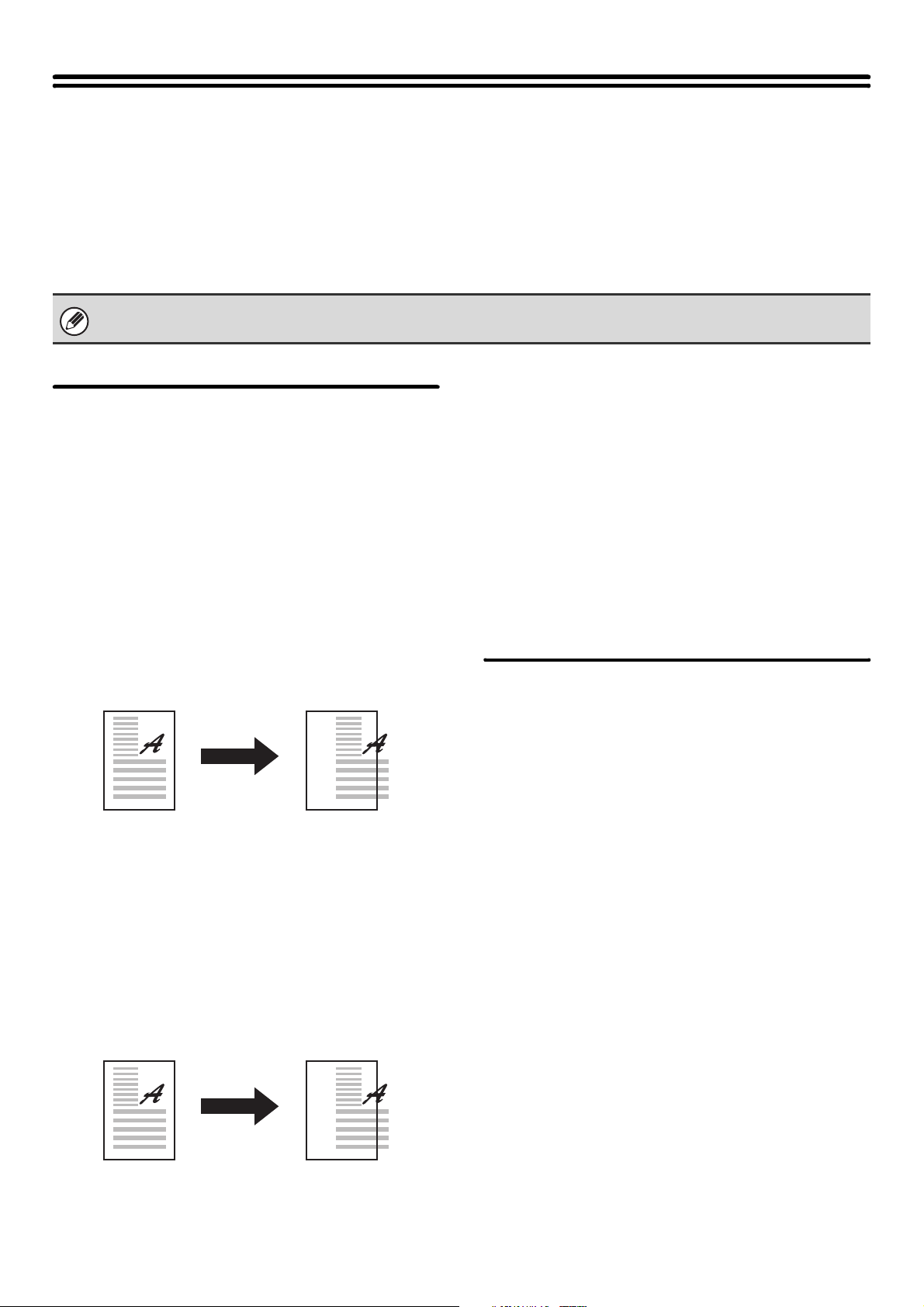
74
Administrator Adjustment
"Administrator Adjustment" is a special adjustment function for the administrator. This lets the administrator correct the
position and size of images and perform fine adjustment of the output positions of peripheral devices.
Image Adjustment
Fine-adjustment of devices related to the image can be performed.
Edge Adjustment
This adjusts the position of the leading edge of the
scanned or printed image (the position where the image
begins).
Copy Edge Adjustment (Original Edge Standard
Position)
This adjusts the position of the leading edge of the
original for copying.
Set a number from 10 to 99 (1 = 0.1 mm). A higher
number will cause a greater delay in the timing of
recognition of the leading edge of the original, moving
the leading edge of the scanned image in the direction
opposite to the direction of original feeding.
Copy Adjustment (Registration Motor ON Timing)
This adjusts the leading edge of the printed image by
adjusting the response speed of the resist roller (the
roller that adjusts the printing position on the paper being
fed).
Set a number from 1 to 99 (1 = 0.1 mm). A higher
number will move the leading edge of the printed image
in the direction opposite to the direction of paper feeding.
Separate settings can be specified for the feeder and
auto duplex unit (ADU).
SPF Original Edge Adjustment (Original Scan Start
Position)
This adjusts the position of the leading edge when an
original is scanned using the automatic document
feeder.
Set a number from 1 to 99 (1 = 0.1 mm). A higher
number will cause scanning of the original to start later,
moving the leading edge of the scanned image in the
direction opposite to the direction of paper feeding. (On
the reverse side, the leading edge of the scanned image
will move in the direction of paper feeding.) Separate
settings can be specified for the front and reverse sides.
Off-Center Adjustment
Image off-center adjustment can be performed.
Print Off-Center Adjustment
This adjusts the center of the printed image in each tray
and in the auto duplex unit (ADU).
Set a number from 1 to 99 (1 = 0.1 mm). A higher
number moves the image toward the back of the
machine.
Original Off-Center Adjustment
This adjusts the center of original scanning on the
document glass and in the automatic document feeder.
Set a number from 15 to 85 (1 = 0.1 mm). A higher
number moves the image toward the front of the
machine.
Adjustment is performed at the factory prior to shipment, and thus the initial values of the settings will vary on each unit.
Increase the
adjustment value
Image
Increase the
adjustment value
Image
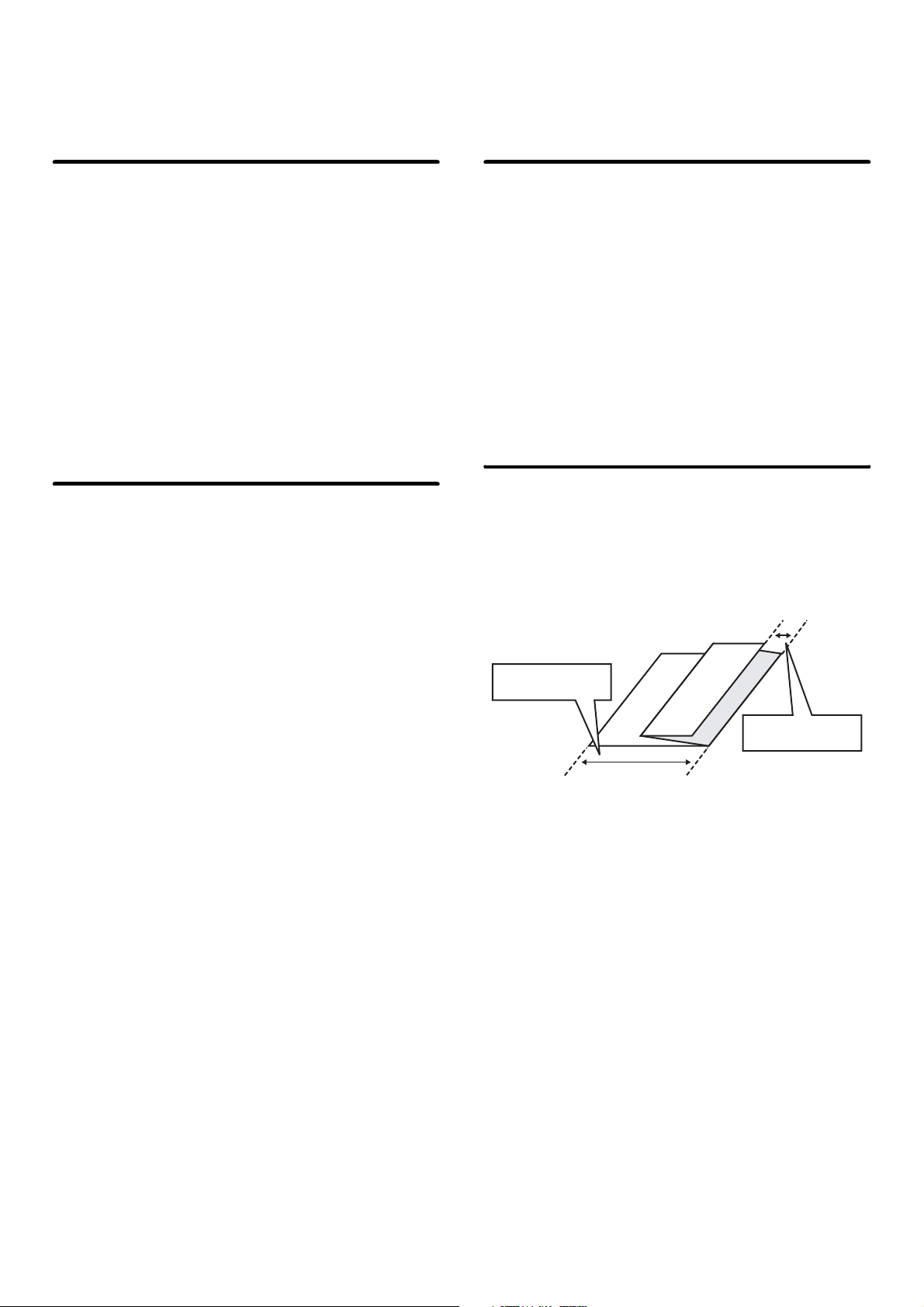
75
Option Adjustment
Fine-adjustment of peripheral devices can be performed.
Finisher
(When a finisher (MX-FNX5) is installed.)
This adjusts the staple positions and the punch positions
of the finisher.
Staple Position
This adjusts the staple positions for each paper size. Set
a number from 46 to 54 (1 = 0.5 mm). A higher number
moves the staple position toward the back of the machine.
Punch Position (Vertical Scan Direction)
This adjusts the punch position in the sub scanning
direction. Set a number from 44 to 56 (1 = 0.5 mm). A
higher number moves the punch position toward the
leading edge of the paper.
Finisher
(When a finisher (MX-FNX6) / saddle stitch finisher
(MX-FNX7) is installed.)
This adjusts the staple positions and the punch positions
of the finisher / saddle stitch finisher.
Staple Position
This adjusts the staple positions. Set a number from 48
to 57 for the front position and a number from 43 to 52
for the back position. A higher number moves the staple
position toward the back of the machine.
Punch Position (Vertical Scan Direction)*
1
This adjusts the punch position in the sub scanning
direction. Set a number from 44 to 56 (1 = 0.5 mm). A
higher number moves the punch position toward the
leading edge of the paper.
Punch Position (Main Scan Direction)*
1
This adjusts the punch position in the main scanning
direction. Set a number from 45 to 55 (1 = 0.4 mm). A
higher number moves the punch position toward the
back of the machine.
Saddle Stitch Position*
2
This adjusts the staple position for pamphlet stapling by
paper size. Set a number from 35 to 65 (1 = 0.2 mm). A
higher number moves the staple position toward the
leading edge of the paper.
Saddle Fold Position*
2
This adjusts the folding position for pamphlet stapling by
paper size. Set a number from 35 to 65 (1 = 0.2 mm). A
higher number moves the folding position toward the
leading edge of the paper.
*1 When a punch module is installed.
*2 When a saddle stitch finisher (MX-FNX7) is installed.
Saddle Unit
(When a saddle unit is installed.)
Saddle Stitch Position
This adjusts the staple position for pamphlet stapling by
paper size. Set a number from 35 to 65 (1 = 0.2 mm). A
higher number moves the staple position toward the
leading edge of the paper.
Saddle Fold Position
This adjusts the folding position for pamphlet stapling by
paper size. Set a number from 35 to 65 (1 = 0.2 mm). A
higher number moves the folding position toward the
leading edge of the paper.
Paper Folding Unit
(When a folding unit is installed.)
This adjusts the fold positions of the folding unit for each
paper size. A 1st fold position and a 2nd fold position
can be set. For the fold positions, see the explanation
below.
First Fold Position
This adjusts the distance from the edge of the paper to
the 1st fold position. The factory default setting is exactly
at the halfway point of the paper. Set a number from 10
to 90 (1 = 0.1 mm). A higher number lengthens the
distance.
Second Fold Position
This adjusts the distance between the 1st fold position
and the edge of the paper. The factory default setting is
a distance of 2 mm. The area that can be selected vary
depending on the paper size (1 = 0.1 mm). A higher
number lengthens the distance.
First Fold Position
Second Fold
Position
76
This chapter explains system settings for the fax function that require administrator rights.
The system settings for the fax function can only be configured when the facsimile expansion kit is installed.
System Settings for Fax (Administrator) List
When the system settings for fax are accessed with administrator rights, the following items appear.
■ Image Send Settings
2
SYSTEM SETTINGS FOR FAX
(ADMINISTRATOR)
•
For the procedure for using the system settings (administrator), see "Accessing the System Settings (Administrator)" (page 7).
• Depending on the machine specifications and peripheral devices installed, it may not be possible to use some settings.
Item Factory default setting Page
■ Image Send Settings
78
● Fax Settings 78
X Fax Default Settings 78
Fax Own Name and Number Set – 78
Dial Mode Setting Tone 78
Auto Wake Up Print Enabled 78
Pause Time Setting 2 sec. 78
Fax Dest. Confirmation Mode Disabled 78
Speaker Settings
78
• Speaker Volume: Middle
• Ringer Volume Volume: Middle
• Line Monitor Volume: Middle
• Fax Receive Complete Signal Volume: Middle; Tone Pattern: 3
Transmission Complete Sound Time
Setting: 3 sec.
• Fax Send Complete Signal Volume: Middle; Tone Pattern: 3
Transmission Complete Sound Time
Setting: 3 sec.
• Fax Communication Error Signal Volume: Middle; Tone Pattern: 3
Transmission Complete Sound Time
Setting: 0.3 sec. each

77
Speaker Volume Details Setting
78
• Speaker / Line Monitor Small: 3, Middle: 6, Big: 8
• Ringer Volume / Fax Receive Complete Signal / Fax Send
Complete Signal / Fax Communication Error Signal
Small: 2, Middle: 4, Big: 8
Remote Reception Number Setting 5 78
Original Print on Transaction Report Print Out Error Report Only 79
Transaction Report Print Select Setting
79
• Single Sending Print Out Error Report Only
• Broadcasting Print Out All Report
• Receiving No Printed Report
• Confidential Reception Print Out Notice Page
Activity Report Print Select Setting
79• Auto Print at Memory Full Disabled
• Print Daily at Designated Time Disabled
ECM Enabled 79
Distinctive Ring Detection Off 79
X Fax Send Settings 80
Auto Reduction Sending Setting Enabled 80
Rotation Sending Setting All Enabled 80
Quick On Line Sending Enabled 80
Printing Page Number at Receiver Enabled 80
Date/Own Number Print Position Setting Outside the Original Image 80
Recall in Case of Line Busy Times: 2, Interval: 3 min. 80
Recall in Case of Communication Error Times: 1, Interval: 3 min. 80
X Registration of Own Name Select – 81
X Fax Receive Settings 81
Number of Calls in Auto Reception 2 81
Duplex Reception Setting Disabled 81
Auto Receive Reduce Setting Enabled 81
Print Style Setting Auto Size Select 82
Set the Telephone Number for Data Forwarding – 82
A3 RX Reduce Disabled 82
Fax Output Settings Varies depending on the machine
configuration
82
X Anti Junk Fax Setting Disabled 83
X Fax Polling Security Enabled 83
Item Factory default setting Page
78
Image Send Settings
Settings related to the image send function (scan, Internet fax, etc.) can be configured. Touch the [Image Send Settings]
key to configure the settings.
Fax Settings
The fax settings can be enabled or disabled to suit the
needs of your workplace.
Fax Own Name and Number Set
Use this setting to enter the fax number of the machine
and the name of the user. The entered name and
number are printed at the top of each fax page you send.
Sender Name
Enter the sender name. A maximum of 20 characters
can be entered for the sender name.
Fax No.
This is used to set the sender fax number.
To insert a pause between digits of the number, touch
the [Pause] key.
To insert a space between digits of the number, touch
the [Space] key.
Dial Mode Setting
Select the appropriate setting for your telephone line
type.
Dial Mode Setting
Select the line type from the list.
Auto Select
Select this after the line has been connected to have the
machine automatically detect whether your line is a
pulse dial line or a tone dial line.
Auto Wake Up Print
When the [POWER] key ( ) is "off" (but the main
power switch is "on") and a fax is received, this function
automatically activates the machine and prints the fax.
When this function is disabled, received faxes are not
printed until the [POWER] key ( ) is switched "on".
Pause Time Setting
Use this to change the length of pauses inserted in fax
numbers.
The pause can be changed to any number of seconds
from 1 to 15.
Fax Dest. Confirmation Mode
This setting specifies whether or not a destination
verification message is displayed when sending a fax in
order to prevent accidental transmission to the wrong
destination.
Speaker Settings
Use these settings to set the sound heard from the
speaker for the Speaker, Ringer Volume, Line Monitor,
Fax Receive Complete Signal, Fax Send Complete
Signal, and Fax Communication Error Signal. For the
Fax Receive Complete Signal, the Fax Send Complete
Signal, and the Fax Communication Error Signal, the
Tone Pattern and Transmission Complete Sound Time
Setting can be selected in addition to the volume.
Check on Setup Sounds
Use this to check the selected tone pattern and volume.
Speaker Volume Details Setting
This enables fine adjustment of the volume levels in the
"Speaker Settings". Set volume levels for "Small",
"Middle", and "Big".
Remote Reception Number Setting
Fax reception can be activated from an extension phone
connected to the machine by entering a 1-digit number
and pressing the key twice on the phone's keypad.
This number is called the remote reception number, and
you can set it to any number from "0" to "9".
Fax Default Settings
79
Original Print on Transaction
Report
When a transaction report is printed for a memory
transmission, this is used to print part of the first page of
the transmitted original on the transaction report. Select
one of the settings below.
• Print Out All Report
• Print Out Error Report Only
• No Printed Report
This setting will not be effective if "Transaction Report
Print Select Setting" below is set to "No Printed Report".
Transaction Report Print Select
Setting
This is used to select whether or not a transaction report
will be printed, and if printed, the condition for being
printed. Select a setting for each of the following
operations:
Single Sending
• Print Out All Report
• Print Out Error Report Only
• No Printed Report
Broadcasting
• Print Out All Report
• Print Out Error Report Only
• No Printed Report
Receiving
• Print Out All Report
• Print Out Error Report Only
• No Printed Report
Confidential Reception
• Print Out Notice Page
• No Printed Report
When a transaction report is printed, you can have part
of the first page of the transmitted original printed on the
transaction report. For more information, see "Original
Print on Transaction Report".
Activity Report Print Select Setting
This is used to have the Image Sending Activity Report
that is stored in the machine's memory printed at regular
intervals.
The Image Sending Activity Report can be set to
automatically print each time the number of transactions
reaches 200, and it can also be set to automatically print
at a specified time (once a day only). (The settings can
be simultaneously enabled.)
ECM
Line conditions can sometimes distort a transmitted fax
image. When ECM (Error Correction Mode) is turned on,
pages that are distorted are automatically re-transmitted.
Distinctive Ring Detection
If multiple telephone numbers have been assigned to
your telephone line, the number called can be identified
by its ringing pattern. By using one number for voice
calls and another number for faxes, you can tell which
type of call you are receiving by the ringing pattern. You
can set your machine to automatically receive faxes
when your fax number is called by setting the pattern
that corresponds to your fax number. Six selections are
available.
• If you only select the "Print Daily at Designated
Time" setting and the number of recorded
transactions exceeds 200 before the specified time,
each new transaction will delete the oldest
transaction (the oldest transaction will not be
printed).
• The Image Sending Activity Report can also be
printed manually. See "List Print (Administrator)"
(page 65).
If the other machine supports Super G3, ECM will
function regardless of this setting.
80
Settings for fax transmission can be configured.
Auto Reduction Sending Setting
This setting is used to have the size of transmitted faxes
automatically reduced to match the size of the paper in
the receiving machine.
If the setting is disabled, faxes are sent at full size.
Because the size is not adjusted to match the size of the
printing paper, part of the received fax may be cut off.
Rotation Sending Setting
When transmitting an image that is one of the following
sizes, this function rotates the image counterclockwise
90 degrees. (The setting can be configured separately
for each size.)
8-1/2"x11", 5-1/2" x 8-1/2"R, A4, B5R, A5R, 16K
Quick On Line Sending
When this setting is enabled, the machine starts
transmitting a fax as soon as the first page is scanned.
Transmission takes place at the same time as the
remaining pages are being scanned.
If you disable this setting, transmission will not begin
until all pages have been scanned. Note that this setting
does not apply to manual transmission.
Printing Page Number at Receiver
This setting is used to add the page number to the top of
each fax page printed by the receiving machine.
Date/Own Number Print Position
Setting
This setting determines the position of the date and sender
information printed at the top of faxes by the receiving
machine. To add the information at the top of the page
outside the scanned image, select [Outside the Original
Image]. To add the information inside the scanned image,
select [Inside the Original Image].
For more information on the print position, see "ADDING
YOUR SENDER INFORMATION TO FAXES (Own
number sending)" in the Image Send Guide.
Recall in Case of Line Busy
This program is used to set the number of recall
attempts and the interval between recall attempts when
a transmission is not successful due to the line being
busy or other reason.
Times:
This setting specifies whether or not recalling is
performed when the line is busy. When recalling is
performed, you can set the number of recall attempts.
Any number from 1 to 14 can be selected.
Interval:
The interval between recall attempts can be set. Any
number of minutes from 1 to 15 can be selected.
Recall in Case of Communication Error
This determines how many times your machine will
automatically re-attempt the call if a fax transmission
fails due to a communication error.
Times:
Specify how many times the machine will re-attempt the
call when a communication error occurs.
Interval:
The interval between recall attempts can be set. Any
number of minutes from 1 to 15 can be selected.
Fax Send Settings
8-1/2" x 11"R and A4R originals are not rotated.
Even when this setting is enabled, note that your
machine will not re-attempt a call when manual
transmission or direct transmission is used.
Even when this setting is enabled, note that your
machine will not re-attempt a call when manual
transmission or direct transmission is used.
81
This is used to store sender names used in "Own
Number Select". A maximum of 18 names can be stored.
Add New
Store a sender name. A maximum of 20 characters can
be entered for the sender name. Control numbers are
from 01 to 18. The lowest number not yet in use is
automatically assigned when you begin the storing
procedure. This number cannot be changed.
Sender Name List
This shows the currently stored sender names.
A sender name can be selected to delete it.
Settings for fax reception can be configured.
Number of Calls in Auto Reception
This setting is used to select the number of rings on
which the machine automatically receives a call and
begins fax reception in auto reception mode. Any
number from 0 to 15 can be selected.
Duplex Reception Setting
This is used to have received faxes printed on both sides
of the paper.
When this setting is enabled and a fax consisting of 2 or
more pages is received (the pages must be the same
size), the pages are printed on both sides of the paper.
Auto Receive Reduce Setting
When a fax is received that includes the sender's name
and number, the received image is slightly larger than
the standard size. This setting is used to automatically
reduce the image to fit the standard size.
Registration of Own Name
Select
Fax Receive Settings
If you select "0" for the number of rings, the machine
will immediately answer and begin fax reception
without ringing in auto reception mode.
• If Auto Receive Reduce is disabled, the edges of
the image outside the standard size will be cut off.
However, the image will be clearer because it will
be printed at the same size as the original.
• Standard sizes are sizes such as 8-1/2" x 11" and
8-1/2" x 5-1/2" (A4 and B5).
82
Print Style Setting
This setting determines the paper selection condition
when printing received faxes. Select one of the three
conditions below.
Print Actual Size Cut off Disabled
The received fax image is printed at full size without
dividing it onto multiple sheets of paper. If the same size
of paper or larger paper is not loaded, the fax will be
received in memory and will not be printed until a
suitable size of paper is loaded.
However, if the received fax is longer than 11" x 17" (A3)
size, it will be automatically divided onto multiple sheets
of paper.
Print Actual Size Cut off Enabled
Each received image is printed at full size. If necessary,
the image is divided onto multiple sheets of paper.
Auto Size Select
Each received image is printed at full size when
possible. When not possible, the image is automatically
reduced before printing.
Set the Telephone Number for Data
Forwarding
When a problem prevents the machine from printing a
received fax, the received fax can be forwarded to
another fax machine. This setting is used to program the
fax number of the destination fax machine. Only one
forwarding fax number can be programmed (maximum
of 64 digits).
To insert a pause between digits of the number, touch
the [Pause] key.
To insert a space between digits of the number, touch
the [Space] key.
If you wish to specify an F-code confidential memory box
in the destination machine, touch the [Sub Address] key
after entering the fax number and enter the F-code
(sub-address and passcode).
A3 RX Reduce
When an A3 size fax is received, this function reduces
the fax to W letter size.
Fax Output Settings
These settings are for printing received faxes. The
following items can be configured.
Output tray*
1
Select the output tray for received faxes.
Number of Prints
Set the number of copies of received faxes that are
printed.
Staple Position*
1
Use this setting to specify stapling positions for received
faxes. This setting is only effective when [Staple] is
enabled in "Fax Data Receive/Forward".
Paper Size*
1
Specify the size of paper used to print received faxes.
This setting is only effective when [Staple] is enabled in
"Fax Data Receive/Forward".
Paper Folding Size Setting*
2
Select one of the following sizes for the paper size used
when paper folding is performed.
11" x 17", 8-1/2" x 14", 8-1/2" x 11"R, A3, B4, A4R
*1 When a saddle stitch finisher or finisher is installed.
*2 When a folding unit is installed.
When this setting is enabled, W letter size faxes are
also reduced.
• This setting is only applied when the [Multiple Set
Print], [Staple], and [Fold] checkboxes are in
"Fax Settings" in "Fax Data receive/Forward".
• For the maximum number of sheets that can be
stapled, see "SPECIFICATIONS" in the Safety
Guide.
83
This setting is used to block fax reception from specified
fax numbers (anti junk fax numbers).
Up to 50 anti junk fax numbers can be stored.
Add New
Add a new anti-junk fax number. When storing an
anti-junk number, a maximum of 20 digits can be
entered.
Number Key List
This shows a list of the stored anti-junk numbers.
An anti-junk number can be selected to delete it.
The following settings are for regular polling memory
using the Public Box.
Set Fax Polling Security
When the memory polling function is used, this setting
determines whether any machine will be allowed to poll
your machine, or only machines that have been stored in
your machine.
Add New
When the Polling Security Setting is enabled, use this
setting to store the fax numbers of the machines that are
allowed to poll your machine. The stored fax numbers
are called passcode numbers. Up to 10 passcode
numbers can be stored (maximum of 20 digits each).
Passcode Number Key List
This shows a list of the stored passcode numbers. A
number can be selected to delete it.
Anti Junk Fax Setting Fax Polling Security
Note that these settings do not apply to F-code polling
memory.

84
This chapter describes convenient functions for the administrator of the machine.
Control Settings in the Web Pages
The Web pages can be used to conveniently perform control tasks.
Releasing the Lock on the Machine Operation Panel
If a user makes three unsuccessful login attempts in a row when "A Warning when Login Fails" (page 26) is enabled,
machine operation will lock. An administrator can use the following procedure to release the lock:
(1) Log in to the Web pages with administrator rights.
(2) Click the [Execute] button in [User Control] - [Default Settings] - [Release the Lock on Machine Operation Panel].
The lock will be released.
3
CONVENIENT FUNCTIONS
MX1100-US-SYA-Z2
Administrator's Guide
MX-M850
MX-M950
MX-M1100
MODEL:
SHARP ELECTRONICS CORPORATION
Sharp Plaza, Mahwah, New Jersey 07430-1163.
www.sharpusa.com
SHARP ELECTRONICS OF CANADA LTD.
335 Britannia Road East, Mississauga, Ontario, L4Z 1W9