
© 2004 Sony Corporation
2-176-244-12 (1)
LCD Color TV
Operating Instructions
KLV-23M1

2
Owner’s Record
The model and serial numbers are located at the rear of the TV.
Record these numbers in the spaces provided below. Refer to them
whenever you call upon your Sony dealer regarding this product.
Model No.
Serial No.
Contacting Sony
If, after reading the following instructions, you have additional
questions related to the use of your Sony TV, please call one of the
following numbers.
Customers in the continental United States contact the Direct
Response Center at:
1-800-222-SONY (7669)
Customers in Canada contact the Customer Relations Center at:
1-877-899-SONY (7669)
3
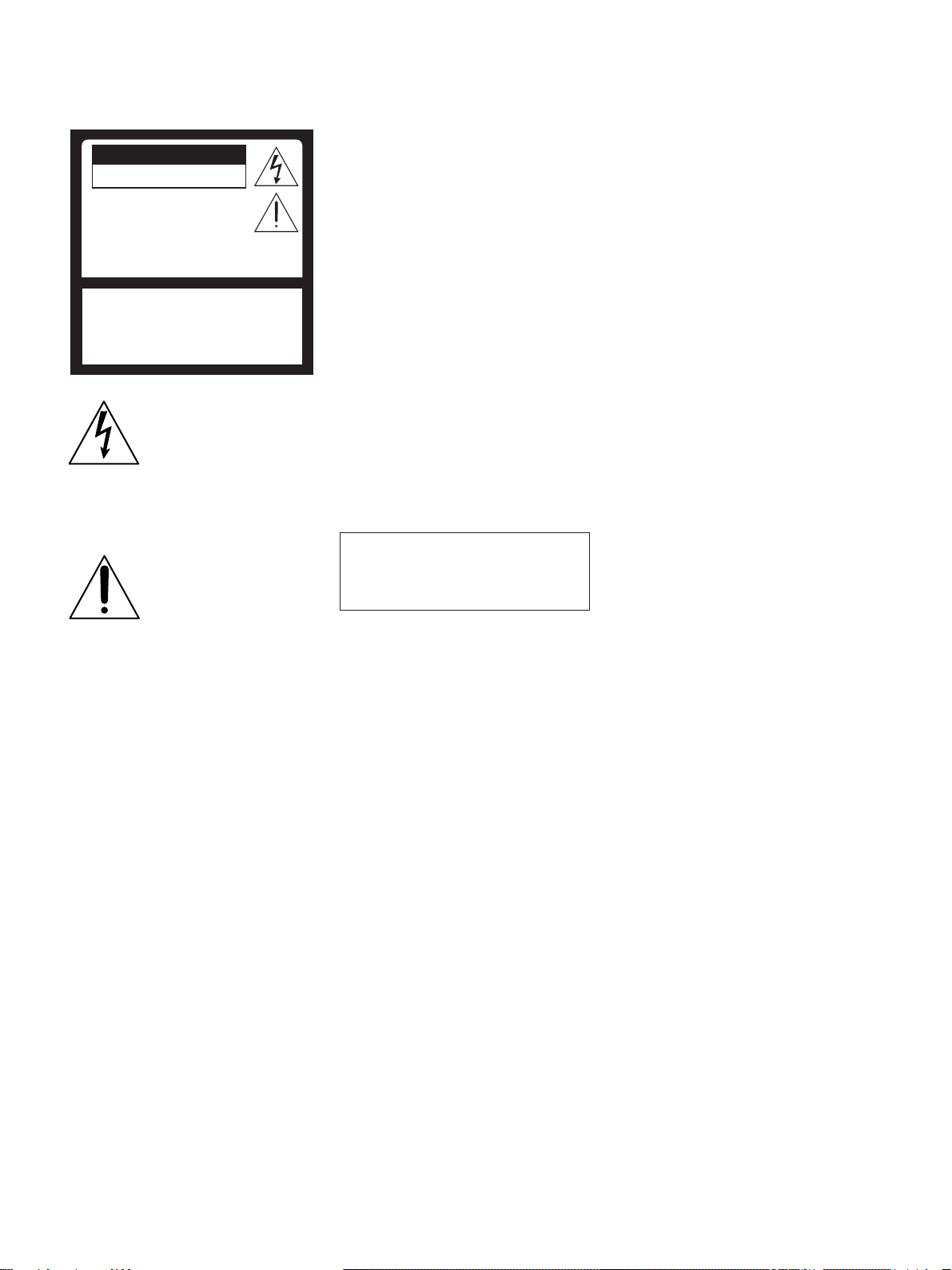
WARNING
To reduce the risk of fire or shock hazard, do
not expose the TV to rain or moisture.
This symbol is intended to
alert the user to the presence
of uninsulated “dangerous
voltage” within the product’s
enclosure that may be of
sufficient magnitude to
constitute a risk of electric
shock to persons.
This symbol is intended to
alert the user to the presence
of important operating and
maintenance (servicing)
instructions in the literature
accompanying the appliance.
CAUTION
To prevent electric shock, do not use this
polarized AC plug with an extension cord,
receptacle or other outlet unless the blades can
be fully inserted to prevent blade exposure.
Note on Caption Vision
This television receiver provides display of
television closed captioning in accordance with
ß15.119 of the FCC rules.
Note to CATV System Installer
This reminder is provided to call the CATV
system installer’s attention to Article 820-40 of
the National Electrical Code (NEC) that
provides guidelines for proper grounding and, in
particular, specifies that the cable ground shall
be connected to the grounding system of the
building, as close to the point of cable entry as
practical.
Use of this television receiver for other than
private viewing of programs broadcast on UHF
or VHF or transmitted by cable companies for
the use of the general public may require
authorization from the broadcaster/cable
company and/or program owner.
NOTIFICATION
This equipment has been tested and found to
comply with the limits for a Class B digital
device pursuant to Part 15 of the FCC Rules.
These limits are designed to provide reasonable
protection against harmful interference in a
residential installation. This equipment
generates, uses, and can radiate radio frequency
energy and, if not installed and used in
accordance with the instructions, may cause
harmful interference with radio
communications. However, there is no
guarantee that interference will not occur in a
particular installation. If this equipment does
cause harmful interference to radio or television
reception, which can be determined by turning
the equipment off and on, the user is encouraged
to try to correct the interference by one or more
of the following measures:
s Reorient or relocate the receiving antennas.
s Increase the separation between the
equipment and receiver.
s Connect the equipment into an outlet on a
circuit different from that to which the
receiver is connected.
s Consult the dealer or an experienced radio/
TV technician for help.
You are cautioned that any changes or
modifications not expressly approved in this
manual could void your authority to operate
this equipment.
Safety
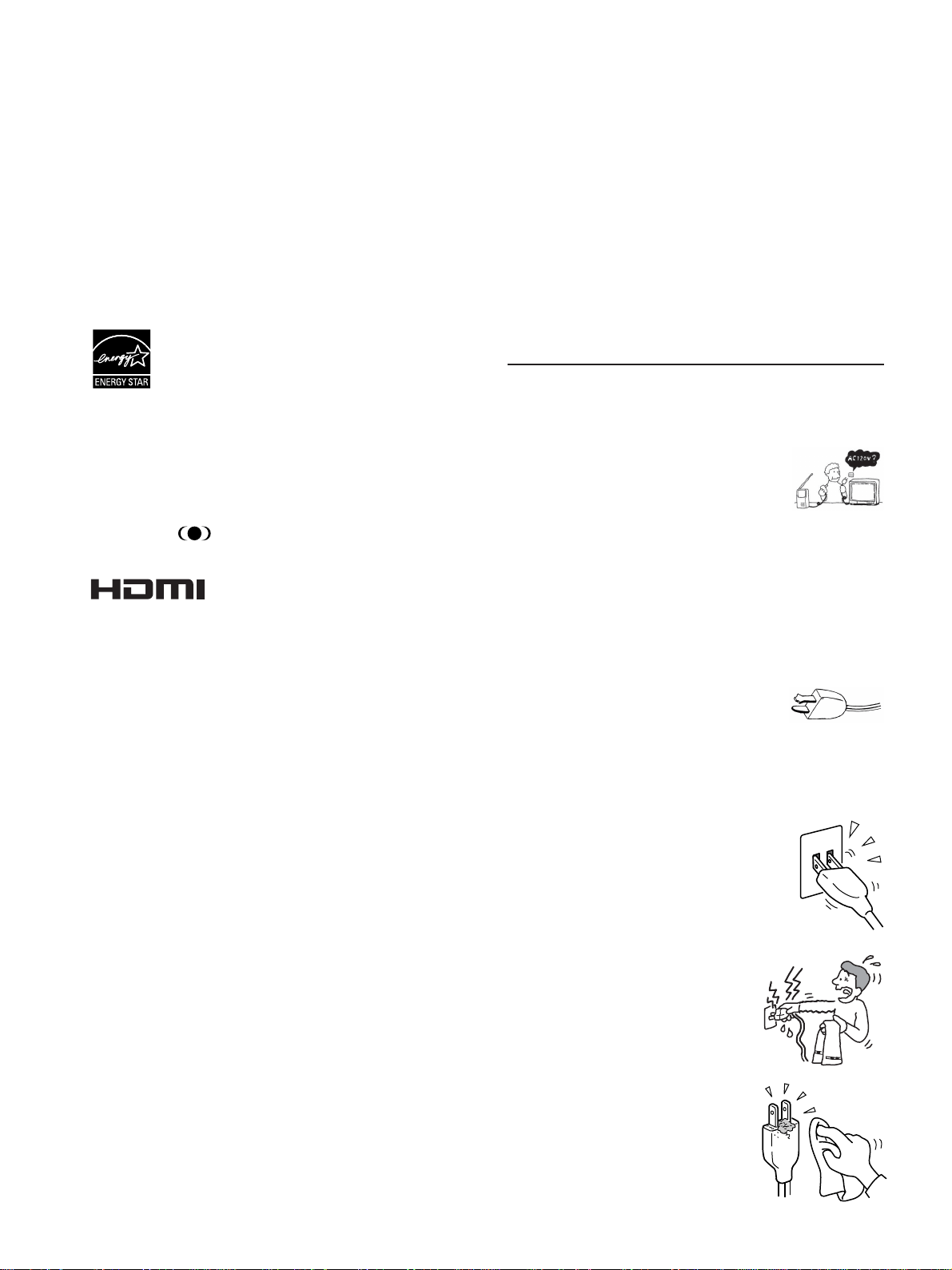
s Operate the TV only on 120 V AC.
s The plug is designed, for safety purposes, to
fit into the wall outlet only one way. If you
are unable to insert the plug fully into the
outlet, contact your dealer.
s If any liquid or solid object should fall
inside the cabinet, unplug the TV
immediately and have it checked by
qualified service personnel before operating
it further.
s If you will not be using the TV for several
days, disconnect the power by pulling the
plug itself. Never pull on the cord.
s For details concerning safety precautions,
see “Important Safeguards” on page 4.
Installing
s To prevent internal heat buildup, do not
block the ventilation openings.
s Do not install the TV in a hot or humid
place, or in a place subject to excessive dust
or mechanical vibration.
s Avoid operating the TV at temperatures
below 5°C (41°F).
s If the TV is transported directly from a cold
to a warm location, or if the room
temperature changes suddenly, the picture
may be blurred or show poor color due to
moisture condensation. In this case, please
wait a few hours to let the moisture
evaporate before turning on the TV.
s To obtain the best picture, do not expose
the screen to direct illumination or direct
sunlight. It is recommended to use spot
lighting directed down from the ceiling or
to cover the windows that face the screen
with opaque drapery. It is desirable to
install the TV in a room where the floor and
walls are not of a reflective material.
CAUTION
RISK OF ELECTRIC SHOCK
DO NOT OPEN
ATTENTION
RISQUE DE CHOC ELECTRIQUE,
NE PAS OUVRIR
PRECAUCION
RIESGO DE CHOQUE ELECTRICO
CAUTION : TO REDUCE THE RISK OF ELECTRIC SHOCK,
DO NOT REMOVE COVER
(
OR BACK
)
.
NO USER-SERVICEABLE PARTS INSIDE.
REFER SERVICING TO QUALIFIED SERVICE PERSONNEL.
NO ABRIR
(Continued)
4
CAUTION
Use the following SONY appliance(s) only with the following WALL-
MOUNT BRACKET. Use with other WALL-MOUNT BRACKET may
cause instability and result in possible injury.
SONY APPLIANCE MODEL NO.
KLV-23M1
SONY WALL-MOUNT BRACKET MODEL NO.
SU-W210
To Customers
Sufficient expertise is required for installing the specified product. Be
sure to subcontract the installation to Sony dealers or contractors and pay
adequate attention to safety during the installation.
As an ENERGY STAR
®
Partner, Sony Corporation has
determined that this product meets the ENERGY STAR
®
guidelines for energy efficiency.
ENERGY STAR
®
is a U.S. registered mark.
For customers in the United States
This product contains mercury. Disposal of this product may be
regulated if sold in the United States. For disposal or recycling
information, please contact your local authorities or the Electronics
Industries Alliance (http://www.eiae.org).
Trademark Information
WOW, SRS and ® symbol are trademarks of SRS Labs, Inc.
WOW technology is incorporated under license from SRS Labs, Inc.
This TV incorporates High-Definition
Multimedia Interface (HDMI™) technology.
HDMI, the HDMI logo and High-Definition
Multimedia Interface are trademarks or registered trademarks of HDMI
Licensing LLC.
Wega, Digital Reality Creation, and CineMotion are registered
trademarks of Sony Corporation.
Important
Safeguards
Before using your TV, please read these instructions completely, and
keep this manual for future reference.
Carefully observe and comply with all warnings, cautions and
instructions placed on the unit or described in the operating instructions
or service manual.
WARNING
To guard against injury, the following basic safety precautions should be
observed in the installation, use and servicing of the unit.
Use
Power Sources
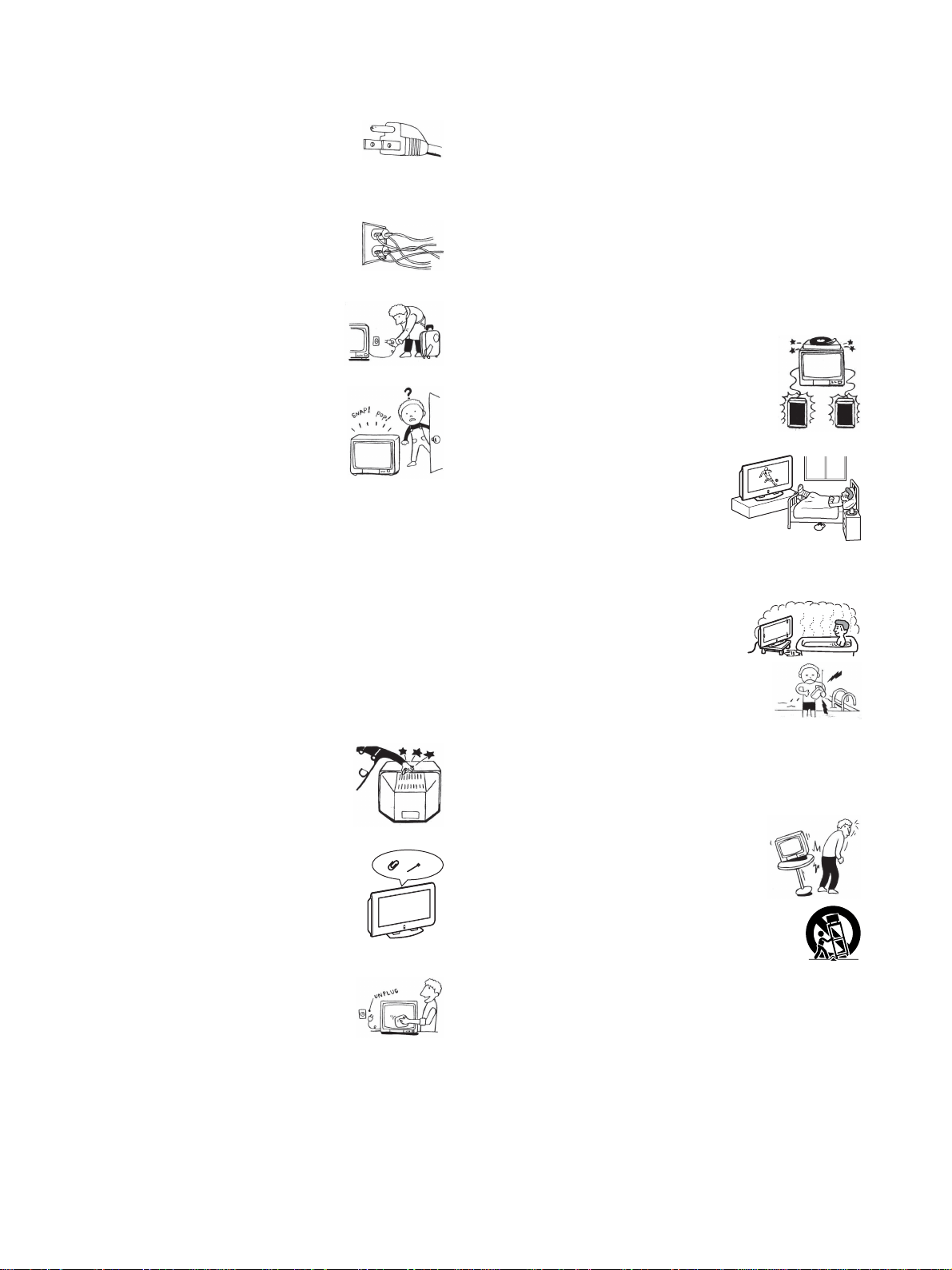
This unit should be operated only from the type of
power source indicated on the serial/model plate.
If you are not sure of the type of electrical power
supplied to your home, consult your dealer or local
power company. For those unit designed to operate
from battery power, refer to the operating
instructions.
Grounding or Polarization
This unit is equipped with a polarized AC power cord plug (a plug having
one blade wider than the other), or with a three-wire grounding type plug
(a plug having a third pin for grounding). Follow the instructions below:
For the unit with a polarized AC power cord plug
This plug will fit into the power outlet only one way.
This is a safety feature. If you are unable to insert
the plug fully into the outlet, try reversing the plug.
If the plug still fails to fit, contact your electrician to
have a suitable outlet installed. Do not defeat the safety purpose of the
polarized plug by forcing it in.
Wall outlet
Do not use a poor fitting outlet.
Insert the plug fully into the outlet. If it is loose, it may
cause arcing and result in fire.
Contact your electrician to have the outlet changed.
Wiring
For your safety, unplug the AC power cord when
wiring cables.
Electric Shock
Do not touch the AC power cord or the unit
with a wet hand.
If you plug/unplug the AC power cord from the
unit with a wet hand, it may cause electric
shock.
Cleaning
Clean the AC power plug regularly.
If the plug is covered with dust and it picks up
moisture, its insulation may deteriorate and
result in fire. Unplug the AC power plug and
clean it regularly.
5
For the
unit
with a three-wire grounding type AC
plug
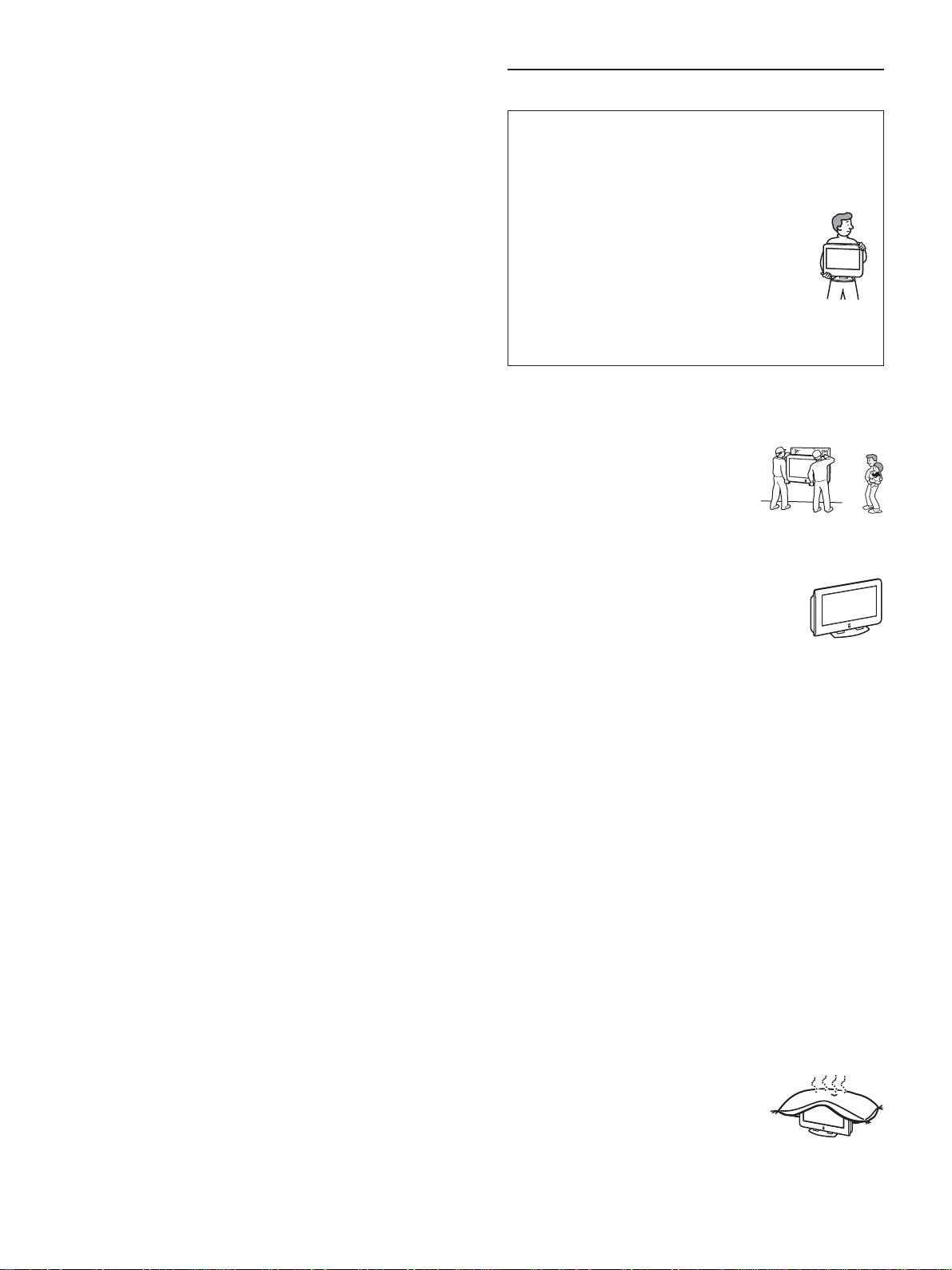
This plug will only fit into a grounding-type power
outlet. This is a safety feature. If you are unable to
insert the plug into the outlet, contact your electrician
to have a suitable outlet installed. Do not defeat the
safety purpose of the grounding plug.
Overloading
Do not overload wall outlets, extension cords or
convenience receptacles beyond their capacity, since
this can result in fire or electric shock.
Always turn the
unit
off when it is not being used.
When the
unit
is left unattended and unused for
long periods of time, unplug it from the wall outlet
as a precaution against the possibility of an internal
malfunction that could create a fire hazard.
If a snapping or popping sound from a TV
unit
is
continuous or frequent while the TV is operating,
unplug the TV and consult your dealer or service
technician. It is normal for some TV
unit
to make
occasional snapping or popping sounds, particularly
when being turned on or off.
AC power cord
If you damage the AC power cord, it may result in fire or electric shock.
s Do not pinch, bend, or twist the cord excessively. The core lines
may be bared and cut, and cause short-circuit, resulting in fire or
electric shock.
s Do not convert or damage the AC power cord or display interface
cable.
s Do not put anything heavy on the AC power cord. Do not pull the
AC power cord.
s Keep the AC power cord away from heat sources.
s Be sure to grasp the plug when disconnecting the AC power cord.
If the AC power cord is damaged, stop using it and ask your dealer or
Sony service center to exchange it.
Object and Liquid Entry
Never push objects of any kind into the
unit
through
the cabinet slots as they may touch dangerous voltage
points or short out parts that could result in a fire or
electric shock. Never spill liquid of any kind on the
unit
.
Ventilation holes
Do not insert anything in the ventilation holes. If metal
or something flammable enters, it may result in fire or
electric shock.
Notes on cleaning of the display
s Be sure to unplug the TV unit before cleaning.
s Minimize contact with the LCD screen surface
since the special coating applied may be affected.
Use a dry soft cloth when removing dust from the
screen.
s Do not use alcohol, benzine, thinner, etc., as it may damage the
coating or cause LCD screen deterioration.
s Always use commercially available chemical fibre cleaning cloths in
accordance with their supplied instructions.
s Do not allow the LCD screen to come in contact with volatile
compounds, such as insecticide. Also, never let the LCD screen
come in contact with rubber or plastic products for an extended
period of time. This type of contact may damage the coating, or
cause the LCD screen to deteriorate.
Notes on cleaning of the
unit
s Wipe the
unit
gently with a dry soft cloth. Stubborn stains may be
removed with a cloth slightly dampened with a solution of mild
soap, and then wiped dry.
s Never subject the
unit
to volatile compounds such as alcohol,
benzine, thinner or insecticide. Also, never let the
unit
come in
contact with rubber or plastic products for an extended period of
time. This type of contact may damage the coating, and cause the
unit
to deteriorate, or efface the printing on the
unit
.
Attachments
Do not use attachments not recommended by the
manufacturer, as they may cause hazards.
Medical institution
Do not place this unit in a place where
medical equipment is in use.
It may cause malfunction of medical
instruments.
Moisture and flammable objects
s Do not use power-line operated
unit
near
water — for example, near a bathtub,
washbowl, kitchen sink, or laundry tub, in a
wet basement, or near a swimming pool, etc.
It may result in fire or electric shock.
s Do not let this unit get wet. Never spill liquid of
any kind on the unit. If any liquid or solid object
does fall through, do not operate the unit. It may
result in electric shock or damage to the unit.
Have it checked immediately by qualified personnel.
s To prevent fire, keep inflammable objects or naked lights (e.g.
candles) away from the
unit
.
Accessories
Do not place the
unit
on an unstable cart, stand, table
or shelf. The
unit
may fall, causing serious injury to
a child or an adult and serious damage to the
unit
.
Use only a cart or stand recommended by Sony for
the specific model of TV. No part of the TV
unit
should overhang any edge of the TV cart or stand;
any overhanging edge is a safety hazard. An appliance and
cart combination should be moved with care. Quick stops,
excessive force, and uneven surfaces may cause the
appliance and cart combination to overturn.
Disposal of used batteries
To preserve our environment, dispose the used batteries according to
your local laws or regulations.
Damage requiring service
If the surface of the TV cracks, do not touch it until you unplug the AC
power cord.
Otherwise electric shock may result.
(Continued)
6
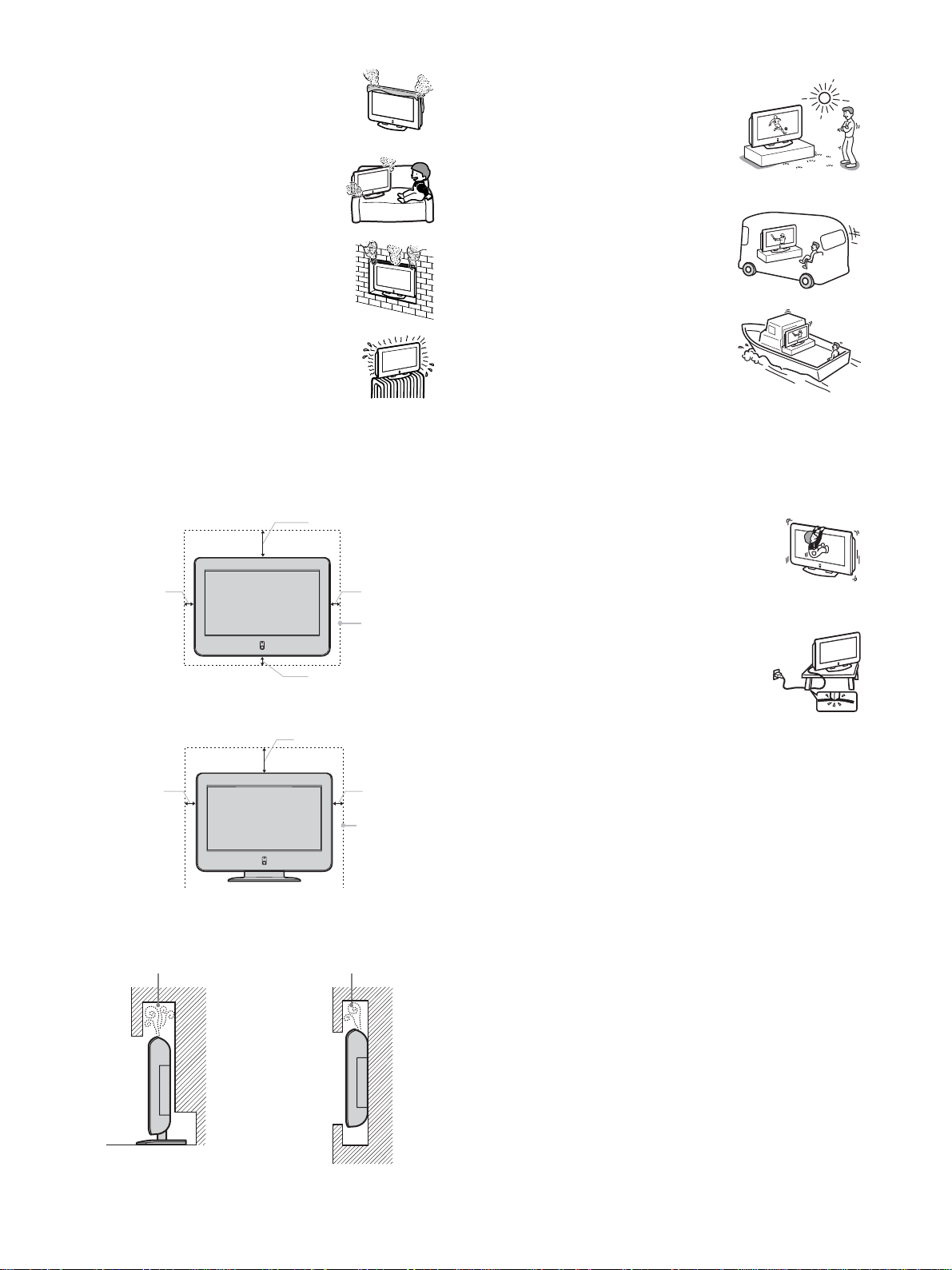
Broken pieces
Do not throw anything at the unit. The screen glass may break by the
impact and cause serious injury.
Cable wiring
Take care not to catch your feet on the cables. It may damage the unit.
Heat
Do not touch the surface of the TV. It remains hot, even for some time
after the TV is turned off.
Volume adjustment
s Adjust the volume so as not to trouble your neighbours. Sound
carries very easily at night time. Therefore, closing the windows or
using headphones is suggested.
s When using headphones, adjust the volume so as to avoid excessive
levels, as hearing damage may result.
Disposal of the TV
s Do not dispose the TV with general household waste.
s The LCD contains a small amount of liquid crystal. The fluorescent
tube used in this display contains mercury. Follow your local
ordinances and regulations for disposal.
Handling of broken glass and liquid crystal
leakage
If the LCD panel gets damaged, crystalline liquid leakage may occur, or
scattered broken glass may result. Do not touch broken glass or
crystalline liquid (which is toxic), with bare hands as cuts or poisoning/
skin irritation may occur. Also, do not let glass fragments or leaked
crystalline liquid get into your eyes or mouth. Should either contact your
eyes or mouth, rinse the contacted area thoroughly with water and
consult your doctor.
LCD screen
s Although the LCD screen is made with high-precision technology
and has effective pixels of 99.99% or more, black dots may appear
or bright points of light (red, blue, or green) may appear constantly
on the LCD screen. This is a structural property of the LCD panel
and is not a malfunction.
s Do not expose the LCD screen surface to the sun. Doing so may
damage the screen surface.
s Do not push or scratch the front filter, or place objects on top of the
TV. The image may be uneven or the LCD panel may be damaged.
s If the TV is used in a cold place, a smear may occur in the picture or
the picture may become dark. This does not indicate a failure. These
phenomena improve as the temperature rises.
s Ghosting may occur when still pictures are displayed continuously.
It may disappear after a few moments.
s The screen and cabinet get warm when the TV is in use. This is not a
malfunction.
Fluorescent lamp
This TV uses a special fluorescent lamp as its light source. If the screen
image becomes dark, flickers, or does not appear, the fluorescent lamp
has run down and should be replaced. For replacement, consult qualified
service personnel.
Installation and moving
Carry the TV in the specified manner
If you carry the TV in a manner other than specified, it may drop and
cause serious injury. Be sure to follow the instructions below.
s Carry the TV holding the upper and bottom frames of the TV as
illustrated.
s Do not pick up the unit in the middle (where control
door is located) or they may damage the control
door.
s Hold the TV securely when carrying it.
s As the screen surface of the TV has a special
coating, be careful to avoid touching it as much as
possible.
s When transporting, do not subject the unit to shocks or vibration,
or excessive force.
Installation
When installing or removing the TV from the wall, be sure to use
qualified contractors. Wall mount installation requires the use of a wall-
mount bracket. If the TV is installed or
removed from the wall by a person other than a
qualified contractor, the unit may fall and
cause serious injury if the unit is not installed
securely.
Optional accessories
Observe the following when installing the TV using a stand or wall-
mount bracket. If the TV is not secured properly, it may
fall and cause injury.
s Be sure to follow the operating instructions supplied
with your stand or wall-mount bracket when
installing the unit.
s Be sure to attach the brackets supplied with your stand or wall-
mount bracket.
Protruding location
Do not install the TV in protruding locations. If you install the unit in the
following locations, injury may result.
s Do not install the unit in a location where the unit protrudes, such as
a pillar.
s Do not install the unit in a location that may cause facial injury.
Oils
Do not install this unit in restaurants where oily vapors occur. Dust
absorbing oil may enter into the unit and damage the unit.
Corrosion
If you use this unit near the seashore, salt may corrode metal parts of the
unit and cause internal damage or fire.
It may also shorten the life of the unit.
Ventilation
The slots and openings in the TV are provided for necessary ventilation.
To ensure reliable operation of the unit, and to protect it from
overheating, these slots and openings must never be blocked or covered.
Unless proper ventilation is provided, the unit may gather dust and get
dirty. For proper ventilation, Observe the
following:
s Do not install the unit turned backward or
sideways.
s Do not install the unit turned over or upside
down.
7
Outdoor use
Do not install this unit outdoors. If the unit is
exposed to rain, it may result in fire or electric
shock. If the unit is exposed to direct sunlight,
the unit may heat up and it may damage the
unit.
Vehicle and ceiling
Do not install this unit in a vehicle or hung
from the ceiling.
Bumping of the vehicle may cause the unit to
fall down and cause injury.
Ship and vessel
Do not install this unit in a ship or vessel. If the
unit is exposed to seawater, it may cause fire or
damage the unit.
AC power cord
Unplug the AC power cord when moving the unit.
Do not move the unit with the AC power cord plugged in. It may damage
the AC power cord and result in fire or electric shock.
Fall
Do not hang anything on the unit.
The unit may fall from the stand or wall-mount bracket,
causing damage or serious injury.
Power-Cord Protection
Do not allow anything to rest on or roll over the
power cord, and do not place the unit where the power
cord is subject to wear or abuse.
s Never cover the slots and openings with a cloth or
other materials.
s Never block the slots and openings by placing
the unit on a bed, sofa, rug or other similar
surface.
s Never place the unit in a confined space, such as
a bookcase or built-in cabinet, unless proper
ventilation is provided.
s Do not place the unit near or over a radiator or
heat register, or where it is exposed to direct
sunlight.
Leave some space around the unit. Otherwise, adequate air-circulation
may be blocked causing overheating and cause fire or damage the unit.
30 cm (11 7/8 inches)
When installing the unit on the wall
10 cm (4 inches) 10 cm
(4 inches)
Allow this
much space.
10 cm (4 inches)
30 cm (11 7/8 inches)
When installing the unit using a stand
10 cm (4 inches)
10 cm
(4 inches)
Allow this
much space.
Air circulation is blocked.
Never install the unit as follows:
Air circulation is blocked.
(Continued)
8
Service
Damage Requiring Service
Unplug the unit from the wall outlet and refer servicing to qualified
service personnel under the following conditions:
s When the power cord or plug is
damaged or frayed.
s If liquid has been spilled into the unit.
s If the unit has been exposed to rain or water.
s If the unit has been subject to excessive shock
by being dropped, or the cabinet has been
damaged.
s If the unit does not operate normally when
following the operating instructions. Adjust only
those controls that are specified in the operating
instructions. Improper adjustment of other controls
may result in damage and will often require
extensive work by a qualified technician to restore
the unit to normal operation.
s When the unit exhibits a distinct change in
performance, it indicates a need for service.
Servicing
Do not attempt to service the unit yourself since opening
the cabinet may expose you to dangerous voltage or other
hazards. Refer all servicing to qualified service personnel.
Replacement Parts
When replacement parts are required, be sure the
service technician certifies in writing that he/she
has used replacement parts specified by the
manufacturer that have the same characteristics as
the original parts.
Unauthorized substitutions may result in fire,
electric shock or other hazards.
Safety Check
Upon completion of any service or repairs to the unit, ask
the service technician to perform routine safety checks (as
specified by the manufacturer) to determine that the unit is
in safe operating condition, and to so certify. When the
unit reaches the end of its useful life, ask a qualified
service technician to dispose of the unit.
Antennas
Outdoor Antenna Grounding
If an outdoor antenna is installed, follow the precautions below. An
outdoor antenna system should not be located in the vicinity of overhead
power lines or other electric light or power circuits, or where it can come
in contact with such power lines or circuits.
WHEN INSTALLING AN OUTDOOR ANTENNA SYSTEM,
EXTREME CARE SHOULD BE TAKEN TO KEEP FROM
CONTACTING SUCH POWER LINES OR CIRCUITS AS CONTACT
WITH THEM IS ALMOST INVARIABLY FATAL.
Be sure the antenna system is grounded so as to provide some protection
against voltage surges and built-up static charges.
Section 810 of the National Electrical Code (NEC) in USA and Section
54 of the Canadian Electrical Code in Canada provides information with
respect to proper grounding of the mast and supporting structure,
grounding of the lead-in wire to an antenna discharge unit, size of
grounding conductors, location of antenna discharge unit, connection to
grounding electrodes, and requirements for the grounding electrode.
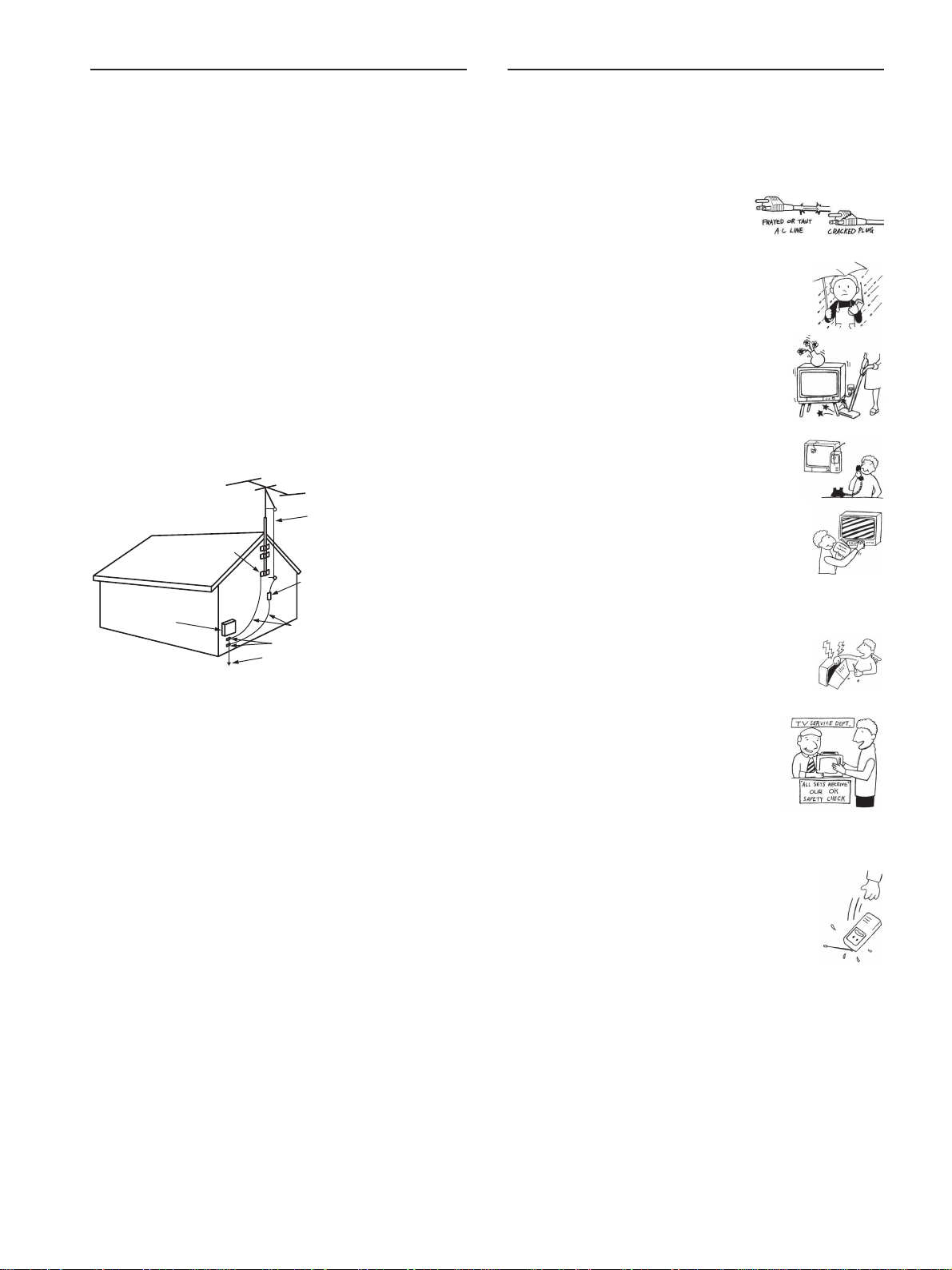
Antenna Grounding According to the National
Electrical Code, ANSI/NFPA 70
Lightning
For added protection for this TV during a lightning storm, or when it is
left unattended and unused for long periods of time, unplug it from the
wall outlet and disconnect the antenna. This will prevent damage to the
receiver due to lightning and power-line surges.
Antenna lead-in wire
Antenna discharge unit
(NEC Section 810-20)
Grounding conductors
(NEC Section 810-20)
Ground clamps
Power service grounding
electrode system
(NEC Art 250 Part H)
Ground clamps
Electric service
equipment
NEC: National Electrical Code

9
Important Safety Instructions
1) Read these instructions.
2) Keep these instructions.
3) Heed all warnings.
4) Follow all instructions.
5) Do not use this apparatus near water.
6) Clean only with dry cloth.
7) Do not block any ventilation openings. Install in accordance with the
manufacturer’s instructions.
8) Do not install near any heat sources such as radiators, heat registers,
stoves, or other apparatus (including amplifiers) that produce heat.
9) Do not defeat the safety purpose of the polarized or grounding-type
plug. A polarized plug has two blades with one wider than the other.
A grounding type plug has two blades and a third grounding prong.
The wide blade or the third prong are provided for your safety. If the
provided plug does not fit into your outlet, consult an electrician for
replacement of the obsolete outlet.
10) Protect the power cord from being walked on or pinched particularly
at plugs, convenience receptacles, and the point where they exit
from the apparatus.
11) Only use attachments/accessories specified by the manufacturer.
12) Use only with the cart, stand, tripod, bracket, or table specified by
the manufacturer, or sold with the apparatus. When a cart is used,
use caution when moving the cart/apparatus combination to avoid
injury from tip-over.
13) Unplug this apparatus during lightning storms or when unused for
long periods of time.
14) Refer all servicing to qualified service personnel. Servicing is
required when the apparatus has been damaged in any way, such as
power-supply cord or plug is damaged, liquid has been spilled or
objects have fallen into the apparatus, the apparatus has been
exposed to rain or moisture, does not operate normally, or has been
dropped.

10

11
Table of Contents
Installing the TV
Unpacking ................................................ 13
Overview of the Remote Control............ 13
Remote Control Descriptions ........... 14
Programming the Remote Control ... 16
Using your Remote Controls
with Other Equipment .................. 18
Overview of the TV Controls and
Connectors .......................................... 20
Front Panel Controls and
Connectors .................................. 20
Rear Panel Connectors.................... 21
Attaching and Removing the Cable
Cover ........................................... 22
Bundling Cords and Cables ............. 23
Adjusting the Viewing Angle
of the TV ...................................... 23
Carrying the TV ................................ 23
Connecting and Setting the TV
Basic Connections (Connecting Cable or
an Antenna) ......................................... 24
Connector types ............................... 24
Connecting directly to cable or an
antenna........................................ 24
Cable box connections..................... 24
Connecting Optional Equipment ...... 25
Connecting the Power Cord ............. 25
Connecting a VCR and Cable TV ........... 26
Connecting a Satellite Receiver ............. 27
Connecting a Satellite Receiver
and a VCR............................................ 28
Connecting an AV Receiver.................... 29
Connecting a DVD Player with
Component Video Connectors .......... 30
Connecting a DVD Player with S Video
and Audio Connectors ....................... 31
Connecting a Digital Cable Box ............. 32
Connecting a Digital
Satellite Receiver ................................ 33
Connecting a Digital Satellite Receiver
with HDMI Connector.......................... 34
Setting the TV .......................................... 36
Setting the Channels........................ 36
Using the Menu........................................ 38
Selecting the On-screen Menu
Language............................................. 39
Watching the TV
Watching the TV ...................................... 41
Watching with closed caption........... 42
Selecting the Picture Mode..................... 43
Selecting the Effect Mode....................... 44
Using the Wide Screen Mode ................. 45
Changing the Wide Screen Mode .... 45
Changing the Wide Screen Mode using
the menu...................................... 47
Using the Freeze Function...................... 49
Setting the Video Inputs ......................... 50
Using the Video Label and
Skip Feature ........................................ 51
Using Favorite Channels ........................ 52
Setting your favorite channels.......... 52
Watching favorite channels .............. 53
Using the Channel Label Feature........... 53
(Continued)

12
Using Advanced Features
Adjusting the Picture Position
Vertically .............................................. 55
Adjusting the Picture Position
Horizontally ......................................... 56
Adjusting the Picture Quality ................. 57
Adjusting the Sound Quality .................. 59
Selecting Stereo or
Bilingual Programs ............................. 60
Selecting stereo or bilingual programs
using the menu ............................ 61
Selecting the TV Speakers or an External
Amplifier to Listen to the TV .............. 61
Selecting How to Control the Volume of
the TV’s Speakers ............................... 62
Using the Parental Control Feature ....... 63
Activating the Parental Control
feature ......................................... 64
Selecting a Custom Rating............... 66
What the Ratings Mean ........................... 68
Ratings in the U.S.A......................... 68
Ratings in Canada............................ 70
Turning Off the TV Automatically .......... 72
Additional Information
Troubleshooting ...................................... 73
Self-diagnosis function ..................... 73
Trouble symptoms and remedies..... 73
Specifications .......................................... 75
Index ......................................................... 76
13
Installing the TV
Installing the TV
Unpacking
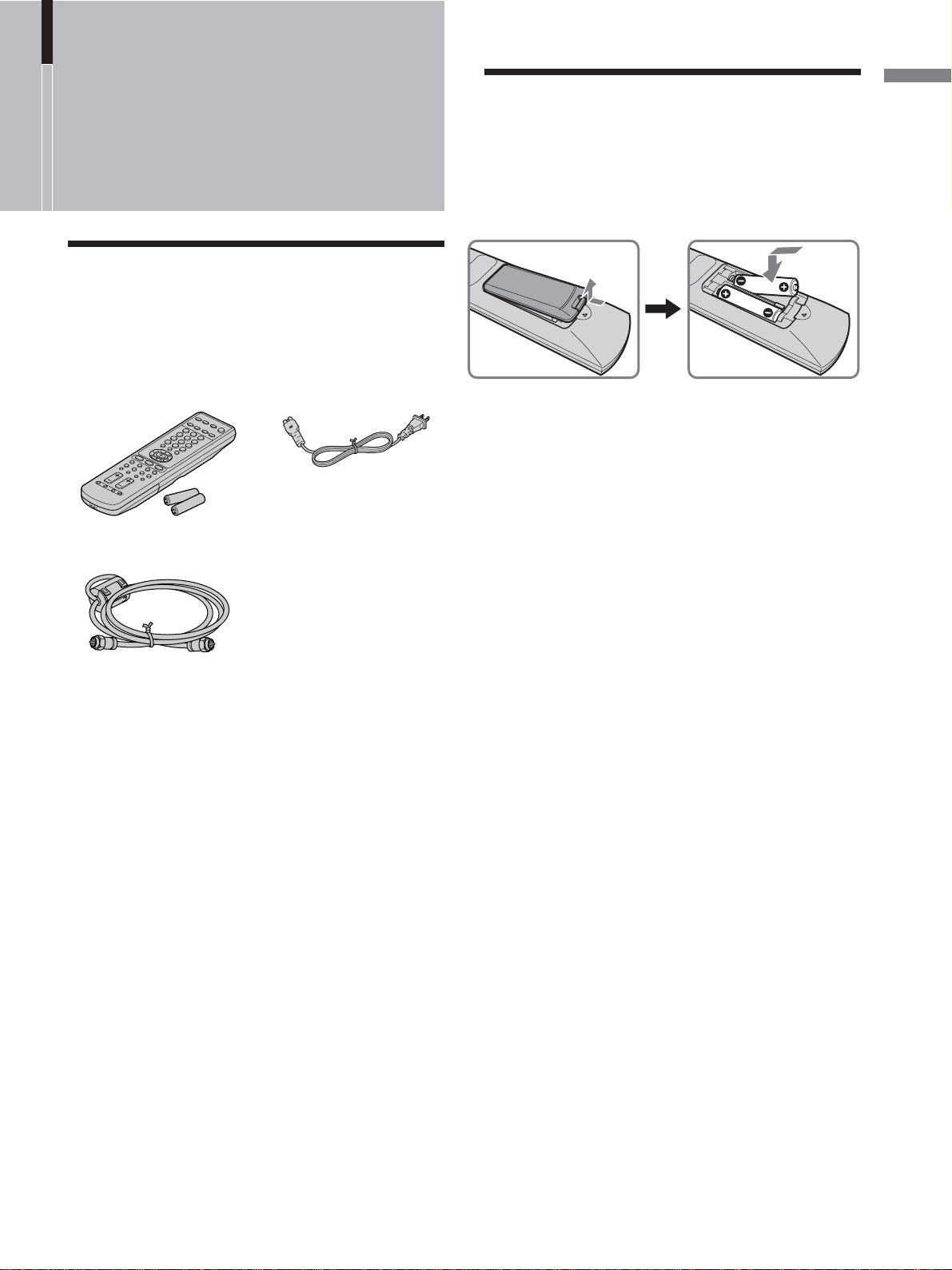
When you unpack this unit, make sure it includes the
following:
Notes
• Do not detach the ferrite core from the cable.
• The ferrite core is attached to one end of (not the center of) the
cable. When connecting the cable to the TV, insert the end
with the ferrite core into the VHF/UHF jack.
Operating Instructions (1)
Quick Setup Guide (1)
Warranty Card (1)
AC power cord (1)
75-ohm coaxial cable (1)
Remote control (1) and
size AA batteries (2)
Overview of the Remote
Control
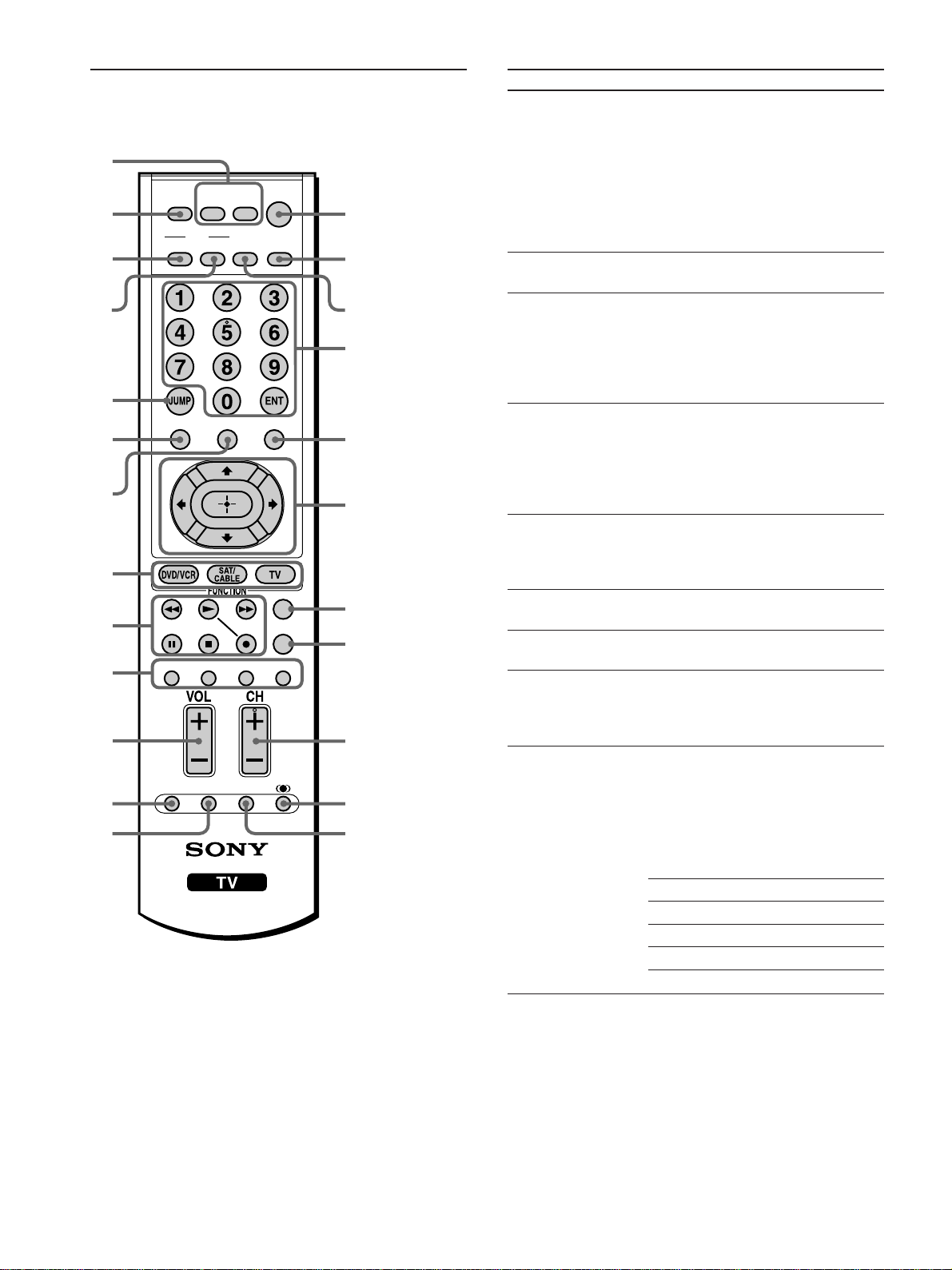
Insert two size AA batteries (supplied) by matching
the e and E on the batteries to the diagram inside
the remote control’s battery compartment.
Notes
• Remove the batteries to avoid damage from possible battery
leakage whenever you anticipate that the remote control will
not be used for an extended period.
• Handle the remote control with care. Avoid dropping it,
getting it wet, or placing it in direct sunlight, near a heater or
where the humidity is high.
• The supplied remote control can be programmed to operate most
video equipment (see “Programming the Remote Control” on
page 16).
14
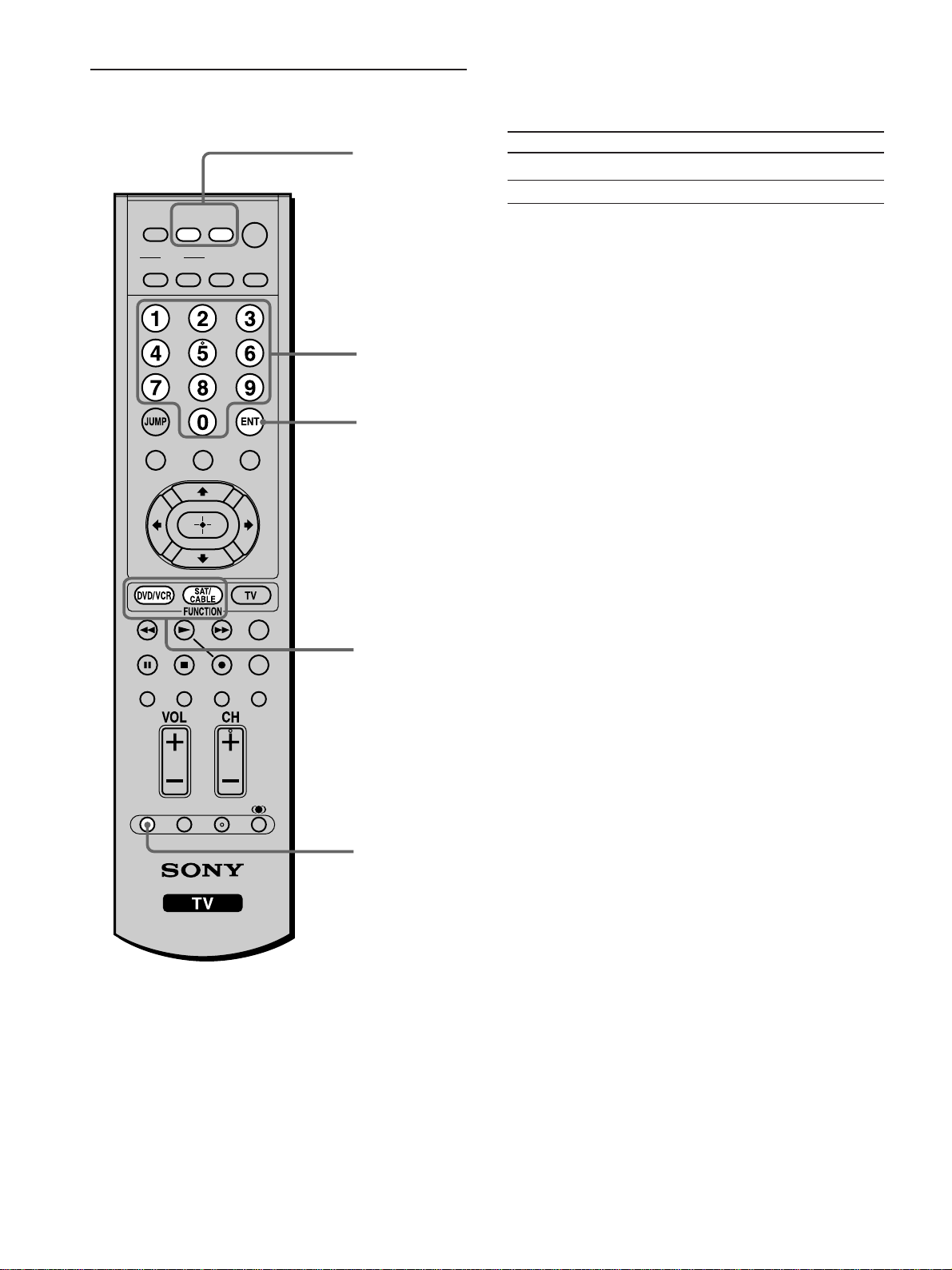
Remote Control Descriptions
Tip
The MTS/SAP button, the number 5 button and the CH + button
have a tactile dot.
Use the tactile dot as a reference when operating the TV.
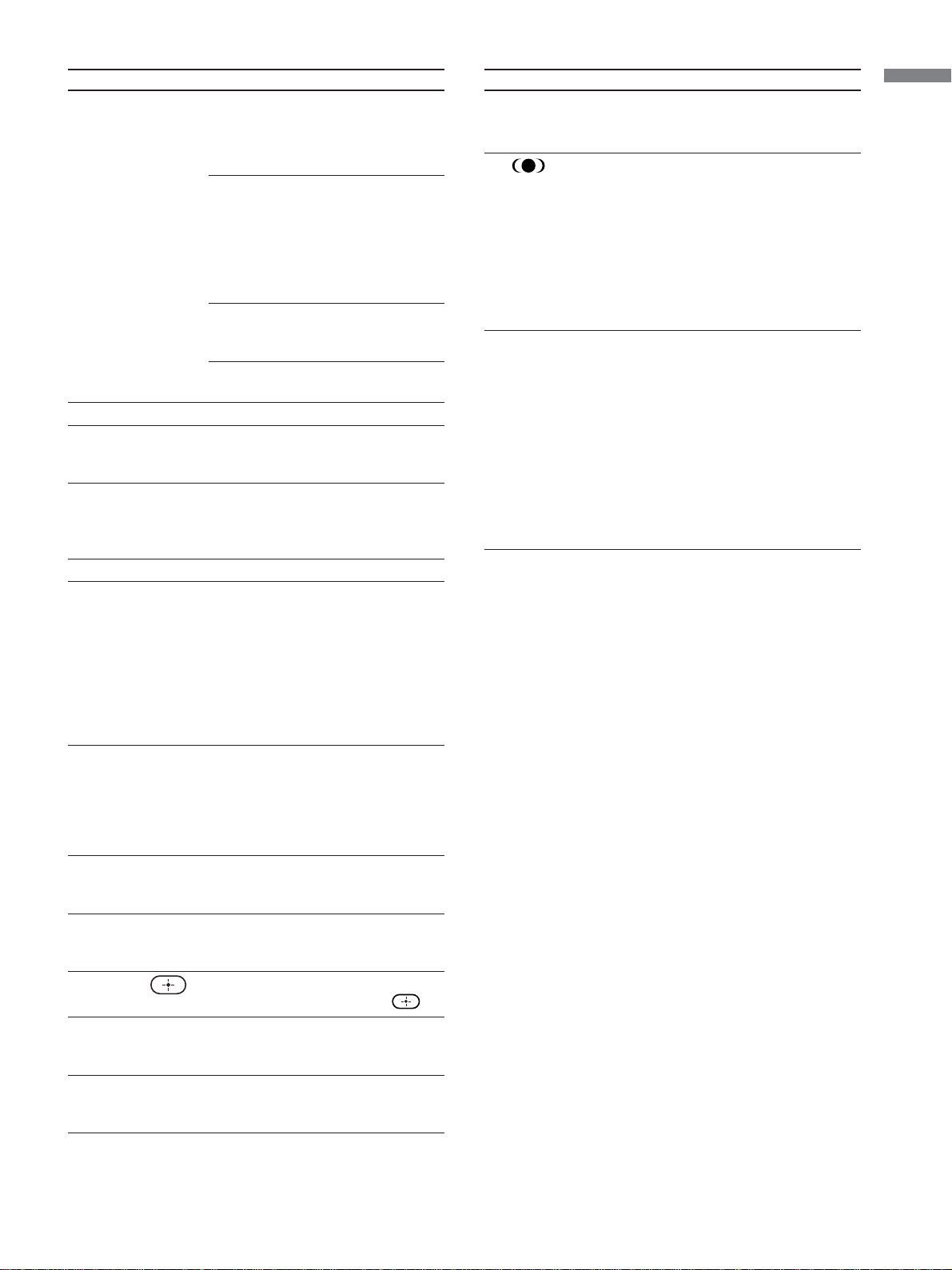
Button Description
1 DVD/VCR, SAT/
CABLE Buttons
2 MUTING
3 PICTURE
4 WIDE
5 JUMP
6 TOP MENU
7 FAVORITES
8 FUNCTION
Buttons
9 DVD/VCR
Operating Buttons
Press to turn on and off the equipment
you have programmed into the remote
control. For details, see “Programming
the Remote Control” on page 16.
DVD/VCR: Press to turn on and off the
video equipment.
SAT/CABLE: Press to turn on and off
the satellite receiver or cable box.
Press to mute the sound. Press again or
press VOL + to restore the sound.
Press repeatedly to cycle through the
available video picture modes: Vivid,
Standard and Pro. The video picture
modes can be also accessed in the
Video menu. For details, see “Adjusting
the Picture Quality” on page 57.
Press repeatedly to step through the
Wide Screen Mode settings: Wide
Zoom, Normal, Full and Zoom. The
Wide Screen Mode settings can be also
accessed in the Screen menu. For
details, see pages 45 and 47.
Press to jump back and forth between
two channels. The TV alternates
between the current channel and the last
channel that was selected.
Press to display the top menu of your
DVD/VCR.
Press to display the Favorite Channels
list. For details, see page 52.
Press to have the remote control operate
the equipment you want. For details,
see “Programming the Remote Control”
on page 16.
When FUNCTION is switched on
DVD/VCR, these buttons operate the
video equipment you have programmed
into the remote control. For details, see
“Using your Remote Controls with
Other Equipment “ on page 18.
m Rewind
N Play
M Fast forward
X Pause
x Stop
z Record
MUTING
PICTURE WIDE
FAVORITES
TV
VIDEO 1/2 VIDEO 3 VIDEO 4
F1
F2
MENU
SLEEP DISPLAY
MODE
SAT/
CABLE
DVD/
VCR
POWER
TOP MENU
RESET FREEZE MTS/SAP
GUIDE
TV/SAT
1
2
3
4
5
6
7
8
9
0
qa
qs
qd
qf
qg
qh
qj
qk
ql
w;
wa
ws
wd
wf
15
Installing the TV
Button Description
0 Input Select
Buttons
qa VOL +/–
qs RESET
qd FREEZE
qf POWER
qg DISPLAY
qh SLEEP
qj 0 - 9 ENT
qk MENU
ql V/v/B/b
w; F1
wa F2
Press to select the video equipment
connected to the TV’s video inputs.
TV: Press to select the TV to watch the
TV programs.
VIDEO 1/2: Press repeatedly to cycle
through the video equipment connected
to the VIDEO 1 IN and the VIDEO 2
IN.
If the video label is selected as “Skip,”
the selected input will be skipped from
the cycle.
VIDEO 3: Press to select the video
equipment connected to the HD/DVD 3
IN.
VIDEO 4: Press to select the video
equipment connected to the HDMI 4 IN.
Press to adjust the volume.
Press to reset the settings to the factory
defaults. See pages 58 and 60. Also
used to clear Channel Label.
Press to freeze the picture. Press again
to restore the picture. For details, see
“Using the Freeze Function” on page
49.
Press to turn on and off the TV.
Press once to display the current
channel number/channel label and the
Wide Screen Mode, or the current
video input number/video label and the
Wide Screen Mode. When the display
is turned on, the current channel
number/channel label or video input
number/video label remains displayed.
Press it again to turn the display off.
Press repeatedly until the TV displays
the time in minutes (15, 30, 45, 60 or
90) that you want the TV to remain on
before shutting off. To cancel Sleep
Timer, press SLEEP repeatedly until
Sleep Off appears.
Press 0 - 9 to select a channel; the
channel changes after 2 seconds. Press
ENT to change channels immediately.
Press to display the menu. Press again
to exit from the menu. For details, see
page 38.
Press V/v/B/b to move the on-screen
cursor. To select an item, press
.
Press to select the function of your
video equipment which is programmed
on the TV’s remote control.
Press to select the function of your
video equipment which is programmed
on the TV’s remote control.
Button Description
ws CH +/–
wd
When SAT/CABLE (FUNCTION) is on
TV/SAT
wf MTS/SAP
When SAT/CABLE (FUNCTION) is on
GUIDE
Press to scan through channels. To scan
quickly through channels, press and
hold down either CH + or CH –.
Press to select the sound effect modes:
SRS WOW, Off. The sound effect
modes can be also accessed in the
Audio menu. For more details, see
“Selecting the Effect Mode” on page
44.
Press to switch between the TV and the
satellite receiver.
Press repeatedly to cycle through the
Multi-channel TV Sound (MTS)
options: Stereo, Auto SAP (Second
Audio Program), and Mono. The MTS
setting can be also accessed in the
Audio menu. For more details, see
“Selecting Stereo or Bilingual
Programs” on page 60.
Press to display the program guide of
your satellite program provider.
16
Programming the Remote Control
The remote control is preset to operate Sony brand
video equipment.
Sony Equipment Programmable Code Number
DVD/VCR 601 (Sony Dream System)
SAT/Cable 801 (Sony Satellite Receiver)
If you have video equipment other than Sony brand
that you want to control with the TV’s remote
control, use the following procedures to program the
remote control.
Note
The equipment must have infrared (IR) remote capability in
order to be used with this remote control.
From the “Manufacturer’s codes” listed on page 17,
select the three-digit code number for the
manufacturer’s code of your equipment. If more than
one code number is listed, try entering them one by
one until you come to the correct code for your
equipment. Use the code number to complete the
following procedure.
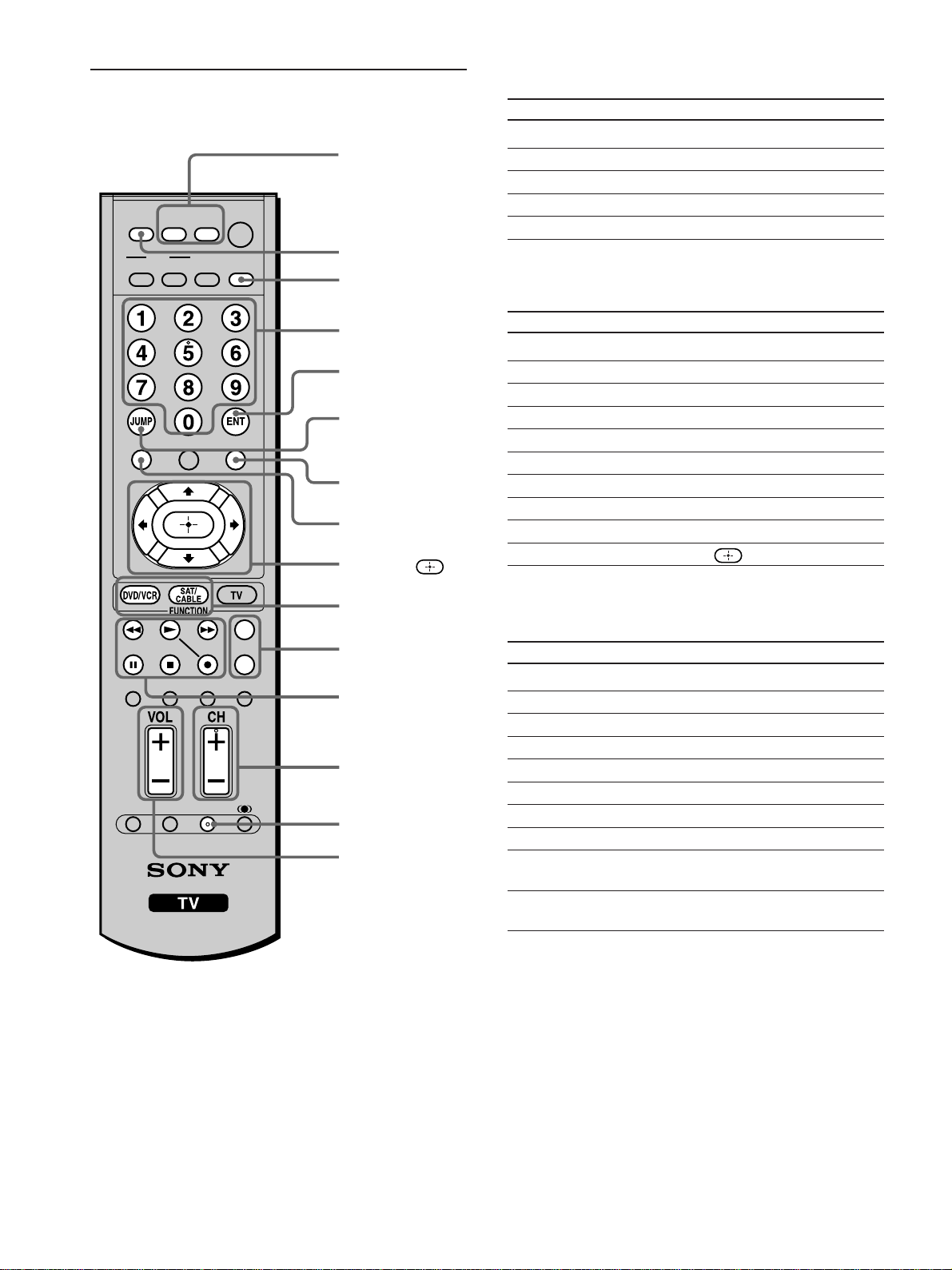
1 Press the DVD/VCR (FUNCTION) and RESET
buttons simultaneously, or press the SAT/
CABLE (FUNCTION) and RESET buttons
simultaneously. DVD/VCR and SAT/CABLE
buttons flash.
2 Press the function button you want to program.
To program video equipment
Press DVD/VCR (FUNCTION).
To program a cable box or a satellite receiver
Press SAT/CABLE (FUNCTION).
3 Enter the three-digit manufacturer’s code number
using the 0 - 9 buttons.
4 Press ENT (enter).
5 To check if the code number works, aim the
TV’s remote control at the equipment and press
DVD/VCR and/or SAT/CABLE (POWER) that
corresponds with that equipment. If it responds,
the programming is completed. If not, try using
the other codes listed for that manufacturer.
Tips
• If you enter a new code number, the code number you
previously entered at that setting is erased.
• In some rare cases, you may not be able to operate your
equipment with the Sony remote control. In this case, use the
equipment’s own remote control unit.
1, 2
3
4
1
5
MUTING
PICTURE WIDE
FAVORITES
TV
VIDEO 1/2 VIDEO 3 VIDEO 4
F1
F2
MENU
SLEEP DISPLAY
MODE
SAT/
CABLE
POWER
TOP MENU
RESET FREEZE MTS/SAP
GUIDE
TV/SAT
DVD/
VCR

17
Installing the TV
Manufacturer’s Codes
DVD Players
Manufacturer Code
Sony 751
General Electric 755
Hitachi 758
JVC 756
Magnavox 757
Mitsubishi 761
Panasonic 753
Philips 757
Pioneer 752
RCA/PROSCAN 755
Samsung 758
Toshiba 754
Zenith 760
DVD Changers
Manufacturer Code
Sony 765
Panasonic 766
DVD/VCR Combo Units
Manufacturer Code
Sony 767
Zenith 768
Toshiba 773
Samsung 774
JVC 775
Broksonic 776
Panasonic 777
HDD/DVD Combo Units
Manufacturer Code
Sony 770, 771, 772
5.1ch DVD AV System
Manufacturer Code
Sony (DAV) 601, 602, 603,
604
AV Receivers
Manufacturer Code
Sony 764
VCRs
Manufacturer Code
Sony 301, 302, 303
Admiral (M. Ward) 327
Aiwa* 338, 344
Audio Dynamic 314, 337
Broksonic 319, 317
Manufacturer Code
Canon 309, 308
Citizen 332
Craig 302, 332
Curtis Mathes 304, 338, 309
Daewoo 341, 312, 309
DBX 314, 336, 337
Dimensia 304
Emerson 319, 320, 316,
317, 318, 341
Fisher 330, 335
Funai 338
General Electric 329, 304, 309
Go Video 322, 339, 340
Goldstar 332
Hitachi 306, 304, 305,
338
Instant Replay 309, 308
JC Penney 309, 305, 304,
330, 314, 336,
337
JVC 314, 336, 337,
345, 346, 347
Kenwood 314, 336, 332,
337
LG 332
LXI (SEARS) 332, 305, 330,
335, 338
Magnavox 308, 309, 310
Marantz 314, 336, 337
Marta 332
Memorex 309, 335
Minolta 305, 304
Mitsubishi/MGA 323, 324, 325,
326
Multitech 325, 338, 321
NEC 314, 336, 337
Olympic 309, 308
Optimus 327
Orion 317
Panasonic 308, 309, 306,
307
Pentax 305, 304
Philco 308, 309
Philips 308, 309, 310
Pioneer 308
Quasar 308, 309, 306
RCA/PROSCAN 304, 305, 308,
309, 311, 312,
313, 310, 329
Realistic 309, 330, 328,
335, 324, 338
Sansui 314
Samsung 322, 313, 321
Manufacturer Code
Sanyo 330, 335
Scott 312, 313, 321,
335, 323, 324,
325, 326
Sharp 327, 328
Signature 2000 (M.Ward) 338, 327
SV 2000 338
Sylvania 308, 309, 338,
310
Symphonic 338
Tashiro 332
Tatung 314, 336, 337
Teac 314, 336, 338,
337
Technics 309, 308
Toshiba 312, 311
Wards 327, 328, 335,
331, 332
Yamaha 314, 330, 336,
337
Zenith 331
Cable Boxes
Manufacturer Code
Sony 230
Hamlin/Regal 222, 223, 224,
225, 226
Jerrold/G.I. 201, 202, 203,
204, 205, 206,
207, 208, 218,
222
Oak 227, 228, 229
Panasonic 219, 220, 221
Pioneer 214, 215
Scientific Atlanta 209, 210, 211
Tocom 216, 217
Zenith 212, 213
Satellite Receivers
Manufacturer Code
Sony 801
Dish Network 810
Echostar 810
General Electric 802
Hitachi 805
Hughes 804
Mitsubishi 809
Panasonic 803
RCA/PROSCAN 802, 808
Toshiba 806, 807
* If an Aiwa VCR does not work even
though you enter the code for Aiwa,
enter the code for Sony instead.
18
Operating a VCR
To
Turn on/off
Control a VCR
Change channels
Record
Play
Stop
Fast forward
Rewind
Pause
Search the picture
forward or backward
Press
DVD/VCR (POWER)
DVD/VCR (FUNCTION)
CH +/–
N and z simultaneously
N
x
M
m
X (press again to resume normal
playback)
M or m during playback
(release to resume normal playback)
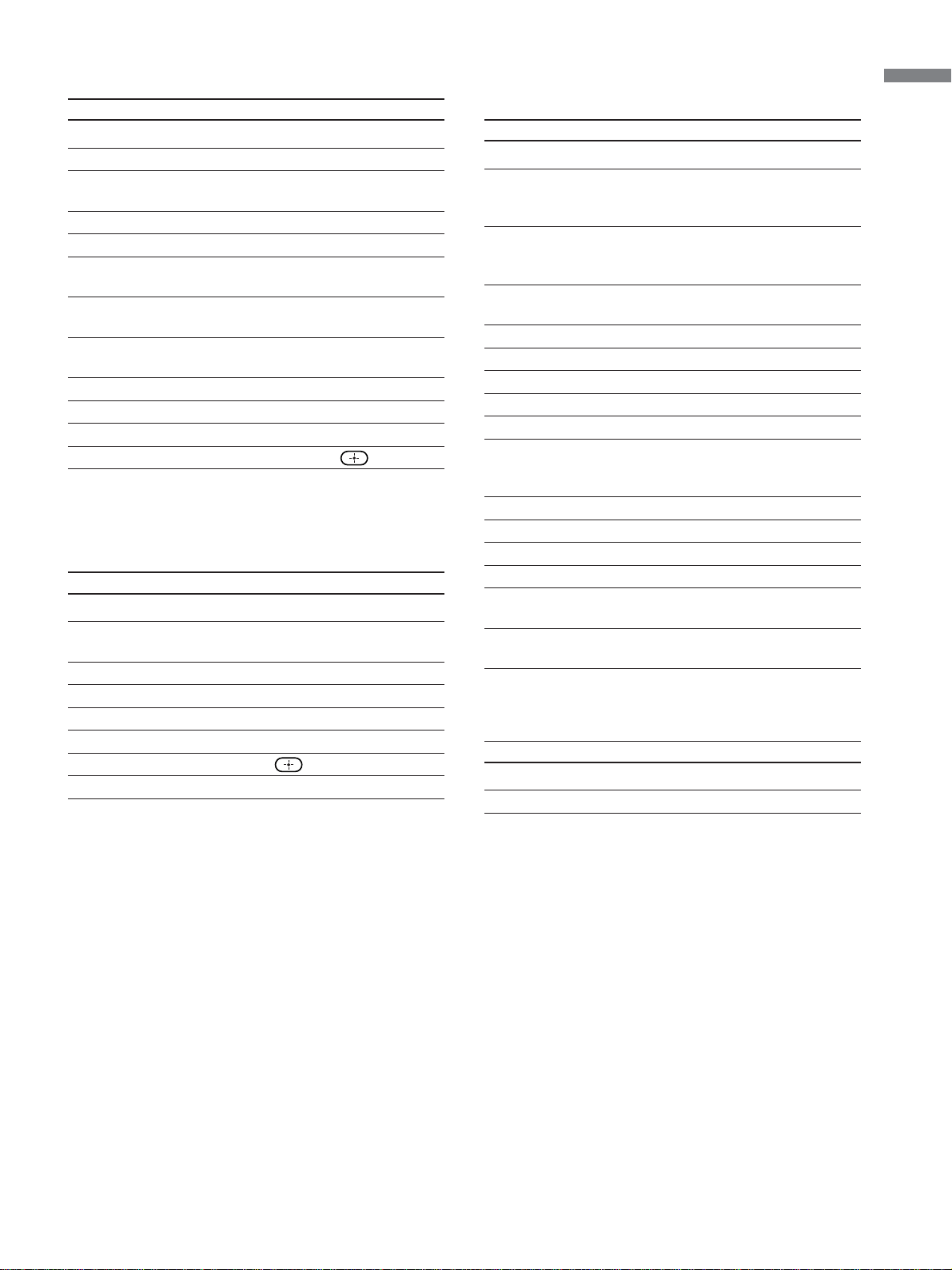
Using your Remote Controls with
Other Equipment
FUNCTION buttons
(DVD/VCR,
SAT/CABLE)
POWER buttons
(DVD/VCR,
SAT/CABLE)
F1/F2
DISPLAY
0 - 9 buttons
JUMP
GUIDE
V, v, B, b,
MENU
CH +/–
ENT (enter)
TOP MENU
Operating a Cable Box
To
Turn on/off
Control a cable box
Select a channel
Change channels
Go to the previous channel
Operating a Satellite Receiver
To
Turn on/off
Control a satellite receiver
Select a channel
Change channels
Go to the previous channel
Display the channel number
Display the DBS guide
Display the DBS menu
Move the highlight (cursor)
Select the item
Press
SAT/CABLE (POWER)
SAT/CABLE (FUNCTION)
0 - 9 buttons, ENT (enter)
CH +/–
JUMP
DISPLAY
GUIDE
MENU
V, v, B, b
Press
SAT/CABLE (POWER)
SAT/CABLE (FUNCTION)
0 - 9 buttons, ENT (enter)
CH +/–
JUMP
DVD/VCR
operating buttons
MUTING
VOL +/–
MUTING
PICTURE WIDE
FAVORITES
TV
VIDEO 1/2 VIDEO 3 VIDEO 4
F1
F2
MENU
SLEEP DISPLAY
MODE
SAT/
CABLE
POWER
RESET MTS/SAP
GUIDE
TV/SAT
DVD/
VCR
TOP MENU
FREEZE
19
Installing the TV
Operating a DVD Player or DVD Changer
To
Turn on/off
Control a DVD player
If you have a DVD changer,
to skip discs
Play
Stop
Pause
Step through different
tracks of an audio disc
Step through different
chapters of a DVD disc
Select a track directly
Display the menu (Setup)
Display the top menu
Operate the DVD menu
Operating a 5.1ch DVD AV System
(Sony DAV)
To
Turn on/off
Select other equipment
connected to the DAV
Skip a disk
Display the DVD menu
Display the menu (Setup)
Move the highlight (Cursor)
Select the item
Change the volume
Press
DVD/VCR (POWER)
DVD/VCR (FUNCTION)
F1
N
x
X (press again to resume
normal playback)
M to step forward or m
to step backward
CH + to step forward or CH –
to step backward
0 - 9 buttons
MENU
TOP MENU
V, v, B, b,
Press
DVD/VCR (POWER)
F1
F2
TOP MENU
MENU
V, v, B, b
VOL +/–, MUTING
Operating a DVD/VCR or DVD/HDD Combo
Unit
To
Turn on/off
If you have a DVD/VCR combo component,
Select the DVD
Select the VCR
If you have a DVD/HDD combo component,
Select the DVD
Select the HDD
Record
Play
Stop
Fast forward
Rewind the tape
Pause
Search the picture forward or
backward
Display the DVD menu
Play
Stop
Pause
Step through different tracks of
the disc
Step through different chapters
of a DVD disc
Operating an AV Receiver
To
Turn on/off
Change the volume
Press
DVD/VCR (POWER)
F1
F2
F1
F2
z and N simultaneously
(VCR)
N (VCR)
x (VCR)
M (VCR)
m (VCR)
X (VCR)
M or m during playback
(release to resume normal
playback) (VCR)
TOP MENU
N (DVD)
x (DVD)
X (DVD)
M to step forward or m
to step backward (DVD)
CH + to step forward or CH
– to step backward (DVD)
Press
DVD/VCR (POWER)
VOL +/–, MUTING
20
Overview of the TV Controls and Connectors
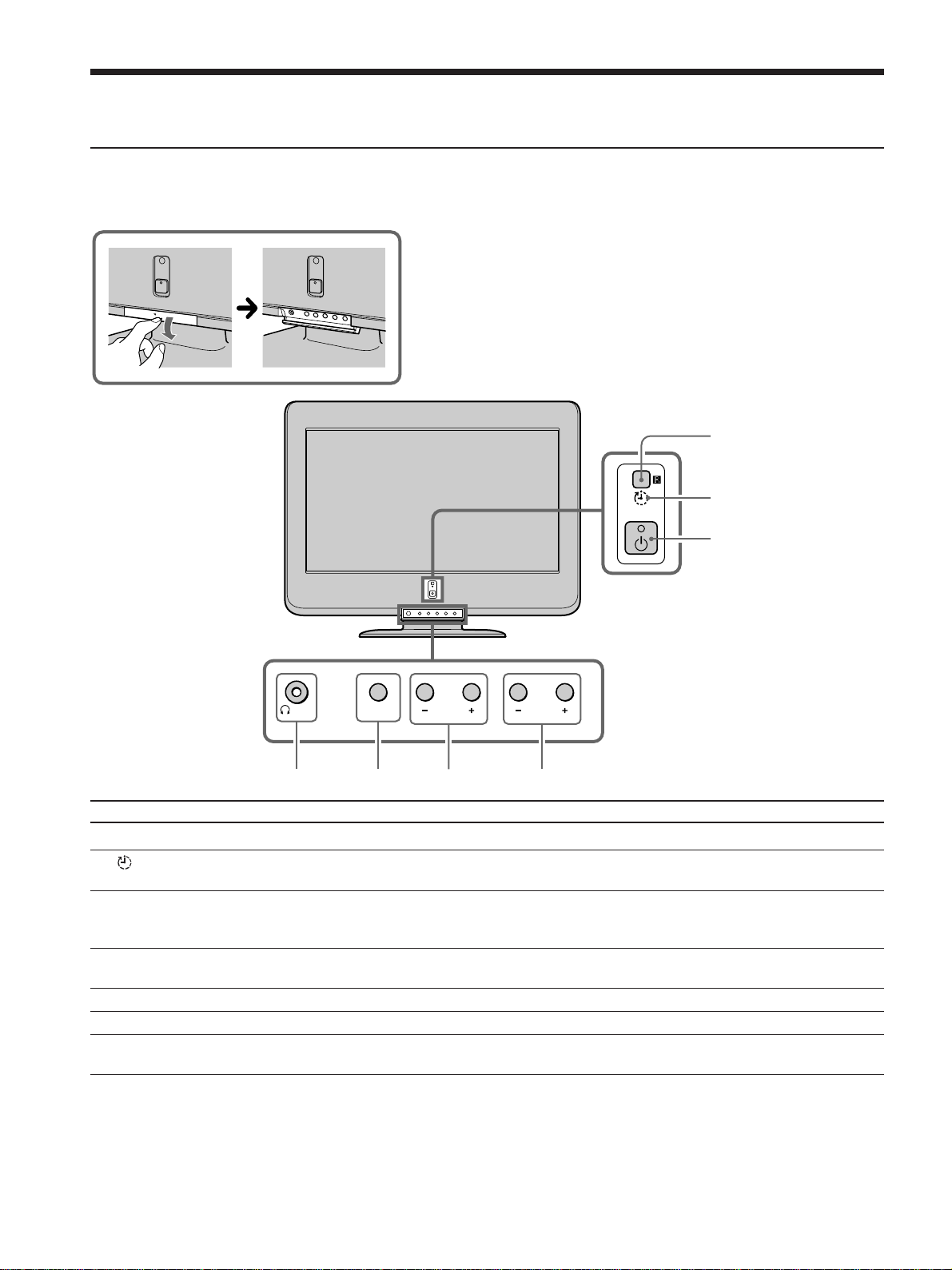
Front Panel Controls and Connectors
To open the control door
To open the control door of your TV, push the door just under
the “V OPEN” mark.
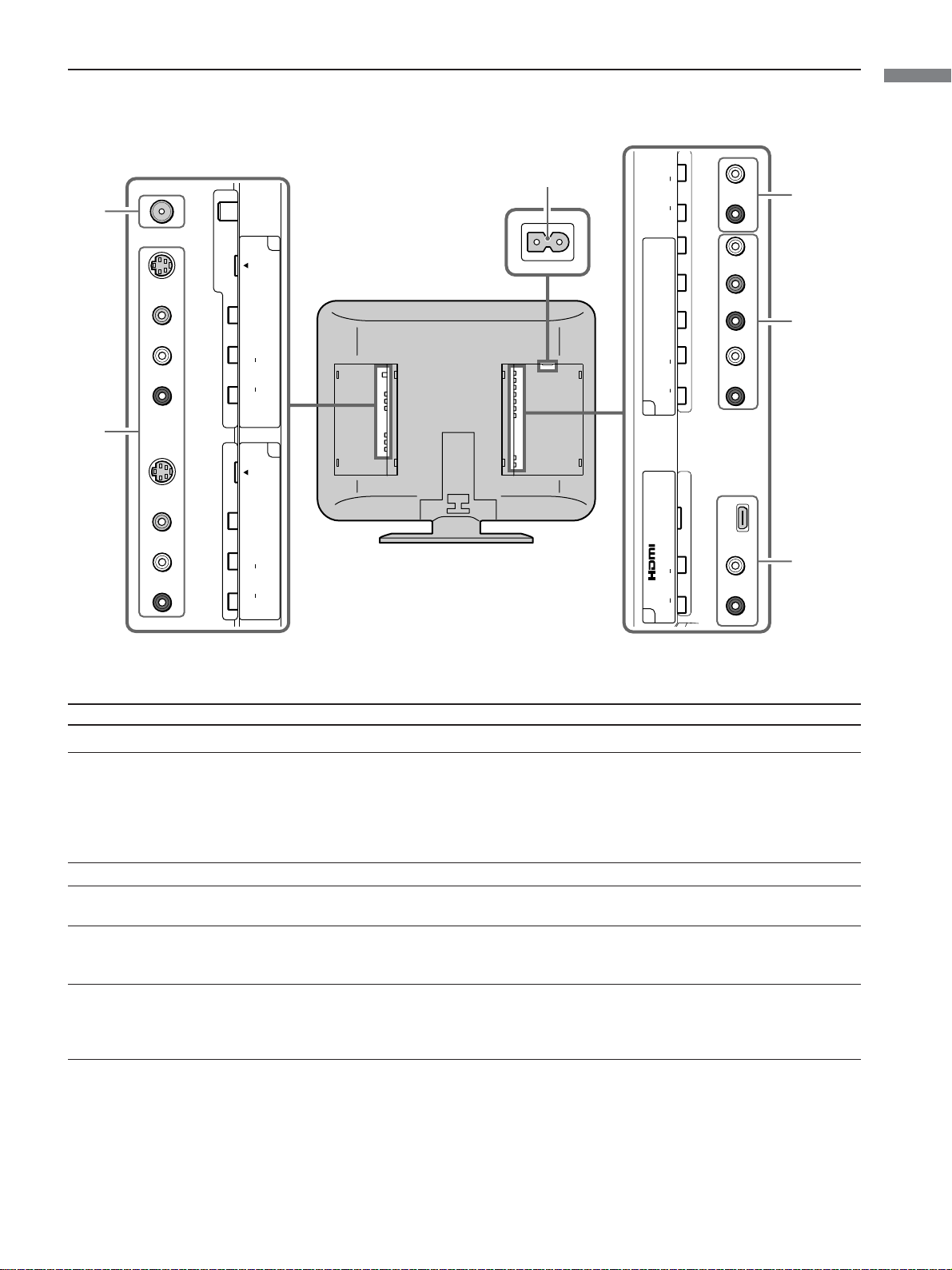
Item/Jack Description
1 (IR) Infrared Receiver
2
(Timer) LED
3 1 (Power) and
1 (Power on/Stand by)
LED
4 i Headphones jack
5 TV/VIDEO
6 – VOLUME +
7 – CHANNEL +
Receives IR signals from the remote control.
When lit, indicates one of the timers is set. When the timer is set, this LED will remain lit. For details, see
page 72.
Press 1 (Power) to turn on and off the TV. The LED lights up green when the TV is turned on. When in
standby mode, the LED lights up in red. If the LED blinks continuously, this may indicate the TV needs
servicing (see page 73).
Connects to your headphones.
If your headphones do not match the jack, use a suitable plug adaptor (not supplied).
Press repeatedly to cycle through the video equipment connected to the TV’s video inputs.
Press to adjust the volume.
Press to scan through channels. To scan quickly through channels, press and hold down either CHANNEL
– or +.
O
PE
N
TV / VIDEO
VOLUME CHANNEL
2
1
3
456 7
21
Installing the TV
Rear Panel Connectors
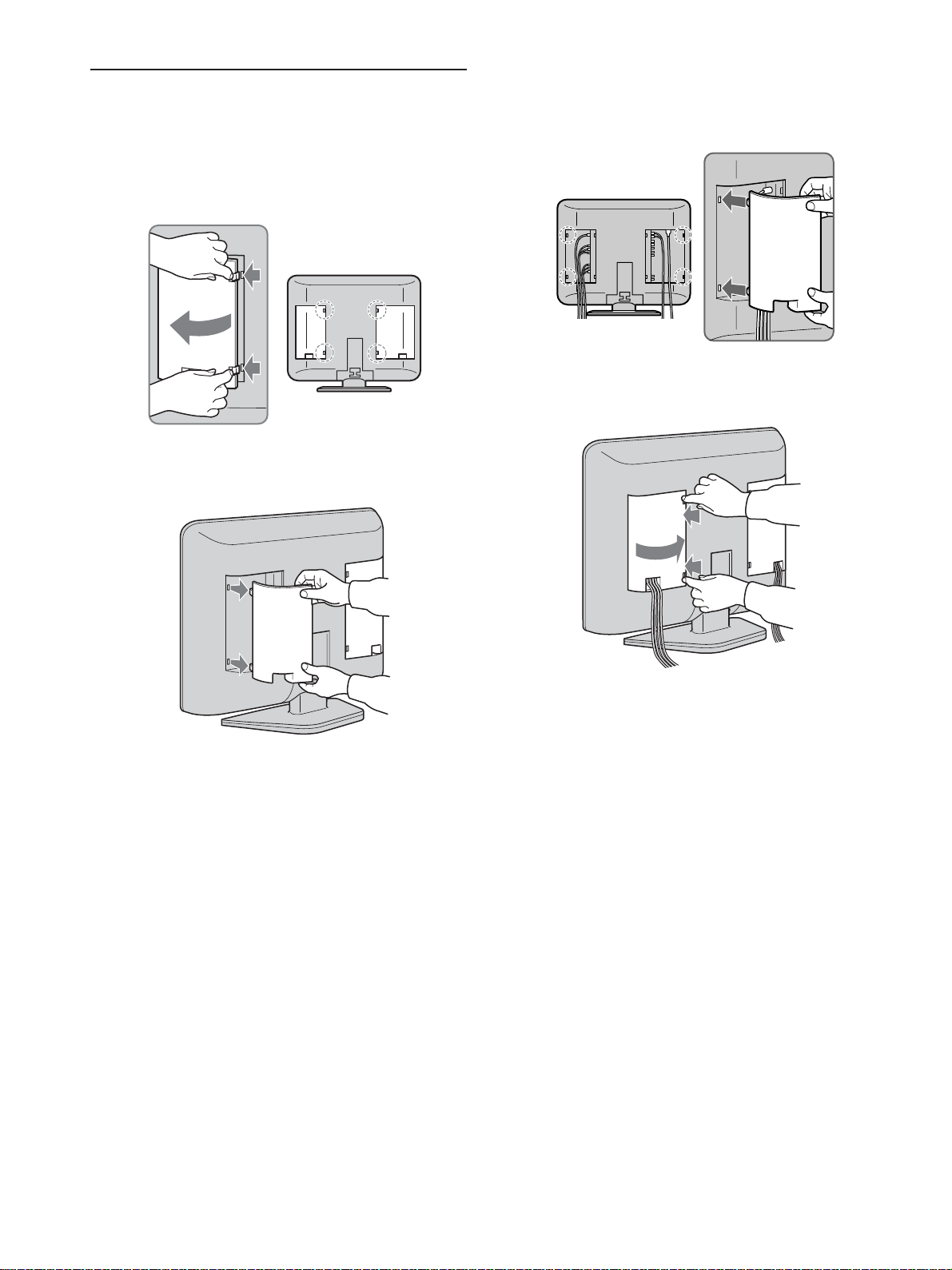
Jack Description
1 VHF/UHF
2 VIDEO 1/2 IN
VIDEO/L-AUDIO-R
When your VCR or other equipment has S VIDEO
S VIDEO
3 AC IN
4 AUDIO OUT
(VAR/FIX) L/R
5 HD/DVD 3 IN
Y, PB, PR/L-AUDIO-R
6 HDMI 4 IN
HDMI/L-AUDIO-R
RF input that connects to your VHF/UHF antenna or cable box.
Connect to the composite A/V output jacks on your VCR or other video component. This video
connection provides better picture quality than the VHF/UHF (1) connections.
Connect to the S VIDEO OUT jack of your VCR or other video equipment. S VIDEO provides better
picture quality than either composite video or VHF/UHF (1) connections.
Connects the supplied AC power cord.
Connects to the left and right audio input jacks of your audio or video equipment. You can use these
outputs to listen to your TV’s audio through your stereo system.
Connect to your DVD player’s or digital satellite receiver’s or digital cable box’s component video (Y,
P
B, PR) and audio (L/R) jacks. Component video provides better picture quality than the S VIDEO (2),
the VHF/UHF (1) or the composite video (2) connections.
HDMI (High-Definition Multimedia Interface) provides an uncompressed, all-digital audio/video
interface between this TV and any HDMI-equipped audio/video component, such as a digital satellite
receiver, digital cable box, DVD player, and AV receiver. HDMI supports enhanced, or high-definition
video, plus stereo digital audio.
IN
VHF/UHF
VIDEO IN
VIDEO
1
S VIDEO
(
MONO
)
AUDIO
R
L
VIDEO IN
VIDEO
2
S VIDEO
(
MONO
)
AUDIO
R
L
AUDIO
R
L
AUDIO
R
L
AUDIO
R
L
4 3
HD/DVD IN
AUDIO OUT
(
VAR/FIX
)
P
B
YP
R
1080i / 720p / 480p / 480i
()
AC IN
1
2
4
5
6
3
22
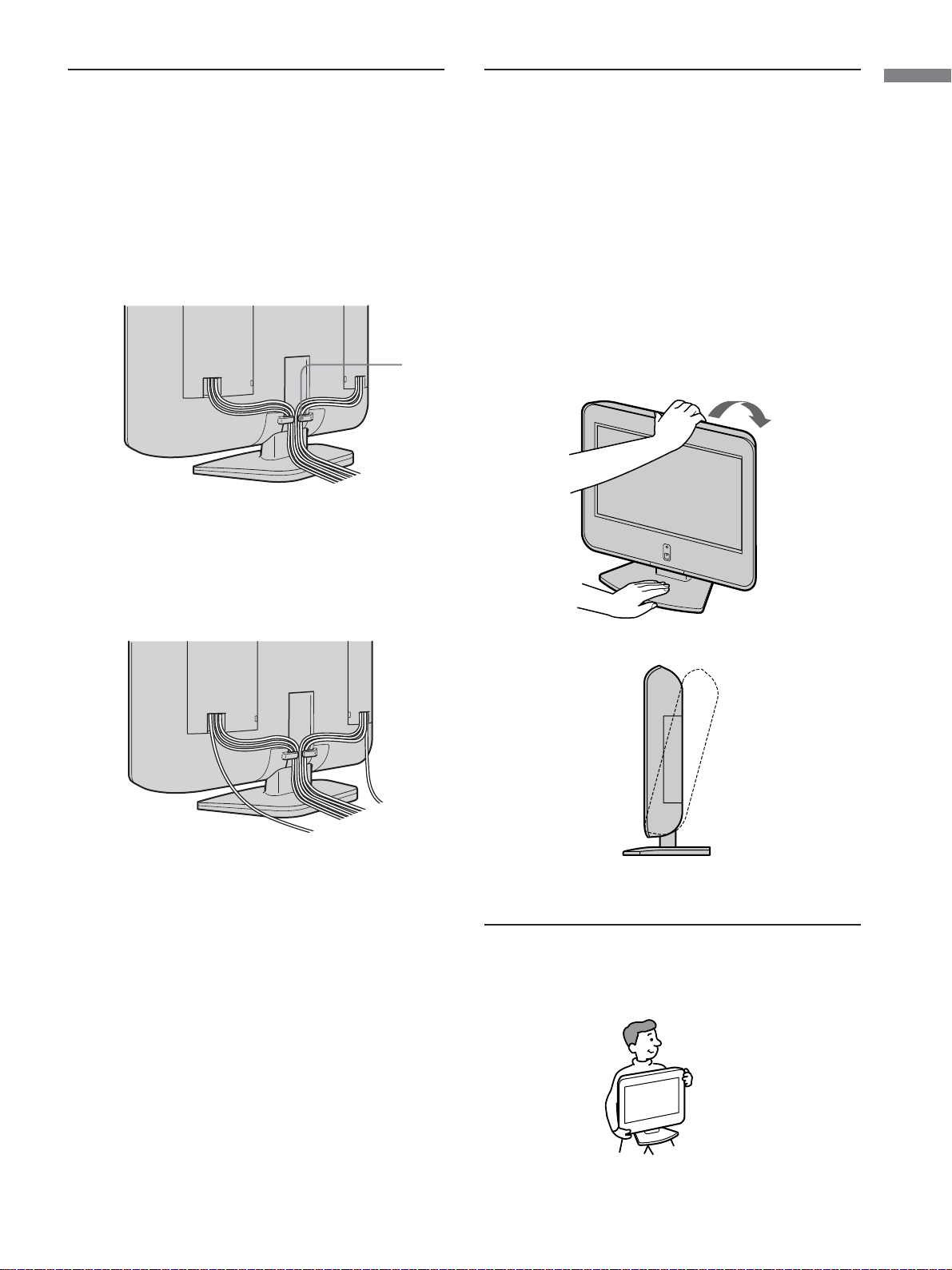
Attaching and Removing the Cable
Cover
Removing the cable cover
1 Push the hooks and draw the cable cover towards
you.
2 Detach the cable cover from the hooks on the
side of the TV.
Attaching the cable cover
1 Attach the cable cover to the hooks on the side of
the TV.
2 While pressing the hooks, push the cable cover
onto the TV until it clicks.
Tip
Attach the cable cover to the TV after connecting the cables.
23
Installing the TV
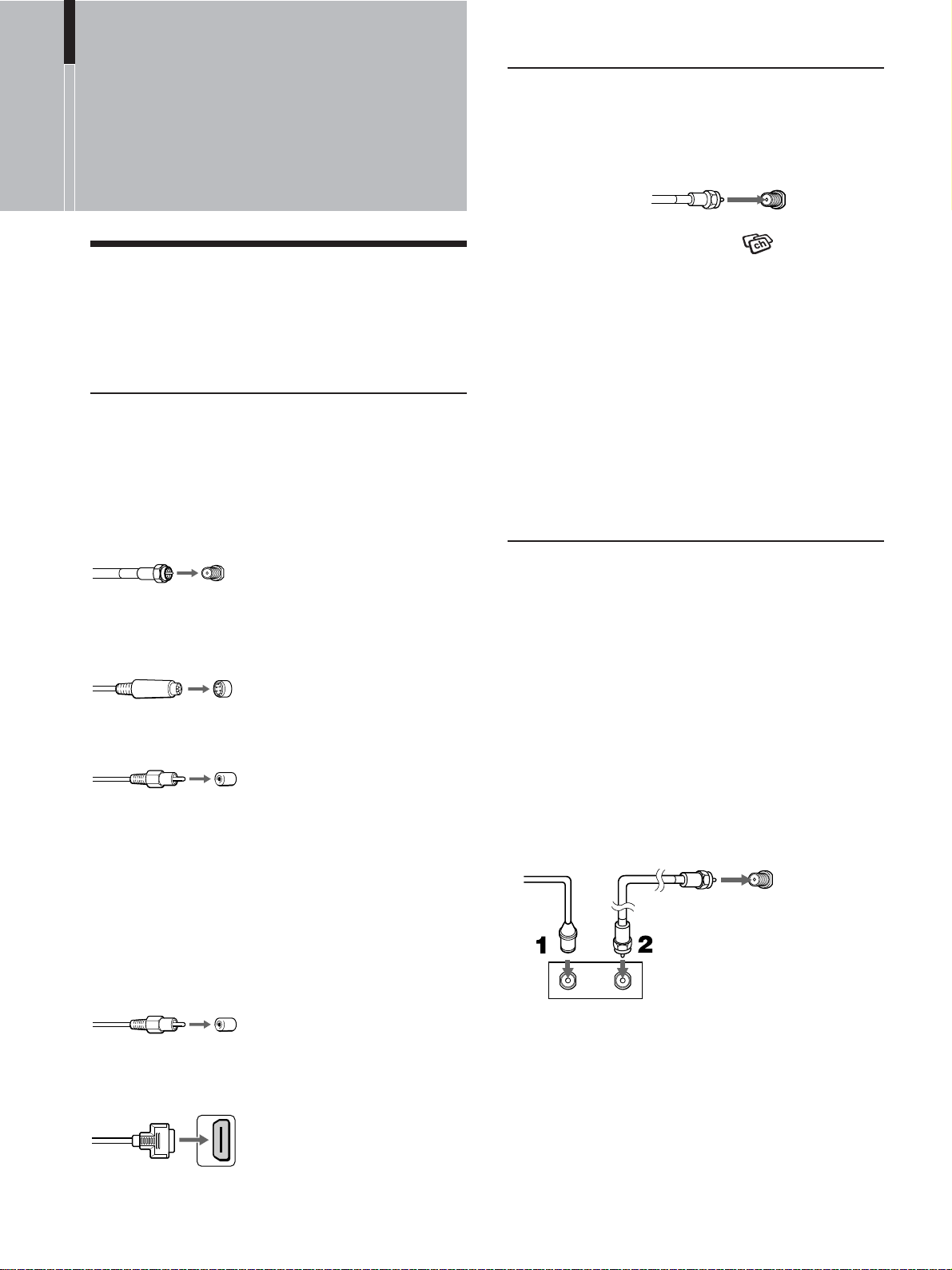
Bundling Cords and Cables
You can organize the cables in the back of the TV.
1 Bundle the cables into the opening of the cable
cover, and attach the cover.
2 Put the cables from both sides together and
secure them with the clip at the bottom.
Notes
• It may not be possible to fasten with clips if the cables are
too thick.
• If all the cables cannot be secured with the clip, you may
leave some of them hanging down on either side of the
TV.
Clip
Adjusting the Viewing Angle of the
TV
You can adjust the angle to avoid the reflection of
light and get a better view of the TV.
Note
• When adjusting the angle, steady the base of the stand with
your hand. Be careful not to get your fingers caught between
the TV and the stand.
• When you adjust the angle, make sure that the cables are not
caught between the TV and the stand. If some of the cables get
caught, divide them into two groups at the clip and pull them
away from each other to free them up.
Carrying the TV
When carrying the TV, hold it as illustrated below.
24
Connecting directly to cable or an
antenna
VHF only or VHF/UHF or cable
Also, set “Cable” to “Off” in the
(Channel)
menu (see page 37).
Notes
• It is strongly recommended to connect the antenna using a 75-
ohm coaxial cable to get optimum picture quality. A 300-ohm
twin lead cable can be easily affected by radio noise and the
like, resulting in signal deterioration. If you use a 300-ohm
twin lead cable, keep it away as far as possible from the TV.
• Do not detach the ferrite core from the supplied 75-ohm
coaxial cable.
• The ferrite core is attached to one end of (not the center of) the
supplied 75-ohm coaxial cable. When connecting the cable to
the TV, insert the end with the ferrite core into the VHF/UHF
jack.
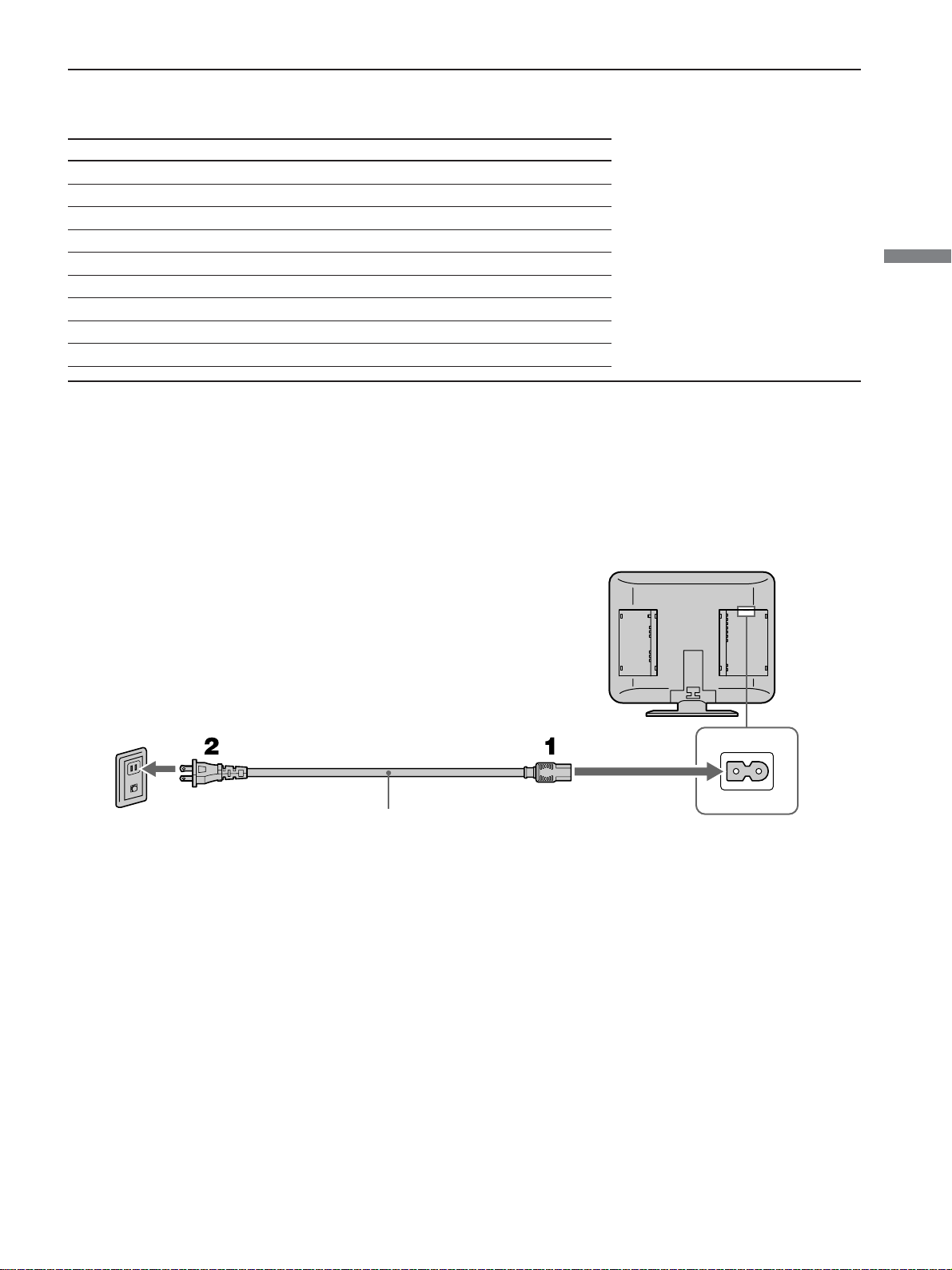
Cable box connections
Use this hookup if:
•You subscribe to a cable TV system that uses
scrambled or encoded signals requiring a cable
box to view all channels, and
•You do not intend to hook up any other audio or
video equipment to your TV.
1 Connect the coaxial connector from your cable
service to the cable box’s IN jack.
2 Using the supplied 75-ohm coaxial cable,
connect the cable box’s OUT jack to the TV’s
VHF/UHF jack.
Tips
• The supplied remote control can be programmed to operate
your cable box (see “Programming the Remote Control” on
page 16).
• To change channels using the cable box, set your TV to
channel 3 or 4 depending on the cable box channel output.
• If you will be controlling all channel selection through your
cable box, consider using the Channel Fix feature to set your
TV to channel 3 or 4 (see page 38).
75-ohm coaxial
cable (supplied)
Rear of TV
VHF/UHF jack
Basic Connections
(Connecting Cable or an
Antenna)
Connector types
You may find it necessary to use some of the
following connector types during set up.
Supplied 75-ohm coaxial cable
Screw-on type
S VIDEO cable
High quality video cable for enhanced picture quality
AUDIO/VIDEO cable
VIDEO - Yellow
AUDIO (Left) - White
AUDIO (Right) - Red
Some DVD players are equipped with the following
three video connectors:
Y - Green
P
B (CB, Cb or B-Y) - Blue
P
R (CR, Cr or R-Y) - Red
HDMI cable
High definition multimedia interface cable
Screw into connector
Align guides and push into
connector
Push into connector
Connecting and
Setting the TV
Push into connector
Align guides and push into
connector
Rear of TV
VHF/UHF jack
IN
jack
OUT
jack
Cable
Cable box
75-ohm coaxial
cable (supplied)
25
Connecting and Setting the TV
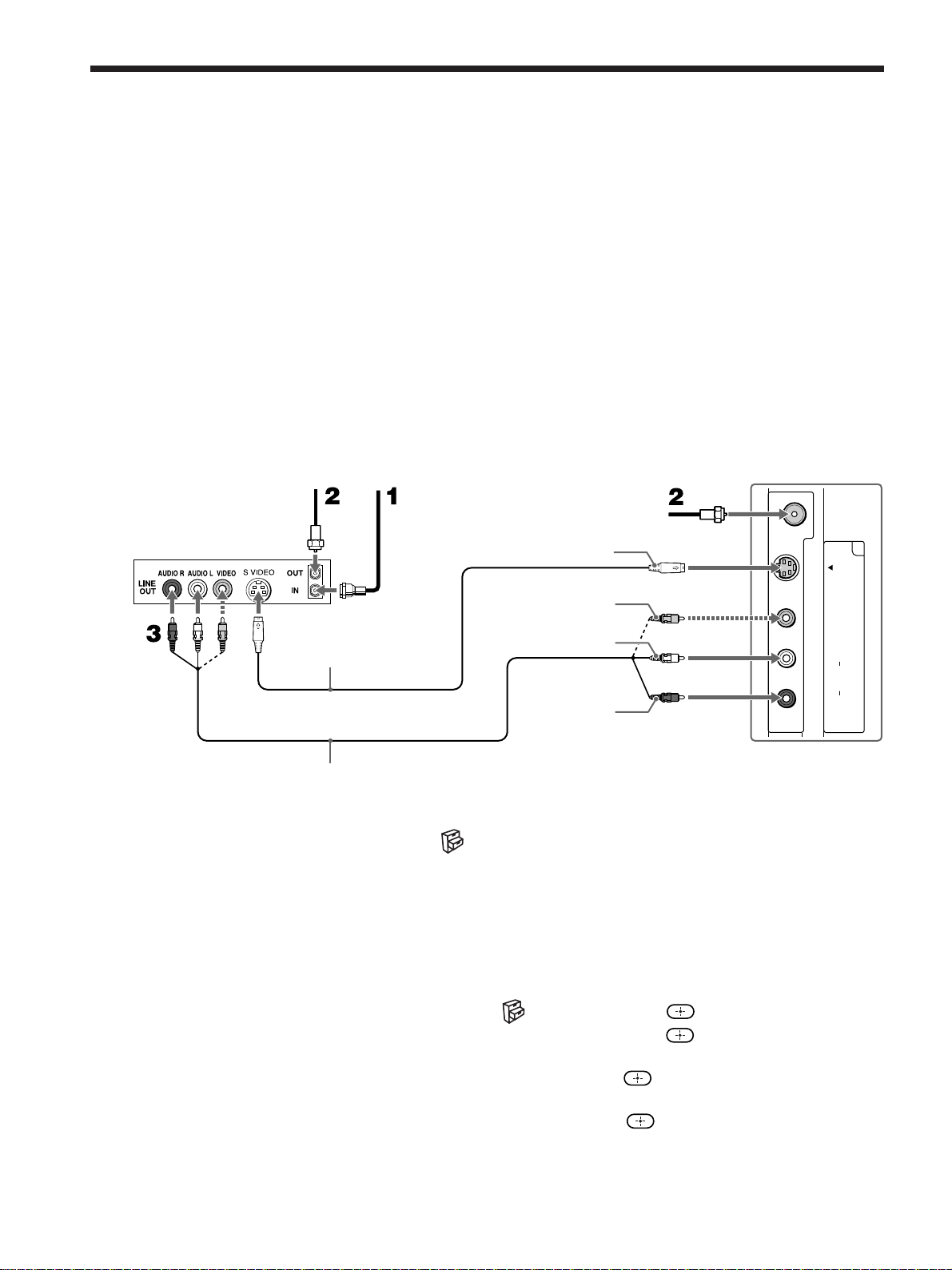
AC IN
Complete other connections prior to connecting the power cord.
1 Connect the power cord to the AC IN connector of the TV.
2 Connect the other plug of the power cord to a wall outlet.
Wall outlet
Connecting the Power Cord
AC power cord (supplied)
For 120 V AC
Connecting Optional Equipment
Use the instructions in this section to connect the following optional equipment:
If you are connecting See page
VCR and Cable TV 26 page
Satellite Receiver 27 page
Satellite Receiver and VCR 28 page
AV Receiver 29 page
DVD Player with Component Video Connectors 30 page
DVD Player with S Video and Audio Connectors 31 page
Digital Cable Box 32 page
Digital Satellite Receiver 33 page
Digital Satellite Receiver with HDMI Connector 34 page
26
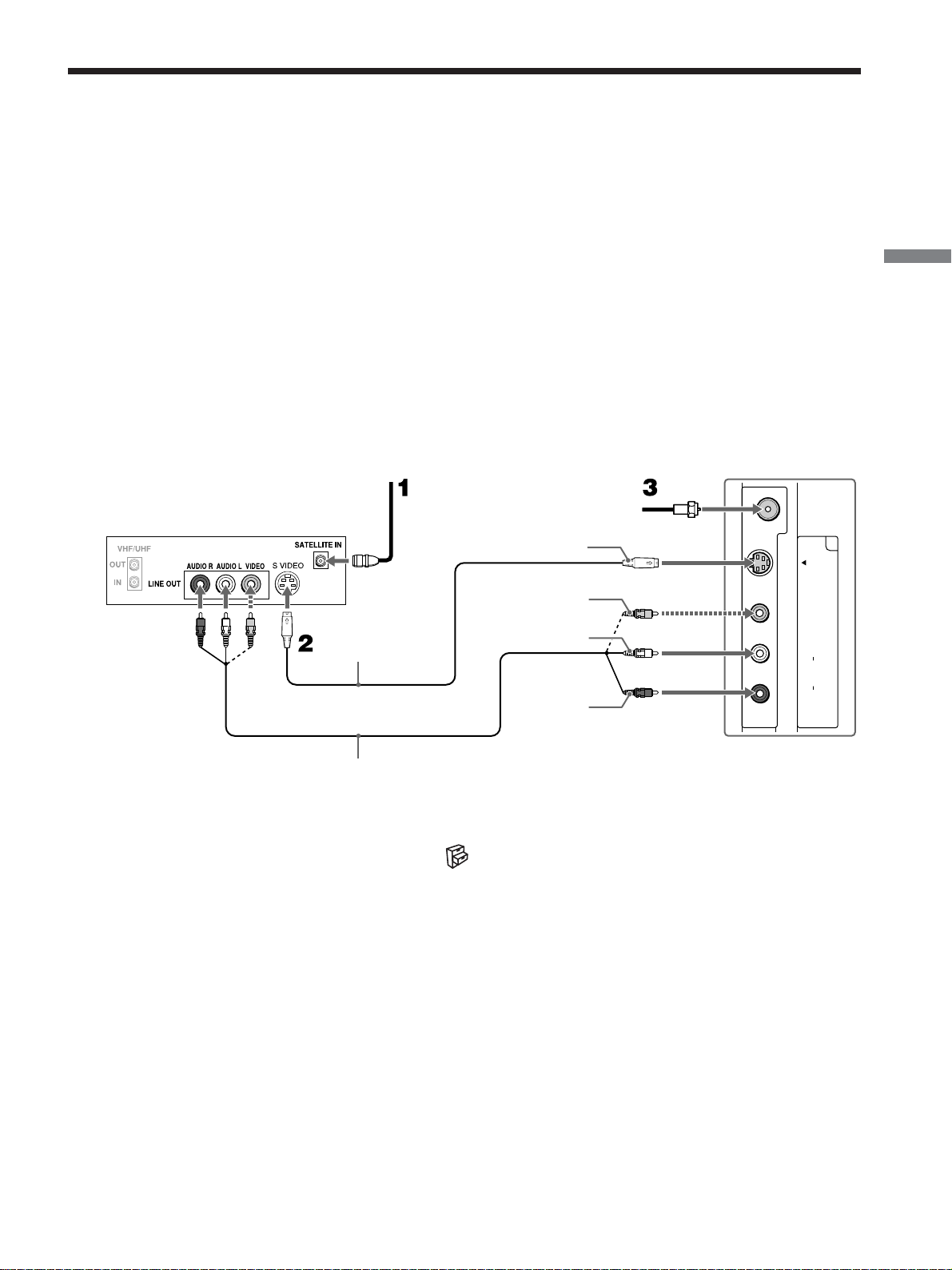
VHF/UHF
VIDEO IN
VIDEO
1
S VIDEO
(
MONO
)
AUDIO
R
L
Cable
75-ohm
coaxial cable
(supplied)
S VIDEO cable
(not supplied)
VIDEO (yellow)
AUDIO-L (white)
AUDIO-R (red)
A/V cable (not supplied)
VCR
S VIDEO
Rear of TV
75-ohm coaxial
cable (supplied)
Connecting a VCR and Cable TV
Note
When you connect video equipment to both the VIDEO and the S VIDEO input jacks, make sure
“Auto YC” in the (Setup) menu is set to “On” to view the S VIDEO input (see below).
When connecting both VIDEO IN and S VIDEO IN
Using the menu, you can select the jack from which the TV receives the input
signal. You can set it for each video input (VIDEO 1 IN and VIDEO 2 IN)
separately. The TV is factory set to receive S VIDEO input signals.
1 Press VIDEO 1/2 repeatedly until the desired video input appears.
2 Press MENU.
3 Press V/v to select (Setup), then press .
4 Press V/v to select “Auto YC,” then press .
5 To watch the pictures input from the S VIDEO input jack:
Press V/v to select “On,” then press
.
To watch the pictures input from the VIDEO input jack:
Press V/v to select “Off,” then press
.
6 Press MENU to exit the menu screen.
Use this hookup if:
•You subscribe to a cable TV system that does not require a cable box.
Disconnect all power sources before making any connections.
1 Connect the CATV cable to the VCR’s IN jack.
2 Using the supplied 75-ohm coaxial cable, connect the VCR’s OUT jack
to the TV’s VHF/UHF jack.
3 Using A/V and S VIDEO cables, connect the VCR’s AUDIO and S VIDEO
OUT jacks to the TV’s AUDIO and S VIDEO IN jacks (VIDEO 1 IN or
VIDEO 2 IN).
Tip
If your VCR is not equipped with S VIDEO, use a VIDEO cable (yellow) instead of the S
VIDEO cable.
27
Connecting and Setting the TV
VHF/UHF
VIDEO IN
VIDEO
1
S VIDEO
(
MONO
)
AUDIO
R
L
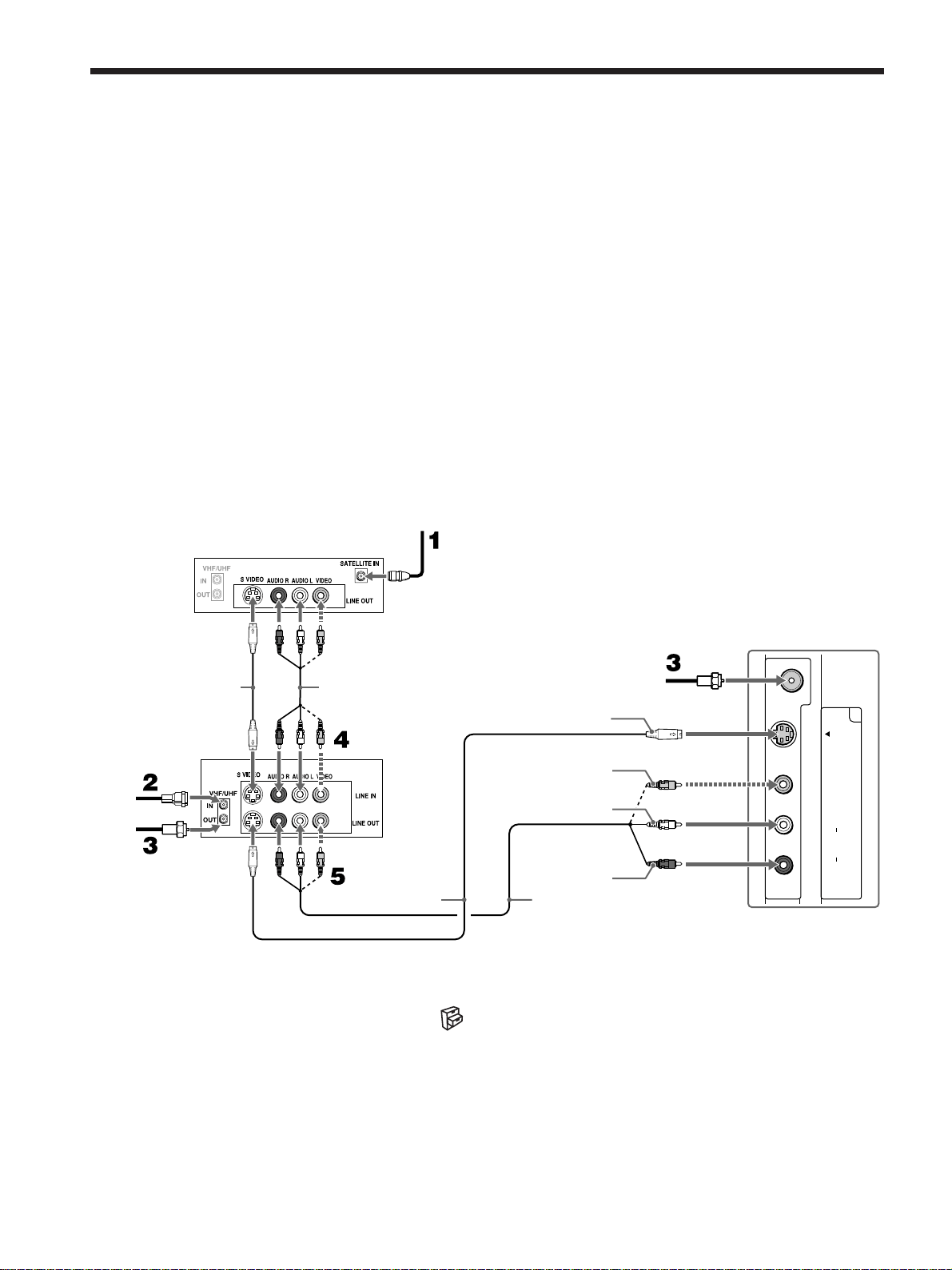
VIDEO (yellow)
AUDIO-L (white)
AUDIO-R (red)
S VIDEO
Rear of TV
75-ohm coaxial
cable (supplied)
S VIDEO cable
(not supplied)
A/V cable (not supplied)
Satellite
antenna
cable
Satellite Receiver
Connecting a Satellite Receiver
Disconnect all power sources before making any connections.
1 Connect the satellite antenna cable to the satellite receiver’s SATELLITE
IN jack.
2 Using A/V and S VIDEO cables, connect the satellite receiver’s AUDIO and
S VIDEO OUT jacks to the TV’s AUDIO and S VIDEO IN jacks (VIDEO
1 IN or VIDEO 2 IN).
Tip
If your satellite receiver is not equipped with S VIDEO, use a VIDEO cable (yellow)
instead of the S VIDEO cable.
3 Connect the supplied 75-ohm coaxial cable from your cable box or antenna
to the TV’s VHF/UHF jack.
Note
When you connect video equipment to both the VIDEO and the S VIDEO input jacks, make
sure “Auto YC” in the (Setup) menu is set to “On” to view the S VIDEO input (see page
26).
Tip
Use VIDEO 1/2 on the remote control to select VIDEO 1 IN (or VIDEO 2 IN if you use the
VIDEO 2 IN jacks for this hookup) to watch satellite TV.
28
VIDEO IN
VIDEO
1
S VIDEO
(
MONO
)
AUDIO
R
L
VHF/UHF
Connecting a Satellite Receiver and a VCR
Disconnect all power sources before making any connections.
1 Connect the satellite antenna cable to the satellite receiver’s SATELLITE
IN jack.
2 Connect the CATV cable to the VCR’s VHF/UHF IN jack.
3 Using the supplied 75-ohm coaxial cable, connect the VCR’s OUT jack
to the TV’s VHF/UHF jack.
4 Using A/V and S VIDEO cables, connect the satellite receiver’s AUDIO
and S VIDEO OUT jacks to the VCR’s AUDIO and S VIDEO IN jacks.
Tip
If your VCR or satellite receiver is not equipped with S VIDEO, use a VIDEO cable
(yellow) instead of the S VIDEO cable.
5 Using A/V and S VIDEO cables, connect the VCR’s AUDIO and S
VIDEO OUT jacks to the TV’s AUDIO and S VIDEO IN jacks (VIDEO
1 IN or VIDEO 2 IN).
Note
When you connect video equipment to both the VIDEO and the S VIDEO input jacks, make sure
“Auto YC” in the (Setup) menu is set to “On” to view the S VIDEO input (see page 26).
Tips
• Be sure your VCR’s video input is set correctly. Consult your VCR’s operating manual for
instructions.
• Use VIDEO 1/2 on the remote control to select VIDEO 1 IN (or VIDEO 2 IN if you use the
VIDEO 2 IN jacks for this hookup) to watch satellite TV or to watch a tape on the VCR
(your VCR must be turned on).
VIDEO (yellow)
AUDIO-R (red)
VCR
S VIDEO
75-ohm coaxial
cable (supplied)
AUDIO-L (white)
A/V cable
(not supplied)
Satellite Receiver
CATV cable
S VIDEO cable
(not supplied)
A/V cable
(not supplied)
75-ohm coaxial
cable (supplied)
S VIDEO cable
(not supplied)
Satellite
antenna
cable
Rear of TV
29
Connecting and Setting the TV
AUDIO
R
L
AUDIO
R
L
3
HD/DVD IN
AUDIO OUT
(
VAR/FIX
)
P
B YPR
1080i / 720p / 480p / 480i
()
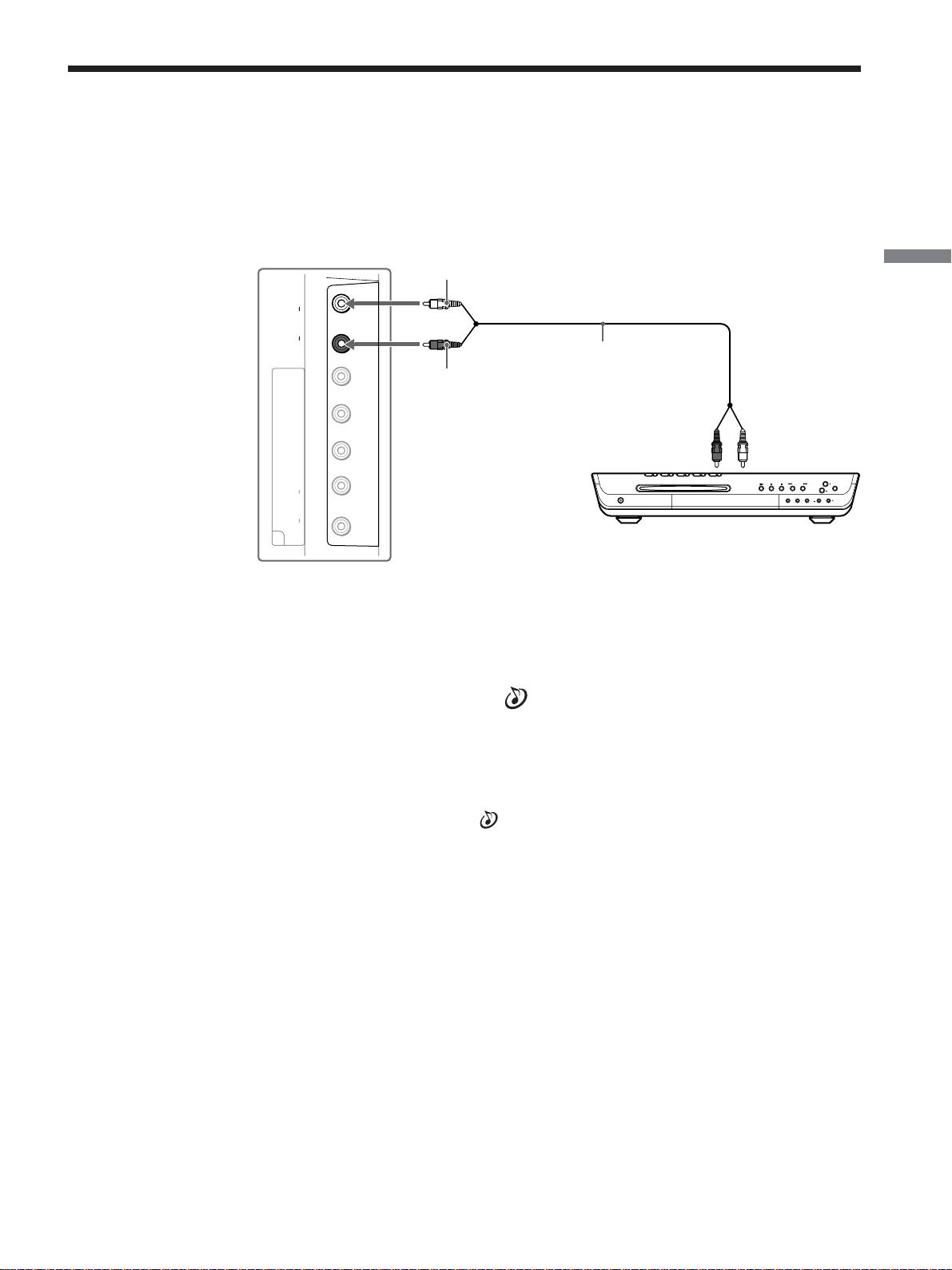
When using your audio system speakers
You can control the volume output from your audio system using the TV’s
remote control (see “Programming the Remote Control” on page 16), by
setting “Audio Out” in the
(Audio) menu to “Variable.”
If you want to adjust the volume through your audio system, set “Audio Out”
to “Fixed.”
Notes
• The video signal is not output through the AUDIO OUT jacks.
• When “Audio Out” in the
(Audio) menu is set to “Variable,” “Speaker” is to “Off,”
check if the speaker volume is moderate before switching “Speaker” from “Off” to “On.”
Otherwise, the speaker volume may be too loud.
Connecting an AV Receiver
Disconnect all power sources before making any connections.
Using an AUDIO cable, connect the TV’s AUDIO OUT jacks to the AV
receiver’s AUDIO IN jacks.
AUDIO cable
(not supplied)
Rear of TV
Audio
input
AV Receiver
(Compact AV system, etc.)
AUDIO-R (red)
AUDIO-L (white)

30
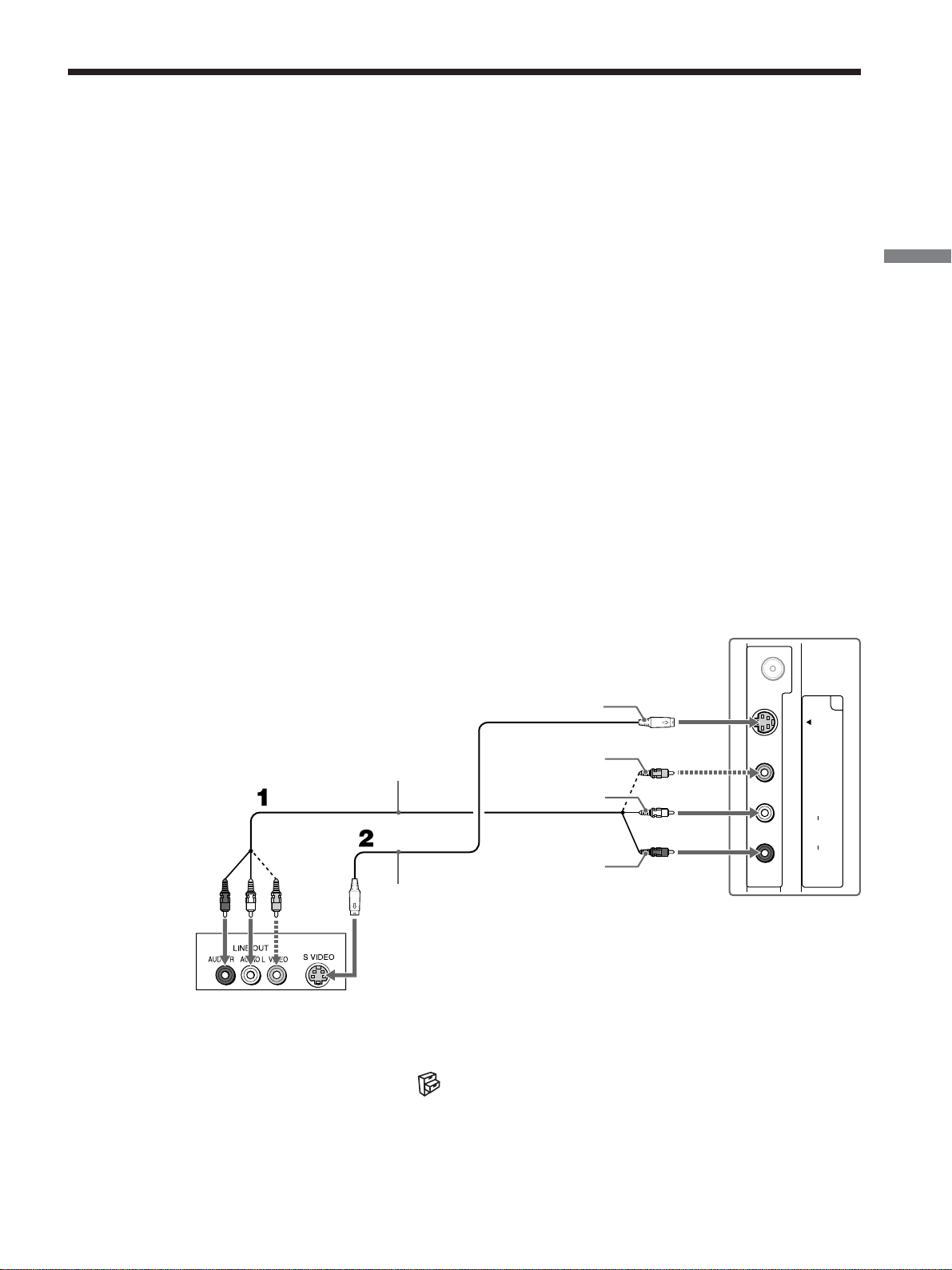
Connecting a DVD Player with Component Video
Connectors
Use this hookup if:
•Your DVD player has component (Y, P
B, PR) jacks.
Tips
• The Y, PB and PR jacks on your DVD player are sometimes labeled as Y, CB and CR, or Y,
B-Y and R-Y. If so, connect the cables to the matching colors.
• To take advantage of the Wide Screen Modes, set the aspect ratio of the output signal to
16:9 on your DVD player. For details, refer to the operating instructions supplied with your
DVD player.
Disconnect all power sources before making any connections.
1 Using a component video cable, connect the DVD player’s Y, PB and PR
jacks to the Y, PB and PR jacks on the TV.
Use the HD/DVD 3 IN connections.
2 Using an AUDIO cable, connect the DVD player’s AUDIO OUT jacks to
the TV’s AUDIO IN jacks.
Note
The Y, PB and PR jacks do not provide audio, so audio cables must be connected to
provide sound.
Tip
Use VIDEO 3 on the remote control to select HD/DVD 3 IN to watch the DVD player input.
AUDIO
R
L
AUDIO
R
L
3
HD/DVD IN
AUDIO OUT
(
VAR/FIX
)
P
B
YP
R
1080i / 720p / 480p / 480i
()
Rear of TV
P
R
PB
Y
AUDIO cable (not supplied)
Component video cable (not supplied)
DVD Player
AUDIO-L (white)
AUDIO-R (red)
31
Connecting and Setting the TV
VHF/UHF
VIDEO IN
VIDEO
1
S VIDEO
(
MONO
)
AUDIO
R
L
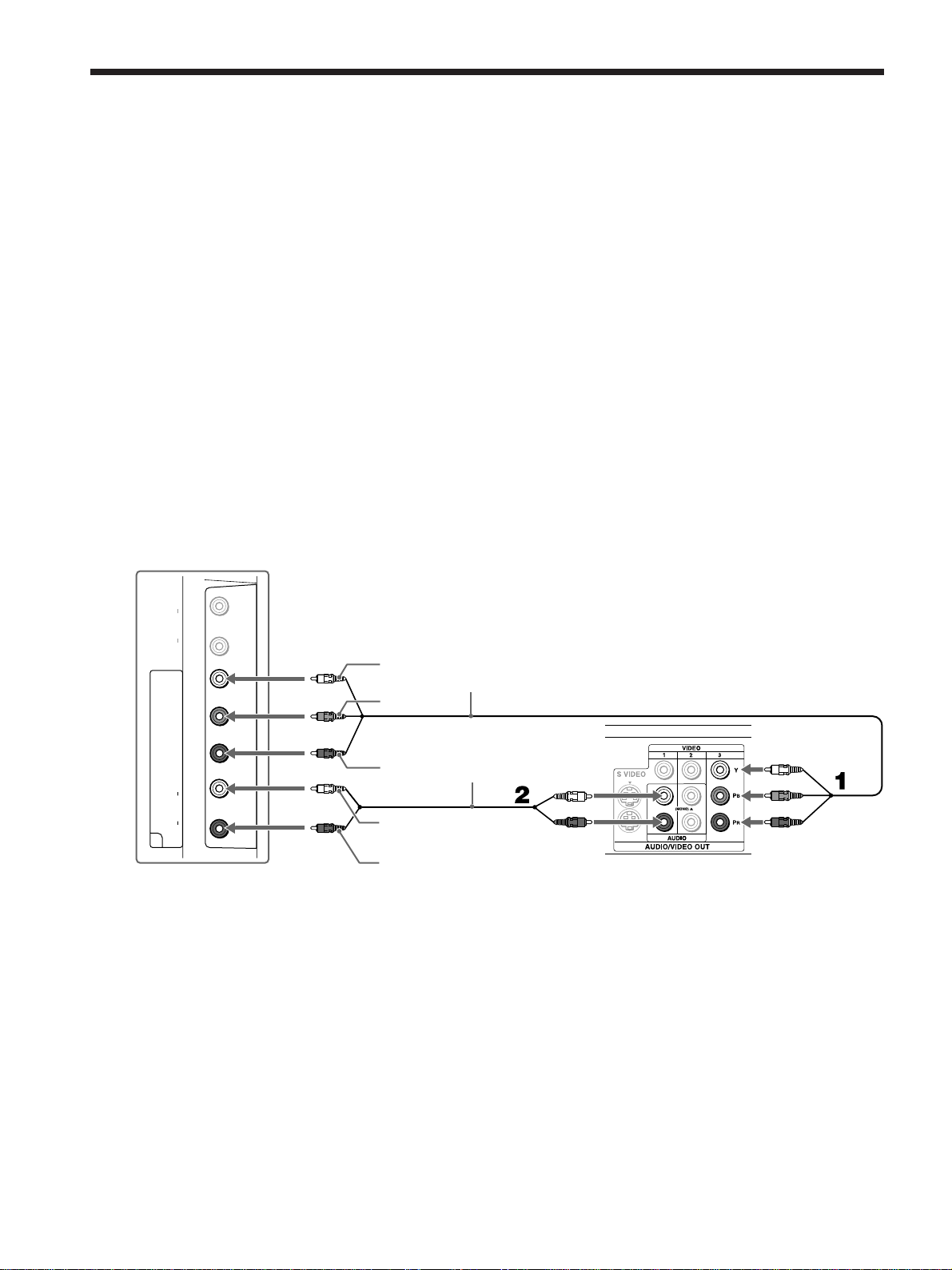
S VIDEO cable
(not supplied)
DVD Player
A/V cable
(not supplied)
Rear of TV
S VIDEO
AUDIO-R (red)
AUDIO-L (white)
VIDEO (yellow)
Connecting a DVD Player with S Video and Audio
Connectors
Use this hookup if:
•Your DVD player does not have component (Y, P
B, PR) jacks.
Tips
• If your DVD player has component video output connectors, for best picture quality, use the
connection described on page 30.
• The Y, PB and PR jacks on your DVD player are sometimes labeled as Y, CB and CR, or Y,
B-Y and R-Y. If so, connect the cables to the matching colors.
• To take advantage of the Wide Screen Modes, set the aspect ratio of the output signal to
16:9 on your DVD player. For details, refer to the operating instructions supplied with your
DVD player.
Disconnect all power sources before making any connections.
1 Using an A/V cable, connect the DVD player’s AUDIO OUT jacks to the
TV’s AUDIO IN jacks.
2 Using an S VIDEO cable, connect the DVD player’s S VIDEO OUT jack
to the TV’s S VIDEO IN jack (VIDEO 1 IN or VIDEO 2 IN).
Tip
If your DVD player is not equipped with S VIDEO, use a VIDEO cable (yellow) instead of
the S VIDEO cable.
Note
When you connect video equipment to both the VIDEO and the S VIDEO input jacks, make sure
“Auto YC” in the (Setup) menu is set to “On” to view the S VIDEO input (see page 26).
Tip
Use VIDEO 1/2 on the remote control to switch to the DVD player input.
32
AUDIO
R
L
AUDIO
R
L
3
HD/DVD IN
AUDIO OUT
(
VAR/FIX
)
P
B YPR
1080i / 720p / 480p / 480i
()
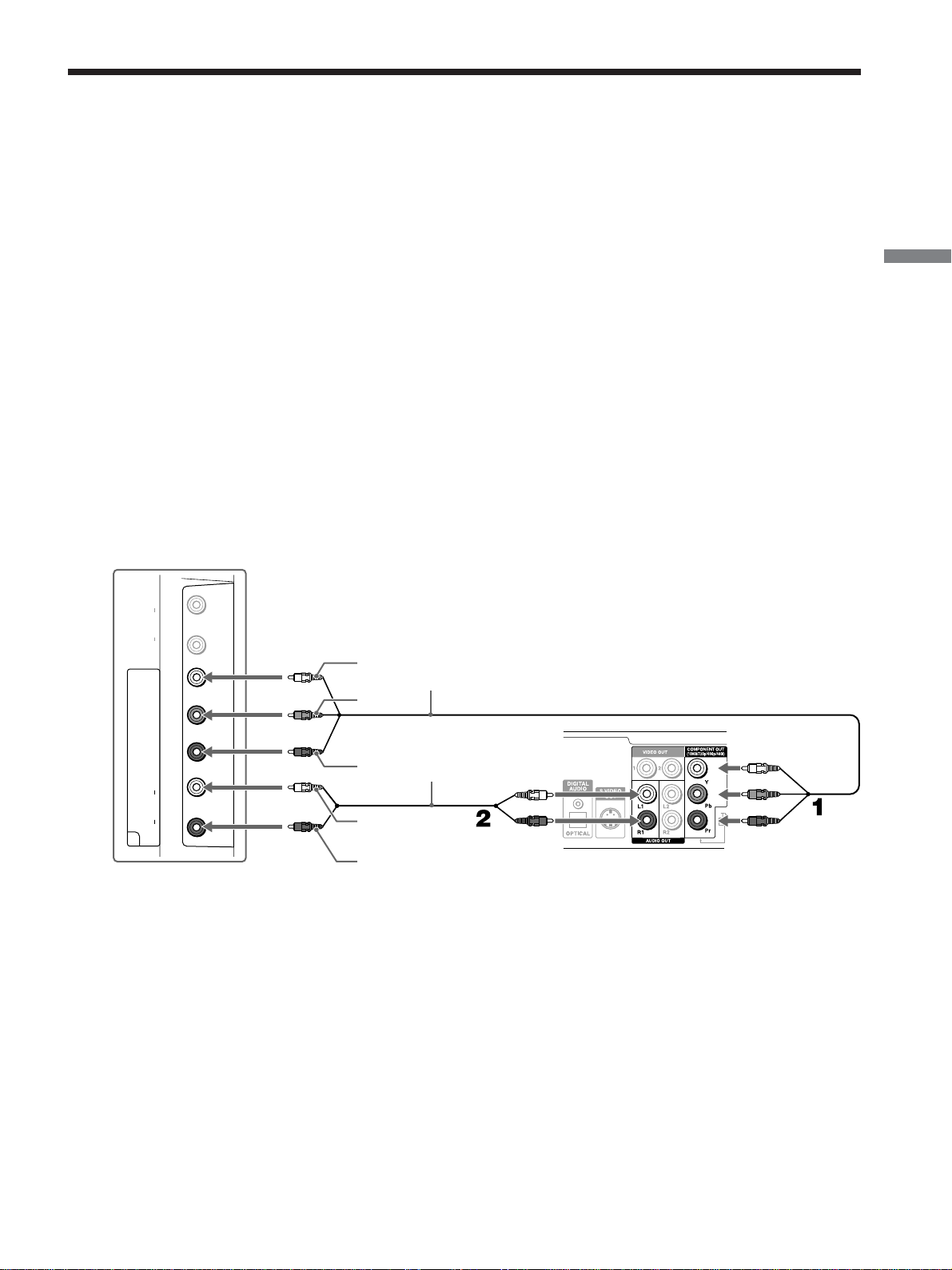
Connecting a Digital Cable Box
Disconnect all power sources before making any connections.
1 Using a component video cable, connect the Digital Cable Box’s Y, PB
and PR jacks to the Y, PB and PR jacks on the TV.
Use the HD/DVD 3 IN connections.
Note
Component video (Y, PB, PR) connection is necessary to view 480p, 720p, and 1080i
formats. Note that this TV displays all format types of picture in a resolution of
1,366 dots × 768 lines.
2 Using an AUDIO cable, connect the Digital Cable Box’s AUDIO OUT
jacks to the TV’s AUDIO IN jacks.
Note
The Y, PB and PR jacks do not provide audio, so audio cables must be connected to
provide sound.
Tip
Use VIDEO 3 on the remote control to select HD/DVD 3 IN to watch the digital cable box
input.
Component video cable
(not supplied)
Digital Cable Box
AUDIO cable
(not supplied)
Rear of TV
P
R
PB
Y
AUDIO-R (red)
AUDIO-L (white)
33
Connecting and Setting the TV
AUDIO
R
L
AUDIO
R
L
3
HD/DVD IN
AUDIO OUT
(
VAR/FIX
)
P
B YPR
1080i / 720p / 480p / 480i
()
Connecting a Digital Satellite Receiver
Disconnect all power sources before making any connections.
1 Using a component video cable, connect the Digital Satellite Receiver’s
Y, P
B and PR jacks to the Y, PB and PR jacks on the TV.
Use the HD/DVD 3 IN connections.
Note
Component video (Y, PB, PR) connection is necessary to view 480p, 720p, and 1080i
formats. Note that this TV displays all format types of picture in a resolution of
1,366 dots × 768 lines.
2 Using an AUDIO cable, connect the Digital Satellite Receiver’s AUDIO
OUT jacks to the TV’s AUDIO IN jacks.
Note
The Y, PB and PR jacks do not provide audio, so audio cables must be connected to
provide sound.
Tip
Use VIDEO 3 on the remote control to select HD/DVD 3 IN to watch the digital satellite
receiver input.
Digital Satellite Receiver
AUDIO cable
(not supplied)
Rear of TV
Component video cable
(not supplied)
P
R
PB
Y
AUDIO-R (red)
AUDIO-L (white)
34
IN
Connecting a Digital Satellite Receiver with HDMI
Connector
Use this hookup if:
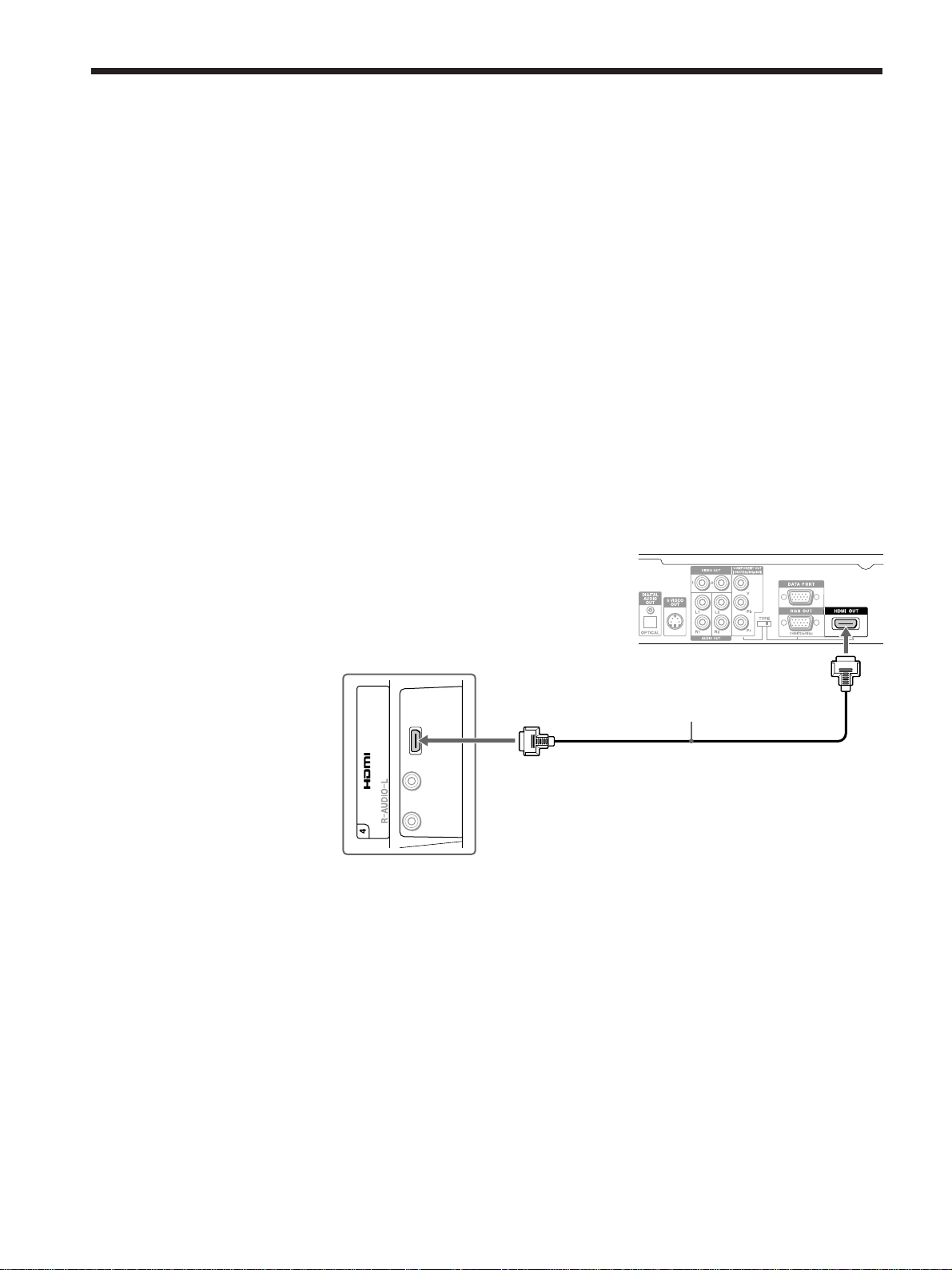
•Your Digital Satellite Receiver has a High-Definition Multimedia Interface
(HDMI).
Disconnect all power sources before making any connections.
Using an HDMI cable (not supplied), connect the Digital Satellite Receiver’s
HDMI OUT connector to the TV’s HDMI IN connector.
Use the HDMI 4 IN connection.
Tips
• The HDMI connector provides both video and audio signals, so it is not necessary to
connect the audio cable.
• Use VIDEO 4 on the remote control to select HDMI 4 IN to watch the digital satellite
receiver input.
HDMI cable (not supplied)
Digital Satellite Receiver
Rear of TV
35
Connecting and Setting the TV
IN
HDMI to DVI-HDTV
adapter or cable
(not supplied)
AUDIO-L (white)
AUDIO cable
(not supplied)
Digital Satellite Receiver
Rear of TV
AUDIO-R (red)
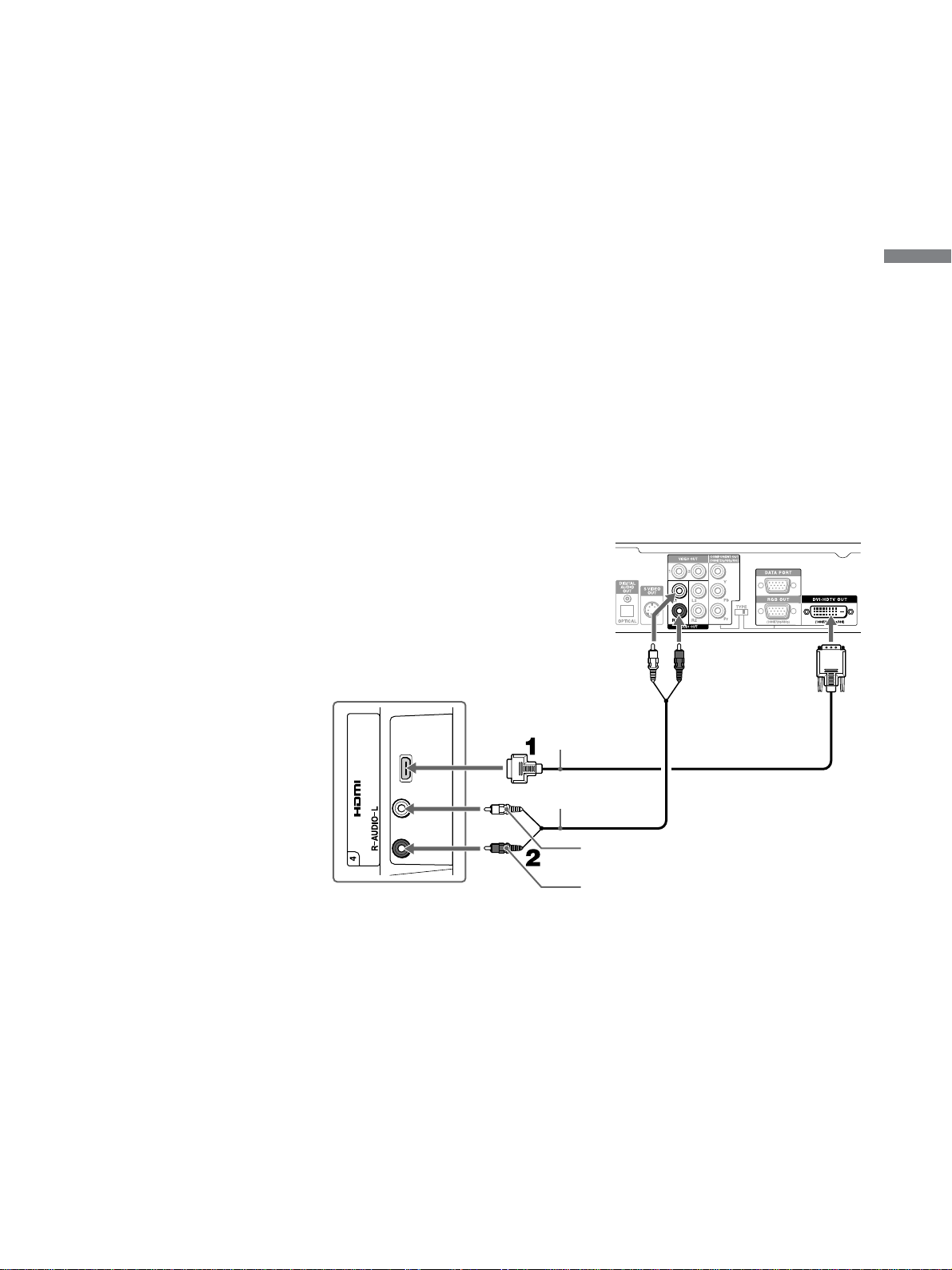
When connecting to a Digital Satellite Receiver’s DVI-HDTV
connector
If the Digital Satellite Receiver does not have an HDMI connector, you can
connect the TV’s HDMI IN connector to the Digital Satellite Receiver’s
DVI-HDTV OUT connector using the HDMI cable (not supplied).
1 Using a HDMI to DVI-HDTV adapter or cable (not supplied), connect
the Digital Satellite Receiver’s DVI-HDTV OUT connector to the TV’s
HDMI IN connector.
Use the HDMI 4 IN connection.
Note
The DVI-HDTV VIDEO connector does not provide audio, so audio cables must be
connected to provide sound when an HDMI to DVI-HDTV adapter is used.
2 Using an AUDIO cable, connect the Digital Satellite Receiver’s AUDIO
OUT jacks to the TV’s AUDIO IN jacks.
Tip
Use VIDEO 4 on the remote control to select HDMI 4 IN to watch the digital satellite receiver
input.
36
Setting the TV
Setting the Channels
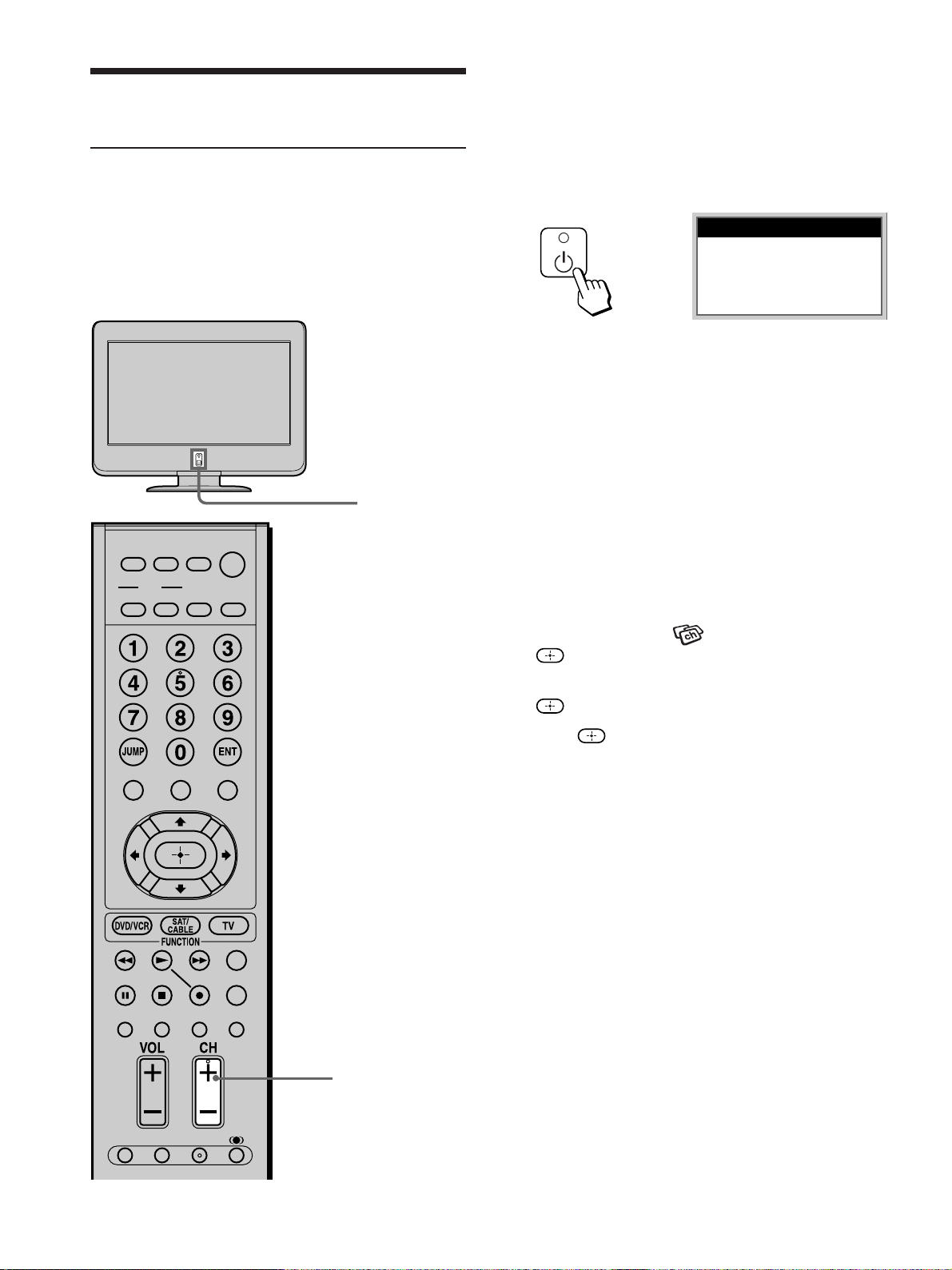
After you finish connecting your TV, you can run
Auto Program to set up your channels. The Auto
Setup menu appears when you turn your TV on for
the first time after installing it.
To skip channels, see page 37.
1 Press 1 (Power) on the TV.
The Auto Setup menu automatically appears on
the screen when you turn on the TV for the first
time.
2 Press CH + on the remote control or on the
control panel of your TV to perform Auto
Program.
When all the receivable channels are stored, the
“Channel Skip/Add” menu appears.
Auto Program is set to scan cable TV channels by
default. To watch VHF/UHF channels with an
antenna, see “To watch VHF/UHF channels with an
antenna” on page 37.
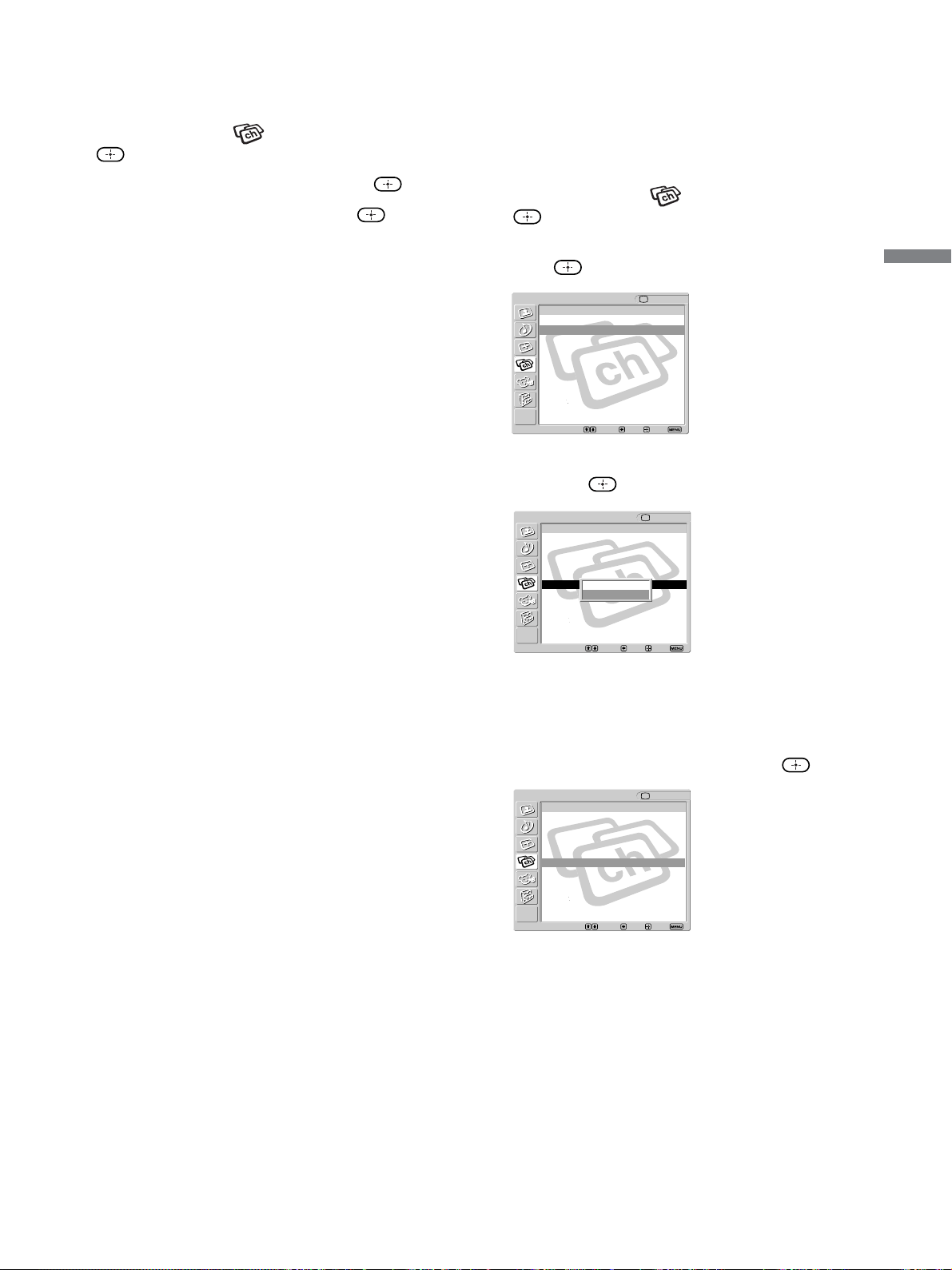
To perform Auto Program again
1 Press MENU.
2 Press V/v to select (Channel), then press
.
3 Press V/v to select “Auto Program,” then press
.
4 Press .
“Auto Program” appears and the TV starts
scanning and presetting channels automatically.
When all the receivable channels are stored, the
“Channel Skip/Add” menu appears. Using this
menu, you can start skipping unnecessary
channels (see “To skip channels” on page 37).
5 Press MENU to exit the menu screen.
To cancel Auto Program
While “Auto Program” is displayed in step 3, press
MENU on the remote control.
Note
To watch cable TV channels, you have to subscribe to a cable
TV company. Note that cable TV cannot be received in some
areas. This TV receives cable TV channels 1-125. For details on
cable TV subscription, consult your nearest cable TV company.
,
1
2
MUTING
PICTURE WIDE
FAVORITES
TV
VIDEO 1/2 VIDEO 3 VIDEO 4
F1
F2
MENU
SLEEP DISPLAY
MODE
SAT/
CABLE
POWER
RESET MTS/SAP
GUIDE
TV/SAT
DVD/
VCR
TOP MENU
FREEZE
Auto Setup
Auto Program: [CH+]
Exit: [CH–]
First please connect
cable/antenna
37
Connecting and Setting the TV
To watch VHF/UHF channels with an antenna
1 Press MENU.
2 Press V/v to select (Channel), then press
.
3 Press V/v to select “Cable,” then press .
4 Press V/v to select “Off,” then press .
5 Perform steps 3 - 5 in “To perform Auto
Program again” on page 36.
Note
You cannot receive and set the cable TV channels and VHF/
UHF channels at the same time.
Tip
When you have a cable box or satellite receiver connected, the
Channel Fix feature is useful. For details, see page 38.
To skip channels
You can skip unnecessary channels when selecting
channels using the CH +/– buttons.
1 Press MENU.
2 Press V/v to select (Channel), then press
.
3 Press V/v to select “Channel Skip/Add,” then
press
.
4 Press V/v to select the channel you want to skip,
then press
.
Tip
To scroll through the list, press and hold V/v.
5 Press V/v to select “Skip,” then press .
If you want to re-enter the skipped channel,
select “Add.”
6 Press MENU to exit the menu screen.
Example: Select this to skip channel 5.
Channel TV
v
Channel Skip/Add
Select: Back: Exit:Set:
Return
1
2
3
4
5
6
7
8
9
10
:
:
:
:
:
:
:
:
:
:
Skip
Add
Add
Skip
Add
Skip
Skip
Add
Add
Add
Skip
Add
Channel TV
v
Channel Skip/Add
Select: Back: Exit:Set:
Return
1
2
3
4
5
6
7
8
9
10
:
:
:
:
:
:
:
:
:
:
Skip
Add
Add
Skip
Skip
Skip
Skip
Add
Add
Add
Channel TV
v
Channel Skip/Add
Select: Back: Exit:Set:
Return
1
2
3
4
5
6
7
8
9
10
:
:
:
:
:
:
:
:
:
:
Skip
Add
Add
Skip
Add
Skip
Skip
Add
Add
Add
(Continued)
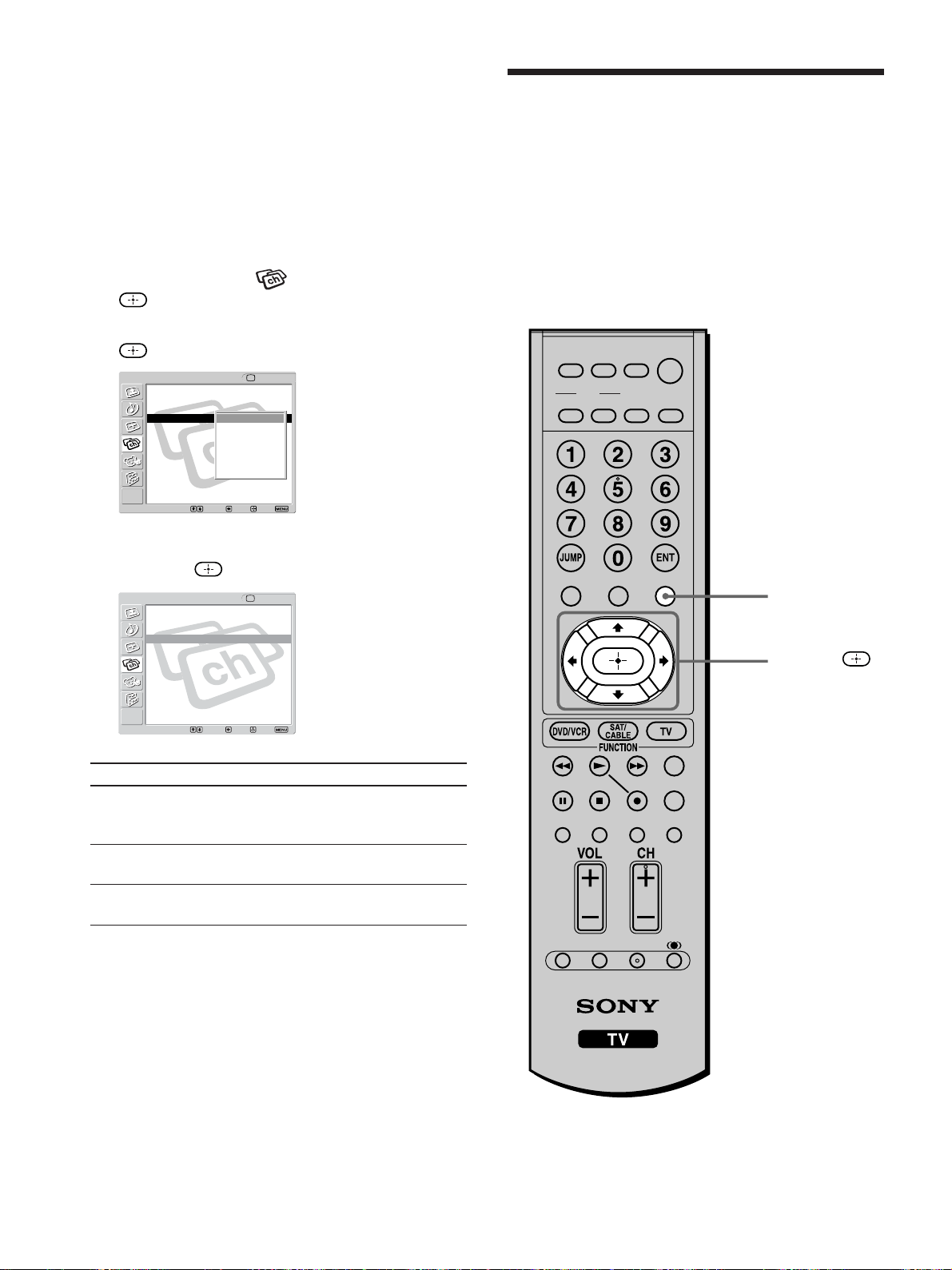
38
To fix in a TV channel
If you have connected a cable box or satellite
receiver to your TV, and do not intend to connect
any other audio or video equipment, it is
recommended that you fix a TV channel. Doing so
will ensure no accidental channel switch when using
your TV.
1 Press MENU.
2 Press V/v to select (Channel), then press
.
3 Press V/v to select “Channel Fix,” then press
.
4 Press V/v to select the channel you want to set,
then press
.
Option Description
2 - 6 Select one of these channels if you have
connected the equipment to the VHF/
UHF jack.
Video 1 Select this if you have connected the
equipment to the VIDEO 1 IN jacks.
Off Select this to turn off the Channel Fix
feature.
5 Press MENU to exit the menu screen.
Notes
• When you fix a TV channel, the Favorite Channel feature
cannot be used.
• When you fix a TV channel, you cannot select “Channel Skip/
Add” in the menu. To use it, set “Channel Fix” to “Off.”
Using the Menu
Most of advanced settings and adjustments are
performed using the menu screen.
Basic operations to navigate through menus are
described below.
• Items which appear in yellow are selected.
•You cannot select items which appear in pale
color.
V, v, B, b,
MENU
Return
Favorite Channels
Cable:
Channel Fix: 3
Auto Program OK
Channel Skip/Add
Channel Label
Channel
Select: Back: Exit:Set:
TV
Return
Favorite Channels
Cable: On
Channel Fix: Off
Auto Program:
Channel Skip/Add
Channel Label
Channel
Select: Back: Exit:Set:
TV
Off
2
3
4
5
6
Video 1
MUTING
PICTURE WIDE
FAVORITES
TV
VIDEO 1/2 VIDEO 3 VIDEO 4
F1
F2
MENU
SLEEP DISPLAY
MODE
SAT/
CABLE
POWER
RESET MTS/SAP
GUIDE
TV/SAT
DVD/
VCR
TOP MENU
FREEZE
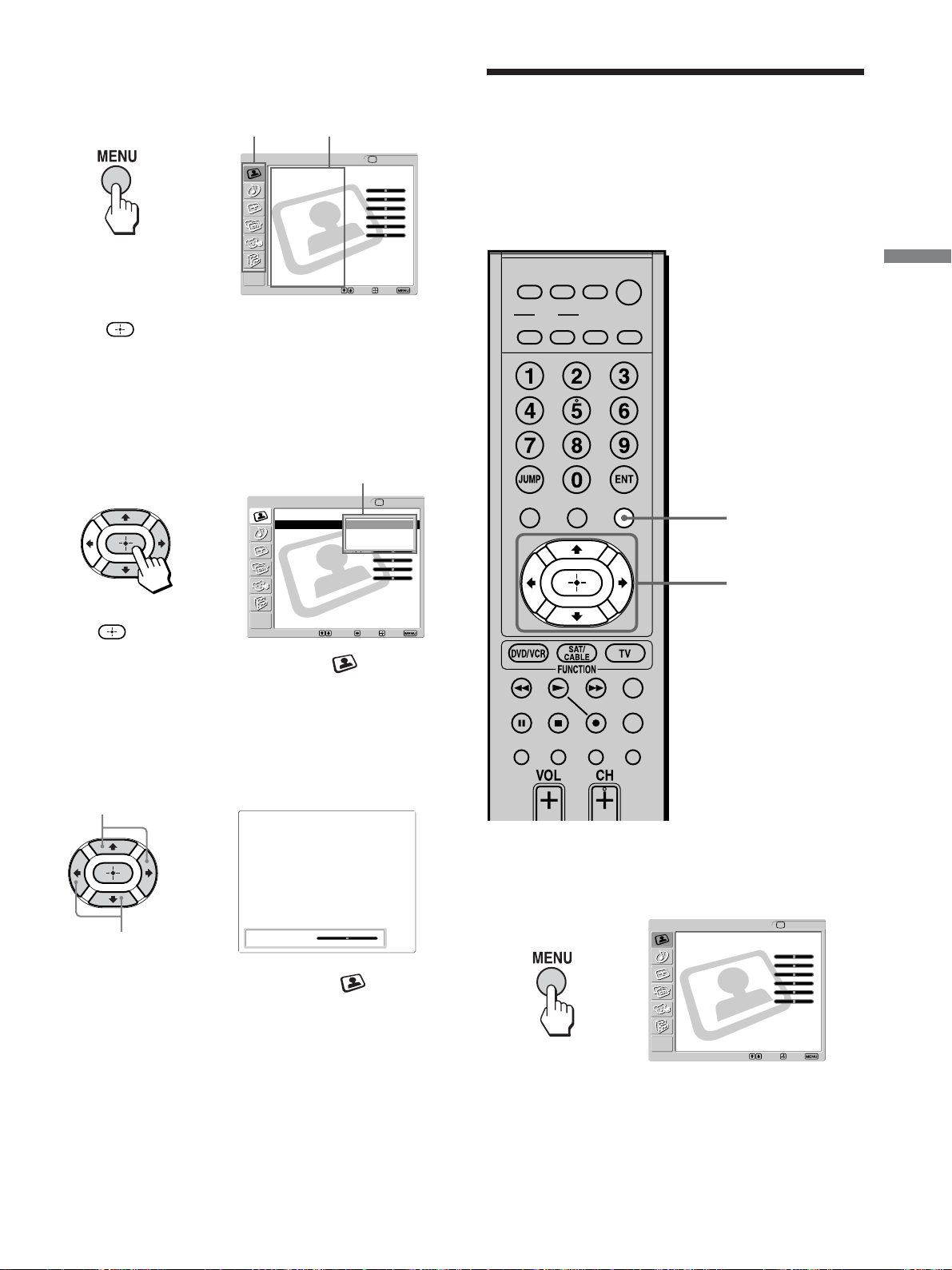
39
Connecting and Setting the TV
,
To open the menu screen and select the
option
Press MENU to open the
menu screen.
Press V/v to select the
desired category, then
press .
To exit the menu screen, press MENU again.
Menu category Menu option
m
Press V/v to select
the option, then press
b or
.
(The b button cannot
be used on some
menus.)
(Example: when selecting
“Mode” in the
(Video)
menu)
,
Setting option
To adjust the setting
Maximize the
setting value
Minimize the
setting value
,
(Example: when selecting
“Picture” in the
(Video)
menu)
2 - 4
1, 5
Selecting the On-screen
Menu Language
You can select the language to be displayed in all
menus.
Picture: 50
1 Press MENU.
,
Video
Exit:Set:Select:
Return
Mode: Vivid
Picture: 50
Brightness: 50
Color: 25
Hue: 0
Sharpness: 50
Backlight: 5
Color Temp.: Cool
NR: On
Mild Mode: On
Dynamic Picture: On
CineMotion: Off
TV
Video
Return
Mode: Vivid
Picture: 50
Brightness: 50
Color: 25
Hue: 0
Sharpness: 50
Backlight: 5
Color Temp.: Cool
NR: On
Mild Mode: On
Dynamic Picture: On
CineMotion: Off
Select: Back: Exit:Set:
TV
Vivid
Standard
Pro
Video
Exit:Set:Select:
Return
Mode: Vivid
Picture: 50
Brightness: 50
Color: 25
Hue: 0
Sharpness: 50
Backlight: 5
Color Temp.: Cool
NR: On
Mild Mode: On
Dynamic Picture: On
CineMotion: Off
TV
MUTING
PICTURE WIDE
FAVORITES
TV
VIDEO 1/2 VIDEO 3 VIDEO 4
F1
F2
MENU
SLEEP DISPLAY
MODE
SAT/
CABLE
POWER
DVD/
VCR
TOP MENU
(Continued)
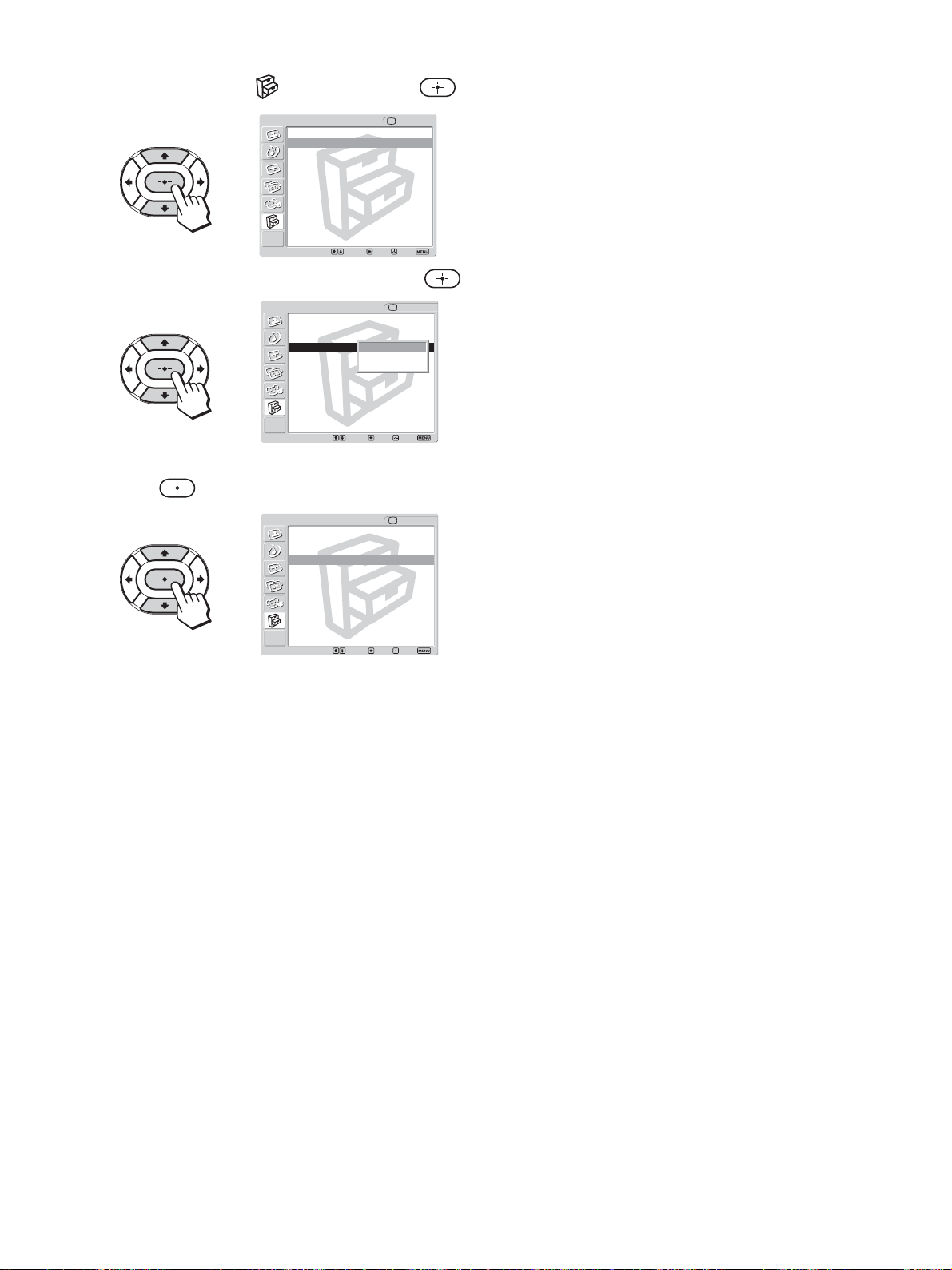
40
2 Press V/v to select (Setup), then press .
3 Press V/v to select “Language,” then press .
4 Press V/v to select your preferred language, then
press
.
5 Press MENU to exit the menu screen.
,
,
,
Return
Caption Vision: Off
Video Label
Language: English
Auto YC:
Setup
TV
Select: Back: Exit:Set:
Setup TV
Select: Back: Exit:Set:
Return
Caption Vision: Off
Video Label
Language: English
Auto YC:
English
Español
Français
Setup TV
Select: Back: Exit:Set:
Return
Caption Vision: Off
Video Label
Language: English
Auto YC:
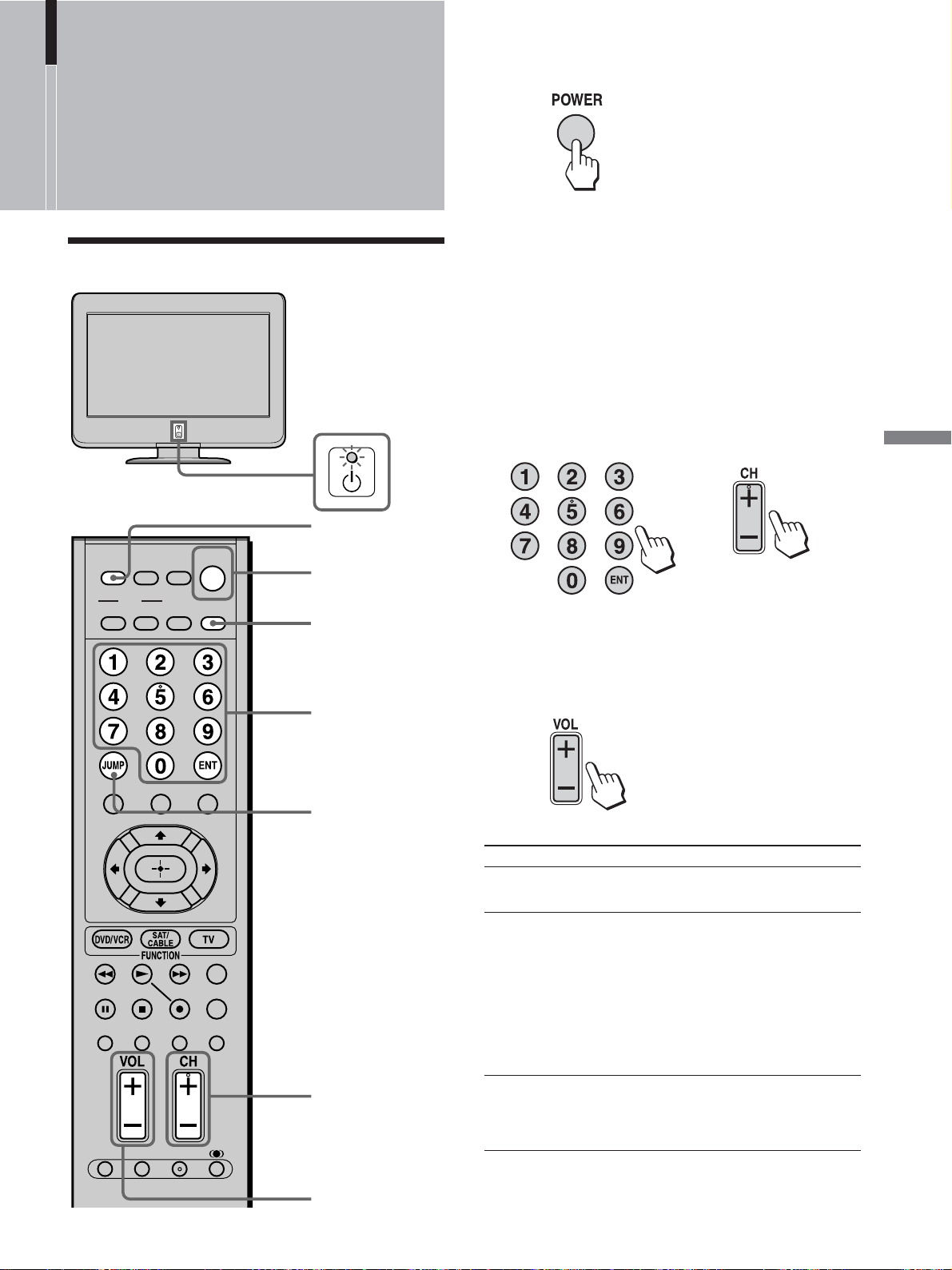
41
Watching the TV
MUTING
DISPLAY
2
2
3
JUMP
1 Press POWER on the remote control.
Tip
When the 1 (Power on/Stand by) LED is off, press the 1
(Power) button on the TV.
2 Select the desired channel using the 0 - 9 and
ENT (enter) buttons.
Press 0 - 9 to select a channel. The channel
changes after 2 seconds. Press ENT (enter) to
select immediately.
Use the CH +/– buttons to scan through the
channels.
Tip
When you press and hold CH +/–, the channel number will
change rapidly.
3 Adjust the volume using the VOL +/– buttons.
Other button operations
Press To
MUTING
DISPLAY
JUMP
Mute the sound. Press it again or press
VOL + to restore sound.
Press once to display the current channel
number/channel label and the Wide
Screen Mode, or the current video input
number/video label and the Wide Screen
Mode. When the display is turned on,
the current channel number/channel
label or video input number/video label
remains displayed. Press it again to turn
the display off.
Jump back and forth between two
channels. The TV alternates between the
current channel and the last channel
selected using the 0-9 buttons.
or
1
MUTING
PICTURE WIDE
FAVORITES
TV
VIDEO 1/2 VIDEO 3 VIDEO 4
F1
F2
MENU
SLEEP DISPLAY
MODE
SAT/
CABLE
POWER
TOP MENU
RESET FREEZE MTS/SAP
GUIDE
TV/SAT
DVD/
VCR
Watching the TV
Watching the TV

42
2 - 4
1, 5
2 Press V/v to select (Setup), then press .
3 Press V/v to select “Caption Vision” then press
.
4 Press V/v to select your desired Caption Vision,
then press
.
5 Press MENU to exit the menu screen.
Note
When the TV receives a 480p or higher resolution signal,
“Caption Vision” cannot be selected.
,
,
,
,
Watching with closed caption
You can display Caption Vision if the broadcaster
offers this service.
1 Press MENU.
Select
Off
CC1, CC2, CC3, CC4
Text 1, Text 2, Text 3,
Text 4
Info
To
Turn off Caption Vision.
Display a printed version of
the dialog or sound effects of a
program. (The mode should be
set to CC1 for most programs.)
Display network/station
information presented using
either half or the whole screen.
Displays the program name
and the time remaining in the
program (if the broadcaster
offers this service).
Displays when the channel is
changed or DISPLAY is
pressed.
Return
Caption Vision: Off
Video Label
Language: English
Auto YC:
Setup
TV
Select: Back: Exit:Set:
Setup TV
Select: Back: Exit:Set:
Return
Caption Vision: Off
Video Label
Language: English
Auto YC:
Off
CC1
CC2
CC3
CC4
Text 1
Text 2
Text 3
Text 4
Info
Return
Caption Vision: CC1
Video Label
Language: English
Auto YC:
Setup
TV
Select: Back: Exit:Set:
Video
Exit:Set:Select:
Return
Mode: Vivid
Picture: 50
Brightness: 50
Color: 25
Hue: 0
Sharpness: 50
Backlight: 5
Color Temp.: Cool
NR: On
Mild Mode: On
Dynamic Picture: On
CineMotion: Off
TV
MUTING
PICTURE WIDE
FAVORITES
TV
VIDEO 1/2 VIDEO 3 VIDEO 4
F1
F2
MENU
SLEEP DISPLAY
MODE
SAT/
CABLE
POWER
RESET MTS/SAP
GUIDE
TV/SAT
DVD/
VCR
TOP MENU
FREEZE
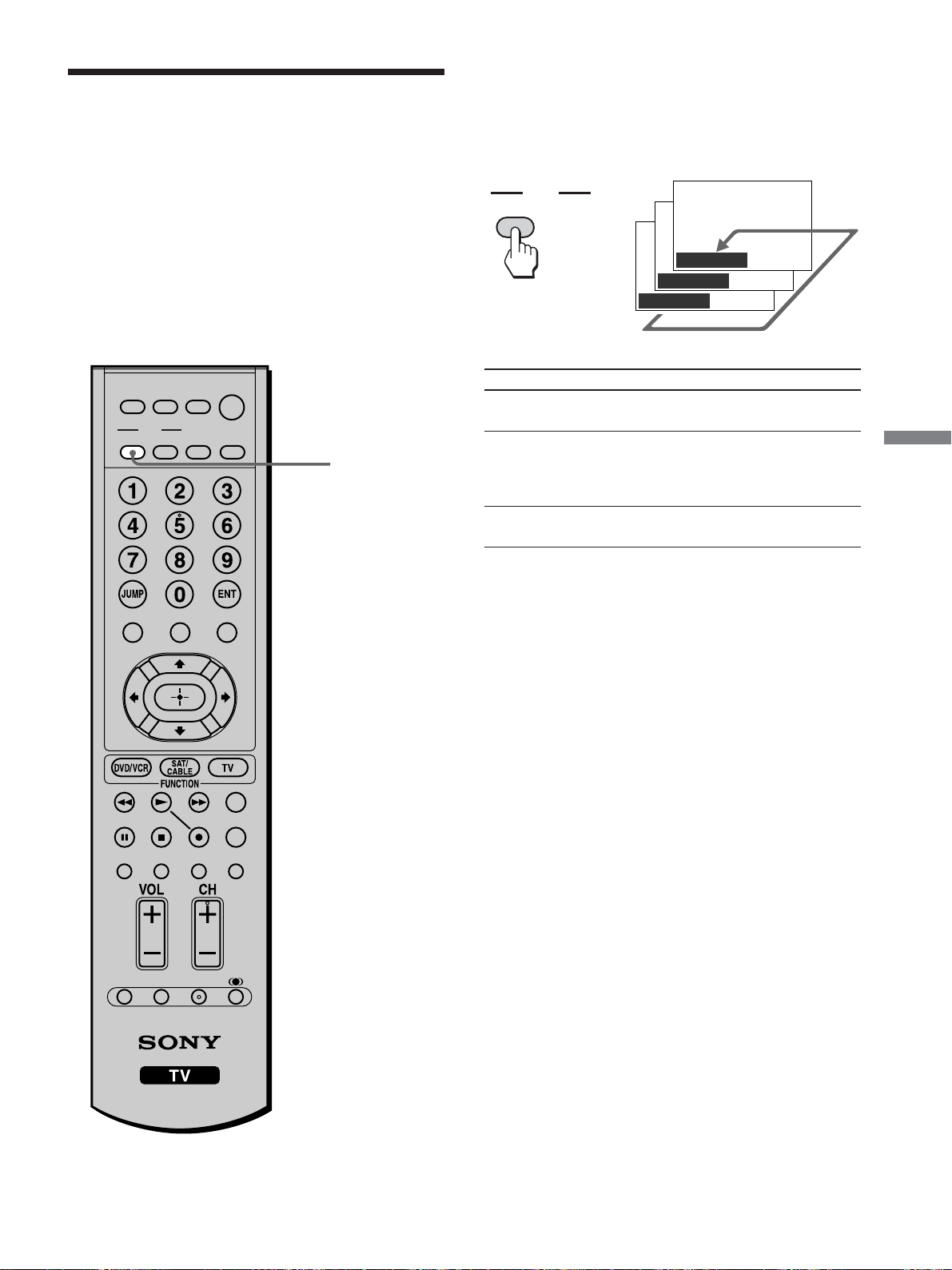
43
Watching the TV
PICTURE
MODE
Vivid
Standard
Pro
,
Select for enhanced picture contrast and
sharpness.
Select to display a picture with contrast
to suit your room’s lighting conditions.
This mode is recommended for normal
viewing conditions.
Select for professional monitor-like
appearance.
PICTURE
MUTING
PICTURE WIDE
FAVORITES
TV
VIDEO 1/2 VIDEO 3 VIDEO 4
F1
F2
MENU
SLEEP DISPLAY
MODE
SAT/
CABLE
DVD/
VCR
POWER
TOP MENU
RESET FREEZE MTS/SAP
GUIDE
TV/SAT
Selecting the Picture
Mode
You can select one of three different Picture Modes
that best suits the program you are watching.
Furthermore, you can adjust the picture quality for
each Picture Mode (see pages 57, 58).
You can set a different Picture Mode for each video
input that can be selected using the Input Select
buttons, and store them in memory.
Press PICTURE repeatedly until the desired mode
appears.
Each time you press the button, the Picture Mode
changes as follows:
Picture Mode Description
Vivid
Standard
Pro
Tip
You can adjust the picture quality options, such as “Picture,”
“Brightness,” and “Color,” for each Picture Mode (see pages 57,
58).
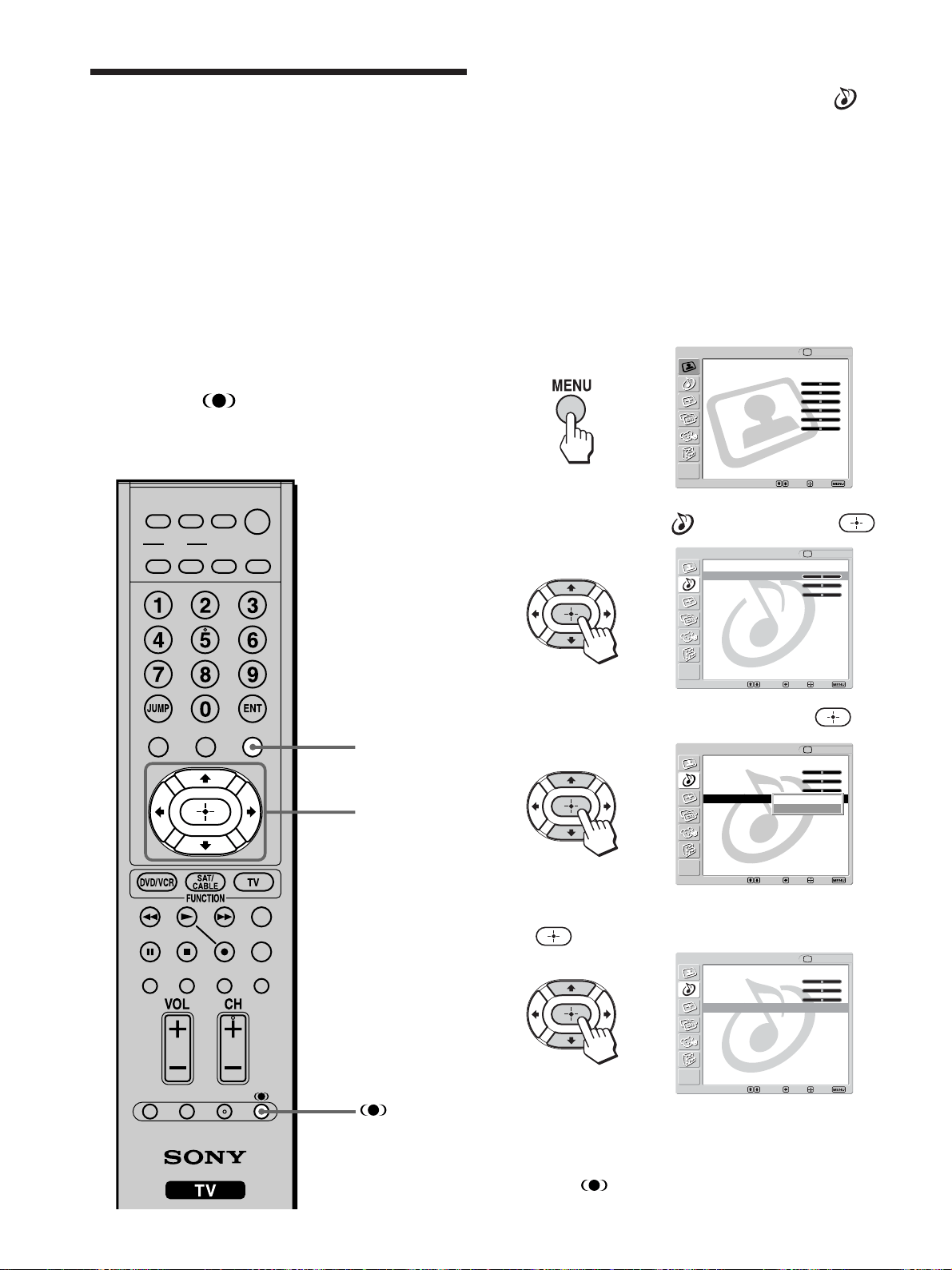
44
2 - 4
1, 5
1 Press MENU.
2 Press V/v to select (Audio), then press .
3 Press V/v to select “Effect,” then press .
4 Press V/v to select “SRS WOW” then press
.
5 Press MENU to exit the menu screen.
Tip
Pressing the button also lets you select “SRS WOW ” and
“Off.”
Notes
• You cannot select the Effect mode if “Speaker” in the
(Audio) menu is set to “Off.”
• The Effect mode is valid only on the TV’s speakers. So you
cannot enjoy sound effects of SRS WOW when you listen to a
program through the AUDIO OUT jacks or on headphones.
• SRS WOW may be restricted in the effects it produces when
you listen to a program in monaural.
Tip
You can adjust other sound quality options. For details, see
“Adjusting the Sound Quality” on page 59.
,
,
,
,
Selecting the Effect
Mode
“SRS WOW”* creates a panoramic stereo audio
image by producing deep and rich bass tones and
clear treble tones, enabling you to enjoy powerful
sounds effects like those in a movie theater.
You can set the Effect mode for each video input that
can be selected using the Input Select buttons, and
store them in memory.
* “SRS WOW” increases the sound quality of a diverse range of
audio sources dramatically based on proprietary state-of-the-
art technologies from SRS Labs, Inc.
WOW, SRS and
® symbol are trademarks of SRS Labs,
Inc.
WOW technology is incorporated under license from SRS
Labs, Inc.
Exit:
Return
Treble: 0
Bass: 0
Balance: 0
Effect: Off
MTS: Stereo
Speaker: On
Audio Out:
Audio TV
Select: Back: Set:
Return
Treble: 0
Bass: 0
Balance: 0
Effect: SRS WOW
MTS: Stereo
Speaker: On
Audio Out:
Audio TV
Select: Back: Exit:Set:
Video
Exit:Set:Select:
Return
Mode: Vivid
Picture: 50
Brightness: 50
Color: 25
Hue: 0
Sharpness: 50
Backlight: 5
Color Temp.: Cool
NR: On
Mild Mode: On
Dynamic Picture: On
CineMotion: Off
TV
Select: Back: Exit:Set:
Return
Treble: 0
Bass: 0
Balance: 0
Effect: WOW
MTS: Auto SAP
Speaker: On
Audio Out:
Audio TV
SRS WOW
Off
MUTING
PICTURE WIDE
FAVORITES
TV
VIDEO 1/2 VIDEO 3 VIDEO 4
F1
F2
MENU
SLEEP DISPLAY
MODE
SAT/
CABLE
POWER
RESET MTS/SAP
GUIDE
TV/SAT
DVD/
VCR
TOP MENU
FREEZE
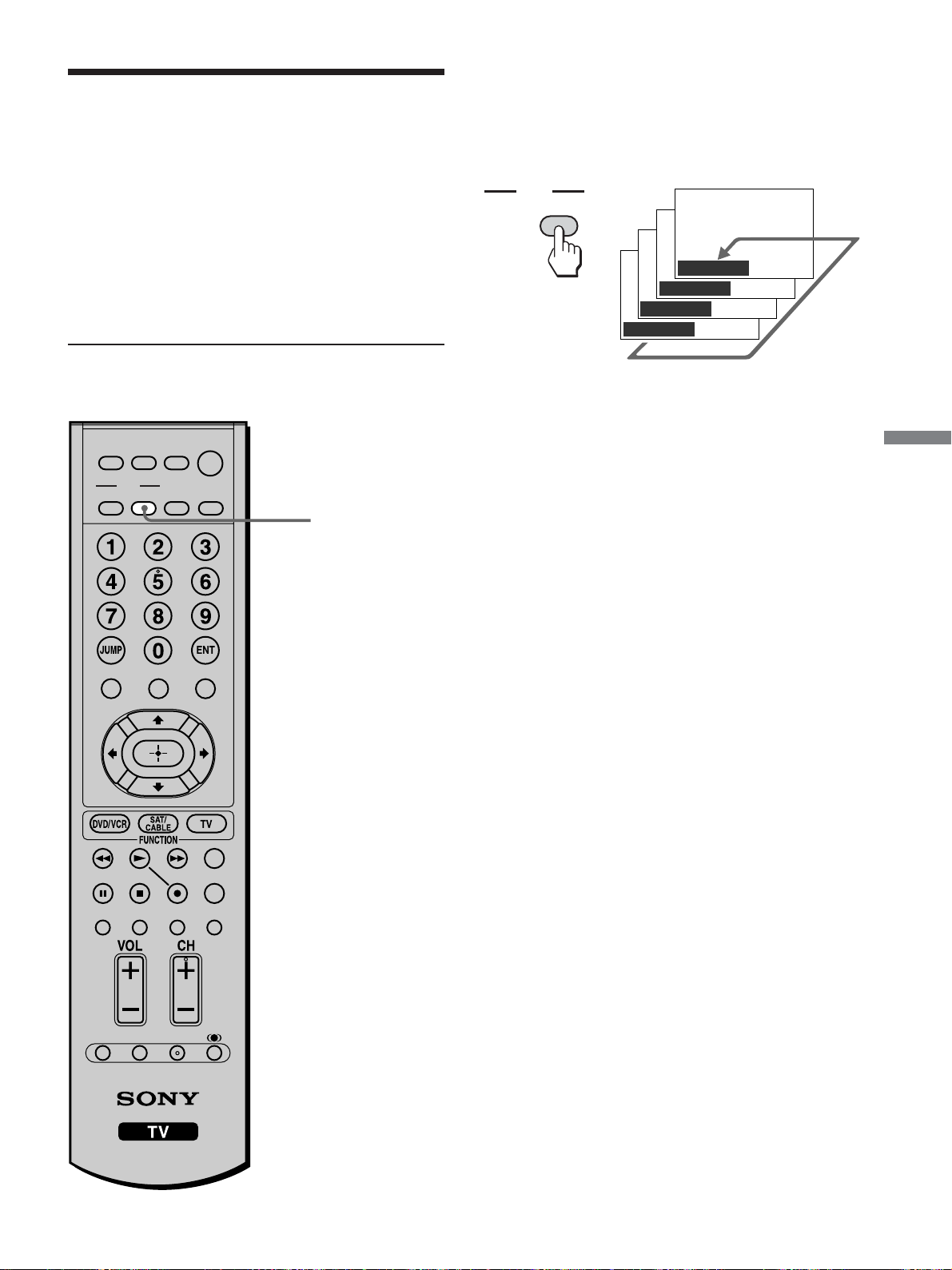
45
Watching the TV
Wide Zoom
Normal
Full
Zoom
,
WIDE
MODE
WIDE
Press WIDE repeatedly until the desired Wide
Screen Mode appears.
Each time you press the button, the Wide Screen
Mode changes as follows:
MUTING
PICTURE WIDE
FAVORITES
TV
VIDEO 1/2 VIDEO 3 VIDEO 4
F1
F2
MENU
SLEEP DISPLAY
MODE
SAT/
CABLE
POWER
RESET MTS/SAP
GUIDE
TV/SAT
DVD/
VCR
TOP MENU
FREEZE
Using the Wide Screen
Mode
The Wide Screen Mode lets you watch any signals or
other picture sizes such as Letterbox in several Wide
Screen Modes (16:9 aspect ratio).
Tip
The “aspect ratio” is the ratio of width to height of the screen.
16:9 is also referred to as widescreen format.
Changing the Wide Screen Mode
(Continued)
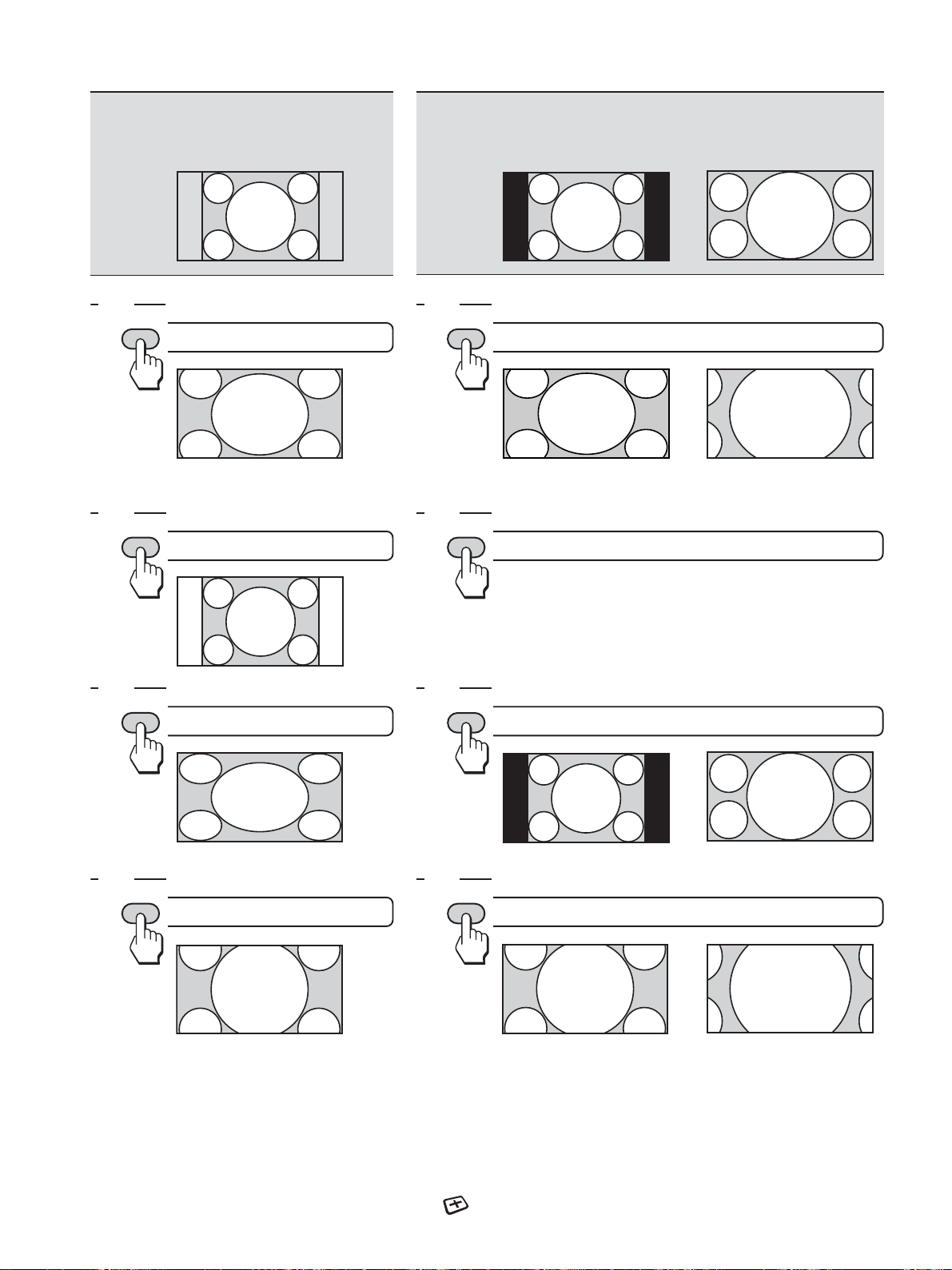
46
Original source
4:3 source
(Standard definition source)
Wide Zoom
enlarge to fill the screen with
minimum distortion
Normal
display 4:3 picture in original size
Full
enlarge the original picture
horizontally to fill the screen
Zoom
enlarge the original picture
without distorting aspect ratio
Note
When the TV receives a 720p or 1080i signal, “Normal” cannot be selected.
Tips
• When the TV receives a 720p or 1080i signal that is 4:3 aspect ratio picture with a black bar at each side, “Full” returns the picture to
its original size.
• You can also access the Wide Screen Mode settings in the (Screen) menu. For details, see page 47.
Original source
16:9 source
(High definition source)
Wide Zoom
enlarge to fill the screen with minimum distortion
Normal
This mode is not available
Full
display 16:9 picture in original size
Zoom
enlarge the original picture without distorting aspect ratio
mm
Changing the Wide Screen Mode
WIDE
MODE
WIDE
MODE
WIDE
MODE
WIDE
MODE
WIDE
MODE
WIDE
MODE
WIDE
MODE
WIDE
MODE
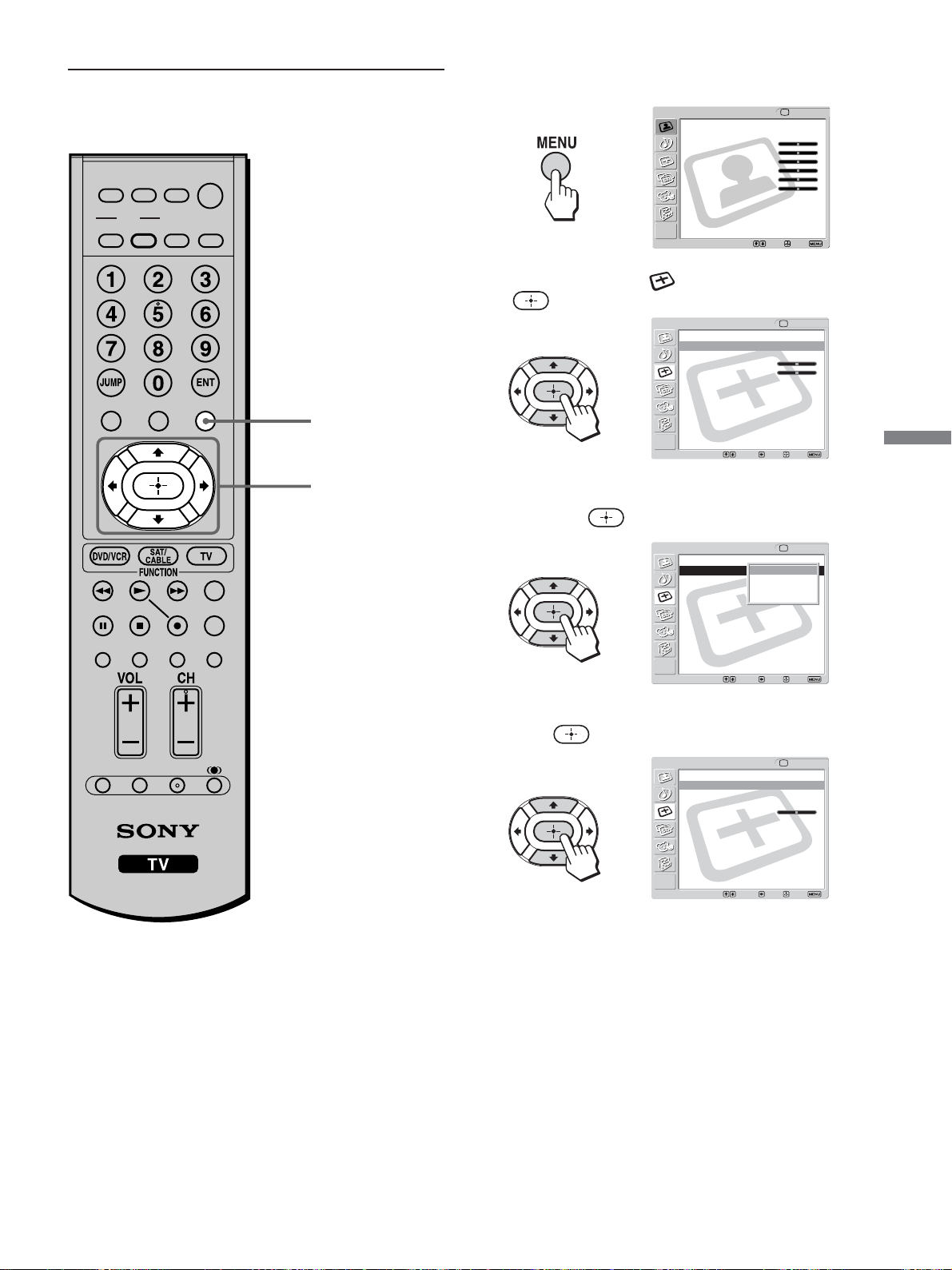
47
Watching the TV
1 Press MENU.
2 Press V/v to select (Screen), then press
.
3 Press V/v to select the option you want to set,
then press
.
4 Press V/v to select the desired screen mode, then
press
.
5 Press MENU to exit the menu screen.
,
,
,
,
2 - 4
1, 5
Return
Wide Mode: Wide Zoom
4:3 Default: Wide Zoom
V Center: 0
H Center: 0
Screen
Select: Back: Exit:Set:
TV
Return
Wide Mode: Wide Zoom
4:3 Default: Wide Zoom
V Center: 0
H Center: 0
Screen
Select: Back: Exit:Set:
TV
Wide Zoom
Normal
Full
Zoom
Return
Wide Mode: Normal
4:3 Default: Wide Zoom
V Center:
H Center: 0
Screen
Select: Back: Exit:Set:
TV
Video
Exit:Set:Select:
Return
Mode: Vivid
Picture: 50
Brightness: 50
Color: 25
Hue: 0
Sharpness: 50
Backlight: 5
Color Temp.: Cool
NR: On
Mild Mode: On
Dynamic Picture: On
CineMotion: Off
TV
MUTING
PICTURE WIDE
FAVORITES
TV
VIDEO 1/2 VIDEO 3 VIDEO 4
F1
F2
MENU
SLEEP DISPLAY
MODE
SAT/
CABLE
POWER
RESET MTS/SAP
GUIDE
TV/SAT
DVD/
VCR
TOP MENU
FREEZE
Changing the Wide Screen Mode
using the menu
(Continued)
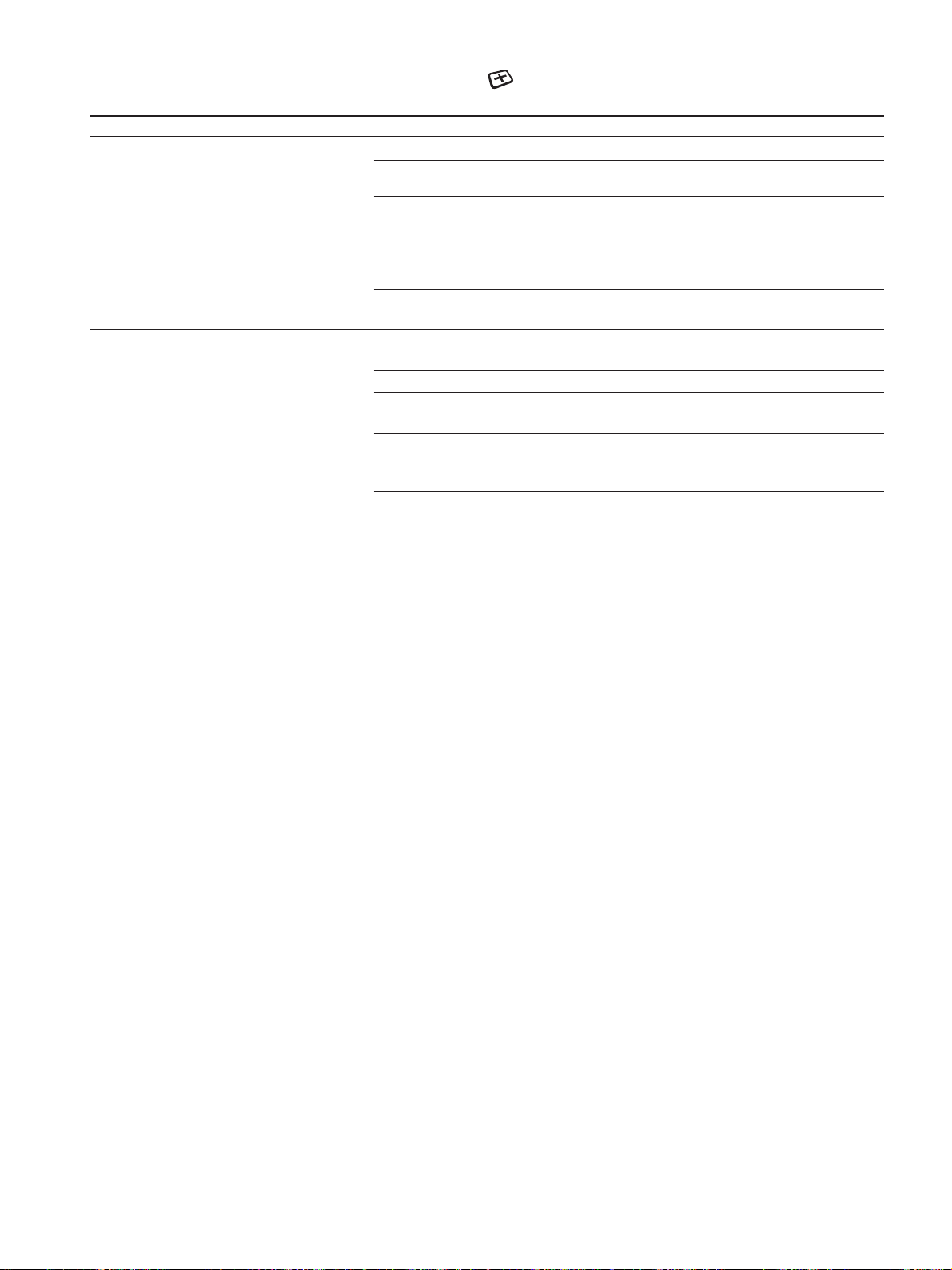
48
Tip
To change from one Wide Screen Mode to another, use the
WIDE button on the remote control.
Notes
• The 4:3 Default functions only when the TV receives 480i or
480p signals.
• If “4:3 Default” is set to anything but “Off,” the Wide Screen
Mode setting changes only for the current channel.
When you change channels (or inputs), the Wide Screen Mode
is automatically replaced with the 4:3 Default setting.
To retain the current Wide Screen Mode setting as channels
and inputs are changed, set “4:3 Default” to “Off.”
The Wide Screen Mode options available in the (Screen) menu
Option Description
Wide Mode
Select a Wide Mode to use for 4:3 sources.
4:3 Default
Select the default Screen Mode to use
for 4:3 sources.
Wide Zoom
Normal
Full
Zoom
Wide Zoom
Normal
Full
Zoom
Off
Select to enlarge to fill the screen with minimum distortion.
Select to display 4:3 picture in original size when the original
source is 4:3 (Standard definition source).
Select to enlarge the original picture horizontally to fill the
screen when the original source is 4:3 (Standard definition
source). When the original source is 16:9 (High definition
source), select this mode to display 16:9 picture in original
size.
Select to enlarge the original picture without distorting the
aspect ratio.
Select to enlarge the 4:3 picture to fill the 16:9 screen, keeping
the original image as much as possible.
Select to return the 4:3 picture to its original size.
Select to enlarge the 4:3 picture horizontally only, to fill the
16:9 screen.
Select to enlarge the 4:3 picture horizontally and vertically to
an equal aspect ratio that fills the 16:9 screen. Useful for
watching Letterbox movies.
Select to continue using the current Wide Screen Mode setting
when the channel or input is changed.
Notes on the Wide Screen Mode
• The Wide Screen Mode function of this TV allows for various
display options: select the appropriate Wide Screen Mode for
the original aspect ratio of the picture you are watching.
• If you change the screen size using the Wide Screen Mode
feature with the TV installed in a public space for commercial
use or public purpose, it might be an infringement of
copyright.
• If you select “Wide Zoom” when watching the picture with
4:3 aspect ratio, part of the picture is distorted. You can watch
the picture with its original aspect ratio in “Normal” mode.
• The upper and lower parts of the picture may not appear in the
screen according to the size of the original picture. In this
case, adjust the picture position (see pages 55, 56).
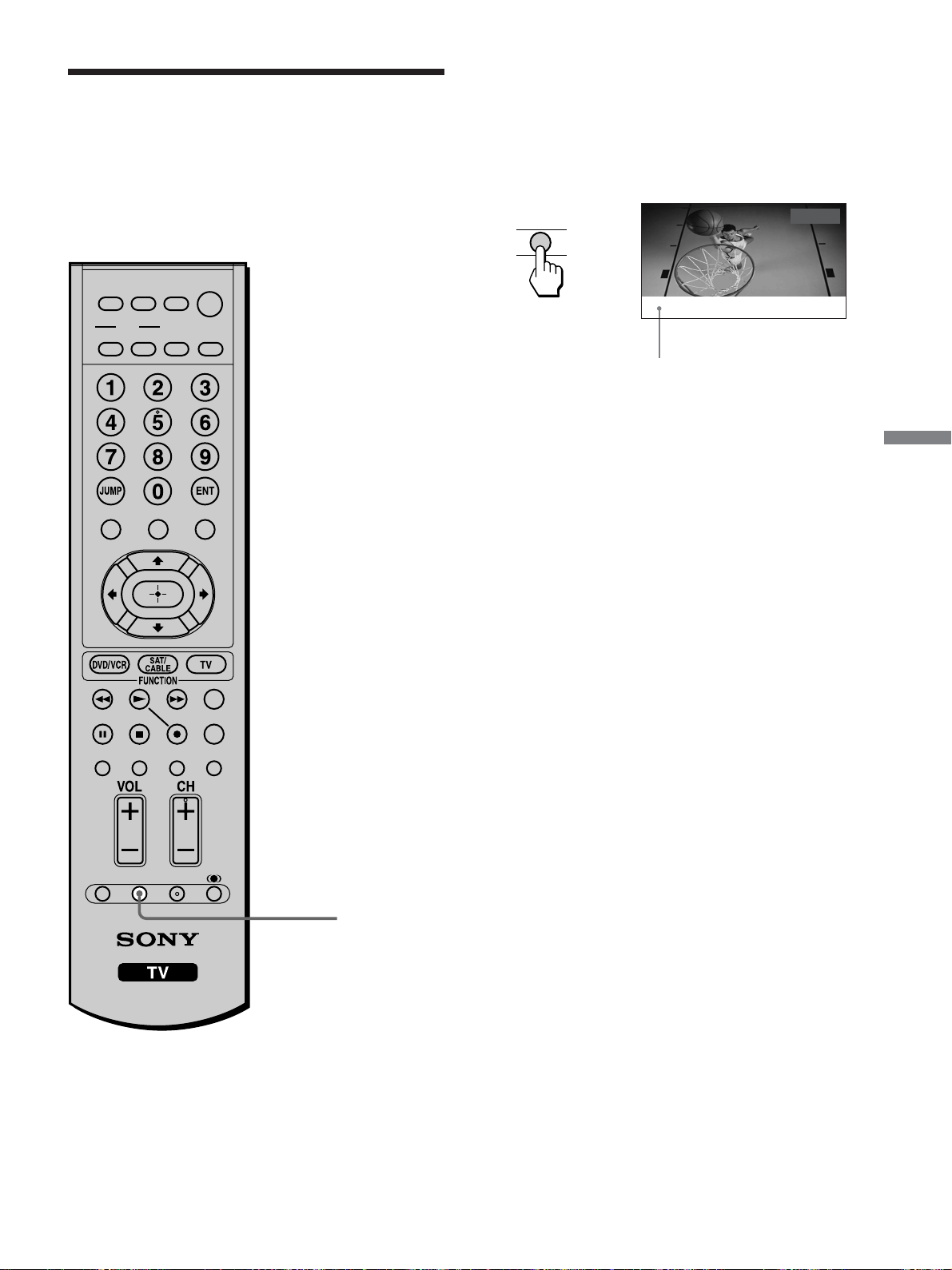
49
Watching the TV
Using the Freeze
Function
You can use this feature to write down information
such as phone numbers, recipes, etc.
Frozen picture
FREEZE
FREEZE
,
Call 555-1234
Freeze
When the program information you want to capture
is displayed, press FREEZE.
The picture freezes. Press FREEZE again, and the
frozen picture is released, and the picture begins to
move again.
Tip
While the picture is frozen, the sound continues to be output
normally.
MUTING
PICTURE WIDE
FAVORITES
TV
VIDEO 1/2 VIDEO 3 VIDEO 4
F1
F2
MENU
SLEEP DISPLAY
MODE
SAT/
CABLE
POWER
TOP MENU
RESET FREEZE MTS/SAP
GUIDE
TV/SAT
DVD/
VCR
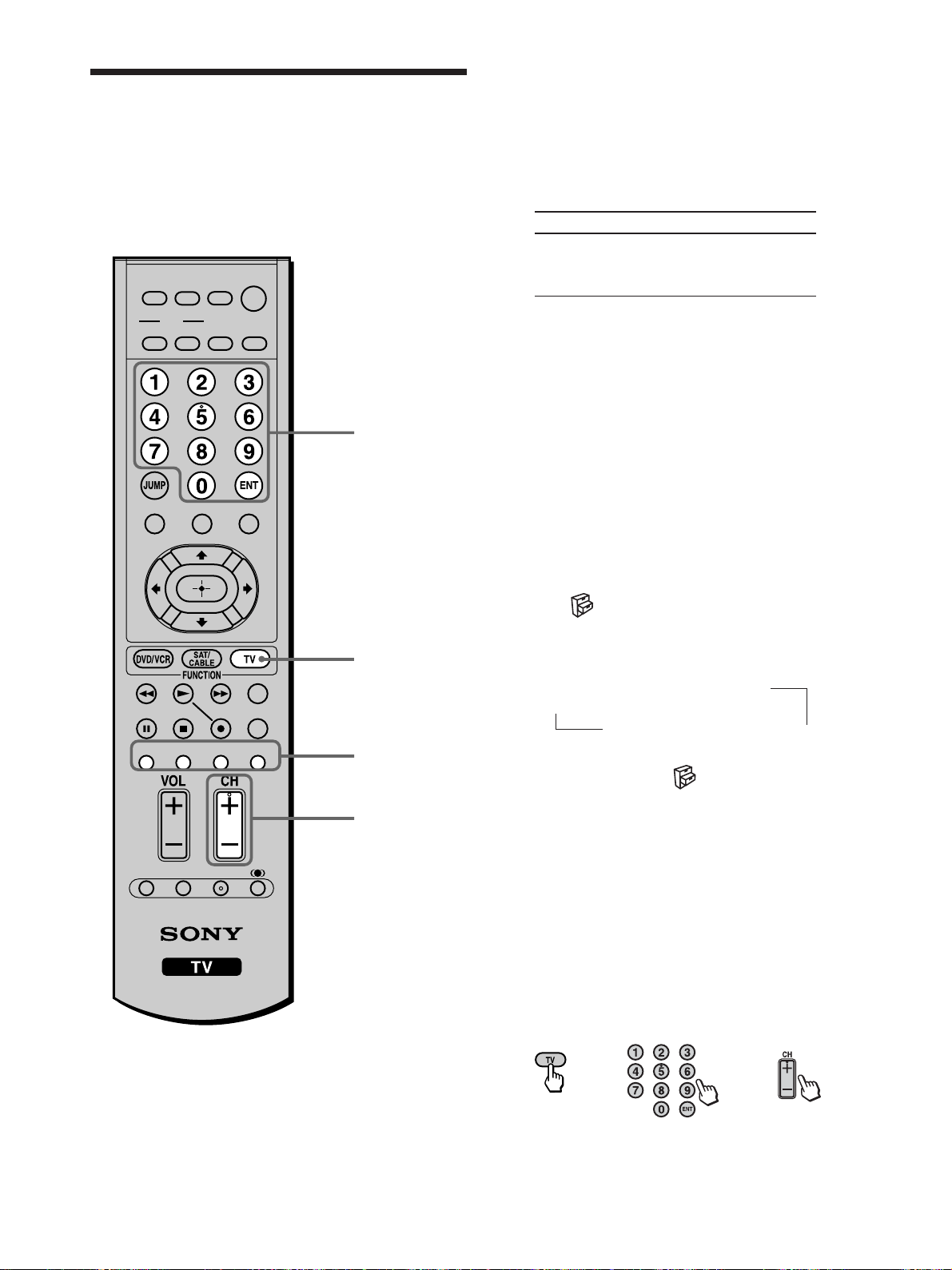
50
Setting the Video Inputs
You can enjoy images (and sound) from optional
video equipment connected to this unit by selecting
the appropriate input. For details on connection, see
pages 24 through 35(Continued).
1
0-9 and ENT
(enter) buttons
CH +/–
1 For video input 1 and 2
Press VIDEO 1/2 repeatedly until the desired
video input appears.
Each time you press VIDEO 1/2, the input
changes as follows.
Select
• VIDEO 1 IN
• VIDEO 2 IN
For video input 3 (HD/DVD 3 IN)
Press VIDEO 3.
“Video 3”* indication appears.
For video input 4 (HDMI 4 IN)
Press VIDEO 4.
“Video 4”* indication appears.
* The type of picture signal (480i, 480p, 720p, or 1080i)
appears under “Video 3” and “Video 4.”
Tips
• When “Skip” is selected as a label using “Video Label” in
the
(Setup) menu, the selected input will be skipped
in the cycle (see page 51).
• You can also select the inputs by using the TV/VIDEO
button on the TV.
TV t VIDEO 1 IN t VIDEO 2 IN
R
HDMI 4 IN T HD/DVD 3 IN T
• When you have preset a label for each video input using
“Video Label” in the
(Setup) menu, the label will be
displayed (see page 51).
2 Operate the selected optional equipment.
For details, see “Using your Remote Controls
with Other Equipment” on page 18, or refer to
the instructions supplied with each equipment.
To return to watching the TV
Press TV, any of 0 - 9 and ENT (enter) or CH +/–.
Display indication
Video 1
R r
Video 2
or
or
TV
MUTING
PICTURE WIDE
FAVORITES
TV
VIDEO 1/2 VIDEO 3 VIDEO 4
F1
F2
MENU
SLEEP DISPLAY
MODE
SAT/
CABLE
POWER
RESET MTS/SAP
GUIDE
TV/SAT
DVD/
VCR
TOP MENU
FREEZE
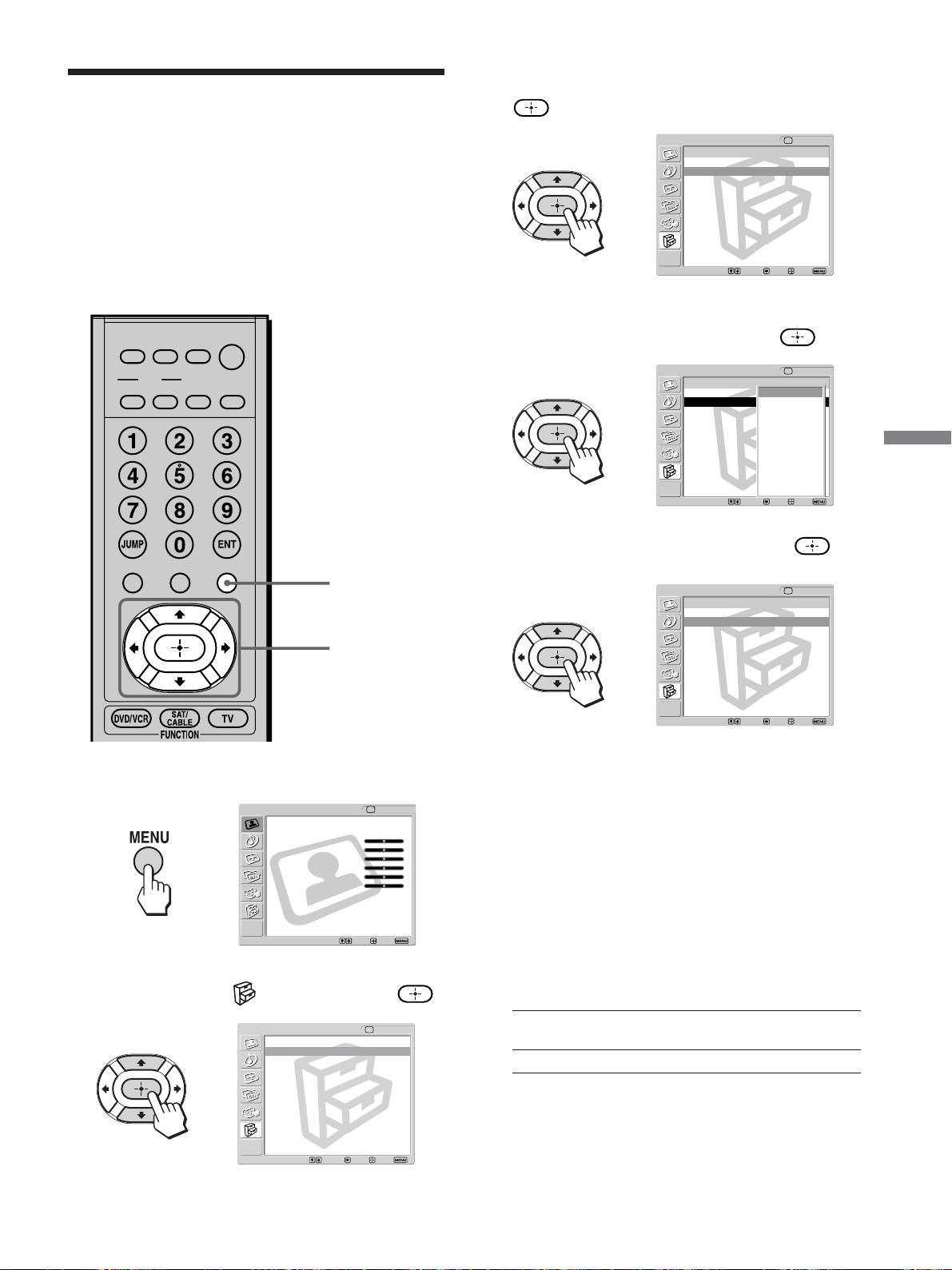
51
Watching the TV
Using the Video Label
and Skip Feature
You can make settings for each video input by
choosing the label displayed on the screen.
Tip
If you select “Skip,” your TV skips this input when you press the
Input Select buttons.
1 Press MENU.
2 Press V/v to select (Setup), then press .
3 Press V/v to select “Video Label,” then press
.
4 Press V/v to select the video input (Video 1-4)
you want to assign a label, then press
.
5 Press V/v to select the label, then press .
To skip the unused video input using the
Input Select buttons
Press V/v to select “Skip.”
6 Repeat steps 4 and 5 to assign labels to more
video inputs.
You can select a label for each video input
displayed on the screen.
Video 1, 2 Skip, VHS, DVD, Receiver, Satellite, Cable
Box, 8mm, DTV, Game, LD, Beta
Video 3, 4 Skip, DVD, Satellite, Cable Box, DTV, HD
7 Press MENU to exit the menu screen.
,
,
,
,
,
2 - 6
1, 7
Return
Caption Vision: Off
Video Label
Language: English
Auto YC:
Setup
TV
Select: Back: Exit:Set:
Video
Exit:Set:Select:
Return
Mode: Vivid
Picture: 50
Brightness: 50
Color: 25
Hue: 0
Sharpness: 50
Backlight: 5
Color Temp.: Cool
NR: On
Mild Mode: On
Dynamic Picture: On
CineMotion: Off
TV
Return
Video 1 : Video 1
Video 2 : Video 2
Video 3 : Video 3
Video 4 : Video 4
Video Label
Setup TV
Select: Back: Exit:Set:
Return
Video 1 : Video 1
Video 2 : Video 2
Video 3 : Video 3
Video 4 : Video 4
Setup TV
Select: Back: Exit:Set:
Video Label
Video 1
Skip
VHS
DVD
Receiver
Satellite
Cable Box
8mm
DTV
Game
LD
Beta
Return
Video 1 : DVD
Video 2 : Video 2
Video 3 : Video 3
Video 4 : Video 4
Setup TV
Select: Back: Exit:Set:
Video Label
MUTING
PICTURE WIDE
FAVORITES
MENU
SLEEP DISPLAY
MODE
SAT/
CABLE
POWER
DVD/
VCR
TOP MENU
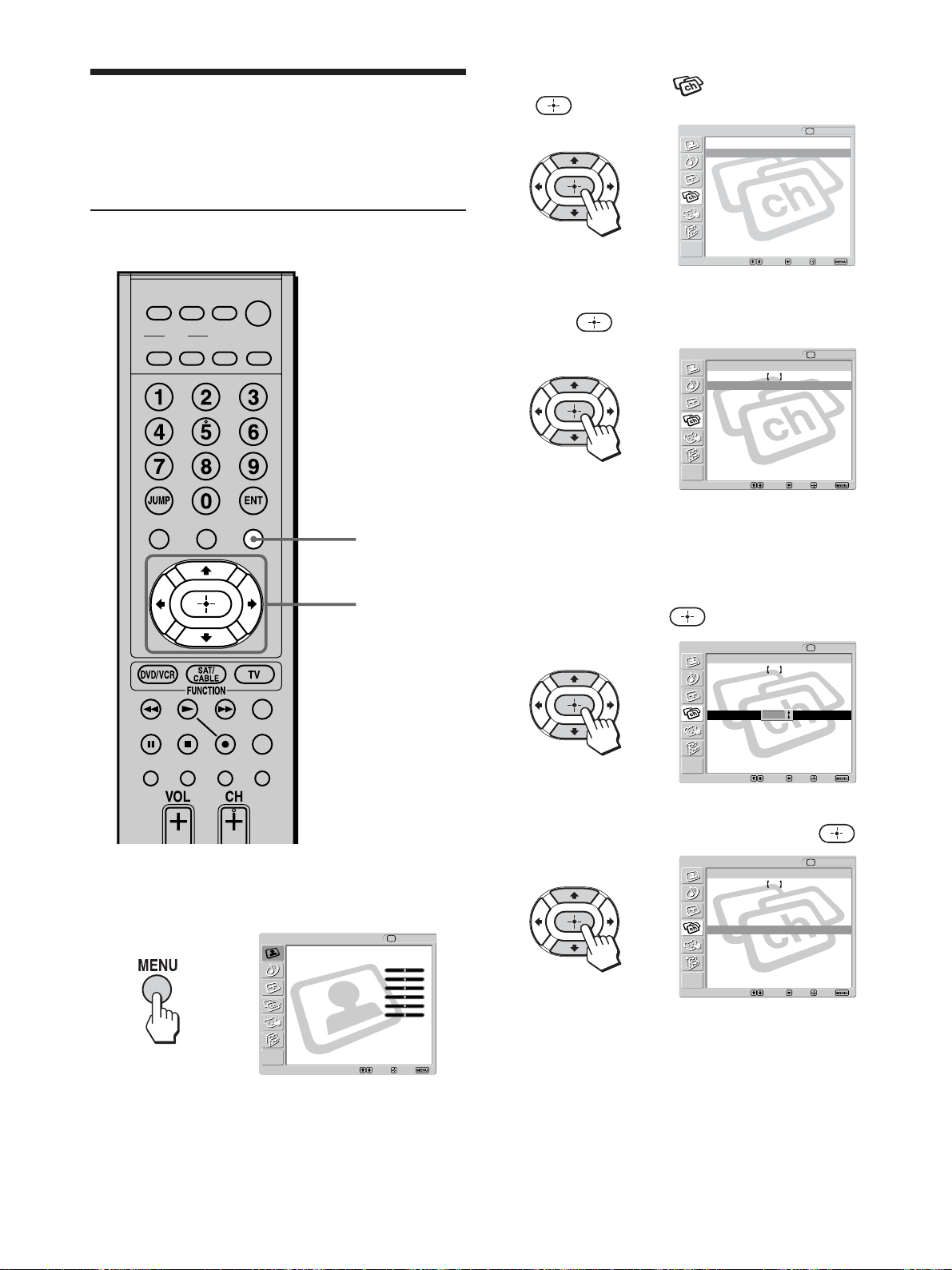
52
Using Favorite Channels
You can select program channels from a list of
favorite channels that you preset.
Setting your favorite channels
1, 7
2 - 6
1 Press MENU.
2 Press V/v to select (Channel), then press
.
3 Press V/v to select “Favorite Channels,” then
press
.
Tip
If you cannot select “Favorite Channels,” change the input
to TV by pressing the TV button.
4 Press V/v to select the position you want to
change, then press
.
5 Press V/v to scroll through the channels until
you find the desired channel, then press
.
6 Repeat steps 4 and 5 to program other favorite
channels.
7 Press MENU to exit the menu screen.
,
,
,
,
,
Return
Favorite Channels
Cable: On
Channel Fix: Off
Auto Program: OK
Channel Skip/Add
Channel Label
Channel
TV
Select: Back: Exit:Set:
Video
Exit:Set:Select:
Return
Mode: Vivid
Picture: 50
Brightness: 50
Color: 25
Hue: 0
Sharpness: 50
Backlight: 5
Color Temp.: Cool
NR: On
Mild Mode: On
Dynamic Picture: On
CineMotion: Off
TV
Channel TV
21
2
3
4
5
6
7
8
3
4
5
6
7
8
9
Return CH
:
:
:
:
:
:
:
:
Favorite Channels
Select: Back: Exit:Set:
Channel TV
Return CH
Favorite Channels
Select: Back: Exit:Set:
21
2
3
4
5
6
7
8
3
4
5
7
8
9
:
:
:
:
:
:
:
:
6
Channel TV
Return CH
Favorite Channels
Select: Back: Exit:Set:
21
2
3
4
5
6
7
8
3
4
5
42
7
8
9
:
:
:
:
:
:
:
:
MUTING
PICTURE WIDE
FAVORITES
TV
VIDEO 1/2 VIDEO 3 VIDEO 4
F1
F2
MENU
SLEEP DISPLAY
MODE
SAT/
CABLE
POWER
DVD/
VCR
TOP MENU
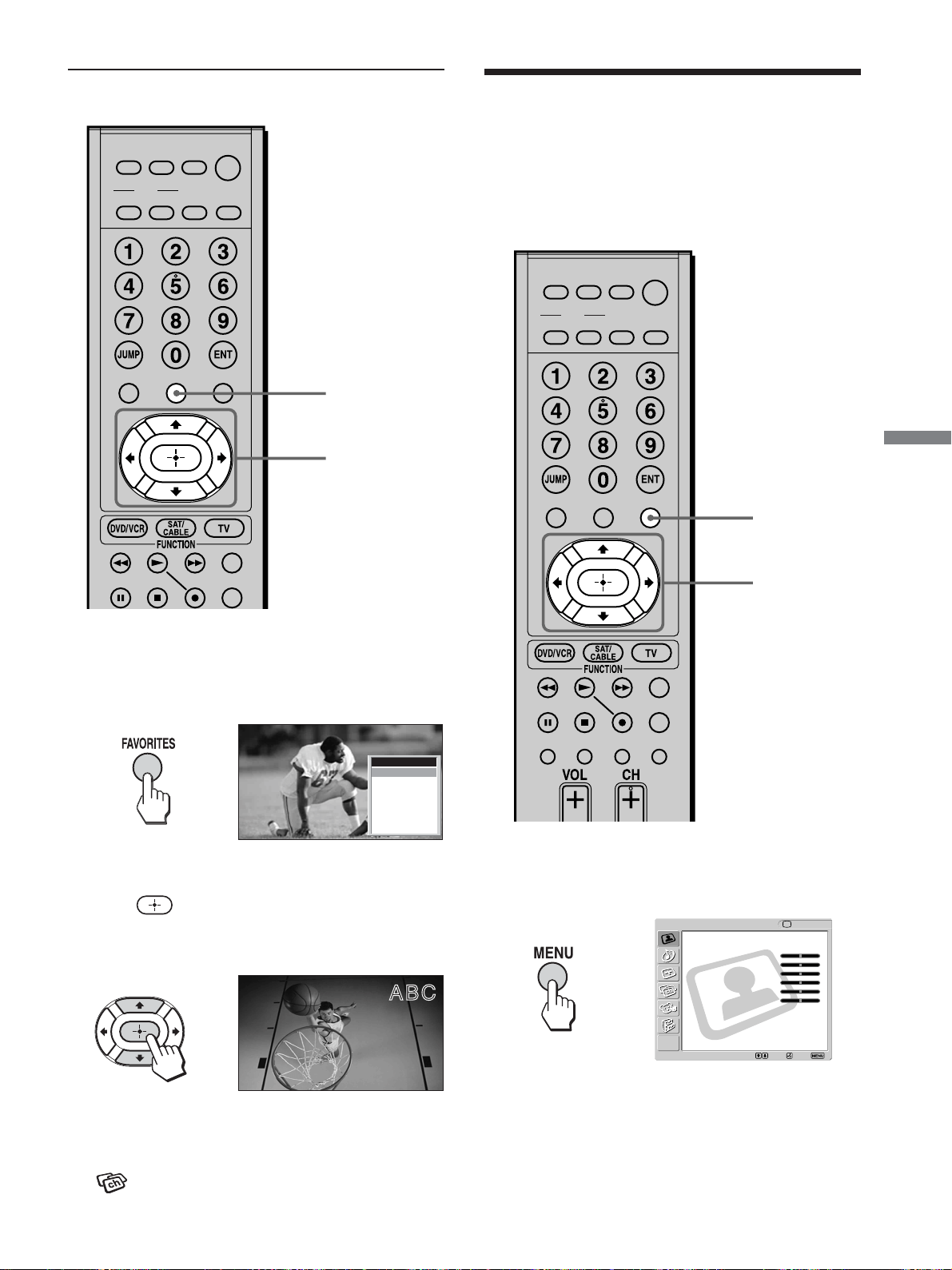
53
Watching the TV
1 Press FAVORITES.
The Favorite Channels list appears.
2 Press V/v to select the desired channel, then
press
.
The selected channel will be displayed.
Tip
If you make an optional label using “Channel Label” in the
(Channel) menu, that label will be displayed on the
screen.
1
2
,
,
ABC
Using the Channel Label
Feature
If you have set an optional label for the channel
display or for Favorite Channels, you can have that
label displayed on the screen.
1 Press MENU.
,
2 - 8
1, 9
Favorite Channels
1 : ABC
2 : HBO
3 : MTV
4 : FOX
5 : CBS
6 : COMED
7 : 7
8 : 8
Video
Exit:Set:Select:
Return
Mode: Vivid
Picture: 50
Brightness: 50
Color: 25
Hue: 0
Sharpness: 50
Backlight: 5
Color Temp.: Cool
NR: On
Mild Mode: On
Dynamic Picture: On
CineMotion: Off
TV
MUTING
PICTURE WIDE
FAVORITES
F1
F2
MENU
SLEEP DISPLAY
MODE
SAT/
CABLE
POWER
TOP MENU
DVD/
VCR
MUTING
PICTURE WIDE
FAVORITES
TV
VIDEO 1/2 VIDEO 3 VIDEO 4
F1
F2
MENU
SLEEP DISPLAY
MODE
SAT/
CABLE
POWER
DVD/
VCR
TOP MENU
Watching favorite channels
(Continued)
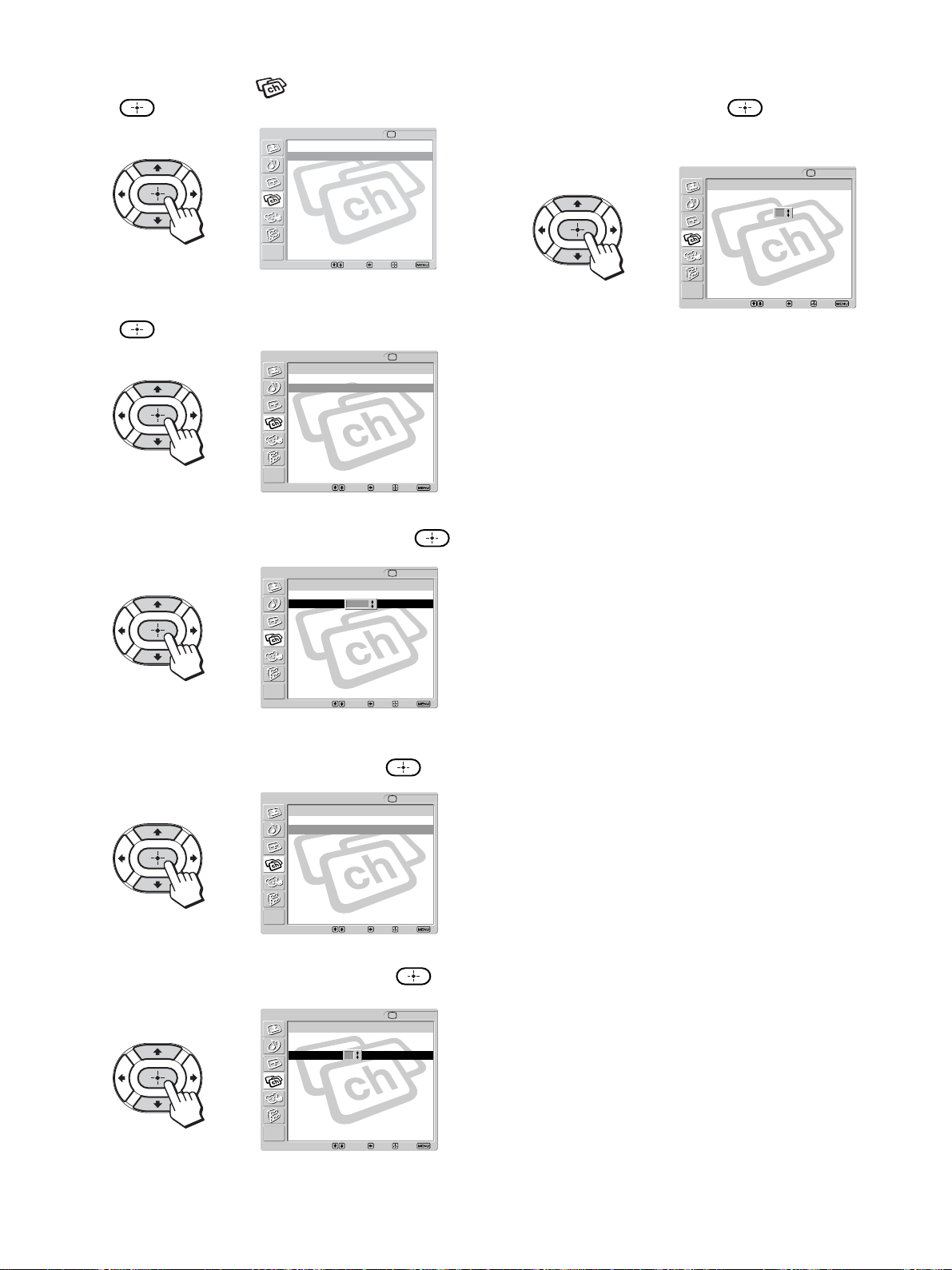
54
2 Press V/v to select (Channel), then press
.
3 Press V/v to select “Channel Label,” then press
.
4 Press V/v to select “Channel,” then press .
5 Press V/v to scroll through the channel numbers
you want to assign a label, then press
.
6 Press V/v to select “Label,” then press .
7 Press V/v to scroll through the label characters
(A-Z, 0-9, etc.), then press
.
You can add up to 5 characters to the label.
8 Repeat steps 4 - 7 to assign labels to more
channels.
9 Press MENU to exit the menu screen.
Tip
Press the RESET button to clear the channel label when you
open the “Channel Label” option or “Label” option.
,
,
,
,
,
,
Return
Favorite Channels
Cable: On
Channel Fix: Off
Auto Program: OK
Channel Skip/Add
Channel Label
Channel
TV
Select: Back: Exit:Set:
Channel Label
Return
Channel:
Label: _ _ _ _ _
Channel TV
Select: Back: Exit:Set:
1
Channel Label
Return
Channel:
Label: _ _ _ _ _
Channel TV
Select: Back: Exit:Set:
1
Channel Label
Return
Channel:
Label: _ _ _ _ _
Channel TV
Select: Back: Exit:Set:
30
Channel Label
Return
Channel: 30
Label: _ _ _ _
Channel TV
Select: Back: Exit:Set:
_
Channel Label
Return
Channel: 30
Label: A _ B _ _ _
Channel TV
Select: Back: Exit:Set:
_
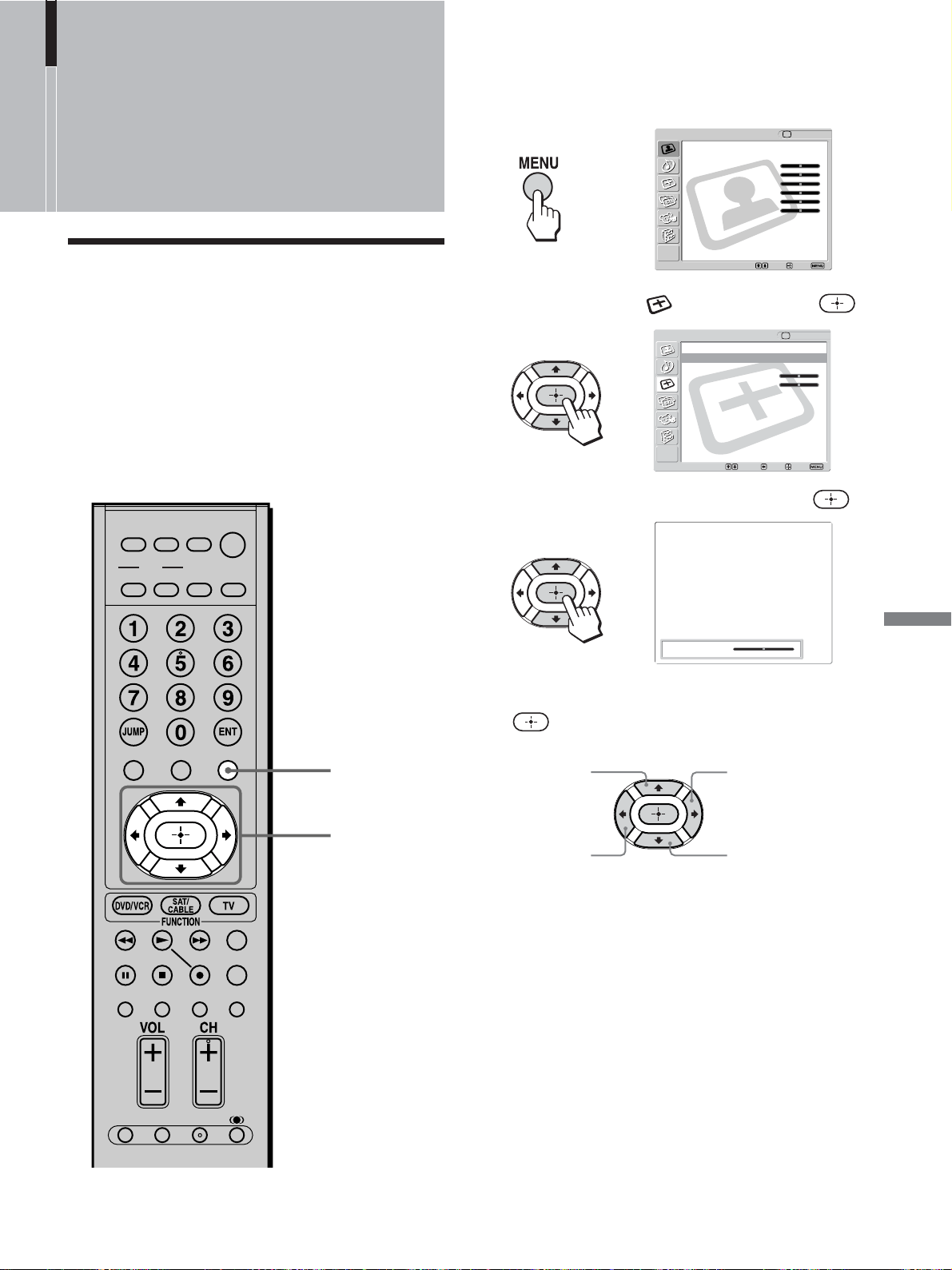
55
Using Advanced Features
1 Receive the picture you want to adjust, then
press MENU.
2 Press V/v to select (Screen), then press .
3 Press V/v to select “V Center,” then press .
4 Press V/v/B/b to adjust the position, then press
.
5 Press MENU to exit the menu screen.
Note
“V Center” cannot be adjusted when “Normal” or “Full” is
selected in “Wide Mode.”
Adjusting the Picture
Position Vertically
You can move the position of the picture up and down
for each Wide Screen Mode (page 45) in the following
cases:
• To move the position of the picture in “Wide
Zoom” and “Zoom” modes
•When subtitles may not fit in the screen
1, 5
2 - 4
Moves up Moves up
Moves down Moves down
,
,
,
Using Advanced
Features
Return
Wide Mode: Wide Zoom
4:3 Default: Wide Zoom
V Center: 0
H Center: 0
Screen
Select: Back: Exit:Set:
TV
V Center: 0
Video
Exit:Set:Select:
Return
Mode: Vivid
Picture: 50
Brightness: 50
Color: 25
Hue: 0
Sharpness: 50
Backlight: 5
Color Temp.: Cool
NR: On
Mild Mode: On
Dynamic Picture: On
CineMotion: Off
TV
MUTING
PICTURE WIDE
FAVORITES
TV
VIDEO 1/2 VIDEO 3 VIDEO 4
F1
F2
MENU
SLEEP DISPLAY
MODE
SAT/
CABLE
POWER
RESET MTS/SAP
GUIDE
TV/SAT
DVD/
VCR
TOP MENU
FREEZE
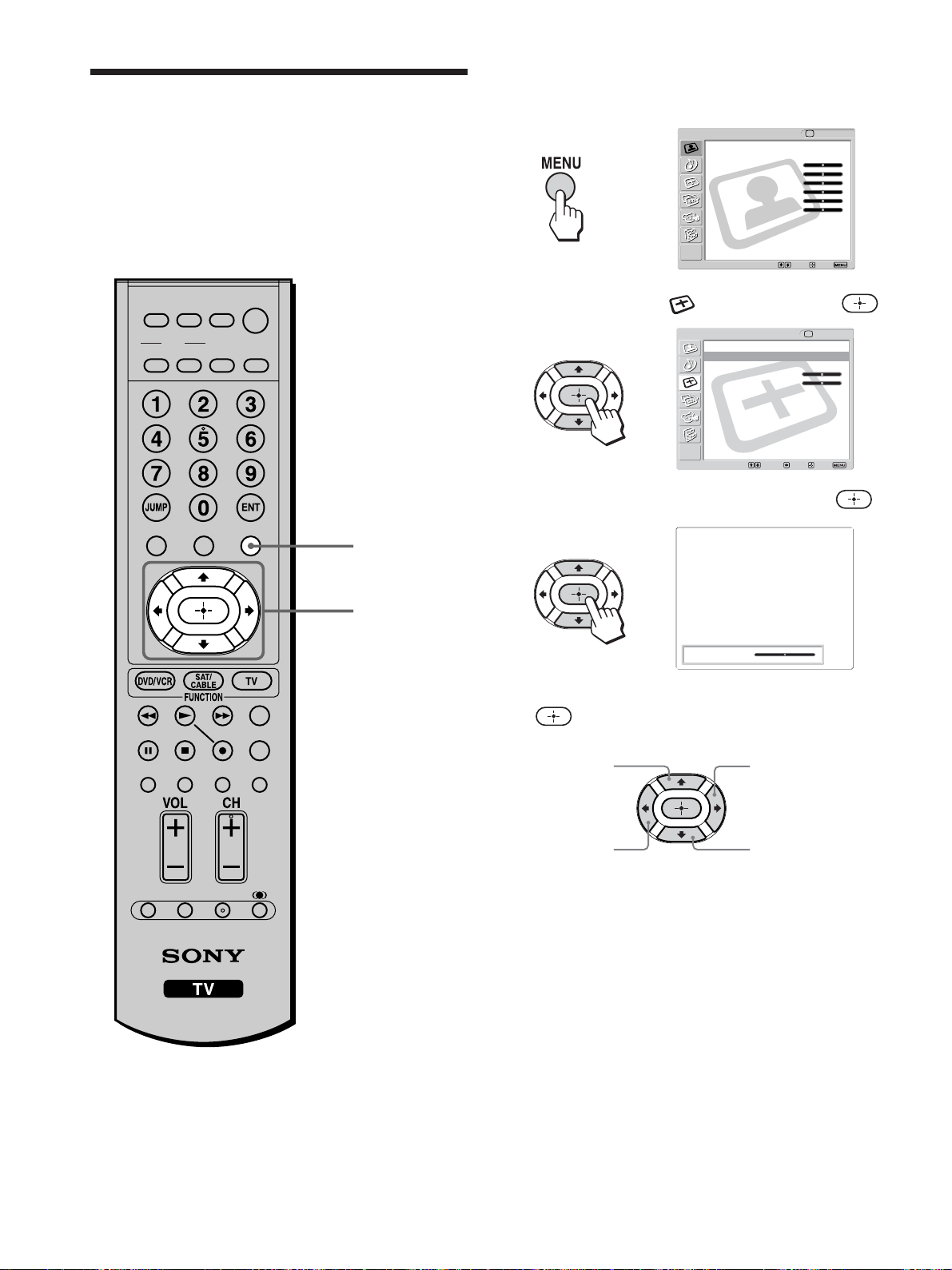
56
1 Receive the picture you want to adjust, then
press MENU.
2 Press V/v to select (Screen), then press .
3 Press V/v to select “H Center,” then press .
4 Press V/v/B/b to adjust the position, then press
.
5 Press MENU to exit the menu screen.
Tips
• “H Center” can be adjusted for every input setting.
• The “H Center” is useful if the TV is connected to game
equipment.
Moves right Moves right
Moves left Moves left
,
,
,
Adjusting the Picture
Position Horizontally
You can move the position of the picture left and
right. This function allows for horizontal adjustment
of the picture being displayed.
1, 5
2 - 4
Return
Wide Mode: Wide Zoom
4:3 Default: Wide Zoom
V Center: 0
H Center: 0
Screen
Select: Back: Exit:Set:
TV
H Center: 0
Video
Exit:Set:Select:
Return
Mode: Vivid
Picture: 50
Brightness: 50
Color: 25
Hue: 0
Sharpness: 50
Backlight: 5
Color Temp.: Cool
NR: On
Mild Mode: On
Dynamic Picture: On
CineMotion: Off
TV
MUTING
PICTURE WIDE
FAVORITES
TV
VIDEO 1/2 VIDEO 3 VIDEO 4
F1
F2
MENU
SLEEP DISPLAY
MODE
SAT/
CABLE
POWER
RESET MTS/SAP
GUIDE
TV/SAT
DVD/
VCR
TOP MENU
FREEZE
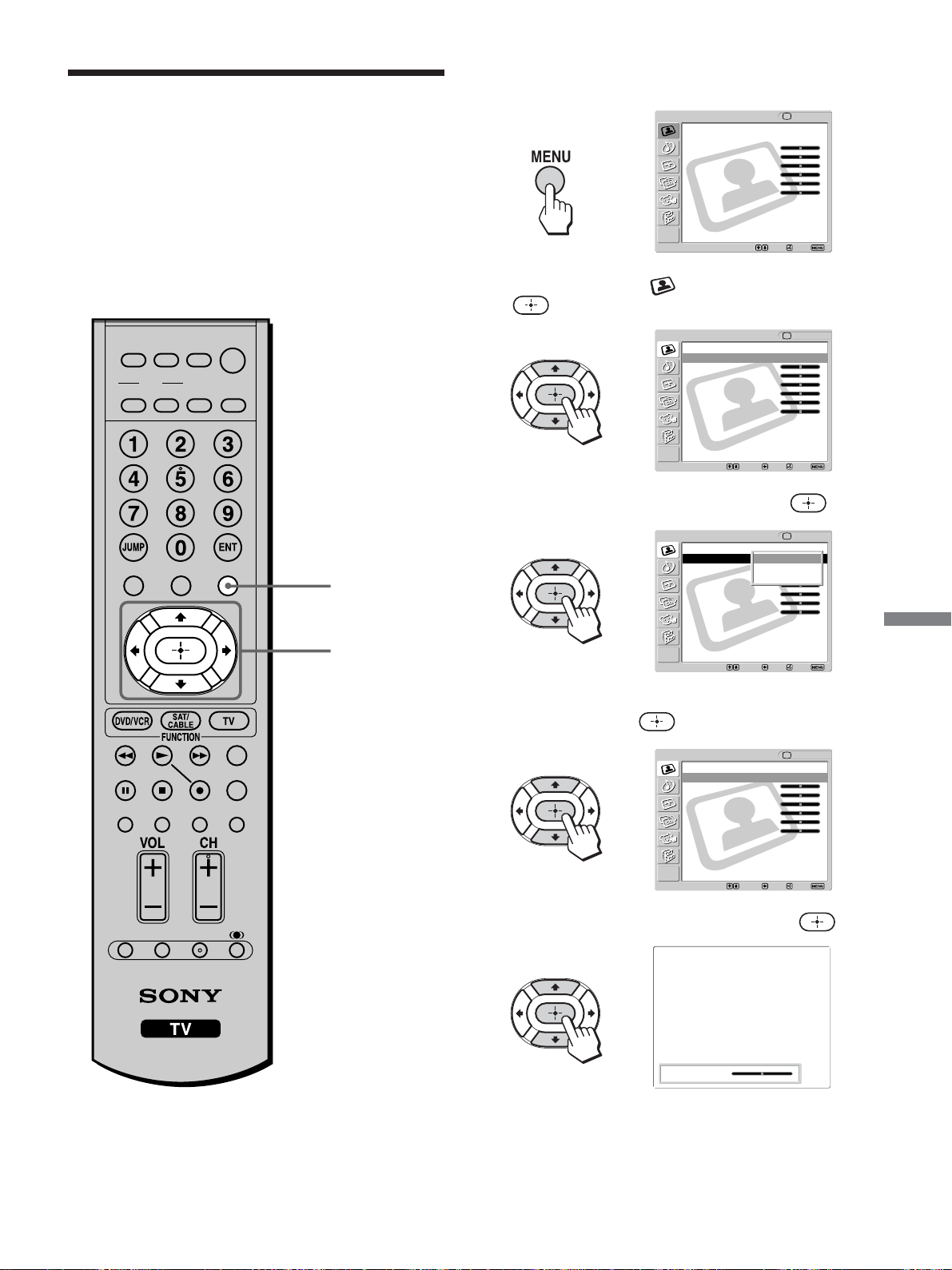
57
Using Advanced Features
1 Press MENU.
2 Press V/v to select (Video), then press
.
3 Press V/v to select “Mode,” then press .
4 Press V/v to select the Picture Mode you want to
adjust, then press
.
5 Press V/v to select “Picture,” then press .
Adjusting the Picture
Quality
You can adjust the picture quality for each Picture
Mode (“Vivid,” “Standard,” or “Pro”).
You can adjust the picture quality for each video
input selected using the Input Select buttons, and
store these adjustments in memory.
1, 8
2 - 7
,
,
,
,
,
Picture: 50
Video
Exit:Set:Select:
Return
Mode: Vivid
Picture: 50
Brightness: 50
Color: 25
Hue: 0
Sharpness: 50
Backlight: 5
Color Temp.: Cool
NR: On
Mild Mode: On
Dynamic Picture: On
CineMotion: Off
TV
Video
Return
Mode: Vivid
Picture: 50
Brightness: 50
Color: 25
Hue: 0
Sharpness: 50
Backlight: 5
Color Temp.: Cool
NR: On
Mild Mode: On
Dynamic Picture: On
CineMotion: Off
Select: Back: Exit:Set:
TV
Video
Return
Mode: Vivid
Picture: 50
Brightness: 50
Color: 25
Hue: 0
Sharpness: 50
Backlight: 5
Color Temp.: Cool
NR: On
Mild Mode: On
Dynamic Picture: On
CineMotion: Off
Select: Back: Exit:Set:
TV
Video
Return
Mode: Vivid
Picture: 50
Brightness: 50
Color: 25
Hue: 0
Sharpness: 50
Backlight: 5
Color Temp.: Cool
NR: On
Mild Mode: On
Dynamic Picture: On
CineMotion: Off
Select: Back: Exit:Set:
TV
Vivid
Standard
Pro
MUTING
PICTURE WIDE
FAVORITES
TV
VIDEO 1/2 VIDEO 3 VIDEO 4
F1
F2
MENU
SLEEP DISPLAY
MODE
SAT/
CABLE
POWER
RESET MTS/SAP
GUIDE
TV/SAT
DVD/
VCR
TOP MENU
FREEZE
(Continued)
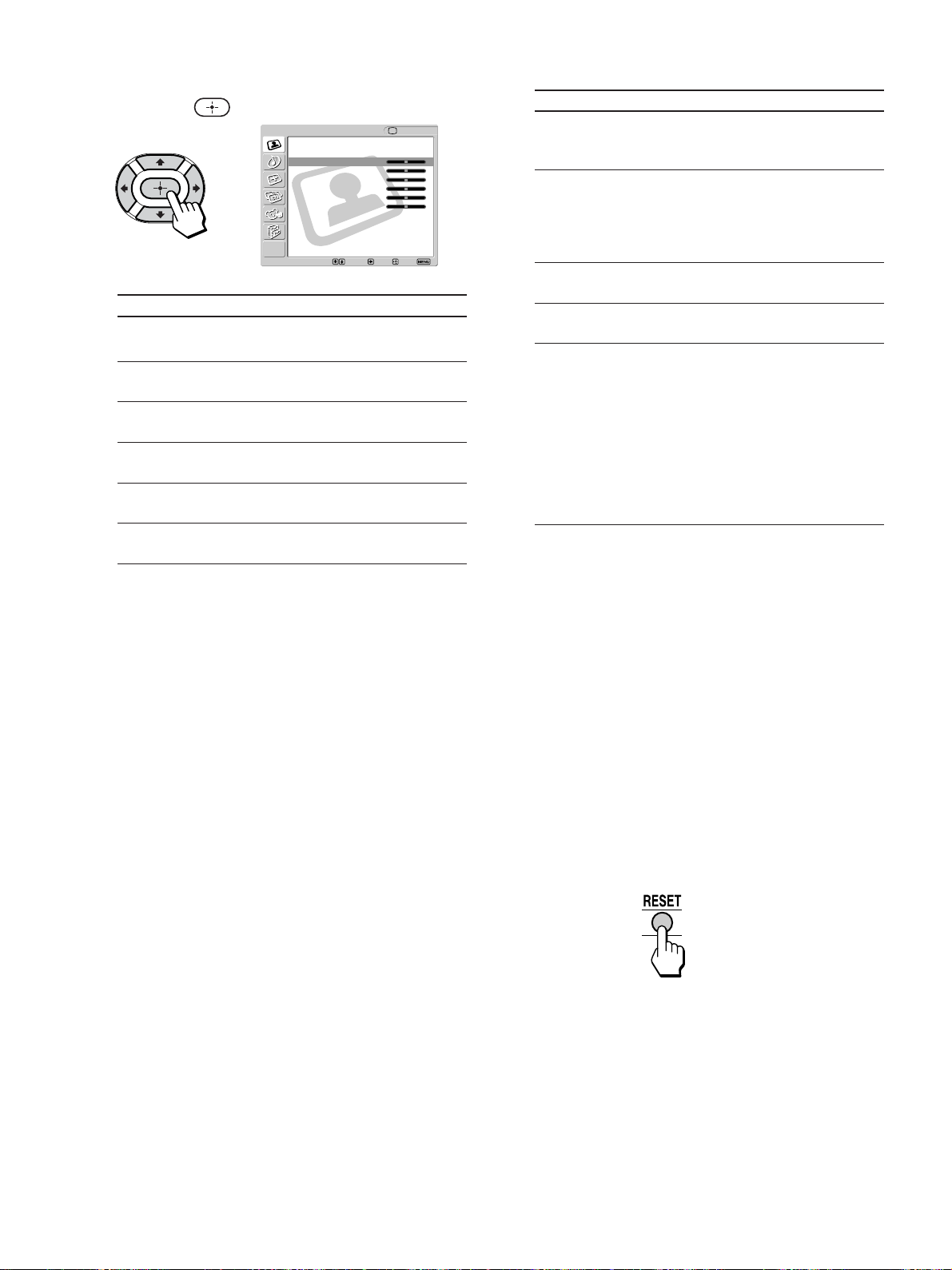
58
6 Press V/v/B/b to make the desired adjustment,
then press
.
Adjustable options
Option
Picture
Brightness
Color
Hue*
Sharpness
Backlight
* The adjustment is not available for the following:
– 480i, 480p, 1080i and 720p signals input to HD/DVD
3 IN and HDMI 4 IN
Tip
You can adjust each option by referring to the value beside
each option indicator.
Press v/B
To reduce
picture contrast.
To darken the
picture.
To decrease color
intensity.
To decrease the
green tones.
To soften the
picture.
To darken the
screen.
Press V/b
To enhance
picture contrast.
To brighten the
picture.
To increase
color intensity.
To increase the
green tones.
To sharpen the
picture.
To brighten the
screen.
,
Selective options
Option
Color Temp.
(Color
Temperature)
NR
(Noise
Reduction)
Mild Mode
Dynamic
Picture
CineMotion
Tip
“CineMotion” is only available for 480i input signal from VHF/
UHF, VIDEO 1 IN, VIDEO 2 IN, HD/DVD 3 IN and HDMI 4
IN.
7 Repeat steps 5 and 6 to adjust other options.
8 Press MENU to exit the menu screen.
To reset to the factory settings
Press RESET while the menu is on the screen and
the cursor is located on the right side of any menu
item. When the pop-up window or bar indication is
displayed, only the menu item being adjusted is reset
to the factory settings.
Description
Select to give white
colors a blue (Cool) or a
red (Warm) tint.
Select to reduce the noise
level of connected
equipment. It is also
effective on the signal
from the VHF/UHF jack.
Select for a natural, soft
picture.
Select to enhance the
picture contrast.
Select to provide an
optimized display by
automatically detecting
film content. Moving
pictures will become
clearer and more natural.
When the superimposed
text on the film content
appears corrupted, set
“CineMotion” to “Off.”
Setting
Cool/
Neutral/
Warm
On/Off
On/Off
On/Off
On/Off
Video
Return
Mode: Vivid
Picture: 50
Brightness: 50
Color: 25
Hue: 0
Sharpness: 50
Backlight: 5
Color Temp.: Cool
NR: On
Mild Mode: On
Dynamic Picture: On
CineMotion: Off
Select: Back: Exit:Set:
TV
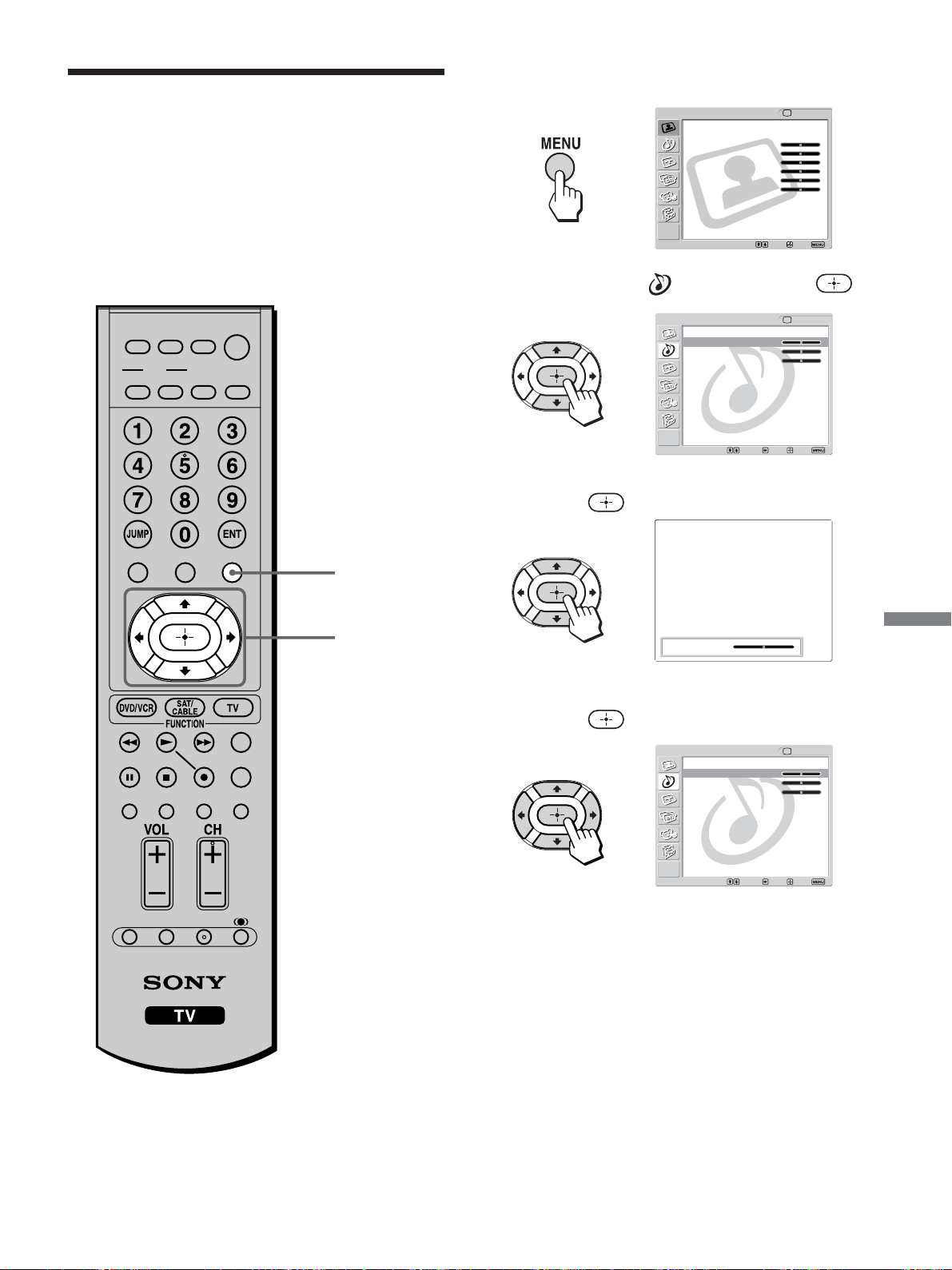
59
Using Advanced Features
1 Press MENU.
2 Press V/v to select (Audio), then press .
3 Press V/v to select the option you want to adjust,
then press
.
4 Press V/v/B/b to make the desired adjustment,
then press
.
,
,
,
,
Adjusting the Sound
Quality
You can adjust the sound quality for each video
input selected using the Input Select buttons, and
store these adjustments in memory.
For details on the Effect mode, see page 44.
1, 6
2 - 5
Tr eb le : 0
Exit:
Return
Treble: 0
Bass: 0
Balance: 0
Effect: Off
MTS: Stereo
Speaker: On
Audio Out:
Audio TV
Select: Back: Set:
Exit:
Return
Treble: 0
Bass: 0
Balance: 0
Effect: Off
MTS: Stereo
Speaker: On
Audio Out:
Audio TV
Select: Back: Set:
Video
Exit:Set:Select:
Return
Mode: Vivid
Picture: 50
Brightness: 50
Color: 25
Hue: 0
Sharpness: 50
Backlight: 5
Color Temp.: Cool
NR: On
Mild Mode: On
Dynamic Picture: On
CineMotion: Off
TV
MUTING
PICTURE WIDE
FAVORITES
TV
VIDEO 1/2 VIDEO 3 VIDEO 4
F1
F2
MENU
SLEEP DISPLAY
MODE
SAT/
CABLE
POWER
RESET MTS/SAP
GUIDE
TV/SAT
DVD/
VCR
TOP MENU
FREEZE
(Continued)
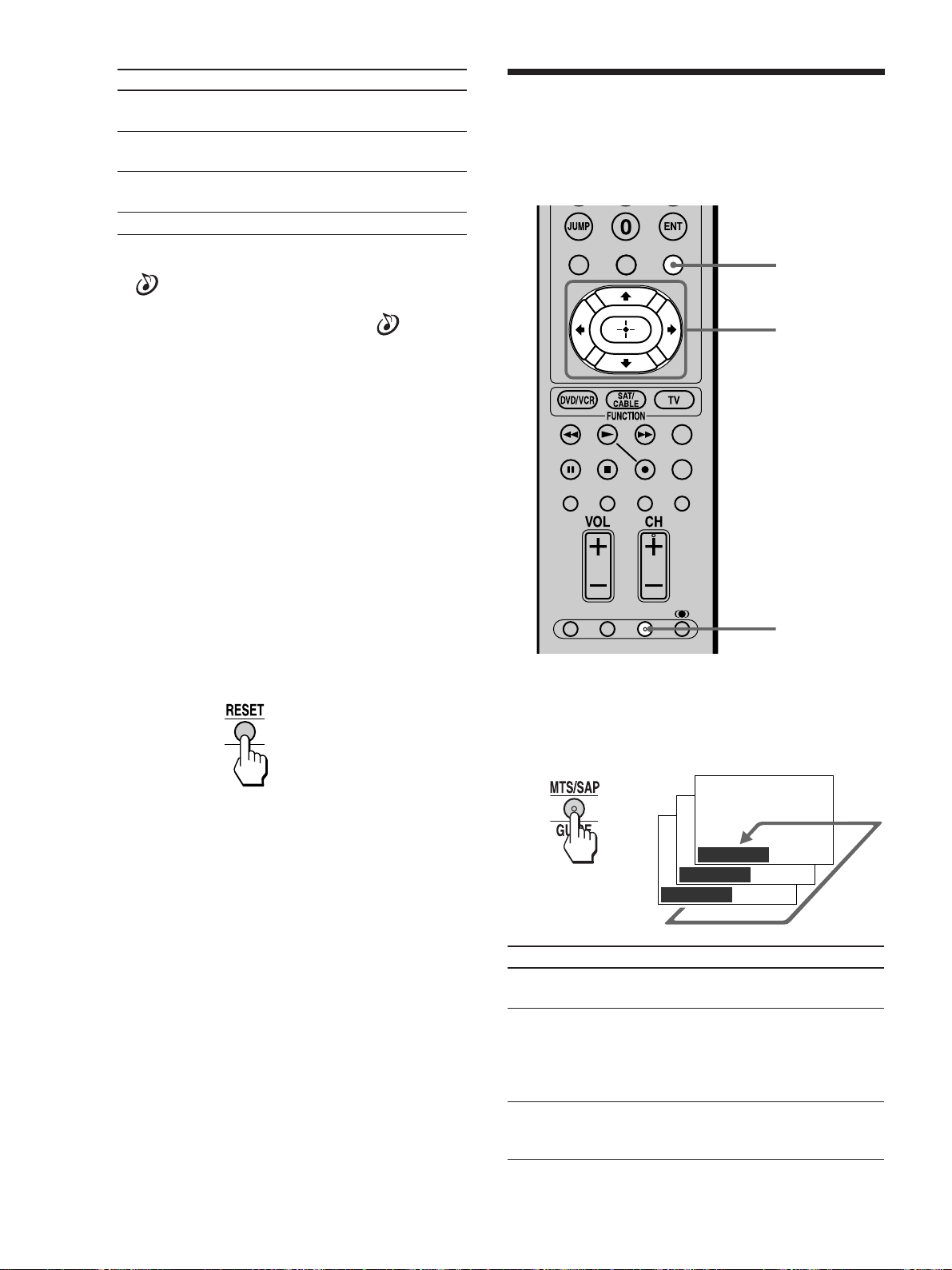
60
Option
Treble*
Bass*
Balance*
Effect**
* To adjust any of these options, set “Speaker” in the
(Audio) menu to “On,” or “Audio Out” to
“Variable” first.
** To adjust the option, set “Speaker” in the
(Audio)
menu to “On” first.
Tip
You can adjust each option by referring to the value beside
each option indicator.
5 Repeat steps 3 and 4 to adjust other options.
6 Press MENU to exit the menu screen.
To reset to the factory settings
Press RESET while the menu is on the screen and
the cursor is located on the right side of any menu
item. When the pop-up window or bar indication is
displayed, only the menu item being adjusted is reset
to the factory settings.
Note
Resetting the unit to the factory settings resets only “Treble,”
“Bass” and “Balance.”
MTS/SAP
Press MTS/SAP repeatedly until the desired sound
indication appears.
Each time you press the button, the sound indication
changes as follows:
Sound indication*
Stereo
Auto SAP
Mono
* This is available only for VHF/UHF input.
1, 5
2 - 4
Description
Select for stereo reception when
viewing a program broadcast in stereo.
Select to automatically switch the TV
to second audio programs when a signal
is received. (If no SAP signal is
present, the TV remains in Stereo
mode.)
Select for mono reception. (Use to
reduce noise during weak stereo
broadcasts.)
Mono
Auto SAP
Stereo
,
Selecting Stereo or
Bilingual Programs
You can enjoy stereo, bilingual and mono programs.
Press V/b
To increase higher-
pitched sounds.
To increase lower-
pitched sounds.
To emphasize the
right speaker.
Press v/B
To decrease higher-
pitched sounds.
To decrease lower-
pitched sounds.
To emphasize the
left speaker.
See page 44.
FAVORITES
TV
VIDEO 1/2 VIDEO 3 VIDEO 4
F1
F2
MENU
RESET MTS/SAP
GUIDE
TV/SAT
TOP MENU
FREEZE
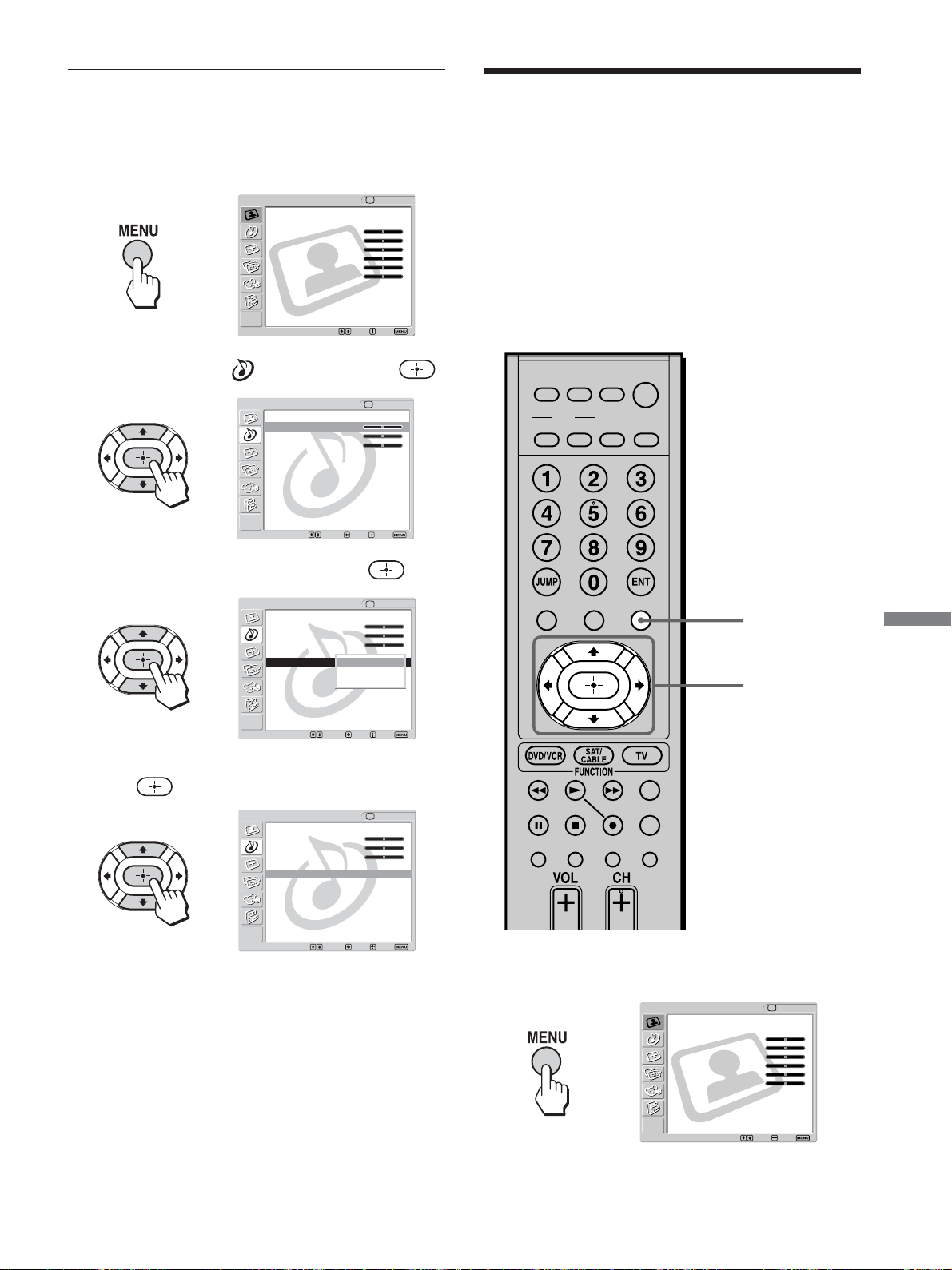
61
Using Advanced Features
Selecting the TV
Speakers or an External
Amplifier to Listen to
the TV
You can select if you want to listen to the TV from
the TV speakers or from an external amplifier
connected to the TV’s audio outputs.
1, 5
2 - 4
1 Press MENU.
2 Press V/v to select (Audio), then press .
3 Press V/v to select “MTS,” then press .
4 Press V/v to select the desired reception, then
press
.
5 Press MENU to exit the menu screen.
Selecting stereo or bilingual
programs using the menu
,
,
,
,
Exit:
Return
Treble: 0
Bass: 0
Balance: 0
Effect: Off
MTS: Stereo
Speaker: On
Audio Out:
Audio TV
Select: Back: Set:
Exit:
Return
Treble: 0
Bass: 0
Balance: 0
Effect: Off
MTS: Auto SAP
Speaker: On
Audio Out:
Audio TV
Select: Back: Set:
Stereo
Auto SAP
Mono
Exit:
Return
Treble: 0
Bass: 0
Balance: 0
Effect: Off
MTS: Auto SAP
Speaker: On
Audio Out:
Audio TV
Select: Back: Set:
,
Video
Exit:Set:Select:
Return
Mode: Vivid
Picture: 50
Brightness: 50
Color: 25
Hue: 0
Sharpness: 50
Backlight: 5
Color Temp.: Cool
NR: On
Mild Mode: On
Dynamic Picture: On
CineMotion: Off
TV
1 Press MENU.
Video
Exit:Set:Select:
Return
Mode: Vivid
Picture: 50
Brightness: 50
Color: 25
Hue: 0
Sharpness: 50
Backlight: 5
Color Temp.: Cool
NR: On
Mild Mode: On
Dynamic Picture: On
CineMotion: Off
TV
MUTING
PICTURE WIDE
FAVORITES
TV
VIDEO 1/2 VIDEO 3 VIDEO 4
F1
F2
MENU
SLEEP DISPLAY
MODE
SAT/
CABLE
POWER
DVD/
VCR
TOP MENU
(Continued)
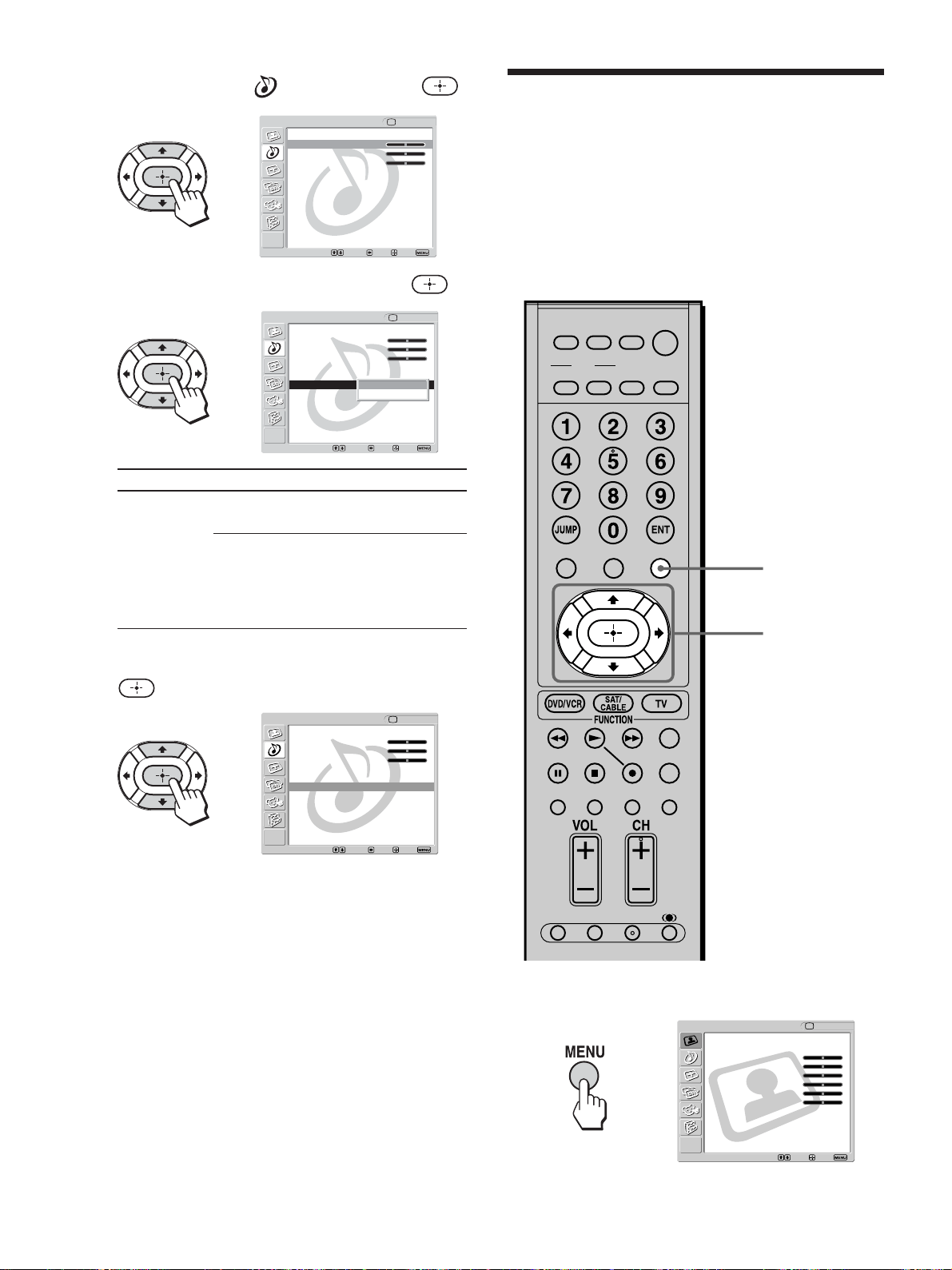
62
2 Press V/v to select (Audio), then press .
3 Press V/v to select “Speaker,” then press .
4 Press V/v to select the desired option, then press
.
5 Press MENU to exit the menu screen.
Selecting How to
Control the Volume of
the TV’s Speakers
You can select how to control the volume of the
TV’s speakers when an external amplifier is
connected to the TV’s audio outputs.
1, 5
2 - 4
Option
Speaker
Description
On
Off
Select to turn on the TV
speakers.
Select to turn off the TV
speakers and listen to the
TV’s sound only through
your external audio system
speakers.
,
,
,
,
1 Press MENU.
Exit:
Return
Treble: 0
Bass: 0
Balance: 0
Effect: Off
MTS: Stereo
Speaker: On
Audio Out:
Audio TV
Select: Back: Set:
Exit:
Return
Treble: 0
Bass: 0
Balance: 0
Effect: Off
MTS: Stereo
Speaker: On
Audio Out:
Audio TV
Select: Back: Set:
Video
Exit:Set:Select:
Return
Mode: Vivid
Picture: 50
Brightness: 50
Color: 25
Hue: 0
Sharpness: 50
Backlight: 5
Color Temp.: Cool
NR: On
Mild Mode: On
Dynamic Picture: On
CineMotion: Off
TV
Exit:
Audio TV
Select: Back: Set:
Return
Treble: 0
Bass: 0
Balance: 0
Effect: Off
MTS: Stereo
Speaker: On
Audio Out:
On
Off
MUTING
PICTURE WIDE
FAVORITES
TV
VIDEO 1/2 VIDEO 3 VIDEO 4
F1
F2
MENU
SLEEP DISPLAY
MODE
SAT/
CABLE
POWER
RESET MTS/SAP
GUIDE
TV/SAT
DVD/
VCR
TOP MENU
FREEZE
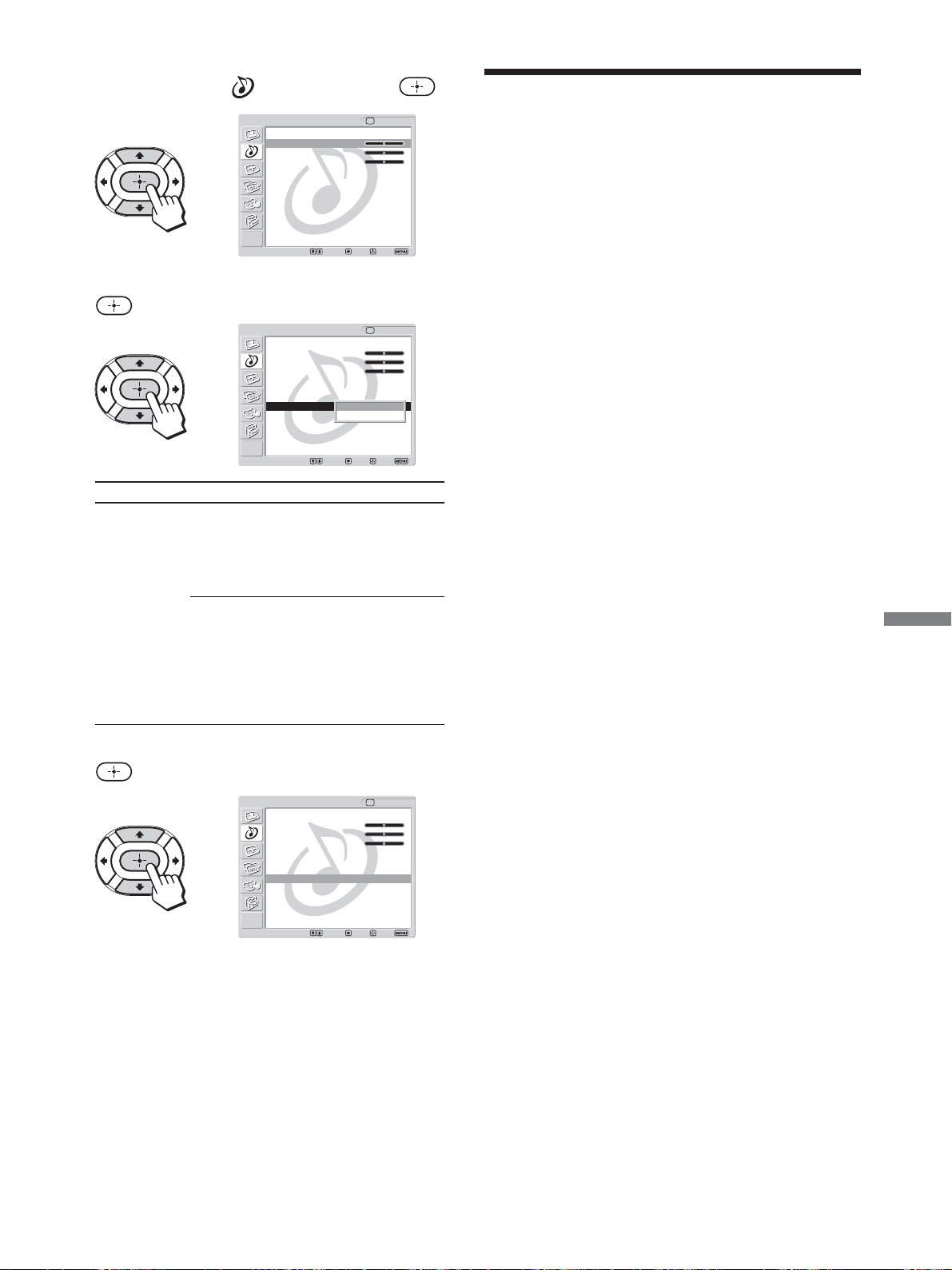
63
Using Advanced Features
Using the Parental
Control Feature
The TV programs and movies shown on TV are
given a rating signal based on the following rating
systems.
In U.S.A.: U.S. Television Parental Guidelines to
rate television programs (U.S. TV ratings), and
Motion Picture Association of America (MPAA)
Guidelines to rate movies including those shown on
TV (movie ratings).
In Canada: Canadian English Language ratings to
rate television programs in English, and Canadian
French Language ratings to rate those in French.
To block programs you feel unsuitable for your
children, you need to set the TV for the desired
rating systems. Sony’s predetermined ratings are also
available. See page 68 for a description of the
ratings.
The TV’s Parental Control feature functions by
receiving the rating signal from your local
broadcasting station or cable service provider.
2 Press V/v to select (Audio), then press .
3 Press V/v to select “Audio Out,” then press
.
4 Press V/v to select the desired option, then press
.
5 Press MENU to exit the menu screen.
Note
“Audio Out” can be selected only when the “Speaker” is set to
“Off.”
,
,
,
Option
Audio Out
(Easy control
of volume
adjustments)
Description
Variable
Fixed
The TV’s speakers are turned
off, but the audio output from
your audio system can still be
controlled by the TV’s
remote control.
The TV’s speakers are turned
off and the audio output of
the TV is fixed. Use your AV
receiver’s remote control to
adjust the volume (and other
audio settings) through your
audio system.
Exit:
Return
Treble: 0
Bass: 0
Balance: 0
Effect: Off
MTS: Stereo
Speaker: Off
Audio Out:
Audio TV
Select: Back: Set:
Exit:
Audio TV
Select: Back: Set:
Return
Treble: 0
Bass: 0
Balance: 0
Effect: Off
MTS: Stereo
Speaker: Off
Audio Out: Variable
Variable
Fixed
Exit:
Return
Treble: 0
Bass: 0
Balance: 0
Effect: Off
MTS: Stereo
Speaker: Off
Audio Out: Variable
Audio TV
Select: Back: Set:
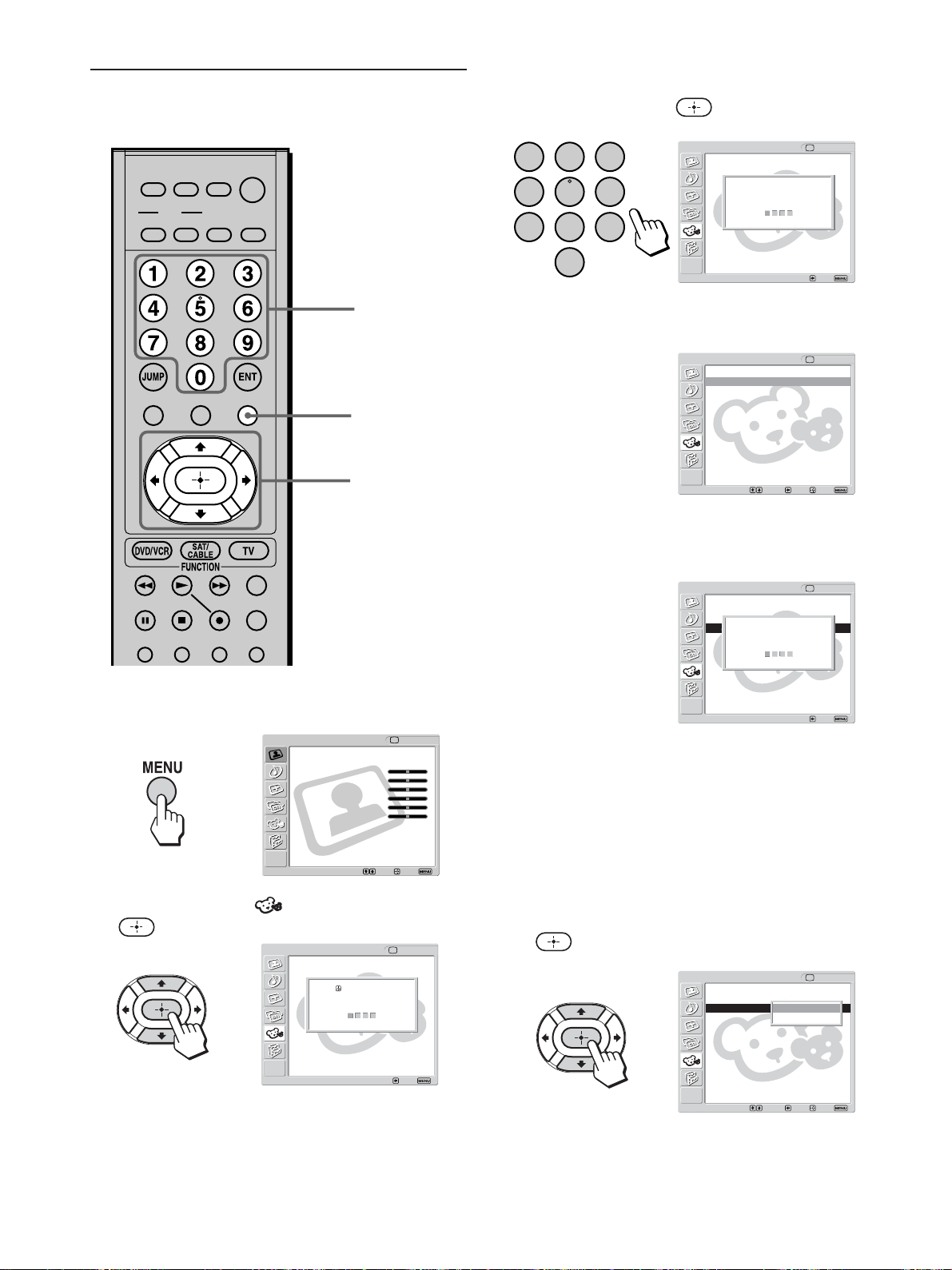
64
Activating the Parental Control
feature
1 Press MENU.
2 Press V/v to select (Parent), then press
.
3 Enter a four-digit password using the 0 - 9
buttons, then, press
.
4 The Parent menu options appear.
If you access the Parent menu for the first time,
you are requested to enter the password again for
confirmation.
Note
Do not enter “4357” corresponding to “HELP” on a phone
number pad (see page 65).
Tips
• You need to enter the password here for any further
access into the Parent menu. If you lose your password,
see “Tip” on page 65.
• If you want to change the password, see page 65.
5 Press V/v to select “Select Country,” then press
.
1, 9
3
2,
4 - 8
,
,
123
456
78
0
9
,
,
Parent TV
Exit:Back:
Press to enter
password
----
Parent TV
Exit:Back:
Enter password
using 0-9 buttons
----
Return
Lock: Off
Select Country: U.S.A.
Change Password
Parent
TV
Select: Back: Exit:Set:
Return
Lock: OffSelect Country: 0
Select Country:
Change Password
Parent
TV
Select: Back: Exit:Set:
U.S.A.
Canada
Parent TV
Return
Lock: Off
Select
Chage
Exit:
Back:
Confirm password
----
Video
Exit:Set:Select:
Return
Mode: Vivid
Picture: 50
Brightness: 50
Color: 25
Hue: 0
Sharpness: 50
Backlight: 5
Color Temp.: Cool
NR: On
Mild Mode: On
Dynamic Picture: On
CineMotion: Off
TV
MUTING
PICTURE WIDE
FAVORITES
TV
VIDEO 1/2 VIDEO 3 VIDEO 4
F1
F2
MENU
SLEEP DISPLAY
MODE
SAT/
CABLE
POWER
DVD/
VCR
TOP MENU
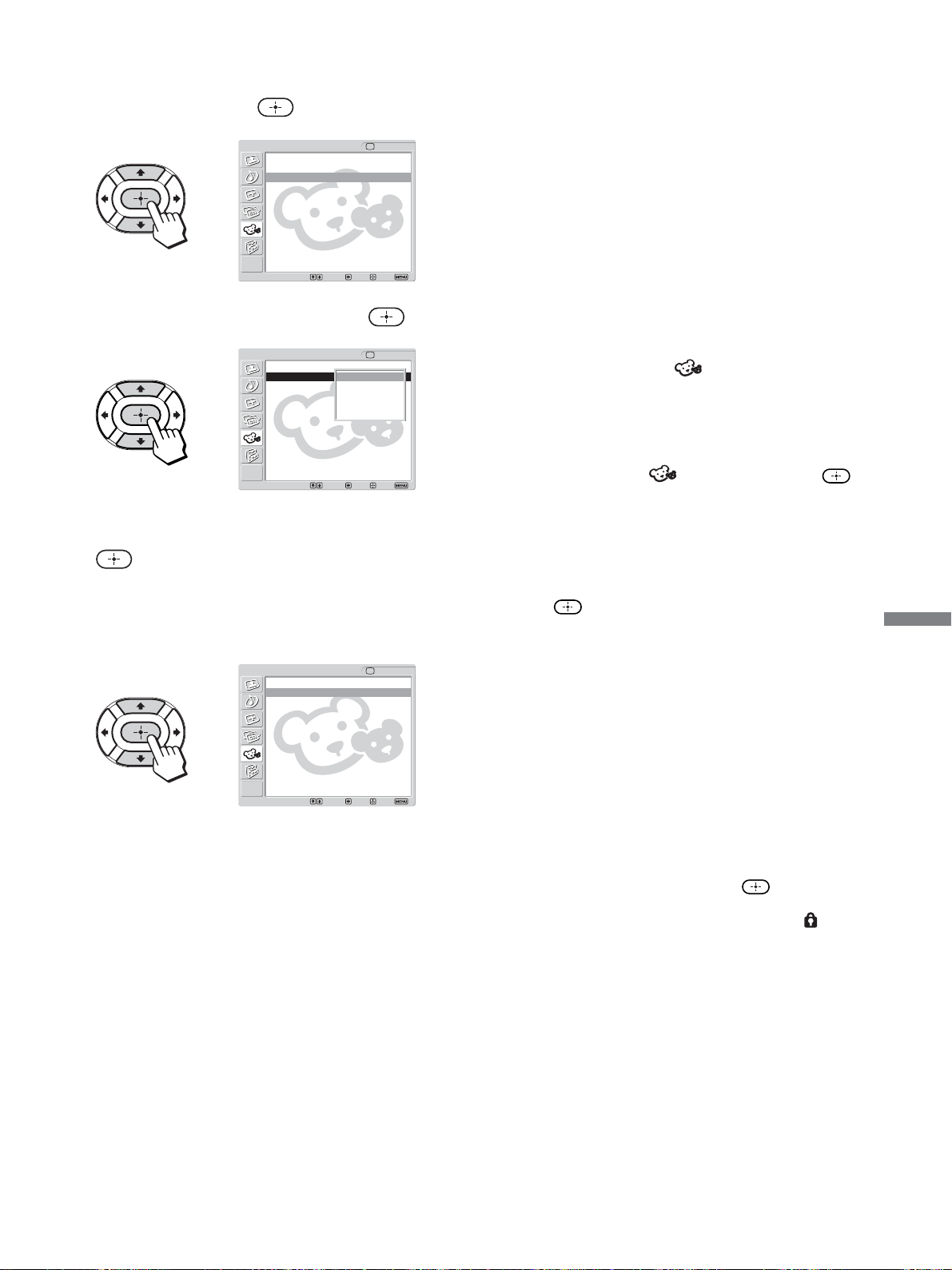
65
Using Advanced Features
To view blocked programs
You can view blocked programs by entering the
password.
1 Press ENT (enter) when tuned to a blocked
program.
2 Enter your four-digit password using the 0 - 9
buttons.
The Parental Control feature will be canceled
temporarily until you turn the TV off.
To deactivate the Parental Control feature
Set “Lock” to “Off” in the
(Parent) menu.
To change the password
1 Press MENU.
2 Press V/v to select (Parent), then press .
3 Enter your four-digit password using the 0 - 9
buttons.
The Parent menu options appear.
4 Press V/v to select “Change Password,” then
press
.
5 Enter a new four-digit password using the 0 - 9
buttons.
6 Enter the password set in step 5 again to confirm.
7 Press MENU to exit the menu screen.
Tip
If you have forgotten your password, enter the master password
“4357” (corresponding to “HELP” on a phone number pad) in
step 3. You can then store a new password.
Notes
• “4357” cannot be set as your password. If you entered “4357,”
the message of “Password incorrect press
to try again”
appears.
• When you select a Parental Control program and the
indication is displayed on the screen, you cannot view that
program even if you enter “4357” (see “To view blocked
programs” on page 65).
6 Press V/v to select your country/region (U.S.A.
or Canada), then press
.
7 Press V/v to select “Lock,” then press .
8 Press V/v to select a desired rating, then press
.
If you select “Child,” “Youth,” or “Y.Adult”
(Young Adult), the Parental Control is activated
automatically.
Tip
If you are not familiar with the Parental Guideline rating
system, you should select “Child,” “Youth,” or “Y.Adult
(Young Adult)” to help simplify the rating selection. To set
more restrictive ratings, select “Custom” (see “Selecting a
Custom Rating” on page 66).
9 Press MENU to exit the menu screen.
,
,
,
Return
Lock: Off
Select Country: U.S.A.
Change Password
Parent
TV
Select: Back: Exit:Set:
Return
Lock: Custam
Select Country: 0
Change Password
Parent
TV
Select: Back: Exit:Set:
Off
Child
Youth
Y. Ad ult
Custom
Parent TV
Return
Lock: Child
Select Country: U.S.A.
Change Password
Select: Back: Exit:Set:
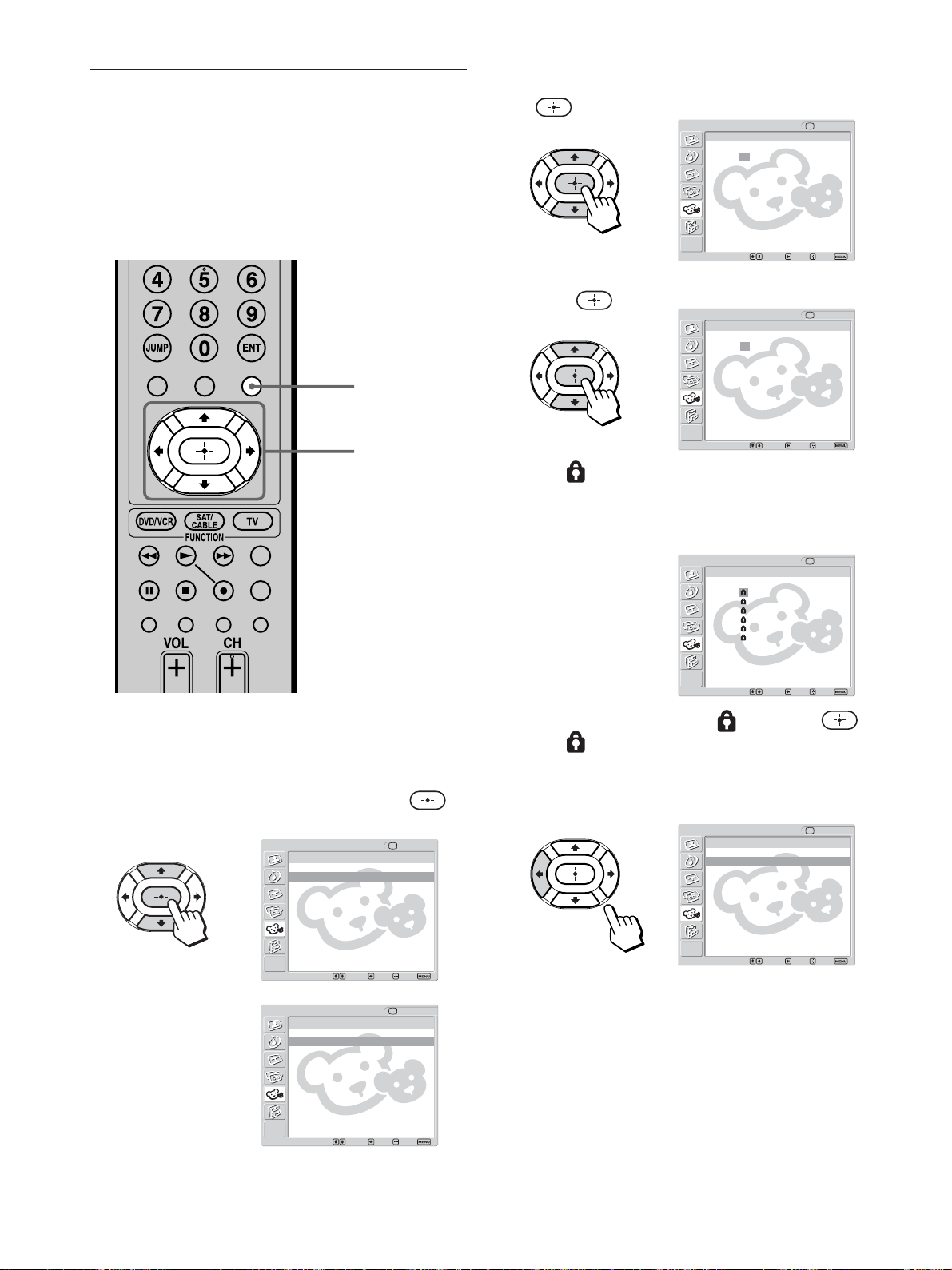
66
3 Press V/v to select “Movie Rating,” then press
.
4 Press V/v to select the rating to be blocked, then
press
.
The
indication automatically appears beside
the selected rating and all ratings below it,
indicating that the programs that match the
ratings will be blocked.
To unlock a rating, select
, then press .
The
indication changes into “–” and all
ratings above it are unlocked.
5 Press B to return to the “Custom” menu.
1 Perform steps 1 to 7 in “Activating the Parental
Control feature” on page 64 to display the Lock
options.
2 Press V/v to select “Custom,” then press .
To select a rating in Canada, go to step 6.
Selecting a Custom Rating
If you want to select the ratings to be blocked from
“Custom” once you have activated the Parental
Control feature (page 64), follow the procedure
below.
For a detailed description of each rating, see “What
the Ratings Mean” on page 68.
2 - 9
10
In Canada
,
In U.S.A.
,
,
,
Return
Movie Rating
TV Rating
Unrated: Allow
Custom
Parent
TV
Select: Back: Exit:Set:
Return
English Rating
French Rating
U.S.A Rating
Parent
TV
Select: Back: Exit:Set:
Custom
Parent TV
Movie Rating
Select: Back: Exit:Set:
Return
G: –
PG: –
PG-13: –
R: –
NC-17: –
X: –
Parent TV
Movie Rating
Select: Back: Exit:Set:
Return
G: –
PG: –
PG-13: –
R: –
NC-17: –
X: –
–
Parent TV
Movie Rating
Select: Back: Exit:Set:
Return
G:
PG:
PG-13:
R:
NC-17:
X:
Return
Movie Rating
TV Rating
Unrated: Allow
Parent
TV
Select: Back: Exit:Set:
Custom
FAVORITES
TV
VIDEO 1/2 VIDEO 3 VIDEO 4
F1
F2
MENU
TOP MENU
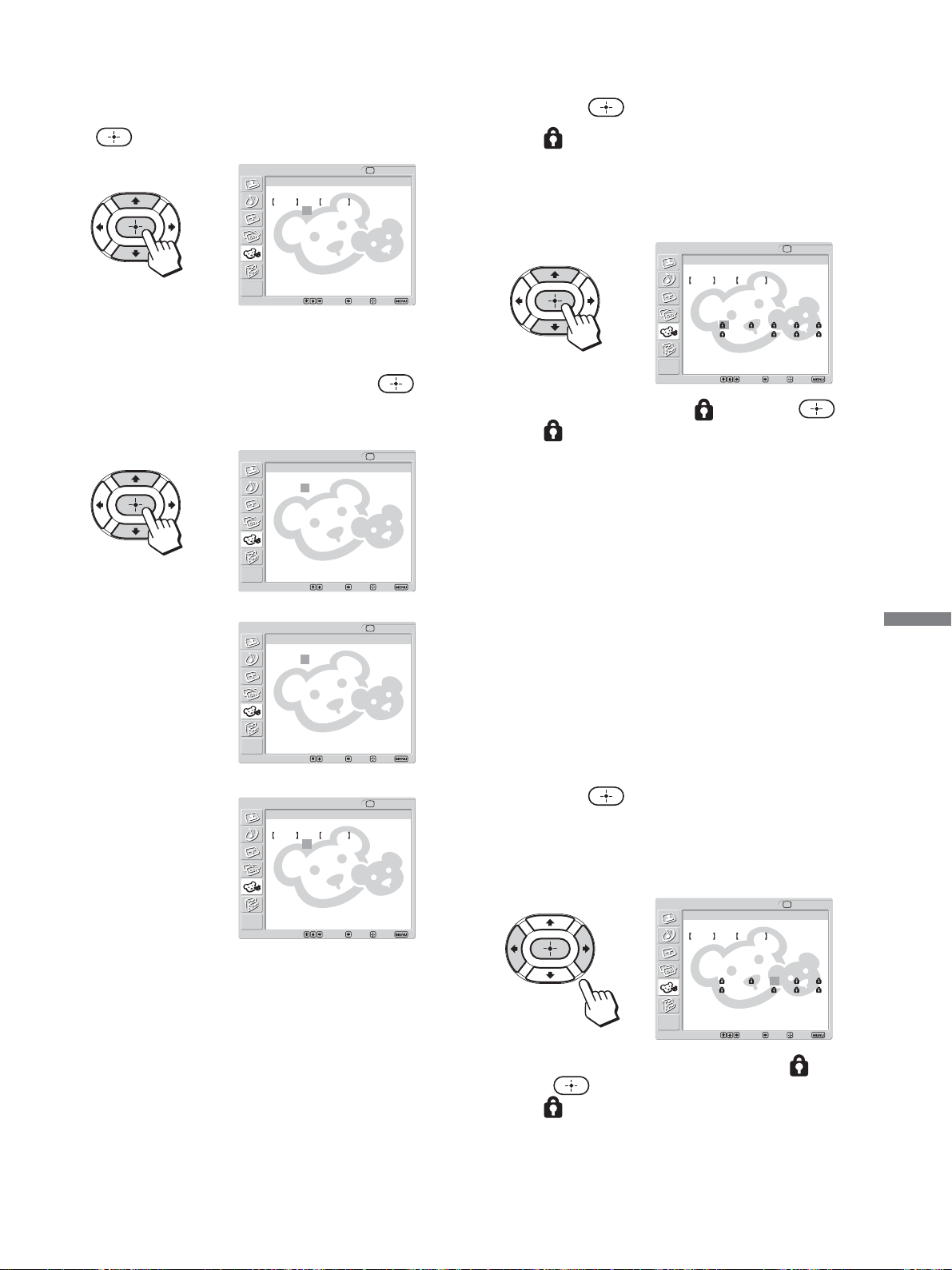
67
Using Advanced Features
7 Press V/v to select the TV rating to be blocked,
then press
.
The
indication automatically appears beside
the selected rating and all ratings below it,
indicating that the programs that match the
ratings will be blocked.
To unlock a rating, select
, then press .
The
indication changes into “–” and all
ratings above it are unlocked.
Some U.S. TV ratings have additional content
ratings called “extenders.”
The extenders are defined as follows:
D (sexually suggestive Dialog), FV (Fantasy
Violence), L (coarse Language), S (Sexual
situations) and V (Violence).
By setting the extenders, you can define
additional viewing limits.
For more details on extenders, see page 70.
All of the extenders included in the selected
ratings will be blocked. If you want to allow any
of them to be viewed, go to step 8. Otherwise, go
to step 10.
8 Press B/b to select the extender to be viewed,
then press
.
“–” appears beside the selected extender,
indicating that the programs that match the
extender can be viewed.
To relock the canceled extender, select
, then
press
.
The
indication appears to show that the
programs that match the extender will be blocked
again.
,
Example: TV rating in U.S.A.
,
6 To select a TV rating in U.S.A.:
Press V/v to select “TV Rating,” then press
.
To select a TV rating in Canada:
Press V/v to select “English Rating,” “French
Rating,” or “U.S.A. Rating,” then press
.
,
,
English Rating
French Rating
U.S.A. Rating
Return
Rating Content
TV-Y: –
TV-Y7: – FV: –
TV-G: –
TV-PG: – D:– L: – S: – V: –
TV-14: – D:– L: – S: – V: –
TV-MA: – L: – S: – V: –
Parent TV
TV Rating
Select: Back: Exit:Set:
Parent TV
English Rating
Select: Back: Exit:Set:
Return
C: –
C8
+:
–
G: –
PG: –
14
+:
–
18
+:
–
Return
G: –
8ans
+:
–
13ans
+:
–
16ans
+:
–
18ans
+:
–
Parent TV
French Rating
Select: Back: Exit:Set:
Parent TV
U.S.A. Rating
Return
Rating Content
TV-Y: –
TV-Y7: – FV: –
TV-G: –
TV-PG: – D:– L: – S: – V: –
TV-14: – D:– L: – S: – V: –
TV-MA: – L: – S: – V: –
Select: Back: Exit:Set:
Parent TV
TV Rating
Select: Back: Exit:Set:
Return
Rating Content
TV-Y: –
TV-Y7: – FV: –
TV-G: –
TV-PG: – D:– L: – S: – V: –
TV-14: D: L: – S: V:
TV-MA: L: S: V:
Parent TV
TV Rating
Select:
Back: Exit:Set:
Return
Rating Content
TV-Y: –
TV-Y7: – FV: –
TV-G: –
TV-PG: – D:– L: – S: – V: –
TV-14: D: L: S: V:
TV-MA: L: S: V:
(Continued)
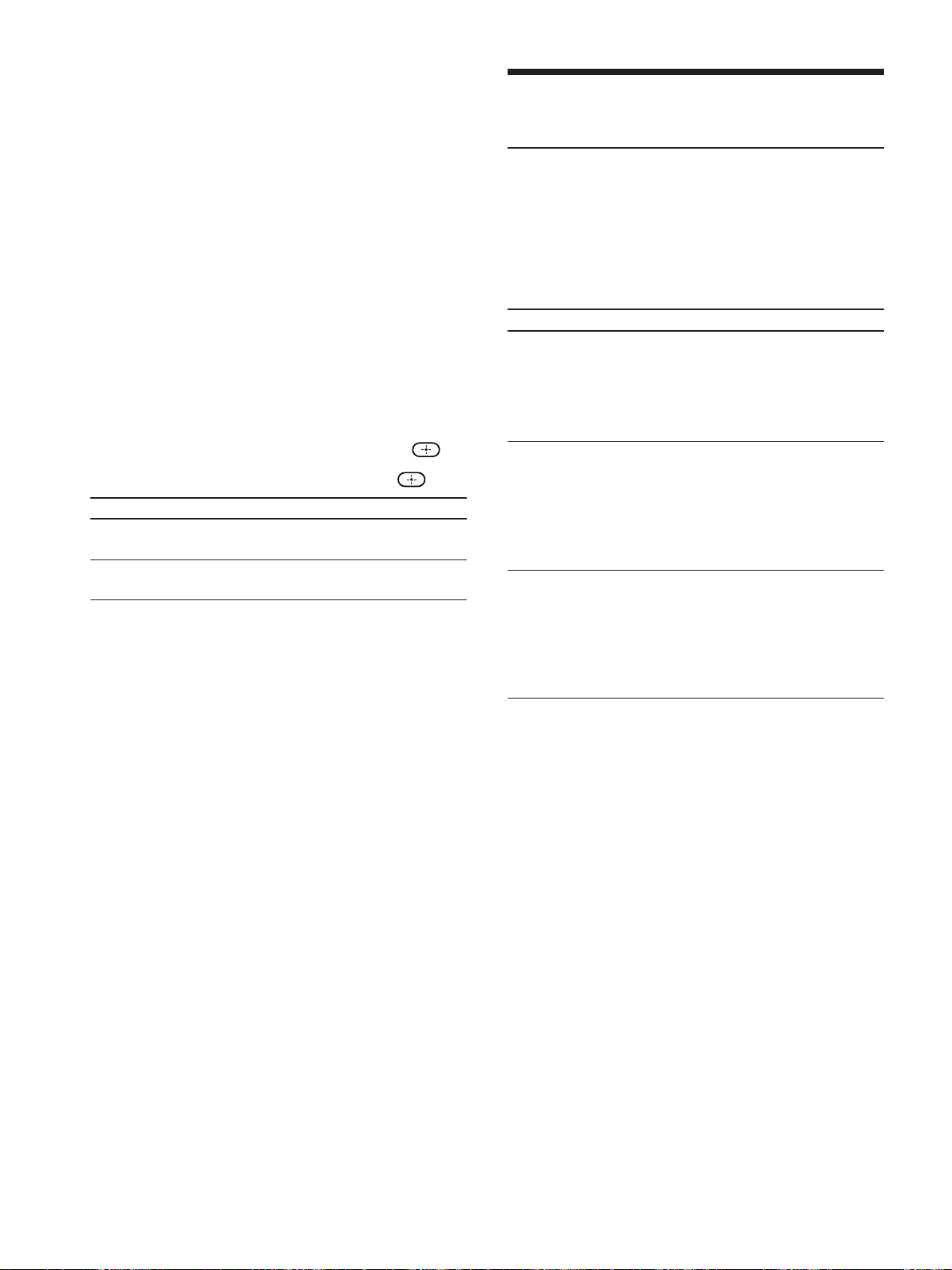
68
Option Description
Allow
Block
Allows programs and movies that are
broadcast without a rating.
Blocks all programs and movies that are
broadcast without a rating.
9 Repeat step 8 for other extenders.
All programs that match the ratings you select
and higher, except for the extenders that were
canceled, will be blocked.
10
Press MENU to exit the menu screen.
To block programs or movies broadcast
without a rating
Unrated option allows you to block programs or
movies that are broadcast without a rating.
The unrated option is available only when you have
selected U.S.A. as your country/region.
1 Perform steps 1 and 2 of “Selecting a Custom
Rating” on page 66.
2 Press V/v to select “Unrated,” then press .
3 Press V/v to select “Block,” then press .
4 Press MENU to exit the menu screen.
Note
If you choose to block unrated TV programs, be aware that the
following types of programs may be blocked: programs
broadcast from another country/region, emergency broadcasts,
political programs, sports, news, public service announcements,
religious programs, and weather.
What the Ratings Mean
Ratings in the U.S.A.
Sony’s predetermined ratings
These are original ratings that Sony has predetermined
according to the viewer’s age. Each rating allows for
viewing of certain programs, as follows:
Option
Child
Youth
Y.Adult (Young Adult)
For descriptions of Child, Youth, and Y.Adult
(Young Adult) ratings, see the following custom
rating options.
Description
Suitable for children under the
age of 7.
Viewable U.S. movie ratings:
G, NR, and N/A
Viewable U.S. TV ratings:
TV-Y, TV-G, and TV-NR
Suitable for children aged 7
and older.
Viewable U.S. movie ratings:
G, PG, NR, and N/A
Viewable U.S. TV ratings:
TV-Y, TV-Y7, TV-G, TV-PG,
and TV-NR
Suitable for children aged 13
and older.
Viewable U.S. movie ratings:
G, PG, PG-13, NR, and N/A
Viewable U.S. TV ratings:
TV-Y, TV-Y7, TV-G, TV-PG,
TV-14, and TV-NR

69
Using Advanced Features
U.S. TV ratings
U.S. TV ratings are for TV programs rated according
to the U.S. Television Parental Guidelines.
Option
TV-Y (All Children)
TV-Y7 (Directed to Older
Children)
TV-G (General Audience)
TV-PG (Parental Guidance
Suggested)
TV-14 (Parents Strongly
Cautioned)
TV-MA (Mature Audience
Only)
Description
This program is designed for
young children aged 2 - 6 and
is appropriate for all children.
This program is designed for
children aged 7 and older.
Themes and elements in this
program may include mild
fantasy violence or slapstick
violence, or may frighten
children under the age of 7.
Most parents would find this
program suitable for all ages.
It contains little or no
violence, no strong language
and little or no sexual dialog
or situations.
This program contains some
material that parents may find
unsuitable for younger
children.
This program contains some
material that many parents
would find unsuitable for
children under the age of 14.
This program is specifically
designed to be viewed by
adults and therefore may be
unsuitable for children under
the age of 17.
U.S. movie ratings
U.S. movie ratings are for movies (including those
shown on TV) rated according to the Motion Picture
Association of America (MPAA) Guidelines.
Option
G (General Audiences —
All Ages Admitted)
PG (Parental Guidance
Suggested — Some Material
May Not Be Suitable For
Children)
PG-13 (Parents Strongly
Cautioned — Some Material
May Be Inappropriate For
Children Under 13)
R (Restricted — Under 17
R
equires Accompanying Parent
Or Adult Guardian)
NC-17 or X (No One 17 And
Under Admitted)
elements of concern.
This is a film that most parents
would consider not suitable for
children aged 17 and under.
There may be violence, sex,
abhorrent behavior, drug abuse
or other elements of concern.
Description
In G-rated films, no strong
words are used, the violence is
at a minimum, nudity and sex
scenes are not present, nor is
there any drug use.
This is a film which may need
to be monitored first by
parents.
Parents are alerted to be very
careful about the attendance of
their under-teenage children
when viewing.
This film includes hard
language, tough violence,
nudity, drug abuse or other
(Continued)

70
About the extenders of U.S. TV ratings
TV-Y7, TV-PG, TV-14 and TV-MA ratings have
additional content ratings called “extenders” to
define additional viewing limits. The extenders are
defined as follows:
Option
FV (Fantasy Violence)
D (sexually suggestive
Dialog)
L (coarse Language)
S (Sexual situations)
V (Violence)
Description
Programs containing cartoon
violence occurring in TV-Y7
programs only.
Programs containing
suggestive dialog, or sexual
innuendo.
Programs containing coarse
language.
Programs containing sexual
content.
Programs containing violence.
There may be some profanity,
violence or brief nudity in
these programs.
Ratings in Canada
Sony’s predetermined ratings
These are original ratings that Sony has predetermined
according to the viewer’s age. Each rating allows you
to view the certain programs, as follows:
Option
Child
Youth
Y.Adult (Young Adult)
For descriptions of Child, Youth, and Y.Adult
(Young Adult) ratings, see the following custom
rating options.
Description
Suitable for children under the
age of 8.
Viewable Canadian English
Language ratings: C and G
Viewable Canadian French
Language ratings: G
Viewable U.S. TV ratings:
TV-Y, TV-G, and TV-NR
Suitable for children aged 8
and older.
Viewable Canadian English
Language ratings: C, G, C8+,
and PG
Viewable Canadian French
Language ratings: G and
8 ans+
Viewable U.S. TV ratings:
TV-Y, TV-Y7, TV-G, TV-PG,
and TV-NR
Suitable for children aged 14
and older.
Viewable Canadian English
Language ratings: C, G, C8+,
PG, and 14+
Viewable Canadian French
Language ratings: G, 8 ans+,
and 13 ans+
Viewable U.S. TV ratings:
TV-Y, TV-Y7, TV-G, TV-PG,
TV-14, and TV-NR

71
Using Advanced Features
Canadian French Language ratings
The Canadian French Language ratings are for TV
programs in French broadcast in Canada.
Option
G (General)
8 ans+ (8+ General — Not
recommended for young
children)
13 ans+ (Programming may
not suitable for children under
the age of 13)
16 ans+ (Programming is not
suitable for children under the
age of 16)
18 ans+ (Programming
restricted to adults)
Description
Programming intended for
audience of all ages. Contains
no violence, or the violence it
contains is minimal or is
depicted appropriately with
humor or caricature or in an
unrealistic manner.
Programming intended for a
broad audience but contains
light or occasional violence
that could disturb young
children. Viewing with an
adult is recommended for
young children (under the age
of 8).
Viewing with an adult is
strongly recommended for
children under the age of 13.
Contains frequent scenes of
violence or intense violence.
Contains constant violence or
scenes of extreme violence.
Canadian English Language ratings
The Canadian English Language ratings are for TV
programs in English broadcast in Canada.
Option
C (Programming intended for
children under the age of 8)
C8+ (Programming generally
considered acceptable for
children aged 8 and older to
watch on their own)
G (General Audience)
PG (Parental Guidance)
14+ (Programming contains
themes or content which may
not be suitable for viewers
under the age of 14)
18+ (Adult)
Description
There will be no realistic
scenes of violence or no
offensive language, nudity or
sexual content. Careful
attention is paid to themes,
which could threaten
children’s sense of security
and well-being.
Violence will not be portrayed
as the preferred, acceptable, or
only way to resolve conflict;
or children will not be
encouraged to imitate
dangerous acts which they
may see on television. There
will be no profanity, nudity or
sexual content.
Will contain very little
violence, either physical or
verbal or emotional. There
may be some inoffensive
slang, no profanity and no
nudity.
Programming intended for a
general audience but which
may not be suitable for
younger children. Parents may
consider some content
inappropriate for unsupervised
viewing by children aged 8 -
13.
Parents are strongly cautioned
to exercise discretion in
permitting viewing by pre-
teens and early teens.
May contain violence integral
to the development of the plot,
character or theme, intended
for adult audiences. May
contain graphic language and
explicit portrayals of nudity
and/or sex.
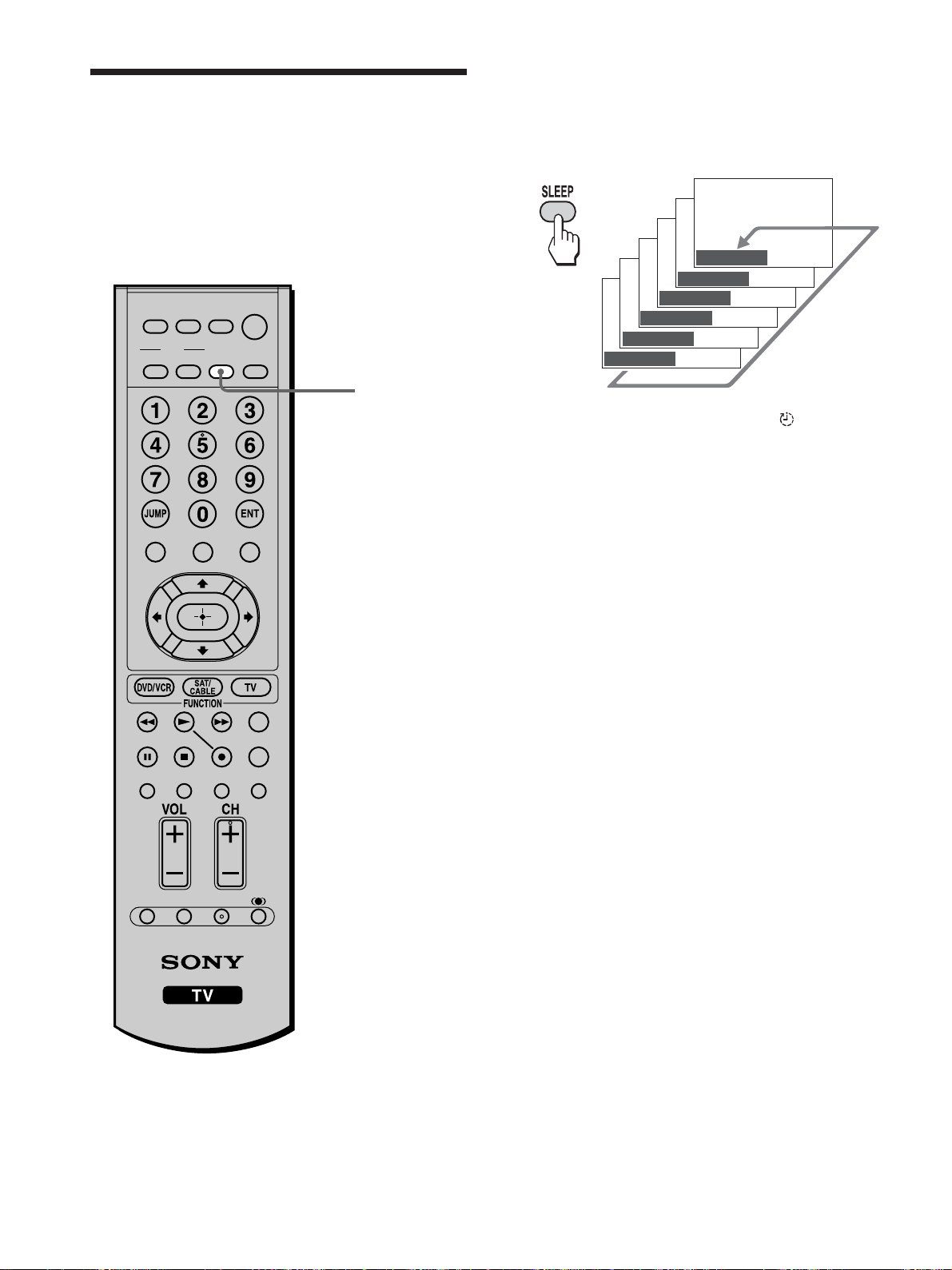
72
Turning Off the TV
Automatically
You can set the TV to turn off automatically after a
predetermined period of time (15, 30, 45, 60, or 90
minutes).
SLEEP
Press SLEEP repeatedly until the desired period of
time appears.
Each time you press the button, the period of time
changes as follows:
While the Sleep timer is activated, the (Timer)
LED on the TV lights up in red.
To cancel the Sleep timer
Press SLEEP repeatedly until “Sleep Off” appears.
Tips
• If you turn the TV off, and then turn it on again, the Sleep
timer returns to “Sleep Off.”
• “TV will turn off soon” appears one minute before the TV
shuts off. This message may not appear if you perform any
operation with the menu opened.
Sleep 90
Sleep Off
Sleep 15
Sleep 30
Sleep 45
Sleep 60
,
MUTING
PICTURE WIDE
FAVORITES
TV
VIDEO 1/2 VIDEO 3 VIDEO 4
F1
F2
MENU
SLEEP DISPLAY
MODE
SAT/
CABLE
POWER
RESET MTS/SAP
GUIDE
TV/SAT
DVD/
VCR
TOP MENU
FREEZE
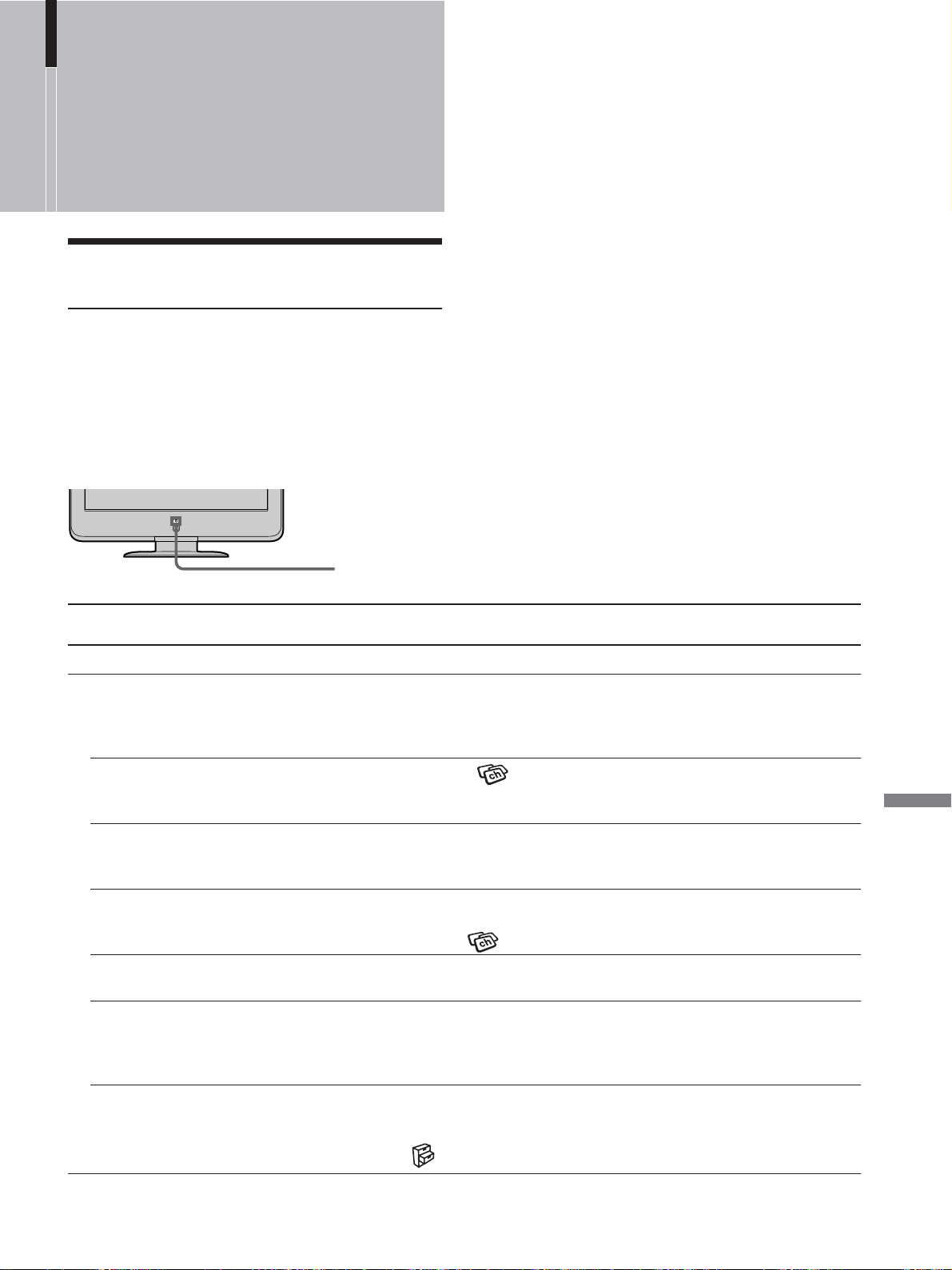
73
Additional Information
Problem Possible remedies
No picture.
Cannot receive any channels.
Cannot receive upper
channels (UHF) when using
an antenna.
TV is locked to one channel.
Cannot receive any channels
when using cable TV.
Cannot receive or select
channels.
The TV turns off
automatically.
(The TV enters the standby
mode.)
No picture from some video
sources.
• Make sure the power cord is connected securely.
• Turn on the power of the TV.
• Check antenna/cable connections.
• Set “Cable” to “Off” in the
(Channel) menu (page 37).
• Perform Auto Program to add receivable channels that are not presently in the TV’s
memory (page 36).
• Perform Auto Program to add receivable channels that are not presently in the TV’s
memory (page 36).
• Check your Channel Fix setting (page 38).
• Perform Auto Program to add receivable channels that are not presently in the TV’s
memory (page 36).
• Make sure “Cable” in the
(Channel) menu is set to “On” (page 37).
• Perform Auto Program to add receivable channels that are not presently in the TV’s
memory (page 36).
• Check if the Sleep timer is activated (page 72).
• Check the connection between the optional video equipment and the TV.
• Press the Input Select buttons on the remote control (page 50).
• When you connect video equipment to both the VIDEO and the S VIDEO input jacks, make sure
“Auto YC” in the
(Setup) menu is set to “On” to view the S VIDEO input (page 26).
Trouble symptoms and remedies
Troubleshooting
Self-diagnosis function
The TV is equipped with a self-diagnosis function. If
there is a problem with your TV, the 1 (Power on/
Stand by) LED on the front panel will flash repeatedly
in red. Writing down the duration of flashes and
interval between flashes helps you inform qualified
Sony personnel of the TV’s condition.
Additional
Information
1 Measure how long the 1 (Power on/Stand by)
LED flashes and stops flashing.
For example, the LED flashes for 2 seconds,
stops flashing for 1 second, and flashes for 2
seconds.
2 Press 1 (Power) on the TV to turn it off, and
disconnect the power cord, then inform qualified
Sony personnel or the Direct Response Center/
Customer Relations Center of how the indicator
flashes (duration and interval).
1 (Power on/
Stand by) LED
(flashing in red)
(Continued)
74
Poor picture.
Double images or ghosts.
Only snow and noise appear
on the screen.
Dotted lines or stripes.
No color./Dark picture./
Color is not correct.
The picture is too bright.
Picture (stripe) noise.
No sound./Noisy sound.
Good picture, no sound.
Audio noise.
Striped noise during
playback/recording of a VCR.
Cannot operate menu item.
Wide Screen Mode changes
automatically.
Remote control does not
operate.
Cannot change channels with
the remote control.
Lost password.
• Check antenna/cable connections.
• Check the antenna location and direction.
• Check if the antenna is broken or bent.
• Check if the antenna has reached the end of its serviceable life. (3-5 years in normal use,
1-2 years at the seaside.)
• Keep the TV away from noise sources such as cars, motorcycles, or hair-dryers.
• Press PICTURE to select the desired Picture Mode (page 43).
• Adjust the Picture Mode options in the
(Video) menu (page 57).
• Press PICTURE to select the desired Picture Mode (page 43).
• Make sure that the antenna is connected using the supplied 75-ohm coaxial cable.
• Keep the antenna cable away from other connecting cords.
• Do not use 300-ohm twin lead cables as interference may occur.
• Check the volume control.
• Press MUTING or VOL + so that “Muting” disappears from the screen (page 41).
• Disconnect your headphones.
• Set “Speaker” to “On” in the
(Audio) menu (page 61). If it is set to “Off,” sound is not
output from the TV’s speakers regardless of the TV’s volume control.
• Make sure that the antenna is connected using the supplied 75-ohm coaxial cable.
• Keep the antenna cable away from other connecting cords.
• Do not use 300-ohm twin lead cables as interference may occur.
• Press MTS/SAP to select “Mono” (page 60).
• This is caused by video head interference. Keep your VCR away from the TV.
• Leave a space of 30 cm (11 7/8 inches) between your VCR and the TV to avoid noise.
• Avoid installing your VCR in front of the TV or at the side of the TV.
• If the option you want to select appears in a pale color, you cannot select it.
• The current Wide Screen Mode setting is automatically replaced with the 4:3 Default
setting when you change the channel or video input, if “4:3 Default” in the
(Screen)
menu is set to other than “Off.” If you want to lock in the Wide Screen Mode selected with
the WIDE button, set “4:3 Default” to “Off” in the
(Screen) menu (page 48).
• The batteries could be weak. Replace the batteries.
• Check the polarity of the batteries.
•
If the 1 (Power on/Stand by) LED on the TV does not light in red, press 1 (Power) on the TV.
• Press the TV button first for TV operation.
• Point the remote control at the remote control sensor of the TV.
• Install the TV away from fluorescent lights.
• Try to press F1 or F2 button on the remote control.
• If you are using another device to change channels, be sure you have not inadvertently
switched your TV from channel 3 or 4 setting. Use the Channel Fix option to “fix” the
channel based on the type of hookup (see “To fix in a TV channel” on page 38).
• If you are using another device to control channels, be sure the FUNCTION button for that
device has been pressed. For example, if you are using your cable box to control channels,
be sure to press SAT/CABLE (page 18).
• Select the
(Parent) menu on the menu screen, then enter the following master
password: 4357. The master password clears your previous password and allows you to
enter a new password (page 65).
Problem Possible remedies

75
Additional Information
Specifications
Television system:
American TV standard
Channel coverage:
VHF: 2-13/UHF: 14-69/CATV: 1-125
Antenna:
75-ohm external terminal for VHF/UHF
Screen size (measured diagonally):
23 inches
Panel System:
LCD (Liquid Crystal Display) Panel
Display resolution:
1,366 dots (horizontal) × 768 lines (vertical)
VIDEO 1/2 IN:
S VIDEO (4-pin mini DIN):
Y: 1.0 Vp-p, 75 ohms unbalanced,
sync negative
C: 0.286 Vp-p (Burst signal),
75 ohms
VIDEO: 1 Vp-p, 75 ohms unbalanced,
sync negative
AUDIO: 500 mVrms (100% modulation)
Impedance: 47 kilohms
HD/DVD 3 IN:
Y, PB, PR (Component Video):
Y: 1.0 Vp-p, 75 ohms
unbalanced, sync negative
P
B: 0.7 Vp-p, 75 ohms
P
R: 0.7 Vp-p, 75 ohms
Signal format:
480i, 480p, 720p, 1080i
AUDIO: 500 mVrms (100% modulation)
Impedance: 47 kilohms
HDMI 4 IN:
HDMI: Video: 480i, 480p, 720p, 1080i
Audio: Two channel linear PCM
32, 44.1 and 48 kHz, 16, 20 and
24 bits
AUDIO: 500 mVrms (100% modulation)
Impedance: 47 kilohms
AUDIO OUT:
500 mVrms (100% modulation)
More than 1 Vrms at the maximum volume setting
(Variable)
More than 500 mVrms (Fixed)
Headphones:
Stereo mini jack
Impedance: 16 ohms
Speaker:
Woofer: ø70 mm (2)
Tweeter: ø28 mm (2)
Speaker output:
4 W + 4 W
Power requirement:
120 V AC, 60 Hz
Power consumption:
In use: 95 W
In standby: Less than 1 W
Dimensions (W/H/D):
Including TV stand: 605 × 525 × 242 mm
(approx.) (23
7
/8 × 20
3
/4 × 9
5
/8 inches)
Without TV stand: 605 × 475 × 102 mm
(approx.) (23
7
/8 × 18
3
/4 × 4
1
/4 inches)
Mass:
Including TV stand: 11.6 kg (25 lb. 9
1
/8 oz.)
Without TV stand: 10.0 kg (22 lb.
3
/4 oz.)
Supplied accessories:
Remote control RM-Y1109 (1)
Size AA batteries (2)
75-ohm coaxial cable (1)
AC power cord (1)
Operating Instructions (1)
Quick Setup Guide (1)
Warranty Card (1)
Optional accessories:
Headphones plug adaptor
Connecting cables
Wall-Mount Bracket SU-W210
Note
Some optional accessories may be out of stock.
Design and specifications are subject to change
without notice.

76
Index
E
Effect .................................................... 44
F
Favorite channels.................................. 52
Front and rear connectors ..................... 20
Full........................................................ 46
H
H Center ............................................... 56
I
Input select ........................................... 50
J
JUMP .................................................... 41
L
Language selection ............................... 39
M
Menu..................................................... 38
Mild Mode ............................................ 58
Mono .................................................... 60
MTS/SAP ............................................. 60
MUTING .............................................. 41
N
Noise Reduction ................................... 58
Normal .................................................. 46
P
Parent .................................................... 63
password ..................................... 64, 65
ratings ............................................... 66
Picture Mode ........................................ 43
Power on/off ......................................... 41
Pro ........................................................ 43
4:3 Default ............................................ 48
A
Adjusting
picture position ........................... 55, 56
picture quality ................................... 57
sound quality .................................... 59
volume .............................................. 41
Audio Out ....................................... 29, 63
Auto Program ....................................... 36
Auto SAP.............................................. 60
Auto YC ............................................... 26
B
Backlight .............................................. 58
C
Cable TV .............................................. 36
Channel setting ..................................... 36
Channel Fix ...................................... 38
Channel Label................................... 53
Channel Skip/Add ............................ 37
Closed caption ...................................... 42
Component Video connectors.... 30, 32, 33
Connecting............................................ 24
antenna.............................................. 24
AV receiver ...................................... 29
cable box........................................... 24
digital cable box ............................... 32
digital satellite receiver............... 33, 34
DVD player ................................ 30, 31
power cord ........................................ 25
satellite receiver.......................... 27, 28
VCR .................................................. 26
D
DISPLAY ............................................. 41
R
Remote control ..................................... 13
battery installation ............................ 13
programming .................................... 16
using with other equipment .............. 18
S
S Video input jack ................................ 26
Self-diagnosis function ......................... 73
Sleep timer............................................ 72
Speaker ........................................... 29, 62
Specifications ....................................... 75
SRS WOW ........................................... 44
Standard ................................................ 43
Stereo .................................................... 60
T
Troubleshooting.................................... 73
U
Unpacking ............................................ 13
V
V Center ............................................... 55
VHF/UHF channels .............................. 37
Video label ........................................... 51
Vivid ..................................................... 43
Volume ................................................. 41
W
Wide Screen Mode ............................... 45
Wide Mode ........................................... 48
Wide Zoom ........................................... 46
Z
Zoom .................................................... 46




Printed on 100% recycled paper.
Printed in Japan