3-093-964-11 (1)
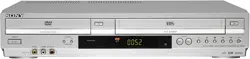
DVD Player/
Video Cassette
Recorder
Operating Instructions
Manual de instrucciones
For customers in the USA
If you have any questions about your Sony DVD-VCR, you may call Sony Customer
Information Center at 1-800-VHS-SONY (847-7669).
For all other Sony product questions, please call Sony Customer Information Center at
1-800-222-SONY (7669).
Or write to: Sony Customer Information Center 12451 Gateway Boulevard Ft. Myers,
FL 33913
SLV-D380P
© 2007 Sony Corporation
US
ES
2
US
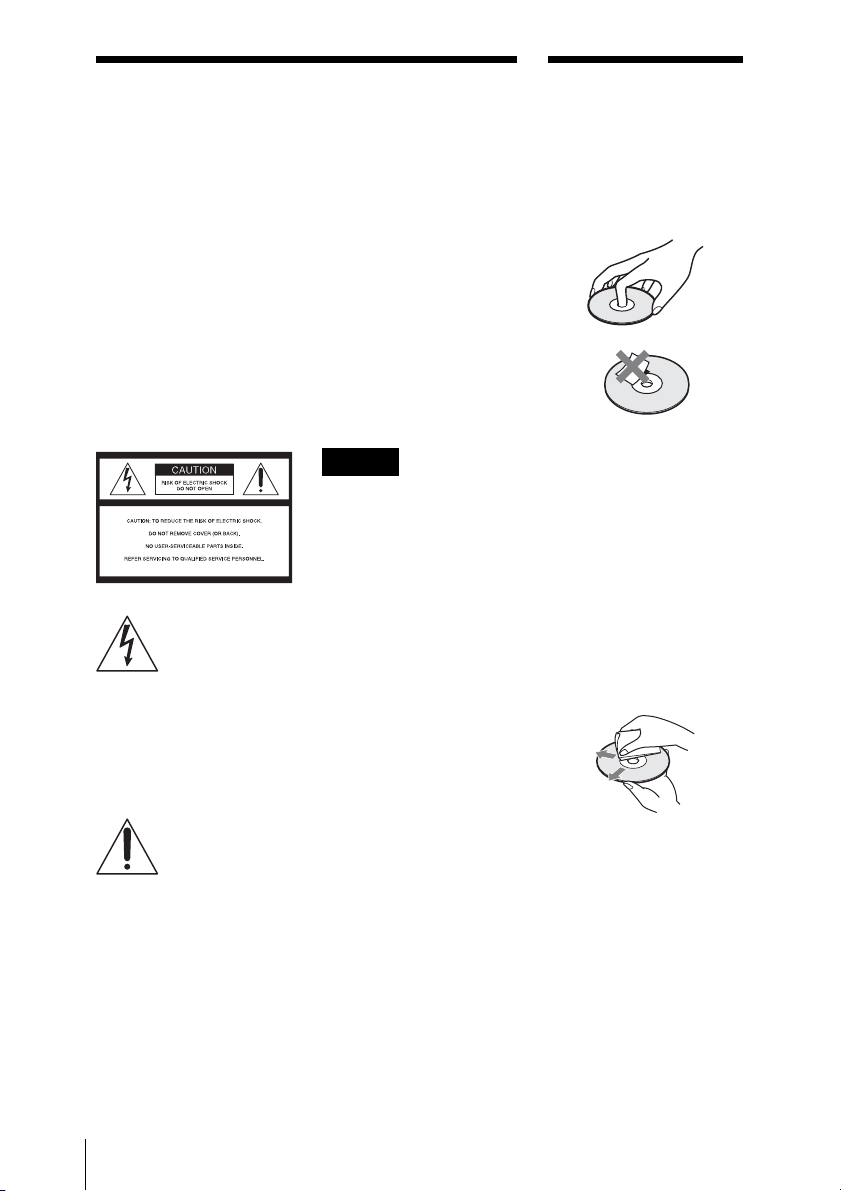
WARNING
WARNING
To reduce the risk of fire or
electric shock, do not expose
this apparatus to rain or
moisture.
To avoid electrical shock, do
not open the cabinet. Refer
servicing to qualified
personnel only.
CAUTION
The use of optical instruments with
this product will increase eye
hazard. As the laser beam used in
this DVD player is harmful to eyes,
do not attempt to disassemble the
cabinet.
Refer servicing to qualified
personnel only.
This symbol is
intended to alert the
user to the presence
of uninsulated
“dangerous voltage”
within the product’s
enclosure that may be
of sufficient
magnitude to
constitute a risk of
electric shock to
persons.
This symbol is
intended to alert the
user to the presence
of important
operating and
maintenance
(servicing)
instructions in the
literature
accompanying the
appliance.
For customers in the U.S.A
Owner’s Record
The model and serial numbers are
located at the rear of the unit.
Record the serial number in the
space provided below. Refer to
them whenever you call upon your
Sony dealer regarding this product.
Model No. ______________
Serial No.______________
CAUTION
You are cautioned that any
changes or modifications not
expressly approved in this manual
could void your authority to
operate this equipment.
Note
This equipment has been tested
and found to comply with the
limits for a Class B digital device,
pursuant to Part 15 of the FCC
Rules. These limits are designed to
provide reasonable protection
against harmful interference in a
residential installation. This
equipment generates, uses, and can
radiate radio frequency energy
and, if not installed and used in
accordance with the instructions,
may cause harmful interference to
radio communications. However,
there is no guarantee that
interference will not occur in a
particular installation. If this
equipment does cause harmful
interference to radio or television
reception, which can be
determined by turning the
equipment off and on, the user is
encouraged to try to correct the
interference by one or more of the
following measures:
– Reorient or relocate the
receiving antenna.
– Increase the separation between
the equipment and receiver.
– Connect the equipment into an
outlet on a circuit different from
that to which the receiver is
connected.
– Consult the dealer or an
experienced radio/TV technician
for help.
Notes about
discs
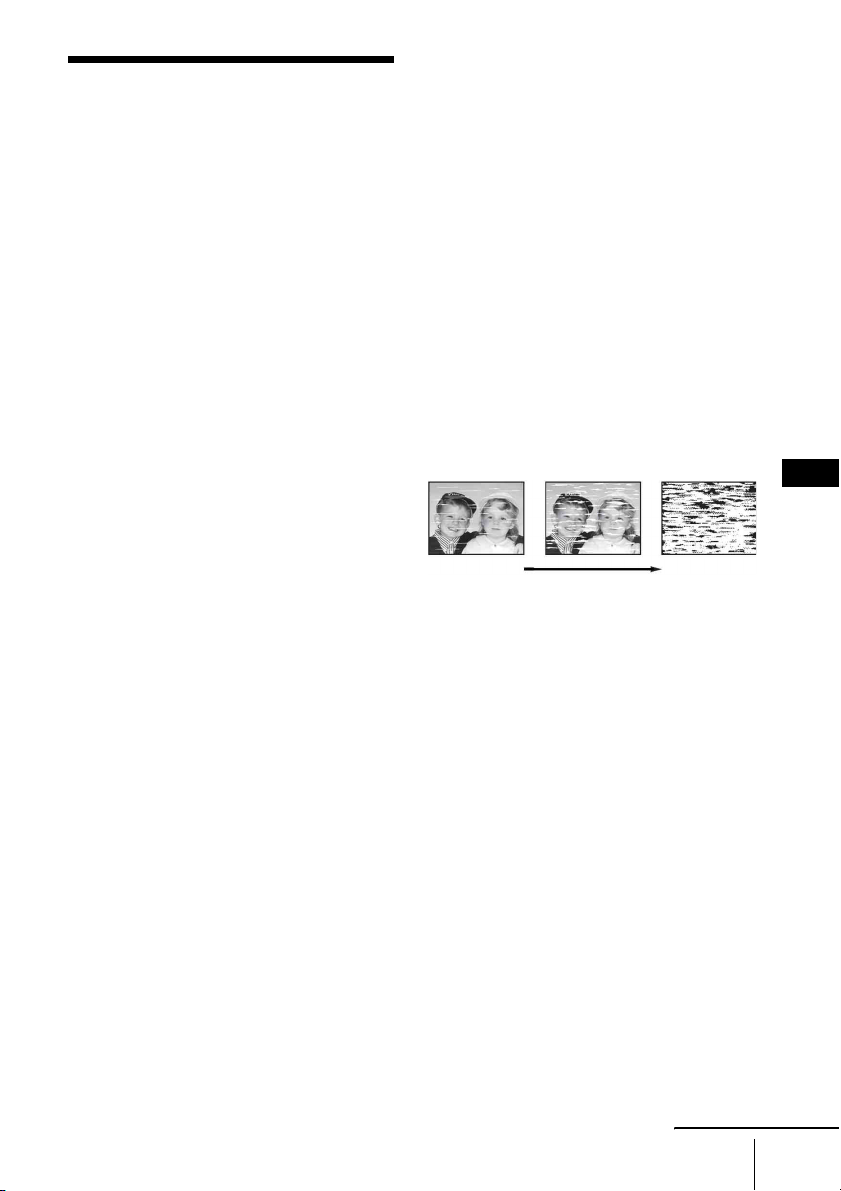
• To keep the disc clean,
handle the disc by its edge.
Do not touch the surface.
• Do not expose the disc to
direct sunlight or heat
sources such as hot air
ducts, or leave it in a car
parked in direct sunlight as
the temperature may rise
considerably inside the car.
• After playing, store the
disc in its case.
• Clean the disc with a
cleaning cloth.
Wipe the disc from the
center out.
• Do not use solvents such as
benzine, thinner,
commercially available
disc/lens cleaners, or anti-
static spray intended for
vinyl LPs.
• If you have printed the
disc’s label, dry the label
before playing.
3
US
Precautions
Precautions
On safety
• To prevent fire or shock hazard, do not place
objects filled with liquids, such as vases, on the
apparatus.
• Should any solid object or liquid fall into the
cabinet, unplug the player and have it checked
by qualified personnel before operating it any
further.
On power sources
• Operate the unit only on 120 V AC, 60 Hz.
• This unit is not disconnected from the AC power
source (mains) as long as it is connected to the
wall outlet, even if the unit itself has been turned
off.
• Install this system so that the power cord can be
unplugged from the wall socket immediately in
the event of trouble.
• Unplug the unit from the wall outlet if you do
not intend to use it for an extended period of
time. To disconnect the cord, pull it out by the
plug, never by the cord.
On placement
• Do not install the unit in a confined space such
as a bookshelf or similar unit.
• Do not install the unit in an inclined position. It
is designed to be operated in a horizontal
position only.
• Keep the unit, discs and cassettes away from
equipment with strong magnets, such as
microwave ovens or large loudspeakers.
• Do not place heavy objects on the unit.
On operation
• When you move the player, take out any discs. If
you don’t, the disc may be damaged.
• If the unit is brought directly from a cold to a
warm location, or is placed in a very damp
room, moisture may condense on the lenses
inside the player and cause damage to the video
head, tape, and the optical block. Should this
occur, the player may not operate properly.
When you first install the player, or when you
move it from a cold to a warm location, remove
the disc and tape and leave the player turned on
for about three hours before operating the
player.
On adjusting volume
Do not turn up the volume while listening to a
section with very low level inputs or no audio
signals. If you do, the speakers may be damaged
when a peak level section is played.
On cleaning
Clean the cabinet, panel and controls with a soft
cloth slightly moistened with a mild detergent
solution. Do not use any type of abrasive pad,
scouring powder or solvent, such as alcohol or
benzine.
On cleaning discs, disc/lens cleaners
Do not use cleaning discs or disc/lens cleaners
(including wet or spray types). These may cause
the player to malfunction.
On cleaning the video heads
When the video heads are dirty, clean the video
heads using a Sony video head cleaning cassette. If
a Sony cleaning cassette is not available in your
area, have the heads cleaned at your nearest Sony
dealer (a standard service fee will be charged). Do
not use a commercially available liquid type
cleaning cassette, as it may damage the video
heads.
On replacement of parts
In the event that this unit is repaired, repaired parts
may be collected for reuse or recycling purposes.
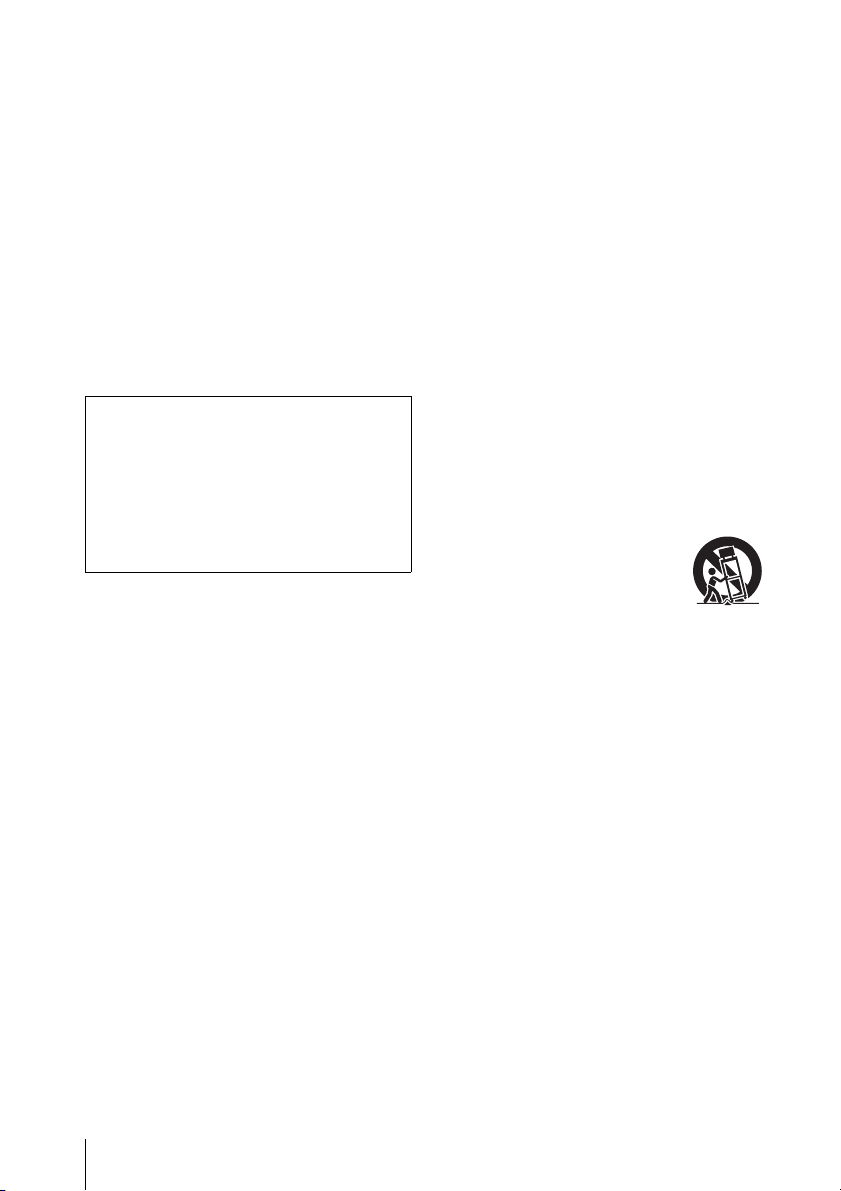
• Unclear
picture
• Rough
picture
• No picture
(or black &
white screen
appears)
terminal
initial
contamination
continued
US
4
US
Precautions
Copyright
• Television programs, films, video tapes and
other materials may be copyrighted.
Unauthorized recording of such material may be
contrary to the provisions of the copyright laws.
Also, use of this recorder with cable television
transmission may require authorization from the
cable television transmission and/or program
owner.
• This product incorporates copyright protection
technology that is protected by U.S. patents and
other intellectual property rights. Use of this
copyright protection technology must be
authorized by Macrovision, and is intended for
home and other limited viewing uses only
unless otherwise authorized by Macrovision.
Reverse engineering or disassembly is
prohibited.
Important Safety Instructions
1 Read these instructions.
2 Keep these instructions.
3 Heed all warnings.
4 Follow all instructions.
5 Do not use this apparatus near water.
6 Clean only with dry cloth.
7 Do not block any ventilation openings. Install in
accordance with the manufacturer’s
instructions.
8 Do not install near any heat sources such as
radiators, heat registers, stoves, or other
apparatus (including amplifiers) that produce
heat.
9 Do not defeat the safety purpose of the
polarized or grounding-type plug. A polarized
plug has two blades with one wider than the
other. A grounding type plug has two blades
and a third grounding prong. The wide blade or
the third prong are provided for your safety. If
the provided plug does not fit into your outlet,
consult an electrician for replacement of the
obsolete outlet.
10 Protect the power cord from being walked on or
pinched particularly at plugs, convenience
receptacles, and the point where they exit from
the apparatus.
11 Only use attachments/accessories specified by
the manufacturer.
12 Use only with the cart, stand,
tripod, bracket, or table
specified by the manufacturer,
or sold with the apparatus.
When a cart is used, use caution
when moving the cart/apparatus
combination to avoid injury
from tip-over.
13 Unplug this apparatus during lightning storms
or when unused for long periods of time.
14 Refer all servicing to qualified service
personnel. Servicing is required when the
apparatus has been damaged in any way, such
as power-supply cord or plug is damaged, liquid
has been spilled or objects have fallen into the
apparatus, the apparatus has been exposed to
rain or moisture, does not operate normally, or
has been dropped.
IMPORTANT NOTICE
Caution: This player is capable of holding a still
video image or on-screen display image on your
television screen indefinitely. If you leave the still
video image or on-screen display image
displayed on your TV for an extended period of
time you risk permanent damage to your
television screen. Projection televisions are
especially susceptible to this.

5
US
Table of contents
Table of contents
2 WA R N IN G
2 Notes about discs
3 Precautions
7 About this manual
7 This player can play the following discs
Getting Started
10 Step 1 : Unpacking
11 Step 2 : Setting up the remote commander
14 Step 3 : Basic hookups
18 Step 4 : Selecting a language
19 Step 5 : Setting the clock
Advanced Hookups for the DVD Player
21 Component Video hookup
22 A/V Receiver hookup
Basic Operations
24 Playing discs
28 Guide to the on-screen display
31 Playing a tape
35 Recording from a connected equipment
38 Recording from a connected equipment using the timer
41 Checking/changing/canceling timer settings
43 Locking the DVD-VCR (Child Lock)
DVD Settings and Adjustments
44 Audio Setup
46 Screen Setup
50 Setting the display or sound track language
52 Parental Control (limiting playback by children)
continued

6
US
Table of contents
DVD Additional Operations
55 Using the DVD’s menu
56 Zooming into a scene
57 Changing the angles
59 Displaying the subtitle
61 Various play mode functions (Program play, Shuffle play, Repeat play)
65 Changing the sound
67 Virtual surround setting
69 Playing an MP3 audio track
75 Playing JPEG image files
79 Playing VIDEO CDs with “PBC ON/OFF” Functions
VCR Additional Operations
81 Quick Timer Recording
82 Searching using various functions
84 Editing with another VCR
Additional Information
86 Changing menu options
88 Troubleshooting
93 Glossary
95 Specifications
96 Index to parts and controls
100 DVD Audio/Subtitle Language
101 Index
7
US
About this manual
About this manual
• This manual mainly explains operations
using the remote, but the same operations can
also be performed using the buttons on the
DVD-VCR having the same or similar
names.
• “DVD” may be used as a general term for DVD
VIDEOs, DVD-RWs/DVD-Rs, and DVD+RWs/
DVD+Rs.
• The meaning of the icons used in this manual is
described below:
* MP3 (MPEG 1 Audio Layer III) is a standard format
defined by ISO/MPEG which compresses audio
data.
This player can play the
following discs
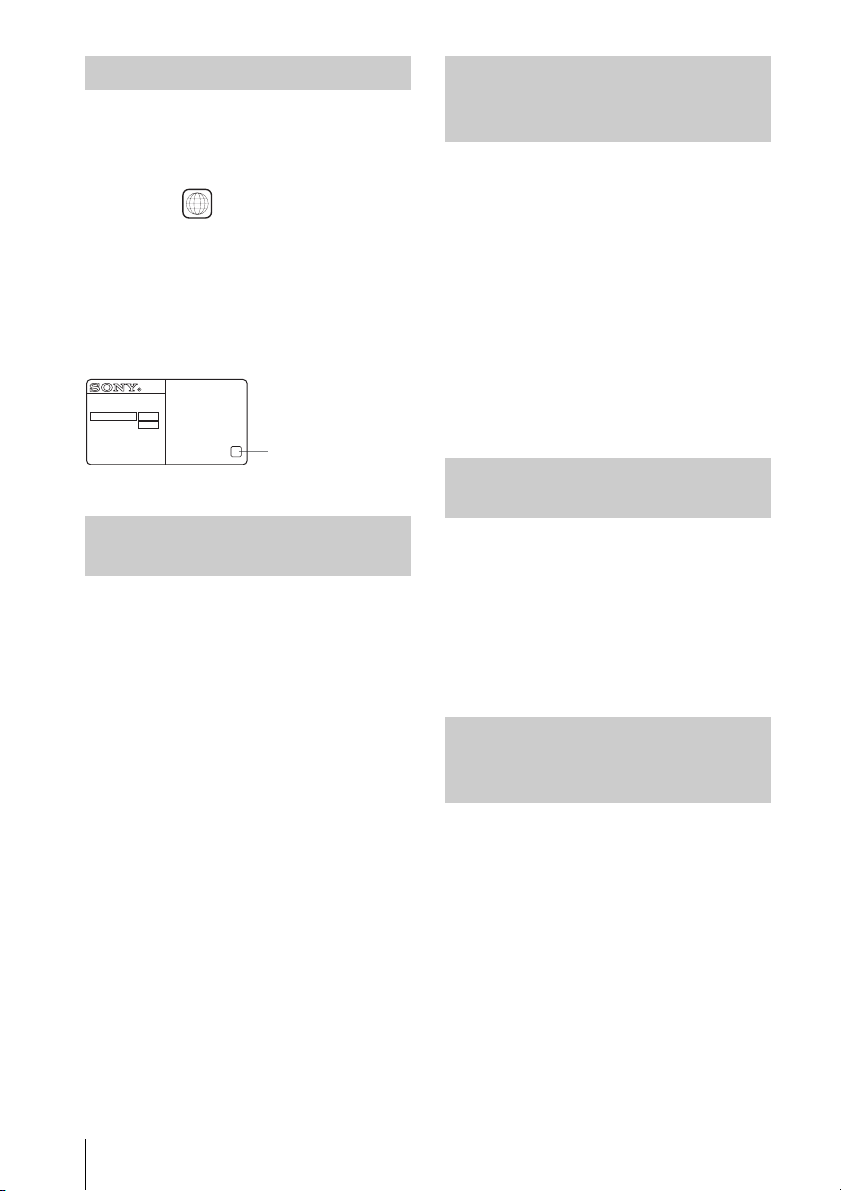
“DVD+RW,” “DVD-RW,” “DVD+R,” “DVD+R
DL,” “DVD-R,” “DVD VIDEO,” and “CD” logos
are trademarks.
The player can play CD-ROMs/CD-Rs/CD-RWs
recorded in the following formats:
– music CD format
– video CD format
– MP3 audio tracks and JPEG image files of
format conforming to ISO 9660* Level 1/
Level 2, or its extended format, Joliet
– KODAK Picture CD format
* A logical format of files and folders on CD-ROMs,
defined by ISO (International Organization for
Standardization).
The player can play DVD-ROMs/DVD+RWs/
DVD+Rs/DVD-RWs/DVD-Rs recorded in the
following formats:
– MP3 audio tracks and JPEG image files of
format conforming to ISO 9660 Level 1/
Level 2, or its extended format, Joliet.
– 8 cm DVD+RW, DVD-RW, and DVD-R
recorded with a DVD Video camera
Icon Meaning
Functions available for DVD
VIDEOs and DVD-RWs/DVD-
Rs in video mode or DVD+RWs/
DVD+Rs
Functions available for DVD-
RWs/DVD-Rs in VR (Video
Recording) mode
Functions available for VIDEO
CDs, Super VCDs or CD-Rs/CD-
RWs in video CD format or Super
VCD format
Functions available for music
CDs or CD-Rs/CD-RWs in music
CD format
Functions available for DATA
CDs (CD-ROMs/CD-Rs/CD-
RWs containing MP3
* audio
tracks or JPEG files)
Functions available for DATA
DVDs (DVD-ROMs/DVD+RWs/
DVD+Rs/DVD-RWs/DVD-Rs
containing MP3
* audio tracks or
JPEG files)
Functions available for VHS
VIDEOs
Format of discs
Note about CDs/DVDs
DVD VIDEO
DVD-RW/-R
DVD+RW/+R
VIDEO CD/
Music CD
CD-RW/-R
continued
8
US
This player can play the following discs
Your player has a region code printed on the back
of the unit and only will play DVD VIDEO discs
(playback only) labeled with identical region codes.
This system is used to protect copyrights.
DVDs labeled will also play on this player.
If you try to play any other DVD VIDEO, a
message will appear on the TV screen to indicate
that the disc is not playable. Depending on the DVD
VIDEO, no region code indication may be labeled
even though playing the DVD VIDEO is prohibited
by area restrictions.
The player cannot play the following discs:
• CD-ROMs/CD-Rs/CD-RWs other than those
recorded in the formats listed on the previous
page.
• CD-ROMs recorded in PHOTO CD format.
• Data part of CD-Extras
• DVD Audios
• HD layer on Super Audio CDs
•DVD-RAMs
Also, the player cannot play the following discs:
• A DVD VIDEO with a different region code.
• A disc recorded in a color system other than
NTSC, such as PAL or SECAM (this player
conforms to the NTSC color system).
• A disc that has a non-standard shape (e.g.,
card, heart).
• A disc with paper or stickers on it.
• A disc that has the adhesive of cellophane tape
or a sticker still left on it.
Some DVD+RWs/DVD+Rs, DVD-RWs/DVD-
Rs or CD-Rs/CD-RWs cannot be played on this
player due to the recording quality or physical
condition of the disc, or the characteristics of the
recording device and authoring software.
The disc will not play if it has not been correctly
finalized. For more information, refer to the
operating instructions for the recording device.
Note that some playback functions may not
work with some DVD+RWs/DVD+Rs, even if
they have been correctly finalized. In this case,
view the disc by normal playback. Also some
DATA CDs/DATA DVDs created in Packet
Write format cannot be played.
Some playback operations of DVDs and VIDEO
CDs may be intentionally set by software
producers. Since this player plays DVDs and
VIDEO CDs according to the disc contents the
software producers designed, some playback
features may not be available. Also, refer to the
instructions supplied with the DVDs or VIDEO
CDs.
This product is designed to playback discs that
conform to the Compact Disc (CD) standard.
Recently, various music discs encoded with
copyright protection technologies are marketed
by some record companies. Please be aware that
among those discs, there are some that do not
conform to the CD standard and may not be
playable by this product.
Region code
Example of discs that the
player cannot play
ALL
NO.
SLV-DXXXX
X
Region code
Notes about DVD+RWs/
DVD+Rs, DVD-RWs/DVD-Rs or
CD-Rs/CD-RWs
Note on playback operations
of DVDs and VIDEO CDs
Music discs encoded with
copyright protection
technologies

9
US
This player can play the following discs
A DualDisc is a two sided disc product which
mates DVD recorded material on one side with
digital audio material on the other side.
However, since the audio material side does not
conform to the Compact Disc (CD) standard,
playback on this product is not guaranteed.
Note on DualDiscs
10
US
Unpacking
Getting Started
Step 1 : Unpacking
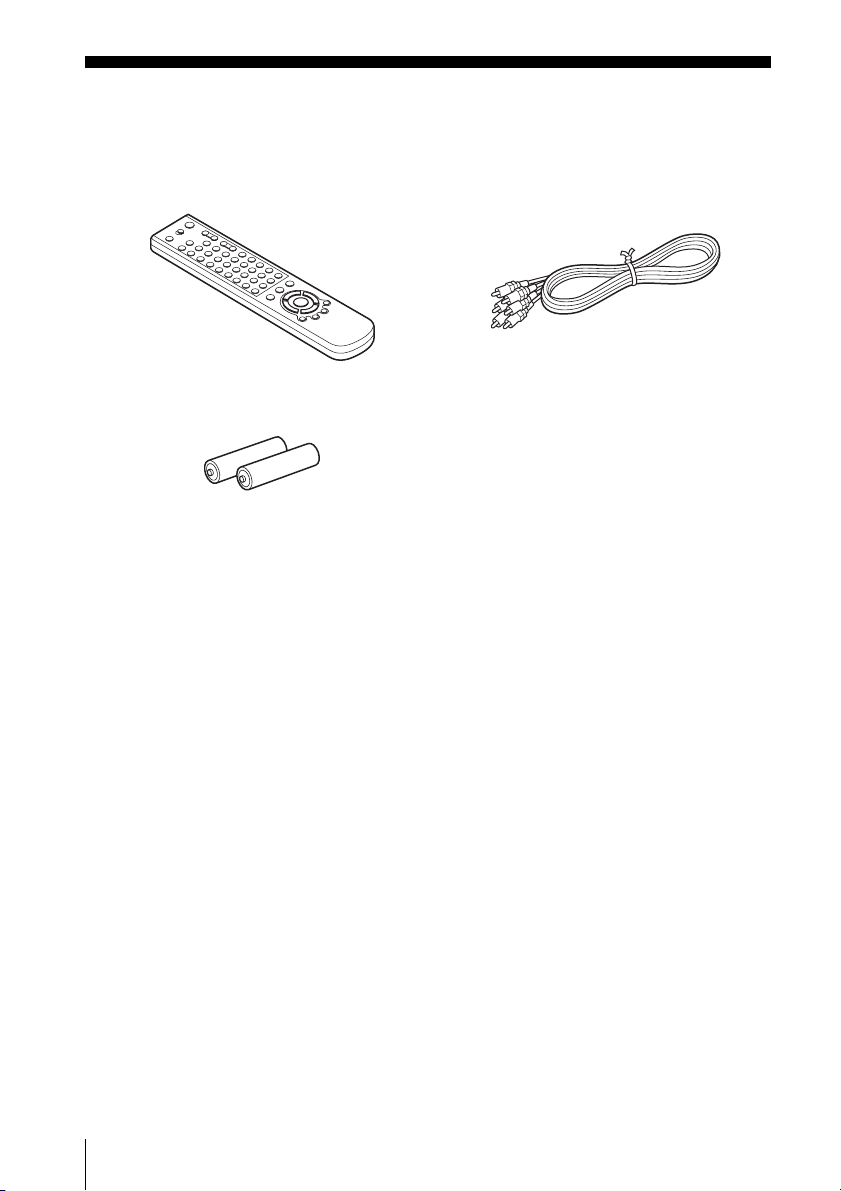
Check that you have received the following items with the DVD-VCR:
Note
• The supplied remote commander is for the exclusive use of this DVD-VCR.
• Remote commander • Audio/video cord
• Size AA (R6) batteries
Getting Started
11
US
Setting up the remote commander
Step 2 : Setting up the remote commander
Inserting the batteries
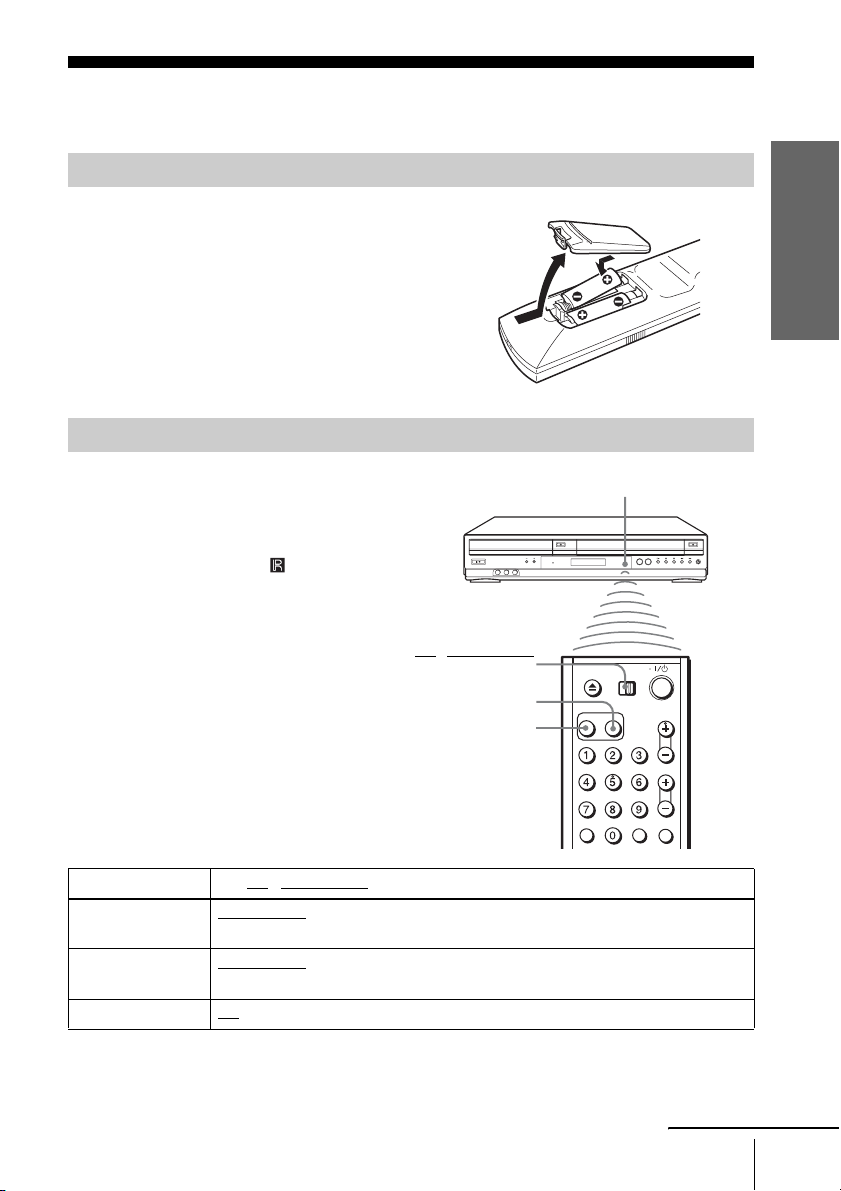
Insert two size AA (R6) batteries by matching
the + and – on the batteries to the diagram
inside the battery compartment.
Insert the negative (–) end first, then push in
and down until the positive (+) end clicks into
position.
Reattach the cover after inserting the batteries.
Using the remote commander
You can use this remote commander to operate
this DVD-VCR and a Sony TV. Buttons on the
remote commander marked with an orange dot
(•) can be used to operate your Sony TV.
If the TV does not have the symbol near the
remote sensor, this remote commander will not
operate the TV.
To operate Set TV / DVD·VIDEO switch to
the DVD player DVD·VIDEO
, then press SELECT DVD and point at the remote sensor at the
DVD-VCR
.
the VCR DVD·VIDEO, then press SELECT VIDEO and point at the remote sensor at the
DVD-VCR
.
your TV TV and point at the remote sensor at your TV.
TV / DVD·VIDEO
switch
Remote sensor
SELECT VIDEO
SELECT DVD
continued
12
US
Setting up the remote commander
Notes
• With normal use, the batteries should last about three to six months.
• If you do not use the remote commander for an extended period of time, remove the batteries
to avoid possible damage from battery leakage.
• Do not use a new battery with an old one.
• Do not use different types of batteries.
• Do not leave the remote commander in an extremely hot or humid place.
• Do not drop any foreign object into the remote casing, particularly when replacing the batteries.
• Do not expose the remote sensor to direct light from the sun or lighting apparatus. Doing so
may cause a malfunction.
The remote commander is preprogrammed to control non-Sony TVs. If your TV is listed in the
following table, set the appropriate manufacturer’s code number.
Now you can use the buttons with an orange dot (•) to control your TV.
When the TV
/ DVD·VIDEO switch is set to TV, the remote performs the following:
*for Sony TV only
Controlling TVs with the remote commander
1
Set TV / DVD·VIDEO switch at the top of the remote commander to TV.
2
Hold down ?/1, and enter your TV’s code number using the number buttons. Then release
?/1.
Buttons Operations
?/1 Turns your TV on or off.
VOL +/– Adjusts the volume of your TV.
CH +/– Selects the channel on your TV.
Number buttons and ENTER* Selects the channel on a Sony TV.
MUTING* Mutes a Sony TV equipped with the muting function.
TV/VIDEO Switches your TV’s input source.
Getting Started
13
US
Setting up the remote commander
Code numbers of controllable TVs
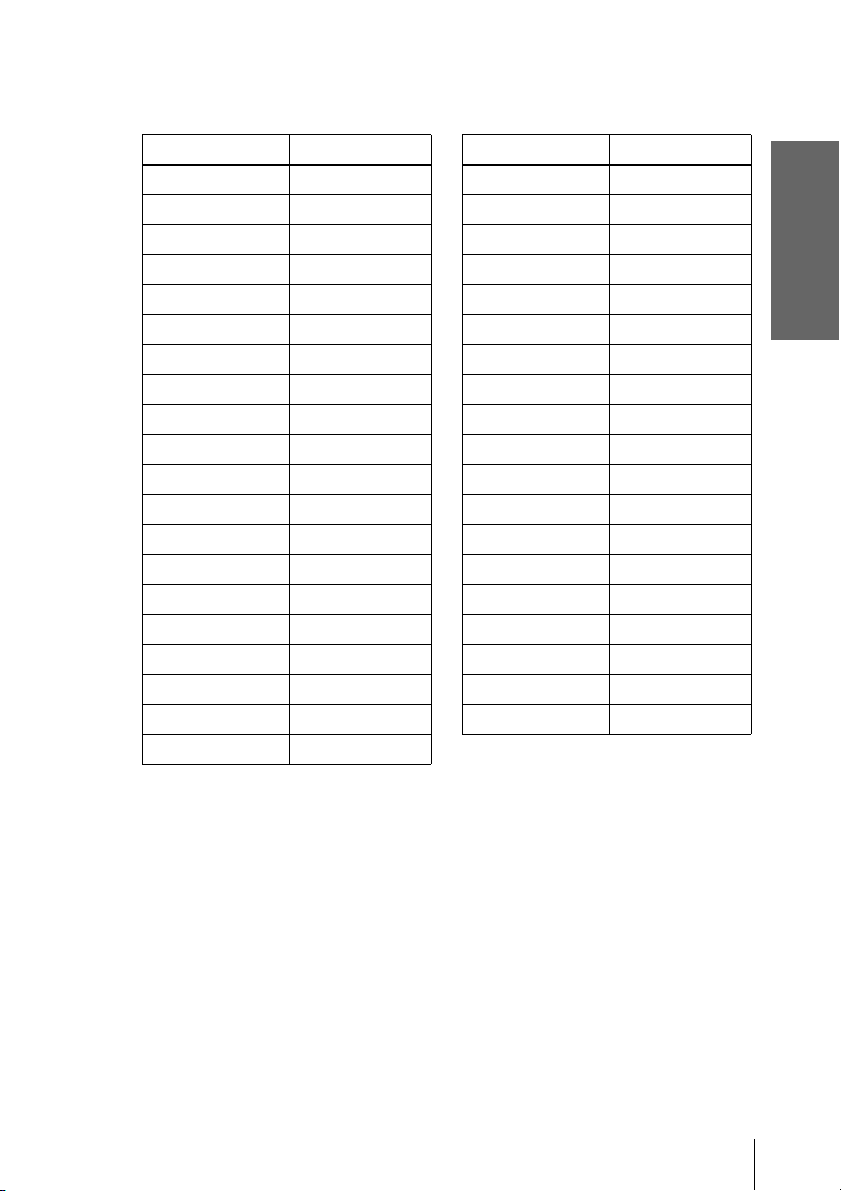
If more than one code number is listed, try entering them one at a time until you find
the one that works with your TV.
Notes
• If you enter a new code number, the code number previously entered will be erased.
• If the TV uses a different remote control system from the one programmed to work with the
DVD-VCR, you cannot control your TV with the remote commander.
• When you replace the batteries of the remote commander, the code number may change. Set
the appropriate code number every time you replace the batteries.
TV brand Code number
Sony 01 (default)
Akai 04
AOC 04
Centurion 12
Coronado 03
Curtis-Mathes 12
Daewoo 22
Daytron 12
Emerson 03, 04, 14
Fisher 11
General Electric 06, 10
LG/Gold Star 03, 04, 17
Hitachi 02, 03
J.C.Penney 04, 12
JVC 09
KMC 03
Magnavox 03, 08, 12
Marantz 04, 13
MGA/Mitsubishi 04, 12, 13, 17
NEC 04, 12
Panasonic 06, 19
Philco 03, 04
Philips 08
Pioneer 16
Portland 03
Quasar 06, 18
Radio Shack 05, 14
RCA 04, 10
Sampo 12
Sanyo 11
Scott 12
Sears 07, 10, 11
Sharp 03, 05, 18
Sylvania 08, 12
Teknika 03, 08, 14
Toshiba 07
Wards 03, 04, 12
Yor x 12
Zenith 15
TV brand Code number

14
US
Basic hookups
Step 3 : Basic hookups
This section explains the basic hookups for connecting to the TV and the connection to record
from a connected equipment. Be sure to connect the power cord only after all connections are
complete.
Before you get started
This DVD-VCR does not have a TV tuner. To record TV programs, connect this unit
to the cable box or satellite receiver with audio/video outputs (page 16).
If you have been using your VCR connected to an antenna, connect this DVD-VCR
to your VCR using an audio/video cord. In this way, you will be able to watch and
record TV programs.
The DVD-VCR cannot record programs if you have:
– a cable box without audio/video outputs.
– cable with no cable box.
– antenna only (no cable TV).
In this case, consult your contracted (or nearest) CATV provider.
Notes
• You cannot connect your DVD-VCR to a TV that does not have a video input jack.
• Be sure to disconnect the AC power cord of each component before connecting.
• Be sure you make connections firmly. Loose connections may cause picture
distortion.
Getting Started
15
US
Basic hookups
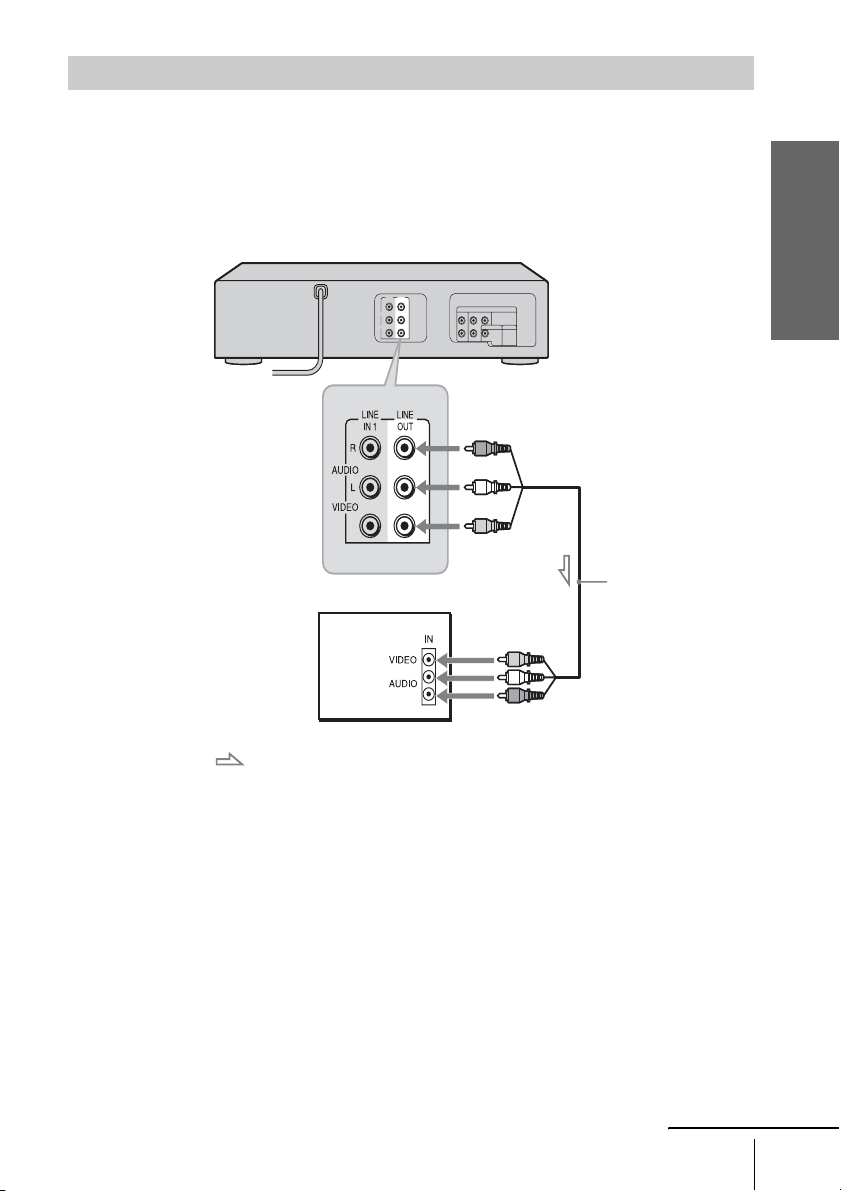
Connect the TV and DVD-VCR using the supplied audio/video cord.
See “Advanced Hookups for the DVD Player” (page 21, 22) for hookup methods that will
optimize the picture and sound for a true “hometheater” experiences.
If you want to record cable TV programs, complete these connections first, and then go to the
following pages for cable hookups.
Note
• When the connected TV has only monaural sound input jack, connect to just the LINE OUT/
AUDIO L (white) and VIDEO input jacks. Do not connect the AUDIO R (red) jack.
Connecting to your TV
: Signal flow
Audio/video cord
(supplied)
TV
DVD-VCR
to LINE OUT
continued
16
US
Basic hookups
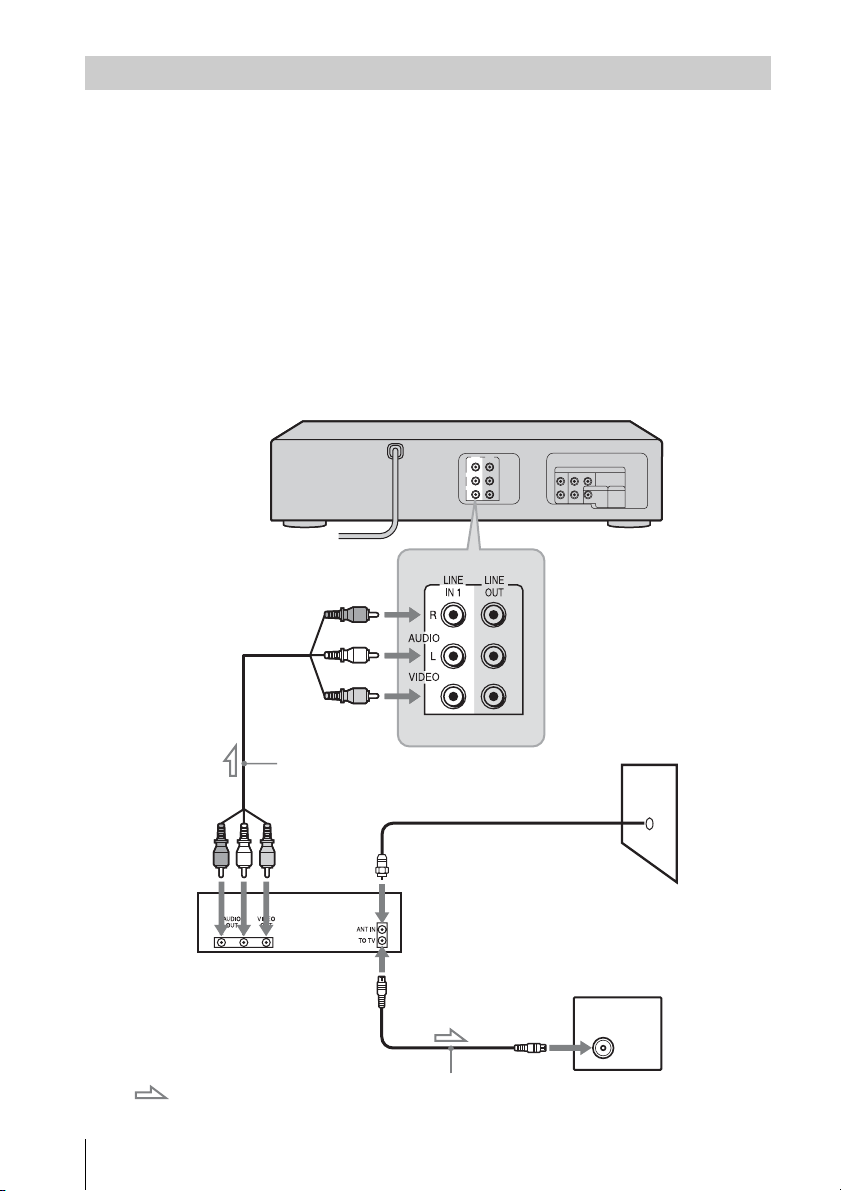
With this hookup, you can record any channel on the cable box or satellite receiver. Be sure that the
cable box or satellite receiver is turned on. To watch cable or satellite channel, you need to match the
DVD-VCR’s input source (L1) to the input jack connected to the cable box or satellite receiver (LINE
IN 1).
Tip
• You can also connect a cable box or satellite receiver using the LINE-2 IN jacks on the front
panel (page 84).
Note
• The DVD-VCR cannot record programs if you have:
–
a cable box without audio/video outputs.
– cable with no cable box.
– antenna only (no cable TV).
Connecting a cable box or satellite receiver
to LINE IN 1
: Signal flow
Antenna cable (not supplied)
to antenna input
Wall
TV
Audio/video cord
(not supplied)
Cable box/
satellite receiver
DVD-VCR
Getting Started
17
US
Basic hookups
After you have completed hookup…
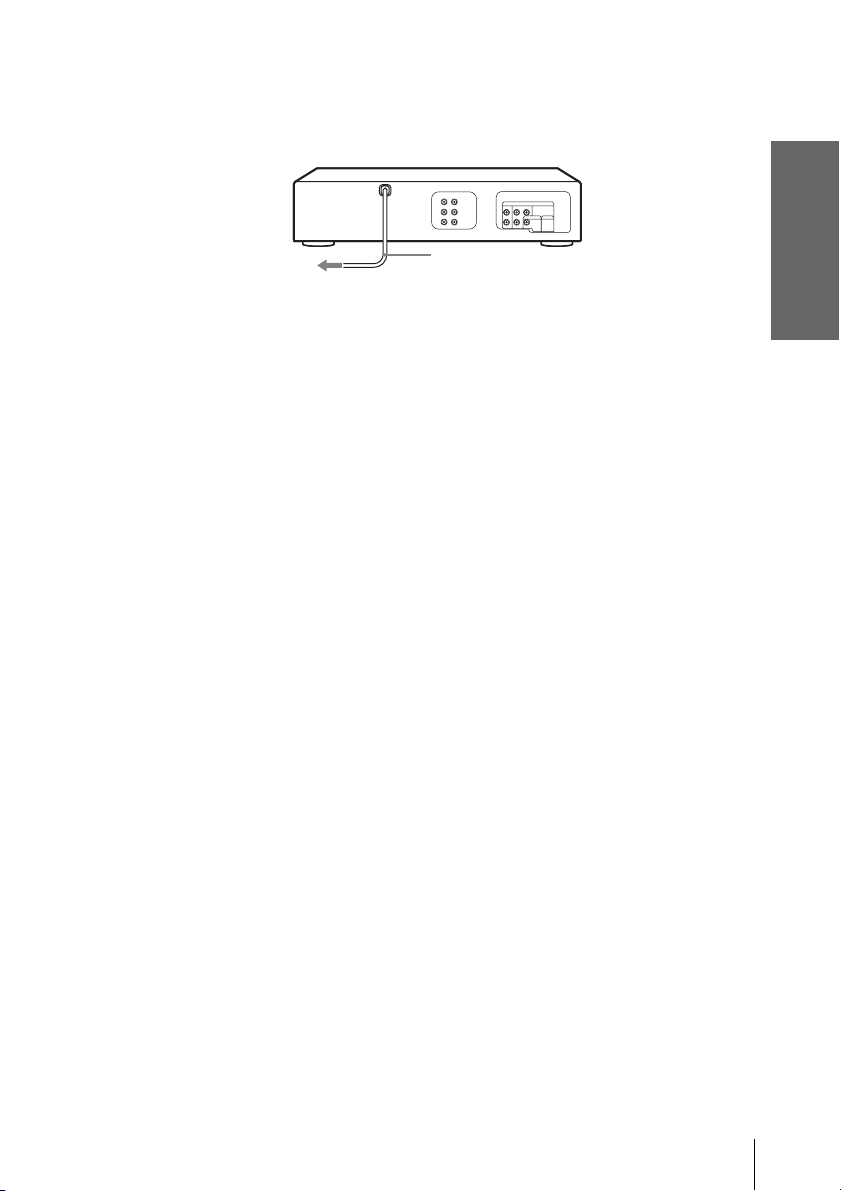
After you have completed hookup, plug the DVD-VCR into an AC outlet. If you
connect additional equipment to this DVD-VCR (page 21, 22), be sure to connect the
power cord only after all connections are complete.
DVD-VCR
AC power cord
to AC outlet
18
US
Selecting a language
Step 4 : Selecting a language
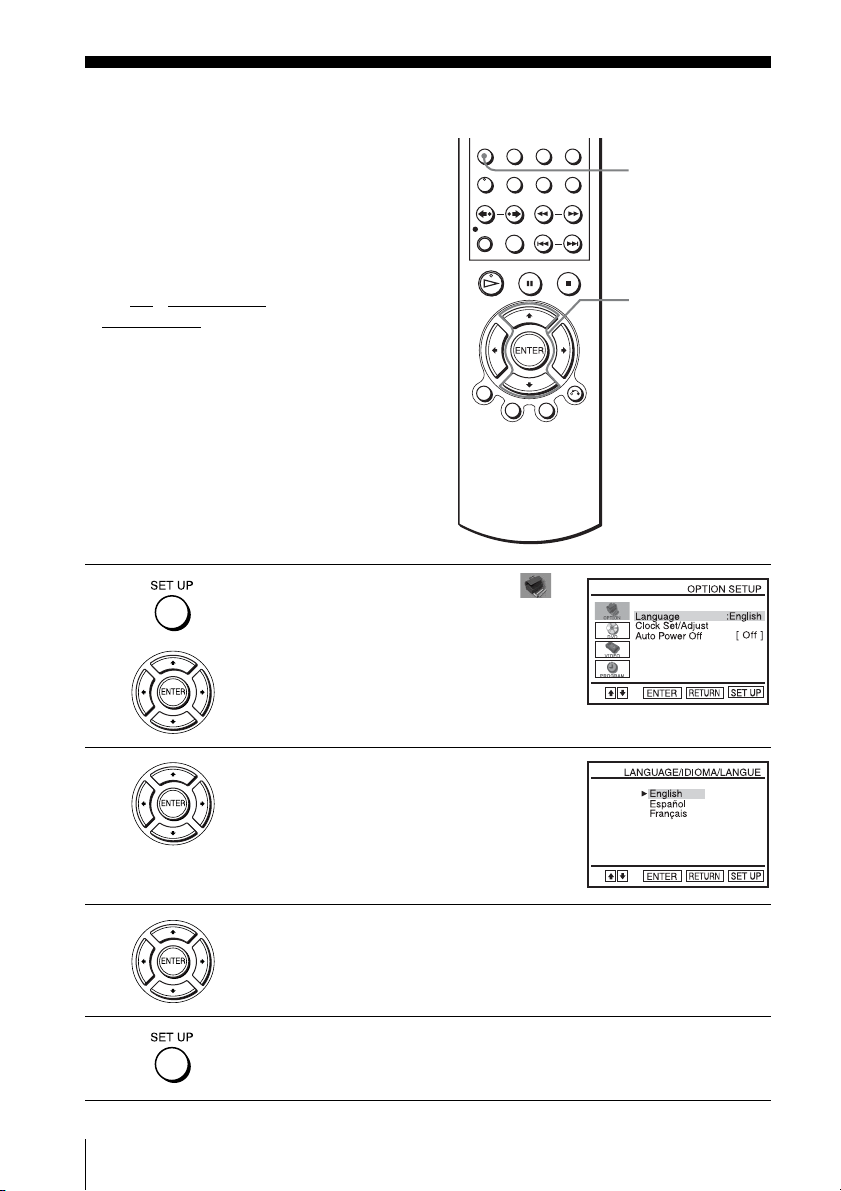
You can change the on-screen display
language.
Before you start…
• Turn on the DVD-VCR and your TV.
• Set the TV to video input so that the signal
from the player appears on the TV screen.
•Set TV
/ DVD·VIDEO switch to
DVD·VIDEO on the remote.
• If the DVD player is in play mode, you
cannot display the setup menu. Stop the
DVD playback.
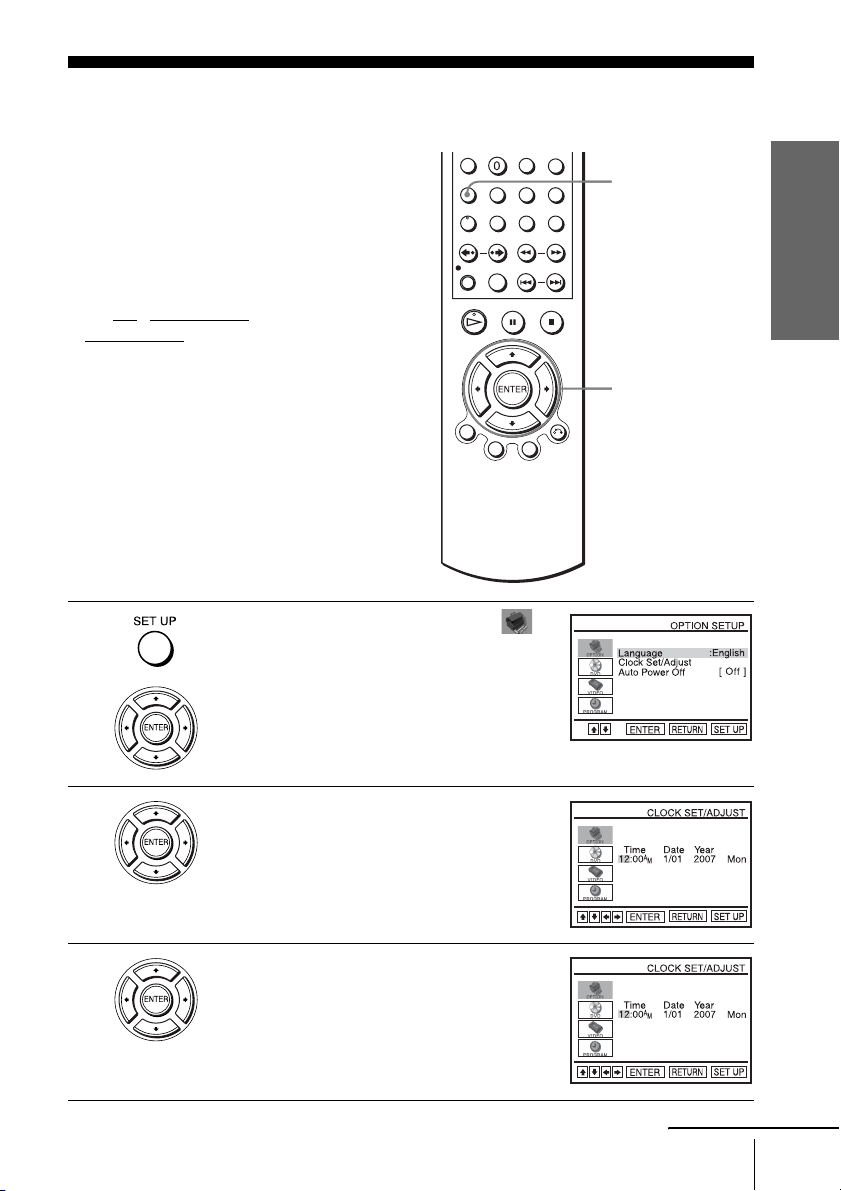
1
Press SET UP, then press V/v to select
(OPTION) and press ENTER.
2
Press V/v to select “Language”, then press
ENTER.
The “LANGUAGE/IDIOMA/LANGUE”
menu appears.
3
Press V/v to select the desired language, English, Spanish or French, then
press ENTER.
4
Press SET UP to exit the menu.
V/v
ENTER
SET UP
Getting Started
19
US
Setting the clock
Step 5 : Setting the clock
You must set the clock on the DVD-VCR to
use the timer features properly.
Before you start…
• Turn on the DVD-VCR and your TV.
• Set the TV to video input so that the signal
from the player appears on the TV screen.
•Set TV
/ DVD·VIDEO switch to
DVD·VIDEO on the remote.
• If the DVD player is in play mode, you
cannot display the setup menu. Stop the
DVD playback.
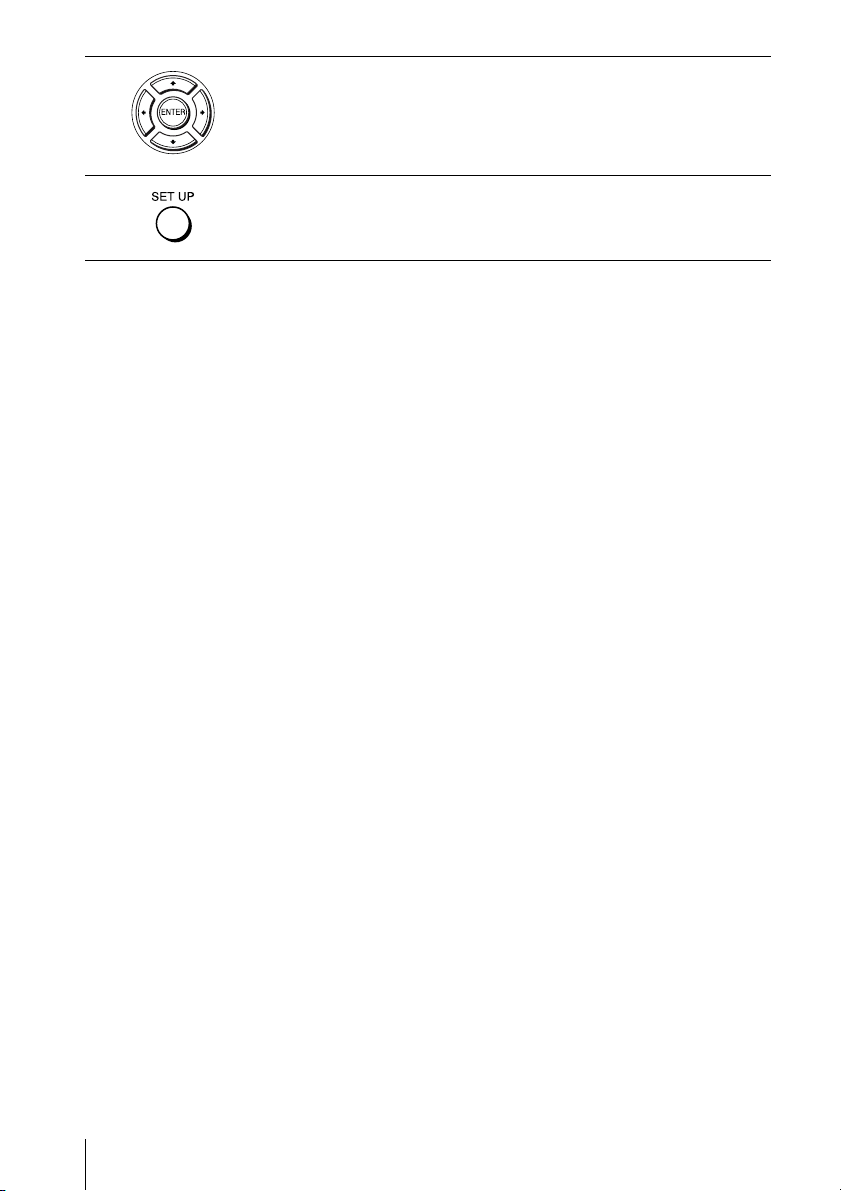
1
Press SET UP, then press V/v to select
(OPTION) and press ENTER.
2
Press V/v to select “Clock Set/Adjust”, then
press ENTER.
The “CLOCK SET/ADJUST” menu appears.
3
Set the hour, minutes, month, day and year in
sequence by pressing B/b to select the item to
be set, and press V/v to select the digits.
The day of the week is set automatically.
V/v/B/b
ENTER
SET UP
continued
20
US
Setting the clock
Note
• The clock display appears in the display window when VIDEO mode is selected with no tape
inserted or when the DVD-VCR is turned off.
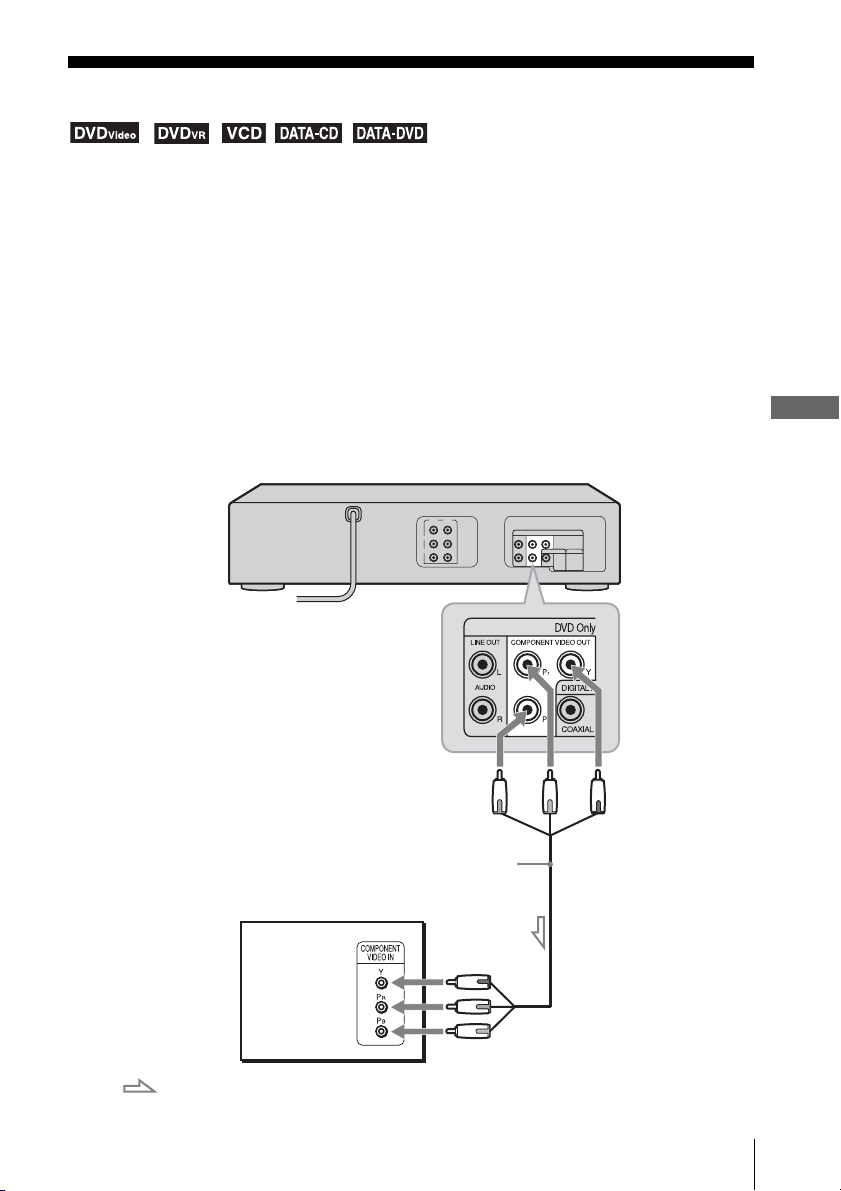
4
Press ENTER to confirm the setting.
5
Press SET UP to exit the menu.
Advanced Hookups for the DVD Player
21
US
Component Video hookup
Advanced Hookups for the DVD Player
Component Video hookup
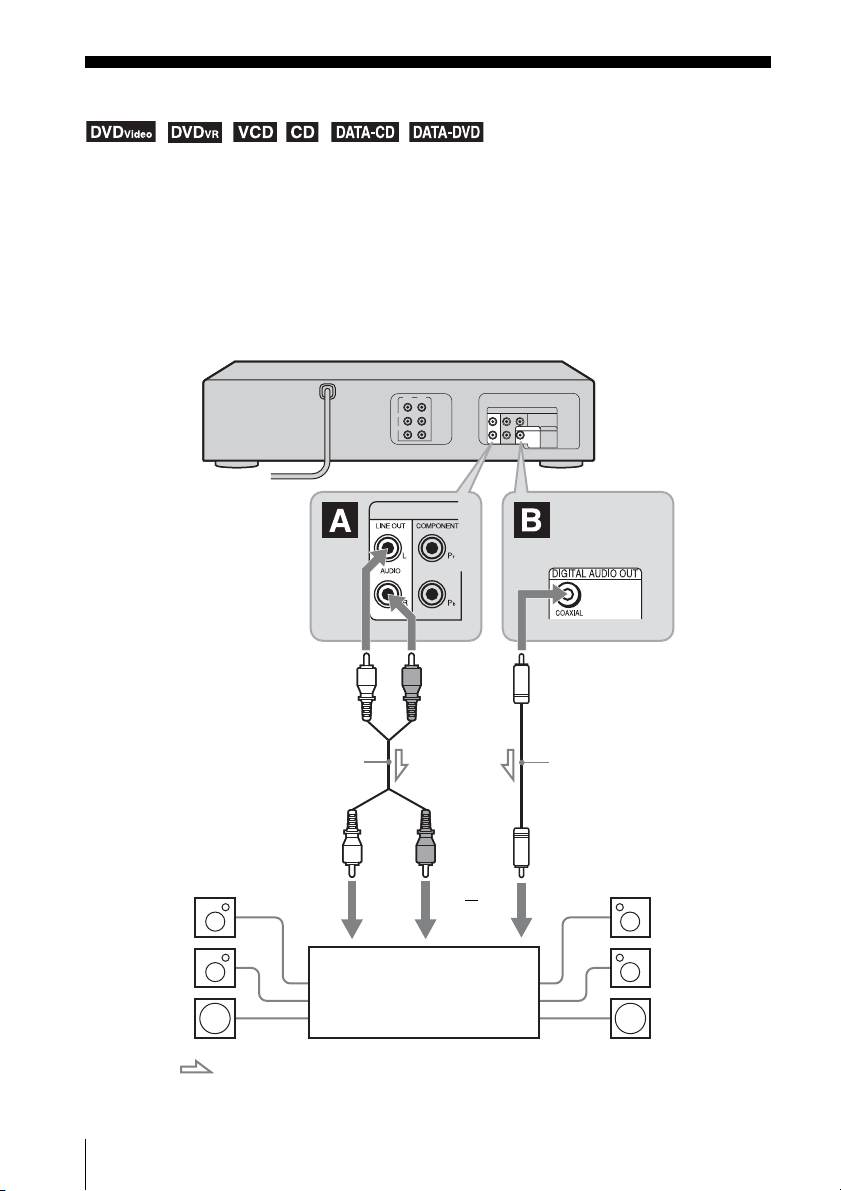
Connect a component video cord (not supplied) or three video cords (not supplied) of the same
kind and length if your TV has component video input jacks. You will enjoy accurate color
reproduction and high quality images when playing DVDs.
Make audio connections using the LINE OUT AUDIO L/R jacks or DIGITAL AUDIO OUT
(COAXIAL) jacks on the right side of the DVD-VCR when you use Component Video hookup.
See page 22 for audio connections.
If your TV accepts progressive (480p) format signals, you must use this connection and then set
“Progressive” to “On” in the “SCREEN SETUP” menu. For details, see “To set the
“Progressive” setting” (page 48).
Note
• The connection using COMPONENT VIDEO OUT jacks is only for the DVD player. The
signal from the VCR will not be output.
: Signal flow (DVD only)
Component video cord
(not supplied)
(green)
(blue)
(green)
(blue)
(red)
(red)
to COMPONENT VIDEO OUT
TV
DVD-VCR
22
US
A/V Receiver hookup
A/V Receiver hookup
Select one of the following patterns A or B, accordiing to the input jack on your AV amplifier
(receiver). This will enable you to listen to DVD audio tracks through your AV amplifier
(receiver). For correct speaker location, see the operating instructions supplied with the
connected components.
Note
• The connection using LINE OUT AUDIO L/R or DIGITAL AUDIO OUT (COAXIAL) jacks
is only for the DVD player. The signal from the VCR will not be output.
Front (R)Front (L)
Subwoofer
: Signal flow
Rear (L)
AV amplifier (receiver)
with a decoder
Center
Rear (R)
Stereo audio cord
(not supplied)
[Speakers]
(red)
(white)
[Speakers]
to audio input
(white) (red)
to LINE OUT L/R (AUDIO)
to coaxial digital input
Coaxial digital cord
(not supplied)
to DIGITAL AUDIO OUT
(COAXIAL)
or
DVD-VCR

Advanced Hookups for the DVD Player
23
US
A/V Receiver hookup
A Connecting to audio L/R jacks
This connection uses a stereo amplifier’s (receiver’s) two front speakers for sound.
You can enjoy the surround function that creates virtual speakers from two stereo
speakers. Select from “Surround1”, “Surround2” or “Surround3” of the surround
effects (page 67).
B Connecting to a digital audio (COAXIAL) input jack
Use this connection if your AV amplifier (receiver) has a Dolby*
1
Digital or DTS*
2
decoder and a digital input jack. You can enjoy the surround effect of Dolby Digital
(5.1ch) or DTS (5.1ch).
*
1
Manufactured under license from Dolby Laboratories.
“Dolby” and the double-D symbol are trademarks of Dolby Laboratories.
*
2
“DTS” and “DTS Digital Out” are registered trademarks of DTS, Inc.
Note
• After you have completed the connection using DIGITAL AUDIO OUT (COAXIAL), be
sure to set “Dolby Digital” to “Dolby Digital” and “DTS” to “On” in “AUDIO SETUP”
menu (page 44). Otherwise, no sound or a loud noise will come from the speakers.
24
US
Playing discs
Basic Operations
Playing discs
Depending on the disc, some operations may
be different or restricted. Refer to the
operating instructions supplied with your
disc.
Before you start ...
• Turn on the DVD-VCR and your TV.
• Set the TV to video input so that the signal
from the player appears on the TV screen.
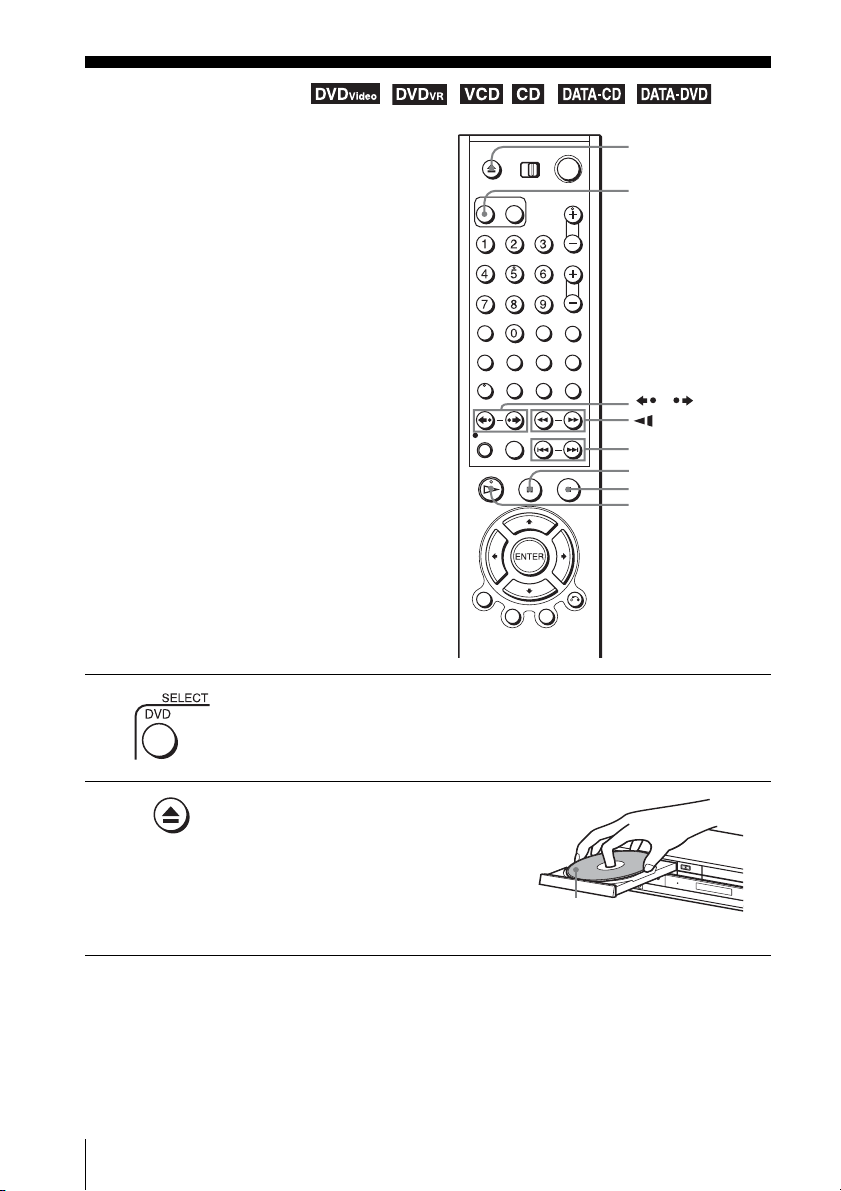
1
Press SELECT DVD to control the DVD player.
2
Press Z to open the disc tray and
place a disc on the disc tray.
Z
H PLAY
X PAUSE
./ >
x STOP
/
m/M y
SELECT DVD
with the playback
side facing down
Basic Operations
25
US
Playing discs
Tip
• To make a video timer reservation during DVD playback, we recommend performing the
operations under “Quick Timer Recording” (page 81).
Notes
• You can change the screen type using the “SCREEN SETUP” menu (see “Screen Setup” on
page 46).
• Stop VIDEO playback while playing back a disc.
• If you play a DVD or VIDEO CD that has scratches, the player may stop playback at the
point of the scratch.
• Playback of play lists longer than 10 hours recorded in VR mode is not guaranteed.
• When 10 hours have passed, the counter in the display window returns to “0:00” and the
count starts over again.
• The disc that has been recorded in another unit or PC may not be able to be played back
depending on the recording software’s specifications.
• The player cannot play a disc that has been recorded in another unit and incorrectly finalized
(page 8).
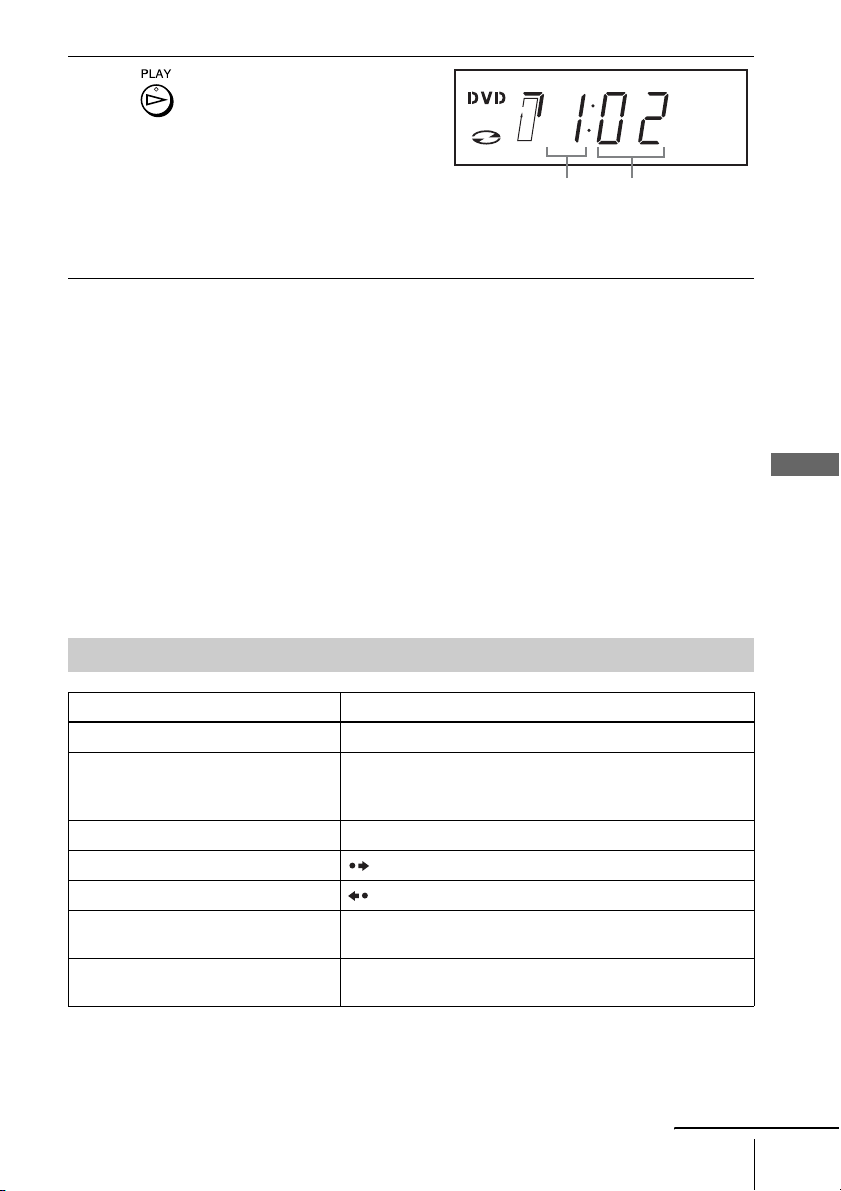
3
Press H PLAY.
The disc tray closes and the
DVD player starts playback.
The display window shows the
playback time
*.
Depending on the disc, a menu
may appear on the TV screen.
For DVDs, see page 55. For VIDEO CDs, see page 79.
* “– – – –” appears when no disc is loaded.
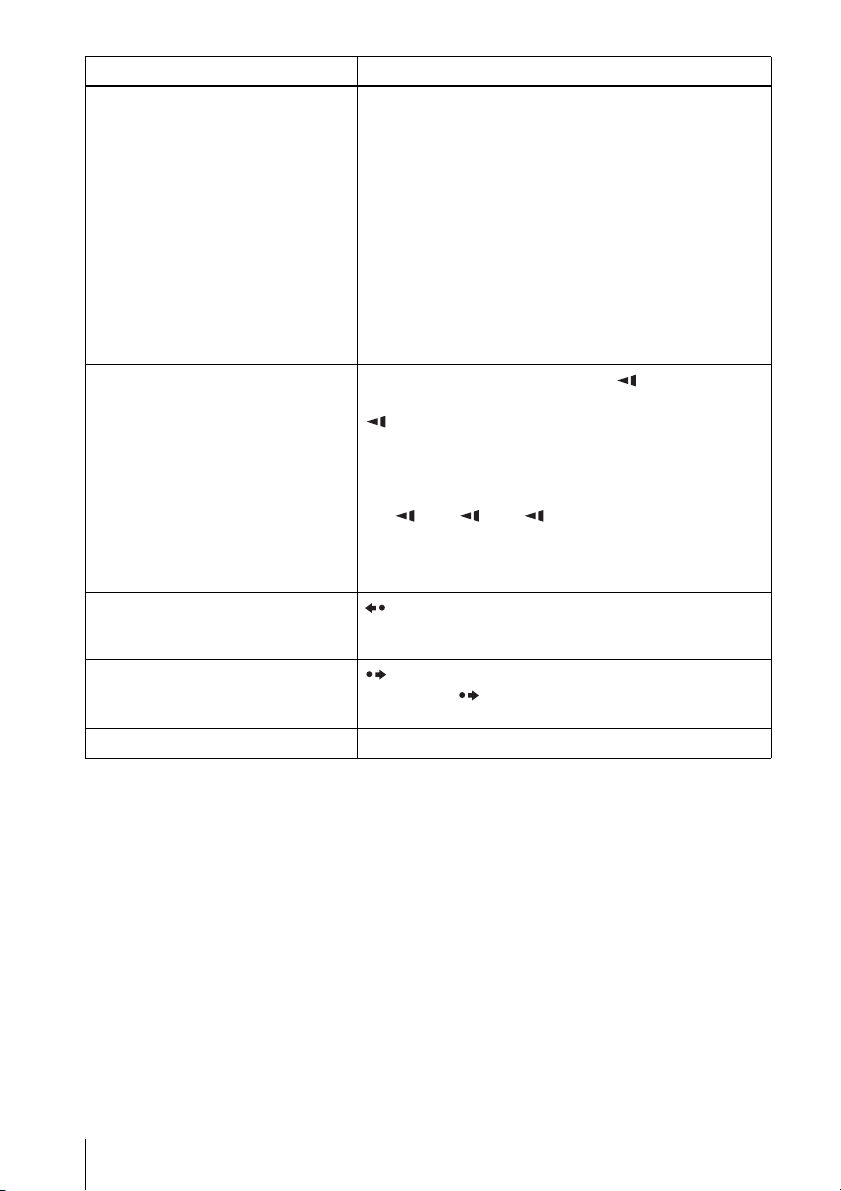
Additional operations
To Press
Stop play x STOP
Pause play X PAU SE
If you pause the DVD player for more than 5 minutes, the
DVD player will automatically stop.
Resume play after pause H PLAY
Go to the next frame in pause mode SKIP
Go to the previous frame in pause mode REPLAY
Go to the next chapter, track, or scene in
continuous play mode
> NEXT on the remote or M on the unit
Go back to the previous chapter, track,
or scene in continuous play mode
. PREV on the remote or m on the unit
Hour Minute
continued
26
US
Playing discs
*
1
Playback quickly or slowly with sound (See “To playback quickly or slowly with sound (DVD only)” on
page 27.)
*
2
For DVD VIDEOs and DVD-RWs/DVD-Rs or DVD+RWs/DVD+Rs only
Notes
• No sound is output except for:
– during normal play
– during playback quickly or slowly with sound
• You cannot perform playback quickly or slowly with sound when a virtual surround effect is
set.
• The fast reverse operation may not be possible for CD, MP3 and VIDEO CD depending on
the recording method.
• You may not be able to use the Instant Replay or Instant Advance function with some scenes.
• Switching between original (ORG) and play list (PL) within a disc recorded in VR mode is
possible only while the disc is stopped. Press TOP MENU to switch between ORG and PL.
Locate a point quickly
m or M on the remote (or hold down m or M on the
unit)
The playback speed changes as follows each time you press
the button on the remote (or depending on how long you press
the button on the unit):
•DVD
fast forward: PLAY t ×1.4 ••N•*
1
t 1M t 2M
t 3M t 4M t 5M t 6M
fast reverse: PLAY t 1m t 2m t 3m t 4m
t 5m t 6m
• CD, MP3 and VIDEO CD
fast forward: PLAY t 1M t 2M t 3M
fast reverse: PLAY t 1m t 2m t 3m
When you find the point you want, press H PLAY.
Watch slow motion in continuous play
mode (DVD and VIDEO CD only)
X PAUSE during playback, then press or y
The playback speed changes as follows each time you press
or y:
•DVD
forward slow motion: ×0.6
••N•*
1
t 2 y t 3 y
reverse slow motion (except for DVD-RW/DVD-R in VR
mode):
1 t 2 t 3
•VIDEO CD
forward slow motion only: 1 y t 2 y t 3 y
To resume normal playback, press H PLAY.
Replay the previous scene for 10
seconds in continuous play mode*
2
(Instant Replay)
REPLAY
Briefly fast forward the current scene
for 30 seconds in continuous play
mode*
2
(Instant Advance)
SKIP
You can press SKIP up to 4 times. This allows you to fast
forward up to 2 minutes in total.
Stop play and remove the disc Z
To Press

Basic Operations
27
US
Playing discs
To playback quickly or slowly with sound (DVD only)
You can listen to dialog or sound while playing the current scene quickly or slowly.
To playback quickly, press M during playback.
To playback slowly, press X PAUSE, then press y during playback.
Press H PLAY to return to normal playback.
Notes
• You cannot set virtual surround effects while performing playback quickly or slowly with
sound. In addition, you cannot perform playback quickly or slowly with sound when a virtual
surround effect is set.
• You cannot perform DTS audio output during playback quickly or slowly with sound.
In addition, you cannot perform playback quickly or slowly with sound when DTS audio
output is set.
To Resume playback for the current disc (Resume Play)
The DVD player remembers the point where you stopped the disc even if the DVD
player enters standby mode by pressing ?/1.
Tip
• To begin playback from the top of the disc, press x STOP twice then press H PLAY.
Notes on playing DTS
* sound tracks on a CD
• When playing DTS-encoded CDs, excessive noise will be heard from the analog stereo jacks.
To avoid possible damage to the audio system, the consumer should take proper precautions
when the analog stereo jacks of the DVD player are connected to an amplification system. To
enjoy DTS Digital Surround™ playback, an external 5.1-channel decoder system must be
connected to the digital jack of the DVD player.
• Set the sound to “Stereo” using the AUDIO button when you play DTS sound tracks on a CD
(page 65).
• Do not play DTS sound tracks without first connecting the DVD player to an audio
component having a built-in DTS decoder. The DVD player outputs the DTS signal via the
DIGITAL AUDIO OUT (COAXIAL) jack even if “DTS” is set to “Off” in “AUDIO SETUP”
menu (page 44), and may affect your ears or cause your speakers to be damaged.
Notes on playing DVDs with a DTS sound track
• DTS audio signals are output only through the DIGITAL AUDIO OUT (COAXIAL) jack.
• When you play a DVD with DTS sound tracks, set “DTS” to “On” in “AUDIO SETUP”
menu (page 44).
• If you connect the player to audio equipment without a DTS decoder, do not set “DTS” to
“On” in “AUDIO SETUP” menu (page 44). A loud noise may come out from the speakers,
affecting your ears or causing the speakers to be damaged.
* “DTS” and “DTS Digital Out” are registered trademarks of DTS, Inc.
1
While playing a disc, press x STOP to stop playback.
2
Press H PLAY.
The DVD player starts playback from the point where you stopped the disc in
Step 1.
28
US
Guide to the on-screen display
Guide to the on-screen display
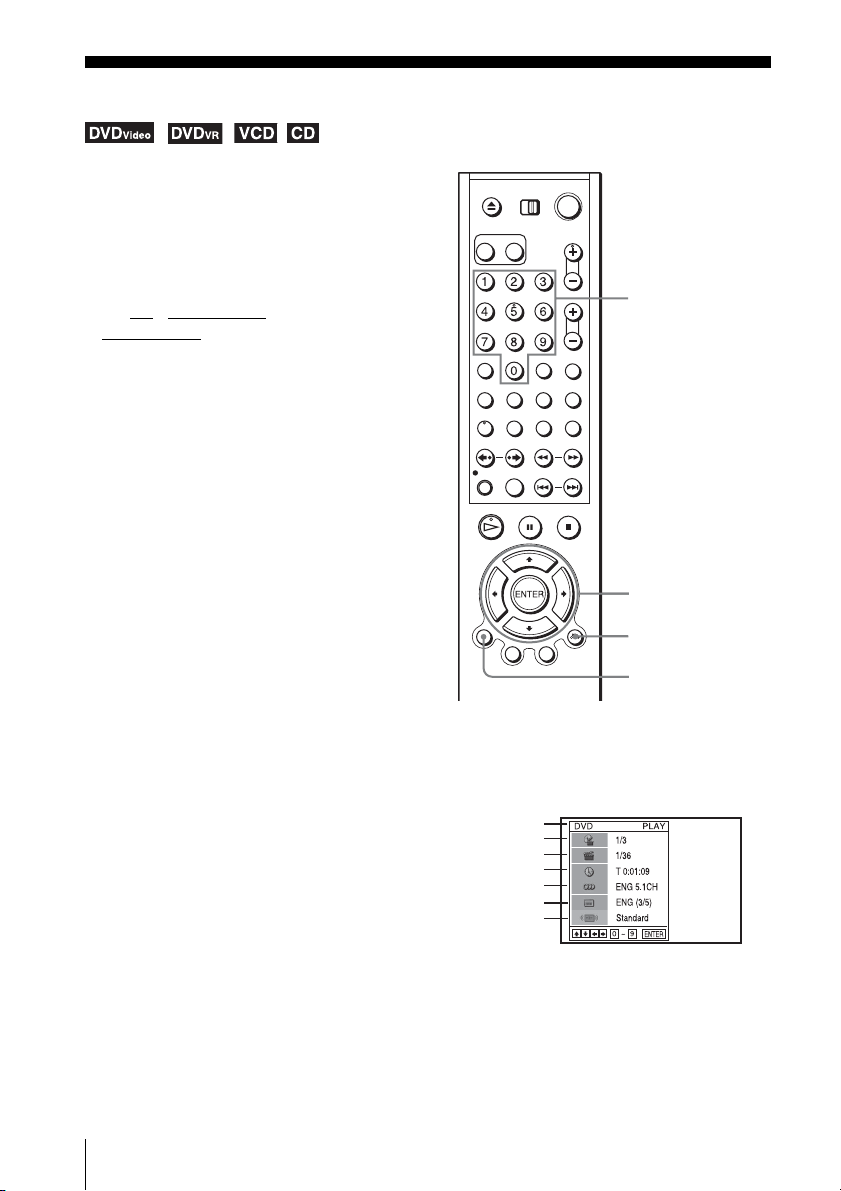
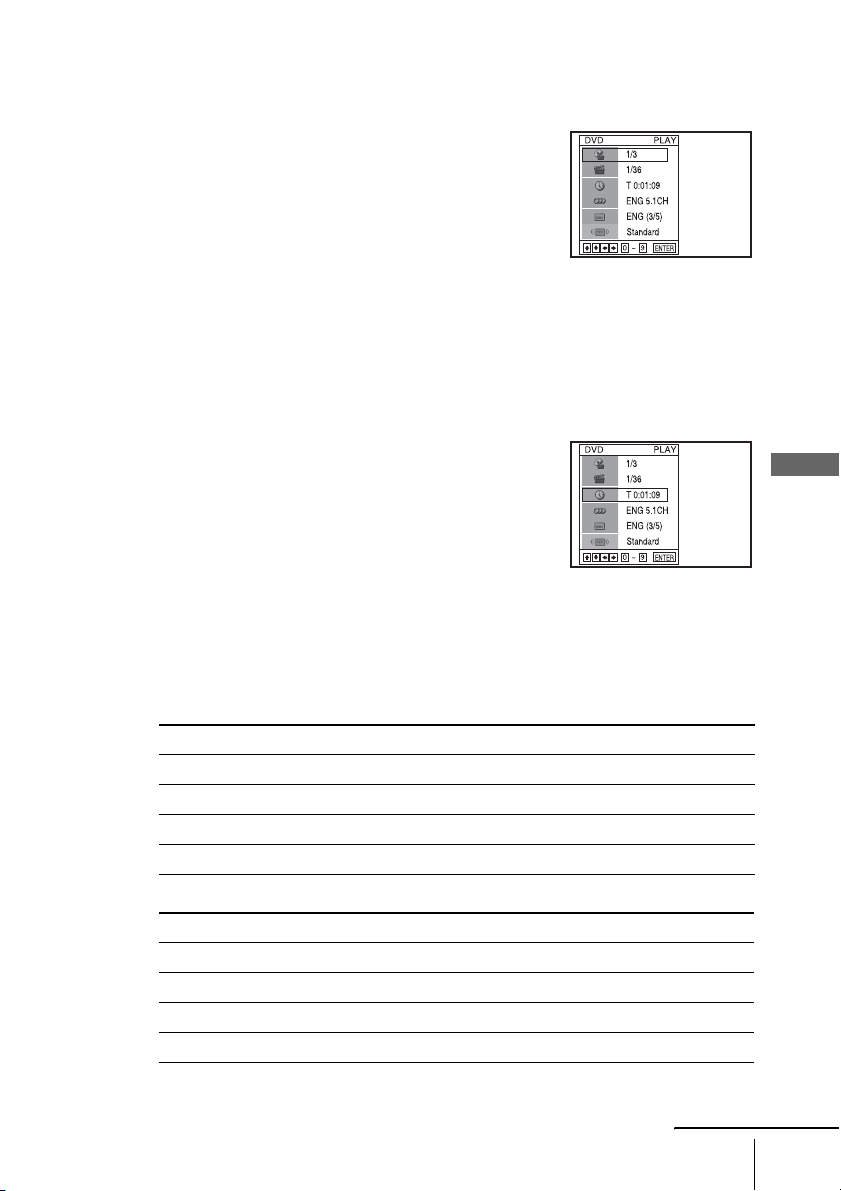
Press DISPLAY during playback. The following information appears; type of disc, current title/
track, chapter, counter position, voice language, subtitle language and Custom AV Mode
setting. Refer to “DVD Audio/Subtitle Language” on page 100 for the abbreviation of the
language.
Note
• You cannot select disc information items when the disc is stopped.
You can check disc information during
playback.
The displayed contents differ according to
the type of disc being played.
Before you start…
•Set TV / DVD·VIDEO switch to
DVD·VIDEO
on the remote.
DISPLAY
V/v/B/b
ENTER
O RETURN
Number buttons
Type of disc
Current title/track number
Current chapter number
Counter position
Voice language
Subtitle language
Custom AV Mode
Basic Operations
29
US
Guide to the on-screen display
To playback the desired title/track or chapter
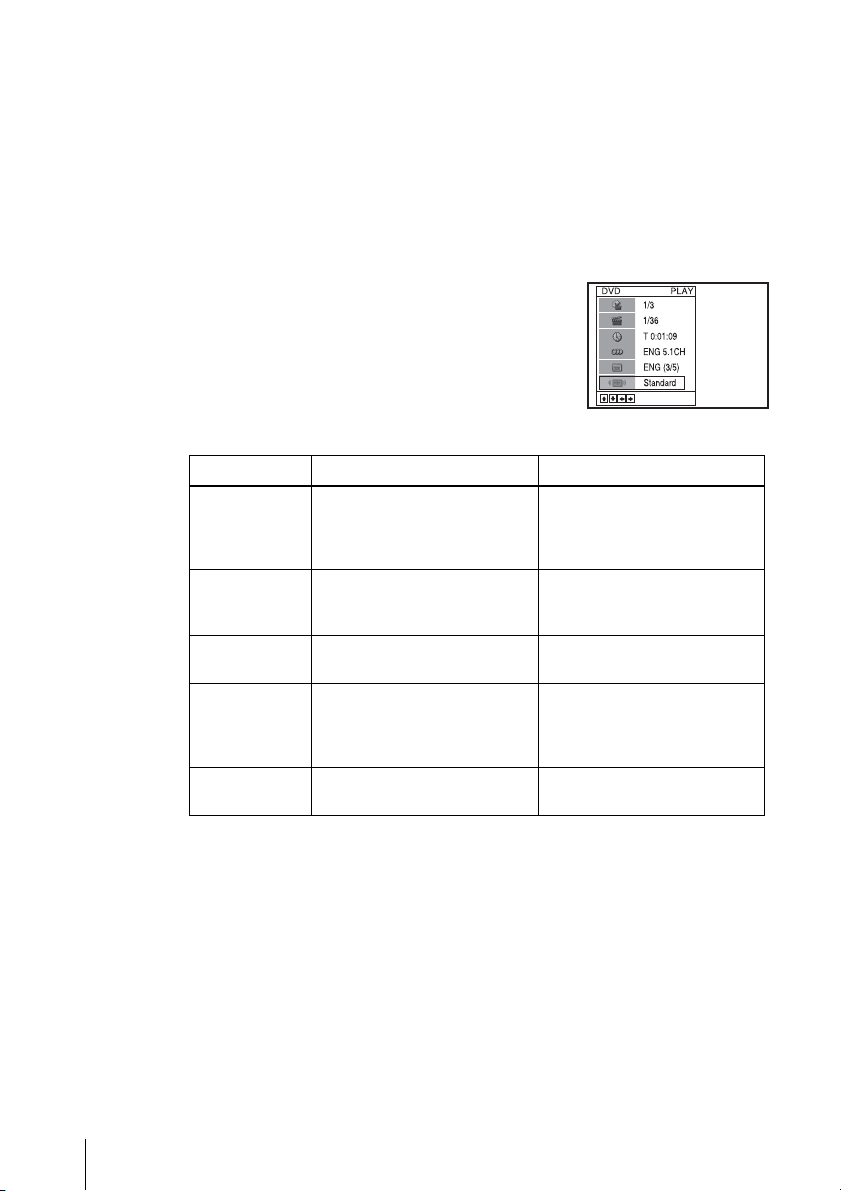
You can playback the desired title/track or chapter using
this menu.
The title/track or chapter icon will appear on the DVD playback screen followed by
the current title/track or chapter number and the counter position.
To playback from the desired title/track counter position
You can playback from the desired title/track counter
position using this menu.
Tip
• You can change the counter position information (playing time or remaining time) using
B/b (DVD and CD only).
DVD
CD
1
Press V/v during playback to select the desired item.
2
Press B/b to change the item.
3
Press ENTER to start playback.
4
Press DISPLAY or O RETURN to turn off the
menu.
1
Press V/v during playback to select the counter
position icon.
2
Enter the desired elapsed playing time of the current
title/track using the number buttons.
3
Press ENTER to start playback.
4
Press DISPLAY or O RETURN to turn off the
menu.
Indication Counter information
T ∗ : ∗∗ : ∗∗ Elapsed playing time of the current title
T– ∗ : ∗∗ : ∗∗ Remaining time of the current title
C ∗ : ∗∗ : ∗∗ Elapsed playing time of the current chapter
C– ∗ : ∗∗ : ∗∗ Remaining time of the current chapter
Indication Counter information
T ∗ : ∗∗ : ∗∗ Elapsed playing time of the current track
T– ∗ : ∗∗ : ∗∗ Remaining time of the current track
D ∗ : ∗∗ : ∗∗ Elapsed playing time of the disc
D– ∗ : ∗∗ : ∗∗ Remaining time of the disc
continued
30
US
Guide to the on-screen display
Notes
• The display may not change as operated depending on the disc.
• The display window continue indicating the playing time even when the counter position
information on the on-screen display is being changed.
• The remaining time of the current track and the disc may not be indicated correctly for Copy
Control CDs, CD EXTRA or CDs with jacket pictures on the disc, etc.
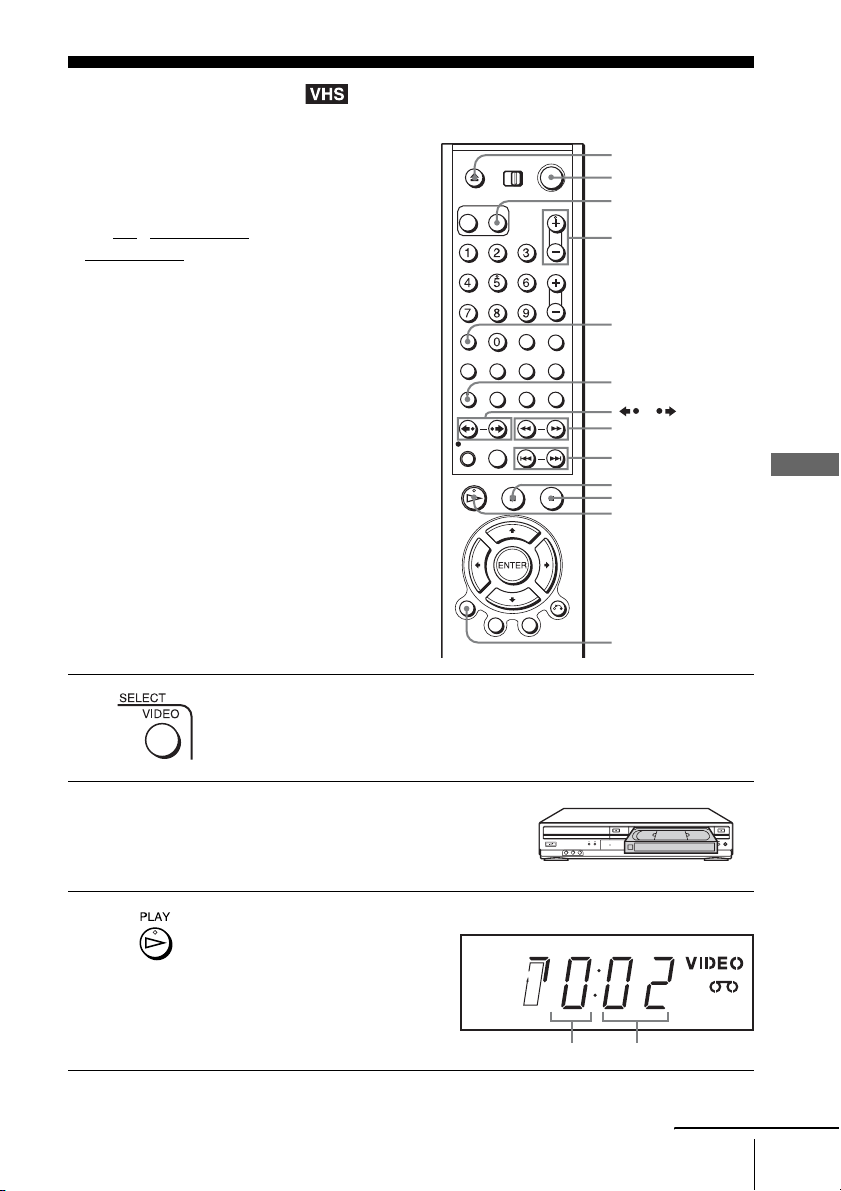
To adjust the playback picture (Custom AV Mode)
You can adjust the video signal of the DVD or VIDEO CD (with PBC function off)
from the player to obtain the picture quality you want. Choose the setting that best
suits the program you are watching.
Tip
• When you watch a movie, “Cinema 1” or “Cinema 2” is recommended.
1
Press V/v during playback to select the Custom AV
Mode icon.
2
Press B/b to change the setting.
Setting Video Setting Audio Setting
Dynamic 2 Produces a more dynamic
picture than Dynamic 1 by
further increasing the picture
contrast and the color intensity.
Full (modulated) sound with
even clearer treble and bass than
Dynamic 1.
Dynamic 1 Produces a bold dynamic picture
by increasing the picture contrast
and the color intensity.
Full (modulated) sound with
clear treble and bass.
Standard Off (Default setting)
Displays a standard picture.
Standard sound.
Cinema 1 White colors become brighter
and black colors become richer,
and the color contrast is
increased.
Powerful sound with strong bass.
Cinema 2 Enhances details in dark areas by
increasing the black level.
Powerful sound with even
stronger bass than Cinema 1.
Basic Operations
31
US
Playing a tape
Playing a tape
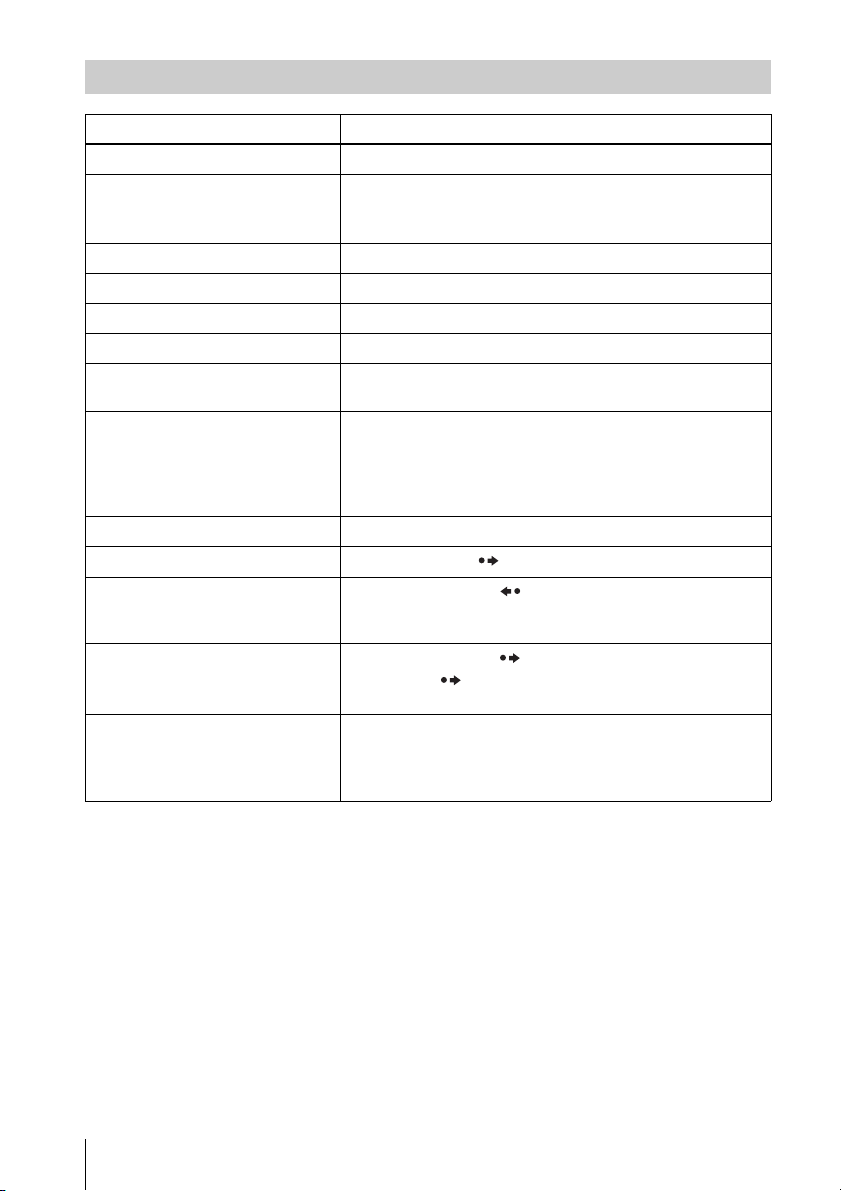
Before you start ...
• Turn on the DVD-VCR and your TV.
• Set the TV to video input so that the signal
from the player appears on the TV screen.
•Set TV
/ DVD·VIDEO switch to
DVD·VIDEO on the remote.
1
Press SELECT VIDEO to control the VCR player.
2
Insert a tape.
The VCR starts playing automatically if
you insert a tape with its safety tab
removed.
3
Press H PLAY.
The display window shows the
playback time.
When the tape reaches the end,
it will rewind automatically.
Z
DISPLAY
H PLAY
X PAUSE
x STOP
/
?/1
TRACKING +/–
CLEAR
./>
m/M y
SELECT VIDEO
AUDIO
Hour Minute
continued
32
US
Playing a tape
* For 10 seconds in SP or LP mode/for 15 seconds in EP mode
To resume normal playback
Press H PLAY.
To turn off the power while rewinding (Rewind Shut Off)
Press ?/1 while the tape is rewinding. The power will turn off but the tape will keep
rewinding until it reaches the end.
Additional operations
To Press
Stop play x STOP
Pause play X PAU SE
If you pause the VCR for more than 5 minutes, the VCR will
automatically resume play.
Resume play after pause X PAUSE or H PLAY
Fast-forward the tape M during stop
Rewind the tape m during stop
Eject the tape Z
View the picture during fast-forward
or rewind
During fast-forward, hold down M. During rewind, hold down
m.
Play at high speed • During playback, briefly press M or m. The tape
continues to play at 5 times normal speed.
• During playback, hold down M or m. The tape continues
to play at 5 times normal speed. When you release the button,
normal playback resumes.
Play in slow motion During pause, press y.
Play frame by frame
During pause, press SKIP.
Replay the previous scene in
continuous play mode* (Instant
Replay)
During playback, press REPLAY.
Fast forward the current scene for 30
seconds in continuous play mode
(Instant Skip)
During playback, press SKIP.
You can press SKIP up to 4 times. This allows you to fast
forward up to 2 minutes in total.
Play at various speeds
(Shuttle play)
During playback, press .or >. You can change the
playback speed as follows.
–×7 y –×5 y –×3 y STILL y SLOW y PLAY y ×2
y ×3 y ×5 y ×7
Basic Operations
33
US
Playing a tape
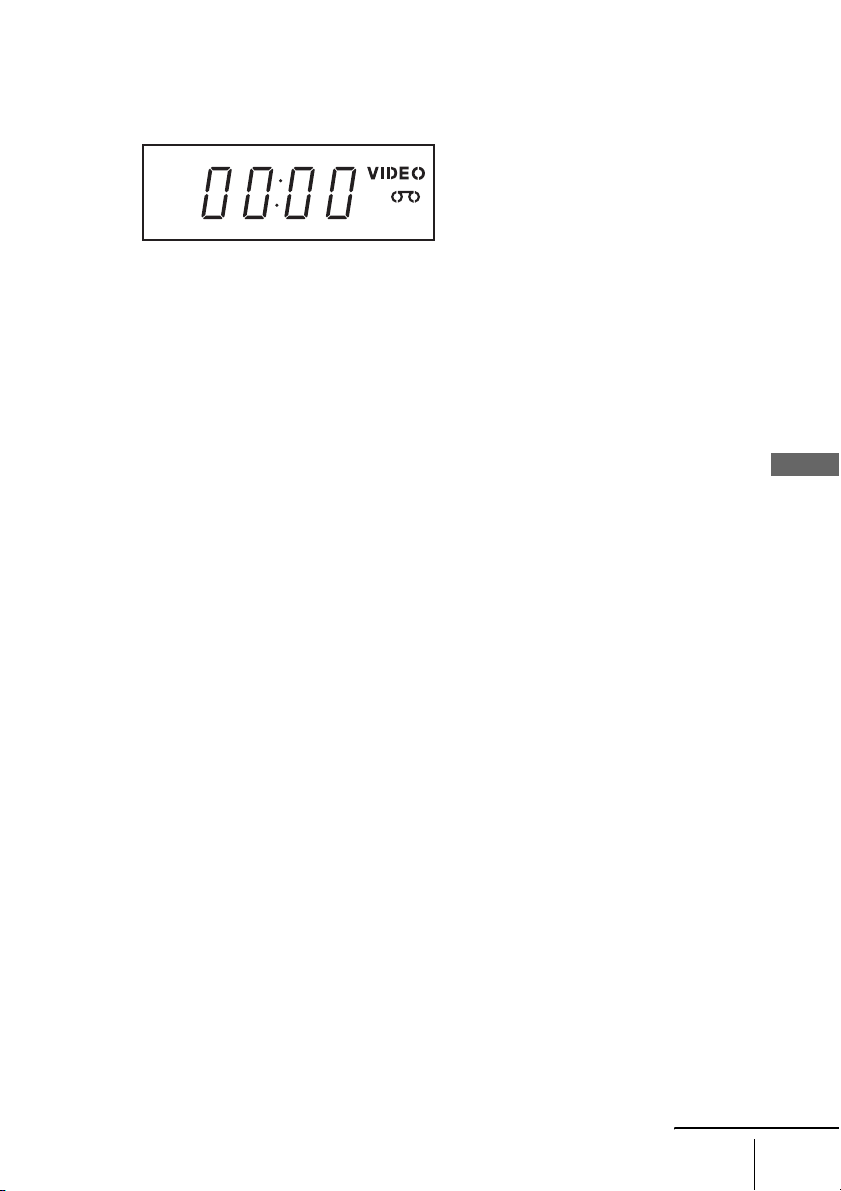
To use the time counter
Press CLEAR at the point on the tape that you want to find later. The counter in the
display window resets to “00:00.” To search for the counter 00:00 point
automatically, see “Searching using various functions” on page 82.
To display the counter on the TV screen, press DISPLAY during normal playback.
Tips
• Adjust the picture using the TRACKING +/– buttons if:
– Streaks appear while playing in slow motion.
– Bands appear at the top or bottom while pausing.
– The picture shakes during pause.
• During playback, press AUDIO to select the sound output (Stereo/L channel/R channel/
Mono) you want.
• When you play a tape recorded in monaural, the sound is played back in monaural regardless
of the AUDIO setting.
Notes
• Tapes recorded in LP mode on other VCRs can be played back on this VCR but the picture
quality cannot be guaranteed.
• The counter resets to “00:00” whenever a tape is reinserted.
• The counter stops counting when it comes to a portion with no recording.
• When 10 hours have passed, the counter in the display window returns to “0:00” and the
count starts over again.
• No sound is output during playback at various speeds.
• The picture may show noise when playing at high speed in reverse.
• While playing a tape, you can display the setup menu, but the remote commander’s function
switches to DVD automatically. Press O RETURN repeatedly to exit the menu.
• When playback does not start even if you insert a tape with its safety tab removed, set “Auto
Play” to “On” in the “VIDEO FUNCTION SETUP” menu (page 86).
• Stop disc playback while playing back a video.
• The VCR can also play S-VHS tapes recorded by S-VHS mode. The VCR will automatically
identify the type of tape inserted in the VCR (either VHS or S-VHS). When S-VHS tapes are
played in the VCR, the enhanced resolution will not be visible on screen; there may also be
picture distortion while playing the S-VHS tape in slow motion or while utilizing other
special playback modes. The VCR will not record in S-VHS mode on an S-VHS tape.
• The playback of S-VHS tapes recorded in EP/LP mode cannot be guaranteed.
continued
34
US
Playing a tape
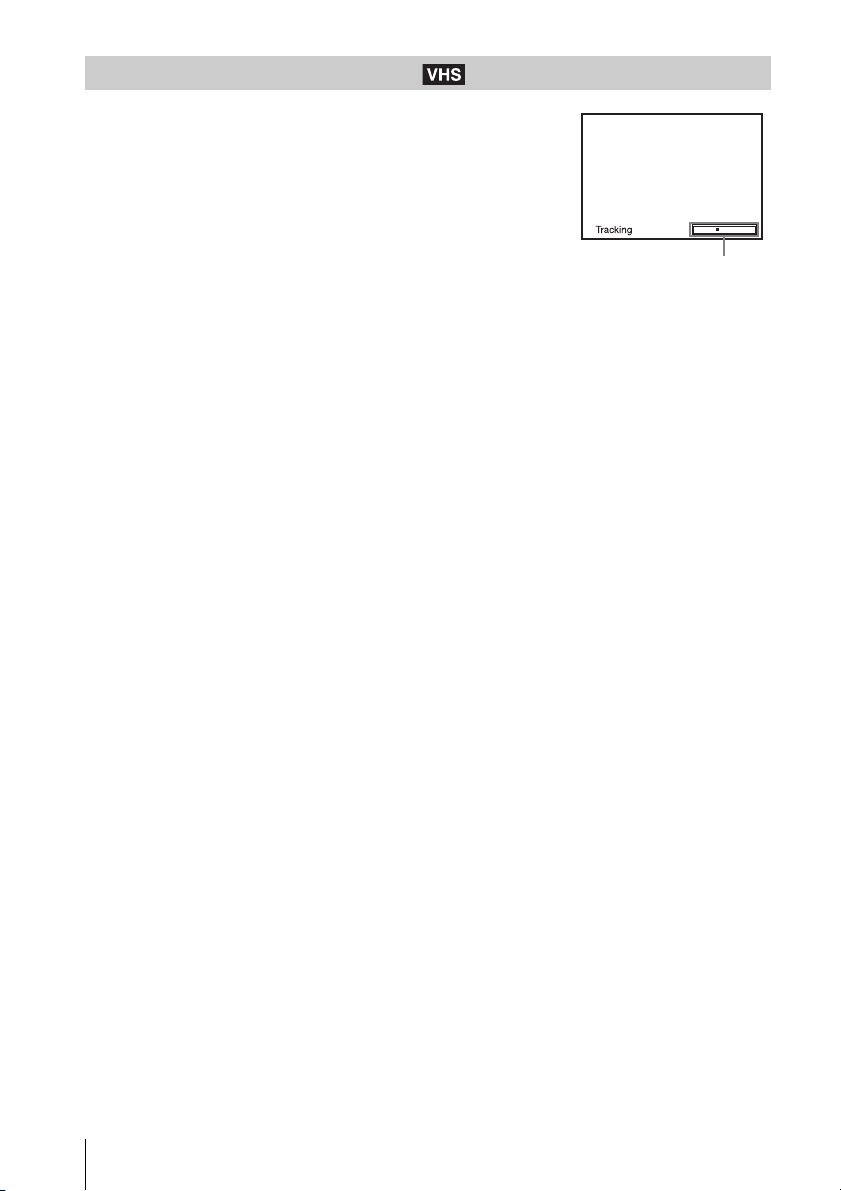
Although the VCR automatically adjusts the tracking when
playing a tape, distortion may occur if the recording is in poor
condition. In this case, manually adjust the tracking.
Press TRACKING +/– to display the tracking meter. The
distortion should disappear as you press one of the two tracking
buttons.
To resume automatic tracking adjustment, eject the tape and
reinsert it.
Note
• The auto tracking adjustment cannot be guaranteed to work with tapes recorded in the LP
mode on other VCRs.
Adjusting the picture (tracking)
Tracking meter
Basic Operations
35
US
Recording from a connected equipment
Recording from a connected equipment
You can record from a connected cable box
or satellite receiver. To connect cable box or
satellite receiver, see “Connecting a cable
box or satellite receiver” on page 16.
Before you start ...
• Turn on the DVD-VCR, TV and your cable
box or sattelite receiver.
• Set the TV to video input so that the signal
from the player appears on the TV screen.
•Set TV
/ DVD·VIDEO switch to
DVD·VIDEO on the remote.
• Make sure the tape is longer than the total
recording time.
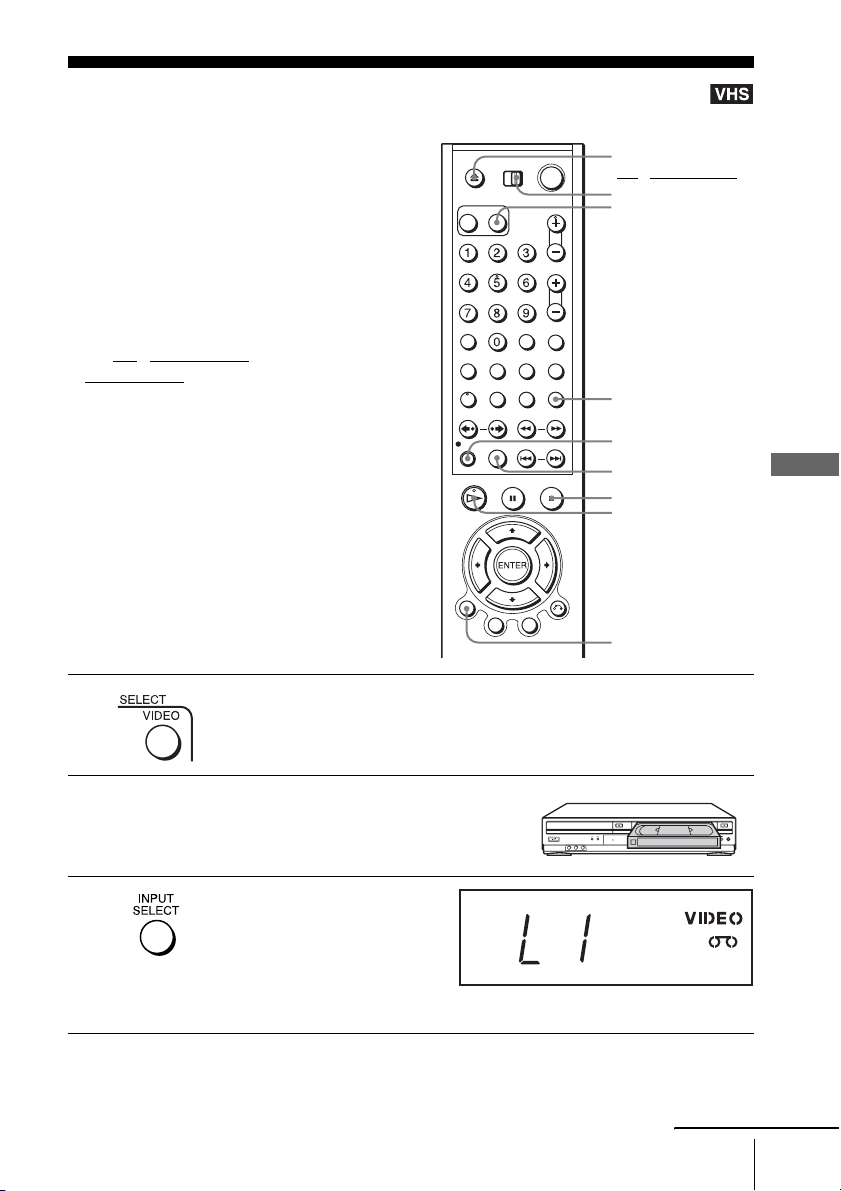
1
Press SELECT VIDEO to control the VCR.
2
Insert a tape with its safety tab in place.
3
Press INPUT SELECT to select
a source connected to the LINE
IN 1 or LINE-2 IN jacks.
“L1” or “L2” appears in the
display window.
z REC
SP/EP
DISPLAY
INPUT SELECT
x STOP
H PLAY
Z
SELECT VIDEO
TV / DVD·VIDEO
switch
continued
36
US
Recording from a connected equipment
To stop recording
Press x STOP.
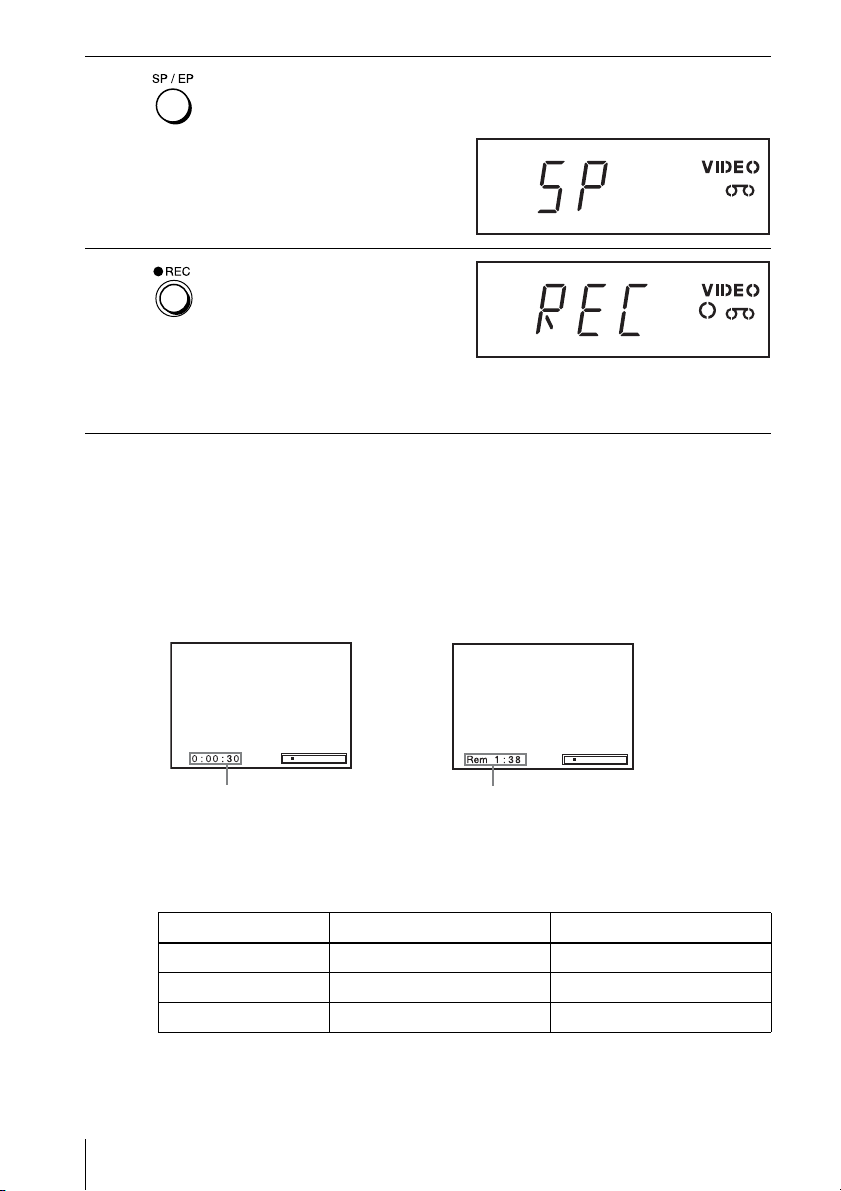
To check the remaining tape length
Press DISPLAY to display the time counter. With the display on, press DISPLAY
again to check the remaining time. The white bar indicates the current location in
relation to the entire tape length. The remaining time also appears. Press DISPLAY to
turn off the indicators.
To check the remaining tape length of a tape, set “Tape Length” in the “VIDEO
FUNCTION SETUP” menu correctly (page 86).
Maximum Recording Time
4
Press SP/EP to select the tape speed, SP or EP.
EP (Extended Play) provides recording time three times as long as SP
(Standard Play). However, SP produces better picture and audio quality.
5
Press z REC to start recording.
“REC” appears in the display
window.
While recording, leave the connected cable box or satellite receiver turned
on and do not change their channel you want to record.
Tape Length SP EP
T-120 2 hrs 6 hrs
T-160 2 hrs 40 mins 8 hrs
T-180 3 hrs 9 hrs
Time counter
Remaining tape length
Basic Operations
37
US
Recording from a connected equipment
To watch a DVD while recording
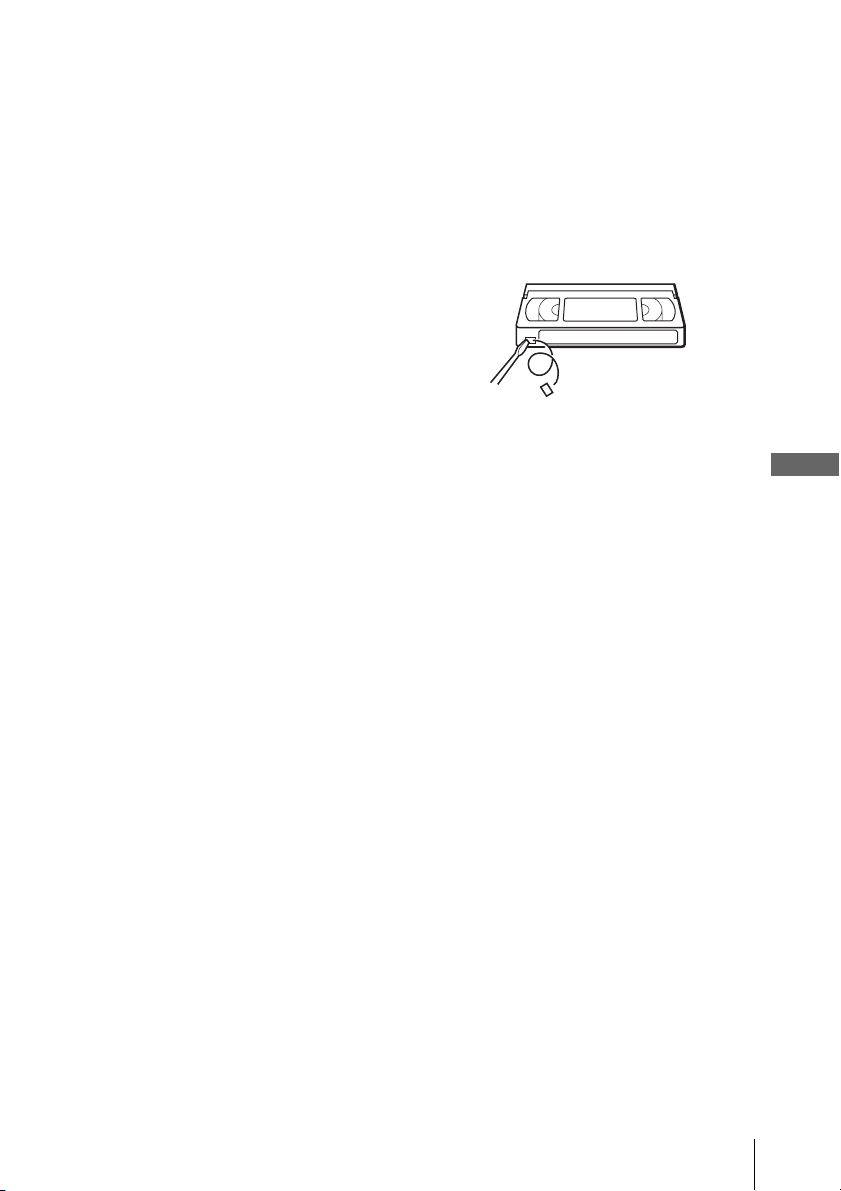
To save a recording
To prevent accidental erasure, break
off the safety tab as illustrated. To
record on the tape again, cover the tab
hole with adhesive tape.
Tips
• The display appears on the TV screen indicating information about the tape, but the
information will not be recorded on the tape.
• If you do not want to watch TV while recording, you can turn off the TV.
Notes
• The remaining tape length may not be indicated accurately for short tapes such as T-20 or
T-30, or tapes recorded in LP mode.
• It may take up to one minute for the VCR to calculate and display the remaining tape length
after you press DISPLAY.
• You cannot record a DVD directly to a VCR tape using your DVD-VCR.
1
Press SELECT DVD to control the DVD player.
2
Press Z and place the disc on the disc tray.
3
Press H PLAY.
The disc tray closes and the DVD player starts playback. The TV screen will
automatically change to the DVD playback screen.
Safety tab
38
US
Recording from a connected equipment using the timer
Recording from a connected equipment
using the timer
You can set the DVD-VCR to automatically
record programs from a connected cable box
or satellite receiver. To connect a cable box
or satellite receiver, see “Connecting a cable
box or satellite receiver” (page 16).
You can preset up to eight programs at a
time.
Before you start…
• Check that the DVD-VCR clock is set to
the correct time.
• Turn on the DVD-VCR, TV and your cable
box or sattelite reciever.
• Set the TV to video input so that the signal
from the player appears on the TV screen.
•Set TV
/ DVD·VIDEO switch to
DVD·VIDEO
on the remote.
• Insert a tape with its safety tab in place.
Make sure the tape is longer than the total
recording time.
• If the DVD player is in play mode, you
cannot display the setup menu. Stop the
DVD playback.
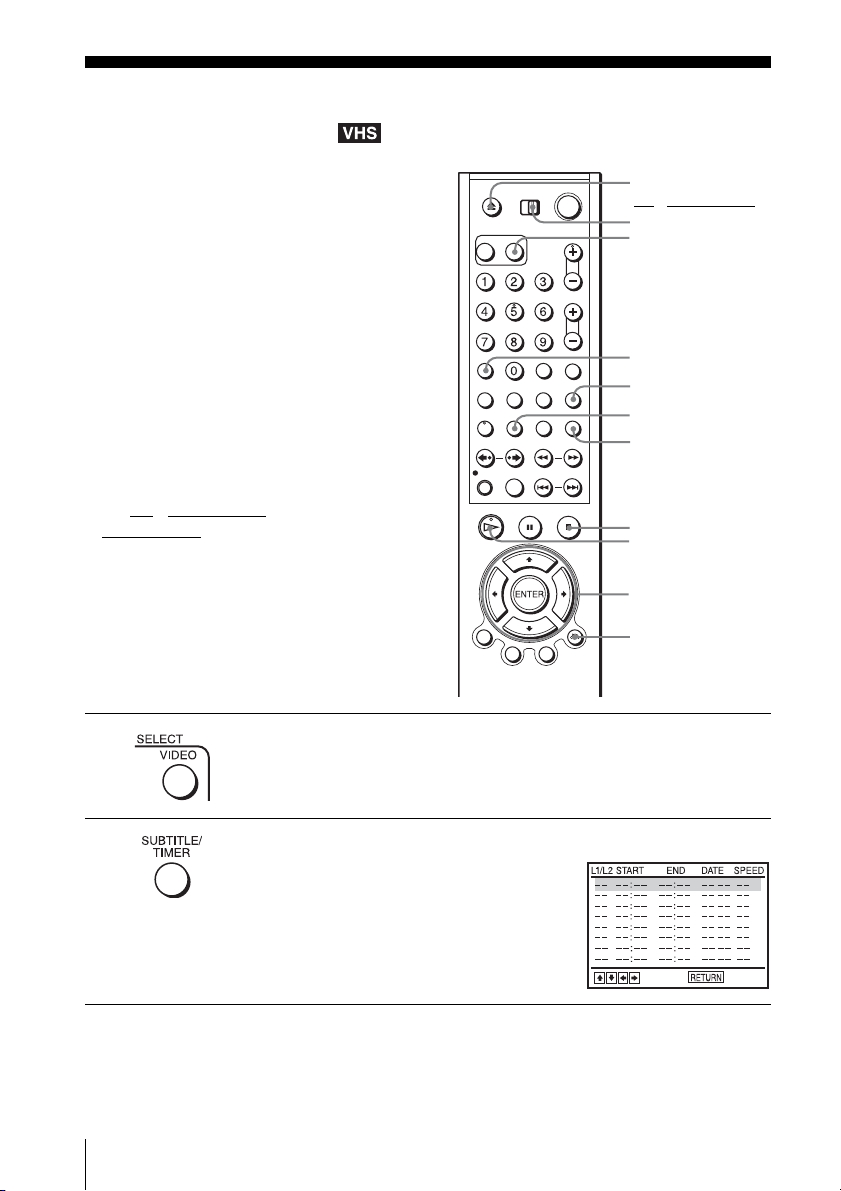
1
Press SELECT VIDEO to control the VCR.
2
Press TIMER.
The timer programming menu appears.
INPUT SELECT
V/v/B/b
ENTER
x STOP
CLEAR
TIMER
H PLAY
TV/VIDEO
O RETURN
SELECT VIDEO
TV
/ DVD·VIDEO
switch
Z
Basic Operations
39
US
Recording from a connected equipment using the timer
To stop recording
To stop the DVD-VCR while recording, press SELECT VIDEO and then press
x STOP.
Daily/weekly recording
In step 3, press v to select the recording pattern. Each time you press v, the
indication changes as shown below. Press V to change the indication in reverse order.
the current date t Daily t Mo~Sa t Mo~Fr tSun’s t Mon’s t ..... t Sat’s
t 1 month later t (dates count down) t the current date
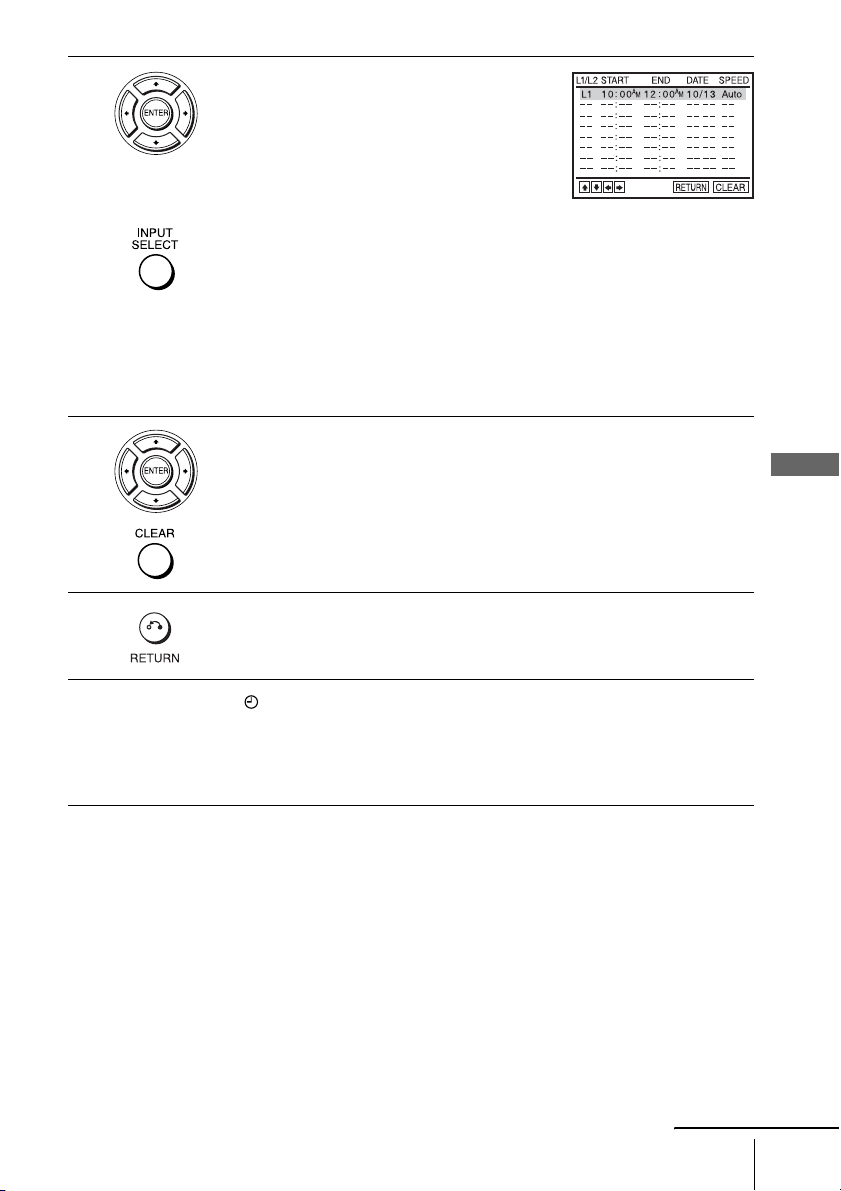
3
Set the line input (L1 or L2), start and stop
times, date, and tape speed:
1 Press b to select each item in turn.
2 Press V/v to set each item.
To correct a setting, press B to return to that
setting and reset.
• To select a source connected to the LINE IN
1 or LINE-2 IN jacks, press INPUT SELECT or V/v to display “L1” or
“L2” in the “L1/L2” position.
• To record the same program every day or the same day every week, press
v while the date is flashing. For details, see “Daily/weekly recording” on
page 39.
• To use the Auto Tape Speed function, press v to display “Auto” in the
“SPEED” position. For details, see “To use the Auto Tape Speed
function” on page 40.
4
Press b to confirm the setting.
To enter another setting, press V/v to select the next row and repeat step 3.
Press CLEAR to cancel the setting.
5
Press O RETURN to exit the menu.
6
The indicator appears in the display window and the VCR stands by for
recording. While recording, the connected cable box or satellite receiver
turned on and do not change their channel you want to record. Timer
recording will operate properly regardless if the DVD-VCR power is on or
off.
continued

40
US
Recording from a connected equipment using the timer
To use the Auto Tape Speed function
When you are recording a program in the Auto mode and the remaining tape becomes
shorter than the recording time, the tape speed is automatically changed to EP mode.
Note that some noise will appear on the picture when the tape speed is changed. If
you want to keep the tape speed, select SP. To operate this function, set “Tape
Length” in “VIDEO FUNCTION SETUP” menu correctly (page 86).
To watch a DVD after setting the timer
Tips
• If the indicator appears, the timer settings overlap. To check, change or cancel the timer
setting, see “Checking/changing/canceling timer settings” on page 41.
• If the indicator appears, this means that the VCR is currently recording this program.
• You can also do the following tasks while the VCR is recording:
– Reset the counter (page 33).
– Display tape information on the TV screen (page 36).
• You can also display the timer programming menu by first pressing SET UP, then V/v to
select (PROGRAM) and pressing ENTER in step 2.
Note
• The indicator flashes in the display window when you complete the timer setting with no
tape inserted.
1
Press SELECT DVD to control the DVD player.
2
Press Z and place the disc on the disc tray.
3
Press H PLAY.
The disc tray closes and the DVD player starts playback. The TV screen will
automatically change to the DVD playback screen.
Basic Operations
41
US
Checking/changing/canceling timer settings
Checking/changing/canceling timer
settings
Before you start…
• Check that the DVD-VCR clock is set to
the correct time.
• Turn on the DVD-VCR and your TV.
• Set the TV to video input so that the signal
from the player appears on the TV screen.
•Set TV
/ DVD·VIDEO switch to
DVD·VIDEO on the remote.
• Insert a tape with its safety tab in place.
Make sure the tape is longer than the total
recording time.
• If the DVD player is in play mode, you
cannot display the setup menu. Stop the
DVD playback.
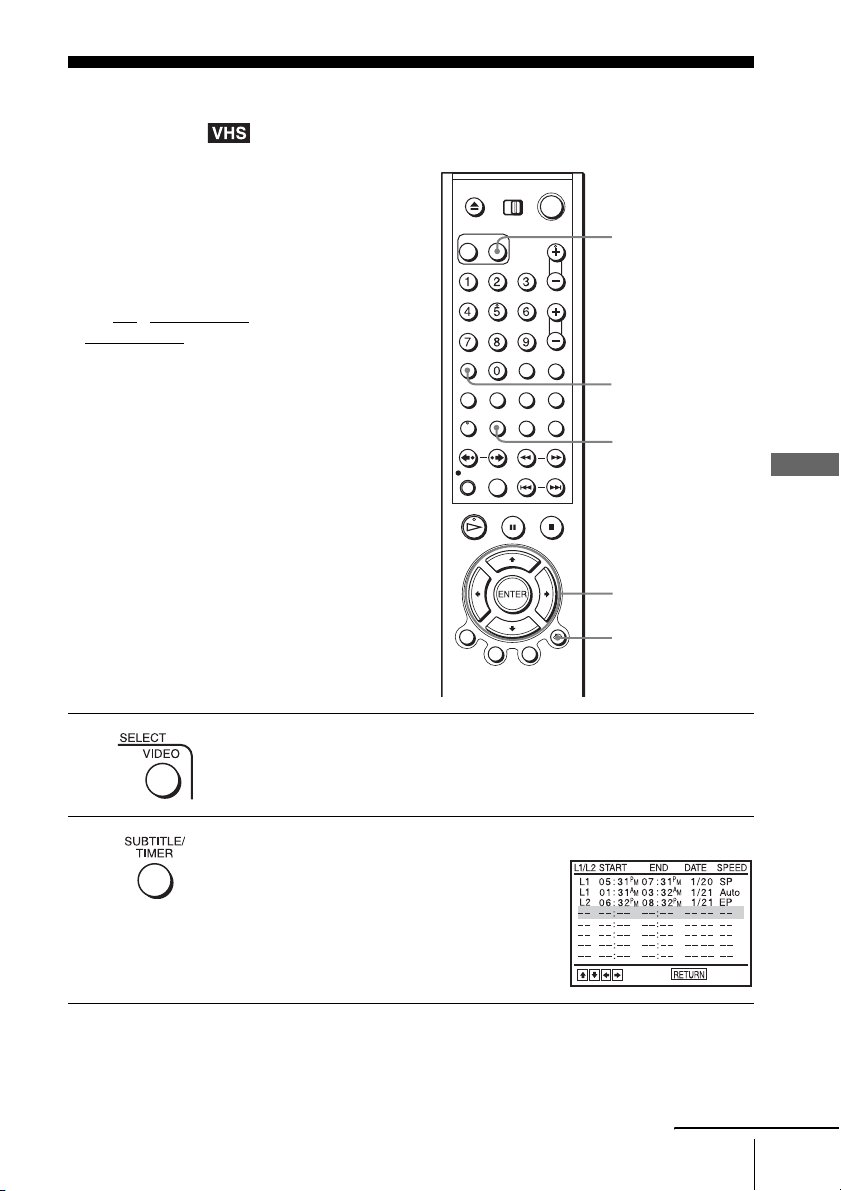
1
Press SELECT VIDEO to control the VCR.
2
Press TIMER.
The timer programming menu appears.
TIMER
CLEAR
SELECT VIDEO
V/v/B/b
ENTER
O RETURN
continued
42
US
Checking/changing/canceling timer settings
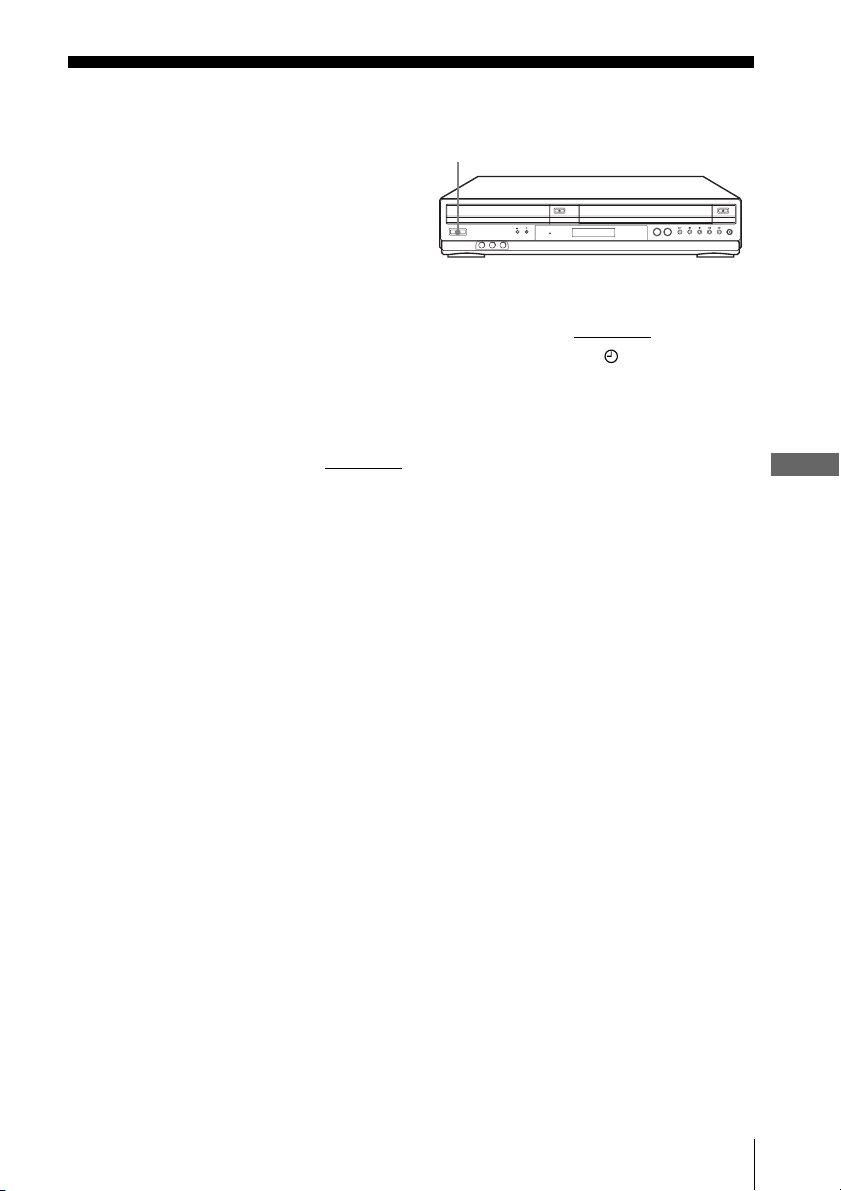
When the timer settings overlap
The program that starts first has priority and the second program starts recording only
after the first program has finished. If the programs start at the same time, the
program listed first in the menu has priority.
Tips
• If the indicator appears, the timer settings overlap.
• You can also display the timer programming menu by first pressing SET UP, then V/v to
select (PROGRAM) and pressing ENTER in step 2.
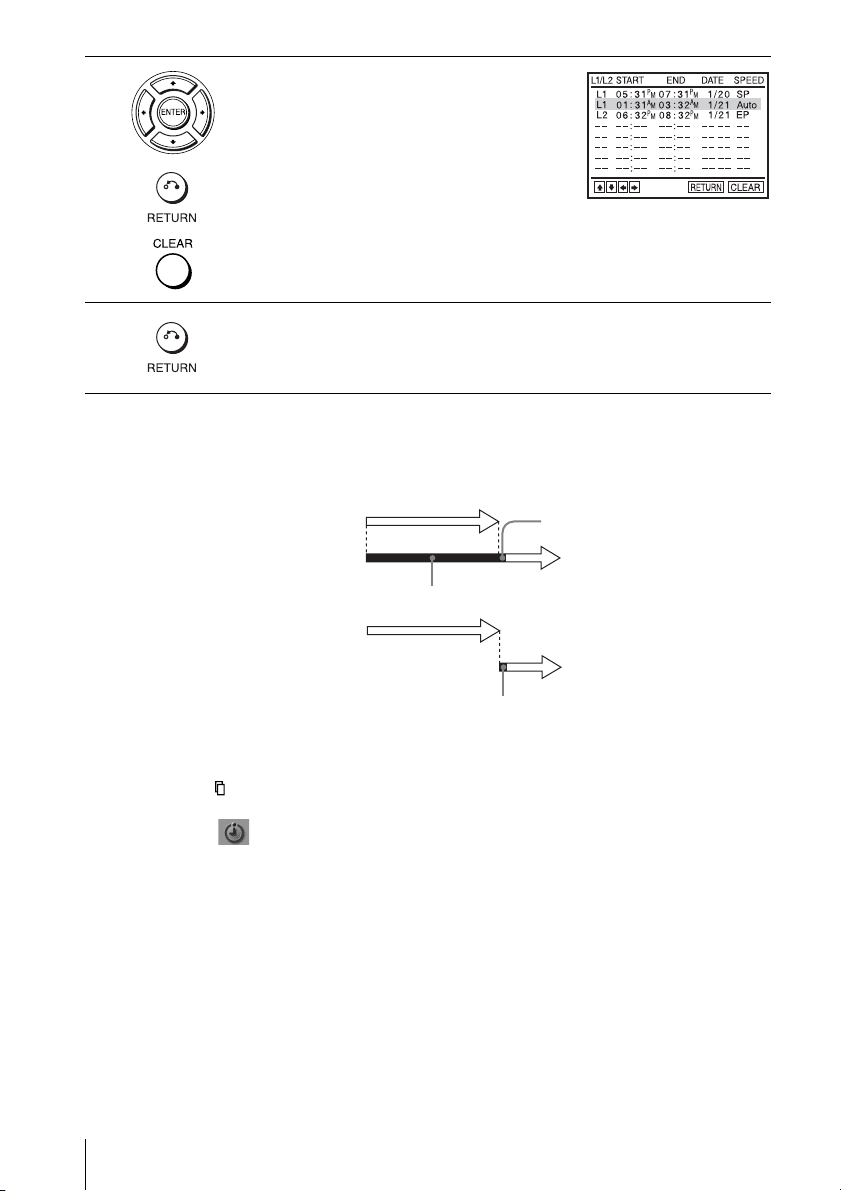
3
Press V/v to select setting you want to change
or cancel.
• To change the setting, press B/b to select
the item you want to change, and press V/v
to change it. Then, press O RETURN to
confirm the setting.
• To cancel the setting, press CLEAR.
4
Press O RETURN to exit the menu.
Program 1
Program 2
about 20 seconds will be cut off
Program 1
Program 2
about 20 seconds
will be cut off
Basic Operations
43
US
Locking the DVD-VCR (Child Lock)
Locking the DVD-VCR (Child Lock)
After you have set the timer, you can lock all
of the buttons on the DVD-VCR so that the
settings are not canceled by mistake.
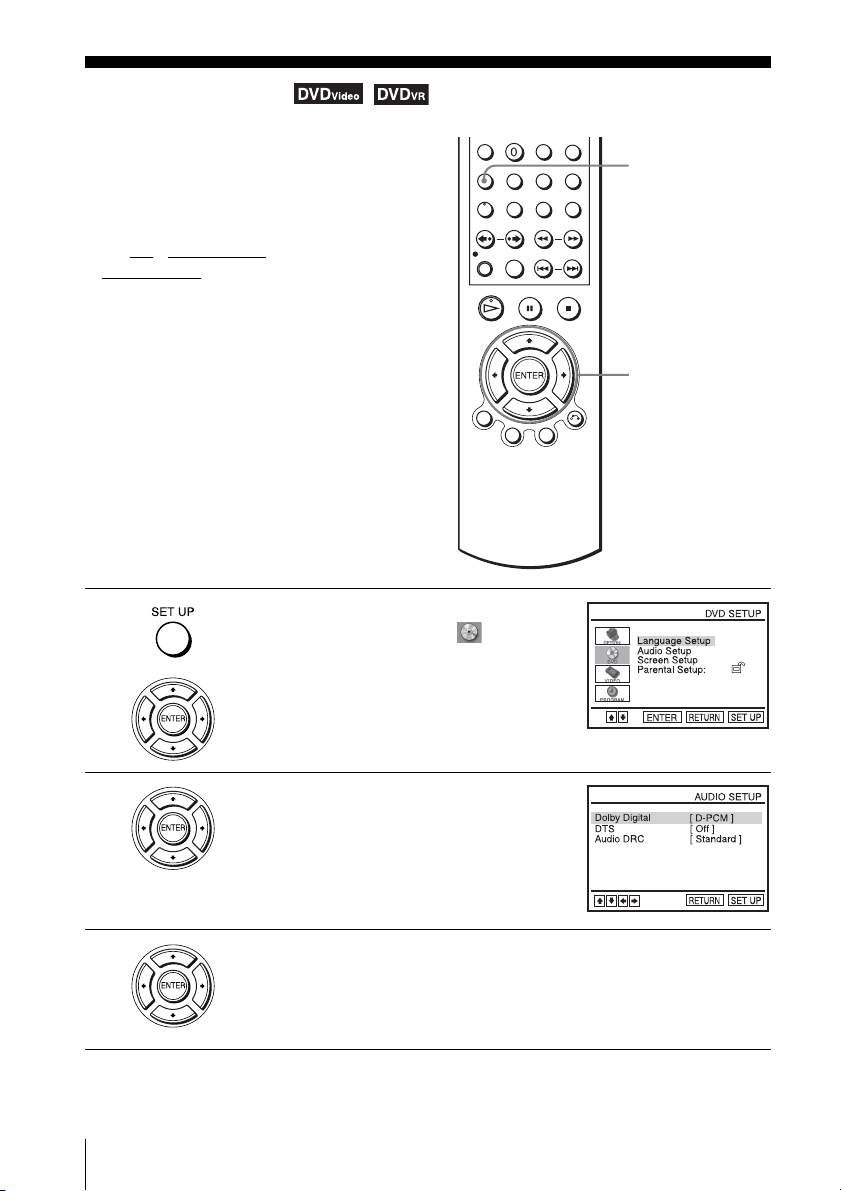
To lock the DVD-VCR
When the DVD-VCR is turned on, hold down ?/1 POWER on the unit
until “LOC”
appears in the display window. The DVD-VCR turns off and the indicator remains
lit if there is a timer setting. The DVD-VCR will not work except for timer
recordings.
To unlock the DVD-VCR
Hold down ?/1 POWER on the unit
until “LOC” disappears from the display
window. The DVD-VCR is unlocked and turns on.
To stop timer recording while the DVD-VCR is locked, press x. The recording stops
and the DVD-VCR is unlocked.
Note
• The DVD-VCR will be unlocked when:
– You stop timer recording by pressing
x.
– You insert a tape.
– The AC power cord is disconnected or power supply stops.
?/1 POWER
44
US
Audio Setup
DVD Settings and Adjustments
Audio Setup
“Audio Setup” allows you to set the sound
according to the playback and connection
conditions.
Before you start…
•Set TV
/ DVD·VIDEO switch to
DVD·VIDEO on the remote.
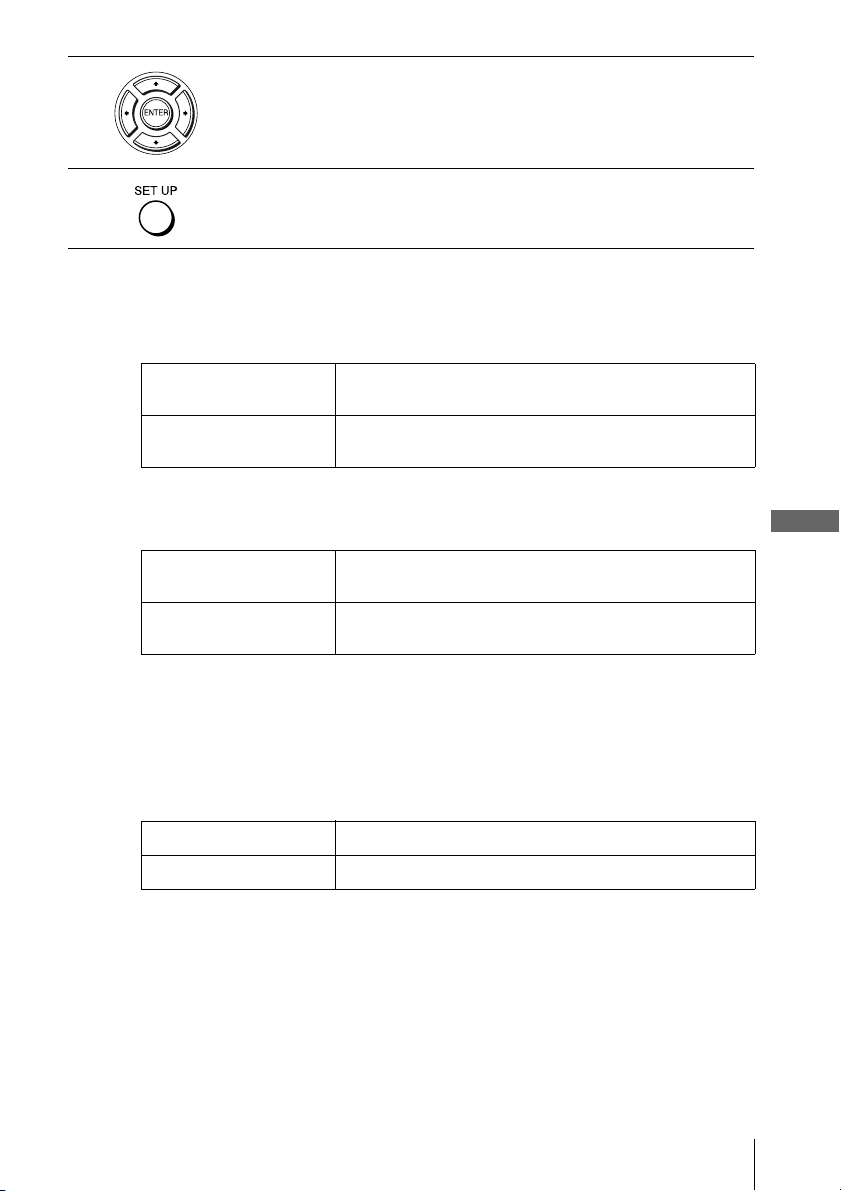
1
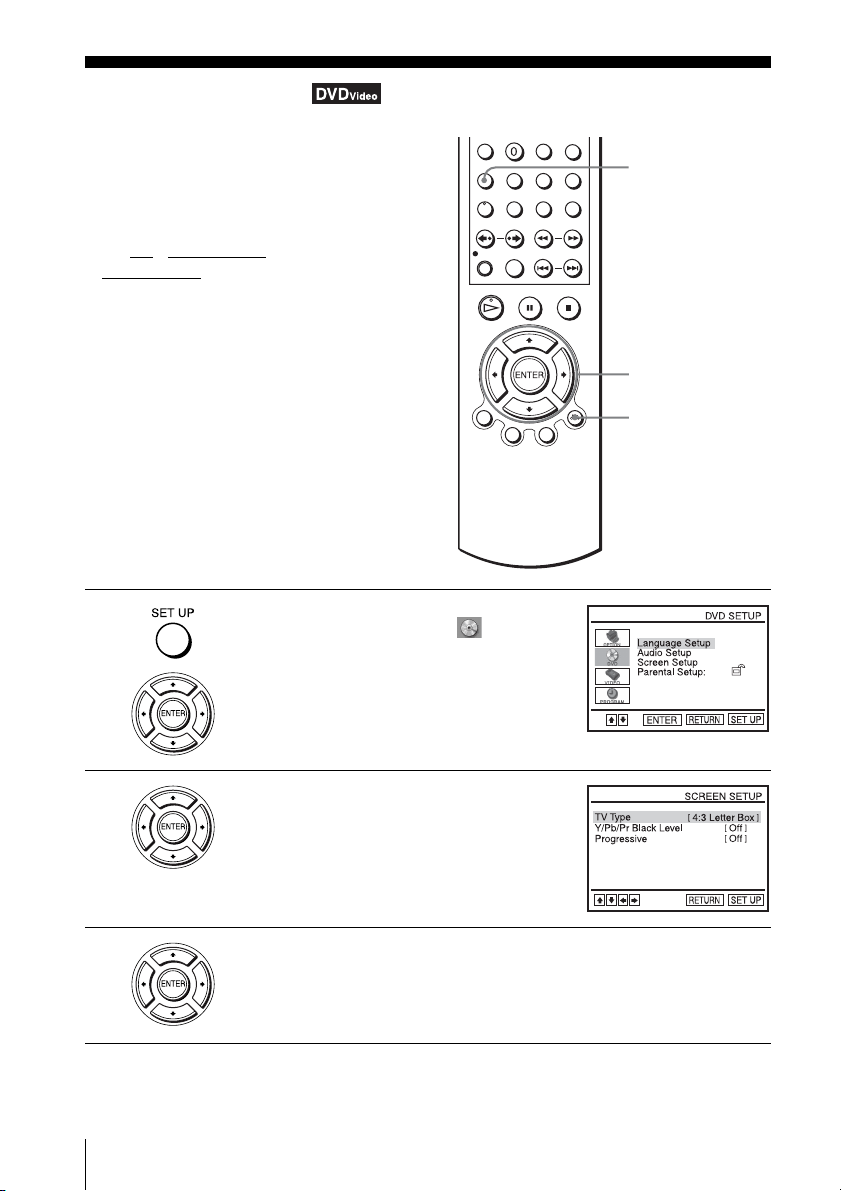
Press SET UP when the DVD player is in stop
mode, then press V/v to select (DVD),
then press ENTER.
2
Press V/v to select “Audio Setup,” then press
ENTER.
3
Press V/v to select the setup item from the displayed list:
“Dolby Digital,” “DTS” or “Audio DRC.”
V/v/B/b
ENTER
SET UP
DVD Settings and Adjustments
45
US
Audio Setup
Menu choices
• Dolby Digital
Selects the type of Dolby Digital signal.
The default setting is indicated in bold print.
•DTS
Selects whether or not to output DTS signals.
The default setting is indicated in bold print.
• Audio DRC (Dynamic Range Control)
Makes the sound clear when the volume is turned down when playing a DVD that
conforms to “Audio DRC.” This affects the output from the following jacks:
– LINE OUT AUDIO L/R jacks
– DIGITAL AUDIO OUT (COAXIAL) jack only when “Dolby Digital” is set to
“D-PCM”.
The default setting is indicated in bold print.
Notes
• If you connect a component that does not conform to the selected audio signal, a loud noise
(or no sound) will come out from the speakers, affecting your ears or causing the speakers to
be damaged.
• Noise may occur in the LinearPCM double-speed audio. This is not a malfunction.
4
Press B/b to select an item.
5
Press SET UP to exit the menu.
D-PCM Select this when the player is connected to an audio component
lacking a built-in Dolby Digital decoder.
Dolby Digital Select this when the player is connected to an audio component
with a built-in Dolby Digital decoder.
Off Select this when the player is connected to an audio component
lacking a built-in DTS decoder.
On Select this when the player is connected to an audio component
with a built-in DTS decoder.
Standard Normally select this positon.
Wide Range Gives you the feeling of being at alive performance.
46
US
Screen Setup
Screen Setup
“Screen Setup” allows you to set the screen
according to the playback and connection
conditions.
Before you start…
•Set TV
/ DVD·VIDEO switch to
DVD·VIDEO on the remote.
1
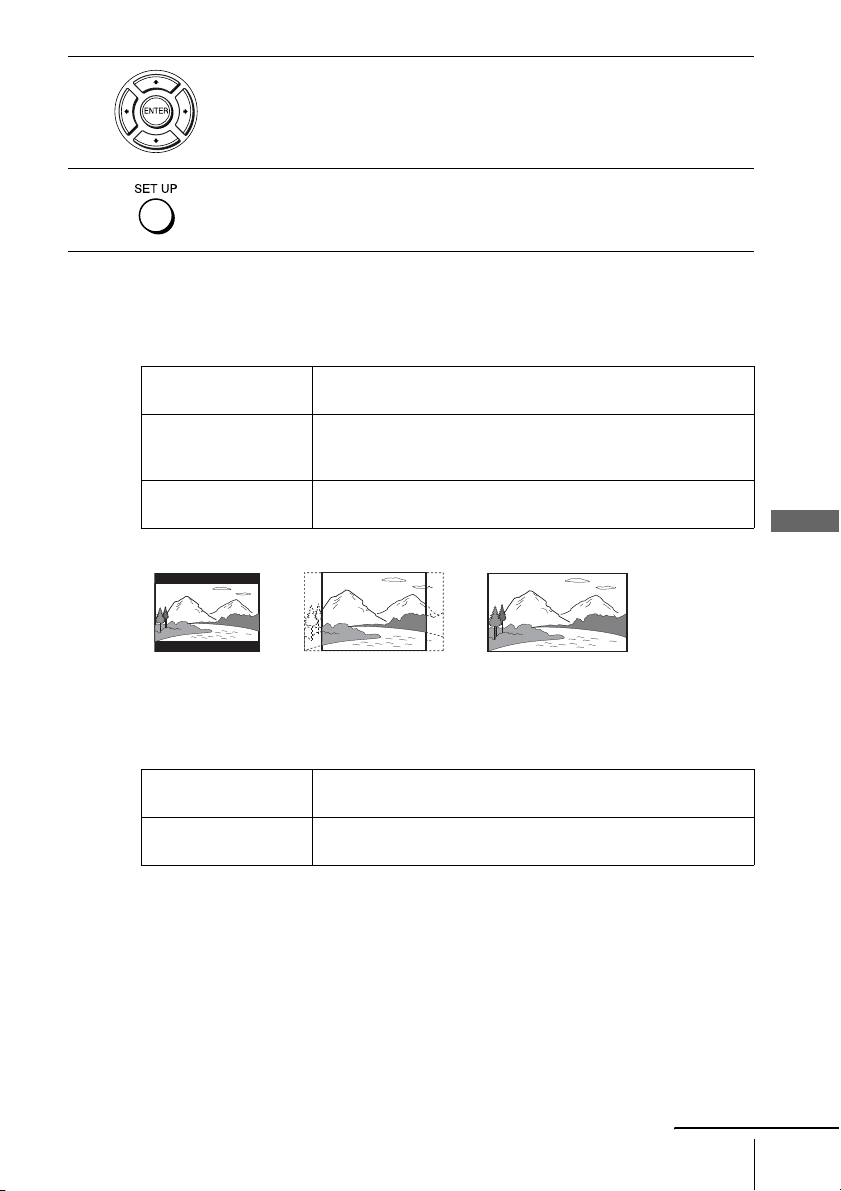
Press SET UP when the DVD player is in stop
mode, then press V/v to select (DVD),
then press ENTER.
2
Press V/v to select “Screen Setup,” then press
ENTER.
3
Press V/v to select the setup item from the displayed list:
“TV Type,” or “Y/Pb/Pr Black Level.”
To set the “Progressive” setting, see page 48.
V/v/B/b
ENTER
SET UP
O RETURN
DVD Settings and Adjustments
47
US
Screen Setup
Menu choices
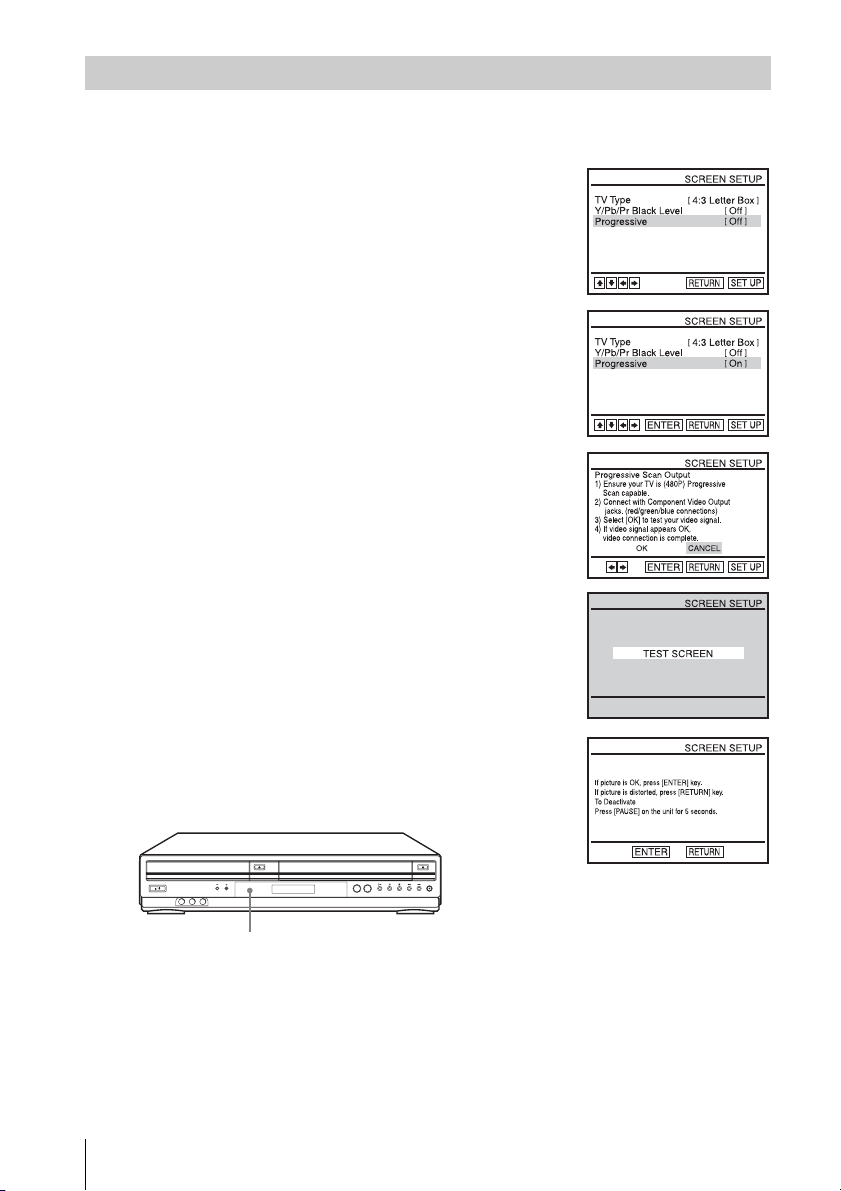
• TV Type
Selects the aspect ratio of the connected TV (4:3 standard or wide).
The default setting is indicated in bold print.
• Y/Pb/Pr Black Level
Selects the black level (setup level) for the video signals output from the
COMPONENT VIDEO OUT jacks.
The default setting is indicated in bold print.
Notes
• Playback settings stored in the disc take priority over the “DVD SETUP” menu settings and
not all the functions described may work.
• Depending on the DVD VIDEO, “4:3 Letter Box” may be selected automatically instead of
“4:3 Pan Scan” or vice versa.
4
Press B/b to select an item.
5
Press SET UP to exit the menu.
4:3 Letter Box Select this when you connect a 4:3 screen TV. Displays a wide
picture with bands on the upper and lower portions of the screen.
4:3 Pan Scan Select this when you connect a 4:3 screen TV. Automatically
displays the wide picture on the entire screen and cuts off the
portions that do not fit.
16:9 Select this when you connect a wide-screen TV or a TV with a wide
mode function.
Off Sets the black level of the output signal to the standard level.
Normally select this position.
On Raises the standard black level. Use this setting when the picture
appears too dark.
4:3 Pan Scan4:3 Letter Box 16:9
continued
48
US
Screen Setup
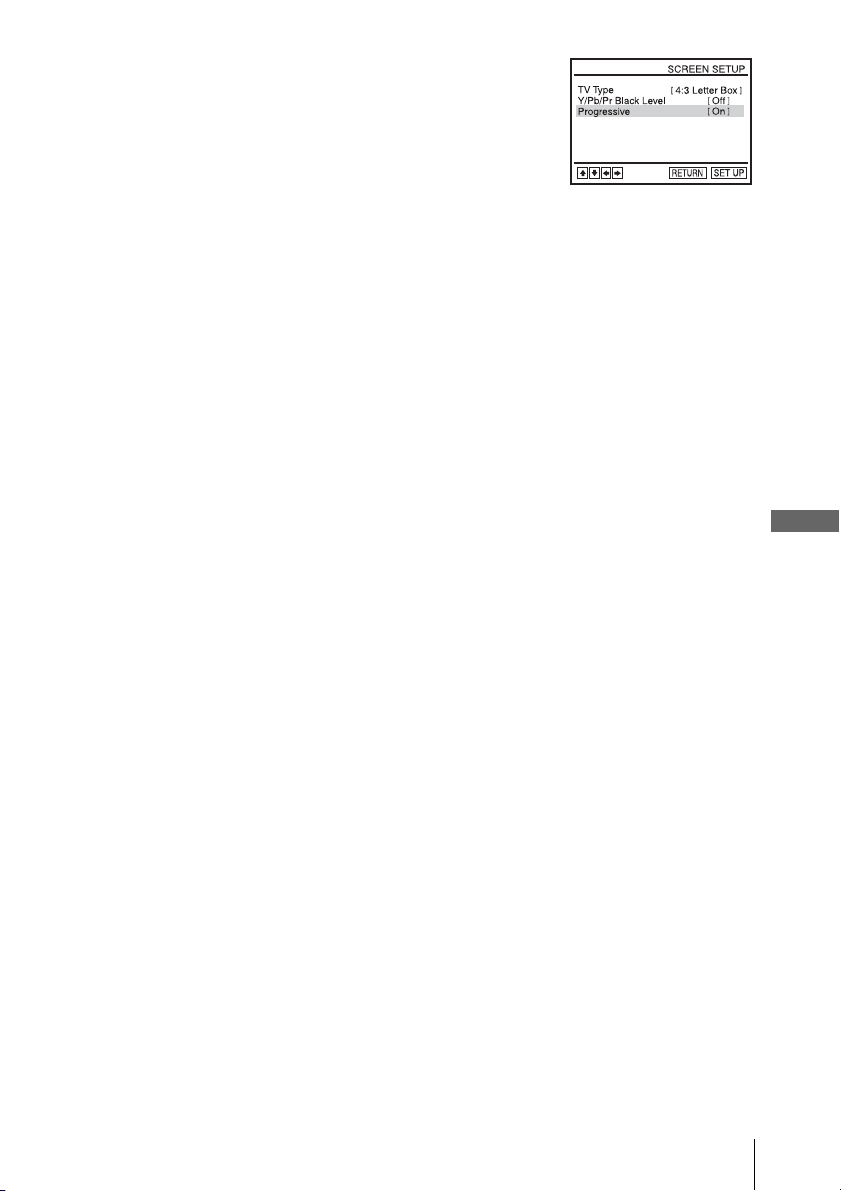
If your TV accepts progressive (480p) format signals, you will enjoy accurate color
reproduction and high quality image.
To set the “Progressive” setting
1
Follow step 1 and 2 on page 46, then press V/v to select
“Progressive.”
2
Press B/b to select “On,” then press ENTER.
3
Follow the instructions appearing on the screen.
1 Ensure your TV is (480p) Progressive Scan capable.
2 Connect with Component Video Output jacks (red/green/
blue connections).
For details, see the connection B on page 21.
3 Press B/b to select [OK] to test your video signal.
4
If video signal appears OK, video connection is complete.
Press ENTER.
The PROGRESSIVE indicator on the unit lights up in orange.
If picture is distorted, press O RETURN. Check the connection (page 21).
PROGRESSIVE indicator
DVD Settings and Adjustments
49
US
Screen Setup
To cancel the “Progressive” setting
Select “Off” in step 2.
You can also cancel by pressing SELECT DVD and then press X on the unit
continuously for 5 seconds or more when the DVD-VCR is in stop mode.
Note
• If you select progressive signal when you connect the DVD player to a TV that cannot accept
the signal in progressive format, the image quality will deteriorate. In this case, set
“Progressive” to “Off”.
5
Press SET UP to exit the menu.
50
US
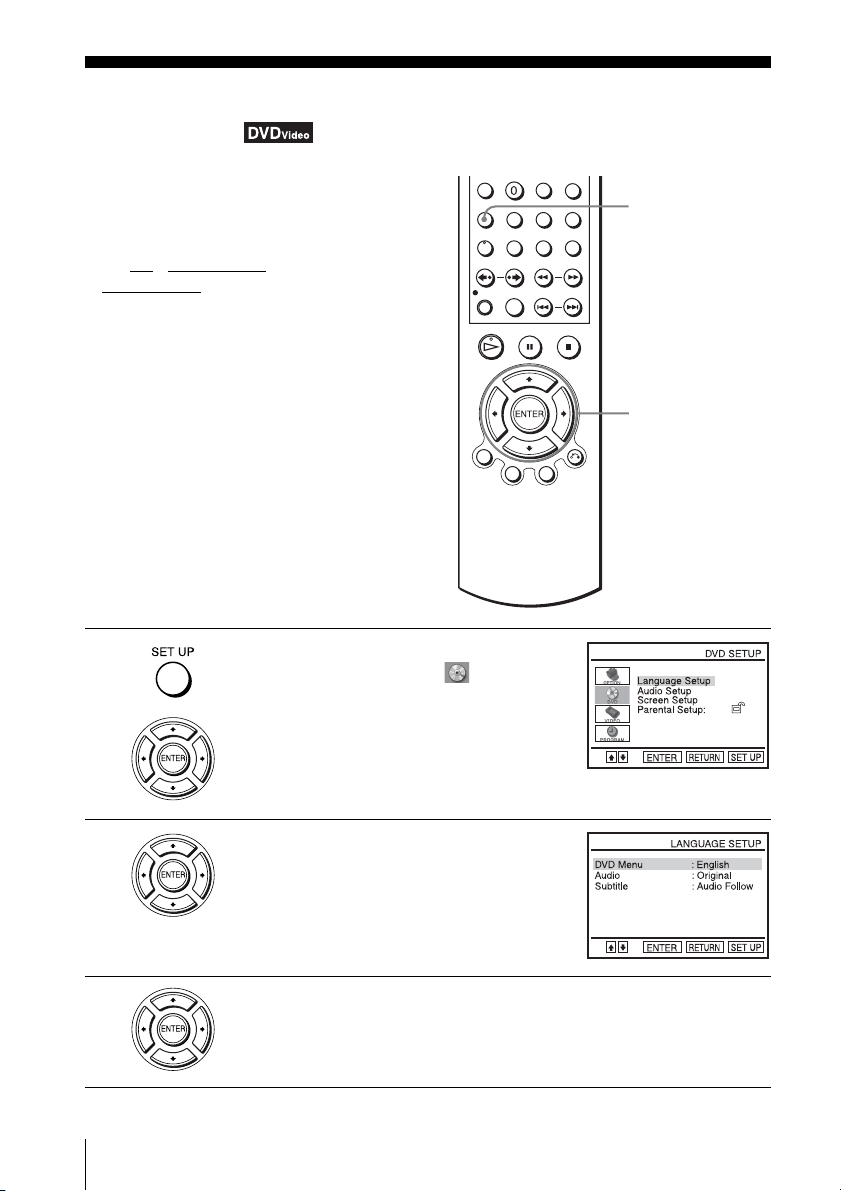
Setting the display or sound track language
Setting the display or sound track
language
You can set various languages for the disc’s
menu, sound track or subtitle.
Before you start…
•Set TV / DVD·VIDEO switch to
DVD·VIDEO
on the remote.
1
Press SET UP when the DVD player is in stop
mode, then press V/v to select (DVD) and
press ENTER.
2
Press V/v to select “Language Setup,” then
press ENTER.
The “LANGUAGE SET UP” menu appears.
3
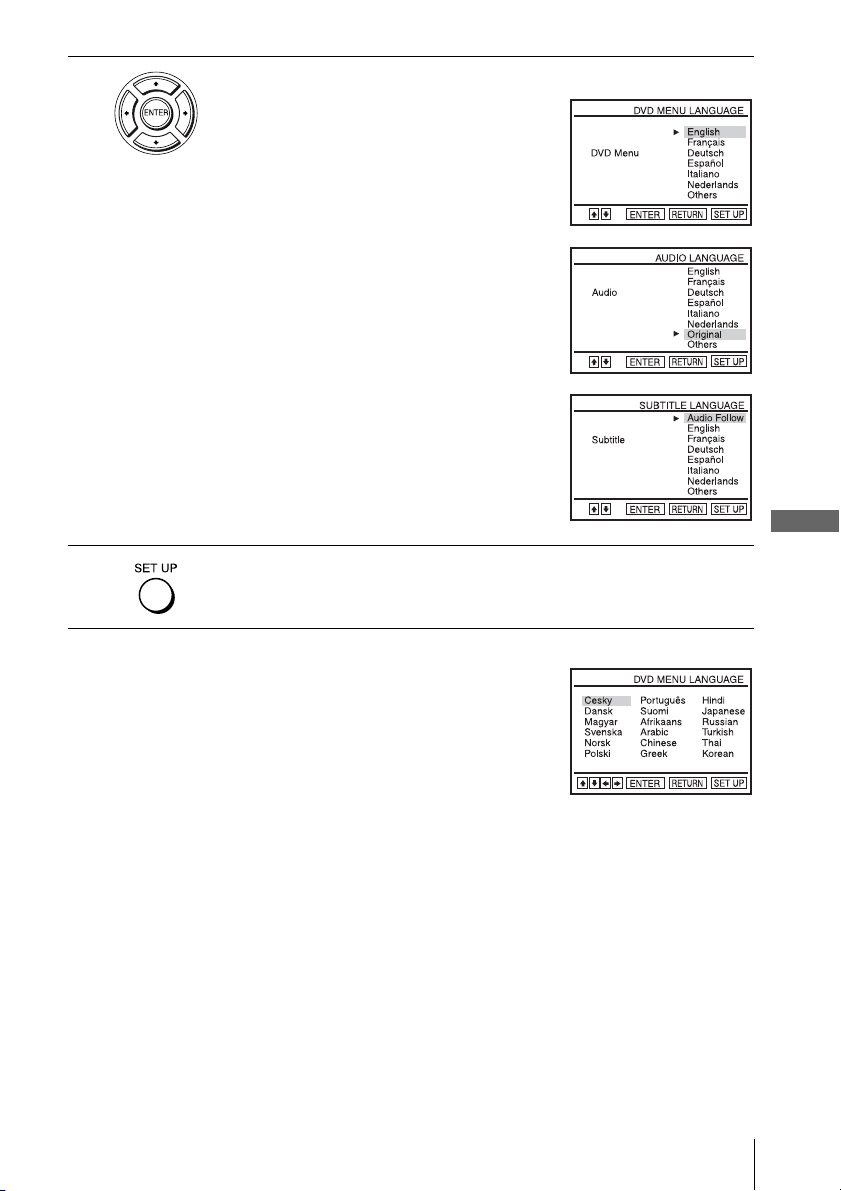
Press V/v to select the language setup item from the displayed list:
“DVD Menu,” “Audio,” or “Subtitle.”
Then press ENTER.
V/v/B/b
ENTER
SET UP
DVD Settings and Adjustments
51
US
Setting the display or sound track language
Tip
• If you select “Others” in step 4, an additional language menu
appears. Press V/v/B/b to select the desired language, then
press ENTER.
Notes
• When you select a language that is not recorded on the DVD VIDEO in step 4, one of the
recorded languages will be automatically selected.
• Playback settings stored in the disc take priority over the DVD SETUP settings and not all the
functions described may work.
4
Press V/v to select the desired language, then press ENTER.
• DVD MENU LANGUAGE
You can select the desired language for the
disc’s menu.
• AUDIO LANGUAGE
Switches the language of the sound track.
When you select “Original,” the language
given priority in the disc is selected.
• SUBTITLE LANGUAGE
Switches the language of the subtitle
recorded on the DVD VIDEO.
When you select “Audio Follow,” the
language for the subtitle changes according
to the language you selected for the sound
track.
5
Press SET UP to exit the menu.
52
US
Parental Control (limiting playback by children)
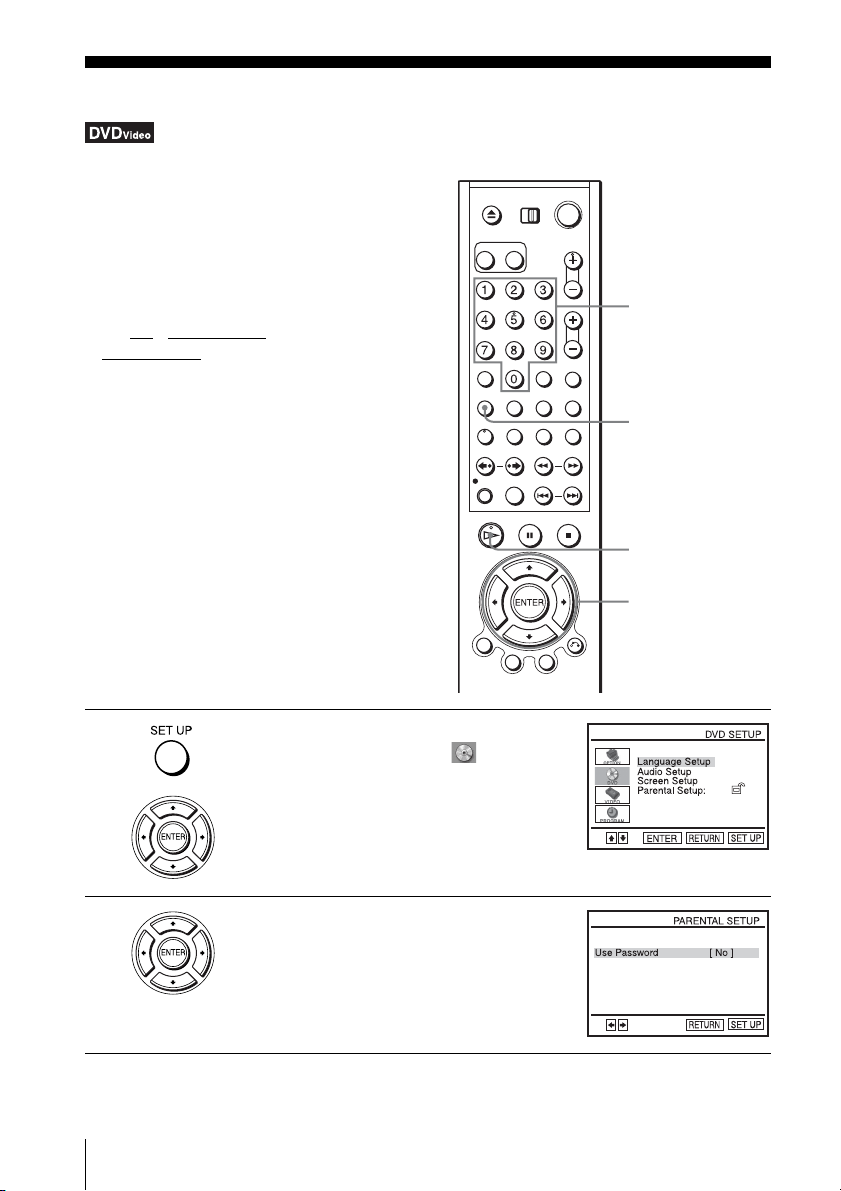
Parental Control (limiting playback by children)
Playback of some DVD VIDEOs can be
limited according to a predetermined level
such as the age of the users. The “Parental
Control” function allows you to set a
playback limitation level.
Before you start…
•Set TV
/ DVD·VIDEO switch to
DVD·VIDEO
on the remote.
1
Press SET UP when the DVD player is in stop
mode, then press V/v to select (DVD) and
press ENTER.
2
Press V/v to select “Parental Setup,” then
press ENTER.
Number buttons
SET UP
H PLAY
V/v/B/b
ENTER
DVD Settings and Adjustments
53
US
Parental Control (limiting playback by children)
3
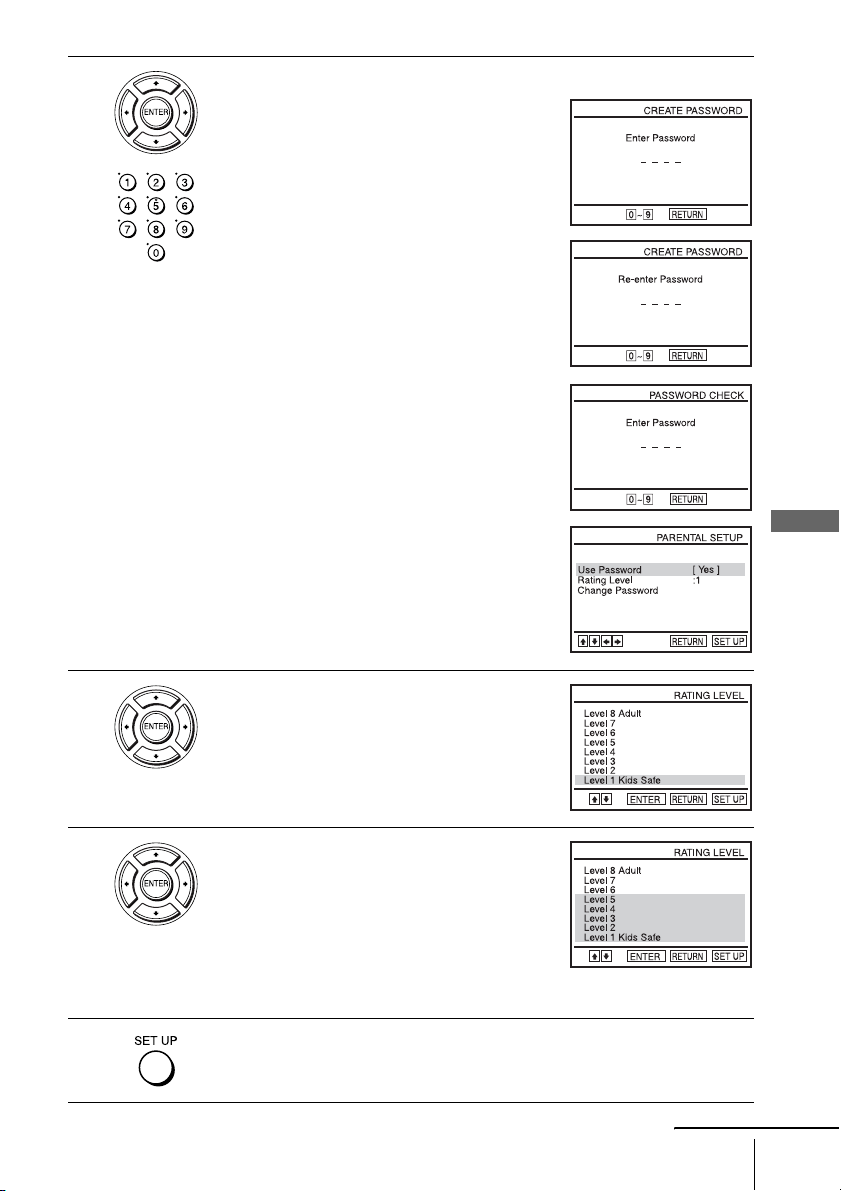
Press b to set the parental control.
• If you have not entered a password
The display for registering a new password
appears.
Enter a 4-digit password using the number
buttons.
The display for confirming the password
appears.
Re-enter the password.
• When you have already registered a
password
The display for entering the password appears.
Enter a 4-digit password using the number
buttons.
After registering a password, if you set
“Use
Password
” to “No,” “PASSWORD CHECK”
screen will not appear.
4
Press V/v to select “Rating Level,” then press
ENTER.
5
Press V/v to select the level you want, then
press ENTER.
The options are as follows.
Level 8 Adult y Level 7 y Level 6 y
Level 5 y Level 4 y Level 3 y Level 2
y Level 1 Kids Safe
The lower the value, the stricter the limitation.
6
Press SET UP to exit the menu.
continued

54
US
Parental Control (limiting playback by children)
To change the password
To turn off the Parental Control function
Set “Use Password” to “No” in step 3 on page 53.
To play a disc for which Parental Control is set
If you forget your password
Notes
• When you play DVD VIDEOs which do not have the Parental Control function, playback
cannot be limited on this player.
• All the ratings higher than the level you select will be blocked.
• Write your password down and keep it in a safe place in case you forget it.
• When you clear the password, “Language” in the “OPTION SETUP” menu and all items in
the “DVD SETUP” menu are returned to the default setting.
1
Select “Change Password” in step 4 on page 53.
The display for entering a new password appears.
2
Enter a new 4-digit password using the number buttons.
The display for confirming the password appears.
3
Re-enter the new password.
1
Insert the disc, then press H PLAY.
The display for entering your password appears.
2
Enter your 4-digit password using the number buttons.
The player starts playback.
1
Turn on the DVD-VCR.
2
Remove the disc and close the disc tray.
3
Hold down m and M on the front panel simultaneously for 5 seconds.
“Reset OK” appears on the screen.
4
Turn off the DVD-VCR.
The password is cleared.
5
To create a new password, follow step 3 on page 53.
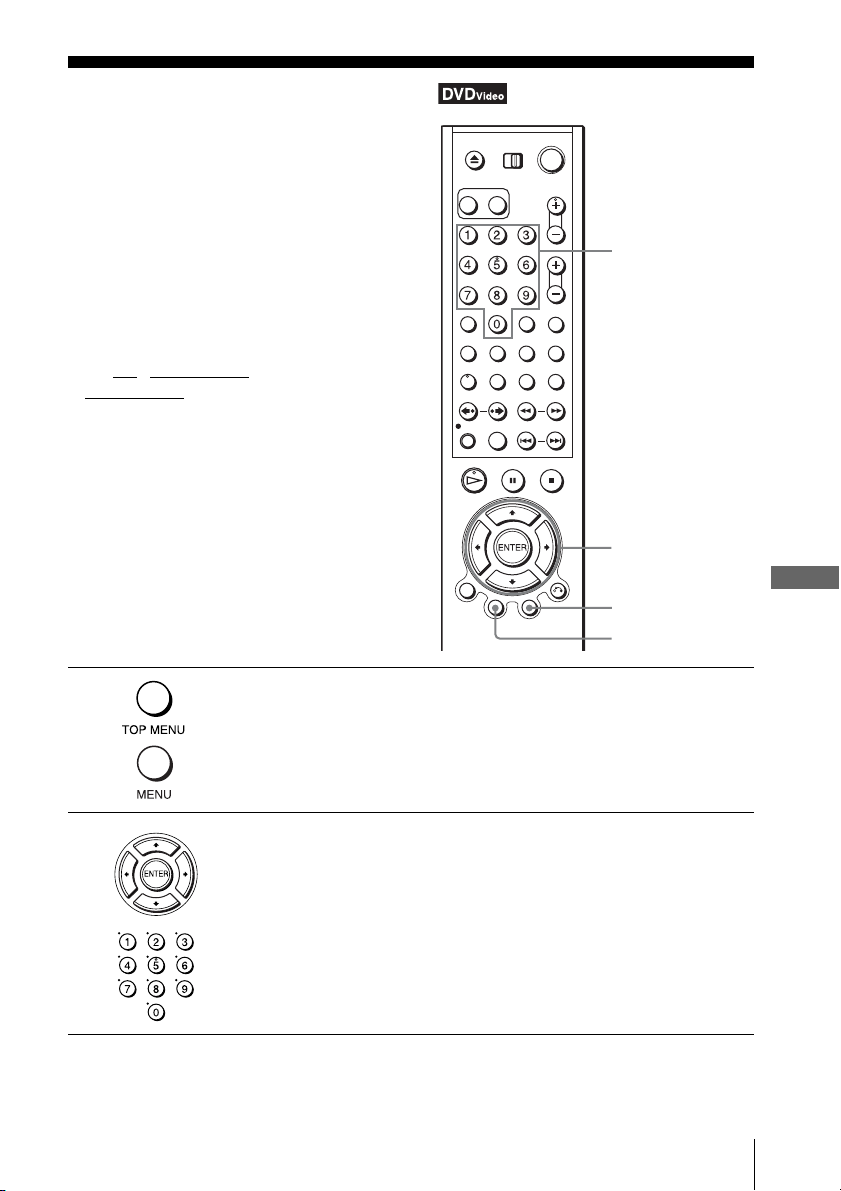
DVD Additional Operations
55
US
Using the DVD’s menu
DVD Additional Operations
Using the DVD’s menu
Note
• Depending on the DVD VIDEO, you may not be able to use the TOP MENU button or search
a point by setting the time.
A DVD is divided into long sections of a
picture or a music feature called “titles.”
When you play a DVD VIDEO which
contains several titles, you can select the title
you want using the TOP MENU button.
When you play DVD VIDEOs that allow you
to select items such as the language for the
subtitles and the language for the sound,
select these items using the MENU button.
Before you start…
•Set TV
/ DVD·VIDEO switch to
DVD·VIDEO
on the remote.
1
Press TOP MENU or MENU.
The disc’s menu appears on the TV screen.
The contents of the menu vary from disc to disc.
2
Press V/v/B/b to select the item you want to play or change, then press
ENTER.
You can also use the number buttons to select the item.
Number buttons
V/v/B/b
ENTER
MENU
TOP MENU
56
US
Zooming into a scene
Zooming into a scene
Notes
• You cannot use 4
× magnification when you play VIDEO CDs.
• The zoom function may not work depending on the DVD.
You can zoom into a scene during playback
or still mode.
To zoom into a JPEG image, see “Playing
JPEG image files” on page 75.
Before you start…
•Set TV
/ DVD·VIDEO switch to
DVD·VIDEO
on the remote.
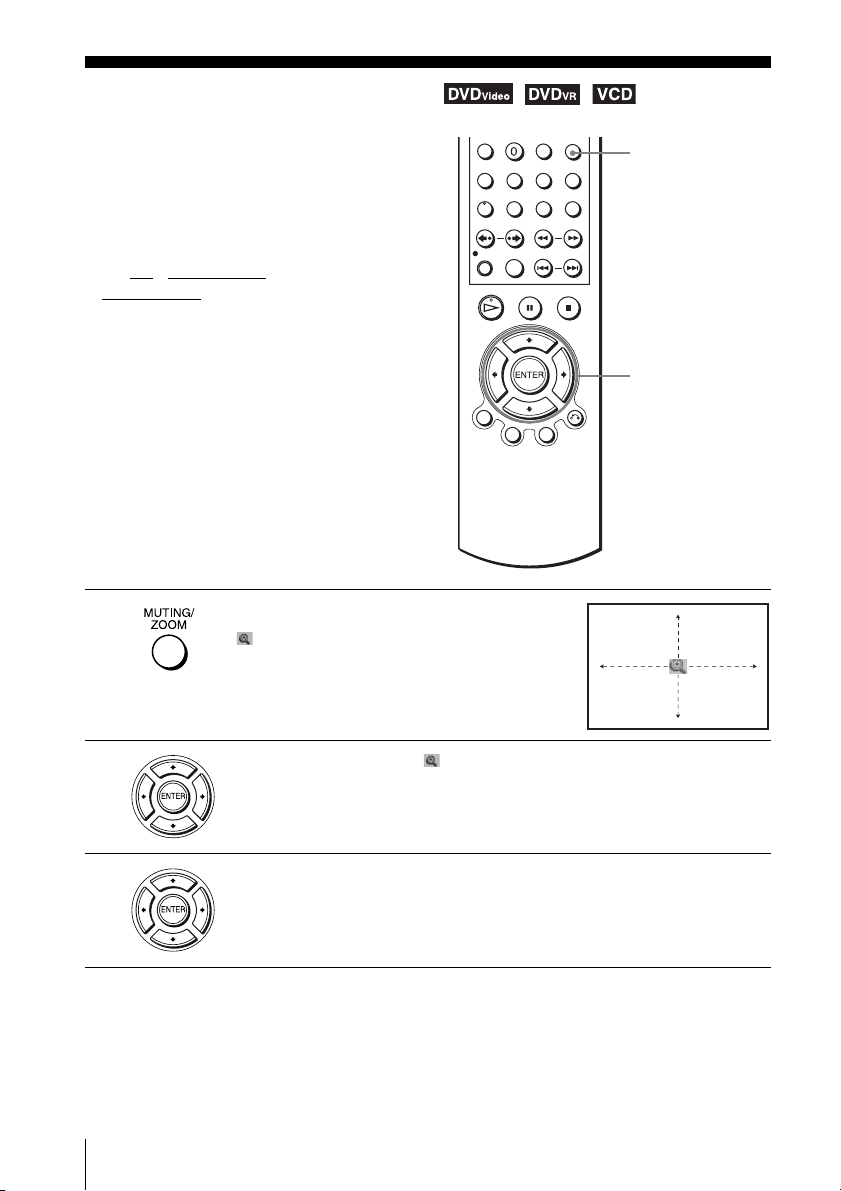
1
Press ZOOM.
“ ” appears.
2
Press V/v/B/b to move “ ” to the position where you want to zoom in.
3
Press ENTER repeatedly to change the magnification.
Each time you press the button, the magnification changes as shown below.
2× t 4× t 2× t normal magnification
ZOOM
V/v/B/b
ENTER

DVD Additional Operations
57
US
Changing the angles
Changing the angles
If various angles (multi-angles) for a scene
are recorded on the DVD VIDEO, “ ”
appears on the screen for few seconds. This
means that you can change the viewing
angle.
Before you start…
•Set TV
/ DVD·VIDEO switch to
DVD·VIDEO on the remote.
1
Press ANGLE during playback.
The angle number appears on the display.
The number after the slash indicates the total
number of angles.
2
Press B/b repeatedly to select the angle number.
The scene changes to the selected angle.
You can also select the angle number using the number buttons.
ANGLE
B/b
Number buttons
continued

58
US
Changing the angles
Tip
• To confirm whether the angles of the current scene can be changed, press DISPLAY twice
when playing DVDs.
Note
• Depending on the DVD VIDEO, you may not be able to change the angles even if multi-
angles are recorded on the DVD VIDEO.
DVD Additional Operations
59
US
Displaying the subtitle
Displaying the subtitle
If subtitles are recorded on the disc, you can
change the subtitles or turn them on and off
whenever you want while playing a DVD.
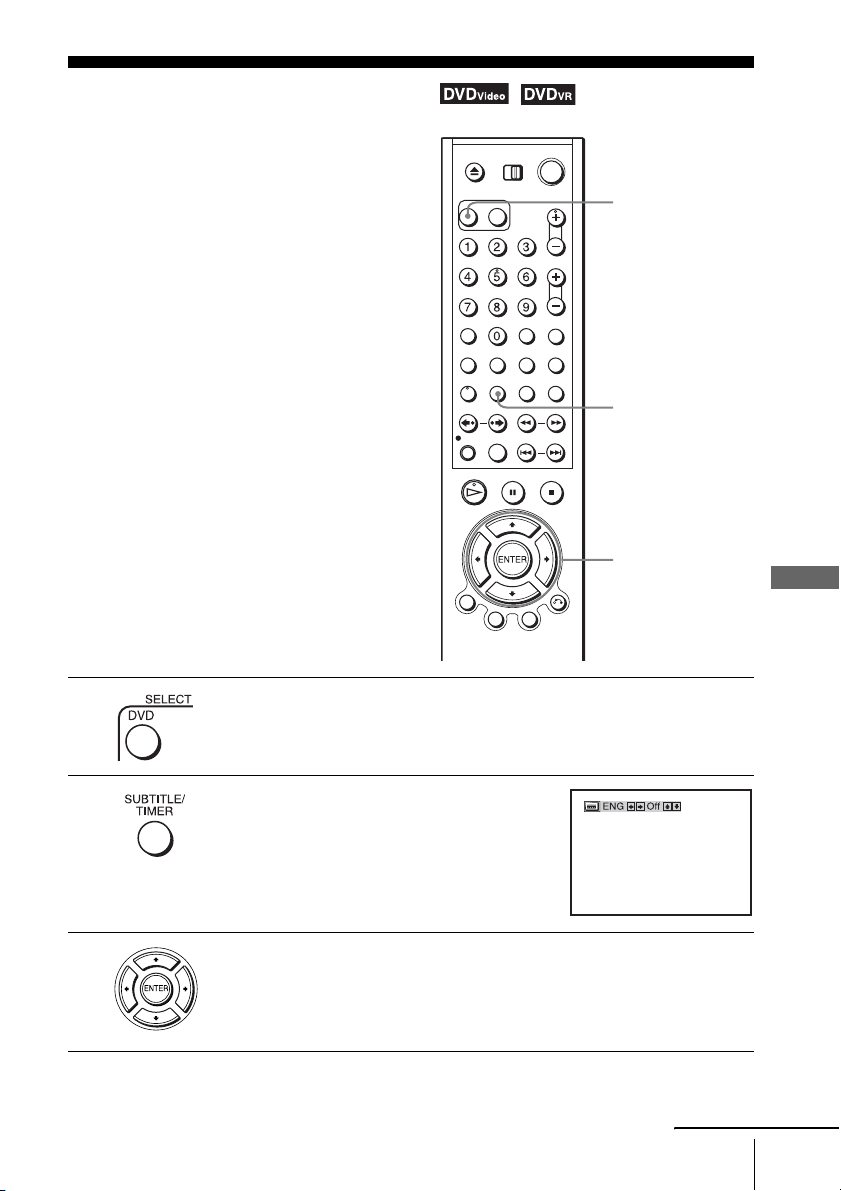
1
Press SELECT DVD to control the DVD player.
2
Press SUBTITLE during playback.
3
Press B/b repeatedly to select the language.
Depending on the DVD, the choice of language varies.
Refer to “DVD Audio/Subtitle Language” on page 100 for the abbreviation
of the language.
SUBTITLE
V/v/B/b
SELECT DVD
continued

60
US
Displaying the subtitle
To turn off the subtitles
Select “Off” in step 4.
Note
• Depending on the DVD, you may not be able to change the subtitles even if multilingual
subtitles are recorded on it. You also may not be able to turn them off.
4
Press V/v repeatedly to select “On.”
DVD Additional Operations
61
US
Various play mode functions (Program play, Shuffle play, Repeat play)
Various play mode functions (Program play,
Shuffle play, Repeat play)
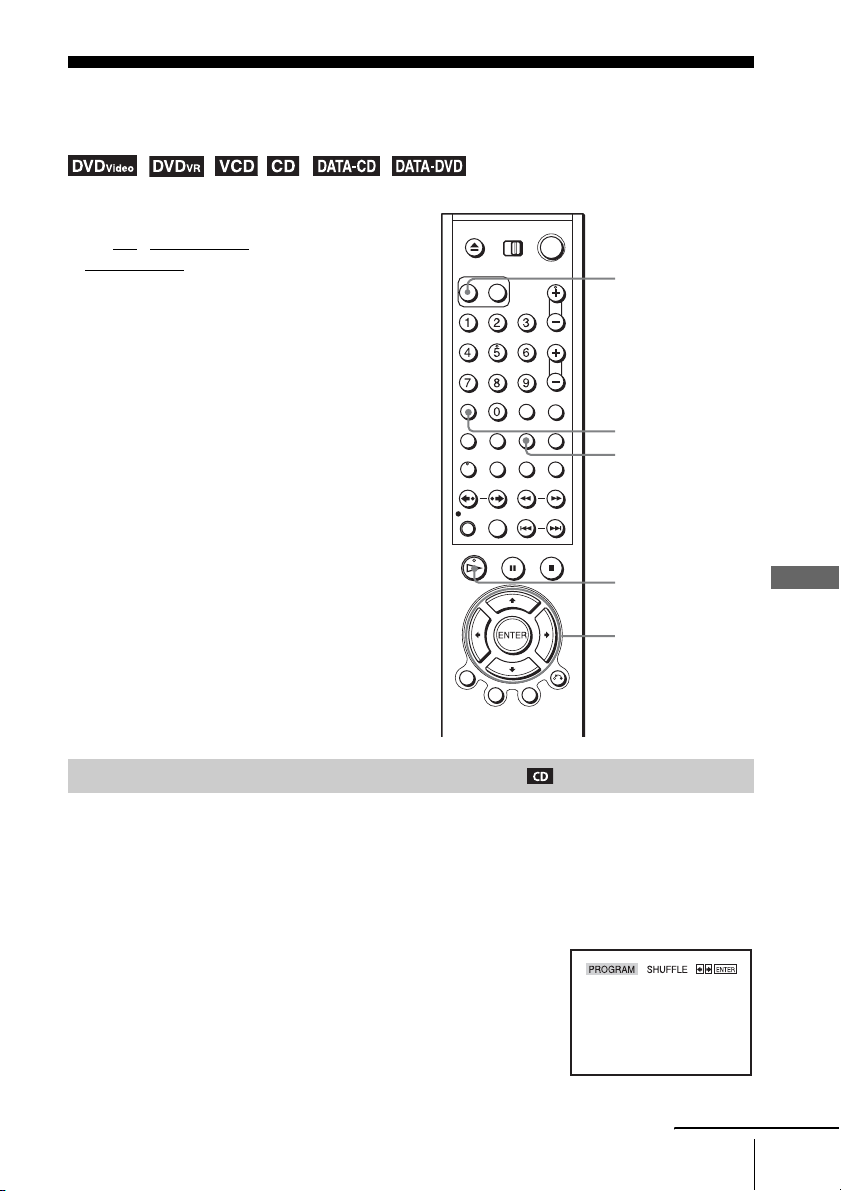
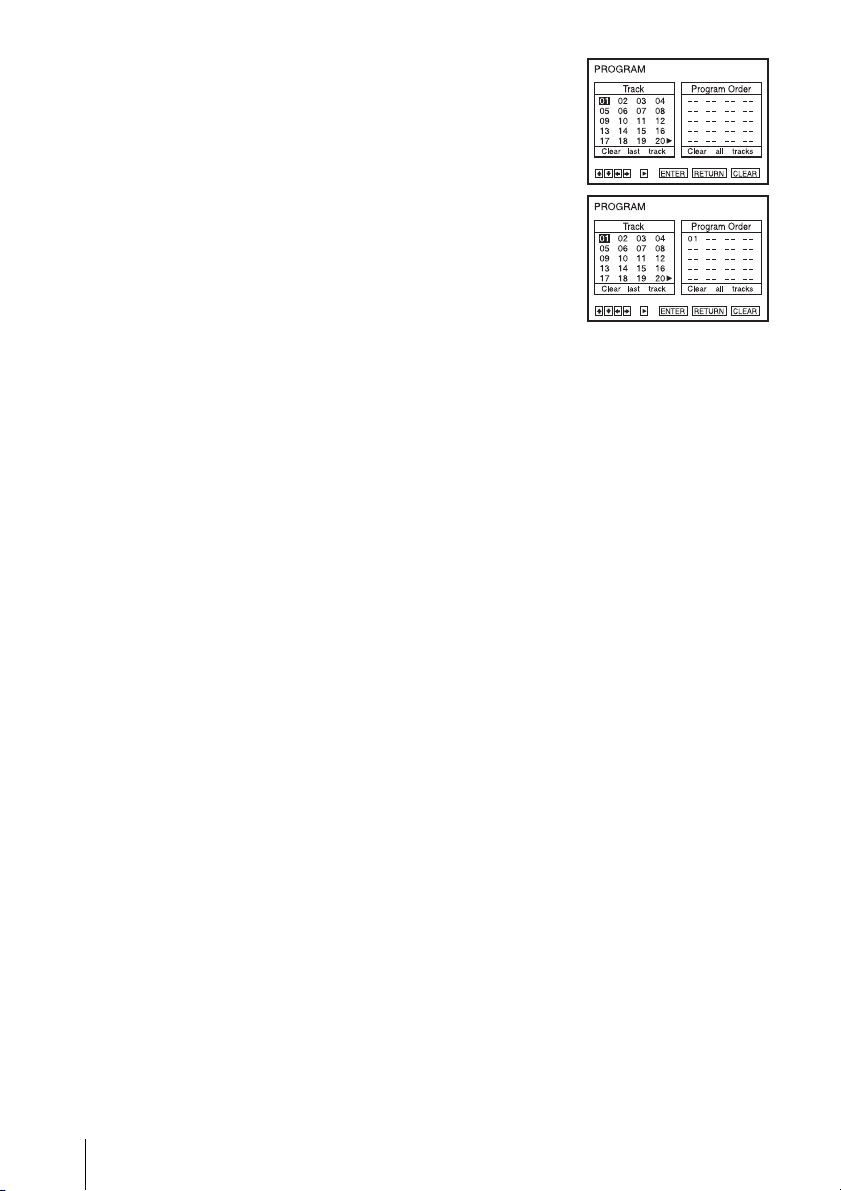
You can play the contents of a disc in the order you want by arranging the order of the tracks on
the disc to create your own program. You can program up to 20 tracks.
To program MP3 audio tracks, see page 71.
Before you start…
•Set TV
/ DVD·VIDEO switch to
DVD·VIDEO on the remote.
Note
• The play mode is canceled when:
– you open the disc tray
– the player enters standby mode by pressing
[/1.
Creating your own program (Program play)
1
Press SELECT DVD to control the DVD player.
2
Press REPEAT when the DVD player is in stop mode.
H PLAY
V/v/B/b
ENTER
CLEAR
REPEAT
SELECT DVD
continued
62
US
Various play mode functions (Program play, Shuffle play, Repeat play)
To stop program play
Press CLEAR until “Off” appears at the upper left top of the TV screen during
programme play.
To change or cancel a program
To cancel all the programmed numbers
Notes
• Up to 99 tracks can be displayed.
• You cannot repeat play while in program play.
3
Press B/b to select “PROGRAM”, then press ENTER.
4
Press V/v/B/b to select the track number you want to
program, then press ENTER.
5
To program other tracks, repeat step 4.
The programmed track numbers are displayed in the selected order.
6
Press H PLAY to start program play.
Program play starts.
When the program ends, you can restart the same program again by pressing H PLAY.
1
Follow steps 1 to 3 of “Creating your own program (Program play).”
2
Press v repeatedly to select “Clear last track,” then press ENTER. Each time you
press the button, the last programmed number is canceled. You can also cancel
the last programmed number by pressing CLEAR.
3
Follow step 4 for new programming.
1
Follow steps 1 to 3 of “Creating your own program (Program play).”
2
Press v repeatedly to select “Clear last track,” then press b to select “Clear all
tracks” and press ENTER.
All the programmed numbers are canceled.
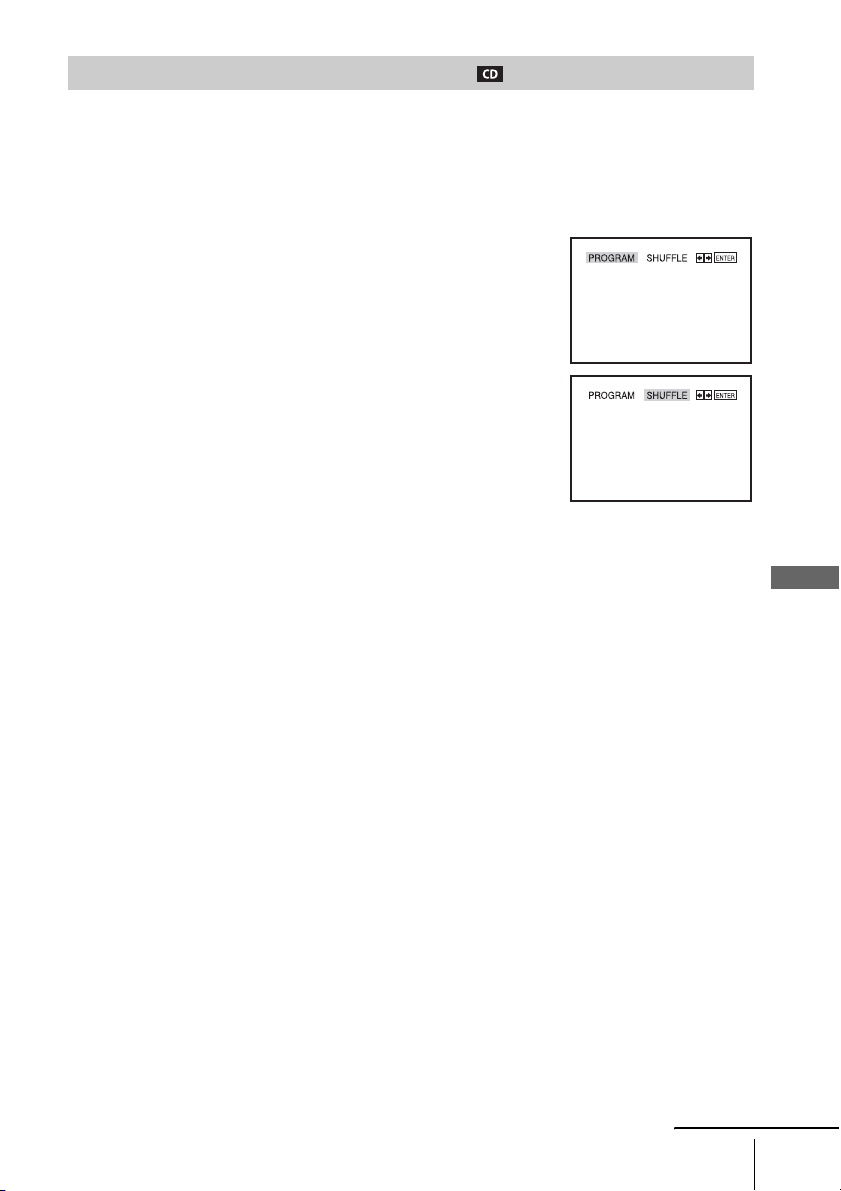
DVD Additional Operations
63
US
Various play mode functions (Program play, Shuffle play, Repeat play)
You can shuffle the playback order of tracks. Subsequent “shuffling” may produce a different
playing order.
To shuffle MP3 audio tracks, see page 72.
To return to normal play
Press CLEAR until “Off” appears at the upper left top of the TV screen during shuffle
play.
Tip
• Shuffle play will stop when all the tracks are played back.
Note
• You cannot repeat play while in shuffle play.
Playing in random order (Shuffle play)
1
Press SELECT DVD to control the DVD player.
2
Press REPEAT when the DVD player is in stop mode.
3
Press B/b to select “SHUFFLE”, then press ENTER.
continued
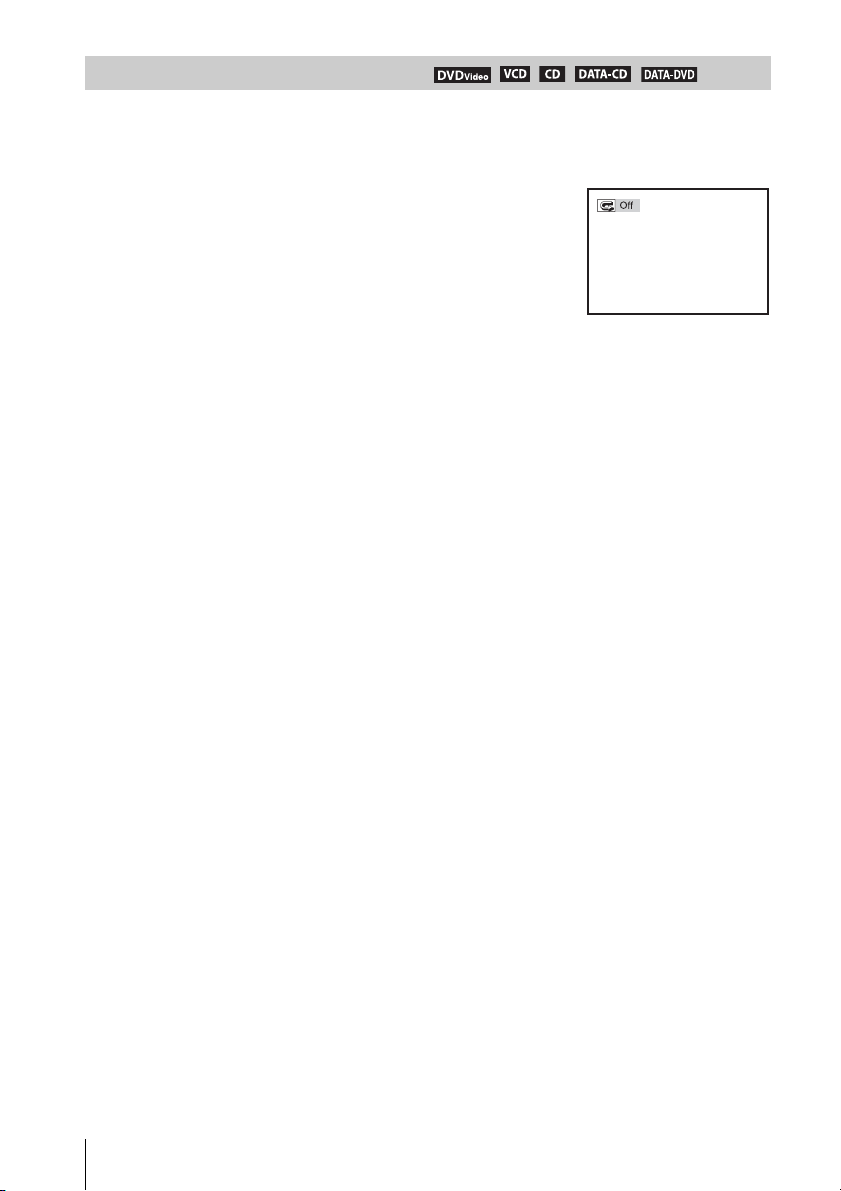
64
US
Various play mode functions (Program play, Shuffle play, Repeat play)
You can play all of the titles or tracks on a disc or a single title, chapter, or track repeatedly.
To return to normal play
Select “Off” in step 3 or press CLEAR during repeat play.
Tip
• When you press
x STOP during repeat play, repeat play is canceled.
Notes
• You cannot repeat play with DVD-RW/DVD-R in VR mode.
• You cannot repeat play VIDEO CDs with PBC function on. See “Playing VIDEO CDs with
“PBC ON/OFF” Functions” on page 79.
• You cannot repeat play while in program play or shuffle play.
Playing repeatedly (Repeat play)
1
Press SELECT DVD to control the DVD player.
2
Press REPEAT during playback.
3
Press REPEAT or B/b repeatedly to select the item to be repeated.
When playing a DVD
• Chapter: repeats the current chapter.
• Title: repeats the current title on a disc.
When playing a VIDEO CD (with PBC function off) or CD
• Track: repeats the current track.
• Disc: repeats all of the tracks.
When playing a DATA CD/DATA DVD (MP3 audio)
• FILE: repeats the current track (file).
• DIR: repeats the current album (directory).
• DISC: repeats the current disc.
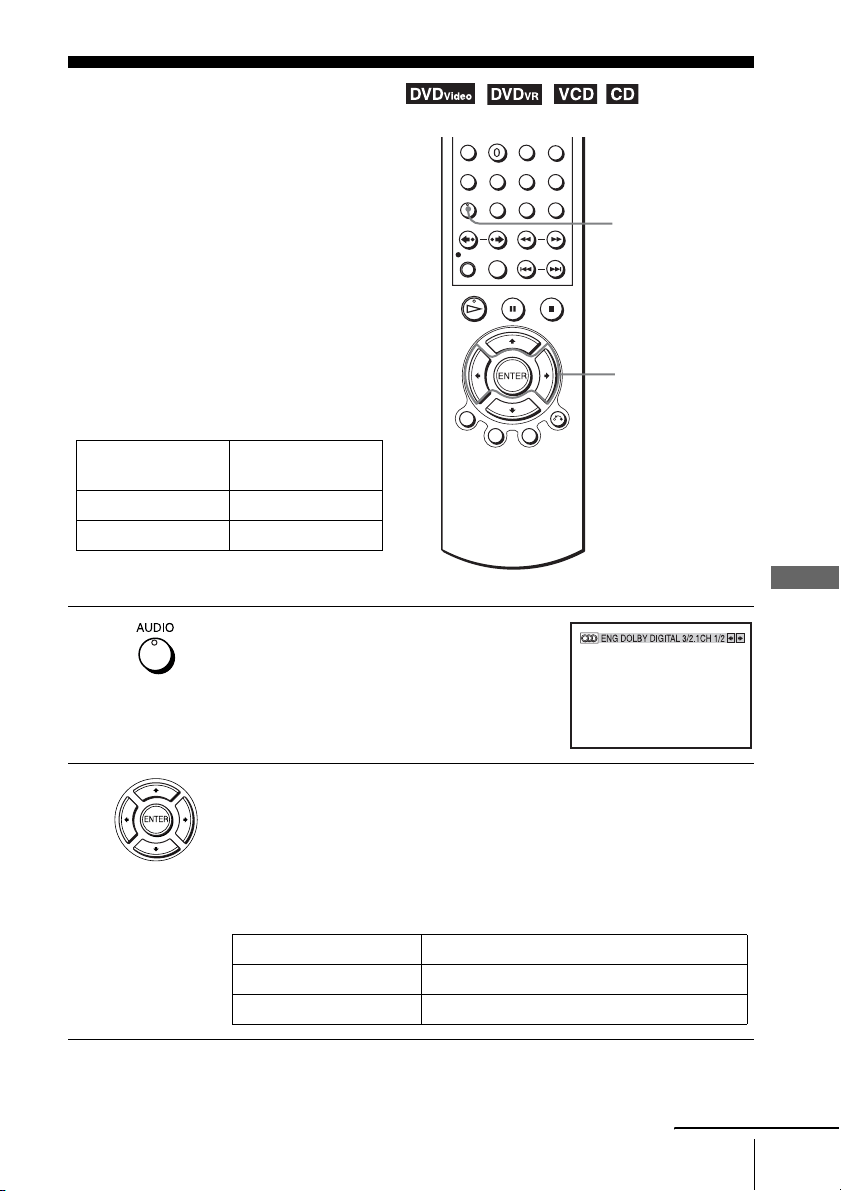
DVD Additional Operations
65
US
Changing the sound
Changing the sound
When playing a DVD recorded in multiple
audio formats (PCM, Dolby Digital, or
DTS), you can change the audio format. If
the DVD is recorded with multilingual
tracks, you can also select the language.
With CDs or VIDEO CDs, you can select the
sound from the right or left channel and listen
to the sound of the selected channel through
both the right and left speakers. For example,
when playing a Karaoke VIDEO CD
containing a song with the vocals on the right
channel and the instruments on the left
channel, you can hear the instruments from
both speakers by selecting the left channel.
1
Press AUDIO during playback.
2
Press B/b repeatedly to select the desired language/audio setting.
• When playing a DVD
Depending on the DVD, the choice of language varies.
Refer to “DVD Audio/Subtitle Language” on page 100 for the
abbreviation of the language.
• When playing a VIDEO CD or CD
The default setting is indicated in bold print.
Disc type
Playback
instruments only
Karaoke VIDEO CD Yes
Karaoke DVD No
AUDIO
B/b
Stereo The standard stereo sound
Left The sound of the left channel (monaural)
Right The sound of the right channel (monaural)
continued

66
US
Changing the sound
Notes
• To enjoy Dolby Digital or DTS effect from a LinearPCM format disc, you have to make the
connection using DIGITAL AUDIO OUT (COAXIAL) (page 22).
• When you play a DVD with DTS sound tracks, set “DTS” to “On” in “AUDIO SETUP”
menu (page 44).
• If you set DTS audio output, you cannot select surround setting (page 67).
• You cannot perform playback quickly or slowly with sound when DTS audio output is set
(page 27).
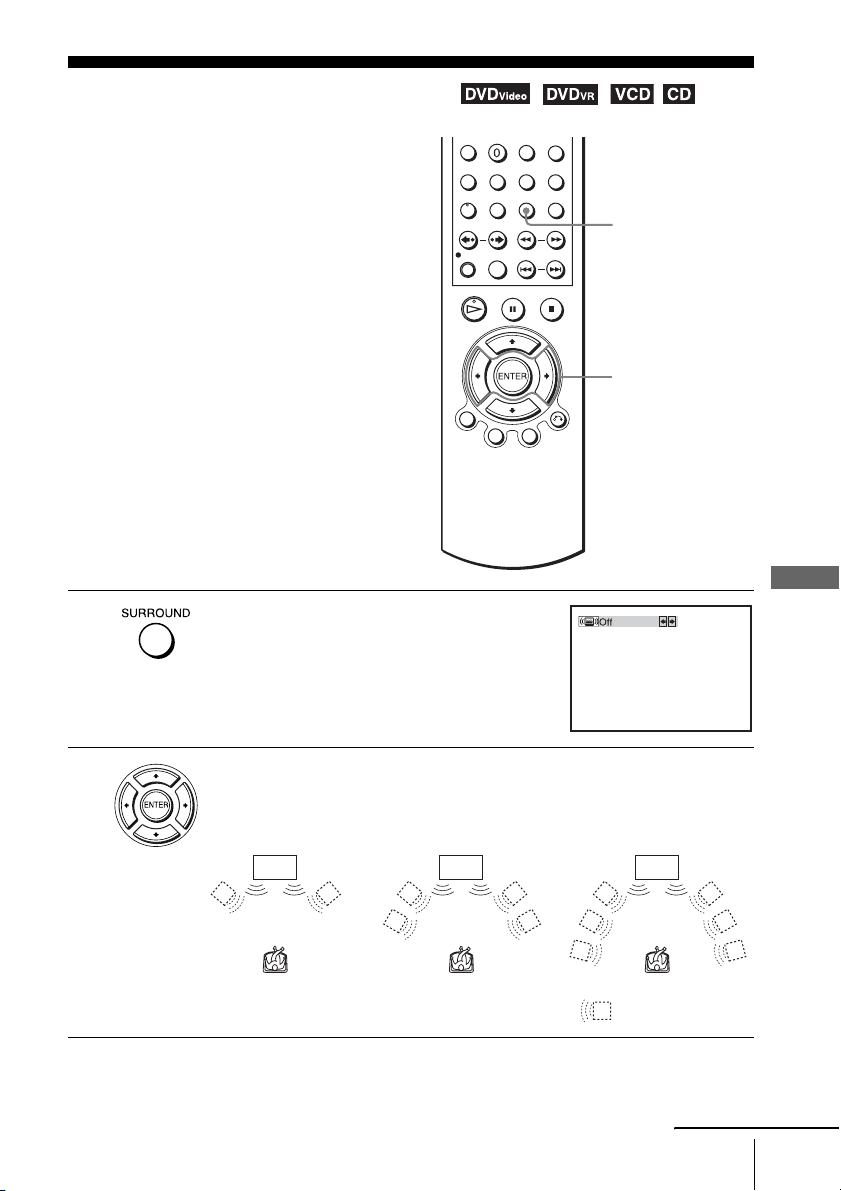
DVD Additional Operations
67
US
Virtual surround setting
Virtual surround setting
When you connect a stereo TV or 2 front
speakers, SURROUND lets you enjoy surround
sound effects by using sound imaging to create
virtual rear speakers from the sound of the front
speakers without using actual rear speakers.
1
Press SURROUND during playback.
2
Press B/b repeatedly to select “Surround1,” “Surround2,” “Surround3.”
Surround effect increases as shown below.
SURROUND
B/b
TV TV TV
Surround1 Surround2 Surround3
: Virtual speaker
continued

68
US
Virtual surround setting
To cancel the setting
Select “Off” in step 2.
Notes
• When the playing signal does not contain a signal for the rear speakers, the surround effects
will be difficult to hear.
• When you activate the surround effect, turn off the surround setting of the connected TV or
amplifier (receiver).
• Make sure that your listening position is between and at an equal distance from your
speakers, and that the speakers are located in similar surroundings.
• You cannot perform playback quickly or slowly with sound when a virtual surround effect is
set (page 27).
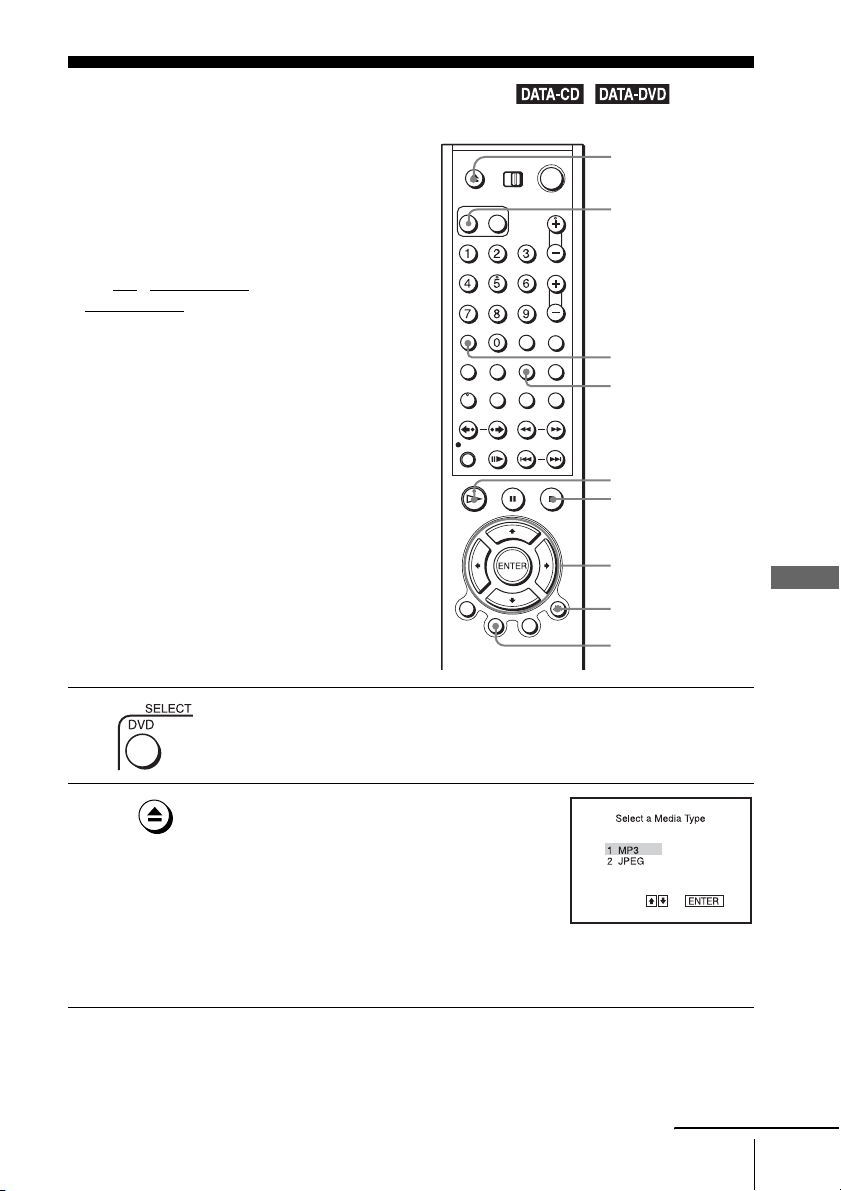
DVD Additional Operations
69
US
Playing an MP3 audio track
Playing an MP3 audio track
You can play back DATA CDs (CD-ROMs/
CD-Rs/CD-RWs) or DATA DVDs (DVD-
ROMs/DVD+RWs/DVD+Rs/DVD-RWs/
DVD-Rs) recorded in MP3 (MPEG1 Audio
Layer
III) format.
Before you start…
•Set TV / DVD·VIDEO switch to
DVD·VIDEO
on the remote.
1
Press SELECT DVD to control the DVD player.
2
Press Z and place a DATA CD or DATA DVD
on the disc tray, then press Z to close the tray.
When you load a DATA CD or DATA DVD
which contains MP3 audio tracks and JPEG
image files, “Select a Media Type” menu
appears.
If you load a DATA CD or DATA DVD which
contains only MP3 audio files, the MP3 display appears. Then you can skip
step 3.
V/v/B/b
ENTER
H PLAY
O RETURN
Z
REPEAT
x STOP
TOP MENU
SELECT DVD
CLEAR
continued
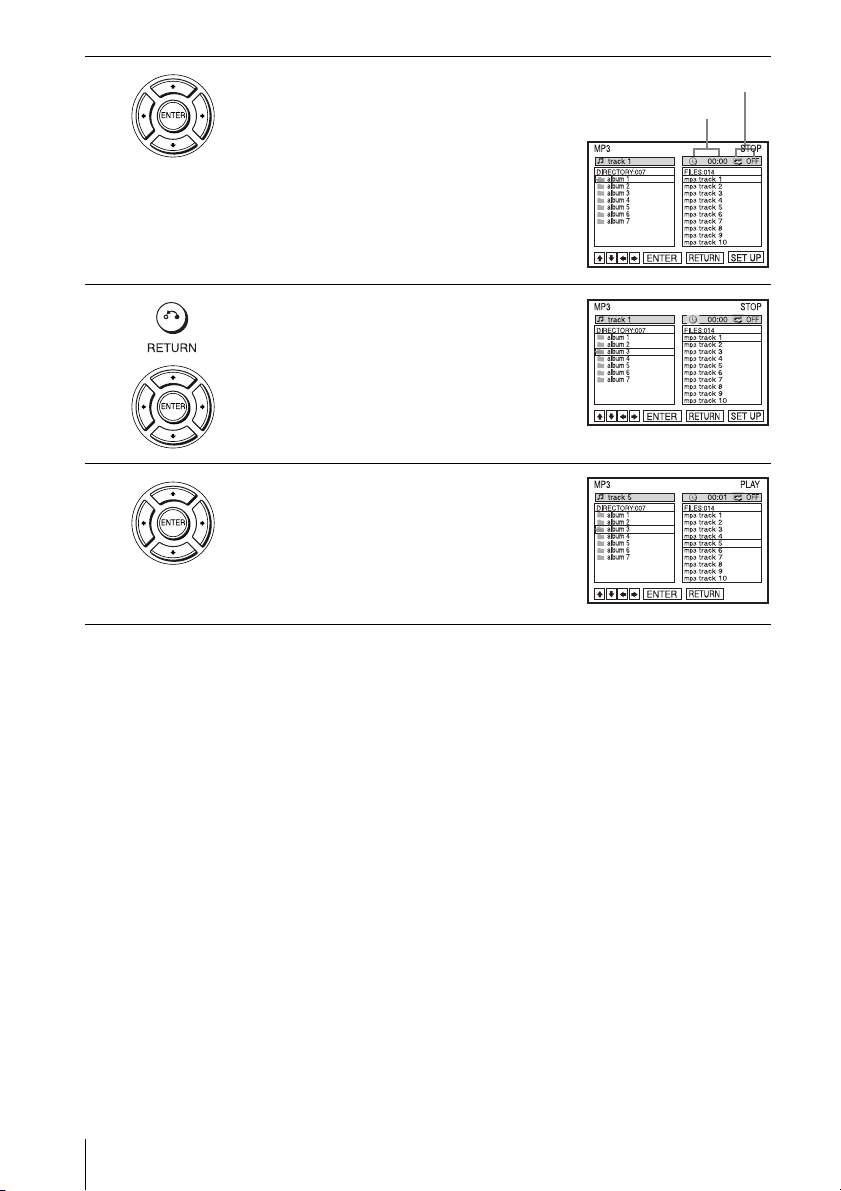
70
US
Playing an MP3 audio track
To stop play
Press x STOP.
To repeat play
Press REPEAT repeatedly during playback to change the repeat mode.
• FILE: repeats the current track (file).
• DIR: repeats the current album (directory).
• DISC: repeats the current disc.
For details, see “Playing repeatedly (Repeat play)” (page 64).
To go to the next or previous page
Press b or B.
To return to the previous display
Press O RETURN.
To return to the “Select a Media Type” menu
Press x STOP twice, then press TOP MENU.
3
Press V/v to select “MP3”, then press
ENTER.
The first track starts playing. Press x STOP if
necessary.
4
Press O RETURN, then press V/v to select
the desired directory in the left column, then
press ENTER.
5
Press V/v to select the desired track in the
right column, then press ENTER.
The selected track starts playing.
When a track or album is being played, the title
is shown in a box. The playing track number
appears on the display window.
Elapsed playing time
Repeat mode
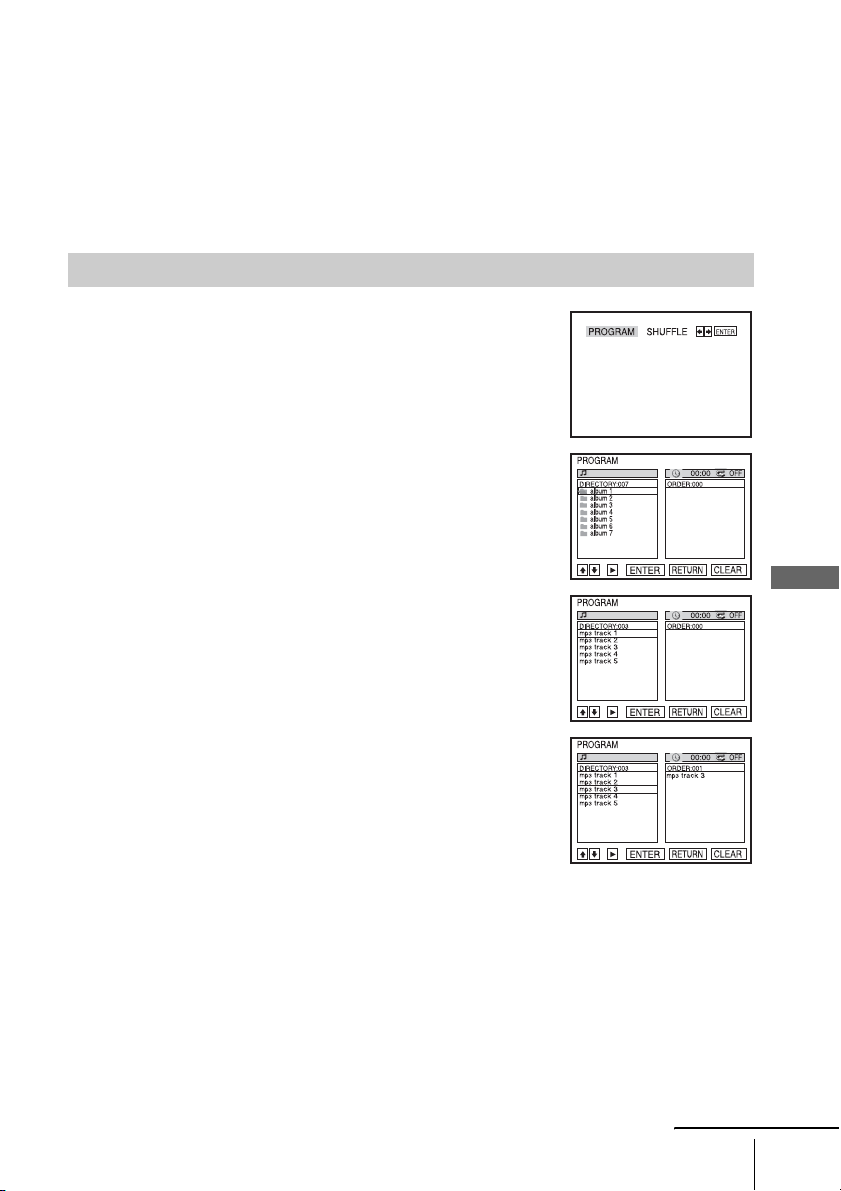
DVD Additional Operations
71
US
Playing an MP3 audio track
To turn off the display
Press x STOP twice, then press O RETURN repeatedly.
Notes
• Only the letters in the alphabet and numbers can be used for album or track names. Anything
else is displayed as an asterisk.
• Up to 12 alphanumeric characters can be displayed for album or track names.
• ID3 tags cannot be displayed.
• You cannot repeat play while in program play or shuffle play.
To program MP3 audio tracks
1
Press x STOP twice, then press REPEAT.
2
Press B/b to select “PROGRAM,” then press ENTER.
3
Press V/v to select the desired directory in the left column,
then press ENTER.
4
Press V/v to select the track you want to program, then press
ENTER.
5
To program other tracks, repeat step 4.
The programmed tracks are displayed in the selected order. Press CLEAR to cancel the last
programmed track.
6
Press H PLAY to start program play.
Program play starts. When the program ends, you can restart the same program again by
pressing H PLAY.
continued
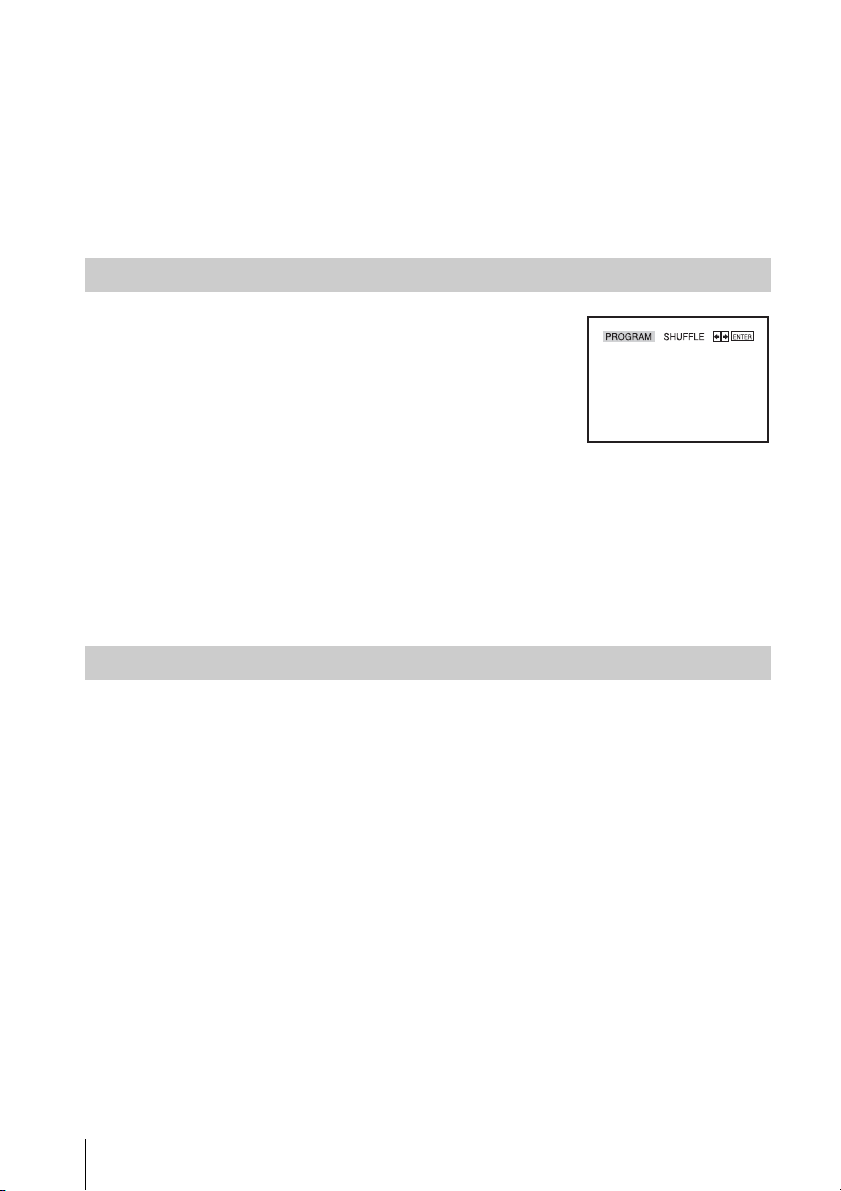
72
US
Playing an MP3 audio track
To stop program play
Press x STOP during program play.
To return to normal play
Press CLEAR during program play.
Notes
• Up to 20 tracks can be programmed at one time.
• You cannot repeat play while in program play.
To return to normal play
Press CLEAR during shuffle play.
Tip
• Shuffle play will stop when all the tracks are played back.
Note
• You cannot repeat play while in shuffle play.
You can play back DATA CDs (CD-ROMs/CD-Rs/CD-RWs) or DATA DVDs
(DVD-ROMs/DVD+RWs/DVD+Rs/DVD-RWs/DVD-Rs) recorded in MP3 (MPEG-1 Audio
Layer III) format. However, the discs must be recorded according to ISO9660 Level 1/Level 2
or Joliet format for the player to recognize the tracks (or files). You can also play DATA CDs or
DATA DVDs recorded in Multi Session or Multi Border (see “Note on Multi Session/Border
discs” on page 72).
Refer to the instructions supplied with the CD-R/CD-RW/DVD-R/DVD-RW drives and the
recording software (not supplied) for details on the recording format.
Note on Multi Session/Border discs
If MP3 audio tracks are recorded in the first session/border, the player will also play
MP3 audio tracks in other session/border. If audio tracks and images in Music CD
format or Video CD format are recorded in the first session/border, only the first
session/border will be played back.
To shuffle MP3 audio tracks
1
Press REPEAT when the MP3 is in stop mode.
2
Press B/b to select “SHUFFLE,” then press ENTER.
About MP3 audio tracks
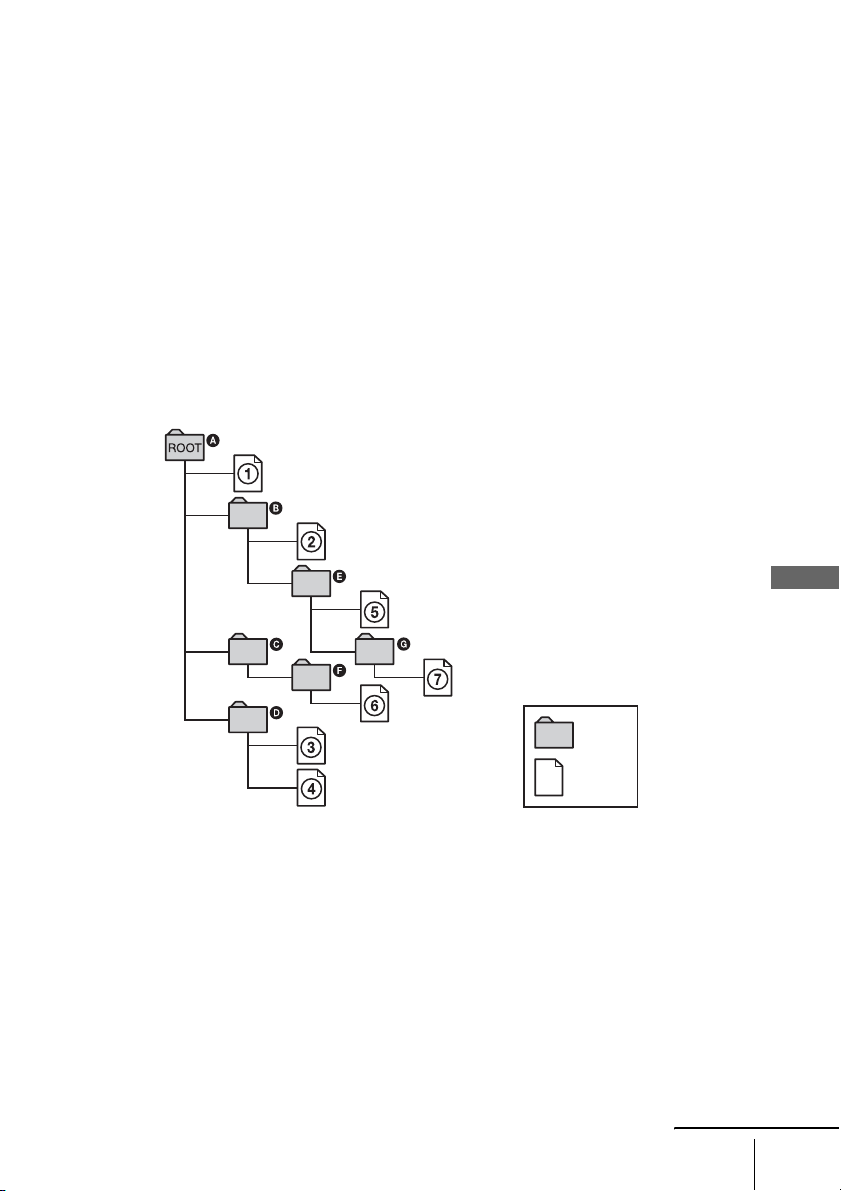
DVD Additional Operations
73
US
Playing an MP3 audio track
Notes
• If you put the extension “.MP3” to data not in MP3 format, the player cannot recognize the
data properly and will generate a loud noise which could damage your speaker system.
• The player cannot play audio tracks in MP3PRO format.
• The player may not be able to play some DATA CDs/DATA DVDs created in the Packet
Write format.
• If both video data and MP3 audio tracks exist on a DATA DVD, the player recognizes only
the video data.
• This player supports MP3 audio tracks recorded with a bit rate of 128 kbps and a sampling
frequency of 44.1 kHz. Attempting to play MP3 audio tracks recorded with different
specifications may result in loud noise, sound skipping or speaker damage.
• Depending on the disc contents, playback may take some time to start.
The Playback order of MP3 audio tracks
The playback order of albums and tracks recorded on a DATA CD or DATA DVD is
as follows.
• Structure of disc contents
When you insert a DATA CD or DATA DVD and press H PLAY, the numbered
tracks are played sequentially, from
1 through 7. Any sub-albums/tracks contained
within a currently selected album does not take priority over the next album in the
same tree. (Example: E contains G but 6 is played before
7.)
When you press O RETURN and the list of MP3 albums appears (page 70), the
albums are arranged in the following order: A t B t D t E t F t G.
Albums that do not contain tracks (such as album C) do not appear in the list.
Tree 1 Tree 2 Tree 3 Tree 4 Tree 5
album
track
continued

74
US
Playing an MP3 audio track
Tips
• If you add numbers (01, 02, 03, etc.) to the front of the track file names, the tracks will be
played in that order.
• A disc with many trees takes longer to start playback. Some discs with many trees cannot be
played back.
Notes
• Depending on the software you use to create the DATA CD or DATA DVD, the playback
order may differ from the illustration above.
• No more than 250 albums can be recognized.
• A total of up to 999 files can be recognized for discs that contain both MP3 and JPEG files.
Files are recognized in the order that they were recorded. For example, if 990 JPEG files are
recorded then 100 MP3 files are recorded, the 990 JPEG files recorded first and only the first
9 MP3 files can be recognized.
• Depending on the disc contents, playback may take some time to start.
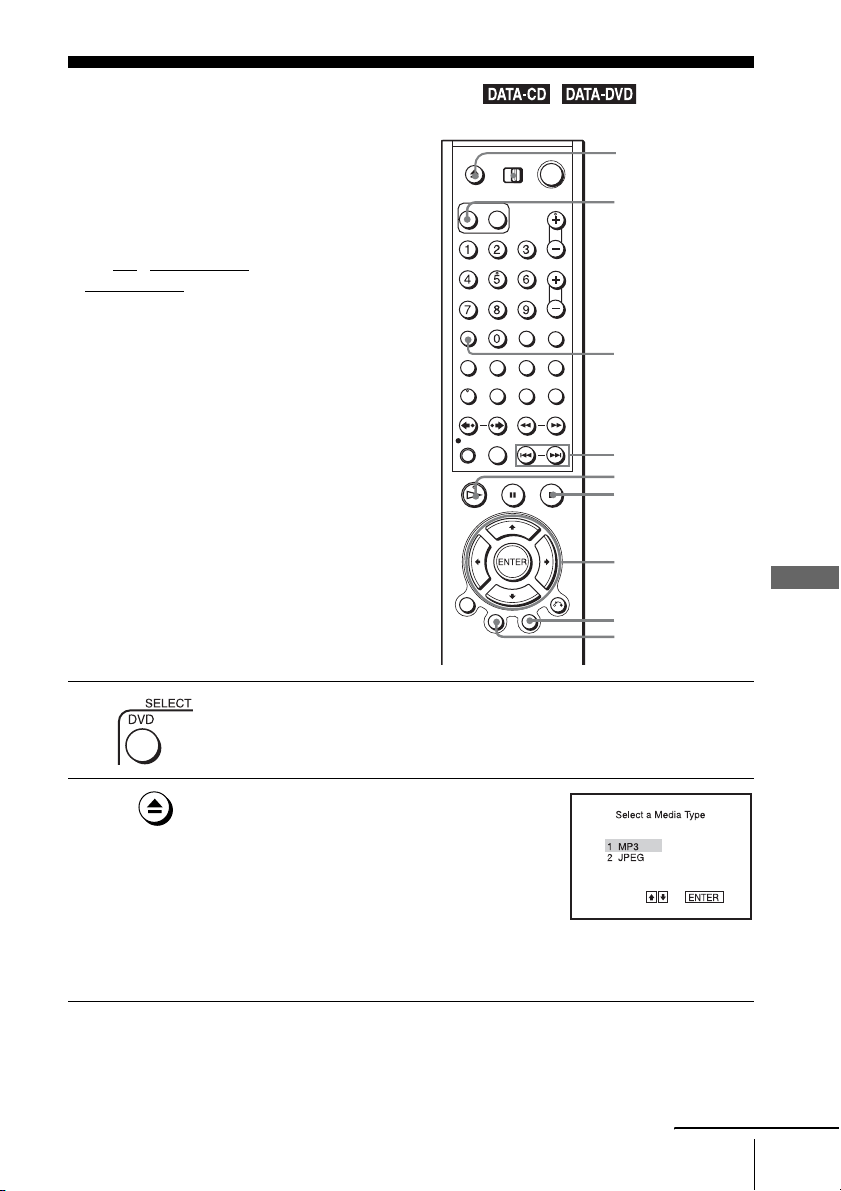
DVD Additional Operations
75
US
Playing JPEG image files
Playing JPEG image files
You can play JPEG image files on DATA CDs
(CD-ROMs/CD-Rs/CD-RWs) or DATA DVDs
(DVD-ROMs/DVD+RWs/DVD+Rs/DVD-
RWs/DVD-Rs).
Before you start…
•Set TV / DVD·VIDEO switch to
DVD·VIDEO
on the remote.
1
Press SELECT DVD to control the DVD player.
2
Press Z and place a DATA CD or DATA DVD
on the disc tray, then press Z to close the tray.
When you load a DATA CD or DATA DVD
which contains MP3 audio tracks and JPEG
image files, “Select a Media Type” menu
appears.
If you load a DATA CD or DATA DVD which
contains only JPEG image files, the “Album” display appears. Then you can
skip step 3.
V/v/B/b
ENTER
H PLAY
Z
TOP MENU
./ >
x STOP
MENU
SELECT DVD
CLEAR
continued
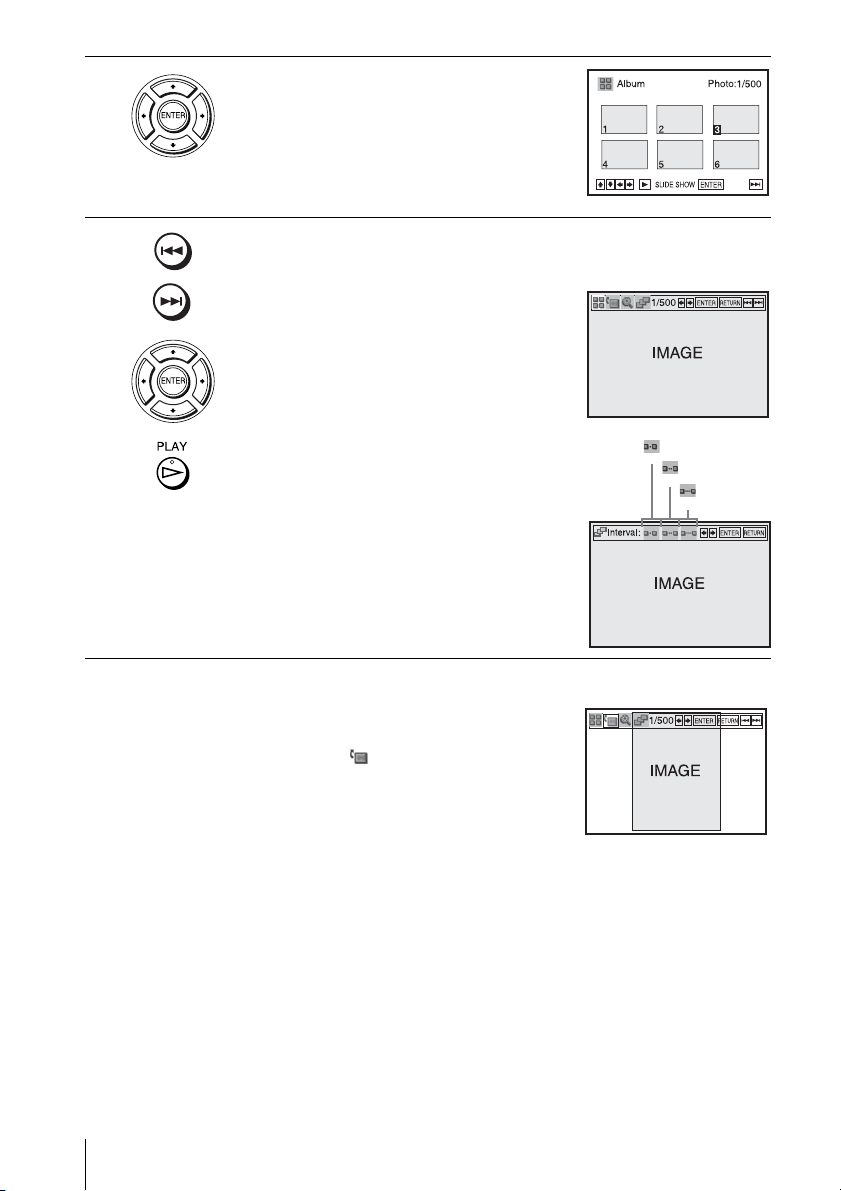
76
US
Playing JPEG image files
To rotate the selected image
3
Press V/v to select “JPEG”, then press
ENTER.
The “Album” display will appears.
If you do not press ENTER after selecting a
media type, the selected media will be
automatically played.
4
Press ./> to select the next/previous album page, then press V/v/
B/b to select an image in the “Album” display.
To display the selected image
1 Press ENTER.
The selected image number appears in the
display window.
2 To display the next/previous image, press
./>.
To play the Slide show
1 Press H PLAY.
You can also play the Slide show using the
menu on the selected image.
For details, see “To enjoy the Slide show”
on page 77.
2 Press B/b to select the desired playing
speed on the “Interval” menu, then press
ENTER.
Slide show starts from the selected image.
1
Press V/v/B/b to select an image in the “Album”
display, then press ENTER.
2
Press B/b to select “ ”, then press ENTER.
Each time you press ENTER, the image turns
clockwise by 90°.
: Fast
: Normal
: Slow
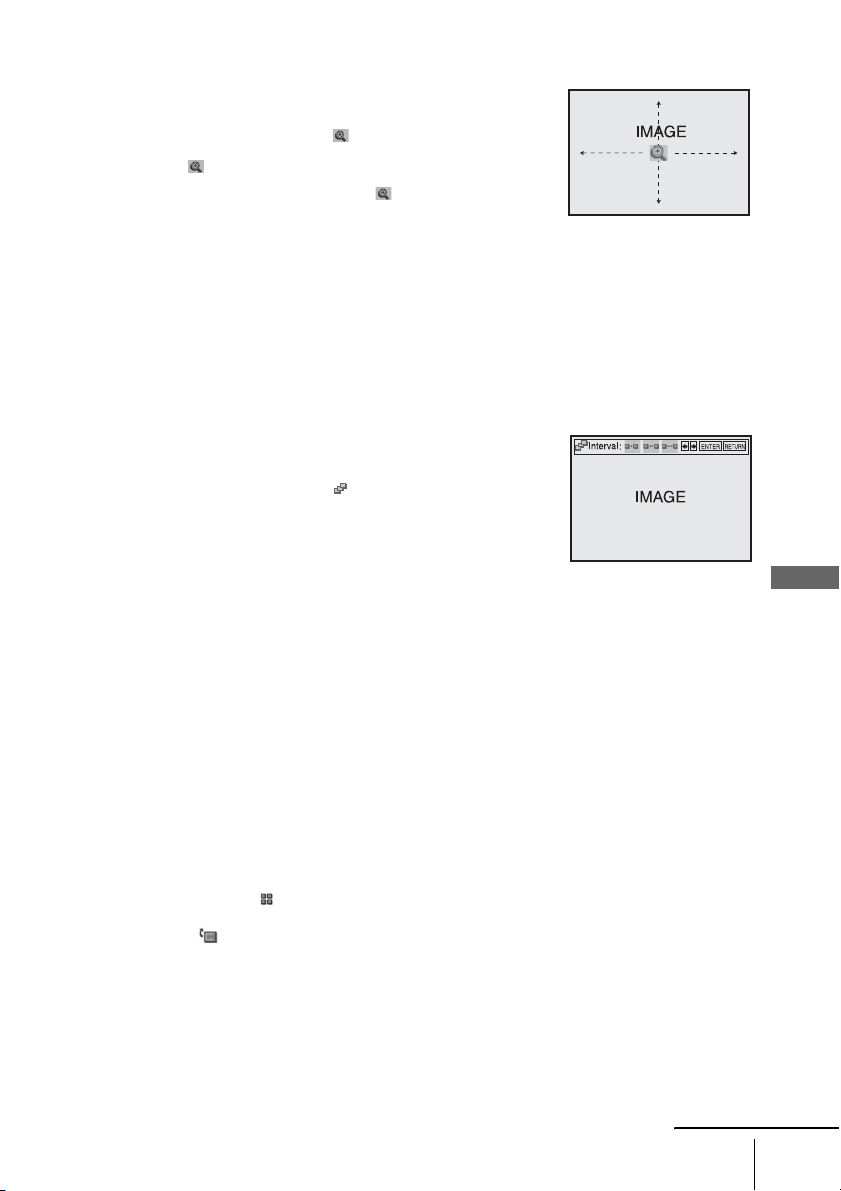
DVD Additional Operations
77
US
Playing JPEG image files
To zoom in an image
Note
• You cannot use ZOOM on the remote in JPEG image files on DATA CD/DATA DVD.
To enjoy the Slide show
To turn on/off the menu in the single image display
Press CLEAR to turn off the menu. Press B or b to turn on the menu.
To return to the “Album” display
Press MENU to return to the “Album” display. Press . repeatedly to return to the
first “Album” page.
To return to the “Select a Media Type” menu
Press x STOP twice, then press TOP MENU.
Notes
• Slide show can play in only one direction.
• You cannot rotate or zoom in the image during Slide show.
• If you select
“ ” in the rotated image display, the images in the “Album” display will not
be rotated. But if you start the slide show, the images will be rotated. Correct the rotation in
the
“ ” menu.
1
Press V/v/B/b to select an image in the “Album”
display, then press ENTER.
2
Press B/b to select “ ”, then press ENTER.
“ ” appears.
3
Press V/v/B/b to move “ ” to the position
where you want to zoom in.
4
Press ENTER repeatedly to change the
magnification. Each time you press ENTER, the
magnification changes as shown below.
2× t normal magnification
1
Press V/v/B/b to select an image in the “Album”
display, then press ENTER.
2
Press B/b to select “ ”, then press ENTER.
The “Interval” menu appears.
3
Press B/b to select the desired play speed, then press
ENTER.
Slide show starts.
continued

78
US
Playing JPEG image files
You can play back DATA CDs (CD-ROMs/CD-Rs/CD-RWs) or DATA DVDs (DVD-ROMs/
DVD+RWs/DVD+Rs/DVD-RWs/DVD-Rs) recorded in JPEG format. However, the discs must
be recorded according to ISO9660 Level 1/Level 2 or Joliet format for the player to recognize
the tracks (or files). You can also play DATA CDs or DATA DVDs recorded in Multi Session or
Multi Border (see “Note on Multi Session/Border discs” on page 78).
Refer to the instructions supplied with the CD-R/CD-RW/DVD-R/DVD-RW drives and the
recording software (not supplied) for details on the recording format.
Notes
• If both video data and JPEG image files exist on a DATA DVD, the player recognizes only
the video data.
• No more than 250 folders can be recognized.
• A total of up to 999 files can be recognized for discs that contain both MP3 and JPEG files.
Files are recognized in the order that they were recorded. For example, if 990 JPEG files are
recorded then 100 MP3 files are recorded, the 990 JPEG files recorded first and only the first
9 MP3 files can be recognized.
Note on Multi Session/Border discs
If JPEG image files are recorded in the first session/border, the player will also play
JPEG image files in other session/border. If audio tracks and images in Music CD
format or Video CD format are recorded in the first session/border, only the first
session/border will be played back.
Tip
• If you add numbers (01, 02, 03, etc.) to the front of the file names, the files will be played in
that order.
Notes
• This player can play JPEG image files with the extension “.JPEG” or “.JPG.”
• Some DATA CDs or DATA DVDs cannot be played on this system depending on file format.
• The player may not be able to play some DATA CDs/DATA DVDs created in the Packet
Write format.
• If you add the extension “.JPG” or “.JPEG” to data not in JPEG format, “Can not Display”
will appear.
• Depending on the disc or the size of image files, playback may take some time to start.
• Progressive and lossless compression JPEG image files are not supported.
• The image size that can be displayed is limited. You can display the following images;
width 128 - 7680 pixels by height 128 - 7680 pixels.
About JPEG image files
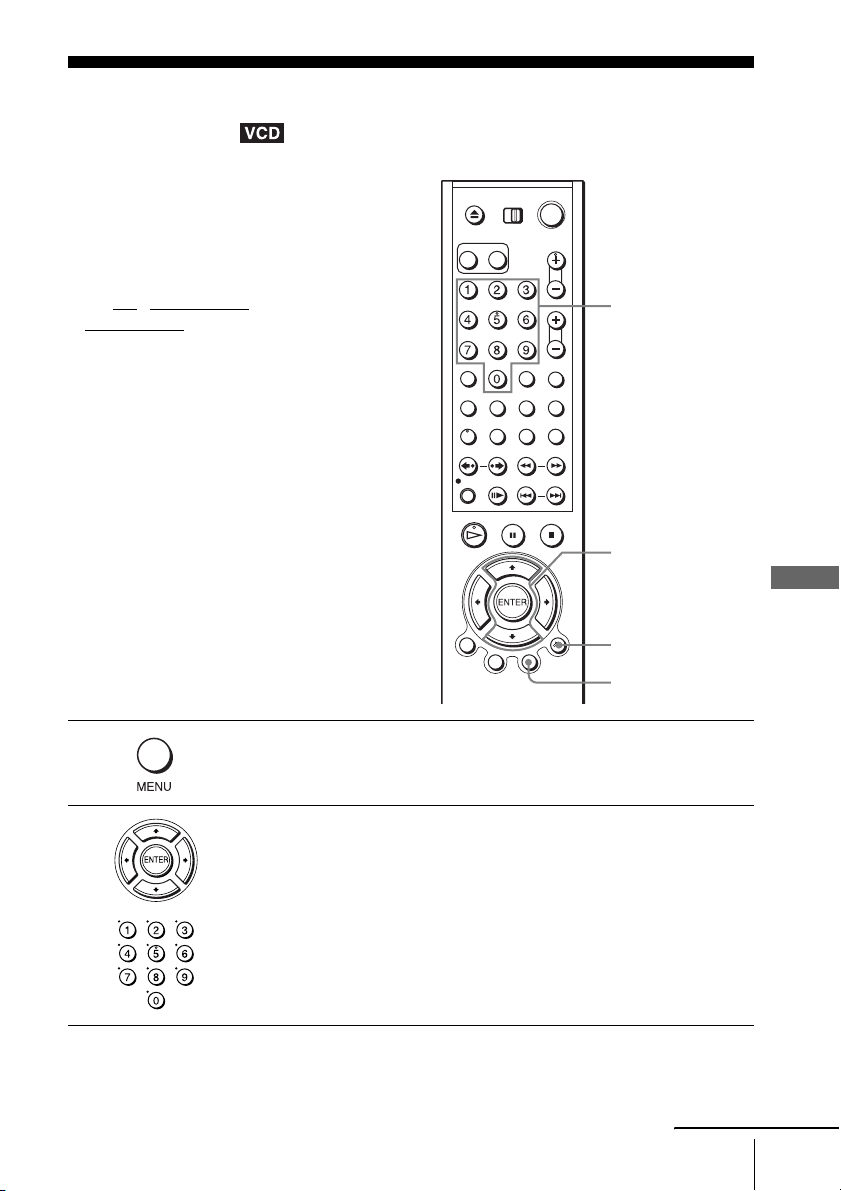
DVD Additional Operations
79
US
Playing VIDEO CDs with “PBC ON/OFF” Functions
Playing VIDEO CDs with “PBC ON/OFF”
Functions
The PBC (Playback control) function allows
you to search and perform other operations
interactively. PBC playback follows a selection
menu displayed on your TV screen.
Before you start…
•Set TV / DVD·VIDEO switch to
DVD·VIDEO on the remote.
1
Press MENU to select “PBC ON.”
The menu for your selection appears.
2
Press V/v to select the item number you want.
You can also use the number buttons to select the item number and track.
V/v
ENTER
Number buttons
O RETURN
MENU
continued

80
US
Playing VIDEO CDs with “PBC ON/OFF” Functions
To return to the menu
Press O RETURN.
To play using “PBC OFF”
Press MENU to select “PBC OFF.”
When “PBC OFF” is selected, the DVD player starts continuous play. You cannot play still
pictures such as a menu.
To return to “PBC ON,” press MENU to select “PBC ON.”
Note
• Depending on the VIDEO CD, “Press ENTER” in step 3 may appear as “Press SELECT” in
the instructions supplied with the disc. In this case, press H PLAY.
3
Press ENTER.
4
Follow the instructions in the menu for interactive operations.
Refer to the instructions supplied with the disc, as the operating procedure
may differ depending on the VIDEO CD.
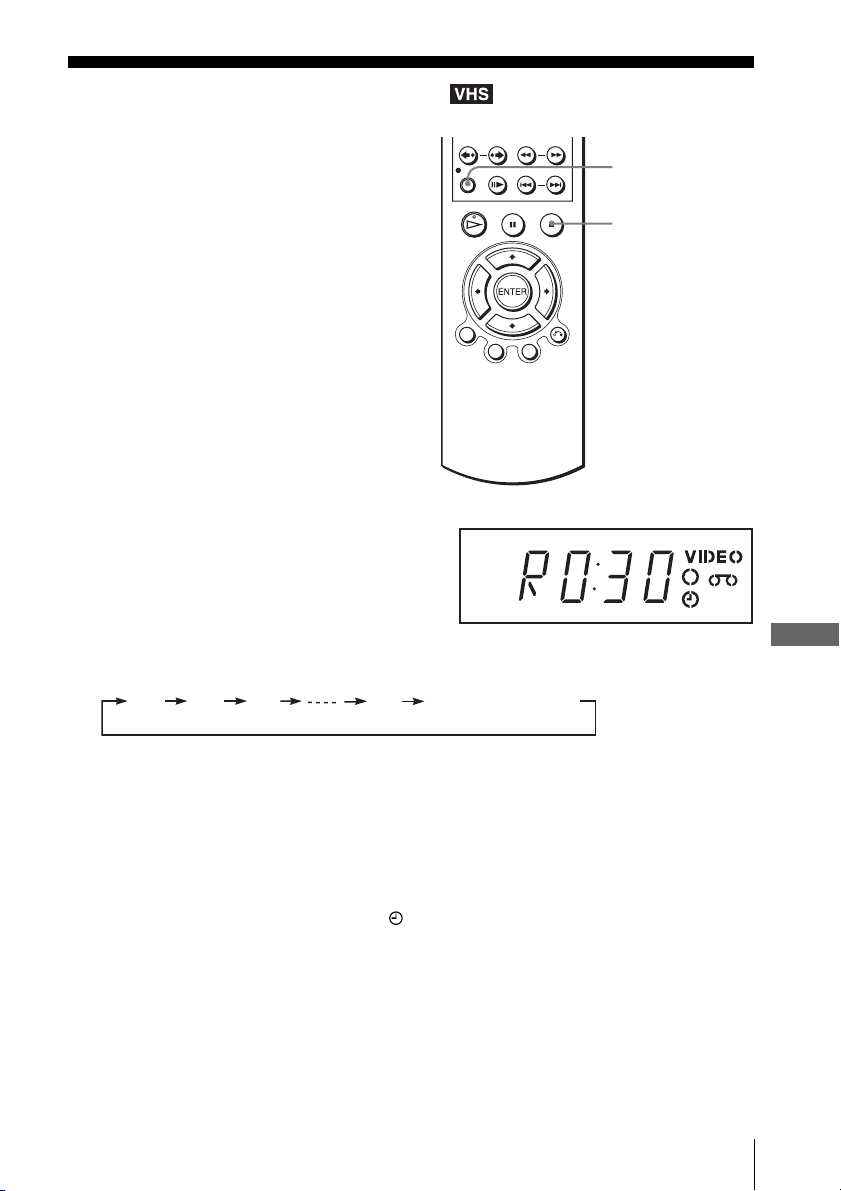
VCR Additional Operations
81
US
Quick Timer Recording
VCR Additional Operations
Quick Timer Recording
To extend the duration
Press z REC repeatedly to set a new duration time.
To cancel the duration
Press z REC repeatedly until the indicator disappears and the VCR returns to
normal recording mode.
To stop while recording
Press x STOP.
Note
• You cannot display the current tape time in the display window when setting the recording
duration time.
After you have started recording, you can
have the VCR stop recording automatically
after a specified duration.
1
While recording, press z REC.
2
Press z REC repeatedly to set the duration time.
Each press advances the time as follows.
The tape counter decreases minute by minute to 0:00, then the VCR stops recording.
z REC
x STOP
0:30 1:00
1:30 4:00
Normal recording
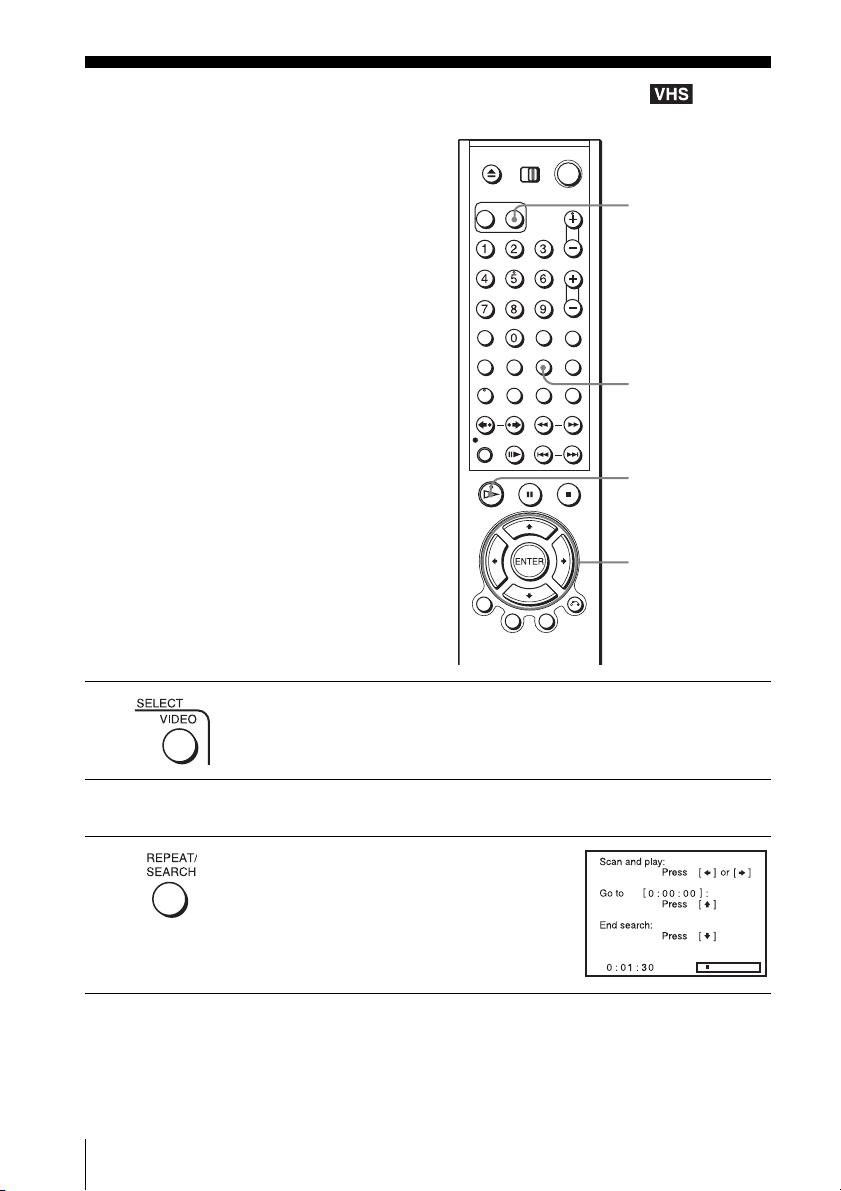
82
US
Searching using various functions
Searching using various functions
The VCR automatically marks the tape with
an index signal at the point where each
recording begins.
You can easily find a specific point using
various search functions.
1
Press SELECT VIDEO to control the VCR.
2
Insert an indexed tape into the VCR.
3
Press SEARCH.
SEARCH
V/v/B/b
H PLAY
SELECT VIDEO
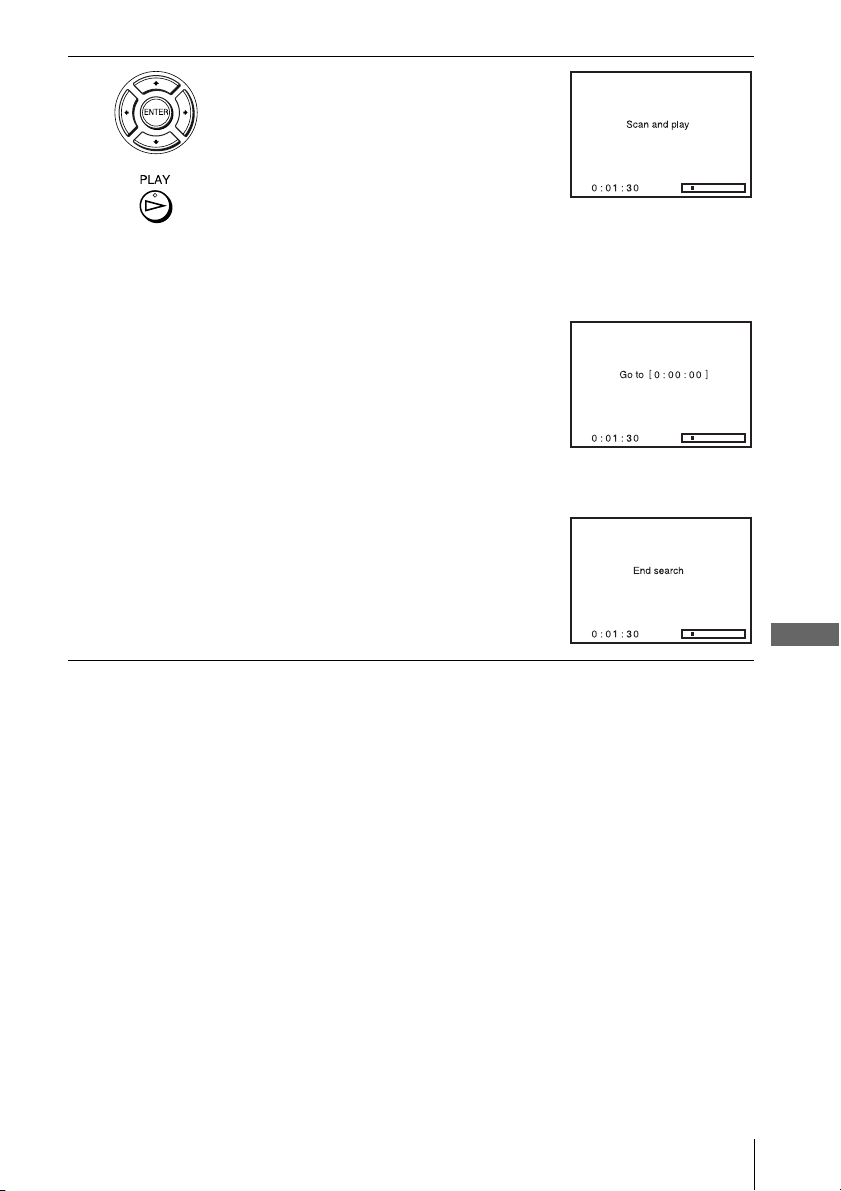
VCR Additional Operations
83
US
Searching using various functions
To stop searching
Press x STOP.
Note
• Once in recording mode, if the VCR is put in pause and then released to start the recording,
no index mark will be inserted. An index mark will be inserted if the channel is changed
while VCR is put in pause.
4
• Scan and Play (To search using the index
function):
1 Press b to scan ahead, or B to scan
backwards.
The VCR searches and then plays back for
about five seconds.
2 Press H PLAY to view the program.
If you do not press H PLAY, the VCR
automatically searches for the next index
mark, or until it reaches the end of the tape.
• Go to [0:00:00] (To search for the counter
0:00:00 point):
Press V.
The VCR starts searching and automatically
stops at the 0:00:00 point.
To mark a point on the tape that you want to
find later, press CLEAR to reset the tape
counter to “0:00:00.”
• End search (To search for a blank portion of
the tape)
Press v.
The VCR starts searching and automatically
stops at the beginning of a blank space. If no
blank space is found, the VCR reaches the end.
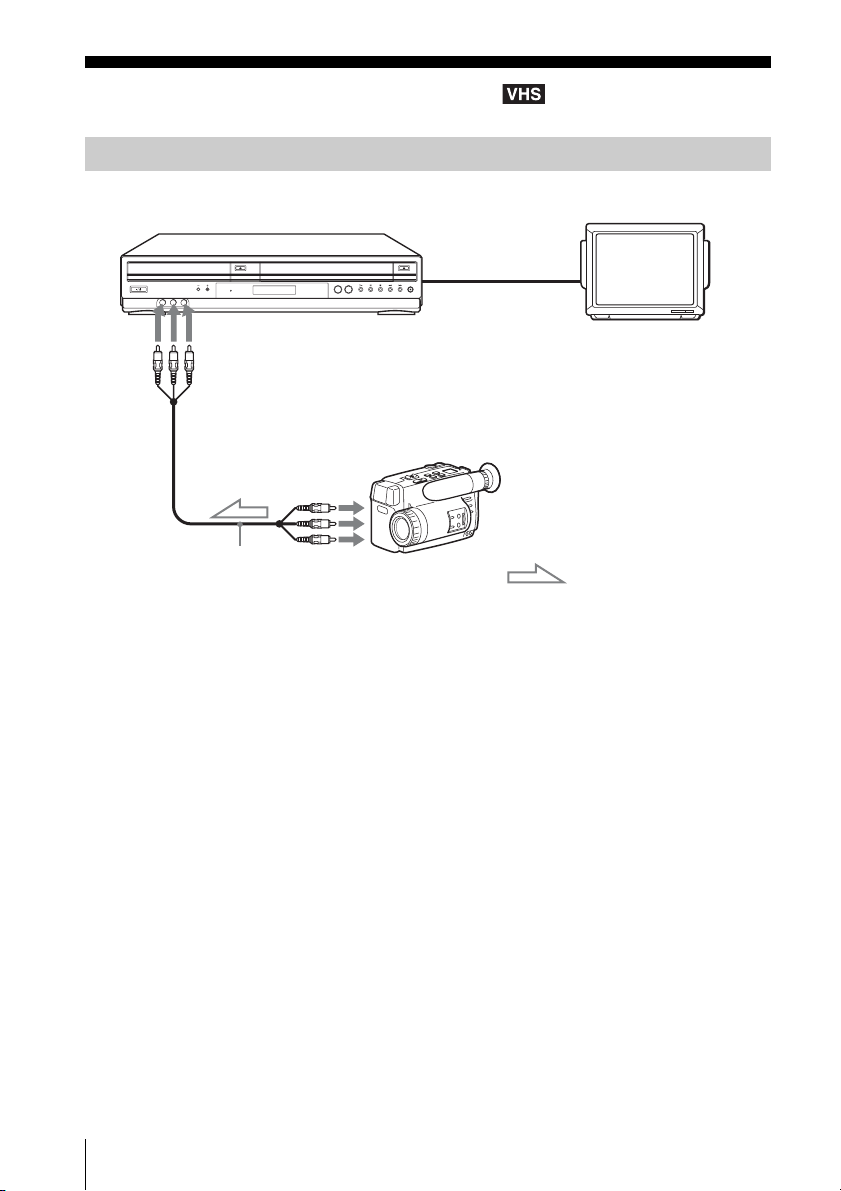
84
US
Editing with another VCR
Editing with another VCR
Notes
• Make sure you connect the plugs to jacks of the same color.
• If the other VCR is a monaural type and connected to this VCR’s LINE-2 IN jacks, connect
the audio plug to the AUDIO L (white) jack. The sound is recorded on both right and left
channels. If you connect to the AUDIO R (red) jack, the sound is recorded only on the right
channel.
• If you connected this VCR to both the LINE IN and LINE OUT jacks of the other VCR,
select the input correctly to prevent a humming noise.
• You can use the LINE IN 1 jacks for editing. If the other VCR is a monaural type the sound is
recorded only on the channel whose jack is connected to the audio plug. To record on both
right and left channels, connect the audio plugs to the AUDIO L/R jacks using an audio/video
cord (not supplied).
How to connect to record on this VCR
This VCR (Recorder)
Other VCR (Player)
LINE OUT
: Signal flow
LINE-2 IN
TV
Audio/video cord
(not supplied)
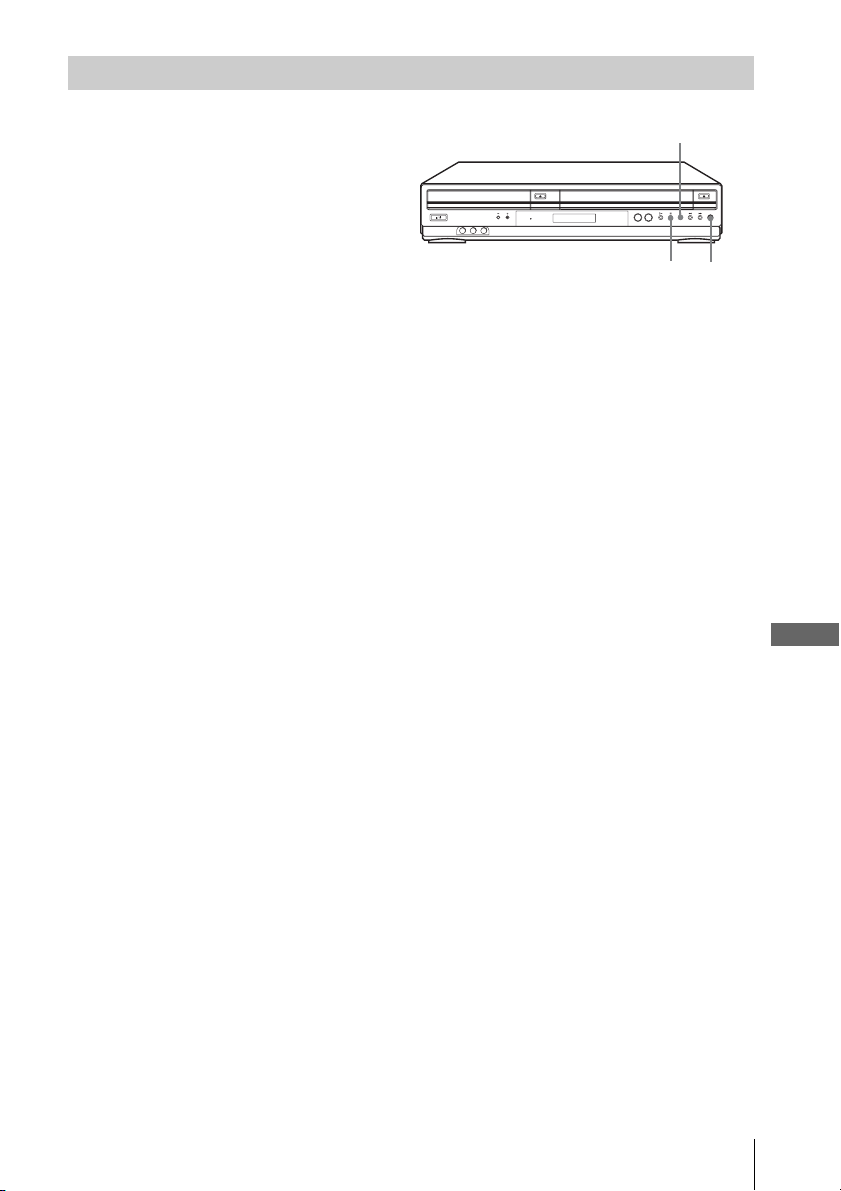
VCR Additional Operations
85
US
Editing with another VCR
To stop editing
Press the x (stop) buttons on both VCRs.
Tip
• To cut out unwanted scenes while editing, press X on this VCR when an unwanted scene
begins. When it ends, press X again to resume recording.
Operation (when recording on this VCR)
Before you start editing
• Turn on the VCR and the TV and set it to
the video channel.
• Press INPUT SELECT to display “L1” or
“L2” in the display window.
• Press SP/EP to select the tape speed, SP or
EP.
1
Insert a source tape with its safety tab removed into the other (playback) VCR. Search for
the point to start playback and set it to playback pause.
2
Insert a tape into this (recording) VCR. Search for the point to start recording and press X.
3
Press z REC on this VCR to set it to recording pause.
4
To start editing, press the X (pause) buttons on both VCRs at the same time.
z RECX
x
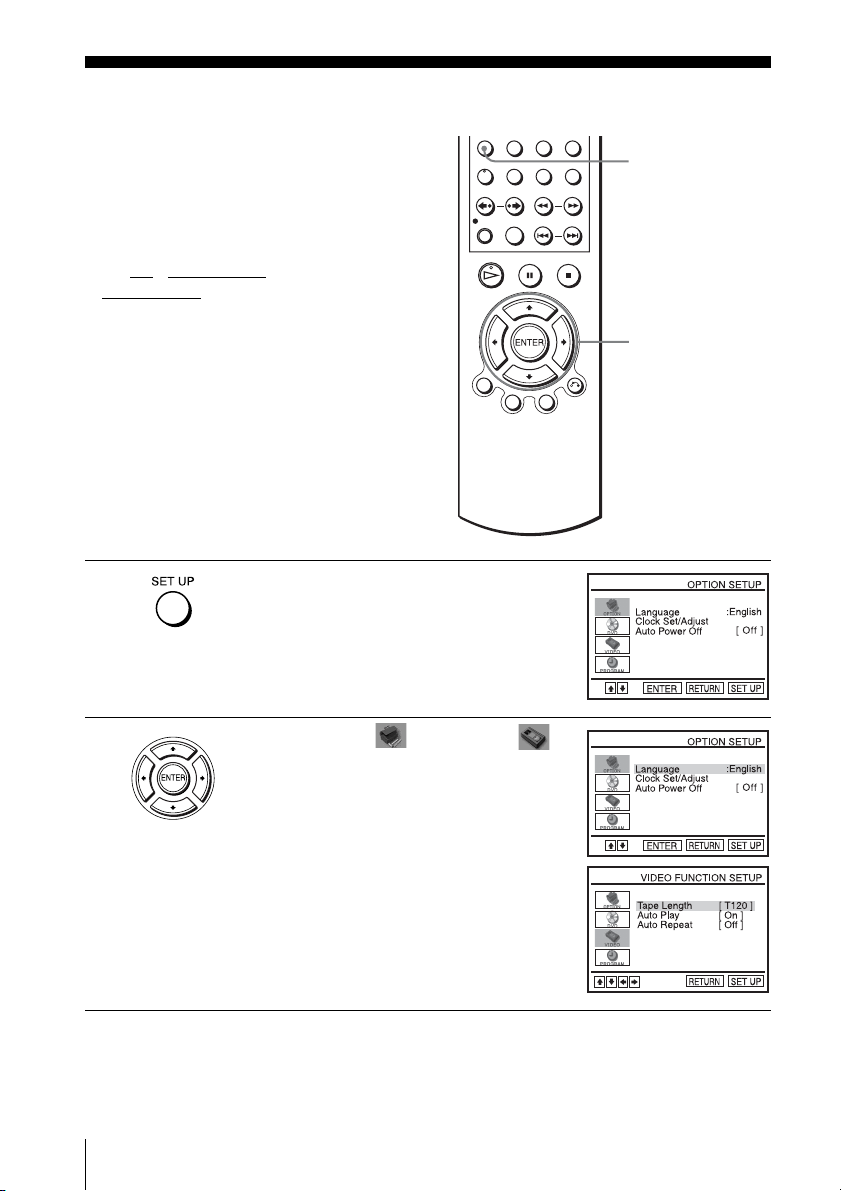
86
US
Changing menu options
Additional Information
Changing menu options
You can set the auto power off function or
change the tape length, auto play and auto
repeat settings. Normally the default settings
are used. Change these settings if necessary.
Before you start…
•Set TV
/ DVD·VIDEO switch to
DVD·VIDEO
on the remote.
1
Press SET UP when the DVD player is in stop
mode.
2
Press V/v to select (OPTION) or
(VIDEO) and press ENTER.
The “OPTION SETUP” menu or “VIDEO
FUNCTION SETUP” menu appears.
SET UP
V/v/B/b
ENTER
Additional Information
87
US
Changing menu options
Menu choices
The default settings are indicated in bold print.
OPTION SETUP
For details about menu option “Language” and “Clock Set/Adjust”, see “Selecting a
language” on page 18 or “Setting the clock” on page 19.
VIDEO FUNCTION SETUP
3
Press V/v to select the item to change, then press B/b to make the setting.
For details about each setup item, see “Menu choices” below.
4
Press SET UP to exit the menu.
Menu option Set this option to
Auto Power Off • Off to deactivate the Auto Power Off function.
• 1Hr/2Hr to turn the DVD-VCR off automatically if no signal is
received and you do not press any of the buttons during this
time.
Menu option Set this option to
Tape Length • T-120 when using a T-120 or shorter length tape.
• T-160 when using a T-160 length tape.
• T-180 when using a T-180 or longer length tape.
Auto Play • On to start playback automatically, when you insert a tape with
its safety tab removed.
• Off to turn off Auto play. You need to press H PLAY to start
playback, even if you insert a tape with its safety tab removed.
Auto Repeat • On to play back a tape repeatedly. The VCR rewinds a tape to
the beginning and restarts playback automatically.
• Off to turn off Auto repeat.
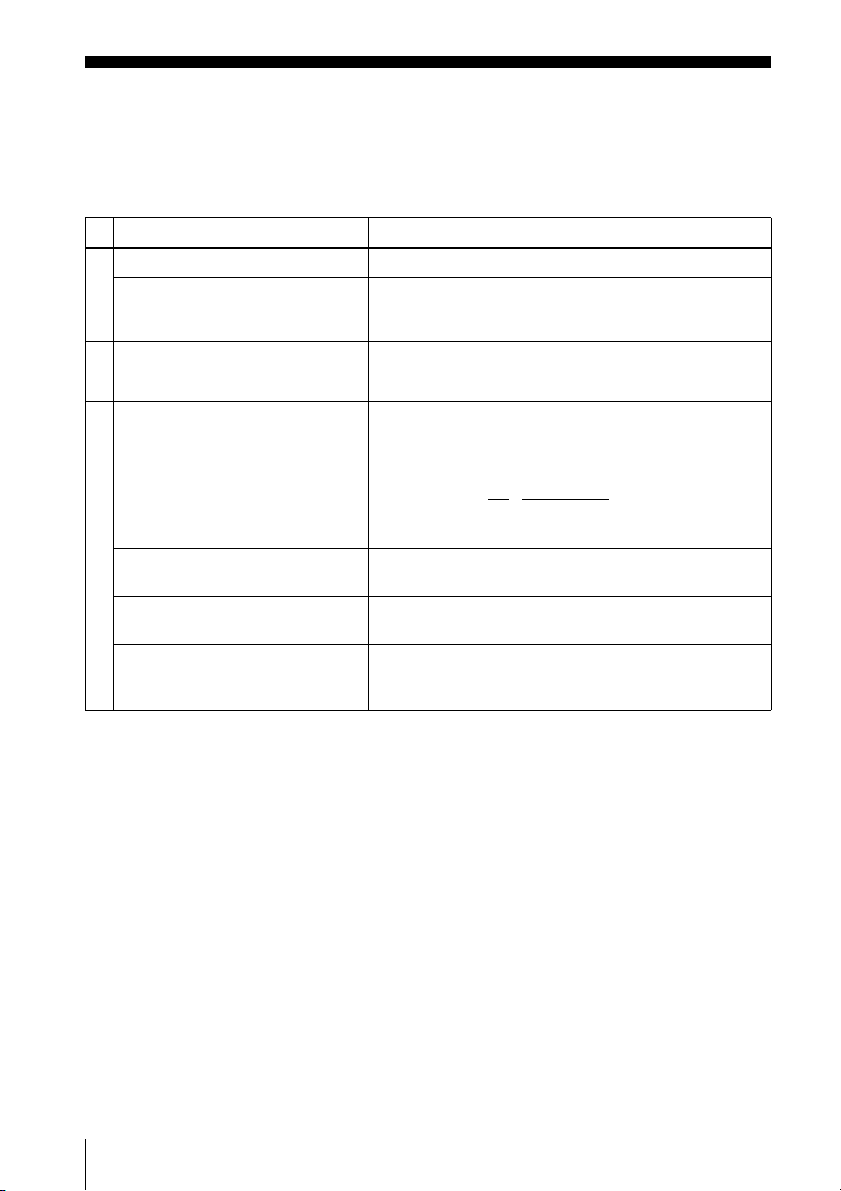
88
US
Troubleshooting
Troubleshooting
If you have any questions or problems not covered below, please consult your nearest Sony
dealer. (see “For customers in USA” on the front cover)
General Troubleshooting
Symptom Remedy
Power
The ?/1 switch does not function. • Connect the AC power cord securely.
The power is turned on but the DVD-
VCR does not operate.
• Moisture condensation has occurred. Turn the power off,
unplug the AC power cord and leave the DVD-VCR to
dry for over three hours.
Clock
The clock has stopped and “-- : –”
appears in the display window.
• The clock stops if the DVD-VCR is disconnected from
the wall outlet. Reset the clock (and timer).
Others
The remote commander does not
function.
• Make sure you are pointing the remote commander at the
remote sensor on the DVD-VCR.
• Replace all the batteries in the remote commander with
new ones if they are weak.
• Make sure the TV
/ DVD·VIDEO switch is set correctly.
• Select DVD or VIDEO mode correctly with the SELECT
DVD/VIDEO button.
Buttons on the unit does not function. • Select DVD or VIDEO mode correctly with the SELECT
DVD/VIDEO button.
The tracking meter does not appear
on the screen.
• The recording condition of the tape is very poor and
tracking cannot be adjusted.
You cannot control other TVs. • Set your TV’s code number. The code number may
change when you replace the batteries of the remote
commander.
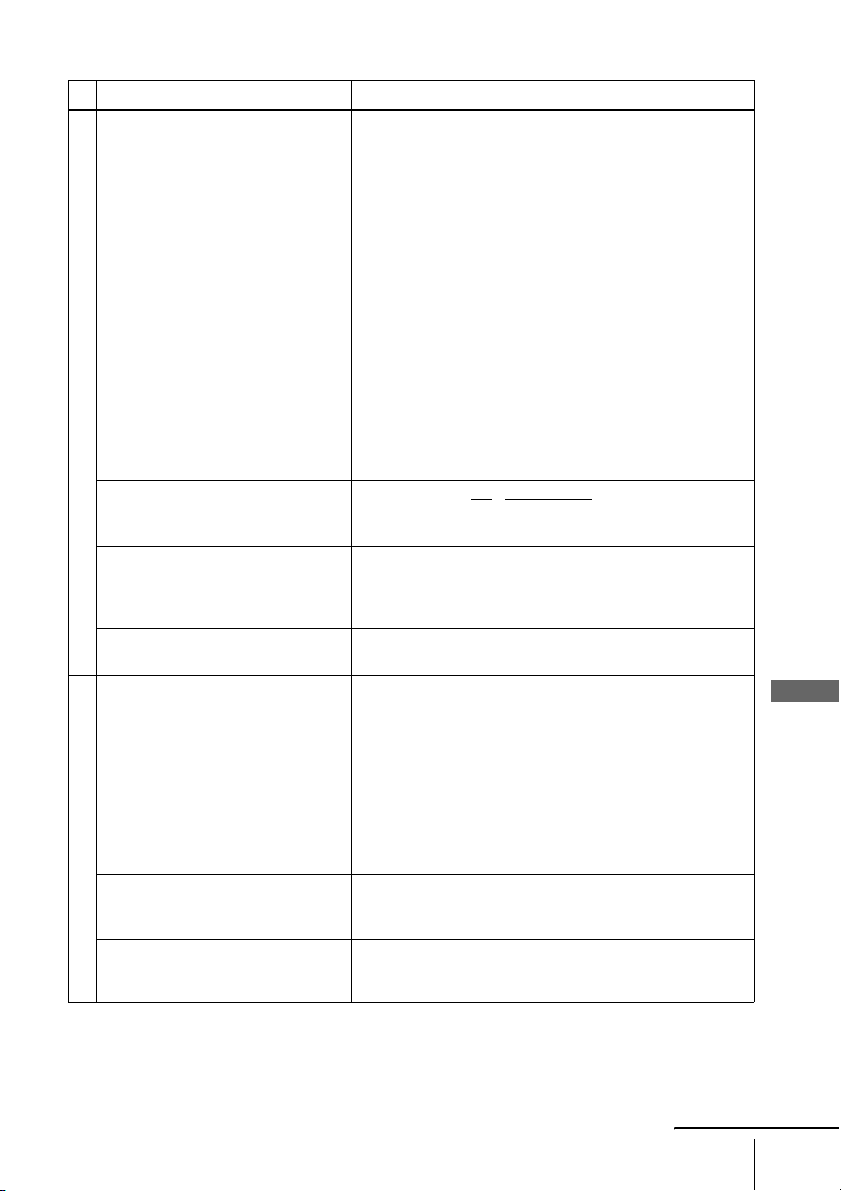
Additional Information
89
US
Troubleshooting
DVD Troubleshooting
Symptom Remedy
Picture
There is no picture/picture noise
appears.
• Re-connect the connecting cord securely.
• The connecting cords are damaged.
• Check the connection to your TV (page 14) and switch
the input selector on your TV so that the signal from the
player appears on the TV screen.
• The disc is dirty or flawed.
• You have set the player to progressive format (the
PROGRESSIVE indicator lights up in orange) even
though your TV cannot accept the progressive signal. In
this case, set “Progressive” to “Off” (page 48).
• Even if your TV is compatible with progressive format
(480p) signals, the image may be affected when you set
the player to progressive format. In this case, set
“Progressive” to “Off” and the player is set to normal
(interlace) format (page 48).
• COMPONENT VIDEO OUT jack is not used or
“Progressive” of the “SCREEN SETUP” menu is not set
correctly while the PROGRESSIVE indicator lights up in
orange. Check the setting (page 46) and connection
(page 21).
The Playback does not start/buttons
on the remote and unit does not
function.
• Make sure the TV
/ DVD·VIDEO switch is set correctly.
• Select DVD or VIDEO mode correctly with the SELECT
DVD/VIDEO button.
Even though you set the aspect ratio
in “TV Type” of the “SCREEN
SETUP” menu the picture does not
fill the screen.
• The aspect ratio of the disc is fixed on your DVD.
There is no picture from your VCR
connected to the LINE IN jacks.
• The DVD player must be in standby mode to view
pictures from your VCR.
Sound
There is no sound. • Re-connect the connecting cord securely.
• The connecting cord is damaged.
• The player is connected to the wrong input jack on the
amplifier (receiver) (page 15).
• The amplifier (receiver) input is not correctly set.
• The player is in pause mode or in Slow-motion Play mode.
• The player is in fast forward or fast reverse mode.
• If the audio signal does not come through the DIGITAL
AUDIO OUT (COAXIAL) jack, check the audio settings
(page 44).
Sound is noisy. • When playing a CD with DTS sound tracks, noise will
come from the LINE OUT L/R (AUDIO) jacks (page 27)
or DIGITAL AUDIO OUT (COAXIAL) jack.
The sound volume is low. • The sound volume is low on some DVDs. The sound
volume may improve if you set “Audio DRC” to “Wide
Range” (page 45).
continued
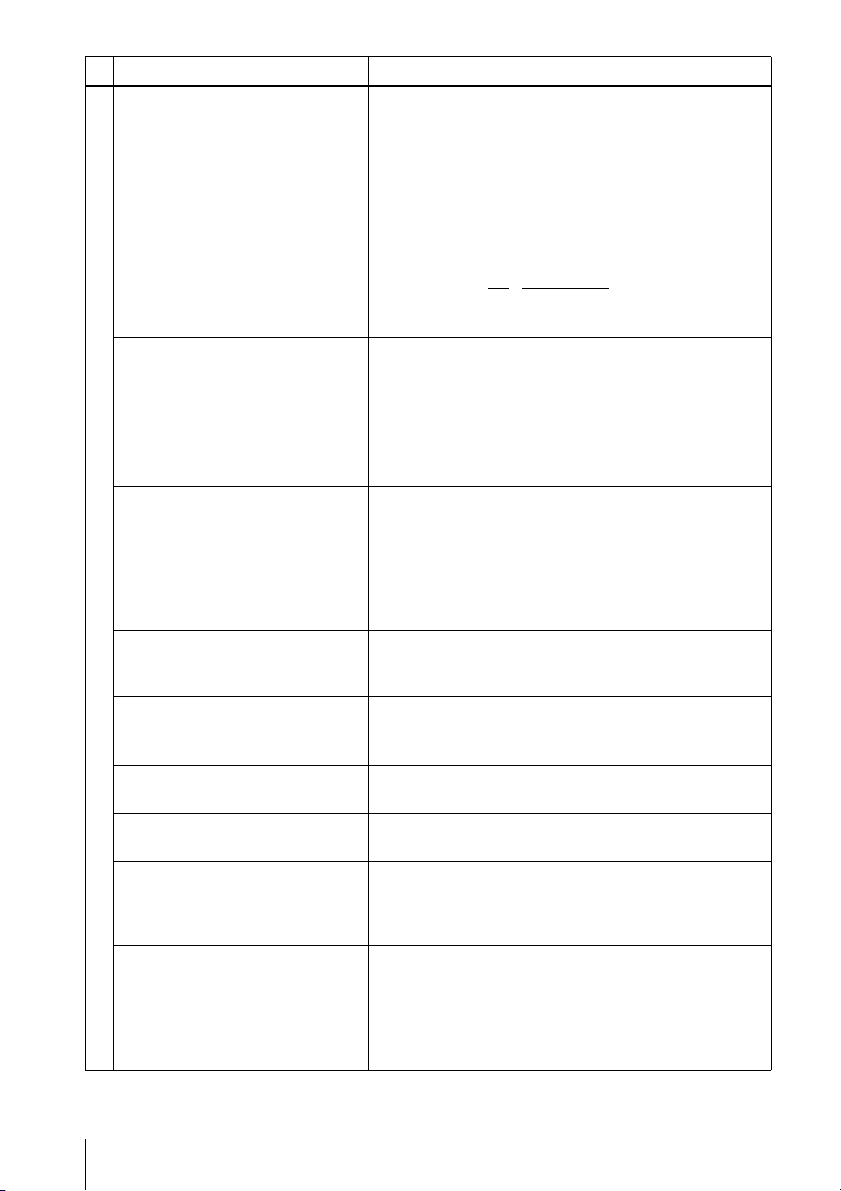
90
US
Troubleshooting
Operation
The disc does not play. • The disc is turned over.
• Insert the disc with the playback side facing down on the
disc tray.
• The disc is skewed.
• The player cannot play certain discs (page 7).
• The region code on the DVD does not match the player.
• Moisture has condensed inside the player (page 3).
• The player cannot play a recorded disc that is not
correctly finalized (page 8).
• Make sure the TV
/ DVD·VIDEO switch is set correctly.
• Select correctly VIDEO or DVD with SELECT DVD/
VIDEO button.
The MP3 audio track cannot be
played (page 69).
• The DATA CD or DATA DVD is not recorded in the MP3
format that conforms to ISO9660 Level 1/Level 2 or UDF.
• The MP3 audio track does not have the extension “.MP3”.
• The data is not formatted in MP3 even though it has the
extension “.MP3”.
• The data is not MPEG1 Audio Layer III data.
• The player cannot play audio tracks in MP3PRO format.
The JPEG image file cannot be
played.
• The DATA CD or DATA DVD is not recorded in JPEG
format that conforms to ISO9660 Level 1/Level 2 or
UDF.
• The JPEG image file does not have the extension “.JPG”
or “.JPEG”.
• The data is not formatted in JPEG even though it has the
extension “.JPG” or “JPEG”.
The title of the MP3 audio album/
track or JPEG image album/file is not
correctly displayed.
• The player can only display numbers and alphabet. Other
characters are displayed as asterisks.
The disc does not start playing from
the beginning.
• Program play, shuffle play, or repeat play, has been
selected (pages 61, 63, 64).
• Resume play has taken effect (page 27).
The player starts playing the disc
automatically.
• The disc features an auto playback function.
Playback stops automatically. • While playing discs with an auto pause signal, the player
stops playback at the auto pause signal.
You cannot perform some functions
such as stop, search, slow-motion
play, repeat play, shuffle play, or
program play.
• Depending on the disc, you may not be able to do some
operations. See the operating manual that comes with the
disc.
The language for the sound track
cannot be changed.
• Try using the DVD’s menu instead of the direct selection
button on the remote (page 55).
• Multilingual tracks are not recorded on the DVD being
played.
• The DVD prohibits the changing of the language for the
sound track.
Symptom Remedy
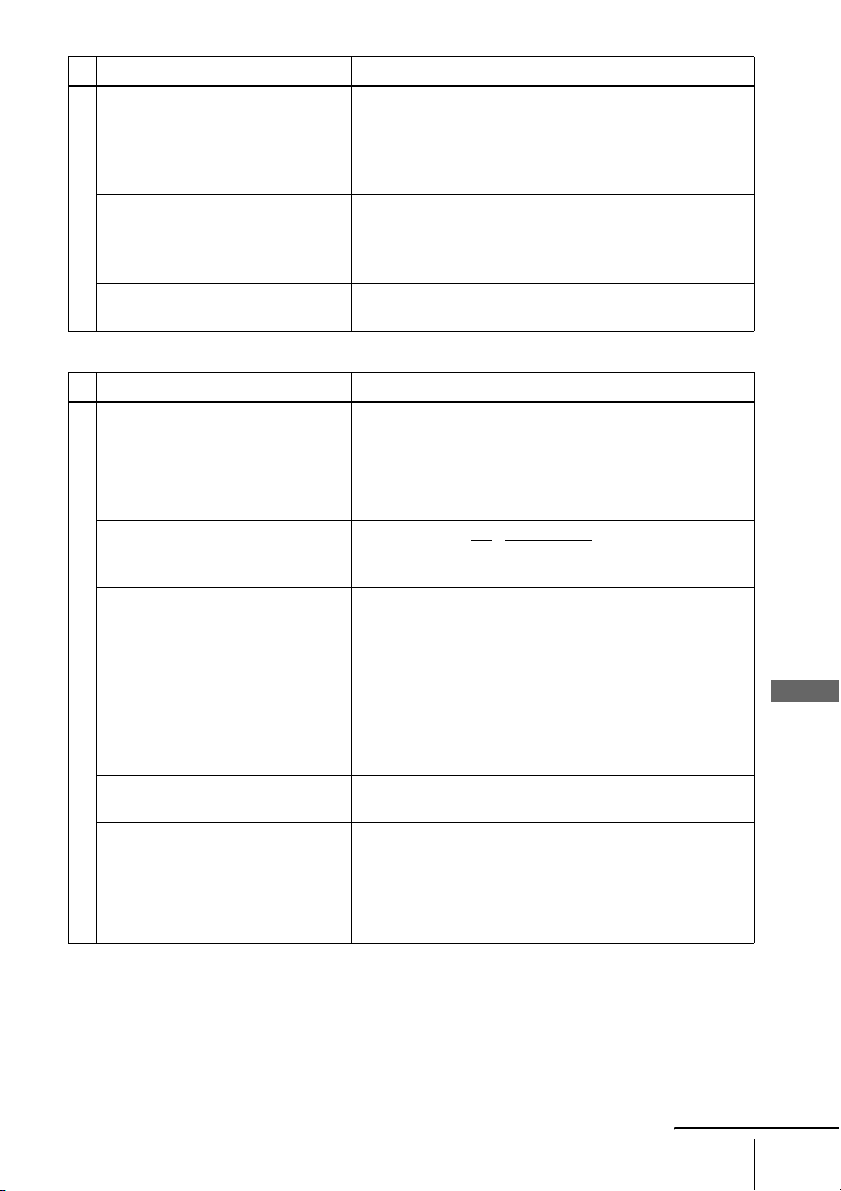
Additional Information
91
US
Troubleshooting
VCR Troubleshooting
Operation
The subtitle language cannot be
changed or turned off.
• Try using the DVD’s menu instead of the direct selection
button on the remote (page 55).
• Multilingual subtitles are not recorded on the DVD being
played.
• The DVD prohibits the changing of the subtitles.
The angles cannot be changed. • Try using the DVD’s menu instead of the direct selection
button on the remote (page 55).
• Multi-angles are not recorded on the DVD being played.
• The DVD prohibits changing of the angles.
The player does not operate properly. • When static electricity, etc., causes the player to operate
abnormally, unplug the player.
Symptom Remedy
Playback
The playback picture does not appear
on the TV screen.
• Make sure the TV is set to the channel for the VCR. If
you are using a monitor, set it to video input.
• The signal from the VCR will not be output when you
make the connection using COMPONENT VIDEO OUT
jacks. Make the connection using LINE OUT (Yellow,
White, Red) jacks (page 15).
The Playback does not start/buttons
on the remote and unit does not
function.
• Make sure the TV
/ DVD·VIDEO switch is set correctly.
• Select DVD or VIDEO mode correctly with the SELECT
DVD/VIDEO button.
The picture is not clear. • Adjust the tracking with the TRACKING +/– buttons.
• The video heads are dirty (see “On cleaning the video
heads” (page 3)). Clean the video heads using a Sony
video head cleaning cassette. If a Sony cleaning cassette
is not available in your area, have the heads cleaned at
your nearest Sony dealer (a standard service fee will be
charged). Do not use a commercially available liquid
type cleaning cassette, as it may damage the video heads.
• The video heads may have to be replaced. Consult your
local Sony dealer for more information.
The picture rolls vertically during
picture search.
• Adjust the vertical hold control on the TV or monitor.
The picture has no sound. • The tape is defective.
• Check the audio cord connection.
• The signal from the VCR will not be output when you
make the connection using a DIGITAL AUDIO OUT
(COAXIAL) jack. Make the connection using LINE
OUT (Yellow, White, Red) jacks (page 15).
Symptom Remedy
continued
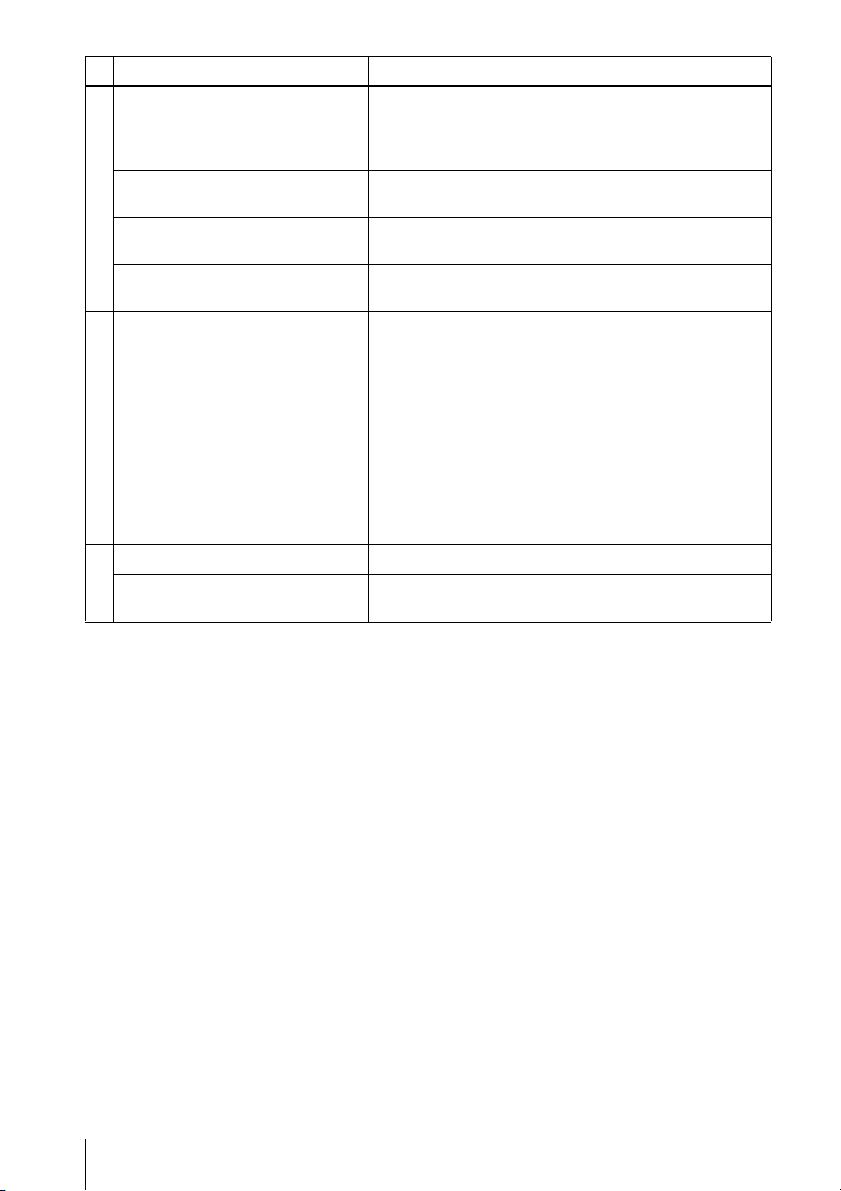
92
US
Troubleshooting
Recording
The picture from a connected cable
box or satellite receiver does not
appear on the TV screen.
• Make sure the TV or monitor is set to video input.
• Select the correct line input (L1 or L2) which the cable
box or satellite receiver is connected with the INPUT
SELECT button.
The tape starts playing as soon as it is
inserted.
• The safety tab has been removed. To record on this tape,
cover the tab hole.
The tape is ejected when you press
z REC.
• Check that the safety tab has not been removed.
Nothing happens when you press
z REC.
• Make sure the tape is not at its end.
Timer recording
The timer does not operate. • Check that the clock is set.
• Make sure a tape has been inserted.
• Check that the safety tab has not been removed.
• Make sure the tape is not at its end.
• Make sure a program has been set for timer recording.
• Make sure your timer settings are past the current time.
• Check that the cable box or satellite receiver is turned on.
• The clock stops if the DVD-VCR is disconnected from
the wall outlet for more than one minute. Reset the clock
and timer.
• Turn the power off and unplug the AC power cord.
Others
A tape cannot be inserted. • Check that a tape is not already in the tape compartment.
Control by AV mouse is not possible. • The unit is not compatible with satellite TV receiver AV
mouse, etc.
Symptom Remedy

Additional Information
93
US
Glossary
Glossary
Chapter (page 28)
Sections of a picture or a music feature that
are smaller than titles. A title is composed of
several chapters. Depending on the disc, no
chapters may be recorded.
Dolby Digital (pages 22 and 45)
Digital audio compression technology
developed by Dolby Laboratories. This
technology conforms to 5.1-channel
surround sound. The rear channel is stereo
and there is a discrete subwoofer channel in
this format. Dolby Digital provides the same
5.1 discrete channels of high quality digital
audio found in Dolby Digital cinema audio
systems. Good channel separation is realized
because all of the channel data are recorded
discretely and little deterioration is realized
because all channel data processing is digital.
Dolby Surround (page 23)
Audio signal processing technology that
Dolby Laboratories developed for surround
sound. When the input signal contains a
surround component, the process outputs the
front, center and rear signals. The rear
channel is monaural.
DTS (page 45)
Digital audio compression technology that
DTS, Inc. developed. This technology
conforms to 5.1-channel surround sound. The
rear channel is stereo and there is a discrete
subwoofer channel in this format. DTS
provides the same 5.1 discrete channels of
high quality digital audio.
Good channel separation is realized because
all of the channel data is recorded discretely
and little deterioration is realized because all
channel data processing is digital.
DVD (page 7)
A disc that contains up to 8 hours of moving
pictures even though its diameter is the same
as a CD.
The data capacity of a single-layer and
single-sided DVD is 4.7 GB (Giga Byte),
which is 7 times that of a CD. The data
capacity of a double-layer and single-sided
DVD is 8.5 GB, a single-layer and double-
sided DVD is 9.4 GB, and double-layer and
double-sided DVD is 17GB.
The picture data uses the MPEG 2 format,
one of the worldwide standards of digital
compression technology. The picture data is
compressed to about 1/40 (average) of its
original size. The DVD also uses a variable
rate coding technology that changes the data
to be allocated according to the status of the
picture. Audio information is recorded in a
multi-channel format, such as Dolby Digital,
allowing you to enjoy a more real audio
presence.
Furthermore, various advanced functions
such as the multi-angle, multilingual, and
Parental Control functions are provided with
the DVD.
DVD+R (page 7)
A DVD+R (read “plus R”) is a recordable
disc that is the same size as a DVD VIDEO.
Contents can be recorded only once to a
DVD+R, and will have the same format as a
DVD VIDEO.
DVD-R (page 7)
A DVD-R is a recordable disc that is the
same size as a DVD VIDEO. Contents can be
recorded only once to a DVD-R, and will
have the same format as a DVD VIDEO.
The DVD-R has two different modes:
VR mode and Video mode. DVDs created in
Video mode have the same format as a DVD
VIDEO, while discs created in VR (Video
Recording) mode allow the contents to be
programmed or edited.
continued

94
US
Glossary
DVD-RW (page 7)
A DVD-RW is a recordable and rewritable
disc that is the same size as a DVD VIDEO.
The DVD-RW has two different modes:
VR mode and Video mode. DVD-RWs
created in Video mode have the same format
as a DVD VIDEO, while discs created in VR
(Video Recording) mode allow the contents
to be programmed or edited.
DVD+RW (page 7)
A DVD+RW (plus RW) is a recordable and
rewritable disc. DVD+RWs use a recording
format that is comparable to the DVD
VIDEO format.
Interlace format
Interlace format shows every other line of an
image as a single “field” and is the standard
method for displaying images on television.
The even number field shows the even
numbered lines of an image, and the odd
numbered field shows the odd numbered
lines of an image.
Progressive format (pages 21 and 48)
Compared to the Interlace format that
alternately shows every other line of an
image (field) to create one frame, the
Progressive format shows the entire image at
once as a single frame. This means that while
the Interlace format can show 30 frames/60
fields in one second, the Progressive format
can show 60 frames in one second. The
overall picture quality increases and still
images, text, and horizontal lines appear
sharper. This player is compatible with the
480 progressive format.
Title (page 28)
The longest section of a picture or music
feature on a DVD, movie, etc., in video
software, or the entire album in audio
software.
Track (page 28)
Sections of a picture or a music feature on a
CD or VIDEO CD (the length of a song).

Additional Information
95
US
Specifications
Specifications
System
Laser
Semiconductor laser
Format
VHS NTSC standard
Video recording system
Rotary head helical scanning FM system
Video heads
Double azimuth four heads
Video signal
NTSC color, EIA standards
Tape speed
SP: 33.35 mm/s (1
inches/s)
EP: 11.12 mm/s (
inches/s)
LP: 16.67 mm/s (
inches/s),
playback only
Maximum recording/playback time
8 hrs. in EP mode (with T-160 tape)
Rewind time
Approx. 2 min (with T-120 tape)
Inputs and outputs
LINE IN 1 and LINE-2 IN
VIDEO IN, phono jack (1 each)
Input signal: 1 Vp-p, 75 ohms, unbalanced, sync
negative
AUDIO IN, phono jacks (2 each)
Input level: 327 mVrms
Input impedance: more than 47 kilohms
LINE OUT
VIDEO OUT, phono jack (1)
Output signal: 1 Vp-p, 75 ohms, unbalanced, sync
negative
AUDIO OUT, phono jacks (2)
Standard output: 327 mVrms
Load impedance: 47 kilohms
Output impedance: less than 10 kilohms
DIGITAL OUT
COAXIAL, phono jack
Output signal: 0.5 Vp-p, 75 ohms
COMPONENT VIDEO OUT (Y, Pb, Pr)
Phono jack
Y: 1.0 Vp-p/Pb, Pr: 0.7 Vp-p, 75 ohms
Timer section
Clock
Quartz locked
Timer indication
12-hour cycle
Timer setting
8 programs (max.)
General
Power requirements
120 V AC, 60 Hz
Power consumption
25 W
Power back-up
Back-up duration: 0 min
Operating temperature
5°C to 40°C (41°F to 104°F)
Storage temperature
–20°C to 60°C (–4°F to 140°F)
Operating humidity
25% to 80%
Dimensions including projecting parts and controls
(w/h/d)
Approx. 430 × 85 × 287 mm
(Approx. 17 × 3 × 11 inches)
Mass
Approx. 3.5 kg (Approx. 7.7 lbs)
Supplied accessories
Remote commander (1)
Size AA (R6) batteries (2)
Audio/video cord (1)
Design and specifications are subject to change without
notice.
3
8
7
16
11
16
3
8
3
8
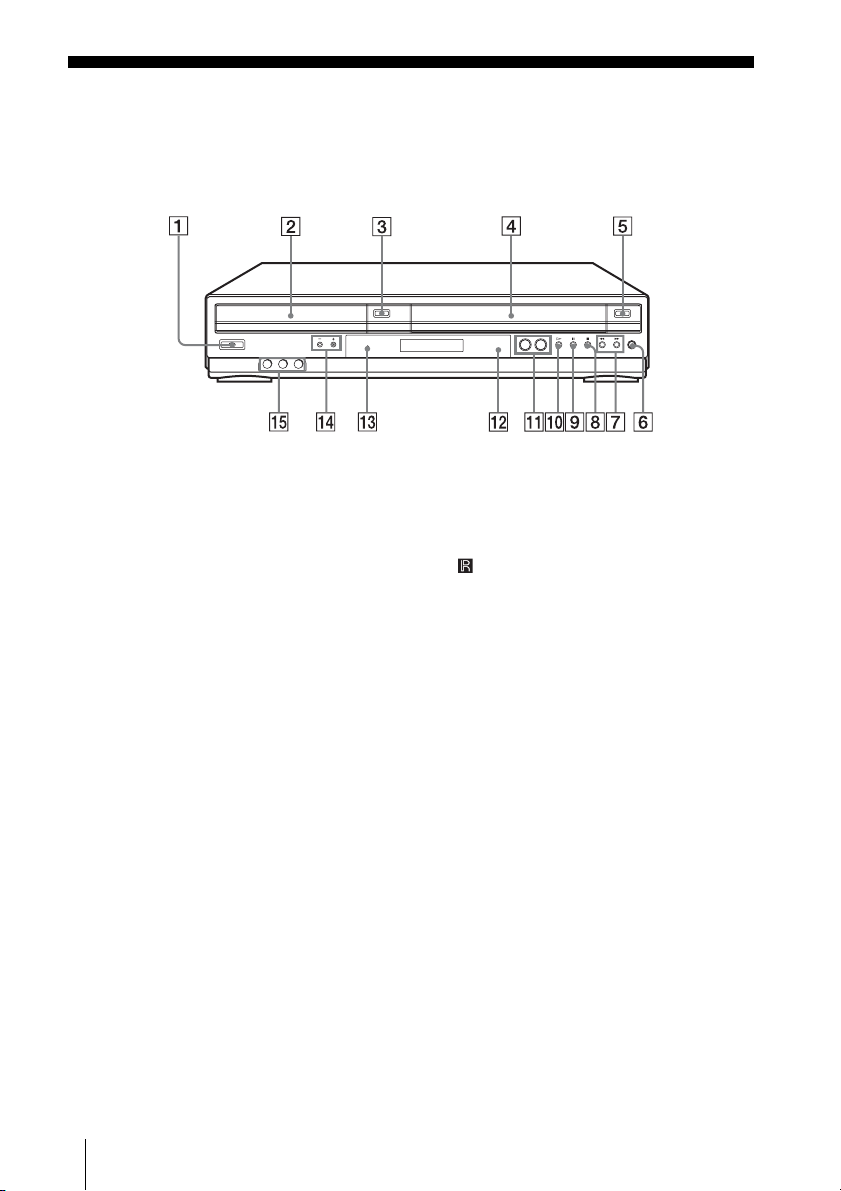
96
US
Index to parts and controls
Index to parts and controls
Refer to the pages indicated in parentheses ( ) for details.
Front panel
A ?/1 POWER (on/standby) switch (27)
(32)
B Disc tray (24)
C A (open/close) button (24) (26)
D Tape compartment (31)
E A (eject) button (32)
F z REC (record) button (36)
G m (rewind)/M (fast-forward) button
(26) (32)
H x (stop) button (25) (32)
I X (pause) button (25) (32)
J H (play) button (25) (31)
K SELECT DVD/VIDEO buttons (11)
L Remote sensor (11)
M PROGRESSIVE indicator (48)
N TRACKING +/– buttons* (34)
O LINE-2 IN VIDEO/AUDIO L (MONO)/
R jacks (84)
∗ TRACKING + button have a tactile dot. Use the
tactile dot as a reference.
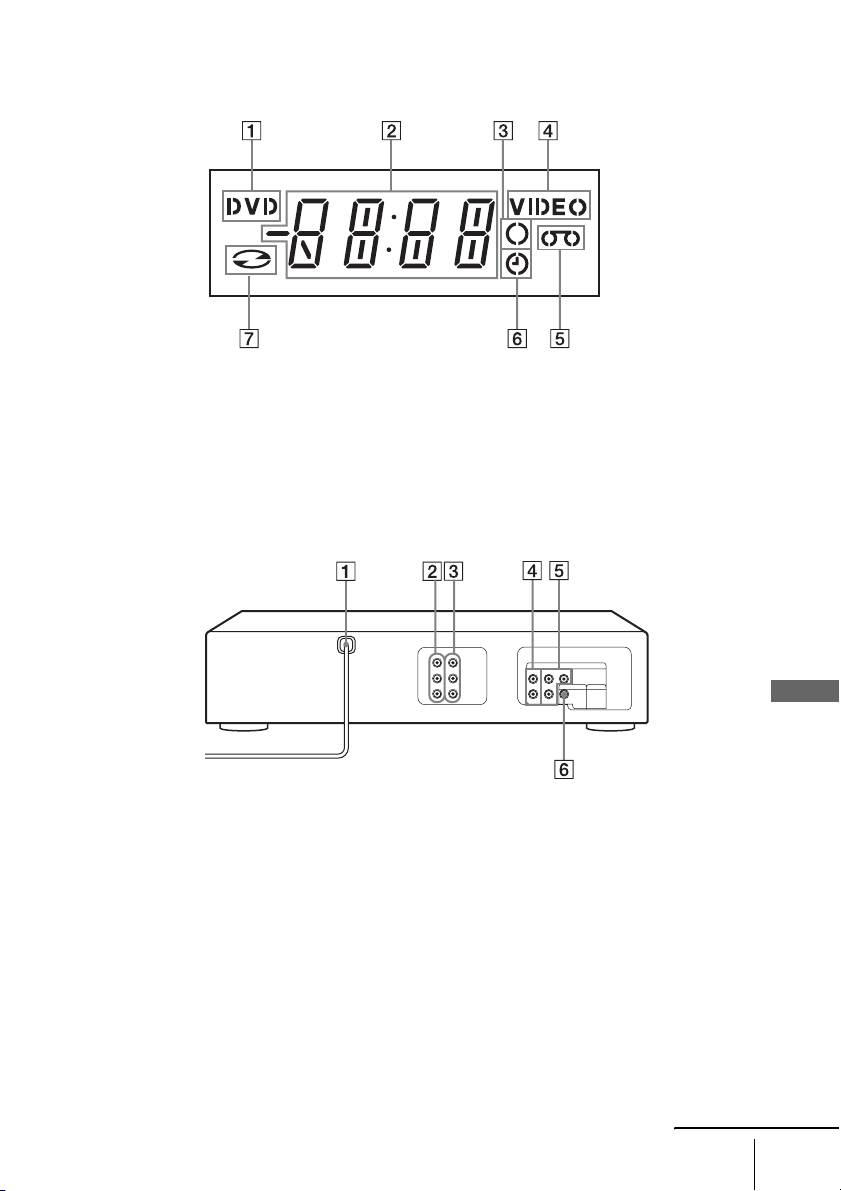
Additional Information
97
US
Index to parts and controls
Display window
A DVD indicator (25)
B Playing time/clock/current status
indicator (25) (31)
C Record indicator (36)
D VIDEO indicator (31)
E Tape indicator (31)
F Timer indicator (39)
G Disc indicator (25)
Rear panel
DVD player and VCR
A AC power cord (14) (17)
B LINE IN 1 VIDEO/AUDIO L/R jacks
(84)
C LINE OUT VIDEO/AUDIO L/R jacks
(15)
DVD player only
D LINE OUT AUDIO L/R jacks (21)
E COMPONENT VIDEO OUT Pr/Pb/Y
jacks (21)
F DIGITAL AUDIO OUT (COAXIAL)
jack (23)
continued
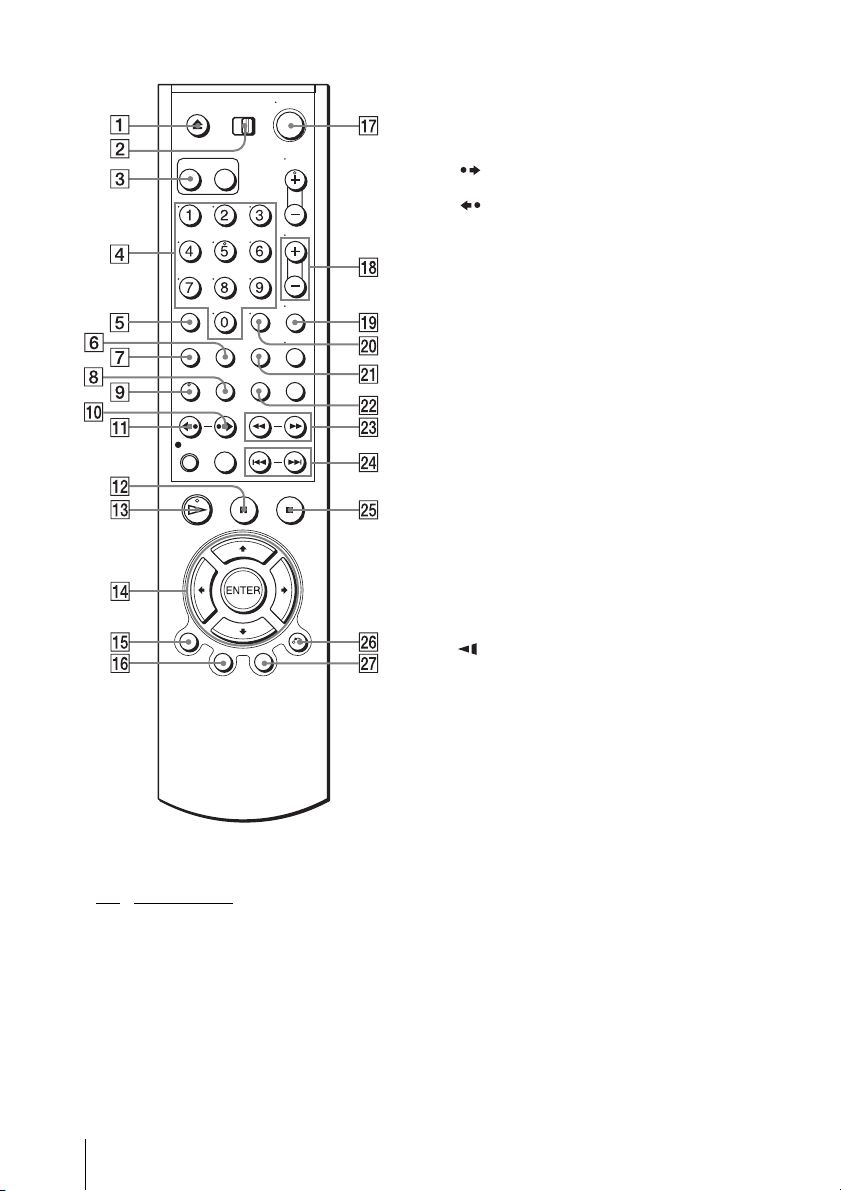
98
US
Index to parts and controls
Remote commander for DVD
A Z (open/close) button (24) (26)
B TV
/ DVD·VIDEO switch (11)
C SELECT DVD button (11)
D Number buttons* (29) (52)
E CLEAR button (62)
F ANGLE button (57)
G SET UP button (18)
H SUBTITLE button (59)
I AUDIO button* (65)
J
SKIP button (25)
K REPLAY button (25)
L X PAUSE bu t t o n ( 2 5)
M H PLAY button* (25)
N V/v/B/b buttons (18)
ENTER button (18)
O DISPLAY button (29)
P TOP MENU button (55)
Q ?/1 (on/standby) switch (12) (27)
R VOL (volume) +/– buttons (12)
S ZOOM button (56)
T ENTER button (18)
U REPEAT button (61)
V SURROUND button (67)
W
m/M y buttons (25)
X .PREV (previous)/> NEXT
button (25)
Y x STOP button (25)
Z O RETURN button (28)
wj MENU button (55)
∗ Number 5, AUDIO and H PLAY buttons have
a tactile dot. Use the tactile dot as a reference.
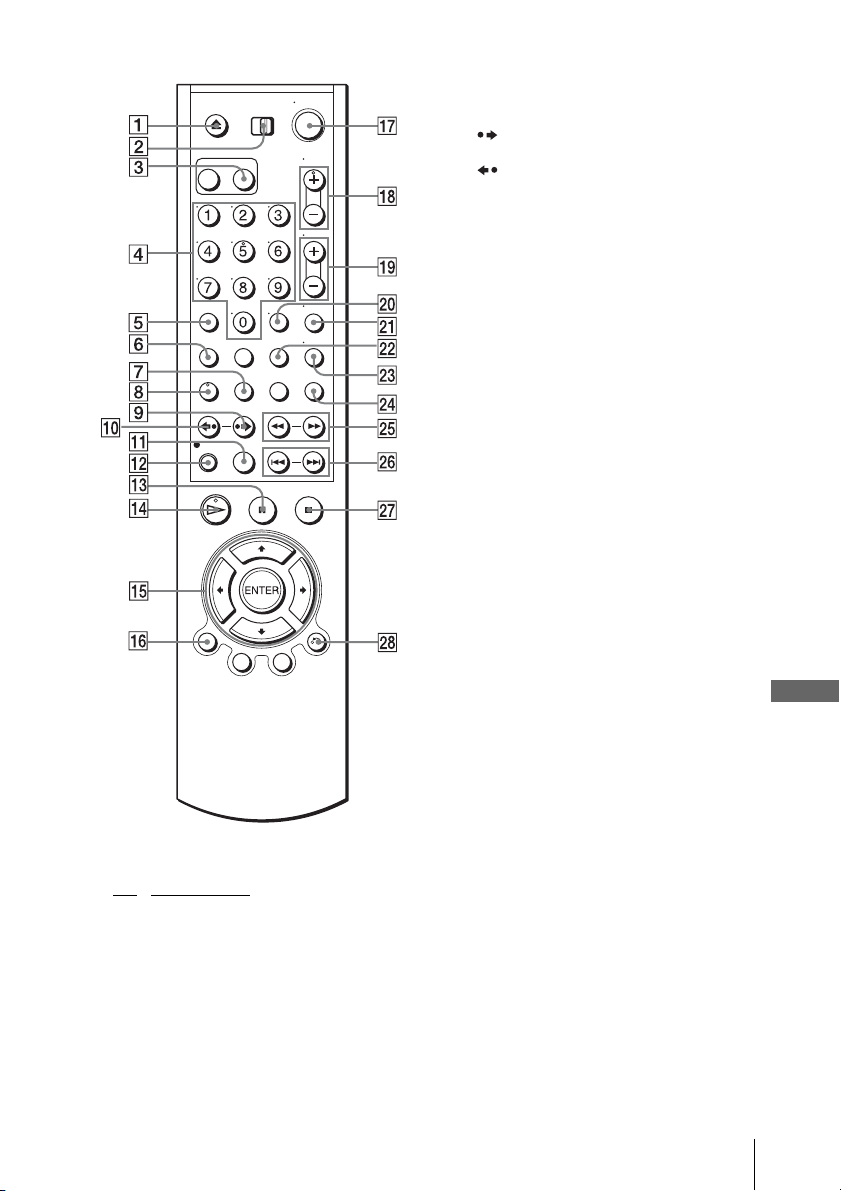
Additional Information
99
US
Index to parts and controls
Remote commander for VIDEO
A Z (eject) button (32)
B TV
/ DVD·VIDEO switch (11)
C SELECT VIDEO button (11)
D Number buttons* (12)
E CLEAR button (33) (39)
F SET UP button (18)
G TIMER button (38)
H AUDIO button* (35)
I
SKIP button (32)
J REPLAY button (32)
K SP (Standard Play)/EP (Extended Play)
button (36)
L z REC (record) button (36)
M X PAUSE button (32)
N H PLAY button* (31)
O V/v/B/b buttons (18)
ENTER button (18)
P DISPLAY button (33)
Q ?/1 (on/standby) switch (12) (32)
R CH (channel)/TRACKING +/– buttons*
(12) (34)
S VOL (volume) +/– buttons (12)
T ENTER button (18)
U MUTING button (12)
V SEARCH button (82)
W TV/VIDEO button (12)
X INPUT SELECT button (35)
Y
m (rewind)/M (fast-forward)/y (slow)
buttons (32)
Z ./> SHUTTLE button (32)
wj x STOP button (32)
wk O RETURN button (38)
∗ Number 5, AUDIO, H PLAY and
CH/TRACKING + buttons have a tactile dot.
Use the tactile dot as a reference.
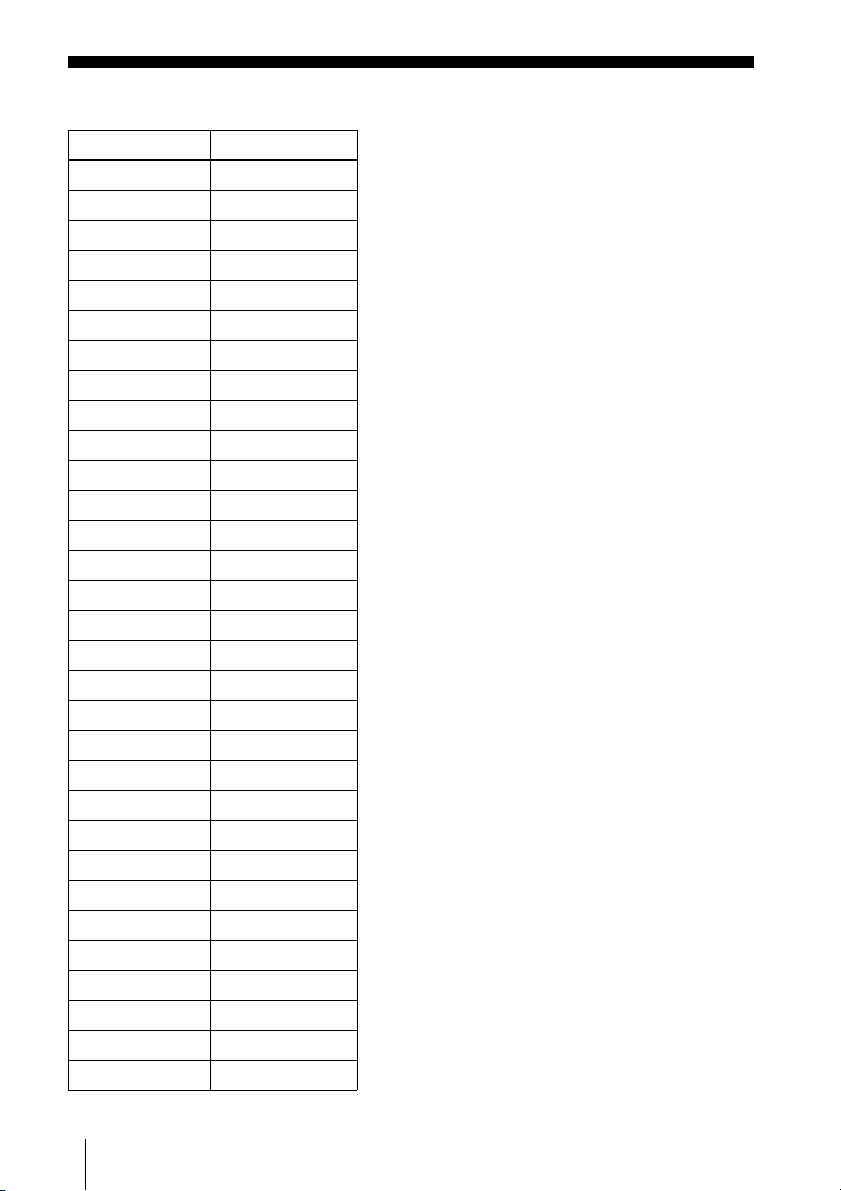
100
US
DVD Audio/Subtitle Language
DVD Audio/Subtitle Language
Abbreviation Language
ARA Arabic
BUL Bulgarian
CHI Chinese
CRO Croatian
CZE Czech
DAN Danish
DEU German
ENG English
ESP Spanish
FIN Finish
FRA French
GRE Greek
HUN Hungarian
IDN Indonesian
IND Hindi
ISL Icelandic
ITA Italian
IWR Hebrew
JPN Japanese
KOR Korean
MAL Malay
NLD Dutch
NOR Norwegian
POL Polish
POR Portuguese
RUS Russian
SVE Swedish
THA Thai
TUR Turkish
VIE Vietnamese
ZAF Afrikaans

101
US
Index
Index
Numerics
16:9 47
4:3 Letter Box
47
4:3 Pan Scan
47
A
Adjusting
picture
34
tracking
34
Angle
57
C
Cleaning the video heads 3
Clock setting
19
Connecting
cable box
16
satellite receiver
16
TV
15
Counter
33
Custom AV Mode
30
D
DATA CD 7, 69, 75
DATA DVD
7, 69, 75
DOLBY DIGITAL
65
DTS
65
Dubbing. see Editing
DVD
7
E
Editing 84
EP mode
36
H
Handling discs 2
I
Instant Advance 26
Instant Replay
26, 32
Instant Skip
32
J
JPEG 7, 75
L
Language selecting 18
LP mode
37
M
MP3 7, 69
P
Parental Control 52
PBC (Playback control)
79
Picture adjustment
34
Playback
at various speeds
26, 32
frame by frame
32
MP3 audio track
69
program play
61
repeat play
64
shuffle play
63
shuttle play
32
slow motion
26, 32
VIDEO CDs
79
Playback quickly or slowly with
sound
27
Program play
61
Progressive
94
R
Recording
saving
37
Repeat play
64
Resume Play
27
S
Safety tab 37
Searching
at various speeds
26, 32
for a blank portion
83
for the counter 0 point
83
Scan and Play
83
Shuffle play
63
Shuttle play
32
SP mode
36
STEREO
65
Subtitle
59
Surround
67
T
Timer setting
daily/weekly recording
39
Tracking adjustment. see
Adjusting
U
Usable discs 7
V
VIDEO CD 7, 79
Z
Zoom 56

2
ES
Índice
Índice
Este manual muestra la configuración básica para utilizar la Videograbadora-DVD.
Para ver detalles, consulte el manual de instrucciones en inglés.
Procedimientos iniciales
3 Conexiones básicas
7 Selección del idioma
8 Ajuste del reloj
Operaciones básicas
9 Reproducción de discos
11 Reproducción de cintas
13 Grabación de un equipo conectado

Procedimientos
3
ES
Conexiones básicas
Procedimientos iniciales
Conexiones básicas
Esta sección explica las conexiones básicas para conectar al televisor y la conexión para grabar
de un equipo conectado. Asegúrese de enchufar el cable de alimentación únicamente después
de haber completado todas las conexiones.
Antes de comenzar
Esta Videograbadora-DVD no tiene sintonizador de TV. Para grabar programas de
TV, conecte esta unidad al decodificador de cable o receptor satelital con salidas de
audio/vídeo (página 5).
Si ha estado utilizando su videograbadora conectada a una antena, conecte esta
Videograbadora-DVD a su videograbadora utilizando un cable de audio/vídeo. De
esta forma, podrá ver y grabar programas de TV.
La Videograbadora-DVD no podrá grabar programas si usted tiene:
– un decodificador de cable sin salidas de audio/vídeo.
– cable sin decodificador de cable.
– solamente antena (no TV por cable).
En este caso, consulte con el proveedor CATV que haya contratado (o el más cercano).
Notas
• No podrá conectar la Videograbadora-DVD a un televisor que no tenga toma de
entrada de vídeo.
• Asegúrese de desconectar el cable de alimentación de CA de cada componente
antes de conectarlo.
• Asegúrese de hacer las conexiones firmemente. Las conexiones flojas pueden
provocar distorsiones en la imagen.
continúa
ES
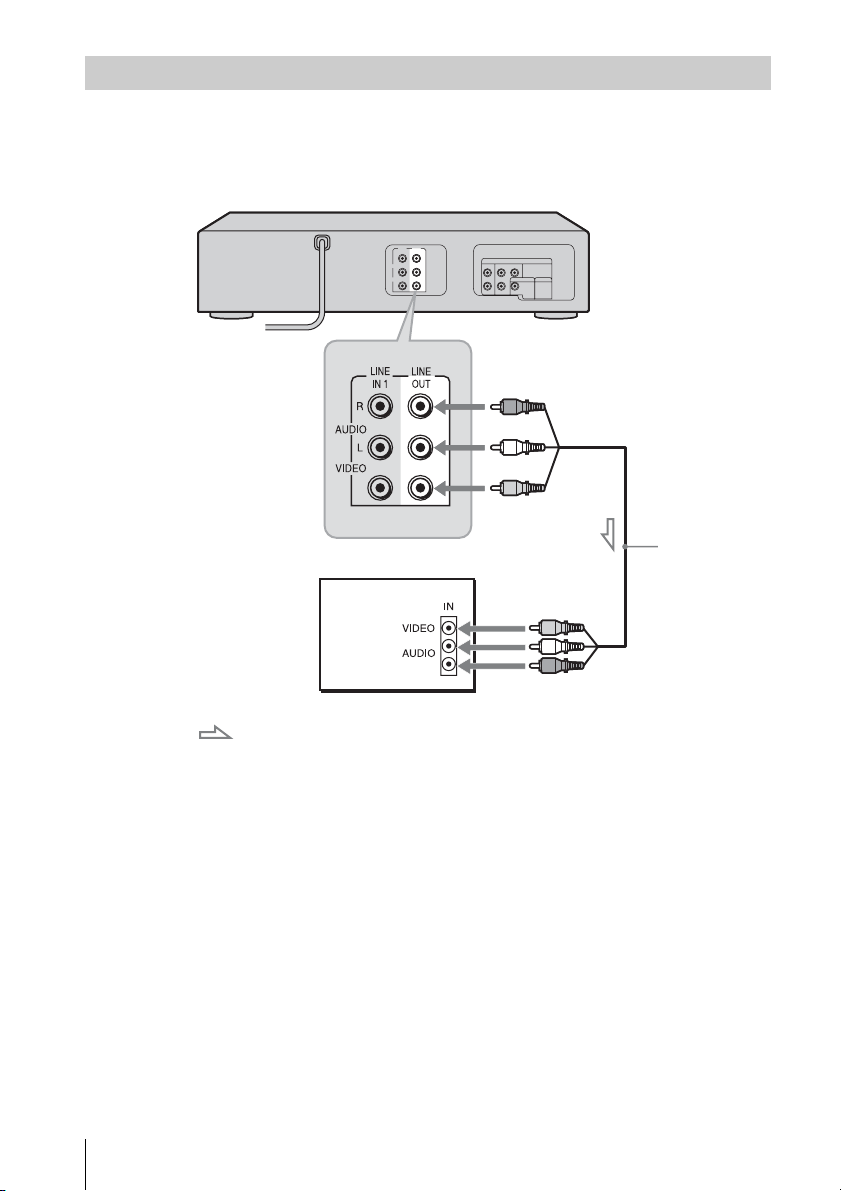
4
ES
Conexiones básicas
Conecte el televisor y la Videograbadora-DVD utilizando el cable de audio/vídeo suministrado.
Si quiere grabar programas de cable, en primer lugar complete estas conexiones, y después vaya
a las páginas siguientes para ver las conexiones de TV por cable.
Nota
• Cuando el televisor conectado solamente tenga toma de entrada de sonido monofónico,
conecte solamente a las tomas de entrada LINE OUT/AUDIO L (blanca) y VIDEO. No
conecte la toma AUDIO R (roja).
Conexión a su televisor
: Flujo de señales
Cable de audio/
video
(suministrado)
Televisor
Videograbadora-DVD
a LINE OUT
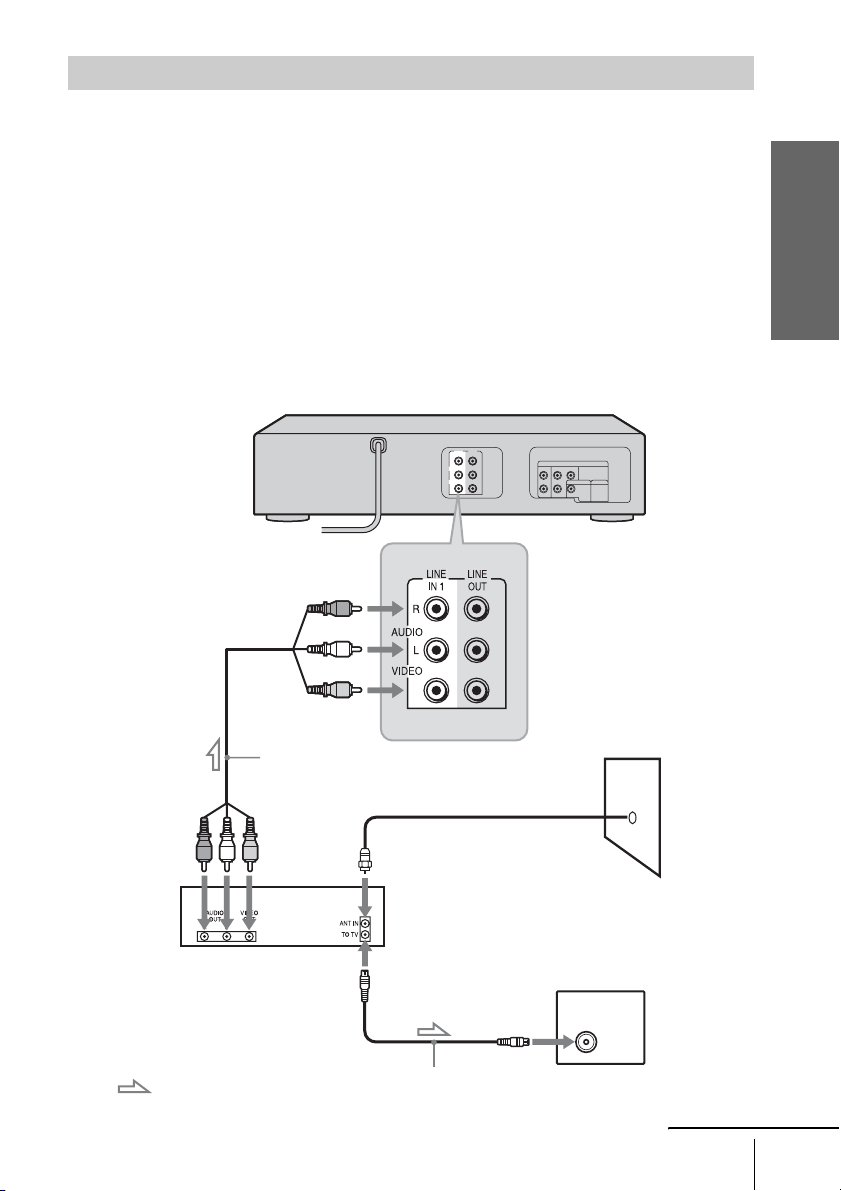
Procedimientos
5
ES
Conexiones básicas
Con esta conexión, puede grabar cualquier canal del decodificador de cable o receptor satelital.
Asegúrese de que el decodificador de cable o receptor satelital está encendido. Para ver canales por
cable o satélite, debe hacer coincidir la fuente de entrada de la Videograbadora-DVD (L1) con la toma
de entrada conectada al decodificador de cable o receptor satelital (LINE IN 1).
Sugerencia
• También puede conectar un decodificador de cable o receptor satelital utilizando las tomas
LINE-2 IN del panel delantero.
Nota
• La Videograbadora-DVD no podrá grabar programas si usted tiene:
– un decodificador de cable sin salidas de audio/vídeo.
– cable sin decodificador de cable.
– solamente antena (no TV por cable).
Conexión de un decodificador de cable o receptor satelital
a LINE IN 1
: Flujo de señales
Cable de la antena (no suministrado)
a la entrada de antena
Pared
Televisor
Cable de audio/video
(no suministrado)
Decodificador de cable/
receptor satelital
Videograbadora-DVD
continúa
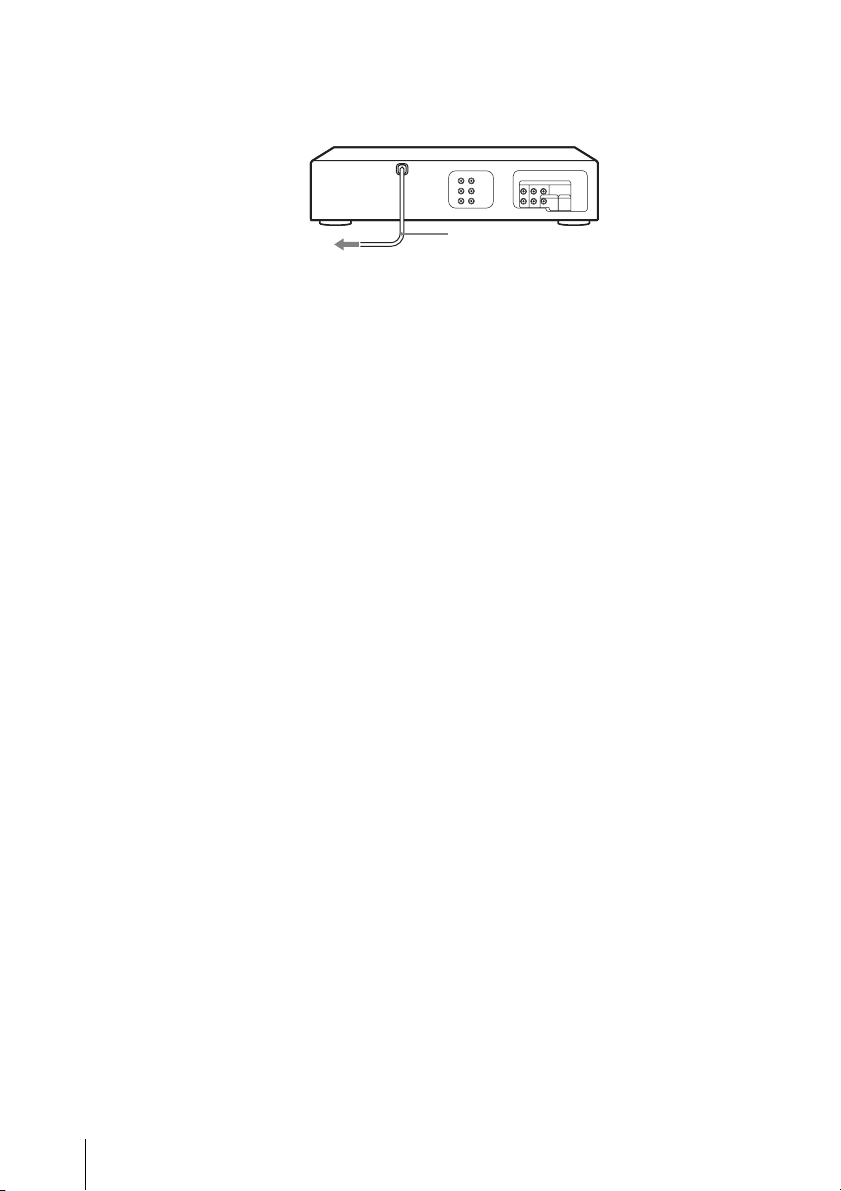
6
ES
Conexiones básicas
Después de haber completado la conexión…
Después de haber completado la conexión, enchufe la Videograbadora-DVD en una
toma de CA.
Cable de alimentación de ca
a la toma de ca
Videograbadora-DVD
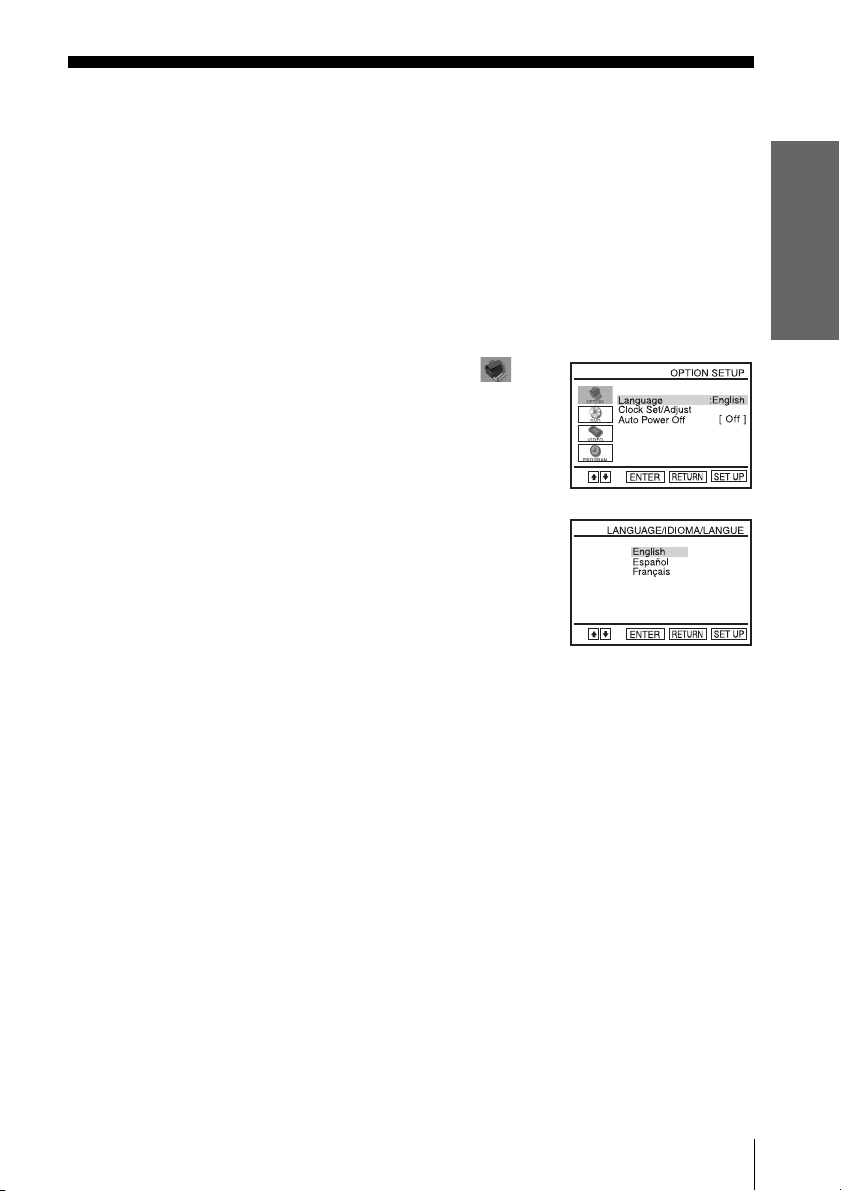
Procedimientos
7
ES
Selección del idioma
Selección del idioma
Es posible cambiar el idioma de las indicaciones en pantalla.
Antes de comenzar…
• Encienda la Videograbadora-DVD y su televisor.
• Ajuste el televisor a entrada de vídeo para que aparezca en la pantalla de televisor
la señal procedente del reproductor.
• Si el reproductor de DVD está en el modo de reproducción, no podrá visualizar el
menú de ajustes. Pare la reproducción de DVD.
• Utilice el mando a distancia para realizar las siguientes funciones.
1
Pulse SET UP, después pulse V/v para seleccionar
(OPTION) y pulse ENTER.
2
Pulse V/v para seleccionar “Language”, después pulse
ENTER.
Aparecerá el menú “LANGUAGE/IDIOMA/LANGUE”.
3
Pulse V/v para seleccionar el idioma deseado, inglés, español o francés, después pulse
ENTER.
4
Pulse SET UP para salir del menú.
B
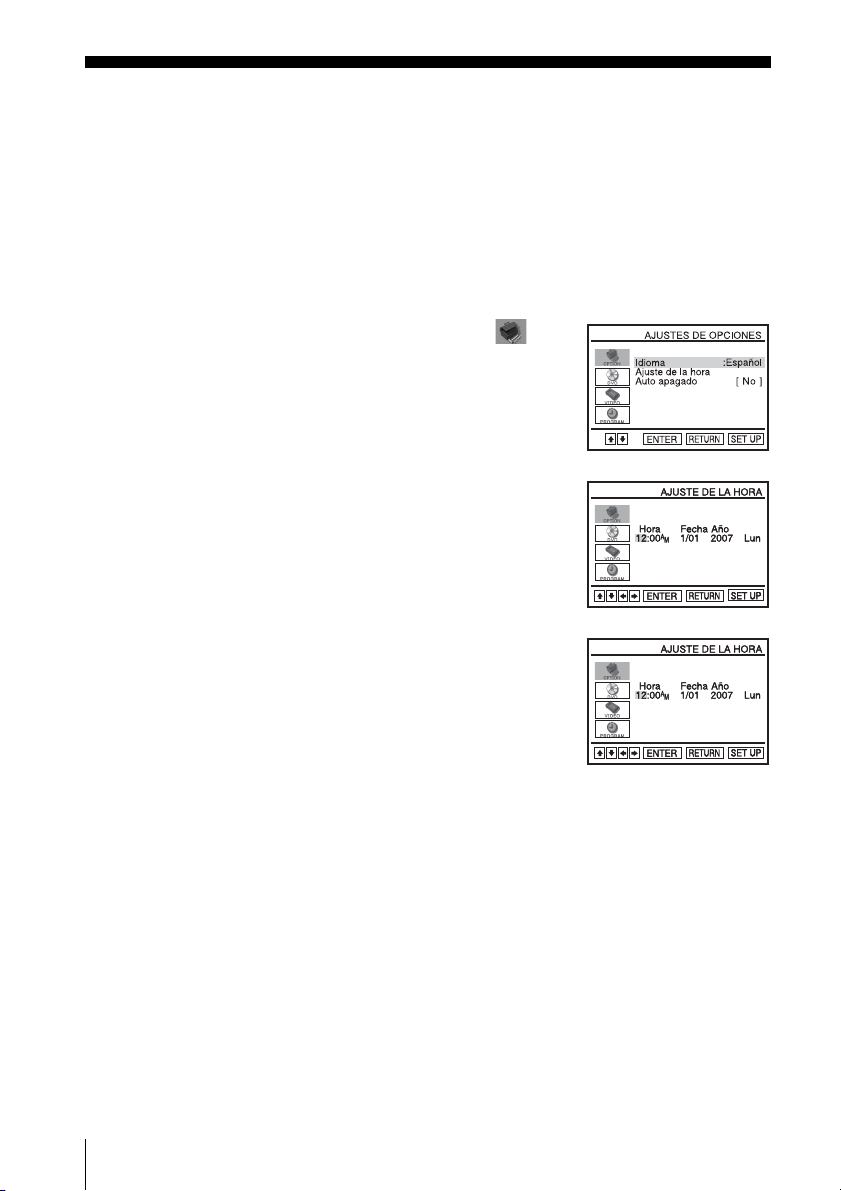
8
ES
Ajuste del reloj
Ajuste del reloj
Antes de comenzar…
• Encienda la Videograbadora-DVD y su televisor.
• Ajuste el televisor a entrada de vídeo para que aparezca en la pantalla de televisor
la señal procedente del reproductor.
• Si el reproductor de DVD está en el modo de reproducción, no podrá visualizar el
menú de ajustes. Pare la reproducción de DVD.
• Utilice el mando a distancia para realizar las siguientes funciones.
Notas
• Para grabar de un equipo conectado utilizando el temporizador, deberá ajustar el reloj
exactamente.
• Cuando se seleccione el modo VIDEO sin haber insertado una cinta o cuando la
Videograbadora-DVD esté apagada aparecerá la visualización del reloj en el visualizador.
1
Pulse SET UP, después pulse V/v para seleccionar
(OPTION) y pulse ENTER.
2
Pulse V/v para seleccionar “Ajuste de la hora”, después pulse
ENTER.
Aparecerá el menú “AJUSTE DE LA HORA”.
3
Ajuste la hora, los minutos, el mes, el día y el año
consecutivamente pulsando B/b para seleccionar el elemento
a ajustar, y pulse V/v para seleccionar los dígitos.
El día de la semana se ajusta automáticamente.
4
Pulse ENTER para confirmar el ajuste.
5
Pulse SET UP para salir del menú.
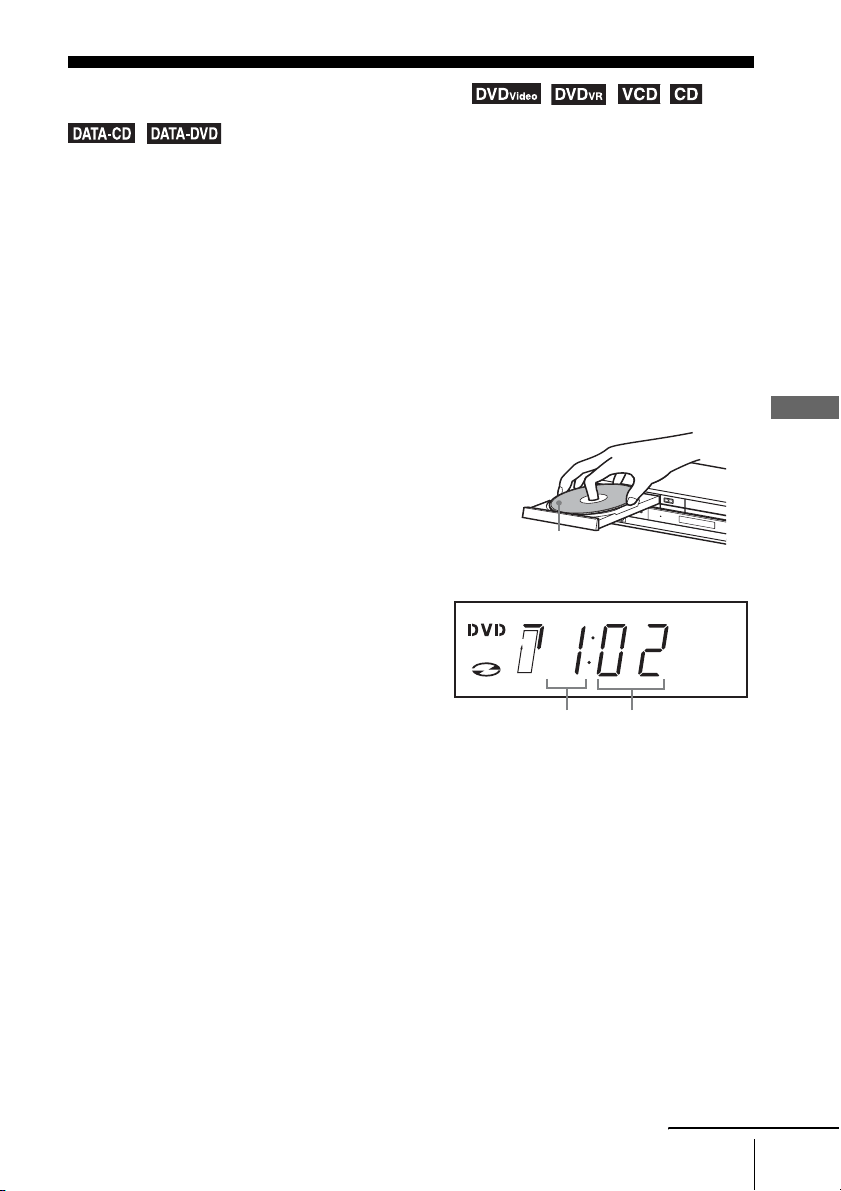
Operaciones básicas
9
ES
Reproducción de discos
Operaciones básicas
Reproducción de discos
Dependiendo del disco, algunas operaciones podrán variar o estar restringidas. Consulte el
manual de instrucciones suministrado con su disco.
Antes de comenzar...
• Encienda la Videograbadora-DVD y su televisor.
• Ajuste el televisor a entrada de vídeo para que aparezca en la pantalla de televisor
la señal procedente del reproductor.
• Utilice el mando a distancia para realizar las siguientes funciones.
Notas
• Detenga la reproducción VIDEO mientras reproduzca un disco.
• Si reproduce un DVD o VIDEO CD que esté rayado, el reproductor podrá parar la
reproducción en el punto donde esté rayado.
• La reproducción de listas de reproducción de duración superior a 10 horas grabadas en el
modo VR no está garantizada.
• Una vez transcurridas 10 horas, el contador en el visualizador retorna a “0:00” y vuelve a
comenzar la cuenta.
• Dependiendo de las especificaciones del software de grabación, es posible que el disco que
haya sido grabado en otra unidad o PC no pueda ser reproducido.
• El reproductor no podrá reproducir un disco que haya sido grabado en otra unidad y
finalizado incorrectamente.
1
Pulse SELECT DVD para controlar el reproductor de DVD.
2
Pulse Z para abrir la bandeja de discos y poner un
disco en ella.
3
Pulse H PLAY.
La bandeja de discos se cerrará y el
reproductor de DVD comenzará a reproducir.
El visualizador mostrará el tiempo de
reproducción
*.
* Cuando no haya disco cargado aparecerá
“– – – –”.
con la cara de
reproducción hacia abajo
Hora
Minuto
continúa
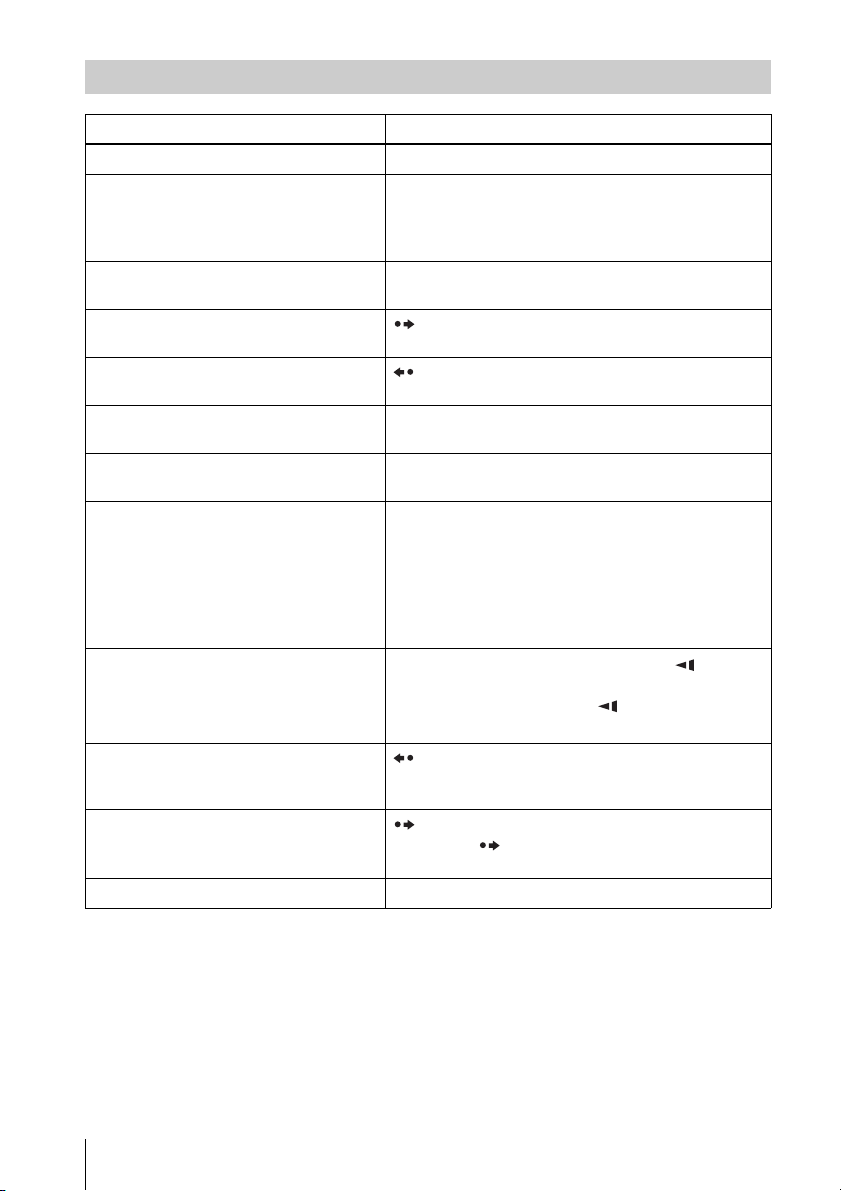
10
ES
Reproducción de discos
*
1
Para DVD VIDEO y DVD-RW/DVD-R o DVD+RW/DVD+R solamente
Notas
• No saldrá sonido excepto:
– durante la reproducción normal
– durante la reproducción rápida o lenta con sonido
• Dependiendo del método empleado para la grabación es posible que no pueda realizarse la
operación de retroceso rápido para CD, MP3 y VIDEO CD.
• Tal vez no pueda utilizar la función de reproducción instantánea o avance instantáneo con
algunas escenas.
Operaciones adicionales
Para Pulse
Detener la reproducción x STOP
Hacer pausas durante la reproducción X PAU SE
Si hace una pausa en el reproductor de DVD de más de 5
min (minuto), el reproductor de DVD se parará
automáticamente.
Reanudar la reproducción después de la
pausa
H PLAY
Avanzar al siguiente fotograma en el modo
de pausa
SKIP
Volver al fotograma anterior en el modo de
pausa
REPLAY
Ir al siguiente capítulo, tema, o escena en el
modo de reproducción continua
> NEXT en el mando a distancia o M en la unidad
Volver al capítulo, tema o escena anterior en
el modo de reproducción continua
. PREV en el mando a distancia o m en la unidad
Localizar un punto rápidamente m o
M en el mando a distancia (o mantenga pulsado
m o M en la unidad)
La velocidad de reproducción cambia de la forma
siguiente cada vez que se pulsa el botón en el mando a
distancia (o dependiendo del tiempo que mantenga
pulsado el botón en la unidad):
Cuando encuentre el punto que quiera, pulse H PLAY.
Ver a cámara lenta en el modo de
reproducción continua
(DVD y VIDEO CD solamente)
X PAUSE durante la reproducción, y pulse o y
La velocidad de reproducción cambia de la forma
siguiente cada vez que se pulsa o y:
Para reanudar la reproducción normal, pulse H PLAY.
Reproducción de la escena anterior en 10 s
(segundo) el modo de reproducción
continua*
1
(Reproducción instantánea)
REPLAY
Avanzar ligeramente la escena actual 30 s
(segundo) en el modo de reproducción
continua*
1
(Avance instantáneo)
SKIP
Puede pulsar SKIP hasta 4 veces. Esto le permitirá
avanzar rápidamente hasta 2 minutos en total.
Parar la reproducción y extraer el disco Z

Operaciones básicas
11
ES
Reproducción de cintas
Reproducción de cintas
Antes de comenzar...
• Encienda la Videograbadora-DVD y su televisor.
• Ajuste el televisor a entrada de vídeo para que aparezca en la pantalla de televisor
la señal procedente del reproductor.
• Utilice el mando a distancia para realizar las siguientes funciones.
1
Pulse SELECT VIDEO para controlar el reproductor de Videograbadora.
2
Inserte una cinta.
La videograbadora comenzará a reproducir
automáticamente si inserta una cinta con su lengüeta de
seguridad quitada.
3
Pulse H PLAY.
El visualizador mostrará el tiempo de
reproducción.
Cuando la cinta llegue al final, se rebobinará
automáticamente.
Operaciones adicionales
Para Pulse
Detener la reproducción x STOP
Hacer pausas durante la reproducción X PAU SE
Si hace una pausa en la videograbadora de más de 5 min
(minuto), la videograbadora reanudará automáticamente
la reproducción.
Reanudar la reproducción después de la
pausa
X PAUSE o bien H PLAY
Avanzar la cinta rápidamente M durante la parada
Rebobinar la cinta m durante la parada
Expulsar la cinta Z
Visualización de la imagen durante el
avance rápido o el rebobinado
Durante el avance rápido, mantenga pulsado M.
Durante el rebobinado, mantenga pulsado m.
Hora
Minuto
continúa
12
ES
Reproducción de cintas
* 10 s (segundo) en el modo SP o en el modo LP/15 s (segundo) en el modo EP
Para reanudar la reproducción normal
Pulse H PLAY.
Para desconectar la alimentación durante el rebobinado (Parada del
rebobinado)
Pulse ?/1 mientras la cinta se está rebobinando. La alimentación se desactivará pero
la cinta seguirá rebobinándose hasta que llegue al final.
Notas
• A varias velocidades de reproducción no sale sonido.
• La imagen puede aparecer con ruido al reproducirse a alta velocidad en sentido inverso.
• Pare la reproducción de disco mientras esté reproduciendo un vídeo.
Reproducción a alta velocidad • Durante la reproducción, pulse brevemente M o m.
La cinta continuará reproduciéndose a una velocidad 5
veces mayor que la reproducción normal.
• Durante la reproducción, mantenga pulsado
M o m. La cinta continuará reproduciéndose a una
velocidad 5 veces mayor que la reproducción normal.
Al dejar de pulsar el botón, se reanuda la reproducción
normal.
Reproducción a cámara lenta Durante la pausa, pulse y.
Reproducción fotograma a fotograma
Durante la pausa, pulse SKIP.
Reproducción de la escena anterior en el
modo de reproducción continua*
(Reproducción instantánea)
Durante la reproducción, pulse REPLAY.
Salto de la escena actual 30 s (segundo) en
el modo de reproducción continua*(Salto
instantáneo)
Durante la reproducción, pulse SKIP.
Puede pulsar SKIP hasta 4 veces. Esto le permitirá
avanzar rápidamente hasta 2 minutos en total.
Reproducción a varias velocidades
(Reproducción Shuttle)
Durante la reproducción, pulse .o >. Podrá
cambiar la velocidad de reproducción de la siguiente
forma.
–×7 y –×5 y –×3 y Reproducción de la imagen fija
y Reproducción a cámara lenta y Reproducción
normaly ×2 y ×3 y ×5 y ×7
Para Pulse
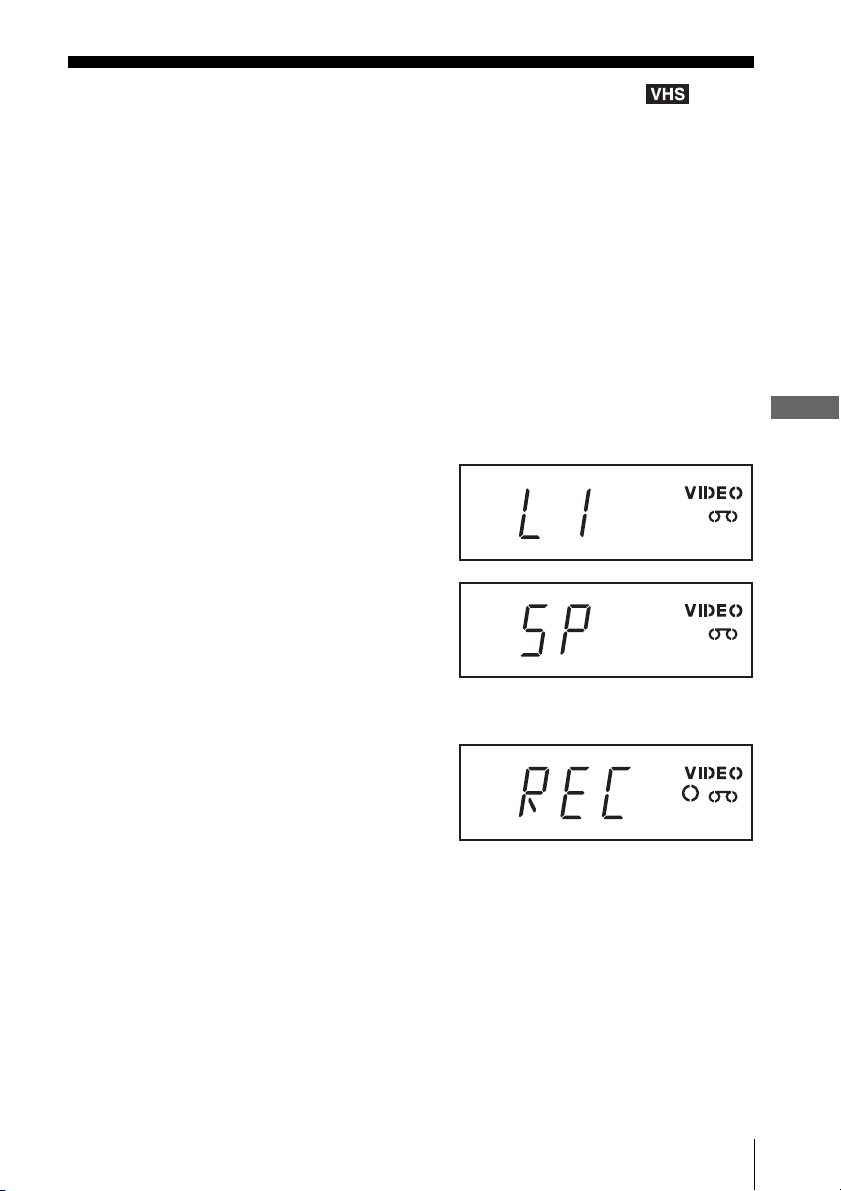
Operaciones básicas
13
ES
Grabación de un equipo conectado
Grabación de un equipo conectado
Puede grabar de un decodificador de cable o receptor satelital conectado. Para conectar
decodificador de cable o receptor satelital, consulte “Conexión a su televisor” en la página 4.
Antes de comenzar...
• Encienda la Videograbadora-DVD, el televisor y el decodificador de cable o
receptor satelital.
• Ajuste el televisor a entrada de vídeo para que aparezca en la pantalla de televisor
la señal procedente del reproductor.
• Compruebe que la longitud de la cinta sea superior al tiempo total de grabación.
• Utilice el mando a distancia para realizar las siguientes funciones.
Para detener la grabación
Pulse x STOP.
Notas
• No es posible grabar un DVD directamente a una cinta Videograbadora utilizando su
Videograbadora-DVD.
1
Pulse SELECT VIDEO para controlar la videograbadora.
2
Inserte una cinta provista de lengüeta de seguridad.
3
Pulse INPUT SELECT para seleccionar una
fuente conectada a las tomas LINE IN 1 o
LINE-2 IN.
Aparecerá “L1” o “L2” en el visualizador.
4
Pulse SP/EP para seleccionar la velocidad de
cinta, SP (reproducción estándar) o EP
(reproducción extendida).
El modo EP proporciona un tiempo de
grabación tres veces superior al modo SP. No
obstante, se obtiene una mejor calidad de
imagen y sonido con el modo SP.
5
Pulse z REC para iniciar la grabación.
Aparecerá “REC” en el visualizador.
Mientras graba, deje el decodificador de cable o receptor satelital conectado encendido y
no cambie el canal que quiera grabar de ellos.



Sony Corporation Printed in China AK68-01307A