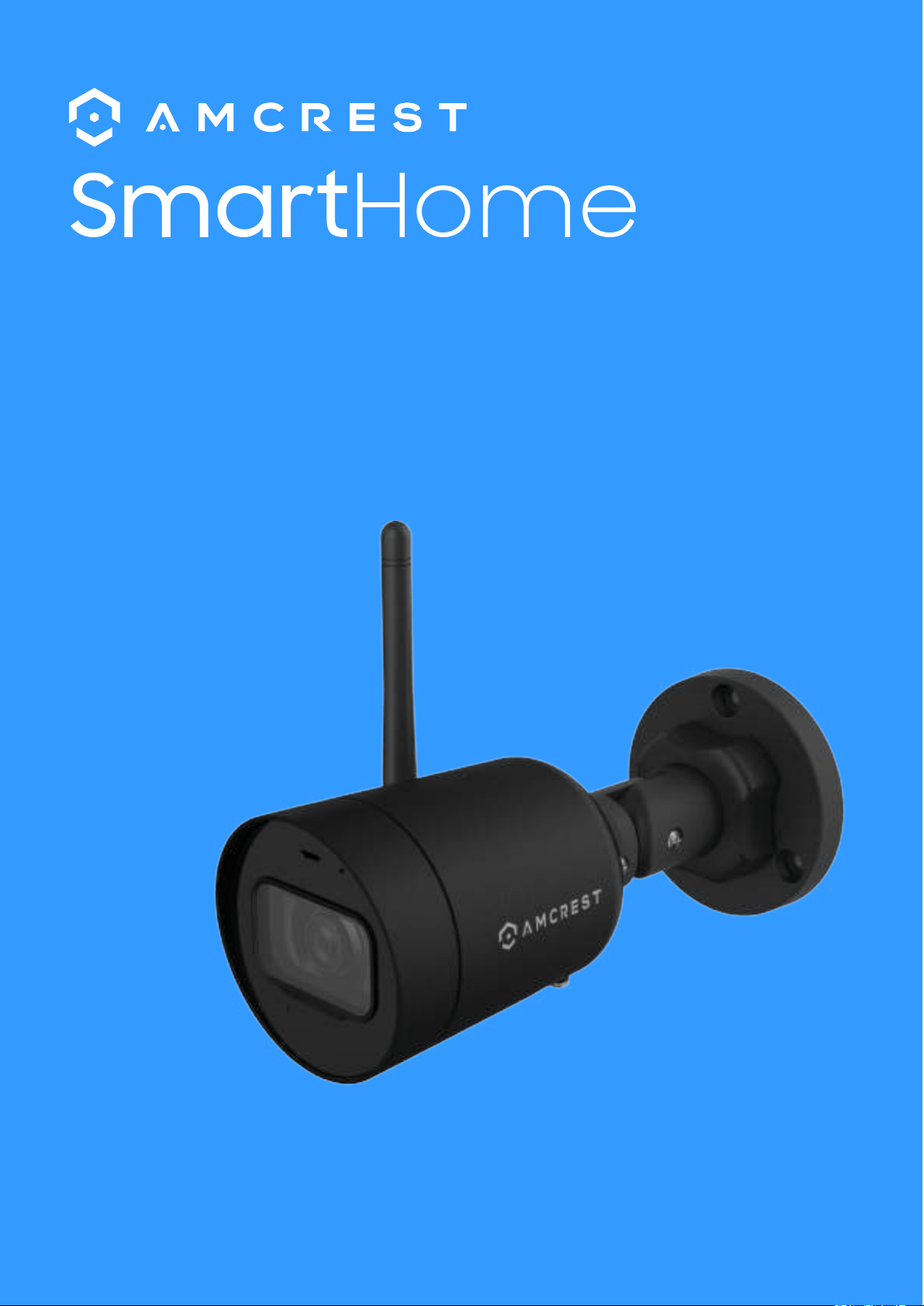
4MP Wi-Fi Bullet Camera
User Manual
V 1.0.0
Table of Contents
Legal Statement.................................................................................................. 2
Important Safeguards and Warnings......................................................... 3
Device Introduction........................................................................................... 4
Physical Installation........................................................................................... 6
Amcrest Smart Home App Setup................................................................. 7
Amcrest Smart Home Cloud......................................................................... 13
MicroSD Card Recording............................................................................... 17
App Settings....................................................................................................... 18
Motion Detection Overview......................................................................... 20
Events Menu....................................................................................................... 32
Account Menu................................................................................................... 33
Adding to Blue Iris........................................................................................... 38
Adding to An Amcrest NVR/DVR.............................................................. 39
Adding to Amcrest View Pro........................................................................ 40
Adding to Amcrest Surveillance Pro.......................................................... 41
.
Troubleshooting................................................................................................. 42
Legal Statement
Caution: The user is cautioned that changes or modifications not expressly approved by the
party responsible for compliance could void the user’s authority to operate the equipment.
Note: This equipment has been tested and found to comply with the limits for a Class B digital
device, pursuant to part 15 of the FCC Rules. These limits are designed to provide reasonable
protection against harmful interference in a residential installation. This equipment generates
uses and can radiate radio frequency energy and, if not installed and used in accordance with
the instructions, may cause harmful interference to radio communications. However, there is no
guarantee that interference will not occur in a particular installation. If this equipment does not
cause harmful interference to radio or television reception, which can be determined by turning
the equipment off and on, the user is encouraged to try to correct the interference by one or
more of the following measures:
- Reorient or relocate the receiving antenna.
- Increase the separation between the equipment and receiver.
- Connect the equipment into an outlet on a circuit different from that to which the receiver is
connected.
- Consult the dealer or an experienced radio/TV technician for help.
FCC RF Radiation Exposure Statement:
This equipment complies with FCC radiation exposure limits set forth for an uncontrolled environ-
ment. This equipment should be installed and operated with a minimum distance of 20cm
between a radiator or any part of your body.
This device complies with Part 15 of the FCC Rules. Operation is subject to the following two
conditions:
( 1 ) This device may not cause harmful interference, and
( 2 ) This device must accept any interference received, including interterence that may cause
undesired operation.
About This Document
• This document is for reference purposes only. Please refer to the actual product documentation
for more details.
• This document may serve as a reference for other product types whose specific operations will
not be enumerated. Please operate according to actual product specifications.
• Amcrest reserves rights to revise any information in this document at anytime; and the revised
contents will be added to the new version without prior announcement. Some functions of the
product may be slightly different before and after a revision.
• This document includes general practice, installation examples, and technical content that may
be used for your device. Installation of this device may differ based on specific locations.
• Working with electricity can be dangerous if proper safety precautions are not taken. If you are
not comfortable or inexperienced with the tools or process described in this manual, we highly
recommend hiring a licensed electrician to install your device. Amcrest does not assume liabili
ty for any damage that result in improper use or installation of your device.
2
Important Safeguards and Warnings
1.Electrical Safety
All installation and operation of this device should conform to your local electrical safety codes. We
assume no liability or responsibility for any fires or electrical shock caused by improper handling or
installation.
2.Transportation Security
Heavy stress, violent vibrations, and excess moisture should not occur during transportation, storage,
and installation of the device.
3.Installation
Handle the device with care. This device operates on either a Wi-Fi connection or direct connection
to your network with an Ethernet cable. This is not a power over ethernet (PoE) device and requires a
12V, 2.0A connection to function. Please use only applicable voltage when installing. Ensure the
installation surface can support at least 3x the weight of the device.
4. Additional Software
This device is designed to be used on the Amcrest Smart Home platform. Since Amcrest Smart Home
products operate on a cloud based system, adding the device to any additional software may result
in the degradation or loss of certain features.
5.Repair Professionals
All the examination and repair work should be done by qualified service engineers. We are not liable
for any problems caused by unauthorized modifications or user-attempted repair.
6.Environment
The camera should be kept in a cool, dry place away from direct sunlight, flammable materials,
explosive substances, etc. This product should be transported, stored, and used only in the specified
environments as stated above. Do not aim the camera at a strong light source, as it may cause
overexposure of the picture, which may affect the longevity of the camera. Ensure that the camera is
in a well-ventilated area to prevent overheating.
7. Operation and Maintenance
Do not touch the camera sensor or lens directly. To clean dust or dirt from the lens, use an air blower
or a microfiber cloth.
8. Accessories
Be sure to use only the accessories recommended by manufacturer. Before installation, please open
the package and check to ensure that all the components are present. Contact the retailer that you
purchased from, or Amcrest directly if anything is broken or missing in the package.
3
Device Introduction
4
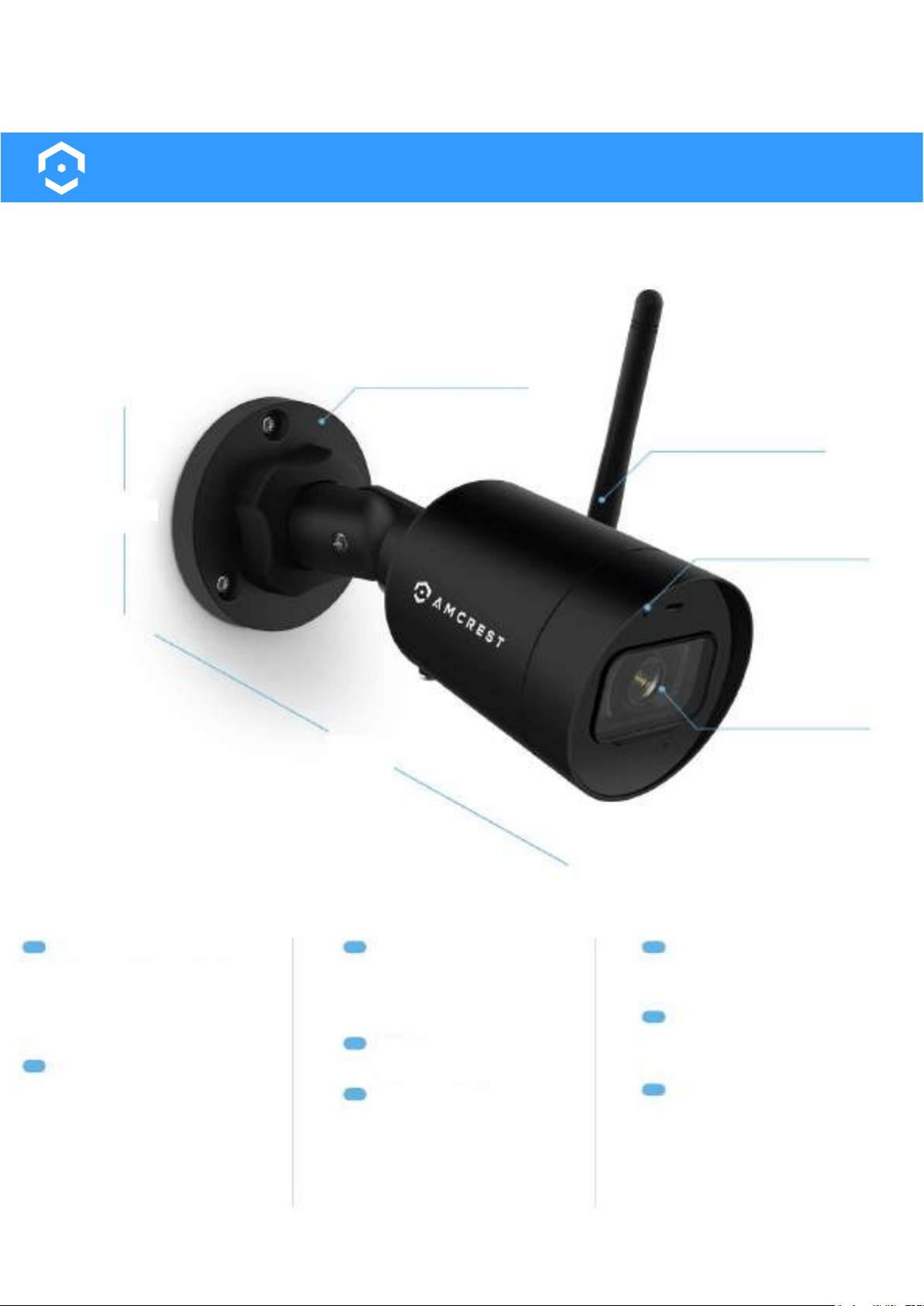
Technical Specifications
Camera
Image Sensor: 1/3” 4MP CMOS
Resolution: Up to 4MP
(2560x1440)
Night Vision: Up to 98ft
Lens
Lens Type: 2.8mm (Fixed)
Field of View: H: 101°, V: 54°, D:
123°
Zoom: 16x Digital Zoom
Video
Compression: H.265 / H.264
Frame Rate: Main Stream: 4MP
at 30fps
Audio
1-way Audio with Built-in Mic
Construction
IP67 Weatherproof
Operating Temperature:
-22°F ~ 122°F
Dimensions: 3.3” x 2.8” x 6.5”
Weight: 0.57lbs.
Network
Wi-Fi IEEE802.11b/g/n (2.4GHz)
50ft Open Field.
Storage
MicroSD: Up to 128GB
Amcrest Smart Home Cloud
(Optional)
Mobile Viewing
iOS and Android Smartphones
via Amcrest Smart Home app.
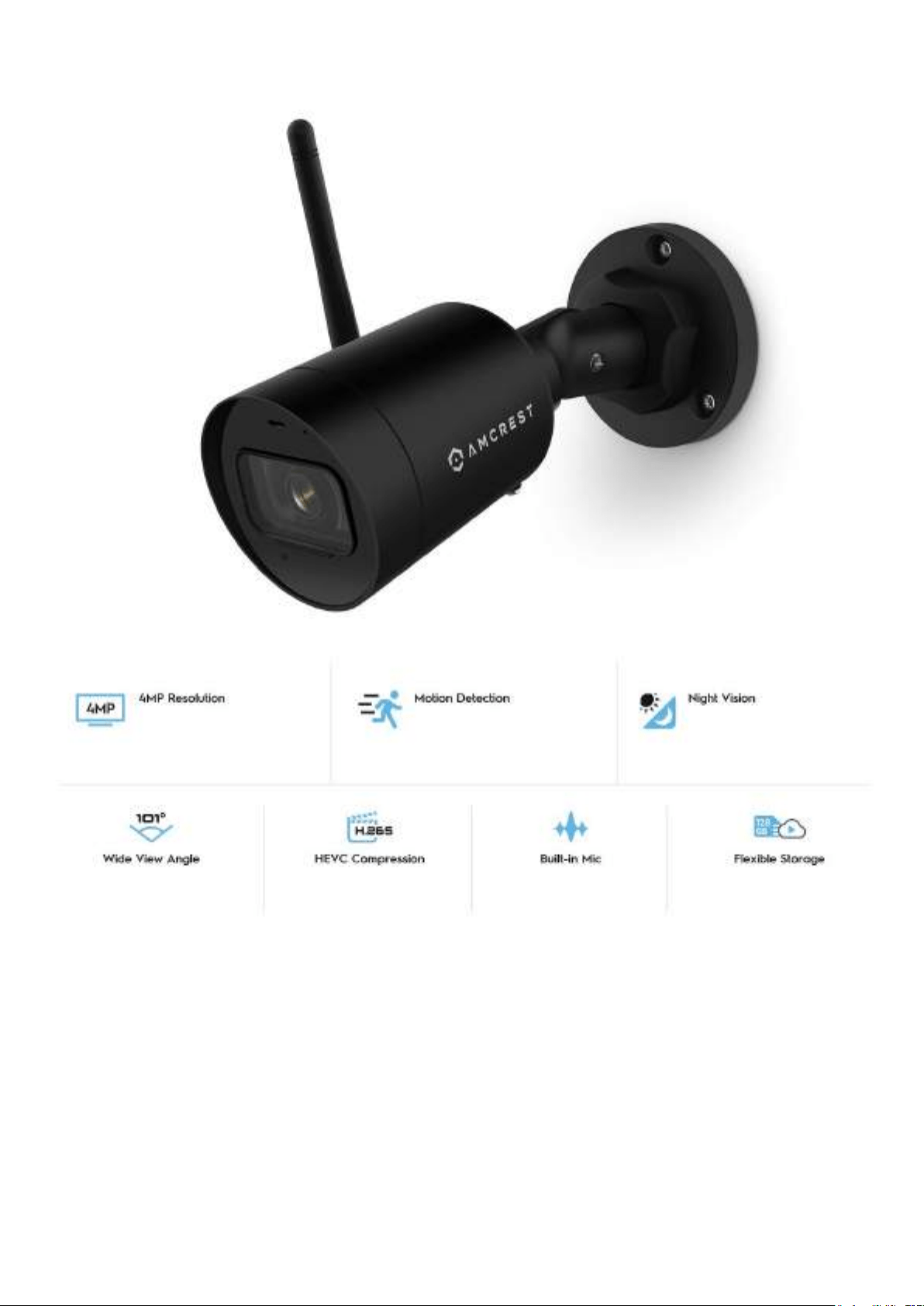
Mounting Bracket
4.7in.
6.5in.
Wi-Fi Antenna
Built-in Mic
2.8mm Lens
Device Overview
5
Device Features
Inserting a MicroSD card
A microSD card is required to store events outside of the Amcrest Smart Home Cloud. The camera is
compatible up to 128GB and requires a Class 10 or higher microSD card to function. It is highly
recommended to ensure the microSD card is properly formatted to FAT32 and inserted into the
camera before physical installation. For more information on how to insert a microSD card, please
refer to the steps provided below.
• Using a Phillips head screwdriver, remove the 2 screws on the security plate on the bottom of the
camera.
• Locate the microSD card slot for the camera, and insert your microSD card into the slot. Press in
and release to lock the microSD card into place.
• Secure the security plate back onto the camera ensuring the plate is properly sealed to the
bottom of the camera. Not sealing the plate properly could cause water damage to your camera.
Watch what you love in 4MP
UltraHD Video Resolution
Receive instant notifications
anytime your camera detects
motion.
Illuminate the darkness with
night vision up to 98ft away.
Cover more ground with a
101° super wide viewing angle.
Save storage and bandwidth
using H.265 compression
technology.
Listen to what matters most
using built-in microphone
technology.
Record videos to a MicroSD card
(128GB) or Amcrest Smart Home Cloud.
*MicroSD card (Sold Separately)
6
Physical Installation
This device operates on either a Wi-Fi connection or direct connection to your network with an Ethernet
cable. This is not a power over ethernet (PoE) device and will require a 12V, 2.0A connection to
function. Please use only applicable voltage when powering the camera. Any excessive voltage could
damage the integrity of the camera. It is highly recommended to use the included power adapter to
power the camera.
If you are using a microSD card for local storage, please ensure the microSD card is properly installed
before physically installing your camera. Before you begin, ensure the installation surface can support
at least 3x the weight of the device. For more information on how to install your camera, please refer to
the information below.
Recommended Tools
• Installation sticker (included)
• Phillips head screwdriver.
• Drill (optoinal)
• Wall Anchors (Included)
• Installation screws (included)
How To Install
• Remove the camera and its contents from the box. You will notice an installation sticker. This is
the template that will be used to install your camera. Place the installation sticker onto the mout
ning surface
• Use a drill (Optional) to drill the screwholes located on the installation sticker. **Note: If you are
running any wiring through a mounting surface, a 1” paddle bit can be used on the installation
surface to fit the wiring.
• Place the included wall anchors into the installation holes and align the screwholes on the base
of the camera with the inserted wall anchors.
• Using a Phillips head screwdriver, use the included installation screws to secure the camera to the
installation surface. A Phillips head screwdriver can also be used to physically adjust or rotate the
camera, if needed, after installation.
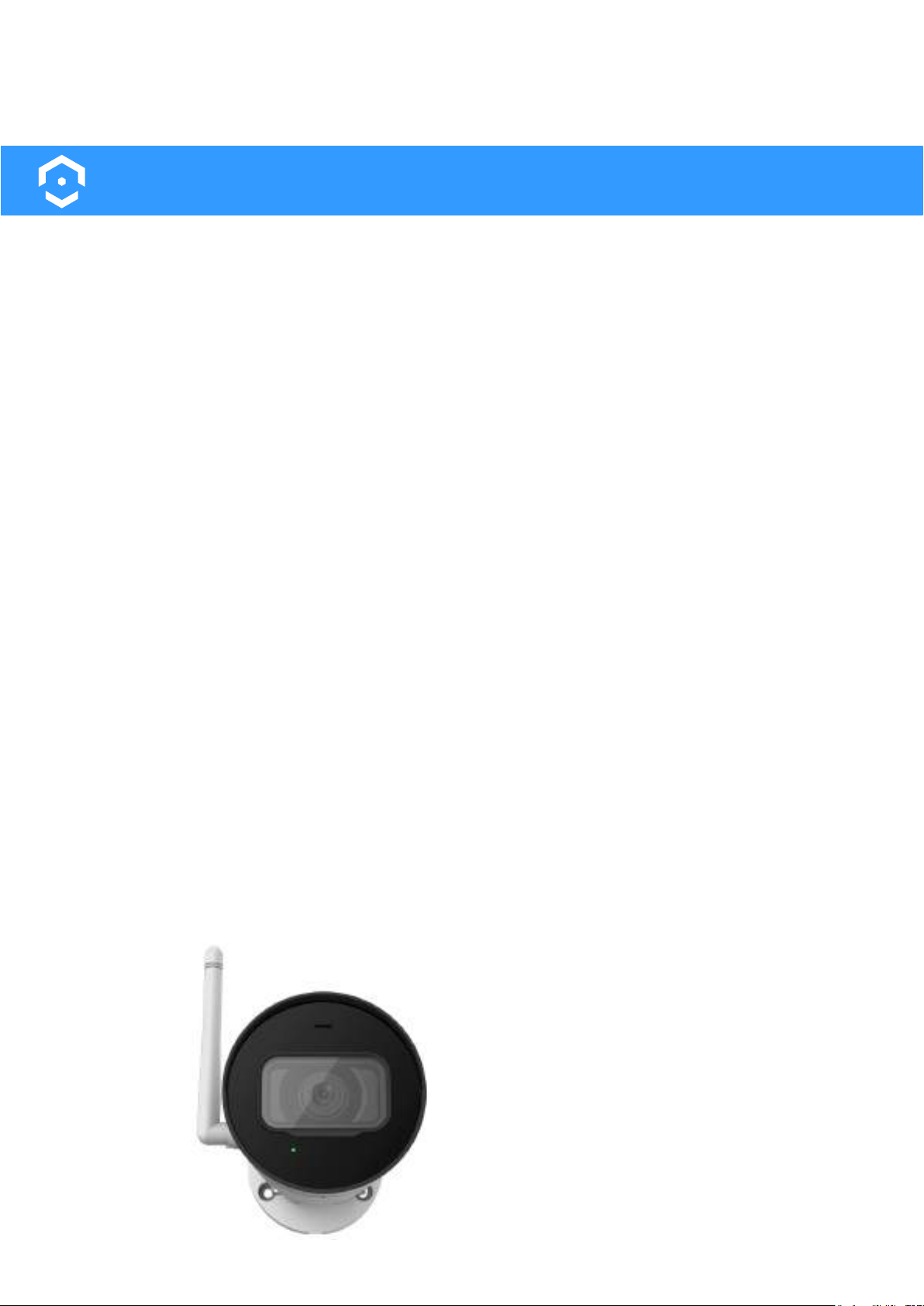
Apply power to the device (or Ethernet connection)
to the device. If you are using a Wi-Fi conection an
Ethernet cable is not needed to connect the camera
to your network. Once power is applied to the
camera the green LED on the front of the camera will
blink indicating the device is ready to be connected.
7
Amcrest Smart Home App Setup
The Amcrest Smart Home app connects your Amcrest Smart Home device to your Android or iOS mobile device
ensuring you are always connected to what matters most.
To get the app, search for “Amcrest Smart Home” in the Google Play or App Store and download.
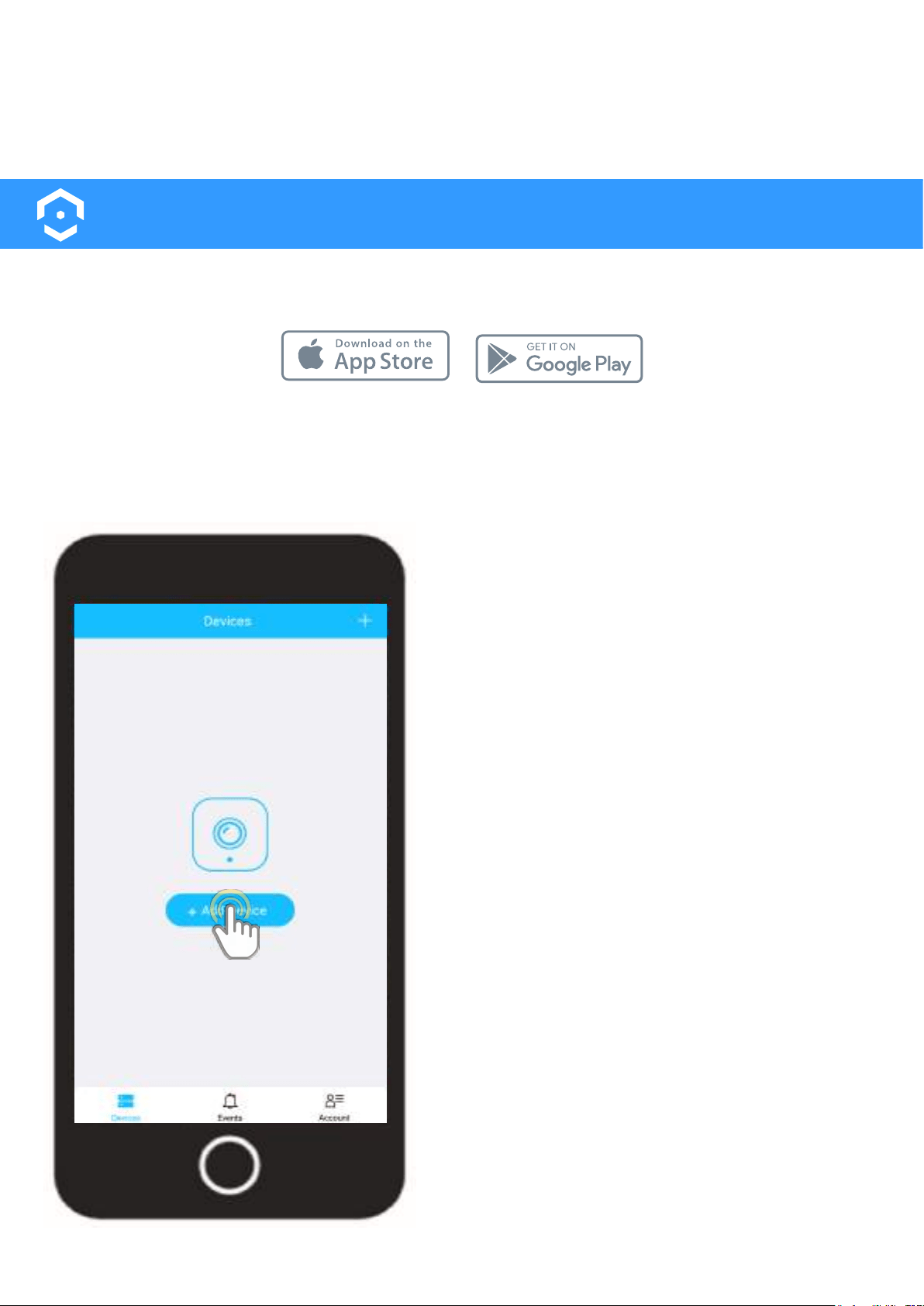
Open the Amcrest Smart Home app and tap on
“Register” to register an account. Log in and click
on “Add Device”.
Connecting to the App
8
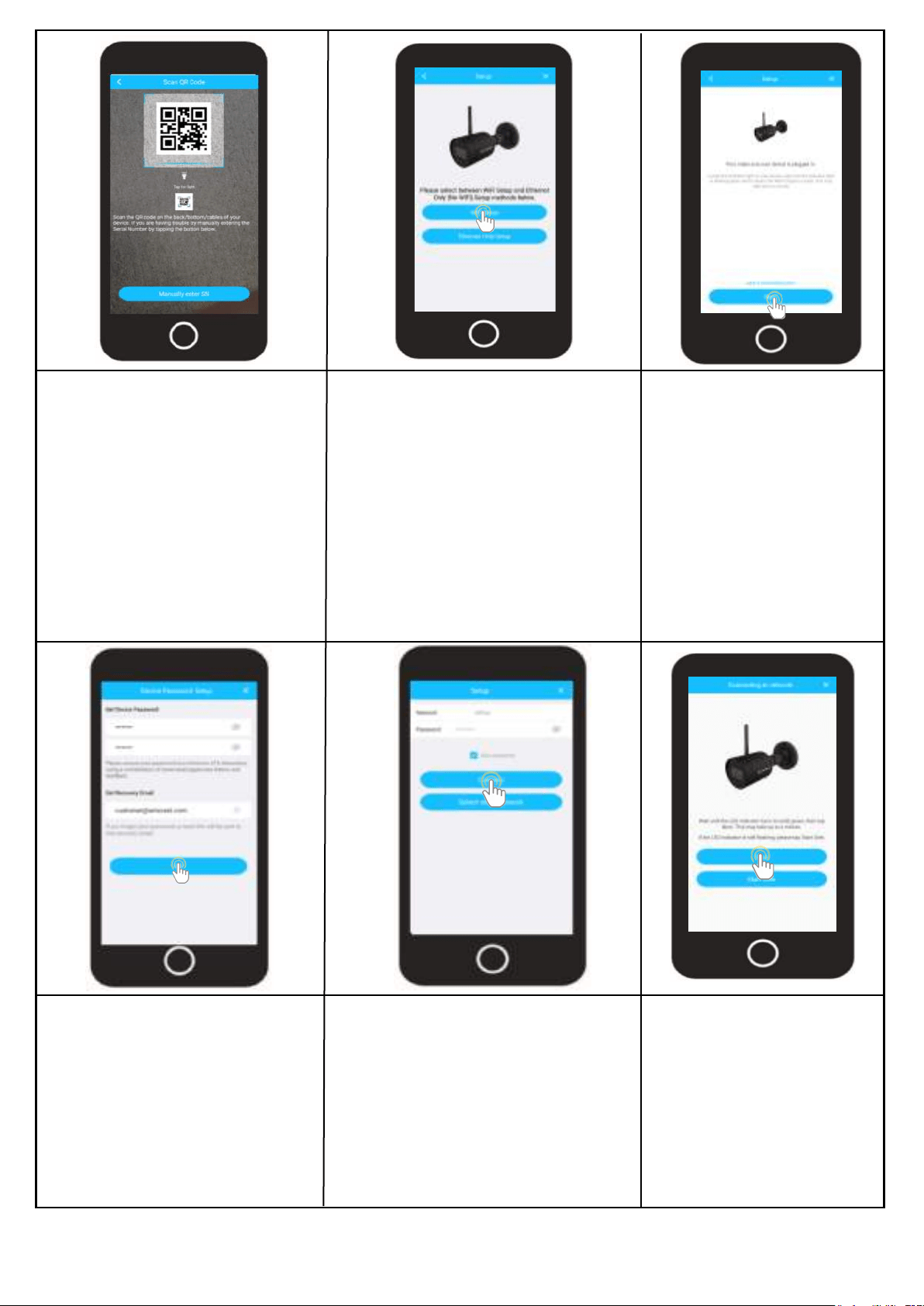
Scan the QR Code
Scan the QR Code on your
device or manually enter the
serial number for the device by
tapping “Manually enter S/N”.
The serial number can be found
on the serial tag located on the
camera.
Choose a Setup Method
To setup a WiFi connection (recom-
mended) Tap “WiFi Setup” to contin-
ue.
Note: WiFi setup will only allow your
camera to connect via a 2.4GHz
Wi-Fi connection. If you would like to
proceed with an Ethernet Only Setup,
tap on “Ethernet Only Setup” and
follow the on-screen prompts.
Wi-Fi Setup
Type in a password you would
like to use and confirm it. Please
use a combination of letters,
numbers, and symbols between 8
- 32 characters long when setting
up a password.
Tap “OK” to continue.
Choose Your Wi-Fi Network
Select your Wi-Fi network from the
Wi-Fi network list. Enter the pass-
word for your home Wi-Fi network.
If you would like to save this pass-
word to the app, tap on “Save
Password”
The LED on the front of
camera will turn solid green
when connected. If it does
not turn solid, tap on “Start
Over” to try again.
Tap “Next” to continue
Ensure the green LED on
the front of your camera
is blinking, this indicates
the camera is ready to be
connected.
Tap “Next” to continue.
Set a Password
Add Your Device
9
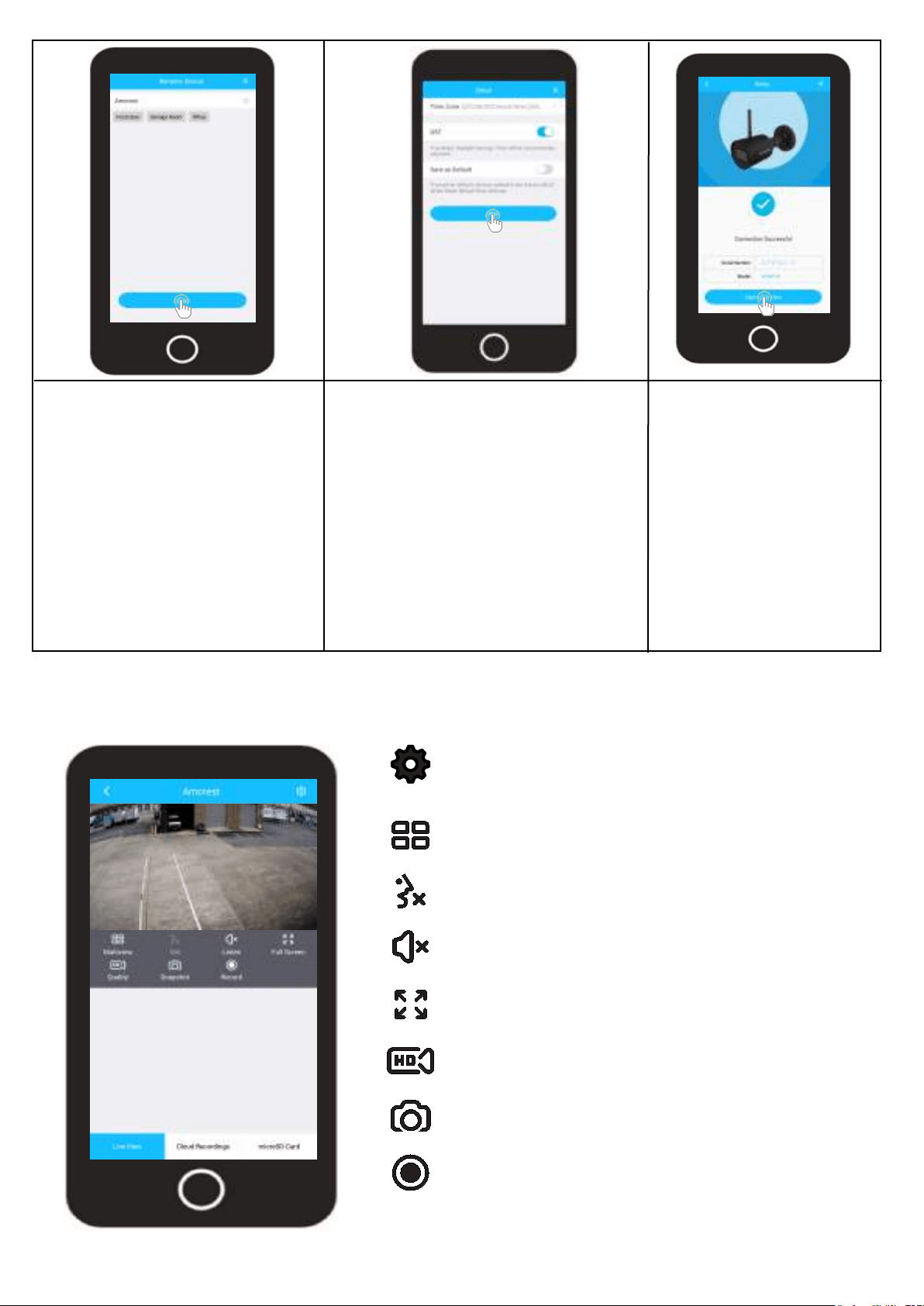
Set the Time and Date
Set “Time Zone” to your current
time zone and set “DST” (Daylight
Savings Time) settings if applica-
ble.
Tap “Next” to continue.
Live View
SETTINGS
Provides access to settings such as motion detection, video,
firmware updates, etc.
MULTIVIEW
View multiple devices on one screen.
TALK
This device does not have 2 way audio capabilities.
LISTEN
Enables the speaker for two way communication.
FULL SCREEN
View your feed in full screen mode.
SD/HD
Set the device to standard or high definition resolution.
SNAPSHOT
Manually take a photo.
RECORD
Manually record a video.
Rename your device. A few
examples are provided such as,
Front Door, Storage Room,
Office, etc.
Tap “Save” to continue.
Name Your Device
Tap Start Live View to
view the live feed.
Start Live View
10
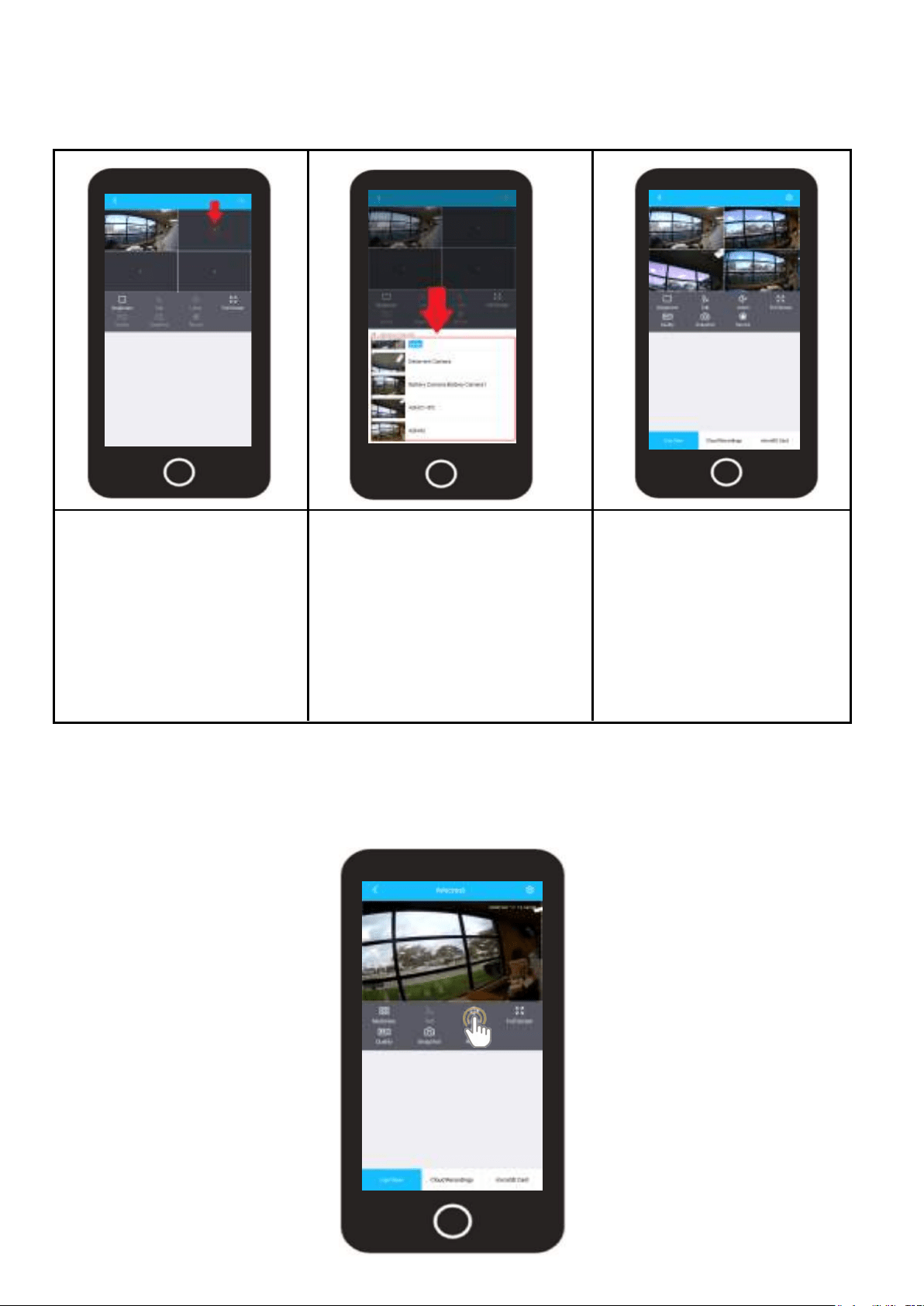
Multiview
The multiview option is used to view up to 4 devices simultaneously on the live view screen. To
access the multiview menu, tap on the Multiview icon located on the live view interface.
Tap on the ( + ) icon to begin
adding optional devices to
the live view screen.
Select your device from the
optional channels menu. The
interface can view up to 4
devices simultaneously.
Once added, a blue “Added”
display will be shown next to
the newly added device.
The added devices can now
be viewed simultaneously on
the live view screen. To exit
multiview, tap on the “Single
View” option located on the
live view interface.
Add a Device
Select your Device
View Your Devices
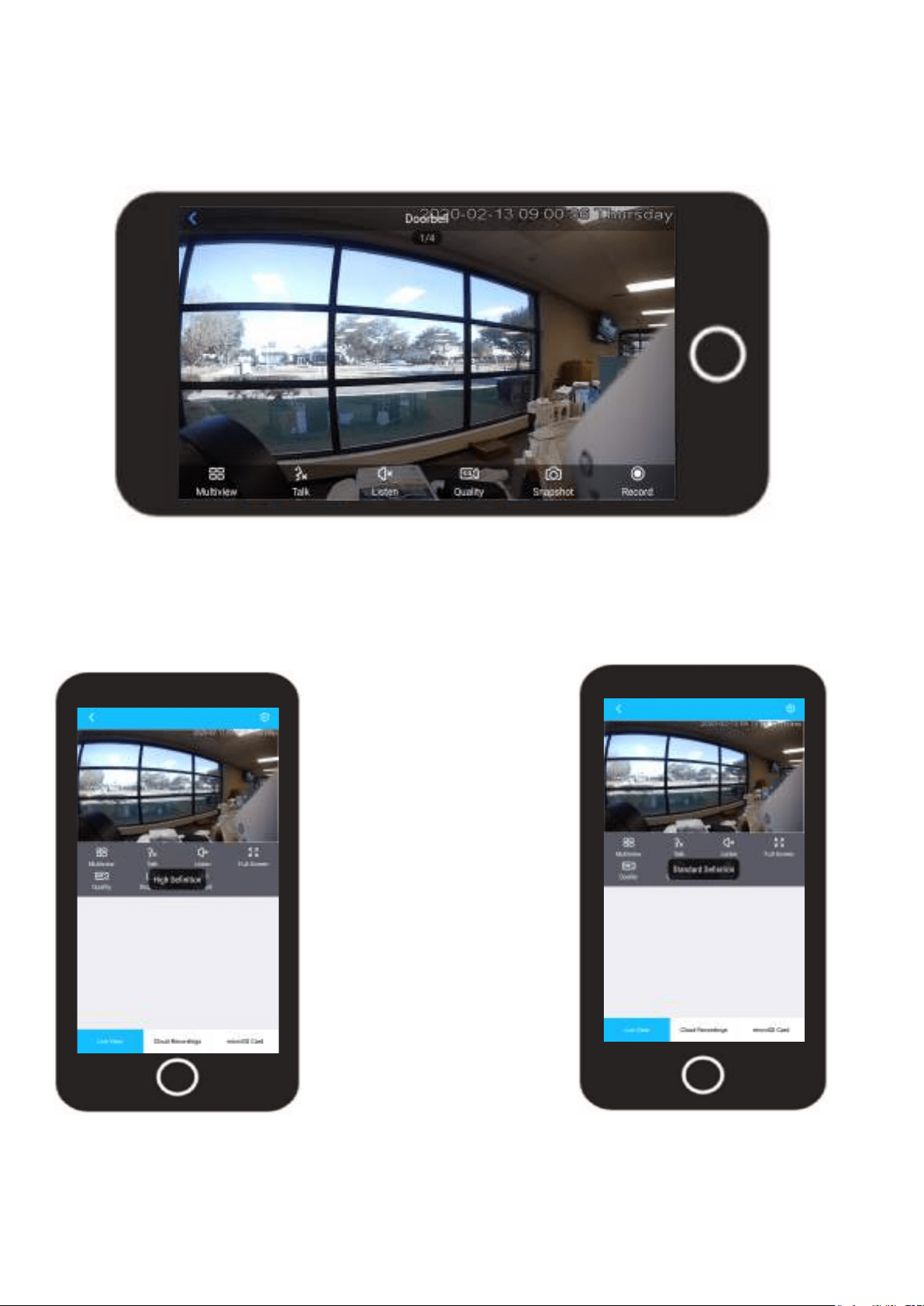
Listen
The camera has a built in microphone which allows you to hear audio from the camera. Two-way
audio is not capable with this device so the “Talk” option will be unavailable.
Tap on the Listen
button to activate the
speaker on your device.
This will enable one
way audio and allow
you to hear audio from
your camera.
11
Full Screen
The fullscreen option allows you to view a full screen view of the live feed from your device. When in
full screen mode, tap the live view screen to access the live view features for your device. To exit full
screen mode, tap on the back arrow ( < ) to revert the live feed back it its original format.
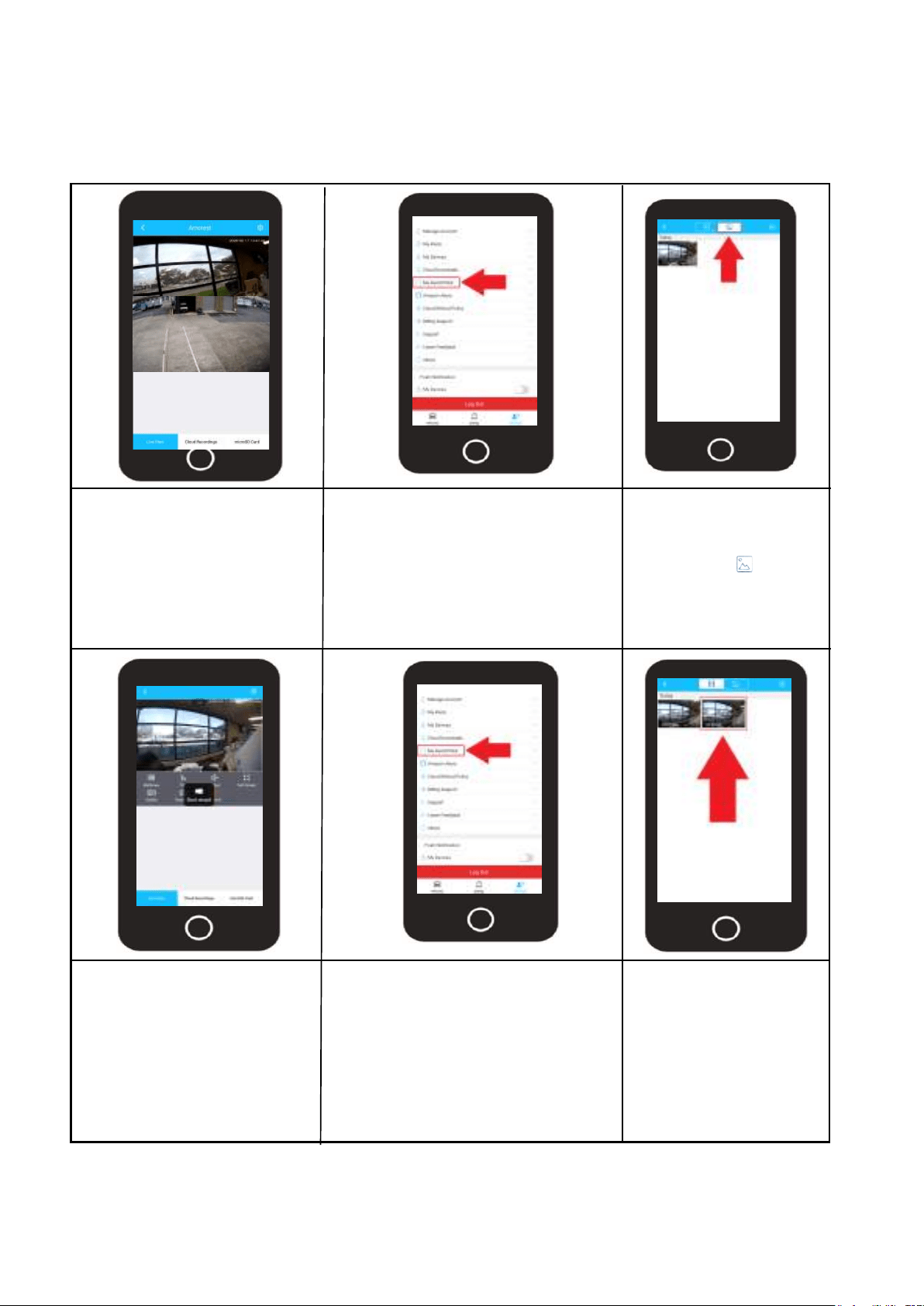
HD/SD
The HD/SD button will set the live feed for your device in standard definition or high definition.
High definition will set your device to the highest possible resolution, standard definition will
revert the live view resolution to its original factory resolution.
Tap the HD button to set the
live view of your device to high
definition.
Tap on the SD button to revert
the live view of your device
back to standard definition.
12
Manual Snapshot/Record
The snapshot and record button allow you to manually take snapshots or video of the live feed. All
manual snapshots and videos will be stored in the My Saved Files folder located in the Account
section of the Amcrest Smart Home app.
Tap on the Snapshot button
to manually take a snapshot
of the live view screen.
Take a Snapshot
To view the snapshot, use the
back arrow ( < ) to access the
devices menu. Tap on Account
and access the My Saved Files
folder.
My Saved Files
View you Photo
Tap on the snapshot
folder icon ( ) to
access snapshots. Tap
on the photo you want
to view in the interface.
Take a Video
Tap on the Record button to
manually take a video of the
live view screen.
To stop the recording, tap
the record button again.
To view the snapshot, use the
back arrow ( < ) to access the
devices menu. Tap on Account
and access the My Saved Files
folder.
My Saved Files
View you Video
The interface will
default to the video
folder. Tap on the file
you would like to view
in the interface.
13
Amcrest Smart Home Cloud
The Amcrest Smart Home Cloud is an optional premium cloud storage service that offers a wide range of
storage options for cloud users who wish to have secure cloud based options for their recordings. This is
different from Amcrest Cloud service as the Amcrest Smart Home cloud is exclusive to Amcrest Smart Home
devices and will not be compatible with other traditional or legacy Amcrest IP cameras or devices.
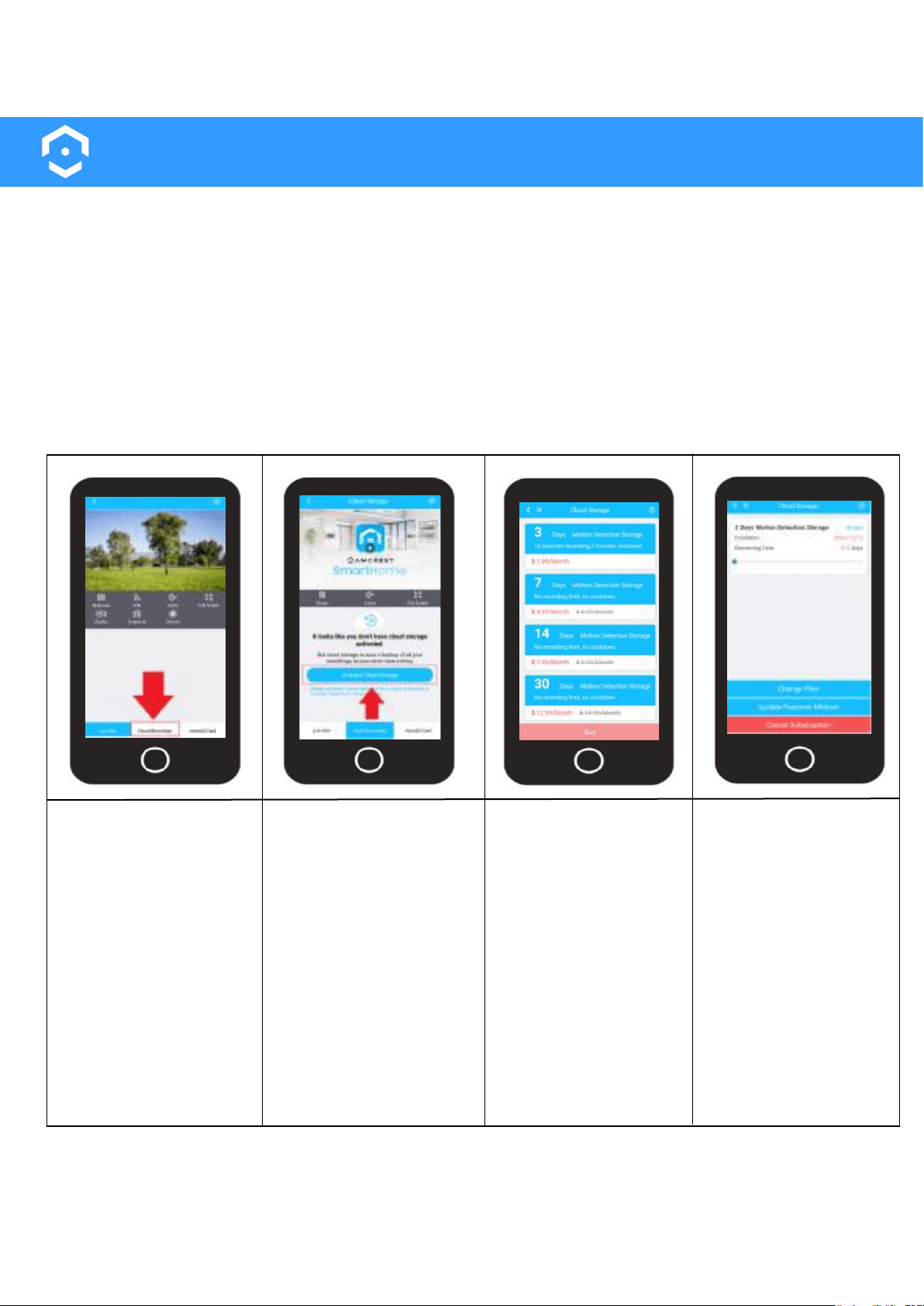
All cloud plans are available for purchase in the Amcrest Smart Home app once an account and device
has been properly setup. An Amcrest Smart Home cloud subscription will be active for exactly 30 days
starting from the minute you subscribed and are based off motion detection recordings only. To keep a
cloud subscription active it is recommended to select "Auto Renewal" when checking out. For more infor-
mation on how to activate an Amcrest Smart Home Cloud storage plan, please refer to the information
provided below.
Note: Any plan changes made to your account will only take place at the end of your current billing cycle.
Log into your Amcrest
Smart Home app and
select the device you
wish to activate.
On the live view screen
tap on Cloud Record-
ings.
Tap on Activate Cloud
Storage.
Select a Cloud Storage
plan from the list of
cloud plans and tap
Buy.
Enter your billing infor-
mation into the billing
form. All plans will
require a credit card to
process the request.
After you have pur-
chased your Amcrest
Smart Home cloud plan
you will be able to store
and view your record-
ings all from the Cloud
Recordings menu.
Access Your Account
Activate Cloud Storage Choose Your Plan
View Cloud Plan
14
Amcrest Smart Home Cloud Plans Explained
Amcrest offers a wide range of options for cloud users who wish to have secure cloud based options for
their recordings. These include our free 1 year cloud plan which offers 3 days of motion detection storage
with a 12 second record time and 7 minute cool down to a 30 day motion detection storage plan that
offers unlimited recorded as well as no cool down.
All cloud plans are available for purchase in the Amcrest Smart Home app once an account and device
has been properly setup. An Amcrest Smart Home cloud subscription will be active for exactly 30 days
starting from the minute you subscribed. To keep a cloud subscription active it is recommended to select
"Auto Renewal" when checking out.
What is Cloud Storage Time?
Every Amcrest Smart Home cloud subscription is based on a 30 day cycle. Different plan times (7 day, 14
days, etc.) represent how long new recordings are stored and accessed from the cloud. For example, if
you select a 7 day storage plan, you will only have access to the last 7 days of recordings. Any recordings
from 8 days ago will have been automatically over-written and therefore in accessible.
How Does the 1 Year Free Cloud Plan Work?
Amcrest Smart Home offers a 1 year free trial plan which allows you to try the Amcrest Smart Home cloud
free for 1 year. The free trial plan offers, 3 days of motion detection storage with 12 seconds of record time
per event as well as a 7 minute cool down in between events. A credit card is still required for the free trial
plan as after 1 year the plan will expire which will default your account to a paid, 3 day motion detection
storage plan. The 3 day motion recording plan cost is $1.99 per month and offers the same 12 second
record time and 7 second cool down.
Other Amcrest Smart Home Cloud Storage Options
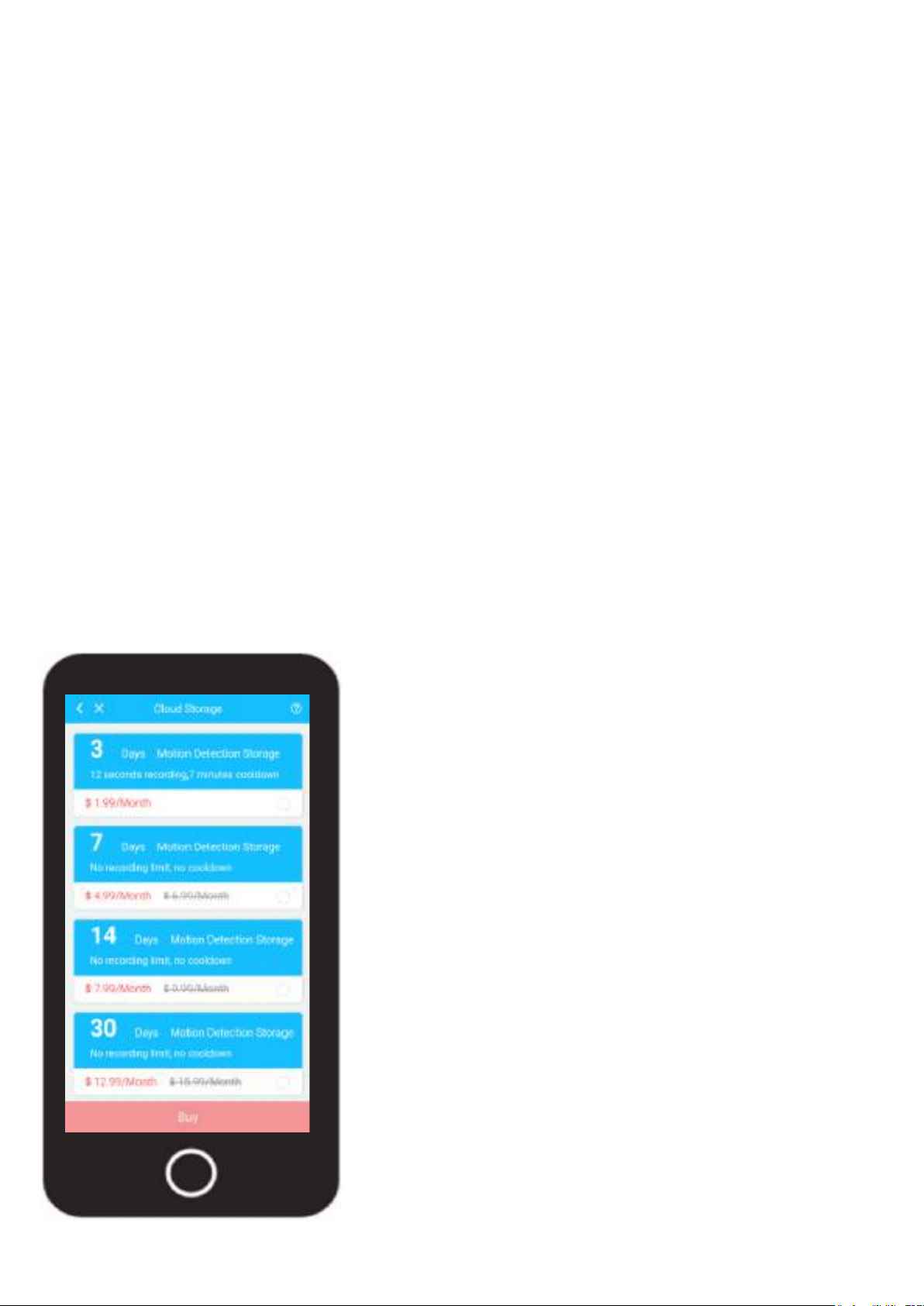
On top of the 1 year free trial plan, Amcrest Smart Home also offers several paid storage options as well.
3 Days Motion Detection Storage - This is the default plan that is
placed on your account if you have signed up for a free 1 year
cloud storage plan and it has expired. It is $1.99/month and offers
3 days of cloud storage with a 12 second record time and 7
minute cool down in between recordings.
7 Days Motion Detection Storage - This is a cloud storage plan
that will store motion recordings for 7 days. It is $4.99/month and
offers no recording limits or cool down periods.
14 Days Motion Detection Storage - This is a cloud storage plan
that will store motion recordings for 14 days. It is $7.99/month and
offers no recording limits or cool down periods.
30 Days Motion Detection Storage - This is a cloud storage plan
that will store motion recordings for 30 days. It is $12.99/month
and offers no recording limits or cool down periods.
15
Downloading Recordings
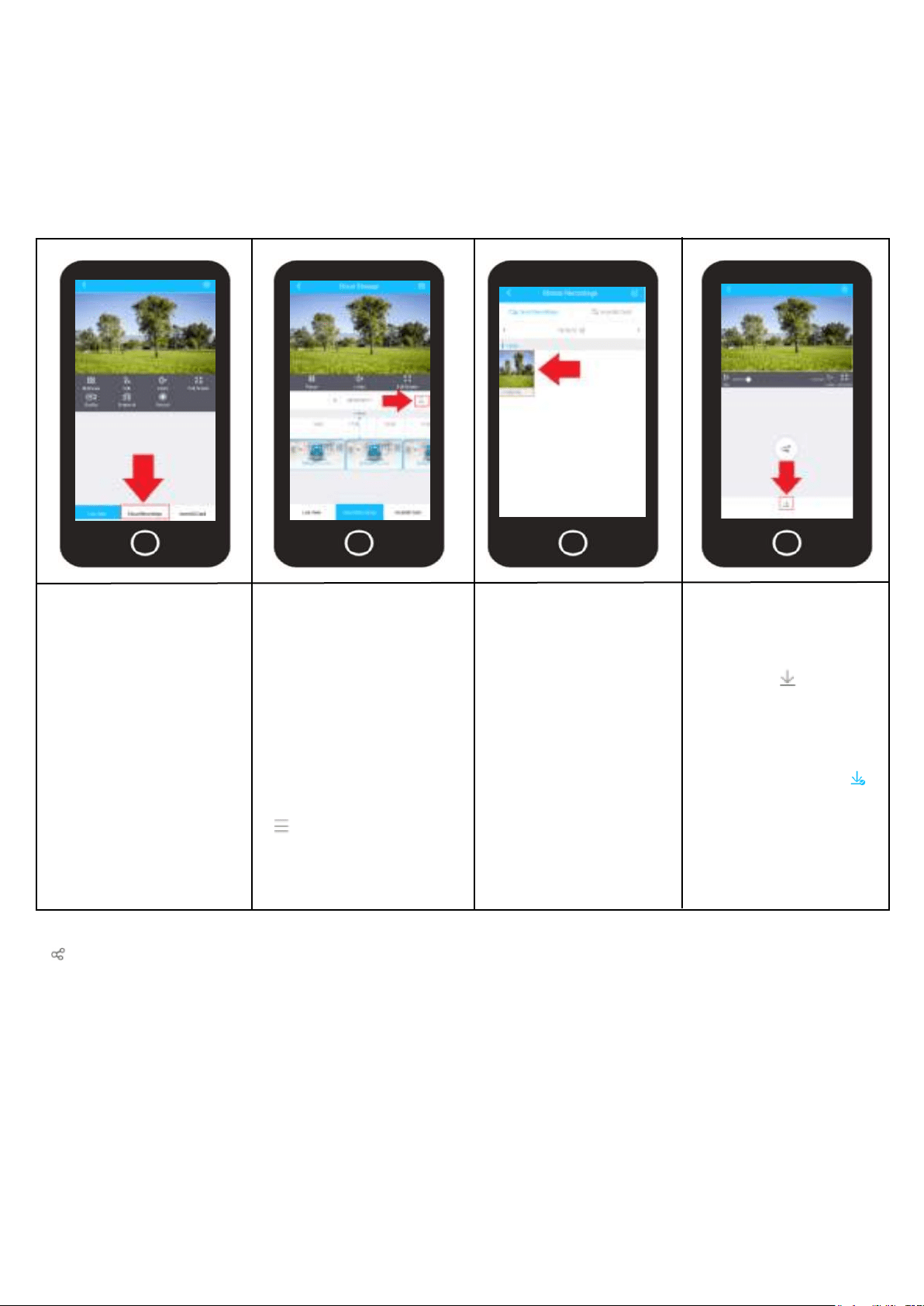
Due to the current capabilities of the app recordings can only be downloaded via the Cloud Recordings
download interface. All recordings retained on a microSD card will have to be downloaded via a microSD
card adapter (sold separately) on a computer. For more information on microSD card recordings, please
refer to the microSD card section of this manual.
Tap the download icon
located at the bottom of
the menu ( ). The
recording will begin to
download to your
smartphone.
A blue check mark ( )
will appear next to the
download icon once the
recording has finished
downloading.
Download
Log into your Amcrest
Smart Home app and
select the device you
wish to activate.
On the live view screen
tap on Cloud Record-
ings.
Select the recording
you wish to download
from the file list.
Access Your Account
Access File List Choose Your Clip
Playback/Download Cloud Recordings
Note: You can also share your recordings directly to other services on your smartphone via the share icon
( ) located in the middle of the download menu.
The file list will display
all cloud recordings. to
playback a cloud
recording, select the clip
from the time line. Tap
the date to choose
recordings on different
dates.
Tap on the File List icon
( ) located in the
Cloud playback inter-
face.
Changing Cloud Plans
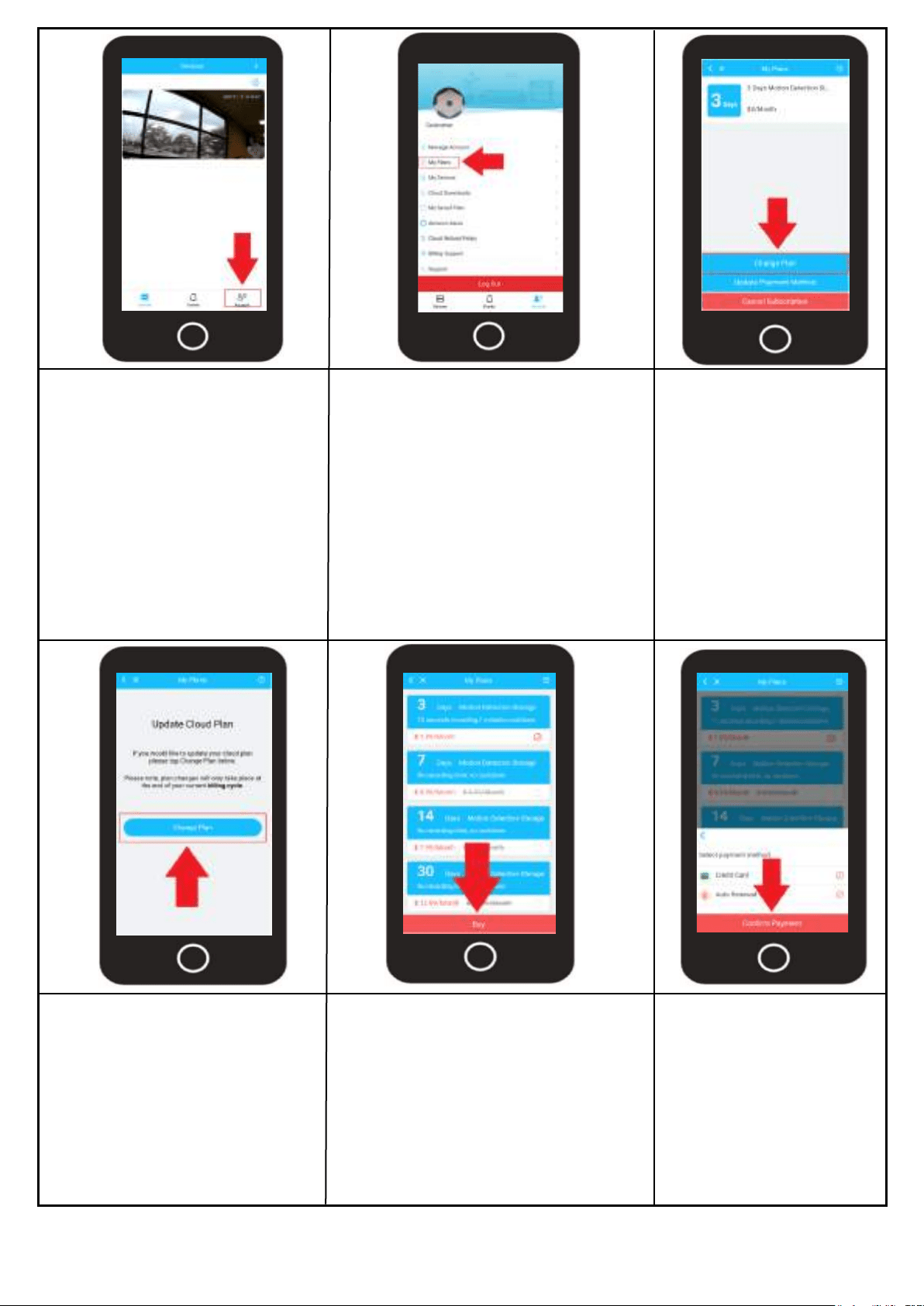
Any changes made to your current Amcrest Smart Home cloud plan will take effect on the next billing
cycle. Every Amcrest Smart Home cloud subscription is based on a 30 day cycle. All Amcrest Smart
Home Cloud plan changes are made via the Amcrest Smart Home app For more information on how to
change your Amcrest Smart Home Cloud plan, please refer to the information provided.
16
Access Your Account
Access Plan Details
Change Current Plan
Update Cloud Plan
Choose a New Plan
Confirm Payment
Open the Amcrest Smart Home
app and log into your account.
Tap on the Account tab.
Tap on My Plans.
Note: The My Plans menu will
display all past and present
Amcrest Smart Home Cloud plans,
unpaid, paid as well as cancelled
plans. You can filter this via the
"Unpaid", "Paid", and "Cancelled”
tabs.
Select your current plan
from the My Plans menu.
Then tap on Change
Plan.
Read the provided information
on the screen and tap "Change
Plan" to continue.
Select which plan you would like to
change to from the Amcrest Smart
Home cloud plans provided. Tap
Buy to continue.
Choose whether you
would like to auto renew
your payment. Tap Con-
firm Payment to continue.
Note: Enter your name, and billing information into the app. This will be the billing information used
for the new plan you have selected. Tap Pay to complete the process.
17
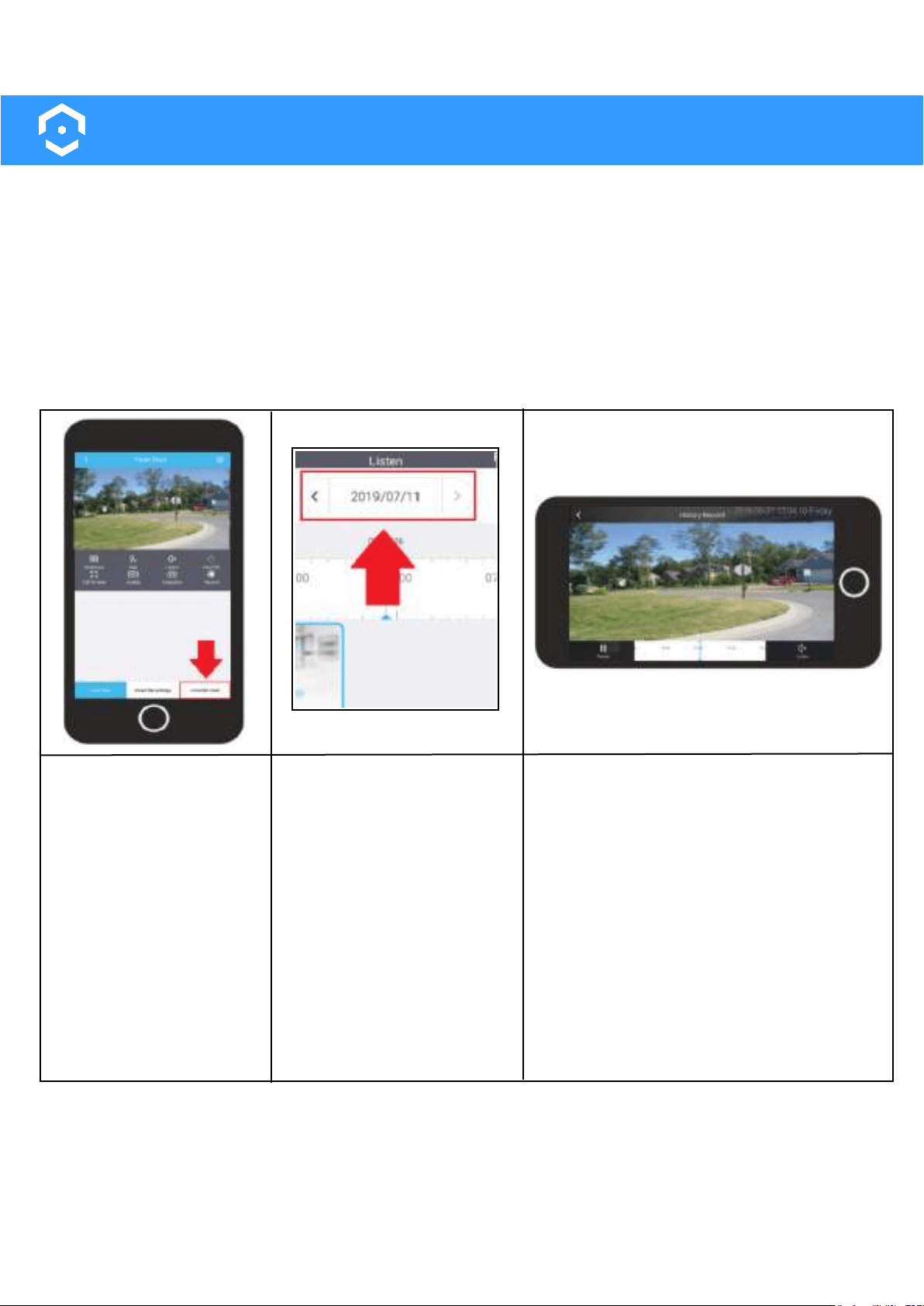
MicroSD Card Recordings
This device is capable of providing local storage via an external microSD card (sold separately). Please
ensure you are using a class 10 or above microSD card that does not exceed the storage limitation of your
device. The microSD card must be formatted to FAT32. This may have to be done manually as most pro-
grams do not format to this allocation automatically.
When a microSD card is inserted into the device, all motion based recordings will be stored to it. Addition-
ally, if you have a Amcrest Smart Home Cloud account, recordings will be stored both on the cloud and
microSD card.
Playback MicroSD Card Recordings
Log into your account in
the app and select your
device.
On the live view screen,
tap on the "MicroSD Card"
menu located at the
bottom right of the screen.
Access MicroSD Menu
In the MicroSD card menu
you will notice a list of
recordings. Recordings can
be accessed and viewed
based on the date the motion
occurred and can be found
by tapping on the calendar
menu in the app.
Tap on a file to view the
recording.
Select Your Recording
Note: Recordings stored on a microSD card cannot be downloaded to your smartphone via the app.
To download the recordings, remove the microSD card from the device and use a SD card adapter to
view them on a computer.
Viewing a Recording
All motion detection recordings will occur
back to back in the interface which allows
the device to capture all events without
the use of a cool down period.
18
App Settings
The settings menu for your device allows you to configure specific settings such as device information,
motion detection, time zone, Wi-Fi and other related settings. All settings are based on the capbilities of
the device and may differ between certain models. Please refer to the information below for more infor-
mation on the settings available for your device.
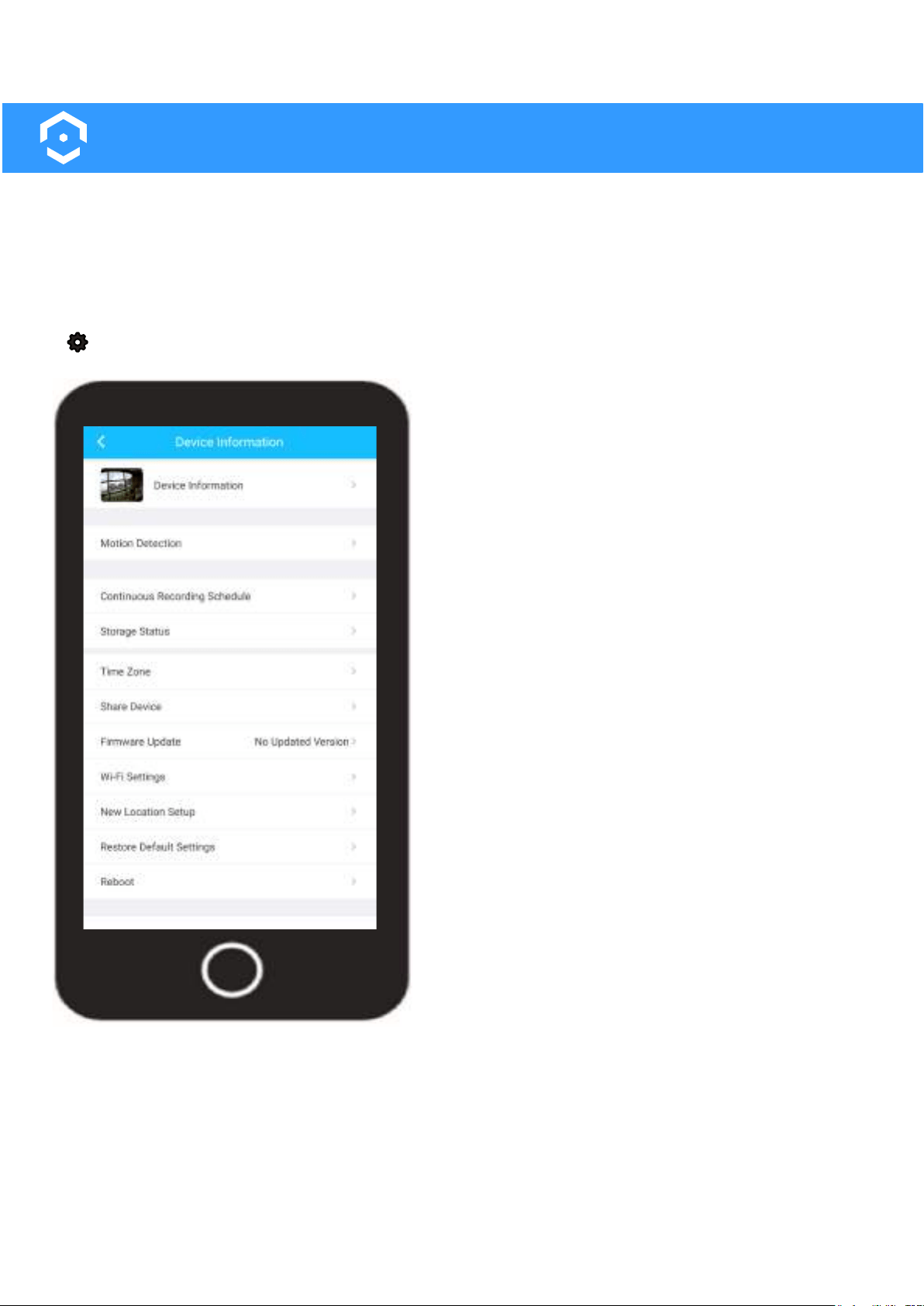
Accessing the Settings Menu
The settings menu for your device can be accessed via the live view menu. Tap on the settings icon
( ) to display the settings menu. The settings menu for your device is displayed below.
Device Information - This menu allows you to update the
thumbnail image, name, and password for your device. The
model number, serial number and other useful information
can be accessed via this menu.
Motion Detection - This menu allows you to customize,
adjust, and set motion detection schedules for your device.
When motion detection is enabled your device will record
video whenever motion is detected.
Continuous Recording Schedule- This menu allows you to
set your device to continously record video to a microSD
card. Note: Once the microSD card is full, old footage will
be overwritten on the card.
Storage Status - Displays any current cloud or microSD
card storage options applicable for your device. This
option also allows you to format a microSD card right from
your device.
Time Zone - This menu allows you to adjust and set any
time zone related information for your device. Enable DST
(daylight savings time) settings for your device if needed.
Share Device - This menu allows you to share your device
with other people with established Amcrest Smart Home
accounts. You can share up to a max of 6 people.
Firmware Update - This menu allows you to update the
firmware for your device. If a firmware update is available,
a red dot will be displayed in this field.
Wi-Fi Settings - This menu allows you to change Wi-Fi
networks for your device.
New Location Setup - Provides information on how to
setup your device in a new location.
Restore Default Settings - Restores your device to its
original default settings.
Reboot - This option allows you to restart your device from the Amcrest Smart Home app.
Video Settings - This menu provides access to general video settings related to your device.
Email Alerts - This menu allows you to setup email notifications which will allow you to receive an email if
an event is detected by your camera.
Delete Device - This option unbounds your device from your Amcrest Smart Home account.
19
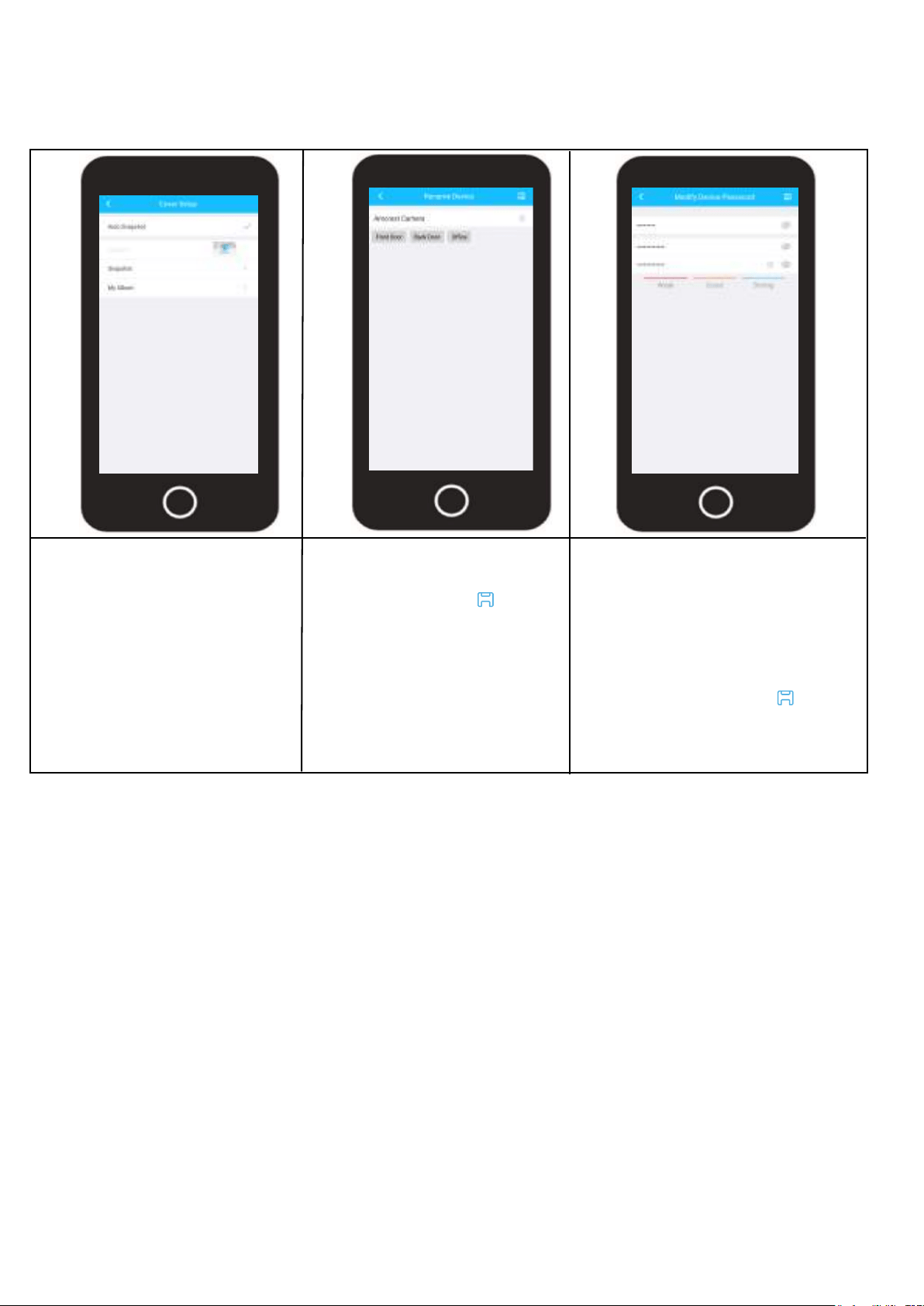
Device Information
This menu allows you to update the thumbnail image, name, and password for your device. The model
number, serial number and other useful information can be accessed via this menu.
Tap on Device Thumbnail to
update the thumbnail image
for your device.
The thumbnail can be default,
a manually taken snapshot, or
uploaded from your smart-
phone.
Tap on Device Name to edit
the name of your device. Tap
on the Save icon ( ) when
finished. To exit, tap on the
back arrow ( < ) to exit the
interface.
Tap on Password to modify
the password for your device.
This is not the password for
your Amcrest Smart Home
account, it is the password to
access your device.
Tap on the Save icon ( )
when finished. To exit, tap on
the back arrow ( < ) to exit the
interface.
20
Motion Detection Overview
Amcrest Smart Home devices allow you to view motion detection recordings locally, using a microSD
card (sold separately) or via Amcrest Smart Home cloud which is a cloud based service where you
can remotely view and store motion detection recordings.
By default, motion detection is automatically enabled on all Amcrest Smart Home devices. All motion
detection settings are adjustable using the Amcrest Smart Home app. Having motion detection
enabled allows your device to record video clips whenever motion is detected. If you are accessing
recordings locally using a microSD card, a microSD card must be inserted in your device before use.
Note: If storing motion detection events locally on a microSD card, please make sure the microSD
card is class 10 or above and properly formatted to FAT32. This device is compatible up to 128GB.
Motion Detection Settings
All motion detection settings for your device will be adjusted through the Amcrest Smart Home app.
This device has a maximum motion detection distance of up to 98 feet, day or night. Its built-in
motion sensors allows the camera to cover more distance and provides more accuracy when
detecting motion. For more information on accessing the motion detection settings, please refer to
the information provided below:
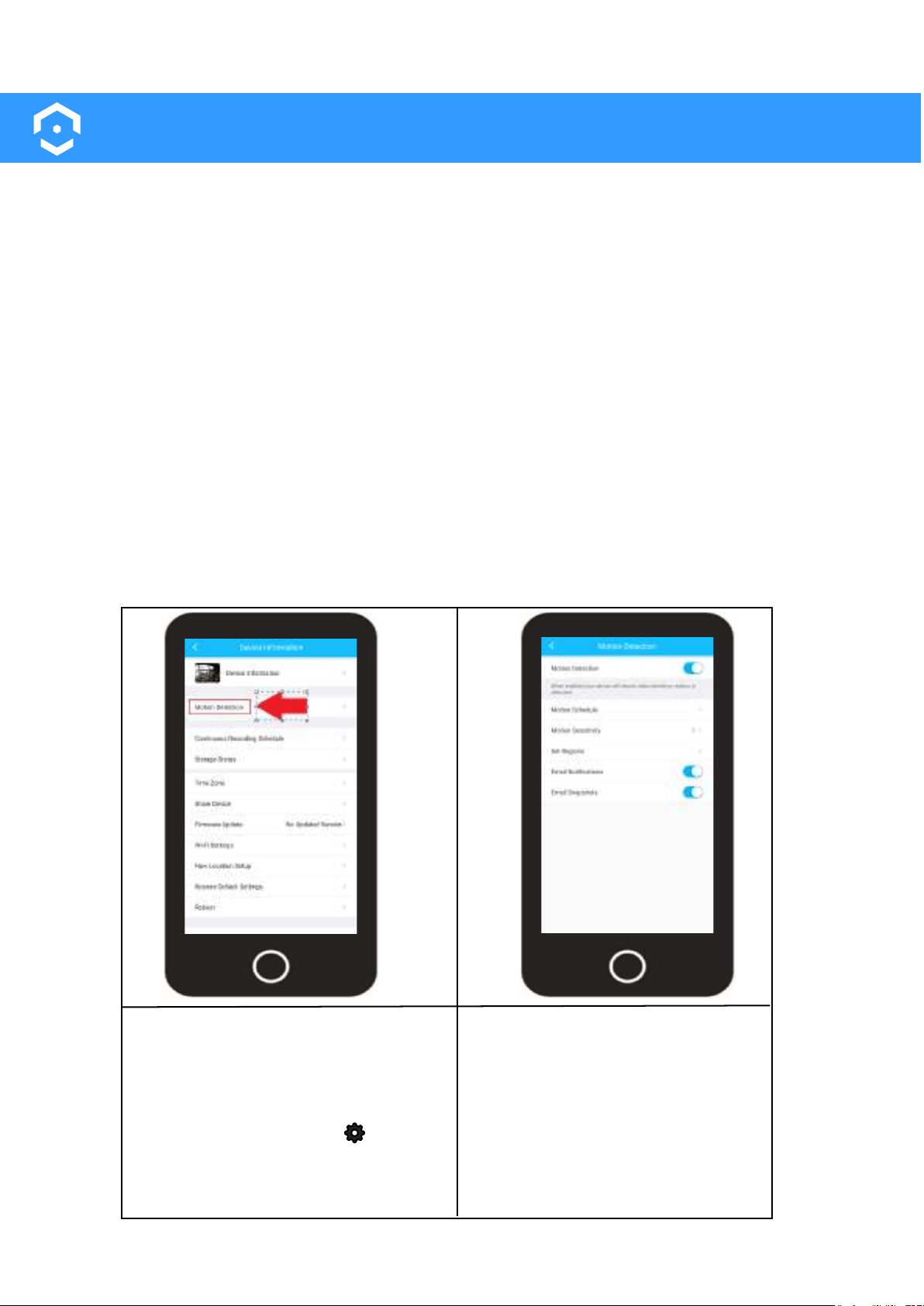
To access the motion detection
settings, open the Amcrest Smart
Home app and access the live view
screen for your device.
Tap on the settings icon ( ) and
select Motion Detection.
The motion detection settings for
your device will be displayed in this
menu which will allow you to adjust
and control motion settings such as,
motion schedules, sensitivity, regions
as well as enable Email notifications
and snapshots.
21
Motion Detection Schedules
A motion schedule allows you to set the device to begin recording motion detection events at a
designated time. This is useful if you would like the device to only start detecting motion during specif-
ic times of the day. If you would like the device to record motion 24/7 you can leave the schedule as
default. However, for more information on how to set a motion schedule, please refer to the informa-
tion provided below.
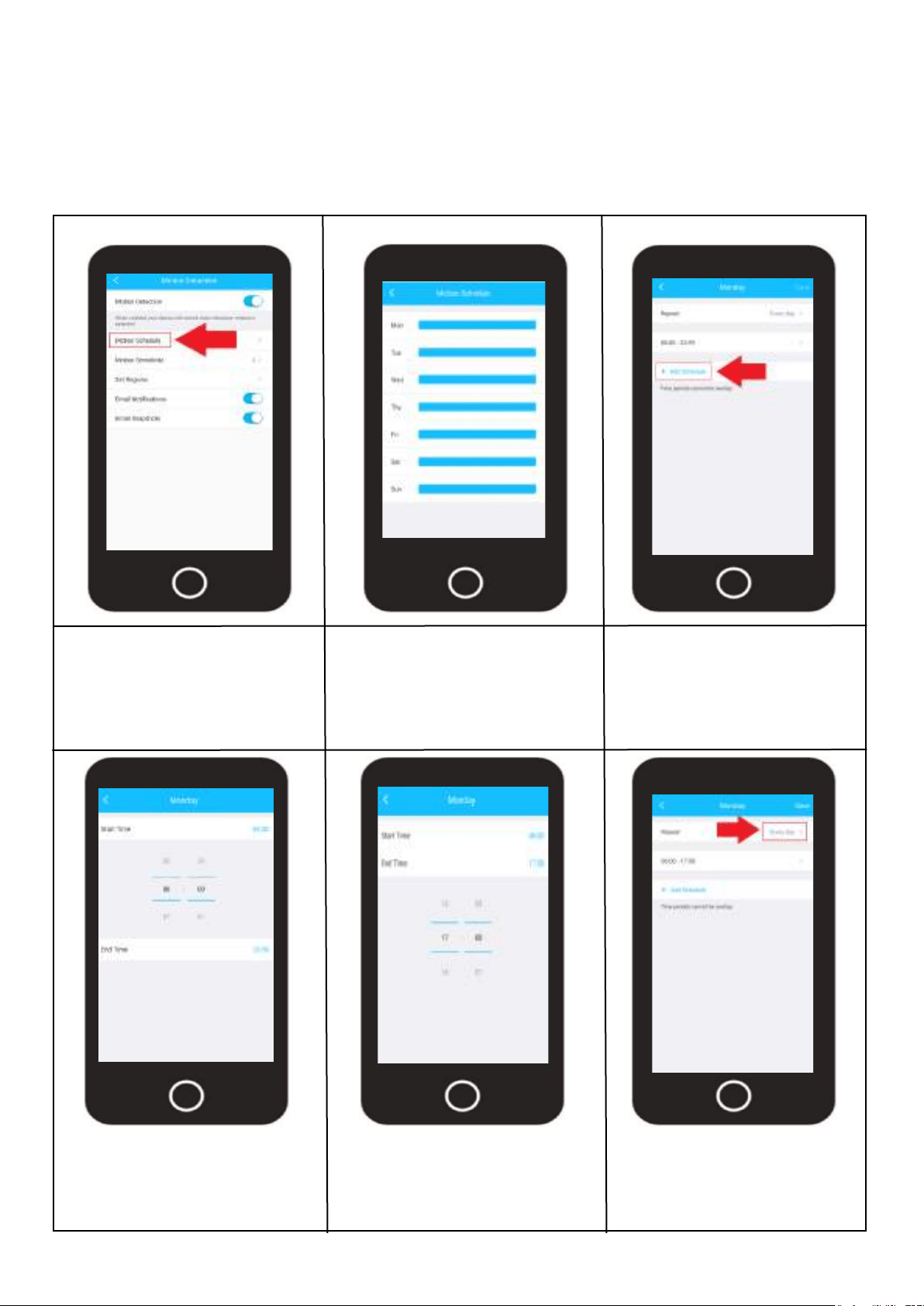
Log into your Amcrest Smart
Home app and access the
motion detection menu.
Tap on Motion Schedule.
Tap on the day of the week
you wish to modify. If you are
setting a schedule for multiple
days of the week this can be
done later in the interface.
Tap on "Add Schedule".
Tap on “Start Time” and use the
scroll option to select a time
you want the motion schedule
to start.
Tap on “End Time” and use
the scroll option to select a
time you want the motion
schedule to stop. Tap on the
Note: Motion schedules cannot overlap.
Tap on “Repeat” to choose
which days of the week you
would like the motion sched-
ule to apply.
22
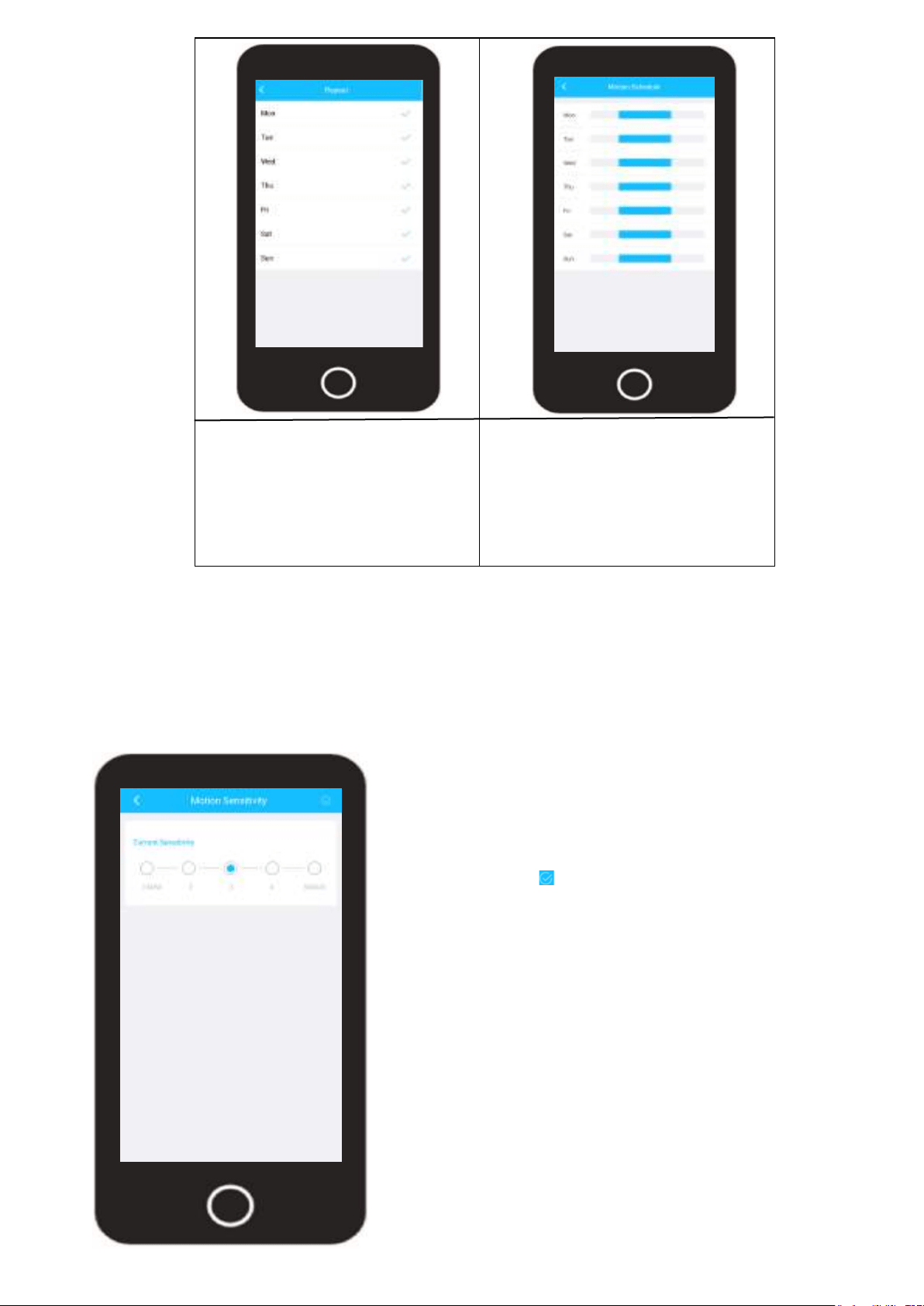
A blue check mark will be
displayed next to the active
days.
Tap the back arrow ( < ) to exit.
Tap on the “Save” button to save
your motion schedule. The motion
schedule is now applied to your
device.
Tap the back arrow ( < ) to exit.
Motion Sensitivity
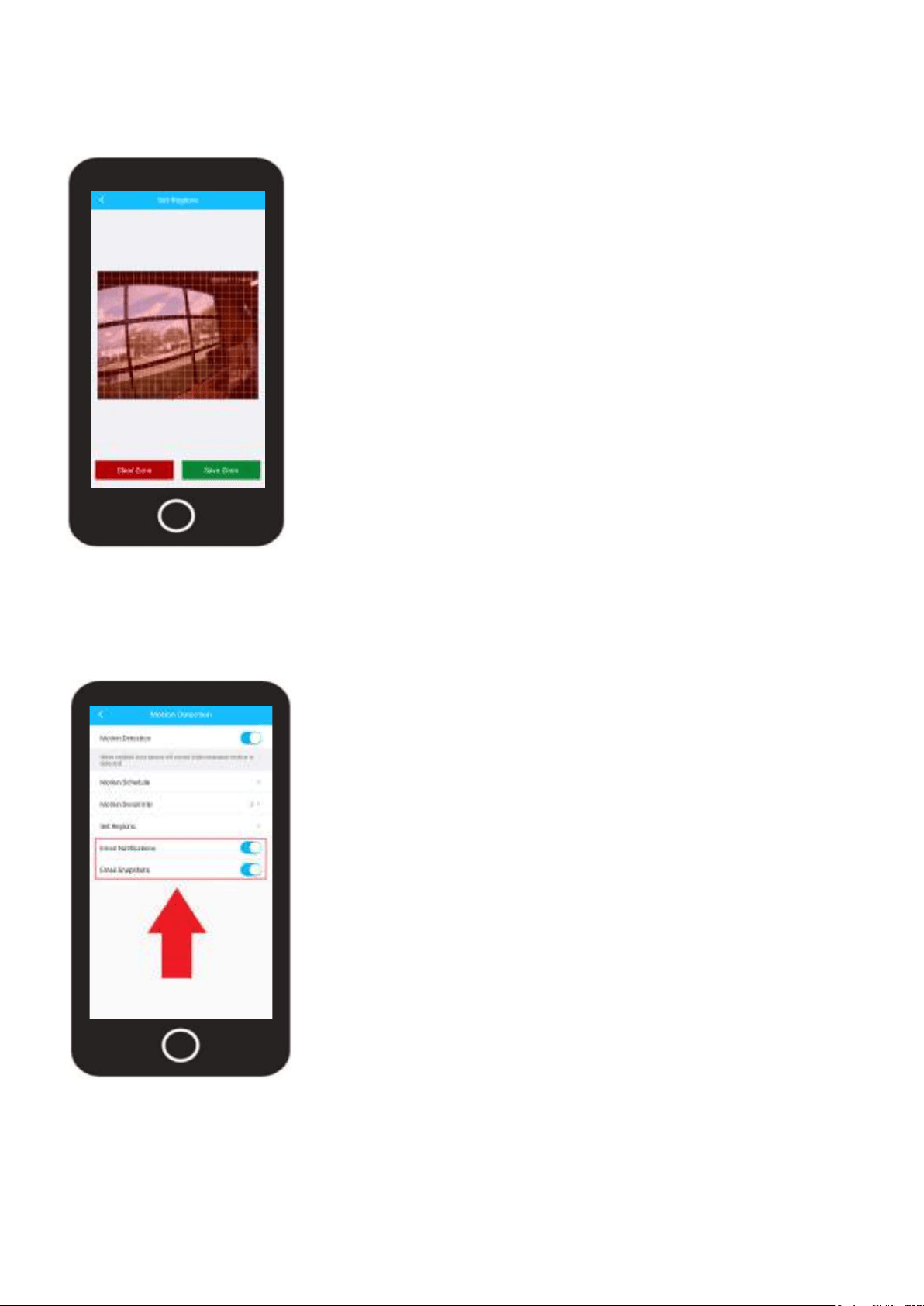
Motion sensitivity allows you to adjust how sensitive the motion detection will be for your
camera. This is based off a minimum and maximum value ranging between 1, having the
least amount of sensitivity, and 6 being the max. The default sensitivity level will be 3. This is
the optimal sensitivity level as it can reduce the level of flase motion events while still provid-
ing the most accurate detection of your events.
The lower the sensitivity value is on your camera
the more activity the sensors need to retain an
event or send a push notification. It is highly
recommended to leave the sensitivity at 3 however,
if you make any adjustements be sure to tap on the
blue check mark ( ) to save the motion sensitivity
setting.
23
Set Regions
Setting motion detection regions allows you to customize activity zones for motion detection areas.
This helps to block out and avoid false motion events and is useful for blocking out areas such as
trees, bushes, or other areas to help increase the efficiency if your camera’s motion detection abilities.
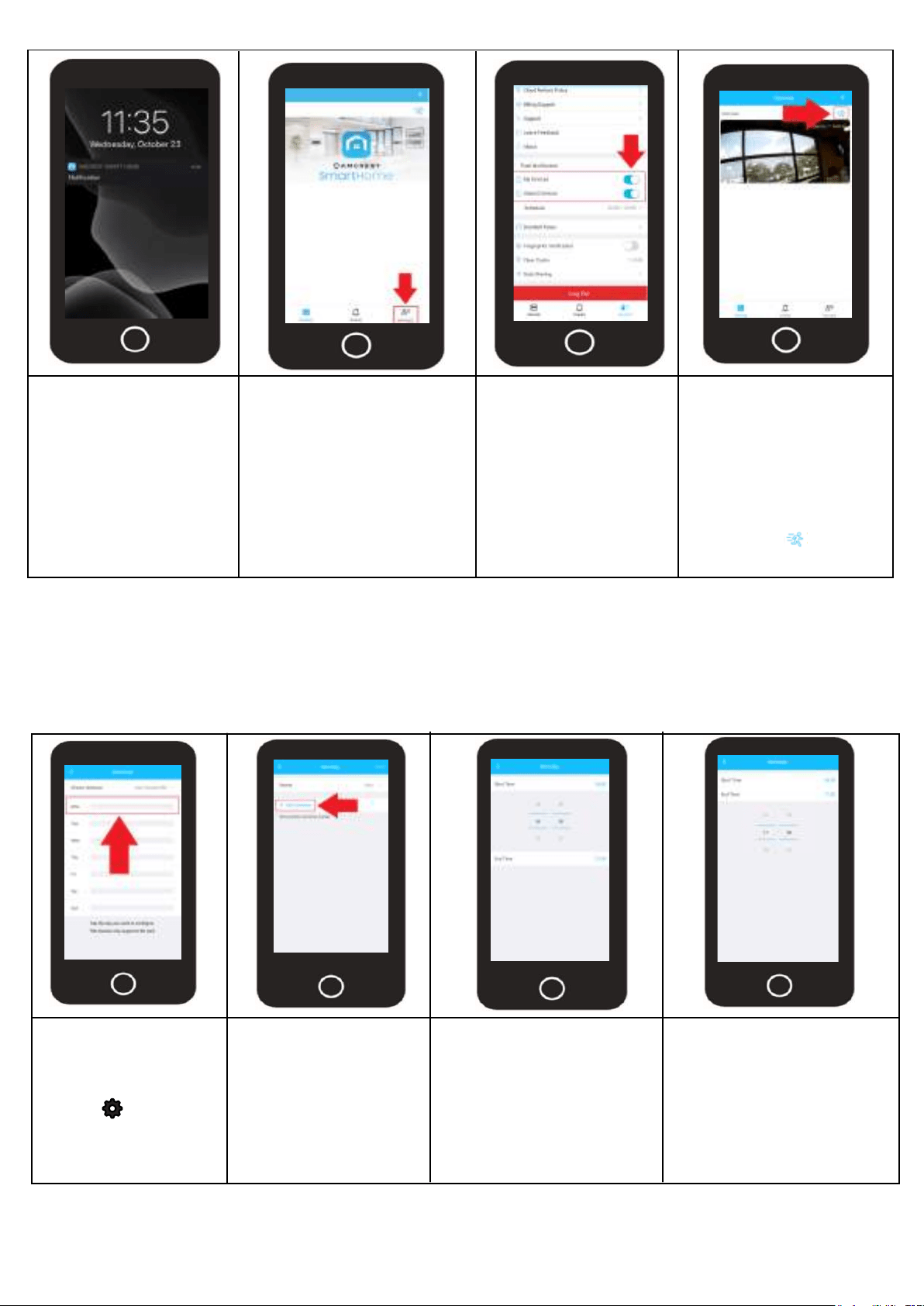
To set a motion detection region, tap on "Clear
Zone". Use you finger to highlight the area(s) on
the screen that you would like to block motion
detection events. Tap on "Save Zone" to save
the motion detection region. Tap on the back
arrow ( < ) to exit.
Activating Smart Notifications
Smart notifications are push notifications that are sent to your phone which let you know a motion
or other event has been detected. These options are enabled by default however can be enabled
or disabled by the user. For more information on Smart notifications, please refer to the information
provided.
Email Notifications/Snapshots
The Email notifications and Email snapshot toggle switches are designed to enable or disable the
ability for the device to send notifications of motion events and snapshots to an Email address.
By default, these options will be enabled.
If they are disabled, the camera will not
be able to send email alerts even if your
Email credentials are entered in the app.
24
Smart Notifications can
be turned on or off
using the Amcrest Smart
Home app. These
settings are account
based and not neces-
sarily based per device.
To turn smart notifications
on or off, log into your
Amcrest Smart app and
tap on the Account menu.
In the account menu,
scroll down to the
"Push Notification"
menu. You will notice
2 toggle switches,
one for your devices
and one for shared
devices.
If you would like to turn
off motion detection
events you can based
on device in the Devices
menu. To turn off motion
events per device
toggle the "running
man" icon ( ) to the
off position.
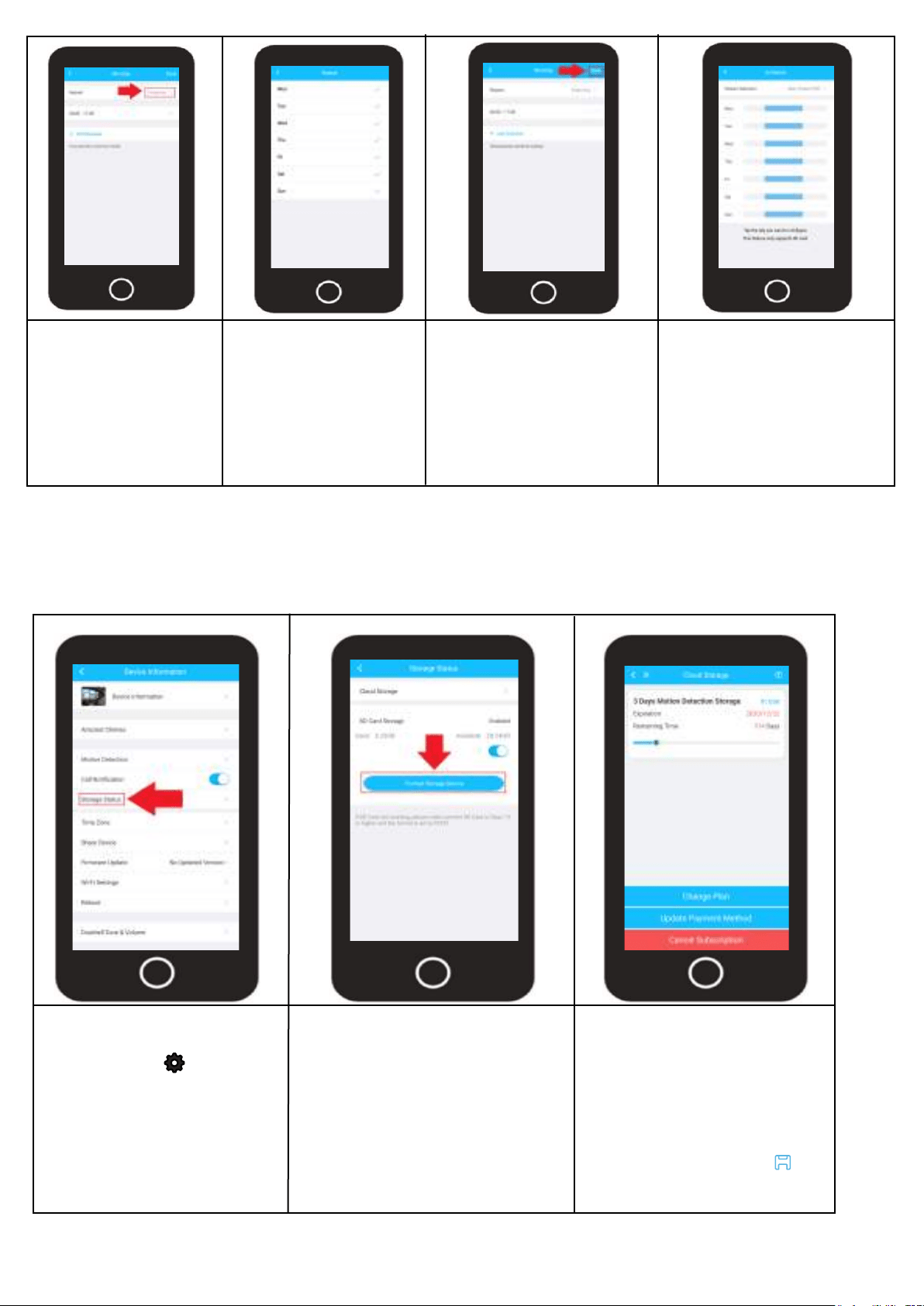
Continuous Recording Schedules
A continuous recording schedule allows you to set a specific time of day or date in which you would like
your camera to record video. Once a continuous recording schedule is created the camera will being
actively recording video based upon the dates and times specified in your schedule. This feature is not
on by default and will need to be set manually in the app by the user.
Log into your Amcrest
Smart Home app and
select your device.
Tap on the Settings
menu ( ) and
select “Continuous
Recording Schedule”.
Note: A continuous recording schedule is only available if a microSD card is inserted in your
camera.
Tap on “A d d
Schedule”.
Tap on “Start Time” and
use the scroll option to
select a time you want
the continuous schedule
to start.
In this example we are
using 0600 (6am).
Tap on “End Time” and
use the scroll option to
select a time you want
the continuous schedule
to end.
In this example we are
using 1700 (5pm).
25
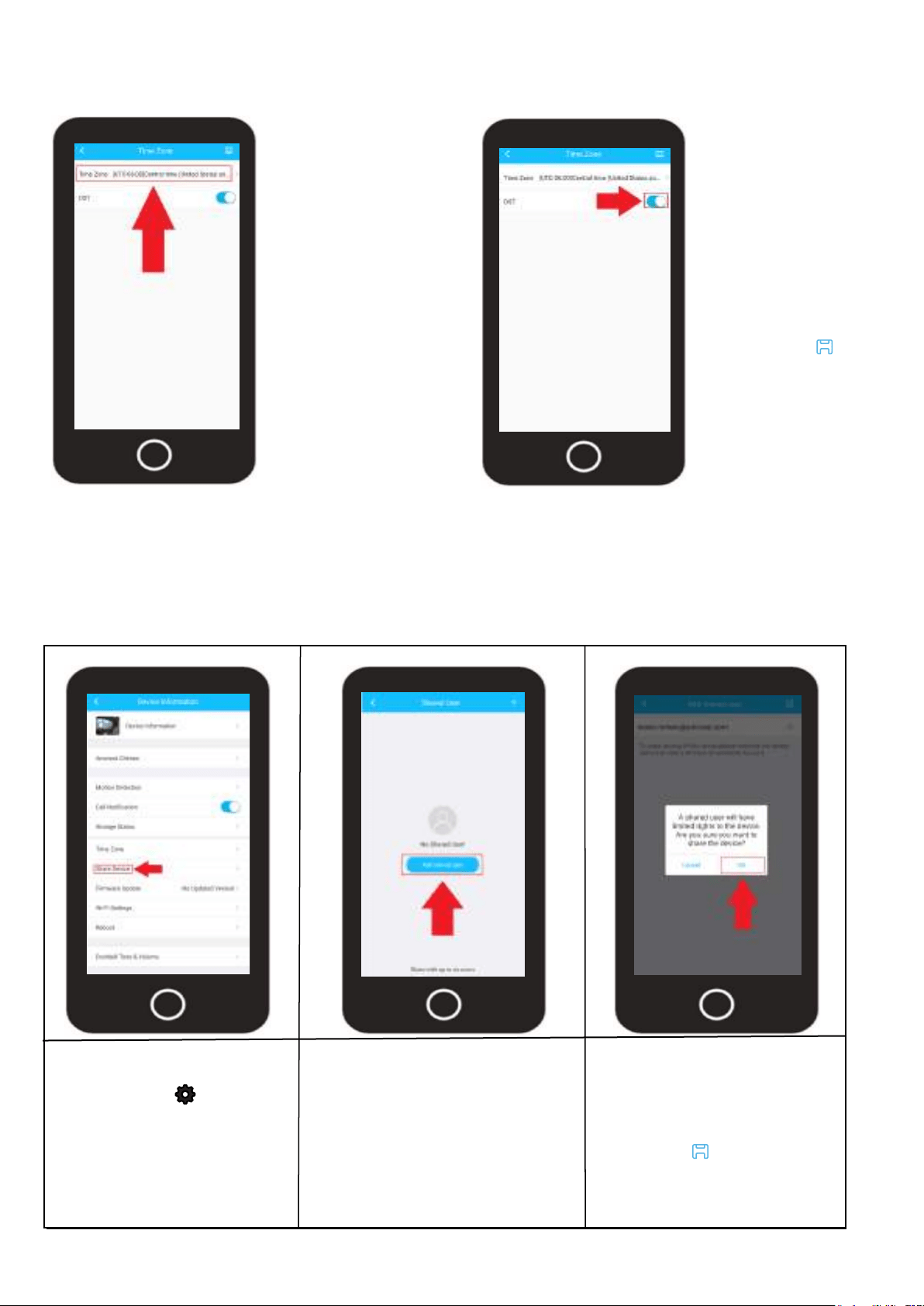
Storage Status
The storage status menu displays any current cloud or microSD card storage options applicable for
your device. This option also allows you view current cloud subscriptions applicable to your device as
well as format a microSD card right from your smartphone.
To access the Storage
Status menu, tap on the
settings icon ( ) on the
live view screen.
Tap on the Storage Status
option located in the
settings menu.
The microSD card storage
capacity will be displayed
in this menu. If no microSD
card is being read by the
device the status will be
“Disabled”
To format the microSD card,
tap on “Format Storage
Device”.
To access cloud storage
details, tap on “Cloud Stor-
age”. Then tap on “Active
Cloud Service”.
This menu allows you to
change a cloud plan,
update payment information,
or cancel a subscription.
Tap on “Repeat” to
choose which days
of the week you
would like the
continuous schedule
to apply.
A blue check mark will
be displayed next to
the active days.
Tap the back arrow ( < )
to exit.
Tap on Save.
The continuous record-
ing schedule is now
applied to your device.
Tap the back arrow ( < )
to exit.
26
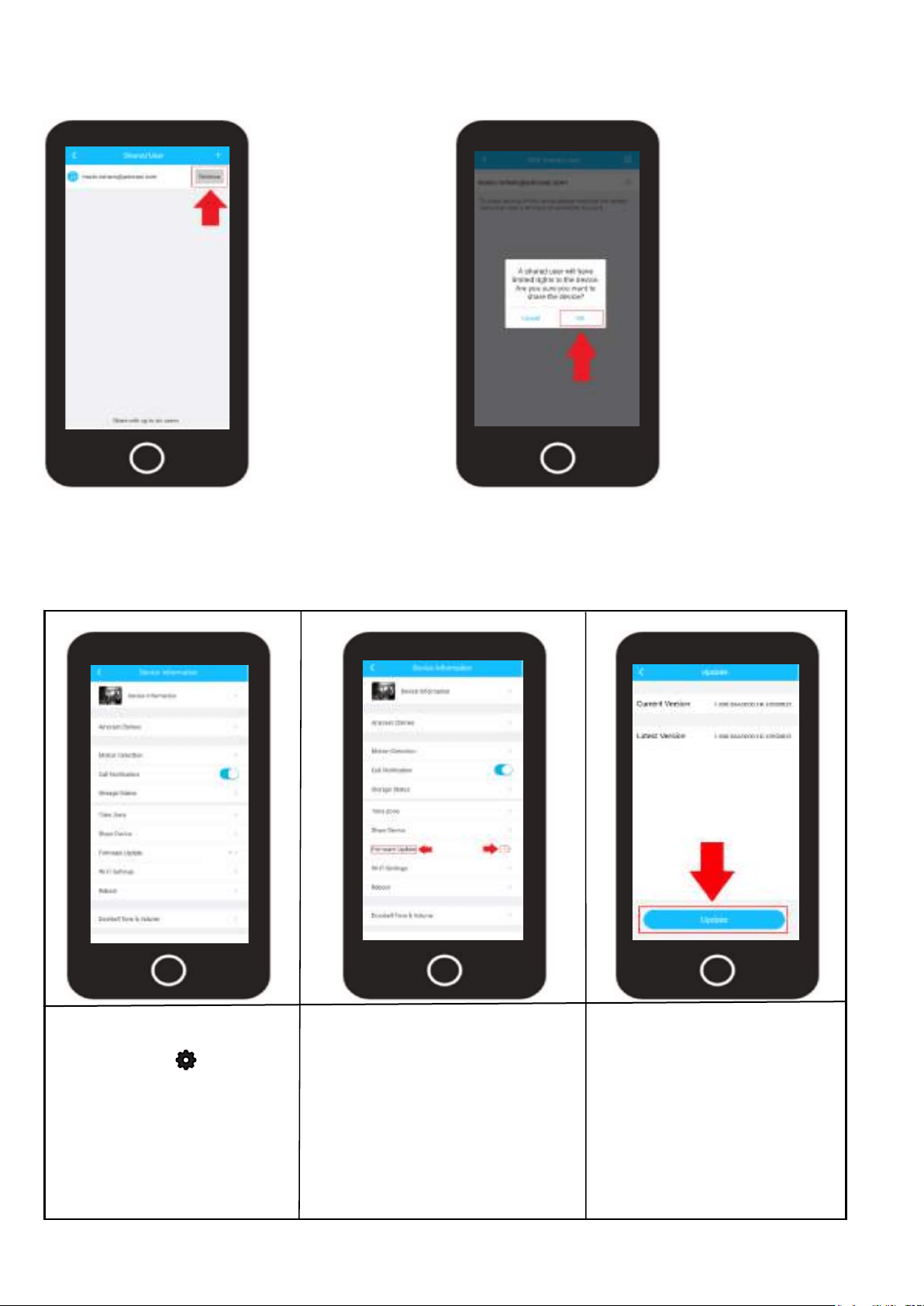
Time Zone
This menu allows you to adjust and set any time zone related information for your device. Enable
DST (daylight savings time) settings for your device if needed.
To change the time
zone for your device
tap on “Time Zone”
and select your time
zone from the provided
list.
Tap the back arrow ( < )
to return to the previous
menu
Daylight savings
time (DST) should be
enabled by default
however, if you
would like to
enable/disable it use
the provided DST
toggle switch.
Tap the Save ( )
icon to save your
time zone settings.
Share Device
Device sharing allows you to add specific Amcrest Smart Home users to share the live feed of your
added device. When you add a shared user, the shared user will have access to your camera and
features such as live viewing, recording, playback, and two-way audio.
Note: The maximum users allowed on a shared account is 6 users.
To access the Share
Device menu, tap on the
settings icon ( ) on the
live view screen.
Tap on the Share Device
option located in the
settings menu.
Tap on, "Add a Shared
User".
Enter a registered Amcrest
Smart Home account email
you would like to share your
device with. Once you have
entered the email press the
Save icon ( ).
Tap OK to add the shared
user.
27
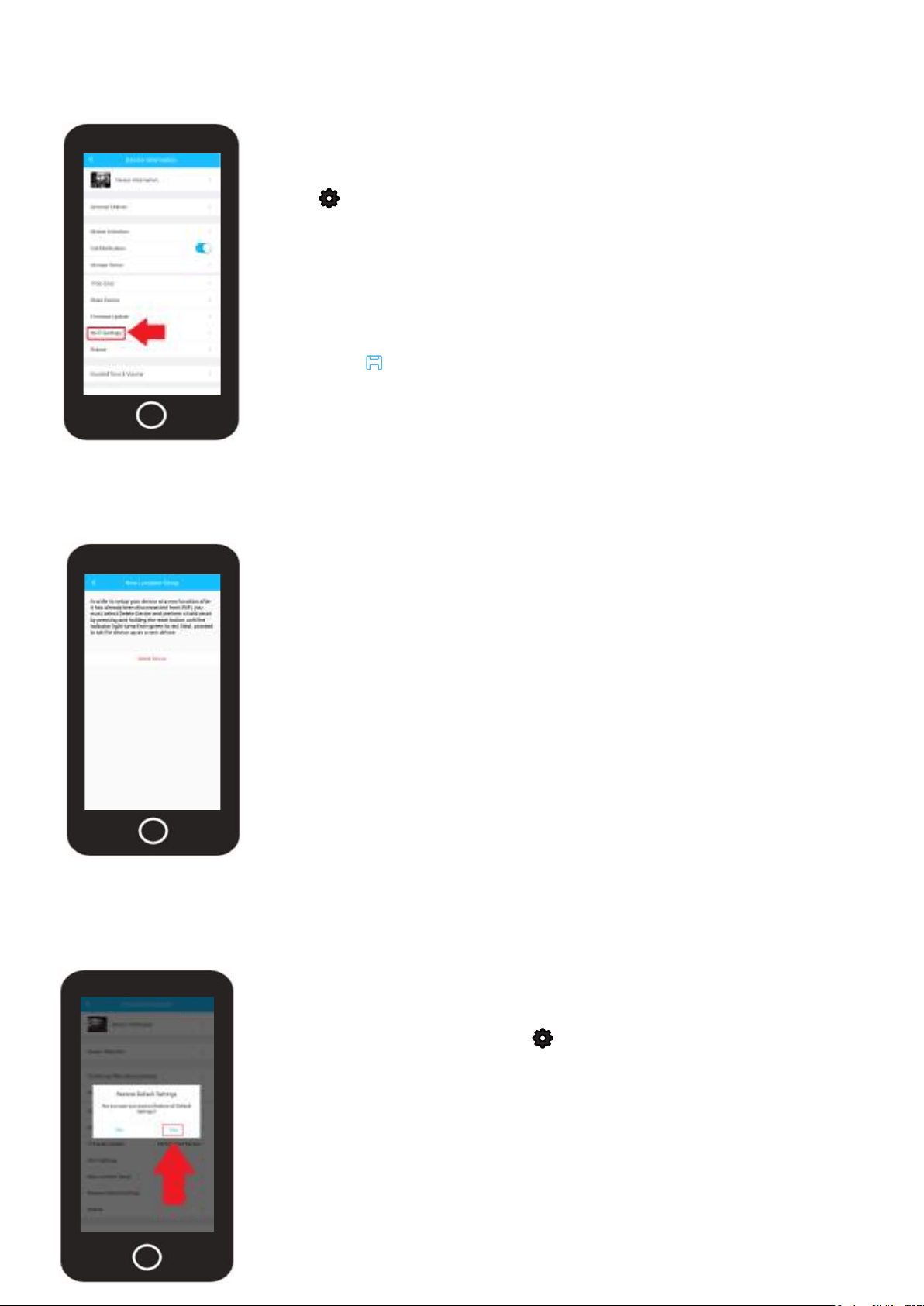
Removing a Shared Device
Removing a shared device from your account will revoke sharing permissions for added shared users.
You can remove a shared user in the Shared Device menu.
Access the Shared
Device menu and
locate the shared user
on your device.
Tap Remove to remove
the shared user.
Tap OK to remove the
shared user from your
device.
To access the Firmware
Update opton, tap on the
settings icon ( ) on the
live view screen.
Locate the Firmware
Update option.
If a firmware update is available
there will be a red identifier
prompting you that a firmware
upgrade is ready.
Tap on the "Firmware Update" tab
to proceed with the update if it is
available.
Firmware Update
This menu allows you to update the firmware for your device. If a firmware update is available, a red
dot will be displayed in this field. It is highly recommended to keep the firmware for your device up to
date at all times.
you will notice the current
version of firmware that is on
your camera, and the latest
firmware file that will be
downloaded to your camera.
To proceed with the update,
please click on "Update".
Tap “Cloud Upgrade”. and
allow the device to update.
28
Wi-Fi Settings
This menu allows you to change Wi-Fi networks for your device. Please note, this device is not a dual
band device, please make sure to connect to a 2.4GHz Wi-Fi network.
To access the Wi-Fi Settings
menu, tap on the settings
icon ( ) on the live view
screen.
Tap on the Wi-Fi Settings
option and select your Wi-Fi
network from the Wi-Fi list.
Enter the Wi-Fi password for
your network and tap the
save icon ( ) to save the
new Wi-Fi network to your
device.
New Location Setup
The new location tab provides detailed information on how to setup your device in a new location.
For more information on new location setup, please refer to the information below.
If you are setting up your device in a new location, or
on another network, it is you will need to first remove
the device from your Amcrest Smart Home account,
perform a factory reset, and add as a new device.
To remove the device from your account, press the
Delete Device option to remove the camera from
your account, then proceed with a factory reset. For
more information on how to perform a factory reset
on your device, please refer to the factory reset
portion of this manual.
Restore Default Settings
The restore default settings option will reset all settings on your device back to its original factory
settings. This will not perform a full factory reset as your username and password for the device will
remain the same.
To access the Restore Default Settings
option, tap on the settings icon ( ) on the
live view screen.
Scroll down and tap on the Restore Default
Settings option. Tao on Yes to restore all
settings on your camera to default. To cancel
the process, press No.

29
Reboot
The reboot option allows you to reboot your device from the Amcrest Smart Home app.
To access the Reboot option, tap on the settings
icon ( ) on the live view screen.
Tap on the Reboot option and tap “Yes” to continue.
The reboot process will take up to 3 - 5 minutes to
complete. Allow the device to reboot before access-
ing the live feed or other related options.
Video Settings
The video settings menu provides quick access to general settings for your device. These options
include; video quality, adjusting brightness, contrast, color, etc, rotating/flipping the image, enabling
IR LEDs for night vision, and indicator lights. For more information on the features listed in this menu
please refer to the information provided below.
HD/SD Allows you to change resolution of the camera from
standard definition to high definition.
Adjust Allows you to adjust the brightness, contrast, color,
and saturation levels of the camera feed. Use the
Reset icon to restore the settings back to its original,
default color settings.
Rotate Allows you to rotate and flip the image. This option is
useful if you have mounted your camera is a specific
position that requires it to be flipped or rotated.
Night Allows you to turn the IR LEDs on the front of the
camera on or off. This is useful if you want to enable or
disable night vision on your camera.
Indicator Allows you to turn the indicator LED on the device on
or off. This is useful if you do not want the indicator
LED visible while the camera is powered on.
Note: The speaker and microphone volume options are grayed out
because they are not available on this model.
30
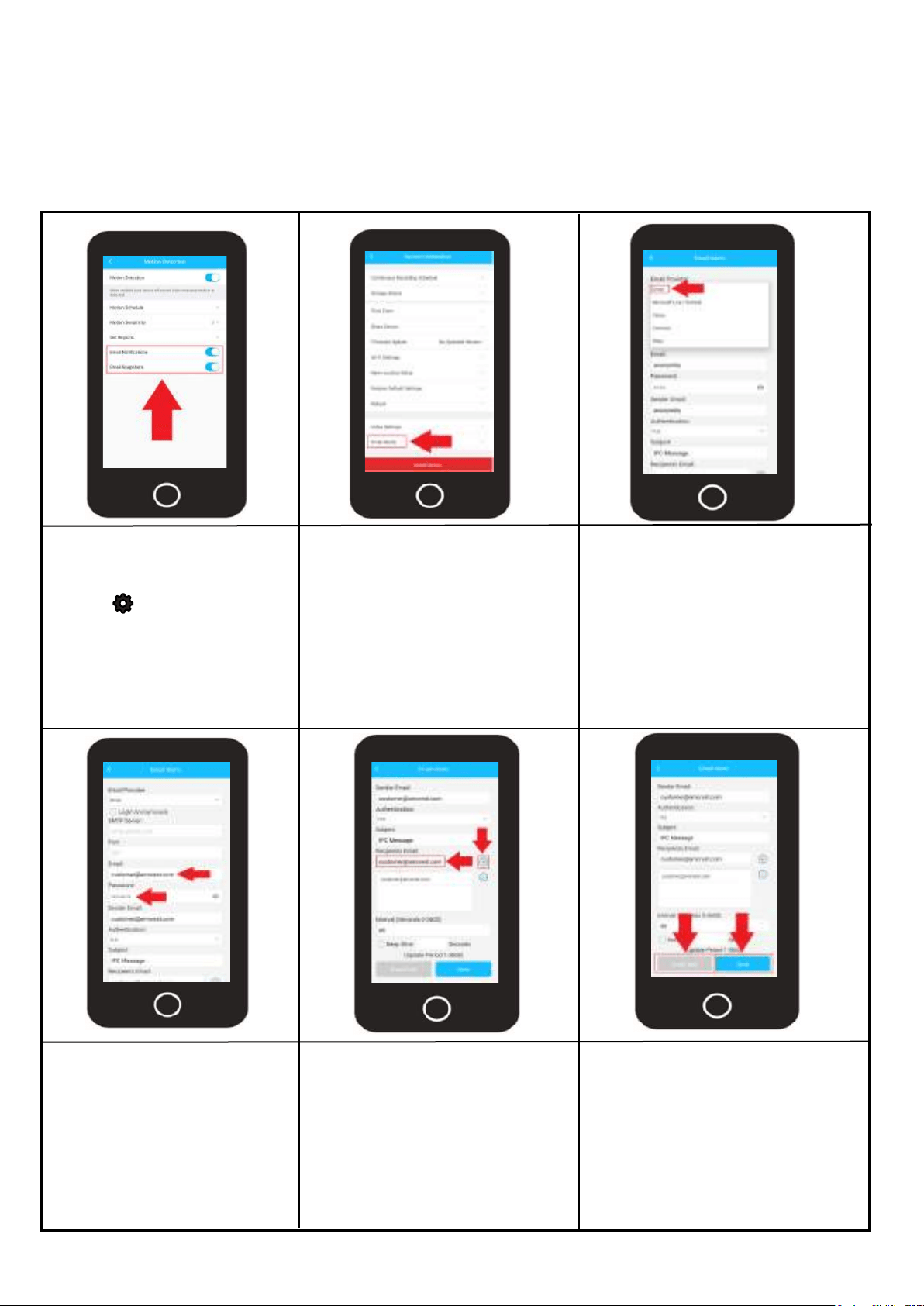
Email Alerts
Email Setup will be dependent on your specific email provider. In this example we will be using Gmail.
Please also make sure that the Email Notification and Email Snapshot toggle switches are enabled in
the motion detection menu.
For more information on how to setup email alerts using the Amcrest Smart Home app, refer to the
information provided below.
Log into your Amcrest Smart
Home app and select your
device. Tap on the Settings
menu ( ) and select
“Motion Detection”. Ensure
the Email Notification and
Email Snapshot toggle
switches are enabled. Use
the back arrw ( < ) to exit
Scroll down and tap on “Email
Alerts”.
In the Email Alerts menu, tap on
Email Provider and select your
email provider from the drop
down down list.
In the Email field, enter your
email address and enter the
password for that email
address in the password field.
The email you entered will
automatically be added into
the Sender field.
Enter the recipient's email
address into the Recipients Email
menu. Make sure to tap the (+)
icon to successfully add the
email address into the Recipients
Email menu.
Tap on the Save option to save
your configuration. Tap on the
Email Test button to test the
email connection.
Note: Check you email and
make sure the Email Test notifi-
cation went through properly
before proceeding.
31
Delete Device
The delete device option allows you to unbound and remove the device from your Amcrest
Smarthome account. This option is useful if performing a factory reset on the device or setting up
the device in a new location.
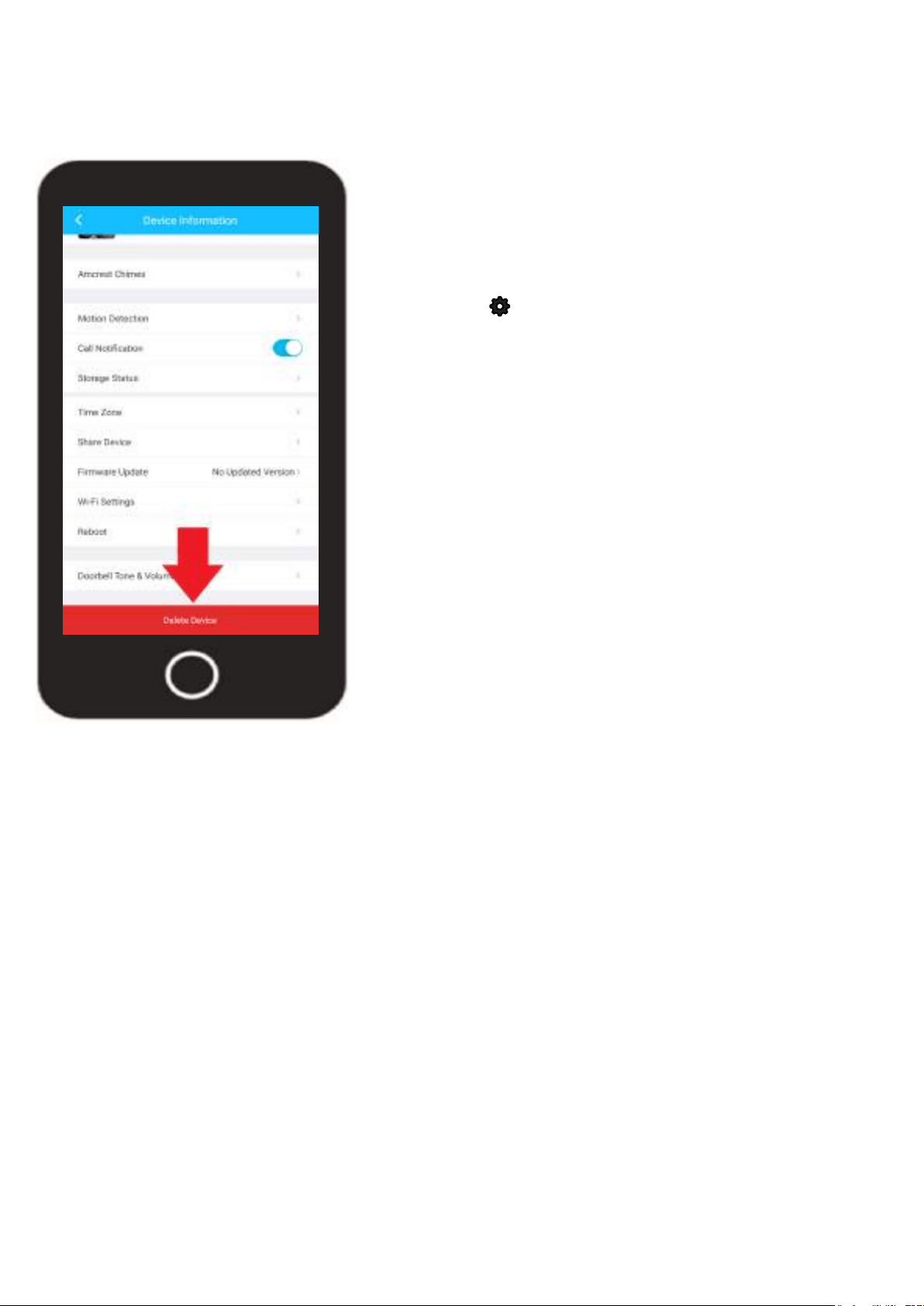
To access the Delete Device option for your device, tap on the
settings icon ( ) on the live view screen.
Scroll down to the bottom of the settings menu and tap on the
Delete Device option. A prompt will appear asking if you are sure
you would like to delete the device. If any cloud recordings are
present on your accont for this device you can choose to keep
the recordings stored or remove them once the device is deleted.
By default, cloud recordings will be stored after the device is
deleted however, you can uncheck this option to delete cloud
recordings for this device.
Tap on Delete to delete the device from your account.
How to Perform a Factory Reset
Performing a factory reset on your camera will reset the device back to its original default settings. It is
highly recommended to delete your device from your Amcrest Smart Home account before performing a
factory reset. For more information on how to factory reset your device, please refer to the information
provided below.
Tools Needed
• A Phillips head screwdriver
Procedure
• Using a Phillips head screwdriver, remove the 2 screws on the security plate on the bottom of the
camera.
- Locate the "RST" button, this is the factory reset button. Press and hold the factory reset button for 30
to 45 seconds allowing the device to reset.
• The LED will change from solid green to a blinking red. Once the camera has finished resetting the
LED will blink green indicating it is ready to be paired with the Amcrest Smart Home app.
• The camera can now be added back to your Amcrest Smart Home account as a new camera.
32
Events Menu
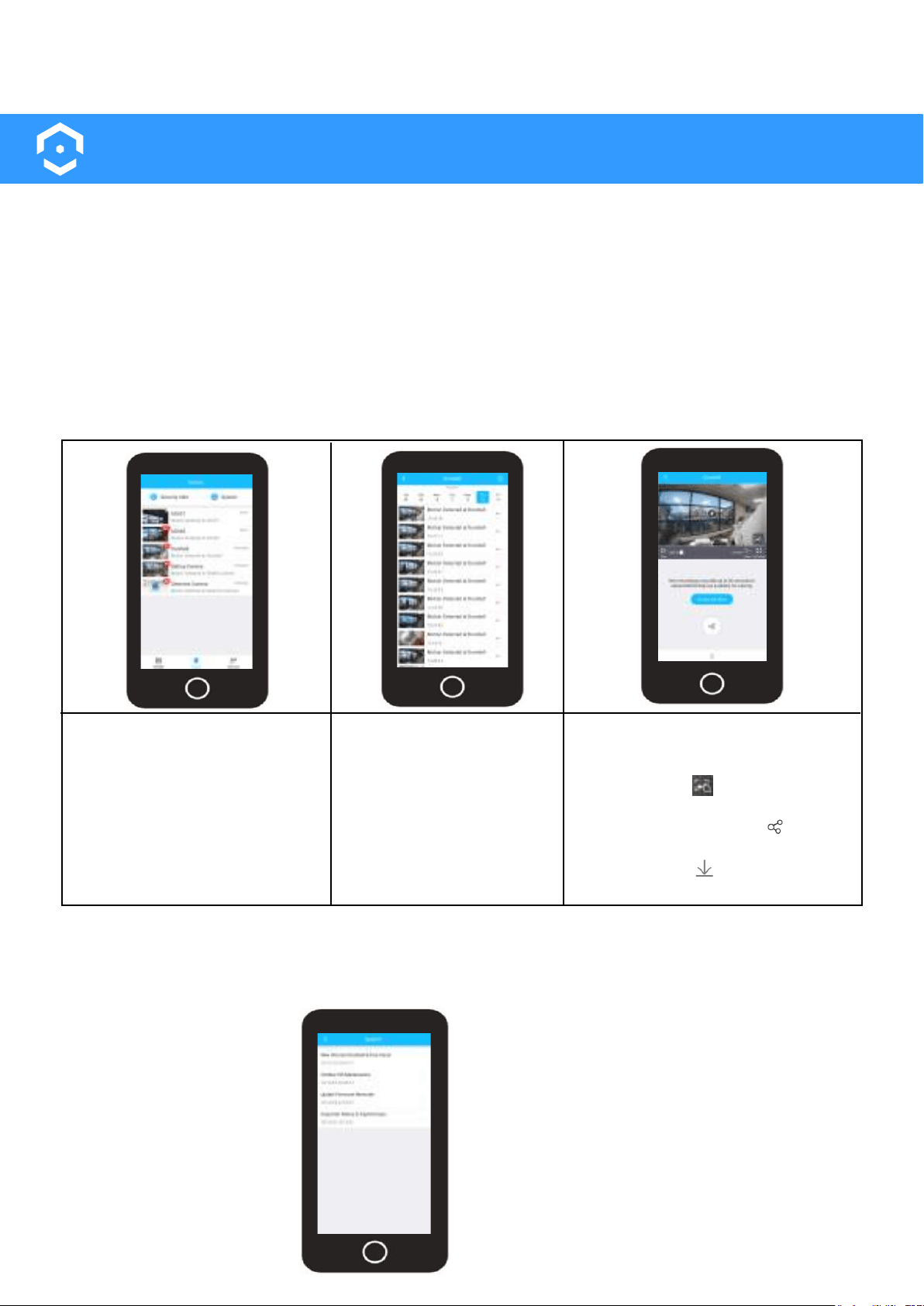
The events menu provides quick access to system and device related security and system alerts.
The security alerts menu provides information on how many push notifications were sent, per
device, per day and provides a way to view each notification that was sent within a 7 day period.
The system notification menu retains notifications provided by the developer. This can range from
system maintenance messages to firmware update reminders for your device. For more information
on the information provided in the events menu, please refer to the information provided below.
Security Alert
The security alerts menu provides information on how many push notifications were sent, per
device, per day and provides a way to view each notification that was sent within a 7 day period.
To access the events menu,
log into your account and
tap on the Events tab at the
bottom of the screen.
Select your device from the
interface.
A list of events will be
displayed. Use the
calendar to select
which days worth of
events you would like to
view.
Tap the play button to play the
event. Tap “Go to Live View” to
view the live feed. Tap the full
screen icon ( ) to view a
fullscreen view of the event.
Tap the share button ( ) to
share the event. Tap the down-
load button ( ) to download
the event to your smartphone.
System Alerts
The system notification menu retains notifications provided by the developer. This can range from
system maintenance messages to firmware update reminders for your device.
To access the system alerts menu, access the
events menu and tap on System Alerts. All
system alert information will be displayed in
this menu.
Tap on a system alert to view the information
provided in the alert.
33
Account Menu
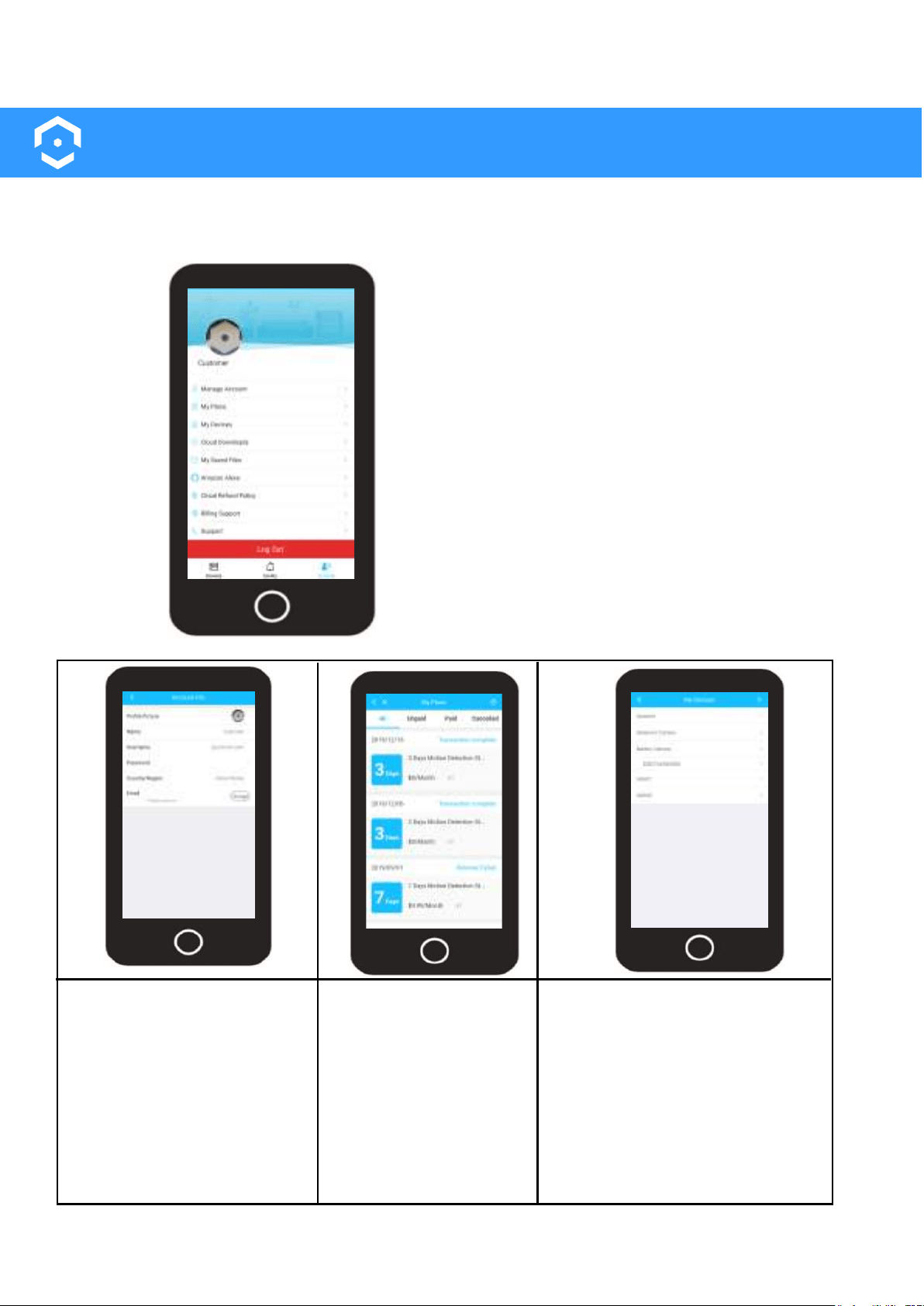
The accounts menu allows to view and update general account information as well as customize
and adjust specific settings for your device. For more information on the options available in the
account menu, please refer to the information provided below.
The Manage Account menu
allows you to edit a profile
picture, update the name on
your account, password, as
well as the Email address
used for your account. To exit
the manage account menu,
tap on the back arrow ( < ).
The My Plans menu
allows you to view all
unpaid, paid, and
cancelled cloud storage
plans transactions
associated with your
Amcrest Smart Home
account. To exit the my
plans menu, tap on the
back arrow ( < ).
To access the Account menu, open the Amcrest
Smart Home app and log into your account.
Tap on the Account menu option located at the
bottom of the interface.
All account based options for your account will
be displayed in this menu. Use your finger to
scroll up and down the menu for more options.
The My Devices menu allows you
to view all connected devices as
well as add devices to your
Amcrest Smart Home account. To
add a device, tap on the ( + ) icon
and follow the in app instructions.
Tap on a already connected
device to access and adjust
device settings.
34
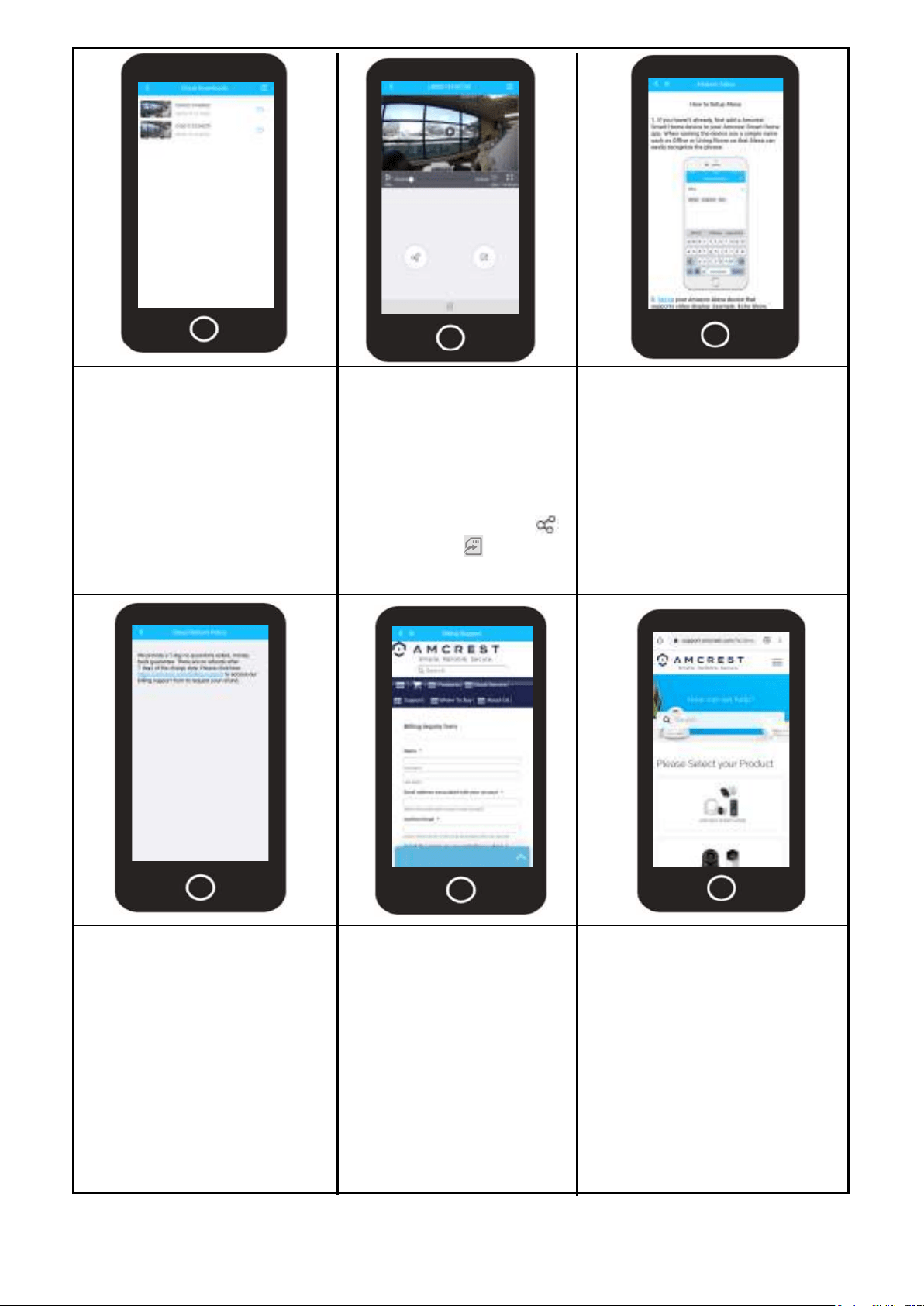
The Cloud Downloads menu
allows you to view, delete, or
download cloud recordings
that were downloaded from
the cloud recordings interface.
Tap on a clip to view the
recording, use the trash can
icon to delete it, tap on the
download button to download
the recording to your mobile
device.
The My Saved Files menu
allows you to view, delete,
rename, share, and export
manually recorded snap-
shots or videos. Use the
video/snapshot icons to
view the manually recorded
files. Tap the share icon ( )
or export icon ( ) to
export the file.
The Amazon Alexa option
provides a step by step break-
down on how to add your
Amcrest Smart Home device
into Alexa. This is possible by
implementing the Amcrest Smart
Home skill into your device.
Please refer to the information in
this menu for a detailed descrip-
tion of the process.
Amcrest Smart Home cloud
provides a 7-day no ques-
tions asked, money back
guarantee. There are no
refunds after 7 days of the
charge date.
For more any inquiry on cloud
billing , please visit:
https://amcrest.com/bill-
ng-support
The Billing Support tab
points you directly to the
Amcrest Smart Home
Cloud billing form. Use this
form for any questions
regarding cloud billing or
other related billing ques-
tions for your Amcrest
Smart Home cloud
account.
The Billing Support tab
points you directly to the
Amcrest Smart Home
Cloud billing form. Use this
form for any questions
regarding cloud billing or
other related billing ques-
tions for your Amcrest
Smart Home cloud
account.
The Support tab points you
directly to Amcrest knowledge
base. Use the knowledge base
to access important support
articles and online documenta-
tion for your device.
To access the support knowl-
edge base directly, please visit:
https://amcrest.com/support
35
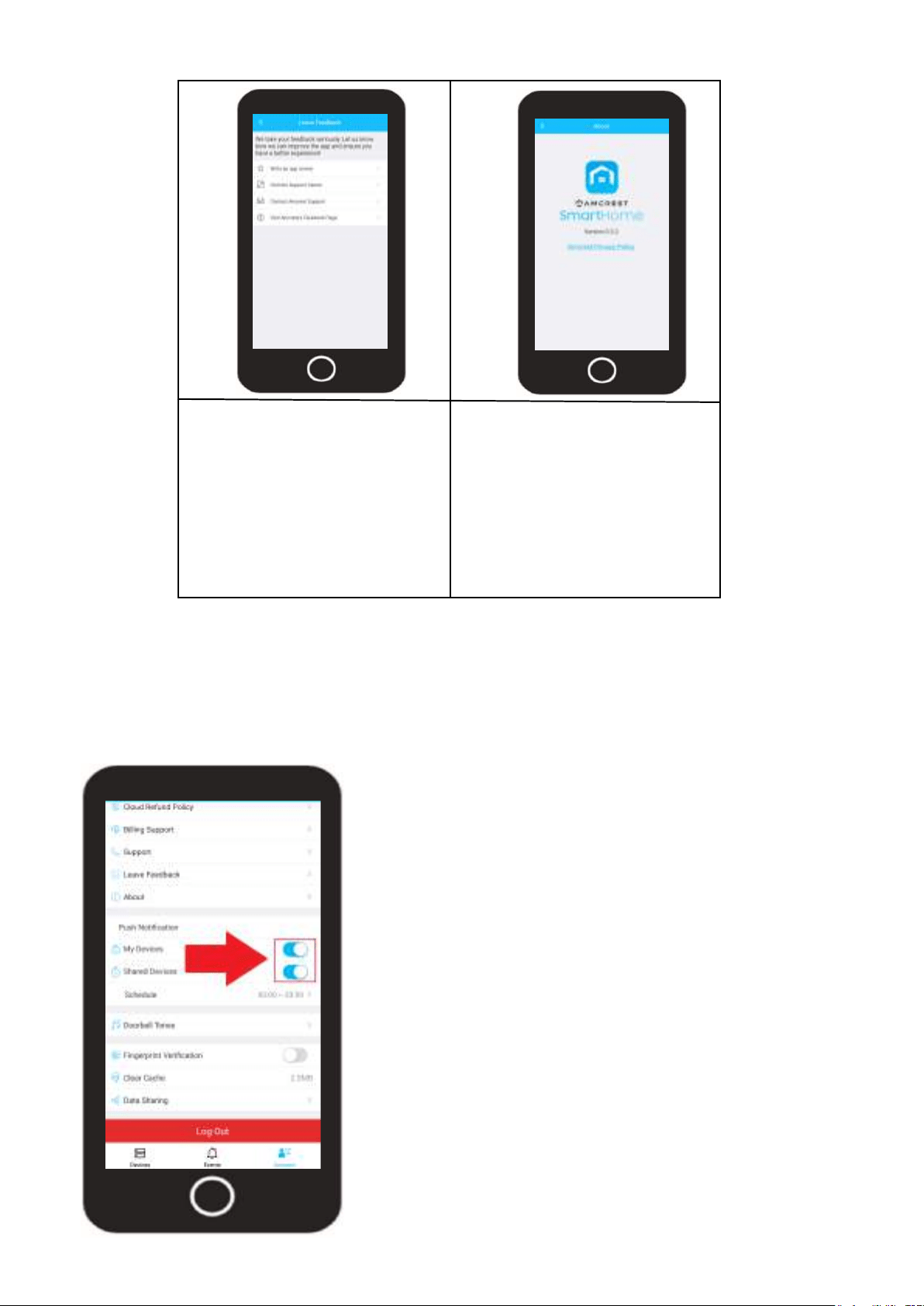
The Leave Feedback allows
you to leave feedback to
improve the overall experience
of the Amcrest Smart Home
app.
We take this feedback serious-
ly and are always looking for
new ways to improve your
experience.
The About tab allows you to
view the current app version
you are using as well as a link
to our privacy policy.
Push Notifications
The push notification toggle switches located in the account menu enable and disable push
notifications for every device connected to your Amcrest Smart Home account. A push
notification schedule can also be setup to allow the app only to send push notifications
during a specific time during the day.
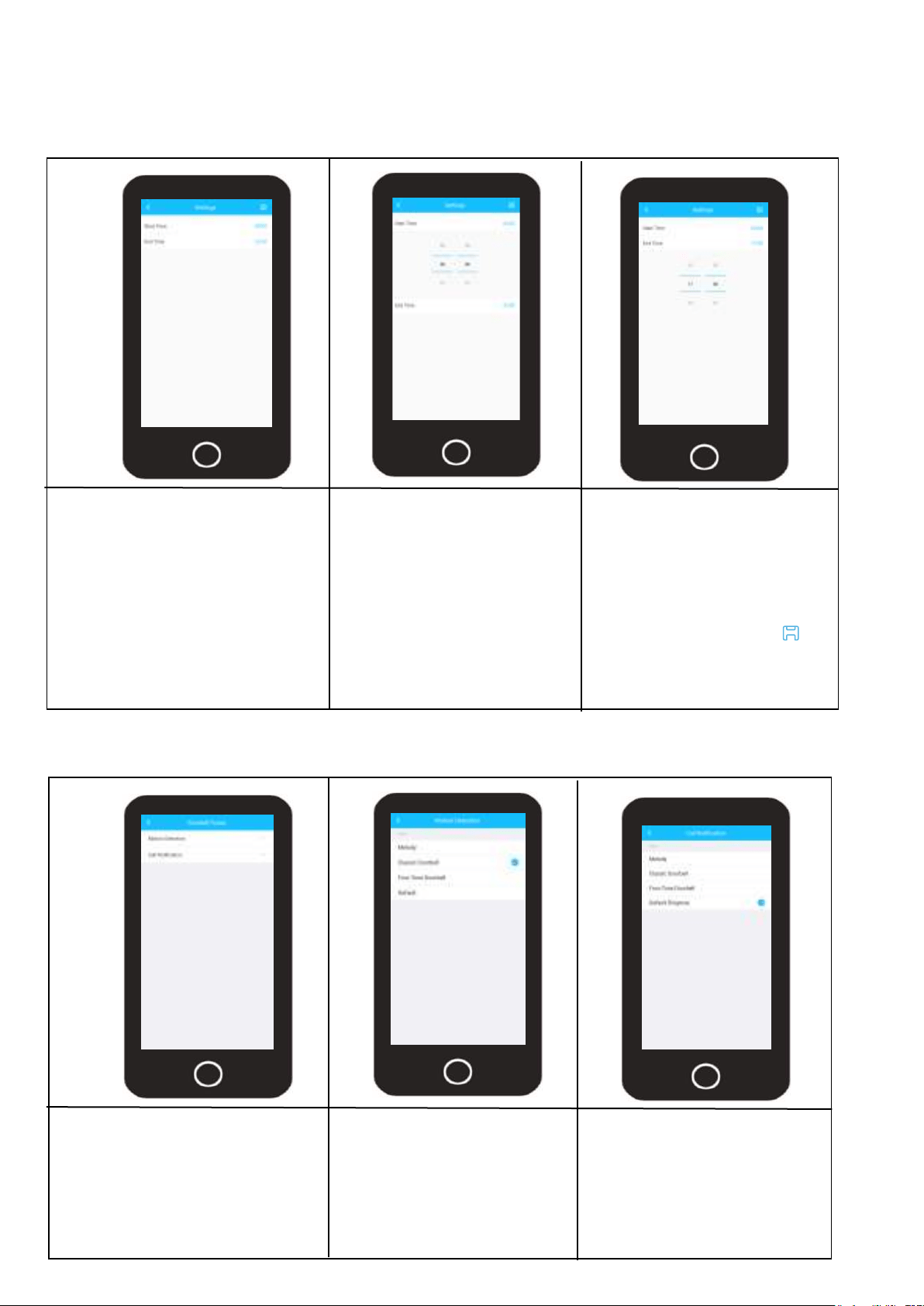
The push notification toggle switches will be enabled by
default allowing the app to send push notifications to
your mobile device once an event has been detected.
Please note, the my devices toggle switch will disable or
enable push notifications for your account, the shared
devices toggle switch will only enable or disable push
notifications for any sharedusers on your Amcrest Smart
Home account.
36
Setting a Push Notification Schedule
A push notification schedule can be setup which will allow the app only to send push notifications to
your device or a shared user’s device during a specific time during the day. For more information on
how to setup a push notification schedule, please refer to the information provided below.
In the account menu, tap on the
Schedule option in the Push
Notification menu to display the
push notification schedule menu.
Tap on “Start Time” and
select a time you would
like your schedule to start.
In this example we are
setting it to 0600 (6am).
Tap on “Finish Time” and
select a time you would
like your schedule to end.
In this example we will be
settting the end time to
be 1700(5pm).
Tap on the Save icon ( )
to save the push notifica-
tion schedule to your
account.
Doorbell Tones (Not Applicable)
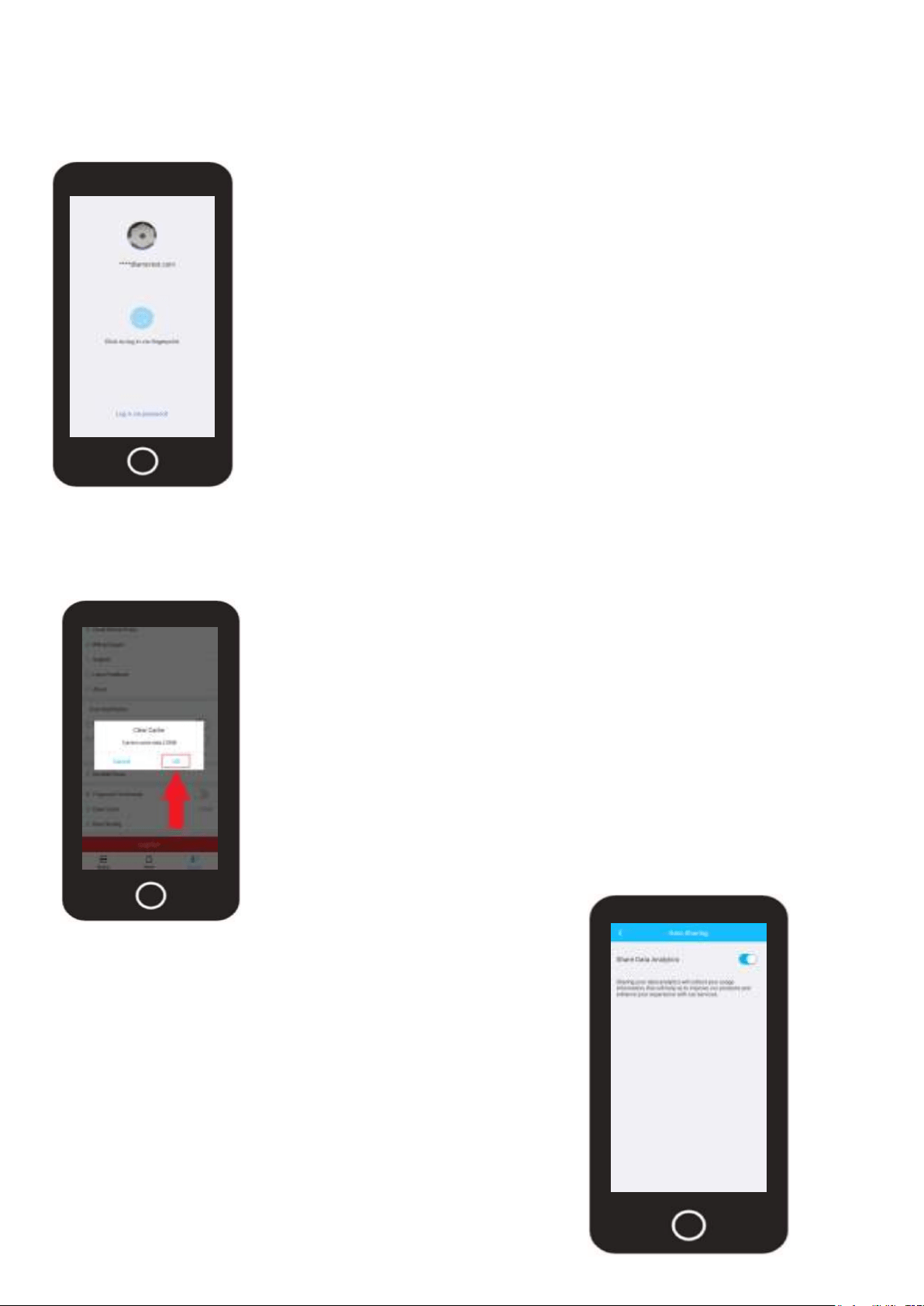
In the account menu, tap on
“Doorbell Tones”. This menu
allows you to change motion
detection and call tones if you
have an Amcrest Wi-Fi Video
doorbell.
Tap on “Motion Detection”
to change the tone of a
motion detection notifica-
tion. There are 4 tones to
choose from, select a tone
to save it to your account.
Tap on “Call Notification” to
change the tone of a call
notification. There are 4
tones to choose from, select
a tone to save it to your
account.
37
Fingerprint Verification
The fingerprint verification option allows you to set a fingerprint authentication that will allow you to
log into your Amcrest Smart Home app using your fingerprint. Please note, this option will only be
applicable to smartphone devices that have fingerprint capabilities.
In the accounts menu, tap on the “Fingerprint Verification”
toggle switch to enable or disable this feature. A fingerprint
must be enabled first on your smartphone before this
option can be enabled.
Once you have authenticated your fingerprint on your
phone, tap on the fingerprint verification toggle switch and
verify your fingerprint to enable this funtion. Force close
the app and then use your fingerprint to log into your
Amcrest Smart Home account.
Clear Cache
The clear cache option allows you to remove cache from the app which helps to increase the
efficiency of your overall app experience.
In the account menu, tap on the “Clear Cache”
option. A prompt will appear asking you if you would
like to clear cache.
Tap on OK to remove the cache from the app.
Data Sharing
The data sharing menu allows you enable or disable the
ability to share data analytics for your account.
Toggle the Share Data Analytics
on or off to enable or disable the
ability to share data analytics.
This option is on by default and is
highly recommended to stay on to
increase the efficiency of your
experience with the app.
38
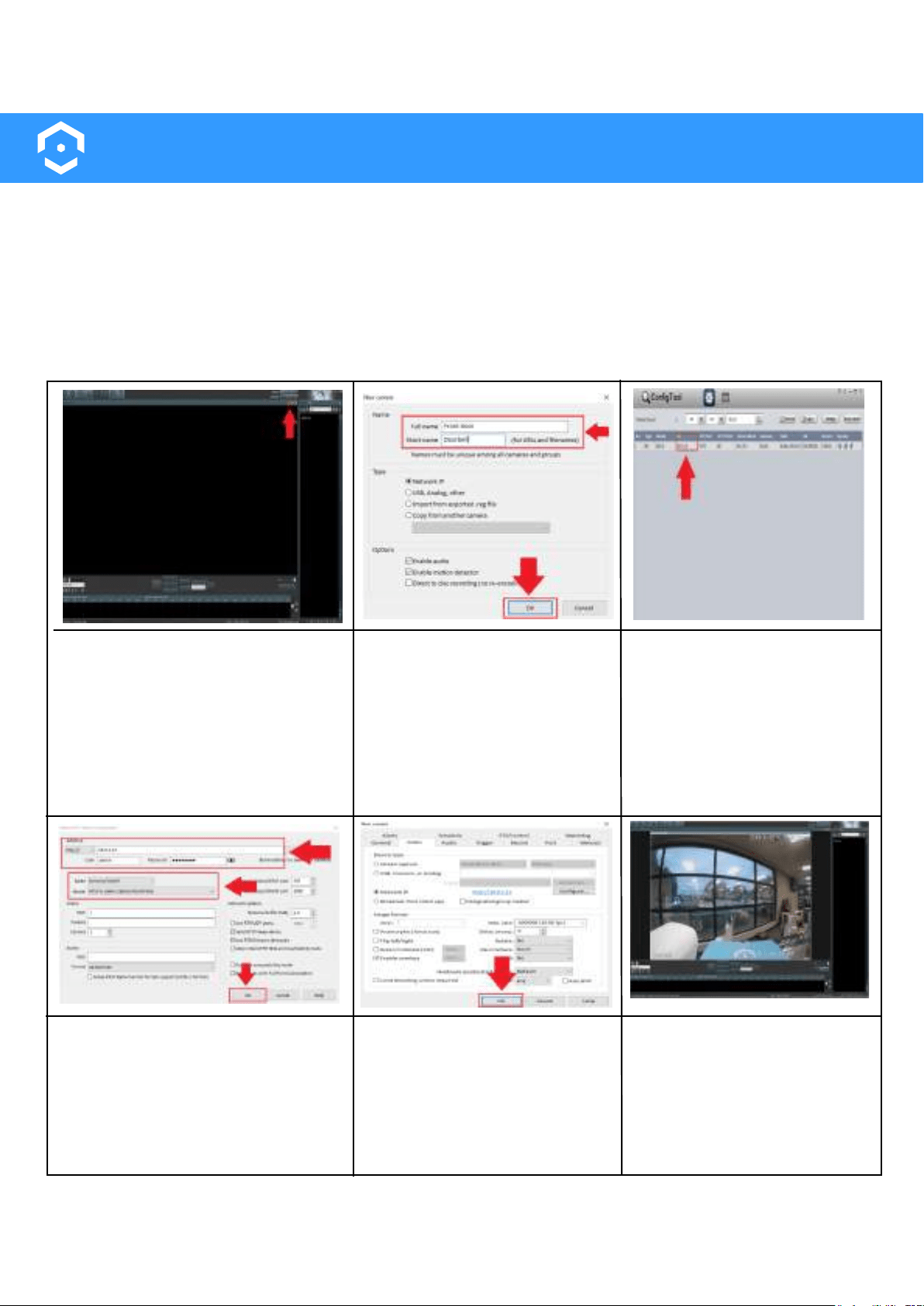
Adding to Blue Iris
Amcrest Smart Home devices such as the ASH42 camera can connect the Amcrest Smart Home app as
well as to Blue Iris. This is possible by obtaining the IP address of your device from your network and
adding it directly to the software.
The device must be set up first using the Amcrest Smart Home app before adding it into any additional
software. Please note: The device and the computer you are using must be on the same network during
setup. For more information on how to setup your device to Blue Iris, please refer to the information
provided below.
Open the Blue Iris Software and
click on the ( + ) icon to add a
camera.
Enter a Full name and Short
name for your device. Make
sure to also click on the "Enable
audio" check box to enable
audio.
Use the Amcrest IP Config
tool to locate the IP address
for your device from the
network.
To download the Amcrest IP
config tool, please go to
amcrest.com/downloads
Enter the IP Address for your
camera in the Address field of the
Network IP camera configuration
menu. Enter the username and
password as well you setup for
your device in the Amcrest Smart
Home app. Click OK.
Note: Leave the Make as Generic/ONVIF and the Model as RTSP H.264/H.265/MJPG/MPEG4.
Click OK.
Your device is now ready to
be viewed in the Blue Iris
software.
39
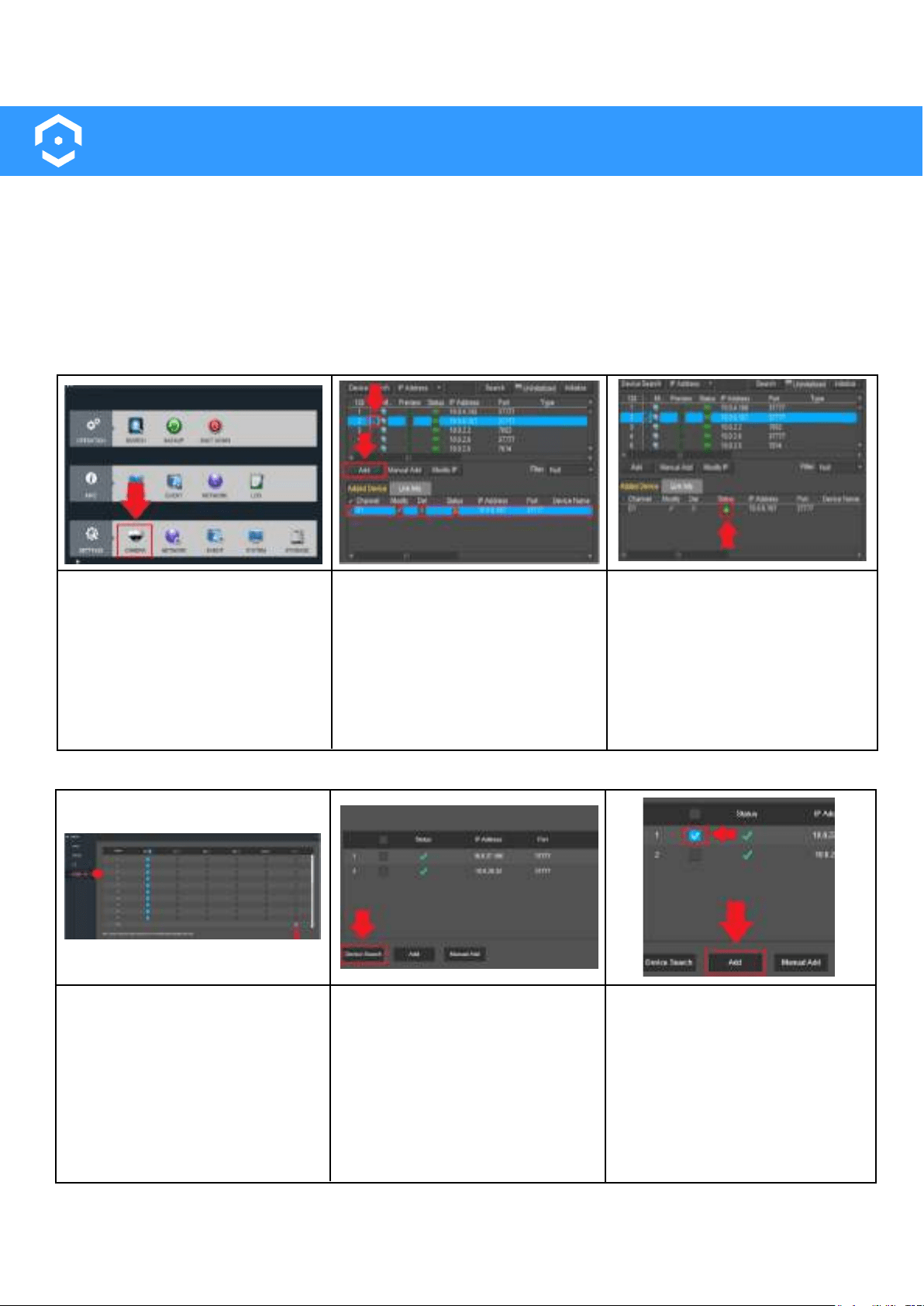
Adding to Amcrest NVR/DVR
Most Amcrest Smart Home devices, excluding Smart Home battery cameras, can connect to both an
Amcrest DVR and Amcrest NVR. This is possible by obtaining the IP address of your device from your
network and adding it directly into your DVR or NVR. The DVR or NVR must be connected to the
same network as the Amcrest Smart Home device for this to work.
The device you are adding must be added to the Amcrest Smart Home app first before adding it to
your device.
Adding to An Amcrest NVR
Log into your Amcrest NVR and
click on Camera. Then, click on
Device Search to locate the IP
address for your device that
should be connected to the
same network as your NVR.
A list of all connected devices
will appear. Select the device
from the list by clicking on the
checkbox next to the device.
Click Add to add the device into
the Added Devices menu.
The status of the device should
be green indicating the device
has been successfully added. If
it is red, click on Modify and
ensure the password for the
device is correct. When it has
been added, the device will be
ready to view on your NVR.
Adding to An Amcrest DVR
Log into your Amcrest DVR and
click on Camera located under
Management. Click on Channel
Type in the camera menu and
check the IP field. Please note,
you can mix and match analog
and IP channels if needed. Click
Save and allow the DVR to
reset
Note: You can only select channels from the bottom up in the IP field and can be switched back
to Auto from the top down in the Auto field.
Log back into your DVR and
navigate back to the Camera
menu. Click on Registration to
access the registration menu
and click on Device Search.
Locate and click on the device
you are adding to your DVR.
Click Add to add the device to
the DVR. If the status is red, click
on Edit and ensure the pass-
word for the device is correct.
When it has been added, the
device will be ready to view on
your DVR.
40
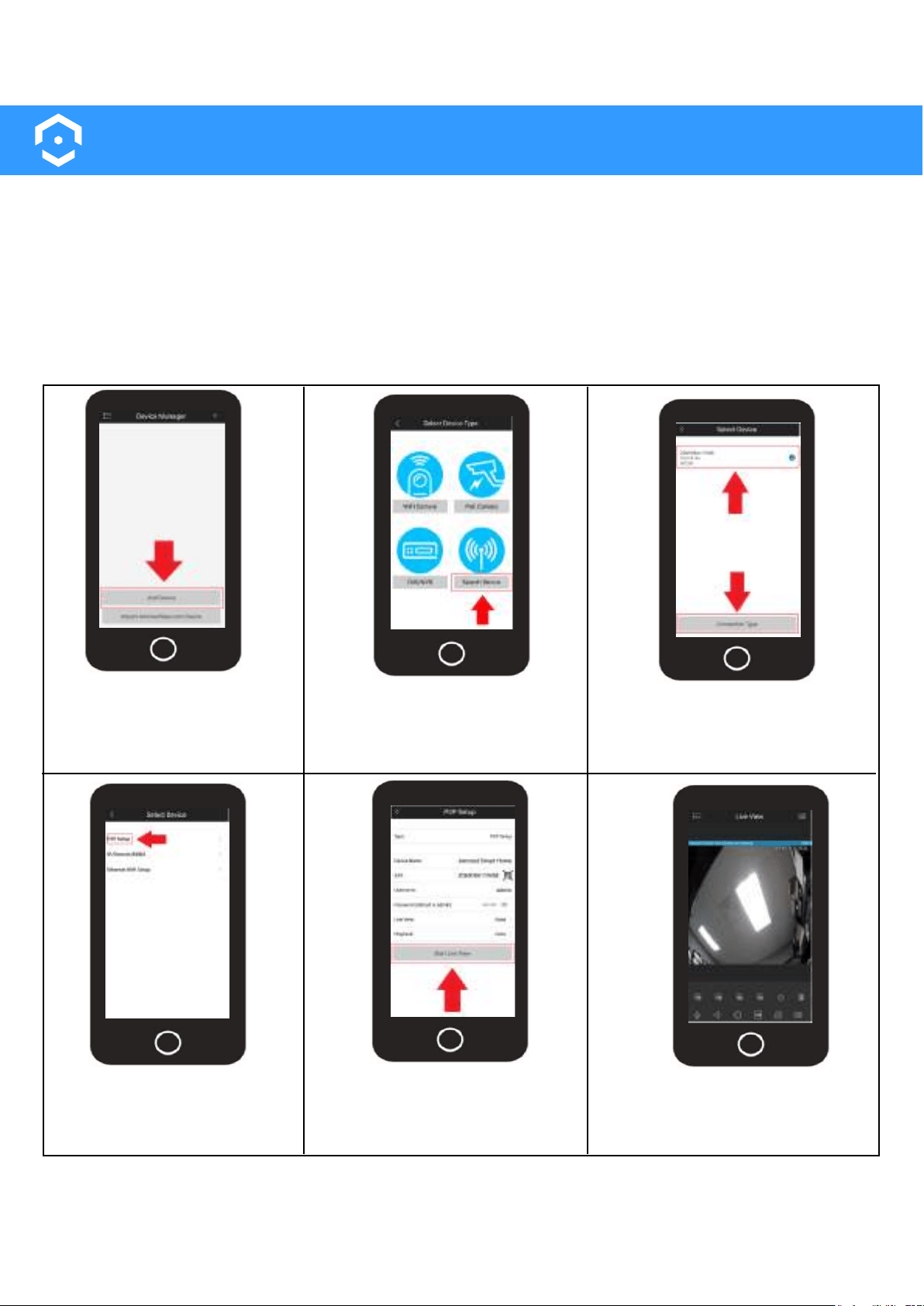
Adding to Amcrest View Pro
Amcrest Smart Home devices such as the ASH42 are capable of connecting to both the Amcrest Smart
Home app as well as the Amcrest View Pro app.
However, since Amcrest Smart Home devices function primarily on a cloud based platform setting up an
Amcrest Smart Home device to the Amcrest View Pro app will result in only live view being available and
must be set up first using the Amcrest Smart Home app. If you would like to view your Amcrest Smart
Home devices using the Amcrest View Pro app, please refer to the information provided below.
Adding to Amcrest View Pro
Tap on the Settings menu
and select Device Manager.
Tap on Add Device.
Tap on Search Device.
Select your Amcrest Smart Home
device from the Device List. Tap
on Connection Type.
Enter a name for your device
and the password. Tap “Start
Live View”.
Tap on P2P.
Your Amcrest Smart Home
device has now been added
to your Amcrest View Pro app.
Note: Live view features such as, microphone, speaker, etc will be available in the Amcrest View
Pro app. Other features such as playback, configuration, etc will not be available. To access
and use these settings, please use the Amcrest Smart Home app.
41
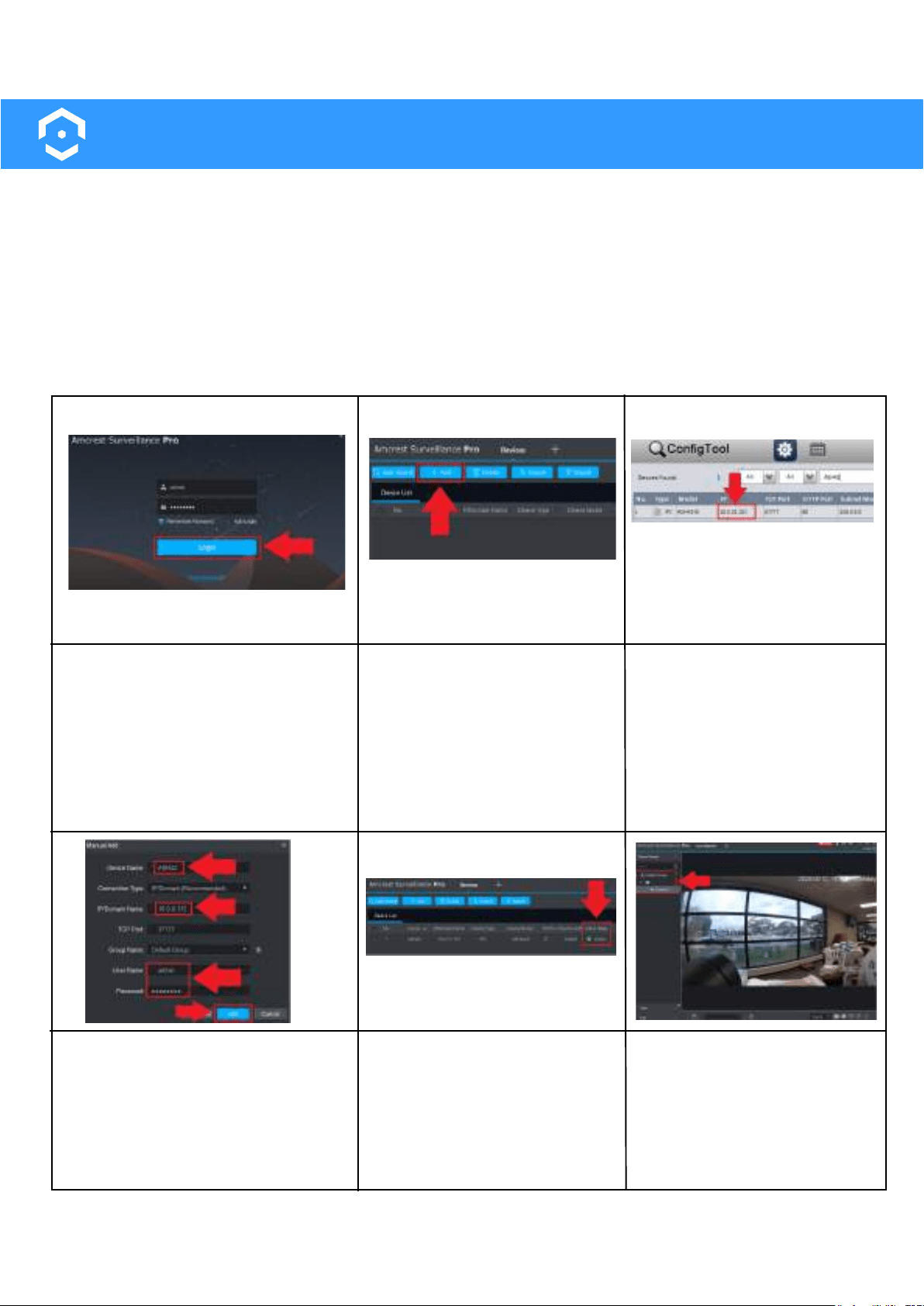
Adding to Amcrest Surveillance Pro
Amcrest Smart Home devices, such as the ASH42 camera, can be added into Amcrest Surveillance Pro
software. Amcrest Surveillance Pro is a free software, provided by Amcrest, which allows you to access all
your Amcrest devices in one central location on your PC or Mac computer. For more information on how
to download this free software please visit: amcrest.com/downloads
The device must be set up first using the Amcrest Smart Home app before adding it to any additional
software. The camera and the computer you are using must be on the same network during setup. For
more information on adding your camera into Amcrest Surveillance Pro, please refer to the information
provided below.
Open and log into your Amcrest
Surveillance Pro software.
Click on the Add button to
begin adding your device.
Use the Amcrest IP Config
tool to locate the IP address
for your device from the
network.
To download the Amcrest IP
config tool, please go to
amcrest.com/downloads
Enter a name for your camera and
use the IP/Domain protocol. Enter
the IP address then enter the
username and password for your
camera. Click OK to continue.
The status of the device will be
displayed as green in the
status menu.
Navigate to the Live View
option and locate the newly
added device in the
assigned Group menu.
Double click the camera to
view the live feed.
42
Unable to Locate an SSID?
If you are having issues obtaining an SSID when adding your device into the Amcrest Smart Home app
there may be a miscommunication happening between the app and your mobile device. This appears to
be a more common situation among iOS users and we are currently working with Apple to device a
solution. There is an easy fix you can use to resolve the issue. For more information on how to resolve this
issue, please refer to the information provided below.
If the SSID for your Wi-Fi network is not pulling up in the app when attempting to add your Amcrest
Smart Home device, close the app completely then power your mobile device off and back on again
allowing it to restart.
Once your mobile device has finished restarting, ensure your mobile device is connected to the proper
Wi-Fi network, open the Amcrest Smart Home app and continue to add your device as normal. The SSID
for your network should populate allowing you to complete the setup process.
How Do I Verify/Update Firmware?
All firmware verification and updates will be available using the Amcrest Smart Home app. For more infor-
mation on how to verify/update the firmware for your camera, please refer to the information provided
below.
• Log into your Amcrest Smart Home account and select your device from the Devices menu.
• Once you are logged in, tap on the settings ( ) icon.
• In the settings menu, locate the "Firmware Update" tab. If a firmware update is necessary there will be
a red indication identifier prompting you that a firmware upgrade is ready. If there is not a red dot, you
are operating on the most up to date firmware.
Note: If you need to update the firmware, tap on the "Firmware Update" tab to proceed with the update.
• In the firmware update menu, you will notice the current version of firmware that is on your camera, and
the latest firmware file that will be downloaded to your camera. To proceed with the update, please click
on "Update".
• You will then be promoted to upgrade the firmware. Tap Cloud Upgrade to begin. If you wish to cancel to
process tap Cancel.
• The firmware file will begin to download from that point. Please wait for the download and upload of the
file to complete its processes. Once the process is complete, there see a prompt letting you know that the
firmware has successfully updated, and the current version is now updated on your device.
How Do I Download Recordings?
Due to the current capabilities of the app recordings can only be downloaded via the Cloud Recordings
download interface. All recordings retained on a microSD card will have to be downloaded via a microSD
card adapter (sold separately) on a computer. For more information on downloading cloud recordings,
please refer to the information below.
• Log into your Amcrest Smart Home account and select your device from the Devices menu.
• Tap on Cloud Recordings.
• Tap on the File List icon located in the Cloud playback interface.
• Select the recording you wish to download from the file list.
• Tap the download icon to download the recording.
• The recording will begin to download to your smartphone. A blue check mark will appear next to the
download icon once the recording has finished downloading. You can also share your recordings directly
to other services on your smartphone via the share icon located in the middle of the download menu.
Troubleshooting