1
Versarray™ Pro 112
Powered Enclosure
Product Specifications
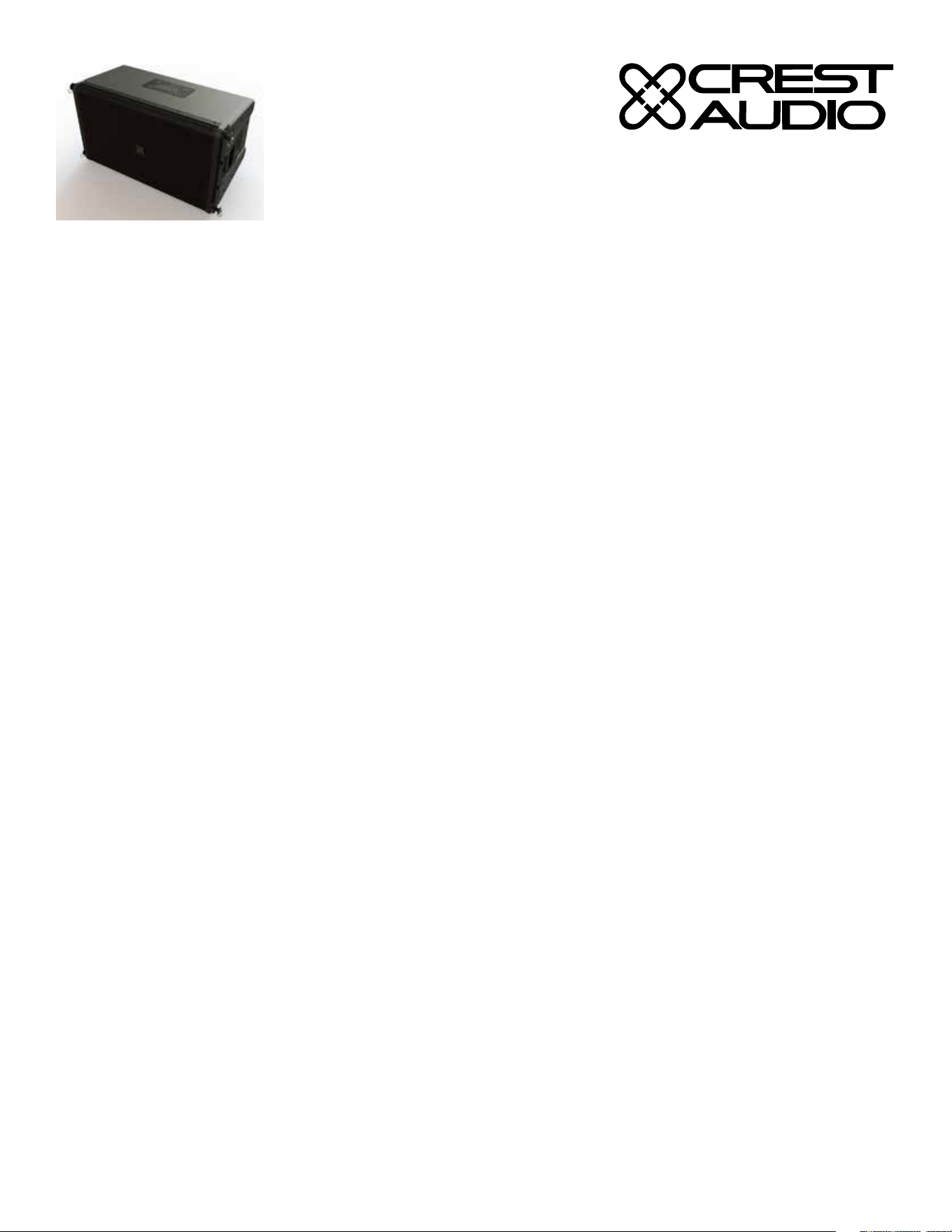
e Crest Audio® Versarray™ Pro 112 Powered Ribbon Tweeter Line Source Array speaker system consists of a 12” Neo Black Widow®
woofer combined with a Neodymium based Peavey RD™ 2.6 MK III ribbon tweeter in a cabinet with a simple, quick, yet exible rigging
system. Designed to provide modular coverage of small to medium venues, and intended for use with the companion Crest Audio®
Versarray™ Pro Sub models, the Versarray™ Pro 112 oers excellent versatility with a very high performance capability. e two-way
system consists of the following driver components: a Peavey® 12” Black Widow ® Neo series woofer with Neodymium magnet struc-
ture. Capable of over 500W of continuous power handling (AES Std 2-1984), the woofer can handle a lot of sheer power. e high
frequencies are handled by two Peavey® RD™ 2.6 MK III ribbon tweeters utilizing a composite sandwich ribbon, a Neodymium magnet
system, and a low distortion CLEAR FORM™ waveguide.
Power for bi-amping is supplied by some very ecient power amplier systems, controlled by a sophisticated and rened DSP opera-
tions system with Dante connection capability. Total system power is 3400W total peak power, with 2000W peak power for the woofer,
and 1400W total peak power for the two ribbon tweeters. is sheer power is controlled precisely and processed by a high performance
DSP system, which provides all the crossover and EQ functions, as well as providing all limiting, compression and driver protection du-
ties with unfailing attention to every detail of the music.
A unique set of control buttons on the rear panel allow analog signal input and use without the need for a network controller, by setting
the system for typical use situations via push-button. is feature allows the use of the system without the requirement for a full-blown
digital networking controller or system.
e FlyQWIK™ adjustable rigging system provides for a classic straight line-array conguration, or a number of dierent angling op-
tions, providing easy aiming of the system. Angles between the array modules is adjustable from 0 degrees (straight), to 15 degrees in
2.5 degree increments. Flying and adjusting the coverage angles is all very quick and simple with the new FlyQWIK™ system.
Quick release push-lock pins are supplied with the rigging hardware to couple the Versarray™ Pro 112 modules together and lock the
angles between them into place, as well as for the rigging halo and y bar congurations of a line array. e exibility of the Versarray
system allows the use of anywhere from 1 to 10 Versarray™ Pro 112 modules in conjunction with anything from one Versarray 218 Pro
Sub to as many Versarray 218 or 215 Pro Subs as you can! An optional special groundstack bracket set mounts to the Versarray 218 Pro
Sub, and allows up to three of the Versarray™ Pro 112’s to be mounted on top of the Versarray 218 Pro Sub, and angled upward, for use
on stage in a stadium seating situation.
Features
• 2-way Bi-Amp Ribbon Line Source Array SR System
• 3400 Total Peak watts of system power
• 12” Neo Black Widow® 4” VC Peavey® Woofer
• Exclusive RD™ 2.6 MK III Ribbon Tweeters with Neo magnet and composite material sandwich ribbon
• Ribbon Tweeters mounted to our proprietary CLEAR FORM™ Waveguide
• 90 H by 15 V degree coverage pattern (per one cabinet)
• Modular Line Array System™ for ease of vertical coverage conguration
• MLAS™ EQ Presets provide professional results quickly
• Easy aiming FlyQWIK™ hardware rigging system
• Angle adjustable in 2 1/2 degree increments, from 0 to 15 degrees total angle between adjacent cabinets
• Full complement of DSP based limiting and compression to protect the drivers from overdrive conditions
• Fan cooled for maximum reliability
• Inputs are analog XLR in and/or Dante Ethernet audio network in.
• Analog Output ru connector is a male XLR
• Analog signal input use without the need for a digital network controller, via the use of rear panel push-button set-up.
• 18 mm 13 ply Baltic Birch enclosure with steel inner brackets
• Injection molded cabinet end caps, made from high impact material.
• Hammerhead™ polyurea black nish and black powder-coated cloth lined grilles

2
Frequency Response, 1 meter on-axis,
swept-sine in anechoic environment: 100
Hz to 20 kHz (±3 dB, with processing)
Usable Low Frequency limit (-10 dB
point): 85 Hz (with processing)
Power Amplifier Output:
3400 Total Peak watts* for the system
2000 Peak watts* for woofer
1400 Peak total watts* for tweeters
1700 Total watts* sine wave
1000 watts* sine wave for woofer
700 total watts* sine wave for tweeters
*Output duration is limiter controlled
Sound Pressure Level, 1 Watt, 1 meter in
anechoic environment:
Low Frequency Section: 97 dB SPL,
(2.83 V input)
High Frequency Section: 101 dB SPL,
(2.0 V for 4 ohm load)
Maximum Sound Pressure Level (1
meter) * :
Low Frequency Section: 127 dB SPL
continuous, 130 dB SPL peak
High Frequency Section: 128 dB SPL
continuous, 131 dB SPL peak
*Note: This spec is for one cabinet at 1
meter, a line array of 6 units has much
higher output at distance due to line
source effect where SPL falls off at 3 dB
per distance doubling rather than 6 dB.
Nominal Radiation Angle measured at
-6 dB point of polar response:
90 degrees Horizontal by 15 degrees
Vertical (One cabinet only, straight line
array of more than 1 cabinet narrows
vertical dispersion accordingly)
Transducer Complement:
Low Frequency Section: 1x 12 in.
Woofer, 1244 Neo Black Widow® 4” VC
Peavey® Woofer, in a sealed box
High Frequency Section: 2x 4.75
in. Ribbon Tweeters, Two RD™ 2.6
Mk III Peavey® Ribbon Tweeters, on a
waveguide
Transducer Nominal Power Handling:
Low Frequency Section: 500 W
continuous; 1,000 W program; 2,000 W
peak
High Frequency Section: 120 W
continuous; 240 W program; 480 W
peak
Box Tuning Frequency (Sealed): Low
Frequency Section: 88 Hz
Electroacoustic Crossover Point, Sub –
Low Frequency: 125 Hz at 24 dB/octave
Low Frequency – High Frequency: 1950
Hz at 24 dB/octave
Transducer Impedance (Z):
Low Frequency Nominal: 8 ohms
High Frequency Nominal: 4 ohms
Signal Input Connections: Analog XLR
in and/or Dante Ethernet audio network
in.
Enclosure Materials & Finish: 18 mm
13 ply Baltic Birch plywood finished in
a tough Hammerhead™ polyurea black
finish, with injection molded end caps
and horn, with a perforated steel grille
finished in black powder coat paint and
a cloth liner inside.
Inner steel frame and backing plates for
rigging hardware.
Mounting provisions: Custom array
brackets and hardware, and a custom
array angle adjustment system are
included with each module. Quick
release push-lock rigging pins are
included with each cabinet.
Flown Rigging Halo sold seperately.
Dimensions (H x W x D):
Front: 15.13 in. x 25.06 in. x 15.19 in.
384 mm x 637 mm x 386 mm
With Rigging hardware and Pins: 15.13
in. x 27.13 in. x 16.75 in.
321 mm x 689 mm x 426 mm
Net Weight: 75 Lbs. (34.1 kg) {includes
all cabinet associated rigging hardware
for each cabinet, including quick-loc
pins, etc}
Companion Subwoofers (sold
separately): Crest Audio® Versarray™
215 Pro Powered Sub with double 15”
LowRider™ Peavey® woofers subwoofer,
Crest Audio® Versarray 218 Pro Powered
Sub with double 18” LowRider™ Peavey®
woofers subwoofer.
Flying/Rigging Options:
Crest Audio® Versarray™ Mk III HALO
Crest Audio® Versarray™ Mk III FLY
BAR, 6FT LENGTH
Crest Audio® Versarray™ Mk III SUB
SUPPORT FRAME
Crest Audio® Versarray™ Mk III FLY
BAR, 2FT LENGTH
Additional Power Amp Specifications
THD: Typically less than 0.1%
DSP Section Specifications:
Sampling frequency: 96 kHz
Bit Depth: 24 bits for ADC/DAC
Latency: 3.6 ms typical
Rear Panel Controls and
Connections
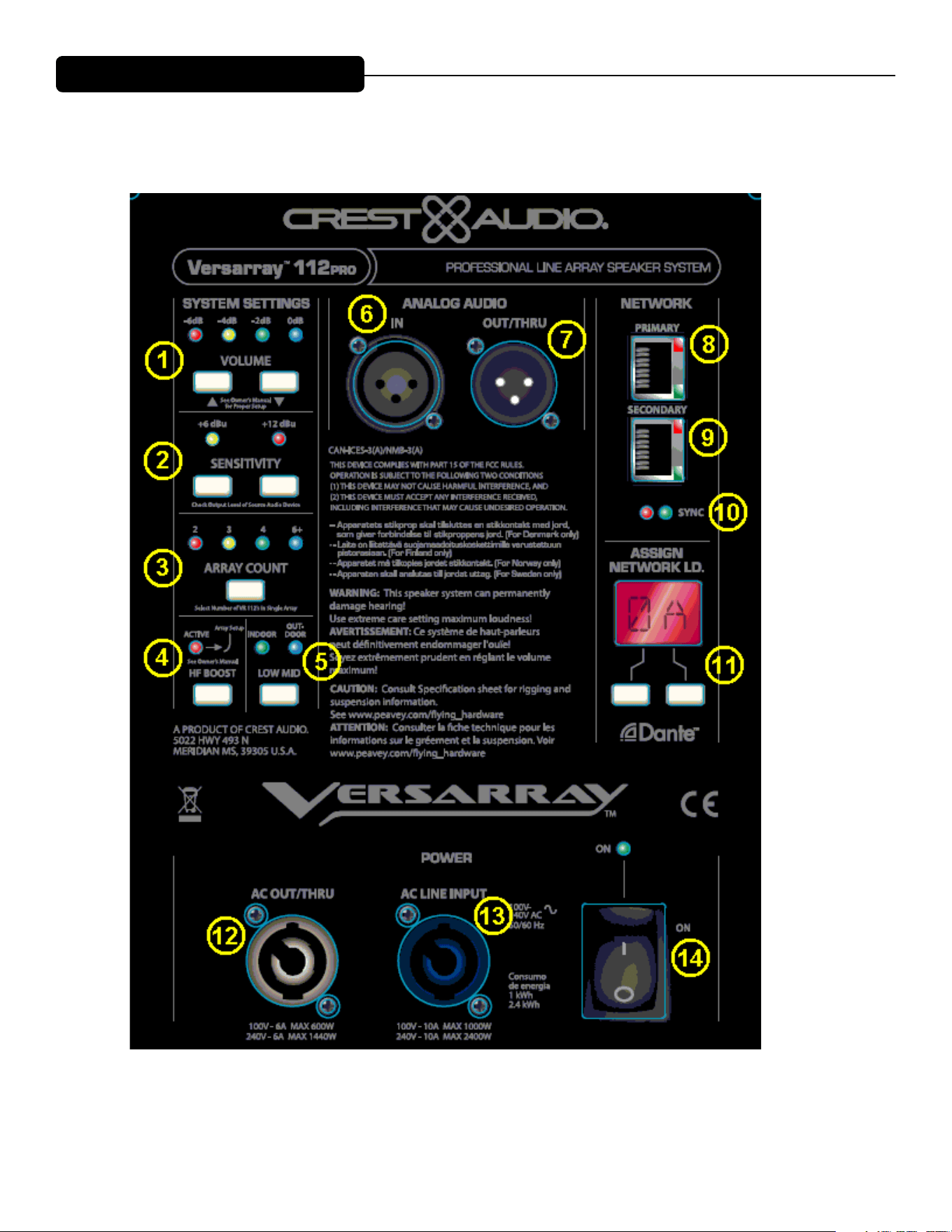
System Settings Group
Volume Buttons
0 dB to -6 dB in 2 dB increments,
controlled by Up and Down buttons.
Status LED’s indicate which gain level is
currently in effect.
Sensitivity Buttons
Select either +12 dBu or +6 dBu input
sensitivity
Status LED’s indicate which gain level is
currently in effect.
Array Count Button
One button cycles through array count
of 2, 3, 4 or 6+
Status LED’s indicate what number is
currently active
HF Boost Button
Engages or Disengages a set amount of
High Frequency Boost
Status LED indicates if boost is active
or not.
Low Mid Button
Toggles between Indoor and Outdoor
settings.
Status LED’s indicate which mode is
active.
Audio Group
Female XLR input jack, Male XLR
Output/Thru jack
Network Group
Primary Ethernet IN, RJ45 jack
Secondary Ethernet in/out, RJ45 jack
Both have LED indication of
network activity, built into the jack body.
Separate red and green SYNC LED’s
indicate if the unit is syncd with the
control interface or not.
Assign Network I.D. Buttons
Two push buttons to change the
network ID of the unit.
Two digit hexadecimal number ID
possible (255 different ID’s)
Power Group
Neutrik® powerCON® TRUE1 TOP,
appliance inlet connector
Neutrik® PowerCON®TRUE1 TOP,
appliance outlet connector
ON/OFF Power Switch
SPECIFICATIONS Versarray
™
PRO 112
3
Rear Panel Display
4
System Settings Group
(1) Volume Buttons
ese two buttons are used to change the input signal gain from -6 dB to 0 dB in 2 dB increments, controlled by
Up and Down buttons. e status LED’s will indicate which gain level is selected.
(2) Sensitivity Buttons
e module input sensitivity can be changed using these two buttons. Either +12 dBu or +6 dBu input sensitivity
can be selected, the status LED’s will indicate which gain level is currently in eect.
(3) Array Count Button
is button can be used to select the array count of 2, 3, 4 or 6+ boxes. Changing the number of boxes automati-
cally adjusts the EQ to account for the changes in high frequency response of the array. e status LED’s indicate
the number of boxes selected.
(4) HF Boost Button
e HF boost button can be toggled on and o to either apply or remove a set amount of high frequency boost to
the array. You may want to add this boost when the array is curved more than just a little. e status LED will be
lit when the boost is being applied to the array.
(5) Low Mid Button
e Low Mid button can be used to toggle between Indoor and Outdoor settings. e status LED will indicate
the mode that is selected.
Analog Audio Group
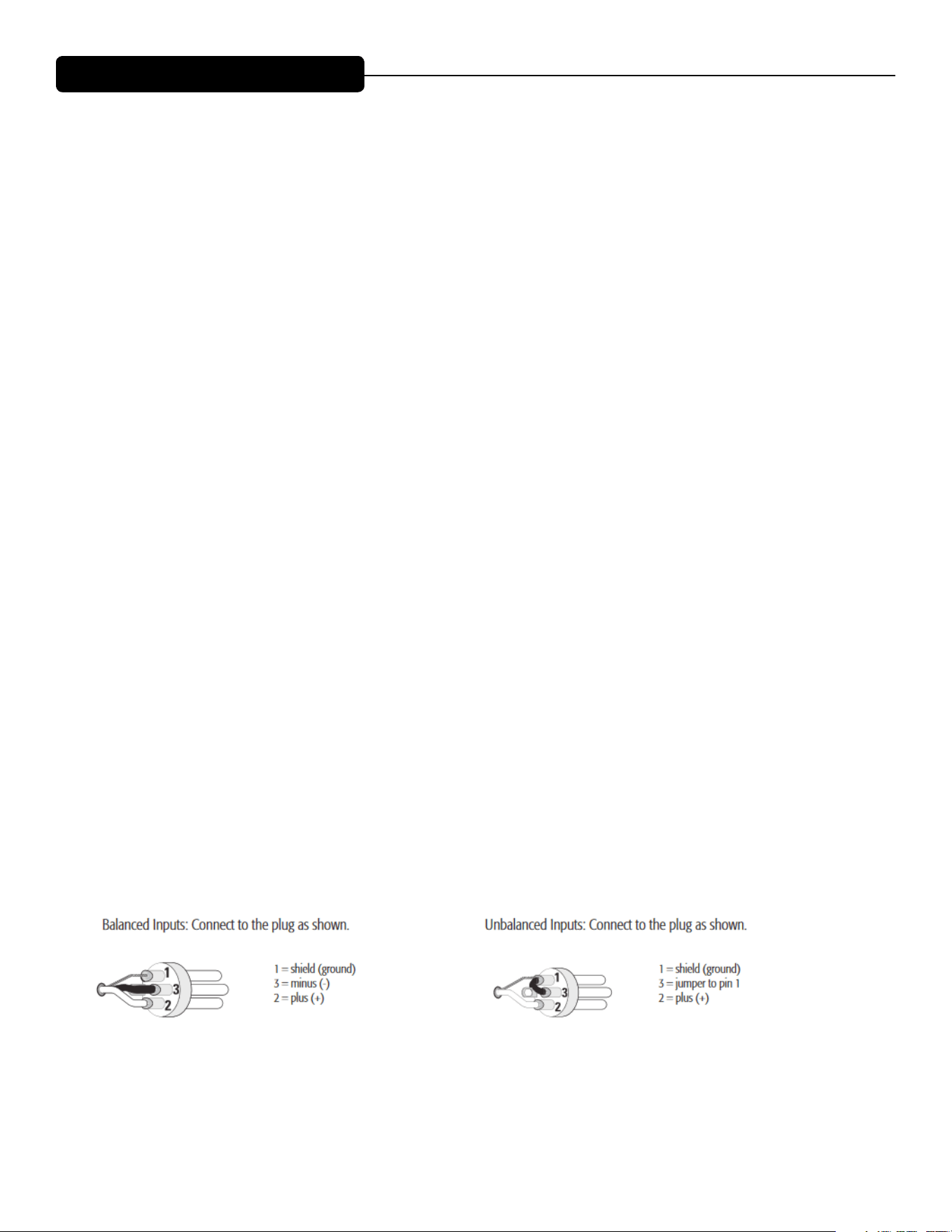
(6) IN
e audio input consists of a balanced female XLR input jack. e input signal should be a line level signal of
sucient level to drive the speaker system to its maximum levels. e connector is wired as follows; Pin 1 =
Ground, Pin 2 = + signal, Pin 3 = - signal
(7) OUT/THRU
e output/thru jack is a balanced male XLR jack wired in parallel with the analog line input jack (6). e con-
nector is wired as follows; Pin 1 = Ground, Pin 2 = + signal, Pin 3 = - signal
Rear Panel Display
5
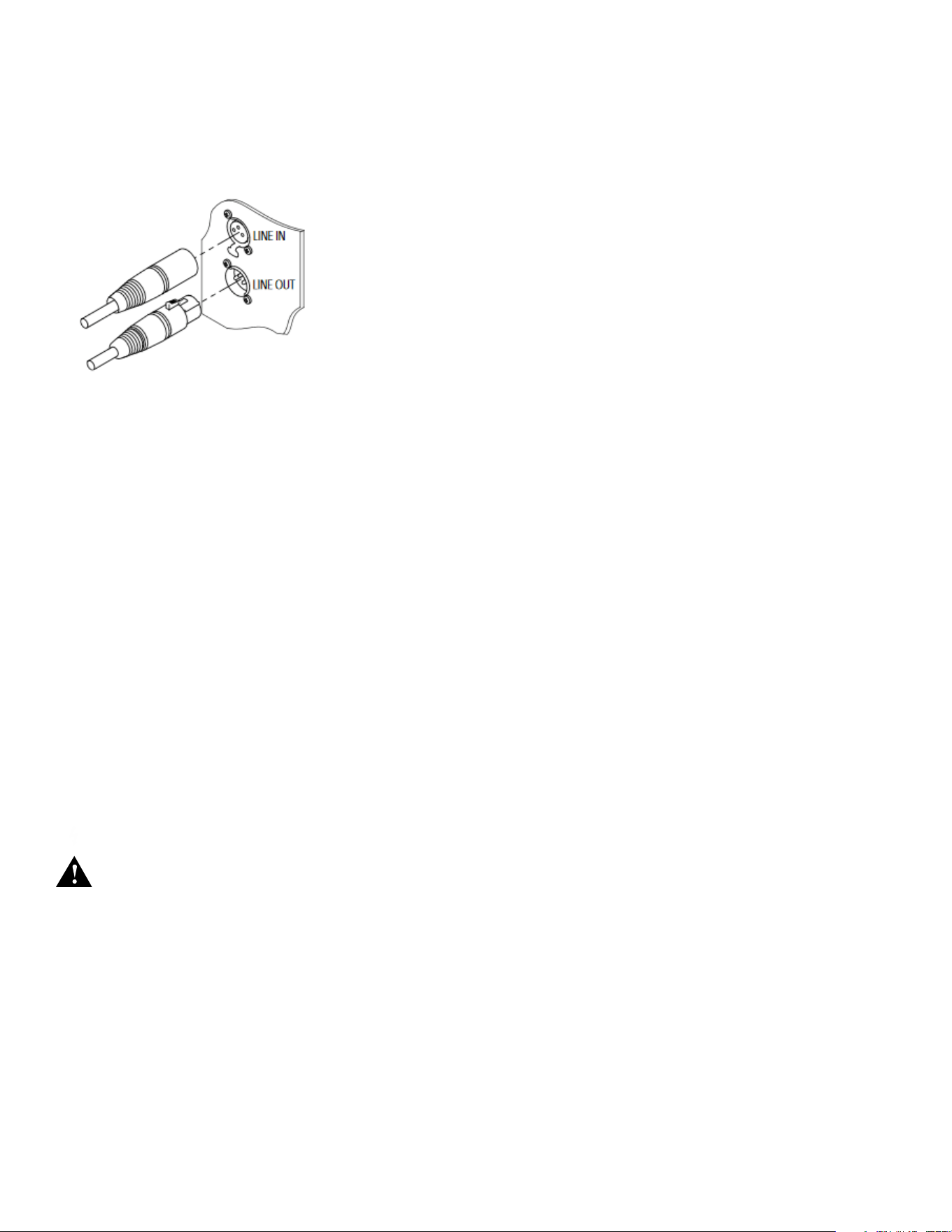
Making Audio Connections
When using a single box, only the XLR input will be used. As additional boxes are added, the signal can easily be
daisy-chained from the rst box’s output/thru jack to the next boxes input connector. is can be repeated for up
to 10 Versarray™ Pro series boxes, with a typical high quality mixer output.
Network Group
(8) Primary Ethernet IN, RJ45 jack
(9) Secondary Ethernet in/out, RJ45 jack
(10) LED
Both network jacks have LED indication of network activity, built into the jack body. Separate red and green
SYNC LED’s indicate if the unit is sync’d with the control interface or not.
ese provide Dante network connectivity, and allow use of a custom DSP GUI to control all of the allowed vari-
able parameters of the speaker system. Connection is via high performance Ethernet cables. (See Dante Opera-
tion pgs 6-7)
(11)Assign Network I.D. Buttons
e module’s network ID is displayed on the two digit, 7-segment display. e two push buttons below the dis-
play are used to change the network assignment of the module. Pushing the le button increments the le digit 0
- F, while pushing the right button increments the right digit 0 - F. Push the buttons until the desired assignment
is displayed. ere are up to 255 dierent ID’s (two digit hex number ID) available.
Power Group
NOTE: e VR112 has an universal power supply, it will work with AC power voltages ranging from 100V
to 240VAC at 50/60Hz. Use the proper power cable for your voltage and location.
(12) AC OUT/THRU
e AC power Out/ru connector is a Neutrik® powerCON TRUE1 TOP premium quality output connector.
Using the supplied 3 foot jumper cable, the power can be daisy-chained to power 1 additional box (100V-120V)
and up to 3 additional boxes (220V - 240V). is can be achieved by connecting the male end of the jumper
cable to the female AC Out/ru connector (12) on the back of the rst speaker. Once this connection is made,
the female end of the jumper cable can be connected to the AC Power Line Input (13) connector on the second
box. e AC power Out/ru connector is not controlled by the On/O Power Switch (14), if power has been
supplied to the AC Power Input (13), then the AC Power Out/ru connector (12) will have power available.
(13) AC LINE INPUT
e AC power inlet is connected via a Neutrik® powerCON TRUE1 TOP connector. is premium quality AC
inlet connector is a locking mains connector for professional equipment. e connection is made by rmly in-
With more than 10 cabinets in a network, use
another home run of analog cable to a second
group of cabinets, using a second output channel.
Another 9 cabinets in the network can be daisy-
chained from that cabinet.
6
Dante Operation
e Dante interface allows digital audio to be used as the input source and can be selected in the VR-Pro Series
control application. e transmit and receive routings for all connected Dante devices are set using Dante Con-
troller soware. e VR-Pro system does not transmit and only receives digital audio.
e Dante interface on the VR is 1000 BT Ethernet, requiring standard Category 5e or Cat 6 wiring. It has an
internal network switch to allow daisy chaining to another unit. Too many switches in the path will cause latency
problems, so it is best to use a multi-port gigabit network switch to feed the units. (For more information on the
Dante network speed and switch requirements, go to www.Audinate.com).
Dante Controller is the soware program that is essential for conguring your network and is available as a free
download at the Audinate web site. Dante Controller is used to route signals between devices on the network
and change device settings. ese are then stored in the Dante devices. Once congured, the transmitting de-
vice sends to the receiving device, which in this case is the VR-Pro. e interface supports sample rates of 48 kHz
(Default), and 96 kHz.
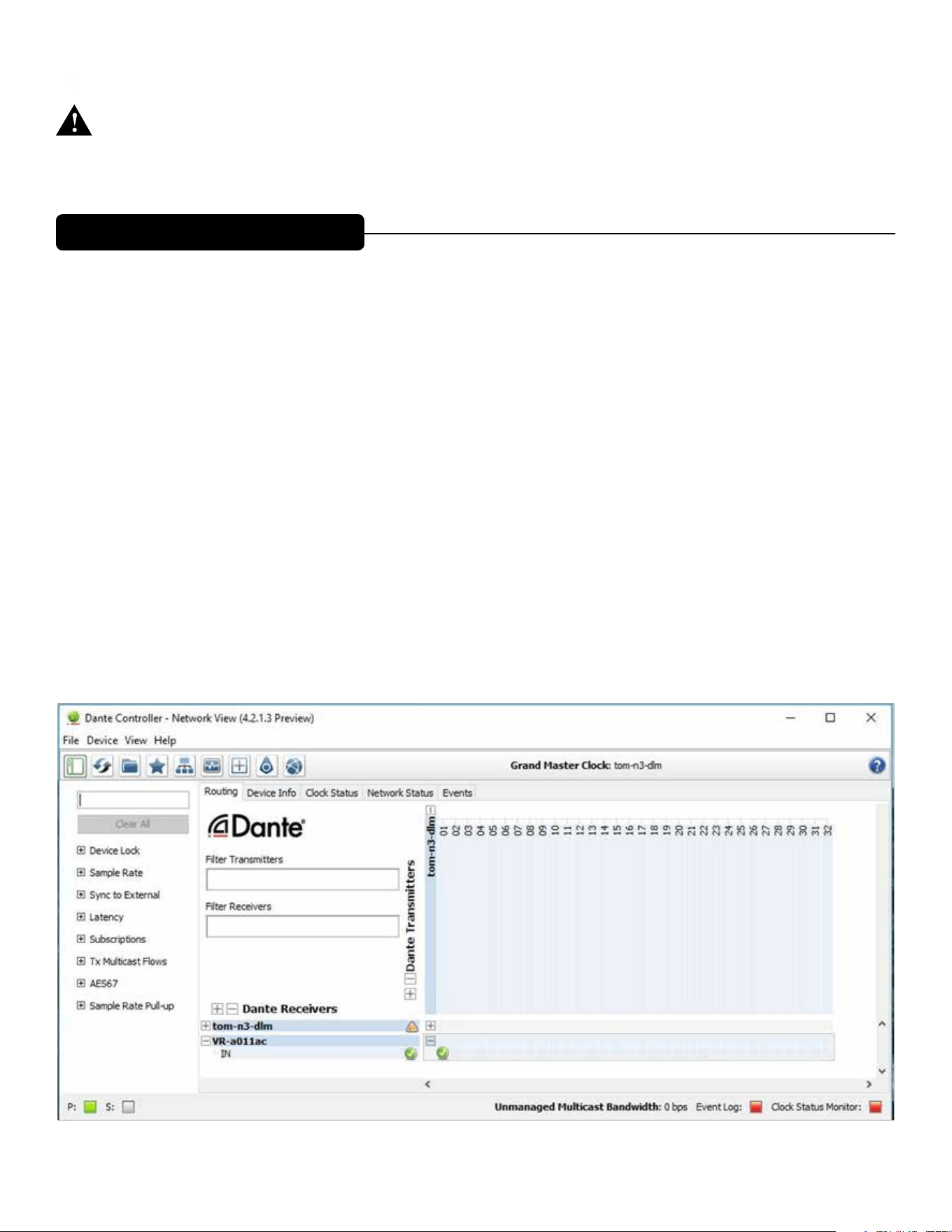
Below is an example of a Dante network. Digital audio is routed from a Nion to the VR-Pro. e vertical col-
umns are transmitter channels, the horizontal rows are receiver channels. In this example Nion channel 01 is
sending to VR-Pro receive IN. Any transmit channel on any device can send to a receive channel on any device
as long as it is not to itself. Multiple receivers can be connected to a single transmitter. All devices on the net-
work must have the same sample rate settings.
*Tom-n3-dlm is a Media Matrix Nion N3, VR-a011ac is the VR-Pro speaker.
serting and twisting the mating connector on the AC line cord.
(14) ON/OFF POWER SWITCH with BLUE LED
is rocker switch supplies AC power to the VRPro 112 when switched to the ON position. e ON position is
with the top side of the switch pushed “in” or nearly ush with the rear panel. Once the switch is in the ON posi-
tion, the blue power LED will illuminate.
7
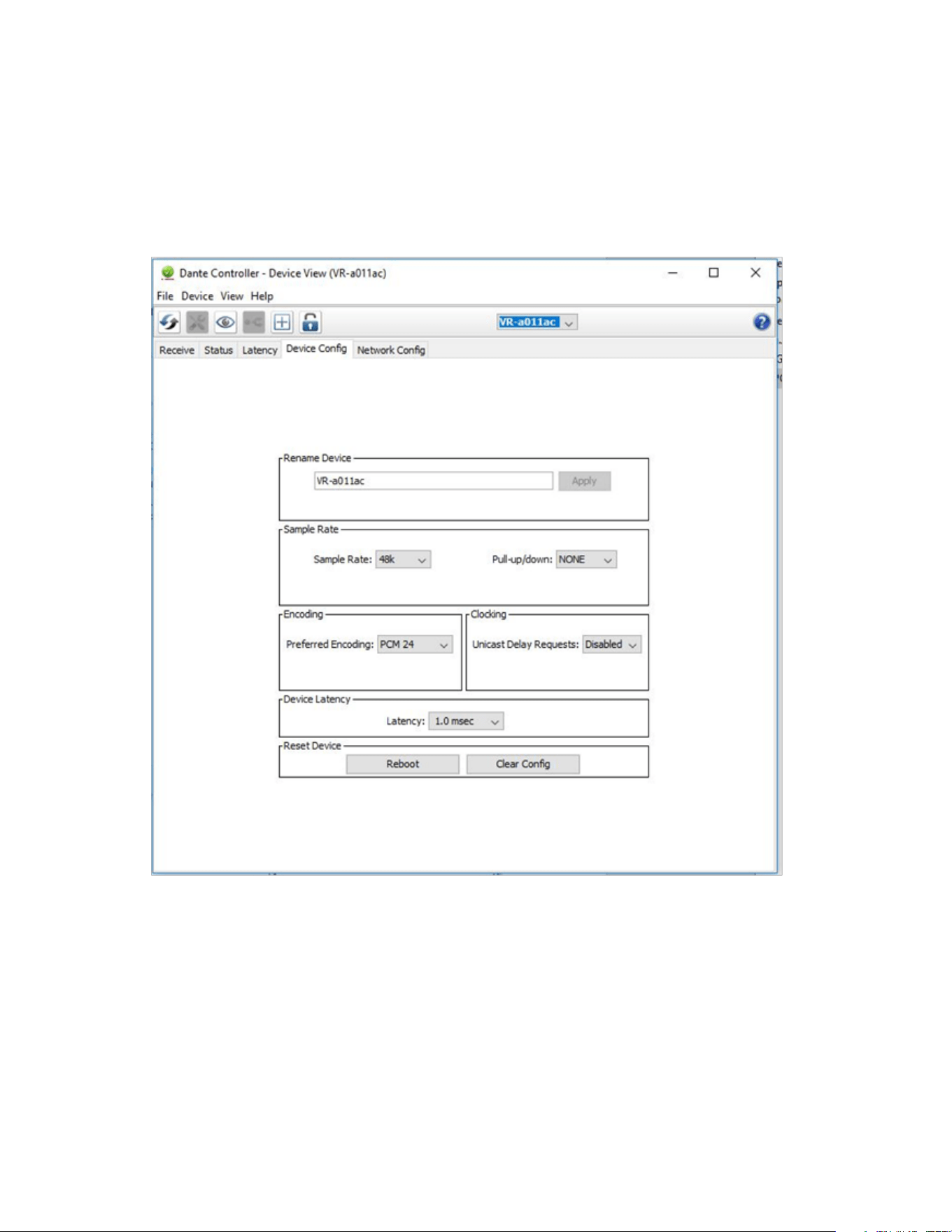
To name a device, go to the Device menu pull down and select Device View (or Ctrl+ D). Here is where you
select the Dante device you are interested in editing. is is where information about this device is found. e
Device Cong tab will give you access to settings that can be changed, including the name and sample rate.
Note: Crest Audio® can not provide all the necessary information and data to operate and interface Dante® with
the Versarray™Pro 112 system in this Owner’s Manual.
Please visit www.Audinate.com for the detailed information needed. Primers, FAQ’s and other basic information
on the details of the Dante® audio networking system are available.
8
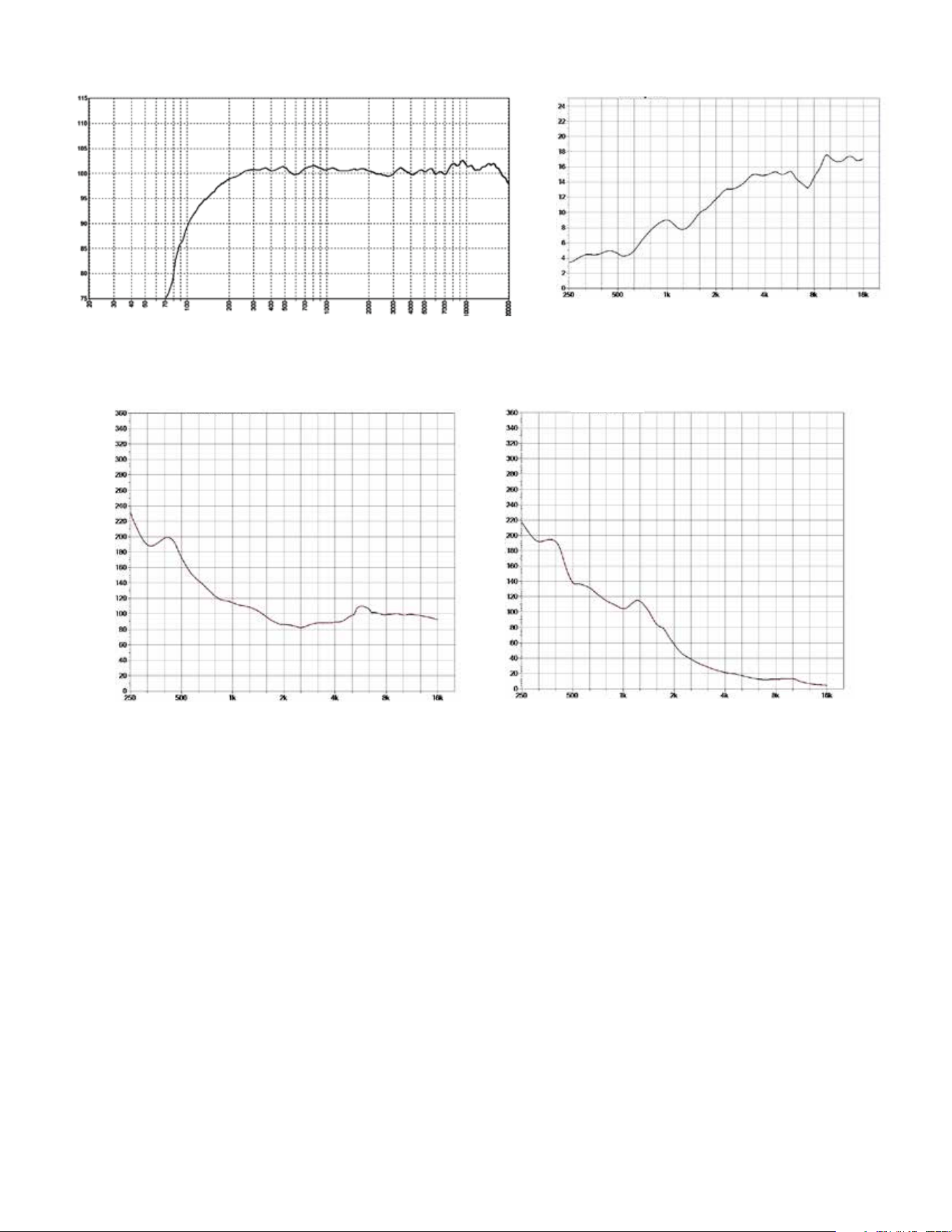
Figure B Directivity Index
Frequency [Hz]
Level [dB]
Figure C Horizontal Beam Width
Frequency [Hz]
Angle Degree
Frequency [Hz]
Figure D Vertical Beam Width
Angle Degree
Frequency [Hz]
dB SPL
Figure A Frequency Response
9
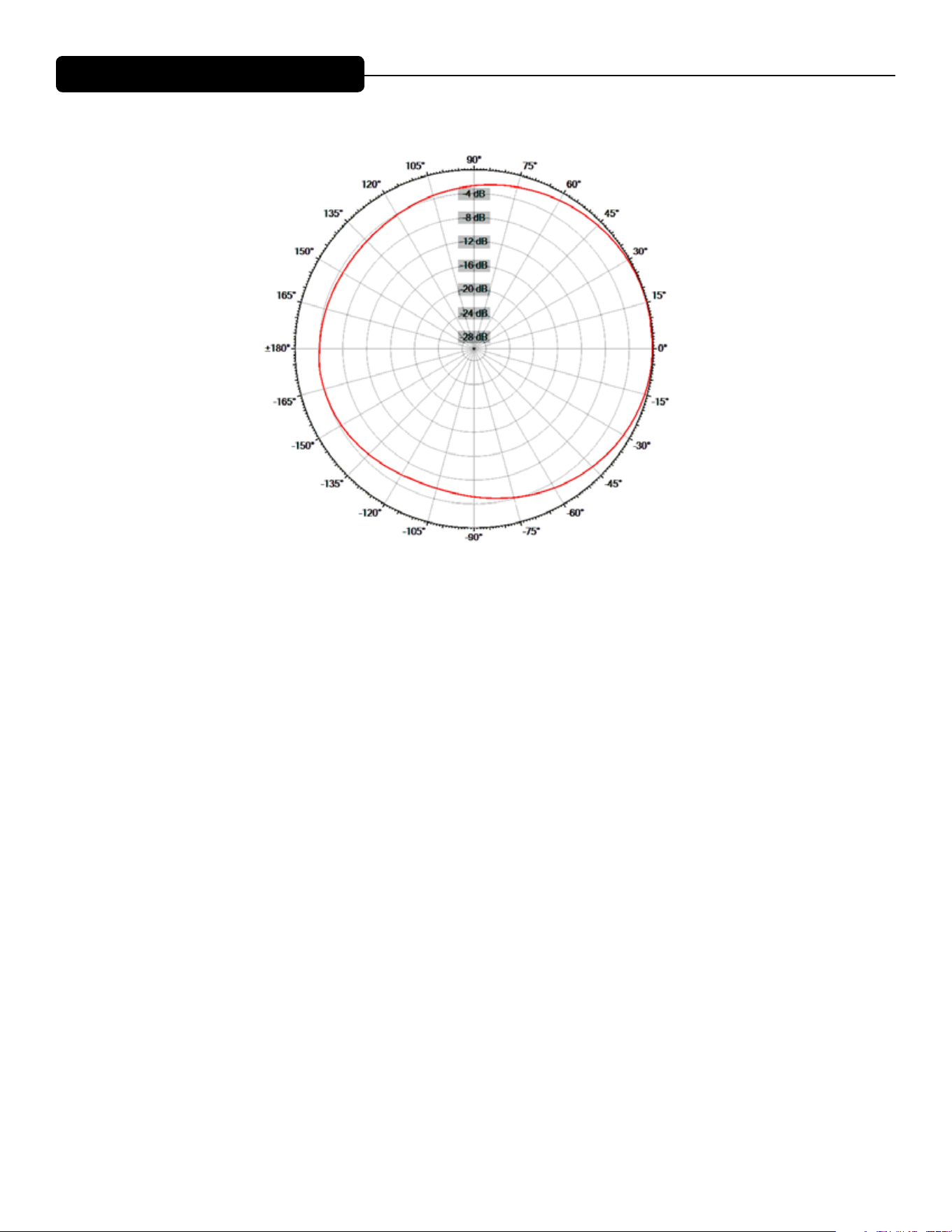
Frequency Display: Hz (1/3rd Octave)
Right
Left
Front
Back
Reading the Horizontal Polar Patterns
10
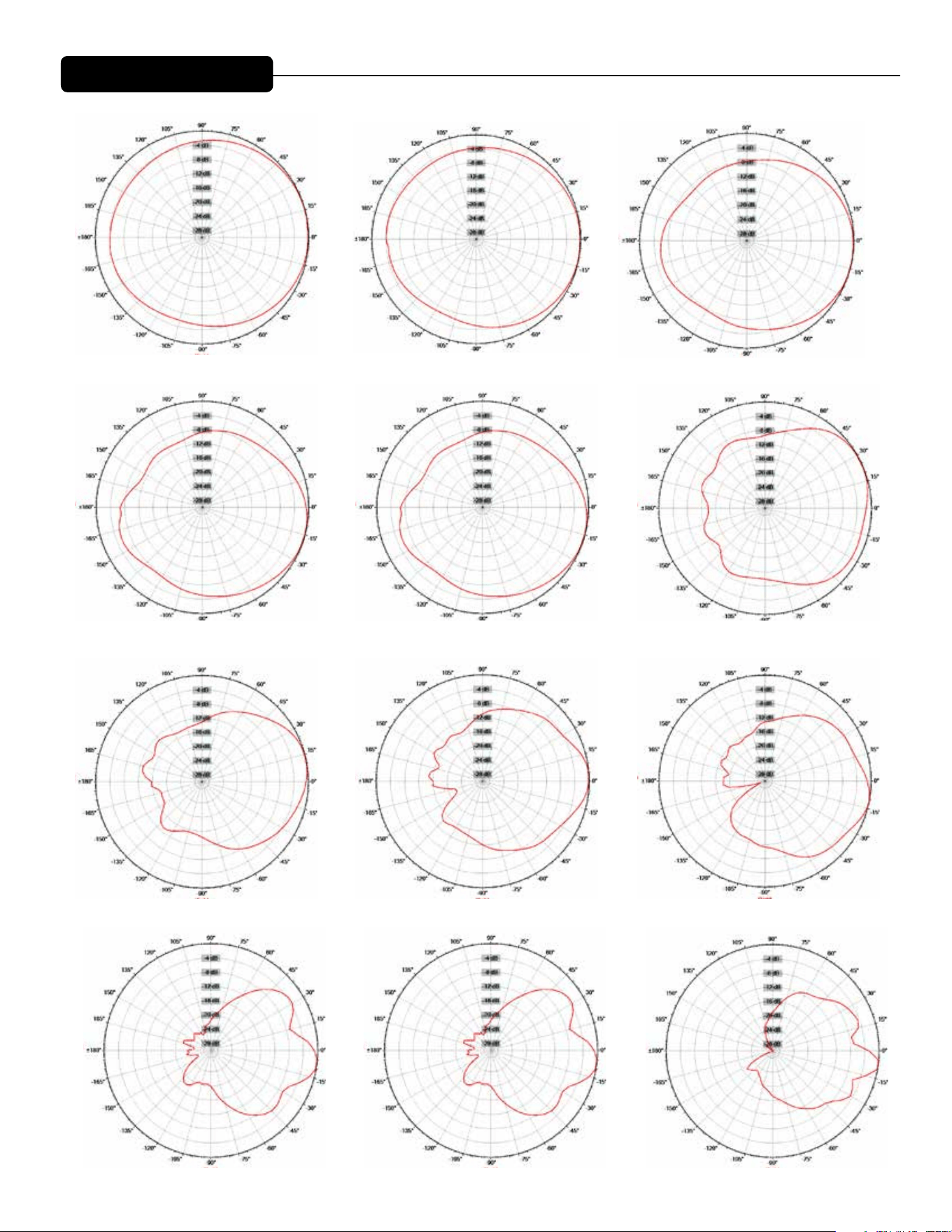
Frequency: 200Hz (1/3rd Octave)
Left
Right
FrontBack
Frequency: 400Hz (1/3rd Octave)
Left
Right
FrontBack
Frequency: 800Hz (1/3rd Octave)
Left
Right
FrontBack
Frequency: 1000Hz (1/3rd Octave)
Left
Right
FrontBack
Frequency: 1250Hz (1/3rd Octave)
Left
Right
FrontBack
Frequency: 500Hz (1/3rd Octave)
Left
Right
FrontBack
Frequency: 630Hz (1/3rd Octave)
Left
Right
FrontBack
Frequency: 250Hz (1/3rd Octave) Frequency: 315Hz (1/3rd Octave)
Frequency: 200Hz (1/3rd Octave)
Left
Right
FrontBack
Horizontal Polar Patterns
Frequency: 1600Hz (1/3rd Octave)
Left
Right
FrontBack
Frequency: 2000Hz (1/3rd Octave)
Left
Right
FrontBack
Frequency: 2500Hz (1/3rd Octave)
Left
Right
FrontBack
11
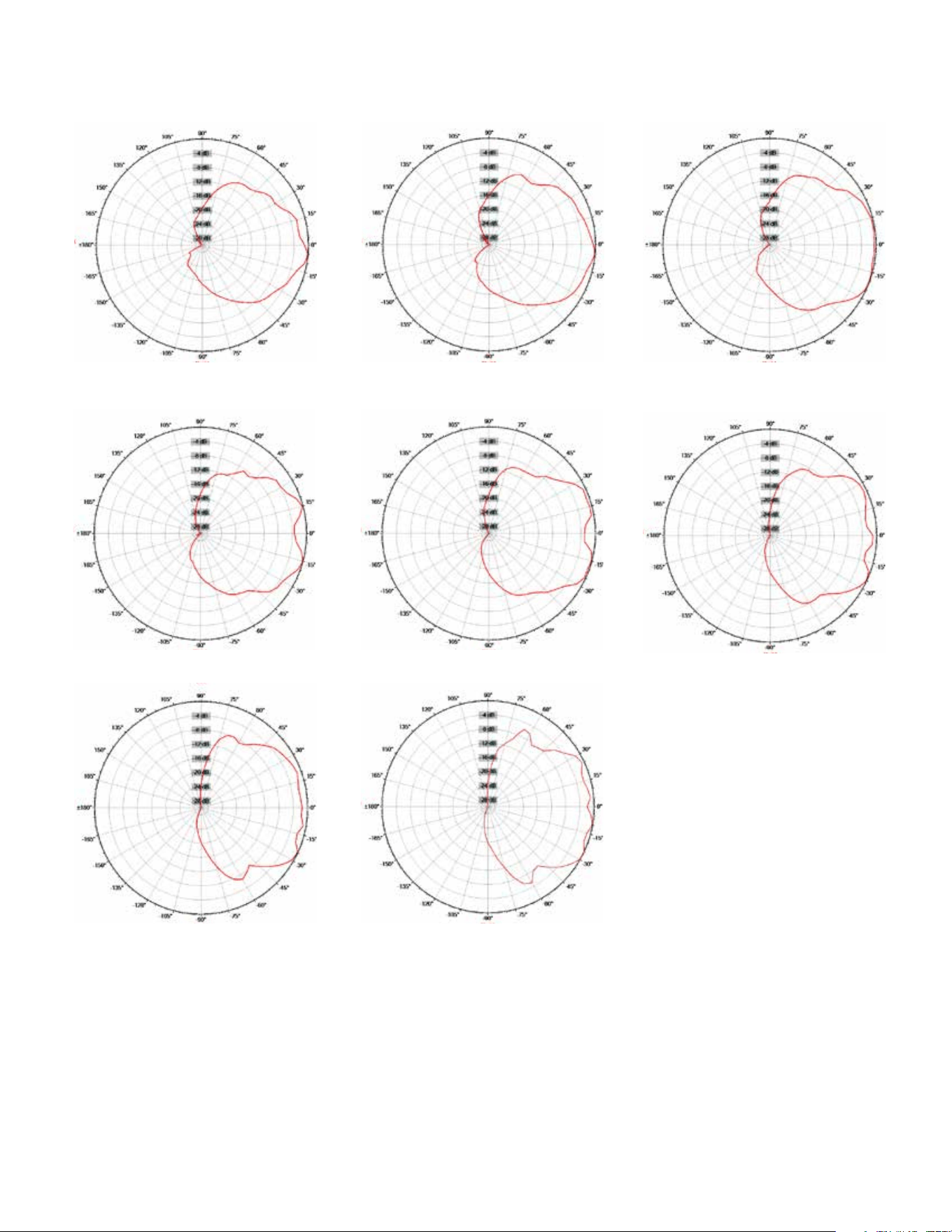
Frequency: 3150Hz (1/3rd Octave)
Left
Right
FrontBack
Frequency: 6300Hz (1/3rd Octave)
Left
Right
FrontBack
Frequency: 12500Hz (1/3rd Octave)
Left
Right
FrontBack
Frequency: 16000Hz (1/3rd Octave)
Left
Right
FrontBack
Frequency: 8000Hz (1/3rd Octave)
Left
Right
FrontBack
Frequency: 10000Hz (1/3rd Octave)
Left
Right
FrontBack
Frequency: 4000Hz (1/3rd Octave)
Left
Right
FrontBack
Frequency: 5000Hz (1/3rd Octave)
Left
Right
FrontBack
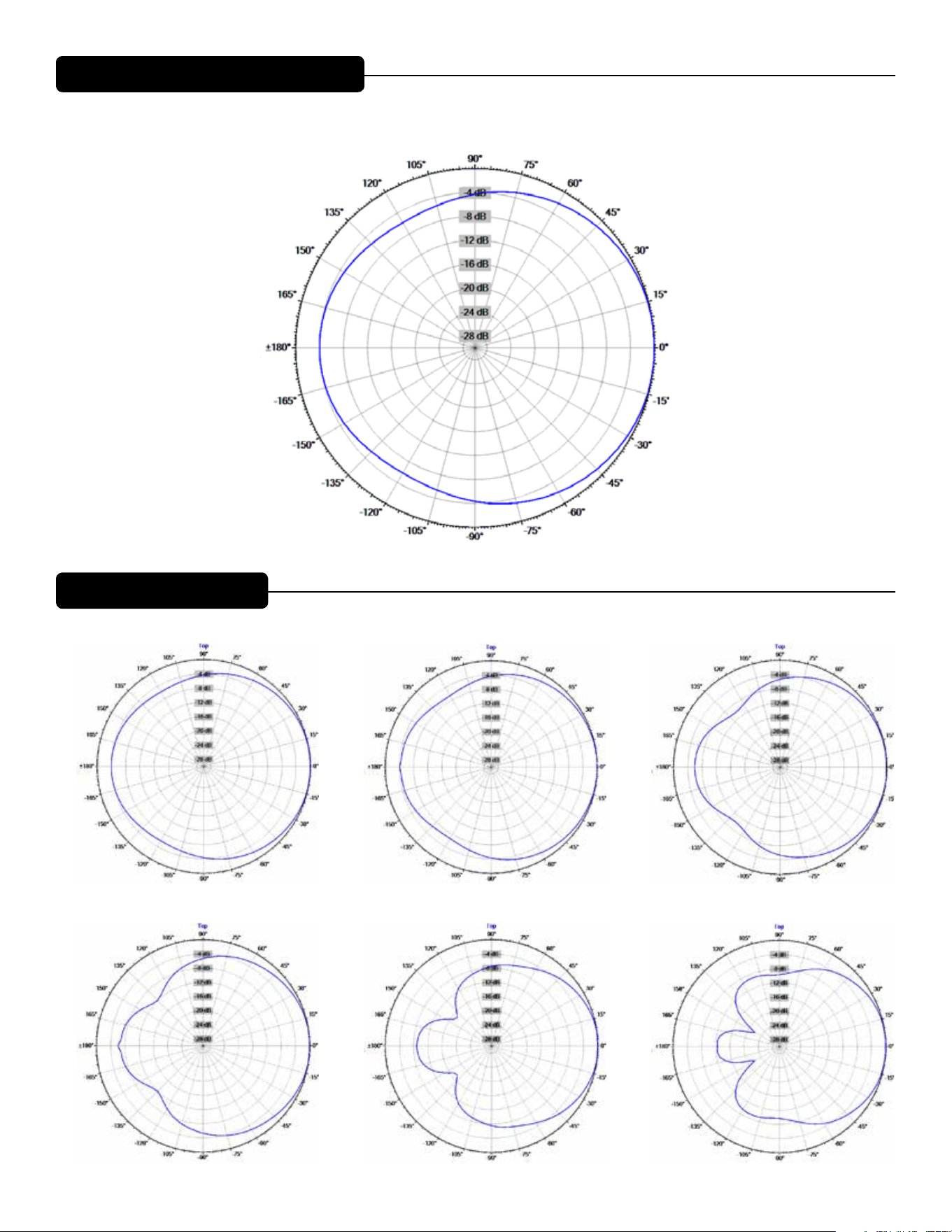
12
Vertical Polar Patterns
Frequency Display: Hz (1/3rd Octave)
Bottom
Top
Front
Back
Reading the Vertical Polar Patterns
Frequency: 200Hz (1/3rd Octave)
Top
Bottom
FrontBack
Frequency: 400Hz (1/3rd Octave)
Top
Bottom
FrontBack
Frequency: 500Hz (1/3rd Octave)
Top
Bottom
FrontBack
Frequency: 630Hz (1/3rd Octave)
Top
Bottom
FrontBack
Frequency: 250Hz (1/3rd Octave)
Top
Bottom
FrontBack
Frequency: 315Hz (1/3rd Octave)
Top
Bottom
FrontBack
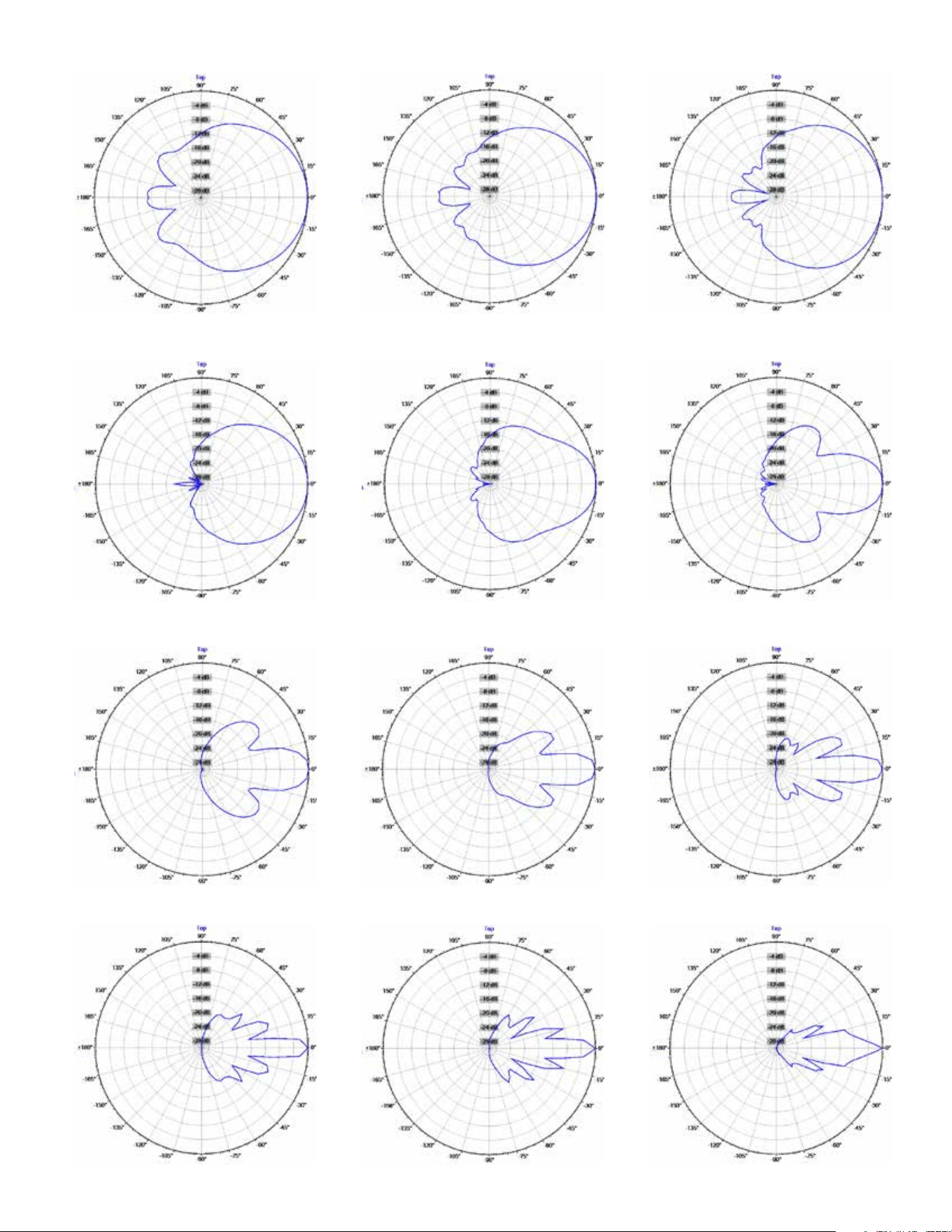
13
Frequency: 800Hz (1/3rd Octave)
Top
Bottom
FrontBack
Frequency: 1600Hz (1/3rd Octave)
Top
Bottom
FrontBack
Frequency: 3150Hz (1/3rd Octave)
Top
Bottom
FrontBack
Frequency: 6300Hz (1/3rd Octave)
Top
Bottom
FrontBack
Frequency: 8000Hz (1/3rd Octave)
Top
Bottom
FrontBack
Frequency: 10000Hz (1/3rd Octave)
Top
Bottom
FrontBack
Frequency: 4000Hz (1/3rd Octave)
Top
Bottom
FrontBack
Frequency: 5000Hz (1/3rd Octave)
Top
Bottom
FrontBack
Frequency: 2000Hz (1/3rd Octave)
Top
Bottom
FrontBack
Frequency: 2500Hz (1/3rd Octave)
Top
Bottom
FrontBack
Frequency: 1000Hz (1/3rd Octave)
Top
Bottom
FrontBack
Frequency: 1250Hz (1/3rd Octave)
Top
Bottom
FrontBack
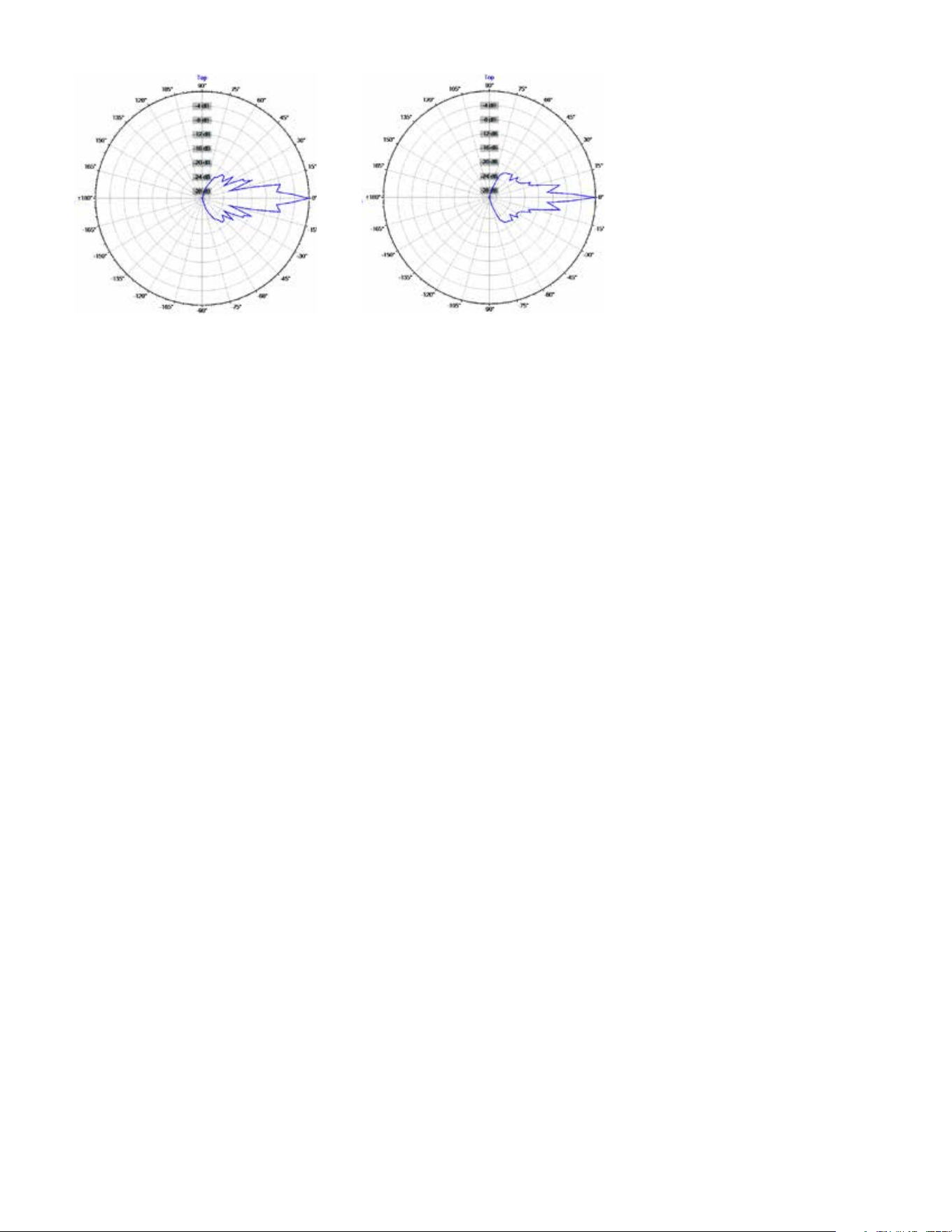
14
Frequency: 12500Hz (1/3rd Octave)
Top
Bottom
FrontBack
Frequency: 16000Hz (1/3rd Octave)
Top
Bottom
FrontBack

15
CAUTION! Ribbon Tweeters do not exhibit audible signs of distress when overloaded! It is possible to
exceed the physical and/or thermal limits by overloading the unit suddenly with excess power, even though
there are no obvious sounds of distress.
CAUTION! In order to prevent damage to the ribbon tweeters, keep the Versarray™ Pro 112 system away
from metal lings at all times. Do not expose ribbons to blasts of air, and do not use canned air to spray the
ribbons, as this can result in damage. Do not expose ribbons to liquids or caustic fumes, and keep away from salt
spray.
Frequency Response
is measurement is useful in determining how accurately a given unit reproduces an input signal. e frequen-
cy response of the Versarray™ Pro 112 is measured at a distance of 1 meter using a swept-sine input signal. As
shown in Figure A, the selected drivers in the Versarray™ Pro 112 combine to give a smooth frequency response
with the built-in signal processing.
Directivity
Beamwidth is derived from the -6 dB points from the polar plots which are measured in a whole space anechoic
environment. Q and Directivity Index are plotted for the on-axis measurement position. ese are specications
that provide a reference to the coverage characteristics of the unit. ese parameters provide insight for proper
placement and installation in the chosen environment. e blending of the components of the Versarray™ Pro
112 and the DSP Presets exhibit a desirable beamwidth and directivity (as shown in Figures B, C and D) suitable
for sound reinforcement applications.
Ribbon Tweeter Warnings and Cautions

16
Crest Audio® MLAS™ technique
e next section of the Owner’s manual deals with the Crest Audio® MLAS™ technique, or the Modular Line Array
System™ method of building up a line array conguration using basic building blocks of Presets and line array segments.
What is the MLAS™ technique, or the Modular Line Array System™? It is a line array conguration design
technique that rests on over 15 years of research into line array behavior, and the ensuing eld feedback and
experiences that have occurred in that time frame as well. Rather than just take some of the well worn myths
about line arrays at face value, or accept rules of thumb as gospel, the full range and gamut of line array behavior
was examined, measured, tested and rened to the point where the implementation of typical line array
geometries was able to be simplied and codied.
e end user now has the option of selecting pre-engineered Presets that match with specic modular line
array sections, and using these modules to build a line array geometry that is most applicable to their particular
situation, without the requirement to delve into time consuming and dicult simulations or modeling soware.
In fact, if the user so desires, they can still perform their modeling and simulations, and still reap the benets of
well engineered Presets ready to use for any given set of line array modular segmented “paste-ups”.
e Crest Audio® MLAS™ technique, specically is a method of breaking any line array vertical geometrical
conguration down into dened segments of line array EQ that are appropriate for that segments contribution to
the overall array output. Rather than treat each line array geometry as a singularly unique set of cabinet angles
and EQ for each individual cabinet (or for the system as a whole), line array segments that share a common
trait, such as all the same angle between cabinets, all being used in a Long row mode, etc., are broken out as a
cluster of cabinets separated from the other diering segments of the array.
An EQ Preset is created that addresses specically that cluster or segment of cabinets, and the conditions they are
operating under. is provides a set of typical line array vertical geometry congurations that can be assembled
with several dierent operational modules consisting of that cluster of cabinets, and the specic EQ needed for
their correct operation.
e Versarray™ Pro 112 system can hang as many as 10 cabinets, and if a separate EQ was generated for all
the variations that 10 cabinets with 7 dierent vertical angles between cabinets can have, it would amount
to thousands of possible array geometry congurations. By breaking the vertical array geometry down into
the fundamental geometry segments most likely to be used and implemented, we now limit the number of
EQ Presets to about 40 or so for the MLAS™ technique. About half of those are variations on the primary EQ
modules, that provide either a Bass Boost mode of operation, or some Long row EQ for those geometries that
would actually be used for LT purposes.
Note that the Horizontal coverage of the Versarray™ Pro 112 is nominally 90 degrees, and thus, the array should
be aimed horizontally using the rotation of the Halo to cover the 90 degrees desired. Front to back location as
well as height can be used to help tune this horizontal coverage, as well as allow for adjustment of the vertical
coverage as well.
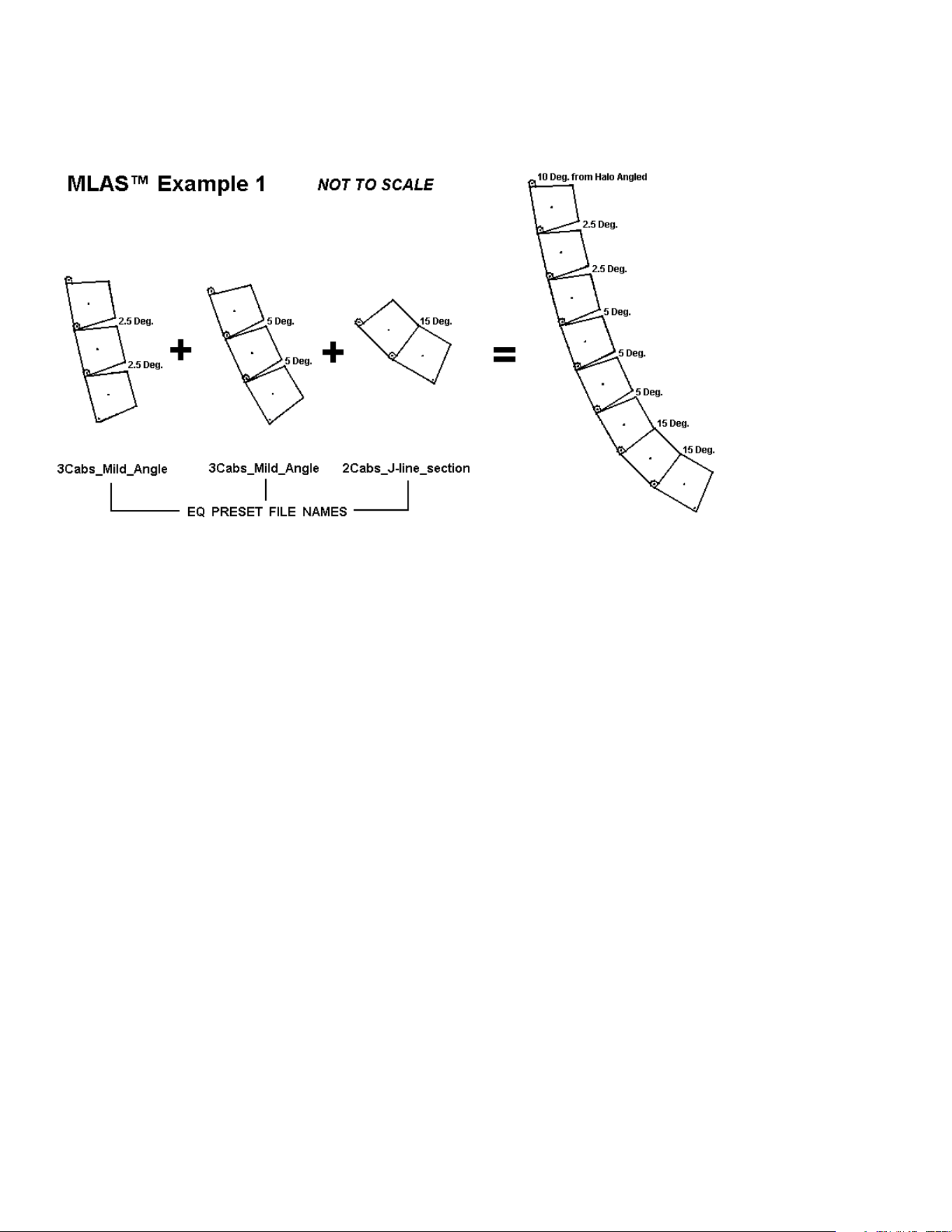
e module categories we have provided cover all the typical, traditional and advanced line array geometries that
would be used in the real world.
ose categories are:
Straight line geometry - used primarily for Long row purposes, thus these Presets don’t need a separate LT
version. 0 degrees between cabinets.
Mild Angle - used for Long to Medium row coverage or specic angles of closer coverage. 2.5 to 5 degrees
between cabinets.
More Angled - used for Medium to Short row coverage or specic angles of closer coverage. 7.5 to 10
17
degrees between cabinets.
J-line section - used for acute angled segments, as typically implemented in the bottom portion of classic J-line
geometry. 12.5 to 15 degrees between cabinets.
See MLAS™ Example 1 diagram
Part 1
Selecting the Line Array Geometry
Classic line arrays used a simple straight line geometry, this provides the classic “laser beam” vertical coverage
pattern that has become associated with line arrays today. However, many do not realize that the vertical
coverage pattern is extremely tight and limited, typically not extending vertically past the ends of the array at a
distance.
Laboratory measurements of the amount of angular coverage are not that accurate with straight line arrays,
because the eective coverage angle keeps getting smaller as you get further and further away, until it may be just
a fraction of a degree at some very far distance.
e upshot of this is that unless you truly need the extremely tight vertical coverage pattern AND can
successfully aim the entire array at the exact spot you wish to cover, a classic straight line geometry is not going
to be the best choice. A more useful and general-purpose geometry is a gentle and continuous curve, with the
angle between each cabinet a total of 2.5 degrees. is would provide approximately 16 degrees of seamless
vertical coverage with a 6 cabinet array, and maintain a fairly smooth frequency response. With the Versarray™
Pro 112, this creates a system with a coverage pattern of approximately 90 degrees horizontal and 16 degrees
vertical.
If the venue is smaller or needs a more open vertical pattern for coverage, then there are several options that
can address this. You can increase the angle between all the 6 cabinets to 5 degrees total, providing a vertical
coverage of approx. 30 degrees.
If that is too much vertical coverage, but there are still some seats up front that need to be covered, then there
are two other recommended geometries to use. One is a dual radius, as pioneered by Peavey on the Peavey SSE™-
LA. e upper three cabinets would be set to a total angle between cabinets of 2.5 degrees, while the bottom

18
three would be set to 5 degrees. is arrangement provides a smooth, seamless vertical coverage pattern of
approximately 22 degrees.
e other geometry is a modication of the classic “J” line, using a continuously curved array for the top section
instead of a straight line, and then an abruptly curved section for the bottom few cabinets. is might consist of
the top four or ve cabinets angled at 2.5 and 5 degrees, with the bottom one or two each angled more drastically
at 12.5 or 15 degrees. Up till now, we have been talking about a relatively smooth vertical coverage, with no gaps
or suck-outs in the vertical pattern. However, the use of the “J” precludes this due to the sharper angles between
the individual bottom cabinets. Anything over about 5 degrees total angle between cabinets will tend to cause
a “gap’ or a “hole” in the response at certain frequencies, and while it is not too bad, the sharper the angle, the
worse it gets.
Why not use a classic “J” line geometry? is combines the narrow “laser beam” pattern with a “gaps in the
coverage” pattern, sort of the worst of both worlds. is is why we recommend one form or another of a gentle
and continuous curve, to avoid these common problems, and provide maximum performance.
Note that this behavior of a “gap” or a “hole” in the response at certain frequencies is not exclusive to the
Versarray™ Pro 112 system, this occurs with many other brands and models of line array cabinets. If special
attention is paid to the vertical behavior of the individual cabinets and how they interface as an array, then this
kind of behavior can be minimized. Certain “xed curve” line array modules are on the market, and while they
do provide a relatively smooth coverage for their intended angle, the geometry is xed, and does not allow any
adjustment past the xed angle in use.
Due to the wider vertical coverage, you are oen limited to using only two of these modules, before the third
module is pointing nearly straight down. us, the number of array elements is severely limited, and the ability
to use a gentler angle or a straight line segment is not an option.
What Constitutes a “Real” Line Array?
Even though the individual Versarray™ Pro 112 cabinets have a line array tweeter section, one Versarray™ Pro 112
cabinet is not a line array all by itself. In order to benet from a signicant amount of line array behavior, you
need at least 4 cabinets arrayed together vertically. is is not to say that the use of just two or three Versarray™
Pro 112 cabinets is not possible, but the unique strengths of a line array don’t come into play until you get
enough cabinets to work together to create that line array wave launch across a wide band of frequencies, all the
way down into the mid-bass. It is strongly recommended that four or more Versarray™ Pro 112 cabinets be used
together in a single array hang for this reason.
Aiming the Line Array
If a classic straight line array geometry is used, then aiming becomes critical; the coverage pattern at high
frequencies is only going to be about 10 feet tall for a set of eight Versarray 112 cabinets at a very long distance.
You will have to pick the 10 feet or so of vertical space you want covered very carefully, and aim the array
precisely. Here, use of an inexpensive laser pointer temporarily taped to the top and/or bottom of the array can
be an invaluable aiming aid.
If you have chosen one of the geometries that provide a smooth curvature and a relatively narrow vertical
coverage, then aiming will be more in line with the kinds of concerns and methods used for high Q point sources
when looked at in one dimension, but you still have to pay attention to assuring that seating areas of primary
concern are within that pattern.
If you have chosen one of the dual radius curvatures, the top section will be handling the long throw vertical
coverage, and the bottom section will be providing the medium/short throw vertical coverage. Once again, use of
19
the familiar tools for aiming point sources and clusters will be helpful here, as long as you realize that you have
two dierent coverage zones.
Crest Audio® has teamed with EASE® Focus 3 soware to bring you line array aiming soware with the
Versarray™ Pro 112 system included in the database. Check with your Crest Audio® representative, or visit the
Crest Audio® web site for more information.
https://peaveycommercialaudio.com/versarray
e EASE® Focus 3 program can be found at:
http://focus.afmg.eu/index.php/fc-downloads-en.html
Example of Using the MLAS™ Technique
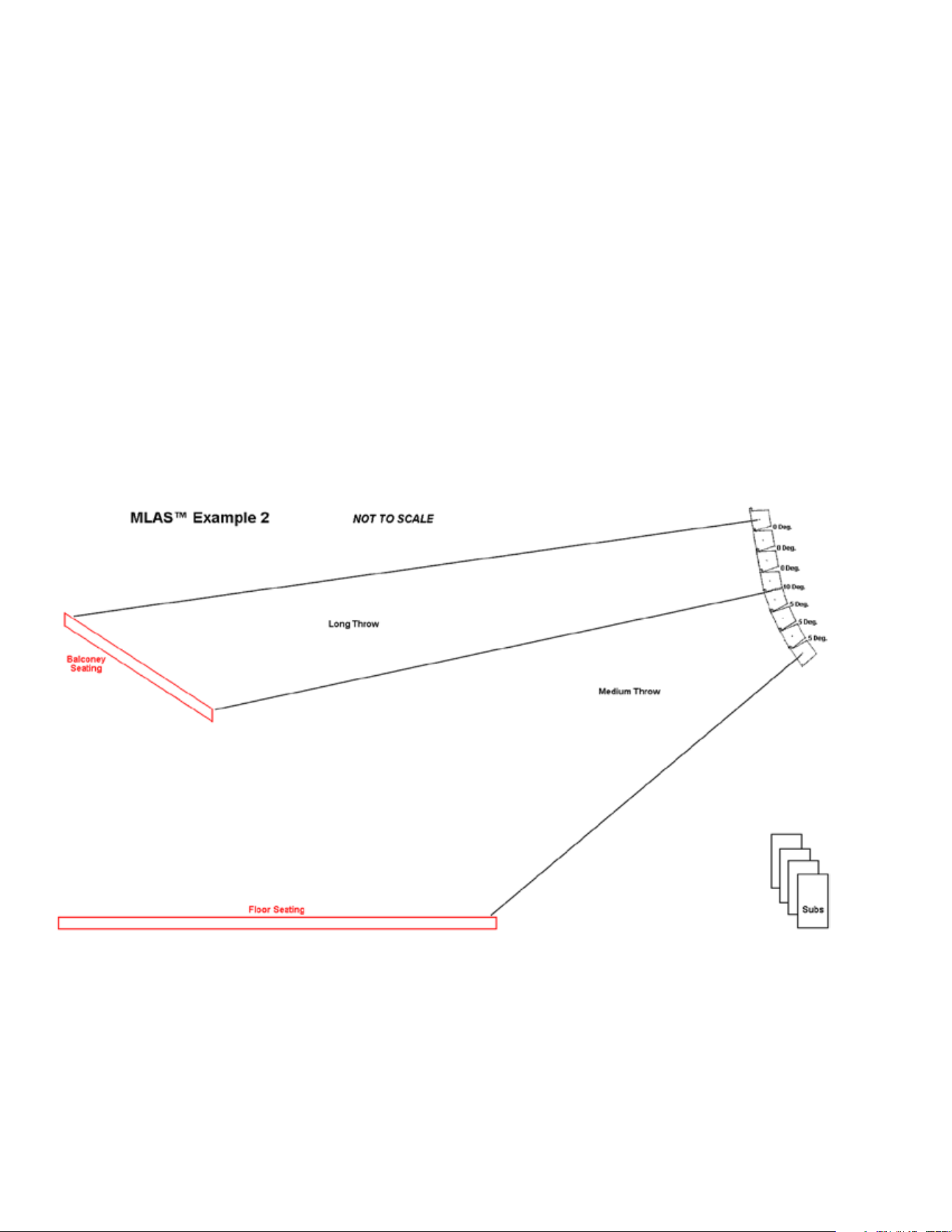
As a working example of the MLAS™ technique, let’s construct a line array conguration that has a specic use.
e venue we need to cover has a signicant amount of balcony seating further away from the line, and then,
more conventional seating nearer to the line on a oor plan. Eight Versarray™ Pro 112 cabinets are to be used for
this line array
See MLAS Example 2 (NOTE: Diagram is not to scale, used for example only)
is line array could consist of a vertical coverage arrangement including a Straight line segment to cover the
balcony, and a Mild Angle segment for the oor seating.
In this instance, a segment consisting of 4 cabinets programmed with the 4cabs_Straight-line Preset is used to
cover the balcony, and a segment consisting of 4 cabinets programmed with 4Cabs_Mild_Angle Preset is used
to cover the oor.
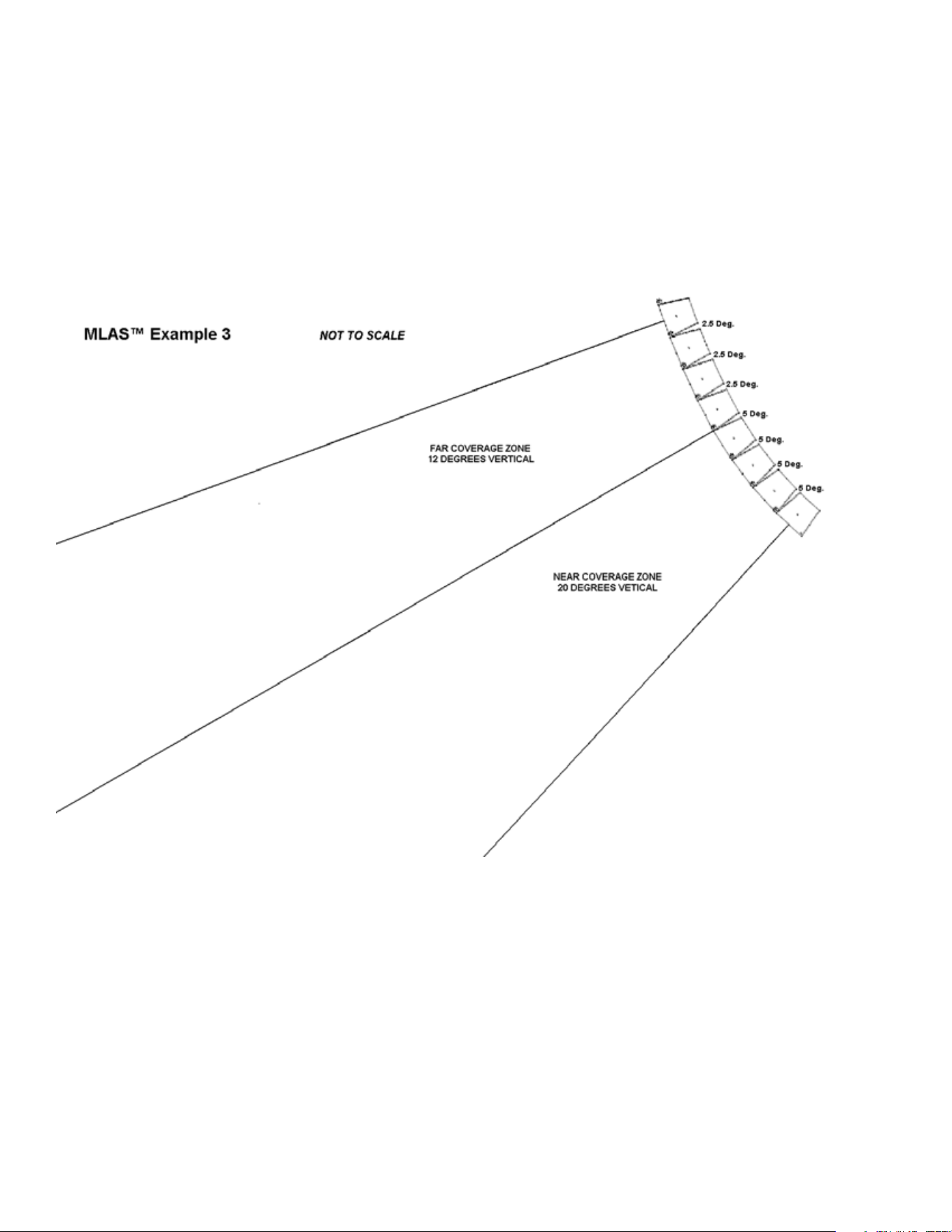
In another example, we create a dual-radius curvature line array using 8 Versarray™ Pro 112 cabinets. is
conguration is a very useful and somewhat universal line array conguration, and so, makes a good example to
20
use to explain the MLAS™ process and the end results.
If we look down at the list of coverage angles provided by the various Presets available to be used (See list below
this section), we are going to use the LT_4Cabs_Mild_Angle Preset for
the top 4 cabinets, and use the 4Cabs_Mild_Angle Preset for the bottom 4 cabinets
We will designate the top cabinet at zero degrees relative to the Halo. e Halo can be angled up to 25 degrees,
so as to aim the array at the target audience.
en the next three cabinets get angled at 2.5 degrees relative to each other, and the bottom four angled at 5
degrees relative to each other.
See MLAS™ Example 3
Vertical Coverage Angles of Various Section Presets
Preset: Single_Cab_Flat
One Versarray™ Pro 112 Cabinet - 15 degrees nominal, but narrows down as the distance from the cabinet gets
greater. Used as a reference point, as well as for use of an isolated Versarray™ Pro 112 Cabinet without arraying a
number of cabinets.
Preset: 2cabs_Straight-line
Two VR112 Cabinets Straight - 8 degrees nominal, but narrows down as the distance from the cabinet gets
greater.
Preset: 2Cabs_Mild_Angle

21
Two VR112 Cabinets @ 2.5 degrees total angle between cabinets - 7 degrees, but tends to stay the same as
distance increases.
Preset: 2Cabs_Mild_Angle
Two VR112 Cabinets @ 5 degrees - 9 degrees, but tends to stay the same as distance increases.
Note 1: Vertical High Frequency coverage is no longer a continuous spread when the angle between cabinets
exceeds 5 degrees. Angles of more than 5 degrees between cabinets are considered special cases.
Preset: 3cabs_Straight-line
ree VR112 Cabinets Straight - 5 degrees, but narrows down as the distance from the cabinets gets greater.
Preset: 3Cabs_Mild_Angle
ree VR112 Cabinets @ 2.5 degrees - 9 degrees, but tends to stay the same as distance increases.
Preset: 3Cabs_Mild_Angle
ree VR112 Cabinets @ 5 degrees - 14 degrees, but remains the same as distance increases.
See Note 1
Preset: 4cabs_Straight-line
Four VR112 Cabinets Straight - 4 degrees, but narrows down as the distance from the cabinets gets greater.
Preset: 4Cabs_Mild_Angle
Four VR112 Cabinets @ 2.5 degrees - 12 degrees, but tends to stay the same as distance increases.
Preset: 4Cabs_Mild_Angle
Four VR112 Cabinets @ 5 degrees - 20 degrees, but remains the same as distance increases.
See Note 1
Preset: 6cabs_Straight-line
Six VR112 Cabinets Straight - 3 degrees, but narrows down as the distance from the cabinets gets even greater.
Preset: 6Cabs_Mild_Angle
Six VR112 Cabinets @ 2.5 degrees - 16 degrees, but tends to stay the same as distance increases.
Preset: Preset: 6Cabs_Mild_Angle
Six VR112 Cabinets @ 5 degrees - 30 degrees, but remains the same as distance increases.
See Note 1
Preset: 8cabs_Straight-line
Eight VR112 Cabinets Straight - 2 degrees, but narrows down as the distance from the cabinets gets much
greater.
Preset: 8Cabs_Mild_Angle
Eight VR112 Cabinets @ 2.5 degrees - 22 degrees, but tends to stay the same as distance increases.
Preset: 8Cabs_Mild_Angle
Eight VR112 Cabinets @ 5 degrees - 40 degrees, but remains the same as distance increases.
See Note 1
Arrays of 9 or 10 cabinets using the same angle should use the 8 cabinet Presets, as the changes to the EQ are
becoming much smaller at this point.
e other Presets provided for building an array conguration cover other circumstances of use. e line
segments for Presets labeled More_Angled don’t provide smooth continuous vertical coverage due to the
cabinets being angled 7.5 or 10 degrees apart from one another.
e total coverage of one of these irregular coverage segments is basically the sum total of the cabinet angles
between the group of cabinets, plus one extra cabinets worth, divided in half and counted at each end.

22
e Presets labeled “LT” are for Long row situations, and these boost the upper high frequencies to allow
for the absorption of those frequencies by the sheer amount of air that the sound waves have to travel through.
ese would generally not be used until you were trying to reach areas that were more than 80-100 feet from the
array.
e Straight line Presets have a controlled portion of this long distance EQ dialed in already, as the most typical
use for straight line segments is for Long row use anyway.
e J-line section Presets don’t have an LT option, because they are angled so much relative to the other cabinets,
and each other, that they would not typically be used as a Long row line array segment.
Coverage Plotting Using Floor Plans
If it is inconvenient to load and engage the EASE Focus 3 modeling program to map out the coverage of the
array, or you just don’t have access to the tools to do so, then it is possible to use a oor plan that has dimensions
given to plot out the Versarray™ Pro 112 system coverage in the horizontal and vertical axis. is is possible
because of the MLAS™ technique of providing for line array modules of cabinets and Presets.
Given that the Versarray™ Pro 112 has a horizontal coverage of 90 degrees, this makes it easy to use a top down
view to see what you can cover when the line array is hung at a given location. You can use the corner of a piece
of 8.5” by 11” printer paper to cover the oor plan and see what the coverage will be, rotating the corner, and
relocating the apex of the corner in dierent positions to look at the resulting coverage.
e vertical coverage varies with the line segments and Preset pairs used, so a protractor can be a useful tool
to look at various angles of vertical coverage for each line array segment, and look at a number of “what-if”
scenarios. is would utilize the coverage angles given in the listing of Preset modules as given in the Owner’s
Manual section Vertical Coverage Angles of Various Section Presets
is will be a rough approximation of the actual coverage, and you can’t really “see” what the bottom of a “J-line”
segment will be doing, but you can see where the cabinets are aimed if you project a cone of sound along the
central axis of any such J-line segment cabinet to get a feel for the localized coverage they would be providing.
Tweaking the Array for Best Performance
Amplitude Shading
Once you have decided on a series of line array segment modules to stick together to form the vertical portion
of the line array, and have loaded in the appropriate Presets, then it would be possible to improve the coverage
by making minor adjustments to the various cabinets in the array. As an example, amplitude shading is often
used to help even out the SPL changes with distance or location due to the line array coverage area. For
instance, lowering the drive level to the bottom most cabinet in a line array by several dB can help keep under
control the strong output that it has relative to the audience seated just under or near the array.
A “J-line” type line array might have the bottom most cabinet aimed almost straight down at the audience
sitting just below that cabinet. Dropping the drive level by 6 dB or more might keep that audience area from
experiencing an excessive SPL compared to the rest of the audience.
Along the same lines, a gently curved line or a dual-radius line might have the bottom 3 cabinets progressively
lowered in level as you go down the array of cabinets. As an example, perhaps the 3rd cabinet from the bottom
was set 2 dB lower in level than the rest of the array, and the second cabinet from the bottom 4 dB lower, and
the bottom most cabinet 6 dB lower than the rest of the upper cabinets.

23
Frequency Shading
Seating close up to just under a line array may need some selective frequency shading for those lower or bottom
cabinets, to help account for the much closer listeners. Often, a slight reduction of the upper midrange and
lower treble can help balance out the overall tonal result.
It may be sufficient to provide the frequency shading, and not have to apply any amplitude shading.
Venue EQ
The Versarray™ Pro 112 system has been carefully engineered and designed to provide a nominally flat response
using the MLAS™ tools, and with proper coverage alignment, will provide a very flat and neutral frequency
response to the listening areas targeted. With average or typical venue conditions, very little additional EQ will
actually be needed to “dial the system in” because of this.
With conventional point source systems, it is standard practice to EQ each instance of system use, as if it were
never responding quite right or in a neutral and flat manner under any conditions of use. With properly done
line arrays, this is not a necessity, and there should only be a need for some slight EQ that is venue specific,
such as a highly reverberant hall or auditorium, or a very dead environment such as outdoors at a festival. With
these kinds of venues, the need for EQ should also be minimized. In these cases, the use of a simple shelving
filter, such as a High Shelf or a Low Shelf, with less than 6 dB of boost or cut, should suffice to get the sound
back on track.
It is strongly advised that only minimal EQ along these lines be applied by ear, rather trying to use an RTA and
a microphone, to EQ the system as if it were a typical point source system. This type of approach to venue EQ
just doesn’t work very well for line arrays. Since the Versarray™ Pro 112 system starts out very neutral and,
with use of the MLAS™ tools, stays that way even once an array has been configured to the specific needs of the
event. The need for significant amounts of PEQ type alterations is greatly reduced to the point of being just as
likely to make things sound worse than they did before the added EQ.
Bass Boost Preset Use
Since the Versarray™ Pro 112 system does start out so neutral in it’s reproduction of music, this tends to leave
certain types of modern music not presenting with the “over the top” impact as much as the audience has come
to expect, such as EDM, Electronica and DJ playback. These genres of music have come to be associated with
added levels of bass energy, and to address this, we have come up with a set of Presets that have a “BB” prefix to
the nominally flat versions of the line array segment Presets. BB stands for Bass Boost.
These Presets provide that extra bass and mid-bass energy that has come to be expected, while providing for
the proper protection of the system components despite the added levels of bass energy. These settings are
more sophisticated than just cranking up the levels of the Sub, or adding in a Low Shelf EQ at some arbitrary
frequency and amount of boost.
If you use the Factory flat setting Presets for a given line array configuration, and the bass seems lacking for
your particular application, then try the BB versions of the Presets.
Note that with the flat settings, an acoustic guitar, male vocals or upright bass will sound totally natural, with
the BB versions, these instruments will tend to sound larger than life, and less realistic.

24
Level Matching with the Versarray™ VR218 and 215 Pro Subs
Input gain for the VR112’s and VR Subs has been matched so that if the recommended number of Subs per
VR112’s is used, the Sub output level will match the level of the VR 112 array.
e recommended number of Subs is one for every two VR 112’s. is is for normal or typical sound
reinforcement use of the system.
If high energy DJ, EDM or Electronica music is to be the sound source, then additional Subs may be desirable.
As noted above, use of the provided Bass Boost Presets will usually provide a better overall result than merely
increasing the level of the Subs relative to the level of the VR112 array.

25
Crest Audio® Versarray™ Pro series - User GUI Use Instructions
Installation of the Versarray™ Pro series User GUI Software
The software to connect to the Versarray™ Pro 112 speaker system can be found at a link available
on the following URL page:
https://peaveycommercialaudio.com/versarray
Download and install the VR Pro series User GUI Software following the instructions at the web
page referenced. Note that in order for the software to run properly, a copy of the .NET framework
4.0 (also referred to as the dotNET framework 4.0) or higher must be present on your computer.
Instructions and URL’s for where to download this le will be available at the Versarray™ web page:
https://peaveycommercialaudio.com/versarray
Connecting the User GUI Software to the Versarray™ Pro 112 Speaker System for Analog
Signal Input Use
1. Connect appropriate length Ethernet cables to each Versarray™ Pro 112 cabinet (see REAR
PANEL DISPLAY diagram, item #8), and turn on the Power before it is raised into line array position.
The cables need to be at least Cat 5e grade or better. Cat 6 grade cables are recommended for best
results. The Ethernet cables can be daisy chained from one cabinet to the other if more than one
speaker is being connected to or controlled. The longest cable should be run from the bottom of the
array to the PC. Be sure to leave enough spare cable length for the long cable run to accommodate
all the necessary routing, tucking, taping and positioning needed.
The input cable from the PC should be connected to the Primary Ethernet jack, and the cable used to
daisy-chain to the next one should come out of the Secondary Ethernet jack.
NOTE: If connecting for Dante®, see the Dante Operation section for details on the correct way to
wire up the Versarray™ Pro 112 cabinets. Daisy-chaining as described above can be used with the
proper Dante latency settings, but most professionals will want the maximum performance Dante is
capable of, and this would involve the use of a multi-port gigabit network switch to feed the units in a
star wiring conguration.
2. Connect the other end of the long Ethernet cable to the PC with the Versarray™ Pro series User
GUI software installed on it.
3. Turn on and boot the PC with the Versarray™ Pro series User GUI software.
When the Versarray™ Pro 112 speaker system cabinets are all turned on, the PC should show a LAN
connection notice, before trying to start the Versarray™ Pro series User GUI software. This can take
a minute or so, depending on the exact nature of your PC’s LAN and Ethernet connection readiness
and load time.
Older operating systems may display an on-screen notication, while more recent operating systems
may not show any obvious notication at all. In order to check the status of your network connection,
go to a Control Panel section where the LAN information is displayed, check the Network and
Internet section or the Network Status window/icon (often located in the lower right hand corner, and
visible once you use the Show Hidden Icons arrow).
THE MOST COMMON CAUSE OF A FAILURE TO CONNECT TO THE POWER AMP MODULE VIA
THE NETWORK IS NOT ALLOWING ENOUGH TIME FOR THE PC TO MAKE THE NETWORK
CONNECTION CORRECTLY BEFORE STARTING THE SOFTWARE!!
26
Using the Versarray™ Pro series User GUI Software with the Versarray™ Pro 112
Once the Versarray™ Pro 112 speaker system cabinets are turned on, connected via Ethernet, and
connected to the PC with the Versarray™ Pro series User GUI software installed on it, it is time to
start the GUI software.
NOTE: Just like most modern electronic devices, the Versarray™ Pro 112 speaker system power amp electronics need to
be operated within a certain temperature range.
This range is typically from 0 degrees Centigrade, to +70 degrees Centigrade for electronic components. In order to
avoid improper operation, do not turn the Versarray™ Pro 112 speaker system power on until the units temperature has
equalized close to that of the room, if it has been stored in a cold environment.
1. Run the Versarray™ Pro series User GUI software by clicking on the Desktop Icon (or from the
Start Bar/All Programs).
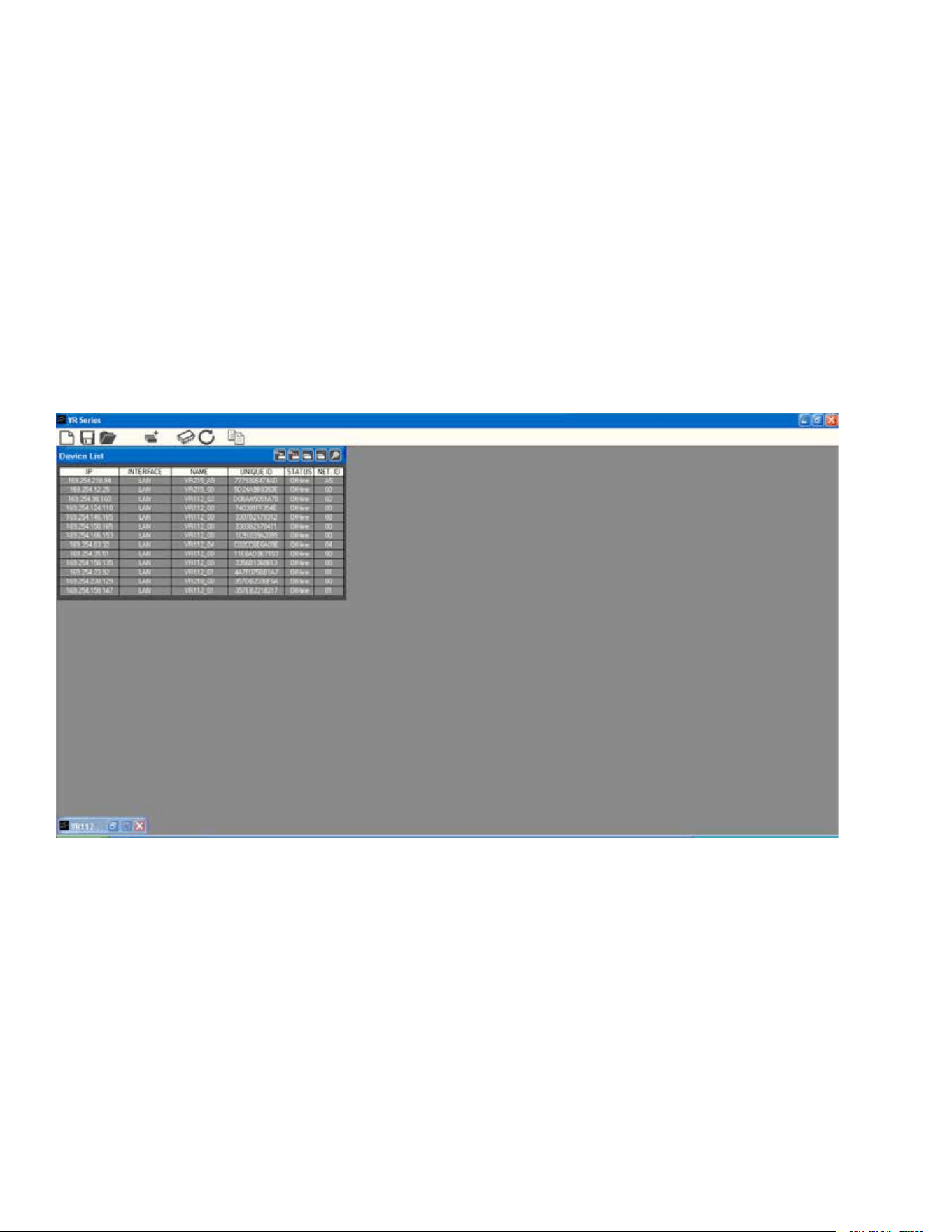
2. A Start Window will open up, and if it is not already, make it full screen. See Fig.1
Fig.1
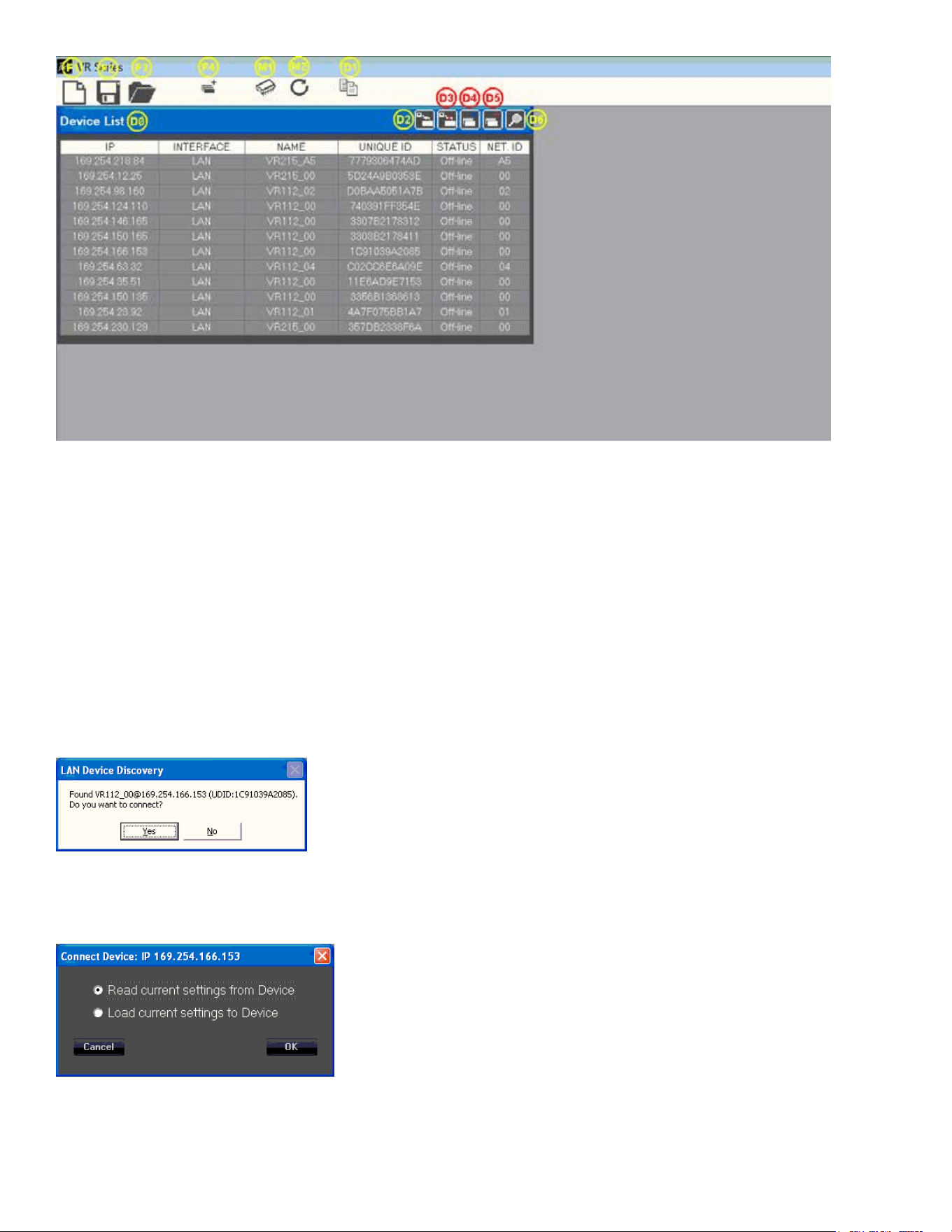
3. The functions for this Start Window are contained within the block in the upper left hand corner,
see close-up below in Fig. 2 with numbered functions, full descriptions to follow later. Note that the
Device List Block (DØ) will not have any speaker systems loaded into it’s window until you have
connected with one or more dierent VR Pro series speaker systems via the software.
27
Fig. 2
Quick Start Instructions will follow this segment, and details on all other le management will be
available at the end of the descriptions of the GUI parameter pages.
Quick Start Instructions
A. Once the Ethernet cable is plugged into the PC with the Versarray™ Pro series User GUI software
installed on it and running, and the Power turned on to the Versarray™ Pro series cabinets, the User
GUI software will detect the presence of the Versarray™ Pro 112 cabinet or cabinets, and other Pro
series models cabinets.
A dialog Window will pop-up, as shown below in Fig. 3. The device ID’s will be dierent, but the
general format will be the same.
Fig. 3.
When you click “Yes”, a Connect Device dialog window comes up, as shown in Fig. 4
Fig. 4
B. Now click “OK” and read the current settings from the VR112 Cabinet to the User GUI software
28
Each cabinet will come up as you click “Yes”, and click “OK” for as many cabinets as have been
networked together.
The rst time you do this, just click “Yes” and “OK” for one cabinet, so as to look at just one device
initially.
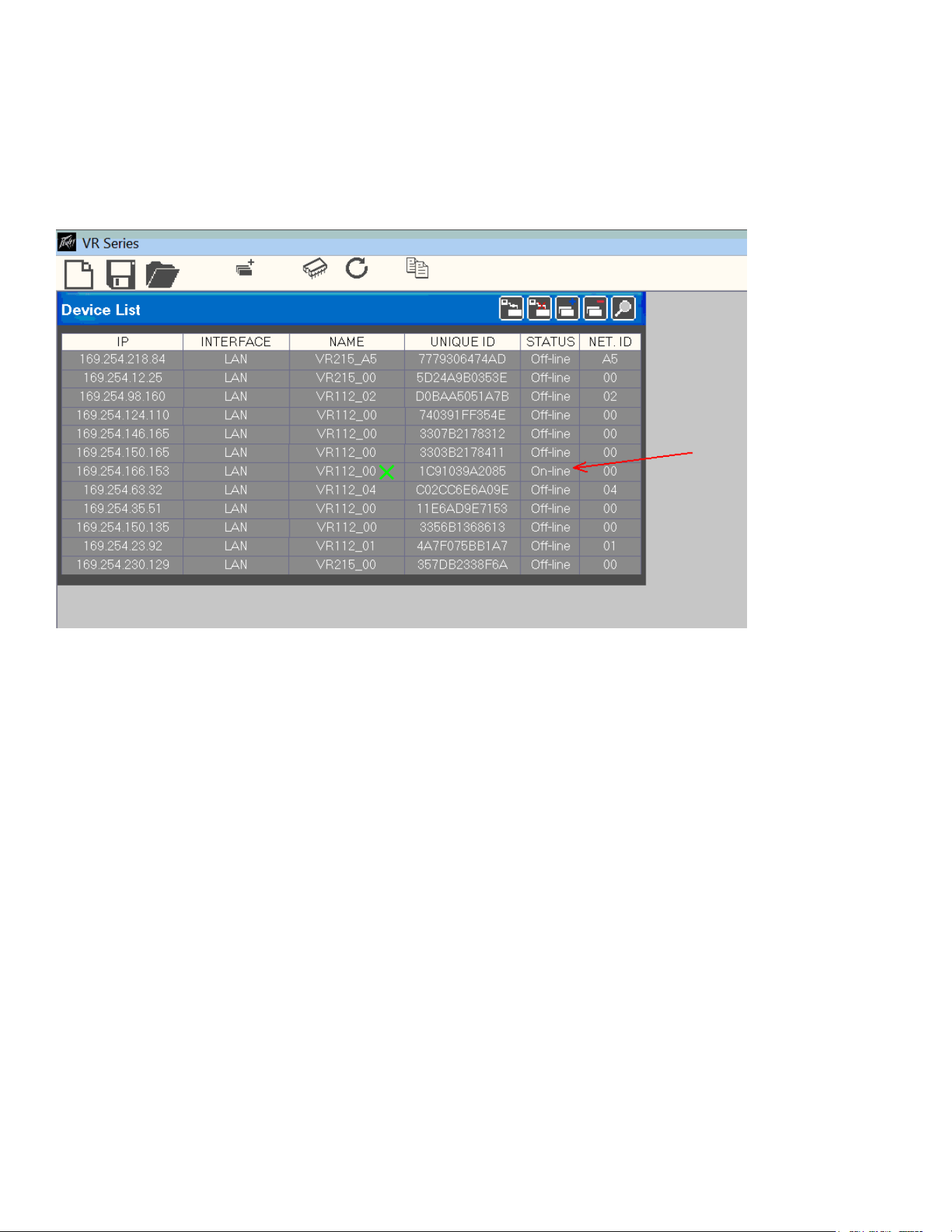
The Device List DØ should now show one of the units (or the only unit) as “On-line”, See Fig.5, where
the arrow points.
Fig.5
C. To display the User GUI parameter pages, double-click on the desired unit in the NAME column in
that row, shown by the “X” in Fig. 5
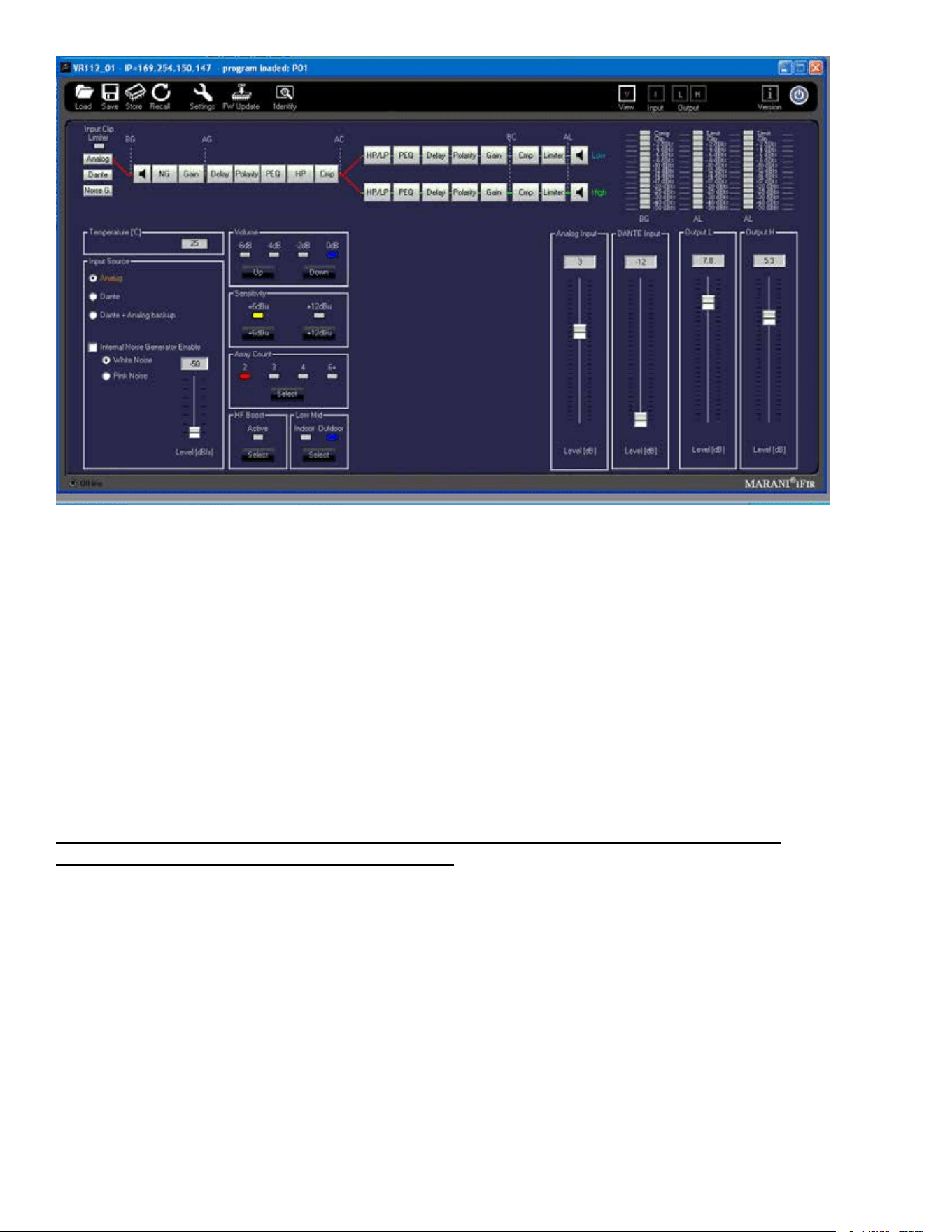
The various parameter pages for the Versarray™ Pro 112 will now come up in a new large window
within the Start Window. See Fig. 6
29
Fig. 6
The default rst page is the View page, which will allow you to adjust cabinet overall gain and input
Sensitivity and other basic parameters.
CAUTION!
IT IS STRONGLY SUGGESTED THAT BEFORE YOU PROCEED TO ANY OF THE OTHER
PARAMETER PAGES, OR CHANGE ANY SETTINGS ON THIS GUI VIEW PAGE, THAT YOU READ
AND UNDERSTAND THE DESCRIPTIONS OF EACH PAGE’S FUNCTIONS!
WARNING!
CHANGES TO THE LIMITER SETTINGS, CROSSOVER SETTINGS, OR INDIVIDUAL DRIVER EQ
SETTINGS CAN ALL RESULT IN UNRELIABLE OPERATION OR PREMATURE DRIVER FAILURE!
USE OF SETTINGS OTHER THAN THE FACTORY SETTINGS FOR FUNDAMENTAL
PARAMETERS WILL VOID THE WARRANTY!!
Quick Start Instructions, CONT’D
The Versarray™ Pro 112 ships with the default programming set for Non Network Use, where all the
rear panel push buttons on the back of the speaker system are active and perform their described
function basically as labeled.
See the Section on Using the Non Network Push-Buttons On the VR112 Rear Panel for the details
on the operation of this feature.
If you have access to, or can congure a network to a PC as described above, then use of the
Factory Presets will provide superior performance to the use of the rear panel push-button
settings.
30
In order to load Presets for Network based programming and use, you will need to access the Factory
les stored in the Versarray™ Pro series User GUI PC software folders for Presets.
Loading Presets from PC GUI software folders
1. Position the View page from Fig. 6 so it does not cover up the row of icons at the top left corner of
the Start page, but still has the bottom portions of the View page visible.
In the File Management group A, select “Load”, as seen in the upper left-hand corner of Fig. 7 below.
Fig. 7
2. A typical Windows le manager window will come up with the File Folder contents for the Preset
les, generally located at:
For Windows 7 and for Windows XP - C:\Program Files (x86)\VR Series v1.2.X\Preset
For Windows 10 - C:\Program Files\VR Series v1.2.X\Preset. No (x86)
where C: is the root drive where the VR112 PC GUI software has been located, and “X” is the version
of the VR112 PC GUI software you have loaded onto the PC.
We will pick the 6Cabs_Mild_Angle Preset le, as this is a very useful and common set of
parameters to use.
Highlight and Click “OPEN” on the 6Cabs_Mild_Angle Preset le.
The bar across the top of the View window should now display the “Program Loaded” as the
“6Cabs_Mild_Angle” Preset. During normal operation after being fully informed of the rest of the page
parameter functions, you can now proceed to make any recommended adjustments or dial in some
mild venue EQ on the VR112 using the other pages as listed out below.
31
CAUTION!
IT IS STRONGLY SUGGESTED THAT BEFORE YOU PROCEED TO ANY OF THE OTHER
PARAMETER PAGES, OR CHANGE ANY SETTINGS ON THIS GUI VIEW PAGE, THAT YOU READ
AND UNDERSTAND THE DESCRIPTIONS OF EACH PAGE’S FUNCTIONS!
WARNING!
CHANGES TO THE LIMITER SETTINGS, CROSSOVER SETTINGS, OR INDIVIDUAL DRIVER EQ
SETTINGS CAN ALL RESULT IN UNRELIABLE OPERATION OR PREMATURE DRIVER FAILURE!
USE OF SETTINGS OTHER THAN THE FACTORY SETTINGS FOR FUNDAMENTAL
PARAMETERS WILL VOID THE WARRANTY!!
The next section deals with the details of the parameter pages: The View, Input, Lows and Highs
pages.
Full List of Features of the Versarray™ Pro series PC Software GUI Pages for the Versarray™
Pro 112
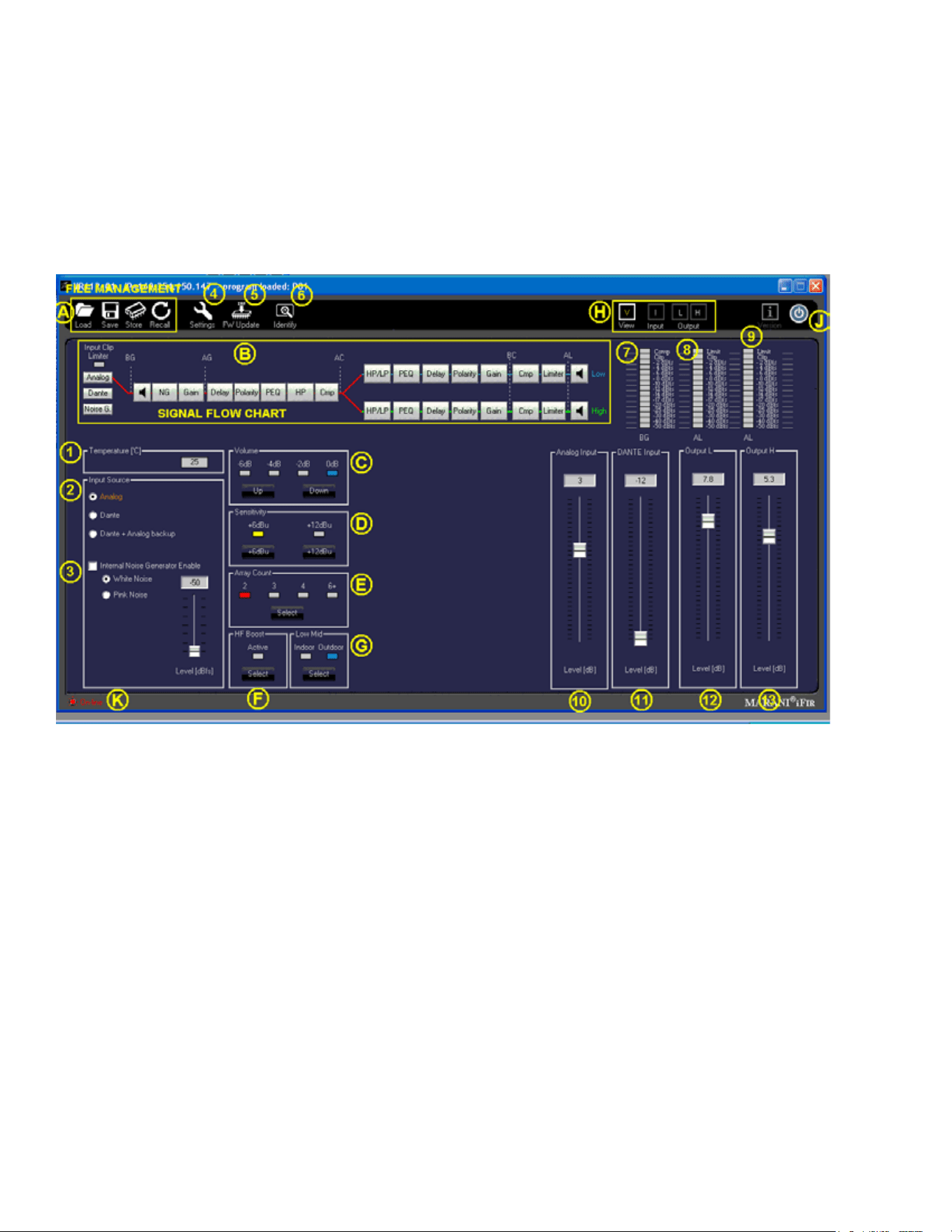
View Page
This is the rst page that comes up after loading a Preset into the Versarray™ Pro 112, or when
connecting with an existing Preset already present in the speaker system. See Fig. 7.
Preset File Management Group A
This includes the icons for Load, Save, Store and Recall.
Load (Preset) instructions have already been covered in the Quick Start Instructions for connecting to
the Versarray™ Pro 112 system and for up-loading a Preset to the Versarray™ Pro 112.
Save (Preset) function is the usual Windows le manager format, and les saved to the PC folders
can be very long le names, with the usual Windows restrictions on allowed characters. However, it
is good to keep in mind that the DSP memory can only display 16 characters, including spaces, so
keep the important or descriptive stu towards the beginning of the le name.
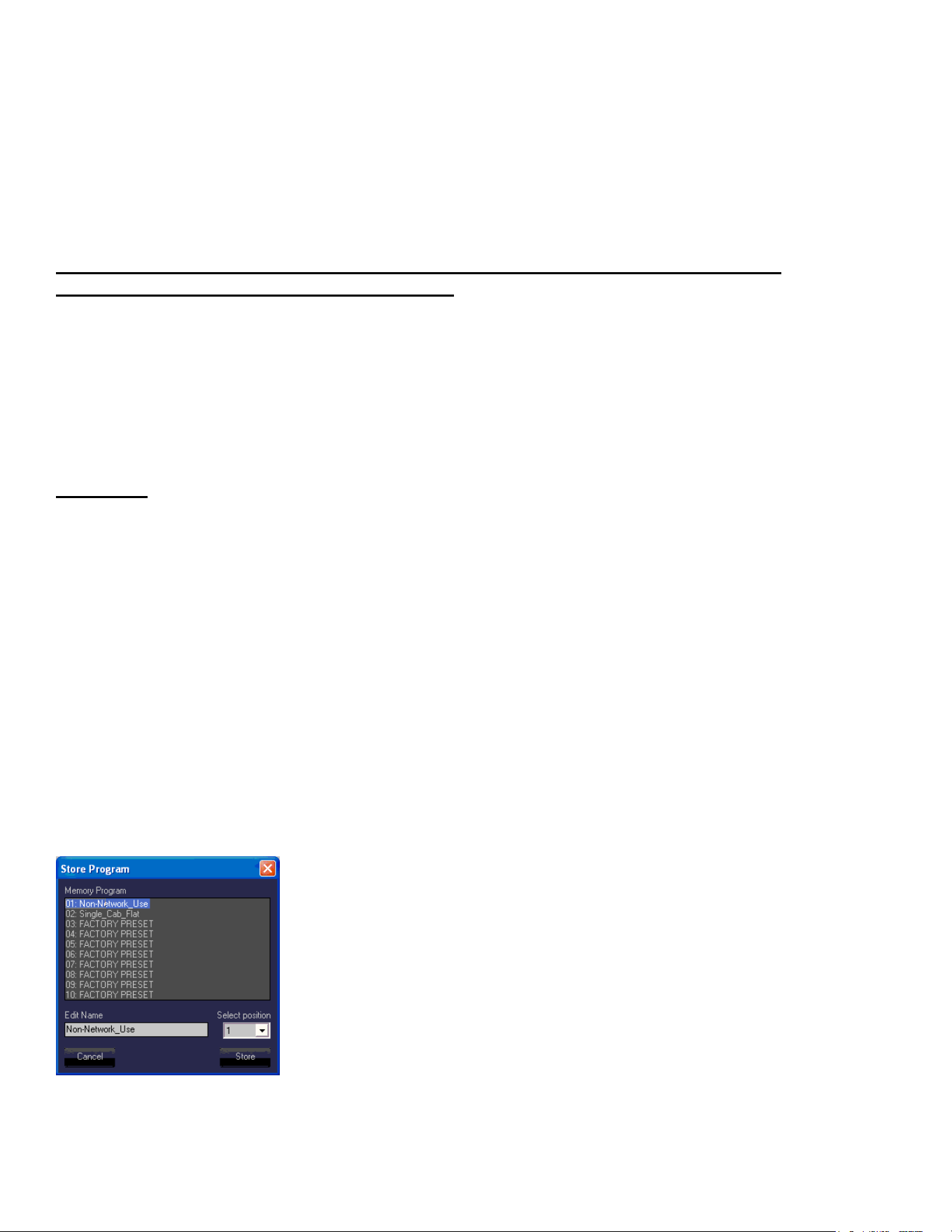
Store (Preset) function refers to storing the currently loaded Preset DSP le into the DSP system
memory of the power amp in the cabinet. See Fig. 8
Fig. 8
Sixteen characters are available for the le name, so when saving custom presets to the PC software
folder outside the Versarray™ Pro 112, keep that limitation in mind for the le name, and put the
32
important descriptors rst in the le name.
If a Factory Preset has been customized, then type in your desired name and use that to save the le
into DSP memory.
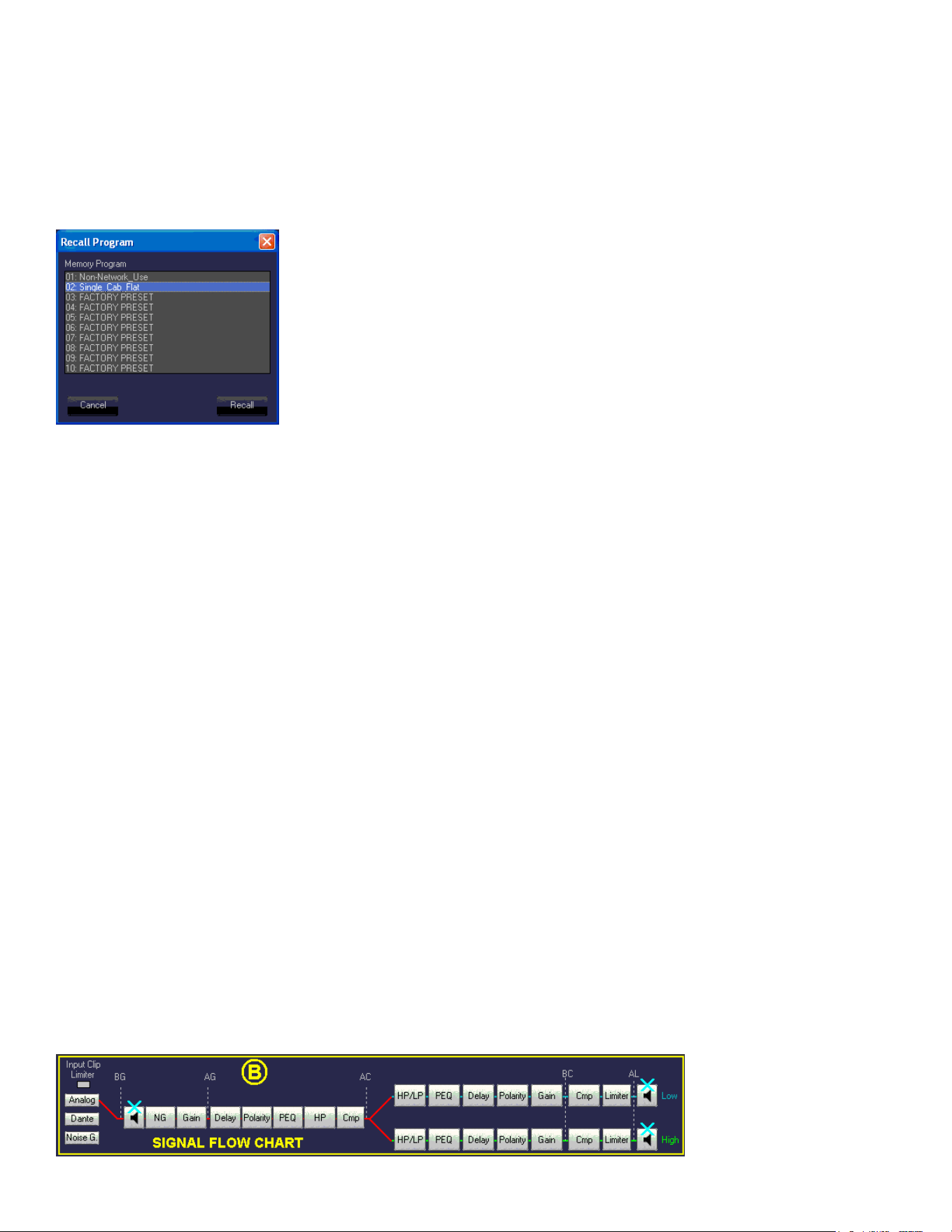
Recall (Preset) function loads a DSP le from the on-board memory into the DSP system in the
power amp, and makes it the active working Preset settings for the Versarray™ Pro 112 system. See
Fig. 9.
Fig. 9
The Recall function only brings in the Preset level of parameters, if there was a dierent set of Project
settings involved with that le, then the appropriate Project le from the PC software Program folder
will also need to be loaded into the Versarray™ Pro 112 DSP system as the next step.
All the Crest Factory Presets use the same basic settings, and thus, can be interchanged by merely
changing the Presets or Recalling from memory.
If setting the system up for network use from now on, see the sub-section titled Setting a Cabinet Up
for Network Use Only, in section 4 below.
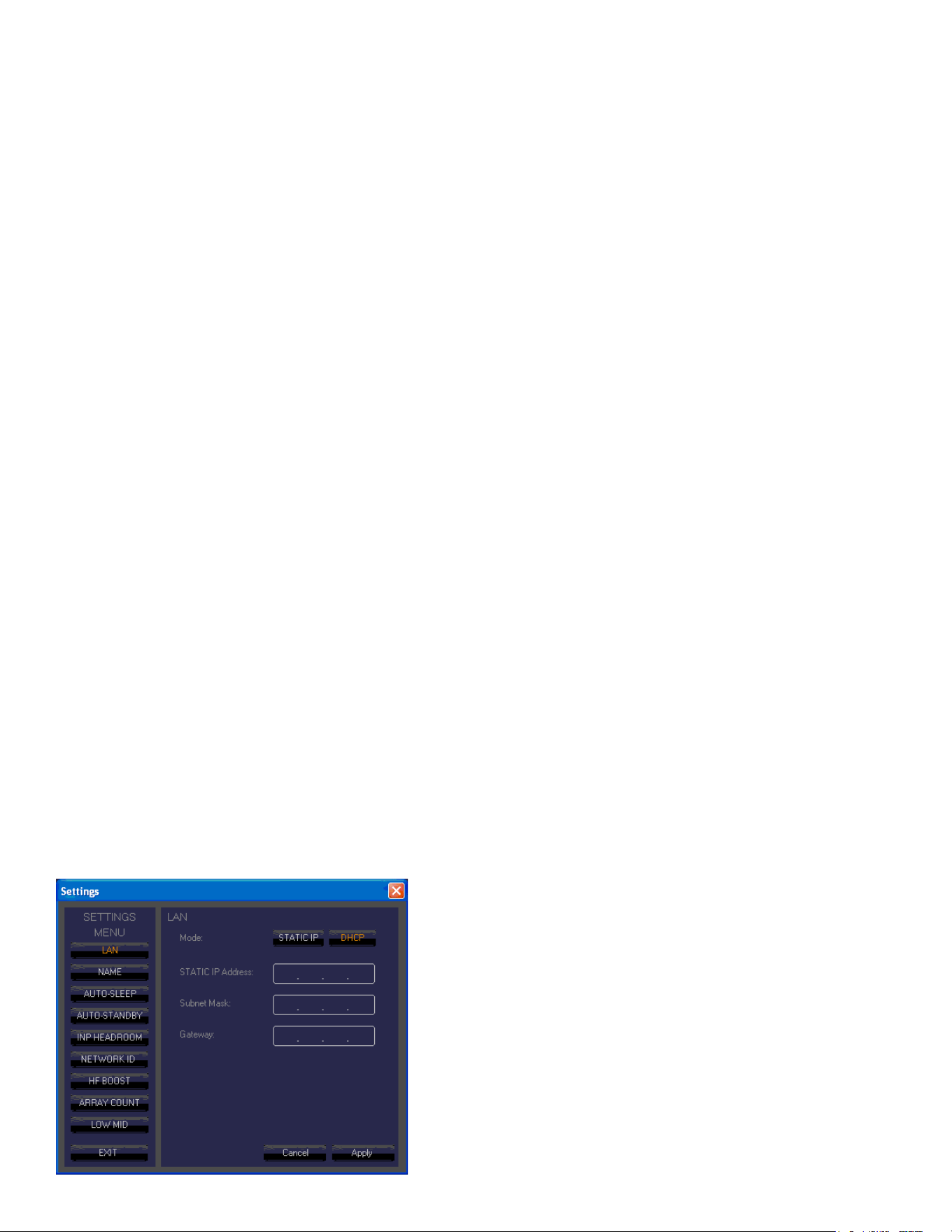
Signal Flow Chart Group B
This chart shows the signal ow through the Versarray™ Pro 112 DSP system.
It provides a indicator in the form of an Input Clip Limiter, which shows input stage electrical clipping.
Gain within the DSP system has been set so as to avoid the signal from clipping the input signicantly
before the internal processes reach compression and limiting. Re-adjustment of the internal gain
structure will require monitoring this indicator to assure that you are not clipping the input stage
instead of engaging the appropriate levels of internal compression and limiting.
Input Source is displayed, and is controlled at the View page section 2, located just below the Signal
Flow Chart Group at the left side of the Window.
Three muting points are accessible directly from this ow chart, as shown by the light blue “X”s on the
loudspeaker symbol block, see Fig. 10
33
Fig. 10
When clicked on to mute, the loudspeaker block turns red, and mutes the signal ow at that point.
Clicking on the block again un-mutes the signal chain at that point.
There are also mute controls on the Input Page, and on the Lows and the Highs Page, if the mute is
triggered at these locations, the indication still will occur at the View page as well via a red block icon.
For the various level meters provided at the right hand of all the GUI pages, some have a selectable
monitor point, the location of this point is shown on the Signal Flow Chart.
BG is Before Gain, AG is After Gain, AC is After Compression, BC is Before Compression, and AL is
After Limiting.
Section 1
Temperature
Displays the operating temperature of the power amp output stage in degrees Centigrade.
Allows monitoring the temperature of each amp in an array as one switches from Device to Device
Section 2
Input Source
Radio Buttons allow selection of the input from Analog XLR in, to Dante Ethernet network input, to
Dante with Analog back-up. Input level gains are controlled in Sections 10 and 11, see appropriate
Section.
Section 3
Internal Noise Generator Enable
Checkbox enabled. Provides the choice between White Noise and Pink Noise via Radio Button
selection, and a Level control with a range from -50 dBFS to - 20 dBFS. Note that even at -50 dBFS,
the level is substantial when one is up close to the speaker, and could startle someone if unaware of
the initiation of the event. Strongly recommended that the noise be turned on at the lowest level, and
then dis-engaged, and to then adjust level slowly up in moderate increments and re-engage to reach
the desired output.
Section 4
Settings
This section contains the settings that are associated with the Project parameters that are not
changed with the loading of a dierent Preset.
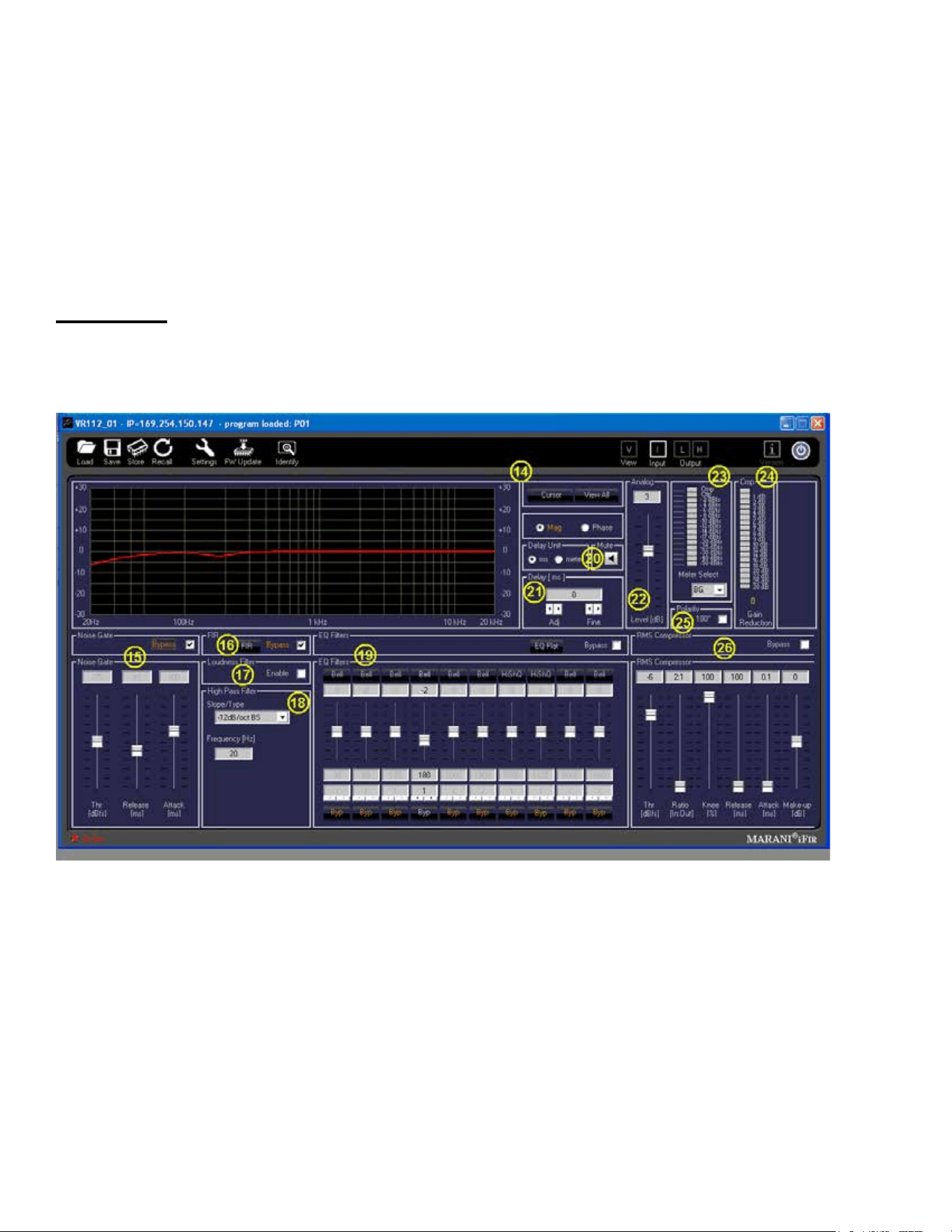
Clicking on this Icon will bring a menu of the various settings choices available. See Fig. 11.

34
Fig. 11
The default menu selection is for assigning the LAN addresses in the line array network.
In order for the data to be entered, or any changes to register with the DSP system, you must click on
the Apply button, and then the EXIT button. This procedure must be done for each of the Settings
choices, or the change or data entered will be lost.
NAME
Allows up to 16 characters to name a given Versarray™ Pro 112 cabinet. Default name is just VR112
AUTO-SLEEP
Checkbox enabled, this allows a Radio Button choice between 3, 5 or 10 minutes before the SLEEP
mode is engaged. Auto-Sleep mutes the power ampliers after the designated time has elapsed, and
then detects the presence of an audio signal and un-mutes the ampliers within approximately a few
ms.
AUTO-STANDBY
Checkbox enabled, this allows a Radio Button choice between 15, 30 or 60 minutes before the
STAND-BY mode is engaged. Auto-Standby powers the ampliers down after the designated time
has elapsed, and then detects the presence of an audio signal and un-mutes the ampliers within
approximately a few hundred ms.
INP HEADROOM
Input Headroom (+12 dB), Checkbox enabled, is used to provide a safety margin for DSP set-ups that
use a lot of gain above the 0 dB line on the Frequency Response Graphic Display (See Sections 14,
27 or 43). The Factory settings do not need this enabled, gain structure has been optimized for the
EQ settings and gain used.
If this feature is enabled, it is recommended that the input Sensitivity (Section D) be changed to +12
dBu from the nominal Factory setting of +6 dBu.
NETWORK ID
Allows you to set the network ID from hexadecimal 00 to FF.
There is a set of rear panel buttons that provide for this to be changed as well.
HF BOOST
Boosts the high frequencies above 2 kHz by a selected amount, levels ranging from 0 dB to +4 dB in
0.1 dB increments. The Factory Setting is +3.2 dB.
There is a rear panel button that provides for this to be engaged or not, and a GUI incorporated
Select button in Section F of the View Page.
The HF Boost rear panel button is generally only used when the system is in Non-Network Use
mode, and for cabinets that have been angled a lot more than the rest of the line, and that need a
corresponding added boost to the HF’s. An example of this would be the bottom cabinets of a “J-line”
shaped line-array.
The Presets available for use with a Network connected system provide for the needed HF boost
amounts and types for a given Preset le purposed use.
See the Section on Using the Non Network Push-Button System for the details on the operation of

35
this rear panel push button feature.
ARRAY COUNT
Provides 4 Up-Down Control Boxes for diering amounts of HF boost, depending on the number of
cabinets deployed in a line array
Boosts the high frequencies above 2 kHz by a selected amount, allowable levels ranging from 0 dB to
+8 dB in 0.1 dB increments.
The Factory Settings are:
2 Cabs is +0 dB.
3 Cabs is +2.7 dB.
4 Cabs is +5.4 dB.
6+ Cabs is +6.5 dB.
There are rear panel buttons that provides for the selected array count to be active, and a GUI
incorporated set of buttons in Section F of the View Page.
See the Section on Using the Non Network Push-Buttons On the VR112 Rear Panel for the details
on the operation of this rear panel push button feature.
LOW MID
Provides a Low Shelf cut for when more than 6 to 8 cabinets are in the Line Array.
The parameters are: - 3.5 dB at 180 Hz, Q of 1.7
The associated rear panel button or the GUI Select button are generally only used when the system
is in Non-Network_Use mode, as the Network Presets already incorporate the correct EQ for this
aspect and a more exact number of cabinets in the line array.
As a reminder, in order for the Settings data to be entered, or any changes to register with the DSP
system, you must click on the Apply button, and then the EXIT button. This procedure must be done
for each of the Settings choices, or the change or data entered will be lost.
Setting a Cabinet Up for Network Use Only
The following two Settings parameters should be custom congured for regular use with a network,
rather than remain in the factory default settings.
HF BOOST
ARRAY COUNT
Both of these parameters can have their boost amounts set to 0 dB, so that activation of the HF
BOOST or the ARRAY COUNT buttons will not ADD additional HF gain on top of what is already
dialed in with a given Factory or Custom Preset.
That way, if the HF BOOST button is inadvertently activated, or the ARRAY COUNT is set to
something other than 2, the correct amount of HF gain will still be applied.
So for the ARRAY COUNT parameter, set the individual button boost amounts all to zero dB.
2 Cabs is +0 dB.
3 Cabs is +0 dB.
4 Cabs is +0 dB.
6+ Cabs is +0 dB.

36
The parameters in the Settings menu DO NOT carry over from any Preset les, they do not Save
into a Preset, nor do they Load when a Preset is loaded. So each cabinet will have to be adjusted
individually. Once this has been done, the Presets will not change these parameters, and there need
be no concern about inadvertent button activation, etc.
Section 5
FW Update
This section allows for a rmware update to the DSP operating system, something that will only be
done on an infrequent (if ever) basis. Contact Crest Audio/Peavey Electronics for information on
whether a rmware update is available or desirable. Instructions for an update will be provided at that
time as needed.
Section 6
Identify
Clicking on this icon will light up an LED on the front panel of the Versarray™ Pro 112 speaker
system, to allow one to see which cabinet in an array is being accessed.
Section C
Volume
Up and Down buttons provide for changing the Level of the audio signal.
Factory default is 0 dB, with a range down to -6 dB in 2 dB steps.
There are rear panel buttons that provides for the selected Level to be chosen as well.
These Level choices become handy when using amplitude shading of the line array, for progressively
reducing the output of a bottom portion of an array, or the J section of a J-line array.
Section D
Sensitivity
Click to choose buttons allow selection of either +6 dBu or +12 dBu sensitivity of the Analog input
(XLR in) of the Versarray™ Pro 112 system. The Factory default is +6 dBu, and the gain structure of
the rest of the DSP based preamp system has been based on this sensitivity level. If the +6 dBu is
too sensitive for your requirements, then you can select the +12 dBu option instead with no penalty in
performance or noise.
With the Input Sensitivity set to +6 dBu, it takes 1.75 VAC RMS to drive the Versarray™ Pro 112
system to full power output on music. That would change to 3.5 VAC with a change of the Sensitivity
to +12 dBu.
Note that with the Sensitivity set to +12 dBu, it might be more likely that the input stage could be
overdriven and clipped. Checking the Input Clip Indicator in Section B would be advisable if it is felt
necessary to engage the +12 dBu sensitivity setting.
Section E
Array Count
Provides a single button to cycle through diering amounts of HF boost, depending on the number of
cabinets deployed in a line array. Boosts the high frequencies above 2 kHz by a selected amount.
Factory Settings are:
2 Cabs is +0 dB.
3 Cabs is +2.7 dB.
4 Cabs is +5.4 dB.
6+ Cabs is +6.5 dB.
These buttons are only useful when used for the Non-Network_Use Factory Default Preset le is
loaded. These happen to be the Factory Default les the unit initially comes loaded with, out of the

37
box.
Once it has been determined that the system will always be used with, or is being permanently set up
with a network connection, it is strongly recommended that the buttons are all set to 0 dB boost, so
that additional push button boost beyond what has already been programmed on those Presets, can
not be inadvertently added on.
Section F
HF Boost
Provides a high frequency boost for added cabinets or when the cabinet is angled more than a gentle
curve, like at the end of a “J-Line”. Boost amount ranges from 0 dB to +4.0 dB in 0.1 dB increments,
adjustable in the Settings section 4 menu.
Factory setting is +3.2 dB.
Generally only used when the system is in Non-Network_Use mode, as the Network accessible
MLAS™ Presets already incorporate the correct EQ for this aspect, and for a more exact number
of cabinets in the line array. It is strongly recommended that the HF Boost button is set to 0 dB
boost for regular network use, or network set-up with MLAS™ Presets, so that extra HF boost is not
accidentally applied while a multi-cabinet Preset is loaded.
Use caution engaging this button with the Array Count button set to 4 Cabinets or higher, as this
engages a large total sum amount of HF EQ boost.
Section G
Low-Mid
Provides a Low Shelf cut for when more than 6 to 8 cabinets are in the Line Array.
The parameters are: - 3.5 dB at 180 Hz, Q of 1.7
Normal indicator position should be Outdoor.
Generally only used when the system is in Non-Network_Use mode, as the Network Presets already
incorporate the correct EQ for this aspect, and for a more exact number of cabinets in the line array.
Section H
Device pages
Icon selection of which page is on top and visible:
View page
Input Page
Output page L (lows)
Output page H (highs)
Section J
Power
Button turns the power amplier O if it is On, and On if it is O. Turns Red when the power amp is
O.
Section K
On-line/O-line Indicator
Indicates whether or not that particular cabinet is connected to the DSP GUI network.
It does not indicate Dante connection or any other network status.
Lights up Red when On-line, Black when O-line.
Section 7
Level Meter, monitors signal level at the point marked BG (Before Gain) in the Signal Flow Chart

38
Section B diagram, see Fig.10 for the details.
This is the level of the signal at the input to the DSP Preamp, and shows clipping of the analog input
stage (2nd from top indicator bar turns red), as well as compression due to the input stage ADC
overdrive prevention circuit (top indicator bar turns yellow).
Section 8
Level Meter for the Lows
Level Meter, monitors signal level at the point marked AL (After Limiter) in the Signal Flow Chart
Section B diagram, see Fig.10 for the details.
This is the level of the signal at the output of the DSP Preamp Low channel, and shows clipping of
the analog output stage (2nd from top indicator bar turns red), as well as compression as dialed in at
Sections 29 and 30 (top indicator bar turns yellow).
Section 9
Level Meter for the Highs
Level Meter, monitors signal level at the point marked AL (After Limiter) in the Signal Flow Chart
Section B diagram, see Fig.10 for the details.
This is the level of the signal at the output of the DSP Preamp High channel, and shows clipping of
the analog output stage (2nd from top indicator bar turns red), as well as compression as dialed in at
Sections 45 and 46 (top indicator bar turns yellow).
Section 10
Analog Input Level
Master Gain control for the analog input. Has a range of +/- 12 dB.
Factory Setting is +3 dB. Realize that turning this gain down will NOT prevent input stage clipping,
and that in order to try and avoid input stage clipping, this control should be set at 0 dB or above, so
the gain inside the Versarray™ Pro 112 will allow the input signal level to be reduced and avoid the
input stage clipping.
Section 11
DANTE Input Level
Local gain control for the DANTE input. Has a range of +/- 12 dB.
Factory Setting is -12 dB, so the level can be adjusted as appropriate after establishing DANTE
connection.
Section 12
Output L Level
This sets the output gain of the Lows channel, which drives the woofer.
It is strongly recommend that this level not be changed, as it sets the relationship between the woofer
output level and the tweeters output level.
If the gain must be changed for some reason, then maintain the relationship of the gain dierence
between the woofer and the tweeters. The woofer should be driven 2.5 dB higher than the tweeters.
Factory setting for this section is +7.8 dB
Changing this setting may render the available EASE Focus 3 and EASE modeling data incorrect,
and change the horizontal polar behavior of the Versarray™ Pro 112 system.
Section 13
Output H Level
This sets the output gain of the Highs channel, which drives the tweeters.
It is strongly recommend that this level not be changed, as it sets the relationship between the woofer
39
output level and the tweeters output level.
If the gain must be changed for some reason, then maintain the relationship of the gain dierence
between the woofer and the tweeters. The woofer should be driven 2.5 dB higher than the tweeters.
Factory setting for this section is +5.3 dB
Changing this setting may render the available EASE Focus 3 and EASE modeling data incorrect,
and change the horizontal polar behavior of the Versarray™ Pro 112 system.
NOTE: SETTING BOTH SECTIONS 12 AND 13 DOWN WHILE RETAINING THE LEVEL
DIFFERENCE OF 2.5 DB MAY NOT ALLOW FULL DRIVE TO THE POWER AMP TO BE REACHED
WITHOUT INPUT STAGE CLIPPING OCCURING.
Input Page
The Input Page of the Versarray™ Pro 112 DSP GUI provides an overview of controls and
parameters of the system, including EQ and compression of the entire signal. See Fig. 12
Fig. 12
Section 14
Frequency and Phase Response Graph and related controls
This section provides a graphical display of the frequency response changes dialed in to this Page.
Using the Mag and Phase Radio Buttons, you can toggle between the Magnitude
( frequency response) and the Phase of the changes.
The Cursor button places small cursor symbols at all the dialed-in EQ spots on the curve, providing a
visual locator and ag for their actions.
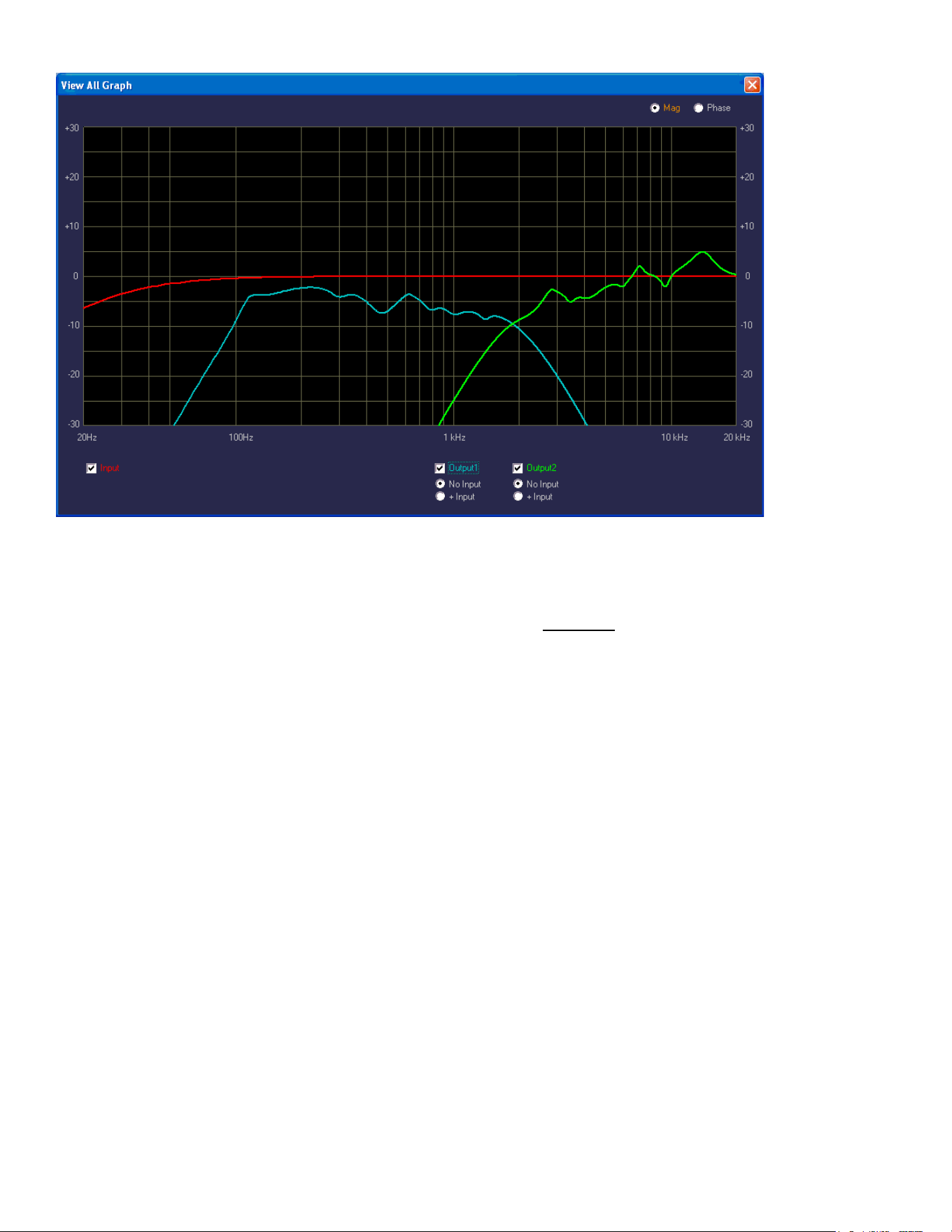
The View All button starts a new Window that overlays the three pages curves, the Input Page, the
Lows Page and the Highs Page, on one graph. They are not summed, just overlaid on one another.
40
See Fig. 13
Fig. 13
Checkboxes and Radio Buttons provide for various display options from the default view, including
the Phase response of all three sections.
Note that these responses are for the electronics only, and DO NOT represent the actual electro-
acoustic output of the system, or of the individual drivers.
Section 15
Noise Gate
A noise gate is provided as a means to mute low level noises or sounds from the system.
A Bypass checkbox toggles the noise gate active or inactive. Default setting is Bypassed, as the
Versarray™ Pro 112 system is very quiet and free from hiss or hum in and of itself.
parameters
Thr (Threshold) dBFS
The threshold of opening the noise gate ranges from -90 dBFS to -60 dBFS
Release
The release time ranges from 1 to 1000 ms
Attack
The attack time ranges from 30 to 1000 ms
NOTE: If the Noise gate threshold is set too high, or the Attack and Release times are set
oddly, the music could be aected, with low level notes cutting on and o as the music plays.
Section 16
FIR
A Bypass checkbox toggles the FIR processing active or inactive.
FIR processing provides a means to correct phase and amplitude deviations beyond what a typical
parametric EQ can achieve. This is a specialized Factory set of parameters and data, and is not user
adjustable. Factory setting is Bypass.

41
NOTE: It is strongly recommended that the User not try to change the FIR coecients, as
they could be loaded in with an error in amplitude or bandwidth, and cause excessive drive
level to the system or a particular component, causing damage and/or failure of the system or
component.
CHANGING THESE SETTINGS FROM THE FACTORY SETTINGS WILL VOID THE WARRANTY!
Section 17
Loudness Filter
An Enable checkbox toggles the loudness function processing active or inactive.
This function provides a bass and treble boost for situations where the sound level is much lower than
normal, and will stay that way for a long period of time.
Should not be used for high SPL Sound Reinforcement use.
Factory setting is unchecked.
Section 18
High Pass Filter
This section provides a means to infra-sonic lter the music before it gets to the rest of the signal
processing sections, for added protection from non-musical deep bass noises, transients (Pops), and
stage borne noises.
Slope/Type is a drop down menu bar, with the following options for lters:
Bypass
6 dB/Oct. Butterworth (BW)
12 dB/Oct. Butterworth
18 dB/Oct. Butterworth
24 dB/Oct. Butterworth
36 dB/Oct. Butterworth
48 dB/Oct. Butterworth
12 dB/Oct. Linkwitz-Riley (LZ)
24 dB/Oct. Linkwitz-Riley
36 dB/Oct. Linkwitz-Riley
48 dB/Oct. Linkwitz-Riley
12 dB/Oct. Bessel (BS)
24 dB/Oct. Bessel
Below the Slope/Type Drop down menu bar, is a Frequency (Hz) box, where you can enter the
frequency in directly in Hz. This can range from 20 Hz to 20,000 Hz. Click on the box numerals, and
type in the desired frequency in Hz, and hit Enter.
Factory setting is 20 Hz, 12 dB/Oct. Bessel
Altering this setting will undo the optimization of the Versarray™ Pro 112 crossover to the Versarray™
Pro Subs crossover. The frequency and amount of roll-o is carefully considered for minimal sonic
impact, and maximum additional protection from LF garbage signals.
Section 19
EQ Filters Section
Ten Bands of parametric EQ are available for the overall system EQ, and provide a lot of performance
enhancement of the system.
Each band has the following capabilities:
Amplitude changes up to + and – 6 dB, in 0.5 dB increments.
Filter Types for each band include:
Bell (parametric), with Q ranging from 0.4 to 20

42
Hi Shelf, with Q ranging from 0.1 to 3.5
Lo Shelf, with Q ranging from 0.1 to 3.5
Low Pass, with Q ranging from 0.1 to 3.5
High Pass, with Q ranging from 0.1 to 3.5
Notch Filter, with Q ranging from 4 to 72
All-Pass1, a 1
st
order all-pass lter, no Q adjust (it’s 1
st
order)
All-Pass2, a 2
nd
order all-pass lter, with Q ranging from 4 to 72
Each band has a Bypass button ( Byp ) at the bottom of the EQ strip, which turns o the EQ band
changes to make that band “at”, then with another click, that EQ band action is turned back on.
There is a Bypass checkbox for overall bypass of the entire EQ section at once, which toggles the
EQ on and o. This is located at the top right-hand side of this section.
There is an EQ Flat button for returning all the bands and settings to 0 dB, but this button does NOT
toggle, if clicked, the EQ settings are lost, and you start over again.
If you should accidently click this button, just re-load the most relevant Preset back into the
Versarray™ Pro 112 system from the le folder, or from the on-board DSP memory.
Note: It is strongly recommend that the EQ bands in use for the Factory Presets be left unaltered and
NOT be changed by the end user. This is the additional EQ used to generate the Factory Presets for
the Versarray™ Pro 112 system, and as such, altering it will defeat to whatever extent the bands are
changed, the desired end result of the Preset’s use.
This should still leave anywhere from 9 bands of EQ to 6 bands for the non-Bass Boosted Presets,
and a minimum of 3 for the worst case Bass Boost Preset.
Any unused EQ bands should have the Byp (Bypass) button clicked on (turns Orange).
CHANGING THE BANDS WITH FACTORY SETTINGS MAY VOID THE WARRANTY!
Section 20
Mute button, a click turns the Input Page signal output OFF.
The icon turns red, and an “X” appears next to the loudspeaker symbol.
To un-mute the signal, click it again.
This action also shows up on the View Page under the Signal Flow Chart B group, where the same
icon in the signal chain shows as red when muted. As noted in that section, clicking on the icon while
on the View Page will also toggle the Mute On or O.
Section 21
Delay, sets the delay time of the Input Page signal for the system.
Delay Units, Radio Buttons select the units, either ms (milliseconds) or meters.
Parameter
Adj delay increments are 1 ms (or 0.34 meters), Fine delay increments are approx. 0.0207 ms (or
0.007 meters), with a maximum total delay of 251 ms (or 85.3 meters).
Factory setting for this section is 0 ms.
NOTE: When using the Crest Audio® Versarray™Mk3 6 Foot Fly Bar to y a Halo of Multiple VR
112’s, and a separate Halo of multiple VR 215 Subs at the recommended hang locations on the
ybar, the typical delay needed for the VR112 hang as a whole is approximately 4 ms to align it with
the Subs for the best mesh at the crossover.

43
Section 22
Gain, sets output level of the Input Page .
Range is +/- 12 dB in 0.1 dB increments. Factory setting is +3 dB.
This is the same control as Section 9 or 10 on the View Page, depending on which input has been
selected at Section 2. See that section for some notes on it’s operation.
Section 23
Level Meter, monitors signal level at the point selected by the Meter Select drop down menu.
The Meter Select drop down menu allows a choice of BG (Before Gain), AG (After Gain), or AC (After
Compression). See the Signal Flow Chart Section B diagram Fig.10 for the details of where these
monitor points are in the signal chain.
The signal monitor point selection BG duplicates the meter function on the View Page at Section 7.
It is recommended to leave the meter set to either the monitor point of BG or AG, since the next meter
shows how much compression is occurring.
The meter shows clipping of the signal (2nd from top indicator bar turns red), as well as compression
as dialed in at Section 26 (top indicator bar turns yellow).
Section 24
Cmp Gain Reduction meter, displays the level of compression occurring in Section 26 (top indicator
bar turns yellow)..
Section 25
Polarity, provides a checkbox to reverse the polarity of the signal.
The overall polarity would seldom be reversed, except for some special circumstance, normal usage
would have the polarity remain normal. Factory setting is normal (unchecked).
Section 26
RMS Compressor Section
This section provides for adjusting the compression parameters of the overall system, and for the
Versarray™ Pro 112 it is used to extend the apparent dynamic range of the system, by compressing
the signal when it reaches 3 dB below hard limiting (amplier clipping). The slope (ratio) of the
compression is 2:1, so the input signal can increase 6 dB before hitting the Hard Limit point
Parameters
Thr (Threshold), sets the threshold of the limiter action, with a range from 0 dBFS to -30 dBFS.
Factory Setting is - 6 dBFS.
Ratio, sets the slope of the compression curve, ranges from 2:1 to 32:1.
Factory Setting is 2:1.
Knee, sets how sharp the compression curve engages relative to the Threshold point, ranges from
0% to 100%. Factory Setting is 100%.
Release, sets the release time after compression has engaged, till the compression is no longer
engaged. Ranges from 100 milliseconds to 15000 ms. Factory Setting is100 ms.
Attack, sets how quickly the compression engages once the threshold point has been passed.
Ranges from 0.10 milliseconds to 2000 ms. Factory Setting is 0.1 ms.
Make-Up (Make up gain), has a +/- 12 dB range, in 0.1 dB increments. Factory Setting is 0 dB.
There is a Bypass checkbox for overall bypass of the entire Compression section at once, which
toggles the Compression on and o. This is located at the top right-hand side of this section.
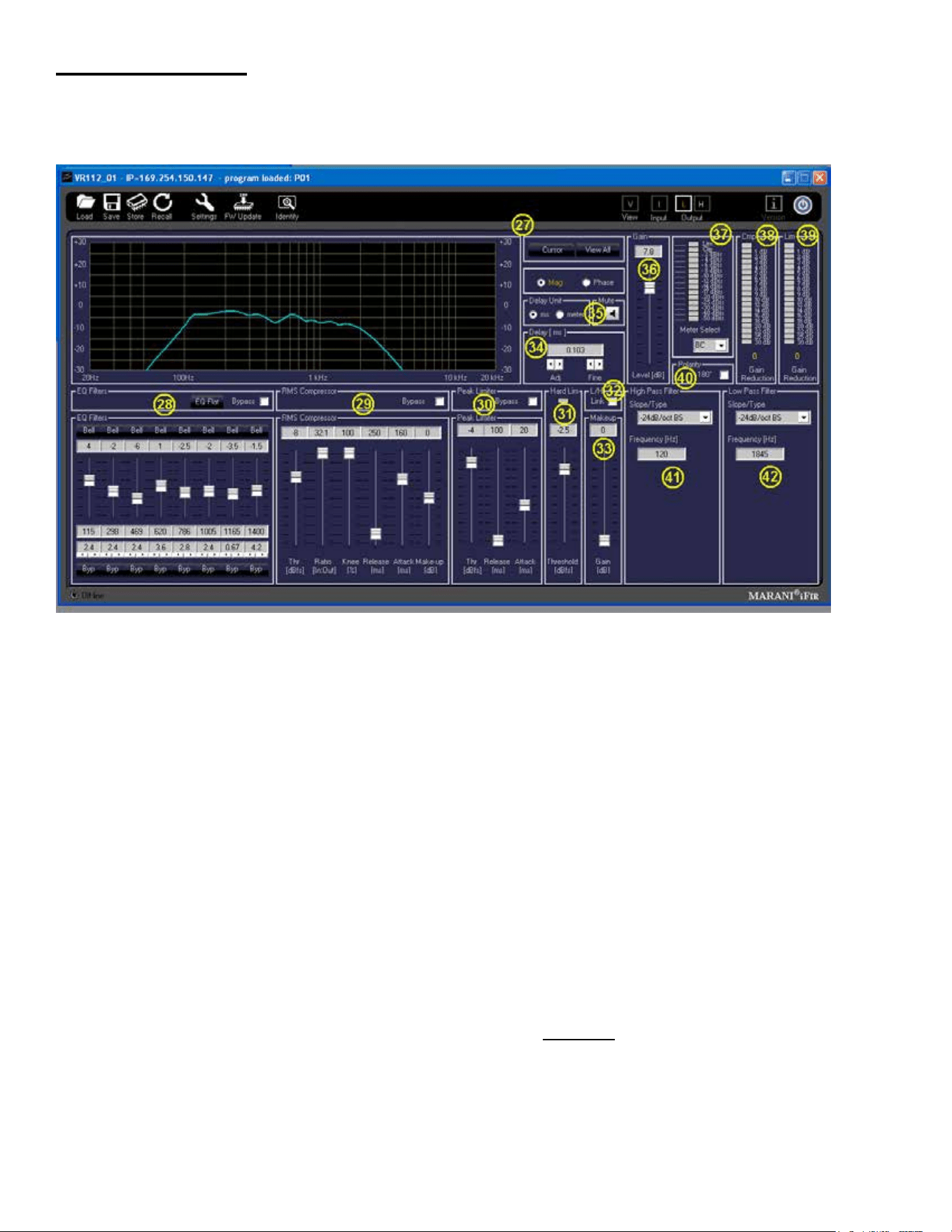
44
Lows Output Page
The Lows Output Page of the Versarray™ Pro 112 DSP GUI provides the control of the woofer
parameters of the system. See Fig. 14
Fig. 14
Section 27
Frequency and Phase Response Graph and related controls
This section provides a graphical display of the frequency response changes dialed in to this Page.
Using the Mag and Phase Radio Buttons, you can toggle between the Magnitude
( frequency response) and the Phase of the changes.
The Cursor button places small cursor symbols at all the dialed-in EQ spots on the curve, providing a
visual locator and ag for their actions.
The View All button starts a new Window that overlays the three pages curves, the Input Page, the
Lows Page and the Highs Page, on one graph. They are not summed, just overlaid on one another.
See Fig. 13 from Input Page Section
Checkboxes and Radio Buttons provide for various display options from the default view, including
the Phase response of all three sections.
Note that these responses are for the electronics only, and DO NOT represent the actual electro-
acoustic output of the system, or of the individual drivers.
Section 28
EQ Filters
Eight Bands of parametric EQ are available for the woofer EQ, and provide a lot of performance
enhancement of the system.

45
Each band has the following capabilities:
Amplitude changes up to + and – 15 dB, in 0.5 dB increments.
Filter Types for each band include:
Bell (parametric), with Q ranging from 0.4 to 128
Hi Shelf, with Q ranging from 0.1 to 5.1
Lo Shelf, with Q ranging from 0.1 to 5.1
Low Pass, with Q ranging from 0.1 to 5.1
High Pass, with Q ranging from 0.1 to 5.1
Notch Filter, with Q ranging from 4 to 104
All-Pass1, a 1
st
order all-pass lter, no Q adjust (it’s 1
st
order)
All-Pass2, a 2
nd
order all-pass lter, with Q ranging from 4 to 104
Each band has a Bypass button ( Byp ) at the bottom of the EQ strip, which turns o the EQ band
changes to make that band “at”, then with another click, that EQ band action is turned back on.
There is a Bypass checkbox for overall bypass of the entire EQ section at once, which toggles the
EQ on and o. This is located at the top right-hand side of this section.
There is an EQ Flat button for returning all the bands and settings to 0 dB, but this button does NOT
toggle, if clicked, the EQ settings are lost, and you start over again.
If you should accidently click this button, just re-load the most relevant Preset back into the VR112
system from the le folder, or from the on-board DSP memory.
Note it is strongly recommend that this section NOT be changed or altered by the end user. This is
the primary EQ for the woofer portion of the Versarray™ Pro 112 system, and as such, altering it even
a little will not only degrade the crossover function and the acoustic mesh with the tweeter, but render
the available EASE Focus 3 and EASE modeling data incorrect.
CHANGING THESE SETTINGS FROM THE FACTORY SETTINGS WILL VOID THE WARRANTY!
Section 29
RMS Compressor
This section provides for adjusting the compression parameters of the woofer, and is used to control
the medium and long-term power to the woofer, so it will not be damaged due to thermal overdrive
over the long-term. Thus, the settings may seem odd, but they are there to protect the woofer, as the
woofer power amp has enough continuous power output capability to exceed the long-term thermal
capacity of the woofer.
Parameters
Thr (Threshold), sets the threshold of the limiter action, with a range from 0 dBFS to -30 dBFS.
Factory Setting is - 8 dBFS.
Ratio, sets the slope of the compression curve, ranges from 2:1 to 32:1.
Factory Setting is 32:1
Knee, sets how sharp the compression curve engages relative to the Threshold point, ranges from
0% to 100%. Factory Setting is 100%.
Release, sets the release time after compression has engaged, till the compression is no longer
engaged. Ranges from 100 milliseconds to 15000 ms. Factory Setting is 200ms.
Attack, sets how quickly the compression engages once the threshold point has been passed.
Ranges from 0.10 milliseconds to 2000 ms. Factory Setting is 160 ms.
Make-Up (Make up gain), has a +/- 12 dB range, in 0.1 dB increments. Factory Setting is 0 dB.
There is a Bypass checkbox for overall bypass of the entire Compression section at once, which
toggles the Compression on and o. This is located at the top right-hand side of this section.
CHANGING THESE SETTINGS FROM THE FACTORY SETTINGS WILL VOID THE WARRANTY!

46
Section 30
Peak Limiter
This section provides for adjusting the peak limiting parameters of the woofer, and is used to control
the short-term power to the woofer, so it will not be overdriven at high levels. It has an abrupt
engagement threshold, no knee, controlled only by the attack and release parameters.
Parameters
Thr (Threshold), sets the threshold of the limiter action, with a range from 0 dBFS to -30 dBFS.
Factory Setting is -4 dBFS.
Release, sets the release time after limiting has engaged, till the limiting is no longer engaged.
Ranges from 100 milliseconds to 5,000 ms. Factory Setting is 100 ms.
Attack, sets how quickly the limiting engages once the threshold point has been passed.
Ranges from 1 millisecond to 1,000 ms. Factory Setting is 20 ms.
There is a Bypass checkbox for overall bypass of the entire Peak Limiting section at once, which
toggles the peak limiting on and o. This is located at the top right-hand side of this section.
CHANGING THESE SETTINGS FROM THE FACTORY SETTINGS WILL VOID THE WARRANTY!
Section 31
Hard Lim
This is a peak limiter that absolute limits the signal to the level selected, with zero time constants. No
attack, no release times.
It’s sole purpose it to prevent and avoid PWM amplier clipping. It has been found that PWM
amplier clipping is much more distressing and audible than a clean clip or limit in the digital domain
as implemented in this section.
The proper use of this hard limiter can allow the system to play louder with less apparent distortion
than if the PWM amplier were allowed to clip uncontrolled, eectively extending the apparent
loudness of this portion of the system by approximately 3 dB or more.
The previous compression and peak limiting stages take care of the music dynamics with minimal
eect on the sound, and this stage minimizes the audible negative impact when the system is driven
beyond full peak output power.
Parameter
Threshold, range of 0 dBFS to -9 dBFS. Factory Setting is -2.5
Indicator
Has a Limit indicator icon to show when Hard Limiting is occurring, located at the top of this sections
strip.
CHANGING THIS SETTING FROM THE FACTORY SETTING WILL VOID THE WARRANTY!
Section 32
L/H Link, links the Makeup Gain after the Hard Limiter of the Lows Page section and the Highs Page
sections together to the same value. A checkbox toggles it on and o. Not recommended for normal
or Factory Preset use.
Section 33
Makeup (Make up gain),
Range is 0 dB to +9 dB.
It is recommended that this control be left at 0 dB, as adding gain at this point will defeat the correct
action of the Hard Limiter as Factory set.
If the Compressors and Limiters are re-congured away from Factory settings (which will void the
Warranty), then this control may be of some utility.

47
Section 34
Delay, sets the delay time of the Lows Page signal for the woofer.
Delay Units, Radio Buttons select the units, either ms (milliseconds) or meters.
Parameter
Adj delay increments are 1 ms (or 0.34 meters), Fine delay increments are approx. 0.0207 ms (or
0.007 meters), with a maximum total delay of 41 ms (or 13.6 meters).
Factory setting for this section is 0.103 ms.
Changing this setting will render the available EASE Focus 3 and EASE modeling data incorrect, and
change the horizontal polar behavior of the Versarray™ Pro 112 system.
Section 35
Mute button, a click turns the Lows Page signal output OFF.
The icon turns red, and an “X” appears next to the loudspeaker symbol.
To un-mute the signal, click it again.
This action also shows up on the View Page under the Signal Flow Chart B group, where the same
icon in the signal chain shows as red when muted. As noted in that section, clicking on the icon while
on the View Page will also toggle the Mute On or O.
Section 36
Gain, sets output level of the Lows Page (woofer output).
Range is +/- 12 dB in 0.1 dB increments.
The Factory Presets use this point to add gain for the overall gain structure to minimize input stage
and internal DSP system clipping or overload, as well as to balance the woofer and tweeter output
levels to each other.
Factory Default is +7.8 dB.
Changing this setting will render the available EASE Focus 3 and EASE modeling data incorrect, and
change the horizontal polar behavior of the Versarray™ Pro 112 system, and may void the Warranty.
Section 37
Level Meter, monitors signal level at the point selected by the Meter Select drop down menu.
The Meter Select drop down menu allows a choice of BC (Before Compression), or AL (After
Limiting). See the Signal Flow Chart Section B diagram Fig.10 for the details of where these points
are in the signal chain.
It is recommended to leave the meter set to the default monitor point of BC, since the next two meters
show how much compression and limiting is occurring.
The meter shows clipping of the signal (2nd from top indicator bar turns red), as well as compression
as dialed in at Sections 29 and 30 (top indicator bar turns yellow).
Section 38
Cmp Gain Reduction meter, displays the level of compression occurring in section 29.
Section 39
Lim Gain Reduction meter, displays the level of limiting occurring in section 30.
This meter will tend to display up to approximately 3 to 4 dB of Gain Reduction at maximum
reasonable output of the system. Driving the system harder than this will tend to result in increasingly
audible distortion and/or compression, and is not recommended for high quality music playback or
Sound Reinforcement.

48
Section 40
Polarity, provides a checkbox to reverse the polarity of the signal.
The woofer polarity would seldom be reversed, except for some special circumstance, normal usage
would have the polarity remain normal. Factory setting is normal (unchecked).
Section 41
High Pass Filter, provides the control of the crossover parameters for the Low Frequency roll-o of
the woofer.
Slope/Type is a drop down menu bar, with the following options for lters:
Bypass
6 dB/Oct. Butterworth (BW)
12 dB/Oct. Butterworth
18 dB/Oct. Butterworth
24 dB/Oct. Butterworth
36 dB/Oct. Butterworth
48 dB/Oct. Butterworth
12 dB/Oct. Linkwitz-Riley (LZ)
24 dB/Oct. Linkwitz-Riley
36 dB/Oct. Linkwitz-Riley
48 dB/Oct. Linkwitz-Riley
12 dB/Oct. Bessel (BS)
24 dB/Oct. Bessel
Below the Slope/Type Drop down menu bar, is a Frequency (Hz) box, where you can enter the
frequency in directly in Hz. This can range from 20 Hz to 20,000 Hz. Click on the box numerals, and
type in the desired frequency in Hz, and hit Enter.
Factory setting is 120 Hz, 24 dB/Oct. Bessel
Altering this sections Filter type or Frequency from Factory settings will render the available EASE
Focus 3 and EASE modeling data incorrect, and change the horizontal polar behavior of the
Versarray™ Pro 112 system, and WILL void the Warranty.
Section 42
Low Pass Filter, provides the control of the crossover parameters for the High Frequency roll-o of
the woofer.
Slope/Type is a drop down menu bar, with the following options for lters:
Bypass
6 dB/Oct. Butterworth (BW)
12 dB/Oct. Butterworth
18 dB/Oct. Butterworth
24 dB/Oct. Butterworth
36 dB/Oct. Butterworth
48 dB/Oct. Butterworth
12 dB/Oct. Linkwitz-Riley (LZ)
24 dB/Oct. Linkwitz-Riley
36 dB/Oct. Linkwitz-Riley
48 dB/Oct. Linkwitz-Riley
12 dB/Oct. Bessel (BS)
24 dB/Oct. Bessel
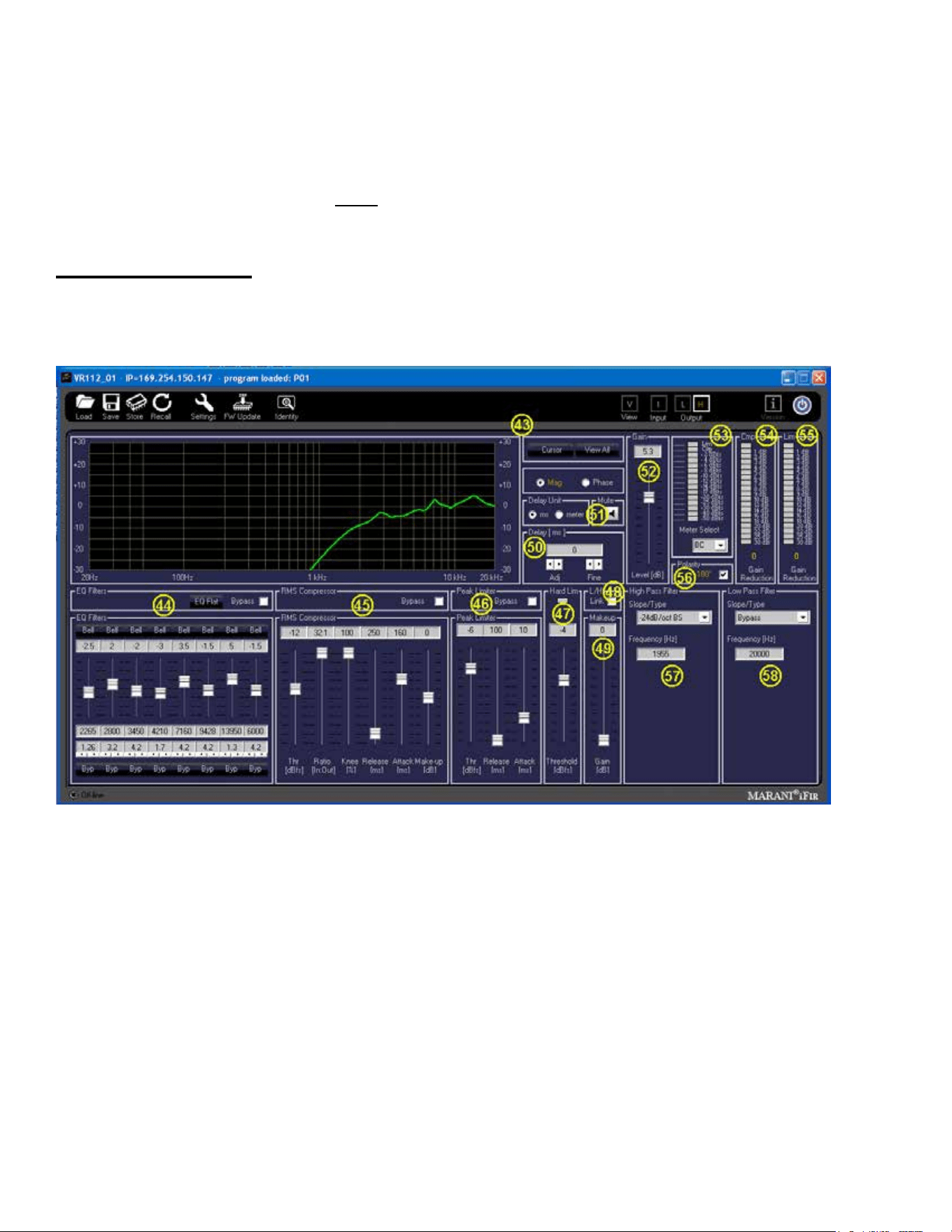
49
Below the Slope/Type Drop down menu bar, is a Frequency (Hz) box, where you can enter the
frequency in directly in Hz. This can range from 20 Hz to 20,000 Hz. Click on the box numerals, and
type in the desired frequency in Hz, and hit Enter.
Factory setting is 1845 Hz, 24 dB/Oct. Bessel
Altering this sections Filter type or Frequency from Factory settings will render the available EASE
Focus 3 and EASE modeling data incorrect, and change the horizontal polar behavior of the
Versarray™ Pro 112 system, and WILL void the Warranty.
Highs Output Page
The Highs Output Page of the Versarray™ Pro 112 DSP GUI provides the control of the ribbon
tweeter parameters of the system. See Fig. 15
Fig. 15
Section 43
Frequency and Phase Response Graph and related controls
This section provides a graphical display of the frequency response changes dialed in to this Page.
Using the Mag and Phase Radio Buttons, you can toggle between the Magnitude
( frequency response) and the Phase of the changes.
The Cursor button places small cursor symbols at all the dialed-in EQ spots on the curve, providing a
visual locator and ag for their actions.
The View All button starts a new Window that overlays the three pages curves, the Input Page, the
Lows Page and the Highs Page, on one graph. They are not summed, just overlaid on one another.
See Fig. 13 and the accompanying text from the previous segment.

50
Section 44
EQ Filters
Eight Bands of parametric EQ are available for the tweeter EQ, and provide a lot of performance
enhancement of the system.
Each band has the following capabilities:
Amplitude changes up to + and – 15 dB, in 0.5 dB increments.
Filter Types for each band include:
Bell (parametric), with Q ranging from 0.4 to 128
Hi Shelf, with Q ranging from 0.1 to 5.1
Lo Shelf, with Q ranging from 0.1 to 5.1
Low Pass, with Q ranging from 0.1 to 5.1
High Pass, with Q ranging from 0.1 to 5.1
Notch Filter, with Q ranging from 4 to 104
All-Pass1, a 1
st
order all-pass lter, no Q adjust (it’s 1
st
order)
All-Pass2, a 2
nd
order all-pass lter, with Q ranging from 4 to 104
Each band has a Bypass button ( Byp ) at the bottom of the EQ strip, which turns o the EQ band
changes to make that band “at”, then with another click, that EQ band action is turned back on.
There is a Bypass checkbox for overall bypass of the entire EQ section at once, which toggles the
EQ on and o. This is located at the top right-hand side of this section.
There is an EQ Flat button for returning all the bands and settings to 0 dB, but this button does NOT
toggle, if clicked, the EQ settings are lost, and you start over again.
If you should accidently click this button, just re-load the most relevant Preset back into the VR112
system from the le folder, or from the on-board DSP memory.
Note it is strongly recommend that this section NOT be changed or altered by the end user. This is
the primary EQ for the tweeter portion of the Versarray™ Pro 112 system, and as such, altering it
even a little will not only degrade the crossover function and the acoustic mesh with the woofer, but
render the available EASE Focus 3 and EASE modeling data incorrect.
CHANGING THESE SETTINGS FROM THE FACTORY SETTINGS WILL VOID THE WARRANTY!
Section 45
RMS Compressor
This section provides for adjusting the compression parameters of the tweeter, and is used to control
the medium and long-term power to the tweeter, so it will not be damaged due to thermal overdrive
over the long-term. Thus, the settings may seem odd, but they are there to protect the tweeter, as the
tweeter power amp has enough continuous power output capability to exceed the long-term thermal
capacity of the tweeter.
Parameters
Thr (Threshold), sets the threshold of the limiter action, with a range from 0 dBFS to -30 dBFS.
Factory Setting is -12 dBFS.
Ratio, sets the slope of the compression curve, ranges from 2:1 to 32:1.
Factory Setting is 32:1.
Knee, sets how sharp the compression curve engages relative to the Threshold point, ranges from
0% to 100%. Factory Setting is 100%.
Release, sets the release time after compression has engaged, till the compression is no longer
engaged. Ranges from 100 milliseconds to 15000 ms. Factory Setting is 250 ms.

51
Attack, sets how quickly the compression engages once the threshold point has been passed.
Ranges from 0.10 milliseconds to 2000 ms. Factory Setting is 160 ms.
Make-Up (Make up gain), has a +/- 12 dB range, in 0.1 dB increments. Factory Setting is 0 dB.
There is a Bypass checkbox for overall bypass of the entire Compression section at once, which
toggles the Compression on and o. This is located at the top right-hand side of this section.
CHANGING THESE SETTINGS FROM THE FACTORY SETTINGS WILL VOID THE WARRANTY!
Section 46
Peak Limiter
This section provides for adjusting the peak limiting parameters of the tweeter, and is used to control
the short-term power to the tweeter, so it will not be overdriven at high levels. It has an abrupt
engagement threshold, no knee, controlled only by the attack and release parameters.
Parameters
Thr (Threshold), sets the threshold of the limiter action, with a range from 0 dBFS to -30 dBFS.
Factory Setting is - 6 dBFS.
Release, sets the release time after limiting has engaged, till the limiting is no longer engaged.
Ranges from 100 milliseconds to 5,000 ms. Factory Setting is 100 ms
Attack, sets how quickly the limiting engages once the threshold point has been passed.
Ranges from 1 millisecond to 1,000 ms. Factory Setting is 10 ms.
There is a Bypass checkbox for overall bypass of the entire Peak Limiter section at once, which
toggles the peak limiting on and o. This is located at the top right-hand side of this section.
CHANGING THESE SETTINGS FROM THE FACTORY SETTINGS WILL VOID THE WARRANTY!
Section 47
Hard Lim
This is a peak limiter that absolute limits the signal to the level selected, with zero time constants. No
attack, no release times.
It’s sole purpose is to prevent and avoid PWM amplier clipping. It has been found that PWM
amplier clipping is much more distressing and audible than a clean clip or limit in the digital domain
as implemented in this section.
The proper use of this hard limiter can allow the system to play louder with less apparent distortion
than if the PWM amplier were allowed to clip uncontrolled, eectively extending the apparent
loudness of this portion of the system by approximately 3 dB or more.
The previous compression and peak limiting stages take care of the music dynamics with minimal
eect on the sound, and this stage minimizes the audible negative impact when the system is driven
beyond full peak output power.
Parameter
Threshold, range of 0 dBFS to -9 dBFS. Factory Setting is -4 dB.
Indicator
Has a Limit indicator icon to show when Hard Limiting is occurring, located at the top of this sections
strip.
CHANGING THIS SETTING FROM THE FACTORY SETTING WILL VOID THE WARRANTY!
Section 48
L/H Link, links the Makeup Gain after the Hard Limiter of the Lows Page section and the Highs Page
sections together to the same value. A checkbox toggles it on and o. Not recommended for normal
or Factory Preset use.

52
Section 49
Makeup (Make up gain),
Range is 0 dB to +9 dB. Factory Setting is 0 dB.
It is recommended that this control be left at 0 dB, as adding gain at this point will defeat the correct
action of the Hard Limiter as Factory set.
If the Compressors and Limiters are re-congured away from Factory settings (which will void the
Warranty), then this control may be of some utility.
Section 50
Delay, sets the delay time of the Highs Page signal for the tweeter.
Delay Units, Radio Buttons select the units, either ms (milliseconds) or meters.
Parameter
Adj delay increments are 1 ms (or 0.34 meters), Fine delay increments are approx. 0.0207 ms (or
0.007 meters), with a maximum total delay of 41 ms (or 13.6 meters).
Factory setting for this section is 0 ms.
Changing this setting will render the available EASE Focus 3 and EASE modeling data incorrect, and
change the horizontal polar behavior of the Versarray™ Pro 112 system.
Section 51
Mute button, a click turns the Highs Page signal output OFF.
The icon turns red, and an “X” appears next to the loudspeaker symbol.
To un-mute the signal, click it again.
This action also shows up on the View Page under the Signal Flow Chart B group, where the same
icon in the signal chain shows as red when muted. As noted in that section, clicking on the icon while
on the View Page will also toggle the Mute On or O.
Section 52
Gain, sets output level of the Highs Page (tweeter output).
Range is +/- 12 dB in 0.1 dB increments. Factory Setting is +5.3 dB.
The Factory Presets use this point to add gain for the overall gain structure to minimize input stage
and internal DSP system clipping or overload, as well as to balance the woofer and tweeter output
levels to each other.
Changing this setting will render the available EASE Focus 3 and EASE modeling data incorrect, and
change the horizontal polar behavior of the Versarray™ Pro 112 system, and may void the Warranty.
Section 53
Level Meter, monitors signal level at the point selected by the Meter Select drop down menu.
The Meter Select drop down menu allows a choice of BC (Before Compression), or AL (After
Limiting). See the Signal Flow Chart Section B diagram Fig.10 for the details of where these points
are in the signal chain.
It is recommended to leave the meter set to the default monitor point of BC, since the next two meters
show how much compression and limiting is occurring.
The meter shows clipping of the signal (2nd from top indicator bar turns red), as well as compression
as dialed in at Sections 29 and 30 (top indicator bar turns yellow).
Section 54
Cmp Gain Reduction meter, displays the level of compression occurring in section 45.
Section 55
Lim Gain Reduction meter, displays the level of limiting occurring in section 46.

53
This meter will tend to display up to approximately 4 to 6 dB of Gain Reduction at maximum
reasonable output of the system. Driving the system harder than this will tend to result in increasingly
audible distortion and/or compression, and is not recommended for high quality music playback or
Sound Reinforcement.
Section 56
Polarity, provides a checkbox to reverse the polarity of the signal.
The tweeter polarity has been reversed by design, and would seldom be changed, except for some
special circumstance, normal usage would have the polarity remain reversed. Factory setting is
reversed (checked). If the polarity of the woofer is ever reversed for any reason, then the tweeter
polarity should be changed to normal, or it will render the available EASE Focus 3 and EASE
modeling data incorrect, and change the horizontal polar behavior of the Versarray™ Pro 112 system.
Section 57
High Pass Filter, provides the control of the crossover parameters for the Low Frequency roll-o of
the tweeter.
Slope/Type is a drop down menu bar, with the following options for lters:
Bypass
6 dB/Oct. Butterworth (BW)
12 dB/Oct. Butterworth
18 dB/Oct. Butterworth
24 dB/Oct. Butterworth
36 dB/Oct. Butterworth
48 dB/Oct. Butterworth
12 dB/Oct. Linkwitz-Riley (LZ)
24 dB/Oct. Linkwitz-Riley
36 dB/Oct. Linkwitz-Riley
48 dB/Oct. Linkwitz-Riley
12 dB/Oct. Bessel (BS)
24 dB/Oct. Bessel
Below the Slope/Type Drop down menu bar, is a Frequency (Hz) box, where you can enter the
frequency in directly in Hz. This can range from 20 Hz to 20,000 Hz. Click on the box numerals, and
type in the desired frequency in Hz, and hit Enter.
Factory setting is 1955 Hz, 24 dB/Oct. Bessel
Altering this sections Filter type or Frequency from Factory settings will render the available EASE
Focus 3 and EASE modeling data incorrect, and change the horizontal polar behavior of the
Versarray™ Pro 112 system, and WILL void the Warranty.
Section 58
Low Pass Filter, provides the control of the crossover parameters for the High Frequency roll-o of
the woofer.
Slope/Type is a drop down menu bar, with the following options for lters:
Bypass
6 dB/Oct. Butterworth (BW)
12 dB/Oct. Butterworth
18 dB/Oct. Butterworth
24 dB/Oct. Butterworth
36 dB/Oct. Butterworth
48 dB/Oct. Butterworth
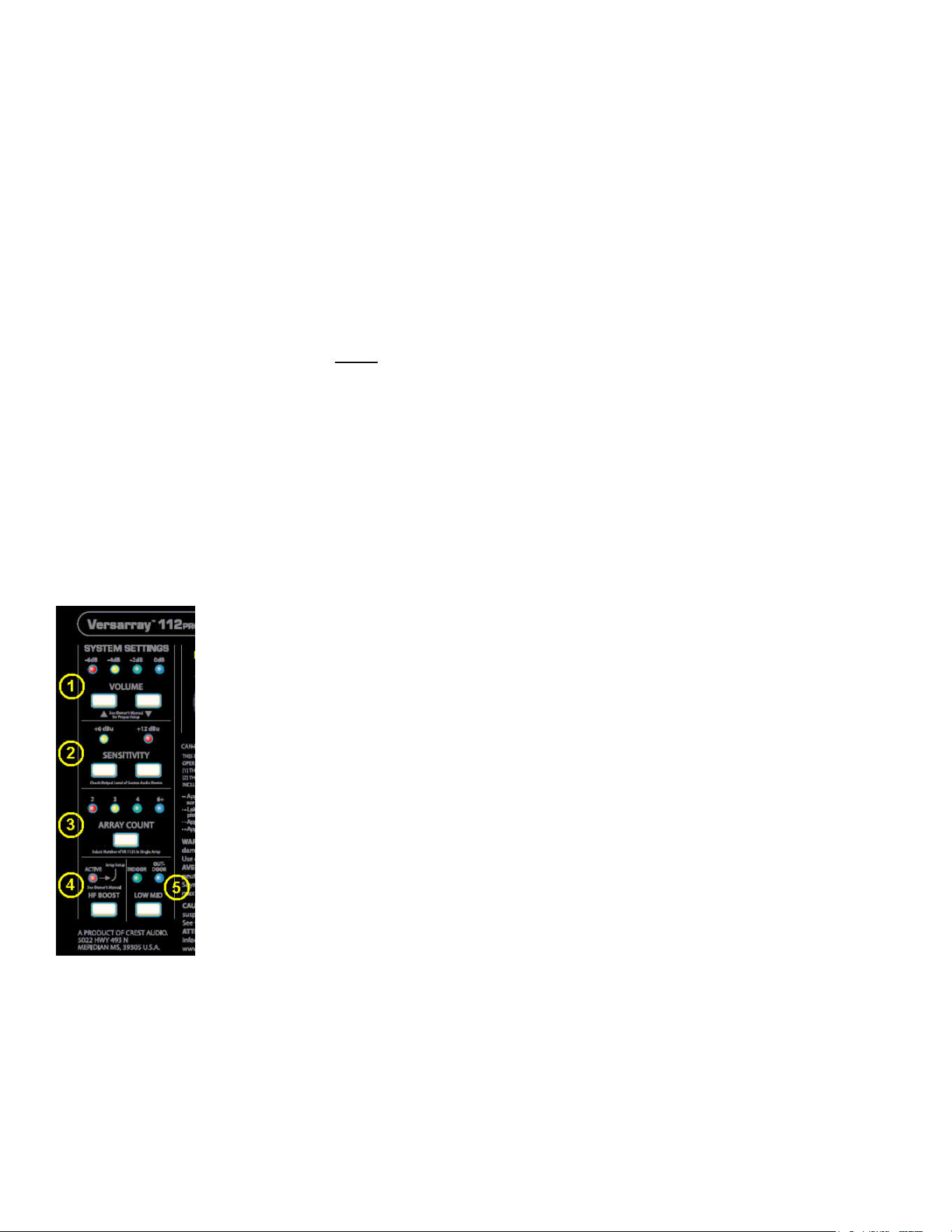
54
12 dB/Oct. Linkwitz-Riley (LZ)
24 dB/Oct. Linkwitz-Riley
36 dB/Oct. Linkwitz-Riley
48 dB/Oct. Linkwitz-Riley
12 dB/Oct. Bessel (BS)
24 dB/Oct. Bessel
Below the Slope/Type Drop down menu bar, is a Frequency (Hz) box, where you can enter the
frequency in directly in Hz. This can range from 20 Hz to 20,000 Hz. Click on the box numerals, and
type in the desired frequency in Hz, and hit Enter.
Factory setting is Bypass
Altering this sections Filter type or Frequency from Factory settings will render the available EASE
Focus 3 and EASE modeling data incorrect, and change the horizontal polar behavior of the
Versarray™ Pro 112 system, and WILL void the Warranty.
Using the Non Network Push-Buttons On the VR112 Rear Panel
The Versarray™ Pro 112 oers a simple “no PC, no-network connection required” mode of operation
using push buttons on the rear panel of the Input Plate to change the speaker systems operating
parameters to meet diering line array conguration needs.
See Rear Panel Display diagram with numbered controls.
Fig. 16 shows just the push-button section under review.
Fig. 16
We will go over the push buttons one group at a time to show how to use them to congure a line
array without the requirement to use a PC and a LAN network to connect to the Versarray™ Pro 112.
Section 1
Volume
Up and Down buttons provide for changing the Level of the audio signal.
Factory default is 0 dB, with a range down to -6 dB in 2 dB steps.
These Level choices become handy when using amplitude shading of the line array, for progressively

55
reducing the output of a bottom portion of an array, or the J section of a J-line array. If a dual curve
line-array has been chosen, then the bottom set of cabinets with the greater curvature being used
for the near eld coverage would have their output reduced by as much as 6 dB for the bottom-most
cabinet, and perhaps 2 or 4 dB for the rest of them. The top section, more gently curved used for far
eld coverage, would have no attenuation, or perhaps -2 dB for the bottom most cabinet.
Section 2
Sensitivity
Click to choose buttons allow selection of either +6 dBu or +12 dBu sensitivity of the Analog input
(XLR in) of the Versarray™ Pro 112 system. The Factory default is +6 dBu, and the gain structure of
the rest of the DSP based preamp system has been based on this sensitivity level. If the +6 dBu is
too sensitive for your requirements, then you can select the +12 dBu option instead with no penalty in
performance or noise.
With the Input Sensitivity set to +6 dBu, it takes 1.75 VAC RMS to drive the Versarray™ Pro 112
system to full power output on music. That would change to 3.5 VAC with a change of the Sensitivity
to +12 dBu.
This button also gives another 6 dB of level adjustment between cabinets in the same line array,
although it would be unlikely that additional attenuation beyond the 6 dB that is available in section C
would be needed, these buttons will allow for even more range as needed.
Section 3
Array Count
Provides a single button to cycle through diering amounts of HF boost, depending on the number of
cabinets deployed in a line array. Boosts the high frequencies above 2 kHz by a selected amount.
Factory Settings are:
2 Cabs +0 dB
3 Cabs +2.7 dB
4 Cabs +5.4 dB
6+ Cabs +6.5 dB
These happen to be the Factory Default les the unit initially comes loaded with, out of the box.
If the cabinet has been set-up previously for Network Use, where the buttons have all been set
to 0 dB HF boost, then in order to get back to the Factory settings or set the cabinet up for Non-
Network Use, you will need to go to the earlier Section 4, Settings from Fig.7, and follow the relevant
instructions
Section 4
HF Boost
Provides a high frequency boost for added cabinets or when the cabinet is angled more than a gentle
curve, like at the end of a “J-Line”. It can also help with a top section of the line designated as a
“Long Throw” or far eld coverage section, depending on the particulars of the venue. Factory setting
is +3.2 dB.
Use caution engaging this button with the Array Count button set to 4 Cabinets or higher, as this
engages a large total sum amount of HF EQ boost.
Section 5
Low-Mid
Provides a Low Shelf cut for when more than 6 to 8 cabinets are in the Line Array.
The Factory Setting parameters are: - 3.5 dB at 180 Hz, Q of 1.7
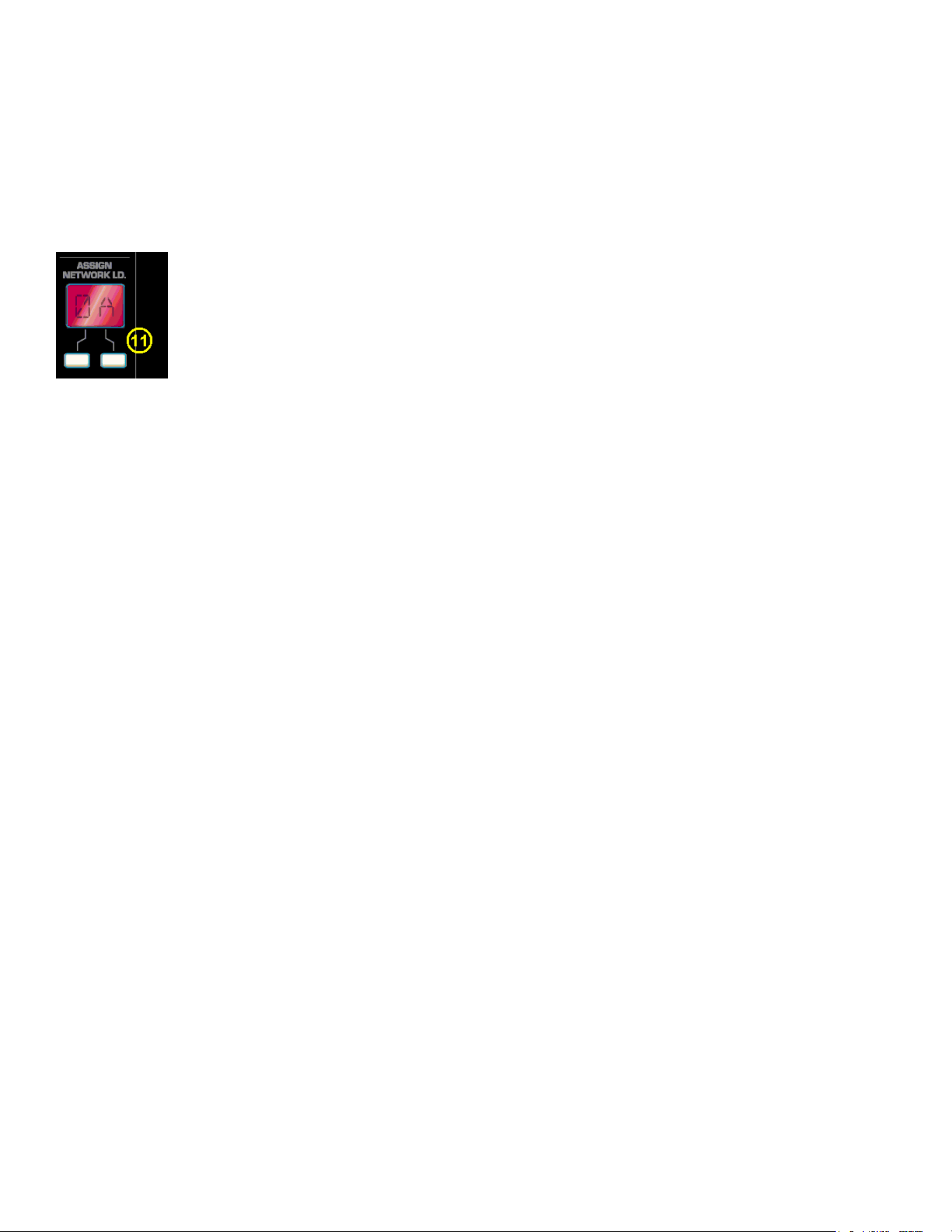
56
Normal indicator position should be Outdoor. The Indoor choice switches in the cut.
Do not engage this button if there are only 3 or 4 cabinets in the array, as it will provide too much cut
for the smaller number of cabinets.
Section 11
Assign Network I.D.
These buttons allow you to set the network ID from hexadecimal 00 to FF. See Fig. 17
Factory default is 00.
Fig. 17
In order to be able to tell which cabinet is where in the line array, it is strongly suggested that a logical
sequence of cabinet ID numbering be implemented.
As an example, determine which cabinet will be located at the top of the line, perhaps labeling it with
a piece of masking tape, and then change the ID using these buttons, to be 01, or perhaps for a
second line, A1. The second cabinet down can then be labeled 02 or A2 and so on. Then when you
connect the array via the PC GUI software, you will know which cabinet is where in the line location.
Subwoofers could be ID’d by using B1, etc. with B standing for Bass.
Of course, you can use your own labeling method, but hopeful, these examples will light the way for a
logical and easily understood method of cabinet ID.
Using these rear panel buttons wisely and appropriately can make the Versarray™ Pro 112 work well
for you even without a PC and LAN network connection.
PROJECT/PRESET FILE MANAGEMENT
We have already gone through the basics of loading a Preset le into a Versarray™ Pro 112, see
sections associated with Fig. 1 through 10. Now, we cover the rest of the Versarray™ Pro 112
system PC software GUI le management.
Descriptions of Start-Up Page Functions
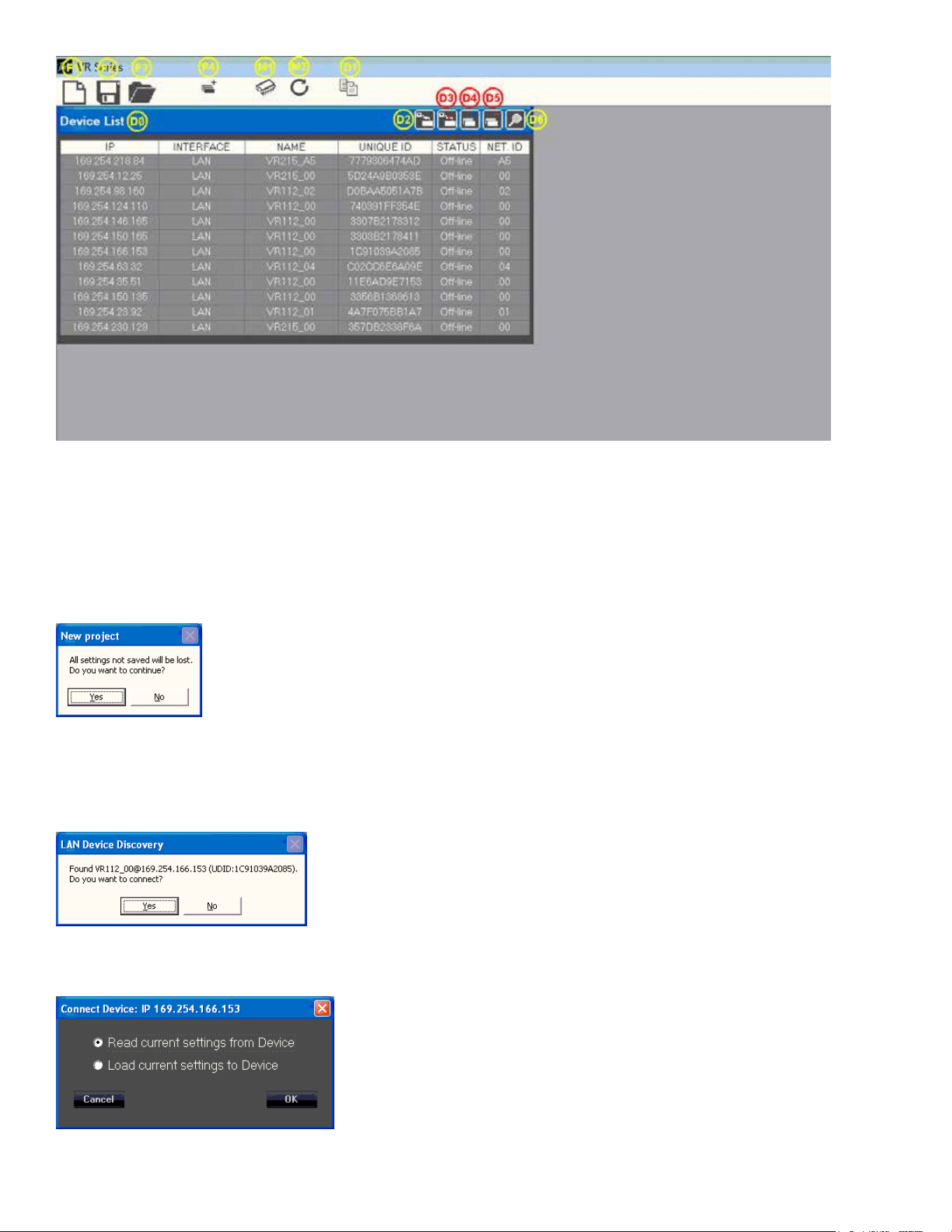
57
Fig. 2
Project File Management
F1
New Project – Starts a new project, prepares the GUI by clearing the Device List of all devices,
including ones currently connected to the network. See Fig. 18
Fig. 18
If you click “Yes”, a dialog Window will pop-up, as shown below in Fig. 3. The device ID’s will be
dierent, but the general format will be the same.
Fig. 3
When you click “Yes”, a Connect Device dialog window comes up, as shown in Fig. 4
Fig. 4

58
To initiate a Project set-up, click on “Read current settings from Device” to start, then change any
parameters you want to alter.
You can use the Copy Device function (D1) to copy the changed parameters to the other cabinets
in the array as appropriate, make any other changes to any of the other cabinets one at a time in the
array (amplitude shading, frequency shading, etc.) or load in of one of the MLAS™ Presets. Once all
the parameters for all the cabinets in the array have been changed to the desired settings, then Save
the project.
F2
Save Project
Save’s a Project le to the PC software Project Folder
Click on the Save File icon (F2) to open a standard Windows le dialog window.
The default folder will be the Project folder in the VR Series v1.2.X folder, which is generally located
on the root drive of the PC, the exact location which is dependent on your operating system version.
During any given session, you can change the folder where the les are saved to, or read from, but
the default Save location on start up of a new instance of the GUI software will always be the folder
named Project.
F3
Load Project
Load’s a Project le from the PC software Project folder
The Project le can only be loaded into a group of cabinets using the same cabinet ID’s as
were present when the Project was rst created. If you attempt to load a Project le into a cabinet
that was NOT a part of the original cabinets that were present on the DSP GUI network, then the
saved parameters associated with a Project le will not transfer over to that new cabinet, and this
may disrupt the proper loading of any other cabinets that were present at the time the original Project
le was created.
The Project Files store and load all the parameters in all the Pages for a given device/cabinet, but
unlike the Preset les, the Project le also saves the parameters that are found under the Settings
icon, #4 on Fig. 7. These parameters are not loaded or changed when a Preset is loaded or saved.
For a list of what those parameters are, see View Page, Section 4, Fig 14 and subsequent content.
Remember, a Project le only works with the exact same cabinets that were present when the Project
was created.
Loading Projects from PC GUI software folders
1. Position the View page from Fig. 6 so it does not cover up the row of icons at the top left corner of
the Start page, but still has the bottom portions of the View page visible.
Click on icon F3, from the Start page (Fig.2), Load Project.
2. The “Load Project” dialog window will come up, see Fig. 19
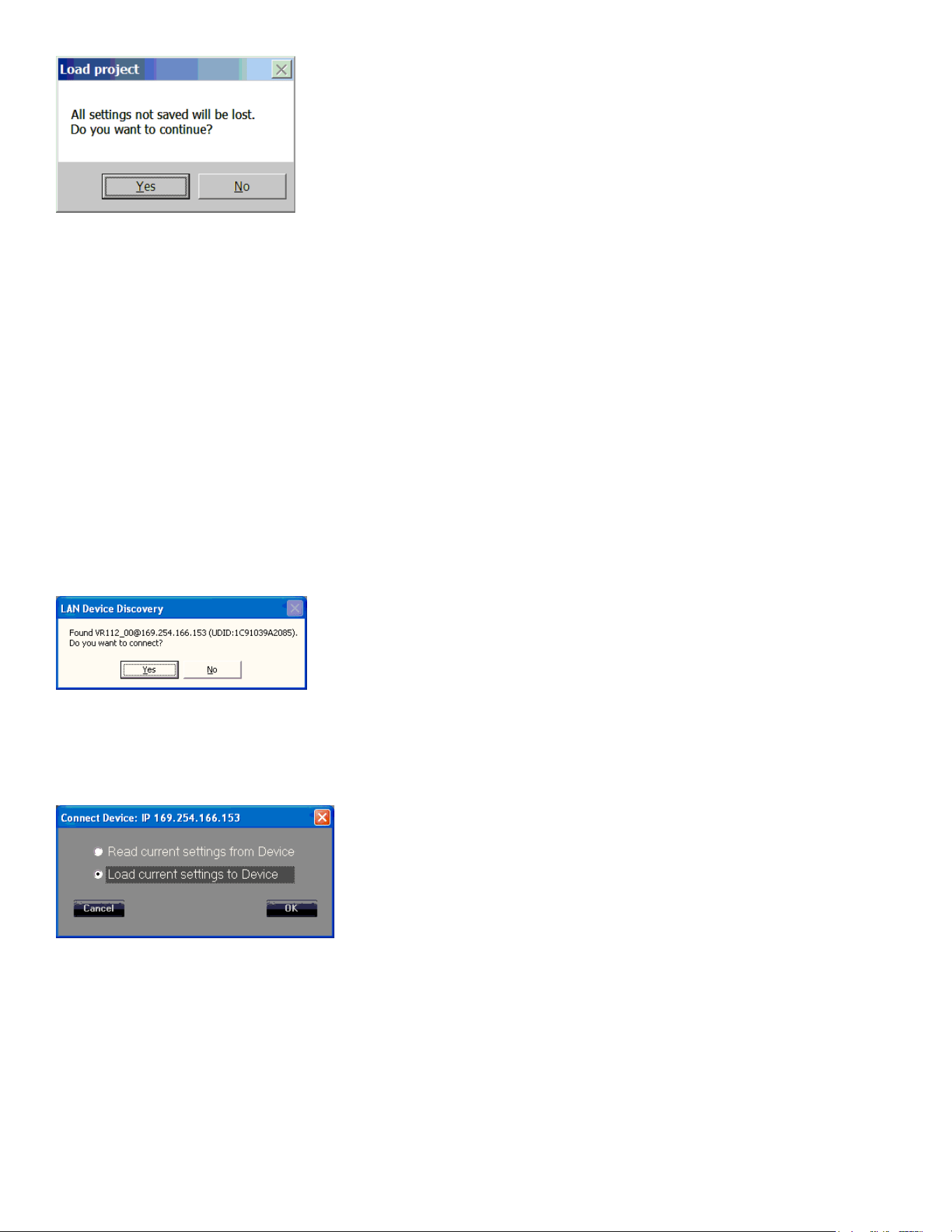
59
Fig. 19
Click Yes.
3. A le manager window will come up with the File Folder contents for the Project les, located at:
For Windows 7 and for Windows XP - C:\Program Files (x86)\VR Series v1.2.X\Project
For Windows 10 - C:\Program Files\VR Series v1.2.X\Project. No (x86)
where C: is the root drive where the Versarray™ Pro series User GUI PC software has been located,
and “X” is the version of the software you have loaded onto the PC.
You must pick a previously saved Project le, as there are no supplied Factory Project les, they
must be associated with the exact cabinets present on the network at the time of the Project
save. Let’s say you named a Project le “Example-1”
Highlight and Click “OPEN” on the Example-1 Project le.
4. The “LAN Device Discovery” window will come up. See Fig. 20
Fig. 20
Click on “Yes”.
5. The Connect Device dialog window comes up, as shown in Fig. 21 .
Fig. 21
Click on “Load Current Settings to Device”
Once the settings have been loaded into the VR112 speaker system, the Device List should now
show one or more of the units as “On-line”, See Fig. 5 in the previous section on Presets, where the
arrow points.
6. Double-click on the desired unit in the NAME column in that row, shown by the “X” in
Fig. 5, and the View page will come up as shown in Fig. 6.
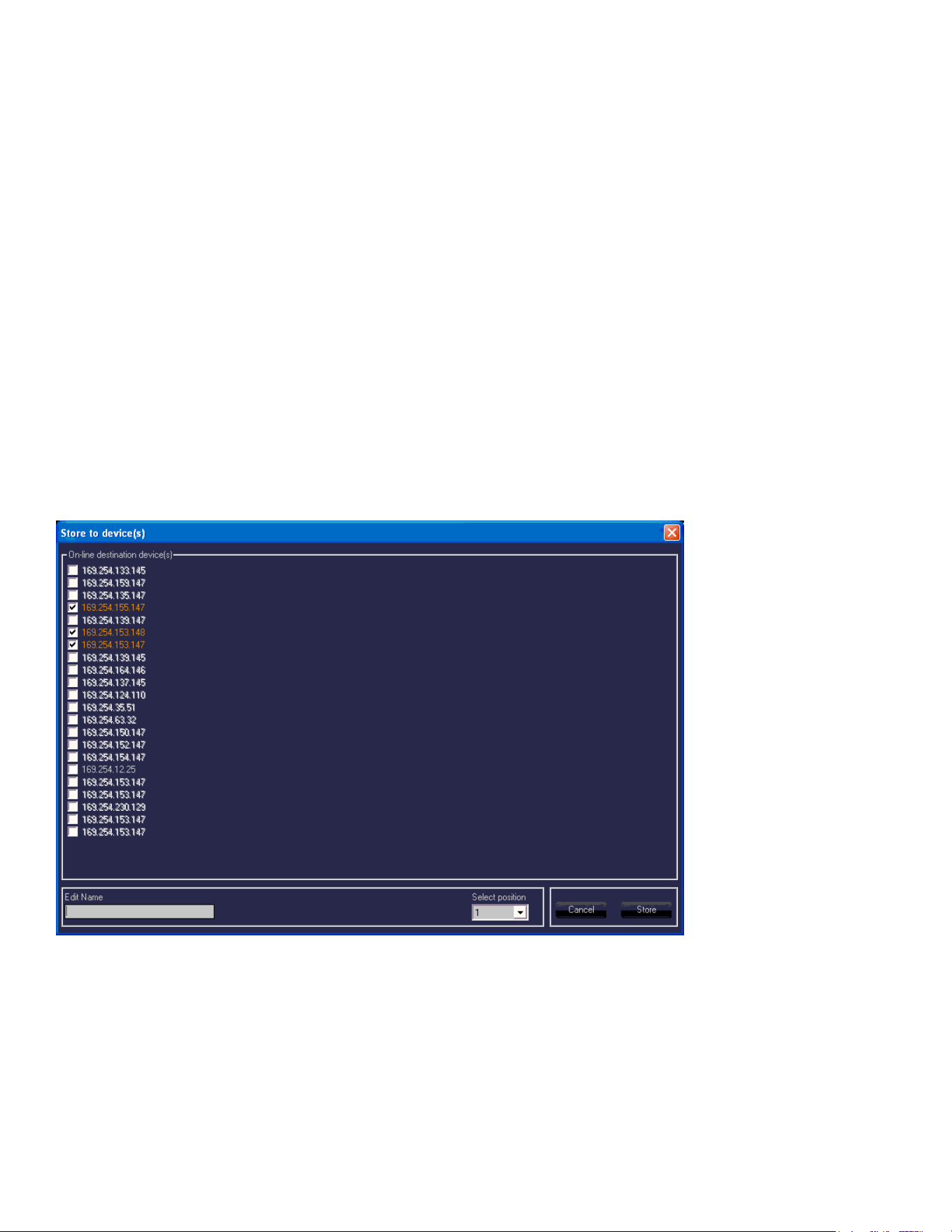
60
CAUTION: After loading a Project into an array of VR PRO models, look at the View page, and the
other pages for that cabinet/device, to make sure that the desired parameters have loaded in, and
that crossovers, and EQ are present. This will require paging through the Input page, and the Output
page/High Output - Low Output pages to make sure that the curves shown are not all at with no
crossover action or EQ present.
IF THE VR112 IS OPERATED WITHOUT ANY CROSSOVERS ACTIVE, OR WITHOUT ANY EQ, IT
IS LIKELY THAT THE RIBBON TWEETERS WOULD BECOME DAMAGED, so it important to check
the individual pages of each device/cabinet to make sure all the parameters have loaded in properly.
F4
Add Group
Contact Crest Audio® for details on this function, or check the Crest Audio® website for more
information:
https://peaveycommercialaudio.com/versarray
M1
Store Program
Allows multiple cabinets to have a Preset File stored to memory, see Fig. 22
Fig. 22
All the cabinets currently connected online to the Versarray™ Pro series User GUI Software network
are shown grayed out, other cabinets that may have been connected at one time are listed with white
letters. The IP address for a particular cabinet can be determined by looking at the Device List of Fig.
2, which also lists the assigned Net ID number, as well as the Name of the device and the Unique ID
number.
Once the online devices have been check box selected for “Store to device(s)”, the network IP
addresses turn orange. Choose a Name for the le to be loaded, make a “Select position” choice for
the onboard DSP memory location (one through ten of 10 Preset storage slots), and then click on the
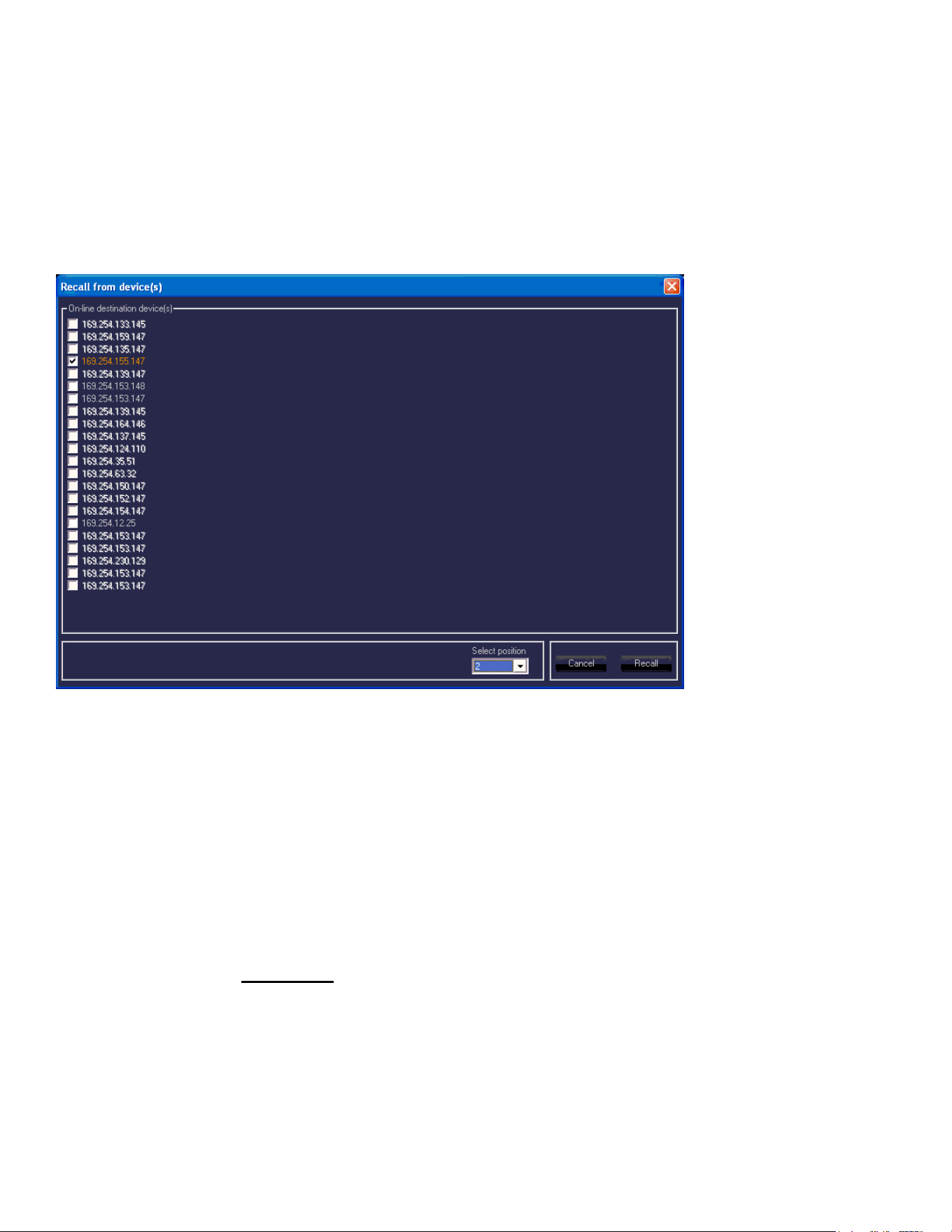
61
“Store” button.
These cabinets must all be of the same type, i.e., all VR 112’s or all VR 215’s, etc.
M2
Recall Program
Similar to Storing multiple devices, one can Recall from a list of multiple device, however, you can
only retrieve one Preset le at a time. See Fig. 23.
Fig. 23
Select the online device to have the Preset le Recalled, and click the check box for that device.
Select the memory position to be Recalled, (one through ten of 10 Preset storage slots), and click the
“Recall” button.
The Preset that was previously loaded into memory at that location will now be loaded into the units
DSP preamp and change the parameters of the various pages to those Preset settings.
Line Array Device Management
The Device List, DØ, has several columns of information displayed.
The columns labeled IP, NAME, and NET ID are able to be changed and altered using the Settings
Icon, Section 4 of the View Page. See that Section for details.
The NET ID can also be changed using the rear panel buttons shown on the Rear Panel Display
at (11) Assign Network I.D. Buttons. If using the rear panel buttons to change the Network I.D.,
do so before establishing network connection, otherwise, once connected, use the GUI to make any
changes.
D1
Copy Device
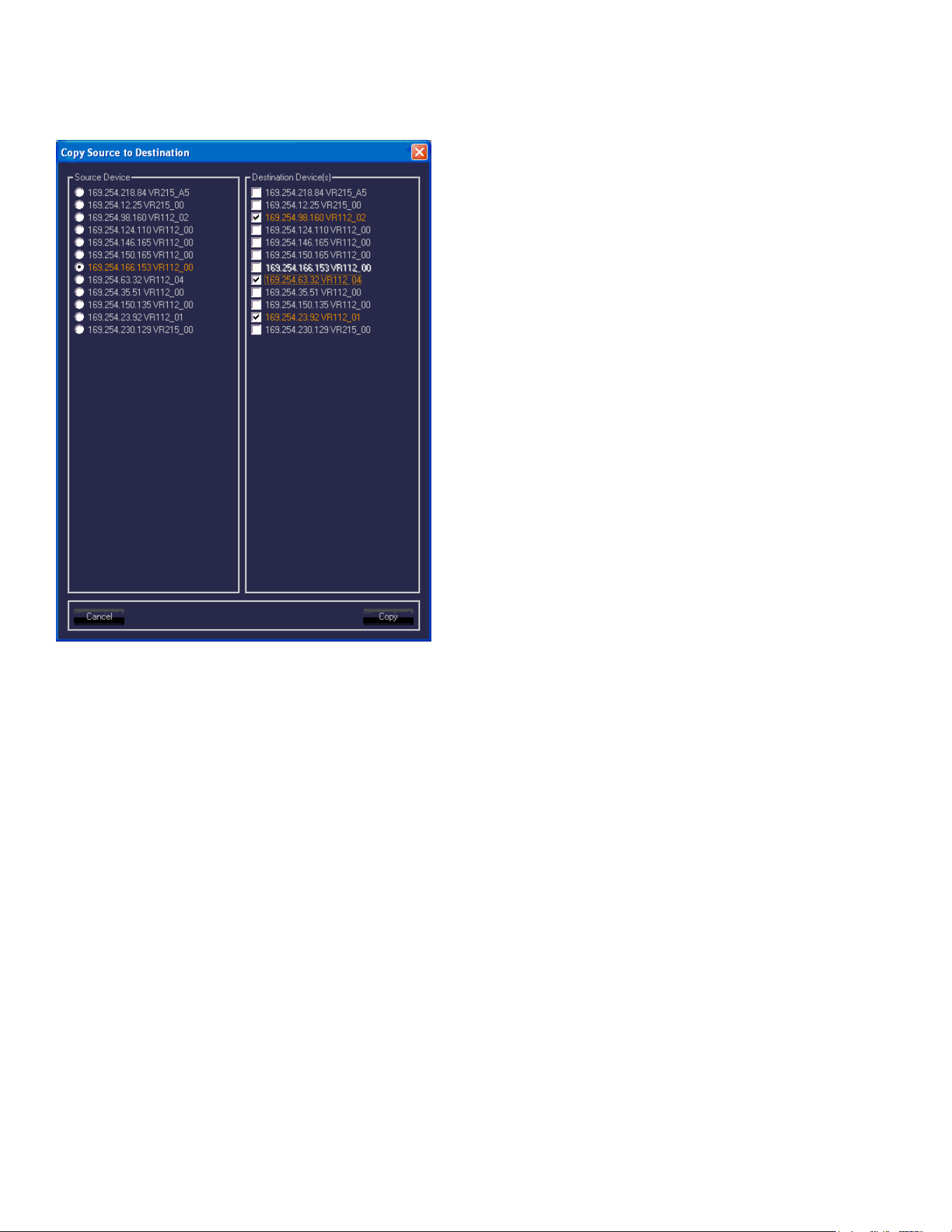
62
Copies the parameters of a highlighted device in the Device List DØ to another device or devices in
the Device List. See Fig. 24
NOTE: Do not attempt to copy a VR 112 Preset into a VR 215 or VR 218 Sub, copy the Presets from
a given model into the same model.
Fig. 24
D2
Connect All Devices
Establishes connection with all networked devices sequentially, and displays the connections in the
Device List.
D3
Disconnect All Devices
This disconnects all the On-line devices listed in the Device chart, and takes them O-line from the
network.
D4
Add Device
Adds a new device to the Device List, one unit at a time.
D5
Remove Device
As above, only removal of one device from the Device List.
D6
Search Devices

63
Initiates a search for devices connected to the Versarray™ Pro series User GUI Software network.
Must use the proper search parameter (IP address) in order for the software to detect devices
connected to the network.
Preset Files Available for Use
Ten On-board Presets
1. Single_Cab_Flat (Default or Factory Loaded)
2. 2Cabs_Mild_Angle (2.5 to 5 degrees)
3. 3Cabs_Mild_Angle
4. 4Cabs_Mild_Angle
5. 6Cabs_Mild_Angle
6. 8Cabs_Mild_Angle
7. 2Cab_More_Angled (7.5 to 10 degrees)
8. 3Cab_More_Angled
9. 4Cab_More_Angled
10. 6_Cabs_More_Angled
These rst ten Presets are loaded into the power amp DSP memory, and are accessed directly using
the Section A Store and Recall functions. File versions are also stored in the PC software DSP GUI
Preset folder.
Preset les included in PC software DSP GUI Preset folder
1. 2cabs_Straight-line (0 degrees angle between cabs)
2. 3cabs_Straight-line
3. 4cabs_Straight-line
4. 6cabs_Straight-line
5. 8cabs_Straight-line
6. 2Cabs_J-line_section (angles of 12.5 to 15 degrees)
7. 3Cabs_J-line_section
8. 4Cabs_J-line_section
9. LT_2Cabs_Mild_Angle (LT is Long Throw)
10. LT_3Cabs_Mild_Angle
11. LT_4Cabs_Mild_Angle
12. LT_6Cabs_Mild_Angle
13. LT_8Cabs_Mild_Angle
14. BB_2Cabs_Mild_Angle (BB is Bass Boost)
15. BB_3Cabs_Mild_Angle
16. BB_4Cabs_Mild_Angle
17. BB_6Cabs_Mild_Angle
18. BB_8Cabs_Mild_Angle
19. BB_2Cab_More_Angled
20. BB_3Cab_More_Angled
21. BB_4Cab_More_Angled
22. BB_6Cab_More_Angled
23. BB_2cabs_ Straight-line
24. BB_3cabs_ Straight-line
25. BB_4cabs_ Straight-line
26. BB_6cabs_ Straight-line
27. BB_8cabs_ Straight-line

64
28. BB_2Cabs_J-line_section
29. BB_3Cabs_J-line_section
30. BB_4Cabs_J-line_section
FILES LOADED INTO POWER AMP MEMORY, ALSO IN GUI FOLDER, FOR WHEN THEY GET
OVERWRITTEN IN AMP MEMORY.
31. Single_Cab_Flat
32. 2Cabs_Mild_Angle
33. 3Cabs_Mild_Angle
34. 4Cabs_Mild_Angle
35. 6Cabs_Mild_Angle
36. 8Cabs_Mild_Angle
37. 2Cab_More_Angled
38. 3Cab_More_Angled
39. 4Cab_More_Angled
40. 6_Cabs_More_Angled
DSP GUI Preset Folder les for SUBS (included in this folder for when the Subs are being run
under the PC DSP GUI software, as they use the same default folder name)
VR218_Nominal
VR215_Nominal
VR218_BassBoost
VR215_BassBoost
NOTE: DO NOT ERASE OR DELETE ANY OF THE FACTORY PRESET FILES FROM THE PC
FOLDER, OR WRITE OVER THEM IN THE PC SOFTWARE FOLDERS WITH A CUSTOM SETTING
WITHOUT CHANGING THE NAME.
Even if you do not plan to use the Crest Audio® MLAS™ technique at this time, you may nd a use for it
or it’s les later, or want to experiment with the les in the future.
Crest Audio® will provide copies of the Preset les, and updates of same at the Crest Audio® website
at:
https://peaveycommercialaudio.com/versarray
New Folders can be created in the User GUI software location, with your own custom Presets saved
into that folder. At start-up, the User GUI software by default will always look for the Folders named
“Preset” or “Project”, but you could perform some le manipulation and copy all of the stock Factory
MLAS™ les into a newly created Folder called “Backup”, and then alter the les in the “Preset” folder
at will.
For the latest up to date Owner’s Manual’s, Preset les, and other information about the Versarray ™
Pro system check out:
https://peaveycommercialaudio.com/versarray
THIS SPEAKER SYSTEM CAN PERMANENTLY DAMAGE HEARING!
USE EXTREME CARE IN SETTING THE MAXIMUM LOUDNESS!
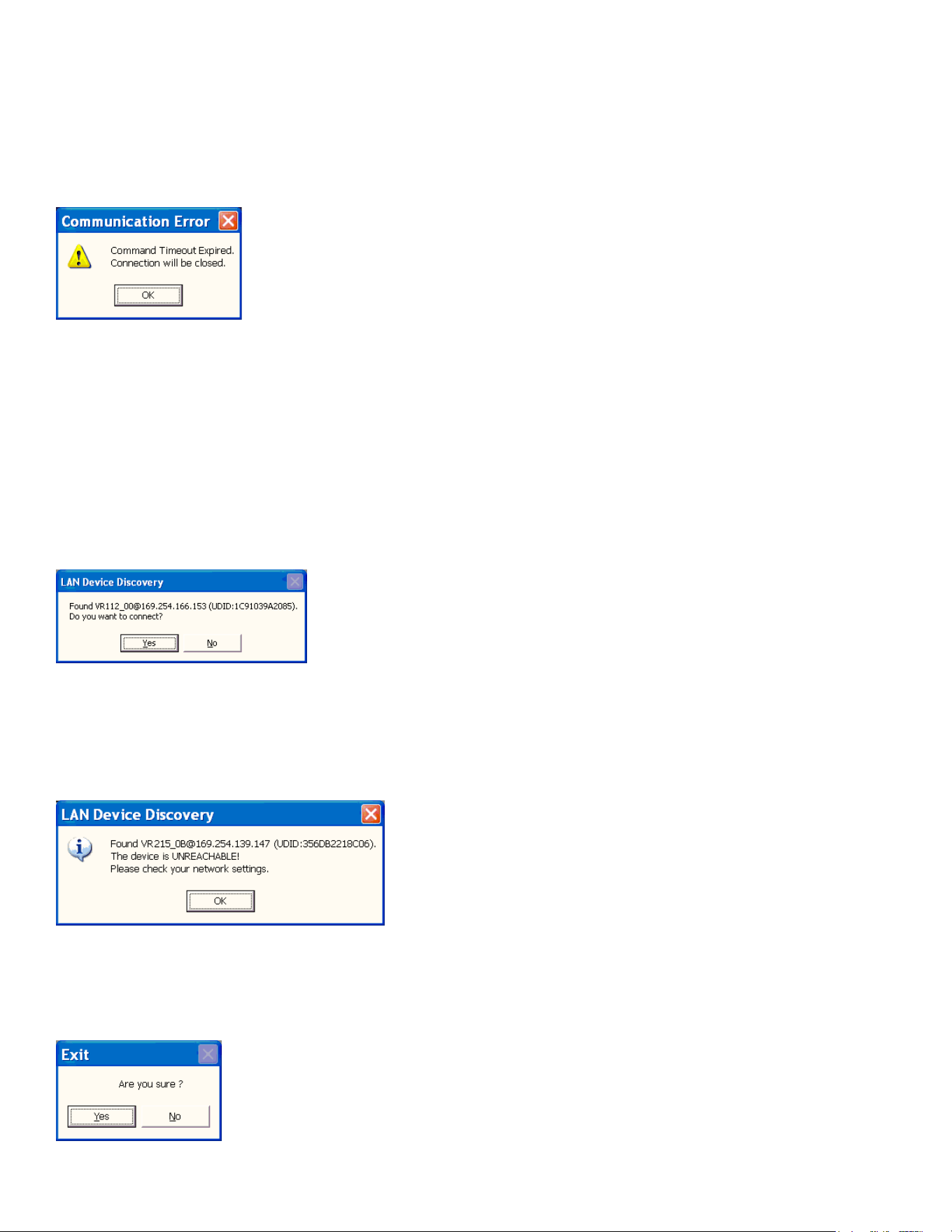
65
LOSS OF LAN NETWORK CONNECTION
If you experience a loss of the LAN network connection to one or more of the VR speaker systems
while operating the Versarray ™ Pro system’s PC DSP GUI software, an error message will be
generated.
See Figure 25 below.
FIG. 25
This can occur due to momentary loss of the LAN connection, a faulty Ethernet RJ45 plug or jack,
packet loss, or other common network problems.
While the Versarray ™ Pro system’s PC DSP GUI software runs without issues alongside Dante
on a LAN, Dante has a very robust recovery capability, and may maintain connectivity despite any
intermittent network connections.
If this occurs, then to reconnect the PC with the VR unit, click OK on the error message click button.
If the connection has re-established itself without further errors, then a dialog Window will pop-up, as
shown below in Fig. 3.
Fig. 3.
You can then click on OK to re-connect as it normally progresses upon initial start-up and connection.
However, if the connection was not re-established due to network conditions, the following error
message may pop-up, as shown below in Fig. 26
Fig. 26
If this is the case, then close the Versarray ™ Pro system’s PC DSP GUI software window by clicking
on the Close box in the upper right hand corner, and then Yes on the Exit box click button. See Fig.
27 below.
Fig. 27

66
Then once the software has closed, allow enough time for the network connection to re-establish,
this will typically take as long as it normally does when you rst connect, however long your particular
system takes to do that. This can be up to a minute or more.
Then start the VR PC DSP GUI software again.
If you continue to get error messages or the Unreachable error (Fig. 26), then the network cables,
connectors, and such will all need to be checked for correct insertion and continuity.
It may be necessary to re-boot the computer if the problem persists after all the cables and
connectors check out OK. This should be done in conjunction with cycling the power to the Versarray
™ Pro speaker system’s.
Design and specications subject to change without notice.
67
NOTE: Before you y the array, be sure to inspect the rigging and ying hardware to insure that it is mechani-
cally sound and has not been damaged, there should be no signicant distortion of the shape of the coupling
brackets, cabinet brackets, Halo or y bar, and the hardware should be checked for tightness.
is Crest loudspeaker should be suspended overhead only in accordance with the procedures and limita-
tions specied in the User’s Manual and possible manual update notices. is system should be suspended
with certied rigging hardware by an authorized rigging professional and in compliance with local, provincial or
national suspension ordinances. ALWAYS USE PROPER GRADE HARDWARE.
CAUTION: Before attempting to suspend this speaker, consult with a certied structural engineer. Speak-
er can fall from improper suspension, resulting in serious injury and property damage. Use only the cor-
rect mating hardware. All associated rigging is the responsibility of others. Maximum enclosure angle 30 degrees.
Failure to follow proper rigging specications listed in the manual may result in injury or death.
Whenever possible, in addition to the nominal primary mounting method, use a suitable safety chain or wire
rope attached to one of the other groups of y points, and rmly attached to a suitable structural member as
indicated by a certied structural engineer. CAUTION: ALWAYS USE SAFETY CHAIN OR WIRE ROPE.
IF ANY OF THE RIGGING, OR THE HALO OR FLY BAR HAS BEEN DAMAGED OR DISTORTED,
DO NOT USE, AND DO NOT FLY THE ARRAY UNTIL
THEY CAN BE REPLACED OR REPAIRED!
DO NOT USE THE PIVOT BAR OR ANGLE SLIDER BRACKET AS HANDLES TO TRANSPORT THE
CABINETS!
DO NOT TRANSPORT THE CABINETS IN ARRAY CONFIGURATION COUPLED TOGETHER,
EXCEPT WITH THE RECOMMENDED TRANSPORT CART AND IN THE STIPULATED MANNER
FOR THAT CART. TRANSPORT IN SUCH AN UNAPPROVED MANNER VOIDS THE WARRANTY, AND
THE SYSTEM WOULD BE CONSIDERED UNSAFE TO BE FLOWN AFTER SUCH AN UNAPPROVED
TRANSPORT EVENT.
Use only the correct mating hardware. All associated rigging is
the responsibility of others.
Correct use and seating of the Quick Release Push Lock Pins Used with all Versarray™ rig-
ging hardware
When using the Quick Release Positive Lock Pins, when the Quick Release Push Lock Pins are inserted, they
should be fully seated, so that the black shoulder near the end of the pin has been placed ush with the side of
the bracket, or as far in as the pin hole cavity will allow it to be inserted.
You will have to fully depress the center push-button to do this.
You should not be able to pull these pins out unless the center push-button is fully depressed.
Rigging Instructions

68
Versarray™ Mk3 Halo Use
Specic Instructions for ying and hanging the Versarray™ Mk III Halo will not be supplied. It provides and
follows industry standards for attaching rigging and y hardware, as well as providing for the currently popular
practice of hanging the array via a single hang point that can be a suitably rated chain hoist motor system.
Seek the recommendations of a certied structural engineer or an experienced rigging professional for any ques-
tions about this type of use of the Versarray™ Mk III Halo.
Instructions for maximizing the single point hang balance point options are provided in the Versarray™Mk3
Halo Owner’s Manual, due to the unique exibility the Versarray™ system provides.
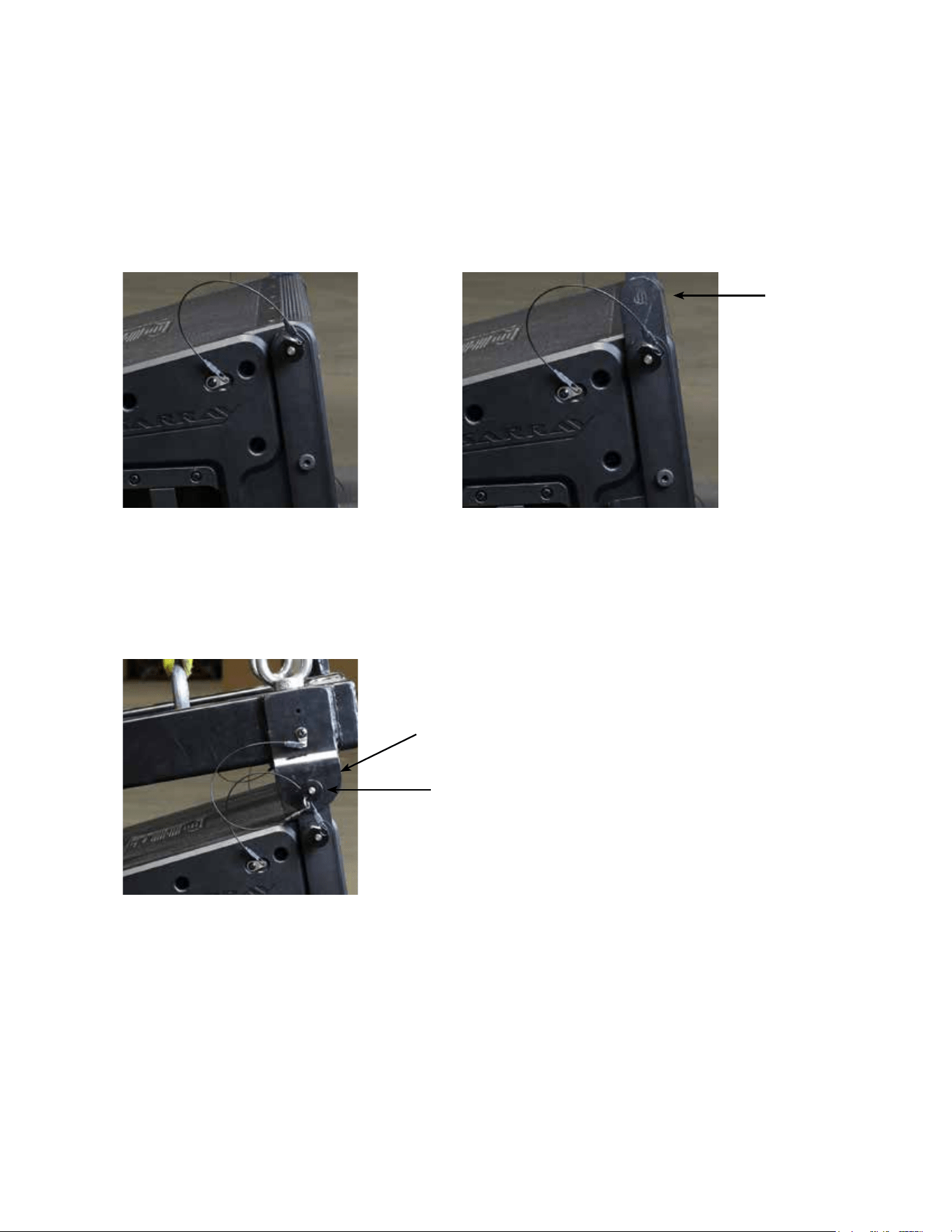
69
Hanging Versarray™112 Mk III Cabinets from a Versarray™ Mk III Halo
Assuming the Halo is in position just above the cabinet/s, on a motorized hoist or manually cranked hoist, pro-
ceed as follows.
1. Remove the top front quick release lock pins, slide the front hang straps up and pin them in place using those
pins, with the front hang straps extending upward. e strap should be sticking up approximately 2.13”. Do this
for both sides. See Fig.1 and 1a.
2. Either lower the Versarray™ Mk III Halo to meet the cabinet, or raise the cabinet up to meet the Halo, with the
cabinet straps guided into mating with the Halo ears on both sides at the same time. Pin the front straps in place
using the pins from the Halo. See Fig. 2
Figure 1
Figure 2
Figure 1a
Cabinet Hang
Strap
Halo Ear
Pin
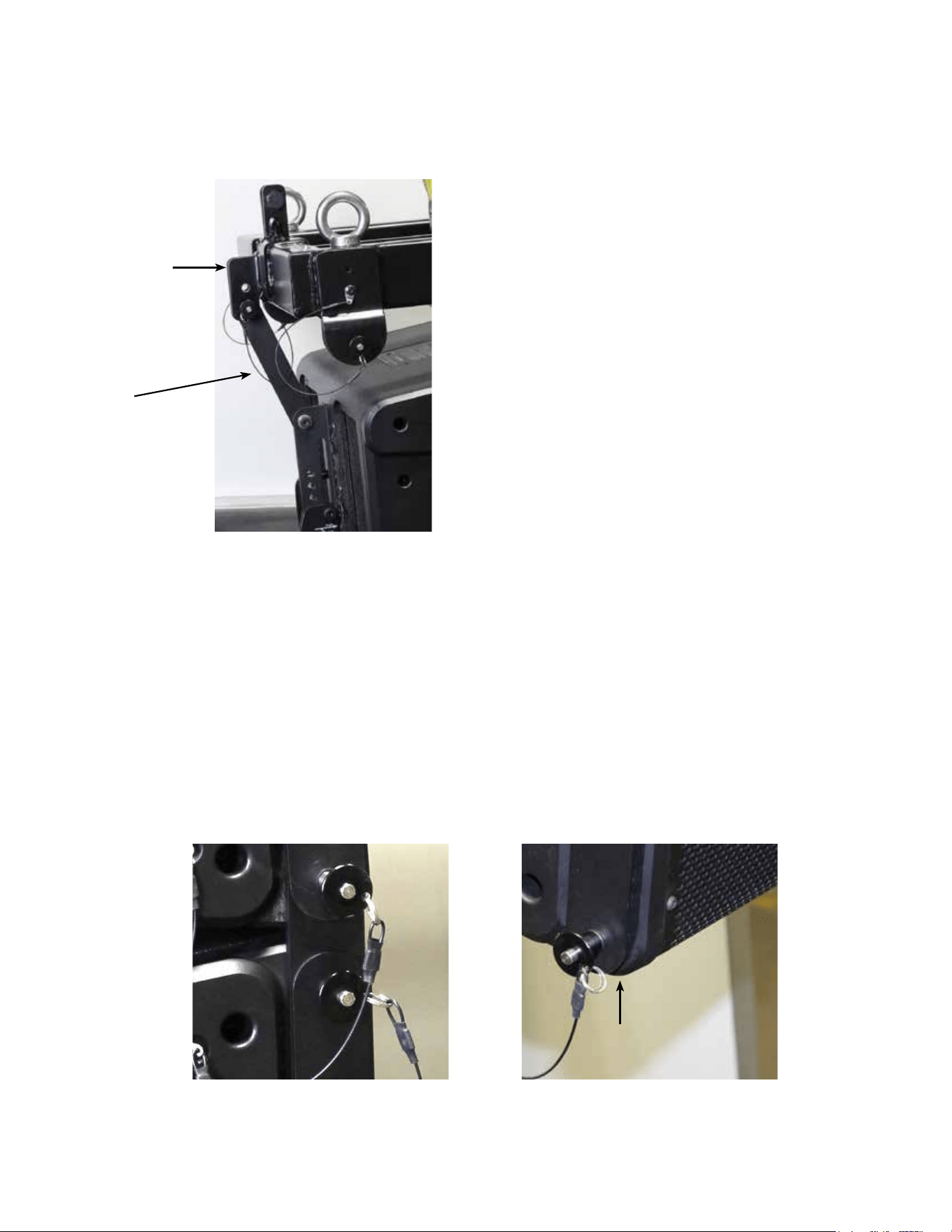
70
3. Remove the Pivot Bar hole pin, swing pivot bar up to mate with the center rear bottom Halo ear hole. e
bottom hole on the Halo ear provides a zero angle between the Halo and the rst cabinet, the upper hole an angle
of 5 degrees between the Halo and the rst cabinet. Pin the Pivot Bar to the desired hole using the pin from the
Halo. See Fig. 3
4. Adding the second Cabinet.
Remove the top front quick release lock pins, slide the front hang straps up and pin them in place extending up-
ward. e strap should be sticking up approximately 2.13”. Do this for both sides. See Fig.1 and 1a.
5. Either lower the Halo and rst cabinet to meet the second cabinet, or raise the second cabinet up to meet the
rst cabinet, with the second cabinet straps guided into mating with the rst cabinet bottom strap slots. Pin the
front straps in place using the pins from the rst cabinet. See Fig. 4 and 4a.
Figure 3
Figure 4 Figure 4a
Rear Bottom
Halo Ear
Pivot Bar
First cabinet Strap
Slot
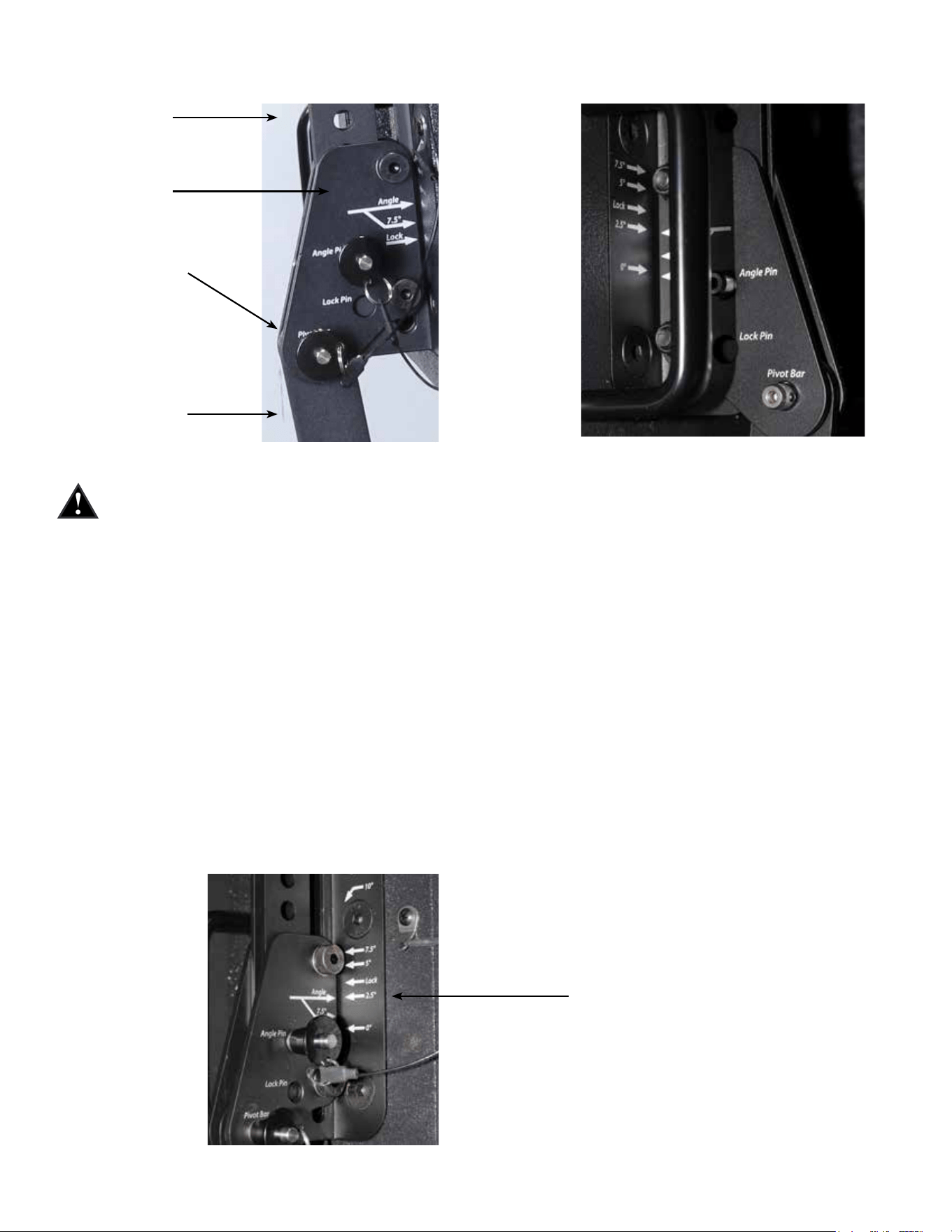
71
6. Remove the Pivot Bar hole pin on the second cabinet, swing pivot bar up to mate with the Pivot Bar hole of
the rst cabinet. Pin the Pivot Bar into place using the bottom rear pin on the rst cabinet. See Fig. 5 and 5a.
NOTE: Once the Pivot Bar hole pin is removed, the cabinet is free to swing through all possible angles, be
sure to keep ngers, hands and your body out of the possible path of the cabinet hardware or the cabinet
itself, to avoid injury.
With the rst cabinet rigging in the default factory Lock position, that is, with the Angle Slider bracket lined up
with it’s arrow at LOCK, lined up with the LOCK arrow on the Angle Slider Rail, the angle between the rst and
second cabinets is not at a nominal set angle, it is an intermediate setting.
e angle the cabinets are set to can be read at the Angle arrow.
7. e angle of the second cabinet can now be adjusted. To set the angle between the rst cabinet and the sec-
ond cabinet to a nominal amount, remove the Lock pin from the hole it is in, and slide the Angle Slider bracket
Angle Arrow to the desired angle as shown by the arrow labeled Angle on the Angle Slider Rail, and put a pin
from the rst cabinet (the one you removed from the Lock hole) into the Angle Pin hole on the Angle Slider
bracket.
You can set the angle between the rst cabinet and the second cabinet to be any of the following angles:
0 degrees, 2.5 degrees, 5 degrees, 7.5 degrees, 10 degrees, 12.5 degrees, and 15 degrees
As an example, see See Fig. 6, showing a set angle of 2.5 degrees.
Figure 5
Figure 6
Figure 5a Alternate View
Angle Setting 2.5 degrees
Pivot Bar Hole
of First Cabi-
Angle Slider
Bracket
Angle Slider
Rail
Pivot Bar of Sec-
ond Cabinet
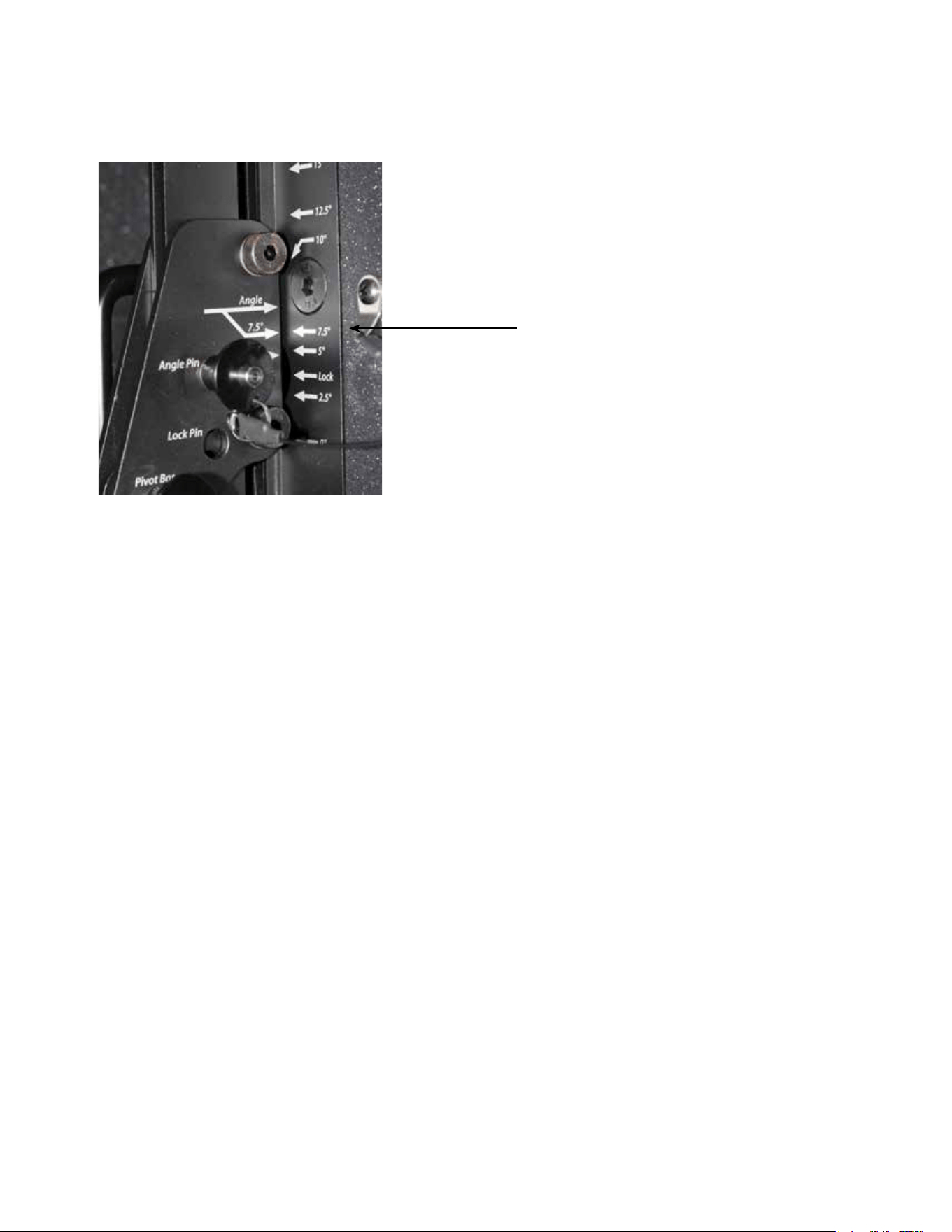
72
e angle for 7.5 degrees uses a dierent set of arrows, due to the hardware bolt being in the way of a correctly
located screened angle on the Angle Slider Rail using the Angle arrow on the Angle Slider bracket.
is is why there is an arrow that is an oshoot of the Primary Angle arrow on the Angle Slider bracket, just be-
low it, labeled 7.5 degrees. is is lined up with the arrow marked 7.5 degrees on the Angle Slider rail. See Fig.
7.
Adding additional cabinets follows this same basic hook-up progression, with the Angle Slider on the top cabinet
of a given pair setting the angle between those two cabinets.
NOTE: Any Versarray™ Sub cabinets that might be own in the same array o of the same Halo should be locat-
ed at the top of the array, as they have no angle adjustment capability, and can only be hung at a 0 degree angle.
Alternate Method of Setting Angles Between Cabinets
Instead of following Step 6 (Hook-up Pivot Bar) and then Step 7 (Set Angle Between Cabinets), set the angle on
the Angle Slider bracket and rail before un-pinning the Pivot Bar, and connecting it to the previous cabinet.
Each method will work, but one will be more easily implemented with one person setting up the rig, versus hav-
ing two or more people available.
Angle Setting 7.5 degrees
Figure 7
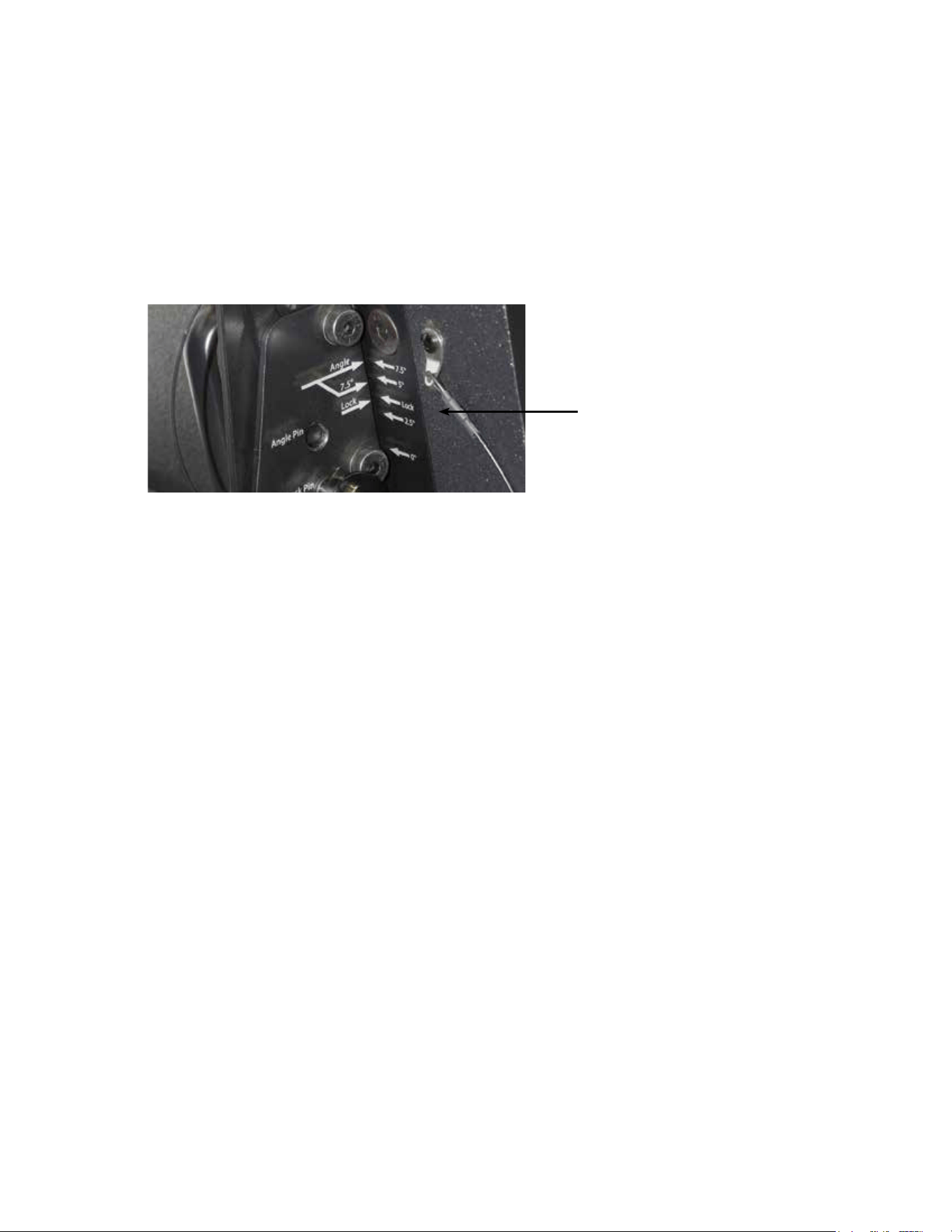
73
Dismantling an Array
To take the line array down, you simply reverse the process, and remove one cabinet at a time, placing the rig-
ging hardware into the nominal storage and transport positions.
Retract all the hang straps, and pin into place, place the Pivot Bar into the proper position to pin it into the Pivot
Bar Hole, remove the pin from the Angle Pin hole, and slide the Angle Slide bracket into the LOCK position
(LOCK arrow lined up with the other LOCK arrow), and pin into place. See Fig. 8.
Make sure that all the quick release lock pins are re-inserted into their default positions.
Cabinet hardware and rigging must be placed into the storage and transport positions, to move or transport the
cabinets individually, or the product Warranty is voided.
e only exception is use of the Crest Audio® designed transport Carts, capable of transporting 3 Versarray™ Pro
112s while in a straight line array conguration, with all cabinets set to 0 degrees. Instructions for the proper use
of the Cart will be in the Cart Owner’s manual.
Figure 8
Lock Position

74
INFORMATION ON THE FLYING HARDWARE FOR THE
Versarray™ Pro 112 (Available Separately)
CAUTION ! Before attempting to suspend any Versarray™ Rigging Hardware with or without speakers hung
from it, consult a certied structural engineer. e Halo/Fly Bar and/or speaker array can fall from improper
suspension, resulting in serious injury and property damage. Use only the correct mating hardware. All associ-
ated rigging is the responsibility of others.
is Crest loudspeaker should be suspended overhead only in accordance with the procedures and limitations
specied in the User’s Manual and possible manual update notices. is system should be suspended with certi-
ed rigging hardware by an authorized rigging professional and in compliance with local, provincial or national
suspension ordinances.
Whenever possible, in addition to the nominal primary mounting method, use a suitable safety chain or wire
rope attached to one of the other groups of y points, and rmly attached to a suitable structural member as
indicated by a certied structural engineer. CAUTION: ALWAYS USE SAFETY CHAIN OR WIRE ROPE.
Crest Audio® Versarray™ Mk III Halo Crest FG# 03617370
Connects Versarray™ 112 and Versarray™ Pro 215 Sub speakers to overhead rigging.
Provides four M20 X 2.5mm thread forged steel eyebolts for traditional rigging on the top of the Halo; Halo cen-
ter bar has 7 single-point hang locations to balance the Halo, and an optional 2 foot y bar increases the number
of separate and distinct balance points to 29. Includes quick-lock pins to mate to the rst VR112 cabinet in a
line.
Includes the bolts for the optional 2 foot or 6 foot Fly Bar.
Specications:
Overall Dimensions, Including Pins and Eyebolts, etc. H x W x D:
11.63” X 27.44” X 20.63” (29.5 cm X 69.7 cm X 52.4 cm)
Halo Only Dimensions H x W x D:
11.63” X 25.50” X 20.63” (29.5 cm X 64.8 cm X 52.4 cm)
Weight: 64 lbs.
Material: All steel construction, 2” by 3” welded steel frame tubing with 3/16” wall thickness, center bar 1 / 2 ”
thick by 3” solid steel with seven 23mm rigging holes along the center of it’s length, Halo coupling mounts for
the cabinet front hang straps are dual 1/8” thick steel plates, one pair on each side.
Finish: Entire Halo is at black powder coated paint nish.
Working Load Limit: 400 kg / 881 lbs. for Ultimate Strength Design Factor of 10:1
(is meets PLASA North America criteria and typically exceeds local USA safety requirements.)
Working Load Limit: 334 kg / 734 lbs. for Ultimate Strength Design Factor of 12:1
(is is in compliance with the European Union mandated Safety Factor)
Maximum Number of Versarray™ 112 Mk3 passive cabinets: 10
Maximum Number of Versarray™ Pro 112 Powered cabinets: 10
Maximum Number of Versarray™ Pro 215 Sub cabinets: 5

75
(Note: VR215 Pro Sub cabinets do NOT articulate or angle, they must be hung at a zero degree angle. erefore,
we recommend that they be hung at the top of a line.)
Can y up to 5 Versarray™ 215 Pro Subs, or 10 Versarray™ 112 Mk3 or Pro 2-Ways
Maximum Combined Number of Versarray™ 112 Mk3 or Pro 2-Ways and Versarray™ Pro 215 Sub cabinets:
MIX OF SUBS VERSUS 2-Ways
Subs Two-Ways
0 10
1 8
2 6
3 4
4 2
5 0
Maximum Combined Pull-Back Angle, Two or less Subs in the hang: 30 degrees
Maximum Pull-Back Angle, more than 2 Subs in the hang: 15 degrees
NOTES:
e ultimate strength for the Versarray™ Mk3 loudspeaker system rigging hardware was determined utilizing
calibrated and certied pull tests.
More complete information on the Crest Audio® Versarray™ FlyQWIK™ Rigging System and the Mk III Halo can
be found in the unit’s Owner’s manual, or by contacting Crest Audio®.
Design and specications subject to change without notice.
CAUTIONS
WARNING !
IMPORTANT INFORMATION FOR STRUCTURAL ENGINEER AND RIGGING PERSONNEL.
Before you y the array, be sure to inspect the rigging and ying hardware to insure that it is mechanically sound
and has not been damaged. ere should be no signicant distortion of the shape of the Halo coupling ears,
cabinet straps, Angle Slider bracket or Rail, Pivot Bar or a y bar, and the hardware should be checked for tight-
ness.
CAUTIONS:
IF ANY OF THE BRACKETS, RAILS, CABINET STRAPS, PIVOT BAR OR THE FLY BAR HAS BEEN DAM-
AGED OR DISTORTED, DO NOT USE, AND DO NOT FLY THE ARRAY UNTIL THEY CAN BE RE-
PLACED OR REPAIRED!
DO NOT USE THE PIVOT BARS AS HANDLES TO TRANSPORT THE CABINETS!
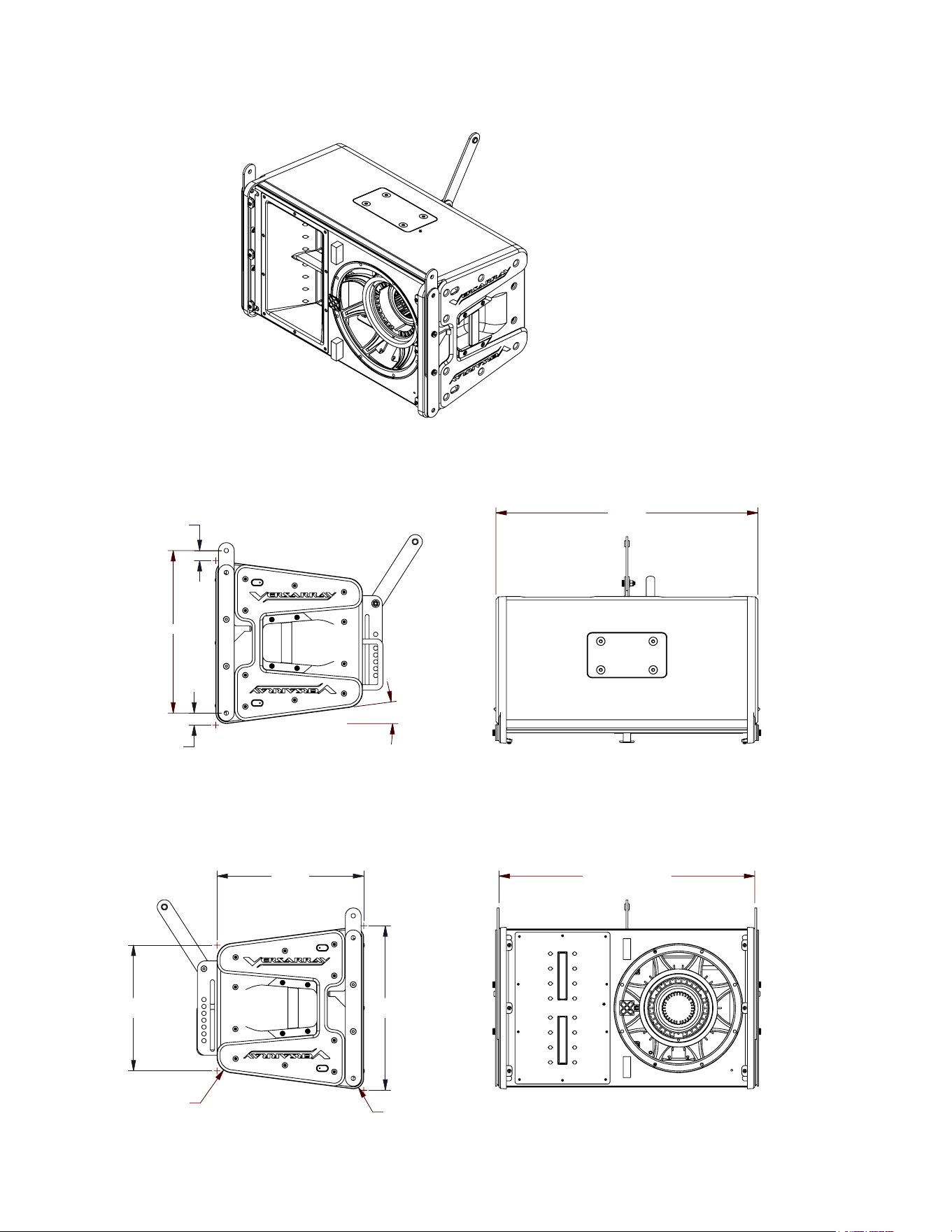
76
24.400
(INSIDE BRACKETS)
15.506
7.50°
.960
POI
1.140
POI
25.000
R1.500
R1.000
12.000
POI
15.686
POI
14.000
POI=POINT OF INTERSECTION
R
P1600022 VR 112 MK3 FINALB
SHEET 1 OF 1
REV.
DWG NO.
MERIDIAN, MS 39305
5022 HARTLEY PEAVEY DRIVE
PEAVEY ELECTRONICS CORP.
DESC.
FINISH:
MATERIAL:
ANGLES =
1°
.XXX =
.010 INCHES
TOLERANCES:
THE FOLLOWING APPLY:
UNLESS OTHERWISE SPECIFIED,
ENGR.
MECH.
SCALE
CHK'D
DATE
DRAWN
DATE
ECN
CHK'D
BY
ZONE
REVISION DESCRIPTION
REV
1
2
3
4
5
6
A
B
C
D
6
5
4
3
2
1
D
C
B
A
,
XXX
1:8
PEAVEY CONFIDENTIAL
24.400
(INSIDE BRACKETS)
15.506
7.50°
.960
POI
1.140
POI
25.000
R1.500
R1.000
12.000
POI
15.686
POI
14.000
POI=POINT OF INTERSECTION
R
P1600022 VR 112 MK3 FINALB
SHEET 1 OF 1
REV.
DWG NO.
MERIDIAN, MS 39305
5022 HARTLEY PEAVEY DRIVE
PEAVEY ELECTRONICS CORP.
DESC.
FINISH:
MATERIAL:
ANGLES =
1°
.XXX =
.010 INCHES
TOLERANCES:
THE FOLLOWING APPLY:
UNLESS OTHERWISE SPECIFIED,
ENGR.
MECH.
SCALE
CHK'D
DATE
DRAWN
DATE
ECN
CHK'D
BY
ZONE
REVISION DESCRIPTION
REV
1
2
3
4
5
6
A
B
C
D
6
5
4
3
2
1
D
C
B
A
,
XXX
1:8
PEAVEY CONFIDENTIAL

77
FCC/ICES Compliancy Statement
This device complies with Part 15 of the FCC. Operation is subject to the following two conditions: (1) this device may
not cause harmful interference, and (2) this device must accept any interference received, that may cause undesired
operation.
Le présent appareil est conforme aux CNR d’lndustrie Canada applicables aux appareils radio exempts de
licence. L’exploitation est autorisée aux deux conditions suivantes: (1) I’appareil ne doit pas produire de
brouillage, et (2) I’utilisateur de I’appareil doit accepter tout brouillage radioélectrique subi, même si le
brouillage est susceptible d’en compromettre le fonctionnement.
Warning: Changes or modifications to the equipment not approved by Peavey Electronics Corp. can void the
user’s authority to use the equipment.
Note – This equipment has been tested and found to comply with the limits for a Class A digital device,
pursuant to Part 15 of the FCC rules. These limits are designed to provide reasonable protection against
harmful interference when the equipment is operated in a commercial environment. This equipment
generates, uses and can radiate radio frequency energy and, if not installed and used in accordance with the
instruction manual, may cause harmful interference to radio communications. Operation of this equipment in
a residential area is likely to cause harmful interference in which case the user will be required to correct the
interference at their expense.

78
Architectural and Engineering Specications
e 2-way Bi-Amplied Ribbon Line Source Array loudspeaker system shall have an operating bandwidth of 100
Hz to 20 kHz, measured on axis at 1 meter in an anechoic environment, with +3/- 6 dB tolerance. e maximum
peak output level shall be 130 dB for the low frequencies, and 131 dB for the high frequencies when measured at
a distance of one meter with full system output. e woofer loaded into the cabinet shall be a Peavey® Neo Black
Widow® 12” 8 ohm woofer. e tweeter drivers shall be two Peavey® RD™ 2.6 MK III Ribbon Tweeters loaded
onto a CLEAR FORM™ Waveguide.
e bi-amplied speaker ampliers shall have a total power output of 3400 watts peak, and the power amps shall
be fan cooled. Signal input shall be provided via XLR analog and Dante® Ethernet connections. e analog out-
put ru connector shall be a male XLR for daisy-chaining to the next cabinet as needed.
DSP signal processing shall be incorporated to provide the crossover, protective ltering and EQ for the system,
as well as limiting and compression to minimize overdrive distortion.
e cabinet shall incorporate rigging hardware to interface with the Crest Audio® Versarray™ FlyQWIK™ rigging
system, including the Crest Audio® Versarray™ VR Mk III Halo.
e outside dimensions shall be 15.13 inches high by 25.06 inches wide by 15.19 inches deep. e weight shall be
75 pounds. e loudspeaker system shall be a Crest Audio® model Versarray™ Pro 112.

79

80
Logo referenced in Directive 2002/96/EC Annex IV
(OJ(L)37/38,13.02.03 and defined in EN 50419: 2005
The bar is the symbol for marking of new waste and
is applied only to equipment manufactured after
13 August 2005
www.peaveycommercialaudio.com
Warranty registration and information for U.S. customers available online at
www.peaveycommercialaudio.com/warranty
or use the QR tag below
Features and specications subject to change without notice.
Crest Audio 5022 HWY 493 N. Meridian, MS 39305 (601) 483-5365 FAX (601) 486-1278