SD-AT50
OPERATION MANUAL
MODE D’EMPLOI
1-BIT DIGITAL HOME THEATER
ENSEMBLE HOME THEATER 1 BIT
Please refer to
pages i to iv and
E-1 to E-52.
ENGLISH
Se reporter aux
pages iv et
F-1 à F-52.
FRANÇAIS
DX-AT50
DVD PLAYER
LECTEUR DVD
SDAT50U_FRONT 02.7.12, 4:50 PM1
i
SD-AT50(U)_common.fm02/6/28
SPECIAL NOTES
(for Users in the U.S.A.)
NOTE
This equipment has been tested and found to comply with the limits for a Class B dig-
ital device, pursuant to Part 15 of the FCC Rules. These limits are designed to provide
reasonable protection against harmful interference in a residential installation. This
equipment generates, uses, and can radiate radio frequency energy and, if not in-
stalled and used in accordance with the instructions, may cause harmful interference
to radio communications. However, there is no guarantee that interference will not oc-
cur in a particular installation. If this equipment does cause harmful interference to ra-
dio or television reception, which can be determined by turning the equipment off and
on, the user is encouraged to try to correct the interference by one or more of the fol-
lowing measures:
! Reorient or relocate the receiving antenna.
! Increase the separation between the equipment and receiver.
! Connect the equipment into an outlet on a circuit different from that to which the re-
ceiver is connected.
! Consult the dealer or an experienced radio/TV technician for help.
WARNING
FCC Regulations state that any unauthorized changes or modifications to this equip-
ment not expressly approved by the manufacturer could void the user's authority to
operate this equipment.
Note to CATV system installer:
This reminder is provided to call the CATV system installer’s attention to Article 820-
40 of the National Electrical Code that provides guidelines for proper grounding and,
in particular, specifies that the cable ground shall be connected to the grounding sys-
tem of the building, as close to the point of cable entry as practical.
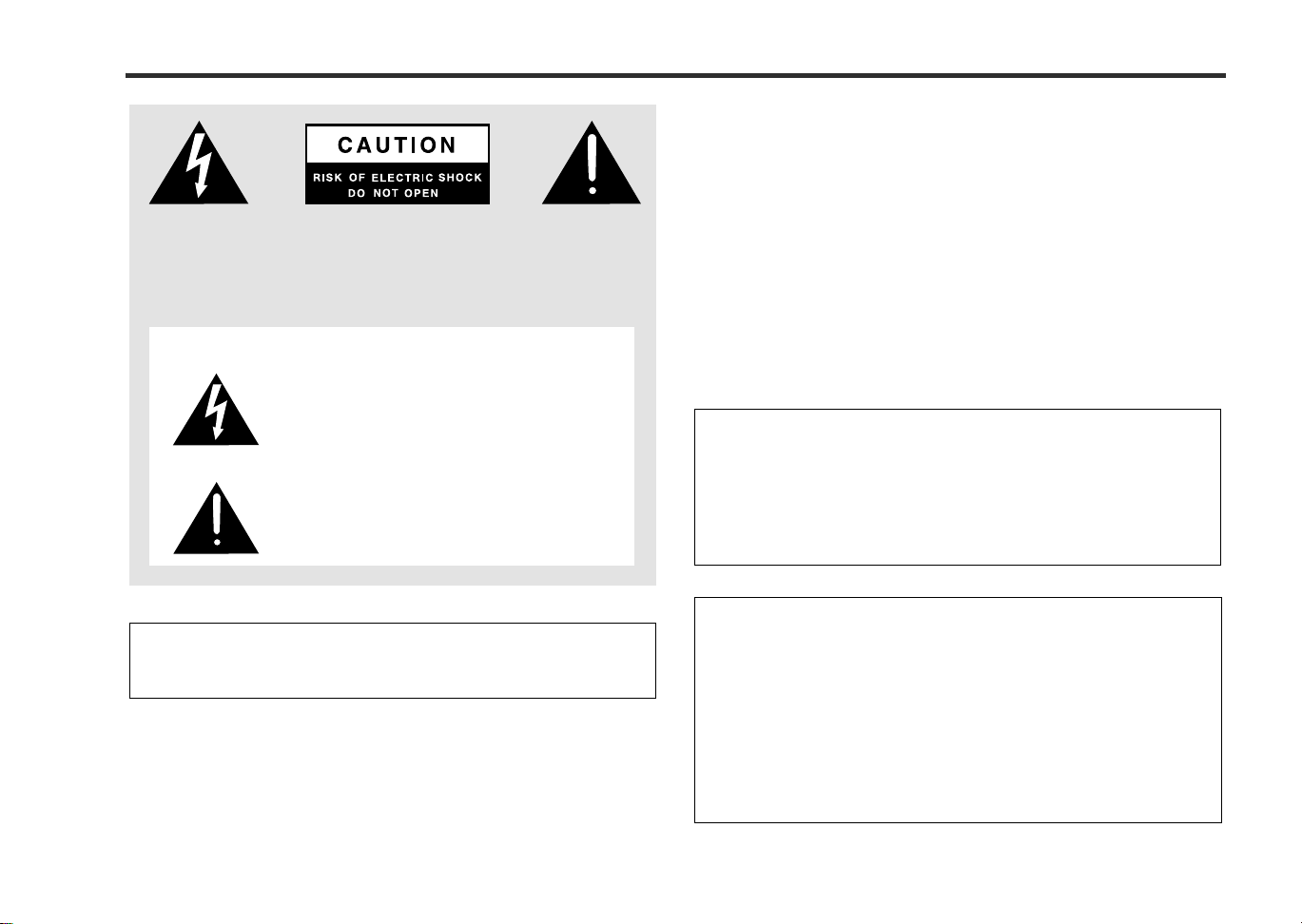
CAUTION: TO REDUCE THE RISK OF ELECTRIC SHOCK, DO NOT
REMOVE COVER (OR BACK).
NO USER-SERVICEABLE PARTS INSIDE. REFER SERVICING TO
QUALIFIED SERVICE PERSONNEL.
Explanation of Graphical Symbols:
The lightning flash with arrowhead symbol, within an
equilateral triangle, is intended to alert the user to the
presence of uninsulated “dangerous voltage” within
the product’s enclosure that may be of sufficient mag-
nitude to constitute a risk of electric shock to persons.
The exclamation point within an equilateral triangle is
intended to alert the user to the presence of important
operating and maintenance (servicing) instructions in
the literature accompanying the appliance.
0010
FOR YOUR RECORDS
For your assistance in reporting this unit in case of loss or theft, please record
below the model number and serial number which are located on the rear of the
unit.
Please retain this information.
Model number .................................................................................
Serial number .................................................................................
Date of purchase .................................................................................
Place of purchase .................................................................................
0010
WARNING: TO REDUCE THE RISK OF FIRE OR ELECTRIC
SHOCK, DO NOT EXPOSE THIS APPLIANCE TO RAIN OR
MOISTURE.
0010
CAUTION:
THIS PRODUCT IS A CLASS 1 LASER PRODUCT.
USE OF CONTROLS OR ADJUSTMENTS OR PERFORMANCE OF
PROCEDURES OTHER THAN THOSE SPECIFIED HEREIN MAY RE-
SULT IN HAZARDOUS RADIATION EXPOSURE.
AS THE LASER BEAM USED IN THIS PRODUCT IS HARMFUL TO
THE EYES, DO NOT ATTEMPT TO DISASSEMBLE THE CABINET.
REFER SERVICING TO QUALIFIED PERSONNEL ONLY.
0207
ii
SD-AT50(U)_common.fm02/6/28
IMPORTANT SAFETY INSTRUCTIONS
(for Users in the U.S.A.)
1 Read Instructions - All the safety and operating instructions should
be read before the product is operated.
2 Retain Instructions - The safety and operating instructions should be
retained for future reference.
3 Heed Warnings - All warnings on the product and in the operating
instructions should be adhered to.
4 Follow Instructions - All operating and use instructions should be
followed.
5 Cleaning - Unplug this product from the wall outlet before cleaning.
Do not use liquid cleaners or aerosol cleaners. Use a damp cloth for
cleaning.
6 Attachments - Do not use attachments not recommended by the prod-
uct manufacturer as they may cause hazards.
7 Water and Moisture - Do not use this product near water - for ex-
ample, near a bath tub, wash bowl, kitchen sink, or laundry tub; in a
wet basement; or near a swimming pool; and the like.
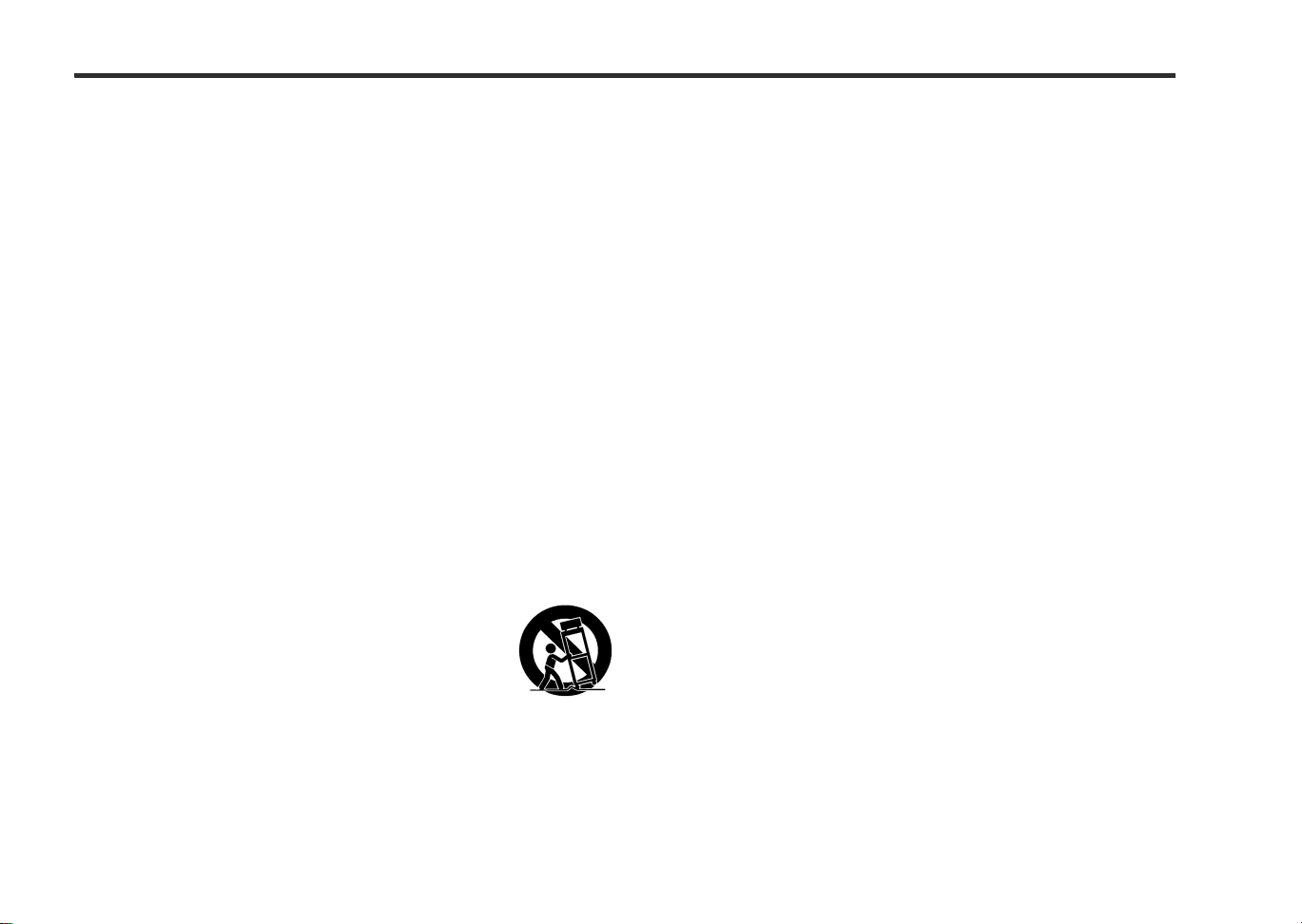
8 Accessories - Do not place this product on an unstable cart, stand,
tripod, bracket, or table. The product may fall, causing serious injury to
a child or adult, and serious damage to the product. Use only with a
cart, stand, tripod, bracket, or table recommended by the manufac-
turer, or sold with the product. Any mounting of the product should
follow the manufacturer’s instructions, and should use a mounting ac-
cessory recommended by the manufacturer.
9 A product and cart combination should be moved with
care. Quick stops, excessive force, and uneven surfaces
may cause the product and cart combination to over-
turn.
10 Ventilation - Slots and openings in the cabinet are provided for venti-
lation and to ensure reliable operation of the product and to protect it
from overheating, and these openings must not be blocked or cov-
ered. The openings should never be blocked by placing the product on
a bed, sofa, rug, or other similar surface. This product should not be
placed in a built-in installation such as a bookcase or rack unless proper
ventilation is provided or the manufacturer’s instructions have been
adhered to.
11 Power Sources - This product should be operated only from the type
of power source indicated on the marking label. If you are not sure of
the type of power supply to your home, consult your product dealer or
local power company. For products intended to operate from battery
power, or other sources, refer to the operating instructions.
12 Grounding or Polarization - This product may be equipped with a
polarized alternating-current line plug (a plug having one blade wider
than the other). This plug will fit into the power outlet only one way.
This is a safety feature. If you are unable to insert the plug fully into the
outlet, try reversing the plug. If the plug should still fail to fit, contact
your electrician to replace your obsolete outlet. Do not defeat the safety
purpose of the polarized plug.
Alternate Warnings - This product is equipped with a three-wire
grounding-type plug, a plug having a third (grounding) pin. This plug
will only fit into a grounding-type power outlet. This is a safety feature.
If you are unable to insert the plug into the outlet, contact your electri-
cian to replace your obsolete outlet. Do not defeat the safety purpose
of the grounding-type plug.
13 Power-Cord Protection - Power-supply cords should be routed so
that they are not likely to be walked on or pinched by items placed
upon or against them, paying particular attention to cords at plugs,
convenience receptacles, and the point where they exit from the product.
14 Protective Attachment Plug - The product is equipped with an at-
tachment plug having overload protection. This is a safety feature. See
Instruction Manual for replacement or resetting of protective device. If
replacement of the plug is required, be sure the service technician has
used a replacement plug specified by the manufacturer that has the
same overload protection as the original plug.
0109
iii
SD-AT50(U)_common.fm02/6/28
IMPORTANT SAFETY INSTRUCTIONS
(for Users in the U.S.A.) (continued)
15 Outdoor Antenna Grounding - If an outside antenna or cable system
is connected to the product, be sure the antenna or cable system is
grounded so as to provide some protection against voltage surges and
built-up static charges. Article 810 of the National Electrical Code, ANSI/
NFPA 70, provides information with regard to proper grounding of the
mast and supporting structure, grounding of the lead-in wire to an an-
tenna discharge unit, size of grounding conductors, location of antenna-
discharge unit, connection to grounding electrodes, and requirements
for the grounding electrode.
16 Lightning - For added protection for this product during a lightning
storm, or when it is left unattended and unused for long periods of
time, unplug it from the wall outlet and disconnect the antenna or cable
system. This will prevent damage to the product due to lightning and
power-line surges.
17 Power Lines - An outside antenna system should not be located in the
vicinity of overhead power lines or other electric light or power circuits,
or where it can fall into such power lines or circuits. When installing an
outside antenna system, extreme care should be taken to keep from
touching such power lines or circuits as contact with them might be
fatal.
18
Overloading - Do not overload wall outlets, extension cords, or integral
convenience receptacles as this can result in a risk of fire or electric shock.
19 Object and Liquid Entry - Never push objects of any kind into this
product through openings as they may touch dangerous voltage points
or short-out parts that could result in a fire or electric shock. Never spill
liquid of any kind on the product.
20 Servicing - Do not attempt to service this product yourself as opening
or removing covers may expose you to dangerous voltage or other
hazards. Refer all servicing to qualified service personnel.
21 Damage Requiring Service - Unplug this product from the wall outlet
and refer servicing to qualified service personnel under the following
conditions:
a) When the power-supply cord or plug is damaged,
b)If liquid has been spilled, or objects have fallen into the product,
c) If the product has been exposed to rain or water,
d)If the product does not operate normally by following the operating
instructions. Adjust only those controls that are covered by the op-
erating instructions as an improper adjustment of other controls may
result in damage and will often require extensive work by a qualified
technician to restore the product to its normal operation,
e) If the product has been dropped or damaged in any way, and
f) When the product exhibits a distinct change in performance - this
indicates a need for service.
22 Replacement Parts - When replacement parts are required, be sure
the service technician has used replacement parts specified by the
manufacturer or have the same characteristics as the original part.
Unauthorized substitutions may result in fire, electric shock, or other
hazards.
23 Safety Check - Upon completion of any service or repairs to this prod-
uct, ask the service technician to perform safety checks to determine
that the product is in proper operating condition.
24 Wall or Ceiling Mounting - The product should be mounted to a wall
or ceiling only as recommended by the manufacturer.
25 Heat - The product should be situated away from heat sources such
as radiators, heat registers, stoves, or other products (including ampli-
fiers) that produce heat.
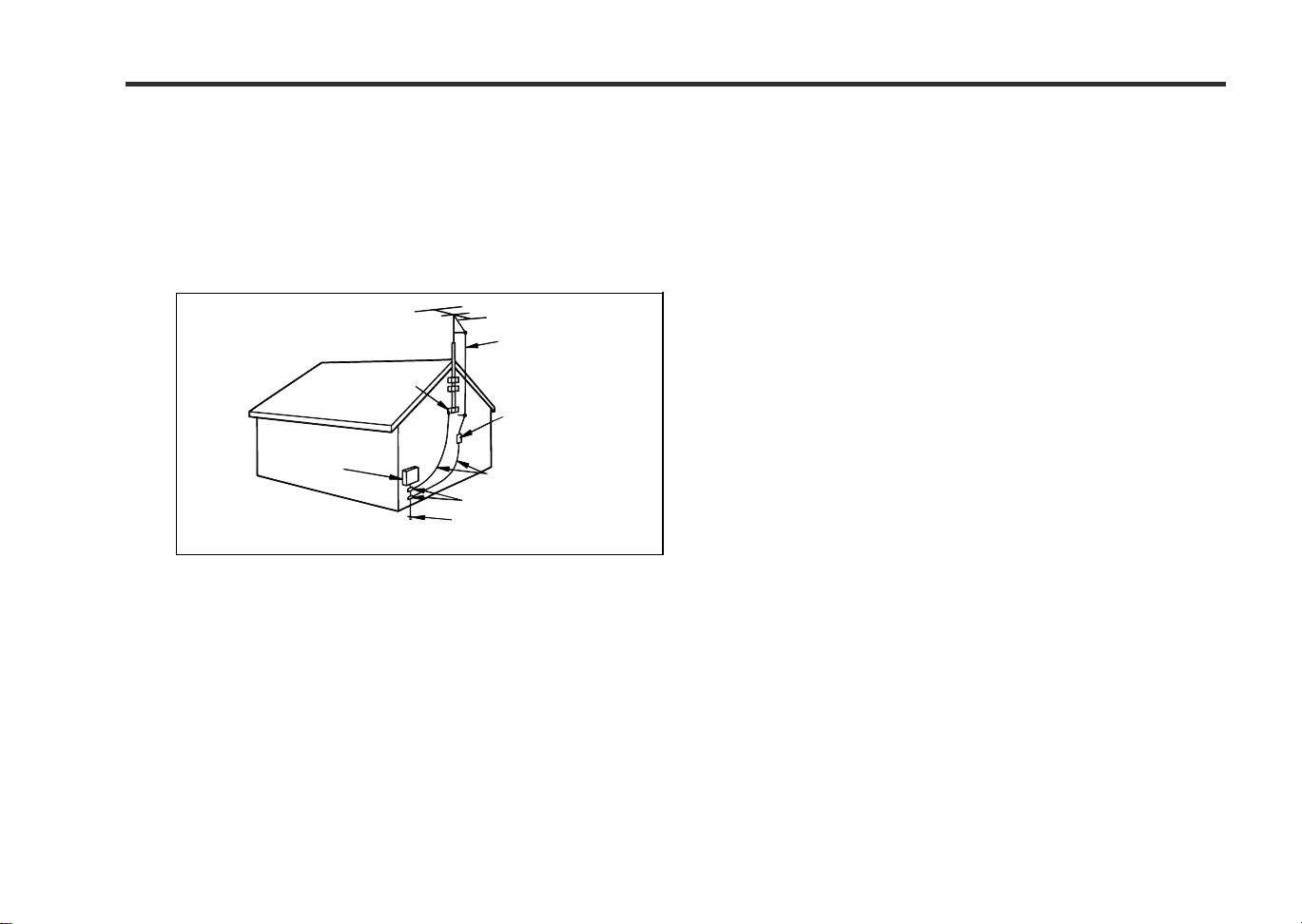
ANTENNA LEAD IN WIRE
POWER SERVICE GROUNDING
ELECTRODE SYSTEM
(NEC ART 250, PART H)
GROUNDING CONDUCTORS
(NEC SECTION 810-21)
GROUND CLAMPS
NEC - NATIONAL ELECTRICAL CODE
S2898A
ELECTRIC
SERVICE
EQUIPMENT
GROUND
CLAMP
Example of antenna grounding as per
National Electrical Code, ANSI/NFPA 70
ANTENNA DISCHARGE UNIT
(NEC SECTION 810-20)
0109
iv
SD-AT50(U)_common.fm02/6/28
SPECIAL NOTES
REMARQUES SPÉCIALES
Touch the metal outer case before you touch control buttons located on
the front panel.
Toucher à l’enveloppe métallique externe avant d’agir sur les touches de
commande situées sur la façade.
Manufactured under license from Digital Theater Systems, Inc. US Pat.
No.5,451,942, 5,956,674, 5,974,380, 5,978,762 and other world-wide pat-
ents issued and pending. "DTS" and "DTS Digital Surround" are regis-
tered trademarks of Digital Theater Systems, Inc. Copyright 1996, 2000
Digital Theater Systems, Inc. All Rights Reserved.
Fabriqué, sous licence de Digital Theater Systems, Inc. Les brevets US
Pat. No. 5,451,942, 5,956,674, 5,974,380, 5,978,762 et autres internatio-
naux délivrés et demandés. "DTS" et "DTS Digital Surround" sont des
marques déposées de Digital Theater Systems, Inc. Copyright 1996,
2000 Digital Theater Systems. Tous droits réservés.
Manufactured under license from Dolby Laboratories. "Dolby", "Pro Logic"
and the double-D symbol are trademarks of Dolby Laboratories. Confi-
dential unpublished works. 1992-1999 Dolby Laboratories. All rights re-
served.
Fabriqué sous licence de Dolby Laboratories. «Dolby», «Pro Logic» et le
symbole double D sont des marques de commerce de Dolby Laborato-
ries. Œuvres confidentielles non publiées. 1992-1999 Dolby Laborato-
ries. Tous droits réservés.
ENERGY STAR® Program Information
As an ENERGY STAR® Partner, SHARP has determined that this product meets the ENERGY STAR®
guidelines for energy efficiency.
ENERGY STAR® is a U.S. registered mark.
WHY PURCHASE
ENERGY STAR® LABELED PRODUCTS?
Many Electrical/Electronic Products use energy both when
they are on and when they are off. Americans spend more
than $3 billion a year on energy consumed by home electronic
products when they are not in use. The new
ENERGY STAR®
labeled models will reduce that energy “leakage” by up to 75
percent. Ultimately, this will mean more than $1 billion a year
in energy savings for consumers.
The energy savings will help reduce the burning of fossil fuels
and the related carbon dioxide pollution that contributes to glo-
bal warming. If every American family replaced their electronic
equipment with
ENERGY STAR® labeled models, it would
reduce air pollution equivalent to eliminating more than two
million cars.
By using
ENERGY STAR® labeled products, you will save money on your electric bills and use less
energy.
That makes good economic sense and it’s good for our environment.
ENERGY STAR® is a U.S. registered mark.
0112

E-1
02/7/22 SD-AT50(U)E1.fm
SD-AT50
ENGLISH
DX-AT50
ENGLISH
General Information
- Introduction / Contents -
Introduction
Contents
Page
"
General Information
Accessories . . . . . . . . . . . . . . . . . . . . . . . . . . . . . . . . . . . . . . . . . . . . . . . . . . . . . . . 3
Precautions . . . . . . . . . . . . . . . . . . . . . . . . . . . . . . . . . . . . . . . . . . . . . . . . . . . . . . . 4
Description of discs . . . . . . . . . . . . . . . . . . . . . . . . . . . . . . . . . . . . . . . . . . . . . . . . 5
Controls and indicators . . . . . . . . . . . . . . . . . . . . . . . . . . . . . . . . . . . . . . . . . 6 - 10
"
Preparation for Use
System connections . . . . . . . . . . . . . . . . . . . . . . . . . . . . . . . . . . . . . . . . . . . . 11, 12
Antenna connection . . . . . . . . . . . . . . . . . . . . . . . . . . . . . . . . . . . . . . . . . . . . . . . 13
TV connection . . . . . . . . . . . . . . . . . . . . . . . . . . . . . . . . . . . . . . . . . . . . . . . . 13 - 15
System installation . . . . . . . . . . . . . . . . . . . . . . . . . . . . . . . . . . . . . . . . . . . . . 15, 16
Remote control . . . . . . . . . . . . . . . . . . . . . . . . . . . . . . . . . . . . . . . . . . . . . . . . . . . 17
General control . . . . . . . . . . . . . . . . . . . . . . . . . . . . . . . . . . . . . . . . . . . . . . . . . . . 18
Changing the initial setting of DVD . . . . . . . . . . . . . . . . . . . . . . . . . . . . . . . 19 - 22
Language code list for disc language . . . . . . . . . . . . . . . . . . . . . . . . . . . . . . . . . 23
Setting the clock . . . . . . . . . . . . . . . . . . . . . . . . . . . . . . . . . . . . . . . . . . . . . . . . . . 24
" Basic Operation
Listening to the radio . . . . . . . . . . . . . . . . . . . . . . . . . . . . . . . . . . . . . . . . . . . . . . 25
Listening to the memorized station . . . . . . . . . . . . . . . . . . . . . . . . . . . . . . . . . . . 26
Playing a disc . . . . . . . . . . . . . . . . . . . . . . . . . . . . . . . . . . . . . . . . . . . . . . . . . 27, 28
Page
"
Advanced Disc Features
Basic operation
To locate the beginning of a chapter (track) (skip) . . . . . . . . . . . . . . . . . . . . . . 29
Fast forward/Fast reverse (search) . . . . . . . . . . . . . . . . . . . . . . . . . . . . . . . . . . . 29
To start playback from the desired point (direct play) . . . . . . . . . . . . . . . . . . . 30
Still picture/Frame advance . . . . . . . . . . . . . . . . . . . . . . . . . . . . . . . . . . . . . . . . . 30
Slow-motion play . . . . . . . . . . . . . . . . . . . . . . . . . . . . . . . . . . . . . . . . . . . . . . . . . 30
Useful features
To play in random order (random play) . . . . . . . . . . . . . . . . . . . . . . . . . . . . . . . 31
To play in the desired order (programmed playback) . . . . . . . . . . . . . . . . . . . . 31
To play repeatedly (repeat play) . . . . . . . . . . . . . . . . . . . . . . . . . . . . . . . . . . . . . 32
To play the contents between the specified points repeatedly (A-B repeat) . 32
To select a title from the top menu of the disc . . . . . . . . . . . . . . . . . . . . . . . . . 32
MP3 disc operation
MP3 disc playback . . . . . . . . . . . . . . . . . . . . . . . . . . . . . . . . . . . . . . . . . . . . . . . . 33
Various settings
To change the subtitle language . . . . . . . . . . . . . . . . . . . . . . . . . . . . . . . . . . . . . 34
To change the audio language (audio output)
. . . . . . . . . . . . . . . . . . . . . . . . . . 34
To change the angle . . . . . . . . . . . . . . . . . . . . . . . . . . . . . . . . . . . . . . . . . . . . . . . 34
To brighten an image (black level setting)
. . . . . . . . . . . . . . . . . . . . . . . . . . . . . 35
To zoom in on an image (zoom) . . . . . . . . . . . . . . . . . . . . . . . . . . . . . . . . . . . . . 35
To change the display on TV screen . . . . . . . . . . . . . . . . . . . . . . . . . . . . . . . . . . 36
To set on the disc menu . . . . . . . . . . . . . . . . . . . . . . . . . . . . . . . . . . . . . . . . . . . . 36
DVD mode operation indicators . . . . . . . . . . . . . . . . . . . . . . . . . . . . . . . . . . . . . 36
Thank you for purchasing this SHARP product. To obtain the best performance from
this product, please read this manual carefully. It will guide you in operating your
SHARP product.
! SD-AT50 1-Bit Digital Home Theater and DX-AT50 DVD Player should be com-
bined for use.
! SD-AT50 consists of AV control unit, Subwoofer/Amplifier unit, front speakers, a
center speaker and surround speakers.
! DX-AT50 should be used exclusively with SD-AT50. All accessories are packaged
in SD-AT50.
The remote control works for both products.
Refer to this operation manual for DX-AT50 operations.
E-2
SD-AT50(U)E1.fm02/7/19
SD-AT50
ENGLISH
7
DX-AT50
General Information
- Contents -
Page
"
Advanced Features
Enjoy the surround sound (sound mode) . . . . . . . . . . . . . . . . . . . . . . . . . . 37 - 39
Changing the registration in the remote control . . . . . . . . . . . . . . . . . . . . . . . .40
Speaker settings . . . . . . . . . . . . . . . . . . . . . . . . . . . . . . . . . . . . . . . . . . . . . . .41, 42
Timer and sleep operation . . . . . . . . . . . . . . . . . . . . . . . . . . . . . . . . . . . . . . 43 - 45
Audio connection of other equipment
. . . . . . . . . . . . . . . . . . . . . . . . . . . . . . . . .46
Operating the connected TV . . . . . . . . . . . . . . . . . . . . . . . . . . . . . . . . . . . . . . . . .47
"
References
Error indicators and warnings . . . . . . . . . . . . . . . . . . . . . . . . . . . . . . . . . . . . . . .48
Troubleshooting chart . . . . . . . . . . . . . . . . . . . . . . . . . . . . . . . . . . . . . . . . . . .49, 50
Maintenance . . . . . . . . . . . . . . . . . . . . . . . . . . . . . . . . . . . . . . . . . . . . . . . . . . . . . .51
Optional accessories . . . . . . . . . . . . . . . . . . . . . . . . . . . . . . . . . . . . . . . . . . . . . . .51
Specifications . . . . . . . . . . . . . . . . . . . . . . . . . . . . . . . . . . . . . . . . . . . . . . . . .51, 52
Copyright Information:
! Unauthorized copying, broadcast, public display, transmission, public perfor-
mance and rental (regardless of whether or not such activities are for profit) of disc
contents are prohibited by law.
! This device is equipped with copy protection technology that causes substantial
degradation of images when the contents of a disc are copied to video tape.
! This device is protected by U. S. patents and other intellectual property rights, the
copyright for which belongs to Macrovision Corporation. The use of Macrovision's
copy protection technology in the device is authorized by Macrovision and is
intended for home use only, unless otherwise authorized in writing by Macrovision.
Reverse engineering or disassembly is prohibited.
"
Types of playable discs
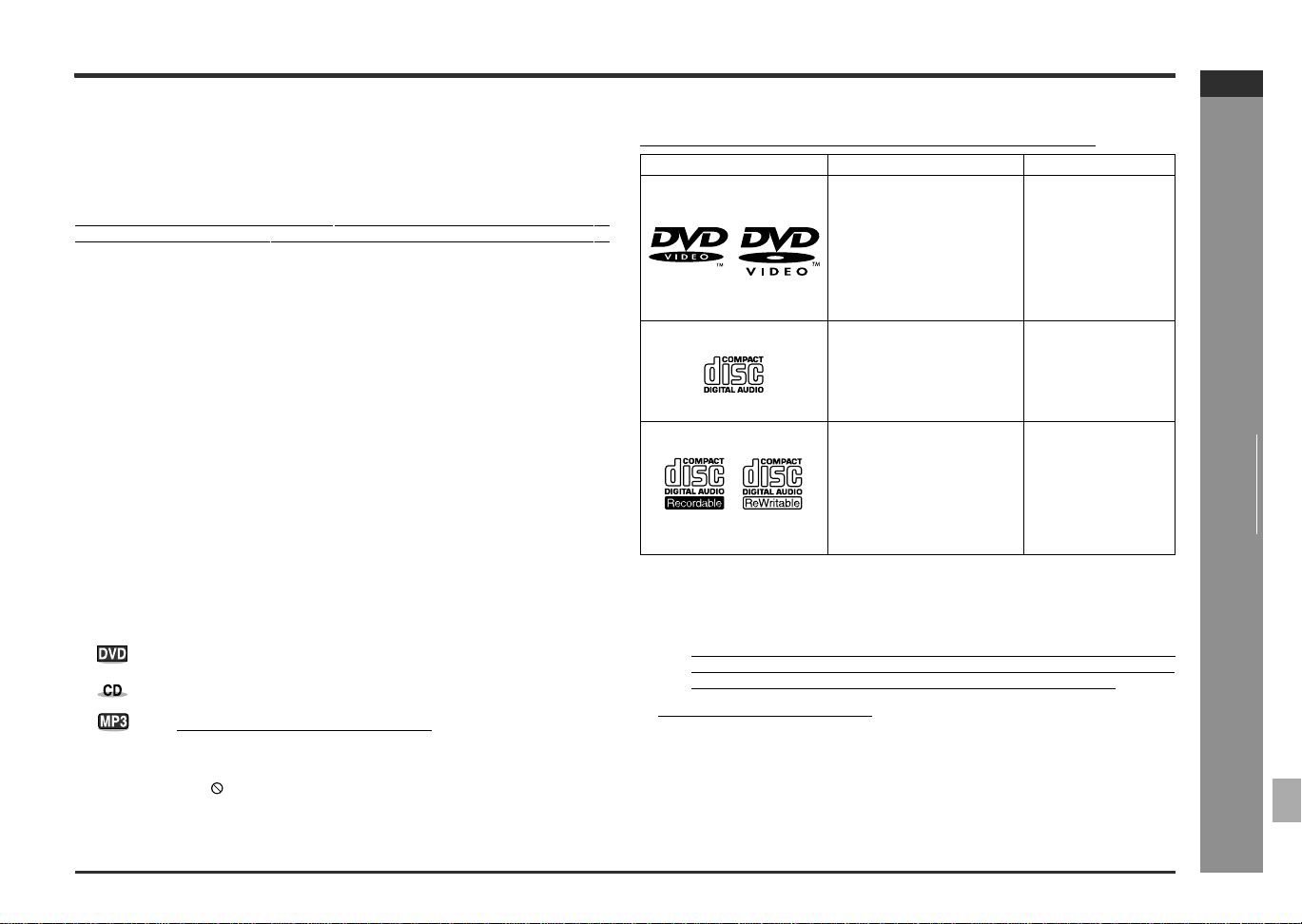
The DVD player can play back discs bearing any of the following marks:
! For unplayable discs, see page 5.
Icons used in this operation manual
Some functions may not be available depending on discs. The following icons indicate
the discs that can be used in the section.
... Indicates DVDs.
... Indicates audio CDs.
... Indicates CD-R/RW with MP3 recording.
! Some operations may not be performed depending on discs even if they are de-
scribed in this manual.
! During operation, " " may be displayed on the screen. This means that the opera-
tions described in this manual are prohibited by the disc.
Disc type Disc contents Disc size
DVD Video Disc for NTSC
system
Audio and video (movies) 5" (12 cm)
3" (8 cm)
Or DVD-R/DVD-RW record-
ed in video mode (*1)
Audio CD Audio 5" (12 cm)
3" (8 cm)
Or CDV (*2)
Audio CD-R/CD-RW (*3) Audio 5" (12 cm)
3" (8 cm)
Or CD-R/CD-RW recorded
in MP3 format (*4)
(*1): The DVD-R/DVD-RW may not be played back due to properties and scratch-
es of the disc, dirty optical pickup lens, etc.
(*2): Only the audio on the CDV can be played.
(*3): The CD-R/CD-RW may not be played back properly depending on the record-
ing equipment or the disc.
(*4): If the sampling frequency is 44.1 or 48.1 kHz and the fixed bit rate is 128 kbps
or higher, MPEG 1 Audio Layer3 (MP3) files can be played. However, some
of them may not be played depending on their conditions or format.
E-3
SD-AT50(U)E1.fm02/7/19
SD-AT50
ENGLISH
DX-AT50
General Information
- Accessories -
Accessories
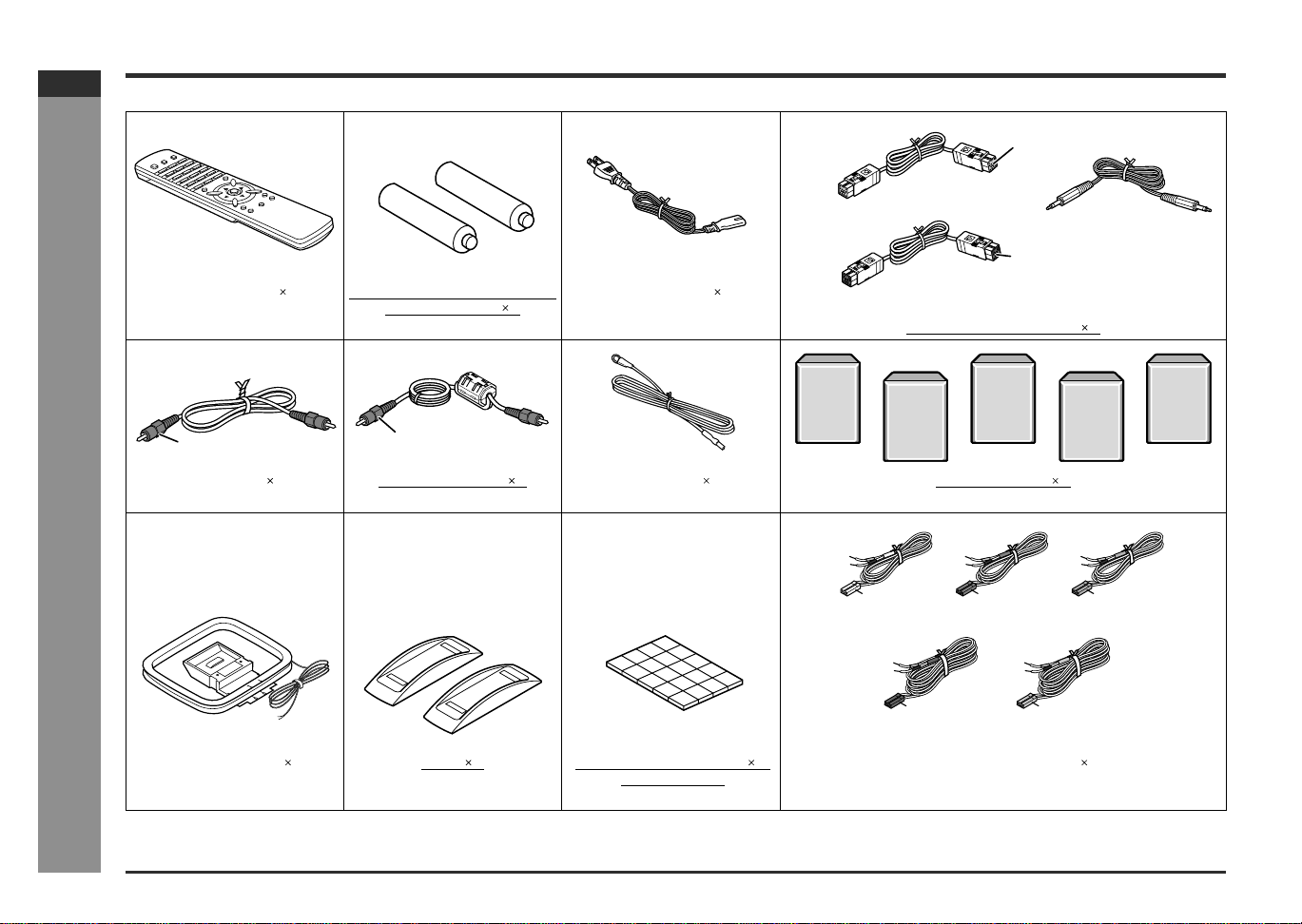
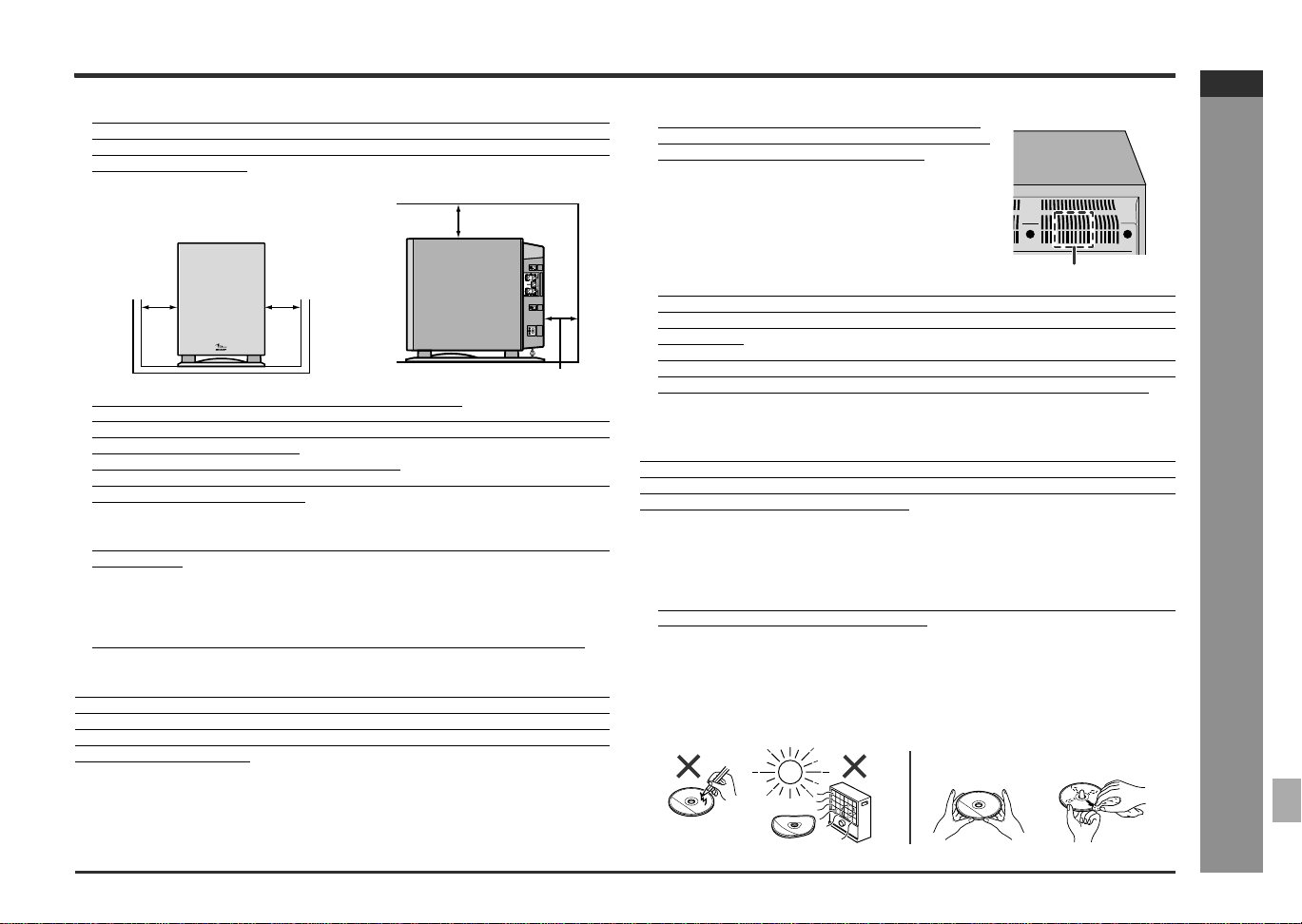
Please confirm that the following accessories are included.
Note:
Only the above accessories are included.
Remote control 1 "AAA" size battery (UM-4, R03,
HP-16 or similar) 2
AC power cord 1
(RRMCG0354AWSA) (UBATU0111AFZZ) (QACCD0031AWZZ) System connection cable 3
Video cable 1 Digital audio cable 1 FM antenna 1 Satellite speaker 5
(QCNQG0055AWZZ) (QCNWG0048AWZZ) (92LFANT1535A) (GBOXS0099AWM2)
AM loop antenna 1 Stand 2
Antislip speaker cushion 1
sheet (20 pcs.)
Speaker connection cord 5
(QANTL0012AWZZ) (HOLD4809ASY1) (PCUSG0129AWSA) (QCNWG0052AWZZ)
(For signal/power)
(QCNWG0056AWZZ)
(For DVD player)
(QCNWG0047AWZZ)
(For sound)
(QCNWG0057AWZZ)
Blue
Black
Yellow
Orange
White
approx. 45 feet (15m) approx. 45 feet (15m)
approx. 15 feet (5m) approx. 15 feet (5m)approx. 15 feet (5m)
Red
Green
Blue
Gray
E-4
SD-AT50(U)E1.fm02/7/19
SD-AT50
ENGLISH
7
DX-AT50
General Information
- Precautions -
Precautions
" General
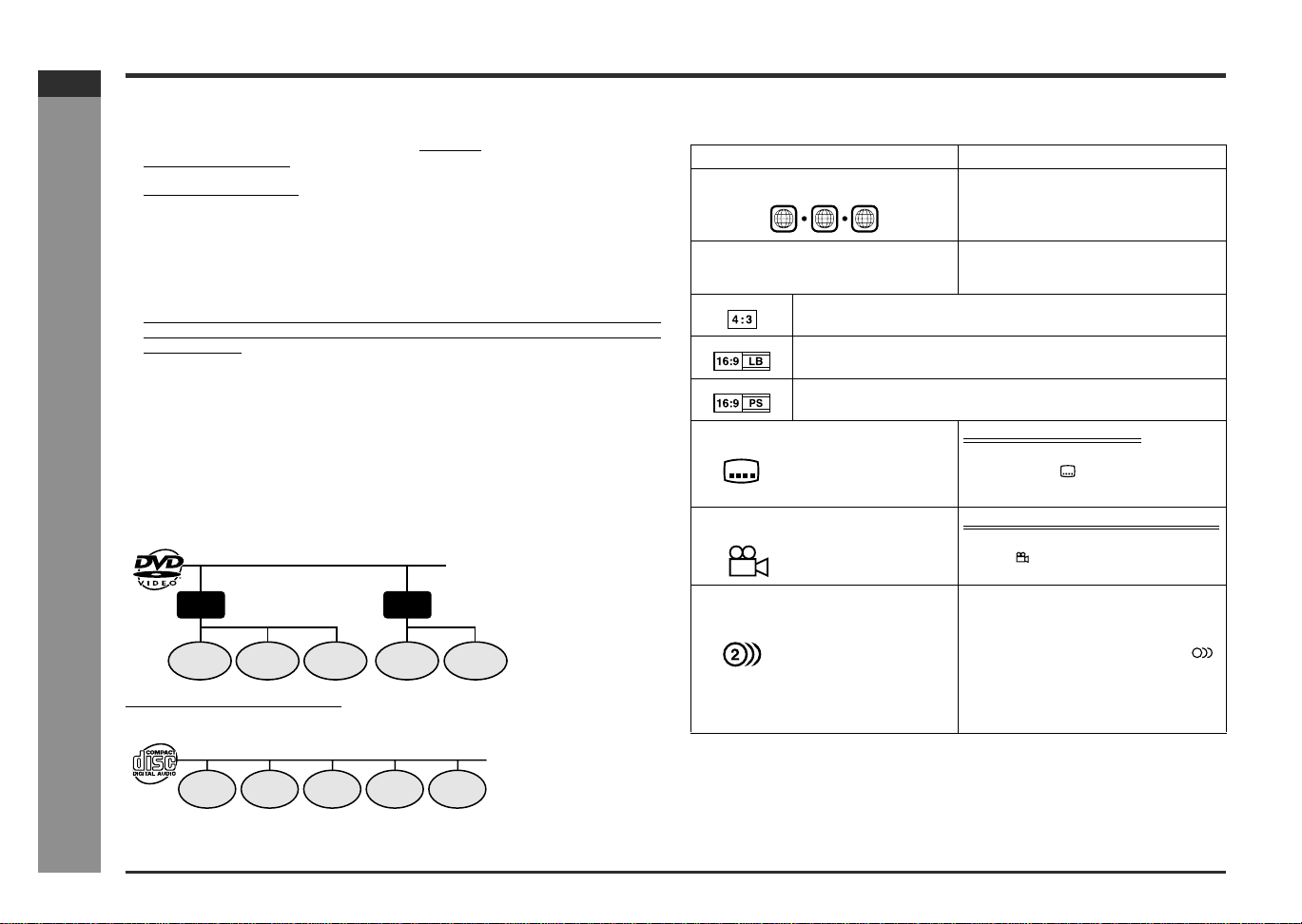
! Please ensure that the subwoofer/amplifier unit is positioned in a well-ventilated
area and that there is at least 4" (10 cm) of free space along the sides and back.
There must also be a minimum of 6" (15 cm) of free space on the top of the
subwoofer/amplifier unit.
! Use the system on a firm, level surface free from vibration.
! Keep the system away from direct sunlight, strong magnetic fields, excessive dust,
humidity and electronic/electrical equipment (home computers, facsimiles, etc.)
which generates electrical noise.
! Do not place anything on top of the components.
! Do not expose the system to moisture, to temperatures higher than 140°F (60°C)
or to extremely low temperatures.
! If your system does not work properly, disconnect the AC power cord from the AC
outlet. Plug the AC power cord back in, and then turn on your system.
! In case of an electrical storm, unplug the DVD player and the subwoofer/amplifier
unit for safety.
! Hold the AC power plug by the head when removing it from the AC outlet, as pull-
ing the cord can damage internal wires.
! Do not remove the outer cover, as this may result in electric shock. Refer
internal service to your local SHARP service facility.
! This system should only be used within the range of 41°F - 95°F (5°C - 35°C).
Warning:
The voltage used must be the same as that specified on this system. Using this prod-
uct with a higher voltage other than that which is specified is dangerous and may
result in a fire or other type of accident causing damage. SHARP will not be held
responsible for any damage resulting from use of this system with a voltage other
than that which is specified.
Caution:
! During use the DVD player and the subwoofer/amplifier unit will get warm, do not
touch warm areas of the DVD player and the subwoofer/amplifier unit for pro-
longed periods to avoid damage to you or the DVD player and the subwoofer/
amplifier unit.
! This system is equipped with special function which protects amplifier circuit from
damages. When it is activated, sound switch is turned off. In this case, set the
DVD player and the AV control unit to the stand-by mode and turn it on again.
"
Volume control
The sound level at a given volume setting depends on speaker efficiency, location
and various other factors. It is advisable to avoid exposure to high volume levels,
which occurs while turning the system on with the volume control setting up high, or
while continually listening at high volumes.
"
Care of DVD/CD discs
DVD/CD discs are fairly resistant to damage, however mistracking can occur due to
an accumulation of dirt on the disc surface. Follow the guidelines below for maximum
enjoyment from your DVD/CD collection and player.
! Do not write on either side of the disc, particularly the non-label side from which
signals are read. Do not mark this surface.
! Keep your discs away from direct sunlight, heat, and excessive moisture.
! Always hold the DVD/CDs by the edges. Fingerprints, dirt, or water on the DVD/
CDs can cause noise or mistracking. If a DVD/CD is dirty or does not play prop-
erly, clean it with a soft, dry cloth, wiping straight out from the center, along the
radius.
4" (10 cm)
4" (10 cm)
6" (15 cm)
4" (10 cm)
! This subwooer/amplifier unit is fitted with a cooling
fan at the rear for improved cooling. Do not cover the
opening in this section with any obstacles.
Cooling fan
NO
YES
Correct
E-5
SD-AT50(U)E1.fm02/7/19
SD-AT50
ENGLISH
DX-AT50
General Information
- Description of discs -
Description of discs
" Discs that cannot be played
! The discs above cannot be played at all, or no sound is heard although images
appear on the screen or vice versa.
! Faulty playback may damage the speakers and can have an adverse effect on
your hearing when played at high volume settings.
! This DVD player adopts the NTSC system. Discs that were made in foreign
countries may not be played back. Check the recording system before pur-
chasing discs.
! You cannot play illegally produced discs.
Notes:
! A disc that has scratches or fingerprints on it may not play properly. Refer to "Care
of DVD/CD discs (page 4)" and clean the disc.
! Do not play the discs of special shapes (heart or octagon shaped) as they can be
ejected from the machine while rotating and cause injury.
"
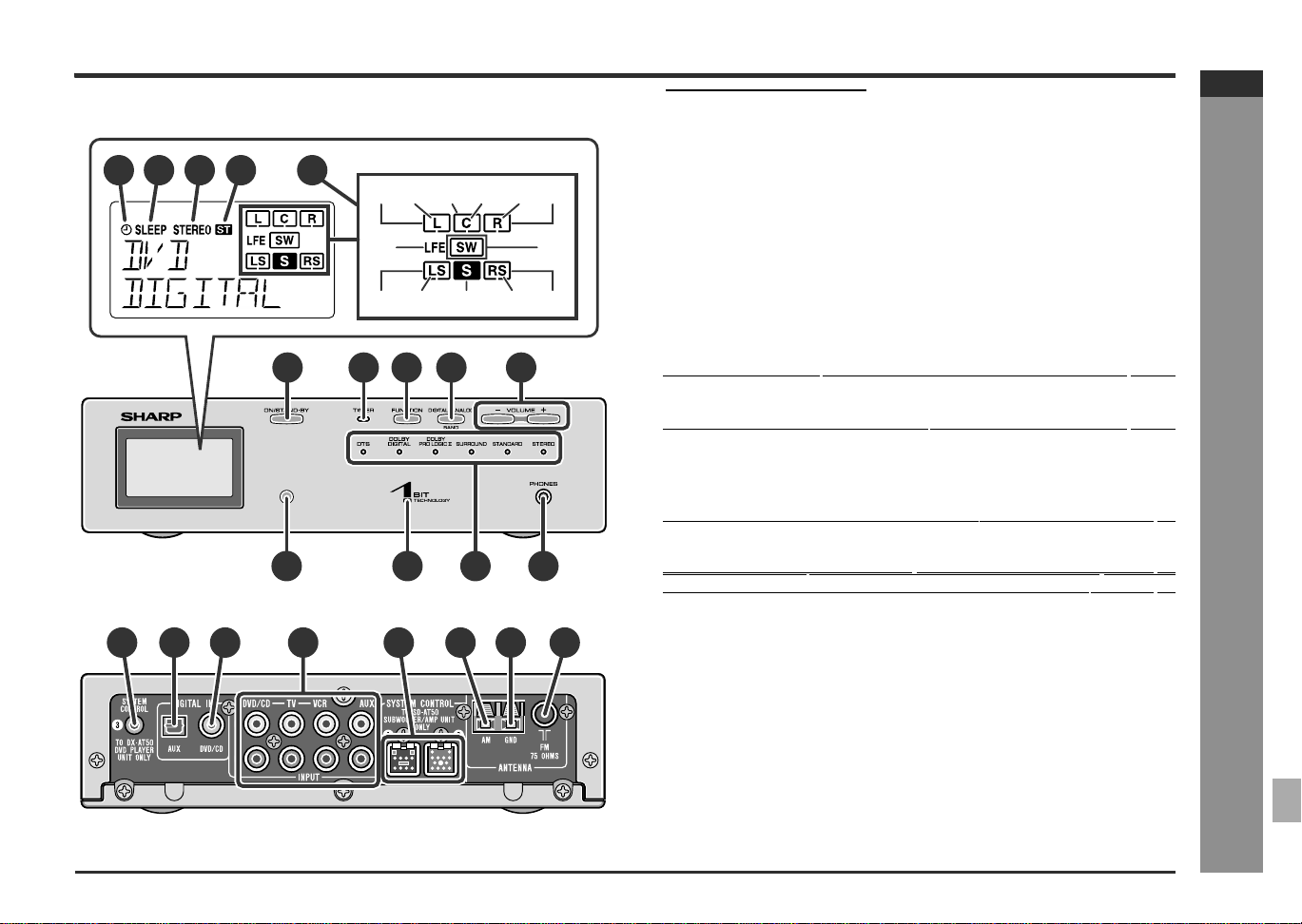
Title, chapter and track
DVDs are divided into "titles" and "chapters". If the disc has more than one movie on
it, each movie is a separate "title". "Chapters" are subdivisions of titles.
The audio CDs consist of "tracks".
A "track" is each tune on an audio CD.
Note:
Title, chapter, or track numbers may not be recorded on some discs.
" Icons used on DVD discs
Check the icons of the DVD case before playing your discs.! DVDs without the region number "1" or
"ALL".
! CDG
! Video CD
! DVDs with PAL system ! Photo CD
! DVDs with SECAM system ! CD-ROM
! DVDs with MPEG sound ! SACD
! DVD-ROM ! Discs recorded in special formats, etc.
! DVD-RAM
! DVD-Audio
Chapter 1
Title 1 Title 2
Chapter 2 Chapter 3 Chapter 1 Chapter 2
Track 1 Track 2 Track 3 Track 4 Track 5
Display Description
Region number (playable area number) DVD discs are programed with region
numbers indicating countries in which
they can be played. This system can play
discs with region number "1" or "ALL".
Format recorded on the DVD To adopt the video format to the connect-
ed TVs ("wide-screen TV" or "4:3 size
TV").
Recorded in 4:3.
You can enjoy wide images on a wide-screen TV, and letterbox size
images on the 4:3 size TV.
You can enjoy wide images on a wide-screen TV, and sides-cut 4:3
images on the 4:3 size TV.
Type of subtitles recorded
Recorded subtitle language.
Example: A desired language can be selected with
the SUBTITLE button.
1: English
2: Japanese
Number of camera angles
Number of angles recorded on the DVD.
A desired angle can be selected with the
ANGLE button.
Number of audio track and audio
recording system
The number of audio tracks and audio re-
cording system are indicated.
Example:
1: Original <English>
(DTS 5.1 Surround)
! The audio recorded on the DVD can
be switched by using the AUDIO
button.
! Audio and recording system vary de-
pending on the DVD. Check them in
the DVD's manual.
2: Japanese (Dolby Digi-
tal 5.1 Surround)
1
2
6
1
ALL
2
2
E-6
SD-AT50(U)E1.fm02/7/19
SD-AT50
ENGLISH
7
DX-AT50
General Information
- Controls and indicators -
Controls and indicators
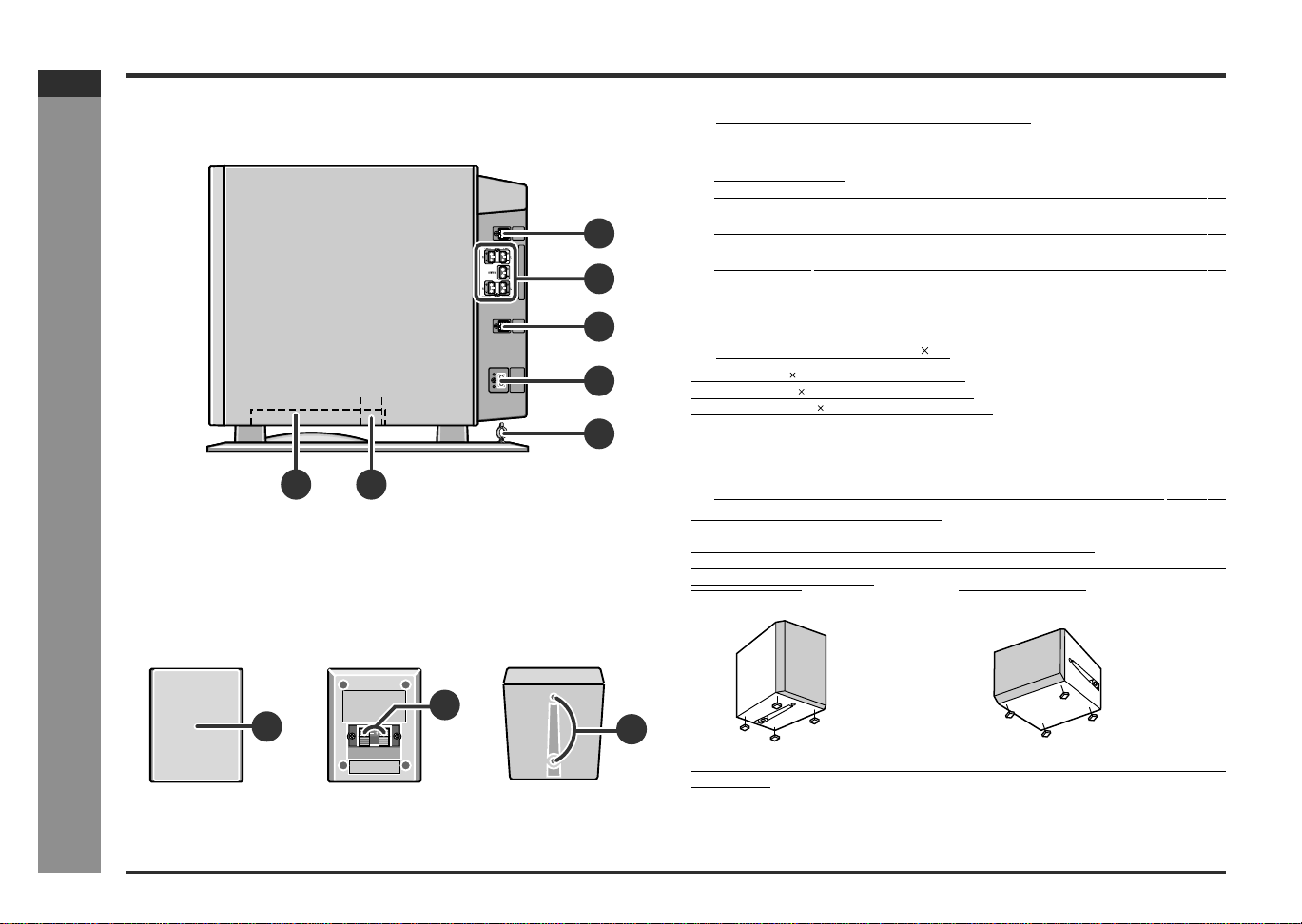
" AV Control Unit
1. Timer Play Indicator
2. Sleep Indicator
3. FM Stereo Mode Indicator
4. FM Stereo Receiving Indicator
5. Audio Signal Indicators/Speaker Indicators
Reference page
6. On/Stand-by Button . . . . . . . . . . . . . . . . . . . . . . . . . . . . . . . . . . 18, 50
7. Timer Set Indicator . . . . . . . . . . . . . . . . . . . . . . . . . . . . . . . . . . . . . . 44
8. Function Button . . . . . . . . . . . . . . . . . . . . . . . . . . . . . . . . . . 25, 27, 47
9. Digital/Analog/Band Select Button
. . . . . . . . . . . . . . . . . . . . . . 25, 47
10.Volume Up and Down Buttons . . . . . . . . . . . . . . . . . . . . . . . . . . . . . 18
11.Remote Sensor . . . . . . . . . . . . . . . . . . . . . . . . . . . . . . . . . . . . . . . . . 17
12.Power Indicator . . . . . . . . . . . . . . . . . . . . . . . . . . . . . . . . . . . . . . . . . 18
13.Sound Mode Indicators . . . . . . . . . . . . . . . . . . . . . . . . . . . . . . . 38, 39
14.Headphone Jack . . . . . . . . . . . . . . . . . . . . . . . . . . . . . . . . . . . . . . . . 28
15.System Connection Jack (to DVD player)
. . . . . . . . . . . . . . . . . . . . 11
16.Audio Digital Input Jack . . . . . . . . . . . . . . . . . . . . . . . . . . . . . . . . . . 46
17.Coaxial Digital Audio Input Jack
. . . . . . . . . . . . . . . . . . . . . . . . . . . 11
18.Audio Input Jacks . . . . . . . . . . . . . . . . . . . . . . . . . . . . . . . . . 11, 15, 46
19.System Connection Jacks (to subwoofer/amplifier unit) . . . . . . . 11
20.AM Loop Antenna Terminal . . . . . . . . . . . . . . . . . . . . . . . . . . . . . . . 13
21.Antenna Ground Terminal . . . . . . . . . . . . . . . . . . . . . . . . . . . . . . . . 13
22.FM 75 Ohms Antenna Jack . . . . . . . . . . . . . . . . . . . . . . . . . . . . . . . 13
7 8 9 10
11 13 14
1 2 3 4
5
(1)
(7)
(8)
(2) (3) (4) (5) (6)
(9) (
10
)(
11
)(
12
)(
13
)
15
16 17 18
20
21 22
19
Display
Front
Back
12
6
(1) Left Front Speaker Indicator (8) Subwoofer Indicator
(2) Front Left Signal Indicator (9) Left Surround Speaker Indicator
(3) Center Speaker Indicator (10) Surround Left Signal Indicator
(4) Center Signal Indicator (11) Surround Monaural Signal Indica-
tor
(5) Front Right Signal Indicator (12) Surround Right Signal Indicator
(6) Right Front Speaker Indicator (13) Right Surround Speaker Indicator
(7) Low Frequency Effect Indicator
E-7
SD-AT50(U)E1.fm02/7/19
SD-AT50
ENGLISH
DX-AT50
General Information
- Controls and indicators -
Controls and indicators (continued)
"
Subwoofer/Amplifier Unit
Reference page
1. Subwoofer
2. Bass Reflex Duct
3. System Connection Jack (to AV control unit) . . . . . . . . . . . . . . . . .11
4. Speaker Terminals . . . . . . . . . . . . . . . . . . . . . . . . . . . . . . . . . . . . . . .12
5. System Connection Jack (to AV control unit)
. . . . . . . . . . . . . . . . .11
6. AC Power Input Jack . . . . . . . . . . . . . . . . . . . . . . . . . . . . . . . . . . . . .18
7. Cord Holder
. . . . . . . . . . . . . . . . . . . . . . . . . . . . . . . . . . . . . . . . . . . .12
"
Satellite speaker 5
Front speaker 2: magnetically shielded
Center speaker 1: magnetically shielded
Surround speaker 2: magnetically shielded
Reference page
1. Speaker
2. Speaker Terminals . . . . . . . . . . . . . . . . . . . . . . . . . . . . . . . . . . . . . . .12
3. Mounting Holes for Stand or Bracket (Optionally available)
. . . . .16
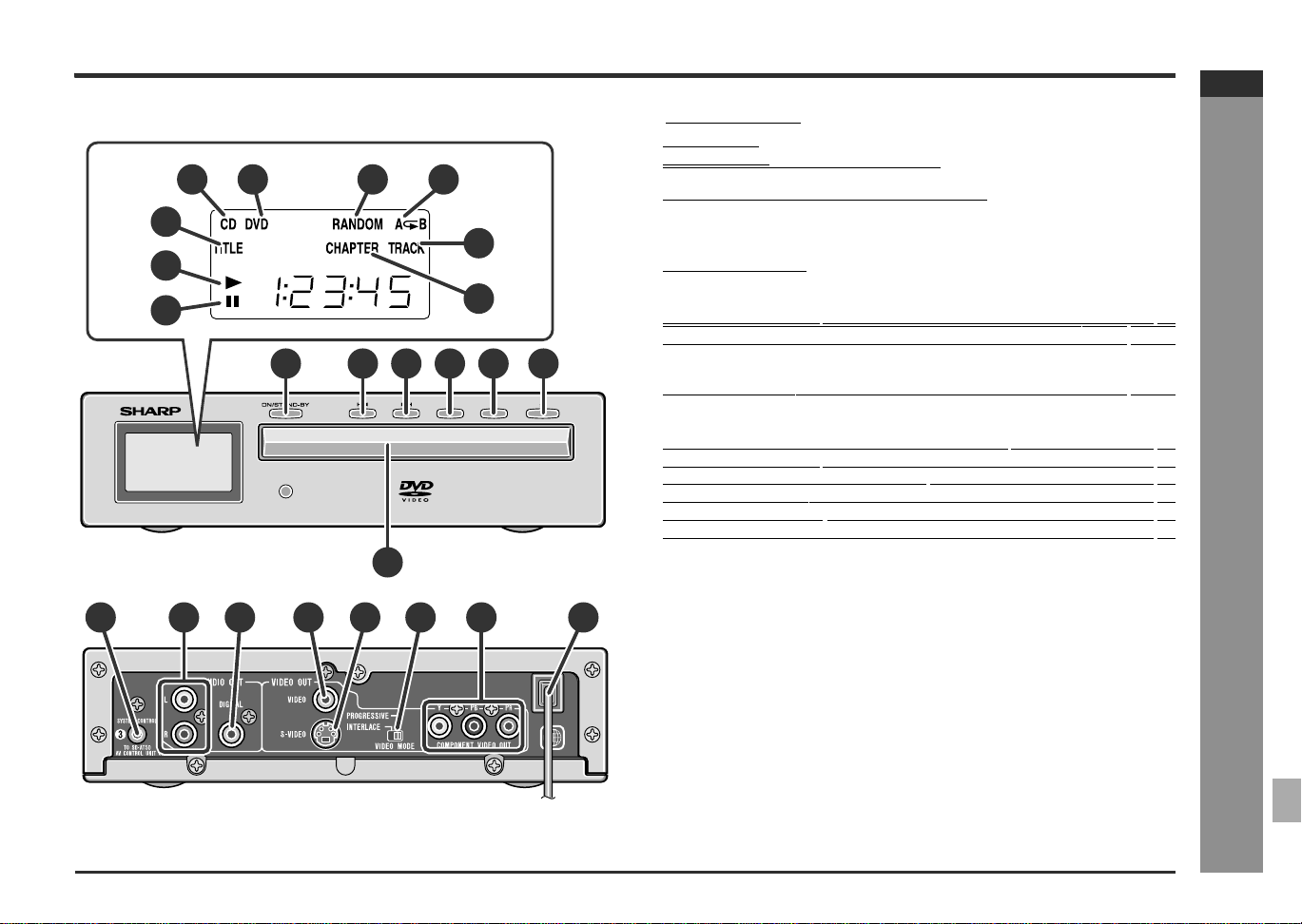
Using antislip speaker cushions:
You can install satellite speakers either vertically or horizontally.
Affix the cushions (supplied) to the bottom of the speakers to prevent them from slid-
ing or falling due to vibration.
A sheet of speaker cushions (20 pcs.) is supplied with this product. Use 4 cushions
per speaker.
3
4
5
6
7
21
1
2
3
Front Back Buttom
Side
(Vertical position) (Horizontal position)
E-8
SD-AT50(U)E1.fm02/7/19
SD-AT50
ENGLISH
7
DX-AT50
General Information
- Controls and indicators -
"
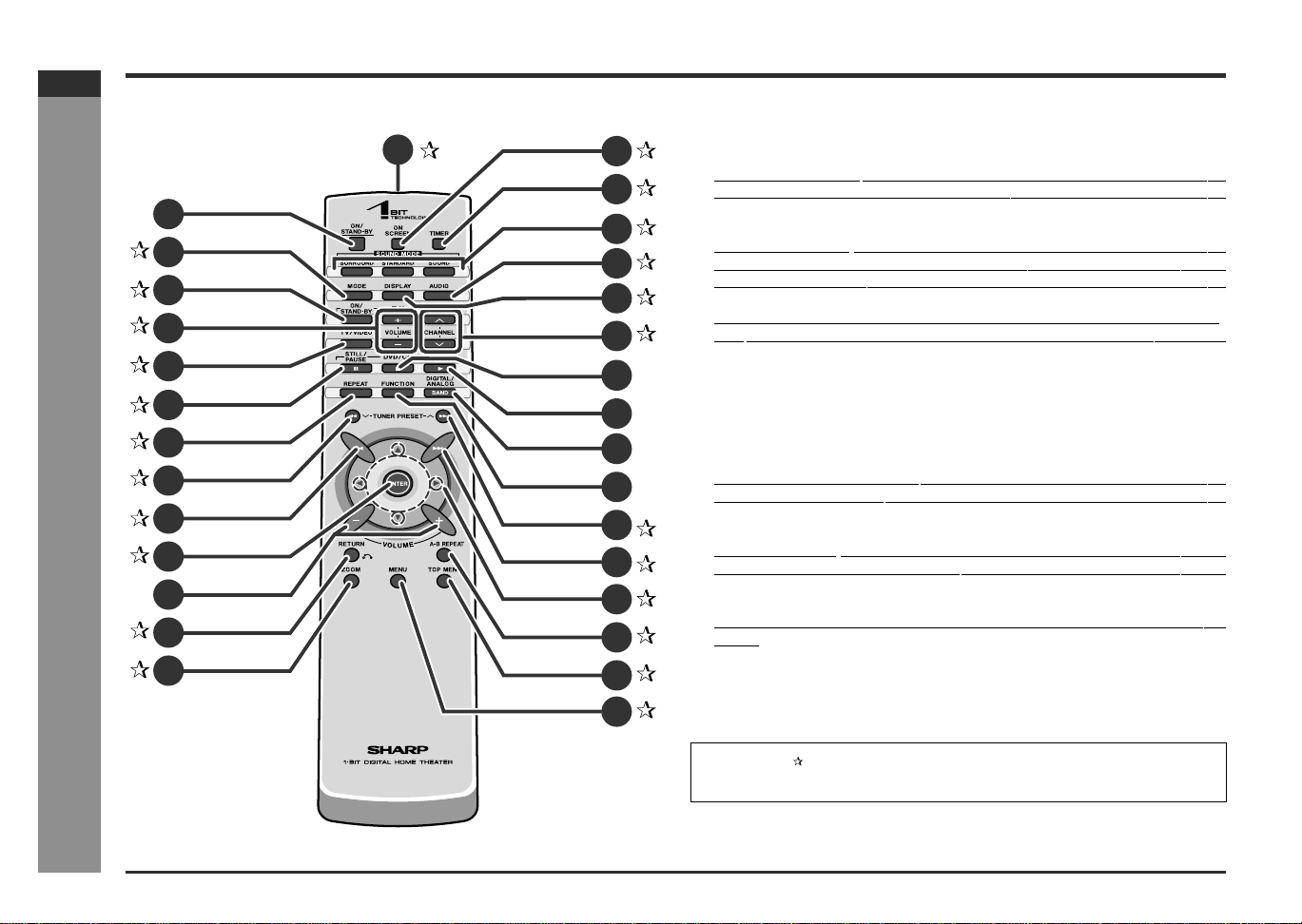
DVD Player
1. CD Indicator
2. DVD Indicator
3. CD/MP3 Disc Random Play Indicator
4. Disc Repeat or Disc A - B Repeat Indicator
5. DVD Title Indicator
6. Disc Play Indicator
7. Disc Pause Indicator
8. CD Track Indicator
9. DVD Chapter Indicator
Reference page
10.On/Stand-by Button . . . . . . . . . . . . . . . . . . . . . . . . . . . . . . . . . . . . . 18
11.DVD Chapter Skip or CD/MP3 Disc Track Down Button . . . . . 29, 33
12.DVD Chapter Skip or CD/MP3 Disc Track Up Button . . . . . . . . 29, 33
13.Disc Stop Button . . . . . . . . . . . . . . . . . . . . . . . . . . . . . . . . . . . . . . . . 28
14.Disc Play Button
. . . . . . . . . . . . . . . . . . . . . . . . . . . . . . . . . . . . . 27, 28
15.Disc Tray Open/Close Button . . . . . . . . . . . . . . . . . . . . . . . . . . . . . 27
16.Disc Tray . . . . . . . . . . . . . . . . . . . . . . . . . . . . . . . . . . . . . . . . . . . . . . 27
17.System Connection Jack (to AV control unit)
. . . . . . . . . . . . . . . . 11
18.Audio Output Jacks . . . . . . . . . . . . . . . . . . . . . . . . . . . . . . . . . . . . . 11
19.Coaxial Digital Audio Output Jack . . . . . . . . . . . . . . . . . . . . . . . . . 11
20.Video Output Jack . . . . . . . . . . . . . . . . . . . . . . . . . . . . . . . . . . . . . . . 13
21.S-video Output Jack . . . . . . . . . . . . . . . . . . . . . . . . . . . . . . . . . . . . . 14
22.DVD Video Mode Selector Switch . . . . . . . . . . . . . . . . . . . . . . . . . . 14
23.Component Video Output Jacks . . . . . . . . . . . . . . . . . . . . . . . . . . . 14
24.AC Power Cord . . . . . . . . . . . . . . . . . . . . . . . . . . . . . . . . . . . . . . . . . 18
1110
12 13 14 15
16
17
18 19 20 22 23 24
Display
Front
Back
21
1
2
3 4
5
6
7
8
9
E-9
SD-AT50(U)E1.fm02/7/19
SD-AT50
ENGLISH
DX-AT50
General Information
- Controls and indicators -
Controls and indicators (continued)
[Front]
"
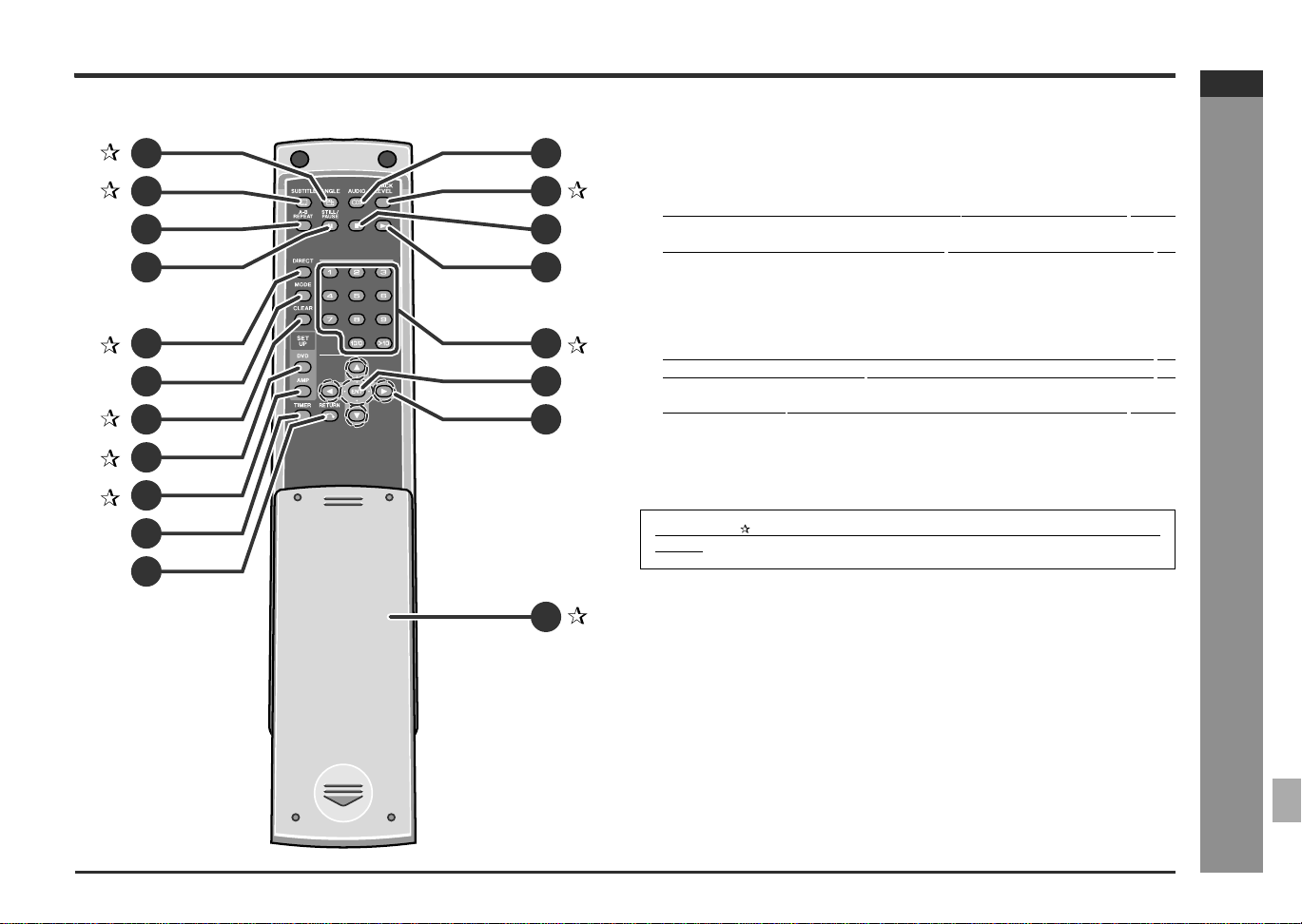
Remote control
Reference page
1. Remote Control Transmitter . . . . . . . . . . . . . . . . . . . . . . . . . . . . . . .17
2. On/Stand-by Button
. . . . . . . . . . . . . . . . . . . . . . . . . . . . . . . . . . . . . . .17
3. CD/MP3 Disc Play Mode Select Button . . . . . . . . . . . . . . . . . . . . . .31
4. TV On/Stand-by Button . . . . . . . . . . . . . . . . . . . . . . . . . . . . . . . . . . .47
5. TV Volume Up and Down Buttons . . . . . . . . . . . . . . . . . . . . . . . . . .47
6. TV/VIDEO Button
. . . . . . . . . . . . . . . . . . . . . . . . . . . . . . . . . . . . . . . .47
7. DVD Frame Advance, Disc Pause Button . . . . . . . . . . . . . . . . .28, 30
8. Disc Repeat Button . . . . . . . . . . . . . . . . . . . . . . . . . . . . . . . . . . . . . .32
9. Disc Fast Reverse, Tuner Preset Down Button . . . . . . . . . . . .26, 29
10.DVD Chapter Skip, CD/MP3 Disc Track Down or Tuning Down But-
ton . . . . . . . . . . . . . . . . . . . . . . . . . . . . . . . . . . . . . . . . . . . . . .25, 29, 33
11.Enter Button . . . . . . . . . . . . . . . . . . . . . . . . . . . . . . . . . . . . . .24, 33, 43
12.Volume Up and Down Buttons . . . . . . . . . . . . . . . . . . . . . . . . . . . . . . .18
13.Return Button . . . . . . . . . . . . . . . . . . . . . . . . . . . . . . . . . . . . .19, 31, 42
14.DVD Zoom Button . . . . . . . . . . . . . . . . . . . . . . . . . . . . . . . . . . . . . . .35
15.TV Display Select Button . . . . . . . . . . . . . . . . . . . . . . . . . . . . . . . . .36
16.Timer Button . . . . . . . . . . . . . . . . . . . . . . . . . . . . . . . . . . . . . . . . .24, 43
17.Sound Mode Select Buttons . . . . . . . . . . . . . . . . . . . . . . . . . . . . . . .39
18.Audio Mode Select Button
. . . . . . . . . . . . . . . . . . . . . . . . . . . . . . . .34
19.Display Select Button . . . . . . . . . . . . . . . . . . . . . . . . . . . . . . . . . . . .18
20.TV Channel Select Buttons . . . . . . . . . . . . . . . . . . . . . . . . . . . . . . . .47
21.Disc Stop Button . . . . . . . . . . . . . . . . . . . . . . . . . . . . . . . . . . . . . . . . .28
22.Disc Play Button
. . . . . . . . . . . . . . . . . . . . . . . . . . . . . . . . . . . . . .27, 28
23.Digital/Analog/Band Select Button . . . . . . . . . . . . . . . . . . . . . . . . .25, 47
24.Function Button . . . . . . . . . . . . . . . . . . . . . . . . . . . . . . . . . . . .25, 27, 47
25.Disc Fast Forward, Tuner Preset Up Button . . . . . . . . . . . . . . .26, 29
26.DVD Chapter Skip, CD/MP3 Disc Track Up or Tuning Up Button
25,
29, 33
27.Cursor Button . . . . . . . . . . . . . . . . . . . . . . . . . . . . . . . . . . . .24, 33, 43
28.Disc A - B Repeat Button . . . . . . . . . . . . . . . . . . . . . . . . . . . . . . . . .32
29.DVD Top Menu Button . . . . . . . . . . . . . . . . . . . . . . . . . . . . . . . . . . . .32
30.DVD Menu Button . . . . . . . . . . . . . . . . . . . . . . . . . . . . . . . . . . . . . . .36
12
11
1
2
3
4
5
6
8
7
9
10
13
14
15
16
17
20
19
21
22
23
24
25
28
29
30
26
27
18
Buttons with " " mark in the illustration can be operated on the remote control
only.
E-10
SD-AT50(U)E1.fm02/7/19
SD-AT50
ENGLISH
7
DX-AT50
General Information
- Controls and indicators -
[Back]
"
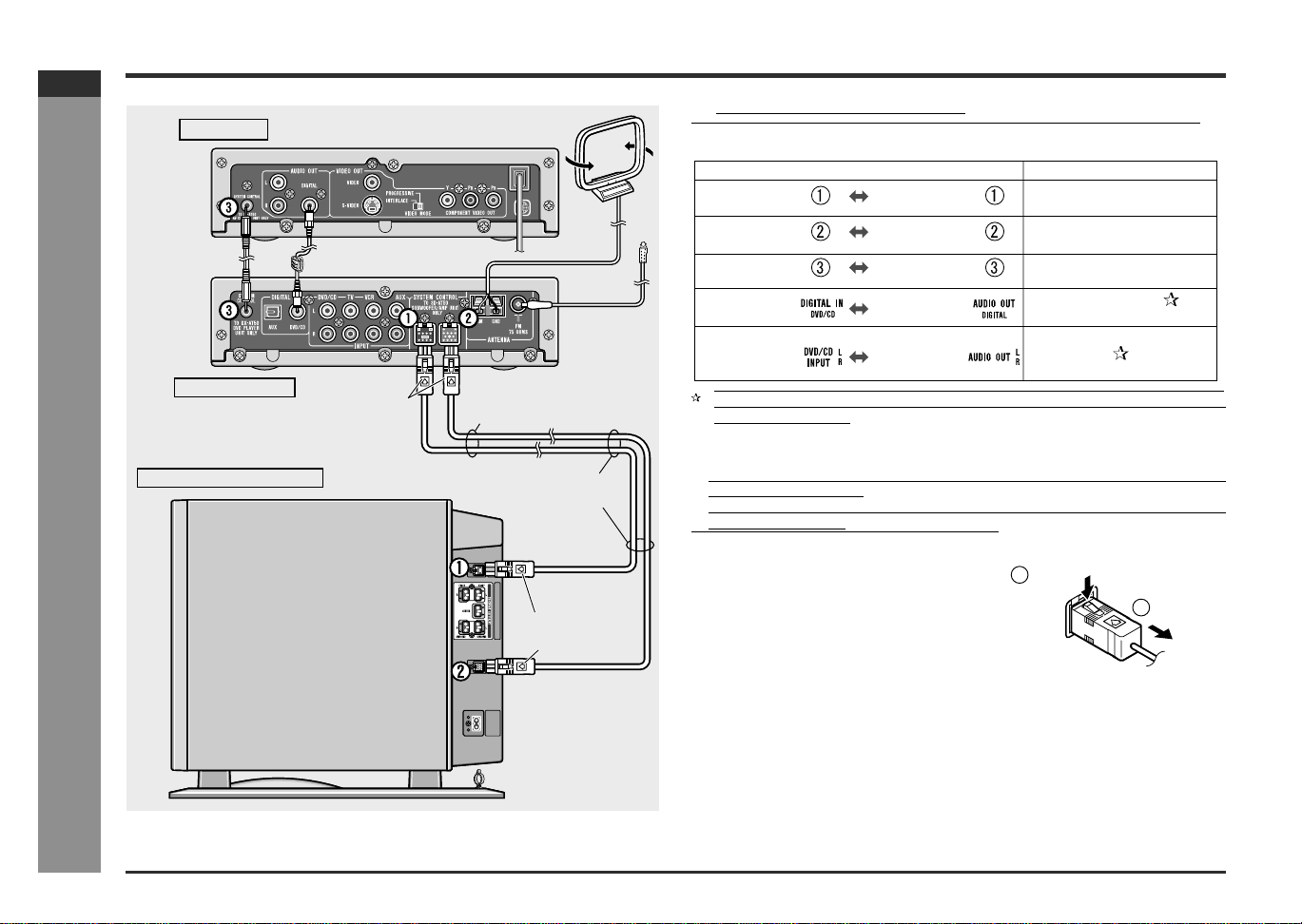
Remote control
Reference page
1. DVD Angle Button . . . . . . . . . . . . . . . . . . . . . . . . . . . . . . . . . . . . . . . 34
2. DVD Subtitle Button . . . . . . . . . . . . . . . . . . . . . . . . . . . . . . . . . . . . . 34
3. Disc A - B Repeat Button . . . . . . . . . . . . . . . . . . . . . . . . . . . . . . . . . . 32
4. DVD Frame Advance, Disc Pause Button
. . . . . . . . . . . . . . . . . . . 28, 30
5. Direct Button . . . . . . . . . . . . . . . . . . . . . . . . . . . . . . . . . . . . . . . . . . . 30
6. CD/MP3 Disc Play Mode Select Button
. . . . . . . . . . . . . . . . . . . . . . . 31
7. Clear Button . . . . . . . . . . . . . . . . . . . . . . . . . . . . . . . . . . . . . . . . . 26, 30
8. DVD Initial Setting Button . . . . . . . . . . . . . . . . . . . . . . . . . . . . . . . . 19
9. Amplifier Initial Setting Button . . . . . . . . . . . . . . . . . . . . . . . . . . . . 41
10.Timer Button. . . . . . . . . . . . . . . . . . . . . . . . . . . . . . . . . . . . . . . . . . 24, 43
11.Return Button . . . . . . . . . . . . . . . . . . . . . . . . . . . . . . . . . . . . . 19, 31, 42
12.Audio Mode Select Button
. . . . . . . . . . . . . . . . . . . . . . . . . . . . . . . . . . 34
13.Black Level Select Button . . . . . . . . . . . . . . . . . . . . . . . . . . . . . . . . 35
14.Disc Stop Button . . . . . . . . . . . . . . . . . . . . . . . . . . . . . . . . . . . . . . . . . 28
15.Disc Play Button
. . . . . . . . . . . . . . . . . . . . . . . . . . . . . . . . . . . . . . 27, 28
16.Direct Number Buttons . . . . . . . . . . . . . . . . . . . . . . . . . . . . . 26, 30, 40
17.Enter Button . . . . . . . . . . . . . . . . . . . . . . . . . . . . . . . . . . . . . . 24, 33, 43
18.Cursor Buttons . . . . . . . . . . . . . . . . . . . . . . . . . . . . . . . . . . . . 24, 33, 43
19.Sliding Cover . . . . . . . . . . . . . . . . . . . . . . . . . . . . . . . . . . . . . . . . . . . 17
10
1
2
3
4
5
6
7
8
9
11
12
13
14
15
16
18
19
17
Buttons with " " mark in the illustration can be operated on the back of the remote
control.
E-11
SD-AT50(U)E2.fm02/7/19
SD-AT50
ENGLISH
DX-AT50
Preparation for Use
- System connections -
System connections
" Connecting the units
Connect the DVD player, AV control unit and subwoofer/amplifier unit as follows.
Caution:
! Make sure to connect the system after unplugging the DVD player and the
subwoofer/amplifier unit.
! Put the 2 system connection cables (for sound and signal/power) together. If not,
noises may be heard.
To unplug the system connection cable:
AM loop antenna
DVD Player
AV Control Unit
Subwoofer/Amplifier Unit
System
connection cable
(For DVD
player)
System
connection cable
(For sound, black)
Set the arrow
upward.
Set them close
to one another.
Set them close
to one another.
Set the arrow
to the left.
System
connection cable
(For signal/power,
Blue)
FM antenna
Digital audio cable
Connect either an audio digital cable or commercially available RCA cord. Press
the DIGITAL/ANALOG button to switch between digital and analog signals accord-
ing to the connection.
AV control unit
Connecting units
Cord
AV control unit
AV control unit
AV control unit
AV control unit
DVD player
System connection cable
(For sound, Black)
System connection cable
(For signal/power, Blue)
Digital audio cable
(For digital signal)
Commercially available
RCA cord
(For analog signal)
System connection cable
(For DVD player)
DVD player
DVD player
Subwoofer/
Amplifier unit
Subwoofer/
Amplifier unit
1
2
Push
Unplug
E-12
SD-AT50(U)E2.fm02/7/19
SD-AT50
ENGLISH
7
DX-AT50
Preparation for Use
- System connections -
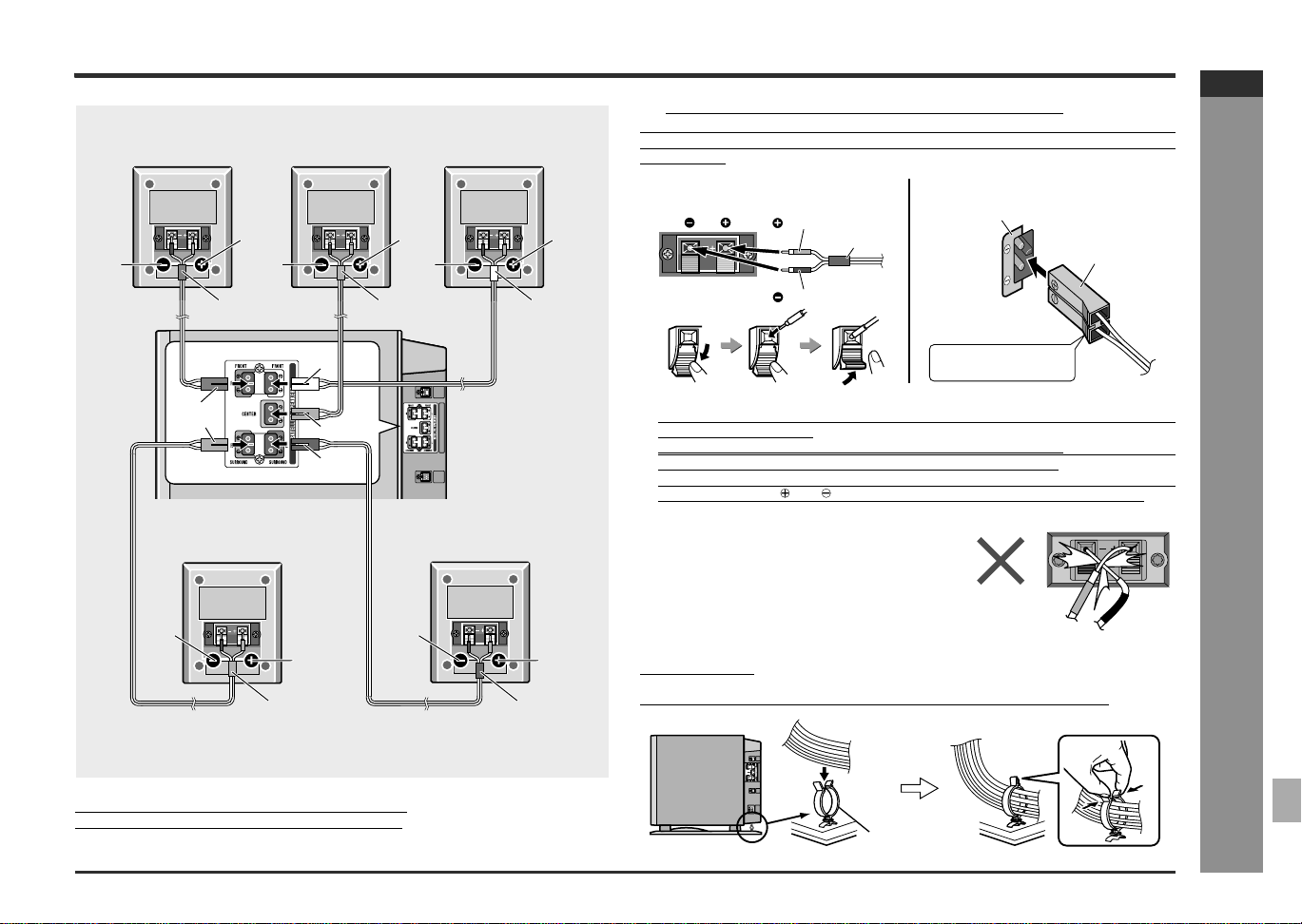
All satellite speakers provide the same performance.
Their positions can be exchanged with one another.
" Connecting the satellite speakers
Insert the speaker plugs to the subwoofer/amplifier unit according to the color coding.
Connect the speaker cords to the satellite speakers first and then to the subwoofer/
amplifier unit.
Caution:
! Make sure to connect the speakers after unplugging the DVD player and the
subwoofer/amplifier unit.
! Insert the speaker plug fully with the rising side facing to the left.
! Hold the speaker plug when removing it from the subwoofer/amplifier unit. Pulling
the cord may cause malfunction to the subwoofer/amplifier unit.
! Do not mistake the and , and right and left terminals of the speaker cords. (The
right speaker is placed on the right when you face the system. See page 16.)
! Only the supplied speakers should be used with this product.
! Do not stand or sit on the speakers. You may be injured.
Binding cords:
Tie the cords connected to the subwoofer/amplifier unit with a cord holder.
Red Red Red
Red
Red Red
Red
Gray
Gray
Black Black
Black BlackBlack
Green
Green
Blue
Blue
White
White
Front speaker
(Right)
Surround speaker
(Right)
Surround speaker
(Left)
Center speaker
Subwoofer/
Amplifier unit
Front speaker
(Left)
! Never short-circuit the speaker cords. If the
speaker cords are short-circuited, the protec-
tion circuit is activated and the power is turned
off. In such a case, check that the cords are
properly connected before turning the power
on again.
Tube
Red
Black
Label
Speaker terminals
(Satellite speaker)
(Subwoofer/amplifier unit)
Speaker Plug
Plug in with the rising
side facing to the left.
Cord holder
E-13
SD-AT50(U)E2.fm02/7/19
SD-AT50
ENGLISH
DX-AT50
Preparation for Use
- Antenna connection / TV connection -
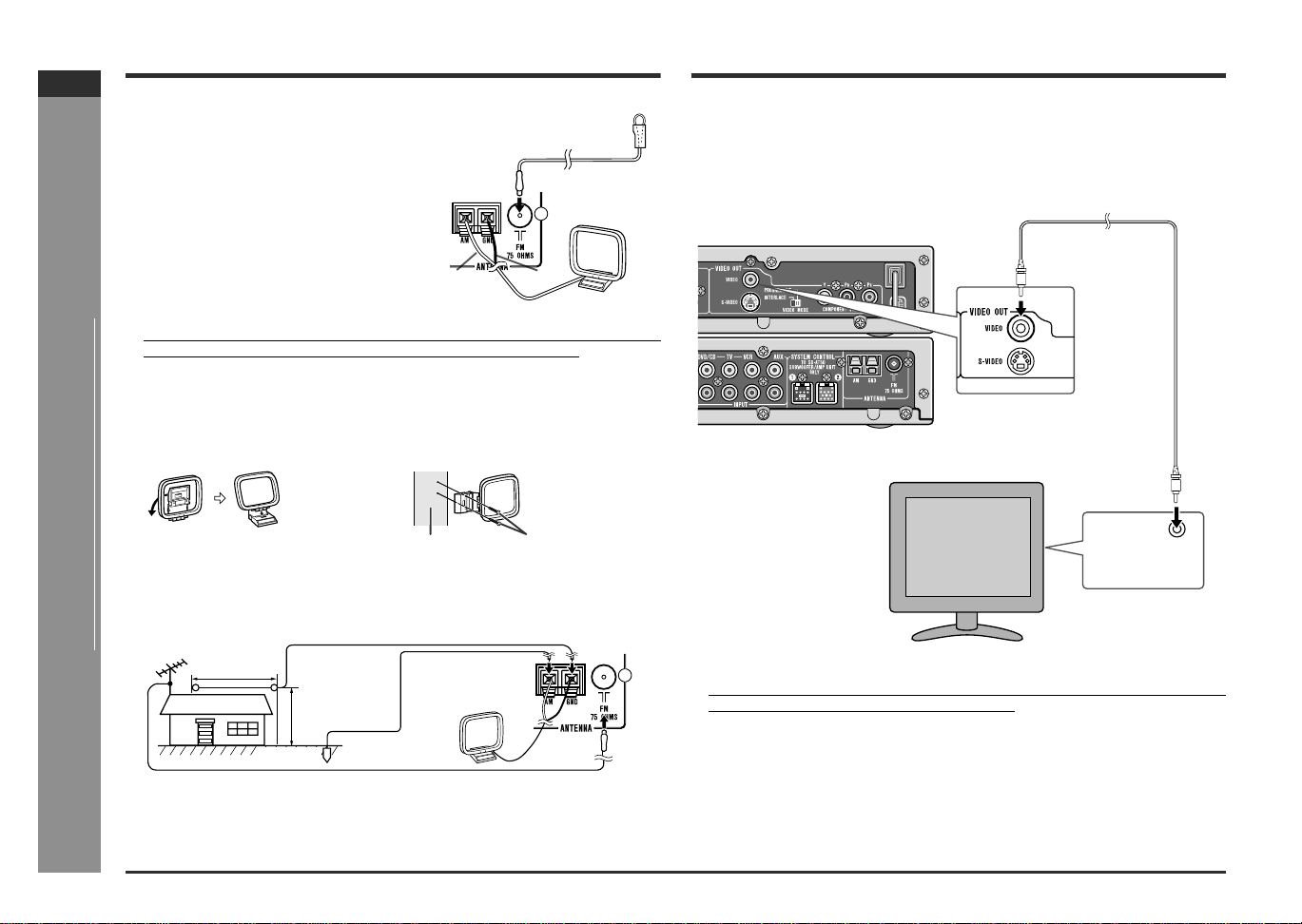
Antenna connection
Notes:
! Placing the antenna on the system or near the AC power cord may cause noise
pickup. Place the antenna away from the system for better reception.
! When static is still heard even after adjusting the position of the AM loop antenna,
try reversing the wire connections.
Installing the AM loop antenna:
Outdoor FM or AM antenna:
Use an outdoor FM or AM antenna if you require better reception. Consult your
dealer.
Note:
When using an outdoor AM antenna, be sure to keep the wire of the AM loop
antenna connected.
TV connection
Caution:
Before connecting the TV, turn off all the equipment.
"
Connecting to TV with video cable
Notes:
! Change the TV input in accordance with the connected jack.
! Do not connect other equipment between the TV and the DVD player. If they are
connected via a VCR, pictures may be distorted.
Supplied FM antenna:
Connect the FM antenna wire to the FM 75
OHMS jack and position the FM antenna wire in
the direction where the strongest signal can be
received.
Supplied AM loop antenna:
Connect the AM loop antenna wire to the AM
and GND terminals. Position the AM loop anten-
na for optimum reception. Place the AM loop an-
tenna on a shelf, etc., or attach it to a stand or a
wall with screws (not supplied).
< Assembling > < Attaching to the wall >
Wall Screws (not supplied)
White
Black
Outdoor
FM antenna
Outdoor AM antenna
49 feet (15 m)
25 feet (7.5 m )
Earth rod
AM loop antenna
TV
Video cable
(supplied)
To video output jack
To video input
jack
E-14
SD-AT50(U)E2.fm02/7/19
SD-AT50
ENGLISH
7
DX-AT50
Preparation for Use
- TV connection -
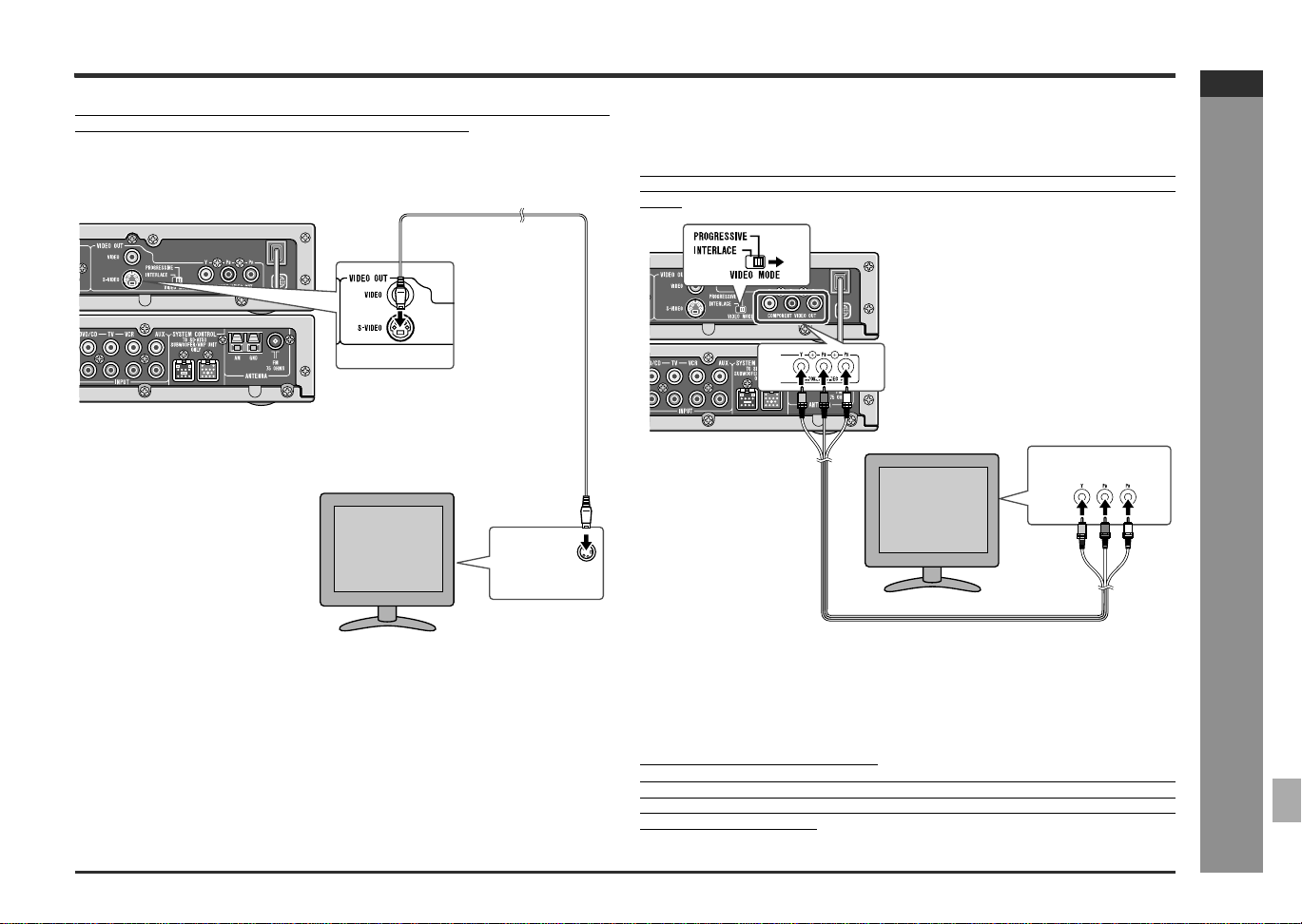
This DVD player has two jacks to output images in addition to the VIDEO OUT jack.
To enjoy clearer DVD images, connect your TV to these jacks.
"
Connecting to TV with S-video cable
Caution:
When the video and S-video cables are both connected, the images from the S-video
input jack appears on your TV.
"
Connecting to TV with Component video
cable
If the connecting TV provides progressive scanning, set the video mode selector
switch to PROGRESSIVE to enjoy high-density images. If not, switch back to INTER-
LACE.
Notes:
! If your TV has different indications for the component video inputs (Y, CB and CR
or Y, B-Y and P-Y), connect jacks with its matching color.
! Do not connect to a component video input jack designed for the high-vision sys-
tem, which is not DVD-compatible (the images may be distorted or not appear).
What is progressive scanning?
The conventional TV system displays 30 frames of still images per second to com-
plete sequential movement (interlaced scanning). Whereas, progressive scanning
displays one frame every 1/60th of a second (60 frames per second) to realize less-
flicker, high-density images.
S-video cable
(not supplied)
To S-video
output jack
To S-video input
jack
TV
TV
Component video cable (not supplied)
To Component video
input jacks
To Component video
output jacks
E-15
SD-AT50(U)E2.fm02/7/19
SD-AT50
ENGLISH
DX-AT50
Preparation for Use
- TV connection / System installation -
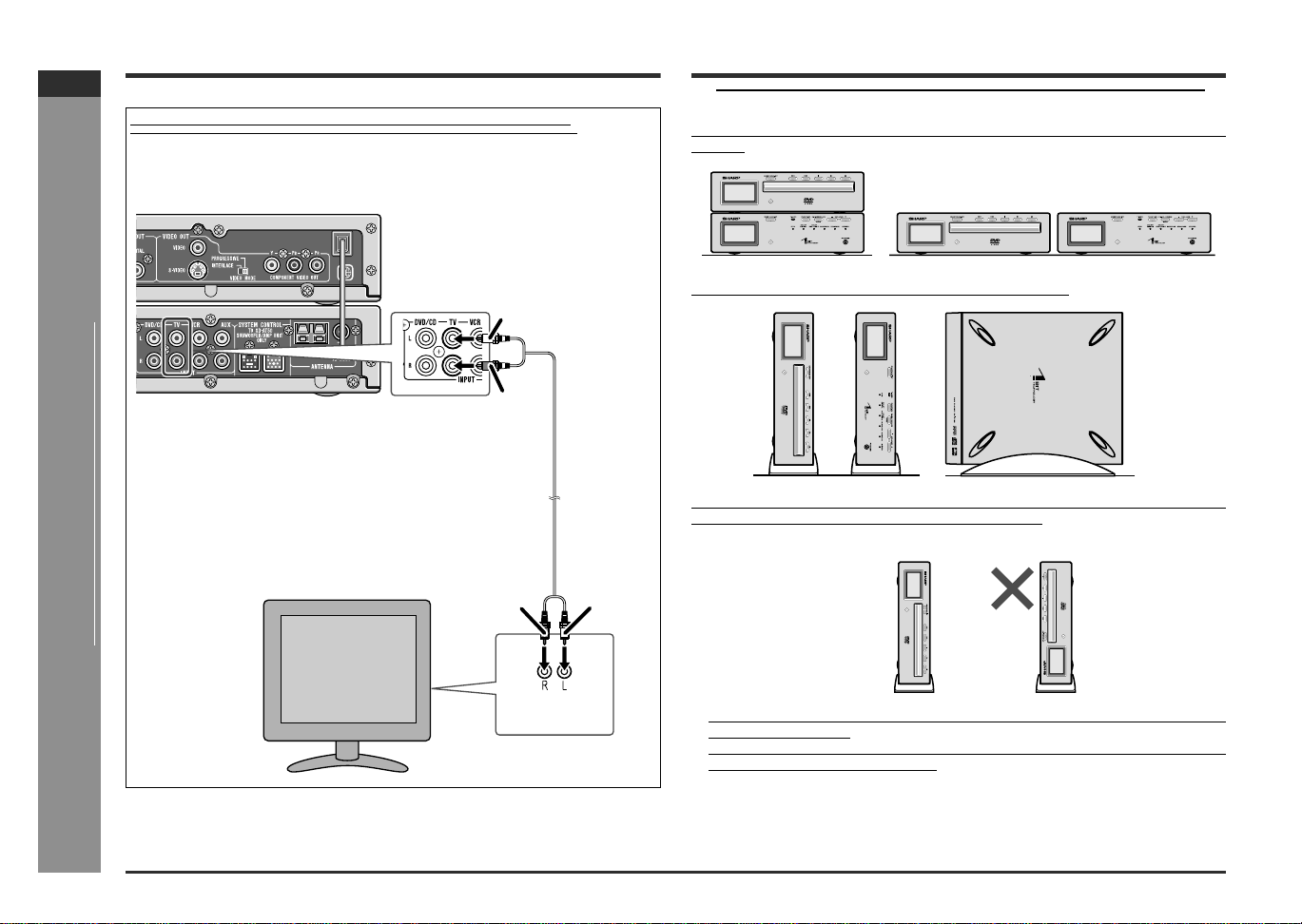
TV connection (continued)
System installation
" Installing AV control unit and DVD player
You can place one unit on top of the other or place them separately in a horizontal
position.
With the supplied stands, the unit can be installed vertically.
Caution:
When installing the DVD player vertically, bring the display window to the upper side.
When set vertically, an 3" (8 cm) disc cannot be played.
Note:
! If the display window of the DVD player is placed on the lower side, a disc may fall
or may not be ejected.
! Avoid changing the DVD player installation (vertical or horizontal) while a disc is
playing. The disc may be scratched.
To listen to the TV sound via the speakers of this system:
Using the audio cable, you can listen to the TV sound with this system.
(The audio cable is not supplied. Purchase a commercially available cable.)
Audio cable
(not supplied )
TV
Red
White
Red
White
To audio
output jacks
To audio
input jacks
Correct
E-16
SD-AT50(U)E2.fm02/7/19
SD-AT50
ENGLISH
7
DX-AT50
Preparation for Use
- System installation -
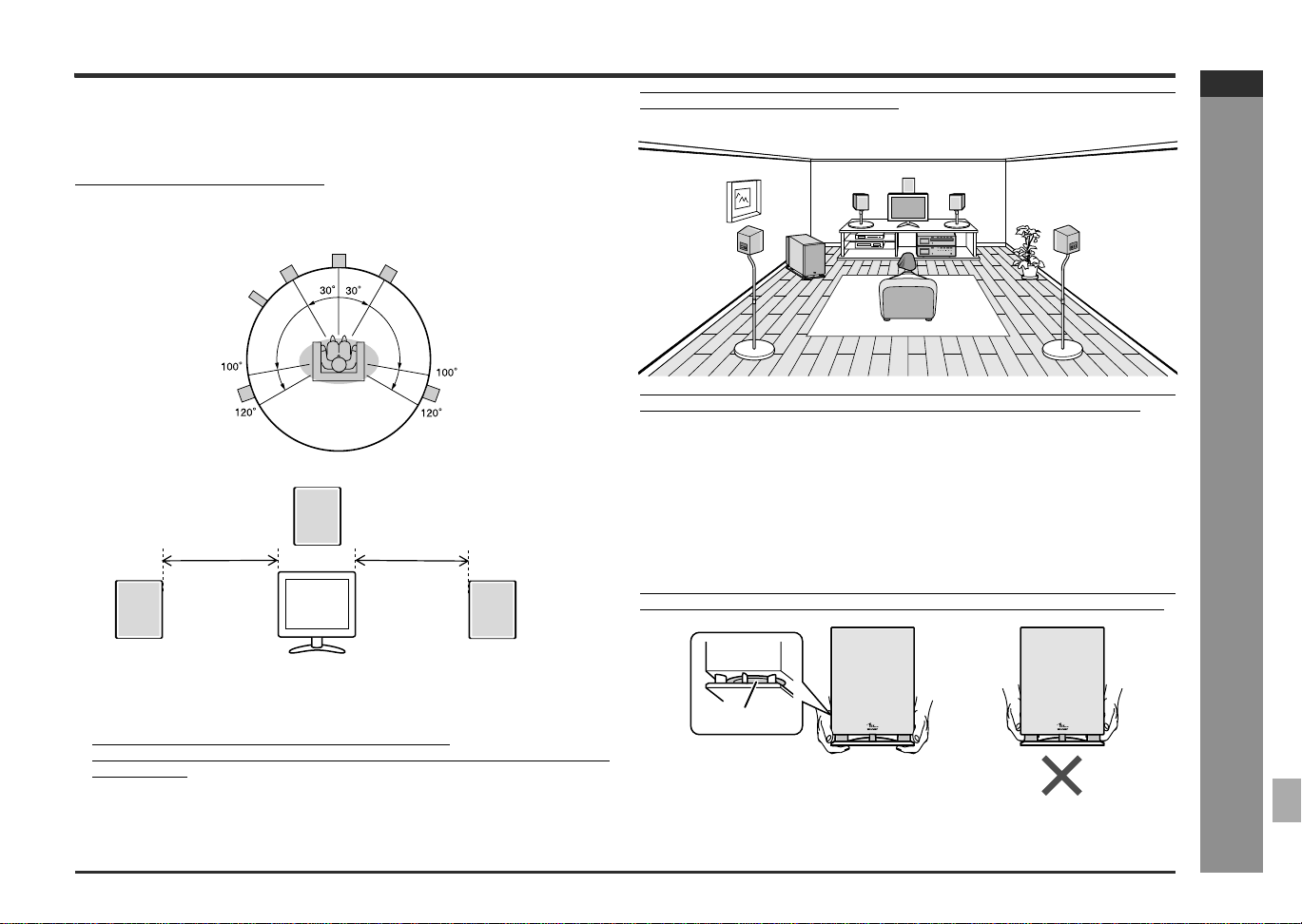
" Placing the speaker system
The best surround effect will be achieved by placing each speaker at the same dis-
tance from the listening position.
It is recommended to arrange the speakers as shown below.
Identify each speaker by the tube color.
Notes:
! Place the TV halfway between the front speakers.
! It is recommended that the center speaker be placed near the television.
! Place the surround speakers at a position just above the height of your ears.
! Set the subwoofer/amplifier unit on a stable, sturdy floor.
! If speakers cannot be placed at equal distances, refer to "Speaker delay setting".
(See page 41.)
! The speaker grille is not removable.
The speaker stands and speaker wall brackets are optionally available. (See page
51.) Refer to their manuals for assembly.
The speakers may be placed beside or near the TV as they are magnetically
shielded. However, color variation may occur, depending on the type of the TV.
If color variation occurs...
Turn off the TV (from the power switch).
After 15 - 30 minutes, turn the TV on again.
If the color variation is still present...
Move the speakers further away from the TV.
Refer to the user's manual of the TV for details.
Caution:
When moving the subwoofer/amplifier unit, be careful not to touch the speaker net
located near bottom. Be sure to hold it by the bottom to avoid subwoofer breakage.
Front
speaker (left)
(White)
Subwoofer/
Amplifier Unit
Front
speaker (right)
(Red)
Surround
speaker (left)
(Blue)
Surround
speaker (right)
(Gray)
Center
speaker
(Green)
Front speaker (left) (White)
Same distance
Front speaker (right) (Red)
Center speaker (Green)
Same distance
Speaker unit
Correct
E-17
SD-AT50(U)E2.fm02/7/19
SD-AT50
ENGLISH
DX-AT50
Preparation for Use
- Remote control -
Remote control
" Battery installation
Precautions for battery use:
! Replace all old batteries with new ones at the same time.
! Do not mix old and new batteries.
! Remove the batteries if the system will not be used for long periods of time. This
will prevent potential damage due to battery leakage.
Caution:
! Do not use rechargeable batteries (nickel-cadmium battery, etc.).
! Installing the batteries incorrectly may cause the system to malfunction.
Notes concerning use:
! Replace the batteries if the operating distance is reduced or if the operation
becomes erratic. Purchase 2 "AAA" size batteries (UM-4, R03, HP-16 or similar).
! Periodically clean the transmitter on the remote control and the sensor on the unit
with a soft cloth.
! Exposing the sensor on the AV control unit to strong light may interfere with oper-
ation. Change the lighting or the direction of the AV control unit.
! Keep the remote control away from moisture, heat, shock, and vibrations.
" Test of the remote control
Check the remote control after checking all connections have been made correctly.
(See pages 11 - 18.)
Point the remote control directly at the remote sensor on the AV control unit.
Likewise, point the remote control at the AV control unit to operate the DVD player
unit.
The remote control can be used within the range shown below:
Press the ON/STAND-BY button. Does the power turn on? Now, you can enjoy your
system.
" How to open the sliding cover
This remote control has buttons on its front and back.
To use the buttons on the back, open the sliding cover.
Notes:
! When operating the buttons on the back of the remote control, be careful not
to press the buttons on the front side. The system may malfunction.
! Close the sliding cover on the back while using the buttons on the front side.
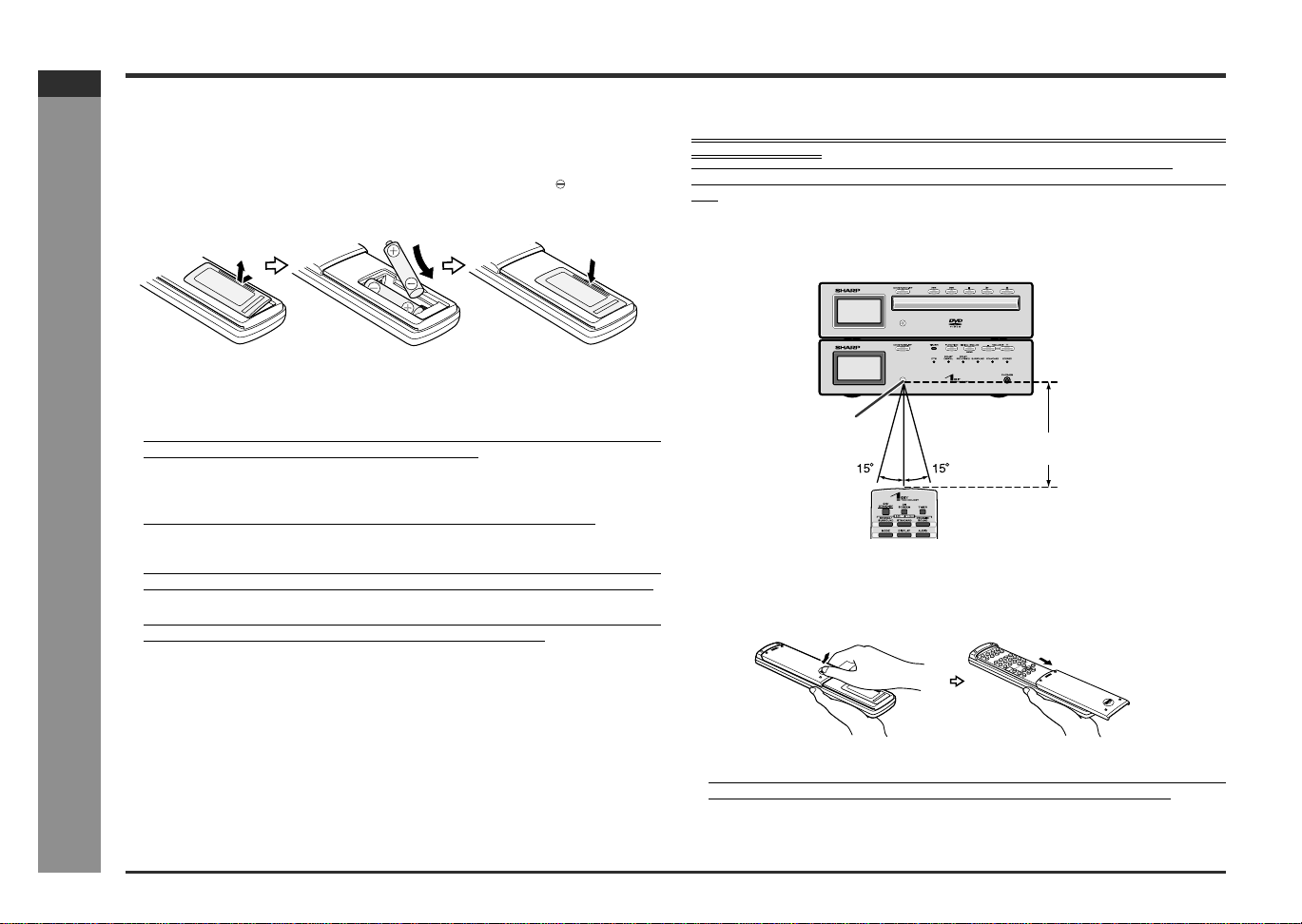
1 Remove the battery cover.
2 Insert the batteries according to the direction indicated in the bat-
tery compartment.
When inserting or removing the batteries, push them toward the battery termi-
nals.
3 Replace the cover.
8" - 20'
(0.2 m - 6 m)
Remote sensor
DVD player
AV control unit
Slide the cover
until it clicks.
E-18
SD-AT50(U)E2.fm02/7/19
SD-AT50
ENGLISH
7
DX-AT50
Preparation for Use
- General control -
General control
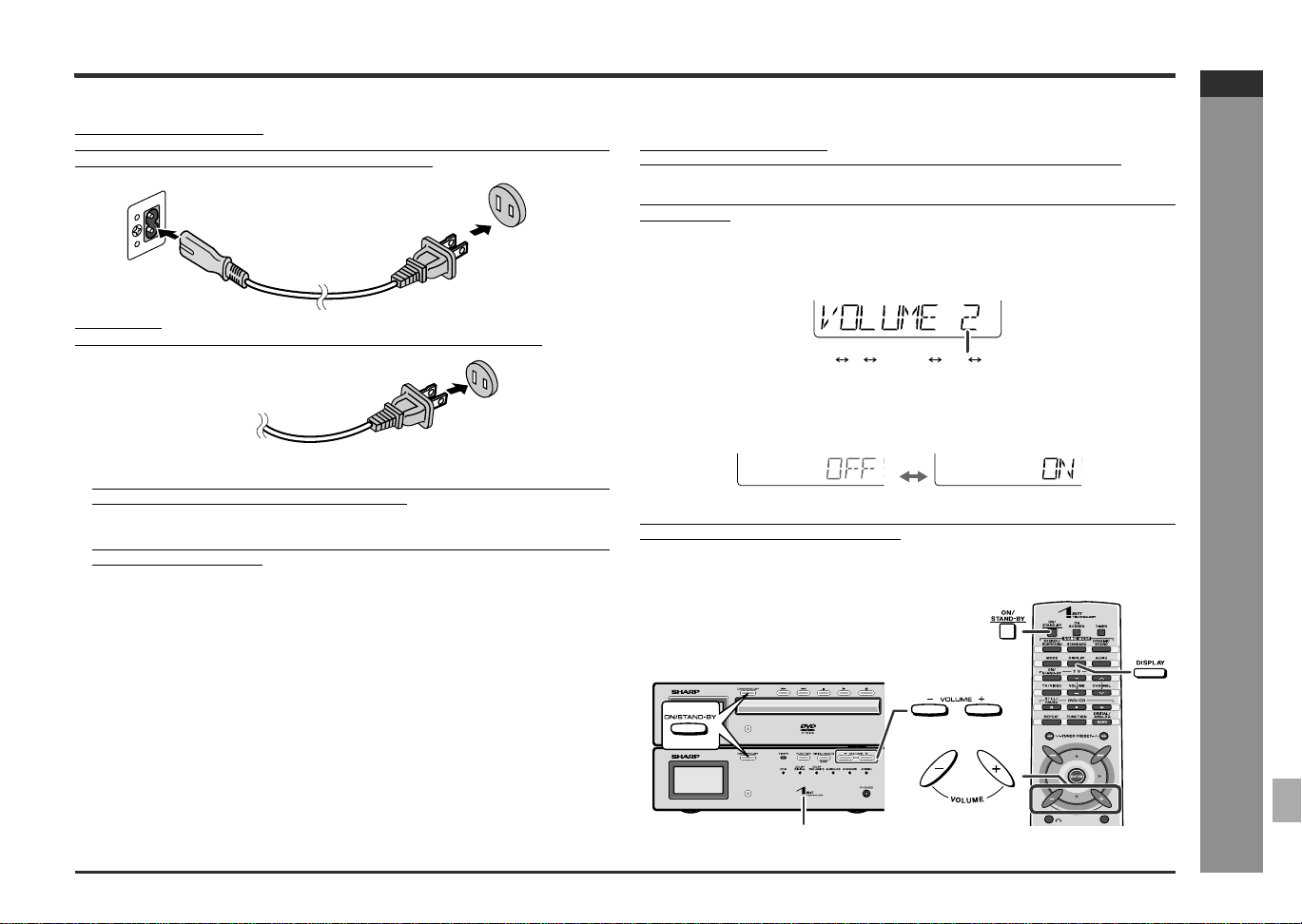
" Connecting the AC power cord
Subwoofer/amplifier unit
After checking all the connections, connect the AC power cord to the AC power input
jack, then the subwoofer/amplifier unit into the AC outlet.
DVD Player
After checking all the connections, plug the DVD player into the AC outlet.
Notes:
! The power is supplied to the AV control unit by the subwoofer/amplifier unit. The
AV control unit is not equipped with a power cord.
! Never use a power cord other than the one supplied. Otherwise, a malfunction or
an accident may occur.
! Unplug the DVD player and the subwoofer/amplifier unit if they will not be used for
a prolonged period of time.
CAUTION:
TO PREVENT ELECTRIC SHOCK, MATCH WIDE BLADE OF PLUG TO
WIDE SLOT, FULLY INSERT.
" To turn the power on
Press the ON/STAND-BY button.
The power indicator lights up.
If the power does not turn on, check if the power cord is plugged in properly.
Note:
When the ON/STAND-BY button on the remote control is pressed, the power on both
units turns on.
"
Volume control
Press the VOLUME + button to increase the volume and the VOLUME - button for
decreasing.
" To change the display brightness (2 levels)
You can switch the display brightness by holding down the DISPLAY button on the
remote control for 2 seconds or more.
Caution:
The display brightness depends on the setting of "PANEL DISPLAY" of "Changing
the initial setting of DVD". (See page 20.)
AC outlet
(AC 120 V, 60 Hz)
(AC INPUT)
Prise murale
(120 V CA, 60Hz)
Dimmed Brightened
Power indicator
012 39 40
.....
[Front]
E-19
SD-AT50(U)E2.fm02/7/19
SD-AT50
ENGLISH
DX-AT50
Preparation for Use
- Changing the initial setting of DVD -
Changing the initial setting of DVD
Turn on the TV, and switch the input to the "VIDEO 1" or "VIDEO 2" etc. accord-
ingly.
A new setting will be retained even if the DVD player is set to the stand-by mode. If
you want to restore or change the setting, reset it.
[Back]
Notes:
! You cannot display the setup screen while a disc is playing.
! See page 21 for selecting another language for disc menus.
! The previous screen appears by pressing the RETURN button while selecting
an item or setting.
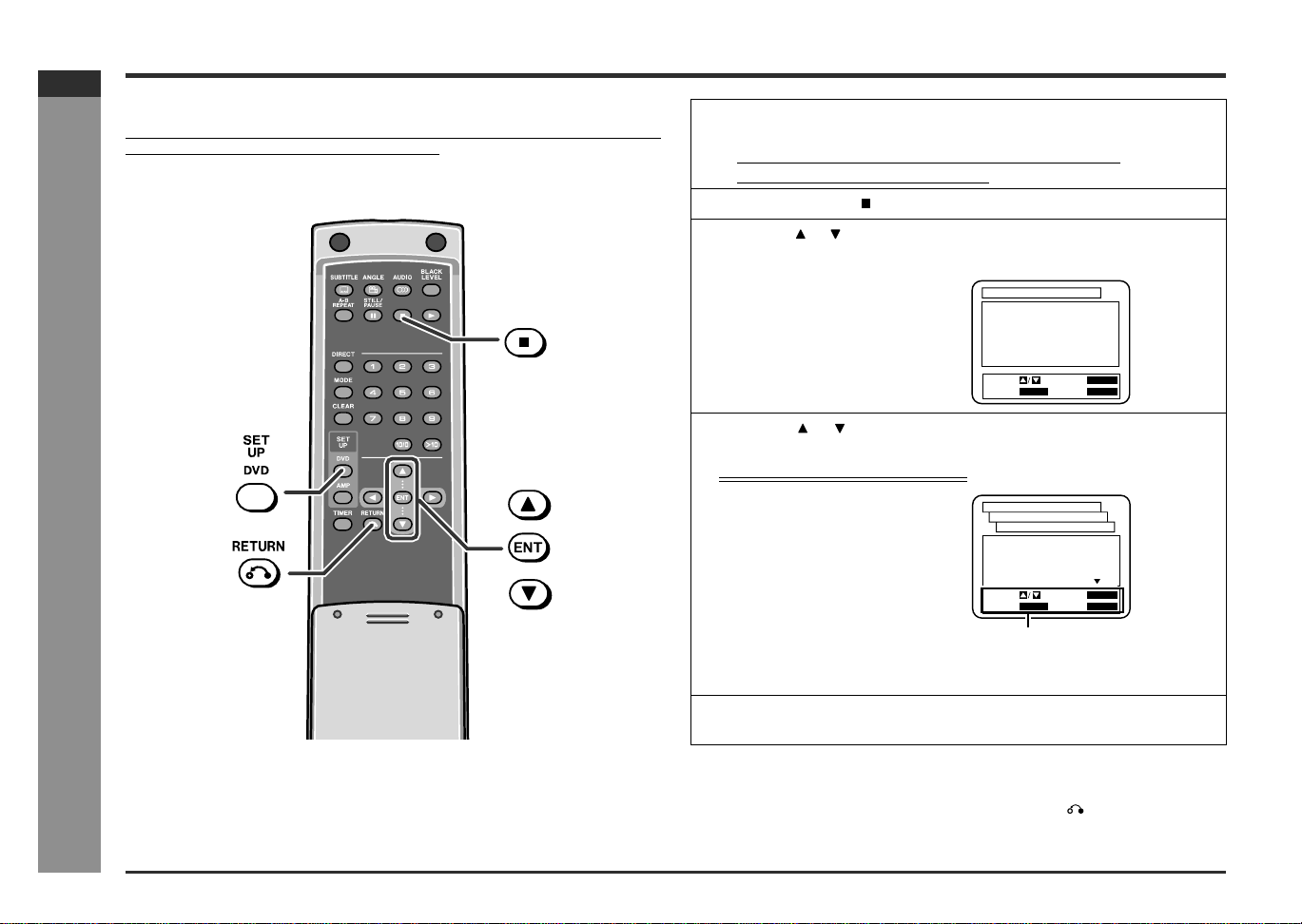
1
Press the ON/STAND-BY button to turn the power on.
! The startup screen appears.
! If the startup screen does not appear, set the input to "DVD".
! The disc should be stopped at this time.
2 After pressing the button, press the SETUP DVD button.
3
Press the or button to select the menu and press the ENT but-
ton.
4 Press the or button to change the setting and press the ENT
button.
Example: "PLAYER MENU" is selected
Repeat the operation as instructed.
(The number of repetition depends on the setting item.)
To change other settings, begin from step 3.
5 Press the SETUP DVD button.
The new setting is memorized.
SELECT: SET:
EXIT:
RETURN
SETUP
ENTER
CANCEL:
SET UP
1.LANGUAGE
2.DISPLAY
3.AUDIO
4.PARENTAL
1.ENGLISH
SET-UP
LANGUAGE CONTROLS
PLAYER MENU
2.FRANÇAIS
3.ESPAÑOL
SELECT: SET:
EXIT:
RETURN
ENTER
CANCEL:
SETUP
E-20
SD-AT50(U)E2.fm02/7/19
SD-AT50
ENGLISH
7
DX-AT50
Preparation for Use
- Changing the initial setting of DVD -
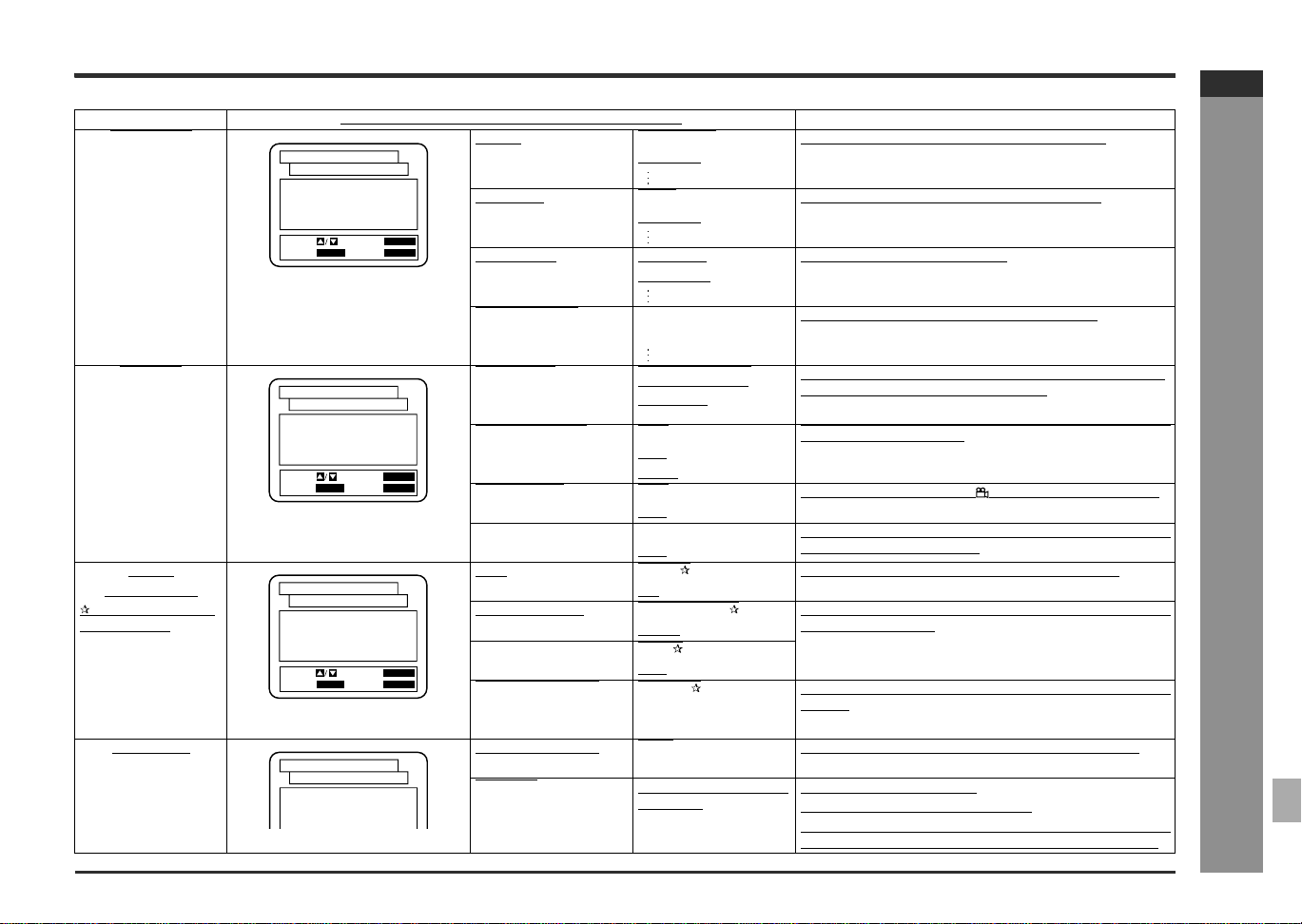
Setting Selectable parameters (* indicates initial settings.) Description
LANGUAGE
AUDIO ORIGINAL * Selects the language audible from the speakers.
ENGLISH
SUBTITLE OFF * Selects the subtitle displayed on the TV screen.
ENGLISH
DISC MENU ORIGINAL Selects the disc menu language.
ENGLISH *
PLAYER MENU ENGLISH * Selects the initial or playback setting language.
FRANÇAIS
DISPLAY
TV ASPECT 4:3 LETTER BOX The screen mode should be set according to the connect-
ing TV type. (For details, see page 22.)
4:3 PAN & SCAN
16:9 WIDE
PANEL DISPLAY ON * Brightness settings for display. (When set to auto, the light
turns off during playback.)
OFF
AUTO
ANGLE ICON ON * Sets or cancels angle icon ( ) display on the TV screen.
OFF
AUTO POWER OFF ON * The power automatically turns off when no operation is en-
tered more than 35 minutes.
OFF
AUDIO DRC OFF * Sets or cancels the control over the volume range.
(Digital output) ON
Do not change the
initial settings.
DOLBY DIGITAL BITSTREAM* Selects the type of a sound signal sent from the coaxial dig-
ital audio output jack.
DPCM
DTS ON *
OFF
DOWN SAMPLING AUTO * Converts the sound signal recorded by PCM of 96 kHz into
48 kHz.
48 kHz
96 kHz
PARENTAL
PARENTAL LEVEL ALL * Sets the viewing restriction level of the DVD software.
8 - 1
CHANGE
Please enter a 4-digital
password.
Password setting or change
"4737" cannot be set as a password.
When you forget your password, cancel the current password
by pressing "4737" using the direct number buttons (0 - 9).
SELECT: SET:
EXIT:
RETURN
ENTER
CANCEL:
SET-UP
1.AUDIO
2.SUBTITLE
3.DISC MENU
4.PLAYER MENU
ORIGINAL
OFF
ORIGINAL
ENGLISH
LANGUAGE CONTROLS
SETUP
SELECT: SET:
EXIT:
RETURN
ENTER
CANCEL:
SET-UP
1.TV ASPECT
2.PANEL DISPLAY
3.ANGLE ICON
4.
AUTO POWER OFF
4:3 LETTER BOX
ON
ON
ON
DISPLAY CONTROLS
SETUP
SELECT: SET:
EXIT:
RETURN
ENTER
CANCEL:
SET-UP
1.DRC
2.DOLBY DIGITAL
3.DTS
4.DOWN SAMPLING
OFF
BITSTREAM
ON
AUTO
AUDIO CONTROLS
SETUP
SET-UP
1.PARENTAL LEVEL
2.CHANGE
ALL
PARENTAL CONTROLS
E-21
SD-AT50(U)E3.fm02/7/19
SD-AT50
ENGLISH
DX-AT50
Preparation for Use
- Changing the initial setting of DVD -
Changing the initial setting of DVD (continued)
"
Disc language
"
Other language settings
You can set the "OTHER" language for audio, subtitle, and disc menu. (Refer to
"Language code list for disc language" on page 23.)
Example: to select 5464 (Croatian) as an audio language
Note:
If the selected language is not recorded, the language set by the disc will be adopted.
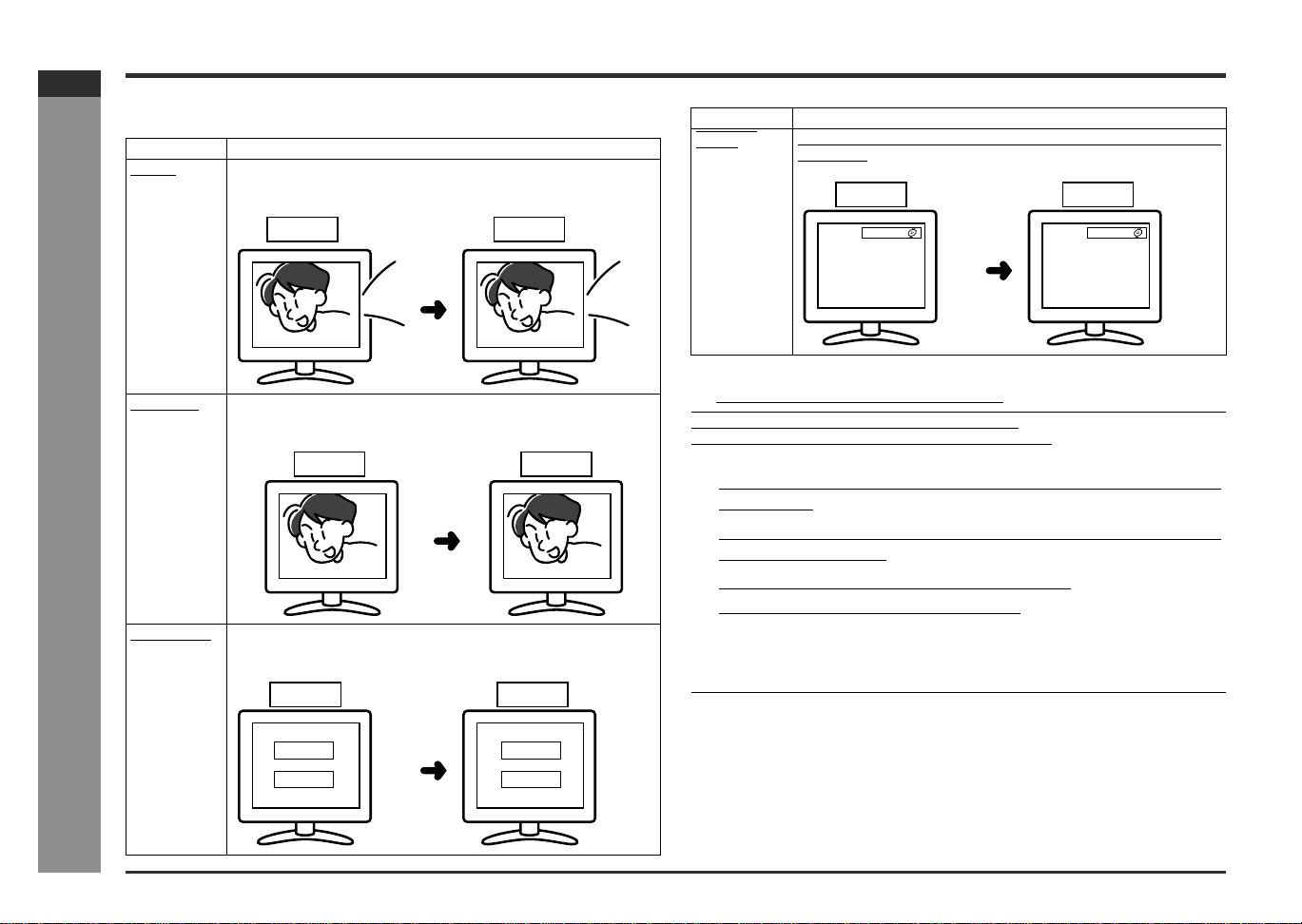
Indicator Setting
AUDIO A language for audio can be set.
You can specify a language for conversation and narration.
SUBTITLE
A language for subtitle can be set.
The subtitle is displayed in a specified language.
DISC MENU
A language for disc menus can be set.
Menu screens are displayed in a specified language.
English French
Merci
Thank you
English French
Merci
Thank you
ACTEURS
PERSONNEL
CAST
STAFF
English French
Indicator Setting
PLAYER
MENU
A language for screen display can be set, such as initial settings or
messages.
1 Select "LANGUAGE" on the initial setting screen. (See steps 1 - 3
on page 19.)
2 After selecting "AUDIO" in step 4 on page 19, select "OTHER" and
press the ENT button.
3
Enter "5464" using the direct number buttons.
"5464 (HR)" will be displayed on the TV screen.
4 Press the SETUP DVD button.
English French
LARDING
CHARGEMENT
E-22
SD-AT50(U)E3.fm02/7/19
SD-AT50
ENGLISH
7
DX-AT50
Preparation for Use
- Changing the initial setting of DVD -
"
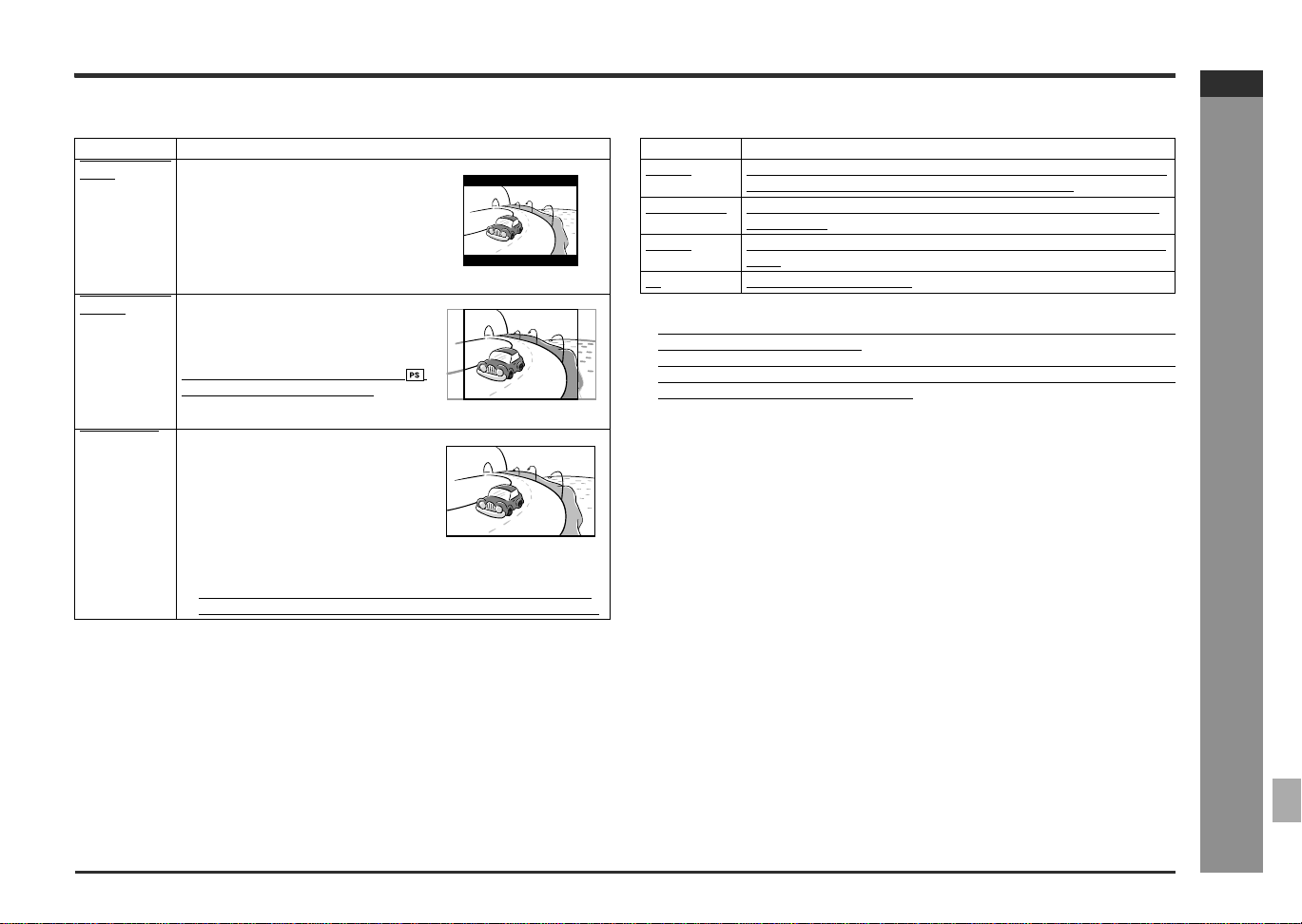
Video format
Note:
When playing the disc with a fixed video format, it will not change even if the TV
screen size is changed.
"
Parental setting
Notes:
! When entering a password for the first time, enter any 4-digit number. It will be set
as your password automatically.
! While playing a disc with parental lock, the display may appear requesting a pass-
word in order to watch some restricted scenes. In such a case, enter the password
to temporarily change the parental level.
Indicator Setting
4:3 LETTER
BOX
When playing a wide image (16:9) disc,
black bands are inserted at the top and
bottom and you can enjoy full wide im-
ages (16:9) on a 4:3 size TV.
A 4:3 disc is played in 4:3.
4:3 PAN &
SCAN
When playing a wide image (16:9) disc,
the left and right sides of the image are
cut (pan scan) to display a natural-look-
ing 4:3 size image.
A wide image disc without pan scan
is played back in 4:3 letterbox.
A 4:3 disc is played in 4:3.
16:9 WIDE
A wide image (16:9) is displayed when
playing a wide image (16:9) disc.
! When playing a 4:3 image disc, the image size depends on the
setting of the connected TV.
! If you play back a wide image (16:9) disc with the DVD player
connected to a 4:3 TV, the vertically shrunk image is displayed.
Indicator Setting
Level 1 Only DVD software intended for children can be played back, with
those intended for adult and general use prohibited.
Levels 2 to 7 Only DVD software intended for general use and children can be
played back.
Level 8 DVD software of any grade (adult/general/children) can be played
back.
All Parental lock is cancelled.
E-23
SD-AT50(U)E3.fm02/7/19
SD-AT50
ENGLISH
DX-AT50
Preparation for Use
- Language code list for disc language -
Language code list for disc language
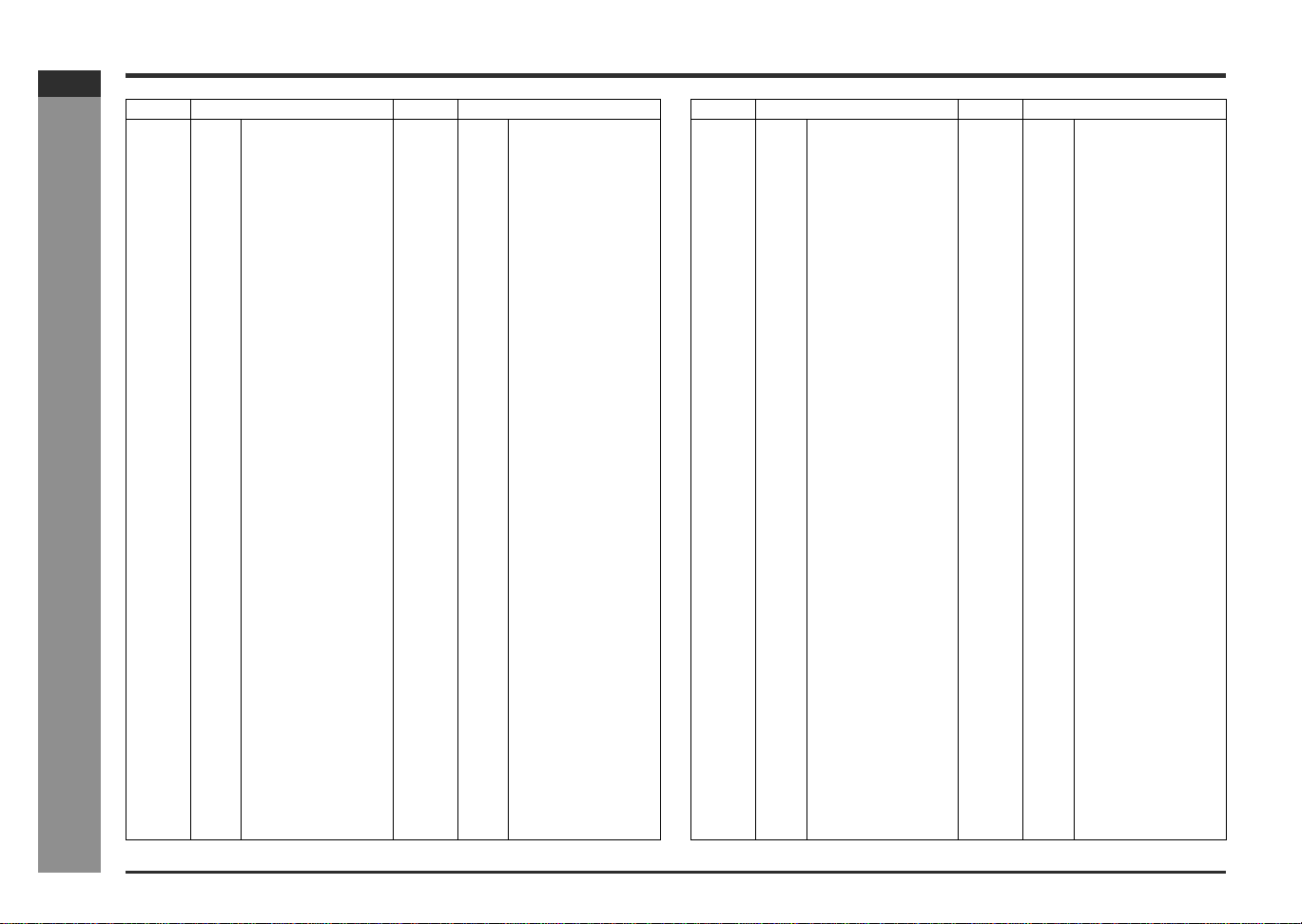
Code Language name Code Language name
4747 AA Afar 5271 FY Frisian
4748 AB Abkhazian 5347 GA Irish
4752 AF Afrikaans 5350 GD Scots Gaelic
4759 AM Ameharic 5358 GL Galician
4764 AR Arabic 5360 GN Guarani
4765 AS Assamese 5367 GU Gujarati
4771 AY Aymara 5447 HA Hausa
4772 AZ Azerbaijani 5455 HI Hindi
4847 BA Bashkir 5464 HR Croatian
4851 BE Byelorussian 5467 HU Hungarian
4853 BG Bulgarian 5471 HY Armenian
4854 BH Bihari 5547 IA Interlingua
4855 BI Bislama 5551 IE Interlingue
4860 BN Bengali; 5557 IK Inupiaq
Bangla 5560 IN Indonesian
4861 BO Tibetan 5565 IS Icelandic
4864 BR Breton 5566 IT Italian
4947 CA Catalan 5569 IW Hebrew
4961 CO Corsican 5647 JA Japanese
4965 CS Czech 5655 JI Yiddish
4971 CY Welsh 5669 JW Javanese
5047 DA Danish 5747 KA Georgian
5051 DE German 5757 KK Kazakh
5072 DZ Bhutanese 5758 KL Greenlandic
5158 EL Greek 5759 KM Cambodian
5160 EN English 5760 KN Kannada
5161 EO Esperanto 5761 KO Korean
5165 ES Spanish 5765 KS Kashmiri
5166 ET Estonian 5767 KU Kurdish
5167 EU Basque 5771 KY Kirghiz
5247 FA Persian 5847 LA Latin
5255 FI Finnish 5860 LN Lingala
5256 FJ Fiji 5861 LO Laotian
5261 FO Faroese 5866 LT Lithuanian
5264 FR French 5868 LV Latvian, Lettish
Code Language name Code Language name
5953 MG Malagasy 6560 SN Shona
5955 MI Maori 6561 SO Somali
5957 MK Macedonian 6563 SQ Albanian
5958 ML Malayalam 6564 SR Serbian
5960 MN Mongolian 6565 SS Siswat
5961 MO Moldavian 6566 ST Sesotho
5964 MR Marathi 6567 SU Sundanese
5965 MS Malay 6568 SV Swedish
5966 MT Maltese 6569 SW Swahili
5971 MY Burmese 6647 TA Tamil
6047 NA Nauruan 6651 TE Telugu
6051 NE Nepali 6653 TG Tajik
6058 NL Dutch 6654 TH Thai
6061 NO Norwegian 6655 TI Tigrinya
6149 OC Occitan 6657 TK Turkmen
6159 OM (Afan) Oromo 6658 TL Tagalog
6164 OR Oriya 6660 TN Setswana
6247 PA Panjabi 6661 TO Tonga
6258 PL Polish 6664 TR Turkish
6265 PS Pashto, Pushto 6665 TS Tsonga
6266 PT Portuguese 6666 TT Tatar
6367 QU Quechua 6669 TW Twi
6459 RM Rhaeto-Romance 6757 UK Ukrainian
6460 RN Kirundi 6764 UR Urdu
6461 RO Romanian 6772 UZ Uzbek
6467 RU Russian 6855 VI Vietnamese
6469 RW Kinyarwanda 6861 VO Volapuk
6547 SA Sanskrit 6961 WO Wolof
6550 SD Sindhi 7054 XH Xhosa
6553 SG Sango 7161 YO Yoruba
6554 SH Serbo-Croatian 7254 ZH Chinese
6555 SI Singhalese 7267 ZU Zulu
6557 SK Slovak
6558 SL Slovenian
6559 SM Samoan
E-24
SD-AT50(U)E3.fm02/7/19
SD-AT50
ENGLISH
7
DX-AT50
Preparation for Use
- Setting the clock -
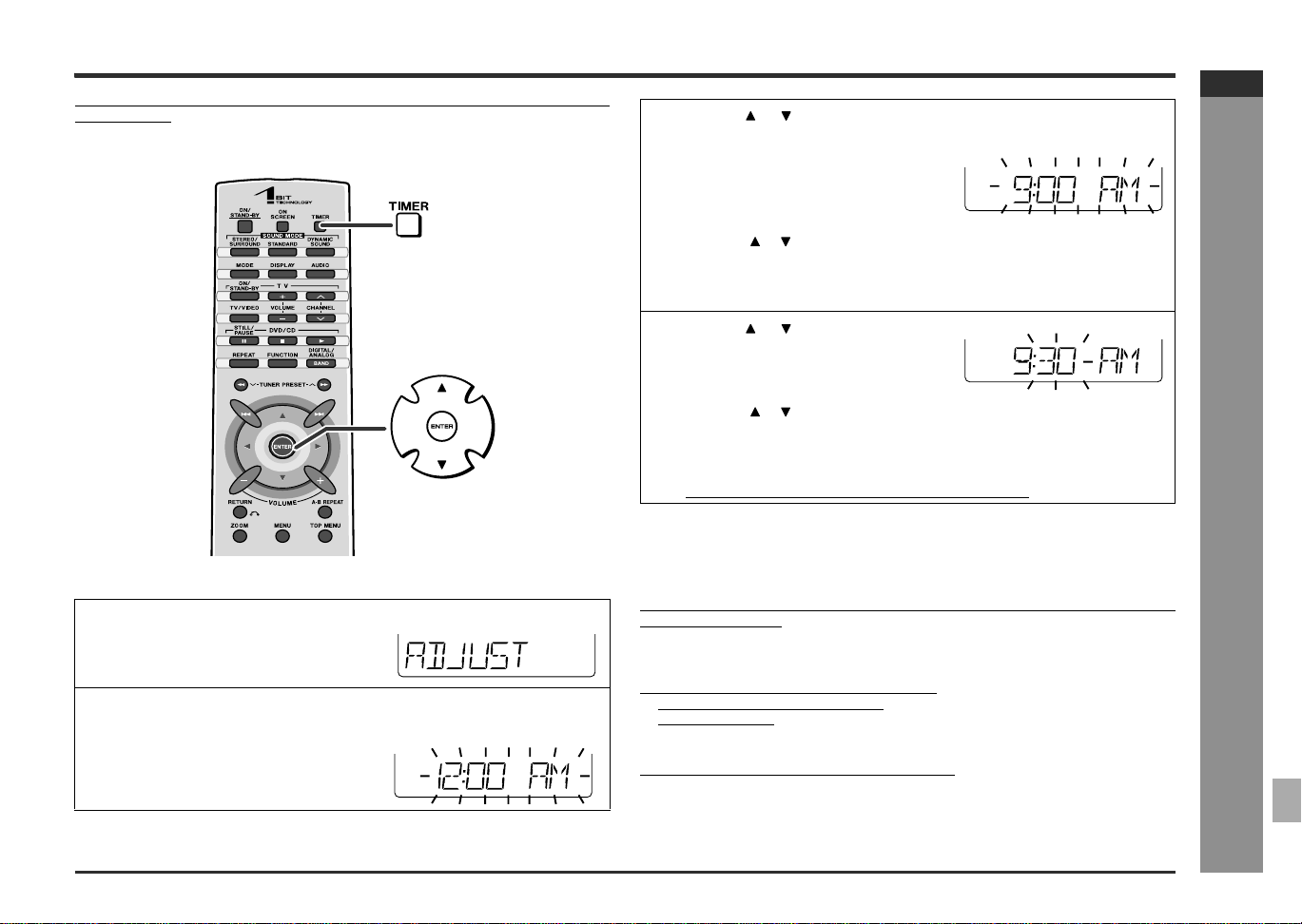
Setting the clock
By setting the AV control unit on time, you can use it not only as a clock but also for
timer playback.
[Front]
In this example, the clock is set for 9:30 AM.
To confirm the time display:
Press the TIMER button on the remote control.
The time display will appear for about 5 seconds.
Caution:
Unplugging the DVD player and the subwoofer/amplifier unit or power failure will
clear the clock setting.
Readjust the clock.
To readjust the clock:
Perform "Setting the clock" from the beginning.
! In step 1, the time will be displayed.
! Follow steps 2 - 4.
Note:
You can set the clock even when the power is off.
1 Press the TIMER button.
2
Within 5 seconds, press the ENTER button.
3 Press the or button to adjust the
hour and then press the ENTER but-
ton.
"AM 12:00" is 12 o'clock midnight.
"PM 12:00" is 12 o'clock noon.
! Press the or button once to advance the time by 1 hour. Hold it down to
advance continuously.
! The 12-hour display will appear.
! "AM" will change to "PM" automatically.
4
Press the or button to adjust the
minutes and then press the ENTER
button.
! Press the or button once to advance the time by 1 minute. Hold it down
to advance continuously.
! The hour will not advance even if minutes advance from "59" to "00".
! The clock starts from "0" second. (Seconds are not displayed.)
! The display returns to normal after approx. 2 seconds.
E-25
SD-AT50(U)E3.fm02/7/19
SD-AT50
ENGLISH
DX-AT50
Basic Operation
- Listening to the radio -
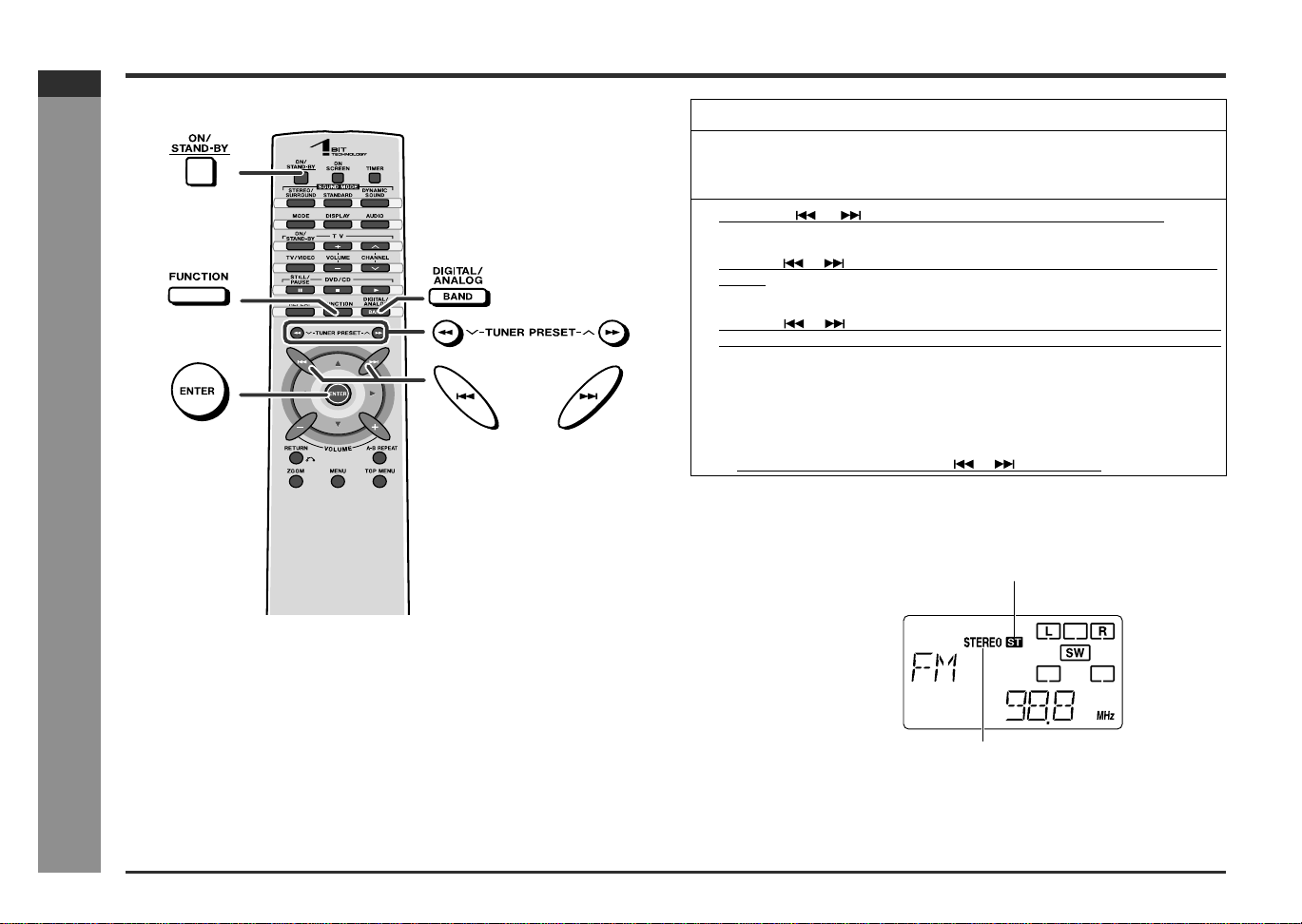
Listening to the radio
[Front]
To receive an FM stereo transmission:
Press the BAND button to display the "STEREO" indicator.
! "ST" will appear when an FM broadcast is in stereo.
! If the FM reception is weak, press the BAND button to extinguish the "STEREO"
indicator. The reception changes to monaural, and the sound becomes clearer.
After use:
Press the ON/STAND-BY button to enter the power stand-by mode.
1 Press the ON/STAND-BY button to turn the power on.
2 Press the FUNCTION button to display FM or AM, and then the
BAND button repeatedly to select the desired frequency band (FM
STEREO, FM or AM).
3 Press the or button to tune in to the desired station.
Manual tuning:
Press the or button as many times as required to tune in to the desired
station.
Auto tuning:
When the or button is pressed for more than 0.5 seconds, scanning will
start automatically and the tuner will stop at the first receivable broadcast station.
Notes:
! When radio interference occurs, auto scan tuning may stop automatically at
that point.
! Auto scan tuning will skip weak signal stations.
! To stop the auto tuning, press the or button again.
FM stereo receiving indicator
FM stereo mode indicator
E-26
SD-AT50(U)E3.fm02/7/19
SD-AT50
ENGLISH
7
DX-AT50
Basic Operation
- Listening to the memorized station -
Listening to the memorized station
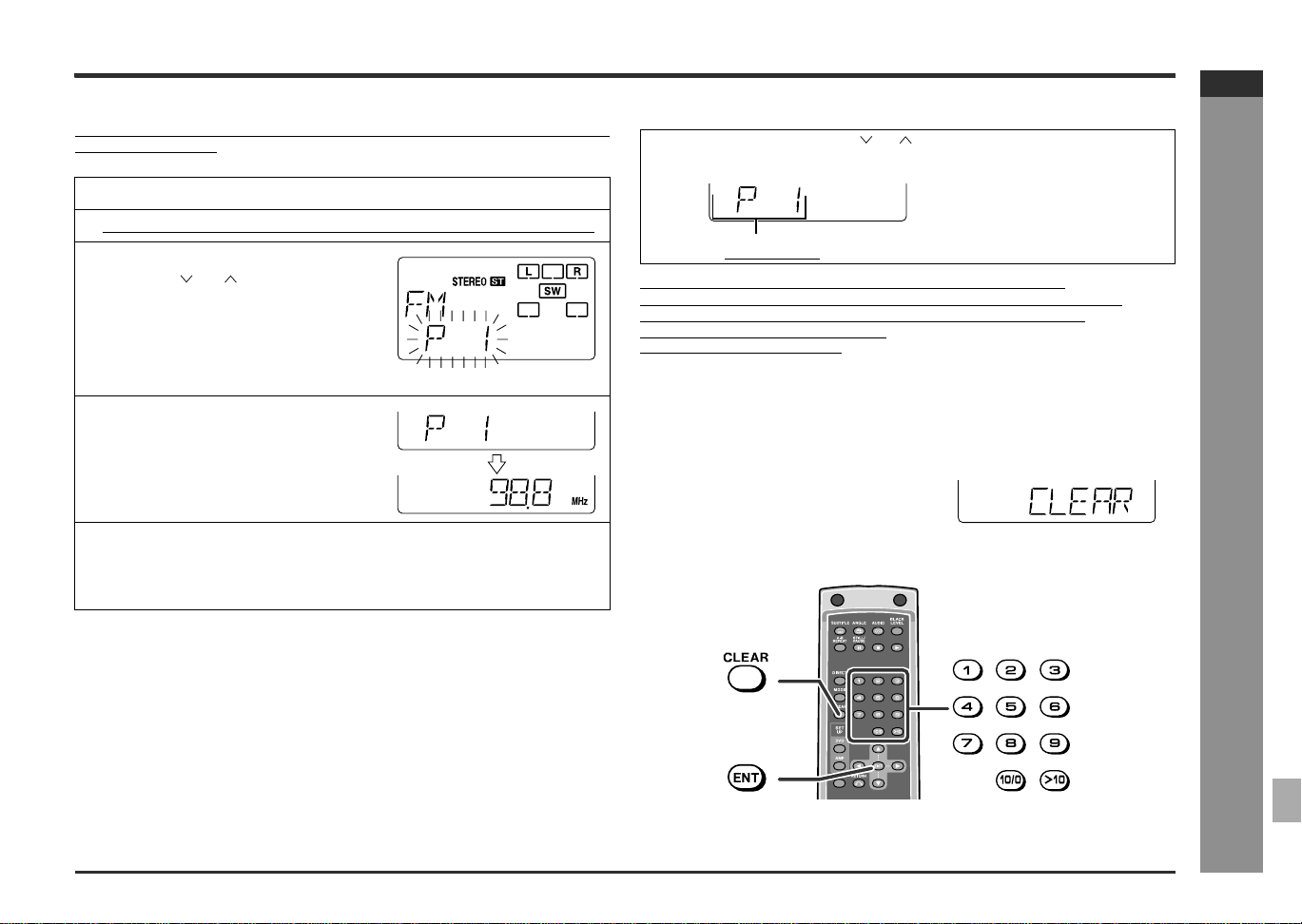
" Memorizing a station
You can store 40 AM and FM stations in memory and recall them at the push of a
button. (Preset tuning)
Note:
The backup function protects the memorized stations for a few hours should there be
a power failure or the AC power cord disconnection.
" To recall a memorized station
It's easier with the direct buttons on the remote control.
For 1st to 10th stations --- Select the preset number between "1" and "10/0".
For 11th to 40th stations --- Press ">10" and select the preset number.
Example: 28th station --- ">10", "2", "8"
Press buttons within 5 seconds.
" To erase all the contents of the preset
memory
[Back]
1
Perform steps 1 - 3 in "Listening to the radio" on page 25.
2 Press the ENTER button to enter the preset tuning saving mode.
3 Within 5 seconds, press the TUNER
PRESET ( or ) button to select
the preset channel number.
Store the stations in memory, in order, starting with preset channel 1.
4
Within 5 seconds, press the ENTER
button to store that station in mem-
ory.
5
Repeat steps 1 - 4 to set other stations, or to change a preset sta-
tion.
When a new station is stored in memory, the station previously memorized will
be erased.
Press the TUNER PRESET ( or ) button to select the desired sta-
tion.
Preset channel
1 Hold the CLEAR button down for 3 seconds
or more.
2 While "CLEAR" is displayed, press the ENT
button.
E-27
SD-AT50(U)E3.fm02/7/19
SD-AT50
ENGLISH
DX-AT50
Basic Operation
- Playing a disc -
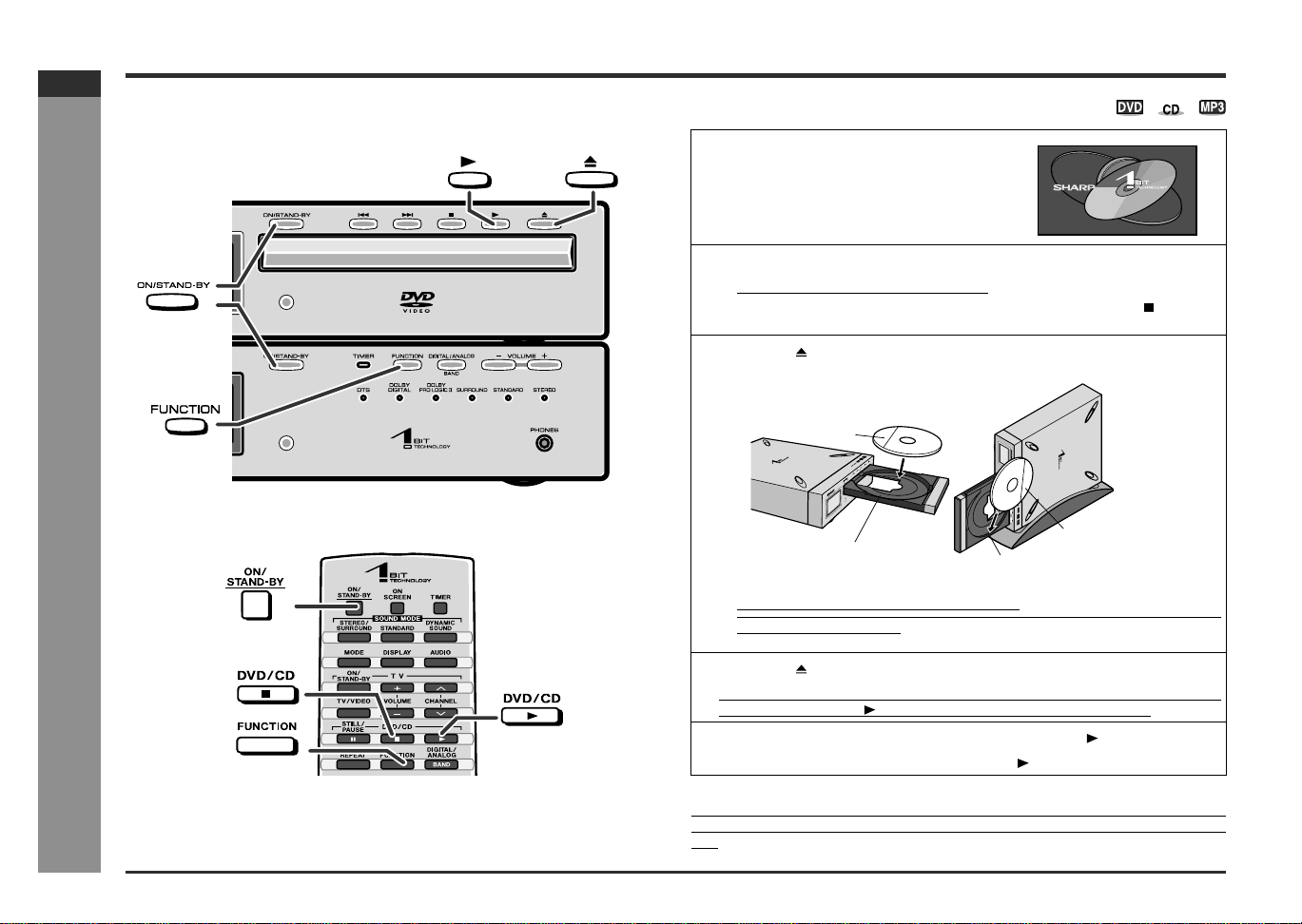
Playing a disc
Turn on the TV, and switch the input to the "VIDEO 1" or "VIDEO 2" etc. accord-
ingly.
[Front]
Note:
When the DVD player is turned on or the input source is switched to "DVD", no oper-
ation will be accepted for 5 seconds as the DVD player is proceeding the initial set-
ting.
1
Press the ON/STAND-BY button to
turn the power on.
The startup screen appears.
2
Press the FUNCTION button to set the input to "DVD".
! Select "DVD" when playing a audio CD.
! The same operation can be performed by pressing the DVD/CD button on
the remote control.
3
Press the button to open the disc tray.
! Place the disc on the disc tray, label side up.
! If the display window of the DVD player is placed on the lower side, a disc may
fall or may not be ejected.
4
Press the button to close the disc tray.
If the disc you are using supports auto start, it starts playing automatically (even
if you do not press the button), as soon as you close the disc tray.
5
If you cannot start playback in step 4, press the button.
This can be operated by pressing the DVD/CD button on the remote control.
Data side
Data side
Slide the disc into the hooks.
(An 3" (8 cm) disc cannot be played.)
Disc tray
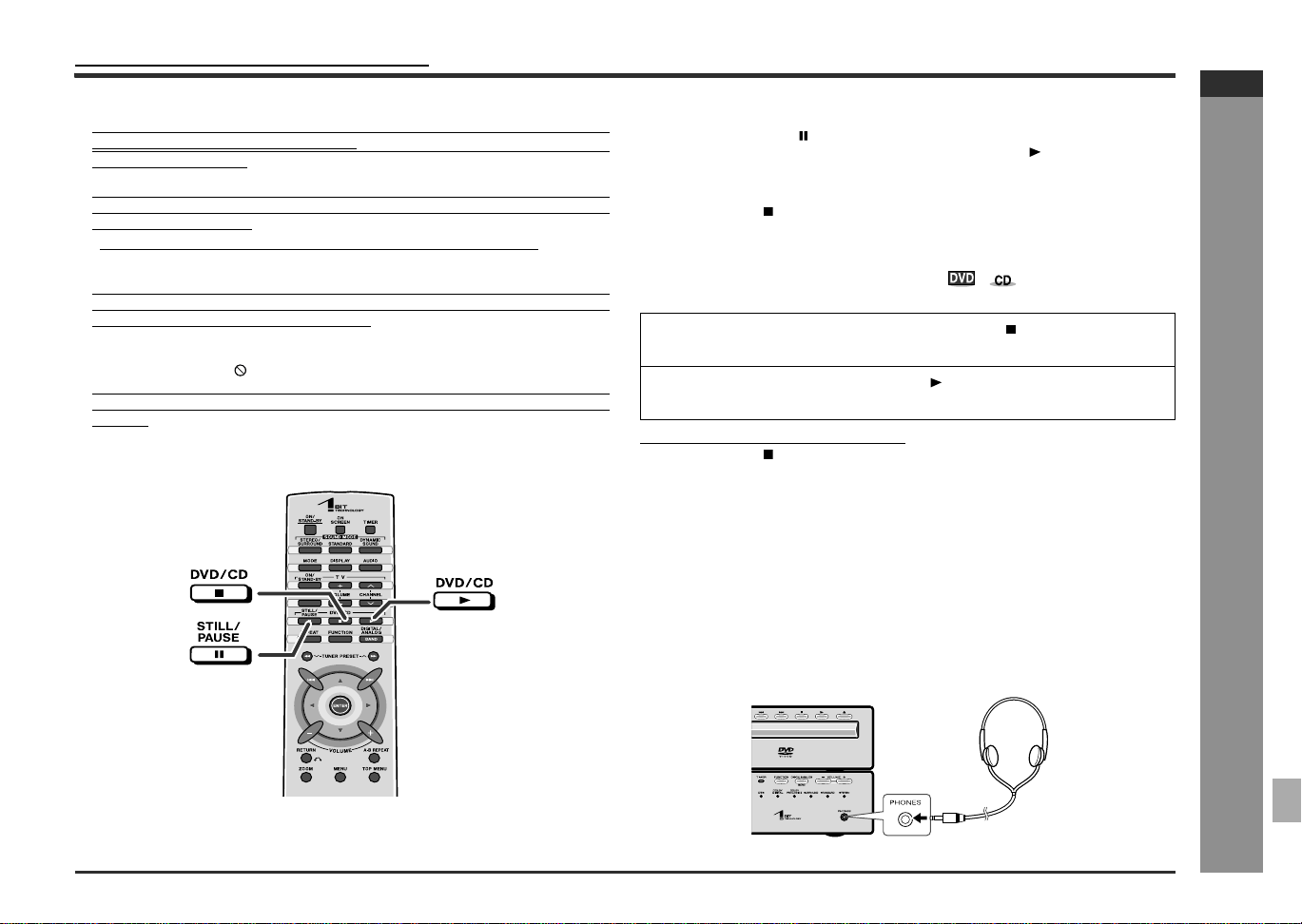
E-28
SD-AT50(U)E3.fm02/7/19
SD-AT50
ENGLISH
7
DX-AT50
Basic Operation
- Playing a disc -
Playing a disc (continued)
Caution:
! Close the disc tray when it is not in use. Otherwise, dust may accumulate inside
and cause malfunction to the DVD player.
! The DVD player is slightly heated when used for a long time. It does not mean the
DVD player is damaged.
! When attempting to play discs with scratches or of a different region number, or
unplayable or restricted (*1) discs, an error message will appear on the TV display
and the disc will not play.
Notes:
! A safety feature automatically sets the system to the power stand-by mode if you
set the volume level too high while playing certain types of discs. If this happens,
lower the volume level and restart playback.
! Stop positions may be recorded on some discs. When you play such a disc, play-
back stops there.
! During an operation, " " may appear indicating that the operation is disabled by
the disc.
! When the DVD player is left unoperated for more than 5 minutes after pressing the
stop button, a screen saver appears. Then, after additional 30 minutes, the power
turns off.
[Front]
"
To interrupt playback
Press the STILL/PAUSE button.
To resume playback from the same point, press the DVD/CD button.
" To stop playback
Press the DVD/CD button.
" To resume playback after stopping
(sequential playback)
You can resume playback from the point that the playback is stopped.
To cancel the sequential playback:
Press the DVD/CD button twice.
Notes:
! The sequential playback feature is disabled on some discs.
! Depending on the disc, playback may resume from slightly before the stopped
position.
"
Headphones
! Before plugging in or unplugging the headphones, reduce the volume.
! Be sure your headphones have a 1/8" (3.5 mm) diameter plug and are between 16
ohms and 50 ohms impedance. The recommended impedance is 32 ohms.
! Plugging in the headphones disconnects the speakers automatically. Adjust the
volume using the VOLUME buttons.
! You cannot use the surround feature with headphones.
(*1) Some DVDs are restricted for viewing according to the audience age.
1 While the disc is playing, press the DVD/CD button.
The system stores the point you stopped.
2 To restart play, press the DVD/CD button.
Play resumes from the point you stopped.
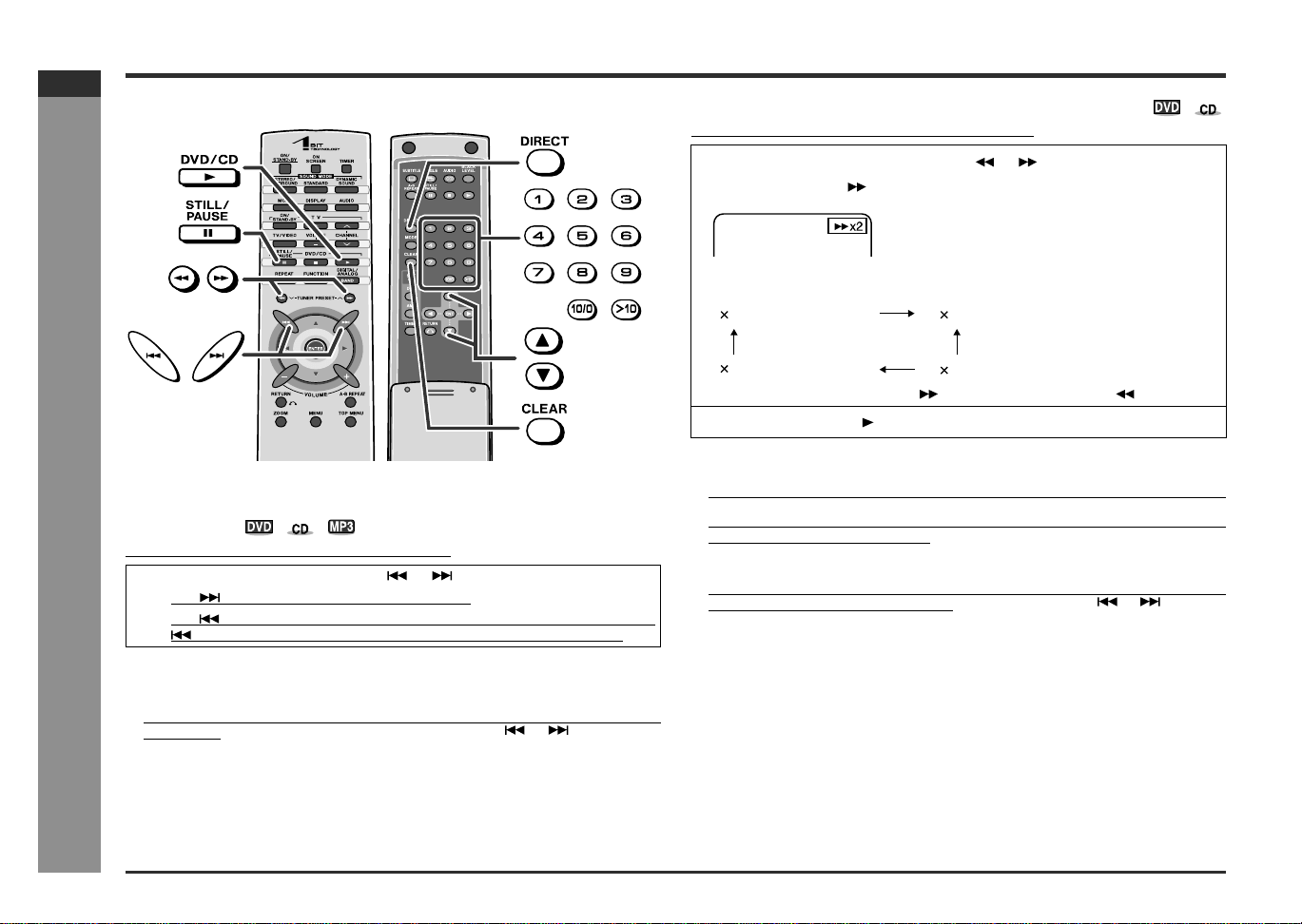
E-29
SD-AT50(U)E3.fm02/7/19
SD-AT50
ENGLISH
DX-AT50
Advanced Disc Features
- Basic operation -
Basic operation
"
To locate the beginning of a chapter (track)
(skip)
You can skip the current chapter (track) to the next.
Notes:
! The skip feature is disabled on some discs. Some discs do not display the chapter
(track).
! On a DVD, search does not operate between titles.
! The same operation can be performed by pressing the or button on the
DVD player.
" Fast forward/Fast reverse (search)
You can search the desired point as you play the disc.
Notes:
! On some discs, the search function is disabled.
! On a DVD, search does not operate between titles.
! While searching on a DVD the sound is not heard and the subtitles will not appear.
! For audio CDs, the scanning speed is fixed to 16 times. The sound will break up
during search, but this is not faulty.
! When search is performed during the DVD playback, pictures may not be for-
warded or reversed in the search speed specified in this manual, depending on
the disc or the scene being played.
! The same operation can be performed by holding down the or button on
the DVD player for 2 seconds or more.
While a disc is playing, press the or button.
! The button skips to the next chapter (track).
! The button skips to the beginning of the current chapter (track). Press the
button again to skip to the beginning of the previous chapter (track).
[Front] [Back]
1
While a disc is playing, press the or button.
Example: When the button is pressed
! The scanning speed will change as follows at each press of the button.
! The disc is forwarded by the button and reversed by the button.
2 Press the DVD/CD button to return to the normal playback.
2 (about 2 times)
60 (about 60 times)
8 (about 8 times)
30 (about 30 times)
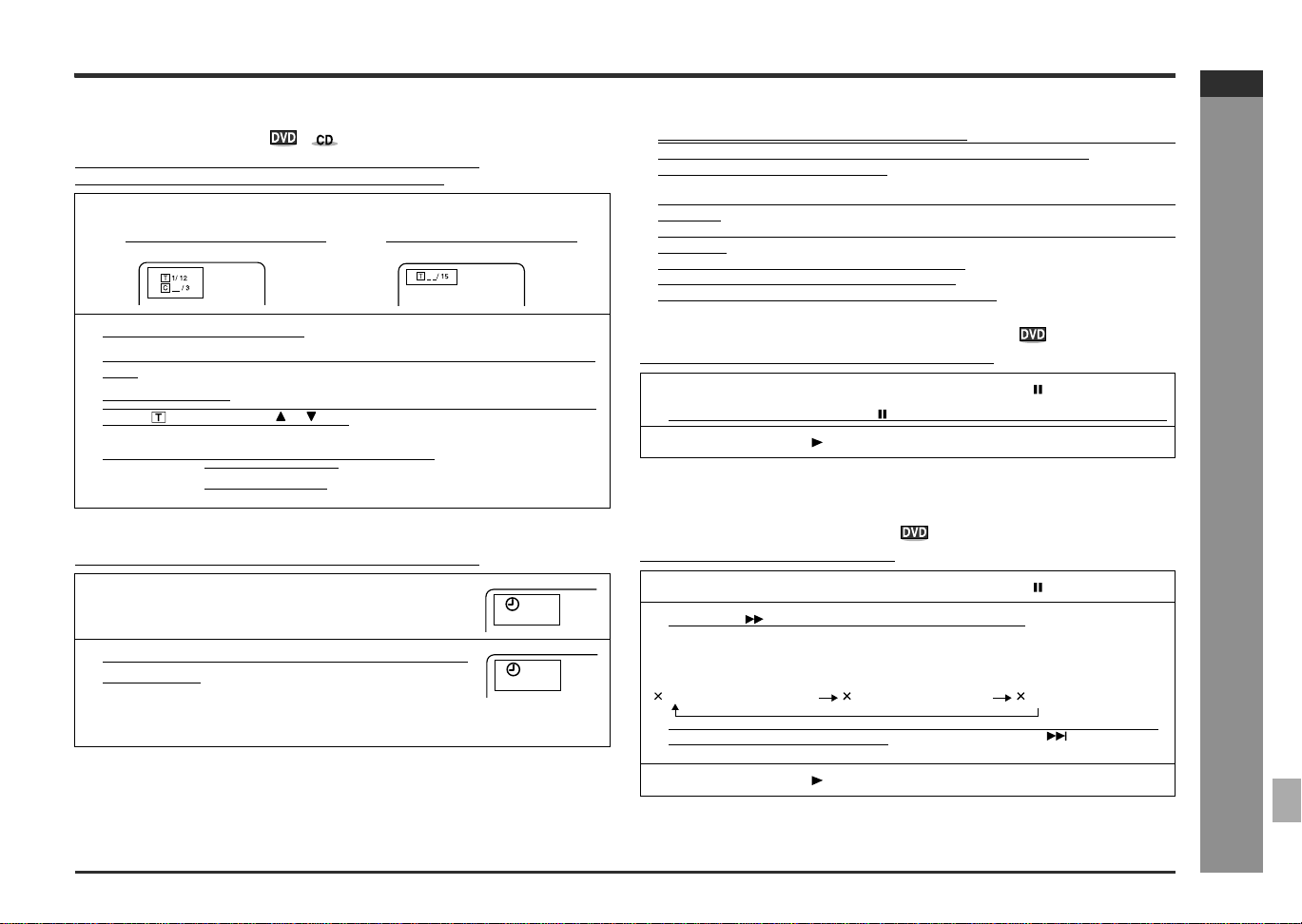
E-30
SD-AT50(U)E3.fm02/7/19
SD-AT50
ENGLISH
7
DX-AT50
Advanced Disc Features
- Basic operation -
" To start playback from the desired point
(direct play)
To select and play the desired chapter (track) or title:
You can select and play the desired chapter (track) or title.
To play by specifying time:
You can play back from the desired point by specifying the time.
Notes:
! Direct play feature is disabled on some discs.
! Some discs may not display the chapter number.
! You can select the chapter (track) number by using the direct buttons only. If the
track number is 2 digits or more, press ">10" and enter the number.
Example: Chapter 14: ">10", "1", "4"
! With DVDs, you can specify the desired point only in the current title and not in the
other title.
! With audio CDs, you can specify the desired point only in the current track and not
in the disc.
! Some discs cannot play from the specified point.
! Time search feature is disabled on some discs.
! You cannot specify the time while the disc is stopped.
"
Still picture/Frame advance
You can freeze the image and advance frame by frame.
Note:
Still and frame advance features are disabled on some discs.
"
Slow-motion play
You can slow down the playback speed.
Note:
On some discs, the slow-motion playback functions are disabled.
1
While in the stop or playback mode, press the DIRECT button.
Example: During DVD playback Example: During CD playback
2 Selecting a chapter (track)
Enter the chapter (track) number using the direct buttons (0 - 9) within 30 sec-
onds.
Selecting by title
Select " " by pressing the or button within 30 seconds and enter the title
number using the direct buttons (0 - 9).
The cursor automatically enters the chapter number.
Example: Chapter 1: "10/0", "1"
Chapter 12: "1", "2"
1
During playback, press the DIRECT button
twice.
2
Within 30 seconds, specify the time with the di-
rect buttons.
! To specify 1 hour 23 minutes and 40 seconds, enter "12340".
! If you enter the wrong number, press the CLEAR button and then reenter.
_:__:__
TOTAL
2:16:13
TOTAL
2:16:13
1:23:40
1
While a disc is playing, press the STILL/PAUSE button.
Each press of the STILL/PAUSE button advances the frame in the still mode.
2
Press the DVD/CD button to return to the normal playback.
1
While a disc is playing, press the STILL/PAUSE button.
2 Press the button while the image is paused.
Three speeds are available. Each time the button is pressed, the speed of slow-
motion playback changes in the following sequence:
The same operation can be performed by holding down the button on the
DVD player for 2 seconds or more.
3
Press the DVD/CD button to return to the normal playback.
1/16 (about 1/16 times) 1/8 (about 1/8 times) 1/2 (about 1/2 times)
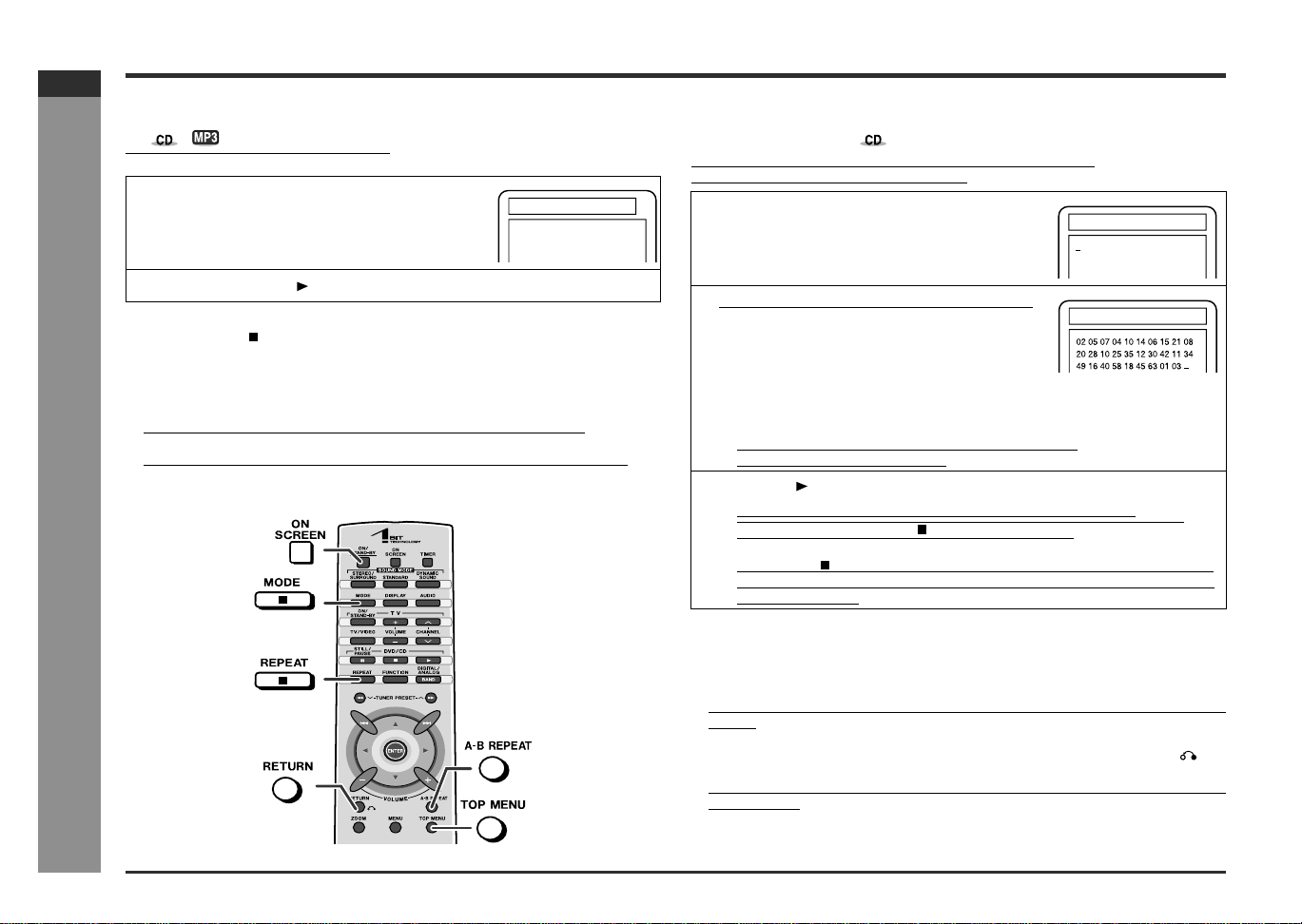
E-31
SD-AT50(U)E4.fm02/7/19
SD-AT50
ENGLISH
DX-AT50
Advanced Disc Features
- Useful features -
Useful features
" To play in random order (random play)
The system selects the order of playback.
To cancel random play:
Press the DVD/CD button.
Notes:
! You may not be able to use this function with some discs.
! When all of the tracks have been played in random playback mode, playback will
stop automatically.
! You cannot set the random play while in the playback or pause mode.
! Random play is not allowed during programmed playback.
! To check the status during random playback, press the ON SCREEN button.
[Front]
" To play in the desired order (programmed
playback)
You can play back the desired tracks in the sequence you want.
Maximum of 99 tracks can be programmed.
To change the programmed contents:
Repeat the above procedures from step 1.
Notes:
! Programming cannot be performed while paused or in the playback mode.
! Sequence programming does not work with a disc that does not include title infor-
mation.
! Sequence programming does not work with a disc that disables programming.
! To exit the programming procedure halfway through, press the RETURN but-
ton.
! To check the status during the programmed playback, press the ON SCREEN or
MODE button.
! Even if you press the ON/STAND-BY button to enter the stand-by mode or change
the function from CD to another, the programmed selections will not be cleared.
1 While stopped, press the MODE button
twice.
2
Press the DVD/CD button.
RANDOM
1
While stopped, press the MODE button.
The programming screen is displayed.
2 Enter a track number with direct buttons.
! Repeat the procedure above if you want to enter other title numbers. You can
enter up to 99 titles in the sequence you want to play.
! If you enter the wrong number, press the CLEAR button and then reenter.
! When you enter a track number with 2 or more digits:
Example) track 14: ">10", "1", "4"
3
Press the button to start play.
! Programmed selections are memorized until a disc is removed.
! Playback is paused with the button. When playback is resumed, pro-
grammed playback starts from the point you stopped.
! Pressing the button twice turns off the programmed playback. If you start
playback after pressing the MODE button, the programmed playback starts
from the beginning.
PROGRAM TIME 0:00:00 1/1
PROGRAM TIME 8:88:88 1/1
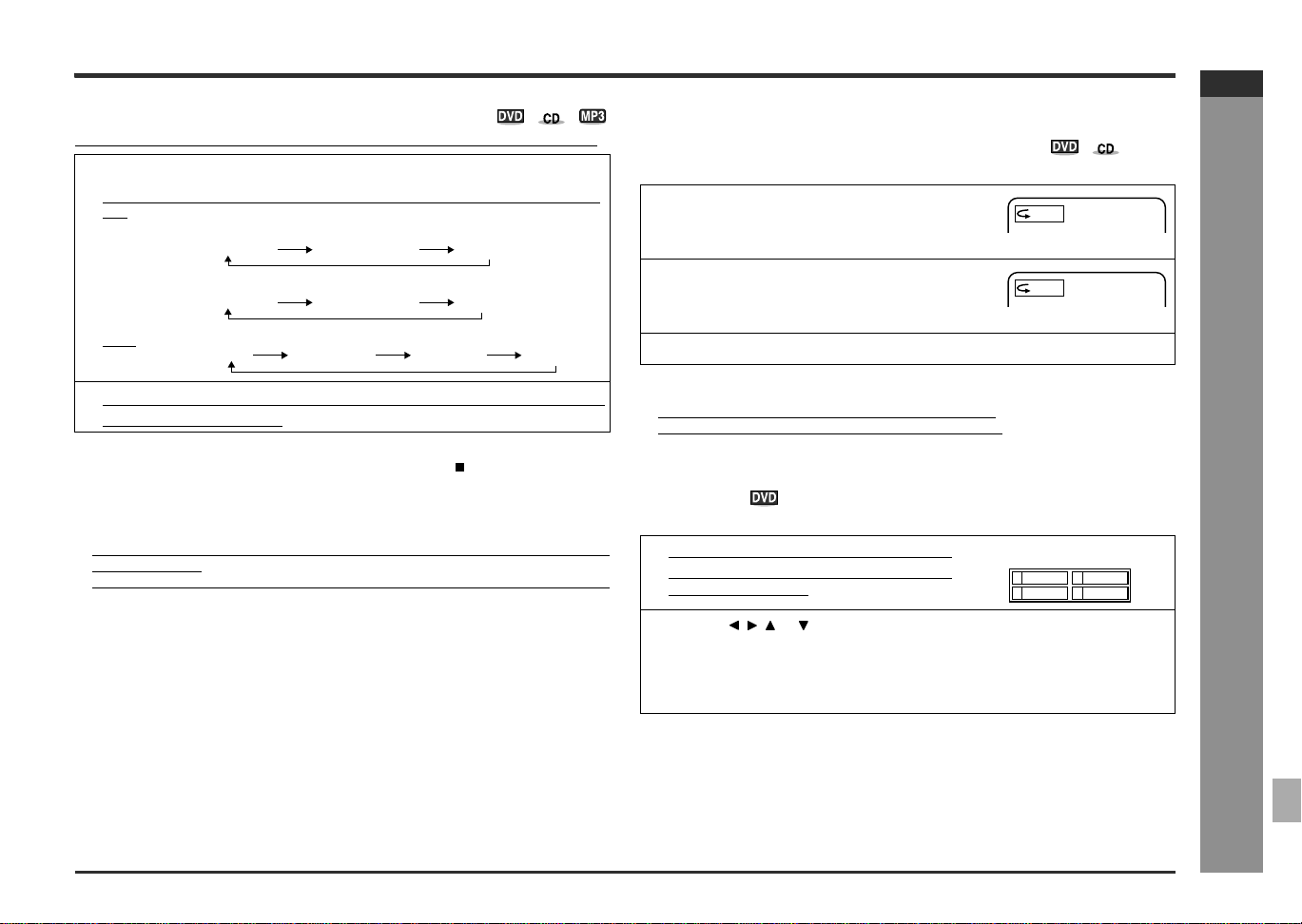
E-32
SD-AT50(U)E4.fm02/7/19
SD-AT50
ENGLISH
7
DX-AT50
Advanced Disc Features
- Useful features -
"
To play repeatedly (repeat play)
You can play a chapter (track) or a title repeatedly by specifying it during playback.
Caution:
After performing repeat play, be sure to press the DVD/CD button. Otherwise, the
disc will play continuously.
Notes:
! You may not be able to use this function with some discs.
! If you select "ALL during the programmed/random play of an audio CD, the play-
back is repeated.
! If you press another button during the repeat play, the playback may be canceled.
"
To play the contents between the specified
points repeatedly (A-B repeat)
You can play the desired portion repeatedly by specifying it during playback.
Notes:
! A-B repeat play is disabled on some discs.
! A-B repeat play for DVD is possible only within a title.
! Perform A-B repeat play of an audio CD within a track.
" To select a title from the top menu of the
disc
On a DVD with multiple titles, you can select a title from the top menu.
Notes:
! The procedure shown here provides only general steps. The actual procedure for
using the title menu depends on the disc you are using. See the disc jacket for
details.
! If the disc you are using does not have a title menu, nothing appears on the
screen.
1 While the disc is playing, press the REPEAT button.
Each time the button is pressed, repeat play mode changes in the following or-
der.
DVD
Audio CD
MP3
2 Select "OFF" by pressing the REPEAT button repeatedly to return
to the normal playback.
OFF
CHAPTER
TITLE
TRACK
ALL
OFF
TRACK
ALBUM
DISC
OFF
1
While the disc is playing, press the A - B
REPEAT button.
This registers the start point (A).
2 Press the A - B REPEAT button again.
This starts A-B repeat from the start point (A) to the end point (B).
3 Press the A - B REPEAT button to return to the normal playback.
1
While in the stop or playback mode,
press the TOP MENU button to dis-
play its title menu.
Example
2 Use the , , or button to select the title, and then press the EN-
TER button.
! The selected title is played.
! Depending on the disc, a title can be selected by pressing the direct buttons
(0 - 9) on the back of the remote control.
[A - ]
[A - B]
21 Drama Action
43 SF Comedy
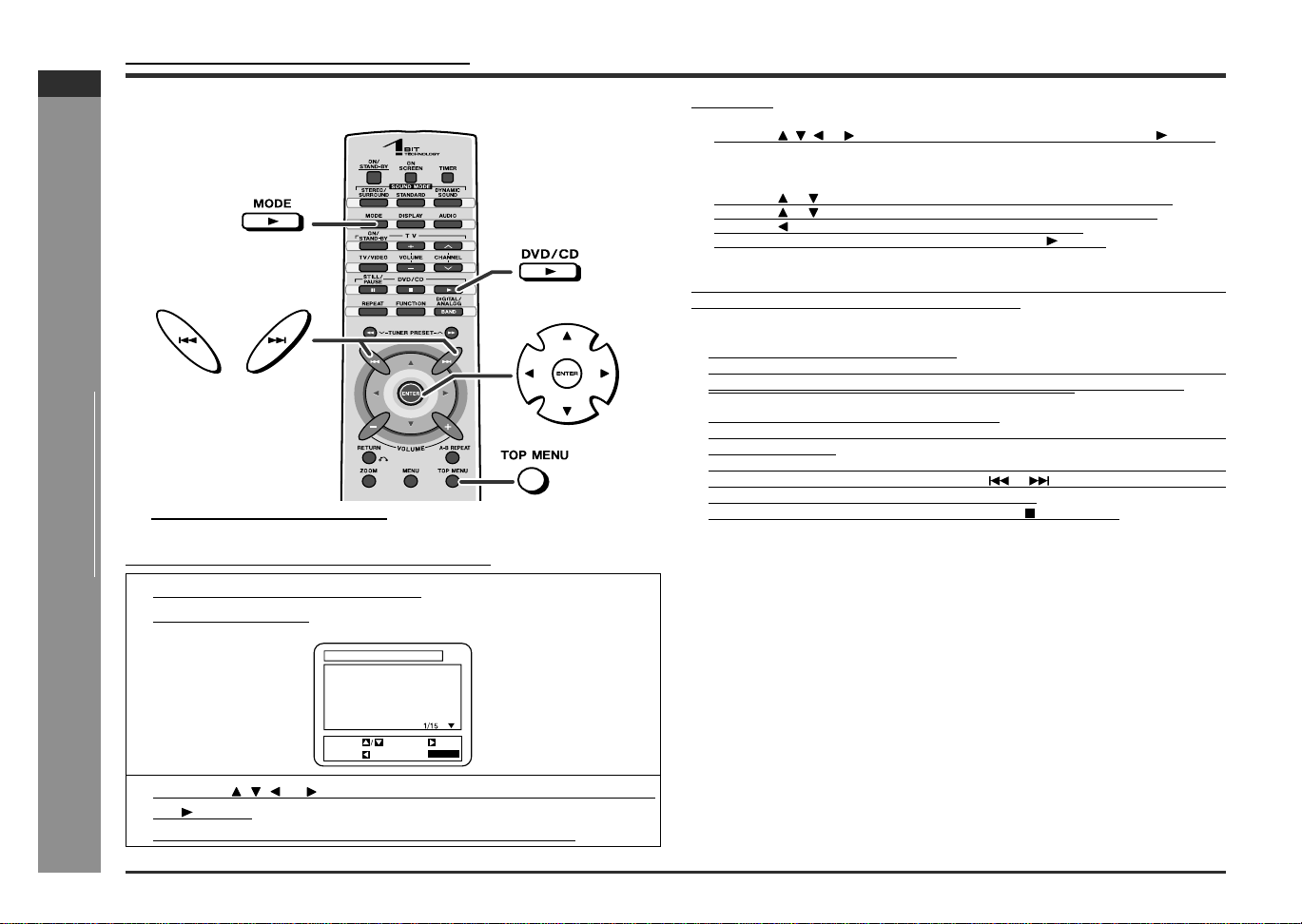
E-33
SD-AT50(U)E4.fm02/7/19
SD-AT50
ENGLISH
DX-AT50
Advanced Disc Features
- MP3 disc operation -
MP3 disc operation
[Front]
" MP3 disc playback
You can play back CD-R/RW recorded in the MP3 format.
Direct play
Programmed play
Caution:
If you convert MP3 data to "audio CD" data when recording on a CD-R/RW, operate
it as an audio CD. The MP3 operation is impossible.
Notes:
! "+" appears in front of the album name.
! Maximum of 14 characters can be displayed for an album name, and 25 charac-
ters for a track name. Underline, asterisk, and space may not be displayed.
! The system can recognize total of 255 albums and tracks.
! The 9th or later layers cannot be played back.
! You can select a track for direct playback using direct buttons when the screen
display is turned off.
! The screen displays up to 5 tracks for the programmed play. If more tracks are
entered, the next screen appears. Press the or button to switch the screen.
! If you enter a wrong track, press the CLEAR button.
! To stop the programmed play, press the DVD/CD button twice.
1
Load a disc containing MP3 tracks.
A menu screen appears.
2 Press the , , or button to select a track and press the DVD/
CD button.
Pressing the TOP MENU button goes back to the uppermost layer.
SELECT: ENTER:
RETURN:
PLAY
START:
VOLUME LABEL
FIRST PLAY
+ALBUM01
+ALBUM02
+ALBUM03
+ALBUM04
1 Press the DIRECT button.
2 Press the , , or button to select a track and press the DVD/CD button.
1 While in the stop mode, press the MODE button.
2 Press the or button to select an album and press the ENTER button.
3 Press the or button to select a track and press the ENTER button.
Press the button to return to the album selection screen.
4 After programming is completed, press the DVD/CD button.
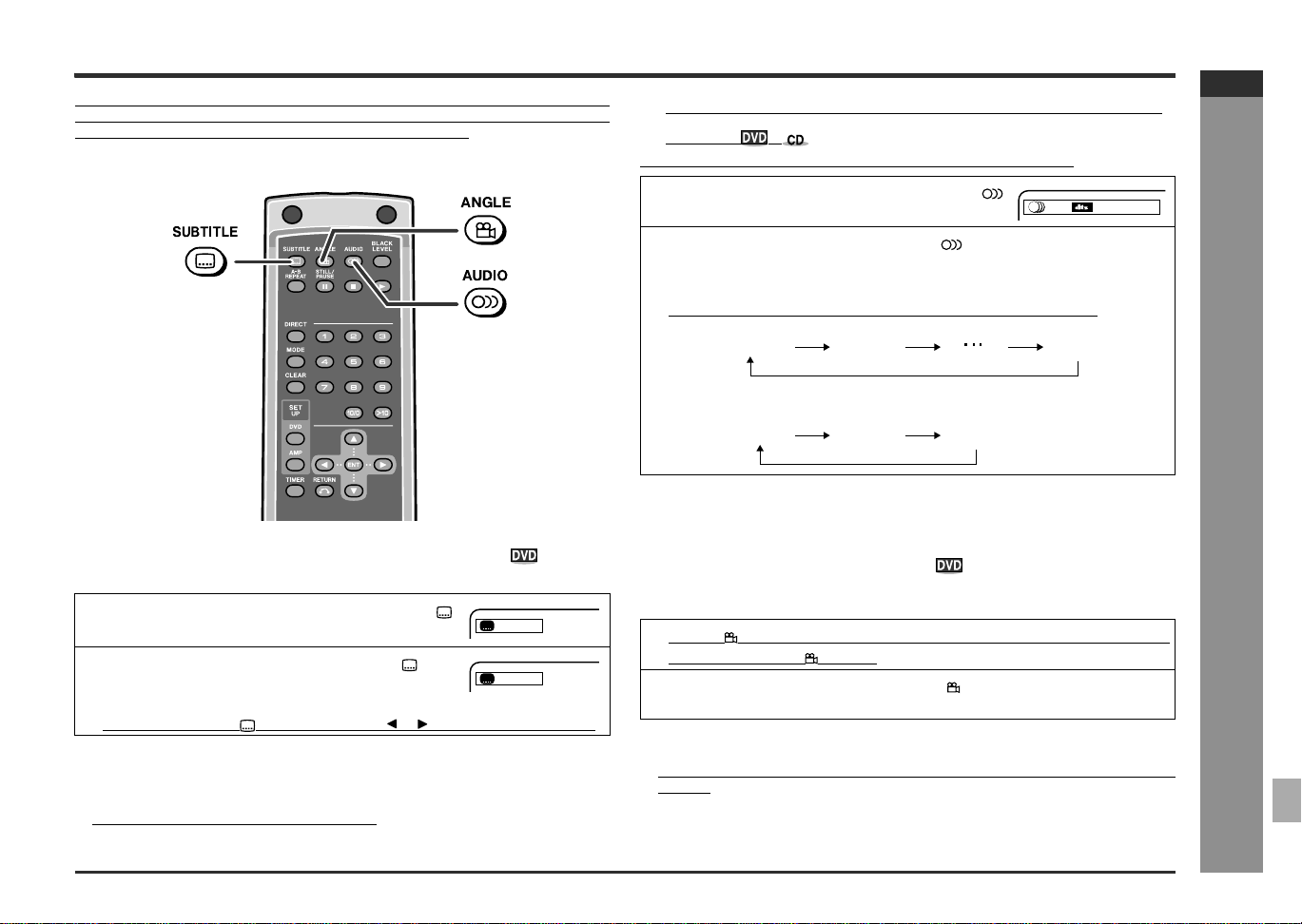
E-34
SD-AT50(U)E4.fm02/7/19
SD-AT50
ENGLISH
7
DX-AT50
Advanced Disc Features
- Various settings -
Various settings
The subtitle language and the audio language you select are reset each time you
turn off the system or change the disc. To always play back the DVD in the preferred
languages, set them in the initial setting screen (see page 19).
[Back]
"
To change the subtitle language
You can change the subtitle language or hide the subtitle during playback.
Notes:
! Some DVDs prohibit changing the subtitle language.
! If no subtitles are recorded on the disc, "NOT AVAILABLE" is displayed.
! It may take a little time to switch the subtitle language to the selected one.
! The subtitle cannot be hided on some DVDs.
" To change the audio language (audio out-
put)
During playback, you can change the audio language (audio output).
Notes:
! The audio language on some DVDs may not be changed.
! For audio language and audio system, refer to the manual of the disc.
" To change the angle
You can change the angle of view when playing a DVD video disc that contains
scenes recorded from multiple angles.
Notes:
! Some DVDs prohibit changing the angle.
! The angle number is not displayed if the disc on which angle not recorded is
entered.
! Refer to the manual of the disc as the operation may vary depending on the disc.
1 While a disc is playing, press the SUBTITLE
button.
2
Within 5 seconds, press the SUBTITLE but-
ton repeatedly to select the desired subtitle
language.
Press the SUBTITLE button and then the or button to hide the subtitle.
1.ENG/6
6.FRE/6
1 While a disc is playing, press the AUDIO
button.
2
Within 5 seconds, press the AUDIO button repeatedly to select
the desired audio number.
DVD
You can select one of audio languages that are recorded on a DVD.
Audio CD
1
When " " is displayed in the upper right corner of the TV screen,
press the ANGLE button.
2 Within 5 seconds, press the ANGLE button repeatedly to select
the desired angle number.
1. ENG (DTS 5.1 Surround)
ENG
FRE
SPA
STEREO
L-CH
R-CH
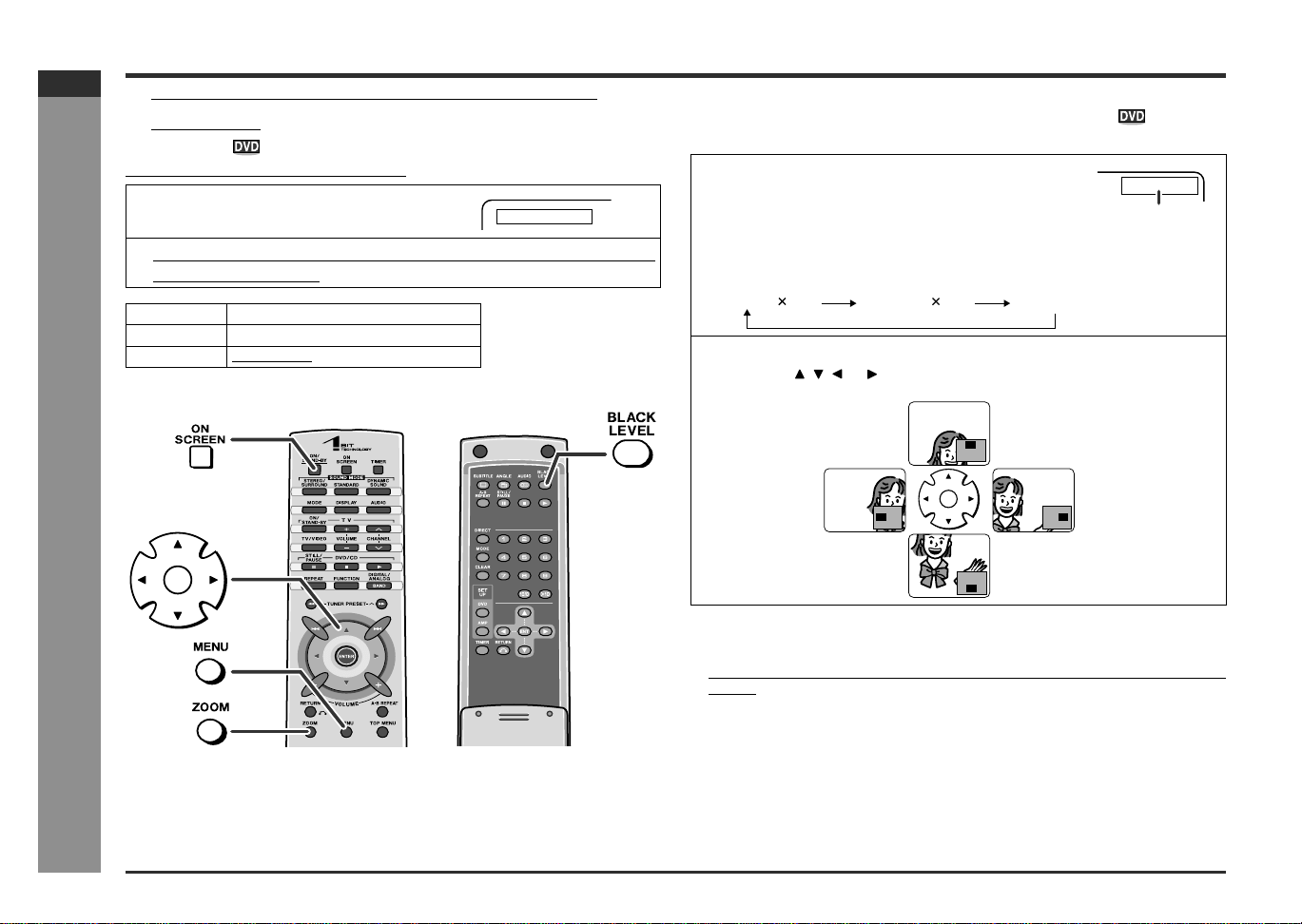
E-35
SD-AT50(U)E4.fm02/7/19
SD-AT50
ENGLISH
DX-AT50
Advanced Disc Features
- Various settings -
Various settings (continued)
"
To brighten an image (black level set-
ting)
The image can be adjusted during playback.
"
To zoom in on an image (zoom)
You can magnify images during DVD playback.
Notes:
! An image may become distorted when zoomed.
! Subtitles cannot be zoomed.
! For the part currently viewed, refer to the indication in the lower right section of the
screen.
1
While a disc is playing, press the
BLACK LEVEL button.
2
Within 5 seconds, press the BLACK LEVEL button repeatedly to
select "ON" or "OFF".
Setting
OFF Normal image
ON Bright image
BLACK LEVEL: ON
[Front] [Back]
1 While a disc is playing, press the ZOOM button.
ZOOM indicator
Each press of the ZOOM button cycles through the zoom settings as follows:
2 To shift the view and display the desired part of a zoomed image,
press the , , or button repeatedly.
ZOOM [x2]
ZOOM [ 2] ZOOM [ 4] ZOOM [OFF]
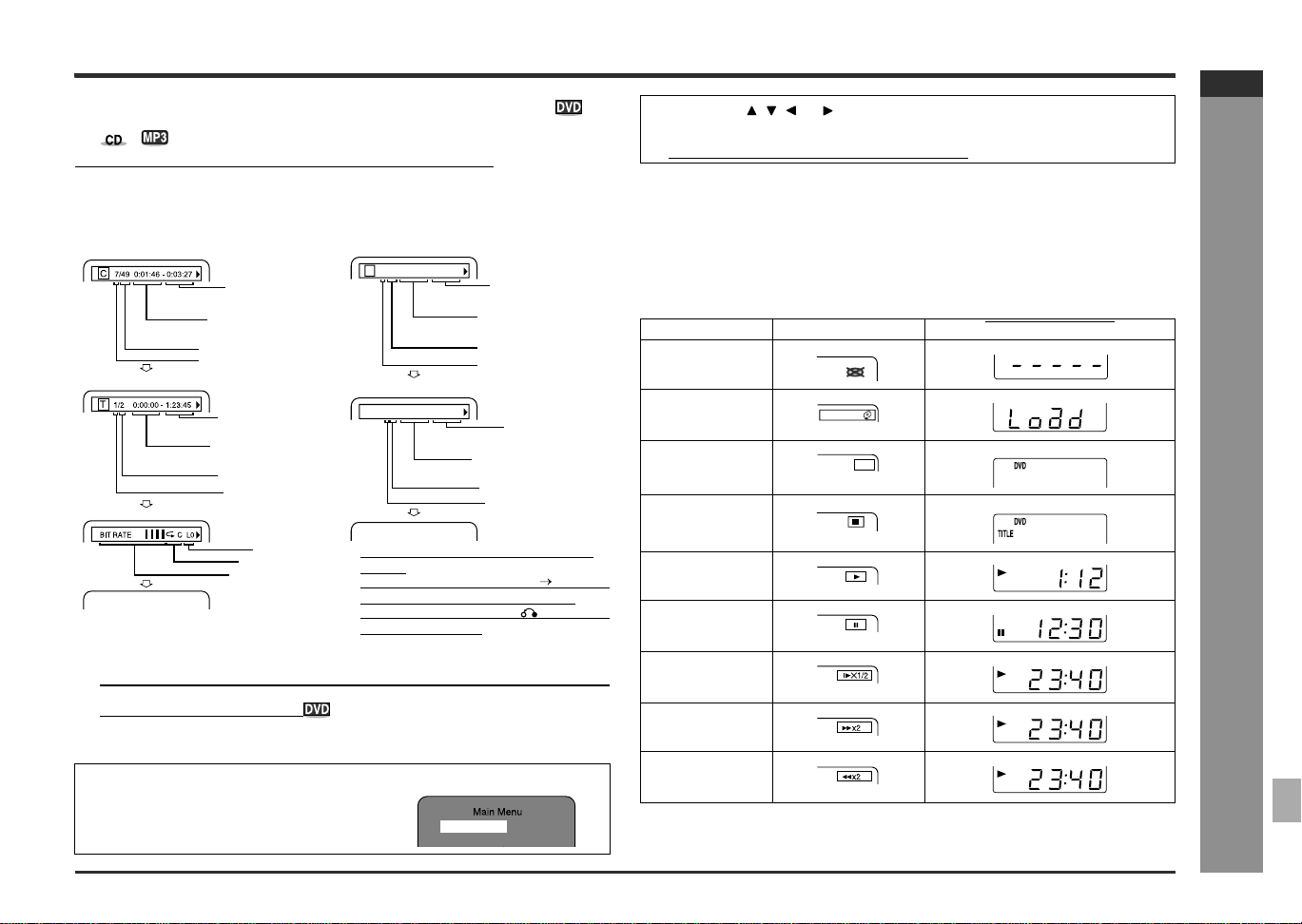
E-36
SD-AT50(U)E4.fm02/7/19
SD-AT50
ENGLISH
7
DX-AT50
Advanced Disc Features
- Various settings -
" To change the display on TV screen
You can display or hide the operation indicators on the TV screen.
While the disc is playing, press the ON SCREEN button. (The display is changed at
each press of this button.)
"
To select a subtitle or audio language from
the disc menu
You can select the desired subtitle or audio language and sound system (Dolby Digi-
tal (5.1ch) or DTS sound) on your DVD if it has a disc menu.
Note:
The procedure shown here provides only general steps. The actual procedure for
using the disc menu depends on the disc you are using. See the disc jacket for
details.
"
DVD mode operation indicators
The following are examples of display indicators that appear during DVD playback.
DVD Audio CD
! For an MP3 disc, the following is dis-
played.
Current track name (yellow) elapsed
playback time for the current track
! If you press the RETURN button, the
display disappears.
1
While the disc is stopped or played,
press the MENU button to display
the disc menu.
Example
Chapter/Time
Title/Time
Bit rate
Total number of chapters
Remaining playback
time for the current chapter
Elapsed playback time
for the current chapter
Current chapter number
Remaining playback
time for the current title
Elapsed playback time
for the current title
Total number of titles
Current title number
Image information
Repeat indicator
Layer number
The display disappears.
Track/Time
Total track/Time
Remaining playback
time for the current track
Elapsed playback time
for the current track
Current track number
Total remaining
playback time for the disc
Total elapsed playback
time for the disc
Current track number
Total number of tracks
Total number of tracks
T 4/16 0:03:21 - 0:02:15
ALL 4/12
0:13:45 - 0:45:40
The display disappears.
1.Highlights
2.Start Movie
2
Press the , , or button to change the setting and press the
ENTER button.
You can also use direct buttons for some discs.
Operation TV screen DVD player display
When the power is
on without a disc
Disc data is being
read
Type of disc
Stop
Play
Pause
Slow
Fast Forward
Fast Reverse
ROADING
DVD
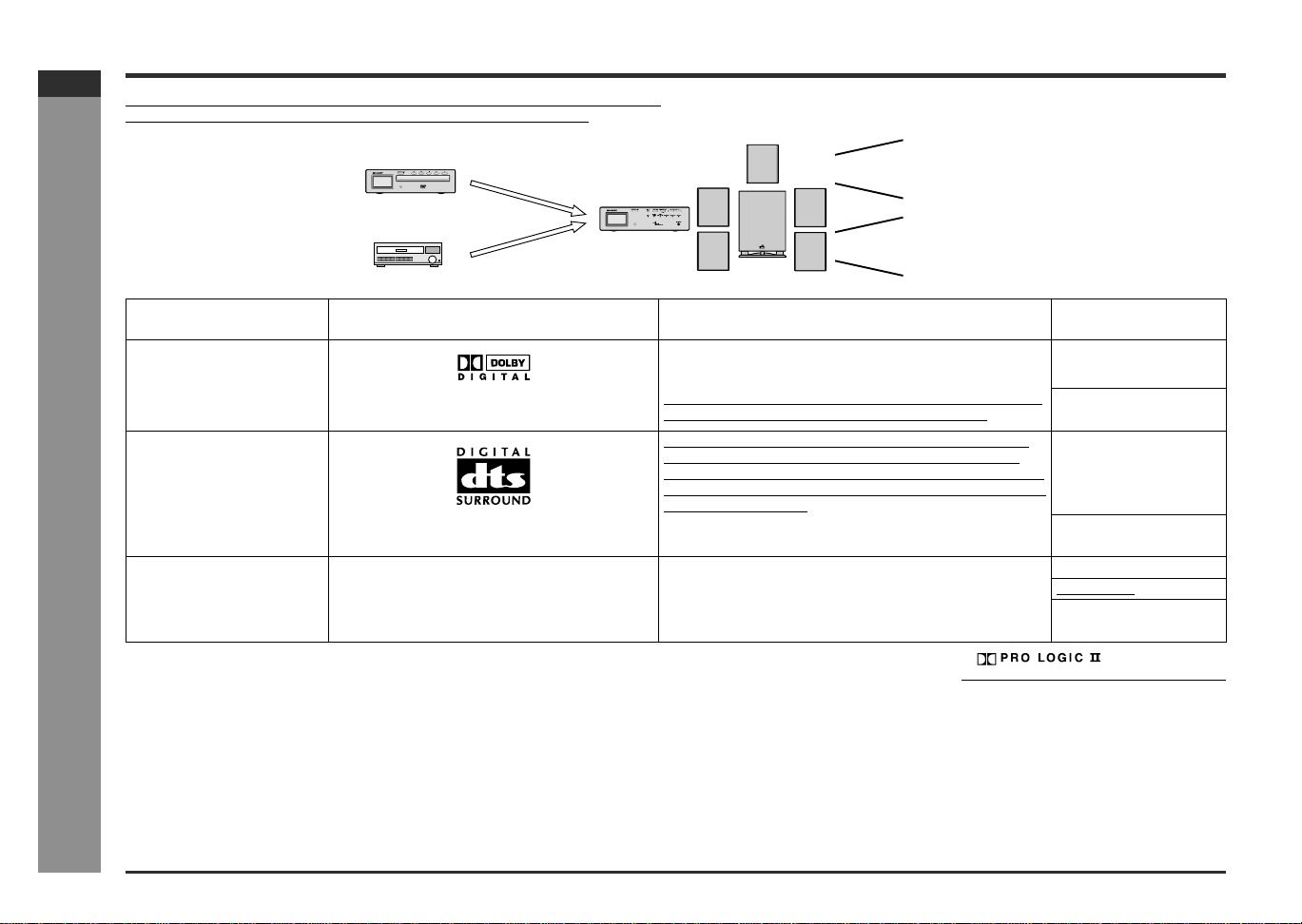
E-37
SD-AT50(U)E4.fm02/7/19
SD-AT50
ENGLISH
DX-AT50
Advanced Features
- Enjoy the surround sound (sound mode) -
Enjoy the surround sound (sound mode)
The spatial sound effect is activated when you play a DVD recorded in Dolby Digital
or DTS. You can also enjoy 2-channel stereo sound in Dolby Pro Logic II.
If (*) is selected, the " " indicator goes out.
(To select the sound mode, see page 39.)
Digital tuner, etc.
DVD player
Stereo signal
Dolby Digital signal
DTS signal
Dolby Pro Logic II
Dolby Digital
DTS
Types of surround Source Contents Switchable sound
mode
Dolby Digital
One of the digital audio systems for theatrical use. You can
enjoy the stereophonic effect in the home theater system.
Stereo
Disc with this trademark The disc recorded in the Dolby Digital system is recognized
by the system automatically when it is played back.
Standard
Dynamic sound
DTS (Digital Theater Sys-
tems)
One of the digital audio systems for theatrical use. As the
sound quality is emphasized, you can enjoy the realistic
sound effect in the home theater system. The disc recorded
in the DTS system is recognized by the system automatically
when it is played back.
Stereo
Disc with this trademark Standard
Dynamic sound
Dolby Pro Logic II
Stereo-recorded discs and video tapes When playing a stereo-recorded disc or video tape, it is rec-
ognized by the Dolby Pro Logic II function and the sound is
changed to the 5.1ch digital surround sound automatically.
More natural sound effect can be achieved.
Stereo (*)
Surround (*)
Standard
Dynamic sound
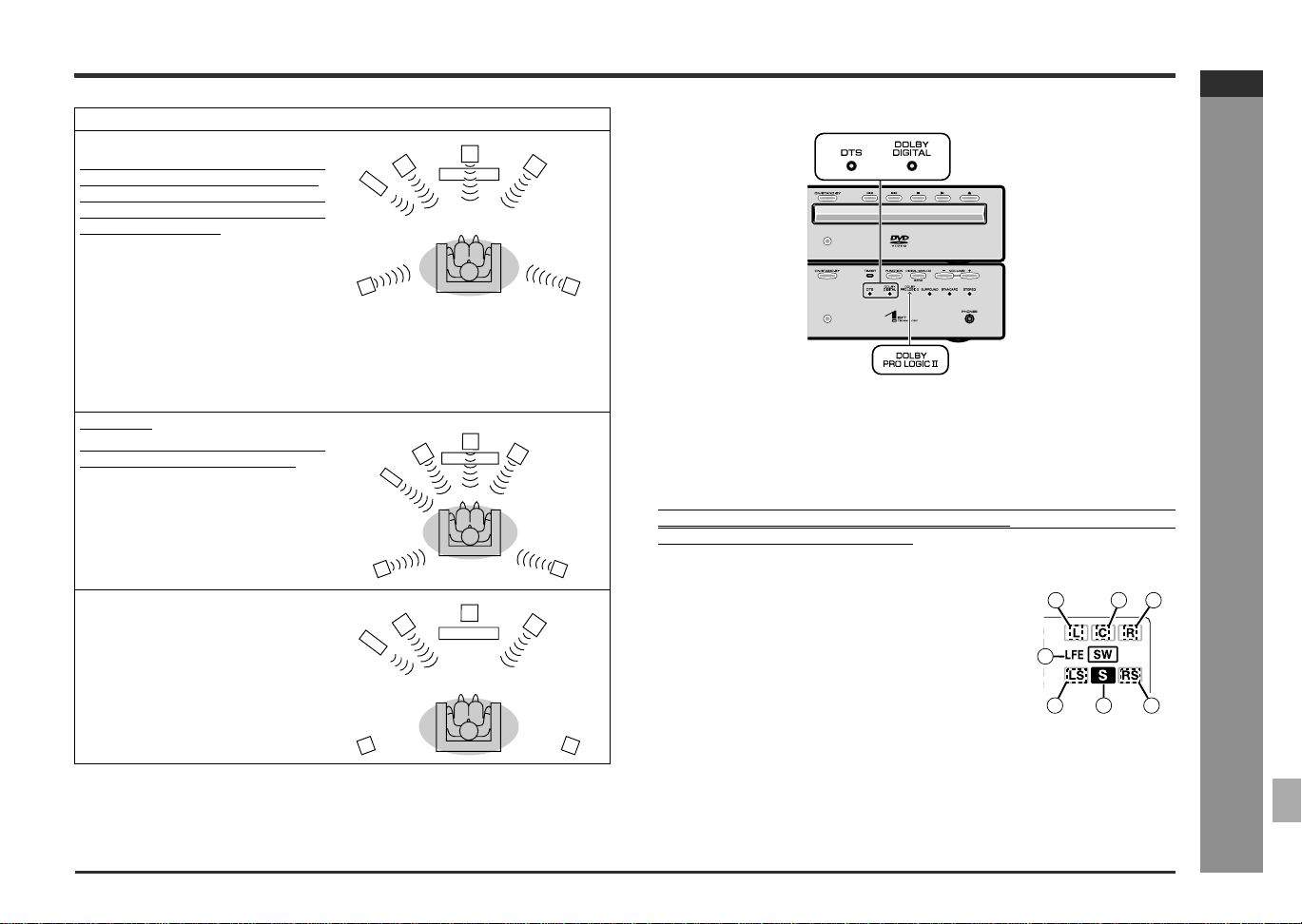
E-38
SD-AT50(U)E4.fm02/7/19
SD-AT50
ENGLISH
7
DX-AT50
Advanced Features
- Enjoy the surround sound (sound mode) -
The input signal is recognized automatically and the indicator lights up.
! This indicator is lit when the 2ch signals are entered to extend them to the 5.1ch
surround sound.
! Even the 2ch sound recorded with Dolby Digital will be extended to the 5.1ch.
Notes:
! You can switch the audio while playing the disc of multiple types (Dolby Digital,
DTS, etc.) (page 34).
! When the surround mode is set to the standard or surround mode, the sound of
monaural signals is heard only from the center speaker.
! When the surround mode is set to stereo, the same monaural sound is reproduced
in the both of the right and left channels.
! The surround indicator is lit according to the input audio source.
Acoustic effect
Standard
The maximum of 5.1ch surround sound
is reproduced to provide three-dimen-
sional effect. The system automatically
emits the 5.1ch sound according to the
recorded audio signal.
"STANDARD" will appear.
Dynamic sound
You can enjoy the normal surround with various scenes.
MOVIE: The bass level is increased for powerful sound effect.
MUSIC: You can enjoy lively sound by producing the articulate sound.
NIGHT: Soft but powerful sound is achieved even at low volumes.
Surround
This mode provides expansive listening
area by emitting 2-channel sound.
"SURROUND" will appear.
Stereo
You can enjoy the great acoustic ef-
fects of the front speakers and
subwoofer.
"STEREO" will appear.
1 Front Left Signal Indicator
2 Center Signal Indicator
3 Front Right Signal Indicator
4LFE indicator
5 Surround Left Signal Indicator
6 Surround Monaural Signal Indicator
7 Surround Right Signal Indicator
2
1 3
4
57
6
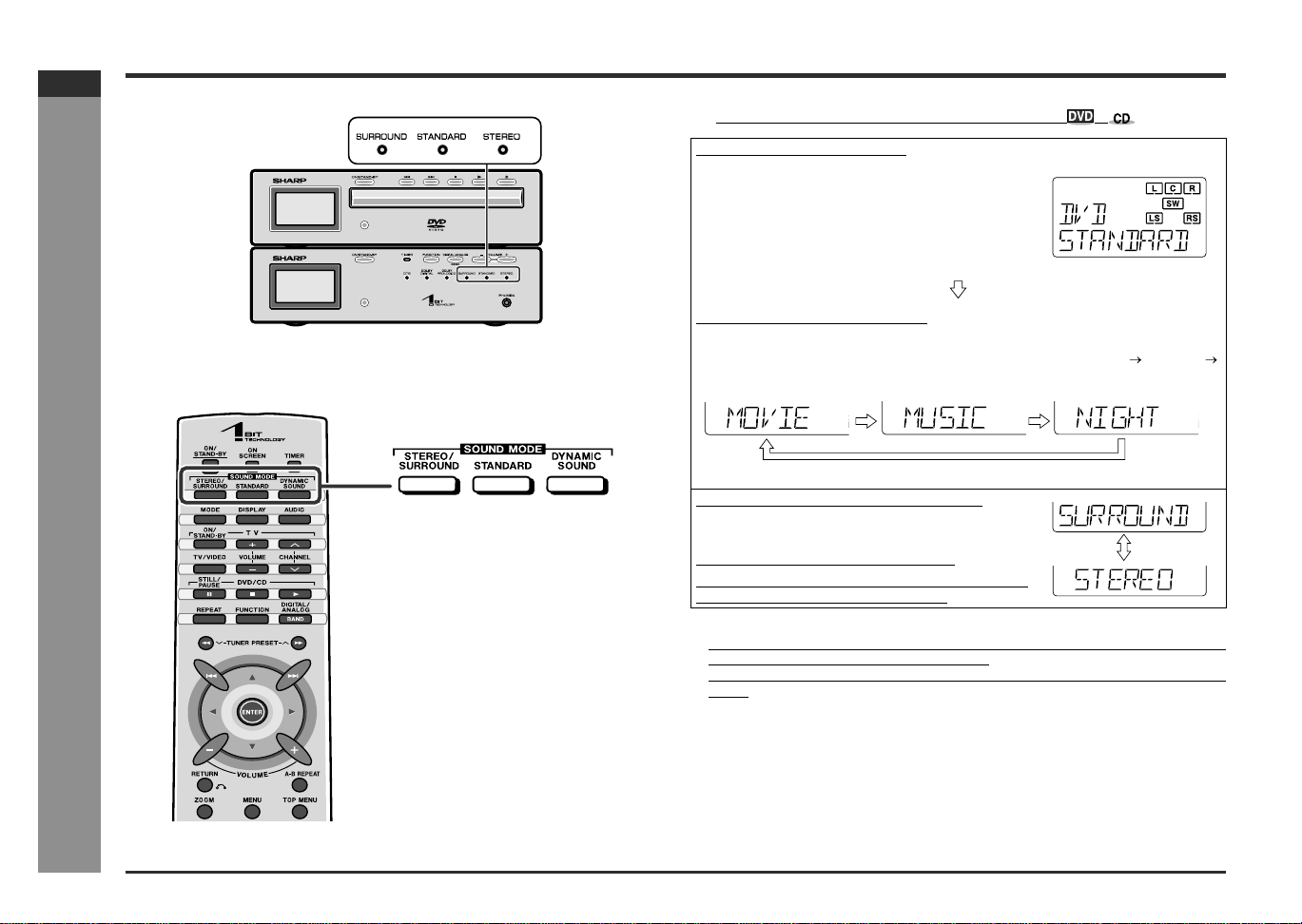
E-39
SD-AT50(U)E4.fm02/7/19
SD-AT50
ENGLISH
DX-AT50
Advanced Features
- Enjoy the surround sound (sound mode) -
Enjoy the surround sound (sound mode) (continued)
[Front]
"
Changing the sound mode
Notes:
! The sound mode is changed to "STANDARD" by pressing the DYNAMIC SOUND
button while in the stereo or surround mode.
! When the "Dolby Digital" or "DTS" indicator is lit, you cannot select the surround
mode.
! Some discs are recorded at 96kHz of sampling frequency. When this type of disc
is played, the sound mode is changed to "STEREO" automatically. The sound
mode cannot be changed during its playback.
To enjoy in standard mode:
Example: Dolby Digital 5.1ch
While the disc is playing, press the STANDARD but-
ton.
"STANDARD" will appear.
To enjoy with dynamic sound:
Press the DYNAMIC SOUND button.
Each press of this button changes the mode in the order of "MOVIE" "MUSIC"
"NIGHT".
Press the STANDARD button to restore the normal surround sound.
To enjoy in surround or stereo mode:
While the disc is playing, press the STEREO/SUR-
ROUND button.
"SURROUND" or "STEREO" will appear.
Each time you press the button, the display switches
between "SURROUND" and "STEREO.
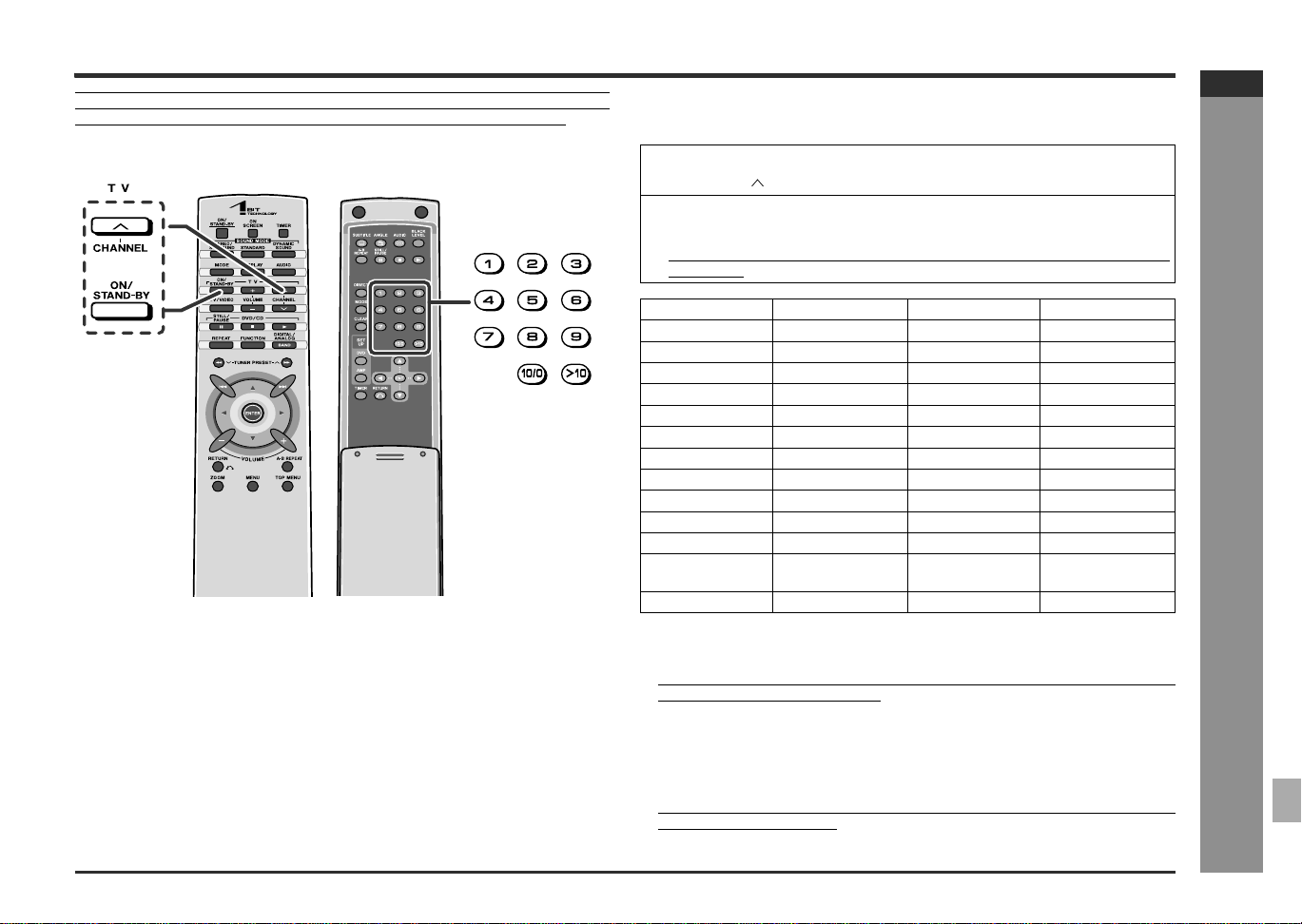
E-40
SD-AT50(U)E4.fm02/7/19
SD-AT50
ENGLISH
7
DX-AT50
Advanced Features
- Changing the registration in the remote control -
Changing the registration in the remote control
Sharp's TVs can be operated with the remote control of this system without register-
ing the operation (except for some models). (See page 47.) You can also operate
TVs of other manufacturers by changing the registration in the remote control.
" Changing the TV registration
Use buttons on both sides of the remote control.
Notes:
! As for manufacturers with 2 or more setting numbers, select one of those numbers
with which you can operate the TV.
! The number will not be set unless the registration is completed within 30 seconds.
In that case, try registration again.
! Once you set a number, the number previously memorized will be canceled.
! After replacing the batteries in the remote control, the registered number may
automatically be set to 01 (SHARP). If it occurs, register the desired number
again.
! Registration cannot be executed depending on TVs. Even if numbers can be set,
some buttons may not work.
[Front] [Back]
1
While holding down the TV ON/STAND-BY button, press the TV
CHANNEL button.
2 Enter the manufacturer setting number (2 digits) with the direct
buttons (0 - 9) and press the TV ON/STAND-BY button.
The setting is registered and the TV can be operated with the remote control of
this system.
TV manufacturer Setting number TV manufacturer Setting number
SHARP 01(*), 02 EMERSON 37, 38, 39, 40
PANASONIC 03, 04, 05 FISHER 23
JVC 06, 07, 08 GE 41, 42
SONY 09 GOLDSTAR 43
MITSUBISHI 10, 11, 12, 13 MAGNAVOX 44, 45
HITACHI 14, 15, 16, 17 RCA 46, 47, 48, 49
TOSHIBA 18, 19 ZENITH 50, 51
PIONEER 20 PHILIPS 52, 53
SANYO 21, 22, 23, 24 THOMSON 54
FUJITSU 25 GRUNDIG 55
AIWA 26 FERGUSON 56, 57
FUNAI 27, 28, 29, 30, 31,
32
ITT NOKIA 58, 59
SAMSUNG 33, 34, 35, 36 LOEWE 60, 61
(*): The default manufacturer number is 01 (SHARP).
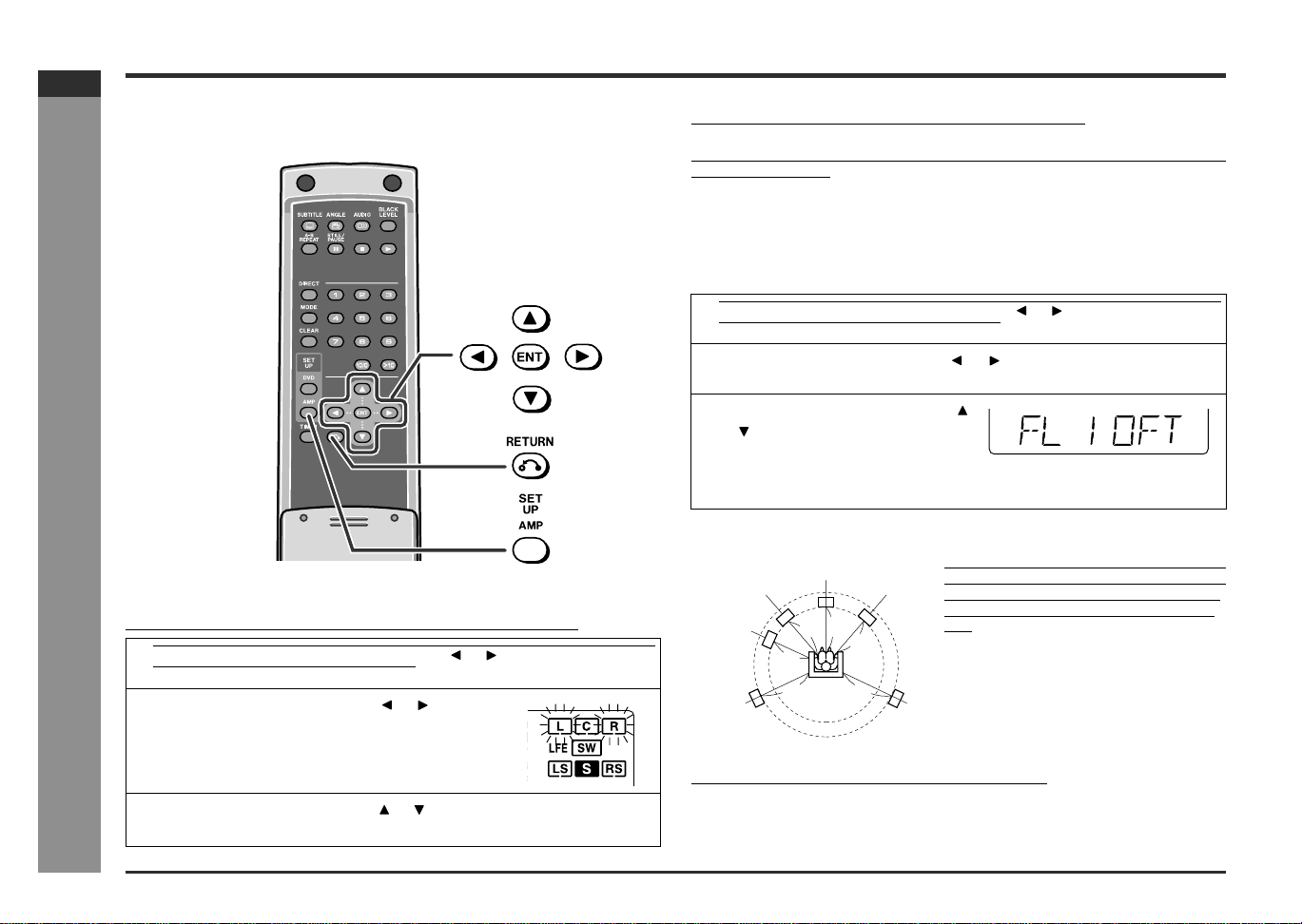
E-41
SD-AT50(U)E5.fm02/7/19
SD-AT50
ENGLISH
DX-AT50
Advanced Features
- Speaker settings -
Speaker settings
The speaker settings are not displayed on the TV screen.
[Back]
" Speaker size setting
You can change the sizes of the speakers if they are not supplied ones.
Caution:
To set the speaker size, set the sound mode to "STANDARD".
Note:
The recommended size is set for the supplied speakers. See the upper table on page
42 for other speakers.
"
Speaker delay setting
When some of the speakers are at a different distance from the listening point, you
can select the speaker delay to make it seem as though the speaker distances are
the same.
Measure the distance between each speaker and the listening position, and set
the speaker delay.
Note:
See the lower table on page 42 for the adjustable range.
1
Press the SETUP AMP button, and the or button to select "SP
SIZE". Then press the ENT button.
2 Within 10 seconds, press the or button to
select the desired speaker.
The indicators of selected speakers flash.
3 Within 10 seconds, press the or button to select their sizes.
To set sizes of other speakers, repeat the operation from step 2.
1 Press the SETUP AMP button, and the or button to select "SP
DELAY". Then press the ENT button.
2 Within 30 seconds, press the or button to select the desired
speaker.
3
Within 30 seconds, press the
or button to select the distance
and press the ENT button.
! You can change the distance in 1 feet (0.3 m) steps.
! To set the distance of other speakers, repeat the operation from step 2.
In the left illustration, the front speakers, cen-
ter speaker, and subwoofer are positioned at
10 feet (3.3 m), and the surround speakers
are at 12 feet (4 m) from the listening posi-
tion.
FL
FR
SL
SR
SW
CT
10 feet
(3.3 m)
12 feet
(4 m)
12 feet
(4 m)
10 feet
(3.3 m)
10 feet
(3.3 m)
10 feet
(3.3 m)
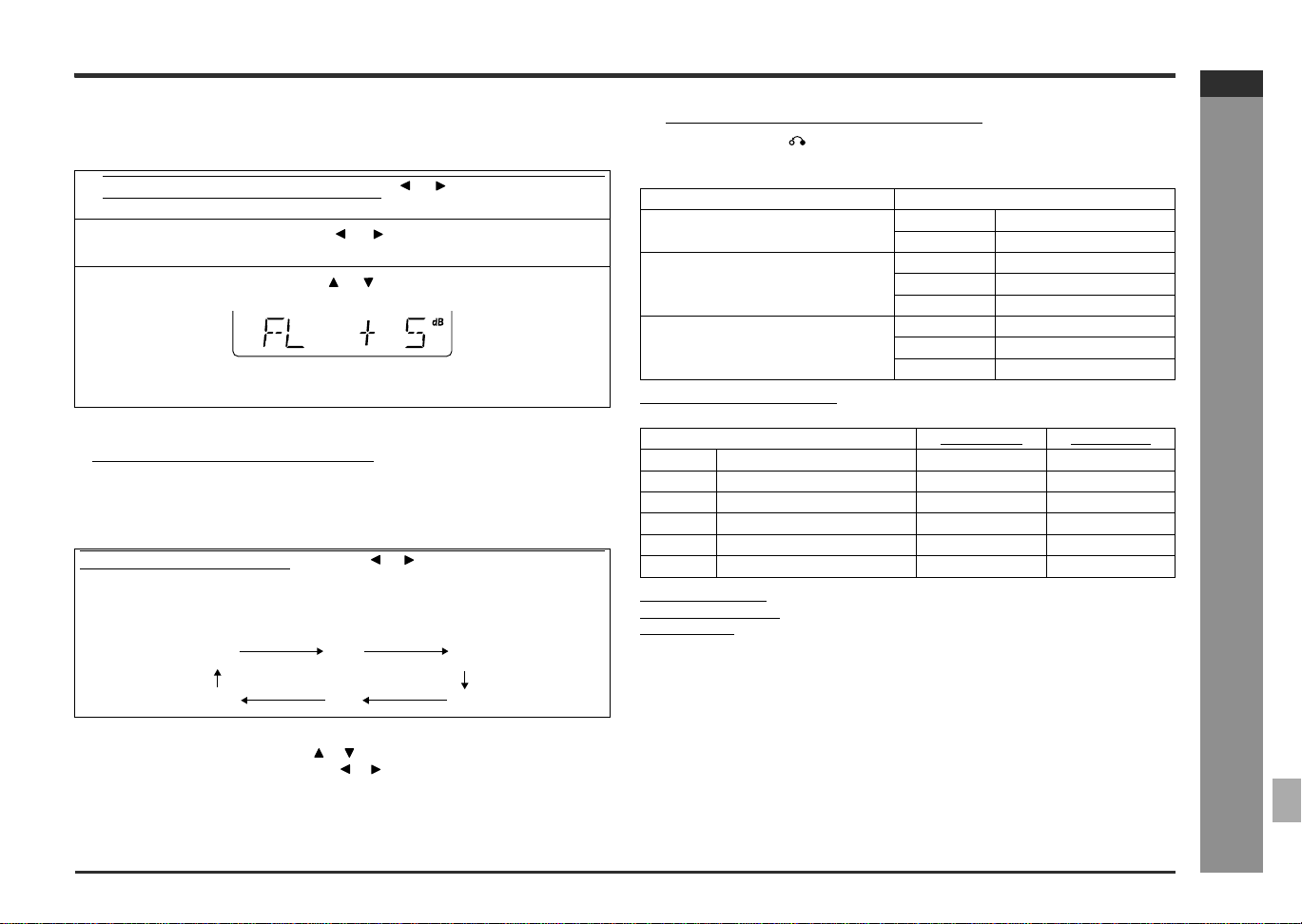
E-42
SD-AT50(U)E5.fm02/7/19
SD-AT50
ENGLISH
7
DX-AT50
Advanced Features
- Speaker settings -
"
Speaker level setting
If sounds from the speakers are uneven, you can equalize them by adjusting the
speaker levels.
Notes:
! Adjust the level of the subwoofer if the sound from it is distorted.
! See the lower table for the adjustable range.
"
Test tone
You can check the sound output from the speakers. (If the speaker levels are not
equalized, they can be adjusted, too.)
If the levels are not equal:
While the test tone sounds, press the or to adjust the level.
You can select a speaker by pressing the or button.
Note:
If NO (OFF) is selected for a speaker in the speaker size setting, no test tone will be
heard from it.
"
To end the speaker setting
Press the RETURN button twice.
(*) indicates the default setting.
Default settings:
Delay - - - 6 feet (2 m)
Level - - - 0 dB
1
Press the SETUP AMP button, and the or button to select "SP
LEVEL". Then press the ENT button.
2
Within 10 seconds, press the or button to select the desired
speaker.
3
Within 10 seconds, press the or button to adjust the level.
! You can adjust the level at 1 dB intervals.
! To adjust the levels of other speakers, repeat the operation from step 2.
Press the SETUP AMP button, and the or button to select "TONE".
Then press the ENT button.
The test tone will be heard from each speaker, in order, at about 2-second inter-
vals.
FL CT FR
SW SL SR
Speaker type Speaker size
Front speaker (Left, Right) F-LARGE Large diameter
F-SMALL * Small diameter
Center speaker C-LARGE Large diameter
C-SMALL * Small diameter
C-NO OFF
Surround speaker (Left, Right) S-LARGE Large diameter
S-SMALL * Small diameter
S-NO OFF
Speaker type Delay range
Level range
FL Front speaker (Left) 1 - 29 ft - 6 dB - + 6 dB
CT Center speaker 1 - 29 ft - 6 dB - + 6 dB
FR Front speaker (Right) 1 - 29 ft - 6 dB - + 6 dB
SL Surround speaker (Left) 1 - 29 ft - 6 dB - + 6 dB
SR Surround speaker (Right) 1 - 29 ft - 6 dB - + 6 dB
SW Subwoofer 1 - 29 ft - 10 dB - + 10 dB
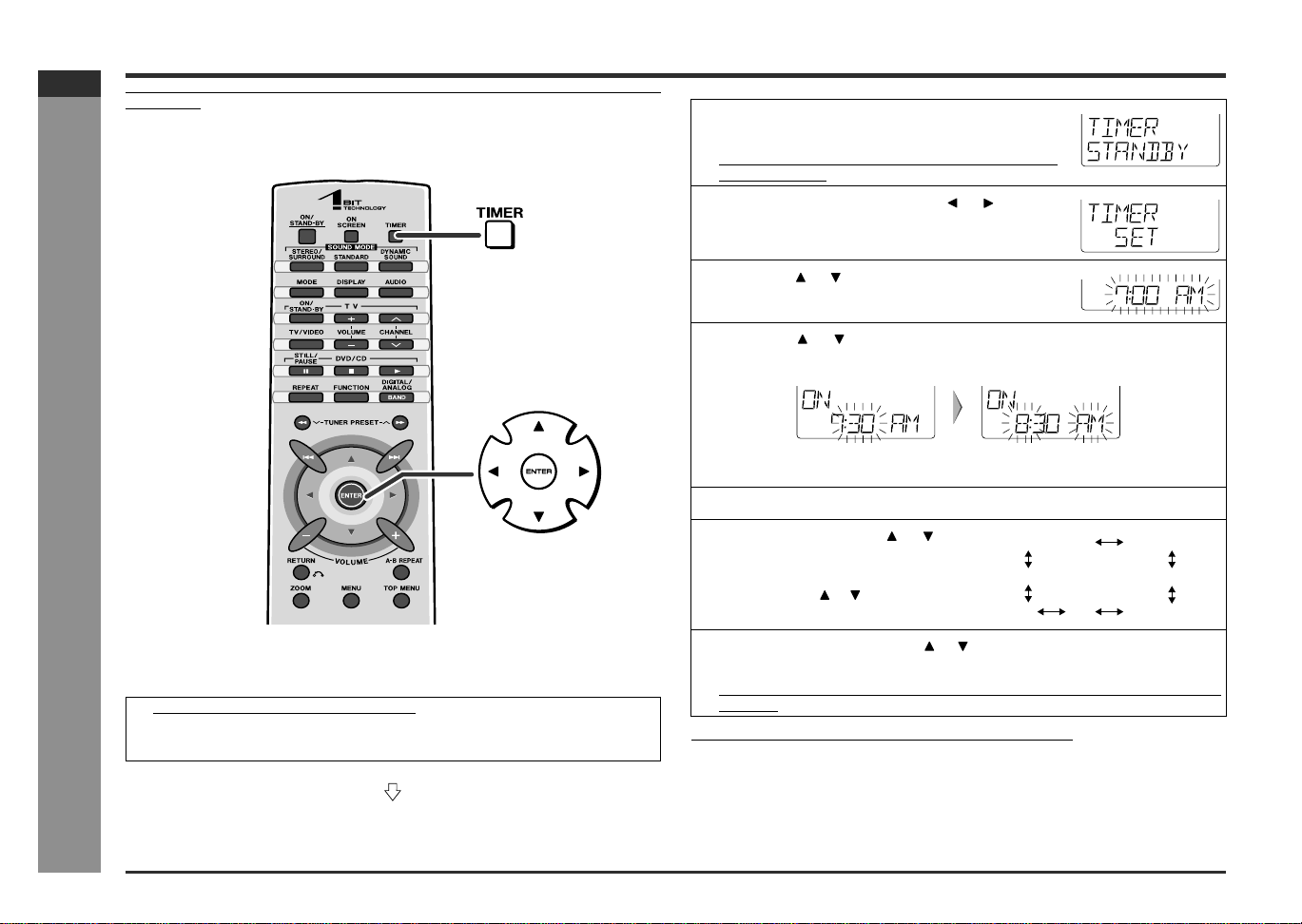
E-43
SD-AT50(U)E5.fm02/7/19
SD-AT50
ENGLISH
DX-AT50
Advanced Features
- Timer and sleep operation -
Timer and sleep operation
The system turns on and plays the desired source (DVD, CD, MP3 disc, tuner) at the
preset time.
[Front]
" Setting the timer
Before setting timer:
The timer setting indicator on the AV control unit will appear.
1 Set the AV control unit on time (page 24).
If it is not on time, you cannot use the timer function.
2 Prepare for playback and set the TV to the desired channel.
1 Turn the power on and press the TIMER but-
ton.
Set the AV control unit on time if "TIMER STANDBY"
does not appear.
2 Within 10 seconds, press the or button to
select "TIMER SET", and press the ENTER
button.
3 Press the or button to adjust the hour and
then press the ENTER button.
4 Press the or button to adjust the minutes and then press the
ENTER button.
The start time is set and the finish time (1 hour later) will be displayed automati-
cally.
5 Set the time to finish as in steps 3 and 4 above.
6 Switch input with the or button,
and then press the ENTER button.
When you select the tuner, select a station
by pressing the or button, and then
press the ENTER button.
7 Adjust the volume with the or button and press the ENTER but-
ton.
Settings are displayed in order and the AV control unit will enter the timer stand-
by mode.
DVD DIGITAL DVD ANALOG
AUX DIGITAL
AUX ANALOGTVVCR
TUNER
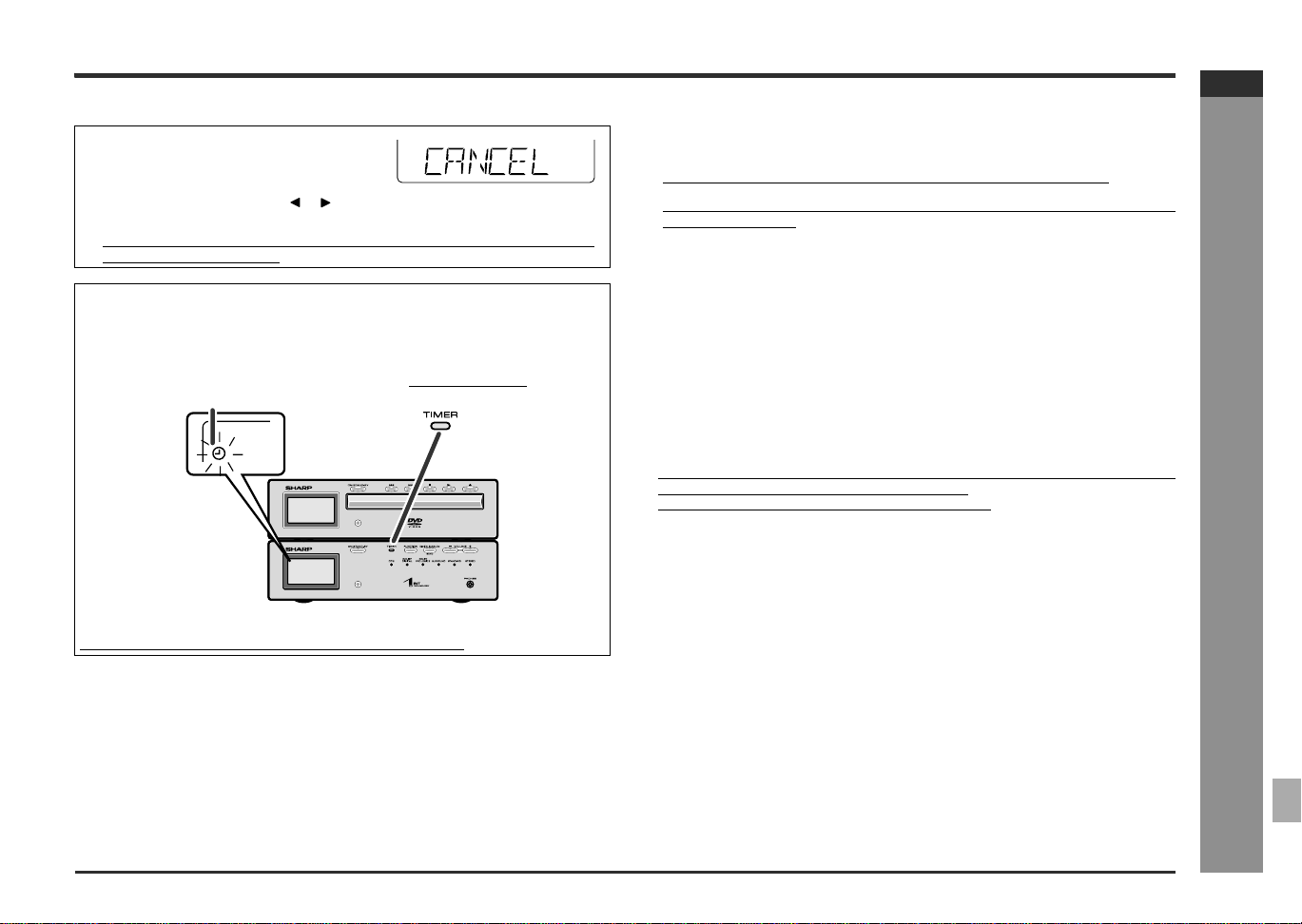
E-44
SD-AT50(U)E5.fm02/7/19
SD-AT50
ENGLISH
7
DX-AT50
Advanced Features
- Timer and sleep operation -
To check the timer setting: Reusing the memorized timer setting:
The timer setting will be memorized once it is entered. To reuse the same setting,
perform the following operations.
Changing the timer setting:
Turn the power on, and repeat the operation from step 1 in "Setting the timer" (page
43).
Canceling the timer playback:
Timer playback is canceled by turning the power on while in the timer playback
stand-by mode. The same operation can be performed in the following procedure
without turning the power on.
Caution:
! The contents of the setting will be erased if the system is unplugged or a power
failure occurs. In such cases, set the timer again.
! This system cannot set the timer of other equipment.
! When setting the timer playback using the digital tuner, TV, VCR, or the connected
equipment should be set to timer playback at the same time.
Note:
The timer operation is disabled with discs containing menus.
1 While in the timer playback stand-by mode,
press the TIMER button.
2 Within 10 seconds, press the or button to select "TIMER CALL", and press
the ENTER button.
The system returns to the timer playback stand-by mode after the setting con-
tents are displayed in order.
When the start time is reached:
Playback starts automatically and the volume increases gradually.
The timer playback indicator flashes.
Timer play indicator Timer set Indicator
When the finish time is reached:
The system is set to the power stand-by mode automatically.
1 Turn the power on and press the TIMER button.
Set the AV control unit on time if "TIMER STANDBY" does not appear.
2 Within 10 seconds, press the ENTER button.
After the setting contents are displayed in order, the system is set to the timer play-
back stand-by mode.
1 Press the TIMER button.
"TIMER CANCEL" will appear.
2 Within 10 seconds, press the ENTER button.
Timer playback will be canceled (the contents of the setting will not be canceled).
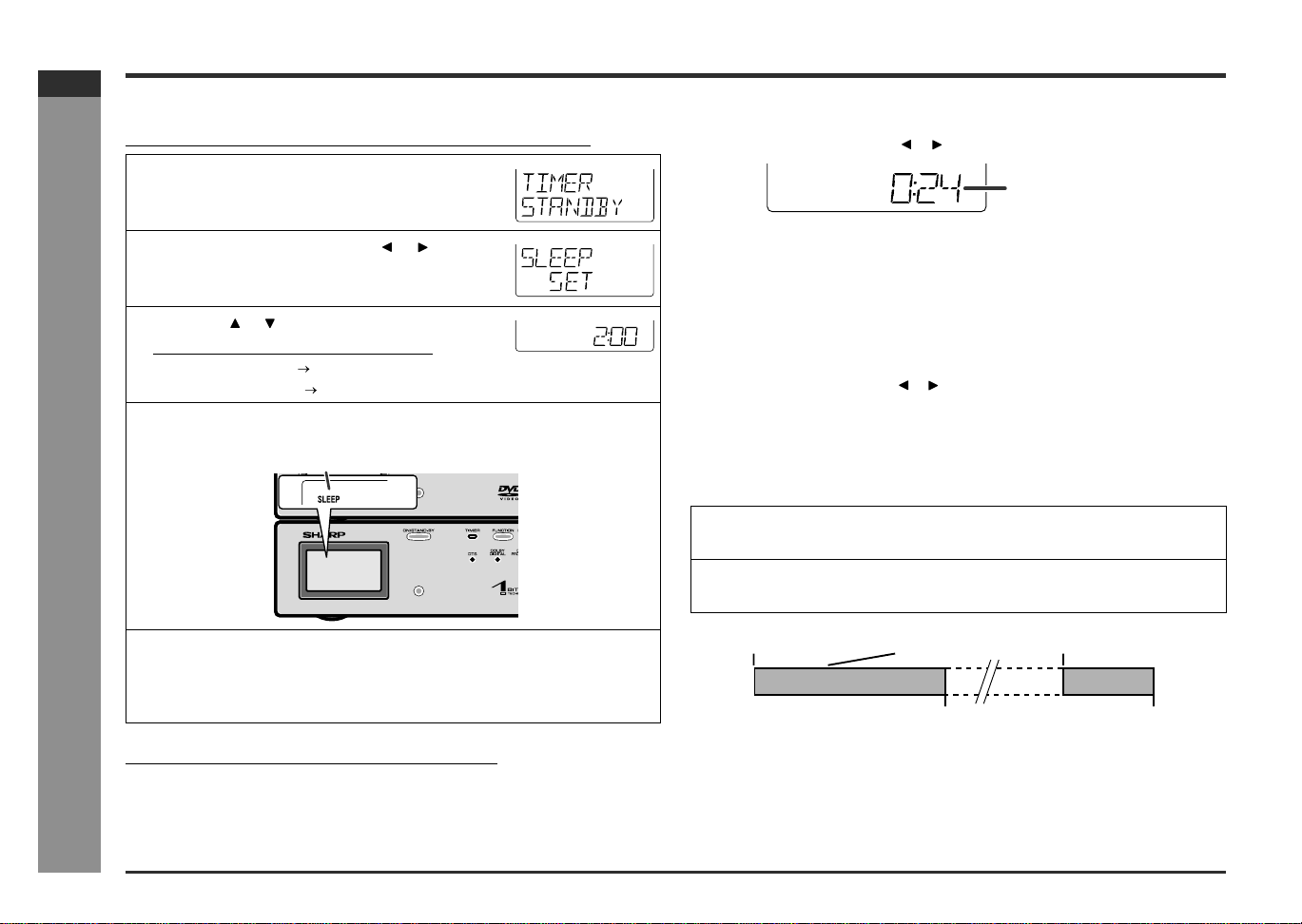
E-45
SD-AT50(U)E5.fm02/7/19
SD-AT50
ENGLISH
DX-AT50
Advanced Features
- Timer and sleep operation -
Timer and sleep operation (continued)
"
Setting the sleep timer
You can set the system to the power stand-by mode at the specified time.
Caution:
This system cannot set the sleep timer of other equipment.
When setting the sleep timer using the digital tuner, TV, or VCR, the connected
equipment should be set to sleep timer at the same time.
To confirm the remaining sleep time:
! The remaining sleep time is displayed for about 10 seconds.
! You can change the remaining sleep time while it is displayed by pressing the
ENTER button (steps 3 - 4).
To cancel the sleep operation:
Sleep operation is canceled by turning the power on while "SLEEP" is indicated. The
same operation can be performed in the following procedure without turning the
power on.
"
To use timer and sleep operation together
You can fall asleep and wake up to the same CD.
1 While the disc is playing, press the TIMER but-
ton.
2 Within 10 seconds, press the or button to
select "SLEEP SET", and press the ENTER
button.
3
Press the or button to select set the time.
(Maximum: 2 hours - Minimum: 1 minute)
! 2 hours - 5 minutes 5-minute intervals
! 5 minutes - 1 minute 1-minute intervals
4
Press the ENTER button.
The sleep timer indicator lights up and playback begins.
5 Your system will enter the power stand-by mode automatically af-
ter the preset time has elapsed.
The volume will be turned down 1 minute before the sleep operation finishes.
You cannot change the volume.
1 While "SLEEP" is indicated, press the TIMER button.
2 Within 10 seconds, press the or button to select "SLEEP".
1 Press the TIMER button.
2 Within 10 seconds, press the or button to select "SLEEP OFF", and press the
ENTER button.
1 Set the sleep timer (steps 1 - 4).
Sleep operation starts.
2 Set the timer playback.
(Setting the timer on page 43, steps 1 - 7)
Remaining sleep time
Sleep timer setting Timer playback setting Timer playback start
Finish timeSleep operation will
automatically stop
Desired time1minute - 2hours
1 minute - 2 hours
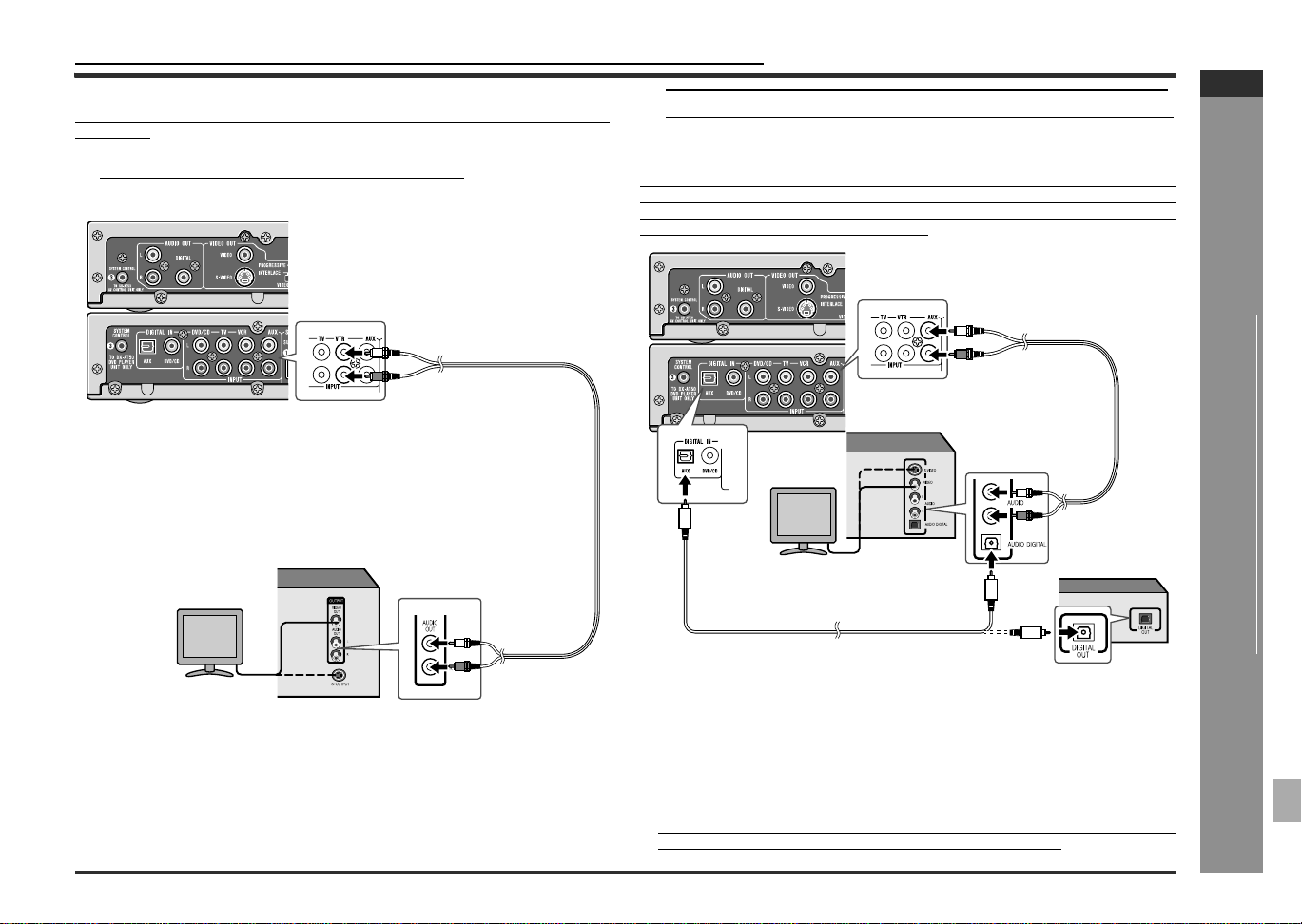
E-46
SD-AT50(U)E5.fm02/7/19
SD-AT50
ENGLISH
7
DX-AT50
Advanced Features
- Audio connection of other equipment -
Audio connection of other equipment
You can hear the sound of other equipment via this product.Connect VCR or digital
tuner to TV directly to receive the images (refer to the operation manual of each
equipment).
" Connection for the VCR sound
Caution:
Turn off the other equipment before making this connection.
Note:
Insert the plugs fully to avoid fuzzy pictures or noise.
" Connection for the digital tuner sound (or
other optical digital equipment such as an
MD player)
The S-video cable offers you clearer images. You can hear the sound by connecting
one of the audio cable or optical digital cable. If you are using the digital tuner with
the optical output jack, you can enjoy better sound by connecting the tuner to the
optical digital input jack of the AV control unit.
Caution:
Turn off the other equipment before making this connection.
Notes:
! Change the audio between analog and digital with the DIGITAL/ANALOG button.
(page 47)
! Insert the plugs fully to avoid fuzzy pictures or noise.
! When connecting with an optical digital cable, set the digital output of the digital
tuner to PCM. Refer to the operation manual of the digital tuner.
TV
VCR
To audio
output jacks
To audio
input jacks
Audio cable
(commercially available)
To optical digital audio
input jack
Digital tuner, etc.
To optical digital audio
output jack
To audio
output jacks
To audio
input jacks
Audio cable
(commercially available)
Optical digital cable
(option: AD-M3DC)
Digital equipment such as
an MD player
TV
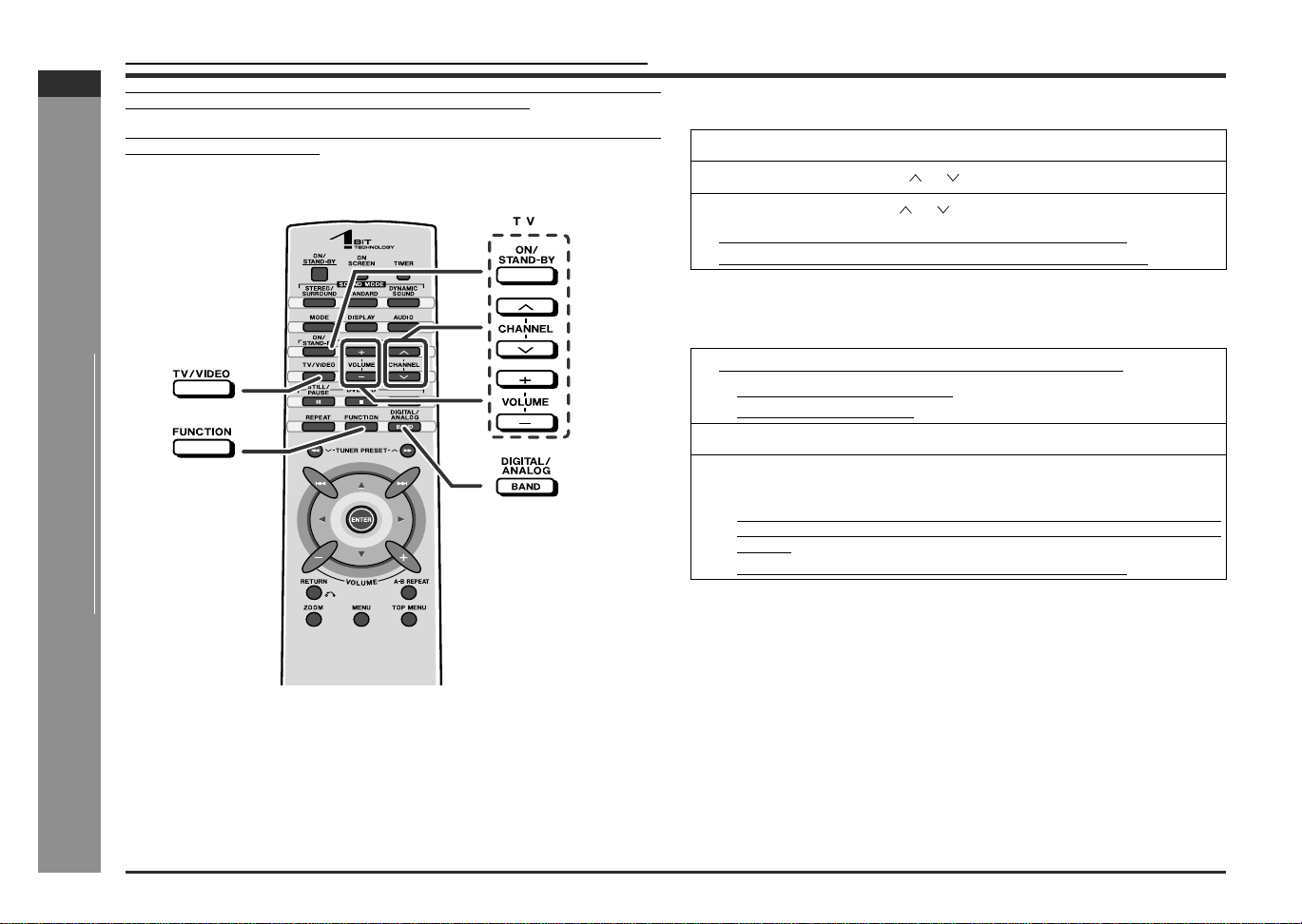
E-47
SD-AT50(U)E5.fm02/7/19
SD-AT50
ENGLISH
DX-AT50
Advanced Features
- Operating the connected TV -
Operating the connected TV
The connected TV can be operated with the remote control of this system. The fac-
tory setting allows you to operate Sharp's TVs and VCRs with it.
To operate those of other manufacturers, change the contents registered in the
remote control. (See page 40.)
[Front]
" Watching TV
" Watching digital tuner, etc.
Caution:
Some Sharp TVs and VCRs cannot be operated with this remote control.
1
Press the TV ON/STAND-BY button to turn on the TV.
2 Press the TV CHANNEL ( or ) button to set the channel.
3 Press the TV VOLUME ( or ) button to control the TV volume.
To enjoy the sound from the speakers of this system:
Turn on the system and press the FUNCTION button to select "TV".
1 Turn on the system and press the FUNCTION button.
! For the digital tuner, select "AUX".
! For the video, select "VCR".
2
Turn on the digital tuner, etc.
3 Press the TV/VIDEO button, and set the TV to VIDEO 1, VIDEO 2,
etc.
! When you watch a digital television, press the DIGITAL/ANALOG button and
select "AUX ANALOG" or "AUX DIGITAL" depending on the connected input
terminal.
! When you see a video, press the playback button of the VCR.
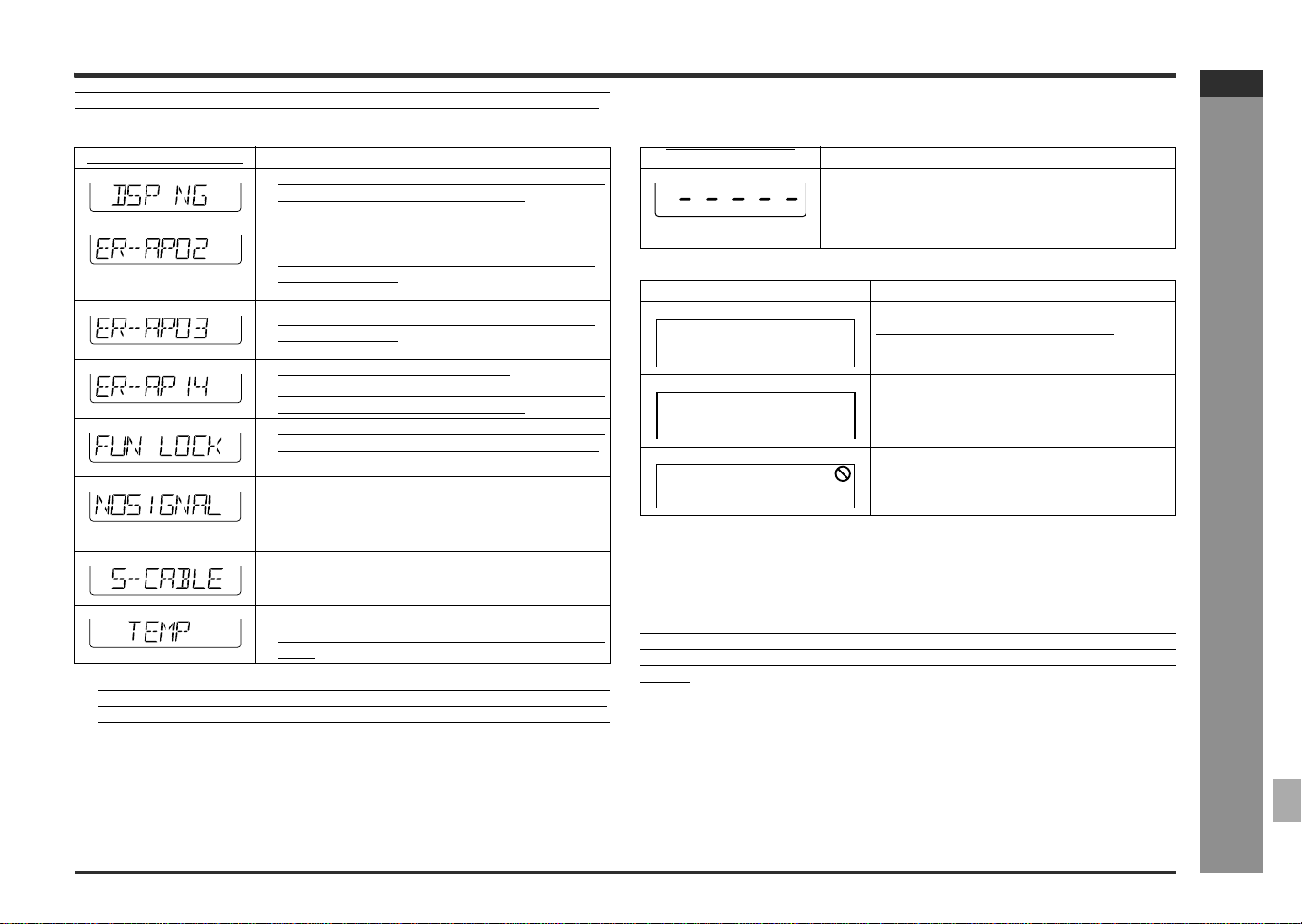
E-48
SD-AT50(U)E5.fm02/7/19
SD-AT50
ENGLISH
7
DX-AT50
References
- Error indicators and warnings -
Error indicators and warnings
When you load an unplayable disc or fail to perform operations properly, the following
messages are displayed on the AV control unit, the DVD player and the TV screen.
"
Condensation
Sudden temperature changes, storage or operation in an extremely humid environ-
ment may cause condensation inside the cabinet (laser pickup, etc.) or on the trans-
mitter on the remote control.
Condensation can cause the system to malfunction. If this happens, leave the power
on with no disc in the DVD player until normal playback is possible (about 1 hour).
Wipe off any condensation on the transmitter with a soft cloth before operating the
system.
AV control unit display Meaning
! Place the system away from noise source or plug the
AC power cords to other AC outlets. (*)
! The speaker is not connected properly.
! The amplifier is defective.
Set the system to the stand-by mode and turn the
power on again. (*)
! The amplifier is defective.
Set the system to the stand-by mode and turn the
power on again. (*)
! The subwoofer/amplifier is defective.
! Place the system away from noise source or plug the
AC power cords to other AC outlets. (*)
! The cooling fan on the back of the subwoofer/ampli-
fier does not run due to foreign objects caught in it.
Is the system unplugged?
! The digital audio input jack is not connected proper-
ly.
! Unspecified signal is received and cannot be recog-
nized.
! The system connection cable is unplugged.
! The temperature is too high.
Set the system to the stand-by mode and wait for a
while.
(*): Should the same message appear even if the DVD player and the subwoofer/am-
plifier unit are unplugged and plugged in or are set to the stand-by mode and on
again, contact your local dealer where you purchased the subwoofer/amplifier unit.
DVD player display Meaning
! The disc is not loaded.
! The disc is scratched or dirty and cannot be recog-
nized.
! The disc is loaded upside down.
TV screen Meaning
The disc cannot be played with this system or
the disc is loaded in an incorrect way.
The region number of the DVD is not "1" or
"ALL".
The disc does not support the operation de-
scribed in this operation manual.
Disc Error:
Playback feature may not be available
on this Disc.
Please eject the disc.
Region Error:
Playback is not authorized in your region.
Please eject the disc.
C
01
83/
15/
0
::23 40
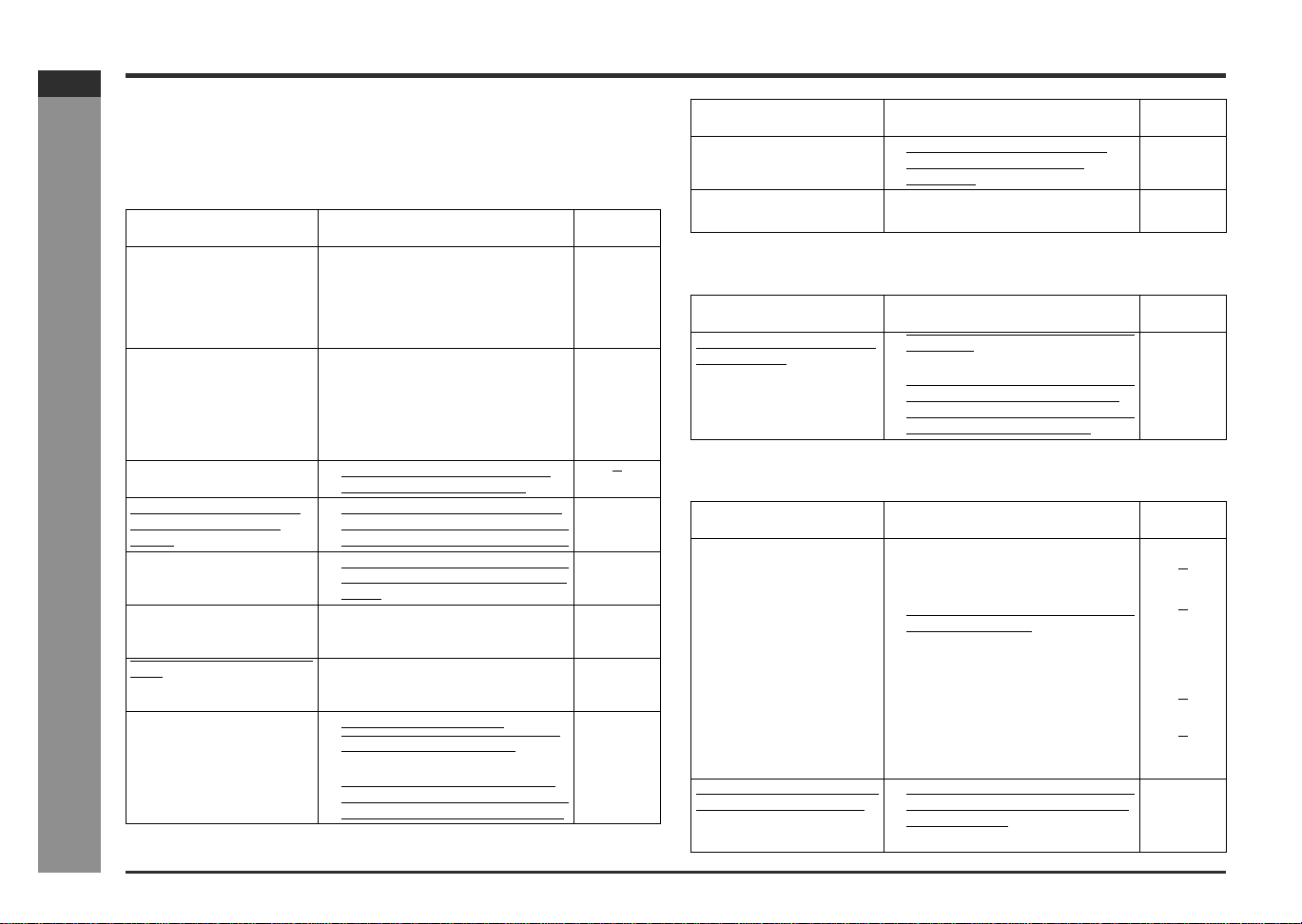
E-49
SD-AT50(U)E5.fm02/7/19
SD-AT50
ENGLISH
DX-AT50
References
- Troubleshooting chart -
Troubleshooting chart
Many potential problems can be resolved by the owner without calling a service tech-
nician.
If something is wrong with this product, check the following before calling your autho-
rized SHARP dealer or service center.
" General
" Tuner
" Remote control
Symptom Possible cause Reference
page
No sound is heard.
! Is the volume level set to "0"? P. 18
! Are the headphones connected? P. 28
! Are the speaker wires disconnect-
ed?
P. 12
! Is the speaker size set to NO (OFF)? P. 41
The sounds from speakers
are not well balanced.
! Are the speaker cords connected to
the wrong channels?
P. 12
! Is each speaker placed at the same
distance from the listener?
P. 16
! Are speakers adjusted to the same
level?
P. 42
Noise is heard during play-
back.
! Move the system away from any
computers or mobile phones.
When a button is pressed,
the system does not re-
spond.
! Set the system to the power stand-
by mode and then turn it back on. If
the system still malfunctions, reset it.
P. 50
Interference or noise occurs
on the TV image.
! Is the system placed near TV with in-
ternal antenna? Use an outdoor an-
tenna.
P. 13
Timer playback does not
start.
! Did you remove the plug from the
wall jack, or did a power failure oc-
cur?
P. 24
The display on the system is
dark.
! Hold down the DISPLAY button on
the remote control for 2 seconds or
more to select "ON".
P. 18
The power is not turned on.
! Is the system unplugged? P. 18
! Is the system connection cord (for
DVD player) disconnected?
P. 11
! The protection circuit may be acti-
vated. Unplug and plug in the power
cord again after 5 minutes or more.
P. 50
Symptom Possible cause Reference
page
The sound is not reproduced
in the Dolby Digital 5.1 ch.
! Is the initial setup screen set to
"DPCM"? Change it to "BIT-
STREAM".
P. 20
No images are displayed.
! Is TV turned on? P. 47
! Is the input of TV switched? P. 47
Symptom Possible cause Reference
page
Radio makes unusual noise
consecutively.
! Is the system placed near the TV or
computer?
P. 13
! Is the FM antenna or AM loop anten-
na placed properly? Move the an-
tenna away from the AC power cord
or the system if located near.
P. 13
Symptom Possible cause Reference
page
The remote control does not
operate properly.
! Is the battery polarity respected? P. 17
! Are the batteries dead?
! Is the distance or angle incorrect? P. 17
! Are there any obstructions in front of
the AV control unit?
! Is the remote control sensor ex-
posed to strong light (inverter fluo-
rescent light, direct sunlight, etc.)?
P. 17
! Is the remote control for another
equipment used simultaneously?
! Are buttons on the front and back
faces of the remote control pressed
simultaneously?
The system cannot be turned
on with the remote control.
! Are the AC power cords of the DVD
player and the subwoofer/amplifier
unit plugged in?
P. 18
! Are the batteries inserted? P. 17
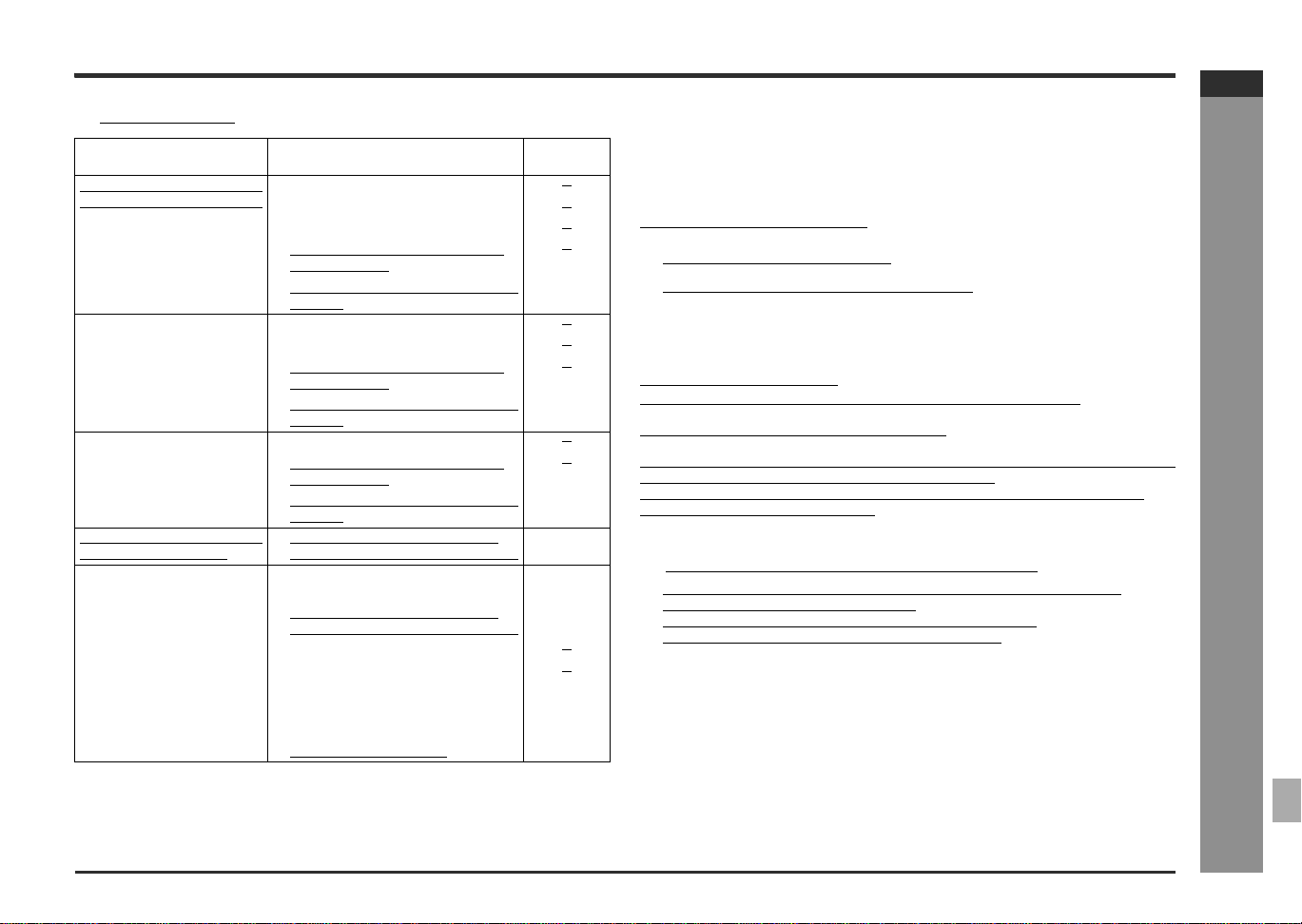
E-50
SD-AT50(U)E5.fm02/7/19
SD-AT50
ENGLISH
7
DX-AT50
References
- Troubleshooting chart -
"
DVD Player
"
If trouble occurs
When this product is subjected to strong external interference (mechanical shock,
excessive static electricity, abnormal supply voltage due to lightning, etc.) or if it is
operated incorrectly, it may malfunction.
If such a problem occurs, do the following:
Resetting the AV control unit:
Caution:
This operation will erase all data stored in memory and restore various settings to the
initial status (default).
Resetting the DVD player:
Unplug the unit and, after waiting 5 minutes or longer, plug it in again.
When the protection circuit is activated:
When short-circuiting the speaker cords or turning the volume too high, the protec-
tion circuit may be activated and the power may turn off.
Unplug the subwoofer/amplifier unit and plug it in again after 5 minutes or more.
Turn down the volume if set too high.
"
Before transporting the system
1 Press the ON/STAND-BY button of the DVD player to turn the power on.
2 Open the disc tray and remove the disc.
3 Close the disc tray and enter the system to stand-by mode.
4 After the power indicator goes off, unplug the system.
Symptom Possible cause Reference
page
Even though a disc has been
loaded, "- - - - - " is displayed.
! Is the disc loaded upside down?
! Is the disc very dirty?
Playback sounds are
skipped.
! Does the disc satisfy the standards?
! Is the system located near exces-
sive vibrations?
! Has condensation formed inside the
system?
P. 48
The control buttons do not
function. Music or video play-
back is interrupted.
! Is the disc very dirty?
! Does the disc satisfy the standards?
! Is the system located near exces-
sive vibrations?
! Has condensation formed inside the
system?
P. 48
Pictures and sound are
skipped.
! Is the disc very dirty?
! Is the system located near exces-
sive vibrations?
! Has condensation formed inside the
system?
P. 48
The system does not operate
even if the power is on.
! Is a disc other than DVD (region
number 1 or ALL), audio CD loaded?
P. 5
Image cannot be played
back. (Sound is not heard.)
! Are the video and audio cables con-
nected improperly?
P. 11 - 15
! Is a disc other than DVD (region
number 1 or ALL), audio CD loaded?
P. 5
! Is the disc very dirty?
! Is the disc loaded upside down?
! Clean the optical pickup if it is dirty. P. 51
! Is the TV input set to "VIDEO 1/VID-
EO 2" etc.?
P. 47
! Is the system turned on? P. 18
1 Unplug the subwoofer/amplifier unit.
2 While holding down the ON/STAND-BY button, plug in the AC power cord.
At this time, the component will not be turned on.
3 Press the ON/STAND-BY button again to turn the power on.
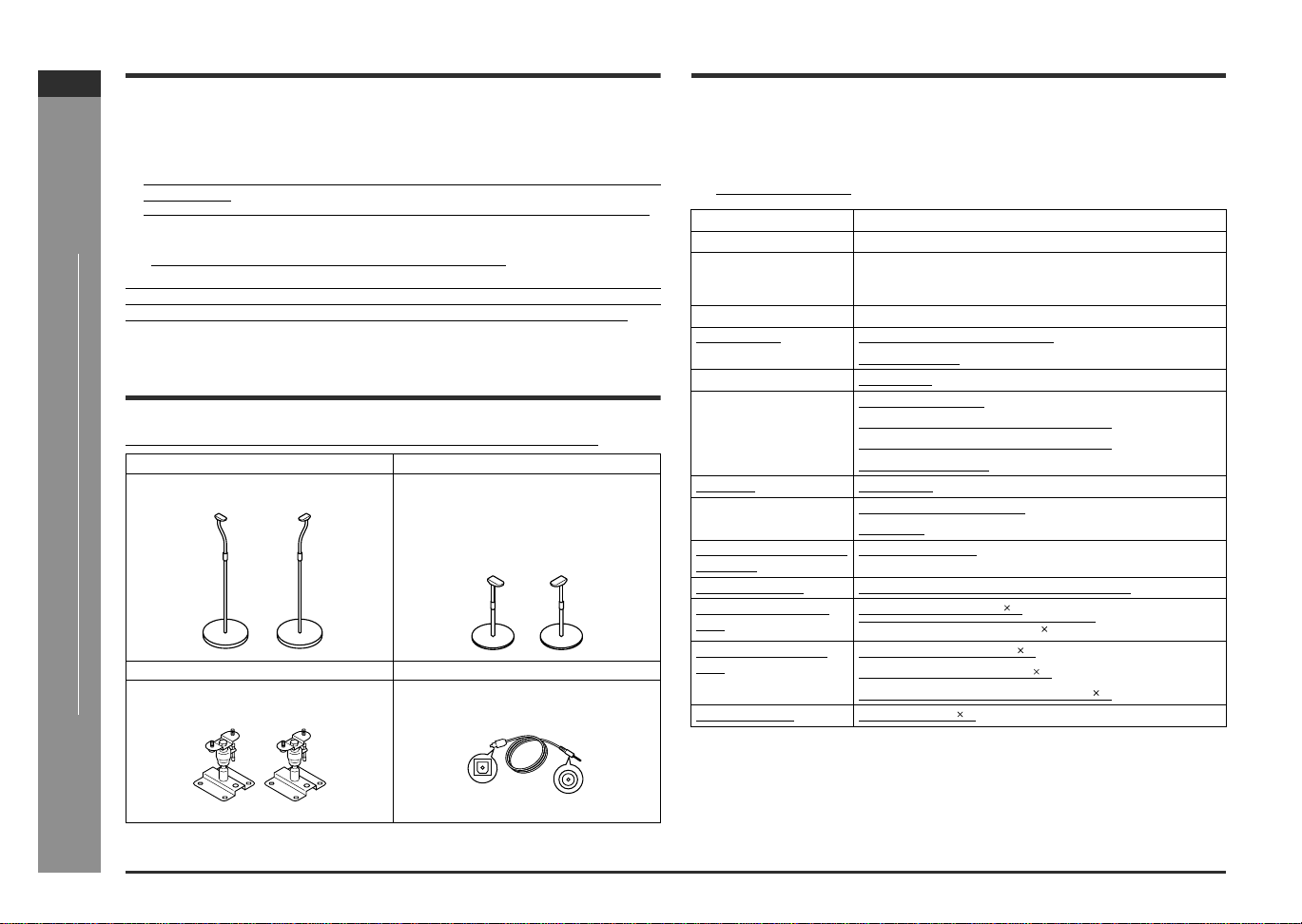
E-51
SD-AT50(U)E5.fm02/7/19
SD-AT50
ENGLISH
DX-AT50
References
- Maintenance / Optional accessories / Specifications -
Maintenance
" Cleaning the cabinet
"
Cleaning the DVD pickup lens
In order to ensure proper operation of the DVD player, preventative maintenance
(cleaning of the laser pickup lens) should be performed periodically. Lens cleaners
are commercially available. Contact your local DVD software dealer for options.
Optional accessories
Use only the specified optional accessories to operate this product properly.
For speaker installation, read instructions supplied with stands or brackets.
The appearance of optional accessories may differ from the illustrations above.
Specifications
As part of our policy of continuous improvement, SHARP reserves the right to make
design and specification changes for product improvement without prior notice. The
performance specification figures indicated are nominal values of production units.
There may be some deviations from these values in individual units.
" DVD Player
Periodically wipe the cabinet with a soft cloth and a diluted soap solution, then with a
dry cloth.
! Do not use chemicals for cleaning (gasoline, paint thinner, etc.). It may damage the
cabinet finish.
! Do not apply oil to the inside of the each component. It may cause malfunctions.
FLOOR SPEAKER STAND TABLE SPEAKER STAND
Model: AD-AT10ST Model: AD-AT10LS
SPEAKER WALL BRACKET OPTICAL DIGITAL CABLE
Model: AD-AT10SA Model: AD-M1DC
Power source AC 120 V, 60 Hz
Power consumption 17 W
Dimensions Width: 8-1/2" (215 mm)
Height: 2-5/16" (58 mm)
Depth: 10-1/8" (257 mm)
Weight 4.4 lbs. (2.0 kg)
Video signal
Horizontal resolution: 500 lines
S/N ratio: 60 dB
Signal system NTSC color
Frequency response DVD (linear sound):
20 Hz to 22 kHz (sampling rate: 48 kHz)
20 Hz to 44 kHz (sampling rate: 96 kHz)
CD: 20 Hz to 20 kHz
S/N ratio CD: 110 dB
Dynamic range DVD (linear sound): 95 dB
CD: 94 dB
Total harmonic distor-
tion ratio
0.007 % maximum
Wow and flutter Unmeasurable (less than 0.001% W. peak)
Audio output termi-
nals
Digital output (coaxial) 1
Analogue output (RCA type) 2 (L/R)
Video output termi-
nals
Video output (RCA type) 1
S-video output (S-terminal) 1
Component video output (RCA type) 3
Other terminal System control 1
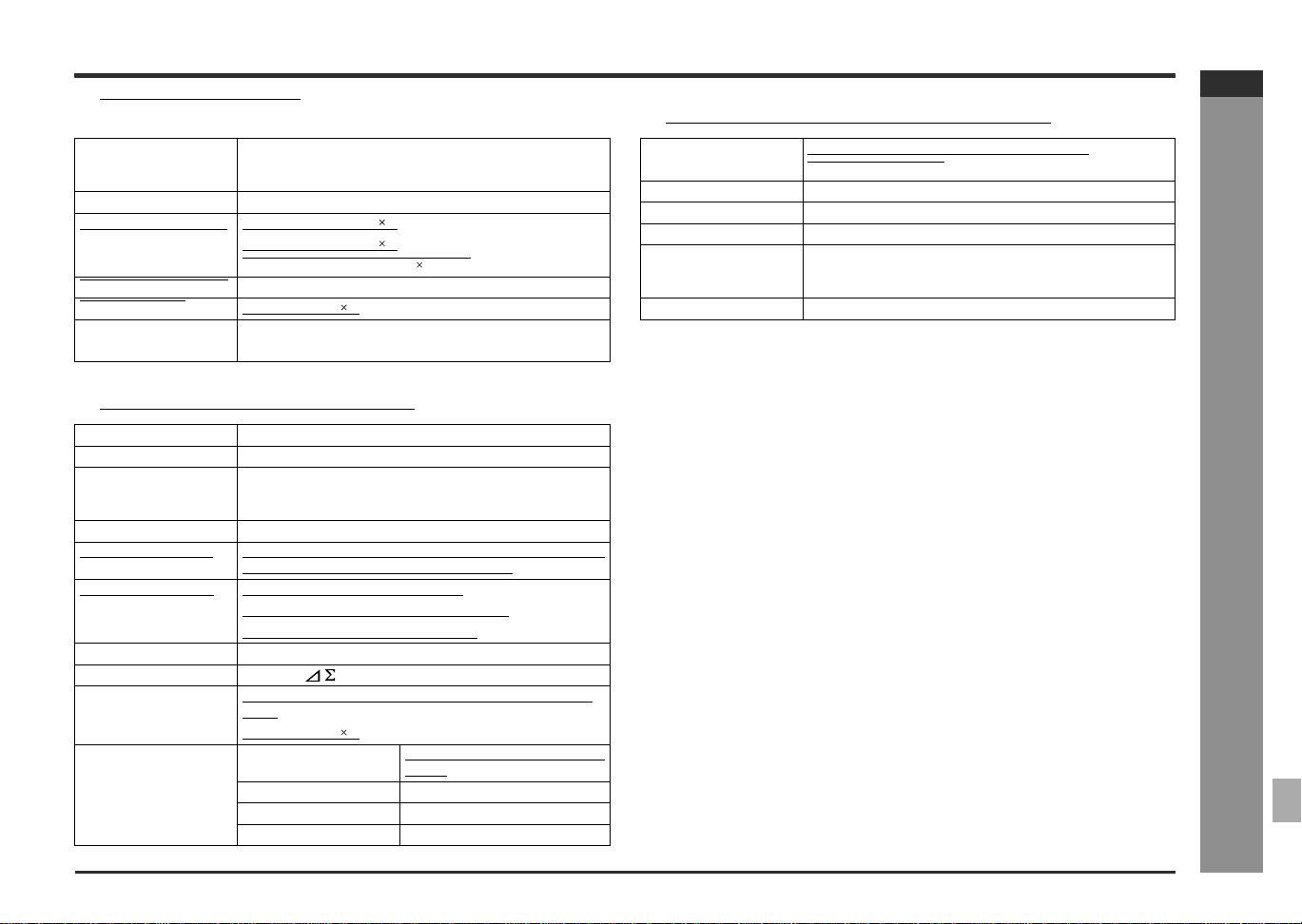
E-52
SD-AT50(U)E5.fm02/7/19
SD-AT50
ENGLISH
7
DX-AT50
References
- Specifications -
"
AV Control Unit
"
Subwoofer/Amplifier Unit
"
Front/Center/Surround speakers
Dimensions Width: 8-1/2" (215 mm)
Height: 2-5/16" (58 mm)
Depth: 10-5/16" (261 mm)
Weight 2.9 lbs. (1.3 kg)
Audio input terminals
Digital input (Optical) 1
Digital input (coaxial) 1
Analogue input (RCA type) 8 (L/R)
Audio output terminal Headphones: 16 - 50 ohms (recommended: 32 ohms)
Other terminals
System control 3
Frequency range FM: 87.5 - 108 MHz
AM: 530 - 1,720 kHz
Power source AC 120 V, 60 Hz
Power consumption 80 W
Dimensions Width: 10-1/4" (260 mm)
Height: 14-11/16" (373 mm)
Depth: 16-5/8" (421 mm)
Weight 21.8 lbs. (9.9 kg)
Power output (FTC)
40 watts minimum RMS per channel into 4 ohms from 20
Hz to 20 kHz, 1 % total harmonic distortion
Rated power output Front: 50 W + 50 W, Center: 50 W,
Surround: 50 W + 50 W (4 ohms at 1 kHz)
Subwoofer: 50 W (4 ohms at 100 Hz)
Amplification system 64fs 1-bit switching (Remarks: fs = 44.1 kHz)
A/D noise shaping 7th-order (delta - sigma) modulation
Terminals Front speakers, Center speaker, Surround speakers: 4
ohms
System control 2
Subwoofer Type 4-3/4" (12 cm) woofer (Magnetic
shield)
Maximum input power 100 W
Rated input power 50 W
Impedance 4 ohms
Type Full range speaker system (Magnetic shield)
3-1/8" (8 cm) speaker
Maximum input power 100 W
Rated input power 50 W
Impedance 4 ohms
Dimensions Width: 3-3/4" (95 mm)
Height: 4-1/2" (114 mm)
Depth: 4-1/8" (104 mm)
Weight 1.5 lbs. (0.7 kg)/each
PRINTED IN MALAYSIA
IMPRIMÉ EN MALAISIE
TINSK0142AWZZ
02G R HK 1
SD-AT50 1 Bit Digital Home Theater
DX-AT50 DVD Player
SHARP ELECTRONICS CORPORATION
Sharp Plaza, Mahwah, New Jersey 07430-2135
SHARP CORPORATION
9906
CONSUMER LIMITED WARRANTY
SHARP ELECTRONICS CORPORATION warrants to the first consumer purchaser that this Sharp brand product (the “Product”), when shipped in its original container, will be free from
defective workmanship and materials, and agrees that it will, at its option, either repair the defect or replace the defective Product or part thereof with a new or remanufactured equivalent
at no charge to the purchaser for parts or labor for the period(s) set forth below.
This warranty does not apply to any appearance items of the Product nor to the additional excluded item(s) set forth below nor to any Product the exterior of which has been damaged or
defaced, which has been subjected to improper voltage or other misuse, abnormal service or handling, or which has been altered or modified in design or construction.
In order to enforce the rights under this limited warranty, the purchaser should follow the steps set forth below and provide proof of purchase to the servicer.
The limited warranty described herein is in addition to whatever implied warranties may be granted to purchasers by law. ALL IMPLIED WARRANTIES INCLUDING THE WARRANTIES OF
MERCHANTABILITY AND FITNESS FOR USE ARE LIMITED TO THE PERIOD(S) FROM THE DATE OF PURCHASE SET FORTH BELOW. Some states do not allow limitations on how
long an implied warranty lasts, so the above limitation may not apply to you.
Neither the sales personnel of the seller nor any other person is authorized to make any warranties other than those described herein, or to extend the duration of any warranties beyond
the time period described herein on behalf of Sharp.
The warranties described herein shall be the sole and exclusive warranties granted by Sharp and shall be the sole and exclusive remedy available to the purchaser. Correction of defects,
in the manner and for the period of time described herein, shall constitute complete fulfillment of all liabilities and responsibilities of Sharp to the purchaser with respect to the Product, and
shall constitute full satisfaction of all claims, whether based on contract, negligence, strict liability or otherwise. In no event shall Sharp be liable, or in any way responsible, for any damages
or defects in the Product which were caused by repairs or attempted repairs performed by anyone other than an authorized servicer. Nor shall Sharp be liable or in any way responsible for
any incidental or consequential economic or property damage. Some states do not allow the exclusion of incidental or consequential damages, so the above exclusion may not apply to you.
THIS WARRANTY GIVES YOU SPECIFIC LEGAL RIGHTS. YOU MAY ALSO HAVE OTHER RIGHTS WHICH VARY FROM STATE TO STATE.
Model Specific Section
Your Product Model Number & Description:
(Be sure to have this information available when you need service for your Product.)
Warranty Period for this Product: One (1) year parts and labor from the date of purchase.
Additional Item(s) Excluded from Warranty Coverage (if any): Non-functional accessories, supplies, and consumable items.
Where to Obtain Service: At a Sharp Authorized Servicer located in the United States.
To find a location of the nearest Sharp Authorized Servicer, call Sharp toll free at 1-800-BE-SHARP.
What to do to Obtain Service: Ship prepaid or carry in your Product to a Sharp Authorized Servicer.
Be sure to have Proof of Purchase available. If you ship the Product, be sure it is insured and packaged
securely.
TO OBTAIN SUPPLY, ACCESSORY OR PRODUCT INFORMATION, CALL 1-800-BE-SHARP.
0207
VALID IN U.S.A. ONLY
SDAT50U_BACK 02.7.23, 11:531