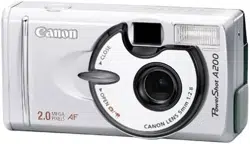
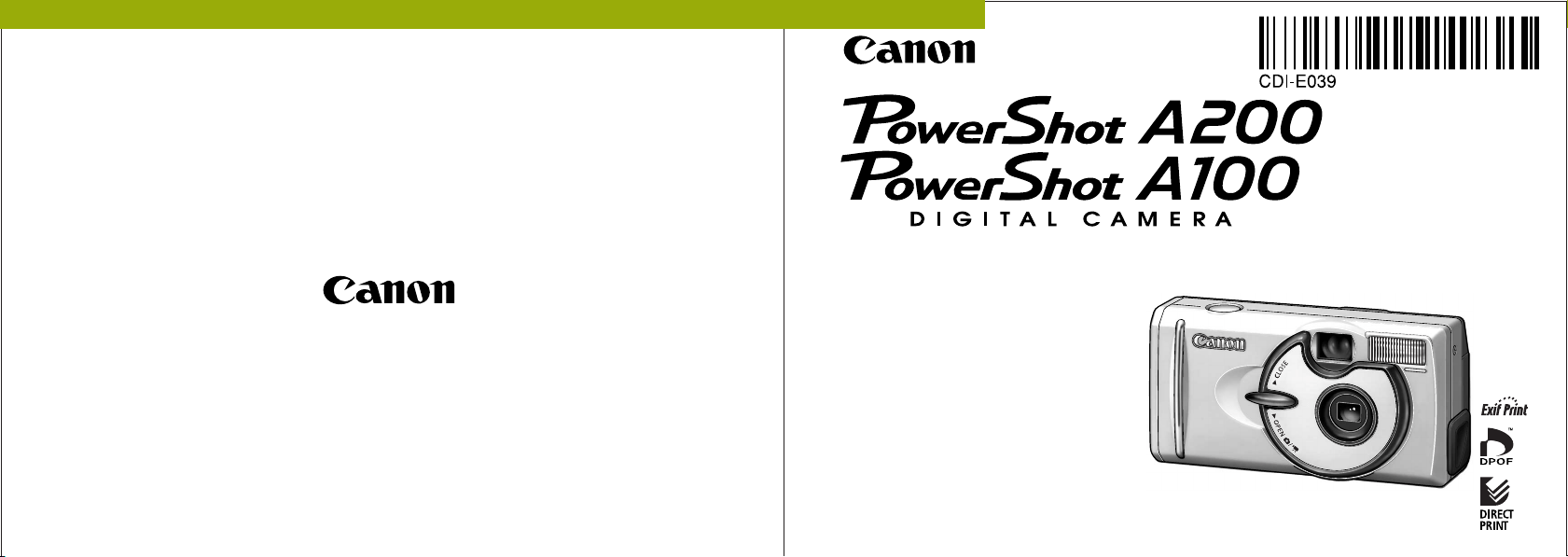
Camera User Guide
This guide covers both the PowerShot A200 and PowerShot A100 digital cameras.
• Please read the "Read this First" section (p.11).
• Please refer to the "Software Starter Guide" for
information on installing the software and
downloading images.
• Please read the "Quick Start" section on the
following page for a simple explanation of
shooting, replaying and erasing.
• Please also read the "Printer User Guide"
included with your Canon printer.
ENGLISH
CDI-E039-010 2002 CANON INC. PRINTED IN MALAYSIA
32
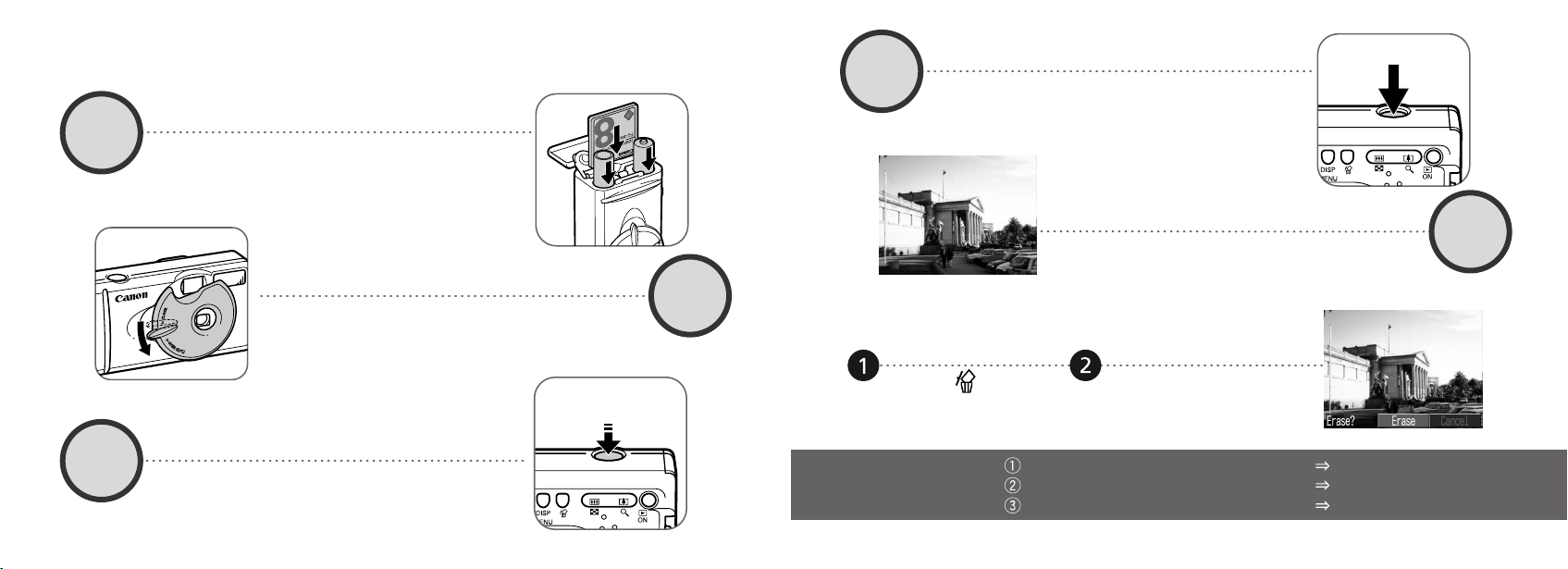
When you have finished
shooting photos
Installing the software Software Starter Guide
Connecting the camera to a computer This guide
Downloading images to a computer Software Starter Guide
Shoot the image (p. 34)
Press the shutter button all the way down. The
camera beeps once when the image is shot.
View the image
The recorded image will be displayed for approxi-
mately 3 seconds (p. 35). Refer to [Replaying] sec-
tion (p. 59) for viewing other images already shot.
Press the button
while the image is
displayed.
Confirm that [Erase] is
selected and press
the SET button.
To erase
4
5
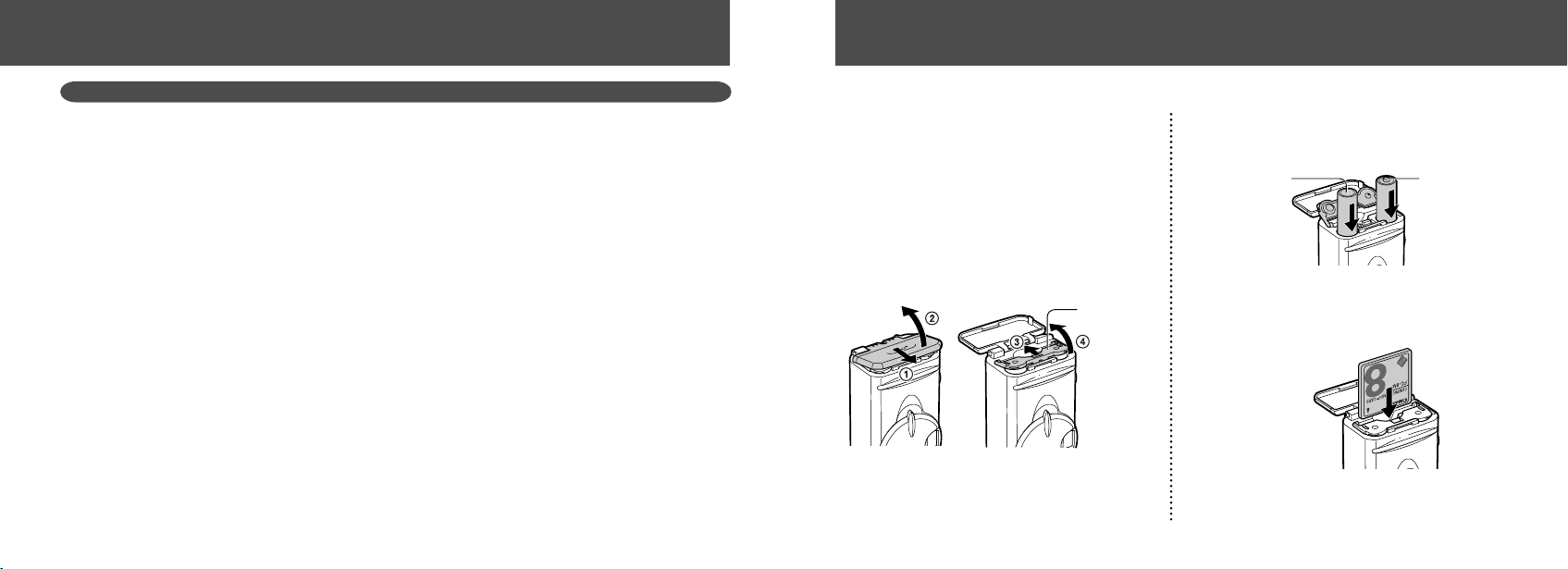
Open the CF card slot / battery cover and insert a
CF card and batteries.
Aim the camera at the subject, and lightly press
the shutter button half way. The camera beeps
twice when it is focused.
Set the focus
(p. 34)
The green indicator next to the optical viewfinder starts
flashing green.
•
When the date / time set up menu are displayed, refer to page 24.
• For information about how to change
the language, see “Setting the
Language”
(p. 25)
.
1
2
3
(p. 27)
(p. 19)
Open the lens cover to turn the power on
Install the batteries and CF card
Quick Start
54
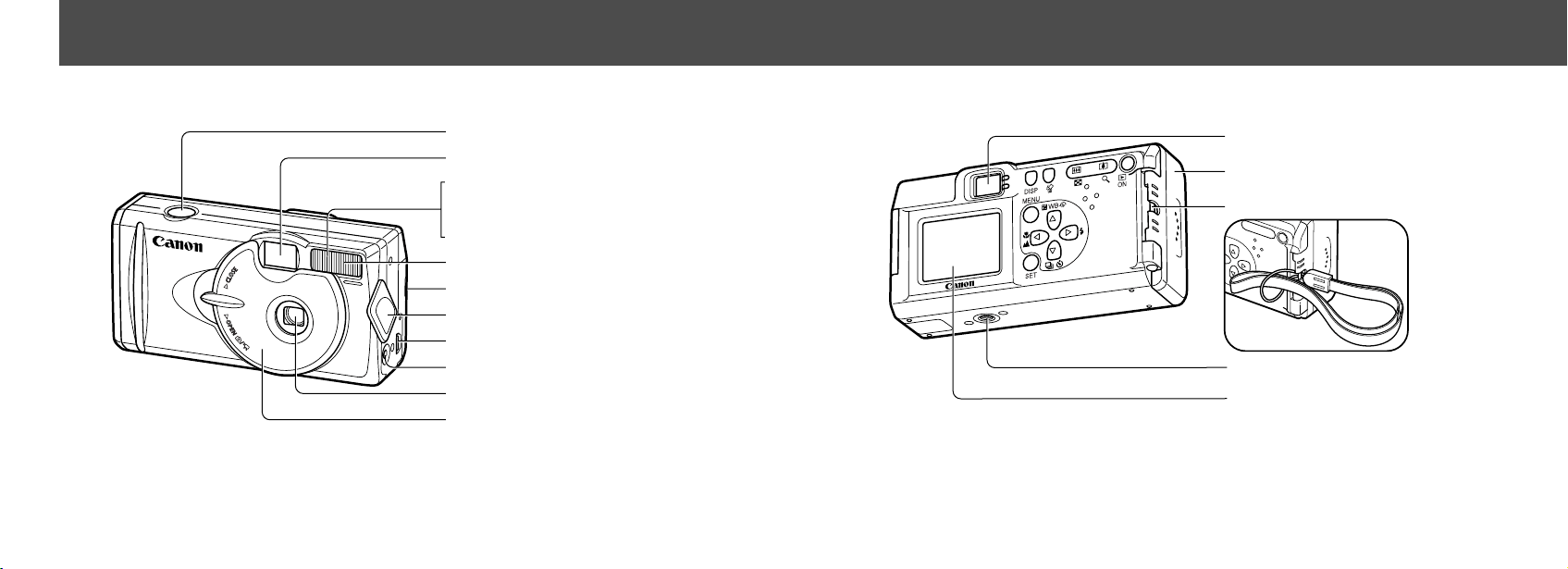
Back View
Viewfinder (p. 33)
LCD Monitor (p. 29)
Tripod Socket
Strap Eyelet*
CF Card Slot / Battery Cover (p. 19)
● Components Guide ●
* Be careful when carrying the camera by the strap. Don’t swing the camera on the strap, and keep
the strap and camera body clear of obstacles.
Front View
Shutter Button (p. 34)
Optical Viewfinder Window (p. 33)
Flash (p. 43)
AF-assist Beam (p. 34)
Red-Eye Reduction Lamp (p. 43)
Self-Timer Lamp (p. 46)
Terminal Cover (p. 85)
Lens Cover (p. 27)
Lens
Date Battery Holder (p. 95)
DIGITAL Terminal* (p. 85)
DC IN Terminal (p. 99)
* For connecting your camera to a computer
via a USB Interface Cable IFC-300PCU (supplied with
camera) (p.85) or connecting to a Direct Print Function compliant printer via Direct Interface Cable
DIF-100 (supplied with printer) (p. 69).
(For a list of printers that work with this camera, please refer to the System Map.)
Components Guide
76
About this Camera User Guide
Icons on the right end of title bars show the operations
mode. As in the example below, the shooting mode
should be set to , , or .
Question? Look here first.
Selecting Menus and Settings (p. 36)
Functions Available in Each Shooting
Mode (p. 57)
About Printing (p. 67)
Rec. Menu (p. 87)
Play Menu (p. 89)
Set up Menu (p. 90)
How do I navigate the menus?
What settings are available under each function?
and
Will my settings remain in effect even after I've turned the
camera off?
How do I go about printing?
What functions are available through the menus?
Symbols Used
This mark denotes issues that may affect
the camera’s operation.
This mark denotes additional topics that
complement the basic operating proce-
dures.
Shooting
Adjusting the Exposure
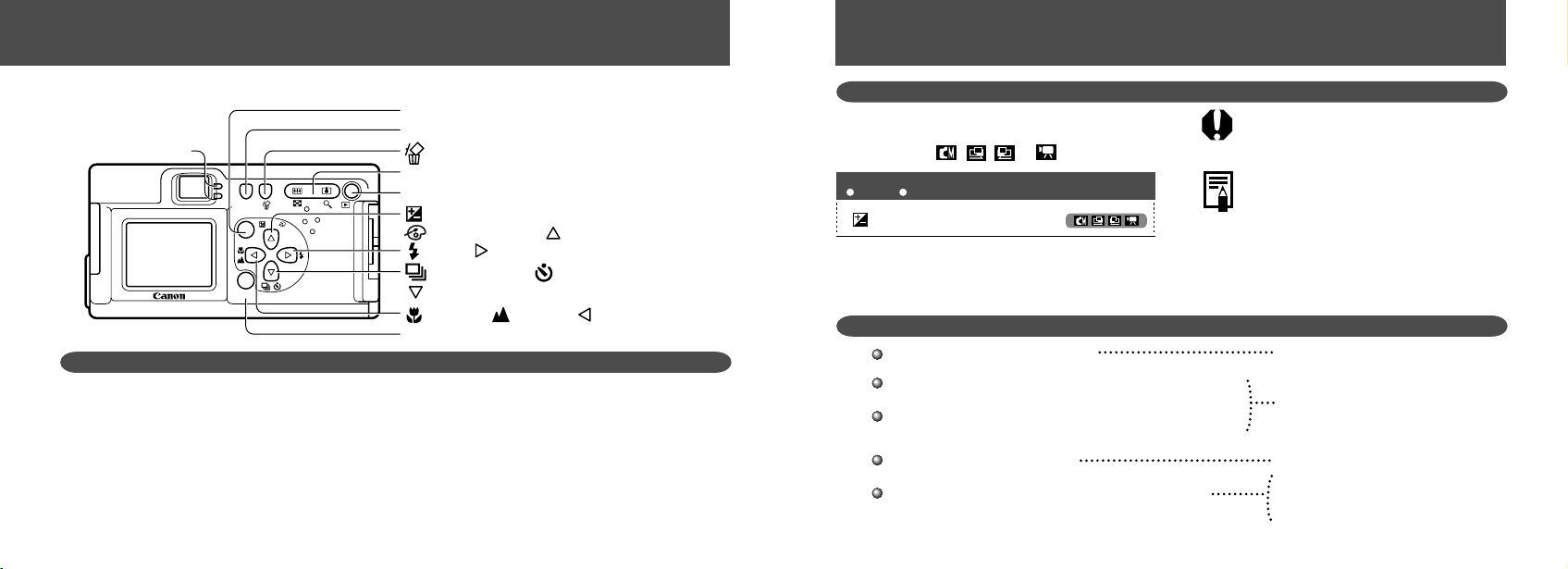
Operation Panel
DISP
WB
MENU
SET
ON
DISP (Display) Button (p. 29)
(Single Image Erase) Button (p. 65)
Zoom Button (p. 35)
Power / Replay Button (p. 27)
SET Button
MENU Button (p. 36)
Flash / (Right) Button (p. 43)
(Continuous) / (Self-Timer) /
(Down) Button (p. 46)
(Macro) / (Infinity) / (Left) Button (p. 45)
(Exposure) / WB (White Balance) /
(Photo Effects) / (Up) Button (pp. 52, 53, 54)
Indicators
Upper Indicator
Green: Ready to shoot, or ready to communicate with
your computer.
Flashing Green: Camera is starting up, reading the CF
card, erasing data on the CF card, or transmit-
ting data to your computer.
Orange: Ready to shoot, using the flash.
Flashing Orange: Ready to shoot, (camera shake
warning) / charging the flash (at LCD ON).
Lower Indicator
Yellow: Macro / Infinity modes
Flashing Yellow: Focusing difficulty (Although you can press
the shutter button, it is recommended to use the
focus lock to shoot (p. 50)).
Indicators
The upper indicator comes on when you open the lens cover or whenever you press the shutter button.
● Components Guide ●
8 9
● Table of Contents ●
Movie Mode .............................................. 49
Using the Focus Lock ............................... 50
Switching Between Autofocus Modes ....... 51
Adjusting the Exposure ....................... 52
Setting the White Balance ................. 53
Switching Between Photo Effect Modes
.. 54
Changing the ISO Speed .......................... 55
Resetting the File Number ........................ 56
Functions Available in Each Shooting Mode .....
57
Replaying 59
Displaying Images Individually ................. 59
Viewing Images in Sets of 9 ..................... 60
Viewing Movies ......................................... 61
Rotating Images in the Display ................. 62
Auto Play .................................................. 63
Protecting Images ..................................... 64
Erasing 65
Erasing Images Individually ...................... 65
Erasing All Images .................................... 65
Formatting a CF Card ............................... 66
Printing 67
About Printing ........................................... 67
Selecting from the Print Order Menu ................
68
Connecting the Camera to a Printer ......... 69
Printing ..................................................... 71
Print Settings (Direct Print Function) ........ 72
DPOF Print Settings ................................. 76
Printing with DPOF Print Settings ............. 80
Image Transfer Settings
(DPOF Transfer Order) 82
Setting the Image Transfer ....................... 82
Downloading Images to a Computer 84
Downloading Directly from a CF Card ...... 84
Connecting the Camera to a Computer Via
the USB Cable ..................................... 85
Table of Contents
: Functions and operations tables.
Quick Start 2
Components Guide 4
Front View ................................................... 4
Back View ................................................... 5
Operation Panel .......................................... 6
About this Camera User Guide 7
Read this First 11
Preparing the Camera 19
Installing the Battery and CF Card ........... 19
Setting the Date / Time ............................. 24
Setting the Language ............................... 25
Basic Functions 27
Turning the Power ON / OFF .................... 27
Using the LCD Monitor ............................. 29
Information Displayed on the LCD Monitor .......
31
Using the Viewfinder ................................. 33
Pressing the Shutter Button ...................... 34
Using the Digital Zoom ............................. 35
Selecting Menus and Settings .................. 36
Menu Settings and Default Settings ......... 38
Shooting 40
Selecting the Shooting Mode .................... 40
Changing the Resolution / Compression .. 41
Using the Flash ..................................... 43
Macro / Infinity Modes .................... 45
Continuous Mode ................................ 46
Self-Timer ............................................ 46
Stitch Assist Mode .................................... 47
1110
● Table of Contents ●
List of Menu Options and Messages 87
Rec. Menu ................................................ 87
Play Menu ................................................. 89
Set up Menu ............................................. 90
Resetting the Settings to Default .............. 91
List of Messages ....................................... 92
Appendices 95
Replacing the Date Battery ....................... 95
Using the Optional Battery Kits ................. 96
Camera Care and Maintenance ............. 100
Troubleshooting ...................................... 101
Specifications 106
Index 113
Read this First
Accessories
This digital camera is designed to perform optimally when used with genuine Canon brand digital camera
accessories (“Canon Brand Accessories”).
You may use non Canon Brand Accessories with this Digital camera. However, Canon Makes no warranties
concerning, and is not responsible for damages resulting from, use of non Canon Brand Accessories.
Camera Body Temperature
If your camera is used for prolonged periods, the camera body may become warm. Please be aware of this and
take care when operating the camera for an extended period.
About the LCD Monitor
The LCD monitor is produced with extremely high-precision manufacturing techniques. More than 99.99% of
the pixels operate to specification. Less than 0.01% of the pixels may occasionally misfire or appear as red or
black dots. This has no effect on the recorded image and does not constitute a malfunction.
Language Setting
Please see page 25 to change the language setting.

1312
Safety Precautions
Before using the camera, please ensure that you have read and understood the safety precautions
described below. Always ensure that the camera is operated correctly.
The safety precautions noted on the following pages are intended to instruct you in the safe and correct
operation of the camera and its accessories to prevent injuries or damage to yourself, other persons and
equipment.
In the next few pages, the term “equipment” refers primarily to the camera, battery, battery charger and
optional compact power adapter.
● Read this First ●
● Read this First ●
Please Read
Test Shots
Before you shoot images of subjects of importance to you, we strongly recommend that you shoot several trial
images to confirm that you are operating the camera correctly.
Please note that Canon, its subsidiaries and affiliates, and distributors of its digital cameras are not liable for any
consequential damages arising from any malfunction of the Canon digital camera or CompactFlash™ card (CF
card) resulting in the failure of an image to be recorded or to be recorded in a format that is machine readable.
Warning Against Copyright Infringement
Please note that Canon digital cameras are intended for personal use and must be used in a manner that
respects international and domestic copyright laws and regulations.
Please be advised that in certain cases the copying of images from performances, exhibitions, or commercial
properties by means of a camera or other device may contravene copyright or other legal rights even if the
image was recorded for personal use.
Warranty Limitations
This camera’s warranty is only effective in the country of sale. If a problem arises while the camera is in use
abroad, please convey it back to the country of sale before proceeding with a warranty claim to a Canon
Customer Support Help Desk.
For Canon Customer Support contacts, please see the Canon Limited Warranty supplied with your camera.
1514
• Stop operating the equipment if it is dropped or the casing is damaged. Failure to do so may result in fire or
electrical shock. Immediately turn the camera’s power off, remove the camera batteries and unplug the
power cord from the electrical outlet. Please consult your camera distributor or the closest Canon Customer
Support Help Desk.
• Do not allow the equipment to come into contact with, or become immersed in, water or other liquids. Do not
allow liquids to enter the interior. The camera has not been waterproofed. If the exterior comes into contact
with liquids or salt air, wipe it dry with a soft, absorbent cloth. In the event that water or other foreign sub-
stances enter the interior, immediately turn the camera’s power off and remove the camera batteries or
unplug the power cord from the electrical outlet. Continued use of the equipment may result in fire or electri-
cal shock. Please consult your camera distributor or the closest Canon Customer Support Help Desk.
• Do not use substances containing alcohol, benzene, thinners or other flammable substances to clean or
maintain the equipment. The use of these substances may lead to fire.
• Remove the power cord on a regular periodic basis and wipe away the dust and dirt that
collects on the plug, the exterior of the electrical outlet and the surrounding area. In dusty, humid or greasy
environments, the dust that collects around the plug over long periods of time may become saturated with
humidity and short-circuit, leading to fire.
• Do not cut, damage, alter or place heavy items on the power adapter cord. Any of these actions may cause
an electrical short circuit, which may lead to fire or electrical shock.
• Do not handle the power cord if your hands are wet. Handling it with wet hands may lead to
electrical shock. When unplugging the cord, ensure that you hold the solid portion of the plug. Pulling on the
flexible portion of the cord may damage or expose the wire and insulation, creating the potential for fires or
electrical shocks.
• Use of power sources not expressly recommended for this equipment may lead to overheating,
distortion of the equipment, fire, electrical shock or other hazards. Use only the recommended power acces-
sories.
● Read this First ●
WARNINGS
• Do not aim the camera directly into the sun or at other intense light sources which could damage your
eyesight.
• Do not trigger the flash in close proximity to human or animal eyes. Exposure to the intense light produced
by the flash may damage eyesight. In particular, remain at least one meter (39 inches) away from infants
when using the flash.
• Store this equipment out of the reach of children and infants. Accidental damage to the camera or batteries
by a child could result in serious injury. In addition, placement of the strap around the child’s neck could
result in asphyxiation.
• Be particularly careful to keep the date battery used in the camera away from children. Seek medical assis-
tance immediately if a child swallows a battery.
• Do not attempt to disassemble or alter any part of the equipment that is not expressly described in this guide.
Disassembly or alteration may result in high-voltage electrical shock. Internal inspections, alterations and
repairs should be conducted by qualified service personnel authorized by your camera distributor or a Canon
Customer Support Help Desk.
• To avoid the risk of high-voltage electrical shock, do not touch the flash portion of the camera if it has been
damaged. Similarly, never touch internal portions of the equipment that become exposed as a result of
damage. There is a risk of high-voltage electrical shock. Please take the first opportunity to consult your
camera distributor or a Canon Customer Support Help Desk.
• Stop operating the equipment immediately if it emits smoke or noxious fumes. Failure to do so may result in
fire or electrical shock. Immediately turn the camera’s power off, remove the camera batteries and unplug
the power cord from the electrical outlet. Confirm that smoke or fume emissions have ceased. Please con-
sult your camera distributor or the closest Canon Customer Support Help Desk.
● Read this First ●
1716
CAUTIONS
• Avoid using, placing or storing the equipment in places subject to strong sunlight or high
temperatures, such as the dashboard or trunk (boot) of a car. Exposure to intense sunlight and heat may
cause the batteries to leak, overheat or explode, resulting in fire, burns or other injuries. High temperatures
may also cause deformation of the casing. Ensure that there is good ventilation when using the compact
power adapter to charge the battery pack or power the camera.
• Do not store the equipment in humid or dusty areas. Storage in such areas could lead to fire, electrical shock
or other damage.
• Be careful not to bang the camera or subject it to strong impacts or shocks that could lead to injury or
damage the equipment when wearing or holding it by the strap.
• Be careful not to cover the flash with your fingers when shooting. In addition, do not touch the surface of the
flash after taking several pictures in rapid succession. Either action could result in burns.
• If your camera is used for prolonged periods, the camera body may become warm. Please take care when
operating the camera for an extended period as your hands may experience a burning sensation.
● Read this First ●
• Do not place the batteries near a heat source or expose them to direct flame or heat. Neither should you
immerse them in water. Such exposure may damage the batteries and lead to the leakage of corrosive
liquids, fire, electrical shock, explosion or serious injury.
• Do not attempt to disassemble, alter or apply heat to the batteries. There is serious risk of injury due to an
explosion. Immediately flush with water any area of the body, including the eyes and mouth, skin or clothing,
that comes into contact with the inner contents of a battery.
• Avoid dropping or subjecting the batteries to severe impacts that could damage the casings. It could lead to
leakage and injury.
• Do not short-circuit the battery terminals with metallic objects, such as key holders. It could lead to overheat-
ing, burns and other injuries.
• Before you discard a battery, cover the terminals with tape or other insulators to prevent direct contact with
other objects. Contact with the metallic components of other materials in waste
containers may lead to fire or explosions. Discard the batteries in specialized waste facilities if available in
your area.
• Use of batteries not expressly recommended for this equipment may cause explosions or leaks,
resulting in fire, injury and damage to the surroundings. Use only recommended batteries and
accessories.
• If using AA-size NiMH batteries, use only Canon AA-size NiMH batteries and the charger
recommended for use with these batteries. Use of another charger may cause batteries to overheat or
deform, posing risk of fire or electric shock.
• Disconnect the battery charger or compact power adapter from both the camera and electrical outlet after
recharging and when the camera is not in use to avoid fires and other hazards.
• The camera terminal of the battery charger cord and the compact power cord is designed for exclusive use
with your camera. Do not use it with other products or batteries. There is a risk of fire and other hazards.
● Read this First ●
1918
Preventing Malfunctions
● Avoid Strong Magnetic Fields
Never place the camera in close proximity to electric motors or other equipment generating strong
electromagnetic fields.
Exposure to strong magnetic fields may cause malfunctions or corrupt image data.
● Avoid Condensation Related Problems
Moving the equipment rapidly between hot and cold temperatures may cause condensation (water droplets) to
form on its external and internal surfaces. You can avoid this by placing the equipment in an airtight, resealable
plastic bag and letting it adjust to temperature changes slowly before removing it from the bag.
● If Condensation Forms Inside the Camera
Stop using the camera immediately if you detect condensation.
Continued use may damage the equipment. Remove the CF card and battery or power cord (if connected) from
the camera and wait until the moisture evaporates completely before resuming use.
● Extended Storage
When not using the camera for extended periods of time, remove the batteries from the camera or battery
charger and store the equipment in a safe place. Storing the camera for extended periods with batteries
installed will run down the battery and may damage the camera.
● Read this First ●
Installing the Battery and CF Card
Insert two (2) AA-size alkaline batteries (included
with the camera) or two (2) NiMH batteries (sold
separately) and insert the CF card.
1
Be sure that the camera power is off.
2
Slide the CF card slot / battery cover
and open the battery cover.
3
Insert the batteries as shown and
close the battery cover.
4
Insert the CF card as shown.
Slide the CF card firmly to the end. To release
the CF card, hold onto it and remove.
Preparing the Camera
(–) Negative end (+) Positive end
Battery Cover
2120
Never mix unused and partially used batter-
ies. Always load two fresh (or fully recharged)
batteries at the same time.
Never mix batteries of different types or from
different manufactures. Both batteries should
be identical.
Before inserting the batteries, wipe the
battery terminals well with a dry cloth. Oil from
one’s skin or other dirt may cause a consid-
erable reduction in the number of recordable
images or reduced usage time.
Before using the camera, wipe the and
terminals in the camera well with a dry cloth.
Dirt may cause a bad electrical contact.
Battery performance deteriorates at low
temperatures (especially with alkaline
batteries). If you are using the camera in cold
areas and batteries are running down faster
than they should, you may be able to restore
performance by placing batteries in an inner
pocket to warm them up prior to use. But be
careful that you don’t put the batteries into a
pocket together with a metal key chain or
other metallic objects, as these objects may
cause batteries to short-circuit.
Proper Battery Handling
Use AA-size Alkaline or Canon AA-size NiMH
batteries only. Refer to "Using Rechargeable
Batteries" (p. 96) for their handling.
Never use manganese or lithium batteries,
as these battery types may overheat in the
camera.
Since the performance of alkaline batteries
may differ according to brand, the operating
time of the batteries you purchase may not
be as long as the batteries that came with
the camera.
Camera operating time may shorten at low
temperatures when alkaline batteries are
used. Also due to their specifications,
alkaline batteries may expire faster than
NiMH batteries. If you are using the camera
in cold areas or for a long time, we
recommend using Canon AA-size NiMH
Battery Kit.
While it is possible to use AA-size nickel-
cadmium batteries, performance is unreliable
and their use is not recommended.
● Preparing the Camera ●
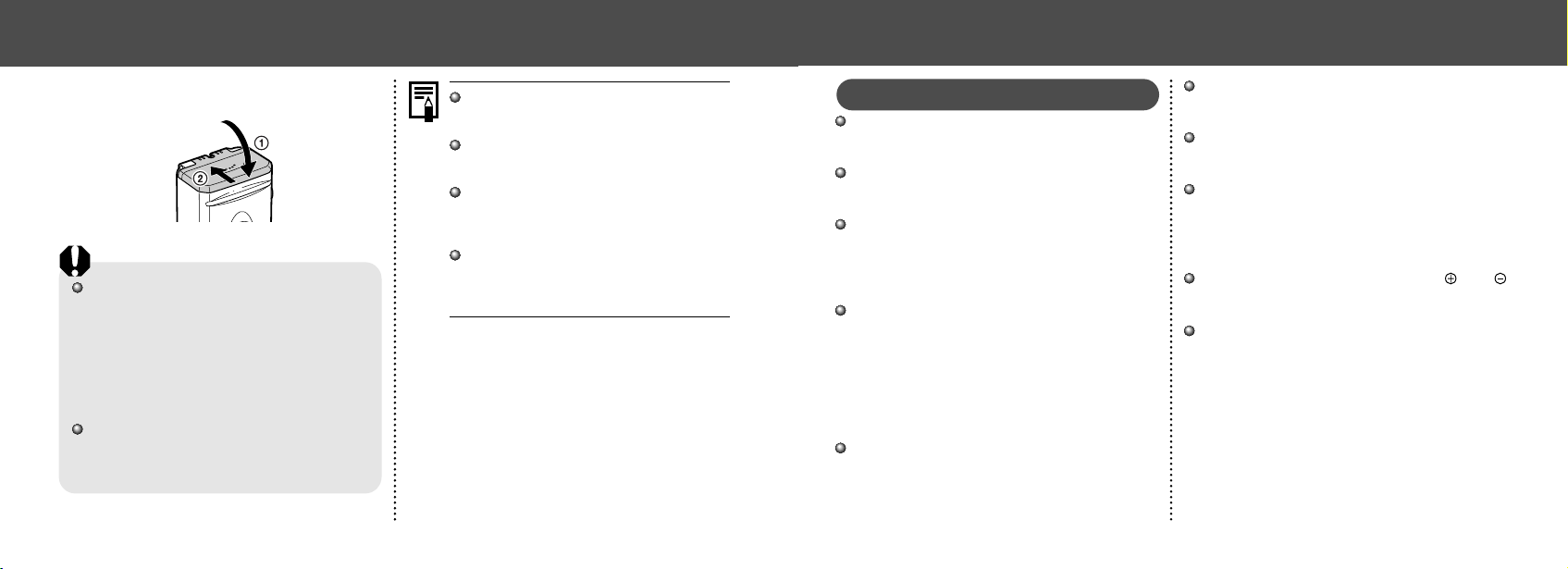
5
Close the CF card slot / battery cover.
When the camera's indicator flashes green, do
not turn off the power or open the battery cover.
The camera is writing, reading, erasing or trans-
mitting an image to or from the CF card. Do not
perform the following operations as recorded
images may be damaged as a result.
• Turn the camera off
• Open the cover
• Shake the camera
Be aware that use of CF cards whose contents
have been edited on another camera or with
another company’s software may cause the
camera to operate incorrectly.
We recommend that you use the optional AC
Adapter Kit ACK800 to power the camera
during long usage sessions (p. 99).
The optional battery charger kit lets you use
rechargeable NiMH batteries to power the
camera (p. 96).
For information about the Battery and
Charger Kit and AA-size rechargeable NiMH
batteries, see the System Map (separate
from this guide).
For important information, see “Battery
Performance” (p. 109) and “CF Cards and
Estimated Capacities (Recordable Images)”
(p. 110).
● Preparing the Camera ●
2322
About CF Cards
CF cards are high-precision electronic
devices. Do not bend them, apply force to
them, or subject them to shocks or vibration.
Do not attempt to disassemble or alter a CF
card.
Moving a CF card rapidly between tempera-
ture extremes will cause condensation to form
in the card and lead to a malfunction. To avoid
condensation, place the CF card in a sealed
plastic bag before moving it into a different
temperature zone and allow it to adjust slowly
to the new temperature. If condensation
forms on the CF card, store it at room
temperature until the water droplets have
evaporated naturally.
Do not use or store CF cards in the following
types of location.
• Locations subject to dust or sand
• Locations subject to high humidity and high
temperatures
● Preparing the Camera ●
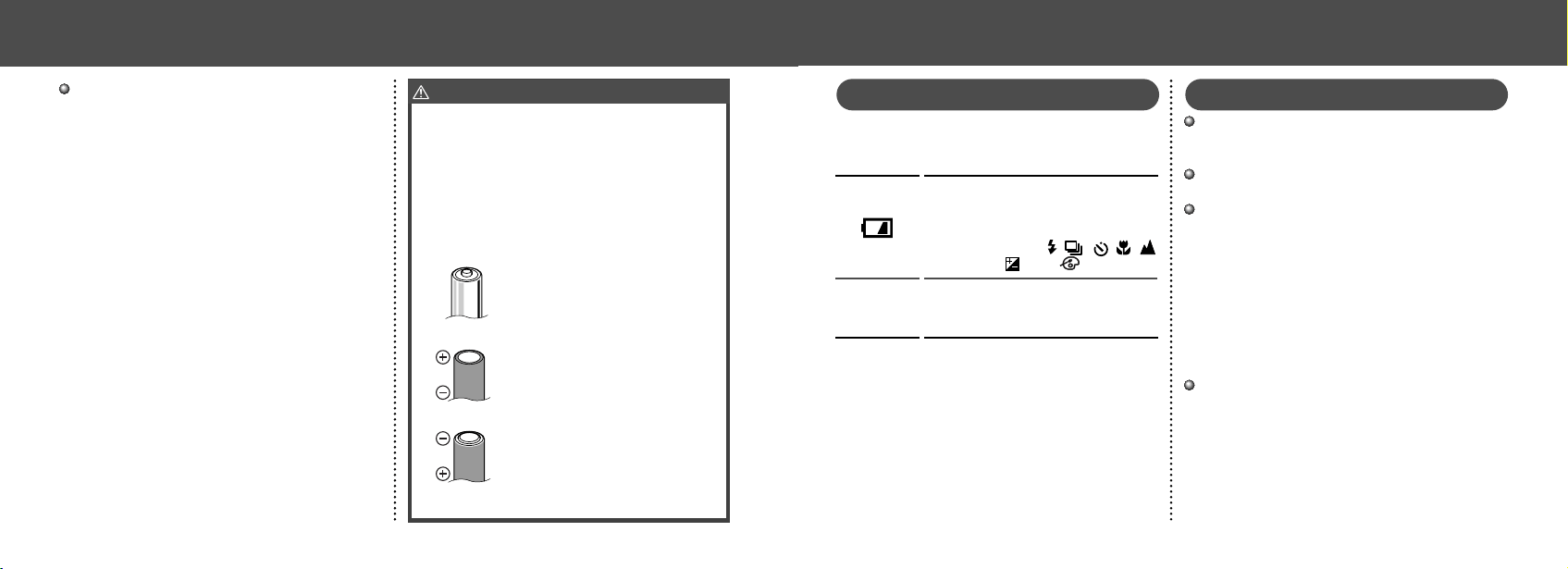
WARNING
Never use damaged batteries or batteries whose outer
seal is completely or partially missing or peeled off, as
there is risk that such batteries may leak, overheat, or
burst. Always check the seals on store-bought batter-
ies before loading them, as some batteries may come
with defective seals. Do not use batteries with defec-
tive seals.
Never use batteries that look like this.
Batteries with all or part of the seal
(electrical insulation sheath) peeled
off.
The positive electrode (plus terminal)
is flat.
The negative terminal is correctly
formed (protruding from the metal
base), but the seal does not extend
up over the edge of the metal base.
Battery Status Indications
The LCD monitor displays an icon or message
to let you know when batteries are low or
depleted.
Batteries are beginning to run low.
Replace (or recharge) batteries
promptly. If the LCD monitor is off, this
icon will appear when you press any of
the following buttons: , / , /
SET, DISP or / WB / .
Batteries are fully depleted and the
camera can no longer operate. Replace
the batteries immediately.
Change
the batteries
● Preparing the Camera ●
If you do not plan to use the camera for a
long time, remove the batteries from the
camera and store them in a safe place.
Batteries may leak and damage the camera
if left installed during prolonged periods of
non-use.
2524
5
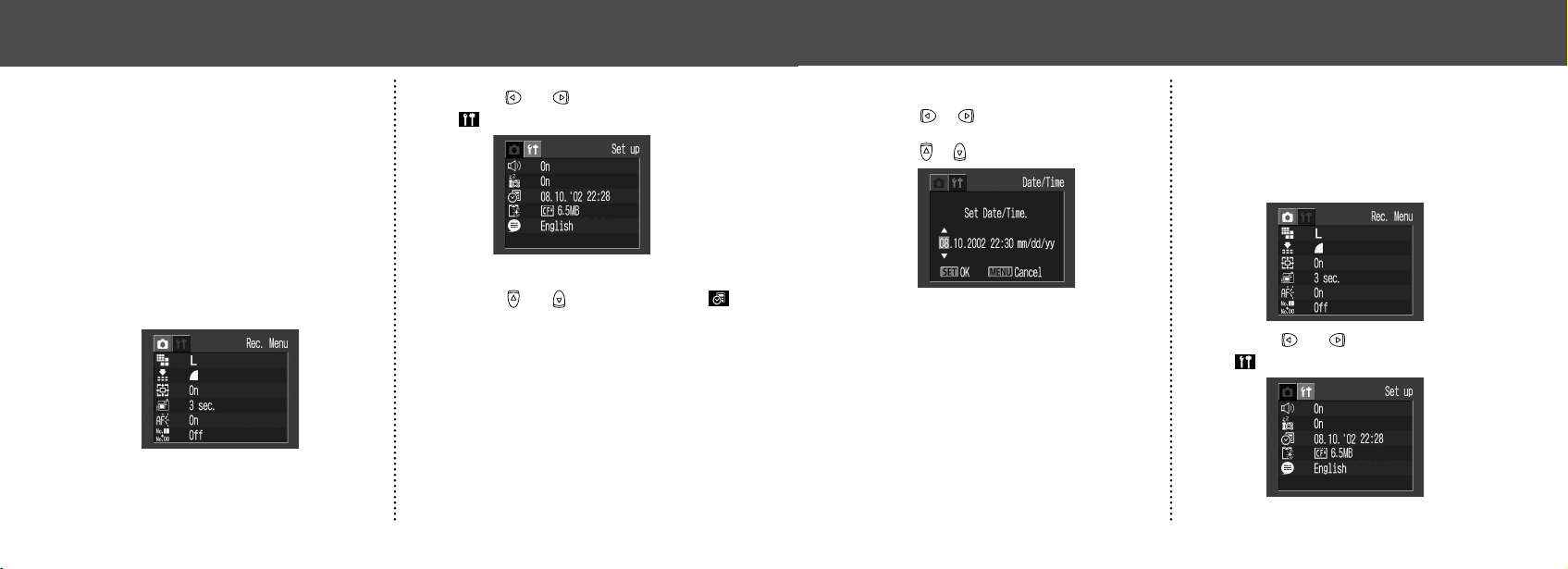
Set the date and time.
Press or button to select the item to be
set.
Press or button to set the date and time.
6
Press the SET button.
7
Press the MENU button.
Setting the Language
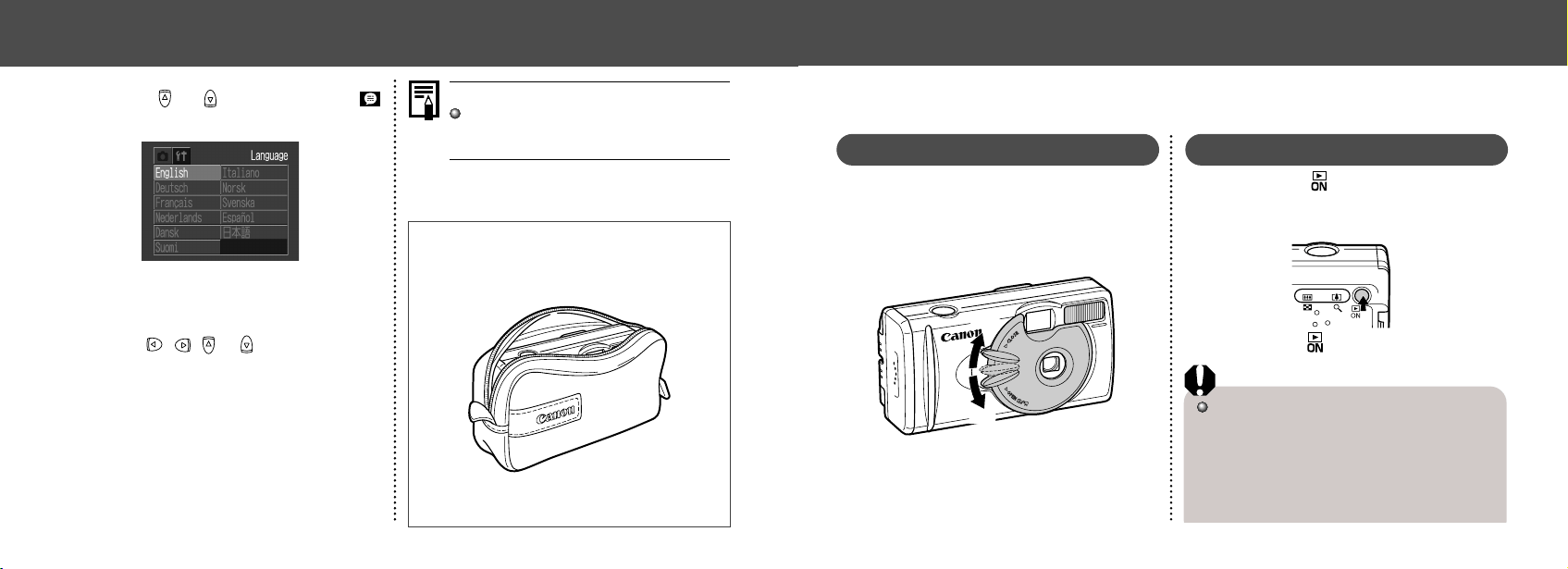
Sets the display language for LCD monitor
menus and messages.
1
Press the MENU button.
The Rec. or Replay menu will display.
2
Press or button to select the
[
(Set up)] menu.
● Preparing the Camera ●
Setting the Date / Time
The Date / Time menu will be displayed when
camera power is turned on for the first time or
at low date battery power. Perform operations
from Step 5. (Replace the date battery when
power from the current one is exhausted (p. 95).)
1
Turn the power on (p. 27).
2
Press the MENU button.
The Rec. or Replay menu will display.
3
Press or button to select the
[
(Set up)] menu.
4
Press or button to select
(Date / Time) and press the SET but-
ton.
● Preparing the Camera ●
2726
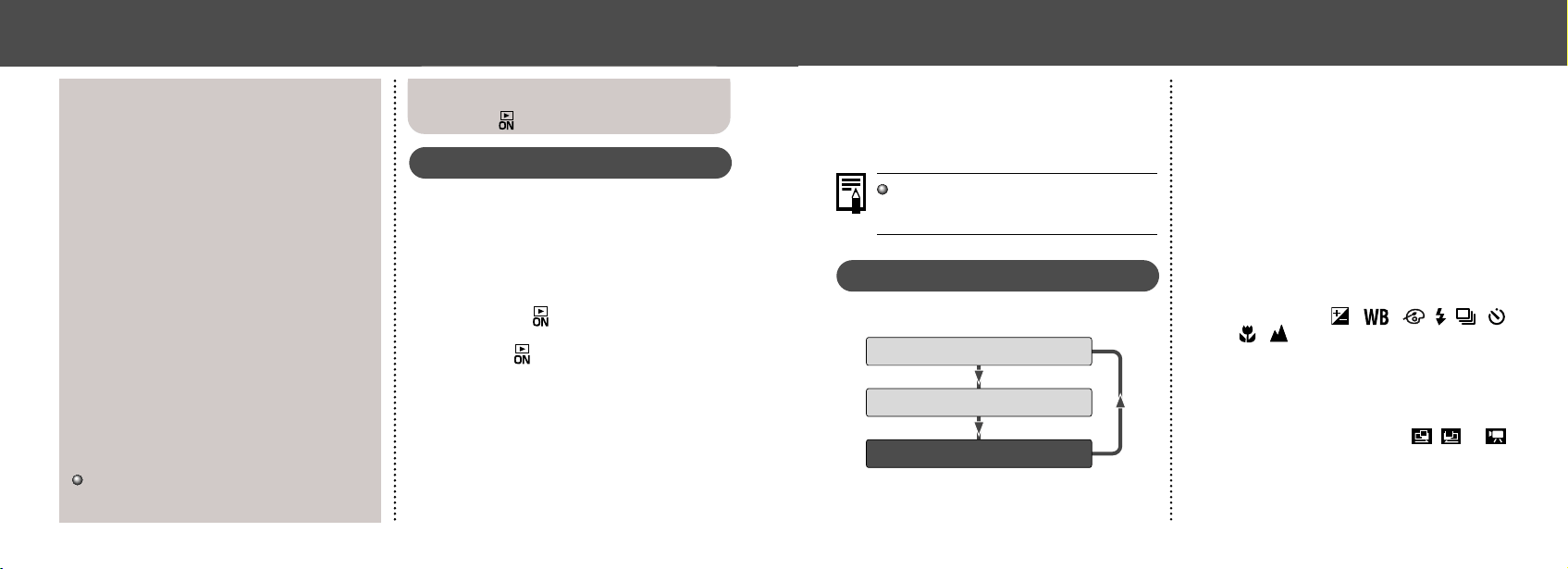
Shooting Mode
1
Open the lens cover.
The camera powers up in Shooting mode (still).
Close the lens cover.
The power goes off.
Open
Open
close
open
Replay Mode
1
Press the button until the image
is displayed on the LCD monitor.
The camera powers up in Replay mode.
Press the button again to turn the
power off.
Power Save Function
This camera comes with a power save
function.
Shooting Mode
The power will automatically shut off approxi-
mately 3 minutes after the last function is
accessed.
Basic Functions
3
Press or button to select
(Language) and press the SET but-
ton.
The Language menu may appear differently
on cameras in some regions.
4
Set the language.
Press , , or button to select the
language.
5
Press the SET button.
Pressing the MENU button without pressing
the SET button returns to the Set up Menu
without changing the language settings.
6
Press the MENU button.
Hint for Easy Operation
The Language menu can also be displayed
in replay mode by holding down the SET
button and pressing the MENU button.
● Preparing the Camera ●
Using the Soft Case (Optional)
Use the soft case for storing the camera,
batteries and CF card.
•
Soft case appearance may differ in some
regions.
Turning the Power ON / OFF
2928
Using the LCD Monitor
Use the LCD monitor for shooting images, whilst
checking images, for menu operations and re-
playing images.
The image in the LCD monitor may darken
when the monitor is used under sunlight or
other strong lighting. This is not a defect.
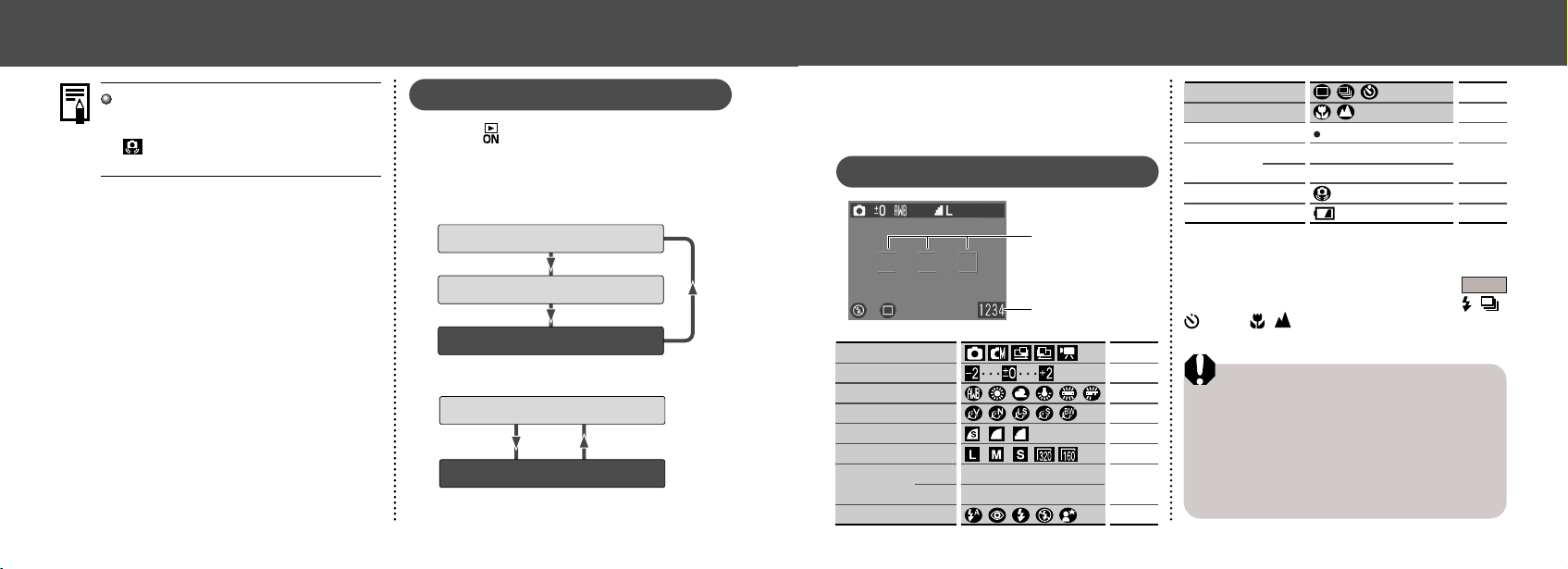
Shooting Mode
The display changes as shown in the following
diagram when the DISP button is pressed.
LCD monitor display (no information view)
LCD monitor display (information view)
No LCD monitor display
• The On / Off setting of the LCD monitor dis-
play mode is memorized when the camera is
turned off. When the camera is turned on
again it assumes the last mode. However,
when the LCD monitor is turned on and the
“Change the Batteries” message appears, the
LCD monitor may not automatically turn on
the next time the camera is started.
• When the LCD monitor is set to On (no
information display) or Off, shooting informa-
tion appears for approximately 6 seconds
when you take any of the following actions.
- The power is turned on.
- The SET, DISP,
/ / , , /
or / button is pressed.
- The camera settings are changed.
- The Set up menu is closed.
- When the shutter button is pressed and
shooting is finished (only when LCD
monitor is on).
• Setting the Shooting mode to
, or
turns the LCD monitor on regardless of
whether it is set to On or Off.
● Basic Functions ●
Replay Mode
The power will automatically shut off approxi-
mately 5 minutes after the last function is
accessed.
While Connected to a Printer (optional)
The power will automatically shut off approxi-
mately 5 minutes after the last camera function
is accessed or printer ceases to print an image.
While Connected to a Computer
A warning message will appear on the
computer screen approximately 5 minutes
after the last function is accessed. The power
will automatically shut off approximately 1
minute later if no functions are accessed.
• The power save function will not activate while
the camera is in auto play mode (p. 63).
• The camera’s settings can be changed to turn
off the power save function (p. 90).
• The LCD monitor will go off in approximately 3
minutes if there are no operations performed
within that time when the LCD monitor is on,
even if the power save function is [Off].
Pressing any button turns the LCD monitor on
again.
To return from power save function
Shooting Mode
Slide the lever of lens cover down.
Replay Mode / While Connecting to a Printer /
Computer
Press the button.
Switching between Shooting/Replay
You can quickly switch between the Shooting
and Replay modes. Images can be replayed and
erased immediately after shooting them.
Images can also be shot immediately, while im-
ages are being replayed.
Shooting Mode
1
Press the button to switch to Re-
play mode.
Press the button again or press the shutter
button halfway to return to the Shooting mode.
Replay Mode
1
Open the lens cover or slide the le-
ver of the lens cover down to switch
to Shooting mode.
● Basic Functions ●
3130
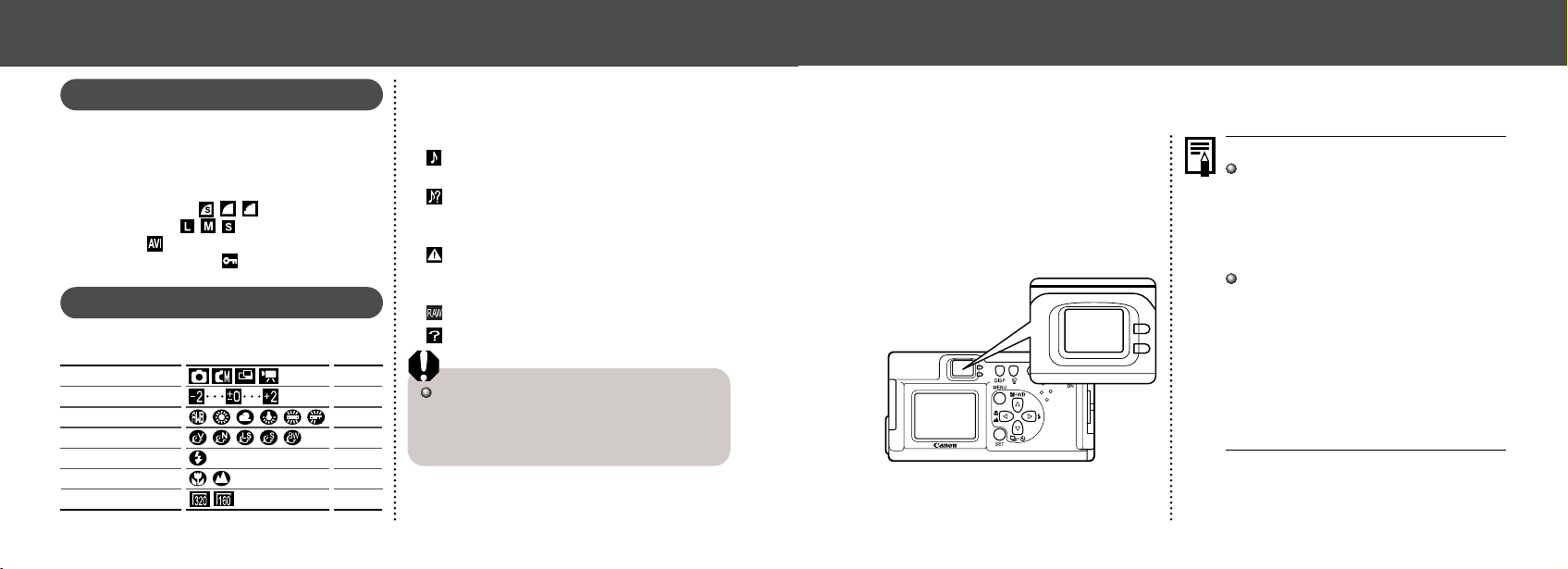
Information Displayed
on the LCD Monitor
Shooting Mode
*Displayed during digital zoom.
The flash, continuous shoot, self-timer, macro,
and infinity can be set while the shaded
information is displayed. Press the DISP, , /
or the / button when information is not
displayed.
Notice Concerning Shooting
When using this camera to shoot scenes con-
taining extremely bright subjects, a vertical, red
bar of light may appear on the LCD monitor. It
will not be recorded when shooting still photos,
but will be recorded when shooting movies. This
is a normal occurrence in devices containing
CCDs and does not constitute a malfunction.
Number of recordable
images or recordable
time for movies (sec.)
AF Frame
p. 46
p. 45
p. 49
p. 30
p. 23
Digital Zoom
Setting*
p. 35
Shooting Method
Macro / Infinity
Movie Recording Mode
(red)
A200
x1.3 x1.6 x2.0 x2.5 x3.2 x4.0
A100 x1.3 x1.6 x2.0 x2.5 x3.2
Camera Shake Warning
Low Battery
ISO 50 100 200 400
ISO 64 100 200 400
Shooting Mode
Exposure Compensation
White Balance
Photo Effect
Compression
Resolution
ISO Speed A200
A100
Flash
p. 40
p. 52
p. 53
p. 54
p. 41
p. 41
p. 55
p. 43
● Basic Functions ●
Replay Mode
Press the button to turn the LCD monitor
on. The display changes when the DISP but-
ton is pressed.
Single Image Replay
Simple display
Detailed display
No display
Index Replay (9 images)
Simple display
No display
Set the flash to On or affix the camera to a
tripod when the upper indicator flashes
orange and the camera shake warning icon
( ) appears in the LCD monitor after the
metering preparations are complete.
● Basic Functions ●
3332
Using the Viewfinder
You can reduce power consumption by
shooting images with the viewfinder.
1
Align the subject with the center of the
optical viewfinder and shoot.
The viewfinder has a field of vision* of ap-
proximately 80% of the actual shooting im-
age.
* The ratio of the range that can be viewed by
the finder for the actual shooting range.
About the Autofocus Function
This camera employs AiAF (artificial intelli-
gence autofocus) technology which uses a
broad metering field to calculate the focal
distance with high precision. It delivers a
crisp focus even when the photographic sub-
ject is slightly off-center (p. 51).
Image Seen in Viewfinder vs. Recorded Image
Please note that the actual image may differ
from the image seen in the optical viewfinder
due to the physical separation between the
viewfinder and lens. This is called the paral-
lax phenomenon and is more noticeable the
closer the subject is to the lens. In some
cases, portions of images shot up close that
appear in the viewfinder will not appear in
the recorded image. You are recommended
to use the LCD monitor to shoot images up
close.
● Basic Functions ●
Replay Mode (Simple Display)
The following information is displayed for the
Simple Display.
• File no.
• Image no. (Replay image no. / total)
• Shooting date / time
• Compression (
)
• Resolution (
)
• Movie (
)
• Protection status (
)
Replay Mode (Detailed Display)
The following information is also displayed for
the Detailed Display.
Shooting Mode
Exposure Compensation
White Balance
Photo Effect
Flash
Macro / Infinity
Resolution (Movies)
p. 40
p. 52
p. 53
p. 54
p. 43
p. 45
p. 41
The recording time for movies is also displayed.
The following information may be displayed,
depending on the image.
Sound wave file (WAVE file) is
attached.
An audio file other than a wavefile, or
a file with unrecognized format, is
attached.
A JPEG file not supported by “Design
rule for Camera File system” stan-
dards.
RAW file format
Unrecognizable file formats
Please note that image information recorded by
this camera may not display correctly on other
cameras and image information recorded by
other cameras may not display correctly on this
camera.
● Basic Functions ●
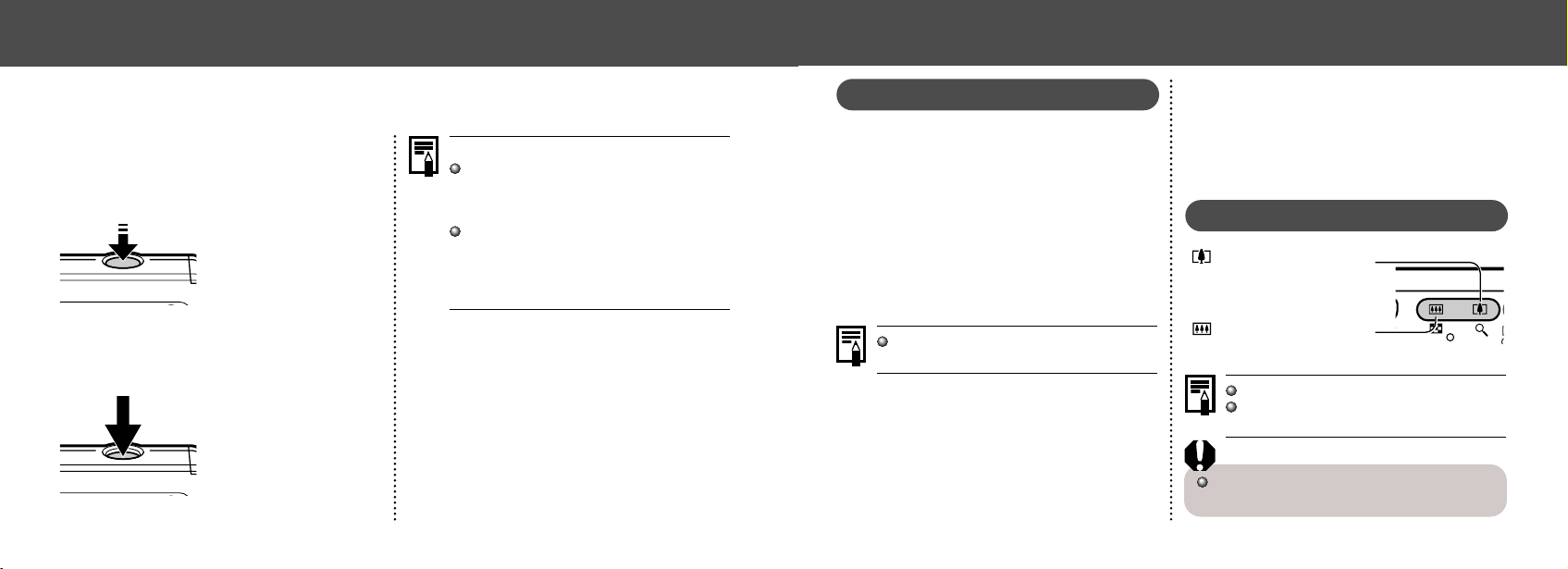
3534
You can press the shutter button all the way
down or halfway.
Pressing Halfway
Automatically sets the
exposure, focus and white
balance. The camera
beeps twice when settings
are completed, then the
upper indicator glows
green (orange when the
flash has been selected
(p. 6). )
Pressing Fully
The camera beeps once,
and an image is shot. An
upper green indicator light
flashes while the image is
being recorded to the CF
card (p. 6).
Reviewing an Image Right After Shooting
The images that have been shot will be
displayed for approximately 3 seconds*, even
when the shutter button is released right after
the image has been taken. You can also check
the image with the following steps.
*The display time can be changed (p. 88).
• Keeping the Shutter Button pressed.
• Press the SET button while the image is dis-
played in the LCD monitor.
Press the shutter button halfway again to stop
displaying it.
You can erase the images while they are dis-
played (p.65).
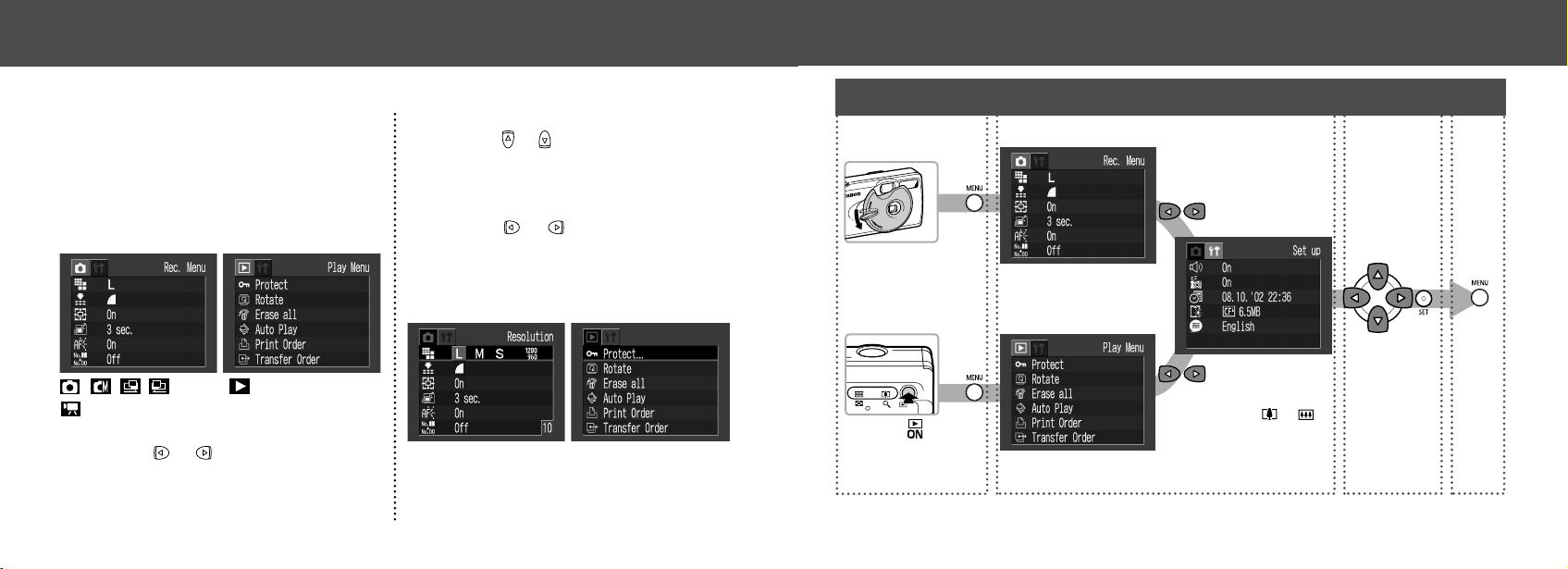
Using the Digital Zoom
When the LCD monitor is on, you can digitally
zoom in on a subject. Images can be zoomed
up to 4 times (PowerShot A200), or 3.2 times
(PowerShot A100).
Adjust Zoom
Button: The subject
will be enlarged.
Button: The subject
will be reduced.
The digital zoom can be set to [Off] (p. 88).
The image will appear grainier as the image
is digitally zoomed.
Digital zoom is unavailable in some modes
(p. 58).
● Basic Functions ●
Pressing the Shutter Button
AF-assist Beam
The AF-assist beam will sometimes emit
when the shutter button is pressed halfway
to assist focusing in certain conditions, i.e.
dark conditions.
The AF-assist beam can be turned off (p. 88).
If animals are your subject, turn off the beam
when shooting in the dark to avoid startling
them (this may however, make it more
difficult for the camera to focus).
● Basic Functions ●
36 37
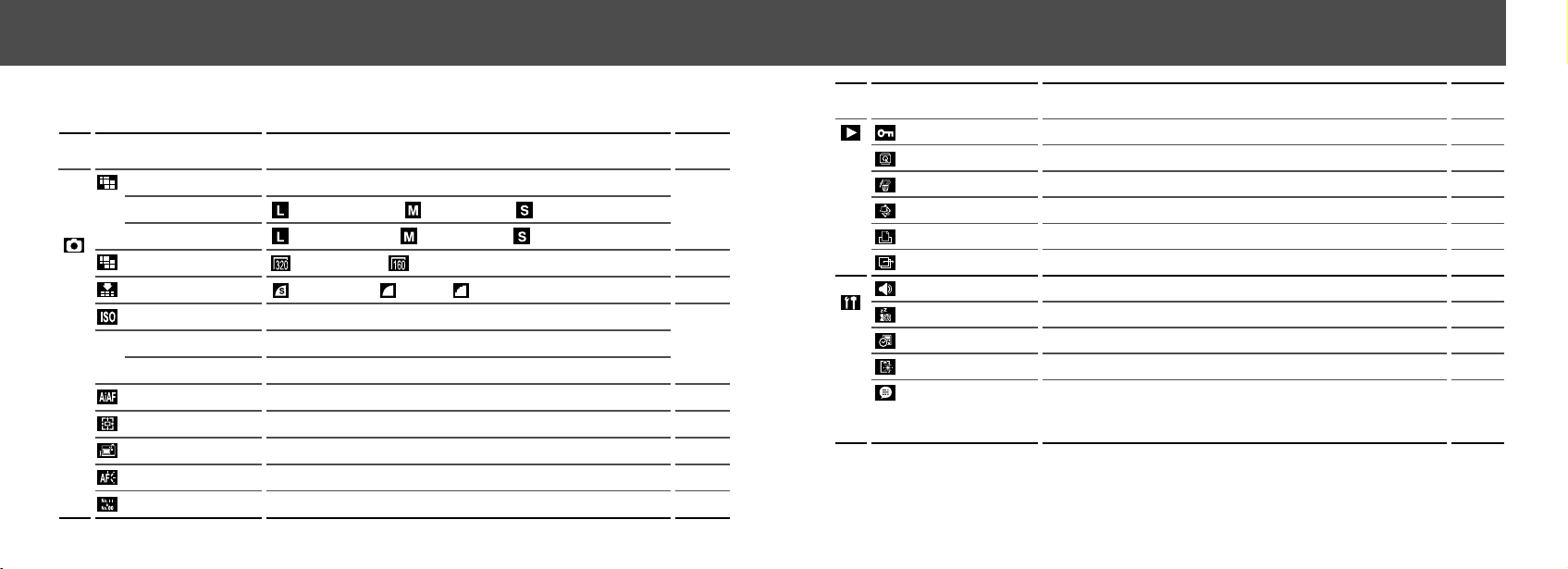
Menu Display Change the Menu
Set and
Confirm
End
Open the lens cover.
Rec. Menu
Play Menu
Set up Menu
Press the button.
Menu can be switched
whenever the or
button is pressed.
ON
● Basic Functions ●
Selecting Menus and Settings
Use the menus as shown below to operate the
various shooting and replaying settings.
For information on menu items and settings, see
“Menu Settings and Default Settings” (p. 38).
1
Press the MENU button.
The menu appears.
, , , or mode
modes
2
Press or button to select Rec. /
Play or the Set up menu.
3
Press or button to select a menu
item.
4
Rec. menu / Set up menu:
Press
or button to select the
settings you wish to set.
Play menu / Set up menu:
Set the details after pressing the SET
button.
e.g. PowerShot A100
5
Press the MENU button.
● Basic Functions ●
3938
● Basic Functions ●
Menu Items Available Settings
Reference
Pages
Play Menu
(Blue)
Set up Menu
(Yellow)
p. 64
p. 62
p. 65
p. 63
p. 71
p. 82
p. 90
p. 27
p. 24
p. 66
p. 25
Protect
Rotate
Erase All
Auto Play
Print Order
Transfer Order
Beep
Auto Power Down
Date / Time
Format
Language
Turns image protection On and Off
Rotates the displayed image
Erases all images
Automatically replays images
Sets the print order
Sets the transfer settings
On* / Off
On* / Off
Sets the date / time
Formats the CF card
*
Default settings
• Some menu items are unavailable in certain shooting modes.
• The default for all of the settings changed by the menu and button operations except for [Date / Time] and [Lan-
guage] can be restored all at once (p. 91).
English* / Deutsch / Français / Nederlands / Dansk /
Suomi / Italiano / Norsk / Svenska / Español /
Japanese or Chinese (depending on the region)
Menu Settings and Default Settings
This chart shows the options for each menu and the default settings.
● Basic Functions ●
Menu Items Available Settings
Reference
Pages
Rec. Menu (Red)
Resolution (Still pictures)
PowerShot A200
PowerShot A100
Resolution (Movies)
Compression
ISO Speed
PowerShot A200
PowerShot A100
AiAF
Digital Zoom
Review
AF-assist Beam
File No. Reset
1600 × 1200* / 1024 × 768 / 640 × 480
1280 × 960* / 1024 × 768 / 640 × 480
320 × 240* / 160 × 120
Superfine / Fine* / Normal
50* / 100 / 200 / 400 / AUTO
64* / 100 / 200 / 400 / AUTO
On* / Off
On* / Off
Off / 3 sec.* / 10 sec.
On* / Off
On / Off*
p. 41
p. 41
p. 41
p. 55
p. 51
p. 35
p. 35
p. 34
p. 56
4140
● Shooting ●
Changing the Resolution / Compression
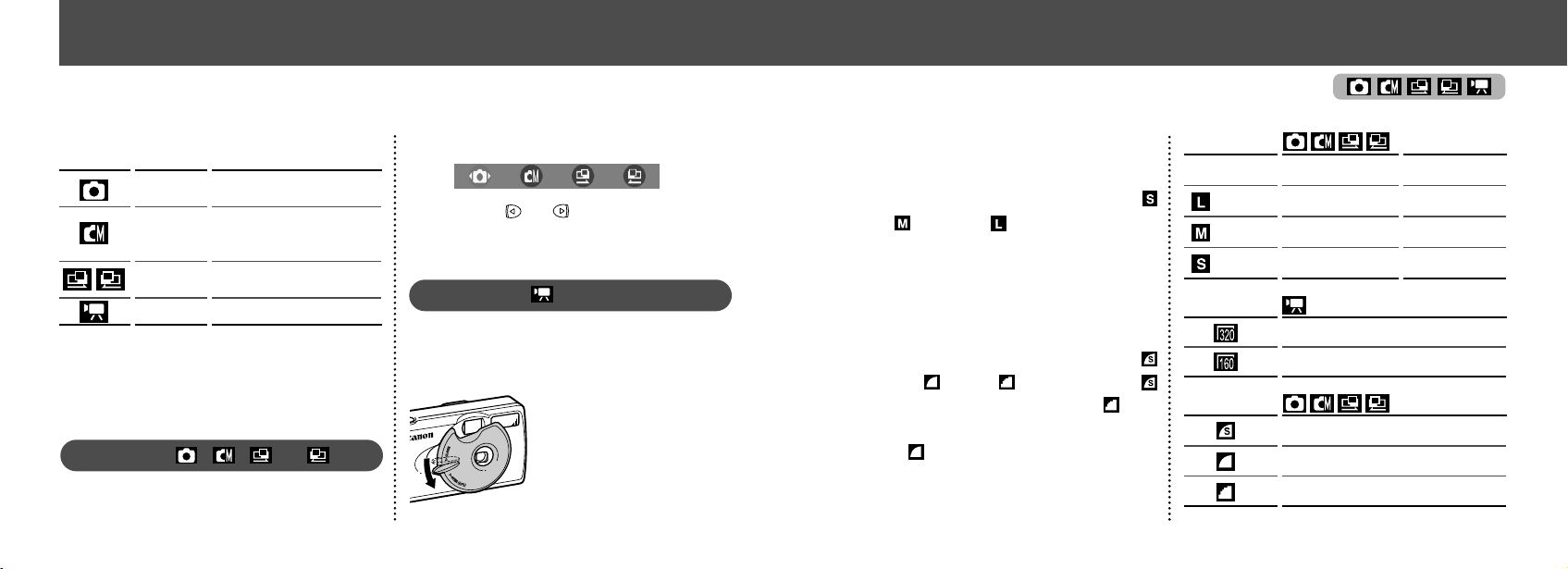
You can change the resolution and compression
(excluding movies) settings to suit your purpose.
Resolution
The resolution gets higher in the order
(Small), (Medium), (Large). Use a higher
resolution if you want to make a large print. Use
a lower resolution if you want to print on small
objects like labels or to send images electroni-
cally or to fit more images on a CF card.
Compression
The compression gets higher in the order
(Superfine), (Fine), (Normal). Select
(Superfine) for a higher quality image or (Nor-
mal) if you want to put more images on a CF
card. The
(Fine) settings provide adequate
quality for standard shots.
(Large)
(Medium)
(Small)
PowerShot A200
1600 × 1200 pixels
1024 × 768 pixels
640 × 480 pixels
PowerShot A100
1280 × 960 pixels
1024 × 768 pixels
640 × 480 pixels
320 × 240 pixels
160 × 120 pixels
Superfine
Fine
Normal
Compression
Resolution
Resolution
Shooting
Selecting the Shooting Mode
The following modes are available with this
camera.
Manual
Auto
Stitch Assist
Movie
The camera automatically makes
most of the settings for you.
You can manually adjust the
exposure, white balance, and
other settings before shooting.
For shooting panorama
composition images
For shooting movies
The details on settings for each mode are kept
even if the shooting mode is changed.
When the power is turned off, the settings are
also retained for certain shooting modes, but
not for others (p. 57).
Selecting , , or
1
Open the lens cover to turn the power on.
The shooting mode selected is the same as
when the camera was last turned off.
2
Press the SET button.
3
Press or button to select the
shooting mode and press the SET
button.
Selecting
1
Whilst the lens cover is open, lower
the lens cover lever to switch to
movie mode. Lower the lens lever
again to return to shoot-
ing still pictures.
4342
● Shooting ●
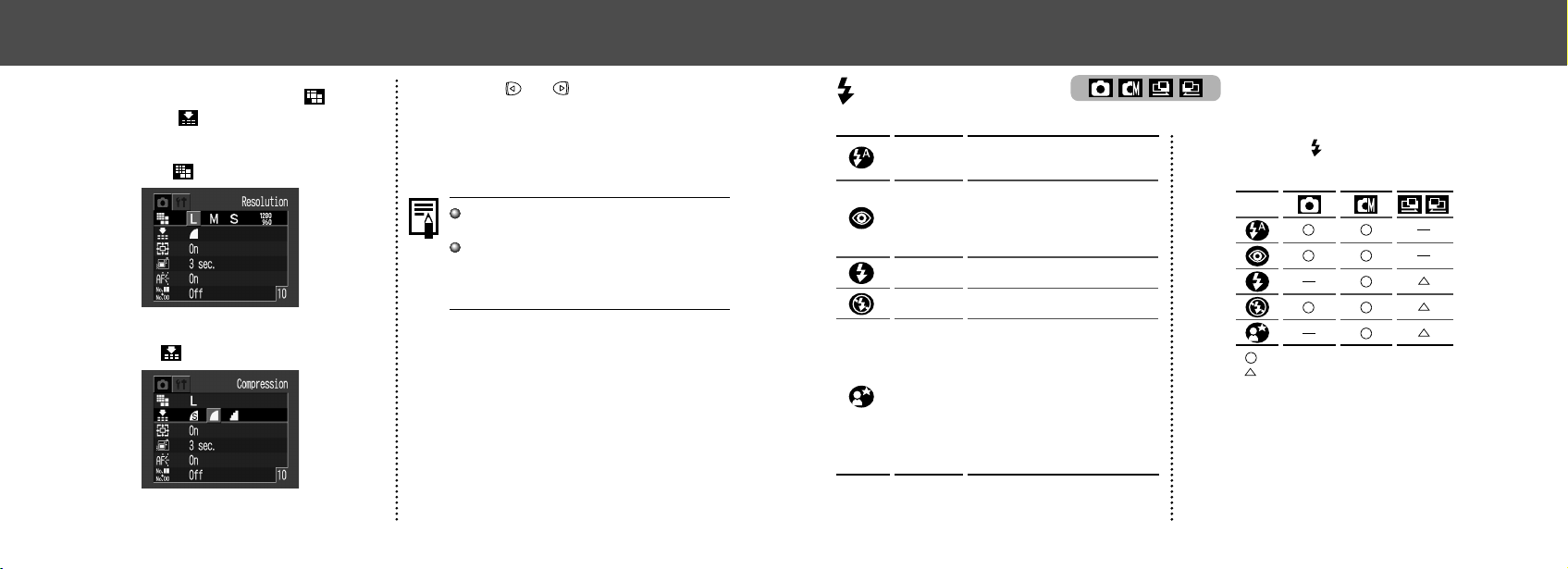
Using the Flash
Auto
Slow-
Synchro
Red-Eye
Reduction,
Auto
On
Off
The flash fires automatically as
required by the light level.
The flash may fire automatically
as required by the light level.
The red-eye reduction lamp
fires with each shot.
The flash will fire.
The flash will not fire.
The flash timing is adjusted to
slow shutter speeds. This
reduces the chance that the
background will be dark when
shots are taken at night or in
rooms with artificial lighting.
The red-eye reduction lamp
fires with each shot. Use of a
tripod is recommended.
1
Press the button as necessary to
select the desired flash mode.
: Available
: Available only for the first image
2
Shoot the image.
The flash will be fired when the indicator glows
orange.
● Shooting ●
1
In the [Rec.] Menu, select (Reso-
lution) or
(Compression).
See “Selecting Menus and Settings” (p. 36).
Resolution
e.g. PowerShot A100
Compression
2
Press or button to select the
settings.
3
Press the MENU button.
See “Functions Available in Each Shooting
Mode” (p. 57).
For information on necessary space per im-
age (approximate), types of CF cards and
the number of images per card see, “Speci-
fications” (p. 110).

4544
● Shooting ●
Macro / Infinity Modes
Macro
Infinity
Use this mode when the distances
from the lens tip to the subject is 5
to 20 cm (2 to 7.9 in.).
Use this mode to shoot land-
scapes. Also use this mode for
compositions combining both near
and distant objects.
1
Press the / button to display
or .
: Available
: Available only for the first image
2
Shoot the image.
If the flash is used in macro mode, the light may
not be controlled correctly. In this case, set a
higher ISO sensitivity or use other lightings in-
stead of using the flash.
Use the LCD monitor for shooting in macro
mode. Subjects framed in the viewfinder
when in macro mode may not appear in the
final image as intended due to the parallax
problem.
The recordable area at the closest focal
distance
PowerShot A200: approx. 46 x 34mm
(1.81 x 1.34 in.)
PowerShot A100: approx. 47 x 35mm
(1.85 x 1.38 in.)
● Shooting ●
If the flash is used in macro mode, the light may
not be controlled correctly. In this case, set a
higher ISO sensitivity or use other lightings in-
stead of using the flash.
When shooting with a high ISO sensitivity and
using the built-in flash, there is more of a chance
of overexposure the closer you are to the sub-
ject.
Please note that a slow shutter speed will be
selected in dark places when the flash is set to
off or slowsynchro. Be careful to avoid camera
blur under these conditions.
• Shooting in Mode
Be careful to hold the camera still to avoid cam-
era Shake.
• Shooting in or / Mode
Fix the camera to a tripod since the shutter
speed will be slower than in the mode.
If an image is dark in mode, reshooting in
mode will make it brighter.
The flash may take approximately 20
seconds to charge. The LCD monitor, if it is
on, will go off after the indicator flashes
orange while recharging. The LCD monitor
will go back on after the indicator glows a
steady orange when recharging is completed.
Recharging time may vary according to
shooting conditions and battery charge lev-
els.
The flash fires twice. A preparatory pre-flash
is followed by the main flash. The exposure
readings obtained from the subject with the
pre-flash are used to set the optimal flash
intensity for the main flash, which is used to
shoot the image.
Red-Eye Reduction
Light reflecting back from the eyes may
appear red when the flash is used in dark
places. Use the auto red-eye reduction* for
these situations.
For this mode to be effective, the subject
must be looking right at the red-eye
reduction lamp. Try asking them to look at
the red-eye lamp. Even better results can
be obtained by increasing the lighting in in-
door settings or coming closer to the
subject.
*The shutter will not activate for approxi-
mately 1 second after the red-eye reduction
lamp fires, even when the shutter button is
pressed all the way down in order to improve
the effect. If you want to have more immedi-
ate shutter response, set the flash setting to
either , or .
4746
● Shooting ●
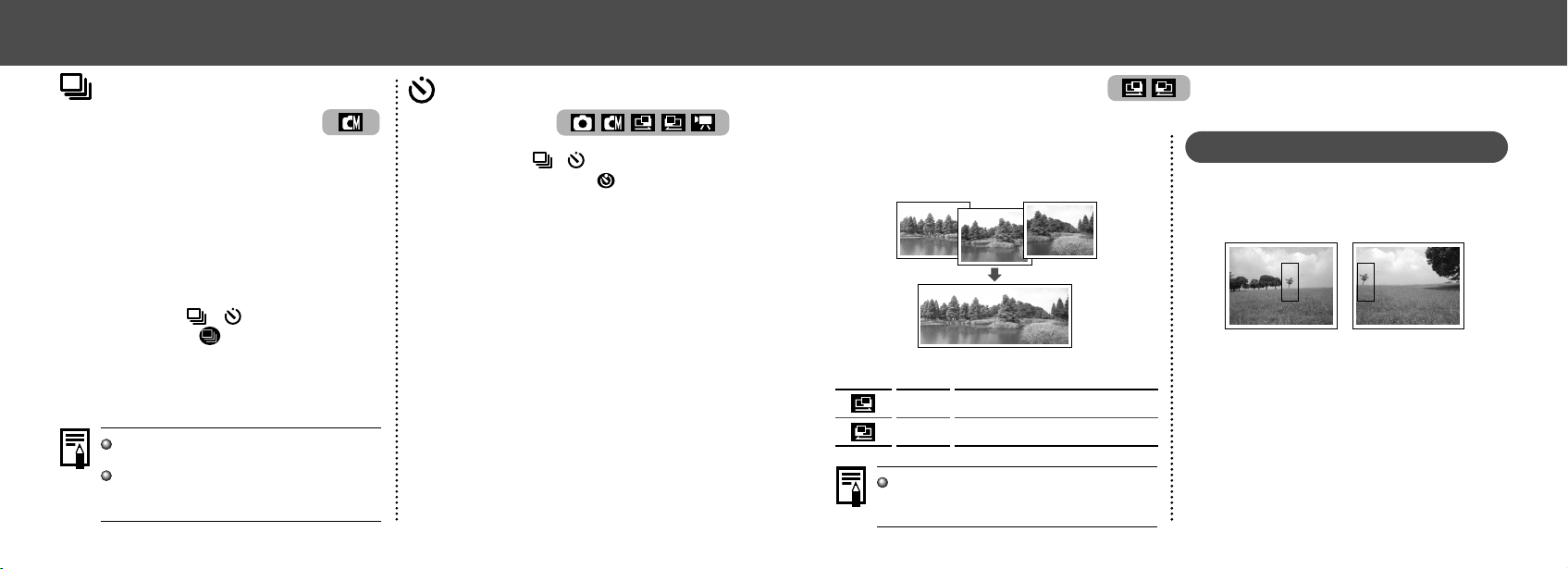
Stitch Assist Mode
Use this mode when taking shots that you want
to combine into a panorama. To create the pan-
orama itself, you must stitch the images together
on your computer.
There are two stitch assist modes based on the
shooting direction as shown in the following.
Shoots horizontally from left to right.
Shoots horizontally from right to left.
Left→right
Right→left
To create the panorama at your computer,
use the Photostitch software that came with
your camera.
Framing a Subject
The PhotoStitch program detects the overlap-
ping portions of adjoining images and merges
them. When shooting, try to include a distinc-
tive item (landmark) in the overlapping portions.
• Compose each frame so that it overlaps 30
to 50 % of the adjoining image. Try to keep
the vertical misalignment to within 10 % of
the image height.
• Do not include moving items in the overlap.
• Do not try to stitch images that include both
distant and close items. Objects may appear
warped or doubled up.
● Shooting ●
Continuous Mode
The camera will shoot continuously when the
shutter button is pressed. The shooting speed
is as follows.*
PowerShot A200: approx. 2 images per second
PowerShot A100: approx. 3 images per second
* Large / Fine, LCD monitor off mode.
(These figures reflect standard Canon testing
conditions. The actual figures will vary accord-
ing to the shooting conditions.)
1
Press the / button as neces-
sary so that
appears on the LCD
monitor.
2
Shoot the image.
If internal memory becomes full, interval
between shots may lengthen slightly.
If you are using the flash, shots are taken
more slowly to allow time for the flash to re-
charge.
Self-Timer
1
Press the / button as
necessary so that
appears on
the LCD monitor.
2
Shoot the image.
• The self-timer starts when the shutter
button is pressed. The self-timer lamp will
flash. The image will be shot after
approximately 10 seconds. The blinking will
speed up approximately 2 seconds before
the shutter activates.
4948
● Shooting ●
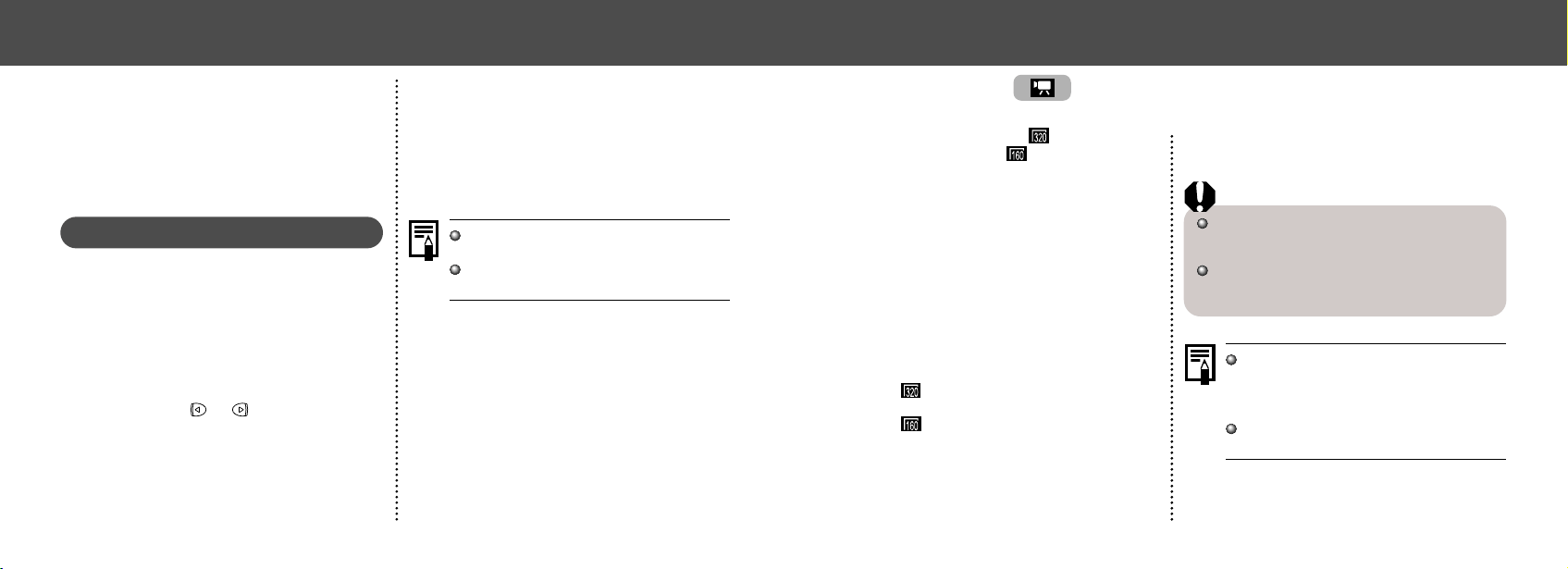
Movie Mode
The clip will end automatically after these
times have elapsed or when the CF card
becomes full.
The exposure, focus and white balance are
fixed to the settings value (of the first frame)
when shooting starts.
After shooting, the green indicator flashes while
recording to the CF card. You cannot shoot
images at this time.
Quick Time 3.0 or higher is required for re-
play movie files (AVI / Motion JPEG) on a
computer. Quick Time 5.0 is included on the
Canon Digital Camera Solution CD-ROM.
See “Functions Available in Each Shooting
Mode” (p. 57).
The resolution can be set to 320 x 240
pixels (default setting) or
160 x 120 pixels
in [Resolution] of the Rec. menu (p. 41).
1
Press the shutter button all the way
to start recording movie images.
• The recording time (in seconds) and a red
circle appear in the LCD monitor during
shooting.
2
Press the shutter button all the way
again to stop the recording.
• The maximum length of individual movie
clips (A200: approx. 20 frames / second,
A100: approx. 15 frames / second)
PowerShot A200: approx. 9 seconds
PowerShot A100: approx. 14 seconds
PowerShot A200: approx. 26 seconds
PowerShot A100: approx. 30 seconds
(based on standard conditions established
by Canon)
These items may change depending on the
subject or landscape conditions.
● Shooting ●
• Make the brightness in each image consis-
tent. The final image will appear unnatural if
the difference in brightness is too great.
• Pan (swivel) the camera to take successive
shots.
• To shoot close-ups, slide the camera over the
subject, keeping it parallel as you move.
Shooting
1
Shoot the first image.
2
Shoot the next image so that it
overlaps the first image.
• Minor discrepancies in the overlapping por-
tions can be corrected when the images are
stitched together.
• Press the or button to return to a
previous image that you want to
reshoot.
3
Shoot the next images in the same
way.
You can shoot up to 26 images.
4
Press the SET button to end the
shooting.
See “Functions Available in Each Shooting
Mode” (p. 57).
The settings for the first image shot are
applied for all subsequent images.
5150
● Shooting ●
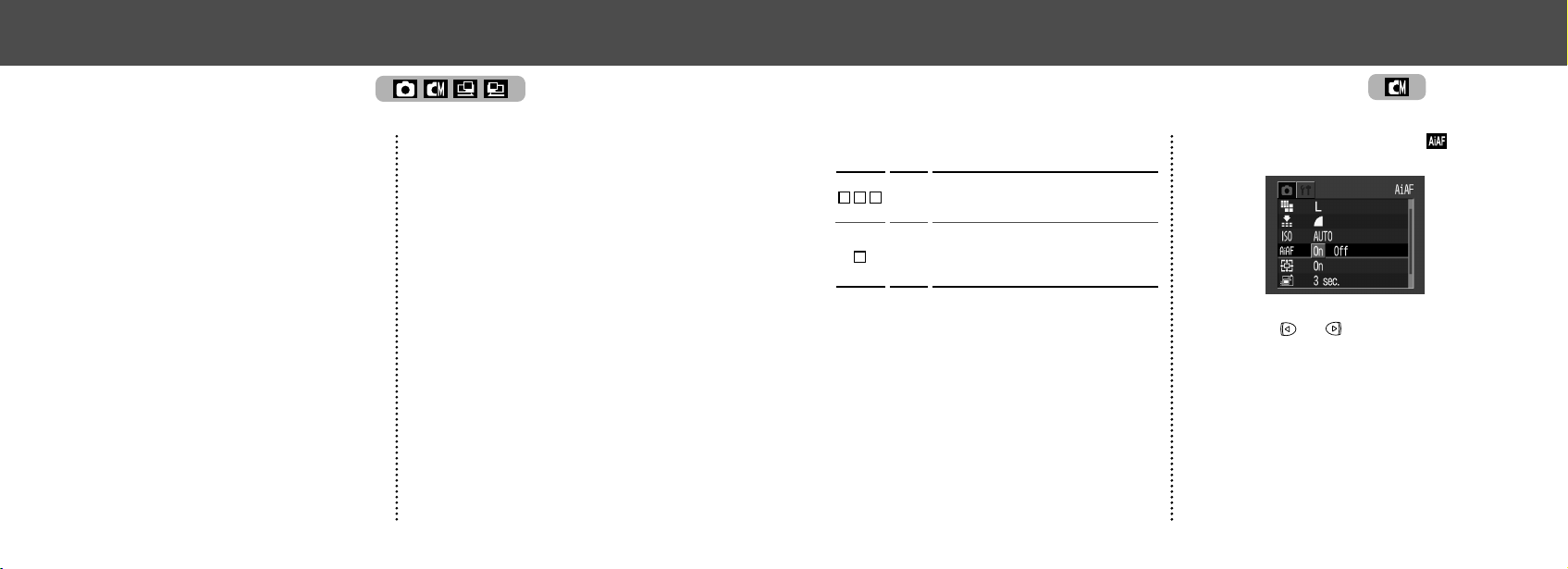
Switching Between Autofocus Modes
1
In the [Rec.] menu, select (AiAF).
See “Selecting Menus and Settings” (p. 36).
2
Press or button to select [On]
or [Off].
3
Press the MENU button.
Press the shutter button instead of the MENU
button to shoot an image with the set auto fo-
cus mode.
While the auto focus function is set to AiAF, you
can change to the auto focus center point.
On
Off
The camera automatically selects the
AF frame to focus on according to the
shooting conditions.
Focus is selected for the center of the
AF frame. This helps you to make
sure that the focus is exactly where
you want it.
● Shooting ●
Using the Focus Lock
The following types of subject may not be suited
to autofocus photography. Use the focus lock in
these situations.
• Subjects with extremely low contrast to the
surroundings
• Subjects with extremely bright objects at the
center of the composition
• Subjects that are moving quickly
• Subjects through glass
Try to shoot as close to the glass as possible
to reduce the chances of light reflecting back
off the glass.
1
Aim the camera so that a subject at
the same focal distance as the main
subject is centered in the viewfinder
or in the AF frame displayed on the
LCD monitor.
2
Press and hold the shutter button
halfway, and wait until the camera
beeps twice.
3
Re-aim the camera direction to
compose the shot as desired and
press the shutter button all the way.
5352
● Shooting ●
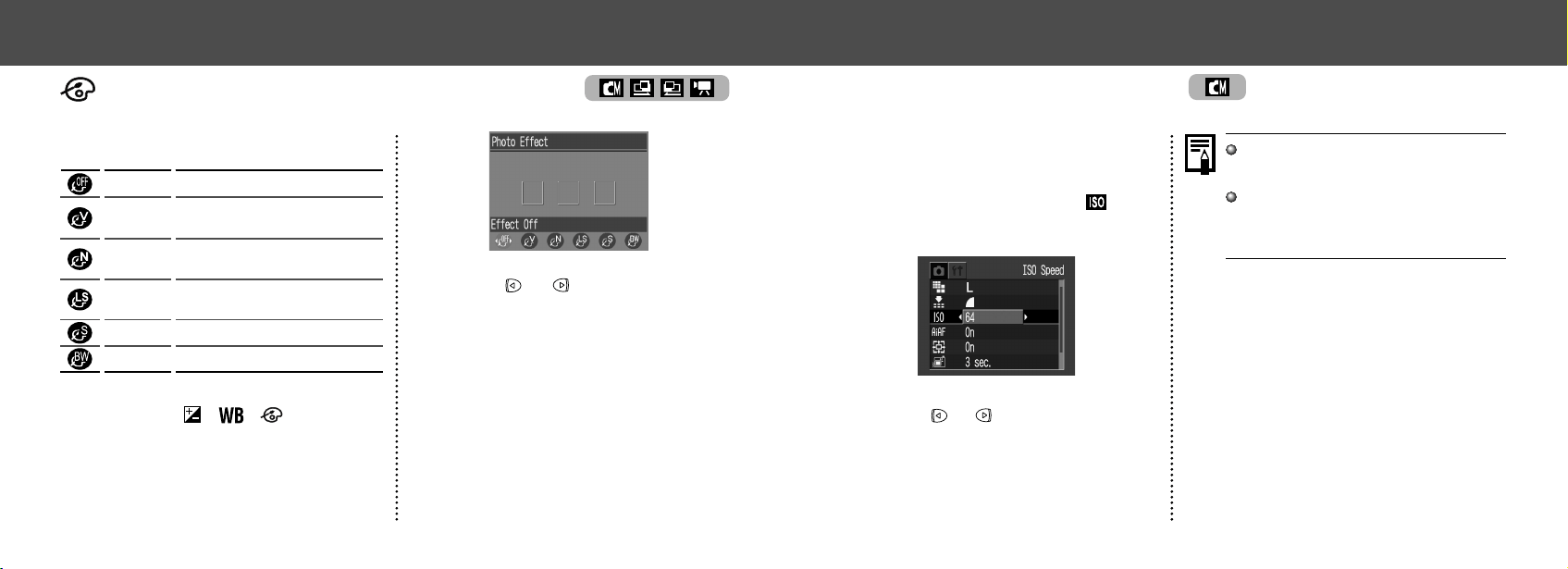
Setting the White Balance
When the white balance is set to match the light
source, the camera can reproduce colors more
accurately.
Auto
Daylight
Cloudy
Tungsten
Fluorescent
Fluorescent H
The camera sets the white
balance automatically according
to shooting conditions.
Use when shooting outdoors in
sunlight on a clear day.
Use when shooting outdoors and the
sunlight is not enough such as under
cloudy skies, in shade or at dusk.
For recording under tungsten
and bulb-type 3-wavelength
fluorescent lighting.
For recording under warm-white,
cool-white or warm-white (3-
wavelength) fluorescent lighting.
For recording under daylight
fluorescent, or daylight
fluorescent-type (3-wavelength)
fluorescent lighting.
1
Press the / / button (several
times) until the white balance setting
screen appears.
2
Press or button to select white
balance.
• If the LCD monitor is on, you can check the
results by viewing the image on the LCD
monitor.
• A shot can be taken immediately by
pressing the shutter button. The menu will
reappear after the shot, allowing you to
adjust the setting.
3
Press the SET button.
• The white balance cannot be set when
(sepia) or (B / W) photo effect is selected.
● Shooting ●
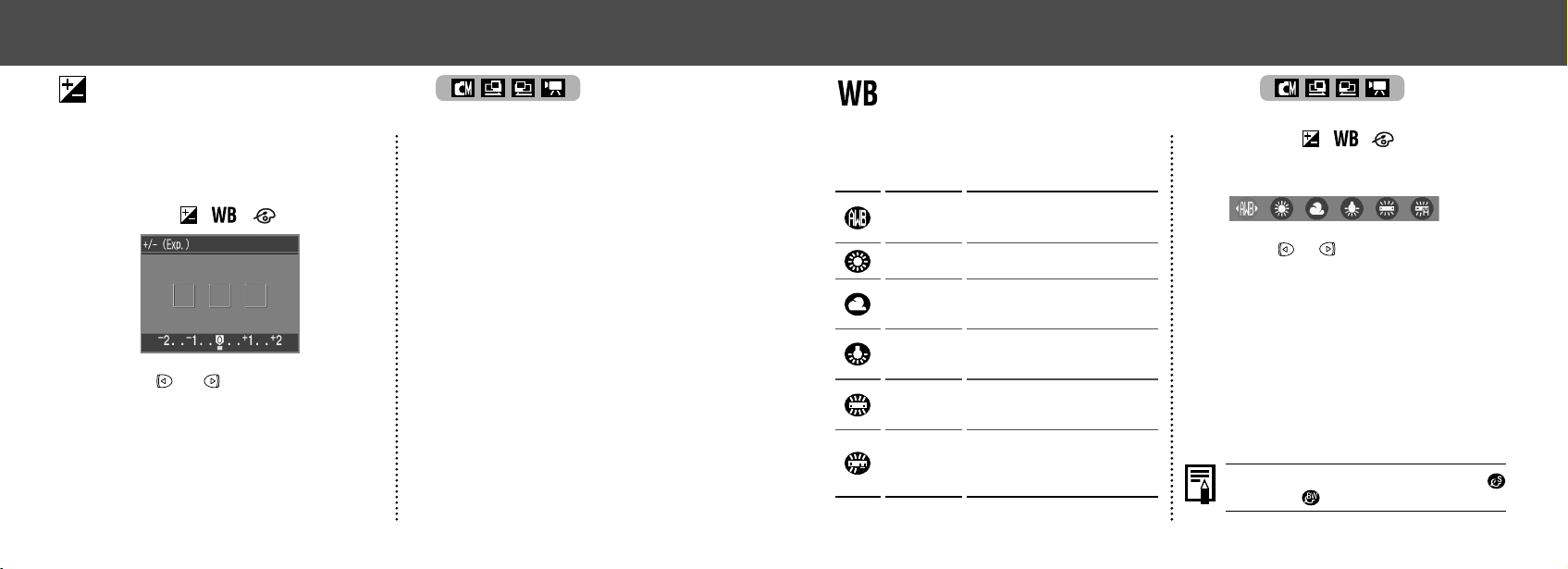
Adjusting the Exposure
• You can check the results of the compen-
sation by viewing the image on the LCD
monitor when it is on.
• You can shoot another image immediately
after making a setting. You can check the
result of your setting as the image will be
displayed again after shooting.
3
Press the SET button.
If you wish to turn compensation off, set the
compensation value to 0.
If you are shooting against a bright background
or strong backlight, you may need to correct the
exposure so that the subject doesn’t come out
too dark.
1
Press the / / button.
2
Press or button to adjust the
compensation.
• You can set the adjustments from -2 to +2
in 1/3-step increments.
5554
● Shooting ●
Changing the ISO Speed
Change the ISO speed when shooting images
in dark places or when you want to raise the
shutter speed.
1
In the [Rec.] menu, select (ISO
Speed).
See “Selecting Menus and Settings” (p. 36).
e.g. PowerShot A100
2
Press or button to select the
ISO speed.
3
Press the MENU button.
Higher ISO speeds increase the image
noise. To take clean images, use as low an
ISO speed as possible.
When [AUTO] is selected, the camera auto-
matically adjusts ISO as shown below.
PowerShot A200: ISO 50 - 150
PowerShot A100: ISO 64 - 150
● Shooting ●
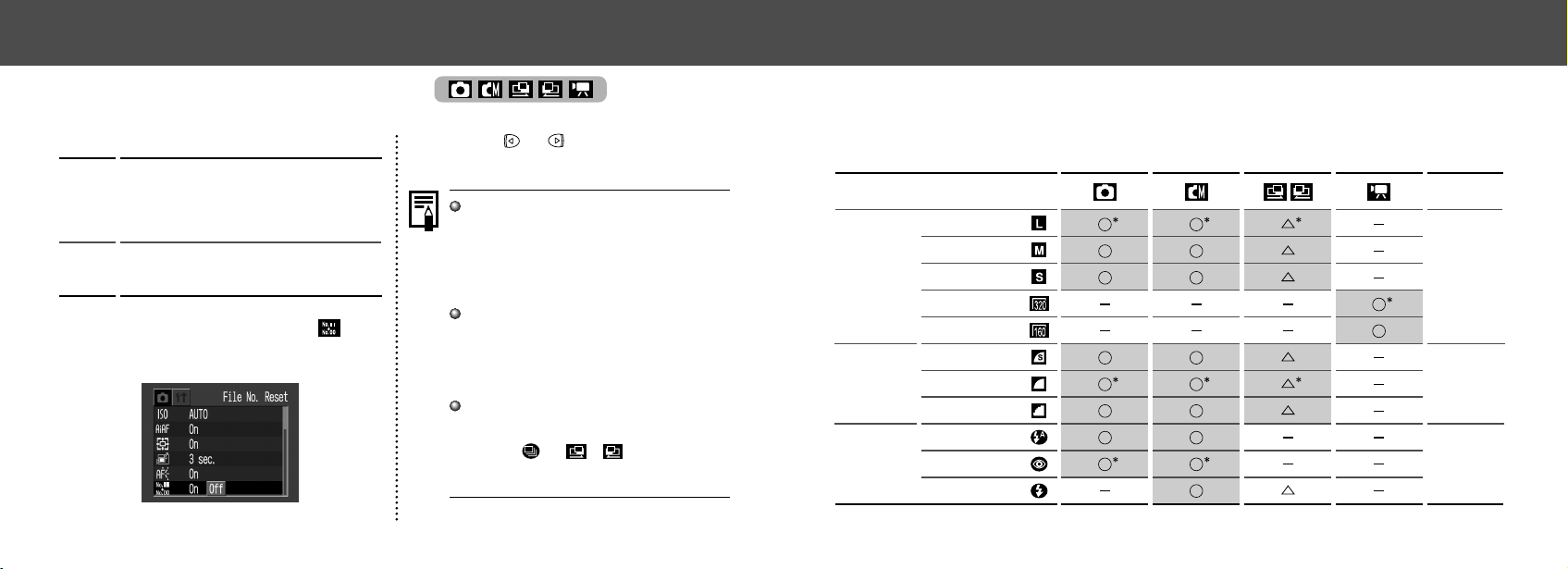
Switching Between Photo Effect Modes
An image can be recorded in a different Photo
Effect Mode.
Vivid
Off
Neutral
Low
Sharpening
Sepia
B/W
Records normally with this setting.
Emphasizes the contrast and color
saturation to record in bold colors.
Tones down the contrast and color
saturation to record neutral hues.
Records subjects with softened
outlines.
Records
images in sepia tones.
Records
images in black and white.
1
Press the / / button (sev-
eral times) until the photo effect set-
ting screen appears.
2
Press or button to select the
photo effect.
• If the LCD monitor is on, you can check the
photo effect by viewing the image on the
LCD monitor.
• A shot can be taken immediately by
pressing the shutter button. The menu will
reappear after the shot, allowing you to
adjust the setting.
3
Press the SET button.
5756
● Shooting ●
Function
Reference
Pages
Resolution
Compression
Flash
Large
Medium
Small
Movie
Movie
SuperFine
Fine
Normal
Auto
Red-eye reduction, Auto
On
p. 41
p. 41
p. 43
Continues on next page
Functions Available in Each Shooting Mode
The following chart shows the functions and settings available in each shooting mode. The camera
stores settings separately for each mode, and retains these settings even if you switch to a
different mode.
● Shooting ●
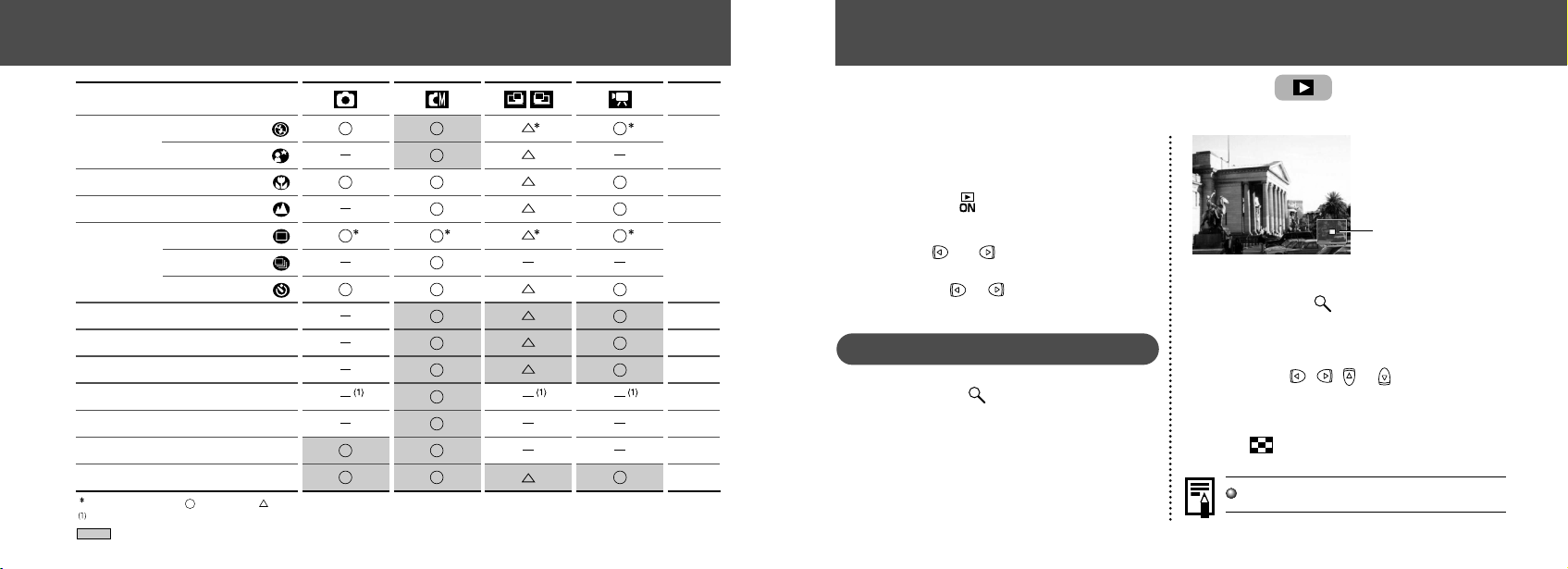
Resetting the File Number
Select the set up method for the file number.
Off
The camera resets the file number to 100-
0001 each time you insert a new (unused)
CF card. If you insert a card that already
contains some images, numbering resumes
from the next available number.
The camera remembers the last file number,
and starts numbering from the next number
when you insert a new CF card.
On
1
In the [Rec.] menu, select (File
No. Reset).
See “Selecting Menus and Settings” (p. 36).
2
Press or button to select [On]
or [Off] and press the MENU button.
The [Off] setting helps ensure that file num-
bers remain unique over multiple CF cards.
This is useful if you are planning to down-
load images from the cards to your computer,
since it helps avoid accidental overwrites that
may occur if filenames are duplicated.
About file numbering...
Image files are assigned numerical file
names over the range 0001 to 9900. The
camera stores these files into folders, which
are assigned folder numbers from 100 to 998
(except that numbers ending in 99 are not
used).
In most cases the camera stores exactly 100
files into each folder. Because the camera
cannot switch to a new folder when taking
shots in or / mode, however,
some folders may have more than 100 im-
ages.
5958
● Shooting ●
Function
Reference
Pages
Flash
Macro Mode
Infinity Mode
Exposure Compensation
White Balance
Photo Effect
ISO Speed
Auto Focus Frame
Digital Zoom
AF-assist Beam
Single
Continuous
Self-Timer
Off
Slow-Synchro
p. 43
p. 45
p. 45
p. 46
p. 52
p. 53
p. 54
p. 55
p. 51
p. 35
p. 34
Shooting
Method
: Default settings : Available : Available only for the first image
:
The ISO speed is automatically set between the equivalent of 50 and 150 (PowerShot A200) or 64 and 150 (PowerShot A100)
: Setting is retained even after power off.
Replaying
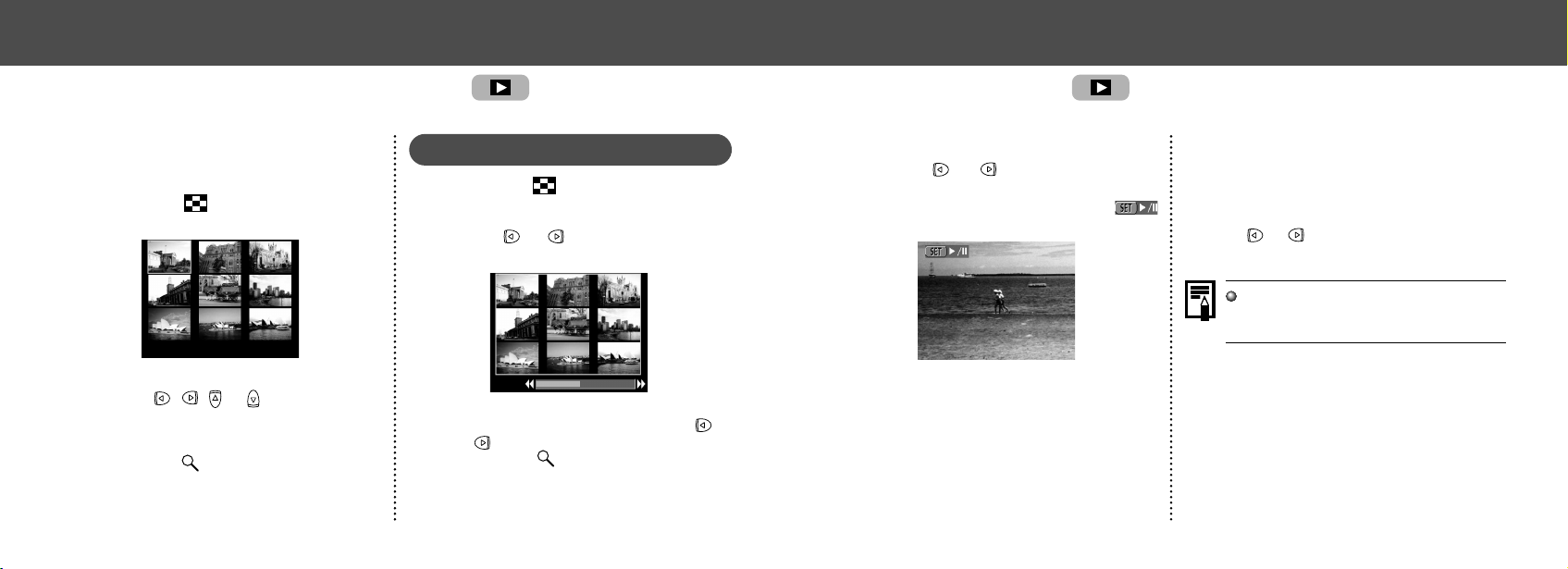
Use this feature to view recorded images one
at a time on the LCD monitor (Single Image
Replay).
1
Press the button.
The last image shot is displayed.
2
Press or button to switch the
displayed image.
Hold down or button to display images
continuously.
Magnifying Images
1
Press the button during single
replay.
The image enlarges gradually by up to 10
times.
Approximate Location
of the Magnified Area
• When you hold down the SET button and
press the button, the image enlarges
in the order: approximately 2.5 times → ap-
proximately 5 times → approximately 10
times.
• Press , , or buttons to change
the display position vertically and horizon-
tally.
• To return to normal-size display, press the
button.
2
Movies cannot be enlarged.
Displaying Images Individually
6160
Viewing Movies
Pausing and Resuming Play
• Press the SET button to pause the movie.
Press it again to resume play.
Fast Forwarding / Rewinding
• Press or button to stop the movie and
display the previous or next image or movie.
You may experience frame dropping when
replaying a movie on a computer with in-
sufficient system resources.
Replay movies you shot.
1
Press or button to select the
movie.
A movie displays with the instructions
on it.
2
Press the SET button.
The movie is replayed.
• When a movie has finished replaying, it will
display the last frame. Pressing the SET
button again in this state will start replay-
ing from the first frame.
● Replaying ●
Viewing Images in Sets of 9
Changing the Displayed Images
1
Press the button while the index
is being replayed.
2
Press or button to change the
image.
• Hold the SET button and press the or
button to jump to the first or last image.
• Press the button to go to index replay.
View nine images at once on the LCD monitor
(Index View) so that you can search the image
quickly.
1
Press the button.
9 images appear at a time.
2
Press , , or button to select
the image.
3
Press the button for an image you
want to zoom.
● Replaying ●
6362
Auto Play
Use this feature to automatically replay all of
the images in the CF card (Auto Play). The LCD
monitor displays each image for approximately
3 seconds.
1
In the [Play] Menu, select (Auto
Play) and press the SET button.
See “Selecting Menus and Settings” (p. 36).
Auto play starts.
• As with the single image display mode,
pressing the or button during auto
play will advance through the images more
rapidly.
Pausing and Resuming Auto Play
You can pause Auto Play at any time by press-
ing the SET button. You can then restart it by
pressing the SET button again.
Stopping Auto Play
To stop Auto Play, press the MENU button.
The display interval may vary for some im-
ages.
Movie images play for the length of time that
they were recorded.
The power save function is disabled during
Auto Play (p. 27).
● Replaying ●
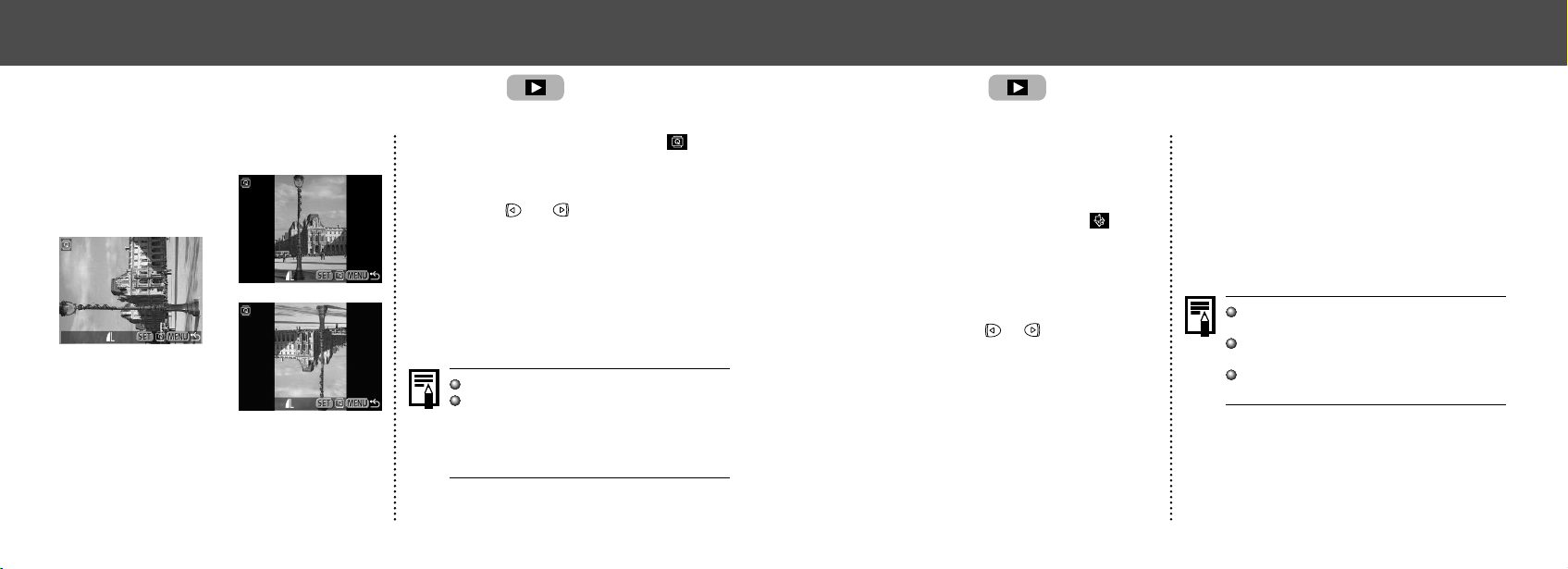
Rotating Images in the Display
You can rotate an image by 90° or 270°
clockwise in the LCD monitor.
0° (Original)
90°
270°
1
In the [Play] Menu, select (Ro-
tate) and press the SET button.
See “Selecting Menus and Settings” (p. 36).
2
Press or button to select the
image to be rotated and press the
SET button.
Press the SET button to rotate the Image 90°,
270° and back to original orientation.
3
Press the MENU button.
Movie images cannot be rotated.
If an image has been rotated in the camera
before being loaded onto a computer, the
particular software in use will determine
whether or not the rotation settings are re-
tained.
● Replaying ●
6564
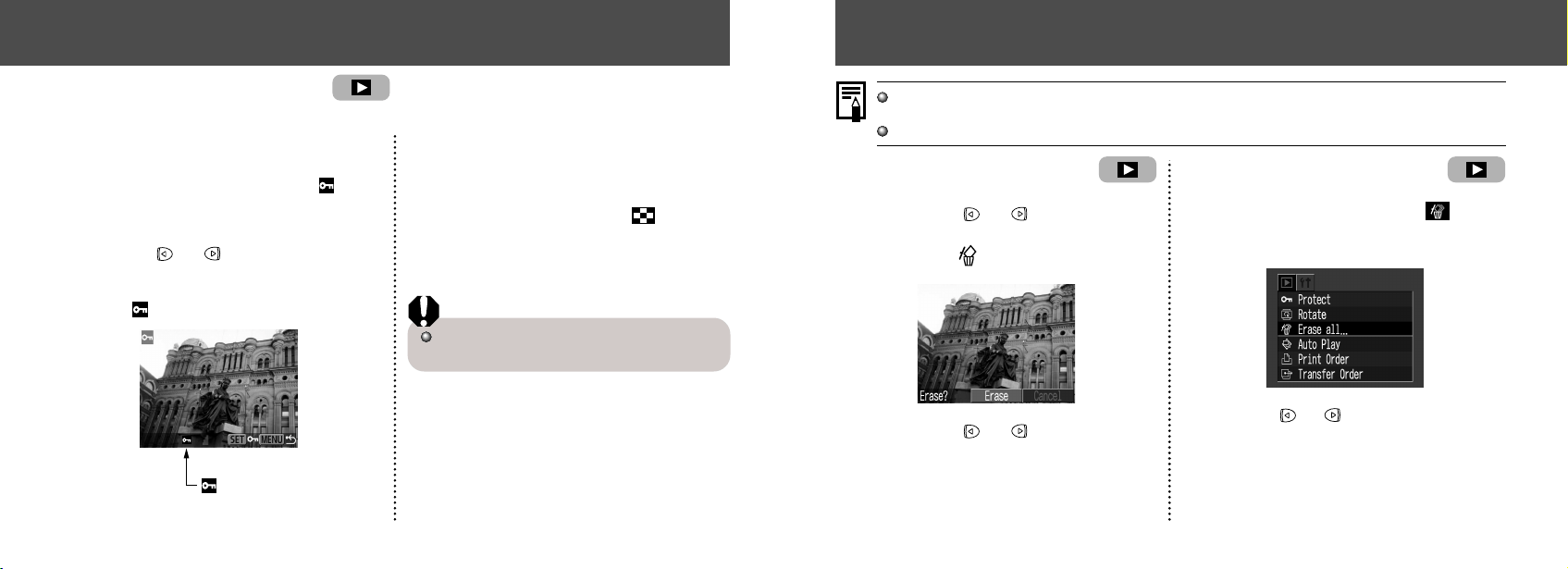
Erasing
Erasing Images Individually
1
Press the or button to select
the image you want to erase and
press the
button.
2
Press the or button to select
[Erase] and press the SET button.
Select [Cancel] instead of [Erase] and press
the SET button if you decide you do not want
to erase the image.
Erasing All Images
1
In the [Play] Menu, select (Erase
all) and press the SET button.
See “Selecting Menus and Settings” (p. 36).
2
Press or button to select [OK]
and press the SET button.
Select [Cancel] instead of [OK] and press the
SET button if you decide you do not want to
erase the images.
Remember that erased images cannot be recovered.
Be careful to avoid accidental erasures.
This function will not erase protected images (p. 64).
Use the protect feature to protect important im-
ages from accidental erasure.
1
In the [Play] Menu, select (Pro-
tect) and press the SET button.
See “Selecting Menus and Settings” (p. 36).
2
Press or button to select the
image you want to protect and press
the SET button.
The icon appears on the protected image.
Protected Icon
• To release the protection, press the SET
button again.
• You can make the selection of images
easier by toggling between single replay
and Index replay with the button.
3
Press the MENU button.
Please note that even protected images are
erased when a CF card is reformatted.
● Replaying ●
Protecting Images
6766
Formatting a CF Card
You should format new CF cards before using
them.
Formatting a CF card will permanently erase all
data already on it, including all of its protected
images. Check the contents before formatting
cards that were previously used.
1
In the [Set up] Menu, select (For-
mat) and press the SET button.
See “Selecting Menus and Settings” (p. 36).
2
Press or button to select [OK]
and press the SET button.
Select [Cancel] and press the SET button to
cancel the formatting.
If the camera is not operating correctly, the
CF card may be corrupted. Formatting the
card may solve the problem.
If you are using a CF card from another
manufacturer and the card is not functioning
correctly, you may be able to correct the
problem by formatting the card.
CF cards formatted with another camera, a
computer or peripheral device may not op-
erate correctly. Format these cards with this
camera. If formatting in the camera doesn’t
work properly, turn the camera off and re-
insert the CF card. Then turn the camera
back on and format again.
● Erasing ●
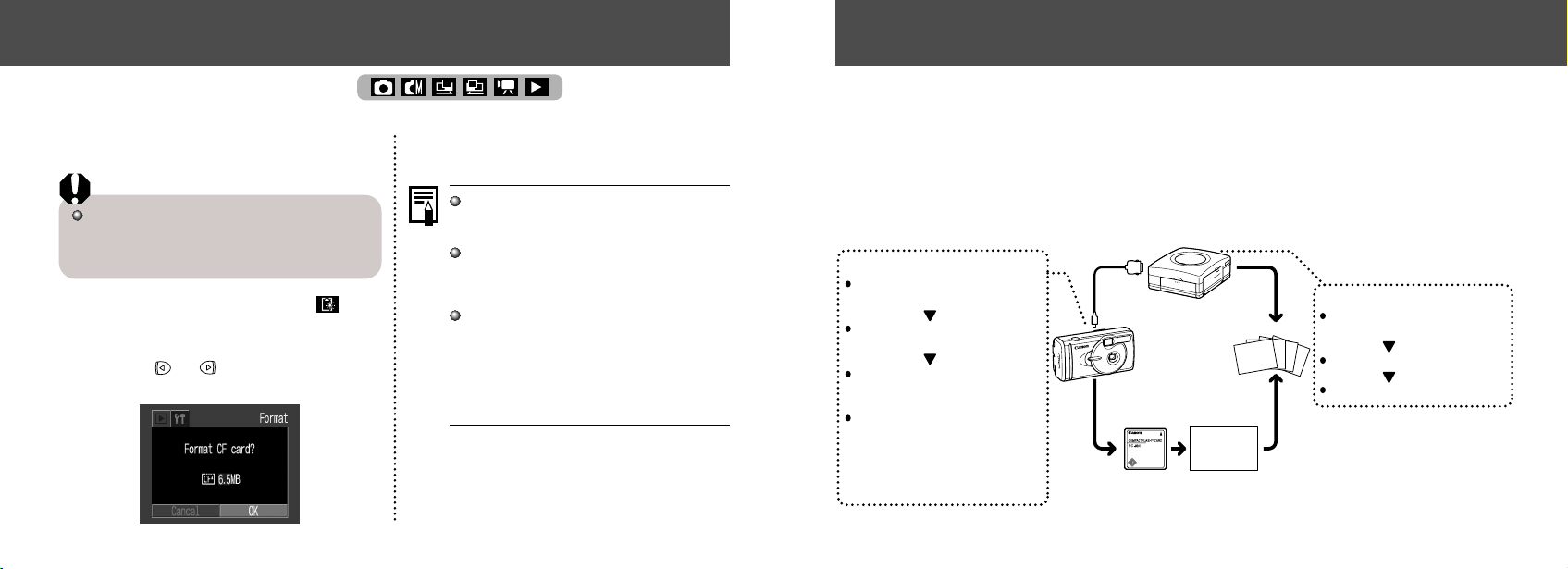
Printing
Photo lab
Printed
images
DPOF Print Settings
DPOF Transfer Settings
* The supplied DPOF-compliant
software is needed for actually
transferring the images.
Select the image you want to
print (p. 76)
Select how many copies you
want (p. 76)
Select the print style (p. 78)
Select the image you want to
send through e-mail* (p. 82)
Print Settings for Direct Print Function
Select how many copies you
want (p. 72)
Select the print style (p. 72)
Select the print area (p. 74)
Optional Canon direct
print function compliant
printer
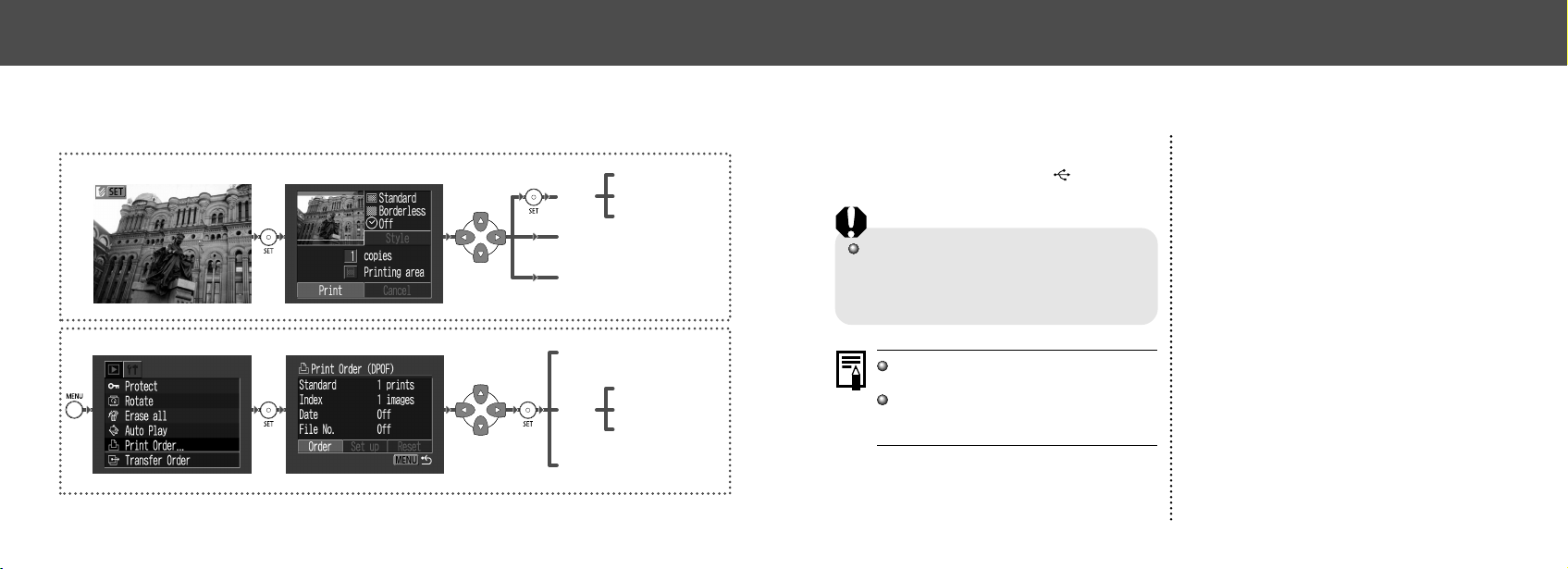
About Printing
After connecting the camera to an optional Canon direct print function compliant printer, you can
easily print images just by using the controls on the camera. Or, you can specify the images on
your CF card you want to print and how many copies you want (DPOF* Print Settings), and then
take the CF card to a participating photo lab to have them printed out later.
Refer to the System Map included with this camera kit for printer information.
* Digital Print Order Format
6968
● Printing ●
Connecting the Camera to a Printer
Two direct interface cables are included with
Canon printers having the direct print function.
Use the DIF-100 cable with the
mark on the
connector when connecting to this camera.
If you plan to print out many prints in a single
session, it is recommended that you power the
camera with AC power (p. 99) or else load fully
charged NiMH batteries (p. 96) or unused alka-
line batteries before you begin.
Refer to the System Map included with this
camera kit for printer information.
Please see your printer’s user guide for
instructions on loading paper and install-
ing an ink cassette.
1
Turn off the Camera.
2
Attach the power cable to the
printer and plug the other end into
power supply. Or, install the
printer’s rechargeable battery.
• Depending on the type of printer you have,
it may or may not use rechargeable batter-
ies. Refer to your printer’s user guide.
● Printing ●
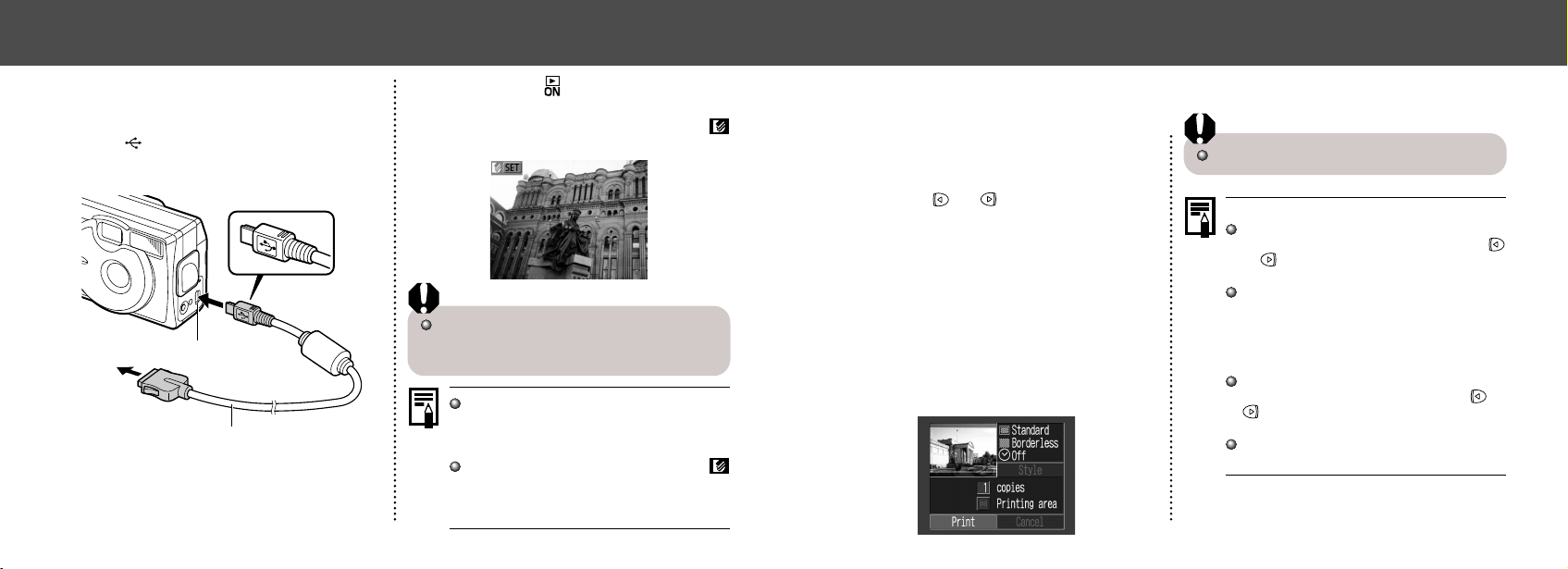
Selecting from the Print Order Menu
Use the Print Order Menu as shown below to select all print settings.
DPOF Settings - Replay
Order
–
Number of copies
(
p. 76)
Reset
(
p. 79)
Set up
Date (
p. 78)
Print Type (
p. 78)
File No. (
p. 78)
Direct Print Function - Replay
Style
Printing area (
p. 74)
Number of copies (
p. 72)
Borders (
p. 72)
Image (
p. 72)
Date (
p. 72)
Print Order Menu
7170
● Printing ●
Printing
Movies cannot be printed.
Cancel Printing
Press the SET button while printing.
A confirmation screen will appear. Press
or button to select [OK] and press the
SET button.
A print in progress cannot be stopped. Wait
until the current image is printed and then
cancel before the next one starts. The dis-
play will revert to standard replay mode.
Printing Errors
The error screen is displayed when errors
occur during printing (p. 94). Press or
button to select [Cancel] or [Resume]
and press the SET button.
[Resume] may not appear depending on the
error details. Select [Stop] in these instances.
An image can be printed when displayed in
single replay or selected in index replay.
1
Press or button to select the
image you wish to print, and then
press the SET button.
2
Set the number of prints, the print
style (p. 72) and printing area (p. 74)
settings as required.
3
Select [Print] and press the SET
button.
The image will start to print and, when it is com-
pletely finished, the display will revert to the
replay screen.
● Printing ●
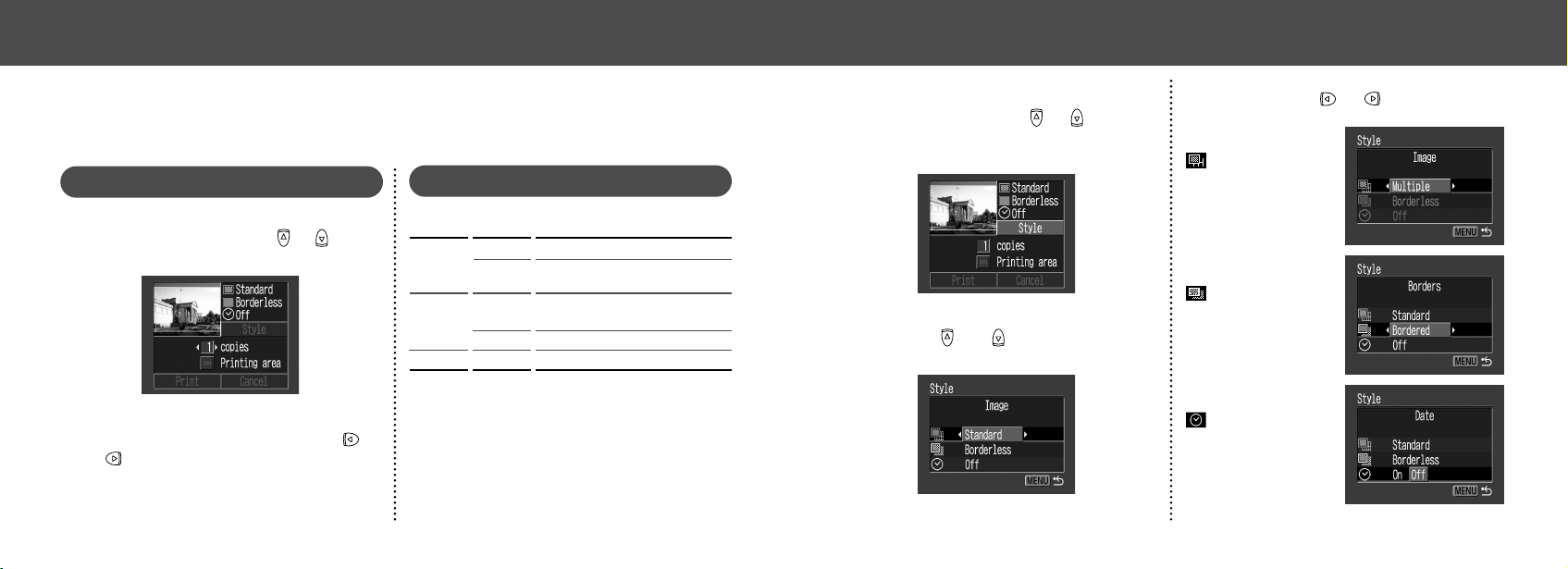
3
Connect the camera and printer
using the direct interface cable.
• When you insert the cable, make sure the
mark of the cable faces the front of the
camera.
to Printer
DIGITAL Terminal
Direct Interface Cable
DIF-100
4
Press the button to turn the
camera power on.
If the printer is correctly connected, the
icon will appear on the LCD monitor.
When disconnecting the cable from the
camera’s Digital terminal, be sure to hold the
connector at its sides and pull it straight out.
Movies cannot be played back or the lan-
guage cannot be set with SET + MENU but-
ton when the camera is connected to a
printer.
When the printer is disconnected, the
symbol will disappear from the LCD monitor
and the camera will revert to standard
replay mode.
7372
● Printing ●
1
While displaying the image, press the
SET button. Press
or button to
select [Style], then press the SET
button.
2
Press or button to select
[Image], [Borders], or [Date].
3
Select with or button.
Select [Borderless] or
[Bordered].
Select [On] or [Off].
Select [Standard] or
[Multiple].
Borders
Image
Date
● Printing ●
Print Settings (Direct Print Function)
You can specify print settings while a printer is
connected.
Setting the Number of Copies
1
While displaying the image, press the
SET button and press
or button
to select [copies].
2
Set the number of copies with or
button.
You can set from 1 to 99 prints.
Setting the Print Style
You can set the following print styles.
Prints one image per page.
Prints eight copies of the same
image on one page.
Prints right to the edge of the
page.
Prints with a border.
Prints the image's creation date.
Image
Borders
Date
*This setting is only available for Card-Size paper.
Borderless
Bordered
Standard
Multiple
*
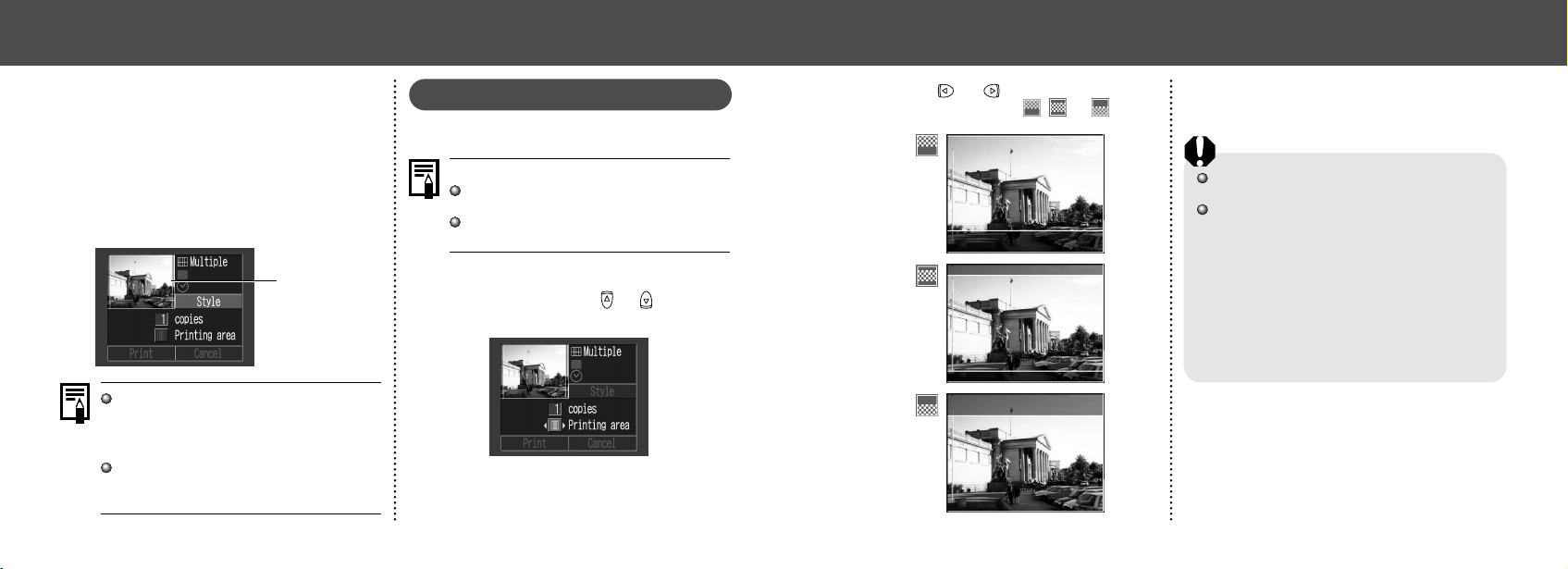
7574
● Printing ●
2
Press or button to select the
printing area from
, or .
• The selectable print area may move left or
right for L size paper or when the screen
setting for the print style is [Multiple].
The printing area setting only applies to one
image.
The printing area setting is cancelled with the
following operations.
• Printing
• When you set the printing area setting for
another image.
• When you close the Print mode, i.e.
- turn the camera off
- change the camera mode
- after setting the printing area, you select
[Cancel] and don’t print
- detach the DIF-100 direct Interface cable
● Printing ●
4
Press the MENU button.
• If [Borderless] or [Multiple] is selected as
the print style, the center portion of the re-
corded image is printed at an enlarged size.
As a result, the top, bottom and sides may
be cropped slightly. The area of the image
that will be printed will appear lighter than
the rest of the image allowing you to check
the portion to be cropped.
Print Area Frame
Date and borders cannot be set when
[Multiple] is selected. (The image will be
printed with the Date set to [Off] and the Bor-
ders set to [Borderless].)
With the [Bordered] option, the border is
printed in practically the same space as the
recorded image.
Specifying the Printing Area
You can select from 3 types of printing areas.
Before specifying the printing area
Please set the Print Style (Image, Borders
and Date) first (p. 72).
Printing area can only be specified with the
borderless and multiple print style.
1
While displaying the image, press the
SET button. Press
or button to
select [Printing area].
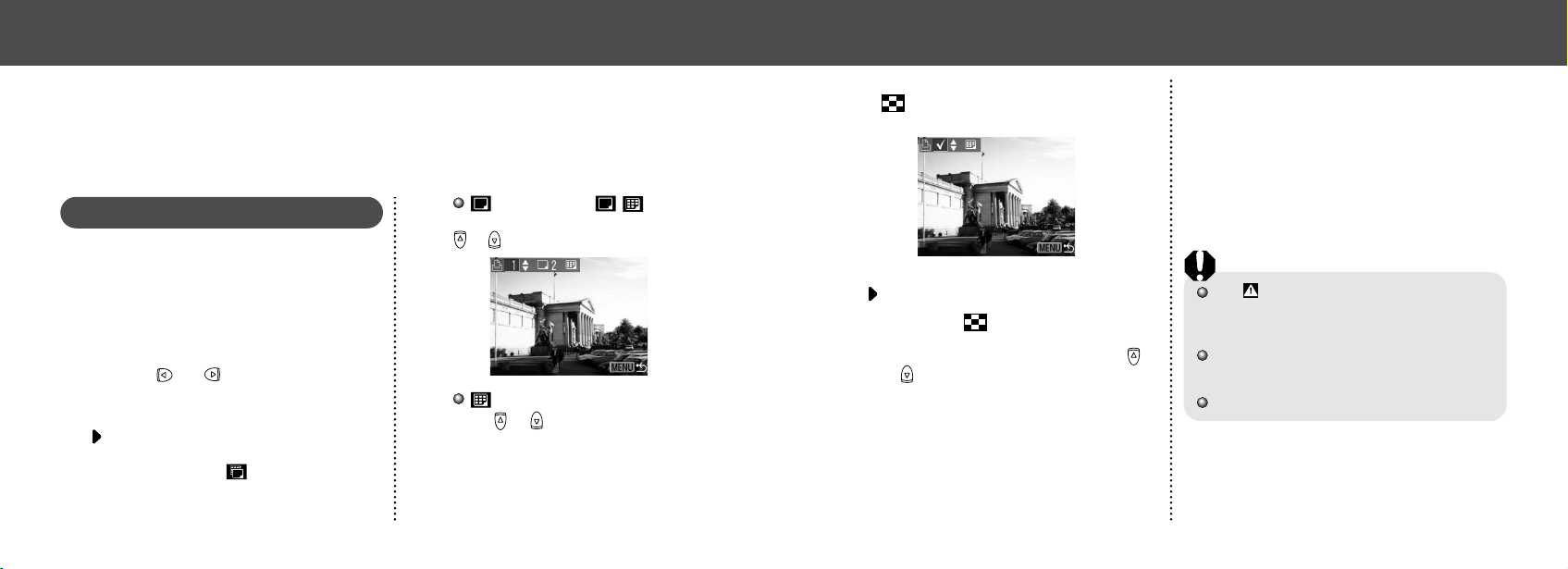
7776
● Printing ●
You can set with the same method even if the
button is pressed and changed to index
replay (3-image index replay).
For setting all images on the CF card
• Press the button to switch to index
replay (3-images display)
• After pressing the SET button, press or
button to select [Mark all]. Press the SET
button again to set for printing all images
one at a time.
• You can change the number of copies for
each image when the print type is [Stan-
dard] / [Both]. You can remove the print set-
tings when the print type is [Index]. See
from Step 3 for changing the settings.
• Select [Clear all] to remove all settings.
4
Press the MENU button.
The mark appears on images that have had
print marks set by another DPOF-compliant
camera. These settings will be overwritten by
any print marks set by your camera.
The output of some digital printers or photo
lab services may not reflect the specified
print settings.
Movies cannot be printed.
● Printing ●
DPOF Print Settings
On your CF card, select which image or images you want to print and how many copies you want.
This is convenient for printing images all at once, on optional Canon direct print function compliant
printers or at participating photo labs.
Selecting Images for Printing
1
Display the [Print Order] menu.
See “Selecting from the Print Order Menu”
(p. 68).
2
Select [Order] and press the SET
button.
3
Press or button to select the
image.
For setting images one by one
The setting method will vary according to the
print type settings ( ) (p. 78) as shown in
the following.
(Standard) / (Both)
You can now select the number of copies with
or button. (Max. 99 copies)
(Index)
Press or button to place a check mark
for selecting the image and press it again to
remove the checkmark for deselecting.
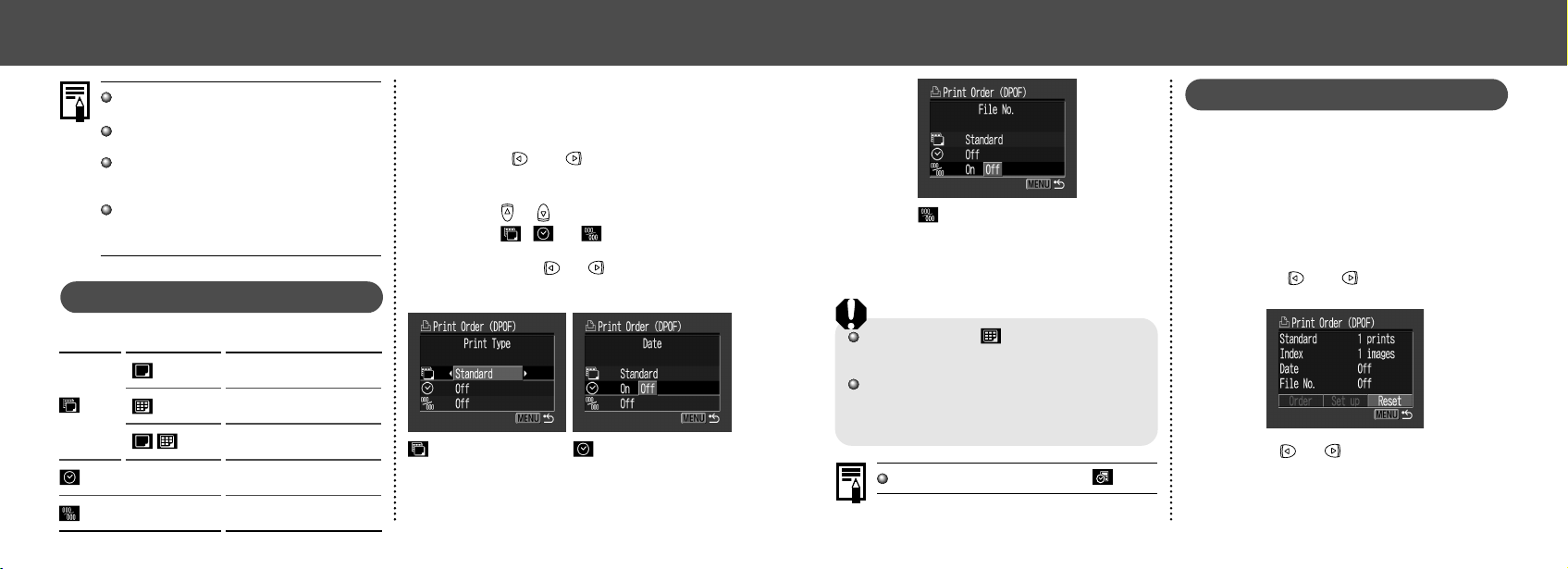
7978
● Printing ●
File No.
Select [On] or [Off].
5
Press the MENU button.
If you have chosen (index) as the print type,
you cannot set [Date] and [File No.] to [On] at
the same time.
If you have chosen [Both] as the print type, you
can set both [Date] and [File No.] to [On],
however, only the file numbers will be printed
on index prints.
The date is printed in a style set by (p. 24).
Resetting the Print Settings
The Reset feature clears all print selections, and
resets Print Type to [Standard], Date to [On],
and File No. to [Off].
1
Display the [Print Order] menu.
See “Selecting from the Print Order Menu”
(p. 68).
2
Press or button to select
[Reset] and press the SET button.
3
Press or button to select [OK]
and press the SET button.
Select [Cancel] and press the SET button to
cancel the reset.
● Printing ●
Images are printed in order from oldest to
newest by the shooting date.
A maximum of 998 images can be set per
CF card.
The number of copies cannot be set when
the [Print Type] is set to [Index]. Only one
copy can be set at [Index].
Print settings can also be assigned to im-
ages with the bundled software programs on
a computer.
Setting the Print Style
You can set up the print style as follows.
Print
Type
Print one image per
sheet.
Print index prints (multiple re-
duced-size images per page).
Print selected images both in
standard and index format.
Include the date on the
print.
Include the file number
on the print.
Standard
Index
Both
File No.
Date
1
Display the [Print Order] menu.
See “Selecting from the Print Order Menu”
(p. 68).
2
Press or button to select
[Set up] and press the SET button.
3
Press or button to select the print
style (
, or ).
4
Select with or button.
Date
Select [On] or [Off].
(Print Type)
Select [Standard], [Index]
or [Both].
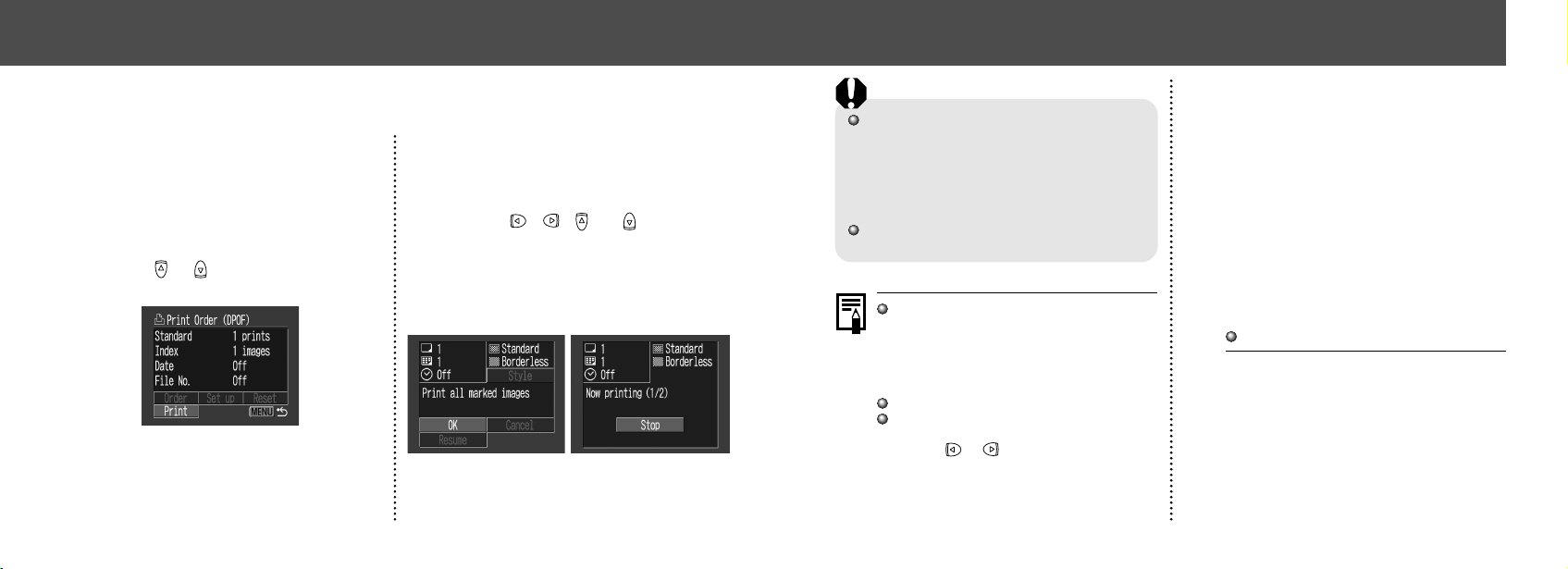
8180
● Printing ●
To print the date, set the [Date] setting in the
print order menu in Step 2 on the previous page
to [On]. You cannot set the date to print with the
[Style] menu in Step 3 on the previous page
(p. 78). If the print type is set to [Index], the date
will not print even if the [Date] setting is set to
[On] in Step 2.
When [Print Type] is set to [Standard], the file
number is not printed.
When the Print Type is set to [Index], the
number of images that will be printed
depends on the size of the paper.
• Card Size: 20 images
• L Size: 42 images
• Postcard Size: 63 images
Cancel Printing (p. 71)
Restarting Printing
• In the Print Order menu, select [Resume]
using or button and press the SET
button. The remaining images can be
printed.
• Printing cannot be restarted under the
following circumstances.
- If the print settings have been changed
before restarting.
- If the image for which the print settings
were set has been deleted before
restarting.
- If there was very little free space on the
CF card when the printing was
cancelled.
If these circumstances apply, you can select
[OK] in the print screen and reprint starting
from the first image. If printing was cancelled
because the camera batteries became
discharged, please power the camera with a
household power source or change to fully
charged AA-size NiMH or unused alkaline
batteries, then turn the camera on.
Printing Errors (p. 94)
● Printing ●
Printing with DPOF Print Settings
3
Set the print style as required.
• See “Setting the print style” (p. 72)
• A print style cannot be set if the print type
is set to [Index] in the DPOF print setting.
4
Press , , or buttons to
select [OK] and press the SET
button.
The image will start to print and, when it is com-
pletely finished, the display will revert to the
replay screen.
You can use the DPOF print settings to print
with an optional direct print function compliant
printer.
1
Display the [Print Order] menu.
See “Selecting from the Print Order Menu”
(p. 68).
2
Press or button to select [Print]
and press the SET button.
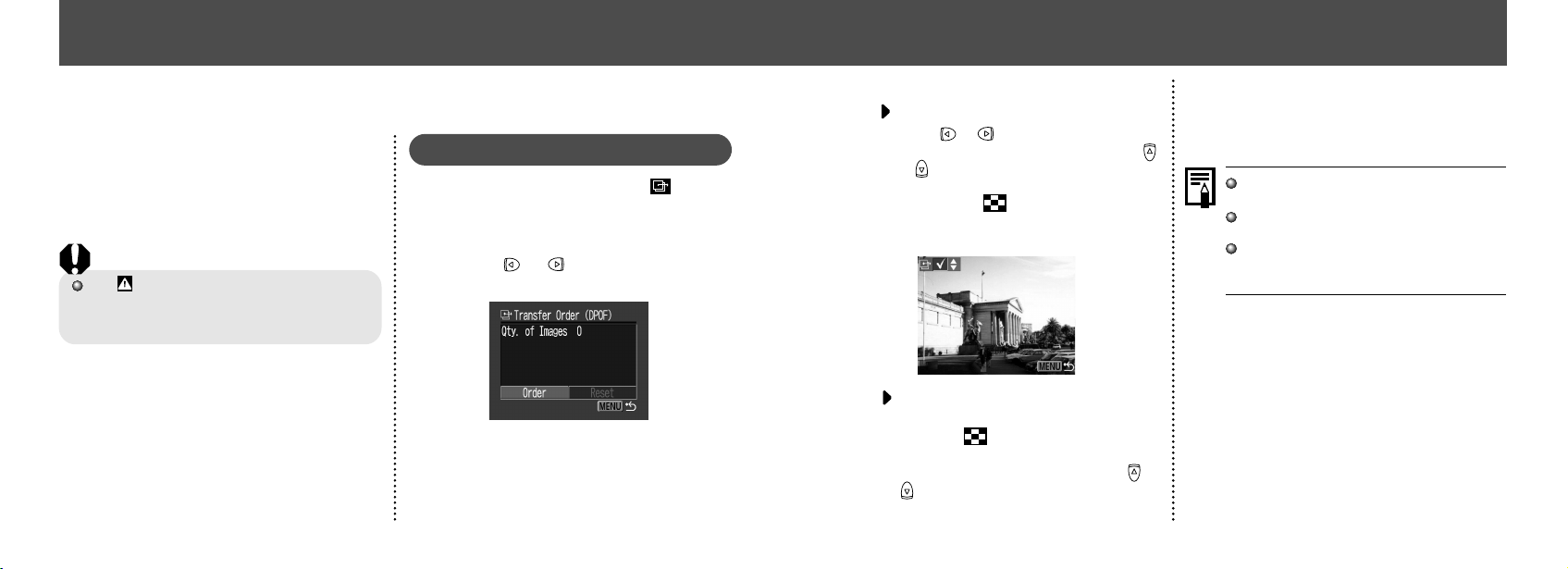
8382
3
Select images for transferring.
For setting images one by one
• Press or button to select the image
and mark or remove from images using
or button. The check marks are displayed
when set.
• Pressing the button allows you to set
with the same method even if changed to
index replay (3-images).
For setting all images on the CF
card
• Press the button to switch to index
replay (3-images display).
• After pressing the SET button, press or
button to select [Mark all]. Press the SET
button again to set for printing all images
one at a time.
• Select [Clear all] to remove all settings.
4
Press the MENU button.
Images are transferred in order from oldest
to newest by the shooting date.
A maximum of 998 images can be marked
per CF card.
Transfer settings can also be assigned to
images with the supplied software programs
on a computer.
● Image Transfer Settings (DPOF Transfer Order) ●
Setting the Image Transfer
Using the camera, you can specify images you
wish to transfer and attach to e-mails. (Please
use the supplied software for actually transfer-
ring images.) These settings are compatible with
the Digital Print Order Format (DPOF) stan-
dards.
The mark will display on images that have
had transfer marks set by another DPOF-
compliant camera. These settings will be over-
written by any marks set by your camera.
Selecting Images for Transferring
1
In the [Play] menu, select (Trans-
fer Order) and press SET button.
See “Selecting Menus and Settings” (p. 36).
2
Press or button to select
[Order] and press the SET button.
• You can remove all the transfer marks at
once by selecting [Reset].
Image Transfer Settings (DPOF Transfer Order)
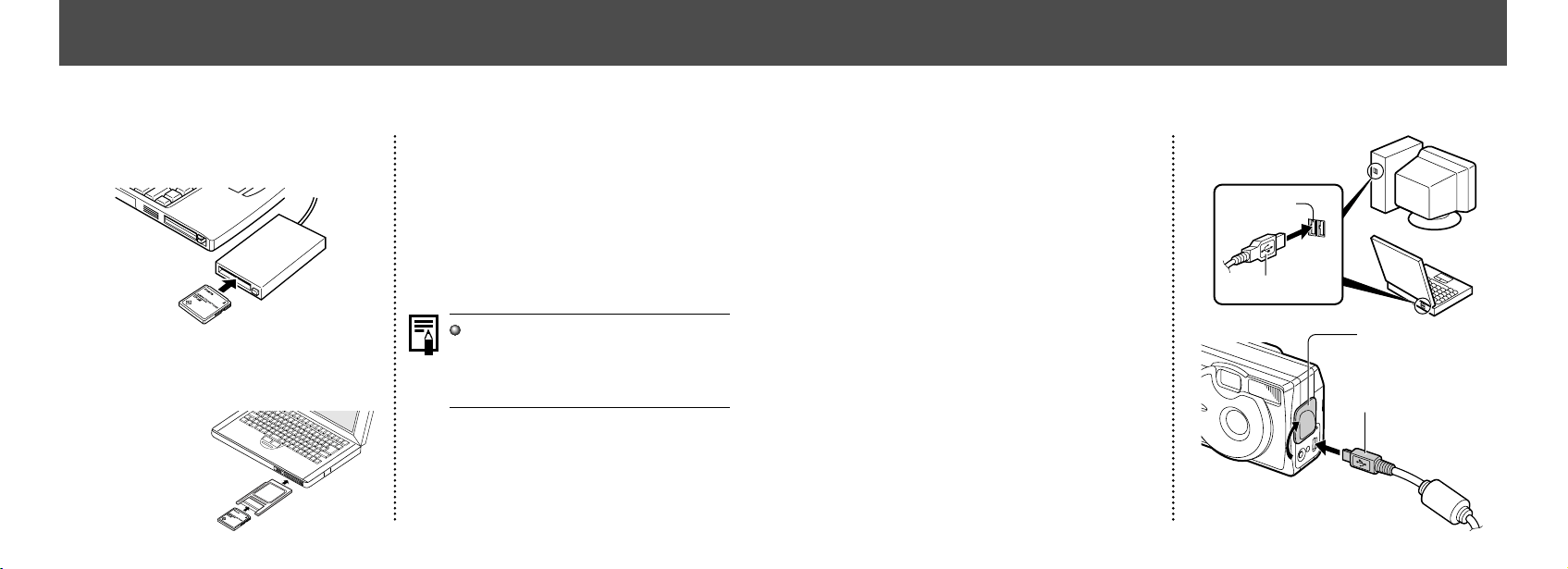
8584
Connecting the Camera to a Computer Via the USB Cable
Installing the included software in advance
allows you to download images automatically
simply by connecting the camera to the
computer with the included USB cable.
1
Connect the supplied USB interface
cable to the computer’s USB port
and the camera’s Digital terminal.
• You do not need to turn off the computer or
camera when making this connection.
• Please refer to your computer manual for
information regarding the location of the
USB port.
USB cable
USB port
Open the terminal
cover with your
fingernail
Insert the connector
until it clicks
1.
2.
● Downloading Images to a Computer ●
Downloading Directly from a CF Card
1
Eject the CF card from the camera
and insert it into a CF card reader.
• If you are using a PC card reader, first in-
sert the CF card into a PC card adapter
(optional), and then insert it into the
computer’s PC card reader.
2
Double-click the icon of the drive
connected with the CF card to open
the drive.
3
Copy images from the card into a
folder of your choice on the hard disk.
The images are stored in the [xxx CANON]
folders located in the [DCIM] folder (where xxx
is a three-digit number from 100 to 998).
Some computers or PC card readers require
the power to be off when the CF card or PC
card adapter is inserted. Since this require-
ment varies between models, please
consult the manual for your equipment.
Downloading Images to a Computer
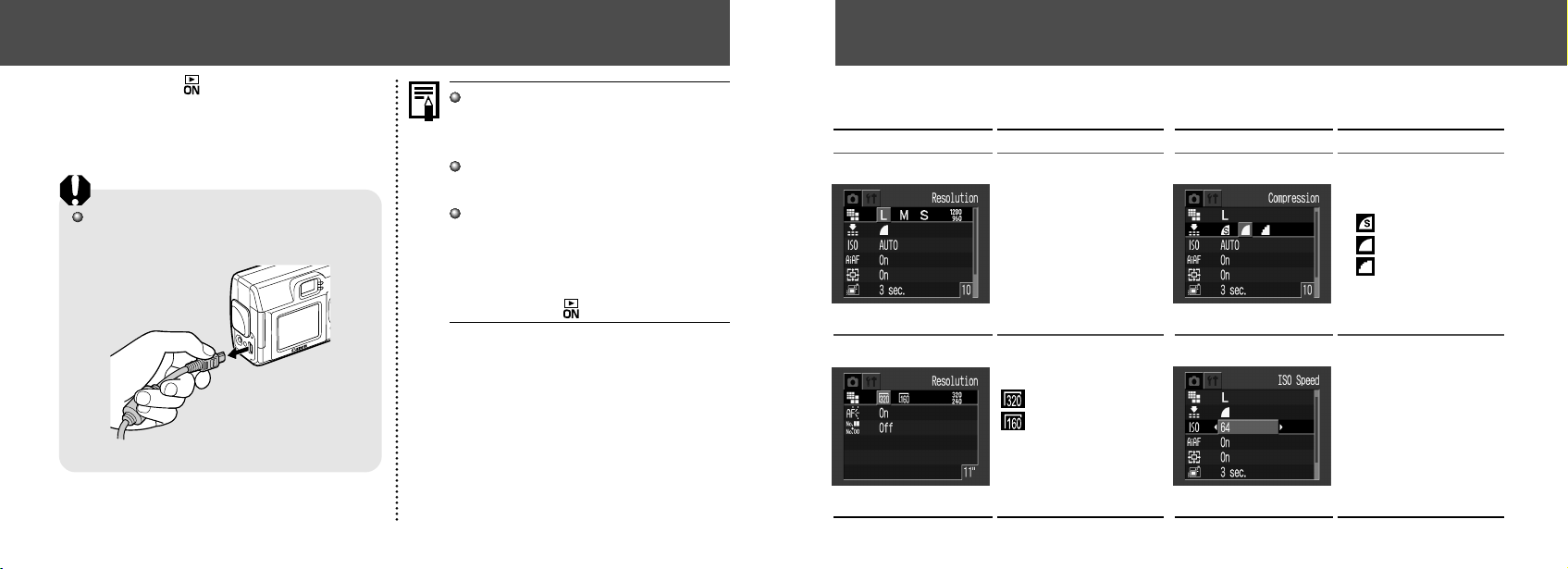
8786
Rec. Menu (1/2)
List of Menu Options and Messages
2
Press the button.
The LCD monitor displays in replay mode.
When the connection to the computer is com-
plete, the LCD monitor turns off and the green
indicator comes on.
To disconnect the cable from the camera: Hold
the cable connector firmly at both sides and pull
it straight out.
It is recommended to power the camera from
a household power outlet with the optional
AC Adapter Kit ACK 800 when connected to
a computer (p. 99).
If you disconnect the USB cable while the
camera is on, the camera will automatically
turn off.
If you leave the camera unused for approxi-
mately 5 minutes while it is connected the
computer, the computer screen displays a
warning message. If you do not take any
action within the next minute, the camera
turns off. You can turn the camera back on
by pressing the button.
For more information about what to do after con-
necting your camera, please refer the
Software
Starter Guide
.
● Downloading Images to a Computer ●
Item / Menu Screen Setting Content Item / Menu Screen Setting Content
• Superfine
• Fine*
• Normal
Resolution (Still images) Compression
Resolution (Movies)
e.g. PowerShot A100
e.g. PowerShot A100
ISO Speed
(A200) (A100)
• 50* • 64*
• 100 • 100
• 200 • 200
• 400 • 400
• AUTO • AUTO
Sets the number of pixels
used to record images to
CF cards (p. 41).
• L Large*
PowerShot A200
(1600 × 1200 pixels)
PowerShot A100
(1280 × 960 pixels)
• M Medium
(1024 × 768 pixels)
• S Small
(640 × 480 pixels)
Set the resolution of the
frames as they are recorded
to the CF card (p. 41).
Sets the relative
compression ratio used to
record images to CF cards
(p. 41).
Sets the recording sensitivity
(p. 55).
*Default settings
(320 × 240 pixels)*
(160 × 120 pixels)
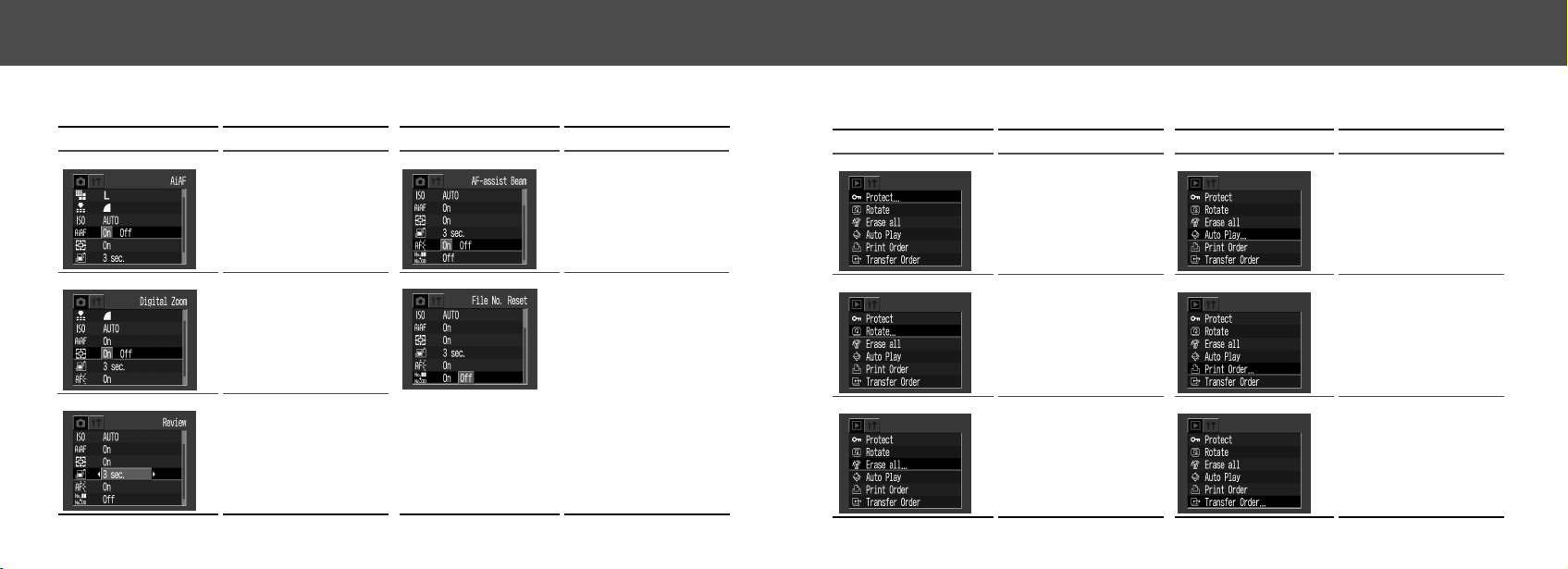
8988
Play Menu
Item / Menu Screen Setting Content Item / Menu Screen Setting Content
Protect
Rotate
Erase all
Auto Play
Print Order
Transfer Order
Protects images from
accidental erasure (p. 64).
Plays images automatically
one after the other (p. 63).
Rotates images 90 or 270
degrees clockwise in the
display (p. 62).
Sets which images and
how many copies will be
printed on a direct print
function compliant printer
or a photo lab service
(p. 76).
Erases all images from a
CF card (excluding
protected images) (p. 65).
Sets the images that will
be transferred with your
e-mail software (p. 82).
*Default settings
● List of Menu Options and Messages ●
Item / Menu Screen Setting Content Item / Menu Screen Setting Content
AiAF
Digital Zoom
Review
AF-assist Beam
Sets the duration images
display on the LCD moni-
tor after the shutter button
is released (p. 35).
• Off
• 3 sec.*
• 10 sec.
Sets the AiAF to on (the
camera automatically
selects the AF frame
when taking a picture) or
off (AF frame is set to the
middle frame) (p. 51).
• On*
• Off
Turns the digital zoom on
or off (p. 35).
• On*
• Off
Turns the AF-assist beam
on or off (p. 34).
• On*
• Off
File No. Reset
Sets how file numbers are
assigned to images (p. 56).
• On
• Off*
● List of Menu Options and Messages ●
Rec. Menu (2/2)
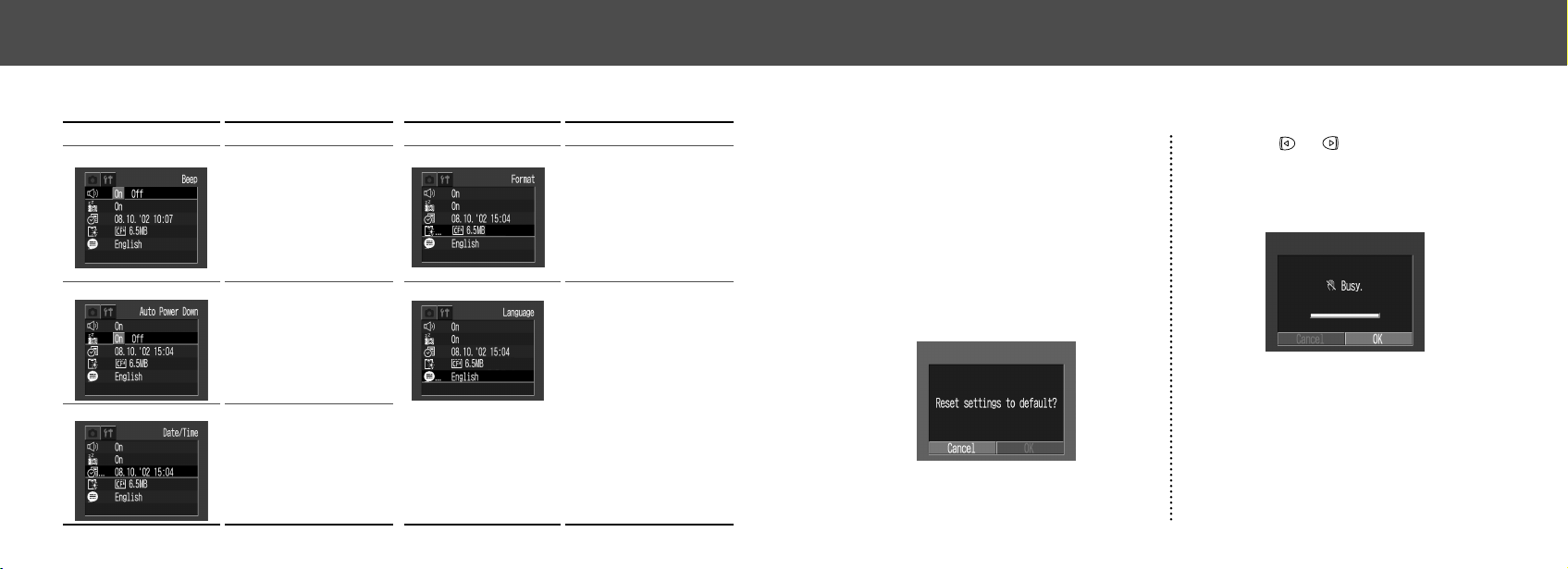
90 91
Resetting the Settings to Default
You can reset all of the menu and button opera-
tion settings to default except for [Date / Time]
and [Language].
1
Turn on the camera.
Can be performed from shooting, replay or
any other mode.
2
Press the MENU button for longer
than 5 seconds.
The message "Reset settings to default?" ap-
pears on the LCD monitor.
3
Press or button to select [OK],
and press the SET button.
The screen below appears while resetting. The
normal screen resumes when resetting is com-
plete.
• To cancel resetting, select [Cancel]
instead of [OK].
● List of Menu Options and Messages ●
Set up Menu
Item / Menu Screen Setting Content Item / Menu Screen Setting Content
Beep
Auto Power Down
Date/Time
Format
Language
Sets whether or not the
beep sounds when the
shutter button is pressed
or when a menu operation
is performed (p. 34).
• On*
• Off
•
Still beeps to warn of an
error even when set to Off.
Sets whether or not the
camera automatically
powers down after a
specified period of time
elapses without something
being pressed (p. 27).
• On*
• Off
Formats (initializes) a CF
card (p. 66).
Sets the language used in
the menus and messages
on the LCD monitor (p. 25).
English / Deutsch /
Français / Nederlands /
Dansk / Suomi /
Italiano / Norsk /
Svenska / Español /
Japanese or Chinese
(depending on the region)
Sets the date, time and
date format (p. 24).
*Default settings
● List of Menu Options and Messages ●
9392
Image too large :
You attempted to replay an image whose resolution exceeded 3200 x 2400 pixels or
whose file size was too large.
Incompatible JPEG format
: You attempted to replay an incompatible JPEG file.
Corrupted data
:
You attempted to replay an image with corrupted data.
RAW
:
You attempted to replay an image recorded in the RAW format.
Unidentified image
:
You attempted to replay an image file recorded in a unrecognized format (file recorded
by a different camera in a proprietary format, etc.).
Cannot magnify!
:
The image you attempted to magnify was recorded by another camera, or recorded in a
format that cannot be magnified, or edited on a computer.
Cannot rotate!
:
The image you attempted to rotate was recorded by another camera, or recorded in a
format that cannot be rotated, or edited on a computer.
Protected!
:
You attempted to erase a protected image.
Too many marks!
:
Too many images have been marked for printing. No more images can be marked.
Unselectable image
:
You attempted to set the print settings for a non-JPEG file.
Exx
:
Camera malfunctioned. Turn off the power and turn on again, then re-shoot or replay. If
the same message recurs frequently, the camera may be damaged. Note down the error
number [xx] and take the camera to a Customer Support Help Desk. If this message
appears immediately after you have taken a shot, the camera may not have shot the
image. Switch to the Replay mode and check whether the image was actually recorded.
● List of Menu Options and Messages ●
List of Messages
The following table explains each of the messages that may appear on the LCD monitor.
Busy... : The camera is recording image data to the CF card. The Replay mode is running.
No CF card : You attempted to shoot or replay with no CF card installed.
Cannot record! : You attempted to shoot with no CF card installed.
CF card error! : There is something wrong with the CF card.
CF card full :
The CF card is too full to store images or accept new print settings.
Naming error!
: The camera cannot generate a file name for the image you have shot because the card
already contains a folder having the same name as the file to be created, or the file
number has already reached the maximum possible value. Display the Rec. menu and
set [File Number Reset] to [On]. Save all images you wish to keep into your computer,
and reformat the CF card. Please note that formatting will erase all data in the card.
Change the batteries
: The batteries are dead, and the camera can no longer function. Replace both batteries
at the same time with new AA-size alkaline batteries (p. 19) or fully recharged batteries.
No image : No images recorded on CF card.
● List of Menu Options and Messages ●
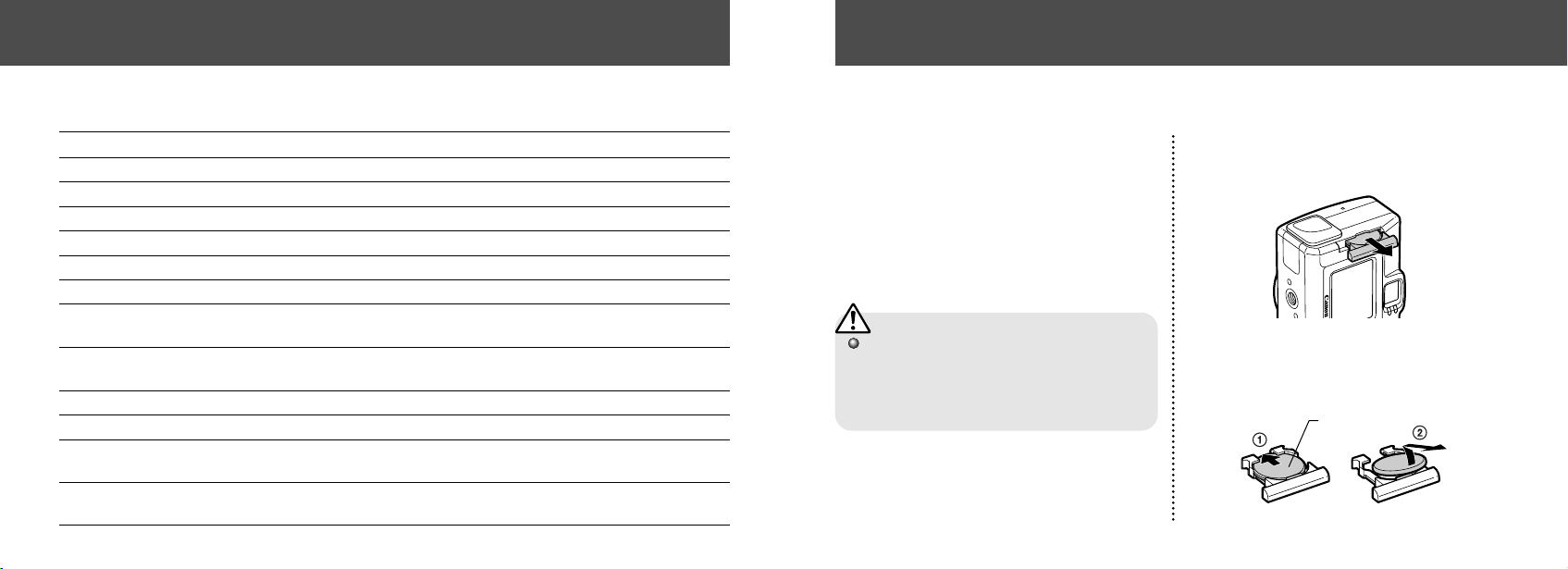
9594
● List of Menu Options and Messages ●
The following table lists and explains the messages that may be on the LCD monitor when printing
to an optional direct print function compliant printer. (Some of these messages may not appear
depending on the printer.)
No Paper
:
Paper cassette is empty or is not installed correctly.
No Ink
:
No ink cassette in the printer, or the ink cassette is out of ink.
Incompatible paper size
:
You attempted to print with a paper size incompatible with this camera.
Incompatible ink size
:
You attempted to print with an ink cartridge type incompatible with this camera.
Ink Cassette Error
:
There is a problem with the ink cassette.
Paper and ink do not match
:
The paper size and ink type are from different sets.
Paper Jam
:
Paper jammed during printing.
Paper has been changed
:
The paper size was changed between the time the Print Style menu was displayed and
the time printing started.
Ink has been changed
:
The ink type was changed between the time the Print Style menu was displayed and the
time printing started.
Recharge the printer battery
:
The printer’s battery is out of power.
Communication Error
:
A communication error has occurred.
Cannot Print!
:
You attempted to print an image shot by a different camera, or in an incompatible format,
or downloaded to and edited on a computer.
Could not print xx images
:
You attempted to print xx number of images with DPOF settings that were shot by a different
camera, or in an incompatible format, or downloaded to and edited on a computer.
Appendices
Replacing the Date Battery
If the LCD monitor displays the Set Date / Time
menu when you turn on the camera, this means
that the Date battery has run down and the clock
has stopped running. Please purchase a
replacement battery (battery type CR2016) and
install it as follows. (The date battery is
preinstalled at the factory and may therefore
expire earlier than its rated lifespan after the
camera has been purchased.)
Be particularly careful to keep the date
batteries out of the reach of children. Seek
medical assistance immediately if a child
swallows a battery since corrosive battery
fluids could damage the stomach or intestinal
wall.
1
Be sure that the camera is turned off.
2
Pull out the date battery holder in the
direction of the arrow.
3
Shift the date battery slightly in the
direction of the arrow q and pull out
the battery in the direction as shown
with arrow w.
(+) Positive end
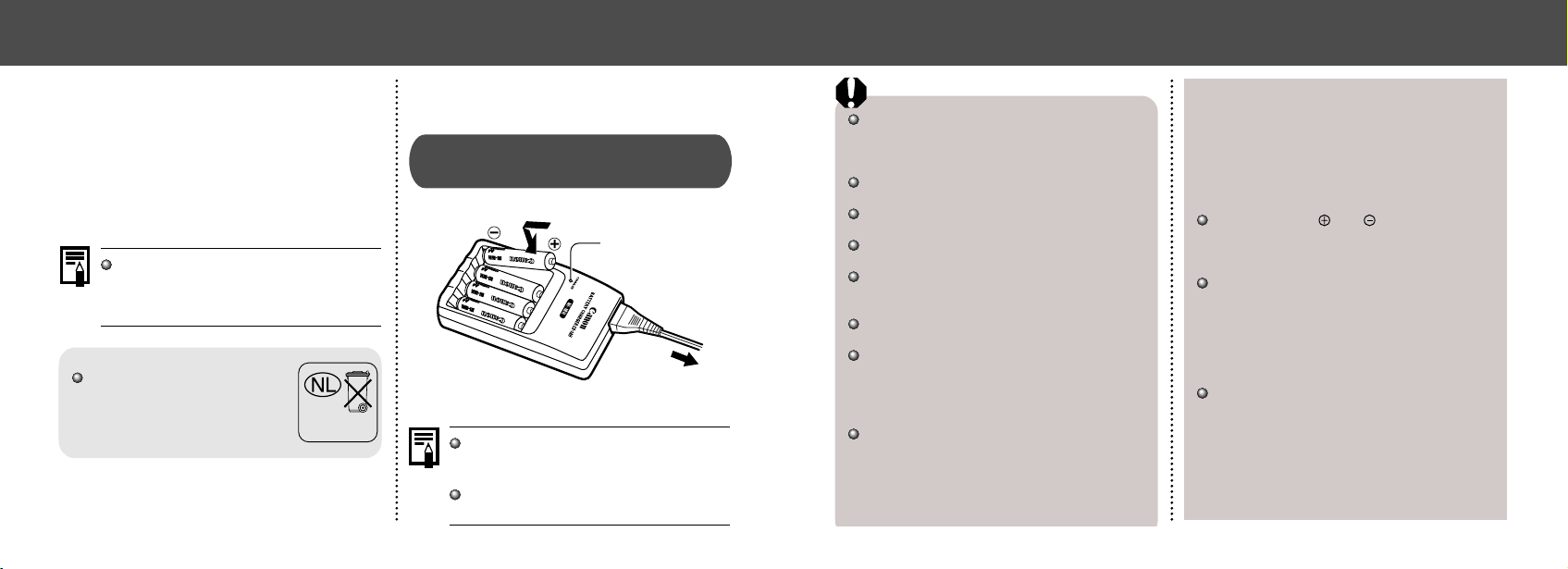
9796
This charger can be used only to charge Canon
AA-size NiMH batteries. Please do not attempt
to charge any other type of batteries with this
charger.
Never mix unused batteries together with
batteries that have been used in other devices.
When recharging batteries from the camera,
always recharge both of them at the same time.
Do not mix batteries with different purchase
dates or different charge states.
Do not attempt to recharge fully charged
batteries, as doing so may reduce or impair
battery performance.
Do not recharge batteries in enclosed areas that
tend to retain heat.
Repeatedly recharging batteries before they
become fully depleted may cause batteries to
lose capacity. Do not recharge the batteries until
the LCD monitor displays the “Change the
batteries” message.
Wipe the battery terminals well with a dry cloth
in the following situations, as the terminals may
be soiled with oil from one’s skin or other dirt:
- If the battery usage time has considerably di-
minished
- If the number of recordable images has consid-
erably diminished
- When charging the batteries (insert and remove
the batteries two or three times before charg-
ing)
- When charging completes in a matter of a few
minutes (the battery charger indicator remains
lit)
Always keep the and terminals of batter-
ies, battery charger and camera clean. Dirt may
cause a bad electrical contact. Wipe them well
with a dry cloth before recharging or using them.
You may not be able to fully charge the batter-
ies due to their specifications right after pur-
chase or after long periods of non-use. If this
happens, use the batteries until their charge is
depleted before charging them again. After do-
ing this several times, battery performance will
be restored.
If battery usage time is considerably low de-
spite their terminals’ being wiped and the bat-
tery charger’s indicator remaining lit, it is pos-
sible that the batteries have reached the end of
their lifespan. Switch to different, unused bat-
teries. If you are purchasing new batteries, look
for Canon’s AA-size NiMH batteries.
● Appendices ●
4
Insert the new date battery into the
holder with the (+) side facing up.
5
Replace the date battery holder back
into its original position.
6
Set the date and time when the Set
Date / Time menu is displayed on the
LCD monitor (p. 24).
The LCD monitor also displays the Set Date /
Time menu the very first time you turn on the
camera. This is normal, and you don’t need
to replace the date battery.
If you should dispose of your cam-
era, first remove the date battery
for recycling according to the recy-
cling system of your country.
Using the Optional Battery Kits
Using Rechargeable Batteries
(Battery and Charger Kit CBK100)
Indicator
* Two batteries can be charged instead of four.
Four batteries are supplied with the Battery
and Charger Kit CBK100, however, only two
batteries are used for this camera.
The indicator flashes while charging, then
comes on solid when charging is finished.
● Appendices ●
Bij dit produkt zijn batterijen
geleverd. Wanneer deze leeg
zijn, moet u ze niet weggoolen
maar inleveren als KCA
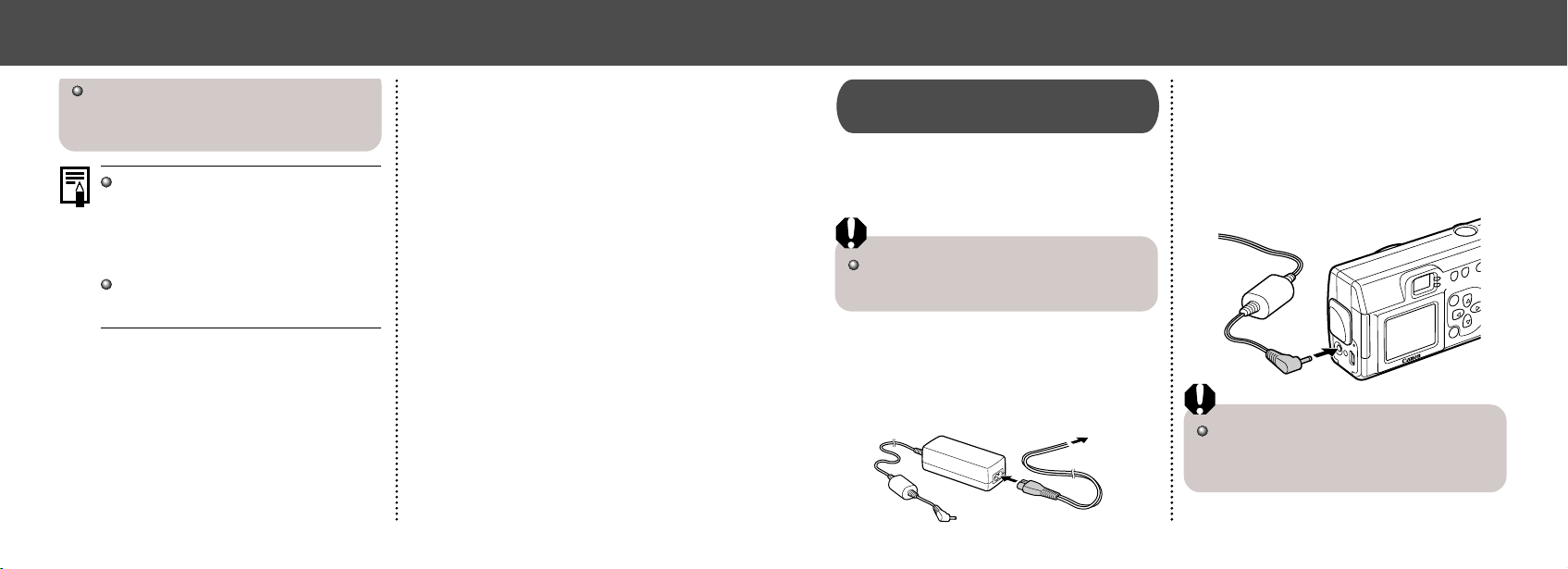
9998
Using the Household Power Source
(AC Adapter Kit ACK800)
Use of the ACK800 optional AC adapter kit is
recommended when using the camera
continuously for prolonged periods of time and
when connecting to a computer.
Be sure that the camera is turned off before
connecting or disconnecting the compact power
adapter.
1
Connect the power cable to the
compact power adapter, and then
plug the other end into the electrical
outlet.
To an electrical outlet
2
Open the Terminal cover, and con-
nect the adapter’s DC plug into the
camera’s DC IN terminal.
• Please unplug the adapter from the power
outlet when you have finished using the
camera.
Please do not attempt to use any AC adapter
other than AC Adapter Kit ACK800 with your
camera. Use of a different adapter may result
in damage to the camera or to the adapter kit.
Leaving batteries in the camera or charger may
damage it causing battery leakage.
Remove batteries from the camera or charger
and store in a dry cool location when not in use.
It takes approximately 110 minutes (for two)
and 220 minutes (for four) for the charger to
fully recharge the batteries (as determined
by testing at Canon facilities). Please do not
charge batteries in areas where the tem-
perature is outside the range of 0 to 35 °C
(32 to 104 °F).
Charging time varies according to ambient
temperature and to the batteries’ initial
charge state.
● Appendices ●
● Appendices ●
101100
The camera is turned off.
The CF card slot / battery cover is open.
Batteries are loaded in the wrong
direction.
Batteries are depleted.
Batteries are not the right type.
Batteries are not making good electrical
contact with the camera.
The camera doesn’t
function.
Cause Solution
Problem
•
Turn the power on. (See "Turning the Power
ON / OFF (p. 27).)
•
Be sure the cover is closed securely.
•
Reload the batteries in the correct direction.
•
Replace with unused alkaline or fully
recharged batteries (two AA-size batteries).
•
Use a household power source.
•
Use only unused AA-size alkaline batteries or
Canon AA-size NiMH batteries. (For the
information about alkaline batteries, see
“Proper Battery Handling” (p. 21).)
•
Wipe the battery terminals with a clean dry
cloth.
TroubleshootingCamera Care and Maintenance
Clean the camera by using the following methods when the camera, lens, viewfinder, LCD monitor
or other surfaces become dirty.
Camera Body:
Lens:
Viewfinder:
LCD Monitor:
Wipe the camera body with a soft cloth or eyeglass lens wiper.
Clean dust and dirt off the lens with a commercially available lens blower brush, then wipe lightly
with a soft cloth.
• Never wipe the camera or lens with cleaners that contain organic solvents. If you are unable to
remove the dirt from the lens, contact the Canon Customer Support Help Desk.
Clean with a lens blower brush. If necessary, wipe lightly with a soft cloth or eyeglass lens wiper.
Clean with a lens blower brush. If necessary, wipe lightly with a soft cloth or eyeglass lens wiper.
• Don't press strongly on the monitor or rub it forcefully. Strong pressure or rubbing may cause
scratches on the surface.
Never use water, paint thinner, benzene, or detergents to clean the camera, as these may cause damage
or deformation.
● Appendices ●
● Appendices ●
103102
Battery capacity drops due to low
ambient temperatures.
Battery terminals are dirty.
The batteries have not been used for
over a year.
If using
rechargeable
batteries: The bat-
teries have lost their effectiveness.
Batteries were placed in the charger in
the wrong direction.
Poor electrical contact, between
batteries and the charger.
Battery terminals are dirty.
The batteries have lost their effectiv
eness.
The batteries are
consumed quickly.
If using rechargeable
batteries: Batteries do
not charge.
•
If shooting in a cold area, keep the batteries
warm (by placing them in an inner pocket, etc.)
until ready to use them.
•
Wipe them well with a dry cloth before use.
•
If batteries are rechargeable: Performance should
return to normal after several charging cycles.
•
Replace both batteries with new ones.
•
Put batteries back into the charger in the
correct direction.
•
Wipe the battery terminals with a dry, clean cloth.
•
Be sure to set batteries firmly into the charger.
•
Be sure that the power cable is firmly
connected to the charger, and is firmly plugged
in to the electrical outlet.
•
Wipe them well with a dry cloth before charging.
•
Replace both batteries with new ones.
Cause Solution
Problem
Camera is in replaying mode.
The flash is charging.
The CF card is full.
The CF card is not formatted correctly.
Batteries are not the right type.
The camera doesn’t
shoot.
The batteries are
consumed quickly.
•
•
•
•
•
•
•
Change to the Shooting mode. (See "Switching
Between Shooting / Replay (p. 28).)
Wait until the flash charges. You can press the
shutter button when the indicator glows a
steady orange.
Insert a new CF card.
Download images to your computer, then erase
them from the card to free up more space.
Format the CF card. (p. 66).
The card may be defective (its logical format
may be corrupted).
Contact Canon Customer Help Desk.
Use only unused AA-size alkaline batteries or
Canon AA-size NiMH batteries. (For the infor-
mation about alkaline batteries, see “Proper
Battery Handling” (p. 21).)
Cause Solution
Problem
● Appendices ●
● Appendices ●
105104
The subject is beyond the range of the
flash.
The subject is too close to the flash.
The subject is brighter than the sur-
roundings.
Light is shining or reflecting into the
camera.
The flash mode is set to On.
The flash mode is set to Off.
The subject comes
out underexposed
(too dark).
The subject comes
out overexposed
(too bright).
The flash doesn't
fire.
When flash is used, the distance between lens
and subject should not exceed 2 m (6.6 ft.).
When flash is used, the distance between lens
and subject should be no less than 20 cm (7.9
in.).
Set exposure compensation to a negative
value.
Adjust the camera angle.
Set the flash to any other mode except On.
Set the flash to any other mode except Off.
Cause Solution
Problem
•
•
•
•
•
•
The camera was moving when you took
the shot.
Autofocus function hampered by
obstruction to AF-assist beam.
The AF-assist beam settings are set to
[Off].
The subject was outside the range over
which the camera can focus.
Insufficient light for shooting.
The subject is darker than the
surroundings.
Shots are blurry or
unfocused.
The subject comes
out underexposed
(too dark).
•
Hold the camera steady when shooting.
•
Be careful not to block the AF-assist beam
flash part with a finger or other object.
•
Turn the [AF-assist beam] of the Rec. menu
[On] (p. 88).
•
Ensure that there is at least 20 cm (7.9 in.)
between the camera lens and subject.
•
Use the macro mode to shoot close-ups
between 5 to 20 cm (2 to 7.9 in.) from the
lens.
•
When shooting distant subjects, set the
camera to infinity mode.
•
Set the flash on.
•
Set exposure compensation to a positive
value.
Cause Solution
Problem
● Appendices ●
● Appendices ●
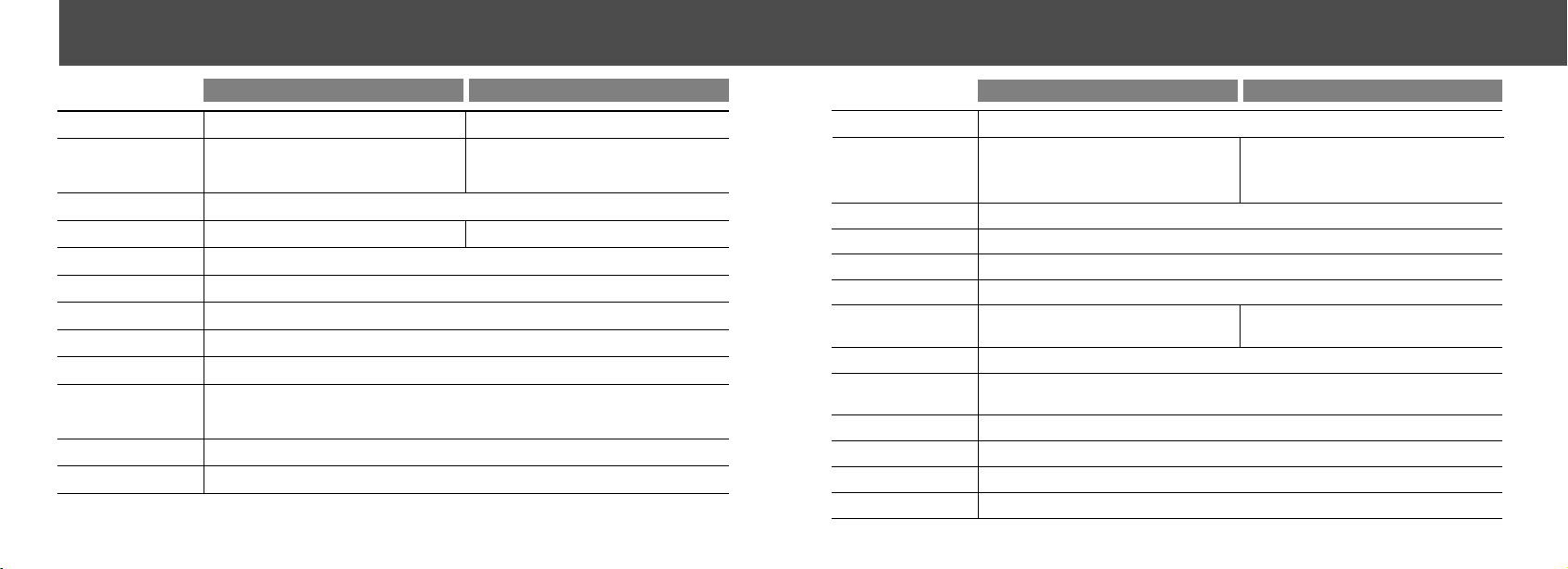
107106
PowerShot A200 PowerShot A100
Sensitivity
White Balance
Flash
Flash Range
Shooting Modes
Continuous Shooting
Self-Timer
Recording Media
File Format
Image Recording Format
Compression
Exposure Compensation
± 2 EV (in 1 / 3 - step increments)
TTL auto / preset (daylight, cloudy, tungsten, fluorescent, fluorescent H)
Red-eye reduction auto / auto / on / off / slow-syncro
20 cm - 2m (7.9 in. - 6.6 ft.) (When sensitivity is set to AUTO)
Auto / manual / stitch assist / movie
Shoots after approx. 10 sec.
CompactFlash
TM
card (Type I)
Design rule for Camera File System, DPOF compliant
Still images : JPEG (Exif 2.2)*, Movies : Motion JPEG
Superfine / fine / normal
ISO 50 / 100 / 200 / 400 equivalent and Auto
(In Auto mode, camera automatically adjusts
sensitivity in the range of ISO 50 to ISO 150
equivalent)
ISO 64 / 100 / 200 / 400 equivalent and Auto
(In Auto mode, camera automatically adjusts
sensitivity in the range of ISO 64 to ISO 150
equivalent)
Approx. 2 images / sec.
(Large / fine mode, LCD monitor off)
Approx. 3 images / sec.
(Large / fine mode, LCD monitor off)
Available (USB connection only. Exclusive software program
"RemoteCapture" is included in the camera kit.)
PC Connected Shooting
● Specifications ●
Specifications
All data is based on Canon’s standard testing methods.
Subject to change without notice.
PowerShot A200 PowerShot A100
Camera Effective Pixels
Image Sensor
Lens
Digital Zoom
Optical Viewfinder
LCD Monitor
Autofocus
Focusing Range
Shutter
Shutter Speed
Light Metering Method
Exposure Control
Approx. 2 million Approx. 1.2 million
5 mm (35 mm film equivalent: 39 mm), F2.8
Inverted Galilean finder
1.5 inch low-temperature polycrystalline silicon TFT color LCD, approx. 120,000 pixels
TTL 3-point AiAF / TTL 1 point center AF, Focus lock possible
Normal: 20 cm (7.9 in.) - ∞, Macro AF: 5 - 20 cm (2 - 7.9 in.)
Mechanical + electronic
1 - 1 / 2000 sec.
Evaluative metering (linked to focusing point)
Program AE
Maximum 4 X
Maximum 3.2 X
1 / 3.2 in. CCD
(Total number of pixels: approx. 2.1 million)
1 / 3.2 in. CCD
(Total number of pixels: approx. 1.3 million)
• 1 - 1 / 6 sec. in manual mode with the flash off or in slow synchro mode.
• Noise reduction processing on speeds between 1 - 1 / 6 sec.
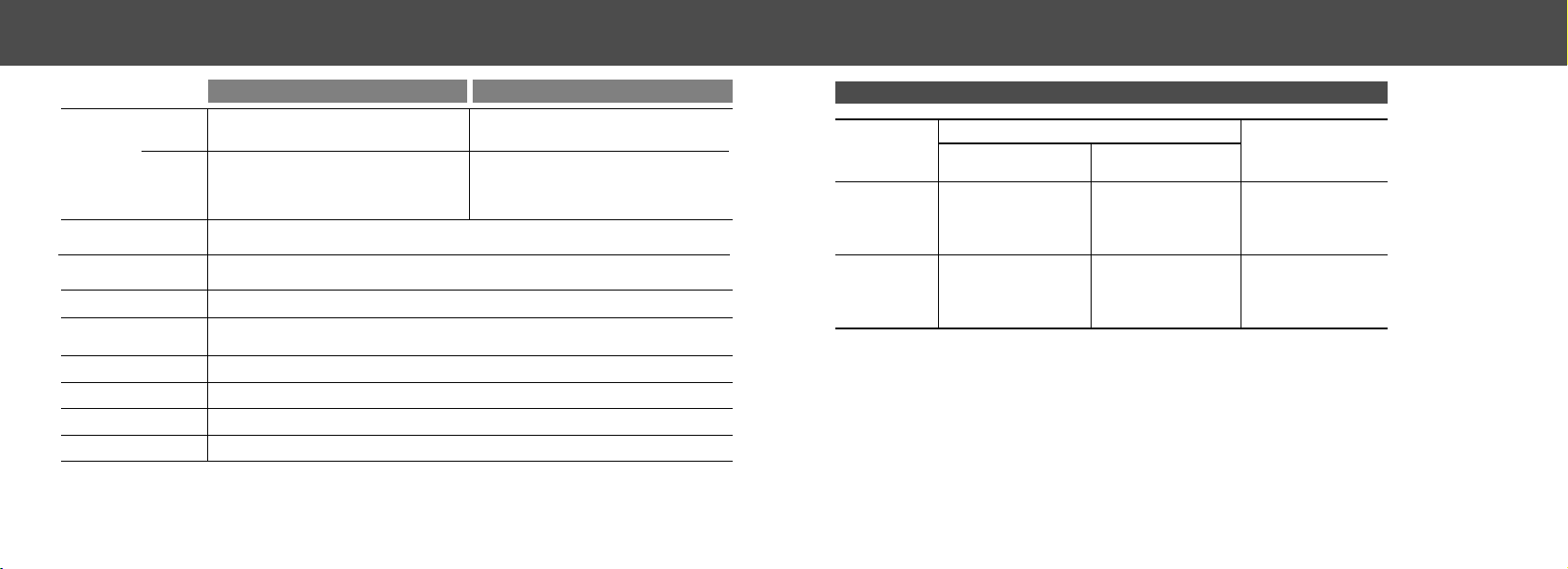
109108
<Test Conditions>
Shooting : Room temperature (23°C, 73°F), alternating the shots every 20 seconds, flash used
once every four shots, power turned off and on again after every 8 shots.
Replay : Room temperature (23°C, 73°F), continuous replay at 3 seconds per image.
• For information on handling batteries, see “Proper Battery Handling” (p. 21).
Number of Shots
Replay Time
LCD Monitor ON LCD Monitor OFF
AA Alkaline
Batteries
(included with
the camera)
A200: Approx. 90 shots
A100: Approx. 100 shots
A200: Approx. 300 shots
A100: Approx. 380 shots
Approx. 90 min.
A200: Approx. 200 shots
A100: Approx. 210 shots
A200: Approx. 550 shots
A100: Approx. 630 shots
Approx. 120 min.
AA NiMH
Battery
NB-1AH
Battery Performance
● Specifications ●
PowerShot A200 PowerShot A100
Number of
Recording
Pixels
Replay Modes
Language
Interface
Power Source
Operating Temperatures
Operating Humidity
Dimensions (w × h × d)
Weight
0 – 40°C (32 – 104°F)
10 – 90%
110 × 58 × 36.6 mm (4.3 × 2.3 × 1.4 in.) (excluding protrusions)
Approx. 175 g (6.2 oz.) (excluding batteries and CF Card)
Large : 1280 × 960 pixels
Medium : 1024 × 768 pixels
Small : 640 × 480 pixels
Large : 1600 × 1200 pixels
Medium : 1024 × 768 pixels
Small : 640 × 480 pixels
320 × 240 pixels (Approx. 14 sec.)
160 × 120 pixels (Approx. 30 sec.)
Approx. 15 frames / sec.
The data in parentheses refer to the
maximum movie length per shooting
320 × 240 pixels (Approx. 9 sec.)
160 × 120 pixels (Approx. 26 sec.)
Approx. 20 frames / sec.
The data in parentheses refer to the
maximum movie length per shooting
Two AA-size alkaline batteries (included), Two AA rechargeable NiMH batteries (optional),
Compact Power Adapter CA-PS800 (optional)
Single image replay / index replay (9 thumbnails) / zoomed view (LCD monitor zooms images up to
maximum of approx. 10) / auto play / printing with Card Photo Printer CP-100 or CP-10 (Direct Print function)
Still Images
Movies
English / Deutsch / Français / Nederlands / Dansk /Suomi / Italiano /
Norsk / Svenska / Español / Chinese or Japanese (depending on the region)
Universal Serial Bus (USB) (mini-B)
* This digital camera supports Exif 2.2 (also called “Exif Print”). Exif Print is a standard for enhancing the communica-
tion between digital cameras and printers. By connecting to an Exif Print-compliant printer, the camera’s image data
at the time of shooting is used and optimized, yielding extremely high quality prints.
● Specifications ●
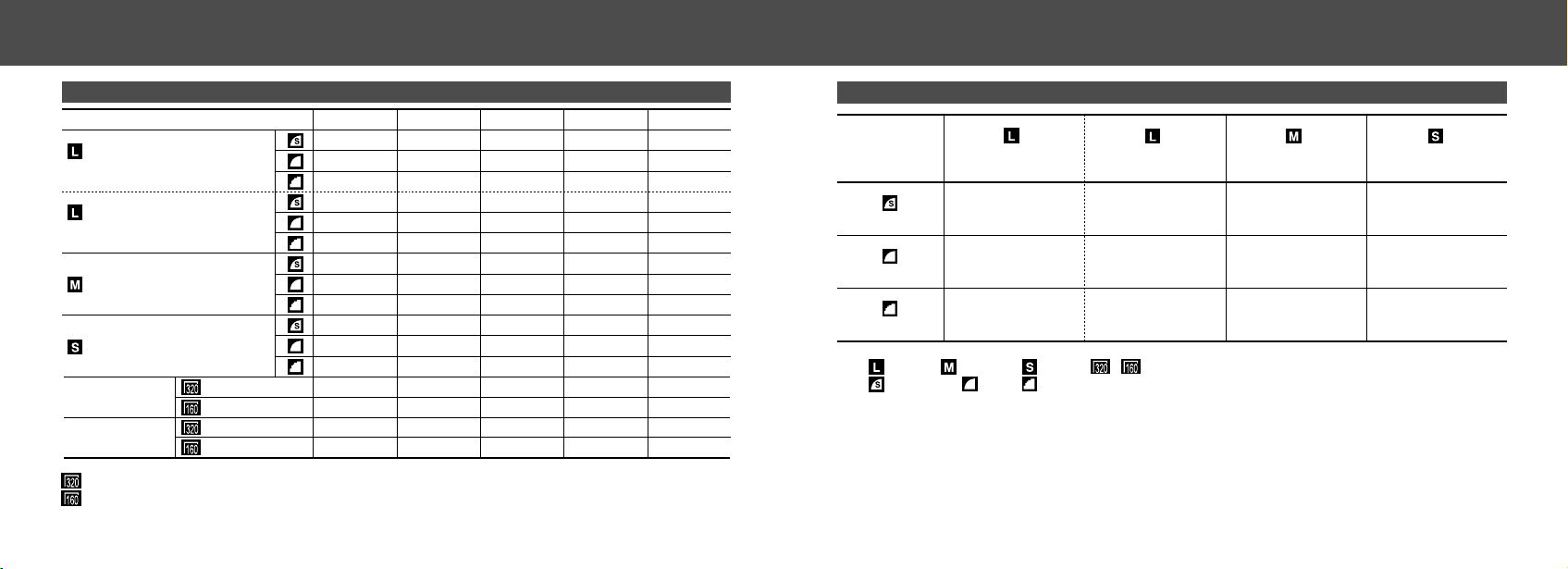
110 111
● Specifications ●
Movie
FC-8M FC-16M FC-32M FC-64M FC-128M
7 153164128
11 24 49 100 200
24 48 99 200 401
10 21 43 88 177
16 32 67 135 271
32 64 131 263 528
16 32 67 135 271
24 49 102 205 412
46 92 189 379 760
35 70 143 288 577
50 99 206 415 831
87 172 353 707 1417
18 sec. 36 sec. 76 sec. 152 sec. 305 sec.
48 sec. 97 sec. 198 sec. 399 sec. 799 sec.
24 sec. 49 sec. 100 sec. 201 sec. 404 sec.
63 sec. 126 sec. 263 sec. 527 sec. 1056 sec.
CF Cards and Estimated Capacities (Recordable Images)
(640 x 480 pixels)
(320 x 240 pixels)
(160 x 120 pixels)
(320 x 240 pixels)
(160 x 120 pixels)
(1024 x 768 pixels)
(1600 x 1200 pixels)
PowerShot A200
(1280 x 960 pixels)
PowerShot A100
* The shooting time for 1 movie
PowerShot A200: approx. 9 seconds, PowerShot A100: approx. 14 seconds
PowerShot A200: approx. 26 seconds, PowerShot A100: approx. 30 seconds
The figures in the table reflect recording times for repeated shooting.
PowerShot A200
Movie
PowerShot A100
● Specifications ●
(1600 x 1200 pixels)
PowerShot A200
Superfine
Fine
Normal
(640 x 480 pixels)
(1280 x 960 pixels)
PowerShot A100
(1024 x 768 pixels)
957 KB
611 KB
302 KB
Approximate File Size for One Image
693 KB 450 KB 208 KB
450 KB 294 KB 141 KB
228 KB 155 KB 79 KB
• (Large), (Medium), (Small), , : expresses the resolution.
• (Superfine), (Fine), (Normal) : expresses compression.
112
NiMH Battery NB-1AH
Supplied with the optional NiMH Battery NB4-100 set
and the Battery / Charger Kit CBK100.
Type Rechargeable nickel hydride
battery
Nominal Voltage 1.2 V DC
Typical Capacity 1600 mAh (min.:1550 mAh)
Cycle Life Approx. 300 times
Operating Temperature
0 - 35 °C (32 - 95 °F)
Dimensions Diameter: 14.5 mm (0.6 in.)
Length: 50 mm (2 in.)
Weight Approx. 27 g (0.95 oz.)
Battery Charger CB-3AH
Supplied with the optional Battery and Charger Kit CBK100.
Rated Input 100 - 240 V AC (50 / 60 Hz), 8W
Rated Output 1.6 V DC / 2 A
Charging Time
Approx. 110 minutes for two batter-
ies, 220 minutes for four batteries
Operating Temperature
0 - 35 °C (32 - 95 °F)
Dimensions 113 × 74 × 27.5 mm
(4.4 × 2.9 × 1.1 in.)
Weight Approx. 100 g (3.5 oz.) (body)
Compact Power Adapter CA-PS800
Supplied with the optional AC Adapter Kit ACK800.
Rated Input 100 - 240 V AC (50 / 60 Hz),
16VA (100V) - 26VA (240V)
Rated Output 3.15 V DC / 2 A
Operating Temperature
0 - 40 °C (32 - 104 °F)
Dimensions 42.5 × 104.4 × 31.4 mm
(1.7 × 4.1 × 1.3 in.)
Weight (body) Approx. 180 g (6.4 oz.)
CompactFlash
TM
Card
Card Slot Type
Type 1
Dimensions 36.4 × 42.8 × 3.3 mm
(1.4 × 1.7 × 0.1 in.)
Weight Approx. 10 g (0.4 oz.)
● Specifications ●
113
● Index ●
Index
A
Adjusting the Exposure ........................... 52
AF-assist Beam ................................... 4, 34
AiAF ........................................................ 51
Autofocus .......................................... 33, 51
B
Batteries
Battery Performance ......................... 109
Battery Status Indications ................... 23
Installing .............................................. 19
Proper Battery Handling ...................... 21
C
Camera Care and Maintenance ............ 100
CF Cards
About CF Cards .................................. 23
CF Card Slot/Battery Cover .................. 5
CF Cards and Estimated Capacities ....
110
Formatting ........................................... 66
Installing .............................................. 19
Compression ........................................... 41
Continuous Mode .................................... 46
D
Date......................................................... 24
Default Settings ................................. 38, 91
Digital Zoom ............................................ 35
Downloading Images to a Computer
Connecting the Camera to a Computer
Via the USB Cable .......................... 85
Downloading Directly from a CF Card ...
84
Using a PC card reader....................... 84
DPOF ................................................ 76, 82
E
Erasing
Erasing All Images .............................. 65
Erasing Images Individually ................ 65
F
File Number............................................. 56
File Size ................................................ 111
Flash ....................................................... 43
Focus Lock .............................................. 50
115114
● Index ●
Replaying
Auto Play ............................................. 63
Displaying Images Individually ............ 59
Rotating Images in the Display ........... 62
Viewing Images in Sets of 9 ................ 60
Resolution ............................................... 41
S
Self-Timer ................................................ 46
Set up Menu ............................................ 90
Setting
AF-assist Beam ................................... 88
AiAF .................................................... 88
Auto Power Down ............................... 90
Beep .................................................... 90
Date/Time ............................................ 90
Digital Zoom ........................................ 88
File No. Reset ..................................... 88
Format ................................................. 90
Resetting the Settings to Default ........ 91
Review ................................................ 88
Shooting .................................................. 40
Shutter Button ......................................... 34
Single Image Replay ............................... 59
Stitch Assist ............................................. 47
Strap Eyelet............................................... 5
T
Terminal Cover .................................... 4, 85
Time ........................................................ 24
Turning the Power ON ............................ 27
U
Using the Optional Battery Kits
Using Rechargeable Batteries ............ 96
Using the Household Power Source ... 99
V
Viewfinder ............................................... 33
W
White Balance ......................................... 53
● Index ●
Functions................................................. 57
I
Image Transfer Settings
(DPOF Transfer Order) ................... 82
Index View............................................... 60
Indicators................................................... 6
Infinity ...................................................... 45
ISO Speed............................................... 55
L
Language ................................................ 25
LCD Monitor
Information Displayed ......................... 31
Using ................................................... 29
M
Macro ...................................................... 45
Magnifying Images .................................. 59
Menus ..................................................... 36
Movie
Recording ............................................ 49
Replay ................................................. 61
P
Photo Effect............................................. 54
Play Menu ............................................... 89
Power Save Function .............................. 27
Pressing Fully.......................................... 34
Pressing Halfway .................................... 34
Printing
About Printing...................................... 67
Connecting the Camera to a Printer.... 69
DPOF Print Settings ............................ 76
Print Order Menu................................. 68
Print Settings (Direct Print Function) ... 72
Print Style ...................................... 72, 78
Printing ................................................ 71
Printing with DPOF Print Settings ....... 80
Resetting the Print Settings ................ 79
Selecting Images for Printing .............. 76
Protecting ................................................ 64
R
Red-Eye Reduction ........................... 43, 44
Replacing the Date Battery ..................... 95
117116
● Index ●
Disclaimer
While every effort has been made to ensure that the information contained in this guide is accurate and
complete, no liability can be accepted for any errors or omissions. Canon reserves the right to change
the specifications of the hardware and software described herein at any time without prior notice.
No part of this guide may be reproduced, transmitted, transcribed, stored in a retrieval system, or trans-
lated into any language in any form, by any means, without the prior written permission of Canon.
Canon makes no warranties for damages resulting from corrupted or lost data due to a mistaken opera-
tion or malfunction of the camera, the software, the CompactFlash
TM
cards (CF cards), personal comput-
ers, peripheral devices, or use of non-Canon CF cards.
Trademark Acknowledgments
• Canon and PowerShot are trademarks of Canon, Inc.
• CompactFlash is trademark of SanDisk Corporation.
• iBook and iMac are trademarks of Apple Computer, Inc.
• Macintosh, PowerBook, Power Macintosh and QuickTime are trademarks of Apple Computer, Inc, regis-
tered in the United States and other countries.
• Microsoft, Windows, and Windows NT are either registered trademarks or trademarks of Microsoft Cor-
poration in the United States and / or other countries.
• Other names and products not mentioned above may be registered trademarks or trademarks of their
respective companies.
Copyright © 2002 Canon Inc. All rights reserved.
MEMO

119118
FCC Notice
(Digital Camera, Model PC1021 and PC1025)
This device complies with Part 15 of the FCC Rules. Operation is subject to the following two conditions;
(1) this device may not cause harmful interference, and
(2) this device must accept any interference received, including interference that may cause undesired operation.
Note: This equipment has been tested and found to comply with the limits for Class B digital devices, pursuant to Part 15 of the FCC rules.
These limits are designed to provide reasonable protection against harmful interference in a residential installation.
This equipment generates, uses and can radiate radio frequency energy and, if not installed and used in accordance with the instructions,
may cause harmful interference to radio communications. However, there is no guarantee that interference will not occur in a particular
installation. If this equipment does cause harmful interference to radio or television reception, which can be determined by turning the
equipment off and on, the user is encouraged to try to correct the interference by one or more of the following measures:
• Reorient or relocate the receiving antenna.
• Increase the separation between the equipment and receiver.
• Connect the equipment into an outlet on a circuit different from that to which the receiver is connected.
• Consult the dealer or an experienced radio / TV technician for help.
The cables with the ferrite core provided with the digital camera must be used with this equipment in order to comply with Class B limits in
Subject B of Part 15 on the FCC rules.
Do not make any changes or modifications to the equipment unless otherwise specified in the manual. If such changes or modifications
should be made, you could be required to stop operation of the equipment.
Canon U.S.A. Inc.
One Canon Plaza, Lake Success, NY 11042, U.S.A.
Tel No. (516) 328-5600
Canadian Radio Interference Regulations
THIS CLASS B DIGITAL APPARATUS MEETS ALL REQUIREMENTS OF THE
CANADIAN INTERFERENCE CAUSING EQUIPMENT REGULATIONS.
Réglementation canadienne sur les interférences radio
CET APPAREIL NUMERIQUE DE LA CLASSE B RESPECTE TOUTES LES
EXIGENCES DU REGLEMENT SUR LE MATERIEL BROUILLEUR DU CANADA.
MEMO