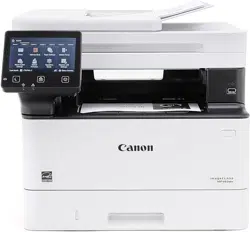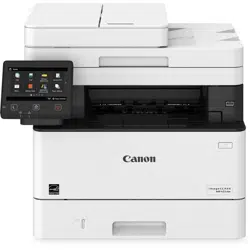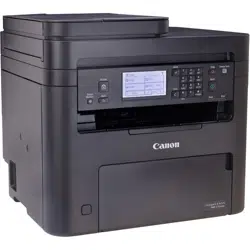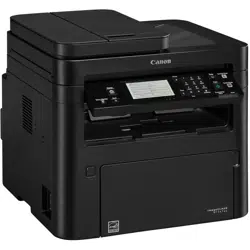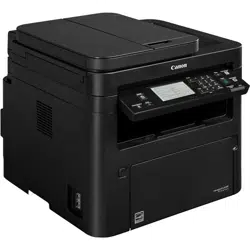
imageCLASS
MF455dw / MF453dw / MF452dw / MF451dw
User
's Guide
USRMA-6512-02 2022-11 en Copyright CANON INC. 2022

Contents
Setting Up
............................................................................................................................................................ 3
Main Functions ......................................................................................................................................................... 4
Preparations Required Before Use ............................................................................................................................. 6
Preventing Unauthorized Access ................................................................................................................................ 8
Setting Up Using the Setup Guide ............................................................................................................................ 10
Setting the Date/Time ............................................................................................................................................. 12
Setting Up the Network Environment ...................................................................................................................... 14
Selecting Wired LAN or Wireless LAN ..................................................................................................................... 16
Connecting to a Wired LAN .................................................................................................................................. 17
Connecting to a Wireless LAN ............................................................................................................................... 18
Setting Up Connection Using WPS Push Button Mode ....................................................................................... 20
Setting Up Connection Using WPS PIN Code Mode ........................................................................................... 22
Setting Up Connection by Selecting a Wireless Router ....................................................................................... 24
Setting Up Connection by Specifying Detailed Settings ...................................................................................... 26
Checking the SSID and Network Key ............................................................................................................... 29
Setting IP Addresses ........................................................................................................................................... 30
Setting IPv4 Address ..................................................................................................................................... 31
Setting IPv6 Addresses .................................................................................................................................. 34
Viewing Network Settings .................................................................................................................................... 37
Conguring Settings for Communication with a Computer ...................................................................................... 39
Conguring Printing Protocols and WSD Functions ........................................................................................... 40
Conguring Printer Ports ............................................................................................................................... 43
Setting Up Print Server .................................................................................................................................. 47
Conguring the Machine for Your Network Environment ......................................................................................... 50
Conguring Ethernet Settings ........................................................................................................................ 51
Changing the Maximum Transmission Unit ...................................................................................................... 53
Setting a Wait Time for Connecting to a Network .............................................................................................. 54
Conguring DNS .......................................................................................................................................... 55
Conguring SMB .......................................................................................................................................... 59
Conguring WINS ......................................................................................................................................... 63
Registering LDAP Servers .............................................................................................................................. 65
Monitoring and Controlling the Machine with SNMP ......................................................................................... 70
Other Network Settings ................................................................................................................................. 74
Installing Drivers .................................................................................................................................................... 78
Conguring Initial Settings for Fax Functions ........................................................................................................... 79
Deciding Which Fax Receive Mode to Use .............................................................................................................. 80
Registering the Fax Number and Unit Name .......................................................................................................... 81
Selecting the Receive Mode .................................................................................................................................. 82
Connecting the Telephone Line ............................................................................................................................ 83
Conguring Scan Settings ....................................................................................................................................... 84
Preparing to Use the Machine as a Scanner ........................................................................................................... 85
Procedure for Setting to Send E-Mail/Send and Receive I-Fax ................................................................................... 86
Conguring Basic E-Mail Settings .................................................................................................................... 87
I

Conguring E-Mail/I-Fax Communication Settings ............................................................................................
90
Procedure for Setting a Shared Folder as a Save Location ........................................................................................ 94
Setting a Shared Folder as a Save Location ....................................................................................................... 95
Procedure for Setting a FTP Server as a Save Location ............................................................................................. 98
Basic Operations ........................................................................................................................................ 101
Parts and Their Functions ...................................................................................................................................... 105
Front Side ........................................................................................................................................................ 106
Back Side ......................................................................................................................................................... 108
Interior ........................................................................................................................................................... 110
Feeder ............................................................................................................................................................ 111
Multi-Purpose Tray ........................................................................................................................................... 112
Paper Drawer ................................................................................................................................................... 113
Operation Panel ............................................................................................................................................... 114
Turning ON the Machine ....................................................................................................................................... 116
Turning OFF the Machine ................................................................................................................................... 117
Turning OFF the Machine by Remote Operation ............................................................................................. 118
Powering OFF at a Fixed Time ...................................................................................................................... 119
Restarting the Machine ..................................................................................................................................... 121
Using the Operation Panel .................................................................................................................................... 123
Basic Screens ................................................................................................................................................... 124
Home Screen ............................................................................................................................................. 125
<Status Monitor> Screen ............................................................................................................................. 128
Message Display ......................................................................................................................................... 130
Basic Operation ................................................................................................................................................ 131
Entering Text ................................................................................................................................................... 134
Logging in to the Machine ..................................................................................................................................... 136
Placing Originals ................................................................................................................................................... 138
Loading Paper ....................................................................................................................................................... 142
Loading Paper in the Paper Drawer .................................................................................................................... 144
Loading Paper in the Multi-Purpose Tray ............................................................................................................. 149
Loading Envelopes ............................................................................................................................................ 152
Loading Preprinted Paper .................................................................................................................................. 154
Specifying Paper Size and Type .......................................................................................................................... 158
Specifying Paper Size and Type in the Paper Drawer ....................................................................................... 159
Specifying Paper Size and Type in the Multi-Purpose Tray ................................................................................ 161
Registering Default Paper Settings for the Multi-Purpose Tray ......................................................................... 163
Registering a Custom Paper Size .................................................................................................................. 165
Limiting the Paper Sizes Displayed ................................................................................................................ 167
Automatically Selecting an Appropriate Paper Source for Each Function ............................................................ 168
Customizing the Display ........................................................................................................................................ 169
Customizing the Home Screen ........................................................................................................................... 170
Registering Frequently Used Settings .................................................................................................................. 173
Changing the Default Settings for Functions .......................................................................................................... 175
Setting Sounds ...................................................................................................................................................... 177
II

Entering Sleep Mode .............................................................................................................................................
179
Registering Destinations ....................................................................................................................................... 181
Registering Destinations in the Address Book ...................................................................................................... 183
Registering Multiple Destinations as a Group ................................................................................................. 186
Editing the Registered Destinations in the Address Book ................................................................................. 188
Using a USB Memory Device .................................................................................................................................. 189
Copying .............................................................................................................................................................. 192
Copy Basic Features Screen ................................................................................................................................... 194
Basic Copy Operations ........................................................................................................................................... 196
Canceling Copies .............................................................................................................................................. 201
Checking the Copying Status and Log ................................................................................................................. 202
Enhancing and Adjusting Copy Quality ................................................................................................................... 204
Selecting the Type of Original for Copying ........................................................................................................... 205
Adjusting Sharpness for Copying (Sharpness) ...................................................................................................... 206
Erasing Dark Borders When Copying (Erase Frame) ............................................................................................... 207
Useful Copy Functions ........................................................................................................................................... 208
Copying Multiple Documents onto One Sheet (N on 1) .......................................................................................... 209
Collating Copies by Page ................................................................................................................................... 210
Making ID Card Copies ...................................................................................................................................... 211
Making Passport Copies .................................................................................................................................... 212
Faxing .................................................................................................................................................................. 215
Fax Basic Features Screen ...................................................................................................................................... 218
Basic Operations for Sending Faxes ....................................................................................................................... 219
Canceling Sending Faxes ................................................................................................................................... 227
Receiving Faxes .................................................................................................................................................... 228
Useful Functions When Sending ............................................................................................................................. 232
Recalling Previously Used Settings for Sending (Recall Settings) ............................................................................. 233
Sending a Fax after a Phone Call (Manual Sending) ............................................................................................... 236
Saving a Copy of a Sent Original ......................................................................................................................... 238
Various Receiving Methods .................................................................................................................................... 240
Saving Received Documents into the Machine (Memory Reception) ........................................................................ 241
Forwarding the Received Documents Automatically ............................................................................................... 243
Checking Status and Log for Sent and Received Documents .................................................................................... 246
Sending Faxes from Your Computer (PC Fax) .......................................................................................................... 248
Sending PC Faxes ............................................................................................................................................. 249
Using Internet Fax (I-Fax) ...................................................................................................................................... 251
Sending I-Faxes ................................................................................................................................................ 252
Receiving I-Faxes .............................................................................................................................................. 259
Printing .............................................................................................................................................................. 261
Printing from a Computer ..................................................................................................................................... 262
Canceling Prints ............................................................................................................................................... 264
III

Checking the Printing Status and Log
.................................................................................................................. 266
Various Printing Methods ...................................................................................................................................... 268
Printing a Document Secured by a PIN (Secure Print) ............................................................................................ 269
Printing via Secure Print .............................................................................................................................. 270
Printing from a USB Memory Device (Memory Media Print) .................................................................................... 273
Scanning ........................................................................................................................................................... 282
Scan Basic Features Screen .................................................................................................................................... 284
Basic Operations for Scanning Originals ................................................................................................................ 287
Scanning and Saving to a Computer .................................................................................................................... 288
Saving Data to a USB Memory Device .................................................................................................................. 290
Sending Data by E-Mail/Saving Data to a Shared Folder or FTP Server ..................................................................... 294
Canceling Sending Documents ........................................................................................................................... 304
Checking Status and Log for Scanned Originals .................................................................................................... 305
Scanning Clearly ................................................................................................................................................... 307
Adjusting Image Quality .................................................................................................................................... 308
Adjusting Density ............................................................................................................................................. 309
Adjusting Sharpness When Scanning (Sharpness) ................................................................................................. 310
Useful Scanning Functions .................................................................................................................................... 312
Adjusting Balance between File Size and Image Quality (Data Size) ......................................................................... 313
Conguring a File Name .................................................................................................................................... 314
Recalling Previously Used Settings for Sending/Saving (Recall Settings) ................................................................... 315
Specifying E-Mail Settings .................................................................................................................................. 318
Using Your Computer to Scan (Remote Scan) .......................................................................................................... 321
Scanning Documents from an Application ........................................................................................................... 322
Using ScanGear MF ........................................................................................................................................... 324
Linking with Mobile Devices ............................................................................................................ 326
Connecting with Mobile Devices ............................................................................................................................ 327
Connecting via a Wireless LAN Router (LAN Connection) ........................................................................................ 328
Connecting Directly (Access Point Mode) ............................................................................................................. 330
Utilizing the Machine through Applications ........................................................................................................... 333
Using AirPrint ....................................................................................................................................................... 336
Printing with AirPrint ........................................................................................................................................ 341
Scanning with AirPrint ....................................................................................................................................... 344
Faxing with AirPrint .......................................................................................................................................... 346
If AirPrint Cannot Be Used ................................................................................................................................. 348
Managing the Machine by the Remote Control ....................................................................................................... 349
Managing the Machine ........................................................................................................................ 352
Setting Access Privileges ....................................................................................................................................... 354
Setting the System Manager ID and PIN .............................................................................................................. 355
Setting the Department ID Management ............................................................................................................. 357
Setting a Remote UI PIN .................................................................................................................................... 363
IV

LDAP Server Authentication
............................................................................................................................... 365
Conguring the Network Security Settings ............................................................................................................ 369
Restricting Communication by Using Firewalls ..................................................................................................... 371
Specifying IP Addresses for Firewall Settings .................................................................................................. 372
Specifying MAC Addresses for Firewall Settings .............................................................................................. 375
Changing Port Numbers .................................................................................................................................... 378
Setting a Proxy ................................................................................................................................................. 379
Conguring the Key and Certicate for TLS .......................................................................................................... 381
Generating the Key and Certicate for Network Communication ...................................................................... 385
Conguring the Expiration Check Method for Received Certicates .................................................................. 388
Generating a Key and Certicate Signing Request (CSR) ................................................................................... 390
Registering the Key and Certicate for Network Communication ...................................................................... 393
Conguring IPSec Settings ................................................................................................................................. 395
Conguring IEEE 802.1X Authentication Settings .................................................................................................. 402
Restricting the Machine's Functions ...................................................................................................................... 406
Restricting Access to Address Book and Sending Functions .................................................................................... 408
Restricting Use of the Address Book ............................................................................................................. 409
Limiting Available Destinations ..................................................................................................................... 411
Restricting the Fax Sending Functions ........................................................................................................... 413
Restricting Printing from a Computer .................................................................................................................. 415
Restricting USB Functions .................................................................................................................................. 416
Disabling HTTP Communication ......................................................................................................................... 418
Disabling Remote UI ......................................................................................................................................... 419
Managing the Machine from a Computer (Remote UI) ............................................................................................ 420
Starting Remote UI ........................................................................................................................................... 421
Checking the Status and Logs ............................................................................................................................ 425
Setting Up Menu Options from Remote UI ........................................................................................................... 431
Registering Destinations from Remote UI ............................................................................................................ 434
Security Policy .................................................................................................................................................. 438
Importing/Exporting the Setting Data ................................................................................................................. 443
Updating the Firmware ......................................................................................................................................... 446
Initializing Settings ............................................................................................................................................... 448
Setting Menu List ...................................................................................................................................... 451
<Preferences> ....................................................................................................................................................... 452
<Display Settings> ............................................................................................................................................ 453
<English Keyboard Layout> ................................................................................................................................ 458
<Timer/Energy Settings> ................................................................................................................................... 459
<Network> ....................................................................................................................................................... 463
<External Interface> .......................................................................................................................................... 478
<Accessibility> .................................................................................................................................................. 479
<Adjustment/Maintenance> .................................................................................................................................. 480
<Adjust Image Quality> ..................................................................................................................................... 481
<Maintenance> ................................................................................................................................................ 490
<Function Settings> .............................................................................................................................................. 491
V

<Common>
...................................................................................................................................................... 492
<Copy> ............................................................................................................................................................ 497
<Printer> ......................................................................................................................................................... 499
<Send> ............................................................................................................................................................ 523
<Receive/Forward> ........................................................................................................................................... 535
<Store/Access Files> .......................................................................................................................................... 541
<Secure Print> .................................................................................................................................................. 547
<Set Destination> .................................................................................................................................................. 548
<Management Settings> ....................................................................................................................................... 549
<User Management> ........................................................................................................................................ 550
<Device Management> ...................................................................................................................................... 551
<Remote UI Settings/Update Firmware> .............................................................................................................. 555
<Data Management> ........................................................................................................................................ 557
<Security Settings> ........................................................................................................................................... 559
Maintenance ................................................................................................................................................. 562
Regular Cleaning .................................................................................................................................................. 564
Cleaning the Exterior ........................................................................................................................................ 565
Cleaning the Platen Glass .................................................................................................................................. 566
Cleaning the Feeder .......................................................................................................................................... 567
Cleaning the Fixing Assembly ............................................................................................................................. 570
Replacing the Toner Cartridge ............................................................................................................................... 571
Checking the Remaining Amount of Consumables .................................................................................................. 578
Relocating the Machine ......................................................................................................................................... 579
Adjusting Image Quality ....................................................................................................................................... 581
Adjusting the Gradation and Density for Copy Jobs ............................................................................................... 582
Adjusting Values for Text Color Reproducibility ..................................................................................................... 584
Adjusting Print Density ...................................................................................................................................... 586
Adjusting Print Position ..................................................................................................................................... 587
Viewing the Counter Value .................................................................................................................................... 589
Printing Reports and Lists ..................................................................................................................................... 590
Consumables ........................................................................................................................................................ 595
Troubleshooting (FAQ) .......................................................................................................................... 598
Appendix ........................................................................................................................................................... 600
Third Party Software ............................................................................................................................................. 602
Feature Highlights ................................................................................................................................................ 603
Going Green and Saving Money ......................................................................................................................... 604
Improving Eciency ......................................................................................................................................... 606
Going Digital .................................................................................................................................................... 608
So Much More .................................................................................................................................................. 610
Specications ....................................................................................................................................................... 612
Main Unit ........................................................................................................................................................ 613
VI

Feeder ............................................................................................................................................................
616
Available Paper ................................................................................................................................................ 617
Cassette Feeding Module-AH ............................................................................................................................. 620
Fax Function .................................................................................................................................................... 621
Scan Function .................................................................................................................................................. 622
Printer Functions .............................................................................................................................................. 623
Management Functions ..................................................................................................................................... 625
System Environment ......................................................................................................................................... 627
Network Environment ....................................................................................................................................... 629
Options ................................................................................................................................................................ 630
Optional Equipment .......................................................................................................................................... 631
Manuals and Their Contents .................................................................................................................................. 632
Using User's Guide ................................................................................................................................................ 633
Screen Layout of User's Guide ............................................................................................................................ 634
Viewing User's Guide ........................................................................................................................................ 637
Basic Windows Operations .................................................................................................................................... 638
Menu Route Map ................................................................................................................................................... 646
Notice .................................................................................................................................................................. 647
VII

Setting Up
Setting Up ...............................................................................................................................................................
3
Main Functions ...................................................................................................................................................... 4
Preparations Required Before Use ....................................................................................................................... 6
Preventing Unauthorized Access .......................................................................................................................... 8
Setting Up Using the Setup Guide ...................................................................................................................... 10
Setting the Date/Time ......................................................................................................................................... 12
Setting Up the Network Environment ............................................................................................................... 14
Selecting Wired LAN or Wireless LAN .............................................................................................................. 16
Connecting to a Wired LAN ............................................................................................................................. 17
Connecting to a Wireless LAN ......................................................................................................................... 18
Setting Up Connection Using WPS Push Button Mode ............................................................................. 20
Setting Up Connection Using WPS PIN Code Mode .................................................................................. 22
Setting Up Connection by Selecting a Wireless Router ............................................................................. 24
Setting Up Connection by Specifying Detailed Settings ............................................................................ 26
Checking the SSID and Network Key ........................................................................................................ 29
Setting IP Addresses ....................................................................................................................................... 30
Setting IPv4 Address ................................................................................................................................ 31
Setting IPv6 Addresses ............................................................................................................................ 34
Viewing Network Settings ............................................................................................................................... 37
Conguring Settings for Communication with a Computer ............................................................................ 39
Conguring Printing Protocols and WSD Functions ................................................................................. 40
Conguring Printer Ports ......................................................................................................................... 43
Setting Up Print Server ............................................................................................................................ 47
Conguring the Machine for Your Network Environment ............................................................................... 50
Conguring Ethernet Settings ................................................................................................................. 51
Changing the Maximum Transmission Unit ............................................................................................. 53
Setting a Wait Time for Connecting to a Network .................................................................................... 54
Conguring DNS ...................................................................................................................................... 55
Conguring SMB ...................................................................................................................................... 59
Conguring WINS .................................................................................................................................... 63
Registering LDAP Servers ......................................................................................................................... 65
Monitoring and Controlling the Machine with SNMP ............................................................................... 70
Other Network Settings ........................................................................................................................... 74
Installing Drivers ................................................................................................................................................. 78
Conguring Initial Settings for Fax Functions ................................................................................................... 79
Deciding Which Fax Receive Mode to Use ....................................................................................................... 80
Setting Up
1

Registering the Fax Number and Unit Name ..................................................................................................
81
Selecting the Receive Mode ............................................................................................................................ 82
Connecting the Telephone Line ...................................................................................................................... 83
Conguring Scan Settings ................................................................................................................................... 84
Preparing to Use the Machine as a Scanner ................................................................................................... 85
Procedure for Setting to Send E-Mail/Send and Receive I-Fax ......................................................................... 86
Conguring Basic E-Mail Settings ............................................................................................................ 87
Conguring E-Mail/I-Fax Communication Settings ................................................................................... 90
Procedure for Setting a Shared Folder as a Save Location .............................................................................. 94
Setting a Shared Folder as a Save Location .............................................................................................. 95
Procedure for Setting a FTP Server as a Save Location ................................................................................... 98
Setting Up
2
Setting Up
7YWY-000
Befor
e using the functions of the machine, the environmental conditions must be set in advance. To begin with, check
the sequences of ow required to complete the setup, and then perform the actual settings.
Preparations Required
Befor
e Use(P. 6)
● The functions installed on the machine vary depending on the model you pur
chased. Before using the
machine, see
Main Functions(P. 4) and check the available functions.
Conguring Initial Settings of the Machine (Setup Guide)
● Y
ou can easily congure the initial settings required to use the machine, such as date, time, and network
settings, by following the on-screen guidance.
Setting Up Using the Setup Guide(P. 10)
Setting Up
3
Main Functions
7YWY-001
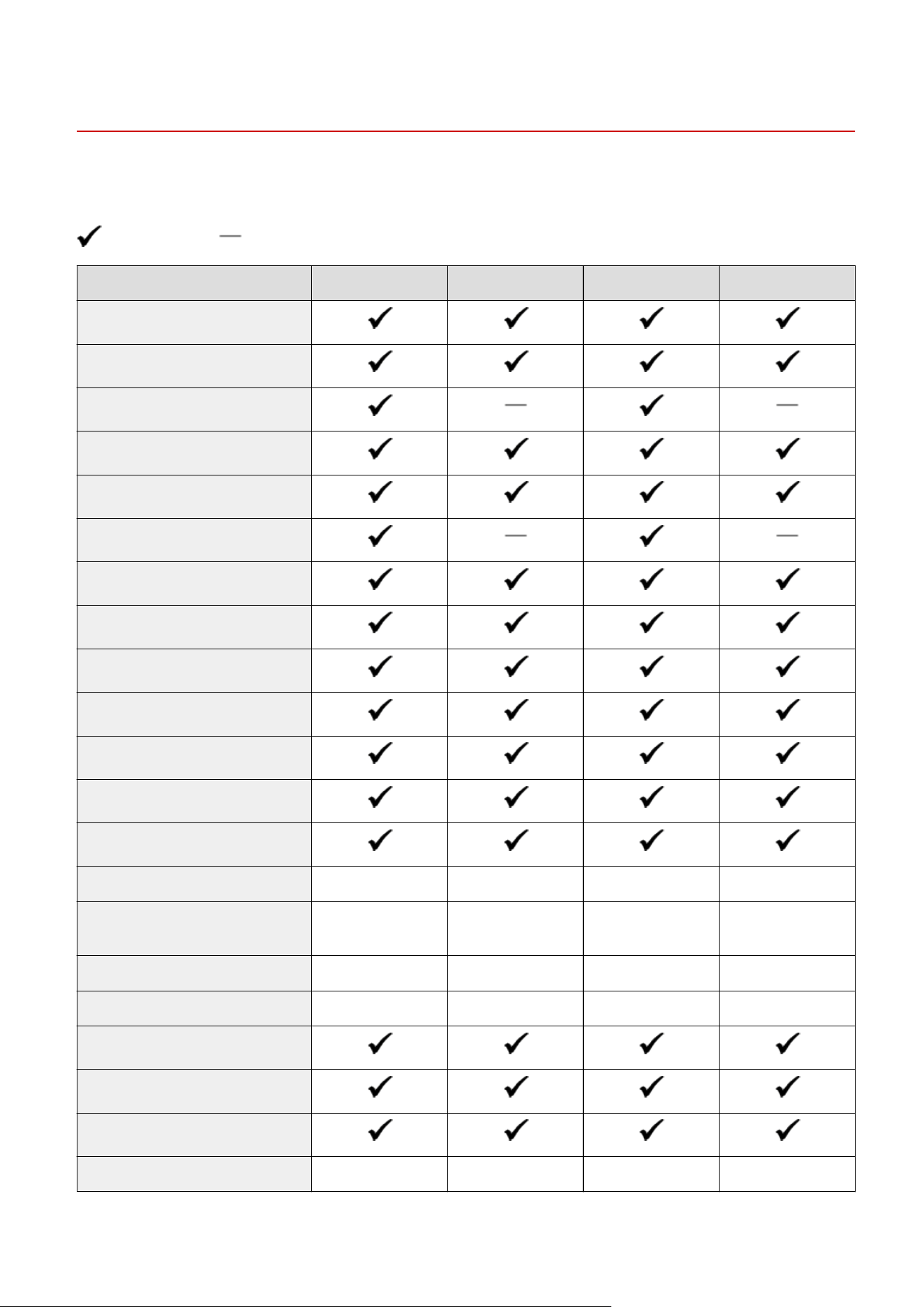
This manual co
vers all the functions of the model series you purchased. Before getting started, check which functions
are available on the model you purchased.
: With function : Without function
Function MF455dw MF453dw MF452dw MF451dw
Copy
Print
Fax
Scan
2-sided printing
Forward received faxes
Send scanned data (e-Mail/SMB/FTP)
Wired LAN connection
Wireless LAN connection
USB connection
Remote UI
Keys and Certicates
Linking with Mobile Devices
Display Touch panel Touch panel Touch panel Touch panel
Feeder Feeder (2-sided
scanning)
Feeder (2-sided
scanning)
Feeder (2-sided
scanning)
Feeder (2-sided
scanning)
Default System Manager ID Not specied Not specied Not specied Not specied
Default System Manager PIN Not specied Not specied Not specied Not specied
Department ID Management
Application Library
Toner Replenishment Service
Cassette Feeding Module-AH Optional Optional Optional Optional
Setting Up
4

Preparations Required Before Use
7YWY-002
Set up the machine follo
wing steps 1 to 5 in order. For more information about a particular step, click on the link to go
to the corresponding section. In addition, to use the machine safely, also check
Preventing Unauthorized
Access(P
. 8) .
Step 1 Setting Up Using the Setup Guide(P. 10)
Step 2 Setting Up the Network Environment(P. 14)
● Congur
e the network settings that are not covered in the Setup Guide. If you do not need
to use the Setup Guide, congure the network settings from here.
Step 3 Installing Drivers(P. 78)
Step 4 Conguring Initial Settings for Fax Functions
(P. 79)
Step 5 Conguring Scan Settings
(P. 84)
Setting Up
6

Setting from the Remote UI
● When the network envir
onment settings are complete, you can eciently set the machine from a computer
using Remote UI.
Starting Remote UI(P. 421)
Importing data fr
om another machine to save time
● As long as the model is the same, you can save setting data registered on another Canon printer/
multifunction machine to a computer (export) and load the setting data to this machine (import).
Importing/Exporting the Setting Data(P. 443)
Setting Up
7
Preventing Unauthorized Access
7YWY-003
This section describes the security measur
es on how to prevent unauthorized access from the external network. This is
a must-read for all users and administrators before using this machine, other printers, and multifunction machines
connected to the network. In recent years, a printer/multifunction machine connected to the network can offer you a
variety of useful functions, such as printing from a computer, operating from a computer using the remote function,
and sending scanned documents via the Internet. On the other hand, it is essential to take security measures to
reduce the security risk for information leakage, as a printer/multifunction machine has become more exposed to
threats, such as unauthorized access and theft, when it is connected to the network. This section explains necessary
settings you need to specify to prevent unauthorized access before using a printer/multifunction machine connected
to the network.
Security Measures to Prevent Unauthorized Access from the External Network
Assigning a Private IP Address(P. 8)
Using Firewall to Restrict Transmission(P. 9)
Specifying the TLS Encrypted Communication (P. 9)
Setting PIN to Manage Information Stored in the Multifunction Machine(P. 9)
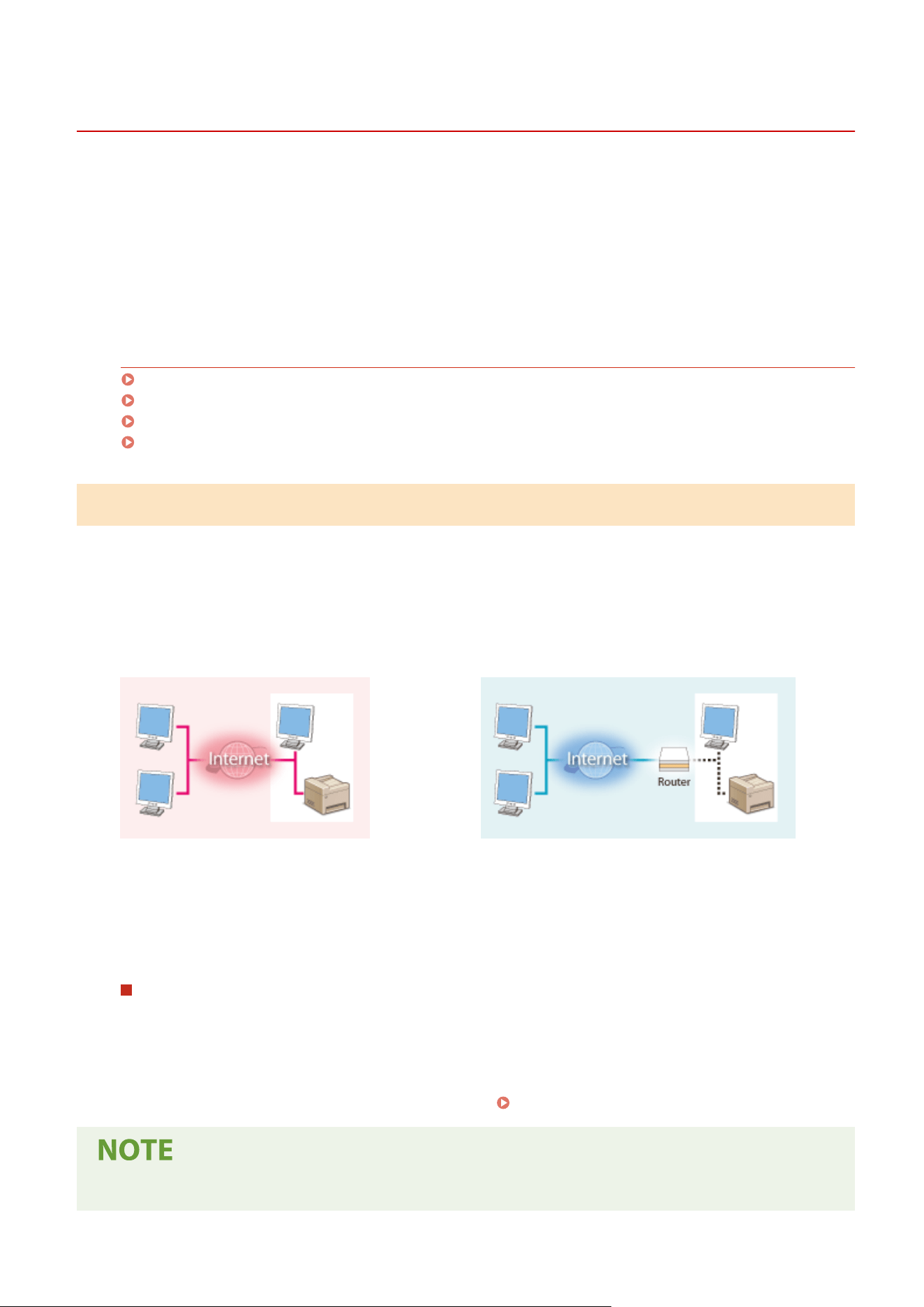
Assigning a Private IP Address
An IP address is a numerical label assigned to each device participating in a computer network. A "global IP address" is
used for the communication connecting to the Internet, and a "private IP address" is used for the communication
within a local area network, such as a LAN in the company. If a global IP address is assigned, your printer/
multifunction machine is open to the public and can be accessed via the Internet. Thus, the risk of information leakage
due to unauthorized access from external network increases. On the other hand, if a private IP address is assigned,
your printer/multifunction machine is closed to a local area network and can be accessed by only users on your local
area network, such as a LAN in the company.
Global IP Address
Can be accessed fr
om the external network
Private IP Address
Can be accessed from the users within a local area network
Basically, assign a private IP address to your printer/multifunction machine. Make sure to conrm the IP address,
assigned to the printer/multifunction machine you are using, is a private IP address or not. A private IP address is
found in one of the following ranges.
Ranges for Private IP addresses
● Fr
om 10.0.0.0 to 10.255.255.255
● From 172.16.0.0 to 172.31.255.255
● From 192.168.0.0 to 192.168.255.255
For information on how to conrm the IP address, see
Setting IPv4 Address(P. 31) .
● If a global IP addr
ess is assigned to a printer/multifunction machine, you can create a network environment
to reduce the risk of unauthorized access by installing security software, such as a rewall that prevents
Setting Up
8
access from the external networks. If you want to assign a global IP address to and use a printer/
multifunction machine, contact your network administr
ator.
Using Firewall to Restrict Transmission
A r
ewall is a system that prevents unauthorized access from the external networks and protects against attacks/
intrusions to a local area network. You can use a rewall on your network environment to block access from the
external network that appears to be dangerous, by restricting communication from specied IP address of the
external network. The function installed to a Canon printer/multifunction machine enables you to set up the IP
address lter. For information on how to set up an IP address lter, see
Specifying IP Addresses for Firewall
Settings(P
. 372) .
Specifying the TLS Encrypted Communication
For information on the TLS Encrypted Communication, see
Conguring the Network Security Settings
(P. 369) ,
and on the procedures to specify, see
Conguring the Ke
y and Certicate for TLS(P. 381) .
Setting PIN to Manage Information Stored in the Multifunction Machine
If a malicious thir
d party attempts to gain unauthorized access to a printer/multifunction machine, setting PIN to
information stored in the machine will reduce the risk of information leakage. Canon printers/multifunction machines
enable you to protect various type of information by setting PIN.
Setting PIN to Each Function
● Setting PIN for Using Remote UI
For mor
e information, see
Setting a Remote UI PIN(P. 363) .
● Setting PIN for the System Manager Settings
For mor
e information, see
Setting the System Manager ID and PIN(P. 355) .
● Addr
ess Book PIN
For more information on setting a PIN, see
Restricting Use of the Address Book(P. 409) .
Listed abo
ve are some examples of security measures for preventing unauthorized access. For more information on
the other security measures, see
Managing the Machine(P. 352) and tak
e necessary security measures for
preventing unauthorized access to suit your environment.
Setting Up
9

Setting Up Using the Setup Guide
7YWY-004
1660-009
When the machine is turned on (
Turning ON the Machine(P. 116) ) for the rst time, the Setup Guide starts up to
assist you to congur
e the initial settings of the machine by following the on-screen guidance. In the Setup Guide, the
setting screens are displayed in the following order.
Step 1 Setting the Display Language and the Country or Region
Set the language to be displayed on the operation panel screen or in reports, as well as the
country or r
egion where the machine will be used.
1
Select a language.
2
Select <Yes>.
3
Select a country or region.
Step 2 Setting the Date and Time
Adjust the machine's date/time.
1
Select a time zone.
What is UTC?
● Coor
dinated Universal Time (UTC) is the primary time standard by which the
world regulates clocks and time. The correct UTC time zone setting is required
for Internet communications.
2
Enter the date and time, and select <Apply>.
● Tap the entry eld, and enter the date and time.
Step 3 Setting the Security
Specify the basic security settings to prevent unauthorized access to the machine.
1
Select <Yes> when using the Remote UI.
● If you select <No>, the Remote UI settings ar
e not congured, and the Setup
Guide proceeds to step 4.
2
Select <Yes> when using General User mode.
● If you select <No>, PIN is not set, and the Setup Guide proceeds to step 4.
● You can also set the access security measure of the Remote UI later.
Setting
a Remote UI PIN
(P. 363)
3
Enter a PIN, and select <Apply>.
4
Enter the same PIN, and select <Apply>.
Step 4 Setting the Wireless LAN
Congure the settings to connect to the network using the wir
eless LAN.
1
Select <Yes>.
Setting Up
10

● If you select <No>, wir
eless LAN is not set, and the Setup Guide proceeds to
step 5.
2
Select the network with a matching SSID.
3
Enter the password (network key) and select <Apply>.
4
Select <Close>.
● For more information about the wireless LAN settings, see
Connecting to a
Wir
eless LAN(P. 18) .
Step 5 Conguring Settings for T
oner Replenishment Service
You can congur
e settings for toner replenishment service. Through toner replenishment
service, new toner cartridges are automatically delivered to you before your existing toner
cartridges are used up.
● Use of the toner r
eplenishment service requires prior registration with select retailers. This
service is only available in certain countries.
● This service can be set up through <Toner Delivery Settings> displayed on the Home screen.
Home Screen(P. 125)
1
Select <Next>.
2
Select <Accept>.
● If you select <Do Not Accept>, the scr
een for conguring settings for toner
replenishment service is skipped and the Setup Guide proceeds to step 6.
3
Select <OK>.
● If connecting to the server fails, try conguring the settings again through
<Connect to Server/Verify Connection with Server> in <Toner Delivery
Settings>.
Home Screen(P. 125)
Step 6 Viewing Application Library
The one-touch button referred to as "Application Library" is provided in the Home screen. You
can r
ead the description of each function.
1
To nish the Setup Guide, select <End>.
➠ When the Setup Guide is complete, the Home screen appears.
Setting Up
11
Setting the Date/Time
7YWY-005
Set the date and time for the machine. The date and time ar
e used as the reference for the functions specifying the
time, therefore, they need to be set accurately.
Setting the Time Zone(P. 12)
Setting the Current Date and Time(P. 12)
Setting the Daylight Saving Time(P. 13)
Setting the Time Zone
If the time zone setting is changed, the values set in <Current Date/Time Settings> are also changed accordingly.
1
Select <Menu> in the Home screen.
Home Screen(P. 125)
2
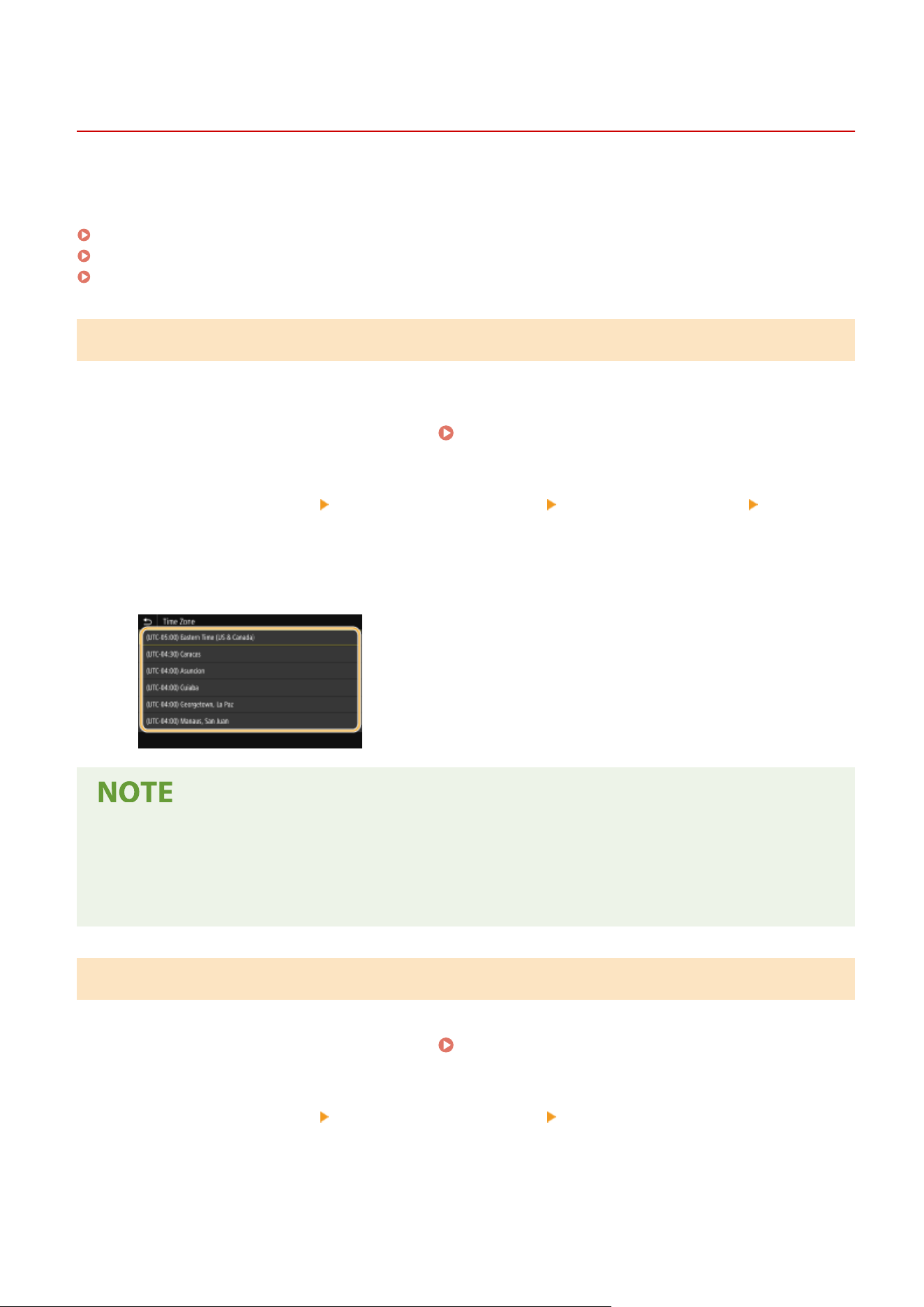
Select <Preferences> <Timer/Energy Settings> <Date/Time Settings> <Time
Zone>.
3
Select the time zone.
What is UTC?
● Coor
dinated Universal Time (UTC) is the primary time standard by which the world regulates clocks and
time. Time differences exist depending on the country or area where the machine is used. The correct UTC
time zone setting is required for Internet communications.
Setting the Current Date and Time
1
Select <Menu> in the Home screen.
Home Screen(P. 125)
2
Select <Preferences> <Timer/Energy Settings> <Current Date/Time Settings>.
3
Enter the date and time.
● T
ap the entry eld, and enter the date and time.
Setting Up
12
4
Select <Apply>.
● Set <Time Zone> befor
e setting the current date and time. If the <Time Zone> setting is changed later, the
current date and time are also changed accordingly.
● The display format of the date and time can be changed, respectively.
<Date Format>(P. 460)
<Time Format>(P. 460)
Setting the Daylight Saving Time
If daylight saving time is enabled, specify the dates from which and to which daylight saving time is in effect.
1
Select <Menu> in the Home screen.
Home Screen(P. 125)
2
Select <Preferences> <Timer/Energy Settings> <Date/Time Settings> <Daylight
Saving Time Settings>.
3
Select <Off> or <On> in <Daylight Saving Time>.
● When you select <On>, select <Start Date> and <End Date>, and set the month and day for each item. T
o set
the day, specify "what day of which week."
4
Select <Apply>.
Setting Up
13
Setting Up the Network Environment
7YWY-006
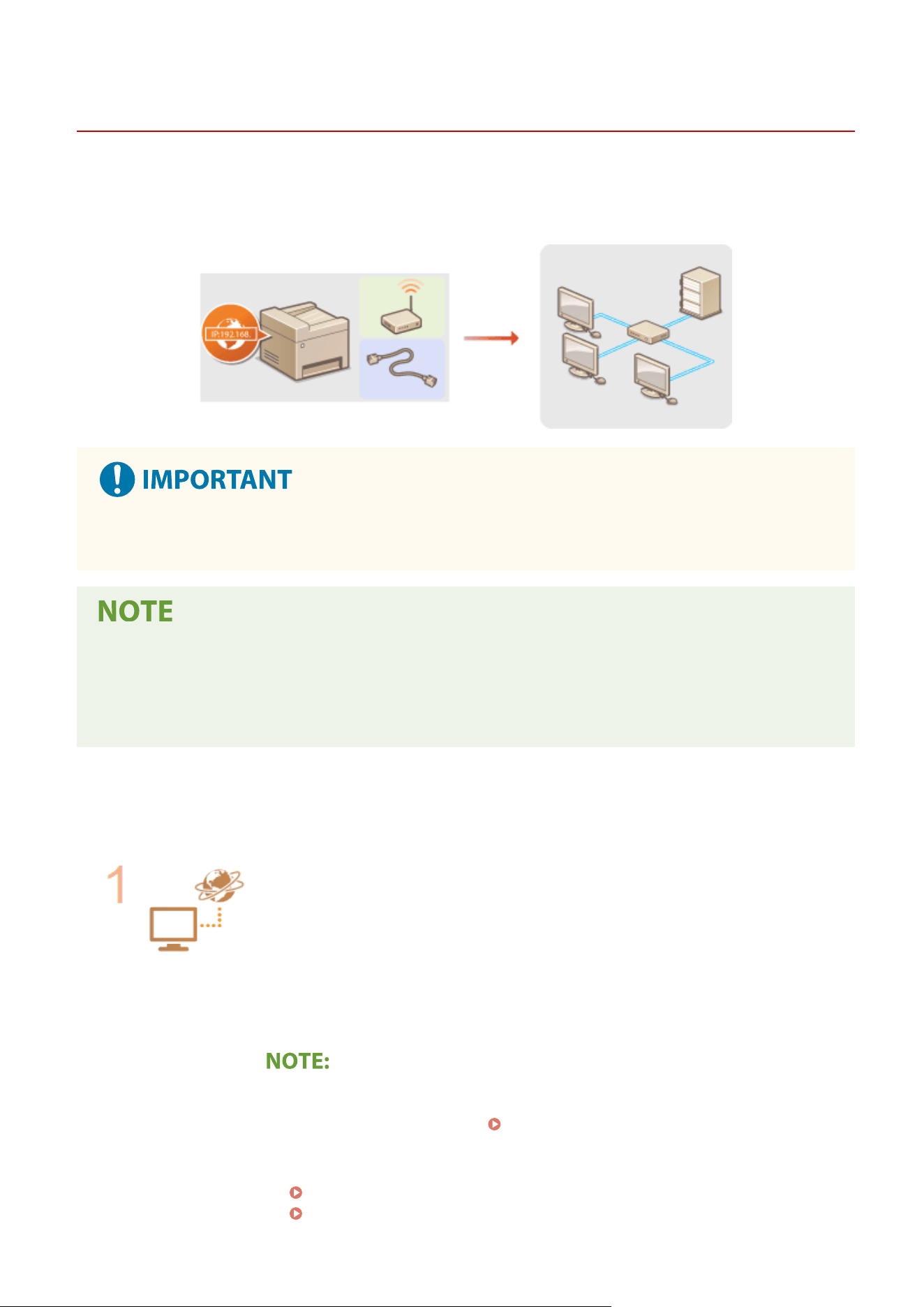
When connecting the machine to a wir
ed or wireless local area network (LAN), you need to set an IP address unique to
the selected network. Select "wired" or "wireless" depending on your communication environment and networking
devices. For specic IP address settings, contact your Internet service provider or Network Administrator.
● If the machine is connected to an unsecur
ed network, your personal information might be leaked to a third
party.
● The machine cannot connect to both wir
ed and wireless LANs at the same time.
● The machine does not come with a LAN cable or router. Have them ready as necessary.
● For more information about your networking devices, see the instruction manuals for the devices or contact
your manufacturer.
◼ Befor
e You Start
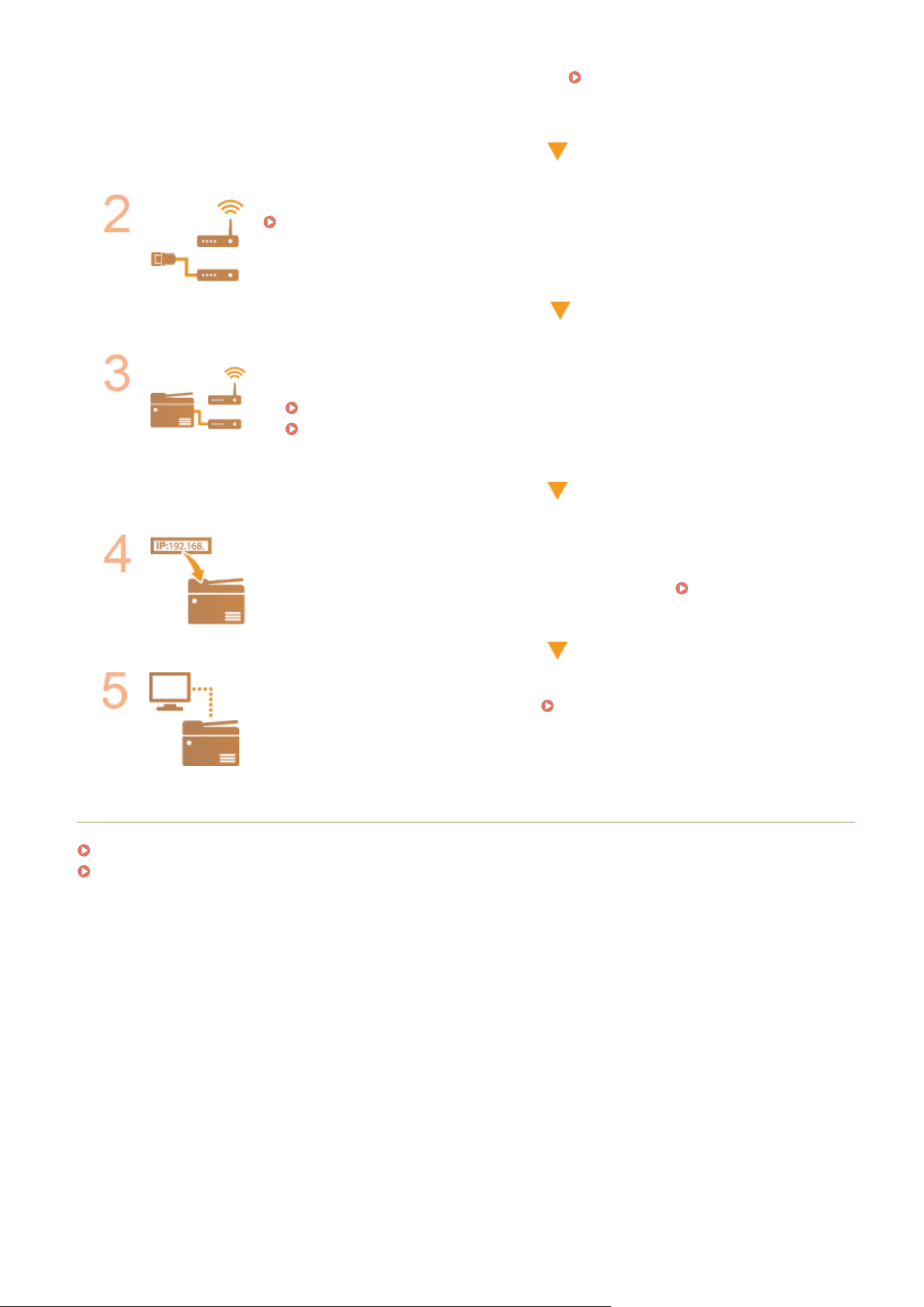
Follow these steps to connect the machine to a network.
Check your computer settings.
● Make sure that the computer is correctly connected to the network. For more
information, see the instruction manuals for the devices you are using, or contact the
device manufacturers.
● Make sure that the network settings have been completed on the computer. If the
network has not been set up properly, you will not be able to use the machine on the
network, even if you perform the rest of the procedure below.
● Depending on the network, you may need to change settings for the communication
method or the Ethernet type ( Conguring Ethernet Settings(P. 51) ). For more
information, contact your Internet service provider or Network Administrator.
● To check the MAC address of the machine.
Viewing the MAC Address for Wired LAN(P. 37)
Viewing the MAC Address and Information for Wireless LAN(P. 38)
Setting Up
14
● T
o connect to an IEEE 802.1X network, see
Conguring IEEE 802.1X
Authentication Settings
(P. 402) .
Select wired or wireless LAN.
Selecting Wired LAN or Wireless LAN(P. 16)
Connect to a wired or wireless LAN.
● Pr
oceed to the section that corresponds to the setting you selected in step 2.
Connecting to a Wired LAN(P. 17)
Connecting to a Wireless LAN(P. 18)
Set the IP address as necessary.
● At the time of pur
chase, the machine is set to automatically acquire an IP address.
Change this setting if you want to use a specic IP address.
Setting IP
Addr
esses(P. 30)
Conrm that pr
oper connection is completed.
● Start the Remote UI from a computer (
Starting Remote UI(P. 421) ). If the Remote
UI scr
een is displayed, the connection is completed.
LINKS
Conguring Settings for Communication with a Computer
(P. 39)
Conguring the Machine for Y
our Network Environment(P. 50)
Setting Up
15

Selecting Wired LAN or Wireless LAN
7YWY-007
After you decide on wir
ed or wireless LAN to connect the machine to the computer, select wired LAN or wireless LAN
using the operation panel. Note that if you change the setting from <Wired LAN> to <Wireless LAN> or vice versa, you
will need to uninstall the drivers installed on your computer and then reinstall them. For more information, see the
manuals for the relevant drivers on the online manual website.
1
Select <Menu> in the Home screen.
Home Screen(P. 125)
2
Select <Preferences> <Network>.
● If the login scr
een appears, enter the correct ID and PIN.
Logging in to the Machine(P. 136)
3
Select <Select Wired/Wireless LAN>.
4
Select <Wired LAN> or <Wireless LAN>.
LINKS
Setting Up the Network Environment(P. 14)
Connecting to a Wired LAN(P. 17)
Connecting to a Wireless LAN(P. 18)
Setting Up
16
Connecting to a Wired LAN
7YWY-008
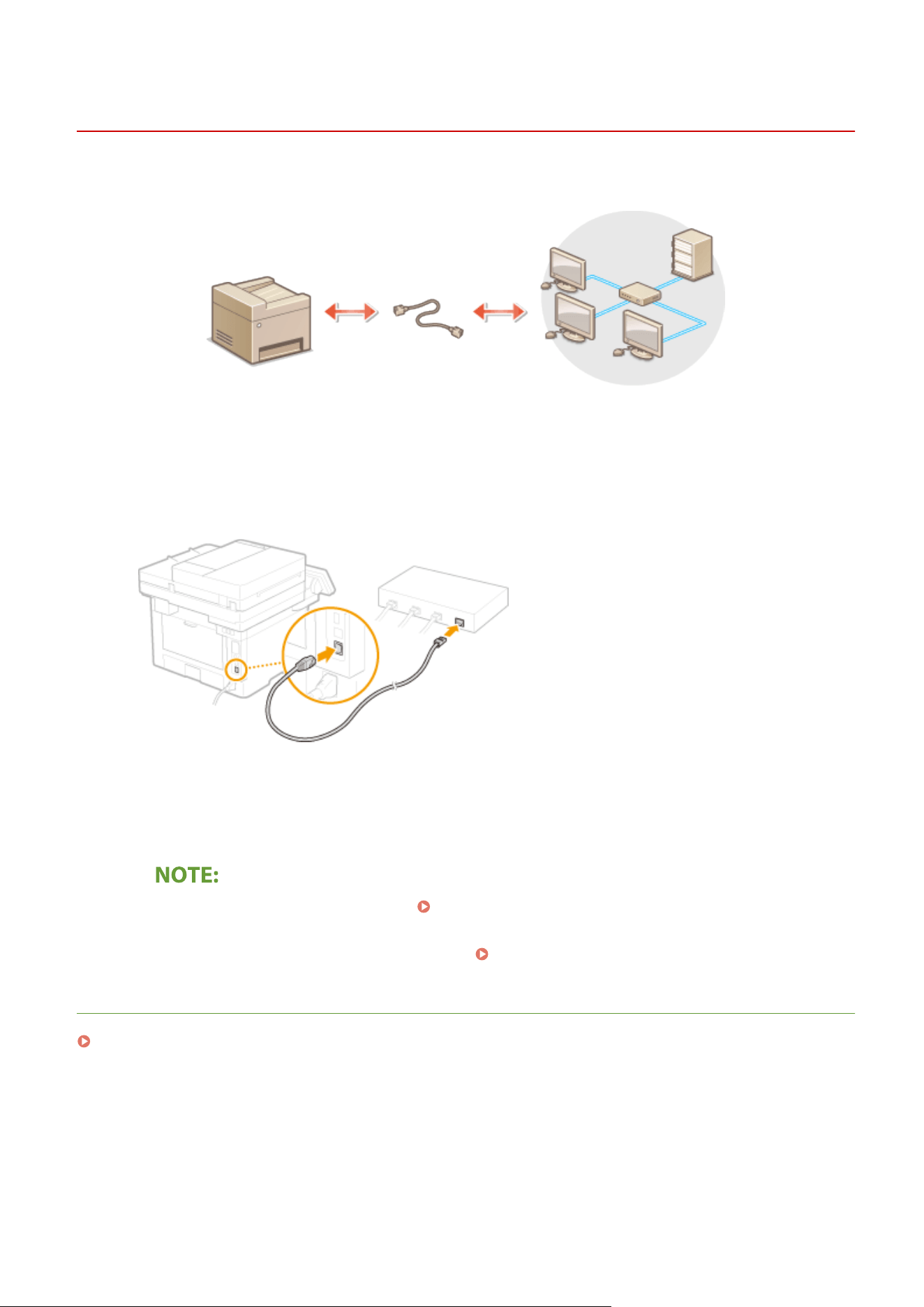
Connect the machine to a computer via a r
outer. Use a LAN cable to connect the machine to the router.
1
Connect a LAN cable.
● Connect the machine to a r
outer by using a LAN cable.
● Push the connector in until it clicks into place.
2
Wait for several minutes.
➠ The IP addr
ess is set automatically.
● Y
ou can set the IP address manually.
Setting IP Addresses(P. 30)
● While
the machine is connected to the wired LAN, the Wired LAN icon is displayed in the Home screen
or the Basic Features screen of each function.
Home Screen(P. 125)
LINKS
Setting Up the Network Environment(P. 14)
Setting Up
17
Connecting to a Wireless LAN
7YWY-009
Wir
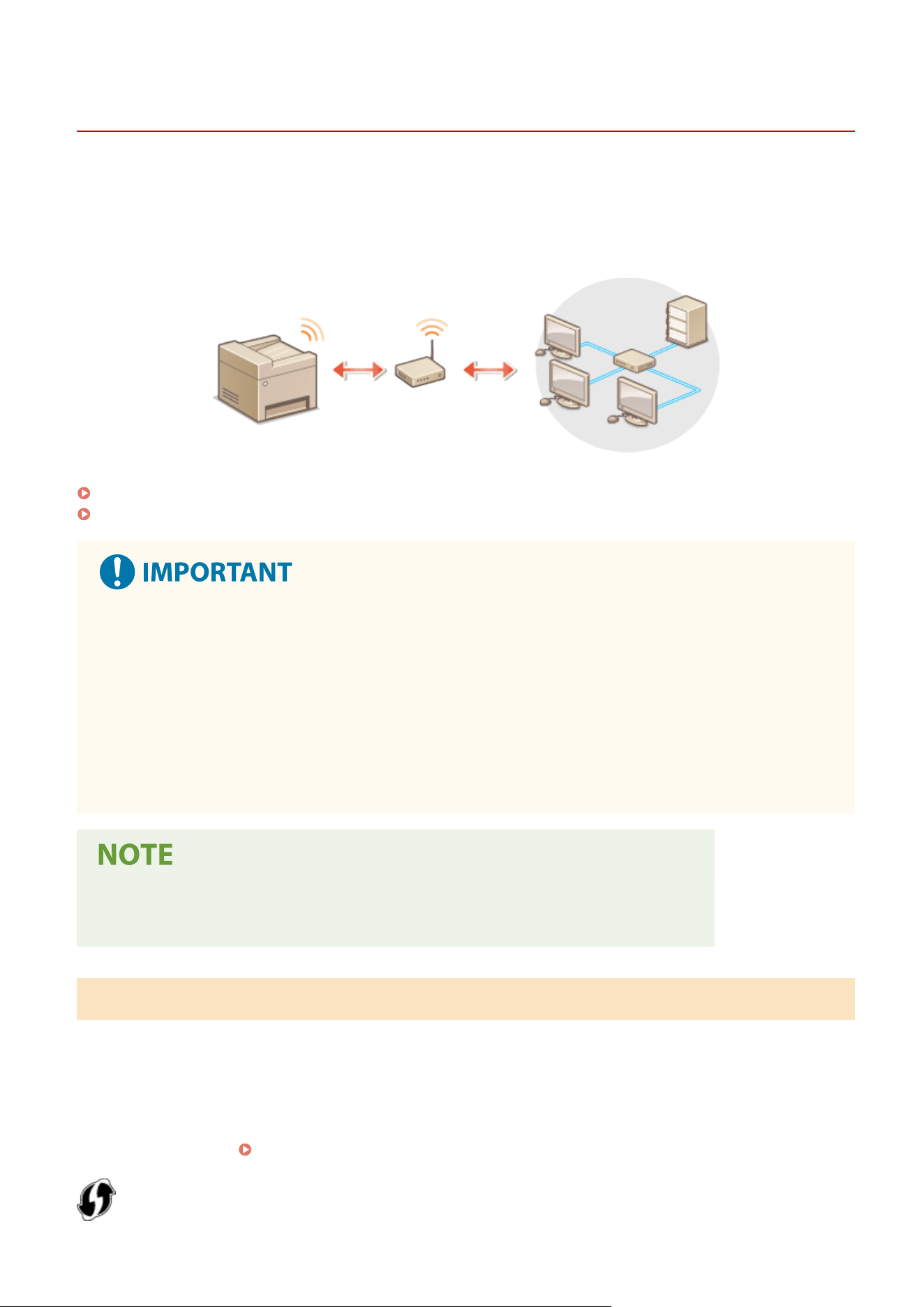
eless routers (or access points) connect the machine to a computer via radio waves. If your wireless router is
equipped with Wi-Fi Protected Setup (WPS), conguring your network is automatic and easy. If your networking
devices do not support automatic conguration, or if you want to specify authentication and encryption settings in
detail, you need to manually set up the connection. Make sure that your computer is correctly connected to the
network.
Setting Up Connection Using WPS(P. 18)
Manually Setting Up Connection(P. 19)
Risk of information leak
● Use wir
eless LAN connection at your own discretion and at your own risk. If the machine is connected to an
unsecured network, your personal information might be leaked to a third party because radio waves used in
wireless communication can go anywhere nearby, even beyond walls.
Wireless LAN security
● The wireless LAN function of this machine supports WEP, WPA-PSK, and WPA2-PSK. For the wireless security
compatibility of your wireless router, see the instruction manuals for your networking devices or contact
your manufacturer.
Required devices for wireless LAN connection
● The machine does not come with a wir
eless router. Have the router ready as necessary.
Setting Up Connection Using WPS
When using WPS, two modes ar
e available: push button mode and PIN code mode.
◼ Push Button Mode
Find the WPS mark shown below on the package of your wireless router. Also make sure that there is a WPS button on
your networking device.
Setting Up Connection Using WPS Push Button Mode(P. 20)
Setting Up
18

◼ PIN Code Mode
Some WPS r
outers do not support the push button mode. If WPS PIN code mode is mentioned on the package or in
the instruction manuals of your networking device, set up the connection by entering the PIN code.
Setting Up
Connection Using WPS PIN Code Mode(P
. 22)
● If the wir
eless router is set to use WEP authentication, you may not be able to set up connection using WPS.
Manually Setting Up Connection
When manually setting up a wir
eless connection, you can either select a wireless router or manually enter the required
information. Regardless of the method, make sure that you have the required setup information, including the SSID
and network key.
Checking the SSID and Network Key(P. 29)
◼ Selecting a Wir
eless Router
Select this setup option if you need to manually set up the connection but want to complete the setup as easily as
possible.
Setting Up Connection by Selecting a Wireless Router(P. 24)
◼ Manually Entering the Setup Information
If you want to specify security settings in detail, such as authentication and encryption settings, manually enter the
SSID and network k
ey to set up the connection.
Setting Up Connection by Specifying Detailed Settings(P. 26)
LINKS
Setting Up the Network Environment(P. 14)
Selecting Wired LAN or Wireless LAN(P. 16)
Setting Up
19
Setting Up Connection Using WPS Push Button Mode
7YWY-00A
1660-00J
If your wir
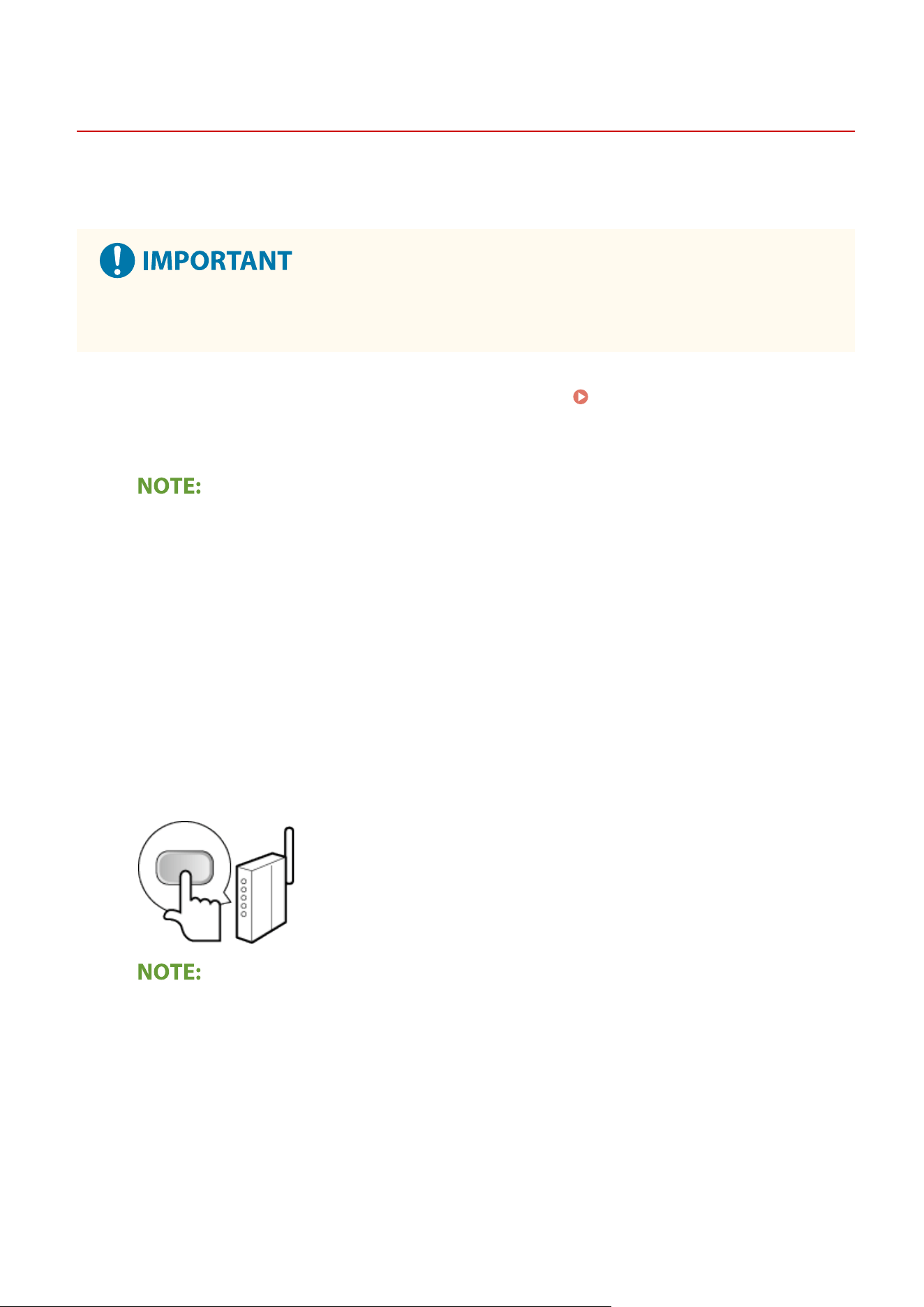
eless router supports WPS push button mode, you can easily set up a connection with a WPS button.
● Ho
w to operate the wireless router may vary on each device. See the instruction manuals for your
networking device for help.
1
Select <Wireless LAN Settings> in the Home screen.
Home Screen(P. 125)
● When a message appears on the display of the machine, select <Y
es>.
● If a message is displayed telling that no access point can be found, select <Close>.
2
Select <Other Connections>.
3
Select <WPS Push Button Mode>.
4
Press and hold the WPS button on the wireless router.
● The button must be pr
essed within 2 minutes after selecting <WPS Push Button Mode> in step 3.
● Depending on the networking device, you may need to press and hold the button for 2 seconds or longer.
See the instruction manuals for your networking device for help.
If an error message is displayed during setup
● Select <Close> and r
eturn to step 2.
5
Wait until message <Connected.> is displayed.
6
Select <Close>.
➠ W
ait several minutes until the IP address and other items are set automatically.
Setting Up
20
Signal strength
● When
more than one wireless router is available for connection, the machine connects to the device
with the strongest signal. Signal strength is measured using RSSI (Received Signal Strength Indication).
● Y
ou can set the IP address manually.
Setting IP Addresses(P. 30)
● While
the machine is connected to the wireless LAN, the Wireless LAN icon is displayed in the Home
screen or the Basic Features screen of each function.
Home Screen(P. 125)
Reducing power consumption
● Y
ou can set the machine to enter <Power Save Mode> based on signals emitted from the wireless router.
<Power Save Mode>(P. 464)
If the IP addr
ess of the machine has changed
● In a DHCP environment, the IP address of the machine may be changed automatically. If this happens, the
connection is maintained as long as the machine and the computer belong to the same subnet.
LINKS
Connecting to a Wireless LAN(P. 18)
Setting Up
21
Setting Up Connection Using WPS PIN Code Mode
7YWY-00C
If your wir
eless router supports WPS PIN code mode, generate a PIN code with the machine and register the code to
the networking device.
● Ho
w to operate the wireless router may vary on each device. See the instruction manuals for your
networking device for help.
From a Computer
1
Access your wireless router from a computer and display the screen for entering a
WPS PIN code.
● For mor
e information, see the instruction manuals for your networking device.
From the Operation Panel
2
Select <Wireless LAN Settings> in the Home screen. Home Screen(P. 125)
● When a message appears on the display of the machine, select <Y
es>.
● If a message is displayed telling that no access point can be found, select <Close>.
3
Select <Other Connections>.
4
Select <WPS PIN Code Mode>.
➠ The PIN code is gener
ated and shown on the display.
From a Computer
5
Register the generated PIN code to the wireless router.
● Register the PIN code on the setup scr
een displayed in step 1.
● The PIN code must be registered within 10 minutes after selecting <WPS PIN Code Mode> in step 4.
If an error message is displayed during setup
● Select <Close> and r
eturn to step 3.
Setting Up
22
From the Operation Panel
6
Wait until the message <Connected.> is displayed.
7
Select <Close>.
➠ W
ait several minutes until the IP address and other items are set automatically.
Signal strength
● When
more than one wireless router is available for connection, the machine connects to the device
with the strongest signal. Signal strength is measured using RSSI (Received Signal Strength Indication).
● Y
ou can set the IP address manually.
Setting IP Addresses(P. 30)
● While
the machine is connected to the wireless LAN, the Wireless LAN icon is displayed in the Home
screen or the Basic Features screen of each function.
Home Screen(P. 125)
Reducing power consumption
● Y
ou can set the machine to enter <Power Save Mode> based on signals emitted from the wireless router.
<Power Save Mode>(P. 464)
If the IP addr
ess of the machine has changed
● In a DHCP environment, the IP address of the machine may be changed automatically. If this happens, the
connection is maintained as long as the machine and the computer belong to the same subnet.
LINKS
Connecting to a Wireless LAN(P. 18)
Setting Up
23
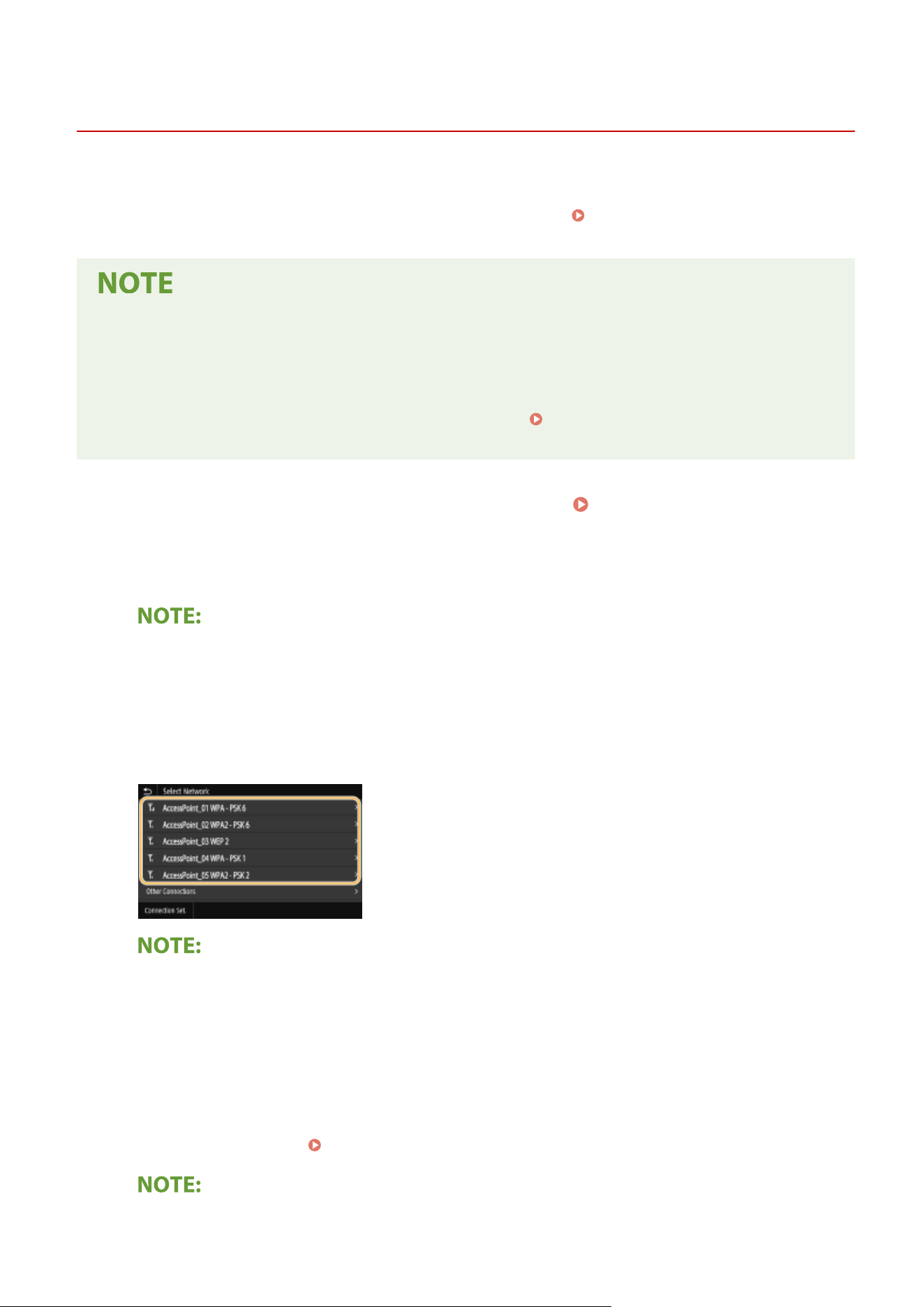
Setting Up Connection by Selecting a Wireless Router
7YWY-00E
Y
ou can search the wireless routers (or access points) available for connection and select one from the display of the
machine. For the network key, enter the encryption key/password. Before selecting a wireless router, check and write
down the required setup information, including the SSID and network key (
Checking the SSID and Network
Ke
y(P. 29) ).
Security settings
● If the wir
eless connection is set up by selecting a wireless router, the WEP authentication method is set to
<Open System> or the WPA/WPA2 encryption method is set to <Auto> (AES-CCMP or TKIP). If you want to
select <Shared Key> for WEP authentication or <AES-CCMP> for WPA/WPA2 encryption, you need to set up
the connection using <Manually Enter Network Name (SSID)>.
Setting Up Connection by Specifying
Detailed Settings(P
. 26)
1
Select <Wireless LAN Settings> in the Home screen.
Home Screen(P. 125)
● When a message appears on the display of the machine, select <Y
es>.
➠ The machine starts searching for available wireless routers.
● If
a message is displayed telling that no access point can be found, check the network settings. For more
information, see "Troubleshooting (FAQ)" on the online manual website.
2
Select a wireless LAN router.
● Select the r
outer whose SSID matches the one that you have written down.
If your wireless router is not found
● Check
whether the machine is properly installed and ready to connect to the network. For more
information, see "Troubleshooting (FAQ)" on the online manual website.
3
Enter the network key that you have written down.
● Enter the network k
ey, and select <Apply>.
● On how to enter text, see
Entering Text(P. 134) .
If an error message is displayed during setup
Setting Up
24
● Select <Close>, check whether the network k
ey is correct, and return to step 2.
4
Wait until message <Connected.> is displayed.
5
Select <Close>.
➠ W
ait several minutes until the IP address and other items are set automatically.
Signal strength
● When more than one wireless router is available for connection, the machine connects to the device
with the strongest signal. Signal strength is measured using RSSI (Received Signal Strength Indication).
● You can set the IP address manually. Setting IP Addresses(P. 30)
● While the machine is connected to the wireless LAN, the Wireless LAN icon is displayed in the Home
screen or the Basic Features screen of each function. Home Screen(P. 125)
Reducing power consumption
● Y
ou can set the machine to enter <Power Save Mode> based on signals emitted from the wireless router.
<Power Save Mode>(P. 464)
If the IP addr
ess of the machine has changed
● In a DHCP environment, the IP address of the machine may be changed automatically. If this happens, the
connection is maintained as long as the machine and the computer belong to the same subnet.
LINKS
Connecting to a Wireless LAN(P. 18)
Setting Up
25
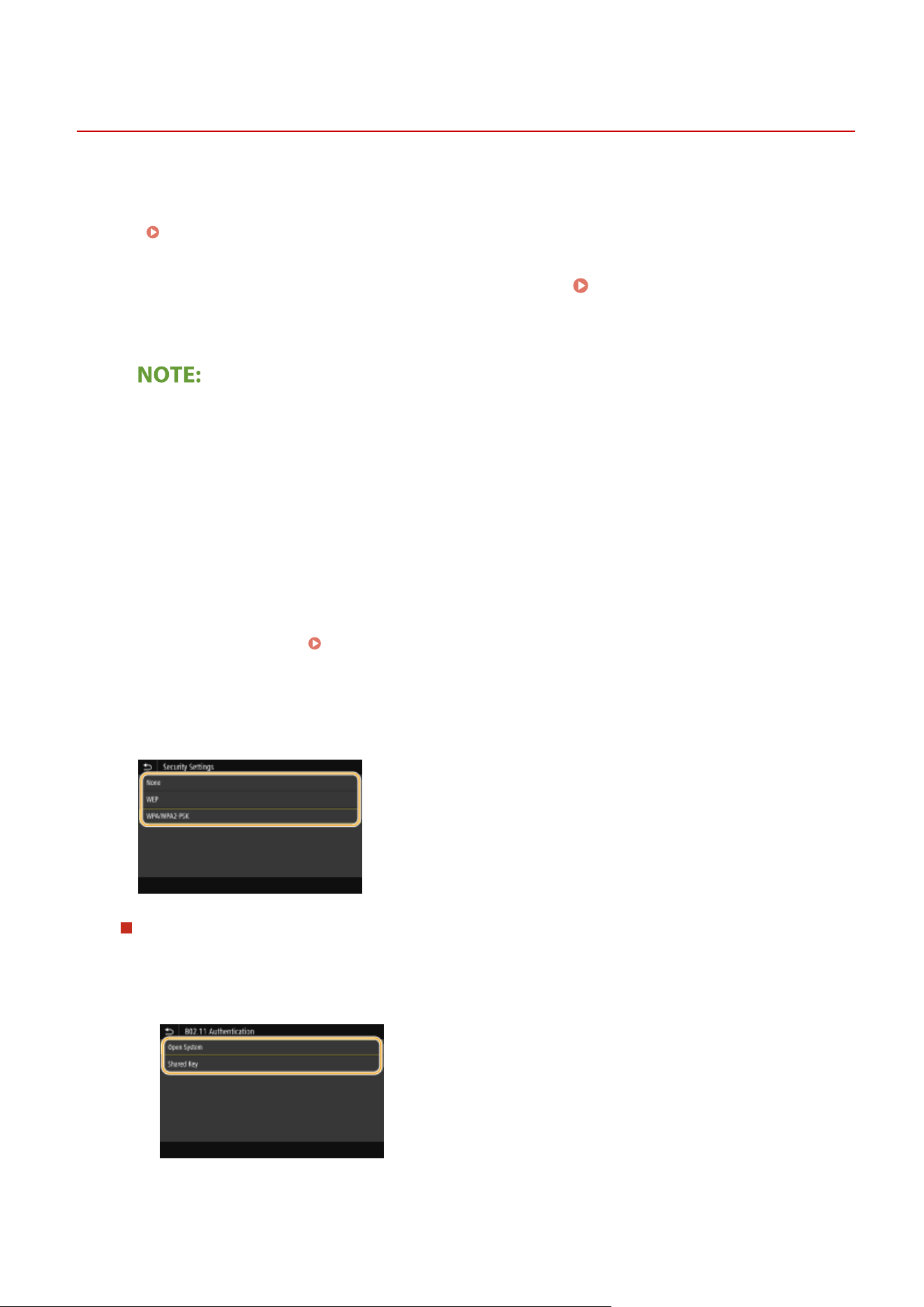
Setting Up Connection by Specifying Detailed Settings
7YWY-00F
If you want to specify the security settings in detail or cannot establish the wir
eless connection using the other
procedures, manually enter all the required information for the wireless LAN connection. Before specifying detailed
settings, check and write down the required information, including the SSID, network key, and wireless security
protocols.
Checking the SSID and Network Key(P. 29)
1
Select <Wireless LAN Settings> in the Home screen.
Home Screen(P. 125)
● When a message appears on the display of the machine, select <Y
es>.
● If a message is displayed telling that no access point can be found, select <Close>.
2
Select <Other Connections>.
3
Select <Manually Enter Network Name (SSID)>.
4
Enter the network name (SSID) that you have written down, and select <Apply>.
● On ho
w to enter text, see
Entering Text(P. 134) .
5
Specify the security settings based on the information that you have written down.
● If you do not need to specify the security settings, select <None>.
Using WEP
1
Select <WEP>.
2
Select an authentication method.
<Open System>
Sets open system authentication, which is also called "
open authentication."
Setting Up
26
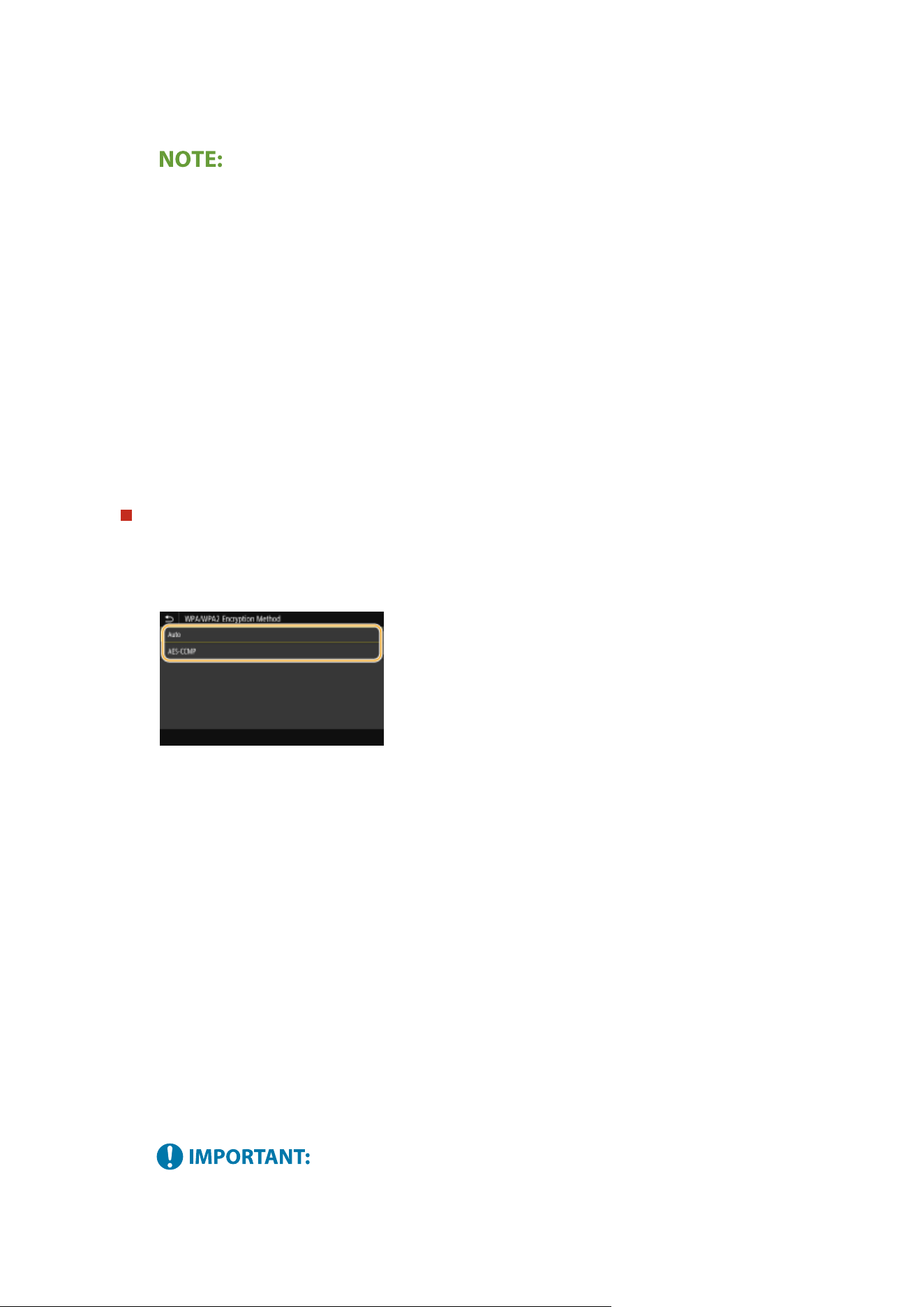
<Shared Key>
Uses the Encryption k
ey as a password.
When <Open System> is selected
● When connecting to a wir
eless LAN, the machine experiences an authentication error if the shared key
authentication is set on the wireless router. If this happens, the machine automatically changes the
setting to <Shared Key> and retries the connection.
3
Select the Encryption key you want to edit.
● Select the Encryption key (1 to 4), and select <Edit>.
● Up to four Encryption keys can be registered.
4
Enter the network key that you have written down.
● Enter the network key, and select <Apply>.
5
Select the desired Encryption key.
● Select the Encryption key you have edited, and select <Register>.
Using WPA-PSK or WPA2-PSK
1
Select <WPA/WPA2-PSK>.
2
Select an encryption method.
<Auto>
Sets the machine to automatically select AES-C
CMP or TKIP to match the setting of the wireless router.
<AES-CCMP>
Sets AES-CCMP as the encryption method.
3
Enter the network key that you have written down.
● Enter the network key, and select <Apply>.
6
Wait until message <Connected.> is displayed.
7
Select <Close>.
➠ W
ait several minutes until the IP address and other items are set automatically.
Signal strength
Setting Up
27
● When
more than one wireless router is available for connection, the machine connects to the device
with the strongest signal. Signal strength is measured using RSSI (Received Signal Strength Indication).
● Y
ou can set the IP address manually.
Setting IP Addresses(P. 30)
● While
the machine is connected to the wireless LAN, the Wireless LAN icon is displayed in the Home
screen or the Basic Features screen of each function.
Home Screen(P. 125)
Reducing power consumption
● Y
ou can set the machine to enter <Power Save Mode> based on signals emitted from the wireless router.
<Power Save Mode>(P. 464)
If the IP addr
ess of the machine has changed
● In a DHCP environment, the IP address of the machine may be changed automatically. If this happens, the
connection is maintained as long as the machine and the computer belong to the same subnet.
LINKS
Connecting to a Wireless LAN(P. 18)
Setting Up
28
Checking the SSID and Network Key
7YWY-00H
When manually setting up a wir
eless connection, you need to specify the SSID and network key of your wireless router.
The SSID and network key may be indicated on these networking devices. Check your devices and write down the
necessary information before setting up the connection. For more information, see the instruction manuals for your
networking devices or contact your manufacturer.
SSID A name given for identifying a specic wir
eless LAN. Some other terms used for SSID include
"access point name" and "network name."
Network Key A keyword or password used for encrypting data or authenticating a network. Some other
terms used for network key include "encryption key," "WEP key," "WPA/WPA2 passphrase,"
and "preshared key (PSK)."
Wireless Security Protocols
(Authentication/Encryption)
When manually setting up a wireless connection by specifying detailed settings, you need to
specify security settings. Check the following information:
● Security types (WEP/WPA-PSK/WPA2-PSK)
● Authentication method (Open System/Shared Key)
● Encryption method (TKIP/AES-CCMP)
◼ Checking the SSID and Network Ke
y from a Computer
The SSID or the network key may have been changed. If you do not know the SSID or the network key, you can check
them by using the "Canon MF/LBP Wireless Setup Assistant." Download the "Canon MF/LBP Wireless Setup Assistant"
from the Canon website (https://global.canon/), and start it up from a computer connected to a wireless LAN.
● If no access point is displayed on the scr
een after startup of the "Canon MF/LBP Wireless Setup Assistant,"
check if the setup is completed both on the computer and the wireless LAN router.
LINKS
Connecting to a Wireless LAN(P. 18)
Setting Up Connection by Selecting a Wireless Router(P. 24)
Setting Up Connection by Specifying Detailed Settings(P. 26)
Setting Up
29
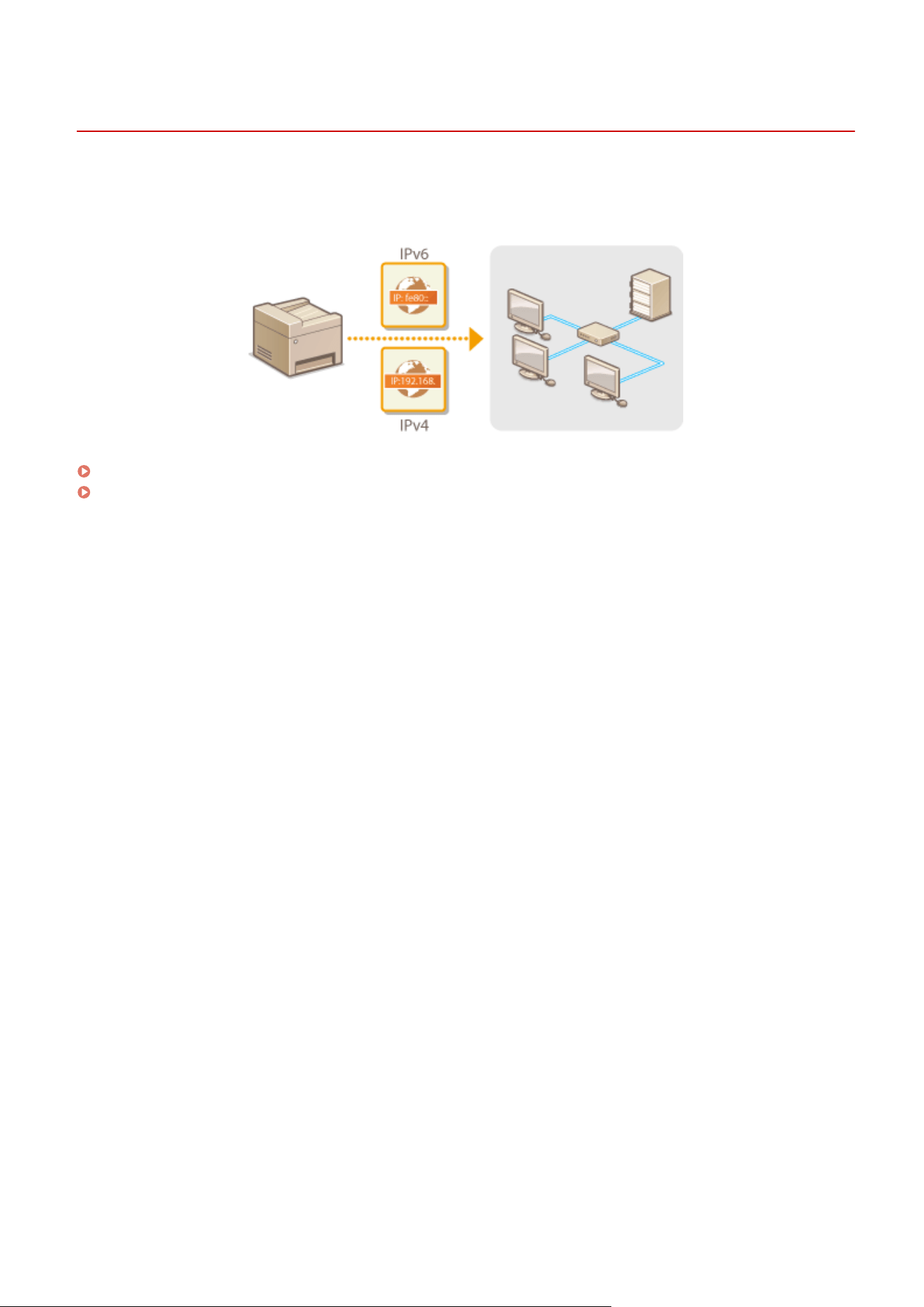
Setting IP Addresses
7YWY-00J
Connecting the machine to a network r
equires a unique network IP address. Two versions of IP addresses are
available: IPv4 and IPv6. Congure these settings depending on the network environment. To use IPv6 addresses, you
need to properly congure the IPv4 address settings.
Setting IPv4 Address(P. 31)
Setting IPv6 Addresses(P. 34)
Setting Up
30

Setting IPv4 Address
7YWY-00K
1660-00W
The machine's IPv4 address can be either assigned automatically by a dynamic IP
addr
essing protocol, such as DHCP, or entered manually. When connecting the
machine to a wired LAN, make sure that the connectors of the LAN cable are rmly
inserted into the ports (
Connecting to a Wired LAN(P. 17) ). Y
ou can test the
network connection if necessary.
Setting IPv4 Address(P. 31)
Testing the Network Connection(P. 32)
Setting IPv4 Address
1
Select <Menu> in the Home screen.
Home Screen(P. 125)
2
Select <Preferences> <Network>.
● If the login scr
een appears, enter the correct ID and PIN.
Logging in to the Machine(P. 136)
3
Select <TCP/IP Settings> <IPv4 Settings> <IP Address Settings>.
4
Congure IP addr
ess settings.
<Auto Acquire>
Select to automatically assign an IP addr
ess via DHCP protocol. When <On> is displayed, automatic
addressing is enabled.
<Manually Acquire>
Select to congure the IP address settings by manually entering an IP address. In order to select this option,
the automatic acquirement must be set to <Off>.
<Check Settings>
Select when you want to view the current IP address settings.
Automatically assigning an IP address
1
Select <Auto Acquire>.
2
Select <On> in <Auto Acquire>, and select <Select Protocol>.
3
Select <DHCP>.
Setting Up
31
If you do not want to use DHCP/BOOTP/RARP to assign an IP address
● Select <Off>. If you select <DHCP> when these services ar
e unavailable, the machine will waste time
and communications resources searching the network for these services.
4
Check that <Auto IP> is set to <On>.
● If <Off> is selected, change the setting to <On>.
5
Select <Apply>.
● IP addr
esses assigned via DHCP override the address obtained via Auto IP.
Manually entering an IP address
1
Select <Auto Acquire>, and select <Off> in <Auto Acquire> <Apply> <OK>.
2
Select <Manually Acquire>.
3
Enter <IP Address>, <Subnet Mask>, and <Gateway Address>, and select <Apply>.
5
Select <OK>.
6
Restart the machine.
Restarting the Machine(P. 121)
Checking whether the settings are correct
● Mak
e sure that the Remote UI screen can be displayed with your computer (
Starting Remote
UI(P. 421) ). If a computer is not available, you can check the connection by using the operation panel (
Testing the Network Connection(P. 32) ).
When you have changed the IP address after installing the printer driver
● When the MFNP port is used, the connection is maintained as long as the machine and the computer belong
to the same subnet; therefore, you do not need to add a new port. When the standard TCP/IP port is used,
you need to add a new port. Conguring Printer Ports(P. 43)
*
If you do not know which port is used, see Checking the Printer Port(P. 643) .
Testing the Network Connection
1
Select <Menu> in the Home screen.
Home Screen(P. 125)
2
Select <Preferences> <Network>.
● If the login scr
een appears, enter the correct ID and PIN.
Logging in to the Machine(P. 136)
Setting Up
32

3
Select <TCP/IP Settings>
<IPv4 Settings> <PING Command>.
4
Enter the IPv4 address of another device on the network, and select <Apply>.
➠ If a pr
oper connection has been established, <Received response from the host.> is displayed.
LINKS
Setting IPv6 Addresses(P. 34)
Viewing Network Settings(P. 37)
Conguring WINS
(P. 63)
Setting Up
33
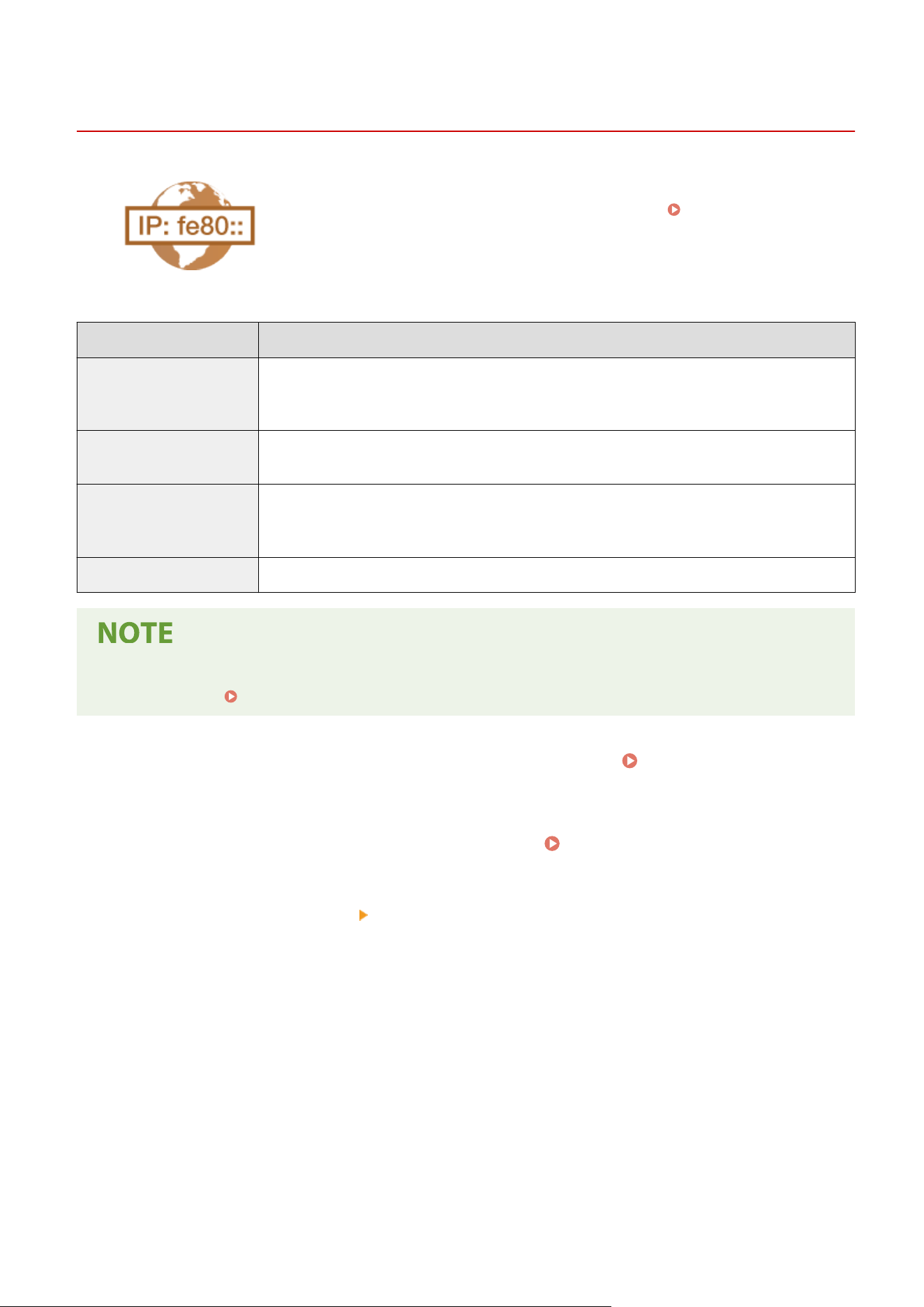
Setting IPv6 Addresses
7YWY-00L
The IPv6 addresses of the machine can be congur
ed via the Remote UI. Before
setting IPv6 addresses, check the IPv4 address settings (
Viewing IPv4
Settings(P
. 37) ). You need to set the correct IPv4 settings to use IPv6 addresses.
Note that the scan function that uses the scanner driver or MF Scan Utility is not
available in an IPv6 environment. The machine can use the following multiple IPv6
addresses:
Type Description
Link-local address An address that is only valid within a subnet or link and cannot be used to communicate with
de
vices beyond a router. A link-local address is automatically set when the IPv6 function of the
machine is enabled.
Manual address An address that is entered manually. When using this address, specify the prex length and default
router address.
Stateless address An address that is generated automatically using the MAC address of the machine and the network
prex that is advertised by the router. Stateless addresses are discarded when the machine is
restarted (or turned ON).
Stateful address An address obtained from a DHCP server using DHCPv6.
● For mor
e information about the basic operations to be performed when setting the machine from the
Remote UI, see
Setting Up Menu Options from Remote UI(P. 431) .
1
Start the Remote UI and log in to System Manager Mode. Starting Remote
UI(P
. 421)
2
Click [Settings/Registration] on the Portal page.
Remote UI Screen(P. 422)
3
Select [Network Settings] [IPv6 Settings].
4
Click [Edit].
5
Select the [Use IPv6] check box and congur
e the required settings.
Setting Up
34
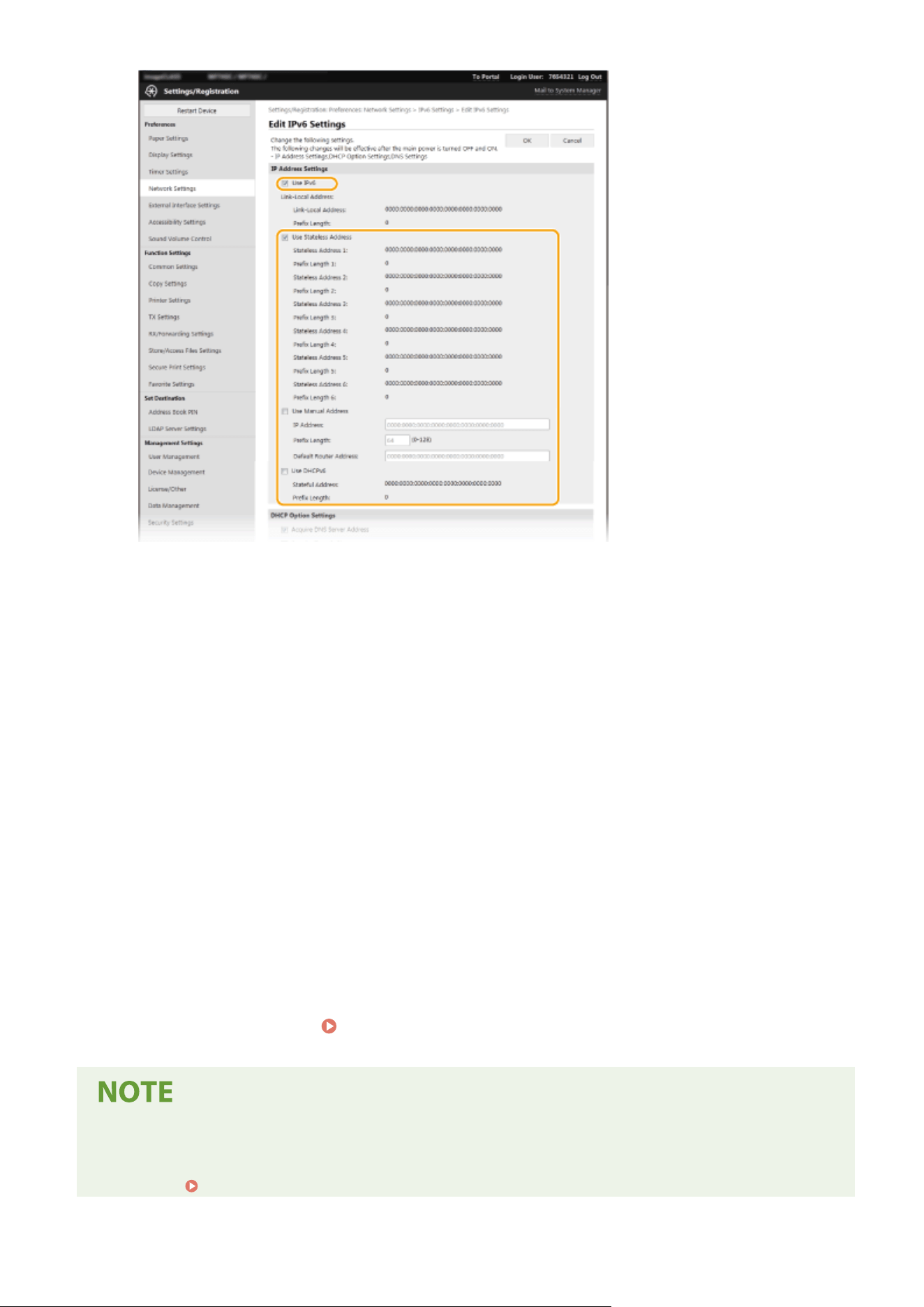
[Use IPv6]
Select the check bo
x to enable IPv6 on the machine. When not using IPv6, clear the check box.
[Stateless Address 1]
Select the check box when using a stateless address. When not using a stateless address, clear the check box.
[Use Manual Address]
When you want to manually enter an IPv6 address, select the check box and enter the IP address, prex
length, and default router address in the corresponding text boxes.
[IP Address]
Enter an IPv6 address. Addresses that start with "ff" (or multicast address) cannot be entered.
[Prex Length]
Enter a number that indicates how many bits are available for the network address.
[Default Router Address]
Specify the IPv6 address of the default router as necessary. Addresses that start with "ff" (or multicast
address) cannot be entered.
[Use DHCPv6]
Select the check box when using a stateful address. When not using DHCPv6, clear the check box.
6
Click [OK].
7
Restart the machine.
Restarting the Machine(P. 121)
Checking whether the settings are correct
● Mak
e sure that the Remote UI screen can be displayed with your computer by using the IPv6 address of the
machine.
Starting Remote UI(P. 421)
Setting Up
35

Selecting settings from the operation panel
● IPv6 settings can also be accessed fr
om <Menu> in the Home screen.
<IPv6 Settings>(P. 467)
When you have changed the IP addr
ess after installing the printer driver
● You need to add a new port.
Conguring Printer Ports(P
. 43)
LINKS
Setting IPv4 Address(P. 31)
Viewing Network Settings(P. 37)
Setting Up
36
Viewing Network Settings
7YWY-00R
Viewing IPv4 Settings(P. 37)
Viewing IPv6 Settings(P. 37)
Viewing the MAC Address for Wired LAN(P. 37)
Viewing the MAC Address and Information for Wireless LAN(P. 38)
● The IP addr
ess is not correctly congured if it is displayed as "0.0.0.0".
● Connecting the machine to a switching hub or bridge may result in a connection failure even when the IP
address is correctly congured. This problem can be solved by setting a certain interval before the machine
starts communicating.
Setting a Wait Time for Connecting to a Network(P. 54)
● Y
ou can print a list of the current network settings.
User Data List/System Manager Data List(P. 593)
Viewing IPv4 Settings
<Status Monitor> <Network Information> <IPv4> Select the setting to view Check the
settings
Viewing IPv6 Settings
<Status Monitor> <Network Information> <IPv6> Select the setting to view Check the
settings
Viewing the MAC Address for Wired LAN
1
Select <Menu> in the Home screen.
Home Screen(P. 125)
2
Select <Preferences> <Network>.
● If the login scr
een appears, enter the correct ID and PIN.
Logging in to the Machine(P. 136)
3
Select <Ethernet Driver Settings>.
➠ The MA
C address is displayed.
Setting Up
37
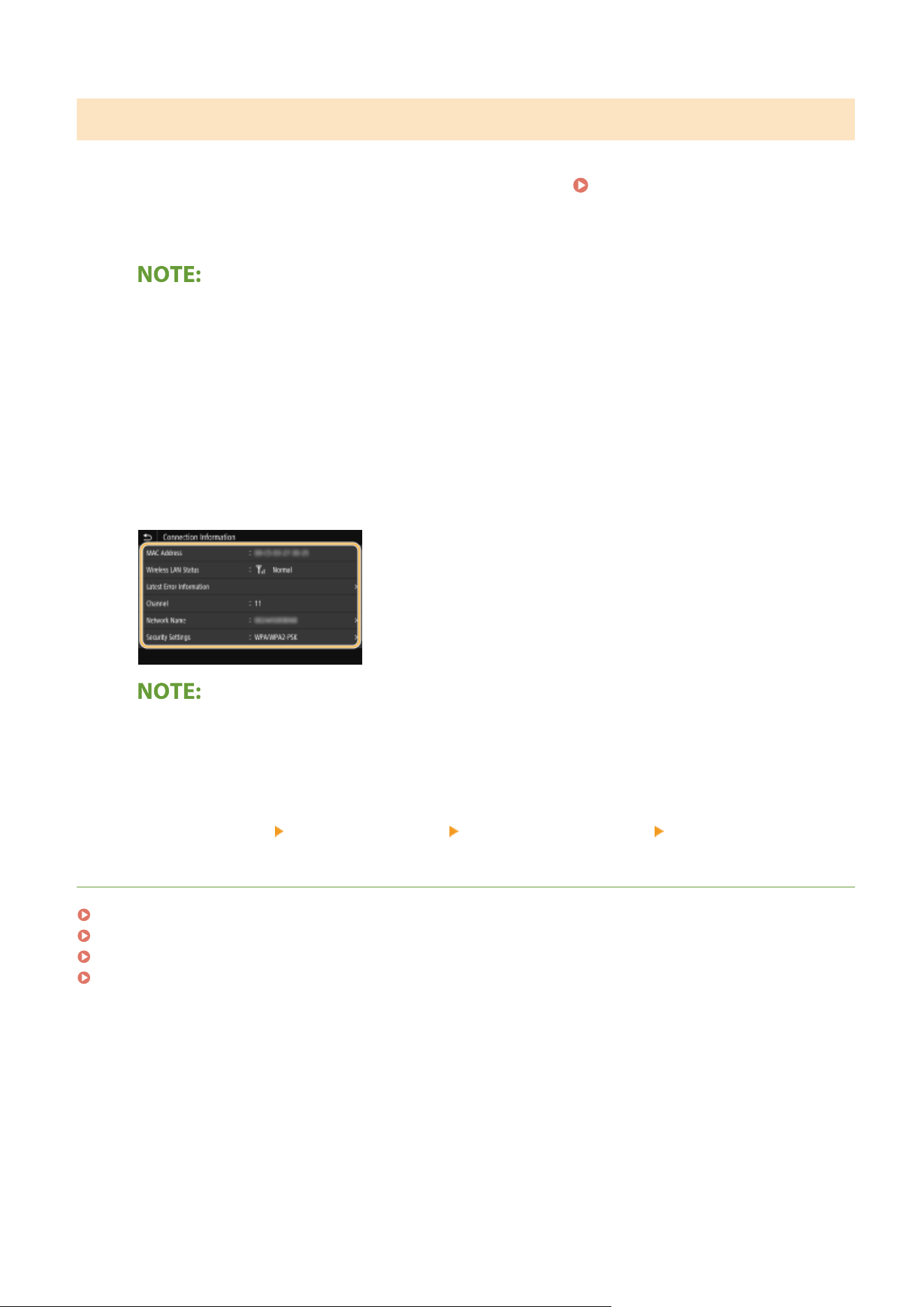
Viewing the MAC Address and Information for Wireless LAN
1
Select <Wireless LAN Settings> in the Home screen.
Home Screen(P. 125)
● When a message appears on the display of the machine, select <Y
es>.
● If a message is displayed telling that no access point can be found, select <Close>.
2
Select <Connection Set.>.
3
Select <Connection Information>.
4
Select the setting to view.
Viewing security information
● T
o view WEP and WPA/WPA2-PSK information, select <Security Settings>.
Viewing from the <Status Monitor> screen
● <Wireless LAN Status> and <Latest Error Information> can be viewed from <Status Monitor>.
<Status Monitor>
<Network Information> <Network Connection Type> Select the setting to view
LINKS
Connecting to a Wireless LAN(P. 18)
Setting IPv4 Address(P. 31)
Setting IPv6 Addresses(P. 34)
Conguring DNS(P
. 55)
Setting Up
38
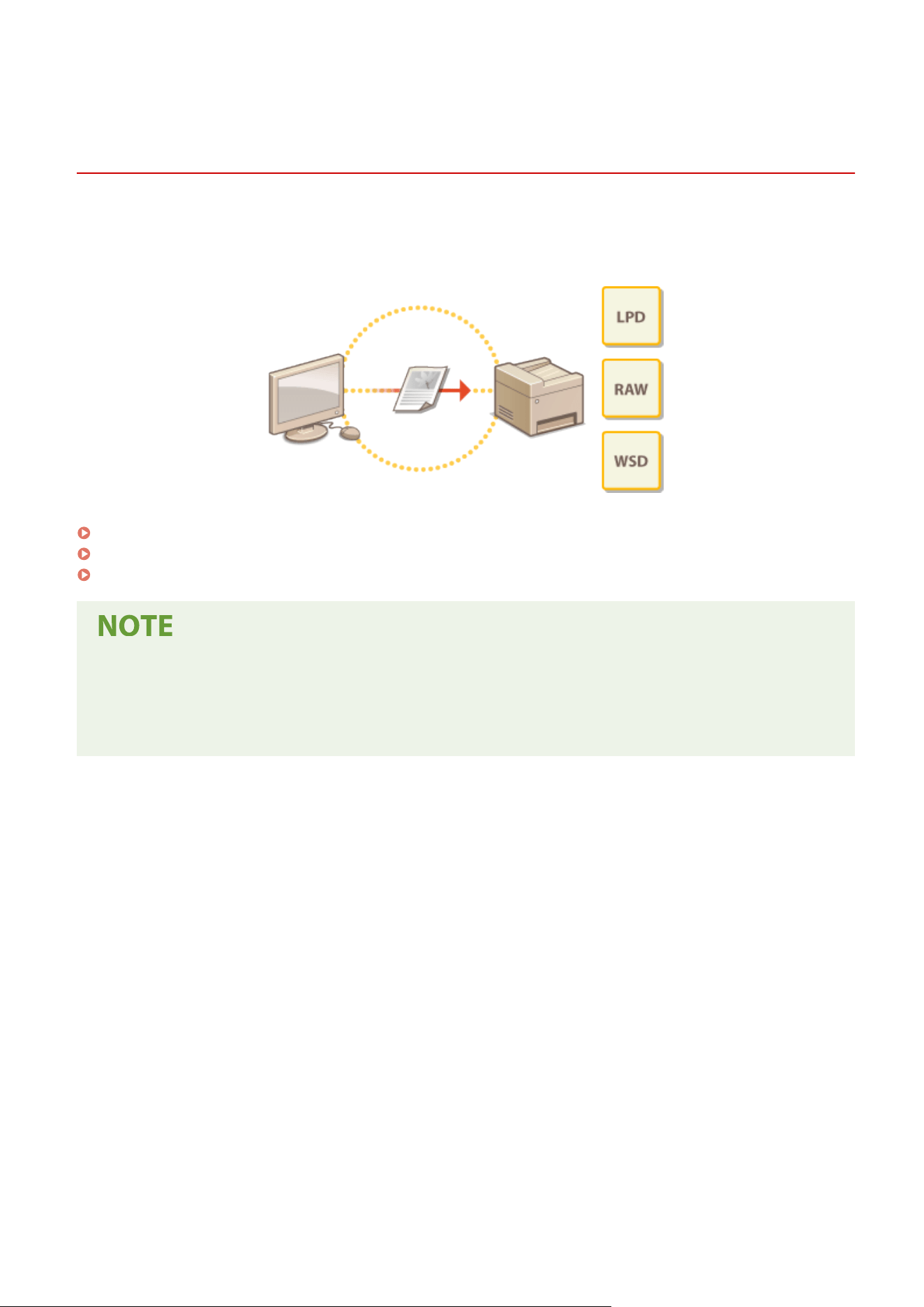
Conguring Settings for Communication with a
Computer
7YWY-00S
Specify the pr
otocol and port when operating the machine from a computer via the network. Before conguring the
machine for printing or faxing from a computer, perform the basic setup procedures. For more information, see the
manuals for the relevant drivers on the online manual website.
Conguring Printing Pr
otocols and WSD Functions(P. 40)
Conguring Printer Ports(P
. 43)
Setting Up Print Server(P. 47)
● Pr
otocols explained here are rules for delivering document data between a computer and the machine, and
can be selected according to intended purposes or the network environment.
● Ports are gateways for passing data between network devices. If a communication failure occurs in the
network connection, the port settings may be the cause of the problem.
Setting Up
39
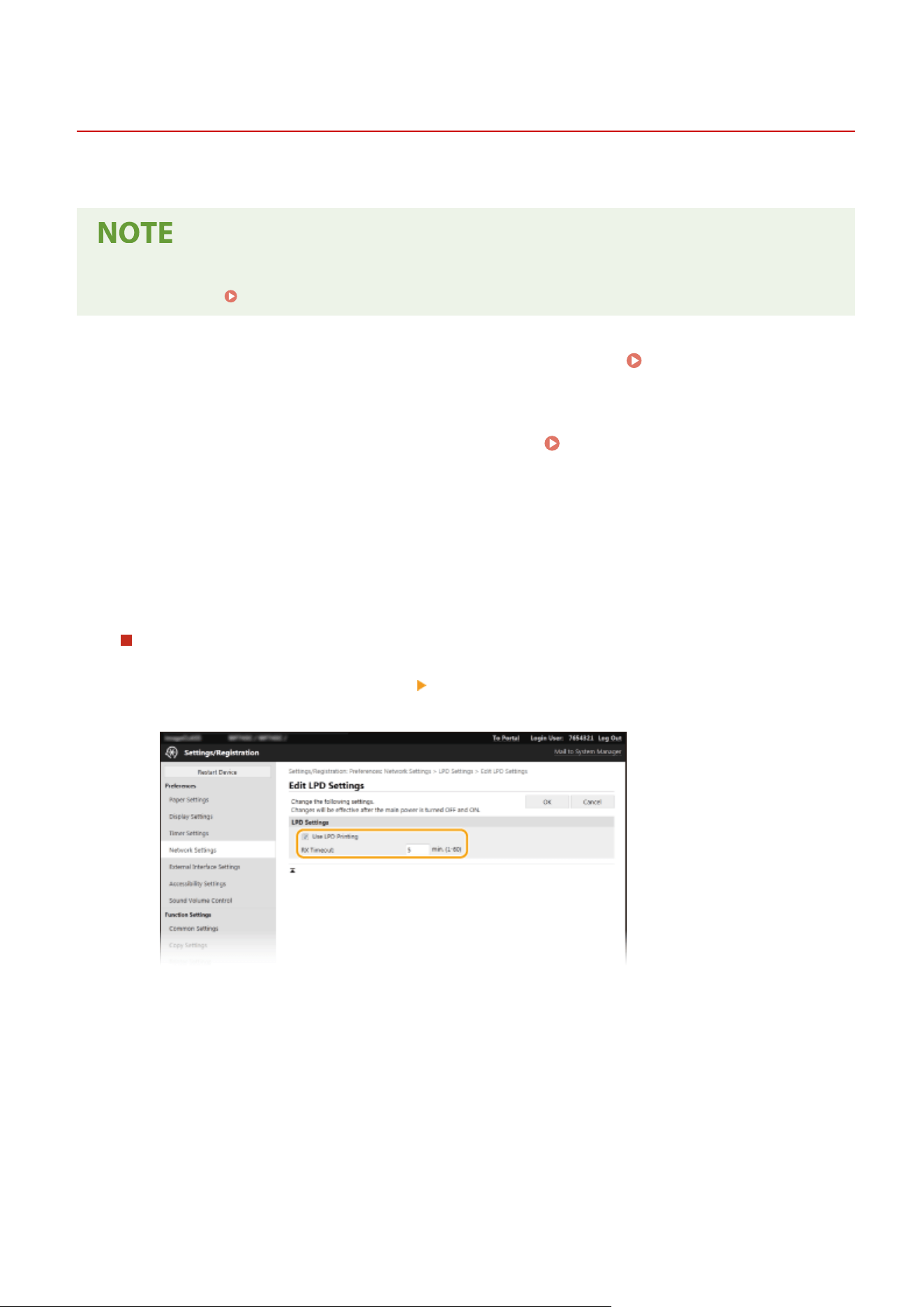
Conguring Printing Pr
otocols and WSD Functions
7YWY-00U
Congur
e the protocols that are used for printing documents from a networked computer.
● For mor
e information about the basic operations to be performed when setting the machine from the
Remote UI, see
Setting Up Menu Options from Remote UI(P. 431) .
1
Start the Remote UI and log in to System Manager Mode. Starting Remote
UI(P
. 421)
2
Click [Settings/Registration] on the Portal page.
Remote UI Screen(P. 422)
3
Click [Network Settings].
4
Congure printing pr
otocols.
Conguring LPD or RAW
1
Select [LPD Settings] or [RAW Settings]
[Edit].
2
Congure the settings as necessary
.
[Use LPD Printing]
Select the check bo
x to print via LPD. When not using LPD printing, clear the check box.
[Use RAW Printing]
Select the check box to print via RAW. When not using RAW printing, clear the check box.
[RX Timeout]
Set a value as the restart wait time for data reception. If data reception does not resume within the set
time, printing is canceled.
3
Click [OK].
Setting Up
40
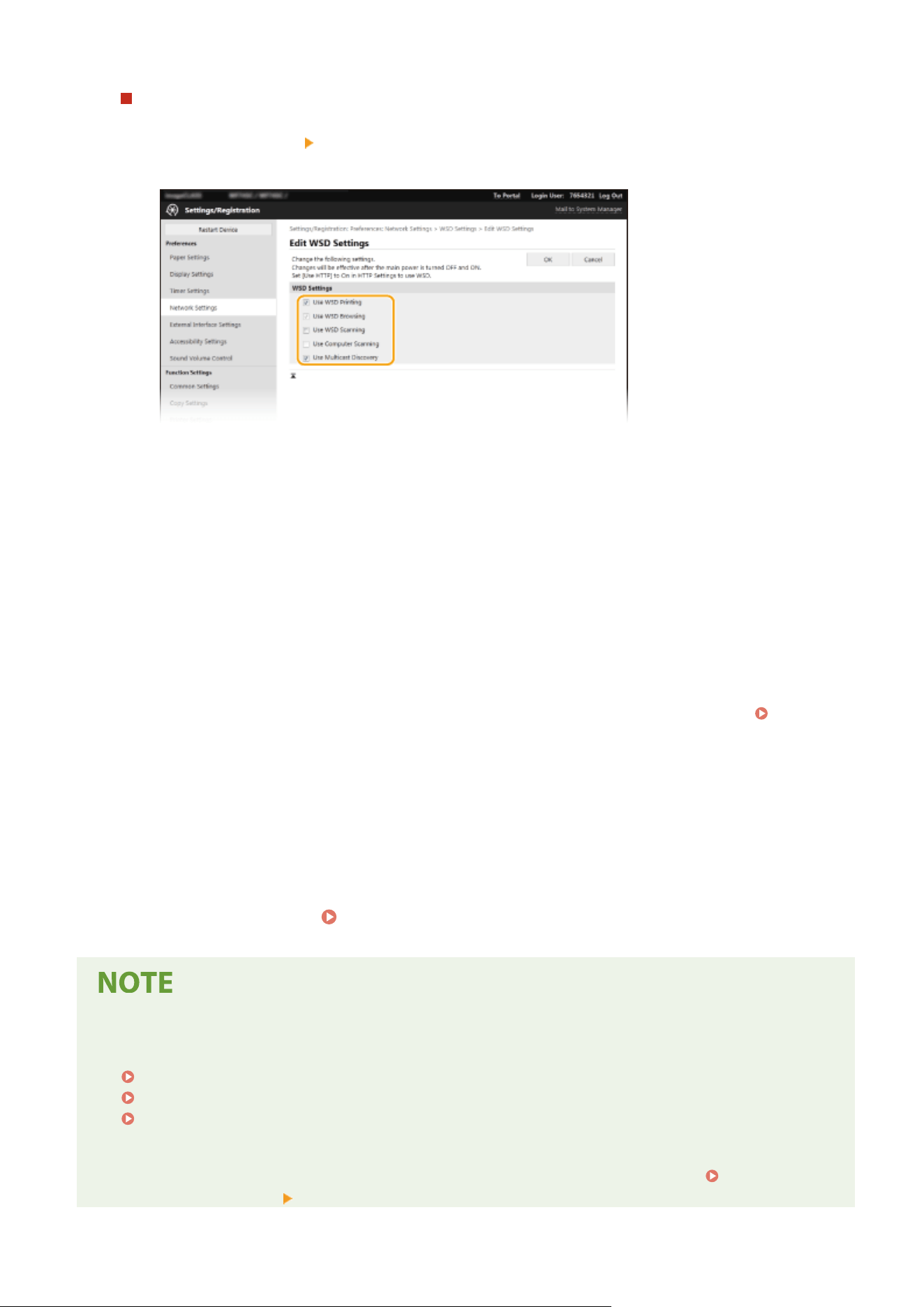
Conguring WSD
1
Select [WSD Settings] [Edit].
2
Congure the settings as necessary
.
[Use WSD Printing]
Select the check bo
x to print via WSD. When not using WSD printing, clear the check box.
[Use WSD Browsing]
Select the check box to obtain information about the machine from a computer via WSD. This check box is
automatically selected when the [Use WSD Printing] check box is selected.
[Use WSD Scanning]
WSD scanning enables you to scan documents to a computer without installing the scanner driver. Select
the check box to scan documents via WSD. When not using WSD scanning, clear the check box.
[Use Computer Scanning]
Select the check box to use WSD scanning by operating the machine with the operation panel. This check
box can only be selected when the [Use WSD Scanning] check box is selected. To perform scanning, select
<Scan> in the Home screen and specify a WSD-connected computer as a scan destination (
Scanning
and Saving to a Computer(P
. 288) ).
[Use Multicast Discovery]
Select the check box to set the machine to reply to multicast discovery messages. If the check box is
cleared, the machine stays in sleep mode even when multicast discovery messages are owing on the
network.
3
Click [OK].
5
Restart the machine.
Restarting the Machine(P. 121)
Selecting settings from the operation panel
● LPD
, RAW, and WSD settings can also be accessed from <Menu> in the Home screen.
<LPD Settings>(P. 470)
<RAW Settings>(P. 470)
<WSD Settings>(P. 470)
Setting up WSD network de
vices
● The WSD network devices can be added from the printer folder. Open the printer folder (
Displaying the
Printer Folder(P
. 638) )
click [Add a device] or [Add a printer] and follow the on-screen instructions. For
Setting Up
41

more information about how to install the driver for the WSD network, see the manuals for the relevant
drivers on the online manual website.
T
o change the port number
● The same port number used for the machine and a computer must be used for printing protocol.
Conguring Printer Ports(P
. 43)
Changing Port Numbers(P. 378)
LINKS
Conguring Printer Ports(P
. 43)
Setting Up
42
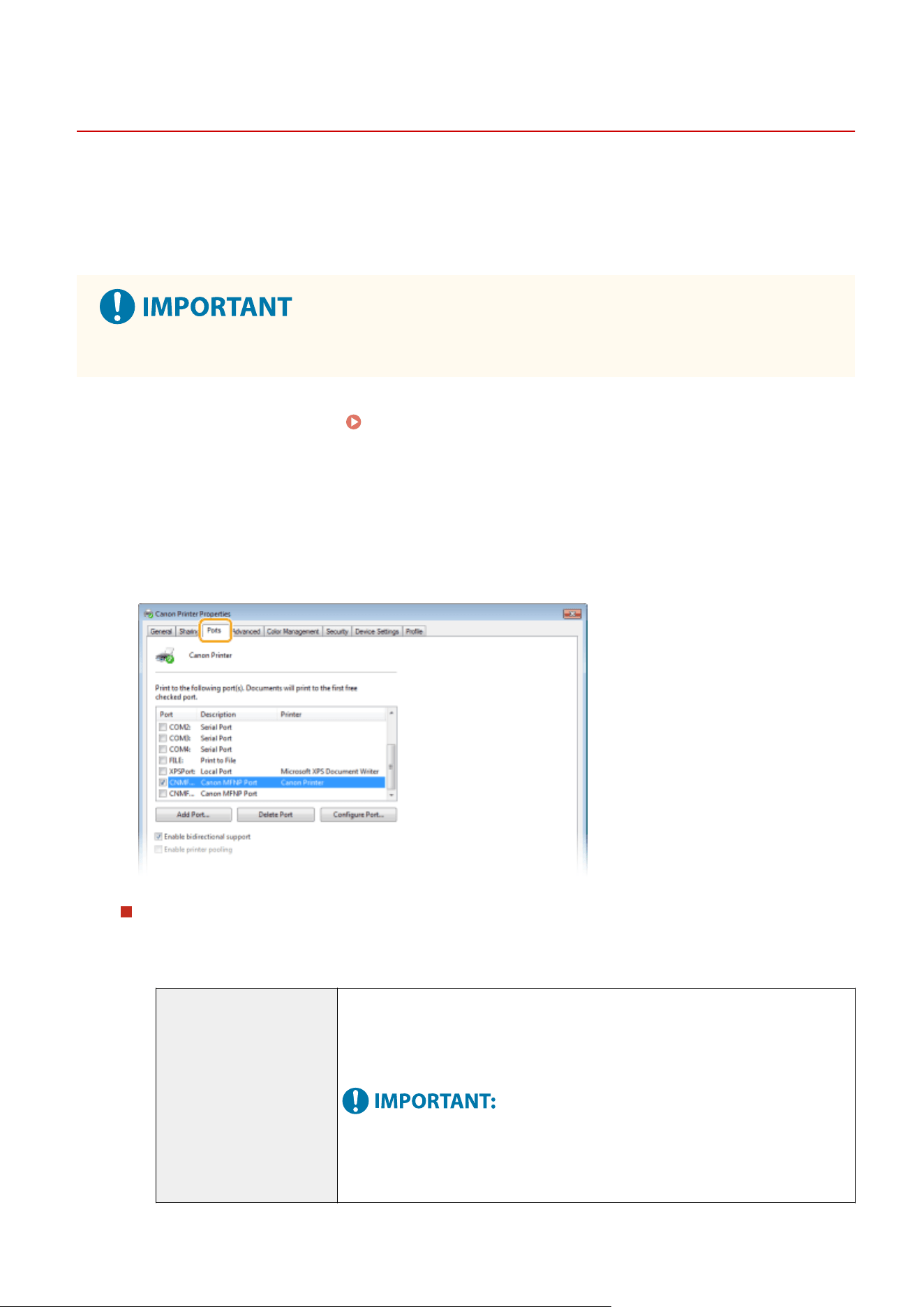
Conguring Printer Ports
7YWY-00W
Printing err
ors can occur when the IP address of the machine has been changed, or when a printer has been added via
the Windows printer folder. These errors are typically caused by incorrect printer port settings. For example, an
incorrect port number or port type may have been specied. In such situations, your attempt to print fails because the
document data cannot reach the machine. To x this type of problem, congure the printer port settings on the
computer.
● T
o perform the following procedure, log in to your computer with an administrator account.
1
Open the printer folder.
Displaying the Printer Folder(P. 638)
2
Right-click the driver icon for this machine, and click [Printer properties] or
[Pr
operties].
3
Click the [Ports] tab and congur
e the required settings.
Adding a port
If you have changed the IP addr
ess of the machine or you have selected an incorrect port while installing
drivers from the Windows printer folder, add a new port. There are two types of port: "MFNP Port" and
"Standard TCP/IP Port." Select the port type according to your environment.
MFNP Port
(only for IPv4 envir
onment)
This is a port that allows the IP address of the machine to be detected automatically.
Even if the IP addr
ess of the machine is changed, the connection is maintained,
provided that the machine and the computer are in the same subnet. You do not need
to add a new port every time the IP address is changed. If you are using the machine
in an IPv4 environment, you should normally select this type of port.
● Y
ou can add an MFNP port only when you installed the driver from the provided
CD-ROM/DVD-ROM, or when you downloaded and installed the printer driver or
the fax driver from the Canon website.
Setting Up
43
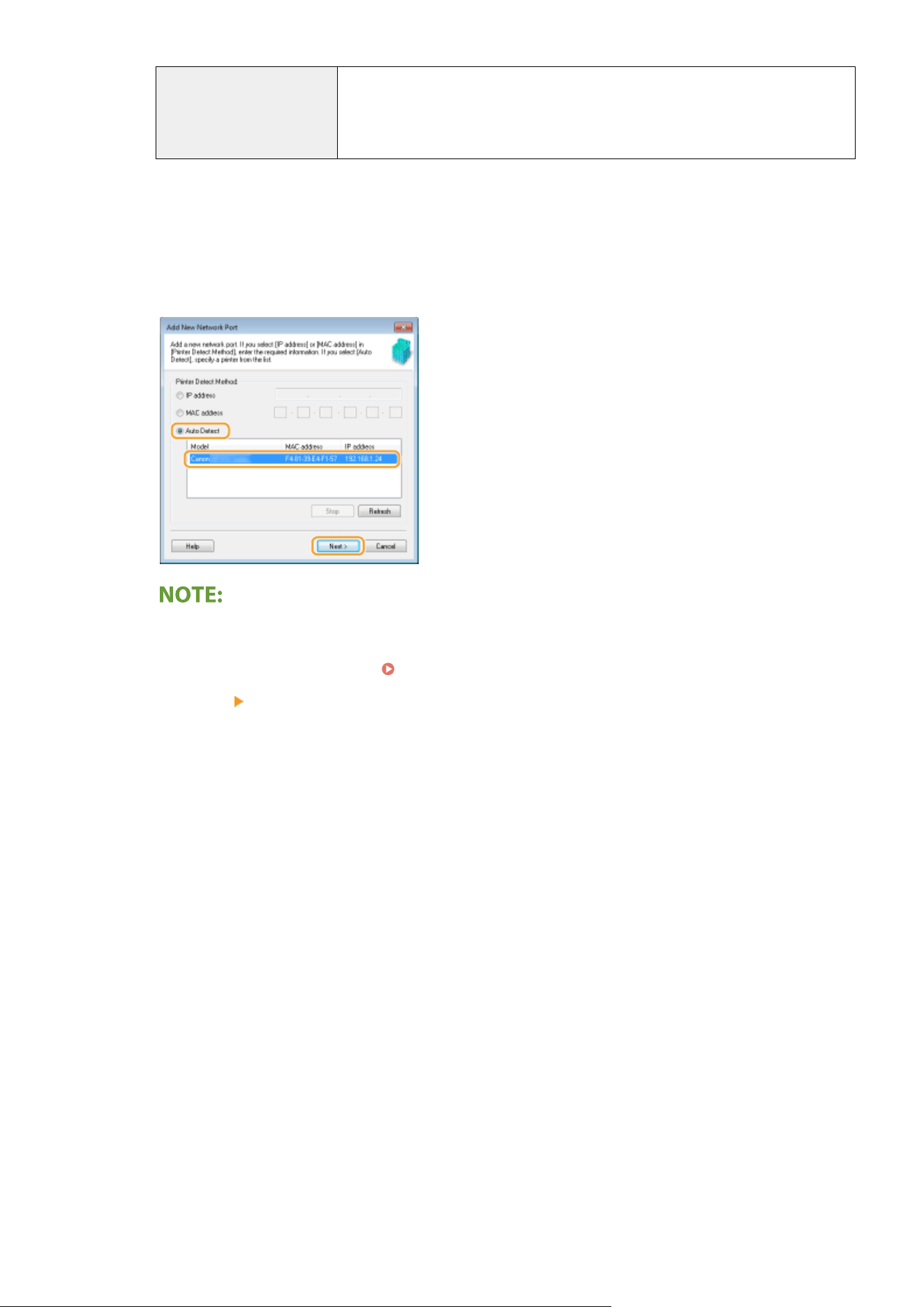
Standard TCP/IP Port This is a standard Windows port. When you use this type of port, you need to add a
ne
w port every time that the IP address of the machine is changed. Select this type of
port when you are using the machine in an IPv6 environment and when you cannot
add an MFNP port.
Adding an MFNP port
1
Click [Add Port].
2
Select [Canon MFNP Port] in [Available port types] and click [New Port].
3
Select [Auto Detect] and select the machine when it is detected, and then click [Next].
If the machine is not detected
● Click [Refr
esh]. If the problem persists, select [IP address] or [MAC address], enter the IP address or
MAC address of the machine (
Viewing Network Settings(P. 37) ) and then click [Ne
xt].
4
Click [Add]
[Finish].
5
Click [Close].
Adding a standard TCP/IP port
1
Click [Add Port].
2
Select [Standard TCP/IP Port] in [Available port types] and click [New Port].
3
Click [Next].
4
Enter the IP address or the DNS name of the machine, and click [Next].
● The [Port Name] is enter
ed automatically. If necessary, you can change it.
Setting Up
44
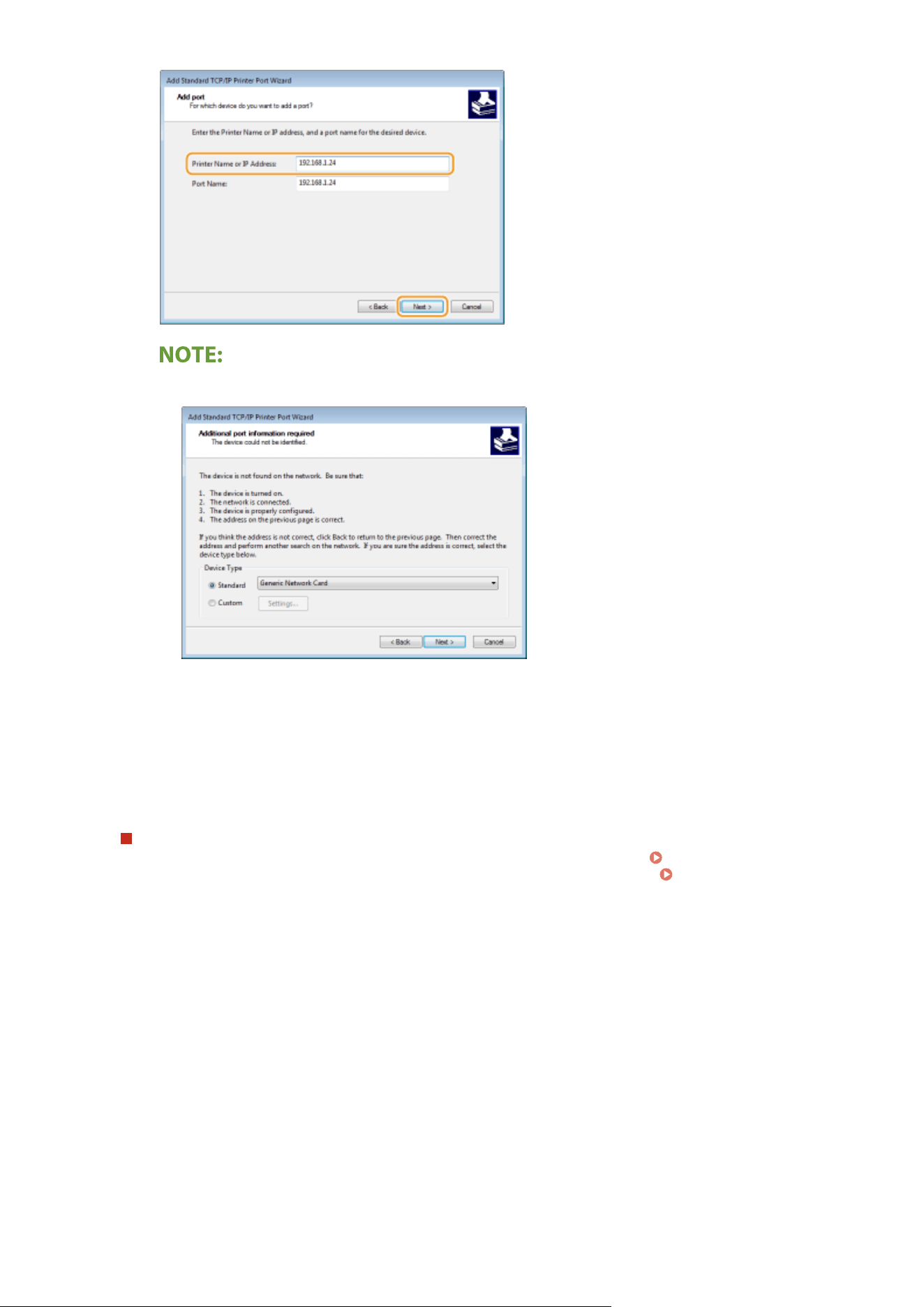
● When the ne
xt screen is displayed, follow the instructions on the screen.
*
When you select the [De
vice Type], select [Canon Network Printing Device with P9100] under [Standard].
5
Click [Finish].
6
Click [Close].
Changing the port type or number
If the printing pr
otocol (LPD or RAW) has been changed on the machine side (
Conguring Printing
Pr
otocols and WSD Functions(P. 40) ) or the port number has been changed (
Changing Port
Numbers(P
. 378) ), the corresponding settings on the computer must also be congured. This operation is
not needed for WSD ports.
MFNP port
1
Click [Congure Port].
2
Under [Protocol Type], select [RAW] or [LPR], and change the [Port Number].
3
Click [OK].
Standard TCP/IP port
1
Click [Congur
e Port].
2
Under [Protocol], select [Raw] or [LPR].
Setting Up
45
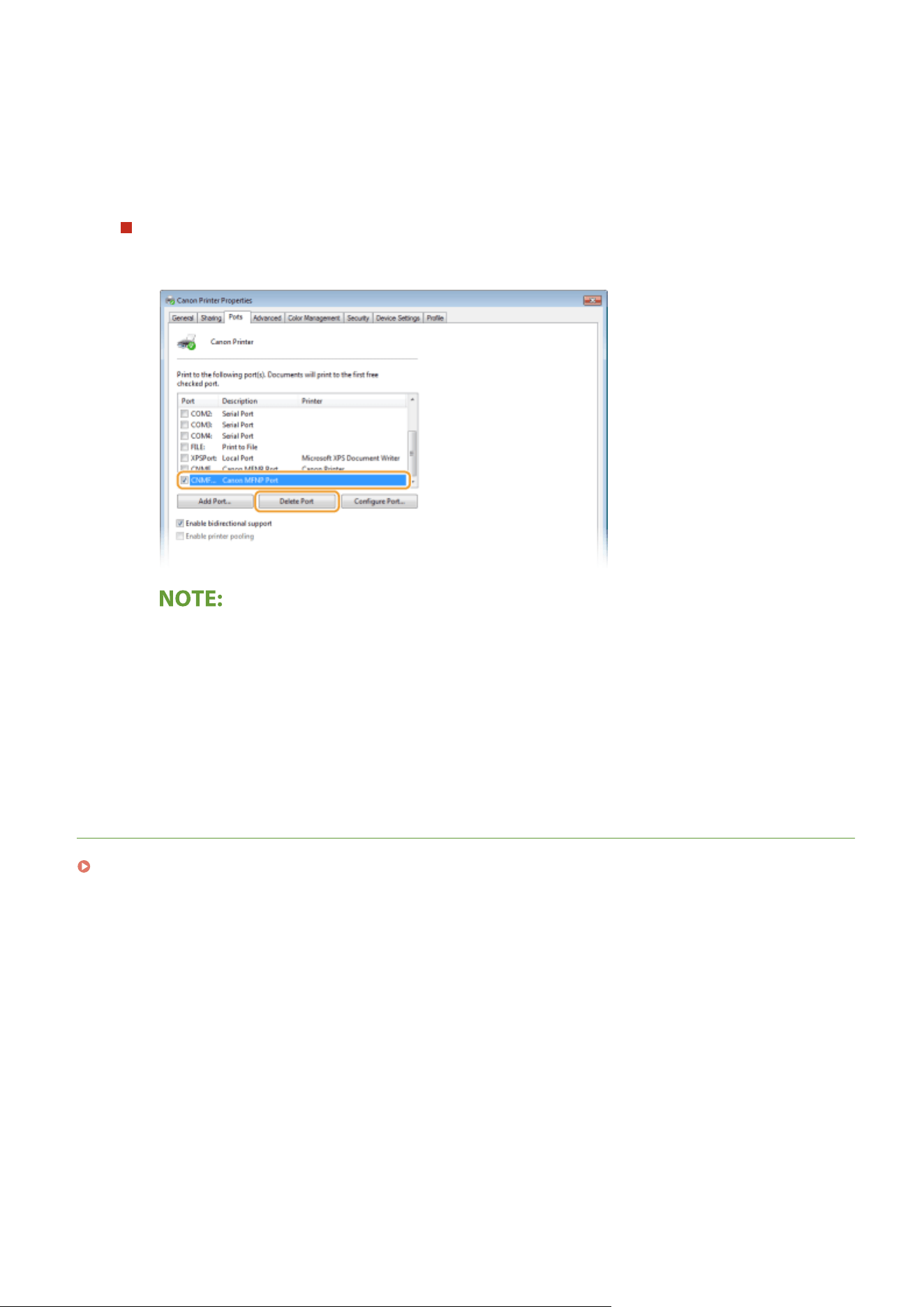
● If you selected [Raw], change the [Port Number].
● If you selected [LPR], enter "lp
" in [Queue Name].
3
Click [OK].
Deleting ports
1
Select the port you want to delete, and click [Delete Port].
● Y
ou cannot delete a port currently congured as the printer port. To delete this port, select a different
port and click [Apply] to congure it as the new printer port, and then delete the original port.
2
Click [OK].
4
Click [Close].
LINKS
Setting Up Print Server(P. 47)
Setting Up
46
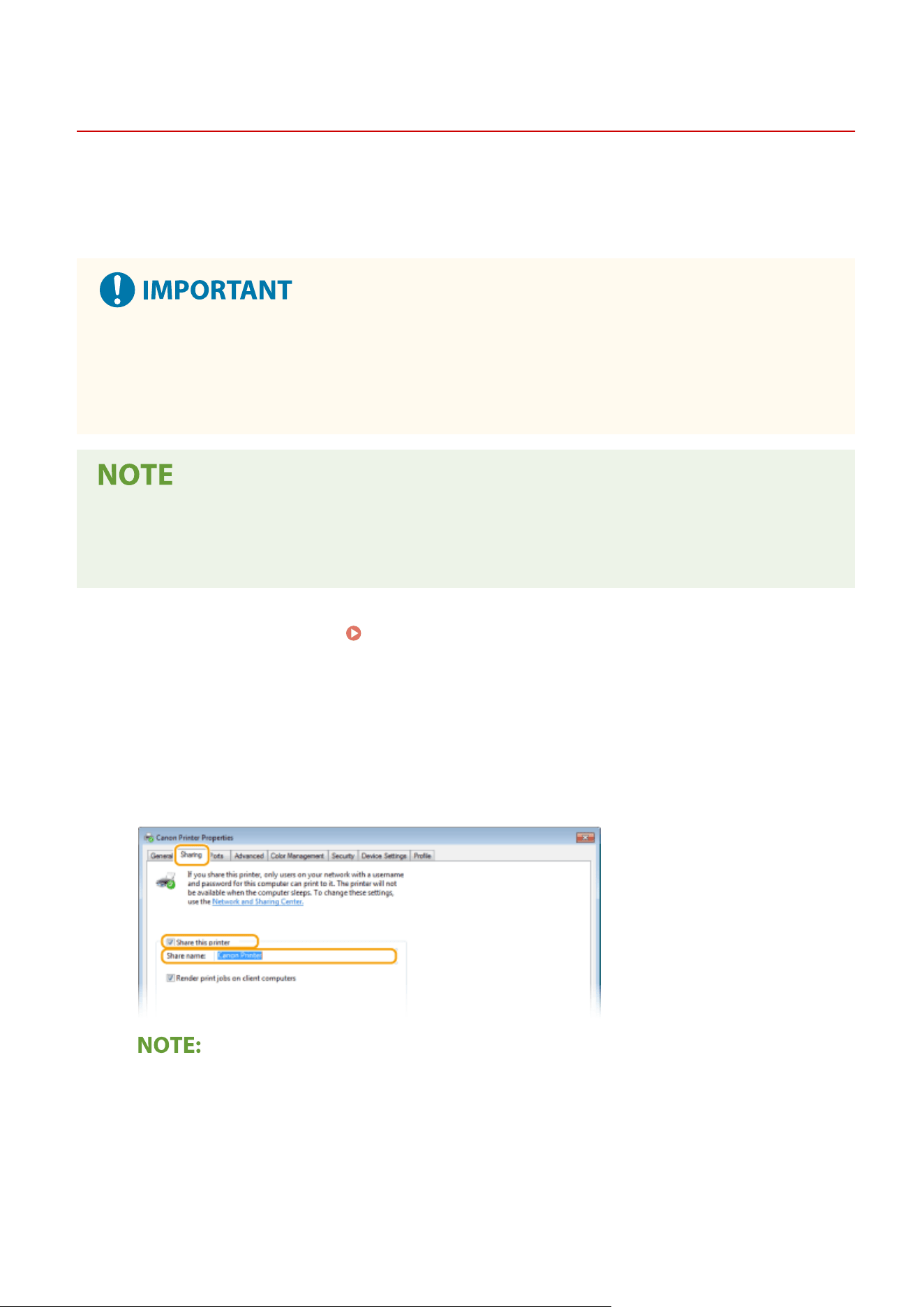
Setting Up Print Server
7YWY-00X
With a print server, you can r
educe the load on the computer that you print from. The print server also makes it
possible to install the drivers on each computer over the network, which saves you the trouble of installing the drivers
on each computer by using the provided CD-ROM/DVD-ROM. To set up a computer on the network as a print server,
congure the settings for sharing the printer.
● T
o perform the following procedure, log in to your computer with an administrator account.
● You may be unable to install drivers over the network depending on the operating system and the bit
architecture (32-bit or 64-bit) of the print server and client computers.
● When implementing a print server in a domain environment, consult your Network Administrator.
To carry out Department ID Management when using a print server
● "Canon Driver Information Assist Service
" must be added during the printer driver installation. For more
information, see the manuals for the relevant drivers on the online manual website.
1
Open the printer folder.
Displaying the Printer Folder(P. 638)
2
Right-click the printer driver icon for this machine and click [Printer properties] or
[Pr
operties].
3
Click the [Sharing] tab, select [Share this printer], and enter the share name of the
machine.
● Click the [Change Sharing Options] button if displayed.
4
Install additional drivers as necessary.
● This oper
ation is required if you want to install the drivers in other computers running a different bit
architecture via the print server.
Setting Up
47
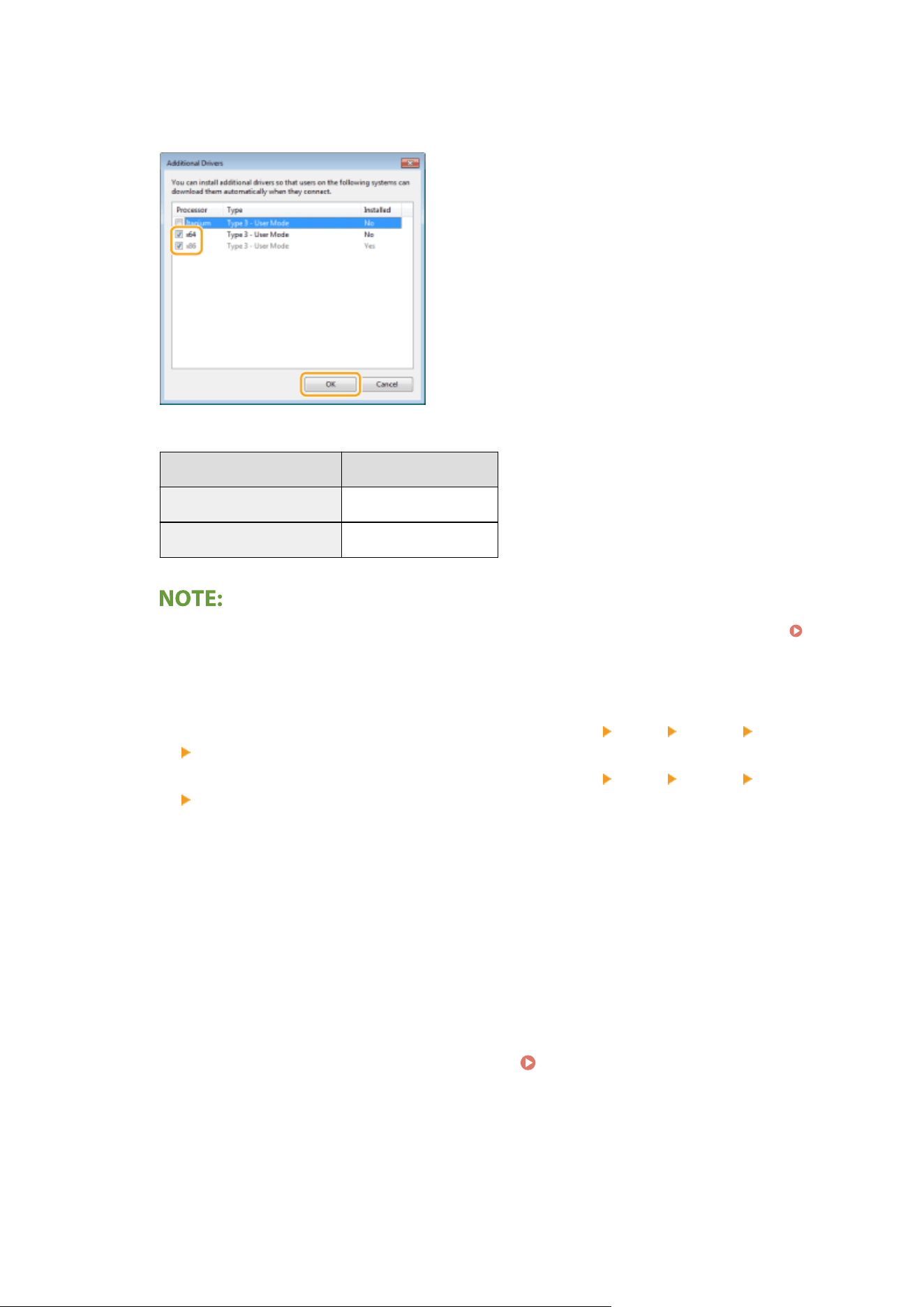
1
Click [Additional Drivers].
2
Select the check box for the bit architecture that other computers are running, and click [OK].
● Select additional drivers fr
om the following, according to the operating system of the print server.
Print server Select the check box for
32-bit operating systems [x64]
64-bit operating systems [x86] under [Processor]
● If you do not kno
w whether your Windows operating system is a 32-bit or 64-bit version, see
Checking the Bit Architecture(P. 641) .
3
Insert the provided CD-ROM/DVD-ROM into the drive on the computer, click [Browse] to specify the folder
that contains the drivers, and then click [OK].
● If the print server runs a 32-bit oper
ating system, select [intdrv]
[UFRII] [us_eng] [x64]
[Driver] folders on the provided CD-ROM/DVD-ROM.
● If the print server runs a 64-bit oper
ating system, select [intdrv]
[UFRII] [us_eng] [32BIT]
[Driver] folders on the provided CD-ROM/DVD-ROM.
4
Follow the on-screen instructions to install additional drivers.
5
Click [OK].
◼ Installing the Drivers on a Computer via the Print Server
1
Locate the shared printer in the print server.
Displaying Shared Printers in the
Print Server(P
. 639)
2
Double-click the shared printer.
Setting Up
48

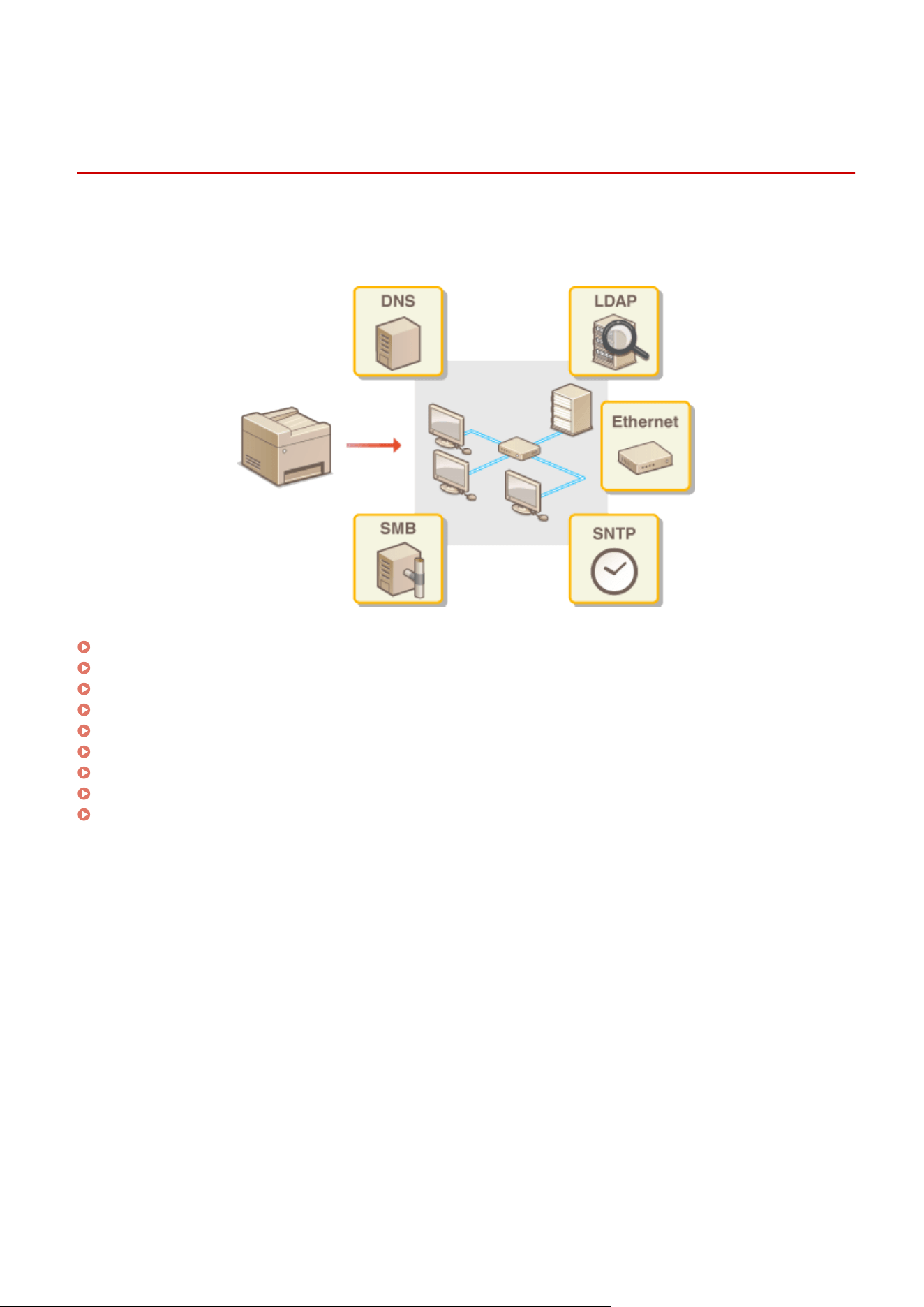
Conguring the Machine for Y
our Network
Environment
7YWY-00Y
The congur
ation of a network varies depending on the purpose of the network. The machine has been designed to
be compatible with as many network congurations as possible, and it is equipped with a variety of technologies.
Consult your Network Administrator and set a conguration to suit your network environment.
Conguring Ethernet Settings(P
. 51)
Changing the Maximum Transmission Unit(P. 53)
Setting a Wait Time for Connecting to a Network(P. 54)
Conguring DNS(P
. 55)
Conguring SMB
(P. 59)
Conguring WINS
(P. 63)
Registering LDAP Servers(P. 65)
Monitoring and Controlling the Machine with SNMP(P. 70)
Other Network Settings(P. 74)
Setting Up
50
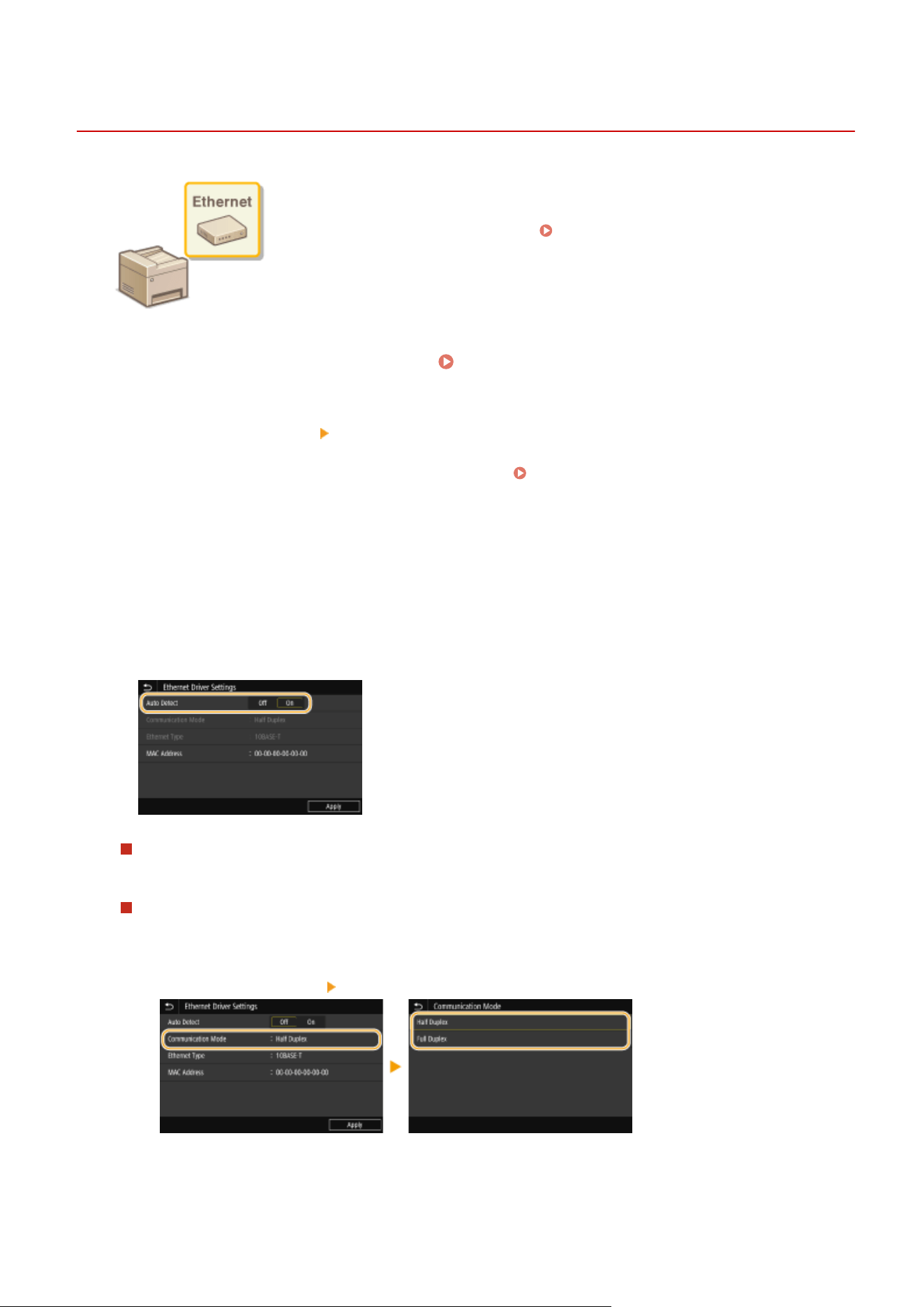
Conguring Ethernet Settings
7YWY-010
Ethernet is a standard for communicating data in a local area network (LAN). You can
set the communication mode and the Ethernet type. In gener
al, the machine can be
used without changing the defaults (
<Ethernet Driver Settings>(P. 474) ), but
you can change these settings to suit your network envir
onment.
1
Select <Menu> in the Home screen.
Home Screen(P. 125)
2
Select <Preferences>
<Network>.
● If the login scr
een appears, enter the correct ID and PIN.
Logging in to the Machine(P. 136)
3
Select <Ethernet Driver Settings>.
4
Select whether to congur
e Ethernet settings automatically or manually.
● If auto-detection is enabled, the machine detects and automatically sets the Ethernet communication mode
and the type that can be used.
Conguring Ethernet settings automatically
Select <On> in <Auto Detect>.
Conguring Ethernet settings manually
1
Select <Off> in <Auto Detect>.
2
<Communication Mode>
select the communication mode.
<Half Duplex>
Alternately sends and r
eceives communication data. Select when the machine is connected to a
networking device using half duplex.
Setting Up
51

<Full Duplex>
Simultaneously sends and r
eceives communication data. Use this setting for most environments.
3
<Ethernet Type>
select the Ethernet type.
4
Select <Apply>.
5
Select <OK>.
6
Restart the machine.
Restarting the Machine(P. 121)
LINKS
Changing the Maximum Transmission Unit(P. 53)
Setting a Wait Time for Connecting to a Network(P. 54)
Setting Up
52

Changing the Maximum Transmission Unit
7YWY-011
In most Ethernet networks, the maximum size of a pack
et that can be sent is 1500 bytes. A packet refers to a chunk of
data into which the original data is divided before being sent. The maximum transmission unit (MTU) may vary on each
network. Change the settings of the machine as necessary. For more information, contact your Network Administrator.
1
Select <Menu> in the Home screen.
Home Screen(P. 125)
2
Select <Preferences> <Network>.
● If the login scr
een appears, enter the correct ID and PIN.
Logging in to the Machine(P. 136)
3
Select <TCP/IP Settings> <MTU Size>.
4
Select the MTU.
5
Select <OK>.
6
Restart the machine.
Restarting the Machine(P. 121)
LINKS
Conguring Ethernet Settings(P
. 51)
Setting a Wait Time for Connecting to a Network(P. 54)
Setting Up
53

Setting a Wait Time for Connecting to a Network
7YWY-012
When a network is designed to enjo
y redundant connectivity with multiple switching hubs or bridges, it must have a
mechanism to prevent packets from looping. One effective solution is to dene the role of each switch port. However,
communication may still be disrupted for several tens of seconds immediately after you change the way that network
devices are connected, or if you add a new device. If this type of problem occurs, set a wait time for connecting to the
network.
1
Select <Menu> in the Home screen.
Home Screen(P. 125)
2
Select <Preferences> <Network>.
● If the login scr
een appears, enter the correct ID and PIN.
Logging in to the Machine(P. 136)
3
Select <Wait Time for Conn. at Startup>.
4
Enter the waiting time required to start a communication with the network, and
select <Apply>.
LINKS
Conguring Ethernet Settings(P
. 51)
Changing the Maximum Transmission Unit(P. 53)
Setting Up
54
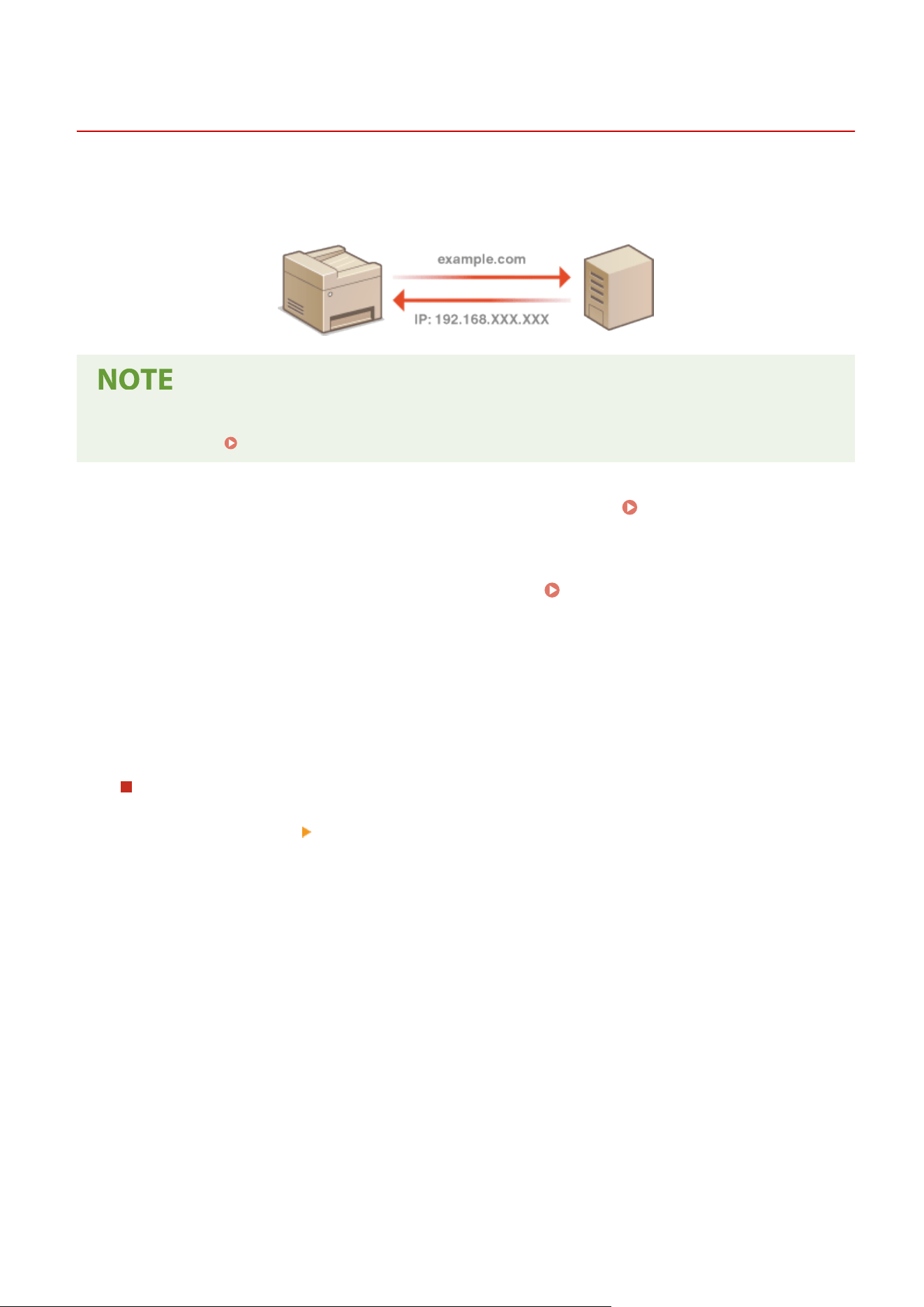
Conguring DNS
7YWY-013
DNS (Domain Name System) pr
ovides a service for name resolution that associates a host (or domain) name with an IP
address. Congure the DNS, mDNS, or DHCP option settings as necessary. Note that the procedures for conguring
DNS are different for IPv4 and IPv6.
● For mor
e information about the basic operations to be performed when setting the machine from the
Remote UI, see
Setting Up Menu Options from Remote UI(P. 431) .
1
Start the Remote UI and log in to System Manager Mode. Starting Remote
UI(P
. 421)
2
Click [Settings/Registration] on the Portal page.
Remote UI Screen(P. 422)
3
Click [Network Settings].
4
Congure DNS settings.
Conguring IPv4 DNS
1
Select [IPv4 Settings]
[Edit].
2
Congure IPv4 DNS settings.
Setting Up
55
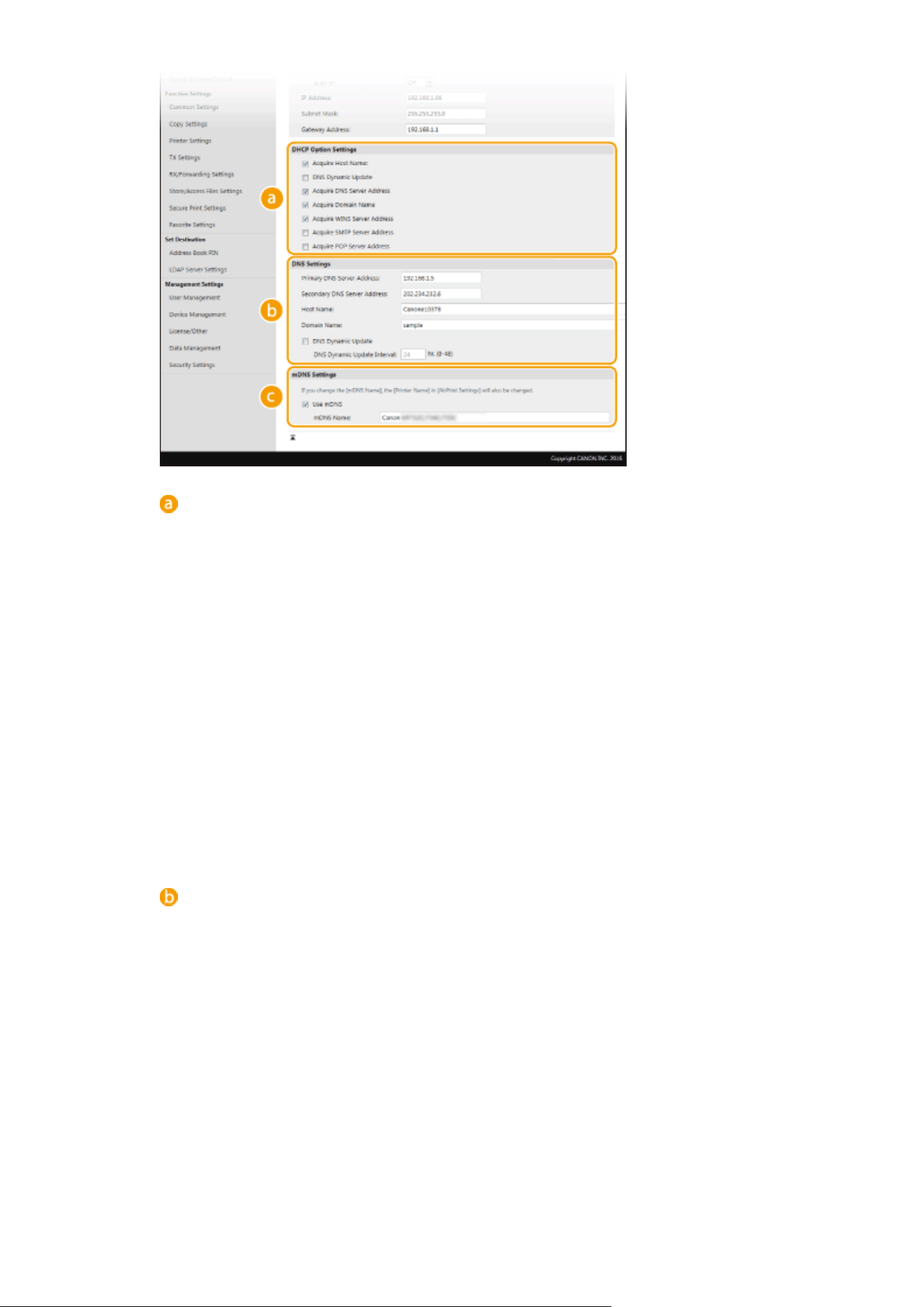
[DHCP Option Settings]
[Acquire Host Name]
Select the check box to enable Option 12 to obtain the host name from the DHCP server.
[DNS Dynamic Update]
Select the check box to enable Option 81 to dynamically update the DNS records through the DHCP
server.
[Acquire DNS Server Address]
Select the check box to enable Option 6 to obtain a DNS server address from the DHCP server.
[Acquire Domain Name]
Select the check box to enable Option 15 to obtain a domain name from the DHCP server.
[Acquire WINS Server Address]
Select the check box to enable Option 44 to obtain a WINS server address from the DHCP server.
[Acquire SMTP Server Address]
Select the check box to enable Option 69 to obtain an SMTP server address from the DHCP server.
[Acquire POP Server Address]
Select the check box to enable Option 70 to obtain a POP3 server address from the DHCP server.
[DNS Settings]
[Primary DNS Server Addr
ess]
Enter the IP address of a DNS server.
[Secondary DNS Server Address]
Enter the IP address of a secondary DNS server, if any.
[Host Name]
Enter alphanumeric characters for the host name of the machine that is to be registered to the DNS
server.
[Domain Name]
Enter alphanumeric characters for the name of the domain the machine belongs to, such as
"example.com."
[DNS Dynamic Update]
Select the check box to dynamically update the DNS records whenever the machine's IP address is
changed. When specifying the interval between updates, enter the time in hours in the [DNS
Dynamic Update Interval] text box.
Setting Up
56
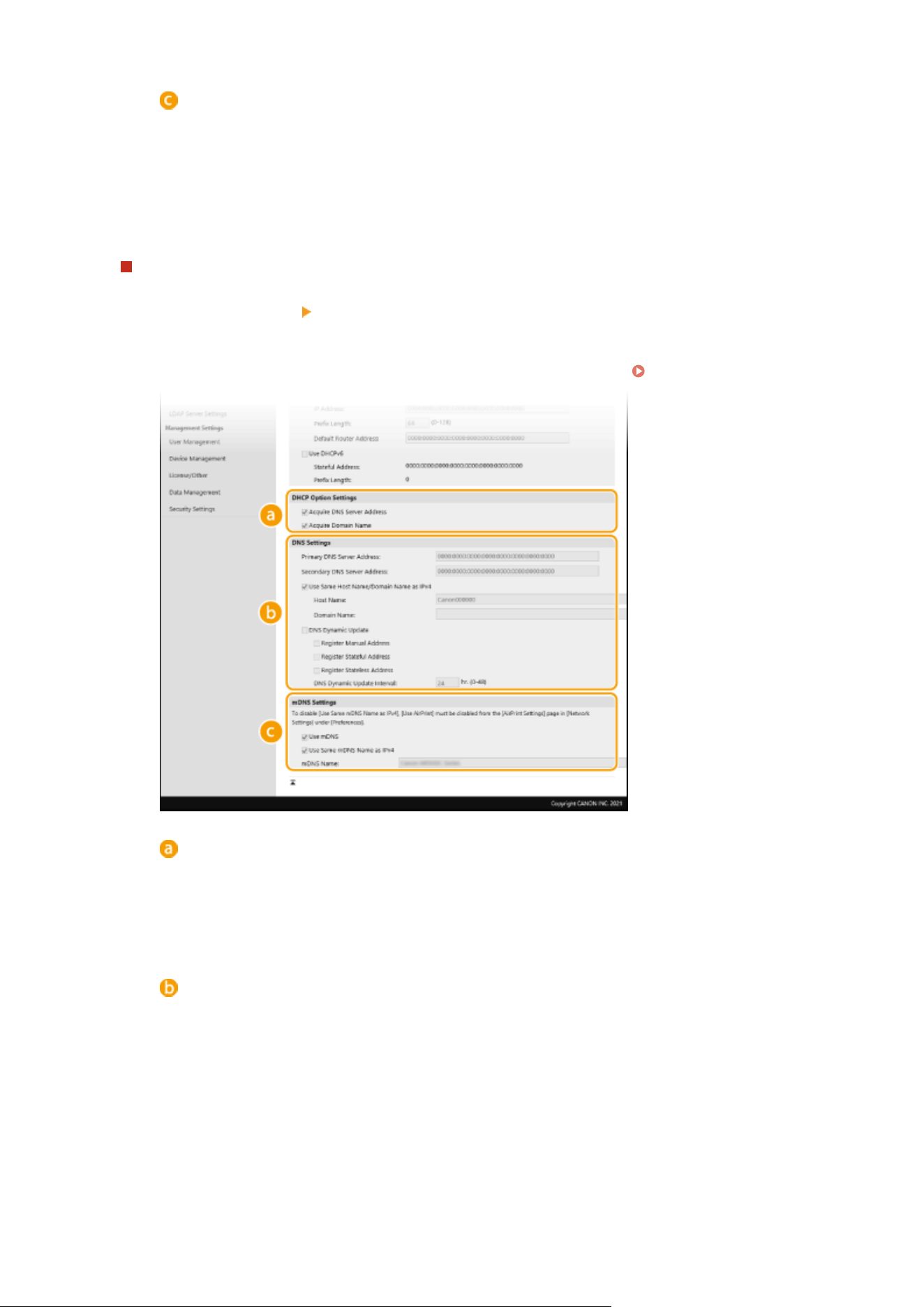
[mDNS Settings]
[Use mDNS]
Adopted b
y Bonjour, mDNS (multicast DNS) is a protocol for associating a host name with an IP
address without using DNS. Select the check box to enable mDNS and enter the mDNS name in the
[mDNS Name] text box.
3
Click [OK].
Conguring IPv6 DNS
1
Select [IPv6 Settings] [Edit].
2
Congure IPv6 DNS settings.
● The [Use IPv6] check bo
x must be selected to congure the settings.
Setting IPv6 Addresses(P. 34)
[DHCP Option Settings]
[Acquire DNS Server Address]
Select the check box to enable Option 23 to obtain a DNS server address from the DHCP server.
[Acquire Domain Name]
Select the check box to enable Option 24 to obtain a domain name from the DHCP server.
[DNS Settings]
[Primary DNS Server Addr
ess]
Enter the IP address of a DNS server. Addresses that start with "ff" (or multicast address) cannot be
entered.
[Secondary DNS Server Address]
Enter the IP address of a secondary DNS server, if any. Addresses that start with "ff" (or multicast
address) cannot be entered.
[Use Same Host Name/Domain Name as IPv4]
Select the check box to use the same host and domain names as in IPv4.
[Host Name]
Setting Up
57

Enter alphanumeric characters for the host name of the machine that is to be registered to the DNS
server.
[Domain Name]
Enter alphanumeric char
acters for the name of the domain the machine belongs to, such as
"example.com."
[DNS Dynamic Update]
Select the check box to dynamically update the DNS records whenever the machine's IP address is
changed. To specify the type(s) of addresses you want to register to the DNS server, select the
check box for [Register Manual Address], [Register Stateful Address], or [Register Stateless
Address]. To specify the interval between updates, enter the time in hours in the [DNS Dynamic
Update Interval] text box.
[mDNS Settings]
[Use mDNS]
Adopted b
y Bonjour, mDNS (multicast DNS) is a protocol for associating a host name with an IP
address without using DNS. Select the check box to enable mDNS.
[Use Same mDNS Name as IPv4]
Select the check box to use the same mDNS name as in IPv4. To set a different name, clear the
check box and enter the mDNS name in the [mDNS Name] text box.
3
Click [OK].
5
Restart the machine.
Restarting the Machine(P. 121)
Selecting settings from the operation panel
● DNS settings can also be accessed from <Menu> in the Home screen. <DNS Settings>(P. 468)
LINKS
Setting IPv4 Address(P. 31)
Setting IPv6 Addresses(P. 34)
Viewing Network Settings(P. 37)
Setting Up
58
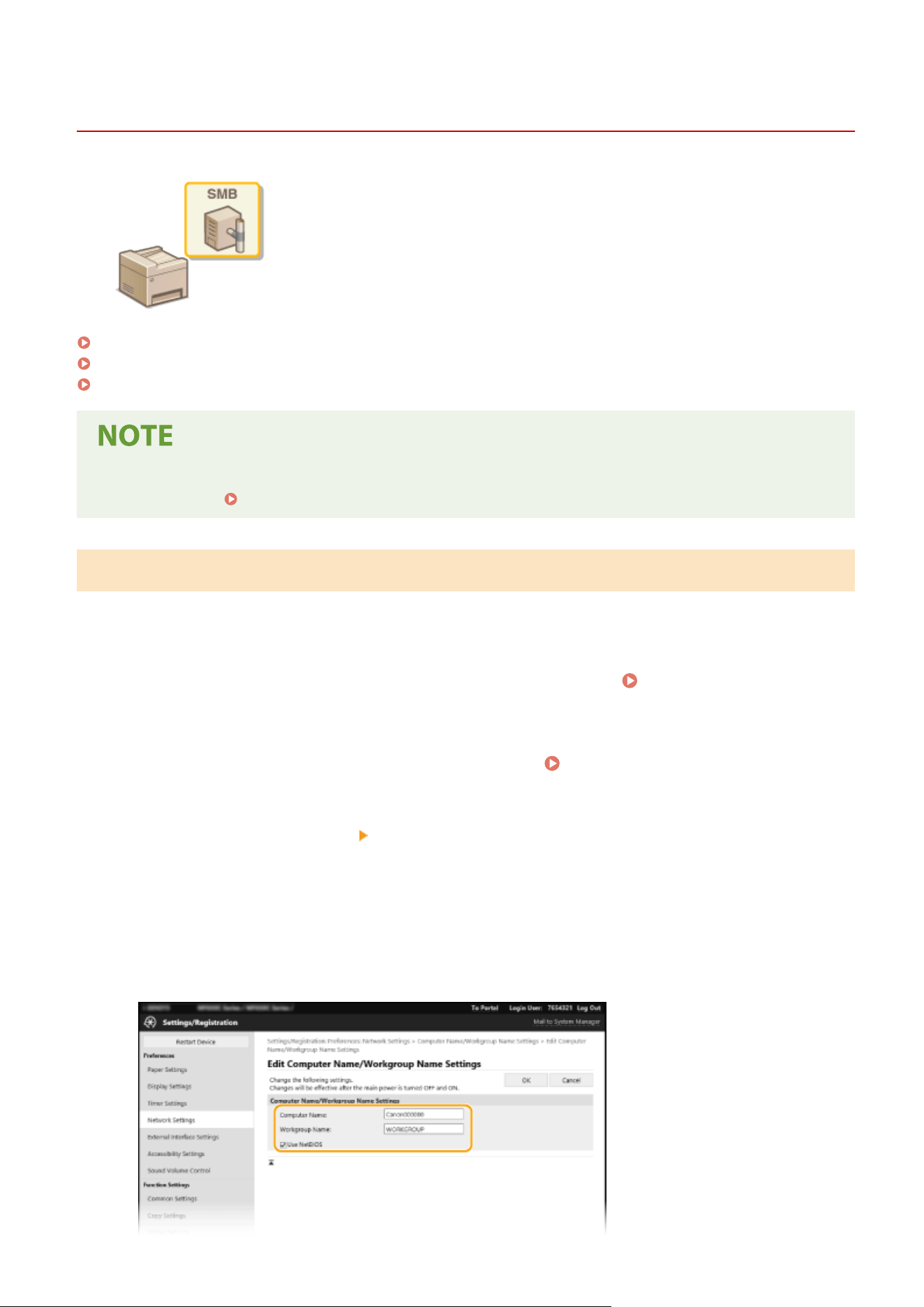
Conguring SMB
7YWY-014
Server Message Block (SMB) is a protocol for sharing resources, such as les and
printers, with mor
e than one device in a network. The machine uses SMB to store
scanned documents into a shared folder. Depending on your network, you may have
to set the computer name and workgroup name.
Conguring the Computer Name and W
orkgroup Name(P. 59)
Conguring the SMB Client
(P. 60)
Specify the Version of SMB Client(P. 61)
● For mor
e information about the basic operations to be performed when setting the machine from the
Remote UI, see
Setting Up Menu Options from Remote UI(P. 431) .
Conguring the Computer Name and W
orkgroup Name
Specify the name of the machine on the network and the name of the workgroup it belongs to. If your environment
does not have workgroups, create a workgroup in Windows and enter the name of that workgroup.
1
Start the Remote UI and log in to System Manager Mode.
Starting Remote
UI(P
. 421)
2
Click [Settings/Registration] on the Portal page.
Remote UI Screen(P. 422)
3
Select [Network Settings] [Computer Name/Workgroup Name Settings].
4
Click [Edit].
5
Specify the required settings.
Setting Up
59
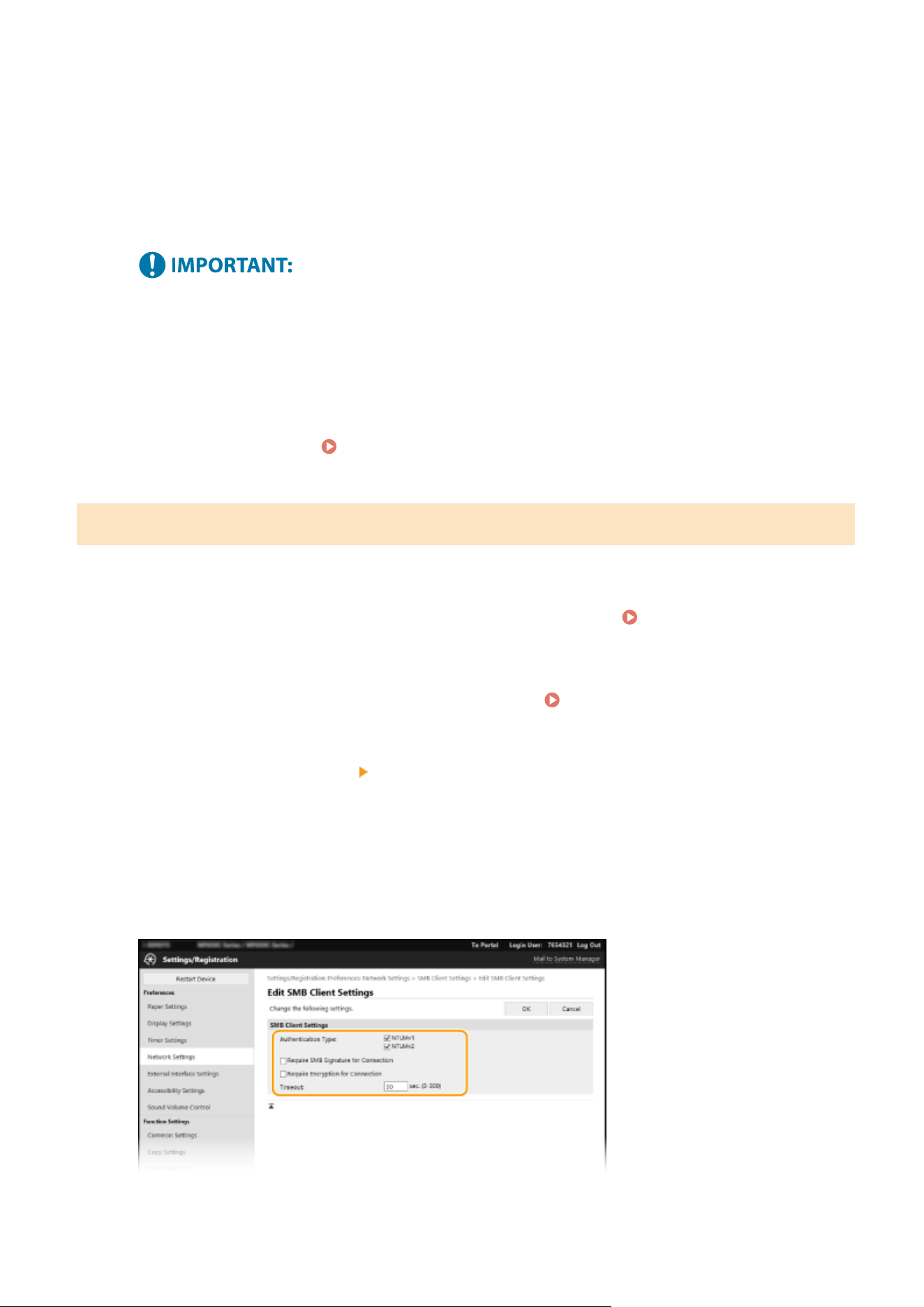
[Computer Name]
Enter alphanumeric char
acters for the name of the machine on the network.
[Workgroup Name]
Workgroup name is a name for grouping multiple computers so that basic network functions, such as le
sharing, become available in a Windows network. Enter alphanumeric characters for the name of the
workgroup that the machine belongs to.
[Use NetBIOS]
Select the check box when using NetBIOS.
● Computer
names or workgroup names that start with an asterisk (
*
) cannot be registered to a WINS
server.
6
Click [OK].
7
Restart the machine.
Restarting the Machine(P. 121)
Conguring the SMB Client
Specify the settings to use when the machine connects to a network as an SMB client.
1
Start the Remote UI and log in to System Manager Mode. Starting Remote
UI(P
. 421)
2
Click [Settings/Registration] on the Portal page.
Remote UI Screen(P. 422)
3
Select [Network Settings]
[SMB Client Settings].
4
Click [Edit].
5
Specify the required settings.
[Authentication Type]
Setting Up
60

Select the authentication protocol version. Select either [NTLMv1] or [NTLMv2], according to the destination
SMB server. Y
ou can also select both.
[Require SMB Signature for Connection]
Select the check box to request an SMB packet signature when connecting to an SMB server.
[Require Encryption for Connection]
Select the check box to request a connection with SMB v3.0 encrypted communication when connecting to an
SMB server.
[Timeout]
Set the time until the SMB connection destination responds.
● When sending to an SMB server, the network connection was lost or the response on the server side was
slow, causing a wait time timeout on the machine side before the data could be sent or forwarding could
be completed. If this happens, you may be able to avoid a timeout by increasing the wait time.
6
Click [OK].
Specify the Version of SMB Client
Specify the version of SMB to use with the SMB client.
1
Start the Remote UI and log in to System Manager Mode.
Starting Remote
UI(P
. 421)
2
Click [Settings/Registration] on the Portal page.
Remote UI Screen(P. 422)
3
Select [Network Settings] [Specied SMB Client V
ersions].
4
Click [Edit].
5
Select the check box for the version of SMB to use with the SMB client.
6
Click [OK].
● If you select the [Requir
e Encryption for Connection] check box, the machine can only connect to SMB
servers that support SMB v3.0 encrypted communication. When the [1.0] and [2.0] check box is selected for
[Specied SMB Client Versions] but [3.0] check box is not selected, the machine cannot connect to SMB
servers that do not support SMB v3.0 encrypted communication.
● Use the same version of SMB with the SMB server and SMB client. SMB cannot be used if the versions differ.
LINKS
Setting Up
61

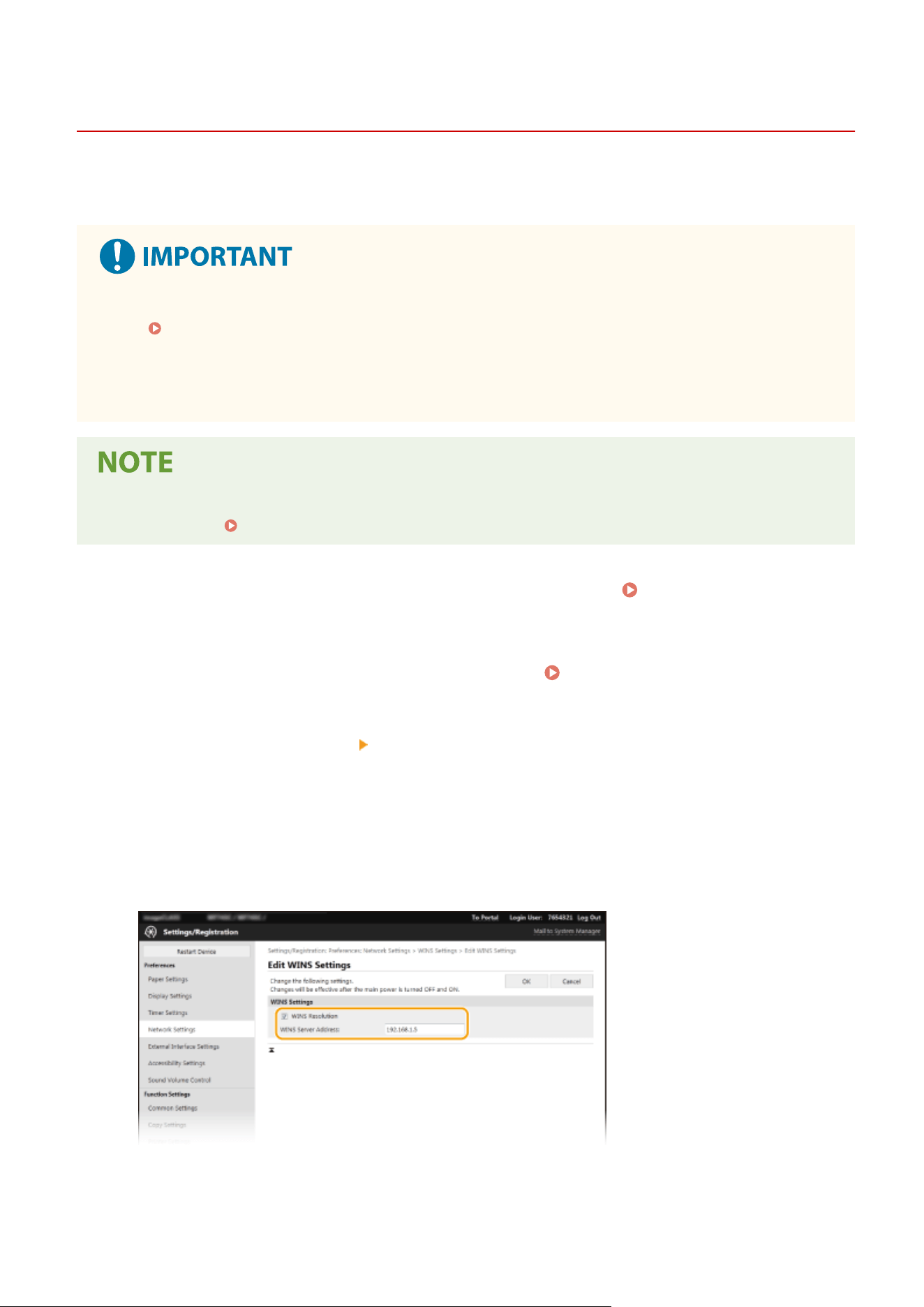
Conguring WINS
7YWY-015
Windo
ws Internet Name Service (WINS) is a name resolution service that associates a computer or printer name in an
SMB network with an IP address. To enable WINS, the WINS server must be specied.
● In or
der to specify WINS server settings, [Computer Name/Workgroup Name Settings] are required to be
set.
Conguring the Computer Name and W
orkgroup Name(P. 59)
● If you clear [Use NetBIOS] check box in [Computer Name/Workgroup Name Settings], the WINS setting is
disabled. Make sure to select [Use NetBIOS] check box when using WINS.
● The function is not available in an IPv6 network.
● For mor
e information about the basic operations to be performed when setting the machine from the
Remote UI, see
Setting Up Menu Options from Remote UI(P. 431) .
1
Start the Remote UI and log in to System Manager Mode.
Starting Remote
UI(P
. 421)
2
Click [Settings/Registration] on the Portal page.
Remote UI Screen(P. 422)
3
Select [Network Settings] [WINS Settings].
4
Click [Edit].
5
Select the [WINS Resolution] check box, and specify the required settings.
[WINS Resolution]
Select the check bo
x to use WINS for name resolution. When not using WINS, clear the check box.
[WINS Server Address]
Setting Up
63
Enter the IP address of the WINS server.
● If
the IP address of the WINS server is obtained from a DHCP server, the obtained IP address overrides the
IP address entered in the [WINS Server Address] text box.
6
Click [OK].
7
Restart the machine.
Restarting the Machine(P. 121)
Selecting settings from the operation panel
● WINS settings can also be accessed fr
om <Menu> in the Home screen.
<WINS Settings>(P. 470)
LINKS
Setting IPv4 Address(P. 31)
Setting Up
64
Registering LDAP Servers
7YWY-016
If an LDAP server is implemented in the network, you can search the server for fax
numbers or e-mail addr
esses, and then specify them as destinations or register
them in the Address Book. Note also that if send function authentication (
LDAP
Server Authentication
(P. 365) ) is enabled, you must register the server used for
authentication. You can register a maximum of ve LDAP servers each for searching
and for authentication to the machine. Register LDAP servers via the Remote UI.
● For mor
e information about the basic operations to be performed when setting the machine from the
Remote UI, see
Setting Up Menu Options from Remote UI(P. 431) .
1
Start the Remote UI and log in to System Manager Mode.
Starting Remote
UI(P
. 421)
2
Click [Settings/Registration] on the Portal page.
Remote UI Screen(P. 422)
3
Click [LDAP Server Settings].
4
Click [Register New Server] for [LDAP Server (For Search)] or [LDAP Server (For
Authentication)].
● LD
AP server registration needs to be performed separately either for searching or for authentication. To use
an LDAP server for searching for fax and e-mail destinations, register it for searching, and to use it for
authenticating sending of e-mail or faxes, register it for authenticating.
To edit registered server information
● Click a te
xt link under [Server Name] for the edit screen.
To delete registered server information
● Click [Delete] on the right of the server name you want to delete
click [OK].
5
Register the LDAP server.
Register the server used for searches
Register the server for sear
ching for fax or e-mail destinations.
Setting Up
65
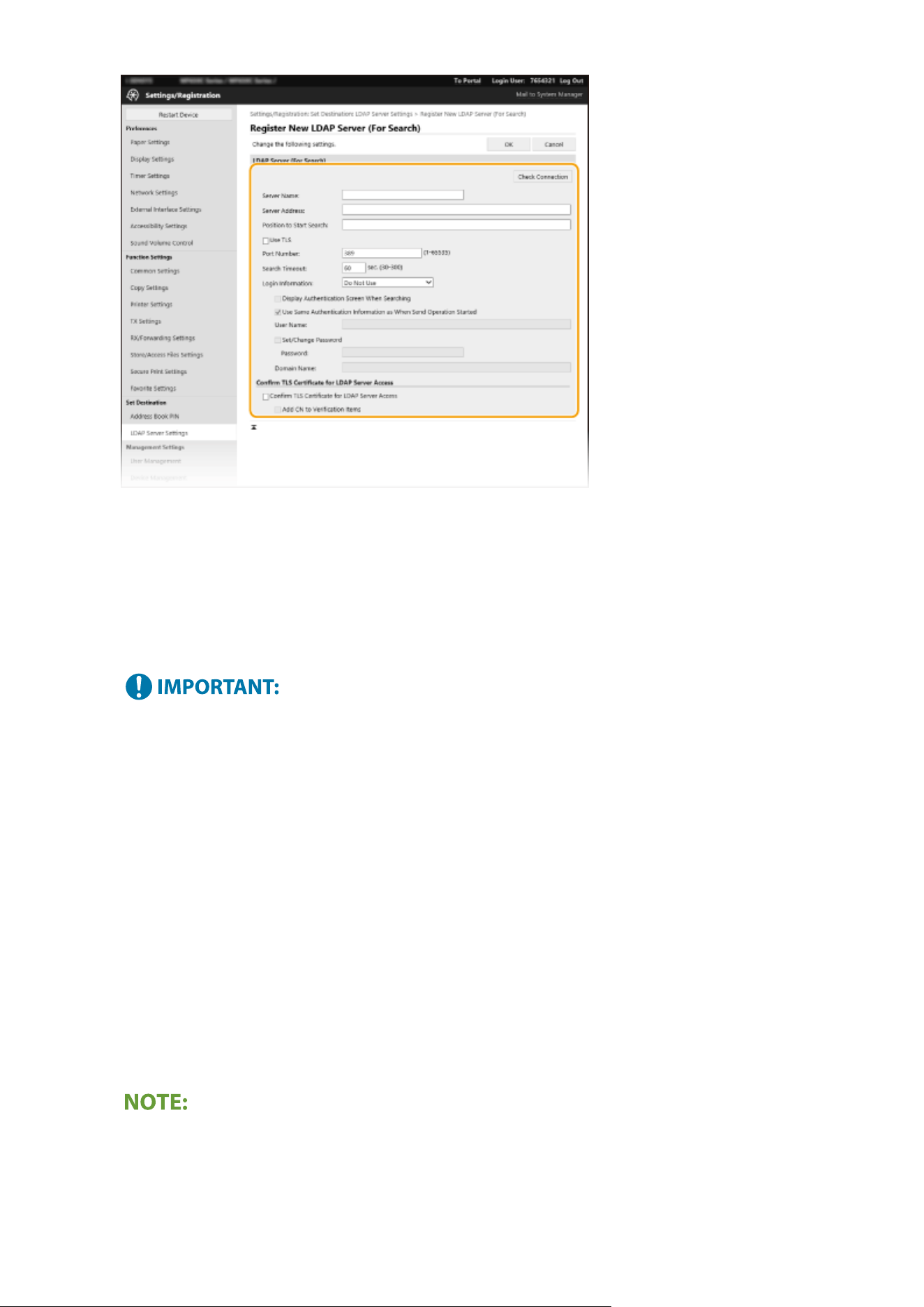
[Check Connection]
After conguring the r
egistration details, you can check the connection to the server.
[Server Name]
Enter the name to be assigned to the LDAP server.
[Server Address]
Enter the IP address of the LDAP server or enter alphanumeric characters for the host name of the server
(example: ldap.example.com).
[Server Address] and DNS
● T
o prevent errors from occurring when searching for destinations, make sure to check the following:
- If the host name is entered for [Server Address], make sure that a DNS server is available in the network.
- If the IP address is entered for [Server Address], check whether the DNS server supports only forward
lookup. If the server supports only forward lookup, select [Do Not Use] or [Use] for [Login Information]. If
you select [Use (Security Authentication)], make sure that the DNS server supports reverse lookup.
[Position to Start Search]
Specify the node in the directory information tree (DIT) that you want to start search from. Leaving the text box
blank sets the machine to start search from an arbitrary node selected automatically.
● When specifying the node, enter "DC=," followed by a host name (a dot-delimited character string in the
Active Directory domain name), and separate each of the entries with a comma. If the domain name is
"john.example.com," for example, enter "DC=john,DC=example,DC=com."
[Use TLS]
Select the check box to encrypt communication with the LDAP server using TLS.
● This is enabled only when [Use] or [Use (Security Authentication)] is selected in [Login Information].
[Port Number]
Enter the port number used for communicating with the LD
AP server.
Setting Up
66

[Search Timeout]
Specify ho
w long the machine searches.
[Login Information]
Select [Do Not Use], [Use], or [Use (Security Authentication)] depending on the type of authentication
implemented by the LDAP server. When [Use] or [Use (Security Authentication)] is selected, the user name and
password must be specied.
[Do Not Use] Select not to authenticate the machine using the login information.
[Use] Select to authenticate the machine using the login information.
[Use (Security Authentication)]
Select to use data obtained by Kerberos, a network authentication protocol, for the
authentication passwor
d. If this setting is selected, the clock of the machine needs to be
synchronized with that of the LDAP server.
[Display Authentication Screen When Searching]
Select the check bo
x to require the user to enter the user name and password when a search is requested. If the
[Use Same Authentication Information as When Send Operation Started] check box is selected, the user name
and password used for authentication when sending faxes or scans are also used here. If the check box is
cleared, authentication is carried out using the information entered in [User Name] and [Password].
[Use Same Authentication Information as When Send Operation Started]
Set whether the authentication information when the fax or scan function was used is also used when
searching. This check box is normally displayed selected; however, it is only valid when the [Display
Authentication Screen When Searching] check box is selected.
[User Name]
Enter the user name of the machine that was registered to the LDAP server.
● When [Use] is selected for [Login Information], enter the user name in the form "(domain name)\(user
name)" (example: domain1\user1).
● When [Use (Security Authentication)] is selected, enter the user name only (example: user1).
[Set/Change Password]
To specify or change the password, select the check box and enter alphanumeric characters in the [Password]
text box.
[Domain Name]
When [Use (Security Authentication)] is selected for [Login Information], enter alphanumeric characters for the
directory tree name in Active Directory (example: example.com).
[Conrm TLS Certicate for LDAP Server Access]
Select the check box to verify the certicate when encrypting communication with the LDAP server using TLS.
Also, select the [Add CN to Verication Items] check box as necessary.
Registering the authentication server
If the use of the fax and scan functions is restricted, register the server used for authentication.
Setting Up
67
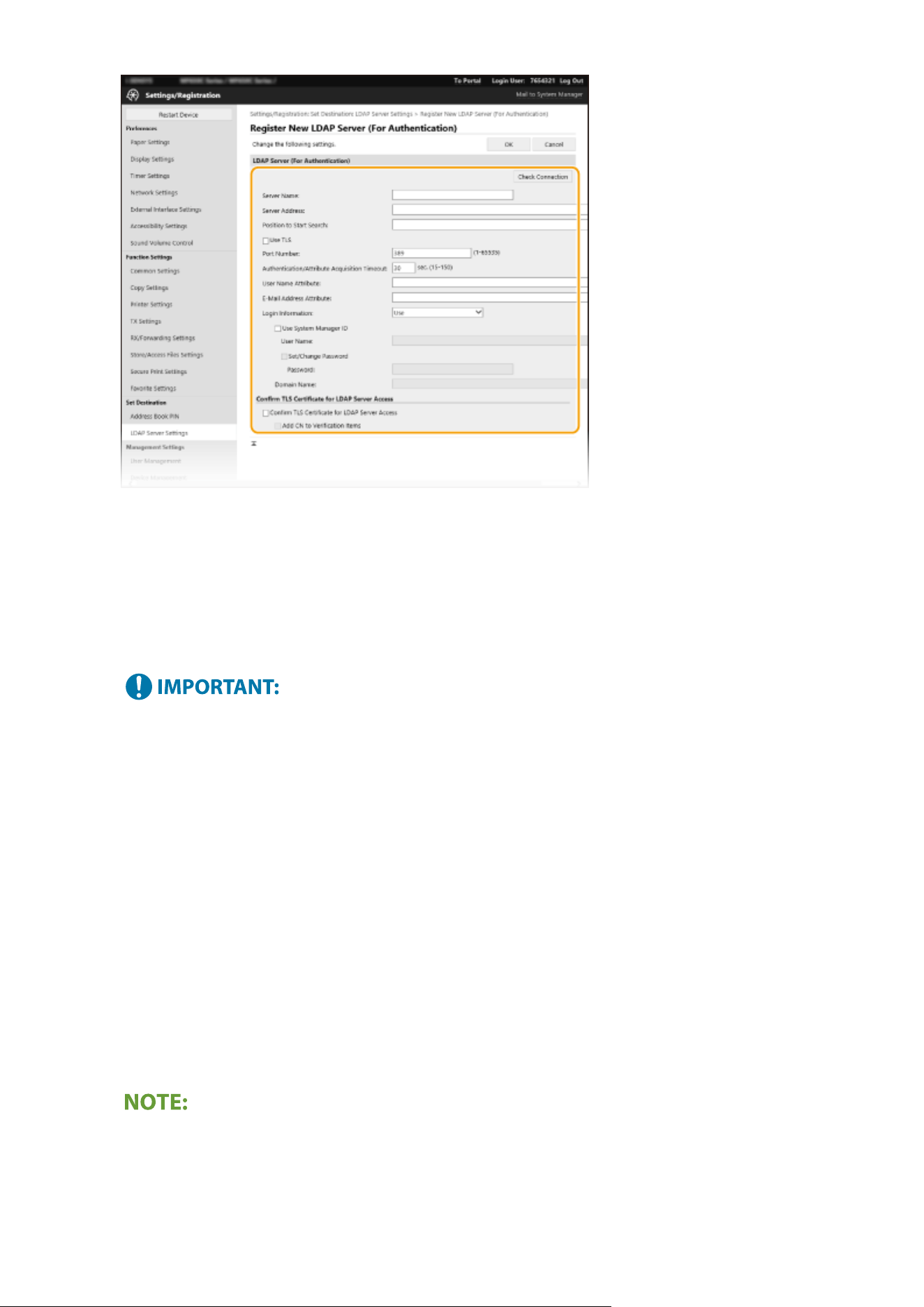
[Check Connection]
After conguring the r
egistration details, you can check the connection to the server.
[Server Name]
Enter the name to be assigned to the LDAP server.
[Server Address]
Enter the IP address of the LDAP server or enter alphanumeric characters for the host name of the server
(example: ldap.example.com).
[Server Address] and DNS
● T
o prevent errors from occurring when searching for destinations, make sure to check the following:
- If the host name is entered for [Server Address], make sure that a DNS server is available in the network.
- If the IP address is entered for [Server Address], check whether the DNS server supports only forward
lookup. If the server supports only forward lookup, select [Use] for [Login Information]. If you select [Use
(Security Authentication)], make sure that the DNS server supports reverse lookup.
[Position to Start Search]
Specify the node in the directory information tree (DIT) that you want to start search from. Leaving the text box
blank sets the machine to start search from an arbitrary node selected automatically.
● When specifying the node, enter "DC=," followed by a host name (a dot-delimited character string in the
Active Directory domain name), and separate each of the entries with a comma. If the domain name is
"john.example.com," for example, enter "DC=john,DC=example,DC=com."
[Use TLS]
Select the check box to encrypt communication with the LDAP server using TLS.
● This is enabled only when [Use] is selected in [Login Information].
[Port Number]
Enter the port number used for communicating with the LD
AP server.
Setting Up
68
[Authentication/Attribute Acquisition Timeout]
Specify ho
w long authentication and attribute acquisition can continue.
[User Name Attribute]
Enter the attribute name, to be compared with a user name entered during authentication, consisting of
alphanumeric characters (Example: "sAMAccountName").
● Not r
equired if [Use (Security Authentication)] is selected in [Login Information].
[E-Mail Address Attribute]
Enter the attribute name, to be used for obtaining an e-mail address from the authentication server, consisting
of alphanumeric characters (Example: "mail").
[Login Information]
Select [Use] or [Use (Security Authentication)] depending on the type of authentication implemented by the
LDAP server.
[Use] Select to authenticate the machine using the System Manager ID.
[Use (Security Authentication)]
Select to use data obtained by Kerberos, a network authentication protocol, for the
authentication passwor
d. If this setting is selected, the clock of the machine needs to be
synchronized with that of the LDAP server.
[Use System Manager ID]
If [Use] is selected in [Login Information], this species whether authentication using the system manager ID is
used. T
o use the system manager ID, select the check box and specify the user name and password used for
authentication. If you deselect the check box, logins are anonymous (no user name).
[User Name]
Enter the user name of the machine that was registered to the LDAP server in the form "(domain name)\(user
name)" (example: domain1\user1).
[Set/Change Password]
To specify or change the password, select the check box and enter alphanumeric characters in the [Password]
text box.
[Domain Name]
When [Use (Security Authentication)] is selected for [Login Information], enter alphanumeric characters for the
directory tree name in Active Directory (example: example.com).
[Conrm TLS Certicate for LDAP Server Access]
Select the check box to verify the certicate when encrypting communication with the LDAP server using TLS.
Also, select the [Add CN to Verication Items] check box as necessary.
6
Click [OK].
LINKS
Conguring SNTP(P. 74)
Basic Operations for Sending Faxes(P. 219)
Basic Operations for Scanning Originals(P. 287)
LDAP Server Authentication(P. 365)
Setting Up
69
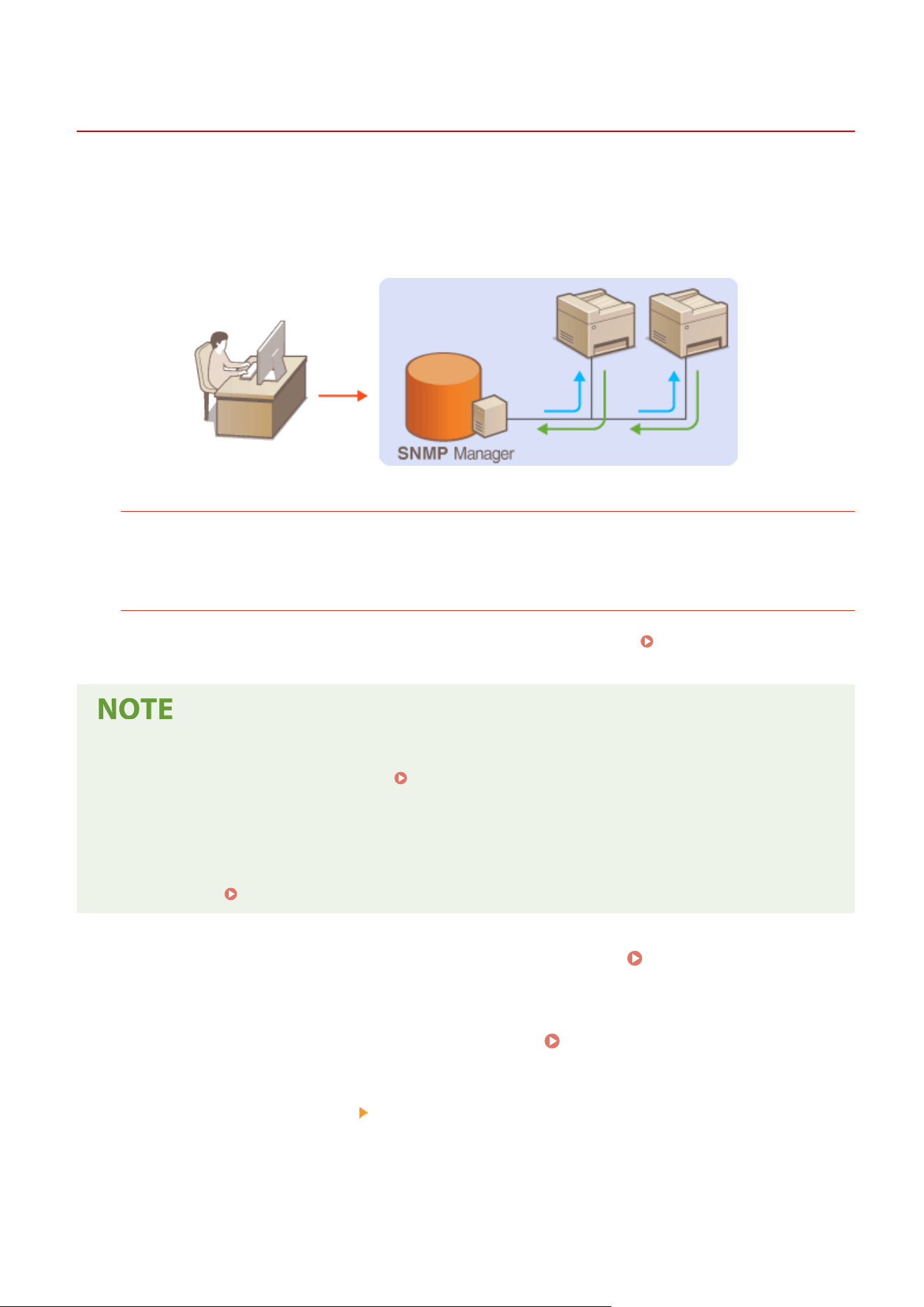
Monitoring and Controlling the Machine with SNMP
7YWY-017
Simple Network Management Pr
otocol (SNMP) is a protocol for monitoring and controlling communication devices in a
network by using Management Information Base (MIB). The machine supports SNMPv1 and security-enhanced
SNMPv3. You can check the status of the machine from a computer when you print documents or use the Remote UI.
You can enable either SNMPv1 or SNMPv3, or both at the same time. Specify the settings for each version to suit your
network environment and the purpose of use.
SNMPv1
SNMPv1 uses information called "community" to dene the scope of SNMP communication. Because this
information is e
xposed to the network in plain text, your network will be vulnerable to attacks. If you want to
ensure network security, disable SNMPv1 and use SNMPv3.
SNMPv3
With SNMPv3, you can implement network device management that is protected by robust security features.
Note that TLS must be enabled for the Remote UI befor
e conguring SNMPv3 (
Conguring the Ke
y and
Certicate for TLS(P. 381) ).
● The machine does not support the tr
ap notication feature of SNMP.
● To change the port number of SNMP, see
Changing Port Numbers(P. 378) .
● SNMP management softwar
e, when installed on a computer on the network, enables you to congure,
monitor, and control the machine remotely from the computer. For more information, see the instruction
manuals for your management software.
● For more information about the basic operations to be performed when setting the machine from the
Remote UI, see
Setting Up Menu Options from Remote UI(P. 431) .
1
Start the Remote UI and log in to System Manager mode.
Starting Remote
UI(P
. 421)
2
Click [Settings/Registration] on the Portal page.
Remote UI Screen(P. 422)
3
Select [Network Settings] [SNMP Settings].
4
Click [Edit].
Setting Up
70
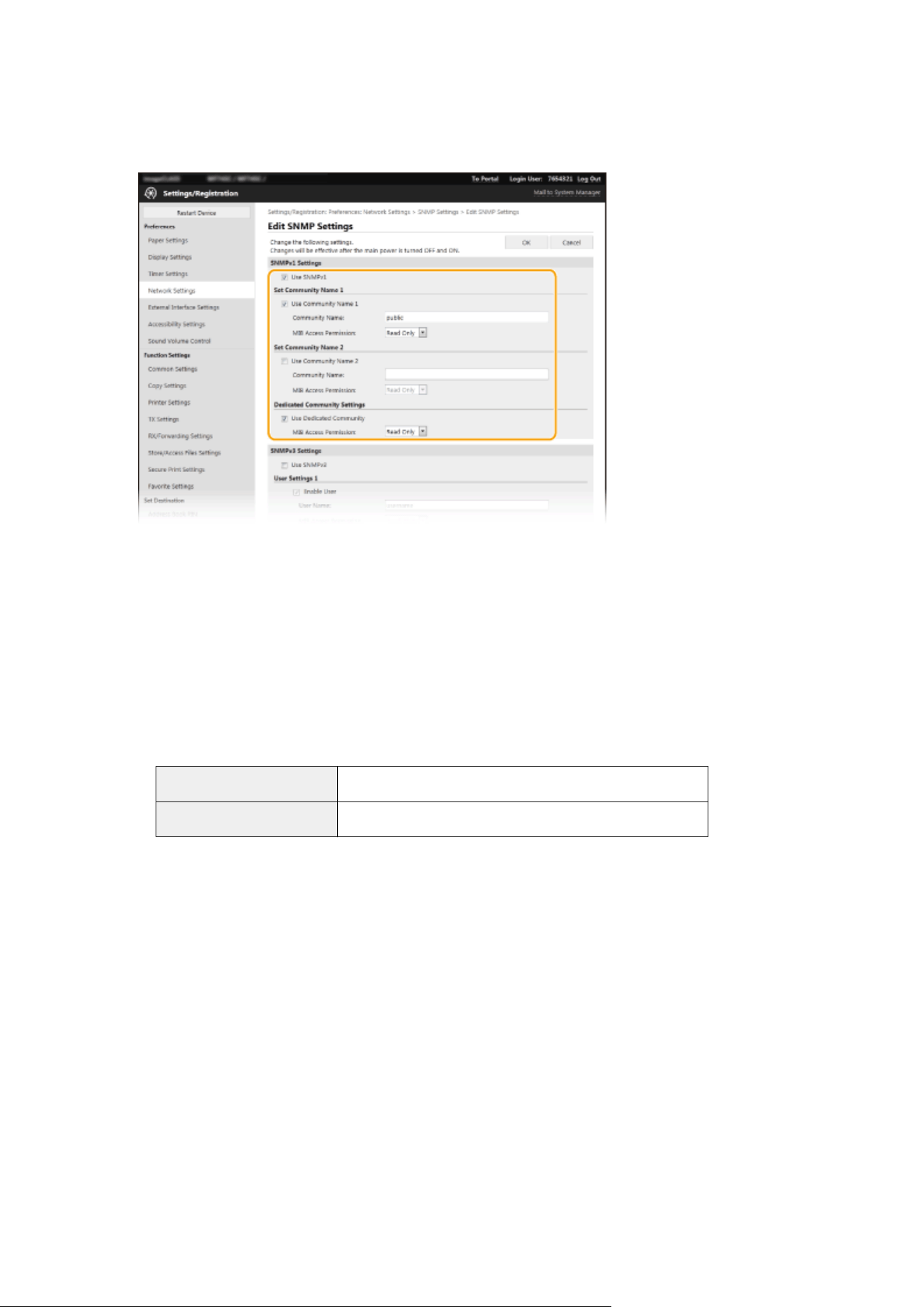
5
Specify SNMPv1 settings.
● If you do not need to change SNMPv1 settings, pr
oceed to the next step.
[Use SNMPv1]
Select the check bo
x to enable SNMPv1. You can specify the rest of SNMPv1 settings only when this check box
is selected.
[Use Community Name 1]/[Use Community Name 2]
Select the check box to specify a community name. If you do not need to specify a community name, clear
the check box.
[Community Name]
Enter alphanumeric characters for the name of the community.
[MIB Access Permission]
For each community, select [Read/Write] or [Read Only] for the access privileges to MIB objects.
[Read/Write] Permits both viewing and changing the values of MIB objects.
[Read Only] Permits only viewing the values of MIB objects.
[Use Dedicated Community]
Dedicated Community is a pr
eset community, intended exclusively for Administrators using Canon software,
such as imageWARE Enterprise Management Console. Select the check box to use Dedicated Community, and
specify [MIB Access Permission]. If you do not need to use Dedicated Community, clear the check box.
6
Specify SNMPv3 settings.
● If you do not need to change SNMPv3 settings, pr
oceed to the next step.
Setting Up
71
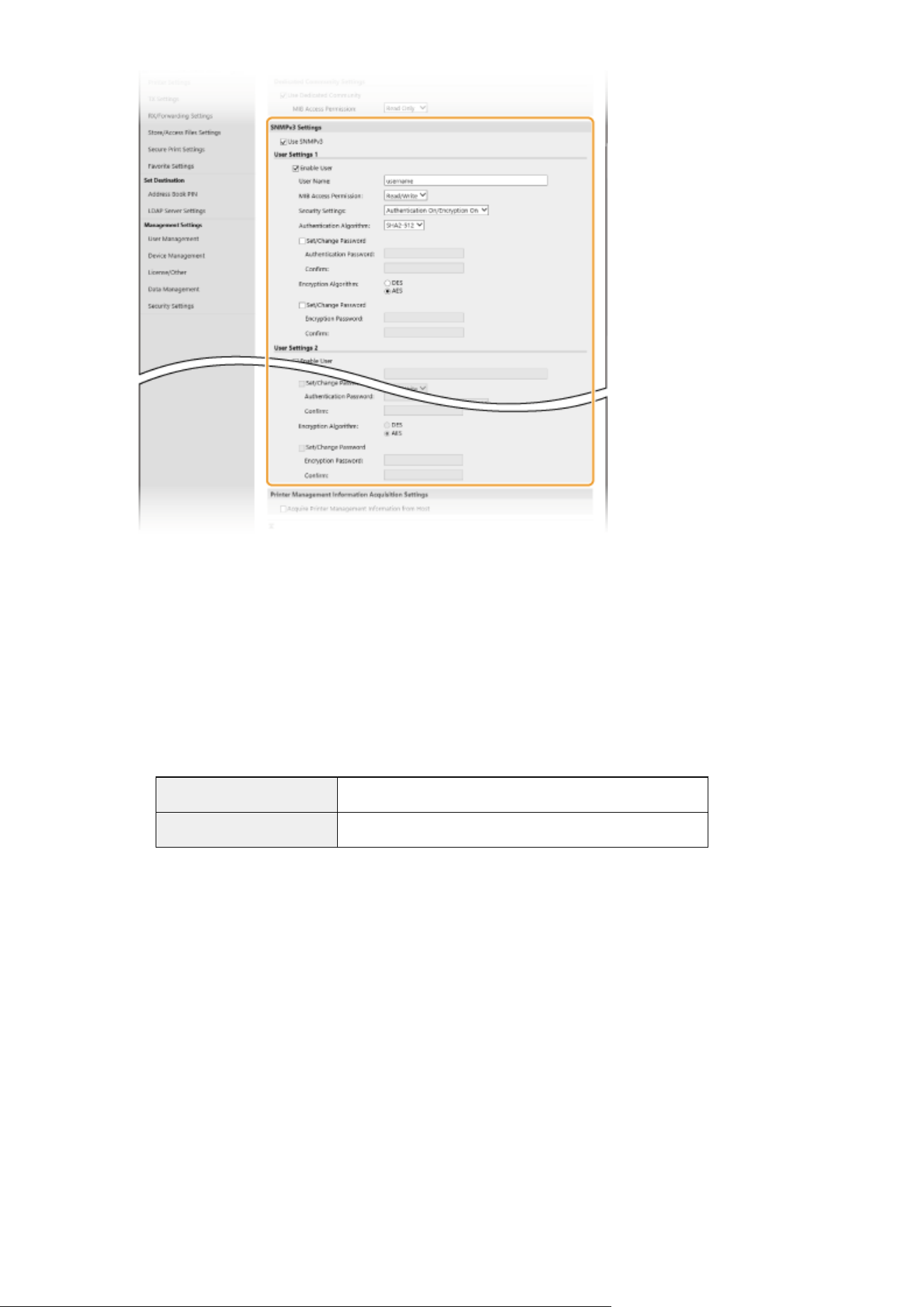
[Use SNMPv3]
Select the check bo
x to enable SNMPv3. You can specify the rest of SNMPv3 settings only when this check box
is selected.
[Enable User]
Select the check box to enable [User Settings 1]/[User Settings 2]/[User Settings 3]. To disable user settings,
clear the corresponding check box.
[User Name]
Enter alphanumeric characters for the user name.
[MIB Access Permission]
Select [Read/Write] or [Read Only] for the access privileges to MIB objects.
[Read/Write] Permits both viewing and changing the values of MIB objects.
[Read Only] Permits only viewing the values of MIB objects.
[Security Settings]
Select [Authentication On/Encryption On], [Authentication On/Encryption Off], or [Authentication Off/
Encryption Off] for the desir
ed combination of authentication and encryption settings.
[Authentication Algorithm]
If you have selected [Authentication On/Encryption On] or [Authentication On/Encryption Off] in [Security
Settings], select the appropriate authentication algorithm for your network environment.
[Encryption Algorithm]
If you have selected [Authentication On/Encryption On] in [Security Settings], select the appropriate
encryption algorithm for your network environment.
[Set/Change Password]
To set or change the password, select the check box and enter alphanumeric characters for the password in
the [Authentication Password] or [Encryption Password] text box. For conrmation, enter the same password
in the [Conrm] text box. Passwords can be set independently for authentication and encryption algorithms.
7
Specify Printer Management Information Acquisition Settings.
Setting Up
72
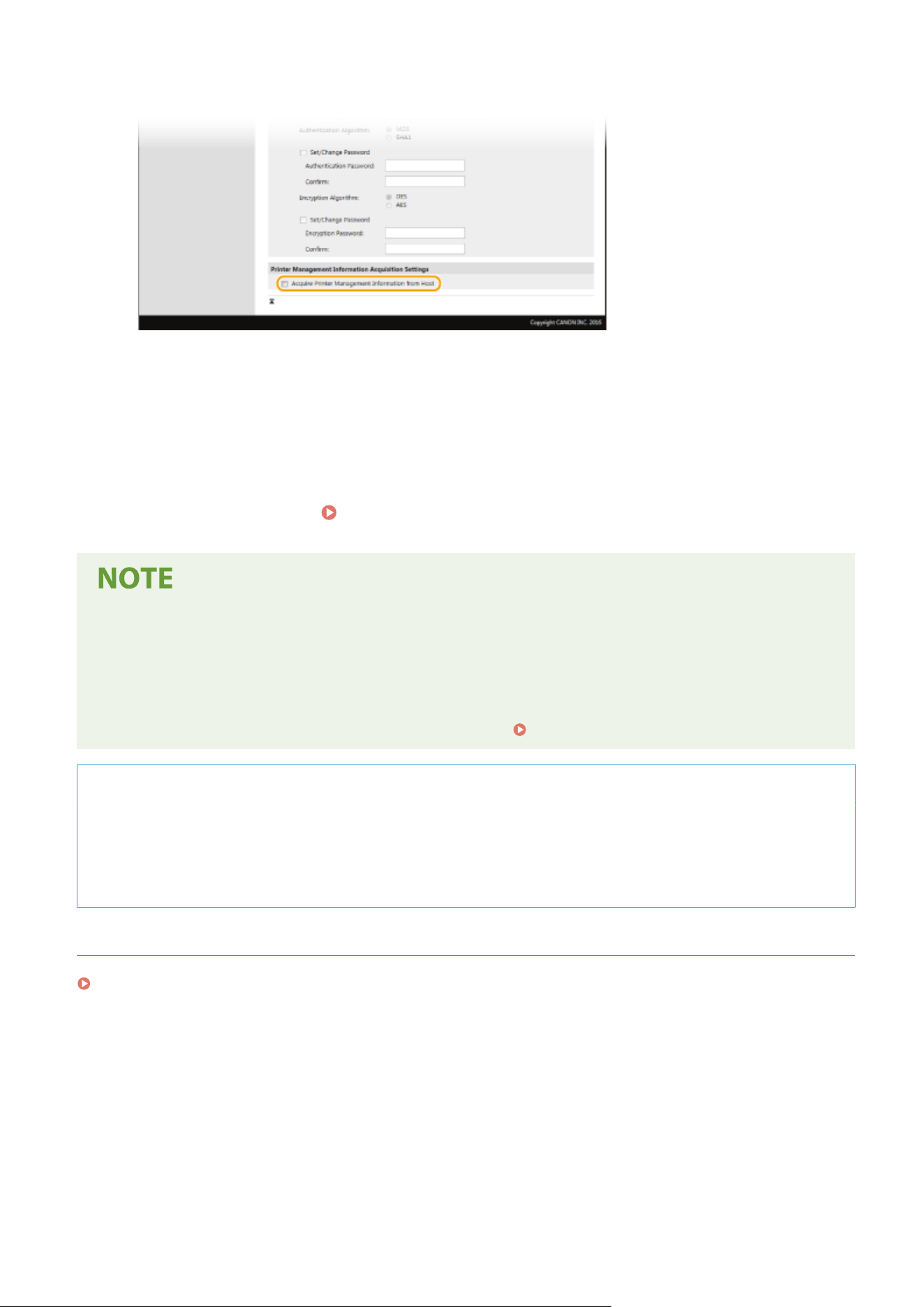
● With SNMP
, the printer management information, such as printing protocols and printer ports, can be
monitored and obtained regularly from a computer on the network.
[Acquire Printer Management Information from Host]
Select the check bo
x to enable monitoring of the printer management information of the machine via SNMP.
To disable monitoring of the printer management information, clear the check box.
8
Click [OK].
9
Restart the machine.
Restarting the Machine(P. 121)
Disabling SNMPv1
● If SNMPv1 is disabled, some of the functions of the machine become unavailable, such as obtaining machine
information via the printer driver.
Using the oper
ation panel
● You can enable or disable the SNMP settings from <Menu>.
<SNMP Settings>(P. 472)
Enabling Both SNMPv1 and SNMPv3
● If both versions of SNMP ar
e enabled, it is recommended that MIB access permission in SNMPv1 be set to
[Read Only]. MIB access permission can be set independently in SNMPv1 and SNMPv3 (and for each user in
SNMPv3). Selecting [Read/Write] (full access permission) in SNMPv1 negates the robust security features
that characterize SNMPv3 because most of the machine settings can then be controlled with SNMPv1.
LINKS
Conguring the Ke
y and Certicate for TLS(P. 381)
Setting Up
73
Other Network Settings
7YWY-018
Congur
e the following items according to your network environment.
Conguring FTP P
ASV Mode(P. 74)
Conguring SNTP
(P. 74)
Monitoring the Machine from the Device Management Systems(P. 75)
Conguring FTP PASV Mode
PASV is an FTP communication mode used for le transfer. To connect to an FTP server through a rewall, you must
use PASV mode. First check that the PASV mode is set on the FTP server.
● Whether P
ASV mode is used for FTP depends on your network environment and the settings on the FTP
server to which data is being sent. For more information, contact your Network Administrator.
<Menu> <Preferences> <Network> <TCP/IP Settings> <Use FTP PASV Mode> <On>
<OK> Restart the machine
Conguring SNTP
Simple Network Time Pr
otocol (SNTP) enables you to adjust the system clock by using the time server on the network.
If SNTP is used, the time server is checked at the specied intervals; therefore, the correct time can always be
maintained. The time is adjusted based on Coordinated Universal Time (UTC), so specify the time zone setting before
conguring SNTP (
Setting the Date/Time(P. 12) ). SNTP settings can be specied via the Remote UI.
● The SNTP of the machine supports both NTP (version 3) and SNTP (versions 3 and 4) servers.
● For mor
e information about the basic operations to be performed when setting the machine from the
Remote UI, see
Setting Up Menu Options from Remote UI(P. 431) .
1
Start the Remote UI and log in to System Manager Mode.
Starting Remote
UI(P
. 421)
2
Click [Settings/Registration] on the Portal page.
Remote UI Screen(P. 422)
3
Select [Network Settings] [SNTP Settings].
4
Click [Edit].
Setting Up
74

5
Select the [Use SNTP] check box and specify the required settings.
[Use SNTP]
Select the check bo
x to use SNTP for synchronization. If you do not want to use SNTP, clear the check box.
[NTP Server Name]
Enter the IP address of the NTP or the SNTP server. If DNS is available on the network, you can enter a host
name (or FQDN) consisting of alphanumeric characters instead (example: ntp.example.com).
[Polling Interval]
Specify the interval between one synchronization and the next.
6
Click [OK].
7
Restart the machine.
Restarting the Machine(P. 121)
Testing communication with the NTP/SNTP server
● Y
ou can view communication status with the registered server by clicking [Settings/Registration]
[Network
Settings] [Check NTP Server] in [SNTP Settings]. If a proper connection has been established, the result is
displayed as sho
wn below. Note that this operation does not adjust the system clock.
Monitoring the Machine from the Device Management Systems
Y
ou can facilitate the collection and management of various information about networked devices by implementing
device management software, such as imageWARE Enterprise Management Console
*
, into the network. Information
such as device settings and error logs is retrieved and distributed via the server computer. If the machine is connected
to such a network, imageWARE Enterprise Management Console searches the network for the machine by using
protocols such as Service Location Protocol (SLP) to gather information from the machine, such as power supply status
information. SLP settings can be specied via the Remote UI. This section also describes the procedure to congure
settings for communication between the machine and plug-ins for imageWARE Enterprise Management Console.
Setting Up
75
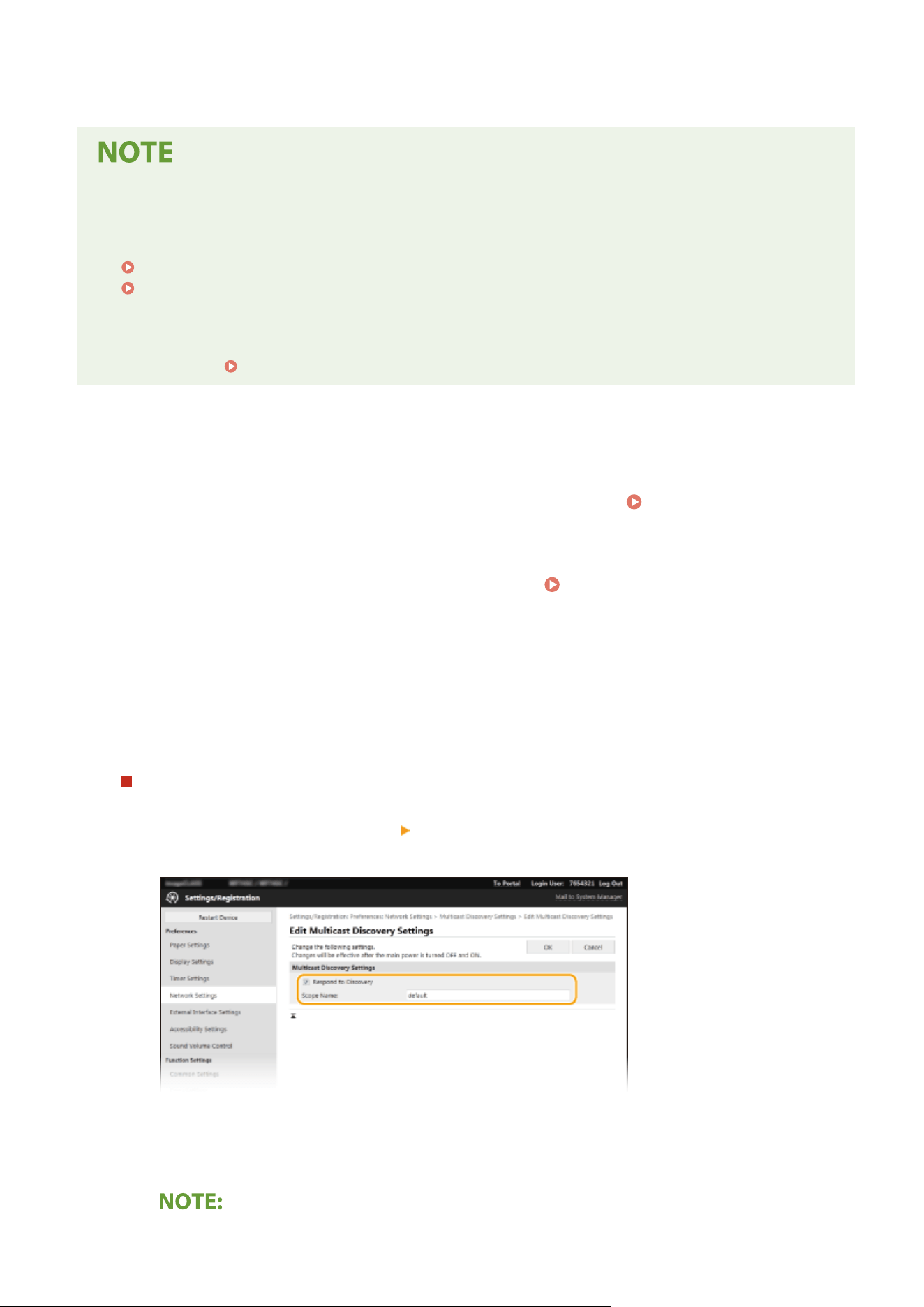
*
For mor
e information about imageWARE Enterprise Management Console, contact your dealer or service
representative.
To use imageWARE Enterprise Management Console plug-ins
● Y
ou need to enable the settings of the dedicated port and the SNMP settings. As for the SNMP settings, set
[MIB Access Permission] to [Read/Write] for both SNMPv1 and SNMPv3.
<Use Dedicated Port>(P. 473)
Monitoring and Controlling the Machine with SNMP(P. 70)
Remote UI Oper
ations
● For more information about the basic operations to be performed when setting the machine from the
Remote UI, see
Setting Up Menu Options from Remote UI(P. 431) .
◼ Conguring SLP Communication with Device Management Software
1
Start the Remote UI and log in to System Manager Mode. Starting Remote
UI(P
. 421)
2
Click [Settings/Registration] on the Portal page.
Remote UI Screen(P. 422)
3
Click [Network Settings].
4
Specify SLP settings.
Specifying multicast device discovery
1
Select [Multicast Discovery Settings] [Edit].
2
Select the [Respond to Discovery] check box and specify the required settings.
[Respond to Discovery]
Select the check bo
x to set the machine to respond to device management software multicast discovery
packets and enable monitoring by device management software.
Setting Up
76
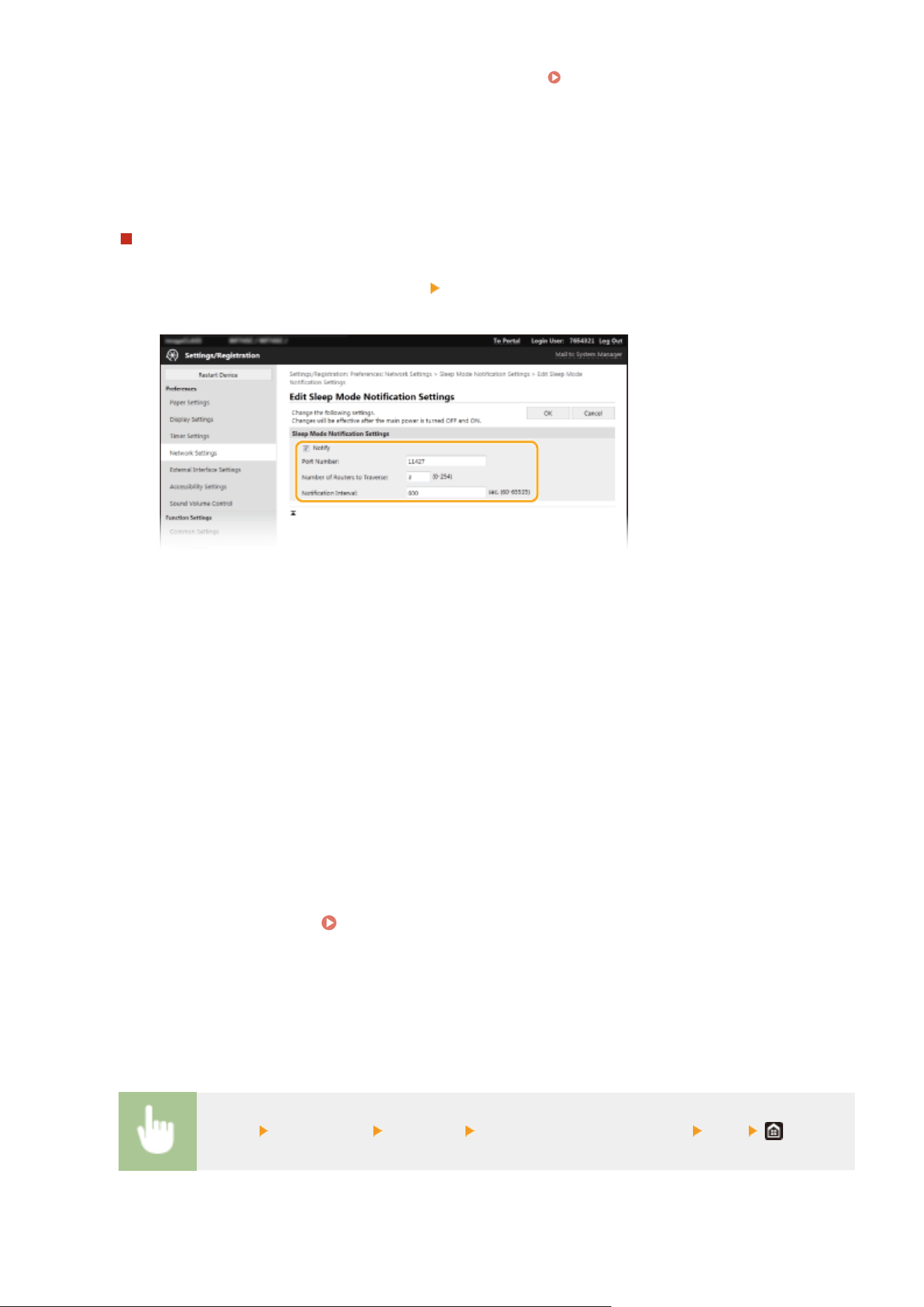
● T
o change the port number for multicast discovery, see
Changing Port Numbers(P. 378) .
[Scope Name]
T
o include the machine into a specic scope, enter alphanumeric characters for the scope name.
3
Click [OK].
Notifying a device management software of the power status of the machine
1
Select [Sleep Mode Notication Settings]
[Edit].
2
Select the [Notify] check box and specify the required settings.
[Notify]
Select the check bo
x to notify a device management software of the power status of the machine. When
[Notify] is selected, you can expect the machine to avoid unnecessary communication during sleep mode
and reduce the total power consumption.
[Port Number]
Change the port number for this function according to the network environment.
[Number of Routers to Traverse]
Specify how many routers the notication packets can pass through.
[Notication Interval]
Specify how often the machine noties a device management software of its power status.
3
Click [OK].
5
Restart the machine.
Restarting the Machine(P. 121)
◼ Conguring Settings for Communication between the Machine and Plug-ins
Y
ou can specify the settings to enable communication between the machine and imageWARE Enterprise Management
Console plug-ins. Use of plug-ins allows you to manage the machine's settings from imageWARE Enterprise
Management Console.
<Menu> <Preferences> <Network> <Device Settings Management> <On>
Setting Up
77
Installing Drivers
7YWY-019
Install the various drivers and associated softwar
e on your computer.
1
Make the necessary preparation before proceeding with the installation.
● Install the optional de
vices on the main unit in advance.
Optional Equipment(P. 631)
● Install the drivers and softwar
e to use from the included CD-ROM/DVD-ROM or by downloading them from
the Canon website for your country/region accessed via the URL indicated below.
https://global.canon/en/support/
● When
new versions of drivers and software become available, they will be uploaded to the Canon website.
You can download them as necessary after checking their system requirements.
● Depending on your machine or environmental conditions, some functions may not be available.
● Some of the drivers are not supported depending on the OS. For more information about the supported
status of the latest OS, see the Canon website.
2
Proceed with the installation.
● For mor
e information about the installation procedure, see the manuals for the drivers and software you are
going to use.
● Installation of drivers is impossible if sending and r
eceiving of the IP address are not permitted in [Firewall
Settings]. For more information, see
Specifying IP Addresses for Firewall Settings(P. 372) .
● If sending and r
eceiving of the IP address of the computer on which drivers are installed become disabled by
[Firewall Settings], it is no longer possible to perform printing or send faxes from that computer.
Setting Up
78
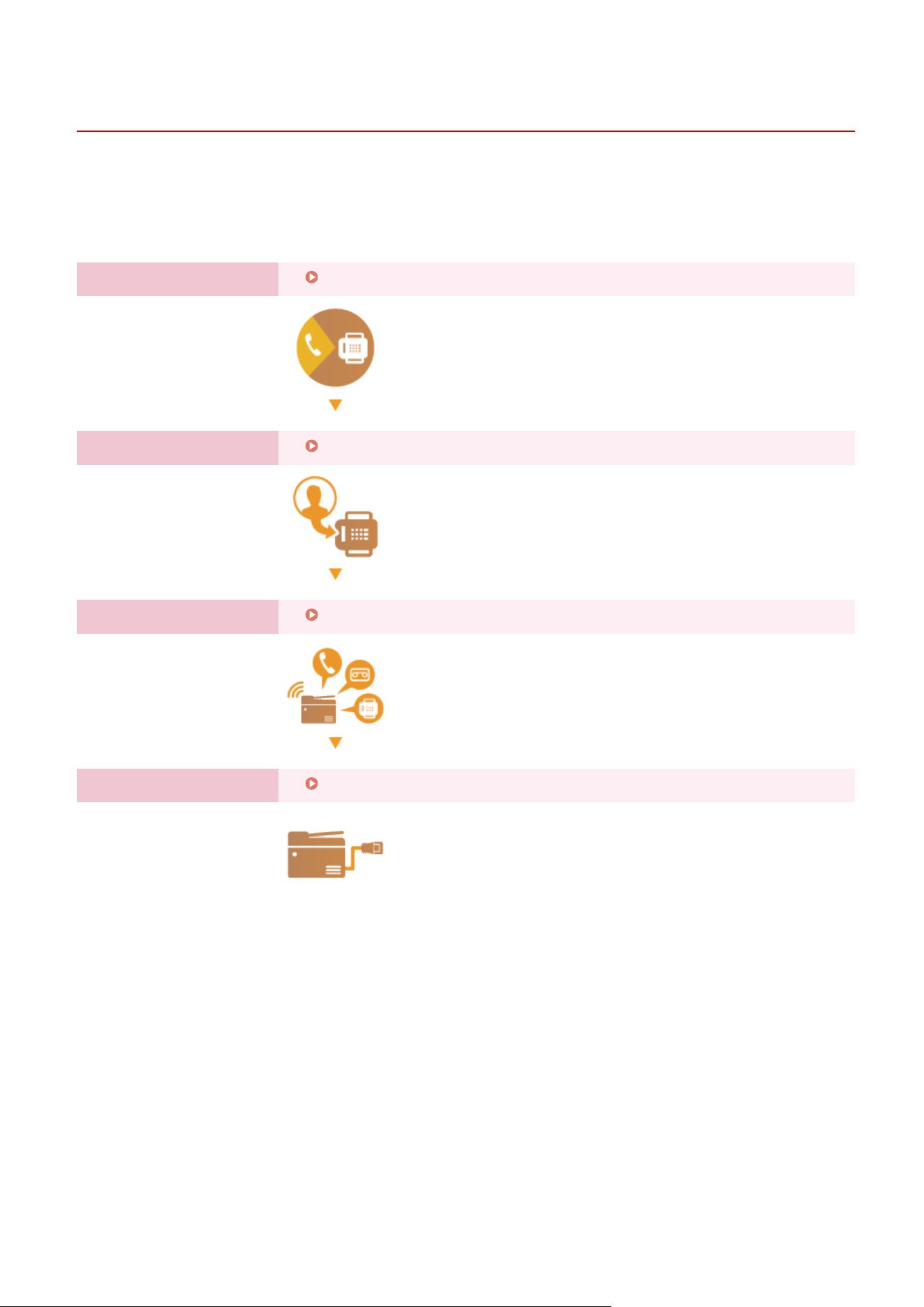
Conguring Initial Settings for Fax Functions
7YWY-01A
1660-01J
Follo
w steps 1 to 4 described below to congure the fax settings. First, determine which receive mode best suits your
intended use, and then follow the on-screen instructions to congure the settings. For more information about a
particular step, click on the link to go to the corresponding section.
Step 1
Deciding Which Fax Receive Mode to Use(P. 80)
Step 2
Registering the Fax Number and Unit Name(P. 81)
Step 3
Selecting the Receive Mode(P. 82)
Step 4
Connecting the Telephone Line(P. 83)
Setting Up
79
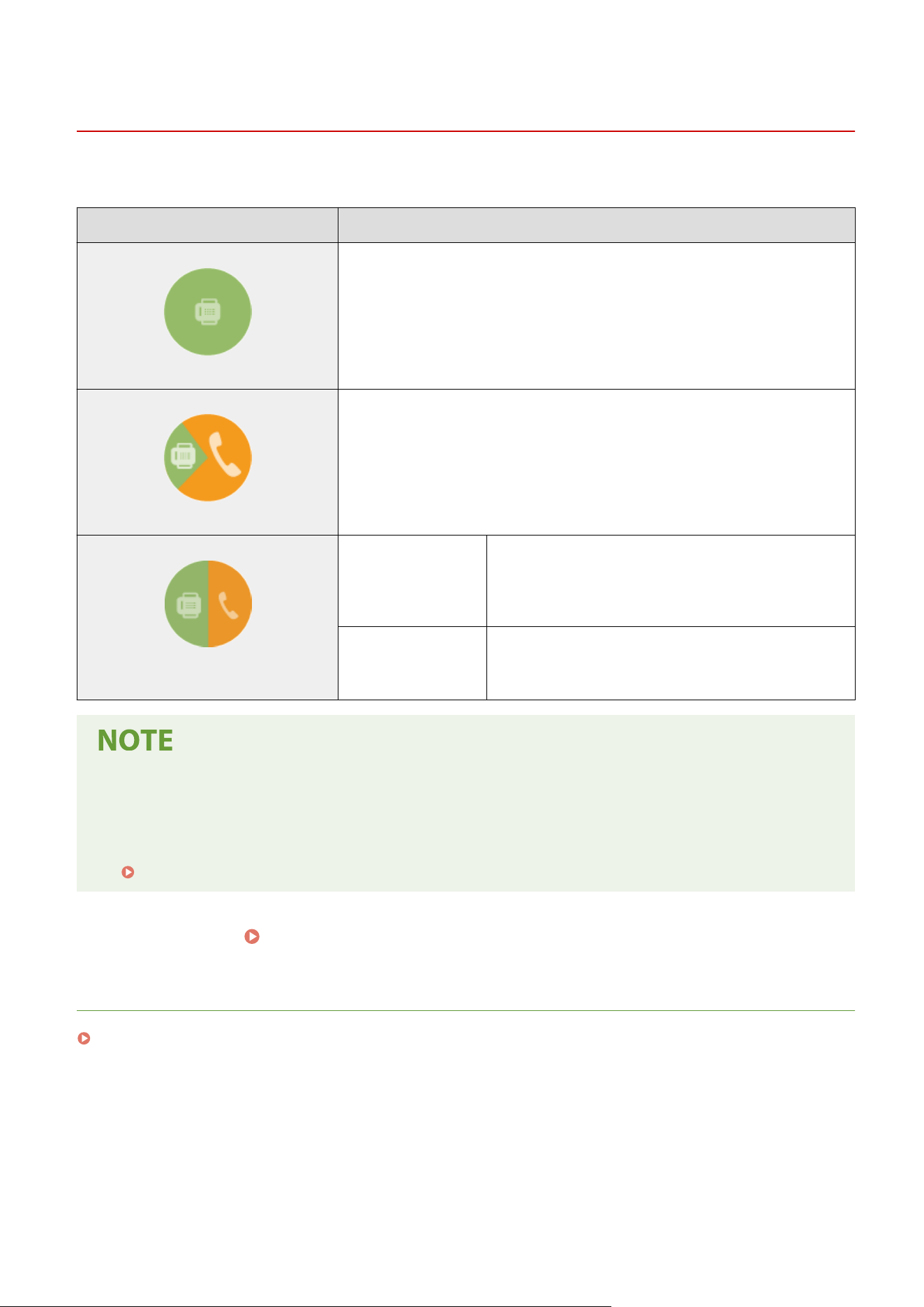
Deciding Which Fax Receive Mode to Use
7YWY-01C
Befor
e conguring the fax settings, determine which receive mode best suits your intended use.
Intended use Receive mode
Use fax only/Never use telephone <Auto>
This setting is for when you want to use the machine e
xclusively for receiving faxes,
and you do not want to use the telephone.
Mostly use telephone/Almost never use fax
<Manual>
Connect your telephone to the machine. This setting is for when you mostly want to
use the telephone. Y
ou can receive incoming faxes manually.
Use both fax and telephone
Use answering machine <Answering Machine>
Connect your answering machine. Callers can r
ecord a
message if they call while you are away from the telephone.
The machine automatically receives incoming faxes.
Use standard telephone <Fax/Tel (Auto Switch)>
Connect your telephone. The machine automatically receives
incoming faxes, and the telephone rings for incoming calls.
● Depending on the type of telephone connected to it, the machine may not be able to send or r
eceive faxes
properly.
● If you have subscribed to a Distinctive Ring Pattern Detection (DRPD) service provided by your telephone
company, <DRPD> is also available for the receiving mode.
Receiving Faxes(P. 228)
»
Continue to Registering the Fax Number and Unit Name(P. 81)
LINKS
Receiving Faxes(P. 228)
Setting Up
80
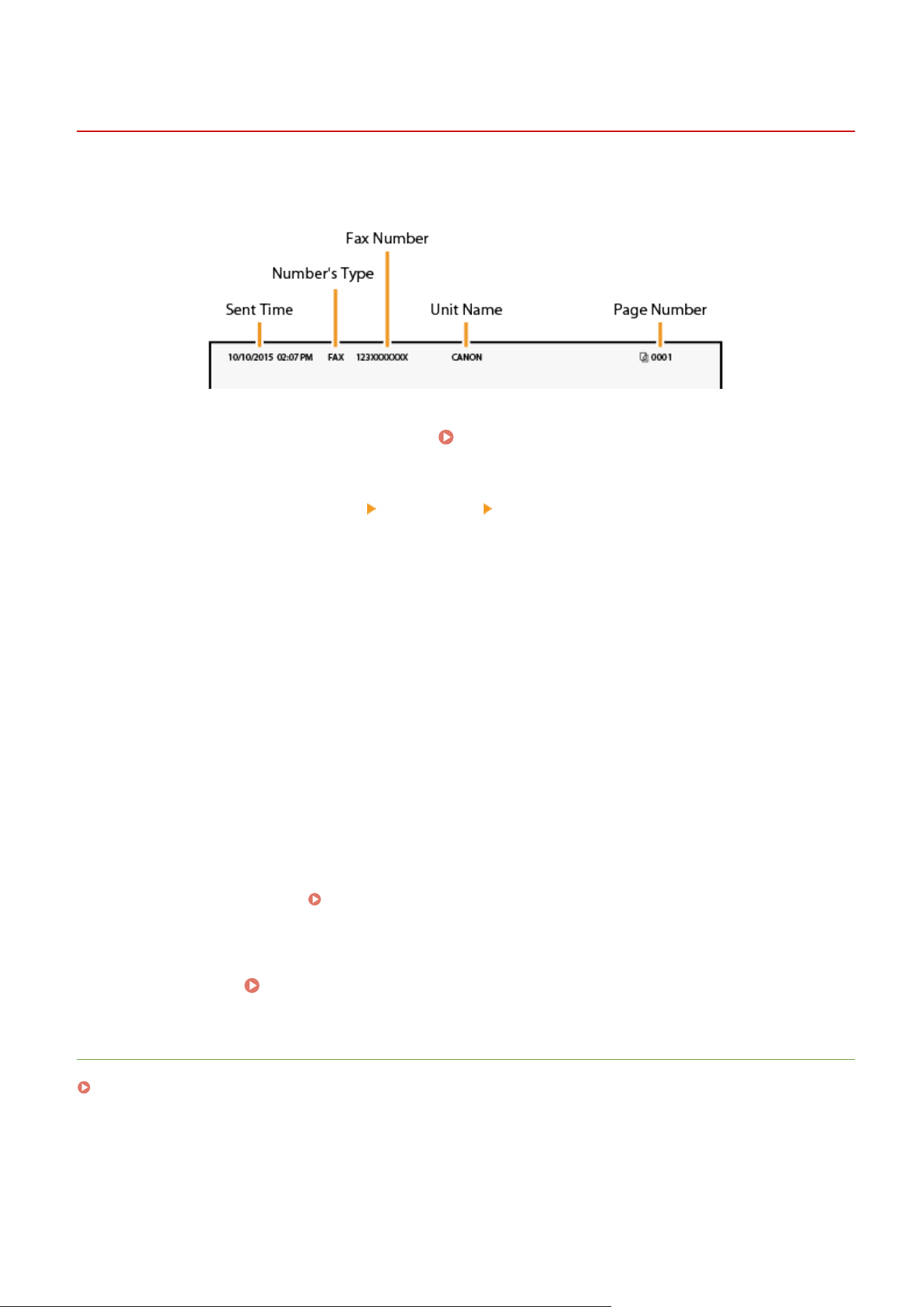
Registering the Fax Number and Unit Name
7YWY-01E
Register the fax number and unit name of your machine. This information is printed at the top of each page sent fr
om
the machine.
1
Select <Menu> in the Home screen.
Home Screen(P. 125)
2
Select <Function Settings> <Common> <Fax Setup Guide>.
3
Select <Set Up Now>.
4
Select <Next>.
5
Enter the fax number, and select <Apply>.
6
Select <Next>.
7
Enter the unit name (such as a user name or company name), and select <Apply>.
● On ho
w to enter text, see
Entering Text(P. 134) .
➠ When the unit name has been r
egistered, the RX mode setting screen is displayed.
»
Continue to
Selecting the Receive Mode(P. 82)
LINKS
Receiving Faxes(P. 228)
Setting Up
81
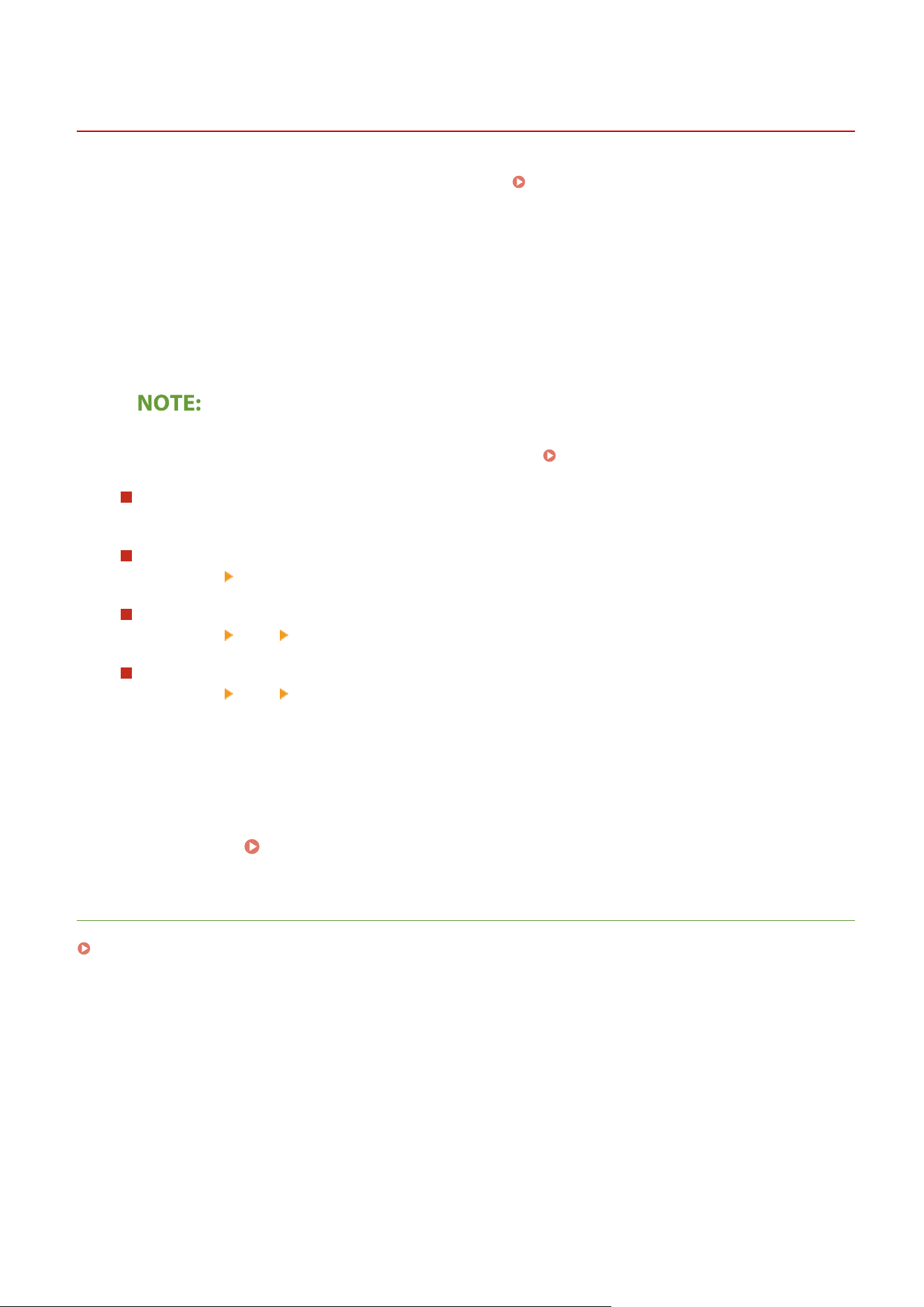
Selecting the Receive Mode
7YWY-01F
Select the r
eceive mode that suits your intended use beforehand (
Deciding Which Fax Receive Mode to
Use(P
. 80) ).
1
Select <Next>.
2
Select the receive mode.
● Select <Y
es> or <No> to select the receive mode for the operations you intend to carry out.
● If
you have subscribed to a Distinctive Ring Pattern Detection (DRPD) service provided by your telephone
company, <DRPD> is also available for the receiving mode.
Receiving Faxes(P. 228)
To set the receive mode to <Auto>
Select <No>.
To set the receive mode to <Answering Machine>
Select <Y
es>
<Yes>.
To set the receive mode to <Fax/Tel (Auto Switch)>
Select <Y
es>
<No> <Yes>.
To set the receive mode to <Manual>
Select <Yes> <No> <No>.
3
Select <Apply>.
➠ When the RX mode has been set, the telephone line connection method is displayed.
»
Continue to Connecting the Telephone Line(P. 83)
LINKS
Receiving Faxes(P. 228)
Setting Up
82
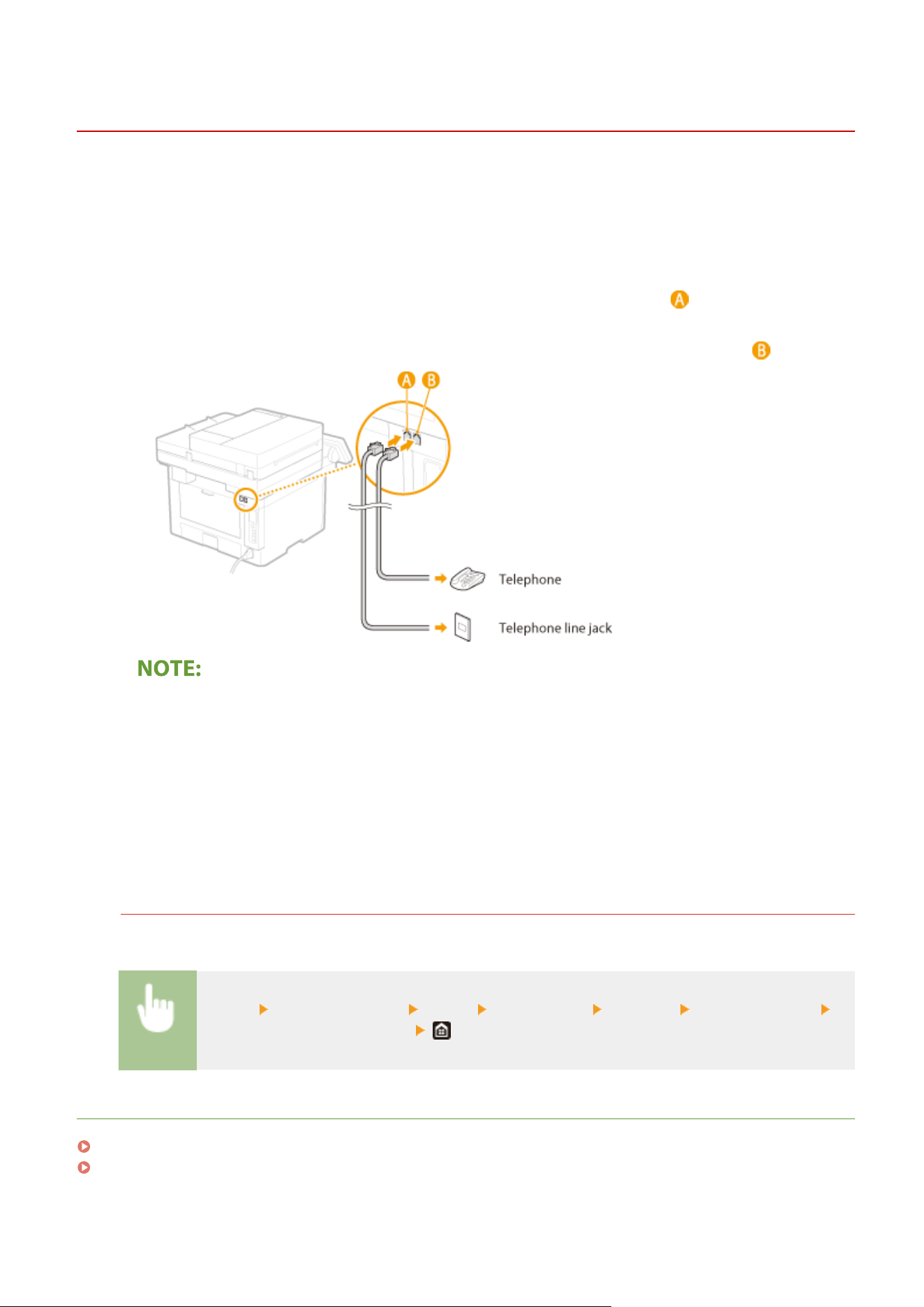
Connecting the Telephone Line
7YWY-01H
1660-01S
Connect the telephone line to the machine.
1
Connect the telephone line to the machine.
● Connect the included telephone cable to the telephone line jack on the machine (
) and the telephone line
jack on the wall.
● If you ar
e using a telephone or answering machine, connect it to the external telephone jack (
).
● If
you are connecting an external telephone with fax functions, set up the telephone to receive faxes
manually.
2
Select <End> after the telephone line has been connected.
3
Select <Yes>.
If the machine does not automatically set the type of telephone line
Follow the procedure below to set the type of telephone line. If you are not sure of the type of phone line you
are using, contact your local telephone company.
<Menu> <Function Settings> <Send> <Fax Settings> <Set Line> <Select Line Type>
Select the type of telephone line
LINKS
Basic Operations for Sending Faxes(P. 219)
Receiving Faxes(P. 228)
Setting Up
83
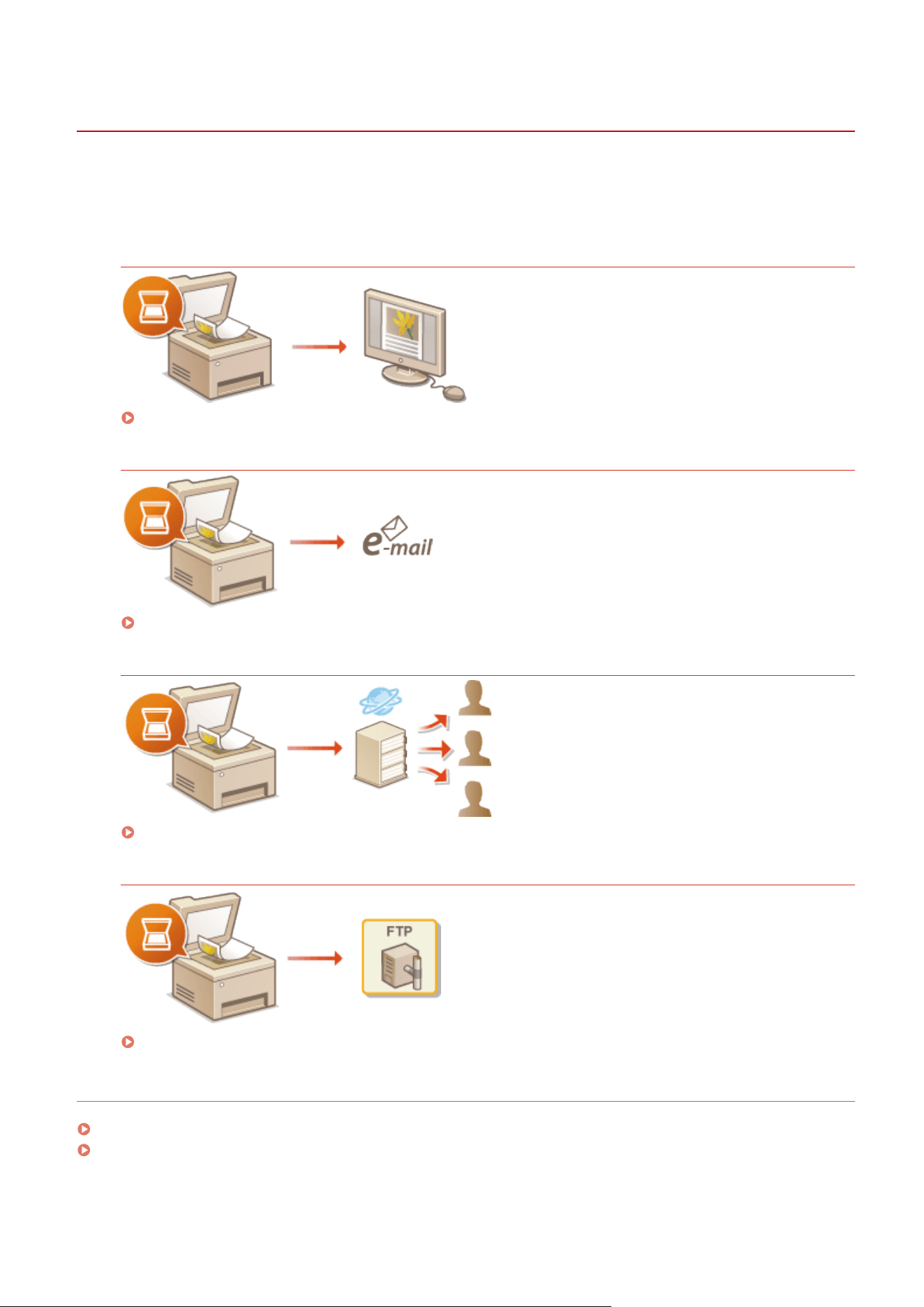
Conguring Scan Settings
7YWY-01J
T
o send scanned originals directly by e-mail or I-Fax or save them to shared folders or FTP server, you need to
congure the network. The Send Function Setting Tool, an application that is included with the machine, will assist you
with the required setup. Set the necessary conguration depending on your purpose and network environment.
Saving to a Computer
Preparing to Use the Machine as a Scanner(P. 85)
Scanning to E-mail or I-Fax
Procedure for Setting to Send E-Mail/Send and Receive I-Fax(P. 86)
Scanning to Shar
ed Folders
Procedure for Setting a Shared Folder as a Save Location(P. 94)
Saving to FTP Server
Procedure for Setting a FTP Server as a Save Location(P. 98)
LINKS
System Environment(P. 627)
Scan Function(P. 622)
Setting Up
84
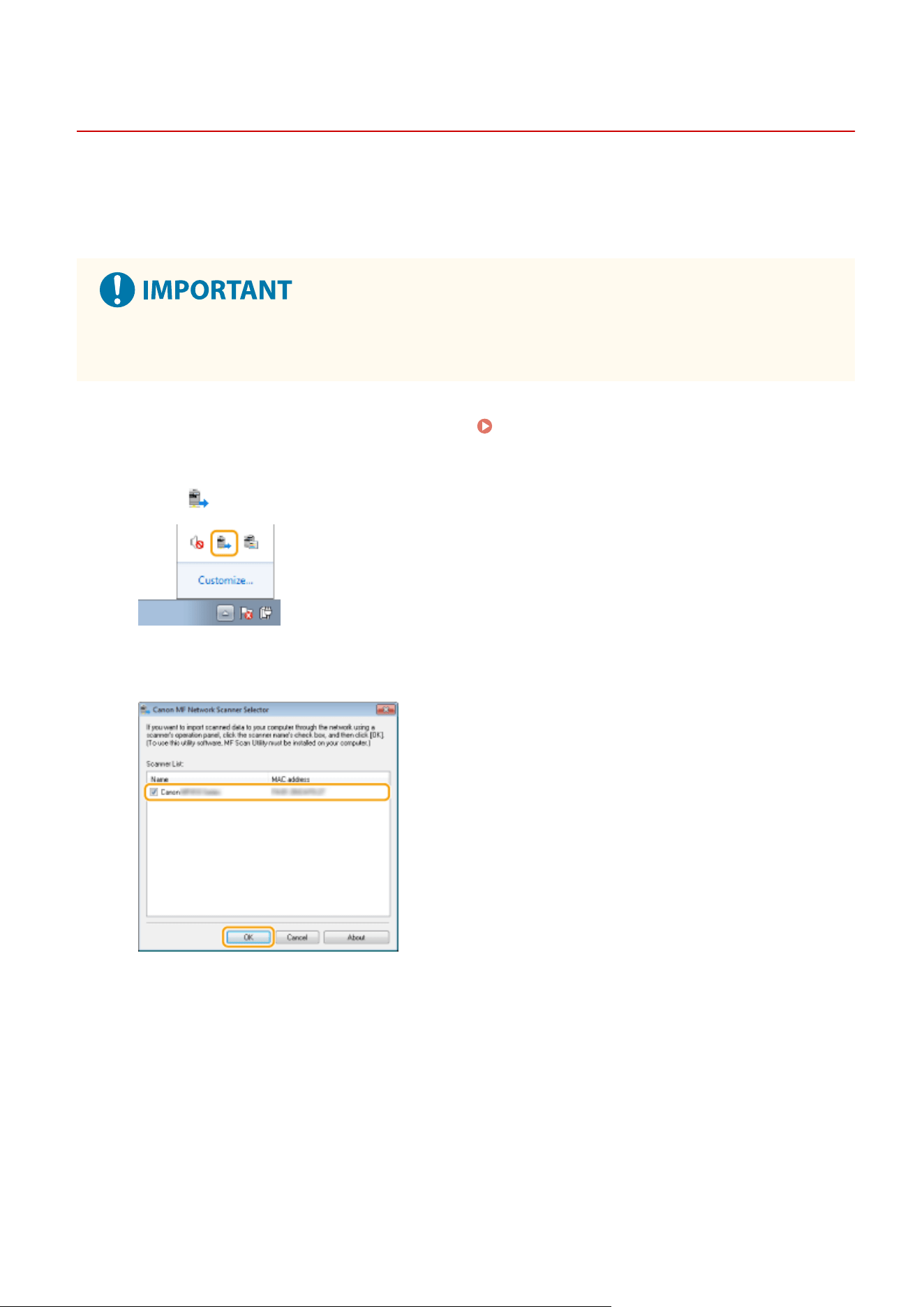
Preparing to Use the Machine as a Scanner
7YWY-01K
T
o use this machine with a computer, you must complete preparations in advance, including installation of software to
the computer. To connect this machine in Windows via a network, you need to register this machine in "MF Network
Scanner Selector". When the machine and your computer are connected via USB, you only need to install the software
(step 1 below).
● The scan function is not available if the machine and your computer ar
e connected in an IPv6 environment.
Use IPv4 or a USB connection.
1
Install the scanner driver and software.
Installing Drivers(P. 78)
2
Click
in the system tray.
3
Select the check box for the machine, and click [OK].
Setting Up
85
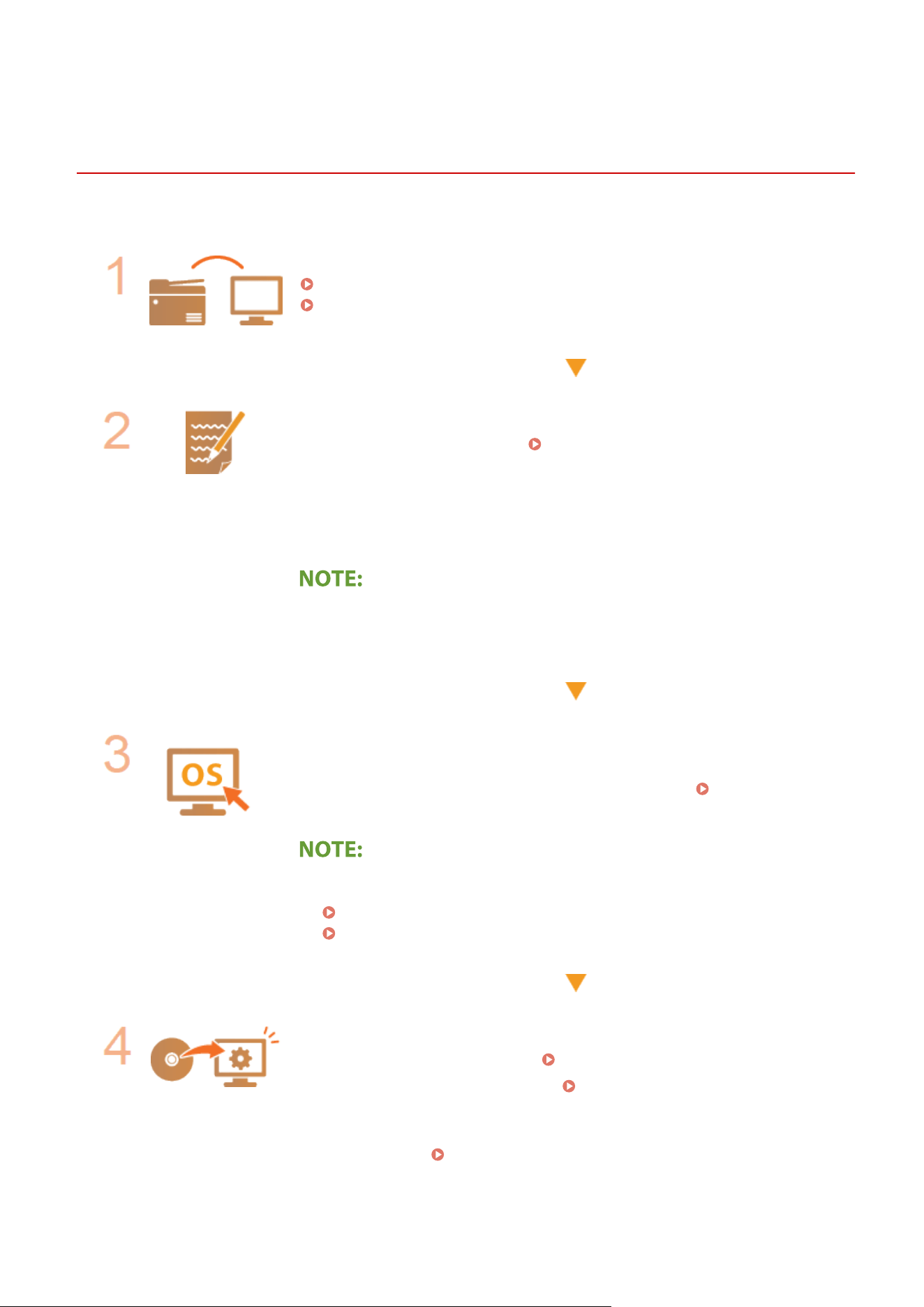
Procedure for Setting to Send E-Mail/Send and Receive
I-Fax
7YWY-01L
Befor
e conguring the machine for scanning to e-mail, check the setup ow shown below.
Make sure that the machine and the computer are correctly connected.
Connecting to a Wireless LAN(P. 18)
Connecting to a Wired LAN(P. 17)
Make sure that you have the following information:
● The IP addr
ess of the machine.
Viewing Network Settings(P. 37)
● An e-mail addr
ess to be registered as a destination.
● Information about the e-mail server, including the SMTP server name, port
numbers, whether authentication is required, and the user name and password
for authentication.
● For mor
e information about the e-mail server settings, contact your Internet
service provider or Network Administrator.
Make sure that the computer meets the system requirements for the Send
Function Setting T
ool (sending e-mail).
● System requirements for the Send Function Setting Tool
System
Envir
onment(P. 627)
● Also mak
e sure that <Use HTTP> and <Use Remote UI> are set to <On>.
Disabling HTTP Communication(P. 418)
Disabling Remote UI(P. 419)
Set the machine congur
ation.
● Conguring Basic E-Mail Settings
Conguring Basic E-Mail Settings
(P. 87)
● Conguring I-Fax Receiving Settings
Conguring E-Mail/I-Fax
Communication Settings
(P. 90)
● Conguring Detailed E-Mail/I-Fax Communication Settings (Authentication,
Encryption, etc.)
Conguring E-Mail/I-Fax Communication Settings
(P. 90)
Setting Up
86
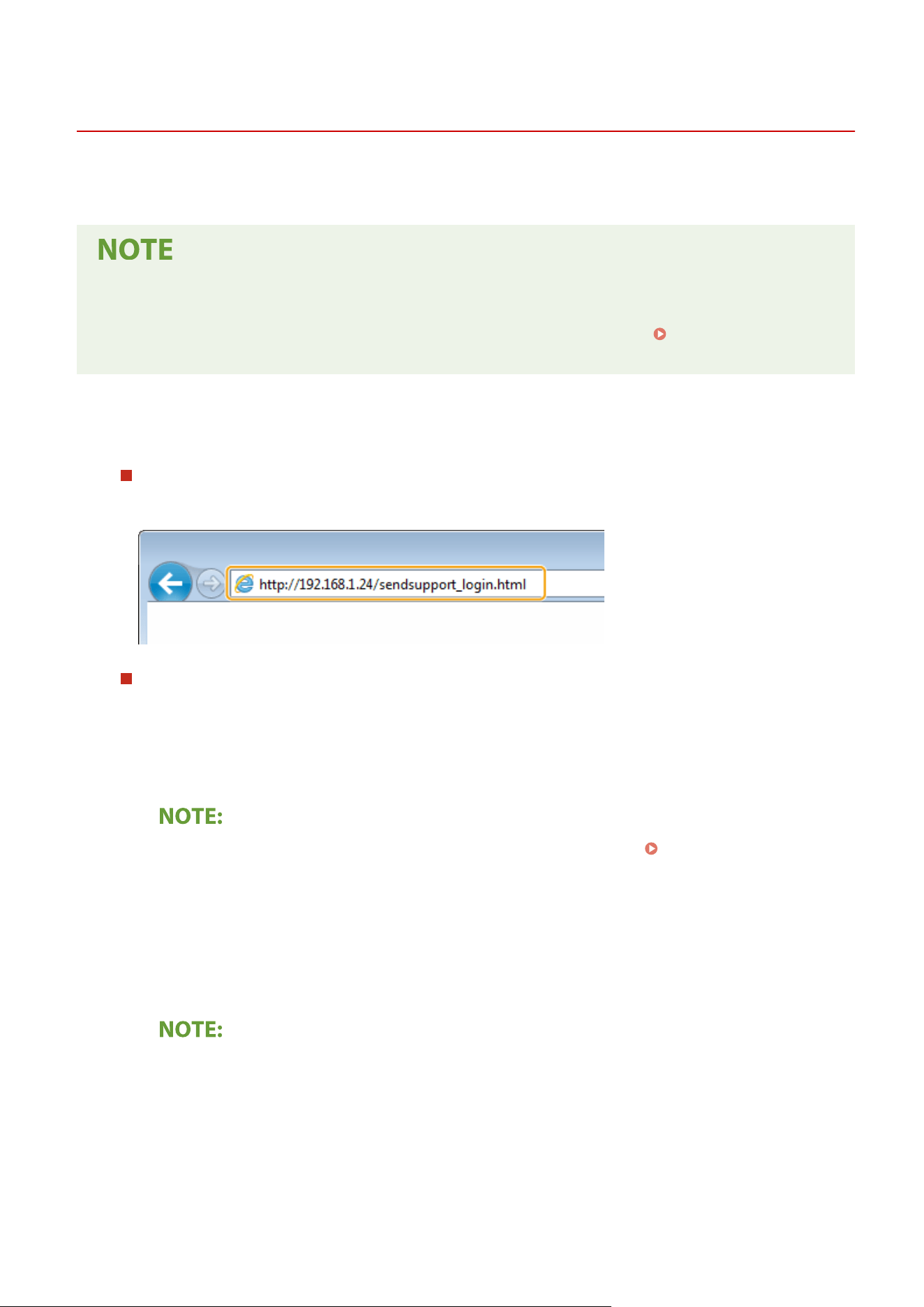
Conguring Basic E-Mail Settings
7YWY-01R
This section describes ho
w to congure the e-mail settings by using the Send Function Setting Tool. With the Send
Function Setting Tool, you can also register e-mail addresses to the Address Book.
● The Send Function Setting T
ool helps you congure the basic settings for sending e-mails. Instead of the
Send Function Setting Tool, you can use the Remote UI to congure more detailed settings such as the
settings for POP authentication before sending or for encrypted communication.
Conguring E-Mail/I-
Fax Communication Settings
(P. 90)
1
Start the Send Function Setting Tool.
Using a Web browser
Enter "http://<the IP addr
ess of the machine>/sendsupport_login.html" in the address eld of a Web browser,
and press the [ENTER] key.
Using the CD-ROM/DVD-ROM
1
Insert the provided CD-ROM/DVD-ROM into the drive on the computer.
● Select a language and click [OK] if you ar
e prompted to do so.
2
Click [Start Software Programs].
● If the [Softwar
e Programs/Manuals Setup] screen is not displayed, see
Displaying the [Software
Pr
ograms/Manuals Setup] Screen(P. 640) .
● If [AutoPlay] is displayed, click [Run MInst.exe].
3
Click [Start] for [Send Function Setting Tool].
4
Click [Next].
● If you want to view "Send Setting Guide," click [How to Set].
● If the scr
een that cancels the Windows rewall is displayed, click [Yes].
5
Select the machine from [Device List] and click [Next].
Setting Up
87
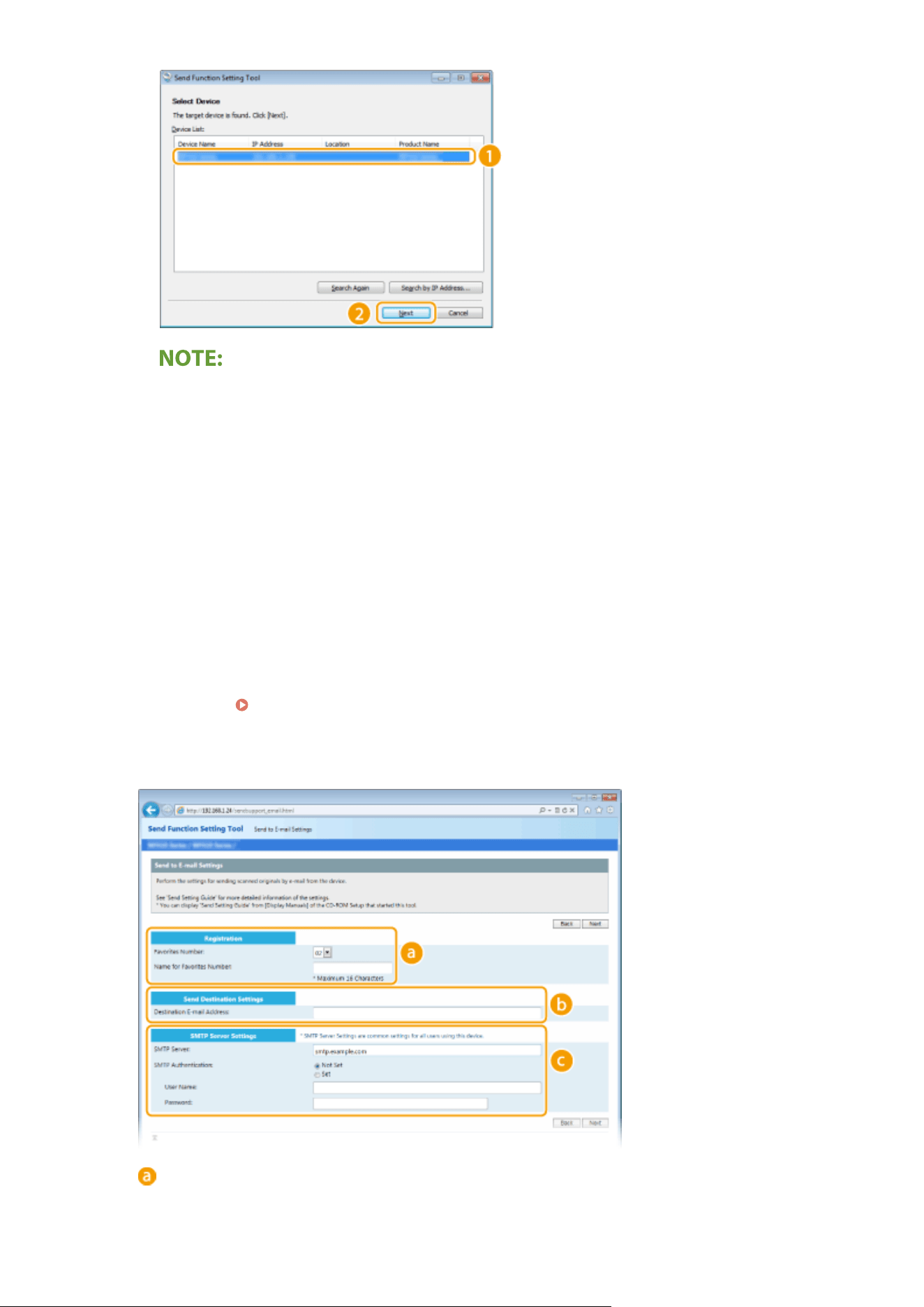
If the machine is not displayed in [Device List]
● Click [Sear
ch Again]. If the problem persists, click [Search by IP Address], enter the IP address of the
machine, and then click [OK].
6
Conrm the settings and click [OK].
2
Click [Start].
● If the login scr
een is displayed, enter the appropriate ID and PIN in the corresponding text boxes, and then
click [Logon].
3
Click [Send to E-mail Settings].
● If the scr
een prompting you to enter the Address Book PIN is displayed, enter the PIN for the Address Book,
and click [OK].
Restricting Use of the Address Book(P. 409)
4
Specify the required settings.
[Registration]
[Favorites Number]
Setting Up
88
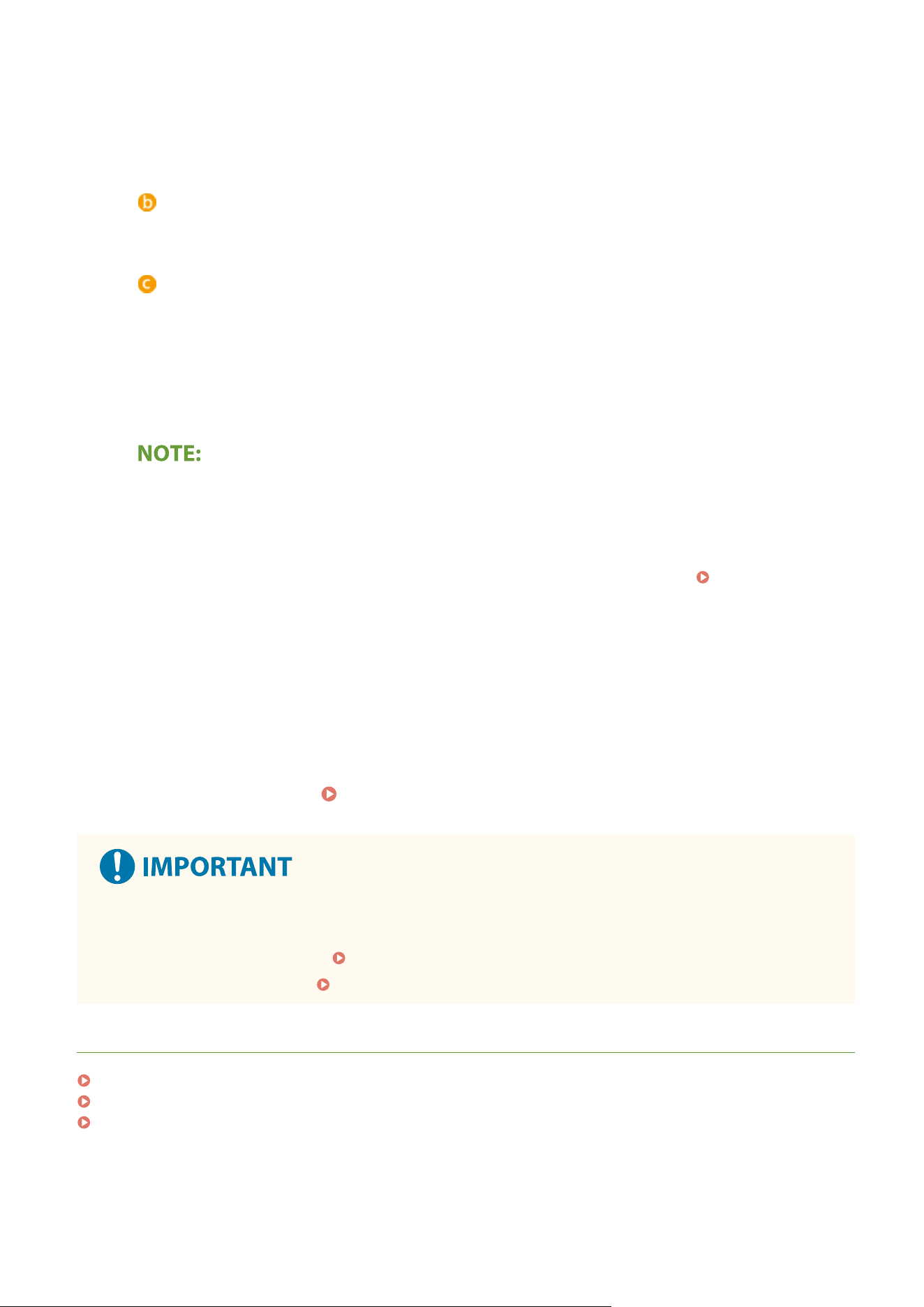
With the Send Function Setting Tool, you can register an e-mail address into <Favorites> in the Address
Book. Select a number fr
om the drop-down list.
[Name for Favorites Number]
Enter the name for identifying the destination to be registered. Set a name that will be easy for you to
nd later in the Address Book.
[Send Destination Settings]
[Destination E-mail Addr
ess]
Enter the e-mail address that you want to send your scanned originals to.
[SMTP Server Settings]
[SMTP Server]
Enter the SMTP server name.
[SMTP Authentication]
Click the [Not Set] or [Set] r
adio button to match the authentication settings of the SMTP server. When
[Set] is selected, enter the user name in the [User Name] text box and password in the [Password] text
box.
Authentication methods for sending e-mails
● T
o prevent e-mail transmissions by unauthorized users, the machine supports SMTP authentication (SMTP
AUTH) and POP before SMTP. For more information about the required authentication method, contact
your Internet service provider or Network Administrator.
● POP before SMTP authentication can only be congured by using the Remote UI.
Conguring
E-Mail/I-
Fax Communication Settings(P. 90)
5
Click [Next].
6
Conrm the settings and click [Register].
7
Restart the machine.
Restarting the Machine(P. 121)
Additional settings may be required depending on the network you are using. For more information, contact
your Internet service pr
ovider or Network Administrator.
● To enable TLS for e-mailing, see
Conguring E-Mail/I-Fax Communication Settings
(P. 90) .
● To change port numbers, see
Changing Port Numbers(P. 378) .
LINKS
Procedure for Setting to Send E-Mail/Send and Receive I-Fax(P. 86)
Specifying E-Mail Settings(P. 318)
Registering Destinations(P. 181)
Setting Up
89
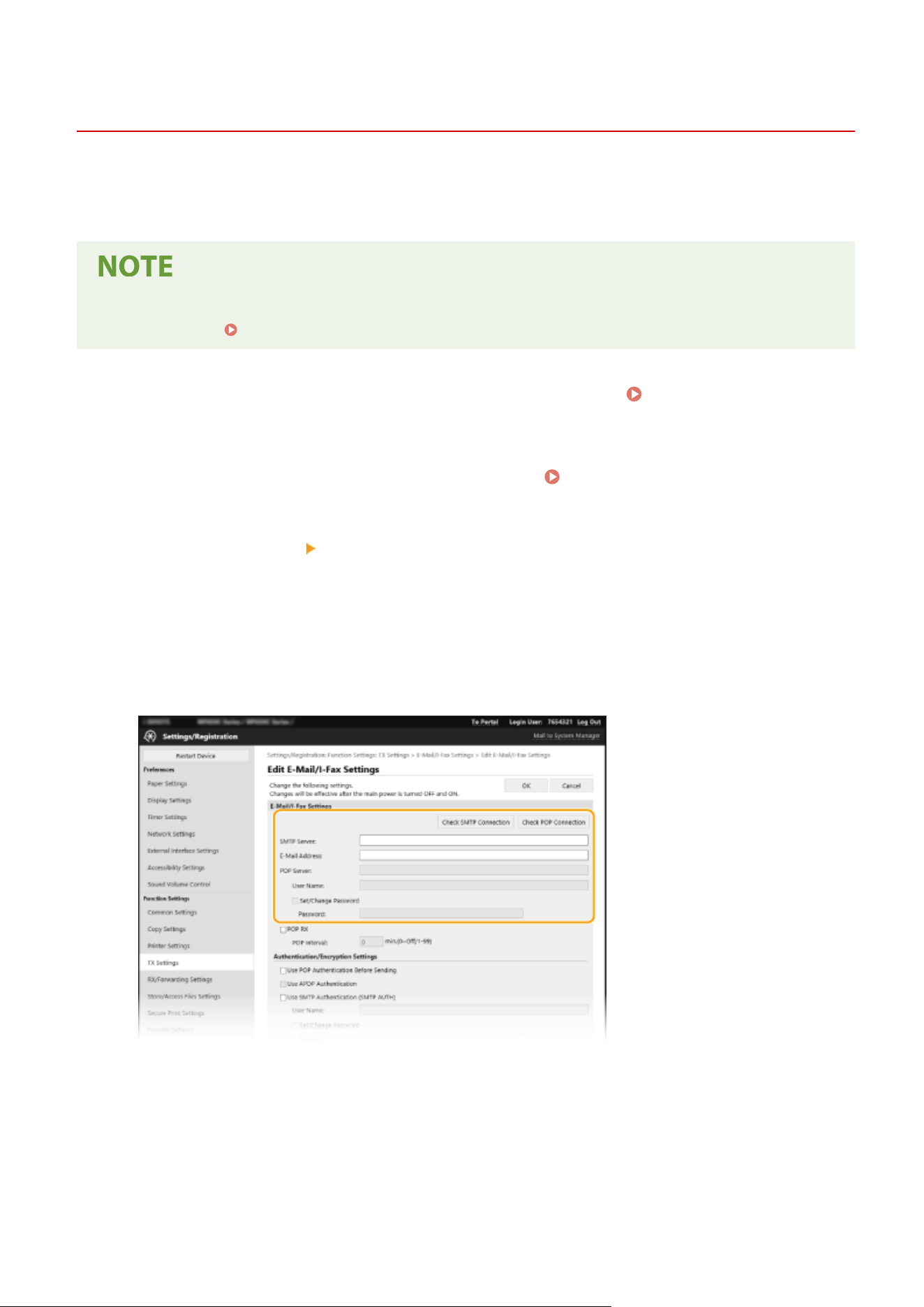
Conguring E-Mail/I-Fax Communication Settings
7YWY-01S
Use the Remote UI to congur
e the detailed send and receive settings, such as the settings for using the machine to
send and receive I-Faxes and the settings for POP authentication and encryption of communication before you send e-
mail or I-Faxes. Contact your provider or network administrator for the required settings.
● For mor
e information about the basic operations to be performed when setting the machine from the
Remote UI, see
Setting Up Menu Options from Remote UI(P. 431) .
1
Start the Remote UI and log in to System Manager Mode. Starting Remote
UI(P
. 421)
2
Click [Settings/Registration] on the Portal page.
Remote UI Screen(P. 422)
3
Select [TX Settings] [E-Mail/I-Fax Settings].
4
Click [Edit].
5
Specify the required settings.
[Check SMTP Connection] / [Check POP Connection]
After specifying the settings, check the connection to the [SMTP Server] or [POP Server].
[SMTP Server]
Enter alphanumeric characters as the SMTP server name (or IP address) for sending e-mail and I-Faxes.
[E-Mail Address]
Enter alphanumeric characters for the e-mail address that you want to use for the machine.
[POP Server]
Setting Up
90
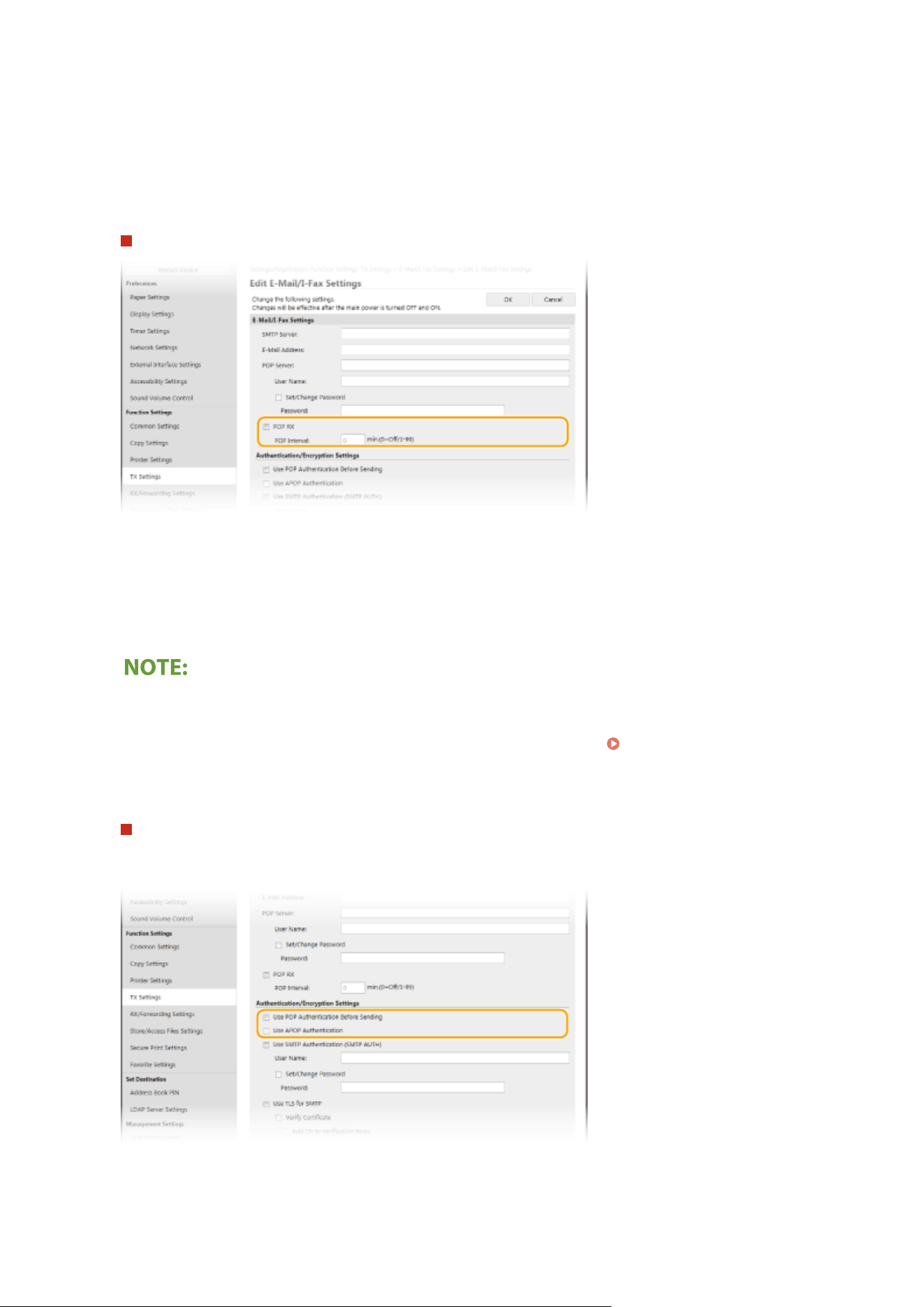
Enter alphanumeric characters as the SMTP server name or IP address for sending e-mail and I-Faxes.
[User Name]
Enter alphanumeric char
acters as the user name for the specied e-mail account when a POP3 server is used.
[Set/Change Password]
To set or change the password when a POP3 server is used, select the check box and enter alphanumeric
characters in [Password].
Specify the settings required for I-Fax reception
[POP RX]
Select the check box to receive I-Faxes.
[POP Interval]
This sets the interval (in minutes) used for automatically connecting to the POP3 server. If there are any I-Fax
documents on the server, they are automatically received and printed.
To disable automatic reception
● Set [POP Interval] to [0]. When [0] is set, you r
eceive I-Faxes manually.
Receiving I-Faxes
Manually(P
. 259)
Conguring Pop Authentication befor
e Sending
POP before SMTP authentication prevents unauthorized users from using e-mail and I-Faxes by performing
user authentication on the POP3 server.
[Use POP Authentication Before Sending]
T
o use the POP3 server for authentication before you send e-mail or I-Faxes, select the check box.
[Use APOP Authentication]
Setting Up
91
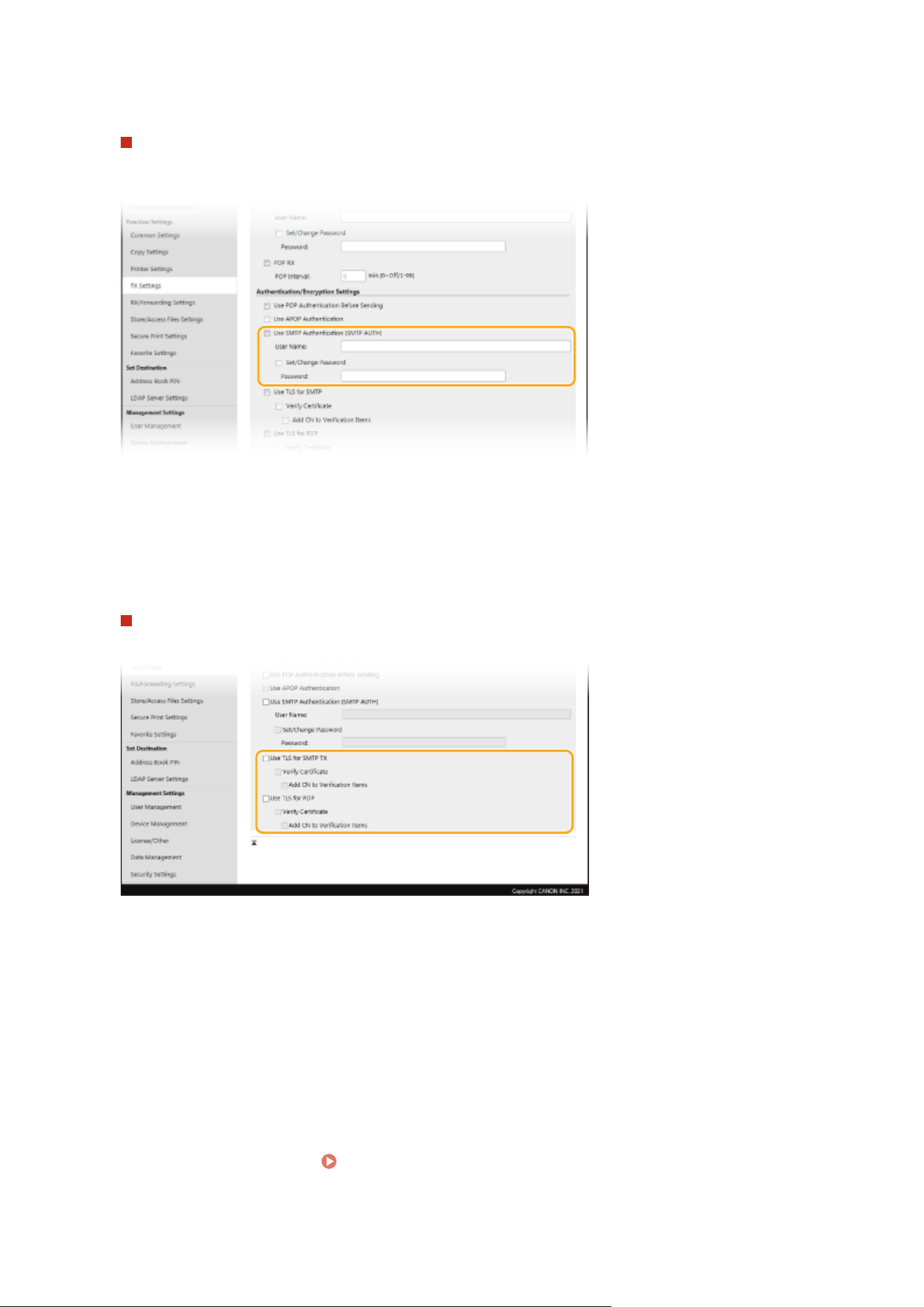
Select the check box to use APOP to encrypt the password during the authentication process.
Conguring SMTP authentication
If you congur
e SMTP authentication (SMTP AUTH), user identication by user name and password is
performed at the time of sending e-mail or I-Fax.
[Use SMTP Authentication (SMTP AUTH)]
T
o enable authentication on the SMTP server, select the check box and enter alphanumeric characters in the
[User Name] text box.
[Set/Change Password]
To specify or change the password, enter alphanumeric characters in the [Password] text box.
Conguring encrypted communication
Y
ou can congure encryption of communication with an SMTP or POP3 server.
[Use TLS for SMTP TX]
Select the check box to use TLS for encrypting communication with the SMTP server. Select the check box for
[Verify Certicate] or [Add CN to Verication Items] depending on your needs.
[Use TLS for POP]
Select the check box to encrypt communication with the POP3 server using TLS. Select the [Verify Certicate]
and [Add CN to Verication Items] check boxes as required.
6
Click [OK].
7
Restart the machine.
Restarting the Machine(P. 121)
Setting Up
92

● Depending on the network you ar
e using, you may need to change the SMTP or POP3 port setting (
Changing Port Numbers(P. 378) ). For mor
e information, contact your Internet service provider or Network
Administrator.
LINKS
Procedure for Setting to Send E-Mail/Send and Receive I-Fax(P. 86)
Conguring Basic E-Mail Settings(P
. 87)
Basic Operations for Scanning Originals(P. 287)
Using Internet Fax (I-Fax)(P. 251)
Setting Up
93
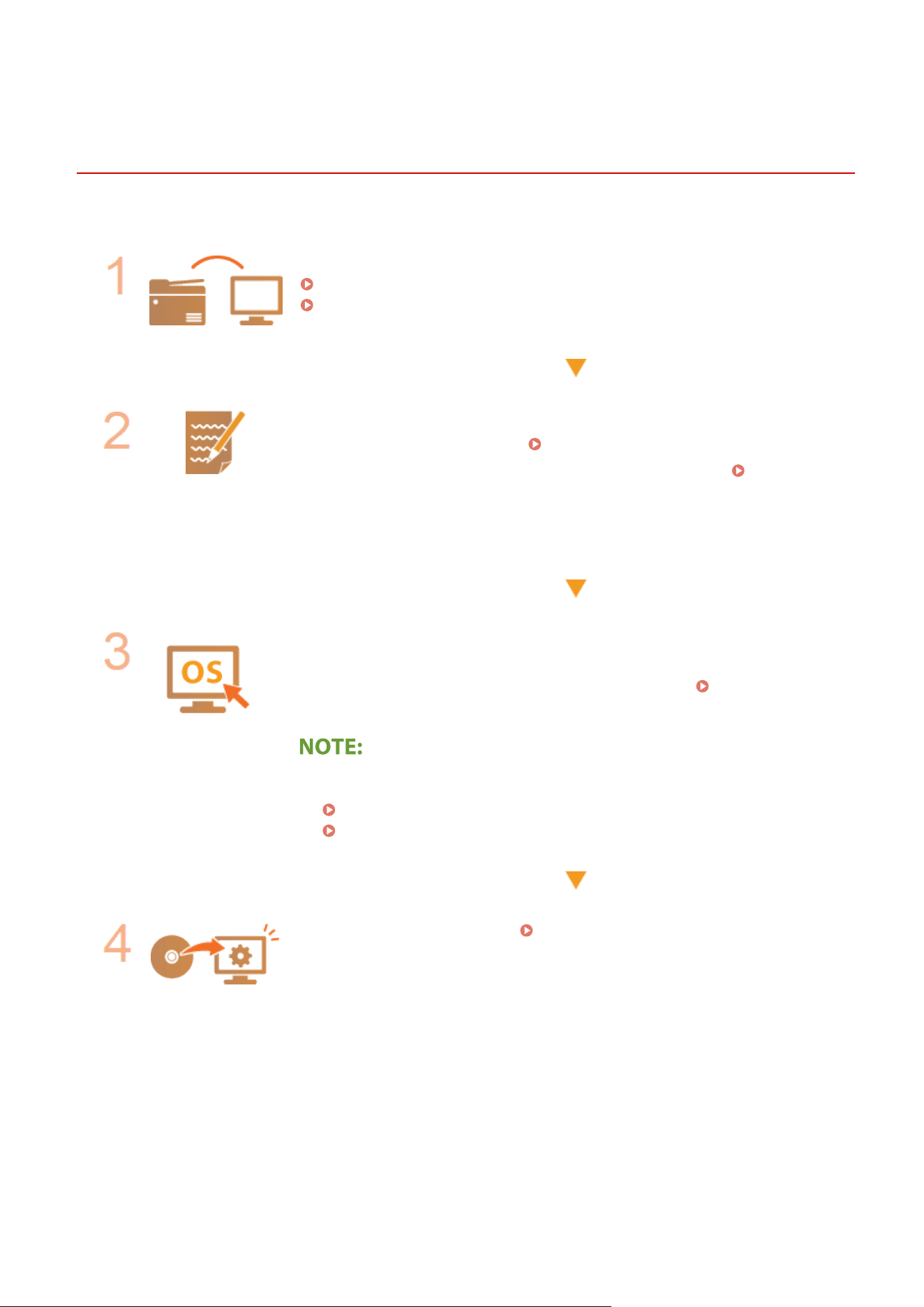
Procedure for Setting a Shared Folder as a Save
Location
7YWY-01U
Befor
e conguring the machine for scanning to shared folders, check the setup ow shown below.
Make sure that the machine and the computer are correctly connected.
Connecting to a Wireless LAN(P. 18)
Connecting to a Wired LAN(P. 17)
Make sure that you have the following information:
● The IP addr
ess of the machine.
Viewing Network Settings(P. 37)
● The name of the computer wher
e the shared folder is located.
Checking the
Computer Name(P
. 642)
● Path to and the name of the shared folder (If access restrictions are set to the
folder, the user name and password information is also needed).
Make sure that the computer meets the system requirements for the Send
Function Setting T
ool.
● System requirements for the Send Function Setting Tool
System
Envir
onment(P. 627)
● Also mak
e sure that <Use HTTP> and <Use Remote UI> are set to <On>.
Disabling HTTP Communication(P. 418)
Disabling Remote UI(P. 419)
Set the machine congur
ation.
Setting a Shared Folder as a Save
Location
(P. 95)
Setting Up
94
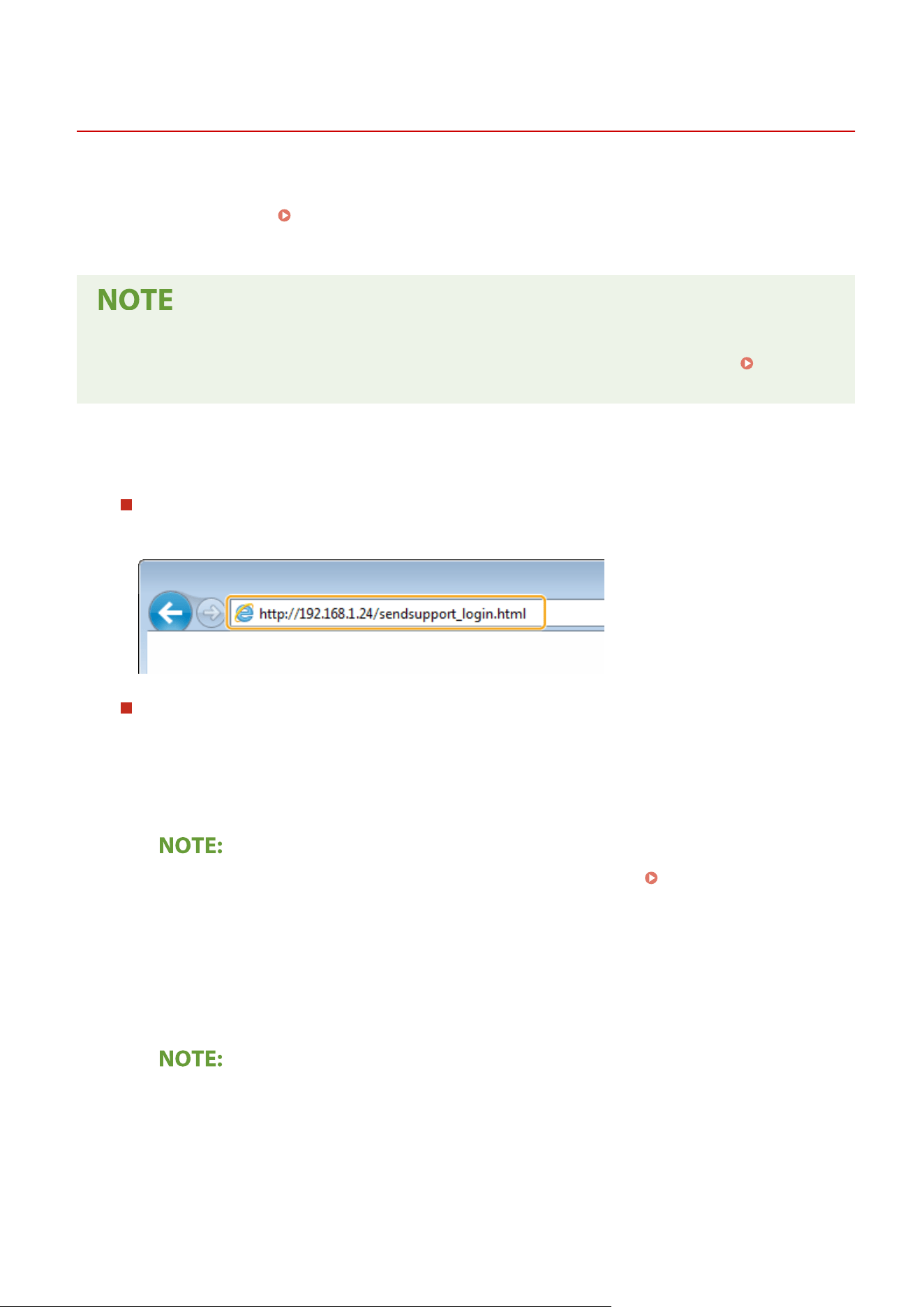
Setting a Shared Folder as a Save Location
7YWY-01W
The featur
e of scanning to shared folders is also called "Scan to SMB" because the feature uses Server Message Block
(SMB), a Windows-specic technology. SMB is a protocol for sharing resources, such as les and printers, with more
than one device in a network (
Conguring SMB
(P. 59) ). To congure the machine for saving your scanned
documents into a shared folder in the network via SMB, specify the location of the shared folder from a computer in
advance. This section describes how to specify the save location by using the Send Function Setting Tool.
● Y
ou can also use the Remote UI to specify the location of the shared folder as save destination by registering
the folder to the Address Book. Registering Destinations in the Address Book from Remote UI.
Registering Destinations from Remote UI(P. 434)
1
Start the Send Function Setting Tool.
Using a Web browser
Enter "http://<the IP addr
ess of the machine>/sendsupport_login.html" in the address eld of a Web browser,
and press the [ENTER] key.
Using the CD-ROM/DVD-ROM
1
Insert the provided CD-ROM/DVD-ROM into the drive on the computer.
● Select a language and click [OK] if you ar
e prompted to do so.
2
Click [Start Software Programs].
● If the [Softwar
e Programs/Manuals Setup] screen is not displayed, see
Displaying the [Software
Pr
ograms/Manuals Setup] Screen(P. 640) .
● If [AutoPlay] is displayed, click [Run MInst.exe].
3
Click [Start] for [Send Function Setting Tool].
4
Click [Next].
● If you want to view "Send Setting Guide," click [How to Set].
● If the scr
een that cancels the Windows rewall is displayed, click [Yes].
5
Select the machine from [Device List] and click [Next].
Setting Up
95
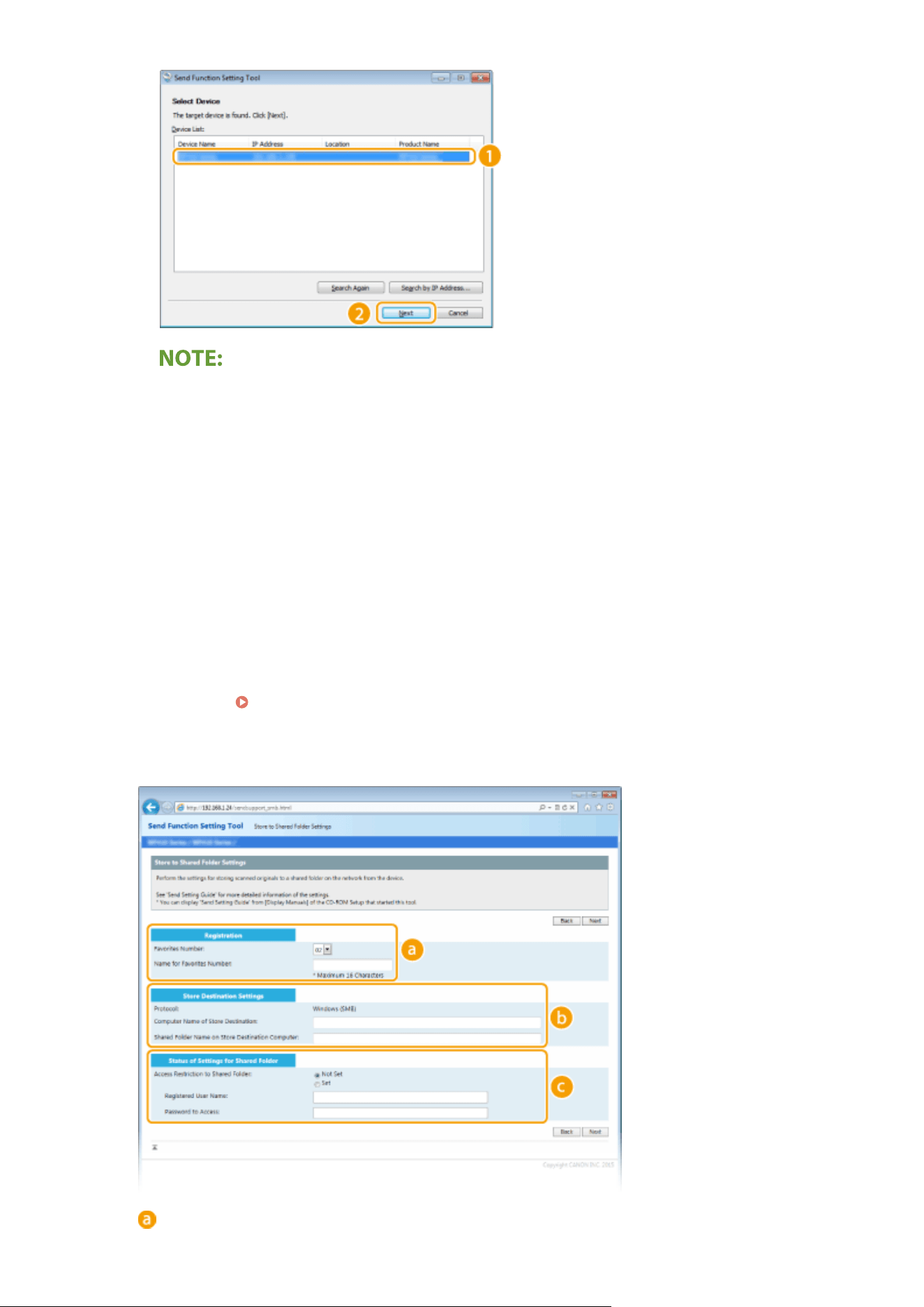
If the machine is not displayed in [Device List]
● Click [Sear
ch Again]. If the problem persists, click [Search by IP Address], enter the IP address of the
machine, and then click [OK].
6
Conrm the settings and click [OK].
2
Click [Start].
● If the login scr
een is displayed, enter the appropriate ID and PIN in the corresponding text boxes, and then
click [Logon].
3
Click [Store to Shared Folder Settings].
● If the scr
een prompting you to enter the Address Book PIN is displayed, enter the PIN for the Address Book,
and click [OK].
Restricting Use of the Address Book(P. 409)
4
Specify the required settings.
[Registration]
Setting Up
96

[Favorites Number]
With the Send Function Setting T
ool, you can register a shared folder for saving scanned documents
into <Favorites> in the Address Book. Select a number from the drop-down list.
[Name for Favorites Number]
Enter the name for identifying the destination to be registered. Set a name that will be easy for you to
nd later in the Address Book.
[Store Destination Settings]
[Pr
otocol]
The protocol that is used for sending scanned documents to a shared folder is displayed.
[Computer Name of Store Destination]
Enter the name or the IP address of the computer where the shared folder is located.
[Shared Folder Name on Store Destination Computer]
Enter the name of (or path to) the shared folder. For example, if the shared folder is a subfolder named
"share" and is contained in the [Public] folder in drive C (path: C:\users\public\share), enter
"users\public\share."
[Status of Settings for Shared Folder]
[Access Restriction to Shar
ed Folder]
Click the [Not Set] or [Set] radio button to match the access restrictions set to the shared folder. When
[Set] is selected, enter the user name in the [Registered User Name] text box and password in the
[Password to Access] text box.
5
Click [Next].
6
Conrm the settings and click [Register].
7
Restart the machine.
Restarting the Machine(P. 121)
LINKS
Procedure for Setting a Shared Folder as a Save Location(P. 94)
Basic Operations for Scanning Originals(P. 287)
Setting Up
97
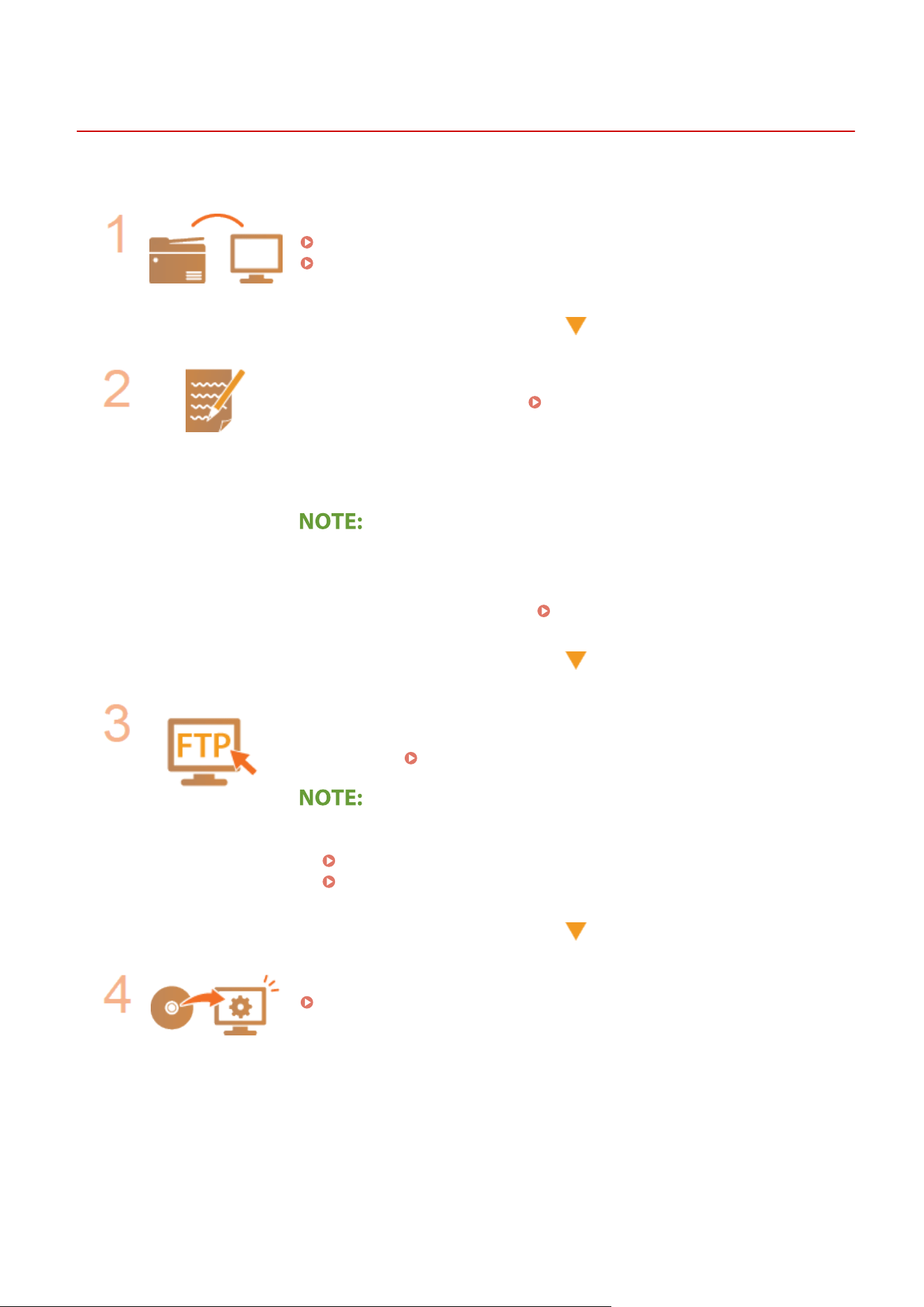
Procedure for Setting a FTP Server as a Save Location
7YWY-01X
Befor
e conguring the machine for scanning to FTP Server, check the setup ow shown below.
Make sure that the machine and the computer are correctly connected.
Connecting to a Wireless LAN(P. 18)
Connecting to a Wired LAN(P. 17)
Make sure that you have the following information:
● The IP addr
ess of the machine.
Viewing Network Settings(P. 37)
● FTP server name.
● Path to the FTP server and folder name.
● User name, passwor
d (only if set).
● If the path, folder name, user name, passwor
d, etc. for the FTP server are
unknown, contact you Network Administrator.
● To change the FTP port number.
Changing Port Numbers(P. 378)
Check whether you need to use PASV mode.
● If a r
ewall is installed between the machine and the FTP server, you must set
PASV mode.
Conguring FTP P
ASV Mode(P. 74)
● Also mak
e sure that <Use HTTP> and <Use Remote UI> are set to <On>.
Disabling HTTP Communication(P. 418)
Disabling Remote UI(P. 419)
Register the FTP server address.
Registering Destinations from Remote UI(P. 434)
Setting Up
98

Basic Operations
Basic Operations ............................................................................................................................................
101
Parts and Their Functions ................................................................................................................................. 105
Front Side ..................................................................................................................................................... 106
Back Side ...................................................................................................................................................... 108
Interior ......................................................................................................................................................... 110
Feeder .......................................................................................................................................................... 111
Multi-Purpose Tray ....................................................................................................................................... 112
Paper Drawer ............................................................................................................................................... 113
Operation Panel ........................................................................................................................................... 114
Turning ON the Machine ................................................................................................................................... 116
Turning OFF the Machine ............................................................................................................................. 117
Turning OFF the Machine by Remote Operation .................................................................................... 118
Powering OFF at a Fixed Time ................................................................................................................ 119
Restarting the Machine ................................................................................................................................ 121
Using the Operation Panel ............................................................................................................................... 123
Basic Screens ................................................................................................................................................ 124
Home Screen ......................................................................................................................................... 125
<Status Monitor> Screen ........................................................................................................................ 128
Message Display .................................................................................................................................... 130
Basic Operation ............................................................................................................................................ 131
Entering Text ................................................................................................................................................ 134
Logging in to the Machine ................................................................................................................................ 136
Placing Originals ............................................................................................................................................... 138
Loading Paper .................................................................................................................................................... 142
Loading Paper in the Paper Drawer .............................................................................................................. 144
Loading Paper in the Multi-Purpose Tray ...................................................................................................... 149
Loading Envelopes ....................................................................................................................................... 152
Loading Preprinted Paper ............................................................................................................................ 154
Specifying Paper Size and Type .................................................................................................................... 158
Specifying Paper Size and Type in the Paper Drawer ............................................................................. 159
Specifying Paper Size and Type in the Multi-Purpose Tray ..................................................................... 161
Registering Default Paper Settings for the Multi-Purpose Tray .............................................................. 163
Registering a Custom Paper Size ........................................................................................................... 165
Limiting the Paper Sizes Displayed ........................................................................................................ 167
Automatically Selecting an Appropriate Paper Source for Each Function ............................................... 168
Basic Operations
99

Customizing the Display ...................................................................................................................................
169
Customizing the Home Screen ..................................................................................................................... 170
Registering Frequently Used Settings ........................................................................................................... 173
Changing the Default Settings for Functions .................................................................................................. 175
Setting Sounds ................................................................................................................................................... 177
Entering Sleep Mode ......................................................................................................................................... 179
Registering Destinations .................................................................................................................................. 181
Registering Destinations in the Address Book .............................................................................................. 183
Registering Multiple Destinations as a Group ........................................................................................ 186
Editing the Registered Destinations in the Address Book ...................................................................... 188
Using a USB Memory Device ............................................................................................................................. 189
Basic Operations
100
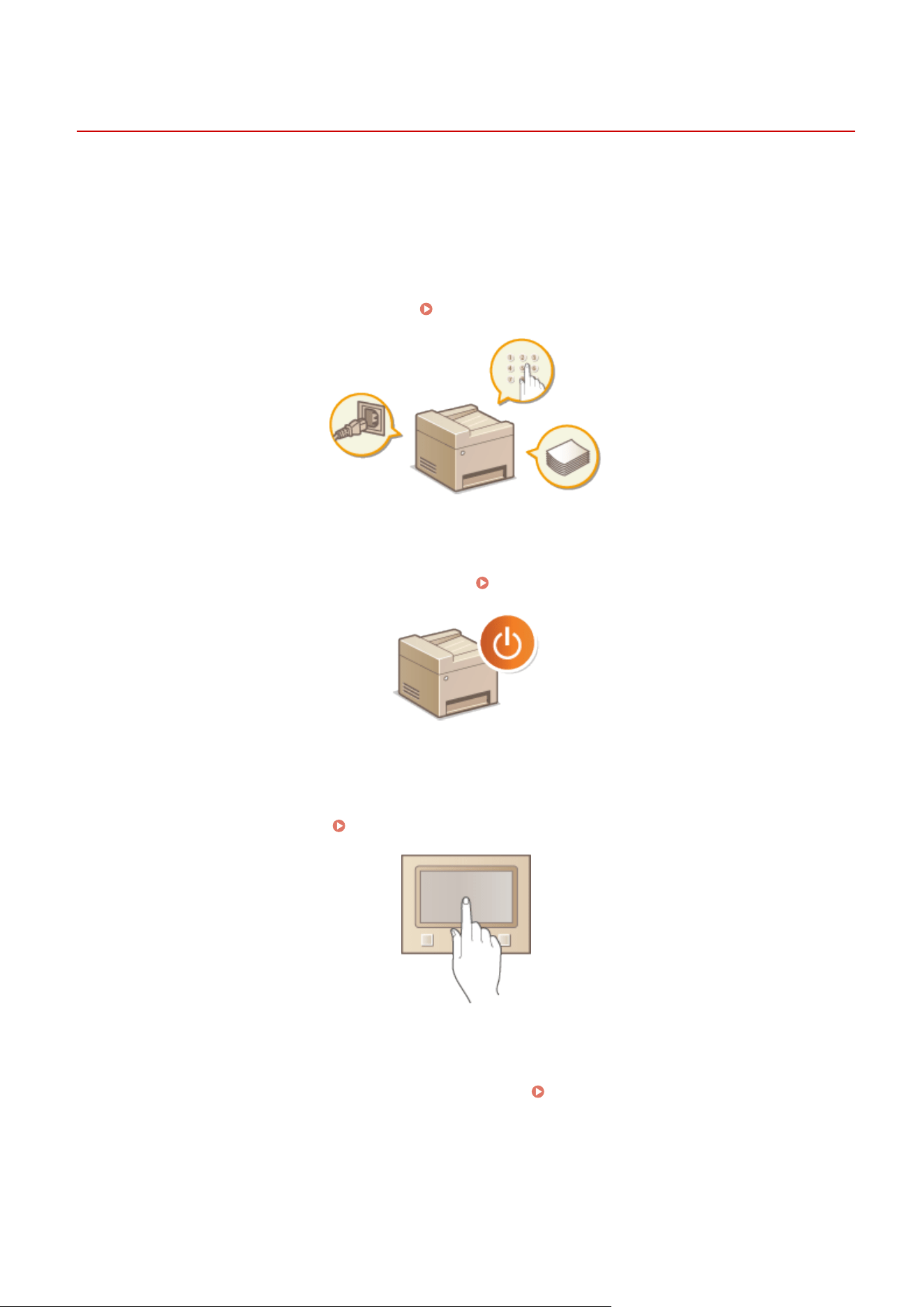
Basic Operations
7YWY-01Y
This chapter describes basic oper
ations, such as how to use the operation panel or how to load the paper, that are
frequently performed to use the functions of the machine.
◼ Parts and Their Functions
This section describes the exterior and interior parts of the machine and their functions, as well as how to use the keys
on the operation panel and how to view the display.
Parts and Their Functions(P. 105)
◼ T
urning ON the Machine
This section describes how to turn the machine ON and OFF.
Turning ON the Machine(P. 116)
◼ Using the Oper
ation Panel
This section describes how to use the display for tasks such as selecting items and adjusting settings. Also, it describes
how to enter characters and numbers.
Using the Operation Panel(P. 123)
◼ Logging in to the Machine
This section describes ho
w to log in when a login screen is displayed.
Logging in to the Machine(P. 136)
Basic Operations
101
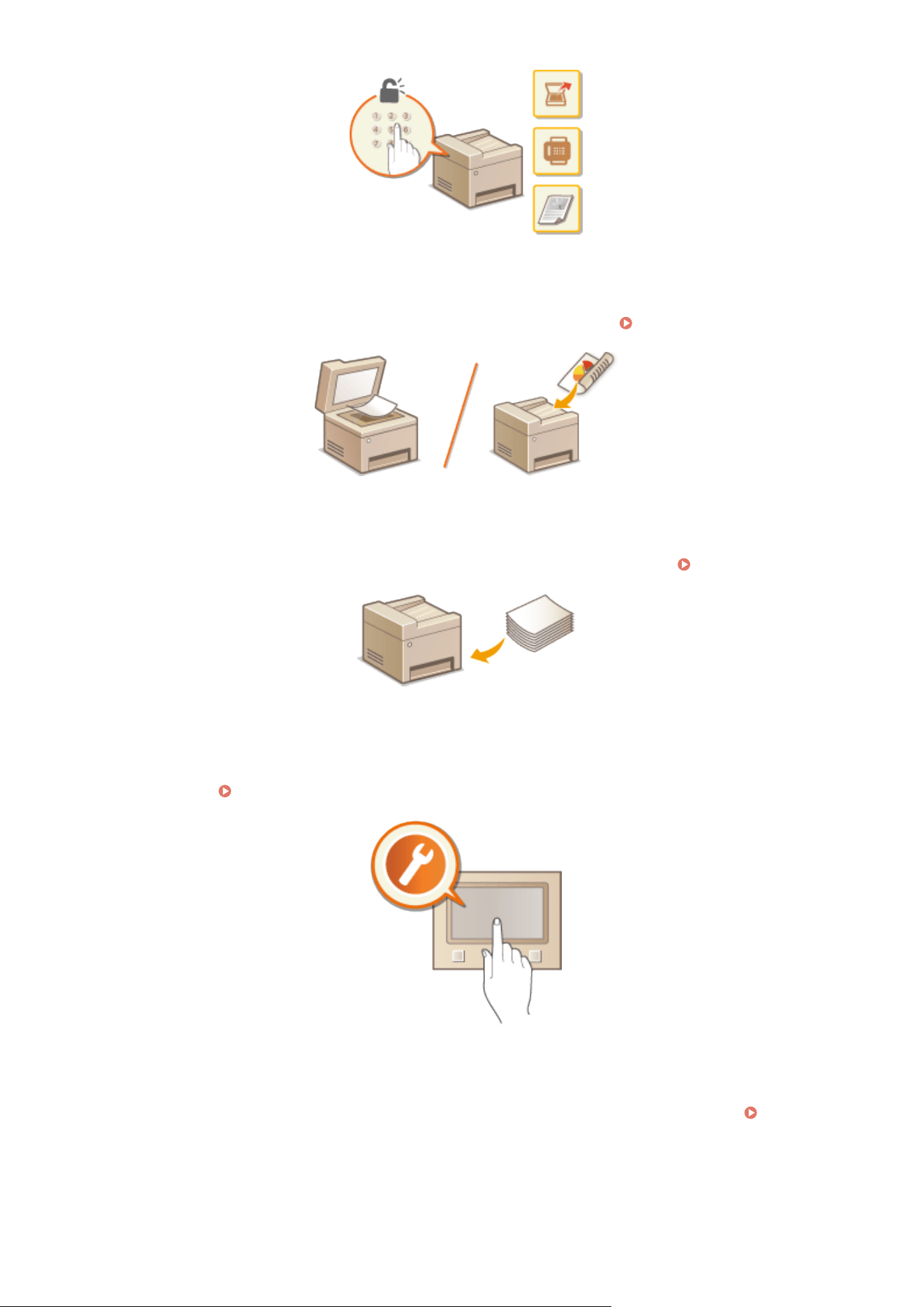
◼ Placing Originals
This section describes ho
w to place originals on the platen glass and in the feeder.
Placing Originals(P. 138)
◼ Loading Paper
This section describes ho
w to load the paper into the paper drawer and multi-purpose tray.
Loading Paper(P. 142)
◼ Customizing the Display
This section describes ho
w to rearrange buttons or create shortcut buttons in order to make it easier to use screens
shown in the display.
Customizing the Display(P. 169)
◼ Changing the Default Settings for Functions
This section describes ho
w to change the setting that is displayed initially when a function is selected.
Changing the
Default Settings for Functions
(P. 175)
Basic Operations
102
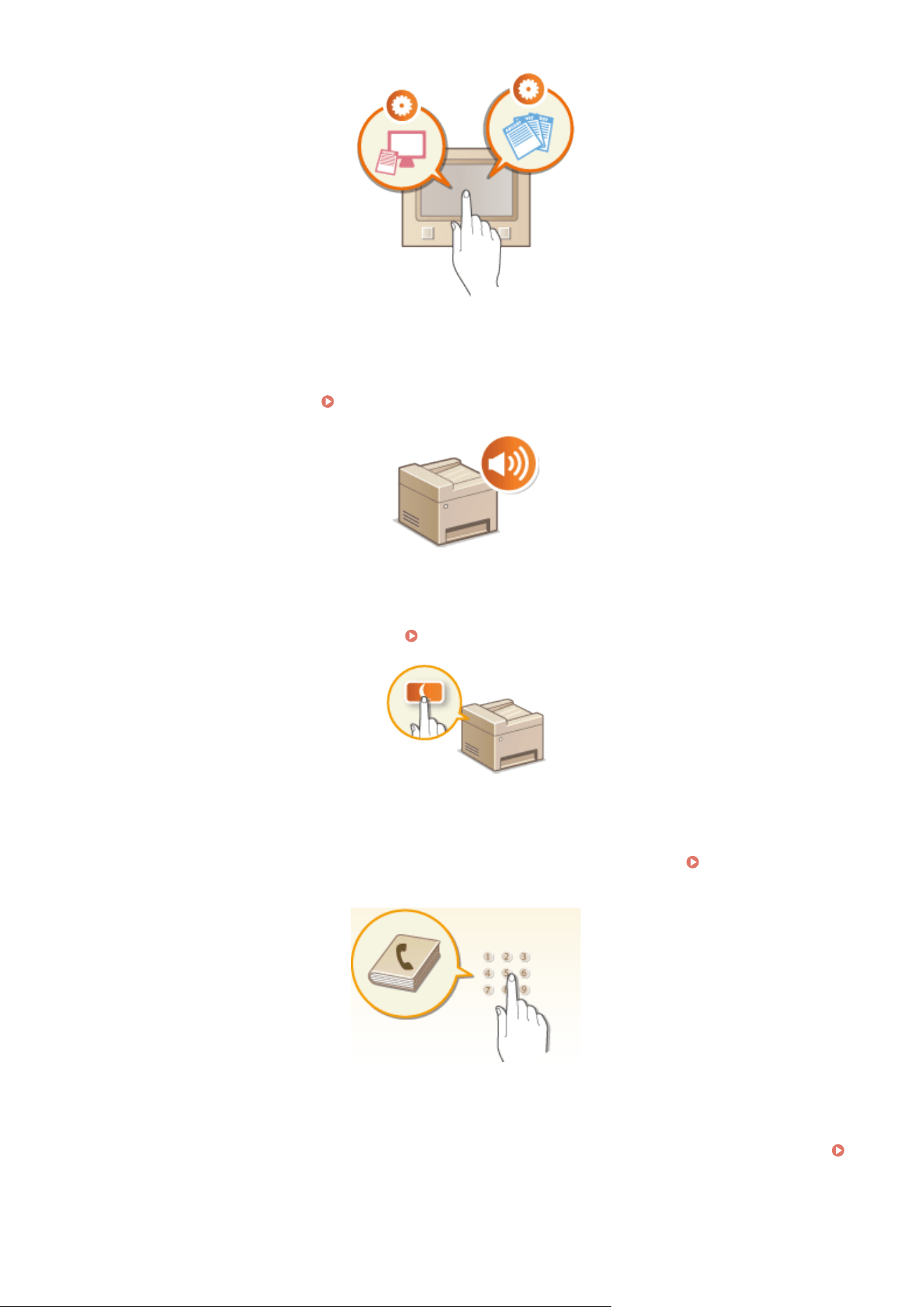
◼ Setting Sounds
This section describes ho
w to adjust the volume of various machine sounds, such as those produced when fax sending
is complete or when an error occurs.
Setting Sounds(P. 177)
◼ Entering Sleep Mode
This section describes ho
w to set the sleep mode.
Entering Sleep Mode(P. 179)
◼ Registering Destinations
This section describes ho
w to register destinations for sending faxes or scanned documents.
Registering
Destinations
(P. 181)
◼ Using a USB Memory Device
This section describes about the available USB memory devices and how to insert/remove the USB memory device.
Using a USB Memory Device(P. 189)
Basic Operations
103

Basic Operations
104
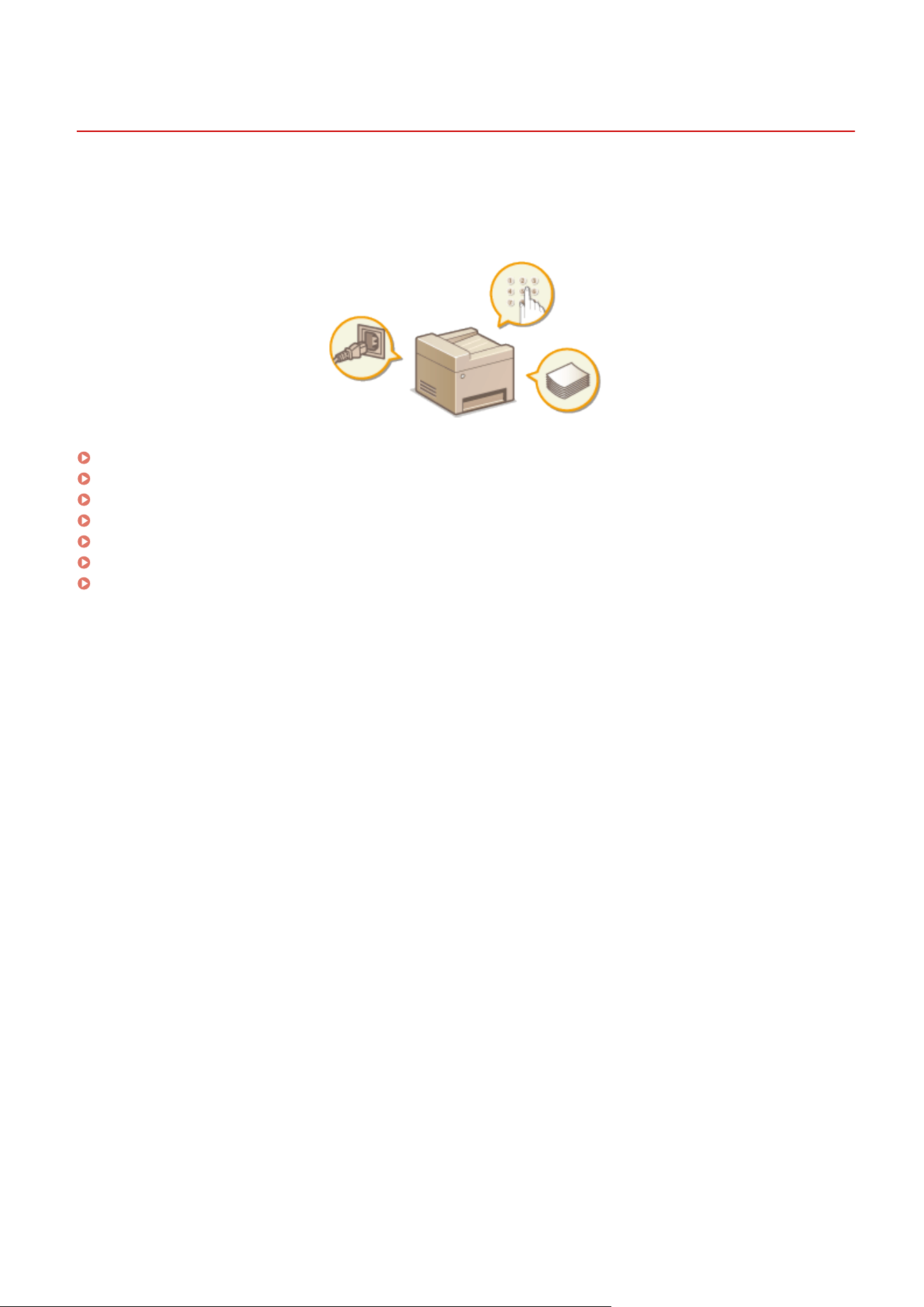
Parts and Their Functions
7YWY-020
This section describes the parts of the machine (e
xterior, front and back side, and interior) and how they function. In
addition to describing the parts of the machine used for such basic operations as loading paper and replacing the
toner cartridges, this section also describes the keys on the operation panel and display. Read this section for tips on
how to use the machine properly.
Front Side(P. 106)
Back Side(P. 108)
Interior(P. 110)
Feeder(P. 111)
Multi-Purpose Tray(P. 112)
Paper Drawer(P. 113)
Operation Panel(P. 114)
Basic Operations
105
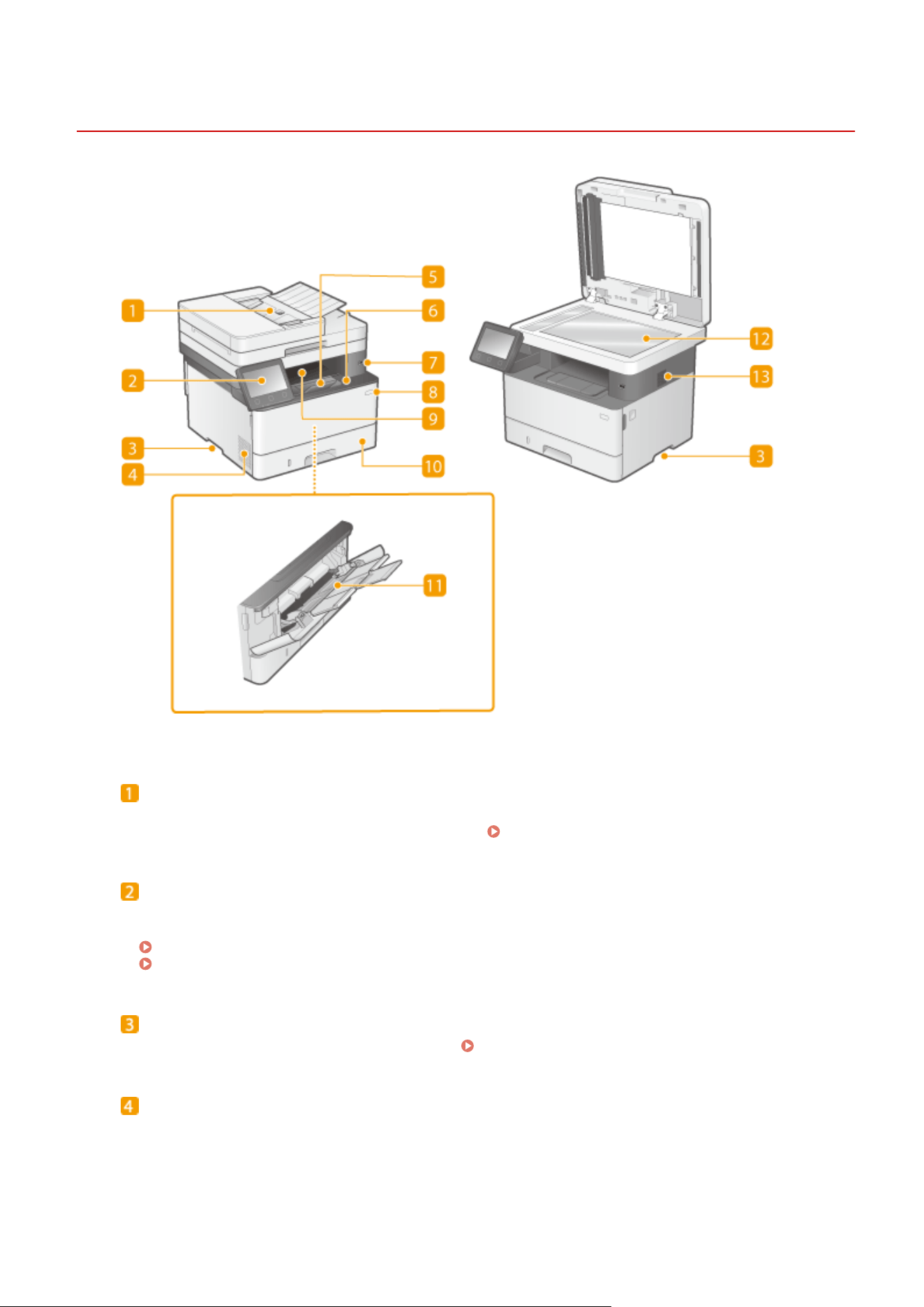
Front Side
7YWY-021
Feeder
Automatically feeds originals into the machine for scanning. When two or mor
e sheets of original are loaded
in the feeder, originals can be scanned continuously.
Feeder(P. 111)
Operation panel
The oper
ation panel consists of keys such as Home key, Stop key, a display, and status indicators. You can
perform all the operations and specify settings from the operation panel.
Operation Panel(P. 114)
Basic Screens(P. 124)
Lift handles
Hold the lift handles when carrying the machine. Relocating the Machine(P. 579)
Ventilation slots
Air inside the machine is vented out to cool do
wn the inside of the machine. Note that placing objects in front
of the ventilation slots prevents ventilation.
Basic Operations
106

Paper stopper
Open the paper stopper when you want to pr
event paper from falling out of the output tray.
Front cover
Open the fr
ont cover when replacing toner cartridges or removing jammed paper from inside the machine.
Procedure for Replacing the Toner Cartridge(P. 574)
Interior(P. 110)
USB port (for USB device connection)
Use this port to connect a thir
d-party USB memory device or USB keyboard. Connecting a USB memory
device allows you to print data from the memory device or store scanned originals on the memory device.
Printing from a USB Memory Device (Memory Media Print)(P. 273)
Sending Data by E-Mail/Saving Data to a Shared Folder or FTP Server(P. 294)
Power switch
T
urns the power ON or OFF. To restart the machine, turn OFF the machine, wait for at least 10 seconds, and
turn it back ON.
Output tray
Printed paper is output to the output tr
ay.
Paper drawer
Load the type of paper you fr
equently use into the paper drawer.
Loading Paper in the Paper
Dr
awer(P. 144)
Multi-purpose tray
Load the paper into the multi-purpose tr
ay when you want to temporarily use a type of paper different from
that which is loaded in the paper drawer.
Loading Paper in the Multi-Purpose Tray(P. 149)
Platen glass
When scanning books, originals of heavy or thin paper and other originals that cannot be scanned using the
feeder, place them on the platen glass. Placing Originals(P. 138)
Speaker
Emits sounds pr
oduced by the machine, such as fax tones and warning tones.
Basic Operations
107
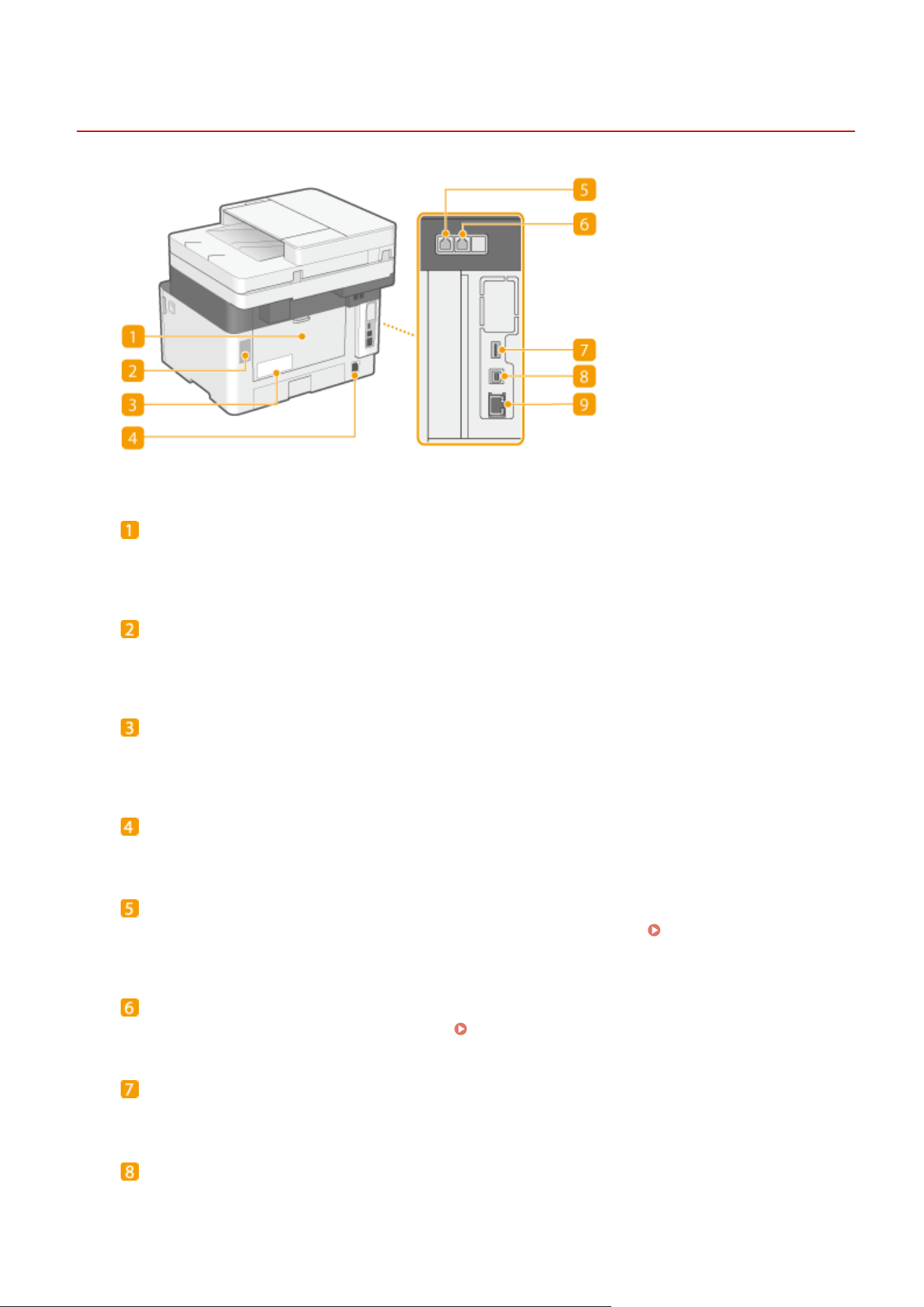
Back Side
7YWY-022
Rear cover
Open the r
ear cover when clearing paper jams. For more information, see "Troubleshooting (FAQ)" on the
online manual website.
Ventilation slots
Air fr
om inside the machine is vented out to cool down the inside of the machine. Note that placing objects in
front of the ventilation slots prevents ventilation.
Rating label
The label sho
ws the serial number, which is needed when making inquiries about the machine. For more
information, see "Troubleshooting (FAQ)" on the online manual website.
Power socket
Connect the po
wer cord.
Telephone line jack
Connect a telephone cable when connecting the machine to a telephone line. Connecting the Telephone
Line
(P. 83)
External telephone jack
Connect your telephone or answering machine. Connecting the Telephone Line(P. 83)
USB port (for USB device connection)
Use this port to connect de
vices such as a third-party USB keyboard.
USB port (for computer connection)
Connect a USB cable when connecting the machine and a computer.
Basic Operations
108

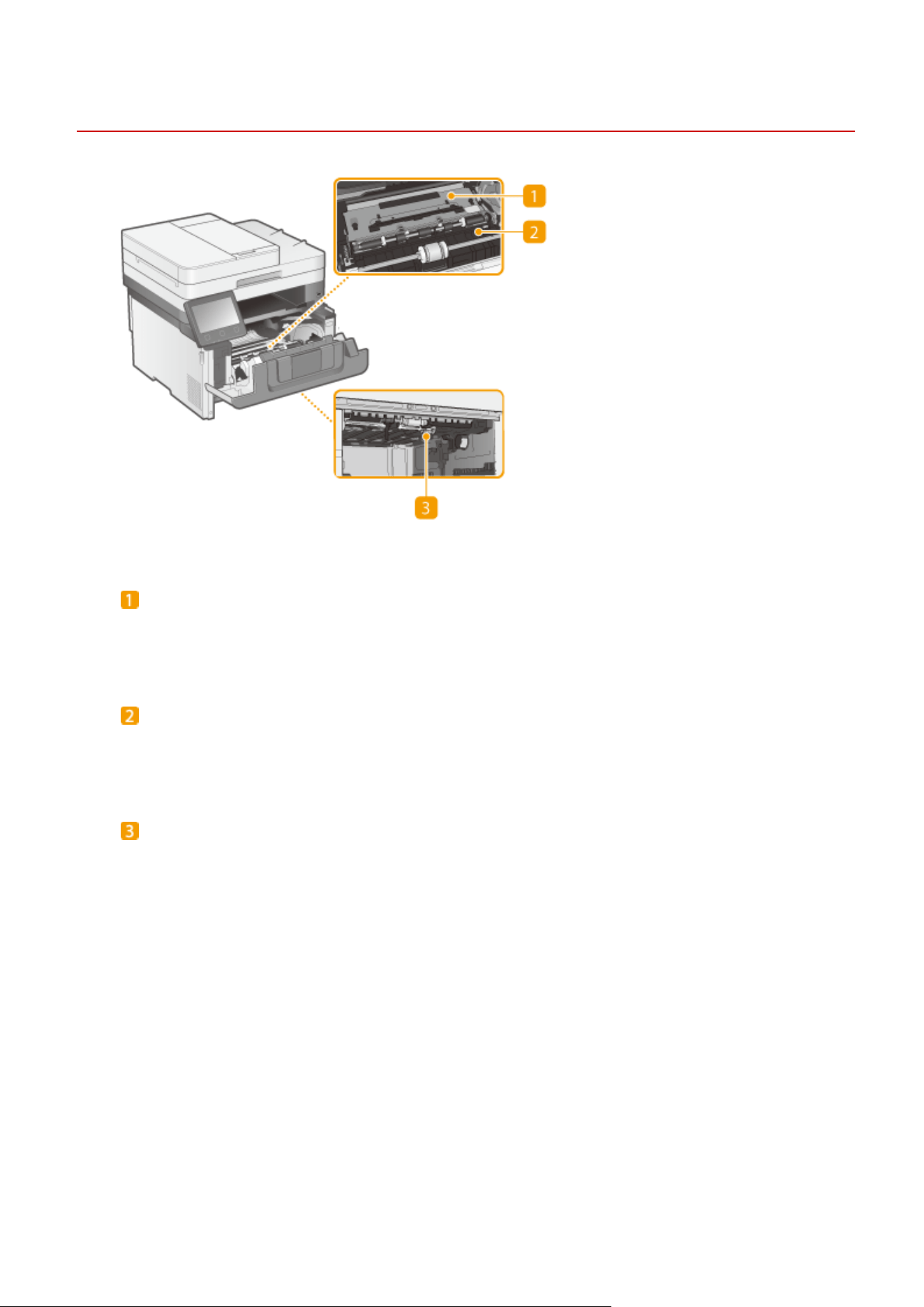
Interior
7YWY-023
Transport guide (at the back)
If ther
e is a paper jam inside the machine, raise the transport guide toward the front of the machine to
remove the jammed paper. For more information, see "Troubleshooting (FAQ)" on the online manual
website.
Transport guide (at the front)
If ther
e is a paper jam inside the machine, raise the transport guide toward the back of the machine to
remove the jammed paper. For more information, see "Troubleshooting (FAQ)" on the online manual
website.
Duplex transport guide
If paper has jammed during 2-sided printing, lo
wer the duplex transport guide to remove the jammed paper.
For more information, see "Troubleshooting (FAQ)" on the online manual website.
Basic Operations
110
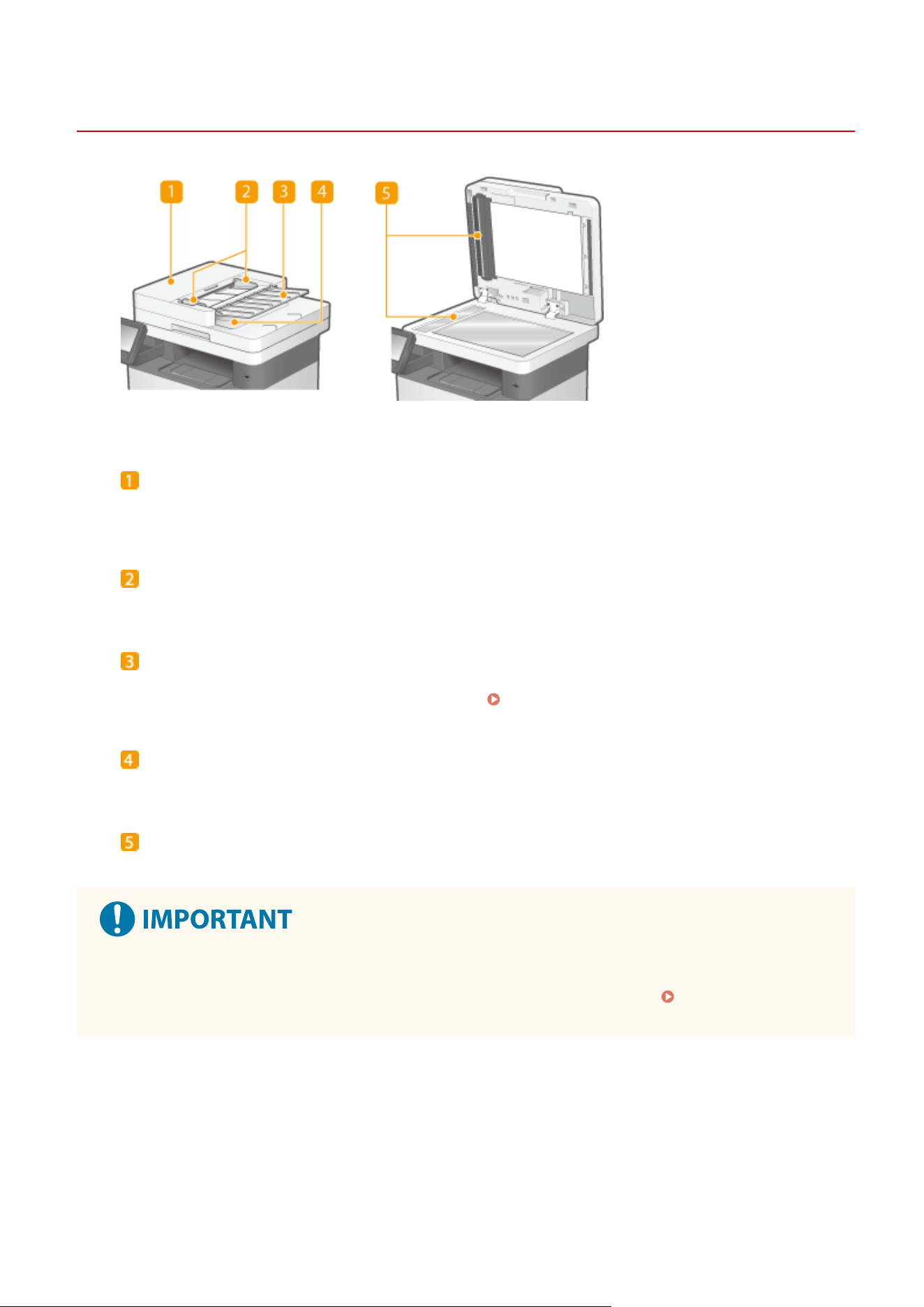
Feeder
7YWY-024
Feeder cover
Open when clearing paper jams. For mor
e information, see "Troubleshooting (FAQ)" on the online manual
website.
Slide guides
Adjust these guides to match the width of original.
Original supply tray
Automatically feeds originals into the machine for scanning. When two or mor
e sheets of original are loaded
in the feeder, originals can be scanned continuously.
Placing Originals(P. 138)
Original output tray
Scanned originals ar
e output here.
Document feed scanning area
Originals loaded in the feeder ar
e automatically fed to the scanning area to be scanned.
● Do not place any objects in the original output ar
ea. Doing so may cause damage to the originals.
● Regularly clean the feeder and platen glass in order to obtain proper print results.
Regular
Cleaning(P
. 564)
Basic Operations
111
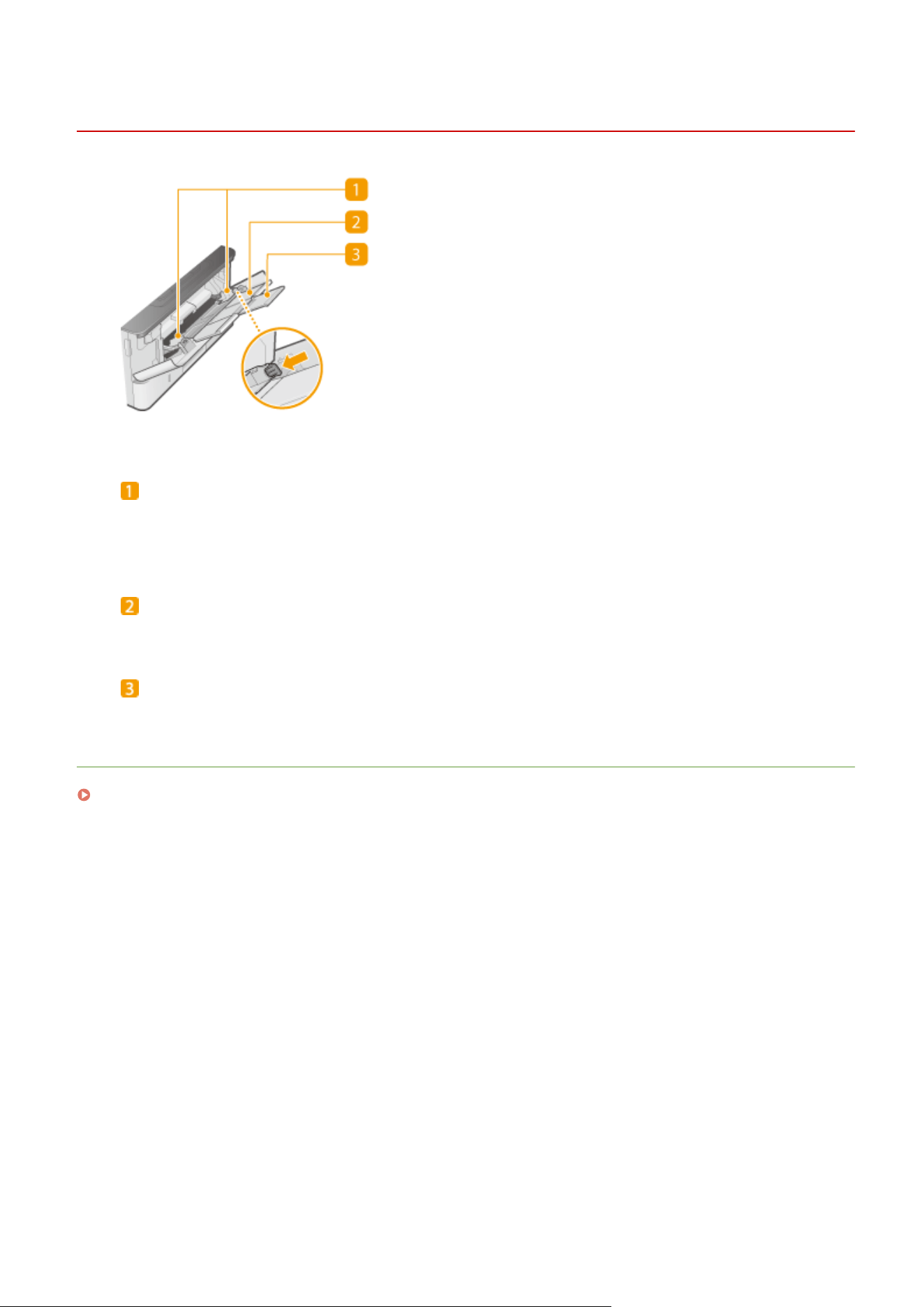
Multi-Purpose Tray
7YWY-025
Paper guides
Adjust the paper guides to e
xactly the width of the loaded paper to ensure that paper is fed straight into the
machine. Press the lock release lever that is indicated with an arrow in the illustration to release the lock and
slide the paper guides.
Paper tray
Pull out the paper tr
ay when loading paper.
Tray extension
Open the tr
ay extension when loading large paper.
LINKS
Loading Paper in the Multi-Purpose Tray(P. 149)
Basic Operations
112
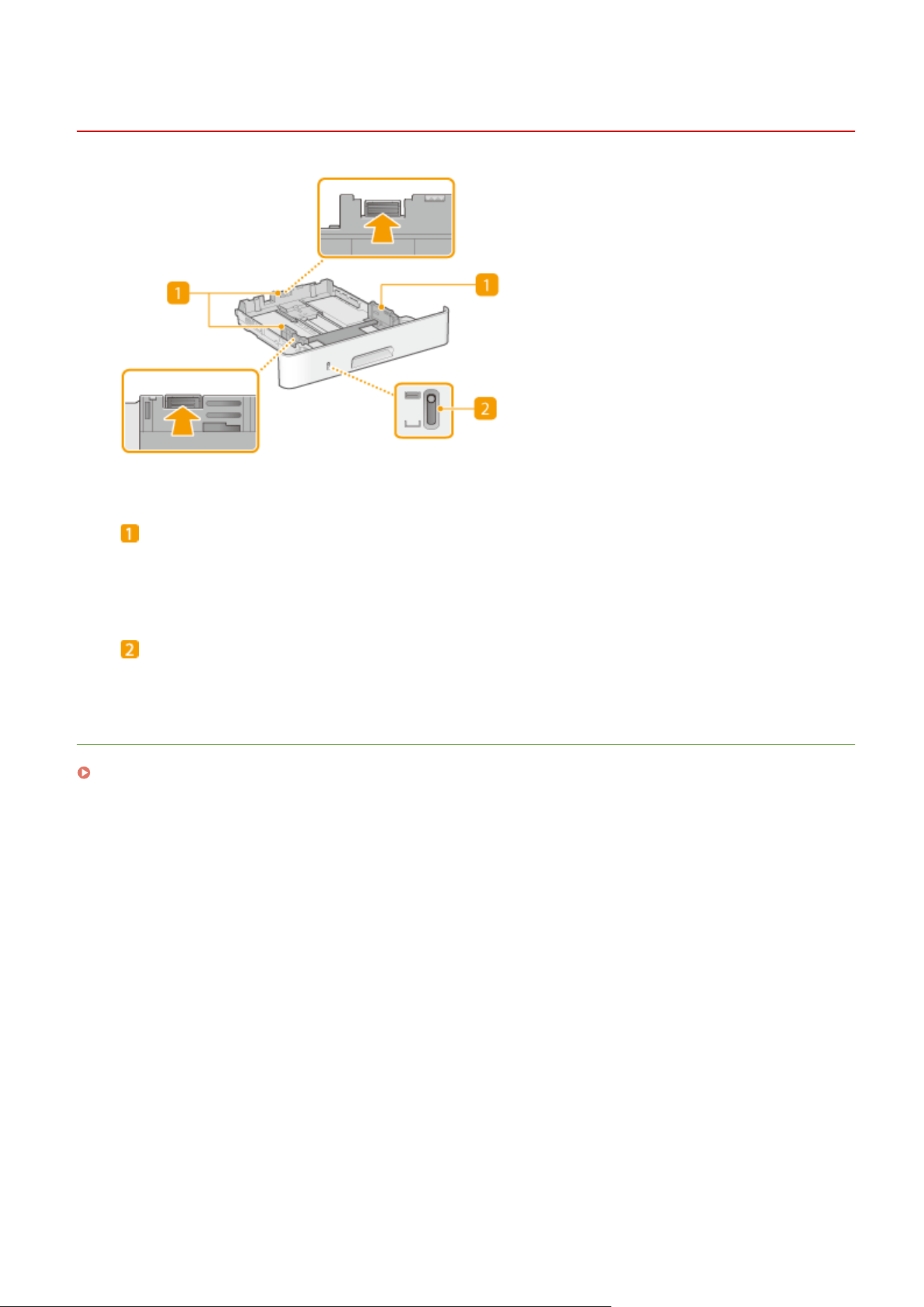
Paper Drawer
7YWY-026
Paper guides
Adjust the paper guides to e
xactly the size of the loaded paper to ensure that paper is fed straight into the
machine. Press the lock release levers that are indicated with arrows in the illustrations to release the locks
and slide the paper guides.
Paper level indicator
Indicates the r
emaining amount of paper. The mark moves downward as the remaining amount of paper
decreases.
LINKS
Loading Paper in the Paper Drawer(P. 144)
Basic Operations
113
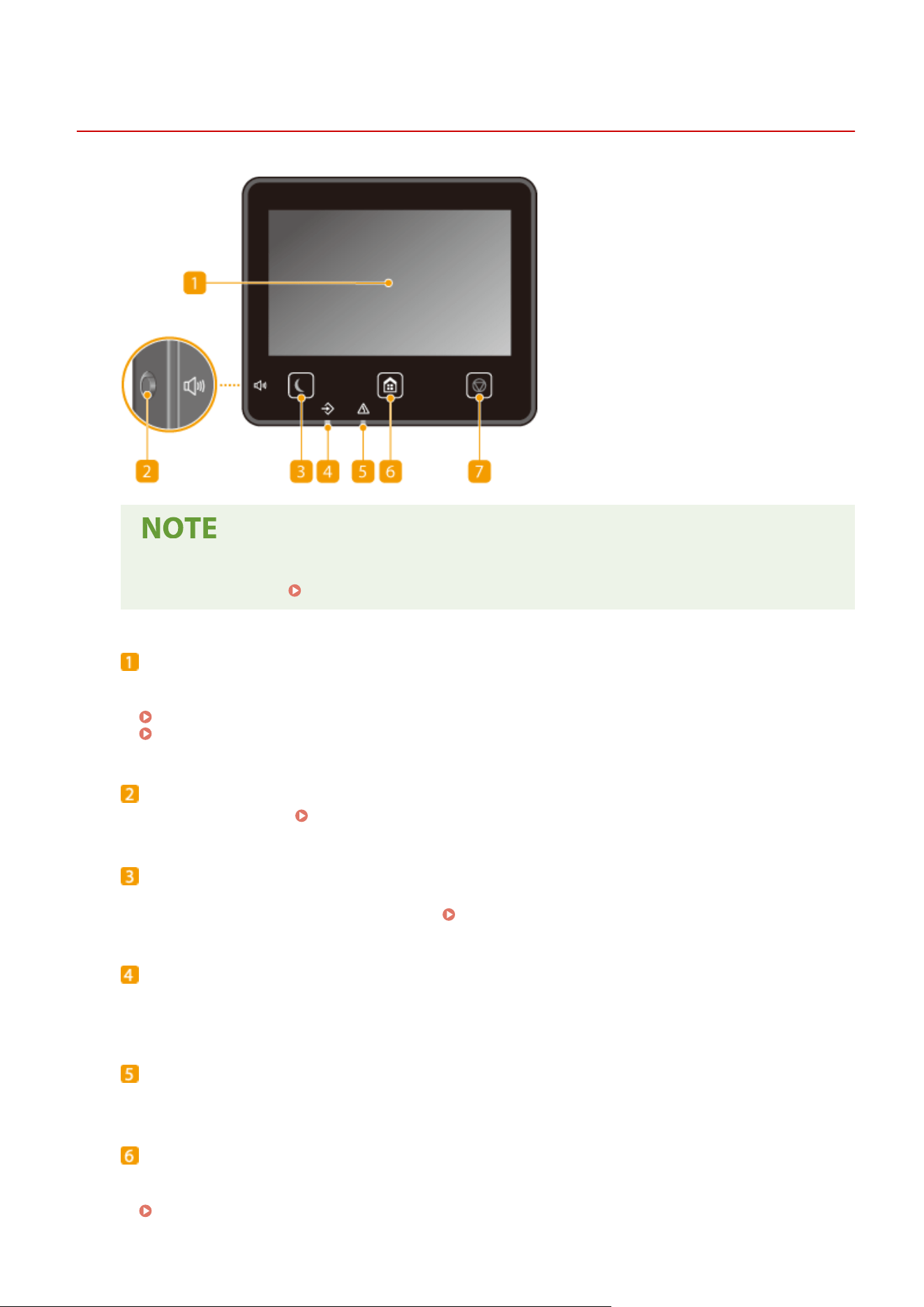
Operation Panel
7YWY-027
● The angle of the oper
ation panel can be adjusted. Adjust it to an angle that is most comfortable for
viewing the panel.
Adjusting the Angle(P. 115)
Display
Y
ou can view the progress of the machine and error statuses. The display is also a touch panel, so you can
specify settings by touching the screen directly.
Basic Screens(P. 124)
Basic Operation(P. 131)
Sound Volume key
Pr
ess to adjust volume.
Setting Sounds(P. 177)
Energy Saver key
Pr
ess to put the machine into the sleep mode. The key lights up green when the machine is in the sleep
mode. Press the key again to exit sleep mode.
Entering Sleep Mode(P. 179)
Data indicator
Blinks while an oper
ation is being performed, such as data transmission or printing. Lights up when there
are documents waiting to be processed.
Error indicator
Blinks or lights up when an err
or such as a paper jam occurs.
Home key
Pr
ess to display the Home screen, which provides access to the setting menu and functions such as copy and
scan.
Home Screen(P. 125)
Basic Operations
114
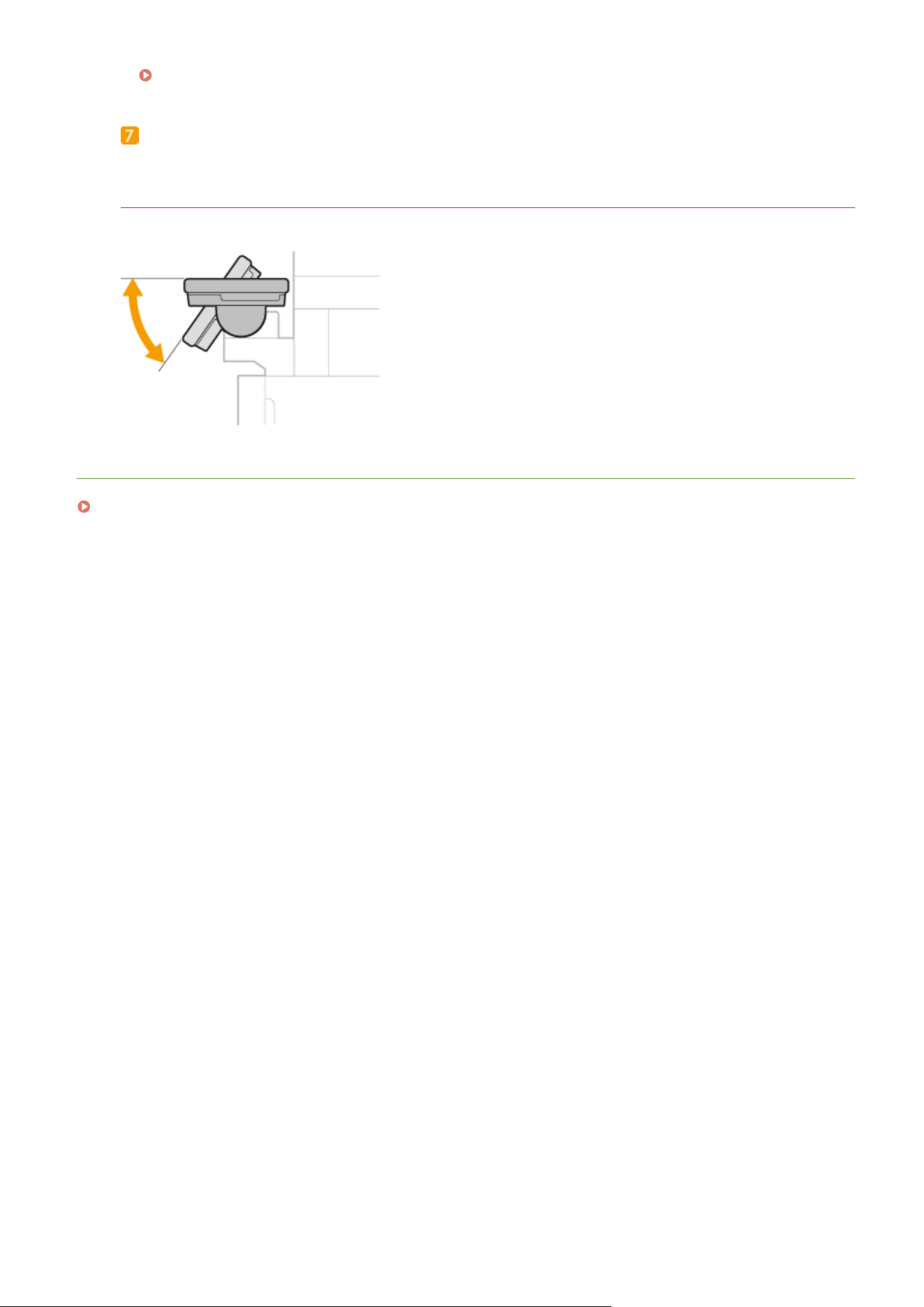
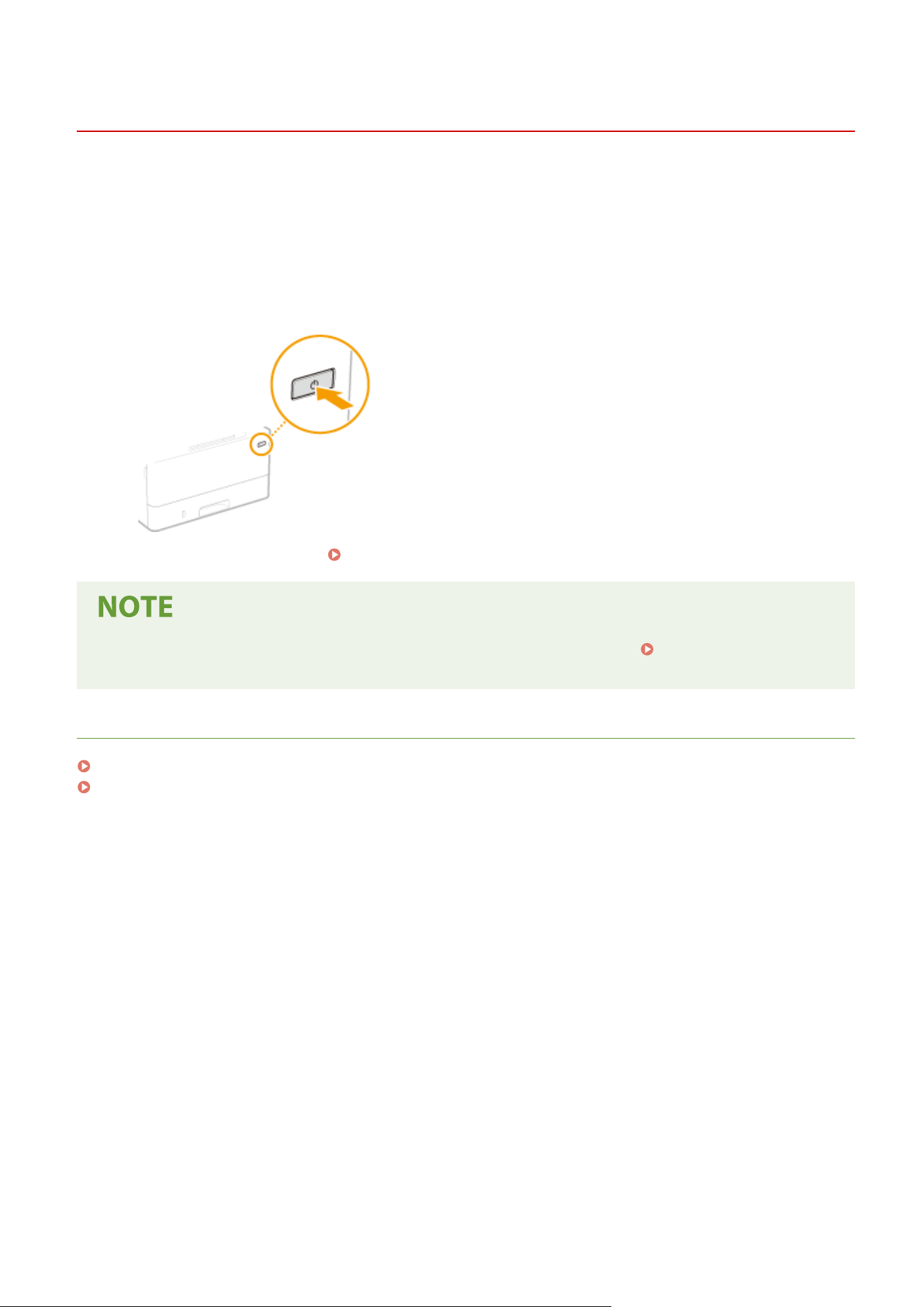
Turning ON the Machine
7YWY-028
This section describes ho
w to turn ON the machine.
1
Make sure that the power plug is rmly inserted into a po
wer outlet.
2
Press the power switch.
➠ The Start scr
een appears.
Operation Panel(P. 114)
● Y
ou can select the screen that is displayed rst after the machine is turned ON.
<Default Screen After
Startup/Restor
ation>(P. 453)
LINKS
Turning OFF the Machine(P. 117)
Restarting the Machine(P. 121)
Basic Operations
116
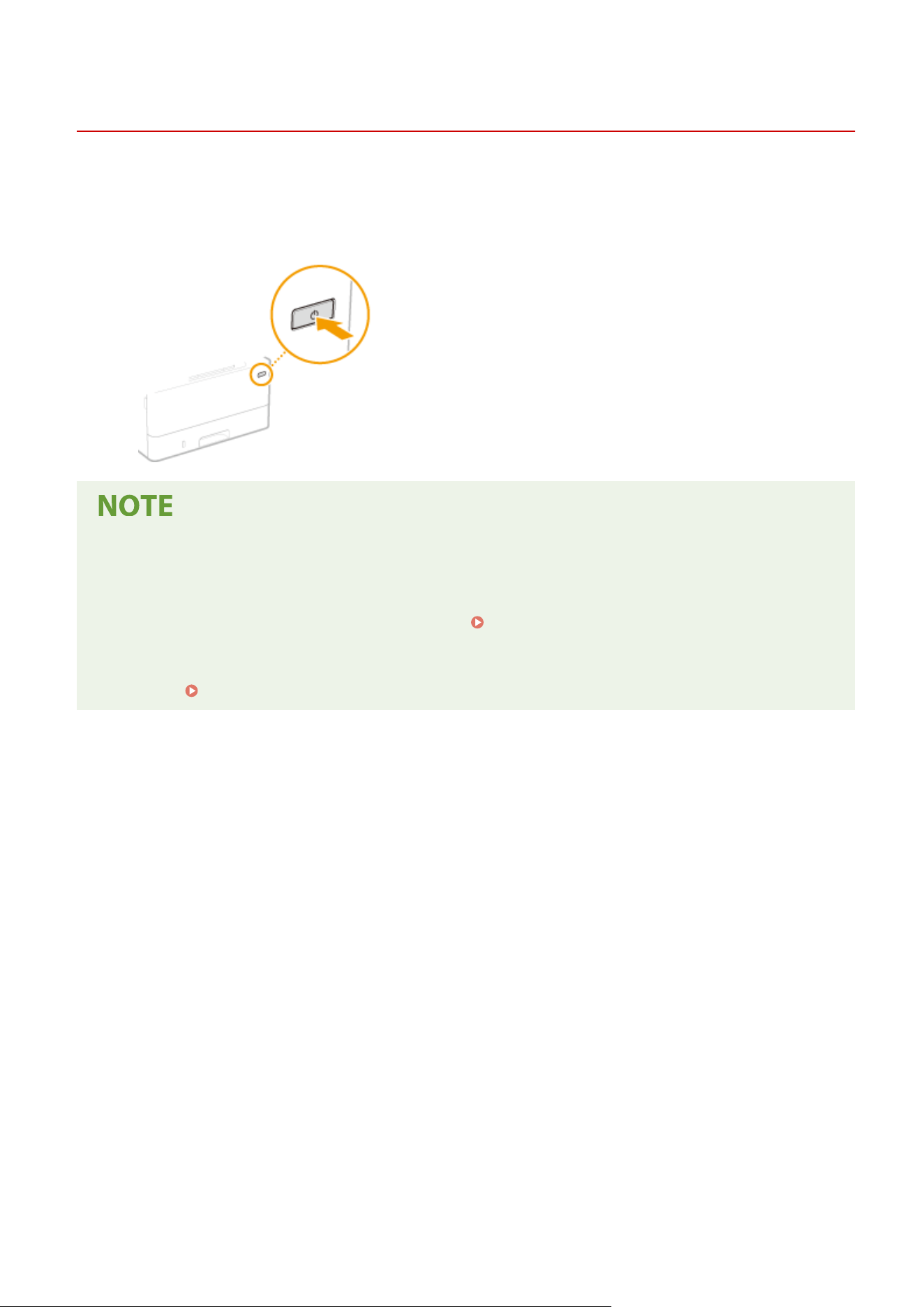
Turning OFF the Machine
7YWY-029
This section describes ho
w to turn OFF the machine.
1
Press the power switch.
● It may tak
e some time for the machine to completely shut down. Do not unplug the power cord until the
display turns off.
● To restart the machine, wait for at least 10 seconds after the machine is turned OFF.
● You can also turn OFF the machine from a computer.
Turning OFF the Machine by Remote
Oper
ation(P. 118)
● You can specify the time for each day of the week and congure a setting to automatically turn OFF the
machine.
Powering OFF at a Fixed Time(P. 119)
Basic Operations
117

Turning OFF the Machine by Remote Operation
7YWY-02A
Y
ou can turn OFF the machine from a computer on the same network without going to where the machine is installed.
1
Start the Remote UI and log in to System Manager Mode.
Starting Remote
UI(P
. 421)
2
Click [Settings/Registration] on the Portal page.
Remote UI Screen(P. 422)
3
Select [Device Management] [Remote Shutdown].
4
Check [Device Status] to make sure that no functions are being processed, and click
[Ex
ecute].
5
Click [OK].
Restarting the machine by remote operation
● You can restart the machine by clicking [Restart Device] on the [Settings/Registration] screen of the Remote
UI. Restarting the Machine(P. 121)
Basic Operations
118
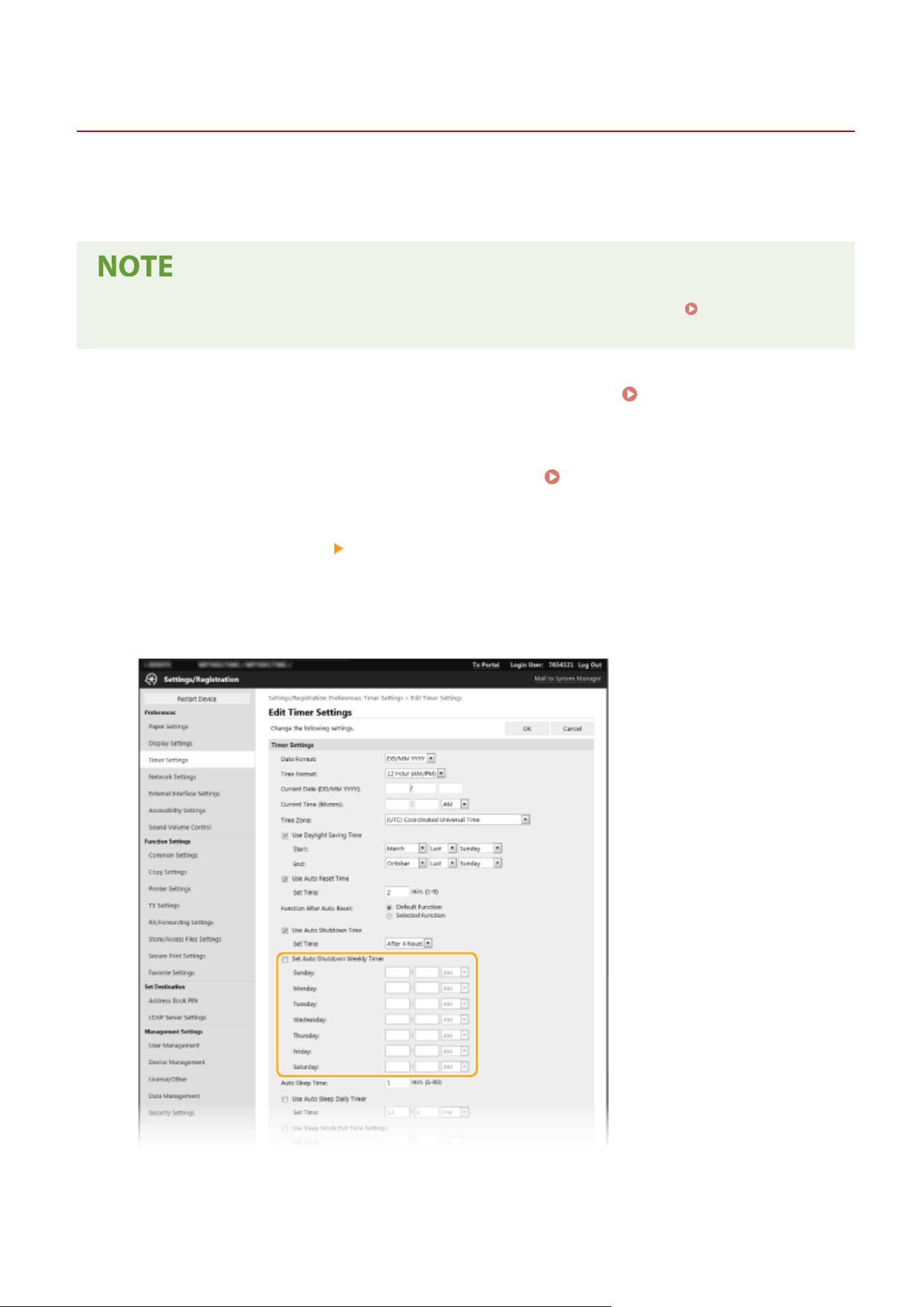
Powering OFF at a Fixed Time
7YWY-02C
Y
ou can make a setting so that the power is automatically tuned OFF at a specied time on each day of the week. This
allows you to avoid useless power consumption that may occur due to failure to turn OFF the power. By default, this
function is disabled.
● For information about the basic oper
ation to set up the machine from Remote UI, see
Setting Up Menu
Options fr
om Remote UI(P. 431) .
1
Start the Remote UI and log in to System Manager Mode.
Starting Remote
UI(P
. 421)
2
Click [Settings/Registration] on the Portal page.
Remote UI Screen(P. 422)
3
Select [Timer Settings] [Edit].
4
Select the check box for [Set Auto Shutdown Weekly Timer], and set the time to turn
OFF the po
wer.
[Set Auto Shutdown Weekly Timer]
Selecting the check bo
x allows you to set the time to turn OFF the power on each day of the week.
Basic Operations
119

[Sunday] to [Saturday]
Enter the desir
ed time to turn OFF the power. For any day of the week, leaving the time eld blank means
that the auto shutdown function is disabled for that day.
5
Click [OK].
If the power is not turned OFF automatically at the specied time
*
● When the Data indicator is lit up or blinking
● When the menu scr
een or Check Counter screen is displayed
● When settings data is being imported/exported
● When the rmware is being updated
● When <Control Condensation> is set to <On>
*
If the power cannot be turned OFF automatically at the specied time, a retry will be performed up to ten times at intervals
of one minute. If the power cannot be turned OFF even after ten retries, auto shutdown will be impossible for that day.
Basic Operations
120
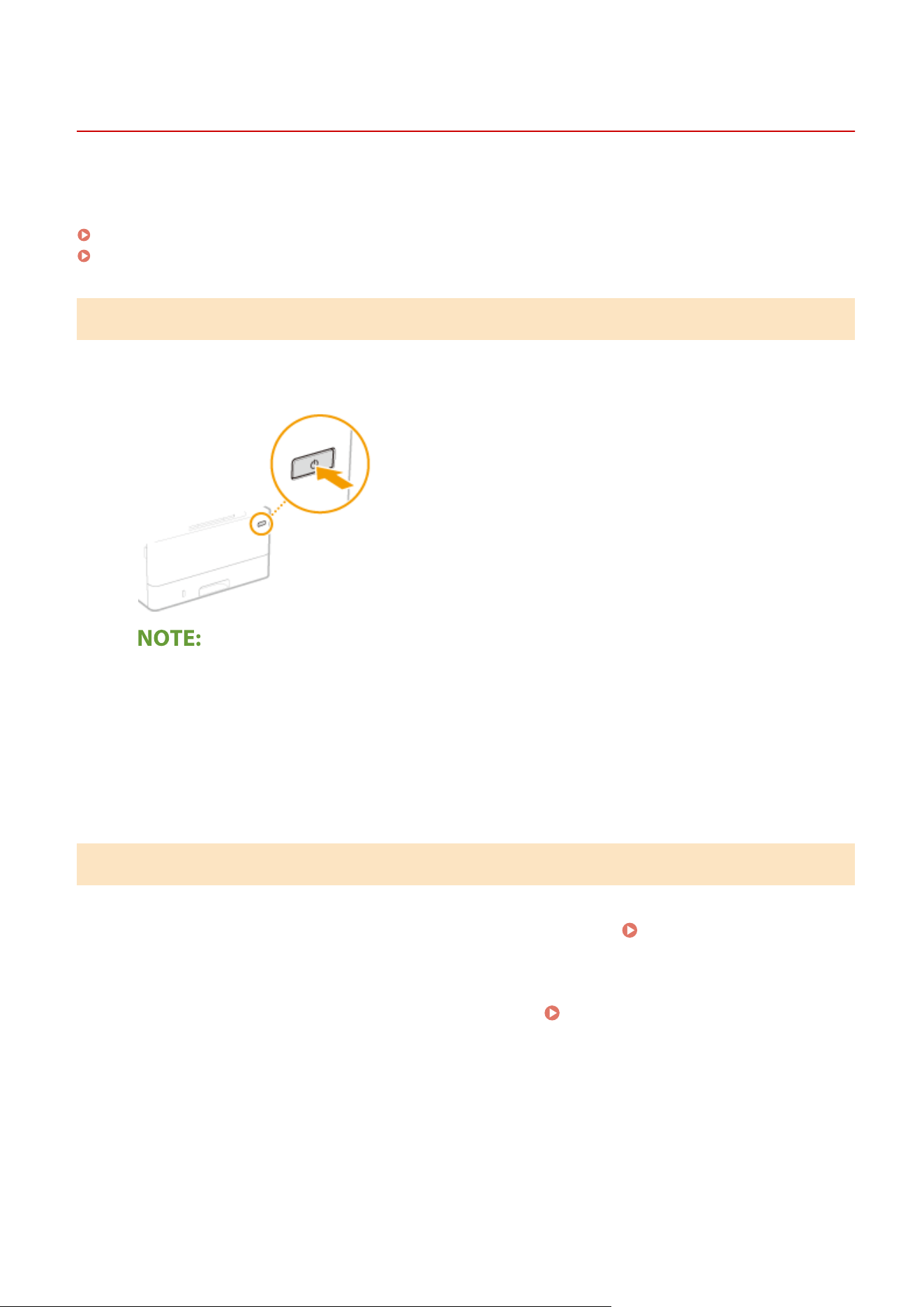
Restarting the Machine
7YWY-02E
Depending on the setting items that have been changed, you may need to mak
e the changes effective by restarting
the machine. This section describes how to restart the machine.
Restarting the Machine by an Operation on the Main Unit(P. 121)
Restarting the Machine by Remote Operation(P. 121)
Restarting the Machine by an Operation on the Main Unit
1
Press the power switch.
● It may tak
e some time for the machine to completely shut down.
➠ When the machine shuts down, the display or Energy Saver key of the operation panel turns off.
2
Wait at least 10 seconds after the shutdown, then press the power switch again.
➠ The machine starts.
Restarting the Machine by Remote Operation
1
Start the Remote UI and log in to System Manager Mode.
Starting Remote
UI(P
. 421)
2
Click [Settings/Registration] on the Portal page.
Remote UI Screen(P. 422)
3
Click [Restart Device] in the menu on the left side of the screen.
Basic Operations
121
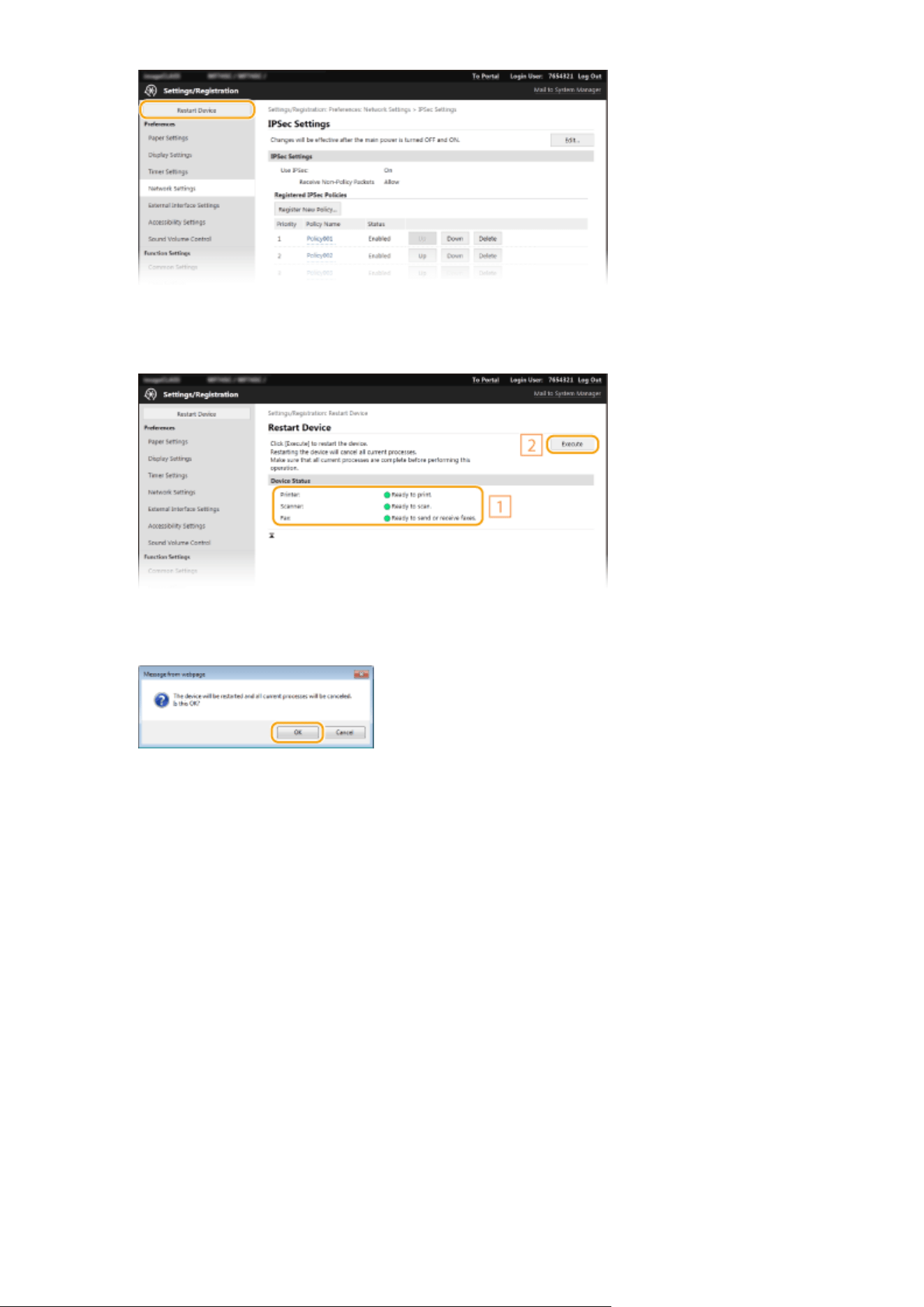
4
Check [Device Status] to make sure that no functions are being processed, and click
[Ex
ecute].
5
Click [OK].
➠ A r
estart process begins. Communication remains disconnected until the main unit has restarted.
Basic Operations
122
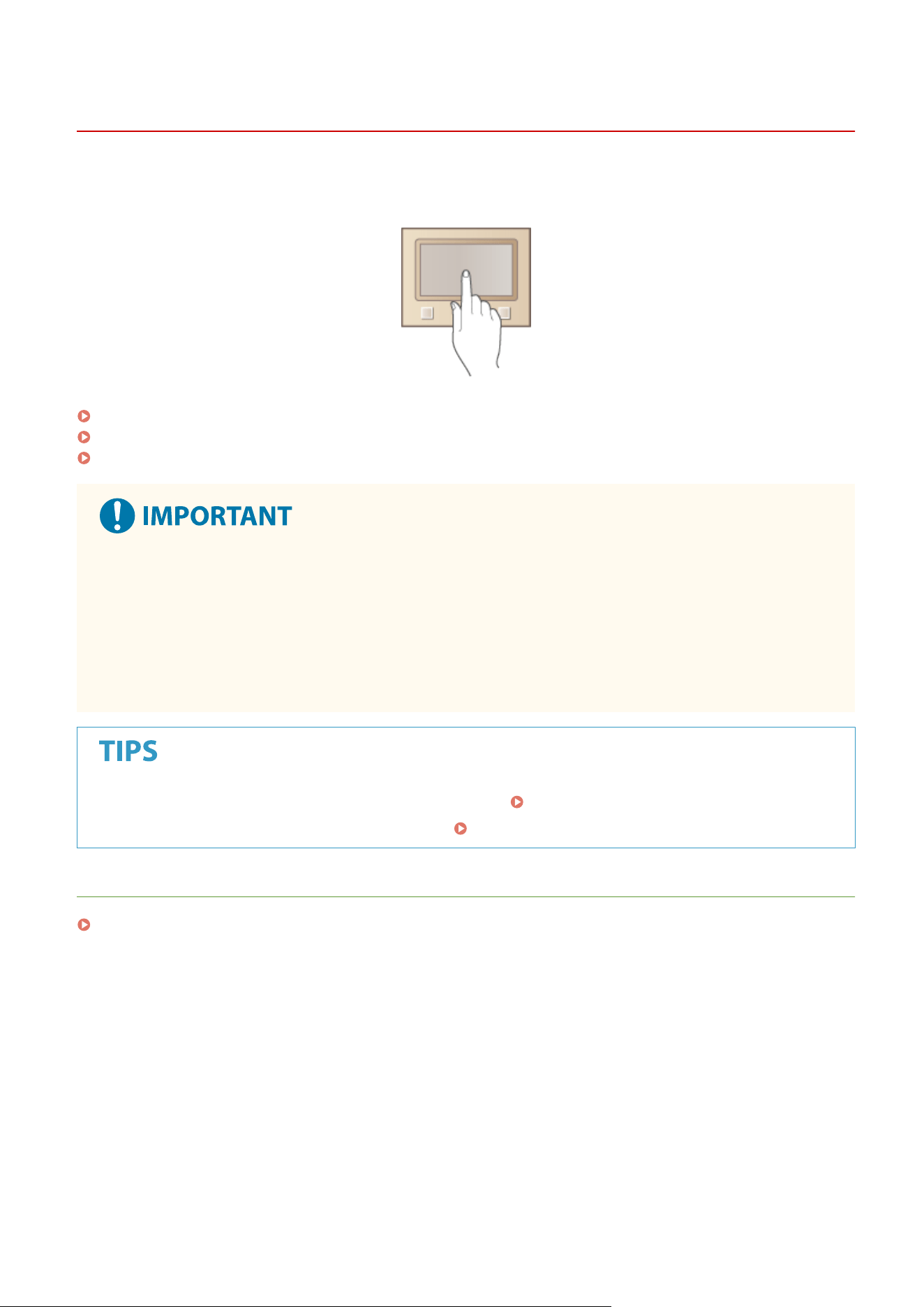
Using the Operation Panel
7YWY-02F
Y
ou can use the display and keys of the operation panel to congure machine settings or operate functions. This
section describes basic usage of the display and keys.
Basic Screens(P. 124)
Basic Operation(P. 131)
Entering Text(P. 134)
Regarding the handling of the touch panel display
● Do not pr
ess the touch panel display too hard. Doing so may break the touch panel display.
● Do not use an object with a sharp end, such as a mechanical pencil or ballpoint pen. Doing so may scratch
the surface of the touch panel display or break it.
● Placing objects on the display or wiping the display may cause the touch panel to react and lead to a
malfunction.
● If you want to invert the light and dark parts of the display: <Invert Screen Colors>(P. 479)
● If you want to adjust the brightness of the display: <Brightness>(P. 479)
LINKS
Operation Panel(P. 114)
Basic Operations
123
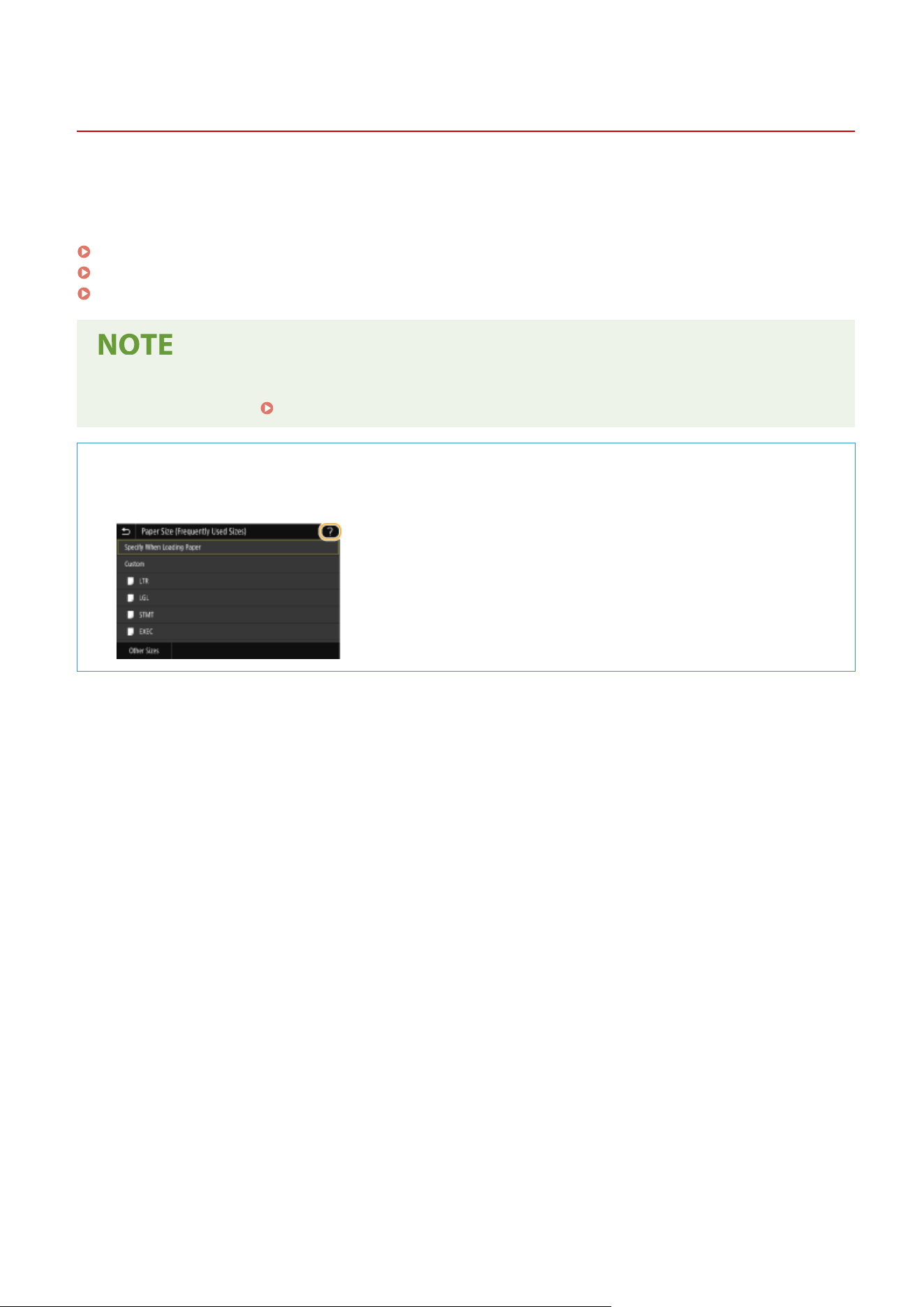
Basic Screens
7YWY-02H
The Home scr
een or settings screen appears on the display, allowing you to initiate functions such as copy and scan.
You can also use the display to check information such as error messages and the machine's operation status. The
screen is also a touch panel, so you can perform operations by touching the screen directly.
Home Screen(P. 125)
<Status Monitor> Screen(P. 128)
Message Display(P. 130)
● Y
ou can customize the Home screen by rearranging frequently used buttons for easier access to the
respective functions.
Customizing the Display(P. 169)
To Know How to Operate
● On some scr
eens, the <?> button allows you to view the descriptions of functions or how to operate.
Basic Operations
124
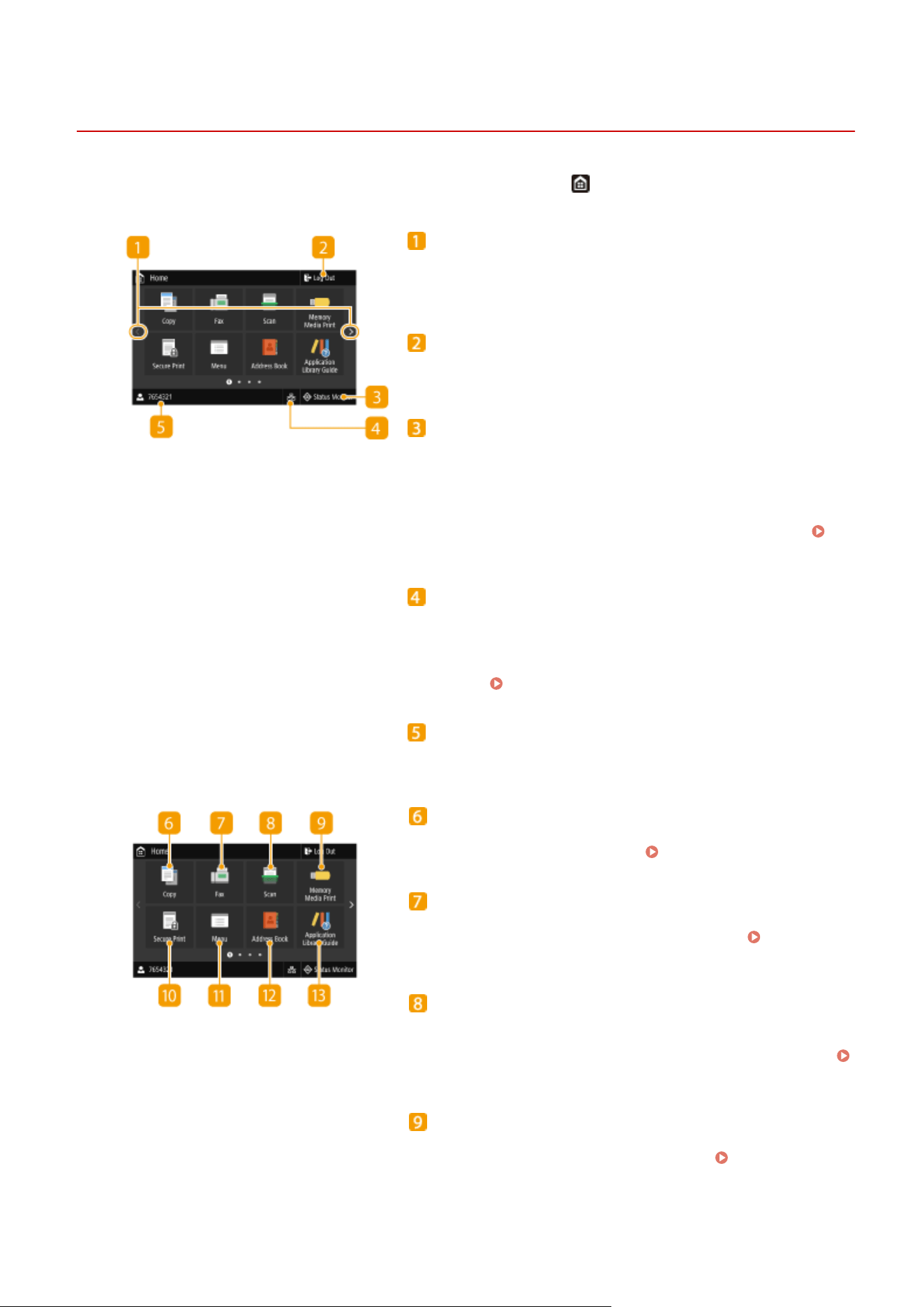
Home Screen
7YWY-02J
The Home scr
een is displayed when the power is turned ON or by pressing
on the operation panel. Use this screen
to specify settings for and r
egister functions.
Change page
Use this to vie
w another page in the Home screen. You can also
ick sideways to change pages.
<Log Out>
Use this button to log out fr
om the machine.
<Status Monitor>
Pr
ess to check the printing status, to view the usage history, or
to view the network settings such as the IP address of the
machine. You can also check the status of the machine, such as
the remaining amount of paper and the amount remaining in
the toner cartridges, or whether any errors that occurred.
<Status Monitor> Screen(P. 128)
Wir
ed LAN/Wireless LAN icon
The Wired LAN icon is displayed when connecting to a wired
LAN, or The Wireless LAN icon is displayed when connecting to a
wireless LAN. Press this icon to congure the wired/wireless LAN
settings.
<Network>(P. 463)
User name/ID
The name or ID of the logged in user is displayed.
<Copy>
Use this button to start cop
ying.
Copying(P. 192)
<Fax>
Use this button to send a fax fr
om the machine.
Faxing(P. 215)
<Scan>
Scans an original and converts it into an electr
onic le. You can
save scanned les on your computer or send them via e-mail.
Scanning(P. 282)
<Memory Media Print>
Prints les stor
ed in a USB memory device.
Printing from a
USB Memory De
vice (Memory Media Print)(P. 273)
Basic Operations
125
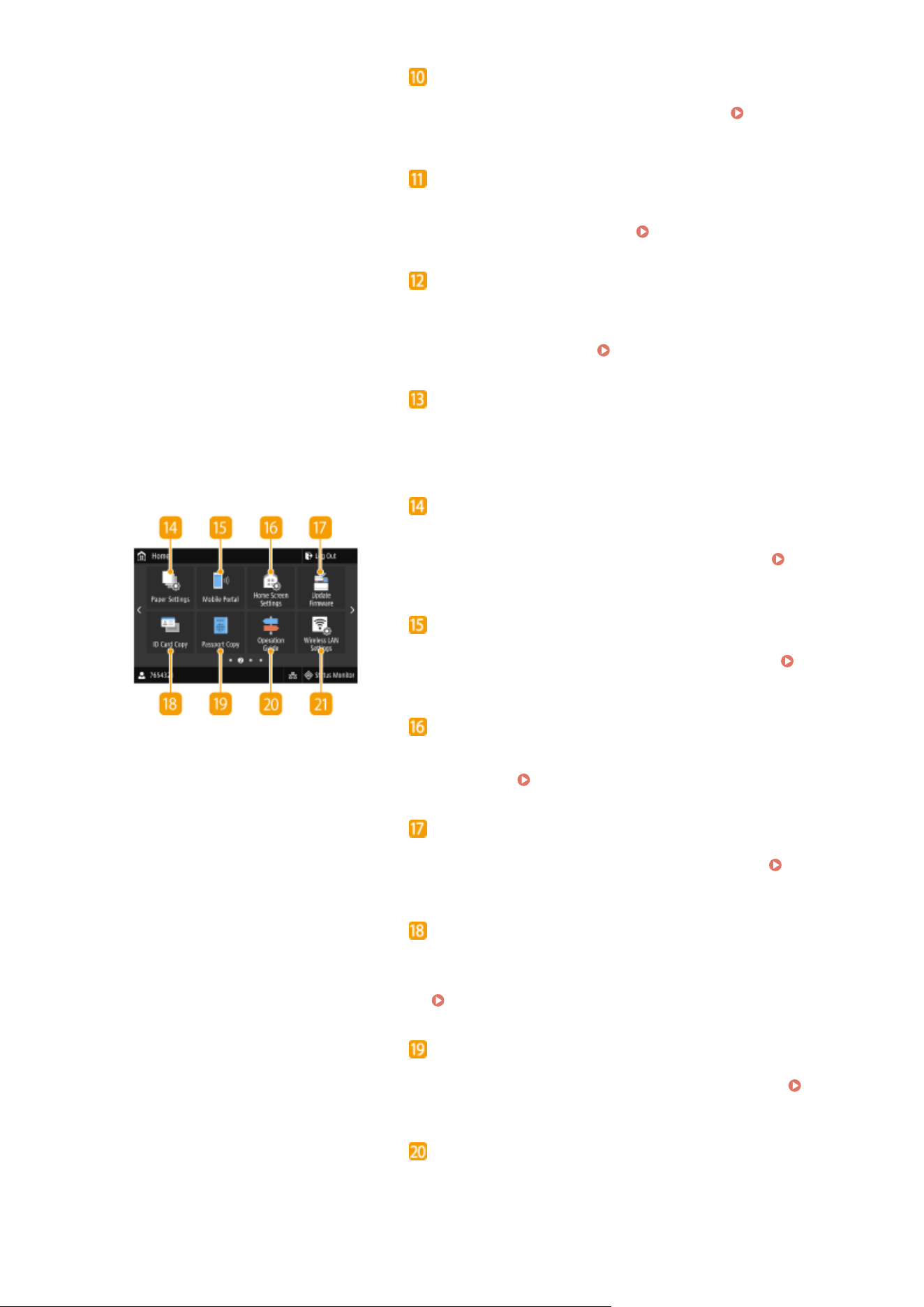
<Secure Print>
Use this function to print a secur
e document.
Printing a
Document Secur
ed by a PIN (Secure Print)(P. 269)
<Menu>
<Function Settings>, <Pr
eferences>, and many other machine
settings start from this button.
Setting Menu List(P. 451)
<Addr
ess Book>
Use this to register or edit the destinations for e-mails and
faxes. You can also display a registered destination when
sending an e-mail or fax.
Registering Destinations(P. 181)
<Application Library Guide>
Displays a description of Application Libr
ary.
<Paper Settings>
This button is used for specifying the size and type of paper
loaded in the paper dr
awer and multi-purpose tray.
Specifying Paper Size and Type(P. 158)
<Mobile Portal>
Use this to establish a connection to a mobile de
vice.
Connecting with Mobile Devices(P. 327)
<Home Screen Settings>
Allo
ws you to change the order that Home screen buttons are
displayed in.
Customizing the Home Screen(P. 170)
<Update Firmware>
Allo
ws you to update the rmware via the Internet.
Updating
the Firmwar
e(P. 446)
<ID Card Copy>
Use this function to cop
y the front and back sides of a driver's
license or other card onto the same side of one sheet of paper.
Making ID Card Copies(P. 211)
<Passport Copy>
Allo
ws you to copy multiple passports onto one sheet.
Making Passport Copies(P. 212)
<Oper
ation Guide>
Press to view operation guidance and error causes/solutions.
Basic Operations
126
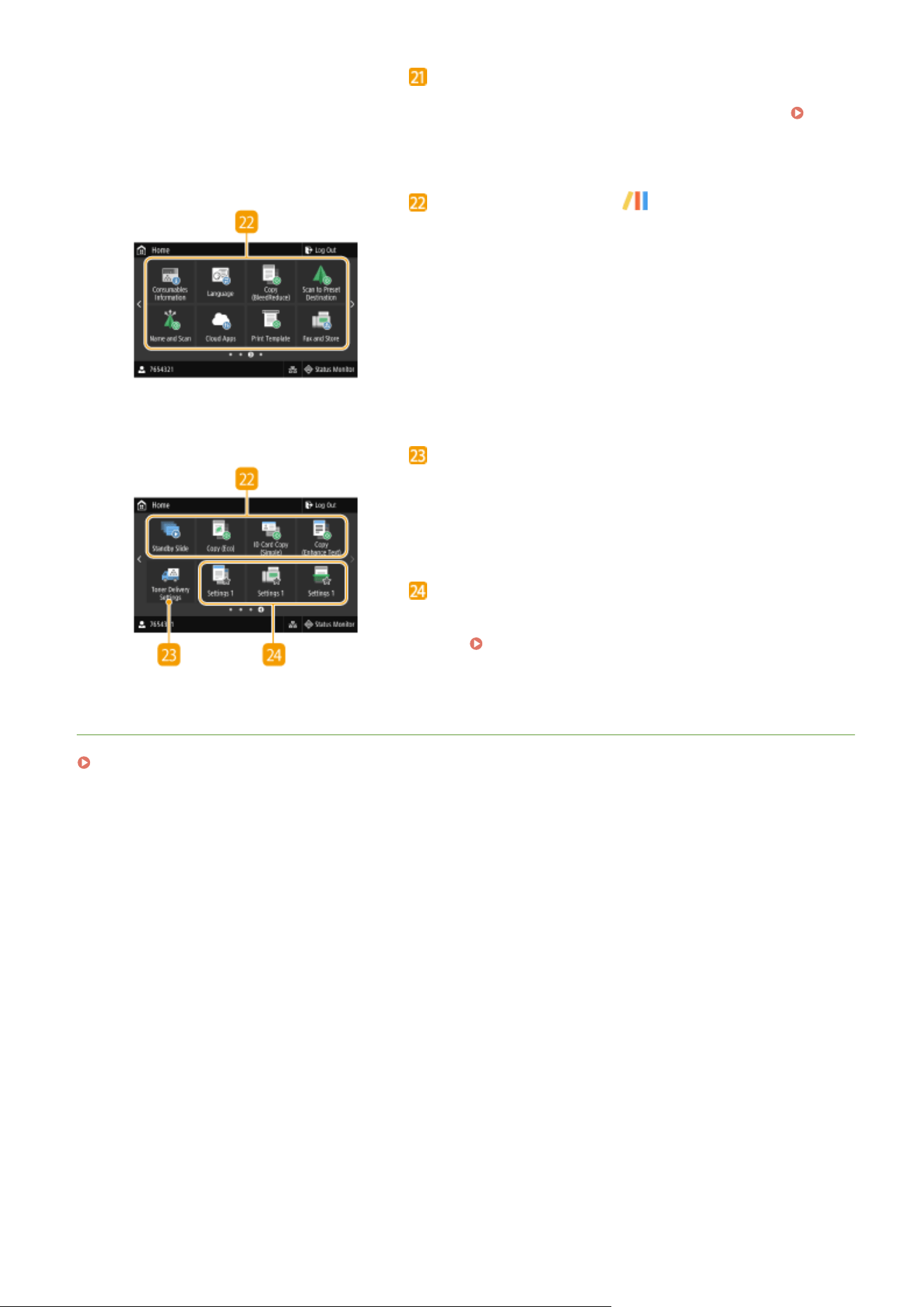
<Wir
eless LAN Settings>
Use this button to congure the wireless LAN settings.
Connecting to a Wireless LAN(P. 18)
Application Library button
You can use these buttons to perform convenient functions by a
one-touch oper
ation. For more information, see the User's
Guide for Application Library.
Application Library
<Toner Delivery Settings>
You can congure settings for toner replenishment service. Use
of the toner replenishment service requires prior registration
with select retailers. This service is only available in certain
countries.
Shortcut buttons
Display "Favorite Settings" that are registered to Copy, Fax, and
Scan. Adding Buttons to the Home Screen(P. 170)
LINKS
Customizing the Home Screen(P. 170)
Basic Operations
127
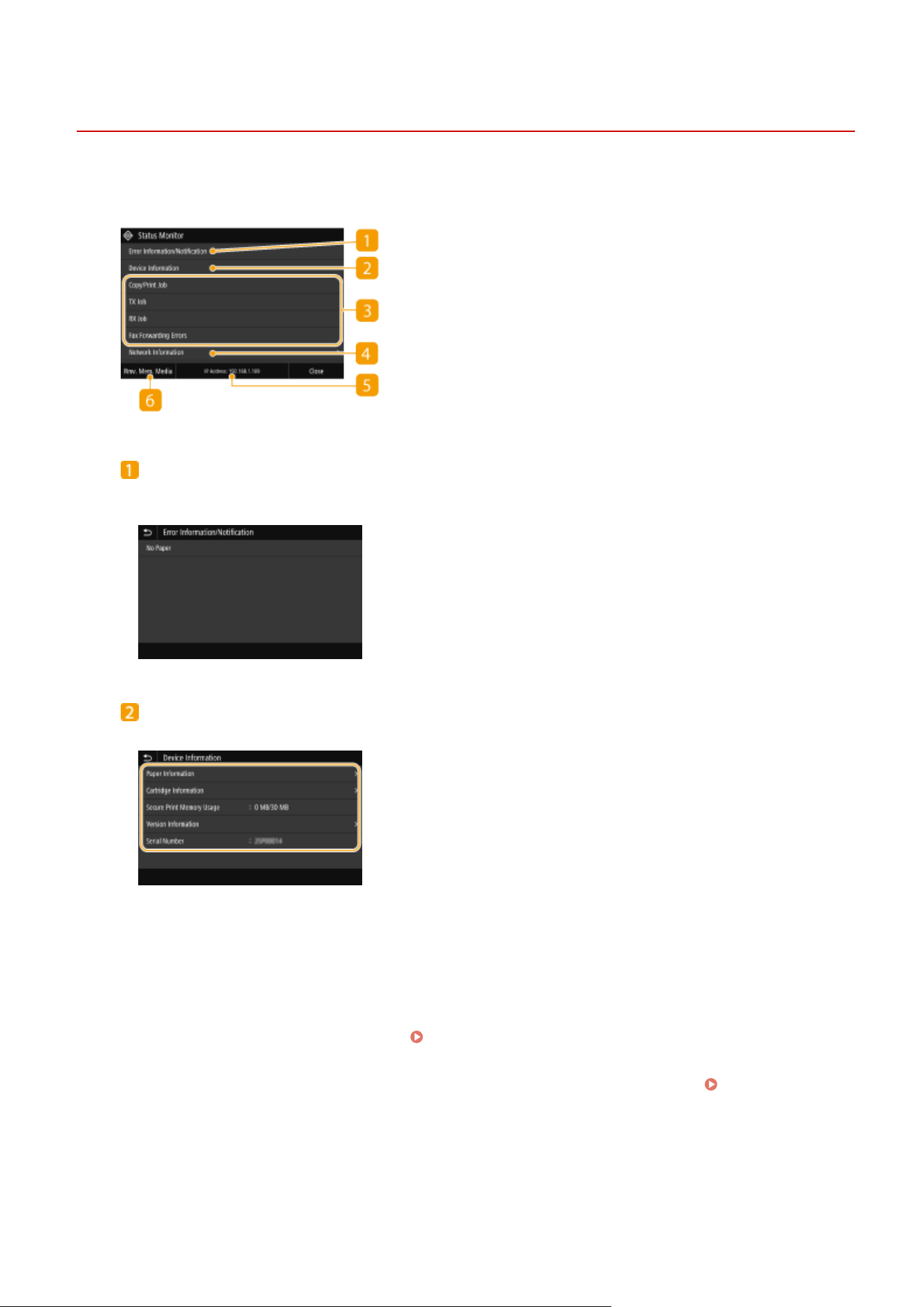
<Status Monitor> Screen
7YWY-02K
When you pr
ess <Status Monitor>, a screen appears in which you can check the progress of documents as well as the
status of the machine and network setting information.
<Error Information/Notication>
Displays the details of any err
ors that occurred. For more information, see "Troubleshooting (FAQ)" on the
online manual website.
<Device Information>
Displays the status of the machine.
<Paper Information>
Displays whether paper is loaded in each paper sour
ce.
<Cartridge Information>
Displays the amount of toner remaining in the toner cartridges. Other internal parts may reach the end of
their lifetime before the toner runs out.
<Check Counter>
Displays the total volume of printouts.
Viewing the Counter Value(P. 589)
<Secur
e Print Memory Usage>
Displays the amount of memory currently used for storing secured document data.
Printing a
Document Secured by a PIN (Secure Print)(P. 269)
<Version Information>
Displays rmware version information.
<Serial Number>
Displays the serial number of the machine.
Basic Operations
128
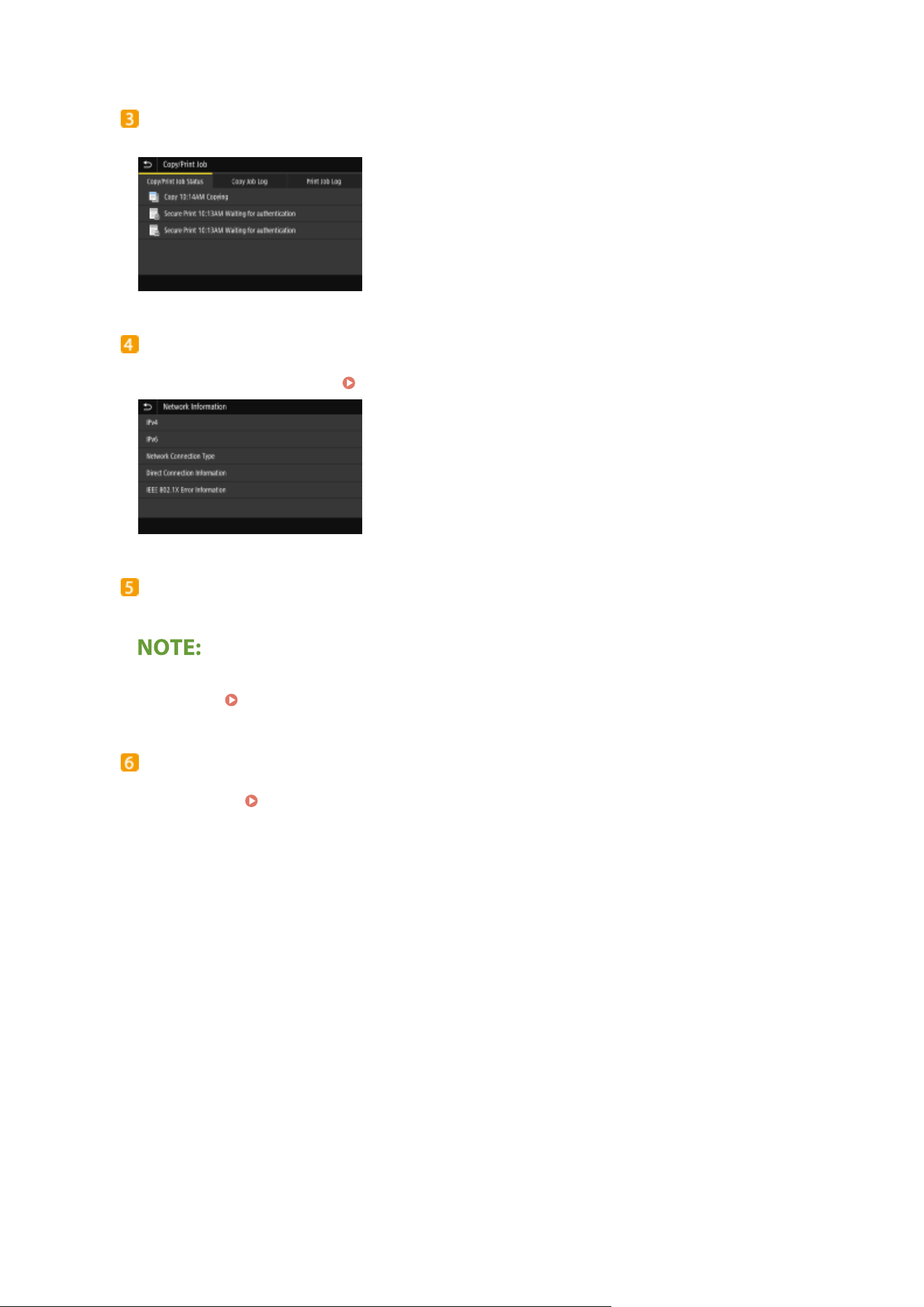
Status and logs of copied, printed, and sent/received documents
Displays the curr
ent status of the selected item. The <Copy/Print Job> screen is shown below as an example.
<Network Information>
Displays the network settings such as the IP addr
ess of the machine and status such as the condition of
wireless LAN communications.
Viewing Network Settings(P. 37)
IP Address
Displays the IPv4 addr
ess of the machine.
● Y
ou can specify whether to display the IP address on the <Status Monitor> screen by setting <Display IP
Address>.
<Display IP Address>(P. 457)
<Rmv. Mem. Media>
Used to safely r
emove a USB memory device. This is only displayed when a USB memory device is connected
to the machine.
Remove the USB Memory Device(P. 190)
Basic Operations
129
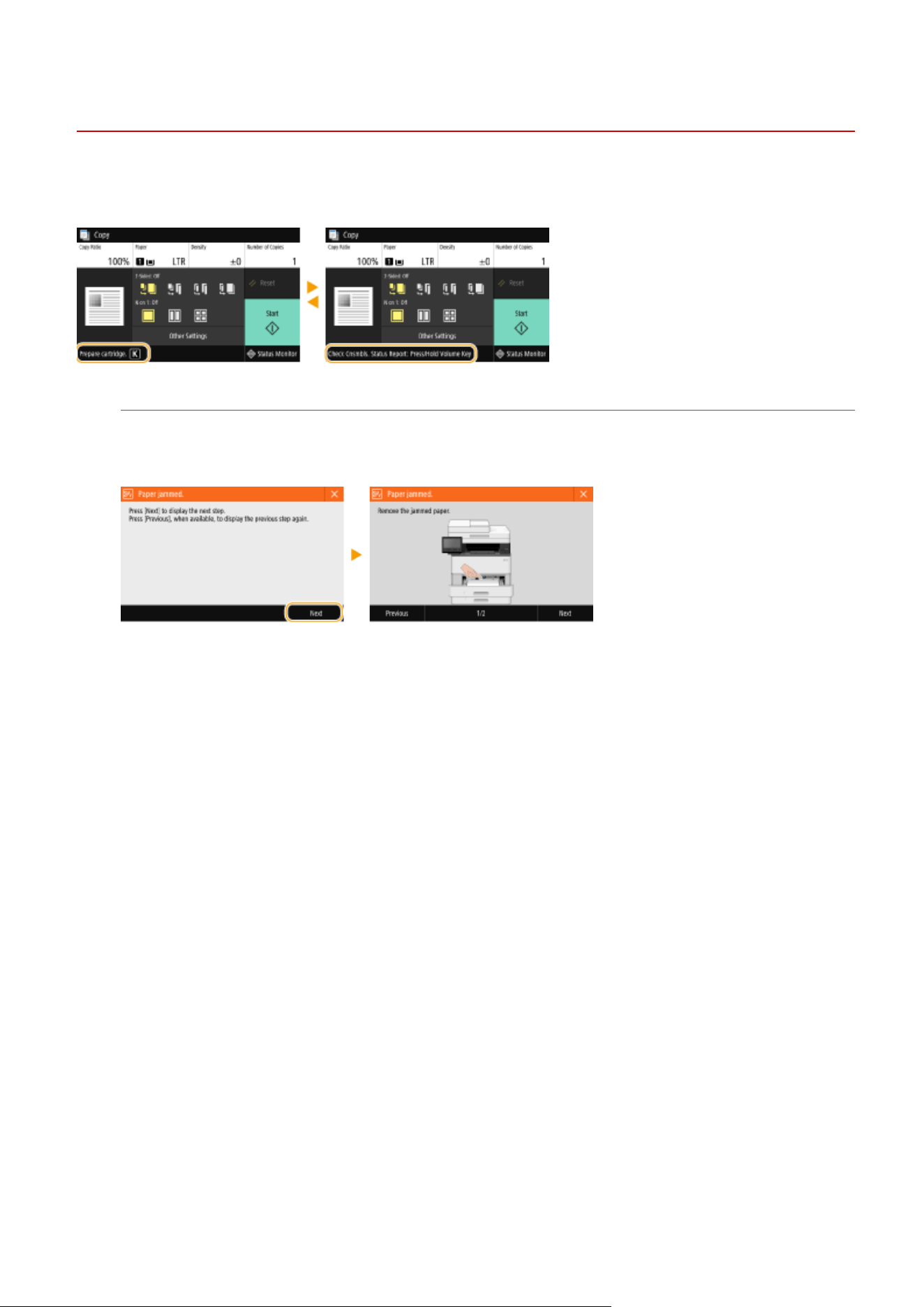
Message Display
7YWY-02L
Messages ar
e displayed on the screen in situations such as when paper runs out or when the expiration of the toner
cartridge lifetime is reached. For more information, see "Troubleshooting (FAQ)" on the online manual website.
When an Error Occurs
In some cases when an error occurs, instructions on how to respond to the error are displayed. Follow the on-
scr
een instructions to solve the problem. The screen displayed when a paper jam occurs is shown below as an
example.
Basic Operations
130
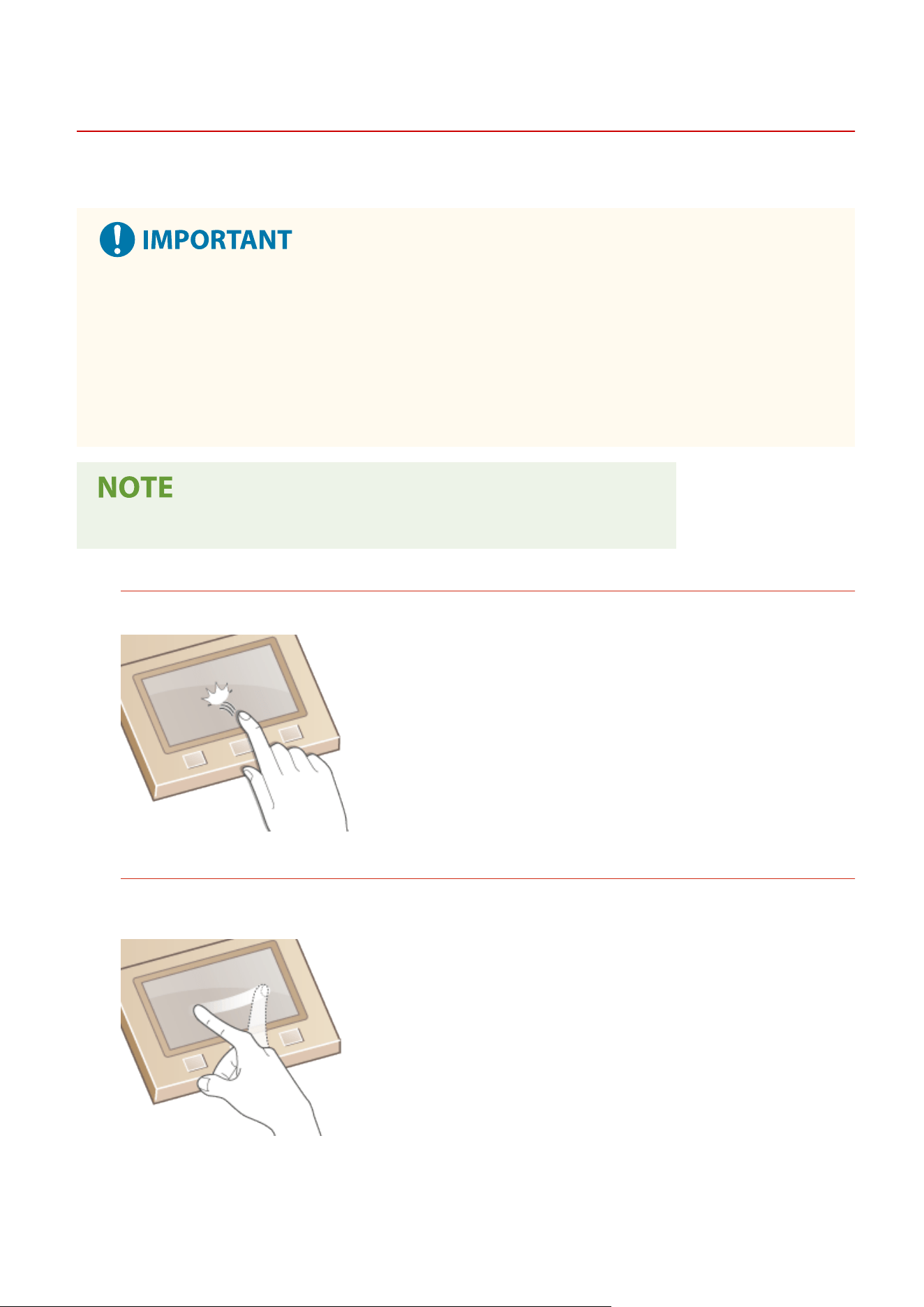
Basic Operation
7YWY-02R
The display is a touch panel, allo
wing you to operate directly on the screen.
Avoid the following actions.
● The display may malfunction or be damaged.
-
Pressing forcefully
- Pressing with pointed objects (ngernails, ballpoint pen, pencil, etc.)
- Operating with wet/soiled hands
- Operating the display while an object is placed on it
● Befor
e using the touch panel display, peel off the protective lm from the display.
Tap
Touch the screen lightly and quickly. Use for selecting or nalizing items.
Flick
Flick with the nger on the display
. The effect of icking varies depending on the screen. For instance, icking in
the Home screen moves you one page in the direction of the ick.
Basic Operations
131
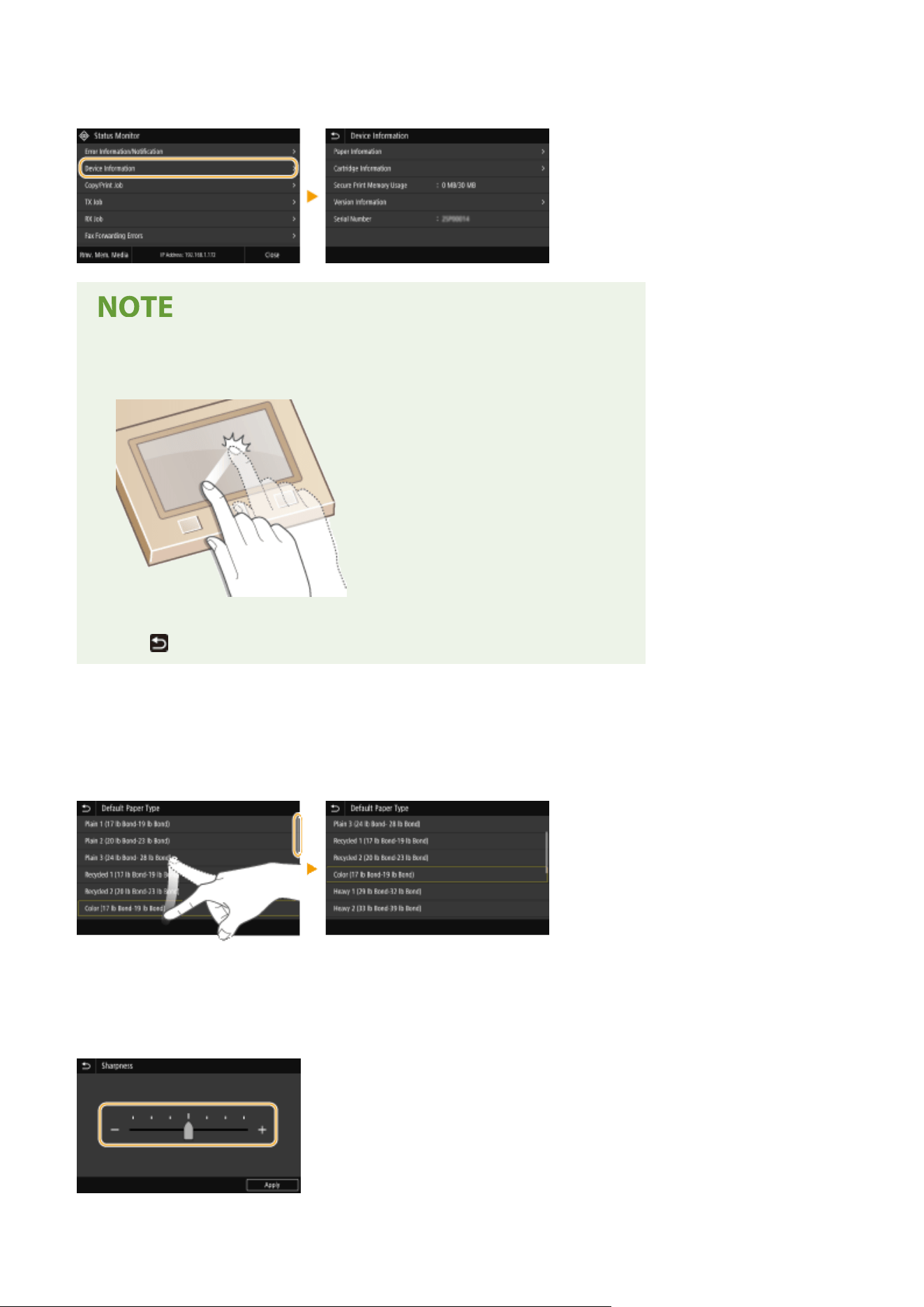
◼ Selecting Items
T
ap an item name or button to make a selection.
If an item is mistakenly touched
● Slide your nger away then r
elease it from the screen to cancel the selection.
To return to the previous screen
● T
ap
to return to the previous screen.
◼ Scr
olling the Screen
The scroll bar appears on the screen when there is still information that is undisplayed. If the scroll bar is displayed,
ick the screen to scroll in the direction of the ick. Note that the scroll bar only appears while the screen is being
touched.
◼ Changing the Setting V
alue
Tap <+>/<-> to adjust the setting on the scale. You can also adjust a setting by icking the slider left or right.
Basic Operations
132

● Y
ou can change a variety of display-related settings, such as the display language:
<Display
Settings>(P
. 453)
● You can change the screen that is automatically displayed when the machine remains idle for a specied
length of time:
<Function After Auto Reset>(P. 461)
● Y
ou can change various settings about the operability such as screen brightness:
<Accessibility>(P. 479)
Basic Operations
133
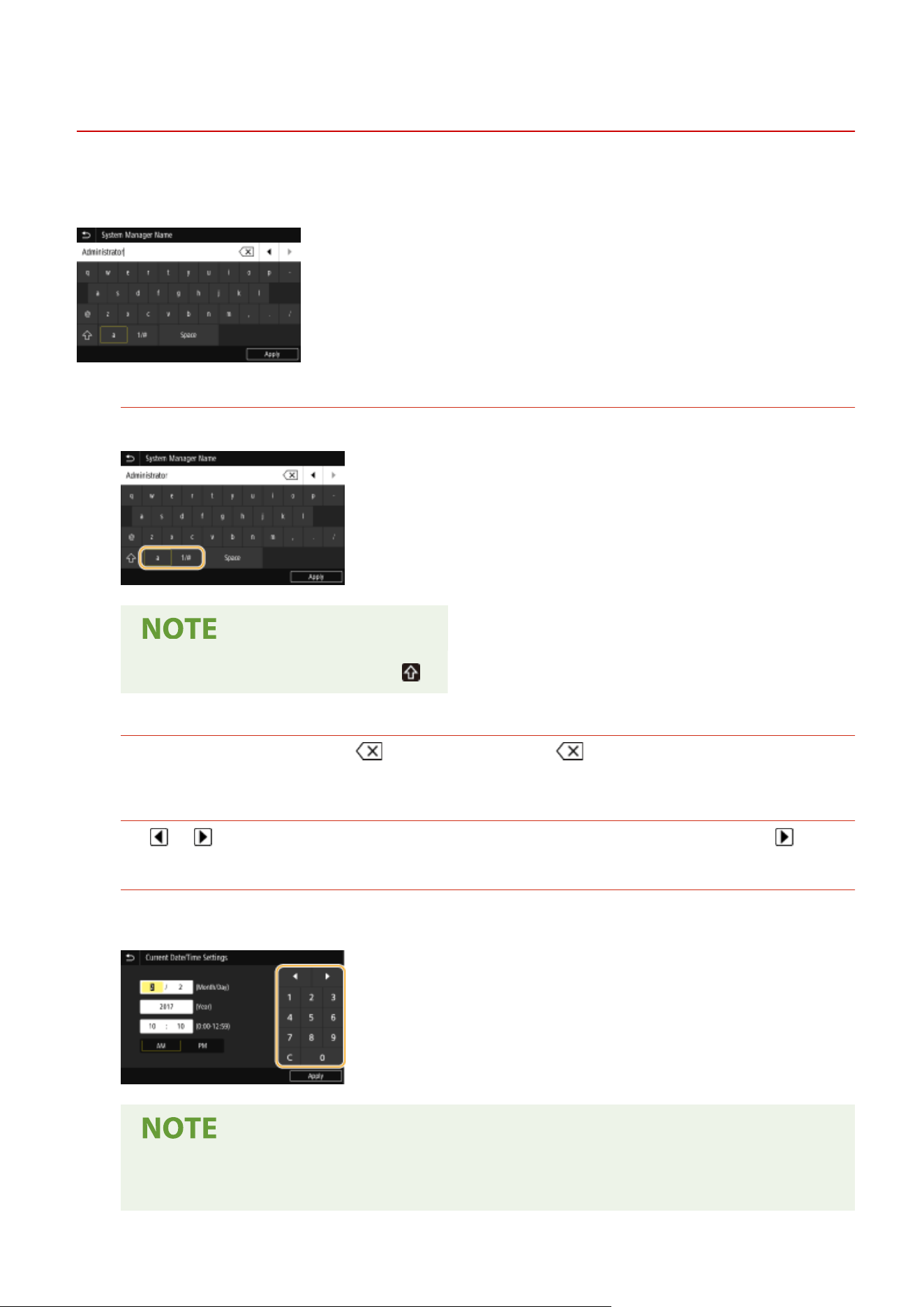
Entering Text
7YWY-02S
When entering te
xt or a number, use the keyboard displayed on the screen. The numeric keys are displayed on the
screen to enter only numbers.
Switching the Type of Character
Tap <a> or <1/#> to switch the type of character that is entered.
● T
o enter upper case characters, tap
.
Deleting Text
One character is deleted each time is tapped. Holding down allows you to delete successive
char
acters.
Moving the Cursor (Entering a Space)
Tap or to move the cursor. To enter a space, move the cursor to the end of the text, and tap .
When the Numeric Ke
ys are Displayed
When you are supposed to enter only a numeric value, the numeric keys are displayed on the screen. Tap
numeric keys to enter the numeric value.
Value range
● The values in ( ) displayed the entry bo
x are the enterable value range.
Basic Operations
134
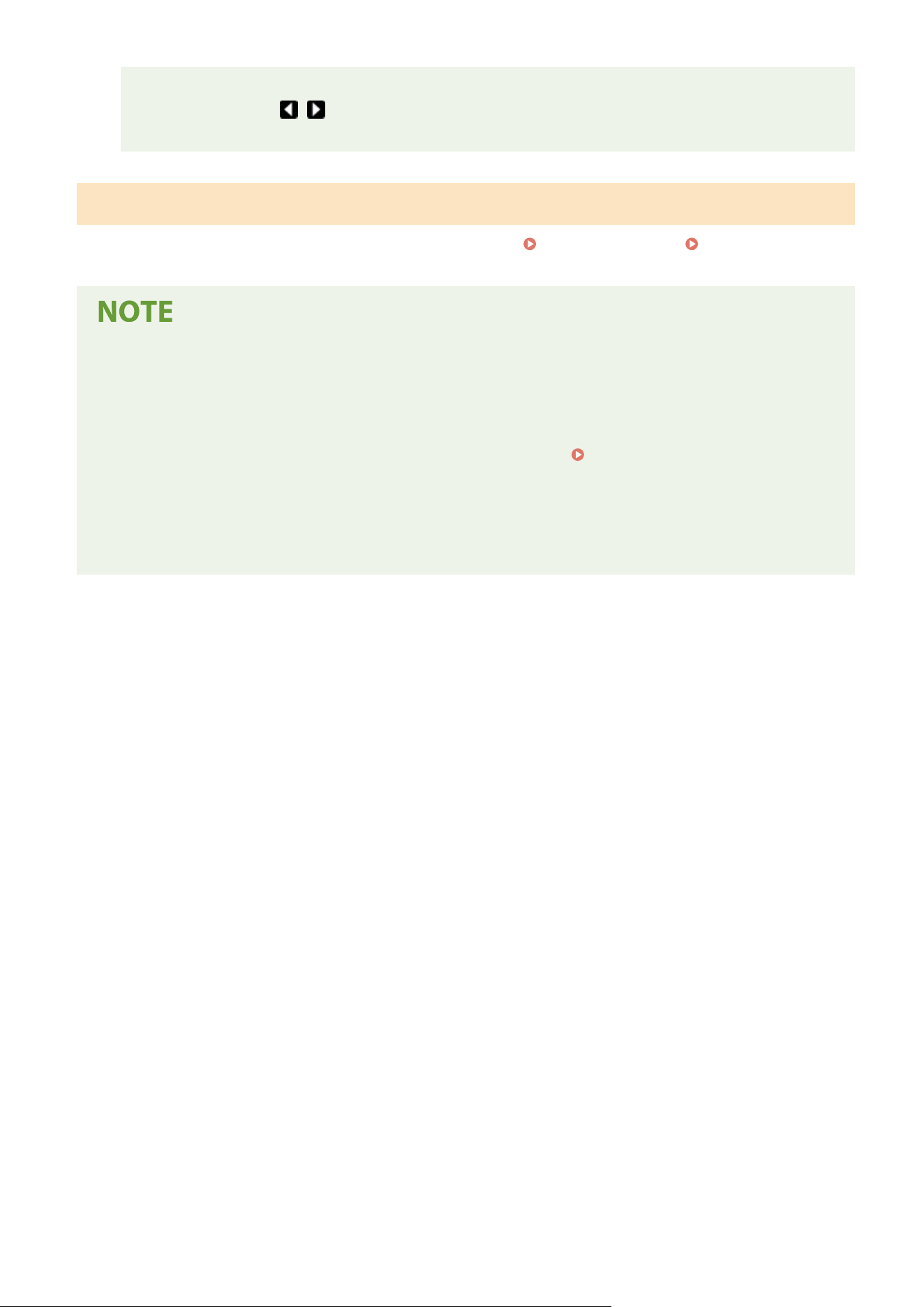
When buttons other than the numeric keys are displayed
● When <+>/<-> or
/ are displayed, you can tap the buttons to increase or decrease the numeric
value or mo
ve the cursor.
Entering Characters Using a USB Keyboard
Y
ou can connect a keyboard to the USB port for USB devices on the
Front Side(P. 106) or Back Side(P. 108) and
enter te
xt from the keyboard. Even while the keyboard is connected, you can enter text from the operation panel.
● Some k
eys on the USB keyboard, such as the [Backspace], [Home] and [End] keys, cannot be used. When
keys that cannot be used are pressed, nothing is entered or changed.
● To delete text, press the [Delete] key.
● Pressing the [RETURN/ENTER] key completes text entry in the same way as selecting <Apply>.
● You can specify the type of keyboard layout (US layout or UK layout).
<English Keyboard Layout>(P. 458)
● Y
ou can disconnect the USB keyboard from the machine at any time. No special operation is required to
disconnect it.
● Depending on the display language, you may not be able to enter some characters correctly.
● The USB keyboard may not operate correctly depending on its type.
Basic Operations
135
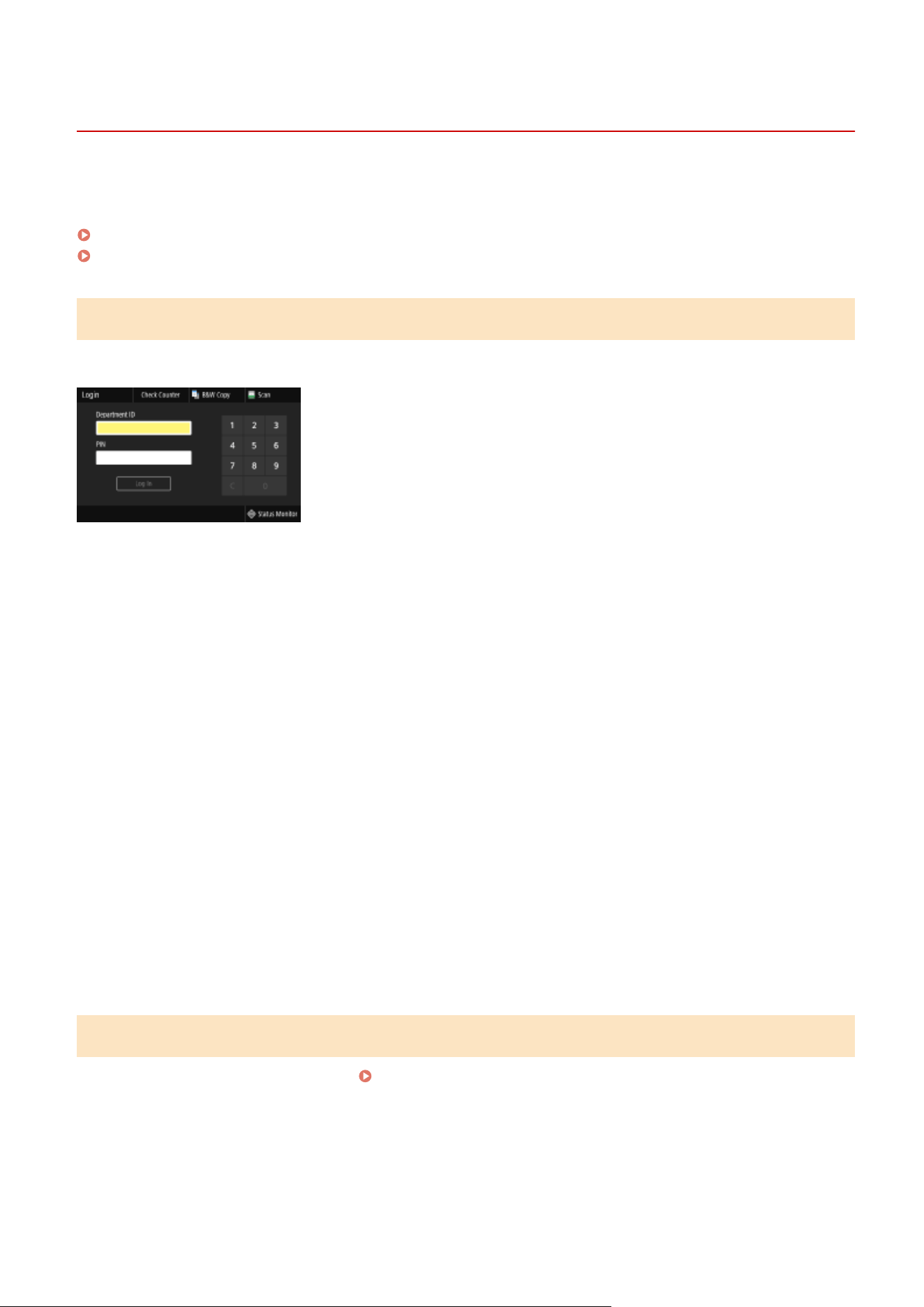
Logging in to the Machine
7YWY-02U
If Department ID Management is enabled or System Manager IDs ar
e enabled, you must log in before using the
machine. You also need to log in if use of the fax and scan functions is restricted.
Department ID Management Login(P. 136)
Logging in to Authorized Send(P. 136)
Department ID Management Login
When the login screen appears, use the procedure below to enter the Department ID and PIN.
1
Enter the ID.
1
Select <Department ID> or <System Manager ID>.
2
Enter the ID.
● If no PIN is r
egistered, proceed to step 3.
2
Enter the PIN.
1
Select <PIN>.
2
Enter the PIN.
3
Select <Log In>.
➠ The login scr
een will be changed to the Home screen.
● After you nish using the machine, select <Log Out> to display the login screen.
Logging in to Authorized Send
If the Send function authorization setting (
LDAP Server Authentication(P. 365) ) is enabled, the Authorized Send
login scr
een appears when the fax or scan function is used.
Basic Operations
136
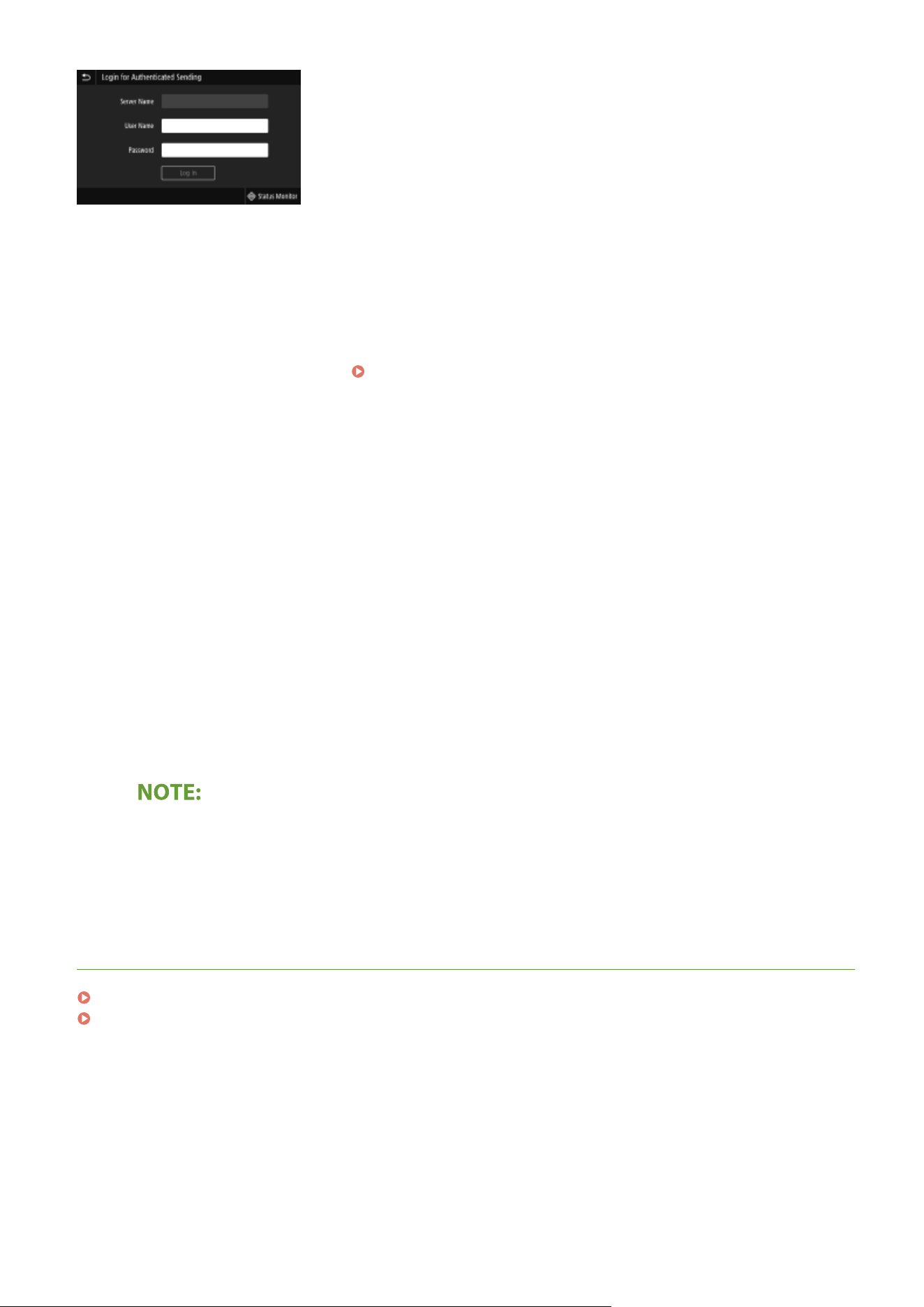
1
Enter your user name.
1
Select <User Name>.
2
Enter your user name.
● On ho
w to enter text, see
Entering Text(P. 134) .
2
Enter the password.
1
Select <Password>.
2
Enter the password.
3
Select <Server Name>, and select the server for your authentication.
● Select the LD
AP server where your user name and password are registered.
4
Select <Log In>.
➠ The login scr
een switches to the fax or scan function Home screen.
● After you nish using the machine, select <Log Out> to display the login screen.
If the <Select Logout Type> screen appears
● If
you are logged in to both Authorized Send and Department ID Management, a dialog box appears in
which you can select the items you want to log out of. In the case where you want to log out of Authorized
Send (fax or scan function) while remaining logged in to Department ID Management, select <Log Out
from Authenticated Sending>. In any other cases, select <Log Out from All Authenticated Functions>.
LINKS
Setting the Department ID Management(P. 357)
Setting the System Manager ID and PIN(P. 355)
Basic Operations
137
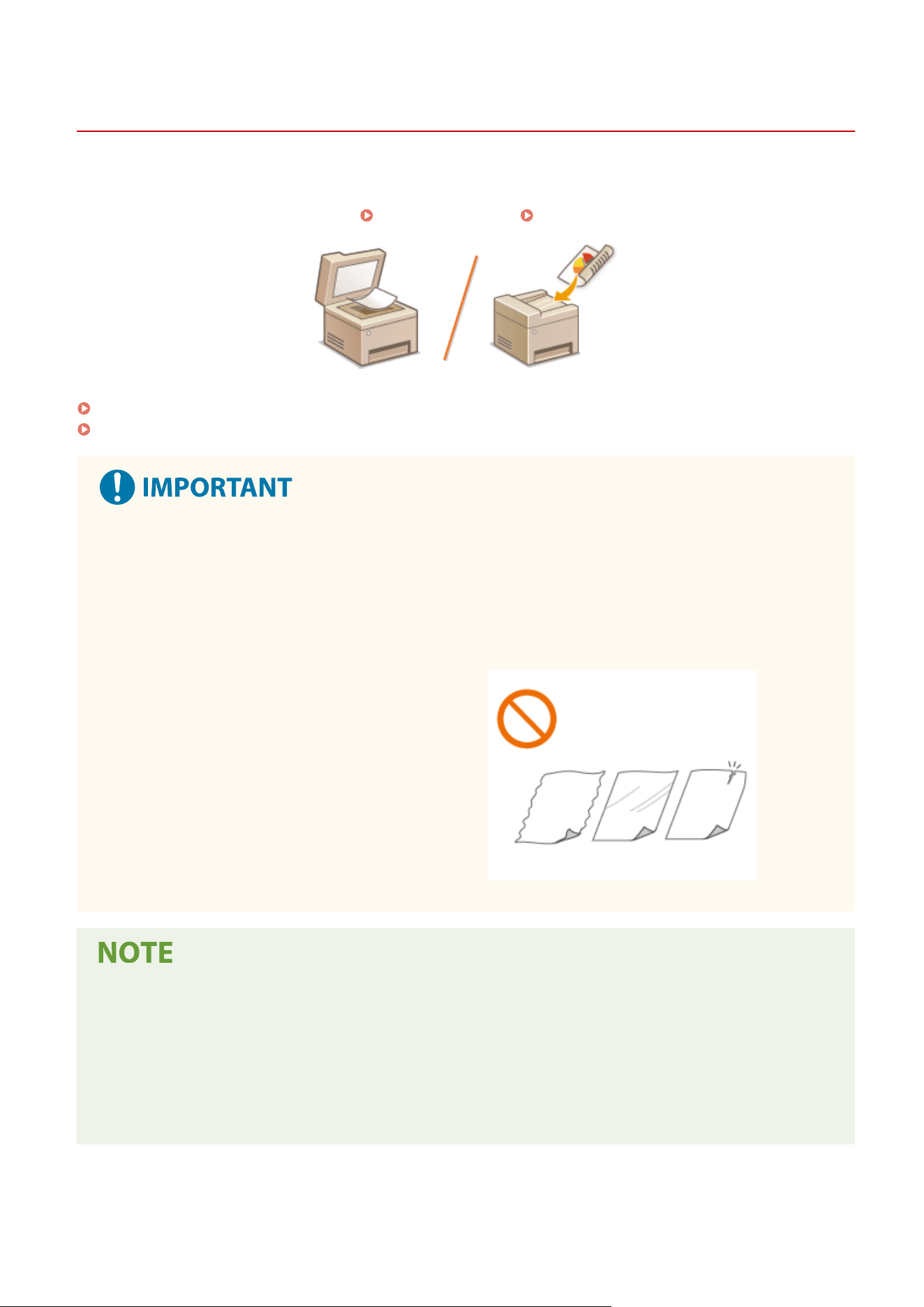
Placing Originals
7YWY-02W
Place originals on the platen glass or in the feeder. Use the platen glass when scanning thick or bound documents
such as books. Y
ou can load two or more sheets of originals in the feeder so that they can be scanned continuously.
For information on loadable sizes, etc., see
Main Unit(P. 613) or Feeder(P. 616) .
Placing Originals on the Platen Glass(P. 139)
Placing Originals in the Feeder(P. 139)
Use originals that are completely dry
● When placing originals, mak
e sure that any glue, ink, or correction uid on the originals has completely
dried.
To avoid paper jams
● Do not place the following types of originals in the feeder as this may cause paper jams:
- Wrinkled or creased paper
-
Carbon paper
- Curled or rolled paper
- Coated paper
- Torn paper
- Onion skin or thin paper
- Stapled or clipped originals
- Paper printed by a thermal transfer printer
- Transparencies
To scan originals more accurately
● Originals placed in the feeder ar
e scanned while being fed into the machine. On the other hand, originals
placed on the platen glass remain in a xed position while they are scanned. To ensure more accurate
scanning results, placing originals on the platen glass is recommended.
To scan tracing paper or transparencies
● To scan transparent originals (for example, tracing paper or transparencies), place them on the platen glass.
Basic Operations
138
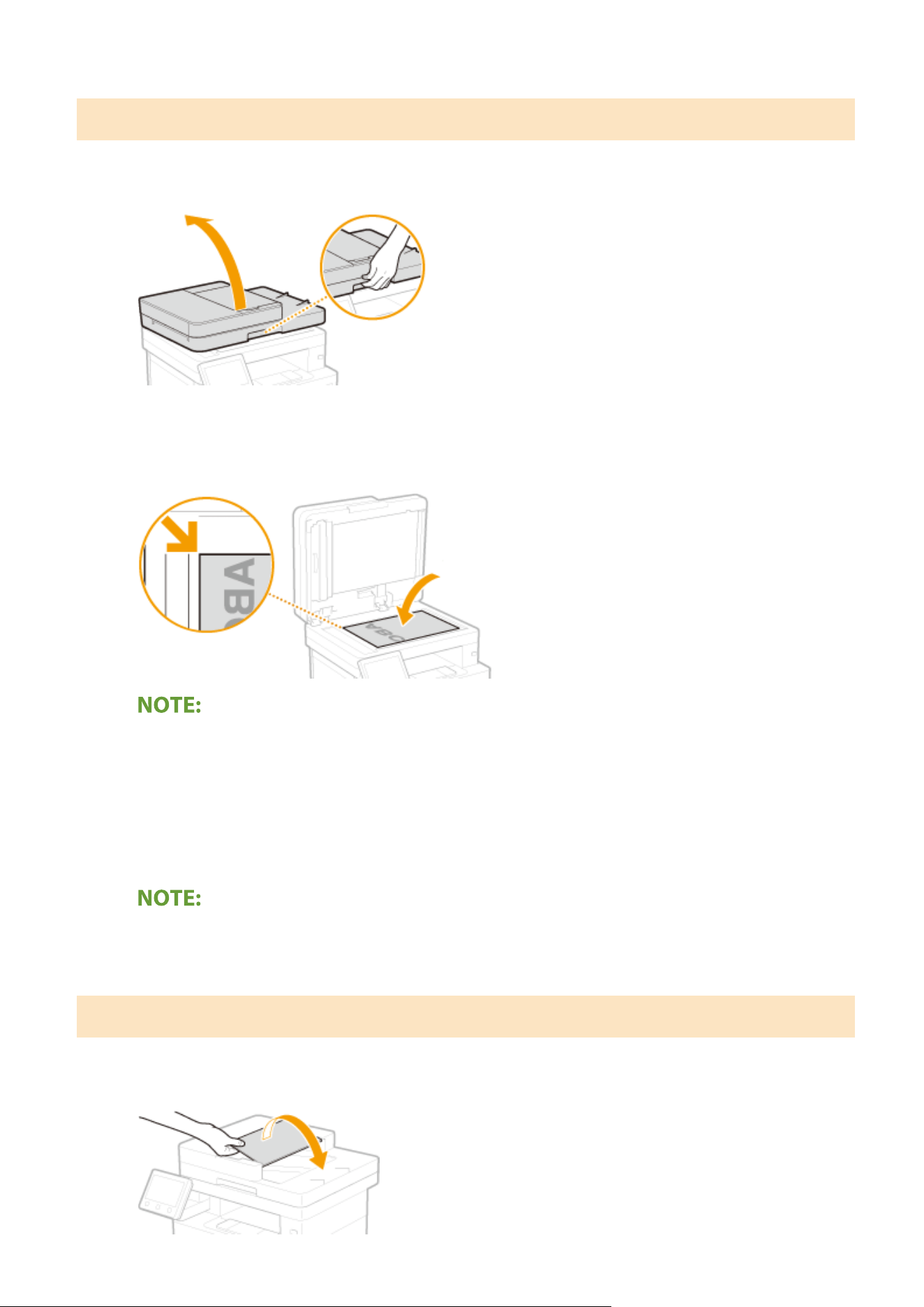
Placing Originals on the Platen Glass
1
Open the feeder.
2
Place the original face down on the platen glass.
● Align the corner of the original with the top-left corner of the platen glass.
● T
o scan transparent originals (for example, tracing paper or transparencies), cover them with plain white
paper.
3
Gently close the feeder.
➠ The machine is r
eady to scan the document.
When scanning is complete
● Remo
ve the original from the platen glass.
Placing Originals in the Feeder
1
Open the original supply tray.
Basic Operations
139
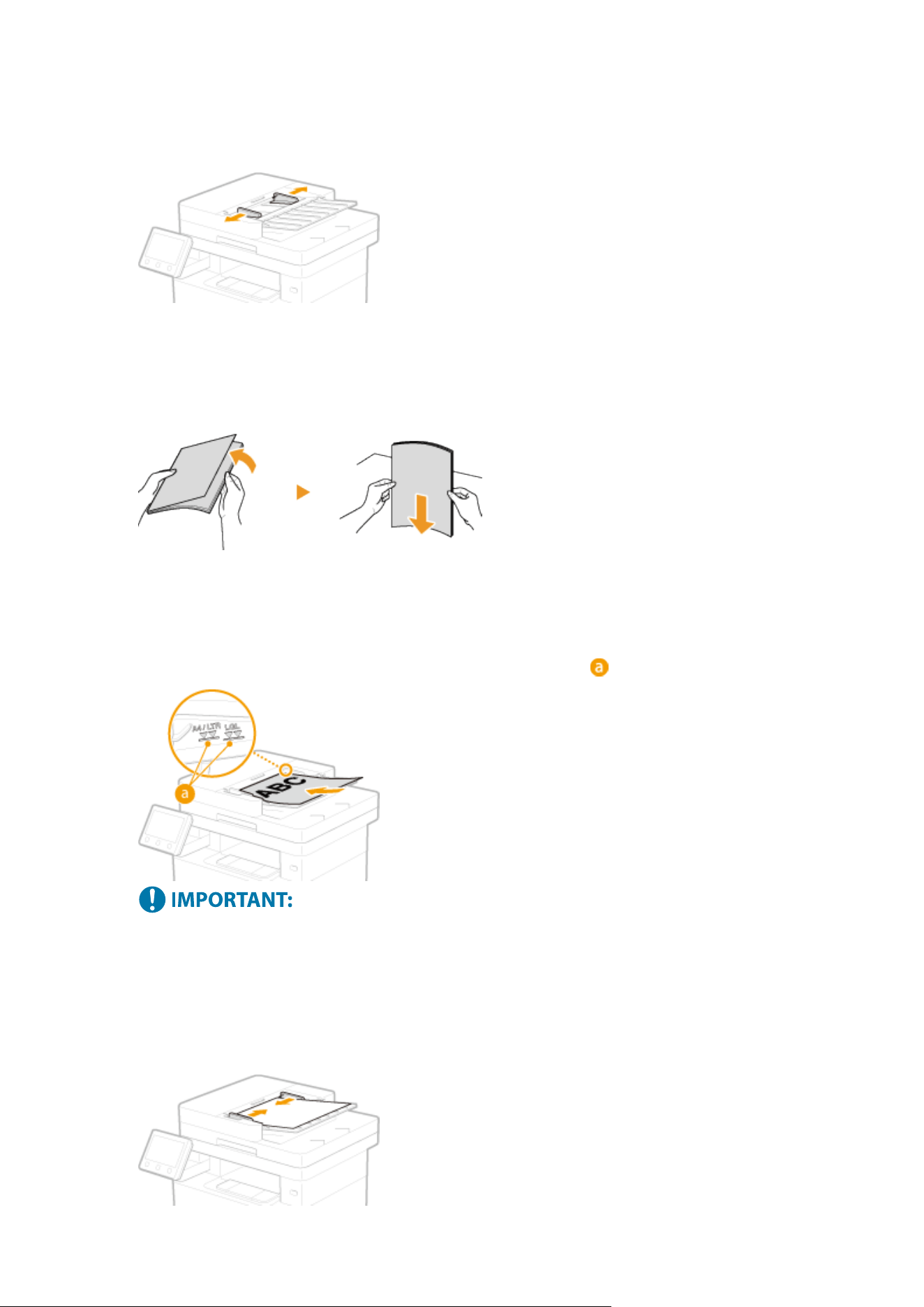
2
Spread the slide guides apart.
● Slide the slide guides outwar
d until they are slightly farther apart than the actual original width.
3
Fan the original stack and align the edges.
● Fan the original stack in small batches, and align the edges b
y lightly tapping the stack on a at surface a few
times.
4
Place the original(s) face up in the feeder.
● Place the original(s) in the landscape orientation.
● Make sure that the original stack does not exceed the load limit line ( ).
● Do not load originals of various sizes at the same time.
● If originals ar
e loaded so that they exceed the load limit line, scanning may stop or a paper jam may occur.
5
Align the slide guides against the edges of the original.
● Slide the slide guides inwar
d until they are aligned securely against the edges of the original.
Basic Operations
140

➠ The machine is r
eady to scan the original.
Align the slide guides securely against the edges of the original
● Slide guides that ar
e too loose or too tight can cause misfeeds or paper jam.
While originals are being scanned
● Do not add or remove originals.
When scanning is complete
● Remove the scanned originals from beneath the feeder to prevent paper jams.
Basic Operations
141
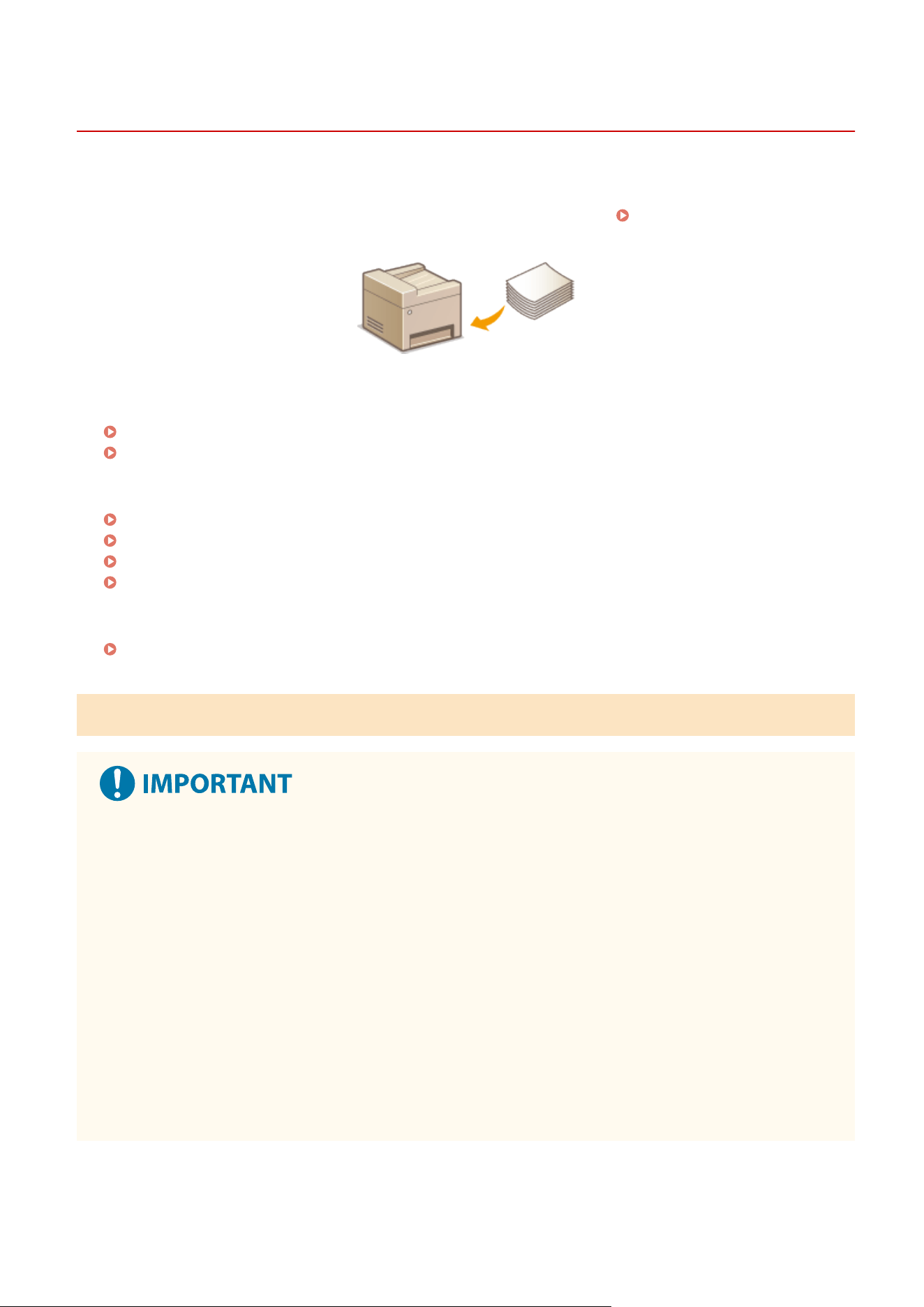
Loading Paper
7YWY-02X
Y
ou can load the paper into the paper drawer or multi-purpose tray. Load the paper you usually use into the paper
drawer. The paper drawer is convenient when using large amounts of paper. Use the multi-purpose tray when you
temporarily use a size or type of paper that is not loaded in the paper drawer. See
Available Paper(P. 617) for
available paper sizes and types.
About Paper
Precautions for Paper(P. 142)
Storing the Paper Printed with the Machine(P. 143)
Ho
w to Load Paper
Loading Paper in the Paper Drawer(P. 144)
Loading Paper in the Multi-Purpose Tray(P. 149)
Loading Envelopes(P. 152)
Loading Preprinted Paper(P. 154)
Conguring the Settings for the Loaded Paper
Specifying Paper Size and Type(P. 158)
Precautions for Paper
Do not use the following types of paper:
● A paper jam or printing err
or may occur.
- Wrinkled or creased paper
- Curled or rolled paper
- Torn paper
- Damp paper
- Very thin paper
- Thin coarse paper
- Paper printed by a thermal transfer printer
- Back side of paper printed by a thermal transfer printer
- Highly textured paper
- Glossy paper
Basic Operations
142
Notes on use of paper
● Only use paper that has fully acclimatized to the envir
onment in which the machine is installed. Using paper
that has been stored under different temperature or humidity conditions may cause paper jams or result in
poor print quality.
Paper handling and storage
● It is recommended that you use paper as soon as possible after unwrapping. Paper remaining unused
should be covered with the original wrapping paper and stored on a at surface.
● Keep the paper wrapped in its original package to protect the paper from moisture or dryness.
● Do not store the paper in such a way that may cause it to curl or fold.
● Do not store the paper vertically or do not stack too much paper.
● Do not store the paper in direct sunlight, or in a place subject to high humidity, dryness, or drastic changes
in temperature or humidity.
When printing on paper that has absorbed moisture
● Steam may emit fr
om the paper output area, or water droplets may form around the paper output area.
There is nothing unusual about any of these occurrences, which occur when the heat generated from xing
toner on the paper causes moisture in the paper to evaporate (most likely to occur at low room
temperatures).
Storing the Paper Printed with the Machine
When handling/storing the paper printed with the machine, tak
e the following precautions.
◼ How to Store the Printed Paper
● Store on a at surface.
● Do not store together with articles made of PVC (polyvinyl chloride) such as clear folders. Toner may melt, resulting
in the paper's sticking to PVC articles.
● Take care that the paper does not get folded or creased. Toner may peel off.
● To store over a long period of time (two years or longer), store in binders or equivalent.
● When the paper is stored over a long period of time, it may become discolored and thus the print may seem to have
undergone a change of color.
● Do not store in a place where the temperature is high.
◼ Precautions When Applying Adhesive
● Always use insoluble adhesive.
● Before applying adhesive, perform a test using a printout no longer required.
● When putting adhesive-applied paper sheets one over another, make sure that the adhesive is completely dried out.
LINKS
Registering a Custom Paper Size(P. 165)
Basic Operations
143
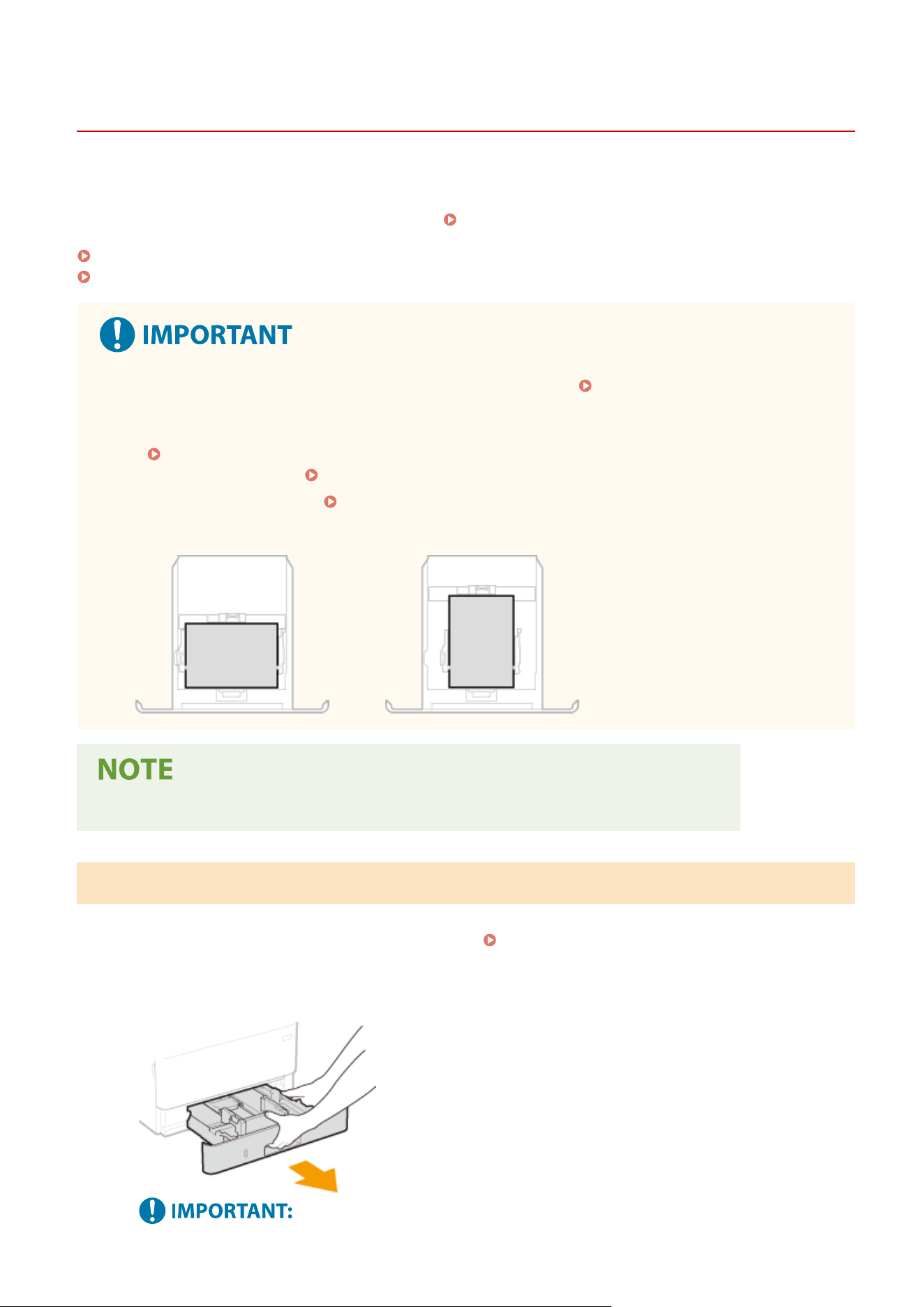
Loading Paper in the Paper Drawer
7YWY-02Y
1660-02Y
Load the paper that you usually use in the paper dr
awer. When you want to print on paper that is not loaded in the
paper drawer, load the paper in the multi-purpose tray.
Loading Paper in the Multi-Purpose Tray(P. 149)
Loading Regular Size Paper(P. 144)
Loading Custom Size Paper(P. 146)
● When loading A5 size paper in the paper dr
awer of the main unit, see
Loading Custom Size
Paper
(P. 146) .
● When you want to load A5 size paper in the optional cassette feeding module in the landscape orientation,
see
Loading Regular Size Paper(P. 144) . If you want to use the portr
ait orientation, load paper by
following the procedure for
Loading Custom Size Paper(P. 146) .
● When using A6 size paper, see Loading Custom Size Paper(P. 146) and load it in the portr
ait orientation.
Landscape orientation
Portrait orientation
● Follo
w the procedure below when loading paper into the optional cassette feeding module.
Loading Regular Size Paper
T
o load paper whose size is found in the paper size markings on the paper drawer, use the following procedure. For
paper whose size is not found in the paper size markings, see
Loading Custom Size Paper(P. 146) .
1
Pull out the paper drawer.
Basic Operations
144
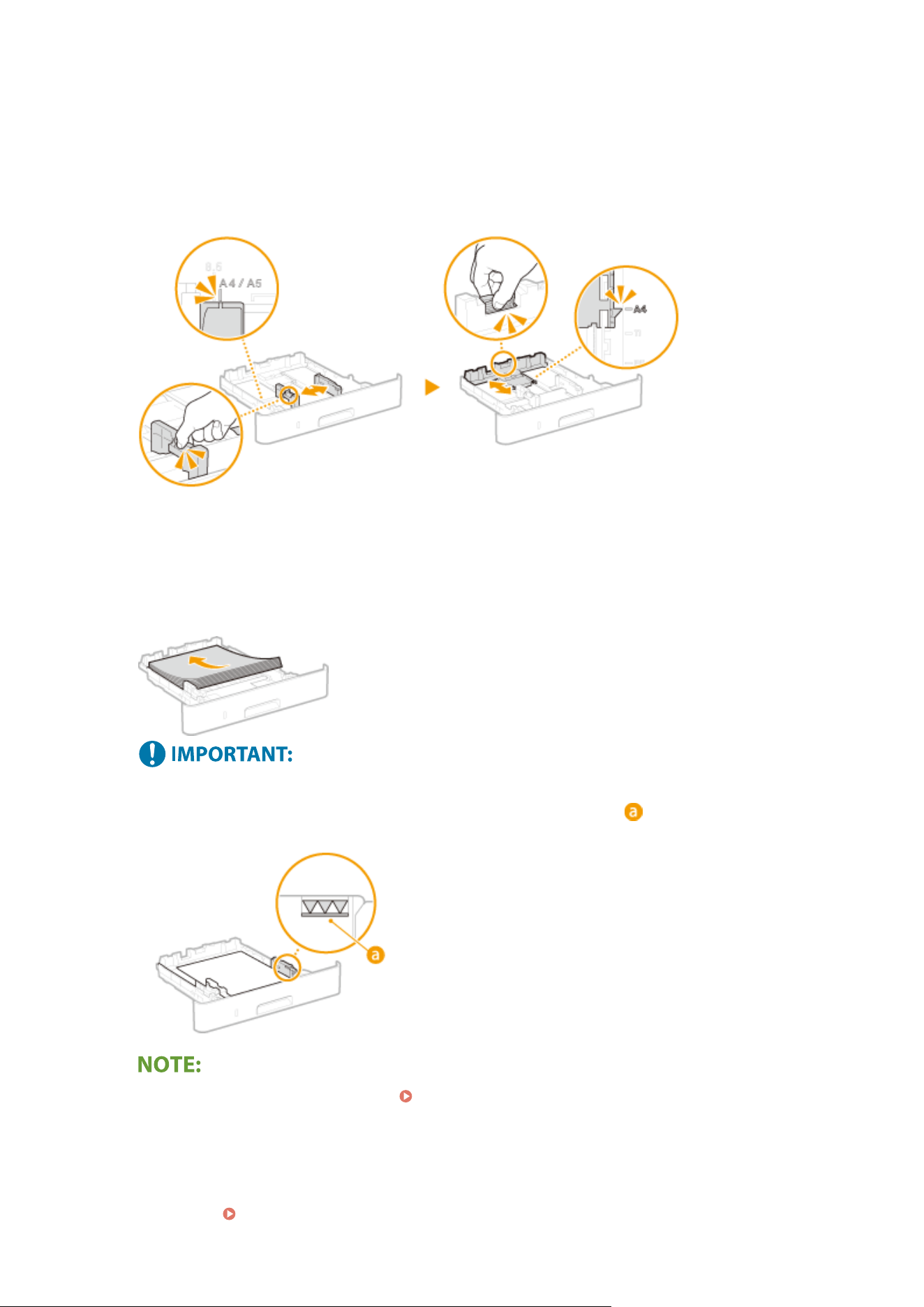
● Mak
e sure to hold the paper drawer with both hands, and pull it out gently. Otherwise, you may damage
the paper drawer by dropping it, if it slides out too easily.
2
Adjust the positions of the paper guides to the paper size you want to use.
● While pr
essing the lock release lever, move the paper guide to align the projection to the appropriate paper
size marking.
3
Load the paper so that the edge of the paper stack is aligned against the paper guide
on the rear side of the paper drawer.
● Load the paper with the print side face do
wn.
● Fan the paper stack well, and tap it on a at surface to align the edges of the paper stack.
Do not exceed the load limit line when loading paper
● Make sure that the paper stack does not exceed the load limit line ( ). Loading too much paper can
cause paper jams.
● When loading paper with a logo, see Loading Preprinted Paper(P. 154) .
4
Insert the paper drawer into the machine.
● When you insert the paper dr
awer with <Notify to Check Paper Settings> set to <On>, a conrmation screen
is displayed.
<Notify to Check Paper Settings>(P. 553)
Basic Operations
145
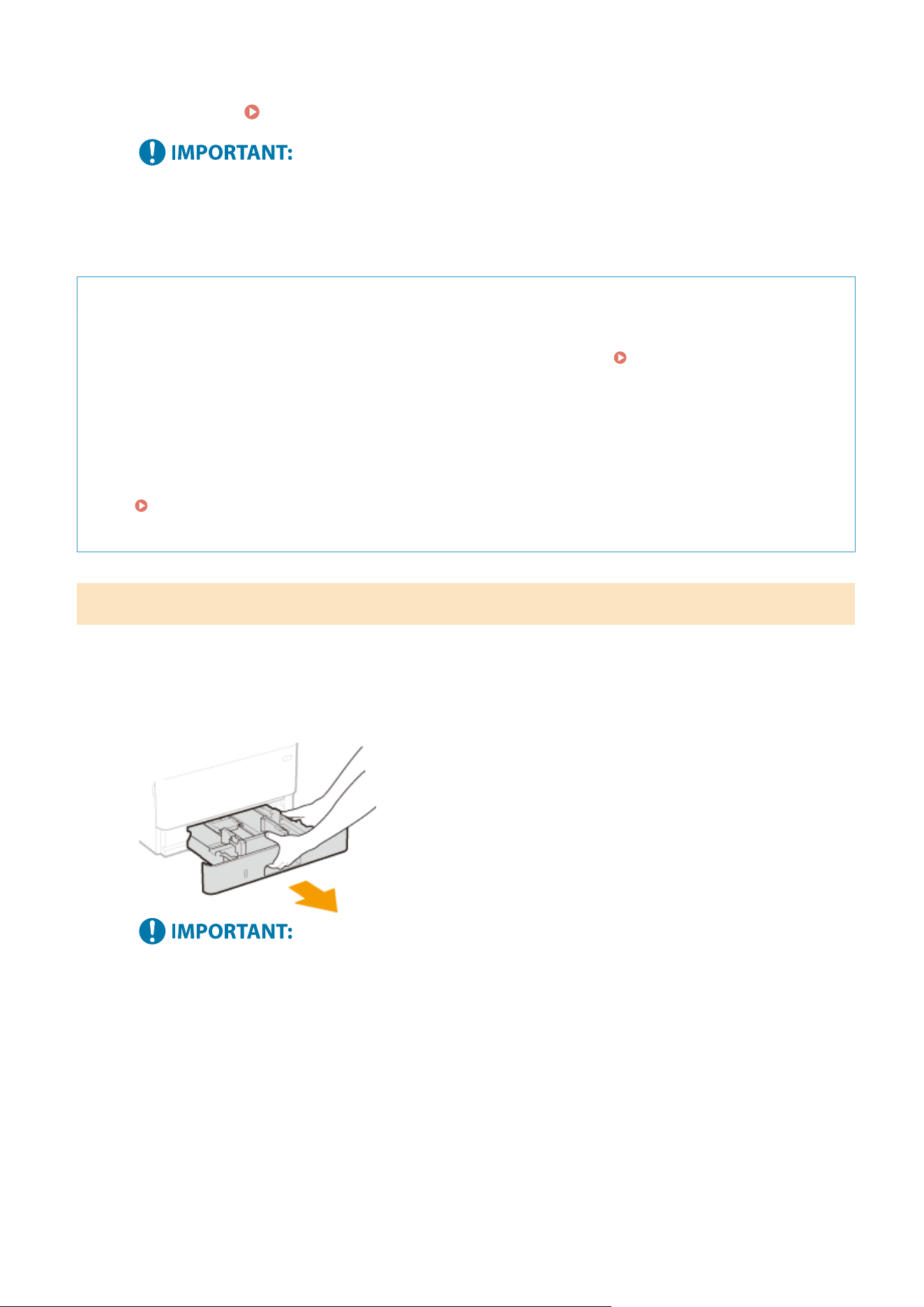
»
Continue to
Specifying Paper Size and Type in the Paper Drawer(P. 159)
When changing the paper size or type
● The
factory default settings for paper size and type are <LTR> and <Plain 2>, respectively. If you load a
different size or type of paper into the machine, make sure to change the settings. If you do not change
the settings, the machine cannot print properly.
Printing on the Back Side of Printed Paper (Manual 2-Sided Printing)
● Y
ou can print on the back side of printed paper. Flatten any curls on the printed paper and insert it into the
paper drawer with the print side face down or into the multi-purpose tray (
Loading Paper in the Multi-
Purpose T
ray(P. 149) ) with the print side face up.
- When using the multi-purpose tray, load one sheet of paper each time you print.
- You can use only the paper printed with this machine.
- You cannot print on the side that has previously been printed on.
- If the printouts look faded, set the target paper source to <On> in <Manual Back Side Print (2-Sided Only)>.
<Manual Back Side Print (2-Sided Only)>(P. 483)
-
If you are using A5 size paper, the reverse side may not be printed correctly.
Loading Custom Size Paper
T
o load custom size paper or other paper whose size is not found in the paper size markings on the paper drawer, use
the following procedure.
1
Pull out the paper drawer.
● Mak
e sure to hold the paper drawer with both hands, and pull it out gently. Otherwise, you may damage
the paper drawer by dropping it, if it slides out too easily.
2
Spread the paper guides apart.
● Pr
ess the lock release lever to slide the paper guides outward.
Basic Operations
146
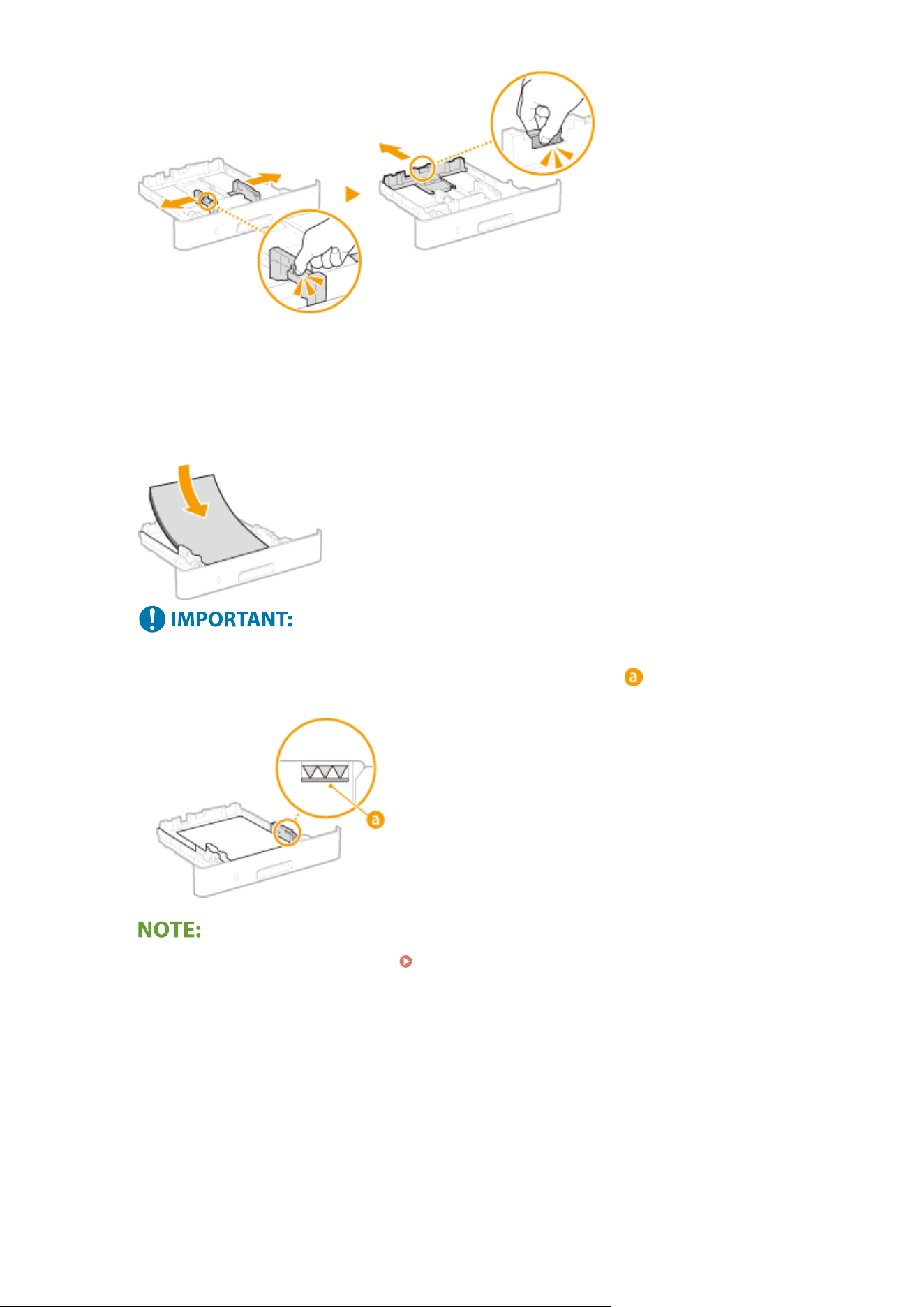
3
Load the paper so that the edge of the paper stack is aligned against the front side of
the paper dr
awer.
● Load the paper with the print side face do
wn.
● Fan the paper stack well, and tap it on a at surface to align the edges of the paper stack.
Do not exceed the load limit line when loading paper
● Mak
e sure that the paper stack does not exceed the load limit line (
). Loading too much paper can
cause paper jams.
● When loading paper with a logo, see Loading Preprinted Paper(P. 154) .
4
Align the paper guides against the edges of the paper.
● Pr
ess the lock release lever and slide the paper guides inward until they are aligned securely against the
edges of the paper.
Basic Operations
147
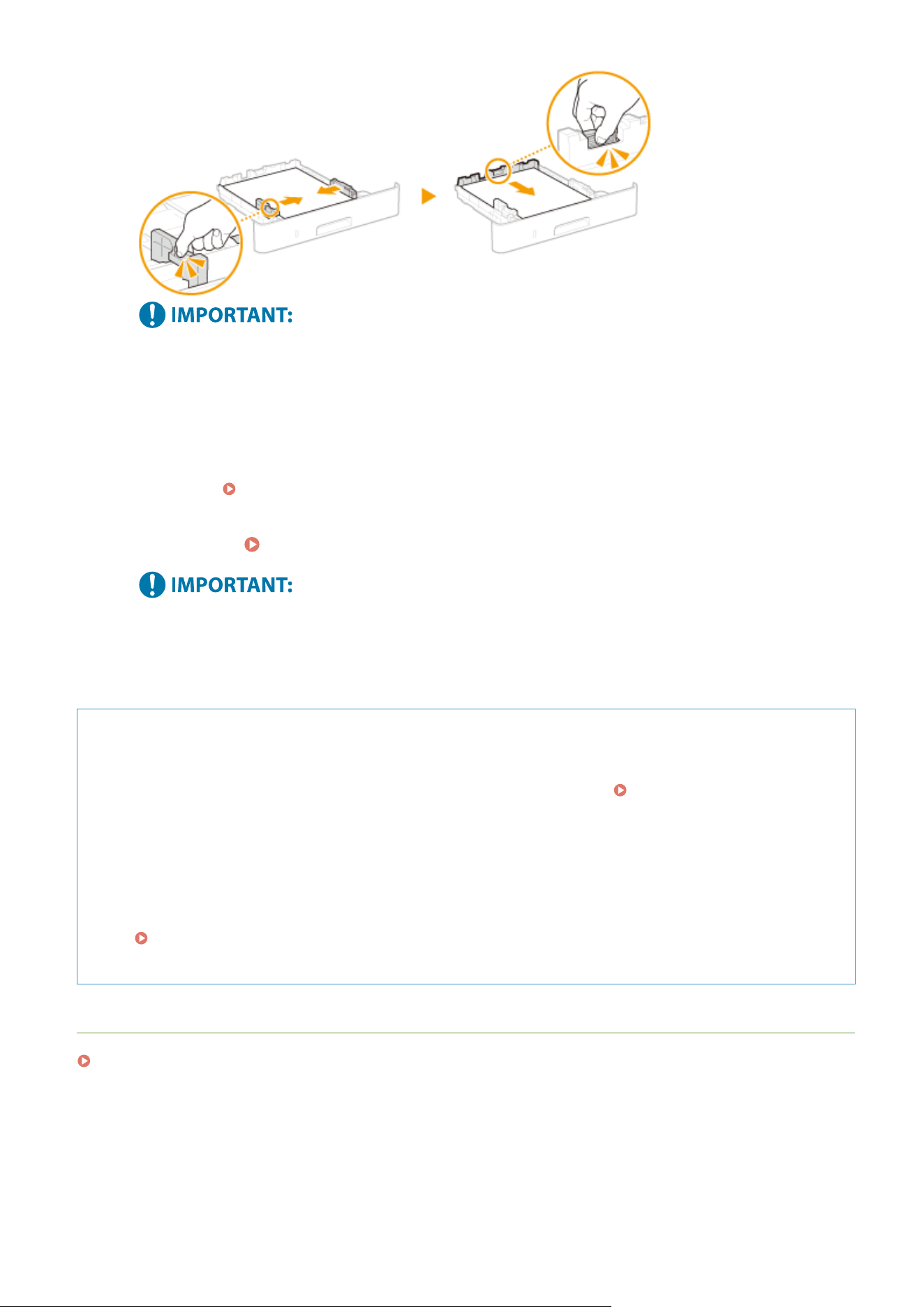
Align the paper guides securely against the edges of the paper
● Paper guides that ar
e too loose or too tight can cause misfeeds or paper jams.
5
Insert the paper drawer into the machine.
● When you insert the paper dr
awer with <Notify to Check Paper Settings> set to <On>, a conrmation screen
is displayed.
<Notify to Check Paper Settings>(P. 553)
»
Continue to Specifying Paper Size and Type in the Paper Drawer(P. 159)
When changing the paper size or type
● The
factory default settings for paper size and type are <LTR> and <Plain 2>, respectively. If you load a
different size or type of paper into the machine, make sure to change the settings. If you do not change
the settings, the machine cannot print properly.
Printing on the Back Side of Printed Paper (Manual 2-Sided Printing)
● Y
ou can print on the back side of printed paper. Flatten any curls on the printed paper and insert it into the
paper drawer with the print side face down or into the multi-purpose tray (
Loading Paper in the Multi-
Purpose T
ray(P. 149) ) with the print side face up.
- When using the multi-purpose tray, load one sheet of paper each time you print.
- You can use only the paper printed with this machine.
- You cannot print on the side that has previously been printed on.
- If the printouts look faded, set the target paper source to <On> in <Manual Back Side Print (2-Sided Only)>.
<Manual Back Side Print (2-Sided Only)>(P. 483)
-
If you are using A5 size paper, the reverse side may not be printed correctly.
LINKS
Available Paper(P. 617)
Basic Operations
148
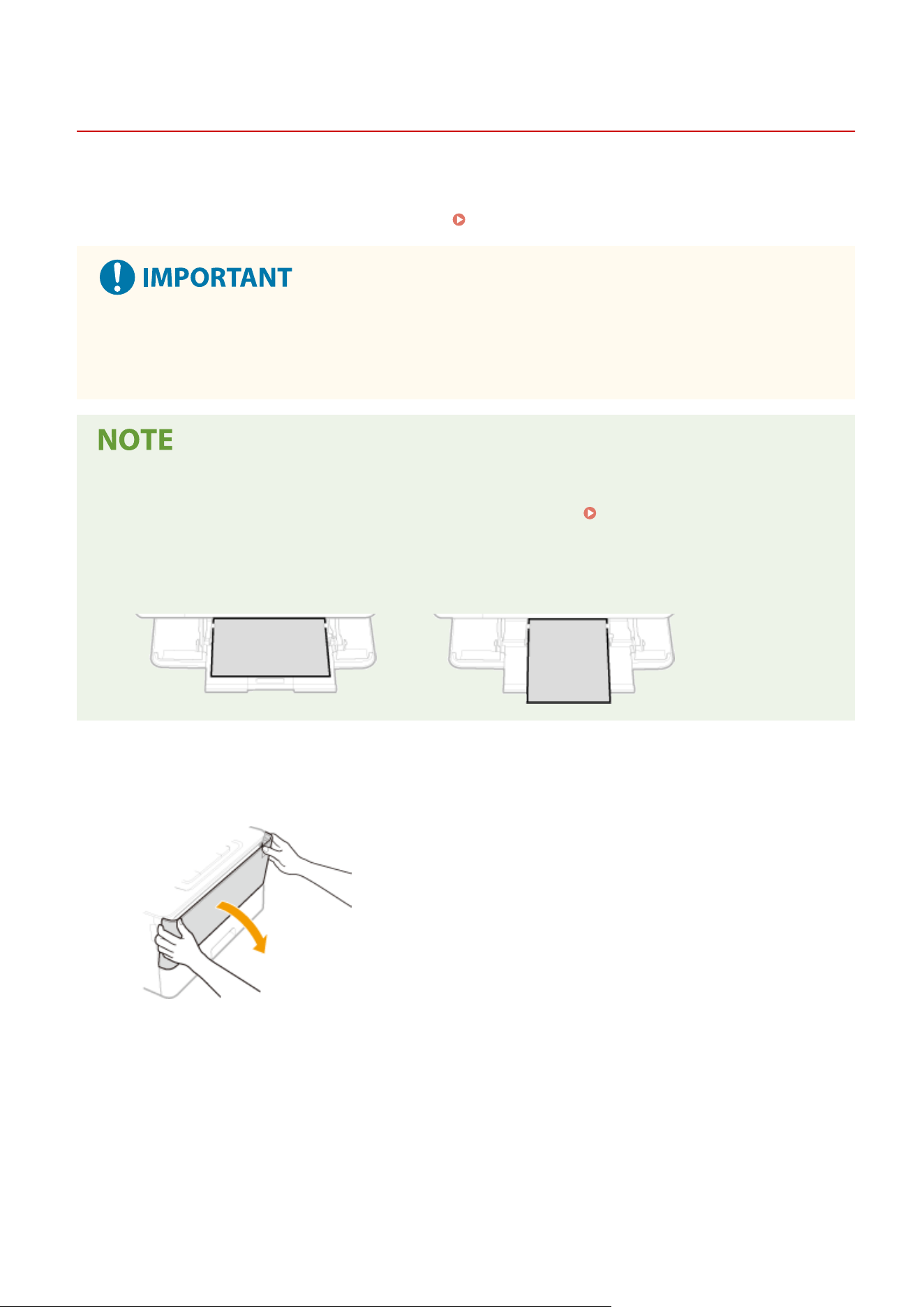
Loading Paper in the Multi-Purpose Tray
7YWY-030
1660-030
When you want to print on paper that is not loaded in the paper dr
awer, load the paper in the multi-purpose tray.
Load the paper that you usually use in the paper drawer.
Loading Paper in the Paper Drawer(P. 144)
Make sure to insert the paper drawer
● The machine only prints when the paper dr
awer is inserted, even if paper is loaded in the multi-purpose
tray. An error message is displayed if you attempt to print without inserting the paper drawer.
When loading A5/A6 size paper
● When setting the paper size, mak
e sure the current paper orientation.
Specifying Paper Size and Type in
the Multi-Purpose T
ray(P. 161)
● When using A6 size paper, load it in the portrait orientation.
Landscape orientation
Portrait orientation
1
Open the cover.
● Hold the left and right side handles, and open the co
ver.
2
Pull out the paper tray and the tray extension.
● Pull out the tray extension when loading large paper.
Basic Operations
149
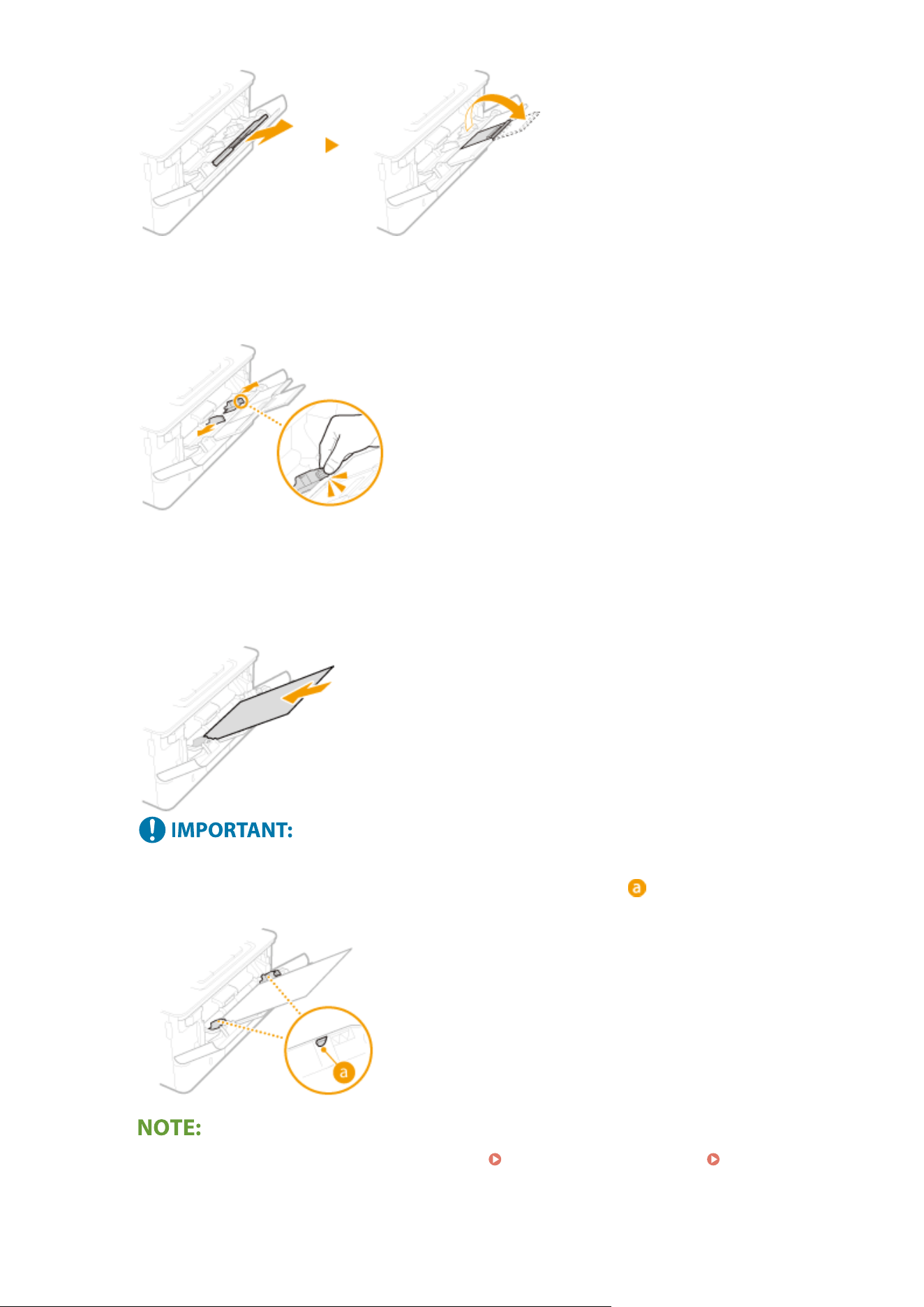
3
Spread the paper guides apart.
● Pr
ess the lock release lever to slide the paper guides outward.
4
Insert the paper into the multi-purpose tray until the paper stops.
● Load the paper with the print side face up.
● Fan the paper stack well, and tap it on a at surface to align the edges of the paper stack.
Do not exceed the load limit guide when loading paper
● Mak
e sure that the paper stack does not exceed the load limit guide (
). Loading too much paper can
cause paper jams.
● When
loading envelopes or paper with a logo, see
Loading Envelopes(P. 152) or Loading Preprinted
Paper(P
. 154) .
Basic Operations
150
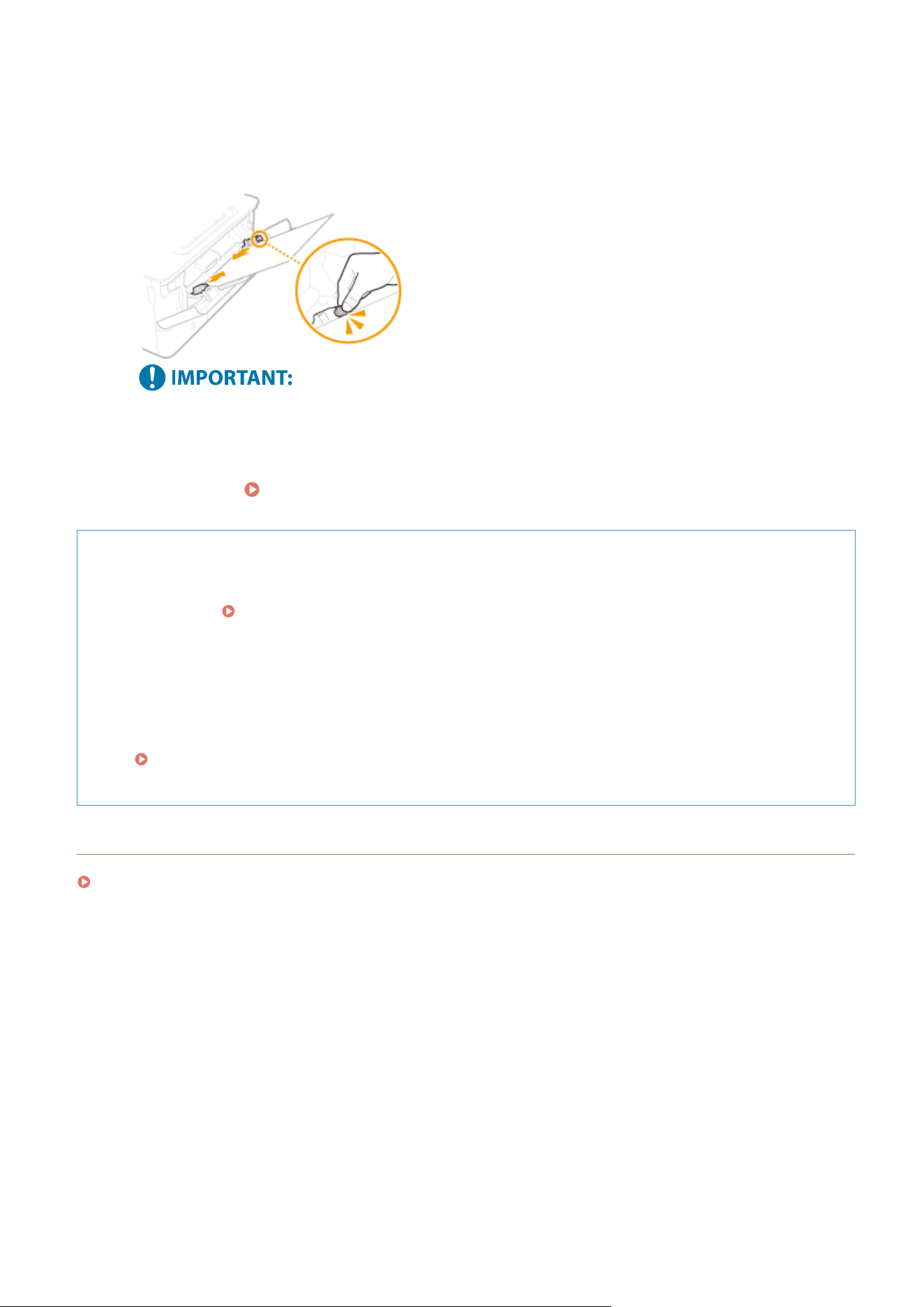
5
Align the paper guides against the edges of the paper.
● Pr
ess the lock release lever and slide the paper guides inward until they are aligned securely against the
edges of the paper.
Align the paper guides securely against the edges of the paper
● Paper guides that ar
e too loose or too tight can cause misfeeds or paper jams.
»
Continue to
Specifying Paper Size and Type in the Multi-Purpose Tray(P. 161)
Printing on the Back Side of Printed Paper (Manual 2-Sided Printing)
● Y
ou can print on the back side of printed paper. Flatten any curls on the printed paper and insert it into the
paper drawer (
Loading Paper in the Paper Drawer(P. 144) ) with the print side face do
wn or into the
multi-purpose tray with the print side face up.
- When using the multi-purpose tray, load one sheet of paper each time you print.
- You can use only the paper printed with this machine.
- You cannot print on the side that has previously been printed on.
- If the printouts look faded, set the target paper source to <On> in <Manual Back Side Print (2-Sided Only)>.
<Manual Back Side Print (2-Sided Only)>(P. 483)
-
If you are using A5 size paper, the reverse side may not be printed correctly.
LINKS
Available Paper(P. 617)
Basic Operations
151
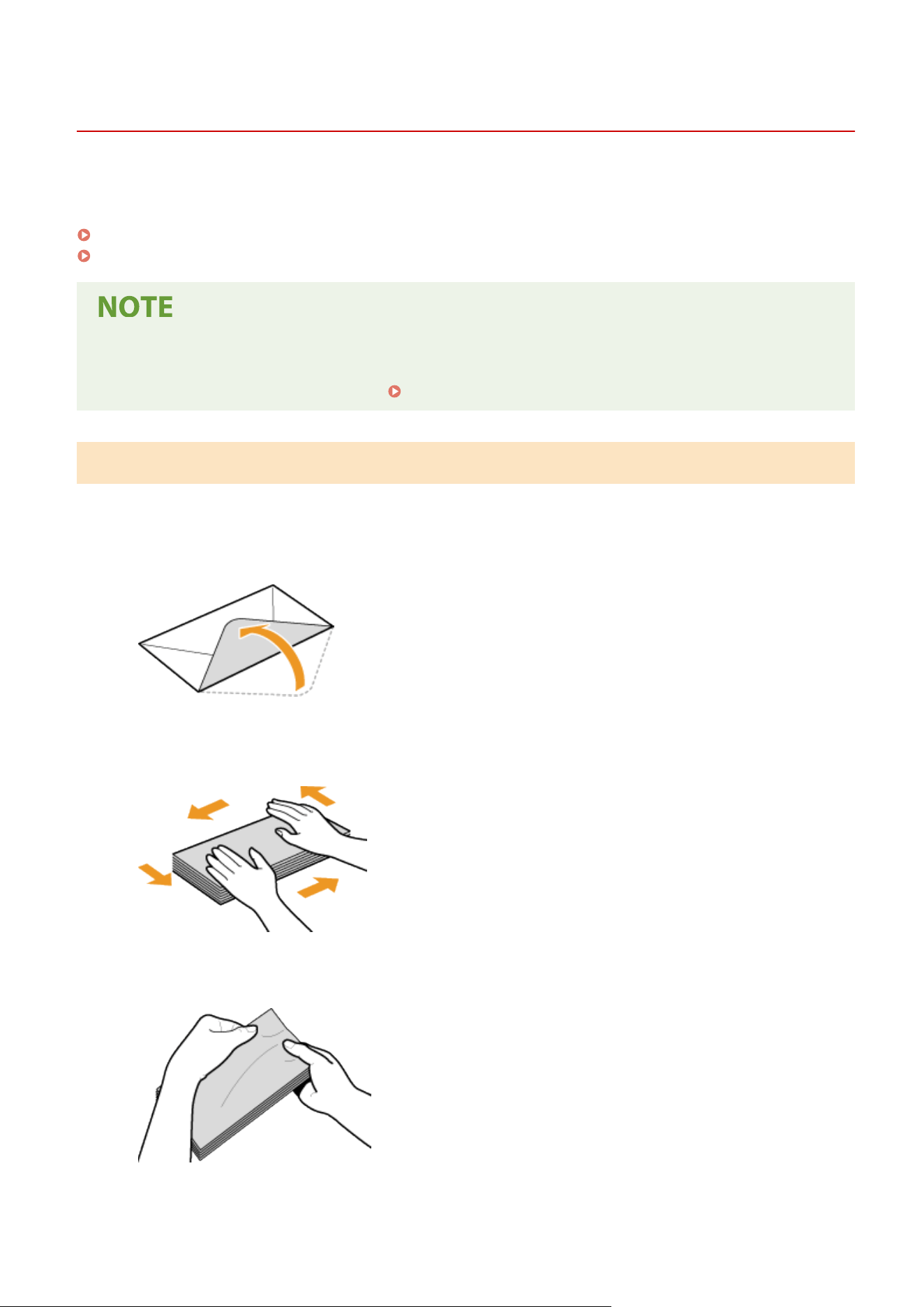
Loading Envelopes
7YWY-031
Mak
e sure to atten any curls on envelopes before loading them. Also pay attention to the orientation of envelopes
and which side is face up. You cannot load envelopes in the paper drawer.
Before Loading Envelopes(P. 152)
In the Multi-Purpose Tray(P. 153)
● This section describes ho
w to load envelopes in the orientation you want, as well as procedures that you
need to complete before loading envelopes. For a description of the general procedure for loading
envelopes in the multi-purpose tray, see
Loading Paper in the Multi-Purpose Tray(P. 149) .
Before Loading Envelopes
Follo
w the procedure below to prepare the envelopes before loading.
1
Close the ap of each envelope.
2
Flatten them to release any remaining air, and make sure that the edges are pressed
tightly
.
3
Loosen any stiff corners of the envelopes and atten any curls.
4
Align the edges of the envelopes on a at surface.
Basic Operations
152
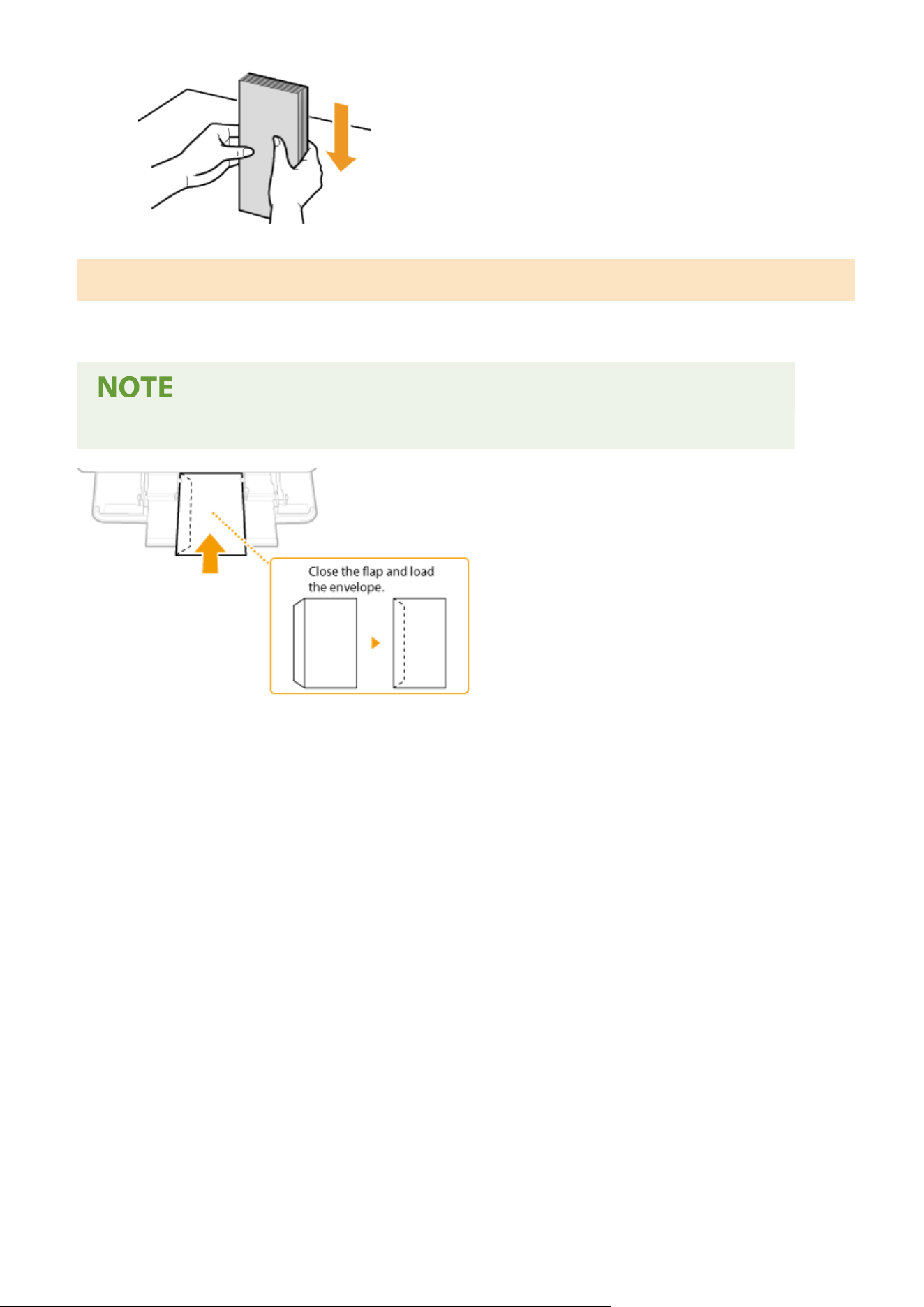
In the Multi-Purpose Tray
Load the envelopes Monarch, COM10, DL, or ISO-C5 in portrait orientation (with the short edge toward the machine),
with the non-glued side (front side) face up. You cannot print on the reverse side of envelopes.
● Load the envelopes so that the edge with the ap is to
ward the left side as shown in the illustration.
Basic Operations
153
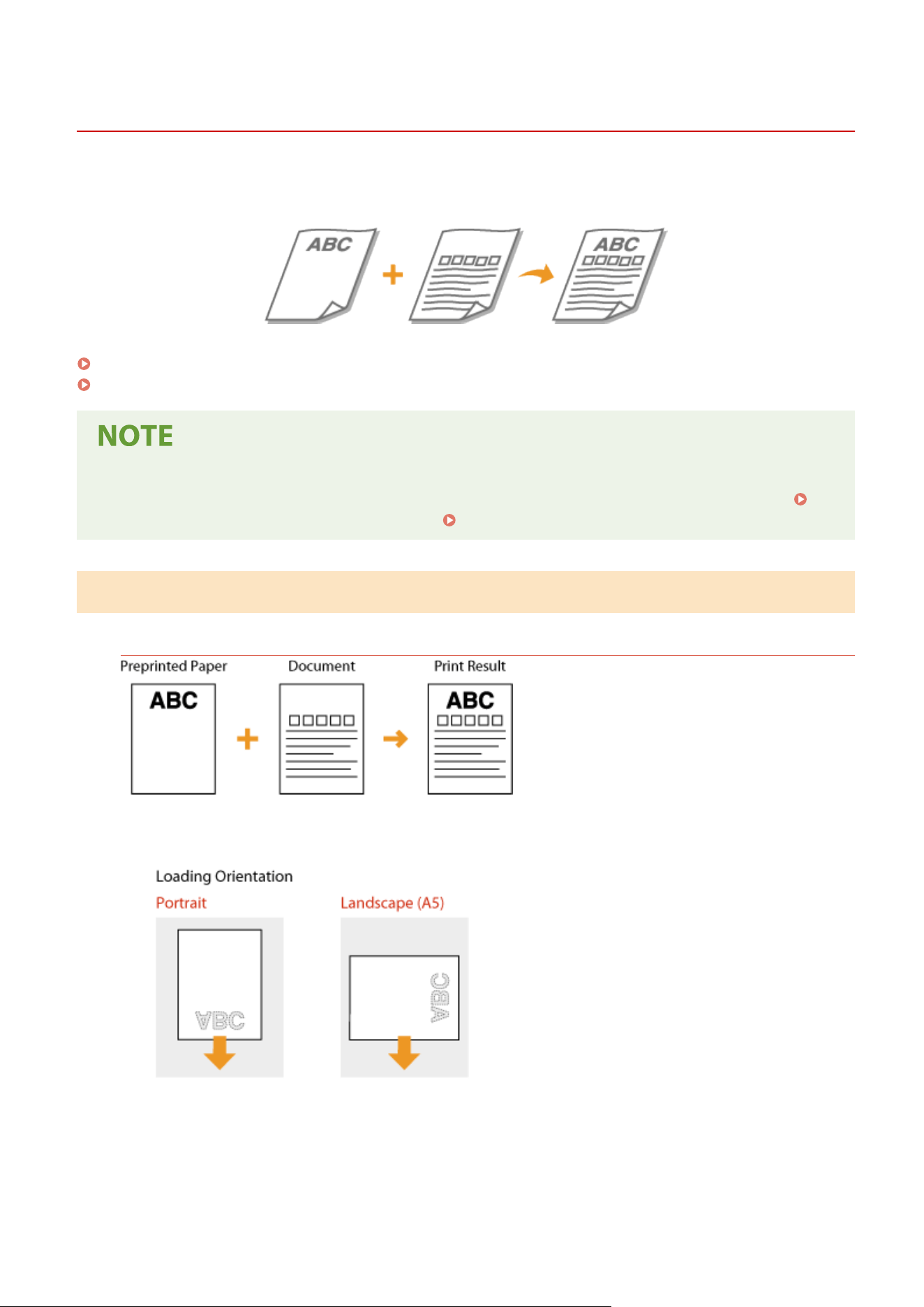
Loading Preprinted Paper
7YWY-032
When you use paper that has been pr
eprinted with a logo, pay attention to the orientation of the paper when loading.
Load the paper properly so that printing is performed on the correct side of the paper with a logo.
Making 1-Sided Printouts on Paper with Logos(P. 154)
Making 2-Sided Printouts on Paper with Logos(P. 156)
● This section mainly describes ho
w to load preprinted paper with the proper facing and orientation. For a
description of the general procedure for loading paper in the paper drawer or multi-purpose tray, see
Loading Paper in the Paper Drawer(P. 144) or Loading Paper in the Multi-Purpose Tray(P. 149) .
Making 1-Sided Printouts on Paper with Logos
Printing on Paper with Logos in Portr
ait Orientation
When loading paper in the paper drawer
Load the paper with the logo side (the side to print the document) face do
wn.
When loading paper in the multi-purpose tray
Load the paper with the logo side (the side to print the document) face up.
Basic Operations
154
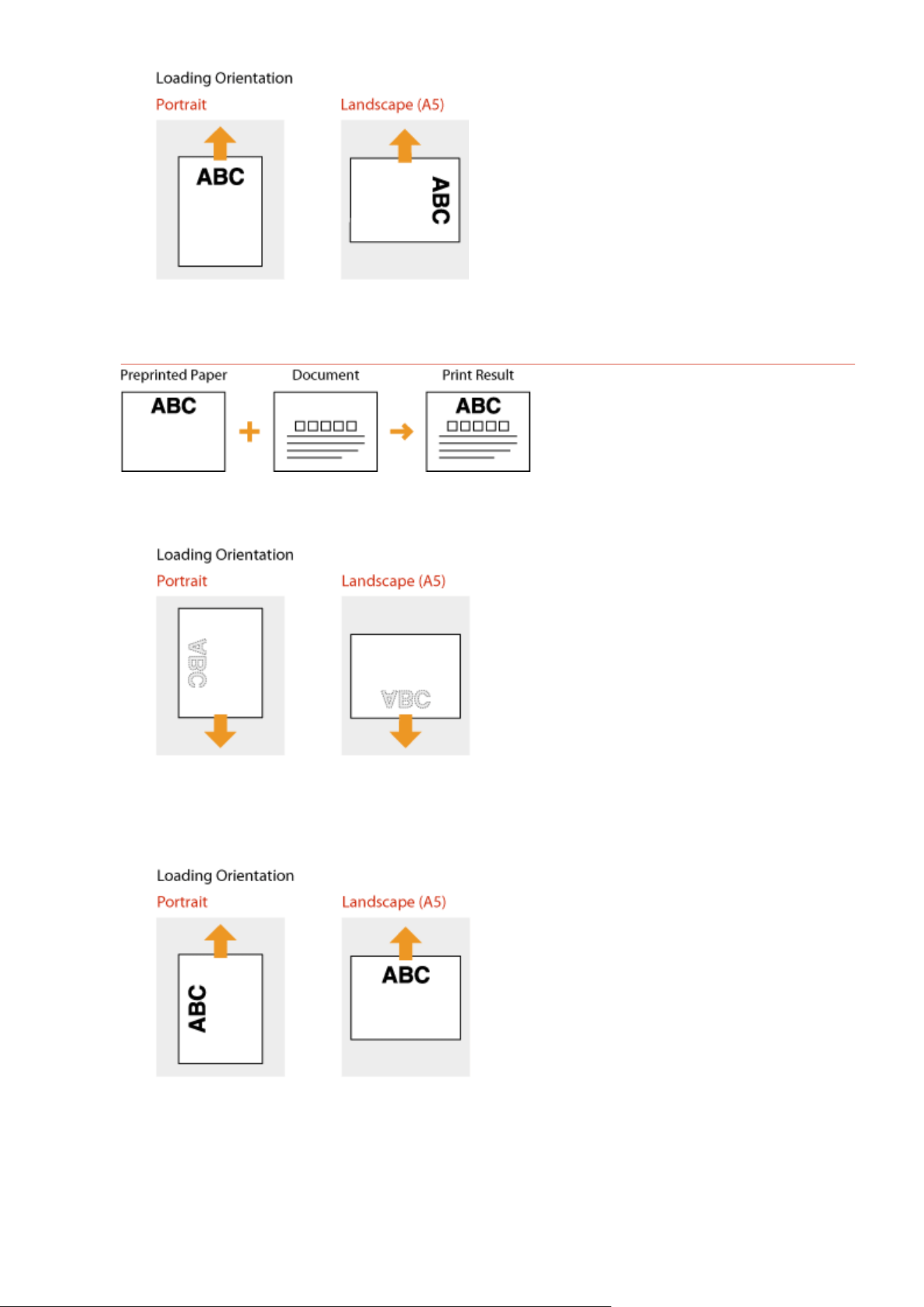
Printing on Paper with Logos in Landscape Orientation
When loading paper in the paper drawer
Load the paper with the logo side (the side to print the document) face do
wn.
When loading paper in the multi-purpose tray
Load the paper with the logo side (the side to print the document) face up.
Basic Operations
155
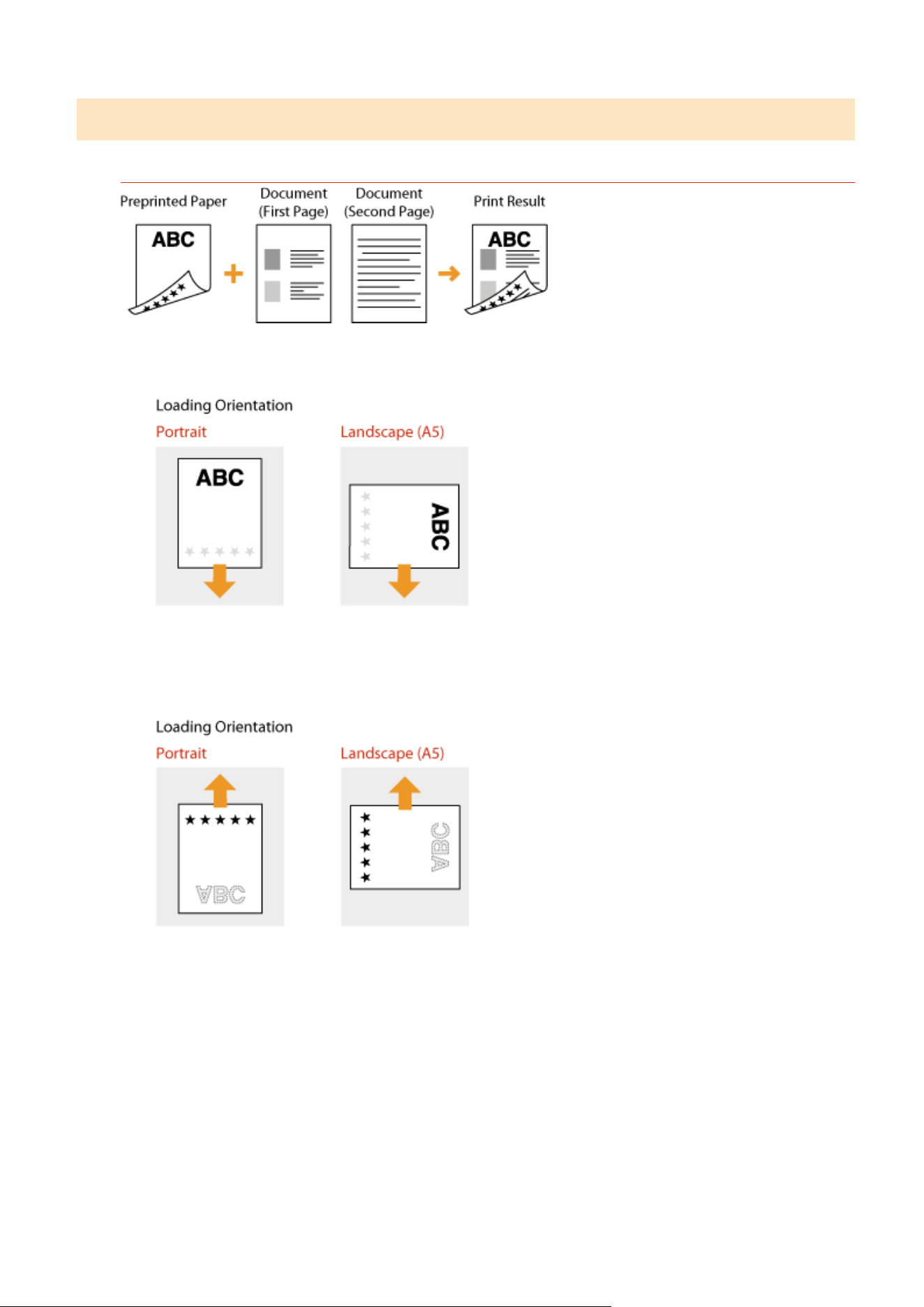
Making 2-Sided Printouts on Paper with Logos
Printing on Paper with Logos in Portrait Orientation
When loading paper in the paper drawer
Load the paper with the fr
ont logo side (the side to print the rst page of the document) face up.
When loading paper in the multi-purpose tray
Load the paper with the fr
ont logo side (the side to print the rst page of the document) face down.
Basic Operations
156
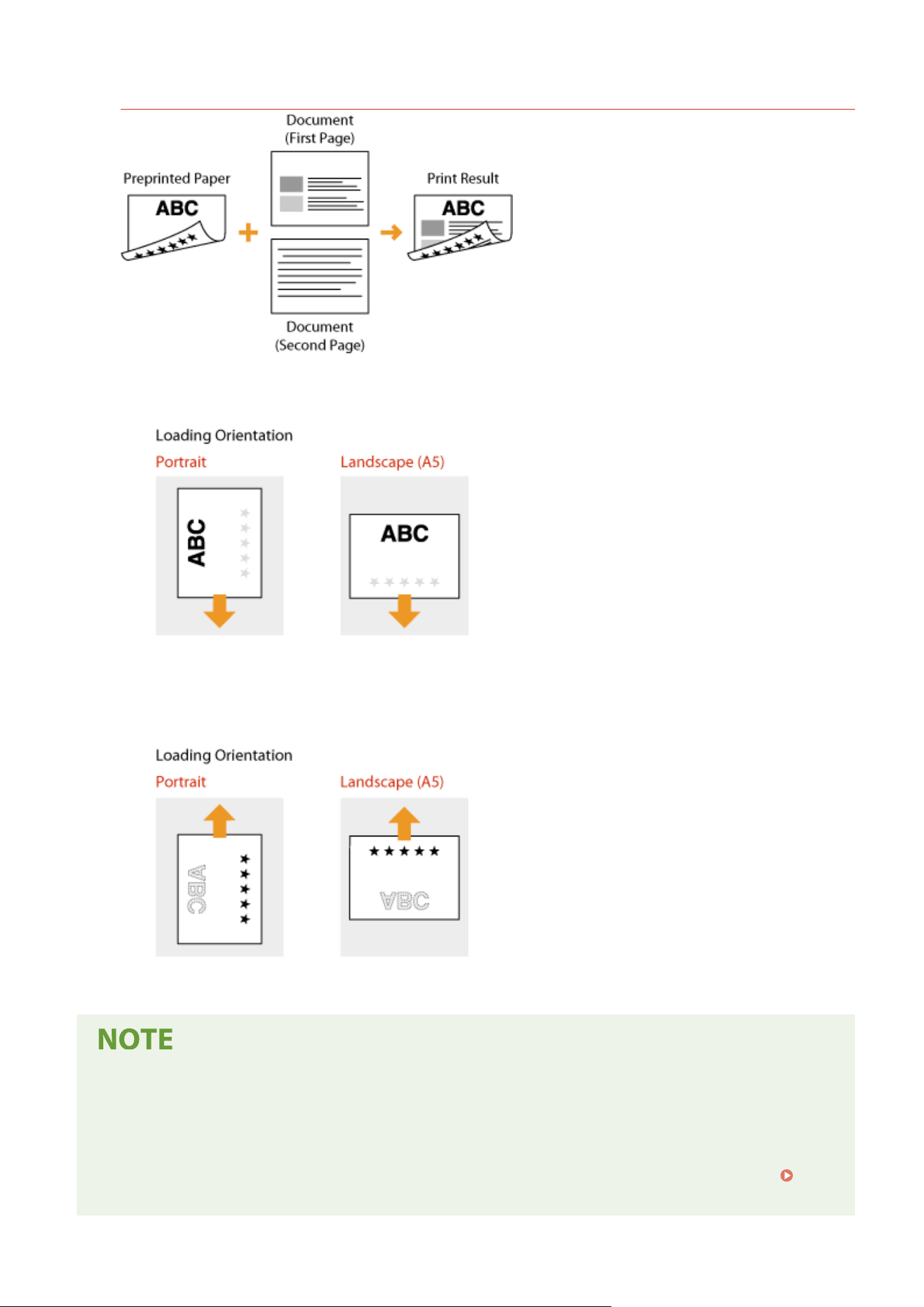
Printing on Paper with Logos in Landscape Orientation
When loading paper in the paper drawer
Load the paper with the fr
ont logo side (the side to print the rst page of the document) face up.
When loading paper in the multi-purpose tray
Load the paper with the fr
ont logo side (the side to print the rst page of the document) face down.
The <Switch Paper Feed Method> setting
● When you print on pr
eprinted paper, you need to change the facing of the paper to load each time you
perform 1-sided and 2-sided printing. However, if <Switch Paper Feed Method> is set to <Print Side Priority>,
the facing that you use for loading preprinted paper for 2-sided printing can also be used for 1-sided
printing. This setting is especially useful if you frequently perform both 1-sided and 2-sided printing.
<Switch Paper Feed Method>(P. 493)
Basic Operations
157
Specifying Paper Size and Type
7YWY-033
Y
ou must specify the paper size and type settings to match the paper that is loaded. Make sure to change the paper
settings when you load the paper that is different from the previously loaded paper.
Specifying Paper Size and Type in the Paper Drawer(P. 159)
Specifying Paper Size and Type in the Multi-Purpose Tray(P. 161)
Registering Default Paper Settings for the Multi-Purpose Tray(P. 163)
Registering a Custom Paper Size(P. 165)
Limiting the Paper Sizes Displayed(P. 167)
Automatically Selecting an Appropriate Paper Source for Each Function(P. 168)
● If the setting does not match the size and type of loaded paper, a paper jam or printing err
or may occur.
Basic Operations
158
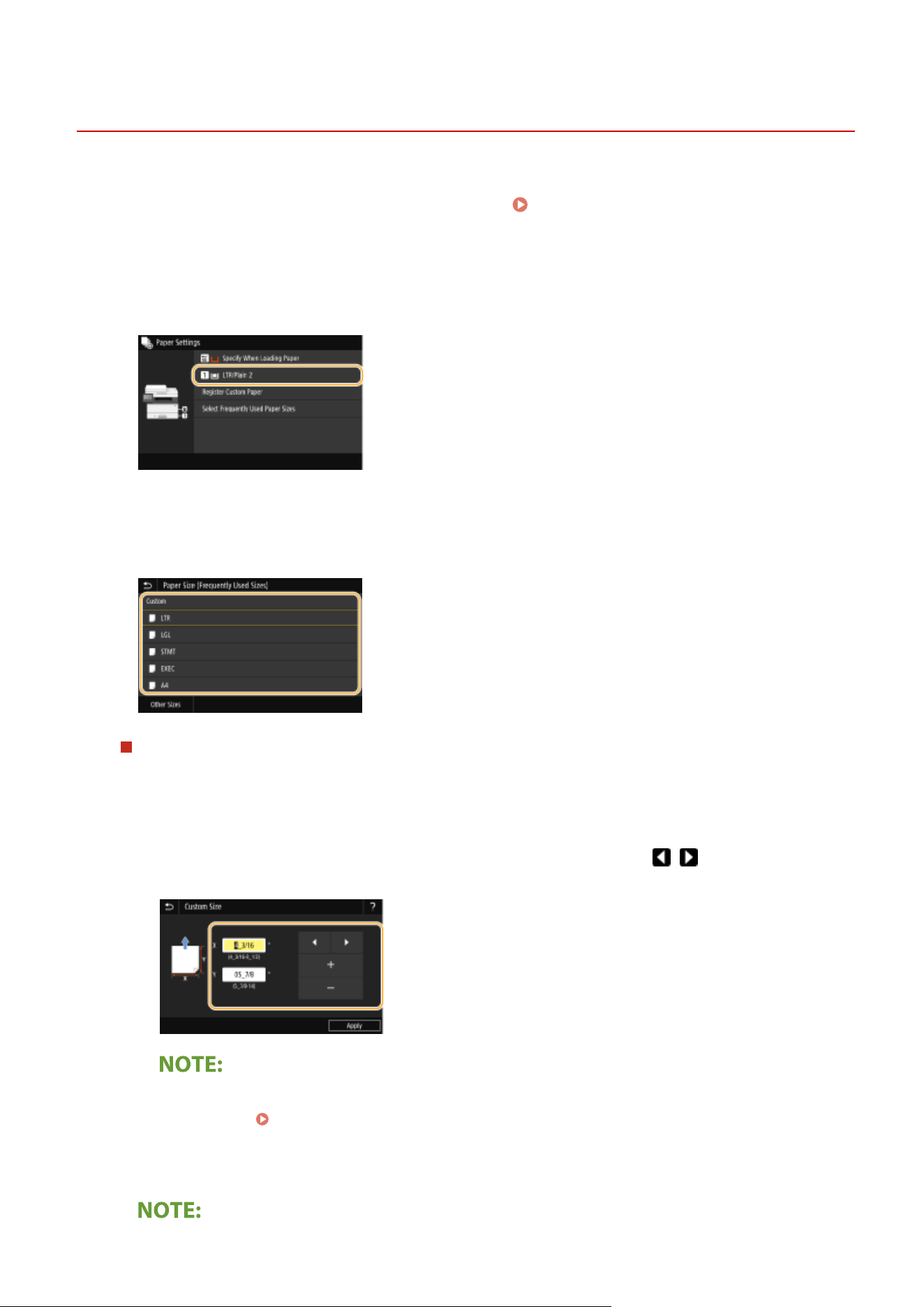
Specifying Paper Size and Type in the Paper Drawer
7YWY-034
1
Select <Paper Settings> in the Home screen.
Home Screen(P. 125)
2
Select the target paper drawer.
● When the optional cassette feeding module is installed, its paper dr
awer is also displayed.
3
Select the paper size.
● If the loaded paper size is not displayed, select <Other Sizes>.
When loading custom size paper
1
Select <Custom>.
2
Specify the length of the <X> side and <Y> side.
● Select <X> or <Y>, and enter the length of each side using <+>/<->, with
/ to move the cursor
between the digits for inputting whole numbers and fr
actions.
● If you r
egister the paper size you use frequently on buttons <S1> to <S3>, you can call them up with
one touch.
Registering a Custom Paper Size(P. 165)
3
Select <Apply>.
Basic Operations
159
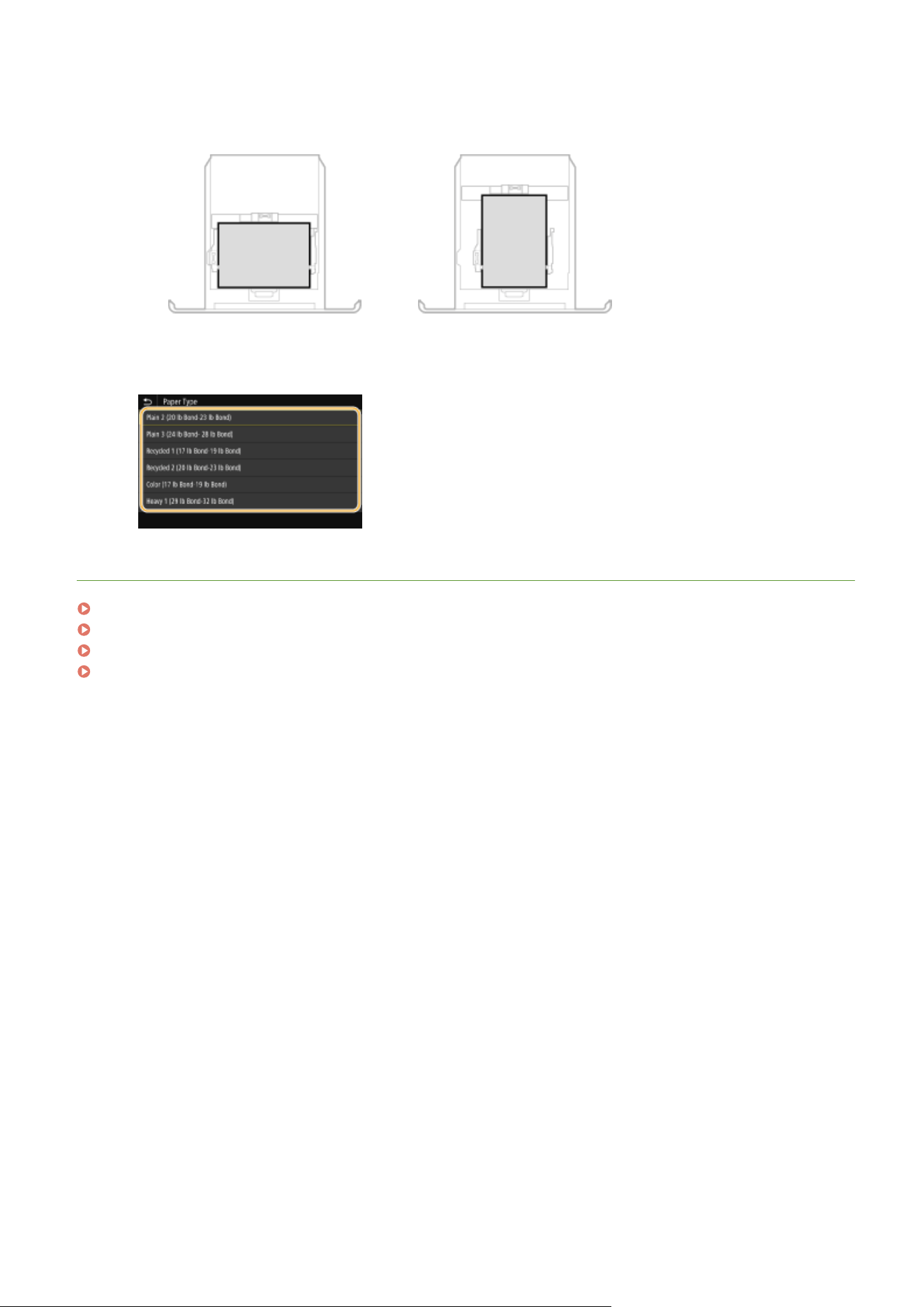
When loading A5 size paper
● In the landscape orientation, select <A5>. In the portr
ait orientation, select <A5R>.
Landscape orientation
Portrait orientation
4
Select the paper type.
LINKS
Loading Paper in the Paper Drawer(P. 144)
Limiting the Paper Sizes Displayed(P. 167)
Available Paper(P. 617)
<Notify to Check Paper Settings>(P. 553)
Basic Operations
160
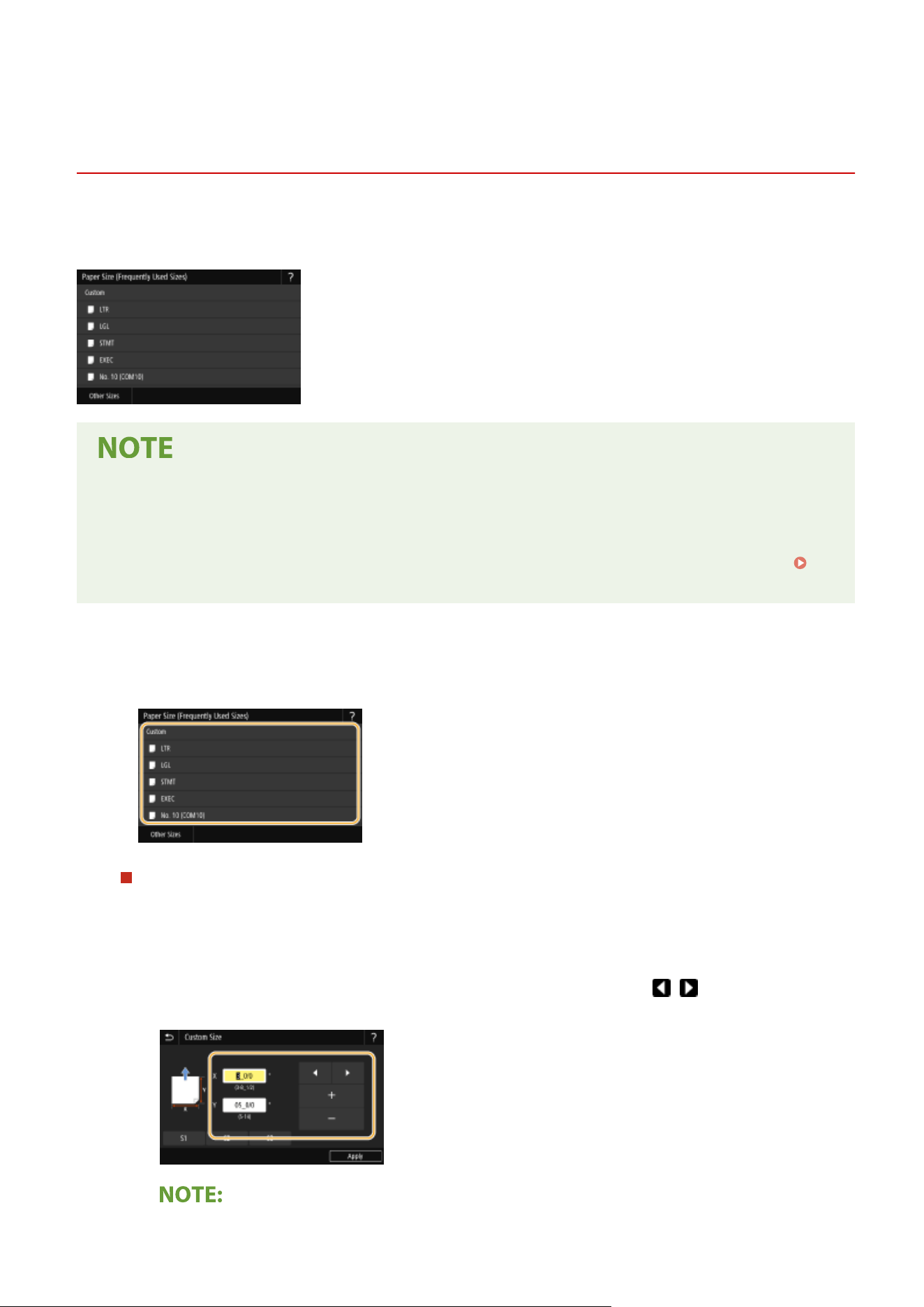
Specifying Paper Size and Type in the Multi-Purpose
T
ray
7YWY-035
The scr
een shown here is displayed when paper is loaded in the multi-purpose tray. Follow the on-screen instructions
to specify settings that match the size and type of the loaded paper.
If the screen shown above is not displayed when paper is loaded
● If you always load the same paper in the multi-purpose tr
ay, you can skip the paper setting operations by
registering the paper size and type as the default setting. When the default setting is registered, however,
the screen shown above is not displayed. To display the screen, select <Specify When Loading Paper> (
Registering Default Paper Settings for the Multi-Purpose Tray(P. 163) ).
1
Select the paper size.
● If the loaded paper size is not displayed, select <Other Sizes>.
When loading custom size paper
1
Select <Custom>.
2
Specify the length of the <X> side and <Y> side.
● Select <X> or <Y>, and enter the length of each side using <+>/<->, with
/ to move the cursor
between the digits for inputting whole numbers and fr
actions.
Basic Operations
161
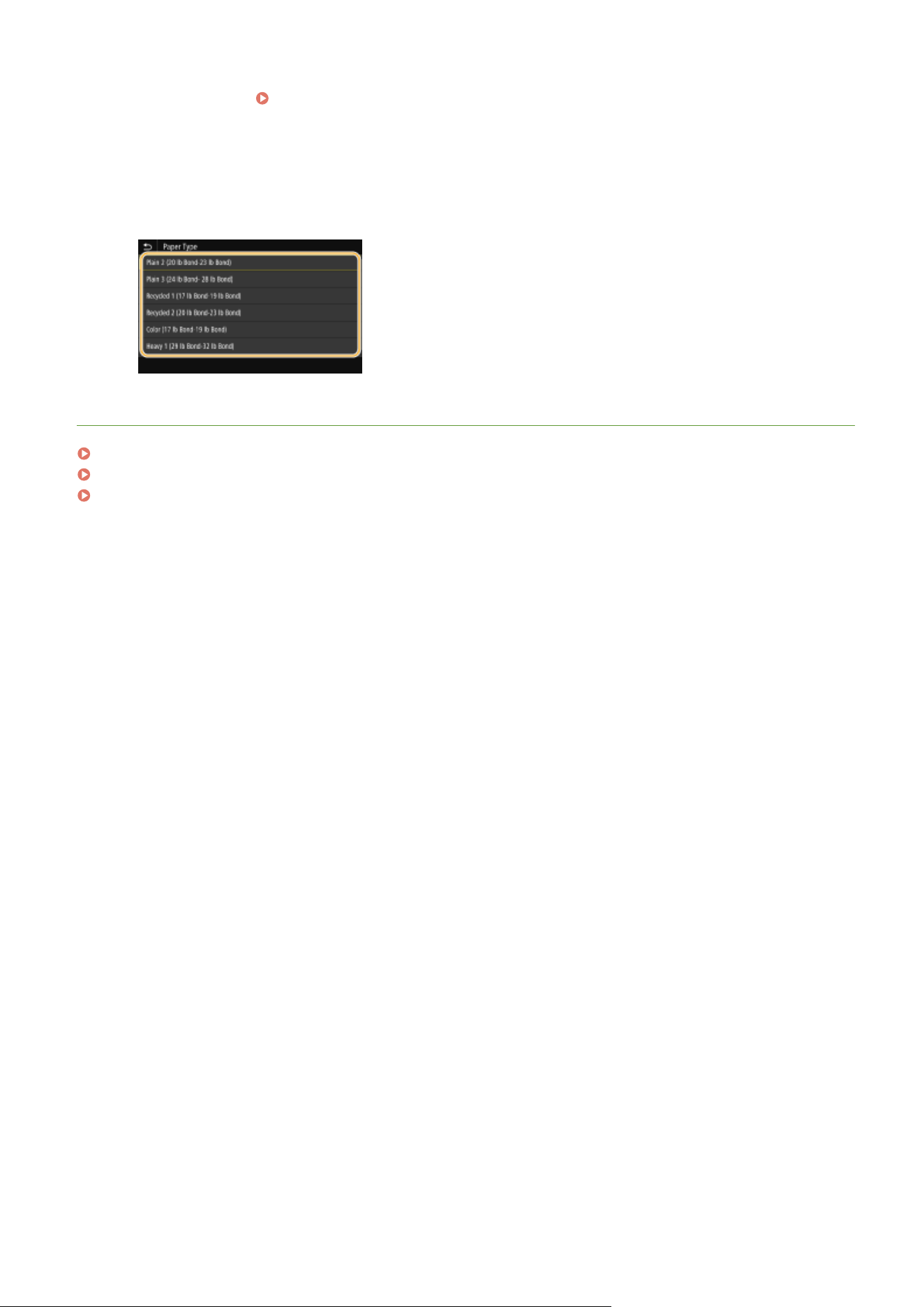
● If you r
egister the paper size you use frequently on buttons <S1> to <S3>, you can call them up with
one touch.
Registering a Custom Paper Size(P. 165)
3
Select <Apply>.
2
Select the paper type.
LINKS
Loading Paper in the Multi-Purpose Tray(P. 149)
Limiting the Paper Sizes Displayed(P. 167)
Available Paper(P. 617)
Basic Operations
162
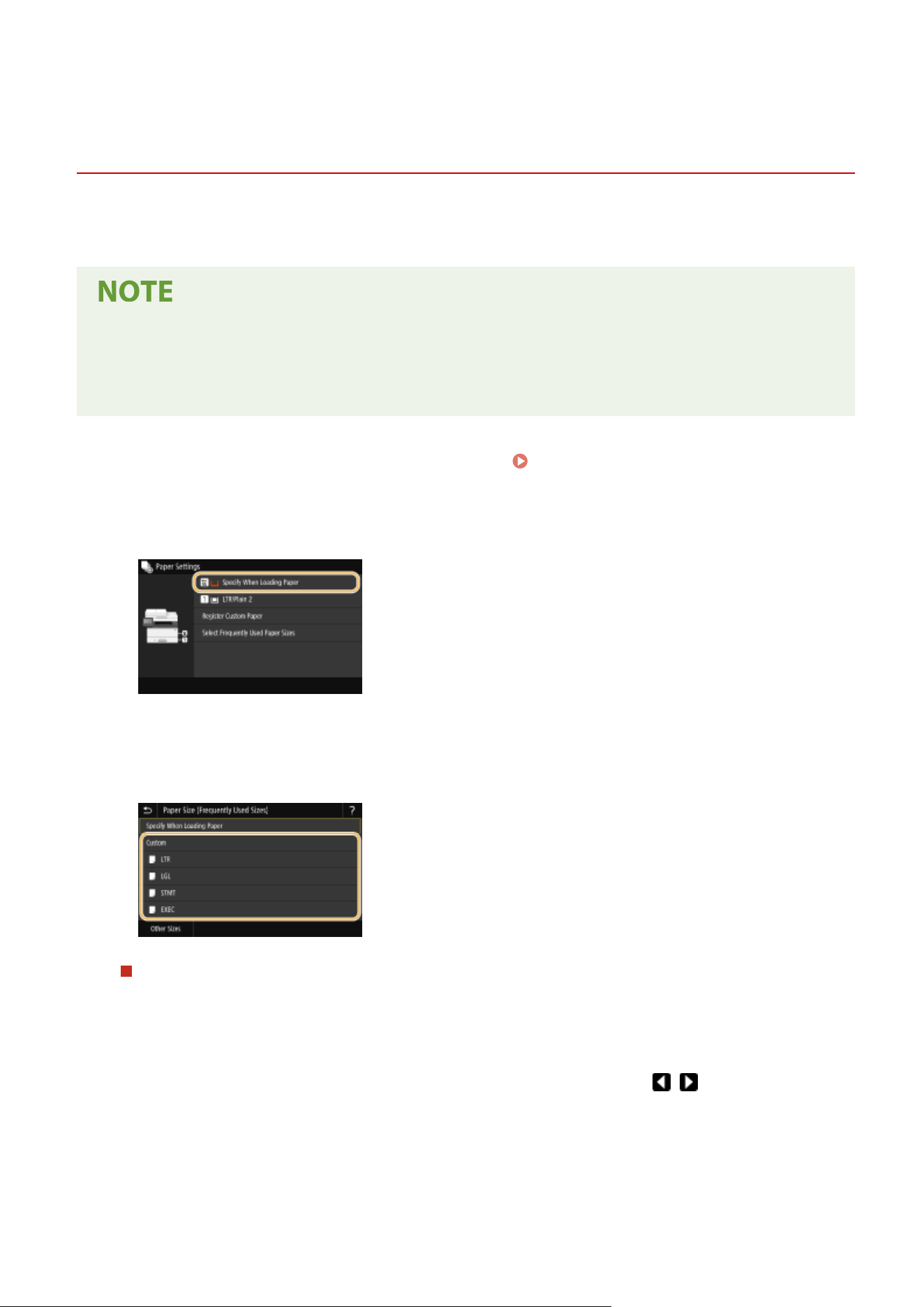
Registering Default Paper Settings for the Multi-
Purpose T
ray
7YWY-036
Y
ou can register default paper settings for the multi-purpose tray. Registering default settings can save yourself the
effort of having to specify the settings each time you load the same paper into the multi-purpose tray.
● After the default paper setting is r
egistered, the paper setting screen is not displayed when paper is loaded,
and the same setting is always used. If you load a different paper size or type without changing the paper
settings, the machine may not print properly. To avoid this problem, select <Specify When Loading Paper> in
step 3, and then load the paper.
1
Select <Paper Settings> in the Home screen.
Home Screen(P. 125)
2
Select multi-purpose tray.
3
Select the paper size.
● If the loaded paper size is not displayed, select <Other Sizes>.
Registering a custom paper size
1
Select <Custom>.
2
Specify the length of the <X> side and <Y> side.
● Select <X> or <Y>, and enter the length of each side using <+>/<->, with / to move the cursor
between the digits for inputting whole numbers and fr
actions.
Basic Operations
163
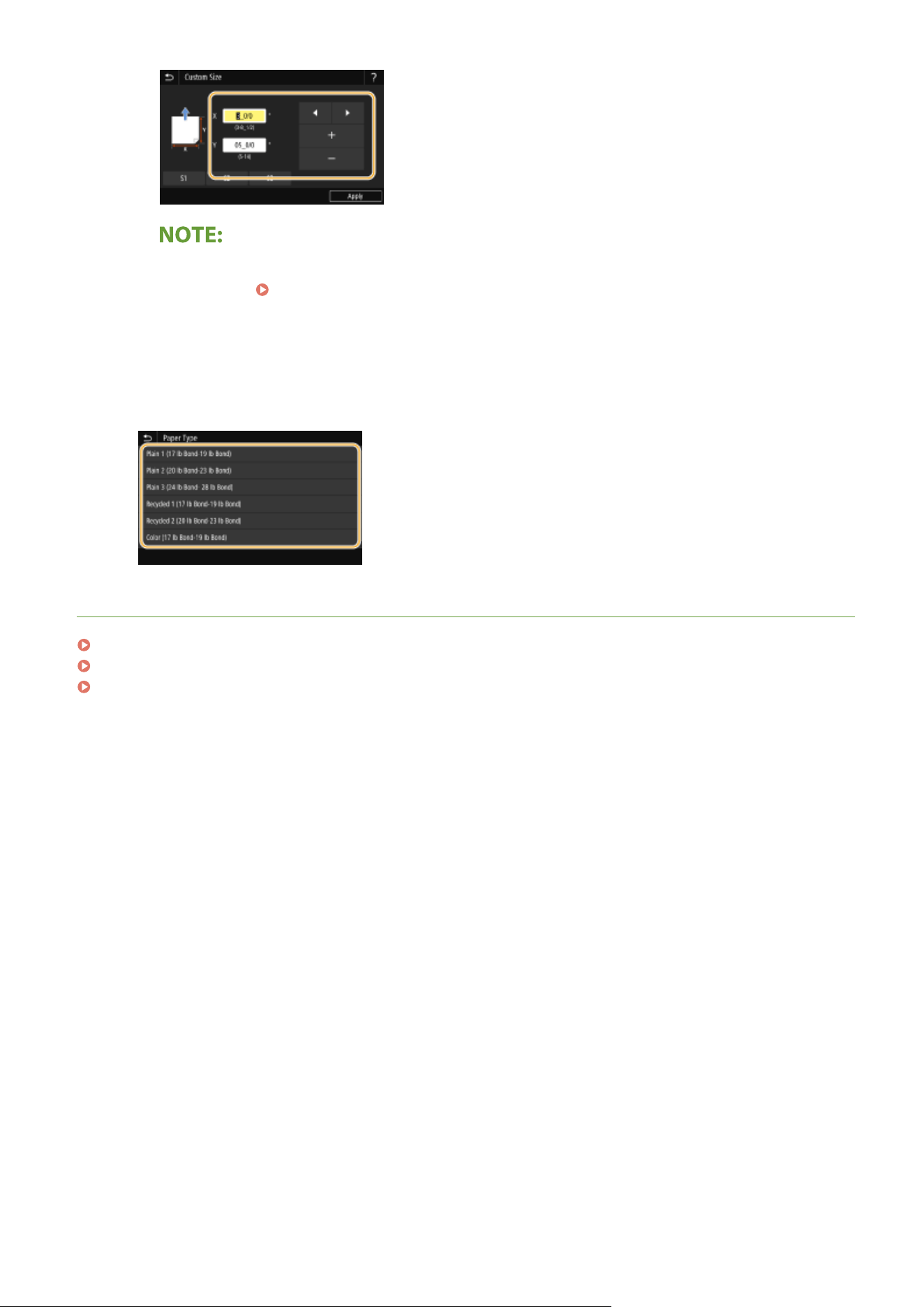
● If you r
egister the paper size you use frequently on buttons <S1> to <S3>, you can call them up with
one touch.
Registering a Custom Paper Size(P. 165)
3
Select <Apply>.
4
Select the paper type.
LINKS
Loading Paper in the Multi-Purpose Tray(P. 149)
Limiting the Paper Sizes Displayed(P. 167)
Available Paper(P. 617)
Basic Operations
164
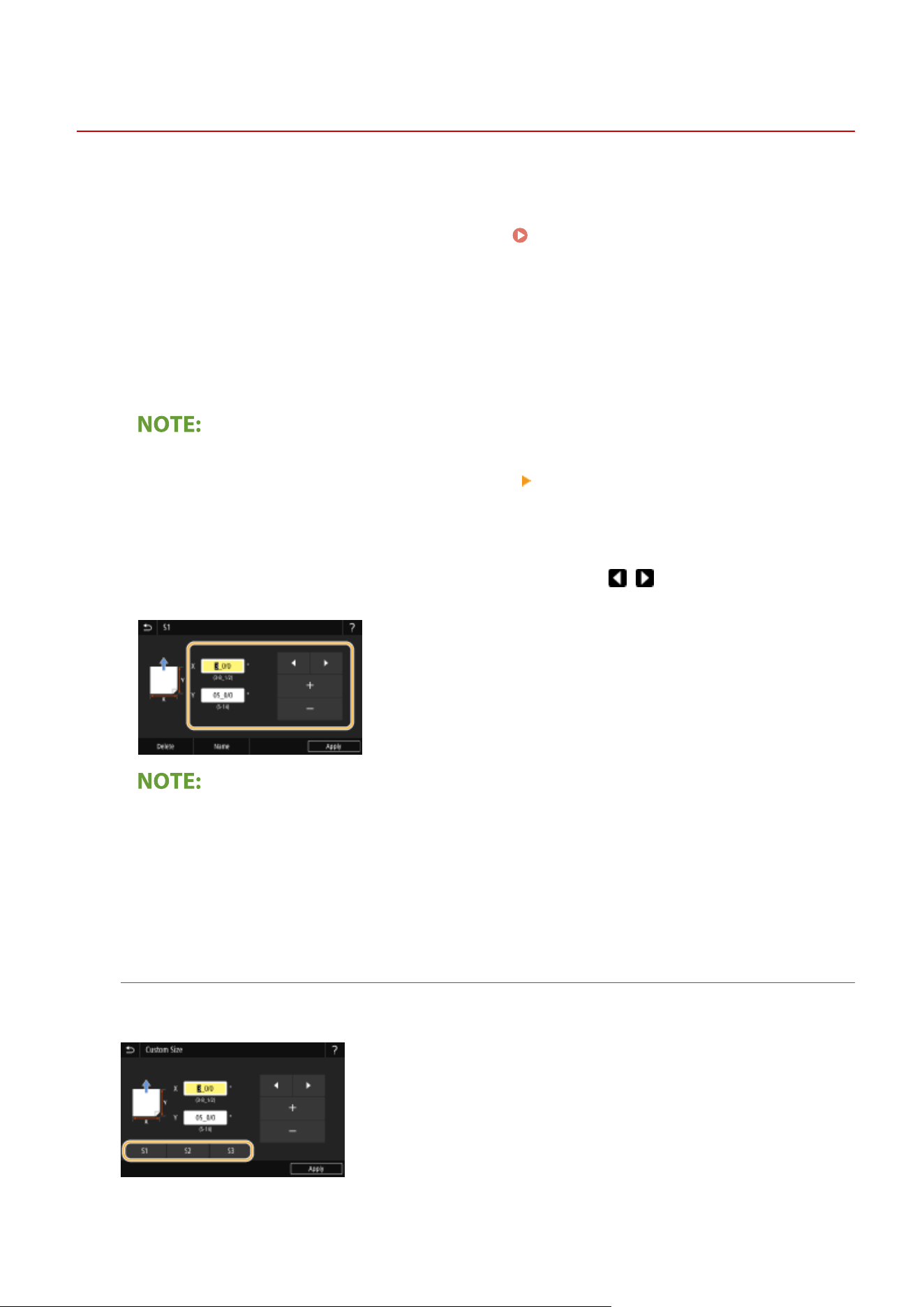
Registering a Custom Paper Size
7YWY-037
Y
ou can register up to three frequently used custom paper sizes.
1
Select <Paper Settings> in the Home screen.
Home Screen(P. 125)
2
Select <Register Custom Paper>.
3
Select the registration number.
Deleting a setting
● Select the registered number, and then select <Delete> <Yes>.
4
Specify the length of the <X> side and <Y> side.
● Select <X> or <Y>, and enter the length of each side using <+>/<->, with / to move the cursor between
the digits for inputting whole numbers and fr
actions.
Changing the display name of a registration number
● Select <Name>, enter the display name, and then select <Apply>.
5
Select <Apply>.
Setting to the r
egistered custom size
The paper sizes that are registered in the procedure above can be called when <Custom> is selected on the
paper size selection scr
een for the paper drawer or multi-purpose tray.
Basic Operations
165

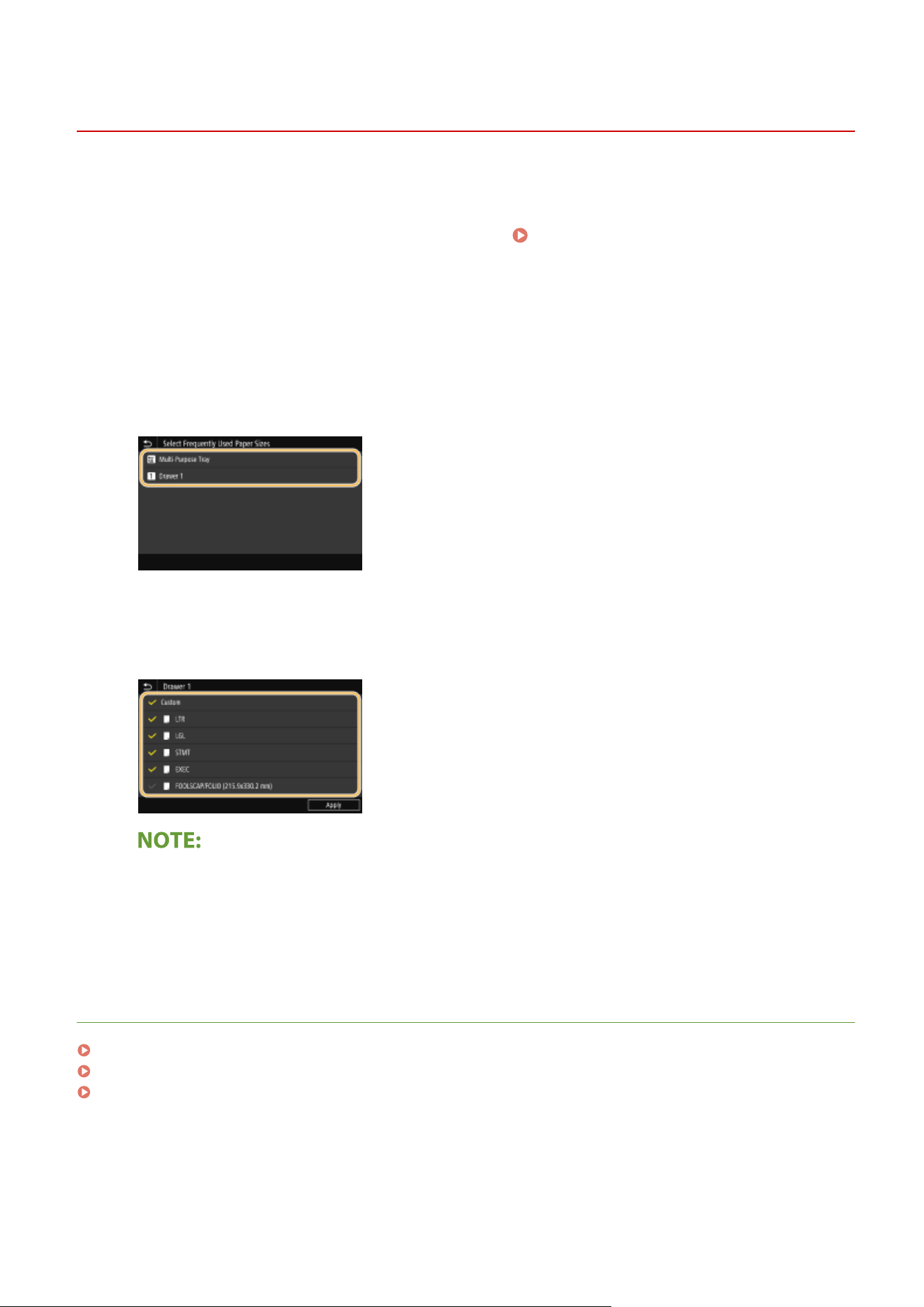
Limiting the Paper Sizes Displayed
7YWY-038
Y
ou can ensure that only frequently used paper sizes are shown in the screen for selecting the paper size setting.
1
Select <Paper Settings> in the Home screen.
Home Screen(P. 125)
2
Select <Select Frequently Used Paper Sizes>.
3
Select the paper source you want to limit the paper sizes to be displayed for.
● When the optional cassette feeding module is installed, its paper drawer is also displayed.
4
Clear the check boxes for paper sizes you do not want displayed.
● Ensur
e that only the check boxes for frequently used paper sizes are selected.
● Paper
sizes that are not selected can be viewed by selecting <Other Sizes> in the paper size setting
selection screen.
5
Select <Apply>.
LINKS
Specifying Paper Size and Type in the Paper Drawer(P. 159)
Specifying Paper Size and Type in the Multi-Purpose Tray(P. 161)
Registering Default Paper Settings for the Multi-Purpose Tray(P. 163)
Basic Operations
167
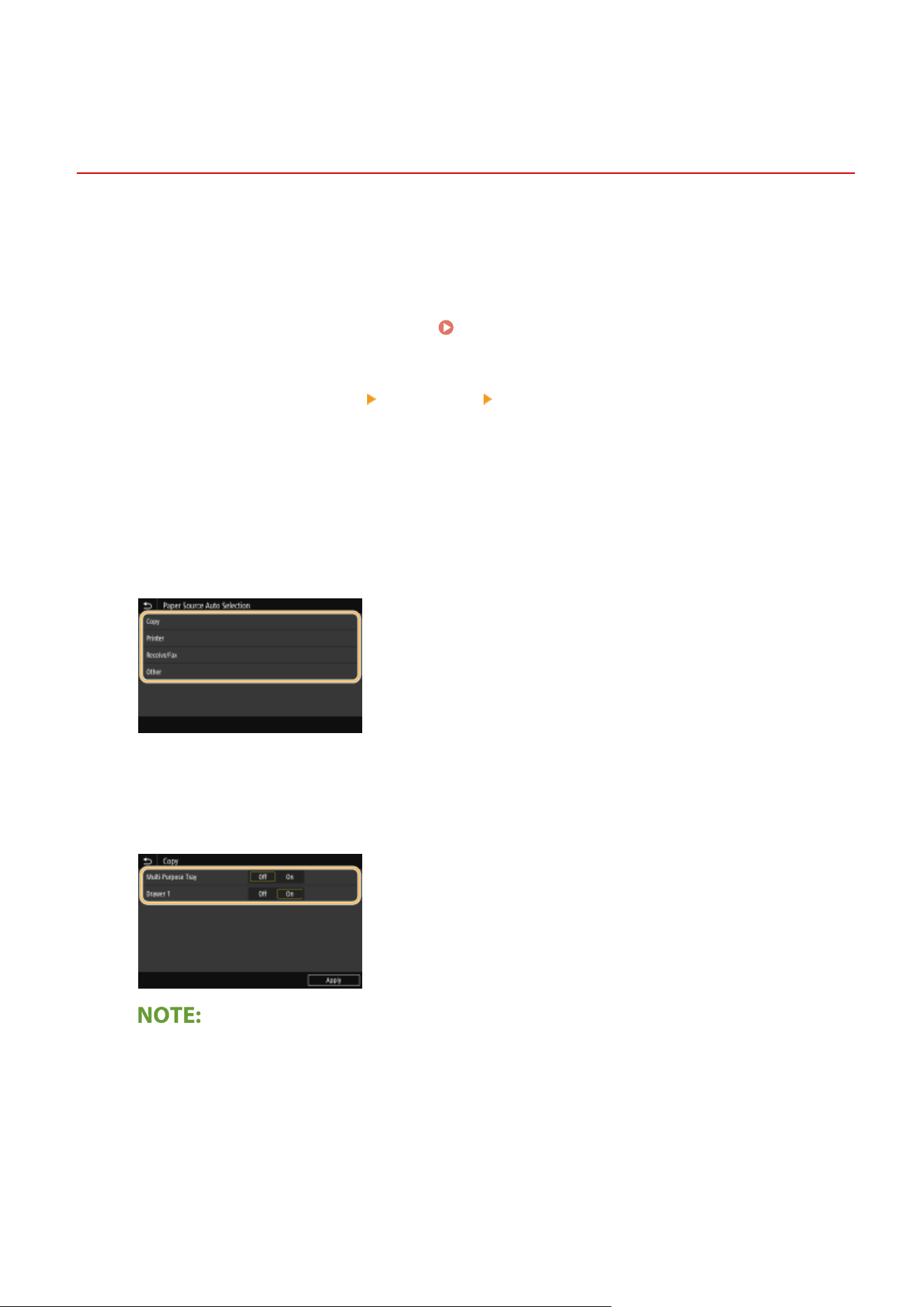
Automatically Selecting an Appropriate Paper Source
for Each Function
7YWY-039
Enable or disable the automatic paper sour
ce selection feature for each paper source. If this feature is set to <On>, the
machine automatically selects a paper source that is loaded with paper of the appropriate size for each print job. Also,
when the paper in the selected paper source runs out, this feature enables continuous printing by switching from that
paper source to another that is loaded with the same paper size.
1
Select <Menu> in the Home screen.
Home Screen(P. 125)
2
Select <Function Settings> <Common> <Paper Feed Settings>.
3
Select <Paper Source Auto Selection>.
4
Select the target function.
● When the tar
get function is report/list printing or memory media print, select <Other>.
5
For each paper source to which you want to apply the automatic paper source
selection featur
e, select <On>.
● When the optional cassette feeding module is installed, its paper dr
awer is also displayed.
● Always
specify <On> for at least one of the paper drawers. If you select <Off> for all the drawers, then you
cannot nish the setting procedure.
6
Select <Apply>.
Basic Operations
168
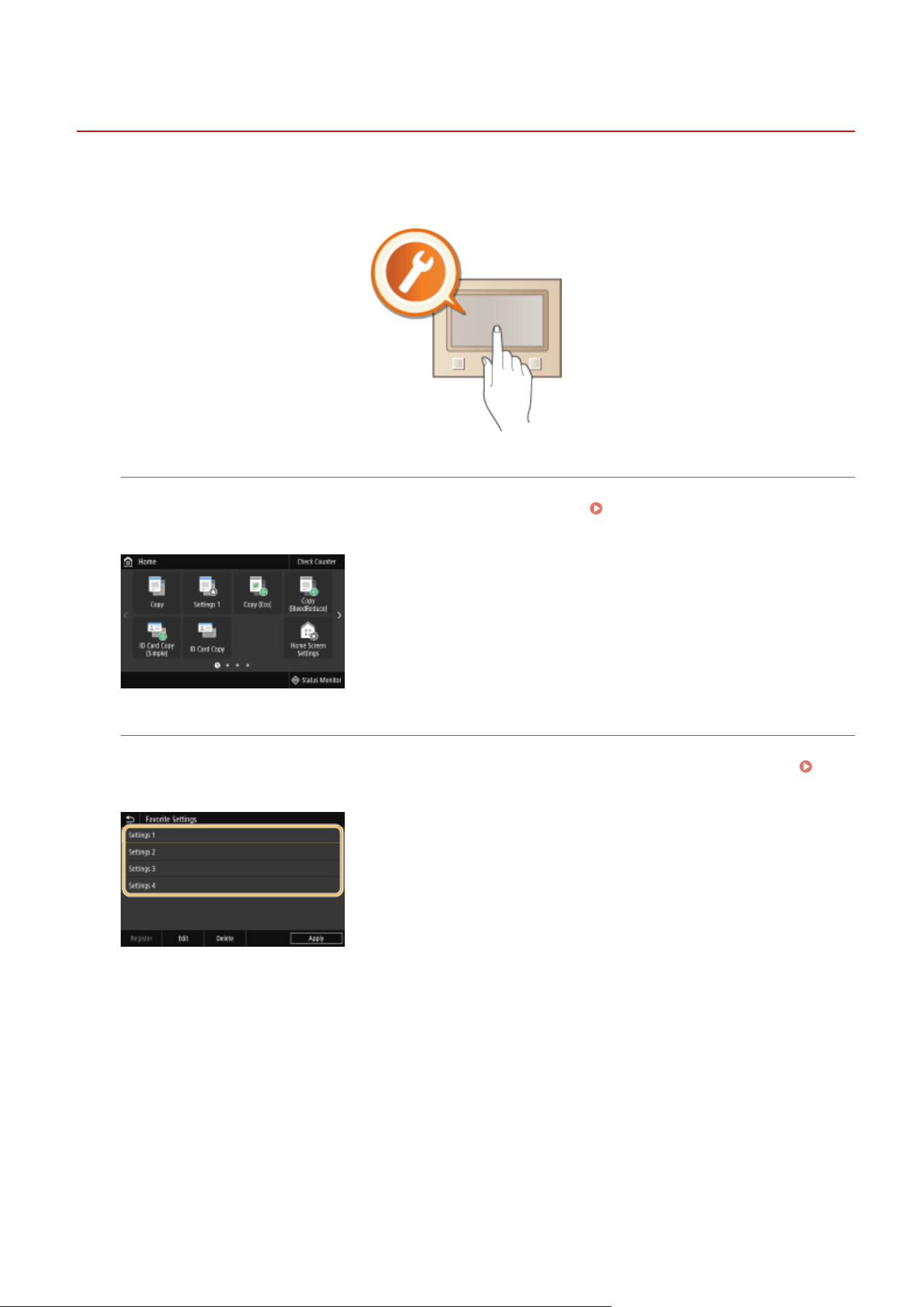
Customizing the Display
7YWY-03A
In or
der to make the Home screen easier to use, you can customize it. In addition, you can work more eciently by
registering your favorite settings to the Basic Features screen for each function.
Customizing the Home Screen
You can rearrange buttons that are displayed in the Home screen. In addition, you can customize the Home
scr
een to make it easier to select functions by adding shortcut buttons.
Customizing the Home
Scr
een(P. 170)
Registering "Favorite Settings"
To make it possible to quickly call up the same settings for Copy, Fax, and Scan, you can register them as your
favorite settings. Y
ou can add registered setting combinations to the Home screen as shortcut buttons.
Registering Frequently Used Settings(P. 173)
Basic Operations
169
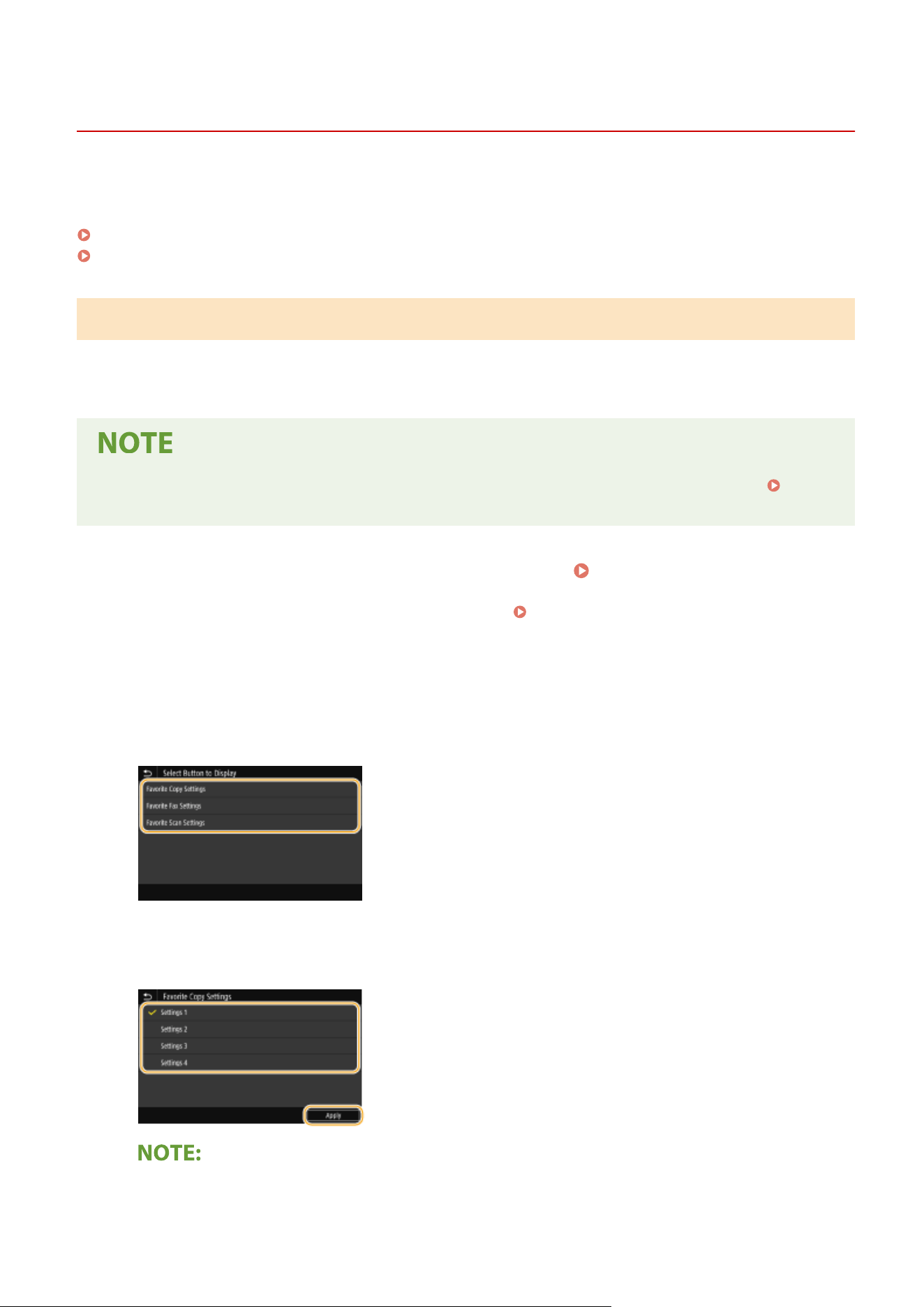
Customizing the Home Screen
7YWY-03C
Y
ou can add/delete shortcut buttons displayed in the Home screen according to your application or a preferred
arrangement. You can also change the order that they are displayed in.
Adding Buttons to the Home Screen(P. 170)
Changing the Arrangement of Buttons(P. 171)
Adding Buttons to the Home Screen
You can add shortcut buttons to the Home screen for frequently used functions such as <Copy>, <Fax>, and <Scan>.
For example, you can carry out tasks more quickly and eciently by assigning a sequence of settings (e.g. "Scan both
sides of an original, save it as a highly compressed PDF le and send it via e-mail") to a single button.
● The settings to be added as a shortcut button must be r
egistered beforehand as Favorite Settings.
Registering Frequently Used Settings(P. 173)
1
Select <Home Screen Settings> in the Home screen. Home Screen(P. 125)
● If the login scr
een appears, enter the correct ID and PIN.
Logging in to the Machine(P. 136)
2
Select <Select Button to Display>.
3
Select the function with the Favorite Settings you want to add as a button.
4
Select the check box for all settings to be displayed in the Home screen and select
<Apply>.
Removing registered buttons
Basic Operations
170
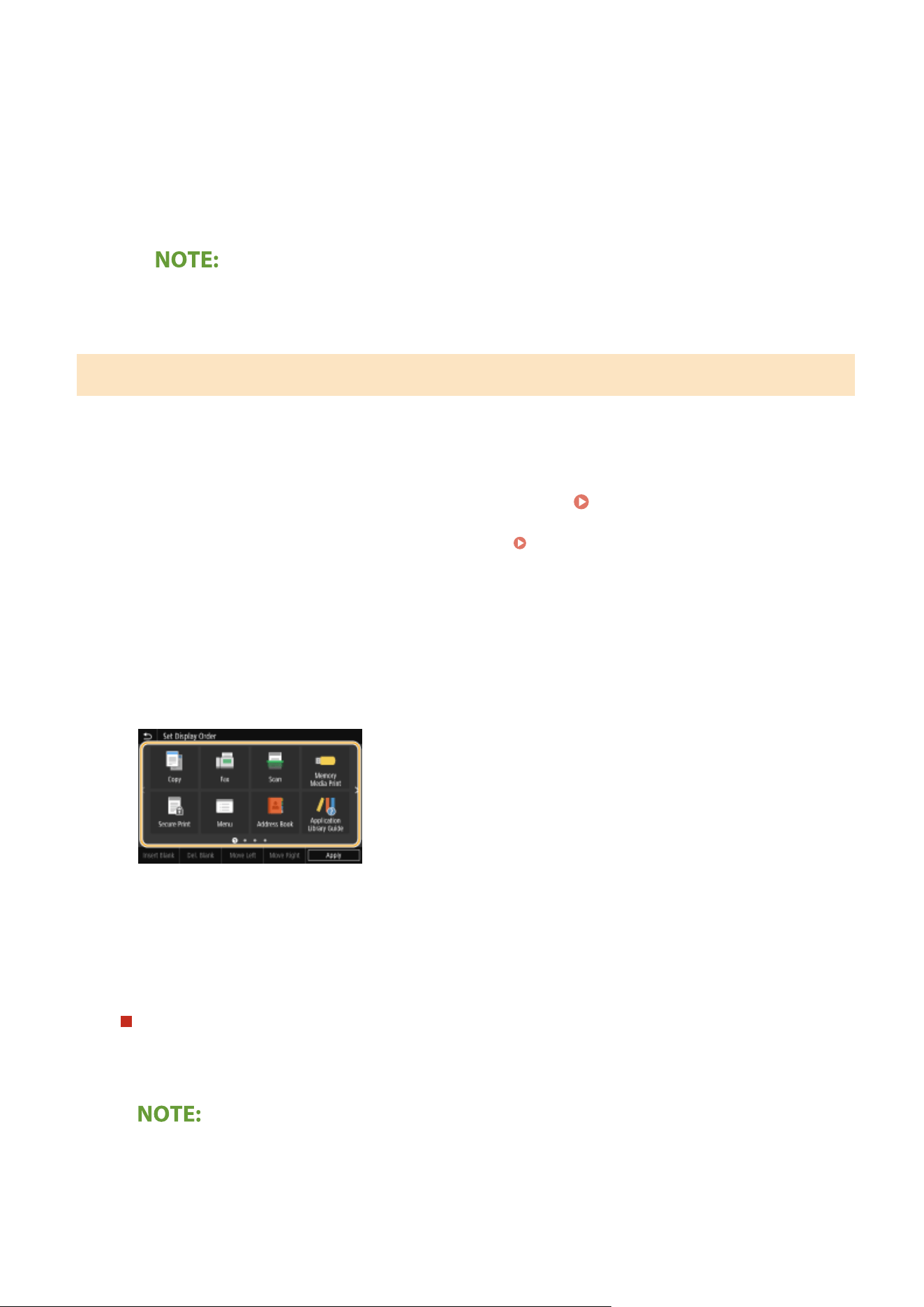
● Clear
the check box for the name of the button you want to remove and then select <Apply>. Once you
remove a registered button, a space appears where the button was displayed in the Home screen. If
necessary, delete the space.
5
Read the message that is displayed, and select <OK>.
➠ A button for the ne
wly selected settings is added to the Home screen.
● If
the Home screen is full and no more settings can be registered, delete registered buttons and spaces
in <Home Screen Settings>.
Changing the Arrangement of Buttons
T
o make the buttons easier to use, you can rearrange the buttons however you like. For instance, you can put the most
frequently used functions rst, or arrange the function buttons together with shortcut buttons for Favorite Settings.
You can also insert a blank (space) instead of a button to make it easier to view the Home screen.
1
Select <Home Screen Settings> in the Home screen.
Home Screen(P. 125)
● If the login scr
een appears, enter the correct ID and PIN.
Logging in to the Machine(P. 136)
2
Select <Set Display Order>.
3
Select the button to move.
● The selected button is highlighted. T
ap the selected button again to deselect it.
4
Select <Move Left> or <Move Right>.
● The button mo
ves as many times as you tapped.
● A long touch on <Move Left> or <Move Right> moves the selected button continuously.
Inserting a blank
● When <Insert Blank> is selected, a blank is inserted on the left side of the selected button.
● If the button at the end is selected, a blank is inserted e
ven if <Move Right> is selected.
Deleting a blank
● Select the blank to be deleted, and select <Del. Blank>.
Basic Operations
171

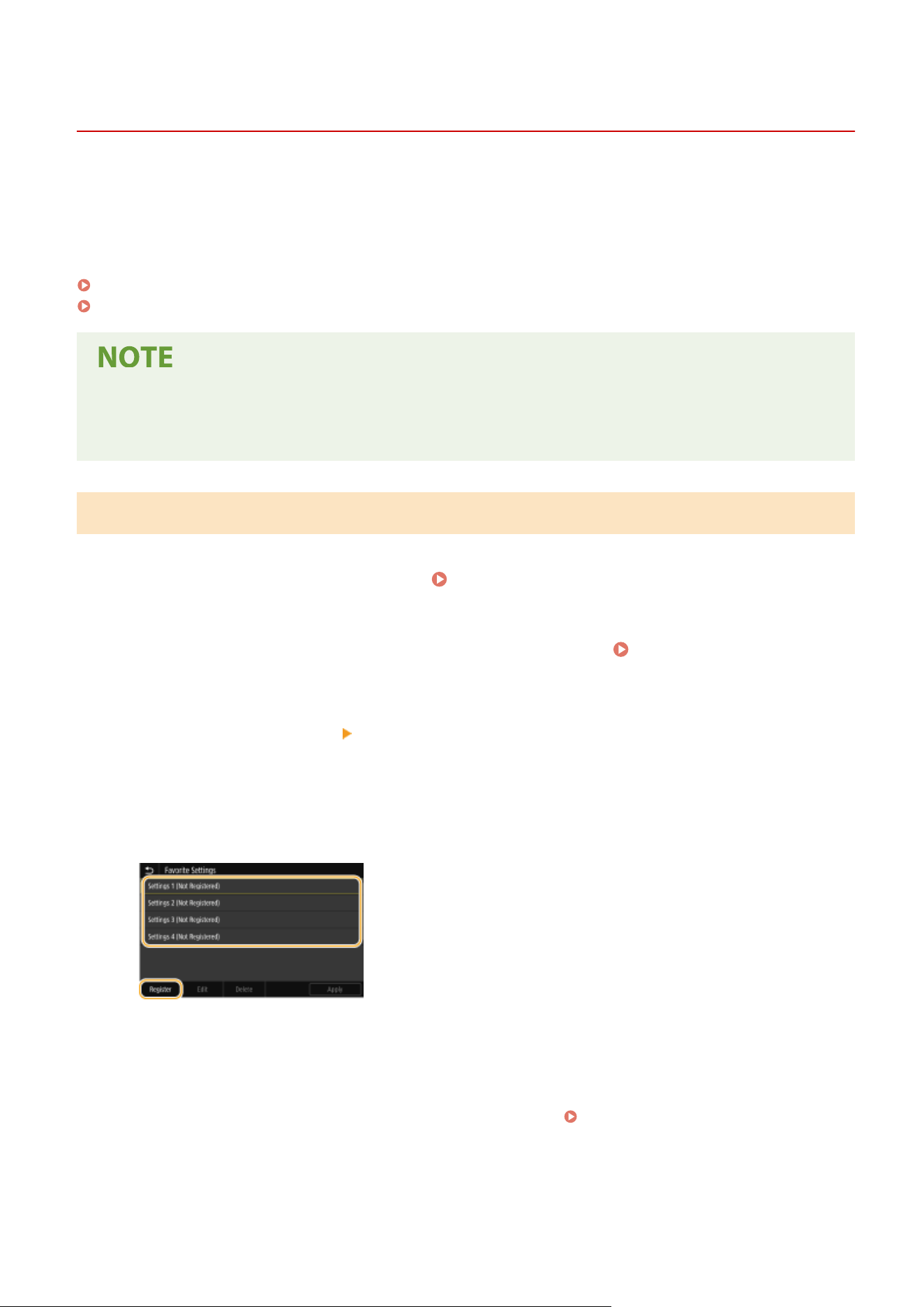
Registering Frequently Used Settings
7YWY-03E
If you r
egister your frequently used settings as "favorite settings," you can quickly call up the same settings every time
you make copies, send a fax, or scan. In addition, if you register complicated settings as "favorite settings," you can
quickly call them up for ease of operation. You can also assign registered setting combinations to a shortcut button
displayed in the Home screen. This section describes how to register frequently used settings and how to call them up
when making a copy.
Registering Settings(P. 173)
Recalling Registered Settings(P. 174)
● Y
ou can also register a fax or scan destination in the frequently used settings, however, it cannot be
changed once it is registered. To change a registered destination, delete the settings and then register them
again.
Registering Settings
1
Select <Copy> in the Home screen. Home Screen(P. 125)
2
Change the values for the settings you want to register.
Basic Copy
Oper
ations(P. 196)
3
Select <Other Settings>
<Favorite Settings>.
4
Select unregistered settings, and select <Register>.
● T
o change the content of a registered setting, select that setting and select <Edit>.
5
Check the details of the settings to be registered, and select <Register>.
● T
o change the value of a setting to be registered, select the setting.
● To rename the setting, select <Name>. On how to enter text, see
Entering Text(P. 134) .
Basic Operations
173
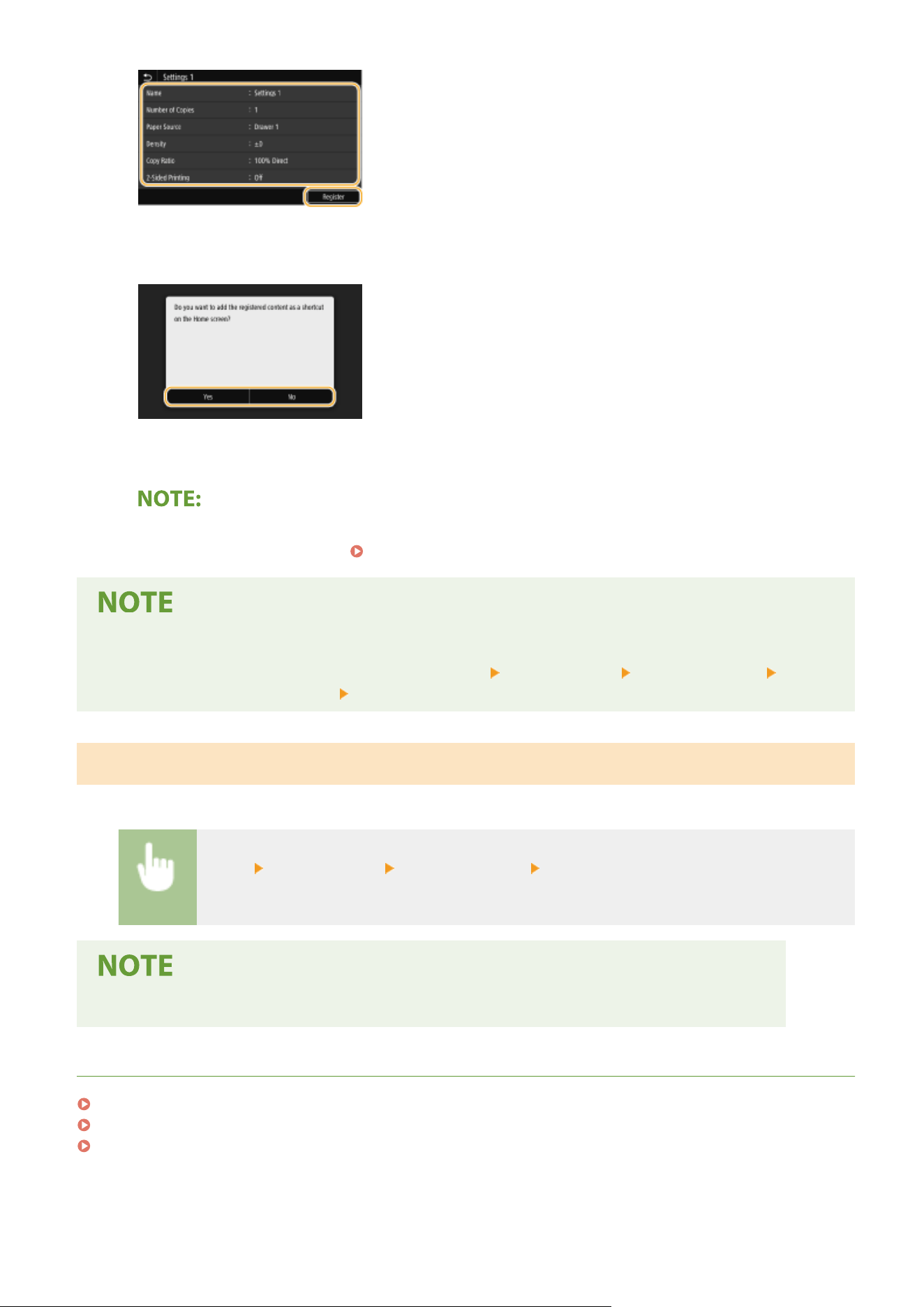
6
Select whether to register the settings as a shortcut button.
● If you select <Y
es>, a message appears. Check the message and then select <OK>. The registered setting
combination is added to the Home screen as a shortcut button.
● If
the Home screen is full and the shortcut button cannot be added, use <Home Screen Settings> to delete
registered buttons or blanks.
Customizing the Home Screen(P. 170)
● Register
ed settings are retained even when the machine is turned OFF.
● If you want to delete a registered setting, select <Copy>
<Other Settings> <Favorite Settings> select
the settings, and select <Delete> <Yes>.
Recalling Registered Settings
Simply select the setting combination that suits your purpose fr
om the favorite settings.
<Copy> <Other Settings> <Favorite Settings> Select the setting combination to be recalled,
and select <Apply>
● Once you have r
ecalled the setting combination, you can also change the copy settings as needed.
LINKS
Basic Copy Operations(P. 196)
Basic Operations for Sending Faxes(P. 219)
Basic Operations for Scanning Originals(P. 287)
Basic Operations
174
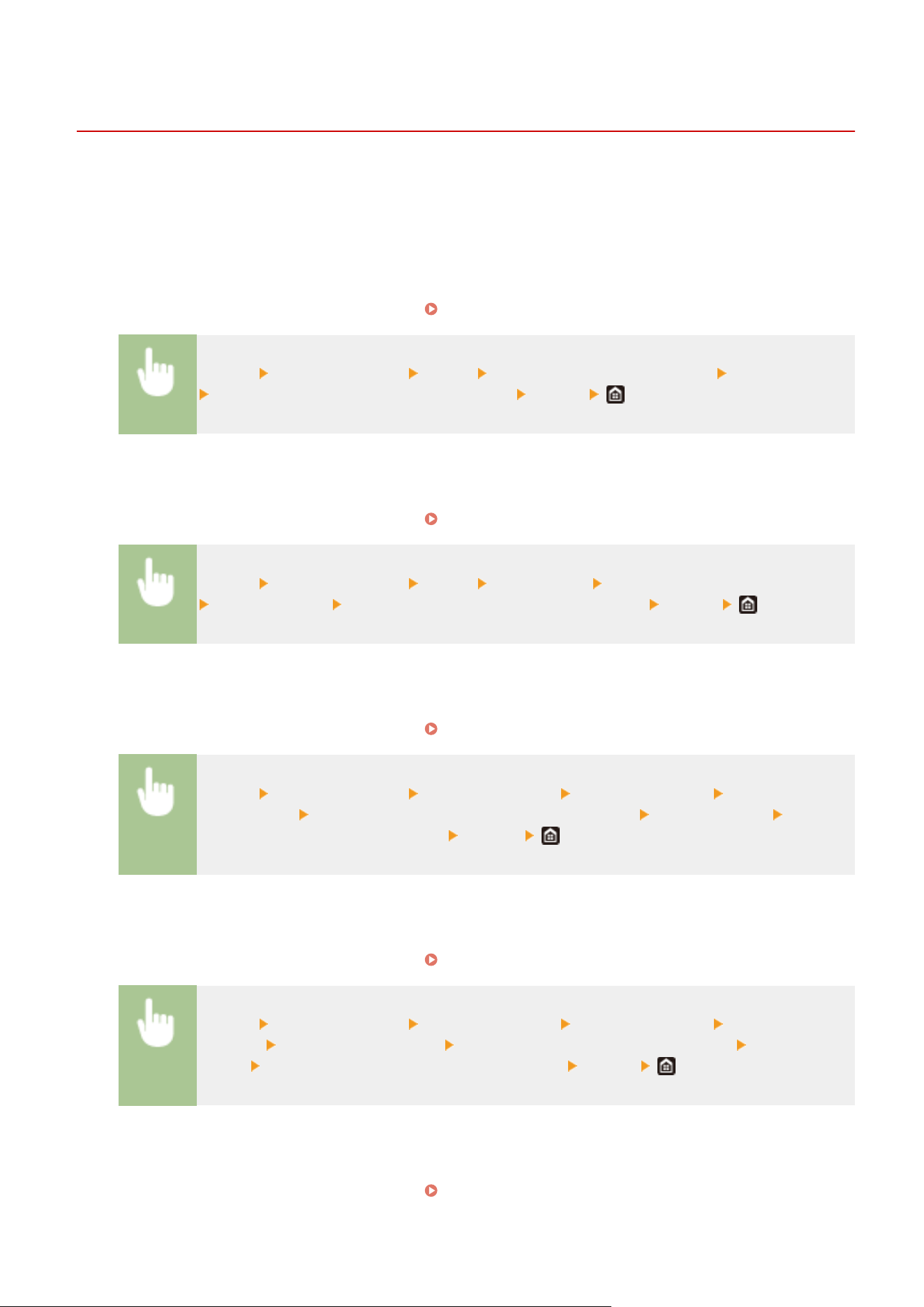
Changing the Default Settings for Functions
7YWY-03F
The default settings ar
e the settings that are displayed whenever you turn ON the machine, or when you select
<Reset>. If you change these default settings to match the operations that you perform frequently, you can eliminate
the need to specify the same settings every time you perform an action.
◼ Copy
For information about changeable setting items, see
<Change Default Settings (Copy)>(P. 497) .
<Menu> <Function Settings> <Copy> <Change Default Settings (Copy)> Select the setting
Change the default value of the selected item <Apply>
◼ F
AX
For information about changeable setting items, see
<Fax Settings>(P. 529) .
<Menu> <Function Settings> <Send> <Fax Settings> <Change Default Settings (Fax)>
Select the setting Change the default value of the selected item <Apply>
◼ Memory Media Print
For information about changeable setting items, see <Access Stored Files Settings>(P. 542) .
<Menu> <Function Settings> <Store/Access Files> <Common Settings> <Access Stored
Files Settings> <Change Default Settings (Memory Media Print)> Select the setting Change
the default value of the selected item <Apply>
◼ USB Memory
For information about changeable setting items, see <USB Memory Settings>(P. 541) .
<Menu> <Function Settings> <Store/Access Files> <Common Settings> <Scan and Store
Settings> <USB Memory Settings> <Change Default Settings (USB Memory)> Select the
setting Change the default value of the selected item <Apply>
◼ E-Mail
For information about changeable setting items, see <E-Mail Settings>(P. 524) .
Basic Operations
175
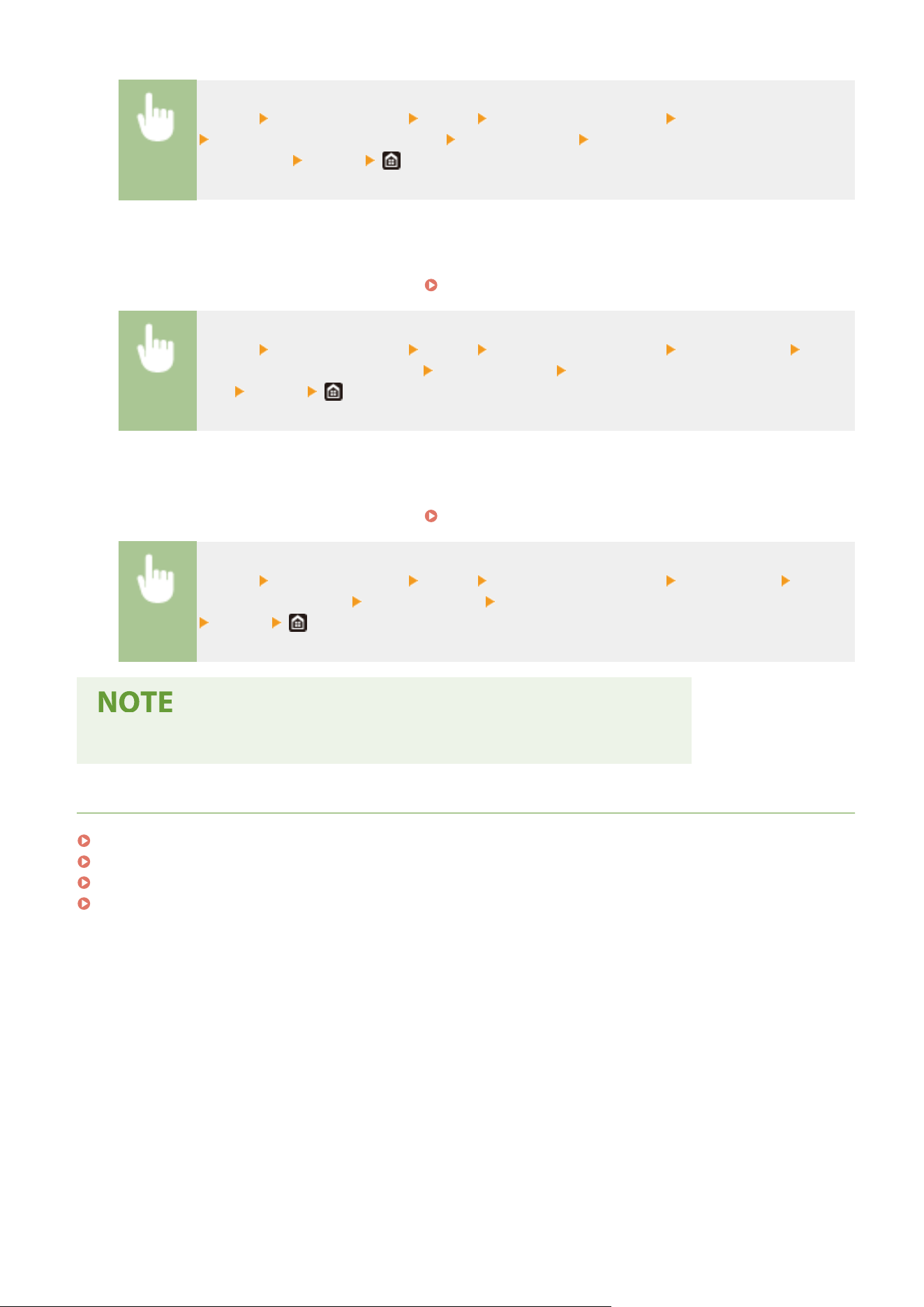
<Menu> <Function Settings> <Send> <Scan and Send Settings> <E-Mail Settings>
<Change Default Settings (E-Mail)> Select the setting Change the default value of the
selected item <Apply>
◼ I-Fax
For information about changeable setting items, see <I-Fax Settings>(P. 526) .
<Menu> <Function Settings> <Send> <Scan and Send Settings> <I-Fax Settings>
<Change Default Settings (I-Fax)> Select the setting Change the default value of the selected
item <Apply>
◼ Shar
ed Folder/FTP Server
For information about changeable setting items, see
<File Settings>(P. 527) .
<Menu> <Function Settings> <Send> <Scan and Send Settings> <File Settings> <Change
Default Settings (File)> Select the setting Change the default value of the selected item
<Apply>
● If you select <Initialize> on each setting scr
een, you can restore the default settings.
LINKS
Basic Copy Operations(P. 196)
Basic Operations for Sending Faxes(P. 219)
Printing from a USB Memory Device (Memory Media Print)(P. 273)
Basic Operations for Scanning Originals(P. 287)
Basic Operations
176
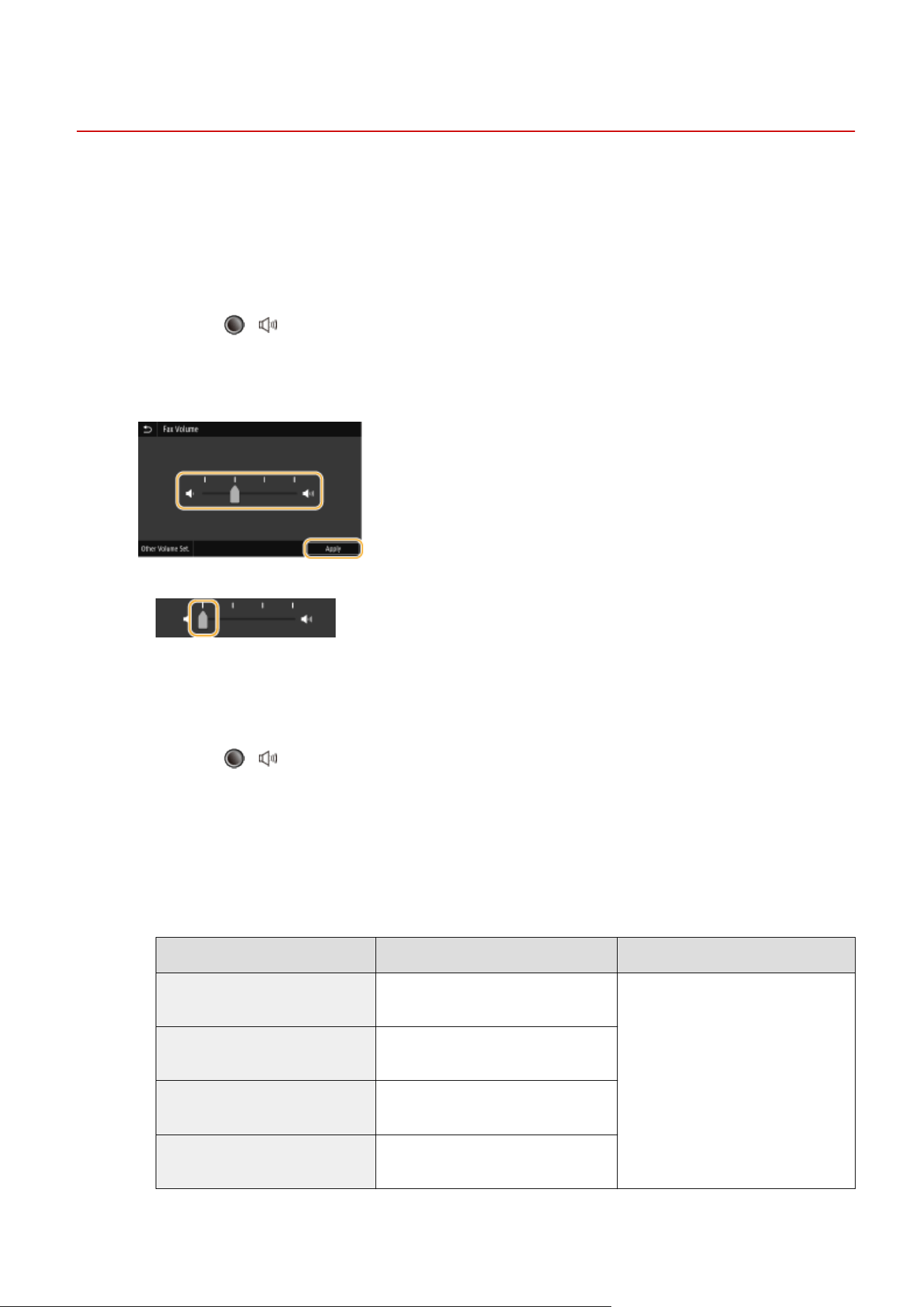
Setting Sounds
7YWY-03H
The machine pr
oduces sounds in a variety of situations, such as when fax sending is complete or when a paper jam or
error occurs. You can set the volume of each of these sounds individually.
◼ Adjusting <Fax Volume>
1
Press the
( ) key.
2
Adjust the volume, and select <Apply>.
● T
o mute the sound, move the cursor all the way to the left.
◼ Adjusting <Other V
olume Set.>
1
Press the
( ) key.
2
Select <Other Volume Set.>.
3
Select a setting.
Setting Description Action
<Ring Tone> Sound produced when an incoming fax
is r
eceived
Go to step 4.
<TX Done Tone> Sound produced when fax sending is
complete
<RX Done Tone> Sound produced when fax receiving is
complete
<Scanning Done Tone> Sound produced when fax original
scanning is complete
Basic Operations
177
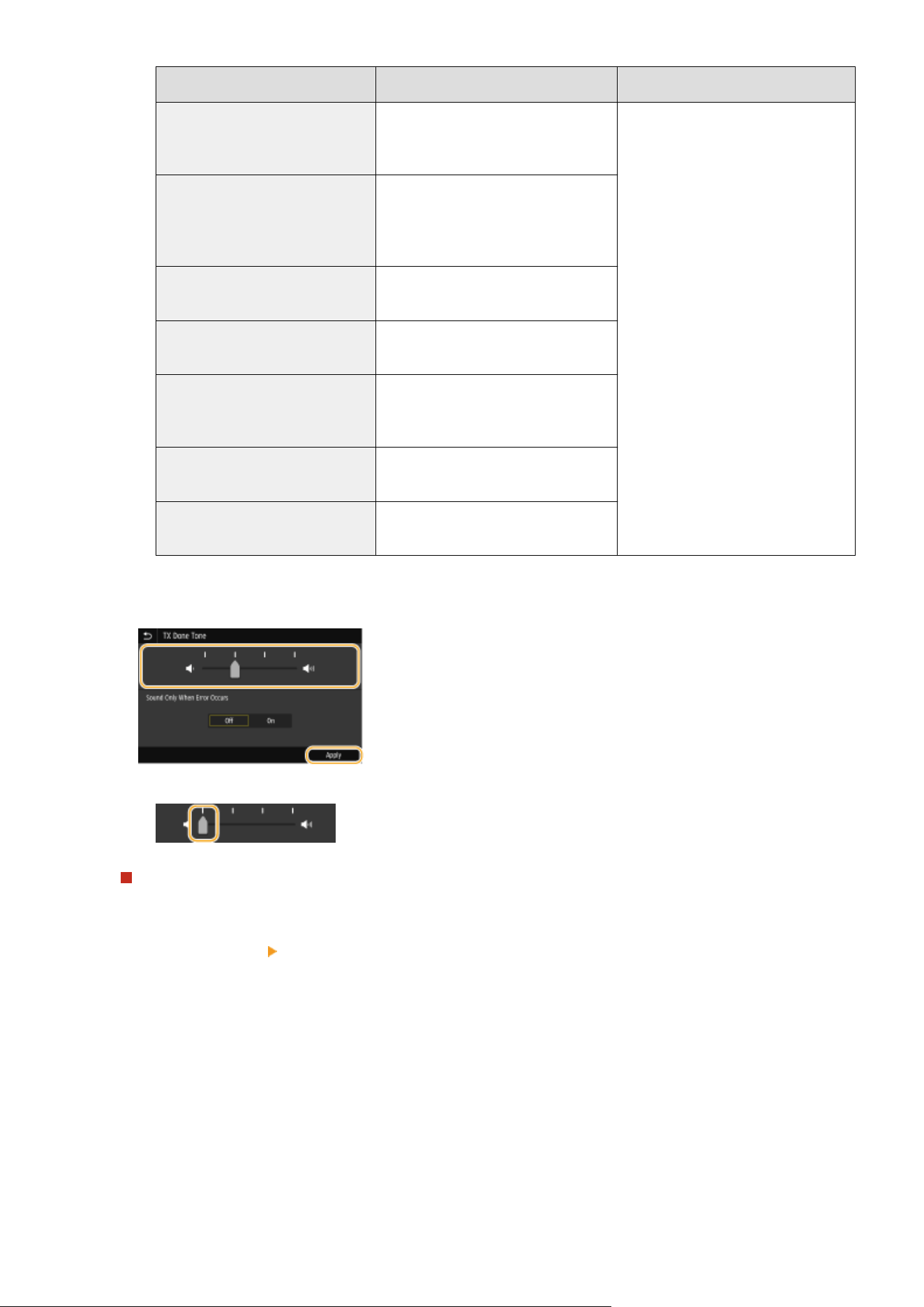
Setting Description Action
<Entry Tone> Conrmation sound each time a k
ey on
the operation panel or button on the
display is pressed
Select <On> (produce a tone) or <Off>
(not produce a tone), and then go to
step 5.
<Invalid Entry Tone> Sound produced when an invalid key
operation is performed, such as when
you enter a number outside the valid
setting range
<Restock Supplies Tone> Sound produced when a toner
cartridge is almost empty
<Warning Tone> Sound produced when a paper jam or
other error occurs
<Job Done Tone> Sound produced when an operation
such as copying or scanning is
complete
<Energy Saver Alert> Sound produced when the machine
enters or e
xits sleep mode
<Original in Feeder Detection Tone> Sound produced when an original is
loaded in the feeder
4
Adjust the volume, and select <Apply>.
● T
o mute the sound, move the cursor all the way to the left.
End sound only for error
In <Sound Only When Err
or Occurs>, select <On>, and select <Apply>.
5
Select <Apply>
<Apply>.
Basic Operations
178
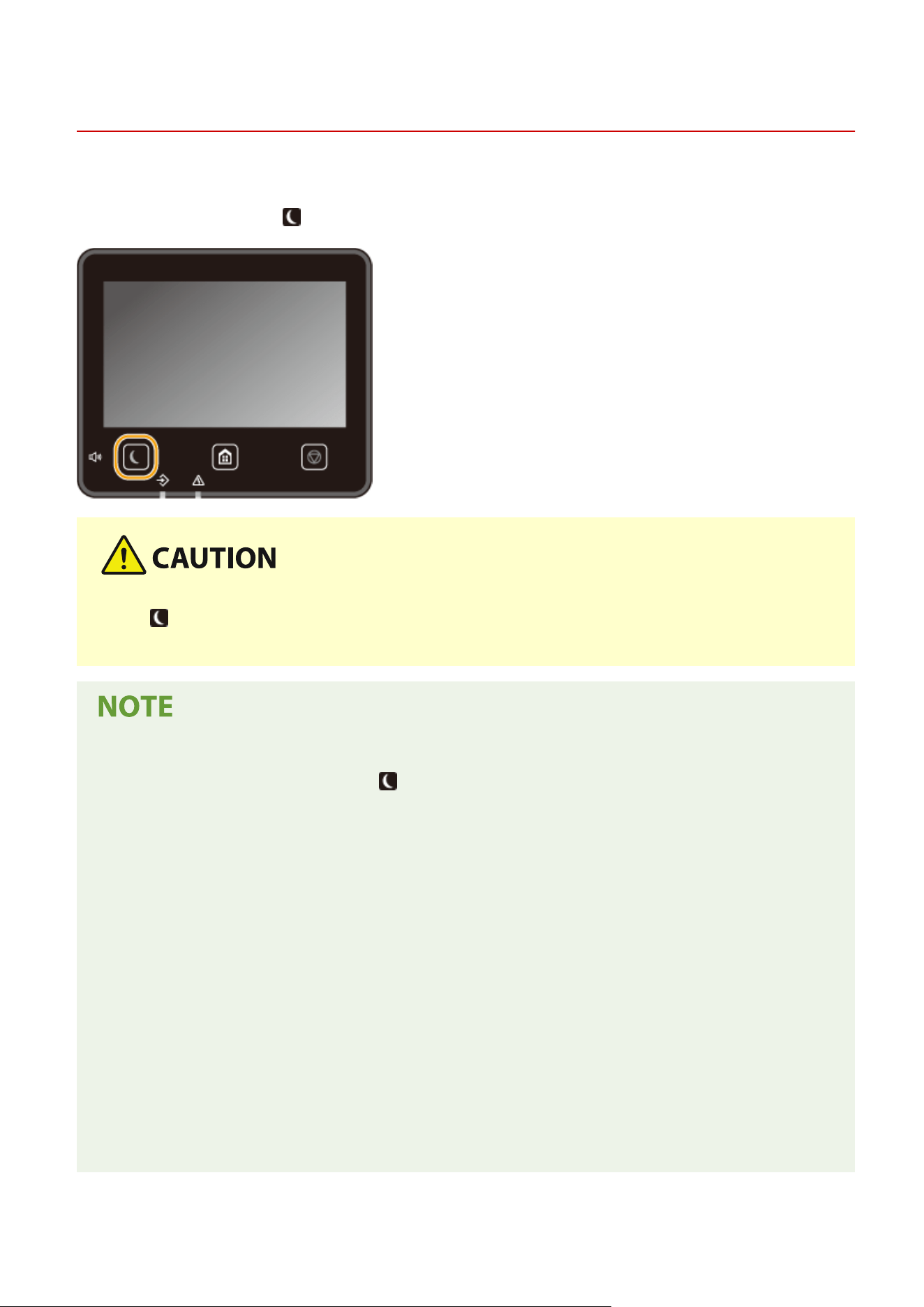
Entering Sleep Mode
7YWY-03J
The sleep mode function r
educes the amount of power consumed by the machine by disabling power ow to the
operation panel. If no operations will be performed on the machine for a while, such as during a lunch break, you can
save power simply by pressing
on the operation panel.
Press if the machine will not be used for a long period of time, such as overnight
● Put the machine into Sleep mode as a safety pr
ecaution.
When in sleep mode
● When the machine enters sleep mode, lights up yellow green.
Situations in which the machine does not enter sleep mode
● When the machine is in oper
ation
● When the Data indicator is lit up or blinking
● When the machine is performing an operation such as adjustment or cleaning
● When a paper jam occurs
● When the receiver of the external telephone is off the hook
● When the machine is set such that the fax incoming ring will not sound
● When the menu screen is displayed
● When a job is waiting to be scanned to a USB memory device or to a computer
● When an error message is displayed on the screen (There are some exceptions. The machine sometimes
enters sleep mode when an error message is displayed.)
● When the machine is communicating with an LDAP server, etc.
● When the SSID/network key screen for Direct Connection is displayed
● When settings are being imported or exported
Basic Operations
179
Changing the Auto Sleep Time Value
Auto Sleep Time is a function that automatically puts the machine into the sleep mode if it remains idle for a
specied length of time. W
e recommend using the factory default settings (
<Timer/Energy
Settings>
(P. 459) ) to reduce power usage. If you want to change the amount of time that elapses before the
machine enters the auto sleep mode, perform the procedure below.
<Menu> <Preferences> <Timer/Energy Settings> <Auto Sleep Time> Set the amount of
time that elapses befor
e the machine automatically enters sleep mode
<Apply>
Changing the Sleep Mode Setting to the Specied Time
You can congur
e a setting so that the machine is placed into the sleep mode at the specied time. You can also
congure a setting so that the sleep mode is released at the specied time.
<Menu> <Preferences> <Timer/Energy Settings> Select <Auto Sleep Daily Timer> or <Sleep
Mode Exit Time Settings> Select <On> in <Set This Function>, and enter the time <Apply>
Exiting Sleep Mode
You can press or any other key on the operation panel to exit the sleep mode.
● Y
ou can also tap the display to exit sleep mode.
● If an external telephone is connected, the machine exits sleep mode when you take the receiver off
the hook.
Basic Operations
180
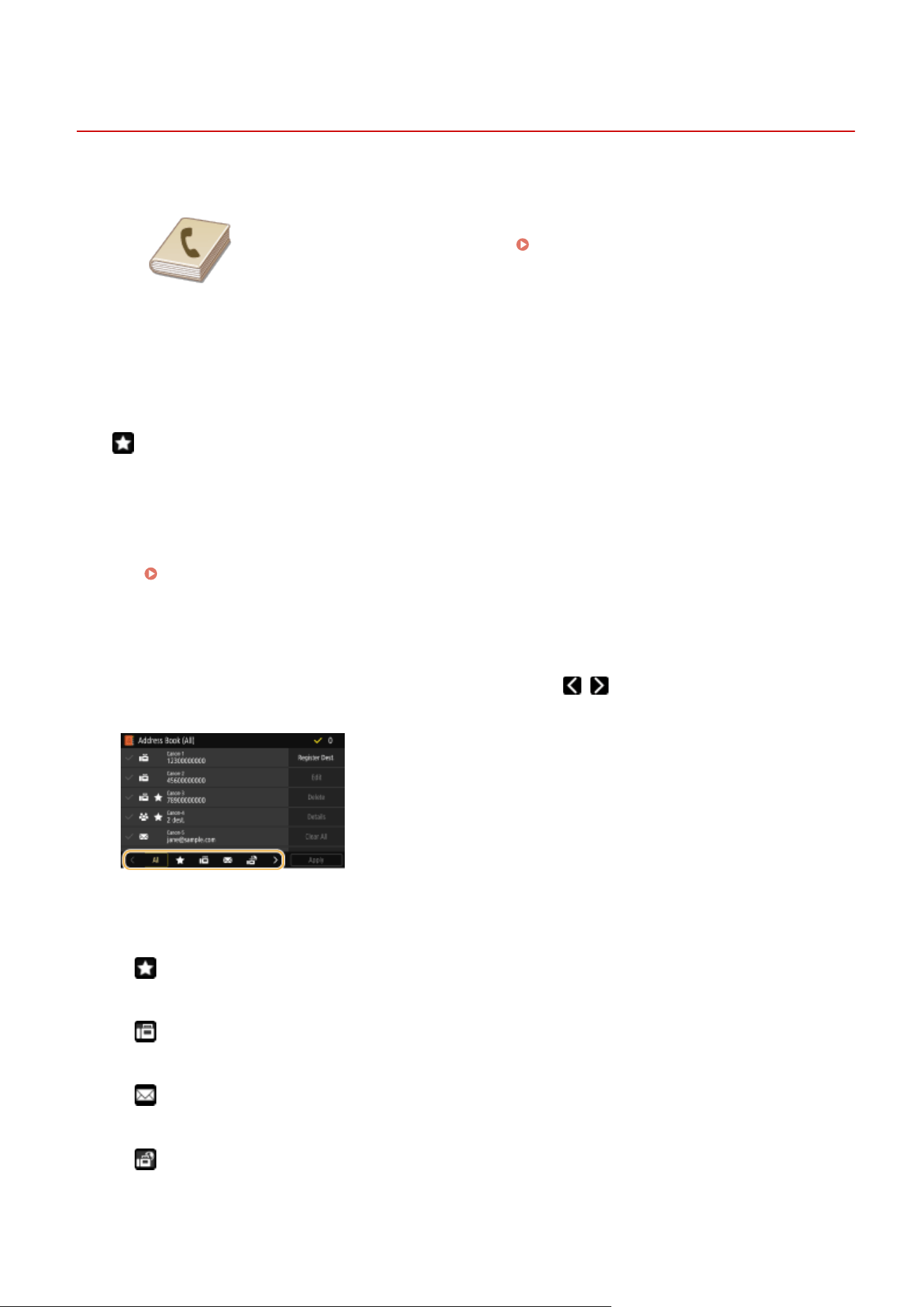
Registering Destinations
7YWY-03K
1660-03J
You can register frequently used fax/scan destinations in the Address Book and
easily select them when needed (
Registering Destinations in the Address
Book(P
. 183) ). Destinations can be searched alphabetically, from lists in the Address
Book, or by entering three-digit numbers (coded dial numbers). You can also specify
destinations more quickly by using the following features.
◼ Favorites
Registering a lot of addr
esses in the Address Book makes it dicult to nd the destination you need. To avoid this
situation, register frequently used destinations as Favorites. Destinations registered in Favorites can be searched from
the <
> in the Address Book. You can register up to 19 Favorites.
◼ Gr
oup Dial
You can select multiple destinations that have already been registered and register them together as a group (Max.
299). You can send faxes or e-mails to multiple destinations at the same time. Groups can also be registered in
Favorites.
Registering Multiple Destinations as a Group(P. 186)
◼ Inde
x
The registered destinations are classied into indexes depending on the initial character or the type of address.
Changing indexes allows you to perform a destination search quickly. Tap
/ or ick the tar
get index sideways to
change the display.
<All>
Displays all the destinations r
egistered in the Address Book.
<
>
Displays a list of destinations registered in Favorites.
< >
Displays destinations for fax
es.
<
>
Displays destinations for e-mails.
< >
Displays destinations for I-Fax
es.
Basic Operations
181
< >
Displays destinations for shar
ed folders and FTP servers. Registration of destinations is performed from the
computer.
Setting a Shared Folder as a Save Location(P. 95)
Registering Destinations from Remote UI(P. 434)
< >
Displays a list of destinations r
egistered in Group Dial.
<A-Z>/<0-9>/<ABC> to <YZ>
Displays destinations with recipient names whose rst characters correspond to the characters of the selected
index.
● Use the computer to r
egister a shared folder or FTP server as the destination for scans.
Setting a Shared Folder as a Save Location(P. 95)
Registering Destinations from Remote UI(P. 434)
● Y
ou can save the Address Book as a le on your computer (although you cannot use the computer to edit
the Address Book). You can also import a saved Address Book from the computer to the machine.
Importing/Exporting the Setting Data(P. 443)
● Y
ou can print a list of destinations registered in the Address Book.
Address Book List(P. 592)
● If your oce has an LD
AP server installed, you can make search to nd user information on the server and
register it in the Address Book. You need to specify the settings for connecting to an LDAP server
beforehand.
Registering LDAP Servers(P. 65)
Basic Operations
182
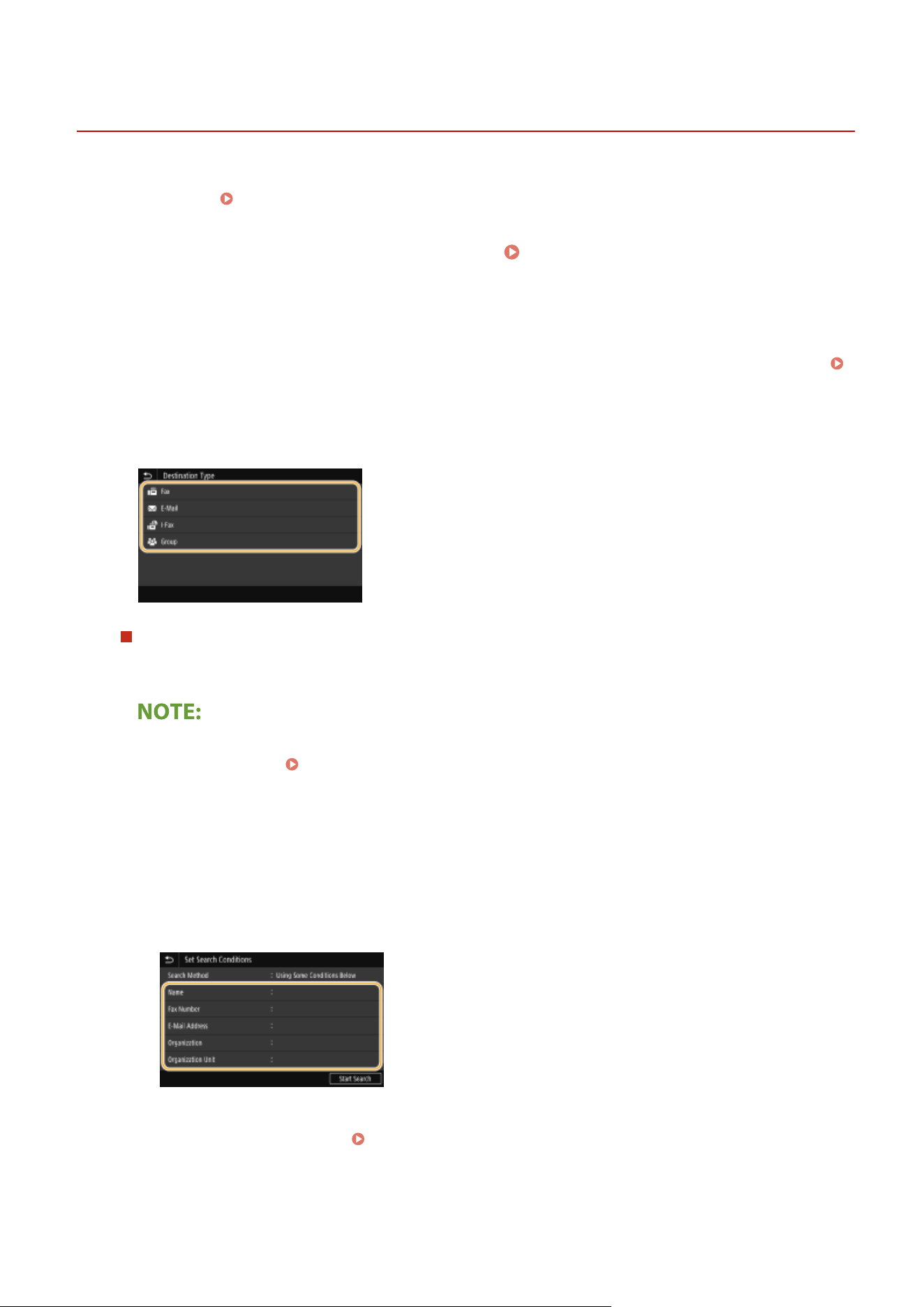
Registering Destinations in the Address Book
7YWY-03L
This section describes ho
w to register destinations from the operation panel. You can also use the Remote UI to
register destinations.
Registering Destinations from Remote UI(P. 434)
1
Select <Address Book> in the Home screen.
Home Screen(P. 125)
2
Select <Register Dest.>
● If a scr
een appears prompting you to enter a PIN, enter the PIN for the Address Book and select <Apply>.
Restricting Use of the Address Book(P. 409)
3
Select the type of address to register.
Registering destinations with the LDAP server
If your oce has an LD
AP server installed, you can make search to nd user information on the server and
register it in the Address Book.
● To make registration from the LDAP server, you need to specify the settings for connecting to the LDAP
server beforehand. Registering LDAP Servers(P. 65)
1
Select <LDAP Server>.
2
Select the LDAP server you are using.
3
Select conditions for user information to be searched.
● Name, fax numbers, e-mail addr
esses, organization names, and organization unit are available criteria
for searching destinations.
4
Enter the search target character string, and select <Apply>.
● On ho
w to enter text, see
Entering Text(P. 134) .
● T
o specify multiple search criteria, repeat steps 3 and 4.
5
Select <Search Method>.
Basic Operations
183

6
Select conditions to display the search result.
<Using All Conditions Below>
Sear
ches and displays the users that meet all the search criteria specied in steps 3 and 4.
<Using Some Conditions Below>
If users that meet even one of the criteria specied in steps 3 and 4 are found, displays all those users.
7
Select <Start Search>.
➠ The users meeting your sear
ch criteria are displayed.
● If the authentication scr
een appears when you select <Start Search>, enter the user name of the
machine and the password registered in the LDAP server, and select <Apply>.
Registering LDAP
Servers
(P. 65)
8
Select a user you want to register in the Address Book.
9
Select <Apply>.
➠ The user name and the fax number or e-mail address registered on the LDAP server of the selected
user are registered in the Address Book.
Registering destinations from recall settings
If recall settings are provided, you can select <Recall Settings> and register the destinations.
4
Select <Name>.
● Registering <Name> is optional. If you r
egister <Name>, the destination can be searched alphabetically.
5
Enter the name, and select <Apply>.
● On ho
w to enter text, see
Entering Text(P. 134) .
6
Select <Fax Number>, <E-Mail Address>, or <I-Fax Address>.
7
Enter the destination, and select <Apply>.
Making detailed settings (only when registered for fax)
After selecting <Set Details>, a screen similar to the following is displayed.
Basic Operations
184
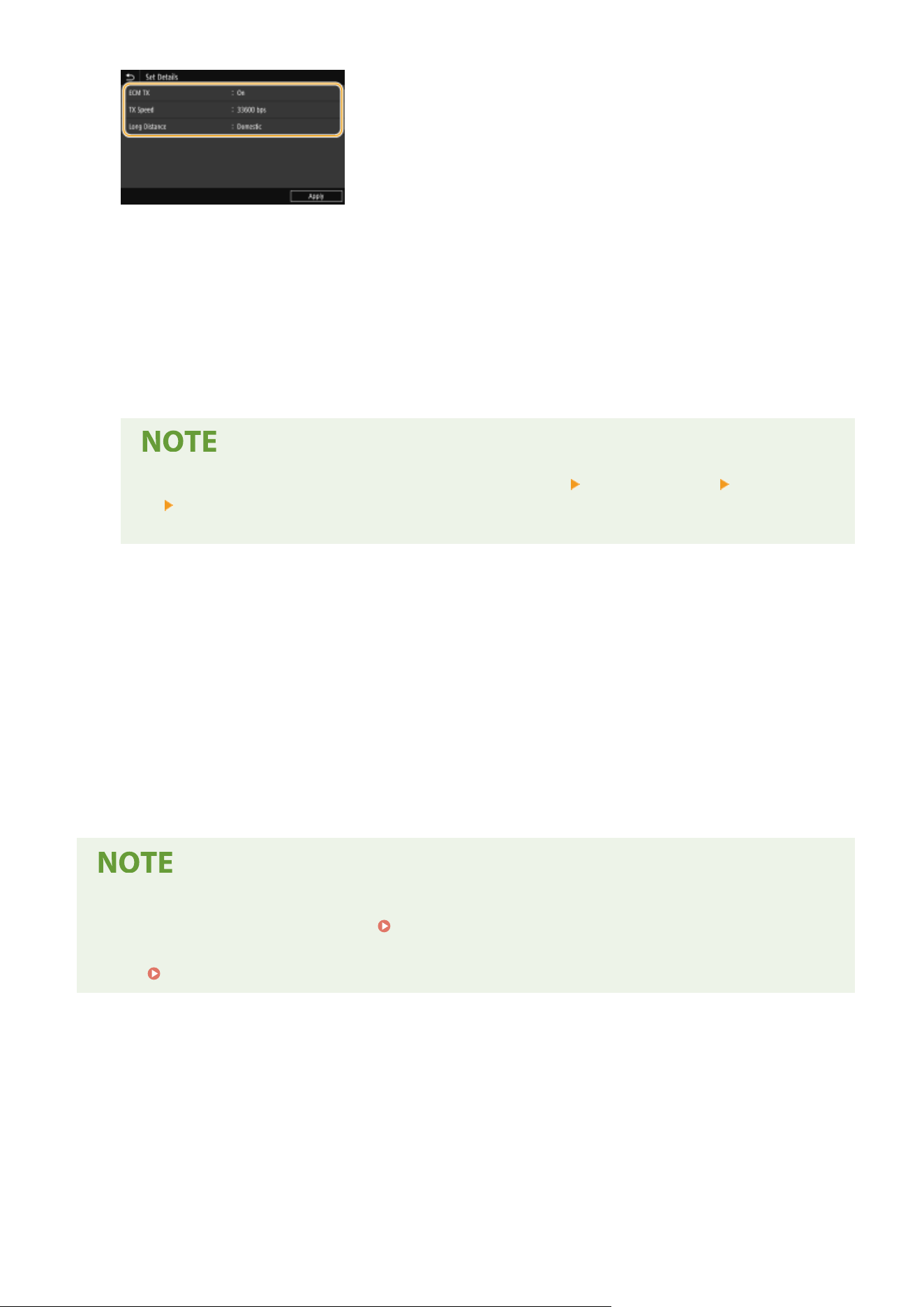
<ECM TX>
If an err
or occurs in an image that is being sent, the error is checked and corrected to prevent an improper
image from being sent when setting <On>.
<TX Speed>
If it takes time for transmissions to start, such as when there is a poor telephone connection, you can adjust the
transmission start speed downward.
<Long Distance>
Specify <International (1)> to <International (3)> according to the transmission conditions when registering
overseas fax numbers.
● Y
ou can also specify <ECM TX> and <TX Speed> from <Menu>
<Function Settings> <Send>
<Fax Settings>. However, settings made from <Address Book> are enabled for the detailed settings
of destinations r
egistered in the Address Book.
8
Select <Register As>.
9
Select <Favorites> or <Coded Dial>.
● If you select <Coded Dial>, select the destination number, or select <Use Numeric Ke
ys> and enter the
destination number.
10
Select <Apply>.
● Y
ou can make a group of destinations already registered in the Address Book and register it as one
destination. For more information, see
Registering Multiple Destinations as a Group(P. 186) .
● When you want to change or delete items of information about destinations r
egistered in the Address Book,
see
Editing the Registered Destinations in the Address Book(P. 188) .
Basic Operations
185
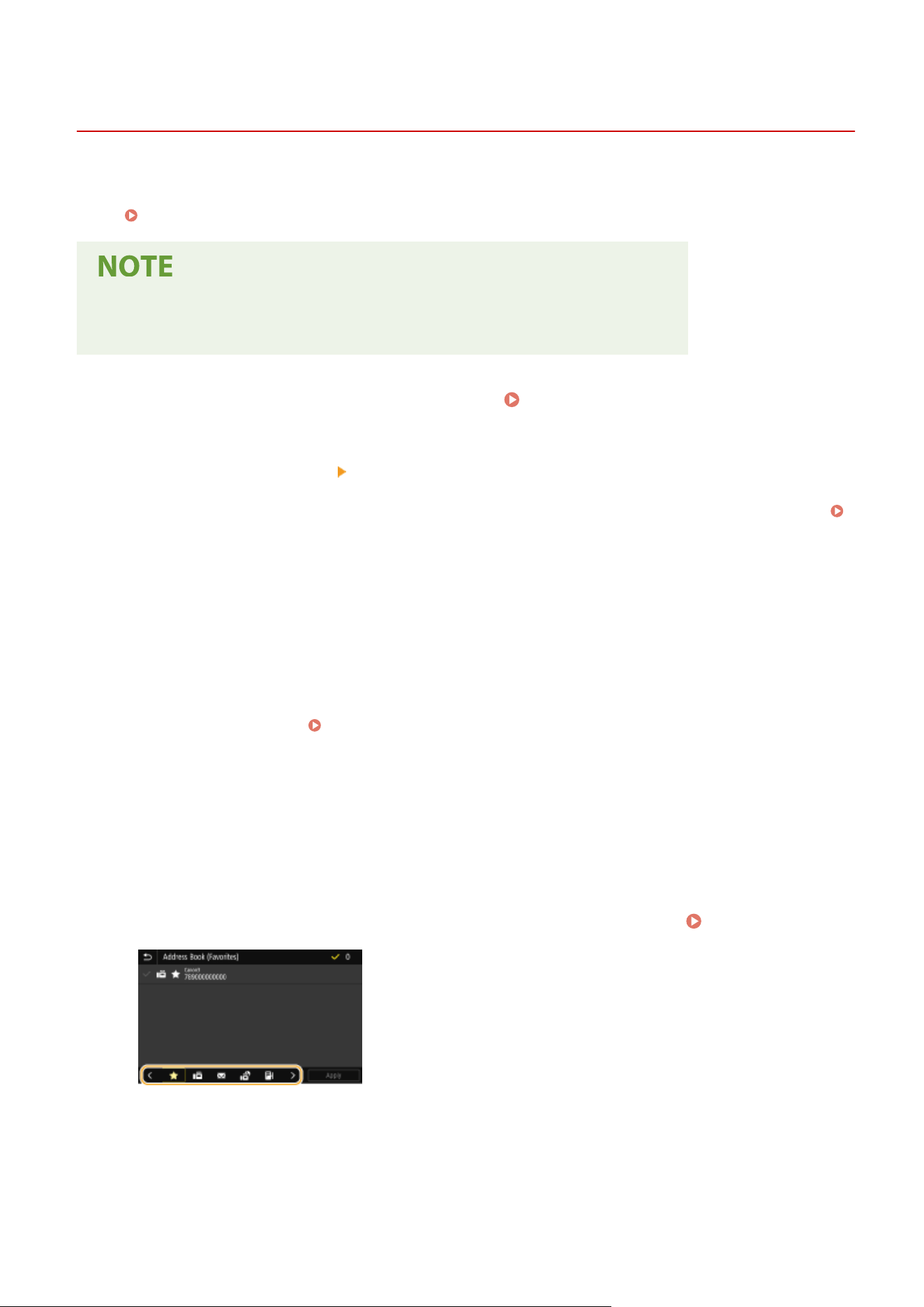
Registering Multiple Destinations as a Group
7YWY-03R
Y
ou can select multiple destinations that have already been registered and register them together as a group. This
section describes how to register a group from the operation panel. You can also use the Remote UI to register a
group.
Registering Destinations from Remote UI(P. 434)
● Only destinations of the same type of addr
ess can be registered in the same group.
● Shared folders or FTP servers cannot be registered in a group as destinations.
1
Select <Address Book> in the Home screen.
Home Screen(P. 125)
2
Select <Register Dest.>
<Group>.
● If a scr
een appears prompting you to enter a PIN, enter the PIN for the Address Book and select <Apply>.
Restricting Use of the Address Book(P. 409)
3
Select <Name>.
● Registering <Name> is optional. If you r
egister <Name>, the destination can be searched alphabetically.
4
Enter the name, and select <Apply>.
● On ho
w to enter text, see
Entering Text(P. 134) .
5
Select <Destination>.
6
Select <Add>.
7
Select the index containing the destination you want to register.
Index(P. 181)
8
Select the destination, and then select <Apply>.
Basic Operations
186

9
Repeat steps 6 to 8 until you have registered all of the destinations that you want to
r
egister, and then select <Apply>.
To view information about the destination
● Select the tar
get destination, and select <Details>.
To remove a destination from the group
● Select the destination that you want to remove from the group, and select <Delete>
<Yes>.
10
Select <Register As>.
11
Select <Favorites> or <Coded Dial>.
● If you select <Coded Dial>, select the destination number, or select <Use Numeric Keys> and enter the
destination number.
12
Select <Apply>.
Basic Operations
187
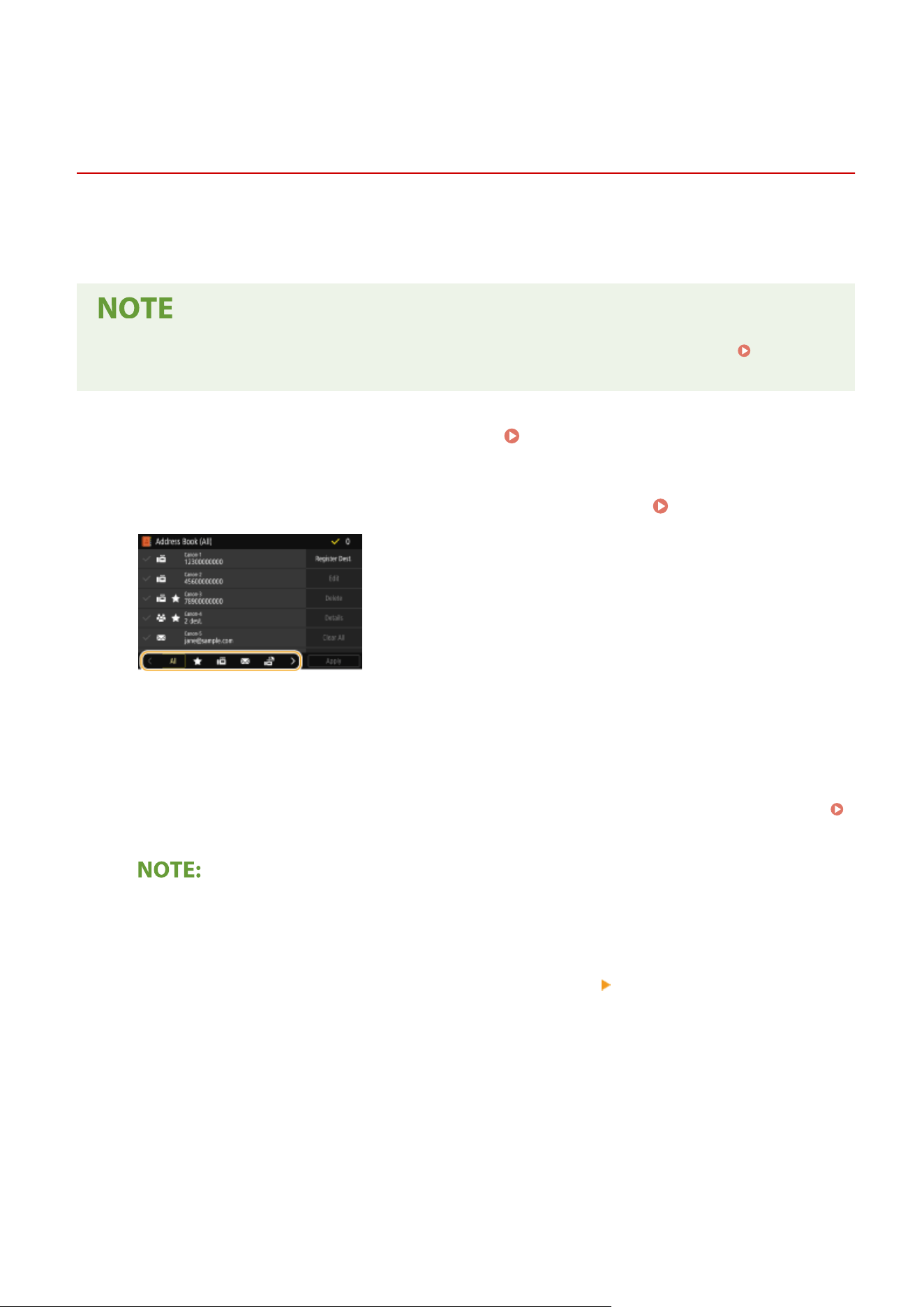
Editing the Registered Destinations in the Address
Book
7YWY-03S
Y
ou can change your settings, such as changing a registered fax number or name, changing the type of destination
registered as a fax number to an e-mail destination, changing a coded dial number, and adding or deleting group
destinations. You can also delete destinations or groups.
● If you delete a destination fr
om the Address Book, it is also deleted from the favorite settings.
Registering
Fr
equently Used Settings(P. 173)
1
Select <Address Book> in the Home screen.
Home Screen(P. 125)
2
Select the index containing the destination you want to edit.
Index(P. 181)
3
Select the destination, and select <Edit>.
● T
o clear selection of a destination, select again the destination with a check mark. When multiple destinations
are selected, you can deselect all of them in batch by <Clear All>.
● If a screen appears prompting you to enter a PIN, enter the PIN for the Address Book and select <Apply>.
Restricting Use of the Address Book(P. 409)
To check destination details
● Select a destination of which the details you want to check, and select <Details>.
T
o delete destinations
● Select the destination you want to delete, and then select <Delete>
<Yes>.
4
After editing the necessary items, select <Apply>.
Basic Operations
188
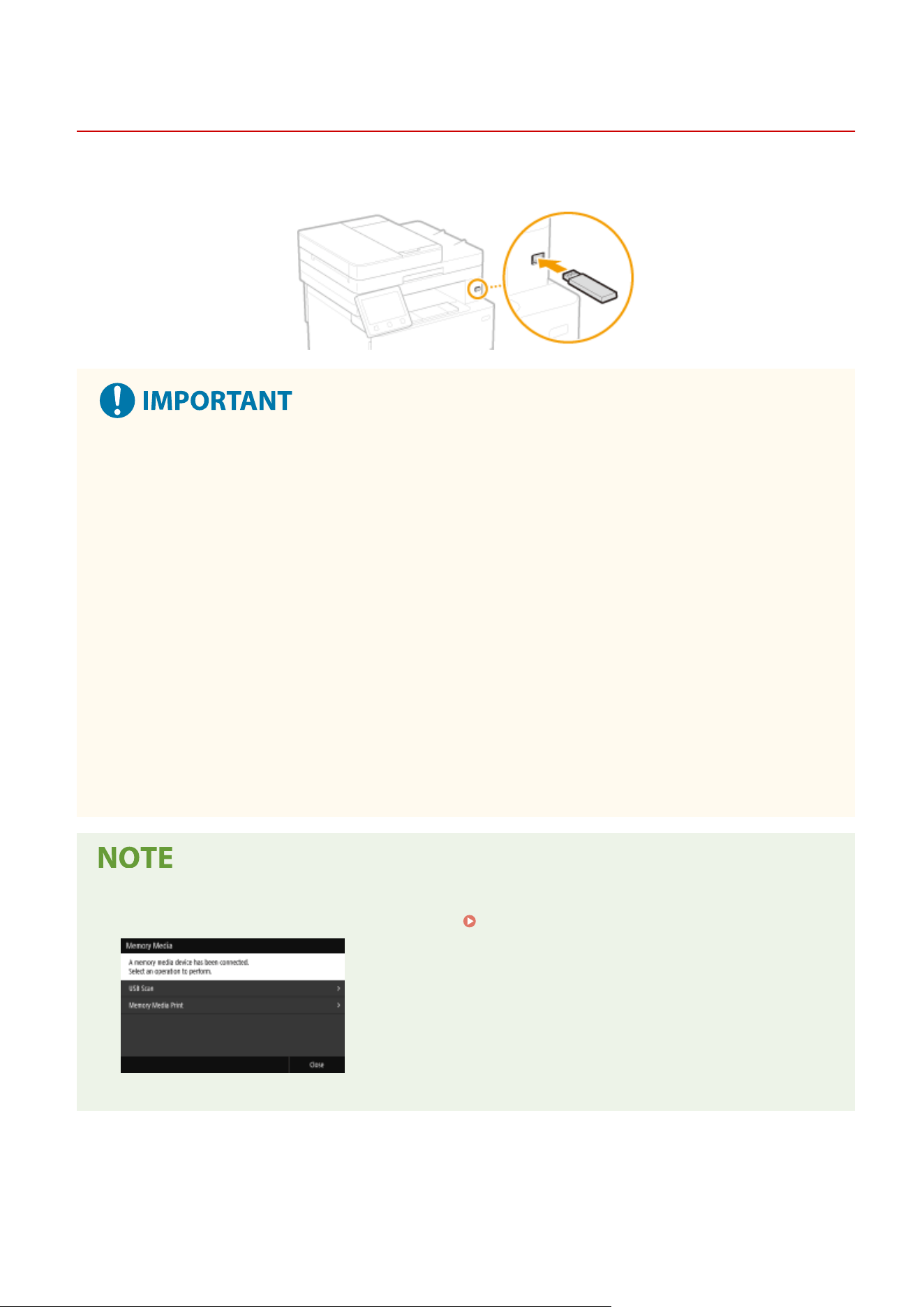
Using a USB Memory Device
7YWY-03U
When using a USB memory
, insert it into the USB port on the machine.
Before using a USB memory device
● The supported formats of USB memory de
vice are FAT16 and FAT32.
The following devices and uses are not supported:
● USB memory devices that have security functions installed
● USB memory devices that do not meet the USB standards
● Memory card readers connected via USB
● USB memory devices that are used with extension cables
● USB memory devices used via a USB hub
Handling of USB memory devices
● Make sure that the USB memory device is correctly oriented before inserting it. If you attempt to insert it in
incorrect orientation, the memory device and the machine may be damaged.
● Do not remove, bump or otherwise move the USB memory device while data is being imported or exported.
Also, do not turn OFF the machine while processing is in progress.
● You may not be able to save data properly on some USB memory devices.
● If <Scr
een When Mem. Med. Conn> is set to <On>, the available actions are displayed when you insert a USB
memory device while the Home screen is displayed.
<Screen When Mem. Med. Conn>(P. 546)
● Because scr
eens may not appear in sleep mode, exit sleep mode before inserting a USB memory device.
Basic Operations
189

◼ Remo
ve the USB Memory Device
● Always use the follo
wing procedure when removing USB memory devices. Using other methods to remove
USB memory devices may result in damage to the device and the machine.
1
Select <Status Monitor>.
2
Select <Rmv. Mem. Media>.
➠ W
ait until the <The memory media can be safely removed.> message is displayed.
3
Disconnect the USB memory device.
LINKS
Printing from a USB Memory Device (Memory Media Print)(P. 273)
Saving Data to a USB Memory Device(P. 290)
Basic Operations
190

Copying
Copying ................................................................................................................................................................
192
Copy Basic Features Screen .............................................................................................................................. 194
Basic Copy Operations ...................................................................................................................................... 196
Canceling Copies .......................................................................................................................................... 201
Checking the Copying Status and Log .......................................................................................................... 202
Enhancing and Adjusting Copy Quality ............................................................................................................ 204
Selecting the Type of Original for Copying ................................................................................................... 205
Adjusting Sharpness for Copying (Sharpness) .............................................................................................. 206
Erasing Dark Borders When Copying (Erase Frame) ..................................................................................... 207
Useful Copy Functions ....................................................................................................................................... 208
Copying Multiple Documents onto One Sheet (N on 1) ................................................................................. 209
Collating Copies by Page .............................................................................................................................. 210
Making ID Card Copies ................................................................................................................................. 211
Making Passport Copies ............................................................................................................................... 212
Copying
191
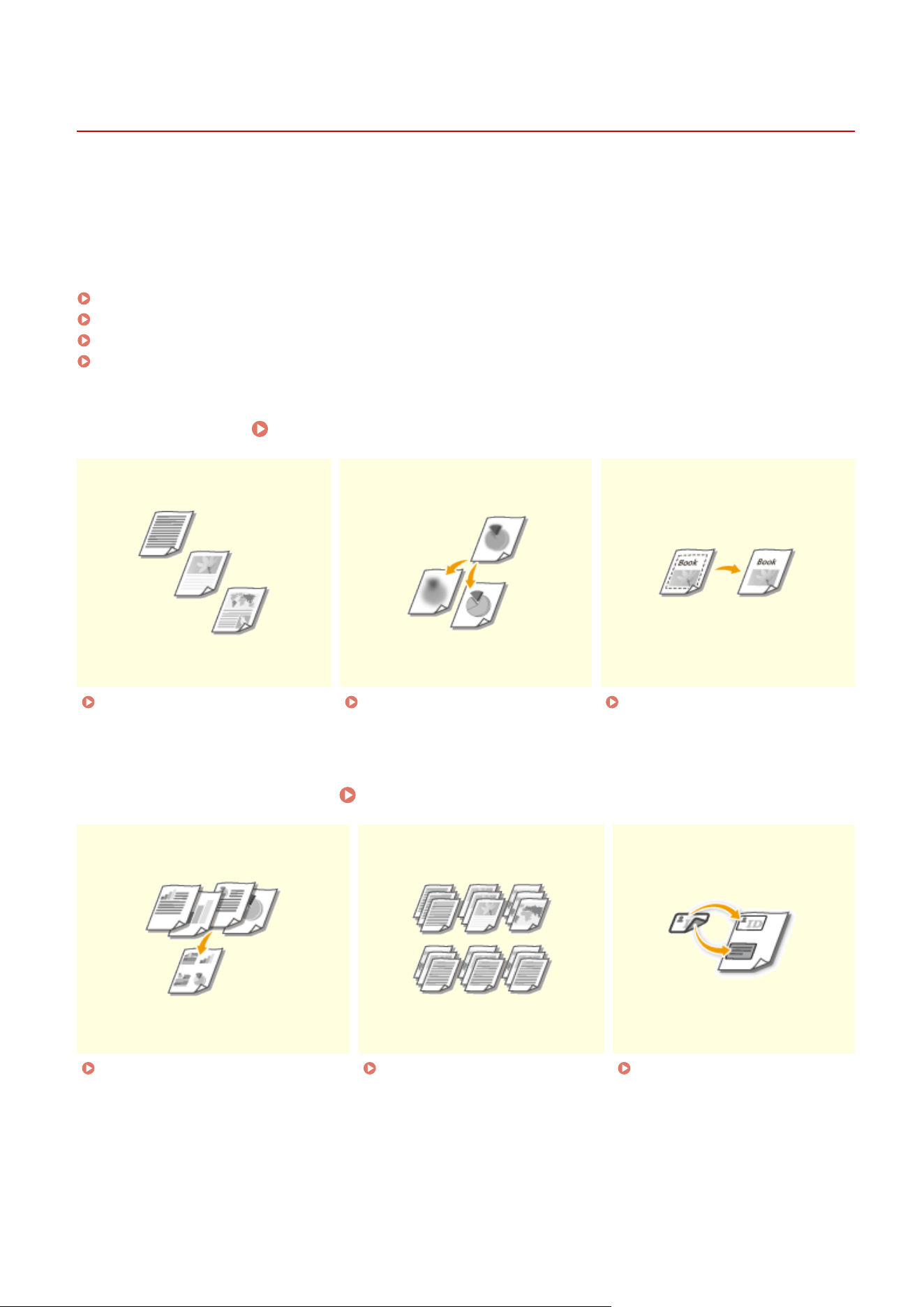
Copying
7YWY-03W
1660-03S
This chapter describes basic cop
y operations and various useful copy functions.
◼ Using Basic Operations
Copy Basic Features Screen(P. 194)
Basic Copy Operations(P. 196)
Canceling Copies(P. 201)
Checking the Copying Status and Log(P. 202)
◼ Enhancing Quality Enhancing and Adjusting Copy Quality(P. 204)
Selecting the Type of Original for
Cop
ying(P. 205)
Adjusting Sharpness for Copying
(Sharpness)(P
. 206)
Erasing Dark Borders When
Cop
ying (Erase Frame)(P. 207)
◼ Using Useful Cop
y Functions
Useful Copy Functions(P. 208)
Copying Multiple Documents onto
One Sheet (N on 1)
(P. 209)
Collating Copies by Page(P. 210) Making ID Card Copies(P. 211)
Copying
192

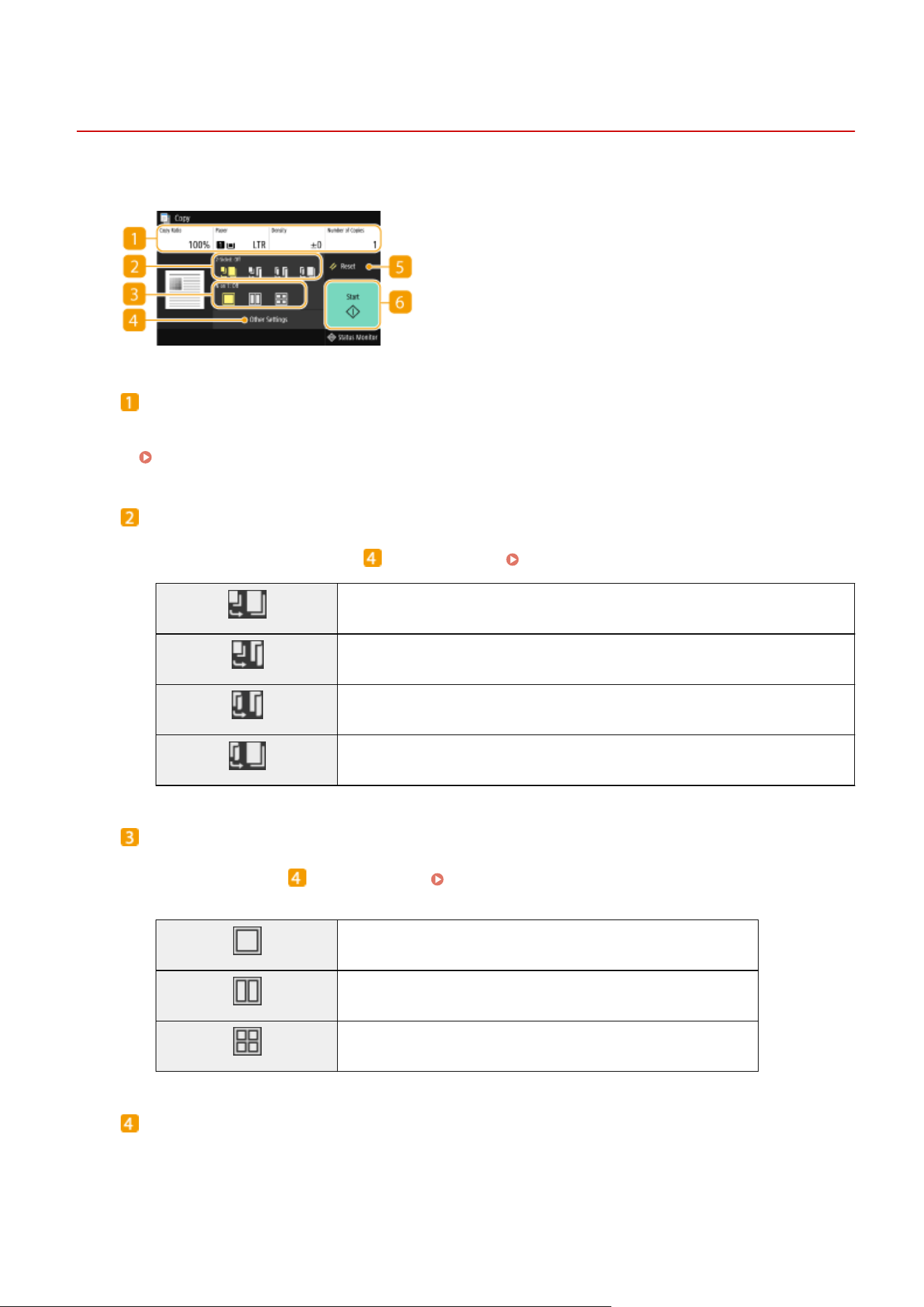
Copy Basic Features Screen
7YWY-03X
When you select <Cop
y> in the Home screen, the Copy Basic Features screen appears.
Current setting status and setting buttons
The setting status, such as cop
y ratio, copy paper, and number of copies, are displayed. To copy correctly, be
sure to check the settings displayed here. When you want to change a setting, select the desired setting item.
Basic Copy Operations(P. 196)
<2-Sided>
Y
ou can select a combination of 1-sided copying and 2-sided copying for the original and printout paper.
Specify the detailed settings from
<Other Settings>. Basic Copy Operations(P. 196)
Scans one side of an original and prints the scanned data on one side of the paper.
Scans one side of an original and prints the scanned data on both sides of the paper.
Scans both sides of an original and prints the scanned data on both sides of the paper.
Scans both sides of an original and prints the scanned data on one side of the paper.
<N on 1>
You can select an "N on 1" pattern to arrange multi-page originals on the same side of one sheet. Specify the
detailed settings from <Other Settings>. Copying Multiple Documents onto One Sheet (N on 1)
(P
. 209)
Does not apply N on 1.
Prints data for two consecutive pages on one side of a sheet of paper.
Prints data for four consecutive pages on one side of a sheet of paper.
<Other Settings>
Y
ou can call the detailed settings or favorite settings that are not displayed in the Copy Basic Features screen.
Copying
194

<Reset>
Y
ou can collectively restore the default settings.
<Start>
Use this button to start cop
ying.
Copying
195
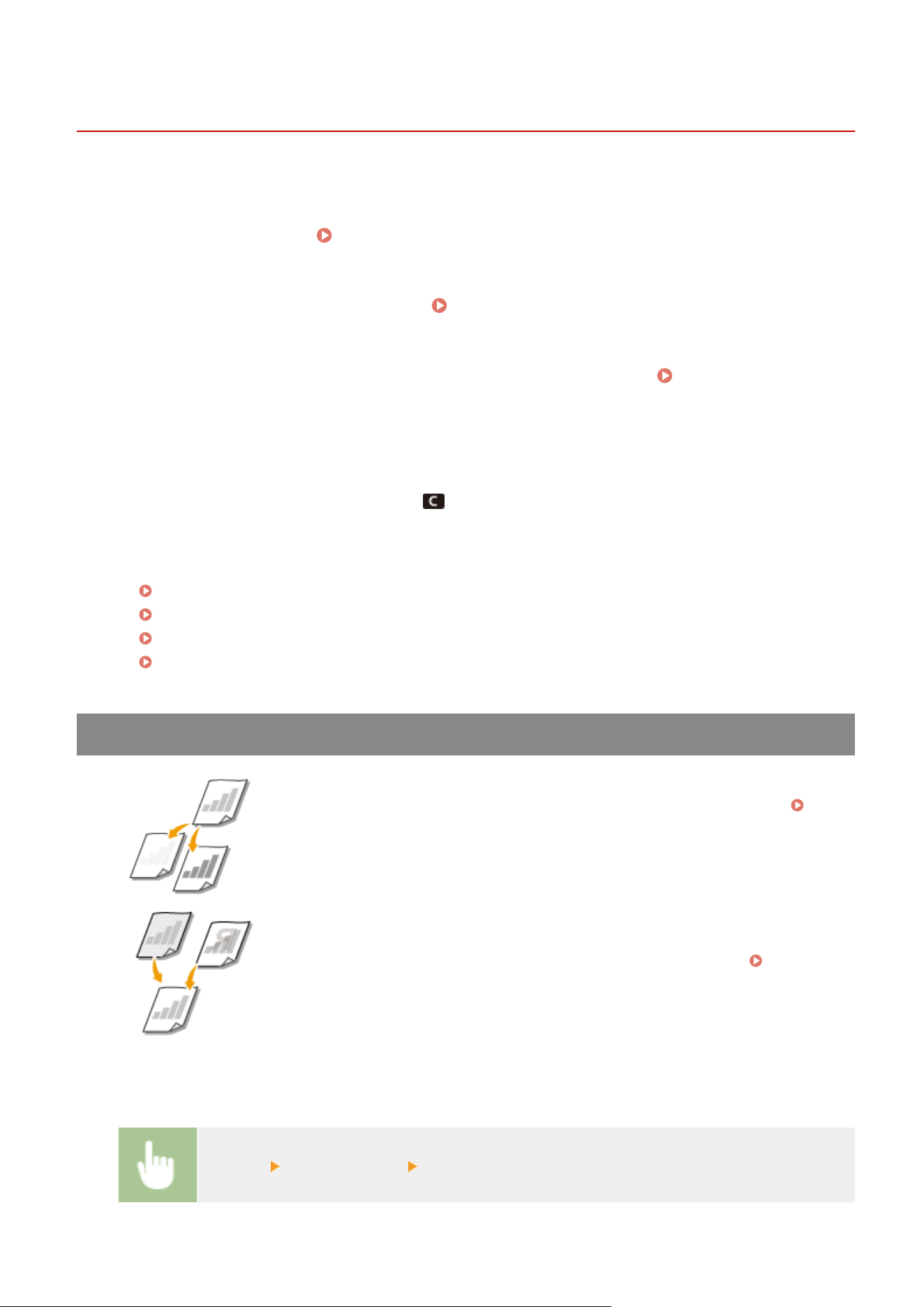
Basic Copy Operations
7YWY-03Y
This section describes the basic oper
ation procedure used to copy an original.
1
Place the original(s).
Placing Originals(P. 138)
2
Select <Copy> in the Home screen. Home Screen(P. 125)
3
Select <Number of Copies> in the Copy Basic Features screen. Copy Basic Features
Scr
een(P. 194)
4
Enter the number of copies, and select <Close>.
● If you have entered an incorrect value, use
to clear it.
5
Specify the copy settings as necessary.
Adjusting Density
2-Sided Copying
Enlarging or Reducing
Selecting Copy Paper
Adjusting Density
Adjust the density of the scan if the text or images in an original are excessively light
or dark. For e
xample, you can sharpen text and lines written using a pencil.
Adjusting Entire Density(P. 196)
Adjust the background density. You can make a clear copy of originals with colored
backgr
ounds, or originals such as a newspaper that is printed on thin paper on
which text or images on the other side are visible through the paper.
Adjusting
the Backgr
ound Density(P. 197)
◼ Adjusting Entir
e Density
<Density> Adjust the density <Close>
Copying
196
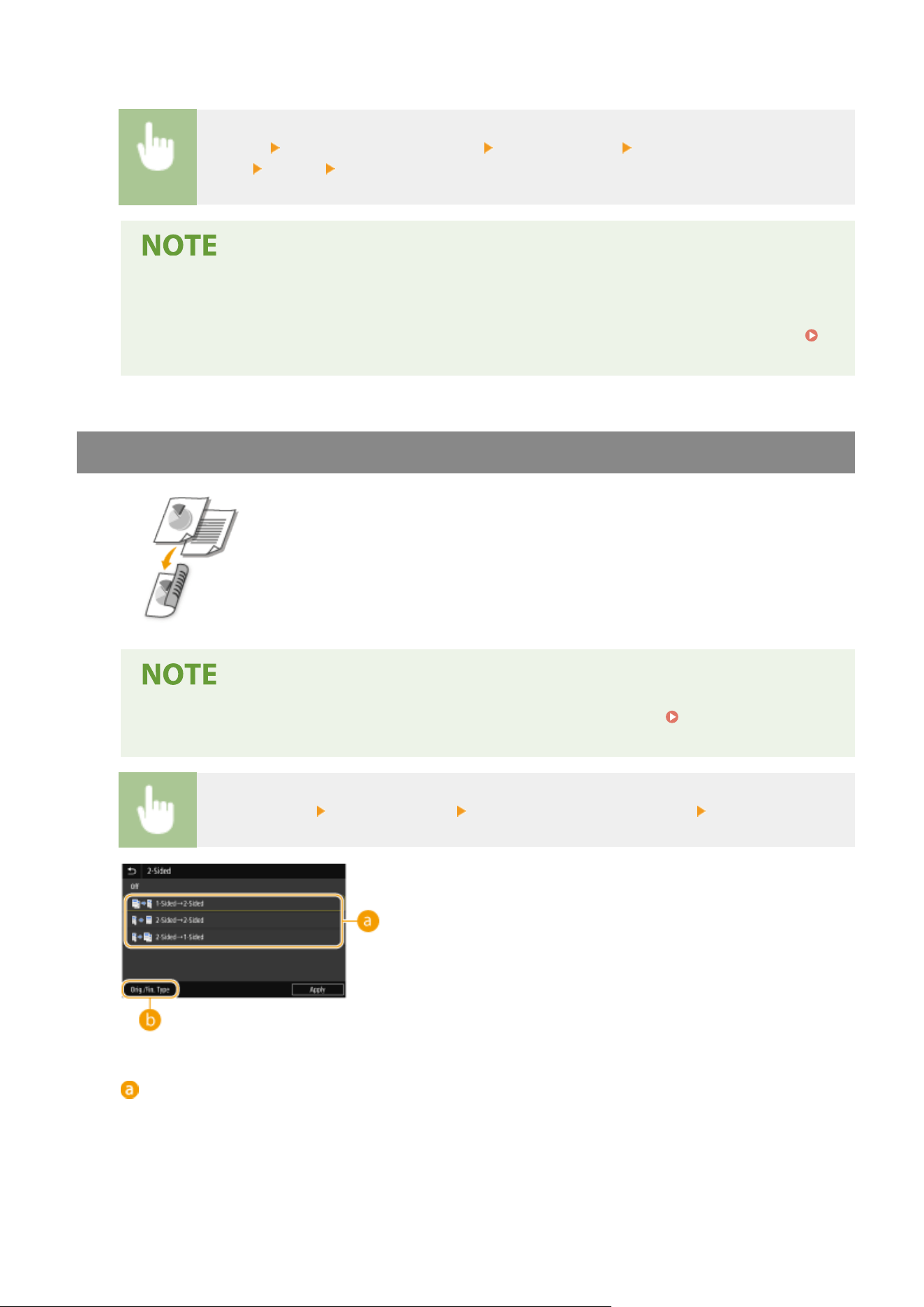
◼ Adjusting the Backgr
ound Density
<Density> <Adjust Background Density> <Adjust (Manual)> Adjust the background
density <Apply> <Close>
● Depending on the original color, portions other than the backgr
ound may be affected.
● When you set <Adjust Background Density> to <Auto>, automatic adjustment is performed so that
the background color becomes white. In this case, <Original Type> is automatically set to <Text> (
Selecting the Type of Original for Copying(P. 205) ).
2-Sided Copying
You can copy two pages of an original on both sides of the paper. You can also copy
a 2-sided original on both sides of the paper, or on two sheets of paper.
● <2-Sided Printing> may not be available with some sizes and types of paper. Available
Paper
(P. 617)
<Other Settings> <2-Sided Printing> Select the type of 2-sided copying <Apply>
Types of 2-sided copying
The illustr
ation below shows the types of 2-sided copying.
<1-Sided->2-Sided>
<2-Sided->2-Sided>
<2-Sided->1-Sided>
Copying
197
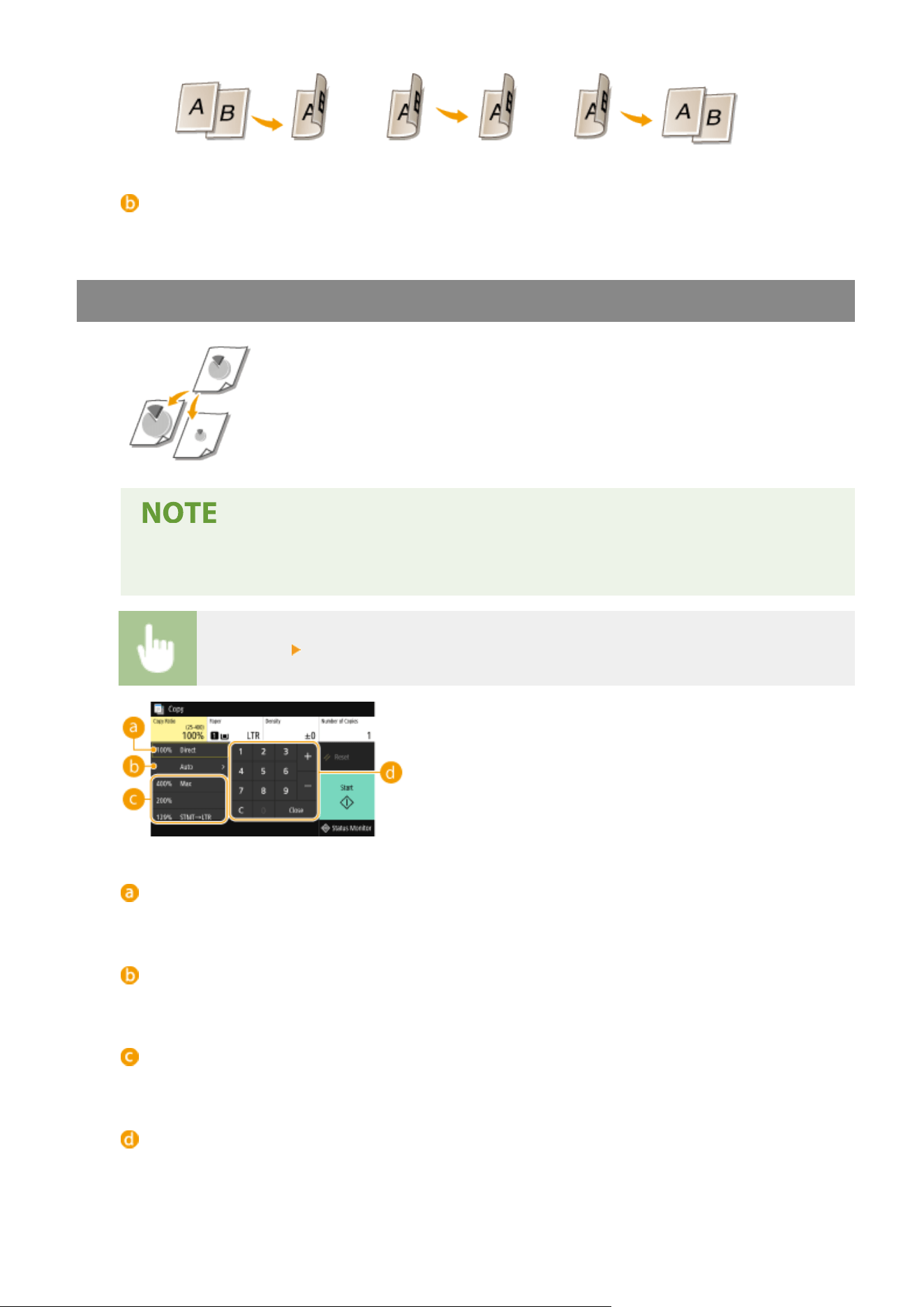
<Orig./Fin. Type>
Specify the original orientation, opening type, and nishing type.
Enlarging or Reducing
You can enlarge or reduce copies by using a preset copy ratio such as <STMT->LTR>,
or by setting a custom copy ratio in increments of 1 %.
● If you mak
e a setting for <N on 1> after setting the copy ratio, the setting of reduction ratio in <N on
1> takes priority.
<Copy Ratio> Select the copy ratio
<100% Direct>
Makes copies at copy ratio 100 %.
<Auto>
Mak
es copies by automatically enlarging/reducing the original image to t the specied paper size.
Preset copy ratio
Select a cop
y ratio.
Numeric keys
Y
ou can set any copy ratio from 25 % to 400 % in 1 % increments.
Copying
198
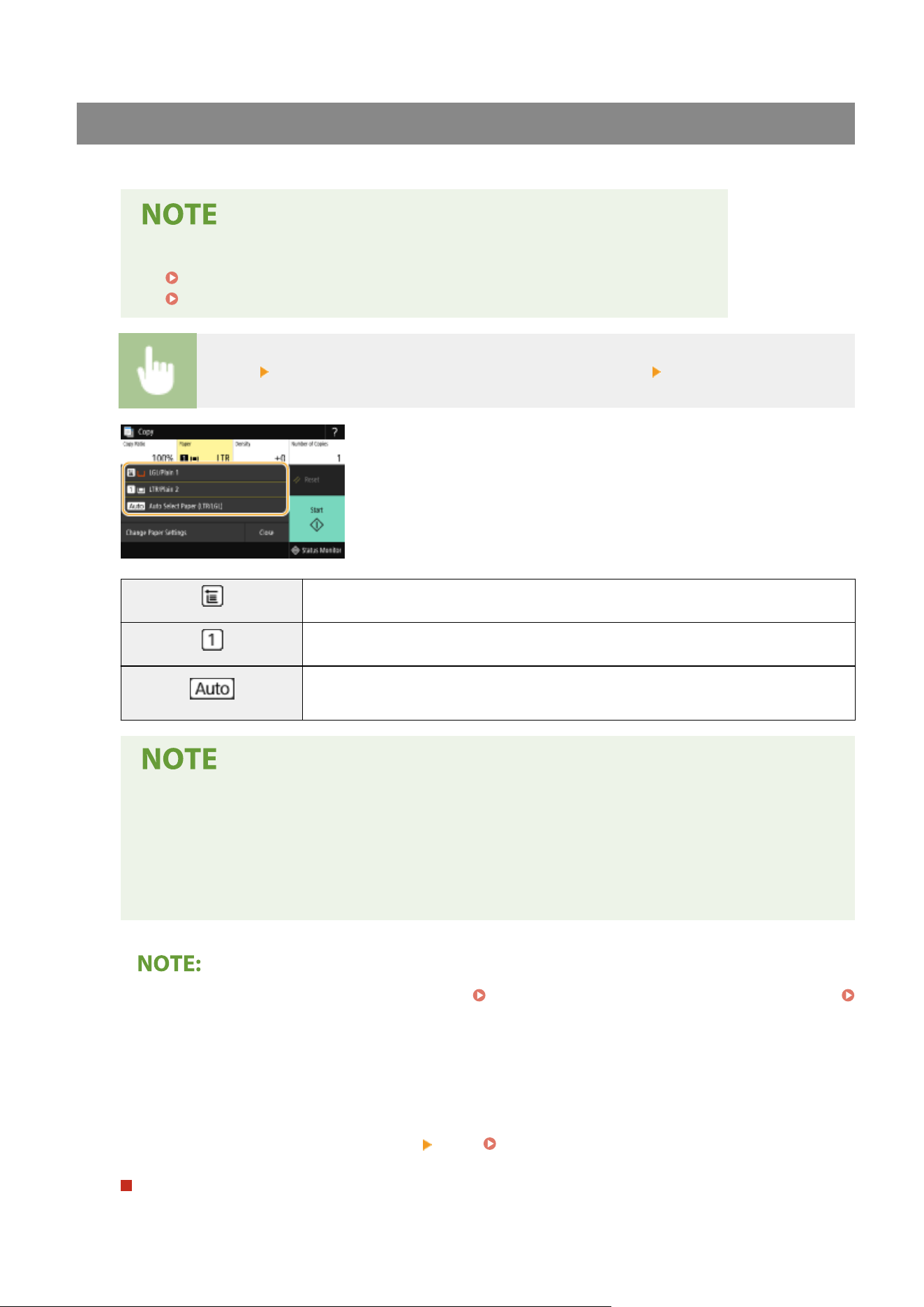
Selecting Copy Paper
Specify the paper sour
ce that contains the paper to use for printing out copies.
● Y
ou must rst specify the size and type of paper that is loaded in the paper source.
Specifying Paper Size and Type(P. 158)
Loading Paper(P. 142)
<Paper> Select the paper source or <Auto Select Paper (LTR/LGL)> <Close>
Uses the paper that is loaded in the multi-purpose tray to make copies.
Uses the paper that is loaded in the paper drawer (Drawer 1) of the machine to make copies.
Automatically selects the Letter or Legal size paper depending on the original size loaded in
the feeder.
● When the optional cassette feeding module is installed, its paper dr
awer is also displayed.
● <Auto Select Paper (LTR/LGL)> may not be displayed depending on the model you are using.
● <Auto Select Paper (LTR/LGL)> is not available when no original is loaded in the feeder.
● <Auto Select Paper (LTR/LGL)> is not available when using <N on 1>, <Erase Frame>, or <ID Card
Copy>.
● For
information about other copy settings, see
Enhancing and Adjusting Copy Quality(P
. 204) or
Useful Copy Functions(P. 208) .
6
Select <Start>.
➠ Cop
ying starts.
● If you want to cancel, select <Cancel>
<Yes>. Canceling Copies(P. 201)
When placing originals in the feeder in step 1
The original is automatically scanned.
Copying
199
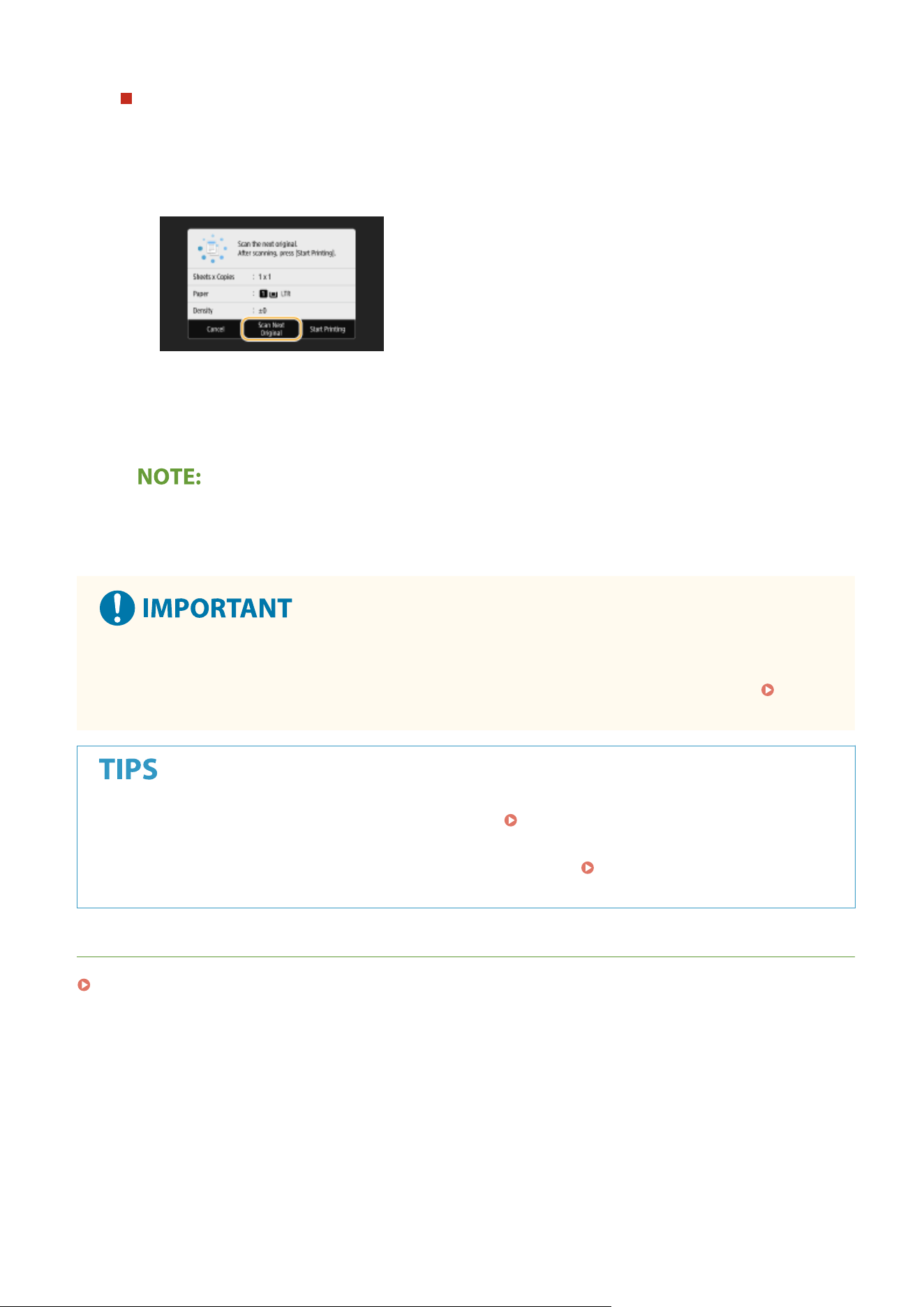
When placing originals on the platen glass in step 1
For 2-sided copying or N on 1 copying, the screen prompting you to load the next original is displayed.
1
Place the next original on the platen glass, and select <Scan Next Original>.
● You can also specify <Density> and <Original Type> separately for each original.
● Repeat this step until you nish scanning the entir
e original.
2
Select <Start Printing>.
● When
the <Paper Settings and Loaded Size Mismatch> or <The memory is full. Scanning will be canceled.
Do you want to print?> message is shown in the display, there is a possibility that copying cannot be
performed properly. For more information, see "Troubleshooting (FAQ)" on the online manual website.
When copying originals with text or images that extend to the edges of the page
● The edges of the original might not be copied. For mor
e information about the scan margins, see
Main
Unit(P
. 613) .
● If you always want to mak
e copies with the same settings:
Changing the Default Settings for
Functions
(P. 175)
● If you want to register a combination of settings to use when needed:
Registering Frequently Used
Settings(P
. 173)
LINKS
Checking the Copying Status and Log(P. 202)
Copying
200
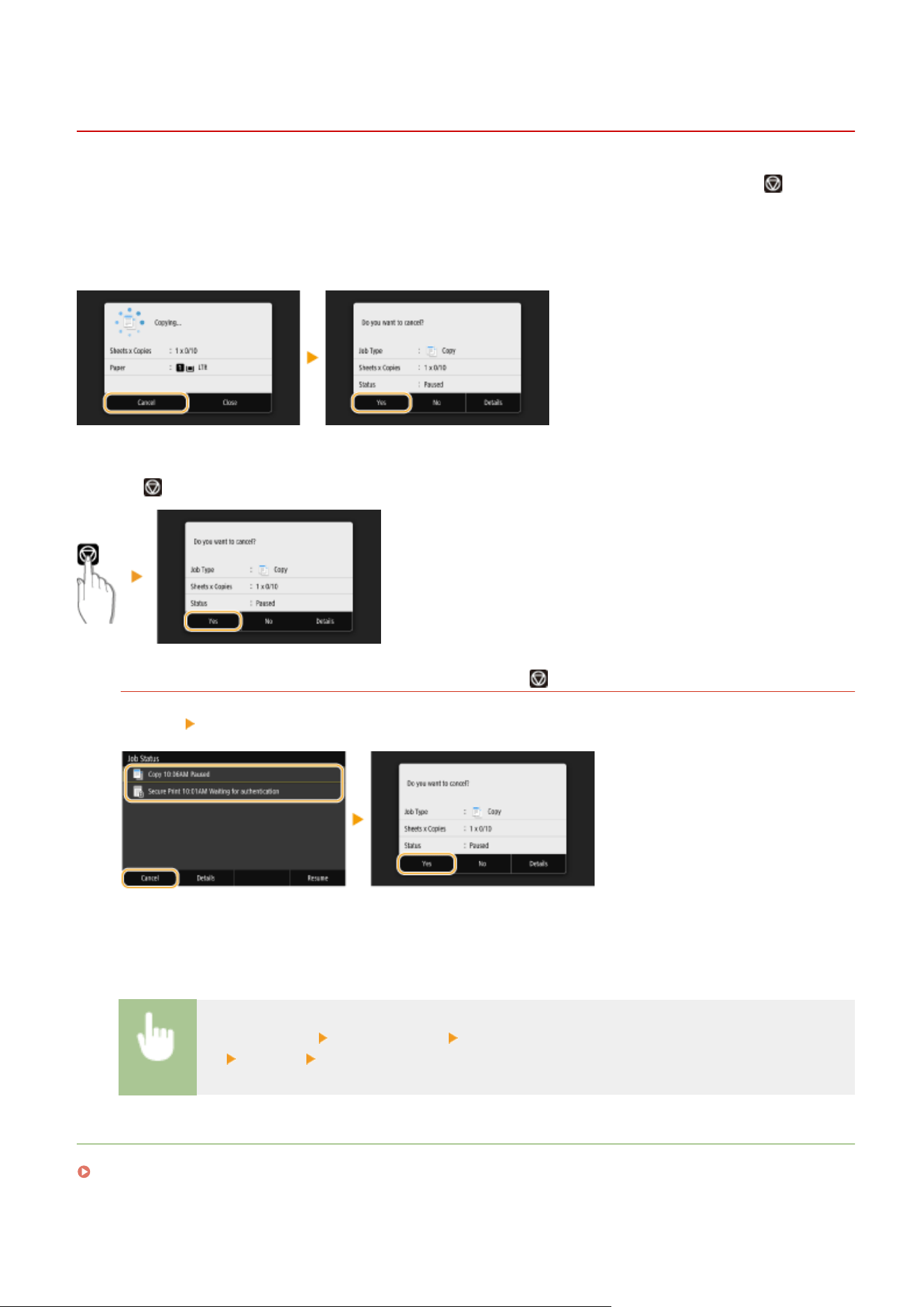
Canceling Copies
7YWY-040
If you want to cancel cop
ying immediately after selecting <Start>, select <Cancel> on the screen or press
on the
oper
ation panel. You can also cancel copying after checking the copy status.
◼ Select <Cancel> on the Screen That is Displayed While Copying
◼ Pr
ess
to Cancel
If the Screen Displays a List of Documents When is Pressed
Originals have been scanned and are waiting to be printed. Select a copy document to be canceled, and select
<Cancel> <Yes>.
◼ Check the cop
y job status before canceling
<Status Monitor> <Copy/Print Job> Select the copy document in the <Copy/Print Job Status>
tab <Cancel> <Yes>
LINKS
Basic Copy Operations(P. 196)
Copying
201
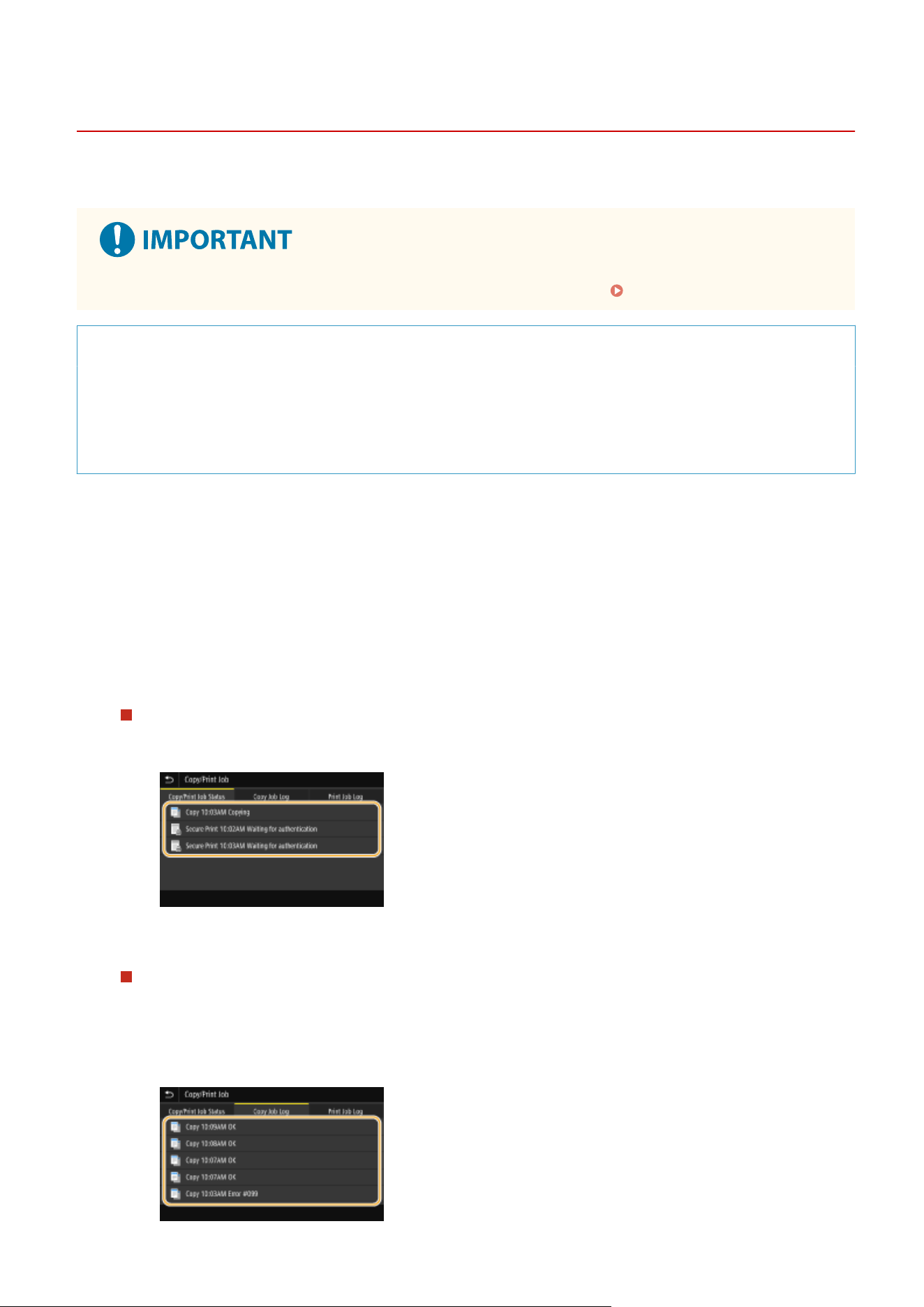
Checking the Copying Status and Log
7YWY-041
Y
ou can check the current copy statuses and the logs for copied documents.
● When <Display Job Log> is set to <Off>, you cannot check the cop
y job log.
<Display Job Log>(P. 552)
Useful in the Following Cases
● When some long time has alr
eady passed after scanning of your original to be copied but printing of the
document has not started yet, you may want to see the waiting list of the documents waiting to be printed.
● When you cannot nd your printouts that you thought had been copied, you may want to see whether an
error has occurred.
1
Select <Status Monitor>.
2
Select <Copy/Print Job>.
3
Check the copy statuses and logs.
To check the copy statuses
1
Select the document whose status you want to check in the <Copy/Print Job Status> tab.
➠ Displays detailed information about the document.
To check the copy logs
1
Select the document whose log you want to check in the <Copy Job Log> tab.
● <OK> is displayed when a document was copied successfully
, and <Error> is displayed when a
document failed to be copied because it was canceled or there was some error.
Copying
202

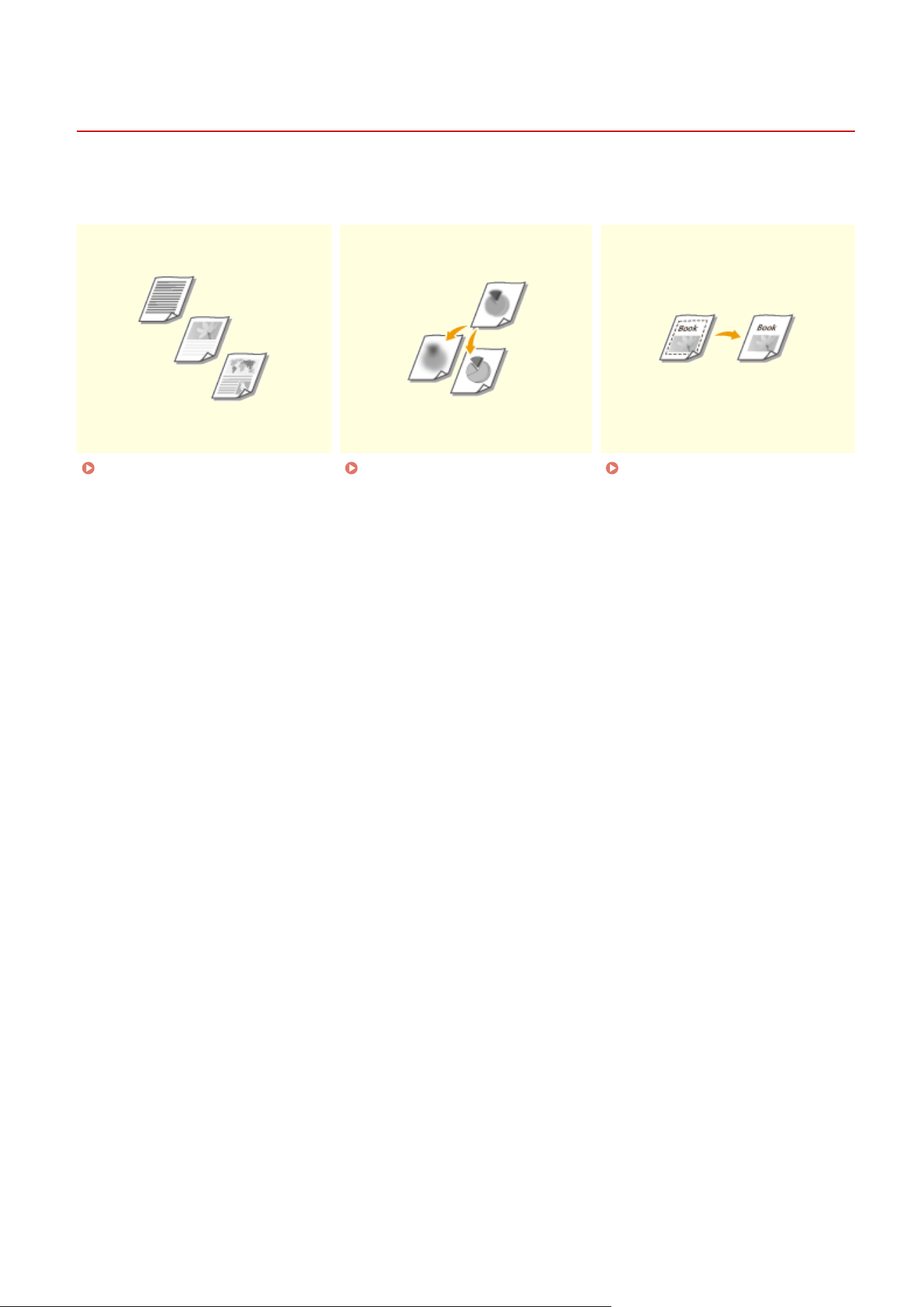
Enhancing and Adjusting Copy Quality
7YWY-042
Y
ou can improve the copy quality by specifying more detailed settings, such as selecting the optimum image quality,
erasing unnecessary shadows, etc.
Selecting the Type of Original for
Cop
ying(P. 205)
Adjusting Sharpness for Copying
(Sharpness)(P
. 206)
Erasing Dark Borders When
Cop
ying (Erase Frame)(P. 207)
Copying
204
Selecting the Type of Original for Copying
7YWY-043
You can select the optical image quality for the copy depending on the original type,
such as te
xt-only documents, documents with charts and graphs, or magazine
photos.
<Copy> <Other Settings> <Original Type> Select the original type
<Text/Photo> Suitable when copying documents that contain both text and photos.
<Text/Photo (High Quality)>
Suitable when making a high quality copy of documents that contain both text and photos.
Y
ou can also adjust the level of priority given to the quality of the text or photos. Adjust the
setting on the scale, and select <Apply>.
● If a setting other than <T
ext> is specied, <Adjust Background Density> is automatically set to <Adjust
(Manual)>.
Basic Copy Operations(P. 196)
LINKS
Basic Copy Operations(P. 196)
Copying
205
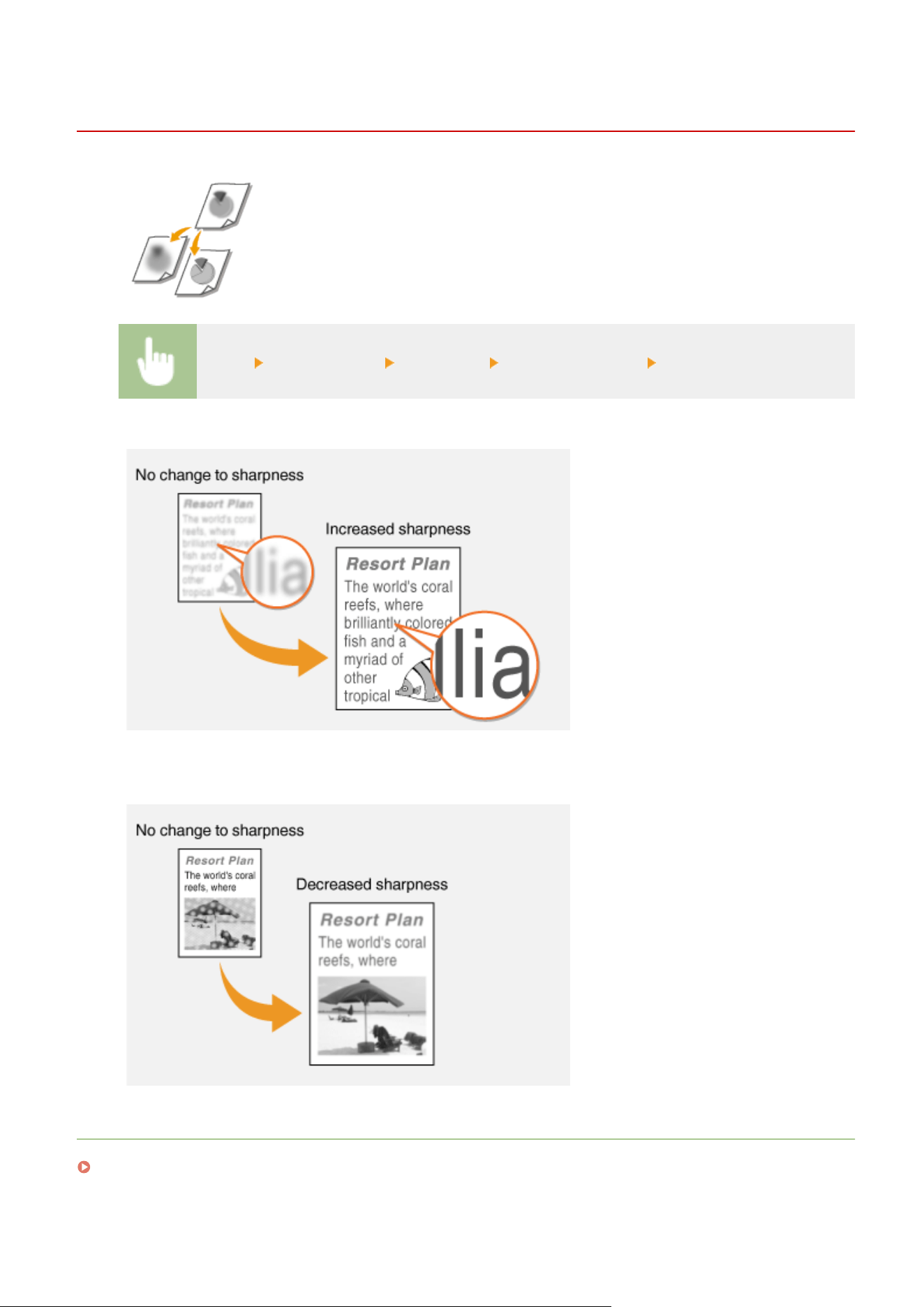
Adjusting Sharpness for Copying (Sharpness)
7YWY-044
You can adjust sharpness of the copied image. Increase the sharpness to sharpen
blurr
ed text and lines, or decrease the sharpness to improve the appearance of
magazine photos.
<Copy> <Other Settings> <Sharpness> Adjust the sharpness <Apply>
Example:
If you want to sharpen text and lines written in pencil
Example:
If you want to improve the appearance of magazine photos
LINKS
Basic Copy Operations(P. 196)
Copying
206
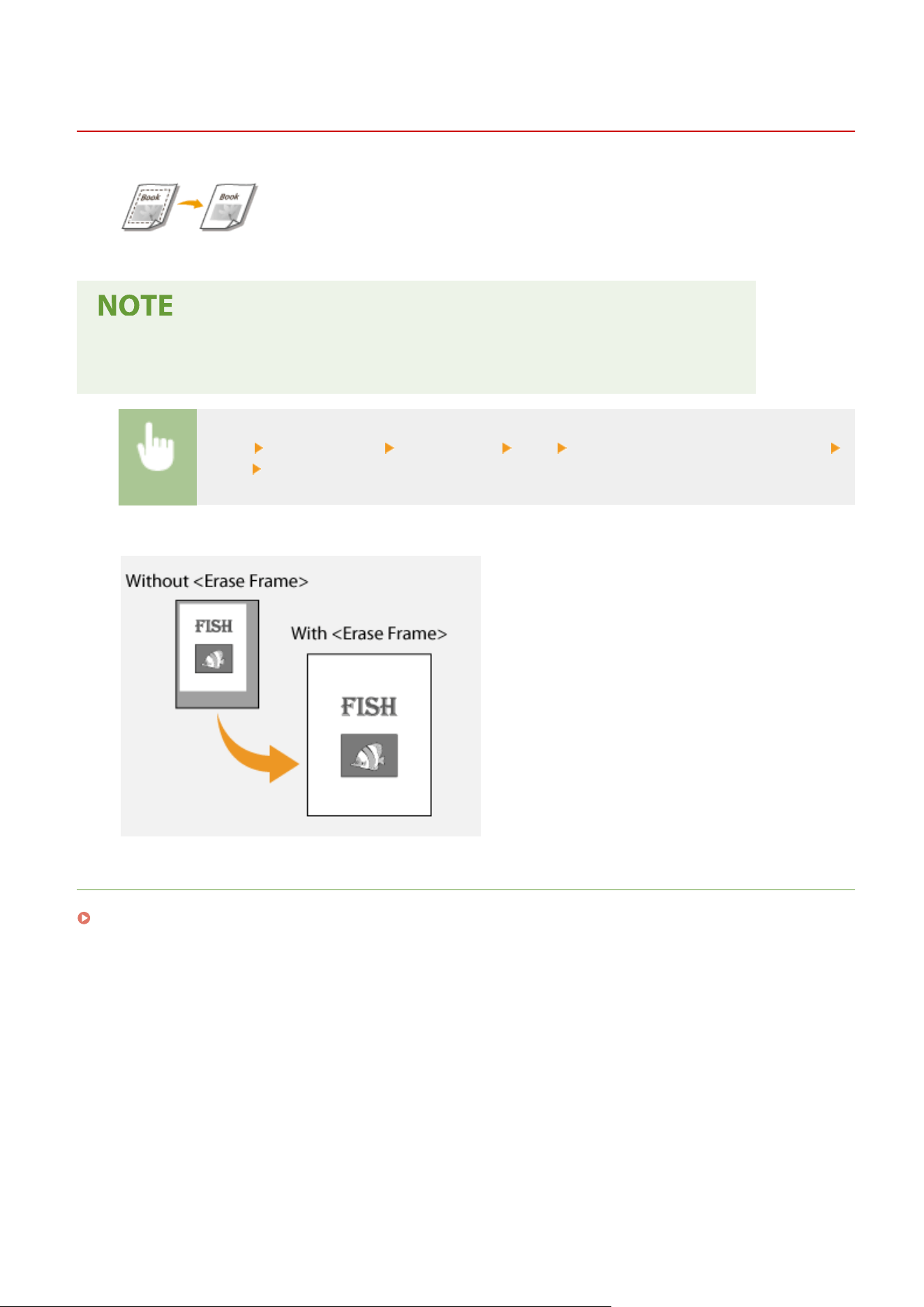
Erasing Dark Borders When Copying (Erase Frame)
7YWY-045
When copying originals that are smaller than the output paper size, frame lines may
appear ar
ound the edges in the copied image. When copying facing pages from
thick book, dark borders may appear. <Erase Frame> enables you to erase these
frame lines and dark borders.
● The width of the fr
ame to erase is increased or decreased relative to the <Copy Ratio> setting.
● <Erase Frame> is not available when using <N on 1>.
<Copy> <Other Settings> <Erase Frame> <On> Specify the width of the frame to erase
<Next> Select the original size on the <Scan Size> screen
Example:
If you want to erase the dark borders and frame lines
LINKS
Basic Copy Operations(P. 196)
Copying
207
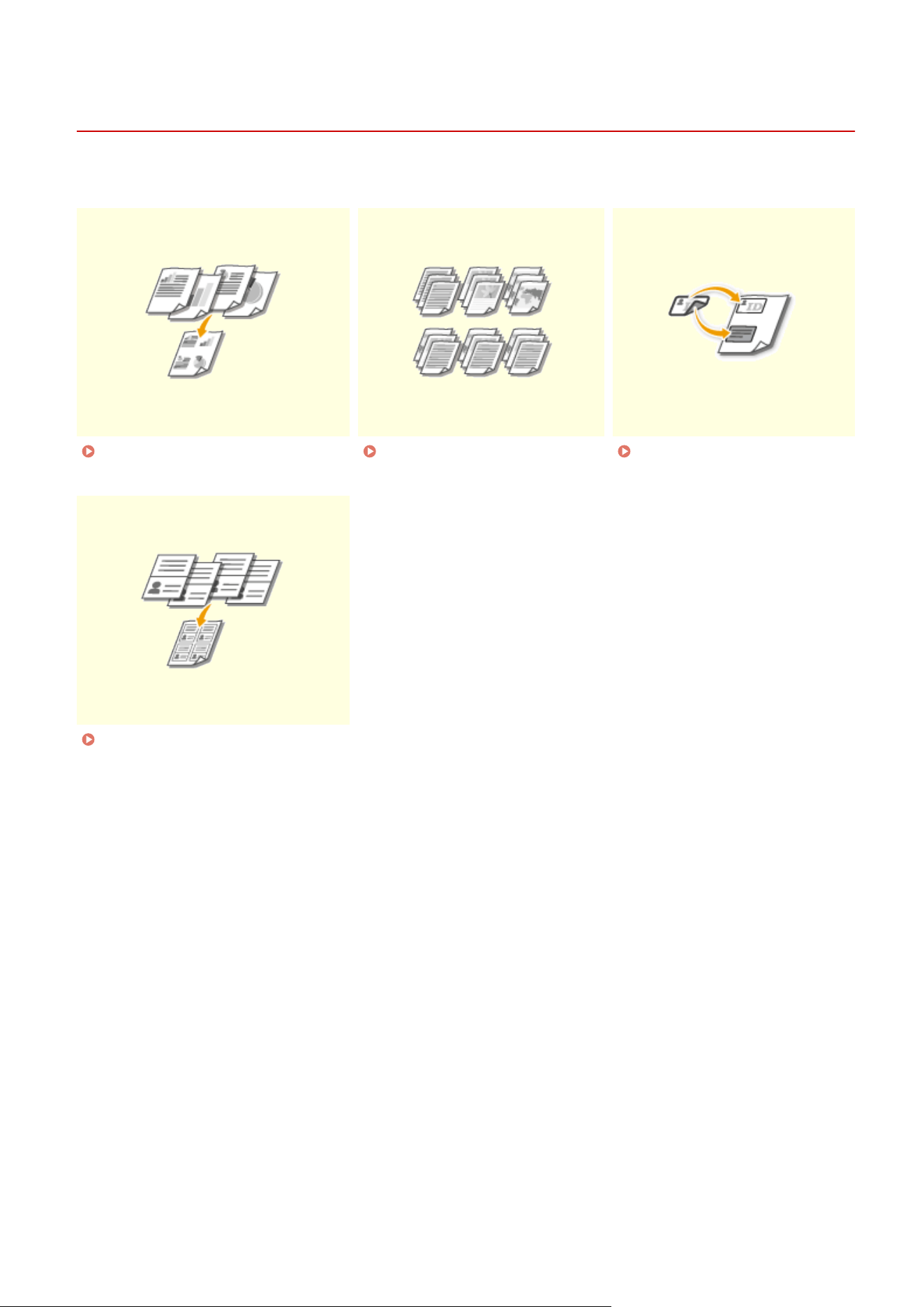
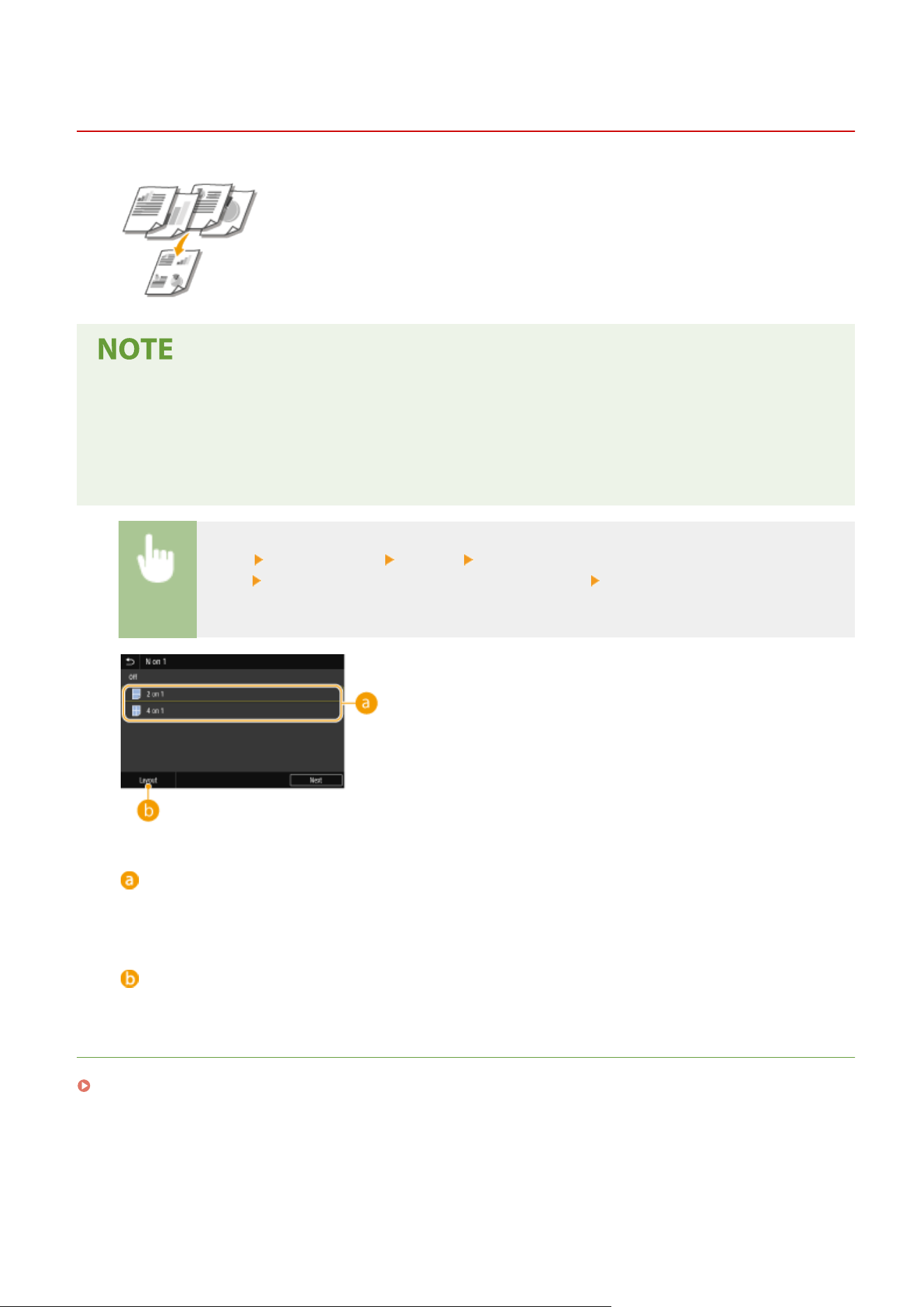
Copying Multiple Documents onto One Sheet (N on 1)
7YWY-047
You can reduce the size of a multiple-page original and arrange all pages on one side
of the paper. Y
ou can save the number of sheets as the document can be copied on
fewer pages than those of the original.
● Using <N on 1> r
educes the copy ratio automatically (the copy ratio is displayed on the screen). If the
copying process has not started, you can further reduce the image size by lowering the numeric value that is
automatically displayed. But the edges of the original might not be copied if you increase it.
● <N on 1> is not available when using <Erase Frame>.
● When you copy multiple originals onto one page, margins may be created in the copied image.
<Copy> <Other Settings> <N on 1> Select the number of pages to be combined, and select
<Ne
xt>
Select the original size on the <Scan Size> screen On the <Output Size> screen, select
the paper sour
ce that contains the paper you want to use
Number of pages to be combined
Select the number of pages to be combined on one side of paper. For e
xample, <4 on 1> means that "a four-
page original can be combined on a single sheet."
<Layout>
Specify ho
w to arrange the originals on the page.
LINKS
Basic Copy Operations(P. 196)
Copying
209
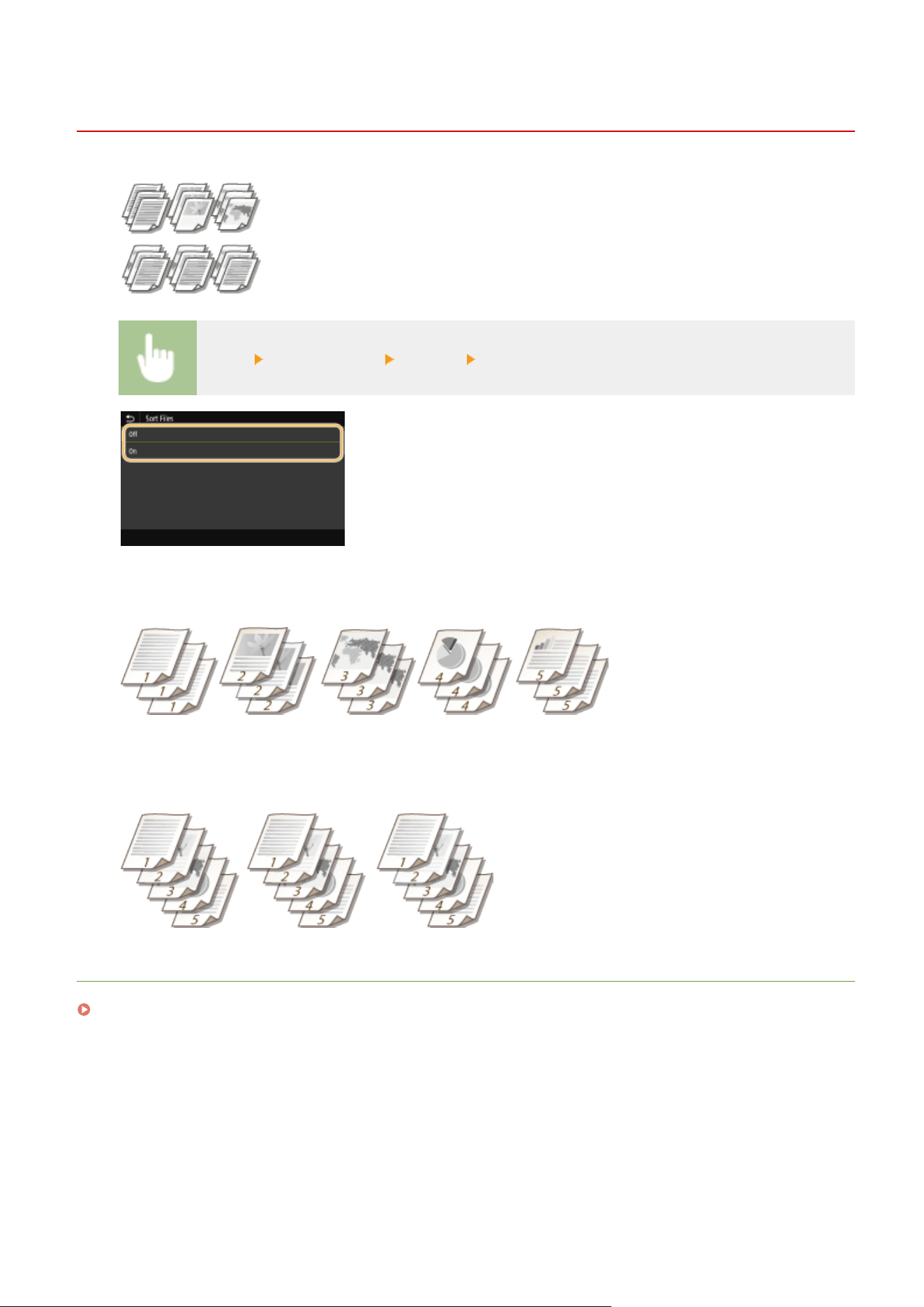
Collating Copies by Page
7YWY-048
When preparing multiple copies of multi-page originals, set <Collate> to <On> to
collate copies in sequential page or
der. This function is useful when preparing
handouts for meetings or presentations.
<Copy> <Other Settings> <Collate> <On>
<Off>
The copies ar
e grouped by page and not collated. For example, if you are making three copies of a ve-page
original, the printouts will be arranged in the following page order: 1, 1, 1, 2, 2, 2, 3, 3, 3, 4, 4, 4, 5, 5, 5.
<On>
The copies ar
e grouped into complete sets in sequential page order. For example, if you are making three
copies of a ve-page original, the printouts will be arranged in the following page order: 1, 2, 3, 4, 5, 1, 2, 3, 4, 5,
1, 2, 3, 4, 5.
LINKS
Basic Copy Operations(P. 196)
Copying
210
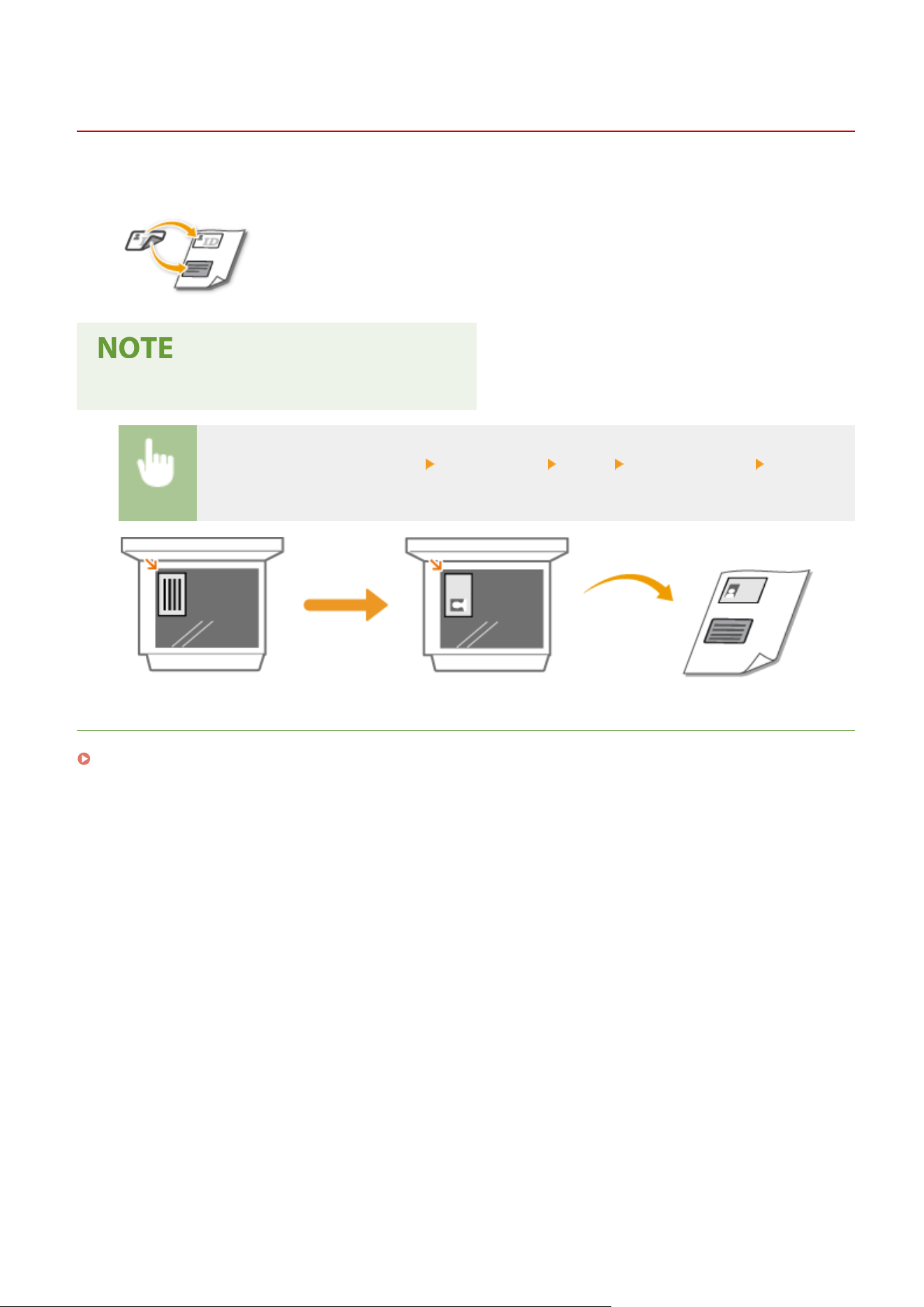
Making ID Card Copies
7YWY-049
1660-048
You can use <ID Card Copy> to copy the front and back sides of a card onto the same
side of a page. This function is useful when cop
ying a driver's license or ID card.
● <Cop
y Ratio> is automatically set to <100% Direct>.
Place the card on the platen glass <ID Card Copy> <Start> Turn the card over <Scan Next
Original>
LINKS
Basic Copy Operations(P. 196)
Copying
211
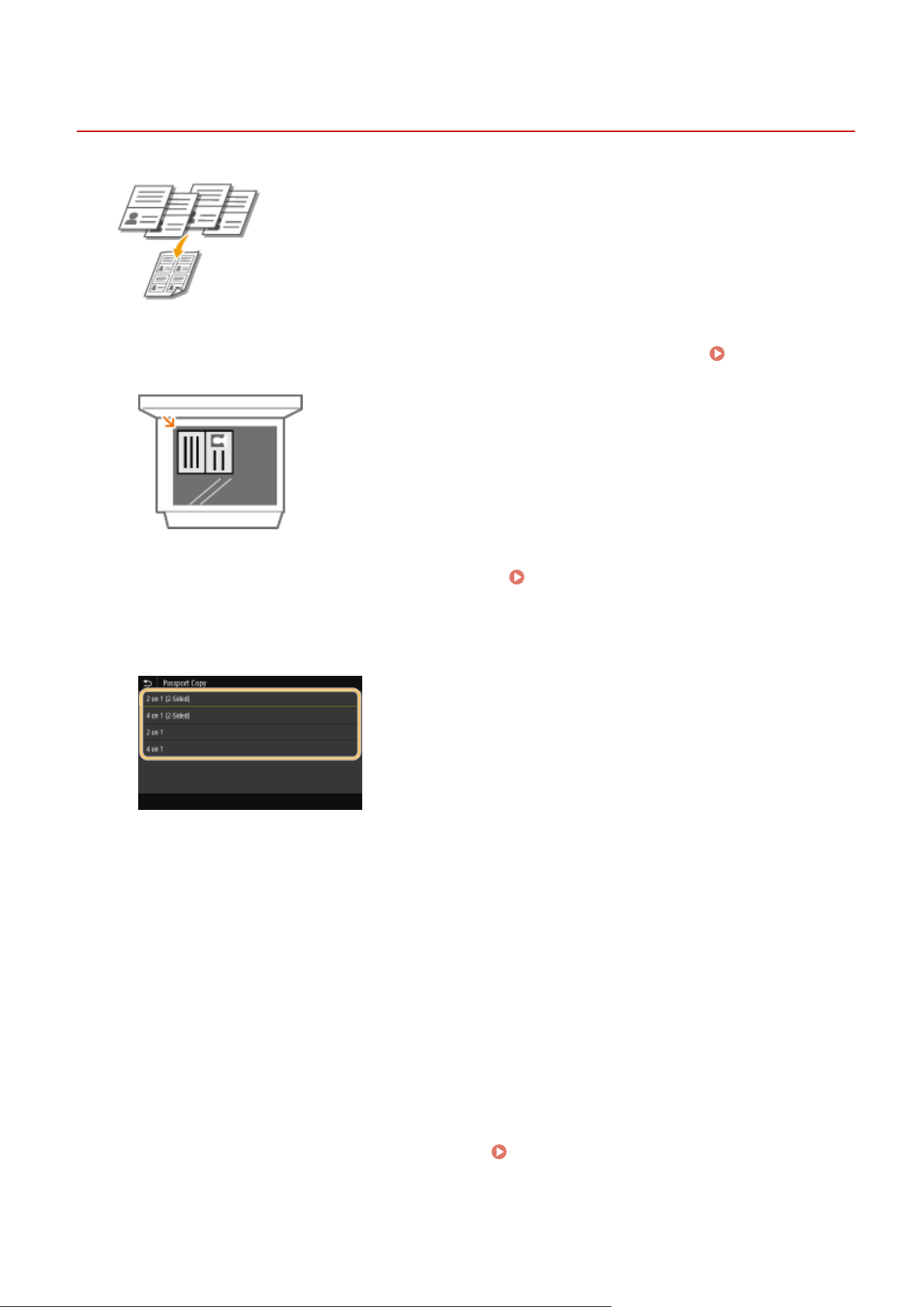
Making Passport Copies
7YWY-04A
You can copy multiple passports onto one sheet.
1
Place the passport with the desired pages open on the platen glass. Placing
Originals
(P. 138)
2
Select <Passport Copy> in the Home screen.
Home Screen(P. 125)
3
Select the layout.
<2 on 1 (2-Sided)>
Copies four facing pages of passports onto one side of paper in total. Copies eight facing pages of passports
onto both sides of paper in total.
<4 on 1 (2-Sided)>
Copies eight facing pages of passports onto one side of paper in total. Copies 16 facing pages of passports
onto both sides of paper in total.
<2 on 1>
Copies four facing pages of passports onto one side of paper in total.
<4 on 1>
Copies eight facing pages of passports onto one side of paper in total.
4
Select the paper source that contains the paper you want to use.
5
Congure the cop
y settings as necessary.
Basic Copy Operations(P. 196)
Copying
212

6
Select <Start>.
➠ The rst passport is scanned.
7
Place the next passport on the platen glass, and select <Scan Next Original>.
● Y
ou can also specify <Density> separately for each passport.
● Repeat this step until you nish scanning all of the passports.
8
Select <Start Printing>.
LINKS
Basic Copy Operations(P. 196)
Copying
213

Faxing
Faxing ...................................................................................................................................................................
215
Fax Basic Features Screen ................................................................................................................................. 218
Basic Operations for Sending Faxes ................................................................................................................. 219
Canceling Sending Faxes .............................................................................................................................. 227
Receiving Faxes ................................................................................................................................................. 228
Useful Functions When Sending ....................................................................................................................... 232
Recalling Previously Used Settings for Sending (Recall Settings) .................................................................. 233
Sending a Fax after a Phone Call (Manual Sending) ...................................................................................... 236
Saving a Copy of a Sent Original ................................................................................................................... 238
Various Receiving Methods .............................................................................................................................. 240
Saving Received Documents into the Machine (Memory Reception) ............................................................. 241
Forwarding the Received Documents Automatically ...................................................................................... 243
Checking Status and Log for Sent and Received Documents ......................................................................... 246
Sending Faxes from Your Computer (PC Fax) .................................................................................................. 248
Sending PC Faxes ......................................................................................................................................... 249
Using Internet Fax (I-Fax) ................................................................................................................................. 251
Sending I-Faxes ............................................................................................................................................ 252
Receiving I-Faxes .......................................................................................................................................... 259
Faxing
214
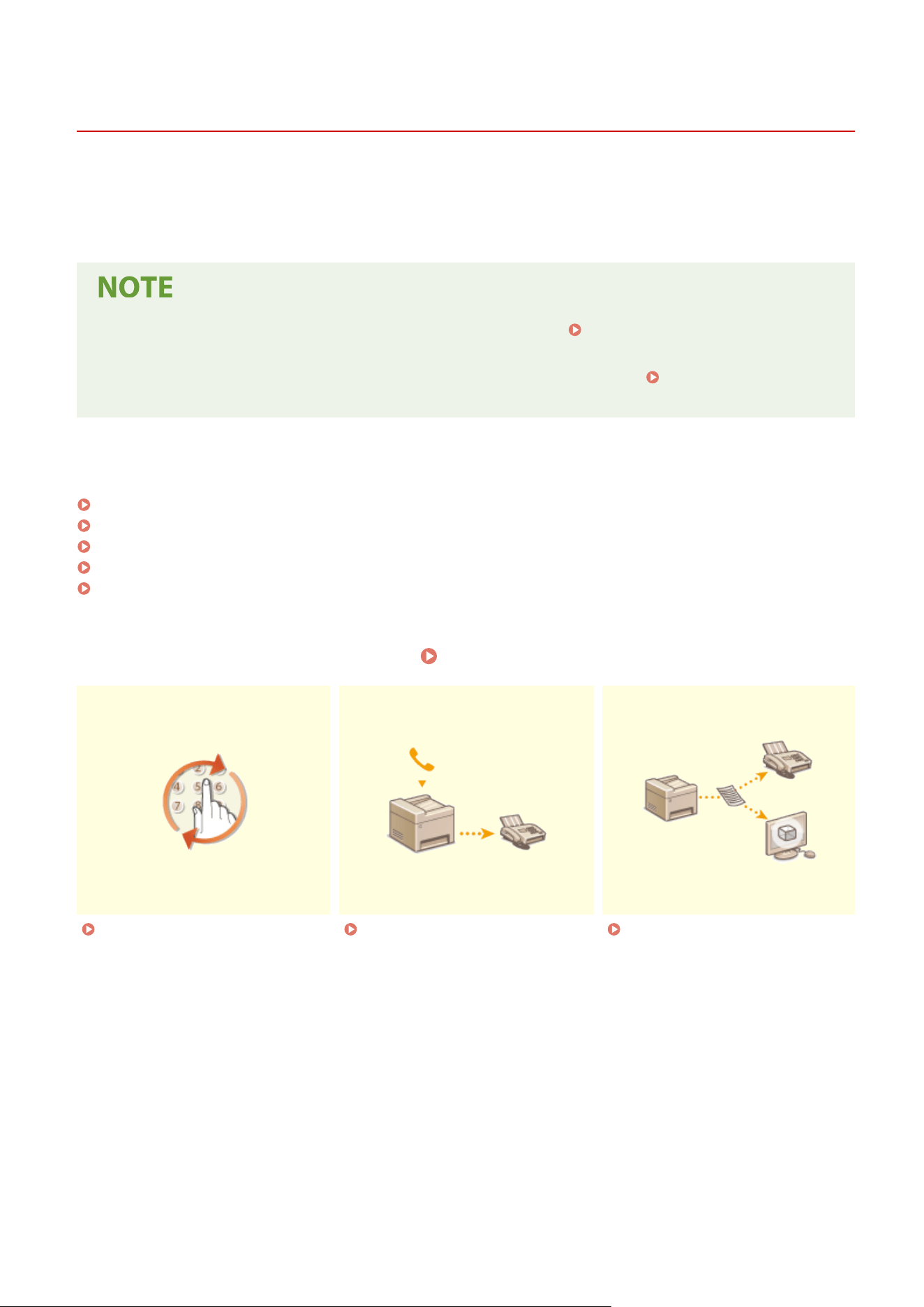
Faxing
7YWY-04C
1660-049
This chapter describes fax settings, basic fax oper
ations and various other useful functions to suit your needs, such as
PC Fax to send documents directly from computers, Address Book to specify destinations easily, and Forwarding to
receive faxes even when you are out of the oce.
● Y
ou need to complete some procedures before using fax functions.
Conguring Initial Settings for Fax
Functions
(P. 79)
● You need to register destinations in the Address Book before using this feature.
Registering
Destinations
(P. 181)
◼ Using Basic Oper
ations
Fax Basic Features Screen(P. 218)
Basic Operations for Sending Faxes(P. 219)
Canceling Sending Faxes(P. 227)
Receiving Faxes(P. 228)
Checking Status and Log for Sent and Received Documents(P. 246)
◼ Using Useful Functions When Sending
Useful Functions When Sending(P. 232)
Recalling Previously Used
Settings for Sending (Recall
Settings)(P
. 233)
Sending a Fax after a Phone Call
(Manual Sending)(P
. 236)
Saving a Copy of a Sent
Original
(P. 238)
Faxing
215
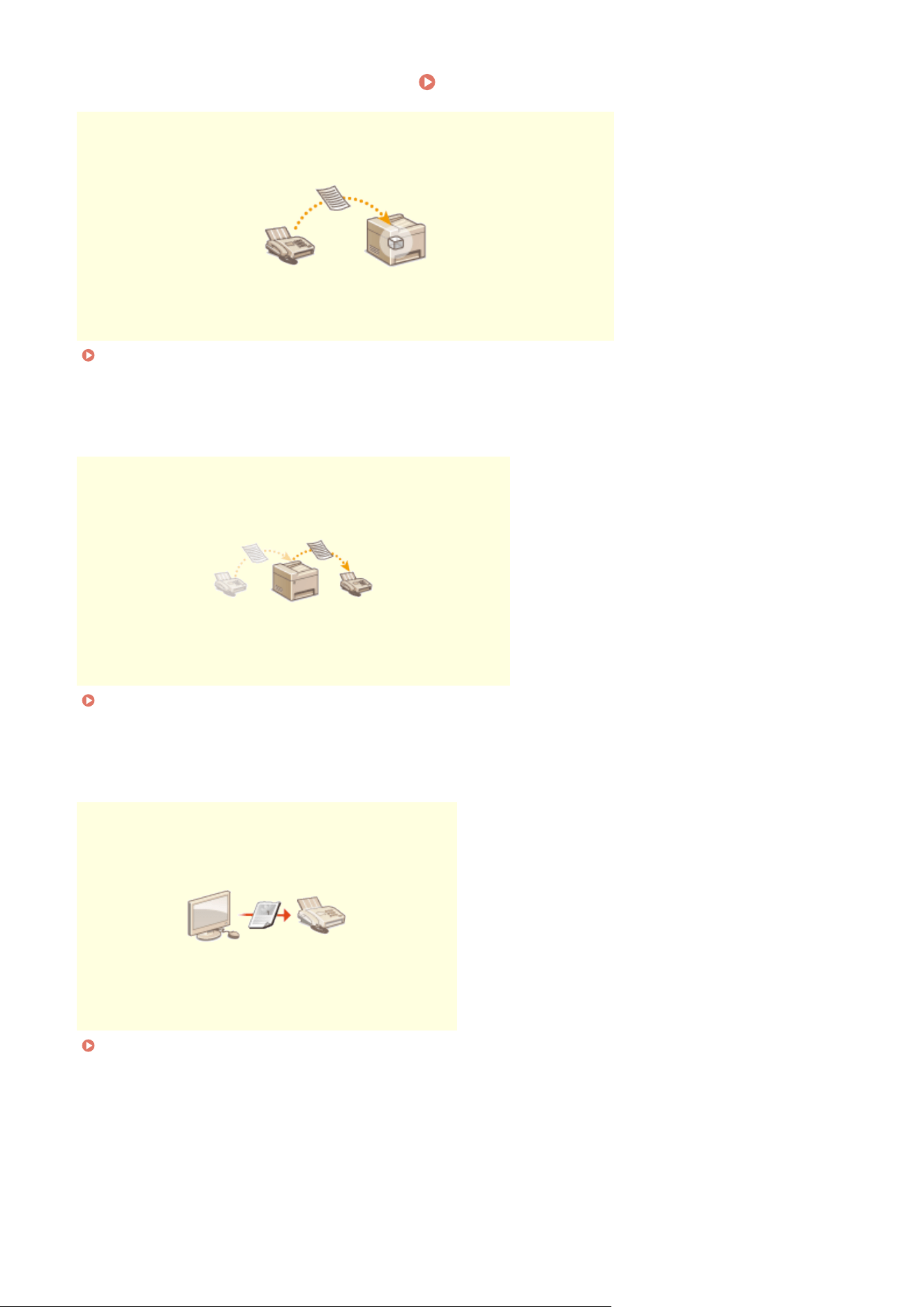
◼ Receiving Accor
ding to Your Purposes
Various Receiving Methods(P. 240)
Saving Received Documents into the Machine (Memory Reception)(P. 241)
◼ Forwar
ding All the Received Documents
Forwarding the Received Documents Automatically(P. 243)
◼ Sending Fax
es Directly from Your Computer
Sending Faxes from Your Computer (PC Fax)(P. 248)
Faxing
216


Fax Basic Features Screen
7YWY-04E
Selecting <Fax> in the Home scr
een displays the FAX Basic Features screen that appears when you sending faxes.
<Enter Dest.> tab
Select this tab to dir
ectly enter a destination.
<Specify Destination> tab
Select this tab to sear
ch for an LDAP server, enter a coded dial, or specify a destination using the recall
settings.
Basic Operations for Sending Faxes(P. 219)
Recalling Previously Used Settings for Sending (Recall Settings)(P. 233)
<TX/RX Settings> tab
Select this tab to specify the scanning settings. Y
ou can change the RX mode (
Deciding Which Fax
Receive Mode to Use
(P. 80) ) of the machine.
<Conrm Destination>
Y
ou can check the name and fax number of specied destinations as well as the number of specied
destinations. You can also change the fax number or cancel specication of destinations.
<Address Book>
Specify destinations r
egistered in the Address Book.
<Reset>
Y
ou can collectively restore the default settings.
<Start>
Use this button to start faxing.
Faxing
218
Basic Operations for Sending Faxes
7YWY-04F
This section describes the basic oper
ation procedure used to fax an original.
● Y
ou need to complete some procedures before using fax functions.
Conguring Initial Settings for Fax
Functions
(P. 79)
1
Place the original(s).
Placing Originals(P. 138)
2
Select <Fax> in the Home screen.
Home Screen(P. 125)
● If the login scr
een appears, specify the user name, the password, and the authentication server.
Logging
in to Authorized Send(P
. 136)
3
Select <Reset> in the Fax Basic Features screen.
Fax Basic Features Screen(P. 218)
● If the destinations set b
y the previous user are still selected, this can cause transmission errors. Always reset
the settings before sending.
4
Specify the destination.
Specifying from Address Book
Specifying from Coded Dial Numbers
Entering Destinations Directly
Specifying Destinations in an LDAP Server
Specifying from Address Book
The Address Book enables you to specify a destination by selecting from a list of
r
egistered destinations or by searching by name for destinations with recipient
names.
● Y
ou need to register destinations in the Address Book before using this feature.
Registering
Destinations
(P. 181)
1
Select <Address Book>.
2
Select an index.
Index(P. 181)
Faxing
219
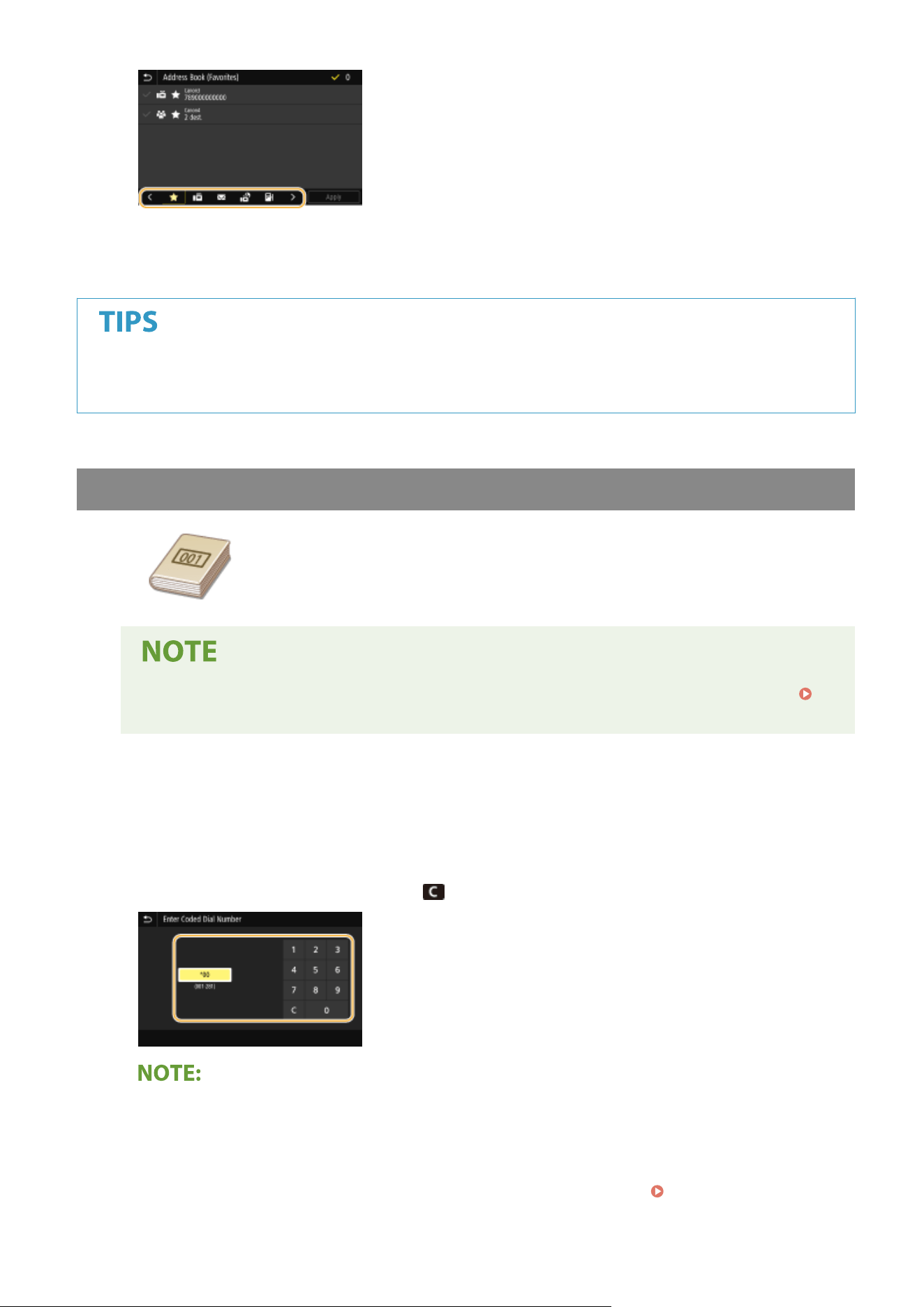
3
Select the check box for the desired destination, and select <Apply>.
● If a destination is selected fr
om <Address Book> in the Home screen, the Fax Basic Features screen can be
displayed while the selected destination remains being specied.
Specifying from Coded Dial Numbers
Three-digit numbers (coded dial numbers) are assigned to addresses in the Address
Book. Y
ou can specify an address simply by entering its coded dial number.
● To use coded dial numbers, the destination must be registered in the Address Book beforehand.
Registering Destinations(P. 181)
1
Select <Coded Dial> in the <Specify Destination> tab.
2
Enter a three-digit number.
● If you have enter
ed an incorrect value, use
to clear it.
If a conrmation scr
een appears
● When <Conrm When Coded Dial TX> is set to <On>, a screen is displayed that shows the destination and
the name for the number. (For Group Dial, the destination name and the number of destinations are
shown.) Check the contents and if everything is correct, select <OK>. To specify a different destination,
select <Cancel> and then re-enter the three-digit coded dial number.
Displaying Destinations in
Addr
ess Book(P. 411)
Faxing
220
Entering Destinations Directly
For a destination that is not r
egistered in the Address Book, specify it by entering a fax number.
1
Enter the fax number in the <Enter Dest.> tab.
● If you have enter
ed an incorrect value, use
to clear it.
Adding a destination
● T
o enter a second or subsequent destination, select <Next Dest.>.
If a conrmation screen appears
● When <Conrm Entered Fax Number> is set to <On>, the input screen reappears so that you can
conrm the destination (
Conrming the Enter
ed Fax Number(P. 413) ). Enter the destination
again.
Sending a fax abroad
● Enter the international access code, the country code, and the fax number to specify the destination.
If you are not able to successfully connect to a recipient, select <Pause> and insert a pause between
numbers.
Specifying Destinations in an LDAP Server
If your oce has an LD
AP server installed, you can specify a destination using user
information in the server. Access the LDAP server via the machine to search for the
appropriate user information and specify it as destination.
● Y
ou need to specify the settings for connecting to an LDAP server beforehand.
Registering LDAP
Servers
(P. 65)
1
Select <LDAP Server> in the <Specify Destination> tab.
2
Select the LDAP server you are using.
3
Select conditions for user information to be searched.
● Name, fax numbers, e-mail addr
esses, organization names, and organization unit are available criteria for
searching destinations.
Faxing
221
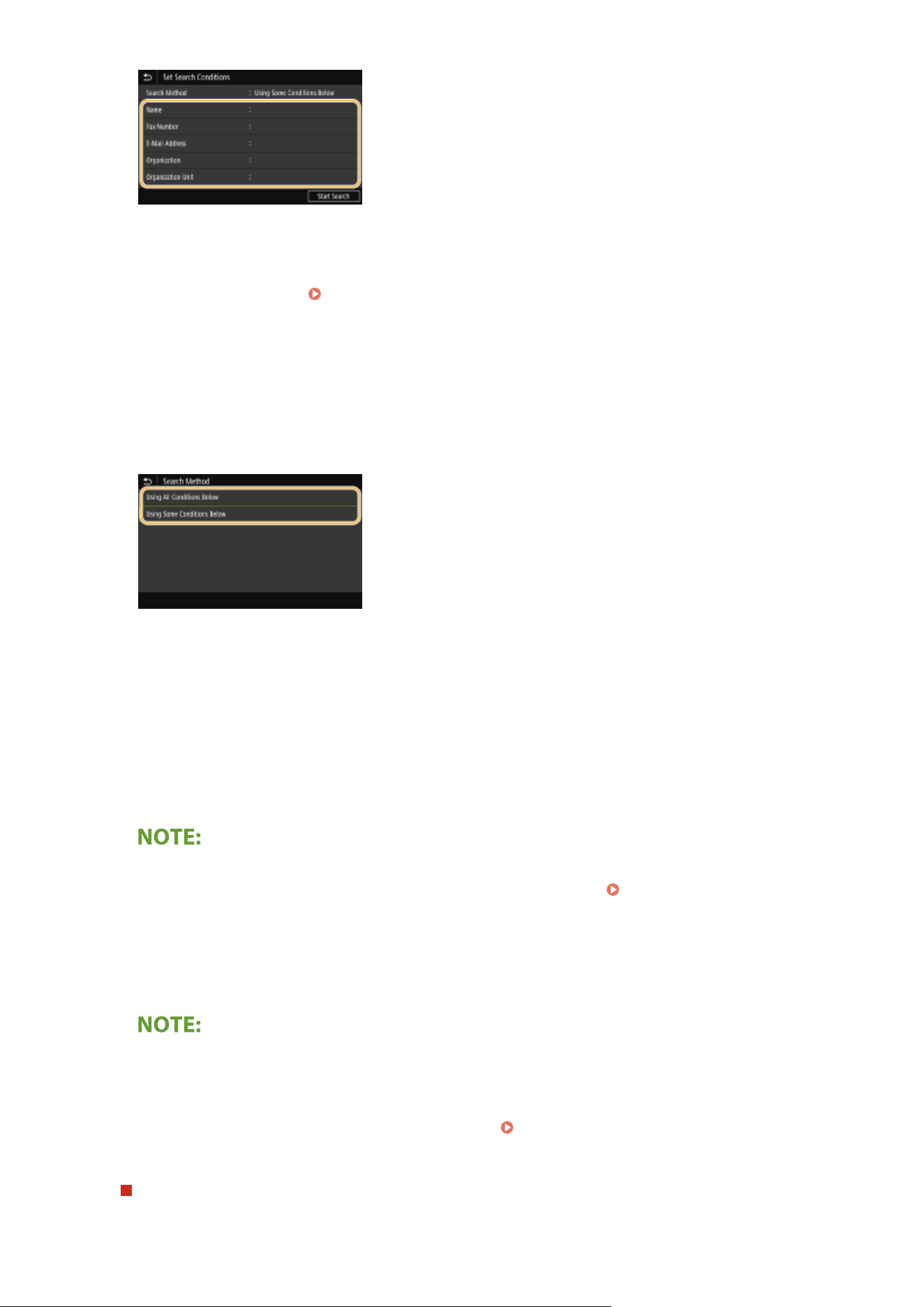
4
Enter the search target character string, and select <Apply>.
● On ho
w to enter text, see
Entering Text(P. 134) .
● T
o specify multiple search criteria, repeat steps 3 and 4.
5
Select <Search Method>.
6
Select conditions to display the search result.
<Using All Conditions Below>
Searches and displays the users that meet all the search criteria specied in steps 3 and 4.
<Using Some Conditions Below>
If users that meet even one of the criteria specied in steps 3 and 4 are found, displays all those users.
7
Select <Start Search>.
➠ The users meeting your sear
ch criteria are displayed.
● If
the authentication screen appears when you select <Start Search>, enter the user name of the machine
and the password registered in the LDAP server, and select <Apply>.
Registering LDAP Servers(P. 65)
8
Select the check box for the user that you want to specify as destination, and select
<Apply>.
Adding a destination
● T
o send a fax to multiple destinations at a time (sequential broadcast), repeat the appropriate steps to
enter all destinations.
● You can also recall previously used destinations.
Recalling Previously Used Settings for Sending
(Recall Settings)(P
. 233)
To delete destinations
If you specied multiple destinations, you can delete destinations as necessary
.
Faxing
222
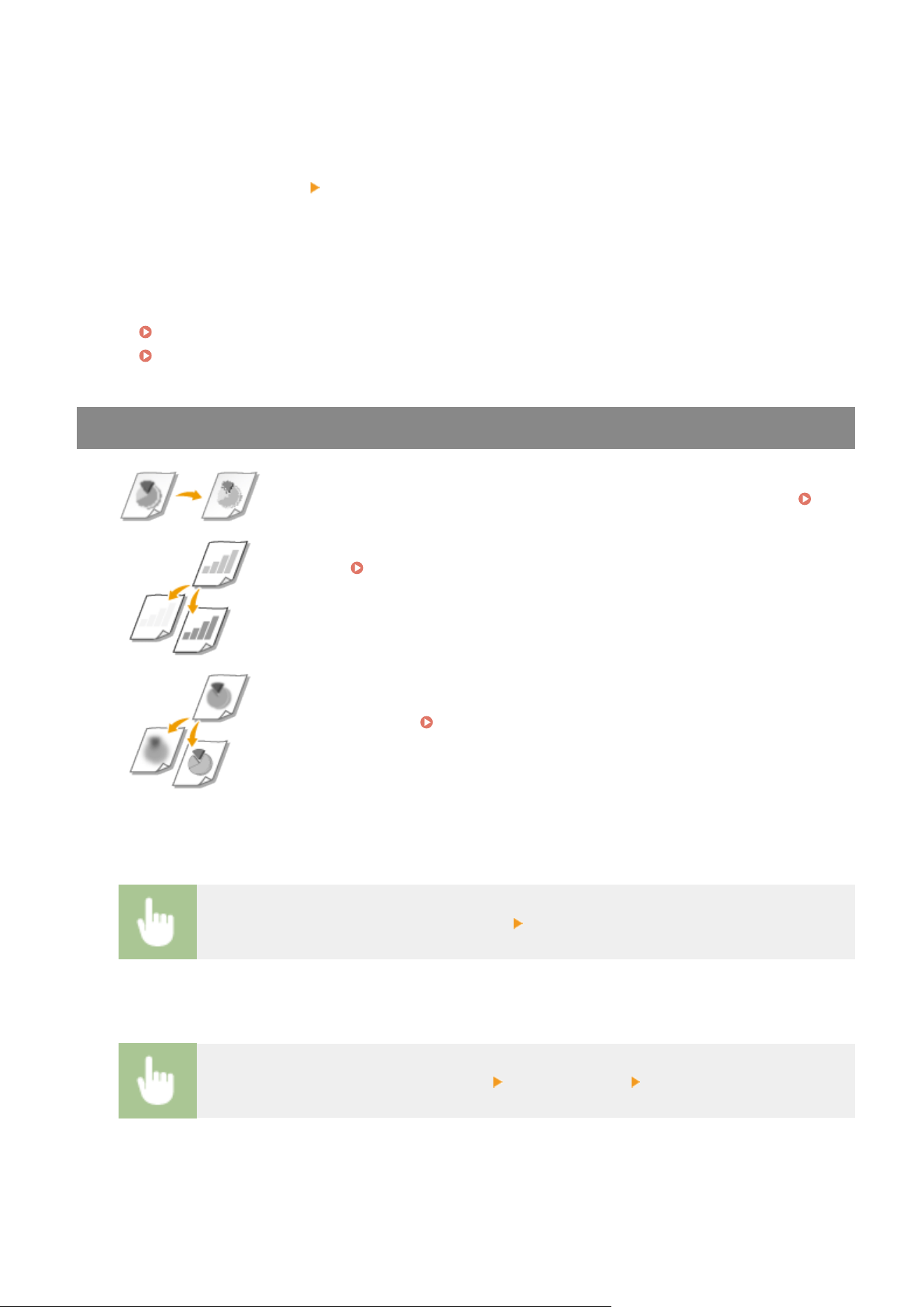
1
Select <Conrm Destination>.
2
Select the check box for the destination to be deleted, and select <Remove from Dest.>.
● If you select the Group Dial check box, you can view the destinations registered in the group by
selecting <Details> <Destination>.
3
Select <Yes>.
5
Specify the scanning settings as necessary.
Adjusting Image Quality
Scanning 2-Sided Originals
Adjusting Image Quality
You can select the resolution suitable for your original type. The higher the
r
esolution is, the clearer the image becomes, but the longer it takes to send.
Selecting Resolution(P. 223)
You can adjust the density of the fax if the text or images in an original are too light
or dark. Adjusting Density(P. 223)
You can adjust the sharpness of the image. Increase the sharpness to sharpen
blurred text and lines, or decrease the sharpness to improve the appearance of
magazine photos. Adjusting Sharpness(P. 224)
◼ Selecting Resolution
Select <Resolution> in the <TX/RX Settings> tab Select the resolution
◼ Adjusting Density
Select <Density> in the <TX/RX Settings> tab Adjust the density <Apply>
Faxing
223
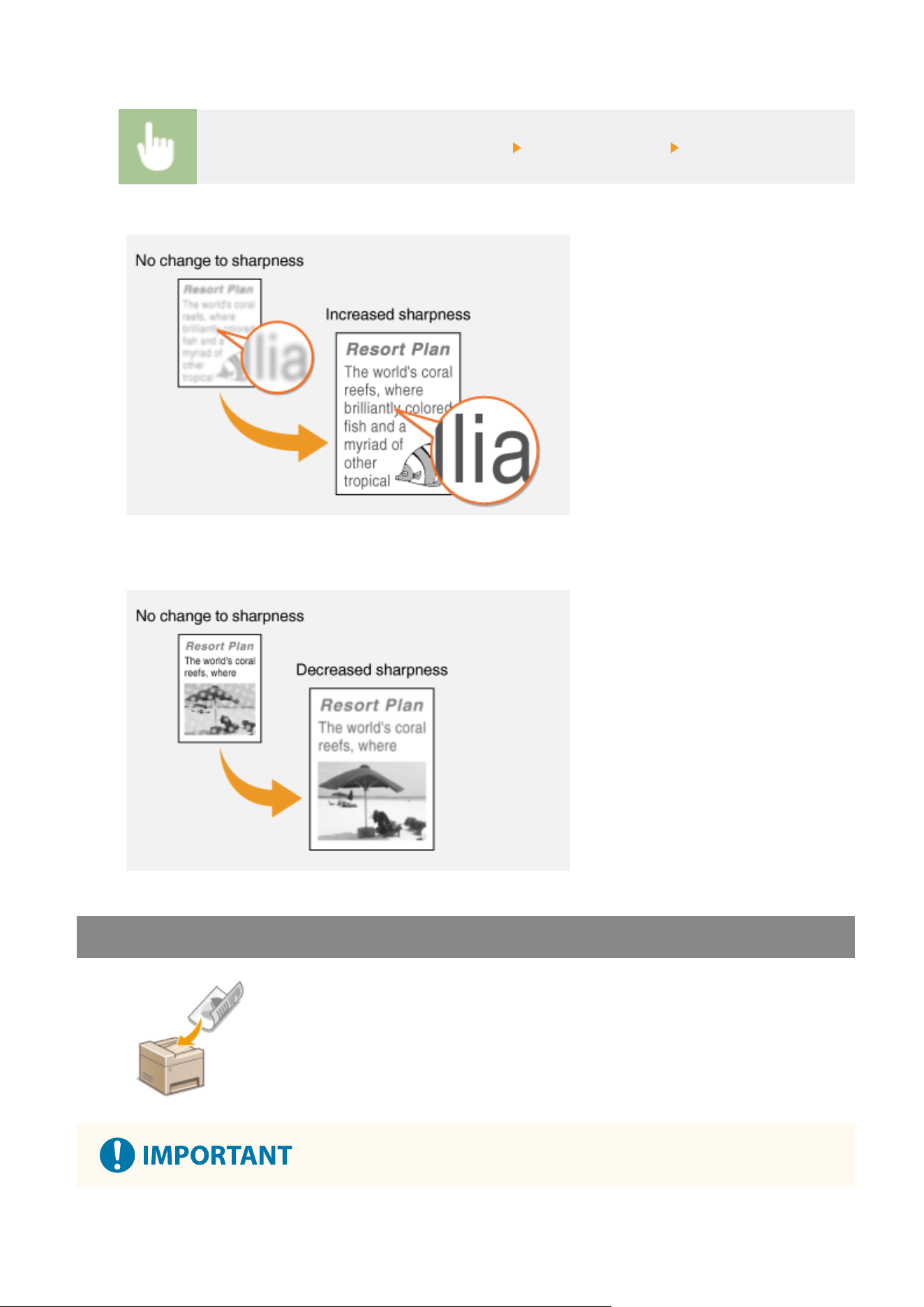
◼ Adjusting Sharpness
Select <Sharpness> in the <TX/RX Settings> tab Adjust the sharpness <Apply>
Example:
If you want to sharpen text and lines written in pencil
Example:
If you want to improve the appearance of magazine photos
Scanning 2-Sided Originals
The machine can automatically scan the front and back sides of originals in the
feeder.
Faxing
224
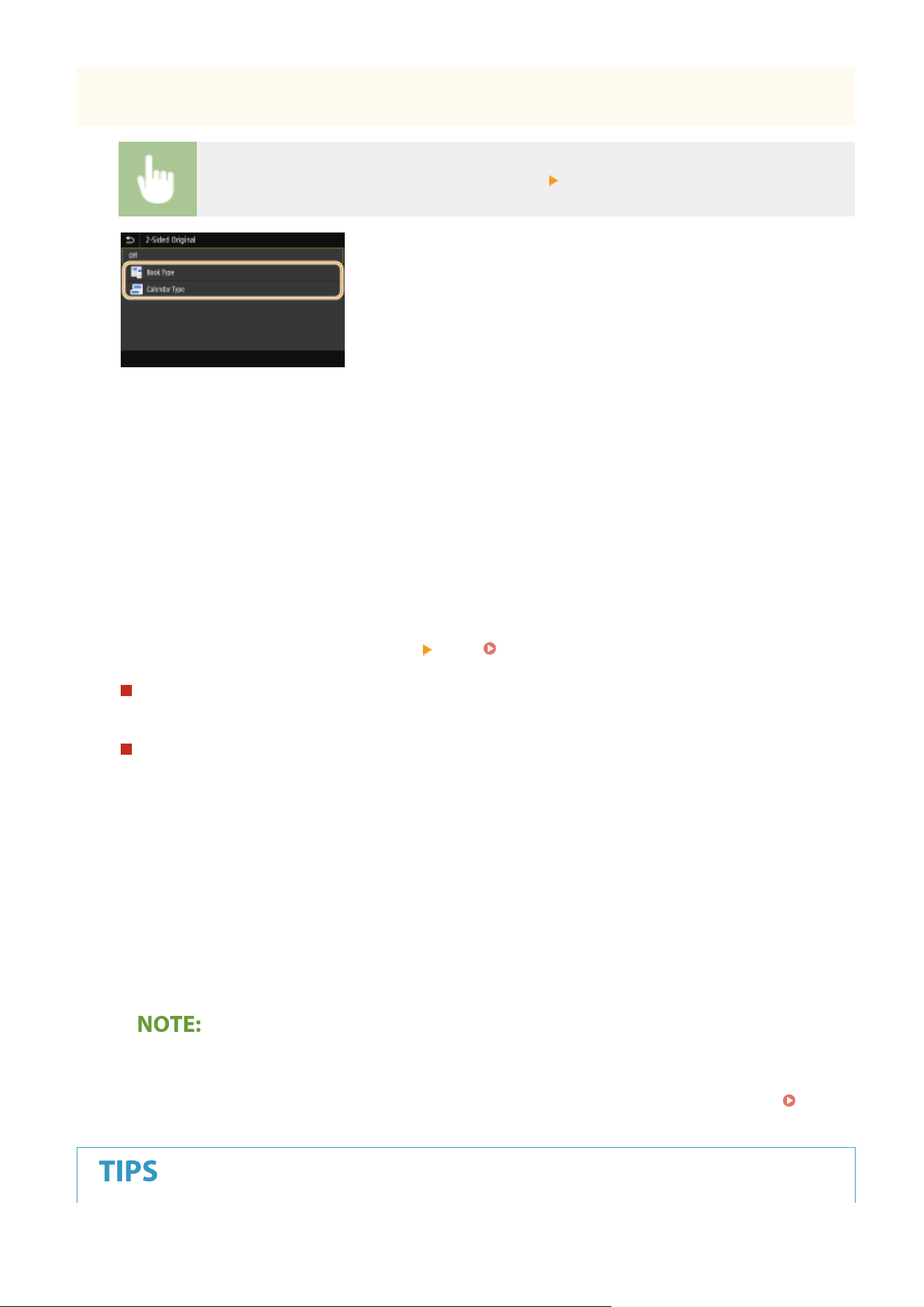
● The machine cannot scan both sides of originals automatically when the originals ar
e placed on the platen
glass or when the machine is set to Manual Sending.
Select <2-Sided Original> in the <TX/RX Settings> tab Select <Book Type> or <Calendar Type>
<Book Type>
Select for originals whose images on the fr
ont and back sides face the same direction.
<Calendar Type>
Select for originals whose images on the front and back sides face in opposite directions.
6
Select <Start>.
● If the <Conrm Destination> scr
een is displayed, check whether the destination is correct, and then select
<Start Scanning>.
➠ Scanning of the original starts.
● If you want to cancel, select <Cancel>
<Yes>. Canceling Sending Faxes(P. 227)
When placing originals in the feeder in step 1
When scanning is complete, the fax
es are sent. Select <Close> to end the procedure.
When placing originals on the platen glass in step 1
When scanning is complete, follow the procedure below.
1
Select the original size.
● When ther
e is only one page to be scanned, proceed to step 3.
2
Place the next original on the platen glass, and select <Scan Next>.
● Repeat this step until you nish scanning all of the pages.
3
Select <Start Sending>.
➠ The faxes are sent.
Checking the communication status
● Setting
<Display Notif. When Job Is Accepted> to <On> displays a screen prompting conrmation of the
communication status. When you select <Status Monitor>, you can check the sending status.
<Display
Notif. When Job Is Accepted>(P
. 524)
Faxing
225

● If you always want to send fax
es with the same settings:
Changing the Default Settings for
Functions
(P. 175)
● If you want to register a combination of settings to use when needed:
Registering Frequently Used
Settings(P
. 173)
● If you want to sound an alarm when the handset is off the hook:
<Off-Hook Alarm>(P. 529)
LINKS
Canceling Sending Faxes(P. 227)
Useful Functions When Sending(P. 232)
Checking Status and Log for Sent and Received Documents(P. 246)
Faxing
226
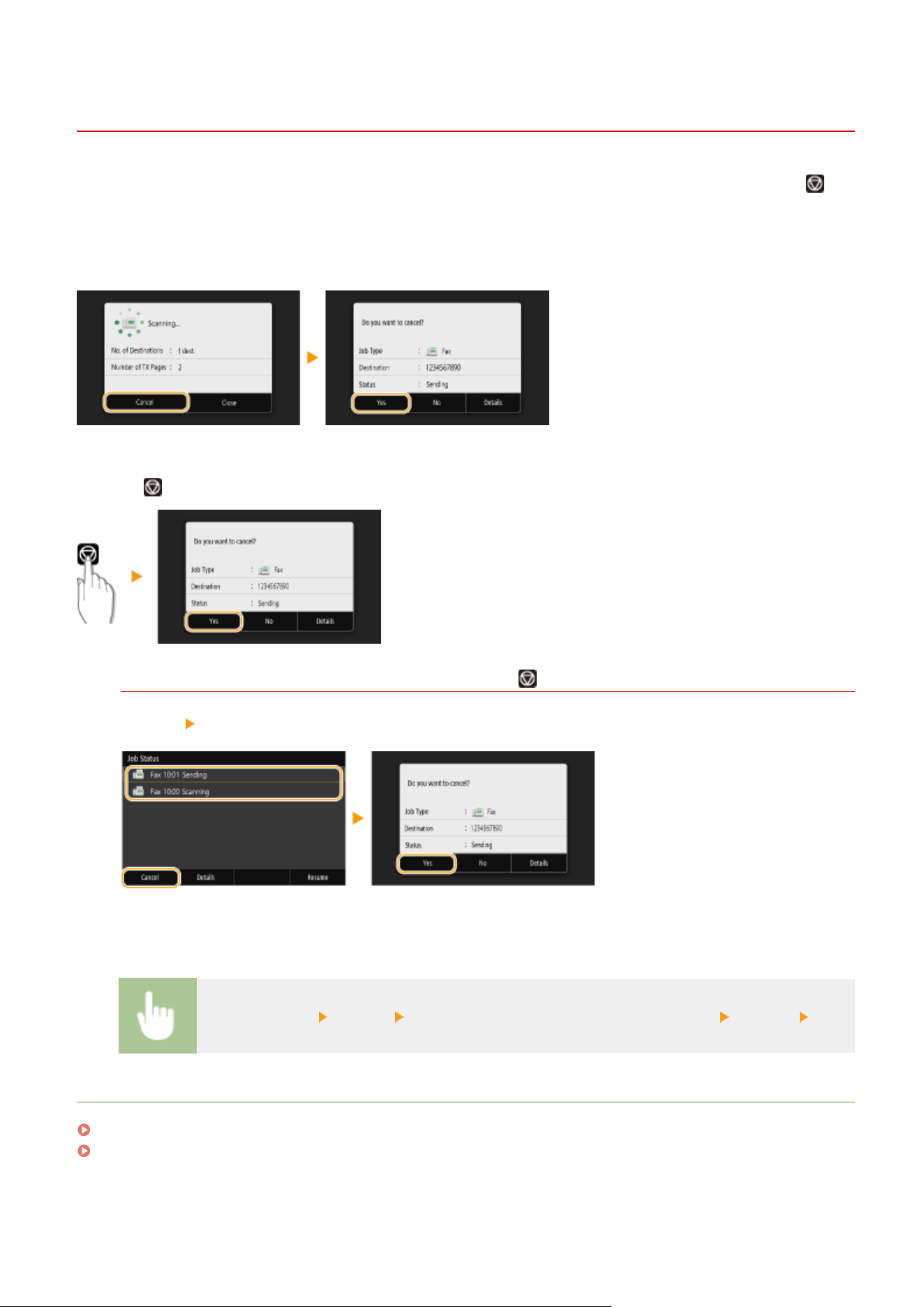
Canceling Sending Faxes
7YWY-04H
If you want to cancel sending fax
es immediately after selecting <Start>, select <Cancel> on the display or press
on
the oper
ation panel. You can also cancel sending faxes after checking the fax status.
◼ Select <Cancel> on the screen during fax transmission
◼ Pr
ess
to cancel
If the screen displays a list of documents when is pressed
Originals have been scanned and are waiting to be processed. Select the document to cancel, and select
<Cancel> <Yes>.
◼ Check the transmission status before canceling
<Status Monitor> <TX Job> Select the document in the <TX Job Status> tab <Cancel> <Yes>
LINKS
Basic Operations for Sending Faxes(P. 219)
Checking Status and Log for Sent and Received Documents(P. 246)
Faxing
227
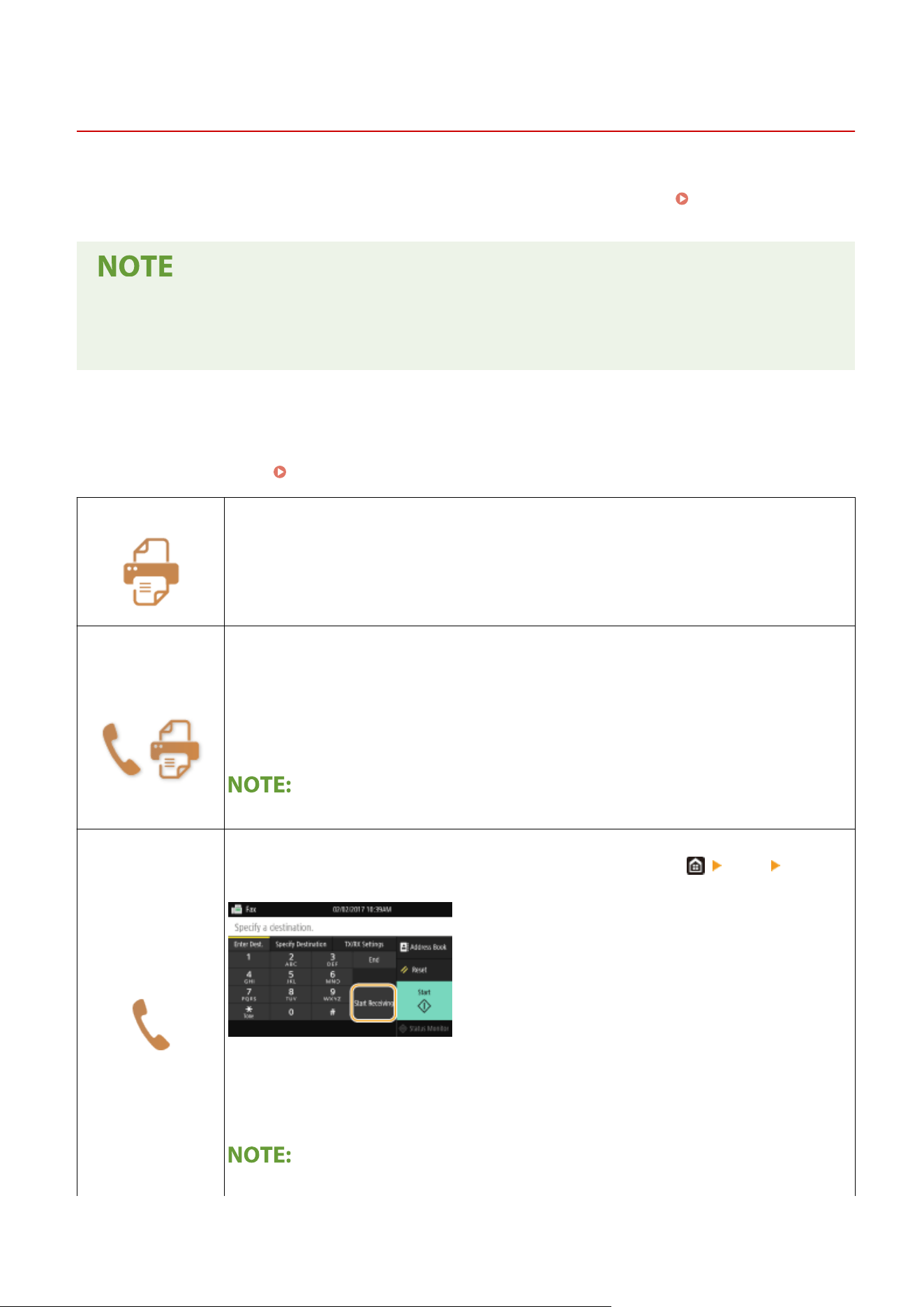
Receiving Faxes
7YWY-04J
This section describes the methods for r
eceiving faxes and how to set up the machine to receive faxes. You need to
complete some procedures for using fax functions before specifying the receiving settings.
Conguring Initial
Settings for Fax Functions
(P. 79)
● The machine can print r
eceived fax documents on A4 or Letter size paper. If received fax documents are
printed on other paper sizes, a portion of the page may not be printed or a page may be printed on two
separate sheets of paper.
◼ Methods for Receiving Fax
es
The machine provides the following receiving methods. Select the method that best suits your needs and then set it up
by following the procedure in
Setting Up the Machine to Receive Faxes(P. 229) .
<Auto>
Dedicated to receiving faxes
The machine r
eceives faxes automatically. Even if someone makes a call to you, you cannot talk
to the caller.
<Fax/Tel (Auto
Switch)>
When the call is a fax
The machine r
eceives the fax automatically.
When the call is a telephone call
An incoming call rings. Pick up the handset to answer the call.
● Y
ou need to connect your telephone to the machine beforehand.
<Manual>
When the call is a fax
An incoming call rings. Pick up the handset. If you hear a beep, select <Fax> <Start
Receiving> to receive faxes.
When the call is a telephone call
An incoming call rings. Pick up the handset and start your conversation.
● Y
ou need to connect your telephone to the machine beforehand.
Faxing
228
● Y
ou can set the machine to automatically receive faxes when an incoming call rings within a
specied timeframe.
<Switch to Auto RX>(P. 539)
<Answering
Machine>
When the call is a fax
After an incoming call rings, the machine r
eceives the fax automatically.
When the call is a telephone call
The answering machine activates, enabling the caller to leave a message. If you pick up the
handset before the answering machine starts recording a message, you can talk with the
caller.
● Y
ou need to connect your answering machine to the machine beforehand.
● Set the answering machine to answer after a few rings.
● We recommend that you add approximately 4 seconds of silence at the beginning of the
message or set the maximum recording time to 20 seconds.
<DRPD>
If you have subscribed to a Distinctive Ring Pattern Detection (DRPD) service provided by your
telephone company
, this receiving mode is available. This service assigns two or more
telephone numbers with distinctive ring patterns to a single telephone line. You can use one of
these numbers for faxes and one for telephone calls.
When the machine receives a call, it automatically recognizes the ring pattern and your
telephone rings differently depending on whether the call is a fax or telephone call. If the ring
pattern is for a fax, the machine automatically receives the fax.
● For mor
e information about this service, contact your telephone company.
● You need to connect your telephone to the machine beforehand.
● Depending on the type of telephone connected to it, the machine may not be able to send or r
eceive faxes
properly.
● If you are connecting an external telephone with fax functions, set the telephone to not receive faxes
automatically.
● If you pick up the telephone handset and hear a beep, the call is a fax. You can receive the fax just by using
the telephone to enter a specic ID number.
Using a Telephone to Receive Faxes (Remote Reception)
(P
. 230)
◼ Setting Up the Machine to Receive Fax
es
1
Select <Fax> in the Home screen.
Home Screen(P. 125)
● If the login scr
een appears, specify the user name, the password, and the authentication server.
Logging
in to Authorized Send(P
. 136)
2
Select <RX Mode> in the <TX/RX Settings> tab of the Fax Basic Features screen.
Fax
Basic Featur
es Screen(P. 218)
Faxing
229
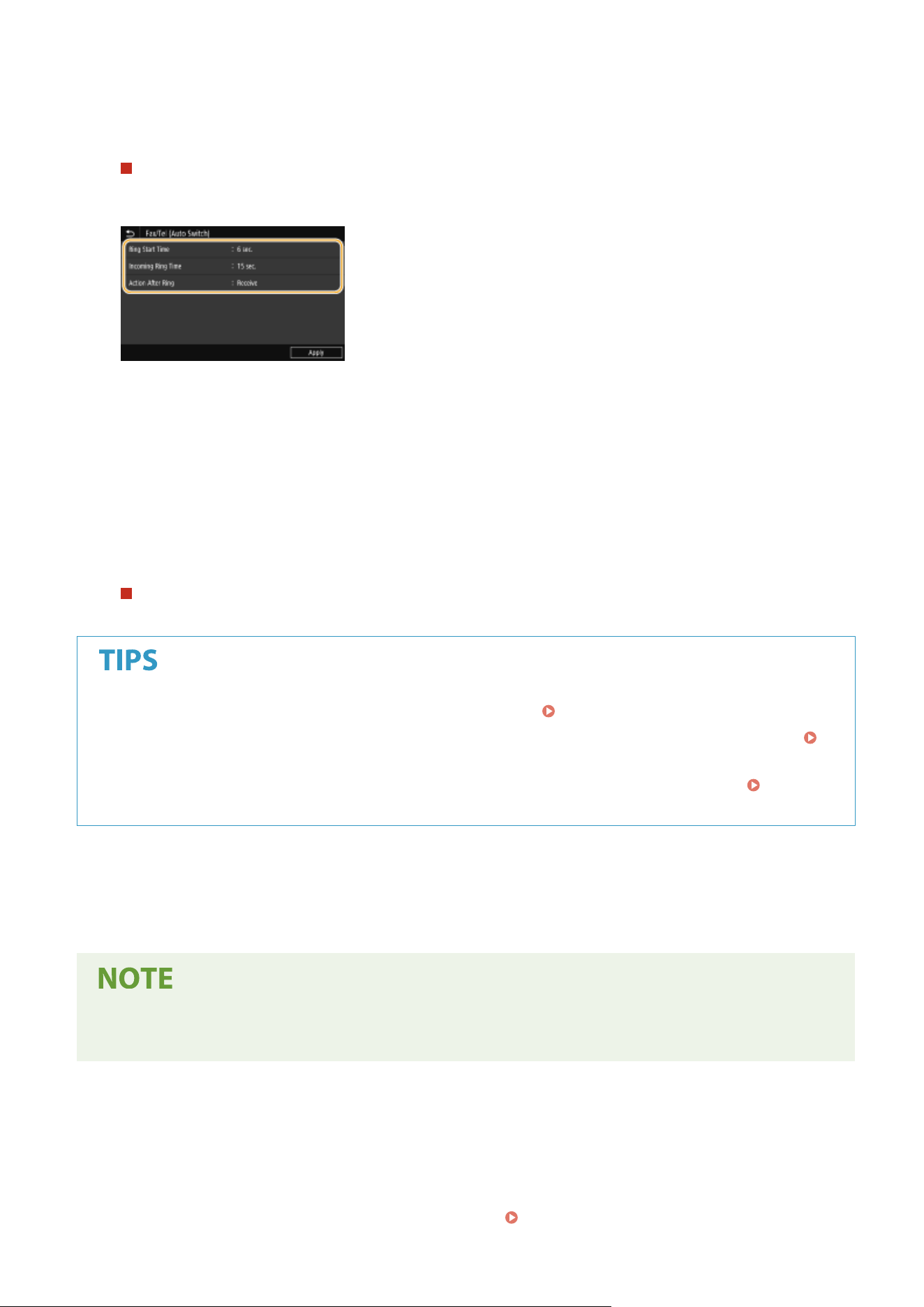
3
Select the receiving method.
When selecting <Fax/Tel (Auto Switch)>
Specify the following three settings as necessary. When the setting is complete, select <Apply>.
<Ring Start Time>
Enables you to specify the dur
ation during which the machine determines whether an incoming call is a fax or a
telephone call.
<Incoming Ring Time>
Enables you to specify the duration during which an incoming call rings for a telephone call.
<Action After Ring>
Enables you to specify how the machine operates if you do not pick up the handset while an incoming call is
ringing. Select <End> to disconnect the call or <Receive> to receive an incoming fax.
When selecting <DRPD>
Select the ring pattern that your telephone company assigned to your fax number.
● If you want to print r
eceived documents on both sides of paper:
<Print on Both Sides>(P. 537)
● If you want to print information, such as r
eception date and time, at the bottom of received documents:
<Print RX Page Footer>(P. 536)
● If you want to continue printing e
ven when the amount remaining in the toner cartridge is low:
<Continue
Print. When Cart. Lo
w>(P. 536)
◼ Using a T
elephone to Receive Faxes (Remote Reception)
When you pick up the telephone and get a fax signal, you do not need to go to the machine to receive the fax. Just
enter a specic ID number with the telephone, and you can start receiving the fax.
● When the telephone is not dir
ectly connected with the machine, the remote reception function is not
available.
1
When an incoming call rings, pick up the telephone handset.
2
If you hear a beep, enter the ID number for Remote Reception with the telephone.
● For mor
e information about setting the ID number, see
<Remote RX>(P. 538) .
Faxing
230

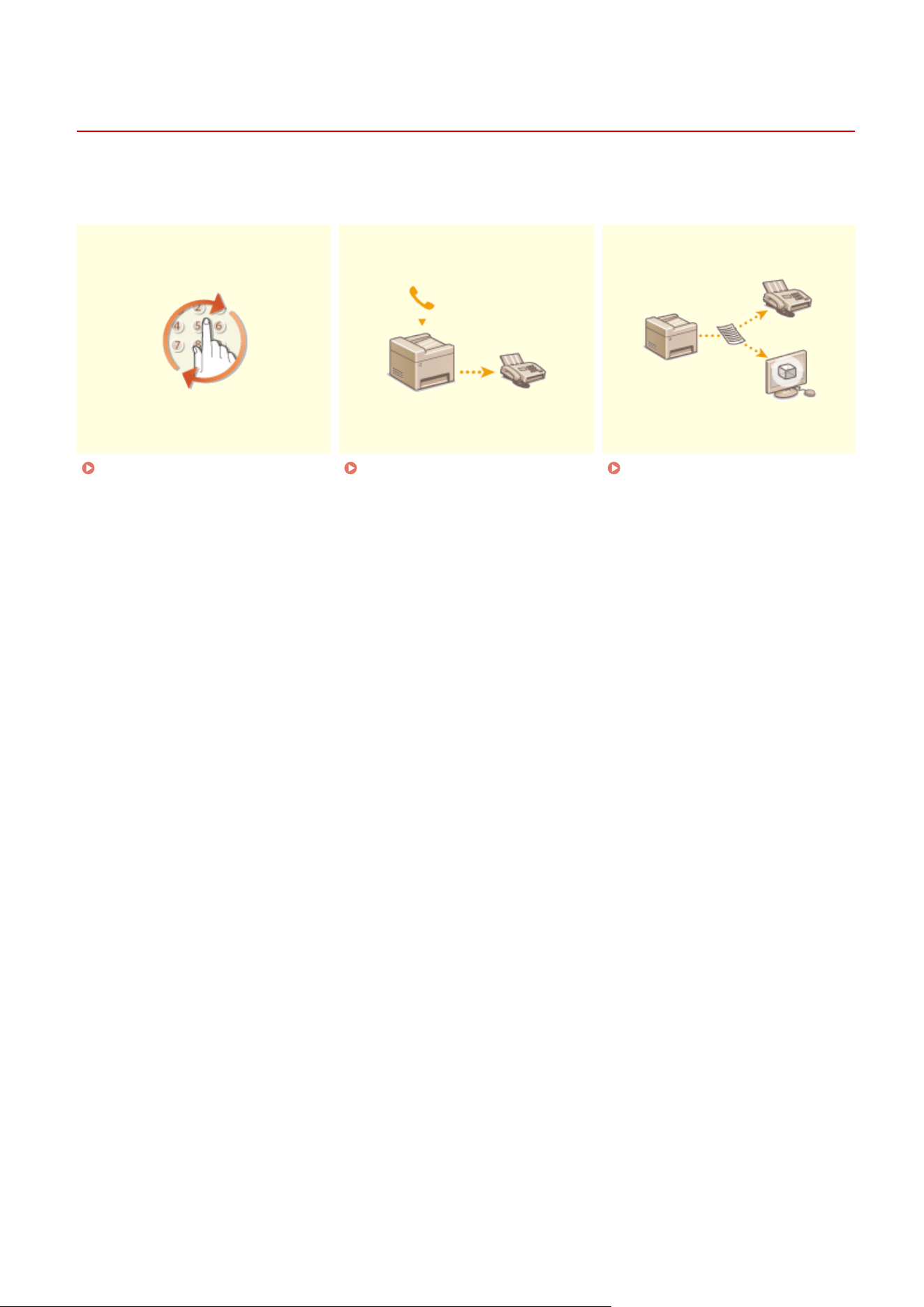
Useful Functions When Sending
7YWY-04K
This section describes ho
w to forward a fax again to a previously specied destination, how to send a fax after a phone
call, and how to save a copy of a fax document.
Recalling Previously Used
Settings for Sending (Recall
Settings)(P
. 233)
Sending a Fax after a Phone Call
(Manual Sending)(P
. 236)
Saving a Copy of a Sent
Original
(P. 238)
Faxing
232
Recalling Previously Used Settings for Sending (Recall
Settings)
7YWY-04L
You can recall the destinations specied in the past. When you specify a pr
eviously
used destination, the machine also sets the same fax settings such as density you
used the last time you sent documents to that destination.
● When <Restrict Resending fr
om Log> is set to <On>, you cannot use this feature.
Disabling Use of
Pr
eviously Used Destinations(P. 411)
● Turning OFF the machine or setting <Restrict New Destinations> to <On> deletes the past destinations, and
disables this feature.
Restricting New Destinations that Can Be Specied(P
. 411)
● The destinations in Manual Sending are not available for this feature.
Sending a Fax after a Phone Call
(Manual Sending)(P
. 236)
● When you specify a destination using this featur
e, any destinations that you have already specied are
deleted.
1
Place the original(s).
Placing Originals(P. 138)
2
Select <Fax> in the Home screen. Home Screen(P. 125)
● If the login screen appears, specify the user name, the password, and the authentication server. Logging
in to Authorized Send(P. 136)
3
Select <Reset> in the Fax Basic Features screen. Fax Basic Features Screen(P. 218)
● If the destinations set b
y the previous user are still selected, this can cause transmission errors. Always reset
the settings before sending.
4
Select <Recall Settings> in the <Specify Destination> tab.
5
Select the destination.
● When you tr
ansmit to multiple destinations, only the address specied for the rst transmission is displayed
in the log, but all the destinations are specied.
Faxing
233
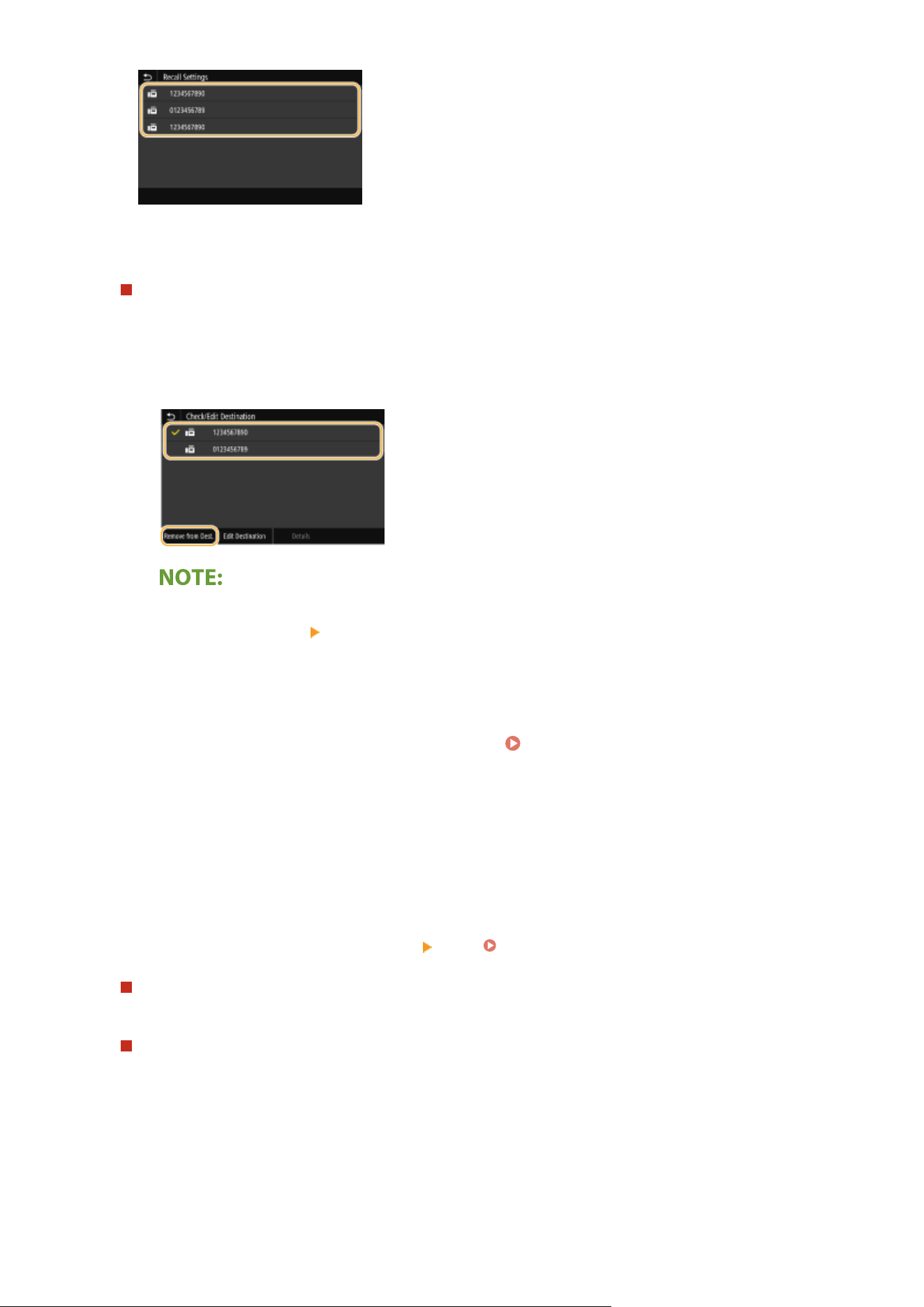
➠ The selected destination and the fax settings used at the time ar
e specied. You can also change the
settings before sending.
To delete destinations
When you tr
ansmitted to multiple destinations, you can delete destinations as necessary.
1
Select <Conrm Destination>.
2
Select the check box for the destination to be deleted, and select <Remove from Dest.>.
● If you select the Gr
oup Dial check box, you can view the destinations registered in the group by
selecting <Details>
<Destination>.
3
Select <Yes>.
6
Specify the scanning settings as necessary. Basic Operations for Sending
Faxes(P. 219)
7
Select <Start>.
● If the <Conrm Destination> scr
een is displayed, check whether the destination is correct, and then select
<Start Scanning>.
➠ Scanning of the original starts.
● If you want to cancel, select <Cancel>
<Yes>. Canceling Sending Faxes(P. 227)
When placing originals in the feeder in step 1
When scanning is complete, the fax
es are sent.
When placing originals on the platen glass in step 1
When scanning is complete, follow the procedure below.
1
Select the original size.
● When ther
e is only one page to be scanned, proceed to step 3.
2
Place the next original on the platen glass, and select <Scan Next>.
● Repeat this step until you nish scanning all of the pages.
Faxing
234

Sending a Fax after a Phone Call (Manual Sending)
7YWY-04R
You can send faxes manually at the end of a phone conversation. When you hear a
beep o
ver the phone, it means the recipient is trying to receive your faxes. Select
<Start> to send your faxes.
● Y
ou need to connect your telephone to the machine beforehand.
1
Place the original(s).
Placing Originals(P. 138)
● The machine cannot automatically scan both sides of the originals in Manual Sending.
● When the original is placed on the platen glass, only one page can be sent.
2
Select <Fax> in the Home screen. Home Screen(P. 125)
● If the login scr
een appears, specify the user name, the password, and the authentication server.
Logging
in to Authorized Send(P
. 136)
3
Select <Reset> in the Fax Basic Features screen.
Fax Basic Features Screen(P. 218)
● If the destinations set b
y the previous user are still selected, this can cause transmission errors. Always reset
the settings before sending.
4
Specify the scanning settings as necessary.
Basic Operations for Sending
Fax
es(P. 219)
5
Dial the recipient's fax number.
6
Ask the recipient to set their fax machine to receive your faxes.
● If you hear a beep, pr
oceed to step 7.
7
Select <Start>.
● If you place the original on the platen glass, select the original size.
➠ Scanning of the original starts.
● If you want to cancel, select <Cancel>
<Yes>. Canceling Sending Faxes(P. 227)
8
Hang up the handset.
Faxing
236

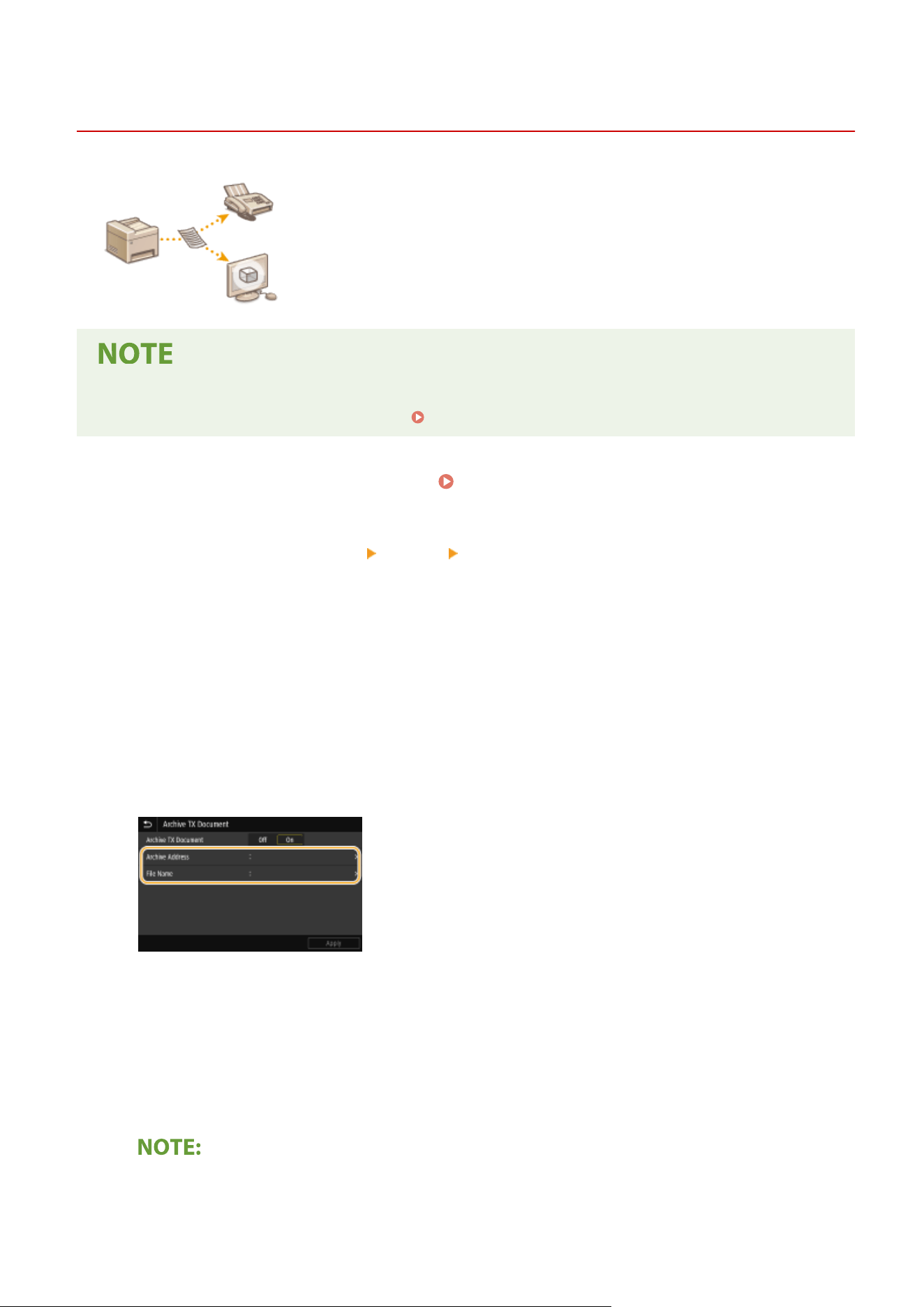
Saving a Copy of a Sent Original
7YWY-04S
In addition to the address specied when the fax is sent, you can also send fax
ed
documents to a preset storage address for archiving. This is useful for keeping a log
of what has been sent. You can specify a fax number, an e-mail address, a shared
folder on the computer, an FTP server or an I-Fax as the storage address.
● Only destinations in the Addr
ess Book can be specied as a storage address. To use the Address Book, the
destination must be registered beforehand.
Registering Destinations(P. 181)
1
Select <Menu> in the Home screen.
Home Screen(P. 125)
2
Select <Function Settings> <Send> <Fax Settings>.
3
Select <Archive TX Document>.
4
Select <On> in <Archive TX Document>.
● When not using the function for ar
chiving sent documents, select <Off>.
5
Congure stor
age of sent documents.
<Archive Address>
Specify the stor
age destination of sent documents. In the Address Book, select the check box for the
destination to use as the storage location, and select <Apply>.
<File Name>
You can specify a character string to be used in the le name when sending a document by E-mail/I-fax or
when saving to a shared folder/FTP server. The le name is automatically assigned based on the following
format: arbitrary character string_communication management number (four digits)_sent date and
time_document number (three digits).le extension name.
● When
not specifying <File Name>, you can use the following format for le name: communication
management number (four digits)_sent date and time_document number (three digits).le extension
name.
Faxing
238

6
Select <Apply>.
Faxing
239

Various Receiving Methods
7YWY-04U
Y
ou can store received faxes in the machine's memory without printing them. You can reduce fax paper waste by
checking the detailed information of fax documents and only printing necessary documents.
Saving Received Documents into the Machine (Memory Reception)(P. 241)
Faxing
240
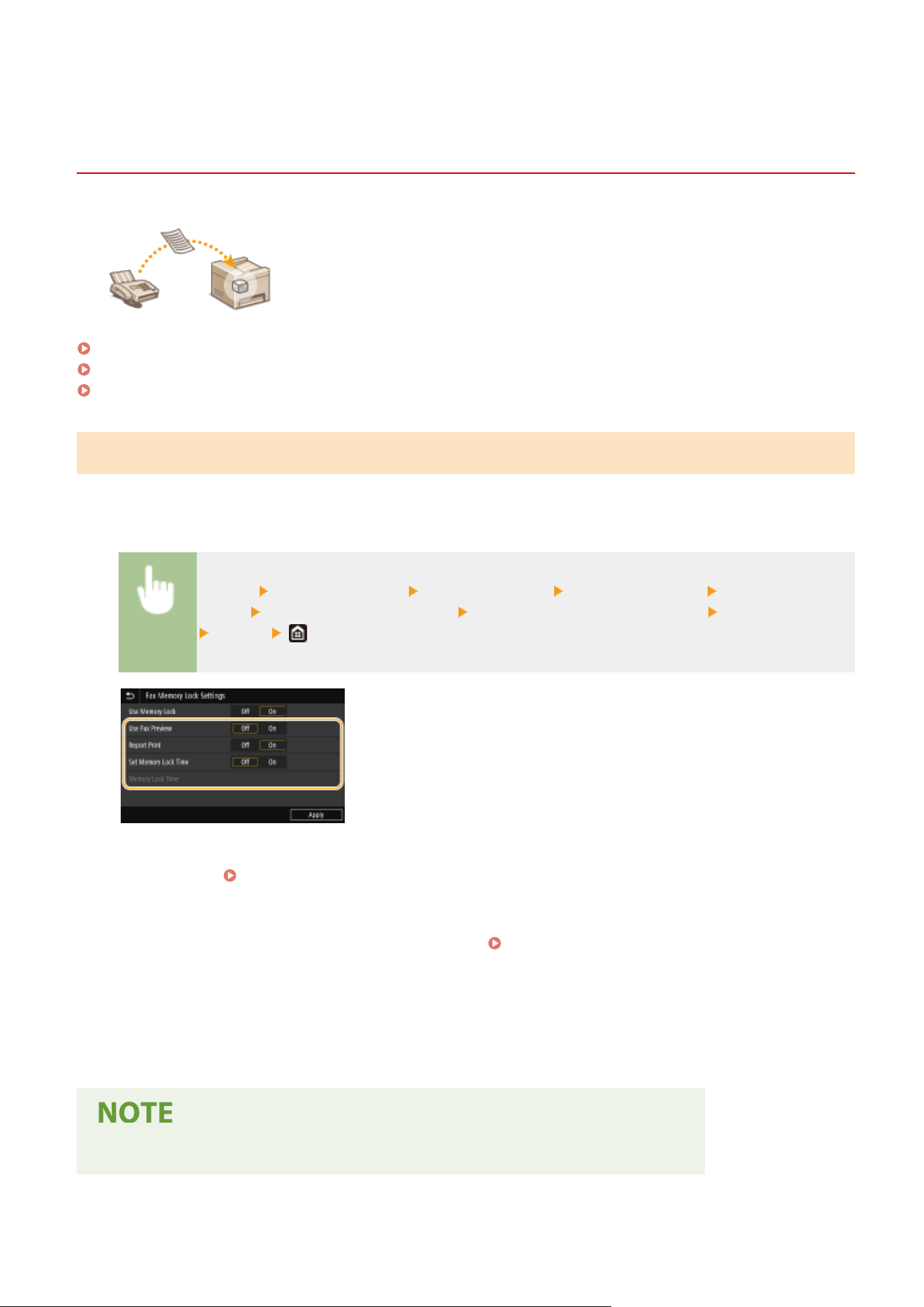
Saving Received Documents into the Machine (Memory
Reception)
7YWY-04W
You can store received faxes into memory of the machine, and then print them later.
This featur
e can prevent unauthorized persons from seeing condential documents
unintentionally.
Storing Documents into Memory(P. 241)
Printing Documents in Memory(P. 242)
Checking/Forwarding/Deleting Documents in Memory(P. 242)
Storing Documents into Memory
T
o store received documents into memory, set <Use Memory Lock> to <On>. You can congure a setting to enable you
to preview received documents using the Remote UI. You can also specify a setting to activate the Memory Reception
function only during a specied period of time of the day.
<Menu> <Function Settings> <Receive/Forward> <Common Settings> <Set Fax/I-Fax
Inbo
x>
<Fax Memory Lock Settings> Select <On> in <Use Memory Lock> Specify each setting
<Apply>
<Use Fax Preview>
Specify whether to pr
eview received documents stored in memory. Select <On> to preview the documents using
the Remote UI.
Checking Current Status of Received Documents(P. 426)
<Report Print>
Enables you to print RX Result r
eports every time documents are stored into memory. To print reports, select
<On>. You also need to set <RX Result Report> to <On>.
RX Result Report(P. 592)
<Set Memory Lock Time>
Specify whether to activate the Memory Reception function only during a specic time fr
ame of the day. Select
<On> to activate the Memory Reception function only during a time frame specied in <Memory Lock Time>.
<Memory Lock Time>
Set the time to start and end the Memory Reception function.
● You cannot specify <Use Fax Preview> and <Set Memory Lock Time> at the same time.
Faxing
241
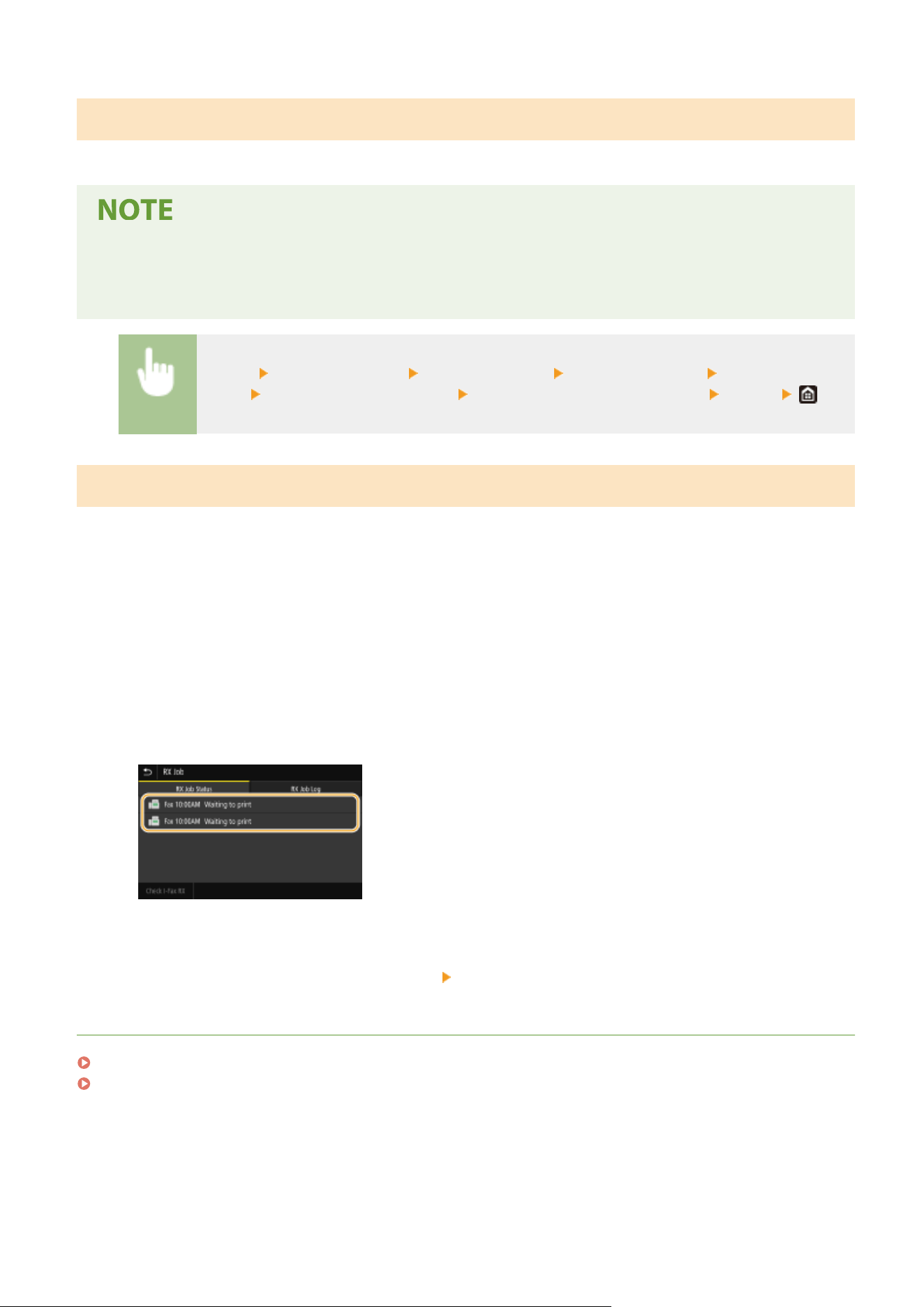
Printing Documents in Memory
To print received documents in memory, set <Use Memory Lock> to <Off>. All the documents in memory are printed.
● Y
ou cannot select a specic document for printing.
● If a time for the feature to deactivate has been specied, the documents are automatically printed at the
specied time.
<Menu> <Function Settings> <Receive/Forward> <Common Settings> <Set Fax/I-Fax
Inbo
x>
<Fax Memory Lock Settings> Select <Off> in <Use Memory Lock> <Apply>
Checking/Forwarding/Deleting Documents in Memory
Y
ou can check an outline of each document stored in memory, including sender fax numbers and number of pages
sent. You can also select and forward a document stored in memory, and delete an unnecessary document, if any.
1
Select <Status Monitor>.
2
Select <RX Job>.
3
In the <RX Job Status> tab, select the document you want to check/forward/delete.
➠ Displays detailed information about the document.
● T
o forward the document, select <Forward>, and specify the appropriate destination.
● To delete the document, select <Delete>
<Yes>.
LINKS
Receiving Faxes(P. 228)
Checking Status and Log for Sent and Received Documents(P. 246)
Faxing
242
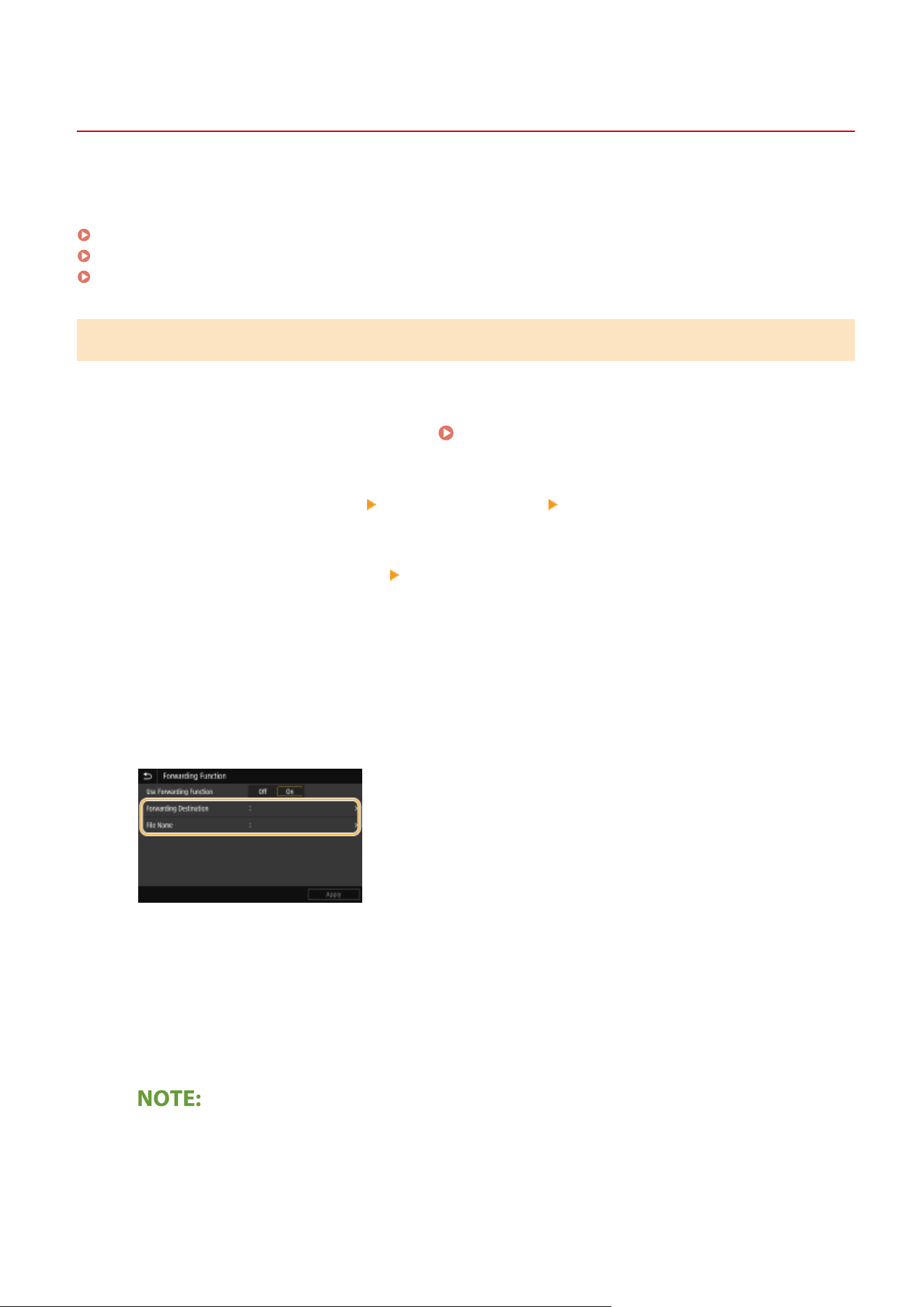
Forwarding the Received Documents Automatically
7YWY-04X
The machine can forwar
d all the received documents to specied destinations. Even if you are out of the oce, you
can receive fax information anytime, anywhere.
Specifying Settings for Documents to be Forwarded Automatically(P. 243)
Printing Documents to be Forwarded(P. 244)
Printing/Resending/Deleting Documents that Failed to be Forwarded(P. 244)
Specifying Settings for Documents to be Forwarded Automatically
While the Forwarding feature is activated, all the documents to be received are automatically forwarded.
1
Select <Menu> in the Home screen.
Home Screen(P. 125)
2
Select <Function Settings> <Receive/Forward> <Fax Settings>.
3
Select <Forwarding Settings> <Forwarding Function>.
4
Select <On> in <Use Forwarding Function>.
● When not using the forwar
ding function, select <Off>.
5
Congure the forwar
ding settings.
<Forwarding Destination>
Specify a forwar
ding destination. In the Address Book, select the check box for a destination to which to
forward, and select <Apply>.
<File Name>
You can specify a character string to be used in the le name when sending a document by E-mail/I-fax or
when saving to a shared folder/FTP server. The le name is automatically assigned based on the following
format: arbitrary character string_communication management number (four digits)_sent date and
time_document number (three digits).le extension name.
● When
not specifying <File Name>, you can use the following format for le name: communication
management number (four digits)_sent date and time_document number (three digits).le extension
name.
Faxing
243
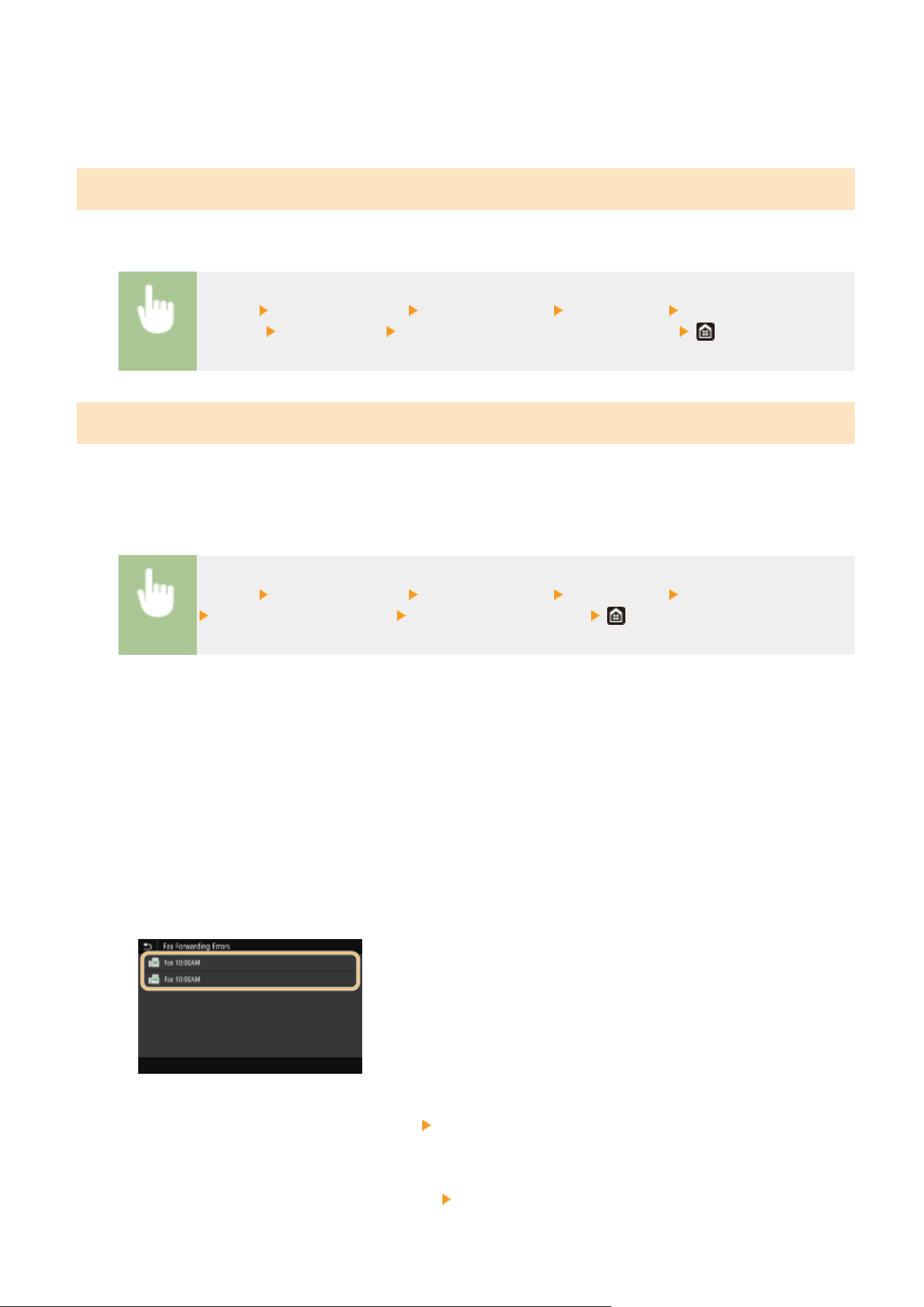
6
Select <Apply>.
Printing Documents to be Forwarded
If you want to check the documents to be forwar
ded for yourself, you can set the machine to print the documents
whenever they are forwarded, or to print only the documents that failed to be forwarded.
<Menu> <Function Settings> <Receive/Forward> <Fax Settings> <Forwarding
Settings> <Print Images> Select <On> or <Only When Error Occurs>
Printing/Resending/Deleting Documents that Failed to be Forwarded
Y
ou can store documents that failed to be forwarded in memory, and print, resend, or delete them later.
◼ Storing Documents that Failed to be Forwarded in Memory
<Menu> <Function Settings> <Receive/Forward> <Fax Settings> <Forwarding Settings>
<Store Images in Memory> <Only When Error Occurs>
◼ Printing/Resending/Deleting Documents Stor
ed in Memory
1
Select <Status Monitor>.
2
Select <Fax Forwarding Errors>.
3
Select the document you want to print/resend/delete.
➠ Displays detailed information about the document.
● T
o print the document, select <Print>
<Yes>.
● T
o resend the document, select <Forward>, select the check box for the target destination, and then
select <Apply>.
● To delete the document, select <Delete>
<Yes>.
Faxing
244

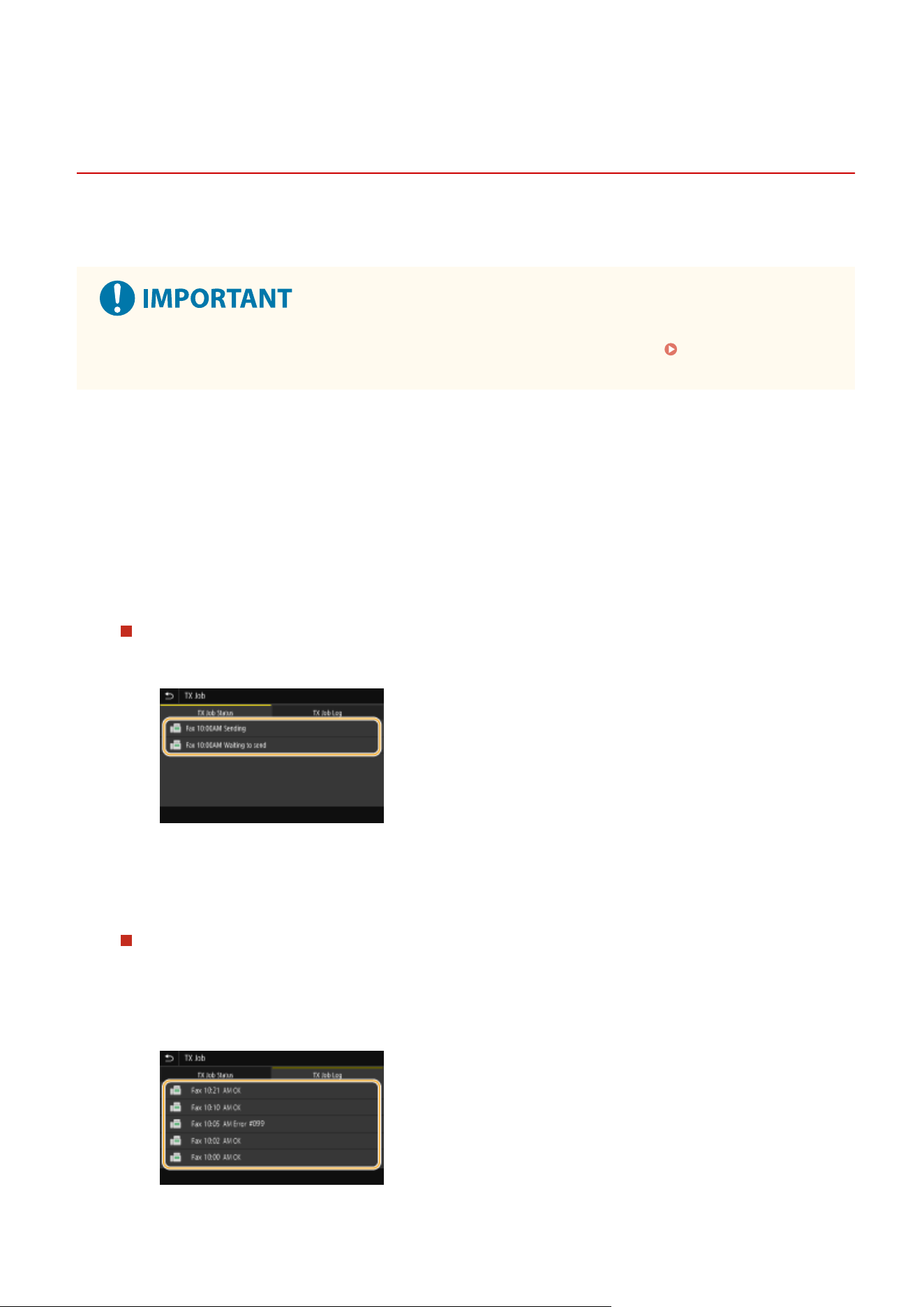
Checking Status and Log for Sent and Received
Documents
7YWY-04Y
The statuses and communication logs for sent and r
eceived fax and I-Fax documents can be checked separately for
sending and receiving.
● When <Display Job Log> is set to <Off>, you cannot check the communication logs. <Display Job
Log>
(P. 552)
1
Select <Status Monitor>.
2
Select <TX Job> or <RX Job>.
3
Check the statuses and communication logs for sent and received documents.
To check the statuses for sent and received documents
1
Select the document whose status you want to check in the <TX Job Status> or <RX Job Status> tab.
➠ Displays detailed information about the document.
● If you specied multiple destinations, the number of specied destinations is displayed on the
screen. To check the details of specied multiple destinations, select <Destination>.
To check the communication logs for sent and received documents
1
Select the document whose log you want to check in the <TX Job Log> or <RX Job Log> tab.
● <OK> is displayed when a document was sent or r
eceived successfully, and <Error> is displayed when
a document failed to be sent or received because it was canceled or there was some error.
➠ Displays detailed information about the document.
Faxing
246

When a three-digit number is shown in the case of <Error>
● This number r
epresents an error code. For more information, see "Troubleshooting (FAQ)" on the
online manual website.
Registering the destination of the sent document to the Address Book
● For a document sent to a destination not registered in the Address Book, you can register that
destination to the Address Book by selecting <Regst to Add Book> on the details screen.
LINKS
Basic Operations for Sending Faxes(P. 219)
Canceling Sending Faxes(P. 227)
Receiving Faxes(P. 228)
Sending I-Faxes(P. 252)
Receiving I-Faxes(P. 259)
Printing Reports and Lists(P. 590)
Faxing
247
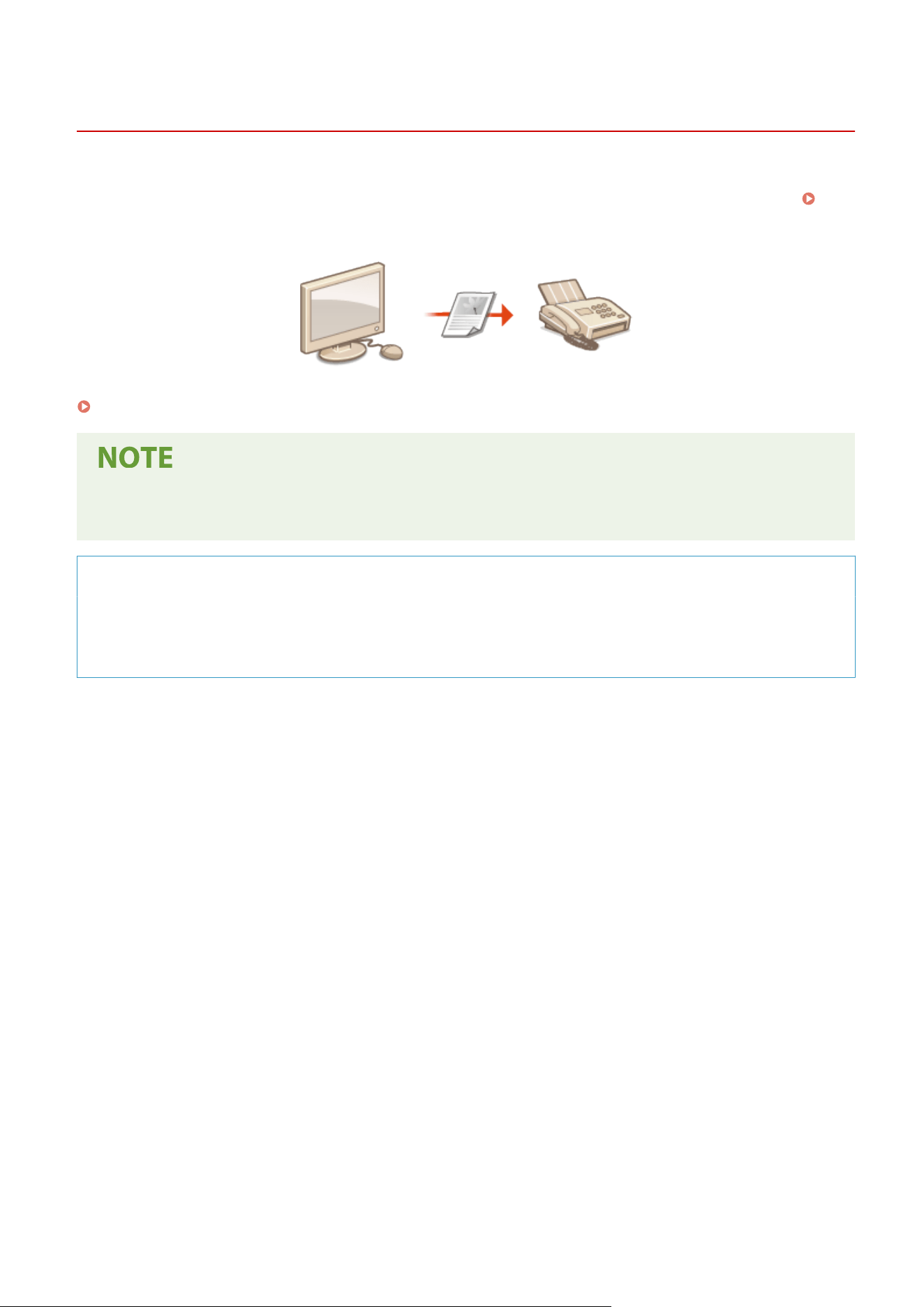
Sending Faxes from Your Computer (PC Fax)
7YWY-050
Y
ou can send fax documents created on your computer application directly from your computer. This feature
eliminates the need to print documents for faxing and saves paper. You need to specify the basic fax settings (
Conguring Initial Settings for Fax Functions
(P. 79) ) and install the fax driver on your computer. For more
information about how to install the fax driver, see the manuals for the relevant drivers on the online manual website.
Sending PC Faxes(P. 249)
● Depending on the oper
ating system and the version of the fax driver you are using, the fax driver screens in
this manual may differ from your screens.
About the Fax Driver Help
● Clicking [Help] on the fax driver scr
een displays the Help screen. On this screen you can see information that
is not in the User's Guide, including information about driver features such as registering frequently used
settings and how to set up those features.
Faxing
248
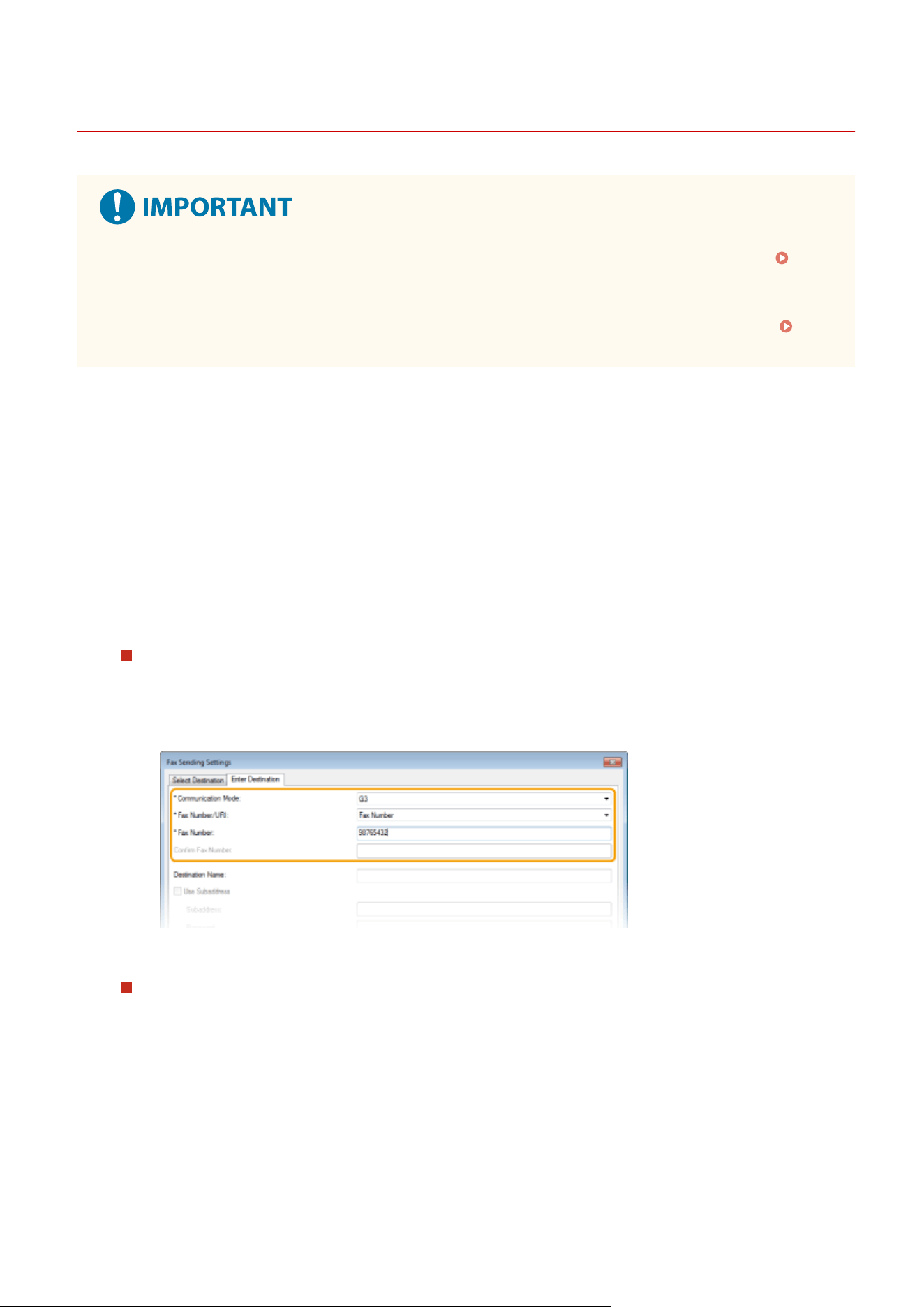
Sending PC Faxes
7YWY-051
● When <Allo
w Fax Driver TX> is set to <Off> on the machine, you cannot send faxes from computers.
Restricting Fax Sending from a Computer(P. 413)
● Y
ou need to enable Department ID Management on the fax driver you are using if Department ID
Management is enabled on the machine. For more information, click [Help] on the fax driver screen.
Setting the Department ID Management(P. 357)
1
Open a document in an application and display the print dialog box.
● Ho
w to display the print dialog box differs for each application. For more information, see the instruction
manual for the application you are using.
2
Select the fax driver for this machine, and click [Print].
3
Specify the destination.
To specify only one destination
1
Click the [Enter Destination] tab.
2
Set the communication mode and fax number (or URI).
To specify multiple destinations at once
1
Click the [Select Destination] tab.
2
Click [Add Destination].
3
Set the communication mode and fax number (or URI), and click [OK].
Faxing
249
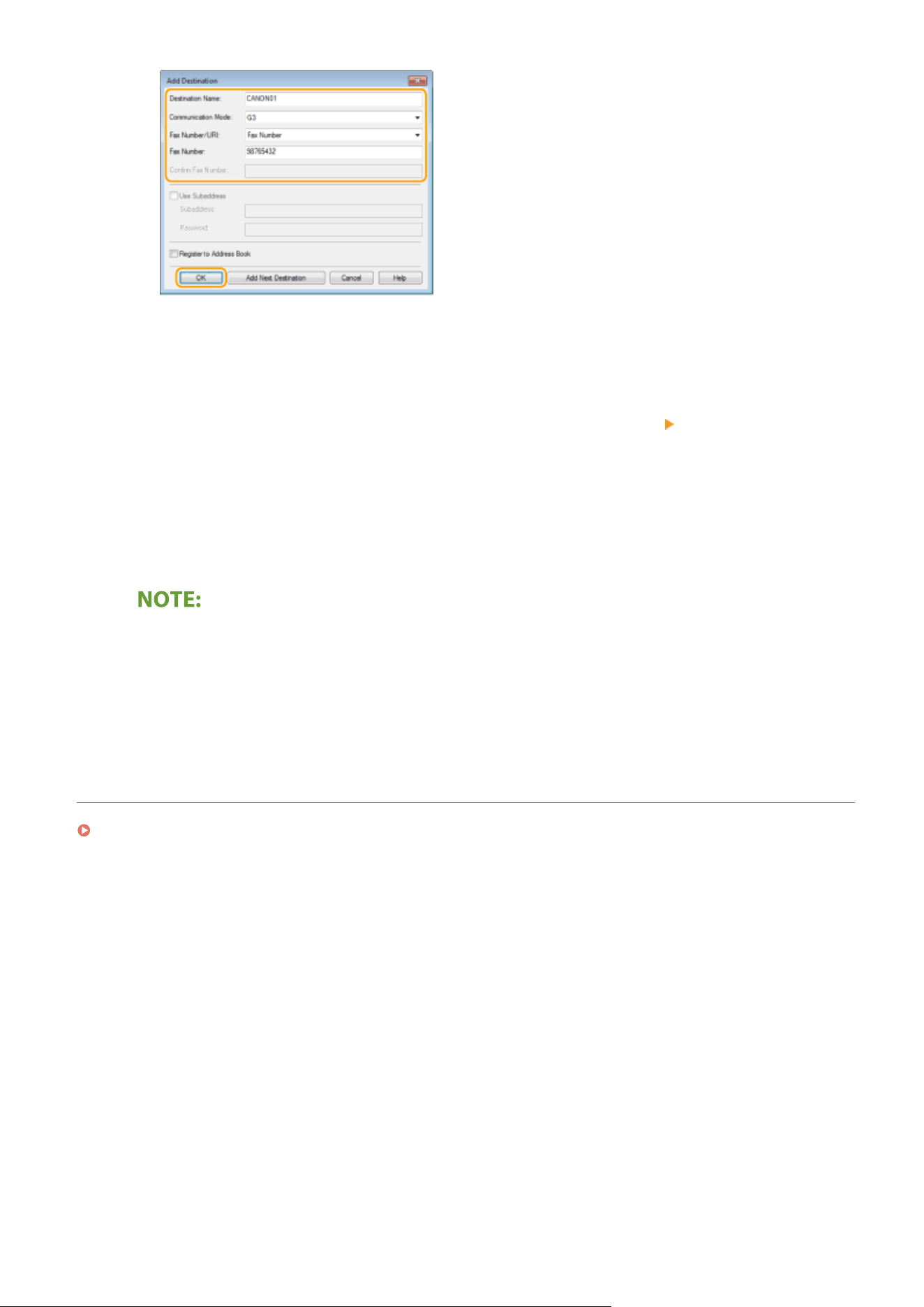
4
Repeat steps 2 and 3 to add concurrent destinations.
● Y
ou can also add a destination by clicking [Add Next Destination] in step 3.
● If you need to specify a number to dial an outside line, select [Detailed Settings]
[Add Outside Dialing
Pr
ex to G3/G4/IP Fax Number] and enter the number in [Outside Dialing Prex]. The specied number is
added to the beginning of the fax number when the machine dials.
● To make it easier to specify destinations using the Address Book.
● Selecting [Store Sent Fax Information and Image] enables you to store the logs for sending documents and
check detailed information of a sent document along with its image, including destinations and number of
pages. For more information, click [Help] on the fax driver screen.
● When
the [Conrm Fax Number] or [Conrm URI] eld is active, also enter the appropriate number in the
eld. The setting of whether to conrm entered numbers can be changed in the fax driver screen. For
more information, click [Help] on the fax driver screen.
4
Click [Send] to send the document.
LINKS
When Printing or Sending from the Windows Store App(P. 645)
Faxing
250
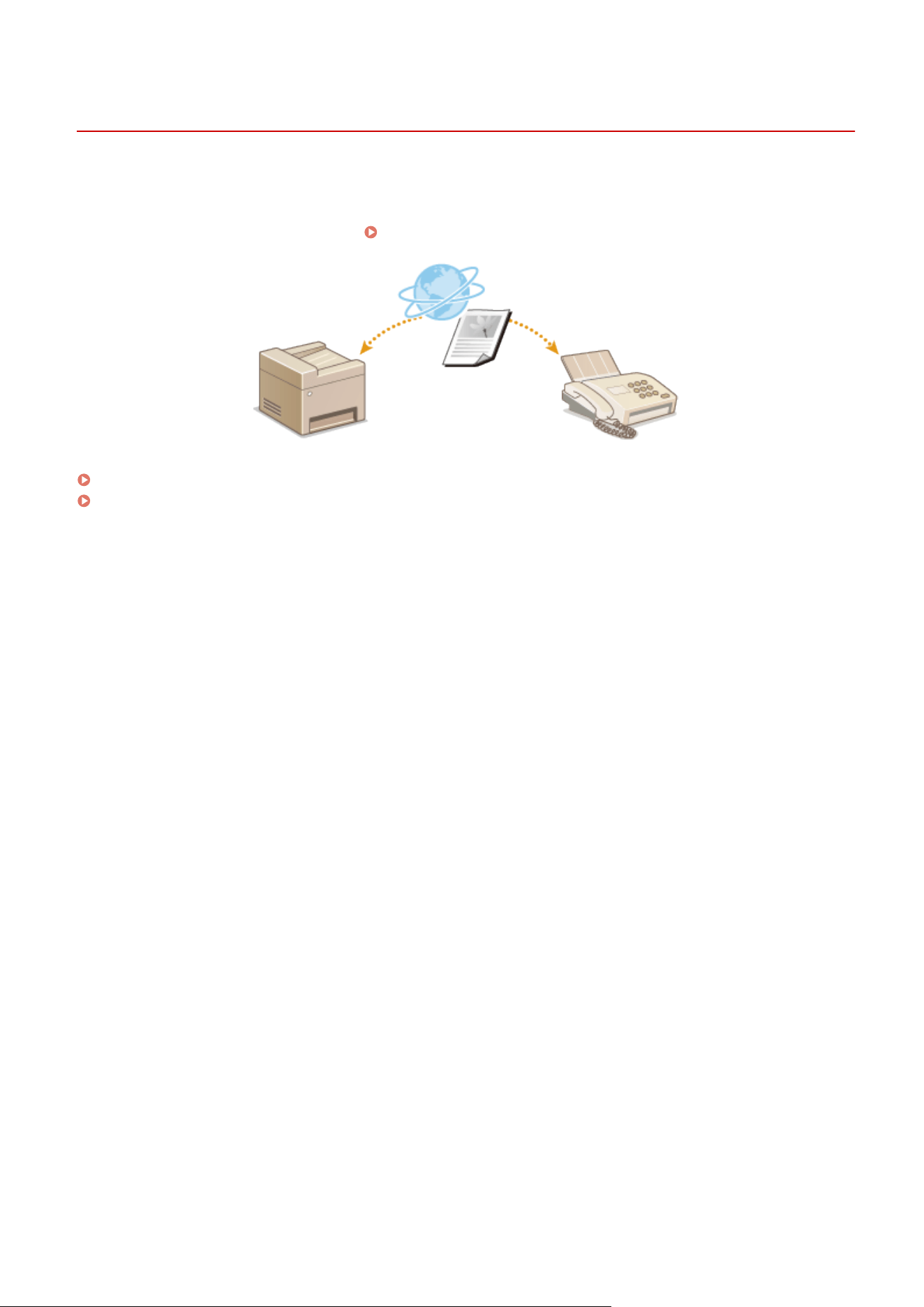
Using Internet Fax (I-Fax)
7YWY-052
The Internet Fax (I-Fax) function allo
ws you to send and receive faxes over the Internet. Originals are sent attached as
TIFF images les to e-mail. Since a telephone connection is not used, you can send faxes to distant locations and send
documents with many pages without worrying about communications charges. Some advance preparation is required,
such as specifying the mail server settings.
Procedure for Setting to Send E-Mail/Send and Receive I-Fax(P. 86)
Sending I-Faxes(P. 252)
Receiving I-Faxes(P. 259)
Faxing
251
Sending I-Faxes
7YWY-053
T
o send a fax to a computer or another I-Fax-compatible device, specify an e-mail address instead of a fax number as
the destination. If you send an I-Fax to a computer, it is sent as an e-mail attachment in TIFF format. And in the same
way as when you send e-mail to a computer, you can specify multiple destinations and specify Cc and Bcc destinations.
1
Place the original(s).
Placing Originals(P. 138)
2
Select <Scan> in the Home screen. Home Screen(P. 125)
● If the login scr
een appears, specify the user name, the password, and the authentication server.
Logging
in to Authorized Send(P
. 136)
3
Select <I-Fax> in the Scan Basic Features screen.
Scan Basic Features Screen(P. 284)
4
Specify the destination.
Specifying from Address Book
Specifying from Coded Dial Numbers
Entering Destinations Directly
Specifying Destinations in an LDAP Server
Specifying from Address Book
The Address Book enables you to specify a destination by selecting from a list of
r
egistered destinations or by searching by name for destinations with recipient
names.
● Y
ou need to register destinations in the Address Book before using this feature.
Registering
Destinations
(P. 181)
1
Select <Address Book> in the <Specify Destination> tab.
2
Select <To>.
3
Select an index.
Index(P. 181)
Faxing
252
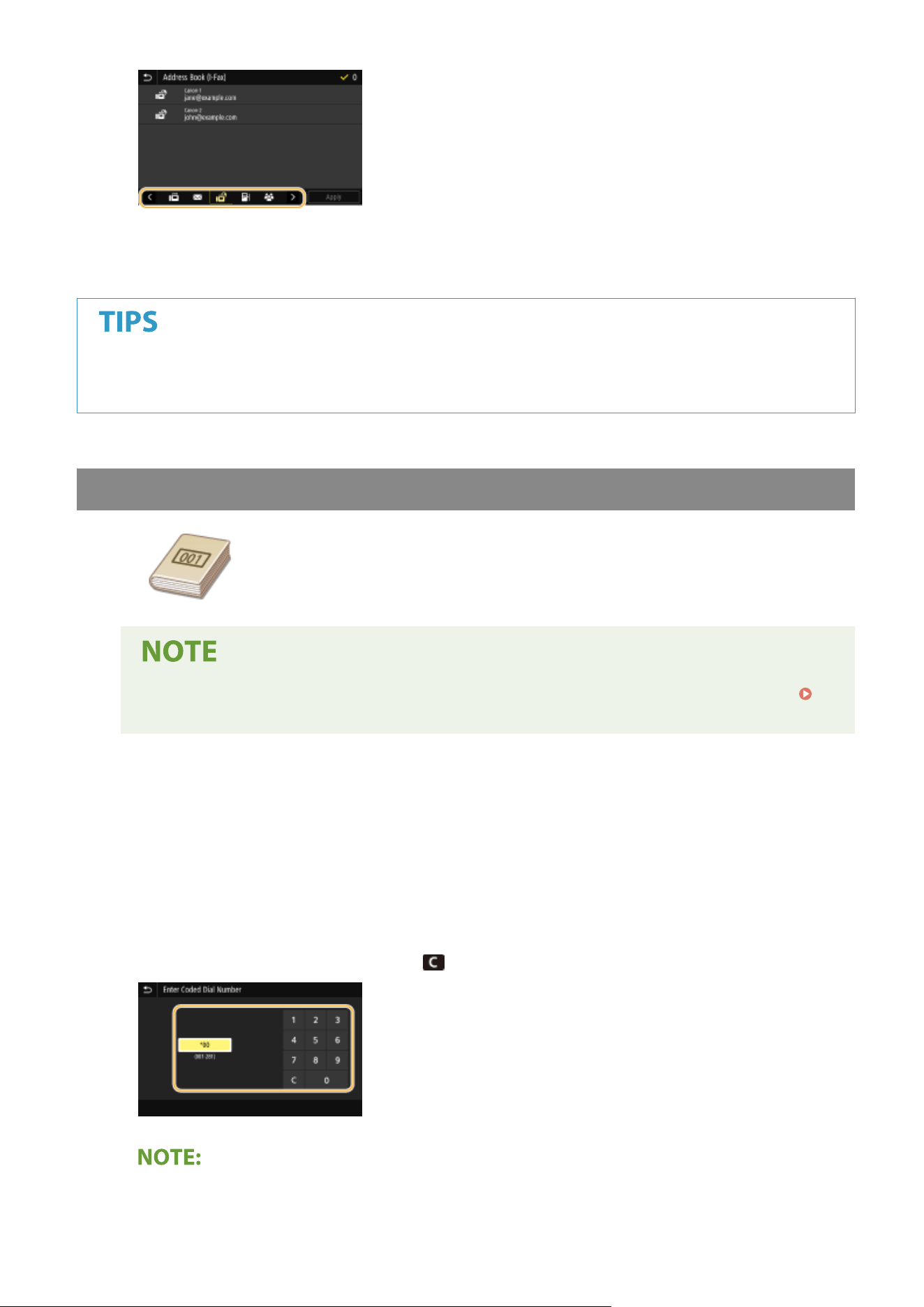
4
Select the check box for the desired destination, and select <Apply>.
● If a destination is selected fr
om <Address Book> in the Home screen, the Basic Features screen for I-Fax
sending can be displayed while the selected destination remains being specied.
Specifying from Coded Dial Numbers
Three-digit numbers (coded dial numbers) are assigned to addresses in the Address
Book. Y
ou can specify an address simply by entering its coded dial number.
● To use coded dial numbers, the destination must be registered in the Address Book beforehand.
Registering Destinations(P. 181)
1
Select <Coded Dial> in the <Specify Destination> tab.
2
Select <To>.
3
Enter a three-digit number.
● If you have enter
ed an incorrect value, use
to clear it.
If a conrmation scr
een appears
Faxing
253
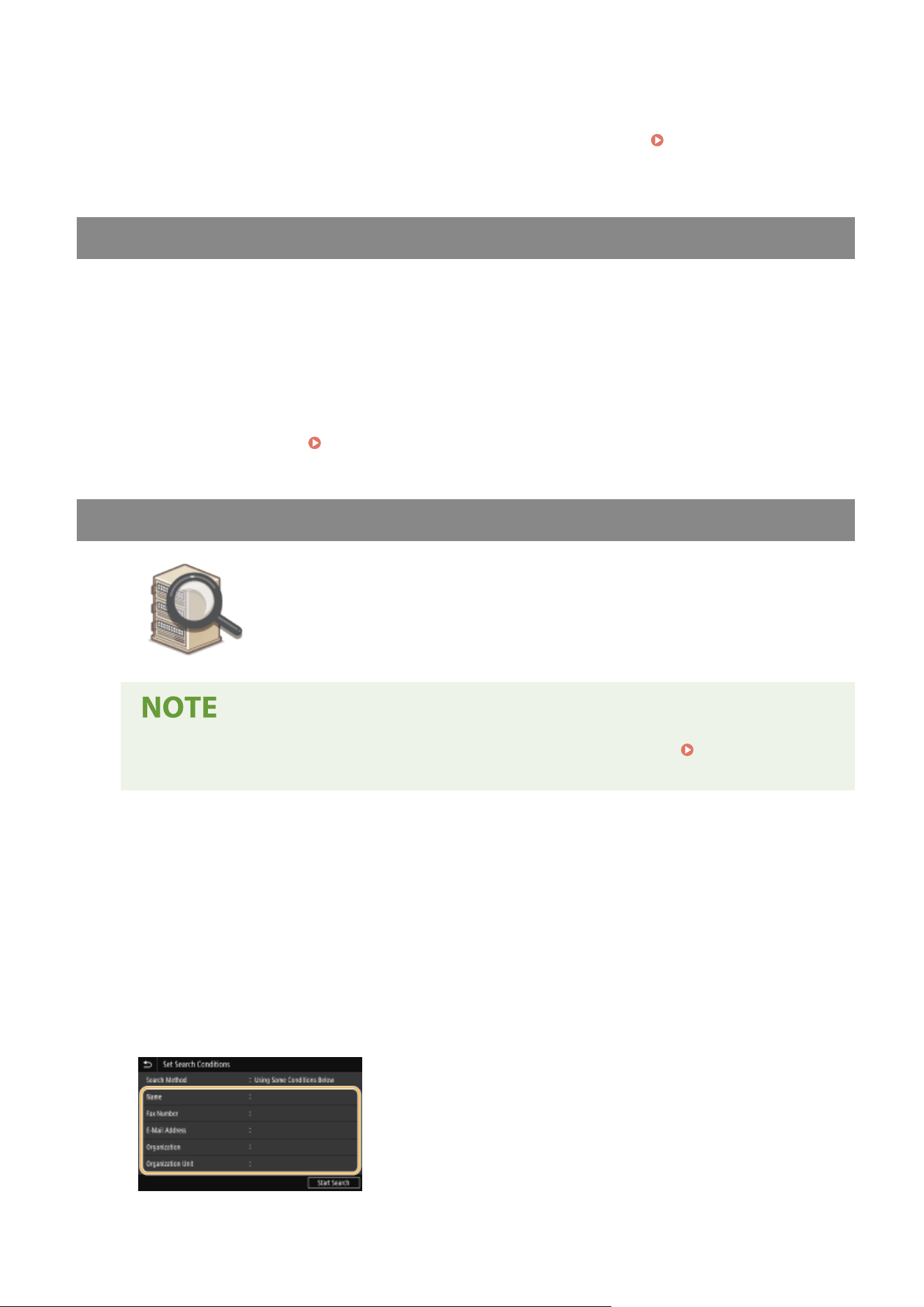
● When <Conrm
When Coded Dial TX> is set to <On>, a screen is displayed that shows the destination and
the name for the number. (For Group Dial, the destination name and the number of destinations are
shown.) Check the contents and if everything is correct, select <OK>. To specify a different destination,
select <Cancel> and then re-enter the three-digit coded dial number.
Displaying Destinations in
Addr
ess Book(P. 411)
Entering Destinations Directly
For a destination that is not r
egistered in the Address Book, specify it by entering an I-Fax address.
1
Select <Use Keyboard> in the <Specify Destination> tab.
2
Enter the I-Fax address, and select <Apply>.
● On ho
w to enter text, see
Entering Text(P. 134) .
Specifying Destinations in an LDAP Server
If your oce has an LD
AP server installed, you can specify a destination using user
information in the server. Access the LDAP server via the machine to search for the
appropriate user information and specify it as destination.
● Y
ou need to specify the settings for connecting to an LDAP server beforehand.
Registering LDAP
Servers
(P. 65)
1
Select <LDAP Server> in the <Specify Destination> tab.
2
Select the LDAP server you are using.
3
Select conditions for user information to be searched.
● Name, fax numbers, e-mail addr
esses, organization names, and organization unit are available criteria for
searching destinations.
Faxing
254
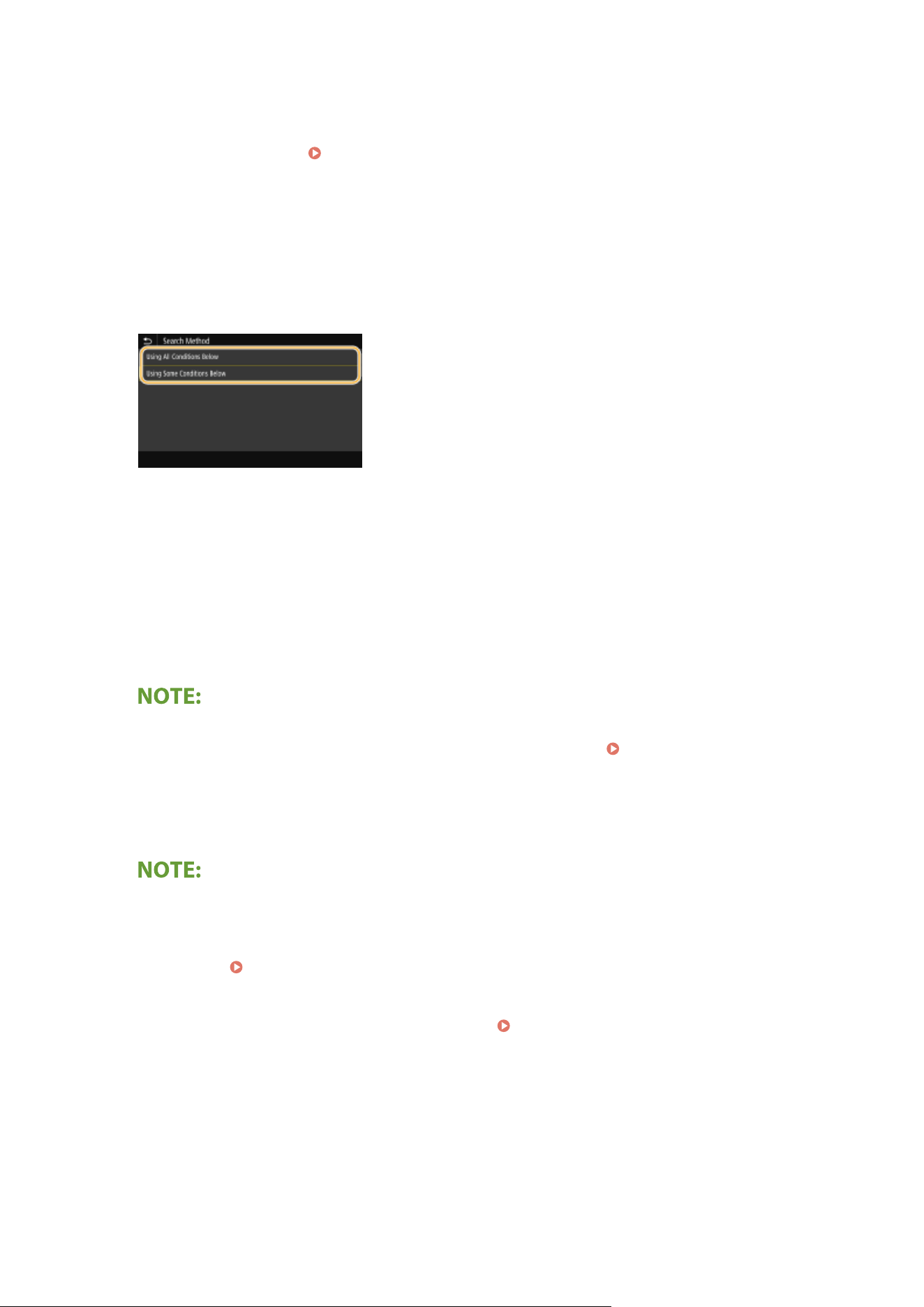
4
Enter the search target character string, and select <Apply>.
● On ho
w to enter text, see
Entering Text(P. 134) .
● T
o specify multiple search criteria, repeat steps 3 and 4.
5
Select <Search Method>.
6
Select conditions to display the search result.
<Using All Conditions Below>
Searches and displays the users that meet all the search criteria specied in steps 3 and 4.
<Using Some Conditions Below>
If users that meet even one of the criteria specied in steps 3 and 4 are found, displays all those users.
7
Select <Start Search>.
➠ The users meeting your sear
ch criteria are displayed.
● If
the authentication screen appears when you select <Start Search>, enter the user name of the machine
and the password registered in the LDAP server, and select <Apply>.
Registering LDAP Servers(P. 65)
8
Select the check box for the user that you want to specify as destination, and select
<Apply>.
If a screen on which a destination is already specied appears
● Y
ou can only send to your own e-mail address. To send to other destinations, you must congure the send
function authentication settings so that e-mail transmission is not restricted. Contact your administrator
for details.
LDAP Server Authentication(P. 365) .
Specifying destinations fr
om the transmission records
● You can also recall previously used destinations.
Recalling Previously Used Settings for Sending/
Saving (Recall Settings)(P
. 315)
5
Specify multiple destinations, including Cc/Bcc destinations, as necessary.
● Select the method used to specify destinations in the <Specify Destination> tab, and then specify the
destination.
Faxing
255
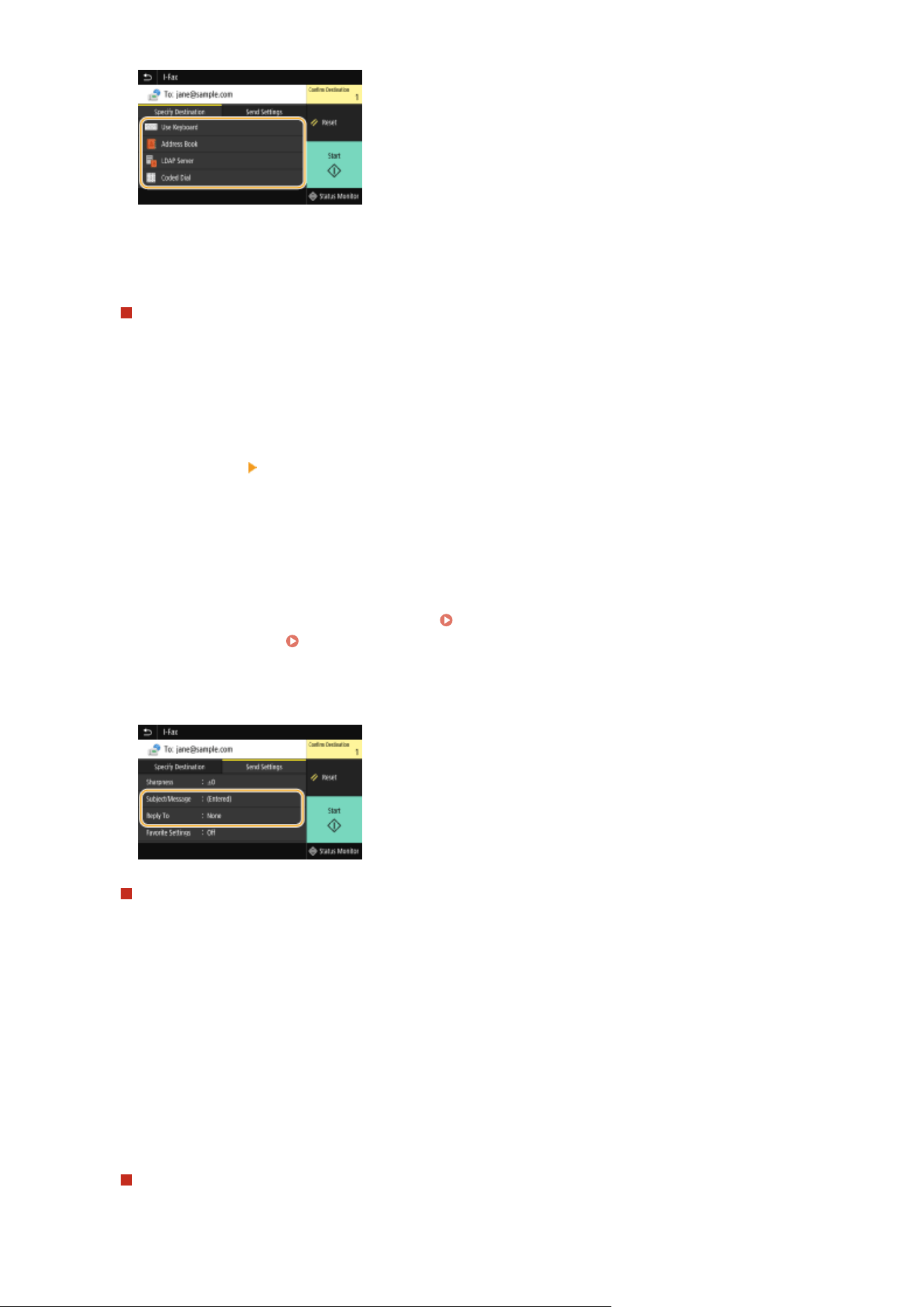
● If you selected <LD
AP Server> or <Specify Myself as Destination>, the destination is specied in the <To>
eld.
● <Cc> and <Bcc> addresses can only be selected using <Address Book> or <Coded Dial>.
To delete destinations
If you specied multiple destinations, you can delete destinations as necessary
.
1
Select <Conrm Destination>.
2
Select the check box for the destination to be deleted, and select <Remove from Dest.>.
● If you select the Group check box, you can view the destinations registered in the group by selecting
<Details> <Destination>.
3
Select <Yes>.
6
Specify the scanning settings as necessary.
● For mor
e information about each setting, see
Sending Data by E-Mail/Saving Data to a Shared Folder or
FTP Server(P
. 294) or
Scanning Clearly(P. 307) .
7
Specify the subject, message, and reply-to address for the e-mail as necessary.
To specify subject/message
1
Select <Subject/Message> in the <Send Settings> tab.
2
Select <Subject>
3
Enter the subject, and select <Apply>.
4
Select <Message>.
5
Enter the message, and select <Apply>.
6
Select <Apply>.
To specify reply-to address
Specify the r
eply-to address when you want to notify the recipient of an e-mail address different from that of
the machine as the reply-to address. Select the target reply-to address from the destinations registered in the
Faxing
256

Address Book, and specify it. If the destination has not been registered in the Address Book, see
Registering Destinations(P. 181) .
1
Select <Reply To> in the <Send Settings> tab.
2
Select <Specify from Address Book>.
3
Select the check box for the desired reply-to address, and select <Apply>.
● The reply-to address that can be specied is always one of the e-mail addresses registered in the
Address Book.
8
Select <Start>.
● If the <Conrm Destination> scr
een is displayed, check whether the destination is correct, and then select
<Start Scanning>.
➠ Scanning of the original starts.
● If you want to cancel, select <Cancel>
<Yes>. Canceling Sending Faxes(P. 227)
When placing originals in the feeder in step 1
When scanning is complete, the I-Fax
es are sent. Select <Close> to end the procedure.
When placing originals on the platen glass in step 1
When scanning is complete, follow the procedure below.
1
If there are additional pages of originals to be scanned, place the next original on the platen glass,
and select <Scan Ne
xt Original>.
● Repeat this step until you nish scanning all of the pages.
● When there is only one page to be scanned, proceed to the next step.
2
Select <Start Sending>.
➠ The I-Faxes are sent.
If the <SMTP Authentication> screen appears
● Enter the user name and passwor
d, and select <Apply>.
File name of a sent document
● The le name of a sent document is automatically assigned based on the following format: communication
management number (four digits)_sent date and time_document number (three digits).le extension
name. An arbitrary character string can be added in front of the le name.
Conguring
a File
Name(P. 314)
Checking the communication status
● Setting <Display Notif. When Job Is Accepted> to <On> displays a screen prompting conrmation of the
communication status. When you select <Status Monitor>, you can check the sending status.
<Display
Notif. When Job Is Accepted>(P
. 524)
Faxing
257
If a Send Error Occurs
Error notications ar
e sometimes sent to the e-mail address set to the machine. If you leave it as-is, it may
result in an insucient remaining capacity of mailbox depending on your mail server. It is recommended that
you clear the mailbox periodically.
To clear the mailbox
● When
the mailbox is cleared, all e-mail in the server mailbox is deleted. When you specify the e-mail
account that you use usually, you should rst check whether any e-mail in the mailbox needs to be kept.
1
Start the Remote UI and log in to System Manager Mode. Starting Remote UI(P. 421)
2
Click [Settings/Registration] on the Portal page. Remote UI Screen(P. 422)
3
Select [TX Settings] [E-Mail/I-Fax Settings].
4
Click [Clear] in [Clear Mail Box].
5
Read the message that is displayed, and click [OK].
➠ E-mail is deleted fr
om the mailbox.
● If you always want to send with the same settings: Changing the Default Settings for Functions(P. 175)
● If you want to register a combination of settings to use when needed: Registering Frequently Used
Settings(P. 173)
● If you want to specify the I-Fax sender name: <Register Unit Name>(P. 524)
LINKS
Checking Status and Log for Sent and Received Documents(P. 246)
Faxing
258
Receiving I-Faxes
7YWY-054
◼ When an I-Fax Arrives
When an I-Fax arrives, the Data indicator on the oper
ation panel blinks. After the I-Fax is completely received, the
document is printed out automatically and the indicator goes out.
● T
o cancel reception, select <Status Monitor>
<RX Job> select a document in the <RX Job Status> tab
<Delete> <Yes>.
◼ Receiving I-Fax
es Manually
If you want to connect to the server before receiving I-Faxes automatically, or if you want to congure the machine so
that it does not receive I-Faxes automatically, use the method below to receive I-Faxes manually. If there is a document
on the server, printing begins.
<Status Monitor> <RX Job> <Check I-Fax RX>
◼ Printout Paper
Regar
dless of the received document size, incoming I-Faxes are printed at the size specied in <RX Print Size>.
<RX
Print Size>(P
. 537)
● If paper of the size specied in <RX Print Size> is not loaded in the paper dr
awer, the <No Paper> error
message is displayed. For more information, see "Troubleshooting (FAQ)" on the online manual website.
● If you want to print r
eceived documents on both sides of paper:
<Print on Both Sides>(P. 536)
● If you want to continue printing e
ven when the amount remaining in the toner cartridge is low:
<Continue
Print. When Cart. Lo
w>(P. 536)
LINKS
Checking Status and Log for Sent and Received Documents(P. 246)
Faxing
259

Printing
Printing ................................................................................................................................................................
261
Printing from a Computer ................................................................................................................................ 262
Canceling Prints ........................................................................................................................................... 264
Checking the Printing Status and Log ........................................................................................................... 266
Various Printing Methods ................................................................................................................................. 268
Printing a Document Secured by a PIN (Secure Print) ................................................................................... 269
Printing via Secure Print ........................................................................................................................ 270
Printing from a USB Memory Device (Memory Media Print) ......................................................................... 273
Printing
260
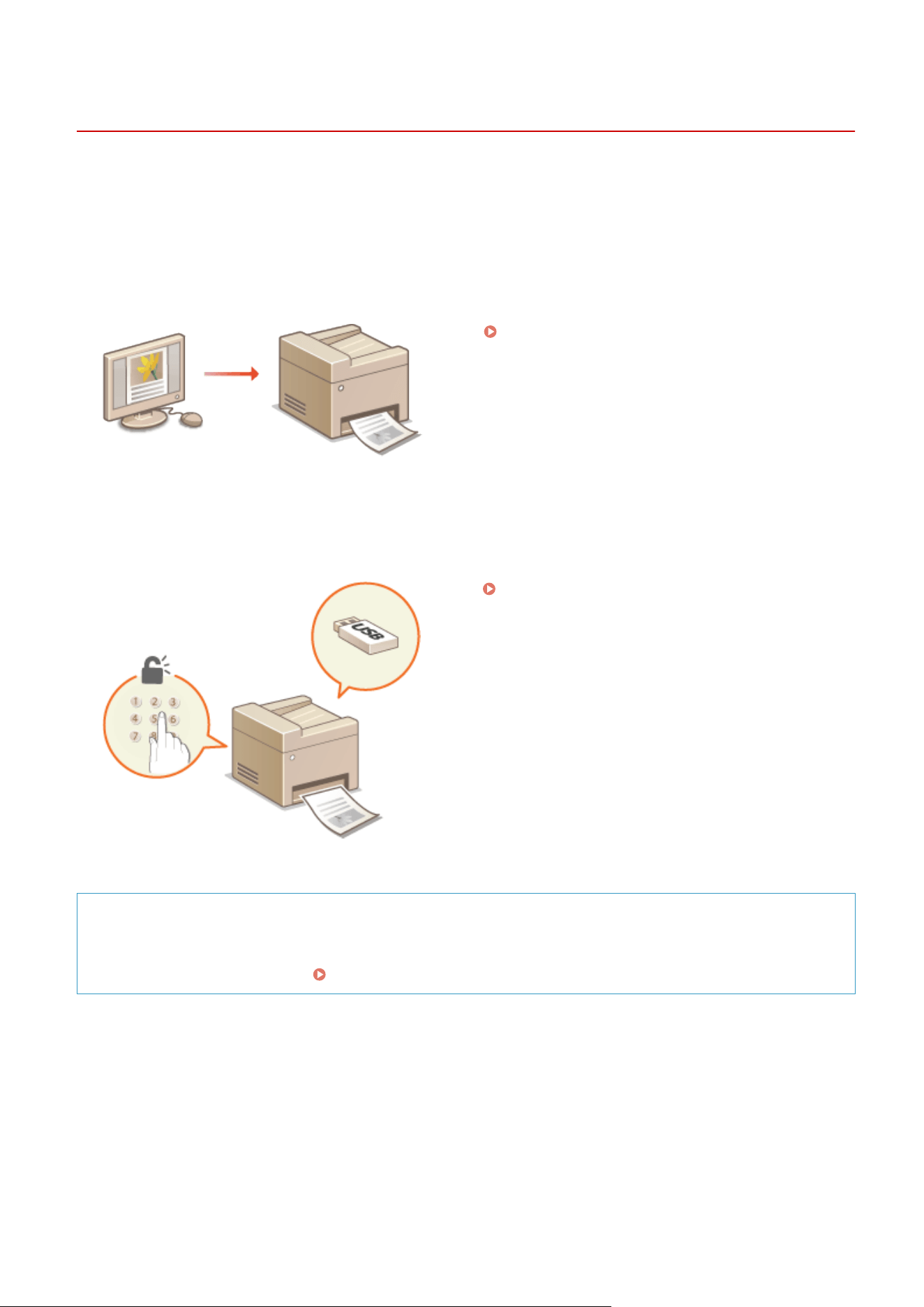
Printing
7YWY-055
Ther
e are many ways to use the machine as a printer. You can print documents on your computer by using the printer
driver or print image les from a USB memory device. Make full use of the print functions to suit your needs.
◼ Printing from a Computer
You can print a document made on your computer by using the printer driver.
Printing from a Computer(P. 262)
◼ Useful Functions When Printing
Y
ou can assign a PIN to the print data to enhance security or directly print les stored in a USB memory device.
Various Printing Methods(P. 268)
Printing from Mobile Devices
● Linking mobile de
vices such as smartphones or tablets to this machine provides a quick and easy way to
print photos and web pages.
Linking with Mobile Devices(P. 326)
Printing
261
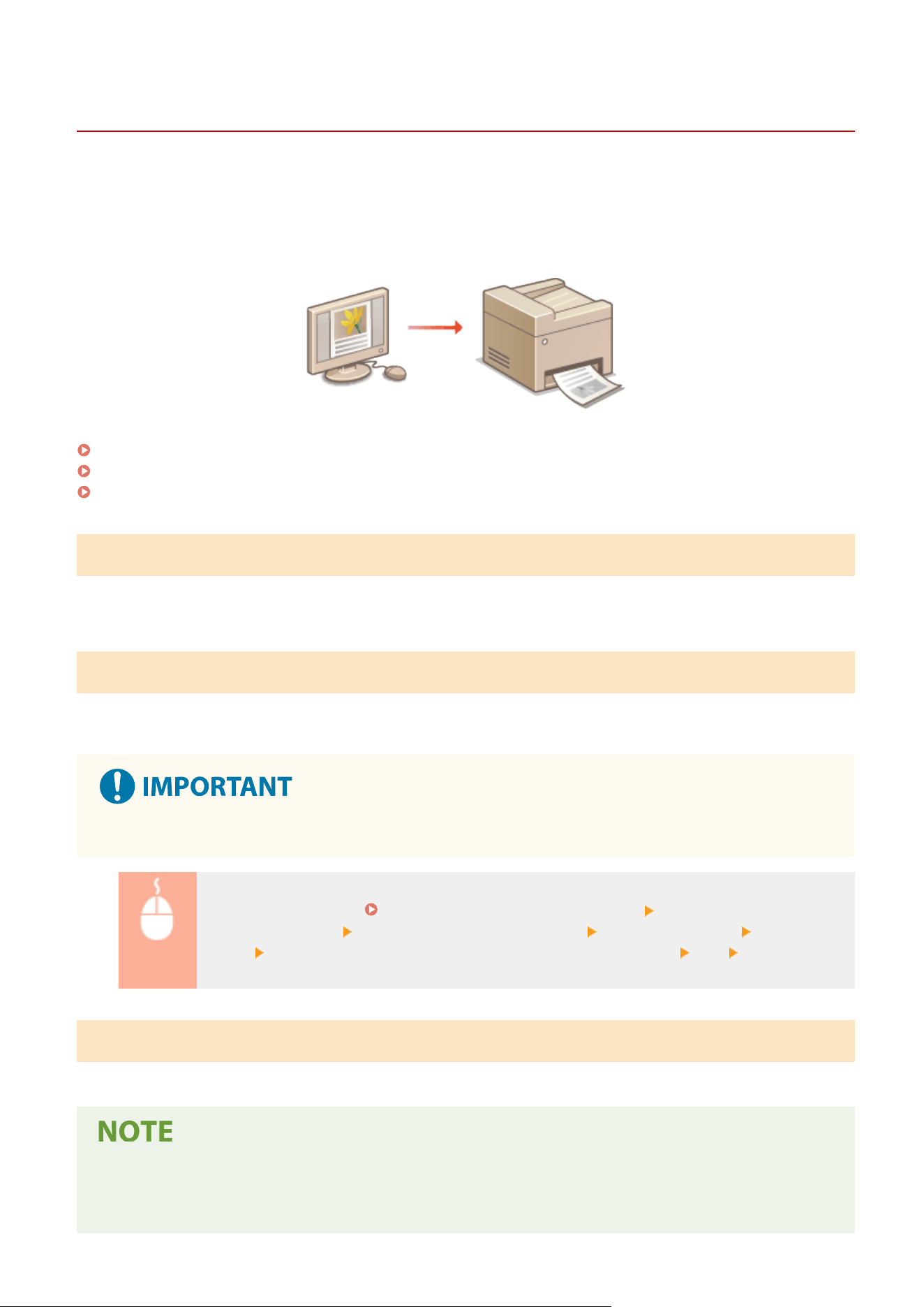
Printing from a Computer
7YWY-056
Y
ou can print a document made with an application on your computer by using the printer driver. There are useful
settings on the printer driver, such as enlarging/reducing and 2-sided printing, that enable you to print your
documents in various ways. Before you can use this function, you need to complete some procedures, such as
installing the printer driver on your computer. For more information, see the manuals for the relevant drivers on the
online manual website.
About the Printer Driver Help(P. 262)
To Use the Optional Items(P. 262)
Basic Printing Operations(P. 262)
About the Printer Driver Help
Clicking [Help] on the printer driver screen displays the Help screen. On this screen, you can see the detailed
descriptions that are not in the User's Guide.
To Use the Optional Items
If the optional cassette feeding module is attached to the machine after installation of the printer driver, perform the
following operation on the printer driver.
● T
o perform the following procedure, log in to your computer with an administrator account.
Open the printer folder ( Displaying the Printer Folder(P. 638) ) Right-click the printer driver
icon for this machine [Printer properties] or [Properties] [Device Settings] tab [Paper
Sour
ce]
Select [1-Cassette Feeding Unit] in [Optional Drawer/Cassette] [OK] [OK]
Basic Printing Operations
This section describes ho
w to print a document on your computer by using the printer driver.
Paper settings on the machine
● Normally
, it is necessary to specify the paper size and type for the paper loaded in each paper source before
proceeding to printing.
Printing
262
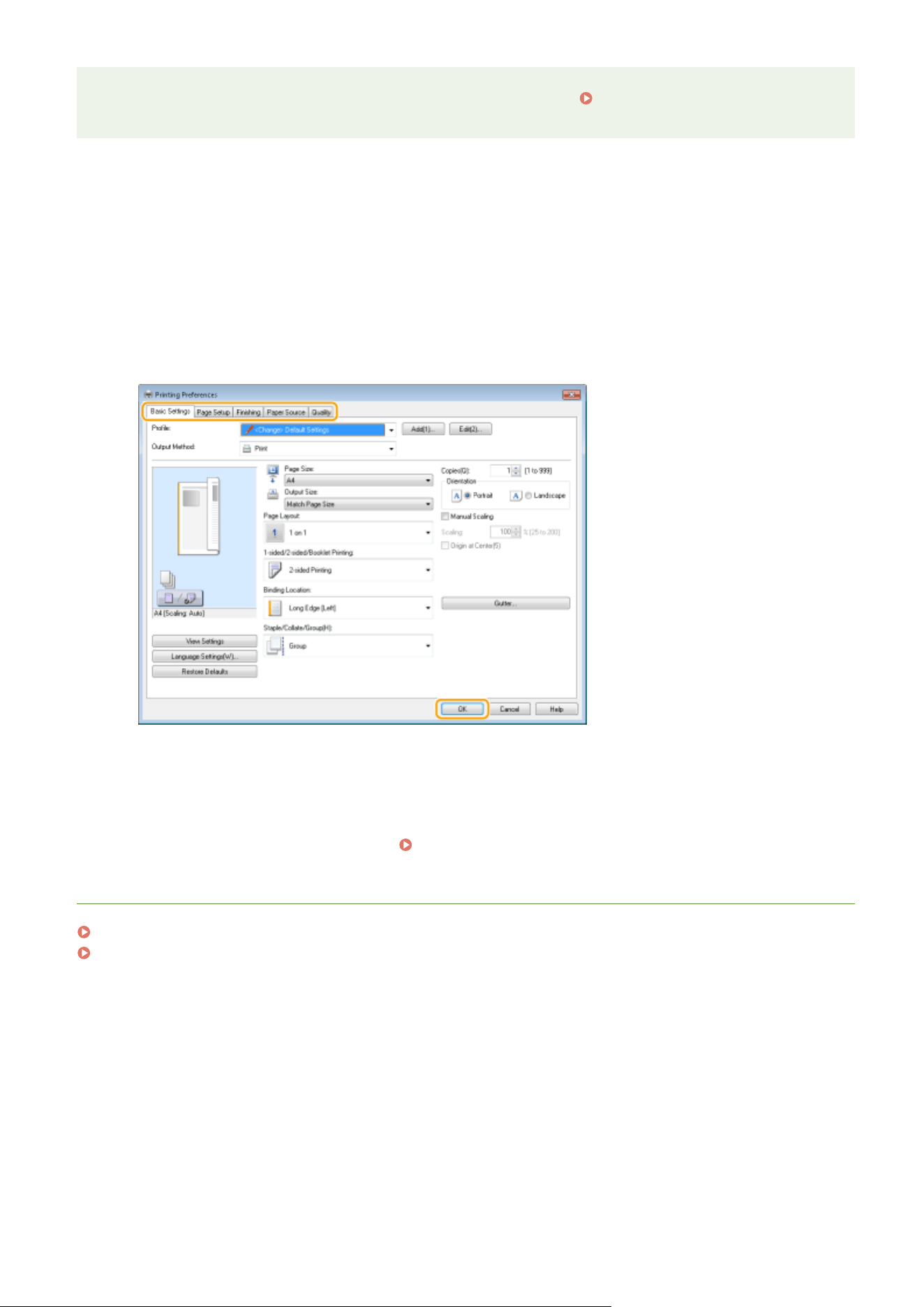
● By setting <Prioritize Driver Settings When Printing> to <On>, you can print fr
om the paper source specied
in the printer driver, regardless of the paper settings on the machine.
<Prioritize Driver Settings When
Printing>(P
. 499)
1
Open a document in an application and display the print dialog box.
2
Select the printer driver for this machine, and click [Preferences] or [Properties].
3
Specify the print settings as necessary, and click [OK].
● Switch the tab accor
ding to the settings.
4
Click [Print] or [OK].
➠ Printing starts.
● If you want to cancel printing, see
Canceling Prints(P. 264) .
LINKS
Checking the Printing Status and Log(P. 266)
When Printing or Sending from the Windows Store App(P. 645)
Printing
263
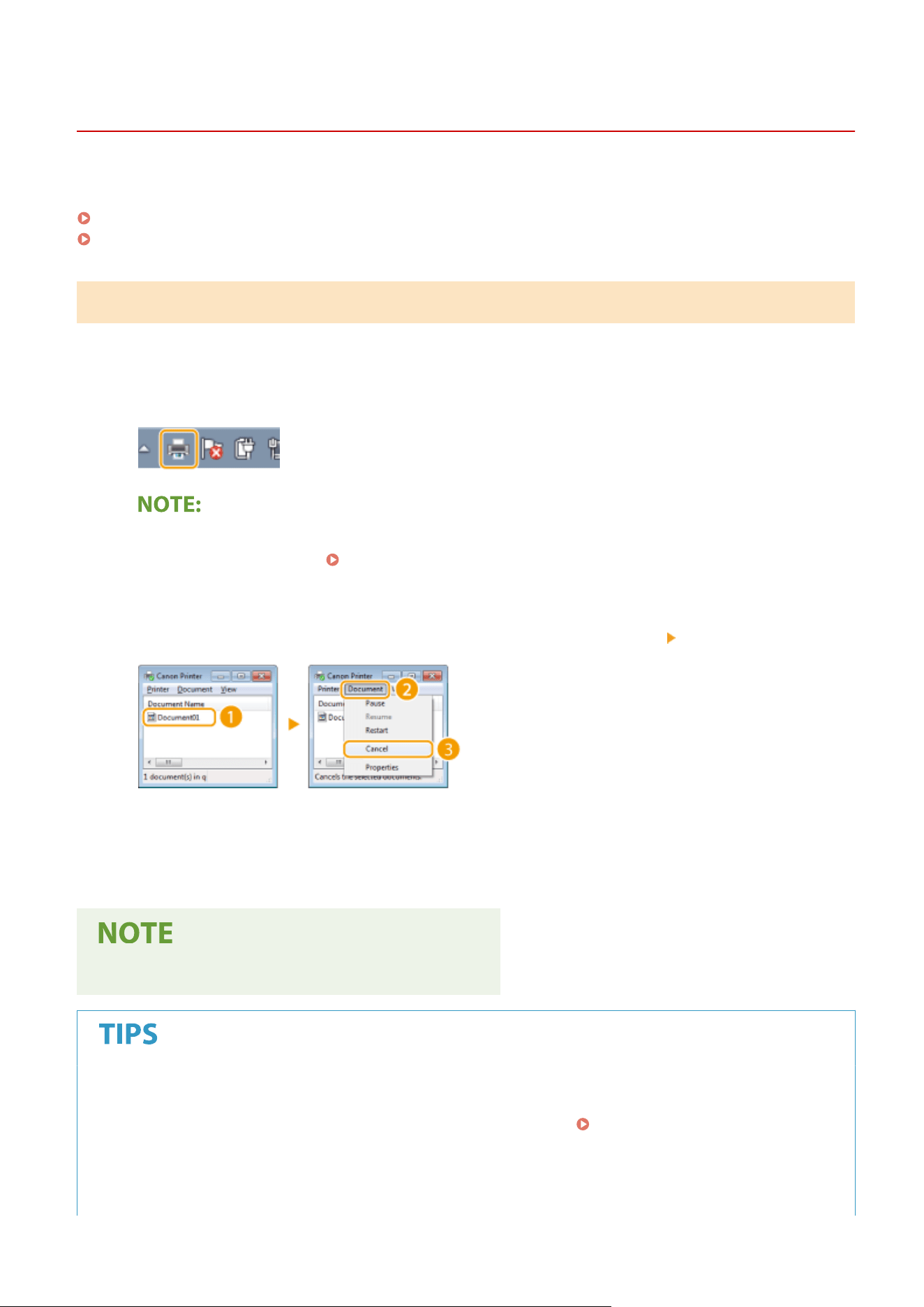
Canceling Prints
7YWY-057
Y
ou can cancel printing from your computer or on the operation panel of the machine.
From a Computer(P. 264)
From the Operation Panel(P. 265)
From a Computer
You can cancel printing from the printer icon displayed on the system tray on the desktop.
1
Double-click the printer icon.
When the printer icon is not displayed
● Open
the printer folder (
Displaying the Printer Folder(P
. 638) ), right-click the printer driver icon for
this machine, and click [See what's printing] (or double-click the icon of the printer driver for this machine).
2
Select the document you want to cancel, and click [Document]
[Cancel].
3
Click [Yes].
➠ Printing of the selected document is canceled.
● Se
veral pages may be output after you cancel printing.
Canceling from the Remote UI
● Y
ou can cancel printing from the [Job Status] page on the Remote UI:
Checking Current Status of Print
Documents
(P. 425)
Canceling from an application
● On some applications, a screen like shown below appears. You can cancel printing by clicking [Cancel].
Printing
264
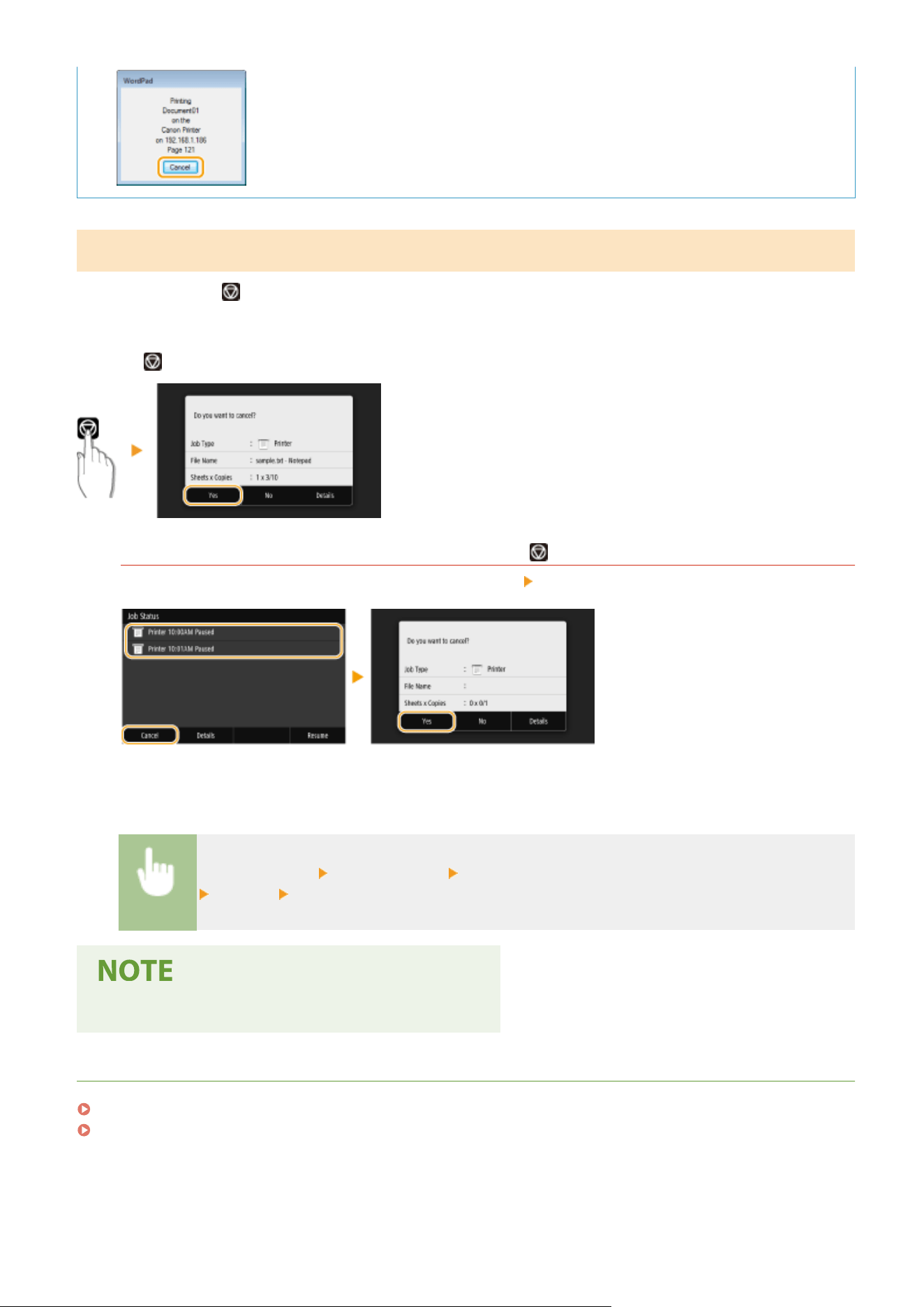
From the Operation Panel
Cancel printing using
or <Status Monitor>.
◼ Pr
ess
to Cancel
If the Screen Displays a List of Documents When is Pressed
Select the document you want to cancel, and select <Cancel> <Yes>.
◼ Check the Print Job Status Befor
e Canceling
<Status Monitor> <Copy/Print Job> Select the document in the <Copy/Print Job Status> tab
<Cancel> <Yes>
● Se
veral pages may be output after you cancel printing.
LINKS
Basic Printing Operations(P. 262)
Checking the Printing Status and Log(P. 266)
Printing
265
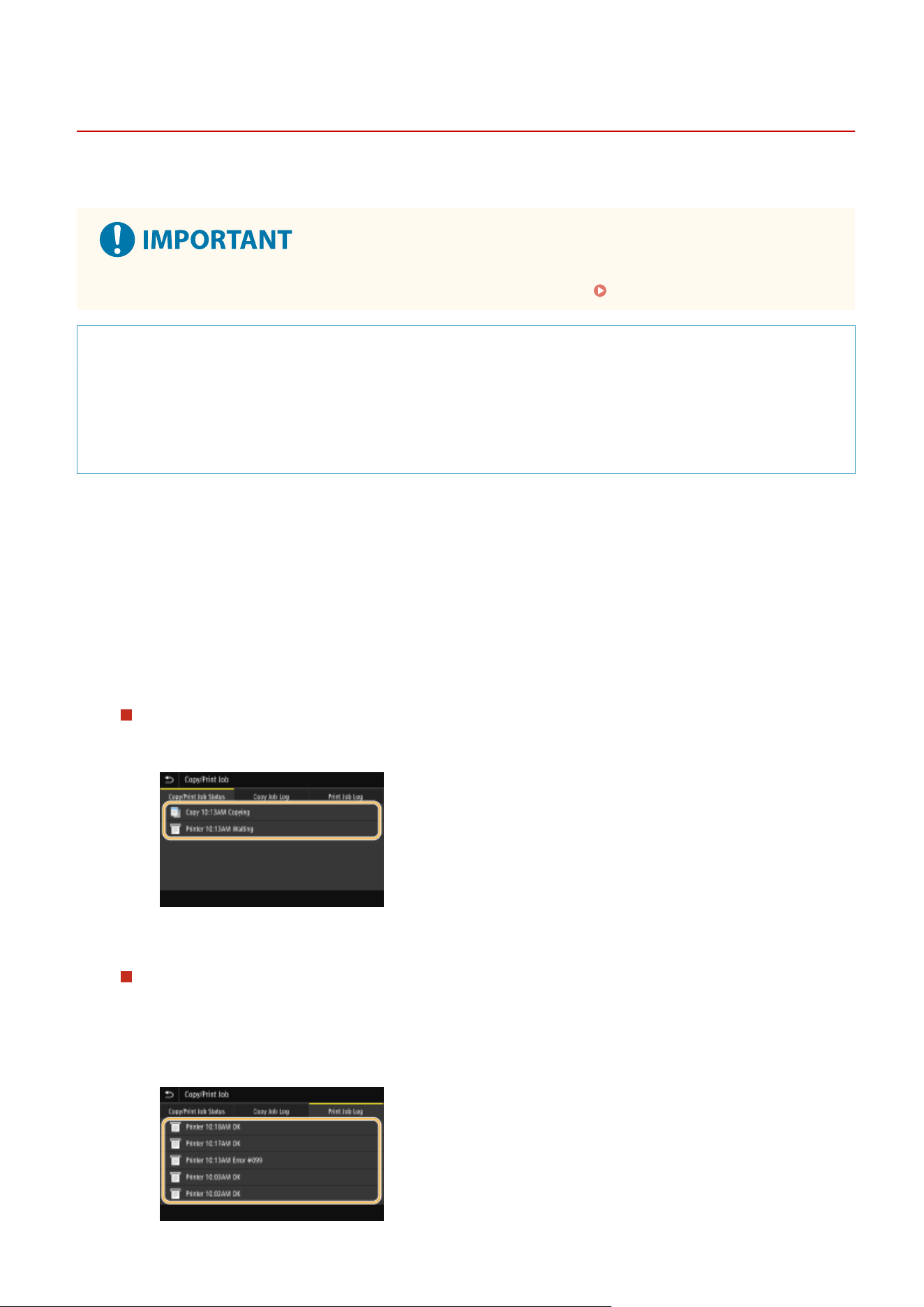
Checking the Printing Status and Log
7YWY-058
Y
ou can check the current print statuses and the logs for printed documents.
● When <Display Job Log> is set to <Off>, you cannot check the print logs. <Display Job Log>(P. 552)
Useful in the Following Cases
● When your documents ar
e not printed for a long time, you may want to see the waiting list of the
documents waiting to be printed.
● When you cannot nd your printouts that you thought had been printed, you may want to see whether an
error has occurred.
1
Select <Status Monitor>.
2
Select <Copy/Print Job>.
3
Check the print statuses and logs.
To check the print statuses
1
Select the document whose status you want to check in the <Copy/Print Job Status> tab.
➠ Displays detailed information about the document.
To check the print logs
1
Select the document whose log you want to check in the <Print Job Log> tab.
● <OK> is displayed when a document was printed successfully
, and <Error> is displayed when a
document failed to be printed because it was canceled or there was some error.
Printing
266

➠ Displays detailed information about the document.
● The displayed document name or user name may not r
eect the actual document or user name.
When a three-digit number is shown in the case of <Error>
● This number r
epresents an error code. For more information, see "Troubleshooting (FAQ)" on the
online manual website.
LINKS
Basic Printing Operations(P. 262)
Canceling Prints(P. 264)
Printing
267
Various Printing Methods
7YWY-059
This section describes ho
w to print a document by adding a PIN, and how to print a le stored on a USB memory
device without using the printer driver.
Printing a Document Secured by a PIN (Secure
Print)(P
. 269)
Printing from a USB Memory Device (Memory
Media Print)(P
. 273)
Printing
268
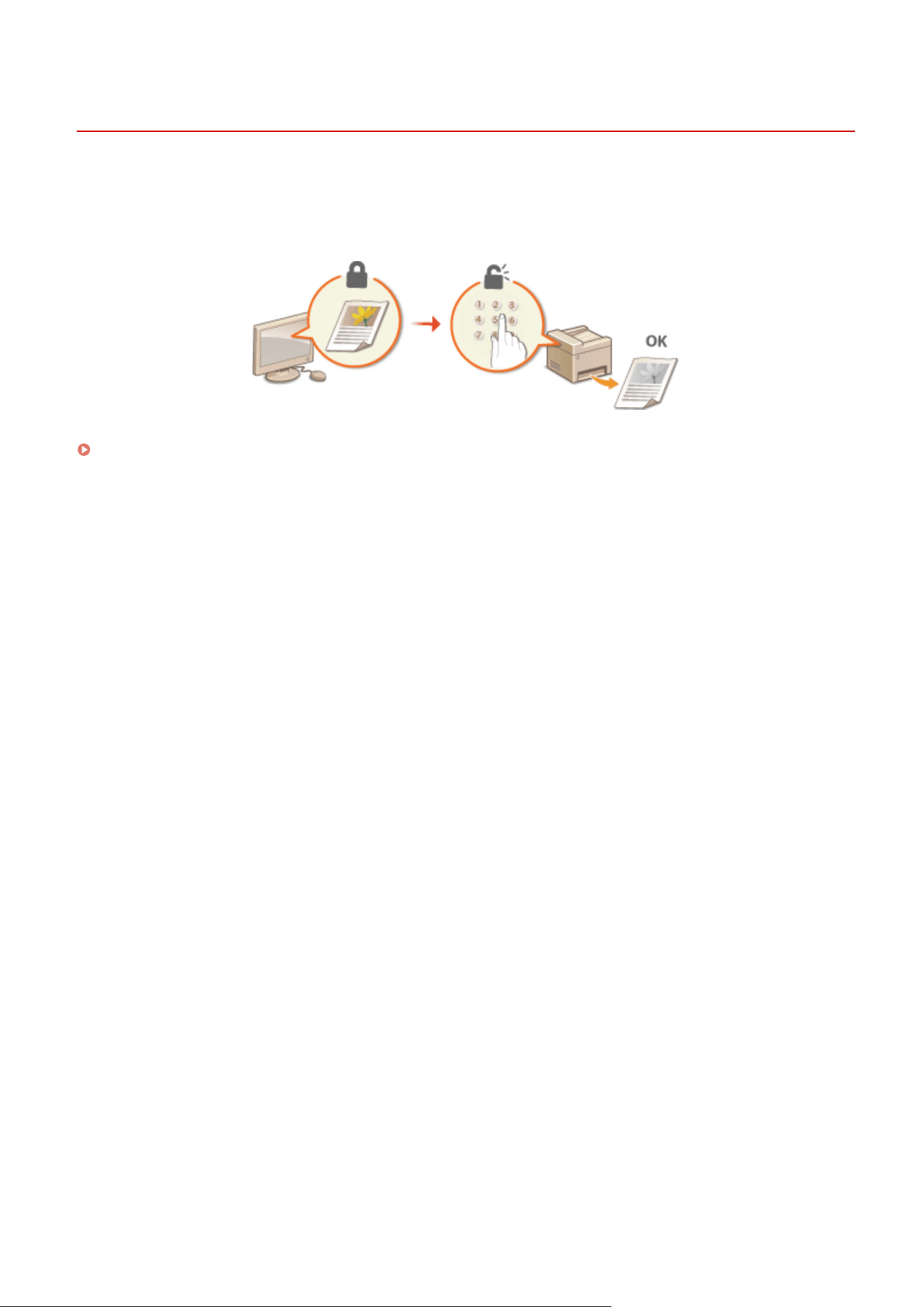
Printing a Document Secured by a PIN (Secure Print)
7YWY-05A
By setting a PIN to a document when printing fr
om a computer, the document is held in the memory of the machine,
and is not printed until the correct PIN is entered on the operation panel of the machine. This function is called "Secure
Print," and the document that is protected by a PIN is called a "secured document." Using Secure Print keeps printouts
of condential documents from being left unattended.
Printing via Secure Print(P. 270)
Printing
269
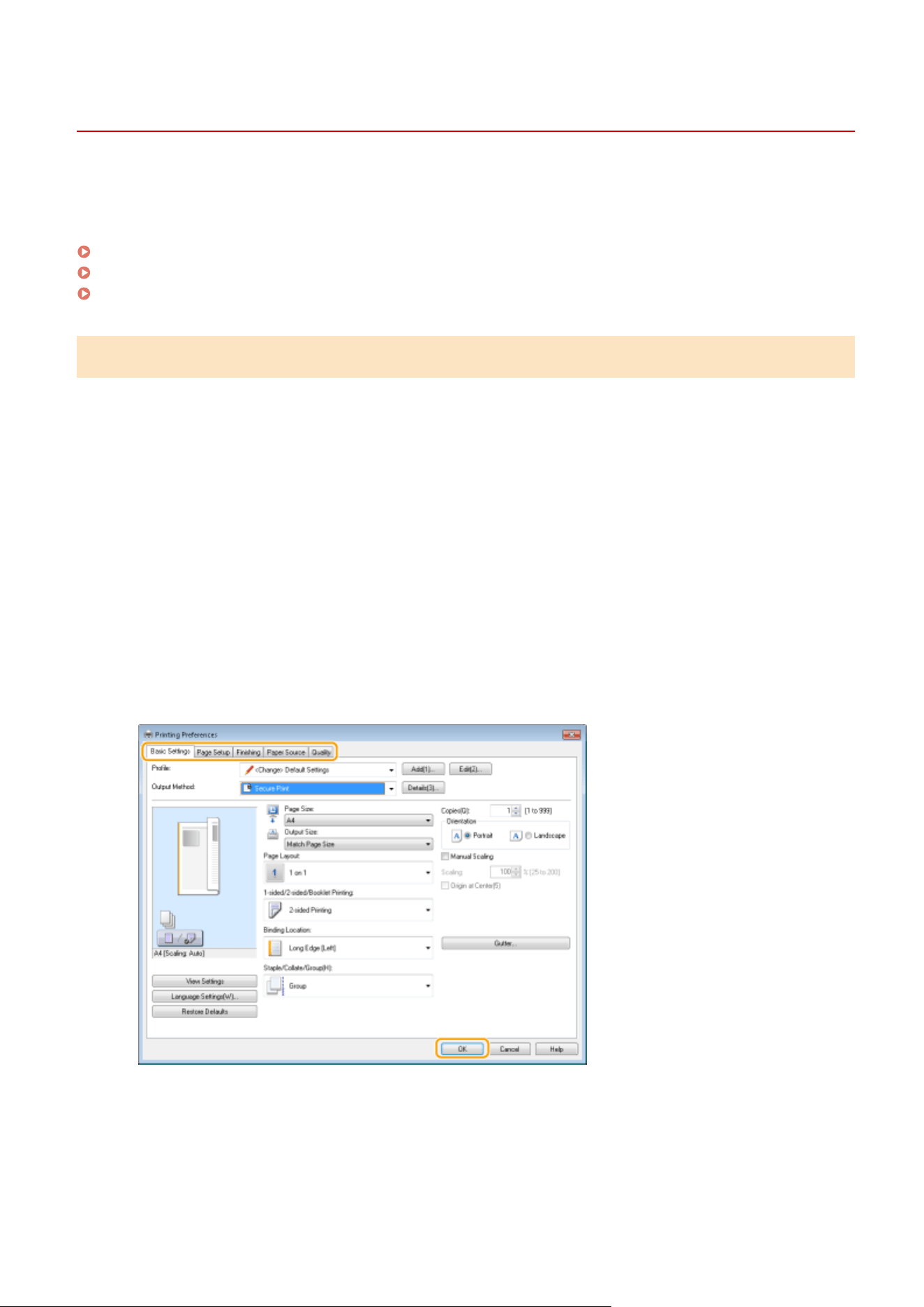
Printing via Secure Print
7YWY-05C
This section describes ho
w to print a document from an application as a secured document. The rst part of this
section describes how to send a secured document to the machine, and the second part of this section describes how
to print the secured document on the machine.
Sending a Secured Document from a Computer to the Machine(P. 270)
Printing Out Secured Documents(P. 271)
Changing the Valid Time Period for Secured Documents(P. 272)
Sending a Secured Document from a Computer to the Machine
1
Open a document in an application and display the print dialog box.
2
Select the printer driver for this machine, and click [Preferences] or [Properties].
3
Select [Secured Print] in [Output Method].
➠ The [Information] pop-up scr
een is displayed. Check the message, and click [Yes] or [No].
4
Specify the print settings as necessary, and click [OK].
● Switch the tab accor
ding to the settings.
5
Click [Print] or [OK].
➠ After the secur
ed document is sent to the machine, it is held in the memory of the machine waiting to be
printed.
Printing
270
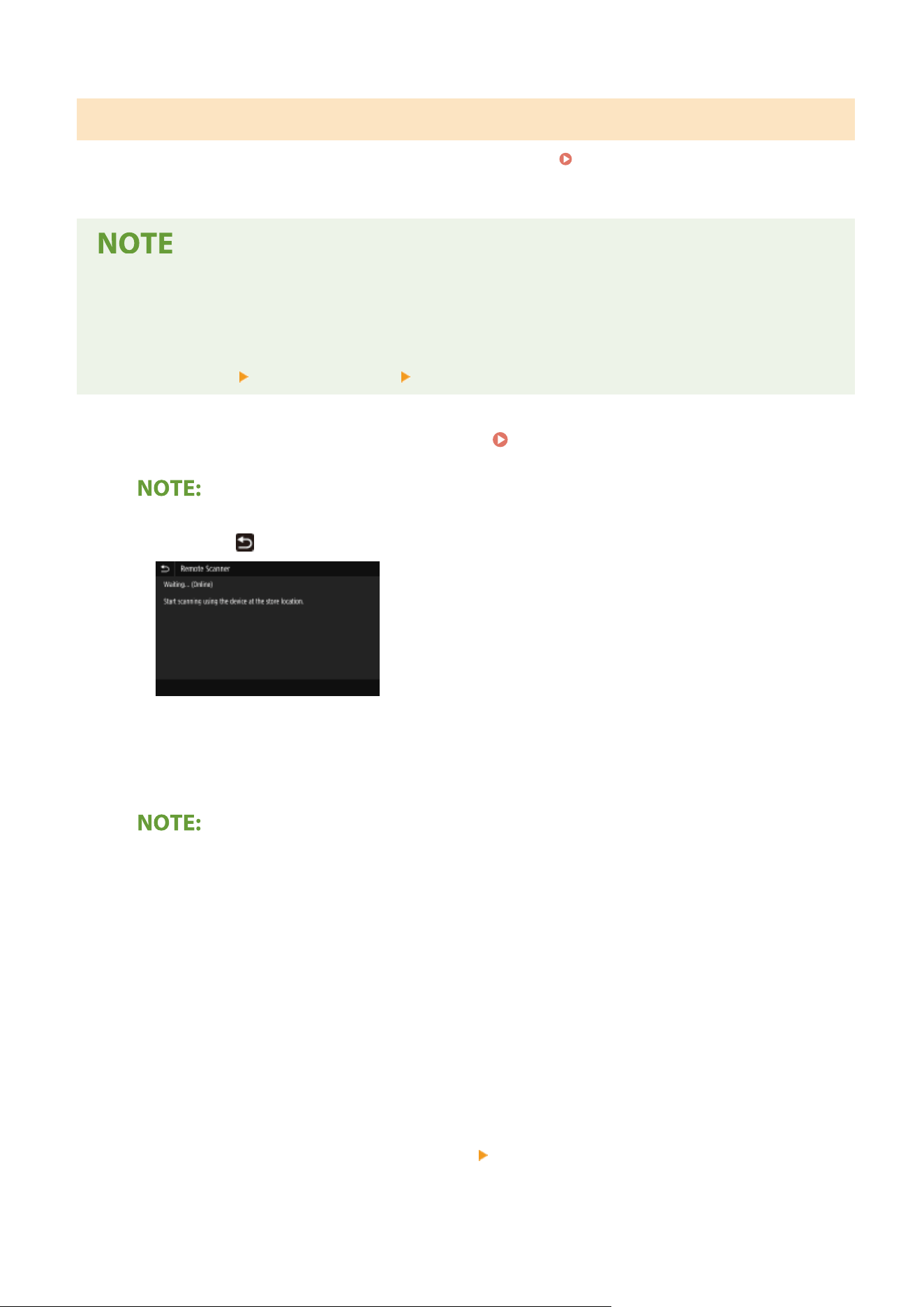
Printing Out Secured Documents
Prints secured documents sent to the machine. After a valid time period ( Changing the Valid Time Period for
Secur
ed Documents(P. 272) ) has elapsed, the secured document will be deleted from the memory of the machine
and can no longer be printed.
● If secur
ed documents are left unprinted, they occupy the memory and may prevent the machine from
printing even ordinary (not secured) documents. Make sure that you print your secured documents as soon
as you can.
● You can check how much memory is being used for secured documents.
<Status Monitor>
<Device Information> <Secure Print Memory Usage>
1
Select <Secure Print> in the Home screen. Home Screen(P. 125)
● Y
ou cannot proceed to the next step if the <Remote Scanner> screen shown below is displayed. In this
case, select
to close the screen, and select <Secure Print>.
2
Select the check box for the secured document to print, and select <Start>.
● Y
ou can select multiple documents that have the same PIN.
If a screen for user selection is displayed
● If
secured documents from two or more users are stored in memory, the screen for user selection is
displayed prior to the screen for le selection. Select your user name.
Deleting a secured document
● You can collectively delete multiple documents. Select the check box for the secured document to delete,
and select <Delete>.
3
Enter the PIN, and select <Apply>.
● When you select multiple documents with differ
ent PINs in step 2, a message is displayed. Select <Close>,
and select the secured documents again in step 2.
➠ Printing starts.
● If you want to cancel printing, select <Cancel>
<Yes>.
Printing
271

Changing the Valid Time Period for Secured Documents
You can change the valid time period from the time secured document data is sent to the machine until the time it is
deleted within a certain period of time.
1
Select <Menu> in the Home screen.
Home Screen(P. 125)
2
Select <Function Settings>.
3
Select <Secure Print>.
● If the login screen appears, enter the correct ID and PIN. Logging in to the Machine(P. 136)
4
Select <Secure Print Deletion Time>.
When <Secure Print Deletion Time> cannot be selected
● Set <Use Secur
e Print> to <On>.
Disabling Secure Print
● Set <Use Secure Print> to <Off>, and then restart the machine.
5
Specify how long the machine holds secured documents, and select <Apply>.
● The secur
ed document is deleted from the memory of the machine unless it is printed before the time
specied here elapses.
6
Select <Apply>.
7
Select <OK>.
8
Restart the machine.
Restarting the Machine(P. 121)
LINKS
Checking the Printing Status and Log(P. 266)
Restricting Printing from a Computer(P. 415)
Printing
272
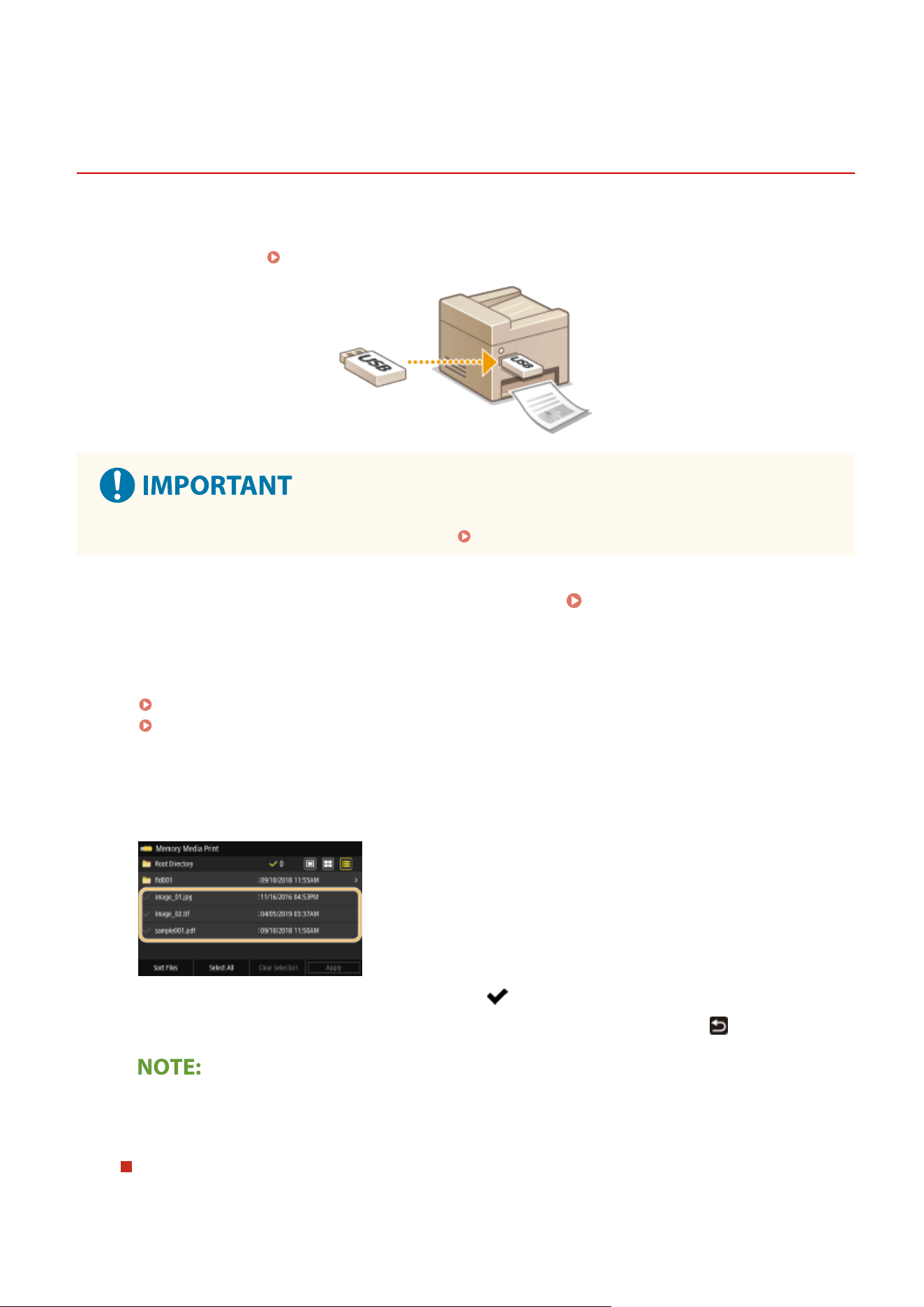
Printing from a USB Memory Device (Memory Media
Print)
7YWY-05E
Y
ou can print les directly by connecting a USB memory device to the machine. Using this function, you can print
without using a computer. For more information about the available USB memory devices and how to insert/remove
the USB memory device, see
Using a USB Memory Device(P. 189) .
● It is necessary to set <Use Print Function> to <On>. <Memory Media Settings>(P. 546)
1
Select <Memory Media Print> in the Home screen.
Home Screen(P. 125)
● If <Scr
een When Mem. Med. Conn> is set to <On>, the operations screen for media connection are displayed
when you insert a USB memory device while the Home screen is displayed. Selecting <Memory Media Print>
displays the Memory Media Print screen.
Using a USB Memory Device(P. 189)
<Screen When Mem. Med. Conn>(P. 546)
2
Select the check box for the le to print.
● You can select multiple les.
● To clear a selection, select the le you have selected ( ) again.
● Selecting a folder displays its contents. To return to the folder in the upper level, select .
● Folders and les in a le
vel deeper than the fth directory are not displayed.
● When you move to another folder, the previous le selections will be cleared.
To select all les
1
Select <Select All>.
Printing
273
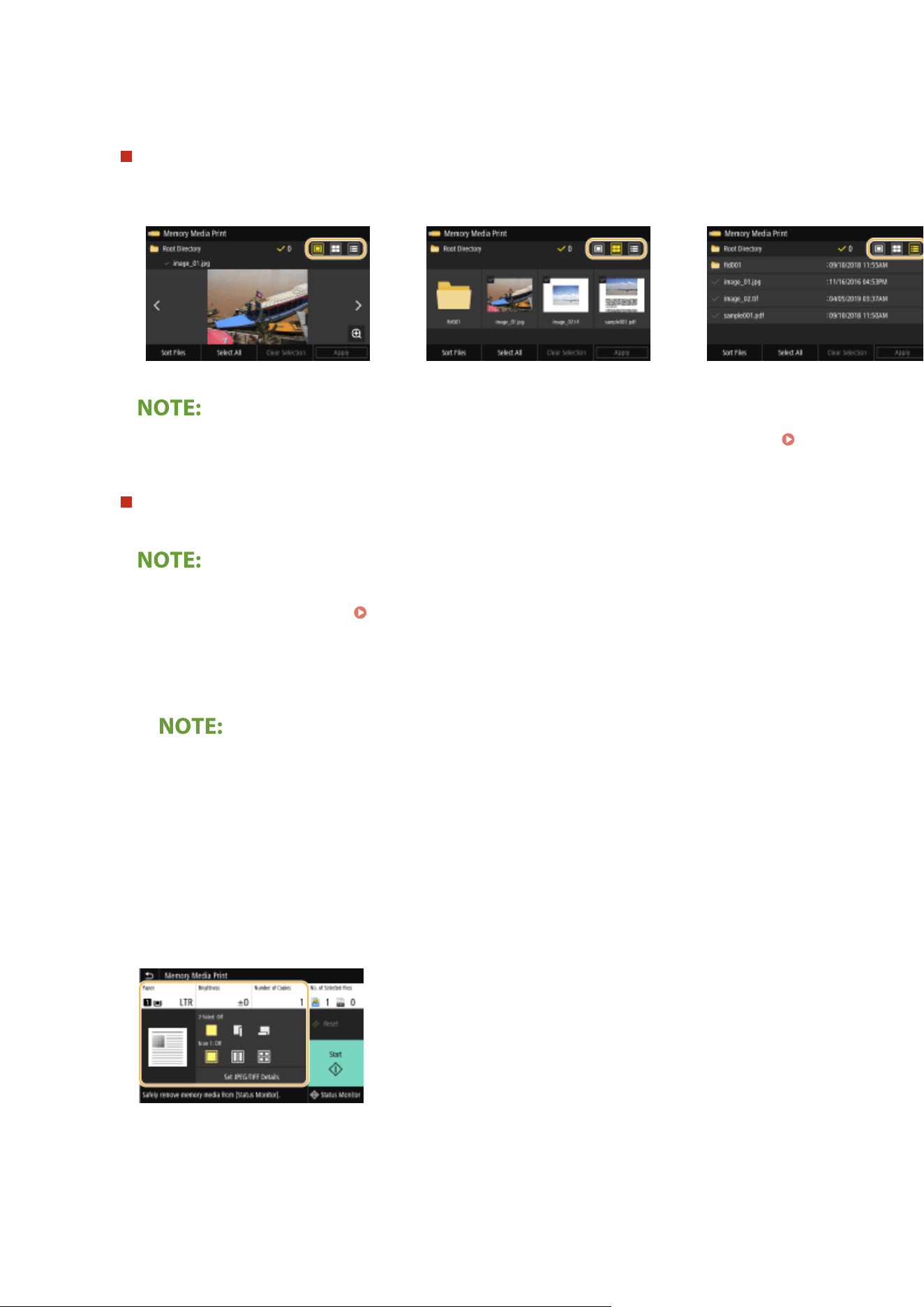
● T
o clear all selections, select <Clear Selection>.
2
If le types are mixed, select <JPEG/TIFF Files> or <PDF Files>.
To change the le display method
Y
ou can select the le display method from "Preview"/"Thumbnail"/"Details."
Preview
Thumbnail
Details
● Y
ou can specify the le display method used to display the <Memory Media Print> screen.
<Default
Display Settings>(P
. 544)
To change the le sort or
der
You can change the sort order of the les in a USB memory device.
● Y
ou can specify a sort setting such as <Name (Ascending)> or <Date/Time (Ascending)> as the default
setting for the le sort order.
<File Sort Default Settings>(P. 545)
1
Select <Sort Files>.
2
Select the criteria for le sorting.
● When you select <Date/Time (Ascending)> or <Date/Time (Descending)>, les ar
e sorted based on the
modication dates and time of the les.
3
Select <Apply>.
4
Specify the print settings as necessary.
● Y
ou can select <Reset> to restore all the default print settings.
<Paper>
Select the paper source that contains the paper to use for printing.
Printing
274
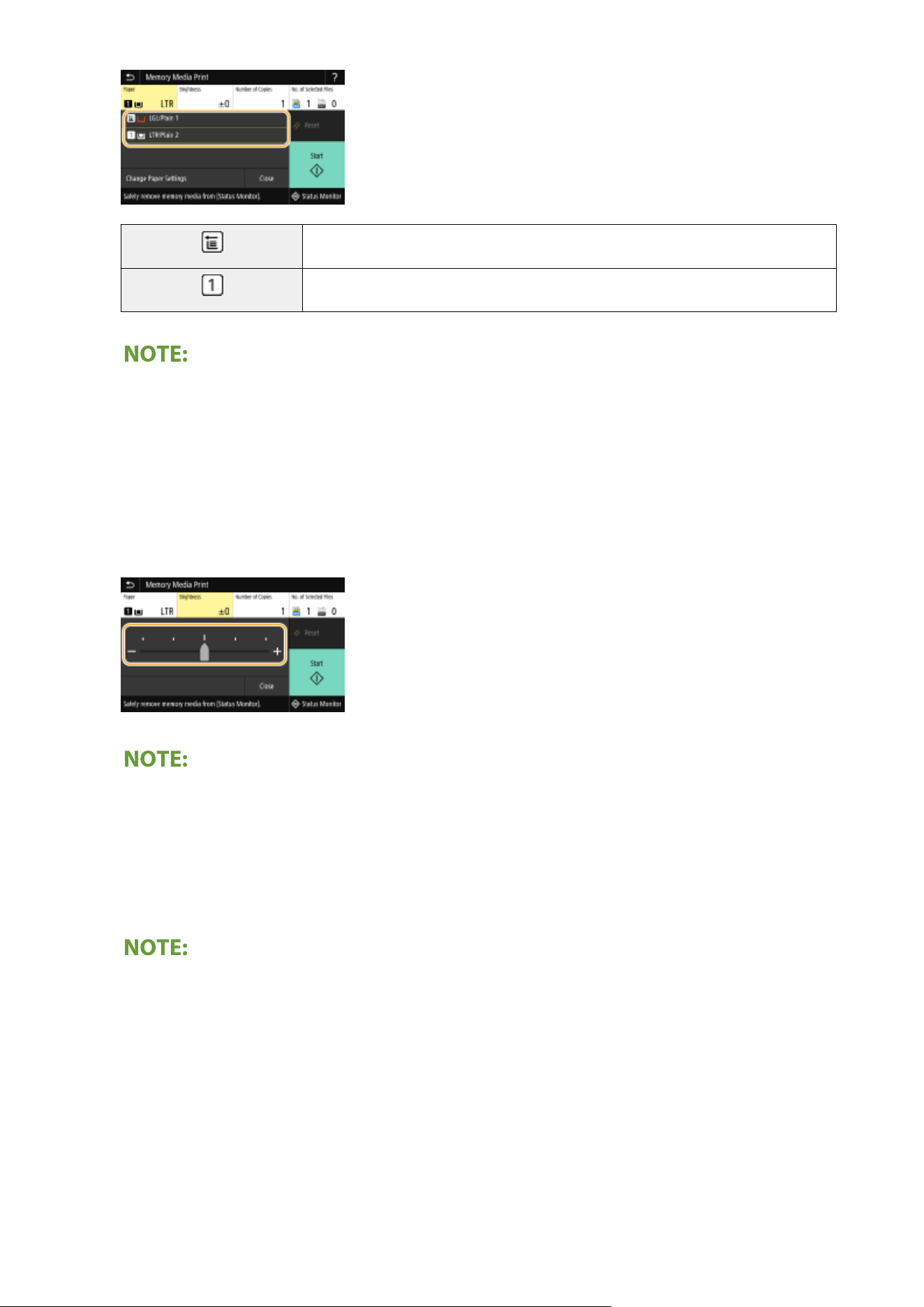
Uses the paper that is loaded in the multi-purpose tray to print les.
Uses the paper that is loaded in the paper drawer (Drawer 1) of the machine to print les.
● When the optional cassette feeding module is installed, its paper dr
awer is also displayed.
● When specifying other print settings, select <Close>.
<Brightness>
● <Brightness> is not available for printing PDF les.
You can adjust the brightness of images.
● When specifying other print settings, select <Close>.
<Number of Copies>
Enter the number of copies.
● When specifying other print settings, select <Close>.
<2-Sided Printing>
You can select 1-sided printing or 2-sided printing.
Printing
275
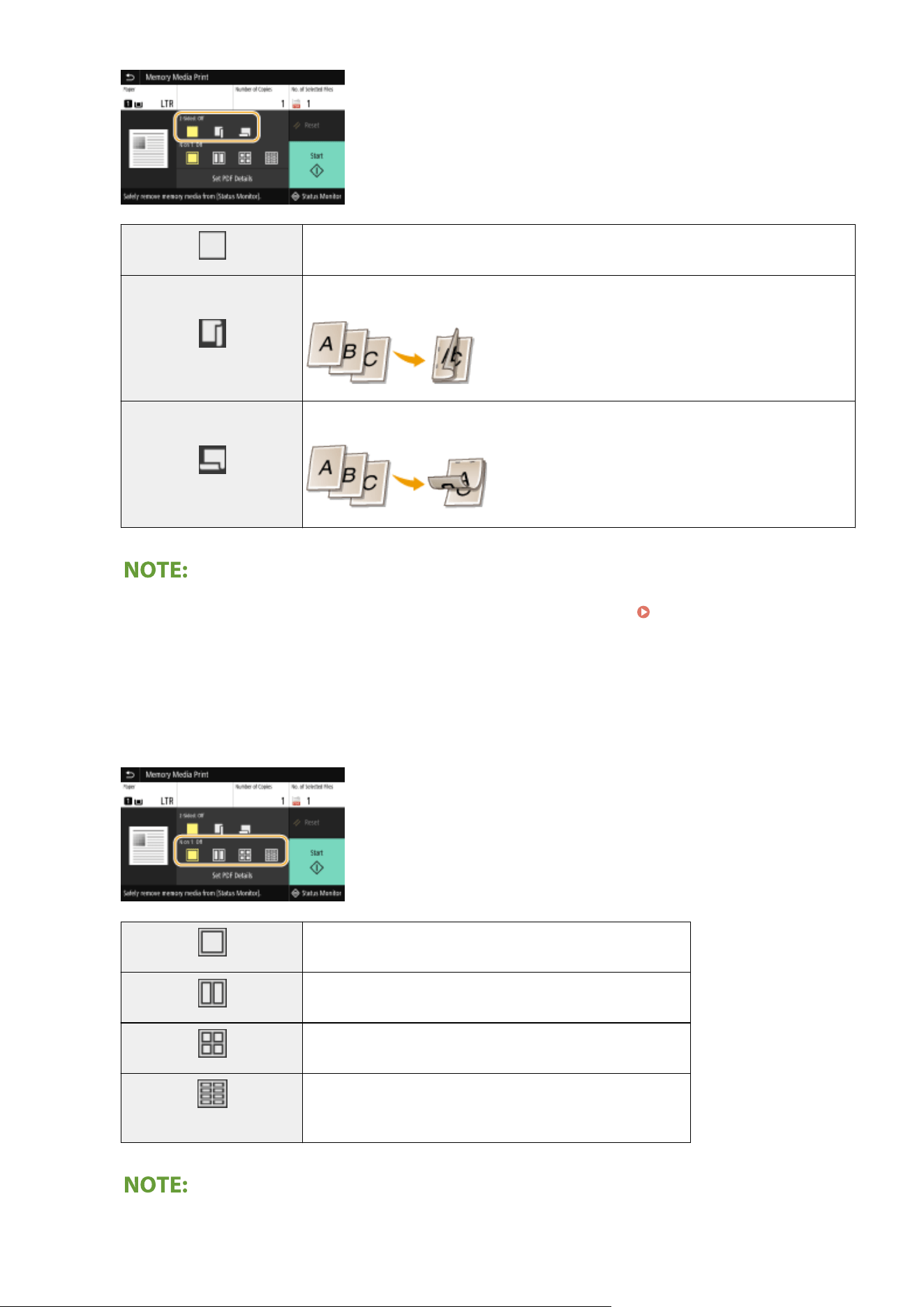
Prints on one side of paper.
Prints on both sides of paper in such a way that the printed pages are opened horizontally
when bound.
Prints on both sides of paper in such a way that the printed pages are opened vertically
when bound.
● <2-Sided Printing> may not be available with some sizes or types of paper. Available Paper(P. 617)
<N on 1>
● <N on 1> is not available for printing TIFF les.
You can select an "N on 1" pattern to print multiple pages of image data on one side of a sheet of paper.
Does not apply N on 1.
Prints two pages of image data on one side of a sheet of paper.
Prints four pages of image data on one side of a sheet of paper.
(PDF only)
Prints eight pages of image data on one side of a sheet of paper.
Printing
276
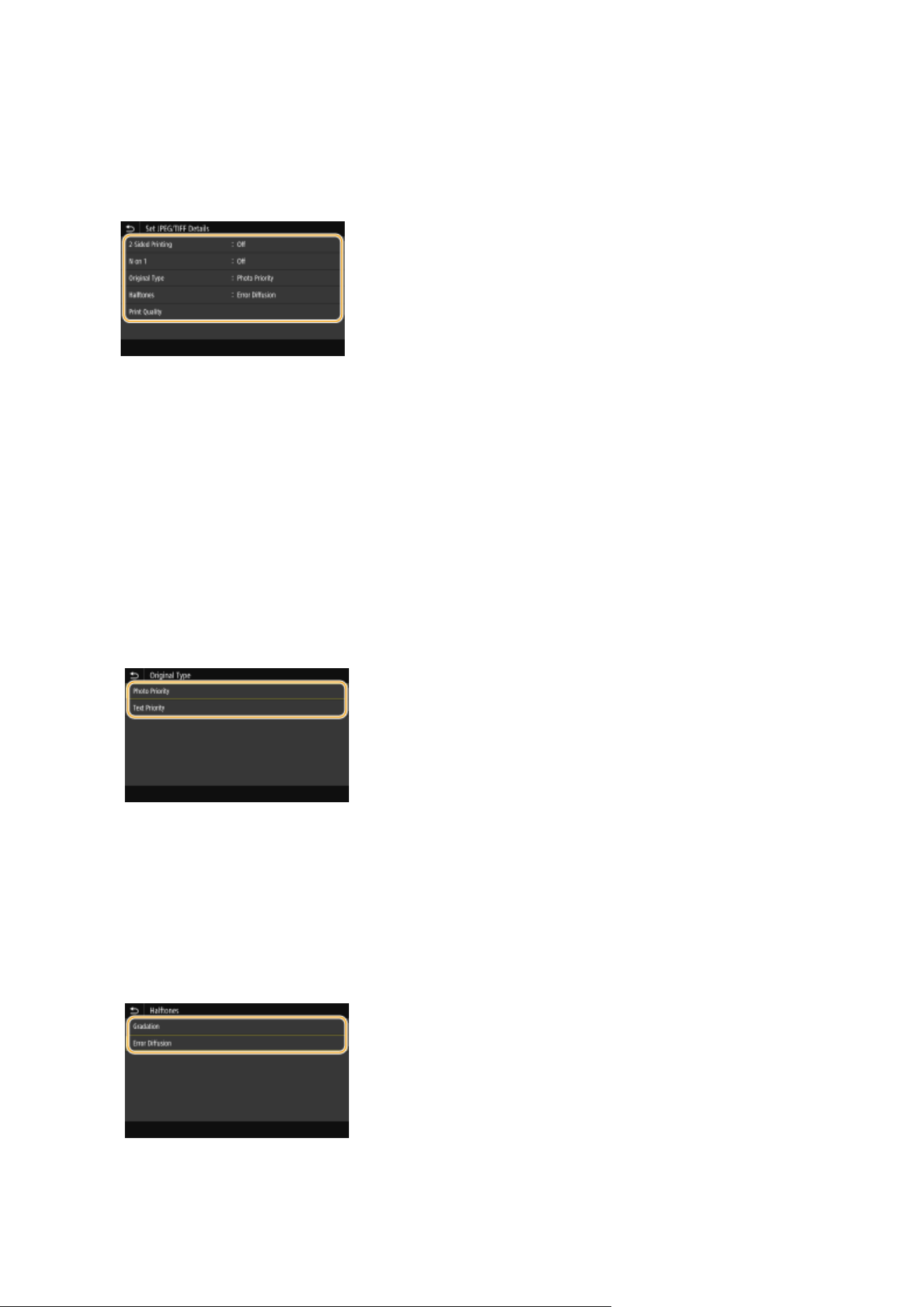
● For a PDF le, you can print 9 or 16 pages of image data on one side of a sheet of paper b
y using <N on 1>
under <Set PDF Details>.
<Set JPEG/TIFF Details>
You can change the print settings for JPEG and TIFF images.
<2-Sided Printing>
Y
ou can make 2-sided printouts. Select the binding position.
<N on 1> (
JPEG les only)
Prints data for multiple pages of image data on the same side of a sheet of paper. You can specify the number
of pages to print on one side of a sheet of paper. For example, to print four pages on one side of a sheet of
paper, select <4 on 1>.
<Original Type>
You can select the type of original depending on the image to print.
<Photo Priority>
Gives priority to printing photo images smoothly
.
<Text Priority>
Gives priority to printing text clearly.
<Halftones>
You can select the printing method used to reproduce halftones (the intermediate range between the lighter
and darker areas of an image) for optimal image quality.
<Gradation>
Prints images with ne gr
adation, such as digital camera images, with a smooth nish.
<Error Diffusion>
This mode is suitable for printing data with text and thin lines and the curved lines of CAD data, etc.
Printing
277
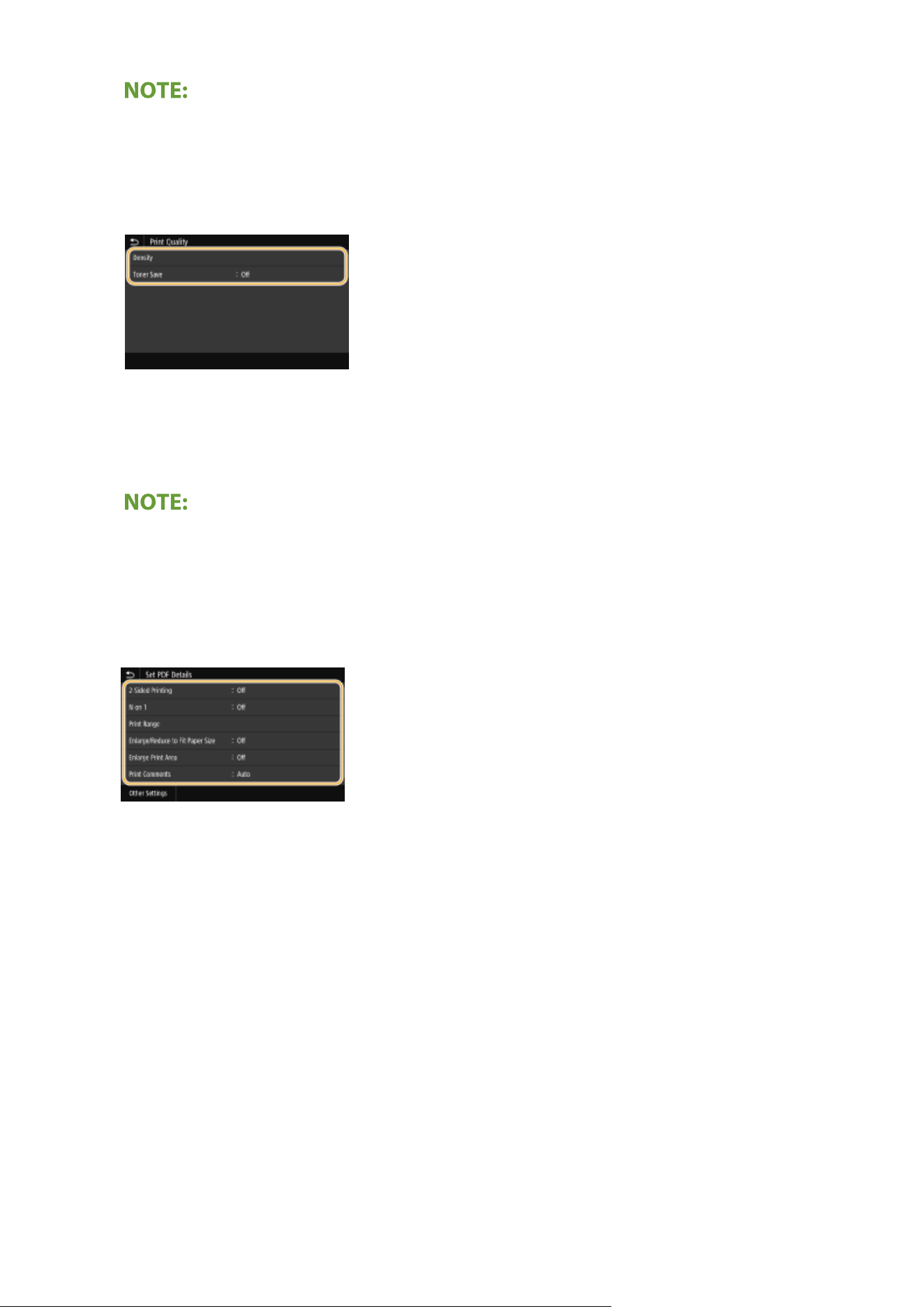
● The stability of the te
xture and xed toner may be reduced when <Error Diffusion> is used.
<Print Quality>
You can change settings related to print quality.
<Density>
Adjusts the density for printing.
<T
oner Save>
Selecting <On> prints in toner saving mode. Select <On> when you want to check the layout or other
appearance characteristics before proceeding to nal printing of a large job.
● When <T
oner Save> is set to <On>, <Density> is not available.
<Set PDF Details>
You can change the print settings for PDFs.
<2-Sided Printing>
Y
ou can make 2-sided printouts. Select the binding position.
<N on 1>
Prints data for multiple pages of image data on the same side of a sheet of paper. You can specify the number
of pages to print on one side of a sheet of paper. For example, to print four pages on one side of a sheet of
paper, select <4 on 1>.
<Print Range>
Specify pages you want to print.
Printing
278
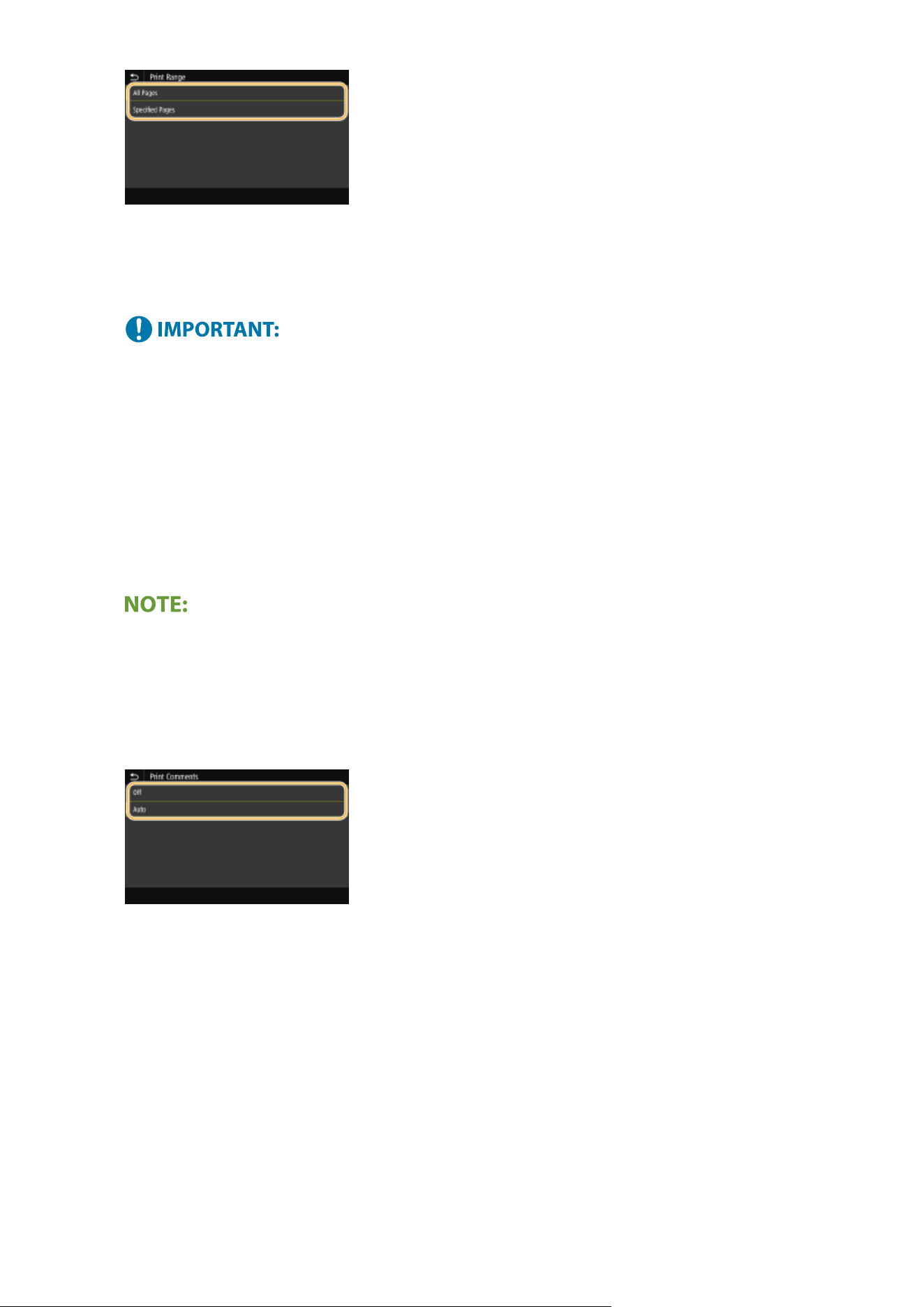
<All Pages>
Prints all pages.
<Specied Pages>
Specify the r
ange of pages you want to print. Enter the desired value in each of <Start Page> and <End Page>,
and select <Apply>.
● When the specied page r
ange does not match any of the pages of the PDF le, printing is not performed.
<Enlarge/Reduce to Fit Paper Size>
Specify whether to enlarge or reduce the original according to the print range of paper. Note that size
enlargement/reduction will not affect the aspect ratio of the original.
<Enlarge Print Area>
Specify whether to extend the print range to the paper size.
● If you set to <On>, part of print data may not be printed in edge ar
eas or paper may be partly smudged
depending on the document.
<Print Comments>
This setting species whether to print annotations in the PDF le.
<Off>
Prints no annotations.
<Auto>
Prints only those annotations that ar
e specied to be printed in the PDF le.
<Password to Open Document>
You can print password protected PDF les by entering the password required to open them. Enter the
password, and select <Apply>.
<Other Settings>
<Halftones>
Printing
279
You can select the printing method used to reproduce halftones (the intermediate range between the lighter
and dark
er areas of an image) for optimal image quality. You can make this setting for each of the types of
image contained in one document. See
<Halftones>(P. 517) for the description of the setting.
<Gr
ayscale Conversion>
Specify the way of printing color data in black and white. See
<Grayscale Conversion>(P. 518) for the
description of the setting.
<Print Quality>
<Density>
Adjust the toner density to be used for printing. See <Density>(P. 502) for the description of the setting.
<T
oner Save>
Selecting <On> prints in toner saving mode. Select <On> when you want to check the layout or other
appearance characteristics before proceeding to nal printing of a large job. See
<Toner Save>(P. 502)
for the description of the setting.
<Image Renement>
Enable or disable the smoothing mode in which the edges of char
acters and graphics are smoothly
printed. See
<Image Renement>(P
. 502) for the description of the setting.
<Resolution>
Specify the resolution to process print data. See
<Resolution>(P. 503) for the description of the setting.
5
Select <Start>.
➠ Printing starts.
● If you want to cancel printing, select <Cancel> <Yes>.
● If you always want to print with the same settings: Memory Media Print(P. 175)
LINKS
<Store/Access Files>(P. 541)
Printing
280

Scanning
Scanning ..............................................................................................................................................................
282
Scan Basic Features Screen ............................................................................................................................... 284
Basic Operations for Scanning Originals ......................................................................................................... 287
Scanning and Saving to a Computer ............................................................................................................. 288
Saving Data to a USB Memory Device ........................................................................................................... 290
Sending Data by E-Mail/Saving Data to a Shared Folder or FTP Server ......................................................... 294
Canceling Sending Documents ..................................................................................................................... 304
Checking Status and Log for Scanned Originals ........................................................................................... 305
Scanning Clearly ................................................................................................................................................ 307
Adjusting Image Quality ............................................................................................................................... 308
Adjusting Density ......................................................................................................................................... 309
Adjusting Sharpness When Scanning (Sharpness) ........................................................................................ 310
Useful Scanning Functions ............................................................................................................................... 312
Adjusting Balance between File Size and Image Quality (Data Size) .............................................................. 313
Conguring a File Name ............................................................................................................................... 314
Recalling Previously Used Settings for Sending/Saving (Recall Settings) ....................................................... 315
Specifying E-Mail Settings ............................................................................................................................. 318
Using Your Computer to Scan (Remote Scan) .................................................................................................. 321
Scanning Documents from an Application .................................................................................................... 322
Using ScanGear MF ...................................................................................................................................... 324
Scanning
281
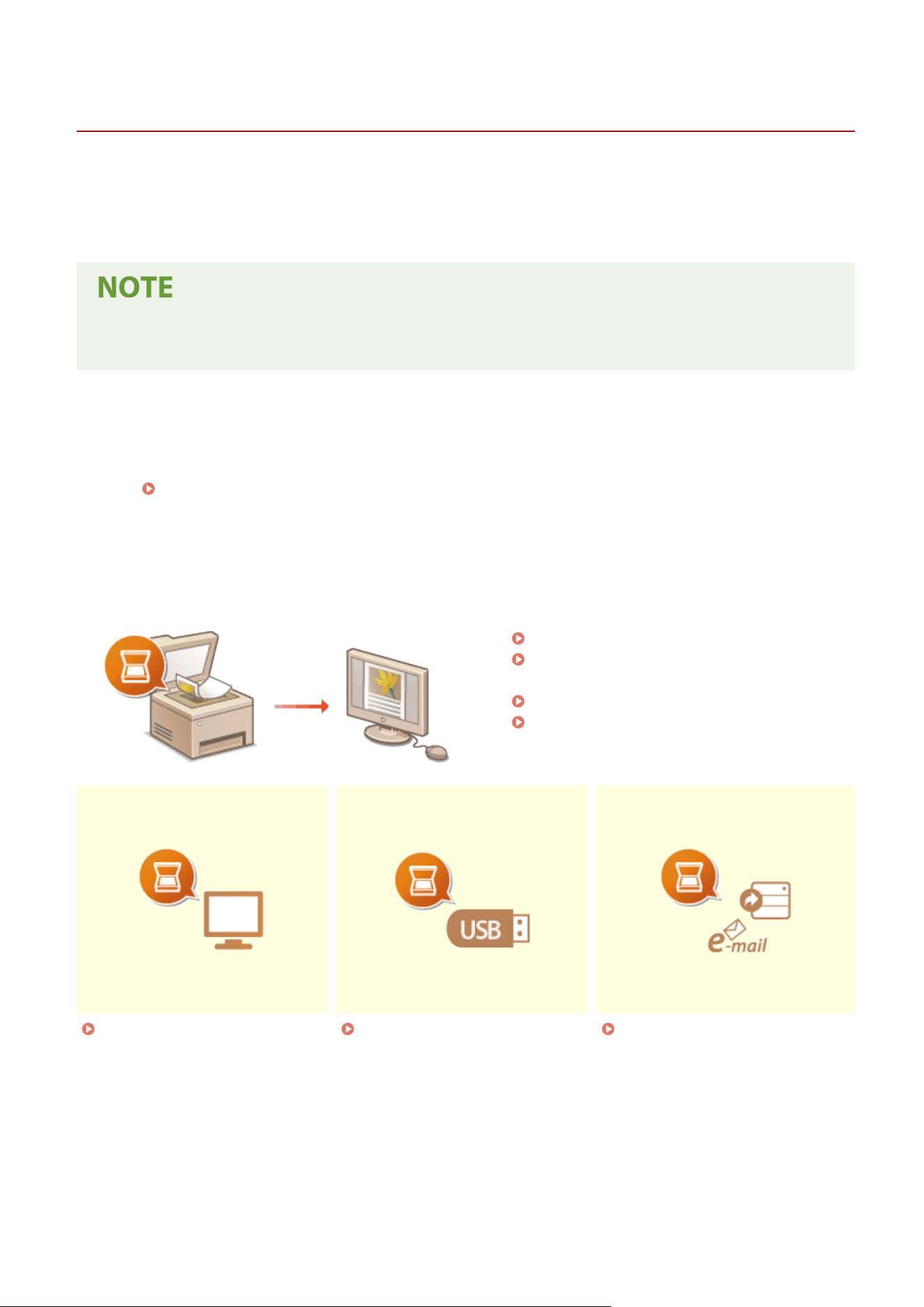
Scanning
7YWY-05F
1660-05E
Y
ou can scan original documents by using the operation panel of the machine or an application on a computer.
Whichever way you use, the scanned originals are converted into electronic le formats such as PDFs. Use the scan
function to convert large-volume paper documents into les so that you can organize them easily.
● Depending on the oper
ating system and the version of the scanner driver or applications you are using, the
screens in this manual may differ from your screens.
◼ Using the Machine with a Computer
T
o use this machine with a computer, you must complete preparations in advance, including installation of software to
a computer. To connect the machine to your computer via a network, you must register the machine to the installed
software.
Preparing to Use the Machine as a Scanner(P. 85)
◼ Using the Scanner
Y
ou can scan and save originals to your computer by using the operation panel of the machine. You can also save
originals to a USB memory device or send them as e-mail attachments.
Scan Basic Features Screen(P. 284)
Basic Operations for Scanning
Originals(P
. 287)
Canceling Sending Documents(P. 304)
Checking Status and Log for Scanned
Originals(P
. 305)
Scanning and Saving to a
Computer(P
. 288)
Saving Data to a USB Memory
De
vice(P. 290)
Sending Data by E-Mail/Saving
Data to a Shar
ed Folder or FTP
Server(P. 294)
◼ Enhancing Quality
Y
ou can nd instructions on how to resolve problems such as "blurry photos" or "text unreadable due to too deep
color of the paper."
Scanning
282
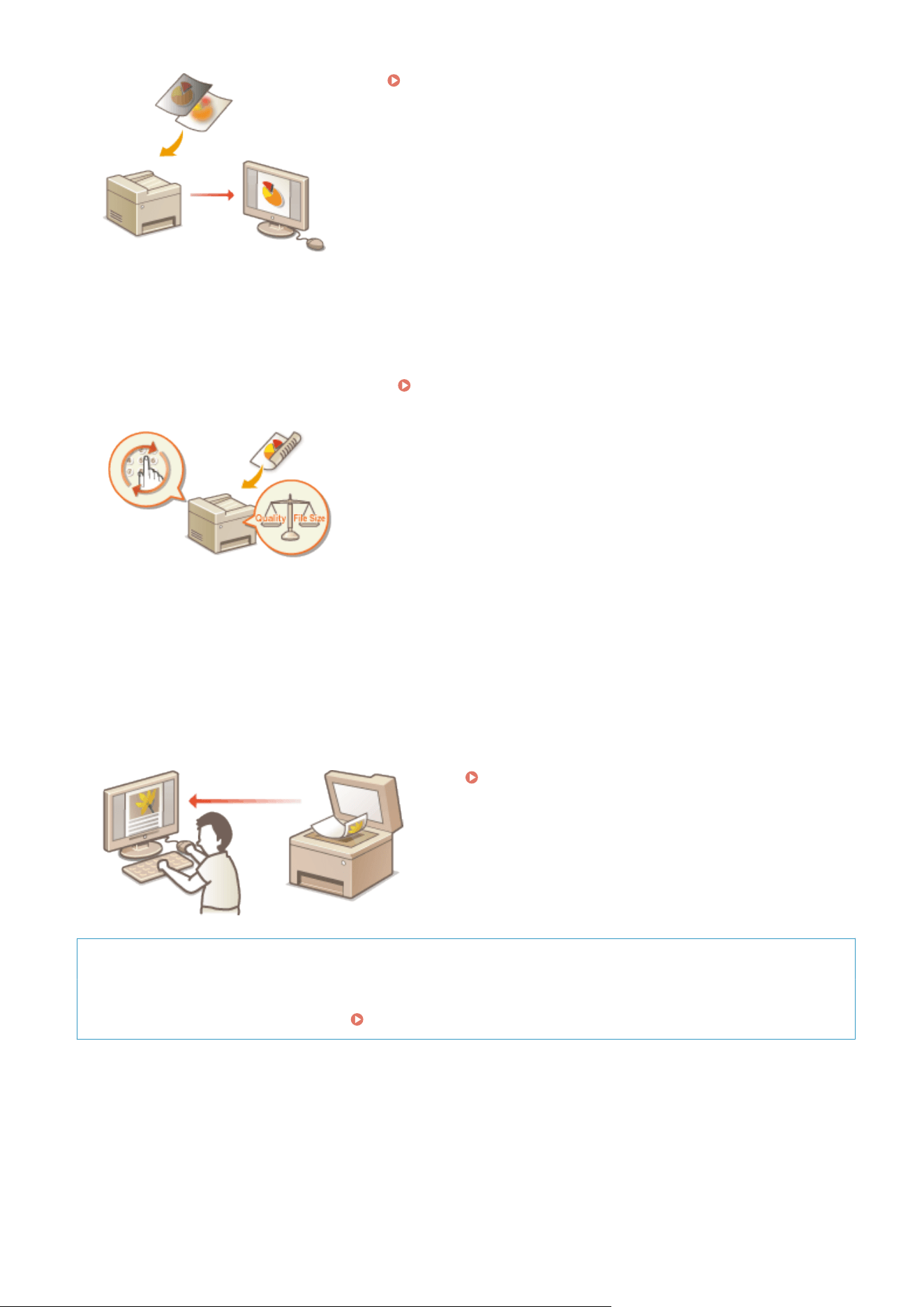
Scanning Clearly(P. 307)
◼ Eciently
, Reliably
You can nd instructions on how to enhance eciency when sending data and descriptions of useful settings.
Useful Scanning Functions(P. 312)
◼ Scanning from a Computer
You can scan originals placed on the machine from a computer. The scanned originals are saved to the computer. You
can scan using MF Scan Utility (included with the machine), or with other applications such as an image-processing or
word-processing application.
Using Your Computer to Scan (Remote Scan)(P. 321)
Scanning from Mobile Devices
● Linking mobile de
vices such as smartphones or tablets to this machine provides a quick and easy way to
scan originals set on this machine.
Linking with Mobile Devices(P. 326)
Scanning
283
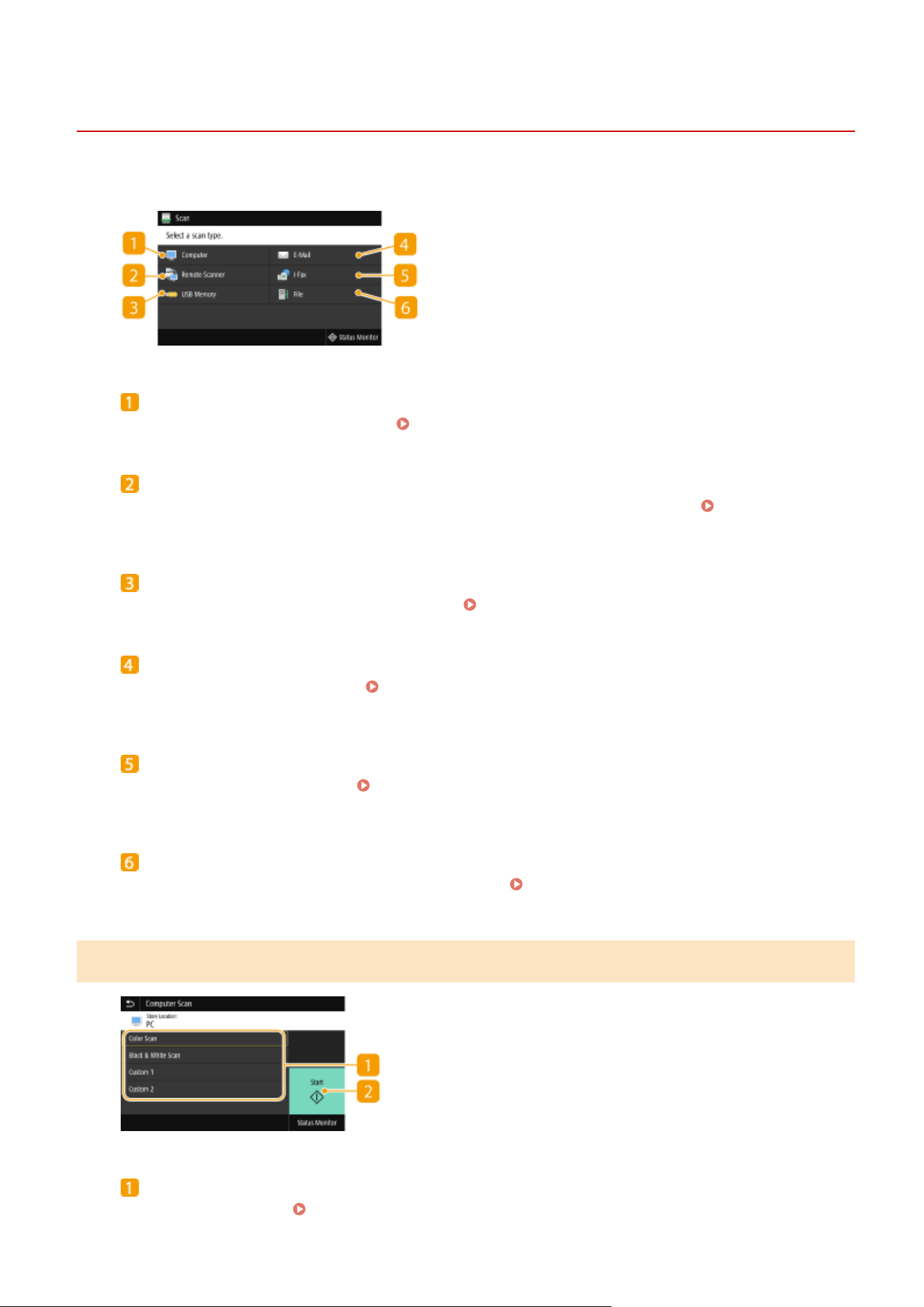
Scan Basic Features Screen
7YWY-05H
When you select <Scan> in the Home scr
een, the Scan Basic Features screen appears.
<Computer>
Saves the scanned data to a computer. Basic Features Screen for Computer Scanning(P. 284)
<Remote Scanner>
Puts the machine into the online status when originals ar
e scanned from a computer.
Using Your
Computer to Scan (Remote Scan)(P
. 321)
<USB Memory>
Saves the scanned data to a USB memory device. Basic Features Screen for USB Scanning(P. 285)
<E-Mail>
Sends the scanned data b
y e-mail.
Basic Features Screen for E-Mail Sending/I-Fax Sending/File
Saving(P
. 285)
<I-Fax>
Sends the scanned data b
y I-Fax.
Basic Features Screen for E-Mail Sending/I-Fax Sending/File
Saving(P
. 285)
<File>
Saves the scanned data to a shared folder or FTP server. Basic Features Screen for E-Mail Sending/I-Fax
Sending/File Saving(P
. 285)
Basic Features Screen for Computer Scanning
Scan type
Select the scan setting. Scanning and Saving to a Computer(P. 288)
Scanning
284
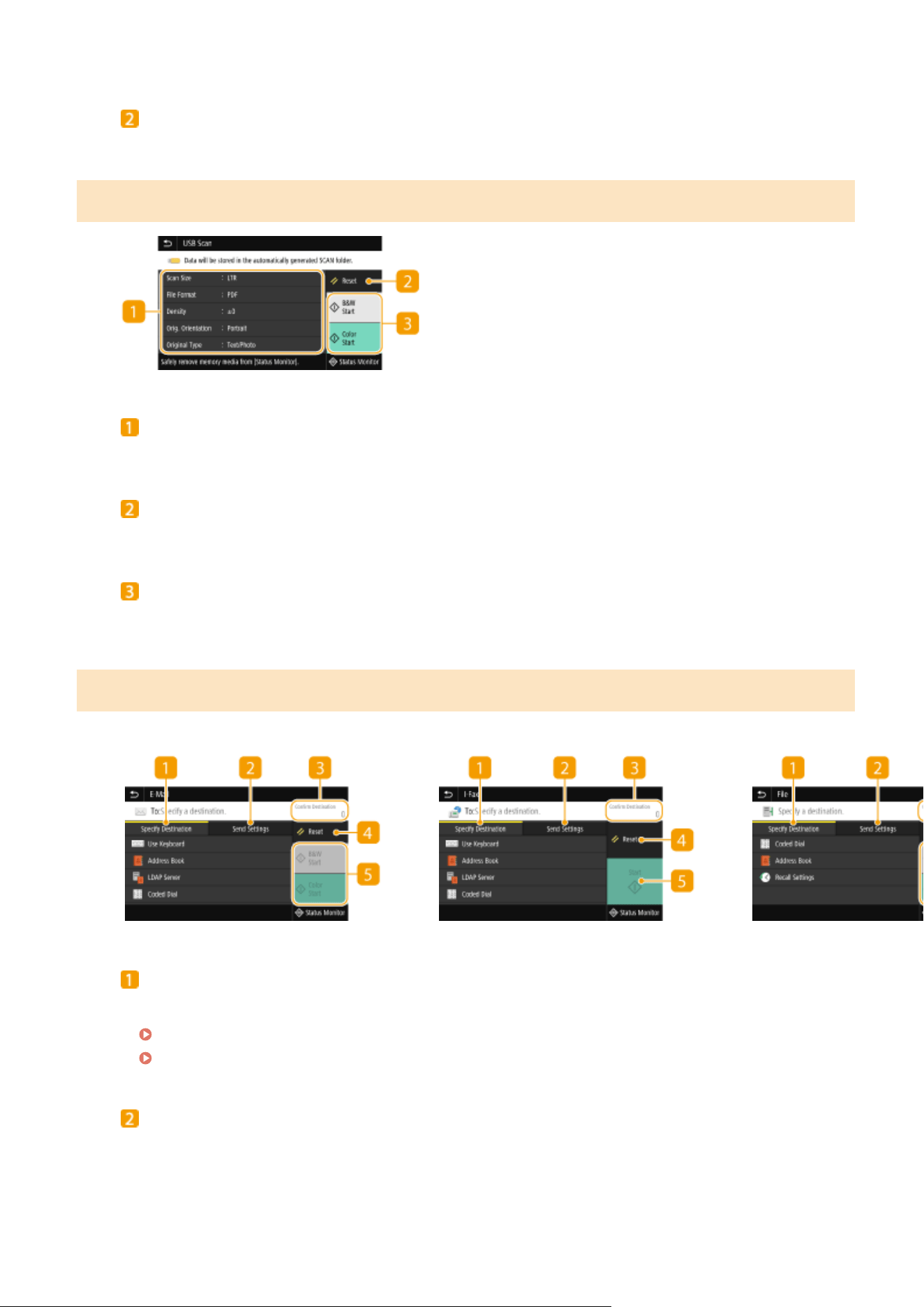
<Start>
Use this button to start scanning.
Basic Features Screen for USB Scanning
Send Settings
The original is scanned based on the settings specied her
e.
<Reset>
Y
ou can collectively restore the default settings.
<Start>
Use this button to start scanning. Selecting <B&W> starts black and white scanning. Selecting <Color> starts
color scanning.
Basic Features Screen for E-Mail Sending/I-Fax Sending/File Saving
E-Mail Sending
I-Fax Sending
File Saving
<Specify Destination> tab
Select this tab to sear
ch for a destination in the Address Book or an LDAP server, enter a coded dial, or
specify a destination using the recall settings.
Sending Data by E-Mail/Saving Data to a Shared Folder or FTP Server(P. 294)
Recalling Previously Used Settings for Sending/Saving (Recall Settings)(P. 315)
<Send Settings> tab
Select this tab to specify the scanning settings.
Scanning
285

<Conrm Destination>
Y
ou can check or change the name and address of the specied destination as well as the number of
destinations.
<Reset>
Y
ou can collectively restore the default settings.
<Start>
Use this button to start scanning. Selecting <B&W> starts black and white scanning. Selecting <Color> starts
color scanning.
Scanning
286
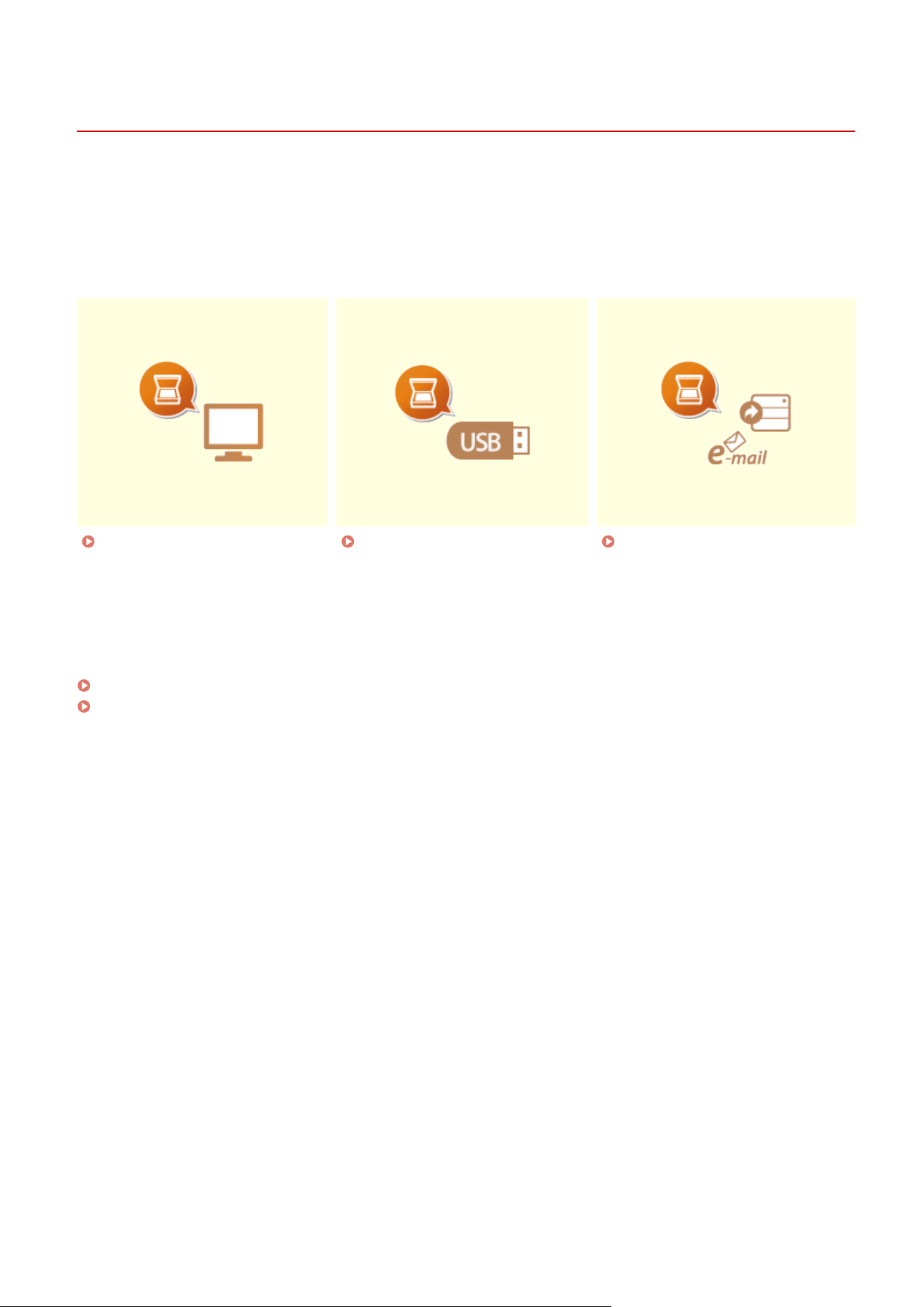
Basic Operations for Scanning Originals
7YWY-05J
1660-05H
This section describes the basic pr
ocedures for scanning originals.
◼ Scanning
Scanning and Saving to a
Computer(P
. 288)
Saving Data to a USB Memory
De
vice(P. 290)
Sending Data by E-Mail/Saving
Data to a Shar
ed Folder or FTP
Server(P. 294)
◼ Oper
ating Jobs
Canceling Sending Documents(P. 304)
Checking Status and Log for Scanned Originals(P. 305)
Scanning
287
Scanning and Saving to a Computer
7YWY-05K
Y
ou can perform the task of "scanning an original and saving it to a computer" from the operation panel of the
machine. Select the computer to be used as the save destination and the settings such as the scanning color (color or
black and white).
● When a network-connected computer is specied as the save destination, you must r
egister the machine to
that computer beforehand.
Preparing to Use the Machine as a Scanner(P. 85)
1
Place the original(s). Placing Originals(P. 138)
2
Select <Scan> in the Home screen.
Home Screen(P. 125)
● If the login scr
een appears, specify the user name, the password, and the authentication server.
Logging
in to Authorized Send(P
. 136)
3
Select <Computer> in the Scan Basic Features screen.
Scan Basic Features
Scr
een(P. 284)
● If only a computer connected to the machine via USB is used, pr
oceed to step 5.
4
Select the destination computer.
5
Select the scan type in the Computer Scan Basic Features screen.
Basic Features
Scr
een for Computer Scanning(P. 284)
● The scan types and settings that ar
e displayed can be conrmed and changed by using MF Scan Utility. For
more information, click [Instructions] on MF Scan Utility.
● If you are a macOS user, see the manuals for the relevant drivers or software on the online manual
website.
6
Select <Start>.
➠ Scanning of the original starts.
● If you want to cancel, select <Cancel> <Yes>. Canceling Sending Documents(P. 304)
● Y
ou cannot scan while the ScanGear MF is displayed. Close the screen before scanning.
Scanning
288
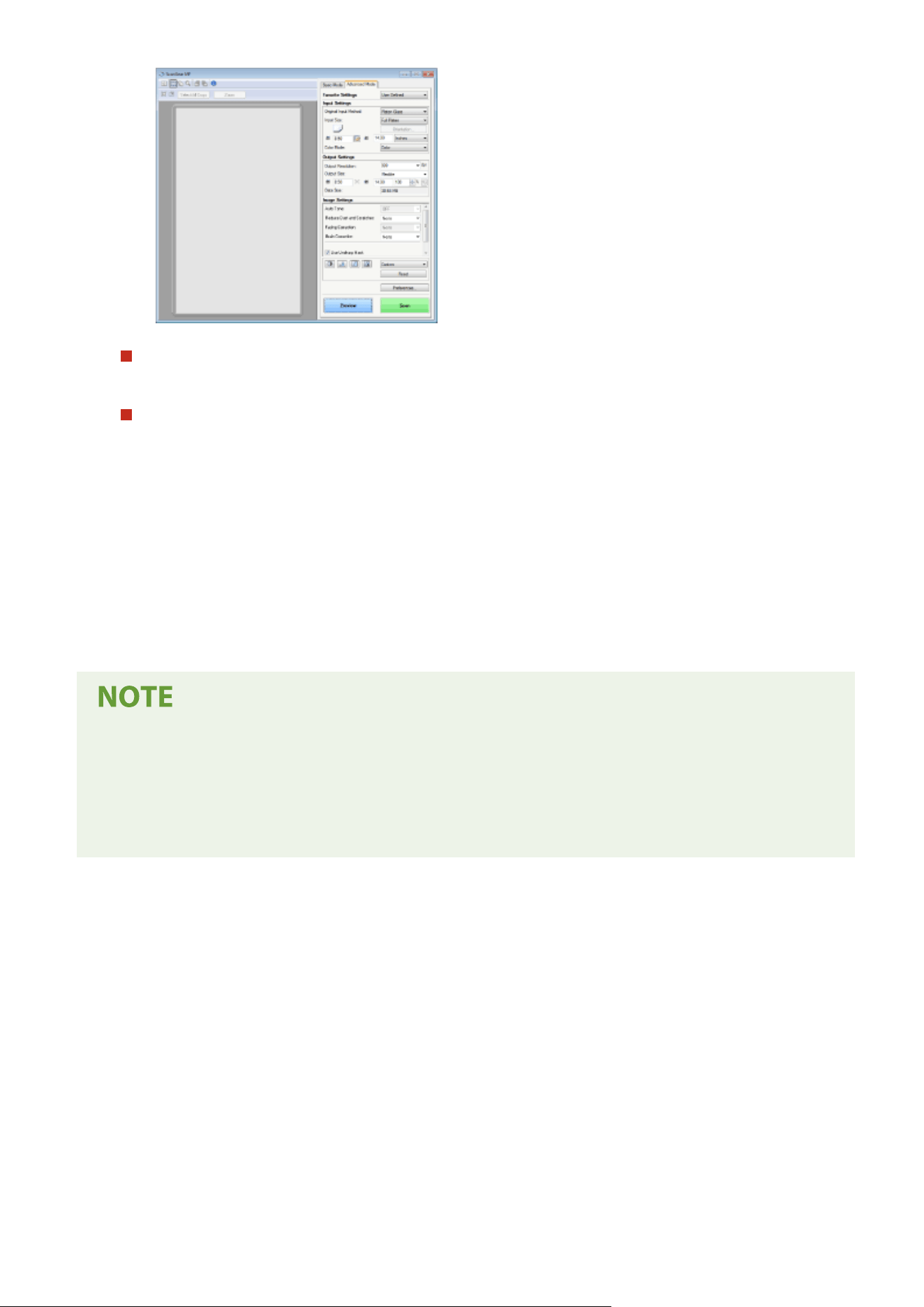
When placing originals in the feeder in step 1
When scanning is complete, the save destination folder is displayed on the computer.
When placing originals on the platen glass in step 1
When scanning is complete, follow the procedure below (except if you selected JPEG as a le format).
1
If there are additional pages of originals to be scanned, place the next original on the platen glass, and
select <Scan Ne
xt>.
● Repeat this step until you nish scanning all of the pages.
● When there is only one page to be scanned, proceed to the next step.
2
Select <Finish>.
➠ The save destination folder is displayed on the computer.
About the save destination folder
● By default, the scanned data is saved to the My Documents folder. A subfolder named with the scanning
date is cr
eated, and the data is saved to that folder.
● You can change the save destination from the MF Scan Utility. For more information, click [Instructions] on
MF Scan Utility.
Scanning
289

Saving Data to a USB Memory Device
7YWY-05L
This section describes ho
w to scan the original and save the scanned data to a USB memory device. For more
information about the available USB memory devices and how to insert/remove the USB memory device, see
Using
a USB Memory De
vice(P. 189) .
● It is necessary to set <Use Scan Function> to <On>. <Memory Media Settings>(P. 546)
1
Place the original(s).
Placing Originals(P. 138)
2
Select <Scan> in the Home screen. Home Screen(P. 125)
● If the login screen appears, specify the user name, the password, and the authentication server. Logging
in to Authorized Send(P. 136)
3
Select <USB Memory> in the Scan Basic Features screen. Scan Basic Features
Scr
een(P. 284)
● If <Scr
een When Mem. Med. Conn> is set to <On>, the operations screen for media connection are displayed
when you insert a USB memory device while the Home screen is displayed. Selecting <USB Scan> displays the
basic features screen for USB scanning.
Using a USB Memory Device(P. 189)
<Screen When Mem. Med. Conn>(P. 546)
4
Specify the scanning settings as necessary.
Specifying the Scanning Size of the Original
Selecting a File Format
Specifying Orientation of Your Original
Scanning 2-Sided Originals
Specifying the Scanning Size of the Original
You can specify the scanning size of your original.
<Scan Size> Select the original size
Scanning
290
Selecting a File Format
You can select the le format to which originals are scanned from PDF/JPEG/TIFF. For
PDF, you can select Compact PDF that reduces the data size or the PDF format that
enables a text search by including text data scanned with OCR (optical character
recognition).
<File Format> Select a le format
● If you select JPEG in <File Format> and try to scan an original fr
om the platen glass, you can only scan
one page. To scan a multiple-page original all at once, use the feeder. Each page of the original is
saved as a separate le. If you select TIFF or PDF, you can scan multiple-page originals either from the
platen glass or from the feeder. In this case, whether the original is to be saved as a single le or each
page as a separate le can be specied in
Dividing a PDF File by Page(P. 291) or Dividing a TIFF
File b
y Page(P. 291) .
● <PDF (Compact)> and <PDF (Compact/OCR)> compress photos and illustrations on originals more
than <PDF> and <PDF (OCR)>. The le will be smaller, but the image quality of some originals or the
number of originals that can be scanned at once may be lower.
● In <PDF (Compact/OCR)> and <PDF (OCR)> you can congure the settings so that the machine
automatically detects the original direction during scanning based on the direction of the text read by
the OCR function.
<OCR (Text Searchable) Settings>(P. 496)
◼ Dividing a PDF File b
y Page
Specify whether to convert the original with multiple pages into a single PDF le or create a separate PDF le for
each page. This setting can be congured for each PDF format.
<File Format> <Set PDF Details> Select the PDF format <Divide into Pages> Select <Off> or
<On>
◼ Dividing a TIFF File by Page
Specify whether to convert the original with multiple pages into a single TIFF le or create a separate TIFF le
for each page.
<File Format> <Set TIFF Details> <Divide into Pages> Select <Off> or <On>
Scanning
291
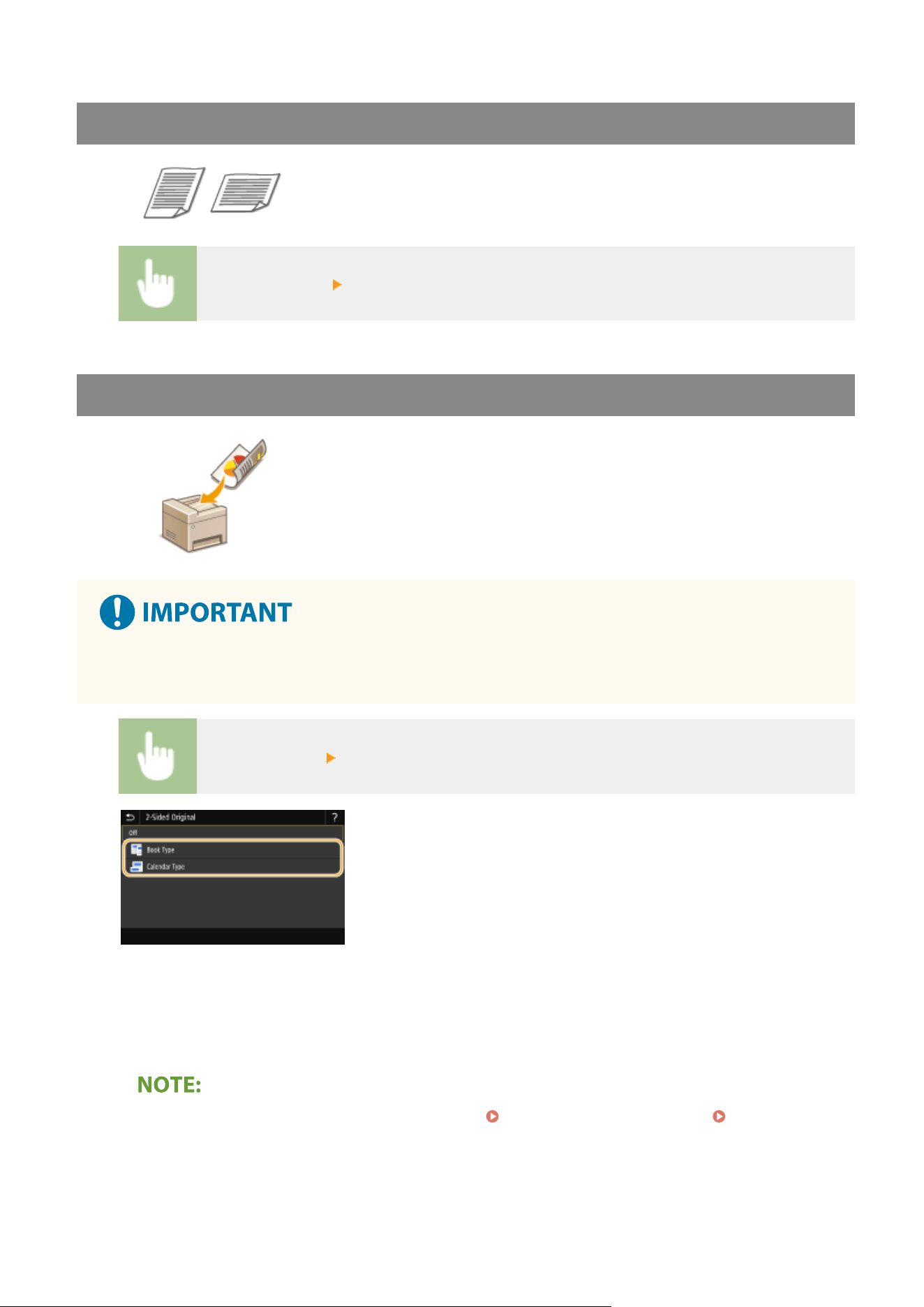
Specifying Orientation of Your Original
You can specify portrait or landscape orientation.
<Orig. Orientation> Select the original orientation
Scanning 2-Sided Originals
The machine can automatically scan the front and back sides of originals in the
feeder.
● The machine cannot scan both sides of originals automatically when the originals ar
e placed on the platen
glass.
<2-Sided Original> Select <Book Type> or <Calendar Type>
<Book Type>
Select for originals whose images on the front and back sides face the same direction.
<Calendar Type>
Select for originals whose images on the front and back sides face in opposite directions.
● For
information about other scan settings, see
Scanning Clearly(P. 307)
or
Adjusting Balance
between File Size and Image Quality (Data Size)
(P. 313) .
5
Select <Start>.
Scanning
292
➠ Scanning of the original starts.
● If you want to cancel, select <Cancel>
<Yes>. Canceling Sending Documents(P. 304)
When placing originals in the feeder in step 1
When scanning is complete, the saving pr
ocess starts.
When placing originals on the platen glass in step 1
When scanning is complete, follow the procedure below (except if you selected JPEG as a le format).
1
If there are additional pages of originals to be scanned, place the next original on the platen glass, and
select <Scan Next>.
● Repeat this step until you nish scanning all of the pages.
● When there is only one page to be scanned, proceed to the next step.
2
Select <Finish>.
➠ The saving process starts.
● A
new folder is created on the USB memory device, and the scanned document is stored in that folder. The
le name of a scanned document is automatically assigned based on the following format: the characters
SCAN followed by a four-digit number.le extension name. The character string "SCAN" in the le name
can be replaced with a different arbitrary character string (
Conguring a File Name
(P. 314) ).
● If you always want to scan with the same settings: Changing the Default Settings for Functions(P. 175)
● If you want to r
egister a combination of settings to use when needed:
Registering Frequently Used
Settings(P
. 173)
Scanning
293
Sending Data by E-Mail/Saving Data to a Shared Folder
or FTP Server
7YWY-05R
This section describes the pr
ocedures for scanning originals and sending the scanned data directly from the machine
by attaching it to an e-mail or saving it to a shared folder or FTP server.
● Befor
e you can send the data directly by e-mail, you need to complete certain procedures, such as specifying
the e-mail server settings.
Procedure for Setting to Send E-Mail/Send and Receive I-Fax(P. 86)
● Befor
e you can save the data to a shared folder or FTP server, you need to complete certain procedures,
such as specifying the location to save the scanned originals to.
Procedure for Setting a Shared Folder as a Save Location(P. 94)
Procedure for Setting a FTP Server as a Save Location(P. 98)
1
Place the original(s). Placing Originals(P. 138)
2
Select <Scan> in the Home screen.
Home Screen(P. 125)
● If the login scr
een appears, specify the user name, the password, and the authentication server.
Logging
in to Authorized Send(P
. 136)
3
Select <E-Mail> or <File> in the Scan Basic Features screen.
Scan Basic Features
Scr
een(P. 284)
4
Specify the destination.
Specifying from Address Book
Specifying from Coded Dial Numbers
Entering Destinations Directly (E-Mail Sending)
Specifying Destinations in an LDAP Server
Specifying from the Address Book on a Mobile Device (E-Mail Sending)
Specifying from Address Book
The Address Book enables you to specify a destination by selecting from a list of
r
egistered destinations or by searching by name for destinations with recipient
names.
● Y
ou need to register destinations in the Address Book before using this feature.
Registering
Destinations
(P. 181)
Scanning
294
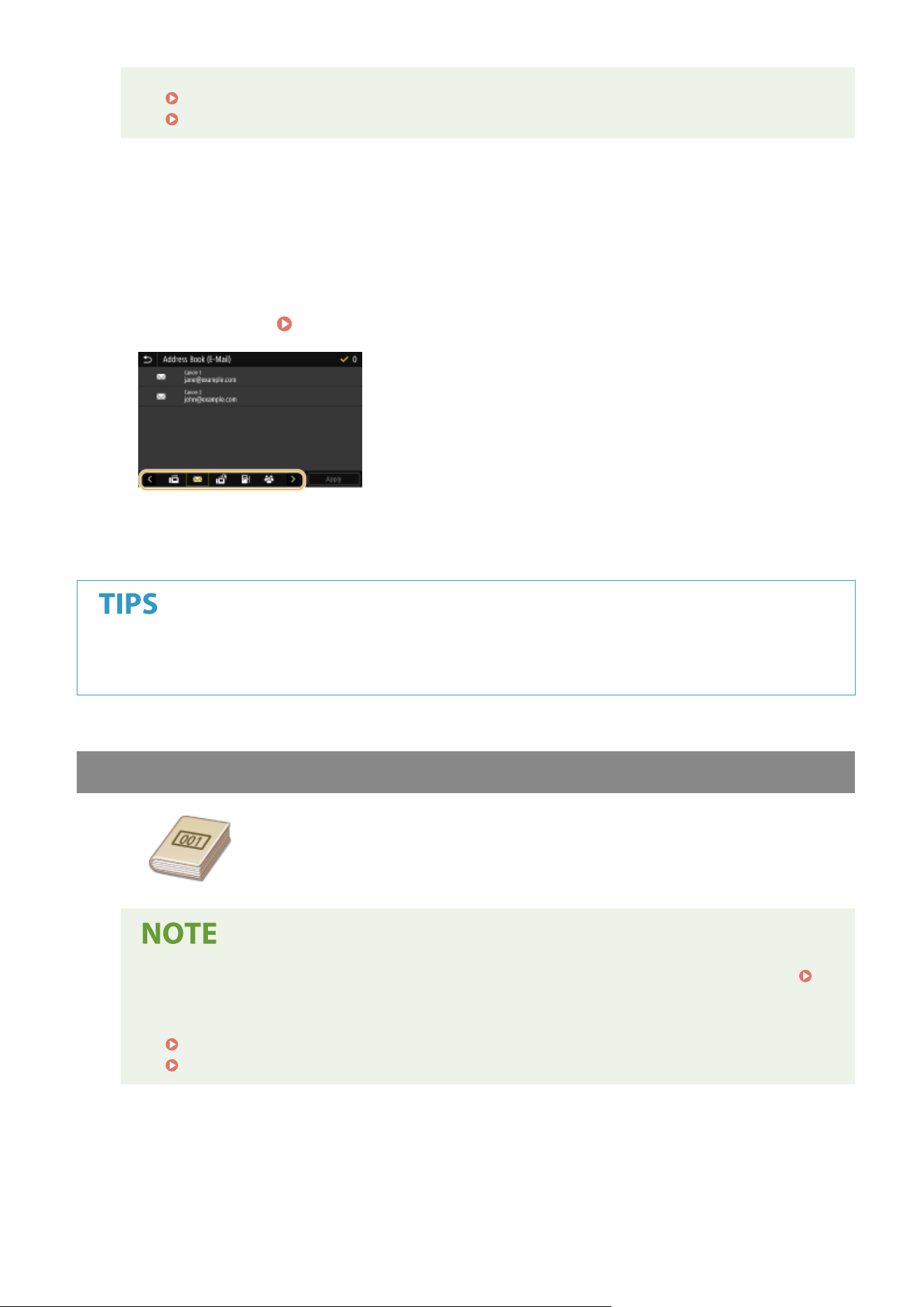
● Register the shar
ed folder or FTP server address from a computer.
Setting a Shared Folder as a Save Location(P. 95)
Registering Destinations from Remote UI(P. 434)
1
Select <Address Book> in the <Specify Destination> tab.
2
Select <To>.
3
Select an index.
Index(P. 181)
4
Select the check box for the desired destination, and select <Apply>.
● If a destination is selected fr
om <Address Book> in the Home screen, the Basic Features screen for e-mail
sending or le saving can be displayed while the selected destination remains being specied.
Specifying from Coded Dial Numbers
Three-digit numbers (coded dial numbers) are assigned to addresses in the Address
Book. Y
ou can specify an address simply by entering its coded dial number.
● To use coded dial numbers, the destination must be registered in the Address Book beforehand.
Registering Destinations(P. 181)
● Register the shared folder or FTP server address from a computer.
Setting a Shared Folder as a Save Location(P. 95)
Registering Destinations from Remote UI(P. 434)
1
Select <Coded Dial> in the <Specify Destination> tab.
2
Select <To>.
Scanning
295
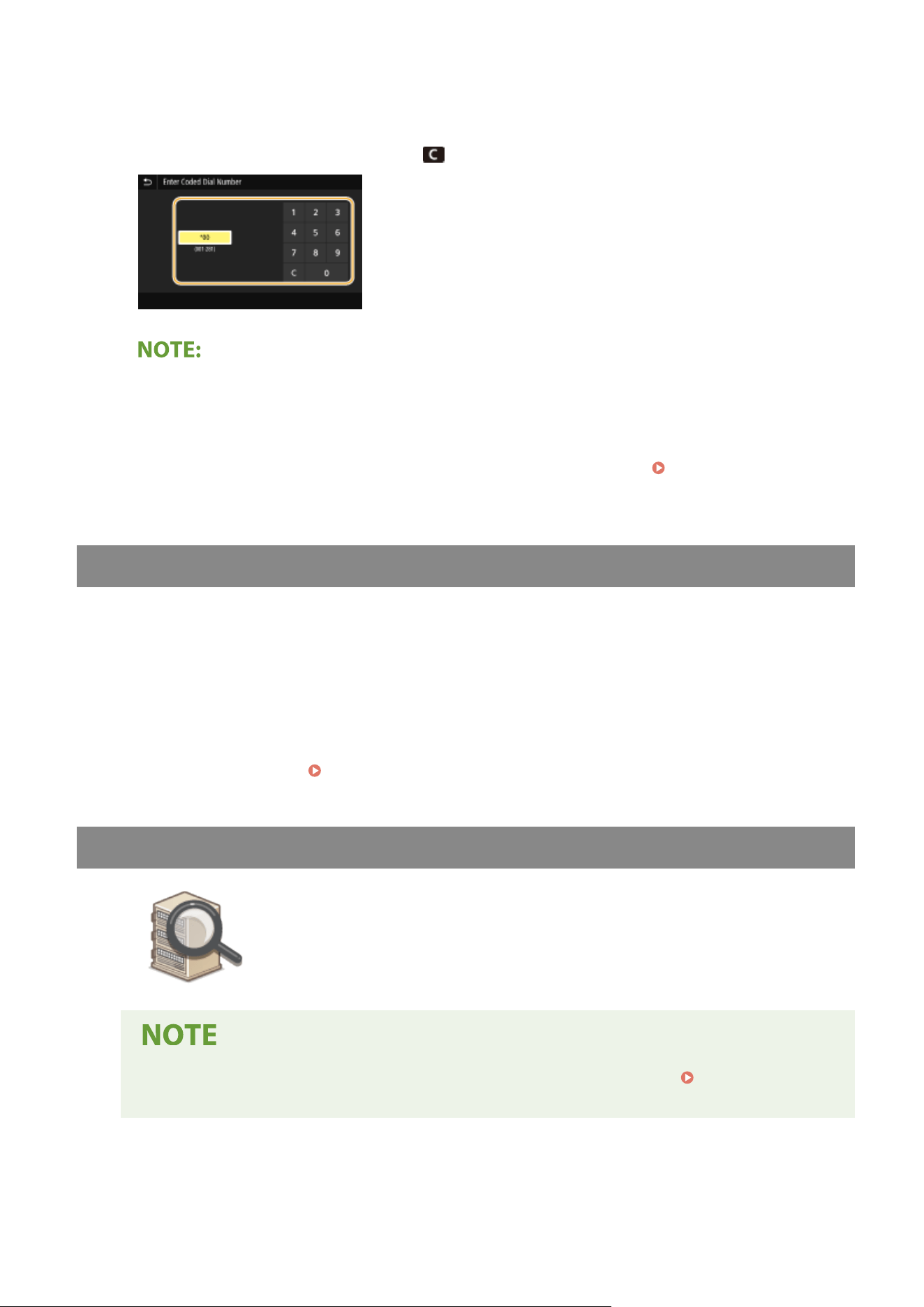
3
Enter a three-digit number.
● If you have enter
ed an incorrect value, use
to clear it.
If a conrmation scr
een appears
● When <Conrm When Coded Dial TX> is set to <On>, a screen is displayed that shows the destination and
the name for the number. (For Group Dial, the destination name and the number of destinations are
shown.) Check the contents and if everything is correct, select <OK>. To specify a different destination,
select <Cancel> and then re-enter the three-digit coded dial number.
Displaying Destinations in
Addr
ess Book(P. 411)
Entering Destinations Directly (E-Mail Sending)
For a destination that is not r
egistered in the Address Book, specify it by entering an e-mail address.
1
Select <Use Keyboard> in the <Specify Destination> tab.
2
Enter the e-mail address, and select <Apply>.
● On ho
w to enter text, see
Entering Text(P. 134) .
Specifying Destinations in an LDAP Server
If your oce has an LD
AP server installed, you can specify a destination using user
information in the server. Access the LDAP server via the machine to search for the
appropriate user information and specify it as destination.
● Y
ou need to specify the settings for connecting to an LDAP server beforehand.
Registering LDAP
Servers
(P. 65)
1
Select <LDAP Server> in the <Specify Destination> tab.
Scanning
296
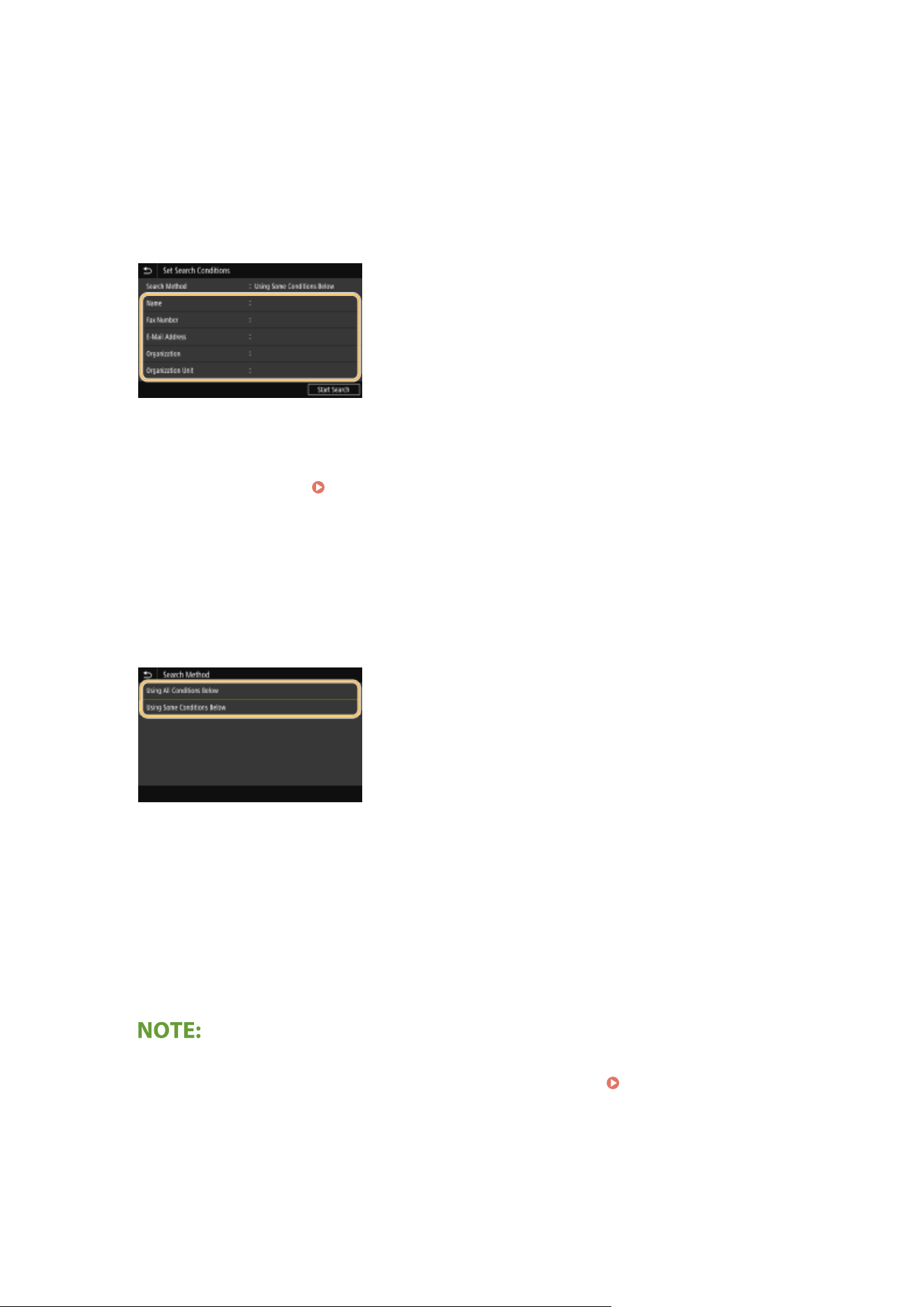
2
Select the LDAP server you are using.
3
Select conditions for user information to be searched.
● Name, fax numbers, e-mail addr
esses, organization names, and organization unit are available criteria for
searching destinations.
4
Enter the search target character string, and select <Apply>.
● On how to enter text, see Entering Text(P. 134) .
● To specify multiple search criteria, repeat steps 3 and 4.
5
Select <Search Method>.
6
Select conditions to display the search result.
<Using All Conditions Below>
Sear
ches and displays the users that meet all the search criteria specied in steps 3 and 4.
<Using Some Conditions Below>
If users that meet even one of the criteria specied in steps 3 and 4 are found, displays all those users.
7
Select <Start Search>.
➠ The users meeting your sear
ch criteria are displayed.
● If
the authentication screen appears when you select <Start Search>, enter the user name of the machine
and the password registered in the LDAP server, and select <Apply>.
Registering LDAP Servers(P. 65)
8
Select the check box for the user that you want to specify as destination, and select
<Apply>.
Scanning
297
Specifying from the Address Book on a Mobile Device (E-Mail Sending)
Y
ou can specify destinations from the address book on your mobile device.
Before using this feature
● Y
ou need to install "Canon PRINT Business" on your mobile device.
Utilizing the Machine through
Applications
(P. 333)
● Set <Link Mobile Device Address Book> on the machine to <On>.
<Link Mobile Device Addr.
Book>(P
. 526)
1
Select <Mobile Portal> in the <Specify Destination> tab.
2
Connect to the mobile device.
Connecting with Mobile Devices(P. 327)
3
Send an address from the mobile device to the machine.
● On ho
w to operate on the mobile device side, see "Canon PRINT Business Help."
● Information
entered on the mobile device side such as subject, message and le name can also be sent to
the machine.
4
When a message appears on the display of the machine, select <OK>.
If a screen on which a destination is already specied appears
● You can only send to destinations that are not restricted. To send to other destinations, you must
congure the send function authentication settings in such a way that transmission is not restricted.
Contact your administrator for details. LDAP Server Authentication(P. 365)
Specifying destinations from the transmission records
● You can also recall previously used destinations. Recalling Previously Used Settings for Sending/
Saving (Recall Settings)(P
. 315)
5
Specify multiple destinations as necessary.
● Repeat step 4 to specify all the destinations.
When specifying the destination for sending an e-mail
● If
you selected <LDAP Server> or <Specify Myself as Destination>, the destination is specied in the <To>
eld.
● <Cc> and <Bcc> addresses can only be selected using <Address Book> or <Coded Dial>.
Scanning
298
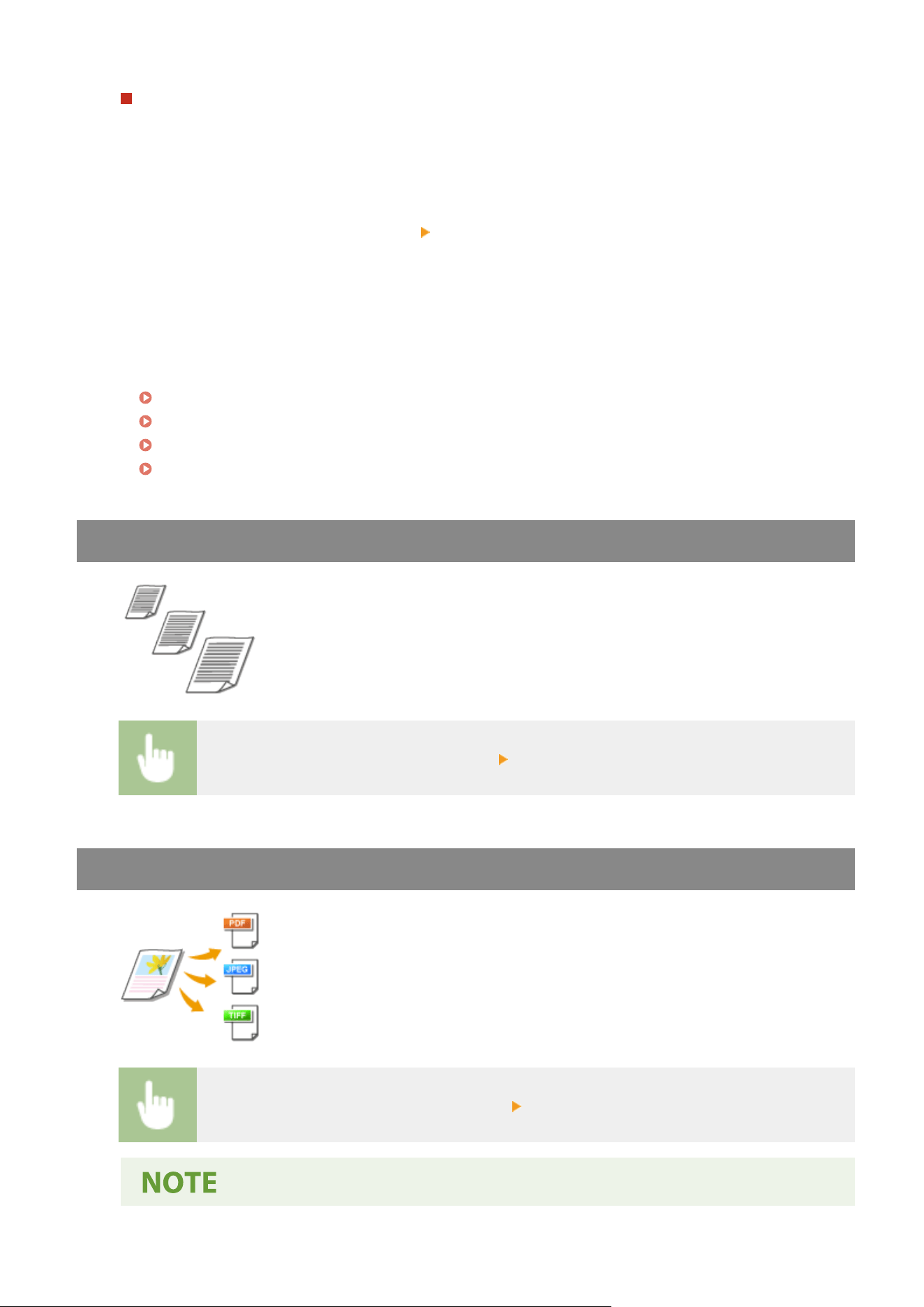
To delete destinations
If you specied multiple destinations, you can delete destinations as necessary
.
1
Select <Conrm Destination>.
2
Select the check box for the destination to be deleted, and select <Remove from Dest.>.
● If you select Group, select <Details> <Destination>; you can view the destinations registered in the
group.
3
Select <Yes>.
6
Specify the scanning settings as necessary.
Specifying the Scanning Size of the Original
Selecting a File Format
Specifying Orientation of Your Original
Scanning 2-Sided Originals
Specifying the Scanning Size of the Original
You can specify the scanning size of your original.
Select <Scan Size> in the <Send Settings> tab Select the original size
Selecting a File Format
You can select the le format to which originals ar
e scanned from PDF/JPEG/TIFF. For
PDF, you can select Compact PDF that reduces the data size or the PDF format that
enables a text search by including text data scanned with OCR (optical character
recognition).
Select <File Format> in the <Send Settings> tab Select a le format
Scanning
299
● If you select JPEG in <File Format> and try to scan an original fr
om the platen glass, you can only scan
one page. To scan a multiple-page original all at once, use the feeder. Each page of the original is
saved as a separate le. If you select TIFF or PDF, you can scan multiple-page originals either from the
platen glass or from the feeder. In this case, whether the original is to be saved as a single le or each
page as a separate le can be specied in
Dividing a PDF File by Page(P. 300) or Dividing a TIFF
File b
y Page(P. 300) .
● <PDF (Compact)> and <PDF (Compact/OCR)> compress photos and illustrations on originals more
than <PDF> and <PDF (OCR)>. The le will be smaller, but the image quality of some originals or the
number of originals that can be scanned at once may be lower.
● In <PDF (Compact/OCR)> and <PDF (OCR)> you can congure the settings so that the machine
automatically detects the original direction during scanning based on the direction of the text read by
the OCR function.
<OCR (Text Searchable) Settings>(P. 496)
◼ Dividing a PDF File b
y Page
Specify whether to convert the original with multiple pages into a single PDF le or create a separate PDF le for
each page. This setting can be congured for each PDF format.
Select <File Format> in the <Send Settings> tab <Set PDF Details> Select the PDF format
<Divide into Pages> Select <Off> or <On>
◼ Dividing a TIFF File b
y Page
Specify whether to convert the original with multiple pages into a single TIFF le or create a separate TIFF le
for each page.
Select <File Format> in the <Send Settings> tab <Set TIFF Details> <Divide into Pages> Select
<Off> or <On>
Specifying Orientation of Your Original
You can specify portrait or landscape orientation.
Select <Orig. Orientation> in the <Send Settings> tab Select the original orientation
Scanning
300
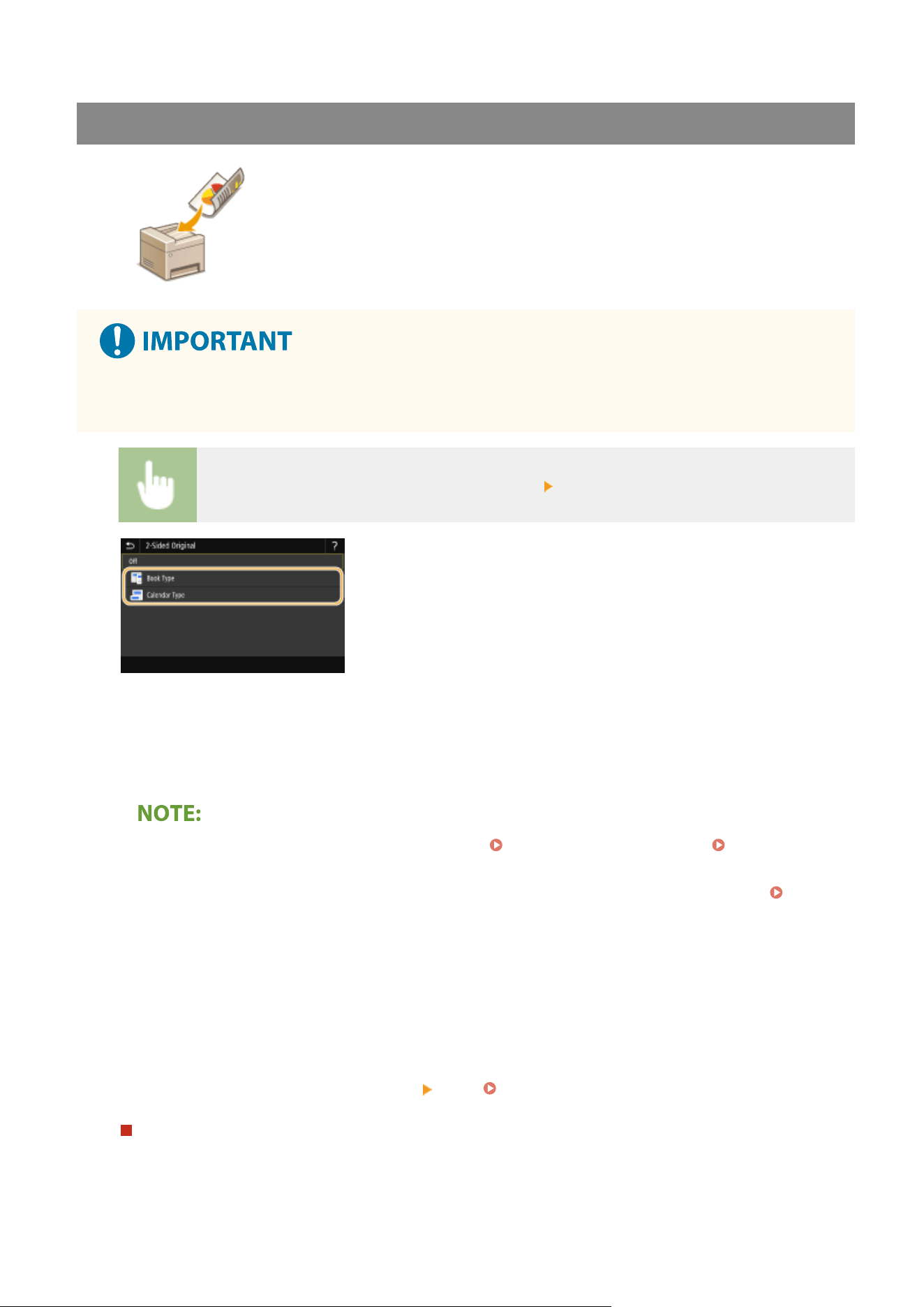
Scanning 2-Sided Originals
The machine can automatically scan the front and back sides of originals in the
feeder.
● The
machine cannot scan both sides of originals automatically when the originals are placed on the platen
glass.
Select <2-Sided Original> in the <Send Settings> tab Select <Book Type> or <Calendar Type>
<Book Type>
Select for originals whose images on the fr
ont and back sides face the same direction.
<Calendar Type>
Select for originals whose images on the front and back sides face in opposite directions.
● For
information about other scan settings, see
Scanning Clearly(P. 307)
or
Adjusting Balance
between File Size and Image Quality (Data Size)
(P. 313) .
● For e-mail, you can specify the subject, message, reply-to address, and priority as necessary.
Specifying
E-Mail Settings(P
. 318)
7
Select <Start>.
● If the <Conrm Destination> scr
een is displayed, check whether the destination is correct, and then select
<Start Scanning>.
➠ Scanning of the original starts.
● If you want to cancel, select <Cancel>
<Yes>. Canceling Sending Documents(P. 304)
When placing originals in the feeder in step 1
When scanning is complete, the sending/saving pr
ocess starts. Select <Close> to end the procedure.
Scanning
301

When placing originals on the platen glass in step 1
When scanning is complete, follow the procedure below (except if you selected JPEG as a le format).
1
If there are additional pages of originals to be scanned, place the next original on the platen glass, and
select <Scan Next Original>.
● Repeat this step until you nish scanning all of the pages.
● When there is only one page to be scanned, proceed to the next step.
2
Select <Start Sending>.
➠ The sending/saving process starts.
If the <File Authentication> or <SMTP Authentication> screen appears
● Enter the user name and passwor
d, and select <Apply>.
File name of the sent document
● The le name of a sent document is automatically assigned based on the following format: communication
management number (four digits)_sent date and time_document number (three digits).le extension
name. An arbitrary character string can be added in front of le name (
Conguring
a File
Name(P. 314) ).
Checking the communication status
● Setting <Display Notif. When Job Is Accepted> to <On> displays a screen prompting conrmation of the
communication status. When you select <Status Monitor>, you can check the sending status.
<Display
Notif. When Job Is Accepted>(P
. 524)
If an E-Mail Send Error Occurs
Error notications ar
e sometimes sent to the e-mail address set to the machine. If you leave it as-is, it may
result in an insucient remaining capacity of mailbox depending on your mail server. It is recommended that
you clear the mailbox periodically.
To clear the mailbox
● When
the mailbox is cleared, all e-mail in the server mailbox is deleted. When you specify the e-mail
account that you use usually, you should rst check whether any e-mail in the mailbox needs to be kept.
1
Start the Remote UI and log in to System Manager Mode. Starting Remote UI(P. 421)
2
Click [Settings/Registration] on the Portal page. Remote UI Screen(P. 422)
3
Select [TX Settings] [E-Mail/I-Fax Settings].
4
Click [Clear] in [Clear Mail Box].
5
Read the message that is displayed, and click [OK].
➠ E-mail is deleted fr
om the mailbox.
● If you always want to scan with the same settings:
Changing the Default Settings for Functions(P. 175)
Scanning
302

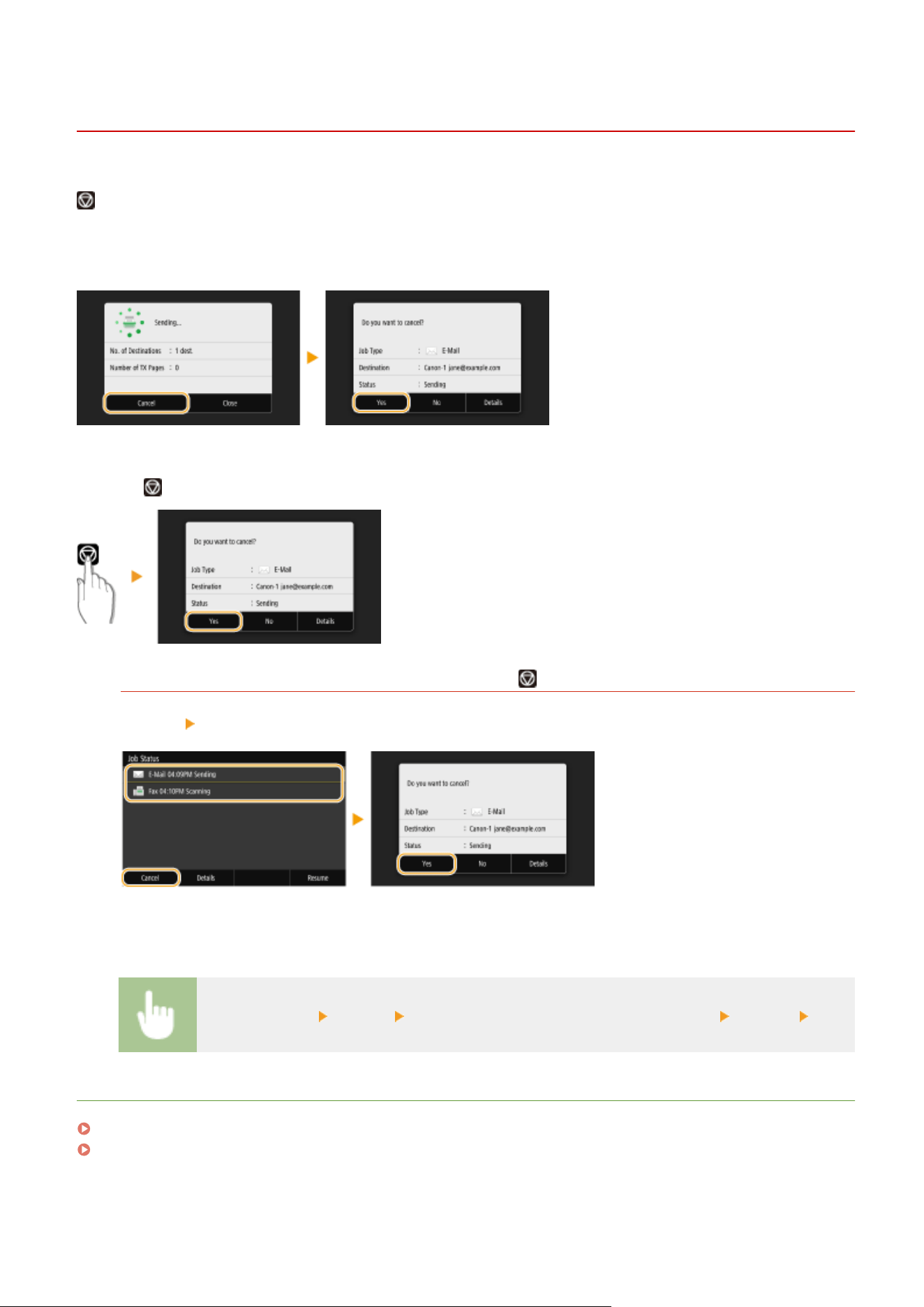
Canceling Sending Documents
7YWY-05S
If you want to cancel sending documents immediately after selecting <Start>, select <Cancel> on the display or pr
ess
. You can also cancel sending documents after checking the sending status.
◼ Select <Cancel> to cancel
◼ Pr
ess
to cancel
If the screen displays a list of documents when is pressed
Originals have been scanned and are waiting to be processed. Select the document to cancel, and select
<Cancel> <Yes>.
◼ Check the transmission status before canceling
<Status Monitor> <TX Job> Select the document in the <TX Job Status> tab <Cancel> <Yes>
LINKS
Basic Operations for Scanning Originals(P. 287)
Checking Status and Log for Scanned Originals(P. 305)
Scanning
304
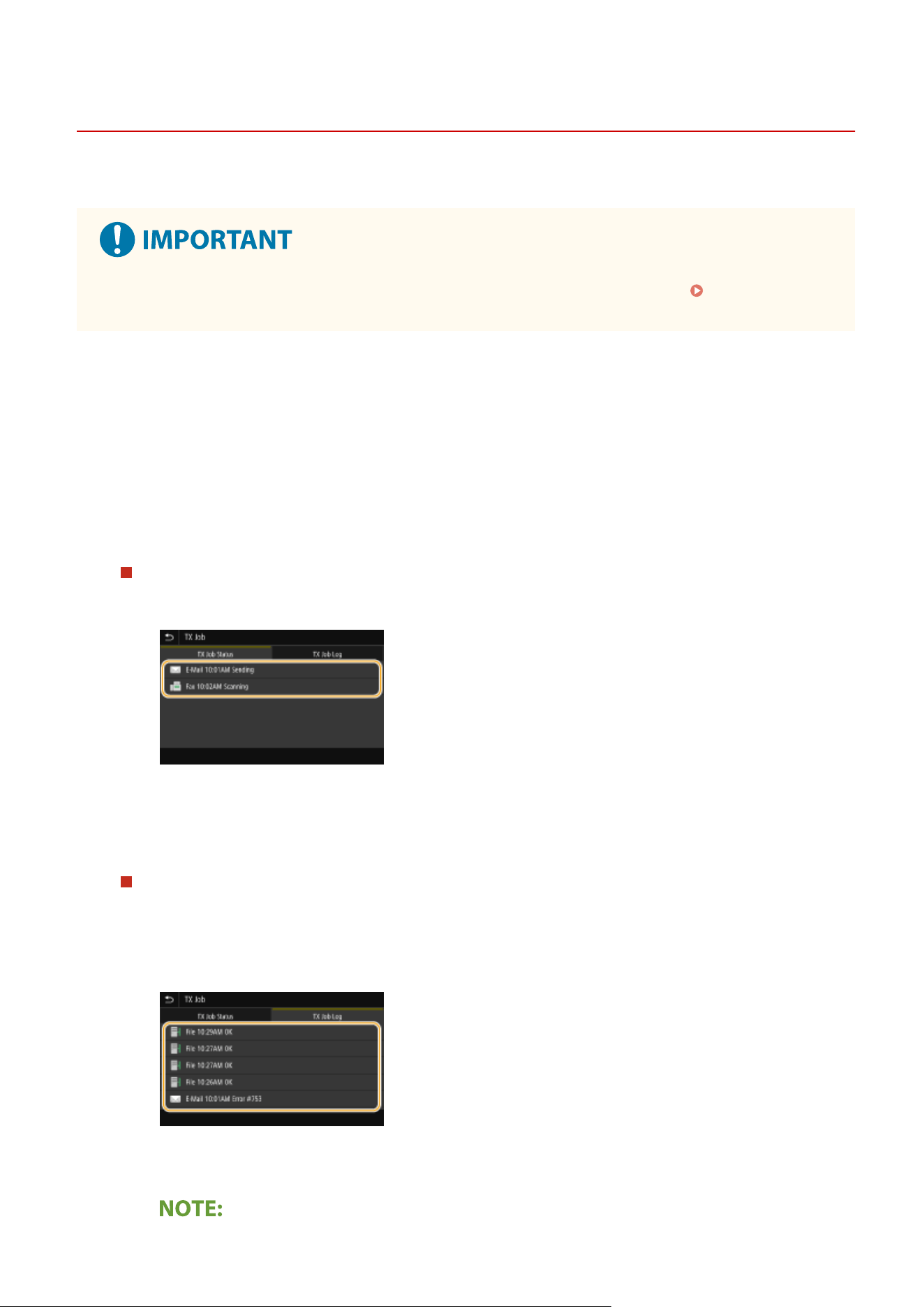
Checking Status and Log for Scanned Originals
7YWY-05U
Y
ou can check the status and log for scanned originals sent directly from the machine.
● When <Display Job Log> is set to <Off>, you cannot check the logs for sent documents. <Display Job
Log>
(P. 552)
1
Select <Status Monitor>.
2
Select <TX Job>.
3
Check the statuses and logs for sent documents.
To check the statuses for sent documents
1
Select the document whose status you want to check in the <TX Job Status> tab.
➠ Displays detailed information about the document.
● If you specied multiple destinations, the number of specied destinations is displayed on the
screen. To check the details of specied multiple destinations, select <Destination>.
To check the logs for sent documents
1
Select the document whose log you want to check in the <TX Job Log> tab.
● <OK> is displayed when a document was sent successfully
, and <Error> is displayed when a document
failed to be sent because it was canceled or there was some error.
➠ Displays detailed information about the document.
Scanning
305

When a three-digit number is shown in the case of <Error>
● This number r
epresents an error code. For more information, see "Troubleshooting (FAQ)" on the
online manual website.
Registering the destination of the sent document to the Address Book
● For a document sent to a destination not registered in the Address Book, you can register that
destination to the Address Book by selecting <Regst to Add Book> on the details screen.
LINKS
Basic Operations for Scanning Originals(P. 287)
Canceling Sending Documents(P. 304)
Printing Reports and Lists(P. 590)
Scanning
306
Scanning Clearly
7YWY-05W
When cr
eating les for brochures that contain many pictures or reports written in pencil, you can adjust density and
brightness to achieve clearer image quality.
Adjusting Image Quality(P. 308) Adjusting Density(P. 309) Adjusting Sharpness When
Scanning (Sharpness)(P
. 310)
Scanning
307
Adjusting Image Quality
7YWY-05X
You can select the image quality for the scan depending on the original type, such as
te
xt-only originals, originals with charts and graphs, or magazine photos.
Saving Data to a USB Memory Device
<Scan> <USB Memory> <Original Type> Select the original type
Sending Data b
y E-Mail/I-Fax or Saving Data to the Server
<Scan> Specify destinations in <E-Mail>/<I-Fax>/<File> Select <Original Type> in the <Send
Settings> tab Select the original type
LINKS
Basic Operations for Scanning Originals(P. 287)
Sending I-Faxes(P. 252)
Scanning
308
Adjusting Density
7YWY-05Y
You can adjust the density of the scan if the text or images in a original are too light
or dark.
Saving Data to a USB Memory Device
<Scan> <USB Memory> <Density> Adjust the density <Apply>
Sending Data b
y E-Mail/I-Fax or Saving Data to the Server
<Scan> Specify destinations in <E-Mail>/<I-Fax>/<File> Select <Density> in the <Send Settings>
tab Adjust the density <Apply>
LINKS
Basic Operations for Scanning Originals(P. 287)
Sending I-Faxes(P. 252)
Adjusting Sharpness When Scanning (Sharpness)(P. 310)
Scanning
309
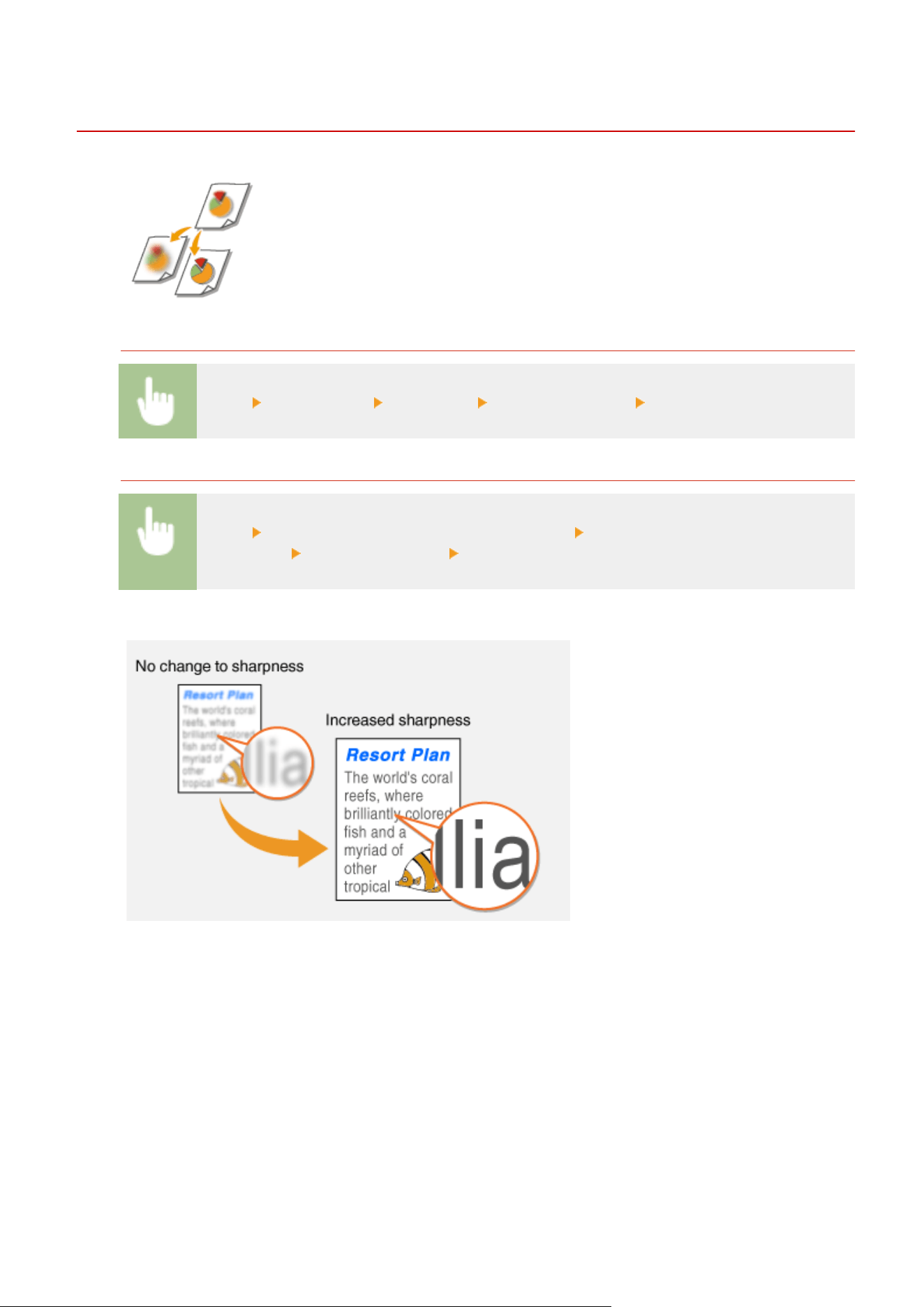
Adjusting Sharpness When Scanning (Sharpness)
7YWY-060
You can adjust the sharpness of the image. Increase the sharpness to sharpen
blurr
ed text and lines, or decrease the sharpness to improve the appearance of
magazine photos.
Saving Data to a USB Memory Device
<Scan> <USB Memory> <Sharpness> Adjust the sharpness <Apply>
Sending Data b
y E-Mail/I-Fax or Saving Data to the Server
<Scan> Specify destinations in <E-Mail>/<I-Fax>/<File> Select <Sharpness> in the <Send
Settings> tab Adjust the sharpness <Apply>
Example: If you want to sharpen te
xt and lines written in pencil
Example: If you want to improve the appearance of magazine photos
Scanning
310
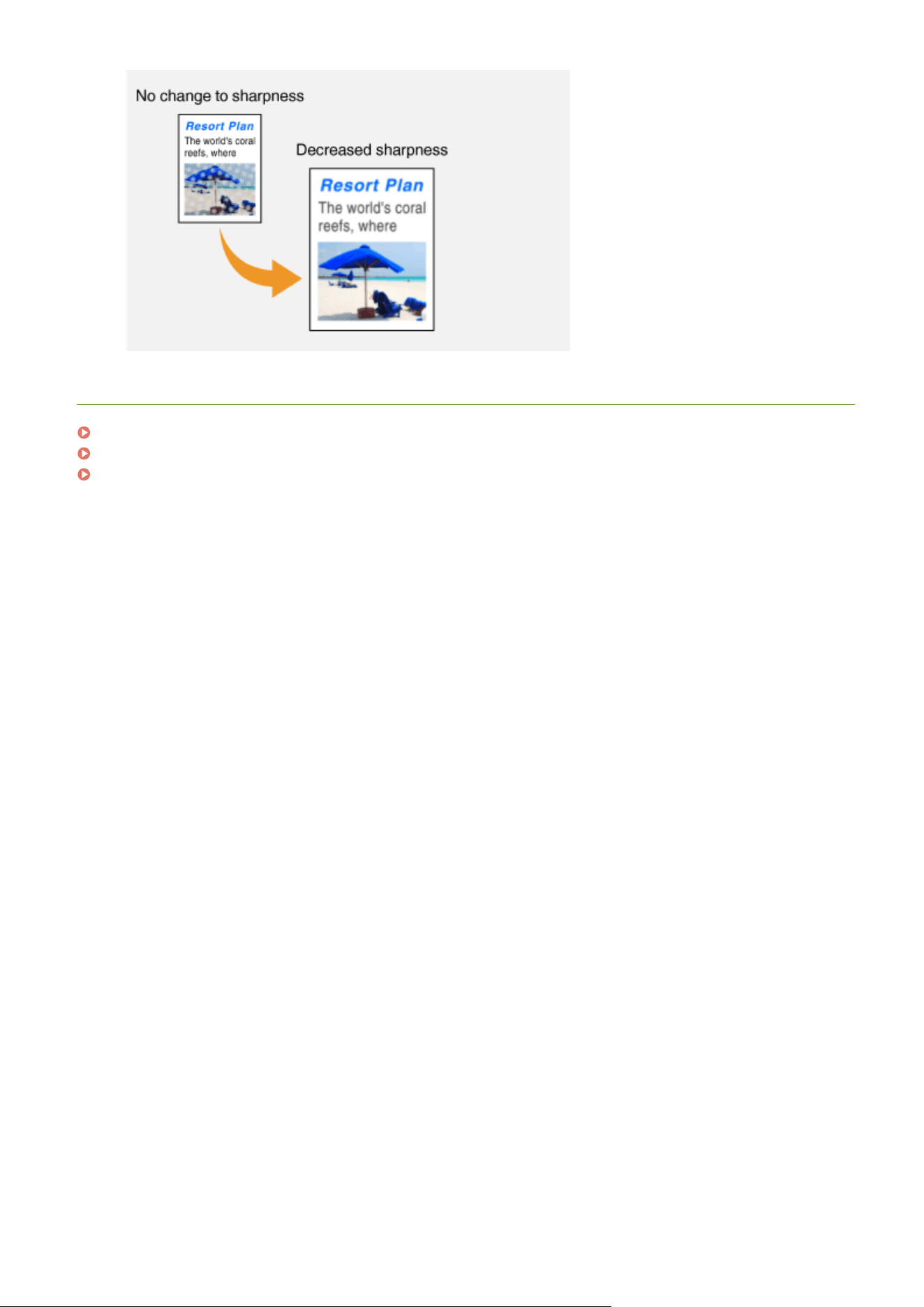
Useful Scanning Functions
7YWY-061
The machine is equipped with useful functions such as those that can cr
eate secure PDF les to prevent them from
being tampered with, and that can send data again to previously specied destinations.
Adjusting Balance between File
Size and Image Quality (Data Size)
(P
. 313)
Conguring a File Name
(P. 314)
Recalling Previously Used
Settings for Sending/Saving (Recall
Settings)(P
. 315)
Specifying E-Mail Settings(P. 318)
Scanning
312
Adjusting Balance between File Size and Image Quality
(Data Size)
7YWY-062
You can specify the le compr
ession ratio when converting scanned originals into
the JPEG format. <Small: Memory Priority> makes the compression ratio higher than
normal to create smaller les with lower image quality. On the other hand, <Large:
Image Quality Priority> makes the compression ratio lower than normal larger les
with higher image quality.
Saving Data to a USB Memory Device
<Scan> <USB Memory> <Data Size> Specify the setting
Sending Data b
y E-Mail or Saving Data to the Server
<Scan> Specify destinations in <E-Mail>/<File> Select <Data Size> in the <Send Settings> tab
Specify the setting
LINKS
Basic Operations for Scanning Originals(P. 287)
Scanning
313
Conguring a File Name
7YWY-063
You can specify an arbitrary character string to be used in the le name of a scanned
document.
Saving Data to a USB Memory Device
The le name is automatically assigned based on the follo
wing format: arbitrary character string + four-digit
number.le extension name.
<Scan> <USB Memory> <File Name> Enter a character string <Apply>
Sending Data b
y E-Mail/I-Fax or Saving Data to the Server
The le name is automatically assigned based on the follo
wing format: arbitrary character
string_communication management number (four digits)_sent date and time_document number (three
digits).le extension name.
<Scan> Specify destinations in <E-Mail>/<I-Fax>/<File> Select <File Name> in the <Send
Settings> tab Enter a character string <Apply>
LINKS
Basic Operations for Scanning Originals(P. 287)
Sending I-Faxes(P. 252)
Scanning
314
Recalling Previously Used Settings for Sending/Saving
(Recall Settings)
7YWY-064
You can select a destination from among the past destinations. When you specify a
pr
eviously used destination, the machine also sets the same scan settings such as
density you used the last time you sent documents to that destination.
● When <Restrict Resending fr
om Log> is set to <On>, you cannot use this feature.
Disabling Use of
Pr
eviously Used Destinations(P. 411)
● Turning OFF the machine or setting <Restrict New Destinations> to <On> deletes the past destinations, and
disables this feature.
Restricting New Destinations that Can Be Specied(P
. 411)
● When you specify a destination using this featur
e, any destinations that you have already specied are
deleted.
1
Place the original(s).
Placing Originals(P. 138)
2
Select <Scan> in the Home screen. Home Screen(P. 125)
● If the login screen appears, specify the user name, the password, and the authentication server. Logging
in to Authorized Send(P. 136)
3
Select <E-Mail>, <I-Fax>, or <File> in the Scan Basic Features screen. Scan Basic
Featur
es Screen(P. 284)
4
Select <Recall Settings> in the <Specify Destination> tab.
5
Select the destination.
● When you tr
ansmit to multiple destinations, only the address specied for the rst transmission is displayed
in the log, but all the destinations are specied.
Scanning
315
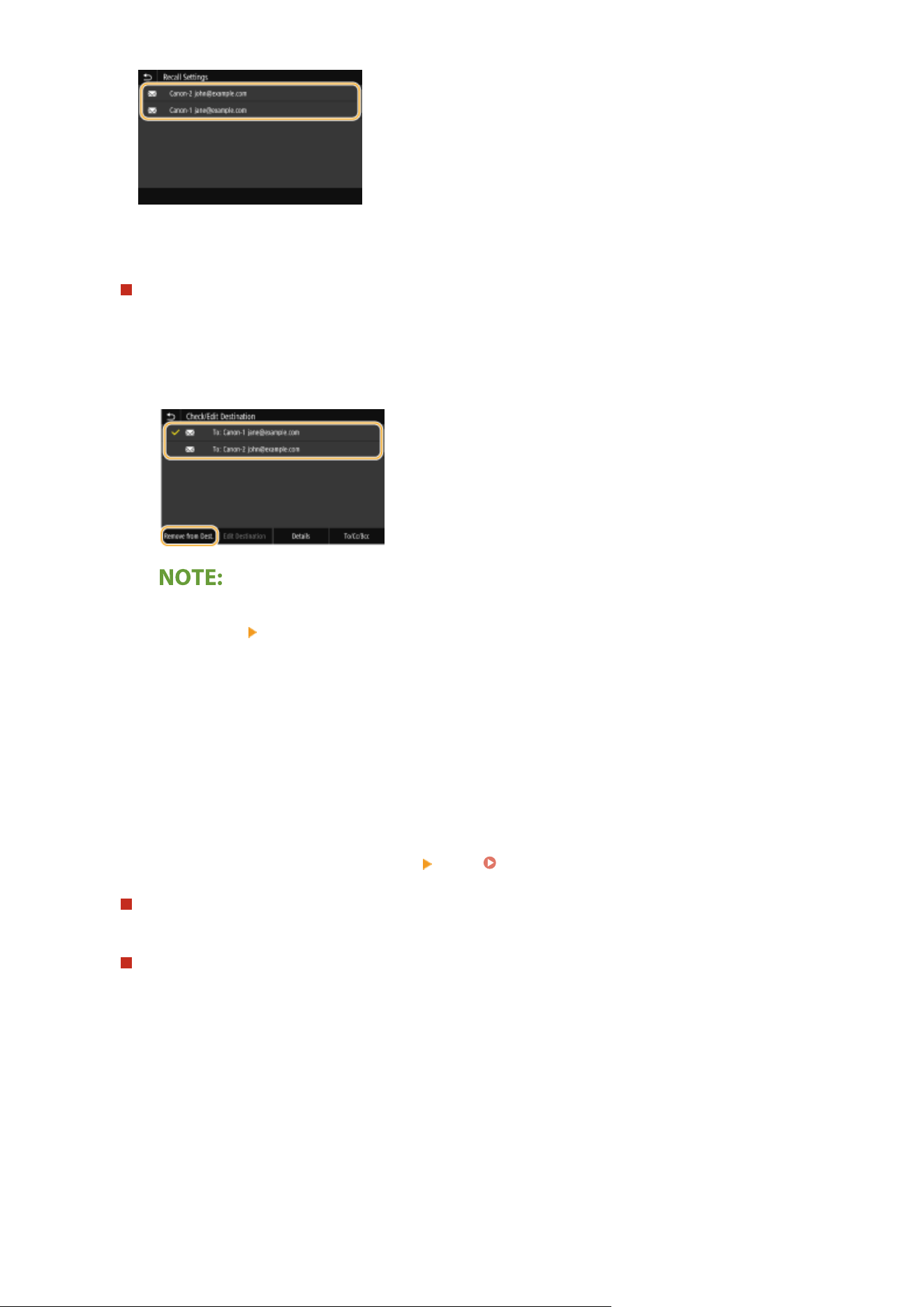
➠ The selected destination and its scan settings ar
e specied. You can also change the settings before
sending.
To delete destinations (e-mail/I-Fax)
If you specied multiple destinations, you can delete destinations as necessary
.
1
Select <Conrm Destination>.
2
Select the check box for the destination to be deleted, and select <Remove from Dest.>.
● If you select the Gr
oup check box, you can view the destinations registered in the group by selecting
<Details>
<Destination>.
3
Select <Yes>.
6
Select <Start>.
● If the <Conrm Destination> scr
een is displayed, check whether the destination is correct, and then select
<Start Scanning>.
➠ Scanning of the original starts.
● If you want to cancel, select <Cancel>
<Yes>. Canceling Sending Documents(P. 304)
When placing originals in the feeder in step 1
When scanning is complete, the sending/saving pr
ocess starts.
When placing originals on the platen glass in step 1
When scanning is complete, follow the procedure below (except if you selected JPEG as a le format).
1
If there are additional pages of originals to be scanned, place the next original on the platen glass, and
select <Scan Ne
xt Original>.
● Repeat this step until you nish scanning all of the pages.
● When there is only one page to be scanned, proceed to the next step.
2
Select <Start Sending>.
➠ The sending/saving process starts.
Scanning
316

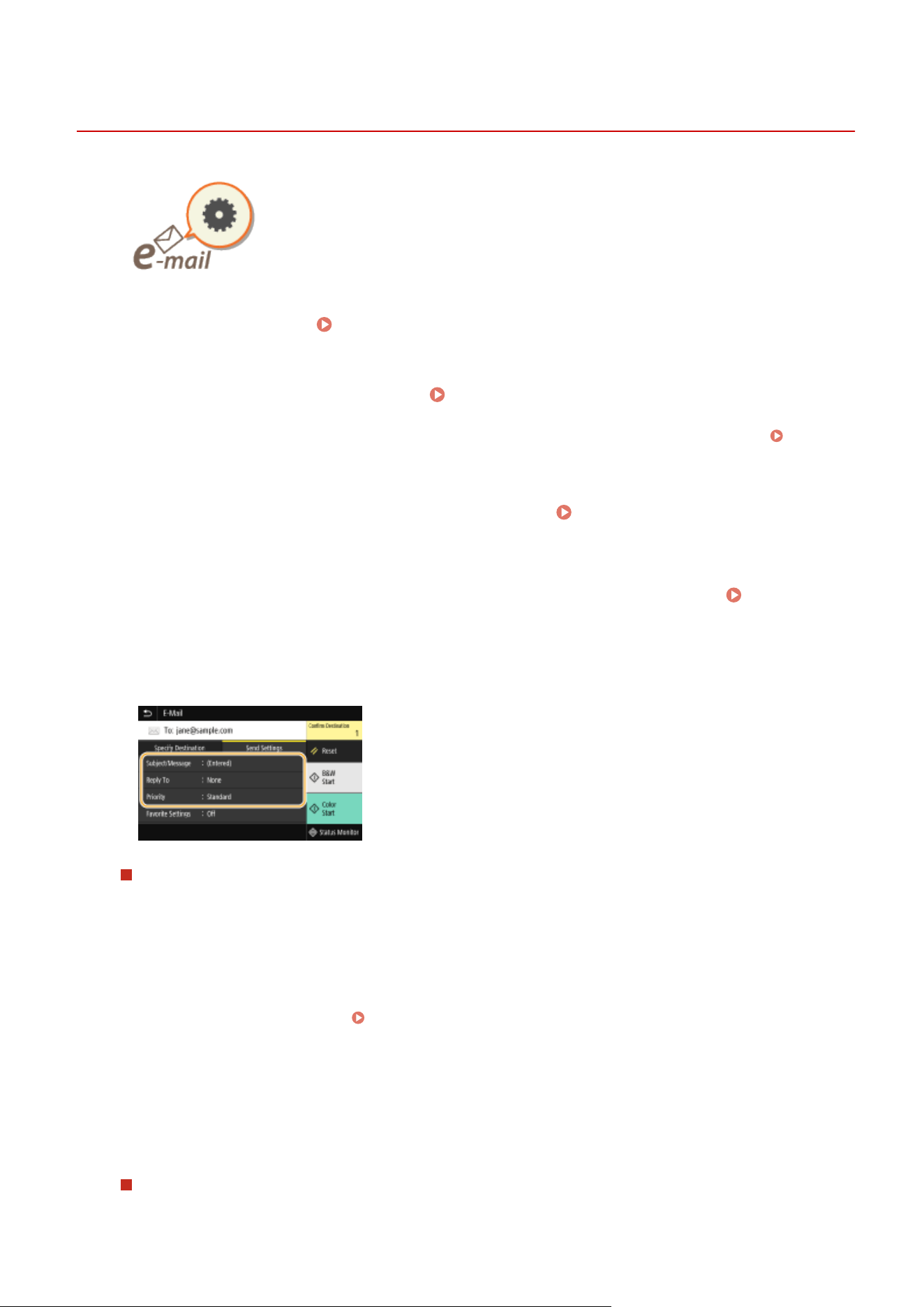
Specifying E-Mail Settings
7YWY-065
When attaching a scanned originals to an e-mail, you can specify the subject,
message, r
eply-to address, and priority for the e-mail before sending it.
1
Place the original(s).
Placing Originals(P. 138)
2
Select <Scan> in the Home screen.
Home Screen(P. 125)
● If the login scr
een appears, specify the user name, the password, and the authentication server.
Logging
in to Authorized Send(P
. 136) .
3
Select <E-Mail> in the Scan Basic Features screen.
Scan Basic Features
Scr
een(P. 284)
4
Specify the destination, and congur
e the scan settings as necessary.
Basic
Oper
ations for Scanning Originals(P. 287)
5
Specify the subject, message, reply-to address, and priority for the e-mail.
To specify subject/message
1
Select <Subject/Message> in the <Send Settings> tab.
2
Select <Subject>.
3
Enter the subject, and select <Apply>.
● On ho
w to enter text, see
Entering Text(P. 134) .
4
Select <Message>.
5
Enter the message, and select <Apply>.
6
Select <Apply>.
To specify reply-to address
Specify the r
eply-to address when you want to notify the recipient of an e-mail address different from that of
the machine as the reply-to address. Select the target reply-to address from the destinations registered in the
Scanning
318

Address Book, and specify it. If the destination has not been registered in the Address Book, see
Registering Destinations(P. 181) .
1
Select <Reply To> in the <Send Settings> tab.
2
Select <Specify from Address Book>.
3
Select the check box for the desired reply-to address, and select <Apply>.
To specify priority
1
Select <Priority> in the <Send Settings> tab.
2
Select a priority level.
6
Select <Start>.
● If the <Conrm Destination> scr
een is displayed, check whether the destination is correct, and then select
<Start Scanning>.
➠ Scanning of the original starts.
● If you want to cancel, select <Cancel>
<Yes>. Canceling Sending Documents(P. 304)
When placing originals in the feeder in step 1
When scanning is complete, the e-mails ar
e sent.
When placing originals on the platen glass in step 1
When scanning is complete, follow the procedure below (except if you selected JPEG as a le format).
1
If there are additional pages of originals to be scanned, place the next original on the platen glass, and
select <Scan Ne
xt Original>.
● Repeat this step until you nish scanning all of the pages.
● When there is only one page to be scanned, proceed to the next step.
2
Select <Start Sending>.
➠ The e-mails are sent.
If the <SMTP Authentication> screen appears
● Enter the user name and passwor
d, and select <Apply>.
● If you always want to scan with the same settings: Changing the Default Settings for Functions(P. 175)
● If you want to r
egister a combination of settings to use when needed:
Registering Frequently Used
Settings(P
. 173)
● If you want to specify the e-mail sender name:
<Register Unit Name>(P. 524)
Scanning
319

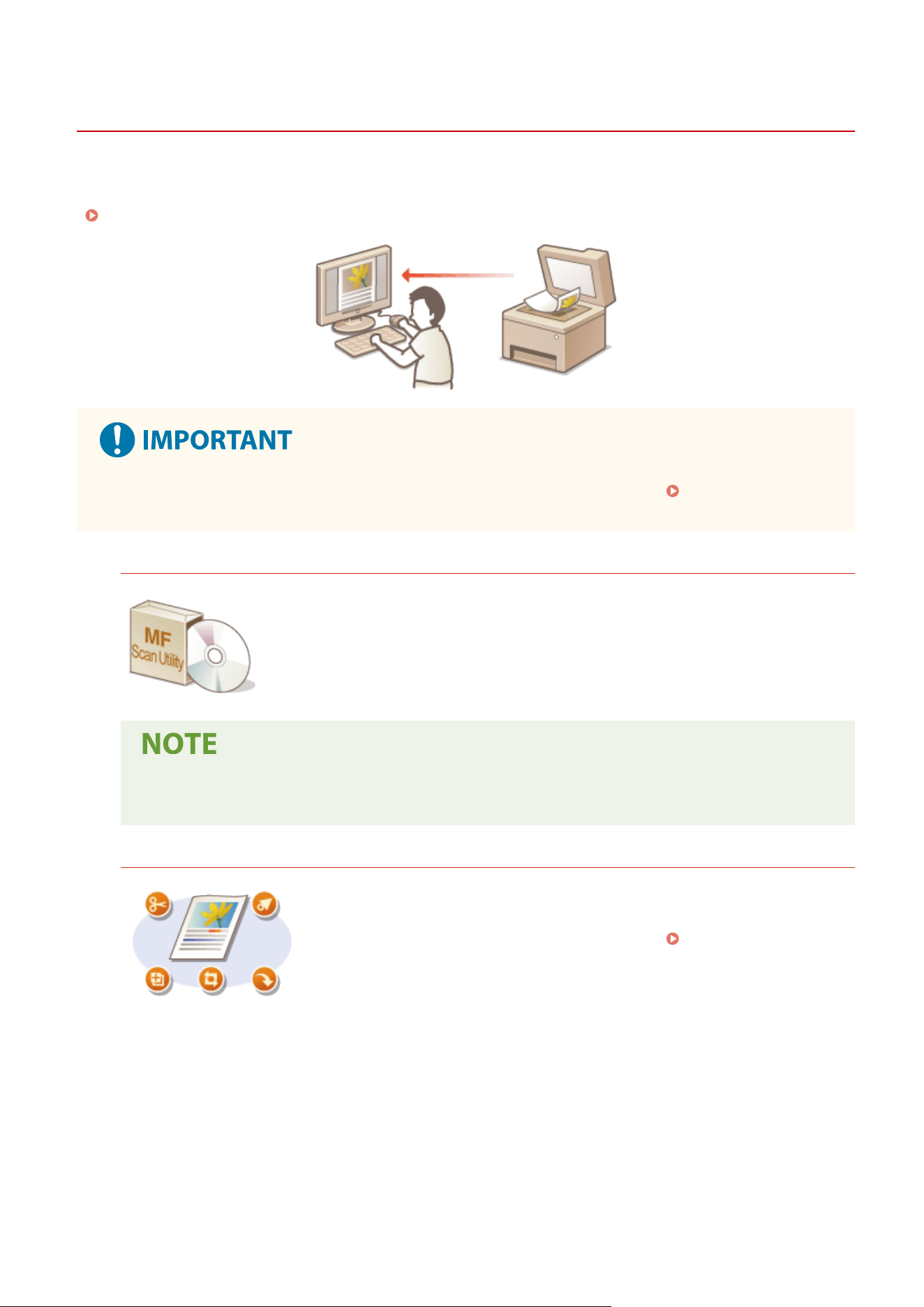
Using Your Computer to Scan (Remote Scan)
7YWY-066
T
o scan from a computer, you can use MF Scan Utility or an application such as an image processing or word
processing application. If you use ScanGear MF supplied with the machine, you can congure advanced scan settings
(
Using ScanGear MF(P. 324) ).
● When using the machine with a USB connection, e
xit sleep mode before scanning.
Entering Sleep
Mode
(P. 179)
Scanning Using MF Scan Utility
MF Scan Utility is an application included with the machine that enables you to scan
documents or images to a computer. Y
ou can forward the scanned data to a specied
application, or attach it to an e-mail message. For more information, click [Instructions]
on MF Scan Utility.
● If you are a macOS user, see the manuals for the relevant drivers or software on the online manual
website.
Scanning Using an Application
You can scan images by using an application such as a word-processing or
image-pr
ocessing application, and load the images directly into the application.
You do not need to start another application to scan.
Scanning Documents
fr
om an Application(P. 322)
Scanning
321
Scanning Documents from an Application
7YWY-067
You can scan originals from applications such as image-processing or word-
pr
ocessing software. The scanned image is directly loaded in the application,
allowing you to edit or process the image immediately. The following procedure
varies depending on the application.
● The application must be compatible with TW
AIN or WIA
*
. For more information, see the instruction manual
for your application.
*
TWAIN is a standard for connecting image input devices, such as scanners, with computers. WIA is a function that is an
integrated standard in Windows.
1
Place the original(s).
Placing Originals(P. 138)
● The
second or subsequent originals may not be scanned, or an error message may be displayed
depending on the application. In such a case, place and scan one original at a time.
● When <Auto Online> is set to <Off>, you must select <Scan>
<Remote Scanner> in the Home screen to
bring the machine online. <Auto Online>(P. 495)
2
From the application, select the start scan command.
● The procedure for selecting the start scan command varies depending on the application. For more
information, see the instruction manual for your application.
3
Select the scanner driver for this machine.
● Select ScanGear MF or WIA. If you select ScanGear MF
, you can congure advanced scan settings.
4
Specify the scanning settings as necessary.
5
Click [Scan].
➠ Scanning of the original starts.
● When scanning is complete, the scanned image is forwar
ded to an application.
How to use ScanGear MF
● Click
on the ScanGear MF screen, and see the Help.
Scanning
322
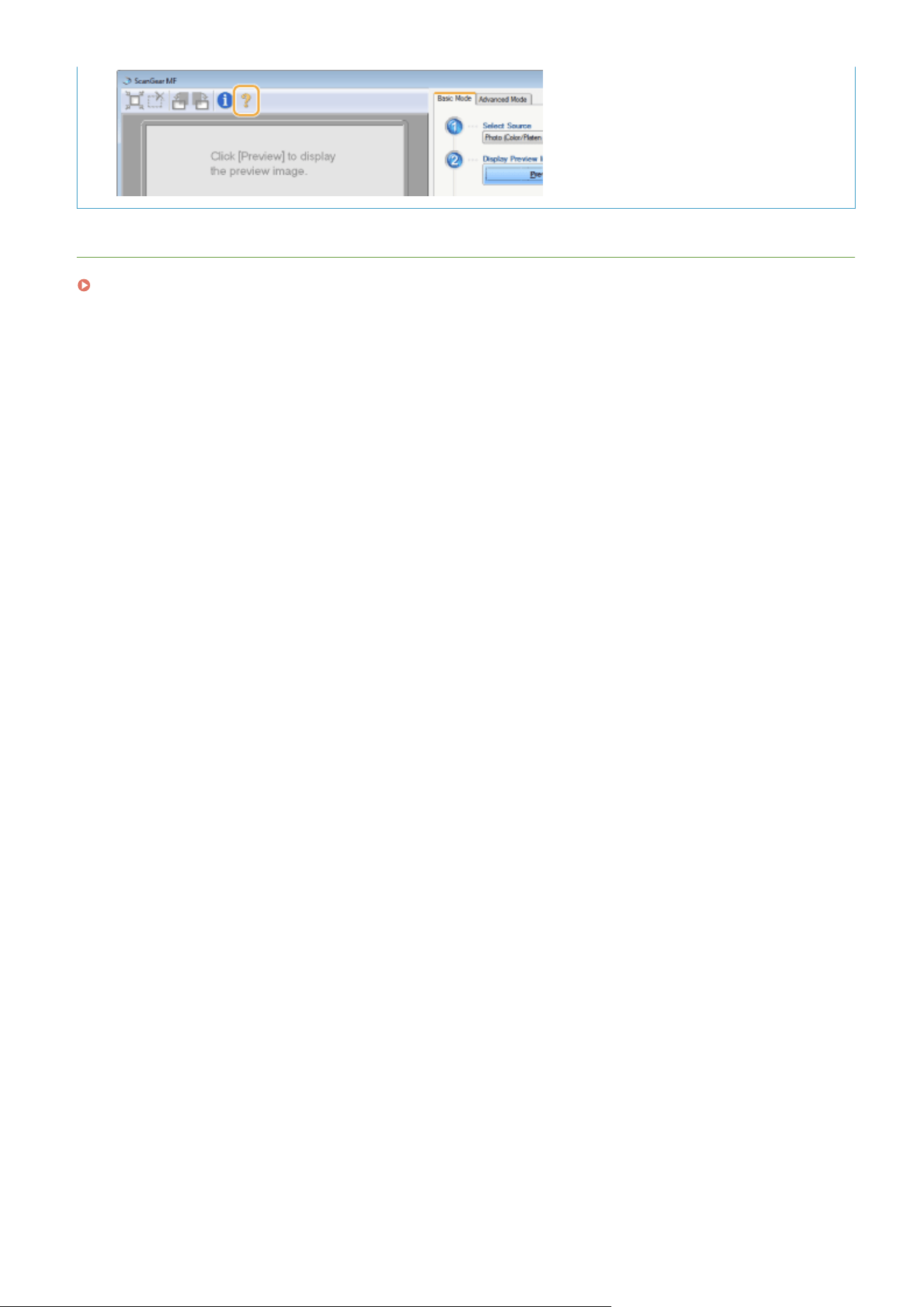
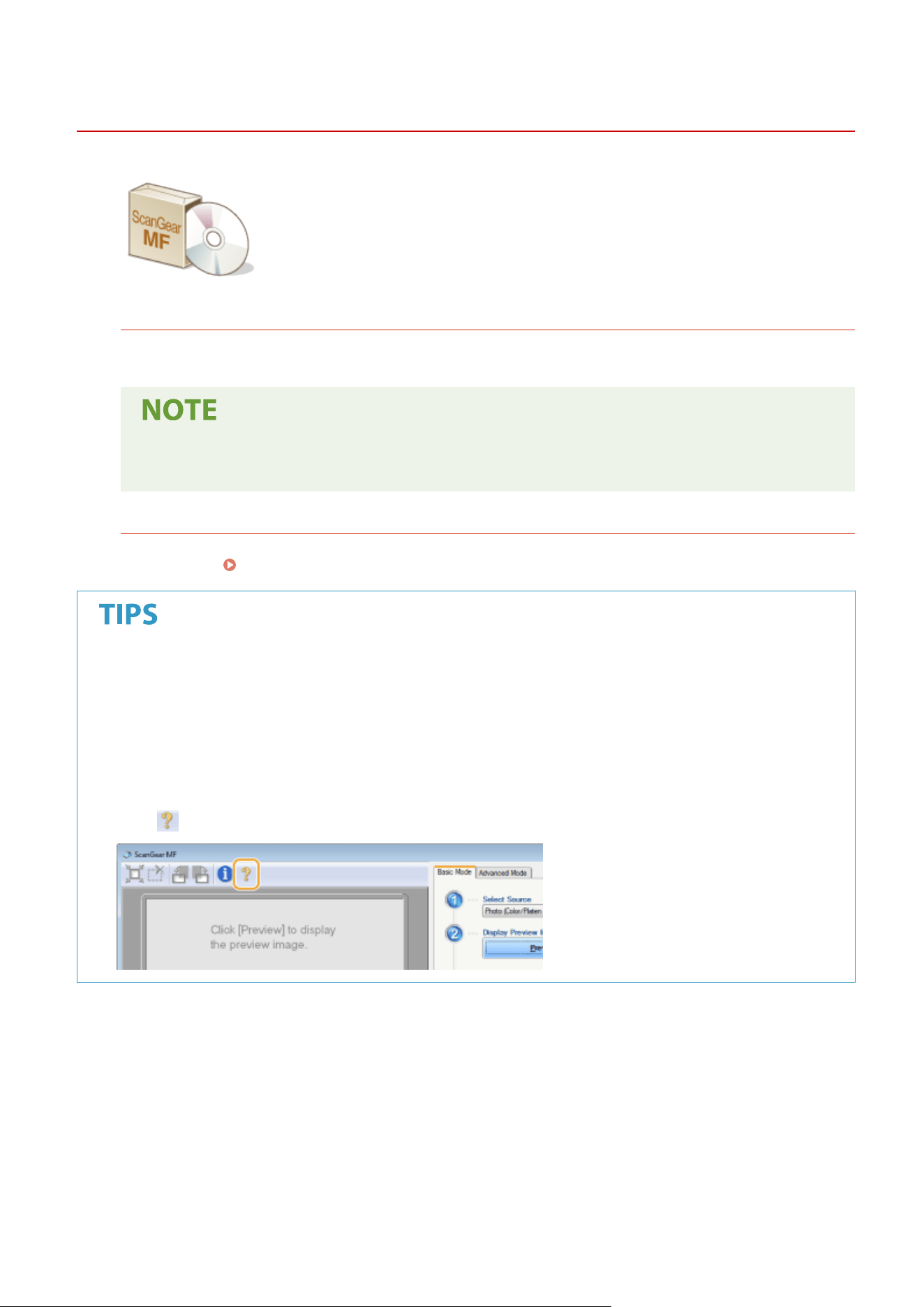
Using ScanGear MF
7YWY-068
ScanGear MF is a scanner driver included with the machine. You can use ScanGear
MF to congur
e advanced scan settings when you scan. The way of
starting ScanGear MF differs depending of the way of scanning from the computer.
Starting from MF Scan Utility
When scanning from MF Scan Utility, click [ScanGear] to start ScanGear MF. For more information, click
[Instructions] on MF Scan Utility
.
● If you ar
e a macOS user, see the manuals for the relevant drivers or software on the online manual
website.
Starting from an application
To scan from applications such as image-processing or word-processing software, select ScanGear MF as
scanner driver. Scanning Documents from an Application(P. 322)
Functions of ScanGear MF
● Pr
eviewing the image before scanning
● Specifying the scanning area
● Adjusting the detailed image quality
How to use ScanGear MF
● Click
on the ScanGear MF screen, and see the Help.
Scanning
324

Linking with Mobile Devices
Linking with Mobile Devices ....................................................................................................................
326
Connecting with Mobile Devices ...................................................................................................................... 327
Connecting via a Wireless LAN Router (LAN Connection) .............................................................................. 328
Connecting Directly (Access Point Mode) ...................................................................................................... 330
Utilizing the Machine through Applications .................................................................................................... 333
Using AirPrint .................................................................................................................................................... 336
Printing with AirPrint .................................................................................................................................... 341
Scanning with AirPrint .................................................................................................................................. 344
Faxing with AirPrint ...................................................................................................................................... 346
If AirPrint Cannot Be Used ............................................................................................................................ 348
Managing the Machine by the Remote Control .............................................................................................. 349
Linking with Mobile Devices
325
Linking with Mobile Devices
7YWY-069
Linking the machine with mobile de
vices such as smart phones and tablets enables you to use an appropriate
application to perform printing, or other operation with ease. In addition, you can operate the machine from mobile
devices via remote control to conrm printing status and change the settings of the machine.
Connecting with Mobile Devices(P. 327)
Connecting Directly (Access Point Mode)(P. 330)
Utilizing the Machine through Applications(P. 333)
Using AirPrint(P. 336)
Managing the Machine by the Remote Control(P. 349)
● Depending on your mobile de
vice, the machine may not operate correctly.
● When [Restrict IPP Port (Port Number: 631)] or [Restrict mDNS Port (Port Number: 5353)] is enabled in
Security Policy (
Security Policy(P. 438) ), you can use neither Mopria
®
or AirPrint.
Linking with Mobile Devices
326
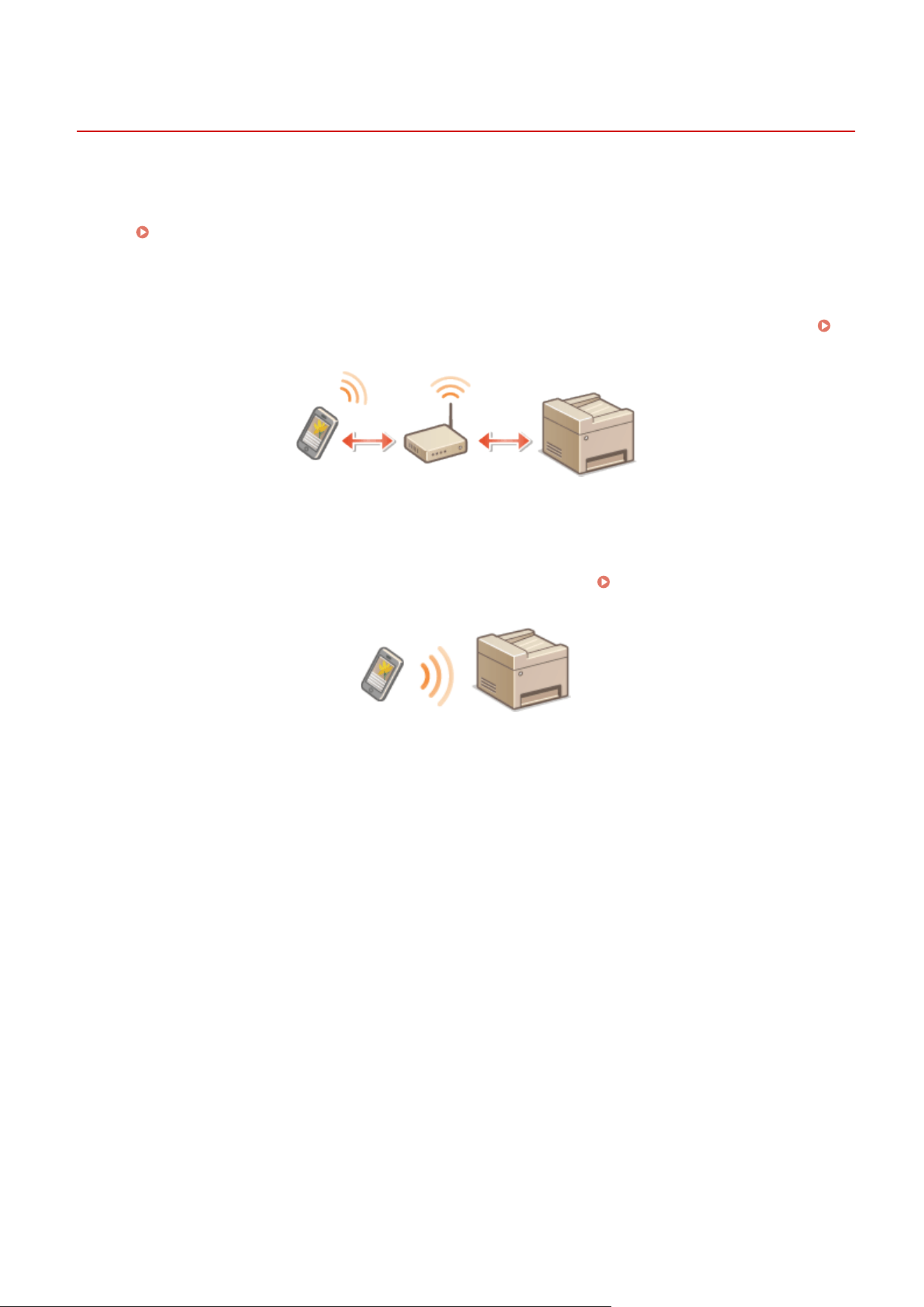
Connecting with Mobile Devices
7YWY-06A
Ther
e are two methods used to connect a mobile device with the machine: connecting via a wireless LAN router, and
communicating wirelessly and directly with the machine. Select a connection method in accordance with the
communication environment and the device you are using. Perform communication with mobile devices from <Mobile
Portal> (
Home Screen(P. 125) ).
◼ Connecting via a Wir
eless LAN Router
Just as connecting a computer to the machine, connect a mobile device to the machine via a wireless LAN router.
Connecting via a Wireless LAN Router (LAN Connection)(P. 328)
◼ Connecting Dir
ectly
Directly connect a mobile device to the machine wirelessly without using wireless LAN. It is possible to immediately
connect to the machine wirelessly even outside of a wireless LAN environment.
Connecting Directly (Access Point
Mode)(P
. 330)
Linking with Mobile Devices
327
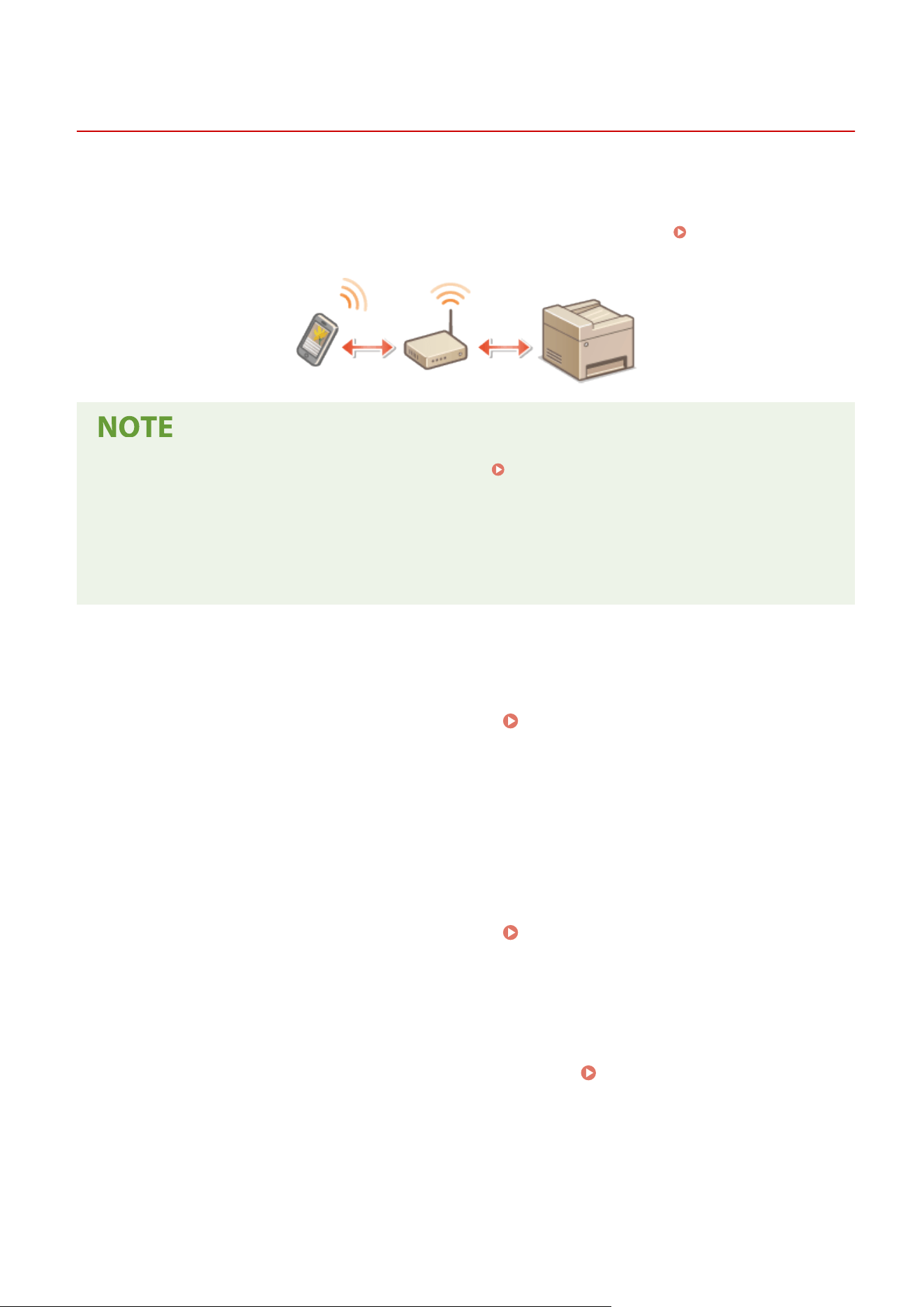
Connecting via a Wireless LAN Router (LAN Connection)
7YWY-06C
If a wir
eless LAN router is connected to the network connected to the machine, you can establish a communication
with a mobile device via the wireless LAN router in the same way for a computer. For information about how to
connect a mobile device to your wireless LAN router, see the instruction manuals for your networking devices or
contact your manufacturer. Connect the machine to a router via the wired or wireless LAN.
Setting Up the Network
Envir
onment(P. 14)
● T
o perform the procedures below, use the IPv4 address.
Setting IPv4 Address(P. 31)
● Select <LAN Connection> and pr
oceed with the procedure, if the <Direct Connection> screen is displayed
after <Mobile Portal> is selected in the procedure below.
● For information about the operating systems compatible with Canon PRINT Business, the detailed setting
procedure, and the operating procedure, please see the application's Help or the Canon website (https://
global.canon/gomp/).
◼ Connecting Manually
1
Select <Mobile Portal> in the Home screen.
Home Screen(P. 125)
2
Connect from the mobile device to the IP address that appears on the screen.
◼ Connecting Using a QR Code
1
Select <Mobile Portal> in the Home screen.
Home Screen(P. 125)
2
Select <QR Code>.
3
Launch Canon PRINT Business on the mobile device. Utilizing the Machine through
Applications
(P. 333)
4
Read the QR code displayed on the screen using the mobile device.
Linking with Mobile Devices
328

Linking with Mobile Devices
329
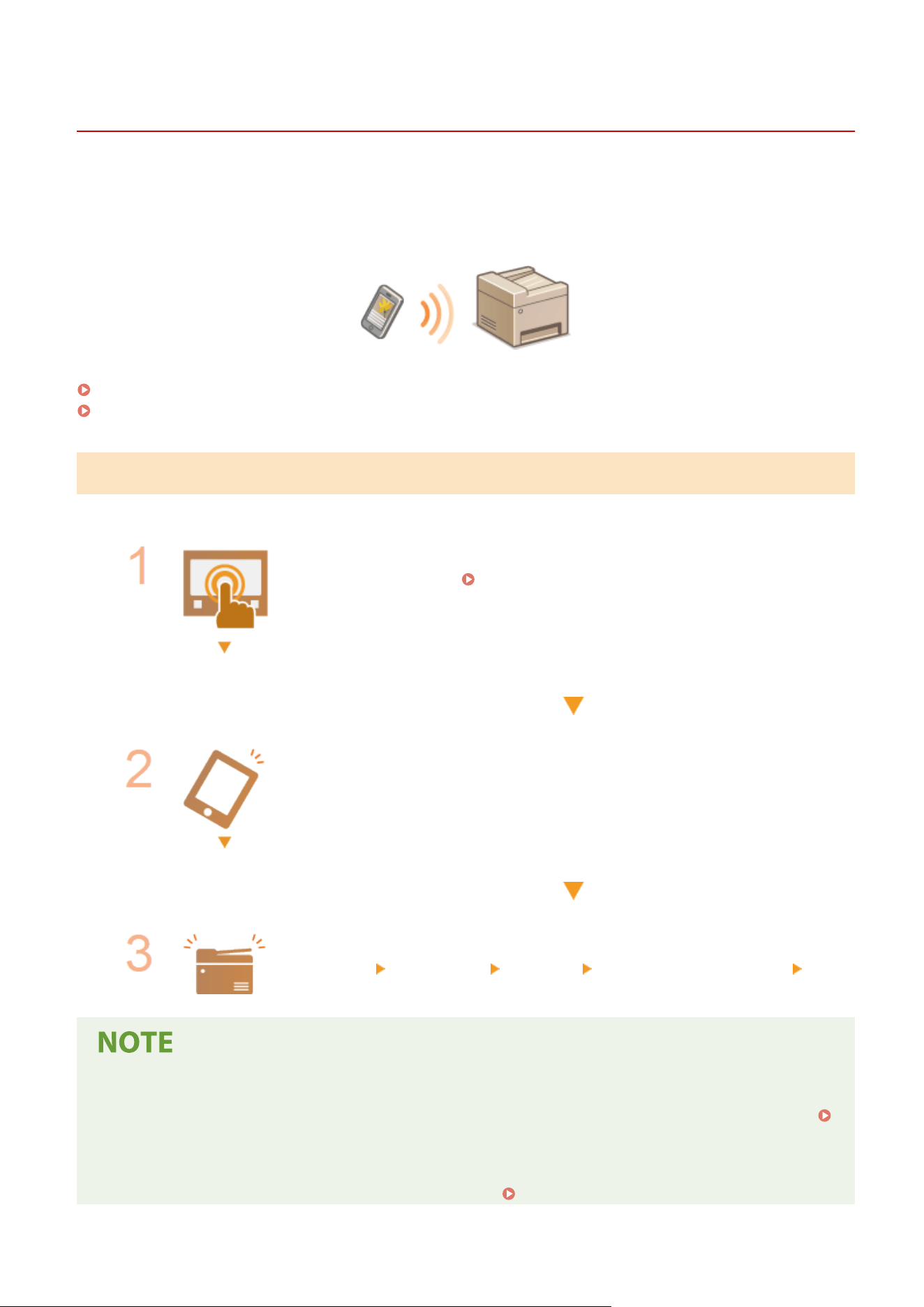
Connecting Directly (Access Point Mode)
7YWY-06E
1660-068
Even in an envir
onment without a wireless LAN router, using "Access Point Mode," which can directly connect a mobile
device to the machine wirelessly, enables you to connect the mobile device on hand to the machine without dicult
settings.
Preparing for Direct Connection (Access Point Mode)(P. 330)
Connecting Directly(P. 331)
Preparing for Direct Connection (Access Point Mode)
Establish a connection by using Access Point Mode in the following order.
Check the network settings of the machine.
● Set the IPv4 addr
ess.
Setting IPv4 Address(P. 31)
Preparing the mobile device
● Congur
e settings to connect the mobile device to Wi-Fi.
Put the machine into the connection standby status.
● <Menu> <Preferences> <Network> <Direct Connection Settings> set
<Use Dir
ect Connection> to <On>.
Specifying the value for time until auto termination
● Y
ou can specify the time to automatically establish a disconnection when the direct connection is enabled.
<Direct Connection Termination>(P. 465)
Connecting multiple mobile de
vices at the same time
● Congure the machine's SSID and network key arbitrarily.
<Access Point Mode Settings>(P. 465)
Linking with Mobile Devices
330

Canon PRINT Business
● For information about the oper
ating systems compatible with Canon PRINT Business, the detailed setting
procedure, and the operating procedure, please see the application's Help or the Canon website (https://
global.canon/gomp/).
Connecting Directly
● It may tak
e time until a connection of the machine and the mobile device is established.
◼ Connecting Manually
1
Select <Mobile Portal> in the Home screen.
Home Screen(P. 125)
● When any mobile device is already connected, proceed to step 3.
2
Select <Connect>.
3
Congure the Wi-Fi settings fr
om the mobile device using the SSID and network key
information that appear on the screen.
4
When the target operation is completed, select <Disconnect>.
◼ Connecting Using a QR Code
1
Select <Mobile Portal> in the Home screen.
Home Screen(P. 125)
● When any mobile de
vice is already connected, proceed to step 3.
2
Select <Connect>.
3
Select <QR Code>.
4
Launch Canon PRINT Business on the mobile device.
Utilizing the Machine through
Applications
(P. 333)
5
Read the QR code displayed on the screen using the mobile device.
Linking with Mobile Devices
331
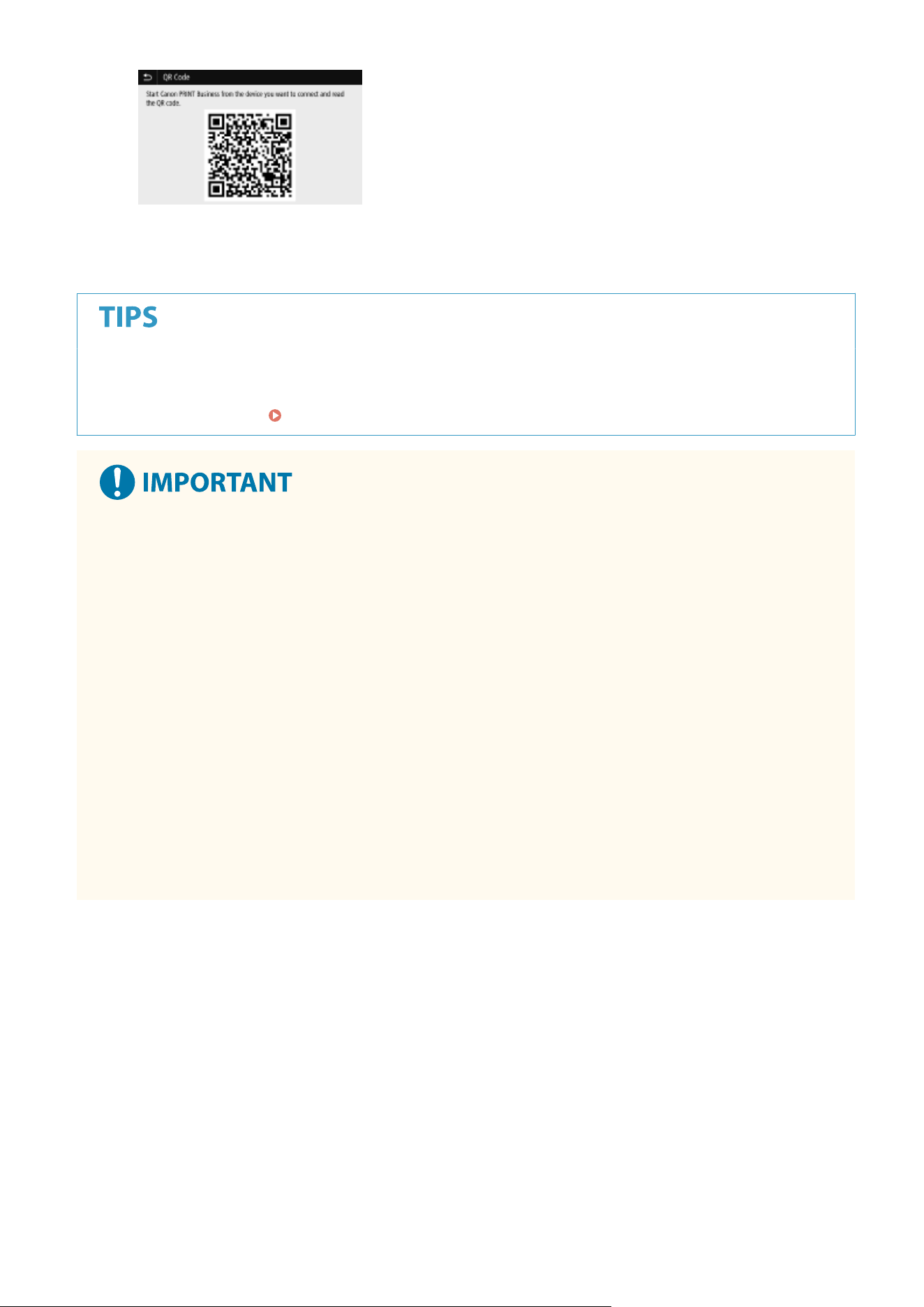
6
When the target operation is completed, then select <Disconnect>.
● Select <Connection Info> on the <Dir
ect Connection> screen to check the connected mobile device.
● When <Keep Enabled If SSID/Ntwk Key Spcfd> is set to <On>, it is not necessary to perform the operation of
selecting <Connect>.
<Keep Enabled If SSID/Ntwk Key Spcfd>(P. 465)
● While connecting via dir
ect connection, you may not be able to connect to the Internet depending on the
mobile device you are using.
● If a wireless connection from the mobile device is not performed within 5 minutes while the SSID and
network key are displayed, the connection waiting state terminates.
● If the status without data transmission between the mobile device and the machine continues during
communication by direct connection, the communication may end.
● Power saving performance of sleep mode degrades while connecting via direct connection.
● If the machine is used with a wireless LAN, you need to keep the machine connected to the wireless LAN
when using direct connection. When the machine is not connected to a wireless LAN or the connection
process is not complete yet, the direct connection process cannot begin. If the connection between the
machine and the wireless LAN is lost during communication through direct connection, the communication
may end.
● When you nish the desired operation, be sure to terminate the connection between the machine and the
mobile device. If they remain connected, power saving performance of sleep mode degrades.
● If you use the direct connection, do not set the IP address manually on the mobile device. Doing so may
prevent proper communication after using the direct connection.
Linking with Mobile Devices
332
Utilizing the Machine through Applications
7YWY-06F
Perform printing and other oper
ations from the mobile device connected to the machine using applications. Various
applications including those exclusive to Canon are supported. Use properly in accordance with your device, the
application, and the situation.
◼ Using Canon PRINT Business
This application is used to perform printing and other operations from mobile devices that support iOS/Android. When
printing, it is not necessary to perform operations on the machine. For more information on supported operating
systems, detailed setting methods, and operations, see the application's Help or the Canon website (https://
global.canon/gomp/).
● Y
ou can download Canon PRINT Business for free, but you will be charged the Internet connection fee.
◼ Printing with Canon Print Service
Y
ou can easily print from the menu of applications that support the Android print subsystem. For more information on
supported operating systems and detailed settings and procedures, see the Canon website (https://global.canon/).
◼ Using Mopria
®
The machine also supports Mopria
®
. Mopria
®
enables you to perform printing and other operations from a mobile
Android device using common operations and settings regardless of the manufacturer or model. For example,
businesses using multiple Mopria
®
compatible devices from different manufacturers can print from the same printer
and businesspeople on-the-go can use a Mopria
®
compatible device with a local certied printer without having to
install a separate application. Mopria
®
can also be used to directly import the data scanned with the machine to
mobile devices that support Android. For more information on supporting models or operation environments, see
http://www.mopria.org.
Conrming Mopria
®
Settings
Log in to the Remote UI with Administrator privileges ( Starting Remote UI(P. 421) ) [Settings/
Registr
ation]
[Network Settings] [Mopria Settings] [Edit] Check that the [Use Mopria]
check bo
x is selected
[OK]
Linking with Mobile Devices
333
If you enable the Mopria
®
setting, the follo
wing settings in <Network> are set to
<On>.
● Use HTTP
● IPP Print Settings
● IPv4Use mDNS
● IPv6Use mDNS
● Use Network Link Scan
◼ Printing fr
om Chrome OS
You can perform printing from Chrome OS without downloading a dedicated application or installing a driver. To print
with the machine, it is necessary to enable Mopria
®
.
Conrming Mopria
®
Settings
Log in to the Remote UI with Administrator privileges ( Starting Remote UI(P. 421) ) [Settings/
Registr
ation]
[Network Settings] [Mopria Settings] [Edit] Check that the [Use Mopria]
check bo
x is selected
[OK]
If you enable the Mopria
®
setting, the follo
wing settings in <Network> are set to
<On>.
● Use HTTP
● IPP Print Settings
● IPv4Use mDNS
● IPv6Use mDNS
● Use Network Link Scan
Printing
1
Before printing, make sure that the machine is turned ON and connected to a
Chromebook.
● For information on checking the connection status, see Setting Up the Network Environment(P. 14) .
● See the Chr
omebook Help page (https://support.google.com/chromebook/answer/7225252) for more
information on printing.
Linking with Mobile Devices
334

● Y
ou can also connect the machine to a Chromebook using a USB cable. See the Chromebook website
(https://support.google.com/chromebook/answer/7225252) for information on the connection
procedure.
● Printing fr
om Chrome OS may not be supported, depending on your country or region.
Linking with Mobile Devices
335
Using AirPrint
7YWY-06H
This section describes the settings r
equired to use AirPrint and the procedures to be performed using Apple devices.
AirPrint Settings
Conguring AirPrint Settings(P
. 336)
Displaying the Screen for AirPrint(P. 339)
Functions of the AirPrint
Printing with AirPrint(P. 341)
Scanning with AirPrint(P. 344)
Faxing with AirPrint(P. 346)
Troubleshooting
If AirPrint Cannot Be Used(P. 348)
Conguring AirPrint Settings
Y
ou can register information, including the name of the machine and installation location, that is used for identifying
the machine. You can also disable the AirPrint function of the machine. Use the Remote UI to change these settings.
● For mor
e information about the basic operations to be performed when setting the machine from the
Remote UI, see
Setting Up Menu Options from Remote UI(P. 431) .
1
Start the Remote UI and log in to System Manager Mode.
Starting Remote
UI(P
. 421)
2
Click [Settings/Registration] on the Portal page.
Remote UI Screen(P. 422)
● If you ar
e using a mobile device, such as an iPad, iPhone, or iPod touch, read "click" as "tap" in this section.
3
Select [Network Settings]
[AirPrint Settings].
Linking with Mobile Devices
336
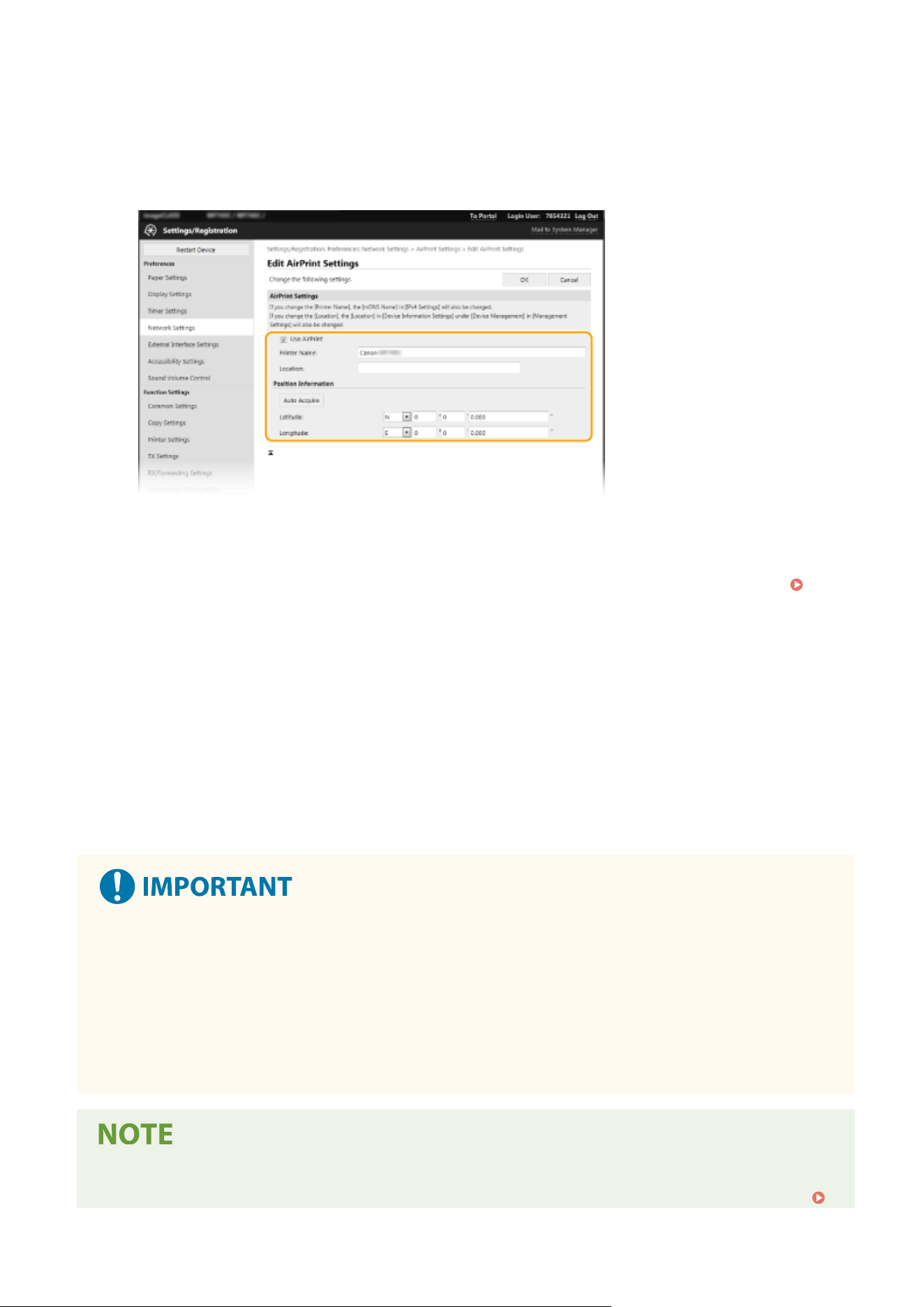
4
Click [Edit].
5
Specify the required settings.
[Use AirPrint]
Select the check bo
x to enable AirPrint. To disable AirPrint, clear the check box.
[Printer Name]
Enter the name of the machine. If an mDNS name has already been registered in [mDNS Settings] (
Conguring DNS(P
. 55) ), the registered name is displayed.
[Location]
Enter the location of the machine. If a location has already been registered in [Device Information Settings]
([Device Management] in [Management Settings] (Settings/Registration)), the registered name is displayed.
[Latitude]
Enter the latitude of the location where the machine is installed.
[Longitude]
Enter the longitude of the location where the machine is installed.
6
Click [OK].
If you select [Use AirPrint], the following settings in <Network> are set to <On>.
● Use HTTP
● IPP Print Settings
● IPv4 Use mDNS
● IPv6 Use mDNS
● Use Network Link Scan
● If you change [Printer Name] that you have once specied, you may be unable to print any mor
e from the
Mac that has been able to be used for printing so far. This phenomenon occurs because <mDNS Name> (
Linking with Mobile Devices
337
Conguring DNS
(P. 55) ) of IPv4 is also changed automatically. In this case, add the machine to the Mac
again.
● Entering the printer name makes it easier to identify multiple printers that support AirPrint.
◼ Changing the Setting of Functions Available with AirPrint
If you want to disable functions that you ar
e not going to use with AirPrint or encrypt communications, congure the
necessary setting using the operation panel.
Changing Print and Fax Settings
To perform printing or fax sending with AirPrint, IPP protocol is used.
Turning the Function On/Off
Y
ou can specify whether to perform printing and fax sending with AirPrint. The factory default setting is <On>.
<Menu> <Preferences> <Network> <TCP/IP Settings> <IPP Print Settings> Set
<Use IPP Printing> to <Off> or <On> <Apply>
Changing the TLS Setting
Y
ou can specify whether to encrypt communications using TLS when performing printing or sending faxes with
AirPrint. The factory default setting is <Off>.
<Menu> <Preferences> <Network> <TCP/IP Settings> <IPP Print Settings> Set
<Allow IPP Printing Only w/TLS> to <Off> or <On> <Apply>
Changing the Scan Setting
Congure the scan setting using AirPrint.
Set the Function to Enable or Disable
You can turn on/off the scan function available with AirPrint. The factory default setting is <On>.
● If you set this item to <On>, <Use HTTP> under <Network> is set to <On>.
<Menu> <Preferences> <Network> <TCP/IP Settings> <Network Link Scan
Settings> Set <Use Network Link Scan> to <Off> or <On> <Apply>
Change TLS Settings
Y
ou can specify whether or not to encrypt TLS communications when scanning data using AirPrint. The factory
default setting is <Off>.
Linking with Mobile Devices
338
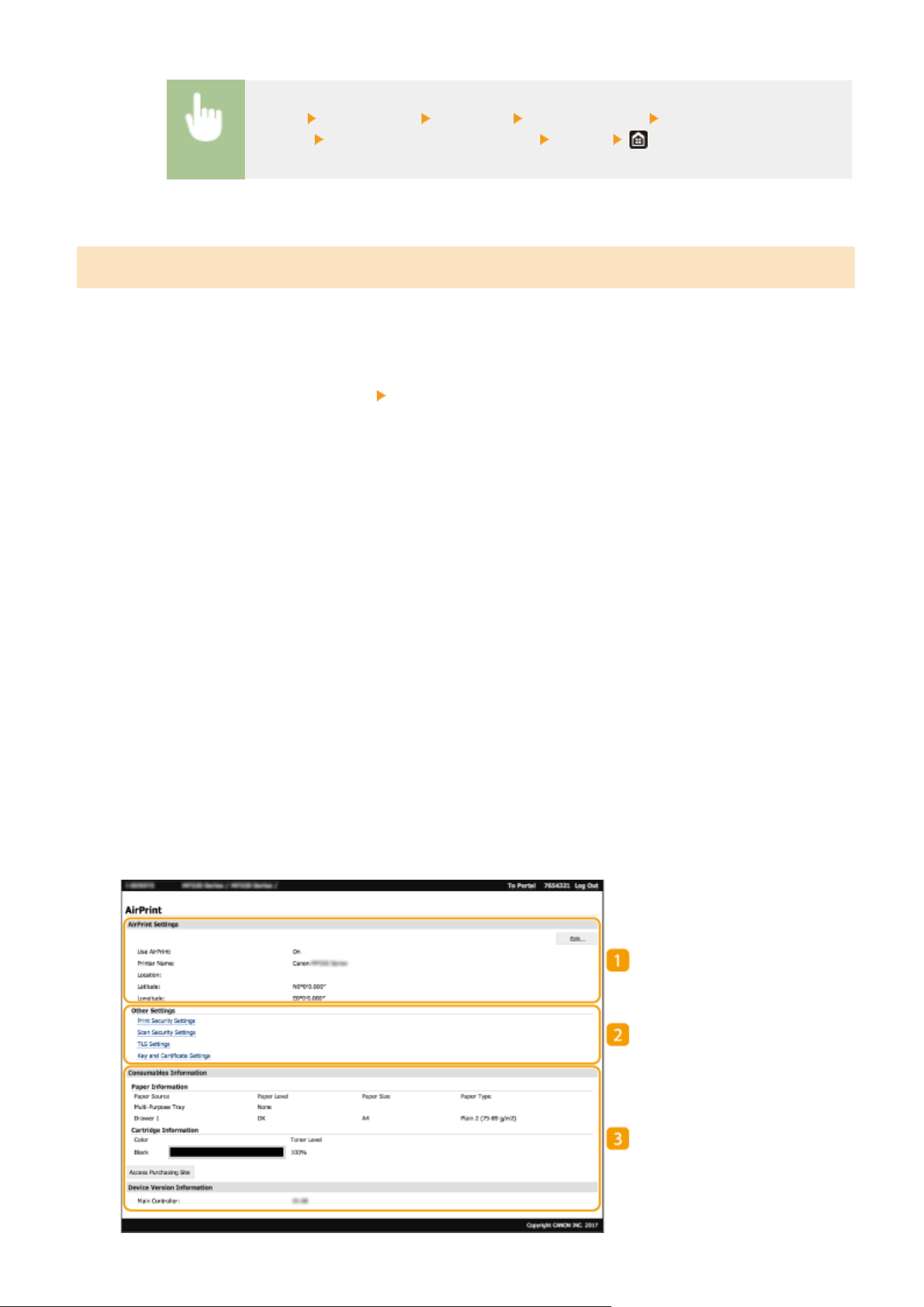
<Menu> <Preferences> <Network> <TCP/IP Settings> <Network Link Scan
Settings> Set <Use TLS> to <Off> or <On> <Apply>
Displaying the Screen for AirPrint
Y
ou can display the screen for AirPrint, on which you can not only access the AirPrint Settings but also view
information about consumables, such as paper and toner cartridge. Further, you can congure security function
settings.
1
Select [System Preferences]
[Printers & Scanners], then add the machine to the Mac
you ar
e using.
● If the machine has alr
eady been added, this operation is not required.
2
Select this machine from the list of printers in [Printers & Scanners].
3
Click [Options & Supplies].
4
Click [Show Printer Webpage].
5
Log in to the Remote UI.
● T
o change the AirPrint settings, it is necessary to log in as an administrator.
◼ AirPrint-Dedicated Page
When you log in with administrator privileges, the AirPrint-dedicated page is displayed as shown below.
Linking with Mobile Devices
339

[AirPrint Settings]
Enables you to check the values enter
ed in the AirPrint settings, such as the name and location of the
machine. You can click [Edit] to change the settings.
[Other Settings]
[Print Security Settings]
Congur
e the print security settings using TLS or authentication.
[Scan Security Settings]
Congure the scan security settings using TLS.
[TLS Settings]
Enables you to change the key and certicate used for TLS.
Conguring the Key and Certicate for
TLS(P. 381)
[Key and Certicate Settings]
Enables you to generate and install a key and certicate, or request a certicate to be issued.
Conguring the Key and Certicate for TLS(P. 381)
[Consumables Information]
Enables you to check the information of each paper sour
ce and consumables of the machine and the device
version.
Trademarks
Apple, Bonjour, iPad, iPhone, iPod touch, Mac, macOS, OS X and Safari are trademarks of Apple Inc., registered in the
U.S. and other countries. AirPrint and the AirPrint logo are trademarks of Apple Inc.
Linking with Mobile Devices
340
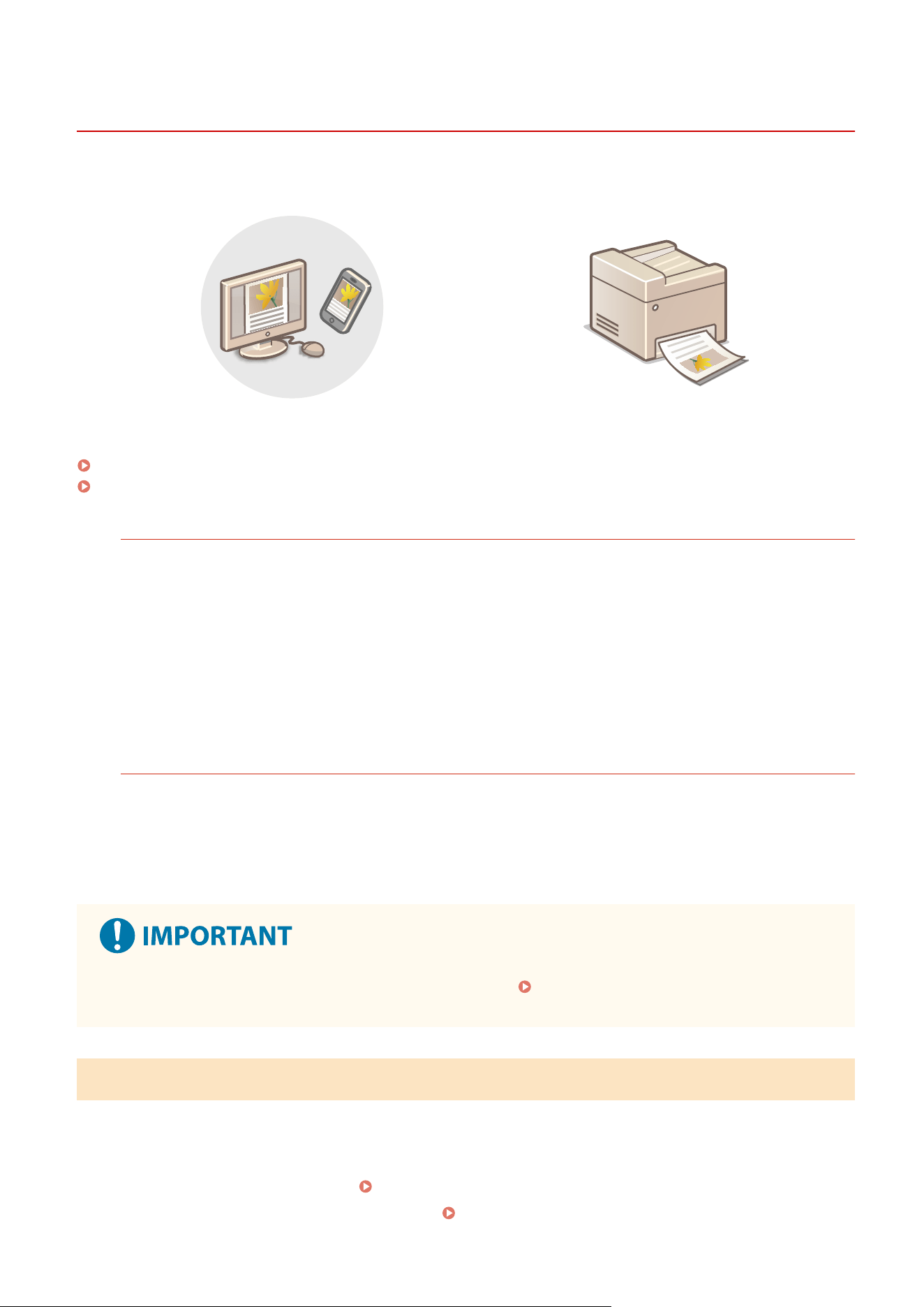
Printing with AirPrint
7YWY-06J
Y
ou can print from an iPad, iPhone, iPod touch, or Mac without using a printer driver.
Printing from an iPad, iPhone, or iPod touch(P. 341)
Printing from a Mac(P. 342)
System Requir
ements
One of the following Apple devices is required to print with AirPrint.
● iPad (all models)
● iPhone (3GS or later)
● iPod touch (3r
d generation or later)
● Mac (Mac OS X 10.7 or later)
*
*
OS X v10.9 or later when using a USB connection
Network Environment
One of the following environments is required.
● An envir
onment where an Apple device and the machine are connected to the same LAN
● An environment where an Apple device and the machine are connected directly
● An environment where a Mac is connected to the machine via USB
● For printing, it is r
equired to set <Use IPP Printing> to <On>.
Changing the Setting of Functions
Available with AirPrint(P
. 338)
Printing from an iPad, iPhone, or iPod touch
1
Make sure that the machine is turned ON and connected to the Apple device.
● For ho
w to make sure of this, see
Setting Up the Network Environment(P. 14) .
● For information on the Dir
ect Connection, see
Connecting Directly (Access Point Mode)(P. 330) .
Linking with Mobile Devices
341

2
From the application on your Apple device, tap to display the menu options.
3
Tap [Print].
4
Select this machine from [Printer].
● The printers connected to the network are displayed here. Select this machine in this step.
● The
screen for selecting this machine in [Printer] is not displayed on applications that do not support
AirPrint. You cannot print by using those applications.
5
Specify the print settings as necessary.
● The available settings and paper sizes differ depending on the application you ar
e using.
6
Tap [Print].
➠ Printing starts.
Checking the print status
● During printing, pr
ess the Home button of the Apple device twice
tap [Print].
Printing from a Mac
1
Make sure that the machine is turned ON and connected to the Mac.
● For ho
w to make sure of this, see
Setting Up the Network Environment(P. 14) .
2
Add the machine to the Mac from [System Preferences] [Printers & Scanners].
● If the machine has alr
eady been added, this operation is not required.
3
Open a document in an application and display the print dialog box.
● Ho
w to display the print dialog box differs for each application. For more information, see the instruction
manual or Help for the application you are using.
4
Select the machine in the print dialog box.
● The printers connected to the Mac ar
e displayed. Select this machine in this step.
Linking with Mobile Devices
342

5
Specify the print settings as necessary.
● The available settings and paper sizes differ depending on the application you ar
e using.
6
Click [Print].
➠ Printing starts.
Linking with Mobile Devices
343
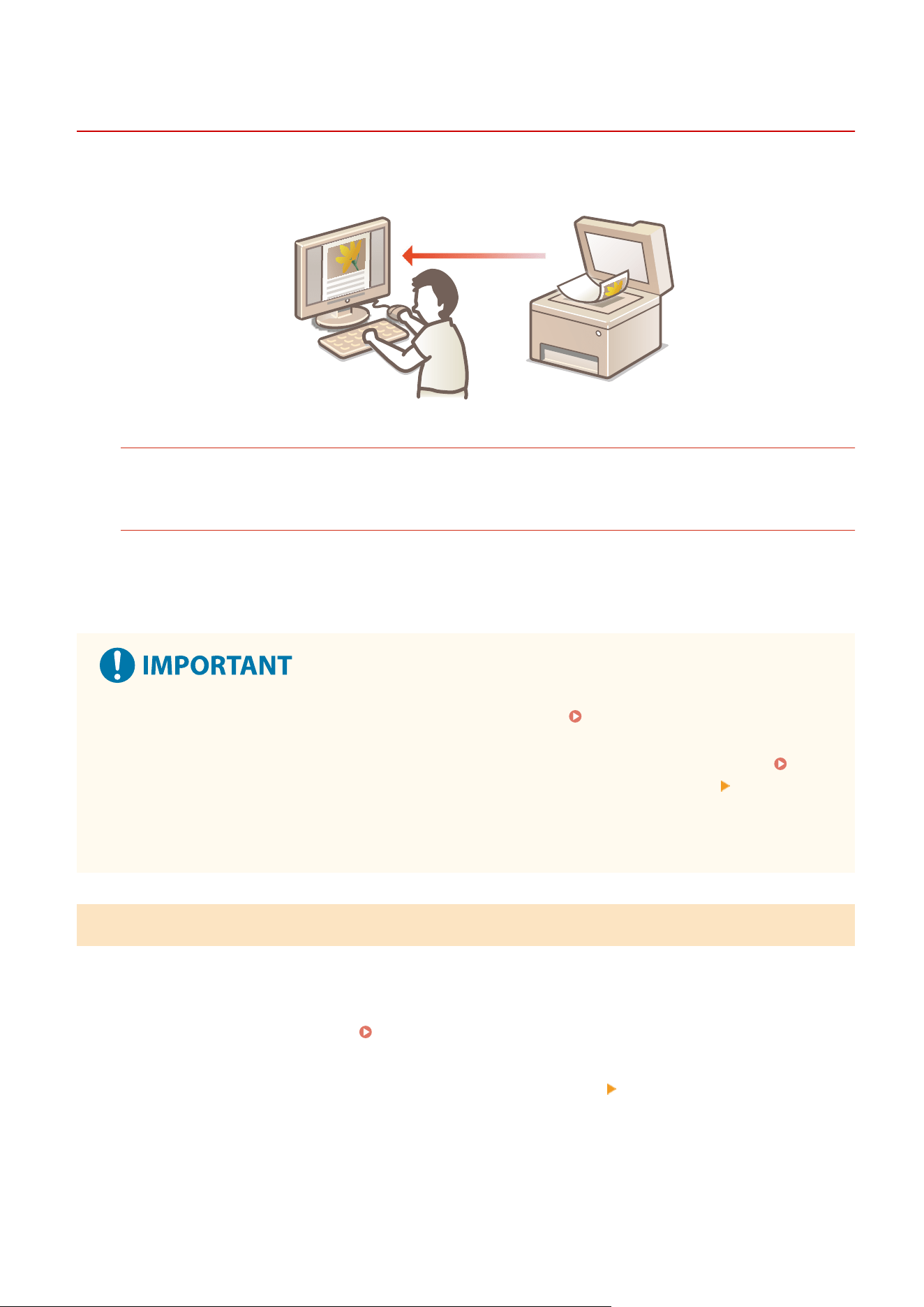
Scanning with AirPrint
7YWY-06K
Y
ou can use AirPrint to transfer the data scanned by the machine directly to a Mac.
System Requirements
To scan with AirPrint, you need a Mac with OS X 10.9 or later installed. To scan using TLS, you need a Mac with
OS X 10.11 or later installed.
Network Envir
onment
One of the following environments is required.
● An envir
onment where an Apple device and the machine are connected to the same LAN
● An environment where a Mac is connected to the machine via USB
● For scanning, it is r
equired to set <Use Network Link Scan> to <On>.
Changing the Setting of Functions
Available with AirPrint(P
. 338)
● Before scanning, it is required to put the machine into online state. When the auto online function (
<Auto
Online>(P
. 495) ) is set to <Off>, rst put the machine into online state by selecting <Scan>
<Remote
Scanner>, then start the pr
ocedure for scanning.
● You cannot scan while settings for operations are being made, or while the machine is performing any
operation whatsoever.
Scanning from a Mac
1
Make sure that the machine is turned ON and connected to the Mac.
● For ho
w to make sure of this, see
Setting Up the Network Environment(P. 14) .
2
Add the machine to the Mac from [System Preferences]
[Printers & Scanners].
● If the machine has alr
eady been added, this operation is not required.
3
Select this machine from the list of printers in [Printers & Scanners].
Linking with Mobile Devices
344

4
Click [Scan].
5
Click [Open Scanner].
➠ The [Scanner] scr
een is displayed.
6
Congure the scan settings as necessary
.
7
Click [Scan].
➠ The original is scanned, and the image is displayed.
Linking with Mobile Devices
345
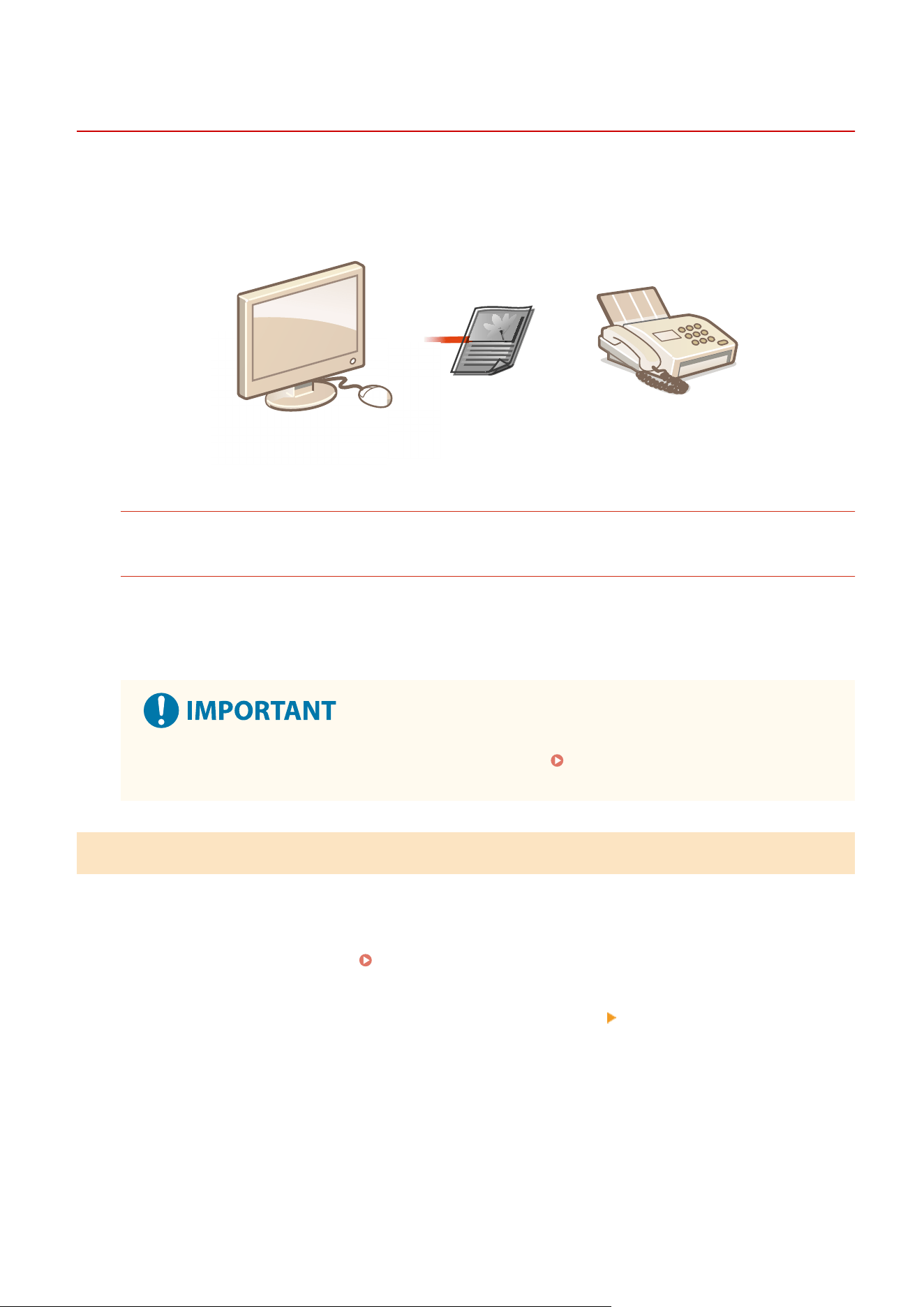
Faxing with AirPrint
7YWY-06L
Y
ou can send faxes from a Mac in almost the same way as when you print from a Mac.
System Requirements
To send faxes with AirPrint, you need a Mac with OS X 10.9 or later installed.
Network Environment
One of the following environments is required.
● An environment where an Apple device and the machine are connected to the same LAN
● An environment where a Mac is connected to the machine via USB
● For faxing, it is r
equired to set <Use IPP Printing> to <On>.
Changing the Setting of Functions
Available with AirPrint(P
. 338)
Faxing from a Mac
1
Make sure that the machine is turned ON and connected to the Mac.
● For ho
w to make sure of this, see
Setting Up the Network Environment(P. 14) .
2
Add the machine to the Mac from [System Preferences]
[Printers & Scanners].
● If the machine has alr
eady been added, this operation is not required.
3
Open a document in an application and display the print dialog box.
● Ho
w to display the print dialog box differs for each application. For more information, see the instruction
manual for the application you are using.
Linking with Mobile Devices
346

4
Select this machine in the print dialog box.
➠ The printers connected to the Mac ar
e displayed. Select the fax driver of this machine in this step.
5
Specify the destination.
6
Click [Fax].
➠ Fax sending starts.
Linking with Mobile Devices
347

If AirPrint Cannot Be Used
7YWY-06R
If AirPrint cannot be used, try taking the follo
wing solutions.
● Make sure that the machine is turned ON. If the machine is turned ON, rst turn it OFF, then wait for at least 10
seconds and then turn it back ON to check if the problem is solved.
● Make sure that no error messages are displayed on the machine.
● Make sure that Apple devices and the machine are connected to the same LAN. If the machine is turned ON, it may
take several minutes before the machine is ready for communication.
● Make sure that Bonjour on your Apple device is enabled.
● Make sure that the machine is congured to enable execution of jobs from a computer even when no department
ID and password are entered.
Blocking Jobs When Department ID Is Unknown(P. 361)
● For
printing, make sure that the paper is loaded in the machine and that the machine contains a sucient amount
remaining in the toner cartridges.
Displaying the Screen for AirPrint(P. 339)
● For
scanning, make sure that the machine's setting for Network Link Scan is <On>.
Changing the Setting of
Functions Available with AirPrint
(P. 338)
Linking with Mobile Devices
348
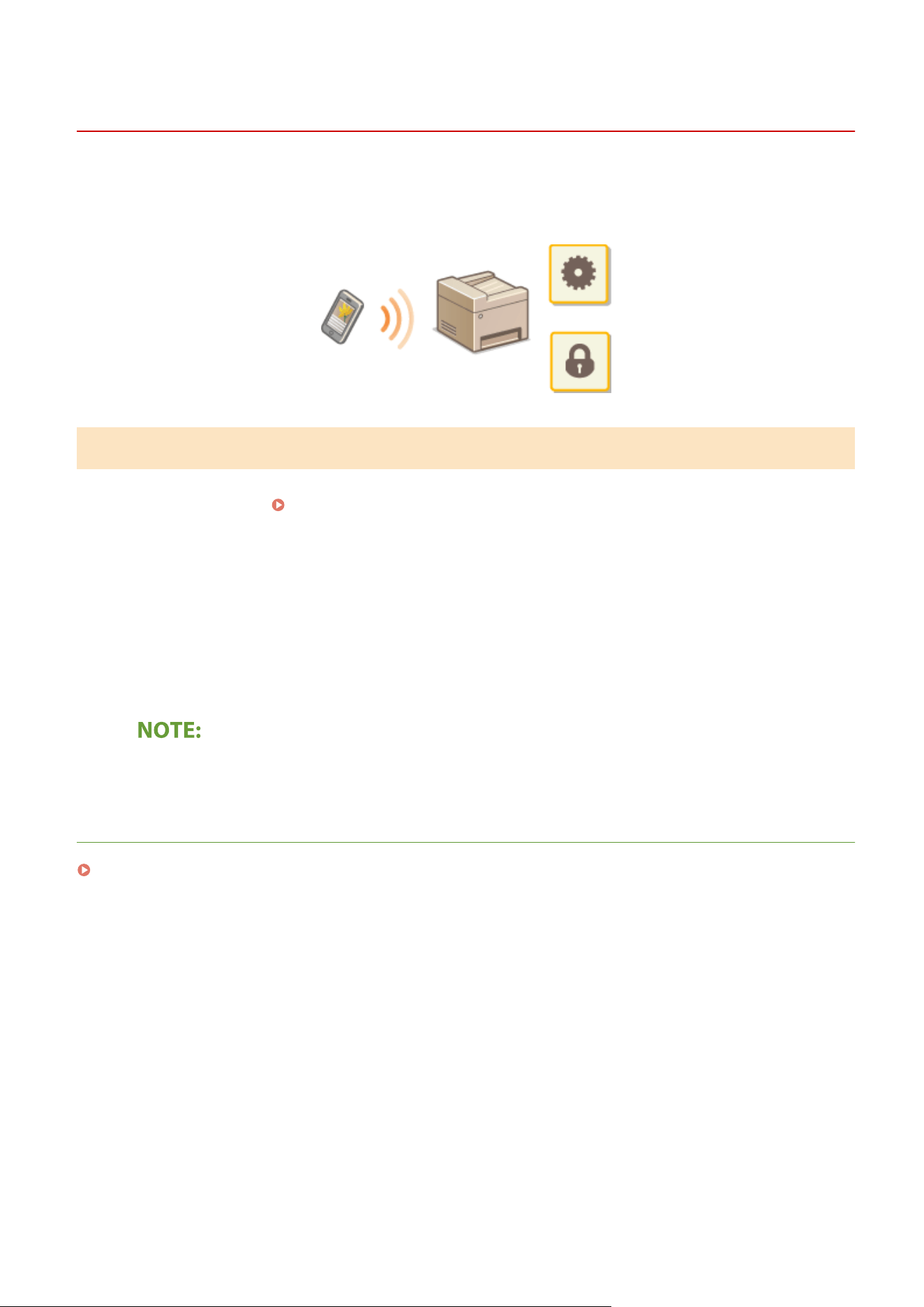
Managing the Machine by the Remote Control
7YWY-06S
Y
ou can use the Remote UI from a smart phone or tablet Web browser. You can conrm the machine status or
perform various settings from a mobile device. Note that the Remote UI screen may not be displayed properly for
some devices and environments.
Starting the Remote UI from Mobile Devices
Enter the IP addr
ess of the machine on the Web browser to start the Remote UI. Prior to operation, conrm the IP
address set for the machine (
Viewing Network Settings(P. 37) ). If it is unkno
wn, ask your network administrator.
1
Start the Web browser of the mobile device.
2
Enter "http://<the IP address of the machine>/" in the address entry column.
● If you want to use an IPv6 addr
ess, enclose the IPv6 address with brackets.
Example: http://[fe80:2e9e:fcff:fe4e:dbce]/
● For
a "Smartphone Version" of the Remote UI, a portion of items displayed are omitted. If you want to
conrm all of the items, see the "PC Version."
LINKS
Managing the Machine from a Computer (Remote UI)(P. 420)
Linking with Mobile Devices
349

Managing the Machine
Managing the Machine ...............................................................................................................................
352
Setting Access Privileges .................................................................................................................................. 354
Setting the System Manager ID and PIN ...................................................................................................... 355
Setting the Department ID Management ..................................................................................................... 357
Setting a Remote UI PIN ............................................................................................................................... 363
LDAP Server Authentication .......................................................................................................................... 365
Conguring the Network Security Settings .................................................................................................... 369
Restricting Communication by Using Firewalls ............................................................................................. 371
Specifying IP Addresses for Firewall Settings ......................................................................................... 372
Specifying MAC Addresses for Firewall Settings ..................................................................................... 375
Changing Port Numbers ............................................................................................................................... 378
Setting a Proxy ............................................................................................................................................. 379
Conguring the Key and Certicate for TLS .................................................................................................. 381
Generating the Key and Certicate for Network Communication .......................................................... 385
Conguring the Expiration Check Method for Received Certicates ...................................................... 388
Generating a Key and Certicate Signing Request (CSR) ........................................................................ 390
Registering the Key and Certicate for Network Communication .......................................................... 393
Conguring IPSec Settings ........................................................................................................................... 395
Conguring IEEE 802.1X Authentication Settings ......................................................................................... 402
Restricting the Machine's Functions ................................................................................................................ 406
Restricting Access to Address Book and Sending Functions ......................................................................... 408
Restricting Use of the Address Book ...................................................................................................... 409
Limiting Available Destinations .............................................................................................................. 411
Restricting the Fax Sending Functions ................................................................................................... 413
Restricting Printing from a Computer ........................................................................................................... 415
Restricting USB Functions ............................................................................................................................. 416
Disabling HTTP Communication ................................................................................................................... 418
Disabling Remote UI ..................................................................................................................................... 419
Managing the Machine from a Computer (Remote UI) ................................................................................... 420
Starting Remote UI ....................................................................................................................................... 421
Checking the Status and Logs ....................................................................................................................... 425
Setting Up Menu Options from Remote UI ................................................................................................... 431
Registering Destinations from Remote UI .................................................................................................... 434
Security Policy .............................................................................................................................................. 438
Importing/Exporting the Setting Data .......................................................................................................... 443
Managing the Machine
350

Updating the Firmware .....................................................................................................................................
446
Initializing Settings ........................................................................................................................................... 448
Managing the Machine
351
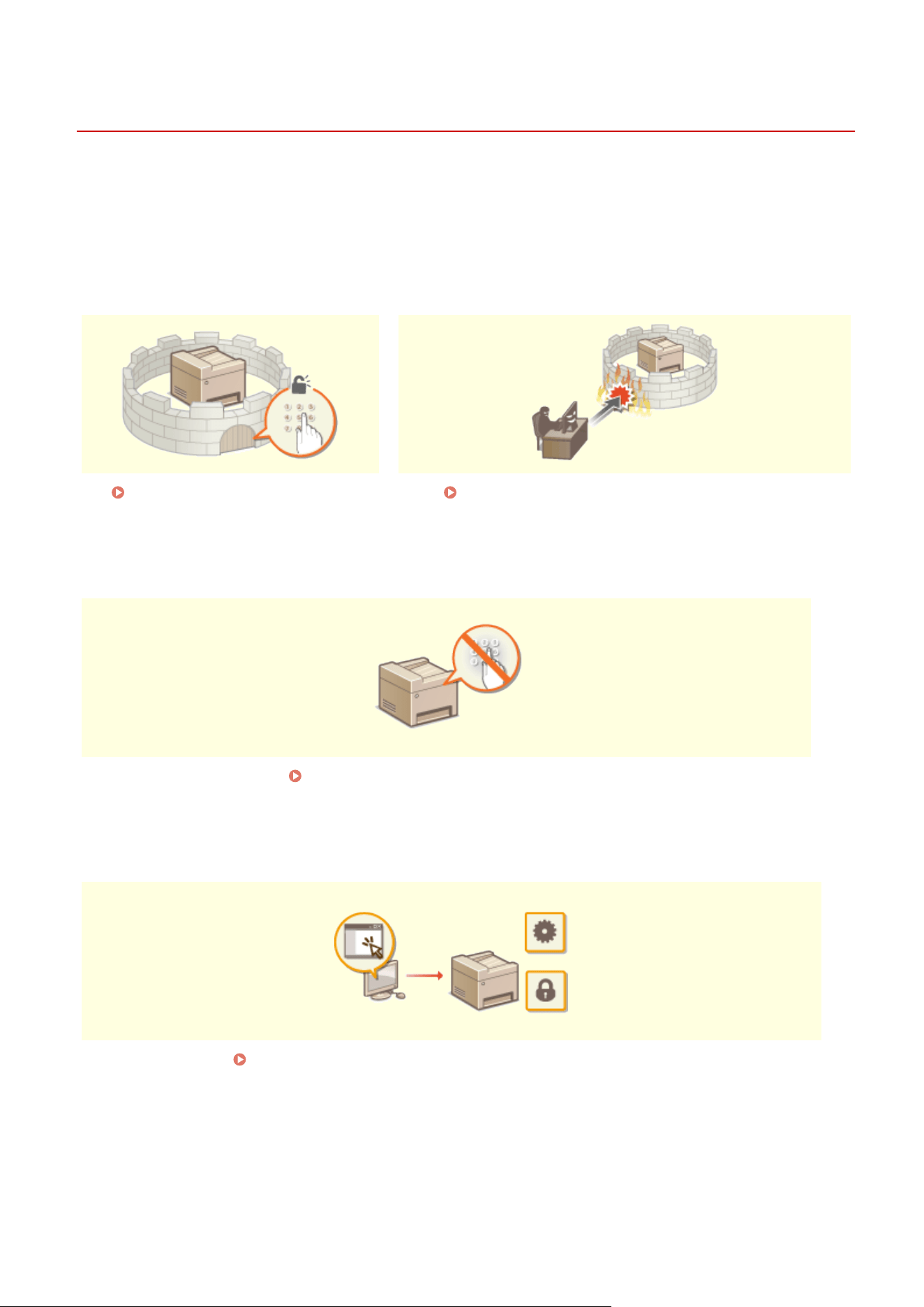
Managing the Machine
7YWY-06U
T
o reduce the various risks associated with the use of this machine, such as leaks of personal information or
unauthorized use by third parties, constant and effective security measures are required. An administrator should
manage important settings, such as access privileges and security settings, to ensure that the machine is used safely.
◼ Conguring the Basic Management System
Setting Access Privileges(P. 354) Conguring the Network Security Settings(P
. 369)
◼ Pr
eparing for Risks from Negligence or Misuse
Restricting the Machine's Functions(P. 406)
◼ Ensuring Effective Management
Managing the Machine from a Computer (Remote UI)(P. 420)
Managing the Machine
352

Setting Access Privileges
7YWY-06W
Pr
otect the machine from unauthorized access by only allowing users with access privileges to use the machine.
Access privileges are set separately for system administrators, general users, and the Remote UI. When privileges are
set, the user must enter an ID and PIN to print or change settings.
Set up an account with full access privileges called "System Manager ID" for a system manager. Registering an account
called "Department ID" allo
ws you to manage general users. Using a Department ID, you can set a PIN for using this
machine as well as keep track of the number of pages printed for each department ID. And by setting a Remote UI
Access PIN, you can restrict use of the Remote UI.
System Manager ID
System Manager ID is an account with full access privileges. If you specify a System Manager ID, you need to
log on to the machine using the System Manager ID information in or
der to access items that requires
administrator privileges such as <Network> and <Management Settings>. We recommend that you set and
register the System Manager ID. Otherwise, anyone will be able to change the machine settings. Only one
System Manager ID can be registered.
Setting the System Manager ID and PIN(P. 355)
Department ID (Department ID Management)
You can specify access privileges for a user (or group of users) by registering a Department ID. You can register
multiple Department IDs. If a user tries to oper
ate the machine when Department IDs are enabled, a login
screen is displayed, and the user must enter their own Department ID and PIN to use the machine. Information
such as how many pages have been printed for each Department ID can be compiled.
Setting the
Department ID Management
(P. 357)
Remote UI PIN (Remote UI Access PIN)
This is a PIN for using the Remote UI. Only users who know the PIN can access the Remote UI. Setting a
Remote UI PIN
(P. 363)
Authentication Settings for Send Function (Authorized Send)
If your system has an LDAP server installed, you can set LDAP server authentication to be carried out when the
fax or scan function is used. LDAP Server Authentication(P. 365)
Managing the Machine
354
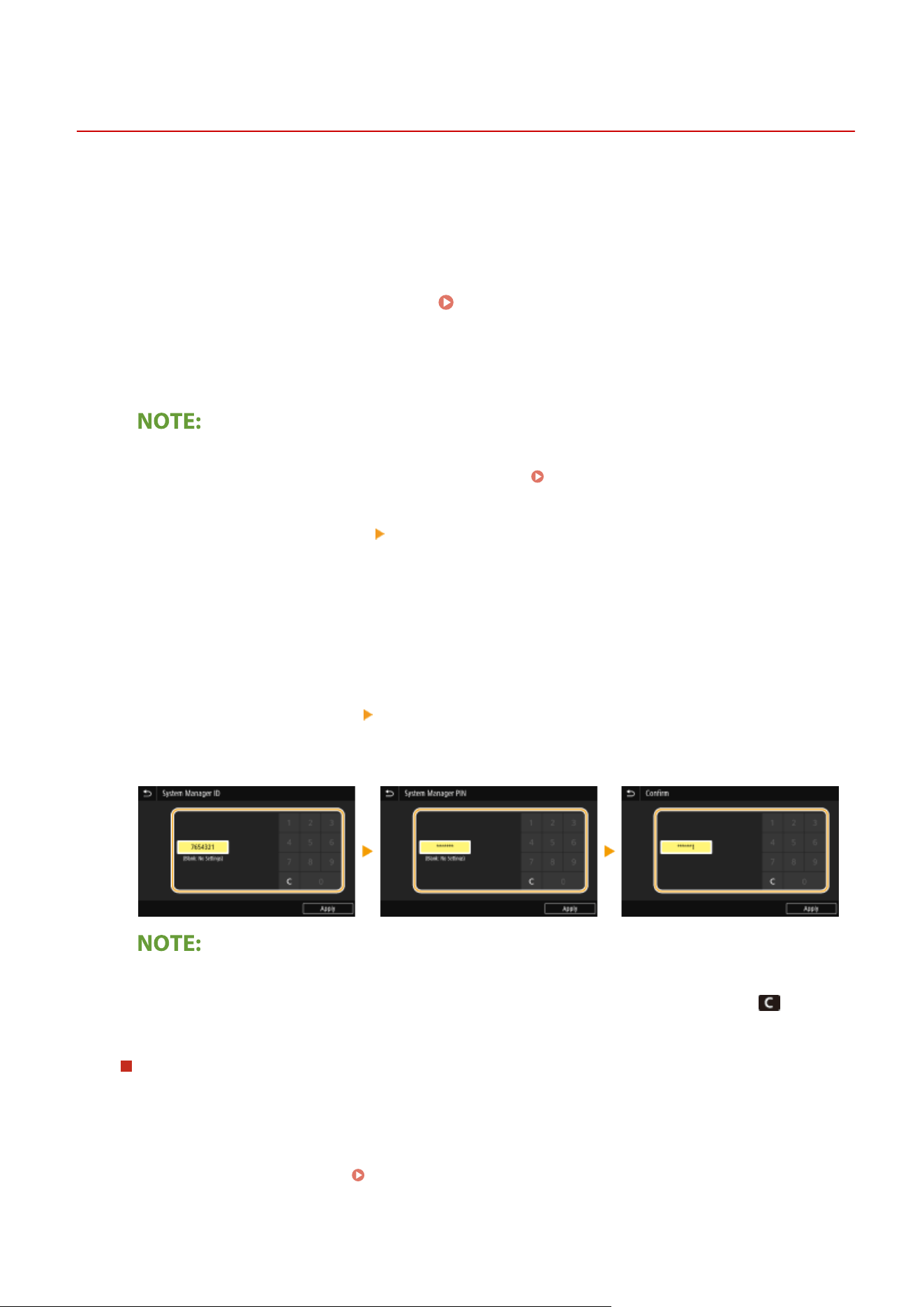
Setting the System Manager ID and PIN
7YWY-06X
Set the system manager account, "System Manager ID
." You can also set a PIN for the System Manager ID. If the
System Manager ID is specied, you can access items that require administrator privileges, for example, <Network>
and <Management Settings>, only when the System Manager ID and PIN have been entered correctly. The System
Manager ID settings information is critical to the security of the machine, so make sure that only Administrators know
the System Manager ID and PIN.
1
Select <Menu> in the Home screen.
Home Screen(P. 125)
2
Select <Management Settings>.
If the System Manager ID has already been set
● If the login scr
een appears, enter the correct ID and PIN.
Logging in to the Machine(P. 136)
3
Select <User Management> <System Manager Information Settings>.
4
Select <System Manager ID and PIN>.
5
Specify the System Manager ID and PIN.
● Specify the <System Manager ID> <System Manager PIN>.
● Enter numbers for each item, and select <Apply>.
● The Conrm scr
een is displayed. Enter the PIN once again to conrm.
● Y
ou cannot register an ID or PIN that consists only of zeros, such as "00" or "0000000."
● To cancel the System Manager ID and PIN settings, clear the information you entered in
and select
<Apply> with the elds blank.
Setting the System Manager Name
1
Select <System Manager Name>.
2
Enter the System Manager Name, and select <Apply>.
● On ho
w to enter text, see
Entering Text(P. 134) .
Managing the Machine
355
● Do not for
get your PIN. If you forget your PIN, contact your dealer or service representative.
Conguring settings via the Remote UI
● Start the Remote UI and log in to System Manager Mode. Click [Settings/Registr
ation]
[User Management]
[System Manager Information] [Edit] and specify the necessary settings on the displayed screen.
● By using the Remote UI, you can r
egister a variety of information, including contact information,
Administrator comments, the installation location of the machine, as well as the settings that you can
register by using the operation panel. The registered information can be viewed on the [Device Information]
page of the Remote UI.
Checking System Manager Information(P. 428)
Logging in to the machine
● If you try to access items that r
equire administrator privileges, for example, <Network> and <Management
Settings>, when the System Manager ID is specied, the Login screen is displayed.
Logging in to the
Machine(P
. 136)
● You must also enter the System Manager ID and PIN to log in using the Remote UI in System Manager
Mode.
Starting Remote UI(P. 421)
LINKS
Setting Access Privileges(P. 354)
Setting the Department ID Management(P. 357)
Managing the Machine
356
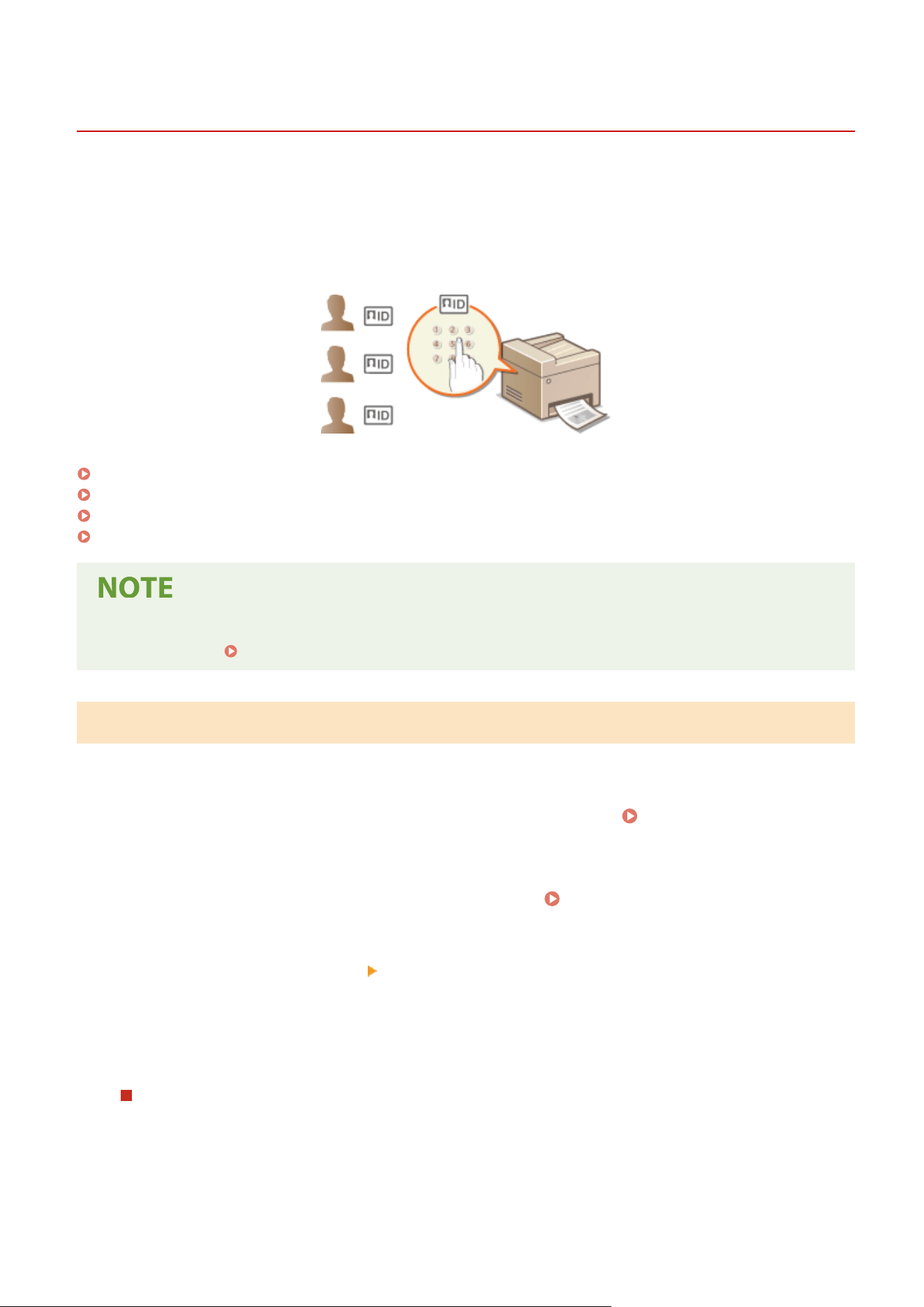
Setting the Department ID Management
7YWY-06Y
Y
ou can control access to the machine by using multiple IDs for multiple users or groups. If a user tries to operate the
machine when Department ID Management is enabled, a login screen is displayed, and the user must enter their own
Department ID and PIN to use the machine. When Department ID Management is enabled, usage of functions, such as
printing, is recorded for each Department ID. To congure Department ID Management, register department IDs as
necessary and then enable Department ID Management function. When you want to enable Department ID
Management for jobs from a computer, you need to congure additional settings on the computer side.
Registering/Editing Department ID and PIN(P. 357)
Enabling the Department ID Management(P. 359)
Enabling the Department ID Management for Jobs from a Computer(P. 360)
Blocking Jobs When Department ID Is Unknown(P. 361)
● For mor
e information about the basic operations to be performed when setting the machine from the
Remote UI, see
Setting Up Menu Options from Remote UI(P. 431) .
Registering/Editing Department ID and PIN
Register a Department ID and set a PIN for it. Register all the department IDs to be managed.
1
Start the Remote UI and log in to System Manager Mode. Starting Remote
UI(P
. 421)
2
Click [Settings/Registration] on the Portal page.
Remote UI Screen(P. 422)
3
Select [User Management] [Department ID Management].
4
Register or edit Department IDs.
Registering a Department ID
1
Click [Register New Department].
2
Specify the required settings.
Managing the Machine
357
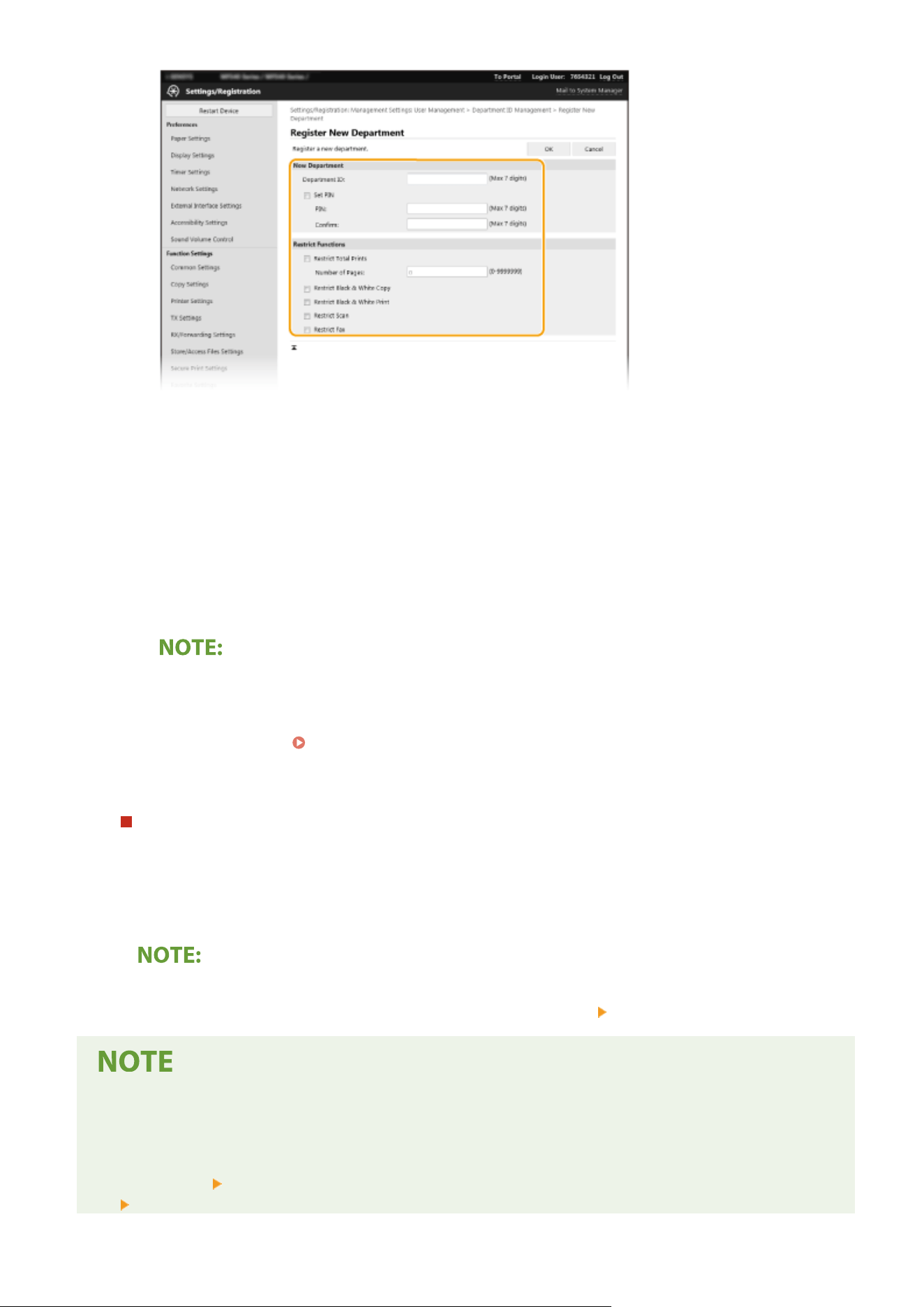
[Department ID]
Enter the Department ID number to be r
egistered.
[Set PIN]
To set a PIN, select the check box and enter the same number both in the [PIN] and [Conrm] text boxes.
[Restrict Functions]
You can restrict the number of pages to print and the available functions for departments to be
registered. To restrict the number of pages to print, select the check box for the target type, and enter
the appropriate number of pages in [Number of Pages]. Select the check box for the target functions to
restrict functions.
● If the [Restrict Scan] check bo
x is selected, the Save to USB Memory Device, Send E-mail, and Save to
Shared Folder or FTP Server functions are all restricted. You can also restrict other methods that scan
documents by importing them to a computer, but in that case you cannot block access for each
Department ID (
Blocking Jobs When Department ID Is Unknown(P. 361) ).
3
Click [OK].
Editing the settings of the registered Department ID
1
Click the corresponding text link under [Department ID] to edit.
2
Change the settings as necessary and click [OK].
Deleting a Department ID
● Click [Delete] on the right of the Department ID you want to delete click [OK].
[Department ID Page Total]
● Y
ou can check the total number of pages for jobs that have been executed to date on a department ID basis.
● If you want to return the counts to zero, click the corresponding text link under [Department ID] and click
[Clear Count]
[OK]. If you want to return the counts of all Department IDs to zero, click [Clear All Counts]
[OK].
Managing the Machine
358
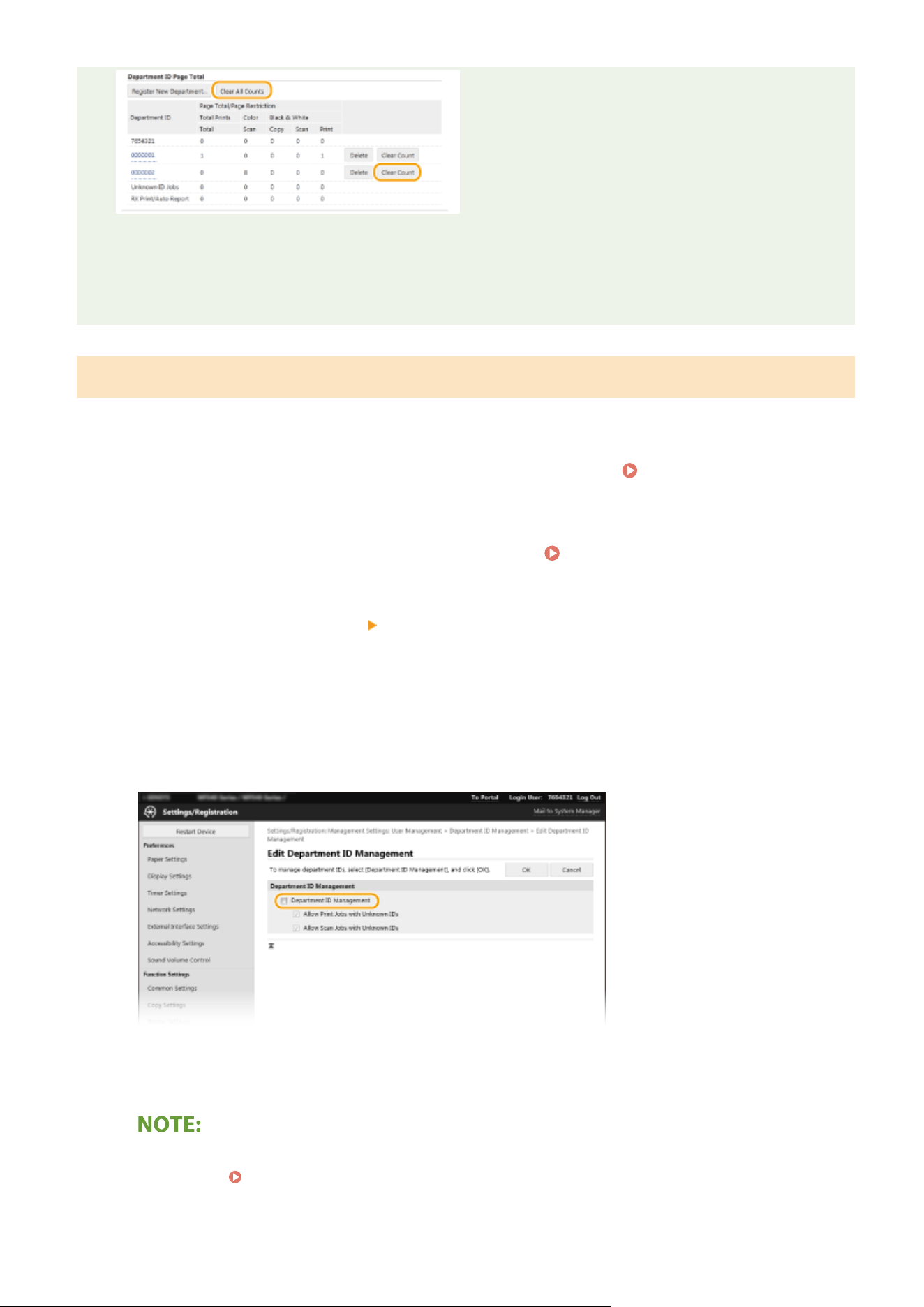
Using control cards
● Do not delete the r
egistered department IDs. The control cards that correspond to the deleted department
IDs will become unavailable.
● You cannot use [Restrict Functions] to restrict the allowable number of pages to print.
Enabling the Department ID Management
After you r
egister as many Department IDs as necessary, enable Department ID Management.
1
Start the Remote UI and log in to System Manager Mode.
Starting Remote
UI(P
. 421)
2
Click [Settings/Registration] on the Portal page.
Remote UI Screen(P. 422)
3
Select [User Management]
[Department ID Management].
4
Click [Edit].
5
Select the [Department ID Management] check box.
[Department ID Management]
Select the check bo
x to enable Department ID Management. If you do not want to use Department ID
Management, clear the check box.
● For
information about the [Allow Print Jobs with Unknown IDs]/[Allow Scan Jobs with Unknown IDs] check
boxes, see
Blocking Jobs When Department ID Is Unknown(P. 361) .
Managing the Machine
359
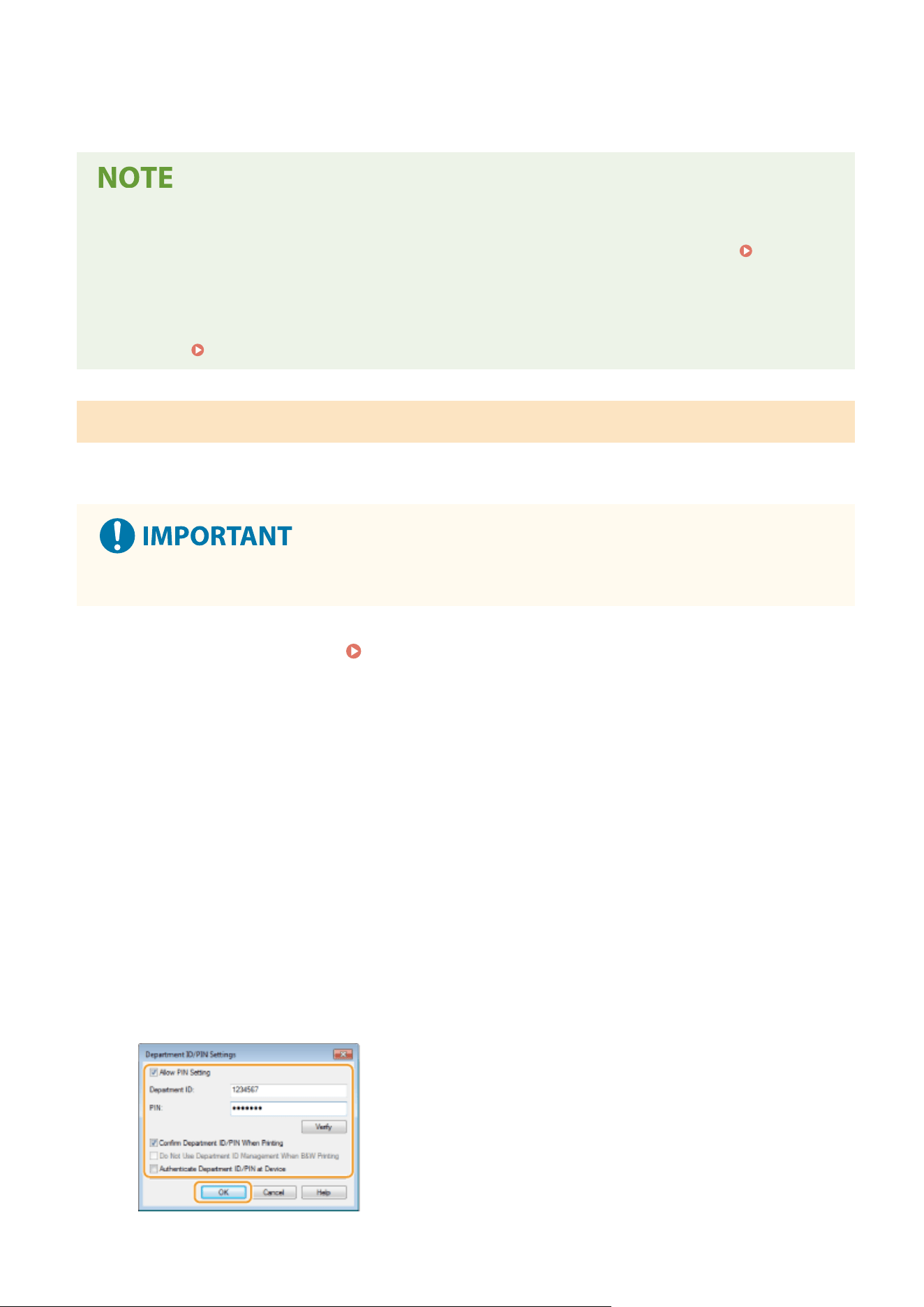
6
Click [OK].
Using the operation panel
● Department ID Management settings can also be accessed fr
om <Menu> in the Home Screen.
<Department ID Management>(P. 550)
Logging in to the machine
● When you try to oper
ate the machine when Department ID Management is enabled, the login screen is
displayed.
Logging in to the Machine(P. 136)
Enabling the Department ID Management for Jobs from a Computer
When you want to enable Department ID Management for jobs fr
om a computer, you need to specify the department
ID and PIN using the driver pre-installed on each computer.
● To perform the following procedure, log in to your computer with an administrator account.
1
Open the printer folder.
Displaying the Printer Folder(P. 638)
2
Right-click the driver icon for this machine, and click [Printer properties] or
[Properties].
3
Click the [Device Settings] tab.
4
Select [Department ID Management] under [User Management].
5
Click [Settings] found to the right.
6
Specify the settings as necessary and click [OK].
Managing the Machine
360
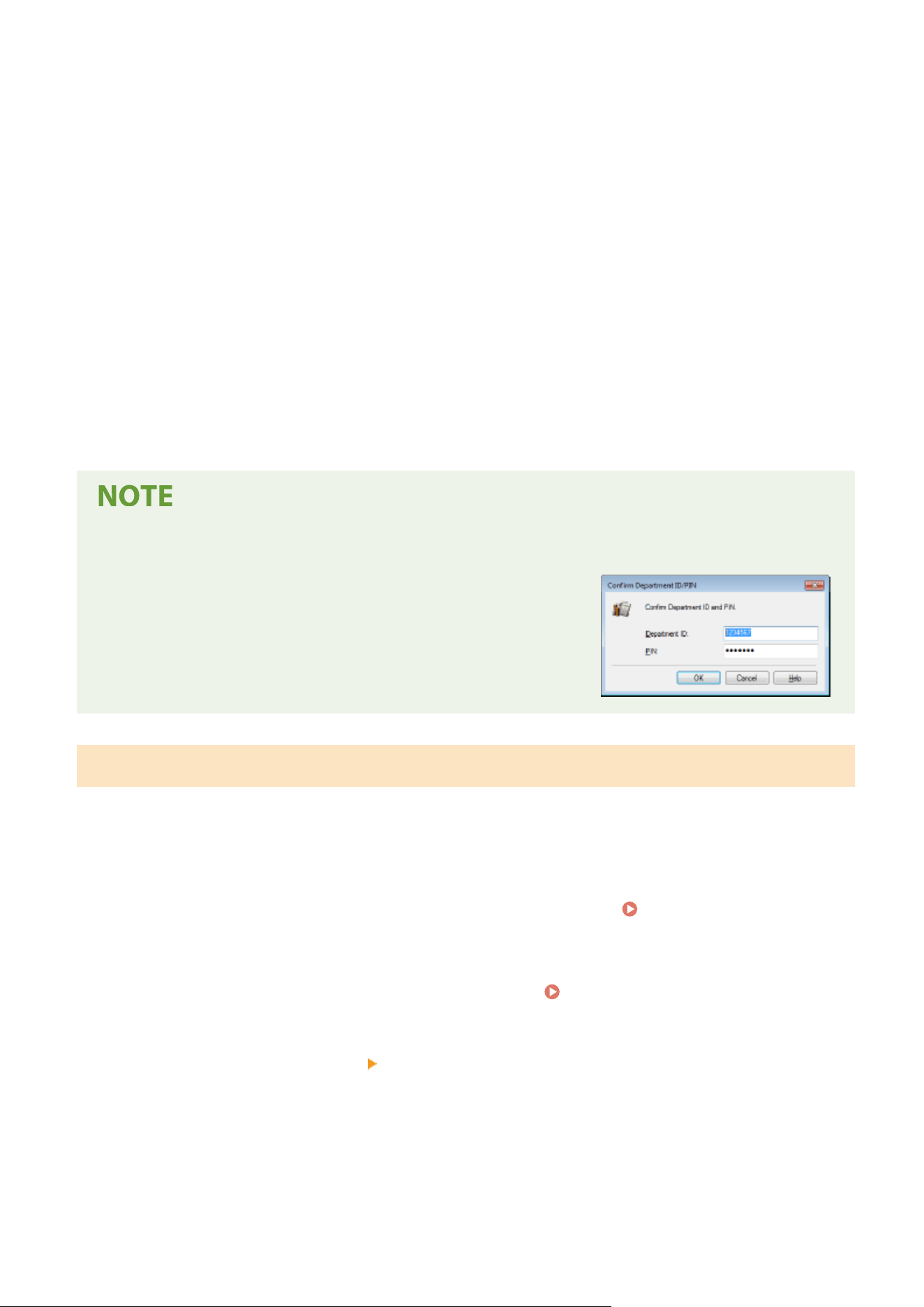
[Allow PIN Setting]
Select the check bo
x to enable the PIN setting.
[Department ID]
Enter the Department ID number.
[PIN]
Enter the PIN corresponding to the Department ID as necessary.
[Verify]
Click to verify that the correct ID and PIN are entered. This function is not available if the machine and the
computer are connected via a USB or WSD (Web Services on Devices) port.
[Conrm Department ID/PIN When Printing]/[Conrm Department ID/PIN When Sending Faxes]
Select the check box to display the [Conrm Department ID/PIN] pop-up screen each time you send job from
a computer.
[Authenticate Department ID/PIN at Device]
Select the check box if the machine and the computer are connected via a USB or WSD port.
7
Click [OK].
Logging in to the machine
● When you try to send job fr
om a computer when Department ID
Management is enabled, the following pop-up screen is displayed
(unless the [Conrm Department ID/PIN When Printing]/[Conrm
Department ID/PIN When Sending Faxes] check box is cleared):
Blocking Jobs When Department ID Is Unknown
If you do not change the default settings, any user can print fr
om a computer, scan (via <Computer> and <Remote
Scanner>) or send a PC fax from a computer without entering an ID and PIN even when Department ID Management
is enabled for the machine. You can change the default settings so that the machine cannot be used for these
functions without a correct ID and PIN.
1
Start the Remote UI and log in to System Manager Mode.
Starting Remote
UI(P
. 421)
2
Click [Settings/Registration] on the Portal page.
Remote UI Screen(P. 422)
3
Select [User Management]
[Department ID Management].
4
Click [Edit].
5
Clear the check boxes as necessary.
Managing the Machine
361
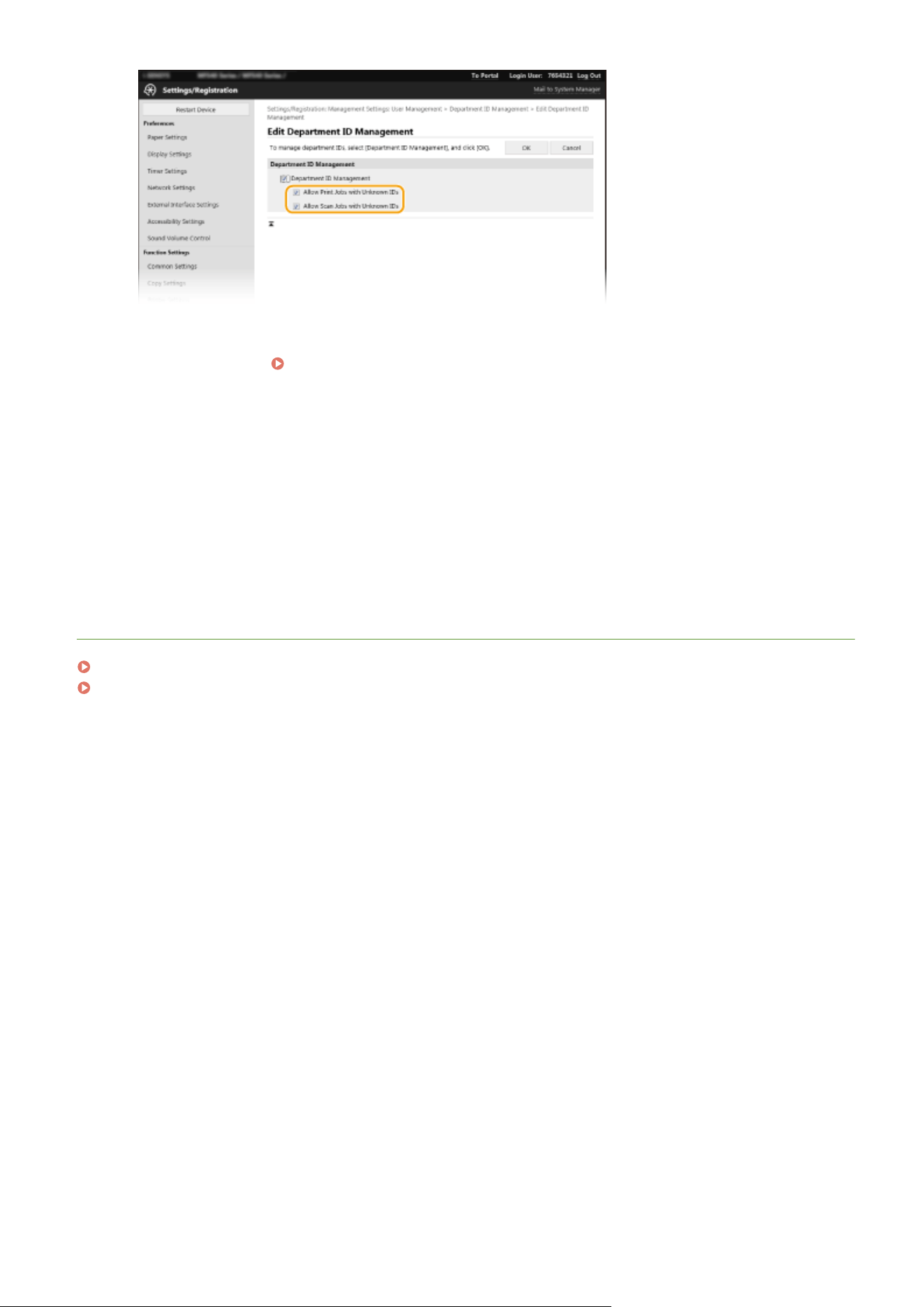
[Allow Print Jobs with Unknown IDs]
In or
der to send job from a computer when Department ID Management is enabled, you need to enter the
correct ID and PIN (
Enabling the Department ID Management for Jobs from a Computer(P. 360) ).
Ho
wever, if the check box is selected for this setting, jobs are executed even when the ID and PIN are not
entered. When you want to congure a setting so that no jobs are executed unless the correct department ID
and PIN are entered, clear the check box.
[Allow Scan Jobs with Unknown IDs]
If the check box is selected, you can select <Computer> or <Remote Scanner> on the main screen and scan
documents into a computer anytime. If the check box is cleared, you cannot scan documents into a computer
if Department ID Management is enabled. It is not possible to restrict scanning of documents into a
computer for individual department IDs.
6
Click [OK].
LINKS
Setting Access Privileges(P. 354)
Setting the System Manager ID and PIN(P. 355)
Managing the Machine
362
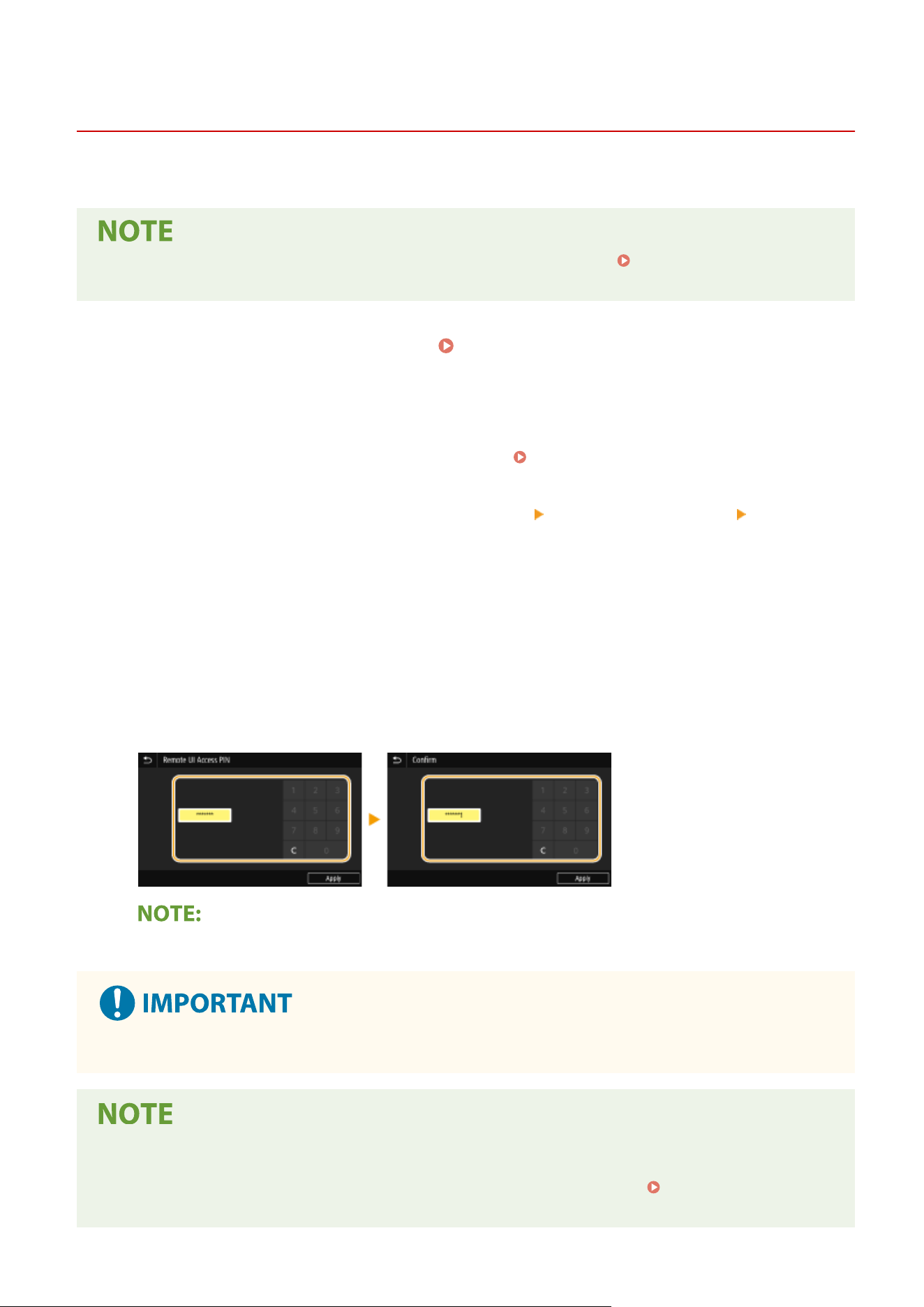
Setting a Remote UI PIN
7YWY-070
Y
ou can set a PIN for access to the Remote UI. All users use a common PIN.
● When Department ID Management is enabled, setting her
e is not required.
Setting the Department ID
Management(P
. 357)
1
Select <Menu> in the Home screen.
Home Screen(P. 125)
2
Select <Management Settings>.
● If the login scr
een appears, enter the correct ID and PIN.
Logging in to the Machine(P. 136)
3
Select <Remote UI Settings/Update Firmware>
<Remote UI Settings> <Restrict
Access>.
4
Select <On>.
5
Specify the Remote UI Access PIN.
● Enter a PIN, and select <Apply>.
● The Conrm screen is displayed. Enter the PIN once again to conrm.
● Y
ou cannot register a PIN that consists only of zeros, such as "00" or "0000000."
● Do not forget your PIN. If you forget your PIN, use the procedure above to set a new PIN.
If <Management Settings> are initialized
● The Remote UI Access PIN is also initialized. After an initialization, r
eset the PIN.
<Initialize
Menu>(P
. 558)
Managing the Machine
363

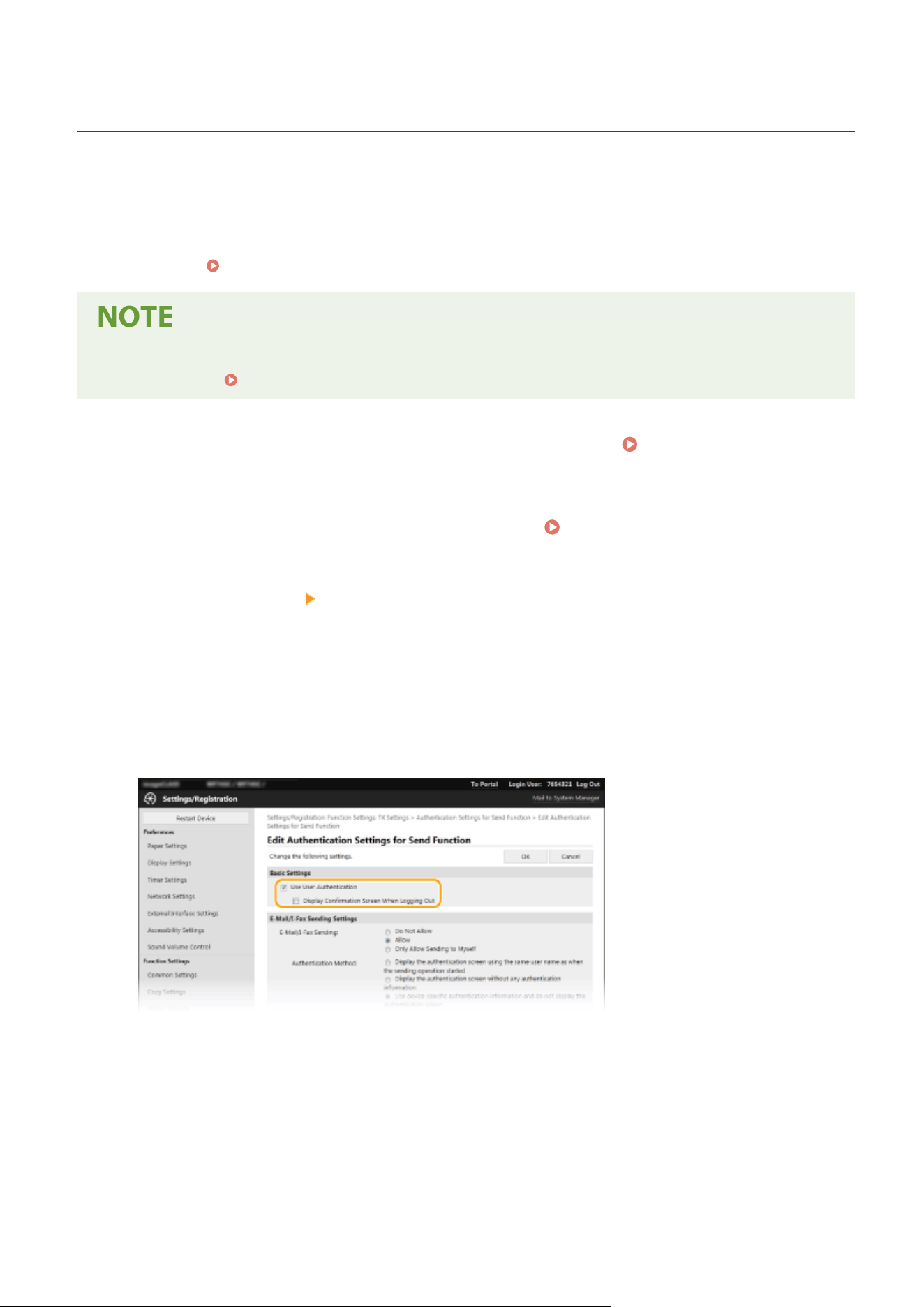
LDAP Server Authentication
7YWY-071
If your system has an LD
AP server installed, you can ensure that LDAP server authentication is carried out when the
send function is used. This enables you to prevent unauthorized use by third parties and information disclosure. Once
the authorization settings are enabled, the Authorized Send screen appears when the fax or scan function is used and
operation can only continue if it is correctly authorized by the LDAP server. Use the settings described here to
congure LDAP server authentication. For more information about registering the server to be used for
authentication, see
Registering LDAP Servers(P. 65) .
● For mor
e information about the basic operations to be performed when setting the machine from the
Remote UI, see
Setting Up Menu Options from Remote UI(P. 431) .
1
Start the Remote UI and log in to System Manager Mode. Starting Remote
UI(P
. 421)
2
Click [Settings/Registration] on the Portal page.
Remote UI Screen(P. 422)
3
Select [TX Settings] [Authentication Settings for Send Function].
4
Click [Edit].
5
Select the [Use User Authentication] check box and select whether a conrmation
scr
een is displayed at logout.
[Use User Authentication]
Select the check box to display the Authorized Send login screen when the fax or scan function is used (LDAP
server authentication).
[Display Conrmation Screen When Logging Out]
Select the check box to display a screen that allows you to selectively log out when you are logged on for
both Authorized Send and Department ID Management. If you clear this check box, no selection screen is
displayed when you log out and you are logged out from both Authorized Send and Department ID
Management.
Managing the Machine
365
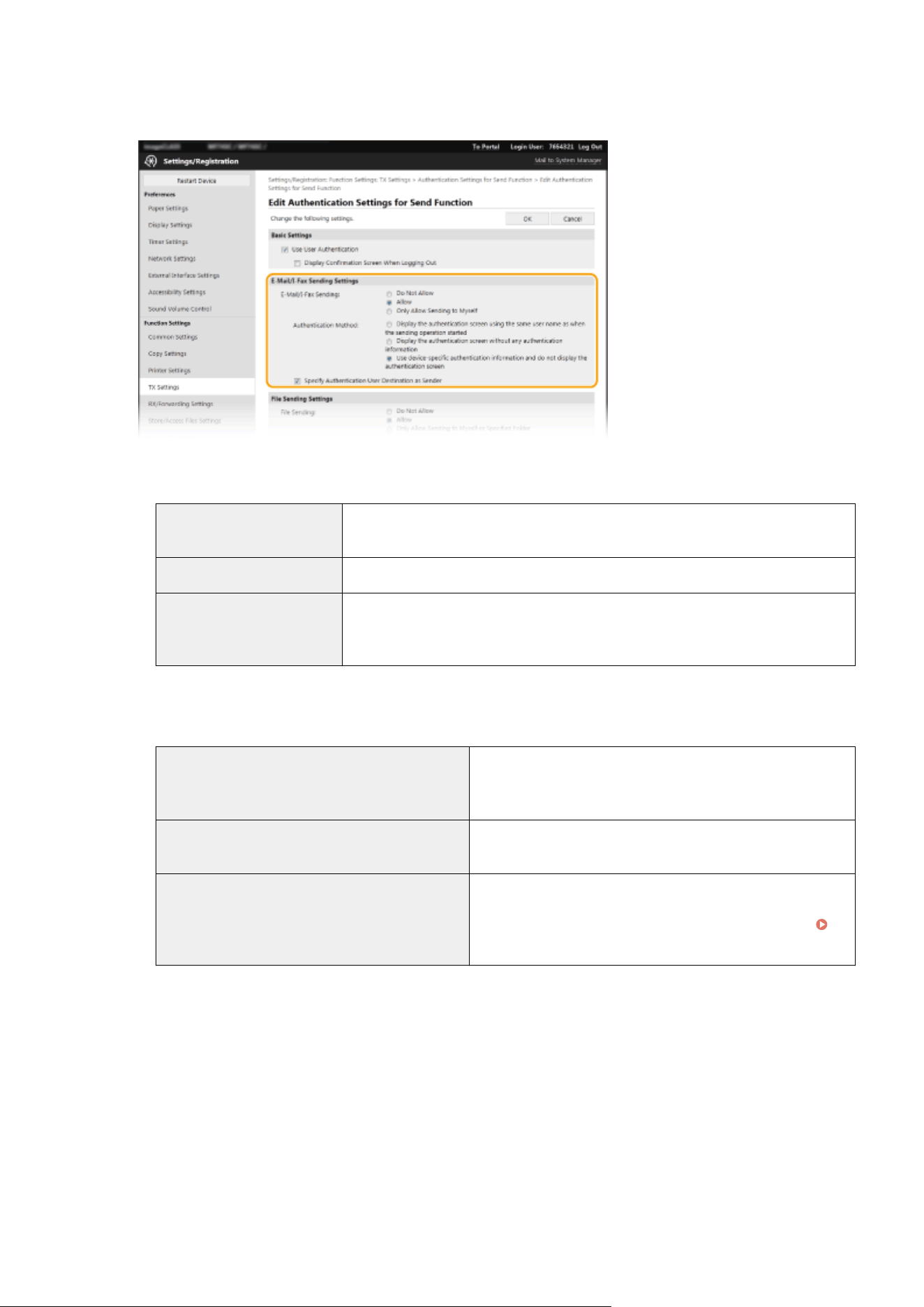
6
Congure the settings for sending e-mail/I-Fax
es.
[E-Mail/I-Fax Sending]
Select whether to allo
w sending e-mail and I-Faxes.
[Do Not Allow] Blocks sending e-mail and I-Faxes. <E-Mail> and <I-Fax> in the scan function can no
longer be used.
[Allow] Permits outgoing e-mail and I-Faxes.
[Only Allow Sending to Myself] Blocks all outgoing e-mail and I-Faxes other than those to users with authorized e-
mail addr
esses. The e-mail addresses of authorized users must be registered on the
LDAP server.
[Authentication Method]
When [Allo
w] or [Only Allow Sending to Myself] is selected in [E-Mail/I-Fax Sending], this allows you to specify
whether an authentication screen is shown on the SMTP server when e-mail is sent.
[Display the authentication screen using the same
user name as when the sending oper
ation started]
Displays the authentication screen showing the same user
name and password entered in the Authorized Send login
screen.
[Display the authentication screen without any
authentication information]
Displays the authentication screen with the user name and
password elds blank.
[Use device-specic authentication information and
do not display the authentication screen]
No authentication screen is displayed when e-mail or I-Faxes
are sent. Authorization on the SMTP server is carried out using
the user name and password set in [E-Mail/I-Fax Settings]
Conguring E-Mail/I-Fax Communication Settings
(P. 90) .
[Specify Authentication User Destination as Sender]
Select the check bo
x when the e-mail address of an authorized user will be set as the sender. The e-mail
addresses of authorized users must be registered on the LDAP server. If you clear this check box, the e-mail
address set in the [E-Mail/I-Fax Settings] is set as the sender.
7
Congure the le tr
ansfer settings (for saving to shared folders and FTP servers).
Managing the Machine
366
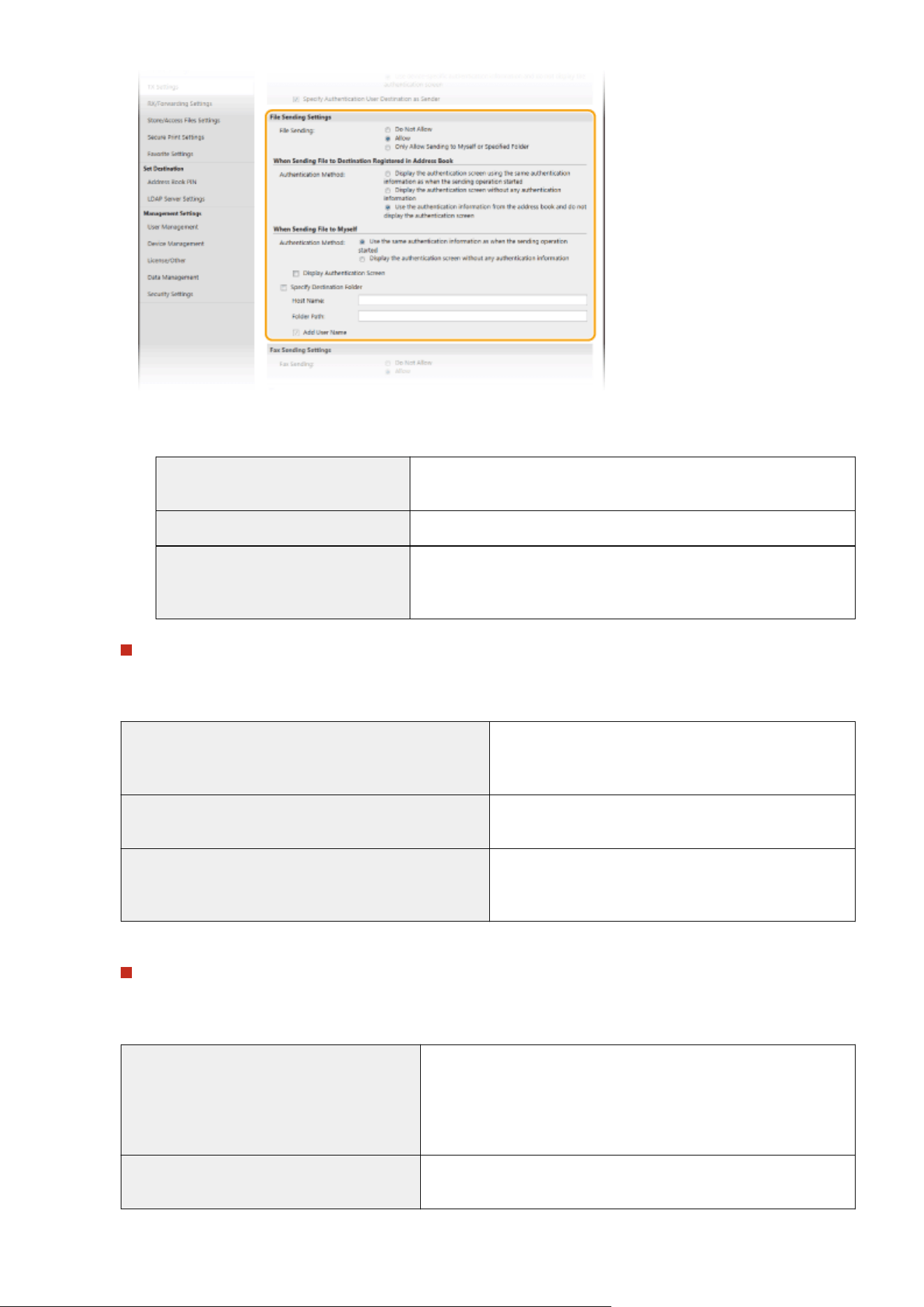
[File Sending]
Select whether to allo
w saving to shared folders and FTP servers.
[Do Not Allow] Blocks saving to shared folders and FTP servers. <File> in the scan
function can no longer be used.
[Allow] Saving to shared folders and FTP servers is not blocked.
[Only Allow Sending to Myself or
Specied Folder]
Blocks all saving to shared folders and FTP servers other than specied
folders. The data is saved to folders r
egistered on the LDAP server or to
the folder specied in [Specify Destination Folder].
When [Allow] is specied in [File Sending]
[Authentication Method]
Allows you to specify whether an authentication screen is shown on the server when sending.
[Display the authentication screen using the same
authentication information as when the sending oper
ation
started]
Displays the authentication screen showing the same user
name and password entered in the Authorized Send login
screen.
[Display the authentication screen without any
authentication information]
Displays the authentication screen with the user name and
password elds blank.
[Use the authentication information from the address book
and do not display the authentication screen]
No authentication screen is displayed when sending.
Authentication is carried out on the server using the user
name and password set in the Address Book.
When [Only Allow Sending to Myself or Specied Folder] is specied in [File Sending]
[Authentication Method]
Allo
ws you to specify whether an authentication screen is shown on the server when sending.
[Use the same authentication information as
when the sending oper
ation started]
Carries out authorization on the server using the user name and
password entered in the Authorized Send login screen. Selecting the
[Display Authentication Screen] check box displays the authentication
screen with this user name and password already entered when you
send the data.
[Display the authentication screen without any
authentication information]
Displays the authentication screen with the user name and password
elds blank.
Managing the Machine
367
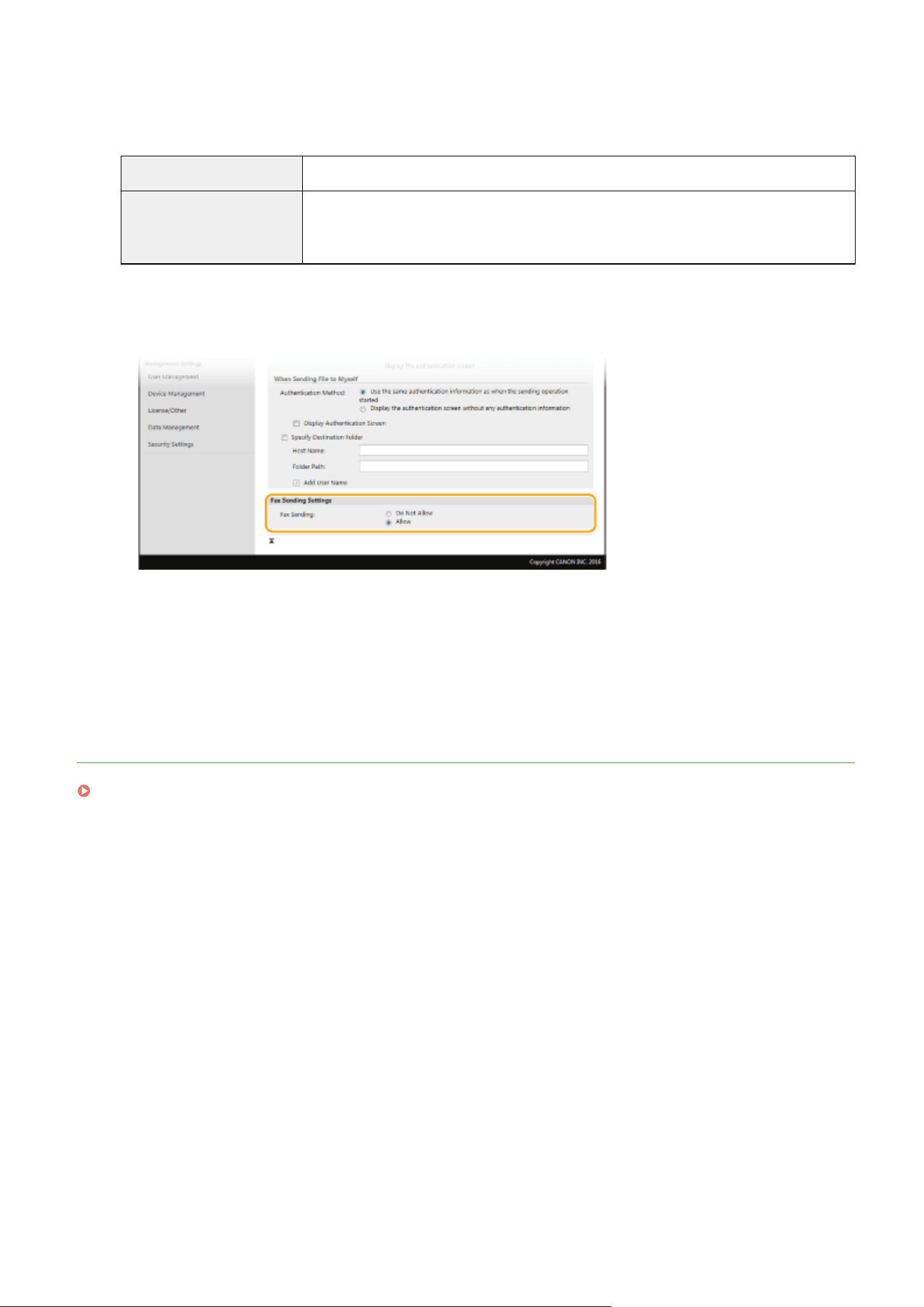
[Specify Destination Folder]
Selecting this check bo
x allows you to specify the folder where the data is saved. If the check box is not selected,
the save destination is set based on authorized user information registered on the LDAP server.
[Host Name] Enter a host name for the shared folder or FTP server.
[Folder Path]
Enter a path name for the save destination folder (excluding the host name). When the [Add
User Name] check bo
x is selected, the user name used for authentication on the LDAP
server is added to the path.
8
Congure the settings for sending fax
es.
[Fax Sending]
Select whether to allo
w sending faxes. [Do Not Allow] prevents the user from sending faxes from the
machine.
9
Click [OK].
LINKS
Registering LDAP Servers(P. 65)
Managing the Machine
368
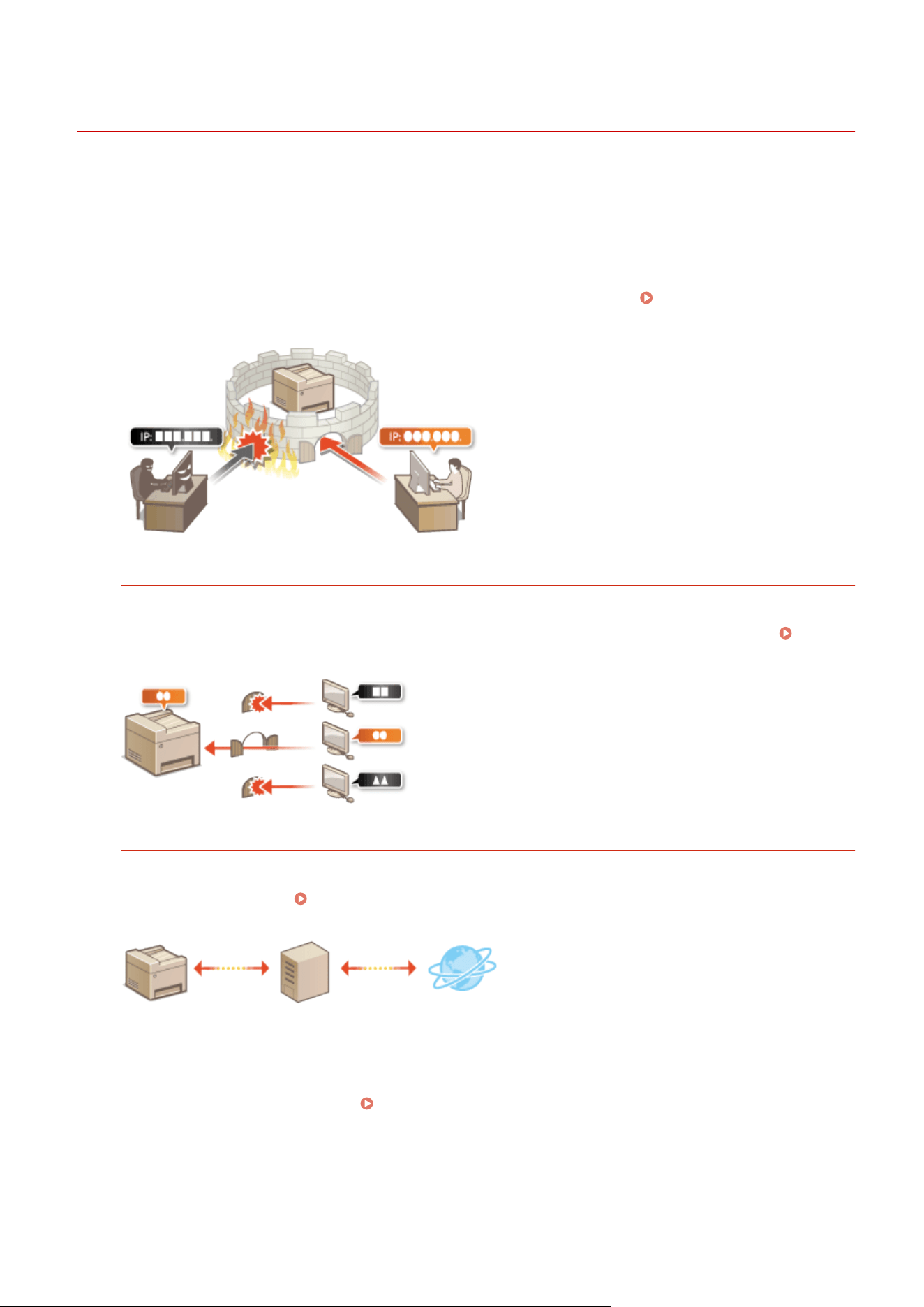
Conguring the Network Security Settings
7YWY-072
Authorized users may incur unanticipated losses fr
om attacks by malicious third parties, such as sning, spoong,
and tampering of data as it ows over a network. To protect your important and valuable information from these
attacks, the machine supports the following features to enhance security and secrecy.
Firewall Settings
Unauthorized access by third parties, as well as network attacks and intrusions, can be blocked by limiting
communication only to de
vices that have a specic IP address or MAC address.
Restricting Communication
b
y Using Firewalls(P. 371)
Changing Port Numbers
A protocol that is used to exchange information with other devices is assigned port numbers that are
pr
edetermined according to the type of protocol. The port number must be the same for all communication
devices; therefore, changing it to an arbitrary number is important to prevent hacking from outside.
Changing Port Numbers(P. 378)
Proxy Settings
When the client devices are connected to an external network, communication is established through the proxy
server. When the pr
oxy server is used, websites can be browsed more safely, therefore, security can be
expected to be enhanced.
Setting a Proxy(P. 379)
TLS Encrypted Communication
TLS is a protocol for encryption for data sent over a network and is often used for communication via a Web
browser or an e-mail application. TLS enables secure network communication when you access the machine
from a computer via the Remote UI. Conguring the Ke
y and Certicate for TLS(P. 381)
Managing the Machine
369
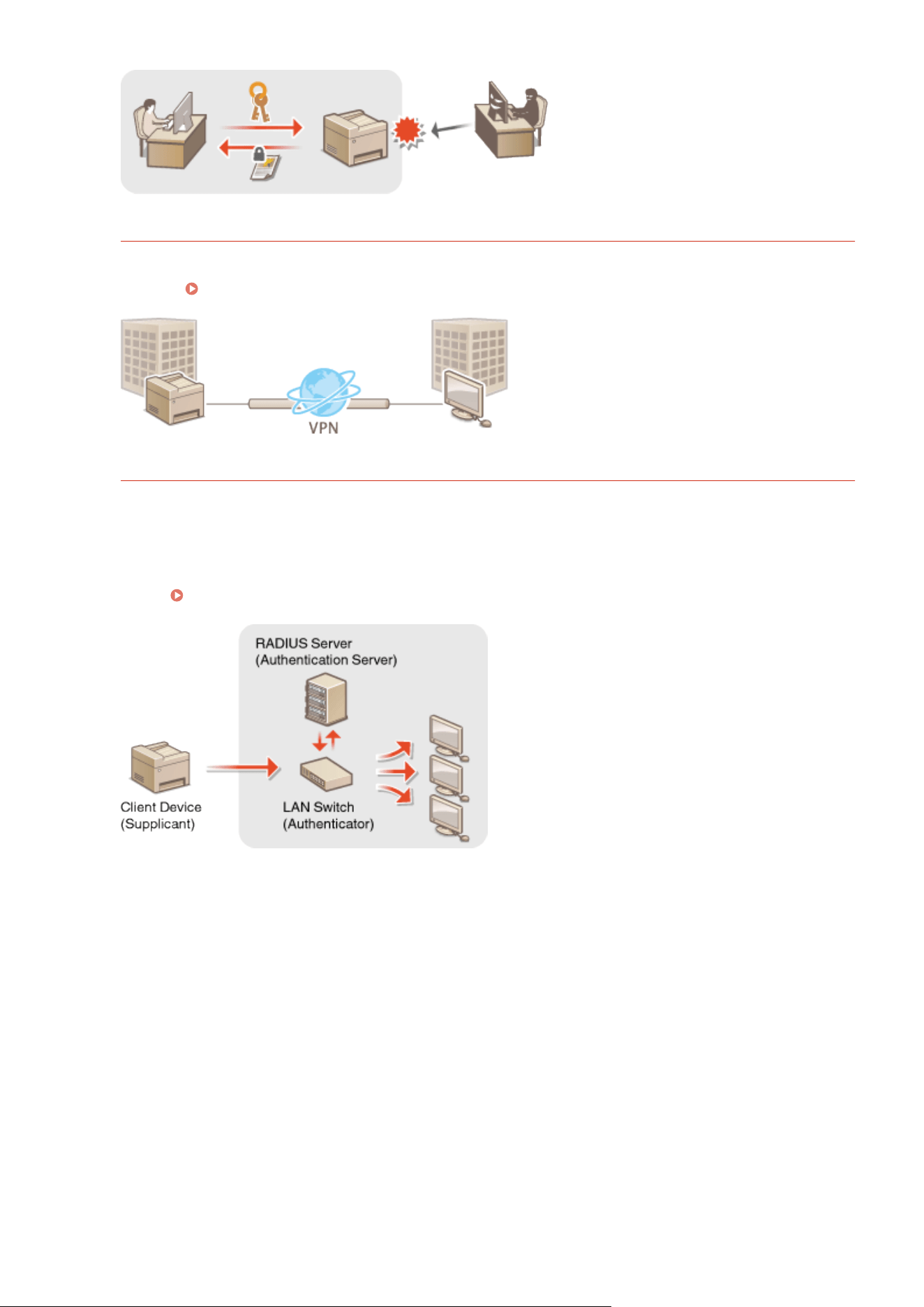
IPSec Communication
While TLS only encrypts data used on a specic application, such as a W
eb browser or an e-mail application,
IPSec encrypts the whole (or payloads of) IP packets. This enables IPSec to offer a more versatile security system
than TLS.
Conguring IPSec Settings(P
. 395)
IEEE 802.1X Authentication
IEEE 802.1X is a standard and mechanism for blocking unauthorized access to the network by collectively
managing user authentication information. If a de
vice tries to connect to the 802.1X network, the device must
go through user authentication in order to prove that the connection is made by an authorized user.
Authentication information is sent to and checked by a RADIUS server, which permits or rejects communication
to the network depending on the authentication result. If authentication fails, a LAN switch (or an access point)
blocks access from the outside of the network. The machine can connect to an 802.1X network as a client
device.
Conguring IEEE 802.1X Authentication Settings
(P. 402)
Managing the Machine
370
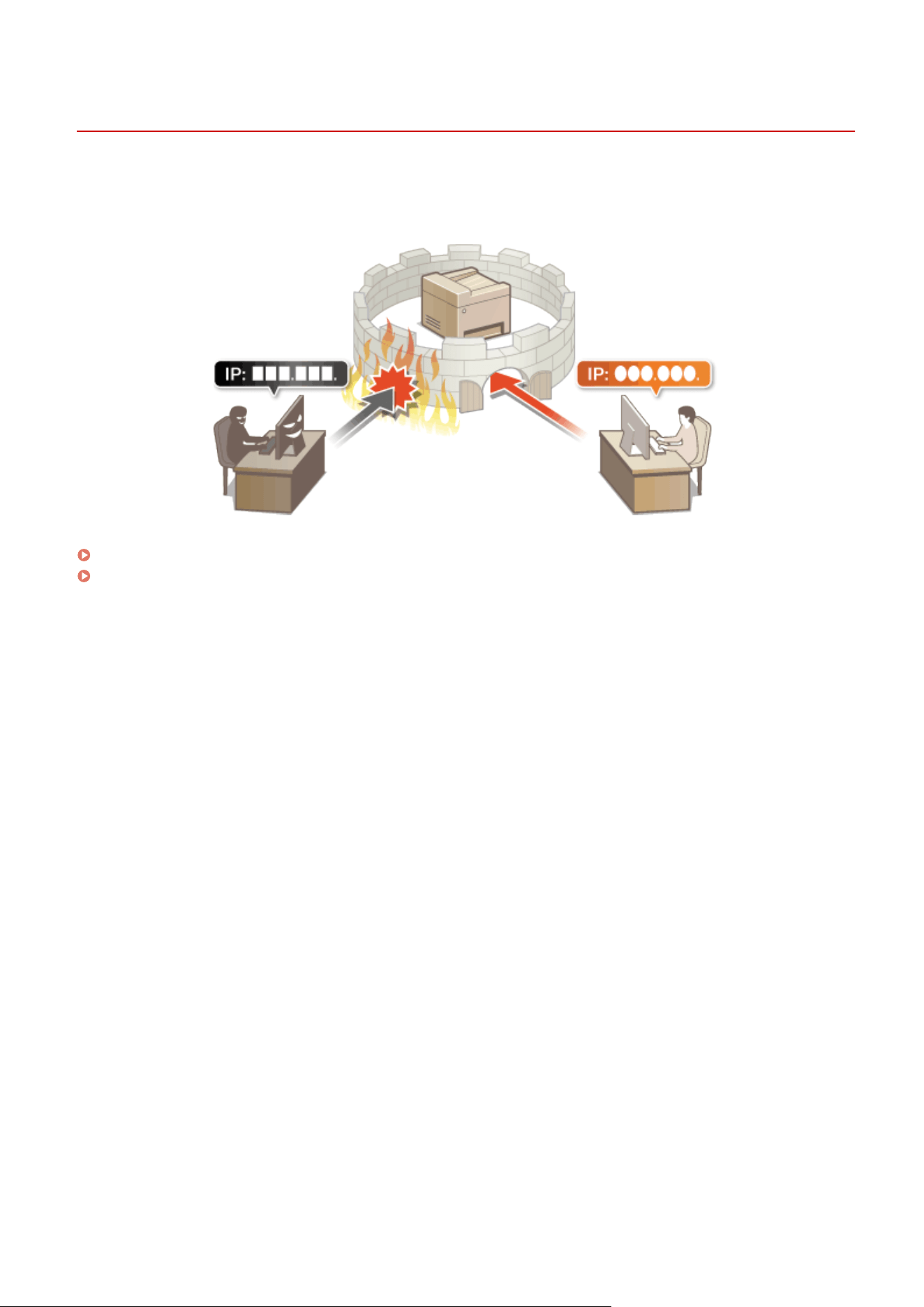
Restricting Communication by Using Firewalls
7YWY-073
Without pr
oper security, unauthorized third parties can access computers and other communication devices that are
connected to a network. To prevent this unauthorized access, specify the settings for packet lter, a feature that
restricts communication to devices with specied IP addresses or MAC addresses.
Specifying IP Addresses for Firewall Settings(P. 372)
Specifying MAC Addresses for Firewall Settings(P. 375)
Managing the Machine
371
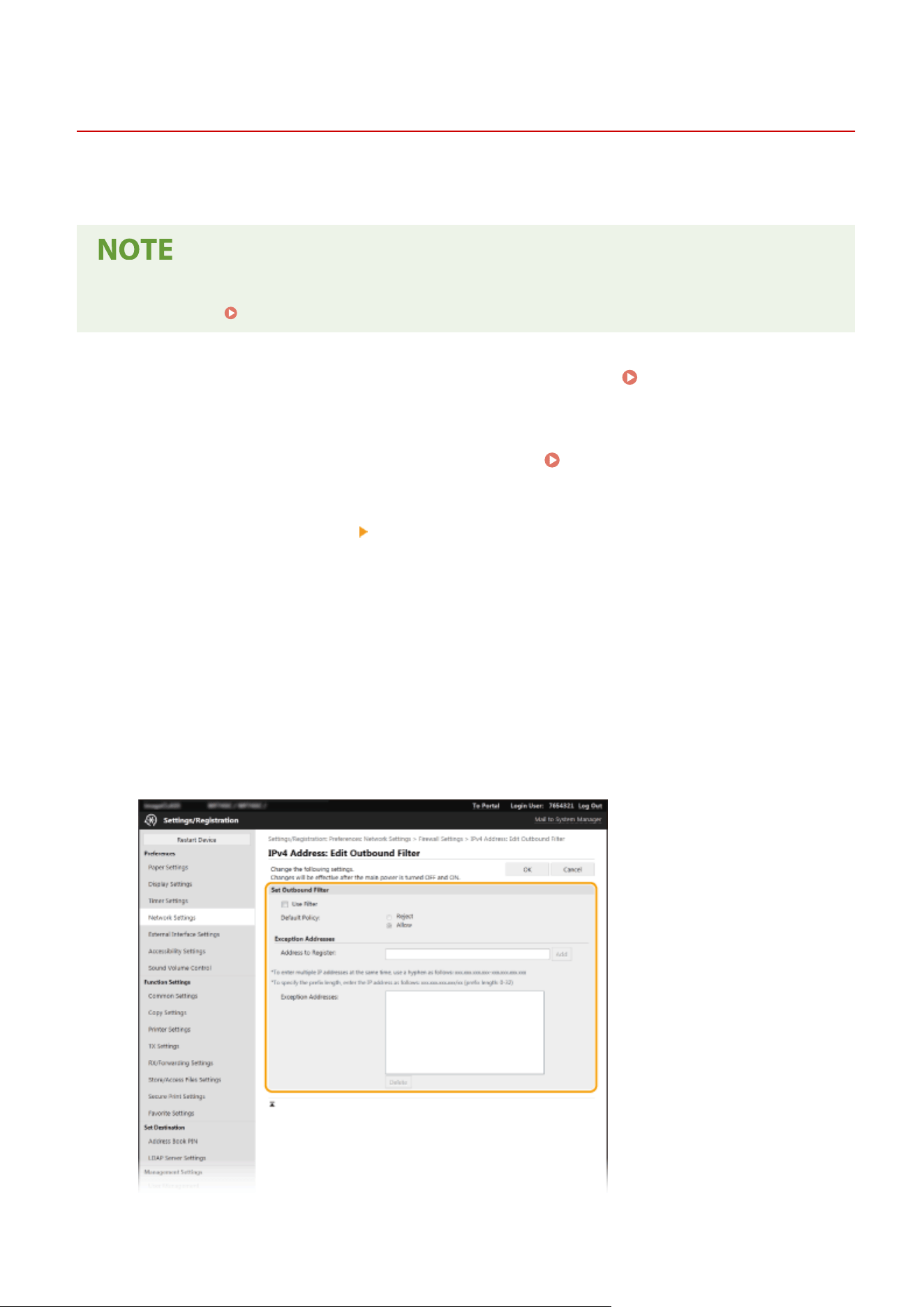
Specifying IP Addresses for Firewall Settings
7YWY-074
Y
ou can either limit communication to only devices with specied IP addresses, or block devices with specied IP
addresses but permit other communications. You can specify a single IP address or a range of IP addresses.
● For mor
e information about the basic operations to be performed when setting the machine from the
Remote UI, see
Setting Up Menu Options from Remote UI(P. 431) .
1
Start the Remote UI and log in to System Manager Mode. Starting Remote
UI(P
. 421)
2
Click [Settings/Registration] on the Portal page.
Remote UI Screen(P. 422)
3
Select [Network Settings] [Firewall Settings].
4
Click [Edit] for the target IP address lter.
● Select the lter that matches the tar
get IP address. To restrict data sent from the machine to a computer,
select [Outbound Filter]. To restrict data received from a computer, select [Inbound Filter].
5
Specify the settings for packet ltering.
● Select the default policy to allo
w or reject the communication of other devices with the machine, and then
specify IP addresses for exceptions.
Managing the Machine
372
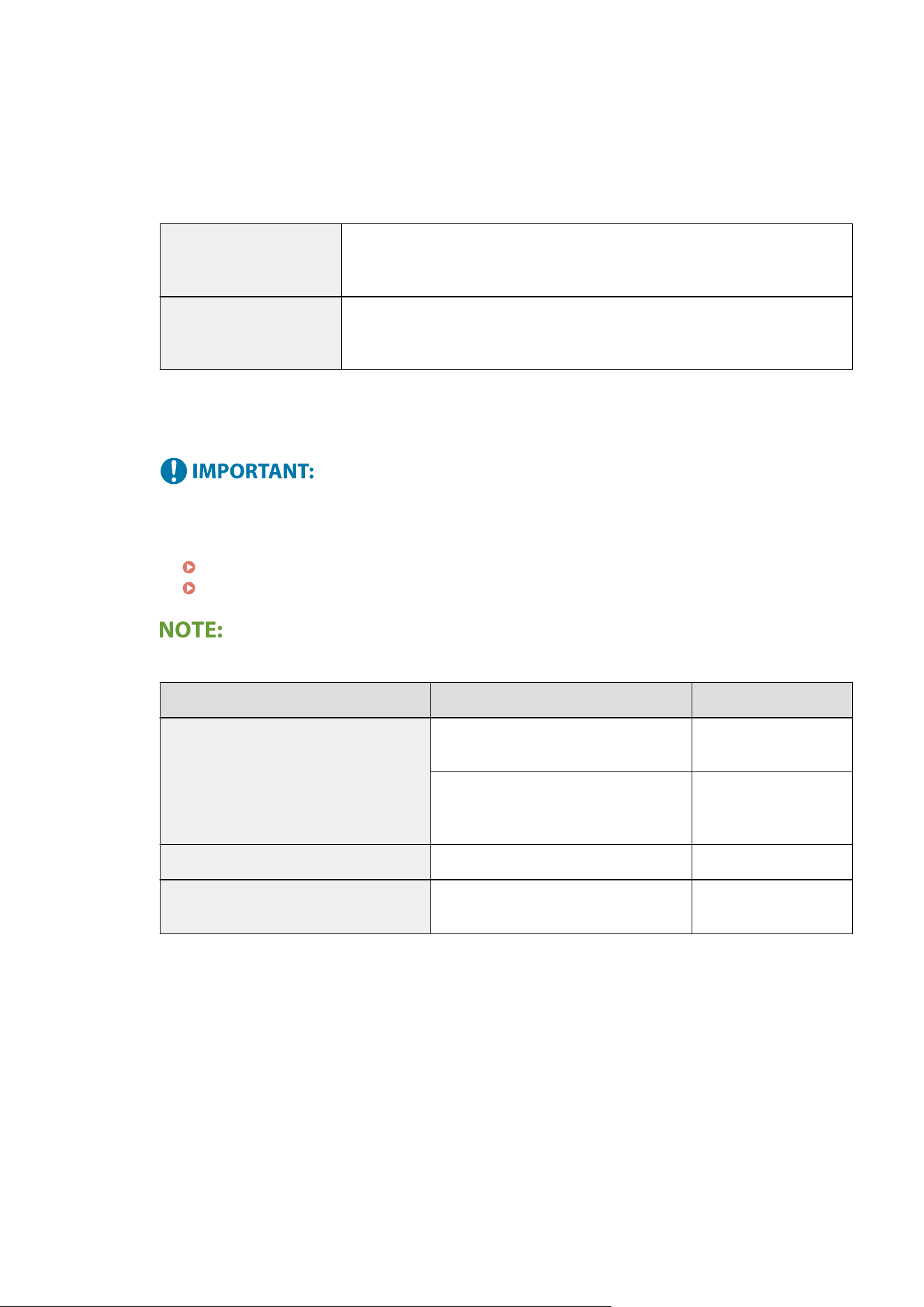
1
Select the [Use Filter] check box and click the [Reject] or [Allow] radio button for the [Default Policy].
[Use Filter]
Select the check bo
x to restrict communication. Clear the check box to disable the restriction.
[Default Policy]
Select the precondition to allow or reject the communication of other devices with the machine.
[Reject]
Select to pass communication packets only when they are sent to or received from
de
vices whose IP addresses are entered in [Exception Addresses]. Communications
with other devices are prohibited.
[Allow]
Select to block communication packets when they are sent to or received from
devices whose IP addresses are entered in [Exception Addresses]. Communications
with other devices are permitted.
2
Specify address exceptions.
● Enter the IP addr
ess (or the range of IP addresses) in the [Address to Register] text box and click
[Add].
Check for entry errors
● If IP addr
esses are incorrectly entered, you may be unable to access the machine from the Remote UI,
in which case you need to set <IPv4 Address Filter> or <IPv6 Address Filter> to <Off>.
<IPv4 Address Filter>(P. 475)
<IPv6 Address Filter>(P. 475)
Entry form for IP addresses
Description Example
Entering a single address
IPv4:
Delimit numbers with periods.
192.168.0.10
IPv6:
Delimit alphanumeric char
acters with
colons.
fe80::10
Specifying a range of addresses Insert a hyphen between the addresses. 192.168.0.10-192.168.0.20
Specifying a range of addresses with a prex
Enter the address, followed by a slash and
a number indicating the prex length.
192.168.0.32/27
fe80::1234/64
When [Reject] is selected for an outbound lter
● Outgoing multicast and br
oadcast packets cannot be ltered.
Deleting an IP address from exceptions
● Select an IP address and click [Delete].
Managing the Machine
373
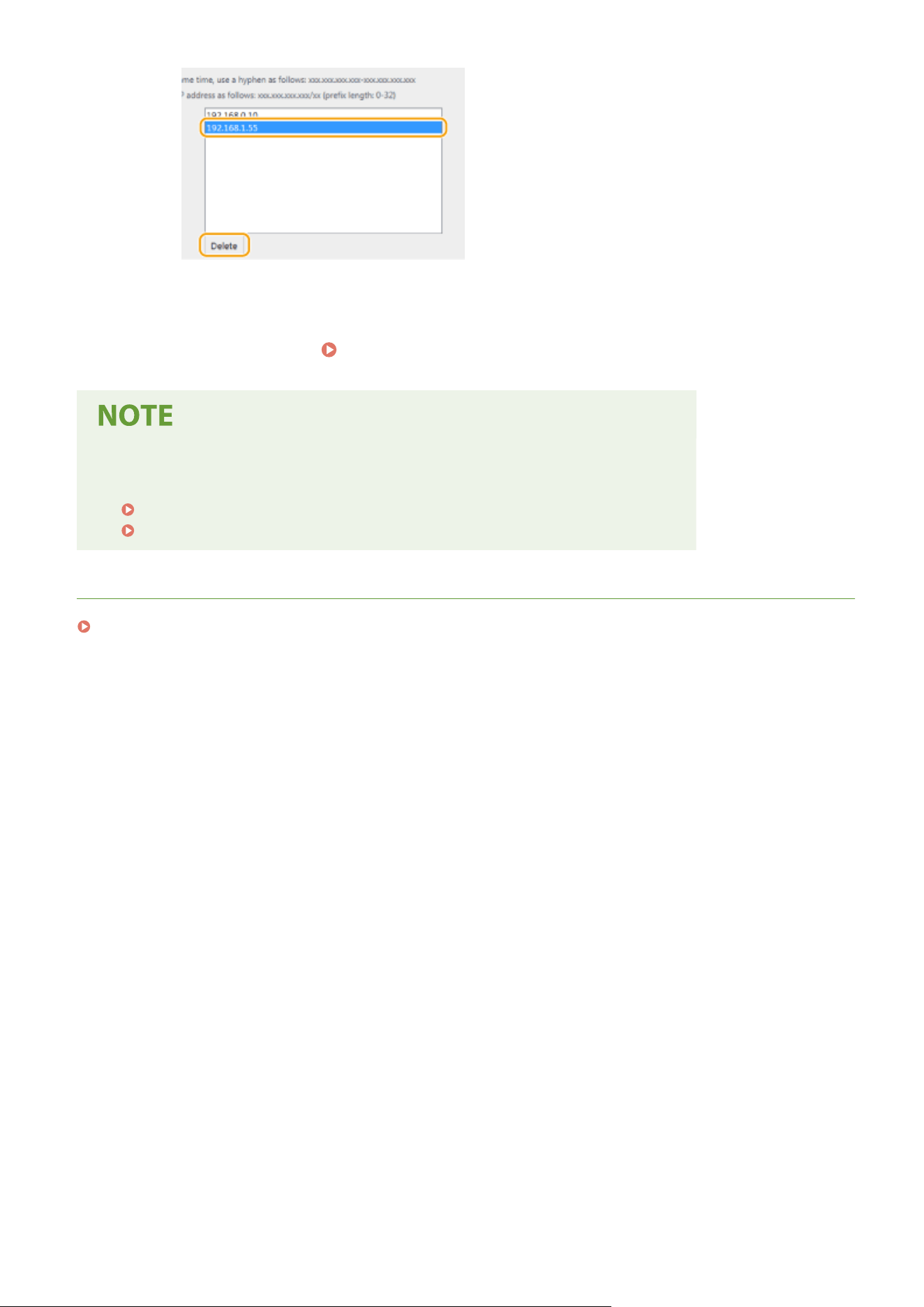
3
Click [OK].
6
Restart the machine.
Restarting the Machine(P. 121)
Using the operation panel
● Y
ou can also enable or disable IP address ltering from <Menu> in the Home screen.
<IPv4 Address Filter>(P. 475)
<IPv6 Address Filter>(P. 475)
LINKS
Specifying MAC Addresses for Firewall Settings(P. 375)
Managing the Machine
374
Specifying MAC Addresses for Firewall Settings
7YWY-075
Y
ou can limit communication to only devices with specied MAC addresses, or block devices with specied MAC
addresses but permit other communications.
This function is unavailable when the machine is connected to a wireless LAN.
● For mor
e information about the basic operations to be performed when setting the machine from the
Remote UI, see
Setting Up Menu Options from Remote UI(P. 431) .
1
Start the Remote UI and log in to System Manager Mode.
Starting Remote
UI(P
. 421)
2
Click [Settings/Registration] on the Portal page.
Remote UI Screen(P. 422)
3
Select [Network Settings] [Firewall Settings].
4
Click [Edit] for the target MAC address lter.
● T
o restrict data sent from the machine to a computer, select [Outbound Filter]. To restrict data received from
a computer, select [Inbound Filter].
5
Specify the settings for packet ltering.
● Select the pr
econdition (default policy) to allow or reject the communication of other devices with the
machine, and then specify MAC addresses for exceptions.
Managing the Machine
375
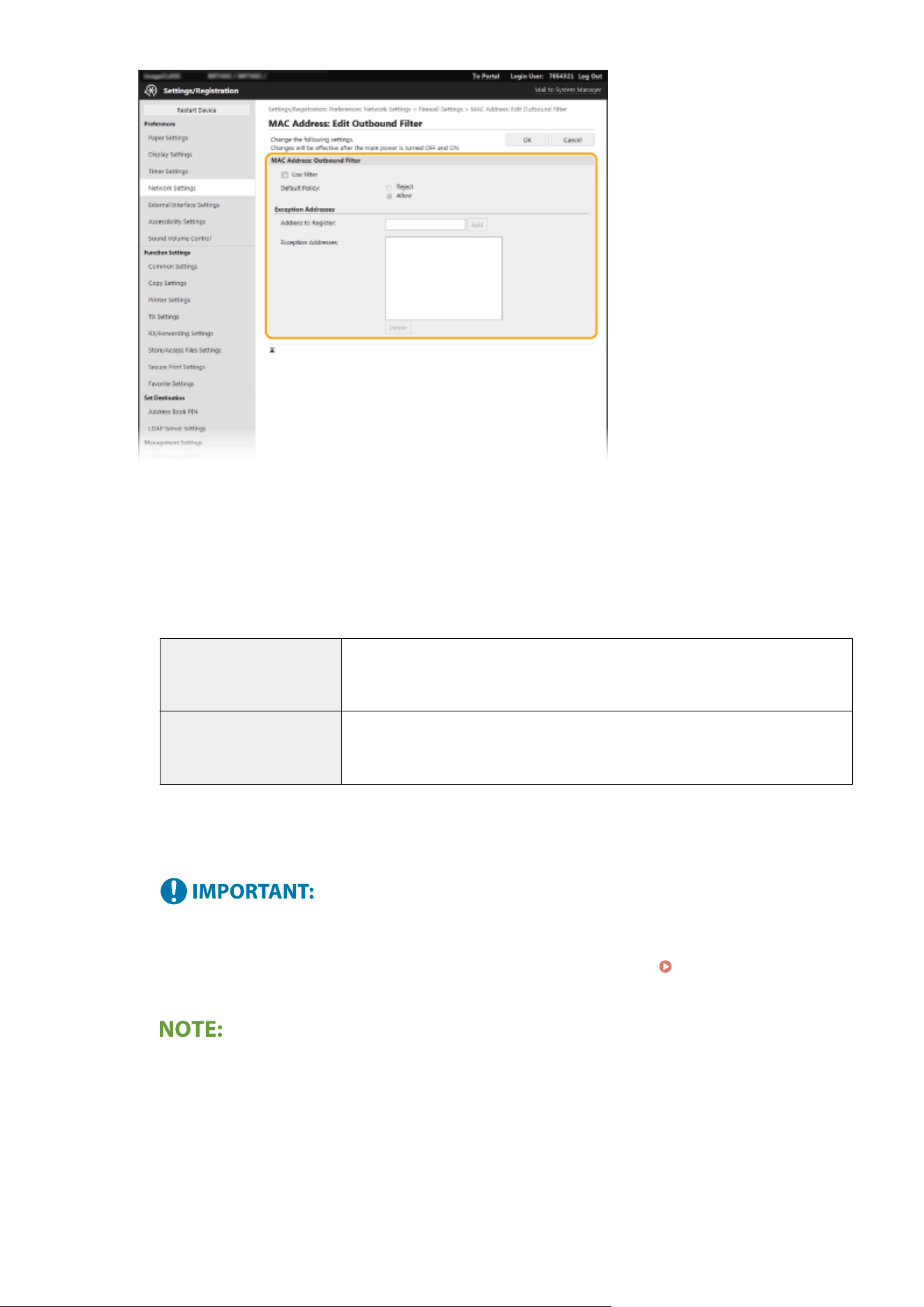
1
Select the [Use Filter] check box and click the [Reject] or [Allow] radio button for the [Default Policy].
[Use Filter]
Select the check bo
x to restrict communication. Clear the check box to disable the restriction.
[Default Policy]
Select the precondition to allow or reject other devices to communicate with the machine.
[Reject]
Select to pass communication packets only when they are sent to or received from
de
vices whose MAC addresses are entered in [Exception Addresses].
Communications with other devices are prohibited.
[Allow]
Select to block communication packets when they are sent to or received from
devices whose MAC addresses are entered in [Exception Addresses].
Communications with other devices are permitted.
2
Specify address exceptions.
● Enter the MA
C address in the [Address to Register] text box and click [Add].
● You do not need to delimit the address with hyphens or colons.
Check for entry errors
● If MA
C addresses are incorrectly entered, you may become unable to access the machine from the
Remote UI, in which case you need to set <MAC Address Filter> to <Off>.
<MAC Address
Filter>(P
. 476)
When [Reject] is selected for an outbound lter
● Outgoing multicast and br
oadcast packets cannot be ltered.
Deleting a MAC address from exceptions
● Select a MAC address and click [Delete].
Managing the Machine
376
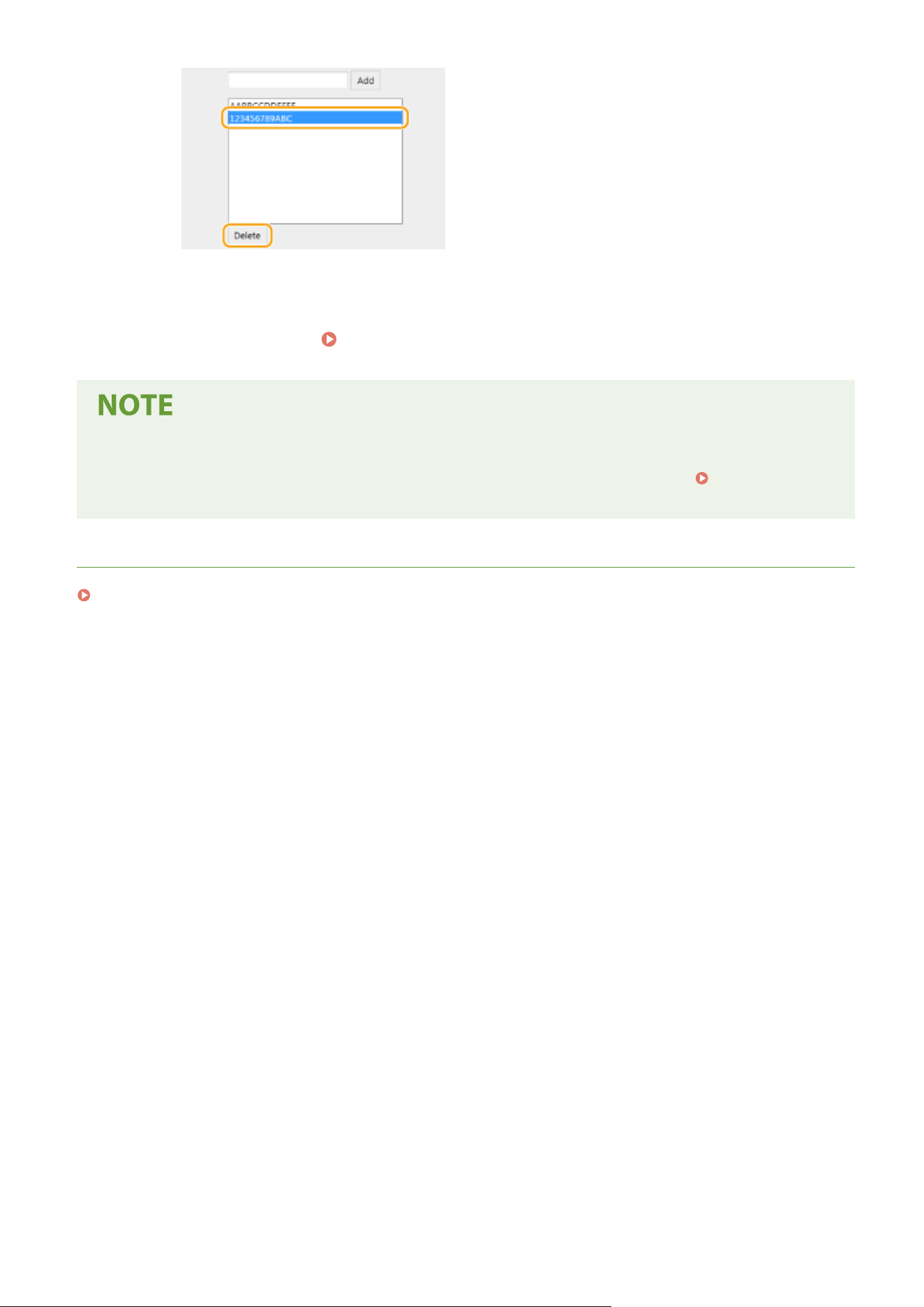
Changing Port Numbers
7YWY-076
Ports serve as endpoints for communicating with other de
vices. Typically, conventional port numbers are used for
major protocols, but devices that use these port numbers are vulnerable to attacks because these port numbers are
well-known. To enhance security, your Network Administrator may change the port numbers. When a port number has
been changed, the new number must be shared with the communicating devices, such as computers and servers.
Specify the port number settings depending on the network environment.
● T
o change the port number for proxy server, see
Setting a Proxy(P. 379) .
● T
o change the port number for LDAP server, see
Registering LDAP Servers(P. 65) .
1
Select <Menu> in the Home screen. Home Screen(P. 125)
2
Select <Preferences>
<Network>.
● If the login scr
een appears, enter the correct ID and PIN.
Logging in to the Machine(P. 136)
3
Select <TCP/IP Settings>
<Port Number Settings>.
4
Selecting the protocol of which you want to change the port number.
Learning more about the protocols
● <LPD>/<RA
W>/<WSD Multicast Discovery>
Conguring Printing Pr
otocols and WSD Functions(P. 40)
● <HTTP>
Disabling HTTP Communication(P. 418)
● <POP3>/<SMTP TX>
Conguring E-Mail/I-Fax Communication Settings
(P. 90)
● <SNMP>
Monitoring and Controlling the Machine with SNMP(P. 70)
● <Multicast Disco
very>
Monitoring the Machine from the Device Management Systems(P. 75)
● <FTP> Procedure for Setting a FTP Server as a Save Location(P. 98)
5
Enter the port number, and select <Apply>.
6
Select <OK>.
7
Restart the machine.
Restarting the Machine(P. 121)
LINKS
Conguring Printer Ports(P
. 43)
Managing the Machine
378
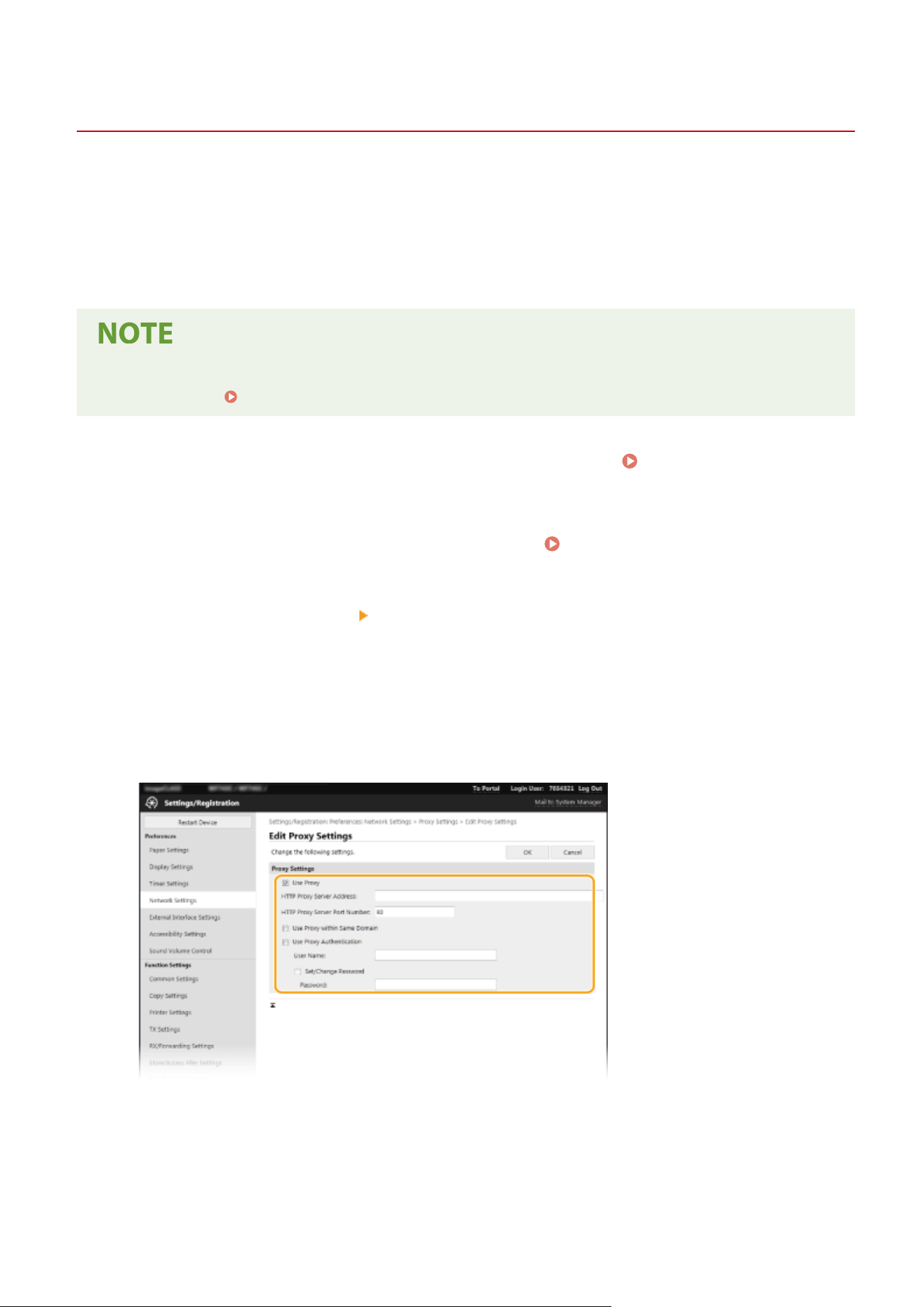
Setting a Proxy
7YWY-077
A pr
oxy (or HTTP proxy server) refers to a computer or software that carries out HTTP communication for other
devices, especially when communicating with resources outside the network, such as when browsing Web sites. The
client devices connect to the outside network through the proxy server, and do not communicate directly to the
resources outside. Setting a proxy not only facilitates management of trac between in-house and outside networks
but also blocks unauthorized access and consolidates anti-virus protection for enhanced security. When setting a
proxy, make sure that you have the necessary proxy information, including the IP address, port number, and a user
name and password for authentication.
● For mor
e information about the basic operations to be performed when setting the machine from the
Remote UI, see
Setting Up Menu Options from Remote UI(P. 431) .
1
Start the Remote UI and log in to System Manager Mode. Starting Remote
UI(P
. 421)
2
Click [Settings/Registration] on the Portal page.
Remote UI Screen(P. 422)
3
Select [Network Settings] [Proxy Settings].
4
Click [Edit].
5
Select the [Use Proxy] check box and specify the required settings.
[Use Proxy]
Select the check bo
x to use the specied proxy server when communicating with an HTTP server.
[HTTP Proxy Server Address]
Enter the address of the proxy server. Specify the IP address or host name depending on the environment.
[HTTP Proxy Server Port Number]
Change the port number as necessary.
Managing the Machine
379

[Use Proxy within Same Domain]
Select the check bo
x to also use the specied proxy server for communication with devices in the same
domain.
[Use Proxy Authentication]
To enable authentication by the proxy server, select the check box and enter alphanumeric characters for the
user name in the [User Name] text box.
[Set/Change Password]
To set or change the password for the proxy authentication, when it is enabled, select the check box and
enter alphanumeric characters for the new password in the [Password] text box.
6
Click [OK].
Managing the Machine
380
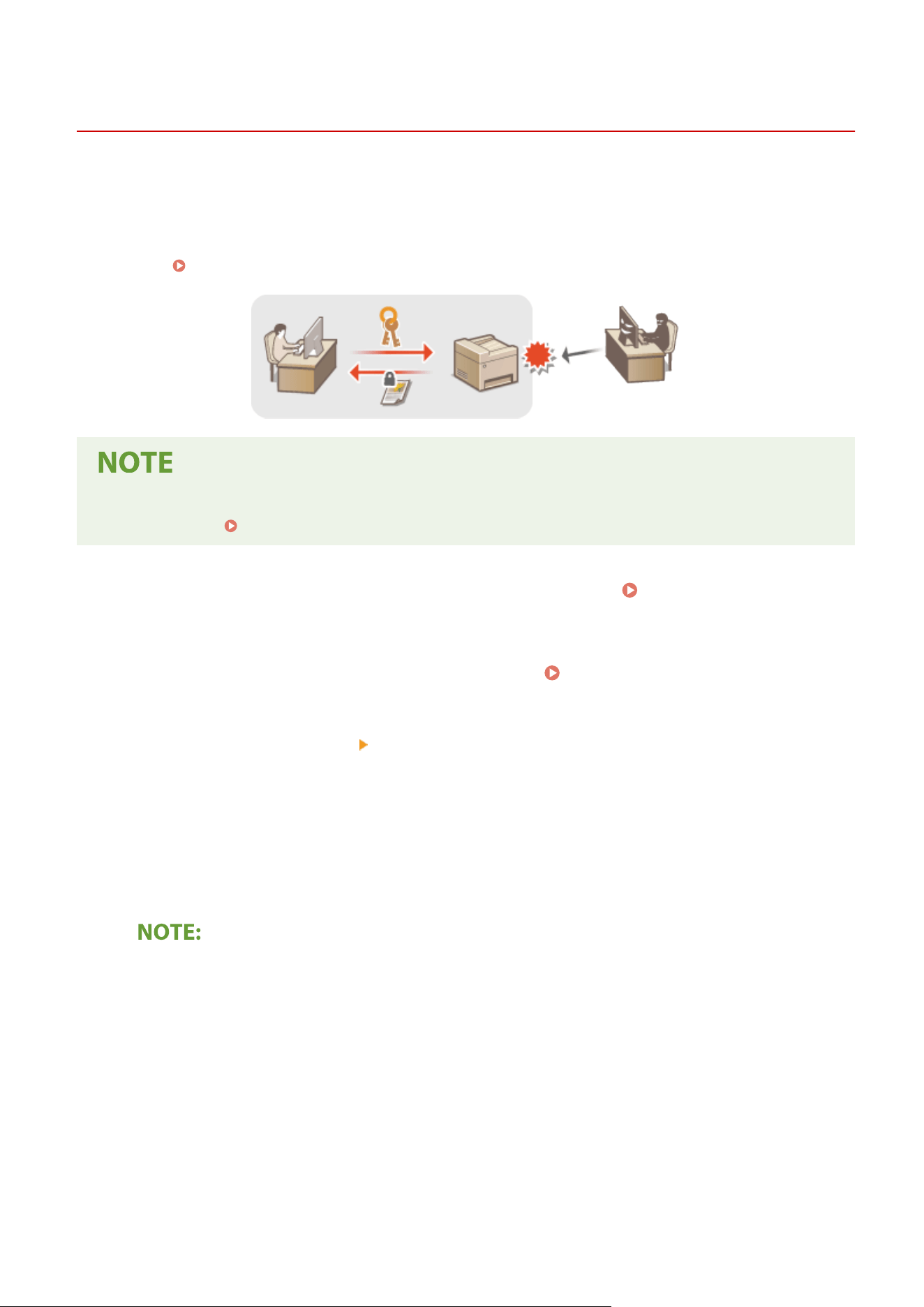
Conguring the Ke
y and Certicate for TLS
7YWY-078
Y
ou can encrypt communication between the machine and a Web browser on the computer by using Transport Layer
Security (TLS). TLS is a mechanism for encrypting data sent or received over the network. TLS must be enabled when
the Remote UI is used for specifying settings for IPSec (Pre-Shared Key Method), IEEE 802.1X authentication (TTLS/
PEAP), or SNMPv3. To use TLS encrypted communication for the Remote UI, you need to specify a "key and certicate"
(server certicate) you want to use before enabling TLS. Generate or install the key and certicate for TLS before
enabling TLS (
Management Functions(P. 625) ).
● For mor
e information about the basic operations to be performed when setting the machine from the
Remote UI, see
Setting Up Menu Options from Remote UI(P. 431) .
1
Start the Remote UI and log in to System Manager Mode. Starting Remote
UI(P
. 421)
2
Click [Settings/Registration] on the Portal page.
Remote UI Screen(P. 422)
3
Select [Network Settings] [TLS Settings].
4
Click [Key and Certicate].
5
Click [Register Default Key] on the right of the key and certicate you want to use.
Viewing details of a certicate
● You can check the details of the certicate or verify the certicate by clicking the corresponding text link
under [Key Name], or the certicate icon.
6
Click [Edit].
7
Congure detailed TLS settings.
Managing the Machine
381
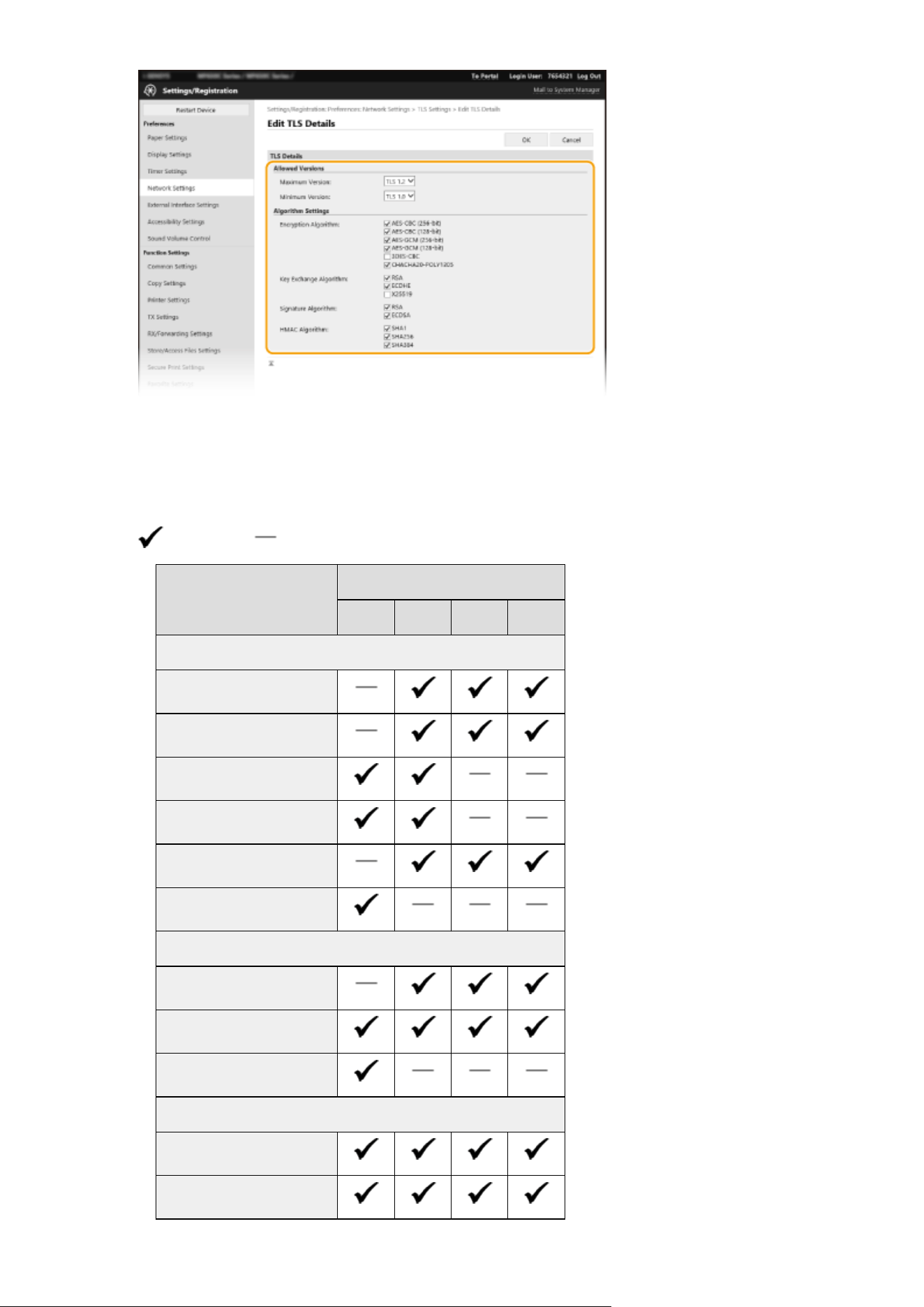
[Allowed Versions]
Specify [Maximum V
ersion] and [Minimum Version] of TLS.
[Algorithm Settings]
Select the check box for the algorithm to use for TLS. Depending on the TLS version, some algorithms may
not be available.
: Available : Unavailable
Algorithm TLS Version
[TLS 1.3] [TLS 1.2] [TLS 1.1] [TLS 1.0]
[Encryption Algorithm]
[AES-CBC (256-bit)]
[AES-CBC (128-bit)]
[AES-GCM (256-bit)]
[AES-GCM (128-bit)]
[3DES-CBC]
[CHACHA20-POLY1305]
[Key Exchange Algorithm]
[RSA]
[ECDHE]
[X25519]
[Signature Algorithm]
[RSA]
[ECDSA]
Managing the Machine
382
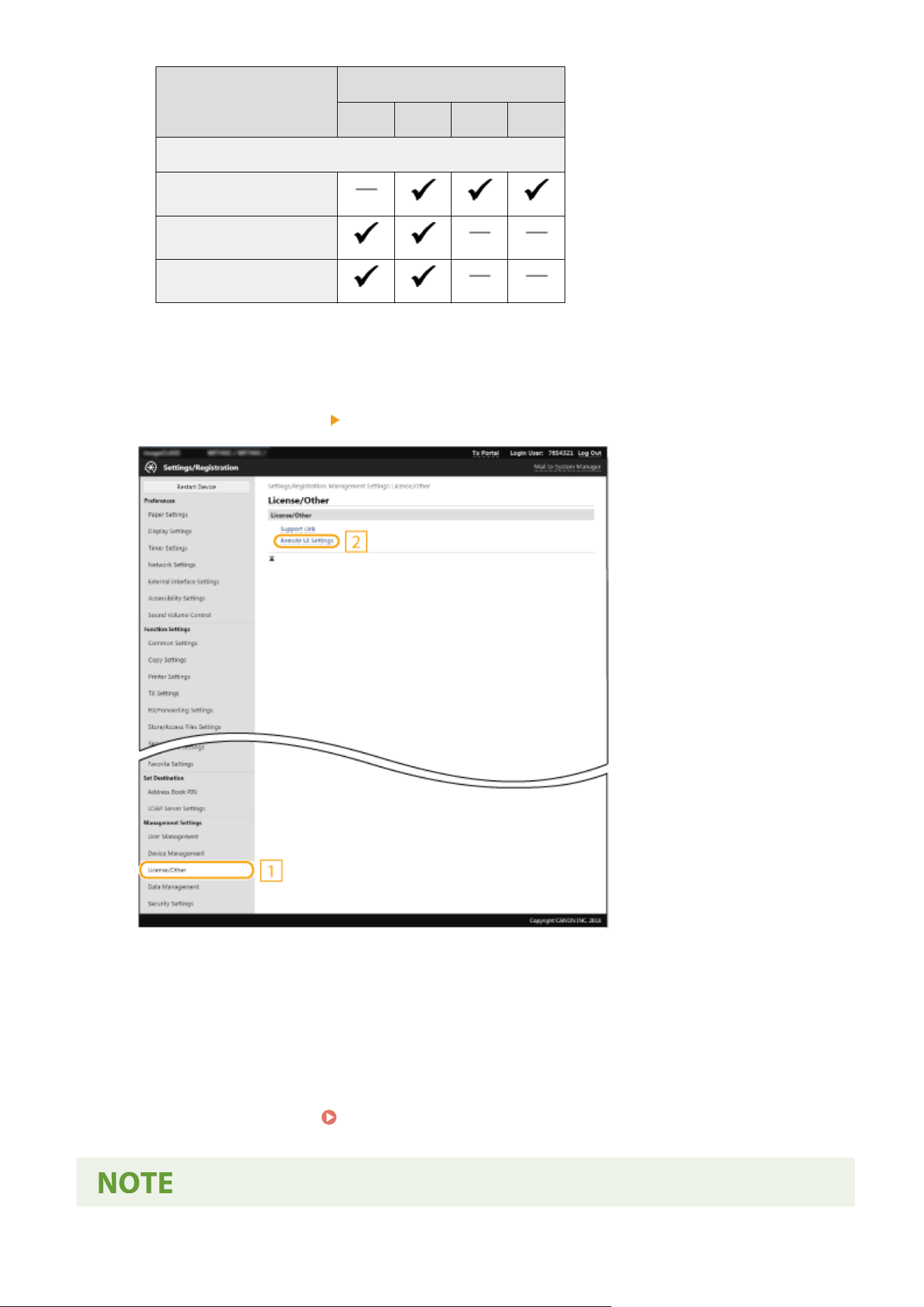

Using the operation panel
● Y
ou can also enable or disable TLS encrypted communication from <Menu> in the Home screen.
<Remote
UI>(P
. 555)
Starting the Remote UI with TLS
● If you try to start the Remote UI when TLS is enabled, a security alert may be displayed regarding the
security certicate. In this case, check that the correct URL is entered in the address eld, and then proceed
to display the Remote UI screen.
Starting Remote UI(P. 421)
Using TLS to encrypt e-mail/I-Fax communication
● If the SMTP server and the POP3 server support TLS, you can enable TLS for communication with these
servers (
Conguring E-Mail/I-Fax Communication Settings
(P. 90) ). For more information about the
SMTP server and the POP3 server, contact your Internet service provider or Network Administrator.
LINKS
Generating the Key and Certicate for Network Communication
(P. 385)
Generating a Key and Certicate Signing Request (CSR)
(P. 390)
Registering the Key and Certicate for Network Communication
(P. 393)
Conguring the Expir
ation Check Method for Received Certicates(P. 388)
Conguring IPSec Settings
(P. 395)
Conguring IEEE 802.1X Authentication Settings(P
. 402)
Monitoring and Controlling the Machine with SNMP(P. 70)
Registering LDAP Servers(P. 65)
Managing the Machine
384
Generating the Key and Certicate for Network
Communication
7YWY-079
A k
ey and certicate can be generated with the machine when it is required for encrypted communication via
Transport Layer Security (TLS). You can use TLS when accessing the machine via the Remote UI. Self-signed certicates
are used with the key and certicate generated in "Network Communication."
● If you want to use a server certicate that has a CA signatur
e, you can generate a CSR together with a key
instead of a certicate.
Generating a Key and Certicate Signing Request (CSR)
(P. 390)
● For more information about the basic operations to be performed when setting the machine from the
Remote UI, see
Setting Up Menu Options from Remote UI(P. 431) .
1
Start the Remote UI and log in to System Manager Mode. Starting Remote
UI(P
. 421)
2
Click [Settings/Registration] on the Portal page.
Remote UI Screen(P. 422)
3
Select [Device Management] [Key and Certicate Settings].
4
Click [Generate Key].
Deleting a registered key and certicate
● Click [Delete] on the right of the k
ey and certicate you want to delete
click [OK].
● A
key and certicate cannot be deleted if it is currently used for some purpose, such as when "[TLS]" or
"[IEEE 802.1X]" is displayed under [Key Usage]. In this case, disable the function or replace the other key
and certicate before deleting it.
5
Select [Network Communication] and click [OK].
6
Specify settings for the key and certicate.
Managing the Machine
385
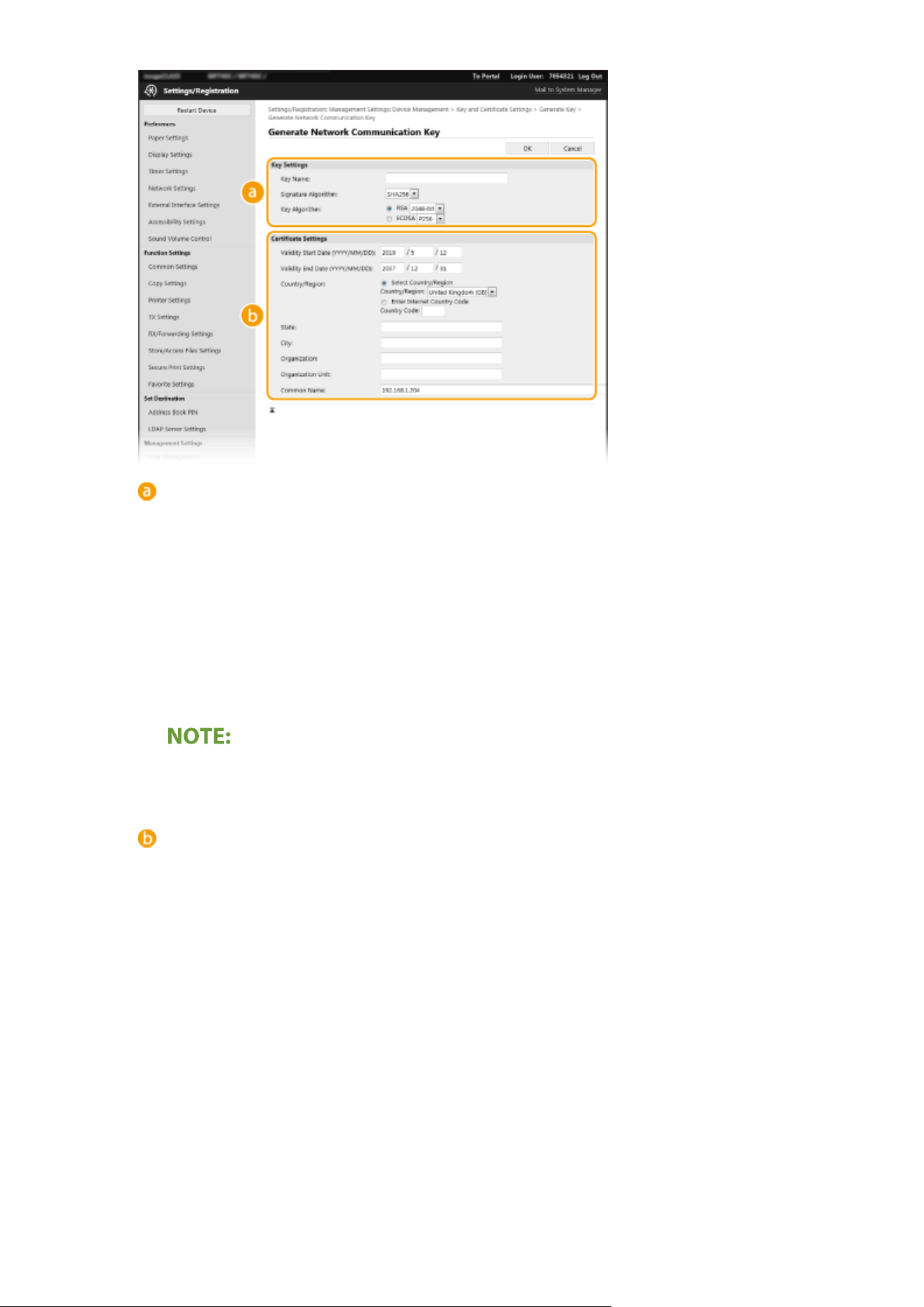
[Ke
y Settings]
[Key Name]
Enter alphanumeric characters for naming the key. Set a name that will be easy for you to nd later in a
list.
[Signature Algorithm]
Select the signature algorithm from the drop-down list.
[Key Algorithm]
Select the key generation algorithm from [RSA] or [ECDSA], then select the key length from the drop-
down list. In either case, the larger the number for the key length is, the higher the security level
becomes. However, the communication speed becomes slower.
● When [SHA384] or [SHA512] is selected in [Signatur
e Algorithm], [512-bit] cannot be selected as the
key length when [RSA] is selected in [Key Algorithm].
[Certicate Settings]
[V
alidity Start Date (YYYY/MM/DD)]
Enter the validity start date of the certicate, in the order of: year, month, day.
[Validity End Date (YYYY/MM/DD)]
Enter the validity end date of the certicate, in the order of: year, month, day. A date earlier than
[Validity Start Date (YYYY/MM/DD)] cannot be set.
[Country/Region]
Click the [Select Country/Region] radio button and select the country/region from the drop-down list.
You can also click the [Enter Internet Country Code] radio button and enter a country code, such as "US"
for the United States.
[State]/[City]
Enter alphanumeric characters for the location as necessary.
[Organization]/[Organization Unit]
Enter alphanumeric characters for the organization name as necessary.
[Common Name]
Enter alphanumeric characters for the common name of the certicate as necessary. "Common Name"
is often abbreviated as "CN."
Managing the Machine
386

7
Click [OK].
● Gener
ating a key and certicate may take some time.
● After the key and certicate is generated, it is automatically registered to the machine.
LINKS
Registering the Key and Certicate for Network Communication
(P. 393)
Conguring the Ke
y and Certicate for TLS(P. 381)
Conguring IPSec Settings
(P. 395)
Managing the Machine
387
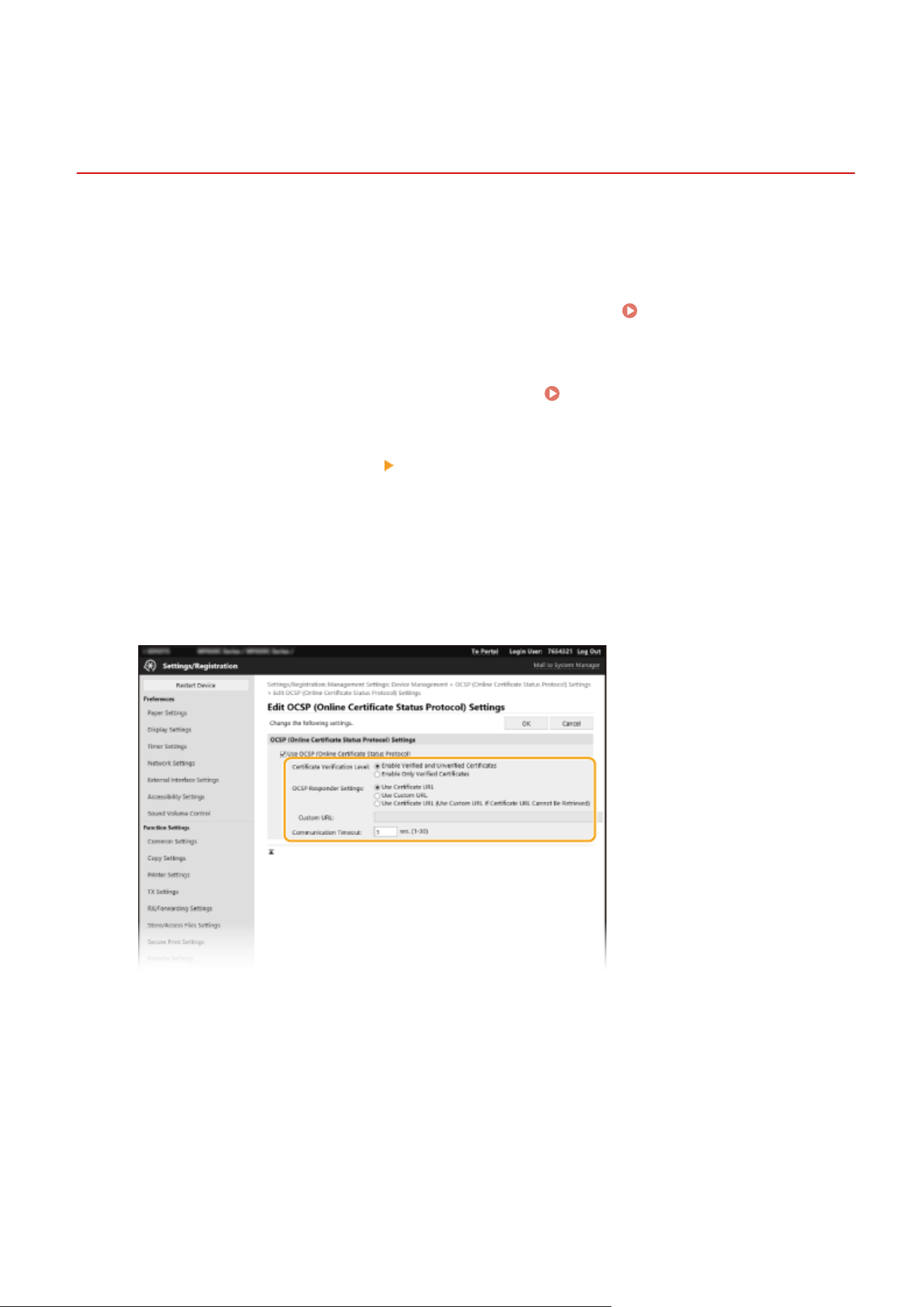
Conguring the Expir
ation Check Method for Received
Certicates
7YWY-07A
Y
ou can verify whether the certicate received from the other party during communication is valid by sending a query
to the OCSP (online certicate status protocol) responder (a server that supports OCSP). Congure the certicate
verication level and the OCSP responder to connect to. These should be registered by the administrator.
1
Start the Remote UI and log in to System Manager Mode.
Starting Remote
UI(P
. 421)
2
Click [Settings/Registration] on the Portal page.
Remote UI Screen(P. 422)
3
Select [Device Management] [OCSP (Online Certicate Status Pr
otocol) Settings].
4
Click [Edit].
5
Select the check box for [Use OCSP (Online Certicate Status Pr
otocol)], and
congure the online certicate status protocol (OCSP).
[Certicate V
erication Level]
Set whether to disable certicates in situations such as the following:
● When the machine cannot connect to the OCSP responder
● When a timeout occurs
● When expiration cannot be checked, such as when the result of checking the expiration of a certicate via
the OCSP responder is unknown
[OCSP Responder Settings]
Specify the URL for connecting to the OCSP responder.
[Custom URL]
Managing the Machine
388

When [Use Custom URL] or [Use Certicate URL (Use Custom URL If Certicate URL Cannot Be Retrie
ved)] is
selected, enter the URL of the OCSP responder (ASCII code only, maximum 255 characters).
[Communication Timeout]
Set the time until communication with the OCSP responder times out. The connection is canceled if there is
no response from the OCSP responder within the set time.
6
Click [OK].
Managing the Machine
389
Generating a Key and Certicate Signing Request (CSR)
7YWY-07C
Because certicates gener
ated on the machine do not have a CA signature, a communication error may result
depending on devices it communicates with. To have the certicate authority issue the certicate with the CA
signature, you need to obtain data of CSR (Certicate Signing Request), which the administrator can generate from
Remote UI. When the certicate is issued, register it in the key with the CSR generated.
Generating a Key and CSR(P. 390)
Registering a Certicate to a Ke
y(P. 392)
● For mor
e information about the basic operations to be performed when setting the machine from the
Remote UI, see
Setting Up Menu Options from Remote UI(P. 431) .
Generating a Key and CSR
1
Start the Remote UI and log in to System Manager Mode. Starting Remote
UI(P
. 421)
2
Click [Settings/Registration] on the Portal page.
Remote UI Screen(P. 422)
3
Select [Device Management] [Key and Certicate Settings].
4
Click [Generate Key].
Deleting a registered key and certicate
● Click [Delete] on the right of the k
ey and certicate you want to delete
click [OK].
● A
key and certicate cannot be deleted if it is currently used for some purpose, such as when "[TLS]" or
"[IEEE 802.1X]" is displayed under [Key Usage]. In this case, disable the function or replace the key and
certicate before deleting it.
5
Select [Key and Certicate Signing Request (CSR)] and click [OK].
6
Specify settings for the key and CSR.
Managing the Machine
390
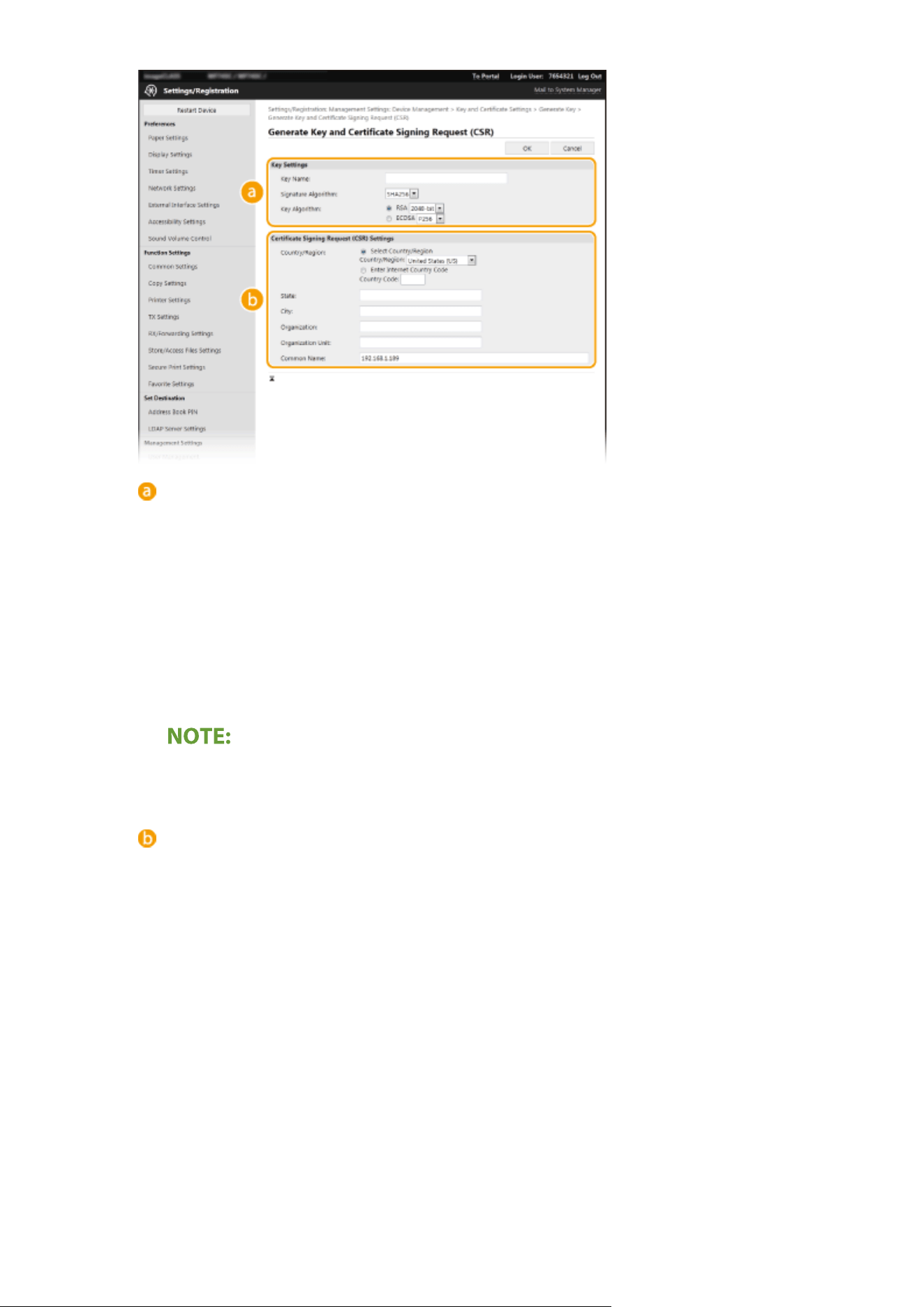
[Ke
y Settings]
[Key Name]
Enter alphanumeric characters for naming the key. Set a name that will be easy for you to nd later in a
list.
[Signature Algorithm]
Select the signature algorithm from the drop-down list.
[Key Algorithm]
Select the key generation algorithm from [RSA] or [ECDSA], then select the key length from the drop-
down list. In any case, the larger the number for the key length, the slower the communication.
However, the security is tighter.
● When [SHA384] or [SHA512] is selected in [Signatur
e Algorithm], [512-bit] cannot be selected as the
key length when [RSA] is selected in [Key Algorithm].
[Certicate Signing Request (CSR) Settings]
[Country/Region]
Click the [Select Country/Region] r
adio button and select the country/region from the drop-down list.
You can also click the [Enter Internet Country Code] radio button and enter a country code, such as "US"
for the United States.
[State]/[City]
Enter alphanumeric characters for the location as necessary.
[Organization]/[Organization Unit]
Enter alphanumeric characters for the organization name as necessary.
[Common Name]
Enter alphanumeric characters for the common name of the certicate as necessary. "Common Name"
is often abbreviated as "CN."
7
Click [OK].
● Gener
ating a key and CSR may take some time.
Managing the Machine
391
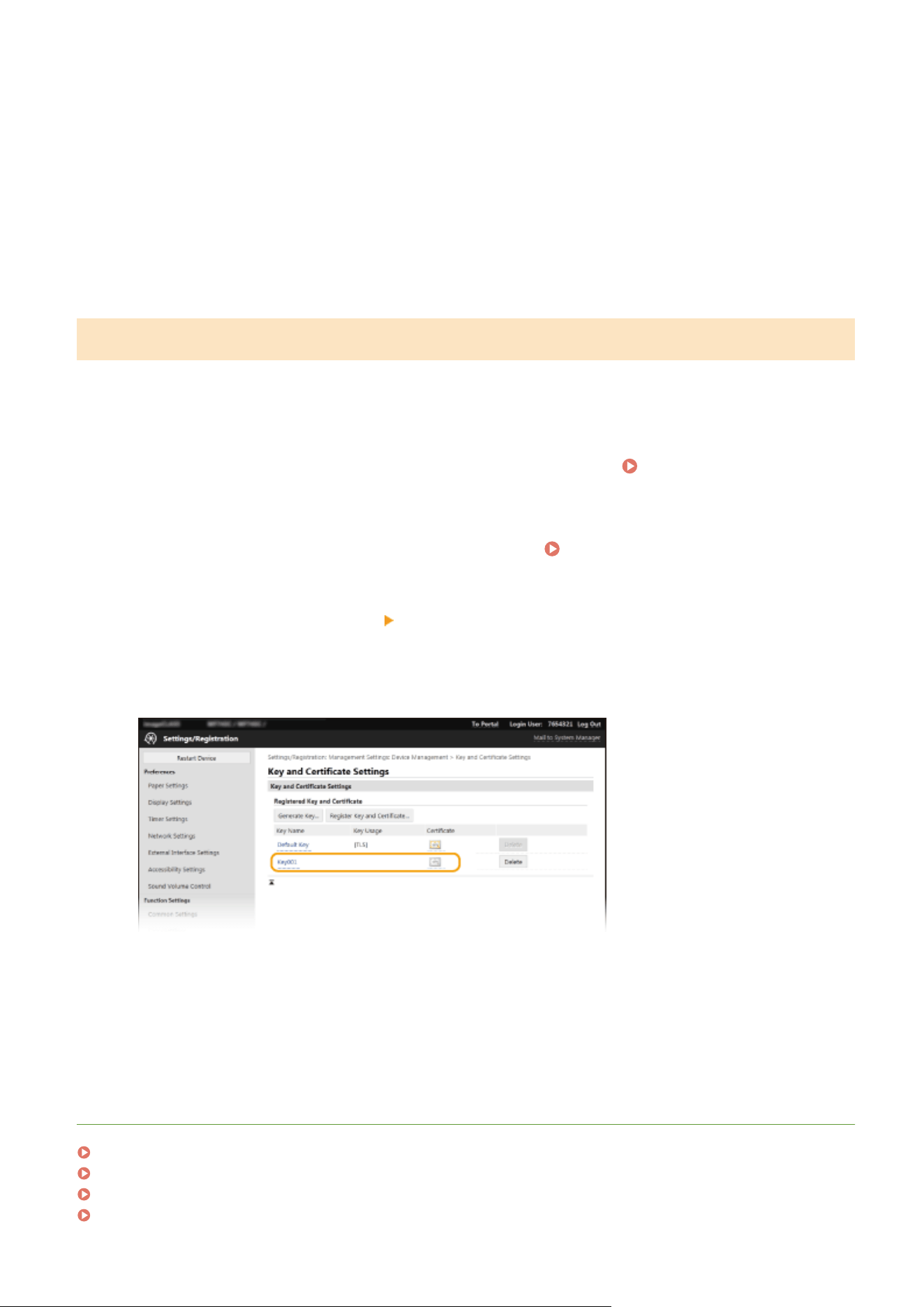
8
Click [Store in File].
● A dialog bo
x for storing the le appears. Choose where to store the le and click [Save].
➠ The CSR le is stored on the computer.
9
Attach the stored le and submit the application to the certication authority
.
Registering a Certicate to a Ke
y
The key with the CSR generated cannot be used until the certicate issued from the certicate authority based on the
CSR is registered in the key. Once the certication authority has issued the certicate, register it using the procedure
below.
1
Start the Remote UI and log in to System Manager Mode.
Starting Remote
UI(P
. 421)
2
Click [Settings/Registration] on the Portal page.
Remote UI Screen(P. 422)
3
Select [Device Management]
[Key and Certicate Settings].
4
Click [Key Name] or [Certicate] r
equired to register the certicate.
5
Click [Register Certicate].
6
Click [Browse], specify the le for the certicate signing r
equest, and click [Register].
LINKS
Conguring the Key and Certicate for TLS(P. 381)
Generating the Key and Certicate for Network Communication(P. 385)
Registering the Key and Certicate for Network Communication(P. 393)
Conguring IPSec Settings(P. 395)
Managing the Machine
392
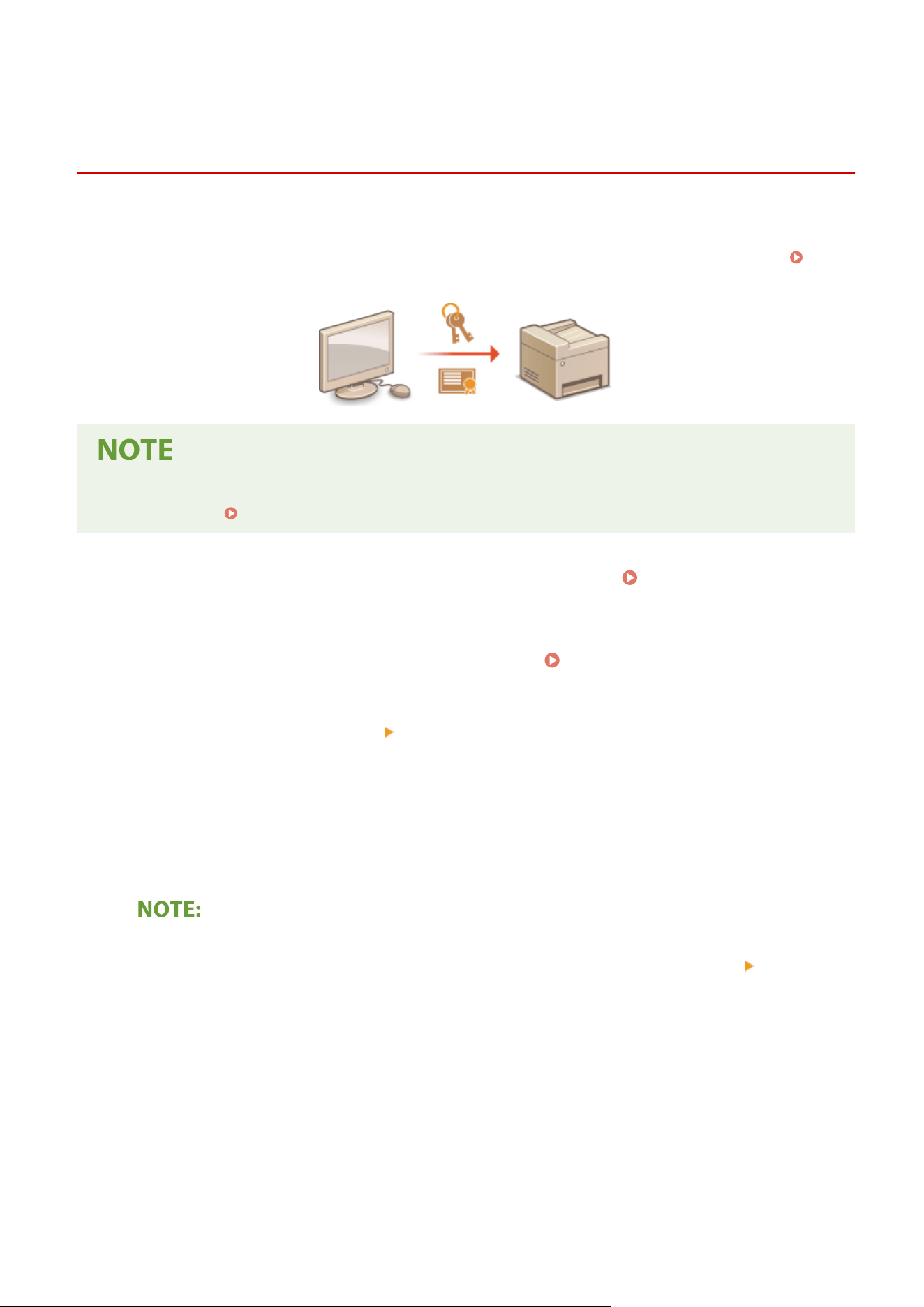
Registering the Key and Certicate for Network
Communication
7YWY-07E
Y
ou can obtain the key and certicate, and the CA certicate from a certication authority (CA) for use with the
machine. Install and register the obtained key and certicate le and CA certicate le in this machine using Remote
UI. Check the key and certicate, and CA certicate conditions that are required for the machine in advance (
Management Functions(P. 625) ).
● For mor
e information about the basic operations to be performed when setting the machine from the
Remote UI, see
Setting Up Menu Options from Remote UI(P. 431) .
1
Start the Remote UI and log in to System Manager Mode. Starting Remote
UI(P
. 421)
2
Click [Settings/Registration] on the Portal page.
Remote UI Screen(P. 422)
3
Select [Device Management] [Key and Certicate Settings] or [CA Certicate
Settings].
● Click [Ke
y and Certicate Settings] to install a key and certicate, or [CA Certicate Settings] to install a CA
certicate.
4
Click [Register Key and Certicate] or [Register CA Certicate].
Deleting a registered key and certicate or CA certicate
● Click
[Delete] on the right of the key and certicate or CA certicate you want to delete
click
[OK]. You
cannot delete the preinstalled CA certicates.
● A key and certicate cannot be deleted if it is currently used for some purpose, such as when "[TLS]" or
"[IEEE 802.1X]" is displayed under [Key Usage]. In this case, disable the function or replace the key and
certicate before deleting it.
Disabling or enabling the preinstalled CA certicates
● Click [Disable] on the right of the preinstalled CA certicate you want to disable. To enable the certicate
again, click [Enable] on the right of the certicate.
5
Click [Install].
Managing the Machine
393
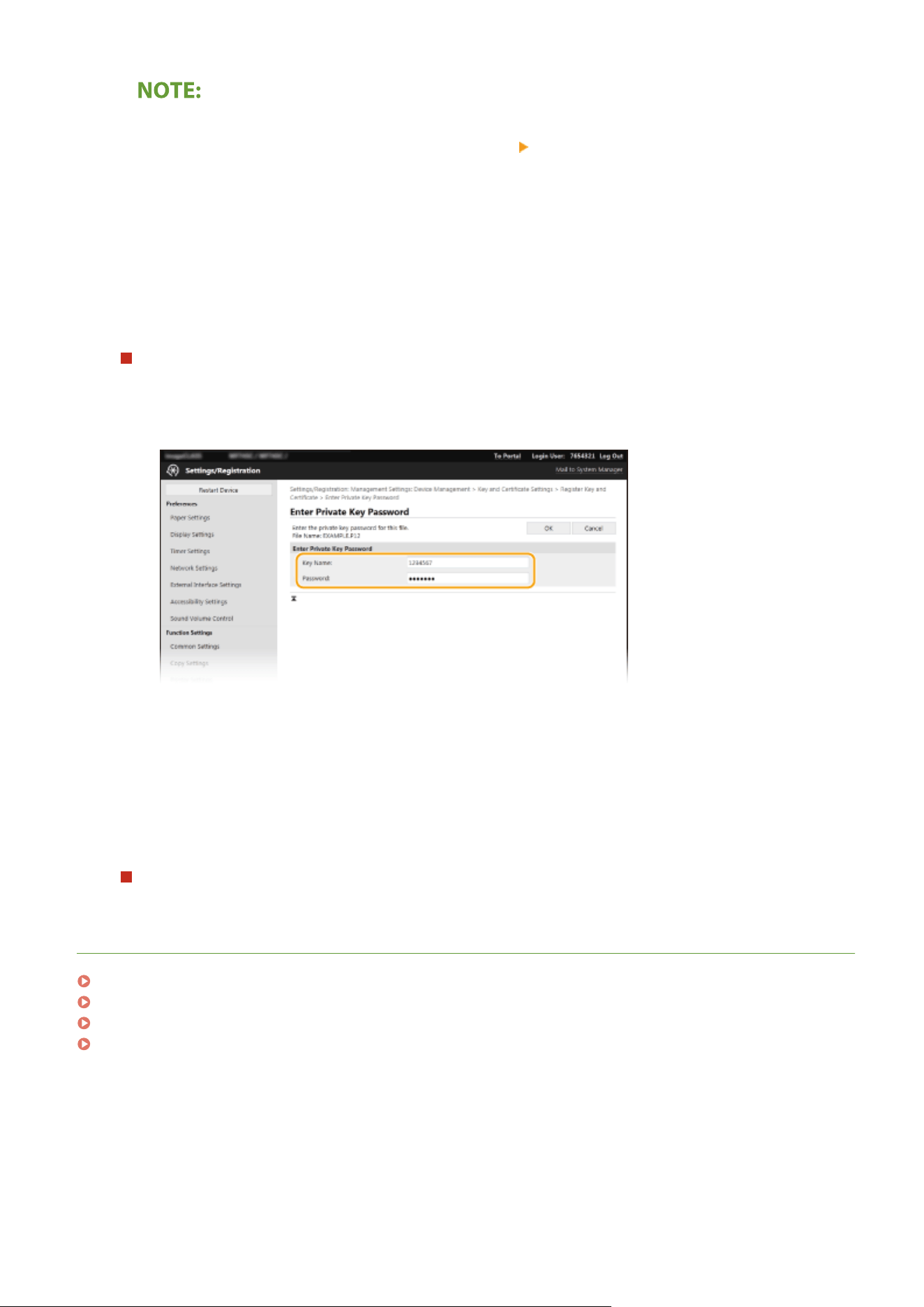
Deleting the key and certicate le or CA certicate le
● Click [Delete] on the right of the le you want to delete click [OK].
6
Click [Browse], specify the le to install, and click [Start Installation].
➠ The k
ey and certicate le or the CA certicate le is installed on the machine from a computer.
7
Register the key and certicate or CA certicate.
Registering a key and certicate
1
Click [Register] on the right of the key and certicate le you want to r
egister.
2
Enter the name of the key and password.
[Key Name]
Enter alphanumeric char
acters for the name of the key to be registered.
[Password]
Enter alphanumeric characters for the password of the private key set for the le to be registered.
3
Click [OK].
Registering a CA certicate
Click [Register] on the right of the CA certicate le you want to r
egister.
LINKS
Generating the Key and Certicate for Network Communication
(P. 385)
Conguring the Ke
y and Certicate for TLS(P. 381)
Conguring IPSec Settings
(P. 395)
Conguring IEEE 802.1X Authentication Settings(P
. 402)
Managing the Machine
394
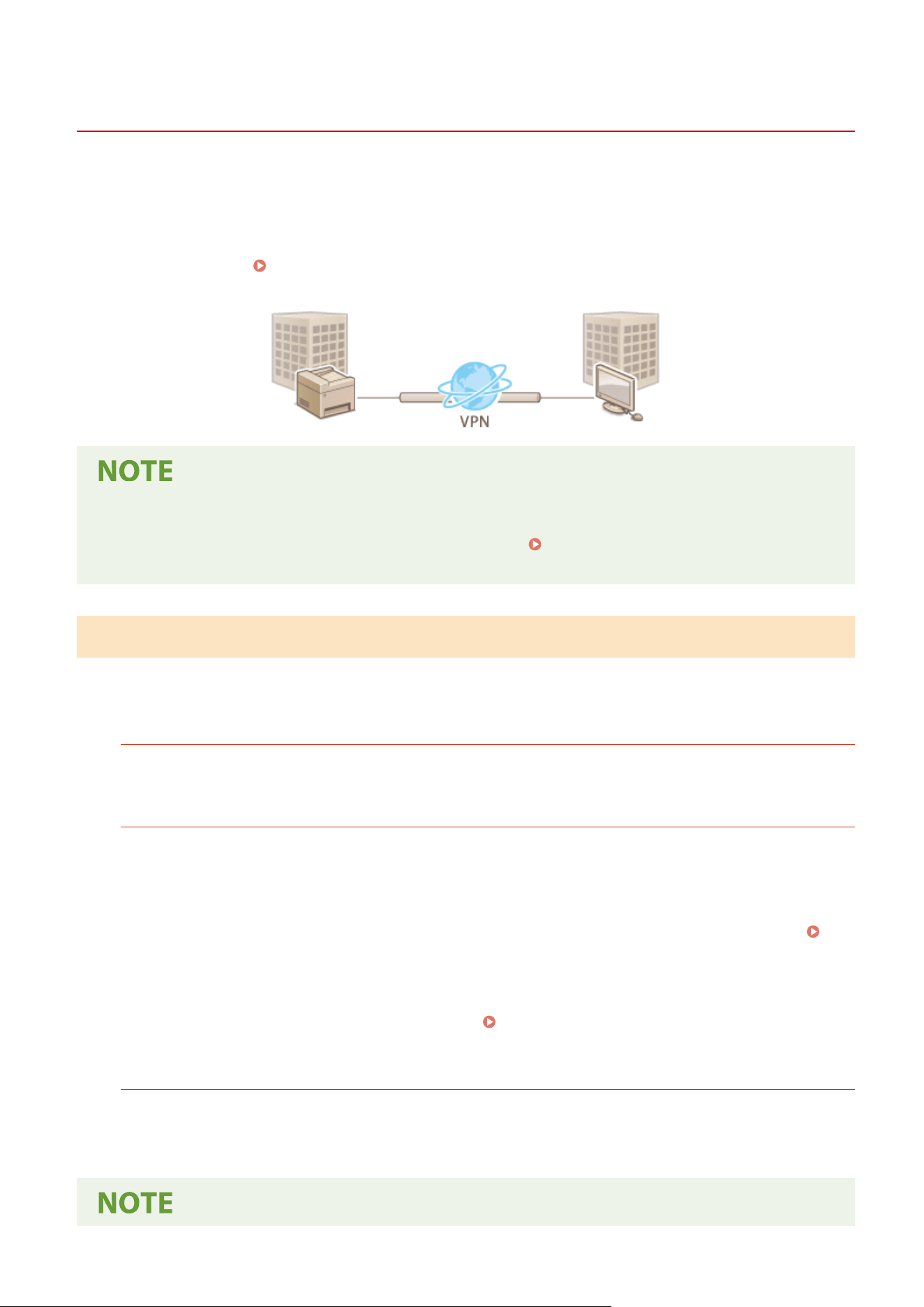
Conguring IPSec Settings
7YWY-07F
Internet Pr
otocol Security (IPSec or IPsec) is a protocol suite for encrypting data transported over a network, including
Internet networks. While TLS only encrypts data used on a specic application, such as a Web browser or an e-mail
application, IPSec encrypts either whole IP packets or the payloads of IP packets, offering a more versatile security
system. The IPSec of the machine works in transport mode, in which the payloads of IP packets are encrypted. With
this feature, the machine can connect directly to a computer that is in the same virtual private network (VPN). Check
the system requirements (
Management Functions(P. 625) ) and set the necessary congur
ation on the computer
before you congure the machine.
Using IPSec with IP address lter
● IP addr
ess lter settings are applied before the IPSec policies.
Specifying IP Addresses for Firewall
Settings(P
. 372)
Conguring IPSec Settings
Befor
e using IPSec for encrypted communication, you need to register security policies (SP). A security policy consists
of the groups of settings described below. After registering policies, specify the order in which they are applied.
Selector
Selector denes conditions for IP pack
ets to apply IPSec communication. Selectable conditions include IP
addresses and port numbers of the machine and the devices to communicate with.
IKE
IKE congur
es the IKEv1 that is used for key exchange protocol. Note that instructions vary depending on the
authentication method selected.
[Pre-Shared Key Method]
This authentication method uses a common key word, called Shared Key, for communication between the
machine and other devices. Enable TLS for the Remote UI before specifying this authentication method (
Conguring the Key and Certicate for TLS(P. 381) ).
[Digital Signature Method]
The machine and the other devices authenticate each other by mutually verifying their digital signatures.
Generate or install the key and certicate beforehand ( Registering the Key and Certicate for Network
Communication
(P. 393) ).
AH/ESP
Specify the settings for AH/ESP, which is added to packets during IPSec communication. AH and ESP can be used
at the same time. Y
ou can also select whether or not to enable PFS for tighter security.
Managing the Machine
395
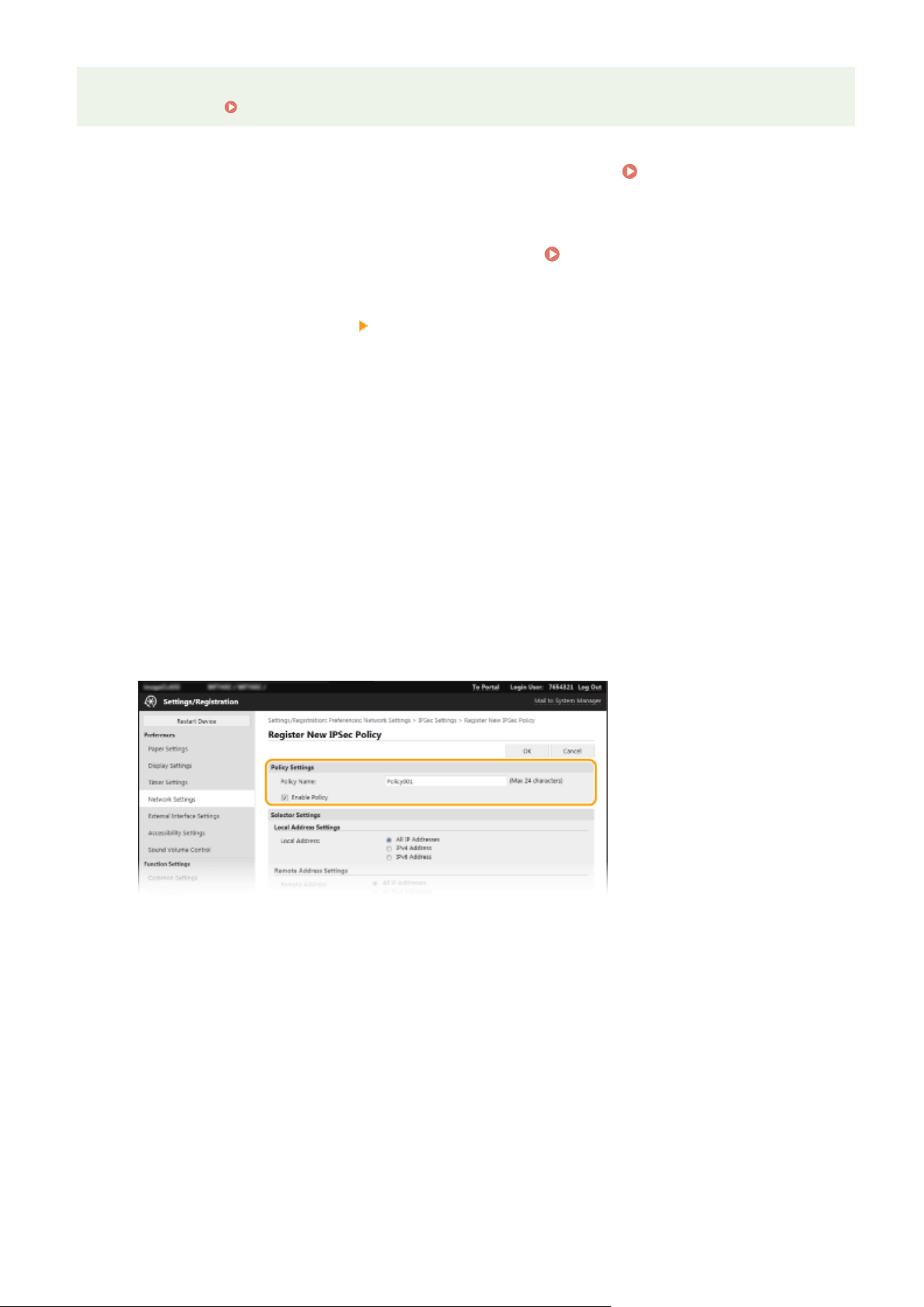
● For mor
e information about the basic operations to be performed when setting the machine from the
Remote UI, see
Setting Up Menu Options from Remote UI(P. 431) .
1
Start the Remote UI and log in to System Manager Mode. Starting Remote
UI(P
. 421)
2
Click [Settings/Registration] on the Portal page.
Remote UI Screen(P. 422)
3
Select [Network Settings] [IPSec Settings].
4
Click [Edit].
5
Select the [Use IPSec] check box and click [OK].
● If you want the machine to only r
eceive packets that match one of the security policies that you dene in the
steps below, clear the [Receive Non-Policy Packets] check box.
6
Click [Register New Policy].
7
Specify the Policy Settings.
1
In the [Policy Name] text box, enter alphanumeric characters for a name that is used for identifying the
policy
.
2
Select the [Enable Policy] check box.
8
Specify the Selector Settings.
Managing the Machine
396
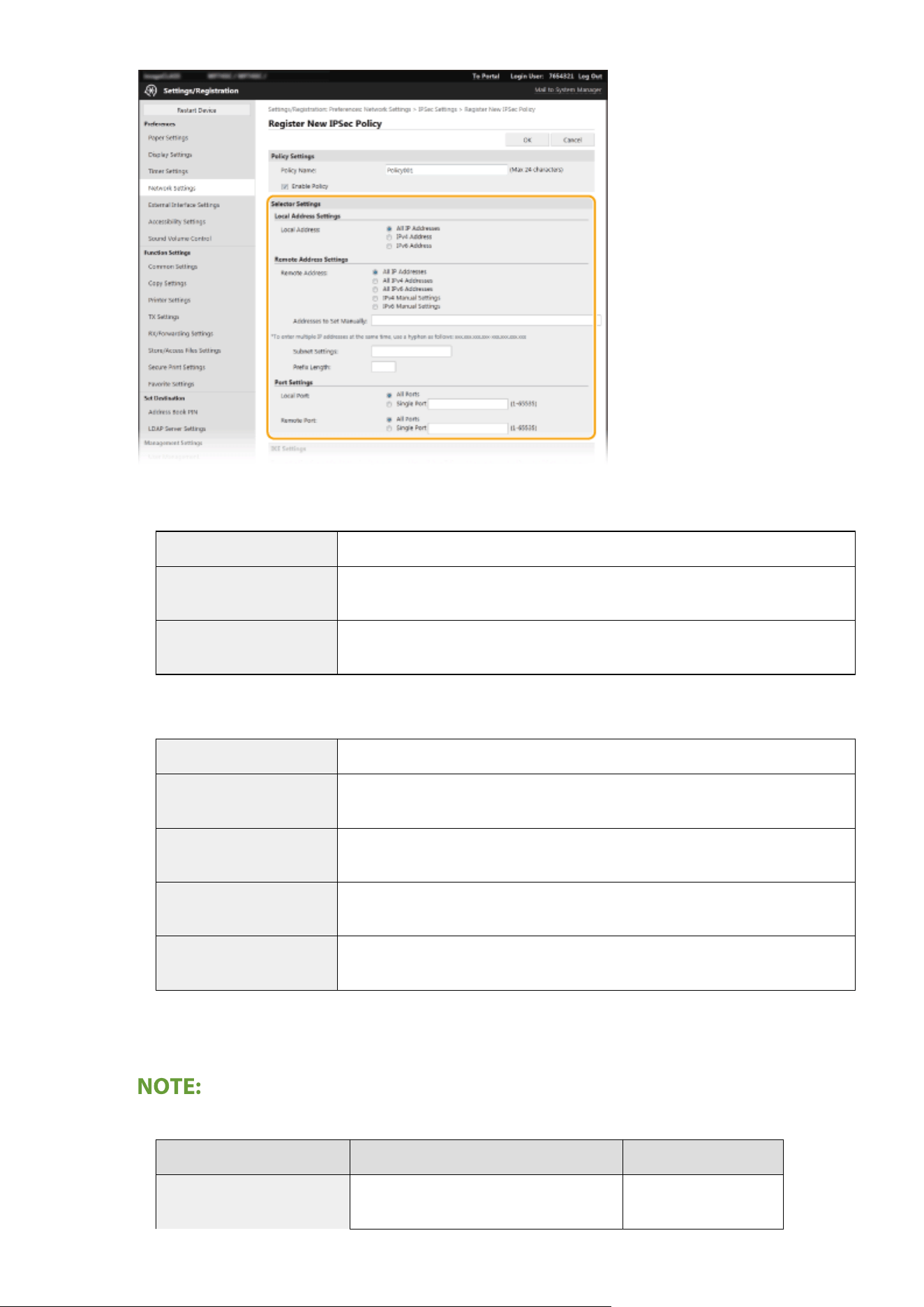
[Local Address]
Click the r
adio button for the type of IP address of the machine to apply the policy.
[All IP Addresses] Select to use IPSec for all IP packets.
[IPv4 Address] Select to use IPSec for all IP packets that are sent to or from the IPv4 address of the
machine.
[IPv6 Address] Select to use IPSec for all IP packets that are sent to or from an IPv6 address of the
machine.
[Remote Address]
Click the r
adio button for the type of IP address of the other devices to apply the policy.
[All IP Addresses] Select to use IPSec for all IP packets.
[All IPv4 Addresses] Select to use IPSec for all IP packets that are sent to or from IPv4 addresses of the
other de
vices.
[All IPv6 Addresses] Select to use IPSec for all IP packets that are sent to or from IPv6 addresses of the
other devices.
[IPv4 Manual Settings] Select to specify a single IPv4 address or a range of IPv4 addresses to apply IPSec.
Enter the IPv4 address (or the range) in the [Addresses to Set Manually] text box.
[IPv6 Manual Settings] Select to specify a single IPv6 address or a range of IPv6 addresses to apply IPSec.
Enter the IPv6 address (or the range) in the [Addresses to Set Manually] text box.
[Addresses to Set Manually]
If [IPv4 Manual Settings] or [IPv6 Manual Settings] is selected for [Remote Addr
ess], enter the IP address to
apply the policy. You can also enter a range of addresses by inserting a hyphen between the addresses.
Entering IP addresses
Description Example
Entering a single address IPv4:
Delimit numbers with periods.
192.168.0.10
Managing the Machine
397
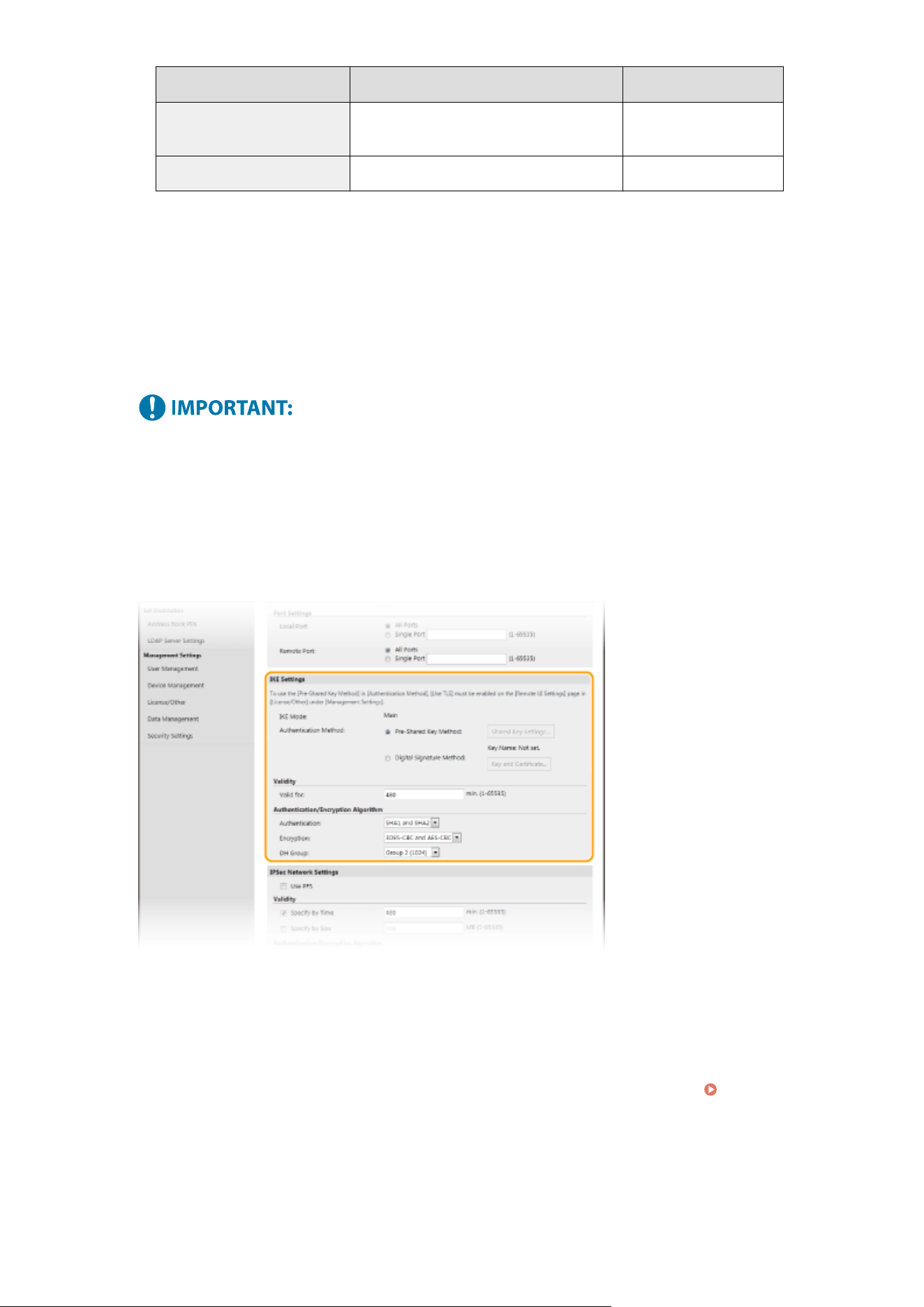
Description Example
IPv6:
Delimit alphanumeric char
acters with colons.
fe80::10
Specifying a range of addresses Insert a hyphen between the addresses. 192.168.0.10-192.168.0.20
[Subnet Settings]
When manually specifying IPv4 addr
ess, you can express the range by using the subnet mask. Enter the
subnet mask using periods to delimit numbers (example:"255.255.255.240").
[Prex Length]
Specifying the range of IPv6 addresses manually also allows you to specify the range using prexes. Enter a
range between 0 and 128 as the prex length.
[Local Port]/[Remote Port]
If you want to create separate policies for each protocol, such as HTTP or WSD, click the [Single Port] radio
button and enter the appropriate port number for the protocol to determine whether to use IPSec.
IPSec is not applied to the following packets
● Loopback, multicast, and br
oadcast packets
● IKE packets (using UDP on port 500)
● ICMPv6 neighbor solicitation and neighbor advertisement packets
9
Specify the IKE Settings.
[IKE Mode]
The mode used for the k
ey exchange protocol is displayed. The machine supports the main mode, not the
aggressive mode.
[Authentication Method]
Select [Pre-Shared Key Method] or [Digital Signature Method] for the method used when authenticating the
machine. You need to enable TLS for the Remote UI before selecting [Pre-Shared Key Method]. You need to
generate or install the key and certicate before selecting [Digital Signature Method].
Conguring the
Key and Certicate for TLS(P. 381)
[Valid for]
Specify how long a session lasts for IKE SA (ISAKMP SA). Enter the time in minutes.
[Authentication]/[Encryption]/[DH Group]
Select an algorithm from the drop-down list. Each algorithm is used in the key exchange.
Managing the Machine
398
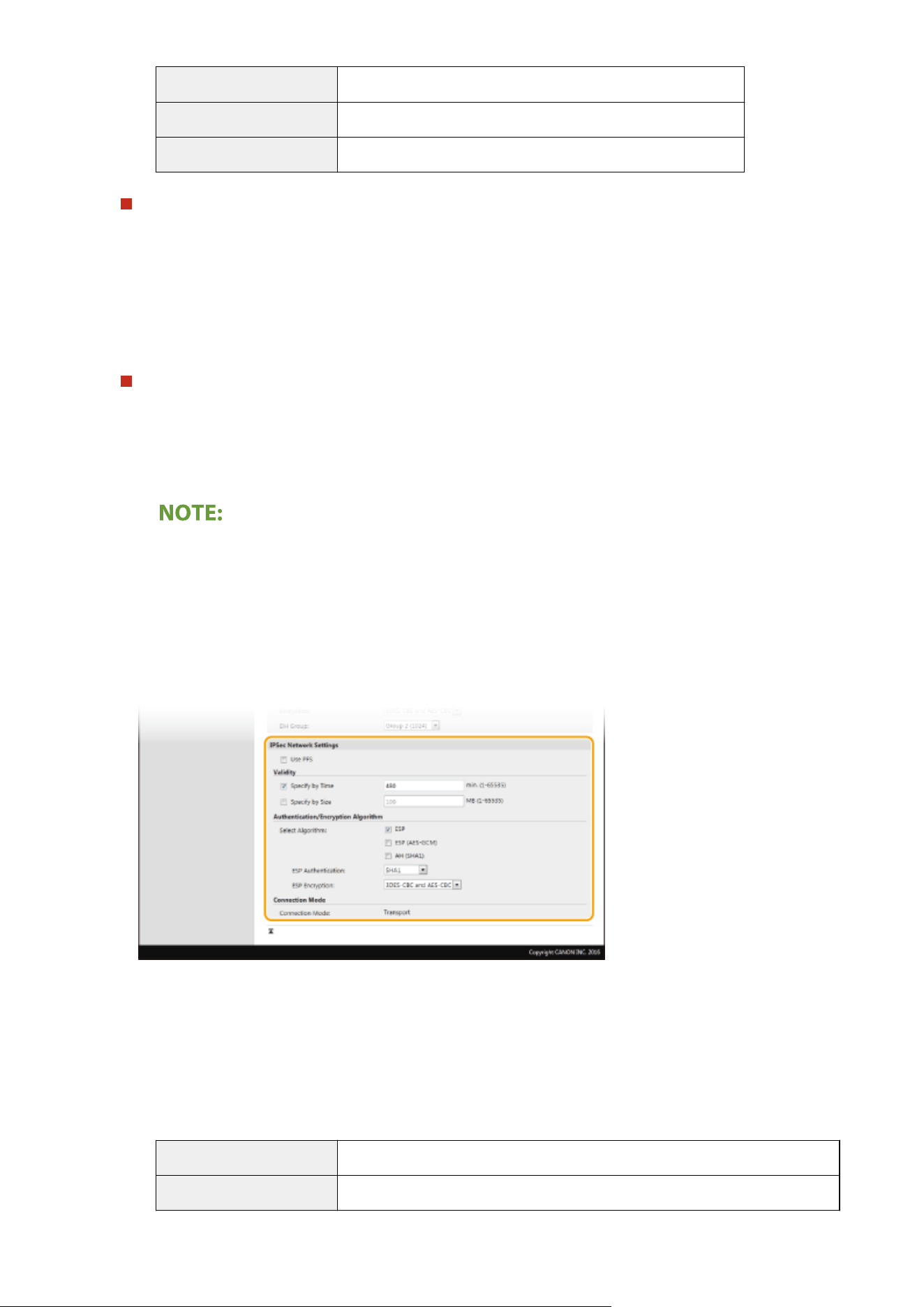
[Authentication] Select the hash algorithm.
[Encryption] Select the encryption algorithm.
[DH Group] Select the Die-Hellman gr
oup, which determines the key strength.
Authenticating a machine using a pre-shared key
1
Click the [Pre-Shared Key Method] radio button for [Authentication Method] and then click [Shared Key
Settings].
2
Enter alphanumeric characters for the pre-shared key and click [OK].
3
Specify the [Valid for] and [Authentication]/[Encryption]/[DH Group] settings.
Authenticating a machine using digital signature method
1
Click the [Digital Signature Method] radio button for [Authentication Method] and then click [Key and
Certicate].
2
Click [Register Default Key] on the right of the key and certicate you want to use.
Viewing details of a certicate
● Y
ou can check the details of the certicate or verify the certicate by clicking the corresponding text
link under [Key Name], or the certicate icon.
3
Specify the [Valid for] and [Authentication]/[Encryption]/[DH Group] settings.
10
Specify the IPSec Network Settings.
[Use PFS]
Select the check bo
x to enable Perfect Forward Secrecy (PFS) for IPSec session keys. Enabling PFS enhances
the security while increasing the load on the communication. Make sure that PFS is also enabled for the other
devices.
[Specify by Time]/[Specify by Size]
Set the conditions for terminating a session for IPSec SA. IPSec SA is used as a communication tunnel. Select
either or both of the check boxes as necessary. If both check boxes are selected, the IPSec SA session is
terminated when either of the conditions has been satised.
[Specify by Time] Enter a time in minutes to specify how long a session lasts.
[Specify by Size] Enter a size in megabytes to specify how much data can be transported in a session.
Managing the Machine
399
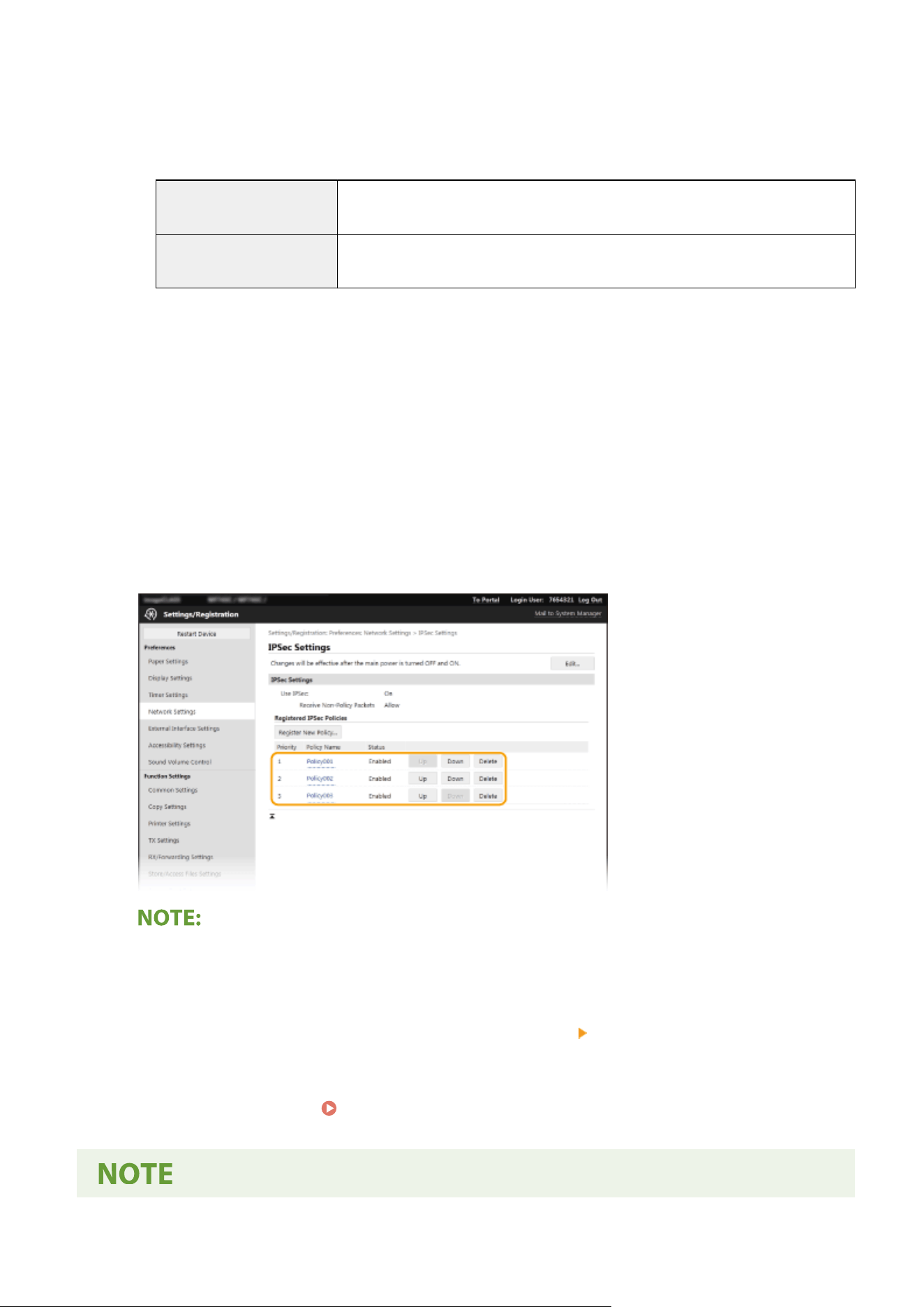
[Select Algorithm]
Select the [ESP], [ESP (AES-GCM)], or [AH (SHA1)] check bo
x(es) depending on the IPSec header and the
algorithm used. AES-GCM is an algorithm for both authentication and encryption. If [ESP] is selected, also
select algorithms for authentication and encryption from the [ESP Authentication] and [ESP Encryption] drop-
down lists.
[ESP Authentication] To enable the ESP authentication, select [SHA1] for the hash algorithm. Select [Do Not
Use] if you want to disable the ESP authentication.
[ESP Encryption] Select the encryption algorithm for ESP. You can select [NULL] if you do not want to
specify the algorithm, or select [Do Not Use] if you want to disable the ESP encryption.
[Connection Mode]
The connection mode of IPSec is displayed. The machine supports tr
ansport mode, in which the payloads of
IP packets are encrypted. Tunnel mode, in which whole IP packets (headers and payloads) are encapsulated
is not available.
11
Click [OK].
● If you need to r
egister an additional security policy, return to step 6.
12
Arrange the order of policies listed under [Registered IPSec Policies].
● Policies ar
e applied from one at the highest position to the lowest. Click [Up] or [Down] to move a policy up or
down the order.
Editing a policy
● Click the corr
esponding text link under [Policy Name] for the edit screen.
Deleting a policy
● Click [Delete] on the right of the policy name you want to delete
click [OK].
13
Restart the machine. Restarting the Machine(P. 121)
Managing the Machine
400

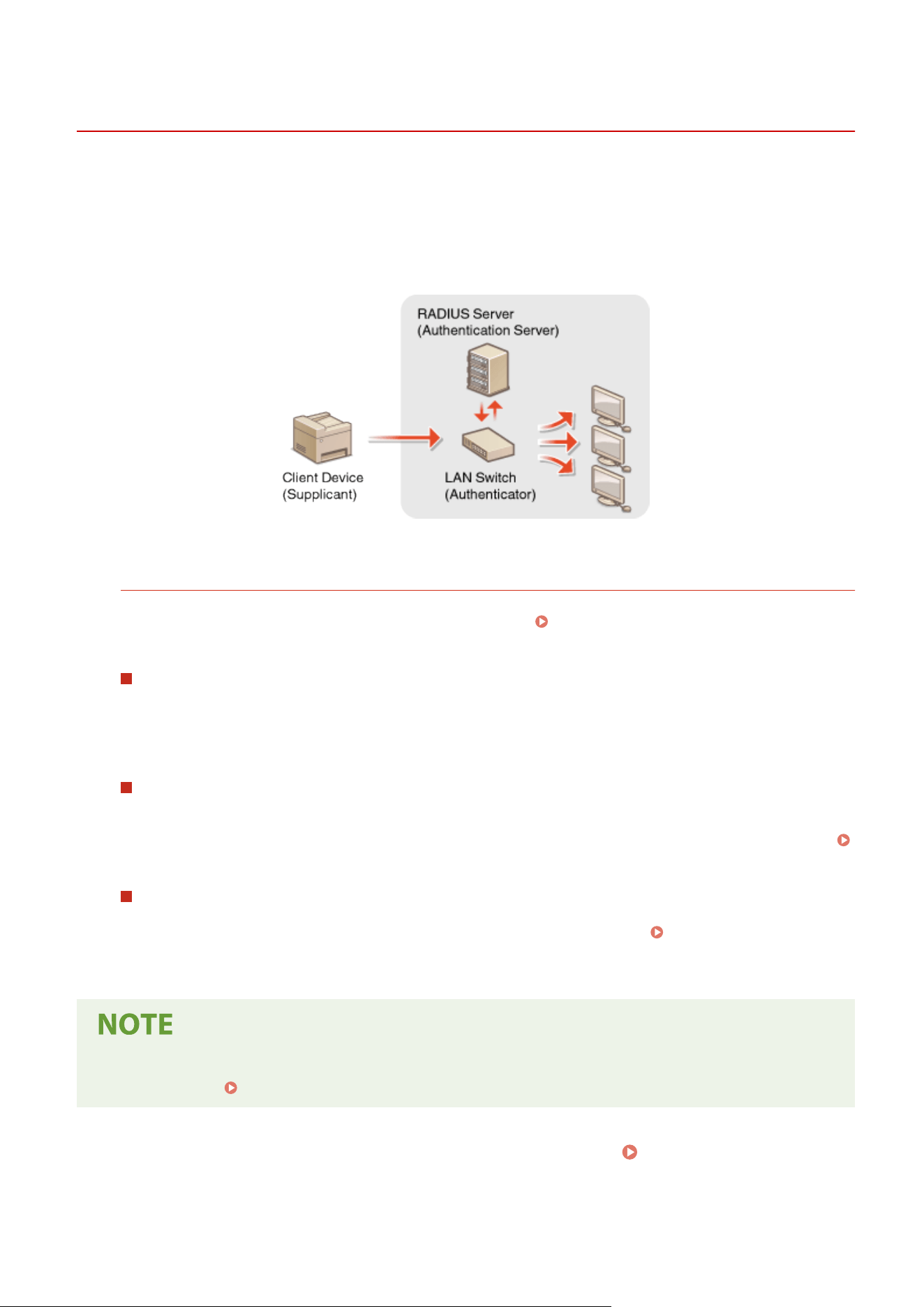
Conguring IEEE 802.1X Authentication Settings
7YWY-07H
The machine can connect to an 802.1X network as a client de
vice. A typical 802.1X network consists of a RADIUS server
(authentication server), LAN switch (authenticator), and client devices with authentication software (supplicants). If a
device tries to connect to the 802.1X network, the device must go through user authentication in order to prove that
the connection is made by an authorized user. Authentication information is sent to and checked by a RADIUS server,
which permits or rejects communication to the network depending on the authentication result. If authentication fails,
a LAN switch (or an access point) blocks access from the outside of the network.
IEEE 802.1X Authentication Method
Select the authentication method from the options below. If necessary, install or register a key and certicate or
a CA certicate befor
e conguring IEEE 802.1X authentication (
Registering the Key and Certicate for
Network Communication
(P. 393) ).
TLS
The machine and the authentication server authenticate each other b
y mutually verifying their certicates. A
key and certicate issued by a certication authority (CA) is required for the client authentication (when
authenticating the machine). For the server authentication, a CA certicate installed via the Remote UI can be
used in addition to a CA certicate preinstalled in the machine.
TTLS
This authentication method uses a user name and passwor
d for the client authentication and a CA certicate
for the server authentication. MSCHAPv2 or PAP can be selected as the internal protocol. TTLS can be used
with PEAP at the same time. Enable TLS for the Remote UI before conguring this authentication method (
Conguring the Ke
y and Certicate for TLS(P. 381) ).
PEAP
The r
equired settings are almost the same as those of TTLS. MSCHAPv2 is used as the internal protocol.
Enable TLS for the Remote UI before conguring this authentication method (
Conguring the Ke
y and
Certicate for TLS(P. 381) ).
● For mor
e information about the basic operations to be performed when setting the machine from the
Remote UI, see
Setting Up Menu Options from Remote UI(P. 431) .
1
Start the Remote UI and log in to System Manager Mode. Starting Remote
UI(P
. 421)
Managing the Machine
402
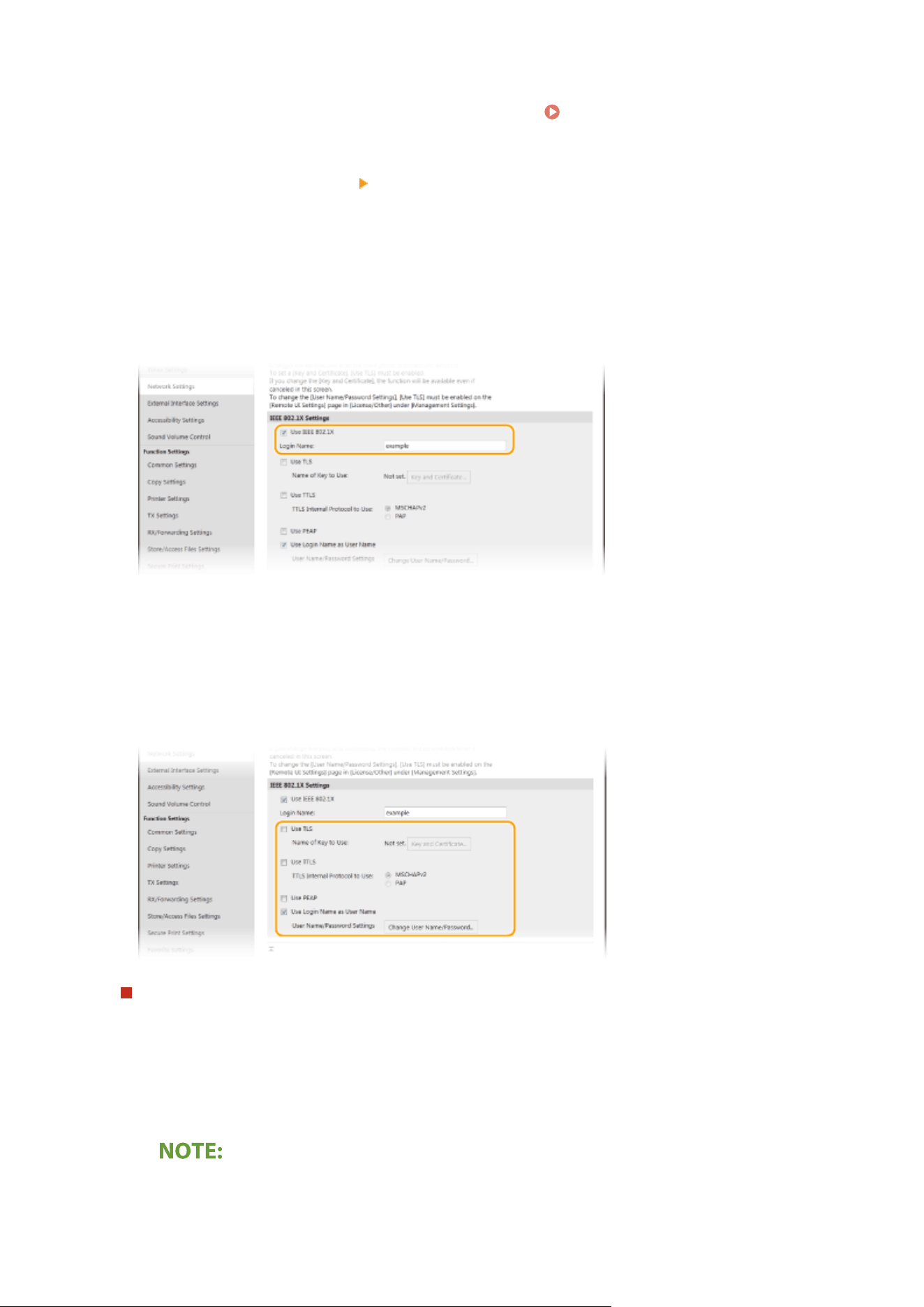
2
Click [Settings/Registration] on the Portal page.
Remote UI Screen(P. 422)
3
Select [Network Settings] [IEEE 802.1X Settings].
4
Click [Edit].
5
Select the [Use IEEE 802.1X] check box, and enter the login name in the [Login Name]
te
xt box.
[Use IEEE 802.1X]
Select the check bo
x to enable IEEE 802.1X authentication.
[Login Name]
Enter alphanumeric characters for a name (EAP identity) that is used for identifying the user.
6
Congure the r
equired settings according to the specied authentication method.
Setting TLS
1
Select the [Use TLS] check box and click [Key and Certicate].
● Y
ou cannot use TLS with TTLS or PEAP.
2
Click [Register Default Key] on the right of the key and certicate you want to use for the client
authentication.
Viewing details of a certicate
● Y
ou can check the details of the certicate or verify the certicate by clicking the corresponding text
link under [Key Name], or the certicate icon.
Managing the Machine
403
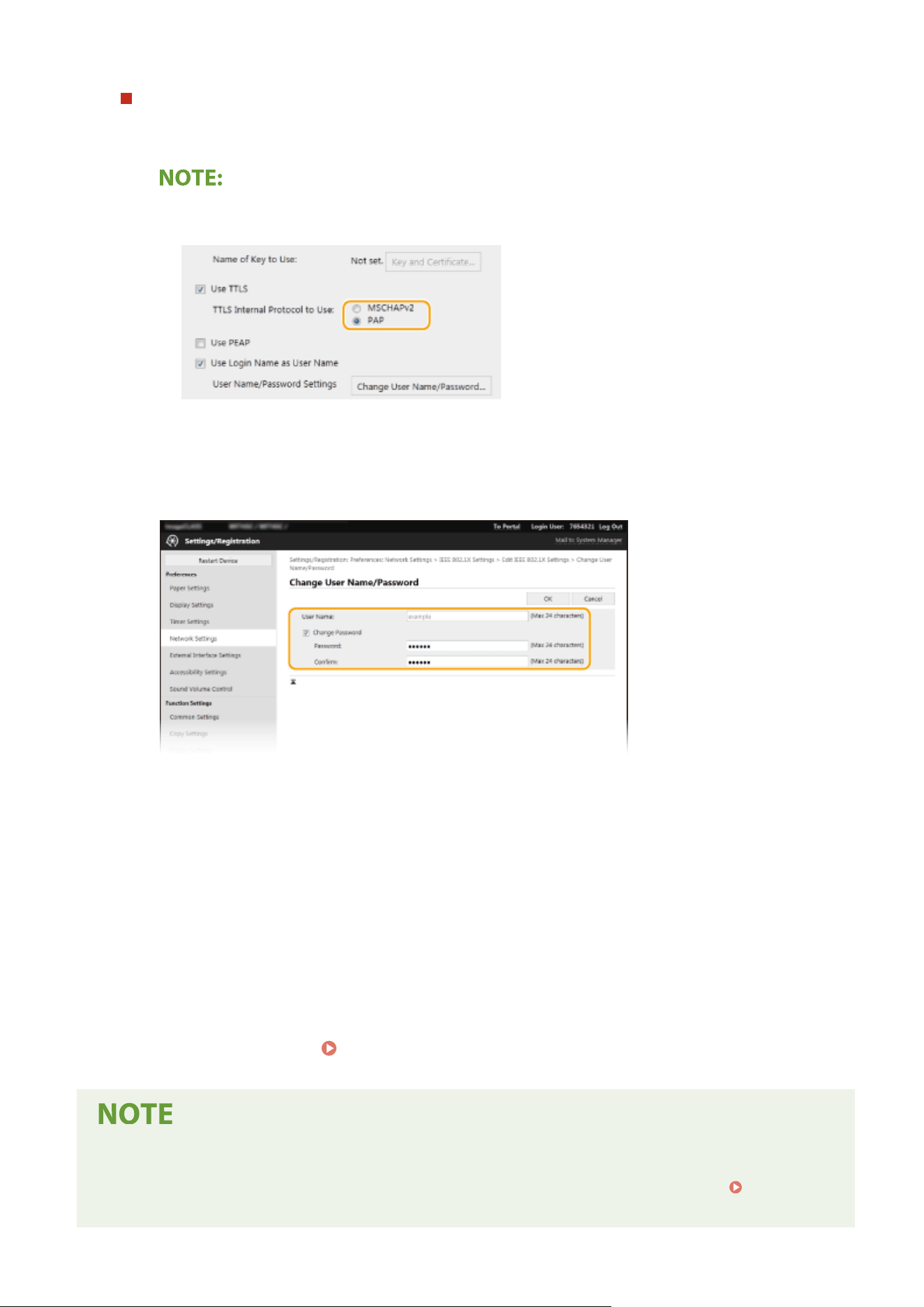
Setting TTLS/PEAP
1
Select the [Use TTLS] or [Use PEAP] check box.
Internal protocol for TTLS
● Y
ou can select MSCHAPv2 or PAP.
2
Click [Change User Name/Password].
● T
o specify a user name other than the login name, clear the [Use Login Name as User Name] check
box. Select the check box if you want to use the login name as the user name.
3
Set the user name/password.
[User Name]
Enter alphanumeric char
acters for the user name.
[Change Password]
To set or change the password, select the check box and enter alphanumeric characters for the new
password both in the [Password] and [Conrm] text boxes.
4
Click [OK].
7
Click [OK].
8
Restart the machine.
Restarting the Machine(P. 121)
Using the operation panel
● Y
ou can also enable or disable IEEE 802.1X authentication from <Menu> in the Home screen.
<Use IEEE
802.1X>
(P. 475)
Managing the Machine
404

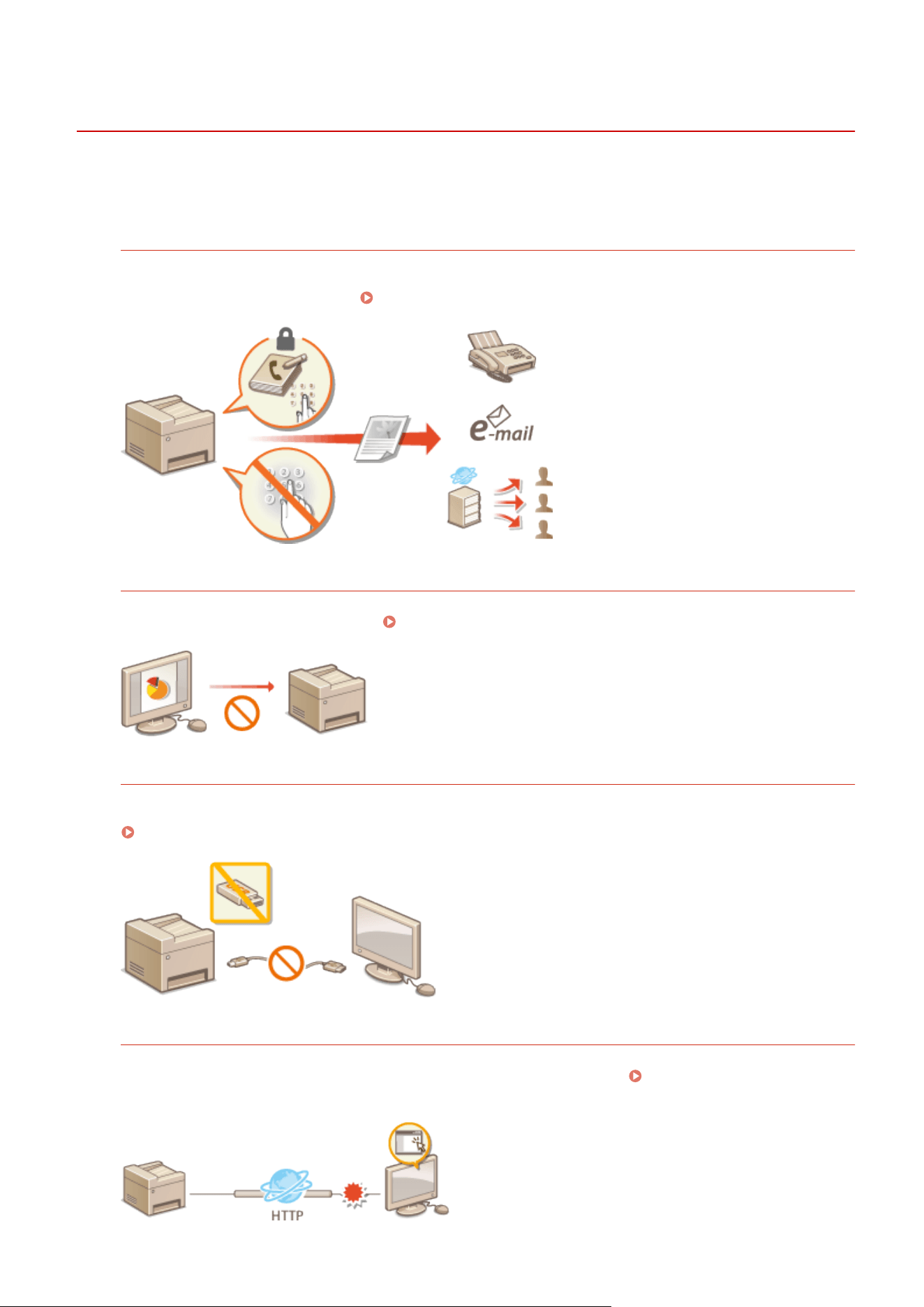
Restricting the Machine's Functions
7YWY-07J
Some of the functions of the machine may r
arely be used or provide opportunities for misuse. For security purposes,
the machine can be set to limit its capabilities by partially or completely disabling these functions.
Restricting Access to Address Book and Sending Functions
You can specify the PIN in the Address Book to disable a general user from modifying data or limit destinations
that can be specied for fax sending. Y
ou can also disable a user from collectively sending a fax to multiple
destinations (Sequential Broadcast).
Restricting Access to Address Book and Sending Functions(P. 408)
Restricting Printing from a Computer
You can limit "printing from computer" only to secure documents so that no print jobs can be executed unless
the PIN is enter
ed on the machine side.
Restricting Printing from a Computer(P. 415)
Restricting USB Functions
The USB connection allows an easy connection with peripheral devices, but it may cause a security risk such as
an information leakage. Y
ou can restrict a USB connection with a computer or saving to a USB memory device.
Restricting USB Functions(P. 416)
Disabling HTTP Communication
When not performing operations via the network, for example, when using the machine via USB connection,
you can disable HT
TP communication to prevent a hacking via the HTTP port.
Disabling HTTP
Communication(P. 418)
Managing the Machine
406
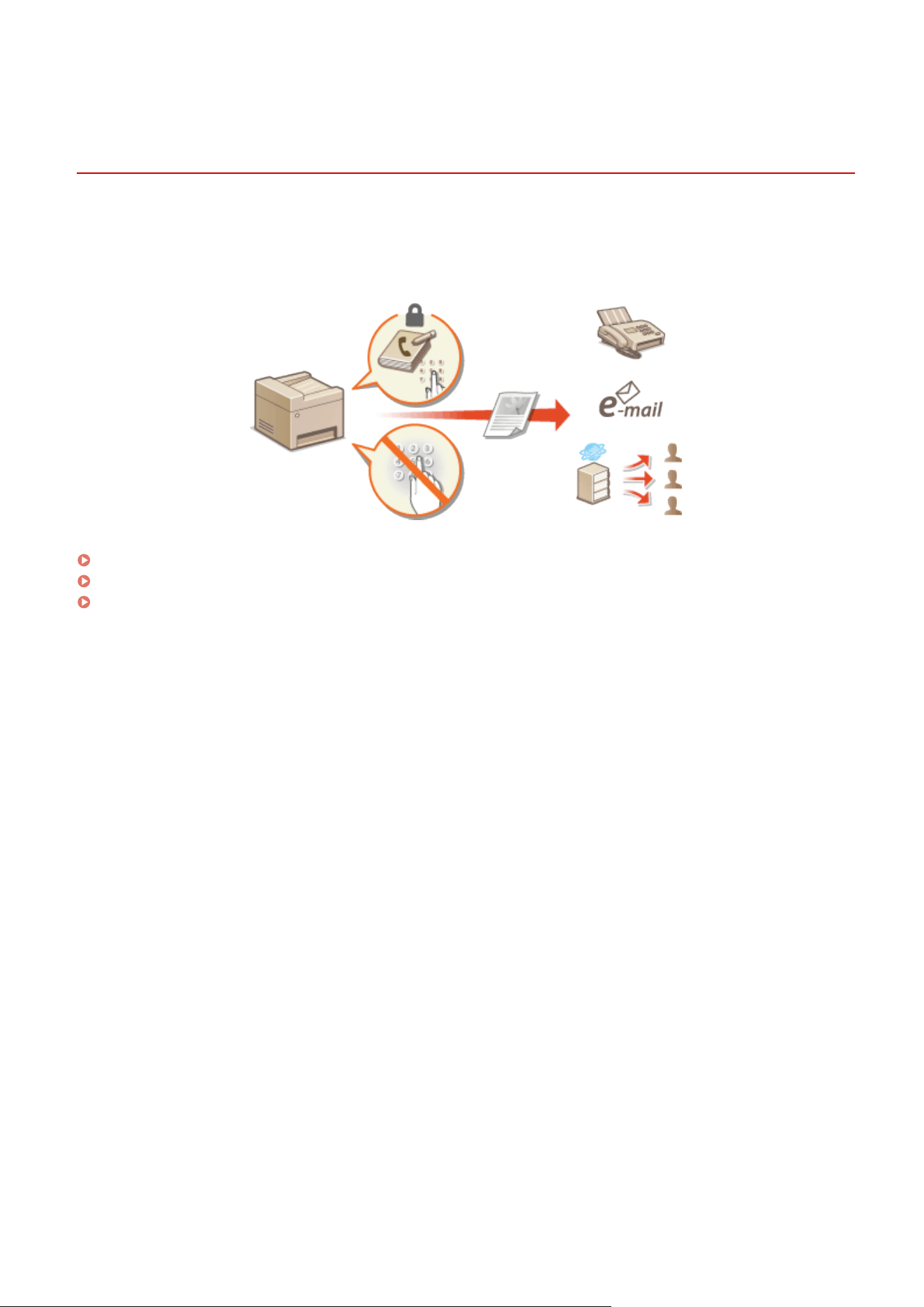
Restricting Access to Address Book and Sending
Functions
7YWY-07K
Some cases of information leakage can be pr
evented by limiting the available fax and e-mail destinations to those
registered in the Address Book or LDAP servers, or by setting a PIN for the Address Book so that unauthorized users
cannot add or edit Address Book entries. You can also avoid sending documents to unintended recipients if the
machine is set to ask you to enter the fax number twice for conrmation.
Restricting Use of the Address Book(P. 409)
Limiting Available Destinations(P. 411)
Restricting the Fax Sending Functions(P. 413)
Managing the Machine
408
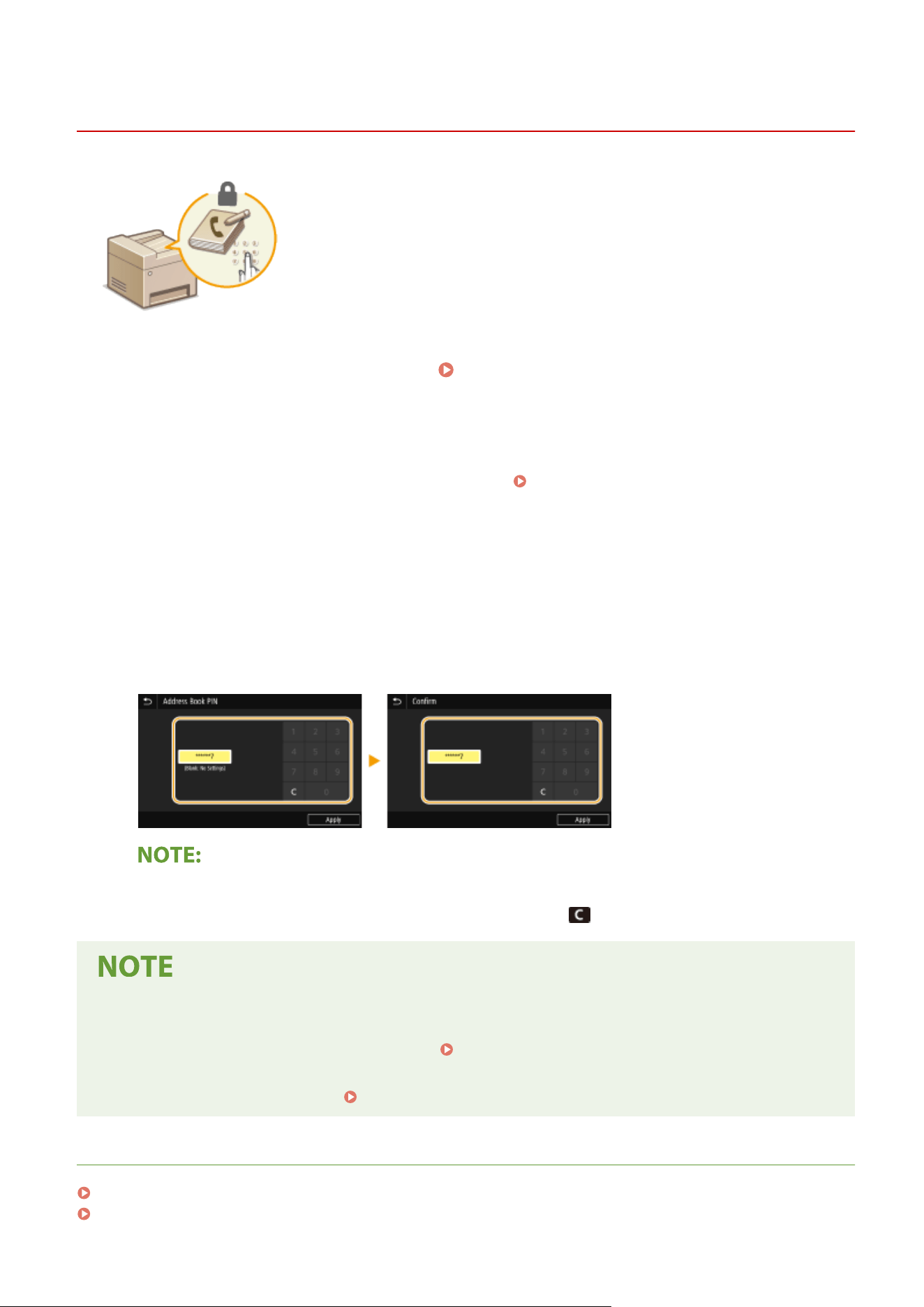
Restricting Use of the Address Book
7YWY-07L
The Address Book can be set to require users to enter a PIN in order to add new
entries to the Addr
ess Book or edit existing entries. Setting a PIN to the Address
Book can reduce the risk of documents being sent to unintended recipients because
changes to the Address Book can only be made by users who know the PIN.
1
Select <Menu> in the Home screen.
Home Screen(P. 125)
2
Select <Set Destination>.
● If the login scr
een appears, enter the correct ID and PIN.
Logging in to the Machine(P. 136)
3
Select <Address Book PIN>.
4
Specify the PIN.
● Enter the number, and select <Apply>.
● The Conrm scr
een is displayed. Enter the PIN once again to conrm.
● Y
ou cannot set a PIN that consists only of zeros, such as "00" or "0000000".
● To cancel the PIN setting, clear the information you entered in
and select <Apply> with the eld blank.
In addition to setting the Address Book PIN, you can further enhance security by performing the following
oper
ations:
● Restricting the addition of new destinations, see
Restricting New Destinations that Can Be
Specied(P
. 411) .
● Disabling the PC fax function, see
Restricting Fax Sending from a Computer(P. 413) .
LINKS
Registering Destinations(P. 181)
Registering Destinations from Remote UI(P. 434)
Managing the Machine
409

Limiting Available Destinations
7YWY-07R
By limiting destinations that can be specied to those r
egistered in the Address Book
or LDAP servers, you can reduce the possibility of specifying unintended destinations
and prevent users from leaking information. You can congure the setting to display
the conrmation screen to prevent the user from misdialing when specifying a coded
dial number in the Address Book.
Restricting New Destinations that Can Be Specied(P
. 411)
Disabling Use of Previously Used Destinations(P. 411)
Displaying Destinations in Address Book(P. 411)
Checking Destinations when Sending Data(P. 412)
Restricting New Destinations that Can Be Specied
Restrict destinations that can be specied when sending fax
es or scanned documents to "those already registered in
the Address Book," "those previously used," or "those searchable from the LDAP servers." When this function is
enabled, the machine prohibits users from entering destinations using the numeric keys, adding new entries to the
Address Book, and editing the existing Address Book entries.
<Menu> <Function Settings> <Send> <Common Settings> <Restrict New
Destinations> <On>
● This function does not limit the available destinations for PC faxing. Restricting Fax Sending from a
Computer(P
. 413)
Disabling Use of Previously Used Destinations
Pr
ohibits the specication of destinations from the transmission records. Using this restriction prevents destinations
being selected from the transmission records for "Send Fax," "Scan and Send as E-mail" and "Scan and Save to Shared
Folder or FTP Server."
<Menu> <Function Settings> <Send> <Common Settings> <Restrict Resending from
Log> <On>
Displaying Destinations in Address Book
When using coded dial numbers to specify destinations, you need to pr
ecisely remember whose destination (or what
group) is registered in what coded dial number. If you do not remember all these numbers accurately, you may send
your documents to unintended destinations. You can avoid sending data to unintended recipients by conguring the
Managing the Machine
411
machine to display the details of the coded dial number you selected/entered as a sending destination on the screen
befor
e you send documents to that destination.
<Menu> <Function Settings> <Send> <Common Settings> <Conrm When Coded Dial
TX> <On>
Checking Destinations when Sending Data
You can congure a setting so that the destination conrmation screen is displayed when fax, e-mail, or I-Fax sending
starts. If <Only for Sequential Broadcast> is selected, the conrmation screen is displayed only when multiple
destinations are specied.
<Menu> <Function Settings> <Send> <Common Settings> <Conrm Dest. Befor
e
Sending>
Select <On> or <Only for Sequential Broadcast>
LINKS
Sending I-Faxes(P. 252)
Sending Data by E-Mail/Saving Data to a Shared Folder or FTP Server(P. 294)
Recalling Previously Used Settings for Sending/Saving (Recall Settings)(P. 315)
Restricting Use of the Address Book(P. 409)
Restricting the Fax Sending Functions(P. 413)
Managing the Machine
412
Restricting the Fax Sending Functions
7YWY-07S
Y
ou can set various restrictions for sending faxes, which can prevent information leakage to third parties or sending
documents to unintended destinations.
Conrming the Enter
ed Fax Number(P. 413)
Restricting Fax Sending from a Computer(P. 413)
Restricting Sequential Broadcasts(P. 413)
Disabling Destination Registration from Logs to the Address Book(P. 414)
Conrming the Entered Fax Number
You can congure the setting to display the conrmation screen to prevent the user from misdialing when entering a
destination fax number using the numeric keys.
<Menu> <Function Settings> <Send> <Fax Settings> <Conrm Enter
ed Fax Number>
<On>
Restricting Fax Sending from a Computer
You can prohibit users from PC faxing (faxing from a computer).
<Menu> <Function Settings> <Send> <Fax Settings> <Allow Fax Driver TX> <Off>
Restricting Sequential Broadcasts
You can prohibit a function that collectively sends a fax to multiple destinations (Sequential Broadcast).
<Menu> <Function Settings> <Send> <Fax Settings> <Restrict Sequential
Br
oadcast>
<On>
Managing the Machine
413
Disabling Destination Registration from Logs to the Address Book
You can congure to disable registering destinations from fax send logs to the Address Book.
<Menu> <Function Settings> <Send> <Fax Settings> <Register Log Dest to Addr
Book> <Do Not Allow>
LINKS
Basic Operations for Sending Faxes(P. 219)
Recalling Previously Used Settings for Sending (Recall Settings)(P. 233)
Sending Faxes from Your Computer (PC Fax)(P. 248)
Enabling the Department ID Management for Jobs from a Computer(P. 360)
Restricting Use of the Address Book(P. 409)
Limiting Available Destinations(P. 411)
Managing the Machine
414
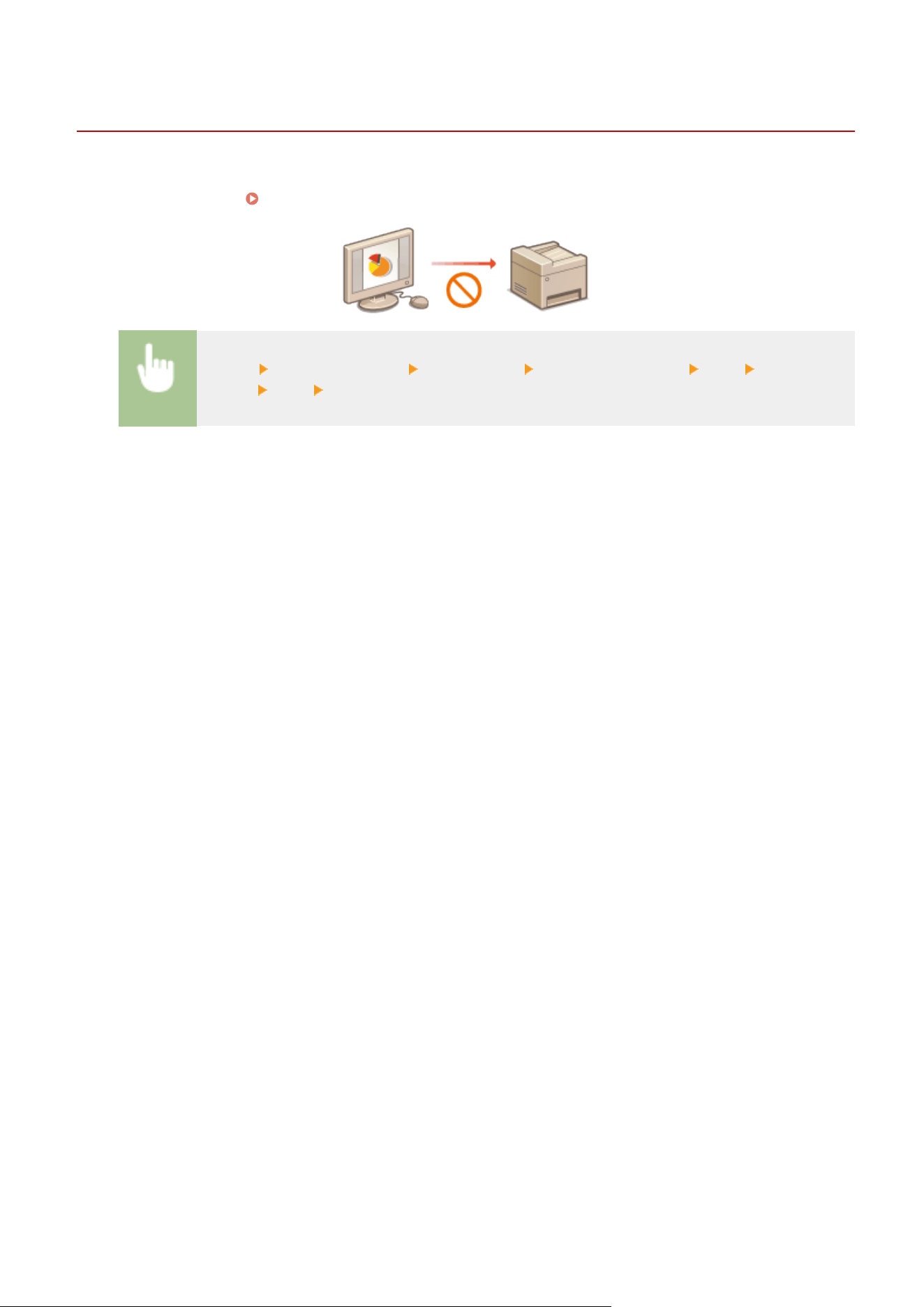
Restricting Printing from a Computer
7YWY-07U
Y
ou can drastically reduce information leakage risks by limiting the documents printable from a computer to the
Secure Print documents (
Printing a Document Secured by a PIN (Secure Print)(P. 269) ).
<Menu> <Function Settings> <Secure Print> <Restrict Printer Jobs> <On>
<Apply> <OK> Restart the machine
Managing the Machine
415
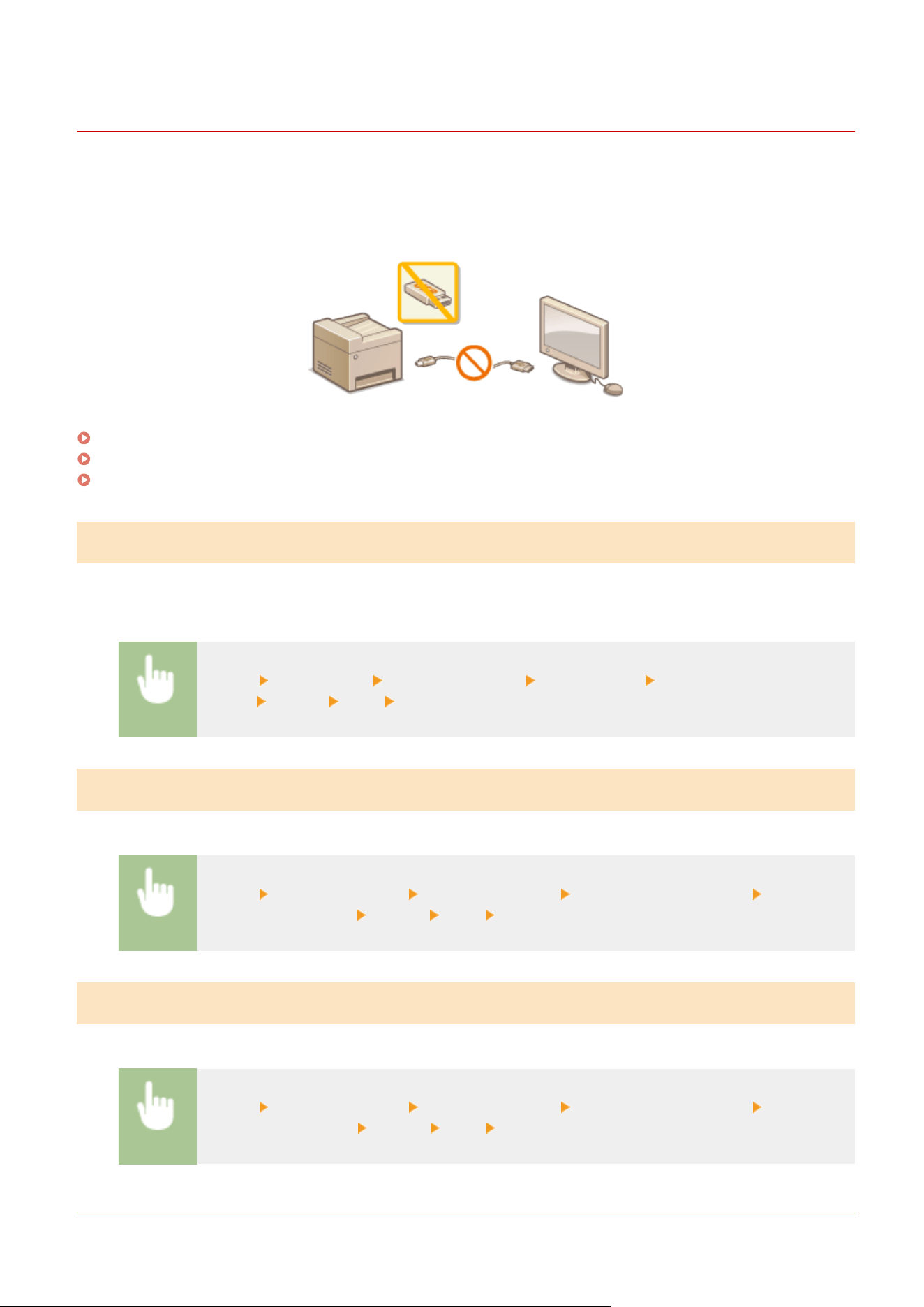
Restricting USB Functions
7YWY-07W
USB is a convenient way of connecting peripher
al devices and storing or relocating data, but USB can also be a source
of information leakage if it is not properly managed. Be especially careful when handling USB memory devices. This
section describes how to restrict connection via the USB port of the machine and how to prohibit use of USB memory
devices.
Restricting the USB Connection with a Computer(P. 416)
Restricting the Scan to USB Function(P. 416)
Restricting the USB Print Function(P. 416)
Restricting the USB Connection with a Computer
Y
ou can disable the computer connection USB port located on the back side of the machine. If this port is disabled, the
machine cannot communicate with a computer via USB. This setting does not affect the front USB port, which is for
attaching USB memory devices.
<Menu> <Preferences> <External Interface> <USB Settings> Select <Off> in <Use as USB
De
vice>
<Apply> <OK> Restart the machine
Restricting the Scan to USB Function
You can disable storing scanned original data into a USB memory device.
<Menu> <Function Settings> <Store/Access Files> <Memory Media Settings> Select <Off>
in <Use Scan Function> <Apply> <OK> Restart the machine
Restricting the USB Print Function
You can disable printing data from a USB memory device. The data in the USB memory device cannot be printed.
<Menu> <Function Settings> <Store/Access Files> <Memory Media Settings> Select <Off>
in <Use Print Function> <Apply> <OK> Restart the machine
LINKS
Managing the Machine
416

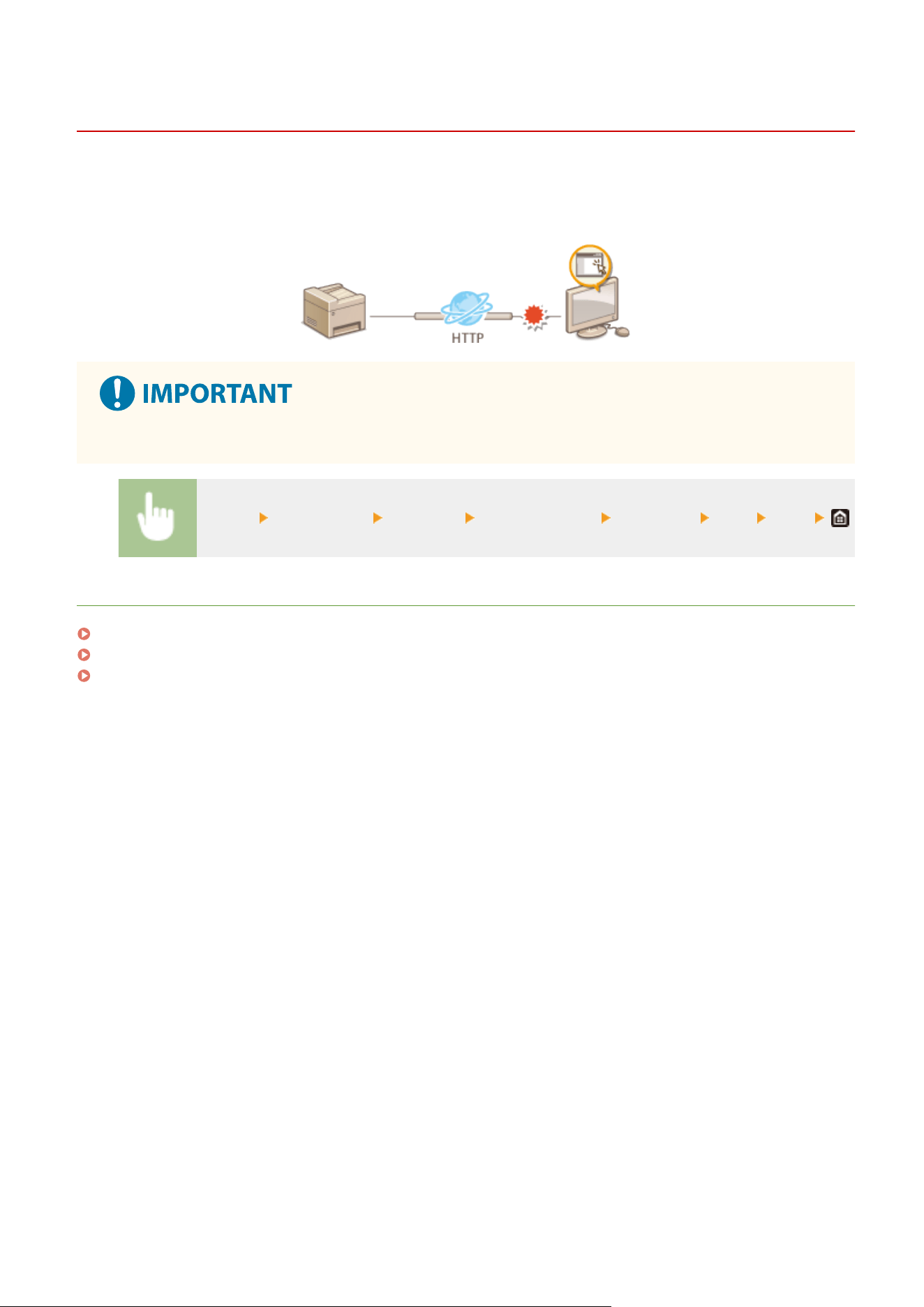
Disabling HTTP Communication
7YWY-07X
HT
TP is used for communications over the network, such as when you access the machine via the Remote UI. If you
are using a USB connection or are otherwise not using HTTP, you can disable HTTP to block malicious third-party
intrusions via the unused HTTP port.
● Disabling HT
TP disables some of the network capabilities, such as the Remote UI and WSD printing.
<Menu> <Preferences> <Network> <TCP/IP Settings> <Use HTTP> <Off> <Yes>
LINKS
Managing the Machine from a Computer (Remote UI)(P. 420)
Changing Port Numbers(P. 378)
Conguring Printing Pr
otocols and WSD Functions(P. 40)
Managing the Machine
418
Disabling Remote UI
7YWY-07Y
The Remote UI is useful because the machine settings can be specied b
y using a Web browser on a computer. To use
the Remote UI, the machine must be connected to a computer over the network. If the machine is connected to a
computer via USB, or if you do not need to use the Remote UI, you might want to disable the Remote UI to reduce the
risk of having your machine controlled remotely over the network by malicious third parties.
<Menu> <Management Settings> <Remote UI Settings/Update Firmware> <Remote UI
Settings> <Remote UI> Select <Off> in <Use Remote UI> <Apply> <OK> Restart the
machine
LINKS
Managing the Machine from a Computer (Remote UI)(P. 420)
Disabling HTTP Communication(P. 418)
Managing the Machine
419
Managing the Machine from a Computer (Remote UI)
7YWY-080
Using a W
eb browser to operate the machine remotely, you can check the documents waiting to be printed or the
status of the machine. You can also make various settings. You can do this without leaving your desk, making system
management easier. For more information about the system requirements for the Remote UI, see
System
Envir
onment(P. 627) .
Functions of the Remote UI
Checking the Status and Logs(P. 425)
Setting Up Menu Options from Remote UI(P. 431)
Registering Destinations from Remote UI(P. 434)
Security Policy(P. 438)
Importing/Exporting the Setting Data(P. 443)
Basics of the Remote UI
Starting Remote UI(P. 421)
Managing the Machine
420
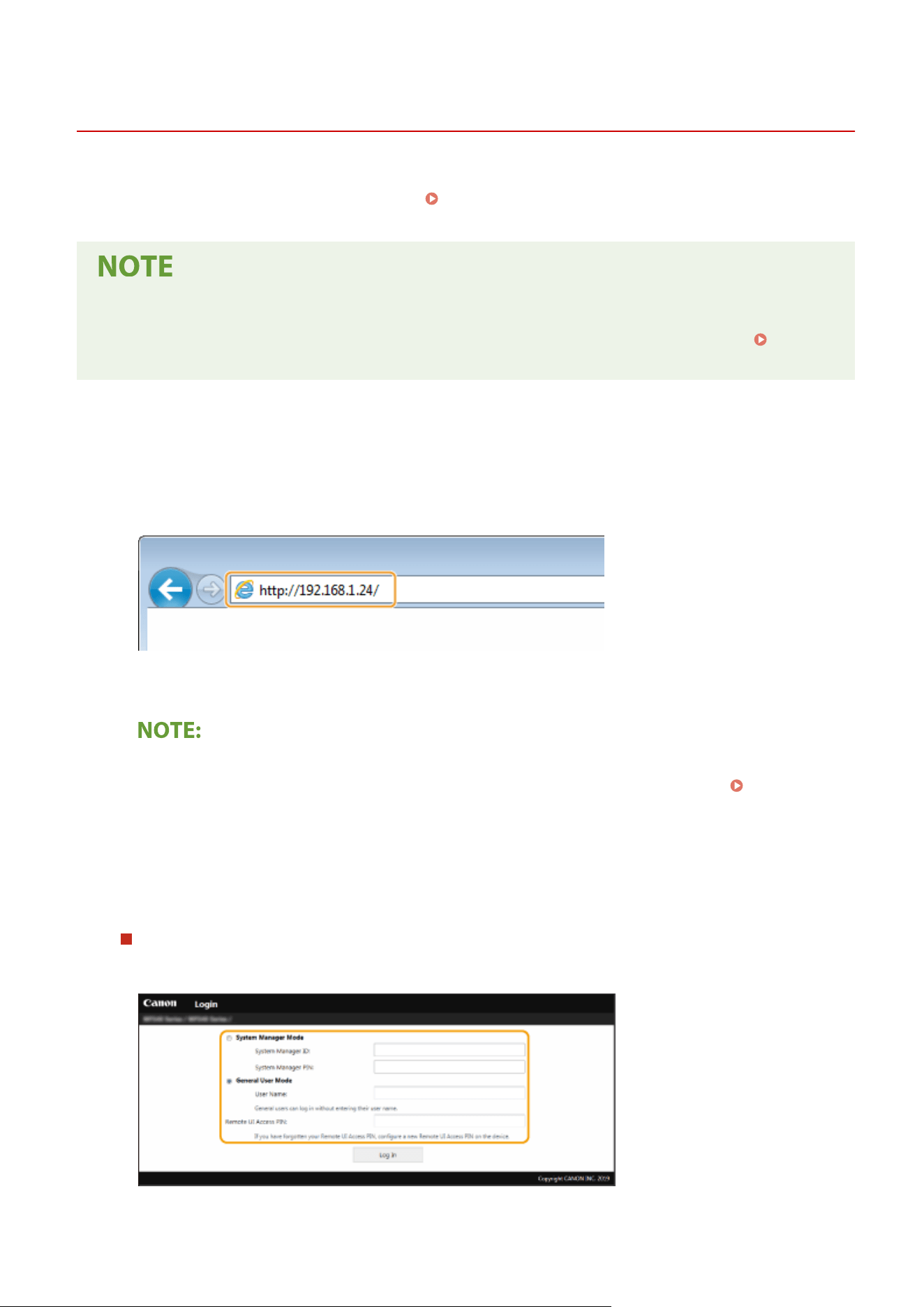
Starting Remote UI
7YWY-081
T
o operate remotely, you need to input the IP address of the machine into a Web browser and start the Remote UI.
Check the IP address set to the machine in advance (
Viewing Network Settings(P. 37) ). If you have any questions,
ask your Network Administr
ator.
When the Department ID Management is disabled
● T
o log in to the Remote UI, you need to set a Remote UI Access PIN on the machine beforehand.
Setting a
Remote UI PIN
(P. 363)
1
Start the Web browser.
2
Enter "http://<the IP address of the machine>/" in the address eld, and pr
ess the
[ENTER] key.
● If you want to use an IPv6 addr
ess, enclose the IPv6 address with brackets (example: http://
[fe80::2e9e:fcff:fe4e:dbce]/).
If a security alert is displayed
● A
security alert may be displayed when the Remote UI communication is encrypted (
Conguring
the
Key and Certicate for TLS(P. 381) ). When certicate settings or TLS settings have no errors, continue
browsing the Web site.
3
Log in to the Remote UI.
When the Department ID Management is disabled
Select [System Manager Mode] or [Gener
al User Mode], and enter a value in [Remote UI Access PIN] as
necessary.
[System Manager Mode]
Managing the Machine
421
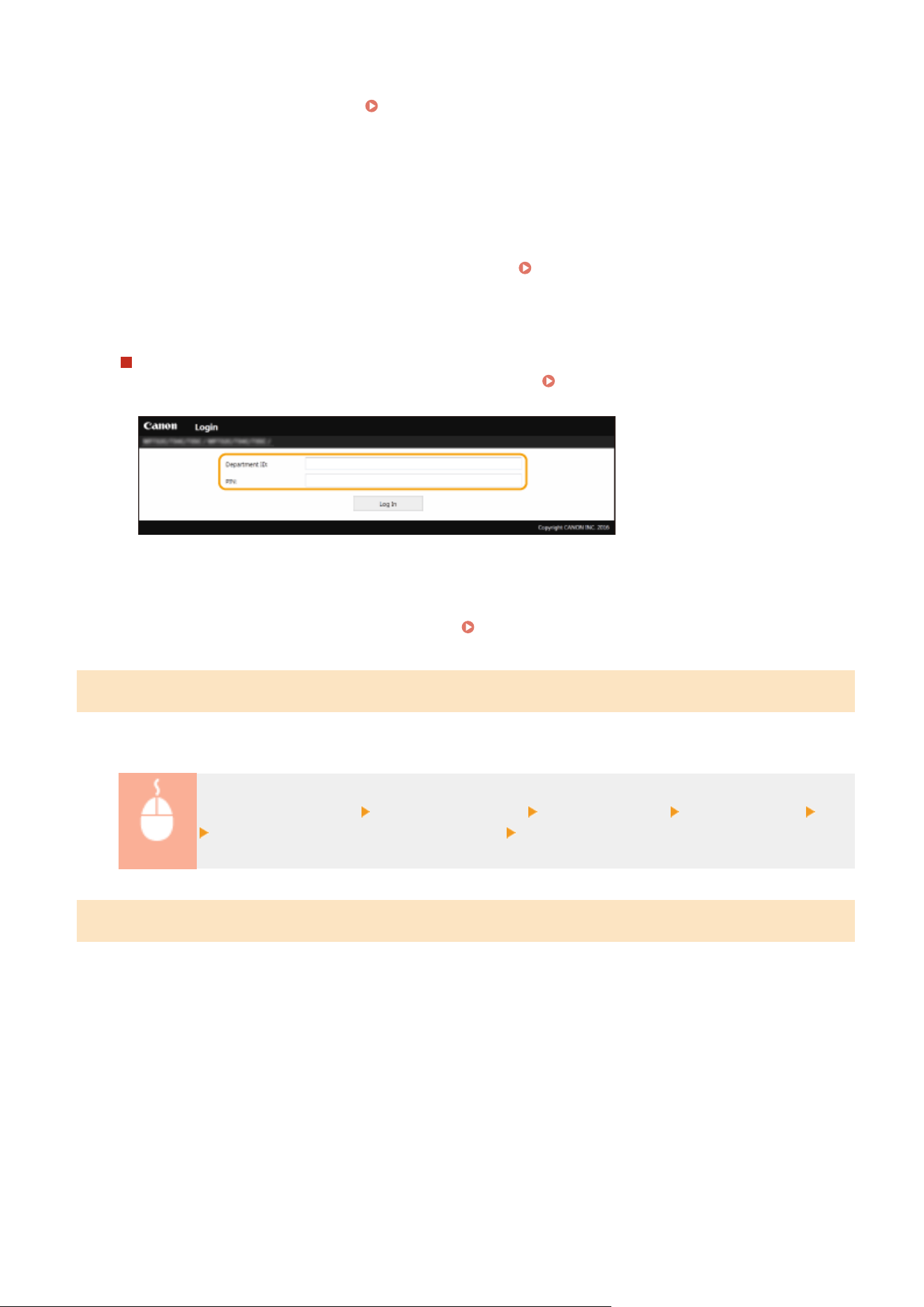
You can perform all the Remote UI operations and settings. Enter the appropriate ID in [System Manager ID]
and PIN in [System Manager PIN]. Setting the System Manager ID and PIN(P. 355)
[Gener
al User Mode]
You can check the status of documents or the machine, and you can also change some of the settings. When
you want to check if a specic document of yours is in the print queue or cancel the printing of a document
of yours in the print queue, enter the user name of the document in [User Name]. The user name is
automatically set to print documents based on information such as your computer name or computer login
name.
[Remote UI Access PIN]
In the following situations, enter a Remote UI Access PIN.
Setting a Remote UI PIN(P. 363)
● When no System Manager ID is set and you ar
e logging in to System Manager Mode
● When you are logging in to General User Mode
When the Department ID Management is enabled
Enter the appr
opriate ID in [Department ID] and PIN in [PIN].
Setting the Department ID
Management(P
. 357)
4
Click [Log In].
➠ The Portal page (main page) will be displayed.
Remote UI Screen(P. 422)
Setting the Timeout Time after Logging In to the Remote UI
The user is automatically logged out if no oper
ations are performed for a certain period of time after logging in to the
Remote UI. You can set the time until the user is logged out.
Log in to the Remote UI [Settings/Registration] [Network Settings] [Session Settings] [Edit]
Set [Timeout After Logging in to Remote UI] [OK]
Remote UI Screen
When you log in to the Remote UI, the follo
wing Portal page appears. This section describes the items displayed on
the Portal page and the basic operations.
Managing the Machine
422

[Device Basic Information]
Displays the curr
ent status of the machine and error information. If an error has occurred, the link to the
Error Information page will be displayed.
[Consumables Information]
Displays paper information and the amount r
emaining in the toner cartridges.
[Support Link]
Displays the support link specied in [Support Link] under [License/Other].
Refresh Icon
Refr
eshes the currently displayed page.
[Language]
Selects the display language used for the Remote UI scr
eens.
[Log Out]
Logs off fr
om the Remote UI. The Login page will be displayed.
[Mail to System Manager]
Displays a windo
w for creating an e-mail to the system manager specied in [System Manager Information]
under [User Management].
[Status Monitor/Cancel]
Displays the [Status Monitor/Cancel] page. For any of the waiting documents, you can check the status/
history or cancel the processing.
Managing the Machine
423

[Settings/Registration]
Displays [Settings/Registr
ation] page. When you have logged in to System Manager Mode, you can change
the settings items and save/load the registered data.
Setting Up Menu Options from Remote UI(P. 431)
[Address Book]
Displays the coded dial numbers and the Favorites list r
egistered in the Address Book. You can also register
or edit the Address Book when you have logged in to System Manager Mode.
Registering Destinations
fr
om Remote UI(P. 434)
[Application Library]
Displays the Application Library setting page.
For details about the Application Libr
ary, see the User's Guide of the Application Library.
Application Library
Managing the Machine
424
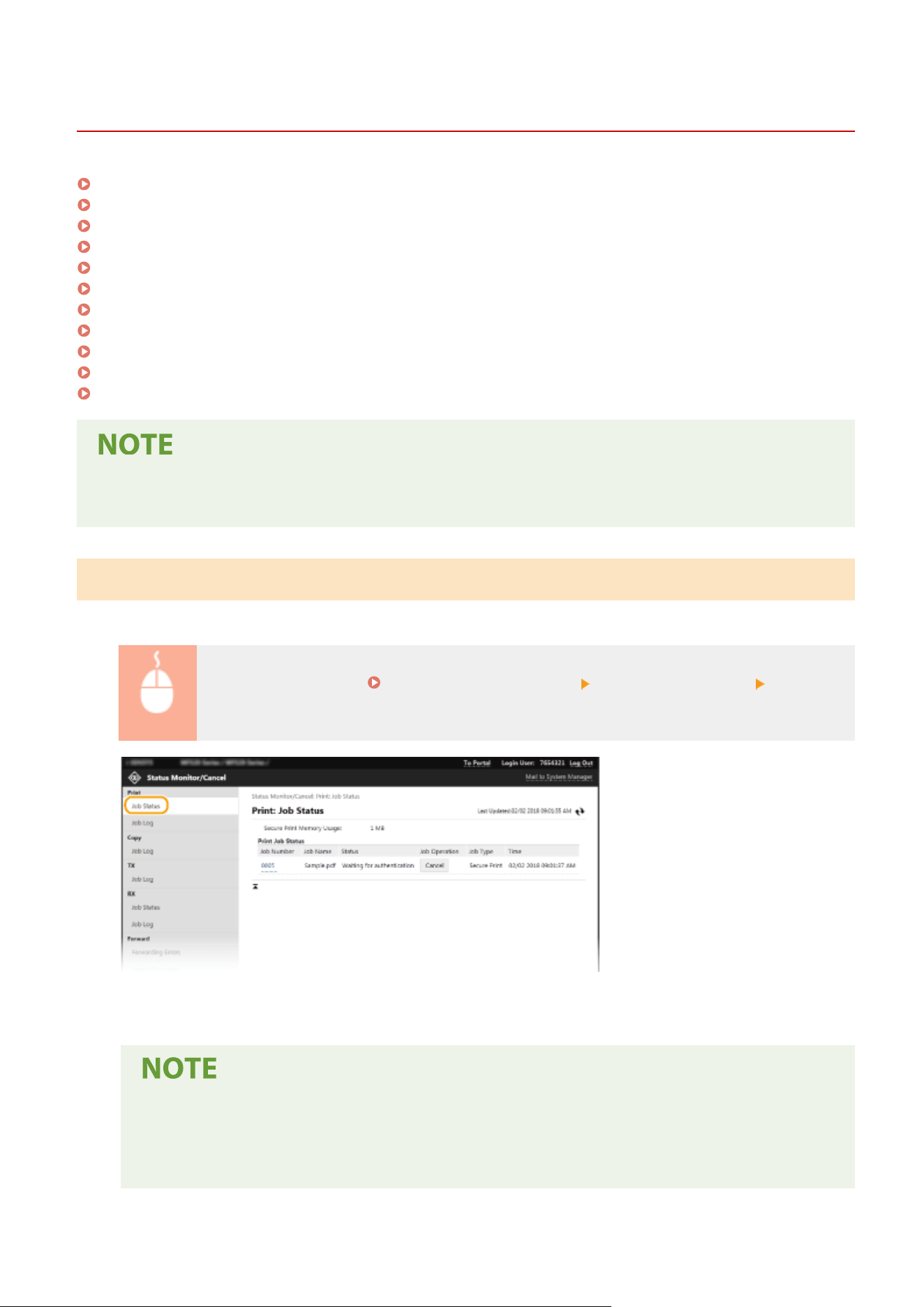
Checking the Status and Logs
7YWY-082
Checking Current Status of Print Documents(P. 425)
Checking Current Status of Received Documents(P. 426)
Checking History of Documents(P. 426)
Checking Information of Documents That Failed To Be Forwarded(P. 426)
Checking Error Information(P. 427)
Checking Consumables(P. 427)
Checking Device Specications(P
. 428)
Checking System Manager Information(P. 428)
Checking Print Total Counter(P. 429)
Checking History of Toner Cartridges(P. 429)
Checking Usage Status of the Machine(P. 430)
● A le name of a document may not be displayed in full. The printed application name may be added to the
le name.
Checking Current Status of Print Documents
The list of the documents curr
ently printing or waiting to be printed is displayed.
Log in to the Remote UI ( Starting Remote UI(P. 421) ) [Status Monitor/Cancel] [Job Status]
in [Print]
● Y
ou can delete a document job by clicking [Cancel].
● Regar
dless of the Department ID Management setting, all the print documents currently printing and
waiting to be printed will be listed.
● If you entered your user name when you logged on in General User Mode, your user name will only
be displayed on the documents that you printed.
Managing the Machine
425
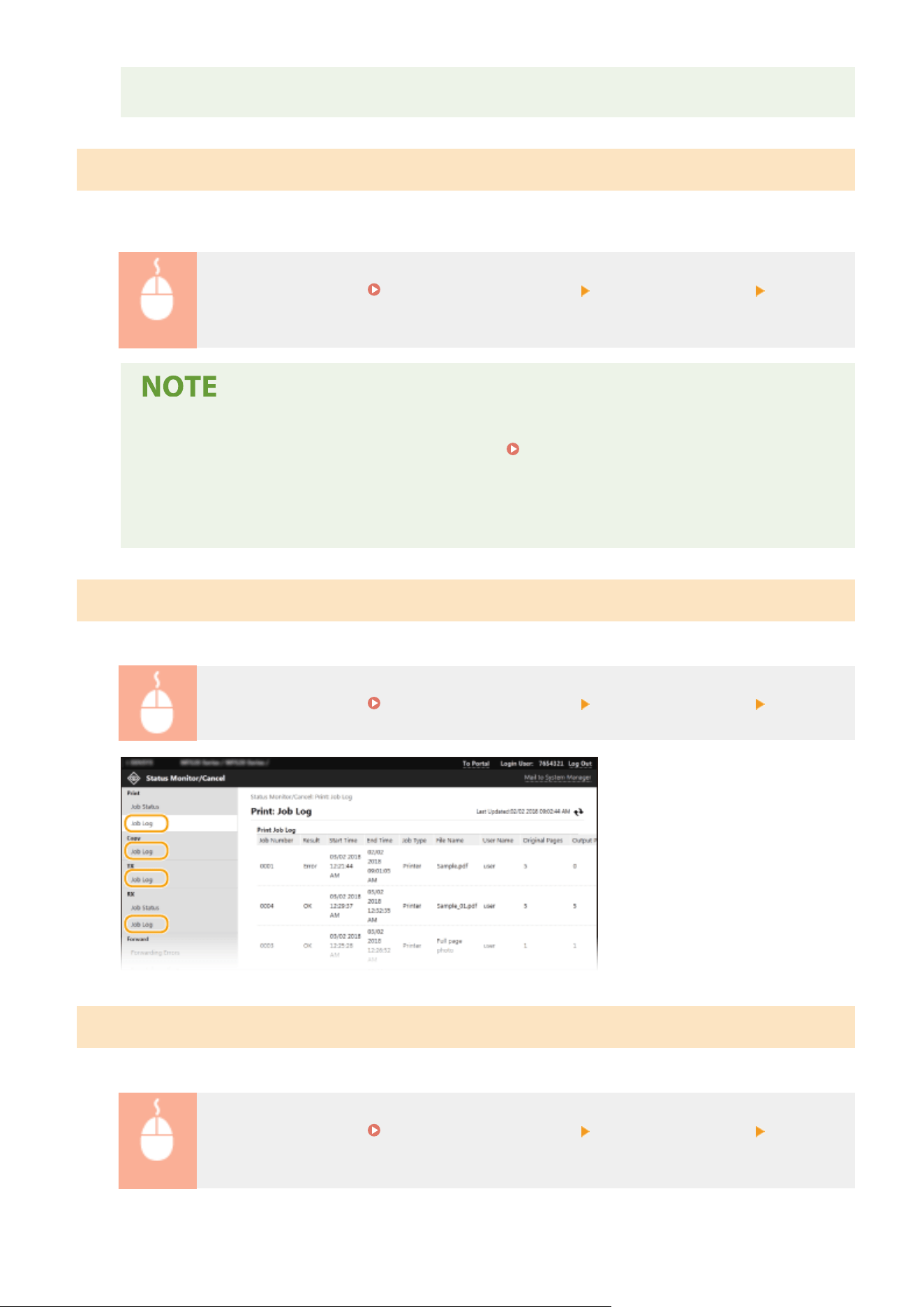
● Click [
Job Number] on the paused documents and secure documents to display detailed information.
You can check the user name and the page count of the printed document.
Checking Current Status of Received Documents
Y
ou can check the logs of received fax and I-Fax documents. You can also click [Delete] for a received fax document to
delete it.
Log in to the Remote UI ( Starting Remote UI(P. 421) ) [Status Monitor/Cancel] [Job Status]
in [RX]
● T
o perform the following operations for a received fax document, you need to log on in System
Manager Mode and set <Use Fax Preview> to <On>.
<Fax Memory Lock Settings>(P. 535)
-
Click [Print All] to print all received documents.
- Click [Print] to print a document waiting to be printed.
- Click [Job Number] to display detailed information and preview of a document waiting to be printed.
Checking History of Documents
The job logs of print, cop
y, sending (TX), and receiving (RX) are displayed.
Log in to the Remote UI ( Starting Remote UI(P. 421) ) [Status Monitor/Cancel] [Job Log]
Checking Information of Documents That Failed To Be Forwarded
Information of documents that failed to be forwarded is displayed.
Log in to the Remote UI ( Starting Remote UI(P. 421) ) [Status Monitor/Cancel] [Forwarding
Err
ors]
Managing the Machine
426
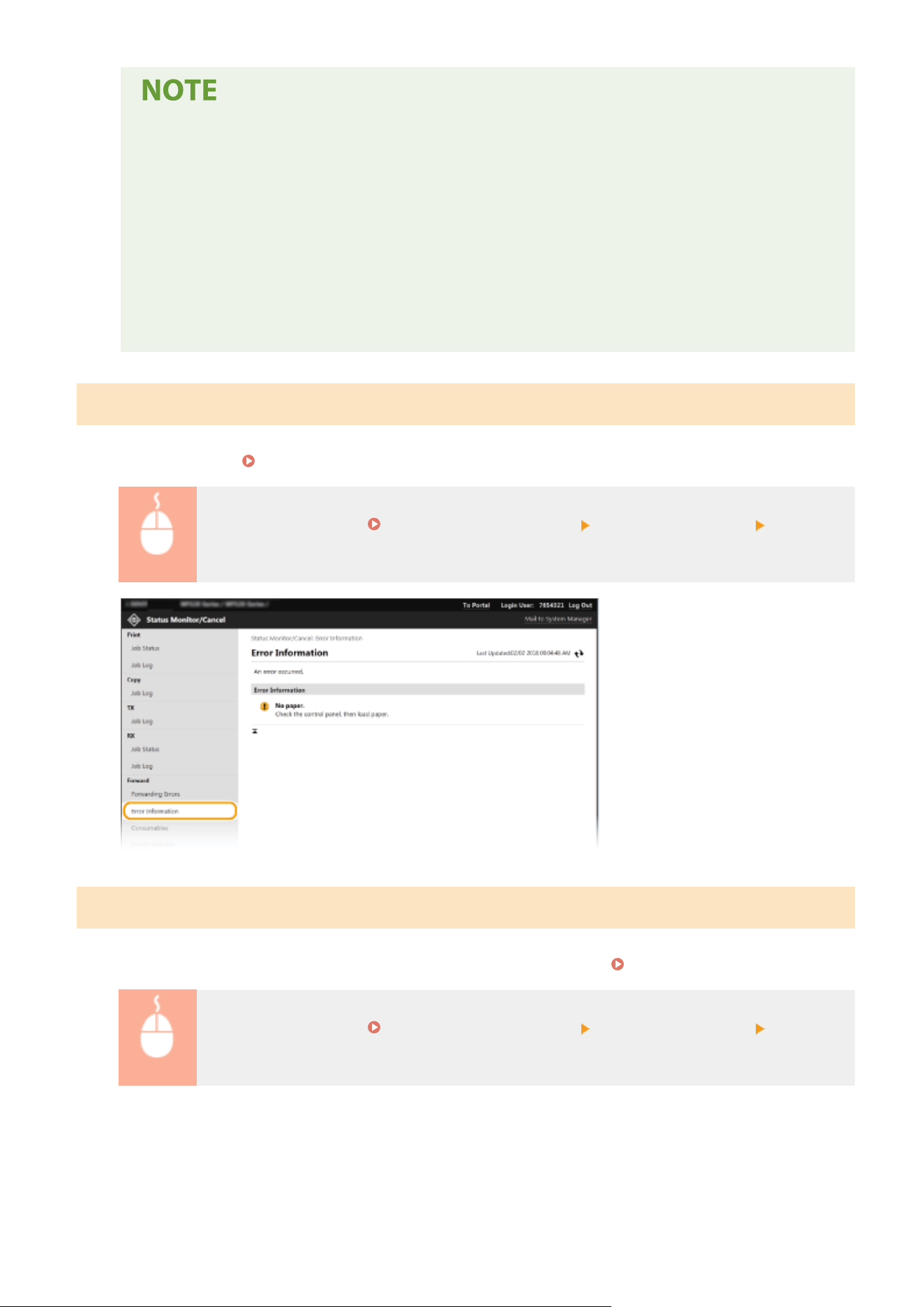
● T
o work with documents that failed to be forwarded, you must congure the following settings:
- Set <Use Memory Lock> to <On>.
- Set <Use Fax Preview> to <On>.
- Log in to the Remote UI with System Manager Mode.
● You can click [Delete] to delete documents that failed to be forwarded.
● You can click [Job Number] to display detailed information or preview of the document that failed to
be forwarded.
● You can also print/resend/delete documents that failed to be forwarded by using the operation panel
of the machine.
Checking Error Information
When an err
or occurs, this page will be displayed by clicking the message displayed under [Error Information] on the
Portal page (main page).
Remote UI Screen(P. 422)
Log in to the Remote UI ( Starting Remote UI(P. 421) ) [Status Monitor/Cancel] [Error
Information]
Checking Consumables
Paper size and paper type for the paper sour
ce, toner cartridge model number, etc. are displayed. You can also click
[Check Consumables Details] in the Portal page (main page) to display this page (
Remote UI Screen(P. 422) ).
Log in to the Remote UI ( Starting Remote UI(P. 421) ) [Status Monitor/Cancel]
[Consumables]
Managing the Machine
427
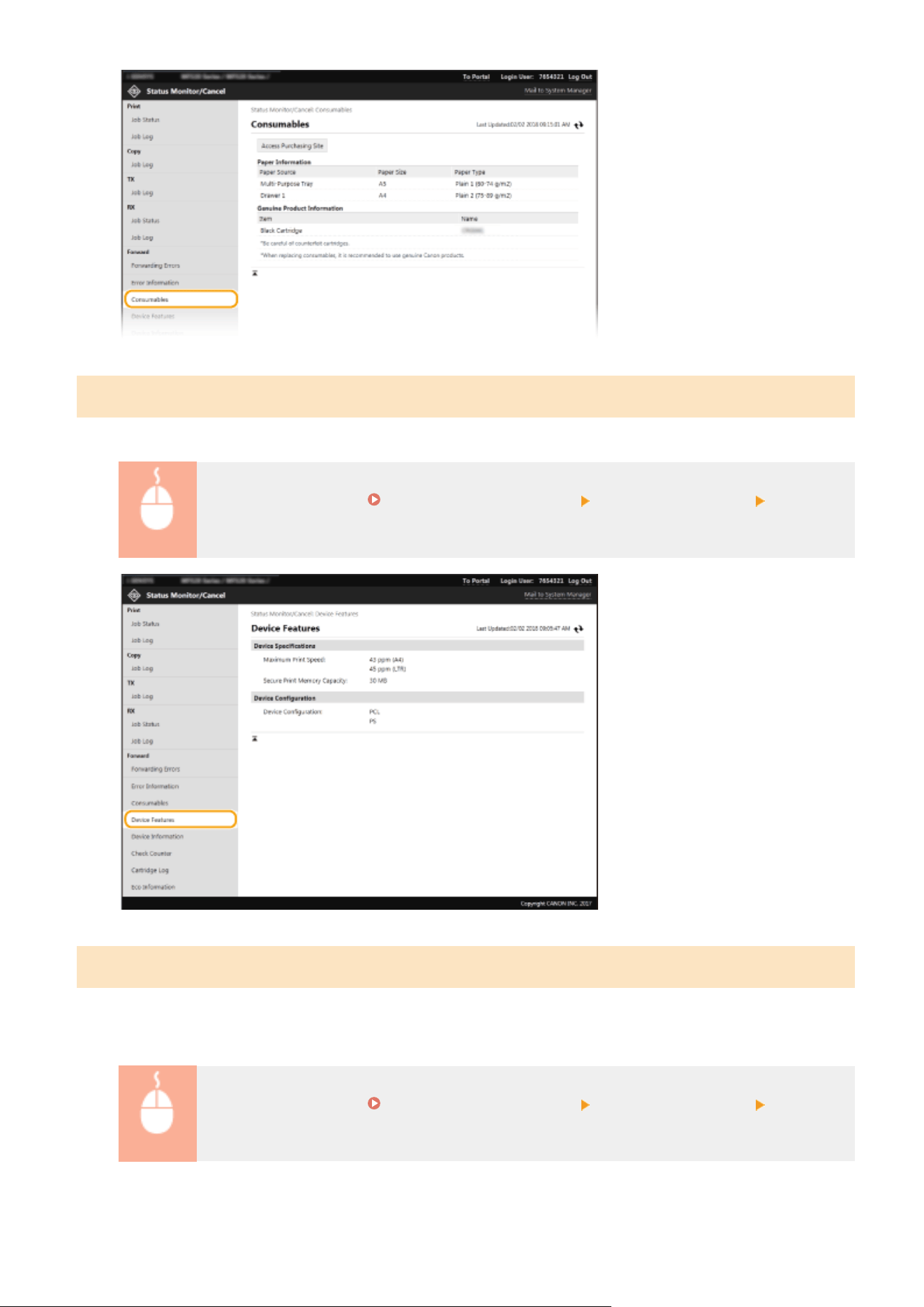
Checking Device Specications
The maximum print speed and machine featur
es are displayed.
Log in to the Remote UI ( Starting Remote UI(P. 421) ) [Status Monitor/Cancel] [Device
Featur
es]
Checking System Manager Information
Information about the machine and the system manager is displayed. The de
vice name and other system manager
information displayed here correspond to the settings in [System Manager Information] on the [User Management]
page or in [Device Information Settings] on the [Device Management] page.
Log in to the Remote UI ( Starting Remote UI(P. 421) ) [Status Monitor/Cancel] [Device
Information]
Managing the Machine
428
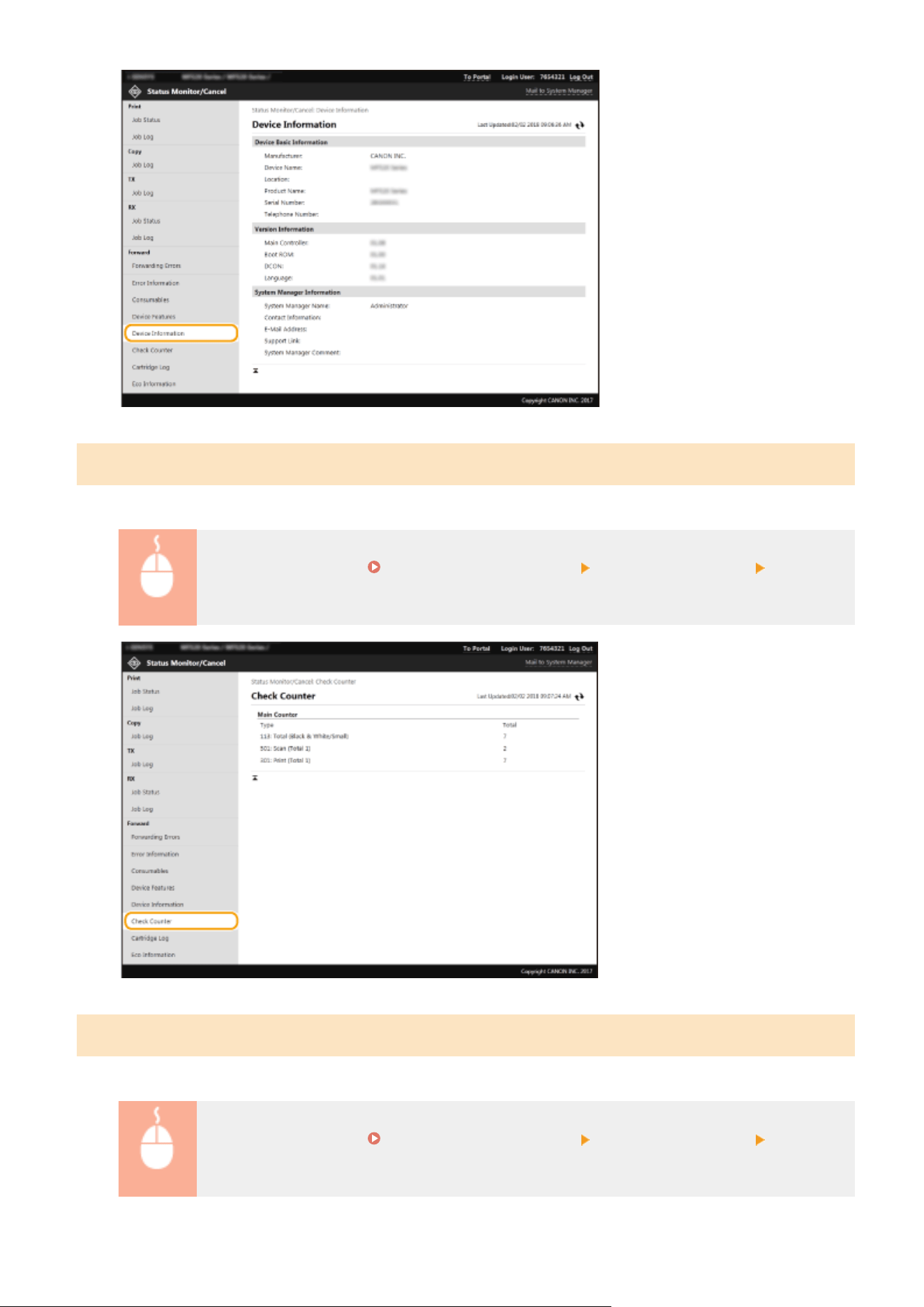
Checking Print Total Counter
The total number of pages that have been printed b
y the copy, print, and fax functions is displayed.
Log in to the Remote UI ( Starting Remote UI(P. 421) ) [Status Monitor/Cancel] [Check
Counter]
Checking History of Toner Cartridges
Y
ou can check the usage logs of toner cartridges and other logs.
Log in to the Remote UI ( Starting Remote UI(P. 421) ) [Status Monitor/Cancel] [Cartridge
Log]
Managing the Machine
429
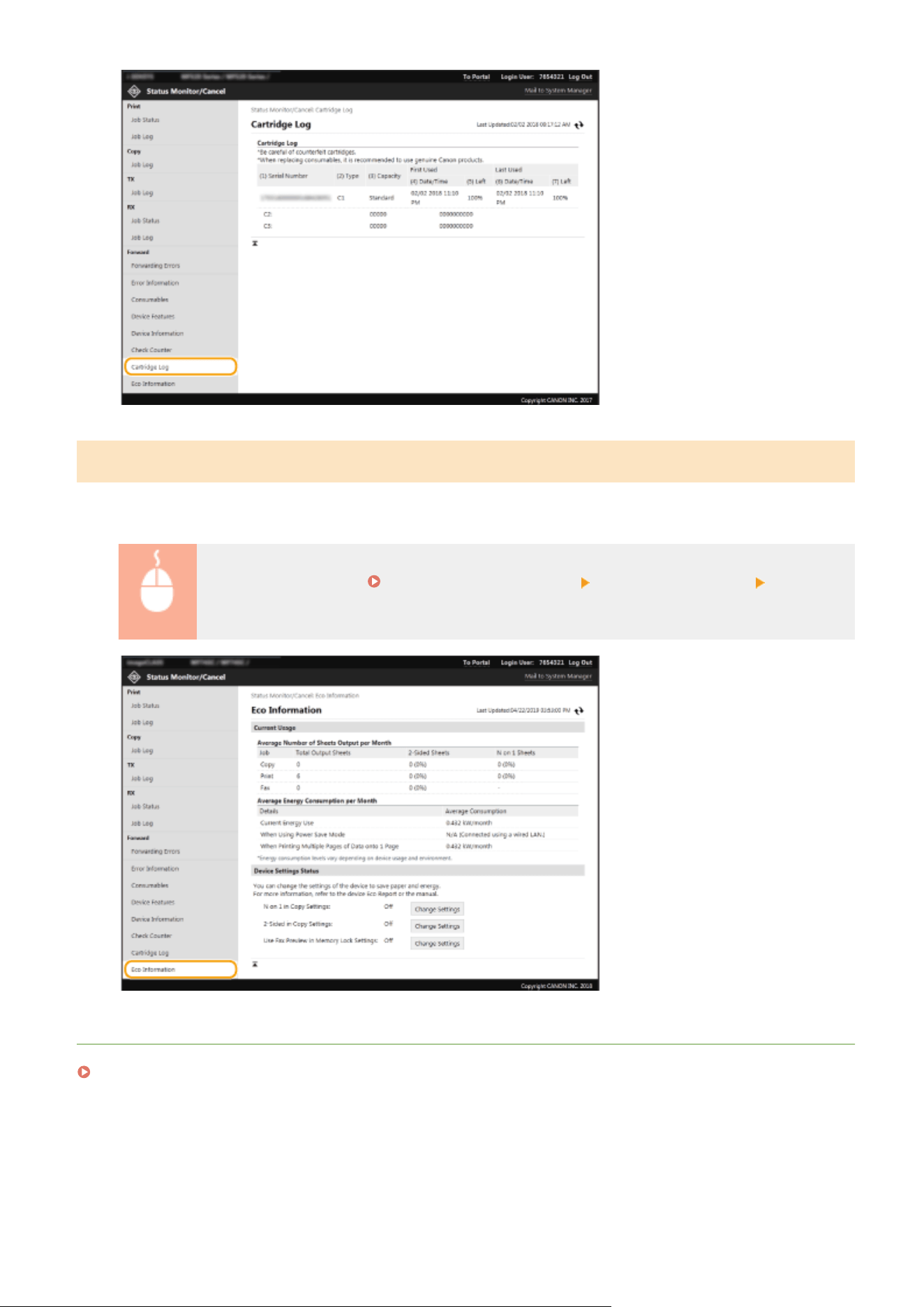
Checking Usage Status of the Machine
The monthly total volume of printouts and monthly total po
wer consumption are displayed. You can display the Eco
Information screen and change the settings to save paper and power consumption.
Log in to the Remote UI ( Starting Remote UI(P. 421) ) [Status Monitor/Cancel] [Eco
Information]
LINKS
Remote UI Screen(P. 422)
Managing the Machine
430
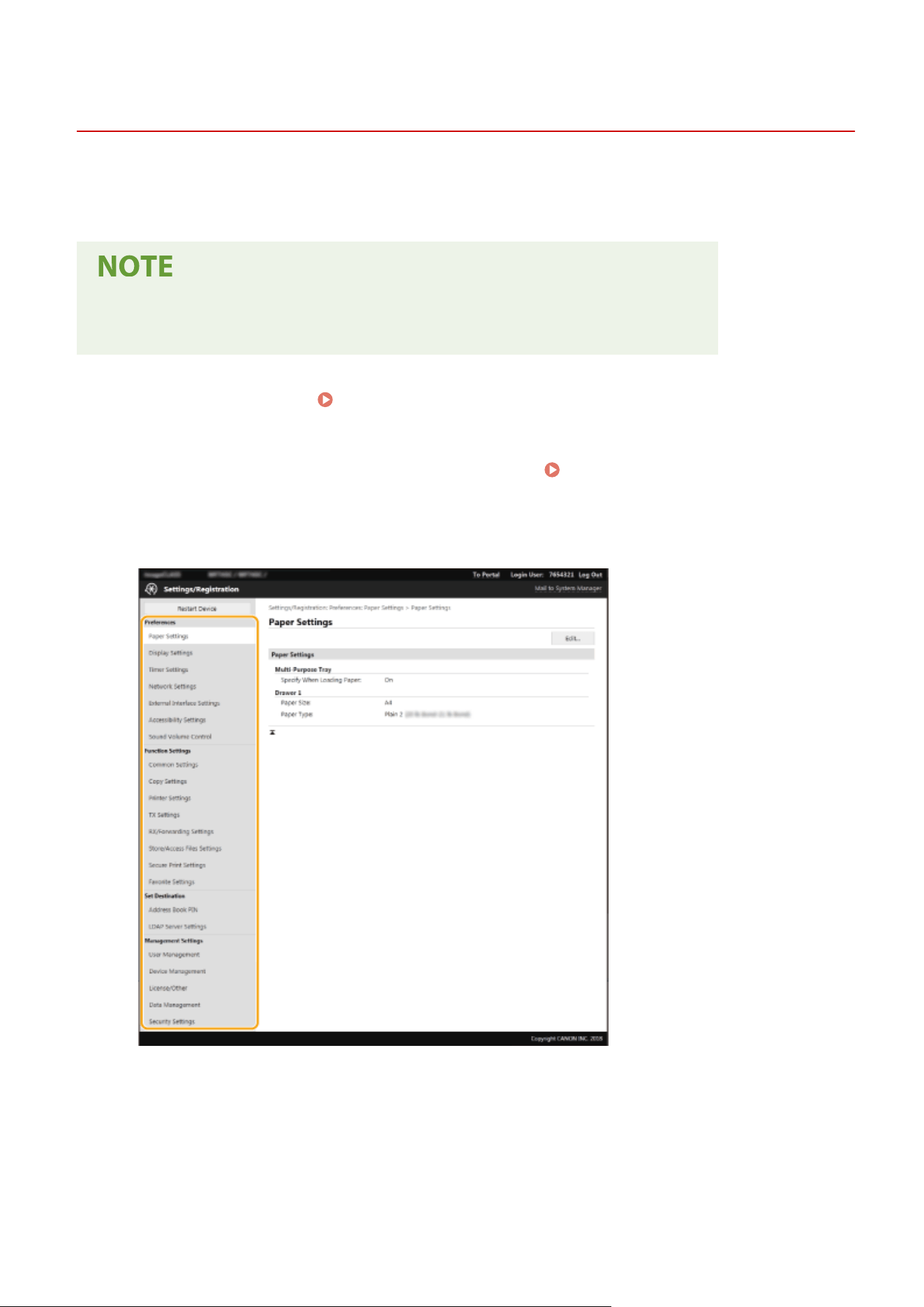
Setting Up Menu Options from Remote UI
7YWY-083
Y
ou can change the various machine settings by using the Remote UI. Most of the settings can be set also on the
machine, but some settings can only be set using the Remote UI. This section describes the basic ow of changing the
settings of the machine using the Remote UI.
● Some settings can only be changed when you have logged in to System Manager Mode.
● Some settings may r
equire operations that differ from the procedure described here.
1
Start the Remote UI.
Starting Remote UI(P. 421)
2
Click [Settings/Registration] on the Portal page.
Remote UI Screen(P. 422)
3
Click the setting you want to congur
e in the menu on the left side of the screen.
4
Click the link to display the desired page as necessary.
Managing the Machine
431
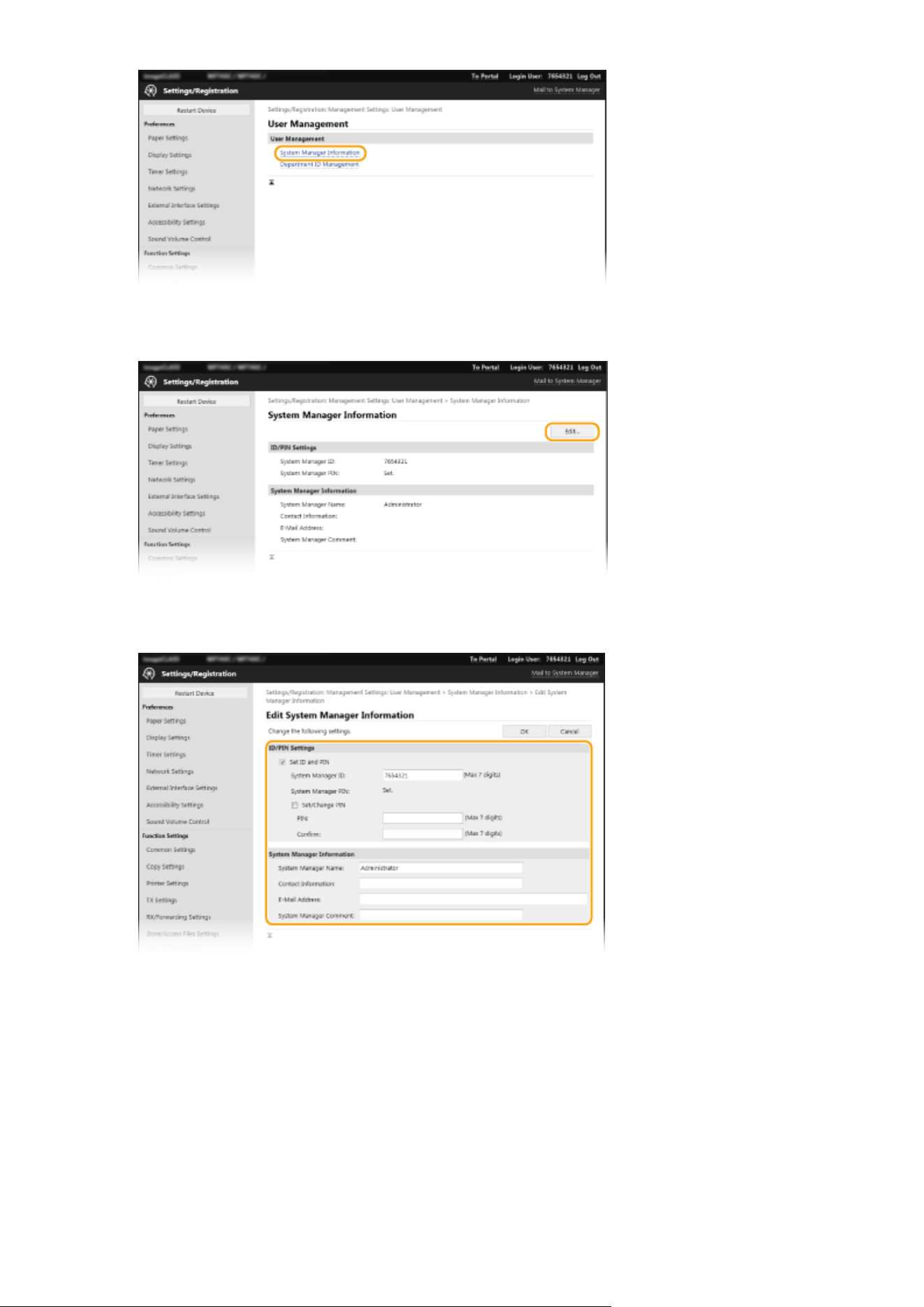
5
Click [Edit].
6
Specify the required settings.
7
Click [OK].
Managing the Machine
432
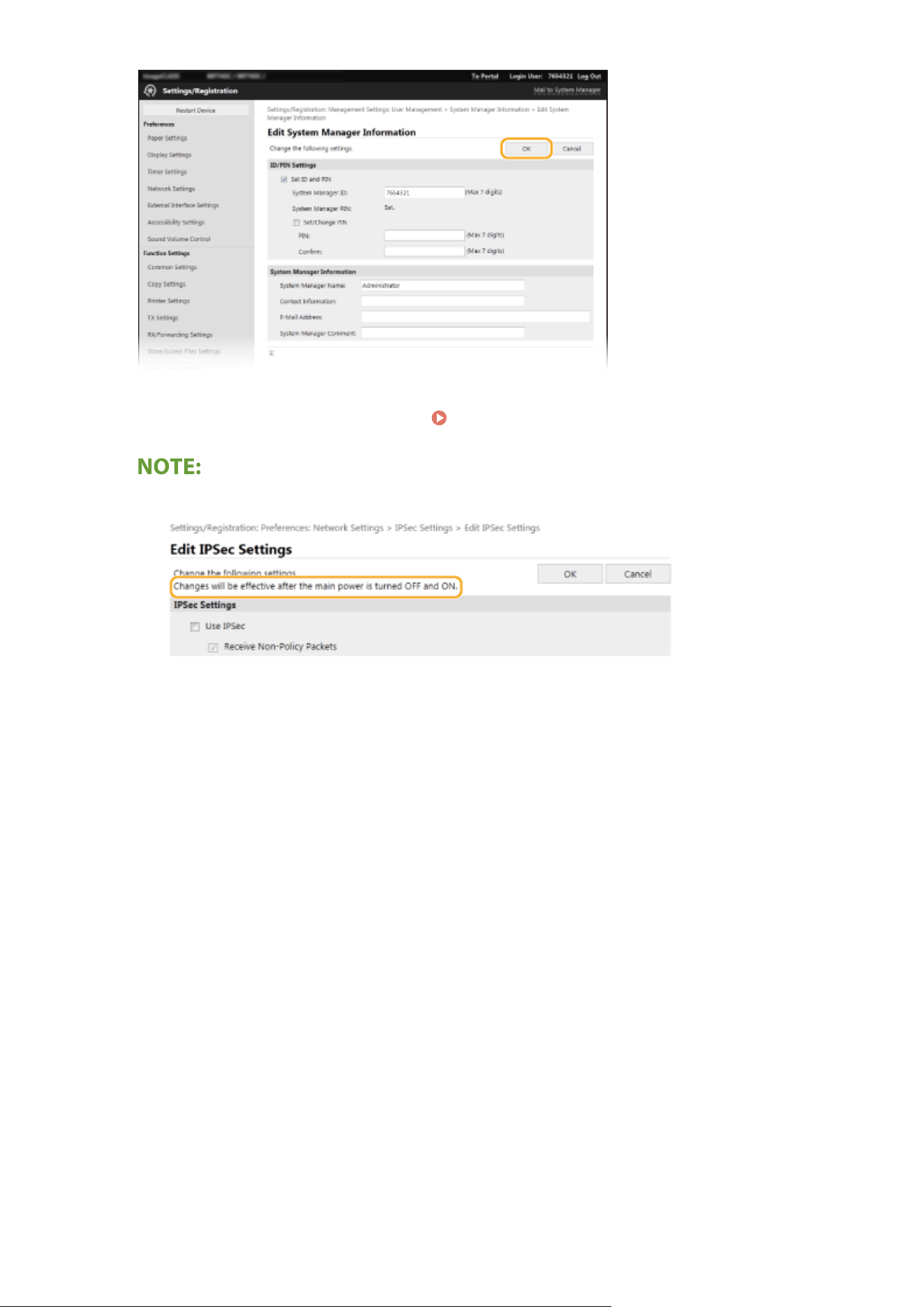
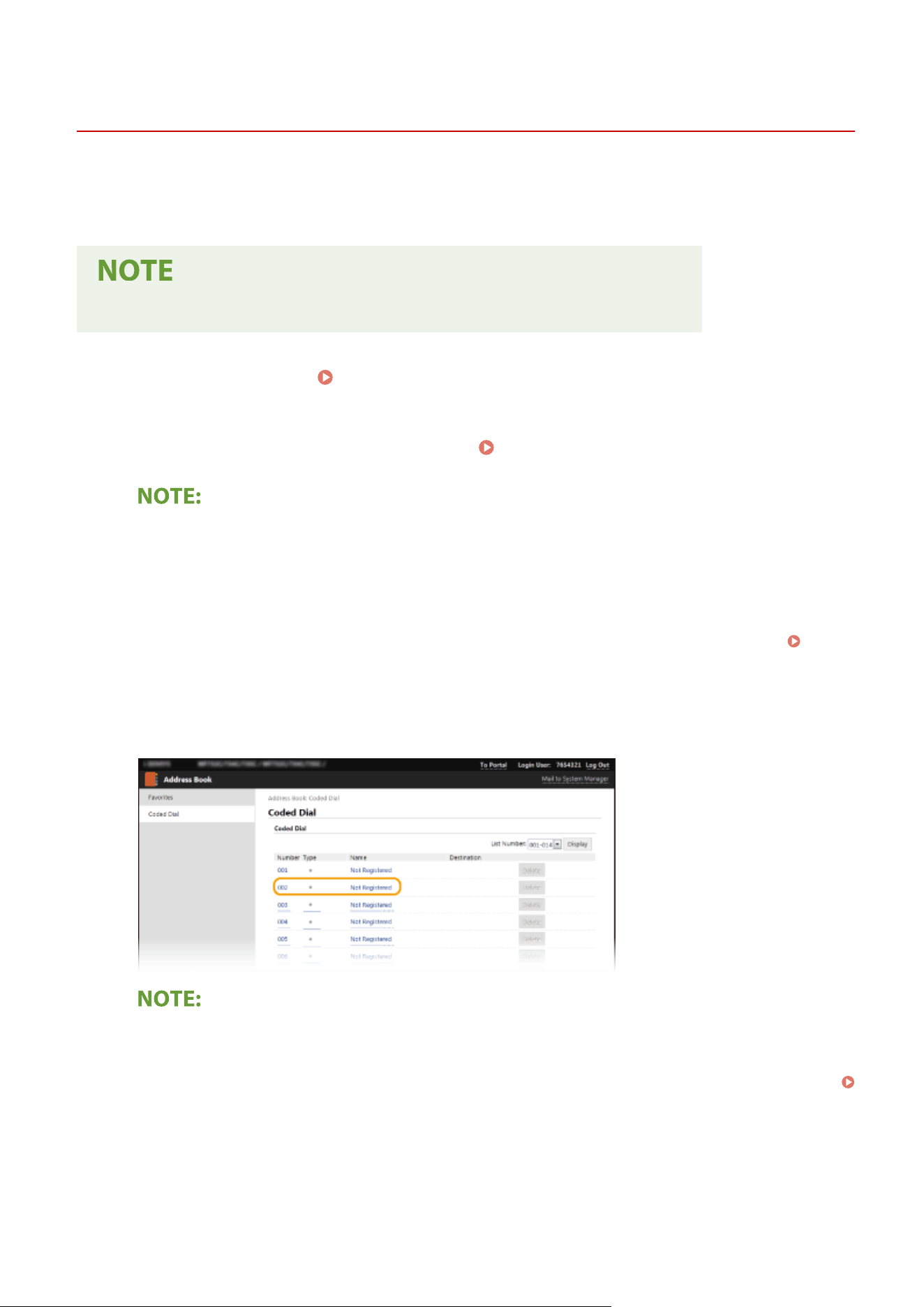
Registering Destinations from Remote UI
7YWY-084
1660-083
Y
ou can use the computer to register destinations in the Address Book of the machine and edit information of
registered destinations. Specify the shared folder or FTP server destination here.
● Y
ou can change the settings only when you have logged in to System Manager Mode.
1
Start the Remote UI.
Starting Remote UI(P. 421)
2
Click [Address Book] on the Portal page.
Remote UI Screen(P. 422)
If the enter PIN page is displayed
● The Addr
ess Book is protected by a PIN. Enter the [PIN] and click [OK].
3
Click [Coded Dial].
● Y
ou can also register destinations in Favorites. In this case, click [Favorites] instead of [Coded Dial].
Favorites(P. 181)
4
Click the text link under [Number], [Type], or [Name] for an item named "Not
Register
ed."
● Y
ou can edit a registered item by clicking the corresponding text link under [Number], [Type] or [Name].
● You can delete a registered destination by clicking the corresponding [Delete] button.
● If you delete a destination from the Address Book, it is also deleted from the favorite settings.
Registering Frequently Used Settings(P. 173)
5
Select the type of the destination to register, and click [OK].
● T
o register the shared folder or FTP server destination, select [File].
Managing the Machine
434
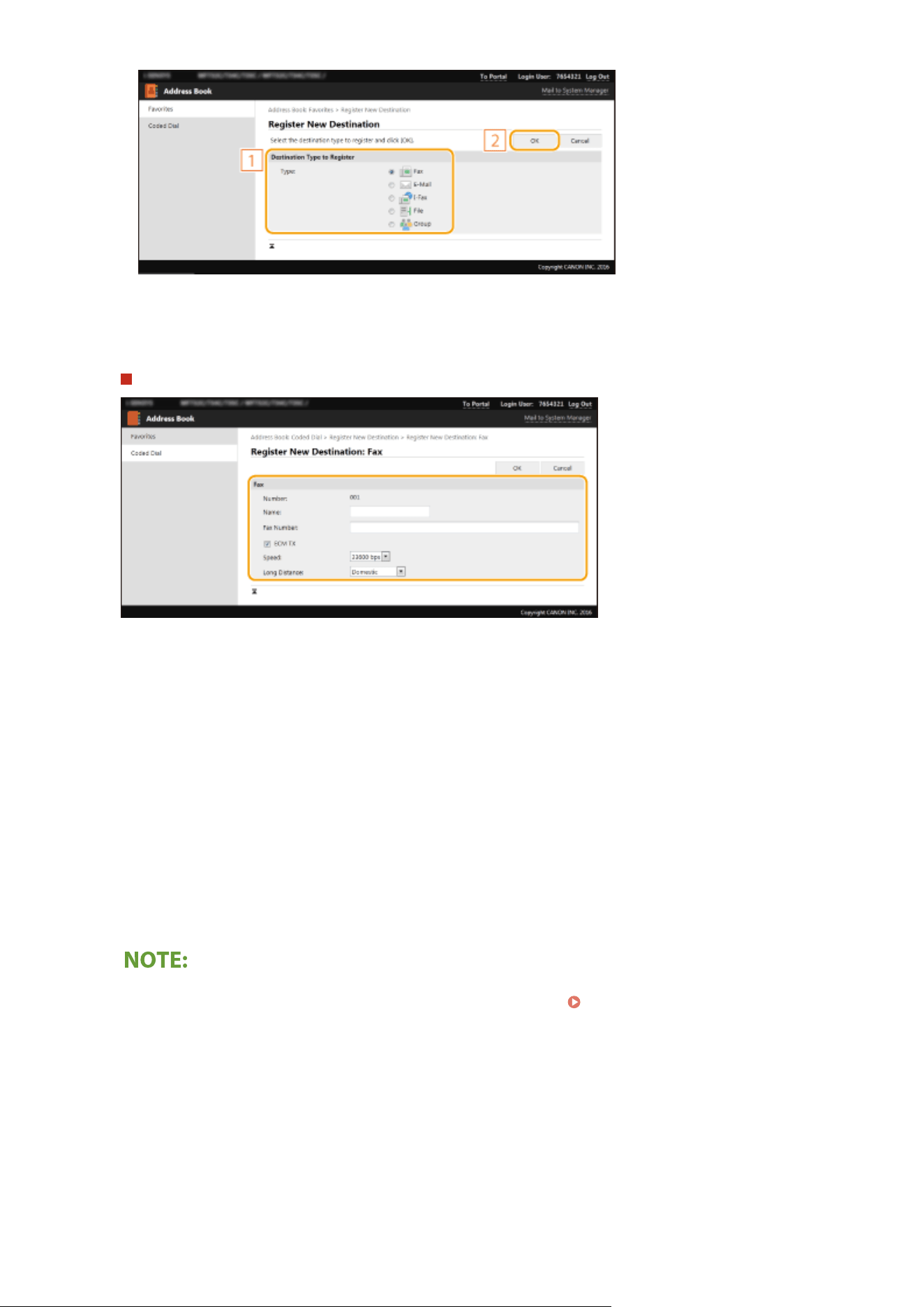
6
Specify the destination.
To register the fax destination
[Name]
Enter the name of the destination.
[Fax Number]
Enter the fax number of the destination.
[ECM TX]
Select the check bo
x to make the following possible: if an error occurs in an image that is being sent, the error is
checked and corrected to prevent an improper image from being sent.
[Speed]
If it takes time for transmissions to start, such as when there is a poor telephone connection, you can adjust the
transmission start speed downward.
[Long Distance]
Specify [International (1)] to [International (3)] according to the transmission conditions when registering
overseas fax numbers.
● Y
ou can also specify [ECM TX] and [Speed] from <Fax Settings> (
<Send>(P. 523) ) on the oper
ation panel.
However, settings made from <Address Book> are enabled for the detailed settings of destinations
registered in the Address Book.
Managing the Machine
435
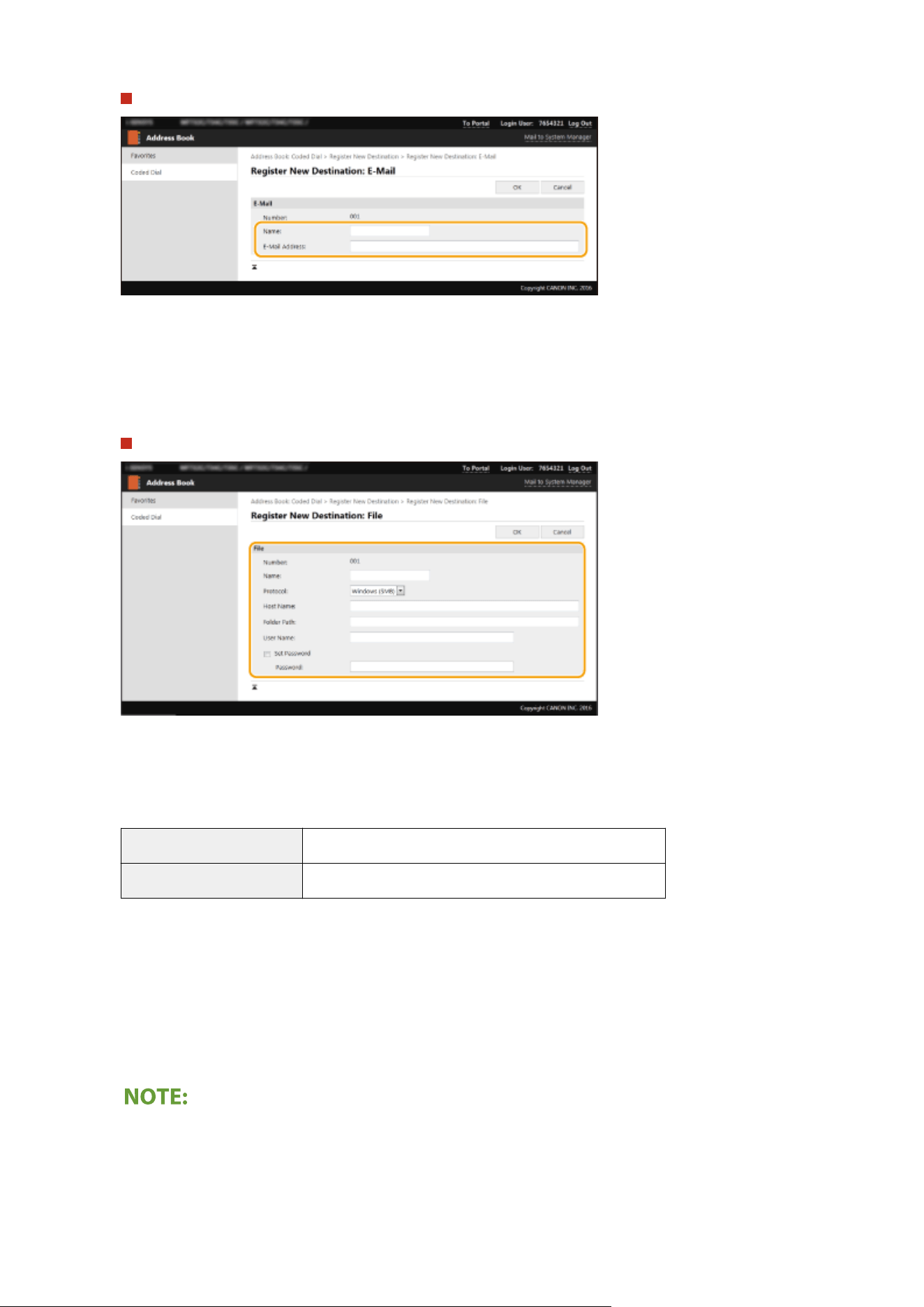
To register the e-mail or I-Fax destination
[Name]
Enter the name of the destination.
[E-Mail Addr
ess]/[I-Fax Address]
Enter the e-mail address of the destination.
To register the shared folder or FTP server destination
[Name]
Enter the name for the destination.
[Pr
otocol]
Select the protocol for the destination.
[Windows (SMB)] Select this when registering a shared folder as a destination.
[FTP] Select this when registering an FTP server as a destination.
[Host Name]
● For a shar
ed folder
Enter the computer name or IP address. You can include a path to the shared folder with the computer
name or IP address (e.g. "\\swan\share" or "\\192.168.2.100\share").
● For an FTP server
Enter the IP address of the FTP server (e.g. "192.168.2.100").
Using a DNS server
● Y
ou can also enter the host name (or FQDN) instead of the computer name or IP address (e.g. for a shared
folder: "\\swan.organization.company.com\share").
Managing the Machine
436
[Folder Path]
Enter the location of the folder to which the data will be sent.
● For a shar
ed folder
Use "\" as a separator. Specify the level that follows the path specied in [Host Name].
● For an FTP server
Use "/" as a separator. The path is an absolute path when a "/" is placed at its top, otherwise a relative path
with respective to the current directory of the user who has logged in.
● If ther
e is no folder in which the data will be stored, a folder with the specied name is automatically
created when sending is performed. However, if the specied path includes two or more non-existent
folder levels or if the user does not have a write privilege for the parent folder, no folder is created and the
process ends in a send error.
[User Name]
Enter the user name set for the shared folder or FTP server.
[Set Password]
To set a password for the shared folder or FTP server, select the check box and enter a [Password].
Ensure that the same display language is selected on both the computer and the
Remote UI.
● [Host Name] and [Folder Path] may not be displayed corr
ectly or may not be referenceable.
7
Click [OK].
LINKS
Remote UI Screen(P. 422)
Importing/Exporting the Setting Data(P. 443)
Address Book List(P. 592)
Managing the Machine
437
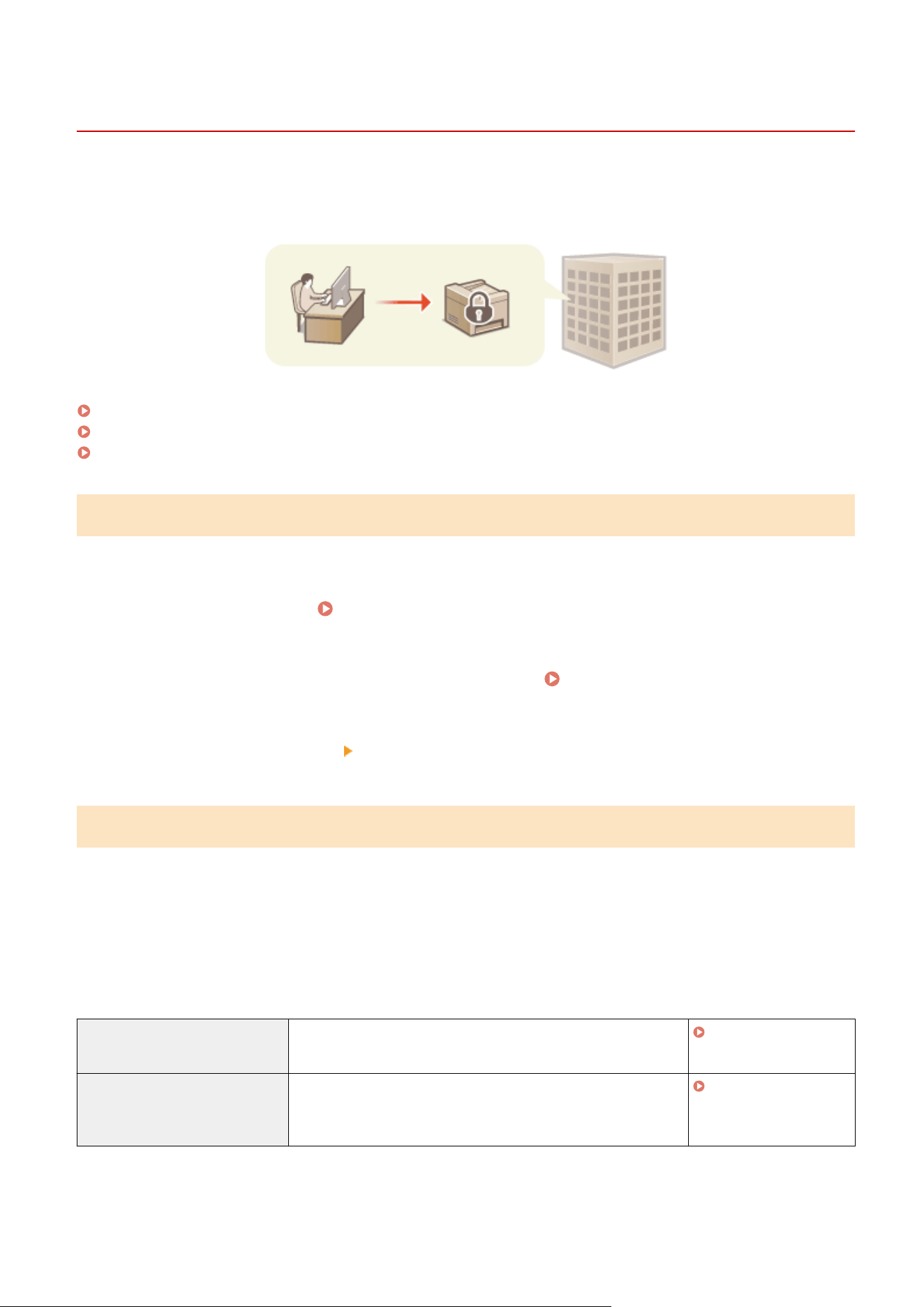
Security Policy
7YWY-085
It is a common pr
actice for organizations to adopt a security policy that denes basic information security objectives
and standards, which requires information devices such as computers and multifunctional printers to be operated
accordingly. If you have a security policy to be applied in your organization, apply it to this machine as well.
Viewing the Security Policy(P. 438)
Security Policy Items(P. 438)
To Apply the Security Policy to the Machine(P. 442)
Viewing the Security Policy
You can view the security policy set in the machine using the Remote UI.
1
Start the Remote UI.
Starting Remote UI(P. 421)
2
Click [Settings/Registration] on the Portal page. Remote UI Screen(P. 422)
3
Click [Security Settings] [Conrm Security Policy].
Security Policy Items
The follo
wing items are displayed by the Remote UI. The items for functions unavailable on this machine are also
displayed, but do not affect the machine operation.
◼ [Interface]
[Wireless Connection Policy]
Prevent unauthorized access by prohibiting wireless connections.
[Prohibit Use of Direct Connection] <Use Direct Connection> is set to <Off>. It is not possible to access
the machine fr
om mobile devices.
<Direct Connection
Settings>(P
. 464)
[Prohibit Use of Wireless LAN] <Select Wired/Wireless LAN> is set to <Wired LAN>. It is not
possible to establish a wireless connection with the machine via a
wireless LAN router or access point.
<Select Wired/Wireless
LAN>(P
. 463)
[USB Policy]
Pr
event unauthorized access and data breaches by prohibiting USB connection.
Managing the Machine
438
[Prohibit Use as USB Device] <Use as USB Device> is set to <Off>. It is not possible to
connect to a computer via USB
.
<Use as USB
De
vice>(P. 478)
[Prohibit Use as USB Storage Device] <Use USB Storage Device> is set to <Off>. It is not possible to
use USB memory devices.
<Use USB Storage
De
vice>(P. 478)
◼ [Network]
[Communication Oper
ational Policy]
Increase the security of communications by requiring the verication of signatures and certicates.
[Always Verify Signatures for SMS/
W
ebDAV Server Functions]
This function is not available on this machine, giving no
change to the security le
vel.
[Always Verify Server Certicate When
Using TLS]
The following settings in [Use TLS for SMTP] and [Use TLS for
POP] ar
e set to [On].
● [Verify Certicate]
● [Add CN to Verication Items]
The following settings in [Conrm TLS Certicate for LDAP
Server Access] of [LDAP Server (For Search)] and [LDAP Server
(For Authentication)] are set to [On].
● [Conrm TLS Certicate for LDAP Server Access]
● [Add CN to Verication Items]
Conguring E-Mail/I-
Fax Communication
Settings(P
. 90)
Registering LDAP
Servers(P
. 65)
[Prohibit Cleartext Authentication for
Server Functions]
<Dedicated Port Auth. Method> is set to <Mode 2>. When
using the machine as a server, plain text authentication and
functions that use plain text authentication are not available.
<Dedicated Port Auth.
Method>(P
. 473)
[Prohibit Use of SNMPv1] In <SNMP Settings>, <SNMPv1 Settings> is set to <Off>. It is
not possible to use SNMPv1 when obtaining device
information from the computer.
<SNMP
Settings>(P
. 472)
● This setting does not apply to communication with IEEE 802.1X networks, e
ven if [Always Verify Server
Certicate When Using TLS] is set to [On].
● If [Prohibit Cleartext Authentication for Server Functions] is set to [On] and your device management
software or driver version is old, it may not be possible to connect to the machine. Ensure that you are using
the latest versions.
[Port Usage Policy]
Pr
event external breaches by closing unused ports.
[Restrict LPD Port (Port Number: 515)] In <LPD Settings>, <Use LPD Printing> is set to <Off>. It is
not possible to perform LPD printing.
<LPD Settings>(P. 470)
[Restrict RAW Port (Port Number: 9100)] In <RAW Settings>, <Use RAW Printing> is set to <Off>. It is
not possible to perform RA
W printing.
<RAW
Settings>(P
. 470)
[Restrict FTP Port (Port Number: 21)] This function is not available on this machine, giving no
change to the security level.
[Restrict WSD Port (Port Number: 3702,
60000)]
The following settings in <WSD Settings> are set to <Off>.
It is not possible to use WSD functions.
● <Use WSD Printing>
<WSD
Settings>(P
. 470)
Managing the Machine
439
● <Use WSD Br
owsing>
● <Use WSD Scanning>
● <Use Computer Scanning>
● <Use Multicast Discovery>
[Restrict BMLinkS Port (Port Number:
1900)]
This function is not available on this machine, giving no
change to the security level.
[Restrict IPP Port (Port Number: 631)] Part of the settings to enable printing from mobile devices
using applications will be turned <Off>, disabling part of
printing fr
om mobile devices using applications.
Linking with Mobile
De
vices(P. 326)
[Restrict SMB Port (Port Number: 137, 138,
139, 445)]
This function is not available on this machine, giving no
change to the security level.
[Restrict SMTP Port (Port Number: 25)] This function is not available on this machine, giving no
change to the security le
vel.
[Restrict Dedicated Port (Port Number:
9002, 9006, 9007, 9011-9015, 9017-9019,
9022, 9023, 9025, 20317, 47545-47547)]
<Use Dedicated Port> is set to <Off>. It is not possible to
use dedicated ports.
<Use Dedicated
Port>(P
. 473)
[Restrict Remote Operator's Software Port
(Port Number: 5900)]
This function is not available on this machine, giving no
change to the security le
vel.
[Restrict SIP (IP Fax) Port (Port Number:
5004, 5005, 5060, 5061, 49152)]
This function is not available on this machine, giving no
change to the security le
vel.
[Restrict mDNS Port (Port Number: 5353)] The following settings will be turned <Off>, and part of the
settings to enable printing fr
om mobile devices using
applications will also be turned <Off>. It will be disabled to
search the network or perform automatic settings using
mDNS. In addition, part of printing from mobile devices
using applications will be disabled as well.
● <mDNS Settings> (IPv4)
● <mDNS Settings> (IPv6)
<mDNS
Settings>(P
. 469)
Linking with Mobile
De
vices(P. 326)
[Restrict SLP Port (Port Number: 427)] In [Multicast Discovery Settings], [Discovery Response] is
set to [Off]. It is not possible to search the network or
perform automatic settings using SLP.
Conguring SLP
Communication with
De
vice Management
Software(P. 76)
[Restrict SNMP Port (Port Number: 161)] In <SNMP Settings>, the <SNMPv1 Settings> and <SNMPv3
Settings> are set to <Off>, and <Scan w/Canon PRINT
Business> is set to <Off>. It is not possible to obtain device
information from the computer or congure settings using
SNMP.
<SNMP
Settings>(P
. 472)
<Scan w/Canon PRINT
Business>(P
. 553)
◼ [Authentication]
[Authentication Oper
ational Policy]
[Prohibit Guest Users to Use Device] This function is not available on this machine, giving no change to the security level.
[Force Setting of Auto Logout] This function is not available on this machine, giving no change to the security level.
[Passwor
d Operational Policy]
Managing the Machine
440
[Prohibit Caching of Password for External Servers] This function is not available on this machine, giving no change to the
security le
vel.
[Display Warning When Default Password Is in Use] This function is not available on this machine, giving no change to the
security le
vel.
[Prohibit Use of Default Password for Remote Access] This function is not available on this machine, giving no change to the
security le
vel.
[Passwor
d Settings Policy]
[Minimum Number of Characters for Password] This function is not available on this machine, giving no change to
the security le
vel.
[Password Validity Period] This function is not available on this machine, giving no change to
the security le
vel.
[Prohibit Use of 3 or More Identical Consecutive
Char
acters]
This function is not available on this machine, giving no change to
the security level.
[Force Use of at Least 1 Uppercase Character] This function is not available on this machine, giving no change to
the security le
vel.
[Force Use of at Least 1 Lowercase Character] This function is not available on this machine, giving no change to
the security le
vel.
[Force Use of at Least 1 Digit] This function is not available on this machine, giving no change to
the security le
vel.
[Force Use of at Least 1 Symbol] This function is not available on this machine, giving no change to
the security le
vel.
[Lock
out Policy]
Block users from logging in for a specied period of time after a certain number of consecutive invalid login attempts.
[Enable Lockout] In <Lockout>, <Enable Lockout> is set to <On>. Specify the values for
<Lockout Threshold> and <Lockout Period>.
<Lockout>(P. 559)
◼ [Ke
y/Certicate]
Protect important data by preventing the use of weak encryption, or by saving encrypted user passwords and keys in a
designated hardware component.
[Prohibit Use of Weak Encryption] <Prohibit Use of Weak Encrypt.> is set to <On>. It is not
possible to use weak encryption.
<Encryption
Settings>(P
. 559)
[Prohibit Use of Key/Certicate with Weak
Encryption]
In <Prohibit Use of Weak Encrypt.>, <Prohibit Weak Encryp.
Key/Cert.> is set to <On>. It is not possible to use a key or
certicate with weak encryption.
<Encryption
Settings>(P
. 559)
[Use TPM to Store Password and Key] This function is not available on this machine, giving no
change to the security level.
Managing the Machine
441
◼ [Log]
[Force Recording of Audit Log] This function is not available on this machine, giving no change to the security level.
[Force SNTP Settings] This function is not available on this machine, giving no change to the security level.
◼ [
Job]
[Printing Policy]
[Prohibit Immediate Printing of Received Jobs] This function is not available on this machine, giving no change to the
security le
vel.
[Sending/Receiving Policy]
Limit the sending oper
ations for destinations, and limit how received data is processed.
[Allow Sending Only to Registered
Addr
esses]
<Restrict New Destinations> is set to <On>. It is only
possible to send to destinations that are registered in the
Address Book.
<Restrict New
Destinations>
(P. 523)
[Force Conrmation of Fax Number] <Conrm Entered Fax Number> is set to <On>. Users are
required to enter a fax number again for conrmation when
sending a fax.
<Conrm Enter
ed Fax
Number>(P. 532)
[Prohibit Auto Forwarding] In <Forwarding Function>, the <Use Forwarding Function> is
set to <Off>. It is not possible to automatically forward
faxes.
<Forwarding
Settings>(P
. 540)
◼ [Stor
age]
[Force Complete Deletion of Data] This function is not available on this machine, giving no change to the security level.
To Apply the Security Policy to the Machine
Y
ou can import the security policy edited on the imageRUNNER ADVANCE Series or using Device Management
Software to apply it to this machine. In addition, you can export the security policy as applied to this machine to apply
it to other machines
*
.
Importing/Exporting the Setting Data(P. 443)
*
Only Canon de
vices that are compatible with security policy settings
● The security policy settings can only be imported if the security policy setting passwor
d on the exporting
machine matches that of the importing machine, or if no password has been set for the importing machine.
If no password has been set for the importing machine, the password congured for the exporting machine
is set to the importing machine.
● You cannot set or change the security policy on this machine.
Managing the Machine
442
Importing/Exporting the Setting Data
7YWY-086
Address Book and machine settings data can be saved on your computer (export). Data that is saved on your
computer can also be r
egistered in the machine (import). You can easily copy the destinations in the Address Book
to multiple machines.
*
To use these features, it is required that you have logged in to System Manager Mode.
*
If using the same model, you can import/export machine settings data.
Exporting the Setting Data(P. 443)
Importing the Setting Data(P. 444)
Do not turn OFF the machine until the import or export process is complete
● It may tak
e a few minutes to complete the process. If the machine is turned OFF during the process, it may
result in damage to data or the machine.
Do not operate the machine during the import or export process
● Before importing/exporting, check that no operation such as printing documents is currently proceeding.
● For the settings that cannot be imported/exported, see Setting Menu List(P. 451) .
● You can also import/export settings data via a USB memory device by using the operation panel of the
machine. <Import/Export>(P. 557)
● For more information about the basic operations to be performed when setting the machine from the
Remote UI, see Setting Up Menu Options from Remote UI(P. 431) .
Exporting the Setting Data
You can export Address Book and machine settings data, and save them on a computer. You can export Address Book
data as a device conguration information le (*.dcm) or Canon Address Book le (*.abk). Select the device
conguration information le type to save the data as a backup copy or copy the Address Book data to the same
machine model. Select the Canon Address Book le type to copy the Address Book data to the fax driver or a different
machine model. It is recommended that you regularly back up important settings.
1
Start the Remote UI and log in to System Manager Mode.
Starting Remote
UI(P
. 421)
2
Click [Settings/Registration] on the Portal page.
Remote UI Screen(P. 422)
3
Select [Data Management] [Export].
4
Select the settings to export, and specify the encryption password.
Managing the Machine
443
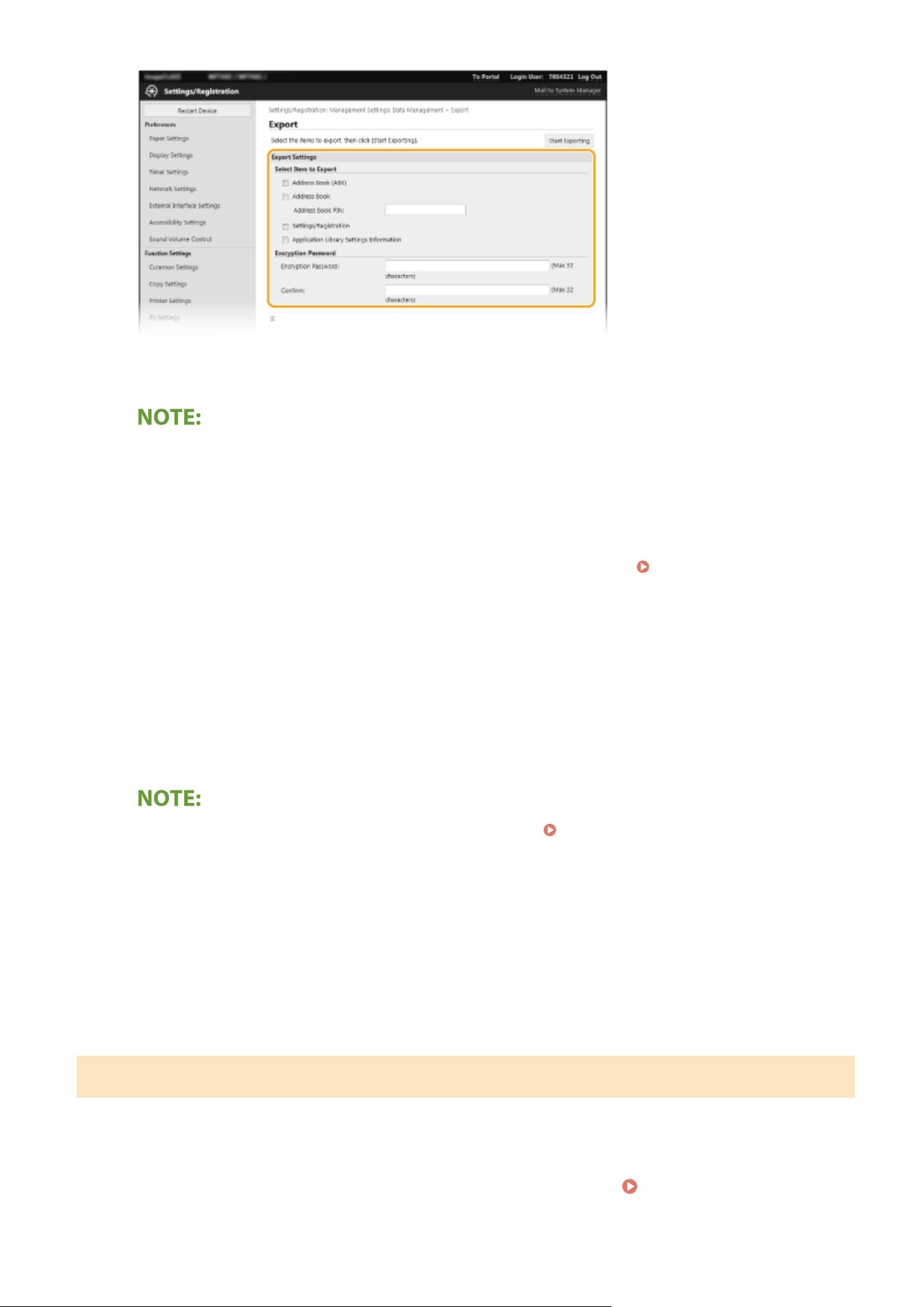
[Address Book (ABK)]
Select the check bo
x to export the Address Book data as a Canon Address Book le (*.abk).
● If
the [Address Book (ABK)] check box is selected, you cannot export the settings of the machine at the
same time with the Address Book data.
[Address Book]
Select the check box to export the Address Book data as a device conguration information le (*.dcm).
[Address Book PIN]
If the Address Book is code-protected, enter the code for the Address Book.
Restricting Use of the
Addr
ess Book(P. 409)
[Settings/Registration]
Select the check box to export machine settings data.
[Application Library Settings Information]
Select the check box to export the Application Library settings data.
[Encryption Password]
Enter a password to encrypt the export data using alphanumeric characters. Enter the same password in
[Conrm]. If the [Address Book] or [Settings/Registration] check box is selected, the data cannot be exported
without an encryption password set.
● The passwor
d is required when exported data is imported.
Importing the Setting Data(P. 444)
5
Click [Start Exporting].
6
Follow the on-screen instructions to specify the location where to save the exported
data.
➠ The setting data will be saved.
Importing the Setting Data
Load (import) data that was e
xported from the machine. You can also import machine settings data from another
machine to your machine if the models are the same.
1
Start the Remote UI and log in to System Manager Mode.
Starting Remote
UI(P
. 421)
Managing the Machine
444
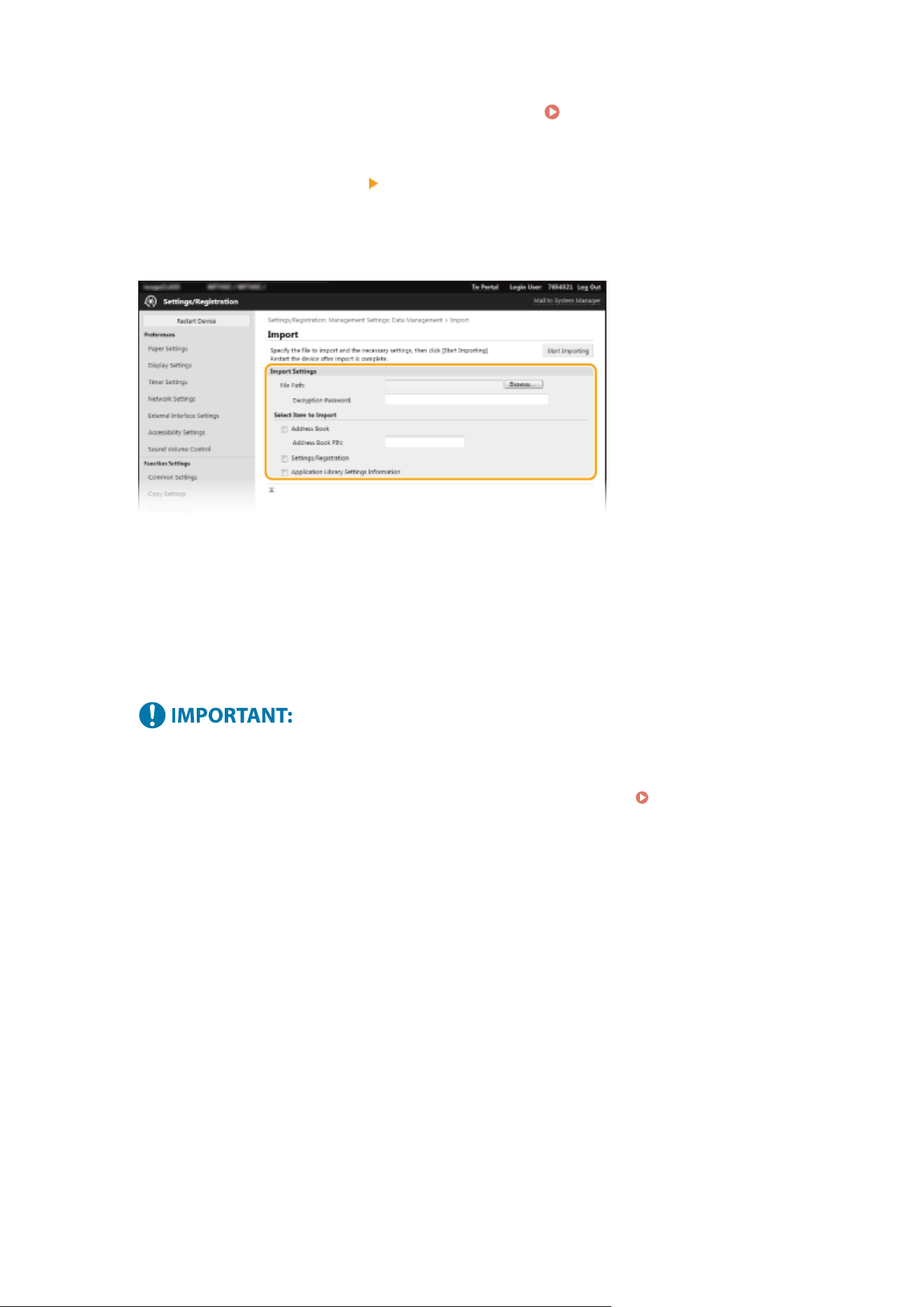
2
Click [Settings/Registration] on the Portal page.
Remote UI Screen(P. 422)
3
Select [Data Management] [Import].
4
Specify the le, enter the passwor
d, and select the settings to import.
[File Path]
Click [Browse] and select the le. You can only import a device conguration information le (*.dcm) and a
Canon Address Book le (*.abk). If you select the Canon Address Book le type, you do not need to set any
other items.
[Decryption Password]
Enter the password set when the settings were exported.
[Address Book]
Select the check box to import Address Book data.
● Importing Addr
ess Book data will overwrite the Address Book entries currently registered on the machine.
[Address Book PIN]
If the Address Book is code protected, enter the code for the Address Book.
Restricting Use of the
Addr
ess Book(P. 409)
[Settings/Registration]
Select the check box to import machine settings data.
[Application Library Settings Information]
Select the check box to import the Application Library settings data.
5
Click [Start Importing].
6
Click [OK].
➠ The selected settings data is loaded into the machine.
7
Click [OK].
➠ If the [Settings/Registr
ation] check box is selected in step 4, the machine automatically restarts.
Managing the Machine
445
Updating the Firmware
7YWY-087
For the rmwar
e, select the method of update depending on the installation condition of the machine. There are two
methods of update: the one is to access the latest rmware version on the Internet from the machine and perform the
update if the version currently installed in the machine is not the latest, and the other is to access the latest rmware
version on the Internet from a computer and perform the update from the computer if the version currently installed
in the machine is not the latest. In an environment where connection to the Internet cannot be established via a
wireless LAN, establish connection via a wired LAN or USB and perform the update from the computer.
Installation Condition of the Machine How to Install the Update
Wireless LAN connection Updating via the Internet(P. 446)
Wired LAN connection Updating via the Internet(P. 446)
Updating from a Computer(P. 447)
USB connection Updating from a Computer(P. 447)
● If you ar
e in an IPv6 environment, you cannot perform rmware update. Use USB to re-establish connection,
and perform the update from the computer.
Checking the rmwar
e version
● You can check the rmware version from the operation panel of the machine. After completion of the
rmware update operation, make sure that the update was performed correctly.
Checking the Firmware
V
ersion(P. 447)
Updating via the Internet
Y
ou can access the Canon server from the machine to update the rmware to the latest version.
1
Select <Update Firmware> in the Home screen.
Home Screen(P. 125)
➠ A check for e
xistence of the latest rmware is performed.
● If
the <This is the latest rmware version.> message is displayed, there is no need to update the
rmware.
2
When a license screen appears, select <Accept>.
3
Select <OK>.
➠ When the rmwar
e update is complete, the machine restarts automatically.
Managing the Machine
446
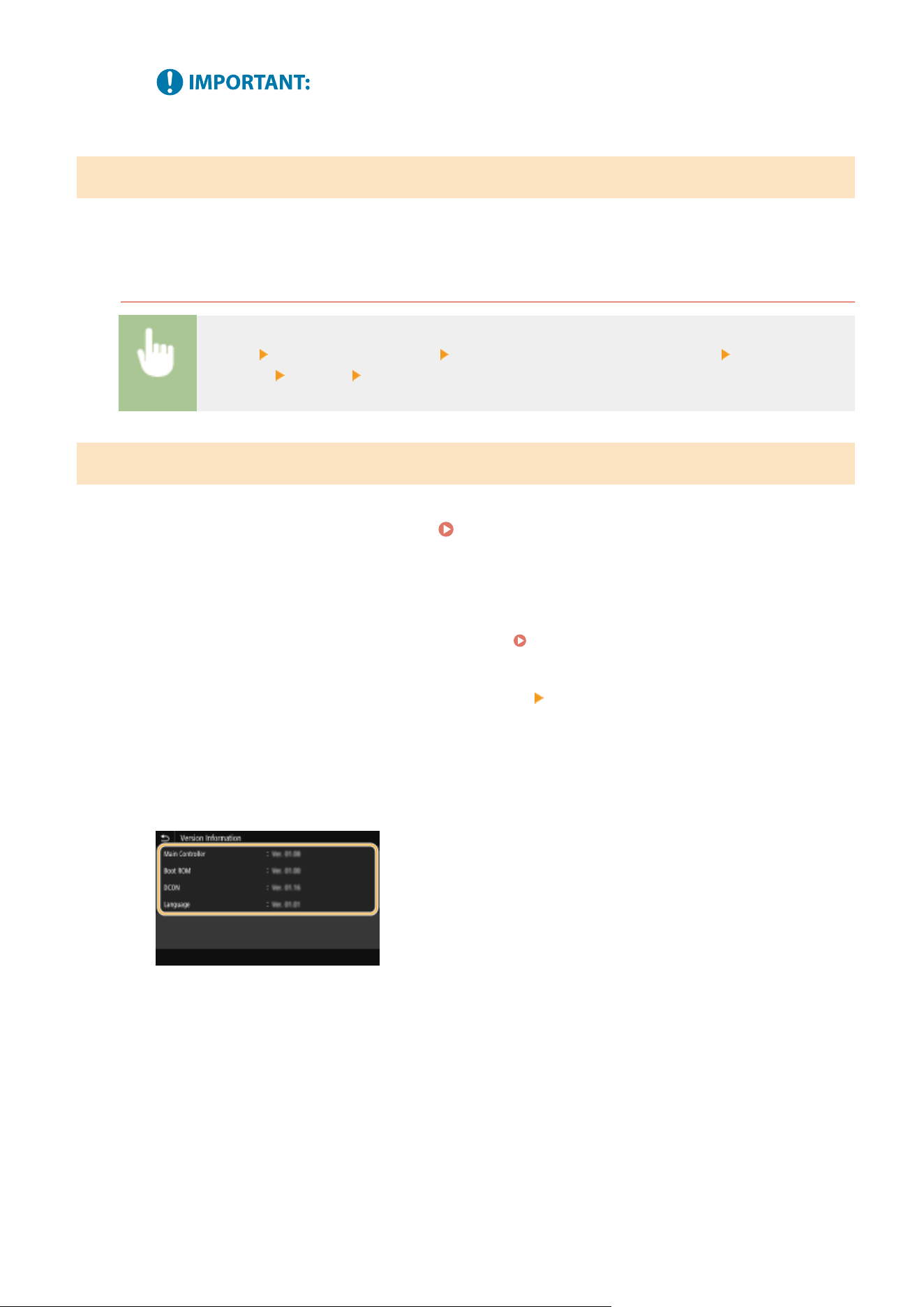
● Do not turn OFF the machine while the r
estart is in progress.
Updating from a Computer
When you have do
wnloaded the latest rmware version from the Canon website, use "User Support Tool" utility
software to update the rmware from a computer. For how to perform rmware update from a computer, see the
"User Support Tool Operation Guide" included with the rmware.
To Put the Machine into a Firmware Update Waiting State
<Menu> <Management Settings> <Remote UI Settings/Update Firmware> <Update
Firmwar
e>
<Via PC> <Yes>
Checking the Firmware Version
1
Select <Menu> in the Home screen.
Home Screen(P. 125)
2
Select <Management Settings>.
● If the login scr
een appears, enter the correct ID and PIN.
Logging in to the Machine(P. 136)
3
Select <Remote UI Settings/Update Firmware> <Update Firmware>.
4
Select <Version Information>.
➠ The curr
ent rmware version is displayed.
Managing the Machine
447
Initializing Settings
7YWY-088
You can restore the following settings:
Initializing Menu(P. 448)
Initializing Key and Certicate(P
. 448)
Initializing Address Book(P. 449)
Initializing All Data/Settings(P. 449)
Initializing Menu
You can restore the settings of the machine ( Setting Menu List(P. 451) ). Depending on the settings selected, you
may need to r
estart the machine after initialization.
<Menu> <Management Settings> <Data Management> <Initialize Menu> Select the item
you want to initialize <Yes> (Restart the machine if necessary)
● Y
ou can restore the settings only for <Network> in <Preferences>.
<Menu>
<Preferences> <Network> <Initialize Network Settings> <Yes> <OK> Restart the
machine
Initializing Key and Certicate
Y
ou can restore the settings of the key and certicate and the CA certicate. Note that all the keys and certicates and
CA certicates that you registered in the machine (except the preinstalled keys and CA certicates) will be deleted after
initializing.
● After initializing, functions that r
equire a key and certicate such as TLS encrypted communication and IKE
of IPSec communication are not available. To use these functions, congure the settings for the key and
certicate and activate the functions again.
<Menu> <Management Settings> <Data Management> <Initialize Key and
Certicate> <Yes>
Managing the Machine
448
Initializing Address Book
You can restore the settings of the Address Book. Note that all the information registered in the Address Book will be
deleted after initializing.
<Menu> <Management Settings> <Data Management> <Initialize Address
Book> <Yes>
Initializing All Data/Settings
This enables restoration of all data and machine settings, including logs, to the factory default values. This prevents
sensitive data from being leaked when replacing or disposing of the machine. When the initialization process nishes,
the machine automatically restarts.
● Befor
e initializing, make sure that there are no documents being processed or waiting to be processed.
These documents will be deleted when initialization is performed.
● To use the machine after initializing it, you need to congure all settings from the beginning.
<Menu> <Management Settings> <Initialize All Data/Settings> <Yes> <Yes>
LINKS
Conguring the Ke
y and Certicate for TLS(P. 381)
Registering Destinations(P. 181)
Registering Destinations from Remote UI(P. 434)
Managing the Machine
449

Setting Menu List
Setting Menu List ...........................................................................................................................................
451
<Preferences> .................................................................................................................................................... 452
<Display Settings> ........................................................................................................................................ 453
<English Keyboard Layout> .......................................................................................................................... 458
<Timer/Energy Settings> .............................................................................................................................. 459
<Network> .................................................................................................................................................... 463
<External Interface> ..................................................................................................................................... 478
<Accessibility> .............................................................................................................................................. 479
<Adjustment/Maintenance> ............................................................................................................................. 480
<Adjust Image Quality> ................................................................................................................................ 481
<Maintenance> ............................................................................................................................................. 490
<Function Settings> .......................................................................................................................................... 491
<Common> ................................................................................................................................................... 492
<Copy> ......................................................................................................................................................... 497
<Printer> ...................................................................................................................................................... 499
<Send> ......................................................................................................................................................... 523
<Receive/Forward> ....................................................................................................................................... 535
<Store/Access Files> ..................................................................................................................................... 541
<Secure Print> .............................................................................................................................................. 547
<Set Destination> .............................................................................................................................................. 548
<Management Settings> ................................................................................................................................... 549
<User Management> .................................................................................................................................... 550
<Device Management> ................................................................................................................................. 551
<Remote UI Settings/Update Firmware> ...................................................................................................... 555
<Data Management> .................................................................................................................................... 557
<Security Settings> ....................................................................................................................................... 559
Setting Menu List
450
Setting Menu List
7YWY-089
Y
ou can customize the machine based on your environment and needs by conguring settings described in this
chapter. To start conguration, select <Menu> on the Home screen (
Home Screen(P. 125) ). This section describes
what each item in the setting menu can congur
e.
● Refer to the PDF le included in the User
's Guide that summarizes the setting menu.
Menu Route
Map
(P. 646)
<Preferences>(P. 452) This section describes the display and network settings.
<Adjustment/Maintenance>(P. 480) This section describes how to adjust print image quality and the cleaning functions of the
machine.
<Function Settings>(P. 491) This section describes the settings for the individual functions.
<Set Destination>(P. 548) This section describes the Address Book settings.
<Management Settings>(P. 549) This section describes the user and hardware information management, security
settings, etc.
● You can print the setting menu in list form to check the current settings: Printing Lists of
Settings(P. 592)
Setting Menu List
451
<Preferences>
7YWY-08A
Item Description
<Display Settings>(P. 453) This section describes the settings related to viewing of the display.
<English Keyboard Layout>(P. 458) This section describes the USB keyboard settings.
<Timer/Energy Settings>(P. 459) This section describes the timer settings and energy settings.
<Network>(P. 463) This section describes the network settings.
<External Interface>(P. 478) This section describes the USB settings and other relevant settings.
<Accessibility>(P. 479) This section describes settings for improving accessibility, such as inverting the screen
colors and setting the message display time.
Setting Menu List
452
<Display Settings>
7YWY-08C
All the settings r
elated to viewing of the display are listed with descriptions. Default settings are marked with a dagger
(
).
<Default Screen After Startup/Restoration>(P. 453)
<Home Screen Button Display Settings>(P. 454)
<Language>(P. 454)
<Remote UI Language>(P. 454)
<Notify to Clean Orig. Scan Area>(P. 455)
<Millimeter/Inch Entry Switch>(P. 455)
<Gram/Pound Switch>(P. 455)
<Display Timing for Cart. Prep.>(P. 456)
<Display Notif. to Clean Fixing Assembly>(P. 456)
<Show Warnings>(P. 456)
<Action When Warning>(P. 457)
<Display IP Address>(P. 457)
Asterisks (
*
)
● Settings mark
ed with "
*1
" may not be displayed depending on the model you are using, options, or other
setting items.
● Settings marked with "
*2
" cannot be imported or exported.
● Settings marked with "
*3
" may be unavailable or vary or have different defaults depending on your country
or region.
<Default Screen After Startup/Restoration>
By default, the Home scr
een is displayed immediately after the machine is turned ON or when the Auto Reset function
is performed. Specify the setting to change the default screen and display the main screen of a different function. If
you specify <Status Monitor>, also specify the screen to display after exiting the <Status Monitor> screen.
<Home>
<Cop
y>
<Fax>
*1
<Scan>
<Secure Print>
<Status Monitor>
<Home>
<Copy>
<Fax>
*1
<Scan>
<Secur
e Print>
Setting Menu List
453
<Menu> <Preferences> <Display Settings> <Default Screen After Startup/
Restor
ation>
Select a function to display the desired screen
<Home Screen Button Display Settings>
*2
Congur
e the settings for the buttons displayed in the Home screen. You can select the settings that will be displayed
as shortcut buttons, rearrange the order in which the buttons appear, and insert or remove spaces.
Customizing
the Home Screen(P. 170)
<Select Button to Display>
<Favorite Copy Settings>
<Favorite Fax Settings>
*1
<Favorite Scan Settings>
<Set Display Order>
<Language>
*3
Select the display language used for the display, reports, and lists.
<Deutsch>
<English>
<Español>
<Fr
ançais>
<Italiano>
<Português>
<日本語>
<中文(繁體)>
<中文(简体)>
<한국어>
<Menu> <Preferences> <Display Settings> <Language> Select a language <Yes>
<Remote UI Language>
*3
Select the display language used for the Remote UI scr
eens.
<English>
<Japanese>
<Fr
ench>
<Spanish>
<German>
<Italian>
<Portuguese>
Setting Menu List
454
<Chinese (Simplied)>
<Chinese (T
raditional)>
<Korean>
<Menu> <Preferences> <Display Settings> <Remote UI Language> Select a
language
<Notify to Clean Orig. Scan Area>
Specify whether to display a message when stains ar
e detected in the document feed scanning area.
<Off>
<On>
<Menu> <Preferences> <Display Settings> <Notify to Clean Orig. Scan Area> Select <Off>
or <On>
<Millimeter/Inch Entry Switch>
*3
Select the unit of measur
ement.
<Millimeter>
<Inch>
<Menu> <Preferences> <Display Settings> <Millimeter/Inch Entry Switch> Select
<Millimeter> or <Inch>
<Gram/Pound Switch>
*3
Select the unit of measur
ement for the basis weight. This setting is available when <Select Country/Region> is set to
<United States (US)>.
<Gram>
<Pound>
Setting Menu List
455
<Menu> <Preferences> <Display Settings> <Gram/Pound Switch> Select <Gram> or
<Pound>
<Display Timing for Cart. Prep.>
Set the display timing for the message notifying you that the amount r
emaining in the toner cartridges is low.
<Auto>
<Off>
<Custom>
<On>
<Menu> <Preferences> <Display Settings> <Display Timing for Cart. Prep.> Select <Off> in
<Auto> Enter toner level in <Custom> <Apply>
<Display Notif. to Clean Fixing Assembly>
Select whether to display a message that pr
ompts you to clean the xing unit. If you set to <On>, you can specify the
timing to display a prompt message for cleaning the xing unit, in terms of the number of printed pages and in units
of 1,000.
<Off>
<On>
<Menu> <Preferences> <Display Settings> <Display Notif. to Clean Fixing
Assembly> <On> Enter the number of printed pages <Apply>
<Show Warnings>
Specify whether to display a message telling that the amount r
emaining in the toner cartridges is low.
<Off>
<On>
Setting Menu List
456
<Menu> <Preferences> <Display Settings> <Show Warnings> Select <Off> or
<On> <Apply>
● When <Action When W
arning> is set to <Stop Printing>, you cannot set this item to <Off>.
● When <Continue Print. When Cart. Low> is set to <Off>, the message will appear even if you set this item to
<Off>.
<Continue Print. When Cart. Low>(P. 536)
<Action When Warning>
Specify whether to continue printing when the amount r
emaining in the toner cartridges is low.
<Low Cartridge Level>
<Continue Printing>
<Stop Printing>
<Menu> <Preferences> <Display Settings> <Action When Warning> <Low Cartridge
Le
vel>
Select <Continue Printing> or <Stop Printing> <Apply> <Yes>
● If you change the setting of this item fr
om <Continue Printing> to <Stop Printing>, <Show Warnings> is set
to <On>.
<Display IP Address>
Specify whether to display the machine
's IPv4 address on the <Status Monitor> screen.
<Status Monitor>
Scr
een(P. 128)
<Off>
<On>
<Menu> <Preferences> <Display Settings> <Display IP Address> Select <Off> or
<On>
Setting Menu List
457
<English Keyboard Layout>
7YWY-08E
Specify the layout of an USB k
eyboard if connected to the machine. The factory default settings differ depending on
the country or region where the machine was purchased.
<USA Layout>
<UK Layout>
<Menu> <Preferences> <English Keyboard Layout> Select <USA Layout> or <UK Layout>
Setting Menu List
458
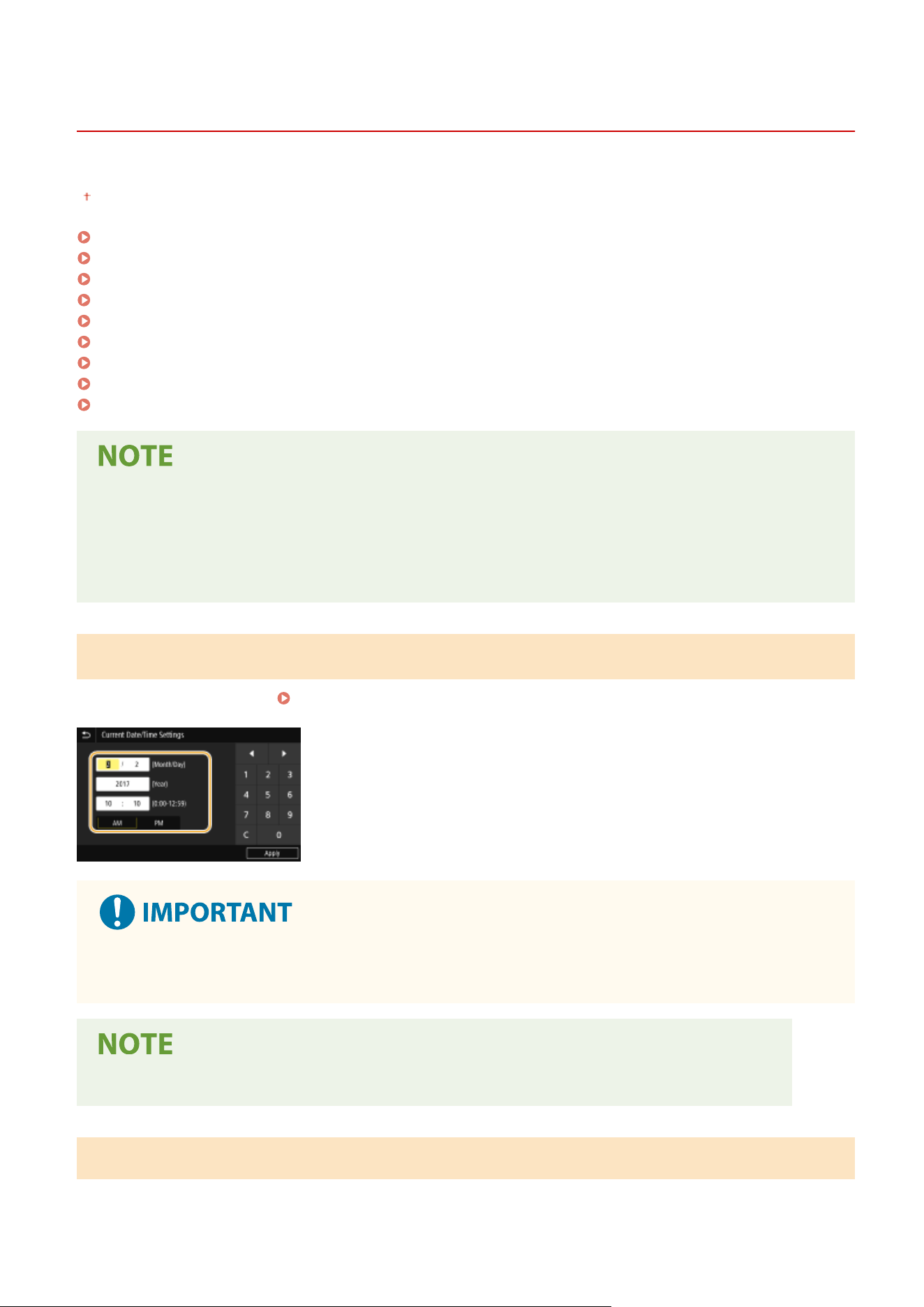
<Timer/Energy Settings>
7YWY-08F
All the settings r
elated to the timer and energy are listed with descriptions. Default settings are marked with a dagger
(
).
<Current Date/Time Settings>(P. 459)
<Date/Time Settings>(P. 459)
<Date Format>(P. 460)
<Time Format>(P. 460)
<Auto Reset Time>(P. 461)
<Function After Auto Reset>(P. 461)
<Auto Sleep Time>(P. 462)
<Auto Sleep Daily Timer>(P. 462)
<Sleep Mode Exit Time Settings>(P. 462)
Asterisks (
*
)
● Settings mark
ed with "
*1
" cannot be imported or exported.
● Settings marked with "
*2
" may be unavailable or vary or have different defaults depending on your country
or region.
<Current Date/Time Settings>
*1
Set the curr
ent date and time.
Setting the Date/Time(P. 12)
● Set <Time Zone> befor
e setting the current date and time. If the <Time Zone> setting is changed, the current
date and time are also changed accordingly.
● The curr
ent date and time cannot be changed for 1 hour after daylight saving time goes into effect.
<Date/Time Settings>
Specify the date and time standar
d of the region in which the machine is to be installed.
Setting Menu List
459
<Time Zone>
*2
Select the time zone. If the time zone setting is changed, the values set in <Current Date/Time Settings> are also
changed accor
dingly.
Setting the Date/Time(P. 12)
<(UTC-12:00) International Date Line West> to <(UTC-05:00) Eastern Time (US & Canada)> to
<(UT
C+14:00) Kiritimati Island>
UTC
● Coor
dinated Universal Time (UTC) is the primary time standard by which the world regulates clocks
and time. The correct UTC time zone setting is required for Internet communications.
<Daylight Saving Time Settings>
Enable or disable daylight saving time. If daylight saving time is enabled, specify the dates from which and to
which daylight saving time is in effect.
<Off>
<On>
Start: Month, W
eek, Day
End: Month, Week, Day
<Menu> <Preferences> <Timer/Energy Settings> <Date/Time Settings> <Daylight Saving
Time Settings> Select <On>, and specify the dates <Apply>
<Date Format>
*2
Select the date format (or
der of year, month, and day).
<YYYY MM/DD>
<MM/DD/YYYY>
<DD/MM YYYY>
<Menu> <Preferences> <Timer/Energy Settings> <Date Format> Select the date format
<Time Format>
Select the 12- or 24-hour clock display setting.
<12 Hour (AM/PM)>
Setting Menu List
460
<24 Hour>
<Menu> <Preferences> <Timer/Energy Settings> <Time Format> Select the display
setting
<Auto Reset Time>
If a key is not pressed for a specied period of time, the scr
een and the settings are initialized to display the
default screen (Auto Reset). Specify the interval at which the Auto Reset is performed. The Auto Reset is not
performed in the following cases:
● The setting menu is displayed.
● The machine is processing data, such as when printing documents or sending or receiving faxes.
● An error message is displayed and the Error indicator is blinking (However, Auto Reset is performed when the
error does not prevent the user from continuing to use a function.)
<Set This Function>
<Off>
<On>
<Set Time>
1 to 2 to 9 (min.)
<Menu> <Preferences> <Timer/Energy Settings> <Auto Reset Time> Select <On> in <Set
This Function> Enter the time in <Set Time> <Apply>
● The scr
een displayed after the Auto Reset is performed can be selected in <Function After Auto Reset>.
<Function After Auto Reset>
Select whether to r
eturn the display to the default screen after the Auto Reset is performed. If <Default Function> is
selected, the main screen of the function selected in <Default Screen After Startup/Restoration> is displayed (
<Default Screen After Startup/Restoration>(P. 453) ). If <Selected Function> is selected, the display r
eturns to the
main screen of the function that was selected.
<Default Function>
<Selected Function>
Setting Menu List
461
<Menu> <Preferences> <Timer/Energy Settings> <Function After Auto Reset> Select
<Default Function> or <Selected Function>
<Auto Sleep Time>
If the machine has not been oper
ated or has had no data to process for a specied period of time, the machine enters
sleep mode to save energy consumption (Auto Sleep). Specify the period of time after which auto sleep is performed.
Auto Sleep is not performed when the setting menu is displayed. We recommend using the factory default settings to
save the most power.
Entering Sleep Mode(P. 179)
1 to 120 (min.)
<Auto Sleep Daily Timer>
You can specify the time when the machine is automatically set to the sleep mode. Entering Sleep Mode(P. 179)
<Set This Function>
<Off>
<On>
(0:00 to 12:59 AM/PM)
<Sleep Mode Exit Time Settings>
Specify the time when the machine is r
ecovered from the sleep mode.
Entering Sleep Mode(P. 179)
<Set This Function>
<Off>
<On>
(0:00 to 12:59 AM/PM)
Setting Menu List
462
<Network>
7YWY-08H
All the settings r
elated to the network are listed with descriptions. Default settings are marked with a dagger (
).
<Select Wired/Wireless LAN>(P. 463)
<Wireless LAN Settings>(P. 463)
<Direct Connection Settings>(P. 464)
<Easy Connection via PC>(P. 466)
<TCP/IP Settings>(P. 466)
<SNMP Settings>(P. 472)
<Use Dedicated Port>(P. 473)
<Dedicated Port Auth. Method>(P. 473)
<Wait Time for Conn. at Startup>(P. 474)
<Ethernet Driver Settings>(P. 474)
<Use IEEE 802.1X>(P. 475)
<Firewall Settings>(P. 475)
<Device Settings Management>(P. 476)
<Monitoring Service>(P. 476)
<RMT-SW>(P. 476)
<Initialize Network Settings>(P. 477)
Asterisks (
*
)
● Settings mark
ed with "
*1
" cannot be imported or exported.
● Settings marked with "
*2
" may not be displayed depending on the model you are using, options, or other
setting items.
<Select Wired/Wireless LAN>
When switching the machine fr
om Wireless LAN to Wired LAN, you need to specify the setting. Conversely, when
switching the machine from Wired LAN to Wireless LAN, you do not need to specify this setting (You can switch using
the following <Wireless LAN Settings>).
Selecting Wired LAN or Wireless LAN(P. 16)
<Wired LAN>
<Wireless LAN>
<Wireless LAN Settings>
Wir
eless LAN routers that can access the machine are automatically located, so you can select from the list. You must
manually enter the encryption key/password.
Setting Up Connection by Selecting a Wireless Router(P. 24)
<Other Connections>
Select to congur
e the settings your wireless router is equipped with Wi-Fi Protected Setup (WPS) or you want
to manually specify authentication and encryption settings.
<Manually Enter Network Name (SSID)>
Select to congure a wireless connection by manually entering the network name. By using this method, you
can specify authentication and encryption settings in detail.
Setting Up Connection by Specifying
Detailed Settings(P
. 26)
Setting Menu List
463
<Security Settings>
<None>
<WEP>
<Open System>
Encryption Key 1 to 4
<Shar
ed Key>
Encryption Key 1 to 4
<WPA/WPA2-PSK>
<Auto>
<AES-CCMP>
<WPS Push Button Mode>
Select to automatically congur
e a wireless connection by using the button on a WPS wireless router.
Setting Up Connection Using WPS Push Button Mode(P. 20)
<WPS PIN Code Mode>
Select to congure a wireless connection by entering a PIN code for a WPS wireless router. Setting Up
Connection Using WPS PIN Code Mode(P. 22)
<Connection Set.>
Select to specify the setting for saving power consumption or check the current wireless LAN settings.
<Power Save Mode>
Select whether or not the machine enters Power Save Mode based on signals emitted from the wireless
router.
<Off>
<On>
<Menu> <Preferences> <Network> <Wireless LAN Settings> Read the displayed
message
<OK> <Power Save Mode> Select <Off> or <On>
<Connection Information>
*1
Select to vie
w the current wireless LAN settings.
Viewing Network Settings(P. 37)
<MAC Address>
<Wir
eless LAN Status>
<Latest Error Information>
<Channel>
<Network Name>
<Security Settings>
<Power Save Mode>
<Direct Connection Settings>
Set whether to connect dir
ectly. By enabling this function, connecting directly with the machine is possible even in an
environment without an access point or wireless LAN router.
Connecting Directly (Access Point Mode)(P. 330)
<Use Direct Connection>
<Off>
Setting Menu List
464
<On>
<Direct Connection Termination>
Specify the time to automatically disconnect after Direct Connection is established.
<Automatically Terminate Session>
<Off>
<On>
<Time Until Session T
erminates>
1
to 60 (min.)
<Menu> <Preferences> <Network> <Direct Connection Settings> <Direct Connection
T
ermination>
Select <On> in <Automatically Terminate Session> and enter the time <Apply>
<Apply> <OK> Restart the machine
<Access Point Mode Settings>
Congure the SSID/network k
ey arbitrarily. If you want to connect multiple mobile devices to the machine at the
same time, you need to congure both SSID and network key arbitrarily.
<Use Custom SSID>
<Off>
<On>
<SSID>
<Use Custom Network Key>
<Off>
<On>
<Network Ke
y>
<Menu> <Preferences> <Network> <Direct Connection Settings> <Access Point Mode
Settings> Select <On> for each item and select <SSID>/<Network Key> Enter the SSID/network
k
ey
<Apply> <Apply> <Apply> <OK> Restart the machine
<Keep Enabled If SSID/Ntwk Ke
y Spcfd>
*2
Specify whether to keep the machine waiting for Direct Connection.
<Off>
<On>
<Menu> <Preferences> <Network> <Direct Connection Settings> <Keep Enabled If SSID/
Ntwk Ke
y Spcfd>
Select <Off> or <On> <Apply> <OK> Restart the machine
Setting Menu List
465
● When setting this item to <On>, congur
e in advance a custom SSID or network key using <Access
Point Mode Settings>.
<Cong. IP Addr
ess For Direct Conn.>
Manually enter the machine's IP address at the time of Direct Connection.
192.168.22.1
<Menu> <Preferences> <Network> <Direct Connection Settings> <Cong. IP Addr
ess For
Direct Conn.>
Enter an arbitrary IP address <Apply> <Apply> <OK> Restart the machine
<Easy Connection via PC>
Start the pr
ocedure for Easy Connection via PC (cableless setup mode). You can use Canon Laser NW Device Setup
Utility to congure network settings via a computer.
<Menu> <Preferences> <Network> <Easy Connection via PC> <Yes> The connection
pr
ocess starts
● Do
wnload Canon Laser NW Device Setup Utility from the Canon website (https://global.canon/).
<TCP/IP Settings>
Specify settings for using the machine in a T
CP/IP network, such as IP address settings.
<IPv4 Settings>
Specify settings for using the machine in an IPv4 network.
<IP Addr
ess Settings>
Congure the IP address, which is used for identifying devices, such as computers and printers, on a TCP/IP
network.
Setting IPv4 Address(P. 31)
<Auto Acquire>
<Auto Acquir
e>
<Off>
<On>
<Select Protocol>
<Off>
<DHCP>
Setting Menu List
466

<Auto IP>
<Off>
<On>
<Manually Acquir
e>
*2
<IP Address>: 0.0.0.0
<Subnet Mask>: 0.0.0.0
<Gateway Address>: 0.0.0.0
<Check Settings>
<DHCP Option Settings>
If DHCP is enabled, use these settings to select whether to use the DHCP optional functions to acquir
e the
DNS server address or the domain name.
Conguring DNS
(P. 55)
<Acquire Host Name>
<Off>
<On>
<DNS Dynamic Update>
<Off>
<On>
<Acquir
e DNS Server Address>
<Off>
<On>
<Acquir
e Domain Name>
<Off>
<On>
<Acquir
e WINS Server Address>
<Off>
<On>
<Acquir
e SMTP Server Address>
<Off>
<On>
<Acquir
e POP Server Address>
<Off>
<On>
<PING Command>
Select to check that the machine is connected to a computer over a network. Testing the Network
Connection
(P. 32)
<IPv6 Settings>
Specify settings for using the machine in an IPv6 network. Setting IPv6 Addresses(P. 34)
<Use IPv6>
<Off>
Setting Menu List
467
<On>
<Check IPv6 Settings>
Y
ou can check the link-local address that is automatically acquired.
<Stateless Address Settings>
Enable or disable stateless addresses.
<Stateless Address Settings>
<Off>
<On>
<Check Settings>
<Stateless Addr
ess>
<Prex Length>
<DHCPv6 Settings>
Enable or disable the stateful addr
ess that is acquired via DHCPv6.
<Use DHCPv6>
<Off>
<On>
<Check Settings>
<Stateful Address>
<Prex Length>
<DHCP Option Settings>
If DHCP is enabled, use these settings to select whether to use the DHCP optional functions to acquir
e the
DNS server address or the domain name.
Conguring DNS(P. 55)
<Acquire DNS Server Address>
<Off>
<On>
<Acquir
e Domain Name>
<Off>
<On>
<DNS Settings>
Specify settings for Domain Name System (DNS), which provides a host name for IP address resolutions.
Conguring DNS(P
. 55)
<IPv4 DNS Server Address Settings>
Specify the IP address of the DNS server in the IPv4 environment.
<Primary DNS Server>: 0.0.0.0
<Secondary DNS Server>: 0.0.0.0
<DNS Host Name/Domain Name Settings>
Specify the host name of the machine to be r
egistered in the DNS server as well as the name of the domain
to which the machine belongs.
<IPv4>
<Host Name>
Setting Menu List
468

<Domain Name>
<IPv6>
<Use IPv4 Host/Domain>
<Off>
<Host Name>
<Domain Name>
<On>
<DNS Dynamic Update Settings>
Select whether to dynamically update the DNS r
ecords whenever the machine's IP address is changed.
<IPv4>
<DNS Dynamic Update>
<Off>
<On>
<DNS Dynamic Update Interval>
0 to 24 to 48 (hr.)
<IPv6>
<DNS Dynamic Update>
<Off>
<On>
<Register Manual Addr
ess>
<Off>
<On>
<Register Stateful Addr
ess>
<Off>
<On>
<Register Stateless Addr
ess>
<Off>
<On>
<DNS Dynamic Update Interval>
0 to 24 to 48 (hr.)
<mDNS Settings>
Specify settings for using DNS functions without DNS servers.
<IPv4>
<Use mDNS>
<Off>
<On>
<mDNS Name>
<IPv6>
<Use mDNS>
<Off>
<On>
<Use Same mDNS Name as IPv4>
<Off>
Setting Menu List
469
<mDNS Name>
<On>
<WINS Settings>
Specify settings for Windows Internet Name Service (WINS), which provides a computer name for IP address
r
esolutions in a mixed network environment of NetBIOS and TCP/IP.
Conguring WINS(P
. 63)
<WINS Resolution>
<Off>
<On>
<WINS Server Address>: 0.0.0.0
<LPD Settings>
Enable or disable LPD, a printing protocol that can be used on any hardware platform or operating system. You
can also set the reception timeout period after which printing is canceled if print data reception is interrupted.
Conguring Printing Protocols and WSD Functions(P. 40)
<Use LPD Printing>
<Off>
<On>
<RX Timeout>
1 to 5 to 60 (min.)
<RAW Settings>
Enable or disable RAW, a Windows specic printing pr
otocol. You can also set the reception timeout period after
which printing is canceled if print data reception is interrupted.
Conguring Printing Pr
otocols and WSD
Functions(P. 40)
<Use RAW Printing>
<Off>
<On>
<RX Timeout>
1 to 5 to 60 (min.)
<WSD Settings>
Enable or disable automatic browsing and acquiring information for the printer or scanner by using the WSD
pr
otocol.
Conguring Printing Pr
otocols and WSD Functions(P. 40)
<Use WSD Printing>
<Off>
<On>
<Use WSD Br
owsing>
<Off>
<On>
<Use WSD Scanning>
<Off>
<On>
<Use Computer Scanning>
Setting Menu List
470
<Off>
<On>
<Use Multicast Disco
very>
<Off>
<On>
<Use FTP PASV Mode>
Specify whether to use PASV mode for FTP. If you are connecting to an FTP server through a rewall, you must
select PASV mode. Conguring FTP PASV Mode(P. 74)
<Off>
<On>
<Use HTTP>
Enable or disable HTTP, which is required for communications with a computer, such as when using the Remote
UI or WSD printing. Disabling HTTP Communication(P. 418)
<Off>
<On>
<Use IPSec>
*1
Select whether to perform encrypted communication by establishing a virtual private network (VPN) via IPSec.
Conguring IPSec Settings(P
. 395)
<Off>
<On>
<Menu> <Preferences> <Network> <TCP/IP Settings> <Use IPSec> Select <Off> or
<On> <OK> Restart the machine
<Port Number Settings>
Change port numbers for protocols according to the network environment. Changing Port Numbers(P. 378)
<LPD>
1 to 515 to 65535
<RA
W>
1 to 9100
to 65535
<WSD Multicast Disco
very>
1 to 3702
to 65535
<HT
TP>
1 to 80
to 65535
<Multicast Disco
very>
1 to 427
to 65535
Setting Menu List
471
<POP3>
1 to 110 to 65535
<SMTP TX>
1 to 25 to 65535
<FTP>
1 to 21 to 65535
<SNMP>
1 to 161 to 65535
<MTU Size>
Select the maximum size of packets the machine sends or receives. Changing the Maximum Transmission
Unit(P
. 53)
<1300>
<1400>
<1500>
<SNMP Settings>
Specify the settings for monitoring and contr
olling the machine from a computer running SNMP-compatible software.
Monitoring and Controlling the Machine with SNMP(P. 70)
<SNMPv1 Settings>
Enable or disable SNMPv1. When enabling SNMPv1, specify a community name and access privileges to
Management Information Base (MIB) objects.
<Off>
<On>
<Menu> <Preferences> <Network> <SNMP Settings> Select <Off> or <On> in <SNMPv1
Settings> <Apply> <OK> Restart the machine
<SNMPv3 Settings>
Enable or disable SNMPv3. Use the Remote UI to specify detailed settings that are applied when SNMPv3 is
enabled.
<Off>
<On>
<Menu> <Preferences> <Network> <SNMP Settings> Select <Off> or <On> in <SNMPv3
Settings> <Apply> <OK> Restart the machine
Setting Menu List
472
<Acquire Printer Mngt. Info. from Host>
Enable or disable the monitoring of printer management information from a networked computer running
SNMP-compatible softwar
e.
<Off>
<On>
<Menu> <Preferences> <Network> <SNMP Settings> Select <Off> or <On> in <Acquire
Printer Mngt. Info. fr
om Host>
<Apply> <OK> Restart the machine
<Format Host Rsr
cs. MIB to RFC2790>
Specify whether to conform to the advanced specications (RFC2790) of the pr
otocol when monitoring the
machine status from the SNMP-compatible software.
<Off>
<On>
<Menu> <Preferences> <Network> <SNMP Settings> Select <Off> or <On> in <Format
Host Rsr
cs. MIB to RFC2790>
<Apply> <OK> Restart the machine
<Use Dedicated Port>
Enable or disable the dedicated port. The dedicated port is used when printing, faxing, or scanning uses MF Scan
Utility and when br
owsing or specifying the machine settings over the network.
<Off>
<On>
<Menu> <Preferences> <Network> <Use Dedicated Port> Select <Off> or <On>
<OK> Restart the machine
<Dedicated Port Auth. Method>
Specify whether to limit the authentication method specically to the secur
e one when using the dedicated port. If
<Mode 2> is selected, the authentication method is limited specically to the secure one.
<Mode 1>
<Mode 2>
Setting Menu List
473
<Menu> <Preferences> <Network> <Dedicated Port Auth. Method> Select <Mode 1> or
<Mode 2>
● If <Mode 2> is selected, you cannot establish a connection fr
om the device management software or driver
in some cases.
<Wait Time for Conn. at Startup>
Specify a wait time for connecting to a network. Select the setting depending on the network envir
onment.
Setting a
W
ait Time for Connecting to a Network(P. 54)
0
to 300 (sec.)
<Ethernet Driver Settings>
Select the Ethernet type (10B
ASE-T/100BASE-TX/1000BASE-T) and the communication mode of Ethernet (half-duplex/
full-duplex). You can also view the MAC address for wired LAN.
<Auto Detect>
Select whether to automatically detect or manually select the communication mode and the Ethernet type.
Conguring Ethernet Settings(P
. 51)
<Off>
<Communication Mode>
<Half Duplex>
<Full Duplex>
<Ethernet T
ype>
<10BASE-T>
<100BASE-TX>
<1000B
ASE-T>
<On>
● When <Communication Mode> is set to <Half Duple
x>, you cannot select <1000BASE-T>.
<MAC Address>
Check the MAC address of the machine, which is a number unique to each communication device. Viewing
the MA
C Address for Wired LAN(P. 37)
Setting Menu List
474
<Use IEEE 802.1X>
*1*2
Enable or disable IEEE 802.1X authentication. Conguring IEEE 802.1X Authentication Settings
(P. 402)
<Off>
<On>
<Menu> <Preferences> <Network> <Use IEEE 802.1X> Select <Off> or <On>
<OK> Restart the machine
<Firewall Settings>
Without pr
oper security, unauthorized third parties can access computers and other communication devices that are
connected to a network. To prevent this unauthorized access, specify the settings for packet lter, a feature that
restricts communication to devices with specied IP addresses or MAC addresses.
<IPv4 Address Filter>
Enable or disable settings for ltering pack
ets sent to or received from devices with specied IPv4 addresses.
Specifying IP Addresses for Firewall Settings(P. 372)
<Outbound Filter>
<Off>
<On>
<Inbound Filter>
<Off>
<On>
<Menu> <Preferences> <Network> <Firewall Settings> <IPv4 Address Filter> Select
<Off> or <On> in <Outbound Filter> or <Inbound Filter> <Apply> <OK> Restart the machine
<IPv6 Addr
ess Filter>
Enable or disable settings for ltering pack
ets sent to or received from devices with specied IPv6 addresses.
Specifying IP Addresses for Firewall Settings(P. 372)
<Outbound Filter>
<Off>
<On>
<Inbound Filter>
<Off>
<On>
Setting Menu List
475
<Menu> <Preferences> <Network> <Firewall Settings> <IPv6 Address Filter> Select
<Off> or <On> in <Outbound Filter> or <Inbound Filter> <Apply> <OK> Restart the machine
<MA
C Address Filter>
Enable or disable settings for ltering pack
ets sent to or received from devices with specied MAC addresses.
Specifying MAC Addresses for Firewall Settings(P. 375)
<Outbound Filter>
<Off>
<On>
<Inbound Filter>
<Off>
<On>
<Menu> <Preferences> <Network> <Firewall Settings> <MAC Address Filter> Select
<Off> or <On> in <Outbound Filter> or <Inbound Filter> <Apply> <OK> Restart the machine
<Device Settings Management>
Specify whether to use imageW
ARE Enterprise Management Console plug-ins to manage machine data such as
settings and Address Book destinations. For detailed information on imageWARE Enterprise Management Console,
contact your dealer or service representative.
Conguring Settings for Communication between the Machine
and Plug-ins(P
. 77)
<Off>
<On>
<Monitoring Service>
*1
Enable communication with a r
emote monitoring server. Execution of this item enables information about the
machine to be periodically sent to the remote monitoring server connected to the machine.
<Menu> <Preferences> <Network> <Monitoring Service> <Yes>
<RMT-SW>
Leave this switch set to <Off>. When the service r
epresentative remotely performs device maintenance, you may be
asked to set the switch to <On>.
Setting Menu List
476

<External Interface>
7YWY-08J
All the settings r
elated to the USB are listed with descriptions. Default settings are marked with a dagger (
).
<USB Settings>
Specify whether to enable or disable use of the USB port or a USB memory de
vice.
<Use as USB Device>
Enable or disable the USB port that is used for connecting the machine to a computer. Restricting the USB
Connection with a Computer
(P. 416)
<Off>
<On>
<Use USB Storage Device>
Specify whether to use a USB memory device.
<Off>
<On>
<Menu> <Preferences> <External Interface> <USB Settings> Select <Off> or <On> in <Use
USB Stor
age Device>
<Apply> <OK> Restart the machine
Setting Menu List
478
<Accessibility>
7YWY-08K
All the settings r
elated to accessibility, such as inverting the screen colors and message display time, are listed with
descriptions. Default settings are marked with a dagger (
).
<Invert Screen Colors>(P. 479)
<Brightness>(P. 479)
<Message Display Time>(P. 479)
<Invert Screen Colors>
Select <On> to invert the display colors. Select <On> if the display is har
d to view even after the brightness was
adjusted in <Brightness>.
<Off>
<On>
<Menu> <Preferences> <Accessibility> <Invert Screen Colors> Select <Off> or <On>
<Brightness>
Adjust the brightness of the display to suit the installation location of the machine.
Five Levels
<Menu> <Preferences> <Accessibility> <Brightness> Adjust the brightness <Apply>
<Message Display Time>
Specify the interval in seconds at which two differ
ent messages are alternately displayed.
1 to 2
to 5 (sec.)
<Menu> <Preferences> <Accessibility> <Message Display Time> Enter a number for the
interval <Apply>
Setting Menu List
479
<Adjust Image Quality>
7YWY-08R
All the settings r
elated to image quality adjustment are listed with descriptions. Default settings are marked with a
dagger (
).
<Adjust Copy Image>(P. 481)
<Printer Density>(P. 481)
<Toner Save>(P. 481)
<Black Text Processing for Color>(P. 482)
<Adjust Print Position>(P. 482)
<Special Processing>(P. 483)
<Remove Streaks from Scan Area>(P. 489)
Asterisks (
*
)
● Settings mark
ed with an asterisk (
*
) may not be displayed depending on the model you are using, options, or
other setting items.
<Adjust Copy Image>
Adjust the gr
adation and density in copies.
Adjusting the Gradation and Density for Copy Jobs(P. 582)
<Printer Density>
Adjust this if the printed te
xt or thin lines are faded.
Adjusting Print Density(P. 586)
Nine Levels
<Toner Save>
Y
ou can save toner when performing: copying, printing of received faxes, or report printing.
<Off>
<On>
<Menu> <Adjustment/Maintenance> <Adjust Image Quality> <Toner Save> Select <Off> or
<On>
Setting Menu List
481

<Black Text Processing for Color>
Select whether the color of black or blackish text in color documents should be reproduced as true black or as a color
more or less close to that of the original. For each option, you can adjust the degree of effect. You can set values for
the feeder and the platen glass separately. Adjusting Values for Text Color Reproducibility(P. 584)
<Feeder>
Se
ven Levels
<Platen Glass>
Seven Levels
<Adjust Print Position>
Adjust the print position for each paper source. The print position can be adjusted in the range from -0.20" to +0.20"
(-5.0 mm to +5.0 mm) in increments of 0.01" (0.1 mm). Adjusting Print Position(P. 587)
<Multi-Purpose Tray>
<Adjust V
ertically (Front Side)>
-0.20" to 0.00"
to + 0.20" (-5.0 to 0.0 to + 5.0 (mm))
<Adjust Horizontally (Fr
ont Side)>
-0.20" to 0.00"
to + 0.20" (-5.0 to 0.0 to + 5.0 (mm))
<Adjust V
ertically (Back Side)>
-0.20" to 0.00"
to + 0.20" (-5.0 to 0.0 to + 5.0 (mm))
<Adjust Horizontally (Back Side)>
-0.20" to 0.00" to + 0.20" (-5.0 to 0.0 to + 5.0 (mm))
<Dr
awer 1>
<Adjust Vertically (Front Side)>
-0.20" to 0.00"
to + 0.20" (-5.0 to 0.0 to + 5.0 (mm))
<Adjust Horizontally (Fr
ont Side)>
-0.20" to 0.00"
to + 0.20" (-5.0 to 0.0 to + 5.0 (mm))
<Adjust V
ertically (Back Side)>
-0.20" to 0.00"
to + 0.20" (-5.0 to 0.0 to + 5.0 (mm))
<Adjust Horizontally (Back Side)>
-0.20" to 0.00" to + 0.20" (-5.0 to 0.0 to + 5.0 (mm))
<Dr
awer 2>
*
<Adjust Vertically (Front Side)>
-0.20" to 0.00"
to + 0.20" (-5.0 to 0.0 to + 5.0 (mm))
<Adjust Horizontally (Fr
ont Side)>
-0.20" to 0.00"
to + 0.20" (-5.0 to 0.0 to + 5.0 (mm))
<Adjust V
ertically (Back Side)>
-0.20" to 0.00"
to + 0.20" (-5.0 to 0.0 to + 5.0 (mm))
<Adjust Horizontally (Back Side)>
-0.20" to 0.00" to + 0.20" (-5.0 to 0.0 to + 5.0 (mm))
Setting Menu List
482
<Special Processing>
If the print results on special types of paper are not satisfactory, the following settings may improve the quality of the
printouts.
<Special Paper Processing>
When printing on the back side of printed paper, rough paper, or envelopes, the print results may be improved
b
y adjusting the following settings.
<Manual Back Side Print (2-Sided Only)>
If printouts on the back side of printed paper are too light, select <On>. You can specify this setting
separately for each paper source.
<Multi-Purpose Tray>
<Off>
<On>
<Dr
awer 1>
<Off>
<On>
<Drawer 2>
*
<Off>
<On>
<Menu> <Adjustment/Maintenance> <Adjust Image Quality> <Special
Pr
ocessing>
<Special Paper Processing> <Manual Back Side Print (2-Sided Only)> Select
<On> in the paper sour
ce to be set
<Apply> <Yes>
● If
you set to <On>, image quality may be affected when a certain length of time elapses after printing on
the front side or depending on the ambient humidity.
<Rough Surface Envelope Mode>
When printing on envelopes with rough surfaces, select <On>. However, the printing speed may be slower.
<Off>
<On>
<Menu> <Adjustment/Maintenance> <Adjust Image Quality> <Special
Pr
ocessing>
<Special Paper Processing> <Rough Surface Envelope
Mode> <On> <Yes>
Setting Menu List
483
● <Rough
Surface Envelope Mode> functions only when the paper type setting is <Envelope 2>.
Specifying Paper Size and Type(P. 158)
● If you set to <On>, the <Paper Curl Corr
ection> setting will be disabled.
<Paper Wrinkle Correction>
Printouts may wrinkle depending on the paper to use. In this case, setting this item to <On> may solve the
problem.
<Off>
<On>
<Menu> <Adjustment/Maintenance> <Adjust Image Quality> <Special
Pr
ocessing>
<Special Paper Processing> <Paper Wrinkle Correction> <On> <Yes>
● If you set to <On>, the print may be faded or the printing speed may be slo
wer.
<Paper Curl Correction>
If the printed paper curls, set this item to <On>.
<Off>
<On>
<Menu> <Adjustment/Maintenance> <Adjust Image Quality> <Special
Pr
ocessing>
<Special Paper Processing> <Paper Curl Correction> <On> <Yes>
● If you set to <On>, the printing speed may be slo
wer.
<Rdc. Tnr Flaking from Heavy Sml. Ppr>
When a halftone image such as a photograph is printed on a small size piece of heavy paper, streaks may
appear on the back side of the paper. In this case, setting this item to <On> may solve the problem.
<Off>
<On>
<Menu> <Adjustment/Maintenance> <Adjust Image Quality> <Special
Pr
ocessing>
<Special Paper Processing> <Rdc. Tnr Flaking from Heavy Sml.
Ppr> <On> <Yes>
● If you set to <On>, the printing speed may be slo
wer.
Setting Menu List
484
<Reduce Thin Paper Curling>
If printing on thin paper pr
oduces curled printouts, setting this item to <On> may solve the problem.
<Off>
<On>
<Menu> <Adjustment/Maintenance> <Adjust Image Quality> <Special
Pr
ocessing>
<Special Paper Processing> <Reduce Thin Paper Curling> <On> <Yes>
● <Reduce
Thin Paper Curling> functions only when the paper type setting is <Thin 1>.
Specifying Paper
Size and T
ype(P. 158)
● If you set to <On>, automatic 2-sided printing with <Thin 1> is disabled. Further, printouts may be faded
due to poor xing of toner.
<Reduce Ppr. Sticking at Output>
In 2-sided printing, printed paper may stick to each other depending on the image density of print data. In this
case, setting this item to <On> may solve the pr
oblem.
<Off>
<On>
<Menu> <Adjustment/Maintenance> <Adjust Image Quality> <Special
Pr
ocessing>
<Reduce Ppr. Sticking at Output> <On> <Yes>
● If you set to <On>, the printing speed may be slo
wer.
<High Humidity Mode>
Print density may be uneven when the machine is used in an environment with high humidity. In this case,
setting this item to <On> may solve the pr
oblem.
<Off>
<On>
<Menu> <Adjustment/Maintenance> <Adjust Image Quality> <Special Processing> <High
Humidity Mode> <On> <Yes>
Setting Menu List
485
● If you set to <On>, the print density may vary depending on the ambient humidity
.
<Low Humidity Mode>
When using the machine in an environment with low humidity, printed images and text may be blurry. In this
case, set this item. The impr
ovement effect is stronger with <Mode 2> than with <Mode 1>. First try the
adjustment with <Mode 1>.
<Off>
<Mode 1>
<Mode 2>
<Menu> <Adjustment/Maintenance> <Adjust Image Quality> <Special Processing> <Low
Humidity Mode> Select the mode <Yes>
● If <Lo
w Humidity Mode> is specied, print density may be lower or uneven when the machine is used
in an environment with high humidity.
<Reduce Ghosting 1>
When you print on large size paper after printing on small size paper, afterimages may appear in blank areas.
In this case, setting this item to <On> may solve the pr
oblem.
<Off>
<On>
<Menu> <Adjustment/Maintenance> <Adjust Image Quality> <Special
Pr
ocessing>
<Reduce Ghosting 1> <On> <Yes>
● If you set to <On>, the printing speed may be slower.
<Rdc Condens. (Consec 2-Sd Prt)>
If the printed images are faint due to moisture condensation when performing 2-sided printing, setting to other
than <Off> may solve the pr
oblem.
<Off>
<On>
Setting Menu List
486
<Menu> <Adjustment/Maintenance> <Adjust Image Quality> <Special Processing> <Rdc
Condens. (Consec 2-Sd Prt)> <On> <Yes>
● If you set to <On>, the printing speed will be slo
wer.
<Rdc. Wrinkles(Humidity)/Streaks>
If printouts have creases when damp paper is used or if streaks appear in the leading edge of paper when
images with halftones such as photos ar
e printed, setting to <On> may solve the problem.
<Off>
<On>
<Menu> <Adjustment/Maintenance> <Adjust Image Quality> <Special Processing> <Rdc.
W
rinkles(Humidity)/Streaks>
<On> <Yes>
● If you set to <On>, the printing speed will be slo
wer.
<Quiet Mode>
When printing sounds bother you, set this item to <On>.
<Off>
<On>
<Menu> <Adjustment/Maintenance> <Adjust Image Quality> <Special Processing> <Quiet
Mode> <On> <Yes>
● If you set to <On>, the printing speed will be slo
wer.
<Correct Blurry Image>
Streaks may appear on printouts depending on the paper type or the environmental conditions. In this case,
setting this item may solve the pr
oblem. The improvement effect is weakest with <Mode 1> and strongest with
<Mode 4>.
<Off>
Setting Menu List
487
<Mode 1>
<Mode 2>
<Mode 3>
<Mode 4>
<Menu> <Adjustment/Maintenance> <Adjust Image Quality> <Special Processing>
<Correct Blurry Image> Select the mode <Yes>
● Setting a str
onger improvement effect may result in lighter print density or slower printing speed. It
may also result in less sharp edges and rougher details.
<Correct Blurry Image for Copy>
Smudges may appear on copies depending on the paper type or the environmental conditions. In this case,
setting this item may solve the pr
oblem. The improvement effect is strongest with <Mode 3> and weakest with
<Mode 1>.
<Off>
<Mode 1>
<Mode 2>
<Mode 3>
<Menu> <Adjustment/Maintenance> <Adjust Image Quality> <Special
Pr
ocessing>
<Correct Blurry Image for Copy> Select the mode <Yes>
● Setting a str
onger improvement effect may result in lighter print density.
<Rdc Blnk Space Dark. After Rplc Cart.>
Immediately after replacing toner cartridges with new ones, black streaks may appear on printouts or printing
on heavy paper may r
esult in grayish printouts. In this case, setting this item to <On> may solve the problem.
<Off>
<On>
<Menu> <Adjustment/Maintenance> <Adjust Image Quality> <Special Processing> <Rdc
Blnk Space Dark. After Rplc Cart.> <On> <Yes>
Setting Menu List
488
● If you set to <On>, the setting will become effective with ne
xt replacement of toner cartridges.
● Immediately after cartridge replacement, a certain amount of time is required for toner to be evenly
distributed inside the cartridge.
<Remove Streaks from Scan Area>
Y
ou can congure a setting to prevent stains from being scanned when they are detected in the document feed
scanning area. Selecting <On> removes streaks generated by the edge of the original.
<Off>
<On>
<Menu> <Adjustment/Maintenance> <Adjust Image Quality> <Remove Streaks from Scan
Ar
ea>
Select <Off> or <On>
● When str
eaks are removed, areas with stains are not scanned. Clean the original scanning area so that the
original is scanned satisfactorily.
Setting Menu List
489
<Maintenance>
7YWY-08S
The cleaning functions ar
e listed with descriptions. Default settings are marked with a dagger (
).
<Clean Fixing Assembly>(P. 490)
<Clean Feeder>(P. 490)
<Control Condensation>(P. 490)
<Clean Fixing Assembly>
Clean the xing assembly after a toner cartridge is r
eplaced or if black streaks appear on printouts.
Cleaning the
Fixing Assembly(P
. 570)
<Clean Feeder>
Clean the feeder r
ollers if originals become dirty after being fed through the feeder.
Cleaning the Feeder(P. 567)
<Control Condensation>
When the temper
ature changes rapidly in the environment where the machine is installed, condensation occurs, which
may cause fading or bleeding in images and text. Select <On> to remove dew condensation in the machine. When
selecting <On>, specify whether to restrict jobs.
<Off>
<On>
<Use Fax Memory Lock>
<Use Fax Memory Lock + Do Not Allow Job Printing During Process>
<Menu> <Adjustment/Maintenance> <Maintenance> <Control Condensation> <On>
Check the message <OK> Select the item <Yes>
● While condensation r
emoval is being performed, printing may not be performed properly and blank paper
may be output.
● If you set to <On>, you need to keep the machine turned ON to maintain the effect of condensation removal.
● If you set to <On>, the setting of Auto Shutdown Time is disabled.
Powering OFF at a Fixed Time(P. 119)
Setting Menu List
490
<Function Settings>
7YWY-08U
Item Description
<Common>(P. 492) This section describes settings common to each function.
<Copy>(P. 497) This section describes how to specify the copy settings.
<Printer>(P. 499) This section describes how to specify printer settings.
<Send>(P. 523) This section describes how to specify settings for sending faxes and scanned originals.
<Receive/Forward>(P. 535) This section describes how to specify settings for receiving faxes and e-mails.
<Store/Access Files>(P. 541) This section describes the settings for scanning originals and printing stored les.
<Secure Print>(P. 547) This section describes the settings for the Secure Print.
Setting Menu List
491

<Common>
7YWY-08W
All the items r
elated to settings common to each function are listed with descriptions. Default settings are marked with
a dagger (
).
<Paper Feed Settings>(P. 492)
<Print Settings>(P. 494)
<Scan Settings>(P. 495)
<Generate File>(P. 496)
<Fax Setup Guide>(P. 496)
Asterisks (
*
)
● Settings mark
ed with "
*1
" may not be displayed depending on the model you are using, options, or other
setting items.
● Settings marked with "
*2
" cannot be imported or exported.
<Paper Feed Settings>
Congur
e paper feed settings.
<Paper Source Auto Selection>
Enable or disable the automatic drawer selection feature for the paper sources. If automatic drawer selection is
set to <On> when printing documents, the machine automatically selects a paper sour
ce that is loaded with the
appropriate paper size. Also, when the paper runs out, this setting enables continuous printing by switching
from one paper source to another that is loaded with the same paper size.
Automatically Selecting an
Appr
opriate Paper Source for Each Function(P. 168)
<Copy>
<Multi-Purpose Tray>
<Off>
<On>
<Drawer 1>
<Off>
<On>
<Drawer 2>
*1
<Off>
<On>
<Printer>
<Multi-Purpose T
ray>
<Off>
<On>
<Drawer 1>
<Off>
<On>
<Drawer 2>
*1
Setting Menu List
492
<Off>
<On>
<Receive/Fax >
<Multi-Purpose T
ray>
<Off>
<On>
<Drawer 1>
<Off>
<On>
<Drawer 2>
*1
<Off>
<On>
<Other>
<Multi-Purpose T
ray>
<Off>
<On>
<Dr
awer 1>
<Off>
<On>
<Drawer 2>
*1
<Off>
<On>
<Switch Paper Feed Method>
Specify this setting when you print a document on paper with logos. In general use, to print on paper with
logos, you need to change ho
w the paper loaded in the paper source is facing depending on whether you are
performing 1- or 2-sided printing. However, if you change the setting to <Print Side Priority>, you can just load
the paper with the logo side facing down for 1-sided printing in the same way as for 2-sided printing. For more
information, see
Loading Preprinted Paper(P. 154) .
<Multi-Purpose Tray>
<Speed Priority>
<Print Side Priority>
<Dr
awer 1>
<Speed Priority>
<Print Side Priority>
<Dr
awer 2>
*1
<Speed Priority>
<Print Side Priority>
<Menu> <Function Settings> <Common> <Paper Feed Settings> <Switch Paper Feed
Method>
Select the paper source Select <Speed Priority> or <Print Side Priority>
Setting Menu List
493
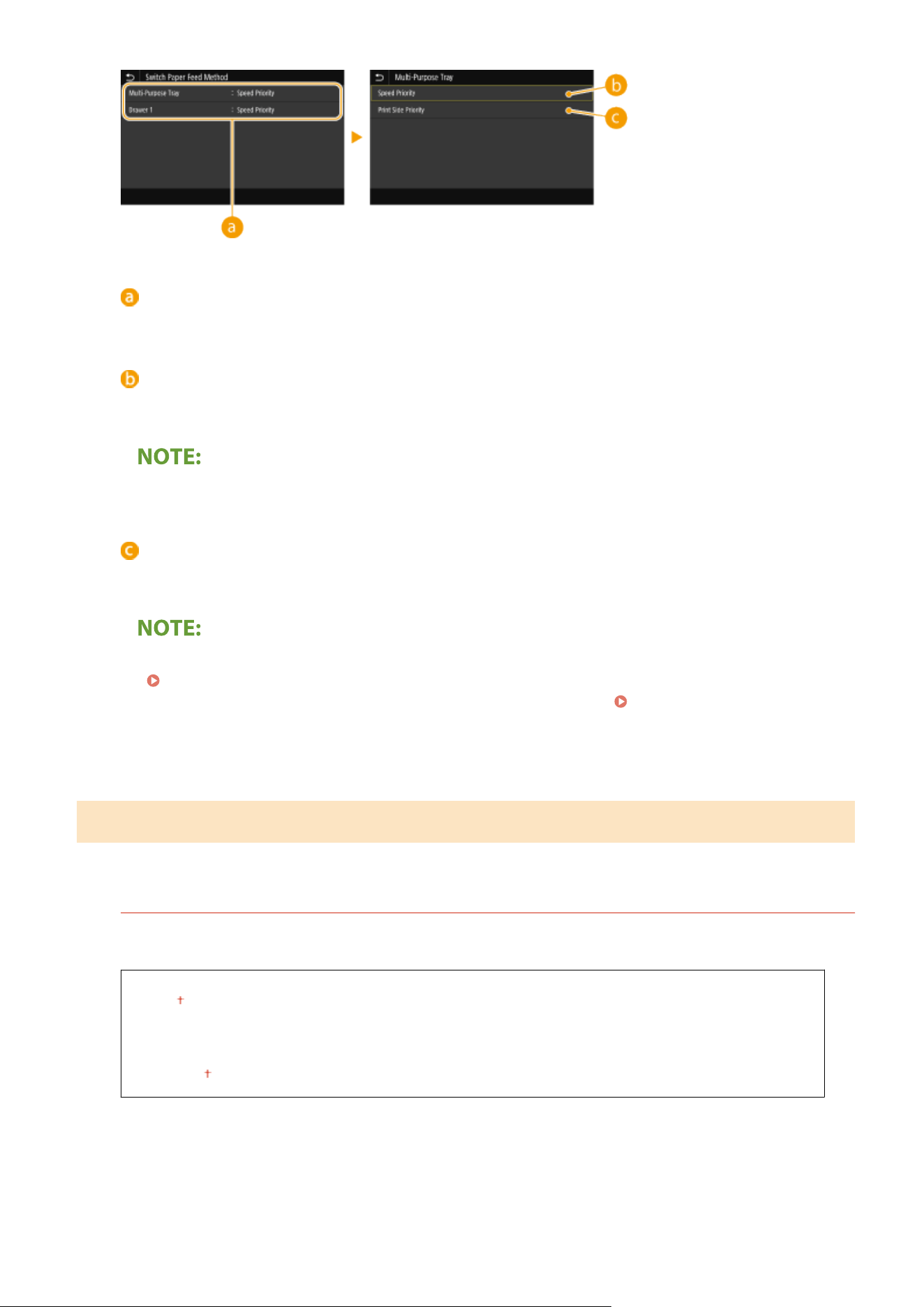
Paper Sources
Select the paper sour
ce that you want to change the setting for.
<Speed Priority>
When using paper that has been pr
eprinted with a logo, you need to change how it is facing when you
perform 1-sided and 2-sided printing.
● W
e recommend selecting <Speed Priority> if you do not need to consider which side to print on.
<Print Side Priority>
To print on a specic side of paper, you do not need to ip over paper in the paper source whether 1- or 2-
sided printing is selected.
● If <Print Side Priority> is set for a paper sour
ce that is loaded with paper you cannot use for 2-sided printing
(
Available Paper(P. 617) ), <Speed Priority> is applied to the paper sour
ce instead. In this case, you need
to load the paper in the same way as when <Speed Priority> is selected (
Loading Preprinted
Paper(P
. 154) ).
● 1-sided printing speed may be slower when <Print Side Priority> is selected.
<Print Settings>
Congur
e printing operation settings.
<Auto Delete Suspended Jobs>
You can congur
e so that if the machine stops printing a job due to an error, the job will be automatically
deleted after a specied period of time.
<Set This Function>
<Off>
<On>
<Set Time>
0 to 5 to 240 (min.)
Setting Menu List
494
<Menu> <Function Settings> <Common> <Print Settings> <Auto Delete Suspended
Jobs> Select <On> in <Set This Function> Enter the time in <Set
Time> <Apply> <OK> Restart the machine
<Scan Settings>
Congur
e scan settings.
<Auto Online>
When scanning from the computer, use this to specify whether to automatically go online for remote scanning
(scan standb
y mode) without using the operation panel.
<Off>
<On>
<Menu> <Function Settings> <Common> <Scan Settings> <Auto Online> Select <Off> or
<On>
<Auto Oine>
If scan is not performed within a specied period of time after the scr
een below is displayed (the machine is
set online for scanning), the machine automatically becomes oine. Specify the time period at which the
machine becomes oine.
<Set This Function>
<Off>
<On>
<Set Time>
1 to 5 to 60 (min.)
<Menu> <Function Settings> <Common> <Scan Settings> <Auto Oine> Select <On> in
<Set This Function> Enter the time in <Set Time> <Apply>
Setting Menu List
495
<Generate File>
Congure le generation settings.
<Output File Image Settings>
Specify settings for the gamma value for converting scanned originals into les.
<Y
CbCr TX Gamma Value>
Select the gamma value used when converting scanned color originals into the specied le format. You can
specify the same gamma value as that of the monitor which is to be used for viewing the converted les. The
les are displayed with brightness that is true to the original documents.
<Gamma 1.0>
<Gamma 1.4>
<Gamma 1.8>
<Gamma 2.2>
<Menu> <Function Settings> <Common> <Generate File> <Output File Image Settings>
<YCbCr TX Gamma Value> Select the gamma value
● For the gamma value of a monitor display
, see the instruction manual included with the display.
<OCR (Text Searchable) Settings>
To run OCR (Optical Character Recognition) on a text original to create a "searchable PDF," specify whether the
machine determines the original'
s text direction and detects the original direction.
<Smart Scan>
<Off>
<On>
<Menu> <Function Settings> <Common> <Generate File> <OCR (Text Searchable)
Settings> Select <Off> or <On> in <Smart Scan> <Apply>
<Fax Setup Guide>
*1*2
Select to display on-scr
een instructions for specifying settings, including the fax number and the RX mode.
Conguring Initial Settings for Fax Functions
(P. 79)
Setting Menu List
496

<Copy>
7YWY-08X
All the settings r
elated to the copy are listed with descriptions. Default settings are marked with a dagger (
).
Asterisks (
*
)
● Settings mark
ed with an asterisk (
*
) may not be displayed depending on the model you are using, options, or
other setting items.
<Change Default Settings (Copy)>
Y
ou can change the default settings about copy. The selected settings are used as the default settings of the copy
function.
Changing the Default Settings for Functions(P. 175)
<Number of Copies>
1 to 999
<Paper Sour
ce>
<Multi-Purpose Tray>
<Drawer 1>
<Drawer 2>
*
<Auto Select Paper (L
TR/LGL)>
<Density>
Nine Levels
<Adjust Background Density>
<Auto>
<Adjust (Manual)>
Nine Levels
<Cop
y Ratio>
Custom Ratio
<100% Direct>
<Auto>
<400% Max>
<200%>
<129% STMT
->LTR>
<78% LGL->LTR>
<64% LTR->STMT>
<50%>
<25% Min>
<2-Sided Printing>
<Off>
<1-Sided->2-Sided>
<2-Sided->2-Sided>
Setting Menu List
497

<2-Sided->1-Sided>
<Orig./Fin. T
ype>
<N on 1>
<Off>
<2 on 1>
<4 on 1>
<Layout>
<Original T
ype>
<Text>
<Text/Photo>
<Text/Photo (High Quality)>
<Photo>
<Collate>
<Off>
<On>
<Er
ase Frame>
<Off>
<On>
<Sharpness>
Se
ven Levels
Setting Menu List
498
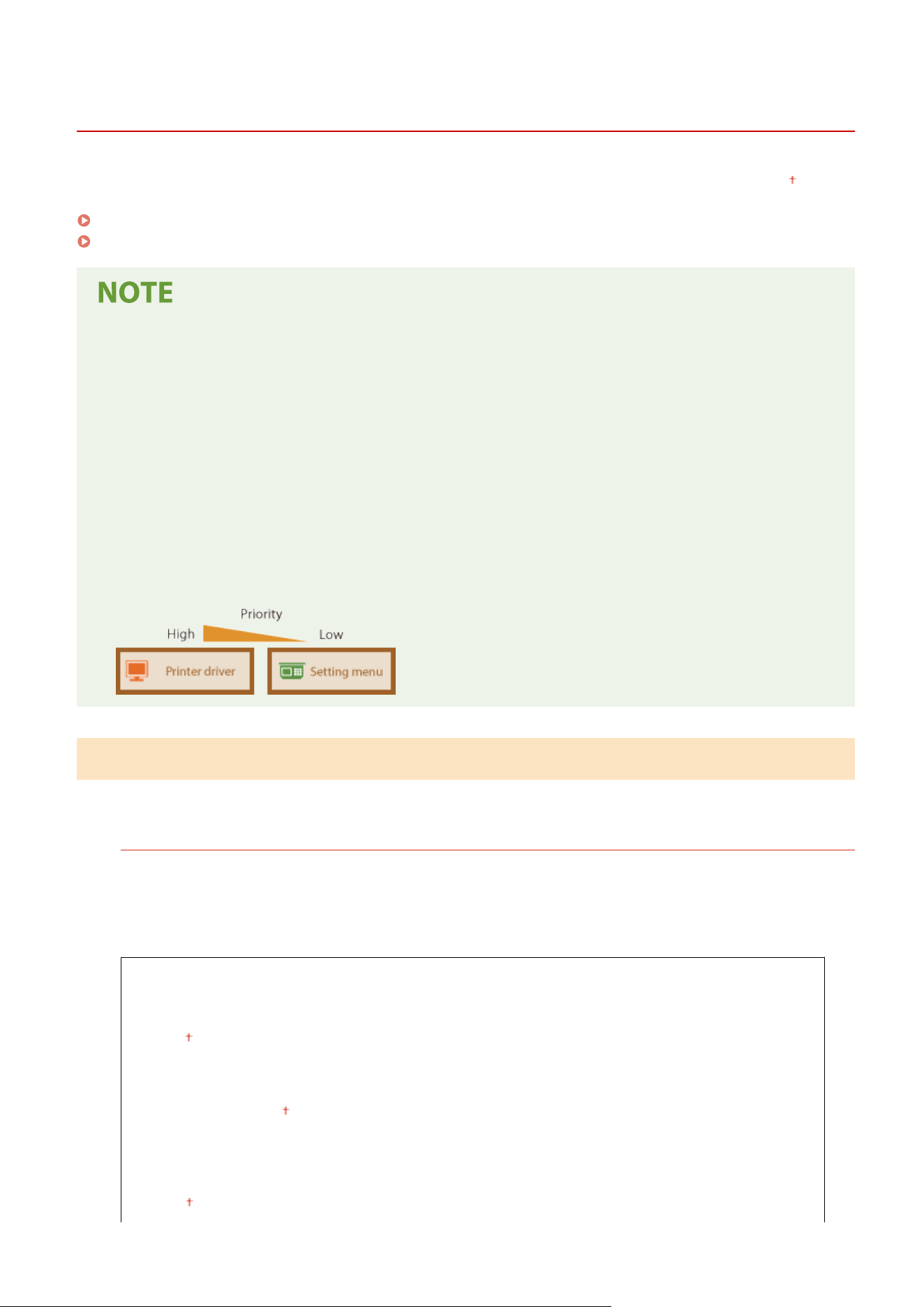
<Printer>
7YWY-08Y
All the settings r
elated to the printer are listed with descriptions. Default settings are marked with a dagger (
).
<Printer Settings>(P. 499)
<PDL Selection (Plug and Play)>(P. 522)
Asterisks (
*
)
● Settings mark
ed with "
*1
" may not be displayed depending on the model you are using, options, or other
setting items.
● Settings marked with "
*2
" may be unavailable or vary or have different defaults depending on your country
or region.
● Settings marked with "
*3
" cannot be imported or exported.
Priority of settings
● If a print setting is specied both from the printer driver and the operation panel of the machine, the
specication from the printer driver overrides that from the operation panel. The specication from the
operation panel becomes effective in some specic cases, such as when performing PS/PCL printing and
printing from UNIX or other operating system that does not support printer drivers.
<Printer Settings>
Congur
e settings about printing and printer operations.
<Prioritize Driver Settings When Printing>
Select whether printing is performed in accordance with the printer driver's settings for paper size and type
taking priority o
ver the settings made for each paper source under <Paper Settings> in the Home screen. By
selecting <On>, you can print from the paper source specied in the printer driver, regardless of the paper
settings on the machine. An error message can be set to display if the loaded paper size is largely different from
that set in the printer driver.
<Multi-Purpose Tray>
<Prioritize Driver Settings>
<Off>
<On>
<Action When Size Mismatch>
<For
ce Output>
<Display Error>
<Dr
awer 1>
<Prioritize Driver Settings>
<Off>
Setting Menu List
499
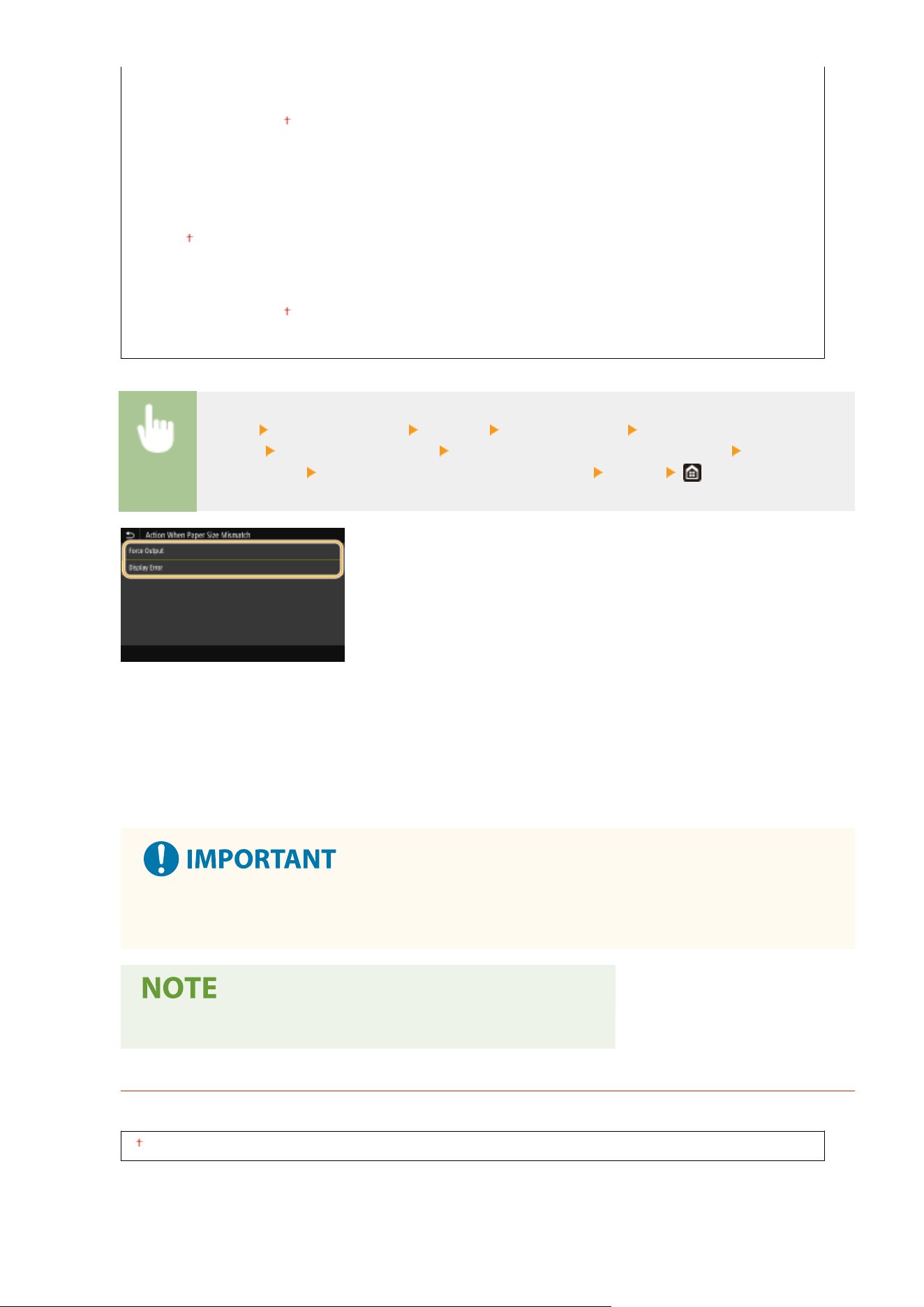
<On>
<Action When Size Mismatch>
<For
ce Output>
<Display Error>
<Dr
awer 2>
*1
<Prioritize Driver Settings>
<Off>
<On>
<Action When Size Mismatch>
<For
ce Output>
<Display Error>
<Menu> <Function Settings> <Printer> <Printer Settings> <Prioritize Driver Settings When
Printing> Select the paper source Select <On> in <Prioritize Driver Settings> <Action When
Size Mismatch> Select <Force Output> or <Display Error> <Apply>
<Force Output>
Continue printing e
ven when the paper size setting in the printer driver and the loaded paper are largely
different.
<Display Error>
When the paper size setting in the printer driver and the loaded paper are largely different, an error message is
displayed and printing is stopped.
● If the printer driver
's settings do not match the size and type of loaded paper with <On> selected, a
paper jam or printing error may occur.
● Even if you select <Display Err
or>, multiple pages may be printed.
<Copies>
Set the number of copies to print.
1 to 999
Setting Menu List
500
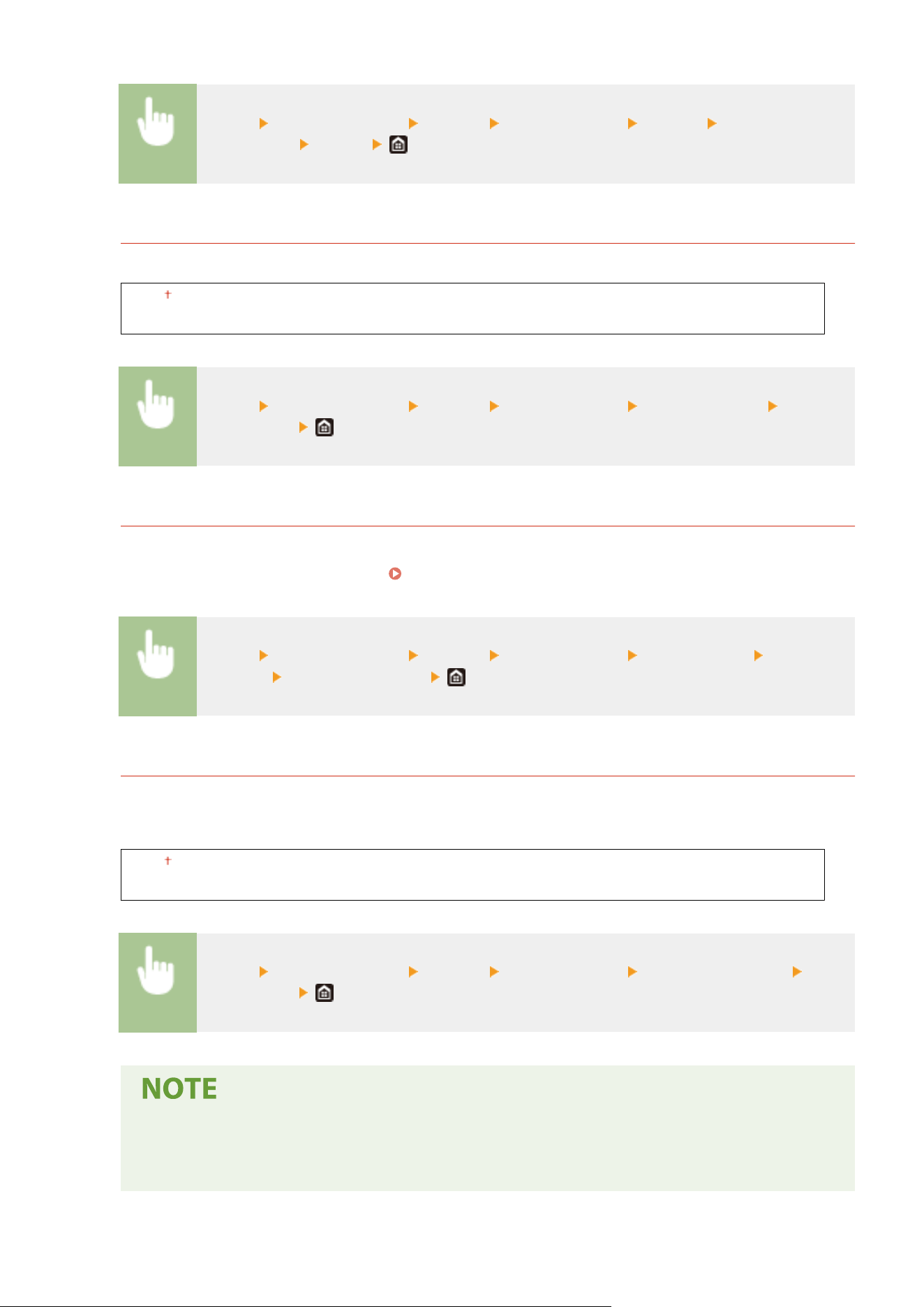
<Menu> <Function Settings> <Printer> <Printer Settings> <Copies> Set the number of
copies to print <Apply>
<2-Sided Printing>
Select whether to make 2-sided printouts.
<Off>
<On>
<Menu> <Function Settings> <Printer> <Printer Settings> <2-Sided Printing> Select
<Off> or <On>
<Default Paper>
Set the default paper size and type. Printing will be performed with paper of the size and type set here when
you want to print fr
om an OS not supporting printer drivers or from a mobile device or other device not
supporting paper size and type settings.
Available Paper(P. 617)
<Menu> <Function Settings> <Printer> <Printer Settings> <Default Paper> Select the
paper size Select the paper type
<Paper Size Override>
Select whether to switch between printing on A4 and Letter size paper if one of these paper sizes is loaded but
the other is not. When you select <On>, if you specify A4 size paper to print fr
om the computer but A4 size
paper is not loaded in the machine, it will print your document on Letter size paper.
<Off>
<On>
<Menu> <Function Settings> <Printer> <Printer Settings> <Paper Size Override> Select
<Off> or <On>
● Y
ou can specify print settings, such as the number of copies or 1-sided/2-sided printing, from an
application or the printer driver. However, the <Paper Size Override> setting can only be specied on
the machine.
Setting Menu List
501
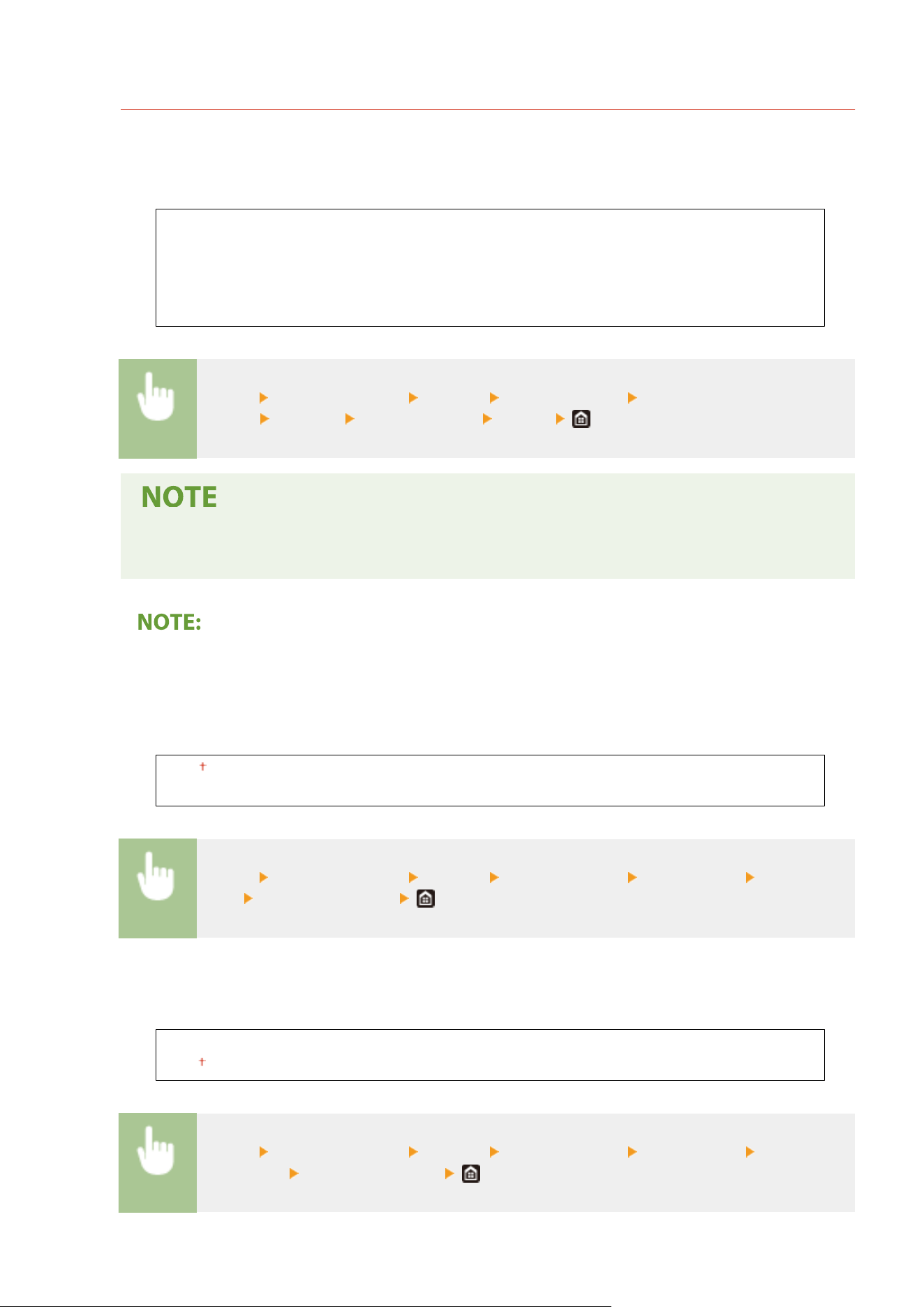
<Print Quality>
You can change settings related to print quality.
<Density>
*1
Adjust the toner density
.
17 Levels
<Fine Adjust>
<High>/<Medium>/<Lo
w>
17 Levels
<Menu> <Function Settings> <Printer> <Printer Settings> <Print
Quality> <Density> Adjust the density <Apply>
● Y
ou can use <Fine Adjust> to adjust the toner density to three density levels: high density, medium
density, and low density.
● When <T
oner Save> is set to <On>, you cannot set this item.
<Toner Save>
You can save toner consumption. Select <On> when you want to check the layout or other appearance
characteristics before proceeding to nal printing of a large job.
<Off>
<On>
<Menu> <Function Settings> <Printer> <Printer Settings> <Print Quality> <Toner
Save> Select <Off> or <On>
<Image Renement>
Enable or disable the smoothing mode in which the edges of characters and graphics are smoothly printed.
<Off>
<On>
<Menu> <Function Settings> <Printer> <Printer Settings> <Print Quality> <Image
Renement> Select <Off> or <On>
Setting Menu List
502
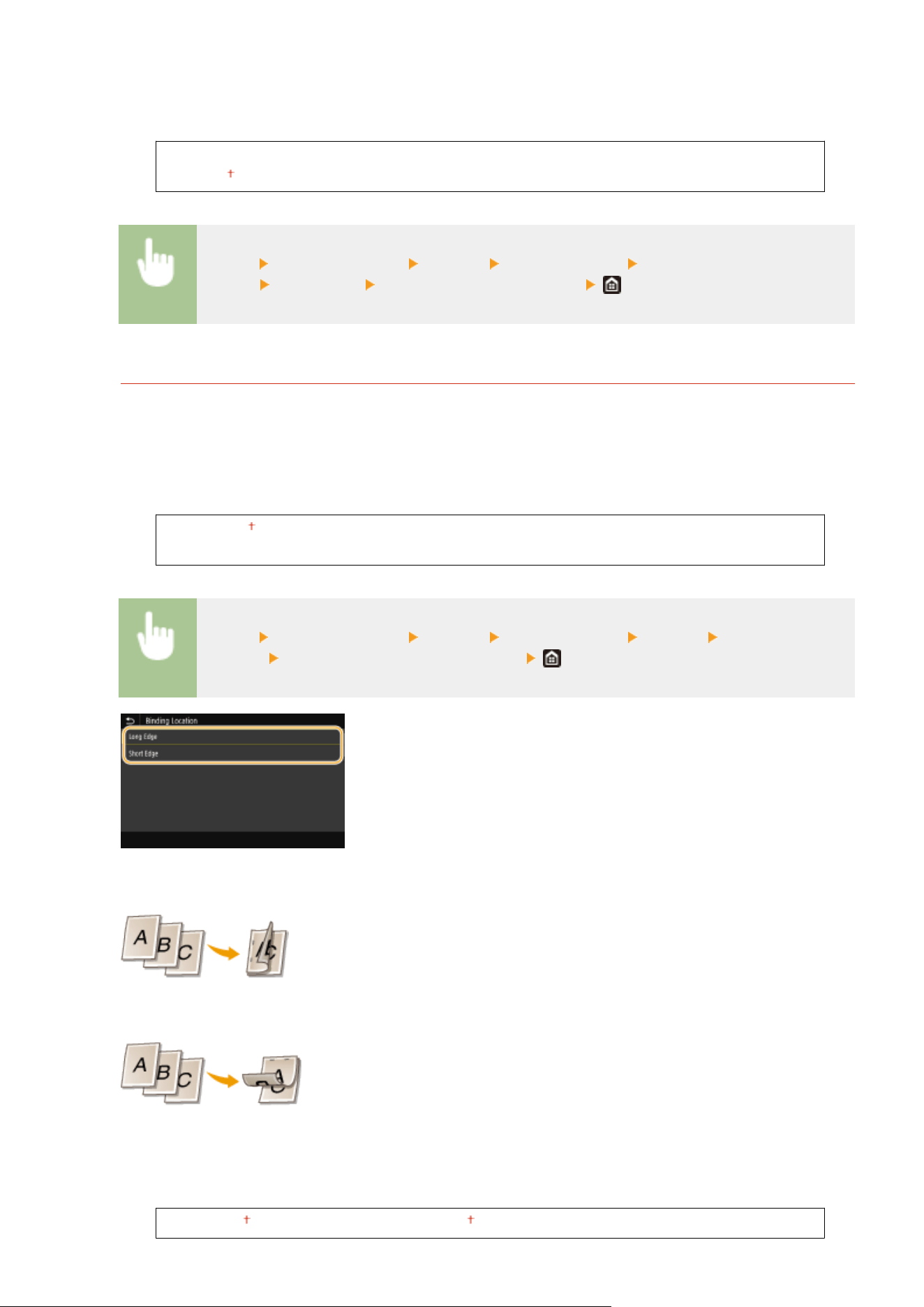
<Resolution>
Specify the r
esolution to be used for print data processing.
<1200 dpi>
<600 dpi>
<Menu> <Function Settings> <Printer> <Printer Settings> <Print
Quality> <Resolution> Select <1200 dpi> or <600 dpi>
<Layout>
Specify the page layout settings such as binding position and margin values.
<Binding Location>
If you ar
e binding the printouts with a binding tool such as a stapler, use this item to specify whether to bind
on the long or short edge. Specify the setting of this item in combination with <Gutter>, which species the
binding margin to apply to the binding position.
<Long Edge>
<Short Edge>
<Menu> <Function Settings> <Printer> <Printer Settings> <Layout> <Binding
Location> Select <Long Edge> or <Short Edge>
<Long Edge>
Specify this to bind on the long edge of paper.
<Short Edge>
Specify this to bind on the short edge of paper.
<Gutter>
Shift the print position to adjust the binding mar
gin to apply to the binding edge specied by <Binding
Location>. The value "0.00" exerts no effect on the binding margin.
-1.90 to 0.00
to +1.90 (inches) or -50.0 to 00.0 to +50.0 (mm)
Setting Menu List
503
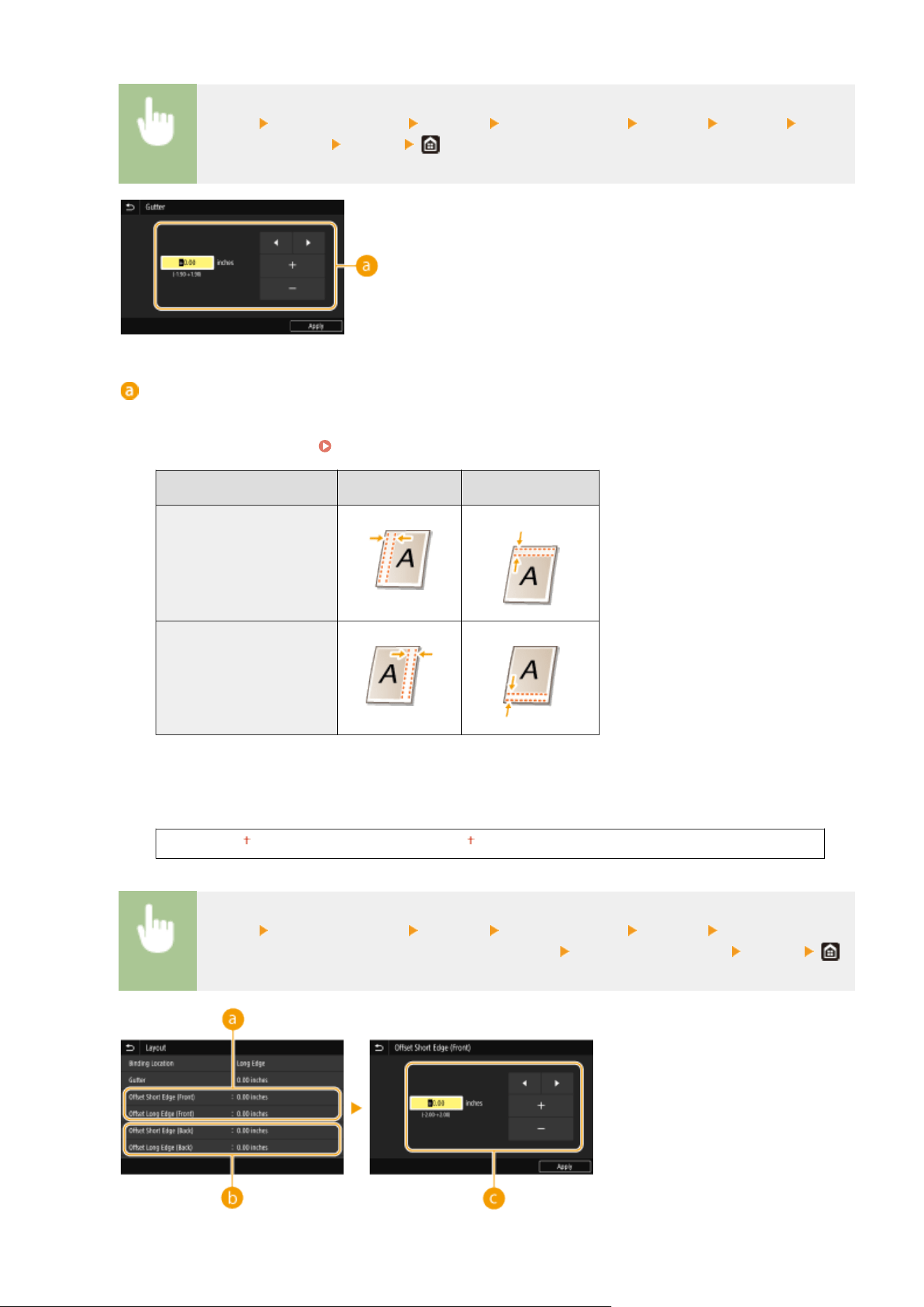
<Menu> <Function Settings> <Printer> <Printer Settings> <Layout> <Gutter> Specify
the binding mar
gin
<Apply>
Entering the setting value
Specify the print position shift dir
ection and shift width. Whether the setting value is a "+" or "-" value
determines the binding edge along which to adjust the binding margin. The margin width can be adjusted in
0.01" (0.5 mm) increments.
Basic Operation(P. 131)
Setting Value Long Edge Short Edge
A value with a "+" sign Left edge of paper Top edge of paper
A value with a "-" sign Right edge of paper Bottom edge of paper
<Offset Short Edge/Offset Long Edge>
Irr
espective of the paper source, you can shift the print position in units of "0.01" (0.5 mm)" for all print jobs.
-2.00 to 0.00
to +2.00 (inches) or -50.0 to 00.0 to +50.0 (mm)
<Menu> <Function Settings> <Printer> <Printer Settings> <Layout> Select the
combination of adjustment dir
ection and printing side
Specify the offset value <Apply>
Setting Menu List
504
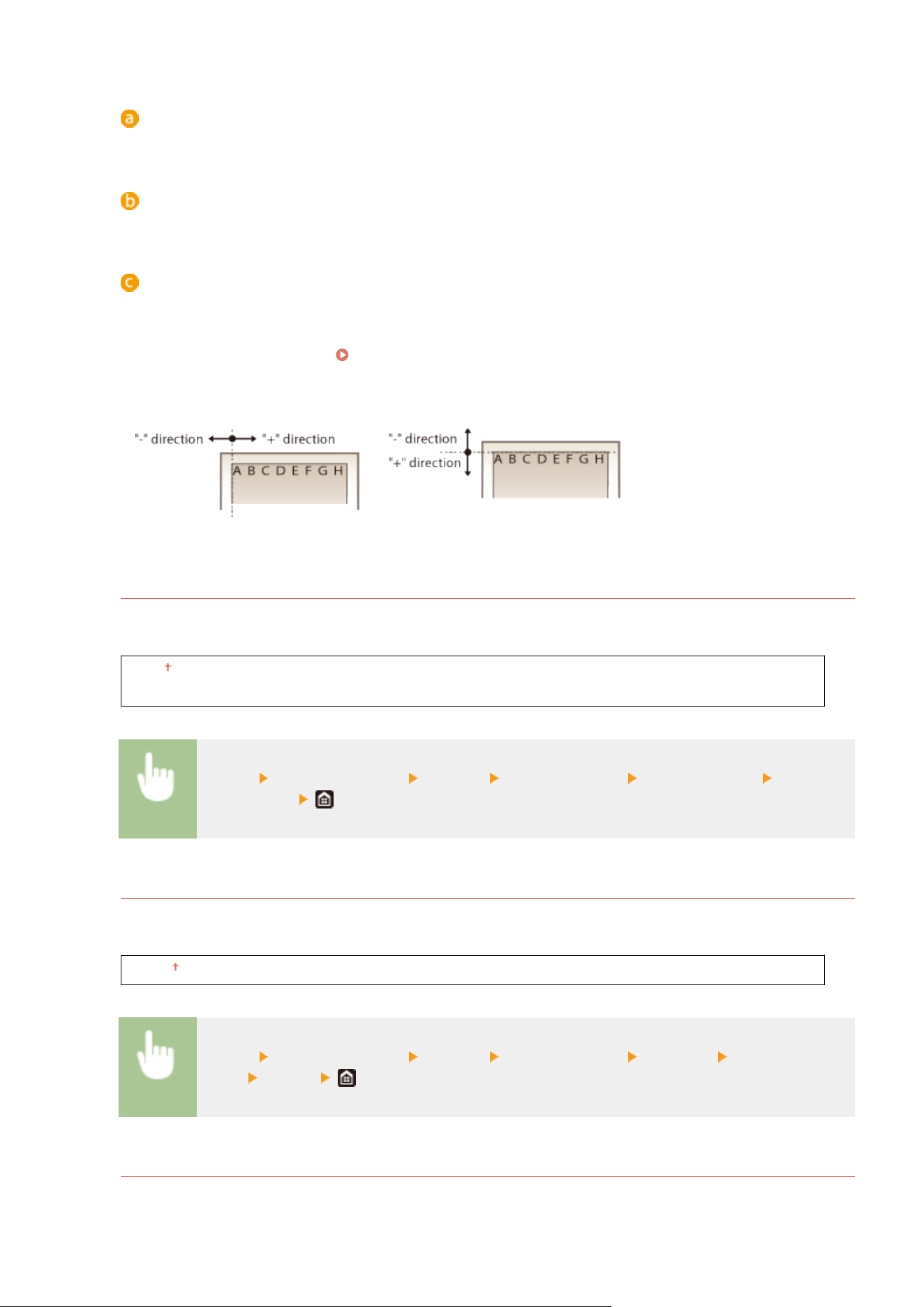
<Offset Short Edge (Front)>/<Offset Long Edge (Front)>
Shifts the print position on the side of paper facing up.
<Offset Short Edge (Back)>/<Offset Long Edge (Back)>
Shifts the print position on the side of paper facing do
wn.
Entering the setting value
For <Offset Short Edge (Fr
ont)>/<Offset Short Edge (Back)>, specify a value with a "+" sign to shift the print
position in the left-to-right direction. For <Offset Long Edge (Front)>/<Offset Long Edge (Back)>, specify a
value with a "+" sign to shift the print position in the up-to-down direction. To shift in the reverse direction,
specify a value with a "-" sign.
Basic Operation(P. 131)
<Offset Short Edge (Front)>
<Offset Short Edge (Back)>
<Offset Long Edge (Front)>
<Offset Long Edge (Back)>
<Auto Skip Error>
Printing stops if a certain error occurs in the process. However, if you set this item to <On>, the certain error will
be skipped and printing can continue. Normally
, set this item to <Off>.
<Off>
<On>
<Menu> <Function Settings> <Printer> <Printer Settings> <Auto Skip Error> Select
<Off> or <On>
<Timeout>
Set the time period after which the current print job is automatically canceled in the case of a print data
r
eception interruption.
5 to 15
to 300 (sec.)
<Menu> <Function Settings> <Printer> <Printer Settings> <Timeout> Set the time
period <Apply>
<Personality>
Specify the mode in which the machine should operate when the format of document data is unknown.
Setting Menu List
505
<Auto>
<PS>
<PCL>
<PDF>
<XPS>
<Imaging>
<Menu> <Function Settings> <Printer> <Printer Settings> <Personality> Select the
Personality mode
<Prioritize MP Tray>
Specify whether to feed paper from the multi-purpose tray when Auto Select Paper is enabled. If <On> is
selected, paper is fed fr
om the multi-purpose tray when paper of the same size and same type is loaded in both
the multi-purpose tray and paper drawer.
<Off>
<On>
<Menu> <Function Settings> <Printer> <Printer Settings> <Prioritize MP Tray> Select
<Off> or <On>
<UFR II>
You can change the settings that become effective when printing from the UFR II printer driver.
<Halftones>
Y
ou can select the printing method used to reproduce halftones (the intermediate range between the lighter
and darker areas of an image) for optimal image quality.
<Resolution/Gradation>
Select a method used to reproduce halftones. This option can be specied for each image type in any one
document.
<Text>
<Resolution>
<Color Tone>
<Gr
adation>
<High Resolution>
<Graphics>
<Resolution>
<Color Tone>
<Gradation>
<High Resolution>
<Image>
<Resolution>
Setting Menu List
506
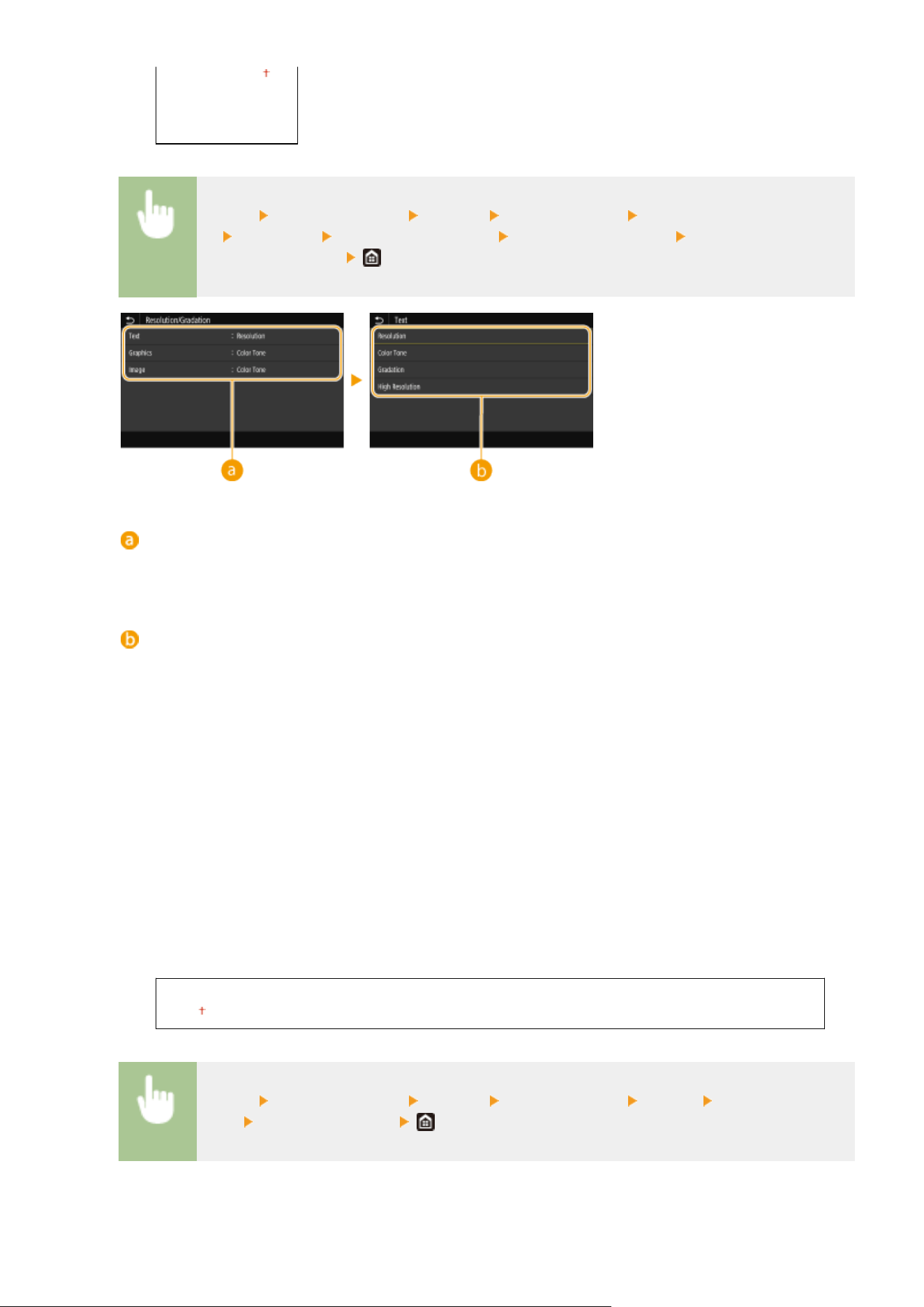
<Color Tone>
<Gradation>
<High Resolution>
<Menu> <Function Settings> <Printer> <Printer Settings> <UFR
II> <Halftones> <Resolution/Gradation> Select the type of image Select the halftone
r
eproduction method
Type of image
Select the object for which to change the setting. <T
ext> represents letters and characters, <Graphics>
represents lines and gures, and <Image> represents photos and images.
Setting value
<Resolution>
Produces a ne print with clear edges of text. It is suitable for printing characters and ne lines.
<Color Tone>
Produces a sharp print with strong contrast of lightness and darkness. It is suitable for printing image data
such as photo image data.
<Gradation>
Produces a print with smooth gradation or smooth edges. It is suitable for printing gures or graphs
containing gradation areas.
<High Resolution>
As compared to <Resolution>, this produces a ner print but quality stability is slightly lower. It is suitable to
obtain a print of character data or ne line data or CAD data with sharp edges.
<Paper Save>
Specify whether to disable a blank page in print data from being output.
<Off>
<On>
<Menu> <Function Settings> <Printer> <Printer Settings> <UFR II> <Paper
Save> Select <Off> or <On>
Setting Menu List
507
<PCL>
Specify the PCL printing settings such as page layout and print quality.
<Paper Save>
Specify whether to disable a blank page in print data fr
om being output.
<Off>
<On>
<Menu> <Function Settings> <Printer> <Printer Settings> <PCL> <Paper Save> Select
<Off> or <On>
<Orientation>
Select <Portr
ait> (vertical orientation) or <Landscape> (horizontal orientation) for the page orientation.
<Portrait>
<Landscape>
<Menu> <Function Settings> <Printer> <Printer Settings> <PCL> <Orientation> Select
<Portr
ait> or <Landscape>
<Font Number>
Specify the font to use b
y selecting a corresponding font ID number. You can print the PCL font list with font
samples from the operation panel.
PCL Font List(P. 594)
0 to 54
<Menu> <Function Settings> <Printer> <Printer Settings> <PCL> <Font
Number> Select the font number <Apply>
<Point Size>
*1
Set the font size in points, adjustable in 0.25 incr
ements. You can specify this setting only when a
proportionally-spaced scalable font is selected in <Font Number>.
4.00 to 12.00
to 999.75 (point)
<Menu> <Function Settings> <Printer> <Printer Settings> <PCL> <Point Size> Specify
the point size <Apply>
Setting Menu List
508
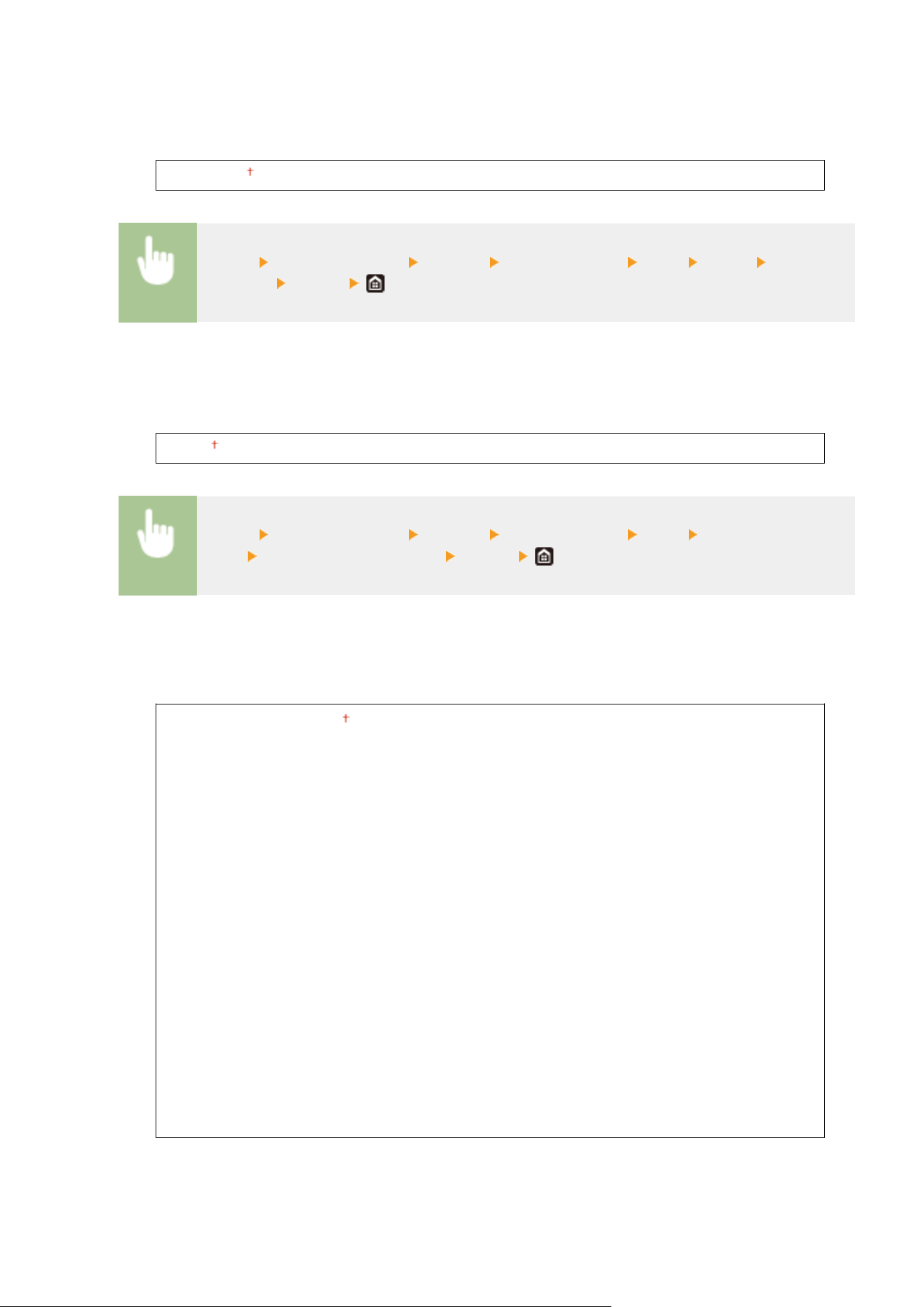
<Pitch>
*1
Set the font pitch, or cpi (char
acters per inch), adjustable in 0.01 increments. You can specify this setting only
when a xed-pitch scalable font or a bitmap font is selected in <Font Number>.
0.44 to 10.00
to 99.99 (cpi)
<Menu> <Function Settings> <Printer> <Printer Settings> <PCL> <Pitch> Specify the
pitch value <Apply>
<Form Lines>
*2
Set the number of lines printed on one page fr
om 5 to 128. This setting is automatically changed according
to the settings specied in <Default Paper Size> and <Orientation>.
5 to 60
to 128 (lines)
<Menu> <Function Settings> <Printer> <Printer Settings> <PCL> <Form
Lines> Specify the number of lines <Apply>
<Character Code>
Select the char
acter code that is most suited for the computer you send print data from. The specied setting
is ignored when the character code is controlled by the font specied in <Font Number>.
<DESKTOP>
<ISO4>
<ISO6>
<ISO11>
<ISO15>
<ISO17>
<ISO21>
<ISO60>
<ISO69>
<ISOL1>
<ISOL2>
<ISOL5>
<ISOL6>
<ISOL9>
<LEGAL>
<MA
TH8>
<MCTEXT>
<MSPUBL>
<PC775>
<PC8>
<PC850>
<PC852>
<PC858>
<PC8DN>
<PC8TK>
<PC1004>
<PIFONT>
<PSMA
TH>
<PSTEXT>
<ROMAN8>
<ROMAN9>
<VNINTL>
<VNMATH>
<VNUS>
<WIN30>
<WINBALT>
<WINL1>
<WINL2>
<WINL5>
Setting Menu List
509
<Menu> <Function Settings> <Printer> <Printer Settings> <PCL> <Character
Code> Select the character code
<Custom Paper>
Select whether to set a custom paper size. Select <On> to set the dimensions of the paper in <X dimension>
and <Y dimension>.
<Off>
<On>
<Menu> <Function Settings> <Printer> <Printer Settings> <PCL> <Custom
Paper> Select <Off> or <On>
<Unit of Measure>
*1*2
Select the unit of measur
ement to use to set a custom paper size.
<Millimeter>
<Inch>
<Menu> <Function Settings> <Printer> <Printer Settings> <PCL> <Unit of
Measure> Select <Millimeter> or <Inch>
<X dimension>
*1
Specify the horizontal dimension (short edge) of the custom paper.
3 to 8 1/2 (inches) or 77 to 216 (mm)
<Menu> <Function Settings> <Printer> <Printer Settings> <PCL> <X
dimension> Specify the dimension <Apply>
<Y dimension>
*1
Specify the vertical dimension (long edge) of the custom paper.
5 to 14 (inches) or 127 to 355 (mm)
Setting Menu List
510
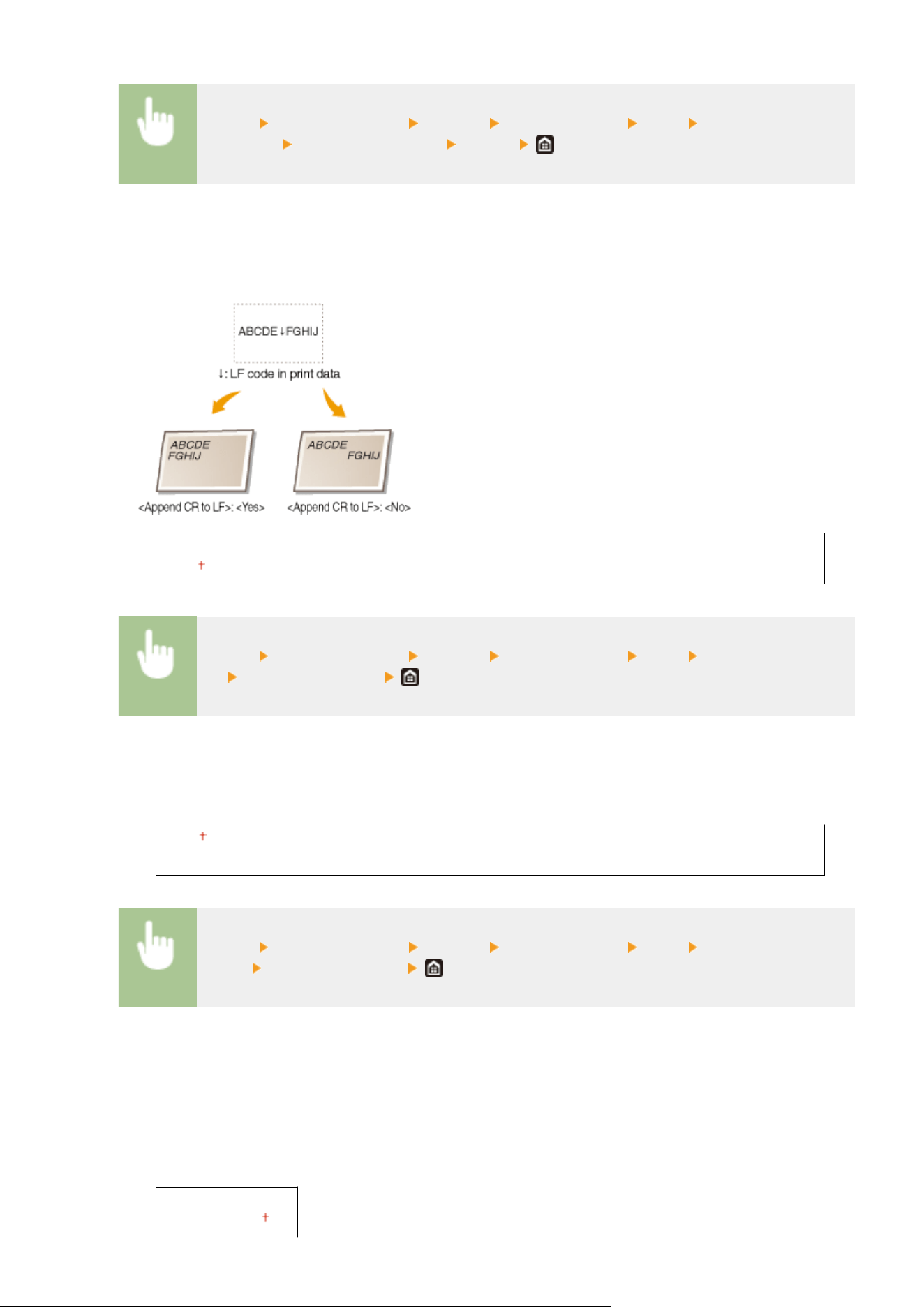
<Menu> <Function Settings> <Printer> <Printer Settings> <PCL> <Y
dimension> Specify the dimension <Apply>
<Append CR to LF>
Select whether to append a carriage r
eturn (CR) when the machine receives a line feed code (LF). If <Yes> is
selected, the print position moves to the beginning of the next line when the machine receives an LF code. If
<No> is selected, the print position moves to the next line, just under the received LF code.
<Yes>
<No>
<Menu> <Function Settings> <Printer> <Printer Settings> <PCL> <Append CR to
LF> Select <Yes> or <No>
<Enlarge A4 Print Width>
Select whether to e
xpand the width of the printable area of A4 size paper in portrait orientation to that of
Letter size.
<Off>
<On>
<Menu> <Function Settings> <Printer> <Printer Settings> <PCL> <Enlarge A4 Print
Width> Select <Off> or <On>
<Halftones>
Y
ou can select the printing method used to reproduce halftones (the intermediate range between the lighter
and darker areas of an image) for optimal image quality.
<Resolution/Gradation>
Select a method used to reproduce halftones. This option can be specied for each image type in any one
document.
<Text>
<Resolution>
Setting Menu List
511
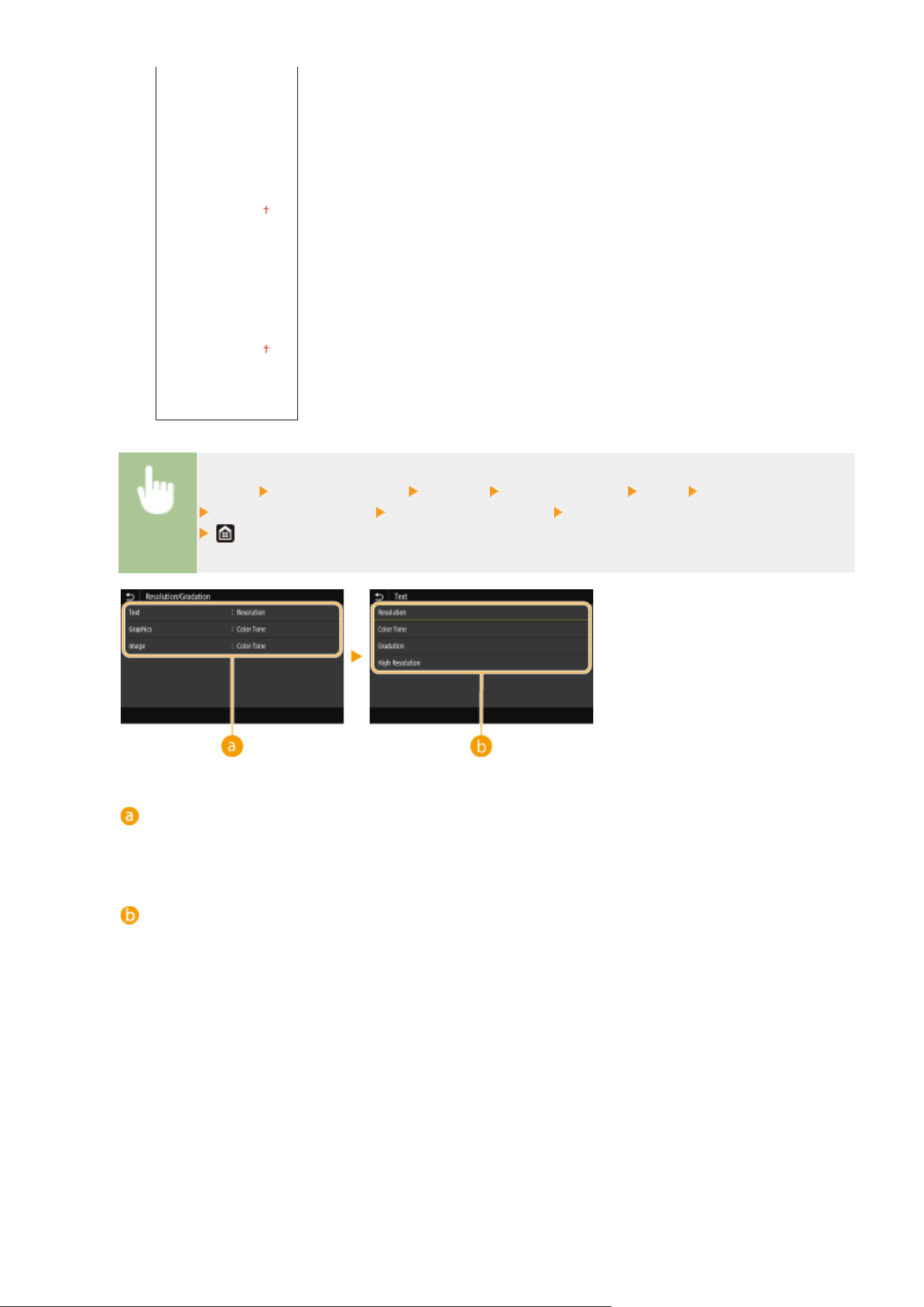
<Color Tone>
<Gr
adation>
<High Resolution>
<Graphics>
<Resolution>
<Color Tone>
<Gradation>
<High Resolution>
<Image>
<Resolution>
<Color T
one>
<Gradation>
<High Resolution>
<Menu> <Function Settings> <Printer> <Printer Settings> <PCL> <Halftones>
<Resolution/Gradation> Select the type of image Select the halftone reproduction method
Type of image
Select the object for which to change the setting. <T
ext> represents letters and characters, <Graphics>
represents lines and gures, and <Image> represents photos and images.
Setting value
<Resolution>
Pr
oduces a ne print with clear edges of text. It is suitable for printing characters and ne lines.
<Color Tone>
Produces a sharp print with strong contrast of lightness and darkness. It is suitable for printing image data
such as photo image data.
<Gradation>
Produces a print with smooth gradation or smooth edges. It is suitable for printing gures or graphs
containing gradation areas.
<High Resolution>
As compared to <Resolution>, this produces a ner print but quality stability is slightly lower. It is suitable to
obtain a print of character data or ne line data or CAD data with sharp edges.
Setting Menu List
512
<PS>
Specify the PS printing settings such as page layout and print quality.
<Job Timeout>
This setting enables you to specify the amount of time befor
e a job times out. If a job has not nished within
the set time limit, the job automatically cancels.
0
to 3600 (sec.)
<Menu> <Function Settings> <Printer> <Printer Settings> <PS> <Job Timeout>
Specify the seconds for job timeout <Apply>
<Print PS Errors>
This setting determines whether an err
or page is printed when an error is encountered.
<Off>
<On>
<Menu> <Function Settings> <Printer> <Printer Settings> <PS> <Print PS Errors>
Select <Off> or <On>
<Halftones>
Y
ou can select the printing method used to reproduce halftones (the intermediate range between the lighter
and darker areas of an image) for optimal image quality.
<Resolution/Gradation>
Select a method used to reproduce halftones. This option can be specied for each image type in any one
document.
<Text>
<Resolution>
<Gradation>
<High Resolution>
<Gr
aphics>
<Resolution>
<Gradation>
<High Resolution>
<Image>
<Resolution>
<Gradation>
<High Resolution>
Setting Menu List
513
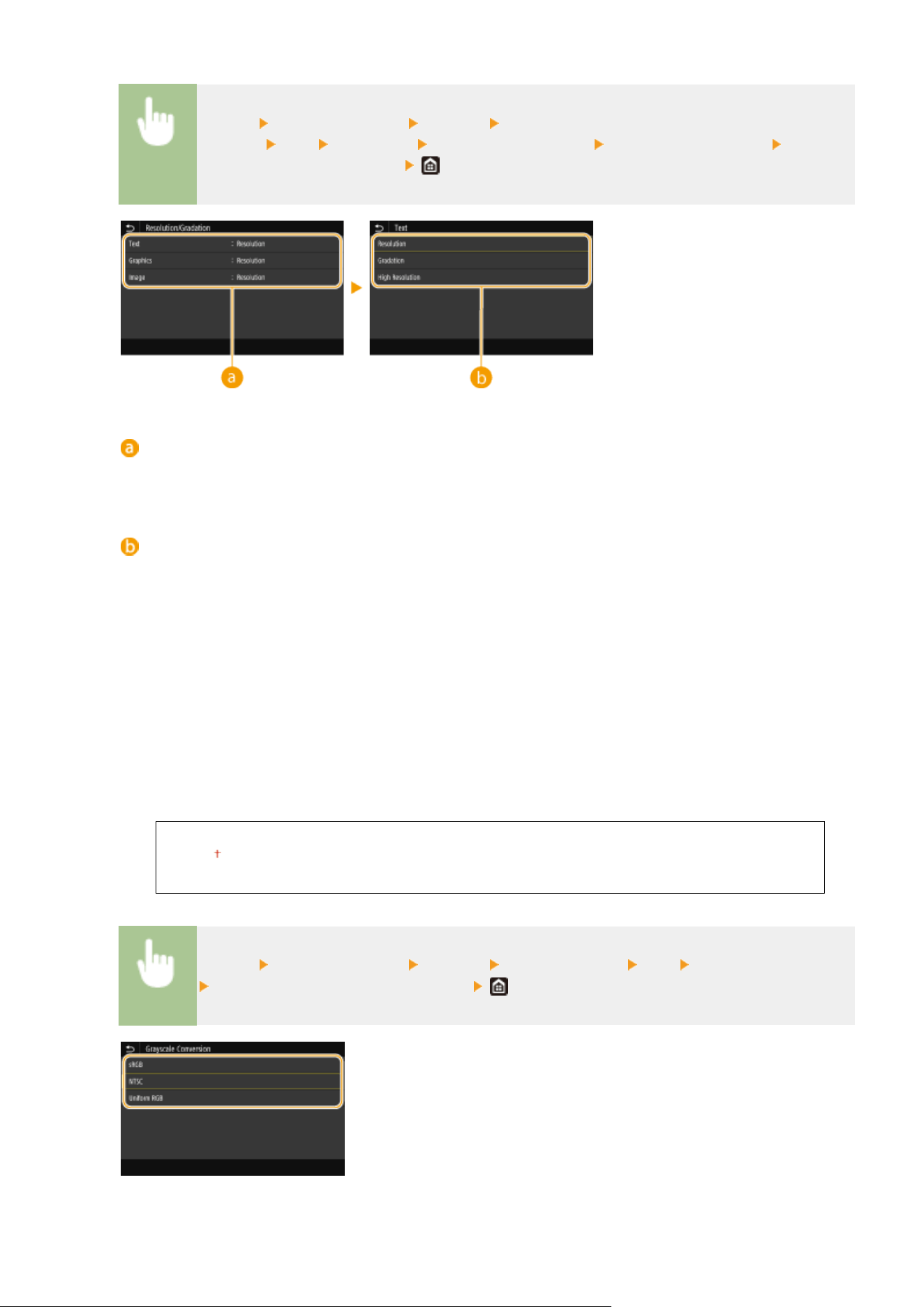
<Menu> <Function Settings> <Printer> <Printer
Settings> <PS> <Halftones> <Resolution/Gradation> Select the type of image Select the
halftone r
eproduction method
Type of image
Select the object for which to change the setting. <T
ext> represents letters and characters, <Graphics>
represents lines and gures, and <Image> represents photos and images.
Setting value
<Resolution>
Pr
oduces a print with smooth gradation or smooth edges. It is suitable for printing gures or graphs
containing gradation areas.
<Gradation>
Produces a sharp print with strong contrast of lightness and darkness. It is suitable for printing image data
such as photo image data.
<High Resolution>
Produces a ne print with clear edges of text. It is suitable for printing characters and ne lines.
<Grayscale Conversion>
Specify the way of printing color data in black and white.
<sRGB>
<NTSC>
<Uniform RGB>
<Menu> <Function Settings> <Printer> <Printer Settings> <PS> <Grayscale Conversion>
Select the type of grayscale conversion
<sRGB>
Setting Menu List
514
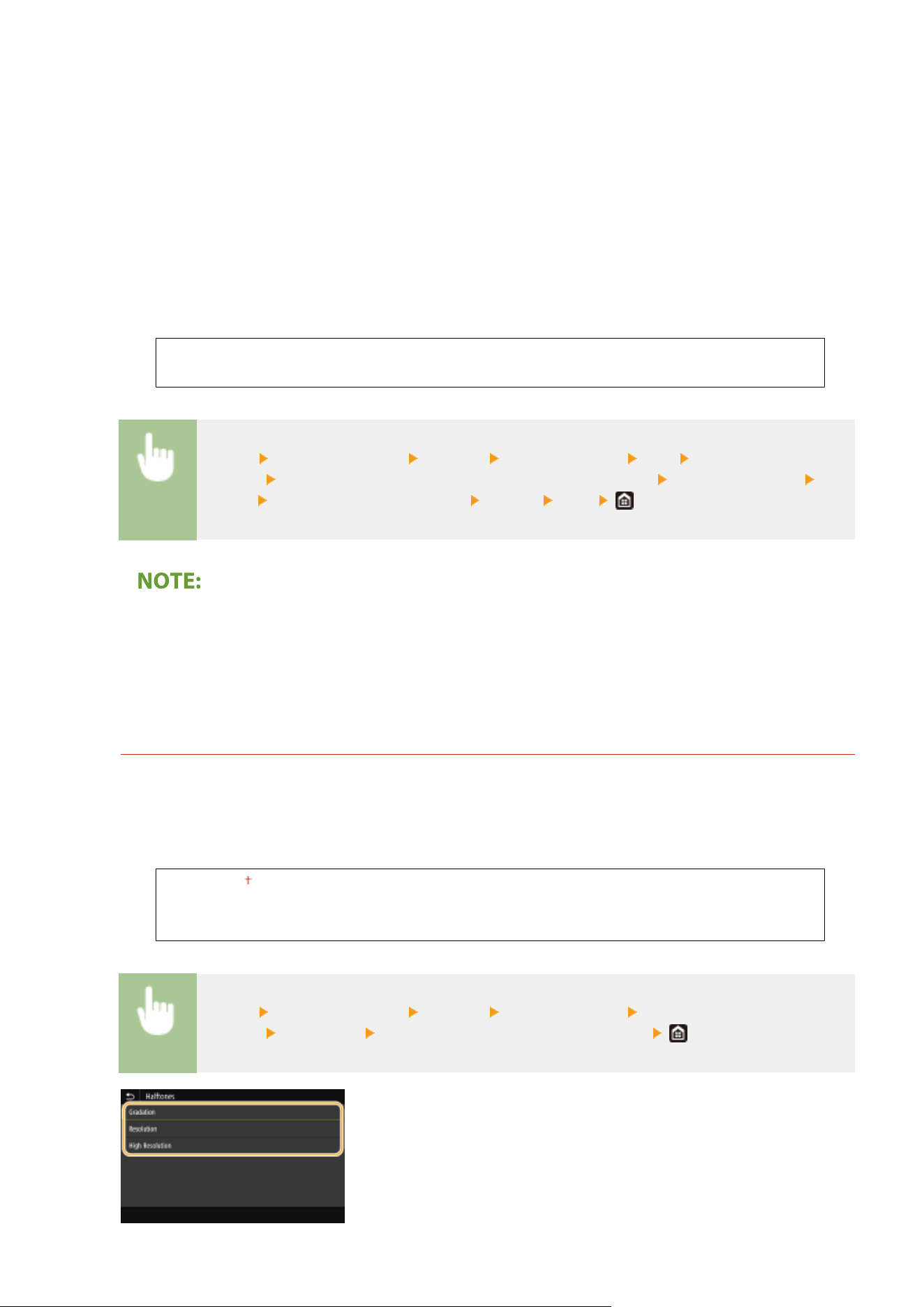
Prints in black and white with emphasis on color differences so that a smooth gradation is achieved.
<NTSC>
Prints in black and white so that the r
esulting image looks like a black and white television picture (of the NTSC
system).
<Uniform RGB>
Prints in black and white so that R, G, and B are uniformly converted to the same gray level by using only
brightness as the reference.
<PS Password Settings>
You can specify the password that restricts the use of the control command prepared by the PS printer.
<SystemParamsPassword>
<StartJobPasswor
d>
<Menu> <Function Settings> <Printer> <Printer Settings> <PS> <PS Password
Settings> Select <SystemParamsPassword> or <StartJobPassword> Enter the password
<Apply> Enter the password (Conrm) <Apply> <OK>
● <SystemPar
amsPassword> is a password that allows changes to the system parameter, and
<StartJobPassword> is a password that allows startjob, exitserver operator to perform. For more
information, check PostScript language specications.
● If <StartJobPassword> is set but <SystemParamsPassword> is not set, password check will not be
performed while performing startjob, exitserver operator.
<Imaging Settings>
You can change the print settings that will apply when printing image les (
JPEG/TIFF).
<Halftones>
You can change the printing method used to reproduce halftones (the intermediate range between the
lighter and darker areas of an image) for optimal image quality.
<Gradation>
<Resolution>
<High Resolution>
<Menu> <Function Settings> <Printer> <Printer Settings> <Imaging
Settings> <Halftones> Select the halftone reproduction method
Setting Menu List
515
<Gradation>
Pr
oduces a sharp print with strong contrast of lightness and darkness. It is suitable for printing image data such
as photo image data.
<Resolution>
Produces a print with smooth gradation or smooth edges. It is suitable for printing gures or graphs containing
gradation areas.
<High Resolution>
Produces a ne print with clear edges of text. It is suitable for printing characters and ne lines.
<PDF>
You can change settings for PDF les.
<Enlarge/Reduce to Fit Paper Size>
Specify whether to enlarge or reduce the original according to the print range of paper. Note that size
enlargement/reduction will not affect the aspect ratio of the original.
<Off>
<On>
<Menu> <Function Settings> <Printer> <Printer Settings> <PDF> <Enlarge/Reduce to Fit
Paper Size>
Select <Off> or <On>
<Enlarge Print Area>
Specify whether to e
xtend the print range to the paper size.
<Off>
<On>
<Menu> <Function Settings> <Printer> <Printer Settings> <PDF> <Enlarge Print Area>
Select <Off> or <On>
● If you specify <On>, it may occur that edge-adjacent portions of page are not printed or that printouts
come out partially smudged depending on the original.
<N on 1>
Specify whether to shrink multiple pages and print them on one page in such arrangement that the rst
page is positioned at top left. For example, to print 4 pages onto a single sheet, select <4 on 1>.
<Off>
<2 on 1>
<4 on 1>
<6 on 1>
<8 on 1>
<9 on 1>
<16 on 1>
Setting Menu List
516
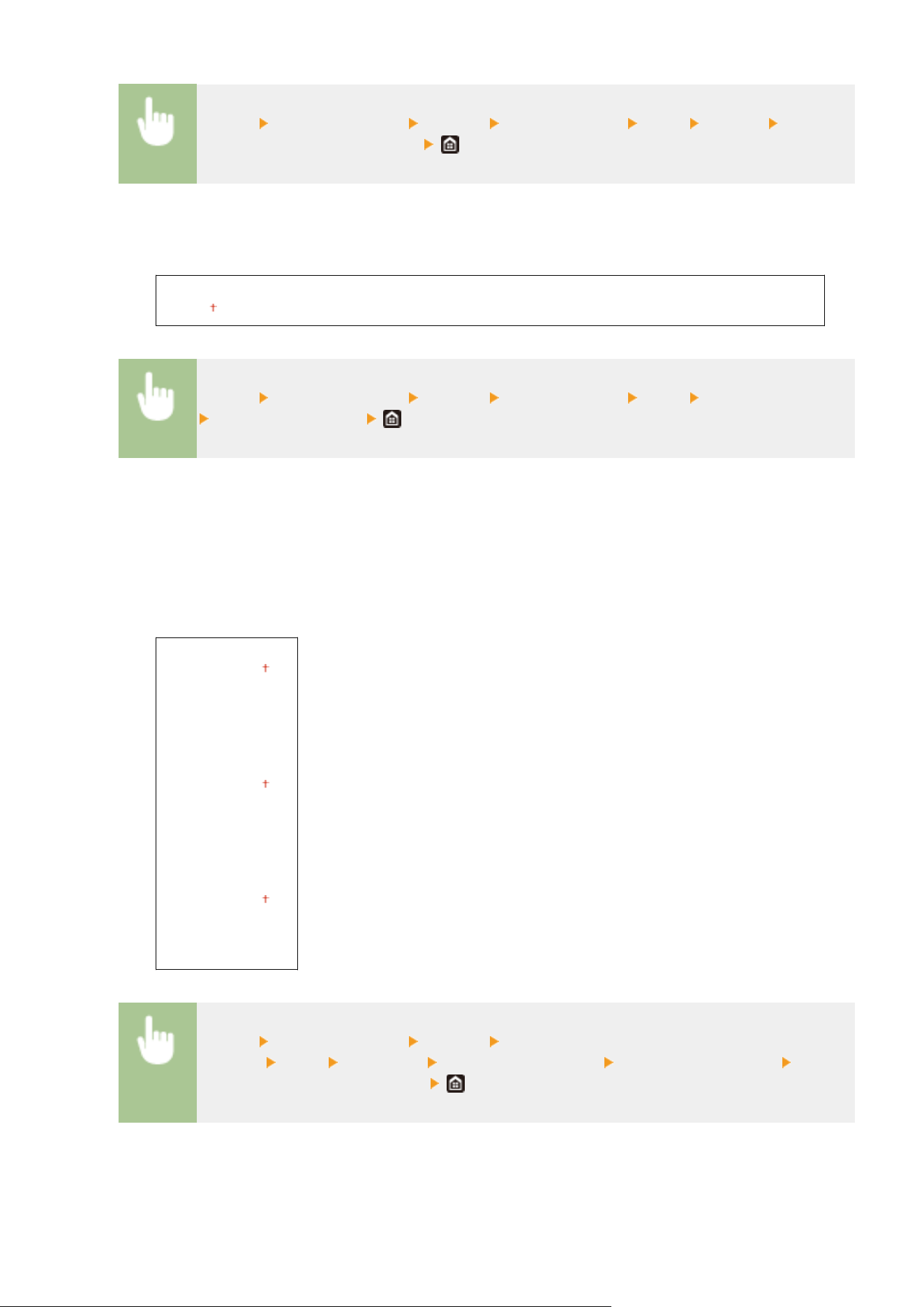
<Menu> <Function Settings> <Printer> <Printer Settings> <PDF> <N on 1> Select the
number of pages to be combined
<Print Comments>
Specify whether to print comments. If you specify <Auto>, comments in PDF les will be printed.
<Off>
<Auto>
<Menu> <Function Settings> <Printer> <Printer Settings> <PDF> <Print Comments>
Select <Off> or <Auto>
<Halftones>
Y
ou can select the printing method used to reproduce halftones (the intermediate range between the lighter
and darker areas of an image) for optimal image quality.
<Resolution/Gradation>
Select a method used to reproduce halftones. This option can be specied for each image type in any one
document.
<Text>
<Resolution>
<Gradation>
<High Resolution>
<Gr
aphics>
<Resolution>
<Gradation>
<High Resolution>
<Image>
<Resolution>
<Gradation>
<High Resolution>
<Menu> <Function Settings> <Printer> <Printer
Settings> <PDF> <Halftones> <Resolution/Gradation> Select the type of image Select
the halftone r
eproduction method
Setting Menu List
517
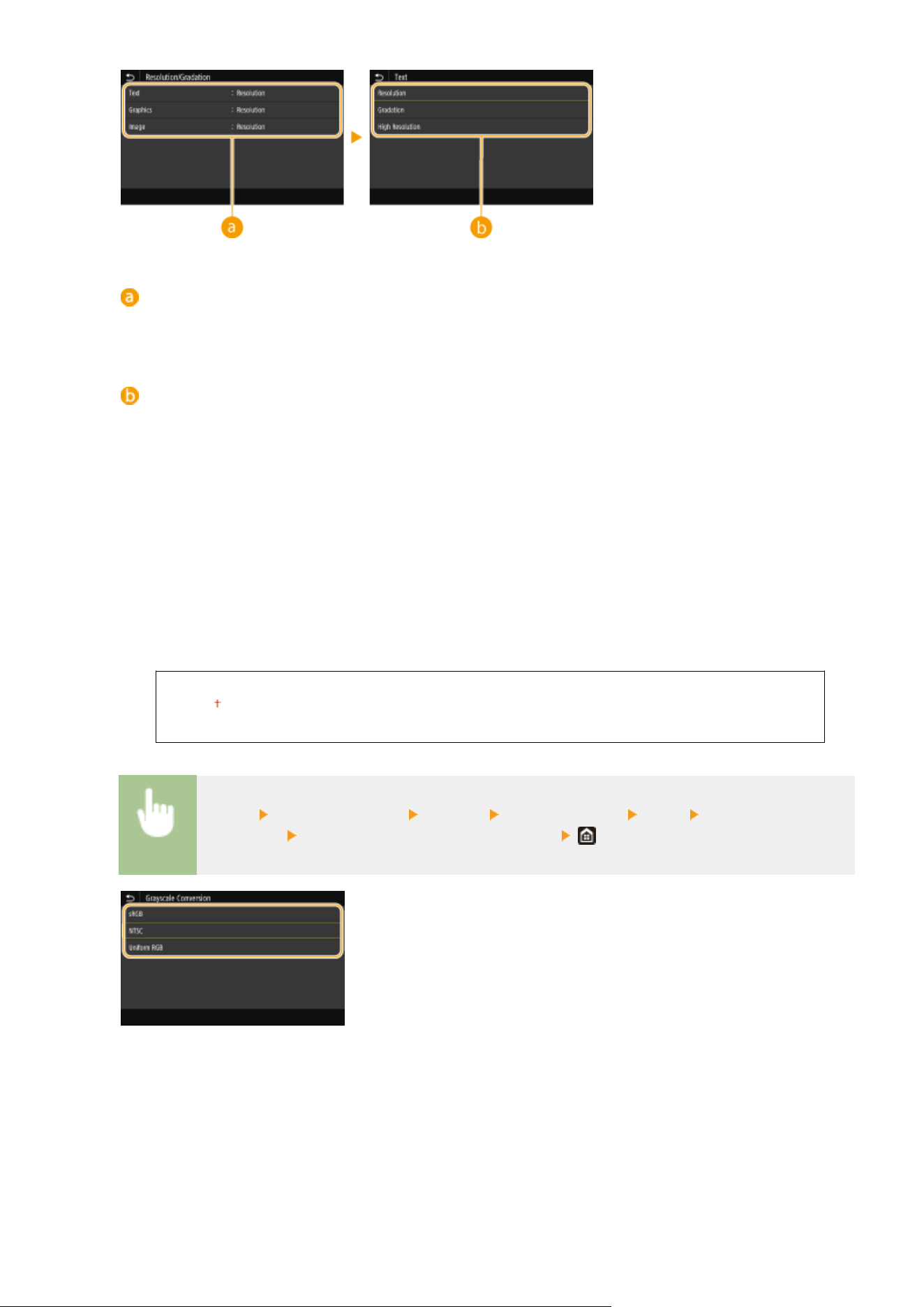
Type of image
Select the object for which to change the setting. <T
ext> represents letters and characters, <Graphics>
represents lines and gures, and <Image> represents photos and images.
Setting value
<Resolution>
Pr
oduces a print with smooth gradation or smooth edges. It is suitable for printing gures or graphs
containing gradation areas.
<Gradation>
Produces a sharp print with strong contrast of lightness and darkness. It is suitable for printing image data
such as photo image data.
<High Resolution>
Produces a ne print with clear edges of text. It is suitable for printing characters and ne lines.
<Grayscale Conversion>
Specify the way of printing color data in black and white.
<sRGB>
<NTSC>
<Uniform RGB>
<Menu> <Function Settings> <Printer> <Printer Settings> <PDF> <Grayscale
Conversion> Select the type of grayscale conversion
<sRGB>
Prints in black and white with emphasis on color differ
ences so that a smooth gradation is achieved.
<NTSC>
Prints in black and white so that the resulting image looks like a black and white television picture (of the NTSC
system).
<Uniform RGB>
Setting Menu List
518
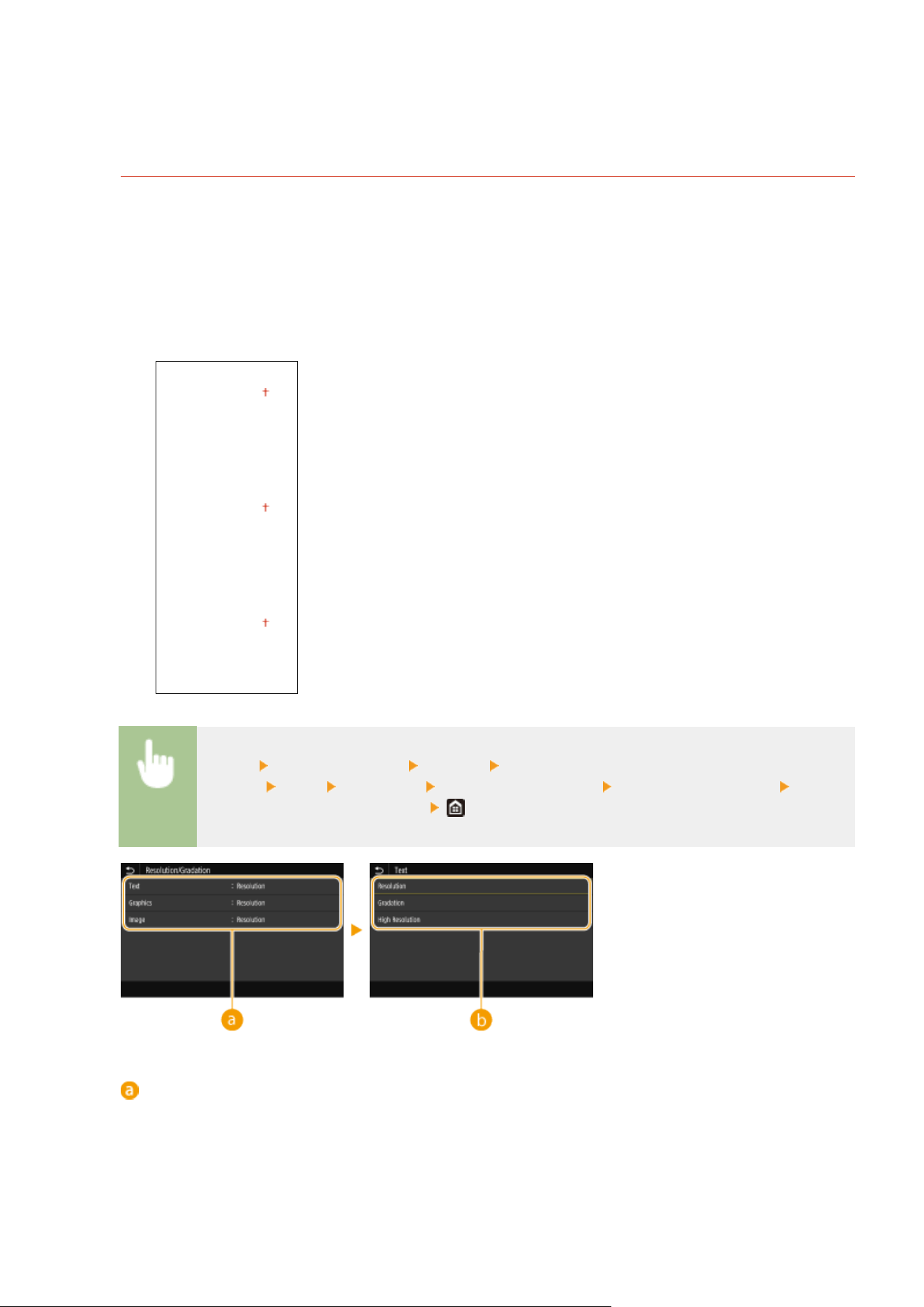
Prints in black and white so that R, G, and B are uniformly converted to the same gray level by using only
brightness as the r
eference.
<XPS>
You can change settings for XPS les.
<Halftones>
You can select the printing method used to reproduce halftones (the intermediate range between the lighter
and darker areas of an image) for optimal image quality.
<Resolution/Gradation>
Select a method used to reproduce halftones. This option can be specied for each image type in any one
document.
<Text>
<Resolution>
<Gradation>
<High Resolution>
<Gr
aphics>
<Resolution>
<Gradation>
<High Resolution>
<Image>
<Resolution>
<Gradation>
<High Resolution>
<Menu> <Function Settings> <Printer> <Printer
Settings> <XPS> <Halftones> <Resolution/Gradation> Select the type of image Select
the halftone r
eproduction method
Type of image
Select the object for which to change the setting. <Text> represents letters and characters, <Graphics>
represents lines and gures, and <Image> represents photos and images.
Setting Menu List
519
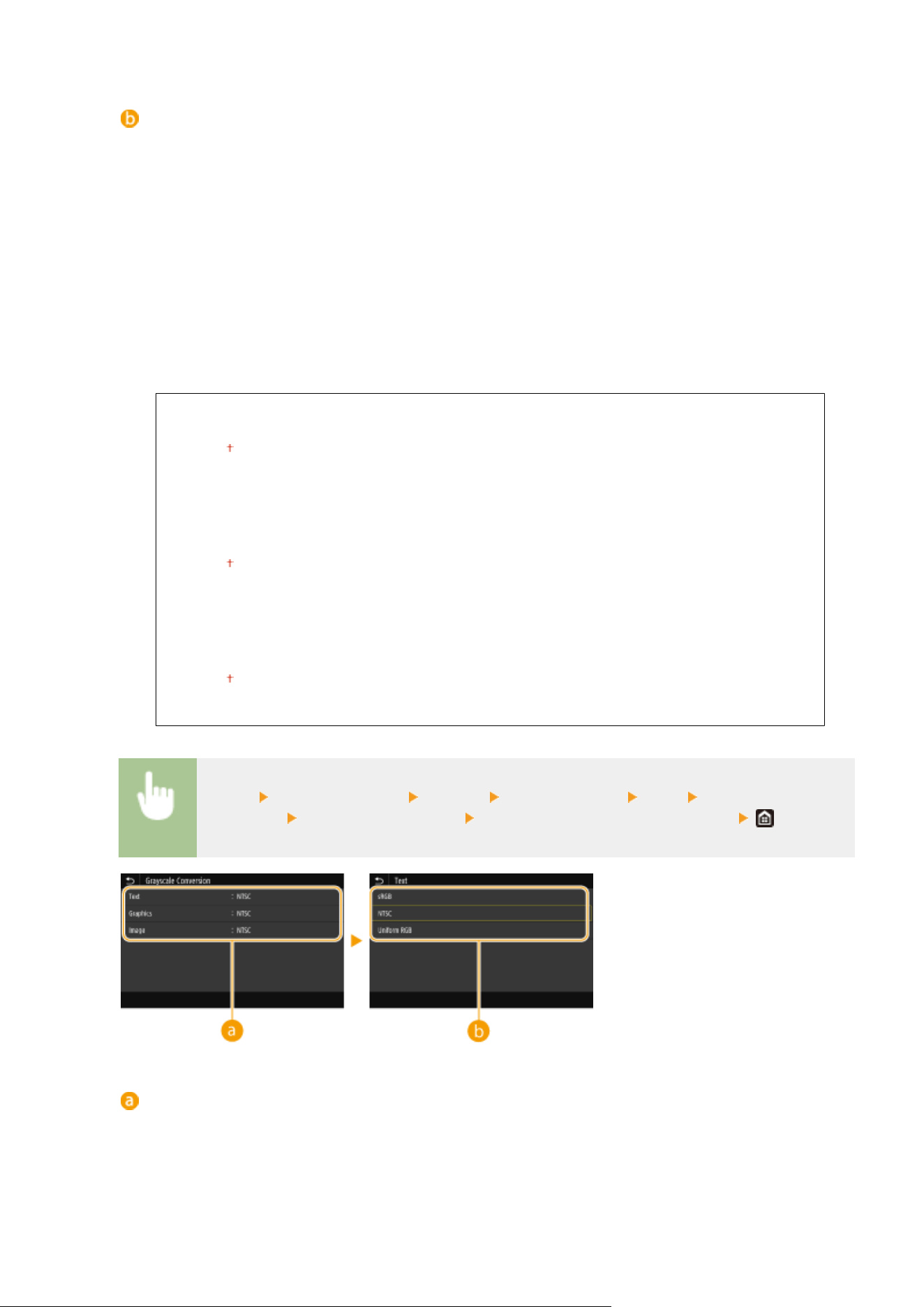
Setting value
<Resolution>
Pr
oduces a print with smooth gradation or smooth edges. It is suitable for printing gures or graphs
containing gradation areas.
<Gradation>
Produces a sharp print with strong contrast of lightness and darkness. It is suitable for printing image data
such as photo image data.
<High Resolution>
Produces a ne print with clear edges of text. It is suitable for printing characters and ne lines.
<Grayscale Conversion>
Specify the way of printing color data in black and white.
<Text>
<sRGB>
<NTSC>
<Uniform RGB>
<Gr
aphics>
<sRGB>
<NTSC>
<Uniform RGB>
<Image>
<sRGB>
<NTSC>
<Uniform RGB>
<Menu> <Function Settings> <Printer> <Printer Settings> <XPS> <Grayscale
Conversion>
Select the type of image Select the type of grayscale conversion
Type of image
Select the object for which to change the setting. <T
ext> represents letters and characters, <Graphics>
represents lines and gures, and <Image> represents photos and images.
Setting Menu List
520
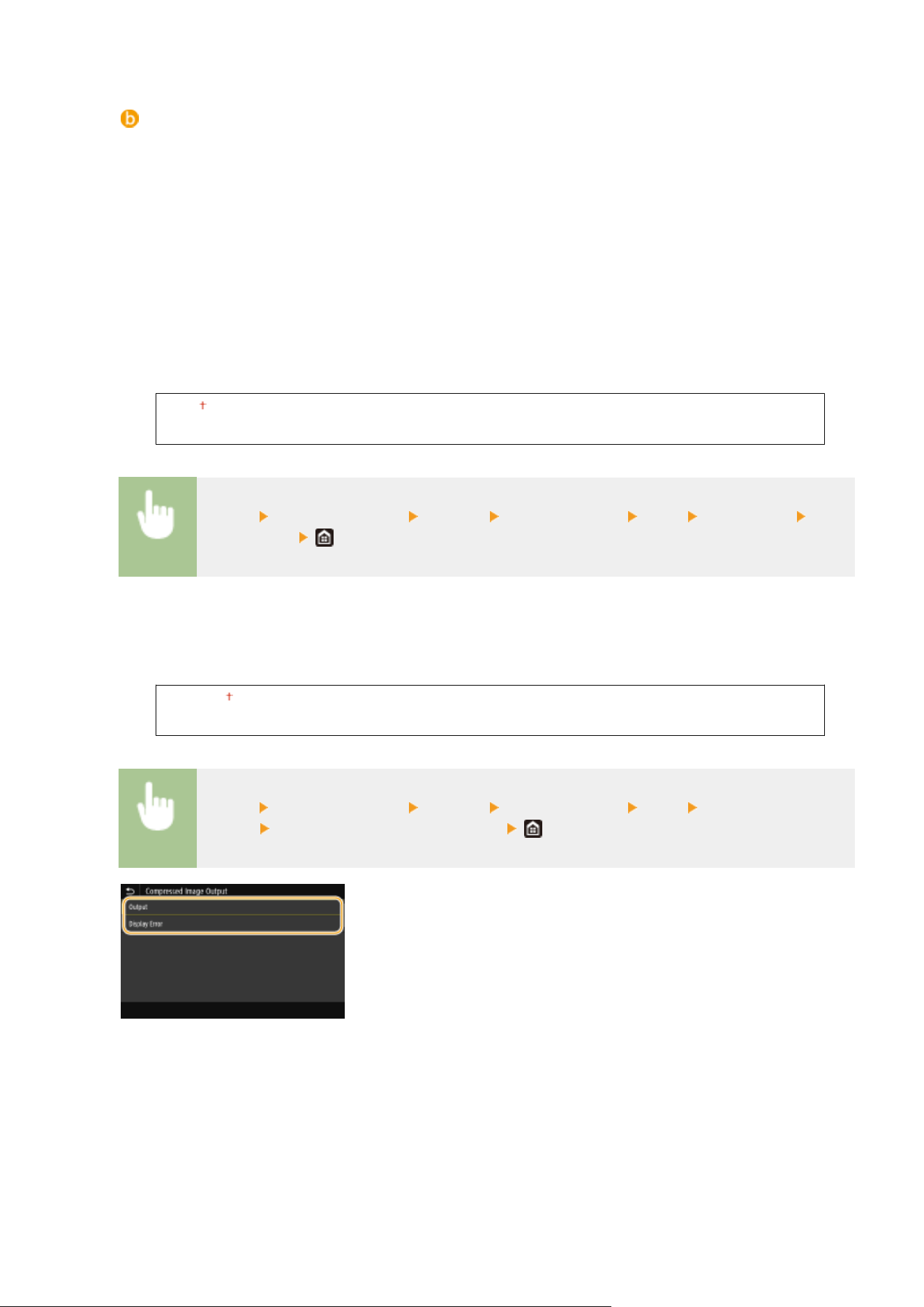
Type of grayscale conversion
<sRGB>
Prints in black and white with emphasis on color differ
ences so that a smooth gradation is achieved.
<NTSC>
Prints in black and white so that the resulting image looks like a black and white television picture (of the
NTSC system).
<Uniform RGB>
Prints in black and white so that R, G, and B are uniformly converted to the same gray level by using only
brightness as the reference.
<Paper Save>
Specify whether to disable a blank page in print data from being output.
<Off>
<On>
<Menu> <Function Settings> <Printer> <Printer Settings> <XPS> <Paper Save> Select
<Off> or <On>
<Compressed Image Output>
Specify the oper
ation that is to be performed when the image quality has degraded due to insucient
memory during printing.
<Output>
<Display Error>
<Menu> <Function Settings> <Printer> <Printer Settings> <XPS> <Compressed Image
Output> Select <Output> or <Display Error>
<Output>
Continues printing r
egardless of how much the image quality has degraded.
<Display Error>
If the image quality has degraded signicantly, an error message is displayed, and printing is stopped.
Setting Menu List
521
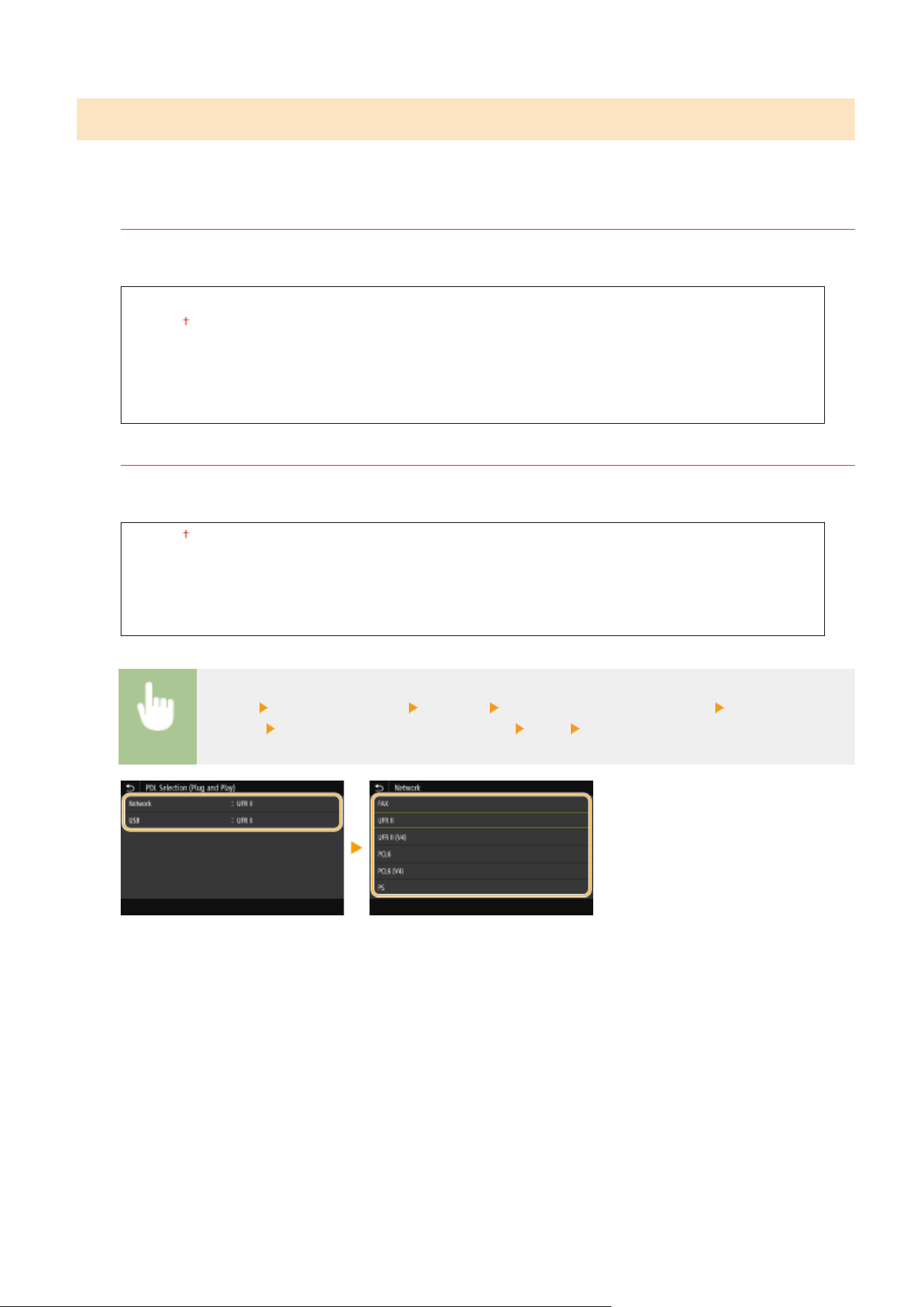
<PDL Selection (Plug and Play)>
Select a page description language so that the machine is detected as a printer that is compatible with that language
when it is connected to a computer by using Plug and Play.
<Network>
*3
Select a page description language so that the machine is detected as a printer that is compatible with that
language when it is detected o
ver the network.
<FAX>
*1
<UFR II>
<UFR II (V4)>
<PCL6>
<PCL6 (V4)>
<PS>
<USB>
Select a page description language so that the machine is detected as a printer that is compatible with that
language when it is connected to a computer via USB
.
<UFR II>
<UFR II (V4)>
<PCL6>
<PCL6 (V4)>
<PS>
<Menu> <Function Settings> <Printer> <PDL Selection (Plug and Play)> Select <Network>
or <USB> Select a page description language <OK> Restart the machine
<FAX>
*1
Detects and connects the machine as a fax de
vice.
<UFR II>
Detects and connects the machine as a UFR II printer.
<UFR II (V4)>
Detects and connects the machine as a UFR II printer that is compatible with XML Paper Specication (XPS).
<PCL6>
Detects and connects the machine as a PCL6 printer.
<PCL6 (V4)>
Detects and connects the machine as a PCL6 printer.
<PS>
Detects and connects the machine as a PS printer.
Setting Menu List
522
<Send>
7YWY-090
All the settings r
elated to sending faxes and scanned originals are listed with descriptions. Default settings are marked
with a dagger (
).
<Common Settings>(P. 523)
<Scan and Send Settings>(P. 524)
<Fax Settings>(P. 529)
Asterisks (
*
)
● Settings mark
ed with "
*1
" may not be displayed depending on the model you are using, options, or other
setting items.
● Settings marked with "
*2
" may be unavailable or vary or have different defaults depending on your country
or region.
● Settings marked with "
*3
" cannot be imported or exported.
<Common Settings>
Congur
e the settings to restrict destinations at the time of sending faxes, e-mails, or I-Faxes, and specify the
conrmation method to prevent transmission to wrong destinations.
<Restrict New Destinations>
Select whether to limit the fax numbers and e-mail/I-Fax addresses that can be specied as destinations to
those alr
eady registered in the Address Book.
Restricting New Destinations that Can Be Specied(P
. 411)
<Off>
<On>
<Restrict Resending from Log>
Select whether to prevent a destination from being selected from the sent job logs. Disabling Use of
Pr
eviously Used Destinations(P. 411)
<Off>
<On>
<Conrm When Coded Dial TX>
Select whether to display the details of an entered coded dial number when it is selected as a destination.
Displaying Destinations in Address Book(P. 411)
<Off>
<On>
<Conrm Dest. Befor
e Sending>
Specify whether to display the destination conrmation scr
een when sending faxes, e-mails, or I-Faxes. If <Only
for Sequential Broadcast> is selected, the conrmation screen is displayed only when multiple destinations are
specied.
Checking Destinations when Sending Data(P. 412)
<Off>
Setting Menu List
523
<On>
<Only for Sequential Br
oadcast>
<Display Notif. When Job Is Accepted>
You can select whether to display a screen prompting you to check the communication status after sending/
saving documents using fax or scan.
<Off>
<On>
<Menu> <Function Settings> <Send> <Common Settings> <Display Notif. When Job Is
Accepted> Select <Off> or <On>
<Scan and Send Settings>
Y
ou can change and register the settings for sending faxes or scanned documents.
<Register Unit Name>
Register the sender name for e-mails and I-Faxes. The registered name is displayed in e-mails, along with the e-
mail addr
ess. If the sender name is not registered, only the e-mail address is displayed.
<Menu> <Function Settings> <Send> <Scan and Send Settings> <Register Unit
Name> Enter the sender name <Apply>
<E-Mail Settings>
Change the default settings used for scanning originals to send as e-mails.
<Change Default Settings (E-Mail)>
Y
ou can change the default settings used for scanning originals to send as e-mails. The selected settings are
used as the default settings when scanning originals.
Changing the Default Settings for
Functions
(P. 175)
<Scan Size>
<LTR>
<LGL>
<STMT>
<EXEC>
<FOOLSCAP/FOLIO>
<OFICIO>
<LET
TER (Government)>
<LEGAL (Government)>
<LEGAL (India)>
<FOOLSCAP (Australia)>
<OFICIO (Brazil)>
<OFICIO (Mexico)>
Setting Menu List
524

<A4>
<A5R>
<A6>
<B5>
<File Format>
<PDF>
<PDF (Compact)>
<PDF (Compact/OCR)>
<PDF (OCR)>
<Set PDF Details>
<PDF>/<PDF (Compact)>/<PDF (Compact/OCR)>/<PDF (OCR)>
<Divide into Pages>
<Off>
<On>
<JPEG>
<TIFF>
<Set TIFF Details>
<Divide into Pages>
<Off>
<On>
<Density>
Nine Le
vels
<Original Orientation>
<Portrait>
<Landscape>
<Original T
ype>
<Text>
<Text/Photo>
<Photo>
<2-Sided Original >
<Off>
<Book Type>
<Calendar T
ype>
<Sharpness>
Seven Levels
<Data Size>
<Small: Memory Priority>
<Standard>
<Large: Image Quality Priority>
<Subject/Message>
<Subject>
<Message>
Setting Menu List
525
<Reply T
o>
<None>
<Specify from Address Book>
<Priority>
<Lo
w>
<Standard>
<High>
<Link Mobile Device Addr. Book>
Congur
e so that destinations registered in the address book of mobile devices can be specied as send
destinations. When <Use Remote UI Access PIN> is set to <On>, a PIN is required for access to the machine.
To set a PIN, use <Remote UI Access PIN>.
<Remote UI Settings>(P. 555)
<Link Mobile Device Address Book>
<Off>
<On>
<Use Remote UI Access PIN>
<Off>
<On>
<Menu> <Function Settings> <Send> <Scan and Send Settings> <E-Mail Settings> <Link
Mobile De
vice Addr. Book>
Select <On> in <Link Mobile Device Address Book> Select <Off> or
<On> in <Use Remote UI Access PIN> <Apply>
<I-Fax Settings>
Specify the basic settings for using the machine as an I-Fax device.
<Change Default Settings (I-Fax)>
Y
ou can change the default settings used for sending I-Fax. The selected settings are used as the default
settings when scanning originals.
Changing the Default Settings for Functions(P. 175)
<Scan Size>
<L
TR>
<LGL>
<STMT>
<EXEC>
<FOOLSCAP/FOLIO>
<OFICIO>
<LET
TER (Government)>
<LEGAL (Government)>
<LEGAL (India)>
<FOOLSCAP (Australia)>
<OFICIO (Brazil)>
<OFICIO (Mexico)>
<A4>
<A5R>
Setting Menu List
526
<A6>
<B5>
<Density>
Nine Le
vels
<Original Type>
<Text>
<Text/Photo>
<Photo>
<2-Sided Original >
<Off>
<Book Type>
<Calendar Type>
<Sharpness>
Seven Levels
<Subject/Message>
<Subject>
<Message>
<Reply To>
<None>
<Specify from Address Book>
<TX Terminal ID>
Information such as the date and time of tr
ansmission and the e-mail address of the machine (sender
information) can be added as a header in transmitted documents. This information tells the recipient when
the I-Fax was sent and who sent it.
<Add TX Terminal ID>
<Off>
<On>
<Print Position>
<Inside Image Ar
ea>
<Outside Image Area>
<Menu> <Function Settings> <Send> <Scan and Send Settings> <I-Fax Settings> <TX
T
erminal ID>
Select <On> in <Add TX Terminal ID> <Print Position> Select <Inside Image
Ar
ea> or <Outside Image Area>
<Apply>
<File Settings>
Change the default settings used when originals are saved to a shared folder or FTP server.
Setting Menu List
527

<Change Default Settings (File)>
Y
ou can change the default settings used when originals are saved to a shared folder or FTP server. The
selected settings are used as the default settings when scanning.
Changing the Default Settings for
Functions
(P. 175)
<Scan Size>
<LTR>
<LGL>
<STMT>
<EXEC>
<FOOLSCAP/FOLIO>
<OFICIO>
<LET
TER (Government)>
<LEGAL (Government)>
<LEGAL (India)>
<FOOLSCAP (Australia)>
<OFICIO (Brazil)>
<OFICIO (Mexico)>
<A4>
<A5R>
<A6>
<B5>
<File Format>
<PDF>
<PDF (Compact)>
<PDF (Compact/OCR)>
<PDF (OCR)>
<Set PDF Details>
<PDF>/<PDF (Compact)>/<PDF (Compact/OCR)>/<PDF (OCR)>
<Divide into Pages>
<Off>
<On>
<JPEG>
<TIFF>
<Set TIFF Details>
<Divide into Pages>
<Off>
<On>
<Density>
Nine Le
vels
<Original Orientation>
<Portrait>
<Landscape>
<Original T
ype>
<Text>
<Text/Photo>
Setting Menu List
528

<Photo>
<2-Sided Original>
<Off>
<Book Type>
<Calendar T
ype>
<Sharpness>
Seven Levels
<Data Size>
<Small: Memory Priority>
<Standard>
<Large: Image Quality Priority>
<Fax Settings>
*1
Specify the basic settings for using the machine as a fax de
vice.
<Change Default Settings (Fax)>
You can change the default settings used for sending faxes. The selected settings are used as the default
settings when scanning originals. Changing the Default Settings for Functions(P. 175)
<Resolution>
<200 x 100 dpi (Normal)>
<200 x 200 dpi (Fine)>
<200 x 200 dpi (Photo)>
<200 x 400 dpi (Superne)>
<400 x 400 dpi (Ultr
ane)>
<Density>
Nine Levels
<2-Sided Original >
<Off>
<Book Type>
<Calendar T
ype>
<Sharpness>
Seven Levels
<Off-Hook Alarm>
Select whether the machine makes an alert sound when the handset of a telephone connected to the machine
is not pr
operly set on the cradle. You can also adjust the volume of the alert sound.
0
to 3
Setting Menu List
529
<Menu> <Function Settings> <Send> <Fax Settings> <Off-Hook Alarm> Select the
volume of the alert sound <Apply>
<ECM TX>
Enable or disable error correction mode (ECM). ECM checks for fax data errors and corrects them. To reduce
err
ors on received faxes, see
<ECM RX>(P. 537) .
<Off>
<On>
<Menu> <Function Settings> <Send> <Fax Settings> <ECM TX> <On>
● ECM must be enabled on both the machine and the other fax de
vice because error checks are
performed on both the sending and receiving devices.
● Even when ECM is enabled, errors may occur due to telephone line conditions.
● It may take a longer time than usual to process data when ECM is enabled because the error checks
and corrections are performed while the data is transmitted.
<Set Pause Time>
For example, when you make calls by dialing "0 - (pause) - (telephone number)," 0 is dialed rst and then a fe
w
seconds later, the telephone number. When sending faxes overseas, you need to specify destinations by dialing
"(international access code) - (country code) - (area code) - (fax number)" but consecutive numbers that are
input without pauses may not be recognized correctly. In this case, try adding a pause after the international
access code or the fax number. If the code or the number is still not recognized correctly, change the duration
of the pause. For instructions on how to enter a pause, see
Basic Operations for Sending Faxes(P. 219) .
1 to 2 to 15 (sec.)
<Menu> <Function Settings> <Send> <Fax Settings> <Set Pause Time> Specify the
dur
ation of pause
<Apply>
<Auto Redial>
Specify settings for Auto Redial, a function that automatically redials the fax number after several minutes if the
rst attempt fails because the line is busy
. You can specify how many times the machine redials and the interval
between redials.
<Use Auto Redial>
<Off>
<On>
<Number of Times to Redial>
Setting Menu List
530
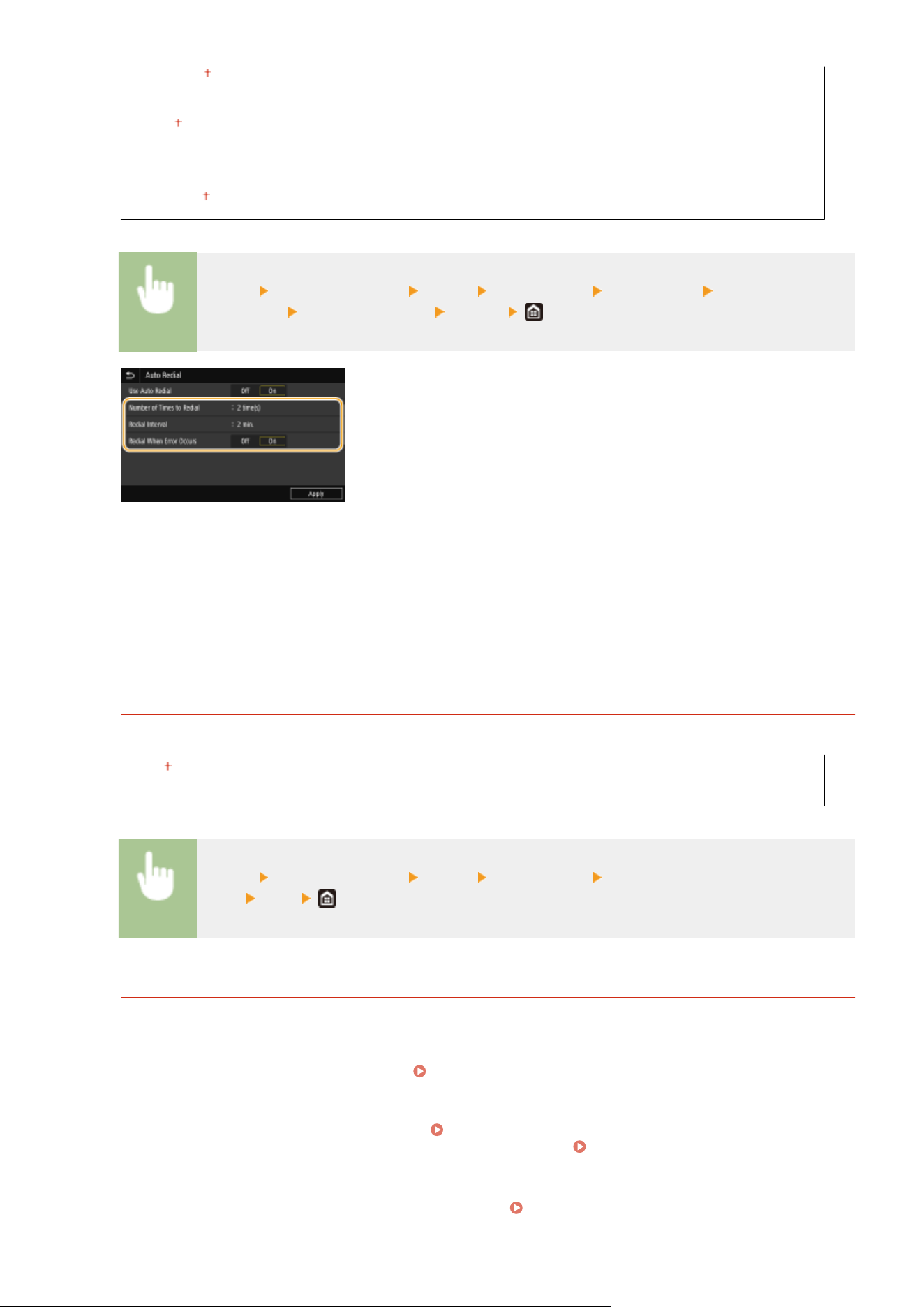
1 to 2 to 10 (time(s))
<Redial Interval>
2 to 99 (min.)
<Redial When Err
or Occurs>
<Off>
<On>
<Menu> <Function Settings> <Send> <Fax Settings> <Auto Redial> Select <On> in <Use
Auto Redial>
Specify the settings <Apply>
<Number of Times to Redial>
Species how many times the machine redials. Enter a number, and select <Apply>.
<Redial Interval>
Species the interval between redials. Enter a number for the interval, and select <Apply>.
<Redial When Error Occurs>
When set to <On>, species to redial when a transmission error occurs.
<Check Dial Tone Before Send>
*2
Select whether to check the dial tone before a fax number is dialed.
<Off>
<On>
<Menu> <Function Settings> <Send> <Fax Settings> <Check Dial Tone Before
Send> <On>
<Set Line>
Specify a fax number, unit name, and line type.
<Register Unit T
el. Number>
Register the fax number for the machine.
Registering the Fax Number and Unit Name(P. 81)
<Register Unit Name>
Register the name of a company or person (
Registering the Fax Number and Unit Name(P. 81) ). The
r
egistered name is sent as sender information to the destination (
<TX Terminal ID>(P. 533) ).
<Select Line T
ype>
Select the telephone line type used for fax transmission.
Connecting the Telephone Line(P. 83)
Setting Menu List
531
<Pulse>
<T
one>
<TX Start Speed>
If it takes a long time to start sending a fax, such as when there is a poor connection, you can adjust the
communication start speed do
wnward incrementally.
<33600 bps>
<14400 bps>
<9600 bps>
<7200 bps>
<4800 bps>
<2400 bps>
<Menu> <Function Settings> <Send> <Fax Settings> <TX Start Speed> Select the
communication start speed
<Archive TX Document>
*3
In addition to the destination specied when the fax is sent, you can specify whether fax
ed documents are
also sent to a preset storage address for archiving.
Saving a Copy of a Sent Original(P. 238)
<Archive TX Document>
<Off>
<On>
<Ar
chive Address>
<File Name>
<Conrm Enter
ed Fax Number>
Select whether to display the details of an entered coded dial number when it is selected as a destination.
Conrming the Enter
ed Fax Number(P. 413)
<Off>
<On>
<Allow Fax Driver TX>
Enable or disable PC faxing (sending faxes from a computer). Restricting Fax Sending from a
Computer(P. 413)
<Off>
<On>
<Use Addr. Book When On-Hook>
Make a setting so that you can perform fax transmission by entering a specic number befor
e specifying a
coded dial number or specifying a destination from the Address Book.
<Do Not Allow After Num. Key Use>
<Always Allow>
Setting Menu List
532
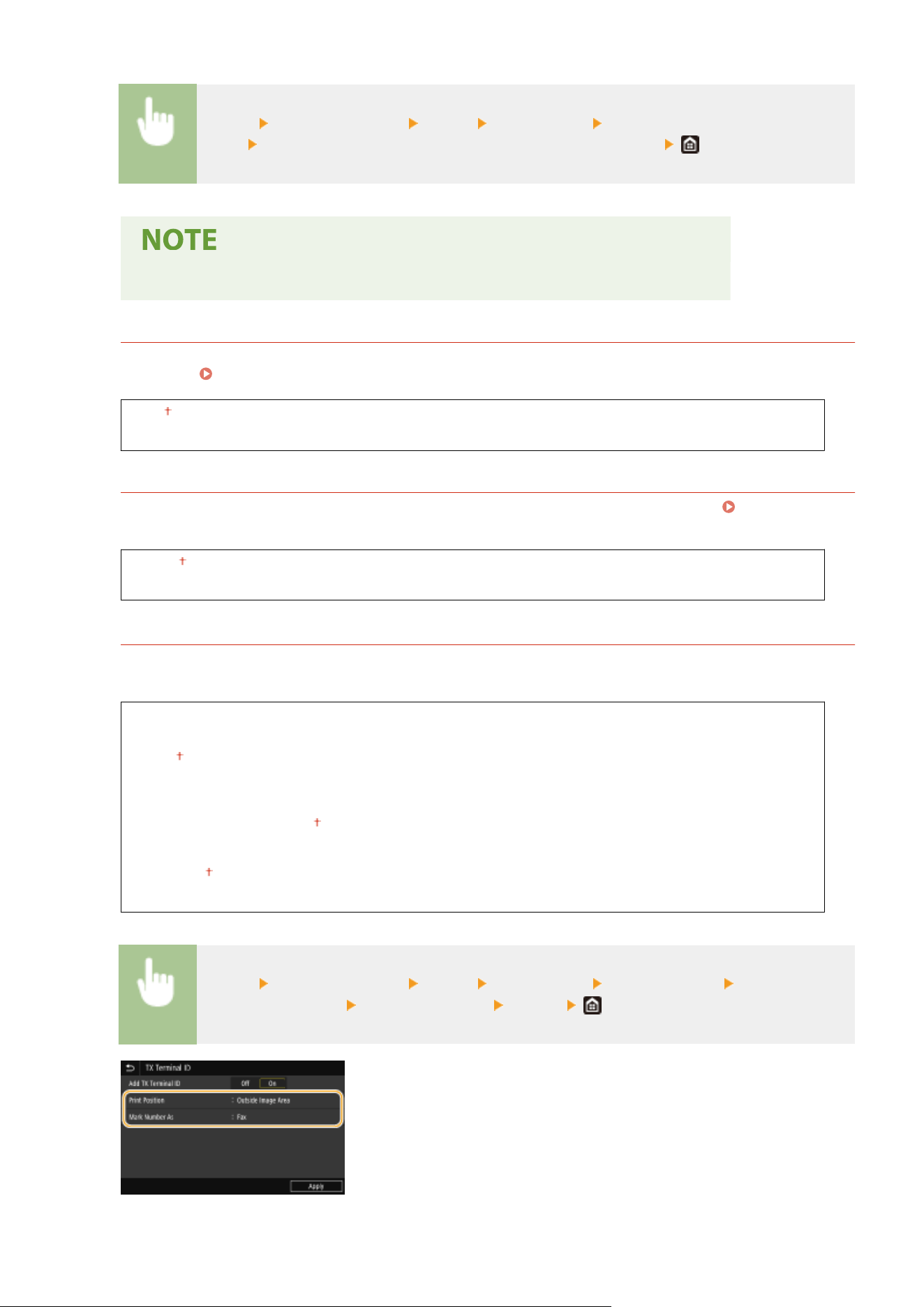
<Menu> <Function Settings> <Send> <Fax Settings> <Use Addr. Book When On-
Hook> Select <Do Not Allow After Num. Key Use> or <Always Allow>
● T
ransmission may be impossible if the entered number consists of too many digits.
<Restrict Sequential Broadcast>
Select whether to prohibit sequential broadcasting, a feature that sends faxes to multiple destinations in
succession. Restricting Sequential Broadcasts(P. 413)
<Off>
<On>
<Register Log Dest to Addr Book>
Specify whether to disable registering destinations from fax send logs to the Address Book. Disabling
Destination Registr
ation from Logs to the Address Book(P. 414)
<Allow>
<Do Not Allow>
<TX Terminal ID>
Specify settings for adding the sender information, including the fax number and the name of the machine, to
the fax header. The r
ecipient can check who sent the fax by looking at the added information.
<Add TX Terminal ID>
<Off>
<On>
<Print Position>
<Inside Image Ar
ea>
<Outside Image Area>
<Mark Number As>
<Fax>
<Tel>
<Menu> <Function Settings> <Send> <Fax Settings> <TX Terminal ID> Select <On> in
<Add TX T
erminal ID>
Specify the settings <Apply>
Setting Menu List
533
<Print Position>
Species the position to print the terminal ID information in the sent fax. Select <Inside Image Ar
ea> to print
the information inside the image area, or <Outside Image Area> to print the information outside the image
area.
<Mark Number As>
Adds the "Fax" or "Tel" mark in front of the fax number registered for the machine (
Registering the Fax
Number and Unit Name
(P. 81) ). Select <Tel> to indicate that the notied number is a telephone number.
<Auto Adjust VoIP Comm. Speed>
When you want to perform a successful fax communication with a partner device or on a line with which errors
tend to occur easily, you can use this function to reduce communication errors.
<Off>
<On>
<Menu> <Function Settings> <Send> <Fax Settings> <Auto Adjust VoIP Comm.
Speed>
Select <Off> or <On>
● If you set the function to <On>, the communication speed may be slo
wer.
Setting Menu List
534

<Receive/Forward>
7YWY-091
All the settings r
elated to receiving faxes and e-mails are listed with descriptions. Default settings are marked with a
dagger (
).
<Common Settings>(P. 535)
<I-Fax Settings>(P. 536)
<Fax Settings>(P. 537)
Asterisks (
*
)
● Settings mark
ed with "
*1
" may not be displayed depending on the model you are using, options, or other
setting items.
● Settings marked with "
*2
" cannot be imported or exported.
<Common Settings>
Specify oper
ations that are to be performed when faxes are received in memory and when the amount remaining in
the toner cartridge is low.
<Set Fax/I-Fax Inbox>
*1
Congure settings for r
eceiving faxes in memory.
<Fax Memory Lock Settings>
Select whether to store received faxes without immediately printing them. Stored fax documents can be
printed at any time by changing the setting to <Off>.
Saving Received Documents into the Machine
(Memory Reception)(P
. 241)
<Use Memory Lock>
<Off>
<On>
<Use Fax Preview>
<Off>
<On>
<Report Print>
<Off>
<On>
<Set Memory Lock Time>
<Off>
<On>
<Memory Lock Time>
<Memory Lock Start Time>
<Memory Lock End Time>
Setting Menu List
535
<Continue Print. When Cart. Low>
If receiving faxes when the amount remaining in the toner cartridges is low, the machine holds them in memory
instead of printing. Ho
wever, if this function is enabled, the machine continues printing. In addition to fax
reception, this is true with I-Fax reception.
<Off>
<On>
<Menu> <Function Settings> <Receive/Forward> <Common Settings> <Continue Print.
When Cart. Lo
w>
<On>
● When this function is enabled, fax
es may fade or blur. Because received documents are not stored,
you need to ask the sender to resend the document.
<Print RX Page Footer>
Select whether to print information, including date and time of reception and page numbers, on the bottom of
r
eceived faxes.
<Off>
<On>
<Menu> <Function Settings> <Receive/Forward> <Common Settings> <Print RX Page
Footer> <On>
<I-Fax Settings>
Congur
e settings to print received I-Fax documents.
<Print on Both Sides>
Specify settings for printing received documents on both sides of paper.
<Off>
<On>
<Menu> <Function Settings> <Receive/Forward> <I-Fax Settings> <Print on Both Sides>
<On>
Setting Menu List
536
<RX Print Size>
Specify the paper size to be used for printing.
<LTR>
<LGL>
<FOOLSCAP/FOLIO>
<OFICIO>
<LET
TER (Government)>
<LEGAL (Government)>
<LEGAL (India)>
<FOOLSCAP (Australia)>
<OFICIO (Brazil)>
<OFICIO (Mexico)>
<A4>
<Menu> <Function Settings> <Receive/Forward> <I-Fax Settings> <RX Print Size> Select
the paper size
<Fax Settings>
*1
Congur
e settings for receiving and forwarding faxes.
<Print on Both Sides>
Specify settings for printing received documents on both sides of paper.
<Off>
<On>
<Menu> <Function Settings> <Receive/Forward> <Fax Settings> <Print on Both
Sides> <On>
<ECM RX>
Enable or disable error correction mode (ECM). ECM checks for fax data errors and corrects them. To reduce
errors on sent faxes, see <ECM TX>(P. 530) .
<Off>
<On>
<Menu> <Function Settings> <Receive/Forward> <Fax Settings> <ECM RX> <On>
Setting Menu List
537
● ECM must be enabled on both the machine and the other fax de
vice because error check is
performed on both the sending and receiving devices.
● Even when ECM is enabled, errors may occur due to telephone line conditions.
● It may take a longer time than usual to process data when ECM is enabled because the error check
and corrections are performed while the data is transmitted.
<Incoming Ring>
Specify settings for sounding a ring to notify you of incoming faxes. This feature is only available when <Auto>
or <Fax/T
el (Auto Switch)> is selected for the receive mode. Specify how many times the incoming call rings
when the machine receives a fax call. You can also disable the settings to prevent the incoming call from
ringing.
<Use Incoming Ring>
<Off>
<On>
<Number of Rings>
1 to 2 to 99 (time(s))
<Menu> <Function Settings> <Receive/Forward> <Fax Settings> <Incoming Ring> Select
<On> in <Use Incoming Ring> Enter the desired number in <Number of Rings> <Apply>
● When <On> is specied, you need to connect your telephone to the machine befor
ehand.
● When <Off> is specied, the machine does not enter sleep mode.
<Remote RX>
Specify settings for receiving a fax by operating a telephone that is connected to the machine (Remote
Reception). When a fax is sent to the machine, you can r
eceive it just by picking up the handset of the telephone
and entering a specic ID number by using the telephone. This feature can save you the trouble of going all the
way to the machine. For instructions on how to use Remote Reception, see
Using a Telephone to Receive
Fax
es (Remote Reception)(P. 230) .
<Use Remote RX>
<Off>
<On>
<Remote RX ID>
00 to 25 to 99
<Menu> <Function Settings> <Receive/Forward> <Fax Settings> <Remote RX> Select
<On> in <Use Remote RX> Enter the ID number in <Remote RX ID> <Apply>
Setting Menu List
538
<Switch to Auto RX>
Specify settings for automatically receiving a fax after the machine has rung for a specied time period. This
featur
e is only available when <Manual> is selected for the receive mode. By using this feature, faxes can be
received even when no one is available to pick up the handset.
<Use Switch to Auto RX>
<Off>
<On>
<Ring Time Until Auto RX>
1 to 15 to 99 (sec.)
<Menu> <Function Settings> <Receive/Forward> <Fax Settings> <Switch to Auto
RX> Select <On> in <Use Switch to Auto RX> Enter the desired number of seconds in <Ring
Time Until Auto RX> <Apply>
<RX Start Speed>
If it takes a long time to start receiving a fax, such as when there is a poor connection, you can adjust the
communication start speed do
wnward incrementally.
<33600 bps>
<14400 bps>
<9600 bps>
<7200 bps>
<4800 bps>
<2400 bps>
<Menu> <Function Settings> <Receive/Forward> <Fax Settings> <RX Start Speed> Select
the communication start speed
<Use Reduce RX Size>
Specify settings for reducing the image size of a received document. You can select an automatic reduction ratio
that r
educes the received document to size of the loaded paper. You can also select a ratio from a list.
<Use Reduce RX Size>
<Off>
<On>
<Reduction Ratio>
<Auto>
<97%>
<95%>
<90%>
<75%>
<Reduction Direction>
<Vertical/Horizontal>
<Vertical Only>
Setting Menu List
539
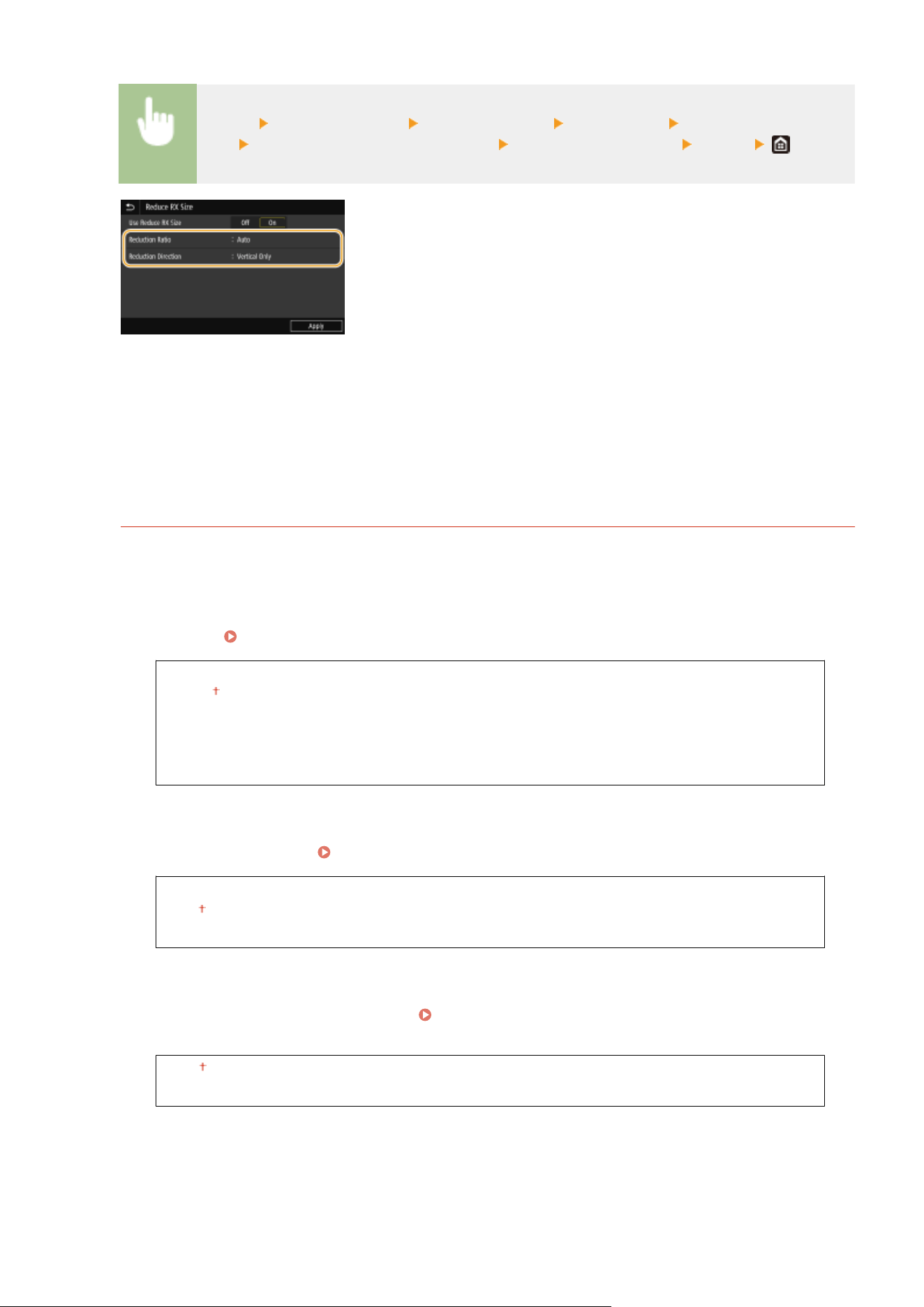
<Menu> <Function Settings> <Receive/Forward> <Fax Settings> <Use Reduce RX
Size> Select <On> in <Use Reduce RX Size> Specify each setting item <Apply>
<Reduction Ratio>
<Auto> r
educes the image by a ratio that is based on the size of the loaded paper. <97%>, <95%>, <90%>, or
<75%> reduces the image by the corresponding ratio.
<Reduction Direction>
Select <Vertical/Horizontal> to reduce the image both vertically and horizontally. Select <Vertical Only> to
reduce only vertically.
<Forwarding Settings>
Specify settings for forwarding faxes.
<Forwarding Function>
*2
Select whether to forward all the received fax documents to a specied destination. In addition to a fax
number, you can also specify an e-mail address or a shared folder in a computer, etc. as the forwarding
destination. Forwarding the Received Documents Automatically(P. 243)
<Use Forwarding Function>
<Off>
<On>
<Forwar
ding Destination>
<File Name>
<Print Images>
Select whether to print forwar
ded fax documents. You can set the machine to print forwarded documents
only when an error occurs.
Printing Documents to be Forwarded(P. 244)
<Off>
<On>
<Only When Error Occurs>
<Store Images in Memory>
Select whether to store fax documents in memory when they are not successfully forwarded. You can resend
or print the documents later as necessary. Printing/Resending/Deleting Documents that Failed to be
Forwar
ded(P. 244)
<Off>
<Only When Error Occurs>
Setting Menu List
540

<Store/Access Files>
7YWY-092
All the settings r
elated to saving the scanned document to a USB memory device or printing stored les are listed with
descriptions. Default settings are marked with a dagger (
).
<Common Settings>(P. 541)
<Memory Media Settings>(P. 546)
<Screen When Mem. Med. Conn>(P. 546)
Asterisks (
*
)
● Settings mark
ed with an asterisk (
*
) may not be displayed depending on the model you are using, options, or
other setting items.
<Common Settings>
Change the settings for le saving or memory media print.
<Scan and Stor
e Settings>
Congure settings for saving the scanned document to a USB memory de
vice.
<USB Memory Settings>
You can change the settings used when data is saved to a USB memory device.
<Change Default Settings (USB Memory)>
You can change the default settings used for saving scanned originals to a USB memory device. The
selected settings are used as the default settings when scanning originals.
Changing the Default
Settings for Functions
(P. 175)
<Scan Size>
<L
TR>
<LGL>
<STMT>
<EXEC>
<FOOLSCAP/FOLIO>
<OFICIO>
<LET
TER (Government)>
<LEGAL (Government)>
<LEGAL (India)>
<FOOLSCAP (Australia)>
<OFICIO (Brazil)>
<OFICIO (Mexico)>
<A4>
<A5R>
<A6>
<B5>
<File Format>
Setting Menu List
541

<PDF>
<PDF (Compact)>
<PDF (Compact/OCR)>
<PDF (OCR)>
<Set PDF Details>
<PDF>/<PDF (Compact)>/<PDF (Compact/OCR)>/<PDF (OCR)>
<Divide into Pages>
<Off>
<On>
<JPEG>
<TIFF>
<Set TIFF Details>
<Divide into Pages>
<Off>
<On>
<Density>
Nine Le
vels
<Original Orientation>
<Portrait>
<Landscape>
<Original T
ype>
<Text>
<Text/Photo>
<Photo>
<2-Sided Original>
<Off>
<Book Type>
<Calendar T
ype>
<Sharpness>
Seven Levels
<Data Size>
<Small: Memory Priority>
<Standard>
<Large: Image Quality Priority>
<Access Stored Files Settings>
You can change the settings to print les in a USB memory de
vice and the method for displaying them.
<Change Default Settings (Memory Media Print)>
You can change the default settings associated with memory media print. The settings congured here are
used as the default settings of the memory media print function.
Changing the Default Settings for
Functions
(P. 175)
<Paper>
<Multi-Purpose Tray>
Setting Menu List
542

<Drawer 1>
<Drawer 2>
*
<Number of Copies>
1 to 999
<2-Sided Printing>
<Off>
<Book Type>
<Calendar T
ype>
<Print Quality>
<Density>
*
17 Levels
<Fine Adjust>
<High>/<Medium>/<Low>
17 levels
<Toner Save>
<Off>
<On>
<Image Renement>
<Off>
<On>
<Resolution>
<1200 dpi>
<600 dpi>
<Set JPEG/TIFF Details>
<Brightness>
Five Le
vels
<N on 1>
<Off>
<2 on 1>
<4 on 1>
<Original T
ype>
<Photo Priority>
<Text Priority>
<Halftones>
<Gr
adation>
<Error Diffusion>
< Set PDF Details>
<N on 1>
<Off>
<2 on 1>
<4 on 1>
<6 on 1>
<8 on 1>
<9 on 1>
Setting Menu List
543
<16 on 1>
<Print Range>
<All Pages>
<Specied Pages>
<Enlar
ge/Reduce to Fit Paper Size>
<Off>
<On>
<Enlarge Print Area>
<Off>
<On>
<Print Comments>
<Off>
<Auto>
<Other Settings>
<Halftones>
<Resolution/Gr
adation>
<Text>
<Resolution>
<Gradation>
<High Resolution>
<Gr
aphics>
<Resolution>
<Gradation>
<High Resolution>
<Image>
<Resolution>
<Gradation>
<High Resolution>
<Gr
ayscale Conversion>
<sRGB>
<NTSC>
<Uniform RGB>
<Default Display Settings>
Select Pr
eview/Thumbnail/Details as the method for displaying les in a USB memory device.
<Preview>
<Thumbnail>
<Details>
<Menu> <Function Settings> <Store/Access Files> <Common Settings> <Access Stored
Files Settings>
<Default Display Settings> Select the method for displaying
Setting Menu List
544
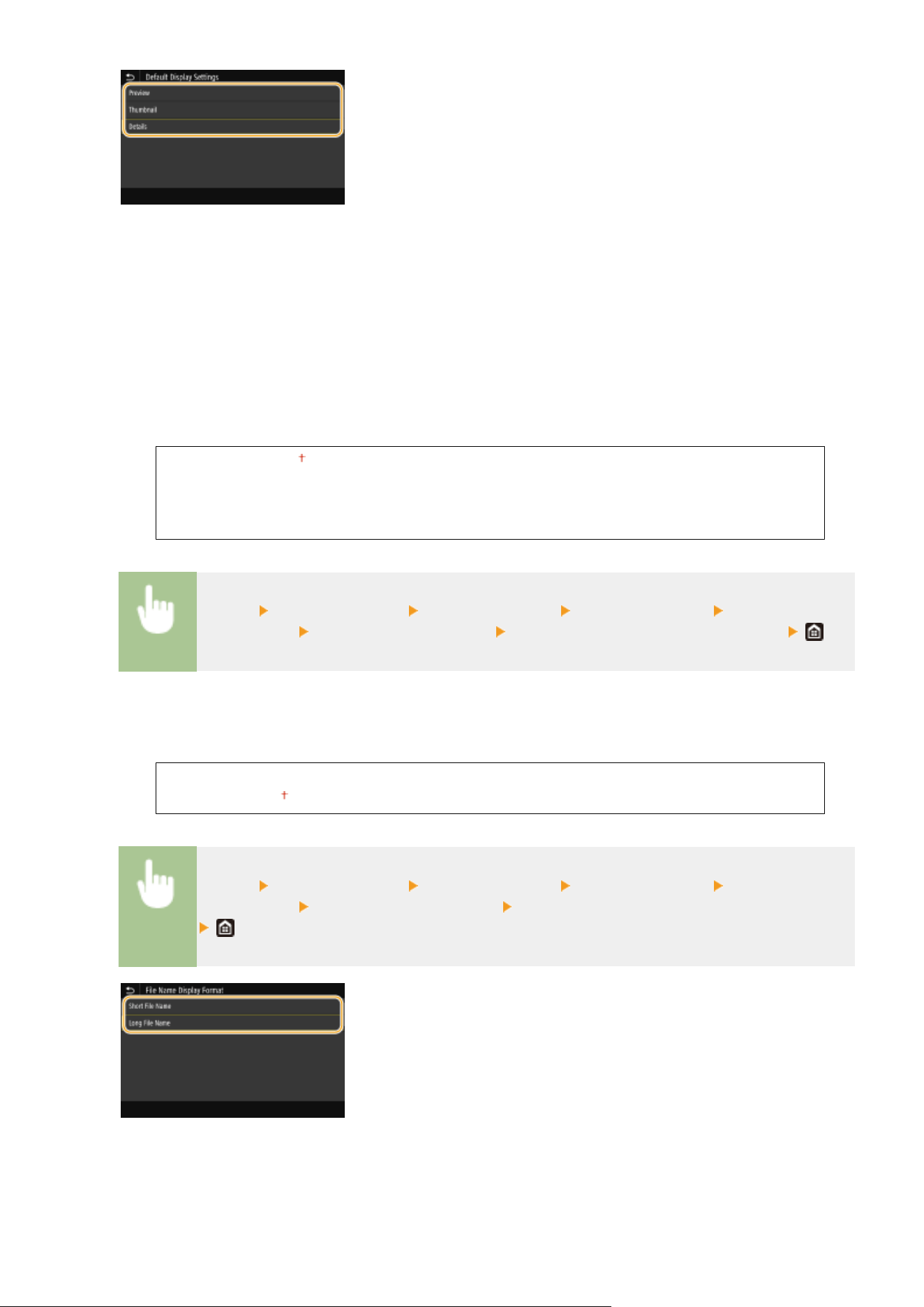
<Preview>
Displays a pr
eview image.
<Thumbnail>
Displays thumbnail images.
<Details>
Displays le names and dates in list form.
<File Sort Default Settings>
Select whether to display les in a USB memory device in ascending or descending order of le name or date.
<Name (Ascending)>
<Name (Descending)>
<Date/Time (Ascending)>
<Date/Time (Descending)>
<Menu> <Function Settings> <Store/Access Files> <Common Settings> <Access Stored
Files Settings> <File Sort Default Settings> Select the order of les that are displayed
<File Name Display Format>
Select whether to display short or long te
xt for le names that are stored in a USB memory device.
<Short File Name>
<Long File Name>
<Menu> <Function Settings> <Store/Access Files> <Common Settings> <Access Stored
Files Settings> <File Name Display Format> Select <Short File Name> or <Long File Name>
<Short File Name>
Shortens a le name to as fe
w as eight characters. To distinguish les that have similar names, numbers such as
"
~
1" or "
~
2" are added at the end of the le names.
<Long File Name>
Setting Menu List
545
Displays a le name up to 40 char
acters.
● The number of char
acters described above does not include the characters in le extensions, such as ".jpg."
<Memory Media Settings>
Specify whether to enable or disable the functions of a USB memory de
vice.
<Use Scan Function>
Select whether to permit storing scanned originals into a USB memory device. Restricting the Scan to USB
Function
(P. 416)
<Off>
<On>
<Use Print Function>
Select whether to permit printing data from a USB memory device when it is attached to the machine.
Restricting the USB Print Function(P. 416)
<Off>
<On>
<Screen When Mem. Med. Conn>
Specify whether the available actions ar
e displayed when you insert a USB memory device while the Home screen is
displayed.
<Off>
<On>
<Menu> <Function Settings> <Store/Access Files> <Screen When Mem. Med. Conn> Select
<Off> or <On>
Setting Menu List
546


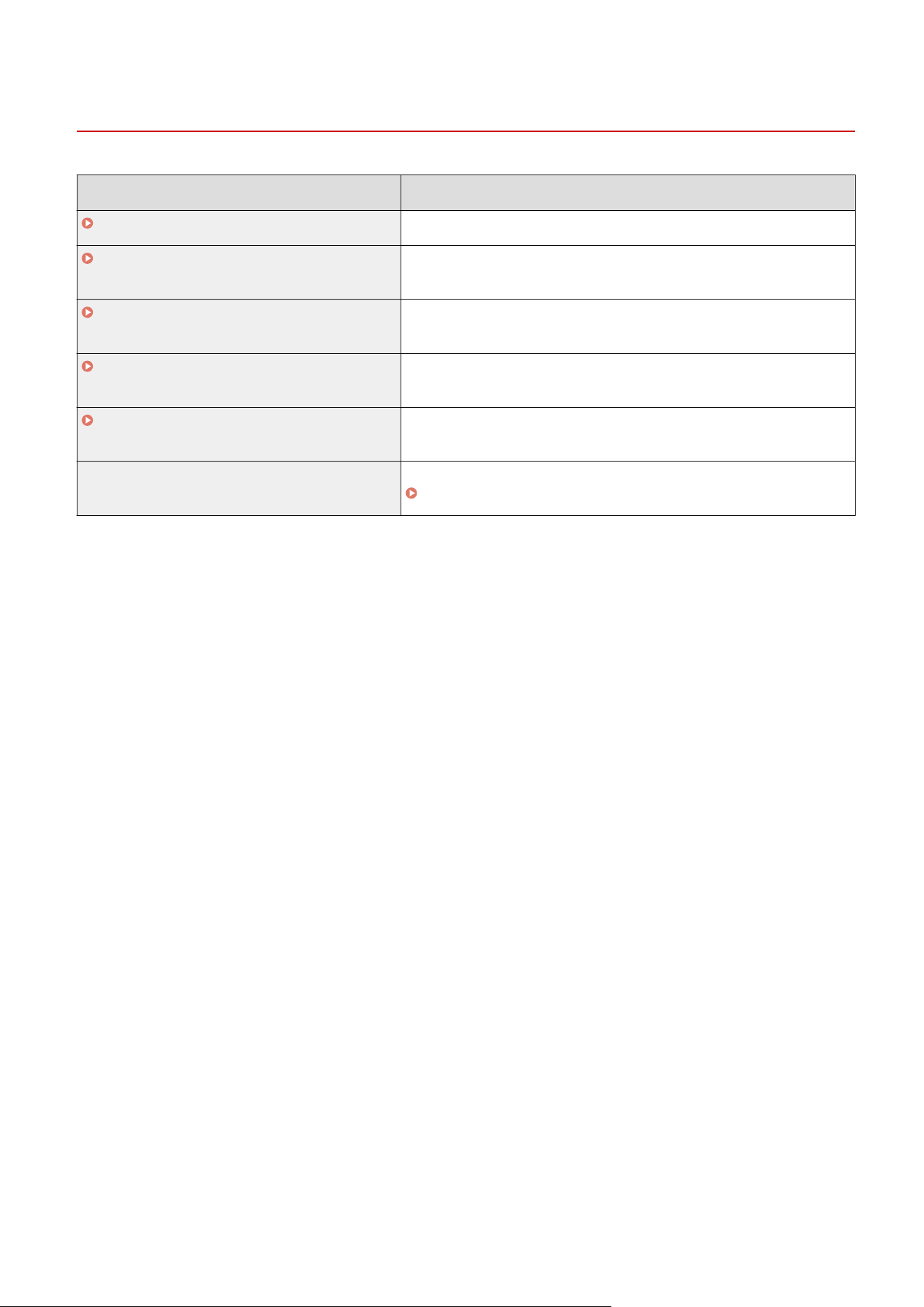
<Management Settings>
7YWY-095
Item Description
<User Management>(P. 550) You can congur
e the settings for managing users of the machine.
<Device Management>(P. 551) You can manage information about the hardware and operations, as well
as various data r
equired when using the machine functions.
<Remote UI Settings/Update Firmware>(P. 555) You can congur
e the settings related to the Remote UI and software
available for the machine.
<Data Management>(P. 557) You can congur
e settings to utilize data such as machine settings data or
perform data initialization.
<Security Settings>(P. 559) You can congur
e the settings related to the user authentication function,
password, and encryption.
<Initialize All Data/Settings> Restores all data including logs and setting values to their default settings.
Initializing All Data/Settings(P. 449)
Setting Menu List
549
<User Management>
7YWY-096
All the settings r
elated to user management of the machine are listed with descriptions. Default settings are marked
with a dagger (
).
<System Manager Information Settings>(P. 550)
<Department ID Management>(P. 550)
<System Manager Information Settings>
Specify the ID or PIN e
xclusively for Administrators who have access privileges to <Network> and <Management
Settings>. ID is <System Manager ID> and PIN is <System Manager PIN>. You can also register the name of an
Administrator.
Setting the System Manager ID and PIN(P. 355)
<System Manager ID and PIN>
Enter a number for the System Manager ID and PIN.
<System Manager ID>
<System Manager PIN>
<System Manager Name>
Enter alphanumeric characters for the name of an Administrator.
<Department ID Management>
Set the Department ID Management function to contr
ol access to the machine by using multiple IDs.
Setting the
Department ID Management(P
. 357)
<Department ID Management>
<Off>
<On>
<Allow Print Jobs (Unknown IDs)>
<Off>
<On>
<Allow Scan Jobs (Unknown IDs)>
<Off>
<On>
● Y
ou can select <Register/Edit> to register department IDs and edit the settings of the registered IDs.
● You can select <Count Mngt.> to check the total number of pages for jobs that have been executed to date
on a department ID basis.
Setting Menu List
550
<Device Management>
7YWY-097
All the settings r
elated to management of information for the hardware and operations, as well as about management
of data required when using the machine functions are listed with descriptions. Default settings are marked with a
dagger (
).
<Device Information Settings>(P. 551)
<Select Country/Region>(P. 551)
<Display Job Log>(P. 552)
<Display Consumables Information (RUI/Toner Status)>(P. 552)
<Scan w/Canon PRINT Business>(P. 553)
<Notify to Check Paper Settings>(P. 553)
<Canon Genuine Mode>(P. 553)
Asterisks (
*
)
● Settings mark
ed with "
*1
" cannot be imported or exported.
● Settings marked with "
*2
" may be unavailable or vary or have different defaults depending on your country
or region.
<Device Information Settings>
Enter alphanumeric char
acters for the name and the installation location to identify the machine.
<Device Name>
<Location>
<Menu> <Management Settings> <Device Management> <Device Information
Settings> Select <Device Name> or <Location> Enter the device name or location ( Entering
T
ext(P. 134) )
<Apply>
<Select Country/Region>
*1 *2
Specify the country or r
egion where the machine is used. The default setting may vary depending on the setting
selected at initial power-on.
<United States (US)>
<Canada (CA)>
<Br
azil (BR)>
<Mexico (MX)>
<Panama (PA)>
<Other>
Setting Menu List
551
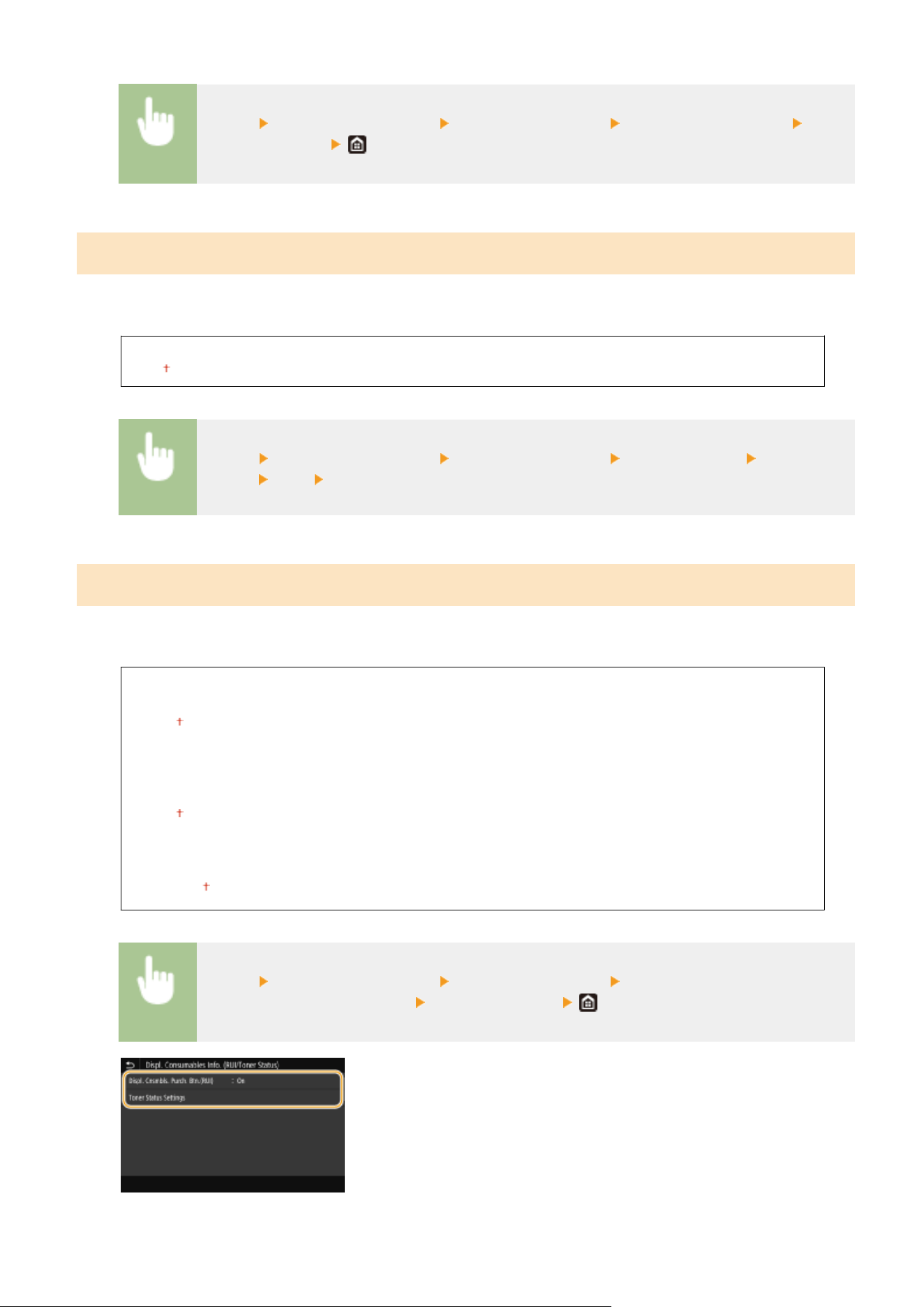
<Menu> <Management Settings> <Device Management> <Select Country/Region> Select
a country or r
egion
<Display Job Log>
Select whether to display the cop
ying, printing, faxing, and scanning logs on the display of the machine and in the
Communication Management Report.
<Off>
<On>
<Menu> <Management Settings> <Device Management> <Display Job Log> Select <Off>
or <On> <OK> Restart the machine
<Display Consumables Information (RUI/Toner Status)>
Set whether to display a button in the Remote UI or T
oner Status for accessing the Web site for purchasing toner
cartridges. Also set whether to use Toner Status.
<Displ. Cnsmbls. Purch. Btn.(RUI)>
<Off>
<On>
<T
oner Status Settings>
<Off>
<On>
<Displ. Consmbls. Purchase Btn.>
<Off>
<On>
<Menu> <Management Settings> <Device Management> <Display Consumables
Information (RUI/T
oner Status)>
Specify the settings
<Displ. Cnsmbls. Purch. Btn.(RUI)>
Setting Menu List
552
Select <Off> to prevent a button that accesses sites for purchasing toner cartridges from being displayed in the
Remote UI.
<T
oner Status Settings>
If you do not want to use Toner Status, select <Off>. To prevent a button that accesses sites for purchasing
toner cartridges from being displayed in Toner Status, select <On> and then <Off>.
<Scan w/Canon PRINT Business>
Select whether to allo
w scanning from a mobile device using the Canon PRINT Business application.
<Off>
<On>
<Menu> <Management Settings> <Device Management> <Scan w/Canon PRINT Business>
Select <Off> or <On> <OK> Restart the machine
<Notify to Check Paper Settings>
Specify whether to display a message pr
ompting you to check paper settings when loading the paper drawer into the
machine.
<Off>
<On>
<Menu> <Management Settings> <Device Management> <Notify to Check Paper Settings>
Select <Off> or <On> <OK> Restart the machine
<Canon Genuine Mode>
The mode for when Canon genuine toner cartridges ar
e used.
<Off>
<On>
<Menu> <Management Settings> <Device Management> <Canon Genuine Mode> Select
<Off> or <On>
Setting Menu List
553

● When necessary
, the service representative may change the setting. If this item is not displayed, contact the
administrator of the machine.
Setting Menu List
554
<Remote UI Settings/Update Firmware>
7YWY-098
All the settings r
elated to the software available for the machine. Default settings are marked with a dagger (
).
<Remote UI Settings>(P. 555)
<Update Firmware>(P. 556)
Asterisks (
*
)
● Settings mark
ed with an asterisk (
*
) cannot be imported or exported.
<Remote UI Settings>
*
Congur
e settings for using the Remote UI. Using the Remote UI allows you to congure machine settings from a Web
browser.
<Remote UI>
Select whether to use the Remote UI ( Disabling Remote UI(P. 419) ). When using Remote UI, you can also
specify whether to use the TLS encrypted communication ( Conguring the Key and Certicate for
TLS(P. 381) ).
<Use Remote UI>
<Off>
<On>
<Use TLS>
<Off>
<On>
<Menu> <Management Settings> <Remote UI Settings/Update Firmware> <Remote UI
Settings> <Remote UI> Select <On> in <Use Remote UI> Select <Off> or <On> in <Use TLS>
<Apply> <OK> Restart the machine
<Restrict Access>
Set a PIN of up to 7 digits for access to the Remote UI. All users use a common PIN. Setting a Remote UI
PIN(P. 363)
<Off >
<On>
<Remote UI Access PIN>
Setting Menu List
555
<Menu> <Management Settings> <Remote UI Settings/Update Firmware> <Remote UI
Settings> <Restrict Access> <On> Enter the PIN <Apply> Enter the PIN (Conrm)
<Apply>
<Update Firmware>
*
Select ho
w to install the rmware update according to the environment of the machine.
Updating the
Firmware(P. 446)
<Via PC>
<Via Internet>
<Version Information>
Setting Menu List
556
<Data Management>
7YWY-099
The settings for utilizing the machine settings and for initializing data ar
e listed with descriptions. Default settings are
marked with a dagger (
).
<Import/Export>(P. 557)
<Enable Prod. Ext'd Survey Prog.>(P. 558)
<Initialize Key and Certicate>(P
. 558)
<Initialize Address Book>(P. 558)
<Initialize Menu>(P. 558)
Asterisks (
*
)
● Settings mark
ed with an asterisk (
*
) cannot be imported or exported.
<Import/Export>
*
Y
ou can use a USB memory device to import and export data in the Address Book and various settings of the machine.
For more information about the available USB memory devices and how to insert/remove the USB memory device, see
Using a USB Memory Device(P. 189) .
<Import>
<Export>
Import
<Menu> <Management Settings> <Data Management> <Import/Export> <Import>
<Yes> Enter the password <Apply>
Export
<Menu> <Management Settings> <Data Management> <Import/Export> <Export>
Enter the password <Apply> Enter the password (Conrm) <Apply>
If the <Address Book PIN> screen appears
● If a PIN has been set for the Addr
ess Book, the <Address Book PIN> screen appears during importing/
exporting. Enter the Address Book PIN and select <Apply>. Select <Skip> to cancel Address Book data
importing/exporting.
When import is executed
● The machine automatically restarts after the import process has nished.
Setting Menu List
557
<Enable Prod. Ext'd Survey Prog.>
Enable or disable the Product Extended Survey Program (a program for the machine usage survey).
<Off>
<On>
<Menu> <Management Settings> <Data Management> <Enable Prod. Ext'd Survey
Pr
og.>
Select <Off> or <On> <OK> Restart the machine
<Initialize Key and Certicate>
*
Select to r
estore [Key and Certicate Settings] and [CA Certicate Settings] to the factory defaults.
Initializing Key
and Certicate(P
. 448)
<Initialize Address Book>
*
Select to r
estore the Address Book settings to the factory defaults.
Initializing Address Book(P. 449)
<Initialize Menu>
*
Select to r
estore the settings listed below to the factory defaults. You can restore all the settings listed below at once,
or you can restore individual settings separately.
Initializing Menu(P. 448)
<Preferences>
<Adjustment/Maintenance>
<Function Settings>
<Set Destination>
<Management Settings>
<Initialize All>
Setting Menu List
558
<Security Settings>
7YWY-09A
All the settings r
elated to the authentication function and encryption are listed with descriptions. Default Settings are
marked with a dagger (
).
<Authentication/Password Settings>(P. 559)
<Encryption Settings>(P. 559)
<Verify System at Startup>(P. 560)
<Authentication/Password Settings>
Y
ou can reinforce the security of the authentication function.
<Authentication Function Settings>
Congure the security functions for user authentication.
<Lock
out>
When a user has failed user authentication, specify whether to disable the user from temporarily logging in
to the machine (lockout). When <On> is selected, specify how many consecutive times failures are permitted
before lockout is activated and also the time required before a user can log in again after lockout.
<Enable Lockout>
<Off>
<On>
<Lockout Threshold>
1 to 10 (time(s))
<Lockout Period>
1 to 60 (min.)
<Menu> <Management Settings> <Security Settings> <Authentication/Password Settings>
<Authentication Function Settings> <Lockout> Select <On> in <Enable Lockout> Specify
each setting item <Apply> <OK> Restart the machine
● This option is not applied to login using the department ID
.
<Encryption Settings>
Congur
e a setting for disabling a weak encryption or the key and certication using a weak encryption.
<Prohibit Use of Weak Encrypt.>
<Off>
<On>
<Pr
ohibit Weak Encryp. Key/Cert.>
<Off>
<On>
Setting Menu List
559
<Menu> <Management Settings> <Security Settings> <Encryption Settings> Select <On>
in <Pr
ohibit Use of Weak Encrypt.>
Select <Off> or <On> in <Prohibit Weak Encryp. Key/Cert.>
<Apply> <OK> Restart the machine
<Verify System at Startup>
When the machine starts or when an application (in Application Libr
ary) is executed, verication is performed to
determine that the system or application has not been tampered. If tampering is detected, the machine enters a state
to wait for rmware update. In this case, perform a rmware update operation from a computer.
Updating the
Firmwar
e(P. 446)
<Off>
<On>
<Menu> <Management Settings> <Security Settings> <Verify System at
Startup> <On> <Yes> Restart the machine automatically
● If nothing is displayed e
ven after a while, system recovery may be impossible. In this case, contact your
dealer or service representative.
● If an application installed after shipping of the machine from the factory has been tampered, it needs to be
reinstalled on the machine.
Setting Menu List
560

Maintenance
Maintenance .....................................................................................................................................................
562
Regular Cleaning ............................................................................................................................................... 564
Cleaning the Exterior .................................................................................................................................... 565
Cleaning the Platen Glass ............................................................................................................................. 566
Cleaning the Feeder ..................................................................................................................................... 567
Cleaning the Fixing Assembly ....................................................................................................................... 570
Replacing the Toner Cartridge ......................................................................................................................... 571
Checking the Remaining Amount of Consumables ......................................................................................... 578
Relocating the Machine .................................................................................................................................... 579
Adjusting Image Quality ................................................................................................................................... 581
Adjusting the Gradation and Density for Copy Jobs ...................................................................................... 582
Adjusting Values for Text Color Reproducibility ............................................................................................ 584
Adjusting Print Density ................................................................................................................................. 586
Adjusting Print Position ................................................................................................................................ 587
Viewing the Counter Value ............................................................................................................................... 589
Printing Reports and Lists ................................................................................................................................ 590
Consumables ..................................................................................................................................................... 595
Maintenance
561
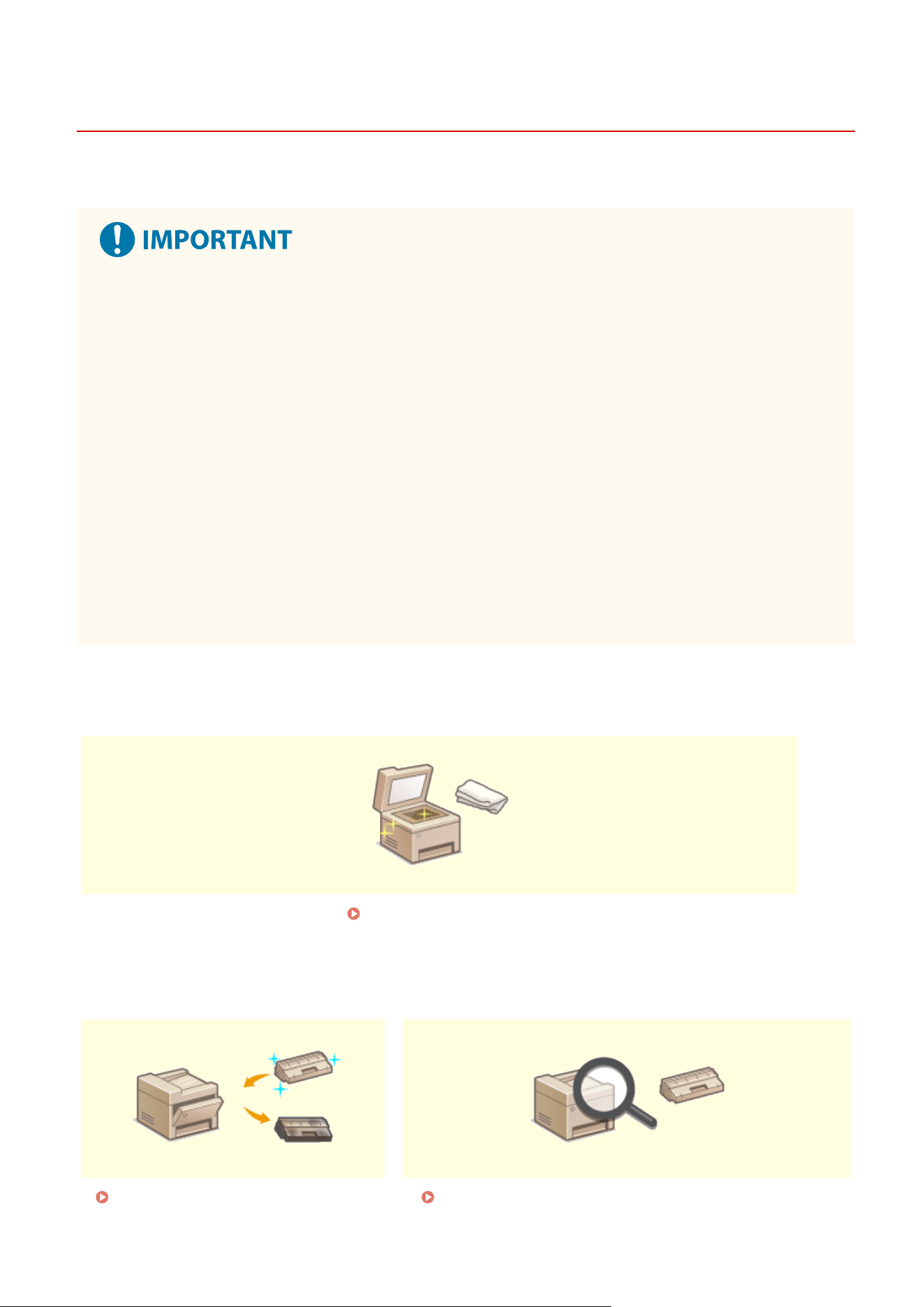
Maintenance
7YWY-09C
This chapter describes upk
eep of the machine, including how to clean the machine and adjustment of print quality.
Maintenance and Inspections
● The minimum holding period for performance parts for r
epairs and toner cartridges is seven (7) years after
production of the machine model is discontinued.
● If a problem occurs during operation, see "Troubleshooting (FAQ)" on the online manual website. If the
problem still cannot be resolved or you think the machine needs to be checked, contact your dealer or
service representative.
Installation
● If you nd the machine's operation to be noisy in some operating modes or due to your surroundings, we
recommend setting up the machine in a separate location from your oce.
● Water droplets (condensation) may form inside the machine if the room where the machine is installed is
heated rapidly, or if the machine is moved from a cool, dry location to a warm, humid location. Using the
machine under these conditions may result in problems such as paper jams, poor print quality, or faults. Let
the machine adjust to the ambient temperature and humidity for at least two hours before use.
● Machines with storage devices such as hard disks may not operate properly when used at high altitudes
(3,000 meters above sea level or higher).
◼ Basic Cleaning
Regular Cleaning(P. 564)
◼ Replacing Consumables
Replacing the Toner Cartridge(P. 571) Checking the Remaining Amount of Consumables(P. 578)
Maintenance
562
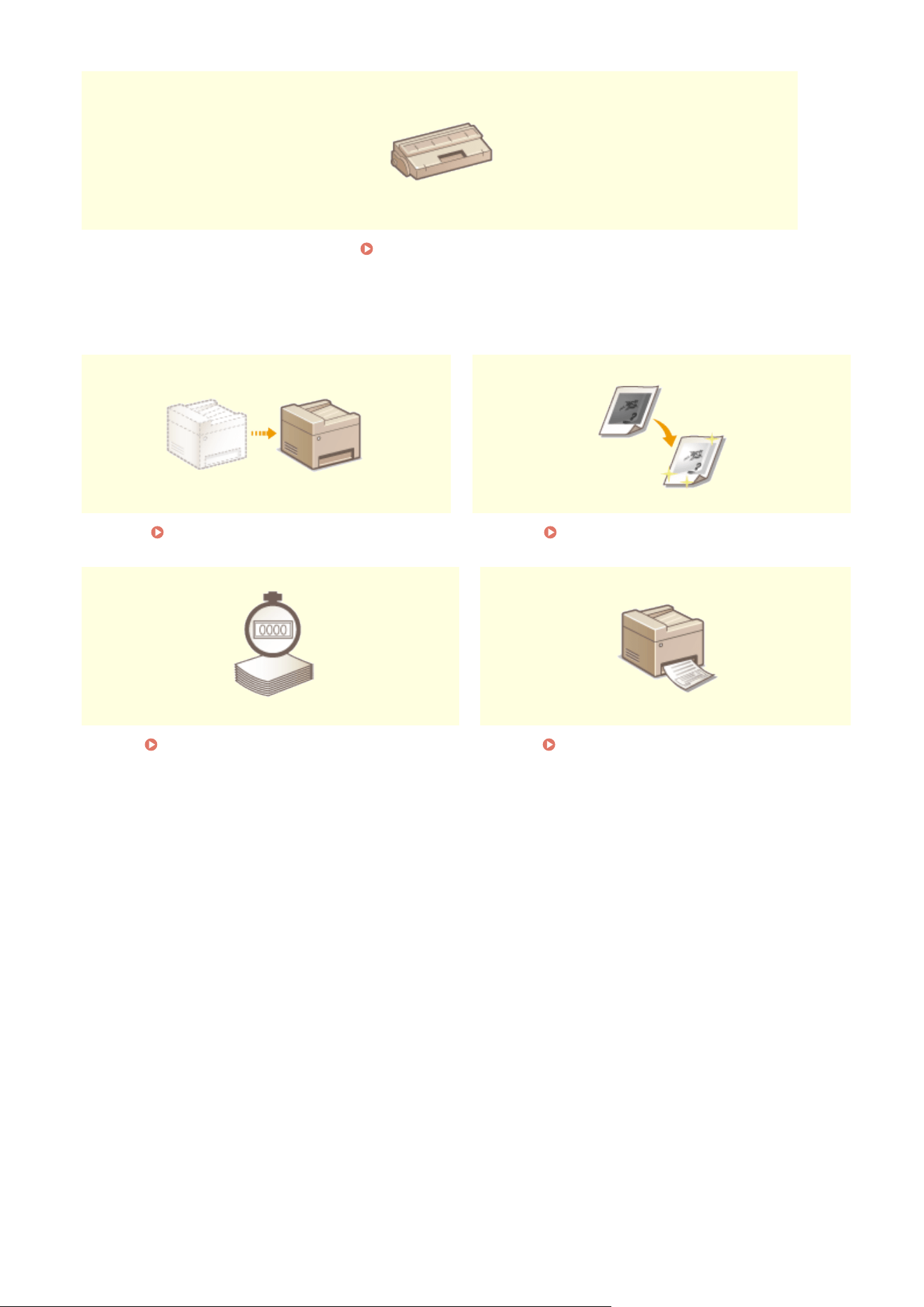
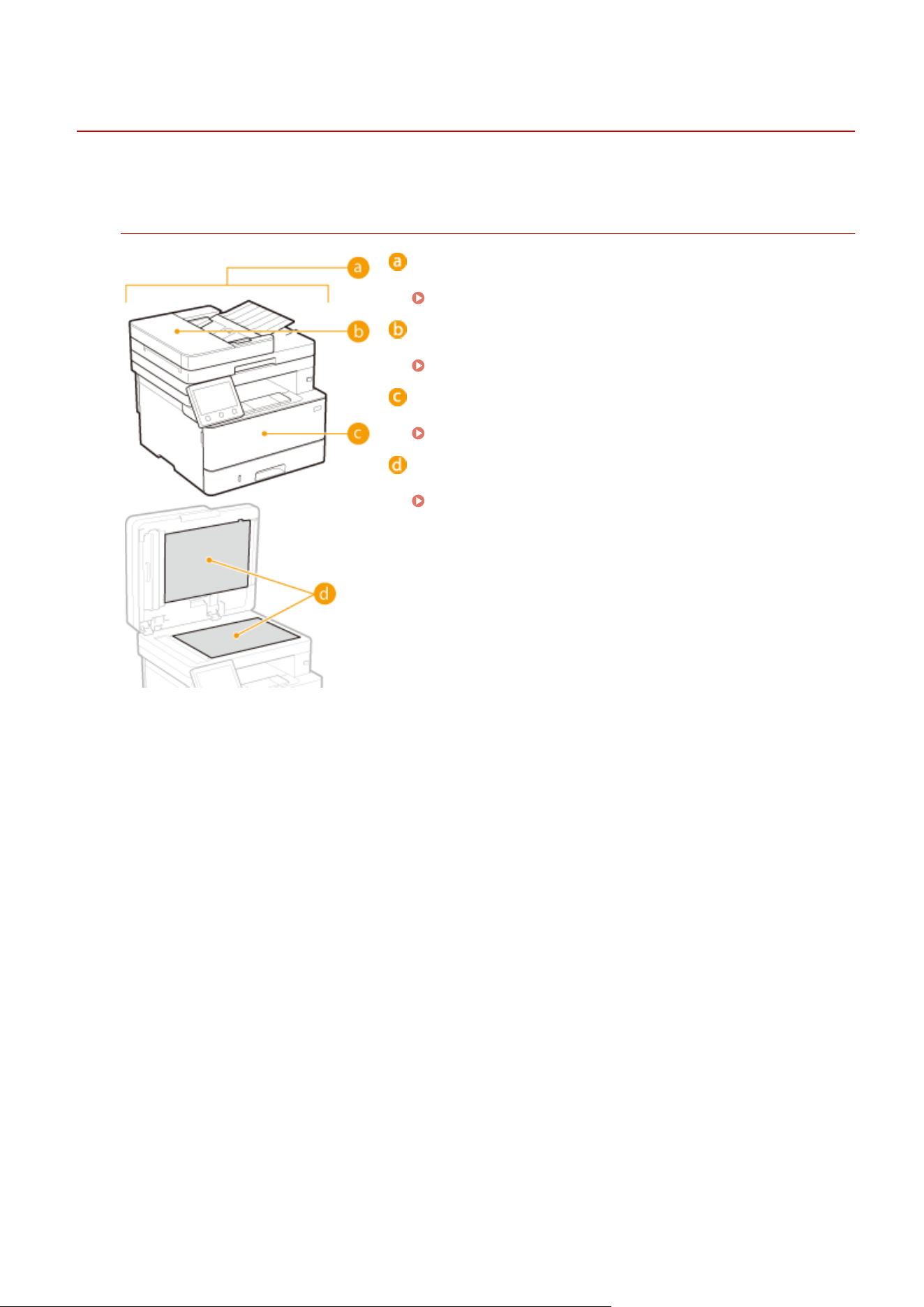
Regular Cleaning
7YWY-09E
Regularly clean the machine to pr
event deterioration in printing quality and to ensure that you use it safely and easily.
Where to Clean
Exterior of the machine and ventilation slots
Cleaning the Exterior(P. 565)
Feeder
Cleaning the Feeder(P. 567)
Internal xing assembly
Cleaning the Fixing Assembly(P. 570)
Platen glass and the underside of the feeder
Cleaning the Platen Glass(P. 566)
Maintenance
564
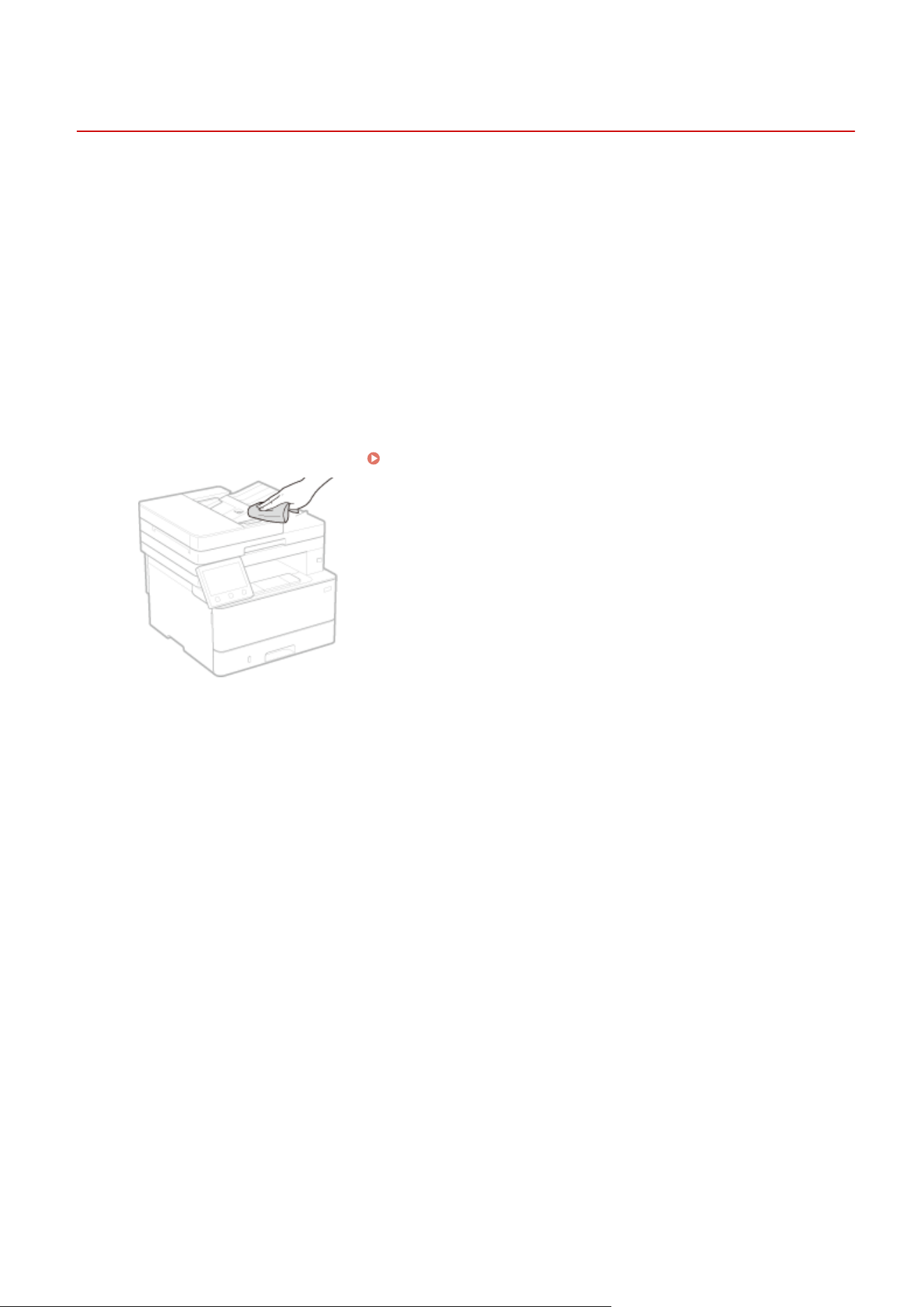
Cleaning the Exterior
7YWY-09F
Regularly wipe the e
xterior of the machine, especially around the ventilation slots, to keep the machine in good
condition.
1
Turn OFF the machine, and unplug the power cord from the AC power outlet.
● When you turn OFF the machine, data that is waiting to be printed is deleted. Fax documents that wer
e
received by using the Memory Reception function, faxes that are waiting to be sent, and reports that are
automatically printed after sending and receiving faxes are not deleted.
2
Clean the exterior of the machine and the ventilation slots.
● Use a soft, well-wrung-out cloth dampened with water or a mild deter
gent diluted with water.
● To locate the ventilation slots, see
Front Side(P. 106) .
3
Wait for the exterior of machine to dry completely.
4
Reconnect the power cord and turn ON the machine.
Maintenance
565
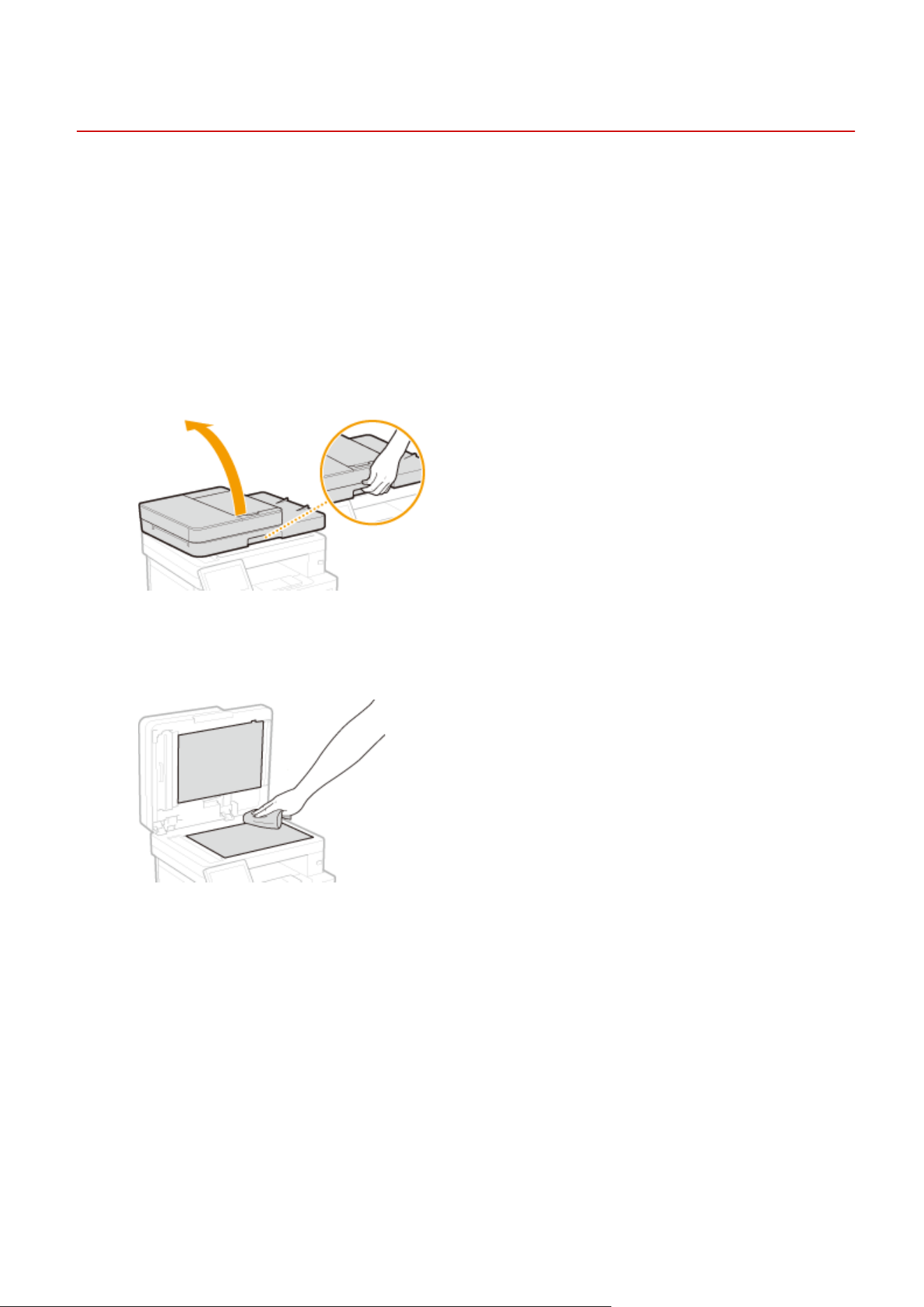
Cleaning the Platen Glass
7YWY-09H
Regularly wipe off the dust fr
om the platen glass and the underside of the feeder to prevent smudges to be printed on
originals or printouts.
1
Turn OFF the machine, and unplug the power cord from the AC power outlet.
● T
urning the printer OFF erases any queued print data. Data such as documents received and held in memory,
documents waiting to be sent, and reports that are automatically printed after sending or receiving faxes are
not deleted.
2
Open the feeder.
3
Clean the platen glass and the underside of the feeder.
● Clean the areas with a cloth dampened with water. Then, wipe the area with a soft, dry cloth.
4
Wait for the cleaned area to dry completely.
5
Gently close the feeder.
6
Reconnect the power cord and turn ON the machine.
Maintenance
566
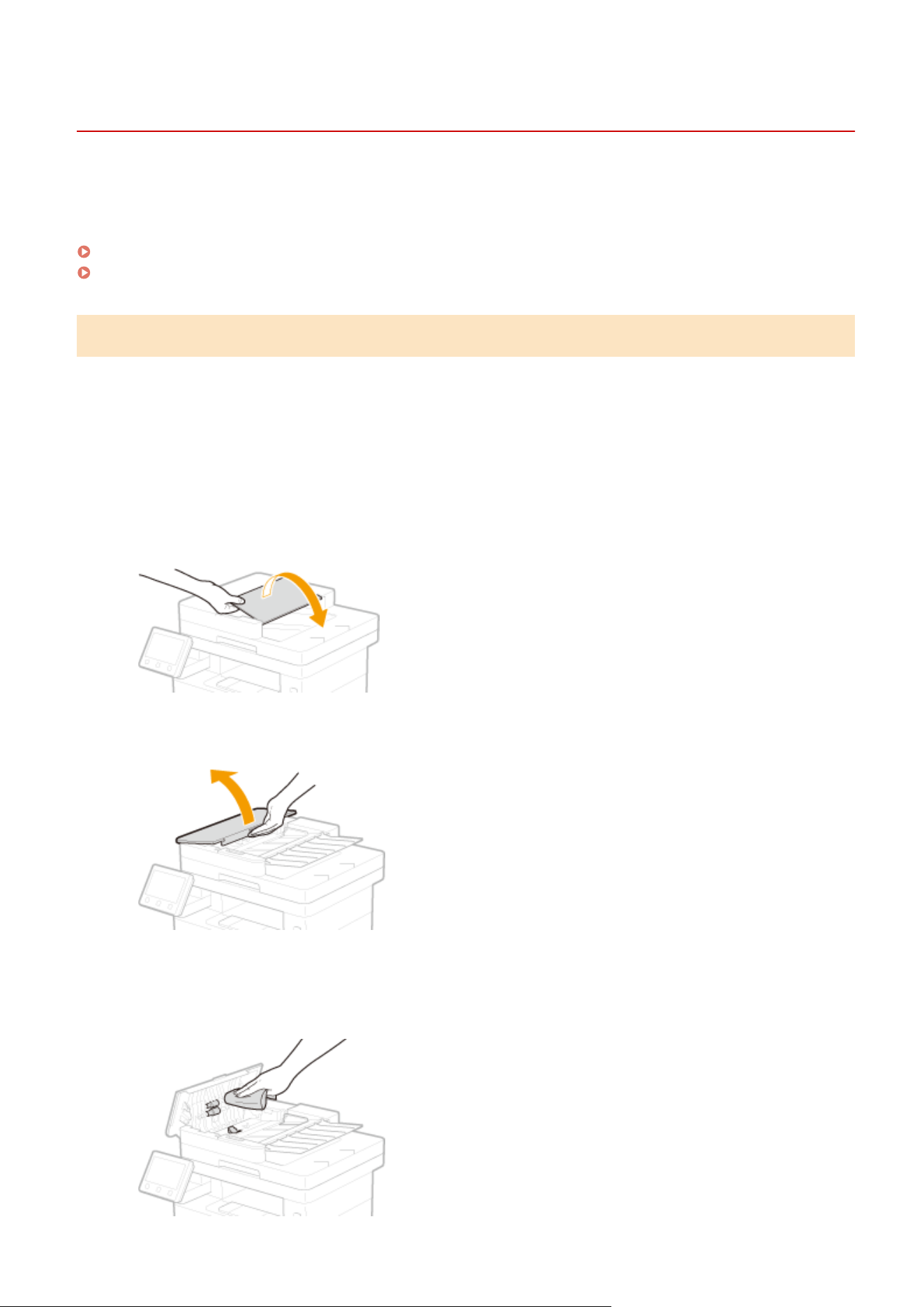
Cleaning the Feeder
7YWY-09J
Gr
aphite powder or dust on the rollers inside the feeder or on the document feed scanning area may cause smudges
to appear on printouts. If this occurs or if a paper jam occurs frequently, clean the feeder. If the problem persists after
cleaning the feeder, perform automatic feeder cleaning.
Cleaning the Feeder(P. 567)
Automatic Feeder Cleaning(P. 569)
Cleaning the Feeder
1
Turn off the machine and unplug it from the power outlet.
● T
urning the printer OFF erases any queued print data. Data such as documents received and held in memory,
documents waiting to be sent, and reports that are automatically printed after sending or receiving faxes are
not deleted.
2
Open the original supply tray.
3
Open the feeder cover.
4
Wipe the rollers in the feeder.
● Wipe the r
ollers with a cloth that has been moistened with water and wrung out. Then wipe with a dry cloth.
Maintenance
567
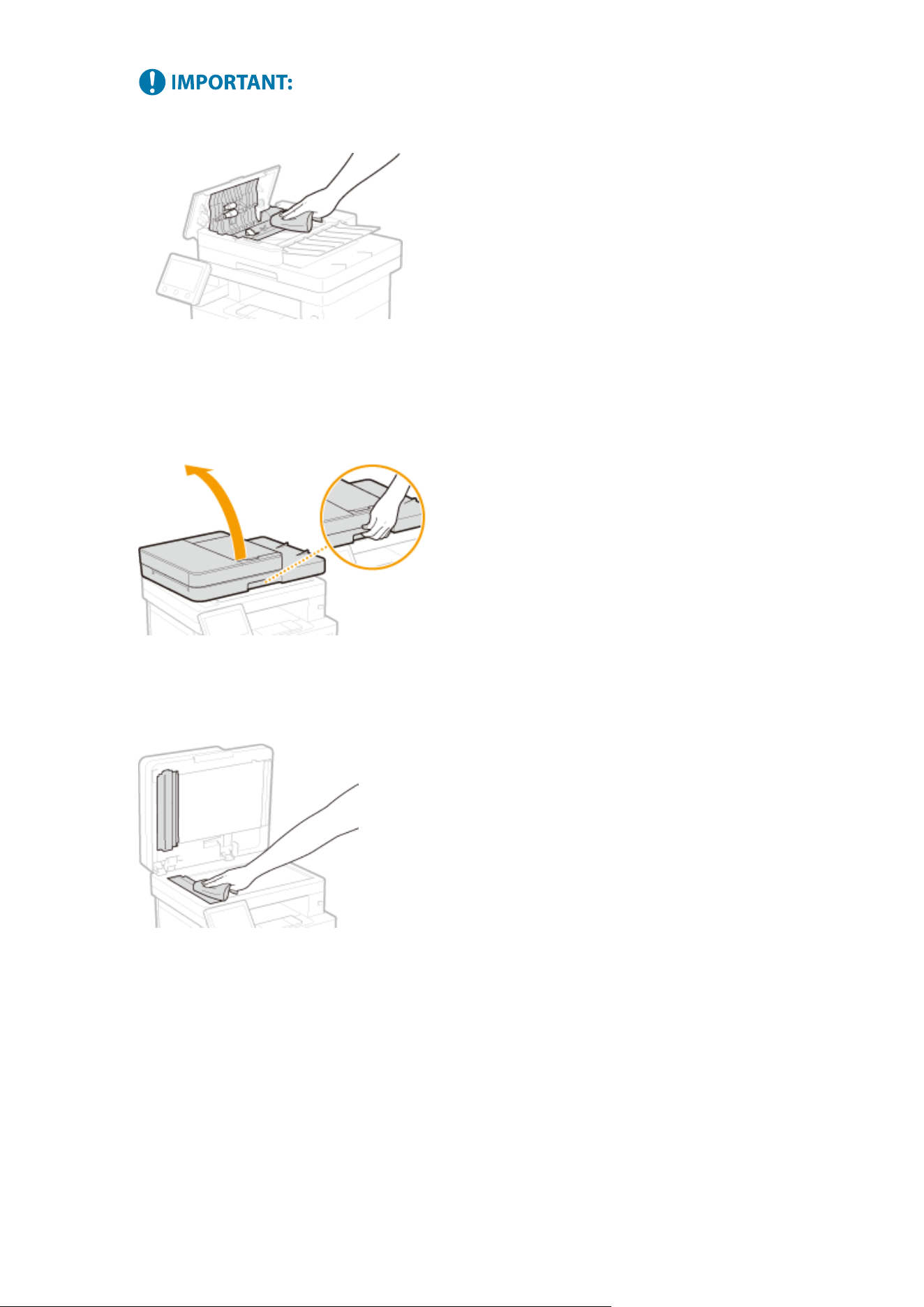
● If
the rollers and surrounding areas are very dirty, clean them out. To do this, wet a cloth with water and
wring it out well, then wipe the dirty areas. Afterwards, wipe the areas with a soft and dry cloth.
5
Close the feeder cover and original supply tray.
6
Open the feeder.
7
Wipe the document feed scanning area.
● Wipe with a cloth that has been moistened with water and wrung out, and then wipe with a dry cloth.
8
Wait for the cleaned area to dry completely.
9
Gently close the feeder.
10
Plug the machine back into the power outlet and switch it on.
Maintenance
568
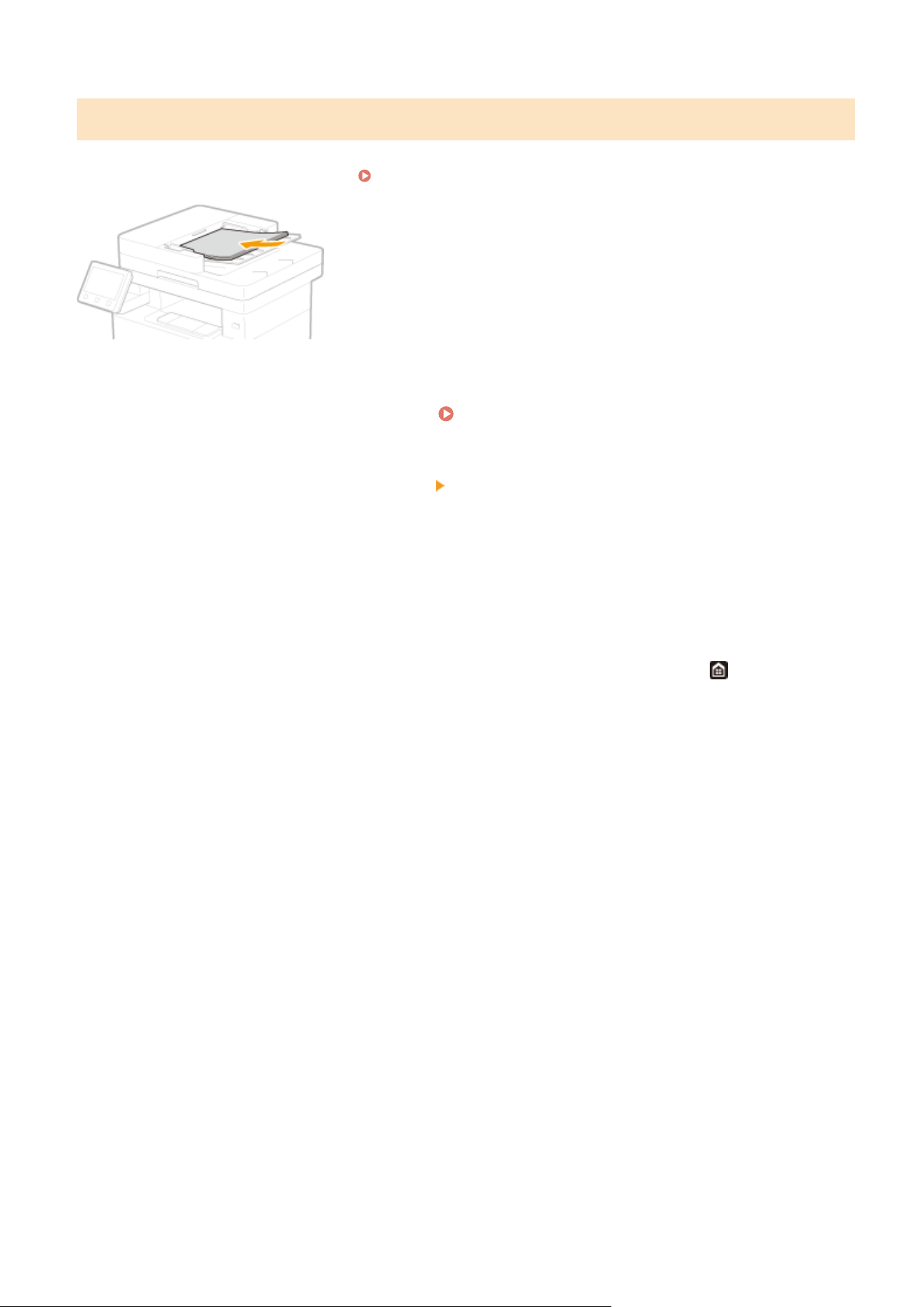
Automatic Feeder Cleaning
Automatic feeder cleaning uses paper loaded in the feeder. Set 10 sheets of plain A4 or US Letter size paper in the
feeder before starting automatic cleaning. Placing Originals(P. 138)
1
Select <Menu> in the Home screen.
Home Screen(P. 125)
2
Select <Adjustment/Maintenance> <Maintenance>.
3
Select <Clean Feeder>.
4
Select <Start>.
➠ Cleaning starts. When a message appears notifying that cleaning is complete, pr
ess
to return to the
Home scr
een.
Maintenance
569

Cleaning the Fixing Assembly
7YWY-09K
Dirt may adher
e to the xing assembly inside the machine and cause black streaks to appear on printouts. To clean
the xing assembly, perform the following procedure. Note that you cannot clean the xing assembly when the
machine has documents waiting to be printed. To clean the xing assembly, you need plain A4 or Letter size paper. Set
the paper in the paper drawer or multi-purpose tray before performing the following procedure.
Loading
Paper(P
. 142)
● Cleaning consumes the toner cartridge. Mak
e sure that there is sucient toner cartridge remaining
beforehand.
Checking the Remaining Amount of Consumables(P. 578)
1
Select <Menu> in the Home screen. Home Screen(P. 125)
2
Select <Adjustment/Maintenance>
<Maintenance>.
3
Select <Clean Fixing Assembly>.
4
Check that the size and type of paper displayed on the screen is loaded in the
machine, and select <OK>.
5
Select <Start>.
➠ Cleaning starts. When a message appears notifying that cleaning is complete, pr
ess
to return to the
Home scr
een.
Maintenance
570
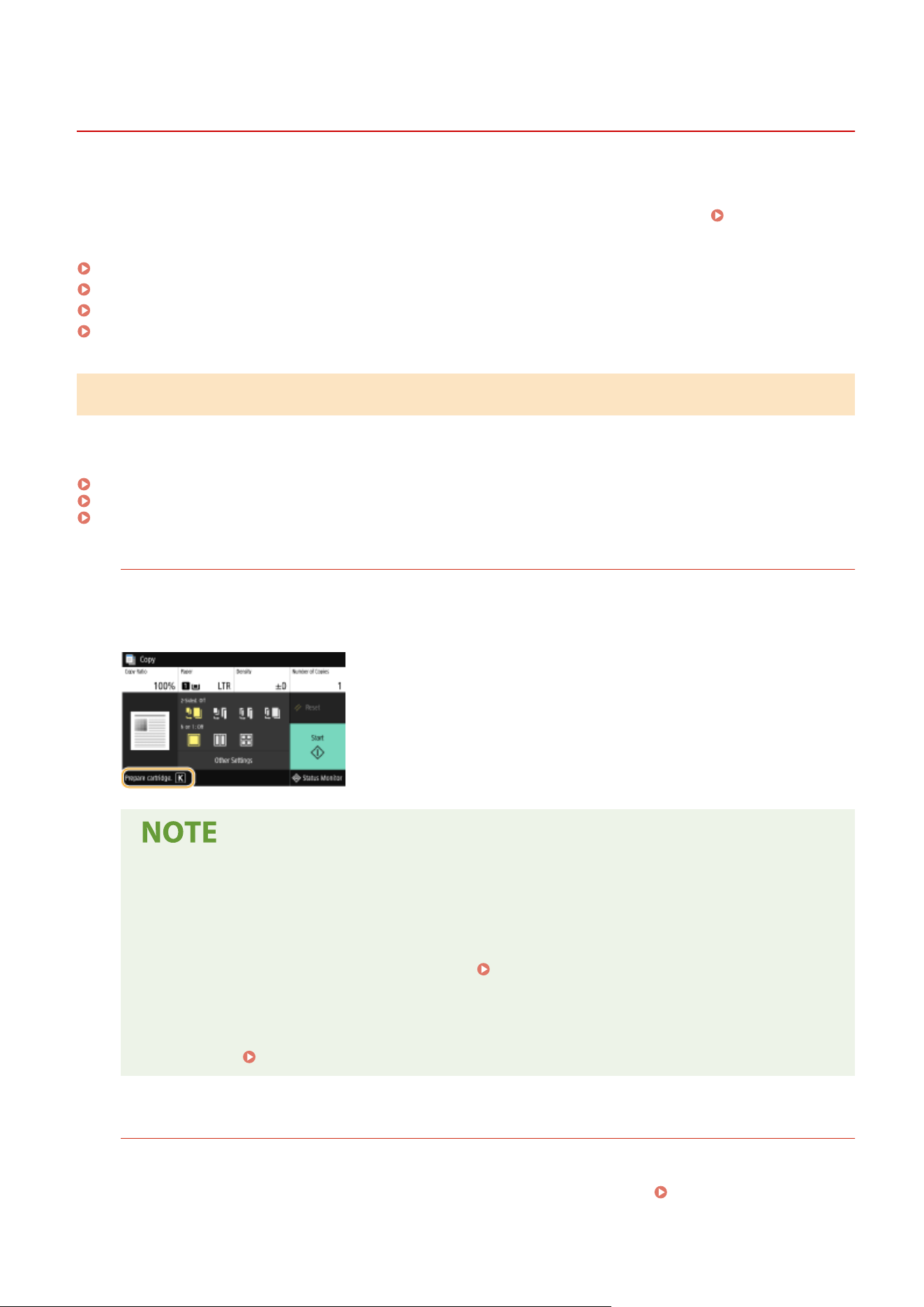
Replacing the Toner Cartridge
7YWY-09L
A warning message appears in the display when the amount r
emaining in the toner cartridge is low or when printing
is no longer possible because of toner depletion. Note that the print quality may suffer if you continue printing without
resolving this issue. You can check the amount remaining in the toner cartridges on the display (
Checking the
Remaining Amount of Consumables
(P. 578) ).
When a Message Appear(P. 571)
When Printouts are Poor in Quality(P. 573)
Before Replacing the Toner Cartridge(P. 573)
Procedure for Replacing the Toner Cartridge(P. 574)
When a Message Appear
The message that is displayed depends on the amount remaining in the toner cartridges. Depending on which
message is displayed, you will need to make sure that you have a replacement toner cartridge ready or replace the
toner cartridge.
Before Replacing the Toner Cartridge(P. 573)
Procedure for Replacing the Toner Cartridge(P. 574)
Consumables(P. 595)
<Pr
epare cartridge.>
This message noties you that a toner cartridge needs to be r
eplaced soon. Make sure that you have a
replacement toner cartridge ready. Replace the toner cartridge if you see this message before you start to print
a large job.
When a message is displayed
● When cop
ying or printing, you can continue printing the original.
● If a message is displayed when the machine is receiving a fax/I-Fax or automatic report output is set,
received faxes/I-Faxes and reports will be stored in memory so that they do not appear faded after
they are printed. To continue printing even if the amount remaining in toner cartridge is running low,
set <Continue Print. When Cart. Low> to <On>.
<Continue Print. When Cart. Low>(P. 536)
Specify when a message is displayed
● Y
ou can set any value as the percentage of the amount remaining in the toner cartridge that triggers
a message.
<Display Timing for Cart. Prep.>(P. 456)
<Low Cartridge Level>
This message noties you that a toner cartridge needs to be r
eplaced soon. Make sure that you have a
replacement toner cartridge ready. Replace the toner cartridge if you see this message before you start to print
a large job. This appears when <Action When Warning> is set to <Stop Printing> (
<Action When
W
arning>(P. 457) ).
Maintenance
571
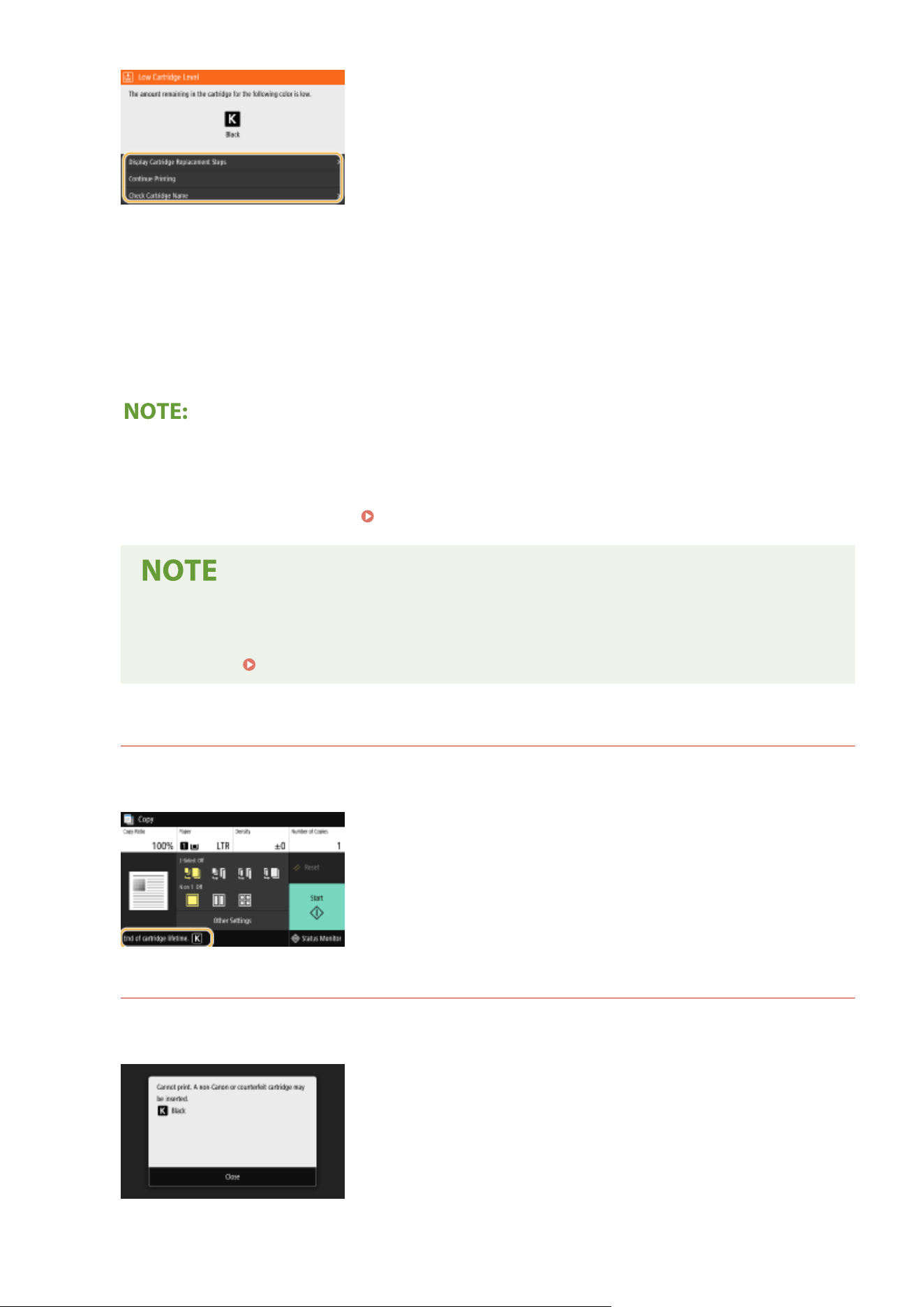
<Display Cartridge Replacement Steps>
Displays the pr
ocedure for replacing a toner cartridge. Follow the on-screen instructions to replace the toner
cartridge.
<Continue Printing>
You can end a printing stoppage state and continue copying/printing.
<Check Cartridge Name>
You can check the toner cartridge name.
● If a message is displayed when the machine is r
eceiving a fax/I-Fax or automatic report output is set,
received faxes/I-Faxes and reports will be stored in memory so that they do not appear faded after they are
printed. To continue printing even if the amount remaining in toner cartridge is running low, set <Continue
Print. When Cart. Low> to <On>.
<Continue Print. When Cart. Low>(P. 536)
Specify when a message is displayed
● Y
ou can set any value as the percentage of the amount remaining in the toner cartridge that triggers
a message.
<Display Timing for Cart. Prep.>(P. 456)
<End of cartridge lifetime.>
This message noties you that a toner cartridge has r
eached the end of its lifetime. It is recommended that you
replace the cartridge with a new one. You can continue printing, but the print quality cannot be guaranteed.
<Cannot print. A non-Canon or counterfeit cartridge may be inserted.>
This message noties you that the machine may not print in optimum quality
. It is recommended that you
replace this cartridge with a new one.
Maintenance
572
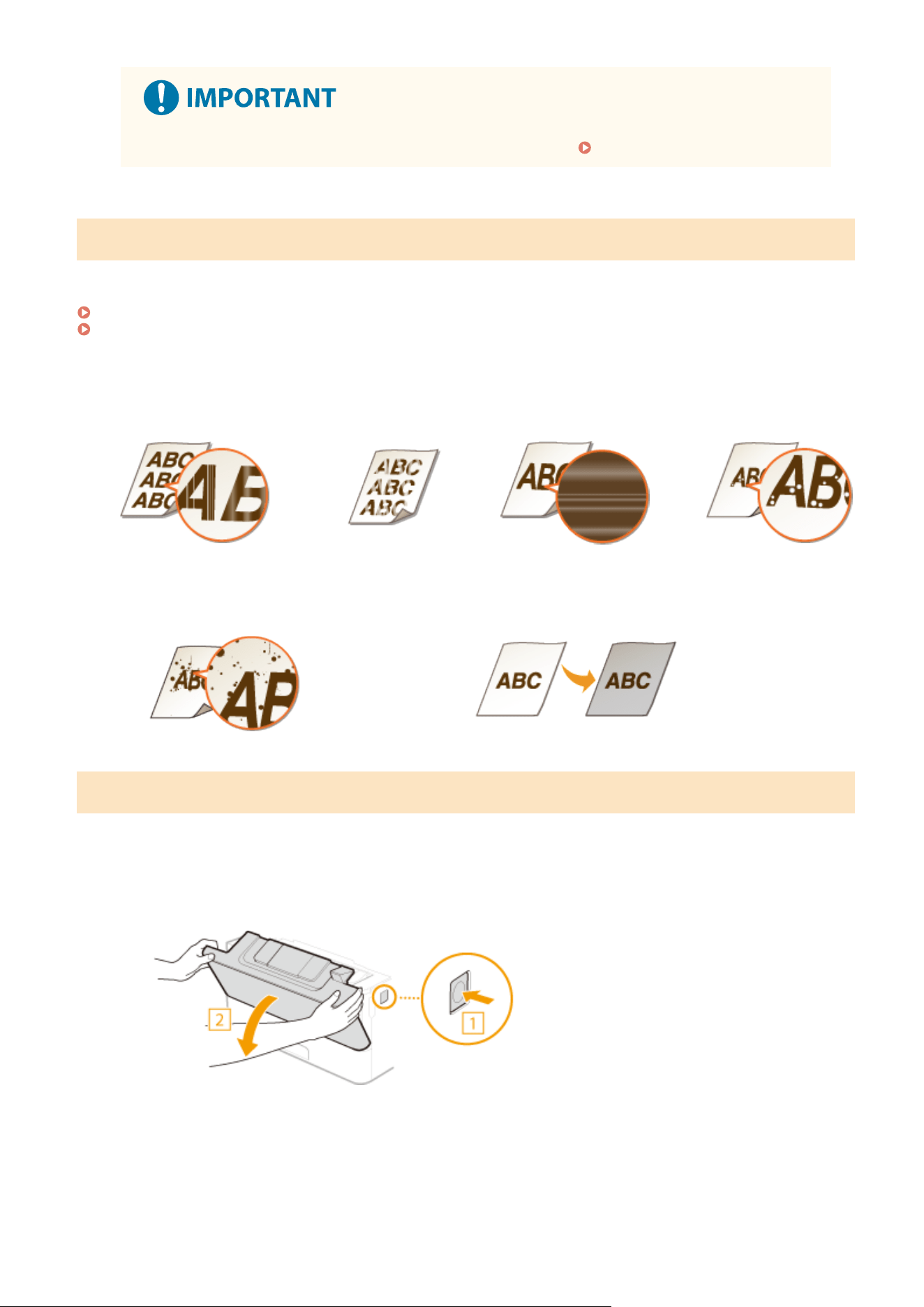
● When this message is displayed, you cannot continue printing. <Canon Genuine Mode>(P. 553)
When Printouts are Poor in Quality
If your printouts begin to sho
w any of the following features, one of your toner cartridges is consumed. Replace the
nearly empty toner cartridge even if no message is displayed.
Before Replacing the Toner Cartridge(P. 573)
Procedure for Replacing the Toner Cartridge(P. 574)
Streaks Appear/Printing is
Une
ven
Partially faded
Uneven density
White Spots Appear
Toner smudges and splatters appear
Blank space of originals becomes grayish in printouts
Before Replacing the Toner Cartridge
Perform the follo
wing before replacing the toner cartridge. The message may no longer appear, or print quality may
be improved.
1
Open the front cover.
2
Remove the toner cartridge.
Maintenance
573
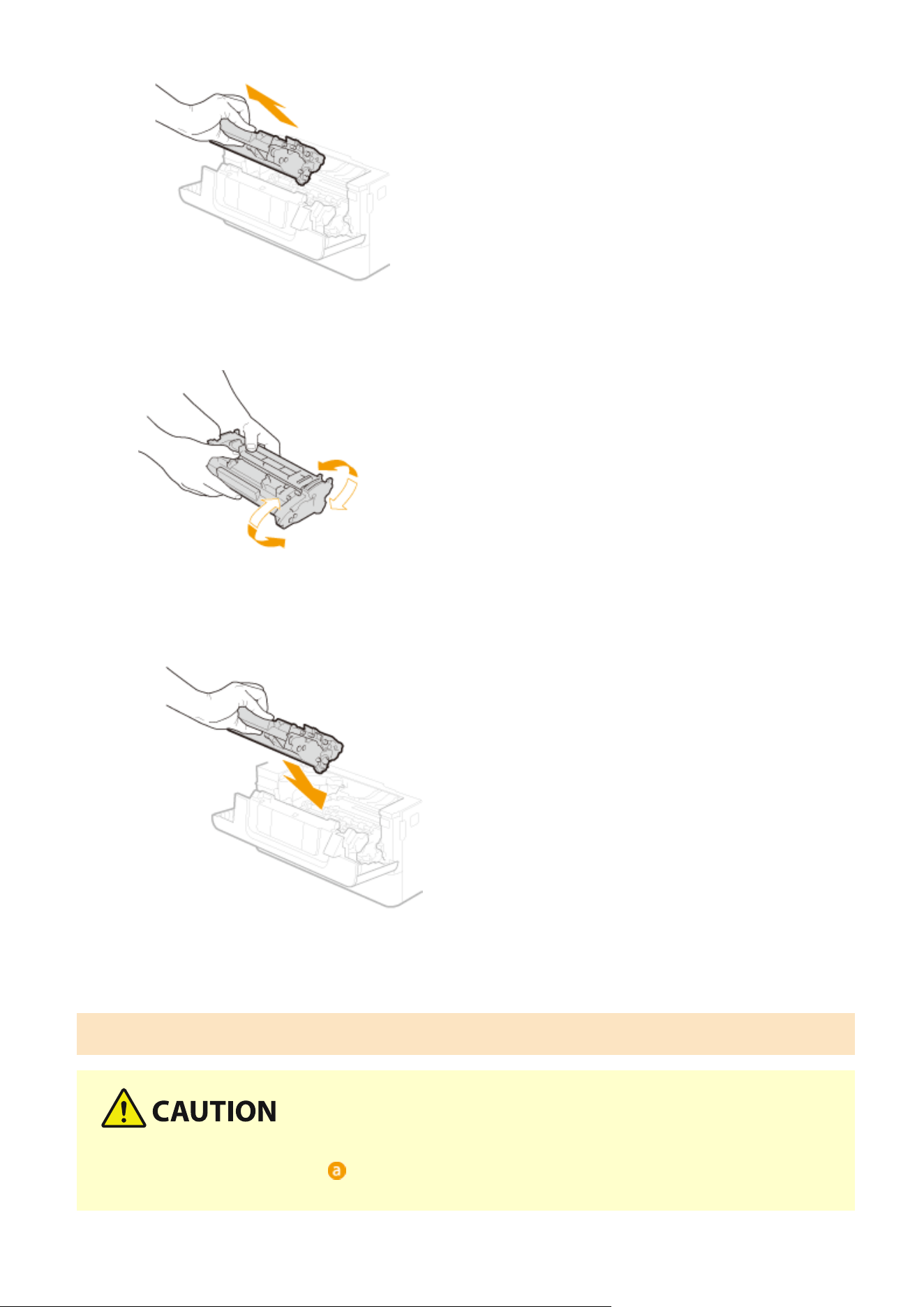
3
Shake the toner cartridge 5 or 6 times as shown below to evenly distribute the toner
inside the cartridge.
4
Install the toner cartridge.
● Fully push it in until it cannot go any further.
5
Close the front cover.
Procedure for Replacing the Toner Cartridge
Do not touch the contacts ( ) inside the machine
● Doing so may r
esult in a fault.
Maintenance
574
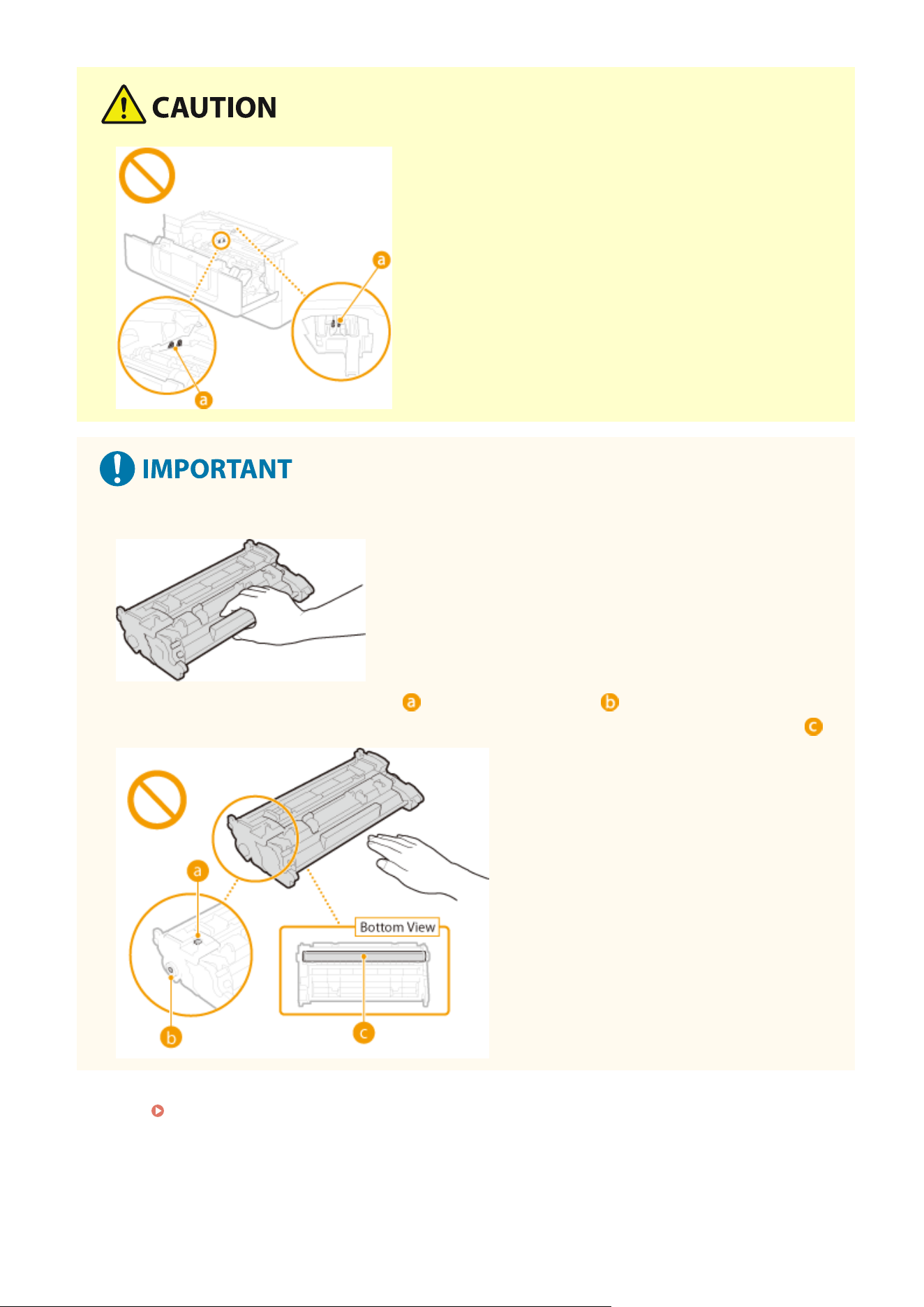
● Be sur
e to hold the toner cartridge using the handle.
● Do not touch the toner cartridge memory ( ) or the electrical contacts ( ). To avoid scratching the
surface of the drum inside the machine or e
xposing it to light, do not open the drum protective shutter (
).
Read the precautions in "Important Safety Instructions" provided with this product before replacing the toner
cartridges. Manuals and Their Contents(P. 632)
1
Open the front cover.
Maintenance
575
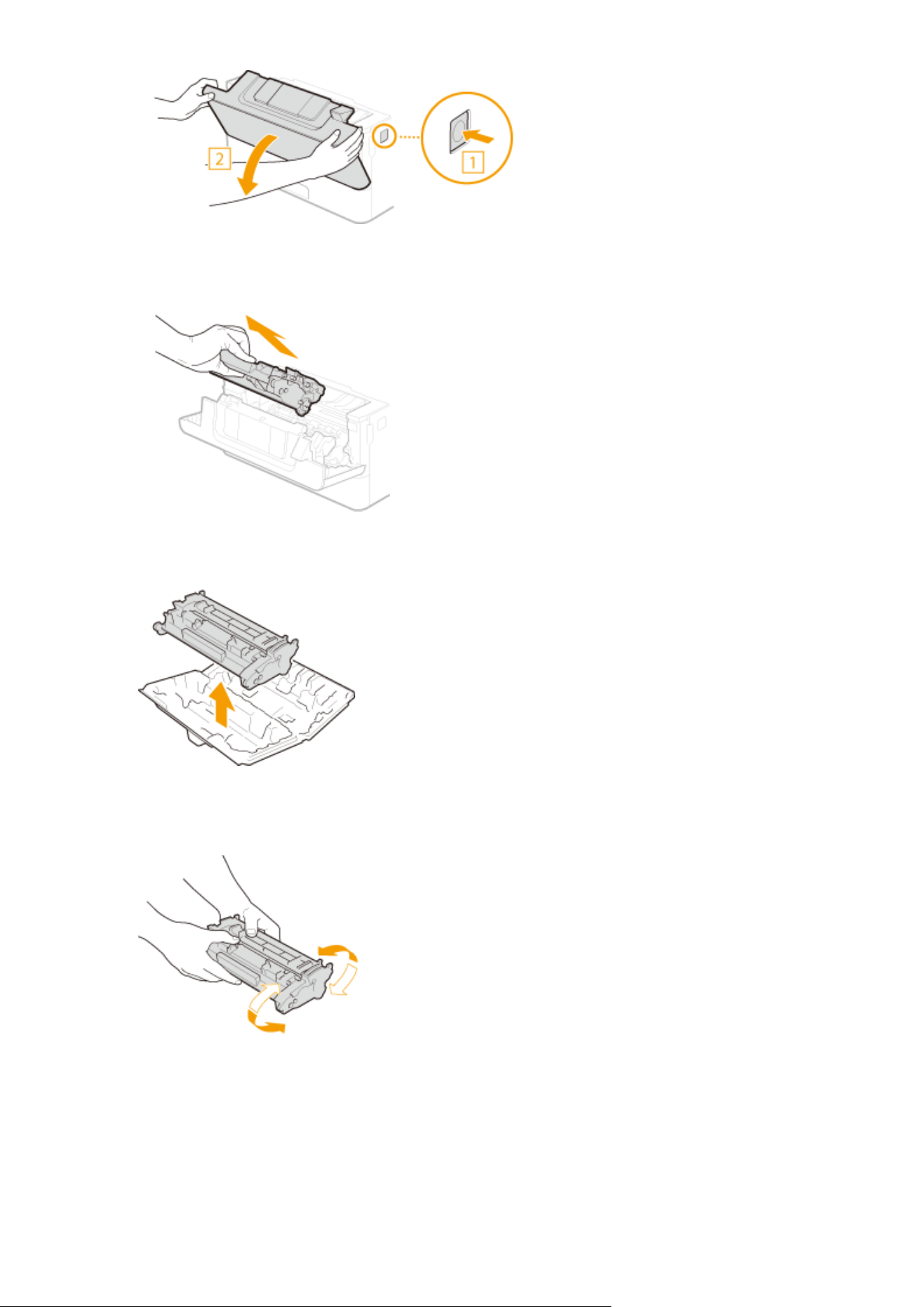
2
Remove the toner cartridge.
3
Remove the replacement toner cartridge from the protective case.
4
Shake the toner cartridge 5 or 6 times as shown below to evenly distribute the toner
inside the cartridge.
5
Install the toner cartridge.
● Fully push it in until it cannot go any further.
Maintenance
576
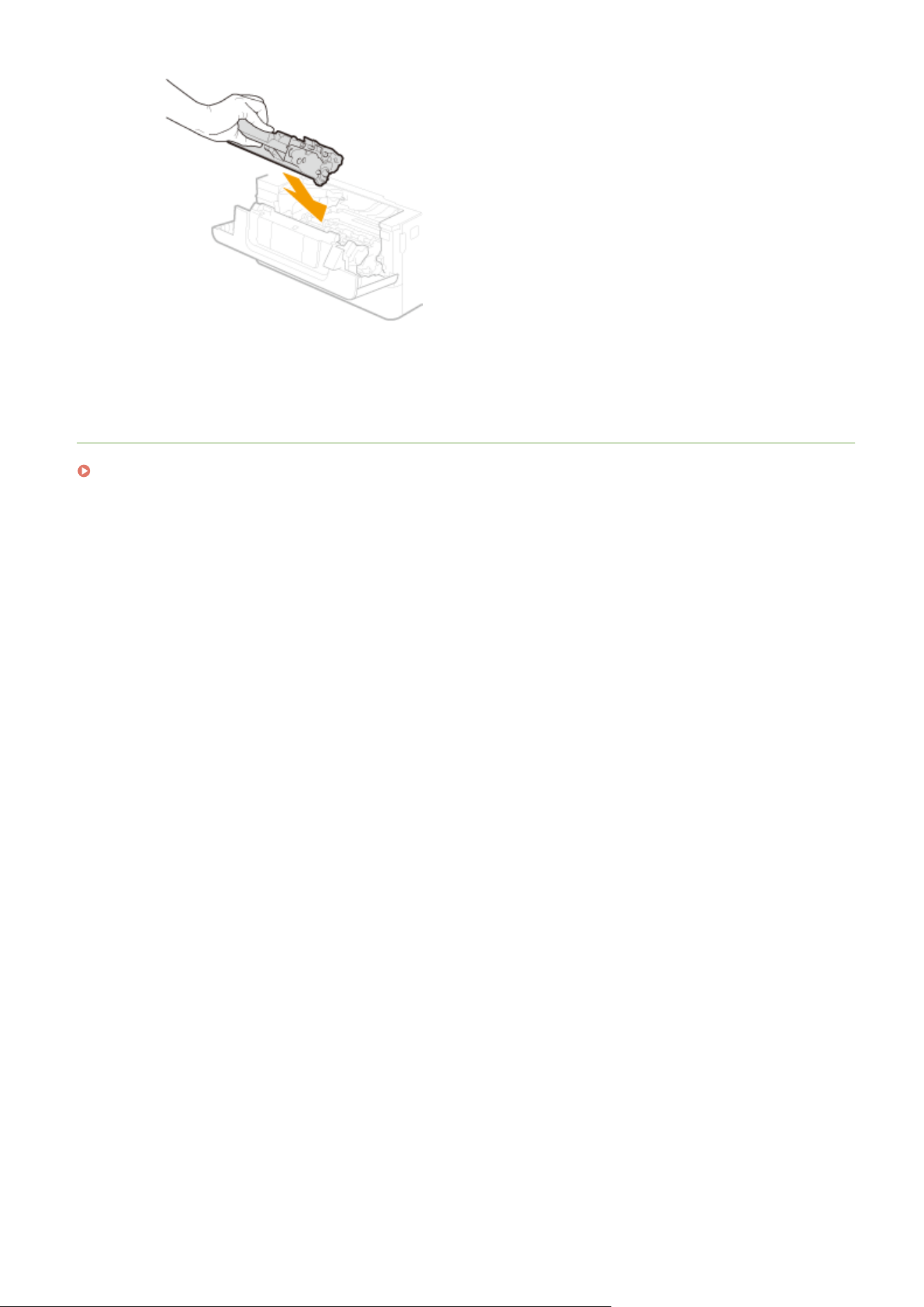
Checking the Remaining Amount of Consumables
7YWY-09R
Use the pr
ocedure below to check the amount remaining in the toner cartridges. It is particularly important to check
whether you need to have a new toner cartridge ready before starting a large print job.
<Status Monitor> <Device Information> <Cartridge Information> Checking the amount
r
emaining in the toner cartridges
● The displayed amount r
emaining in a toner cartridge can be used only as a guide and may differ from the
actual amount.
LINKS
Replacing the Toner Cartridge(P. 571)
Consumables(P. 595)
Maintenance
578
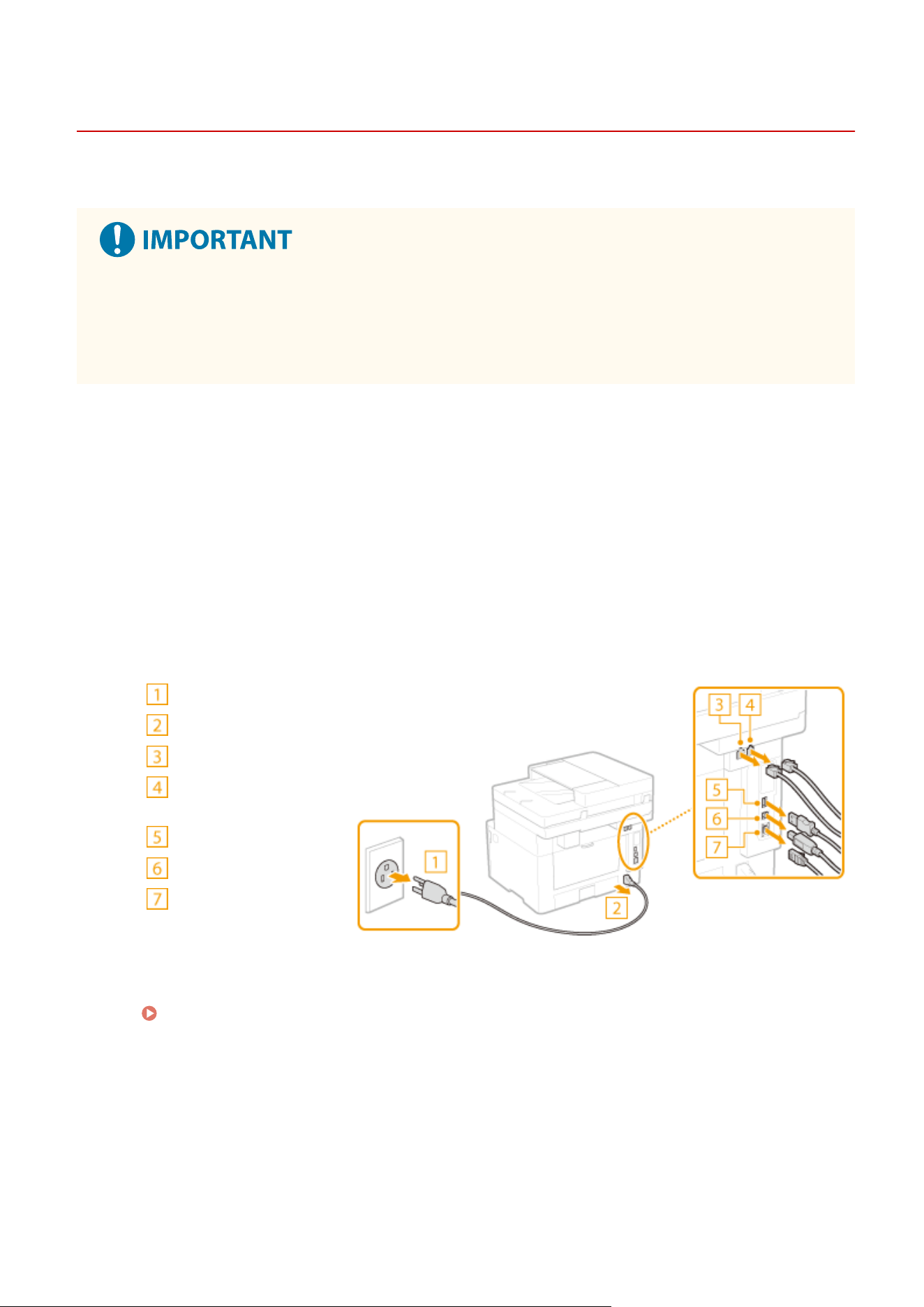
Relocating the Machine
7YWY-09S
The machine is heavy
. Make sure to follow the procedure below when moving the machine to avoid injury.
● If the machine is to be tr
ansported for relocation, removals, etc., take the following steps to prevent damage
and faults during transportation:
- Remove the toner cartridges.
- Securely pack the machine in the original packaging (box) and packing materials.
1
Turn OFF the machine and computer.
● When you turn OFF the machine, data that is waiting to be printed is deleted. Fax documents that wer
e
received by using the Memory Reception function, faxes that are waiting to be sent, and reports that are
automatically printed after sending and receiving faxes are not deleted.
2
Disconnect the cables and cord from the machine in numerical order as in the
illustr
ation below.
● Whether the cables with "
*
" ar
e connected depends on your environment.
Power plug
Power cord
Telephone cable
*
External
telephone
*
USB keyboard
*
USB cable
*
LAN cable
*
3
When transporting the machine across a long distance, remove the toner cartridges.
Procedure for Replacing the Toner Cartridge(P. 574)
4
Pull out the paper drawer.
Maintenance
579
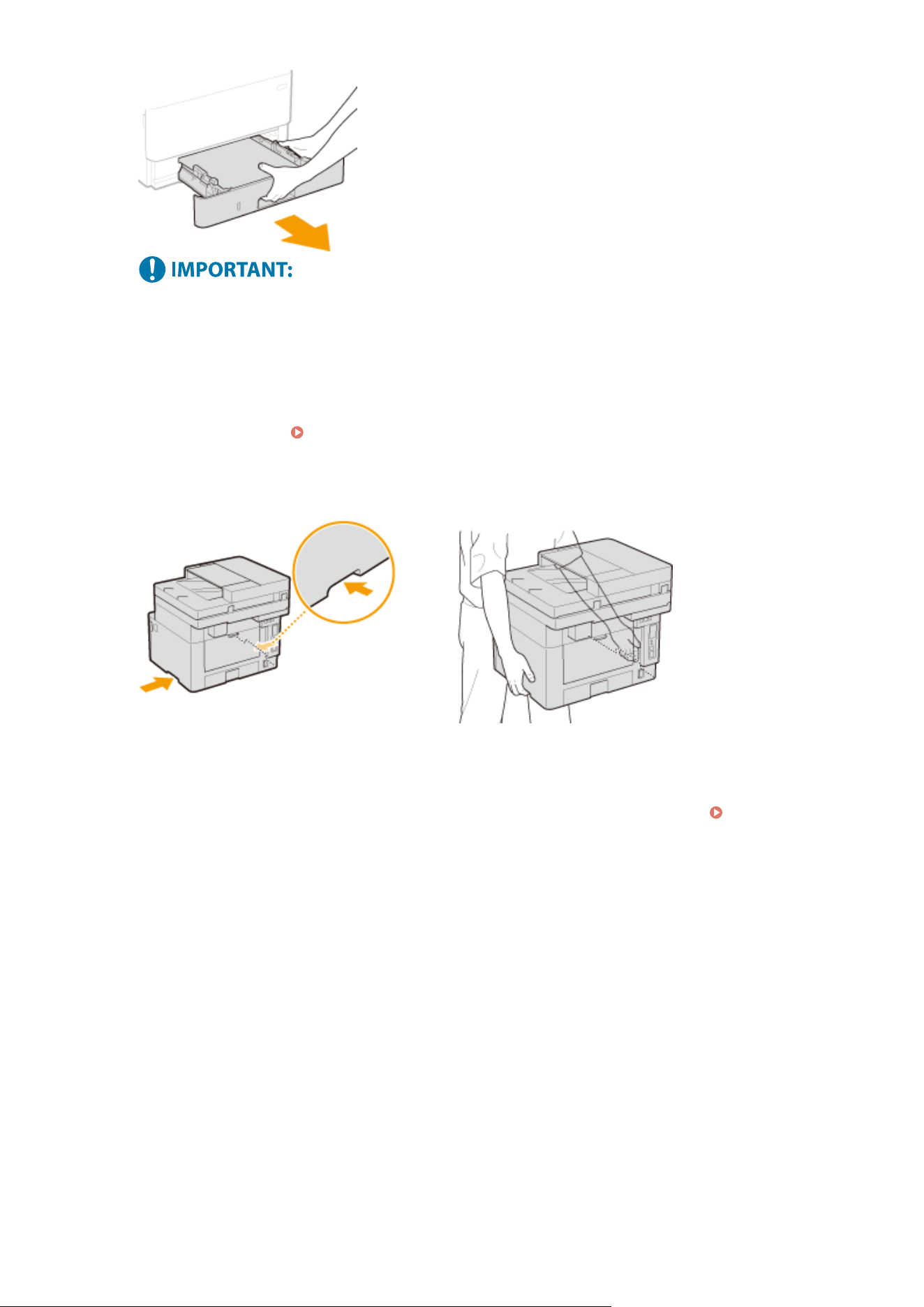
● Mak
e sure to hold the paper drawer with both hands, and pull it out gently. Otherwise, you may damage
the paper drawer by dropping it, if it slides out too easily.
5
Close all the open covers and multi-purpose tray, and move the machine to a new
location.
● The machine is heavy (
Main Unit(P. 613) ). Do not try har
d to carry the machine.
● Position yourself toward the front side of the machine and hold the lift handles, then lift up the machine. If
you have attached the optional cassette feeding module, leave the cassette feeding module on the oor and
move it after moving the main unit of the machine.
6
Carefully place the machine at the new installation site.
● For information about how to install the machine after relocating it, see "Setup Guide." Manuals and Their
Contents(P. 632)
Maintenance
580

Adjusting Image Quality
7YWY-09U
If the print r
esults or scanned images are not satisfactory such as low image quality, poor reproducibility, or skewed
printouts, try the adjustments below.
◼ Adjust Copy Image
If the density or brightness of copies and memory media print differs markedly from the originals, use this function so
that the appearance of the printing results becomes closer to that of the originals.
Adjusting the Gradation and
Density for Cop
y Jobs(P. 582)
◼ Black Text Processing for Color
You can make an adjustment such that black or nearly black text is reproduced in a color closely matching with the
original that was scanned in color.
Adjusting Values for Text Color Reproducibility(P. 584)
◼ Density Adjustment
When the print r
esults are too dark or too light, you can adjust the density.
Adjusting Print Density(P. 586)
◼ Adjust Print Position
Y
ou can adjust the print position when the printed image is skewed or part of the image is outside the print range.
Adjusting Print Position(P. 587)
Maintenance
581
Adjusting the Gradation and Density for Copy Jobs
7YWY-09W
Gr
adation refers to the dark to light continuum of shades of a color. The more shades in the gradations of colors that
are printed, the more natural printouts seem. If color reproducibility becomes poor and the density and brightness of
printouts differs markedly from the originals, perform the appropriate auto adjustment. This adjustment improves the
results of copies and memory media print. For correcting copy images, an adjustment image will be printed and
scanned. Note that you cannot perform this adjustment while performing some functions, including, scanning, and
printing.
● Fr
equent adjustment may affect the lifetime of toner cartridges.
● Adjustments may not be performed effectively if there is not sucient toner cartridge remaining. Check the
amount remaining in the toner cartridges. If the amount remaining in the toner cartridge is low, it is
recommended that you replace the toner cartridge.
Checking the Remaining Amount of
Consumables(P
. 578)
1
Select <Menu> in the Home screen.
Home Screen(P. 125)
2
Select <Adjustment/Maintenance>
<Adjust Image Quality>.
3
Select <Adjust Copy Image>.
4
Check that the size and type of paper displayed on the screen is loaded in the
machine, and select <OK>.
5
Conrm the pr
ocedure, and select <Start>.
➠ An adjustment image is printed.
6
Open the feeder after the screen displayed during printing disappears.
7
Place the adjustment image on the platen glass.
● Place the adjustment image printed paper with the print side facing do
wn and with the thin black line on the
left.
Maintenance
582
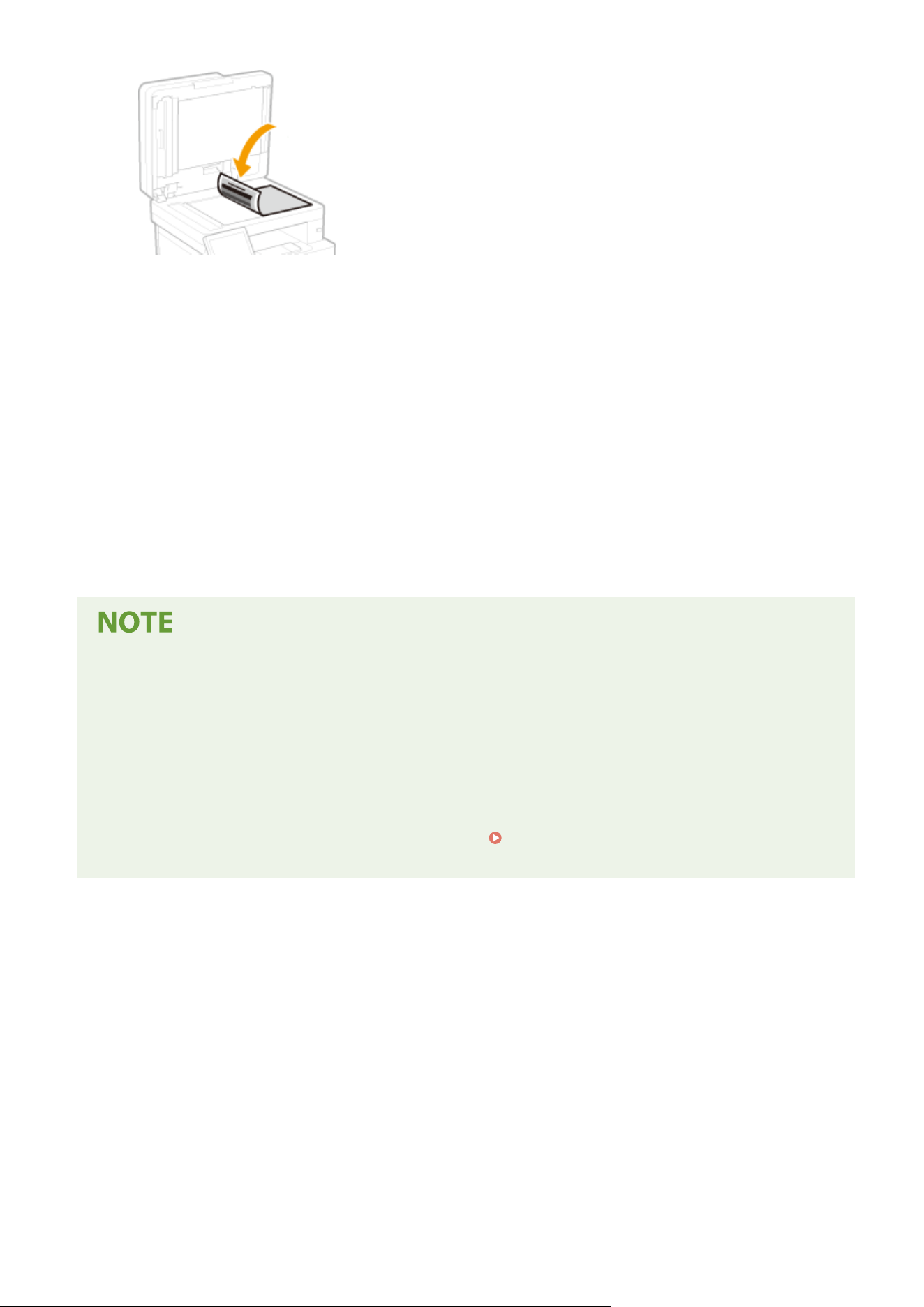
8
Gently close the feeder.
9
Select <Start Scanning>.
➠ The adjustment image is scanned and adjustment starts.
10
When a message appears notifying that adjustment is complete, open the feeder,
and r
emove the adjustment image.
11
Gently close the feeder.
If the <Could not perform correction.> message is displayed
● Did you load the paper displayed in step 4 into the paper sour
ce?
● Did you place the adjustment image printed paper on the platen glass with the print side facing down and
with the thin black line on the left?
● Has a paper jam occurred? For more information, see "Troubleshooting (FAQ)" on the online manual
website.
● Is the amount remaining in toner cartridge sucient? If the amount remaining in the toner cartridge is low,
it is recommended that you replace the toner cartridge.
Checking the Remaining Amount of
Consumables(P
. 578)
Maintenance
583
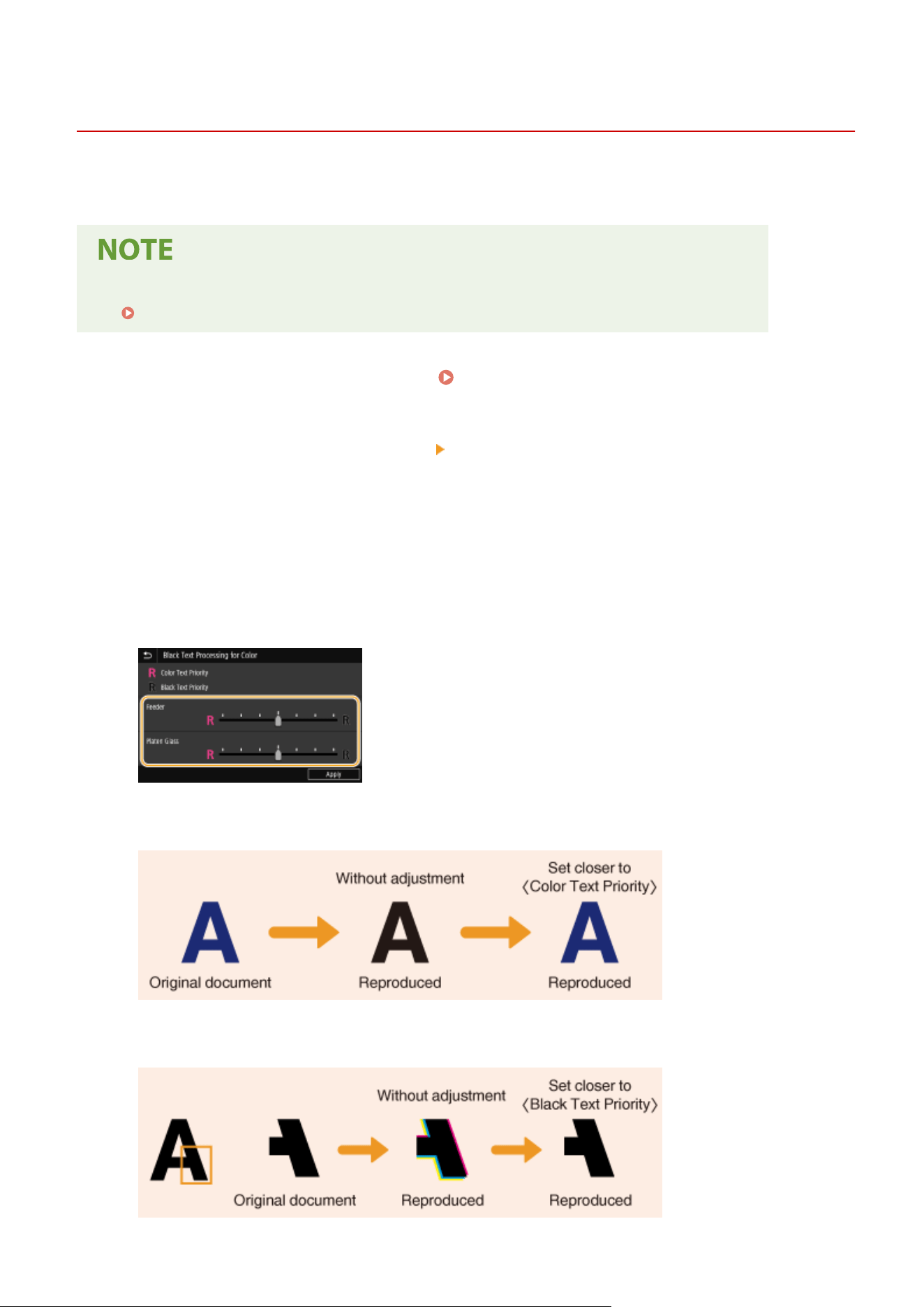
Adjusting Values for Text Color Reproducibility
7YWY-09X
Y
ou can make an adjustment such that black or nearly black text is reproduced in a color closely matching with the
original that was scanned in color.
● This function will apply when scan is performed with <Original T
ype> set to other than <Photo>.
Adjusting Image Quality(P. 308)
1
Select <Menu> in the Home screen. Home Screen(P. 125)
2
Select <Adjustment/Maintenance>
<Adjust Image Quality>.
3
Select <Black Text Processing for Color>.
4
Adjust the value.
● This adjustment value can be set independently in the feeder and platen glass.
<Color Text Priority>
Repr
oduces black or nearly black text in a color closely matching with the original.
<Black Text Priority>
Repr
oduces black text with enhanced clarity.
Maintenance
584

5
Select <Apply>.
Maintenance
585
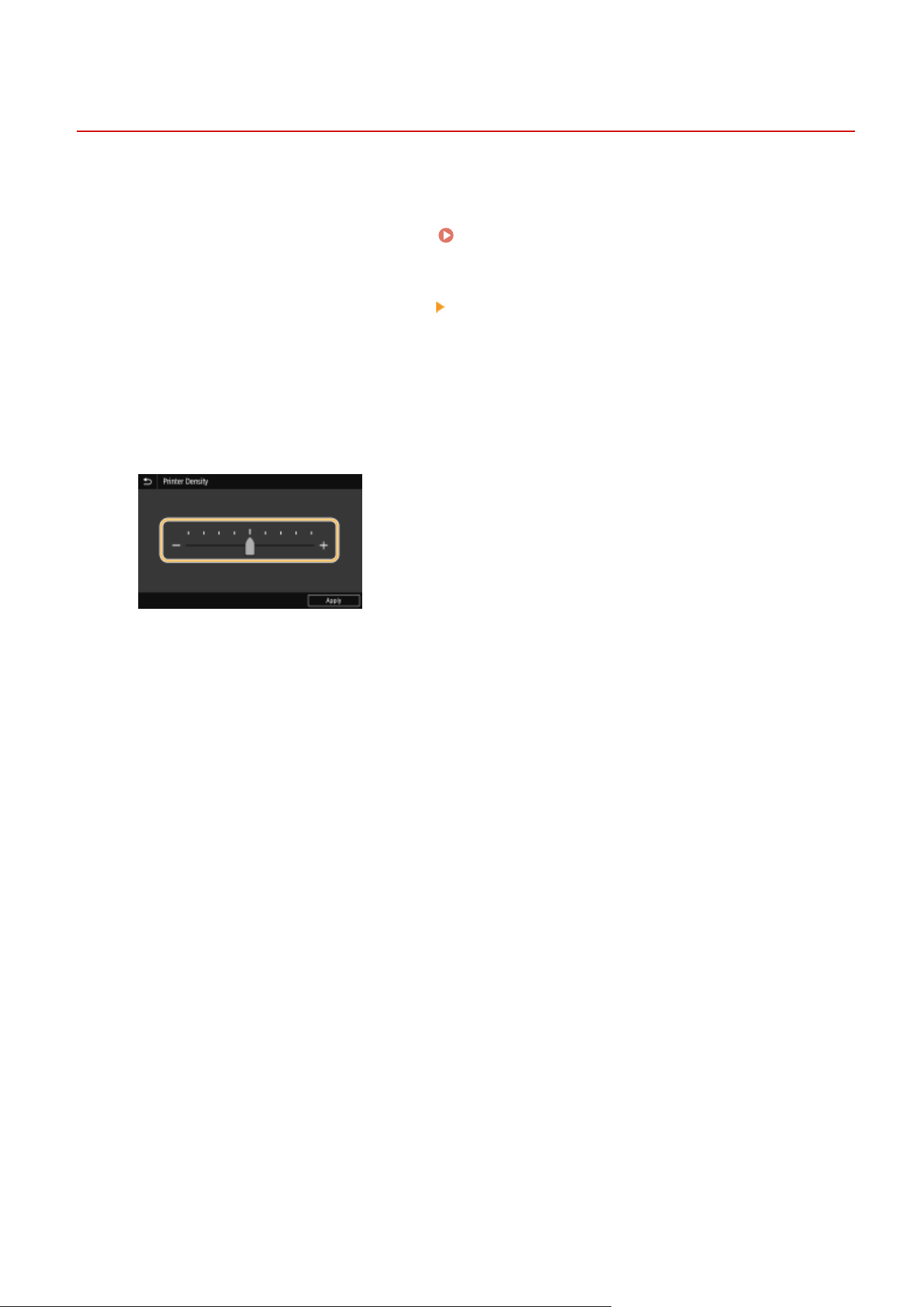
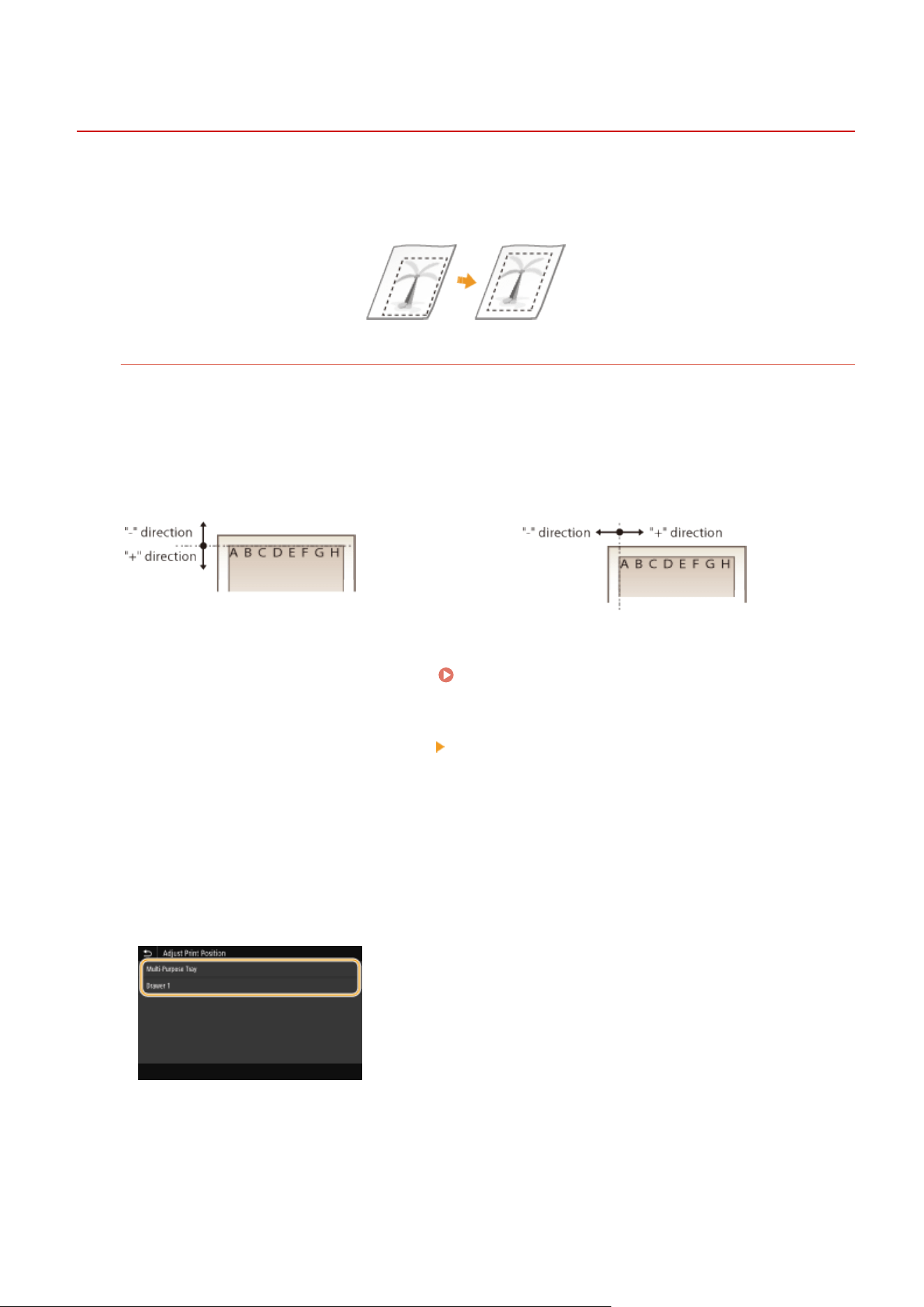
Adjusting Print Position
7YWY-0A0
If a document is printed off-center or out of the printable r
ange, adjust the print position. You can adjust the print
position for each paper source. You can adjust the print position in the range -0.20" to +0.20" (-5.0 mm to +5.0 mm) in
increments of 0.01" (0.1 mm).
Checking the Direction and Distance to Adjust
When you adjust the print position, specify the direction using "+" and "-" and the distance using "mm." For
<Adjust V
ertically (Front Side)>/<Adjust Vertically (Back Side)>, specify a value with a "+" sign to shift the print
position in the up-to-down direction. For <Adjust Horizontally (Front Side)>/<Adjust Horizontally (Back Side)>,
specify a value with a "+" sign to shift the print position in the left-to-right direction. To shift in the reverse
direction, specify a value with a "-" sign.
<Adjust Vertically (Front Side)>/<Adjust Vertically
(Back Side)>
<Adjust Horizontally (Front Side)>/<Adjust
Horizontally (Back Side)>
1
Select <Menu> in the Home screen. Home Screen(P. 125)
2
Select <Adjustment/Maintenance>
<Adjust Image Quality>.
3
Select <Adjust Print Position>.
4
Select the paper source.
● When the optional cassette feeding module is installed, its paper dr
awer is also displayed.
5
Select the combination of adjustment direction and printing side.
Maintenance
587
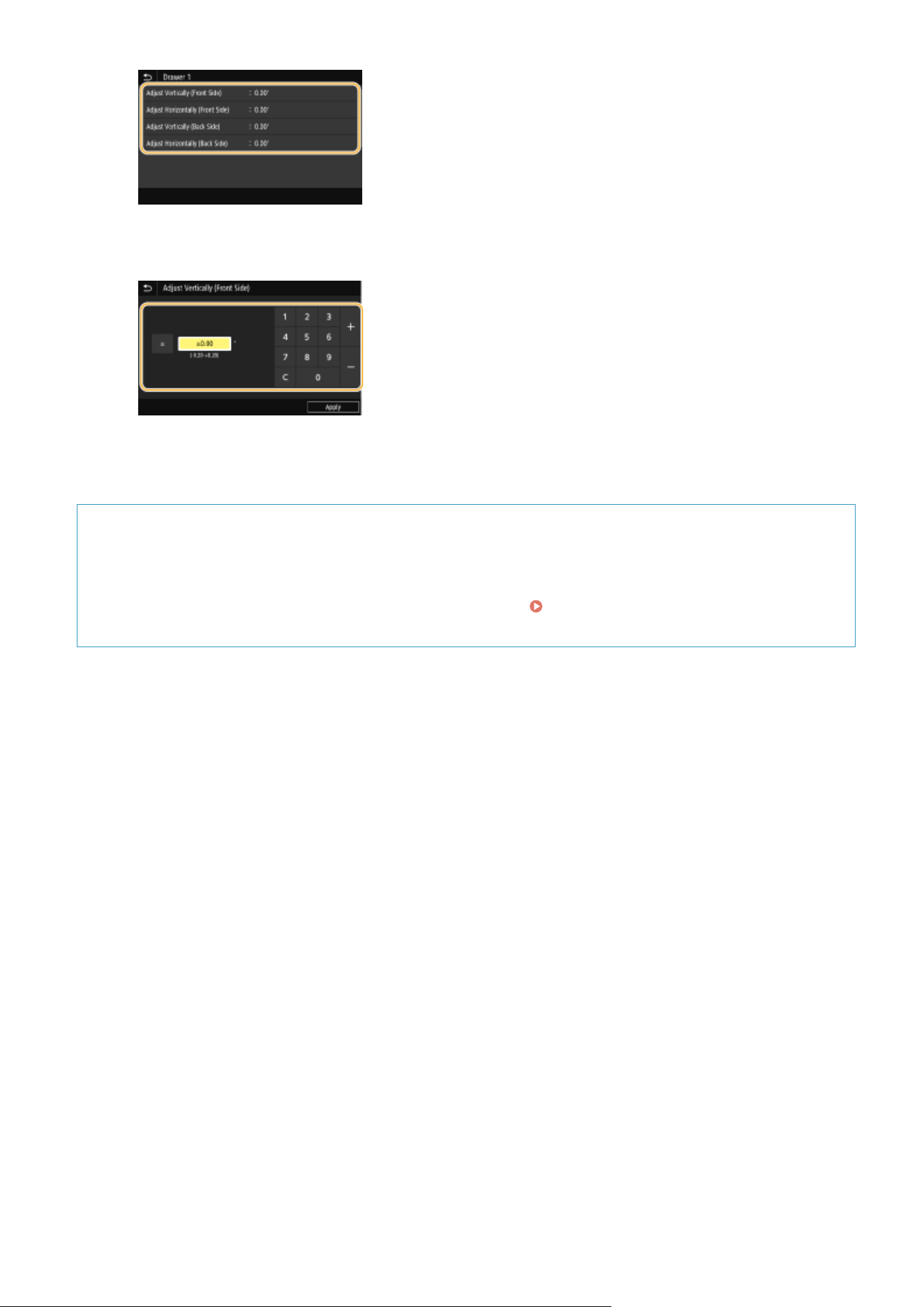
6
Set an adjustment value.
7
Select <Apply>.
Adjusting the Print Position for All Print Jobs
● Y
ou can use <Function Settings> in the setting menu of the operation panel to adjust the print position for
all print jobs, irrespective of the paper source. The print position can be adjusted in 0.01" (0.5 mm)
increments between -2.00" (-50.0 mm) and +2.00" (+50.0 mm).
<Offset Short Edge/Offset Long
Edge>
(P. 504)
Maintenance
588
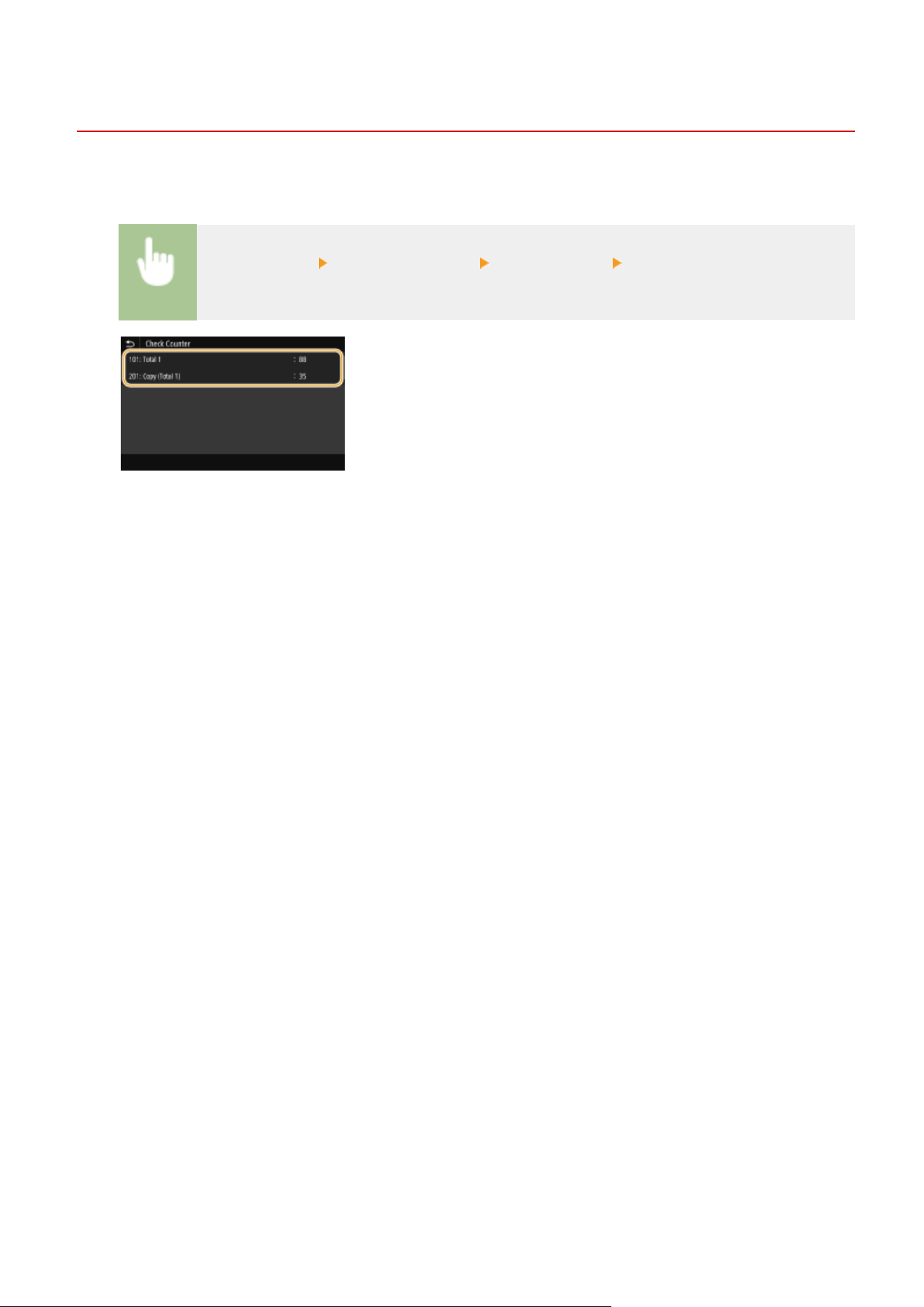
Viewing the Counter Value
7YWY-0A1
Y
ou can check the total number of pages printed by the machine. These totals include faxes, reports, and lists, in
addition to copies and printouts of data from computers.
<Status Monitor> <Device Information> <Check Counter> Check the number of pages
printed
<101: Total 1>
Displays the total number of pages copied and printed.
<201: Cop
y (Total 1)>
Displays the total number of pages copied.
Maintenance
589
Printing Reports and Lists
7YWY-0A2
Y
ou can print reports and lists to check information such as the total volume of printouts for each <Department ID>
and machine settings.
Conguring the Print Settings for Reports and Lists(P
. 590)
Printing a Report on the Total Volume of Printouts by Department ID(P. 590)
Setting Reports on the Communication Results(P. 590)
Printing Lists of Settings(P. 592)
Printing Reports and Lists on the Usage Status of the Machine(P. 593)
Conguring the Print Settings for Reports and Lists
You can perform 2-sided printing of reports and lists.
<Menu> <Output Report> <Report Settings> <Default Settings for Report
Output> <On> <Apply>
Printing a Report on the Total Volume of Printouts by Department ID
Department ID Management Report
When Department ID Management is enabled, you can check the total volume of printouts for each
<Department ID> b
y printing a Department ID Management Report. By checking the printout totals, you can
better manage your paper and toner cartridge supplies.
<Menu> <Output Report> <Print List> <Department ID Management Report> Check that
the size and type of paper displayed on the screen is loaded in the machine, and select
<Start>
Setting Reports on the Communication Results
Y
ou can print reports on the results of sending/receiving by e-mail, fax, and I-Fax, as well as results of saving to a
shared folder or FTP server. Some reports can be printed automatically while others are only printed when an error
occurs.
● If "Result
" in a printed list contains "NG," you can check details of the error from a three-digit number
prexed with "#" displayed in the next to the result. For more information, see "Troubleshooting (FAQ)" on
the online manual website.
Maintenance
590
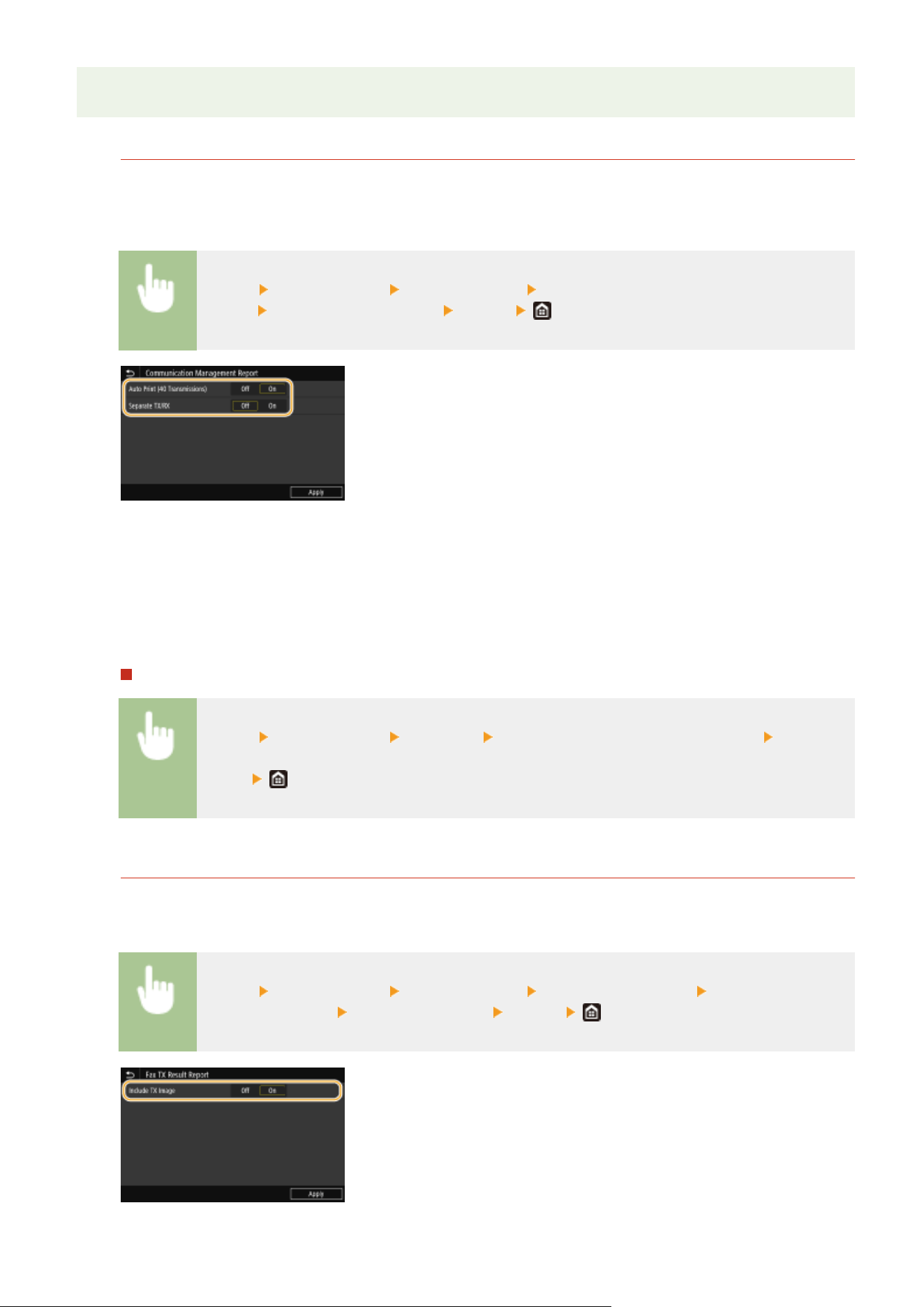
● Reports printed for e-mail/I-Fax indicate the tr
ansmission result between the machine and the mail server,
not between the machine and the destination address.
Communication Management Report
You can check the fax and e-mail logs of sent and received documents by printing a Communication
Management Report. The r
eport can be printed automatically after every 40 transmissions, or you can print it
manually.
<Menu> <Output Report> <Report Settings> <Communication Management
Report> Congur
e report settings
<Apply>
<Auto Print (40 Transmissions)>
Select <On> to print the r
eport automatically after every 40 transmissions, or <Off> if you do not want to print
the report automatically.
<Separate TX/RX>
Select <On> to print sent and received reports separately, or <Off> to print both reports on one sheet.
Print the report manually
<Menu> <Output Report> <Print List> <Communication Management Report> Check that
the size and type of paper displayed on the scr
een is loaded in the machine, and select
<Start>
Fax TX Result Report
You can check the fax logs of sent documents by printing a Fax TX Result Report. The report can be printed
either e
very time a transmission is completed or only when a sending error occurs.
<Menu> <Output Report> <Report Settings> <Fax TX Result Report> Select <On> or <Only
When Err
or Occurs>
Select <Off> or <On> <Apply>
Maintenance
591
<Include TX Image>
When you select <On>, a part of a sent document can be included in the TX Result Report.
● Send jobs originating fr
om the fax driver are omitted from this report.
E-Mail/I-Fax/File TX Result Report
You can check the e-mail and I-Fax logs of sent documents as well as documents saved to a shared folder or FTP
server by printing an E-Mail/I-Fax/File TX Result Report. The report can be printed either every time a
transmission is completed or only when a sending error occurs.
<Menu> <Output Report> <Report Settings> <E-Mail/I-Fax/File TX Result Report> Select
<On> or <Only When Err
or Occurs>
Communication result
● If an err
or occurs during transmission by e-mail/I-Fax or saving to a shared folder/FTP server, the
report does not show the error code. To check the error code, print a Communication Management
Report (
Communication Management Report(P. 591) ).
RX Result Report
You can check the logs of received fax and I-Fax documents by printing an RX Result Report. The report can be
printed either e
very time a transmission is completed or only when a receiving error occurs.
<Menu> <Output Report> <Report Settings> <RX Result Report> Select <On> or <Only
When Err
or Occurs>
Printing Lists of Settings
Y
ou can print information and settings registered in the machine as a list.
Address Book List
You can check the list of destinations registered in the Address Book as <Coded Dial>, <Favorites>, and <Group>
b
y printing an Address Book List.
<Menu> <Output Report> <Print List> <Address Book List> Select the setting you want to
print out Check that the size and type of paper displayed on the screen is loaded in the
machine, and select <Start>
Maintenance
592
User Data List/System Manager Data List
You can check the list of the settings ( Setting Menu List(P. 451) ) as well as the content that has been
r
egistered in the machine by printing a User Data List or a System Manager Data List. Both lists include the
rmware version, the paper size and type registered in the machine, and the print settings of Communication
Management Report, TX Result Report, and RX Result Report.
<Menu> <Output Report> <Print List> Select <User Data List> or <System Manager Data
List> Check that the size and type of paper displayed on the screen is loaded in the machine, and
select <Start>
● The User Data List does not include certain settings such as Network Settings and Management
Settings. T
o check all the settings items, print the System Manager Data List.
IPSec Policy List
You can check the list of policy names and the IPSec settings registered in the machine by printing an IPSec
Policy List.
<Menu> <Output Report> <Print List> <IPSec Policy List> Check that the size and type of
paper displayed on the scr
een is loaded in the machine, and select <Start>
Printing Reports and Lists on the Usage Status of the Machine
Y
ou can print the machine status report, the usage log of toner cartridges, and the list of fonts available in PCL or PS
mode.
Eco Report
You can check the monthly total volume of printouts and the power consumption with a report. This report
includes tips that ar
e useful for saving paper and power consumption based on the usage status.
<Menu> <Output Report> <Print List> <Eco Report> Check that the size and type of paper
displayed on the scr
een is loaded in the machine, and select <Start>
● The amount of po
wer consumption may vary depending on the environment and conditions where
the machine is used.
Maintenance
593
Consumables Status Report
You can check the consumables status installed in the machine with a report.
<Menu> <Output Report> <Print List> <Consumables Status Report> Check that the size
and type of paper displayed on the scr
een is loaded in the machine, and select <Start>
PCL Font List
You can check the list of fonts available in PCL mode with a report.
<Menu> <Output Report> <Print List> <PCL Font List> Check that the size and type of
paper displayed on the screen is loaded in the machine, and select <Start>
PS Font List
You can check the list of fonts available in PS mode with a report.
<Menu> <Output Report> <Print List> <PS Font List> Check that the size and type of paper
displayed on the scr
een is loaded in the machine, and select <Start>
Cartridge Log Report
You can check the usage logs of toner cartridges with a report.
<Menu> <Output Report> <Print List> <Cartridge Log Report> Check that the size and
type of paper displayed on the scr
een is loaded in the machine, and select <Start>
Maintenance
594
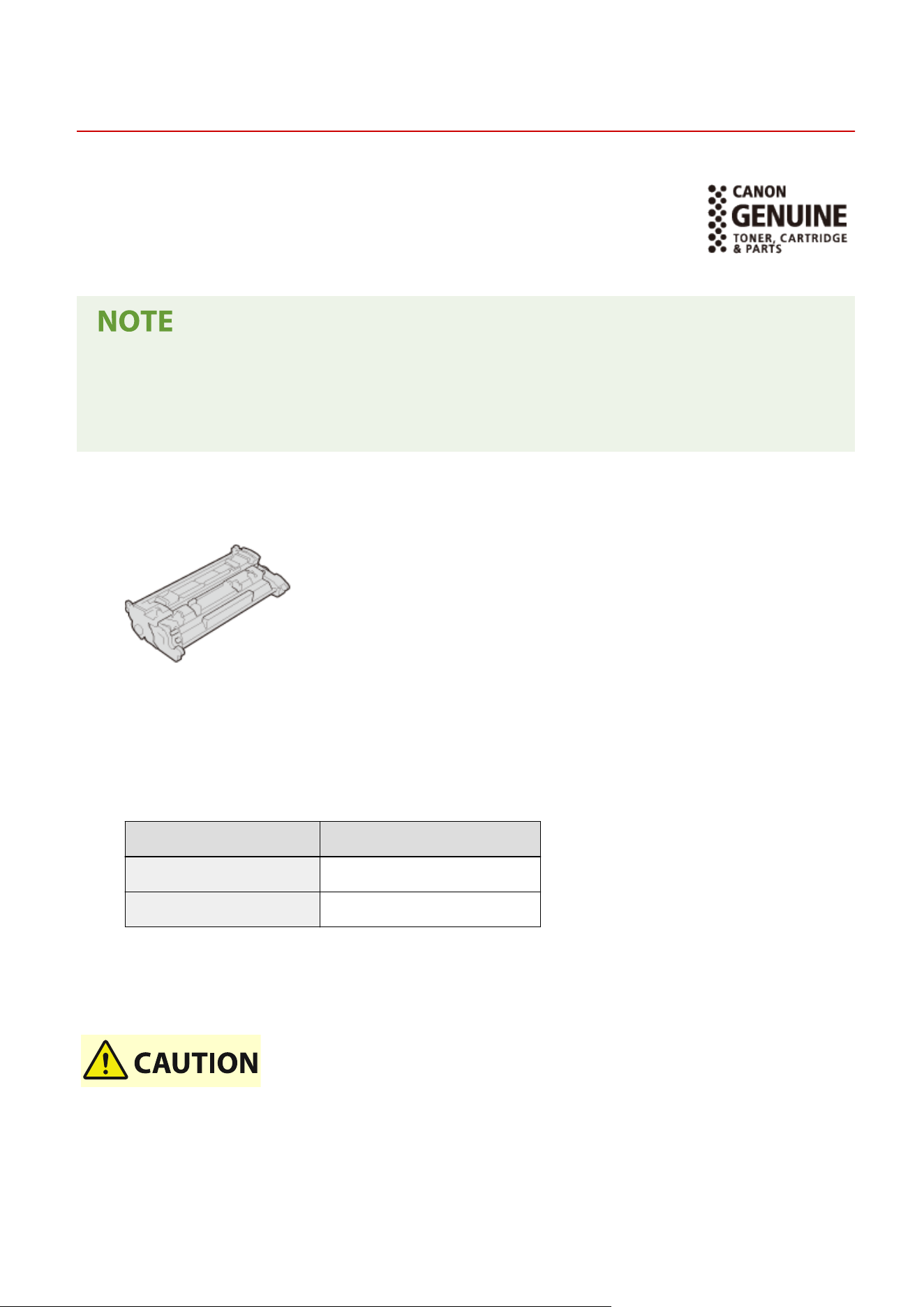
Consumables
7YWY-0A3
The following is a guide to the estimated replacement time for the consumables used in
this machine. Observe safety and health pr
ecautions when storing and handling
consumables. For optimum print quality, using Canon genuine Toner, Cartridge and
Parts is recommended.
● T
o handle and store consumables, observe precautions in "Important Safety Instructions" provided with this
product.
● Depending on the installation environment, printing paper size, or original type, you may need to replace
consumables before the end of the estimated lifetime.
◼ T
oner Cartridges
Supplied Toner Cartridge
The aver
age yield
*
of the toner cartridge that comes with the machine are shown below.
● 3,100 sheets
Replacement Toner Cartridges
For optimum print quality
, using Canon genuine toner cartridges is recommended.
Canon Genuine Toner Cartridge Average yield * of toner cartridge
Canon Cartridge 057 3,100 sheets
Canon Cartridge 057 H 10,000 sheets
*
The aver
age yield is based on "ISO/IEC 19752" (the global standard related to "Method for the determination of toner
cartridge yield for monochromatic electrophotographic printers and multi-function devices that contain printer
components" issued by ISO [International Organization for Standardization]) when printing A4 size paper with the default
print density setting.
Store toner cartridges as described below
Storing toner cartridges in an impr
oper location or environment may cause problems such as data loss.
● Store toner cartridges in the following conditions:
- Storage temperature range: 32 °F to 95 °F (0 °C to 35 °C)
- Storage humidity range: 35 % to 85 % RH (relative humidity, condensation-free)
*
Maintenance
595
*Even within the approved storage humidity range, water droplets (condensation) may develop inside the toner cartridge if the temperatures
inside and outside the toner cartridge differ. Condensation will adversely affect the print quality
.
● Stor
e unopened until immediately prior to use.
● Do not store toner cartridges upright or upside down.
● Do not store toner cartridges in the following locations:
- Locations exposed to open ames
- Locations exposed to direct sunlight or bright light for ve minutes or more
- Locations exposed to excessively salty air
- Locations heavily exposed to corrosive gases (e.g. aerosol sprays or ammonia)
- Very hot and/or humid locations
- Locations subject to dramatic changes in temperature and humidity likely to cause condensation
- Very dusty locations
- Locations within the reach of children
● Store the packaging material safely for future use. It will be needed for situations such as storing the machine with the toner
cartridges removed.
● Canon reserves the right to reposition, reshape, add or remove packaging material without notice.
Be careful of counterfeit toner cartridges
● Please be awar
e that there are counterfeit Canon toner cartridges in the marketplace. Use of
counterfeit toner cartridge may result in poor print quality or machine performance. Canon is not
responsible for any malfunction, accident or damage caused by the use of counterfeit toner cartridge.
For more information, see global.canon/ctc.
● When r
eplacing toner cartridges, see
Replacing the Toner Cartridge(P. 571) .
Maintenance
596


Troubleshooting (FAQ)
7YWY-0A4
When a pr
oblem occurs, check this chapter to nd out solutions before contacting Canon.
Troubleshooting (FAQ)
598

Appendix
Appendix .............................................................................................................................................................
600
Third Party Software ......................................................................................................................................... 602
Feature Highlights ............................................................................................................................................ 603
Going Green and Saving Money ................................................................................................................... 604
Improving Eciency ..................................................................................................................................... 606
Going Digital ................................................................................................................................................ 608
So Much More .............................................................................................................................................. 610
Specications .................................................................................................................................................... 612
Main Unit ...................................................................................................................................................... 613
Feeder .......................................................................................................................................................... 616
Available Paper ............................................................................................................................................. 617
Cassette Feeding Module-AH ........................................................................................................................ 620
Fax Function ................................................................................................................................................. 621
Scan Function ............................................................................................................................................... 622
Printer Functions .......................................................................................................................................... 623
Management Functions ................................................................................................................................ 625
System Environment .................................................................................................................................... 627
Network Environment .................................................................................................................................. 629
Options .............................................................................................................................................................. 630
Optional Equipment ..................................................................................................................................... 631
Manuals and Their Contents ............................................................................................................................. 632
Using User's Guide ............................................................................................................................................ 633
Screen Layout of User's Guide ...................................................................................................................... 634
Viewing User's Guide .................................................................................................................................... 637
Basic Windows Operations ............................................................................................................................... 638
Menu Route Map ............................................................................................................................................... 646
Notice ................................................................................................................................................................. 647
Appendix
599
Appendix
7YWY-0A5
This chapter contains technical specications of this machine, instructions on ho
w to use the User's Guide, disclaimers,
copyright information, and other important information for customers.
◼ Machine Specications
See the following section(s) when you want to check the specications of the main unit and optional equipment,
network environment, print function, and so on.
Specications(P
. 612)
◼ Using Optional Equipment
See the following section(s) when you want to check what options are available to use this machine more conveniently
and more effectively.
Options(P. 630)
◼ Refer
encing the Manual of This Machine
See the rst of the following sections when you want to be sure of the kinds of the manuals describing the functions of
the machine and how to operate the machine. When you want to know how to read and use the User's Guide (this
manual), see the second section.
Manuals and Their Contents(P. 632)
Using User's Guide(P. 633)
◼ Others
See the follo
wing section(s) when you want to get useful information, and check the disclaimers and copyright
information.
Appendix
600


Third Party Software
7YWY-0A6
For information r
elated to third-party software, click the following icon(s).
Third-Party Software Included in This Manual
Appendix
602

Feature Highlights
7YWY-0A7
This section describes tips for le
veraging the features of the machine by category. You can make use of the features
according to your intended purposes and operating environment.
Going Green and Saving Money(P. 604)
Improving Eciency(P
. 606)
Going Digital(P. 608)
So Much More(P. 610)
Appendix
603
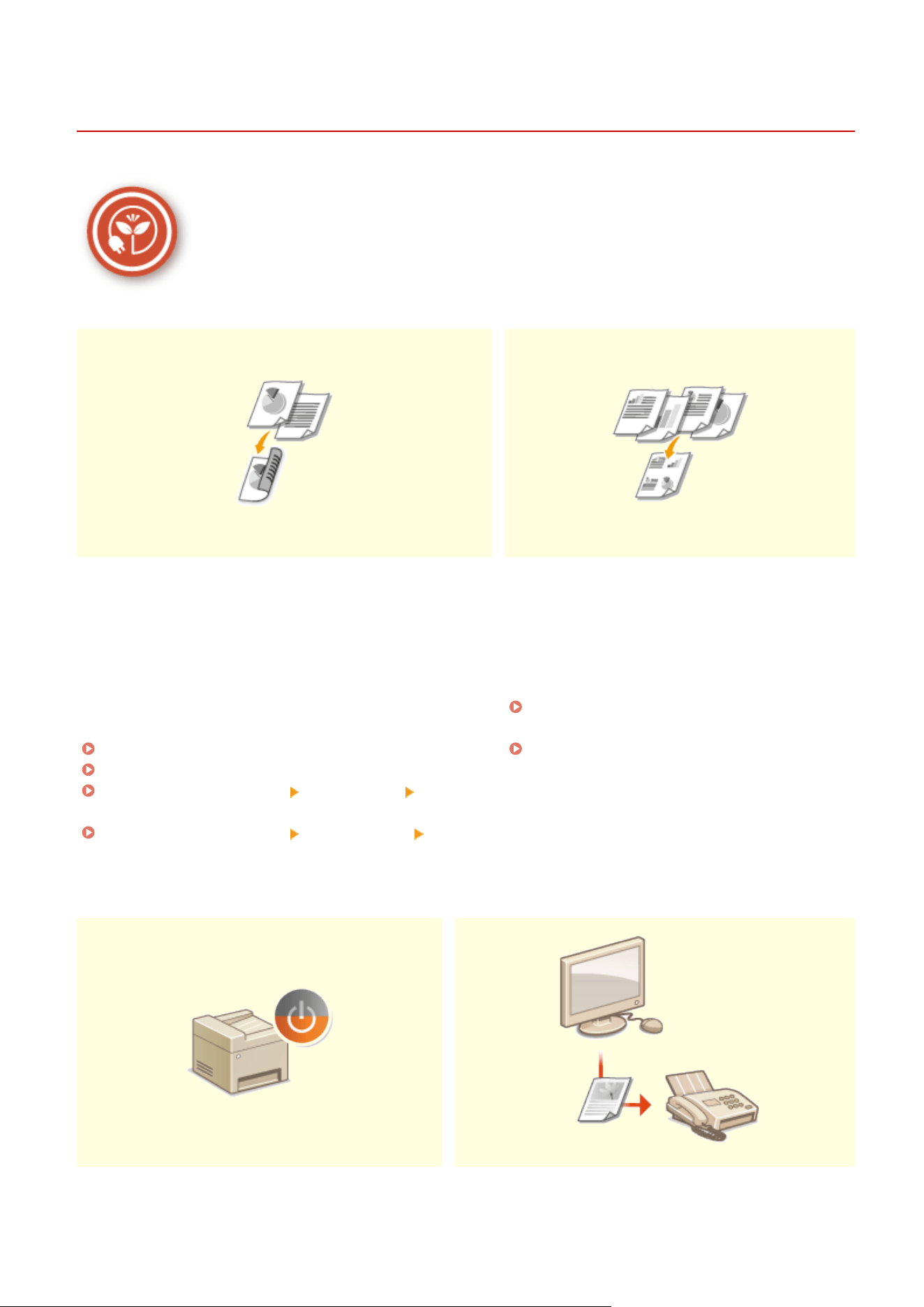
Going Green and Saving Money
7YWY-0A8
There are lots of ways to cut back on paper, toner, power, and expenses.
2-Sided Printing Print Multiple Pages on a Single Sheet
You can use 2-sided printing for copies, print jobs sent from
your computer, and e
ven incoming faxes. Because you'll only
be using half the paper you would otherwise, you can cut
your paper costs in half. To save even more, combine 2-sided
printing with N on 1 printing of multiple pages on one sheet
of paper. You can print up to 32 pages on a single sheet,
which is both economical and environmentally friendly.
Basic Copy Operations(P. 196)
Printing from a Computer(P. 262)
<Receive/Forward>(P. 535) <Fax Settings> <Print on
Both Sides>
<Receive/Forward>(P. 535) <I-Fax Settings> <Print
on Both Sides>
To really start saving paper, shrink multiple pages
onto one side of a sheet - 2 or 4 pages for copies,
and up to 16 pages for print jobs sent fr
om your
computer. This is even more effective when used
together with 2-sided printing.
Copying Multiple Documents onto One Sheet
(N on 1)
(P. 209)
Printing from a Computer(P. 262)
Sleep Mode Paperless Faxing
Appendix
604

For saving energy and money, a sleep mode that
powers down a machine when nobody is using it has
become an essential feature. This machine will enter
sleep mode automatically, and can also be put to
sleep whenever you want. Press once to put the
machine to sleep. Pr
ess it again to instantly wake the
machine back into action.
Entering Sleep Mode(P. 179)
Assume you need paper to fax? Those old paper printouts
you always make are a thing of the past. Send documents
by fax just as they are, created on your computer. It's
paperless, so it's fast. And, received documents are rst
stored in memory, allowing you to print out only those
needed and eliminating worry about paper getting used on
direct mailings, etc.
Sending Faxes from Your Computer (PC Fax)(P. 248)
Saving Received Documents into the Machine
(Memory Reception)(P. 241)
Canon strives to be environmentally and energy conscious in all aspects of its
oper
ations. Click here to learn about the ways in which Canon is helping to protect the
environment.
Appendix
605
Improving Eciency
7YWY-0A9
Here are some simple operations that can make complicated tasks more ecient.
Address Book Frequently Used Settings in One Touch
Entering fax and e-mail addresses in the Address Book saves
you the inconvenience of entering them number-b
y-number,
letter-by-letter every time you have something to send. Display
the addresses you use most frequently with the <Favorites>
feature to quickly and easily send what you need to the people
who need it. You can save your Address Book data on your
computer and feel secure knowing that your important contact
information is backed up.
Registering Destinations(P. 181)
Registering Destinations from Remote UI(P. 434)
Basic Operations for Sending Faxes(P. 219)
Basic Operations for Scanning Originals(P. 287)
Importing/Exporting the Setting Data(P. 443)
Always making 2-sided copies. Always scanning in
the same format and to the same save
destination. Fr
equently used settings like these
can be registered to a single shortcut button. This
is convenient by allowing you to specify involved
operations all in a single touch.
Registering Frequently Used Settings(P. 173)
Print Images Right Off Your USB Memory Device Remote Management with Remote UI
Appendix
606
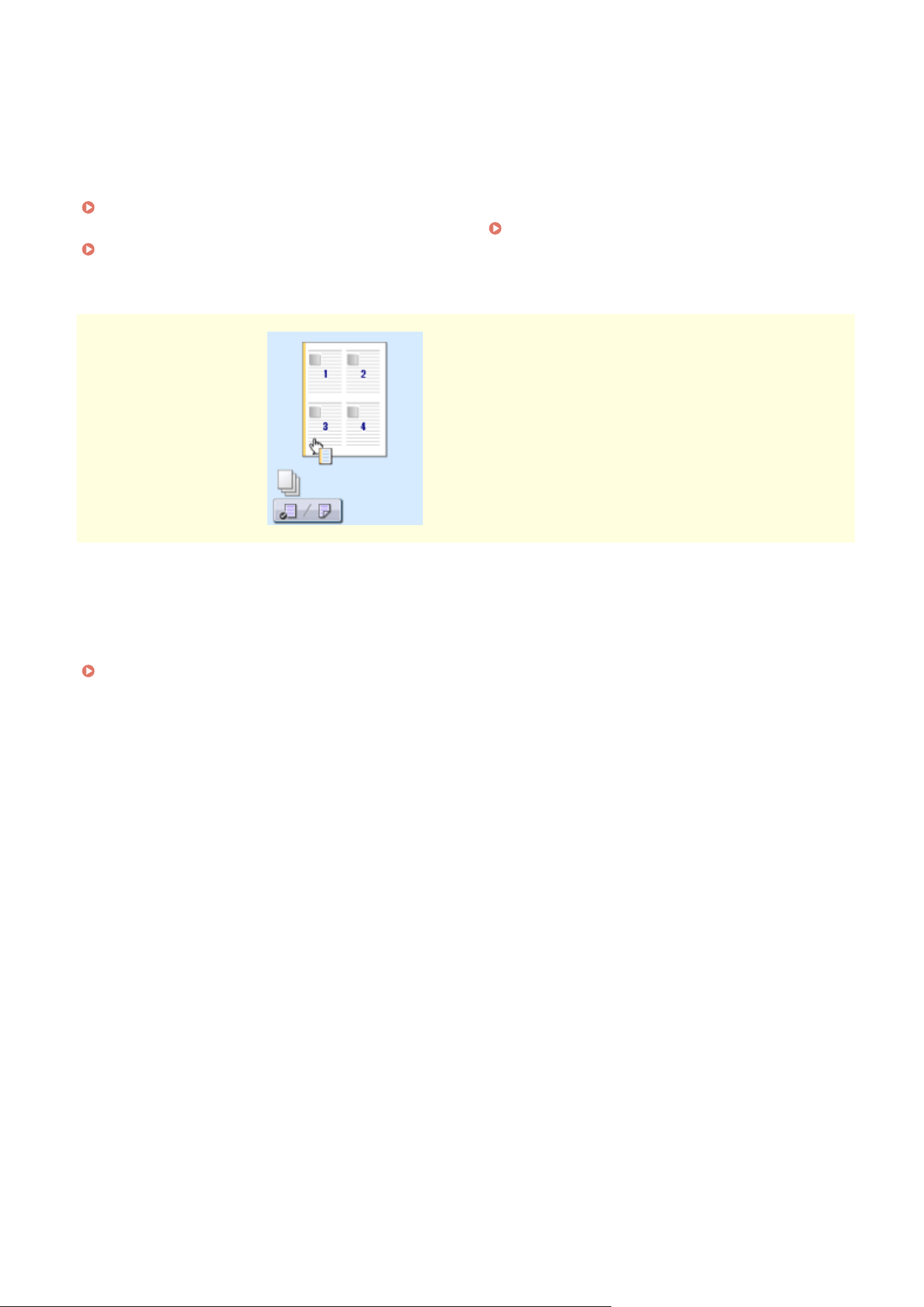
Plug a USB memory device into the machine and you can
print images and documents directly, without using a
computer. You can even preview JPEG and other images
before you print, so there is no wasted paper. You can also
scan handwritten memos, etc. and save them directly to a
USB memory device. Convenient for carrying about.
Printing from a USB Memory Device (Memory Media
Print)(P. 273)
Basic Operations for Scanning Originals(P. 287)
Remote UI lets you manage a lot from your computer,
all without having to go over to the machine. Congure
settings and keep an eye on the machine's status with
an intuitive, easy-to-understand Web browser interface
that you'll master immediately. Save your time and
energy for things other than taking care of the
machine.
Managing the Machine from a Computer (Remote
UI)(P. 420)
Make Print Settings Quickly with Intuitive Operation
You can easily specify the page layout as well as binding position, switching
between 1-sided and 2-sided printing, etc. intuitively on the pr
eview image in
the printer driver. The simple click-operation allows you to conveniently make
settings while viewing how settings are applied.
Printing from a Computer(P. 262)
Appendix
607
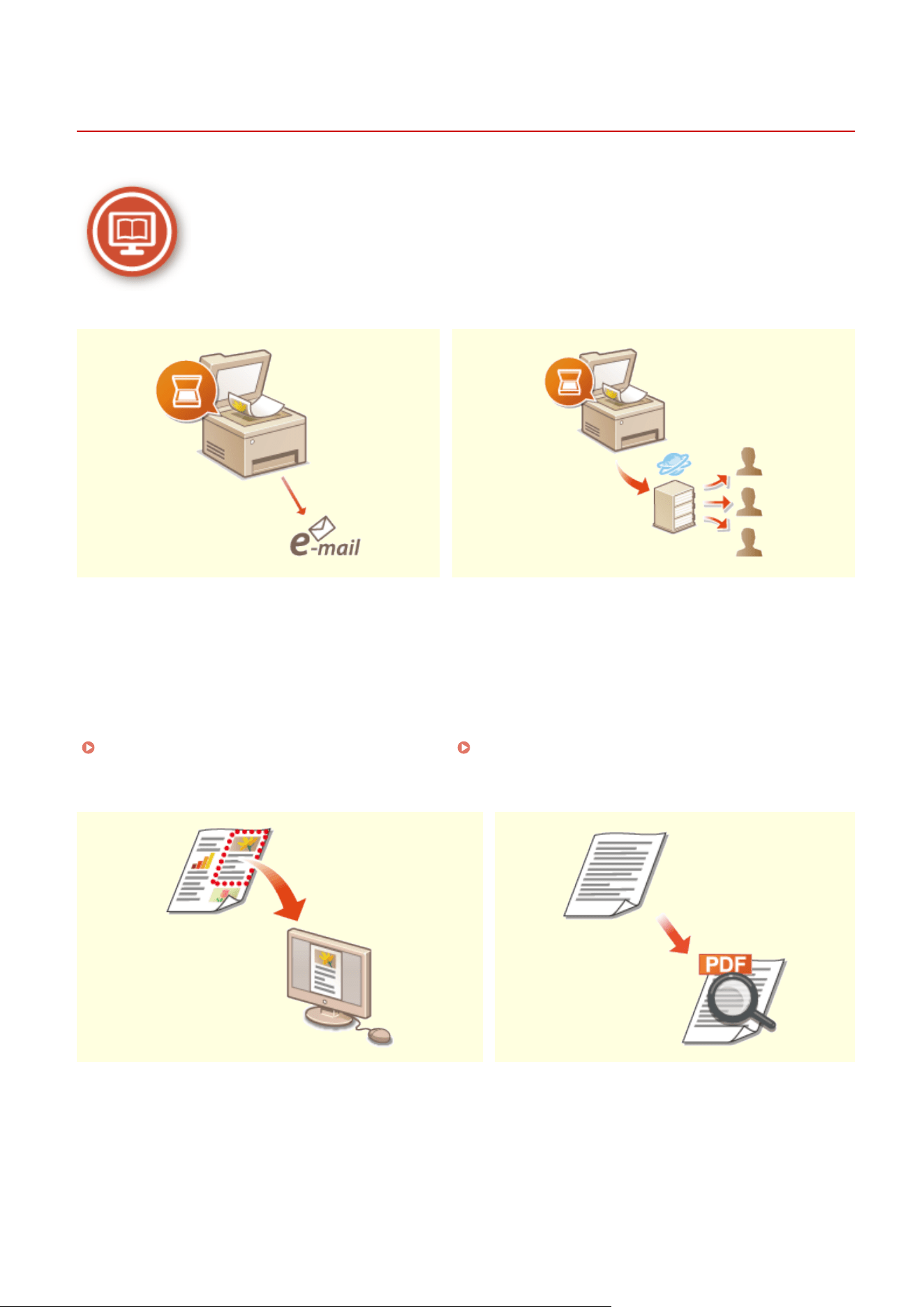
Going Digital
7YWY-0AA
Digitalizing a document enables editing using a computer as well as reducing cost and time by using e-mail.
Scan and E-Mail Scan and Share
E-mail scanned originals without even turning on
your computer. Just convert your scanned original
into an e-mail attachment right fr
om the machine. If
you're one of those people who'd rather send a fax
than mess around with a computer, this feature is for
you.
Basic Operations for Scanning Originals(P. 287)
Say you've got a paper copy of a report for a company-wide
meeting. Scan it, convert it, and no
w everyone can see it.
It's saved directly in a shared folder on your network, so
there's no need to print out copies and pass them out. Once
you start talking about hundreds of pages of documents
that everyone needs, there's just no other way to go.
Basic Operations for Scanning Originals(P. 287)
Scan Only What You Need Searchable PDFs
Appendix
608
What if you're scanning a whole page of a newspaper but all
you're really interested in is a headline and a photo? Use
ScanGear MF. You can select what you want from a preview,
and then have the scanner disregard the rest. Otherwise
you'll have to use an editing program to crop out everything
you don't need.
Using ScanGear MF(P. 324)
● Using your pr
oduct to scan, print or otherwise
reproduce certain documents, and the use of
such images as scanned, printed or otherwise
reproduced by your product, may be prohibited
by law and may result in criminal and/or civil
liability. If you are uncertain about the legality
of using your product to scan, print or
otherwise reproduce any particular document,
and/or of the use of the images scanned,
printed or otherwise reproduced, you should
consult in advance with your legal advisor for
guidance.
Searching of text in a PDF can be done with a
"
searchable PDF." By scanning an original with both
text and images, text portions are converted by OCR
into text data. In addition to being able to search for
text information, you can also copy required portions
into an Excel spreadsheet or Word document in
Microsoft Oce. Eliminate the need to type in
customer data, addresses, etc. from scratch.
Basic Operations for Scanning Originals(P. 287)
Using Your Computer to Scan (Remote Scan)
(P. 321)
Add Images to a Work in Progress
Some applications work with the machine to let you easily import scanned
images dir
ectly into documents you're working on. This way you can skip the
steps of opening a separate application just for receiving the scanned images
and then exporting them to the application you're really using.
Scanning Documents from an Application(P. 322)
Appendix
609
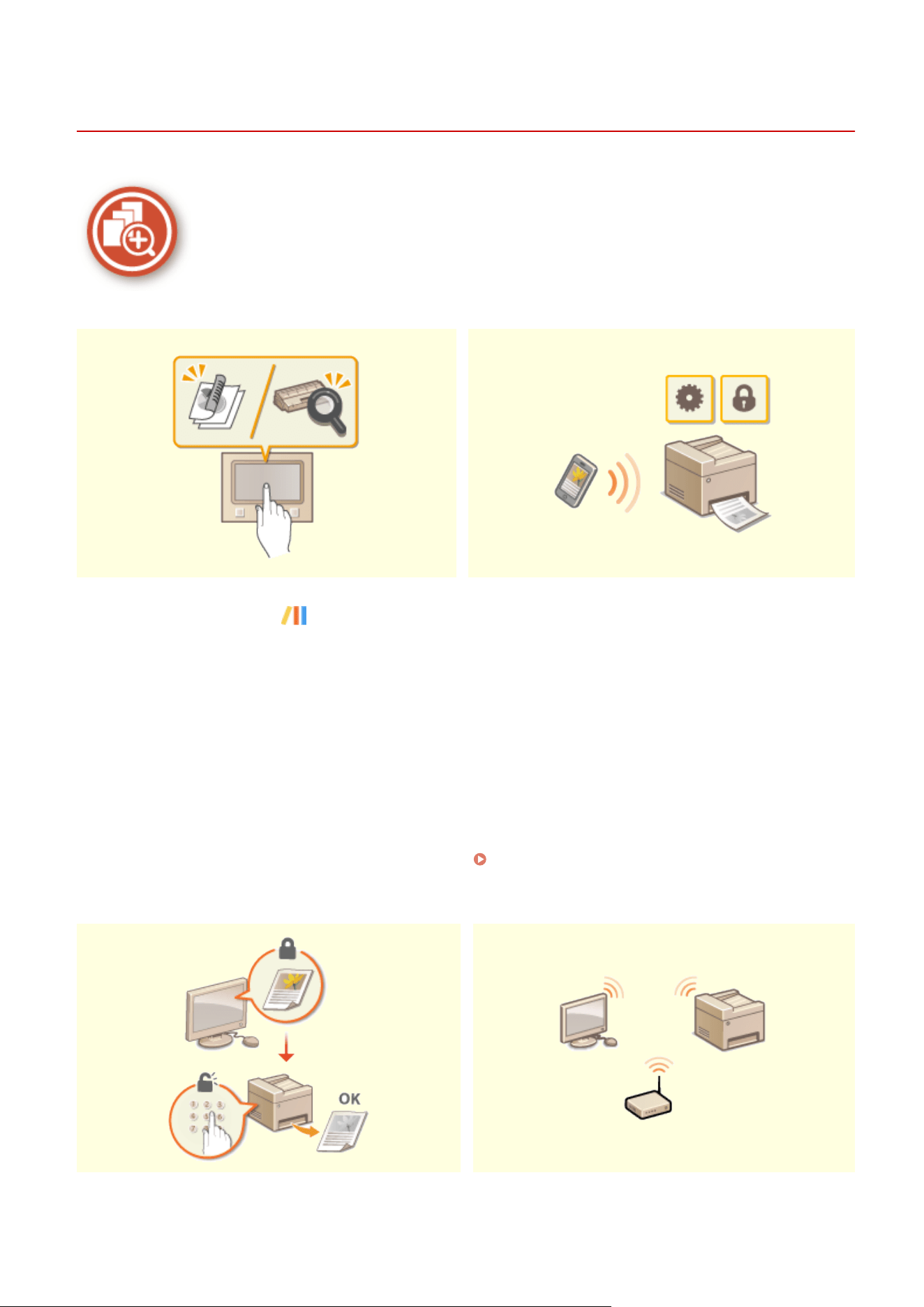
So Much More
7YWY-0AC
There are a variety of features for whatever you need to do - at home, in the oce, or e
ven on the road.
Application Library to execute useful functions in
one-touch button oper
ation
Using a smartphone/tablet
Application Library is a facility that makes it possible
that fr
equently used operations such as printing a usual
document and checking the consumables information
as well as convenient functions are registered in the
form of applications. You can execute these applications
in one-touch button operation from the Home screen.
Make the best use of Application Library for time
reduction and operational accuracy enhancement. For
more information, see the User's Guide on Application
Library.
Application Library
At times such as when you want to quickly print out a
proposal you completed on a tablet while travelling to a
business destination, or scan materials handed out at a
meeting using a smartphone, Canon PRINT Business
comes in handy. Even in environments without a wireless
LAN router, you can connect to the machine with a
mobile device wirelessly and directly.
PCless, quick, and easy! An even broader range of
possibilities for work/play with functionality made for this
age of speed.
Linking with Mobile Devices(P. 326)
Keep Your Printouts Private Go Wireless
Appendix
610
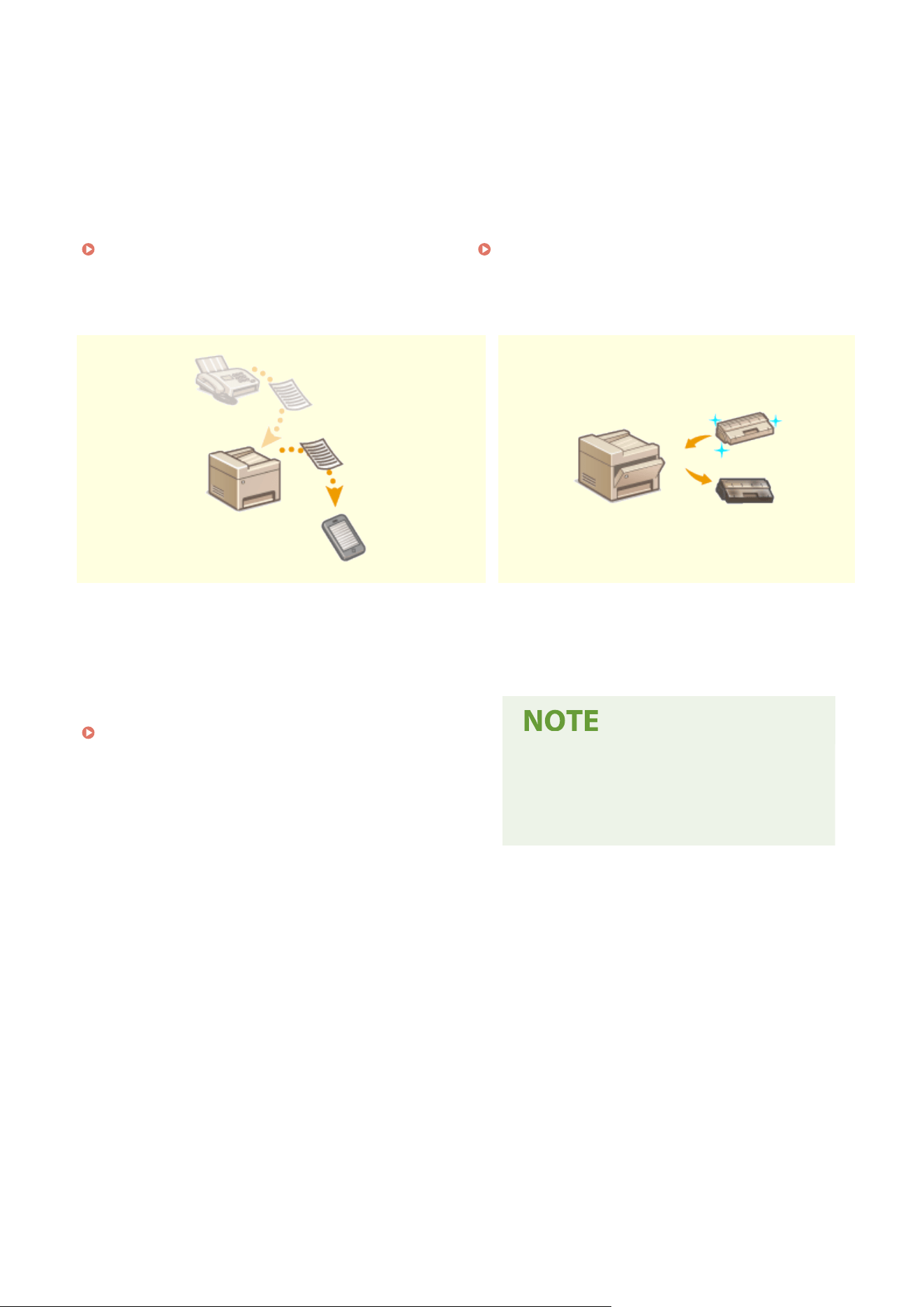
Normally, when you print something from your
computer, it comes out of the printer right away.
However, if you have sensitive documents, this may not
be what you want. Just use secure printing and no one
will be able to print your documents without entering
your password on the machine's operation panel. Don't
let your condential documents lie exposed on the tray
for everyone to see.
Printing a Document Secured by a PIN (Secure
Print)(P. 269)
No cables, easy installation, simple maintenance. If
you've got a WPS wireless LAN router, bypass the
settings process altogether and be ready to go before
you know it. Enjoy the kind of clutter-free and easy to
use document system that you can only get from
wireless. Compatible with IEEE 802.11b/g/n for stress-
free wireless, and also supports WEP and WPA/WPA2-
PSK (TKIP/AES-CCMP) for tighter security.
Connecting to a Wireless LAN(P. 18)
Get Faxes Wherever You Go Toner Replenishment Service
Never worry about missing a fax when you're out of the
oce. Set a forwar
ding destination and any fax that comes
in on the machine will go right to you. Better yet, make the
forwarding destination the e-mail address for your tablet or
mobile.
Forwarding the Received Documents
Automatically
(P. 243)
Through the toner replenishment service, new toner
cartridges are automatically delivered to you before
your existing toner cartridge is used up.
● Use of the toner r
eplenishment
service requires prior registration
with select retailers. This service is
only available in certain countries.
Appendix
611

Specications
7YWY-0AE
Specications ar
e subject to change without notice for product improvement or future release.
◼ Machine Specications
Main Unit(P. 613)
Feeder(P. 616)
Available Paper(P. 617)
◼ Specications of Optional Equipment
Cassette Feeding Module-AH(P. 620)
◼ Functional Specications
Fax Function(P. 621)
Scan Function(P. 622)
Printer Functions(P. 623)
Management Functions(P. 625)
◼ Envir
onment To Use the Machine
System Environment(P. 627)
Network Environment(P. 629)
Appendix
612
Main Unit
7YWY-0AF
● For information on paper sizes and types for each paper sour
ce, see "
Available Paper(P. 617) ."
Type Desktop
Color Supported Black and White
Resolution for Reading 600 dpi x 600 dpi
Resolution for Writing 600 dpi x 600 dpi
Number of Tones 256
Acceptable Originals Up to 8 1/2" x 11 3/4" (215.9 mm x 297.0 mm): Sheet, book, three dimensional objects
Copy Size/Copy Paper Paper Sizes
● Max: 8 1/2" x 14" (216.0 mm x 355.6 mm)
● Min (Paper Dr
awer): 4 1/8" x 5 7/8" (105.0 mm x 148.0 mm)
● Min (Multi-Purpose Tray): 3" x 5" (76.2 mm x 127.0 mm)
Margin
Top:
● When copying via the platen glass
1/4" ± 1/8" (5 mm ± 2.0 mm)
● When copying via the feeder
1/4" ± 1/8" (5 mm ± 3.0 mm)
Left or Right:
● When copying via the platen glass
1/4" ± 1/8" (5 mm ± 2.0 mm)
● When copying via the feeder
1/4" ± 1/8" (5 mm ± 3.0 mm)
Paper Weight
● Paper Drawer: 16 lb Bond to 32 lb Bond (60 g/m² to 120 g/m²)
● Multi-Purpose Tray: 16 lb Bond to 60 lb Cover (60 g/m² to 163 g/m²)
Paper Type
Available Paper(P. 617)
Warm-Up Time
*1
After Powering ON
14.0 seconds or less
Returning fr
om the Sleep Mode
4.0 seconds or less
Appendix
613

First Copy Time
(Letter)
Approx. 6.2 seconds
Copy Speed
*2
(Letter)
MF455dw / MF453dw
40.0 sheets/minute
MF452dw / MF451dw
34.5 sheets/minute
Scanning Speed
(Letter)
Approx. 1.7 seconds/sheet
Magnication 25 % to 400 % (in 1 % increments)
Paper Feeding System/Capacity
*3
Paper Drawer
250 sheets (21 lb Bond (80 g/m²))/250 sheets (17 lb Bond (64 g/m²)) x 1
Multi-Purpose T
ray
100 sheets (21 lb Bond (80 g/m²))/100 sheets (17 lb Bond (64 g/m²)) x 1
Paper Output System/Capacity
*3
Output Tray
150 sheets (18 lb Bond (68 g/m²))
Multiple Copies 999 sheets
Power Source AC 110 V - 127V, 5.9 A, 60 Hz
Power Consumption
*1
Maximum Power Consumption
1,310 W or less
During Sleep Mode
● Approx. 0.9 W (USB connection)
● Approx. 0.9 W (wired LAN connection)
● Approx. 0.9 W (wireless LAN connection)
With the Main Power Turned OFF
0.1 W or less
Dimensions
(W x D x H)
17 7/8" x 18 1/4" x 15 1/2" (453 mm x 464 mm x 392 mm)
Weight Main Unit *4
Approx. 35.7 lb (16.2 kg)
Maximum Occupancy Space
(W x D x H)
17 7/8" x 34 3/4" x 31 3/8" (453 mm x 883 mm x 795 mm)
*
Provide a space of 4" (100 mm) or more around the machine.
Memory Capacity RAM: 1 GB
Appendix
614

Environmental Conditions
● T
emperature: 50 °F to 86 °F (10 °C to 30 °C)
● Humidity: 20 % to 80 % RH (no condensation)
*1
May vary depending on the envir
onment and conditions under which the machine is being used.
*2
Copy/print speeds are measured based on internal testing using Letter size paper copied/printed with 100% copy/print
ratio to original on one-sided paper. Internal testing involved continuously copying/printing the same one page of
content on plain paper (copy speed is tested by copying on the platen glass). Copy/print speeds may vary depending on
paper type, paper size or paper feeding direction.
The device may automatically pause or slow down in order to adjust printer condition such as controlling temperature of
a certain unit or limiting impact to image quality during continuous copying/printing.
*3
May vary depending on the installation environment and paper to use.
*4
The toner cartridge is not included.
Appendix
615

Feeder
7YWY-0AH
Original Feeding Mechanism Automatic 2-Sided Document Feeder
Original Size /T
ype Size of Originals *1
● Max : 8 1/2" x 14" (215.9 mm x 355.6 mm)
● Min : 4 1/8" x 5" (105 mm x 128 mm)
Weight of Originals
13 lb Bond to 28 lb Bond (50 g/m² to 105 g/m²)
Original Tray Capacity
(Letter)
50 sheets (21 lb Bond (80 g/m²))
Original Scanning Speed
(Letter)
Copying (600 dpi)
1-Sided Scanning:
● 21 pages/minute
2-Sided Scanning:
● 35 pages/minute
Scanning (300 dpi) *2
1-Sided Scanning:
● Full Color: 13.4 pages/minute
● Black and White: 38.1 pages/minute
2-Sided Scanning:
● Full Color: 26.9 pages/minute
● Black and White: 70.5 pages/minute
*1
T
o maintain the optimum image quality, it is recommended to scan A6 size original(s) from the platen glass.
*2
May vary depending on the environment and conditions under which the machine is being used.
Appendix
616
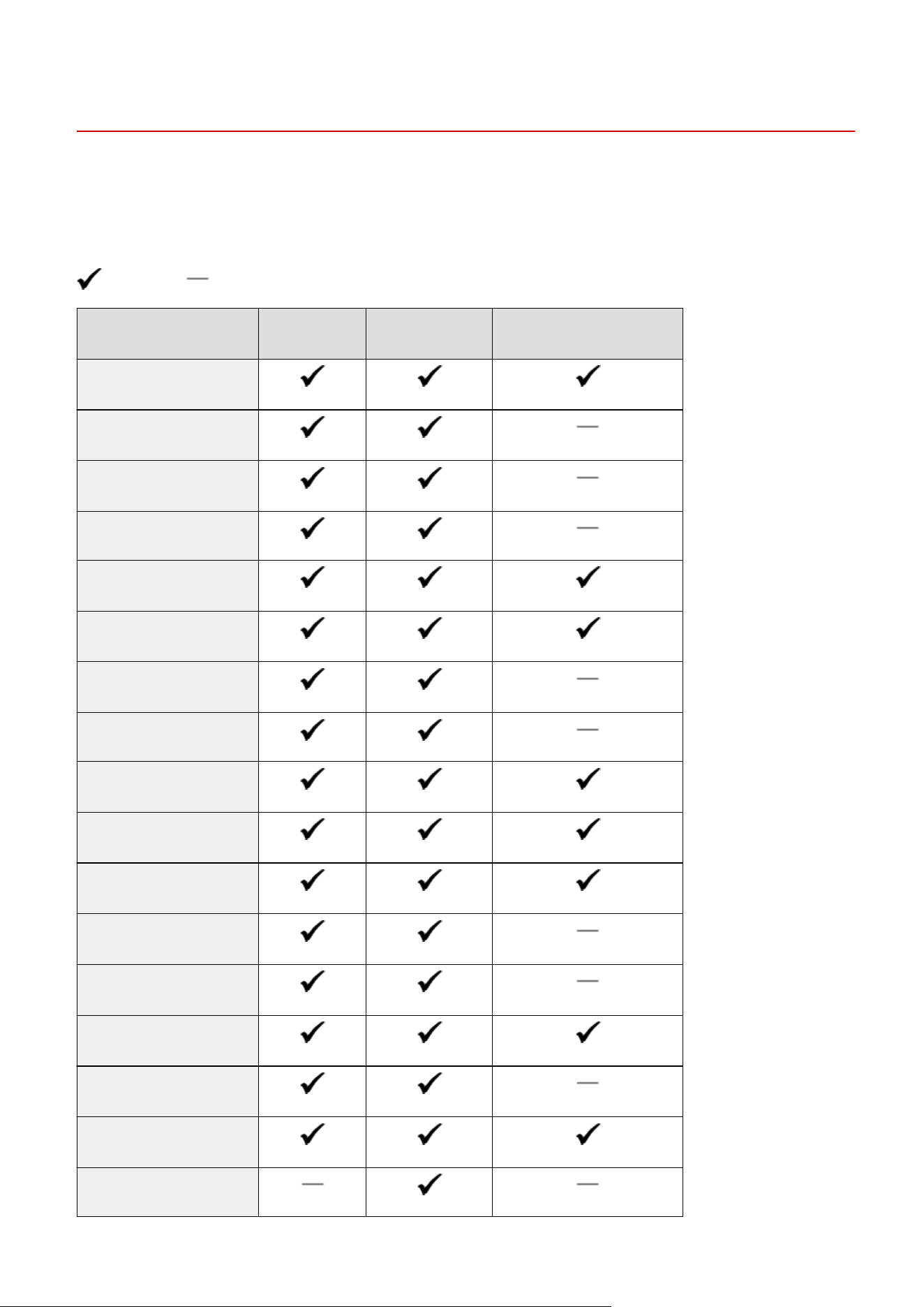
Available Paper
7YWY-0AJ
The paper types that can be used with this machine ar
e shown in the following table.
◼ Supported Paper Sizes
: Available : Unavailable
Paper Sizes
Paper Drawer
*1
Multi-Purpose Tray
Automatic 2-Sided Printing
*2
A4
*3*4*5
B5
*3
A5
*3*6
A6
Legal (LGL)
*3*4
Letter (LTR)
*3*4*5
Statement (STMT)
*3
Executive (EXEC)
Ocio
*3*4
Ocio (Brazil)
*3*4
Ocio (Me
xico)
*3*4
Letter (Government)
*3*4
Legal (Government)
*3*4
Foolscap/Folio
*3*4
Foolscap (Australia)
*3*4
Legal (India)
*4
3x5inch
Appendix
617
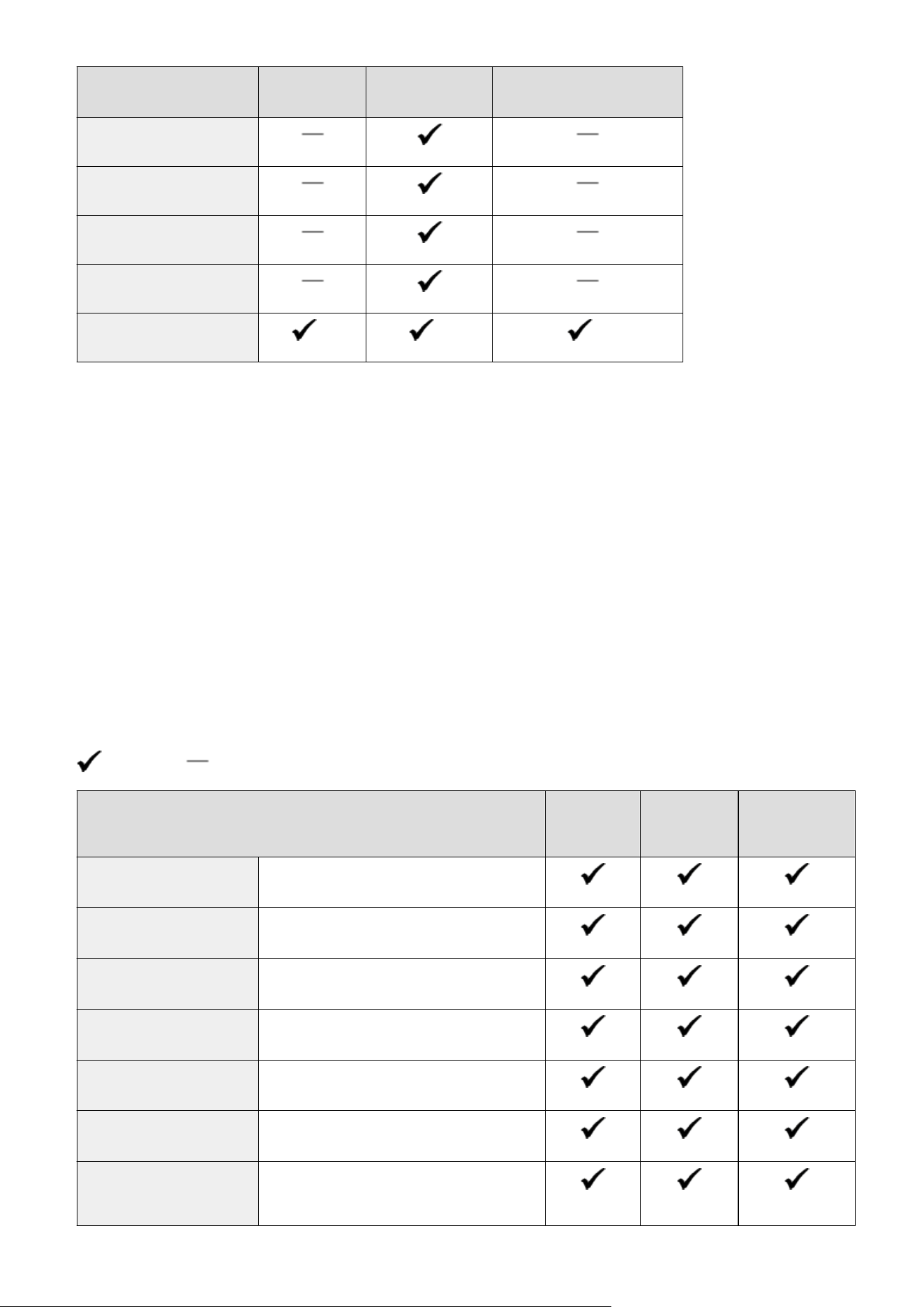
Paper Sizes
Paper Drawer
*1
Multi-Purpose Tray
Automatic 2-Sided Printing
*2
Envelope No.10 (COM10)
Envelope Monarch
Envelope C5
Envelope DL
Custom Paper Size
*7
*8
*9
*1
Includes the optional Cassette Feeding Module-AH.
*2
Automatic 2-sided printing is available without r
eplacing paper.
*3
Allows you to print received fax documents.
*4
Allows you to print received I-Fax documents.
*5
Allows you to print reports or lists.
*6
Landscape or portrait orientation is available.
*7
The custom size ranging from 4 1/8" x 5 7/8" (105.0 mm x 148.0 mm) to 8 1/2" x 14" (216.0 mm x 355.6 mm) is
available.
*8
The custom size ranging from 3" x 5" (76.2 mm x 127.0 mm) to 8 1/2" x 14" (216.0 mm x 355.6 mm) is available.
*9
The custom size ranging from 8 1/4" x 11" (210.0 mm x 279.4 mm) to 8 1/2" x 14" (216.0 mm x 355.6 mm) is available.
◼ Supported Paper Types
Chlorine-free paper can be used with this machine.
: Available : Unavailable
Paper Type Paper Drawer
*1
Multi-Purpose
T
ray
Automatic 2-
Sided Printing
*2
Plain 1
*3*4
17 lb Bond to 19 lb Bond (61 g/m² to 74 g/m²)
Plain 2
*3*4
20 lb Bond to 23 lb Bond (75 g/m² to 89 g/m²)
Plain 3
*4
24 lb Bond to 28 lb Bond (90 g/m² to 105 g/m²)
Recycled 1
*3*4
17 lb Bond to 19 lb Bond (61 g/m² to 74 g/m²)
Recycled 2
*3*4
20 lb Bond to 23 lb Bond (75 g/m² to 89 g/m²)
Color
*3*4
17 lb Bond to 19 lb Bond (61 g/m² to 74 g/m²)
Heavy 1 29 lb Bond to 32 lb Bond (106 g/m² to 120
g/m²)
Appendix
618
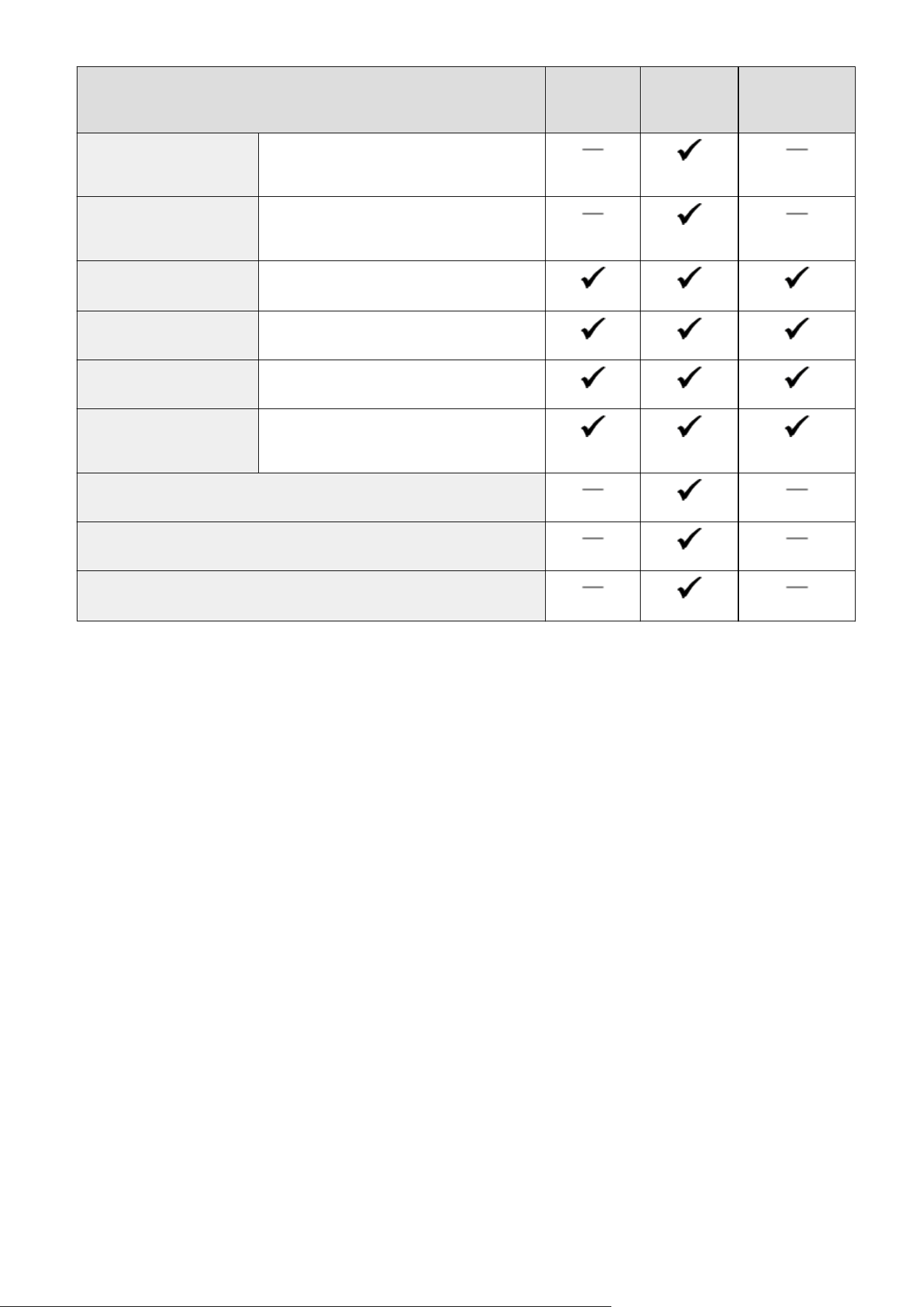
Paper Type Paper Drawer
*1
Multi-Purpose
T
ray
Automatic 2-
Sided Printing
*2
Heavy 2 33 lb Bond to 39 lb Bond (121 g/m² to 149
g/m²)
Heavy 3 40 lb Bond to 60 lb Cover (150 g/m² to 163
g/m²)
Thin 1
*3
16 lb Bond (60 g/m²)
Bond 1 16 lb Bond to 19 lb Bond (60 g/m² to 74 g/m²)
Bond 2 20 lb Bond to 27 lb Bond (75 g/m² to 104 g/m²)
Bond 3 28 lb Bond to 31 lb Bond (105 g/m² to 120
g/m²)
Labels
Envelope 1
Envelope 2
*5
*1
Includes the optional Cassette Feeding Module-AH.
*2
Automatic 2-sided printing is available without r
eplacing paper.
*3
Allows you to print received fax/I-Fax documents.
*4
Allows you to print reports or lists.
*5
If printing cannot be performed properly with <Envelope 1> selected, change the selection to <Envelope 2>.
Appendix
619
Cassette Feeding Module-AH
7YWY-0AK
Paper Sizes
● Max: 8 1/2" x 14" (216.0 mm x 355.6 mm)
● Min: 4 1/8" x 5 7/8" (105.0 mm x 148.0 mm)
Paper Weight 16 lb Bond to 32 lb Bond (60 g/m² to 120 g/m²)
Paper Drawers Capacity
*
550 sheets (21 lb Bond (80 g/m²))/640 sheets (17 lb Bond (64 g/m²)) x 1
Dimensions
(W x D x H)
15 3/4" x 14 3/4" x 6 1/8" (399 mm x 373 mm x 156 mm)
Weight Approx. 8.4 lb (3.8 kg)
*
May vary depending on the installation envir
onment and paper to use.
Appendix
620

Fax Function
7YWY-0AL
Telephone Line Used
*1
Public Switched Telephone Network, Facsimile Communication Network (PSTN)
Scan Line Density Normal
G3: 8 pels
*2
/mm x 3.85 line/mm
Fine
G3: 8 pels
*2
/mm x 7.7 line/mm
Superne
G3: 8 pels
*2
/mm x 15.4 line/mm
Ultr
ane
G3: 16 pels
*2
/mm x 15.4 line/mm
Transmission Speed
*3
● SuperG3: 33.6 kbps
● G3: 14.4 kbps
Compression Method MH, MR, MMR, JBIG
Transmission Type SuperG3, G3
Max. Sending Original Sizes Legal
Receiving Paper Sizes
Available Paper(P. 617)
Transmission Times
Approx. 2.6 seconds
*4
*1
Depending on your locale or your telephone connection, you may be unable to perform data communication. In this
case, contact your dealer or service r
epresentative.
*2
Pels stands for picture elements (pixels).
*3
With the Automatic Fallback function.
*4
Value obtained with Canon original test sheet of A4 size, standard ECM (JBIG) transmission.
Appendix
621
Scan Function
7YWY-0AR
Type Color Scanner
Original Scanning Size Scanning from Platen Glass
Same as "
Acceptable Originals" in "Main Unit"
Main Unit(P. 613)
Scanning fr
om Feeder
Same as "Original Size/Type" in "Feeder"
Feeder(P. 616)
Resolution (Max) 600 dpi x 600 dpi
Scanning Speed Scanning from Platen Glass
Same as "Scanning Speed" in "Main Unit
"
Main Unit(P. 613)
Scanning fr
om Feeder
Same as "Original Scanning Speed" in "Feeder"
Feeder(P. 616)
Interface USB
USB2.0 High-Speed
Wir
ed LAN
10Base-T, 100Base-TX, 1000Base-T (IEEE 802.3 compliant)
Wireless LAN
IEEE 802.11b, IEEE 802.11g, IEEE 802.11n
Protocol Supported
*
FTP (TCP/IP), SMB (TCP/IP), SMTP, POP3, USB
Output Format
*
TIFF, JPEG (Single-Page), PDF (Compact, Searchable), PDF (Encrypted, Digital Signature)
*
Some formats ar
e not supported depending on the function.
Appendix
622
Printer Functions
7YWY-0AS
◼ UFR II Printer Function
Type Internal
Print Size Available Paper(P. 617)
Print Speed Same as "Copy Speed" in "Main Unit" Main Unit(P. 613)
Resolution Data Processing
1200 dpi x 1200 dpi, 600 dpi x 600 dpi
Page Description Language (PDL) UFR II
Protocol Supported TCP/IP: LPD
, Port9100, IPP, IPPS, WSD
Resident Fonts None
Interface USB
USB2.0 High-Speed
Wired LAN
10Base-T, 100Base-TX, 1000Base-T (IEEE 802.3 compliant)
Wireless LAN
IEEE 802.11b, IEEE 802.11g, IEEE 802.11n
◼ PS Printer Function
Type Internal
Print Size Available Paper(P. 617)
Print Speed Same as "Copy Speed" in "Main Unit" Main Unit(P. 613)
Resolution Data Processing
1200 dpi x 1200 dpi, 600 dpi x 600 dpi
Page Description Language (PDL)
Adobe®PostScript®3
TM
Protocol Supported TCP/IP: LPD
, Port9100, IPP, IPPS, WSD
Appendix
623
Resident Fonts 136 Roman
Interface USB
USB2.0 High-Speed
Wir
ed LAN
10Base-T, 100Base-TX, 1000Base-T (IEEE 802.3 compliant)
Wireless LAN
IEEE 802.11b, IEEE 802.11g, IEEE 802.11n
◼ PCL Printer Function
Type Internal
Print Size Available Paper(P. 617)
Print Speed Same as "Copy Speed" in "Main Unit" Main Unit(P. 613)
Resolution Data Processing
1200 dpi x 1200 dpi, 600 dpi x 600 dpi
Page Description Language (PDL) PCL6, PCL5
Protocol Supported TCP/IP: LPD
, Port9100, IPP, IPPS, WSD
Resident Fonts PCL fonts: 45 Roman, 10 Bitmap fonts
Interface USB
USB2.0 High-Speed
Wired LAN
10Base-T, 100Base-TX, 1000Base-T (IEEE 802.3 compliant)
Wireless LAN
IEEE 802.11b, IEEE 802.11g, IEEE 802.11n
◼ Memory Media Print Function
Printable File Formats
PDF, TIFF, JPEG
Appendix
624
Management Functions
7YWY-0AU
◼ Fir
ewall Settings
● Up to 16 IP addresses (or ranges of IP addresses) can be specied for both IPv4 and IPv6.
● Up to 32 MAC addresses can be specied.
◼ IPSec
● IPSec that is supported by the machine conforms to RFC2401, RFC2402, RFC2406, and RFC4305.
Operating system
● Windo
ws 8.1
● Windows 10
Connection mode Transport mode
Key exchange protocol
IKEv1 (main mode)
Authentication method
● Pre-shared key
● Digital signature
Hash algorithm (and key length)
● HMAC-SHA1-96
● HMAC-SHA2 (256 bits or 384 bits)
Encryption algorithm (and key length)
● 3DES-CBC
● AES-CBC (128 bits, 192 bits, or 256 bits)
Key exchange algorithm/group (and key length)
Die-Hellman (DH)
● Group 14 (2048 bits)
● ECDH-P256 (256 bits)
● ECDH-P384 (384 bits)
ESP
Hash algorithm HMAC-SHA1-96
Encryption algorithm (and key length)
● 3DES-CBC
● AES-CBC (128 bits, 192 bits, or 256 bits)
Hash algorithm/encryption algorithm (and key
length)
AES-GCM (128 bits, 192 bits, or 256 bits)
AH Hash algorithm HMAC-SHA1-96
● IPSec supports communication to a unicast addr
ess (or a single device).
◼ Registr
ation of Keys and Certicates
● If you install a key or CA certicate from a computer, make sure that they meet the following requirements:
Appendix
625
Format
● Ke
y: PKCS#12
*1
● CA certicate: X.509 DER/PEM
File extension
● Key: ".p12" or ".pfx"
● CA certicate: ".cer" or ".pem"
Public key algorithm
(and key length)
● RSA (512 bits, 1024 bits, 2048 bits, 4096 bits)
● DSA (1024 bits, 2048 bits, 3072 bits)
● ECDSA (P256, P384, P521)
Certicate signatur
e algorithm
● RSA: SHA-1, SHA-256, SHA-384
*2
, SHA-512
*2
, MD2, MD5
● DSA: SHA-1
● ECDSA: SHA-1, SHA-256, SHA-384, SHA-512
Certicate thumbprint algorithm SHA1
*1
Requir
ements for the certicate contained in a key are pursuant to CA certicates.
*2
RSA-SHA-384 and RSA-SHA-512 are available only when the RSA key length is 1024 bits or more.
● The machine does not support use of a certicate r
evocation list (CRL).
◼ Denition of "
Weak Encryption"
When <Prohibit Use of Weak Encrypt.> is set to <On>, the use of the following algorithms is prohibited.
Hash MD4, MD5, SHA-1
HMAC HMAC-MD5
Common key cryptosystem RC2, RC4, DES
Public key cryptosystem
RSA encryption (512 bits/1024 bits), RSA signature (512 bits/1024 bits), DSA (512 bits/1024
bits), DH (512 bits/1024 bits)
● Even when <Pr
ohibit Weak Encryp. Key/Cert.> is set to <On>, the hash algorithm SHA-1, which is used for
signing a root certicate, can be used.
Appendix
626

System Environment
7YWY-0AW
System Environment for WSD Scan
● Windo
ws 8.1
● Windows 10
System Requirements for the Remote UI
*1
Windows
● Internet Explorer 11
● Microsoft Edge
● Google Chrome
macOS
● Safari 11 or later
● Google Chrome
E-mail/I-Fax Forwarding Server Software
● Microsoft Exchange Server 2010
● Microsoft Exchange Server 2013
● Microsoft Exchange Server 2016
● Microsoft Exchange Server 2019
● Lotus Domino R7.0
● Sendmail 8.14.4
E-mail/I-Fax Receiving Server Software
● Microsoft Exchange Server 2010
● Microsoft Exchange Server 2013
● Microsoft Exchange Server 2016
● Microsoft Exchange Server 2019
● Lotus Domino R7.0
● Qpopper 4.0.19
File Servers Available as Destinations for File Transmission SMB
● Windows 8.1
● Windows 10
● Windows Server 2012 / Windows Server 2012 R2
● Windows Server 2016
● Windows Server 2019
● Mac OS X 10.13 / 10.14 / 10.15
● Cent OS 7
FTP
● Windows Server 2012: Internet Information Services 8.0
● Windows 8.1 / Server 2012 R2: Internet Information Services 8.5
● Windows 10 / Server 2016: Internet Information Services 10.0
● Windows Server 2019
● Solaris 10
● Red Hat Linux 9
Types of LDAP servers
● Windows Server 2008 SP2 with Active Directory
● Windows Server 2012 with Active Directory
● Windows Server 2012 R2 with Active Directory
● Windows Server 2016 with Active Directory
Appendix
627

● Windo
ws Server 2019 with Active Directory
System Requirements for the Send Function Setting Tool
● Internet Explorer 11
● Microsoft Edge
● Google Chrome
System Requirements for the User's Guide Windows
● Internet Explorer 9 and later
● Microsoft Edge
● Firefox
● Firefox ESR
● Chrome
*2
macOS
● Safari
● Firefox
● Chrome
*2
Linux
● Firefox
iOS
● Safari
*2
Android
● Chrome
*2
*1
Befor
e changing the settings of the machine, set your Web browser to enable all cookies and use JavaScript.
*2
Only when browsing the manual on the Internet.
Appendix
628
Network Environment
7YWY-0AX
◼ Common Specications
Protocol Supported TCP/IP
● Fr
ame type: Ethernet II
● Print applications: LPD, Raw, IPP, IPPS, WSD, Mopria, AirPrint, Windows10 Mobile Print
◼ Wir
ed LAN Specications
Interface 10BASE-T, 100BASE-TX, 1000BASE-T (RJ-45)
◼ Wir
eless LAN Specications
Standard IEEE 802.11b, IEEE 802.11g, IEEE 802.11n
Transmission Scheme
● IEEE 802.11b (Modulation system: DS-SS)
● IEEE 802.11g (Modulation system: OFDM method)
● IEEE 802.11n (Modulation system: OFDM method)
Communication Mode
● Infr
astructure Mode
● Access Point Mode
Security (encryption method) Infrastructure Mode
● 128 (104)/64 (40) bit WEP
● WPA-PSK (TKIP/AES-CCMP)
● WPA2-PSK (TKIP/AES-CCMP)
Access Point Mode
WPA2-PSK (AES-CCMP)
Connection Method WPS (Wi-Fi Protected Setup), Manual setup
Appendix
629

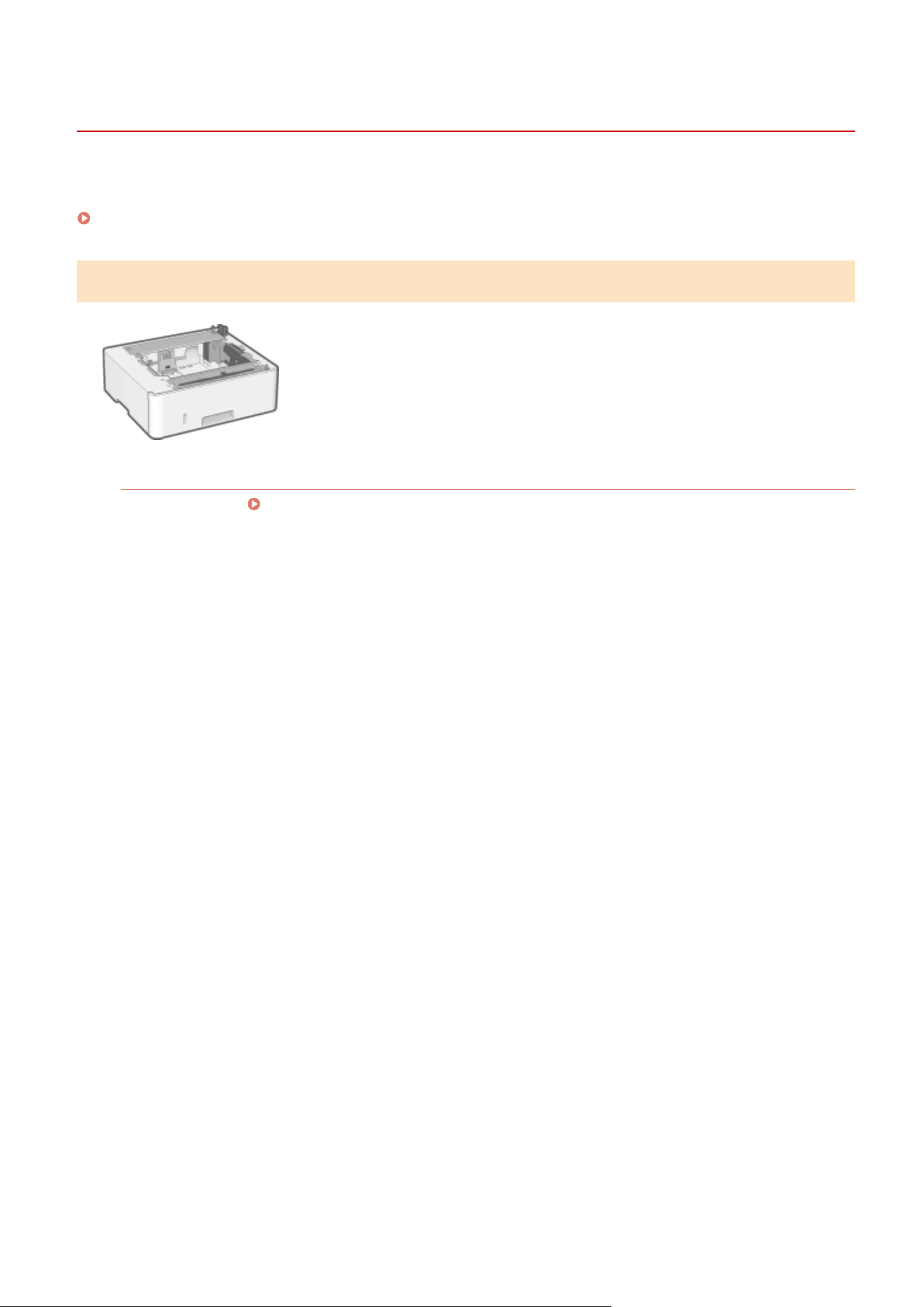
Optional Equipment
7YWY-0C0
The functionality of the machine can be fully utilized b
y using the optional equipment described below.
Cassette Feeding Module-AH(P. 631)
Cassette Feeding Module-AH
Installing this cassette feeding module enables you to load paper of a different size
than that of paper loaded in the standar
d paper drawer. This surely reduces the time
and labor for paper replacement.
Installation Method
See "Setup Guide." Manuals and Their Contents(P. 632)
Appendix
631
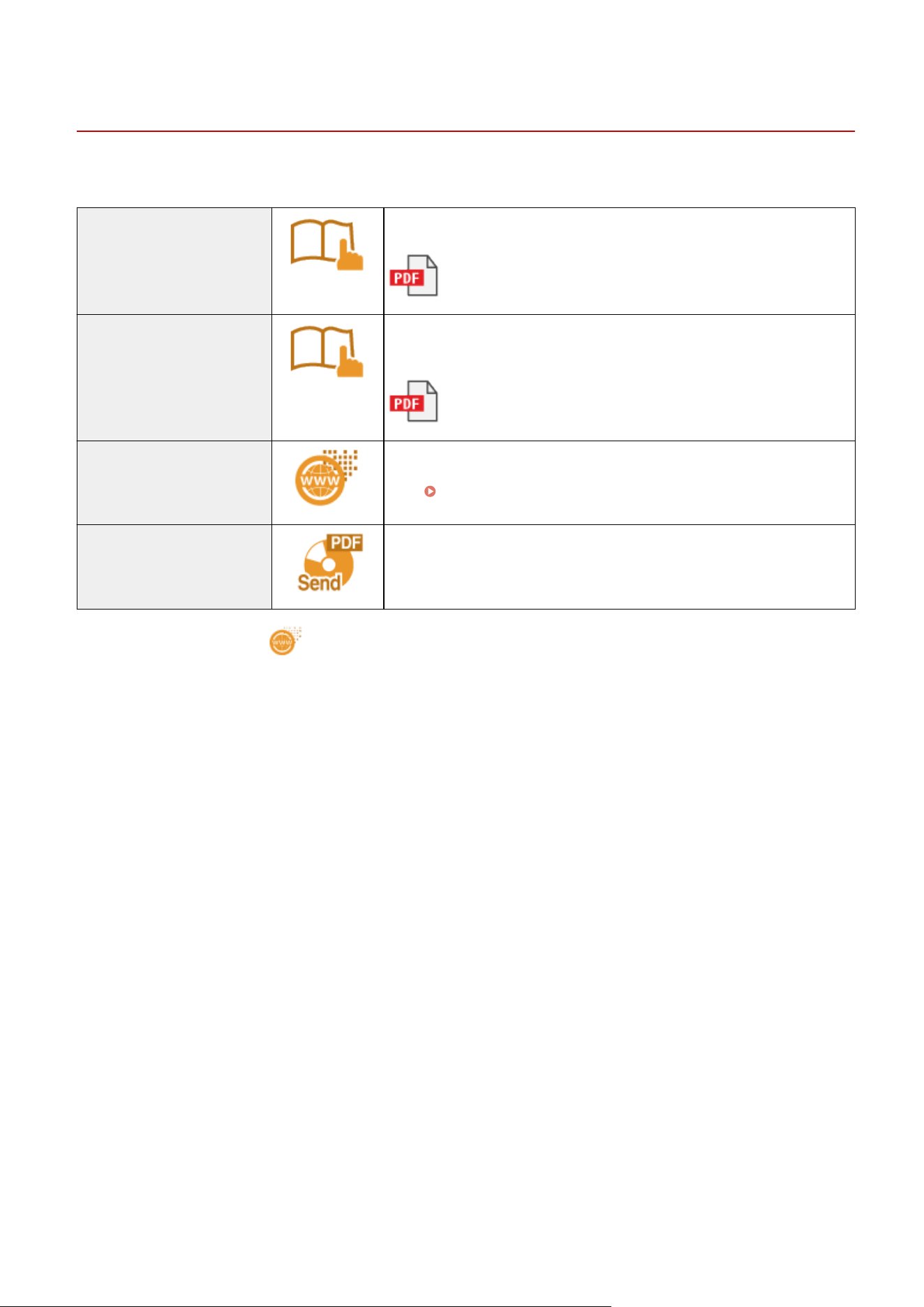
Manuals and Their Contents
7YWY-0C1
The manuals listed belo
w are included with the machine. Refer to them as necessary.
Important Safety Instructions The content described in this manual is for the prevention of damage to
pr
operty and injury to users of the machine and others.
Setup Guide This manual outlines the initial settings on the machine required when the
machine is turned on for the rst time; and describes ho
w to install the
software and driver.
User's Guide (This Manual) This manual describes all the functions of the machine. You can browse
information b
y category or enter a keyword to search for pages on a specic
topic.
Using User's Guide(P. 633)
Send Setting Guide This manual describes how to congur
e settings and prepare for sending
scanned images by e-mail and saving scanned images to shared folders.
For the manuals with , please click her
e .
Appendix
632

Using User's Guide
7YWY-0C2
The User
's Guide is a manual that can be viewed on your computer or mobile device and it describes all of the
functions of the machine. You can search from your intended use or enter a keyword to quickly nd the page you are
looking for. The section describes the screen layout of the User's Guide and how to read the Guide. You can specify
how the appearance of the User's Guide looks.
◼ Screen Layout of User's Guide
This section describes the screens conguring the User's Guide and how to use the on-screen buttons.
Screen
Layout of User
's Guide(P. 634)
◼ Viewing User's Guide
This section describes the meaning of the marks used in the User's Guide, how the keys on the operation panel and
the buttons on the computer display are represented, and other matters that help you understand the information
contained in the User's Guide.
Viewing User's Guide(P. 637)
◼ Specifying Ho
w the Appearance of the User's Guide Looks
You can change the character size used in the User's Guide, and switch the screen layout to t to the device you use to
view the User's Guide.
How to Find the Topic You Are Looking for
Search the contents
● Y
ou can nd the page you are looking for by selecting the topic from the "Contents" on the left side of the
screen.
Search by keyword
● Perform a search by entering a keyword, such as "envelope" or "toner cartridge," and the pages containing
the keyword are displayed. You can nd the page you are looking for from those results. You can also enter
phrases such as "connecting to a network." The keyword search also supports the AND Boolean to search for
multiple keywords. For the organization of the search screen and how to operate the search screen, see
Search(P. 636) .
Appendix
633
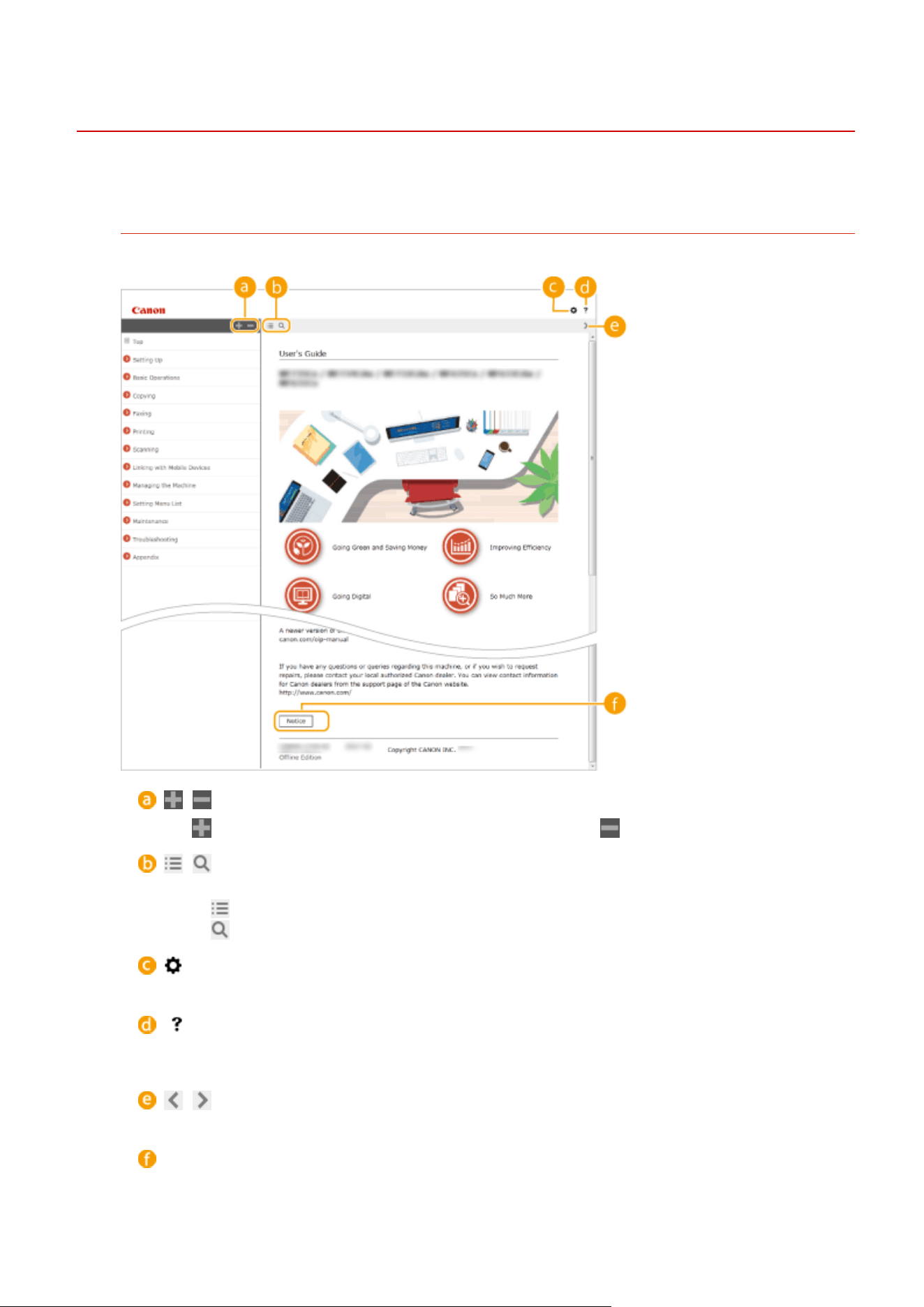
Screen Layout of User's Guide
7YWY-0C3
The User
's Guide is divided into different screens, and the content of each screen varies.
Top Page
Appears when User's Guide is started.
/
Click to also display all of the sections under the chapters. Click to return to the previous display.
/
Click to toggle the display between the contents and search. When the table of contents is displayed, each
click on switches between hiding and showing the display. When the search display is shown, each
click on switches between hiding and showing the display.
Click to set parameters to determine how the User's Guide is displayed, such as character size or layout.
Click to display information on how to view the User's Guide, how to perform a search, and other
information.
/
Click to display the previous or following topic.
[Notice]
Click to vie
w important information you should know when using the machine.
Appendix
634
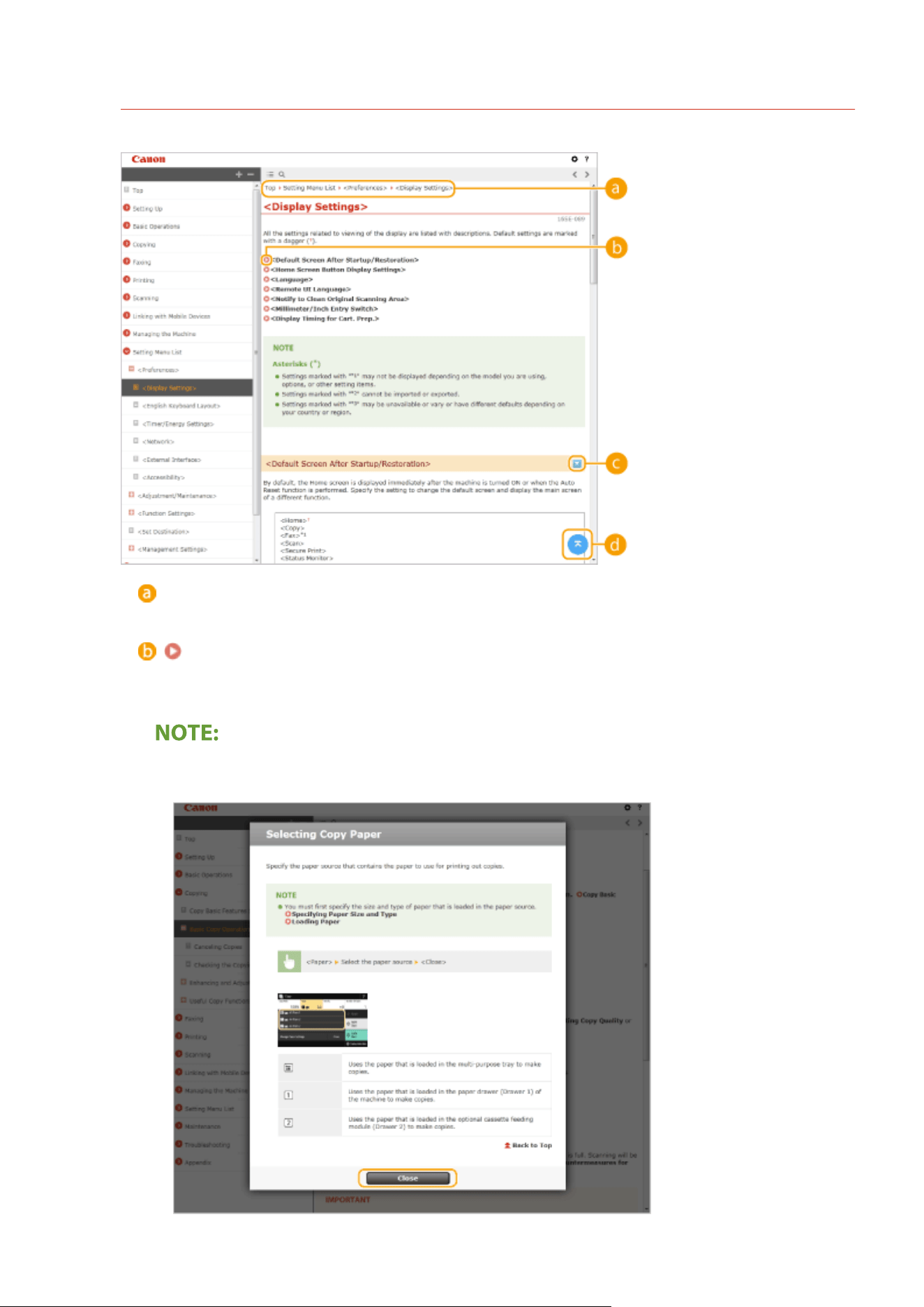
Topic Page
Contains information about how to congur
e and use the machine.
Navigation
See what chapter topic you are currently viewing.
Click to jump to the corresponding page. To return to the previous page, click "Back" on your Web
br
owser.
● When
you click the icon, the current page may go dark and a pop-up window may appear. To return to
the page, click [Close] in the pop-up window.
Appendix
635
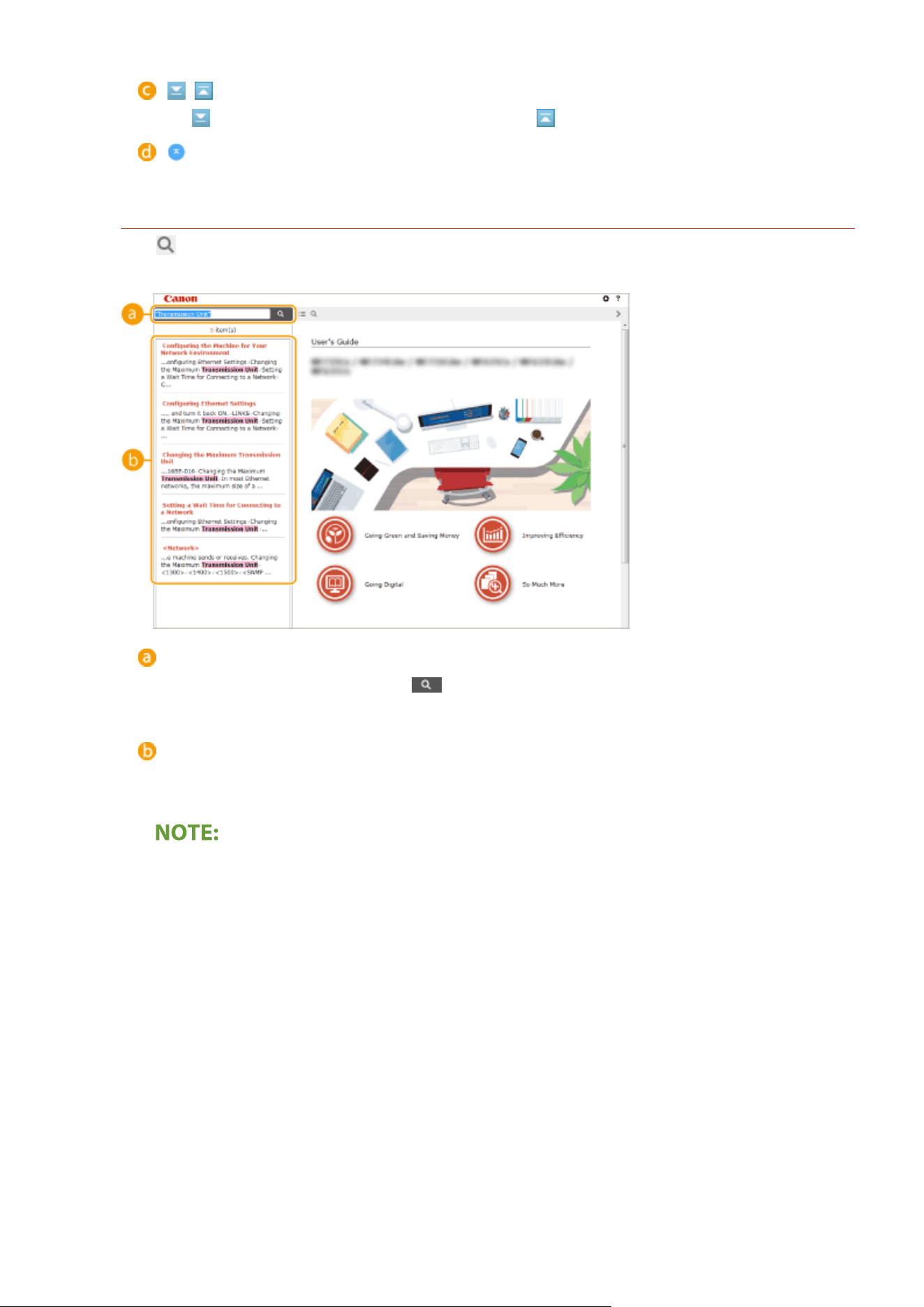
/
Click to display the hidden detailed descriptions. Click to close the detailed descriptions.
Click to return to the page top.
Sear
ch
Click to display the search window. Contains a text box to perform a search by keyword and nd the page
you ar
e looking for.
[Enter keyword(s) here]
Enter a keyword or keywords and click to display the search results. You can search for pages
containing all the k
eywords by separating the keywords by a space (blank). Also you can only search for
pages containing an exact phrase by enclosing the keywords in double quotation marks.
Sear
ch result
Displays the search results of the pages that contain the specied keywords. From the results, locate the
page you are looking for and click the topic title of the page.
● The specied k
eyword(s) are shown in bold in the search results.
Appendix
636
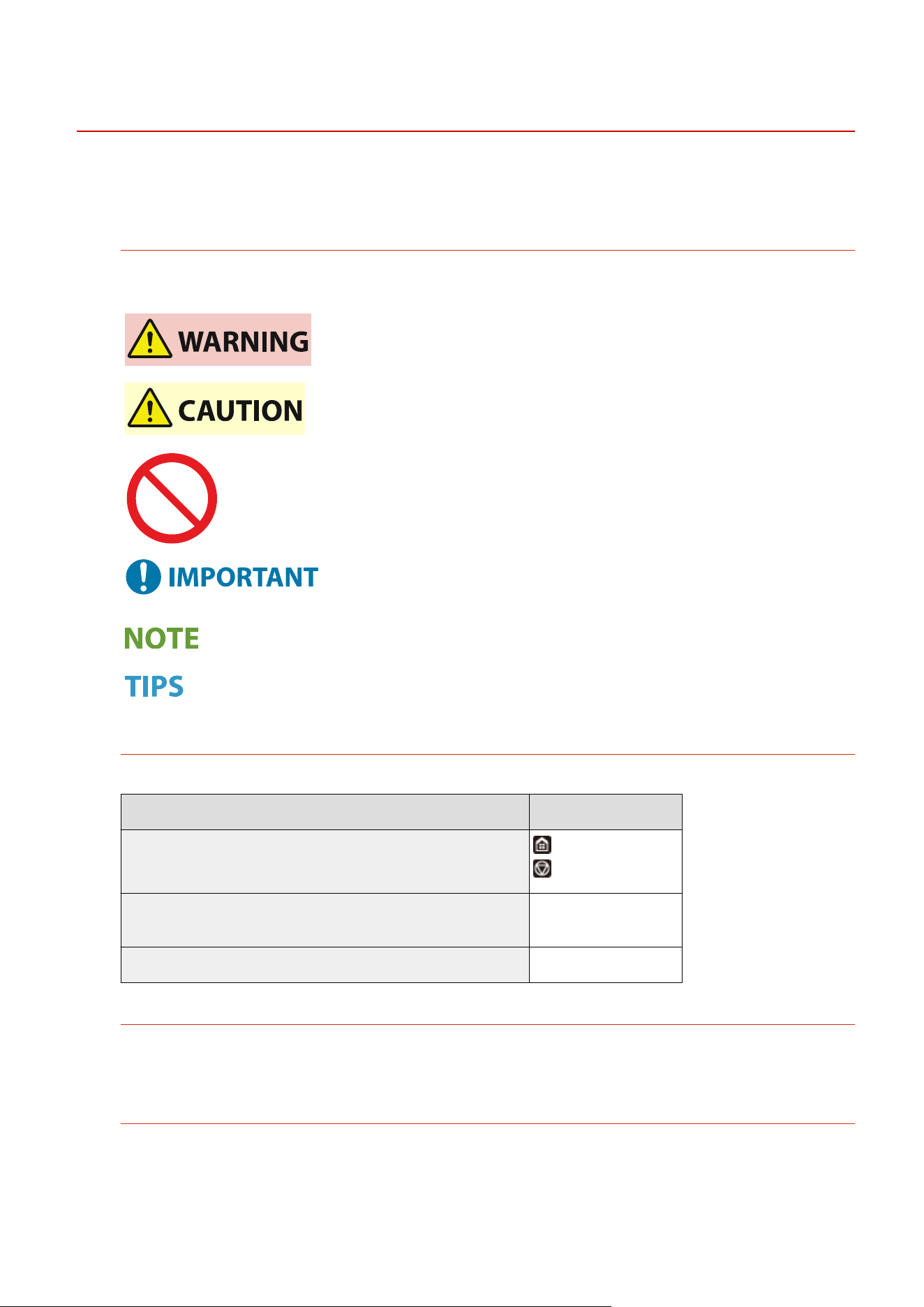
Viewing User's Guide
7YWY-0C4
This section describes the marks, buttons, scr
eens, and other items used in the User's Guide. The warnings and
cautions are also given in the "Important Safety Instructions" included with the machine. See also these instructions.
Marks
Cautions regarding safety, restrictions and cautions regarding the handling of the machine, useful tips, and
other information ar
e indicated using the marks below.
Indicates a warning concerning operations that may lead to death or injury to
persons if not performed corr
ectly. To use the machine safely, always pay
attention to these warnings.
Indicates a caution concerning operations that may lead to injury to persons if
not performed corr
ectly. To use the machine safely, always pay attention to
these cautions.
Indicates an operation that must not be performed. Read these items
car
efully, and make sure not to perform the described operations.
Indicates operational requirements and restrictions. Be sure to read these
items car
efully to operate the machine correctly, and avoid damage to the
machine or property.
Indicates a clarication of an oper
ation, or contains additional explanations
for a procedure.
Indicates useful functions or tips for using the machine.
Keys and Buttons Used in this Manual
Keys on the operation panel and buttons on the computer display appear in the following notation:
Type Example
Keys on the operation panel
Settings displayed on the operation panel
<Timer/Energy Settings>
<Paper jammed.>
Buttons and other text interfaces displayed on the computer display [Preferences]
Computer Screens Used in This Manual
Unless otherwise noted, displays used in the User's Guide are those for the MF455dw. Depending on the model
or operating system you are using, the appearance of the displays used in this manual may slightly differ from
the actual displays. Also, the appearance of drivers and software may differ depending on their version.
Illustrations Used in This Manual
Unless otherwise noted, illustrations used in the User's Guide are those for the MF455dw. The illustrations of
the toner cartridge ar
e those for the Canon Cartridge 057.
Appendix
637
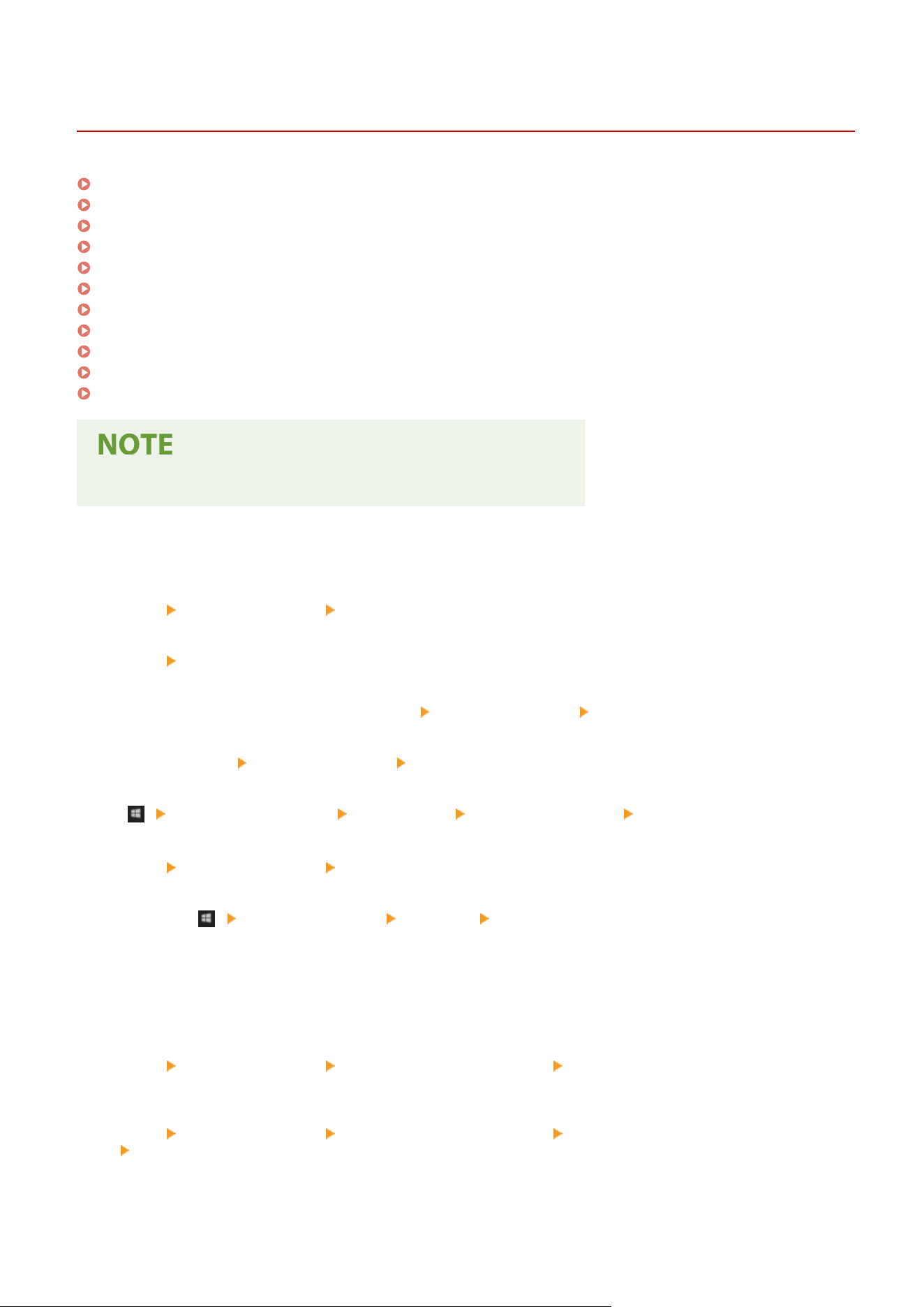
Basic Windows Operations
7YWY-0C6
Displaying the Printer Folder(P. 638)
Enabling [Network discovery](P. 638)
Displaying Shared Printers in the Print Server(P. 639)
Displaying the [Software Programs/Manuals Setup] Screen(P. 640)
Printing a Test Page in Windows(P. 640)
Checking the Bit Architecture(P. 641)
Checking the Computer Name(P. 642)
Checking the Printer Port(P. 643)
Checking Bidirectional Communication(P. 644)
Checking the SSID to Which Your Computer is Connected(P. 645)
When Printing or Sending from the Windows Store App(P. 645)
● Depending on the computer that you use, the oper
ation may differ.
◼ Displaying the Printer Folder
Windo
ws Vista
[Start]
select [Control Panel] [Printer].
Windo
ws 7/Server 2008 R2
[Start]
select [Devices and Printers].
Windo
ws 8/Server 2012
Right-click the lower-left corner of the screen
select [Control Panel] [View devices and printers].
Windo
ws 8.1/Server 2012 R2
Right-click [Start]
select [Control Panel] [View devices and printers].
Windo
ws 10
[
] select [Windows System] [Control Panel] [Hardware and Sound] [Devices and Printers].
Windo
ws Server 2008
[Start]
select [Control Panel] double-click [Printers].
Windo
ws Server 2016
Right-click [
] select [Control Panel] [Hardware] [Devices and Printers].
◼ Enabling [Network disco
very]
Enable [Network discovery] to view the computers on your network.
Windows Vista
[Start]
select [Control Panel] [View network status and tasks] select [Turn on network discovery] under
[Network disco
very].
Windows 7/Server 2008 R2
[Start]
select [Control Panel] [View network status and tasks] [Change advanced sharing settings]
select [Turn on network discovery] under [Network discovery].
Windo
ws 8/Server 2012
Appendix
638
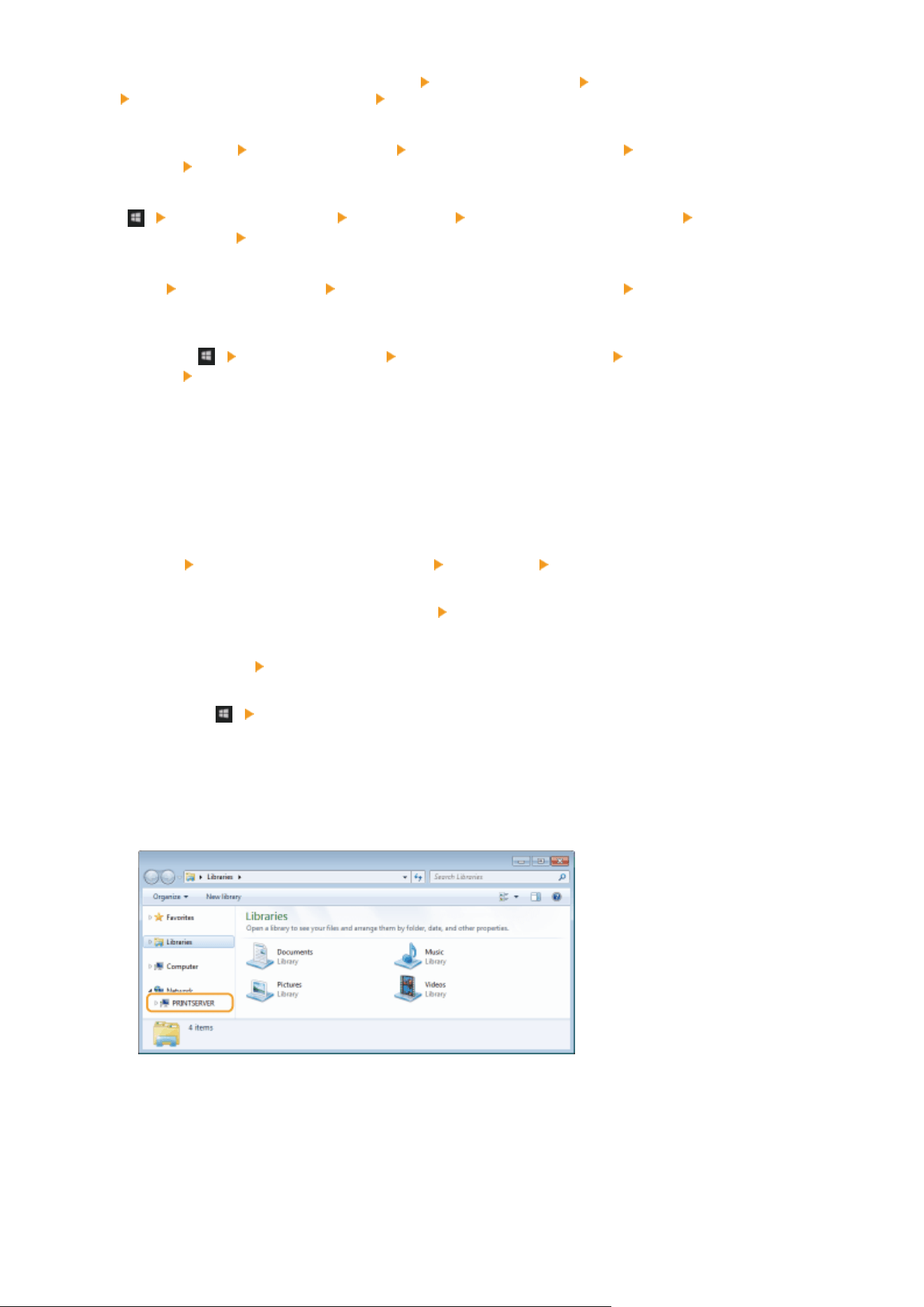
Right-click the lower-left corner of the screen select [Control Panel] [View network status and tasks]
[Change advanced sharing settings] select [Turn on network discovery] under [Network discovery].
Windo
ws 8.1/Server 2012 R2
Right-click [Start]
select [Control Panel] [View network status and tasks] [Change advanced sharing
settings] select [Turn on network discovery] under [Network discovery].
Windo
ws 10
[
] select [Windows System] [Control Panel] [View network status and tasks] [Change advanced
sharing settings] select [Turn on network discovery] under [Network discovery].
Windo
ws Server 2008
[Start]
select [Control Panel] double-click [Network and Sharing Center] select [Turn on network
disco
very] under [Network discovery].
Windows Server 2016
Right-click [
] select [Control Panel] [View network status and tasks] [Change advanced sharing
settings] select [Turn on network discovery] under [Network discovery].
◼ Displaying Shared Printers in the Print Server
1
Open Windows Explorer.
Windows Vista/7/Server 2008
[Start]
select [All Programs] or [Programs] [Accessories] [Windows Explorer].
Windo
ws 8/Server 2012
Right-click the lower-left corner of the screen
select [File Explorer].
Windo
ws 8.1/Server 2012 R2
Right-click [Start]
select [File Explorer].
Windo
ws 10/Server 2016
Right-click [
] select [File Explorer].
2
Select the printer server in [Network] or [My Network Places].
● T
o view computers on the network, you may need to turn on network discovery or search the network for
computers.
➠ Shar
ed printers are displayed.
Appendix
639
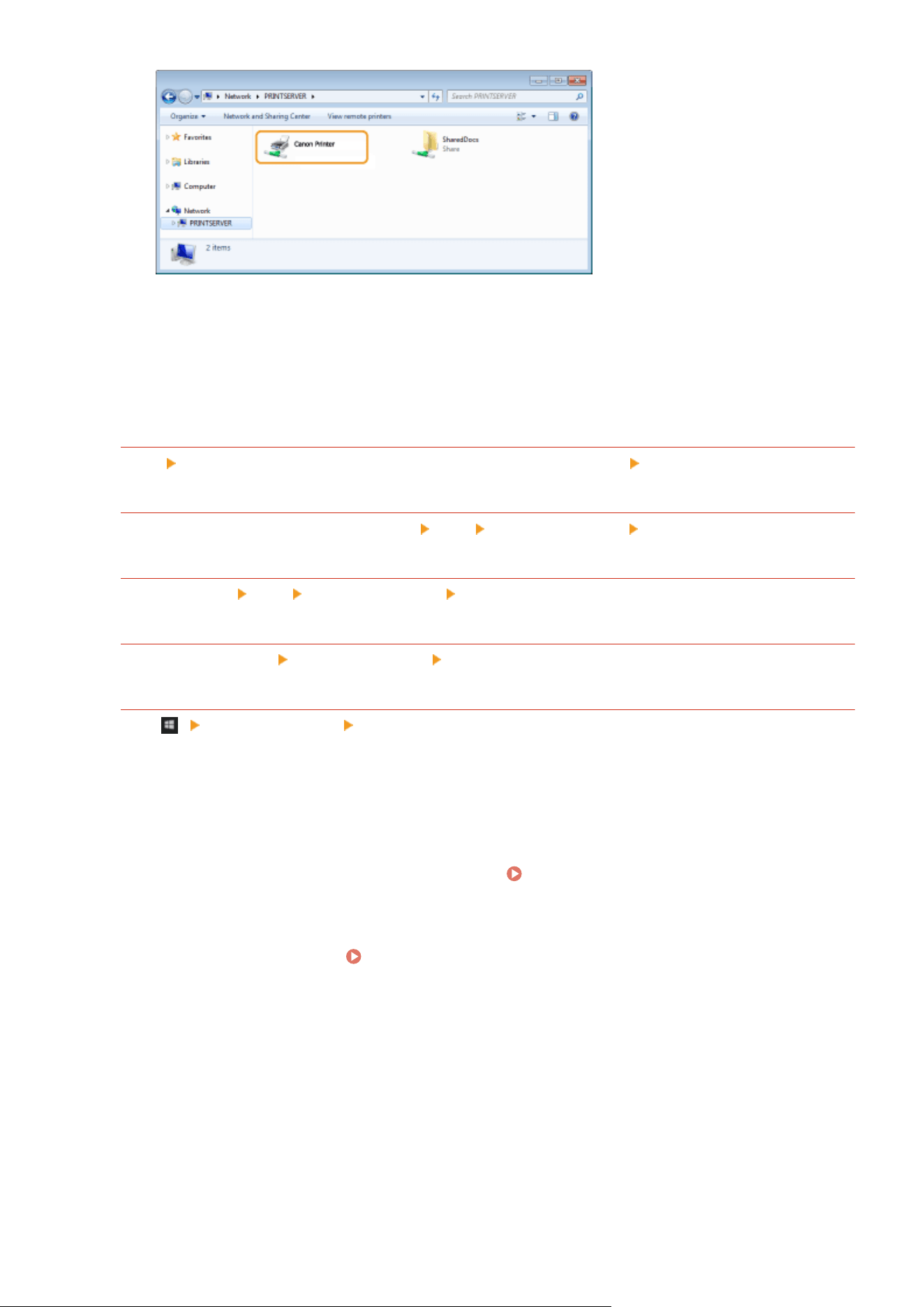
◼ Displaying the [Softwar
e Programs/Manuals Setup] Screen
If your computer does not display the [Software Programs/Manuals Setup] screen after inserting the provided CD-
ROM/DVD-ROM, follow the procedure below. The CD-ROM/DVD-ROM drive name is indicated as "D:" in this manual.
The CD-ROM/DVD-ROM drive name may differ depending on the computer you are using.
Windows Vista/7/Server 2008
[Start] enter "D:\MInst.exe" in [Search programs and les] or [Start Sear
ch]
press the [ENTER] key.
Windo
ws 8/Server 2012
Right-click the lower-left corner of the screen [Run] enter "D:\MInst.exe" click [OK]
Windo
ws 8.1/Server 2012 R2
Right-click [Start] [Run] enter "D:\MInst.exe" click [OK]
Windo
ws 10
Click [Ask me anything] enter "D:\MInst.exe" click [D:\MInst.exe] displayed as the search result.
Windo
ws Server 2016
Click [ ] enter "D:\MInst.exe" click [D:\MInst.exe] displayed as the search result.
◼ Printing a T
est Page in Windows
You can check whether the printer driver is operational by printing a test page in Windows.
1
Load Letter size paper in the paper drawer.
Loading Paper in the Paper
Dr
awer(P. 144)
2
Open the printer folder.
Displaying the Printer Folder(P. 638)
3
Right-click the printer driver icon for this machine, and click [Printer properties] or
[Properties].
Appendix
640
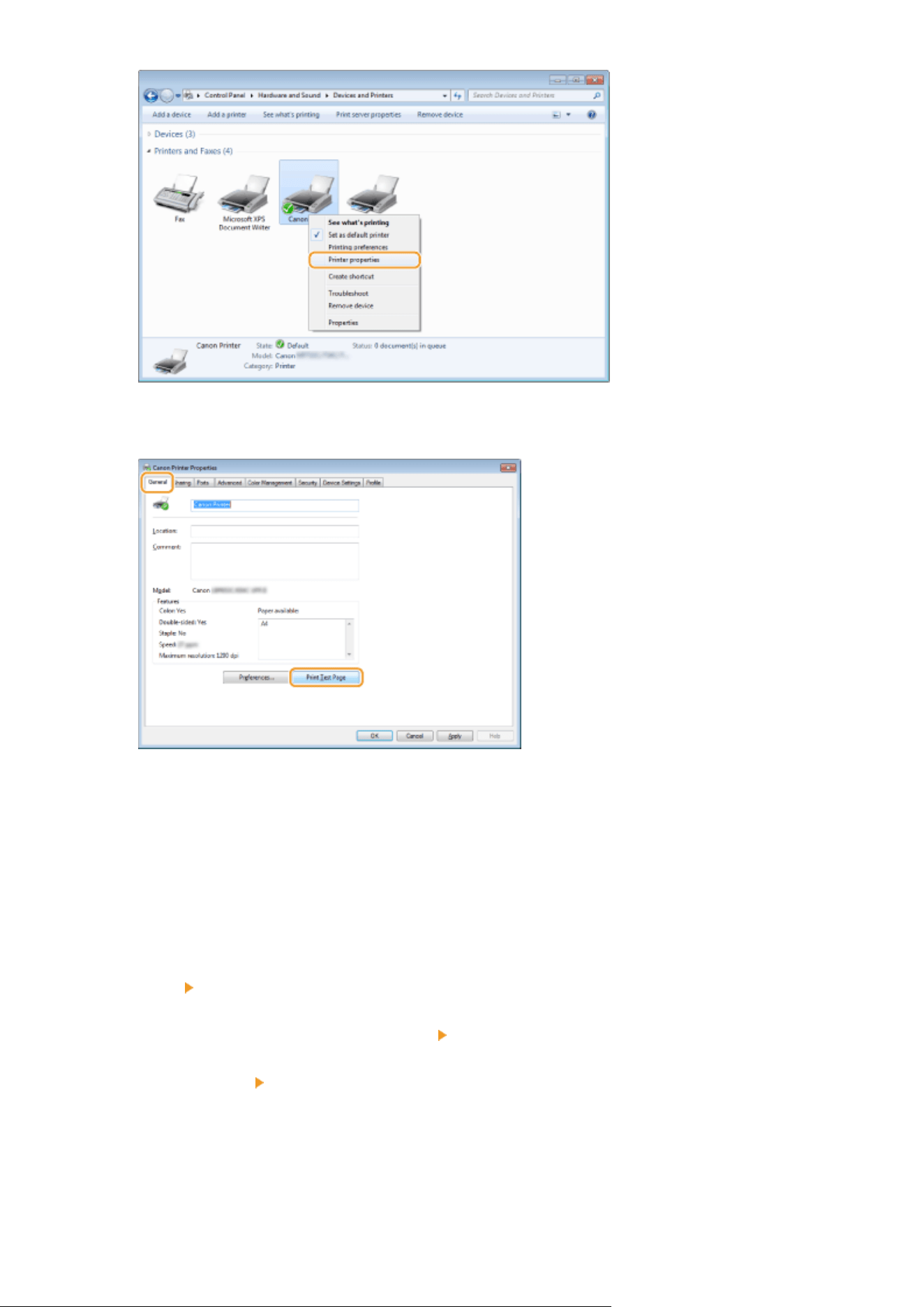
4
Click [Print Test Page] in [General] tab.
➠ The test page is printed.
◼ Checking the Bit Ar
chitecture
If you are not sure whether your computer is running 32-bit or 64-bit Windows follow the procedure below.
1
Display [Control Panel].
Windows Vista/7/Server 2008
[Start]
select [Control Panel].
Windo
ws 8/Server 2012
Right-click the lower-left corner of the screen
select [Control Panel].
Windows 8.1/Server 2012 R2
Right-click [Start] select [Control Panel].
Windo
ws 10/Server 2016
Proceed to step 2.
2
Display [System].
Appendix
641
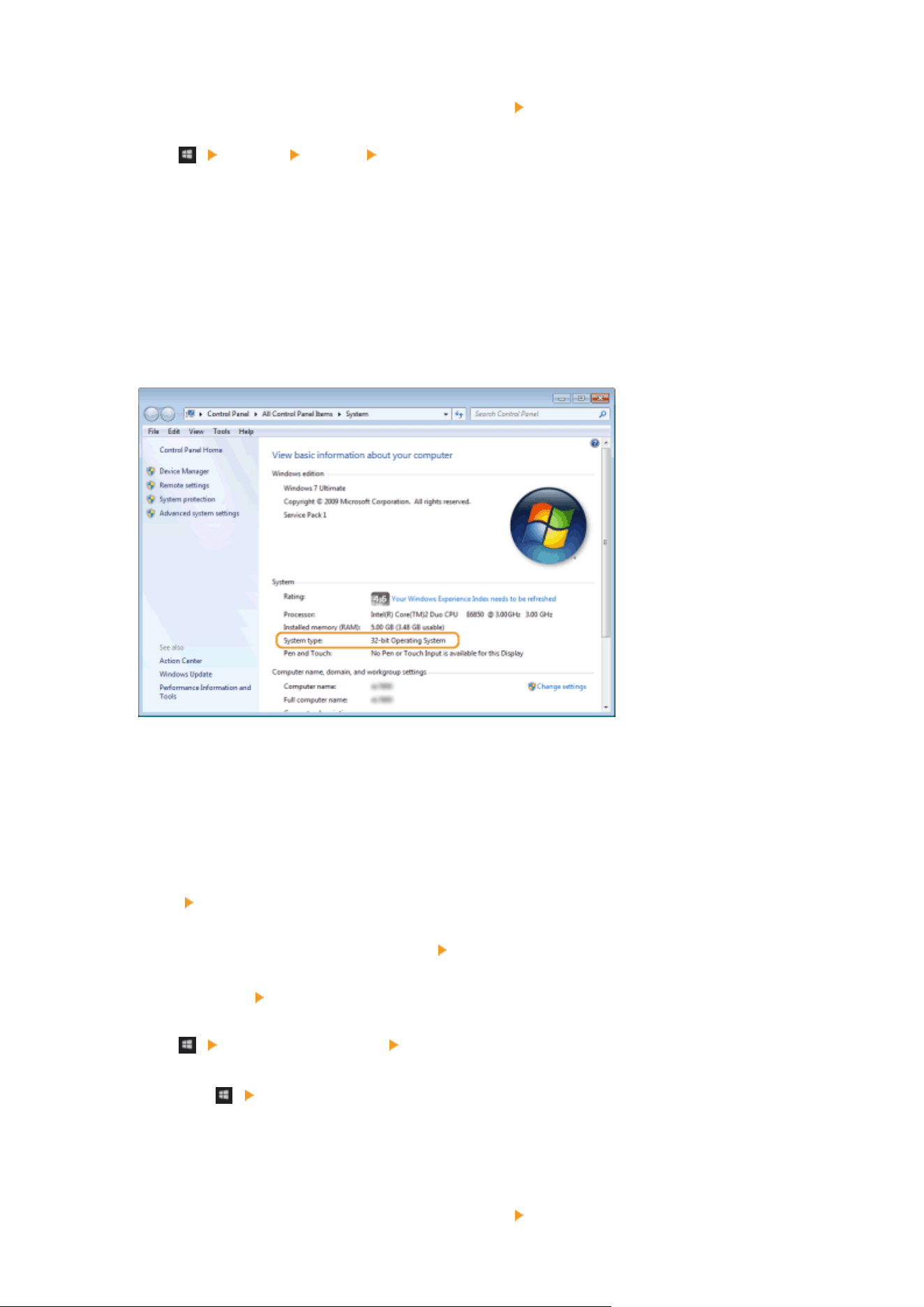
Windows Vista/7/8/Server 2008 R2/Server 2012
Click [System and Maintenance] or [System and Security] [System].
Windo
ws 10/Server 2016
Click [
] [Settings] [System] select [About].
Windo
ws Server 2008
Double-click [System].
3
Check the bit architecture.
For 32-bit versions
[32-bit Oper
ating System] is displayed.
For 64-bit versions
[64-bit Operating System] is displayed.
◼ Checking the Computer Name
1
Display [Control Panel].
Windows Vista/7/Server 2008
[Start] select [Control Panel].
Windo
ws 8/Server 2012
Right-click the lower-left corner of the screen
select [Control Panel].
Windo
ws 8.1/Server 2012 R2
Right-click [Start]
select [Control Panel].
Windo
ws 10
Click [
] select [Windows System] [Control Panel].
Windows Server 2016
Right-click [ ] select [Control Panel].
2
Display [System].
Windows Vista/7/8/10/Server 2008 R2/Server 2012/Server 2016
Click [System and Maintenance] or [System and Security] [System].
Appendix
642
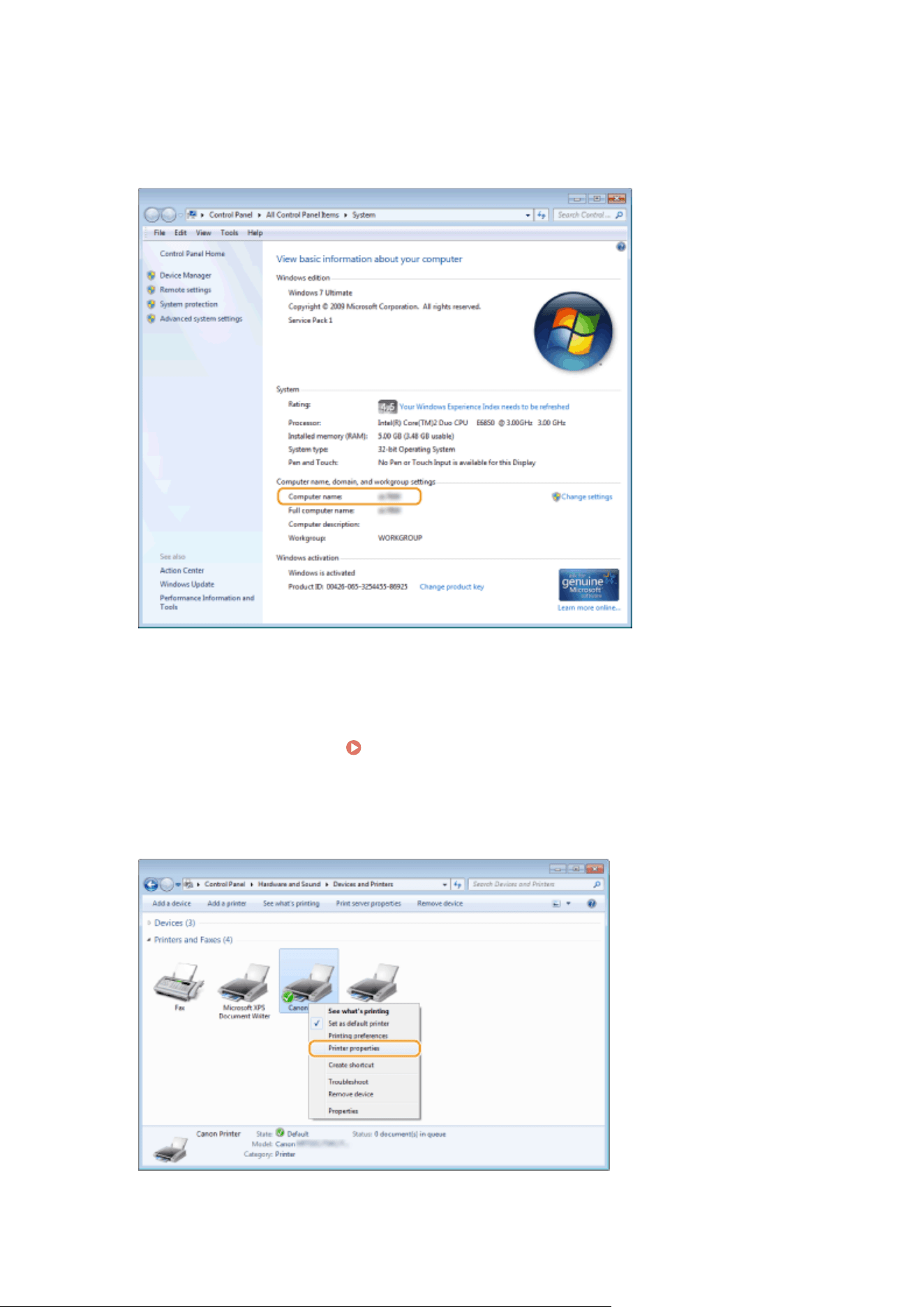
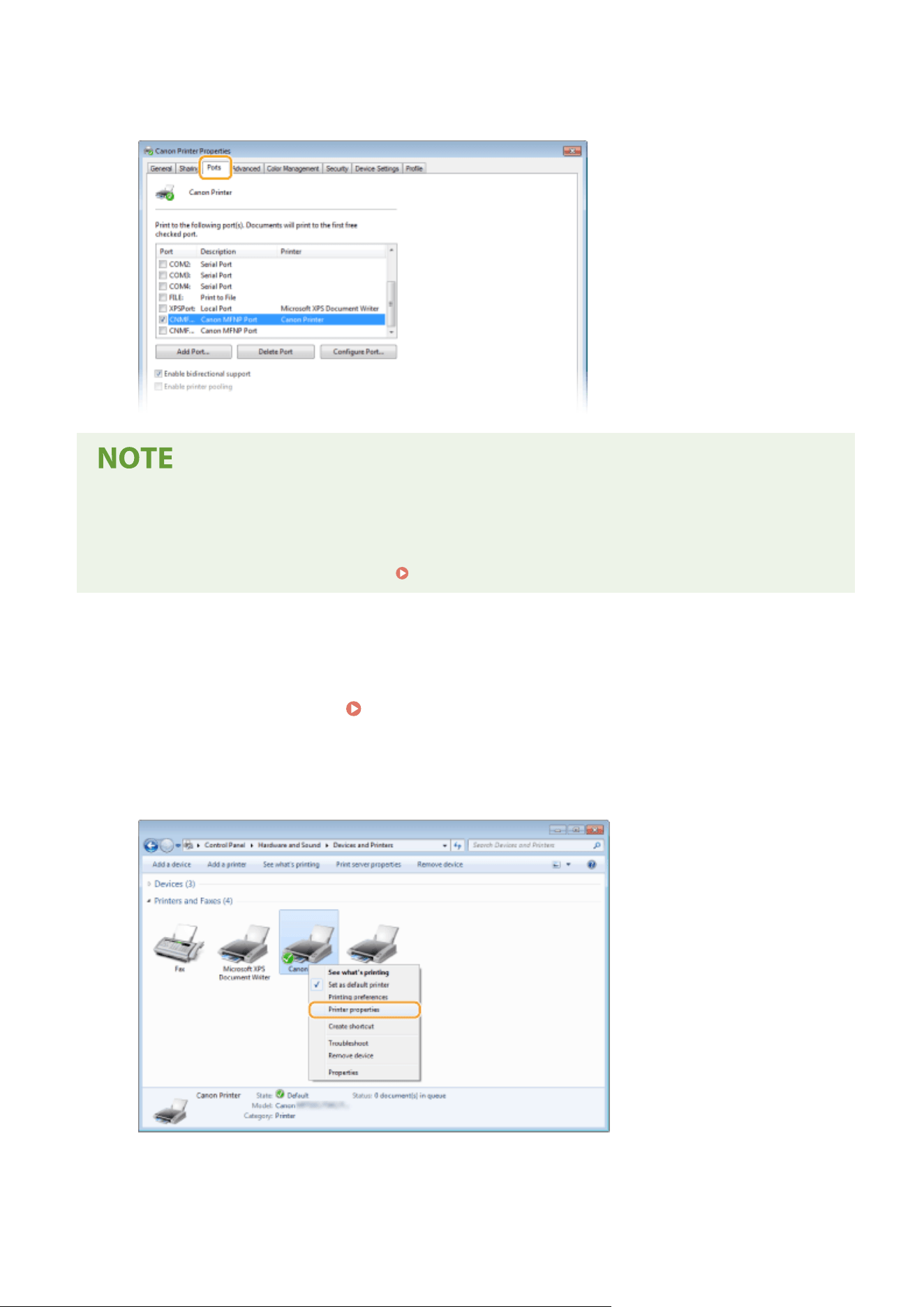
3
In the [Ports] tab, check that the port is selected correctly.
If you are using a network connection and have changed the machine's IP address
● If [Description] for the selected port is [Canon MFNP Port], and the machine and the computer ar
e on the
same subnet, then the connection will be maintained. You do not need to add a new port. If it is [Standard
TCP/IP Port], you need to add a new port.
Conguring Printer Ports(P
. 43)
◼ Checking Bidir
ectional Communication
1
Open the printer folder.
Displaying the Printer Folder(P. 638)
2
Right-click the printer driver icon for this machine, and click [Printer properties] or
[Pr
operties].
3
In the [Ports] tab, make sure that the [Enable bidirectional support] check box is
selected.
Appendix
644
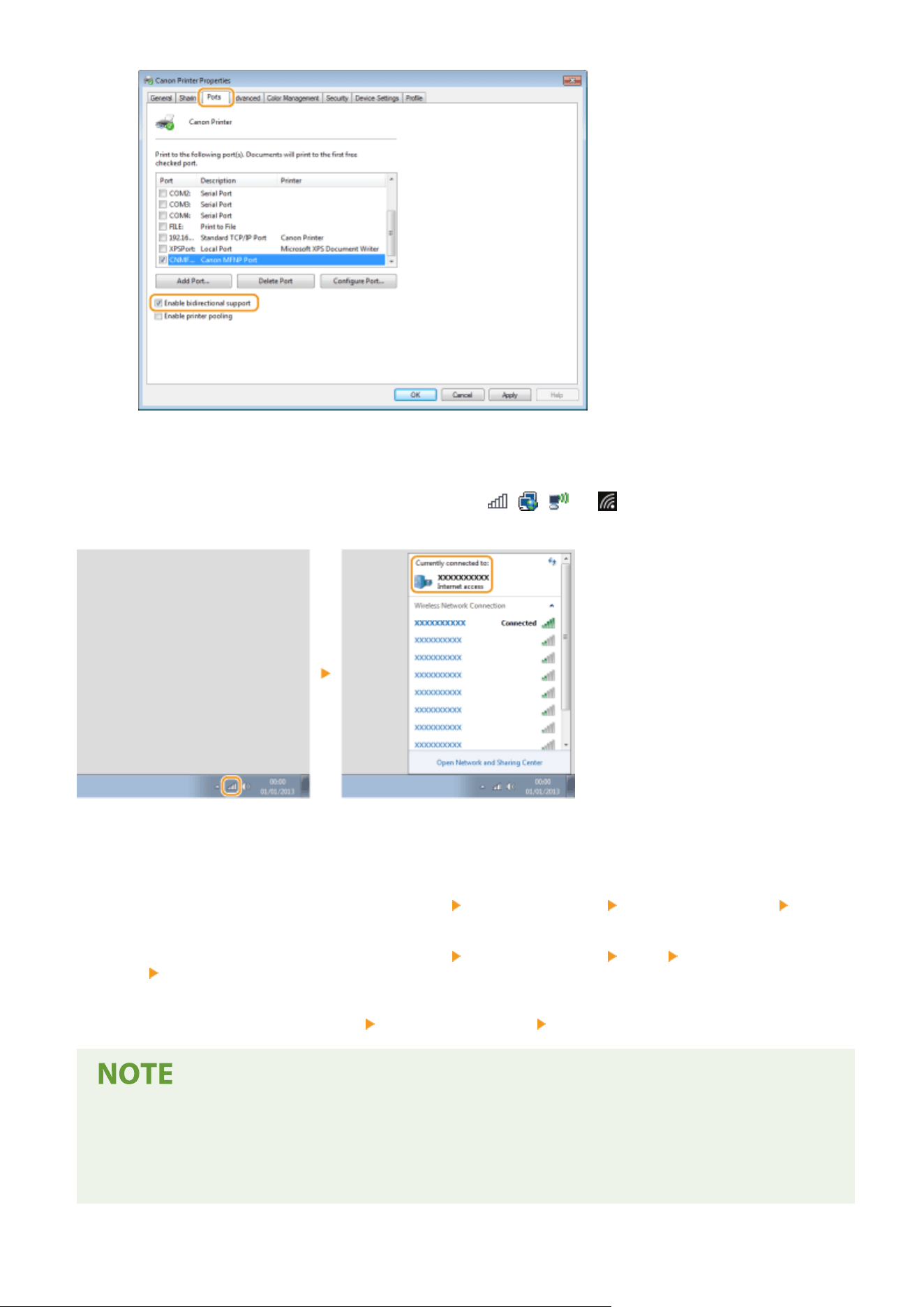
◼ Checking the SSID to Which Y
our Computer is Connected
If your computer is connected to a wireless LAN network, click
, , , or in the system tray to display the
SSID of the connected wir
eless LAN router.
◼ When Printing or Sending fr
om the Windows Store App
Windows 8/Server 2012
Display the charms on the right side of the screen
Tap or click [Devices] The driver that you use [Print].
Windo
ws 8.1/Server 2012 R2
Display the charms on the right side of the screen
Tap or click [Devices] [Print] The driver that you
use
[Print].
Windo
ws 10
Tap or click [Print] on the application
The driver that you use [Print].
● If you print a document or send a fax using this method, only a limited number of functions ar
e available.
● If the message [The printer requires your attention. Go to the desktop to take care of it.] is displayed, go to
the desktop and perform the required operations. This message appears when the machine is set to display
the user name when printing documents, sending faxes or similar instances.
Appendix
645

Menu Route Map
7YWY-0C7
For the settings on the machine
's display, see Menu Route Map (PDF manual).
Appendix
646
Notice
7YWY-0C8
◼ International ENERGY ST
AR
®
program (for USA and Canada only)
The international ENERGY STAR Program is an international program that promotes energy
savings in computers and other oce equipment. The pr
ogram backs the development and
dissemination of products with functions that effectively reduce energy consumption. It is
an open system in which businesses can participate voluntarily.
◼ IPv6 Ready Logo
The protocol stack included in this product has obtained the IPv6 Ready Logo Phase-2
established b
y the IPv6 Forum.
◼ T
rademarks
Adobe and Reader are registered trademarks of Adobe Systems Incorporated in the United States and/or other
countries.
Apple, Bonjour, iPad, iPhone, iPod touch, Safari, Mac, macOS and OS X are trademarks of Apple Inc.
iOS is a trademark or registered trademark of Cisco in the U.S. and other countries and is used under license.
Mopria
®
, the Mopria
®
Logo and the Mopria
®
Alliance logo are registered trademarks and service marks of Mopria
Alliance, Inc. in the United States and other countries. Unauthorized use is strictly prohibited.
Google Chrome and Android are trademarks of Google LCC.
This product contains the Universal Font Scaling Technology or UFST
®
under license from Monotype Imaging, Inc.
UFST
®
is a trademark of Monotype Imaging, Inc. registered in the United States Patent and Trademark Oce and may
be registered in certain jurisdictions.
UFST: Copyright © 1989 - 1996, 1997, 2003, 2004, 2008, 2014 all rights reserved, by Monotype Imaging Inc.
Copyright © 2007 –08 Adobe Systems Incorporated. All rights reserved.
Appendix
647

Protected by U.S. Patents 5,737,599; 5,781,785; 5,819,301; 5,929,866; 5,943,063; 6,073,148; 6,515,763; 6,639,593;
6,754,382; 7,046,403; 7,213,269; 7,242,415; Patents pending in the U
.S. and other countries.
All instances of the name PostScript in the text are references to the PostScript language as dened by Adobe Systems
Incorporated unless otherwise stated. The name PostScript also is used as a product trademark for Adobe Systems’
implementation of the PostScript language interpreter.
Except as otherwise stated, any reference to a "PostScript printing device," "PostScript display device," or similar item
refers to a printing device, display device or item (respectively) that contains PostScript technology created or licensed
by Adobe Systems Incorporated and not to devices or items that purport to be merely compatible with the PostScript
language.
Adobe, the Adobe logo, PostScript, the PostScript logo, and PostScript 3 are either registered trademarks or
trademarks of Adobe Systems Incorporated in the United States and/or other countries.
Linux is a registered trademark of Linus Torvalds. Microsoft and Windows are either registered trademarks or
trademarks of Microsoft Corporation in the United States and/or other countries.
All other trademarks are the property of their respective owners.
Copyright © 2008 Adobe Systems Incorporated. All rights reserved.
Pr
otected by U.S. Patents 6,185,684; 6,205,549; 7,213,269; 7,272,628; 7,278,168; Patents pending in the U.S. and other
countries.
All instances of the name PostScript in the text are references to the PostScript language as dened by Adobe Systems
Incorporated unless otherwise stated. The name PostScript also is used as a product trademark for Adobe Systems’
implementation of the PostScript language interpreter.
Except as otherwise stated, any reference to a "PostScript printing device," "PostScript display device," or similar item
refers to a printing device, display device or item (respectively) that contains PostScript technology created or licensed
by Adobe Systems Incorporated and not to devices or items that purport to be merely compatible with the PostScript
language.
Adobe, the Adobe logo, PostScript, the PostScript Logo, and PostScript 3 are either registered trademarks or
trademarks of Adobe Systems Incorporated in the United States and/or other countries.
All other trademarks are the property of their respective owners.
All brand names and product names appearing on this document are registered trademarks or trademarks of their
respective owners.
All other trademarks are the property of their respective owners.
◼ Disclaimers
● The information in this document is subject to change without notice.
● CANON INC. MAKES NO WARRANTY OF ANY KIND WITH REGARD TO THIS MATERIAL, EITHER EXPRESS OR IMPLIED,
EXCEPT AS PROVIDED HEREIN, INCLUDING WITHOUT LIMITATION, THEREOF, WARRANTIES AS TO MARKETABILITY,
MERCHANTABILITY, FITNESS FOR A PARTICULAR PURPOSE OF USE, OR NON-INFRINGEMENT. CANON INC. SHALL
Appendix
648

NOT BE LIABLE FOR ANY DIRECT, INCIDENTAL, OR CONSEQUENTIAL DAMAGES OF ANY NATURE, OR LOSSES OR
EXPENSES RESUL
TING FROM THE USE OF THIS MATERIAL.
● If you are unable to view the manual in PDF format, download Adobe Acrobat Reader from the Adobe Systems
website (https://get.adobe.com/reader/).
◼ Copyright
Reproduction of the contents of this document in whole or in part without prior permission is prohibited.
◼ When disposing of used toner cartridges
● To protect the environment and make more effective use of resources, Canon promotes the recovery and recycling
of used toner cartridges. Please cooperate in the recovery of toner cartridges (resource reuse). For details on
resource reuse, see the Canon website:
global.canon/ctc
When disposing of toner cartridges, pack them in their original packaging to prevent toner dispersal and dispose of
the cartridges in accordance with your local government instructions.
◼ TERMS OF imageWARE REMOTE SERVICE
If your Canon imageCLASS product is enabled with embedded functions for the imageWARE Remote Diagnostic
Service (“iWR”), or your product is not iWR enabled but it interacts with the iWR Remote Diagnostic System (“RDS”)
Plug-In program of imageWARE Enterprise Management Console (“EMC”) software, then Canon USA, Canon Canada or
their respective authorized independent Canon retail dealers can access Product meter readings and receive
notications of certain automated meter information, device error monitoring and supply replenishment notices
automatically via the internet. You can read more about iWR in Canon published materials available from your dealer
or on the web sites of Canon USA (www.usa.canon.com) or Canon Canada (www.canon.ca). iWR will only collect and
transmit Product specic meter readings and service data, and will not access, collect or transmit your image content
data in the Product.
Your instruction to Canon USA, Canon Canada or your dealer to activate iWR (embedded or Plug-In) for a Product shall
be considered (i) a representation that you have an internal IP network and internet access available on a generally
continuous basis; (ii) authorization by you to establish, and perform during the period of iWR activation, HTTPS
communications using your network bandwidth for transmissions over the internet of use and service data
accumulated by the Product and send iWR notice emails to Canon USA, Canon Canada or your dealer, and (iii)
authorization by you to store, analyze and use this data for purposes related to servicing the Product and for Product
and iWR improvement.
By so instructing Canon USA, Canon Canada or your dealer, you shall also be considered to acknowledge that (A) the
iWR software (embedded or Plug-In) is the condential property of Canon USA and its licensor; (B) you have no rights
in such iWR software (except as the Product executes the limited data collection and transmission functions for which
it is congured when delivered and you obtain the benets of iWR as outlined in Canon published materials), (C) you
shall not disassemble, decompile, reverse engineer, disclose or attempt to copy such iWR software, allow any third
party to do any of the foregoing or transfer your limited rights to any other party without the prior written approval of
Canon USA or Canon Canada; and (D) there are many factors outside the control of Canon USA, Canon Canada or their
respective dealers that could affect the accuracy or timing of meter readings or service data harvested by iWR and,
except as expressly provided in the limited warranty statement for the Product or End-User License Agreement for
EMC software, in the case of the iWR RDS Plug-In program, neither Canon USA, Canon Canada nor their respective
dealers shall be responsible for alleged deciencies in, or your dissatisfaction with, iWR or any software used to
provide iWR.
If your dealer ceases to be an authorized Canon USA dealer, it will no longer have access to the use and service data
accumulated by iWR for your Product. In that case, you may request or instruct to Canon USA to recommend to you an
alternative service provider who will have access to this data in order to maintain Product service utilizing iWR
functionality.
V_210303
Appendix
649

This Font Software is licensed under the SIL Open Font License,
V
ersion 1.1.
This license is copied below, and is also available with a FAQ at:
http://scripts.sil.org/OFL
-----------------------------------------------------------
SIL OPEN FONT LICENSE Version 1.1 - 26 February 2007
-----------------------------------------------------------
PREAMBLE
The goals of the Open Font License (OFL) are to stimulate worldwide
development of collaborative font projects, to support the font
creation efforts of academic and linguistic communities, and to
provide a free and open framework in which fonts may be shared and
improved in partnership with others.
The OFL allows the licensed fonts to be used, studied, modied and
redistributed freely as long as they are not sold by themselves. The
fonts, including any derivative works, can be bundled, embedded,
redistributed and/or sold with any software provided that any reserved
names are not used by derivative works. The fonts and derivatives,
however, cannot be released under any other type of license. The
requirement for fonts to remain under this license does not apply to
any document created using the fonts or their derivatives.
DEFINITIONS
"Font Software" refers to the set of les released by the Copyright
Holder(s) under this license and clearly marked as such. This may
include source les, build scripts and documentation.
"Reserved Font Name" refers to any names specied as such after the
copyright statement(s).
"Original Version" refers to the collection of Font Software
components as distributed by the Copyright Holder(s).
"Modied Version" refers to any derivative made by adding to,
deleting, or substituting -- in part or in whole -- any of the
components of the Original Version, by changing formats or by porting
the Font Software to a new environment.
"Author" refers to any designer, engineer, programmer, technical
writer or other person who contributed to the Font Software.
PERMISSION & CONDITIONS
Permission is hereby granted, free of charge, to any person obtaining
a copy of the Font Software, to use, study, copy, merge, embed,
modify, redistribute, and sell modied and unmodied copies of the
Font Software, subject to the following conditions:
SIL OPEN FONT LICENSE
650

1) Neither the Font Software nor any of its individual components, in
Original or Modied V
ersions, may be sold by itself.
2) Original or Modied Versions of the Font Software may be bundled,
redistributed and/or sold with any software, provided that each copy
contains the above copyright notice and this license. These can be
included either as stand-alone text les, human-readable headers or
in the appropriate machine-readable metadata elds within text or
binary les as long as those elds can be easily viewed by the user.
3) No Modied Version of the Font Software may use the Reserved Font
Name(s) unless explicit written permission is granted by the
corresponding Copyright Holder. This restriction only applies to the
primary font name as presented to the users.
4) The name(s) of the Copyright Holder(s) or the Author(s) of the Font
Software shall not be used to promote, endorse or advertise any
Modied Version, except to acknowledge the contribution(s) of the
Copyright Holder(s) and the Author(s) or with their explicit written
permission.
5) The Font Software, modied or unmodied, in part or in whole,
must be distributed entirely under this license, and must not be
distributed under any other license. The requirement for fonts to
remain under this license does not apply to any document created using
the Font Software.
TERMINATION
This license becomes null and void if any of the above conditions are
not met.
DISCLAIMER
THE FONT SOFTWARE IS PROVIDED "AS IS", WITHOUT WARRANTY OF ANY KIND,
EXPRESS OR IMPLIED, INCLUDING BUT NOT LIMITED TO ANY WARRANTIES OF
MERCHANTABILITY, FITNESS FOR A PARTICULAR PURPOSE AND NONINFRINGEMENT
OF COPYRIGHT, PATENT, TRADEMARK, OR OTHER RIGHT. IN NO EVENT SHALL THE
COPYRIGHT HOLDER BE LIABLE FOR ANY CLAIM, DAMAGES OR OTHER LIABILITY,
INCLUDING ANY GENERAL, SPECIAL, INDIRECT, INCIDENTAL, OR CONSEQUENTIAL
DAMAGES, WHETHER IN AN ACTION OF CONTRACT, TORT OR OTHERWISE, ARISING
FROM, OUT OF THE USE OR INABILITY TO USE THE FONT SOFTWARE OR FROM
OTHER DEALINGS IN THE FONT SOFTWARE.
SIL OPEN FONT LICENSE
651

1
Third-Party Services
If you use third-party services through the PRODUCT, use of the services are subjected the conditions
below.
When you access and/or obtain some third party content (such as text, images, videos, audios, or
software) through the SOFTWARE, except as expressly permitted by the content owner or by
applicable law, you may not (a) scrape, build databases or otherwise create permanent copies of such
content, or keep cached copies longer than permitted by the cache header; (b) copy, translate, modify,
create a derivative work of, sell, lease, lend, convey, distribute, publicly display or sublicense to any
third party; (c) misrepresent the source or ownership; and (d) remove, obscure, or alter any copyright,
trademark or other proprietary rights notices, falsify or delete any author attributions, legal notices or
other labels of the origin or source of material.

2
The Software Subjected to Other License Conditions
Please refer to Contents of Software and respective License terms below, for more detail and
corresponding license conditions.
Contents of Software
Names of Software page
1.Adobe PostScript 3 ....................................................................................................................... 3
2.Adobe PDF Scan Library ............................................................................................................. 10
3.expat ......................................................................................................................................... 13
4.HarfBuzz .................................................................................................................................... 14
5.libjingle ..................................................................................................................................... 15
6.Lua ............................................................................................................................................ 16
7.LuaSocket .................................................................................................................................. 17
8.LuneScript .................................................................................................................................. 18
9.Net-SNMP .................................................................................................................................. 19

3
1.Adobe PostScript 3
Copyright 2007-2008 Adobe Systems Incorporated and its licensors. All rights reserved.
Portions include software under the following terms:
______________________________________________________________________________________
This product contains either BSAFE and/or TIPEM software by RSA Security Inc.
______________________________________________________________________________________
Portions of Pool.c_Copyright 1987 - NeXT, Inc., and portions of Graphics.c_Copyright 1988 NeXT,
Inc. as an unpublished work. All Rights Reserved.
______________________________________________________________________________________
The Apache Software License, Version 1.1
This product includes software developed by the Apache Software Foundation
(http://www.apache.org/).
Portions Copyright (c) 1998-2000 The Apache Software Foundation. All rights reserved.
Redistribution and use in source and binary forms, with or without modification, are permitted
provided that the following conditions are met:
1. Redistributions of source code must retain the above copyright notice, this list of conditions and
the following disclaimer.
2. Redistributions in binary form must reproduce the above copyright notice, this list of conditions
and the following disclaimer in the documentation and/or other materials provided with the
distribution.
3. The end-user documentation included with the redistribution, if any, must include the following
acknowledgment:
"This product includes software developed by the Apache Software Foundation
(http://www.apache.org/)."
Alternately, this acknowledgment may appear in the software itself, if and wherever such third-party
acknowledgments normally appear.
4. The names "Xerces" and "Apache Software Foundation" must not be used to endorse or promote
products derived from this software without prior written permission. For written permission, please
contact [email protected].
5. Products derived from this software may not be called "Apache", nor may "Apache" appear in their
name, without prior written permission of the Apache Software Foundation.
THIS SOFTWARE IS PROVIDED ``AS IS'' AND ANY EXPRESSED OR IMPLIED WARRANTIES, INCLUDING,

4
BUT NOT LIMITED TO, THE IMPLIED WARRANTIES OF MERCHANTABILITY AND FITNESS FOR A
PARTICULAR PURPOSE ARE DISCLAIMED. IN NO EVENT SHALL THE APACHE SOFTWARE FOUNDATION
OR ITS CONTRIBUTORS BE LIABLE FOR ANY DIRECT, INDIRECT, INCIDENTAL, SPECIAL, EXEMPLARY, OR
CONSEQUENTIAL DAMAGES (INCLUDING, BUT NOT LIMITED TO, PROCUREMENT OF SUBSTITUTE
GOODS OR SERVICES; LOSS OF USE, DATA, OR PROFITS; OR BUSINESS INTERRUPTION) HOWEVER
CAUSED AND ON ANY THEORY OF LIABILITY, WHETHER IN CONTRACT, STRICT LIABILITY, OR TORT
(INCLUDING NEGLIGENCE OR OTHERWISE) ARISING IN ANY WAY OUT OF THE USE OF THIS SOFTWARE,
EVEN IF ADVISED OF THE POSSIBILITY OF SUCH DAMAGE.
This software consists of voluntary contributions made by many individuals on behalf of the Apache
Software Foundation and was originally based on software copyright (c) 1999, International Business
Machines, Inc., http://www.ibm.com. For more information on the Apache Software Foundation,
please see <http://www.apache.org/>.
______________________________________________________________________________________
This product includes software developed by the University of California, Berkeley and its
contributors.
Portions Copyright (c) 1990 The Regents of the University of California. All rights reserved.
Redistribution and use in source and binary forms, with or without modification, are permitted
provided that the following conditions are met:
1. Redistributions of source code must retain the above copyright notice, this list of conditions and
the following disclaimer.
2. Redistributions in binary form must reproduce the above copyright notice, this list of conditions
and the following disclaimer in the documentation and/or other materials provided with the
distribution.
3. All advertising materials mentioning features or use of this software must display the following
acknowledgement:
This product includes software developed by the University of California, Berkeley and its
contributors.
4. Neither the name of the University nor the names of its contributors may be used to endorse or
promote products derived from this software without specific prior written permission.
THIS SOFTWARE IS PROVIDED BY THE REGENTS AND CONTRIBUTORS "AS IS" AND ANY EXPRESS OR
IMPLIED WARRANTIES, INCLUDING, BUT NOT LIMITED TO, THE IMPLIED WARRANTIES OF
MERCHANTABILITY AND FITNESS FOR A PARTICULAR PURPOSE ARE DISCLAIMED. IN NO EVENT SHALL
THE REGENTS OR CONTRIBUTORS BE LIABLE FOR ANY DIRECT, INDIRECT, INCIDENTAL, SPECIAL,
EXEMPLARY, OR CONSEQUENTIAL DAMAGES (INCLUDING, BUT NOT LIMITED TO, PROCUREMENT OF
SUBSTITUTE GOODS OR SERVICES; LOSS OF USE, DATA, OR PROFITS; OR BUSINESS INTERRUPTION)

5
HOWEVER CAUSED AND ON ANY THEORY OF LIABILITY, WHETHER IN CONTRACT, STRICT LIABILITY,
OR TORT (INCLUDING NEGLIGENCE OR OTHERWISE) ARISING IN ANY WAY OUT OF THE USE OF THIS
SOFTWARE, EVEN IF ADVISED OF THE POSSIBILITY OF SUCH DAMAGE.
______________________________________________________________________________________
Portions Copyright (c) 1985, 1986 The Regents of the University of California. All rights reserved.
This code is derived from software contributed to Berkeley by James A. Woods, derived from original
work by Spencer Thomas and Joseph Orost.
Redistribution and use in source and binary forms are permitted provided that the above copyright
notice and this paragraph are duplicated in all such forms and that any documentation, advertising
materials, and other materials related to such distribution and use acknowledge that the software was
developed by the University of California, Berkeley. The name of the University may not be used to
endorse or promote products derived from this software without specific prior written permission.
THIS SOFTWARE IS PROVIDED ``AS IS'' AND WITHOUT ANY EXPRESS OR IMPLIED WARRANTIES,
INCLUDING, WITHOUT LIMITATION, THE IMPLIED WARRANTIES OF MERCHANTIBILITY AND FITNESS
FOR A PARTICULAR PURPOSE.
Portions Copyright (c) 1993 X Consortium
Permission is hereby granted, free of charge, to any person obtaining a copy of this software and
associated documentation files (the "Software"), to deal in the Software without restriction, including
without limitation the rights to use, copy, modify, merge, publish, distribute, sublicense, and/or sell
copies of the Software, and to permit persons to whom the Software is furnished to do so, subject to
the following conditions:
The above copyright notice and this permission notice shall be included in all copies or substantial
portions of the Software.
THE SOFTWARE IS PROVIDED "AS IS", WITHOUT WARRANTY OF ANY KIND, EXPRESS ORIMPLIED,
INCLUDING BUT NOT LIMITED TO THE WARRANTIES OF MERCHANTABILITY,FITNESS FOR A
PARTICULAR PURPOSE AND NONINFRINGEMENT. IN NO EVENT SHALL THEX CONSORTIUM BE LIABLE
FOR ANY CLAIM, DAMAGES OR OTHER LIABILITY, WHETHER INAN ACTION OF CONTRACT, TORT OR
OTHERWISE, ARISING FROM, OUT OF OR INCONNECTION WITH THE SOFTWARE OR THE USE OR OTHER
DEALINGS IN THE SOFTWARE.
Except as contained in this notice, the name of the X Consortium shall not be used in advertising or

6
otherwise to promote the sale, use or other dealings in this Software without prior written
authorization from the X Consortium.
______________________________________________________________________________________
NOTICE REGARDING SABLOTRON
March 27, 2003
Portions of this product are based on Modifications created from the Original Code known as the
"Sablotron XSLT Processor". The Sablotron XSLT Processor is subject to the Mozilla Public License
Version 1.1 (the "License"). You may obtain a copy of
the License at http://www.mozilla.org/MPL/
Software distributed under the License is distributed on an "AS IS" basis, WITHOUT WARRANTY OF
ANY KIND, either express or implied. See the License for the specific language governing rights and
limitations under the License.
The Original Code is the Sablotron XSLT Processor.
The Initial Developer of the Original Code is Ginger Alliance Ltd. Portions created by Ginger Alliance
are Copyright (C) 2000 Ginger Alliance Ltd. All Rights Reserved.
Pursuant to sections 3.2 and 3.6 of the License, the Modifications created by Adobe Systems
Incorporated are available as Source Code. The Modifications may be downloaded via the Internet
from:
http://partners.adobe.com/asn/tech/xml/sablotron/index.jsp
The Original Code may be downloaded via the Internet from:
https://sourceforge.net/projects/sablotron/
______________________________________________________________________________________
This product includes software developed by the University of California, Berkeley and its
contributors.
Portions Copyright (c) 1982, 1986, 1987, 1988, 1989, 1990, 1991, 1992, 1993, 1994 The Regents of
the University of California. All rights reserved.
Redistribution and use in source and binary forms, with or without modification, are permitted
provided that the following conditions are met:

7
1. Redistributions of source code must retain the above copyright notice, this list of conditions and
the following disclaimer.
2. Redistributions in binary form must reproduce the above copyright notice, this list of conditions
and the following disclaimer in the documentation and/or other materials provided with the
distribution.
3. All advertising materials mentioning features or use of this software must display the following
acknowledgement: This product includes software developed by the University of California,
Berkeley and its contributors.
4. Neither the name of the University nor the names of its contributors may be used to endorse or
promote products derived from this software without specific prior written permission.
THIS SOFTWARE IS PROVIDED BY THE REGENTS AND CONTRIBUTORS "AS IS" AND ANY EXPRESS OR
IMPLIED WARRANTIES, INCLUDING, BUT NOT LIMITED TO, THE IMPLIED WARRANTIES OF
MERCHANTABILITY AND FITNESS FOR A PARTICULAR PURPOSE ARE DISCLAIMED. IN NO EVENT SHALL
THE REGENTS OR CONTRIBUTORS BE LIABLE FOR ANY DIRECT, INDIRECT, INCIDENTAL, SPECIAL,
EXEMPLARY, OR CONSEQUENTIAL DAMAGES (INCLUDING, BUT NOT LIMITED TO, PROCUREMENT OF
SUBSTITUTE GOODS OR SERVICES; LOSS OF USE, DATA, OR PROFITS; OR BUSINESS INTERRUPTION)
HOWEVER CAUSED AND ON ANY THEORY OF LIABILITY, WHETHER IN CONTRACT, STRICT LIABILITY,
OR TORT (INCLUDING NEGLIGENCE OR OTHERWISE) ARISING IN ANY WAY OUT OF THE USE OF THIS
SOFTWARE, EVEN IF ADVISED OF THE POSSIBILITY OF SUCH DAMAGE.
______________________________________________________________________________________
Portions Copyright (c) 2001 by Andrei Alexandrescu. This code accompanies the book:
Alexandrescu, Andrei. "Modern C++ Design: Generic Programming and Design Patterns Applied".
Copyright (c) 2001. Addison-Wesley.
Permission to use, copy, modify, distribute and sell this software for any purpose is hereby granted
without fee, provided that the above copyright notice appear in all copies and that both that copyright
notice and this permission notice appear in supporting documentation. The author or
Addison-Welsey Longman make no representations about the suitability of this software for any
purpose. It is provided "as is" without express or implied warranty.
______________________________________________________________________________________
Portions developed by the University of California, Berkeley.
______________________________________________________________________________________
Portions Copyright © 1991-2005 Unicode, Inc. All rights reserved. Distributed under the Terms of
Use in http://www.unicode.org/copyright.html.
Permission is hereby granted, free of charge, to any person obtaining a copy of the Unicode data files
and associated documentation (the "Data Files") or Unicode software and associated documentation
(the "Software") to deal in the Data Files or Software without restriction, including without limitation

8
the rights to use, copy, modify, merge, publish, distribute, and/or sell copies of the Data Files or
Software, and to permit persons to whom the Data Files or Software are furnished to do so, provided
that (a) the above copyright notice(s) and this permission notice appear in all copies of the Data Files
or Software, (b) both the above copyright notice(s) and this permission notice appear in associated
documentation, and (c) there is clear notice in each modified Data File or in the Software as well as in
the documentation associated with the Data File(s) or Software that the data or software has been
modified.
THE DATA FILES AND SOFTWARE ARE PROVIDED "AS IS", WITHOUT WARRANTY OF ANY KIND, EXPRESS
OR IMPLIED, INCLUDING BUT NOT LIMITED TO THE WARRANTIES OF MERCHANTABILITY, FITNESS FOR
A PARTICULAR PURPOSE AND NONINFRINGEMENT OF THIRD PARTY RIGHTS. IN NO EVENT SHALL THE
COPYRIGHT HOLDER OR HOLDERS INCLUDED IN THIS NOTICE BE LIABLE FOR ANY CLAIM, OR ANY
SPECIAL INDIRECT OR CONSEQUENTIAL DAMAGES, OR ANY DAMAGES WHATSOEVER RESULTING FROM
LOSS OF USE, DATA OR PROFITS, WHETHER IN AN ACTION OF CONTRACT, NEGLIGENCE OR OTHER
TORTIOUS ACTION, ARISING OUT OF OR IN CONNECTION WITH THE USE OR PERFORMANCE OF THE
DATA FILES OR SOFTWARE.
Except as contained in this notice, the name of a copyright holder shall not be used in advertising or
otherwise to promote the sale, use or other dealings in these Data Files or Software without prior
written authorization of the copyright holder.
Unicode and the Unicode logo are trademarks of Unicode, Inc., and may be registered in some
jurisdictions. All other trademarks and registered trademarks mentioned herein are the property of
their respective owners.
______________________________________________________________________________________
Adobe shall retain and reproduce, and require its Sublicensees to retain and reproduce JIM's following
copyright notice within each copy of the licensed programs in any form, in whole or in part: "© 1981,
1990 JMI Consultants, Inc. All rights reserved."
______________________________________________________________________________________
This product includes software developed by the University of California, Berkeley and its
contributors.
Portions Copyright (c) 1990, 1993 The Regents of the University of California. All rights reserved.
This code is derived from software contributed to Berkeley by Chris Torek.
Redistribution and use in source and binary forms, with or without modification, are permitted
provided that the following conditions are met:
1. Redistributions of source code must retain the above copyright notice, this list of conditions and

9
the following disclaimer.
2. Redistributions in binary form must reproduce the above copyright notice, this list of conditions
and the following disclaimer in the documentation and/or other materials provided with the
distribution.
3. All advertising materials mentioning features or use of this software must display the following
acknowledgement:
This product includes software developed by the University of California, Berkeley and its
contributors.
4. Neither the name of the University nor the names of its contributors may be used to endorse or
promote products derived from this software without specific prior written permission.
THIS SOFTWARE IS PROVIDED BY THE REGENTS AND CONTRIBUTORS "AS IS" AND ANY EXPRESS OR
IMPLIED WARRANTIES, INCLUDING, BUT NOT LIMITED TO, THE IMPLIED WARRANTIES OF
MERCHANTABILITY AND FITNESS FOR A PARTICULAR PURPOSE ARE DISCLAIMED. IN NO EVENT SHALL
THE REGENTS OR CONTRIBUTORS BE LIABLE FOR ANY DIRECT, INDIRECT, INCIDENTAL, SPECIAL,
EXEMPLARY, OR CONSEQUENTIAL DAMAGES (INCLUDING, BUT NOT LIMITED TO, PROCUREMENT OF
SUBSTITUTE GOODS OR SERVICES; LOSS OF USE, DATA, OR PROFITS; OR BUSINESS INTERRUPTION)
HOWEVER CAUSED AND ON ANY THEORY OF LIABILITY, WHETHER IN CONTRACT, STRICT LIABILITY,
OR TORT (INCLUDING NEGLIGENCE OR OTHERWISE) ARISING IN ANY WAY OUT OF THE USE OF THIS
SOFTWARE, EVEN IF ADVISED OF THE POSSIBILITY OF SUCH DAMAGE.
______________________________________________________________________________________
The Loki Library
Portions Copyright (c) 2001 by Andrei Alexandrescu // This code accompanies the book:
Alexandrescu, Andrei. "Modern C++ Design: Generic Programming and Design Patterns Applied".
Copyright (c) 2001. Addison-Wesley.
Permission to use, copy, modify, distribute and sell this software for any purpose is hereby granted
without fee, provided that the above copyright notice appear in all copies and that both that copyright
notice and this permission notice appear in supporting documentation. The author or
Addison-Wesley Longman make no representations about the suitability of this software for any
purpose. It is provided "as is" without express or implied warranty.
______________________________________________________________________________________
Updated Information/Additional Third Party Code Information available at
http://www.adobe.com/go/thirdparty .
______________________________________________________________________________________

10
2.Adobe PDF Scan Library
Portions use software under the following terms:
______________________________________________________________________________________
This product contains either BSAFE and/or TIPEM software by RSA Security Inc.
______________________________________________________________________________________
This product includes software developed by the Apache Software Foundation
(http://www.apache.org/).
Copyright (c) 1998-2000 The Apache Software Foundation. All rights reserved.
Redistribution and use in source and binary forms, with or without modification, are permitted
provided that the following conditions are met:
1. Redistributions of source code must retain the above copyright notice, this list of conditions and
the following disclaimer.
2. Redistributions in binary form must reproduce the above copyright notice, this list of conditions
and the following disclaimer in the documentation and/or other materials provided with the
distribution.
3. The end-user documentation included with the redistribution, if any, must include the following
acknowledgment:
"This product includes software developed by the Apache Software Foundation
(http://www.apache.org/)."
Alternately, this acknowledgment may appear in the software itself, if and wherever such third-party
acknowledgments normally appear.
4. The names "Xerces" and "Apache Software Foundation" must not be used to endorse or promote
products derived from this software without prior written permission. For written permission, please
contact [email protected].
5. Products derived from this software may not be called "Apache", nor may "Apache" appear in their
name, without prior written permission of the Apache Software Foundation.
THIS SOFTWARE IS PROVIDED ``AS IS'' AND ANY EXPRESSED OR IMPLIED WARRANTIES, INCLUDING,
BUT NOT LIMITED TO, THE IMPLIED WARRANTIES OF MERCHANTABILITY AND FITNESS FOR A
PARTICULAR PURPOSE ARE DISCLAIMED. IN NO EVENT SHALL THE APACHE SOFTWARE FOUNDATION
OR ITS CONTRIBUTORS BE LIABLE FOR ANY DIRECT, INDIRECT, INCIDENTAL, SPECIAL, EXEMPLARY, OR
CONSEQUENTIAL DAMAGES (INCLUDING, BUT NOT LIMITED TO, PROCUREMENT OF SUBSTITUTE
GOODS OR SERVICES; LOSS OF USE, DATA, OR PROFITS; OR BUSINESS INTERRUPTION) HOWEVER
CAUSED AND ON ANY THEORY OF LIABILITY, WHETHER IN CONTRACT, STRICT LIABILITY, OR TORT

11
(INCLUDING NEGLIGENCE OR OTHERWISE) ARISING IN ANY WAY OUT OF THE USE OF THIS SOFTWARE,
EVEN IF ADVISED OF THE POSSIBILITY OF SUCH DAMAGE.
This software consists of voluntary contributions made by many individuals on behalf of the Apache
Software Foundation and was originally based on software copyright (c) 1999, International Business
Machines, Inc., http://www.ibm.com. For more information on the Apache Software Foundation,
please see <http://www.apache.org/>.
______________________________________________________________________________________
March 27, 2003
Portions of this product are based on Modifications created from the Original Code known as the
"Sablotron XSLT Processor". The Sablotron XSLT Processor is subject to the Mozilla Public License
Version 1.1 (the "License"). You may obtain a copy of
the License at http://www.mozilla.org/MPL/
Software distributed under the License is distributed on an "AS IS" basis, WITHOUT WARRANTY OF
ANY KIND, either express or implied. See the License for the specific language governing rights and
limitations under the License.
The Original Code is the Sablotron XSLT Processor.
The Initial Developer of the Original Code is Ginger Alliance Ltd. Portions created by Ginger Alliance
are Copyright (C) 2000 Ginger Alliance Ltd. All Rights Reserved.
Pursuant to sections 3.2 and 3.6 of the License, the Modifications created by Adobe Systems
Incorporated are available as Source Code. The Modifications may be downloaded via the Internet
from:
http://partners.adobe.com/asn/tech/xml/sablotron/index.jsp
The Original Code may be downloaded via the Internet from:
https://sourceforge.net/projects/sablotron/
______________________________________________________________________________________
Portions Copyright (c) 1997-1999 Silicon Graphics Computer Systems, Inc.
Permission to use, copy, modify, distribute and sell this software and its documentation for any
purpose is hereby granted without fee, provided that the above copyright notice appear in all copies

12
and that both that copyright notice and this permission notice appear in supporting documentation.
Silicon Graphics makes no representations about the suitability of this software for any purpose. It is
provided "as is" without express or implied warranty.
______________________________________________________________________________________
The Loki Library
Portions Copyright (c) 2001 by Andrei Alexandrescu . This code accompanies the book:
Alexandrescu, Andrei. "Modern C++ Design: Generic Programming and Design Patterns Applied".
Portions Copyright (c) 2001. Addison-Wesley. Permission to use, copy, modify, distribute and sell this
software for any purpose is hereby granted without fee, provided that the above copyright notice
appear in all copies and that both that copyright notice and this permission notice appear in
supporting documentation. The author or Addison-Wesley Longman make no representations
about the suitability of this software for any purpose. It is provided "as is" without express or implied
warranty.
______________________________________________________________________________________
Updated Information/Additional Third Party Code Information available at
http://www.adobe.com/go/thirdparty .
______________________________________________________________________________________

13
3.expat
Copyright (c) 1998, 1999, 2000 Thai Open Source Software Center Ltd
and Clark Cooper
Copyright (c) 2001, 2002, 2003, 2004, 2005, 2006 Expat maintainers.
Permission is hereby granted, free of charge, to any person obtaining a copy of this software and
associated documentation files (the "Software"), to deal in the Software without restriction, including
without limitation the rights to use, copy, modify, merge, publish, distribute, sublicense, and/or sell
copies of the Software, and to permit persons to whom the Software is furnished to do so, subject to
the following conditions:
The above copyright notice and this permission notice shall be included in all copies or substantial
portions of the Software.
THE SOFTWARE IS PROVIDED "AS IS", WITHOUT WARRANTY OF ANY KIND, EXPRESS OR IMPLIED,
INCLUDING BUT NOT LIMITED TO THE WARRANTIES OF MERCHANTABILITY, FITNESS FOR A
PARTICULAR PURPOSE AND NONINFRINGEMENT. IN NO EVENT SHALL THE AUTHORS OR COPYRIGHT
HOLDERS BE LIABLE FOR ANY CLAIM, DAMAGES OR OTHER LIABILITY, WHETHER IN AN ACTION OF
CONTRACT, TORT OR OTHERWISE, ARISING FROM, OUT OF OR IN CONNECTION WITH THE SOFTWARE
OR THE USE OR OTHER DEALINGS IN THE SOFTWARE.

14
4.HarfBuzz
Copyright (C) 2006 Behdad Esfahbod
Copyright (C) 1998-2004 David Turner and Werner Lemberg
Copyright (C) 2008 Nokia Corporation and/or its subsidiary(-ies)
Copyright (C) 2004,2007 Red Hat, Inc.
Permission is hereby granted, without written agreement and without license or royalty fees, to use,
copy, modify, and distribute this software and its documentation for any purpose, provided that the
above copyright notice and the following two paragraphs appear in all copies of this software.
IN NO EVENT SHALL THE COPYRIGHT HOLDER BE LIABLE TO ANY PARTY FOR DIRECT, INDIRECT,
SPECIAL, INCIDENTAL, OR CONSEQUENTIAL DAMAGES ARISING OUT OF THE USE OF THIS SOFTWARE
AND ITS DOCUMENTATION, EVEN IF THE COPYRIGHT HOLDER HAS BEEN ADVISED OF THE POSSIBILITY
OF SUCH DAMAGE.
THE COPYRIGHT HOLDER SPECIFICALLY DISCLAIMS ANY WARRANTIES, INCLUDING, BUT NOT LIMITED
TO, THE IMPLIED WARRANTIES OF MERCHANTABILITY AND FITNESS FOR A PARTICULAR PURPOSE.
THE SOFTWARE PROVIDED HEREUNDER IS ON AN "AS IS" BASIS, AND THE COPYRIGHT HOLDER HAS NO
OBLIGATION TO PROVIDE MAINTENANCE, SUPPORT, UPDATES, ENHANCEMENTS, OR MODIFICATIONS.

15
5.libjingle
Copyright 2004--2007, Google Inc.
Redistribution and use in source and binary forms, with or without modification, are permitted
provided that the following conditions are met:
1. Redistributions of source code must retain the above copyright notice, this list of conditions and
the following disclaimer.
2. Redistributions in binary form must reproduce the above copyright notice, this list of conditions
and the following disclaimer in the documentation and/or other materials provided with the
distribution.
3. The name of the author may not be used to endorse or promote products derived from this
software without specific prior written permission.
THIS SOFTWARE IS PROVIDED BY THE AUTHOR ``AS IS'' AND ANY EXPRESS OR IMPLIED WARRANTIES,
INCLUDING, BUT NOT LIMITED TO, THE IMPLIED WARRANTIES OF MERCHANTABILITY AND FITNESS
FOR A PARTICULAR PURPOSE ARE DISCLAIMED. IN NO EVENT SHALL THE AUTHOR BE LIABLE FOR ANY
DIRECT, INDIRECT, INCIDENTAL, SPECIAL, EXEMPLARY, OR CONSEQUENTIAL DAMAGES (INCLUDING,
BUT NOT LIMITED TO, PROCUREMENT OF SUBSTITUTE GOODS OR SERVICES; LOSS OF USE, DATA, OR
PROFITS; OR BUSINESS INTERRUPTION) HOWEVER CAUSED AND ON ANY THEORY OF LIABILITY,
WHETHER IN CONTRACT, STRICT LIABILITY, OR TORT (INCLUDING NEGLIGENCE OR OTHERWISE)
ARISING IN ANY WAY OUT OF THE USE OF THIS SOFTWARE, EVEN IF ADVISED OF THE POSSIBILITY OF
SUCH DAMAGE.

16
6.Lua
Copyright © 1994–2014 Lua.org, PUC-Rio.
Permission is hereby granted, free of charge, to any person obtaining a copy of this software and
associated documentation files (the "Software"), to deal in the Software without restriction, including
without limitation the rights to use, copy, modify, merge, publish, distribute, sublicense, and/or sell
copies of the Software, and to permit persons to whom the Software is furnished to do so, subject to
the following conditions:
The above copyright notice and this permission notice shall be included in all copies or substantial
portions of the Software.
THE SOFTWARE IS PROVIDED "AS IS", WITHOUT WARRANTY OF ANY KIND, EXPRESS OR IMPLIED,
INCLUDING BUT NOT LIMITED TO THE WARRANTIES OF MERCHANTABILITY, FITNESS FOR A
PARTICULAR PURPOSE AND NONINFRINGEMENT. IN NO EVENT SHALL THE AUTHORS OR COPYRIGHT
HOLDERS BE LIABLE FOR ANY CLAIM, DAMAGES OR OTHER LIABILITY, WHETHER IN AN ACTION OF
CONTRACT, TORT OR OTHERWISE, ARISING FROM, OUT OF OR IN CONNECTION WITH THE SOFTWARE
OR THE USE OR OTHER DEALINGS IN THE SOFTWARE.

17
7.LuaSocket
LuaSocket 2.0.2 license
Copyright © 2004-2007 Diego Nehab
Permission is hereby granted, free of charge, to any person obtaining a
copy of this software and associated documentation files (the "Software"),
to deal in the Software without restriction, including without limitation
the rights to use, copy, modify, merge, publish, distribute, sublicense,
and/or sell copies of the Software, and to permit persons to whom the
Software is furnished to do so, subject to the following conditions:
The above copyright notice and this permission notice shall be included in
all copies or substantial portions of the Software.
THE SOFTWARE IS PROVIDED "AS IS", WITHOUT WARRANTY OF ANY KIND, EXPRESS OR
IMPLIED, INCLUDING BUT NOT LIMITED TO THE WARRANTIES OF MERCHANTABILITY,
FITNESS FOR A PARTICULAR PURPOSE AND NONINFRINGEMENT. IN NO EVENT SHALL THE
AUTHORS OR COPYRIGHT HOLDERS BE LIABLE FOR ANY CLAIM, DAMAGES OR OTHER
LIABILITY, WHETHER IN AN ACTION OF CONTRACT, TORT OR OTHERWISE, ARISING
FROM, OUT OF OR IN CONNECTION WITH THE SOFTWARE OR THE USE OR OTHER
DEALINGS IN THE SOFTWARE.

18
8.LuneScript
MIT License
LuneScript
Copyright (c) 2018-2020 ifritJP
Permission is hereby granted, free of charge, to any person obtaining a copy
of this software and associated documentation files (the "Software"), to deal
in the Software without restriction, including without limitation the rights
to use, copy, modify, merge, publish, distribute, sublicense, and/or sell
copies of the Software, and to permit persons to whom the Software is
furnished to do so, subject to the following conditions:
The above copyright notice and this permission notice shall be included in all
copies or substantial portions of the Software.
THE SOFTWARE IS PROVIDED "AS IS", WITHOUT WARRANTY OF ANY KIND, EXPRESS OR
IMPLIED, INCLUDING BUT NOT LIMITED TO THE WARRANTIES OF MERCHANTABILITY,
FITNESS FOR A PARTICULAR PURPOSE AND NONINFRINGEMENT. IN NO EVENT SHALL THE
AUTHORS OR COPYRIGHT HOLDERS BE LIABLE FOR ANY CLAIM, DAMAGES OR OTHER
LIABILITY, WHETHER IN AN ACTION OF CONTRACT, TORT OR OTHERWISE, ARISING FROM,
OUT OF OR IN CONNECTION WITH THE SOFTWARE OR THE USE OR OTHER DEALINGS IN THE
SOFTWARE.

19
9.Net-SNMP
Various copyrights apply to this package, listed in various separate
parts below. Please make sure that you read all the parts.
---- Part 1: CMU/UCD copyright notice: (BSD like) -----
Copyright 1989, 1991, 1992 by Carnegie Mellon University
Derivative Work - 1996, 1998-2000
Copyright 1996, 1998-2000 The Regents of the University of California
All Rights Reserved
Permission to use, copy, modify and distribute this software and its
documentation for any purpose and without fee is hereby granted,
provided that the above copyright notice appears in all copies and
that both that copyright notice and this permission notice appear in
supporting documentation, and that the name of CMU and The Regents of
the University of California not be used in advertising or publicity
pertaining to distribution of the software without specific written
permission.
CMU AND THE REGENTS OF THE UNIVERSITY OF CALIFORNIA DISCLAIM ALL
WARRANTIES WITH REGARD TO THIS SOFTWARE, INCLUDING ALL IMPLIED
WARRANTIES OF MERCHANTABILITY AND FITNESS. IN NO EVENT SHALL CMU OR
THE REGENTS OF THE UNIVERSITY OF CALIFORNIA BE LIABLE FOR ANY SPECIAL,
INDIRECT OR CONSEQUENTIAL DAMAGES OR ANY DAMAGES WHATSOEVER RESULTING
FROM THE LOSS OF USE, DATA OR PROFITS, WHETHER IN AN ACTION OF
CONTRACT, NEGLIGENCE OR OTHER TORTIOUS ACTION, ARISING OUT OF OR IN
CONNECTION WITH THE USE OR PERFORMANCE OF THIS SOFTWARE.
---- Part 2: Networks Associates Technology, Inc copyright notice (BSD) -----
Copyright (c) 2001-2003, Networks Associates Technology, Inc

20
All rights reserved.
Redistribution and use in source and binary forms, with or without
modification, are permitted provided that the following conditions are met:
* Redistributions of source code must retain the above copyright notice,
this list of conditions and the following disclaimer.
* Redistributions in binary form must reproduce the above copyright
notice, this list of conditions and the following disclaimer in the
documentation and/or other materials provided with the distribution.
* Neither the name of the Networks Associates Technology, Inc nor the
names of its contributors may be used to endorse or promote
products derived from this software without specific prior written
permission.
THIS SOFTWARE IS PROVIDED BY THE COPYRIGHT HOLDERS AND CONTRIBUTORS ``AS
IS'' AND ANY EXPRESS OR IMPLIED WARRANTIES, INCLUDING, BUT NOT LIMITED TO,
THE IMPLIED WARRANTIES OF MERCHANTABILITY AND FITNESS FOR A PARTICULAR
PURPOSE ARE DISCLAIMED. IN NO EVENT SHALL THE COPYRIGHT HOLDERS OR
CONTRIBUTORS BE LIABLE FOR ANY DIRECT, INDIRECT, INCIDENTAL, SPECIAL,
EXEMPLARY, OR CONSEQUENTIAL DAMAGES (INCLUDING, BUT NOT LIMITED TO,
PROCUREMENT OF SUBSTITUTE GOODS OR SERVICES; LOSS OF USE, DATA, OR PROFITS;
OR BUSINESS INTERRUPTION) HOWEVER CAUSED AND ON ANY THEORY OF LIABILITY,
WHETHER IN CONTRACT, STRICT LIABILITY, OR TORT (INCLUDING NEGLIGENCE OR
OTHERWISE) ARISING IN ANY WAY OUT OF THE USE OF THIS SOFTWARE, EVEN IF
ADVISED OF THE POSSIBILITY OF SUCH DAMAGE.
---- Part 3: Cambridge Broadband Ltd. copyright notice (BSD) -----
Portions of this code are copyright (c) 2001-2003, Cambridge Broadband Ltd.
All rights reserved.
Redistribution and use in source and binary forms, with or without
modification, are permitted provided that the following conditions are met:
* Redistributions of source code must retain the above copyright notice,

21
this list of conditions and the following disclaimer.
* Redistributions in binary form must reproduce the above copyright
notice, this list of conditions and the following disclaimer in the
documentation and/or other materials provided with the distribution.
* The name of Cambridge Broadband Ltd. may not be used to endorse or
promote products derived from this software without specific prior
written permission.
THIS SOFTWARE IS PROVIDED BY THE COPYRIGHT HOLDER ``AS IS'' AND ANY
EXPRESS OR IMPLIED WARRANTIES, INCLUDING, BUT NOT LIMITED TO, THE
IMPLIED WARRANTIES OF MERCHANTABILITY AND FITNESS FOR A PARTICULAR
PURPOSE ARE DISCLAIMED. IN NO EVENT SHALL THE COPYRIGHT HOLDER BE
LIABLE FOR ANY DIRECT, INDIRECT, INCIDENTAL, SPECIAL, EXEMPLARY, OR
CONSEQUENTIAL DAMAGES (INCLUDING, BUT NOT LIMITED TO, PROCUREMENT OF
SUBSTITUTE GOODS OR SERVICES; LOSS OF USE, DATA, OR PROFITS; OR
BUSINESS INTERRUPTION) HOWEVER CAUSED AND ON ANY THEORY OF LIABILITY,
WHETHER IN CONTRACT, STRICT LIABILITY, OR TORT (INCLUDING NEGLIGENCE
OR OTHERWISE) ARISING IN ANY WAY OUT OF THE USE OF THIS SOFTWARE, EVEN
IF ADVISED OF THE POSSIBILITY OF SUCH DAMAGE.
---- Part 4: Sun Microsystems, Inc. copyright notice (BSD) -----
Copyright (c) 2003 Sun Microsystems, Inc., 4150 Network Circle, Santa Clara,
California 95054, U.S.A. All rights reserved.
Use is subject to license terms below.
This distribution may include materials developed by third parties.
Sun, Sun Microsystems, the Sun logo and Solaris are trademarks or registered
trademarks of Sun Microsystems, Inc. in the U.S. and other countries.
Redistribution and use in source and binary forms, with or without
modification, are permitted provided that the following conditions are met:

22
* Redistributions of source code must retain the above copyright notice,
this list of conditions and the following disclaimer.
* Redistributions in binary form must reproduce the above copyright
notice, this list of conditions and the following disclaimer in the
documentation and/or other materials provided with the distribution.
* Neither the name of the Sun Microsystems, Inc. nor the
names of its contributors may be used to endorse or promote
products derived from this software without specific prior written
permission.
THIS SOFTWARE IS PROVIDED BY THE COPYRIGHT HOLDERS AND CONTRIBUTORS ``AS
IS'' AND ANY EXPRESS OR IMPLIED WARRANTIES, INCLUDING, BUT NOT LIMITED TO,
THE IMPLIED WARRANTIES OF MERCHANTABILITY AND FITNESS FOR A PARTICULAR
PURPOSE ARE DISCLAIMED. IN NO EVENT SHALL THE COPYRIGHT HOLDERS OR
CONTRIBUTORS BE LIABLE FOR ANY DIRECT, INDIRECT, INCIDENTAL, SPECIAL,
EXEMPLARY, OR CONSEQUENTIAL DAMAGES (INCLUDING, BUT NOT LIMITED TO,
PROCUREMENT OF SUBSTITUTE GOODS OR SERVICES; LOSS OF USE, DATA, OR PROFITS;
OR BUSINESS INTERRUPTION) HOWEVER CAUSED AND ON ANY THEORY OF LIABILITY,
WHETHER IN CONTRACT, STRICT LIABILITY, OR TORT (INCLUDING NEGLIGENCE OR
OTHERWISE) ARISING IN ANY WAY OUT OF THE USE OF THIS SOFTWARE, EVEN IF
ADVISED OF THE POSSIBILITY OF SUCH DAMAGE.
---- Part 5: Sparta, Inc copyright notice (BSD) -----
Copyright (c) 2003-2013, Sparta, Inc
All rights reserved.
Redistribution and use in source and binary forms, with or without
modification, are permitted provided that the following conditions are met:
* Redistributions of source code must retain the above copyright notice,
this list of conditions and the following disclaimer.
* Redistributions in binary form must reproduce the above copyright
notice, this list of conditions and the following disclaimer in the
documentation and/or other materials provided with the distribution.

23
* Neither the name of Sparta, Inc nor the names of its contributors may
be used to endorse or promote products derived from this software
without specific prior written permission.
THIS SOFTWARE IS PROVIDED BY THE COPYRIGHT HOLDERS AND CONTRIBUTORS ``AS
IS'' AND ANY EXPRESS OR IMPLIED WARRANTIES, INCLUDING, BUT NOT LIMITED TO,
THE IMPLIED WARRANTIES OF MERCHANTABILITY AND FITNESS FOR A PARTICULAR
PURPOSE ARE DISCLAIMED. IN NO EVENT SHALL THE COPYRIGHT HOLDERS OR
CONTRIBUTORS BE LIABLE FOR ANY DIRECT, INDIRECT, INCIDENTAL, SPECIAL,
EXEMPLARY, OR CONSEQUENTIAL DAMAGES (INCLUDING, BUT NOT LIMITED TO,
PROCUREMENT OF SUBSTITUTE GOODS OR SERVICES; LOSS OF USE, DATA, OR PROFITS;
OR BUSINESS INTERRUPTION) HOWEVER CAUSED AND ON ANY THEORY OF LIABILITY,
WHETHER IN CONTRACT, STRICT LIABILITY, OR TORT (INCLUDING NEGLIGENCE OR
OTHERWISE) ARISING IN ANY WAY OUT OF THE USE OF THIS SOFTWARE, EVEN IF
ADVISED OF THE POSSIBILITY OF SUCH DAMAGE.
---- Part 6: Cisco/BUPTNIC copyright notice (BSD) -----
Copyright (c) 2004, Cisco, Inc and Information Network
Center of Beijing University of Posts and Telecommunications.
All rights reserved.
Redistribution and use in source and binary forms, with or without
modification, are permitted provided that the following conditions are met:
* Redistributions of source code must retain the above copyright notice,
this list of conditions and the following disclaimer.
* Redistributions in binary form must reproduce the above copyright
notice, this list of conditions and the following disclaimer in the
documentation and/or other materials provided with the distribution.
* Neither the name of Cisco, Inc, Beijing University of Posts and
Telecommunications, nor the names of their contributors may
be used to endorse or promote products derived from this software
without specific prior written permission.

24
THIS SOFTWARE IS PROVIDED BY THE COPYRIGHT HOLDERS AND CONTRIBUTORS ``AS
IS'' AND ANY EXPRESS OR IMPLIED WARRANTIES, INCLUDING, BUT NOT LIMITED TO,
THE IMPLIED WARRANTIES OF MERCHANTABILITY AND FITNESS FOR A PARTICULAR
PURPOSE ARE DISCLAIMED. IN NO EVENT SHALL THE COPYRIGHT HOLDERS OR
CONTRIBUTORS BE LIABLE FOR ANY DIRECT, INDIRECT, INCIDENTAL, SPECIAL,
EXEMPLARY, OR CONSEQUENTIAL DAMAGES (INCLUDING, BUT NOT LIMITED TO,
PROCUREMENT OF SUBSTITUTE GOODS OR SERVICES; LOSS OF USE, DATA, OR PROFITS;
OR BUSINESS INTERRUPTION) HOWEVER CAUSED AND ON ANY THEORY OF LIABILITY,
WHETHER IN CONTRACT, STRICT LIABILITY, OR TORT (INCLUDING NEGLIGENCE OR
OTHERWISE) ARISING IN ANY WAY OUT OF THE USE OF THIS SOFTWARE, EVEN IF
ADVISED OF THE POSSIBILITY OF SUCH DAMAGE.
---- Part 7: Fabasoft R&D Software GmbH & Co KG copyright notice (BSD) -----
Copyright (c) Fabasoft R&D Software GmbH & Co KG, 2003
Author: Bernhard Penz <bernhard.pe[email protected]>
Redistribution and use in source and binary forms, with or without
modification, are permitted provided that the following conditions are met:
* Redistributions of source code must retain the above copyright notice,
this list of conditions and the following disclaimer.
* Redistributions in binary form must reproduce the above copyright
notice, this list of conditions and the following disclaimer in the
documentation and/or other materials provided with the distribution.
* The name of Fabasoft R&D Software GmbH & Co KG or any of its subsidiaries,
brand or product names may not be used to endorse or promote products
derived from this software without specific prior written permission.
THIS SOFTWARE IS PROVIDED BY THE COPYRIGHT HOLDER ``AS IS'' AND ANY
EXPRESS OR IMPLIED WARRANTIES, INCLUDING, BUT NOT LIMITED TO, THE
IMPLIED WARRANTIES OF MERCHANTABILITY AND FITNESS FOR A PARTICULAR
PURPOSE ARE DISCLAIMED. IN NO EVENT SHALL THE COPYRIGHT HOLDER BE
LIABLE FOR ANY DIRECT, INDIRECT, INCIDENTAL, SPECIAL, EXEMPLARY, OR
CONSEQUENTIAL DAMAGES (INCLUDING, BUT NOT LIMITED TO, PROCUREMENT OF

25
SUBSTITUTE GOODS OR SERVICES; LOSS OF USE, DATA, OR PROFITS; OR
BUSINESS INTERRUPTION) HOWEVER CAUSED AND ON ANY THEORY OF LIABILITY,
WHETHER IN CONTRACT, STRICT LIABILITY, OR TORT (INCLUDING NEGLIGENCE
OR OTHERWISE) ARISING IN ANY WAY OUT OF THE USE OF THIS SOFTWARE, EVEN
IF ADVISED OF THE POSSIBILITY OF SUCH DAMAGE.
---- Part 8: Apple Inc. copyright notice (BSD) -----
Copyright (c) 2007 Apple Inc. All rights reserved.
Redistribution and use in source and binary forms, with or without
modification, are permitted provided that the following conditions
are met:
1. Redistributions of source code must retain the above copyright
notice, this list of conditions and the following disclaimer.
2. Redistributions in binary form must reproduce the above
copyright notice, this list of conditions and the following
disclaimer in the documentation and/or other materials provided
with the distribution.
3. Neither the name of Apple Inc. ("Apple") nor the names of its
contributors may be used to endorse or promote products derived
from this software without specific prior written permission.
THIS SOFTWARE IS PROVIDED BY APPLE AND ITS CONTRIBUTORS "AS IS" AND
ANY EXPRESS OR IMPLIED WARRANTIES, INCLUDING, BUT NOT LIMITED TO,
THE IMPLIED WARRANTIES OF MERCHANTABILITY AND FITNESS FOR A
PARTICULAR PURPOSE ARE DISCLAIMED. IN NO EVENT SHALL APPLE OR ITS
CONTRIBUTORS BE LIABLE FOR ANY DIRECT, INDIRECT, INCIDENTAL,
SPECIAL, EXEMPLARY, OR CONSEQUENTIAL DAMAGES (INCLUDING, BUT NOT
LIMITED TO, PROCUREMENT OF SUBSTITUTE GOODS OR SERVICES; LOSS OF
USE, DATA, OR PROFITS; OR BUSINESS INTERRUPTION) HOWEVER CAUSED AND
ON ANY THEORY OF LIABILITY, WHETHER IN CONTRACT, STRICT LIABILITY,
OR TORT (INCLUDING NEGLIGENCE OR OTHERWISE) ARISING IN ANY WAY OUT
OF THE USE OF THIS SOFTWARE, EVEN IF ADVISED OF THE POSSIBILITY OF
SUCH DAMAGE.
---- Part 9: ScienceLogic, LLC copyright notice (BSD) -----

26
Copyright (c) 2009, ScienceLogic, LLC
All rights reserved.
Redistribution and use in source and binary forms, with or without
modification, are permitted provided that the following conditions are
met:
* Redistributions of source code must retain the above copyright notice,
this list of conditions and the following disclaimer.
* Redistributions in binary form must reproduce the above copyright
notice, this list of conditions and the following disclaimer in the
documentation and/or other materials provided with the distribution.
* Neither the name of ScienceLogic, LLC nor the names of its
contributors may be used to endorse or promote products derived
from this software without specific prior written permission.
THIS SOFTWARE IS PROVIDED BY THE COPYRIGHT HOLDERS AND CONTRIBUTORS
``AS IS'' AND ANY EXPRESS OR IMPLIED WARRANTIES, INCLUDING, BUT NOT
LIMITED TO, THE IMPLIED WARRANTIES OF MERCHANTABILITY AND FITNESS FOR
A PARTICULAR PURPOSE ARE DISCLAIMED. IN NO EVENT SHALL THE COPYRIGHT
HOLDERS OR CONTRIBUTORS BE LIABLE FOR ANY DIRECT, INDIRECT,
INCIDENTAL, SPECIAL, EXEMPLARY, OR CONSEQUENTIAL DAMAGES (INCLUDING,
BUT NOT LIMITED TO, PROCUREMENT OF SUBSTITUTE GOODS OR SERVICES; LOSS
OF USE, DATA, OR PROFITS; OR BUSINESS INTERRUPTION) HOWEVER CAUSED AND
ON ANY THEORY OF LIABILITY, WHETHER IN CONTRACT, STRICT LIABILITY, OR
TORT (INCLUDING NEGLIGENCE OR OTHERWISE) ARISING IN ANY WAY OUT OF THE
USE OF THIS SOFTWARE, EVEN IF ADVISED OF THE POSSIBILITY OF SUCH
DAMAGE.
---- Part 10: Lennart Poettering copyright notice (BSD-like) -----
Copyright 2010 Lennart Poettering
Permission is hereby granted, free of charge, to any person
obtaining a copy of this software and associated documentation files

27
(the "Software"), to deal in the Software without restriction,
including without limitation the rights to use, copy, modify, merge,
publish, distribute, sublicense, and/or sell copies of the Software,
and to permit persons to whom the Software is furnished to do so,
subject to the following conditions:
The above copyright notice and this permission notice shall be
included in all copies or substantial portions of the Software.
THE SOFTWARE IS PROVIDED "AS IS", WITHOUT WARRANTY OF ANY KIND,
EXPRESS OR IMPLIED, INCLUDING BUT NOT LIMITED TO THE WARRANTIES OF
MERCHANTABILITY, FITNESS FOR A PARTICULAR PURPOSE AND
NONINFRINGEMENT. IN NO EVENT SHALL THE AUTHORS OR COPYRIGHT HOLDERS
BE LIABLE FOR ANY CLAIM, DAMAGES OR OTHER LIABILITY, WHETHER IN AN
ACTION OF CONTRACT, TORT OR OTHERWISE, ARISING FROM, OUT OF OR IN
CONNECTION WITH THE SOFTWARE OR THE USE OR OTHER DEALINGS IN THE
SOFTWARE.
---- Part 11: IETF copyright notice (BSD) -----
Copyright (c) 2013 IETF Trust and the persons identified as authors of
the code. All rights reserved.
Redistribution and use in source and binary forms, with or without
modification, are permitted provided that the following conditions are
met:
* Redistributions of source code must retain the above copyright notice,
this list of conditions and the following disclaimer.
* Redistributions in binary form must reproduce the above copyright
notice, this list of conditions and the following disclaimer in the
documentation and/or other materials provided with the distribution.
* Neither the name of Internet Society, IETF or IETF Trust, nor the
names of specific contributors, may be used to endorse or promote
products derived from this software without specific prior written
permission.

28
THIS SOFTWARE IS PROVIDED BY THE COPYRIGHT HOLDERS AND CONTRIBUTORS ``AS
IS'' AND ANY EXPRESS OR IMPLIED WARRANTIES, INCLUDING, BUT NOT LIMITED
TO, THE IMPLIED WARRANTIES OF MERCHANTABILITY AND FITNESS FOR A
PARTICULAR PURPOSE ARE DISCLAIMED. IN NO EVENT SHALL THE COPYRIGHT OWNER
OR CONTRIBUTORS BE LIABLE FOR ANY DIRECT, INDIRECT, INCIDENTAL, SPECIAL,
EXEMPLARY, OR CONSEQUENTIAL DAMAGES (INCLUDING, BUT NOT LIMITED TO,
PROCUREMENT OF SUBSTITUTE GOODS OR SERVICES; LOSS OF USE, DATA, OR
PROFITS; OR BUSINESS INTERRUPTION) HOWEVER CAUSED AND ON ANY THEORY OF
LIABILITY, WHETHER IN CONTRACT, STRICT LIABILITY, OR TORT (INCLUDING
NEGLIGENCE OR OTHERWISE) ARISING IN ANY WAY OUT OF THE USE OF THIS
SOFTWARE, EVEN IF ADVISED OF THE POSSIBILITY OF SUCH DAMAGE.
---- Part 12: Arista Networks copyright notice (BSD) ----
Copyright (c) 2013, Arista Networks, Inc.
All rights reserved.
Redistribution and use in source and binary forms, with or without
modification, are permitted provided that the following conditions are
met:
* Redistributions of source code must retain the above copyright notice,
this list of conditions and the following disclaimer.
* Redistributions in binary form must reproduce the above copyright
notice, this list of conditions and the following disclaimer in the
documentation and/or other materials provided with the distribution.
* Neither the name of Arista Networks, Inc. nor the names of its
contributors may be used to endorse or promote products derived
from this software without specific prior written permission.
THIS SOFTWARE IS PROVIDED BY THE COPYRIGHT HOLDERS AND CONTRIBUTORS
``AS IS'' AND ANY EXPRESS OR IMPLIED WARRANTIES, INCLUDING, BUT NOT
LIMITED TO, THE IMPLIED WARRANTIES OF MERCHANTABILITY AND FITNESS FOR
A PARTICULAR PURPOSE ARE DISCLAIMED. IN NO EVENT SHALL THE COPYRIGHT
HOLDERS OR CONTRIBUTORS BE LIABLE FOR ANY DIRECT, INDIRECT,

29
INCIDENTAL, SPECIAL, EXEMPLARY, OR CONSEQUENTIAL DAMAGES (INCLUDING,
BUT NOT LIMITED TO, PROCUREMENT OF SUBSTITUTE GOODS OR SERVICES; LOSS
OF USE, DATA, OR PROFITS; OR BUSINESS INTERRUPTION) HOWEVER CAUSED AND
ON ANY THEORY OF LIABILITY, WHETHER IN CONTRACT, STRICT LIABILITY, OR
TORT (INCLUDING NEGLIGENCE OR OTHERWISE) ARISING IN ANY WAY OUT OF THE
USE OF THIS SOFTWARE, EVEN IF ADVISED OF THE POSSIBILITY OF SUCH
DAMAGE.
---- Part 13: VMware, Inc. copyright notice (BSD) -----
Copyright (c) 2016, VMware, Inc.
All rights reserved.
Redistribution and use in source and binary forms, with or without
modification, are permitted provided that the following conditions are met:
* Redistributions of source code must retain the above copyright notice,
this list of conditions and the following disclaimer.
* Redistributions in binary form must reproduce the above copyright
notice, this list of conditions and the following disclaimer in the
documentation and/or other materials provided with the distribution.
* Neither the name of VMware, Inc. nor the names of its contributors
may be used to endorse or promote products derived from this software
without specific prior written permission.
THIS SOFTWARE IS PROVIDED BY THE COPYRIGHT HOLDERS AND CONTRIBUTORS ``AS
IS'' AND ANY EXPRESS OR IMPLIED WARRANTIES, INCLUDING, BUT NOT LIMITED TO,
THE IMPLIED WARRANTIES OF MERCHANTABILITY AND FITNESS FOR A PARTICULAR
PURPOSE ARE DISCLAIMED. IN NO EVENT SHALL THE COPYRIGHT HOLDERS OR
CONTRIBUTORS BE LIABLE FOR ANY DIRECT, INDIRECT, INCIDENTAL, SPECIAL,
EXEMPLARY, OR CONSEQUENTIAL DAMAGES (INCLUDING, BUT NOT LIMITED TO,
PROCUREMENT OF SUBSTITUTE GOODS OR SERVICES; LOSS OF USE, DATA, OR PROFITS;
OR BUSINESS INTERRUPTION) HOWEVER CAUSED AND ON ANY THEORY OF LIABILITY,
WHETHER IN CONTRACT, STRICT LIABILITY, OR TORT (INCLUDING NEGLIGENCE OR
OTHERWISE) ARISING IN ANY WAY OUT OF THE USE OF THIS SOFTWARE, EVEN IF
ADVISED OF THE POSSIBILITY OF SUCH DAMAGE.

30
---- Part 14: USC/Information Sciences Institute copyright notice (BSD) -----
Copyright (c) 2017-2018, Information Sciences Institute
All rights reserved.
Redistribution and use in source and binary forms, with or without
modification, are permitted provided that the following conditions are met:
* Redistributions of source code must retain the above copyright notice,
this list of conditions and the following disclaimer.
* Redistributions in binary form must reproduce the above copyright
notice, this list of conditions and the following disclaimer in the
documentation and/or other materials provided with the distribution.
* Neither the name of Information Sciences Institue nor the names of its
contributors may be used to endorse or promote products derived from
this software without specific prior written permission.
THIS SOFTWARE IS PROVIDED BY THE COPYRIGHT HOLDERS AND CONTRIBUTORS ``AS
IS'' AND ANY EXPRESS OR IMPLIED WARRANTIES, INCLUDING, BUT NOT LIMITED TO,
THE IMPLIED WARRANTIES OF MERCHANTABILITY AND FITNESS FOR A PARTICULAR
PURPOSE ARE DISCLAIMED. IN NO EVENT SHALL THE COPYRIGHT HOLDERS OR
CONTRIBUTORS BE LIABLE FOR ANY DIRECT, INDIRECT, INCIDENTAL, SPECIAL,
EXEMPLARY, OR CONSEQUENTIAL DAMAGES (INCLUDING, BUT NOT LIMITED TO,
PROCUREMENT OF SUBSTITUTE GOODS OR SERVICES; LOSS OF USE, DATA, OR PROFITS;
OR BUSINESS INTERRUPTION) HOWEVER CAUSED AND ON ANY THEORY OF LIABILITY,
WHETHER IN CONTRACT, STRICT LIABILITY, OR TORT (INCLUDING NEGLIGENCE OR
OTHERWISE) ARISING IN ANY WAY OUT OF THE USE OF THIS SOFTWARE, EVEN IF
ADVISED OF THE POSSIBILITY OF SUCH DAMAGE.