Contents
Part Names
1-1. TV (For the UQ, TQ, SQ, EQ, LE650U, C6500U,
LE657U and LE642U models)
1-2. TV (For the UD1U model)
1-3. Remote Control Unit
2. Watching TV
2-1. Displaying an External Equipment Image
2-2. Initial Installation
3. Direct Button Operation
3-1. Changing Channels
3-2. Changing Volume
3-3. MUTE
3-4. FREEZE
3-5. FLASHBACK
3-6. SmartCentral
3-7. NETFLIX
3-8. AUDIO
3-9. Sleep Timer
3-10. AV MODE
3-12. Closed Captions and Digital Closed Captions
3-14. VIEW MODE
4. On-Screen Display Menu
4-1. Introduction
4-3. On-Screen Display Menu Operation
4-4. Menu Operation Buttons
4-5. Picture Settings
4-11. Audio Settings
4-13. Setup
4-22. Smart TV
4-27. System Options
4-32. Information
5. Enjoying 3D Image Viewing (For the UQ17U, TQ15U,
SQ17U, SQ15U, LE657U and UD1U models)
5-1. Information
5-2. Preparing for the 3D glasses
5-3. Using the 3D glasses
5-5. Specifications - 3D glasses (sold separately)
5-6. Troubleshooting - 3D Images
5-7. Display Methods for 3D and 2D Images
5-8. Viewing 3D Images
5-11. Configuring the TV Setting to Enhance 3D Image
Viewing
6. Enjoying Photo/Music/Video Playback
(Except for UD1U)
6-1. Preparation
6-2. Selecting the Folders to Play Back
6-4. Playing Back Files on a USB Memory Device/Home
Network Server
6-13. Playing Back Files from a Portable Device or PC
6-14. Presetting Remote Control Function
6-17. Operating the Connected Equipment
(For the UD1U model)
6-18. Preparation
6-19. Selecting the Folders to Play Back
6-21. Playing Back Files on a USB Memory Device/Home
Network Server
6-30. Playing Back Files from a Portable Device or PC
6-31. Presetting Remote Control Function
6-34. Operating the Connected Equipment
7. Using AQUOS LINK
7-1. Controlling HDMI Equipment Using AQUOS LINK
7-4. Link Operation Menu
7-6. Using a Smartphone with the TV
8. Using a PC
8-1. Adjusting the PC Image
8-2. Setting Audio Input
8-3. Control of the TV
8-9. PC Compatibility Chart
9. Using the Internet
9-1. Connecting to the Internet
9-2. Internet Setup
9-5. Entering Text (Software Keyboard)
9-7. Using the Browser
9-11. Using Keyboard and Mouse
9-12. Using Applications via the Internet
9-15. Notes
10. Using the Bluetooth /Miracast devices
10-1. Bluetooth devices
(For the UQ17U, TQ15U, SQ17U, SQ15U, SQ10U,
LE657U and UD1U models)
10-2. Miracast devices
(For the UQ17U, TQ15U, SQ17U, SQ15U, SQ10U,
EQ10U and UD1U models)
11. Appendix
11-1. Removing the Stand
11-2. Setting the TV on the Wall
11-7. Troubleshooting
11-9. Troubleshooting - 3D Images
11-10. Troubleshooting - Error Message
11-11. Information on the Software License for This
Product
12. Specifications
12-1. TV (For the UQ17U models)
12-2. TV (For the TQ15U models)
12-3. TV (For the SQ17U, SQ15U and SQ10U models)
12-4. TV (For the EQ10U models)
12-5. TV (For the LE650U and C6500U models)
12-6. TV (For the LE657U model)
12-7. TV (For the LE642U model)
12-8. TV (For the UD1U model)
12-9. Wireless LAN
12-10. Bluetooth (For the UQ17U, TQ15U, SQ17U,
SQ15U, SQ10U, LE657U and UD1U models)
13-1. Trademarks
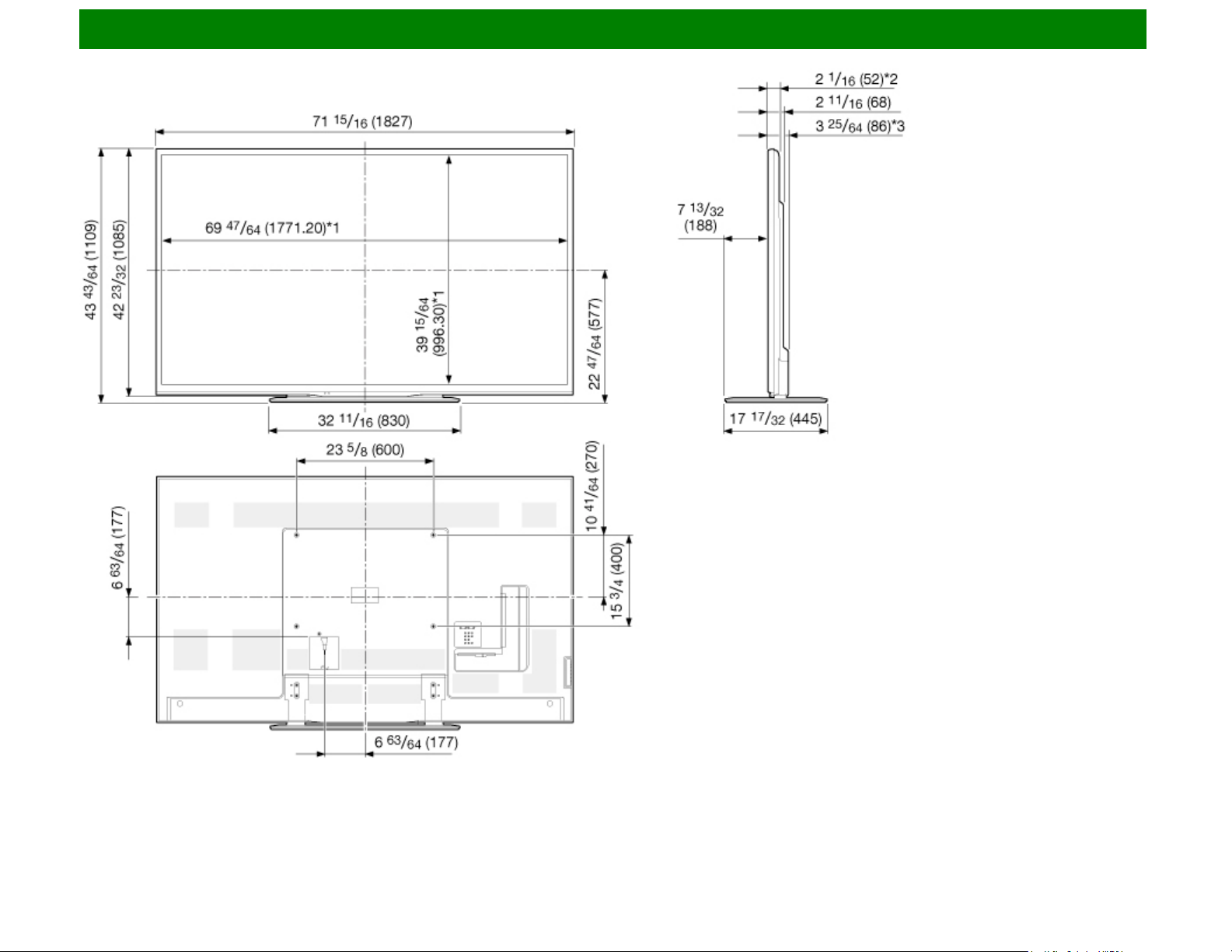
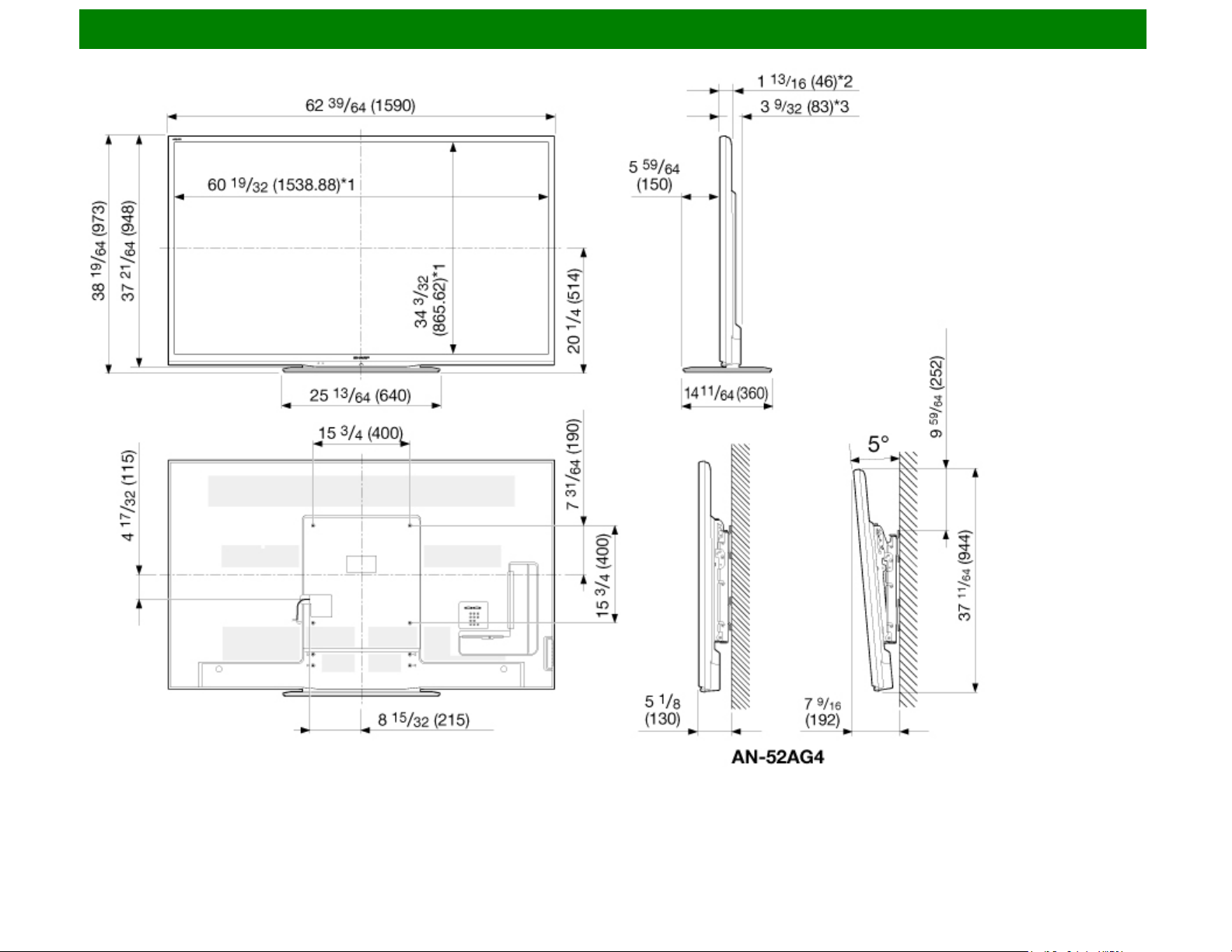
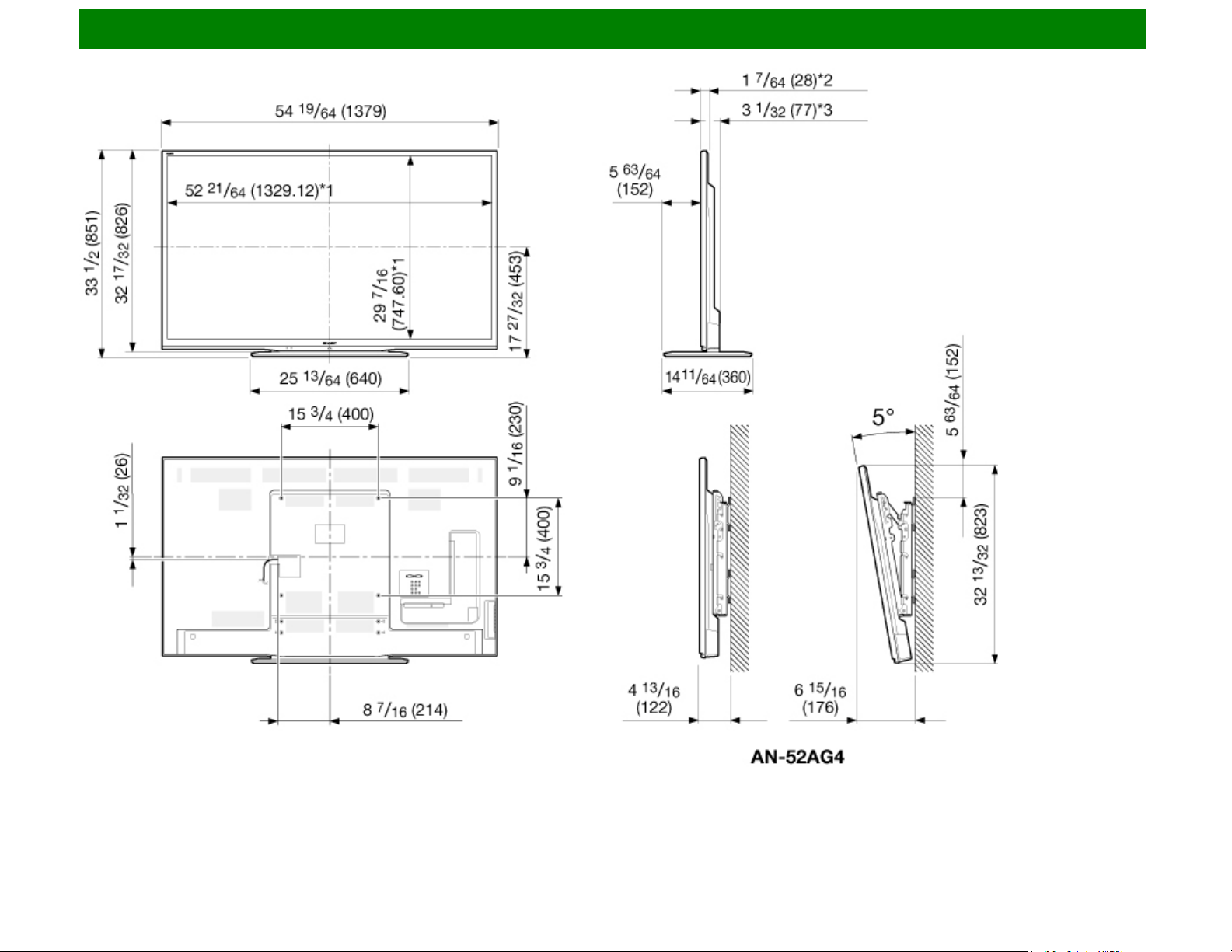
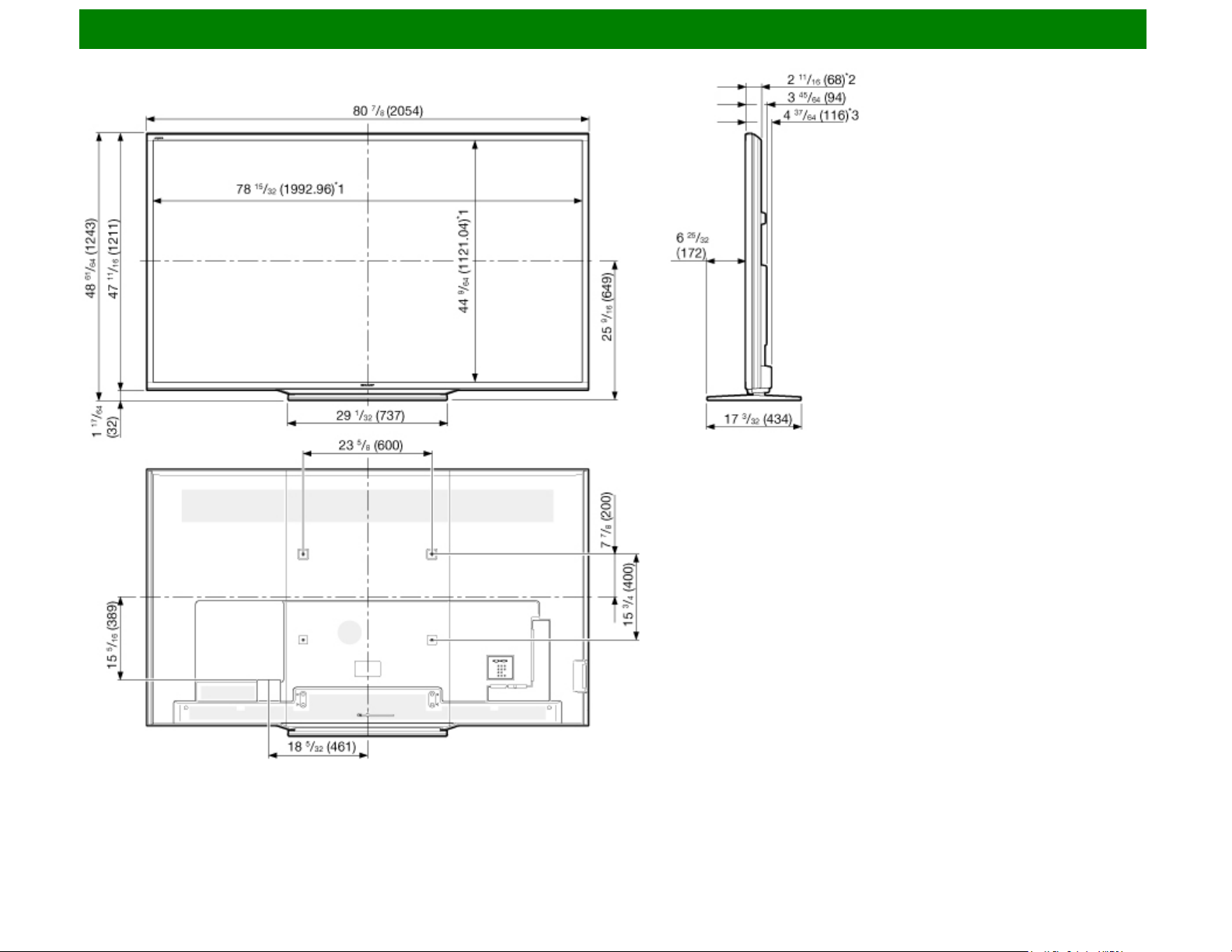
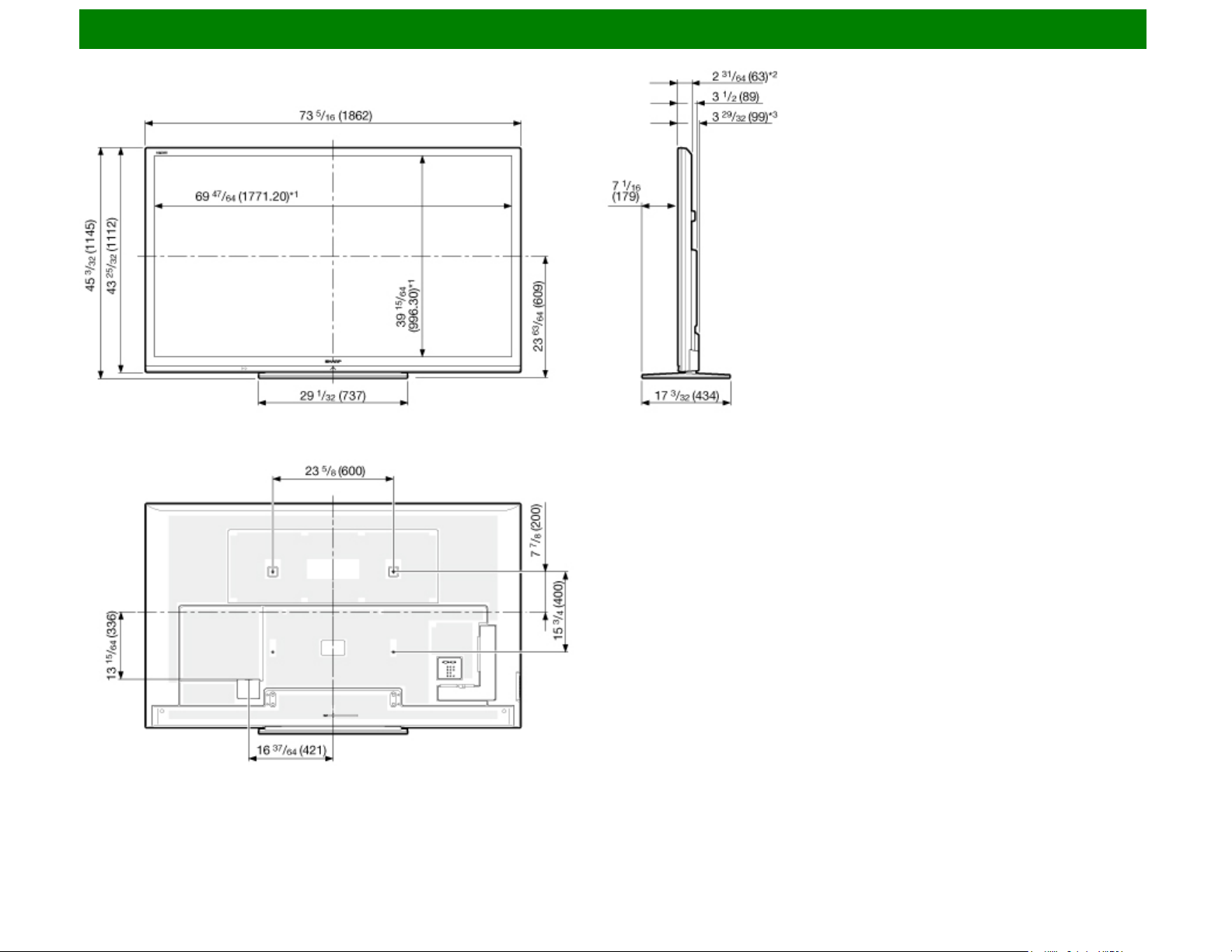
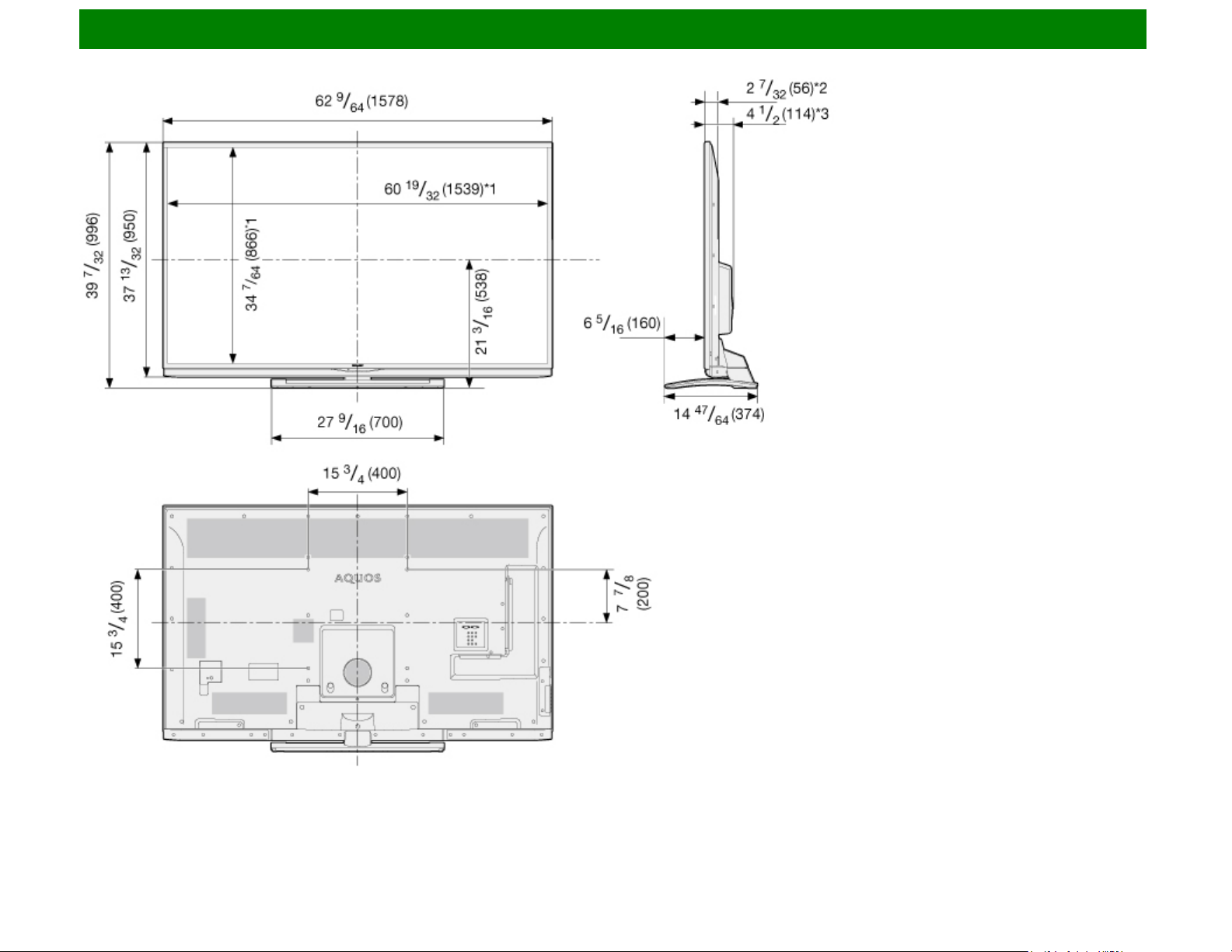
14-1. Dimensional Drawings
The dimensional drawings for the LCD TV set are shown
on the inside back cover.
ENG Contents
Part Names
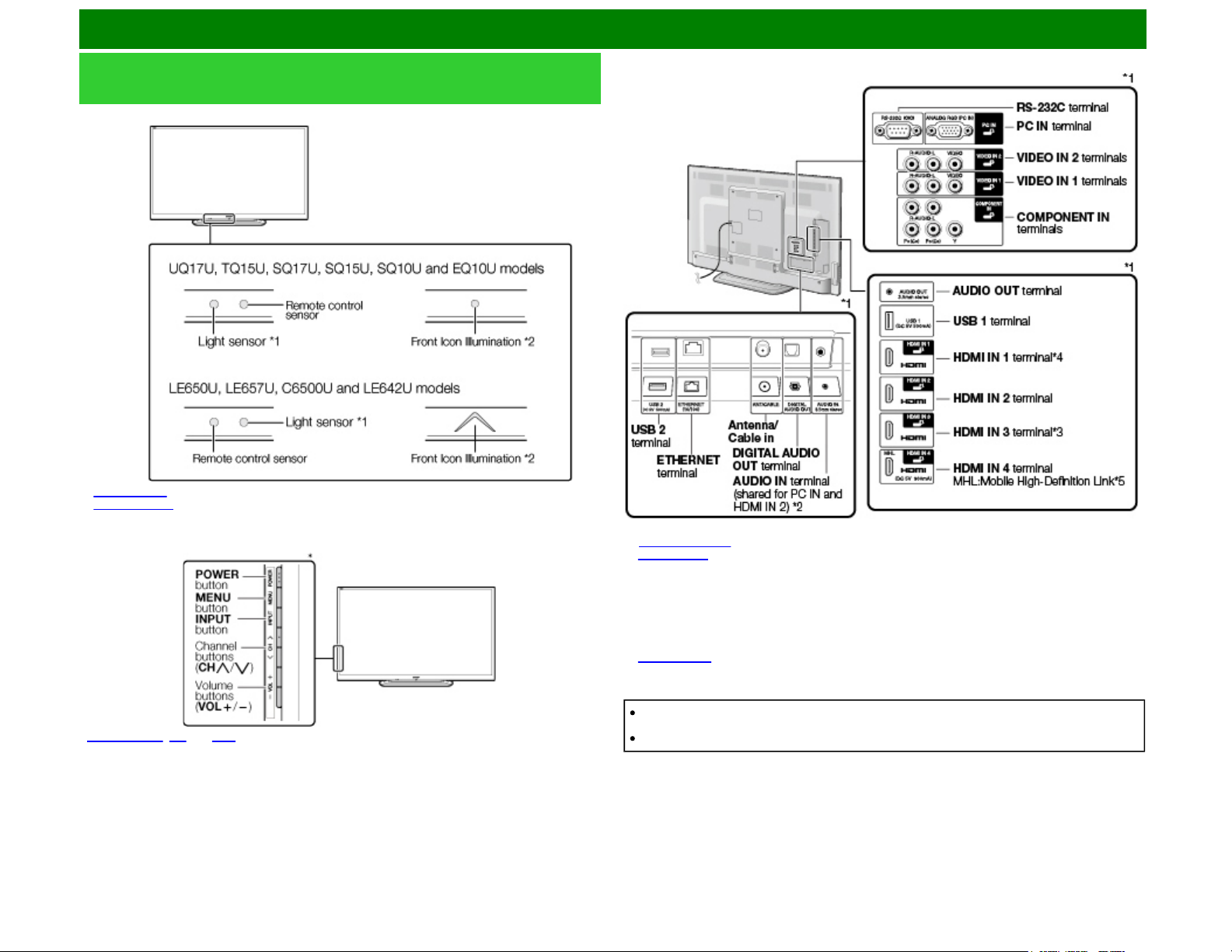
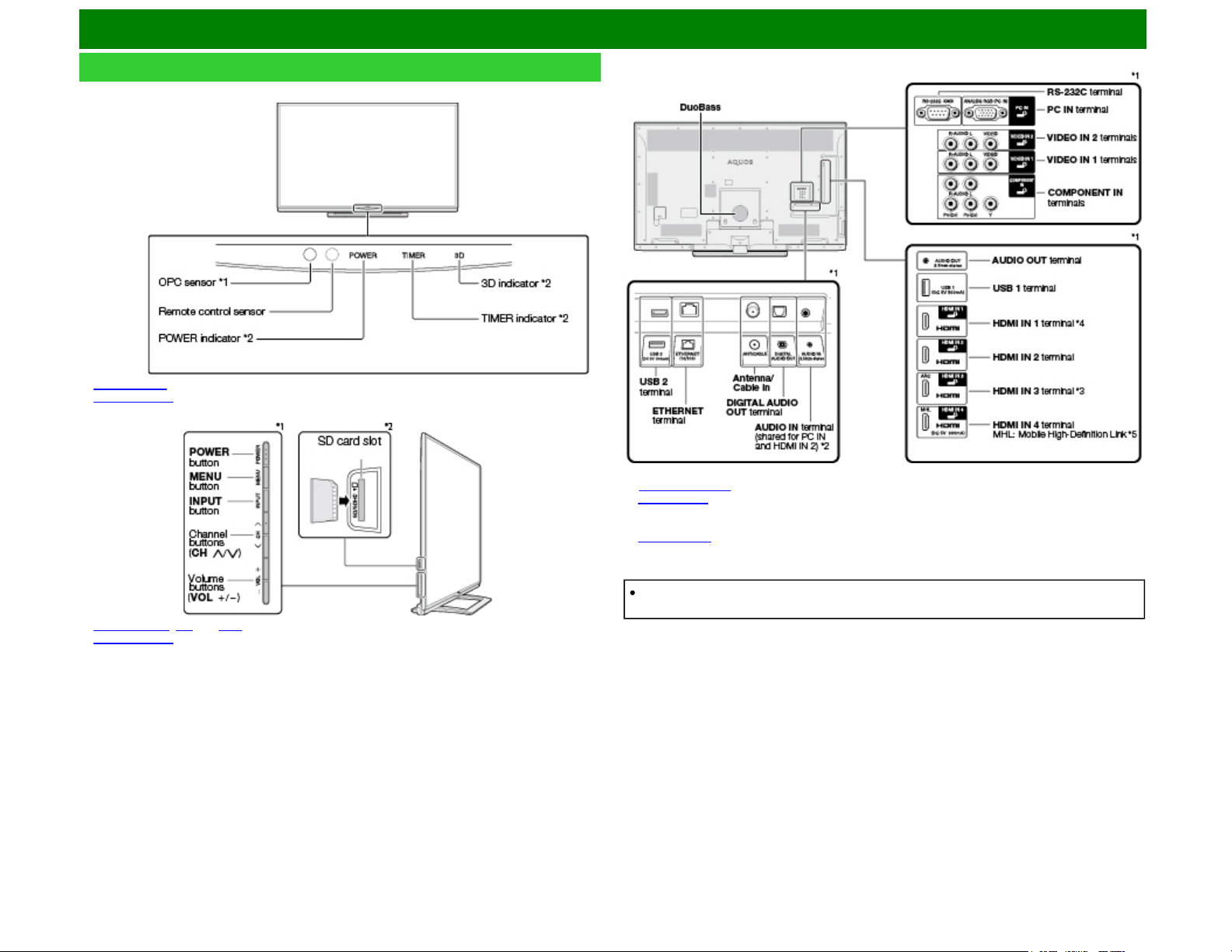
TV (For the UQ, TQ, SQ, EQ, LE650U, C6500U, LE657U
and LE642U models)
(Front)
*1
See page 4-6.
*2
See page 4-31.
(Side)
*
See pages 2-1, 4-4 and 4-31 for button operations.
(Rear)
*1 See the Setup Guide.
And see page 7-1 for external equipment connection.
*2
See page 8-2 for details on the Audio Select function.
*3 For EQ10U, LE650U, C6500U and LE642U models:
Use HDMI IN 1 to connect ARC-compatible equipment.
For UQ17U, TQ15U, SQ17U, SQ15U, SQ10U and LE657U models:
Use HDMI IN 3 to connect ARC-compatible equipment.
*4 For UQ17U, TQ15U, SQ17U, SQ15U and SQ10U models:
Connect 4K signals (HDCP2.2) to the HDMI IN 1 terminal.
(4K60P is not supported.)
*5
See page 7-6.
The illustrations and on-screen displays in this operation manual are for explanation purposes
and may vary slightly from the actual operations.
The examples used throughout this manual are based on the LC-60LE650U model.
ENG 1-1
Part Names
TV (For the UD1U model)
(Front)
*1
See page 4-6.
*2
See page 4-31.
(Side)
*1
See pages 2-1, 4-4 and 4-31 for button operations.
*2
See page 6-18.
(Rear)
*1 See the Setup Guide.
And see page 7-1 for external equipment connection.
*2
See page 8-2 for details on the Audio Select function.
*3 Use HDMI IN 3 to connect ARC-compatible equipment.
*4 Connect 4K signals (HDCP2.2) to the HDMI IN 1 terminal.
*5
See page 7-6.
The illustrations and on-screen displays in this operation manual are for explanation purposes
and may vary slightly from the actual operations.
ENG 1-2
Part Names
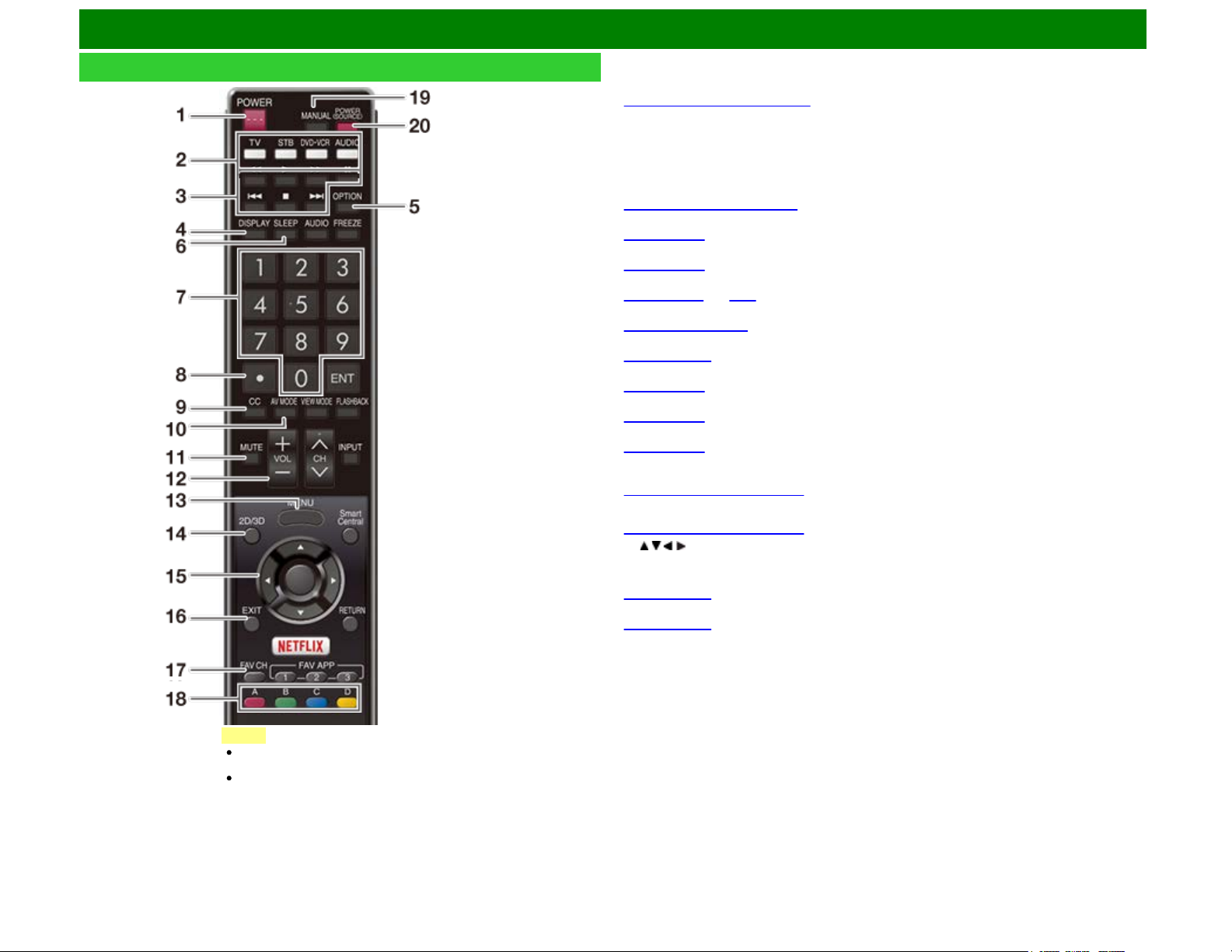
Remote Control Unit
1
POWER: Switch the TV power on or enter standby.
2
TV, STB, DVD•VCR, AUDIO:
Switches the remote control for TV, STB, BD, DVD, VCR and AUDIO
operation.
(See pages 6-14 to 6-17 for details.)
* To enter the code registration mode, you need to press an appropriate button (
STB, DVD•VCR or
AUDIO
) and DISPLAY at the same time.
3
External equipment operational buttons: Operate the external equipment.
4
DISPLAY: Display the channel information.
5
OPTION: Display the Link Operation Menu screen. This button will function only when AQUOS
LINK is used.
(See pages 7-1 to 7-5 for details.)
6
SLEEP: Set the sleep timer.
(See page 3-9.)
7
0–9: Set the channel.
(See page 3-1.)
8
• (DOT): Set the channel.
(See pages 3-1
and 6-17.)
9
CC: Display captions from a closed-caption source.
(See page 3-12 to 3-13)
10
AV MODE: Select an audio or video setting.
(See page 3-10.)
11
MUTE: Mute the sound.
(See page 3-3.)
12
VOL+/-: Set the volume.
(See page 3-2.)
13
MENU: Display the menu screen.
(See page 4-1.)
14
2D/3D: UQ17U, TQ15U, SQ17U, SQ15U, LE657U and UD1U models:
Select between 3D and 2D image viewing.
(See pages 5-8 to 5-10 for details.)
SQ10U, EQ10U, LE650U C6500U and LE642U models:
This can only be used for some functions.
(See pages 5-9 to 5-10 for details.)
15
/ / / , ENTER: Select a desired item on the screen.
16
EXIT: Turn off the menu screen.
17
FAVORITE CH: Set the favorite channels.
(See page 4-15.)
18
A, B, C, D: Select 4 preset favorite channels in 4 different categories.
(See page 4-15.)
While watching, you can toggle the selected channels by pressing
A, B, C and D.
19
MANUAL: Display the operation manual.
20
POWER (SOURCE): Turns the power of the external equipment on and off.
ENG 1-3
NOTE
When using the remote control unit,
point it at the TV.
The appearance of the remote control
unit varies by the time when you
purchased the product.
Part Names
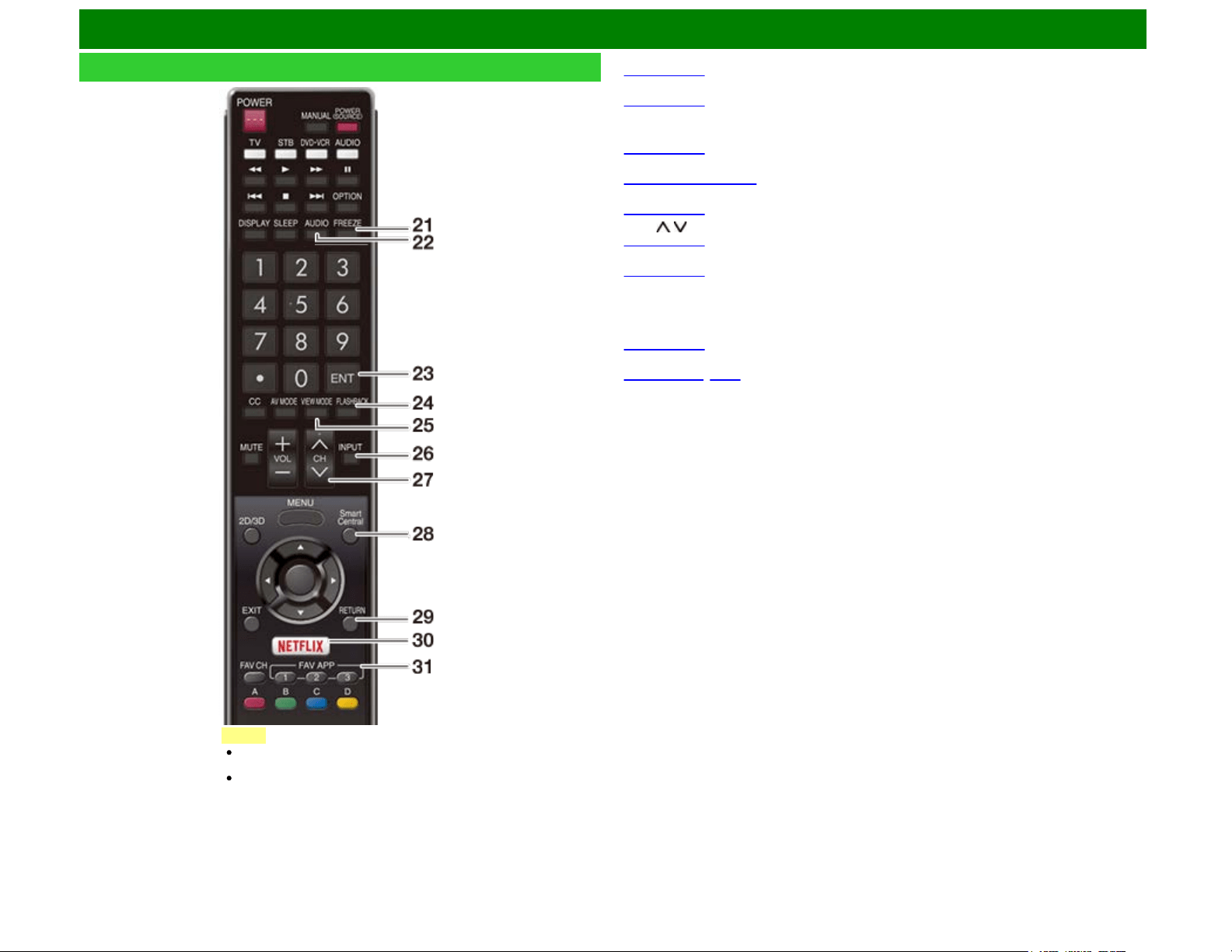
Remote Control Unit (Continue)
21
FREEZE: Set the still image. Press again to return to normal screen.
(See page 3-4.)
22
AUDIO: Selects the MTS/SAP or the audio mode during multichannel audio broadcasts.
(See page 3-8.)
23
ENT: Jumps to a channel after selecting with the 0–9 buttons.
24
FLASHBACK: Return to the previous channel or external input mode.
(See page 3-5.)
25
VIEW MODE: Select the screen size.
(See pages 3-14 to 3-16.)
26
INPUT: Select a TV input source.
(See page 2-1.)
27
CH / : Select the channel.
(See page 3-1.)
28
SmartCentral: Display the application window.
(See page 3-6.)
29
RETURN: Return to the previous menu screen.
30
NETFLIX: Display the Netflix screen.
If you press the NETFLIX button when the TV is
turned off, the TV turns on and the NETFLIX screen
is displayed.
(See page 3-7.)
31
FAV APP 1, 2, 3: You can assign your favorite applications to these buttons.
(See pages 9-7
, 9-12.)
ENG 1-4
NOTE
When using the remote control unit,
point it at the TV.
The appearance of the remote control
unit varies by the time when you
purchased the product.
Watching TV
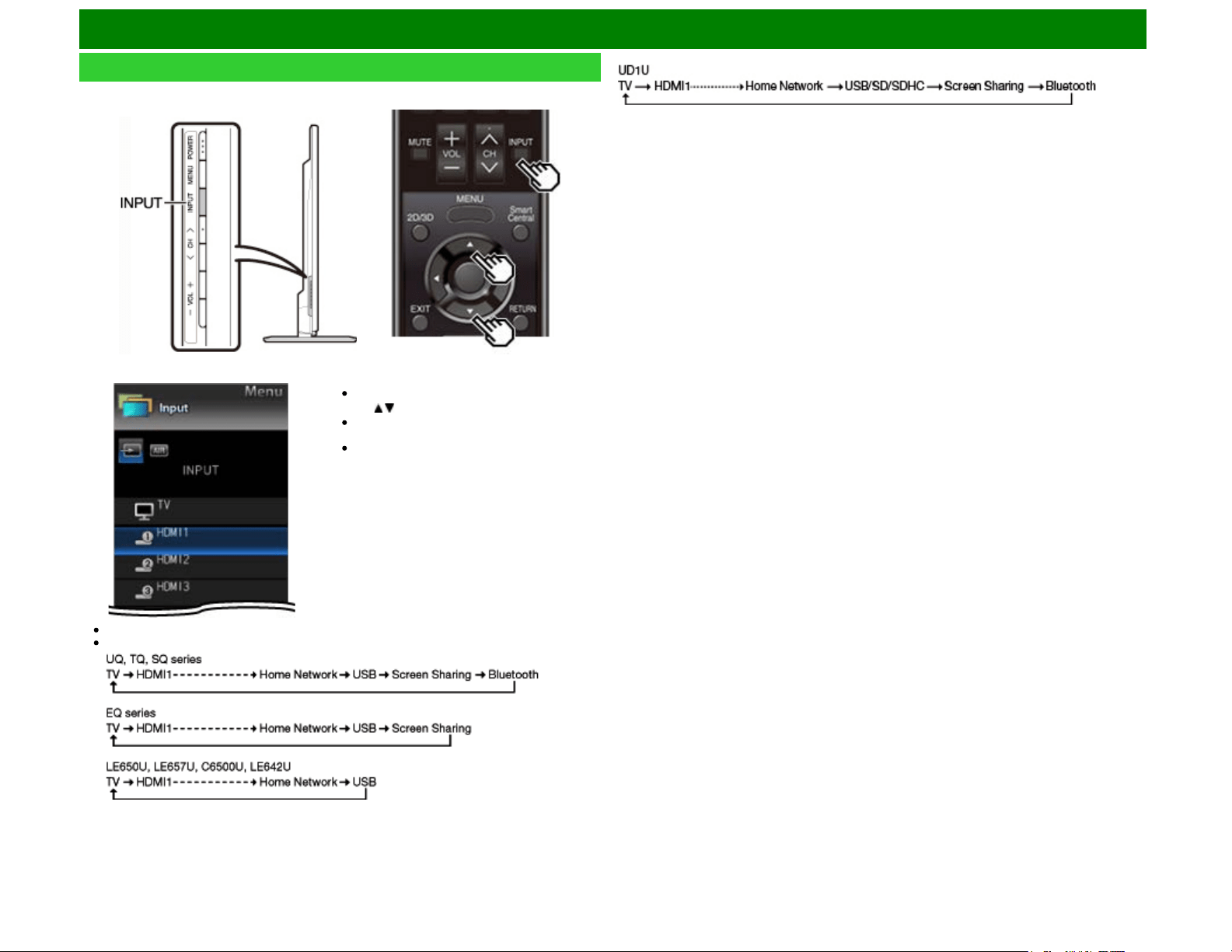
Example
1 Press INPUT.
The INPUT list screen displays.
2 Press / to select the input source.
An image from the selected source
automatically displays.
If the corresponding input is not plugged
in, you cannot change the input. Be sure
to connect the equipment beforehand.
Displaying an External Equipment Image
To view external source images, select the input source by pressing
INPUT on the remote control
unit or on the TV.
ENG 2-1
You can also select the input source by pressing INPUT.
Each time INPUT is pressed, the input source toggles.
Watching TV
Initial Installation
When you turn on the TV for the first time, it will automatically
memorize the broadcasting channels available in the region
where you live. Perform the following steps before you press
POWER on the remote control unit.
1. Insert the batteries into the remote control unit.
2. Connect the antenna cable to the TV.
3. Plug in the AC cord to the AC outlet.
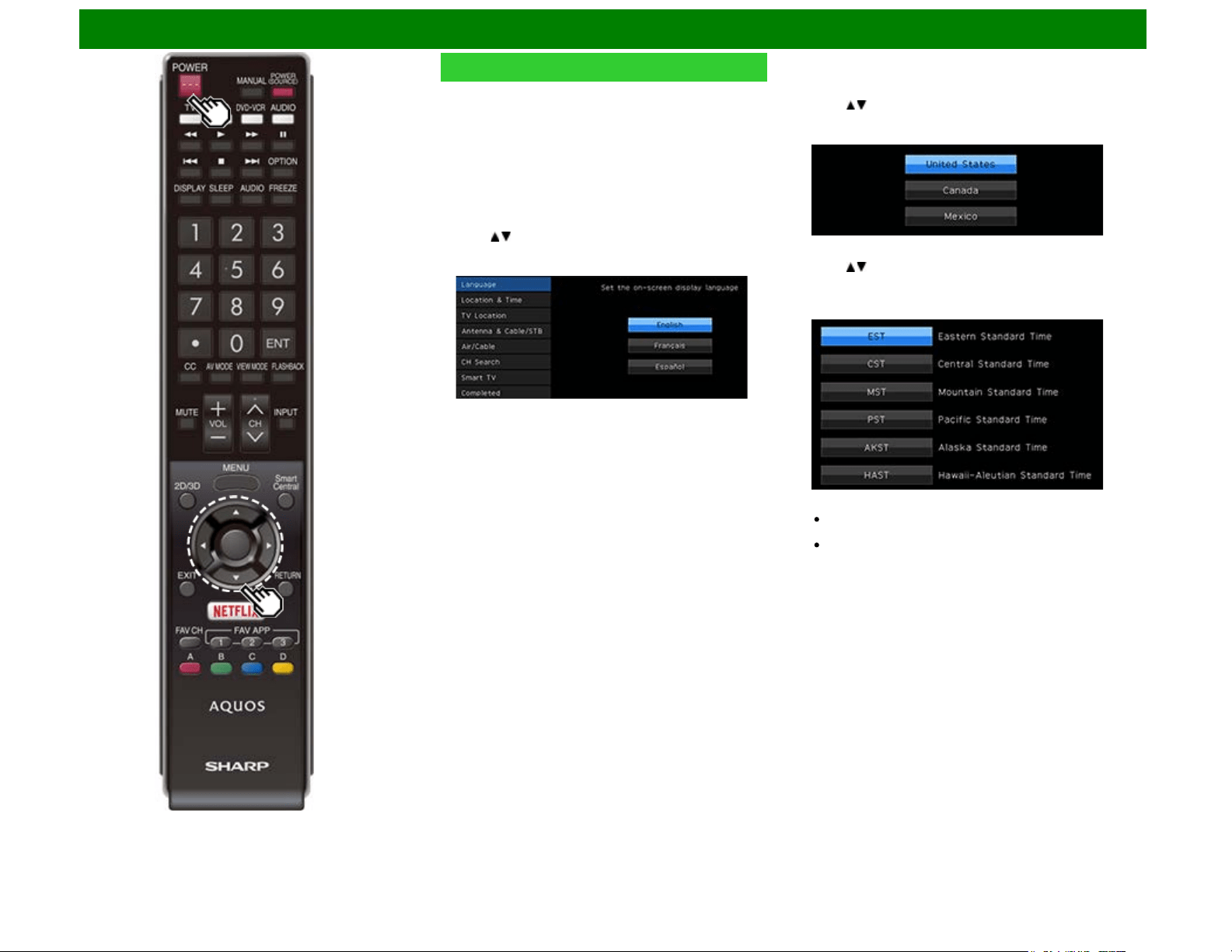
Language (Language setting)
Select from among 3 languages: English, French and
Spanish.
1 Press / to select the desired language listed on the
screen, and then press ENTER.
Location & Time
Make settings for the country, area and time zone where you
use the TV.
2 Press / to select "United States", "Canada" or "Mexico",
and then press ENTER.
3 Press / to select the time zone where you are using the
TV, and then press ENTER.
Example
The time zone differs depending on the selected
country.
The factory preset value is the time zone for the capital
of the selected country.
ENG 2-2
Watching TV
Initial Installation (Continue)
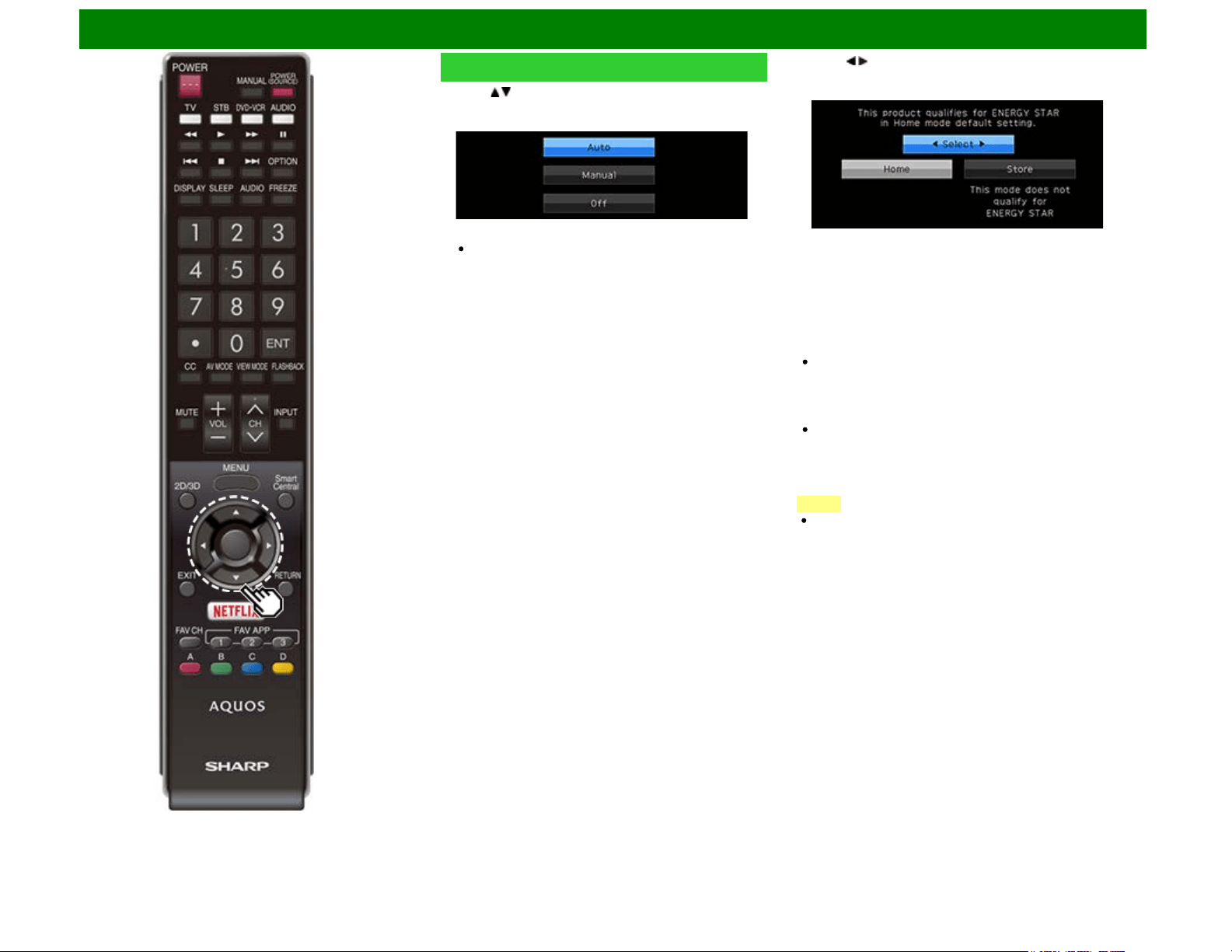
4 Press / to select the Daylight Savings Time, and then
press ENTER.
"Auto" is the default selection.
TV Location
Select "Home" or "Store" for the location where you plan to
install the TV. This product qualifies for ENERGY STAR*1 in
Home mode default setting.
5 Press / to select "Home" or "Store".
Press ENTER to enter the setting.
Home: "Power Saving" is set to "Advanced", and AV MODE
is set to "STANDARD (ENERGY STAR)*1".
Store: "Power Saving" is set to "Off" and AV MODE is set to
"DYNAMIC (Fixed)". Picture Reset and Feature Demo can
be set.
Picture Reset: AV MODE will be set to "DYNAMIC (Fixed)"
regardless of whether Picture Reset is "On" or "Off".
If you select "On" and there is no operation for 30 minutes:
- AV MODE will be reset to "DYNAMIC (Fixed)".
- When a 3D signal is detected, 3D images will switch to
2D images. (For the UQ17U, TQ15U, SQ17U, SQ15U,
LE657U and UD1U models.)
When "Off" is selected:
- AV MODE will be set to "DYNAMIC (Fixed)".
Feature Demo: When "On" is selected, after all the settings
are completed, the Feature Demo screen is displayed if
there is no operation for several minutes.
NOTE
ENERGY STAR qualification is based on AV MODE
"STANDARD (ENERGY STAR)*1".
*1: Except for LE657U and UD1U
ENG 2-3
Watching TV
Initial Installation (Continue)
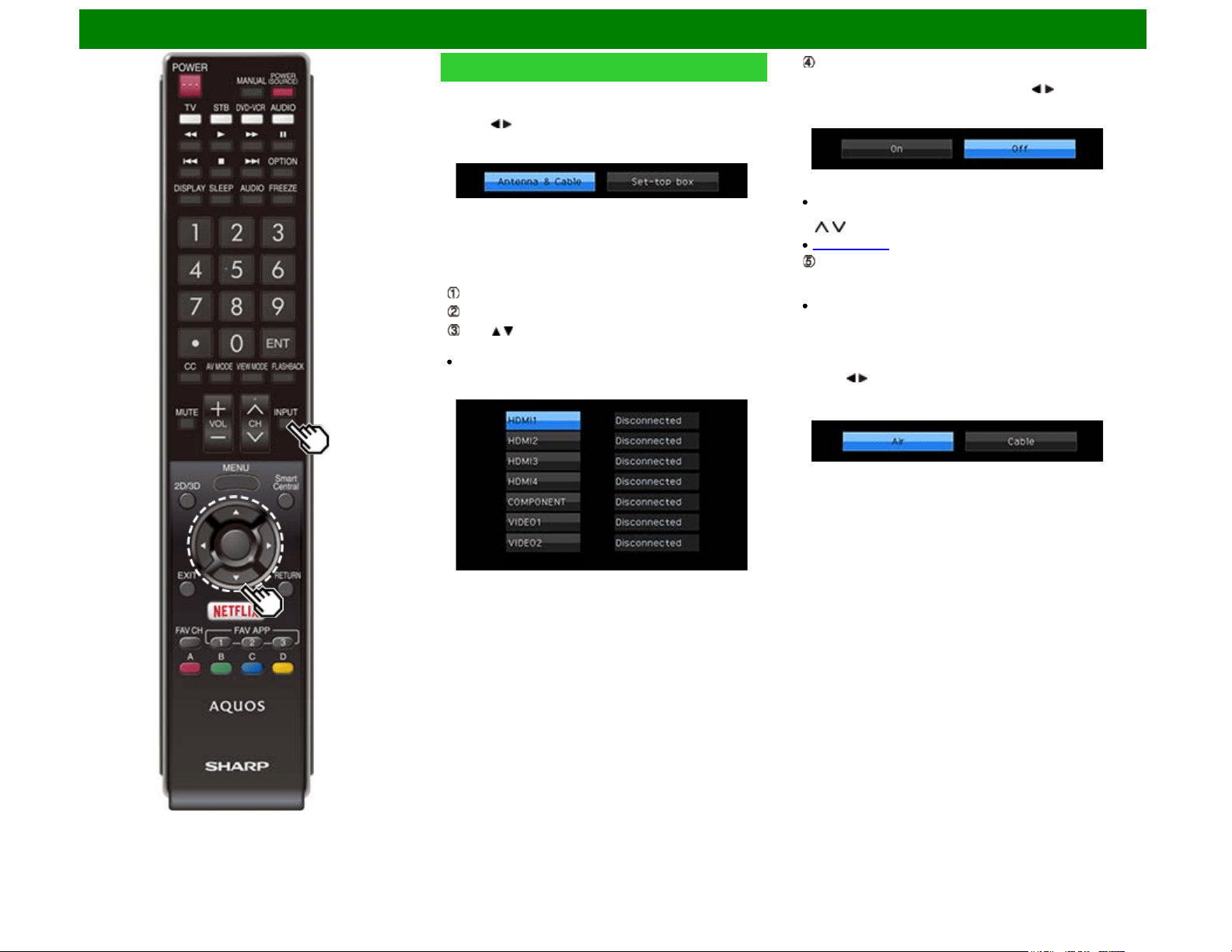
Antenna & Cable/STB
Select the type of connection you will use to watch TV.
6 Press / to select "Antenna & Cable" or "Set-top box",
and then press ENTER.
To watch TV via an antenna or cable connection
(without using a set-top box):
Select "Antenna & Cable", and then go to step 7.
To watch TV via a set-top box:
Select "Set-top box", and then press ENTER.
Check that the set-top box connected to the TV is on.
Press / to select the input to which the set-top box has
been connected.
If your Set-top box is turned off, "Disconnected" might be
shown.
To watch TV, select the input source corresponding to the
terminal connected to the set-top box. When doing so, you
must make the setting to skip "TV". Press / to select
"On", and then press ENTER.
When this is set to "On", the channel on the TV cannot be
changed using the remote control unit or menu. (e.g. CH
/ , Favorite CH, etc.)
See page 4-20 for details on the Input Skip function.
Press INPUT to select the input source corresponding to
the terminal connected to the set-top box. Make the
necessary settings on the connected external equipment.
See the operation manual of the connected equipment for
setting up the equipment.
Air/Cable (Antenna setting)
Make sure what kind of connection is made with your TV
when selecting "Air" or "Cable".
7 Press / to select "Air" or "Cable".
Press ENTER to enter the setting.
ENG 2-4
Watching TV
Initial Installation (Continue)
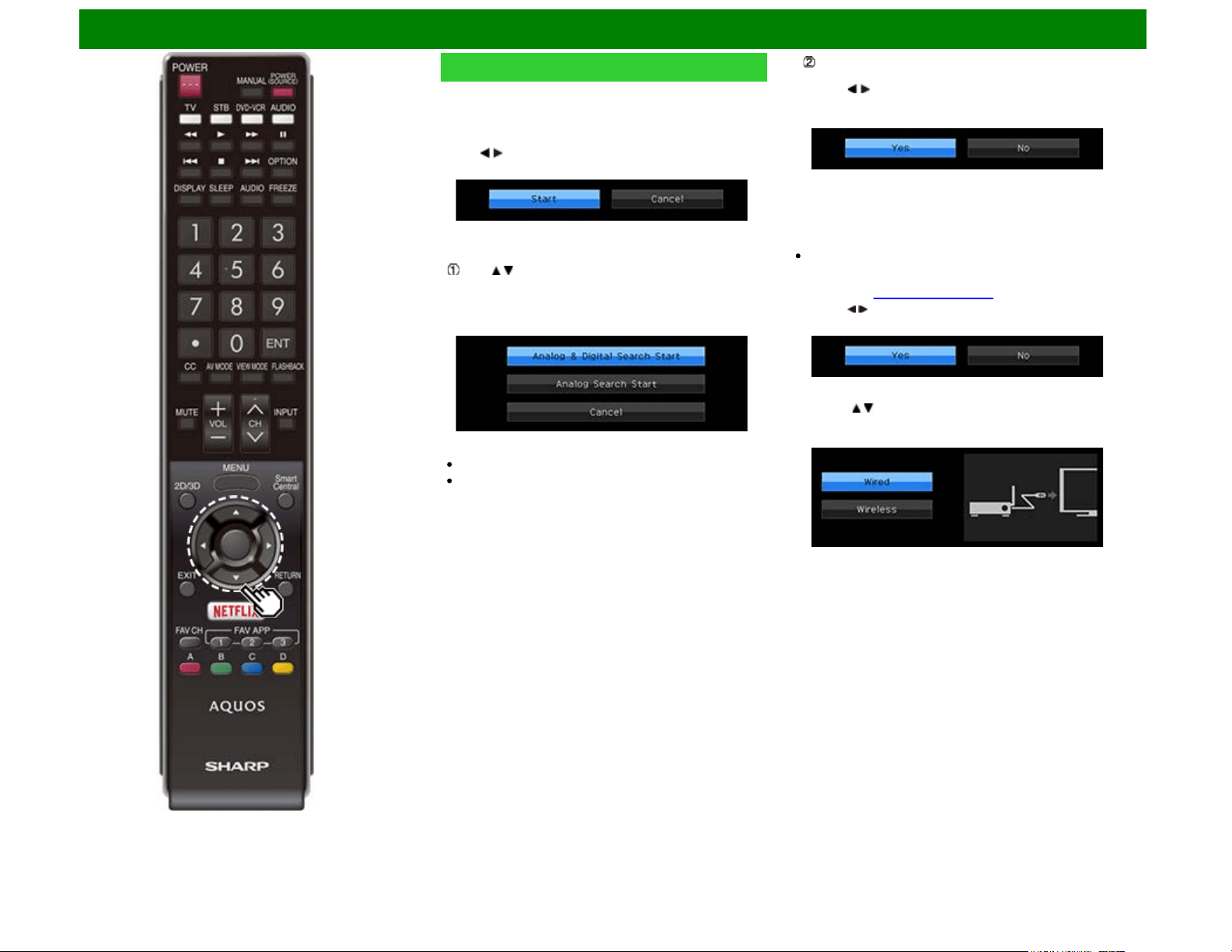
CH Search (Channel search)
Channel auto search makes the TV look for all channels
viewable in the set area.
8 When "Air" is selected in Antenna setting:
Press / to select "Start", and then press ENTER.
When "Cable" is selected in Antenna setting:
Press / to select "Analog & Digital Search Start" to
search both analog and digital broadcasts, or to select
"Analog Search Start" to search only analog broadcasts,
and then press ENTER.
The Channel search will start automatically.
To exit the Channel search screen, select "Cancel", and
then press ENTER.
The Channel search results may include scrambled
channels or channels that are not viewable in the set area.
Press / to select "Yes", and then press ENTER to
remove scrambled channels.
Smart TV
When you connect to the Internet on the TV, select the
desired connection method and follow the instructions shown
on the display.
Wireless LAN connection is possible only when the WPS
(push button) method is used. If any other method is used,
make settings by Smart TV > Internet Setup > Internet
Connection. (See pages 9-2 to 9-4.)
9 Press / to select "Yes", and then press ENTER.
10 Press / to select "Wired" or "Wireless", and then press
ENTER.
ENG 2-5
Watching TV
Initial Installation (Continue)
Connection using an ETHERNET cable:
Select "Wired" and press ENTER.
Confirm that the TV is properly connected with the router,
and then press "Next". Follow the instructions on the
display to perform the connection test.
Wireless LAN connection by the WPS method:
Select "Wireless" and press ENTER.
Follow the instructions on the display, and finalize the
connection after testing its viability.
NOTE
After you finish configuring the network settings, configure
the "TV Name Setting", "Remote Control App",and
"Samba TV" settings.
(See page 4-26, 8-3.)
The product that you have purchased may not be equipped
with "Samba TV". In this case, this feature will be added
by way of a planned future software version update.
When you change the network settings, refer to Smart TV
> Internet Setup > Internet Connection.
(See pages 9-2 to 9-4.)
Completed
11 The settings confirmation screen is displayed. Confirm
the information displayed on the screen, and then press
ENTER.
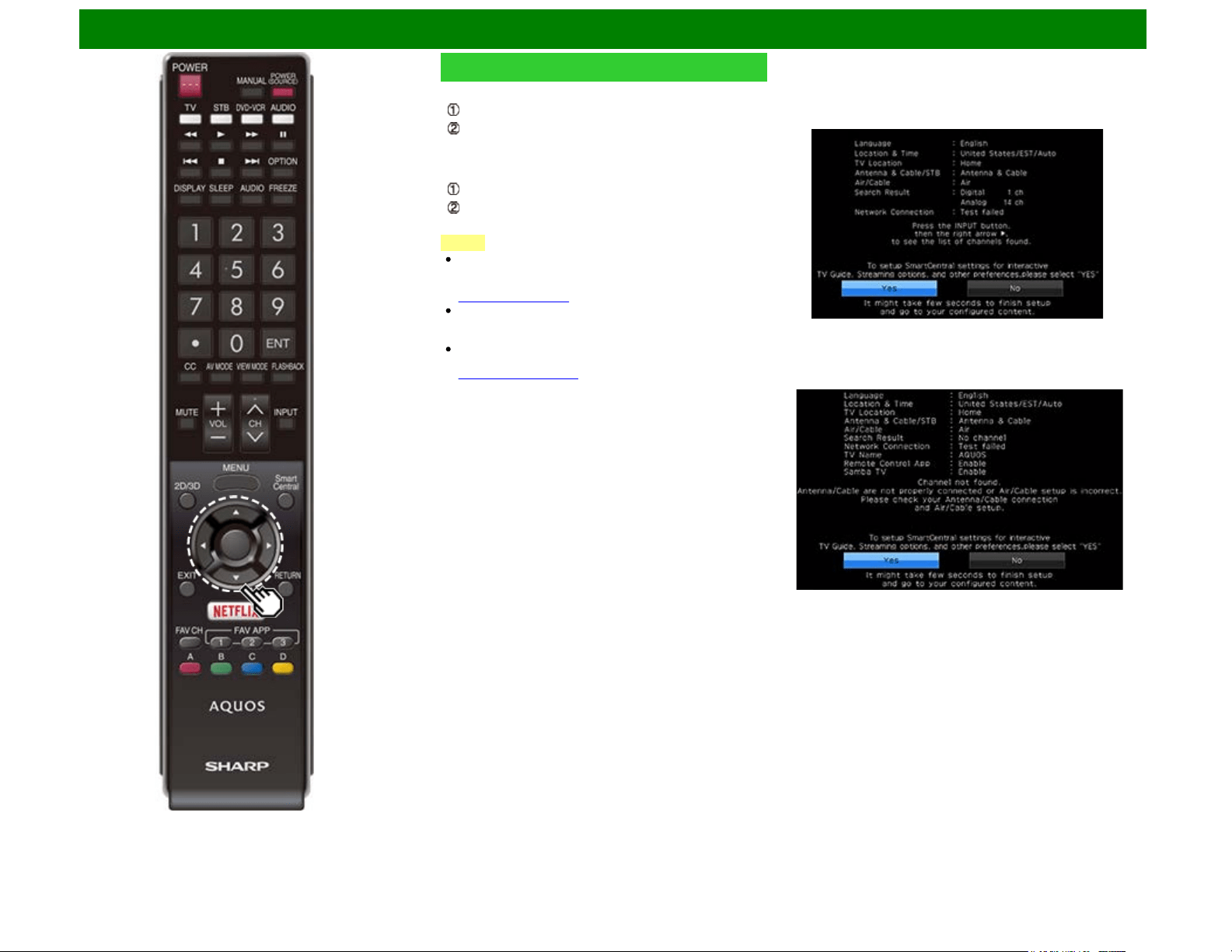
Examples of the settings confirmation screen
When one or more channel is received after "Antenna &
Cable" was selected in step 6 and a search was carried
out.
When no channel is received after "Antenna & Cable"
was selected in step 6 and a search was carried out.
ENG 2-6
Watching TV
Initial Installation (Continue)
NOTE
If no channel is found, confirm the type of connection made
with your TV and try "Easy Setup" again.
(See page 4-13.)
To see the list of channels found during Channel search,
press INPUT, and then press .
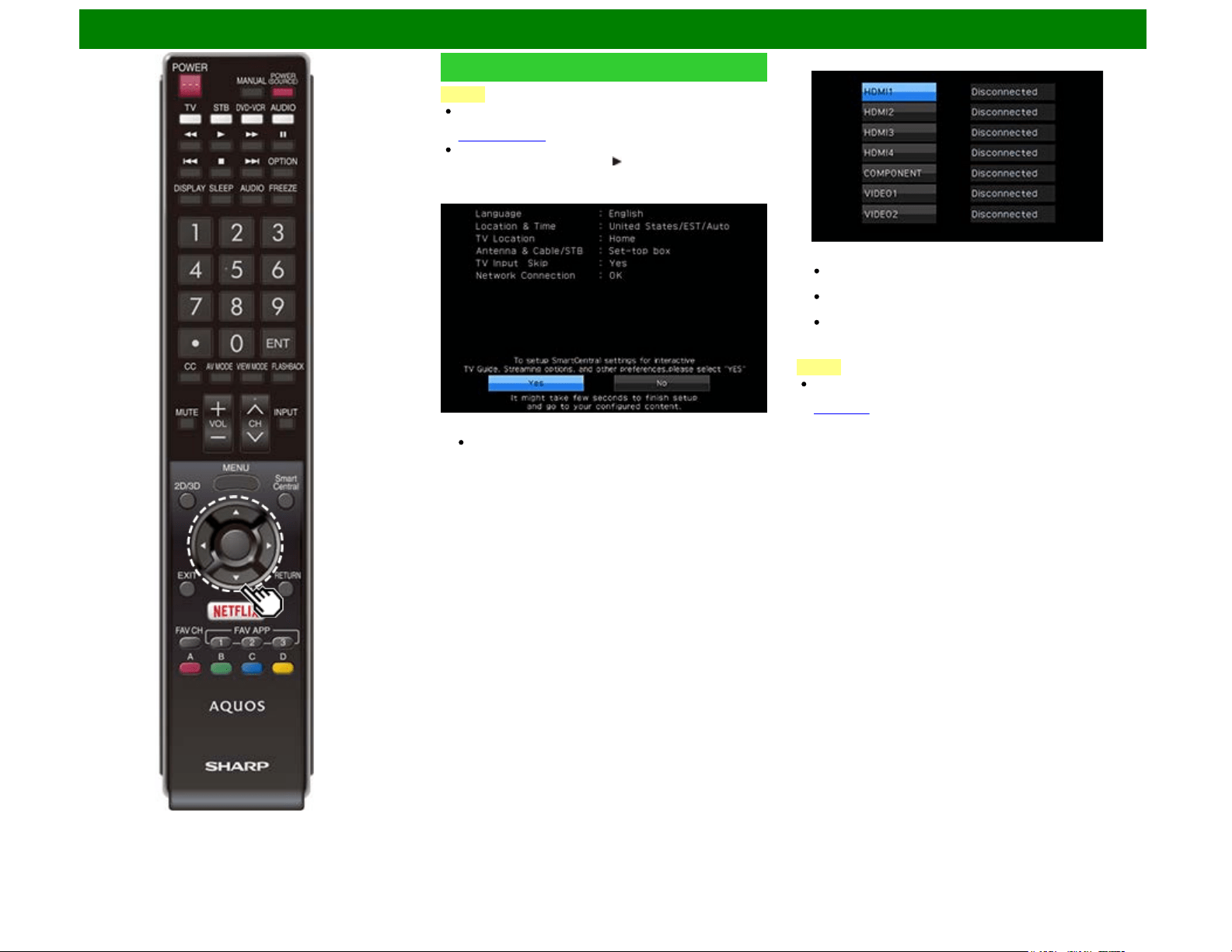
When "Set-top box" was selected in step 6.
Click "OK" to display the confirmation screen for input
source switching.
Show the input list: You can check the current connection
status of external equipment. Confirm which input terminal
is connected to the set-top box.
OK: Clicking "OK" will complete the Easy Setup procedure.
This may not display correctly depending on the
connected equipment.
This is not displayed correctly when the connected
equipment is off.
To watch TV using a set-top box, press INPUT after
completing the initial settings, and select the input to
which the set-top box is connected.
NOTE
For changing the settings of the Initial Installation, perform
"Easy Setup" on the Setup menu on
page 4-13.
ENG 2-7
Direct Button Operation
Changing Channels
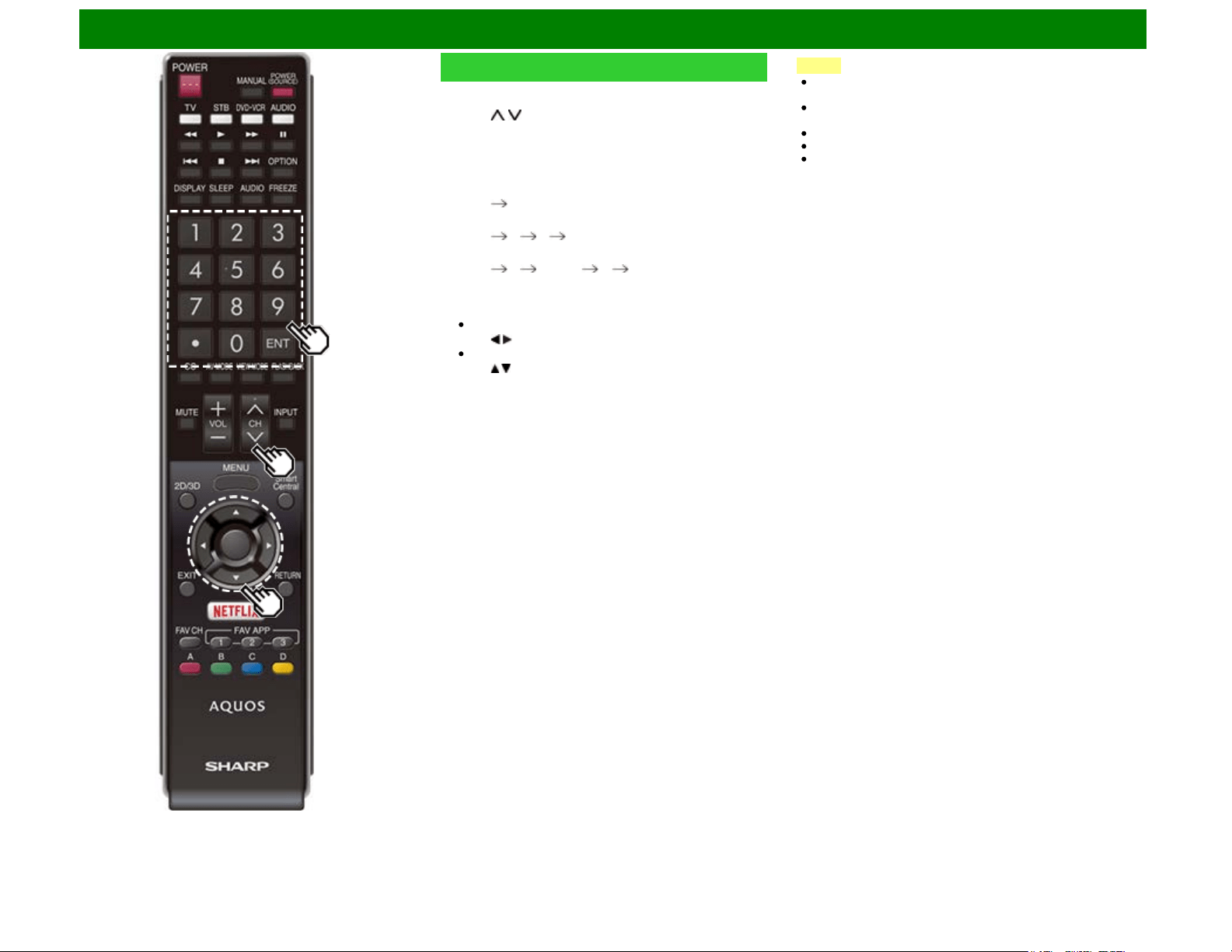
You can change channels in several ways.
Method 1
Using CH / on the remote control unit or on the TV.
Method 2
Using remote control buttons 0-9, • (DOT).
Examples:
To select a 1 or 2-digit channel number (e. g., Channel
5):
Press 5 ENTER
To select a 3-digit channel number (e. g., Channel 115):
Press 1 1 5 ENTER
To select a 4-digit channel number (e. g., Channel 22.1):
Press 2 2 • (DOT) 1 ENTER
Method 3
Selecting the program from the Channel list.
1 Press INPUT on the remote control unit.
The INPUT list displays.
2 Press / to select "AIR" or "CABLE".
The Channel list displays.
3 Press / to select the desired channel, and then press
ENTER.
NOTE
When selecting a 1-digit channel number, it is not
necessary to press 0 before the number.
When you enter 0-9 only, channel selection will be made if
there is no operation within a few seconds.
If you push "0" by itself, nothing will happen.
Complete the above steps within a few seconds.
When you enter 0-9 and • (DOT), channel selection will be
made if there is no operation within a few seconds.
ENG 3-1
Direct Button Operation
Changing Volume
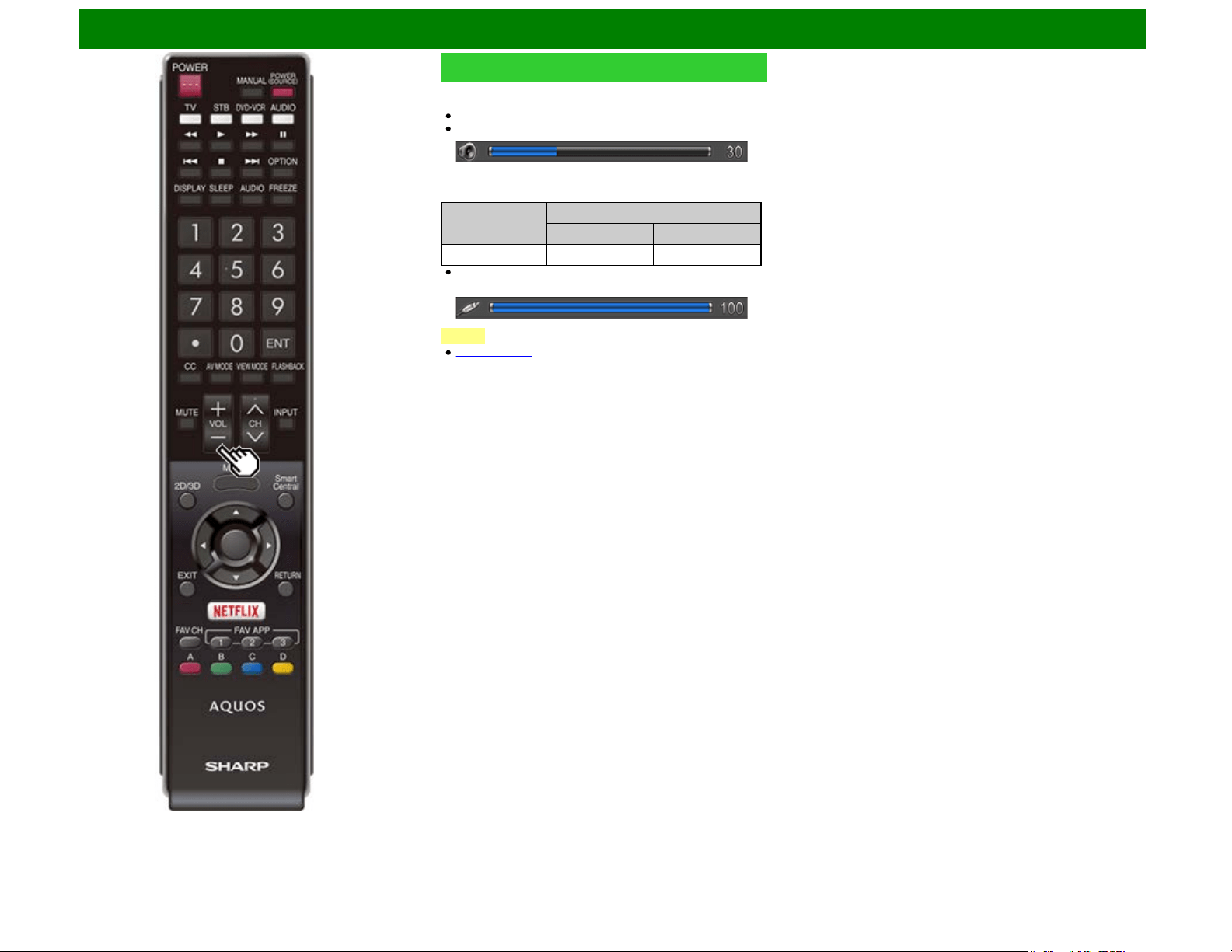
You can change the volume by pressing VOL+/- on the TV or
on the remote control unit.
To increase the volume, press VOL +.
To decrease the volume, press VOL -.
Audio status
Output device
Output Select
Fixed Variable
Speaker Variable sound Mute
When "Output Select" is set to "Variable", the indicator on
the screen changes as shown below.
NOTE
See page 4-20 for details on the Output Select function.
ENG 3-2
Direct Button Operation
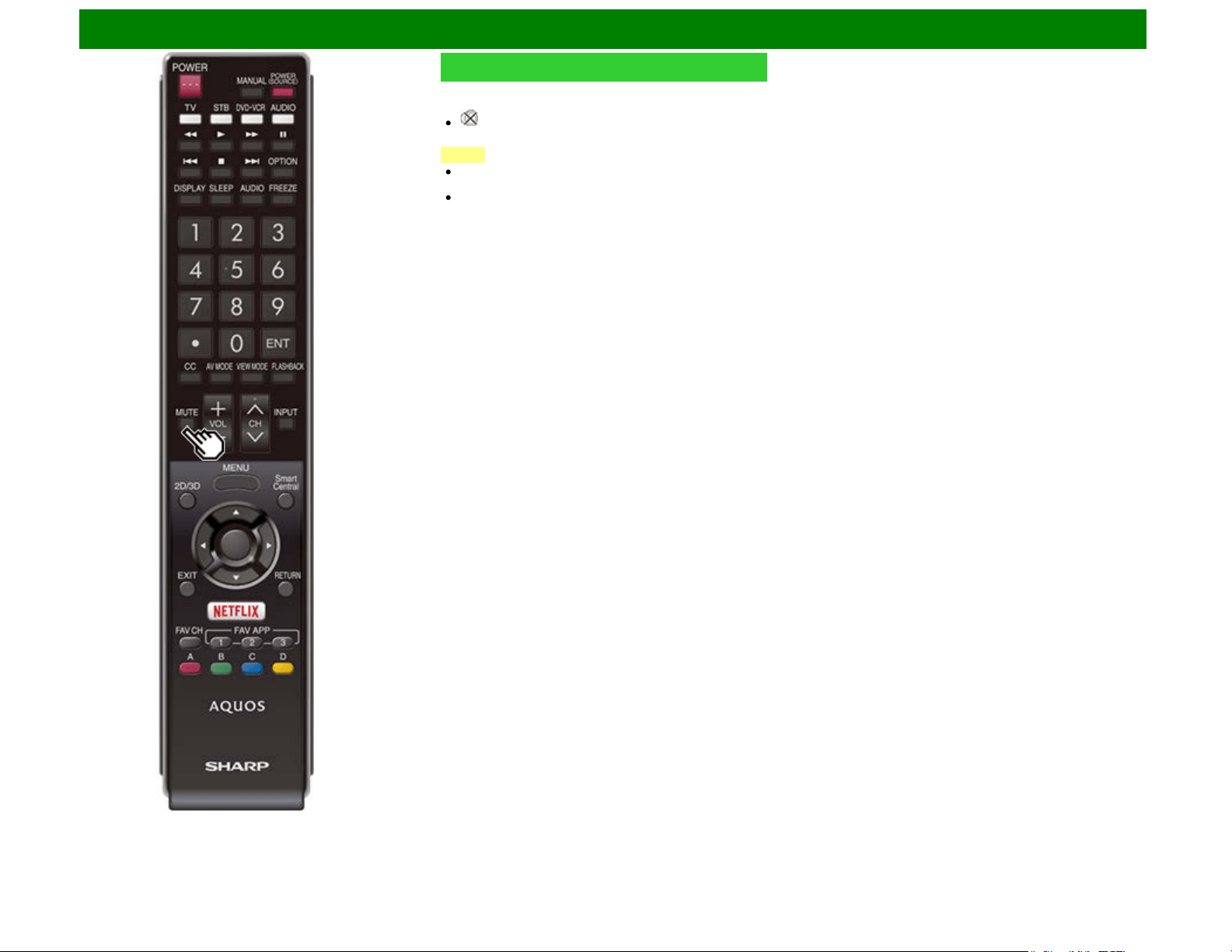
MUTE
Mutes the current sound output.
Press MUTE.
" " will be displayed on the screen for 30 minutes, and
the sound is silenced.
NOTE
Within 30 minutes of pressing MUTE, mute can be
canceled by pressing VOL+/- or MUTE.
Mute will be canceled after 30 minutes have passed.
However, the TV will not suddenly output a loud sound as
the volume level is set to 0 automatically.
ENG 3-3
Direct Button Operation
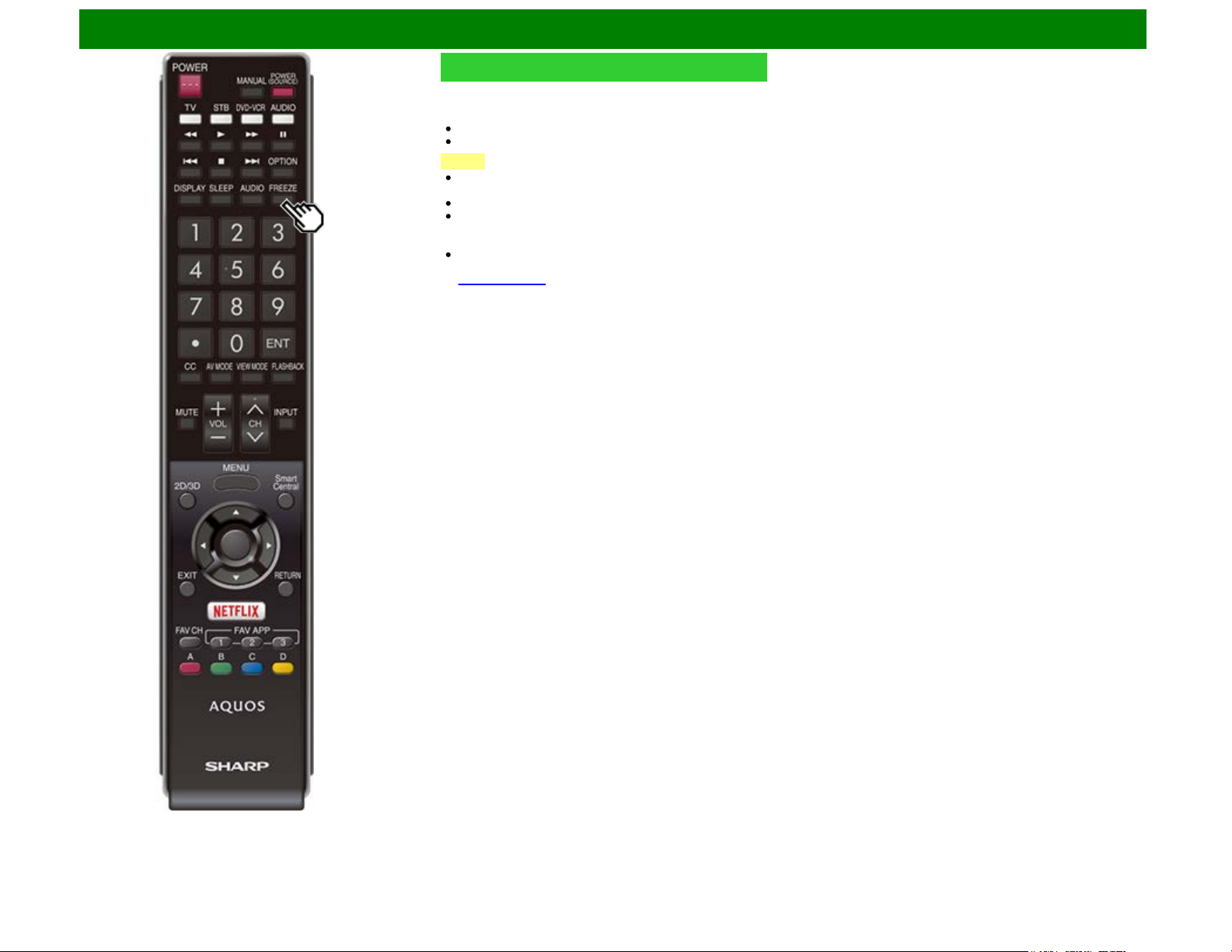
FREEZE
Allows you to capture and freeze a moving image that you are
watching.
Press FREEZE.
A moving image is captured.
Press FREEZE again to cancel the function.
NOTE
When this function is not available, "No displaying still
image available." will display.
The still image automatically goes out after 30 minutes.
If you are using the freeze function and a broadcast
activates the V-CHIP BLOCK, the freeze function will be
canceled and a V-CHIP BLOCK message will appear.
You can have the same settings by choosing "Freeze" on
the menu items.
(See page 4-28.)
ENG 3-4
Direct Button Operation
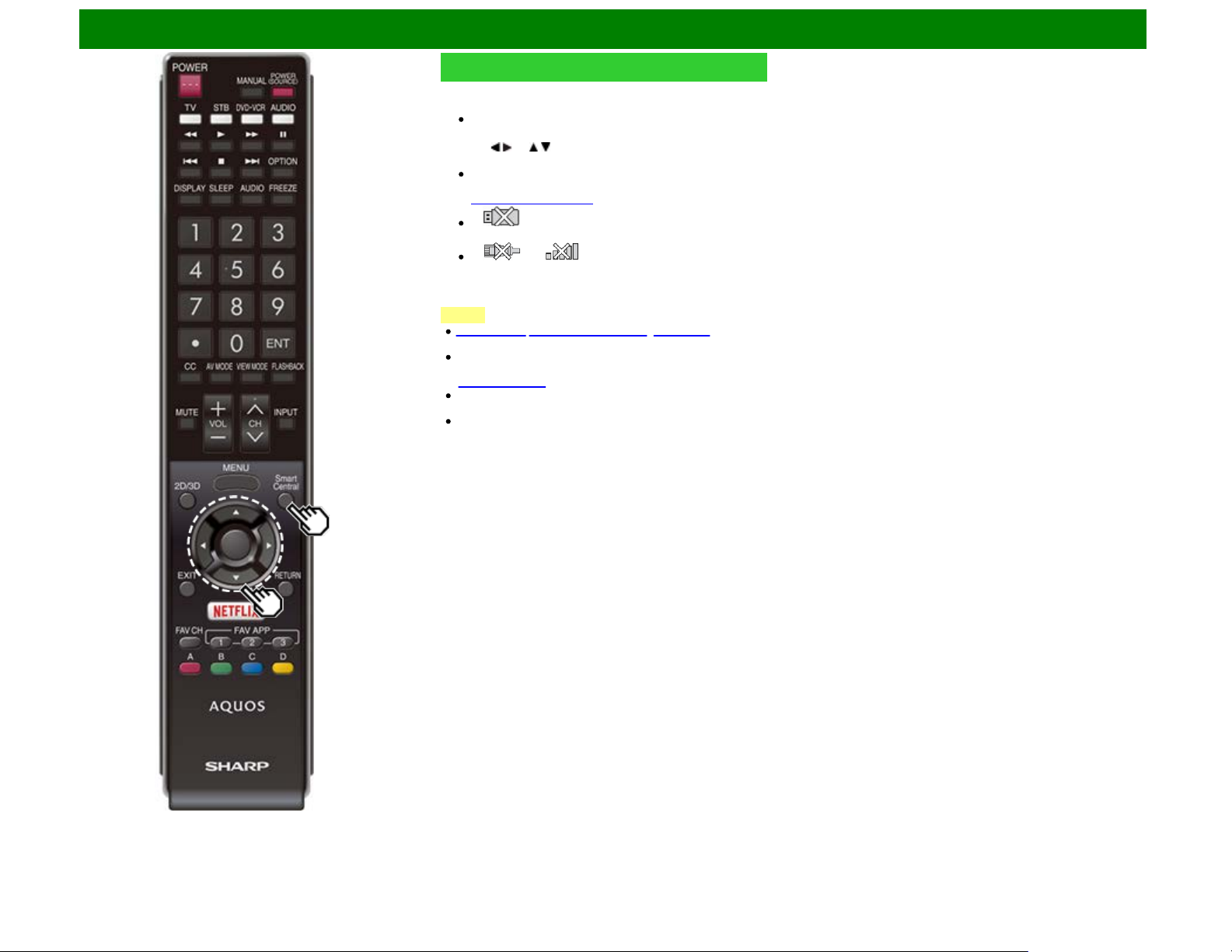
SmartCentral
Allows you to directly activate various types of applications.
1 Press SmartCentral to display the application window.
Press SmartCentral again to display a list of
applications by category.
2 Press / (or / ) to select the desired application, and
then press ENTER.
If you changed the display to the list of applications in
step 1, select a category and then an application.
See pages 9-12 to 9-13 for details.
If " " is displayed after you switch to USB mode,
check the USB connection.
If " " or " " is displayed after you switch to
Home Network mode or after you connect to the
Internet, check your TV’s network settings and
connection.
NOTE
See page 6-2 (6-19 for UD1U model), 9-7 to 9-12 for
details of viewable applications.
You can display the application window by choosing "App
Dock" on the menu items.
(See page 4-28.)
When this function is not available, "Can not operate this
function now" will display.
On the UD1U model, you cannot operate the "Dock",
"SmartCentral" function during 4K60P signal input.
Operate this function during the input
of other types of
signals(such as Full HD).
ENG 3-6
Direct Button Operation
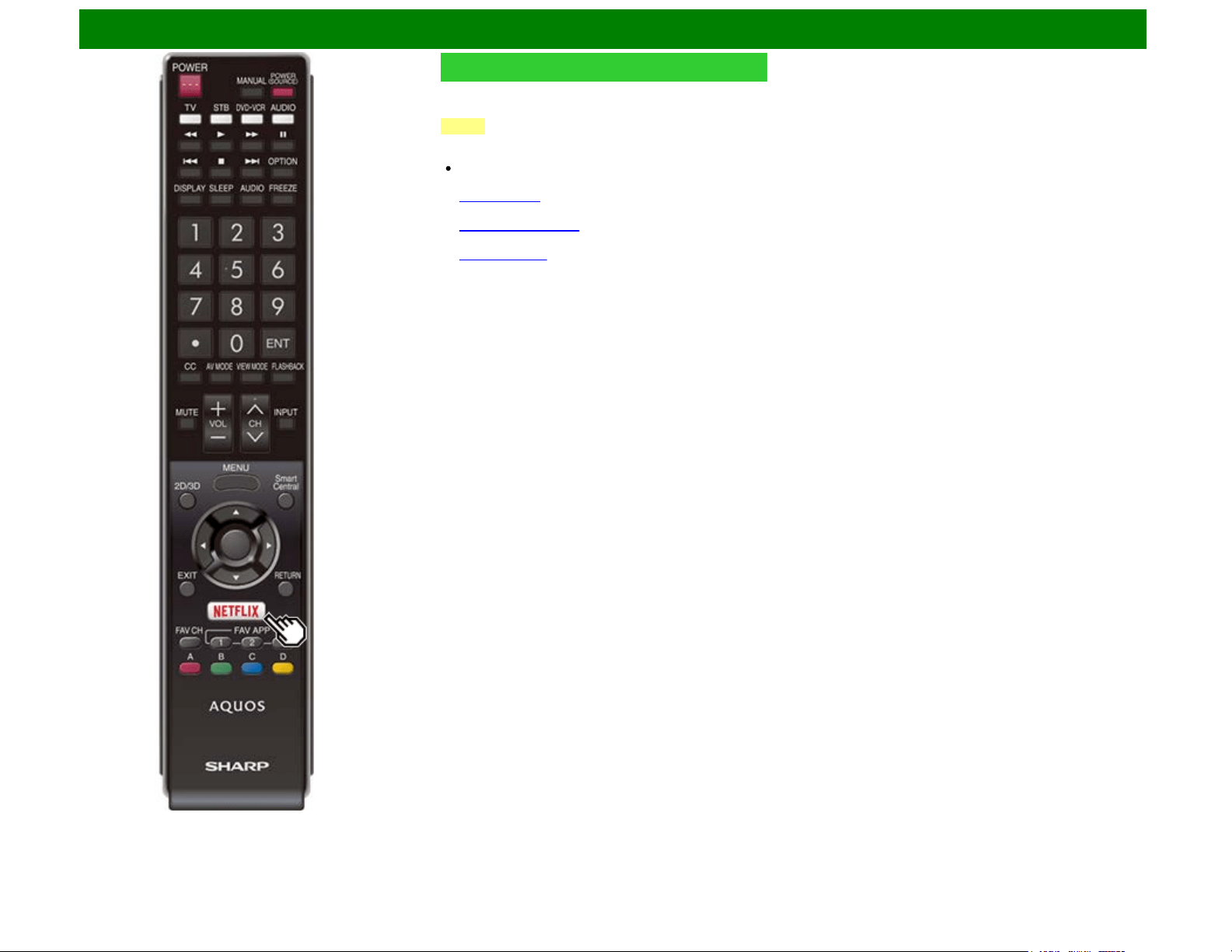
NETFLIX
Displays the Netflix screen.
Press NETFLIX.
NOTE
If you press the NETFLIX button when the TV is turned off,
the TV turns on and the NETFLIX screen is displayed.
To enjoy Netflix, you need to make:
—a broadband Internet connection
(See page 9-1.)
—settings of Internet Setup
(See pages 9-2 to 9-4.)
—adjustments for Netflix
(See page 9-13.)
ENG 3-7
Direct Button Operation
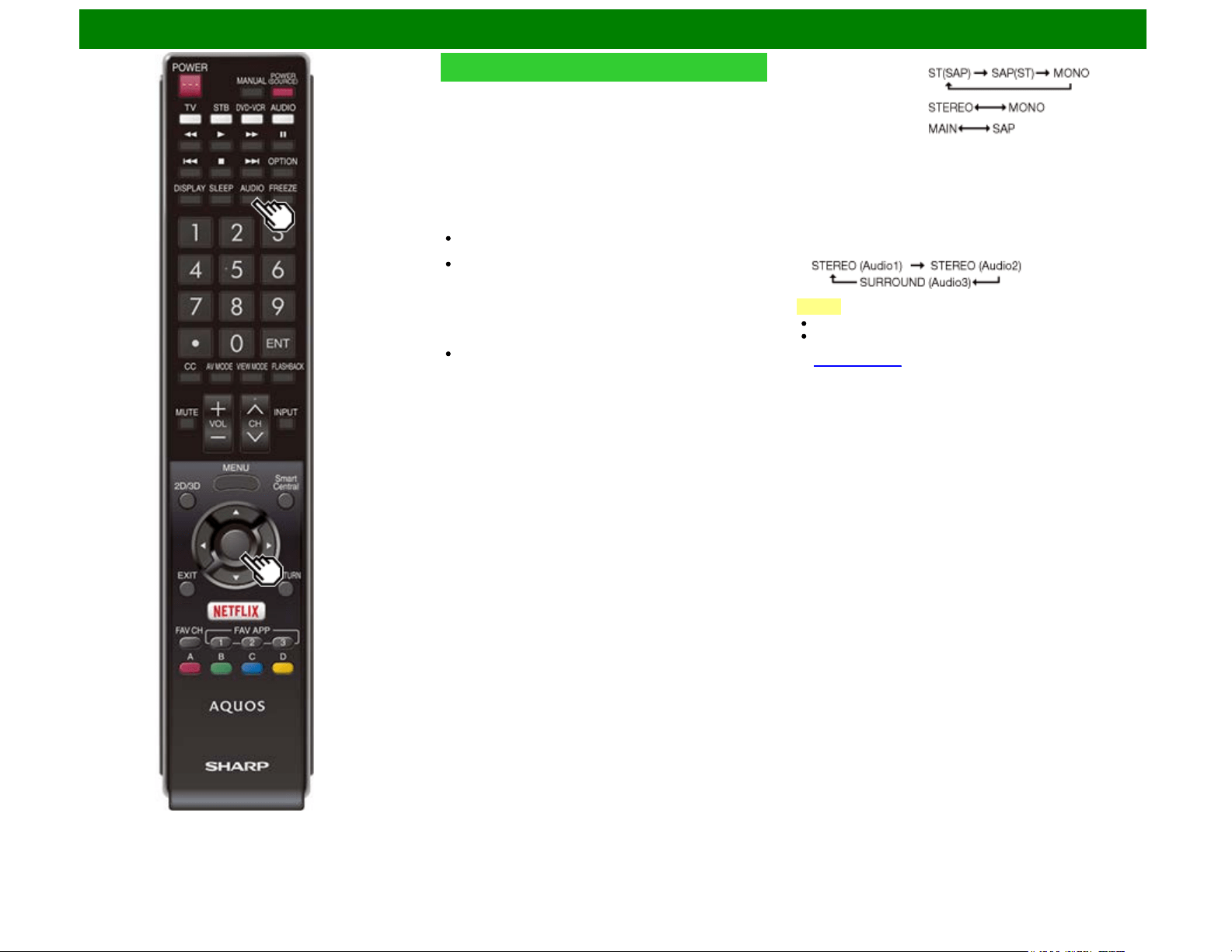
AUDIO
MTS/SAP stereo mode
The TV has a feature that allows reception of sound other
than the main audio for the program. This feature is called
Multi-channel Television Sound (MTS). The TV with MTS can
receive mono sound, stereo sound
and Secondary Audio Programs (SAP). The SAP feature
allows a TV station to broadcast other information, which
could be audio in another language or something completely
different like weather information.
You can enjoy Hi-Fi stereo sound or SAP broadcasts
where available.
Stereo broadcasts: View programs like live sporting
events, shows and concerts in dynamic stereo sound.
SAP broadcasts: Receive TV broadcasts in either MAIN
or SAP sound.
MAIN sound: The normal program soundtrack (either in
mono or stereo).
SAP sound: Listen to a second language, supplementary
commentary or other information. (SAP is mono sound.)
If stereo sound is difficult to hear.
Obtain a clearer sound by manually switching to fixed
mono-sound mode.
You can change MTS as shown below to match the television
broadcast signal.
Press AUDIO to toggle between audio modes.
Examples: when receiving MTS and SAP
STEREO mode:
STEREO + SAP mode:
MAIN + SAP mode:
MONO mode: MONO
Digital broadcasting audio mode
The types of audio transmitted in a digital broadcast include
SURROUND as well as MONO and STEREO. In addition, it is
possible for multiple audio tracks to accompany a single video
track.
Press ENTER to toggle between audio modes.
Example: when receiving Digital broadcasting
NOTE
MTS only operates while in TV mode.
You can have the same settings by choosing "Change
Audio" on the menu items.
(See page 4-29.)
ENG 3-8
Direct Button Operation
Sleep Timer
Allows you to set a time when the TV automatically switches
to standby.
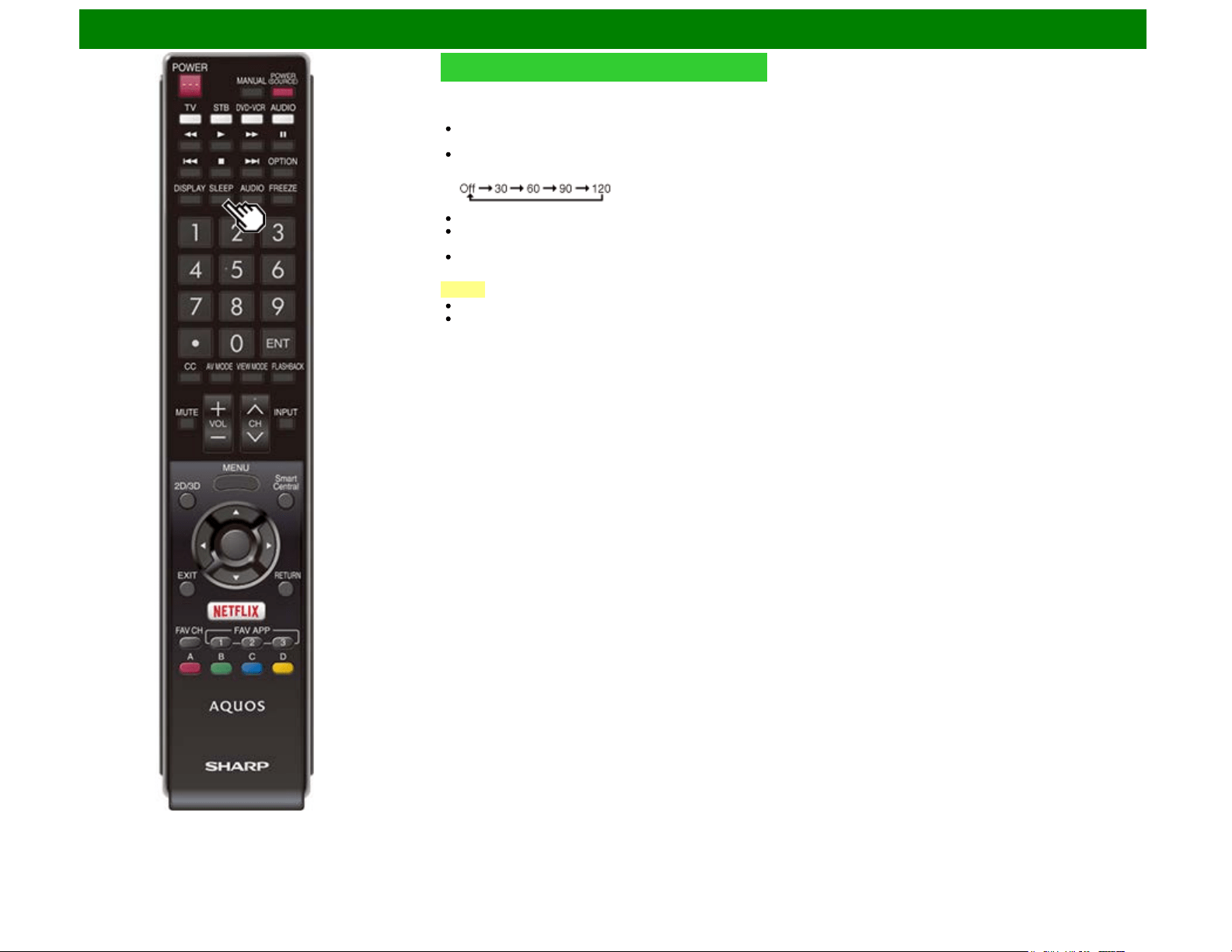
Press SLEEP.
The remaining time displays when the sleep timer has
been set.
Each time you press SLEEP, the remaining time switches
as shown below.
When set, the time automatically starts counting down.
If you want to adjust the sleep timer, you can press SLEEP
twice then change the time setting.
When it is 5 minutes before the time expires, the remaining
time will start to keep appearing every minute.
NOTE
Select "Off" by pressing SLEEP to cancel the sleep timer.
The TV will enter standby when the remaining time
reaches 0.
ENG 3-9
Direct Button Operation
AV MODE
AV MODE gives you several viewing options to choose from
to best match the surrounding environment of the TV, which
can vary due to factors like room brightness, type of program
watched or the type of device connected.
You can use USER Mode to create customized settings for
each TV input. These settings will be automatically saved on
each input for convenience.
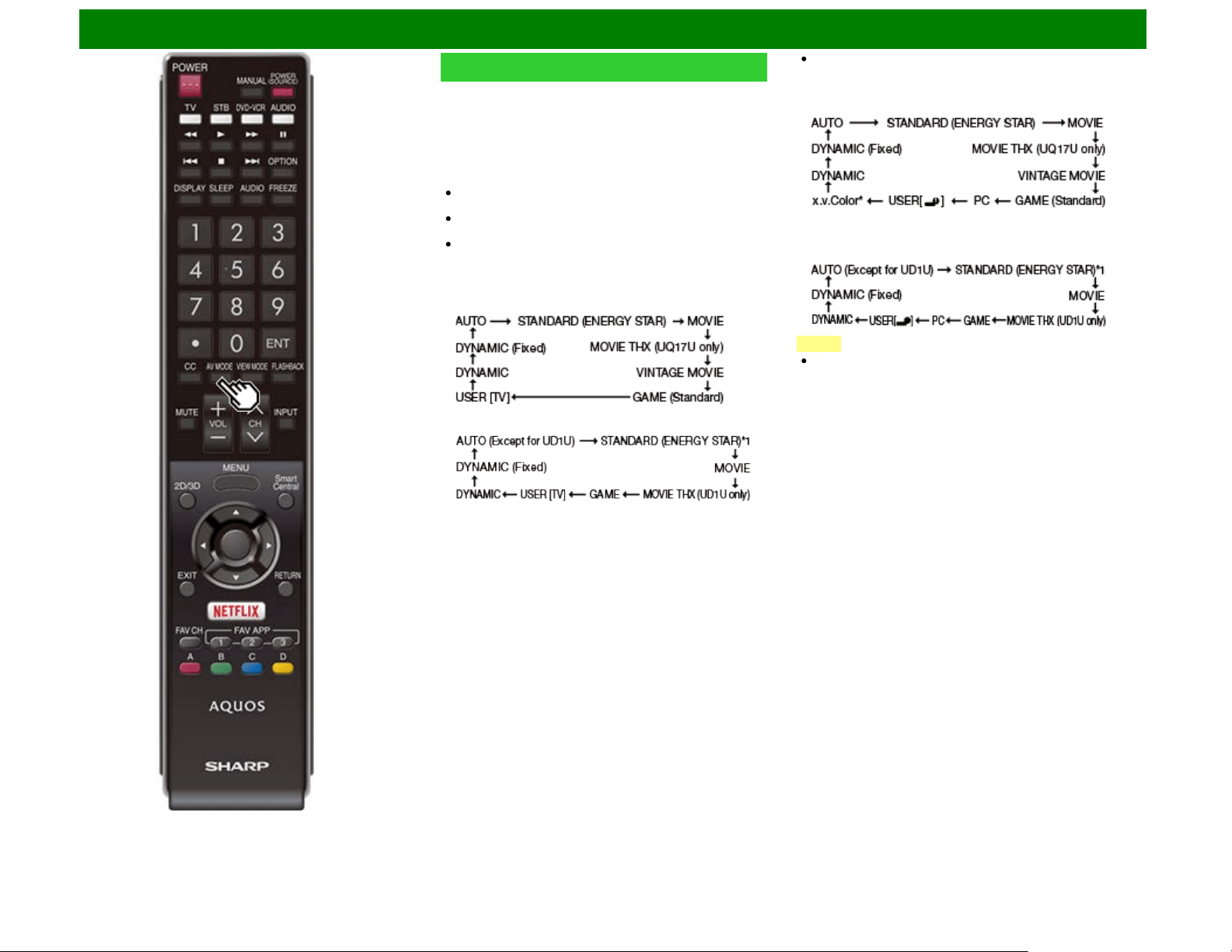
Press AV MODE. Current AV MODE displays.
Press AV MODE again before the mode displayed on the
screen disappears.
The mode changes as shown below:
Example:
When using the COMPONENT IN,
VIDEO IN 1 or 2 terminals
UQ17U, TQ15U, SQ17U, SQ15U, SQ10U and EQ10U
models
LE650U, LE657U, C6500U, LE642U and UD1U models
Example:
When using the PC IN or HDMI IN 1 to 4 terminals
UQ17U, TQ15U, SQ17U, SQ15U, SQ10U and EQ10U
models
*"x.v.Color" can only be selected when an x.v.Color signal is
input using HDMI IN 1 to 4 terminals.
LE650U, LE657U, C6500U, LE642U and UD1U models
NOTE
*1: Except for LE657U and UD1U
ENG 3-10
Direct Button Operation
AV MODE (Continue)
AUTO: Optimizes the image quality automatically based on
the room brightness and image signal.
STANDARD (ENERGY STAR)*1: For a highly defined
image in a normal lighting.
MOVIE: For a movie.
MOVIE THX: Changes the image quality so that it conforms
to the THX display standard. (For the UQ17U and UD1U
models.)
VINTAGE MOVIE: Allows you to enjoy old-time films in a
good old-fashioned way, where the images look as if they
were projected in real time in those days. (For the UQ17U,
TQ15U, SQ17U, SQ15U, SQ10U and EQ10U models)
GAME (Standard/High Motion): Suitable for game playing.
You can configure the settings according to the type of the
game. Refer to "Picture Setting" > "Advanced" > "Game
Type". ) (For the UQ17U, TQ15U, SQ17U, SQ15U,
SQ10U and EQ10U models)
(See page 4-10.)
GAME: Lowers image brightness for easier viewing.
(For the LE650U, LE657U, C6500U, LE642U and UD1U
models)
PC: For PC.
USER: Allows the user to customize settings as desired.
You can set the mode for each input source.
x.v.Color: Supports the x.v.Color international standard for
wide color space. The x.v.Color signal allows you to
experience colors that conventional color signals cannot
reproduce. (For the UQ17U, TQ15U, SQ17U, SQ15U,
SQ10U and EQ10U models)
DYNAMIC: For a clear-cut image emphasizing high contrast,
useful for sports viewing.
DYNAMIC (Fixed): Changes the image and sound settings
to the factory preset values. No adjustments are allowed.
NOTE
You can select a different AV MODE item for each input
mode. (For example, select STANDARD (ENERGY
STAR) *1 for TV input and DYNAMIC for COMPONENT.)
"MOVIE THX" MODE is not available when 4K signal input.
(For the UQ17U models)
When you play games, "GAME" is recommended for AV
MODE.
You cannot set "PC" when the TV is connected to the
Internet.
You cannot set "GAME" or "PC" when the input "Home
Network", "USB" or "SD/SDHC/USB"*2.
You can have the same settings by choosing "AV MODE"
on the menu items.
(See page 4-5.)
*1: Except for LE657U and UD1U
*2: For the UD1U model
ENG 3-11
Direct Button Operation
Closed Captions and Digital Closed
Captions
Your TV is equipped with an internal Closed Caption decoder.
It allows you to view conversations, narration and sound
effects as subtitles on your TV. Closed Captions are available
on some TV programs and on some VHS home video tapes
at the discretion of the program provider.
Digital Closed Caption service is a new caption service
available only on digital TV programs (also at the discretion of
the service provider). It is a more flexible system than the
original Closed Caption system, because it allows for a variety
of caption sizes and font styles. When the Digital Closed
Caption service is in use, it will be indicated by the
appearance of a 3-letter abbreviation that also indicates the
language of the Digital Closed Captions: ENG (English), SPA
(Spanish), FRA (French) or other language codes.
Not all programs and VHS videotapes offer closed captions.
Please look for the " " symbol to ensure that captions will
be shown.
In the Closed Caption system, there can be more than one
caption service provided. Each is identified by its own
number. The "CC1" and "CC2" services display subtitles of
TV programs superimposed over the program’s picture.
In the Closed Caption system, the "Text1" or "Text2" services
display text that is unrelated to the program being viewed
(e.g., weather or news). These services are also
superimposed over the program currently being viewed.
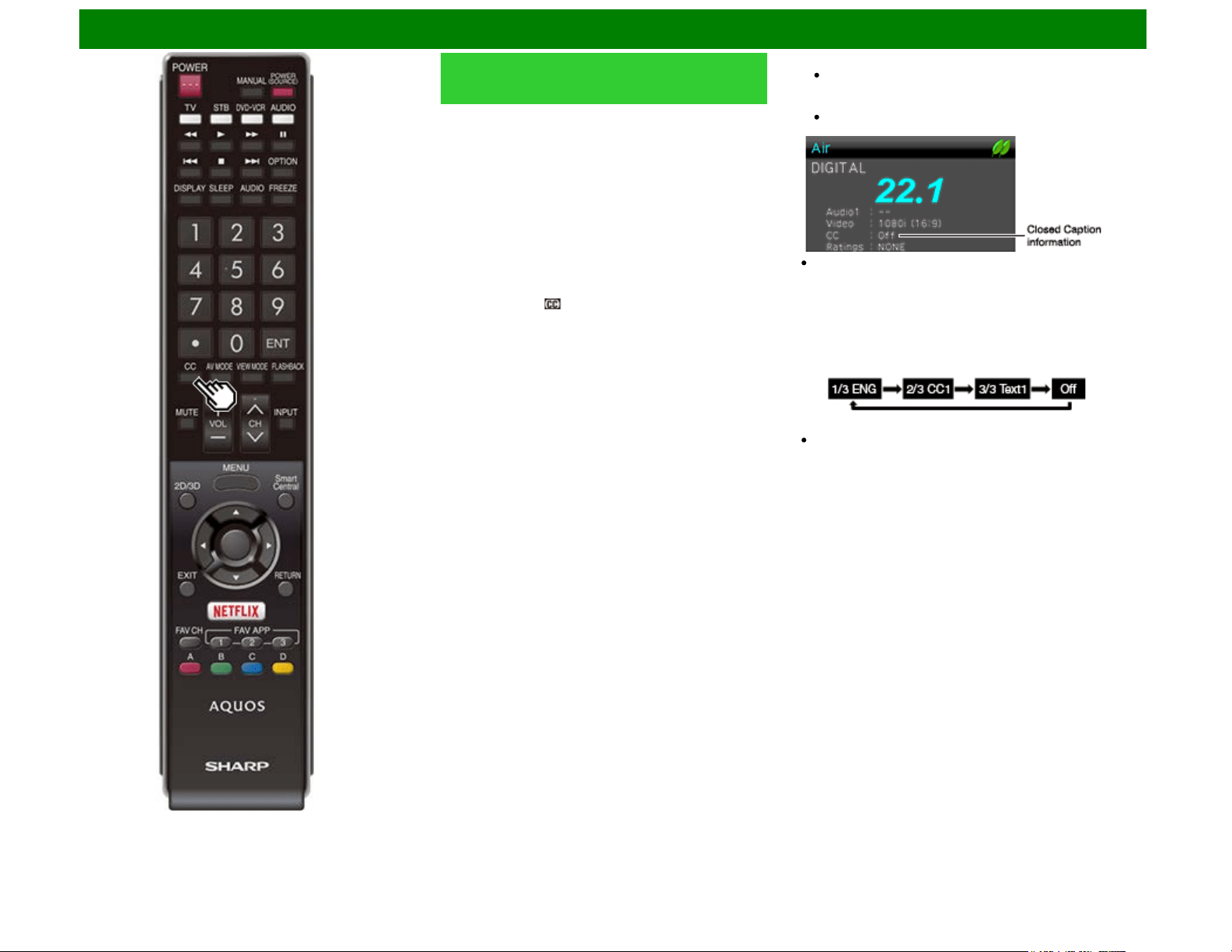
1 Press CC.
This will present the Closed Caption information display.
2 Press CC while the Closed Caption information is still on
the screen.
Press repeatedly until you select the desired closed
caption service.
Depending on the number of caption services in the signal
being received, you will see information such as 1/2 or 1/4
displayed.
1/2 means "the first of two services".
Example:
If a program has three services (Digital CC(ENG), CC1
and Text1), the closed caption display will toggle in this
sequence:
The CC button keeps a record of the last service selected
in its memory.
If the last closed caption mode (e.g. 1/3 ENG) you
selected is not available for the next program, or on
another channel, the closed caption service that is
available is automatically selected, and this service
appears in parentheses, e.g. "1/3(CC1)".
Closed Caption services that appear in parentheses will
not be stored in the CC button’s memory as your last
selected service. Only services that you have selected
with the CC button are stored.
ENG 3-12
Direct Button Operation
Closed Captions and Digital Closed
Captions (Continue)
Examples:
In a case where there are two closed caption services
provided (for instance, Digital CC(ENG) and CC1), and Digital
CC(ENG) is displayed as your current selection, if Digital
CC(ENG) is not broadcast for the next program, the other
closed caption service, CC1, will be displayed in parentheses.
A closed caption service appears in parentheses because the
service you selected is not available and a different service is
displayed on your screen. "1/1(CC1)" is displayed instead of
"1/2/ENG".
NOTE
When "Power Saving" is set to "Standard" or "Advanced",
the Power Saving leaf icon appears on the channel
information window.
See page 4-27 for details of Power Saving settings.
See page 4-30 for detailed closed caption settings.
When the program contains no closed caption, "--" displays
in the closed caption information.
If the language code, e.g. "ENG", is not found on Digital TV
programs, "--" will be shown.
Four kinds of closed caption service (CC1, CC2, Text1,
Text2) are potentially available, but a broadcast may
contain none or only some of these services at the
discretion of the program provider.
When a web page is displayed, Closed Captions are not
available.
You can have the same settings by choosing "Change CC"
on the menu items.
(See page 4-29.)
ENG 3-13
Direct Button Operation
VIEW MODE
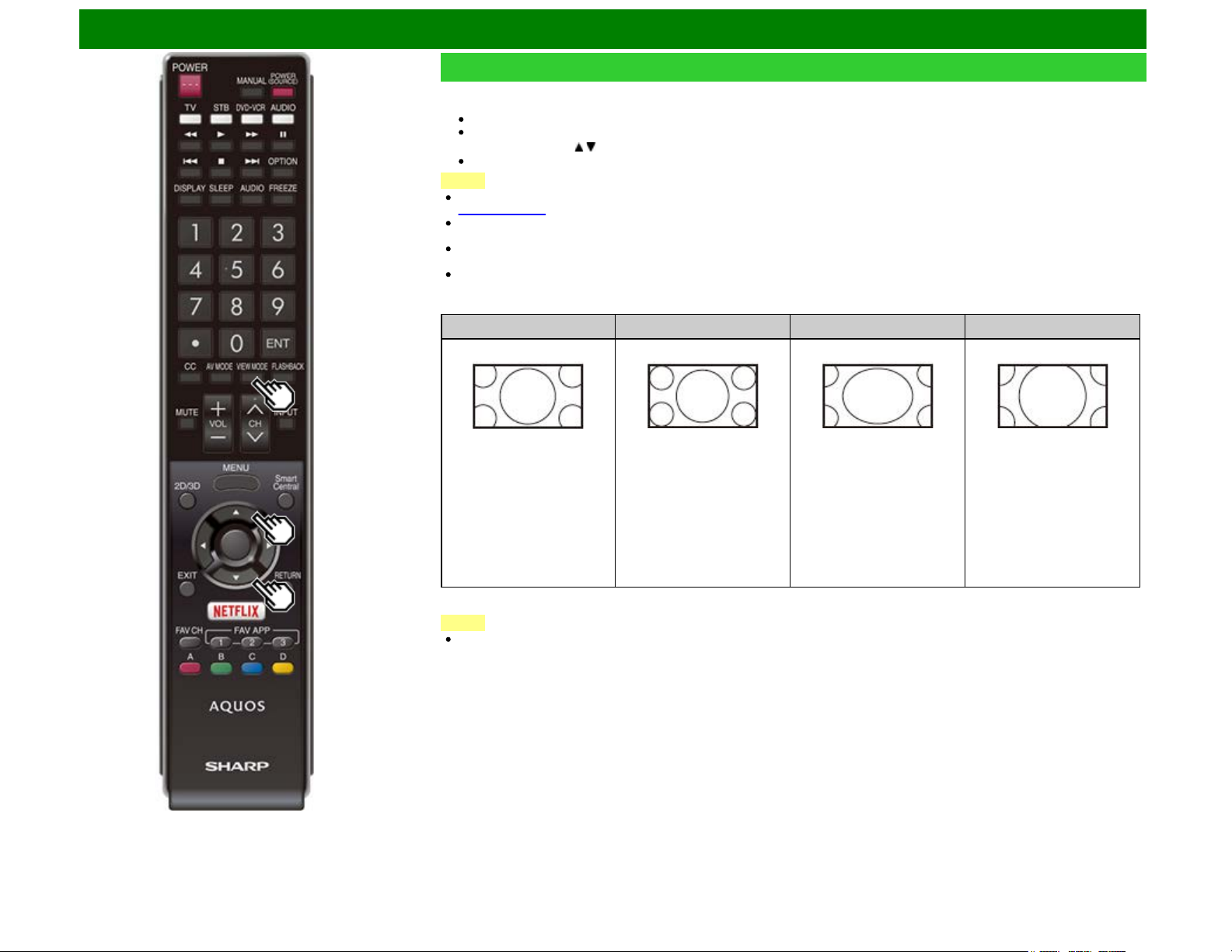
You can select the screen size.
1 Press VIEW MODE.
The View Mode menu displays.
The menu lists the View Mode options selectable for the type of video signal currently being received.
2 Press VIEW MODE or / while the View Mode menu is displayed to select a desired item on the menu.
You can sequentially select a View Mode that has its own aspect ratio.
NOTE
You can have the same settings by choosing "View Mode" on the menu items.
(See page 4-28.)
Each time you press VIEW MODE when a browser screen is shown, the display pattern toggles between a website-only screen and
a TV+Web screen.
On the UD1U model, you cannot display the TV+Web screen during 4K60P signal input.
Operate this function during the input of other types of signals (such as Full HD).
You may not be able to change the View Mode while in 3D mode. (For the UQ17U, TQ15U, SQ17U, SQ15U, LE657U and UD1U
models)
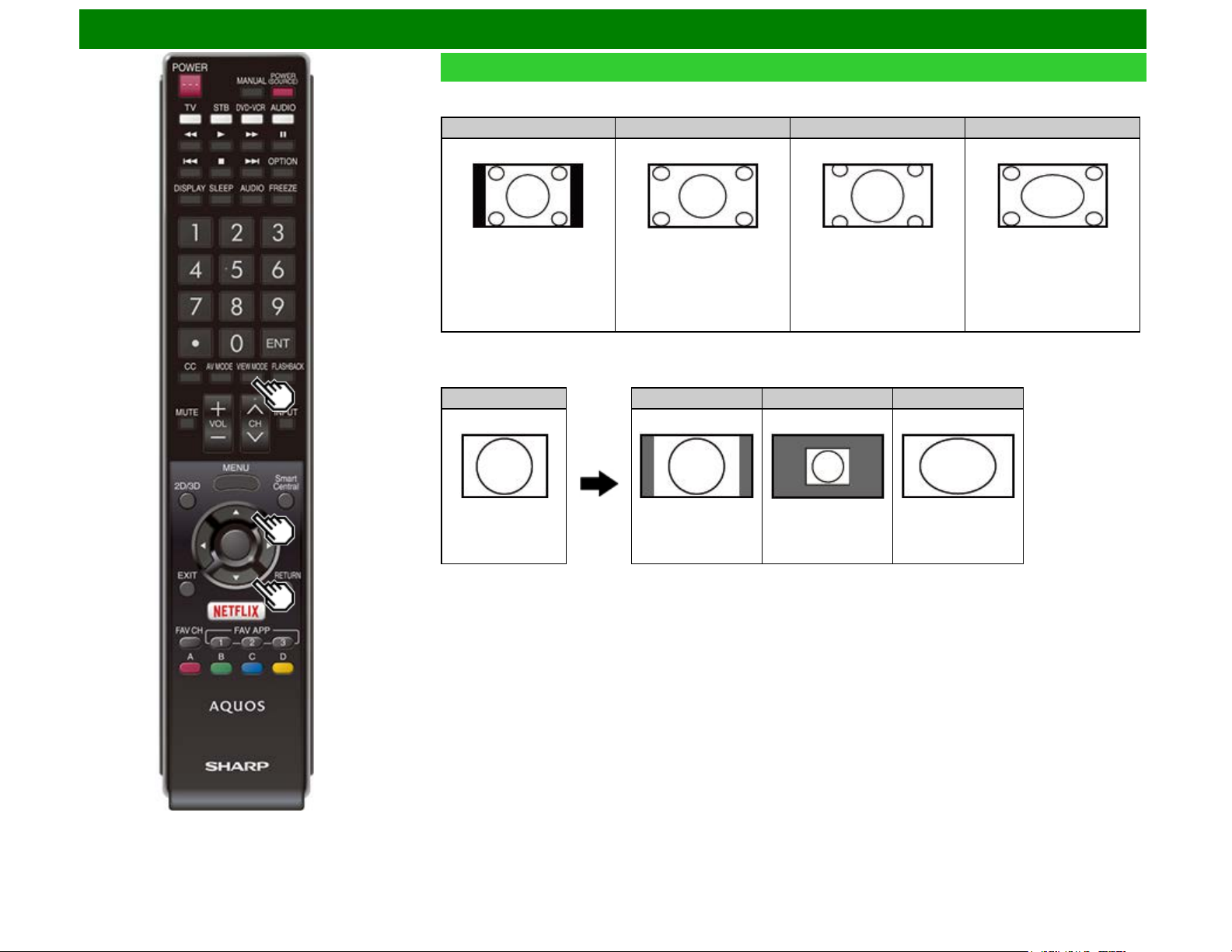
For HD programs
Stretch
Dot by Dot (Full Screen) S.Stretch (Smart stretch) Zoom
Suitable for viewing wide-
screen 1.78:1 aspect ratio
program, stretch mode will
still show very thin black
bands at the top and bottom
of the screen.
"Dot by Dot" when the number
of pixels on the screen and
the resolution of the signal
are the same. "Full Screen"
when the number of pixels
on the screen and the
resolution of the signal are
different. In either case, the
image fully fills the screen.
*1
Suitable for stretching 4:3
programs to fill the screen.
Suitable for viewing wide-
screen 2.35:1 aspect-ratio
programs in full screen.
NOTE
When using Dot by Dot or Full Screen, it is possible to see noise or bars around different outer portions of the screen. Please
change view mode to correct this.
*1: The View Mode is fixed to "Full Screen" when 4k signal is input for models UQ17U, TQ15U, SQ17U and SQ15U series.
ENG 3-14
Direct Button Operation
VIEW MODE (Continue)
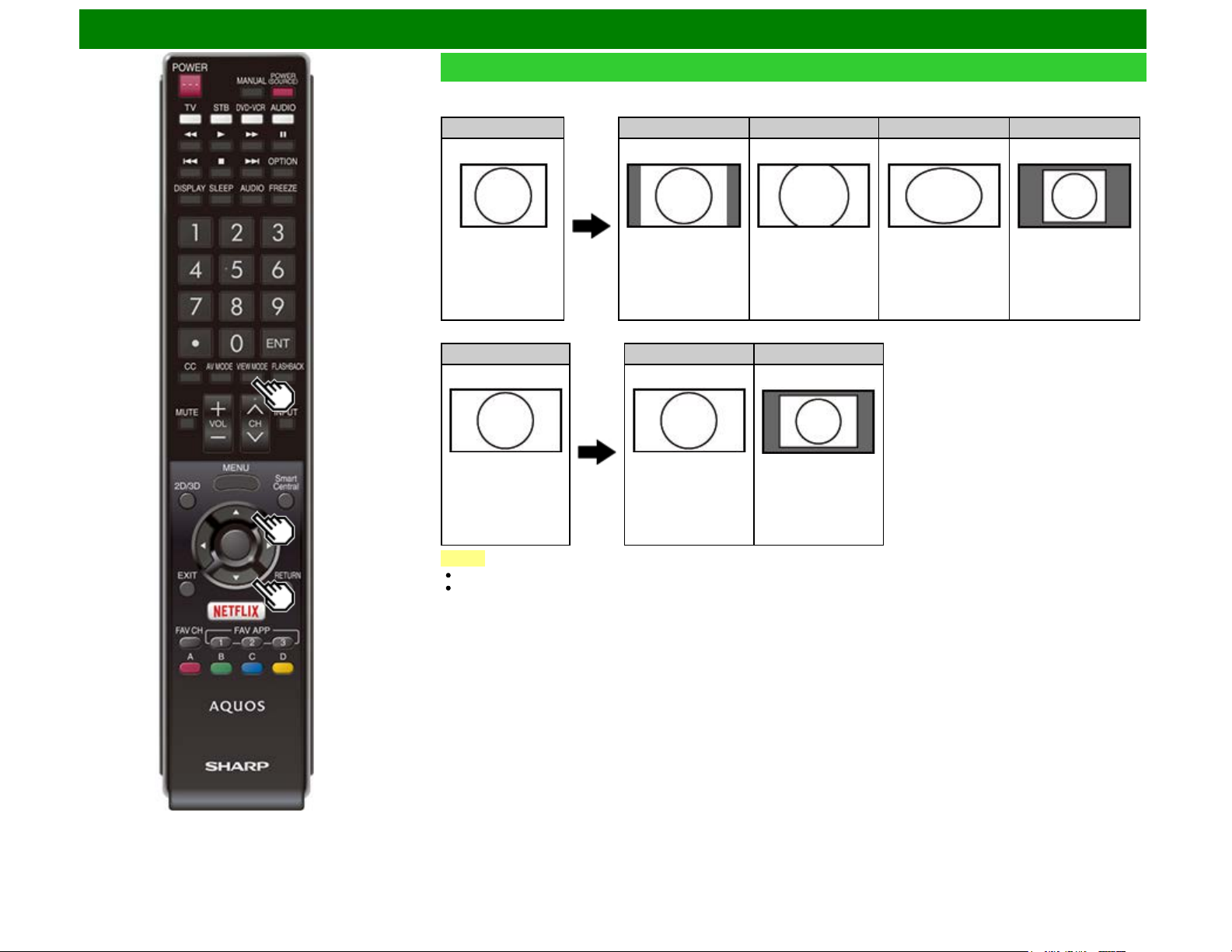
For 4:3 programs
Example: Screen size images
Side Bar S.Stretch (Smart stretch) Zoom Stretch
Suitable for viewing
conventional 4:3 programs in
their normal format.
Suitable for stretching 4:3
programs to fill the screen.
Suitable for viewing wide-
screen 2.35:1 anamorphic
DVDs in full screen.
This mode is useful for 1.78:1
DVDs. When viewing 1.85:1
DVDs, stretch mode will still
show very thin black bands at
the top and bottom of the
screen.
For USB-Video, SD-Video*1, Home Network Video or Internet applications
Example: Screen size images
Input signal Auto Original Stretch
Keeps the original
aspect ratio in a full
screen display.
Displays an image by
an original size.
An image fully fills the
screen.
*1: For the UD1U model
ENG 3-15
Direct Button Operation
VIEW MODE (Continue)
For PC
Example: Screen size images
Input signal Normal Zoom Stretch Dot by Dot
4:3 Keeps the original
aspect ratio in a full
screen display.
For viewing
widescreen programs.
The top and bottom of
the image is cropped.
An image fully fills the
screen.
Detects the resolution
of the signal and
displays an image with
the same number of
pixels on the screen.
Input signal Stretch Dot by Dot
16:9 An image fully fills the
screen.
Detects the resolution
of the signal and
displays an image with
the same number of
pixels on the screen.
NOTE
Connect the PC before making adjustments. See the Setup Guide.
Selectable screen size may vary with input signal type.
ENG 3-16
On-Screen Display Menu
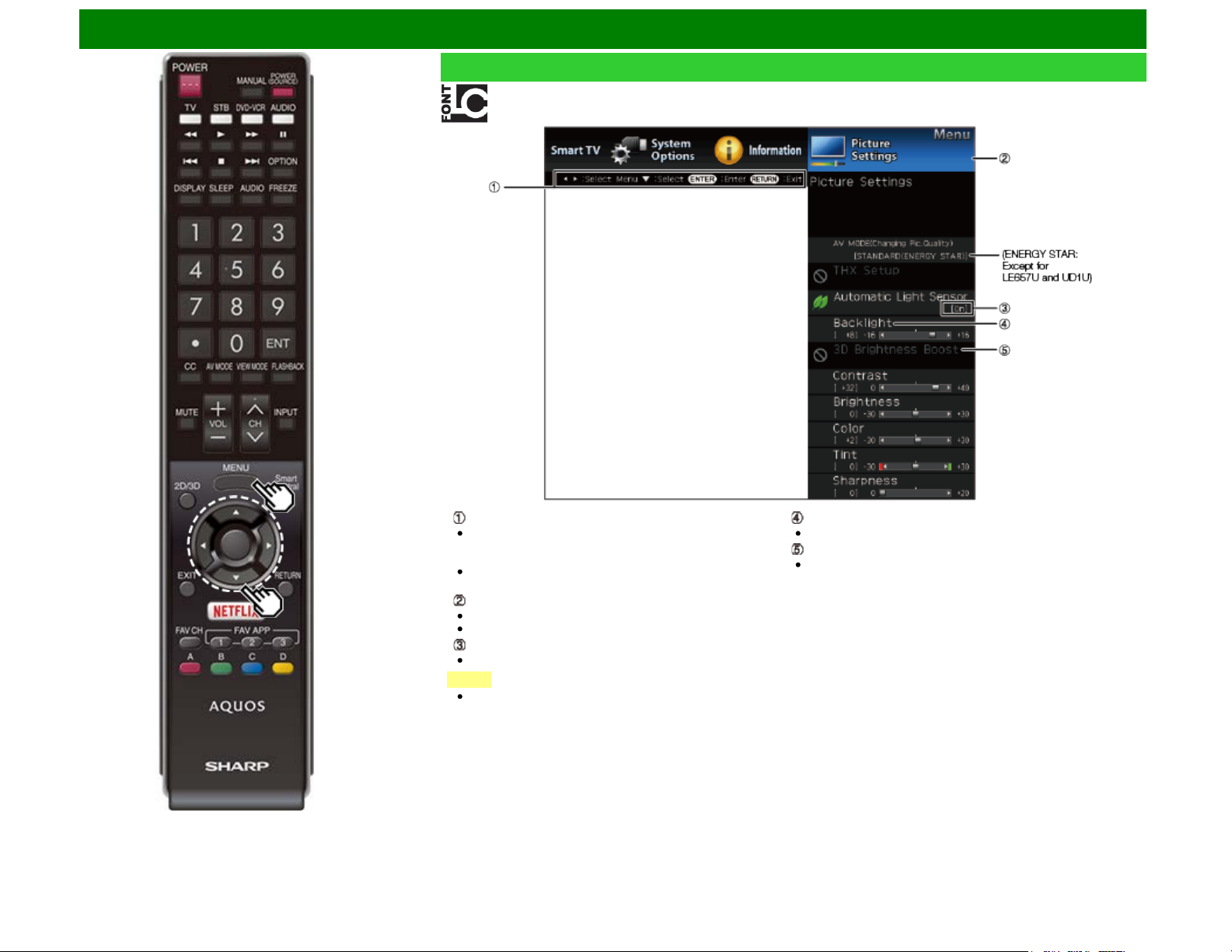
Guide display
This indicates the buttons that can be operated on the
displayed screen. The guide display varies depending on
the menu setting screen.
The operations for some selected items may be displayed
in the operational guide bar at the bottom of the screen.
Item displayed in blue
This indicates the item currently selected.
Press ENTER to go to the adjustment screen for this item.
Item in brackets
This indicates the current setting for the item.
NOTE
On the UD1U model, the menu screen is displayed in gray
during 4K60P signal input.
Item displayed in white
This indicates that the item can be selected.
Item displayed in gray
This indicates that the item cannot be selected.
There are various reasons why the items cannot be
selected, but the main reasons are as follows:
— Nothing is connected to the selected input terminal.
— The function is not compatible with the current input signal.
— When this conflicts with other functions, you must change
the settings for the other functions.
Introduction
LCFONT embedded
ENG 4-1
On-Screen Display Menu
Menu Operation Buttons
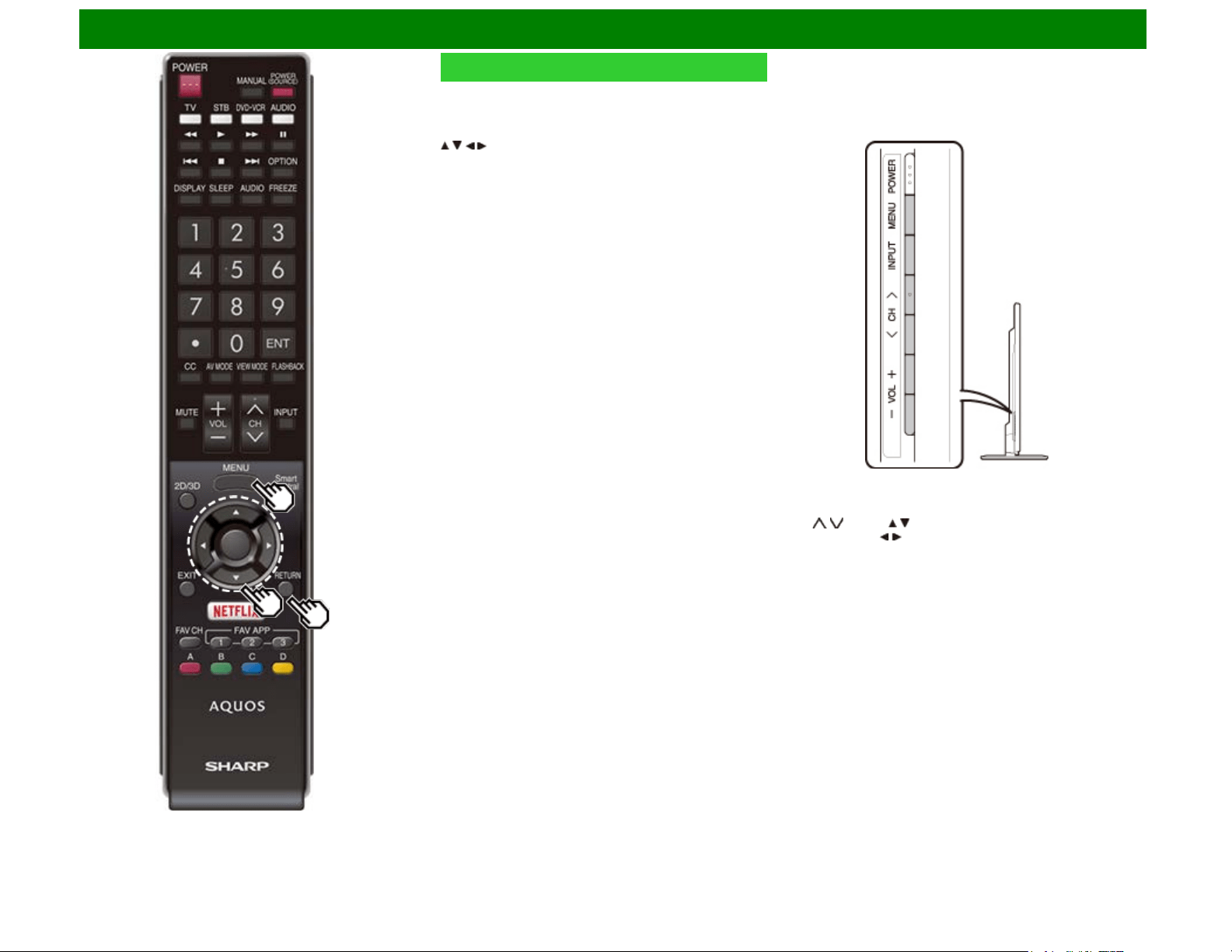
Using the remote control
Use the following buttons on the remote control to operate the
menu.
MENU: Press to open or close the menu screen.
/ / / : Press to select a desired item on the screen or
adjust a selected item.
ENTER: Press to go to the next step or complete the setting.
RETURN: Press to return to the previous step.
Using the control panel of the TV
You can also operate the menu with the control panel of the
TV.
Button operations on the control panel correspond to the ones
on the remote control as shown below.
MENU: MENU on the remote control.
INPUT: ENTER on the remote control.
CH / : Cursor / on the remote control.
VOL+/-: Cursor / on the remote control.
ENG 4-4
On-Screen Display Menu
Example
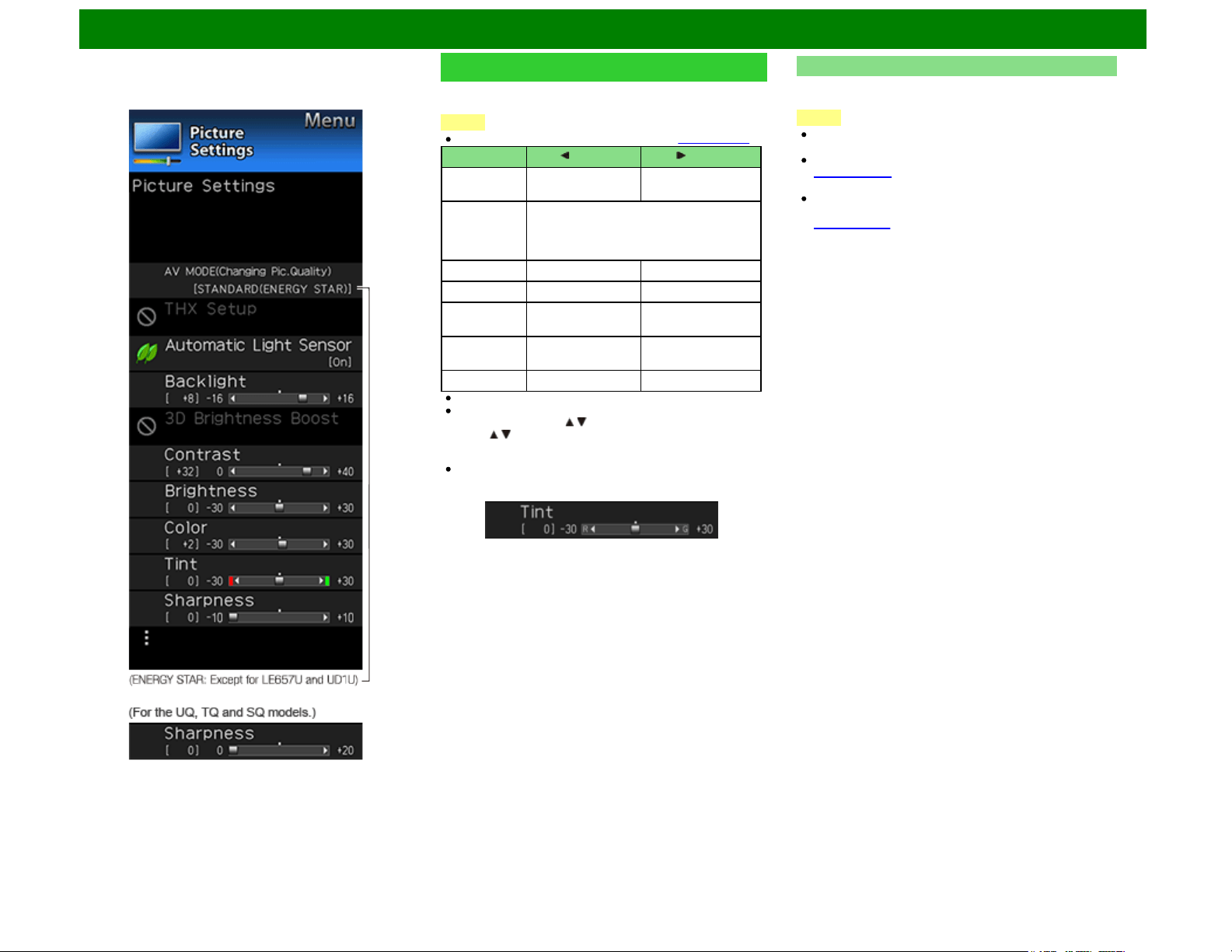
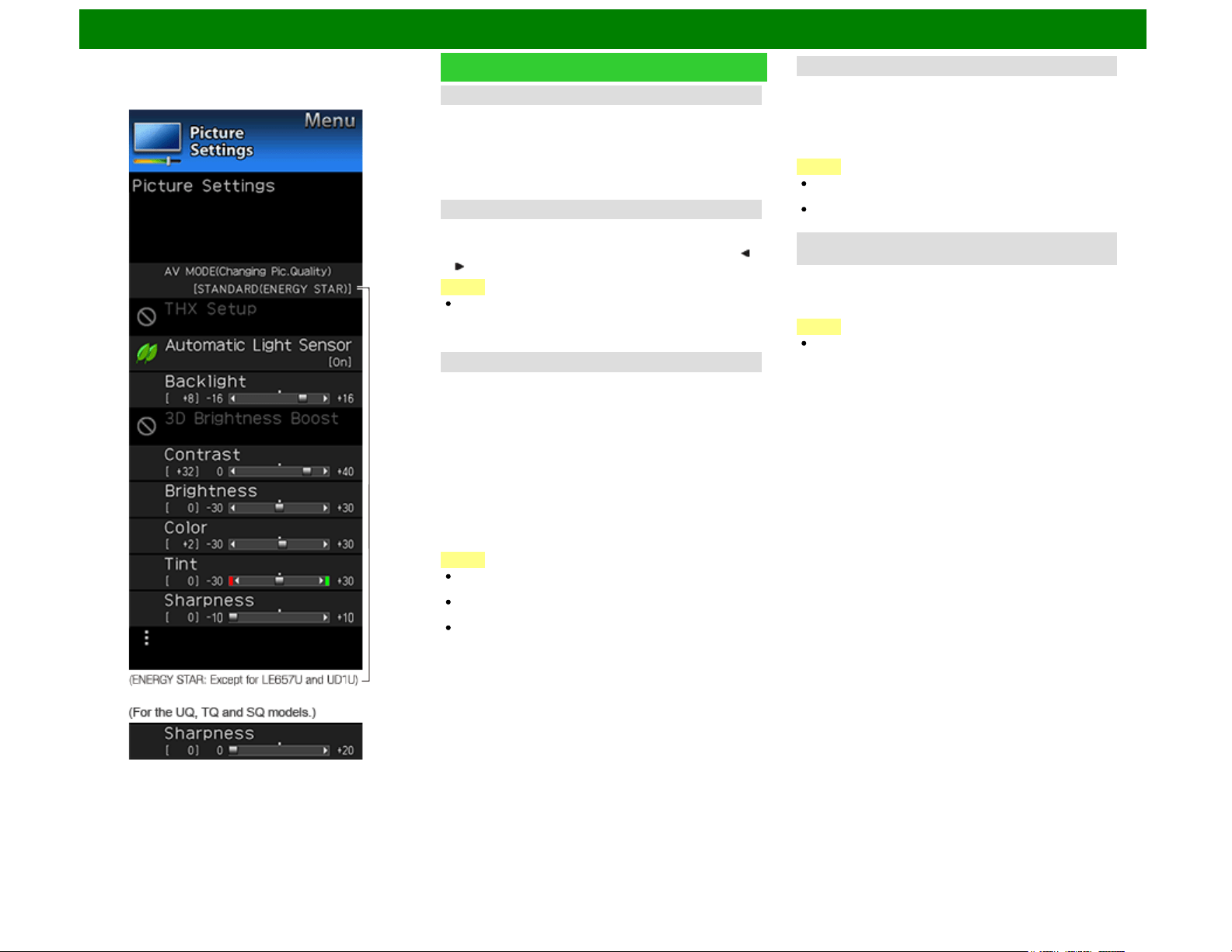
Picture Settings
Adjusts the picture to your preference with the following
picture settings.
NOTE
For operating the on-screen display menu, see page 4-3.
Selected item button button
Backlight The screen dims The screen
brightens
3D
Brightness
Boost
High/Middle/Low: Select a desired level
of 3D Brightness Boost.
(For the UQ17U, TQ15U, SQ17U and
SQ15U models)
Contrast For less contrast For more contrast
Brightness For less brightness For more brightness
Color For less color
intensity
For more color
intensity
Tint Skin tones become
reddish
Skin tones become
greenish
Sharpness For less sharpness For more sharpness
You can select "3D Brightness Boost" while in 3D mode.
For resetting all Picture adjustment items to the factory
preset values, press / to select "Reset", press ENTER,
press / to select "Yes", and then press ENTER.
For the UD1U model
When the signal input format is 4K with 60fps, the red mark
for Tint is displayed as "R" and the green mark for Tint is
displayed as "G".
AV MODE (Changing Pic.Quality)
The audio and video settings can be changed to suit the
program or input content being watched.
NOTE
The selectable items vary depending on the input source
and on the model of your TV.
For details of the selectable items in 3D mode,
see page 5-11. (For the UQ17U, TQ15U, SQ17U, SQ15U,
LE657U and UD1U models)
You can select AV MODE by pressing AV MODE on the
remote control unit.
See page 3-10 for details of AV MODE settings.
ENG 4-5
On-Screen Display Menu
Example
Picture Settings (Continue)
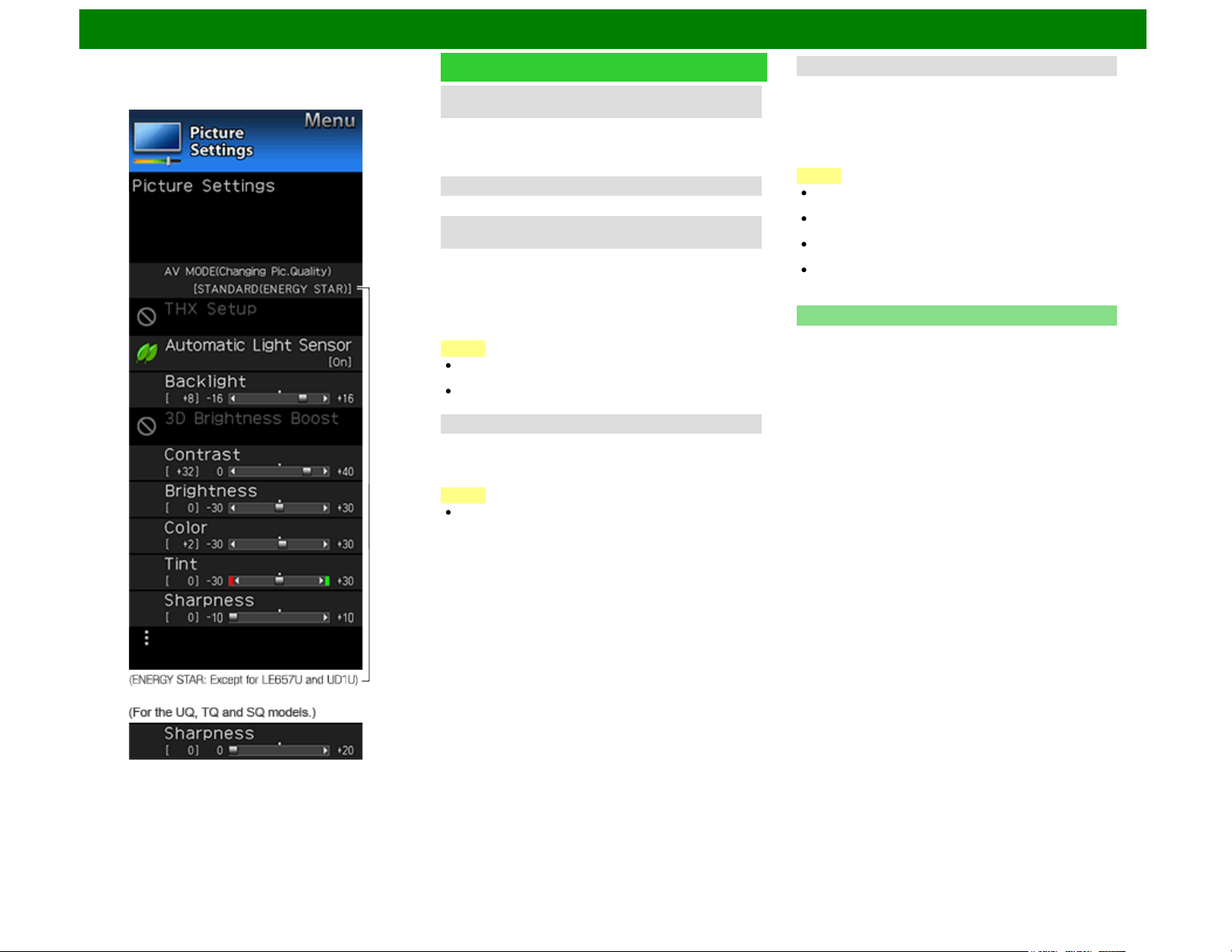
THX Setup (For the UQ17U and UD1U models)
Adjust the picture to room illumination or ambient brightness.
This function is available only when AV MODE is set to
"MOVIE THX".
Bright room: Select this item for a bright room.
Dark room: Select this item for a dark room.
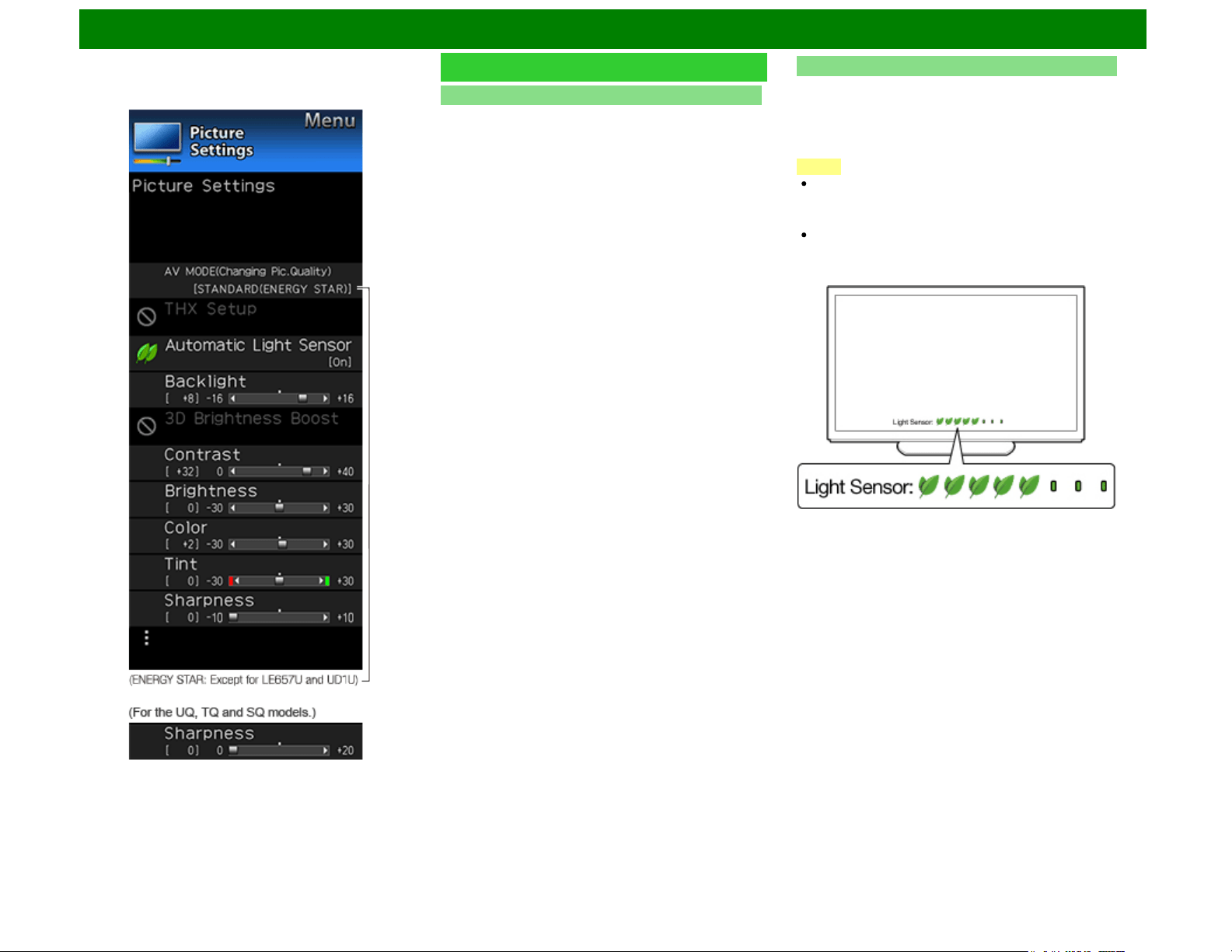
Automatic Light Sensor(Light Sensor)
Automatically adjusts the brightness of the screen.
Off: The brightness is fixed at the value set in "Backlight".
On: Automatically adjusts.
On:Display: Displays the Light Sensor effect on the screen
while adjusting the brightness of the screen.
NOTE
When set to "On", the Light Sensor senses the surrounding
light and automatically adjusts the backlight brightness.
Make sure nothing obstructs the Light Sensor, which could
affect its ability to sense surrounding light.
When set to "On:Display", Light Sensor effect displays on
the screen while the Light Sensor adjusts the screen
brightness.
ENG 4-6
On-Screen Display Menu
Example
Picture Settings (Continue)
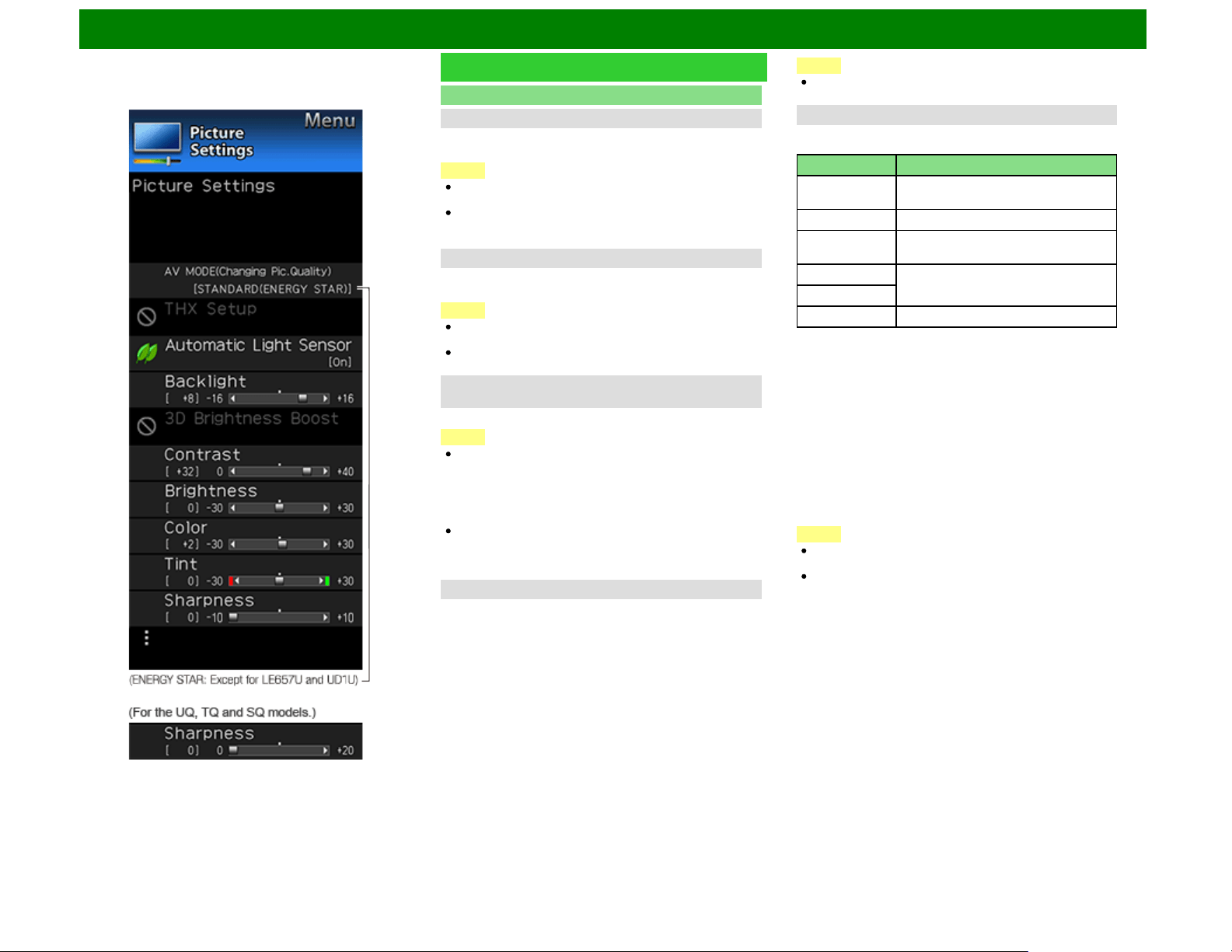
Advanced
Resolution (For the UD1U model)
Adjusts the fineness (resolution) of the picture in the range 0
to +10.
NOTE
"Resolution" is not available when you set AV MODE to
"PC", "3D" or "GAME (3D)".
When using any of the HDMI IN 1 to 4 terminals and
inputting a 3840 x 2160 signal, you cannot select
"Resolution".
Focus (For the UD1U model)
Adjusts the sharpness (crispness) of the picture in the range 0
to +10.
NOTE
"Focus"" is not available when you set AV MODE to "PC",
"3D" or "GAME (3D)".
When using any of the HDMI IN 1 to 4 terminals and
inputting a 3840 x 2160 signal, you cannot select "Focus".
Resolution Enhanced (for the UQ17U, TQ15U, SQ17U,
SQ15U and SQ10U models)
Configures Resolution Enhanced Mode settings.
NOTE
When Resolution Enhanced Mode is set to "Mode 1" or
"Mode 2", the following modes do not work.
1. Motion enhancement (AquoMotion 960 and 240 Hz)
2. Game Type
If you want to use these modes, set Resolution Enhanced
to "Off".
Resolution Enhanced is not available when:
The A/M960 or 240 Hz mode is selected.
Game Type is set to "High Motion".
3D mode is on.
Quad Pixel Plus 2 (for the EQ10U models)
Smoothes diagonal lines by detailed dot control.
Advanced: Produces smoother diagonal lines by jaggy
removal process.
Standard: Produces smooth diagonal lines.
Off: No adjustment.
NOTE
When AV MODE is set to "VINTAGE MOVIE" MODE,
"Quad Pixel Plus2" is not available.
Motion Enhancement
Use Motion Enhancement to view fast-action video more
clearly.
Selected item Description
AquoMotion960 Turn the LED backlight on or off for
240Hz drive display.
240Hz For obtaining a clearer image.
AquoMotion240 Turn the LED backlight on or off for
120Hz drive display.
120Hz High For obtaining a clearer image.
120Hz Low
Off Original image.
UD1U model
AquoMotion240/120Hz High/120Hz Low/Off
UQ17U models
AquoMotion960/240Hz/AquoMotion240/
120Hz High/120Hz Low/Off
TQ15U, SQ17U, SQ15U, SQ10U, EQ10U models
240Hz/AquoMotion240/120Hz High/120Hz Low/Off
LE657U model
AquoMotion240/120Hz High/120Hz Low/Off
LE650U, C6500U and LE642U models
120Hz High/120Hz Low/Off
NOTE
"Motion Enhancement" may cause image noise. If this
occurs, turn the function "Off".
When AV MODE is set to "VINTAGE MOVIE" MODE,
"GAME" or "PC", or PC format is being input, "Motion
Enhancement" is not available.
ENG 4-7
On-Screen Display Menu
Example
Picture Settings (Continue)
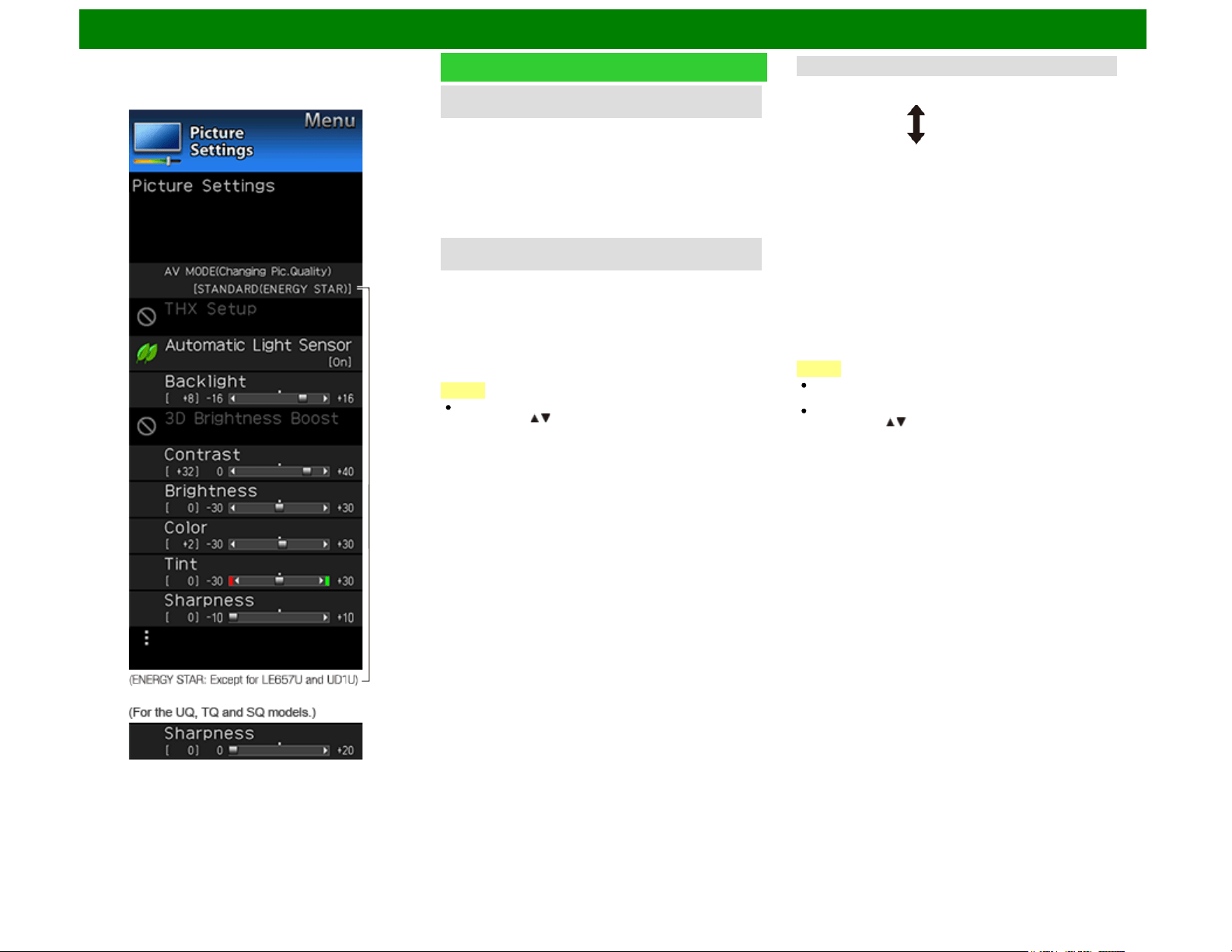
Clear Picture Processing (for the UQ17U, TQ15U,
SQ17U, SQ15U and SQ10U models)
Reduces jaggies and noise and displays a clear picture.
Processes noise included in broadcast signals to improve
picture quality.
High:Improves picture quality through Clear Picture
Processing at a level above “Standard”.
Middle:Improves picture quality through Clear Picture
Processing.
Off:No adjustment.
C.M.S.
(Color Management System) (Except for UD1U)
Color tone is managed using the six-color adjustment setting.
C.M.S.-Hue: This is a standard to adjust the color either
more reddish or more bluish in tone.
C.M.S.-Saturation: Increases or decreases the saturation of
a selected color.
C.M.S.-Value: A higher value makes the image brighter.
A lower value makes the image darker.
NOTE
For resetting all adjustment items to the factory preset
values, press / to select "Reset", and then press
ENTER.
Color Temp. (Color Temperature)
For a better white balance, use color temperature correction.
High: White with bluish tone
Mid-High:
Middle:
Mid-Low:
Low: White with reddish tone
Low (Xenon), Low (Carbon arc): Available only when AV
MODE is set to "VINTAGE MOVIE" MODE or
"MOVIE(UD1U only)" MODE. Use one of these items to
make picture color become more reddish.
White balance can be adjusted between a maximum of +30
and a minimum of –30 for each color temperature.
R Gain (LO/HI)/G Gain (LO/HI)/B Gain (LO/HI)
Fine tuning the color temperature
To fine tune the color temperature, set "10 Point Setting" to
"On".
You can adjust the "Position" setting. Adjust the set color
temperature from +1 to +10.
White balance can be adjusted between a maximum of +30
and a minimum of –30 for each color temperature.
NOTE
When "Position" is set to "10", you can adjust the white
balance between –30 and 0.
For resetting all adjustment items to the factory preset
values, press / to select "Reset", and then press
ENTER.
ENG 4-8
On-Screen Display Menu
Example
Picture Settings (Continue)
Active Contrast (Except for UD1U)
Automatically adjusts the image contrast according to the
scene.
Advanced: Produces higher contrast image especially in
dark scene.
Standard: Produces high contrast image.
Off: No adjustment.
Gamma Adjustment
Adjusts the differences of picture tones between bright parts
and dark parts. The adjustment range of the gamma can be
set to a maximum of +2 and a minimum of –2 by pressing
or .
NOTE
On the UD1U model, you cannot operate the "Gamma
Adjustment" function during 4K60P signal input. Operate
this function during the input of other types of signals
(such as Full HD).
Film Mode (3:2 pull-down)
This function provides high-quality playback of images
originally encoded at 24 frames/second, such as films.
Advanced (High): Provides smoother image motion while
ensuring high-quality playback. (For the UD1U model)
Advanced (Low): Adjusts effect to reduce judder from film
contents. (For the UD1U model)
Advanced: Adjusts effect to reduce judder from film
contents. You can select a desired level of judder
reduction from 0 to +10. (Except for UD1U)
Standard: Plays back images with equal display time for
each frame, reproducing movie theater experience.
Off: Normal viewing mode.
NOTE
"Film Mode" does not function depending on input signal
type.
"Film Mode" does not function when you set AV MODE to
"VINTAGE MOVIE" MODE, "GAME" or "PC".
"Standard" does not function depending on input signal
type.
Digital Noise Reduction
Produces a clearer video image.
Auto: Automatically adjusts the level of noise reduction.
High/Middle/Low: You can select a desired level for viewing
a clearer video image.
Off: No adjustment.
NOTE
"Digital Noise Reduction" is not available when you set AV
MODE to "PC" or PC format is being input.
When AV MODE is set to "GAME", "AUTO" is not
available.
Color Gamut Range (for the UQ17U, TQ15U, SQ17U,
SQ15U, SQ10U and EQ10U models)
You can set the color gamut range.
Standard: Standard color gamut.
Expanded: More vivid colors with expanded color gamut.
NOTE
"Color Gamut Range" is only available when AV MODE is
set to "MOVIE" or "MOVIE (3D)".
ENG 4-9
On-Screen Display Menu
Example
Picture Settings (Continue)
Lamp Swing Effect (for the UQ17U, TQ15U, SQ17U,
SQ15U, SQ10U and EQ10U models)
Available only when AV MODE is set to "VINTAGE MOVIE"
MODE. When this function is enabled, the lamp light looks
like it is swinging. You can adjust the effect level between 0
and +3.
Monochrome
For viewing a video in monochrome.
Game Type (for the UQ17U, TQ15U, SQ17U, SQ15U,
SQ10U and EQ10U models)
You can adjust picture quality according to the type of the
game you are playing.
Standard: Optimizes picture quality for standard video
games.
High Motion: Optimizes picture quality for high motion video
games.
NOTE
"Game Type" is not available depending on the input signal
type.
"Game Type" is only available when AV MODE is set to
"GAME" and "Resolution Enhanced" is set to "OFF".
Black Level
Adjusts on-screen black level to your preferred level.
High: The black level gets brighter.
Low: The black level gets darker.
NOTE
"Black Level" is available for input signal from Composite
Video, Component 480i and analog broadcasts (air and
cable).
Light Sensor Adjustment
The brightness level range of the Light Sensor's automatic
adjustments can be set according to your preferences.
The adjustment range of the Light Sensor can be set to a
maximum of +16 and a minimum of –16.
Max.: –15 through +16
Min.: –16 through +15
NOTE
The "Light Sensor Adjustment" settings are active only
when "Automatic Light Sensor" is set to "On".
The maximum setting cannot be set to a smaller number
than the minimum setting.
The minimum setting cannot be set to a bigger number
than the maximum setting.
Depending on the brightness of the surrounding light, the
Light Sensor might not operate if the adjustment range is
small.
Reset
Returns Picture Settings to their factory preset values. To
reset, select "YES" and then press ENTER.
ENG 4-10
On-Screen Display Menu
Example
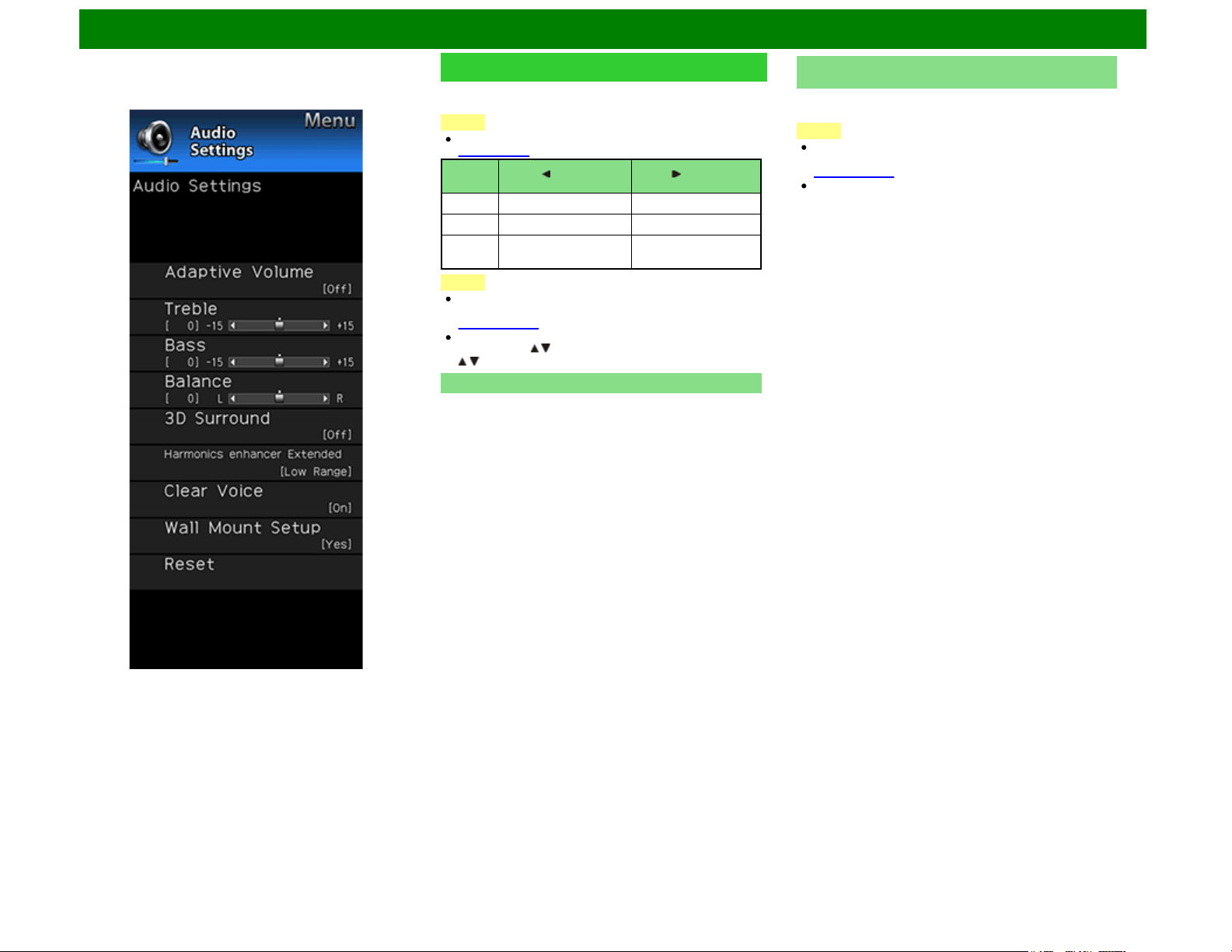
Audio Settings
You can adjust the sound quality to your preference with the
following settings.
NOTE
For operating the on-screen display menu,
see page 4-3.
Selected
item
button button
Treble For weaker treble For stronger treble
Bass For weaker bass For stronger bass
Balance Decrease audio from
the right speaker
Decrease audio from
the left speaker
NOTE
The Audio menu is grayed out when "Output Select" is set
to "Variable".
(See page 4-20.)
For resetting Audio adjustment items to the factory preset
values, press / to select "Reset", press ENTER, press
/ to select "Yes", and then press ENTER.
Adaptive Volume
Different sound sources sometimes do not have the same
loudness level, such as a program and its commercial brakes,
The Automatic Volume Control(Auto Volume) reduces this
problem by equalizing.
ON: Reduces the loudness gaps among different sound
source. The result is automatically adjusted according to
the sound sources.
OFF: No adjustment.
Surround (For SQ10U, EQ10U, LE650U, C6500U and
LE642U models)
The surround function produces Surround effect from the
speakers.
NOTE
The Audio Settings menu is grayed out when "Output
Select" is set to "Variable".
(See page 4-20.)
For some discs, setup may be required on your BD/DVD
player. In this case, please refer to the operation manual
of your BD/DVD player.
ENG 4-11
On-Screen Display Menu
Example
Audio Settings (Continue)
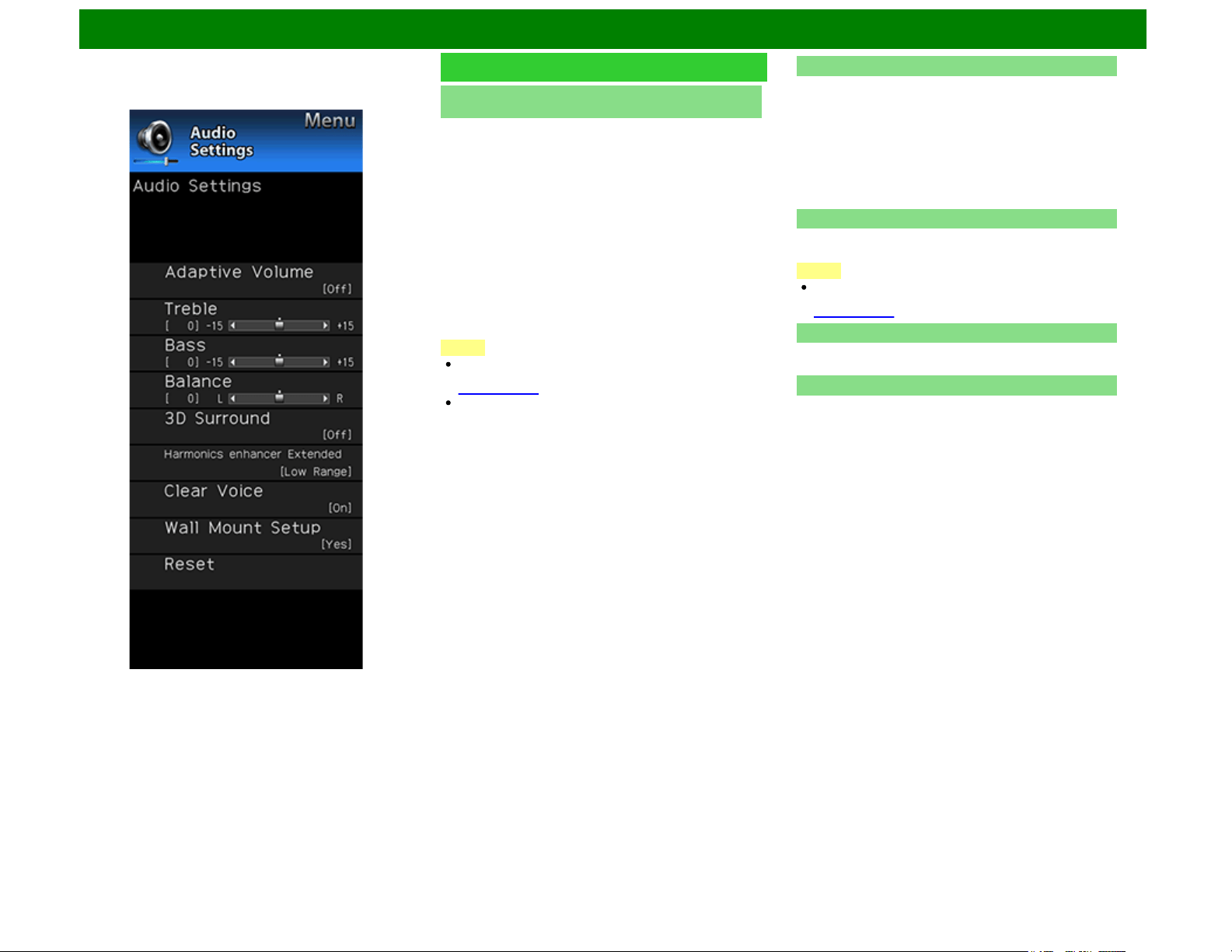
3D Surround (for the UQ17U, TQ15U, SQ17U, SQ15U,
LE657U and UD1U models)
The surround function produces Surround effect from the
speakers.
3D Stadium: Reproduces lifelike experience of excitements
such that live sports or concert performances in a stadium
create.
3D Hall: Reproduces concert hall experience with realistic
live surround sound using measured reverberant sound in
the concert hall.
3D Movie: Reproduces movie theater experience with
realistic live surround sound using measured reverberant
sound in the movie theater.
3D Standard: Creates 3 dimensional surround sound with
detailed control of the signal phase.
Normal: Provides mild surround sound.
Off: Outputs the normal sound.
NOTE
The Audio Settings menu is grayed out when "Output
Select" is set to "Variable".
(See page 4-20.)
For some discs, setup may be required on your BD/DVD
player. In this case, please refer to the operation manual
of your BD/DVD player.
Harmonics Enhancer Extended
This function improves the sound quality by extending the
selected range.
All Range: The low range will be extended and the sounds
in the medium and high ranges, which have been lost due
to the data being compressed, will be restored.
This setting is effective when playing back audio through a
wireless interface such as when using Bluetooth playback.
Low Range: The low range will be extended.
Off: No adjustment.
Clear Voice
This function emphasizes speech against background noise
for greater clarity.
NOTE
The Audio Settings menu is grayed out when "Output
Select" is set to "Variable".
(See page 4-20.)
Wall Mount Setup
This selects the optimal audio for the program you are
currently watching even when the TV is mounted to a wall.
Reset
Returns Audio Settings to their factory preset values. To
reset, select "YES" and then press ENTER.
ENG 4-12
On-Screen Display Menu
Example
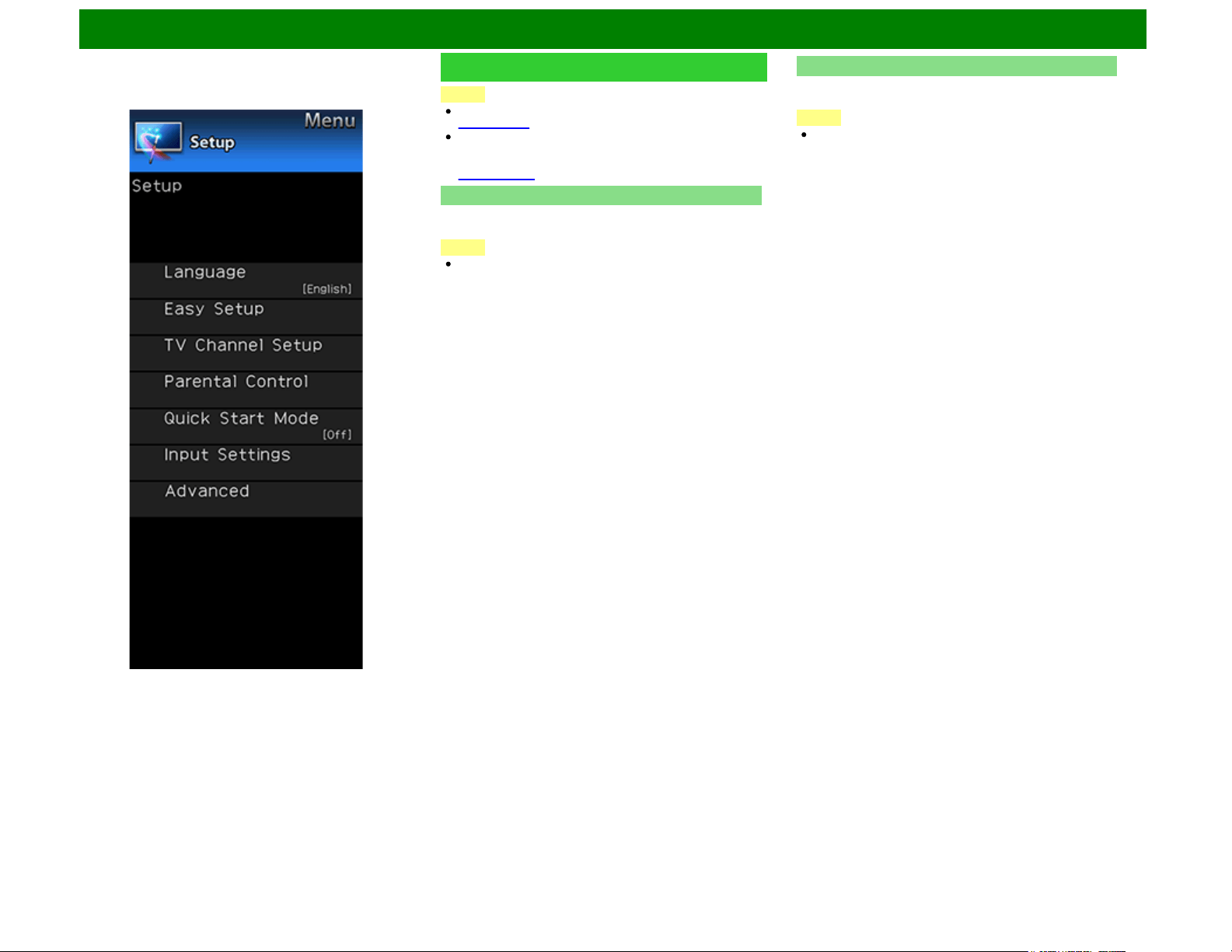
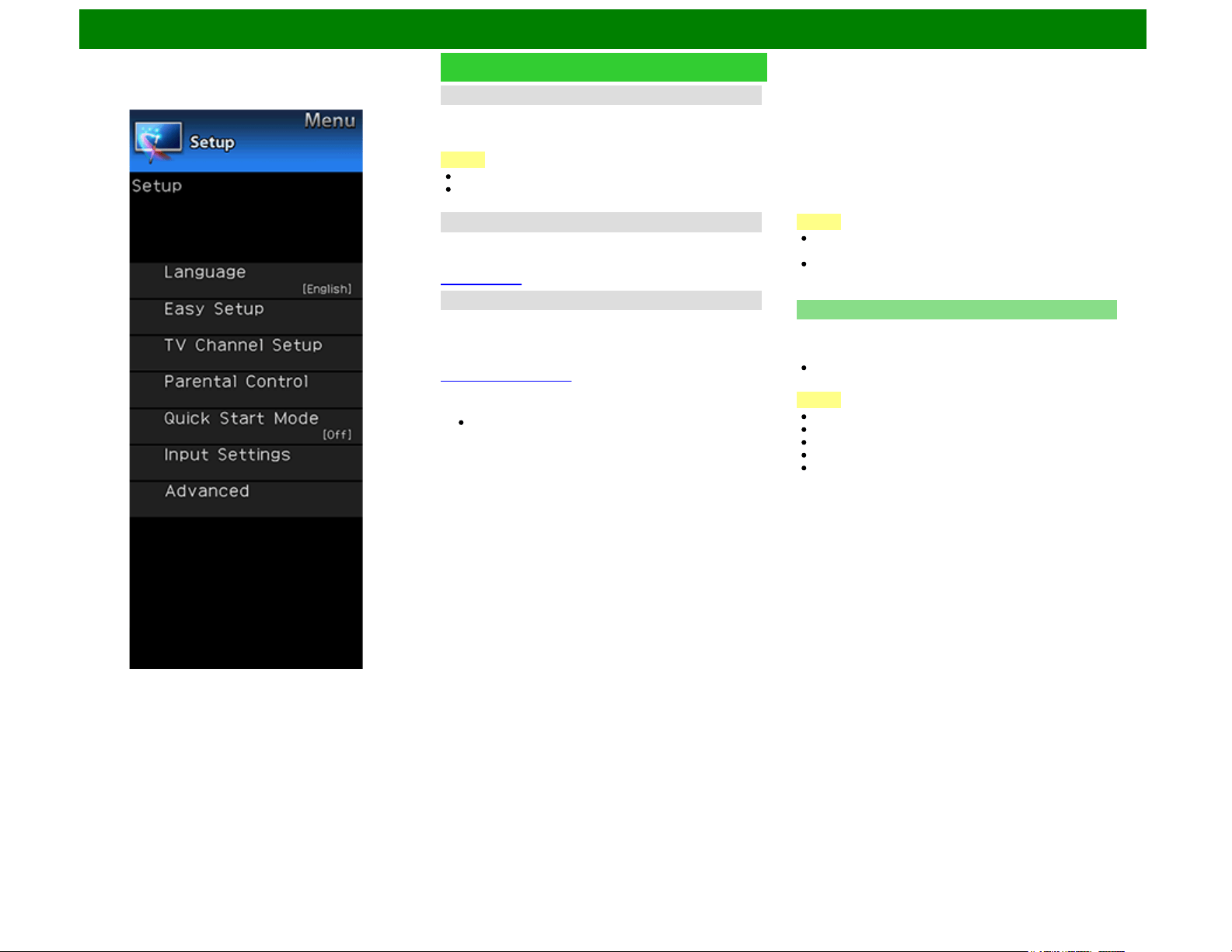
Setup
NOTE
For operating the on-screen display menu,
see page 4-3.
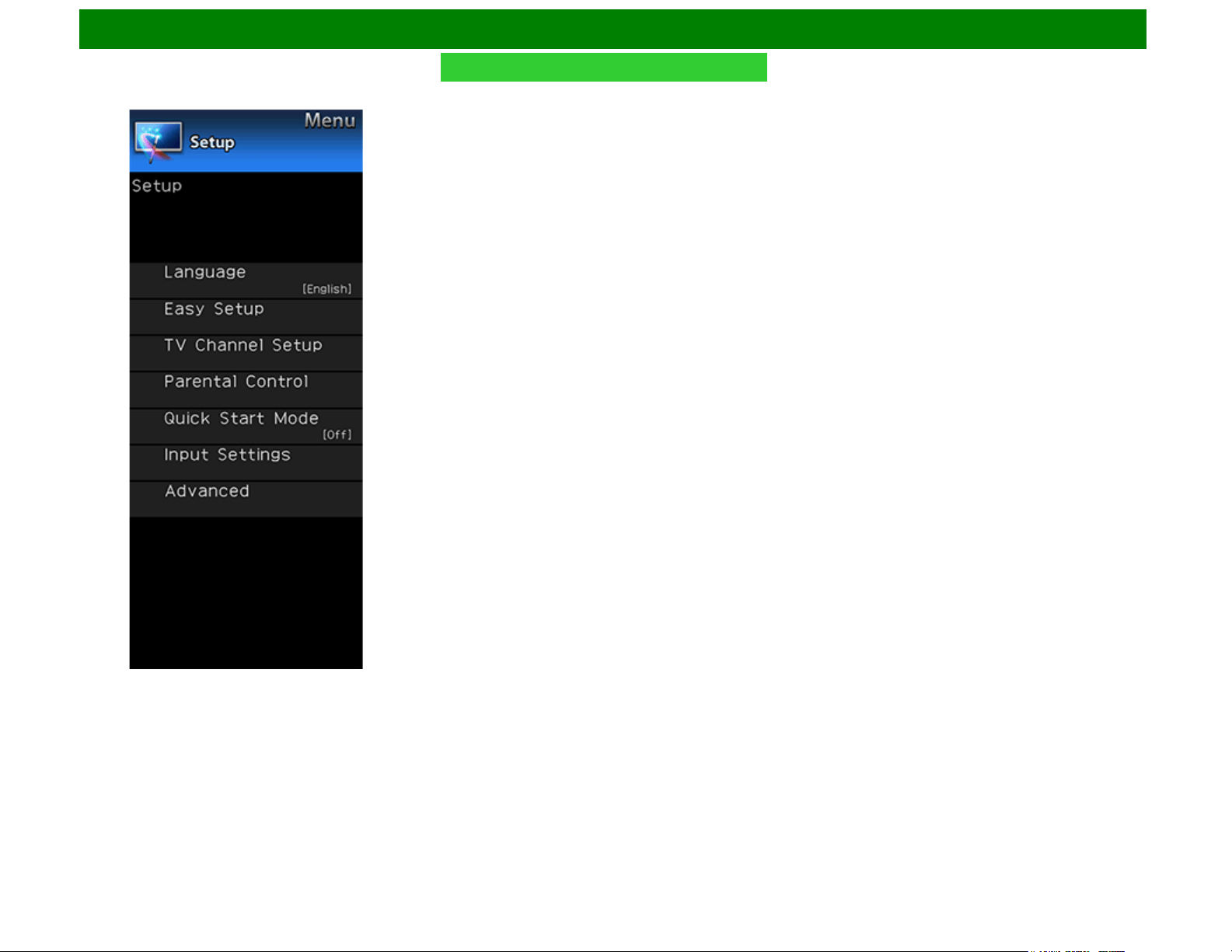
When you select "Easy Setup", "CH Setup", "Parental
Control" or "Reset", you can enter the 4-digit secret
number here.
See page 4-21 for setting a secret number.
Language
You can also select a language from the Setup menu. Select
from among 3 languages: English, French and Spanish.
NOTE
To change the language of the manual, select "MENU" >
"Setup" > "Language" to change the language. Then,
press MANUAL again.
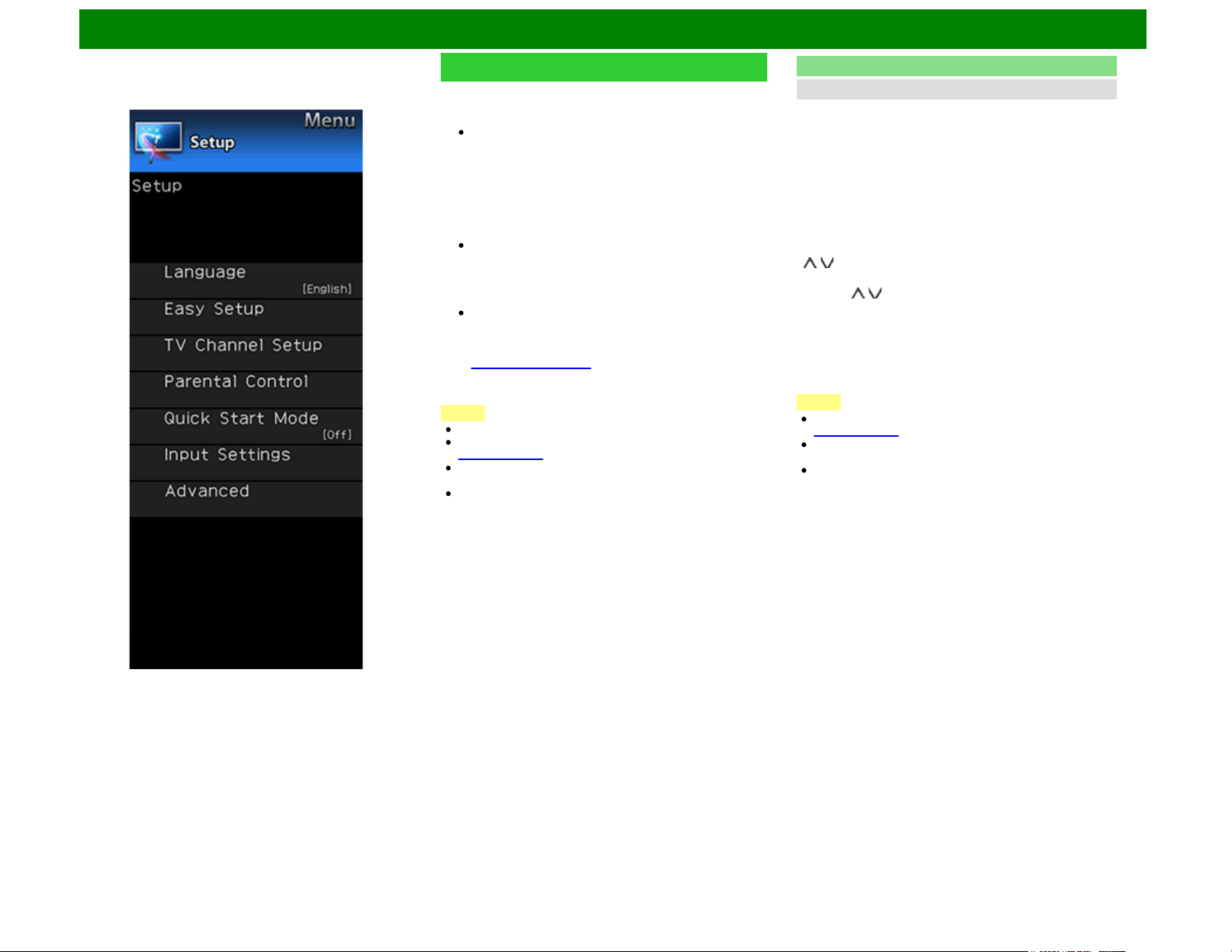
Easy Setup
You can run Easy Setup again, even after setting up the
preset channels.
NOTE
On the UD1U model, you cannot operate the "Easy Setup"
function during 4K60P signal input. Operate this function
during the input of other types of signals (such as Full
HD).
Language: Select from among 3 languages (English,
French and Spanish).
Location & Time: Make settings for the country, area and
time zone where you use the TV.
Select your country: Select either "United States",
"Canada" or "Mexico".
Select your time zone: Select your time zone. The
available settings differ depending on the selected country.
Select DST (Daylight Savings Time): Select "Auto",
"Manual" or "Off".
TV Location: Select "Home" or "Store" for the location
where you plan to install the TV. This product qualifies for
ENERGY STAR*1 in Home mode default setting.
Home: "Power Saving" is set to "Advanced", and AV MODE
is set to "STANDARD (ENERGY STAR)*1".
Store: "Power Saving" is set to "Off" and AV MODE is set to
"DYNAMIC (Fixed)". Picture Reset and Feature Demo can
be set.
Picture Reset: AV MODE will be set to "DYNAMIC (Fixed)"
regardless of whether Picture Reset is "On" or "Off". If you
select "On", AV MODE will be reset to "DYNAMIC (Fixed)" if
there is no operation for 30 minutes. When "Off" is selected,
AV MODE will be set to "DYNAMIC (Fixed)".
*1: Except for LE657U and UD1U
ENG 4-13
On-Screen Display Menu
Example
Setup (Continue)
Feature Demo: When "On" is selected, after all the settings
are completed, the Feature Demo screen is displayed if
there is no operation for several minutes.
ENERGY STAR qualification is based on AV MODE
"STANDARD (ENERGY STAR)*1".
Antenna & Cable/STB: Select the type of connection you
will use to watch TV.
Air/Cable: Make sure what kind of connection is made with
your TV when selecting "Air" or "Cable".
CH Search: Channel auto search makes the TV look for all
channels viewable in the set area.
If "Cable" is selected for Antenna setting, scrambled
channels are removed after the Channel search has
been completed.
Smart TV: When you connect to the Internet on the TV,
confirm the connection method and make adjustments.
Wireless LAN connection is possible only when the
WPS (push button) method is used. If any other method
is used, make settings by Smart TV > Internet Setup >
Internet Connection.
(See pages 9-2 to 9-4.)
Completed: The settings confirmation screen is displayed.
Confirm the information displayed on the screen.
NOTE
*1: Except for LE657U and UD1U
See Initial Installation on
pages 2-2 to 2-7 for setting each item.
If no channel is found, confirm the type of connection made
with your TV and try "Easy Setup" again.
If you select "Analog Search Start" and initiate the channel
search, the CH Memory for Cable Digital will be deleted.
TV Channel Setup
CH Setup
If Initial Installation does not memorize all the channels in
your region, follow the instructions below to manually
memorize the channels.
Air/Cable: Make sure what kind of connection is made with
your TV when selecting "Air" or "Cable".
CH Search: Channel auto search makes the TV look for all
channels viewable in the set area.
CH Memory: You can select the channels to skip in each
ANALOG (Air), ANALOG (Cable), DIGITAL (Air) and
DIGITAL (Cable).
On: Skips channels. (Channel selection disabled using CH
/ .)
Off: Does not skip channels. (Channel selection enabled
using CH / .)
Remove Scrambled CH: This function makes the TV look
for and then delete digital cable channels that are
scrambled and so unavailable in the set area. The
process may take more than 20 minutes.
Yes: Starts to remove scrambled channels.
No: This function does not work.
NOTE
See Initial Installation on
pages 2-2 to 2-7 for setting each item.
If no channel is found, confirm the type of connection made
with your TV and try channel search again.
If you select "Analog Search Start" and initiate the channel
search, the CH Memory for Cable Digital will be deleted.
ENG 4-14
On-Screen Display Menu
Example
Setup (Continue)
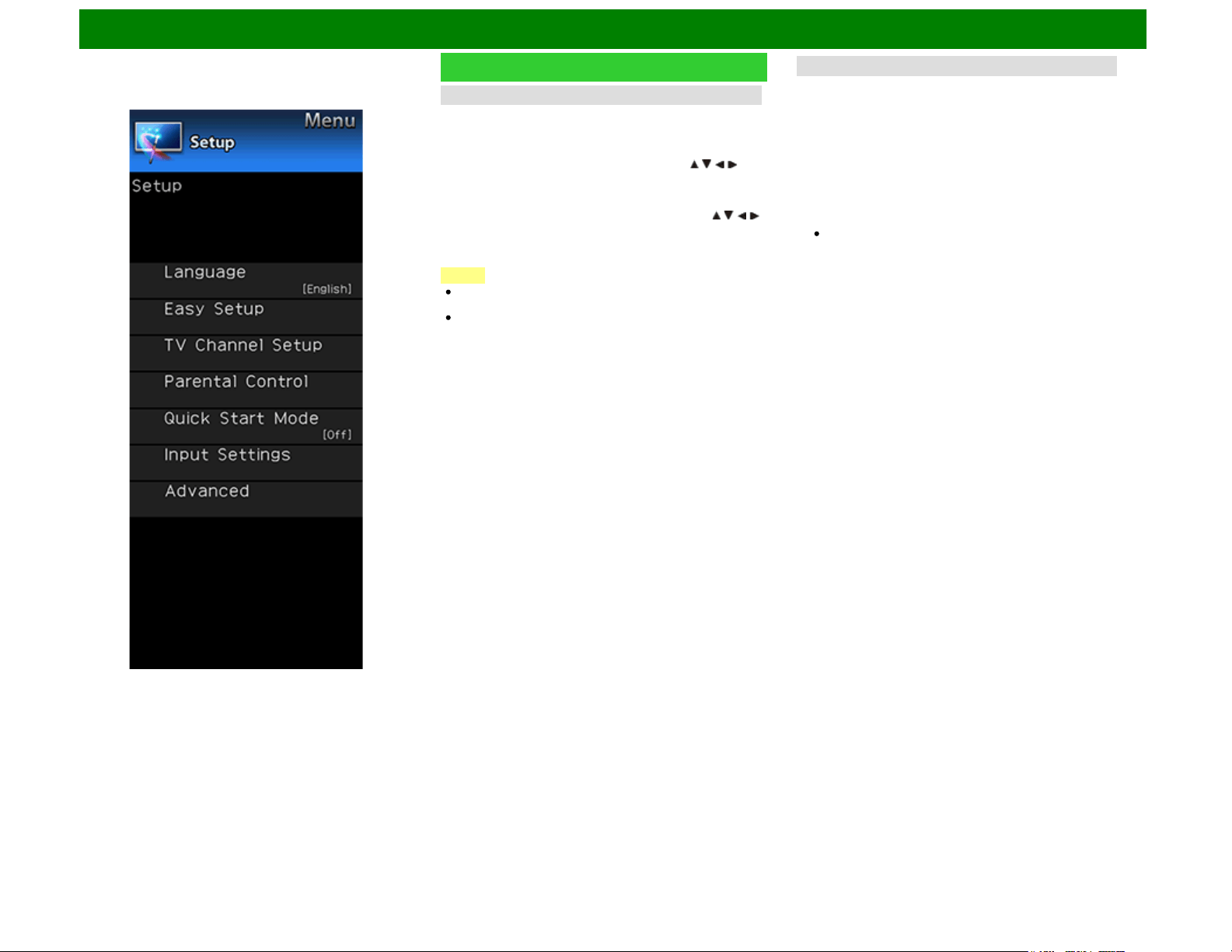
Favorite CH (Favorite Channel Setting)
This function allows you to program 4 favorite channels, in 4
different categories. By setting the favorite channels in
advance, you can select your favorite channels easily.
To register your favorite channel:
Select "Register" and then press ENTER. Press / / / to
select the position in the category, and then press ENTER
to register.
To delete your favorite channel:
Select "1 Data Clear" and then press ENTER. Press / / /
to select the channel you want to delete, and then press
ENTER. Select "Yes" and then press ENTER.
To delete all the favorite channels, select "All Data Clear".
NOTE
Before setting the channel, select the channel you want to
register as a favorite channel.
You can display the "Favorite CH" screen by pressing
FAVORITE CH on the remote control.
Antenna Setup-DIGITAL
In order to receive digital air broadcasts, you need a digital
broadcast antenna. You can confirm the antenna
configuration through the "Antenna Setup-DIGITAL" screen. If
necessary, adjust the direction of the antenna to obtain the
maximum signal strength.
Signal Strength: The signal strength of DIGITAL channel is
displayed. The signal information is based on the current
channel.
Channel Strength: Input the 2-digit channel number to
check the signal strength of the selected channel. Make
sure the signal is strong enough for each channel.
This function is available for DIGITAL (Air) only.
ENG 4-15
On-Screen Display Menu
Example
Setup (Continue)
Parental Control
(Parental Control Setting)
V-Chip
V-CHIP is an electronic filtering device built into your TV. This
tool gives parents a great degree of control over broadcasts
accessed by their children. It allows parents to select
programs judged suitable for child viewing while blocking
ones judged not suitable. It does so automatically once you
activate the V-CHIP feature in your TV. "V-Chip" and "Status"
will not be selectable from the menu if you do not first
configure your secret number.
The U.S. has two rating systems for viewing content: TV
Parental Guidelines and movie ratings.
The TV Parental Guidelines work in conjunction with the V-
CHIP to help parents screen out inappropriate television
shows from their children.
Movie ratings are used for original movies rated by the
Motion Picture Association of America (MPAA) as watched
on cable TV and not edited for television. The V-CHIP can
also be set to block MPAA-rated movies.
NOTE
The setting automatically enters "Block" for any ratings
below your selection.
If Status is not set to "On", the configuration settings will
not work.
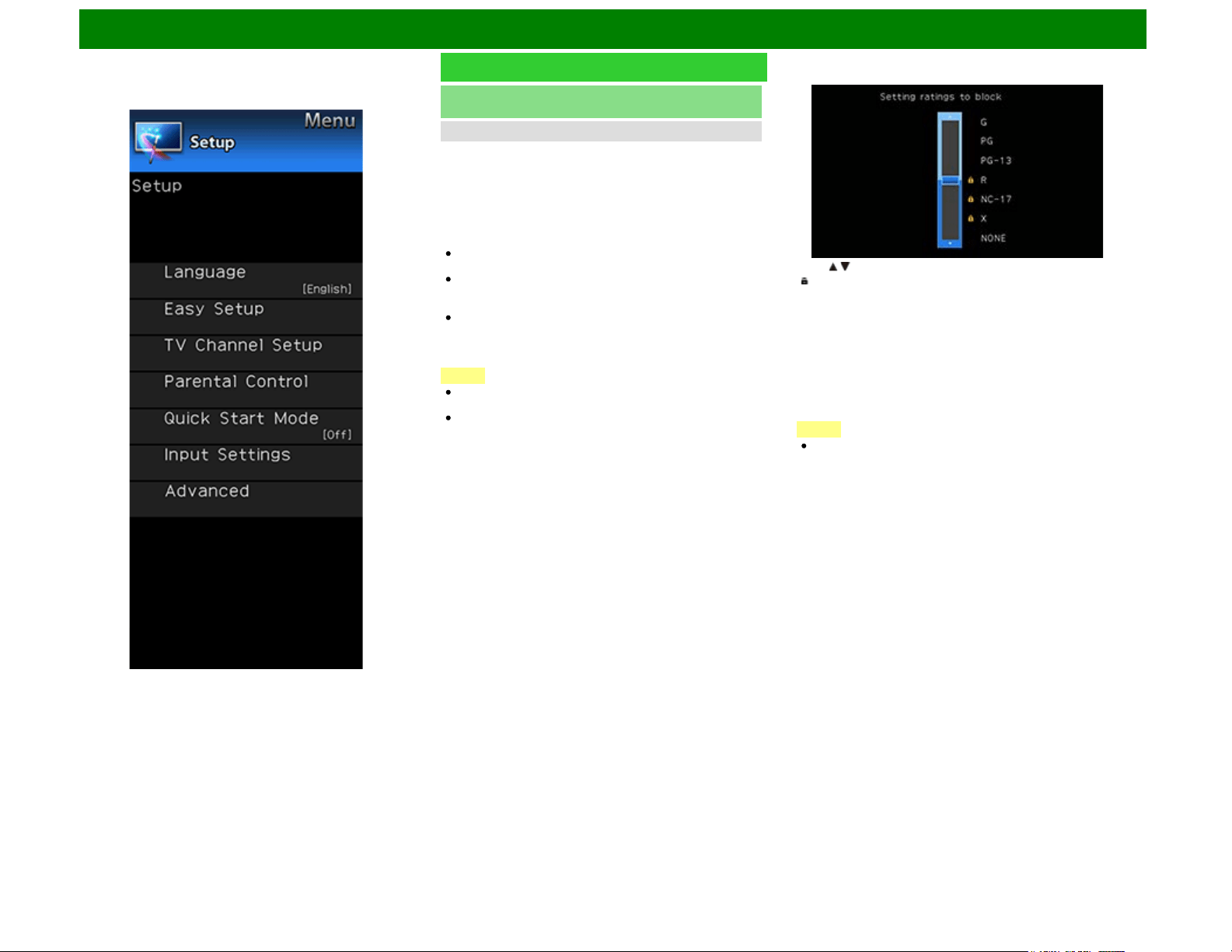
MPAA (Voluntary movie rating system)
Example
Press / to adjust the item to your desired position.
" " indicates the item is blocked. Press MENU to exit.
G: General audiences. All ages admitted.
PG: Parental guidance suggested. Some material may not be
suitable for children.
PG-13: Parents strongly cautioned. Some material may be
inappropriate for children under 13.
R: Restricted. Under 17 requires accompanying parent or
adult guardian (age varies in some jurisdictions).
NC-17: No one 17 and under admitted.
X: X is an older rating that is unified with NC-17 but may be
encoded in the data of older movies.
NOTE
Voluntary movie rating system only uses an age-based
rating.
ENG 4-16
On-Screen Display Menu
Example
Setup (Continue)
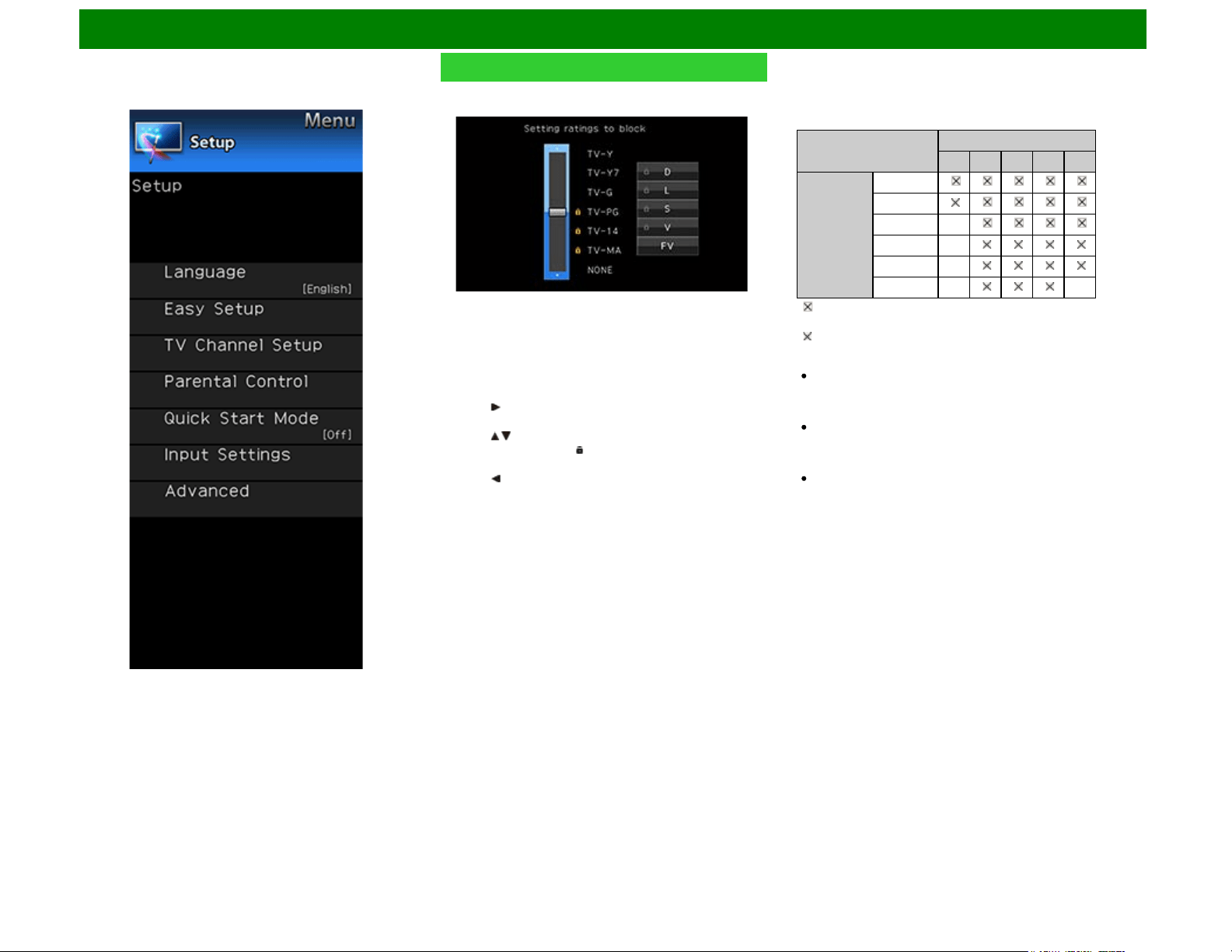
TV Parental Guidelines
Example
Suggested age
TV-Y: All children.
TV-Y7: Directed to older children.
TV-G: General audience.
TV-PG: Parental Guidance suggested.
TV-14: Parents strongly cautioned.
TV-MA: Mature audience only.
When setting an individual content-based rating item:
1 Press or ENTER to access blocked content items from
the currently selected age-based rating item.
2 Press / to select an individual item, and then press
ENTER to unblock it (" " is removed). Repeat the same
steps for the other items.
3 Press or RETURN to register after all individual content
rating items are set.
Content
FV: Fantasy violence.
V: Violence.
S: Sexual situation.
L: Adult language.
D: Sexually suggestive dialog.
Rating
Content
FV V S L D
Suggested
age
TV-Y
TV-Y7
TV-G
TV-PG
TV-14
TV-MA
: The content rating can be set, but this rating is not
normally broadcast by TV stations.
: Content rating can be set.
Canadian Rating Systems (Canadian English ratings and
Canadian French ratings)
The TV rating systems in Canada are based on the
Canadian Radio-Television and Telecommunications
Commission (CRTC) policy on violence in television
programming.
While violence is the most important content element to be
rated, the structure developed takes into consideration
other program content like language, nudity, sexuality and
mature themes.
When setting the V-CHIP on the Canadian system you can
choose either the Canadian English ratings or the
Canadian French ratings.
ENG 4-17
On-Screen Display Menu
Example
Setup (Continue)
Canadian English Ratings
E: Exempt: Includes news, sports, documentaries and other
information programming; talk shows, music videos, and
variety programming.
C: Children: Intended for younger children under the age of
8 years. Pays careful attention to themes that could
threaten their sense of security and well-being.
C8+: Children over 8 years old: Contains no portrayal of
violence as the preferred, acceptable, or only way to
resolve conflict; nor encourage children to imitate
dangerous acts which they may see on the screen.
G: General: Considered acceptable for all age groups.
Appropriate viewing for the entire family, contains very
little violence, physical, verbal or emotional.
PG: Parental Guidance: Intended for a general audience,
but may not be suitable for younger children (under the
age of 8) because it could contain controversial themes or
issues.
14+: Over 14 years: Could contain themes where violence is
one of the dominant elements of the storyline, but it must
be integral to the development of plot or character.
Language usage could be profane and nudity present
within the context of the theme.
18+: Adults: Intended for viewers 18 years and older and
might contain depictions of violence, which while related
to the development of plot, character or themes, are
intended for adult viewing. Could contain graphic
language and portrayals of sex and nudity.
Canadian French Ratings
E: Exempt programming.
G: General: All ages and children, contains minimal direct
violence, but may be integrated into the plot in a
humorous or unrealistic manner.
8ans+: General but inadvisable for young children: May be
viewed by a wide public audience, but could contain
scenes disturbing to children under 8 who cannot
distinguish between imaginary and real situations.
Recommended for viewing with parent.
13ans+: Over 13 years: Could contain scenes of frequent
violent scenes and therefore recommended for viewing
with parent.
16ans+: Over 16 years: Could contain frequent violent
scenes and intense violence.
18ans+: Over 18 years: Only for adult viewing. Could
contain frequent violent scenes and extreme violence.
How to temporarily release the V-CHIP BLOCK
When the V-CHIP BLOCK is working and censors a
broadcast, "V-CHIP HAS BEEN ACTIVATED." displays.
1 Press ENTER while the V-CHIP is working, and then the
secret number setting menu displays.
2 Input the 4-digit secret number by using 0–9. At this time
V-CHIP BLOCK temporarily releases.
ENG 4-18
On-Screen Display Menu
Example
Setup (Continue)
Reactivating the temporarily released V-CHIP BLOCK
You can reactivate the temporarily released V-CHIP BLOCK
as shown below.
Select "Status" setting from the Parental Control menu to
reactivate BLOCK.
Select "V-Chip" setting ("MPAA", "TV Guidelines", "Can.
English Ratings" or "Can. French Ratings") from the
Parental Control to reactivate BLOCK.
(See pages 4-16 to 4-18.)
Switch off the TV power.
NOTE
Performing any of the three above will activate the V-CHIP
BLOCK.
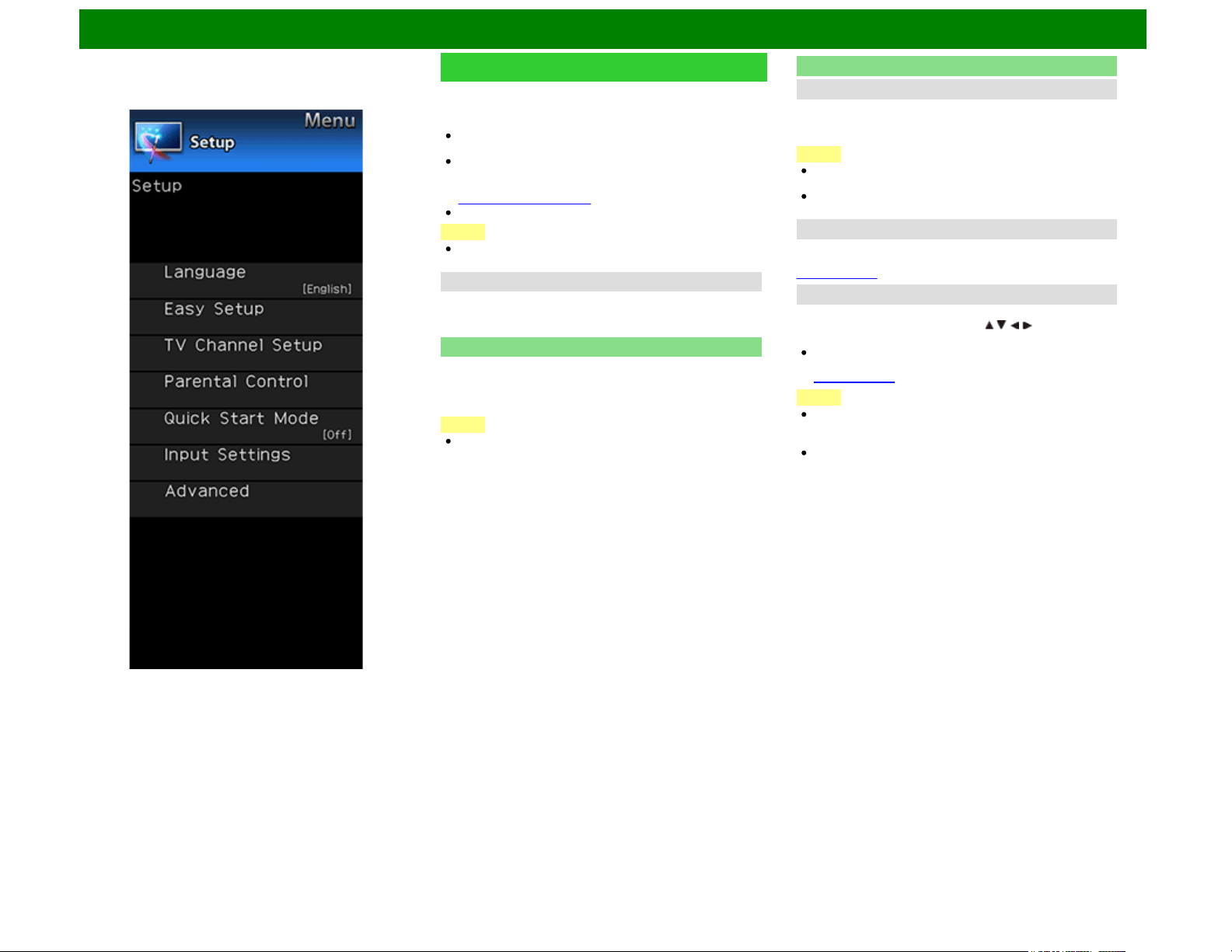
Status
Used to enable or disable the parental control function. This
function will not be selectable from the menu if you do not first
configure your secret number.
Quick Start Mode
When this function is activated, you can reduce the TV's start-
up time or even let the TV in standby mode start displaying
images and so on via the connected equipment on the
network.
NOTE
Setting "Quick Start Mode" to "On" consumes more power.
Input Settings
HDMI Setup - Auto View
When you view images sent from external equipment in an
HDMI connection, this function allows the image size on the
TV to automatically switch to an appropriate one.
NOTE
Refer to your external equipment operation manual for the
signal type.
When connecting a DVI-HDMI conversion adapter/cable to
the HDMI IN terminal, the image may not come in clearly.
PC input
You can adjust the position of the image input from a PC the
settings with "Setup" > "Advanced" > "PC input".
(See page 8-1.)
Custom Input Label
Lets you set the input terminal displayed when using the
INPUT list or channel display. Press / / / to select the
new name for the input mode.
Using the software keyboard, you can enter up to
10 characters for text.
(See page 9-5.)
NOTE
You cannot change labels if the input source is TV, Home
Network, USB, Screen Sharing, Bluetooth or
SD/SDHC/USB*1.
On the UD1U model, you cannot operate the "Custom
Input Label" function during 4K60P signal input. Operate
this function during the input of other types of signals
(such as Full HD).
*1: For the UD1U model only
ENG 4-19
On-Screen Display Menu
Example
Setup (Continue)
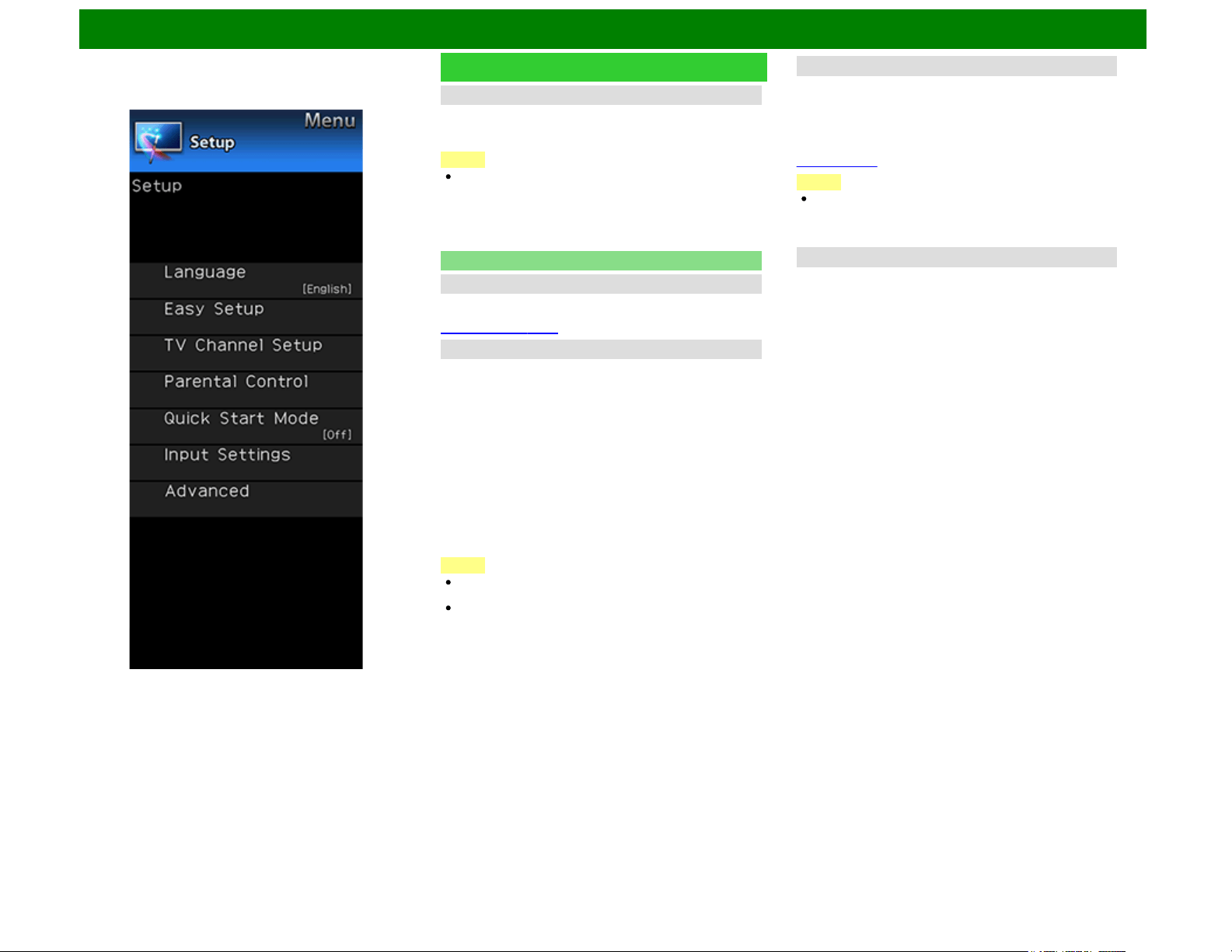
Input Skip
This setting allows you to skip the TV, HDMI or PC IN Input
("TV", "PC IN", "HDMI 1", "HDMI 2", "HDMI 3" and "HDMI 4")
on the Input Selection operation.
NOTE
If you connect external equipment to an HDMI IN terminal
which you have set to be skipped, a notification message
appears on the display when a signal is received from the
connected external equipment. Press "Yes" to reset the
related skipping setting so that the input terminal becomes
available.
Advanced
3D Setup
You can make various settings to enhance 3D image viewing.
(See page 5-11, 5-12.)
Audio Setup
You can output digital audio to an AV amplifier or similar
device whose DIGITAL AUDIO INPUT terminal is connected
to the DIGITAL AUDIO OUT terminal on the TV. Please select
an audio output format compatible with the audio format of the
program you are watching and the equipment connected.
PCM: For connecting to equipment that does not support
Dolby Digital and DTS. The same audio (main, sub, or
main/sub) as the audio of the program being viewed is
output.
2-channel audio with a sampling rate of 48 kHz or less is
output as linear PCM audio.
Bitstream: For connecting to an audio system that supports
Dolby Digital and DTS. Audio is output through both the
main and sub channels.
NOTE
Analog channel audio and video input audio are output in
PCM mode even when "Bitstream" is selected.
PCM digital input signals are output in PCM mode even
when "Bitstream" is selected.
Audio Select
This function sets the terminal to output the computer audio.
The adjustment items vary depending on the input source.
Select the input source corresponding to the terminal
connected to the PC and then adjust the desired item.
To perform the operation, refer to "Setup" > "Advanced" >
"Audio Select".
(See page 8-2.)
NOTE
On the UD1U model, you cannot operate the "Audio
Select" function during 4K60P signal input. Operate this
function during the input of other types of signals (such as
Full HD).
Output Select
Allows you to select what controls the audio output.
Fixed: Sound via speaker is adjusted with VOL+/- on the
remote control unit or on the TV.
Sound via the AUDIO OUT terminal is not adjustable and
outputs at a consistent level.
Variable: Sound via the AUDIO OUT terminal is adjusted
with VOL+/- on the remote control unit or on the TV.
Sound via speaker is muted.
ENG 4-20
On-Screen Display Menu
Example
Setup (Continue)
Color System
Select the video signal system compatible with your
equipment from the list below:
Auto/NTSC/PAL-M/PAL-N
NOTE
"Color System" can only be set for the VIDEO IN 1 or 2.
If you have already set the Secret No., input the 4-digit
secret number here.
AQUOS LINK Setup
Make the settings to use AQUOS LINK.
Set the settings with "Setup" > "Advanced" > "AQUOS LINK
Setup".
(See page 7-2.)
Secret No.
Allows you to use a secret number to protect certain settings
from being accidentally changed.
IMPORTANT:
Three conditions must be met to enable the V-Chip
(see pages 4-16 to 4-19):
1. Secret No. is registered.
2. V-Chip/V-Chip (DTV Only) settings have been made.
The "V-Chip (DTV Only)" will only be selectable when a
new rating system can be downloaded via digital
broadcasting in the U.S.
3. "Status" is set to "On".
Setting Secret No.
You can set and change the secret number by using 0-9.
Yes: Changes or sets the Secret No.
No: The confirmation screen to clear the Secret No. appears
when the Secret No. has been set. When the Secret No.
has not been set, the previous screen will be displayed.
Delete Secret No.
You can clear your secret number.
Yes: Your secret number is cleared.
No: Your secret number is not cleared.
NOTE
As a precautionary measure, make a note of your secret
number and keep it in a familiar place.
If the secret number is cleared, the Status setting
automatically sets to "Off". "V-Chip" and "Status" will not
be selectable from the menu.
Reset
If complex adjustments are made and the settings cannot be
restored to normal, you can reset the settings to the factory
preset values.
If you have already set the Secret No., input the 4-digit
secret number here.
NOTE
The Channel Setup settings will not be changed.
The Language settings will not be changed.
The Secret number settings will not be changed.
The TV Location settings will not be changed.
On the UD1U model, you cannot operate the "Reset"
function during 4K60P signal input. Operate this function
during the input of other types of signals (such as Full
HD).
ENG 4-21
On-Screen Display Menu
Example
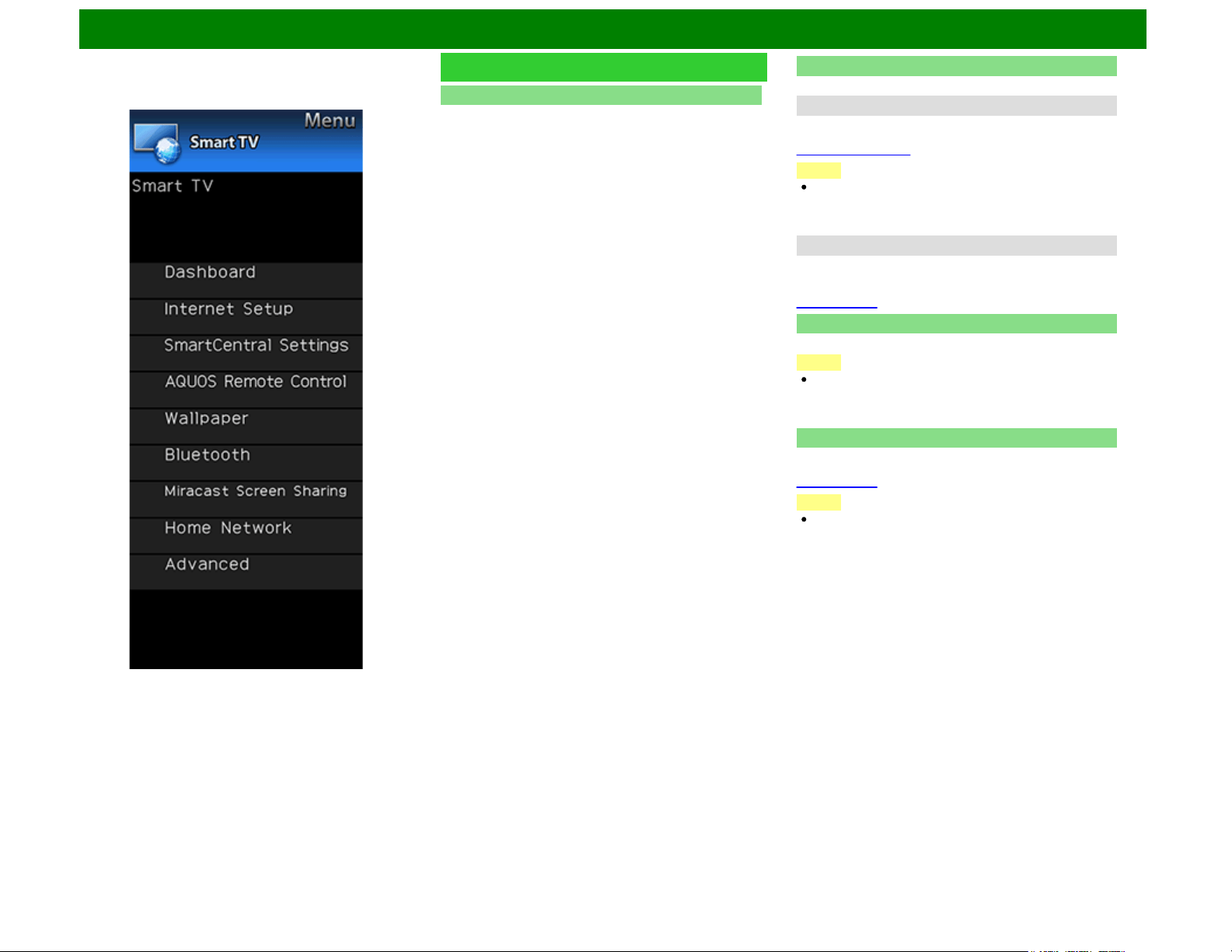
Smart TV
Dashboard
You can display a list of the main Smart TV settings.
Internet Setup
Configures LAN and Internet settings.
Internet Connection
You can connect your TV to the Internet using the setting item
"Internet Connection".
(See page 9-2 to 9-4.)
NOTE
On the UD1U model, you cannot operate the "Internet
Connection" function during 4K60P signal input. Operate
this function during the input of other types of signals
(such as Full HD).
Interactive Service
If you do not want other people to connect to the Internet in
your absence, you can make settings to keep the TV away
from the Internet.
(See page 9-4.)
SmartCentral Settings
Switch to the SmartCentral Settings screen.
NOTE
On the UD1U model, you cannot operate the
"SmartCentral Settings" function during 4K60P signal
input. Operate this function during the input of other types
of signals (such as Full HD).
AQUOS Remote Control
Set this function when operating the TV from equipment
connected by LAN or wireless LAN.
(See page 8-3.)
NOTE
On the UD1U model, you cannot operate the "AQUOS
Remote Control" function during 4K60P signal input.
Operate this function during the input of other types of
signals (such as Full HD).
ENG 4-22
On-Screen Display Menu
Example
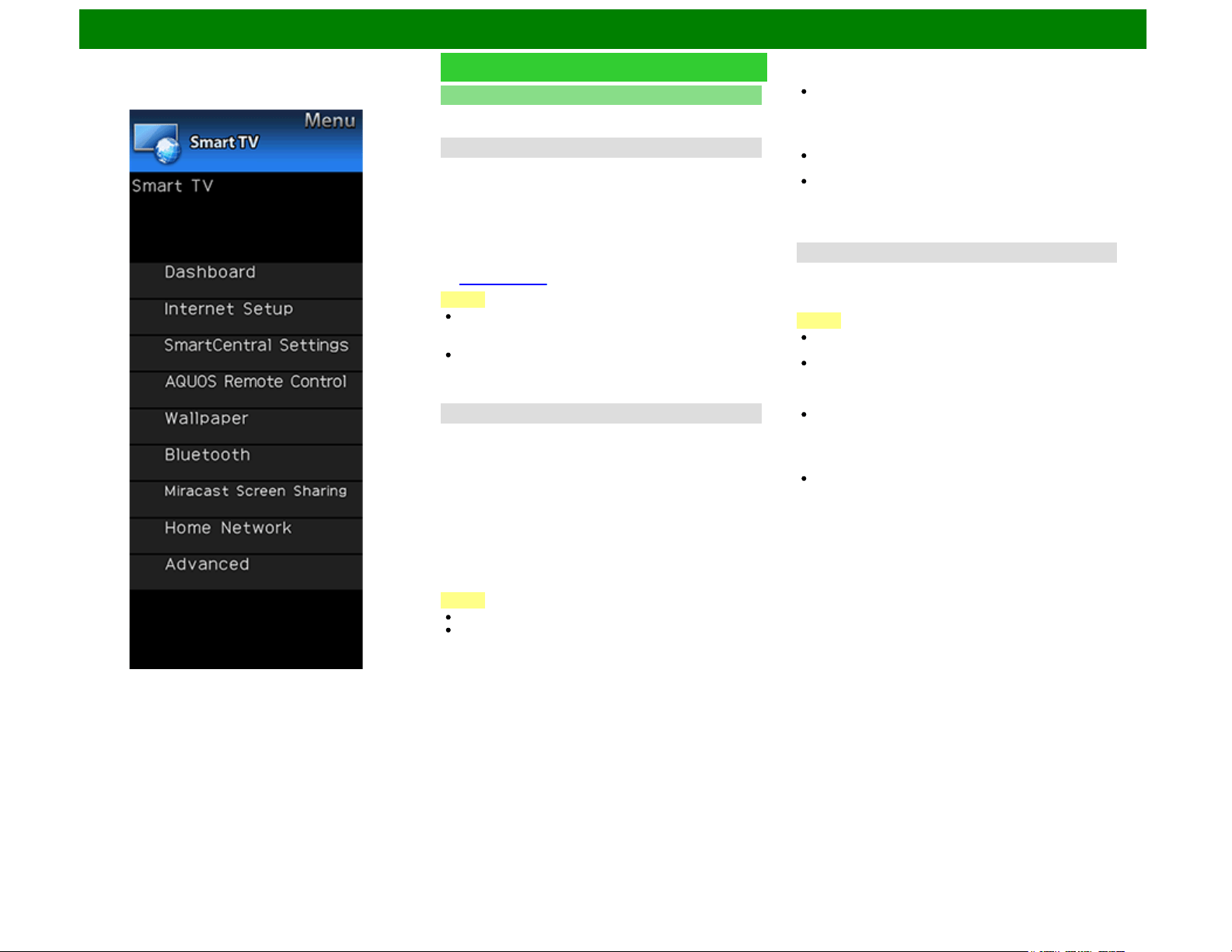
Smart TV (Continue)
Wallpaper
Activating the function will display still images when the TV is
in standby mode.
Wallpaper Mode
Configures Wallpaper Mode settings.
Off:Nothing will be displayed.
Picture:Still images will be displayed when the TV is in
standby mode.
Clock: The clock will be displayed when the TV is in
standby mode.
Configure the clock settings. (For the UQ17U, TQ15U,
SQ17U, SQ15U, SQ10U, EQ10U and UD1U models)
(See page 4-24.)
NOTE
The clock mode can only be used when a network
connection has been established.
Finish configuring the network settings.
After you set the time once, the clock will continue to
operate even if you disconnect from the network.
However, you cannot switch the daylight saving time
setting when disconnected from the network.
Data Source
For the wallpaper, you can select either the still images pre-
installed in the TV or your favorite still images stored in the
USB memory device or SD memory card *1.
Pre-Installed: The images pre-installed in the TV will be
displayed in a slideshow.
USB or SD/SDHC/USB*1: Your favorite images stored for
the wallpaper will appear.
If only a single still image is stored in the USB memory
device or SD memory card *1, that image will be displayed
as the wallpaper. When there are multiple still images in
the memory, all the images will be displayed in a
slideshow.
NOTE
Images are displayed in 3-minute intervals as a slideshow.
When the TV is in Wallpaper mode, you can turn off the TV
by pressing and holding POWER on the TV for 5 seconds.
- Just before the TV turns off, the last image shown
when the TV was turned off appears briefly.
- Your settings may not be saved in some cases.
When you display images by using the USB memory
device or SD memory card *1:
Create a folder named "WP" in the root directory of the
USB memory device or SD memory card *1 (the first
directory when the USB memory device or SD memory
card *1 is opened), and store into the folder the still
images you want to display for the wallpaper.
You must insert the USB memory device or SD memory
card *1 to the TV before turning off the TV.
If there are images on the USB memory device or SD
memory card *1 but they do not appear on the screen,
switch to USB mode or SD mode and check whether the
image files on the USB memory device or SD memory
card *1 are shown correctly.
Timer Setting
You can set the length of time the TV will remain in the
Wallpaper Mode.
3 hours/6 hours/12 hours/24 hours
NOTE
No buttons except for POWER work even while the still
images are being displayed.
If the ready-for-use USB memory device or SD memory
card *1 is not inserted, the still images pre-installed in the
TV will be displayed in a slideshow even when "Data
Source" is set to "USB" or "SD/SDHC/USB"*1.
Because the USB memory device or SD memory card *1
cannot be detected immediately after the TV is turned on
from standby mode, the wallpaper pre-installed in the TV
may be displayed even when "Data Source" is set to
"USB" or "SD/SDHC/USB"*1.
The still images will be displayed until the set time has
elapsed.
*1: For the UD1U only.
ENG 4-23
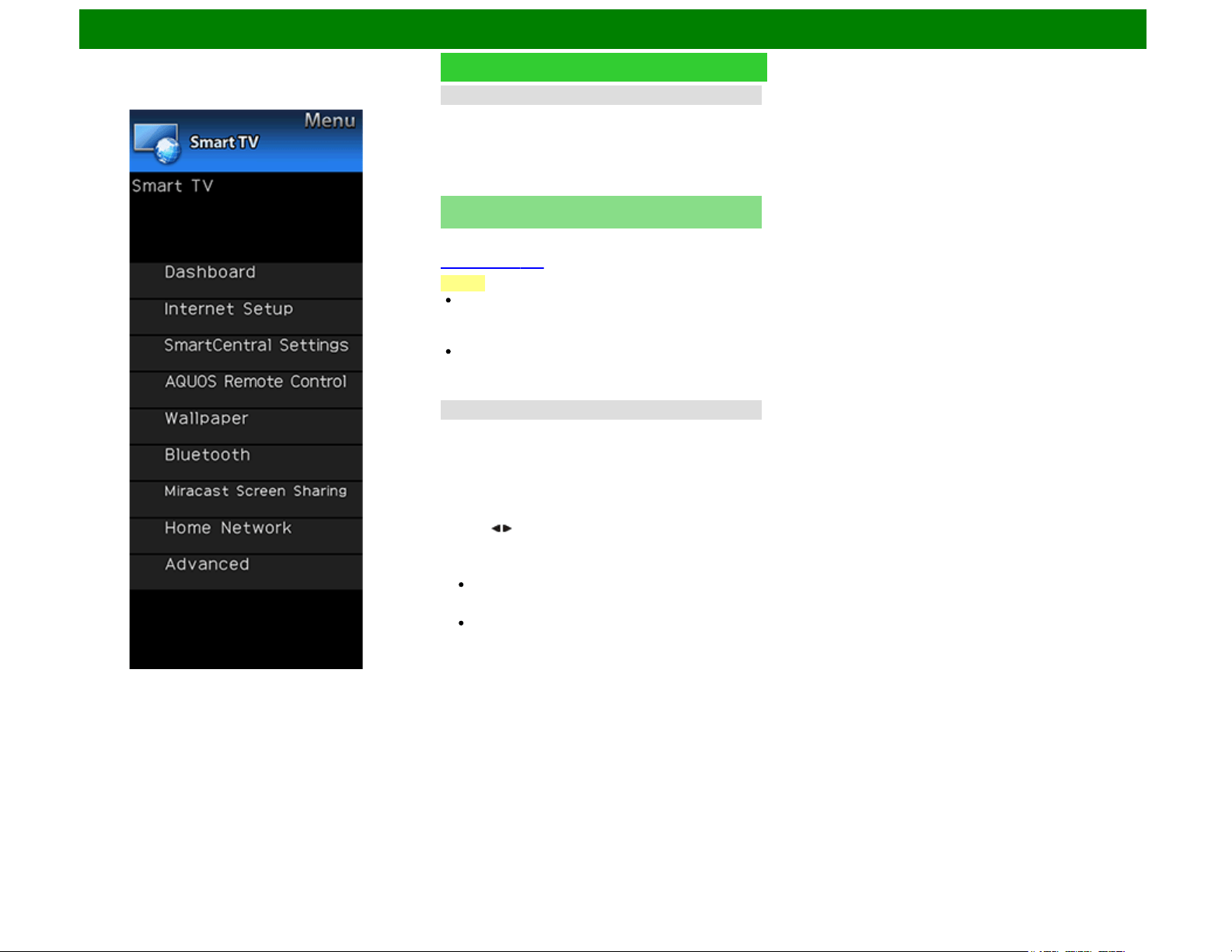
On-Screen Display Menu
Example
Smart TV (Continue)
Clock
Configures clock settings.
Set the type of clock to use in wallpaper mode.
Spring/Summer/Fall/Winter:A clock that represents the
corresponding season will be displayed.
Random:A randomly selected clock from among the four
types will be displayed.
Bluetooth (For the UQ17U, TQ15U, SQ17U, SQ15U,
SQ10U, LE657U and UD1U models)
Set this function when using the bluetooth devices with your
TV.
See page 9-11,10-1 for how to use the devices.
NOTE
When you use the Bluetooth device with your TV for the
first time, you must make pairing between the device and
the TV. Once the pairing is correctly carried out, the
Bluetooth device will be registered on the TV.
On the UD1U model, you cannot operate the "Bluetooth"
menu item during 4K60P signal input. Operate this menu
item during the input of other types of signals (such as Full
HD).
Keyboard Setting/Mouse Setting/Other devices Setting
You can add, delete or select Bluetooth devices in the
registration.
Other devices Setting can only be used with the UQ17U,
TQ15U, SQ17U, SQ15U, SQ10U and UD1U.
Addition of a Bluetooth Device
Before making the settings, press the Connect button on the
Bluetooth device you want to connect.
1 Press / to select "Search", and then press ENTER.
2 Model names of the detected devices will be displayed.
Select the device with the message "New" attached, and
then press ENTER.
When a keyboard is being paired with the TV, a PIN
code will be displayed. Enter the PIN code using the
keyboard, and then press "Enter" key on the keyboard.
When you perform pairing operation on a mouse, select
"Yes", and then press ENTER.
3 After the message indicating the pairing is complete has
been displayed, click "OK".
ENG 4-24
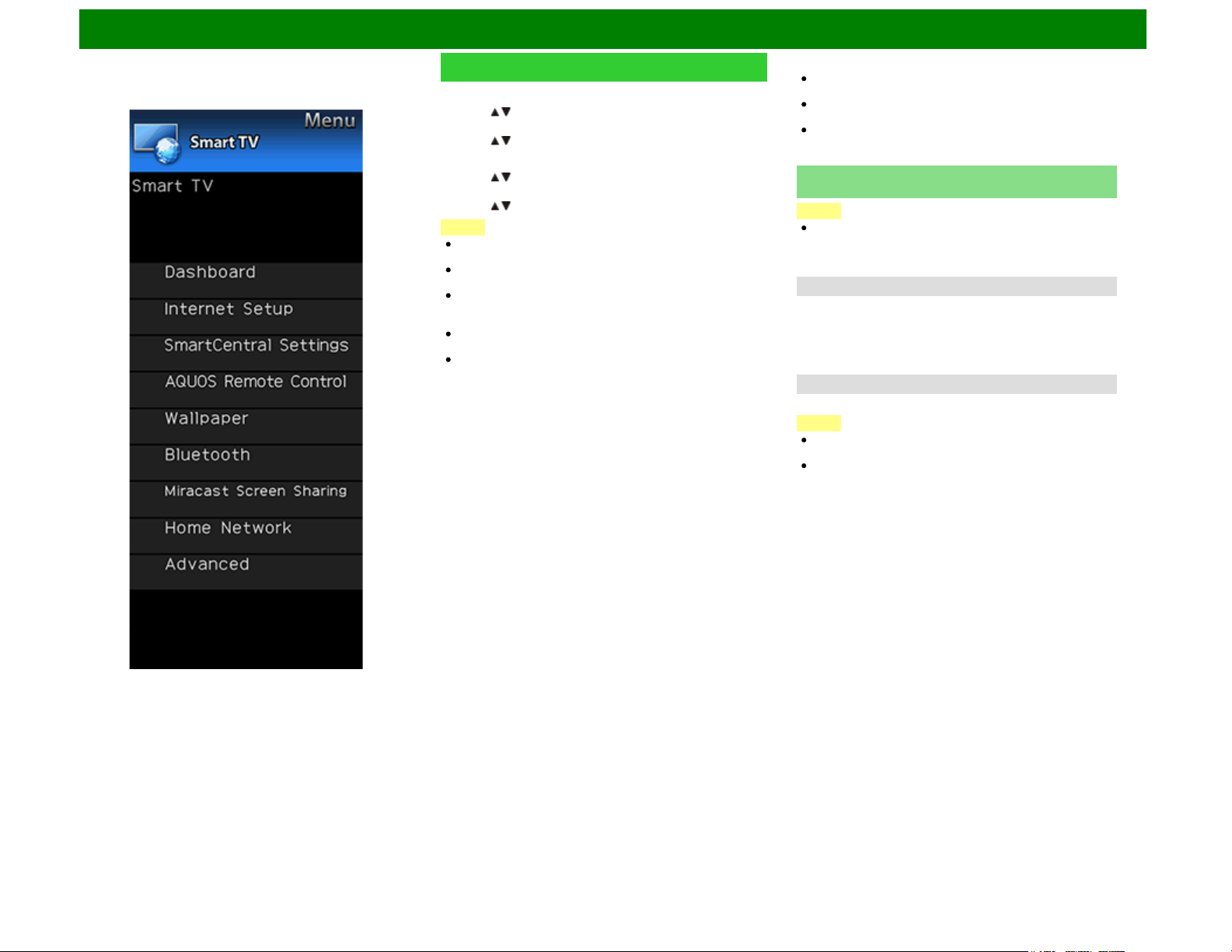
On-Screen Display Menu
Example
Smart TV (Continue)
Deletion of a Bluetooth Device
1 Press / to select the device to delete, and then press
ENTER.
2 Press / to select "Delete", and then press ENTER.
Selection of a Bluetooth Device
1 Press / to select the device to use, and then press
ENTER.
2 Press / to select "Select", and then press ENTER.
NOTE
See also the instruction manual supplied with the Bluetooth
device.
You can register up to 6 devices to the TV, but only one
keyboard and mouse can be used at a time.
If a device for which "Selected" is displayed does not
operate properly, try searching and selecting the device
again.
The keyboard or mouse may not operate properly
depending on the application being used.
The Bluetooth device may not operate properly depending
on the device being used.
Other Devices Setting
Though up to six devices (smartphones) can be registered,
only one can be used at a time.
Repairing is required whenever you change the device
being used.
To have TV power turn on automatically when a playback
signal is received from a paired device while TV power is
off, set “Quick Start Mode” to “ON”.
Miracast Screen Sharing (For the UQ17U, TQ15U,
SQ17U, SQ15U, SQ10U, EQ10U and UD1U models)
NOTE
On the UD1U model, you cannot operate the "Miracast
Screen Sharing" function during 4K60P signal input.
Operate this function during the input of other types of
signals (such as Full HD).
Connection Mode Setting
Configures Connection Mode settings.
PUSH Button Mode:The push button method will be used
to establish connections.
PIN Code Mode:the PIN code method will be used to
establish connections.
Wireless Channel Setting
Set preferred wireless channel for Miracast Connection
NOTE
Depending on the connected device, different channels
may be assigned.
You can use the Wireless Channel setting to specify the
preferred channel. Select "Auto" to select the optimum
channel for the usage conditions.
ENG 4-25
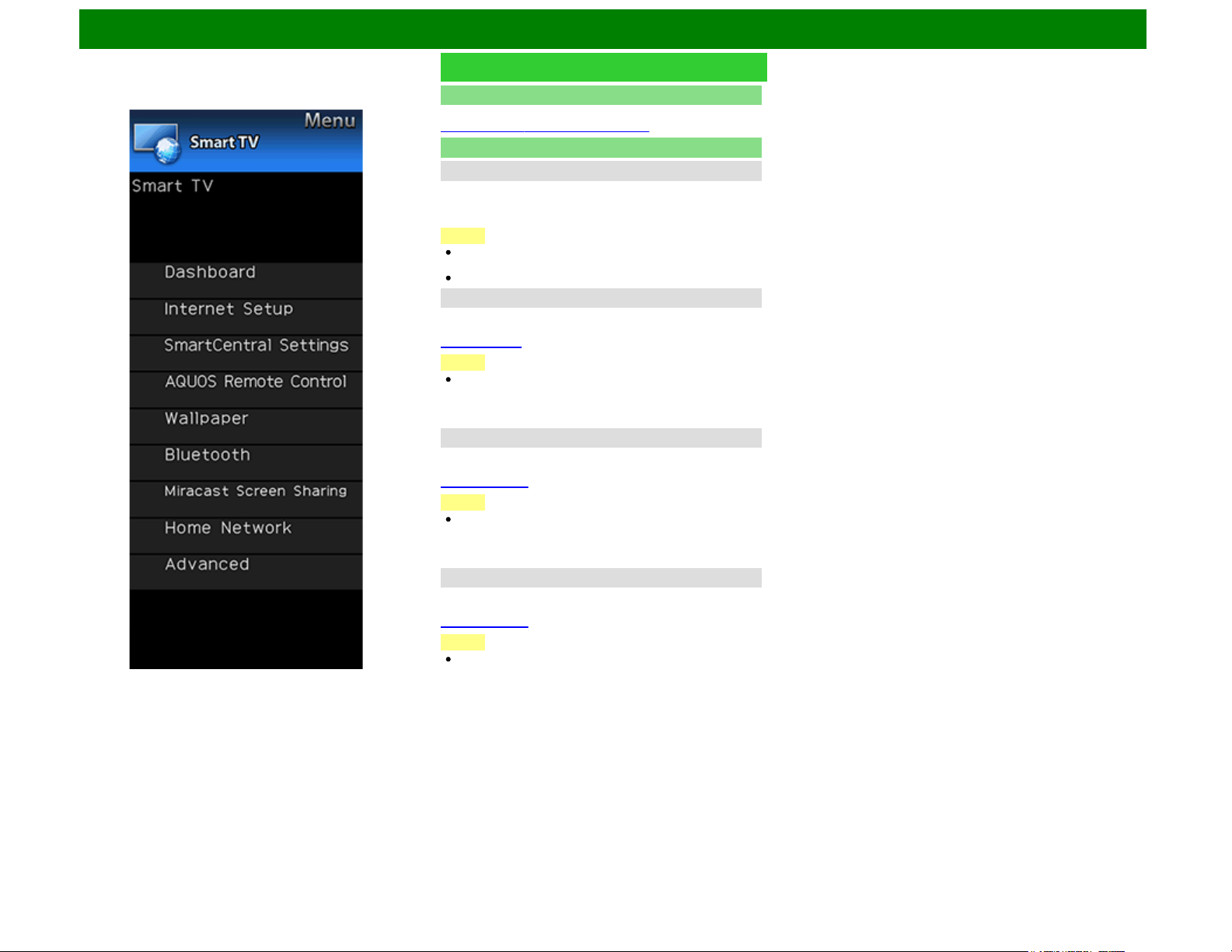
On-Screen Display Menu
Example
Smart TV (Continue)
Home Network
Make the settings for remote playback.
(See page 6-13 (6-30 for UD1U model).)
Advanced
SmartCentral Sounds
You can setting the volume of the SmartCentral sounds.
High/Medium/Low/Off: Setting the volume of SmartCentral
sounds
NOTE
If an external speaker is used, the operation sound will not
be heard.
This setting is only valid in SmartCentral.
TV Name Setting
Set this function when operating the TV from equipment
connected by LAN or wireless LAN.
(See page 8-3.)
NOTE
On the UD1U model, you cannot operate the "TV Name
Setting" function during 4K60P signal input. Operate this
function during the input of other types of signals (such as
Full HD).
Netflix Help
You can deactivate the Netflix function. Refer to "Information"
> "Netflix Help" and select "Deactivate".
(See page 9-13.)
NOTE
On the UD1U model, you cannot operate the "Netflix Help"
function during 4K60P signal input. Operate this function
during the input of other types of signals (such as Full
HD).
VUDU Help
To deactivate the VUDU function, refer to "Information" >
"VUDU Help" and select "Yes".
(See page 9-13.)
NOTE
On the UD1U model, you cannot operate the "VUDU Help"
function during 4K60P signal input. Operate this function
during the input of other types of signals (such as Full
HD).
ENG 4-26
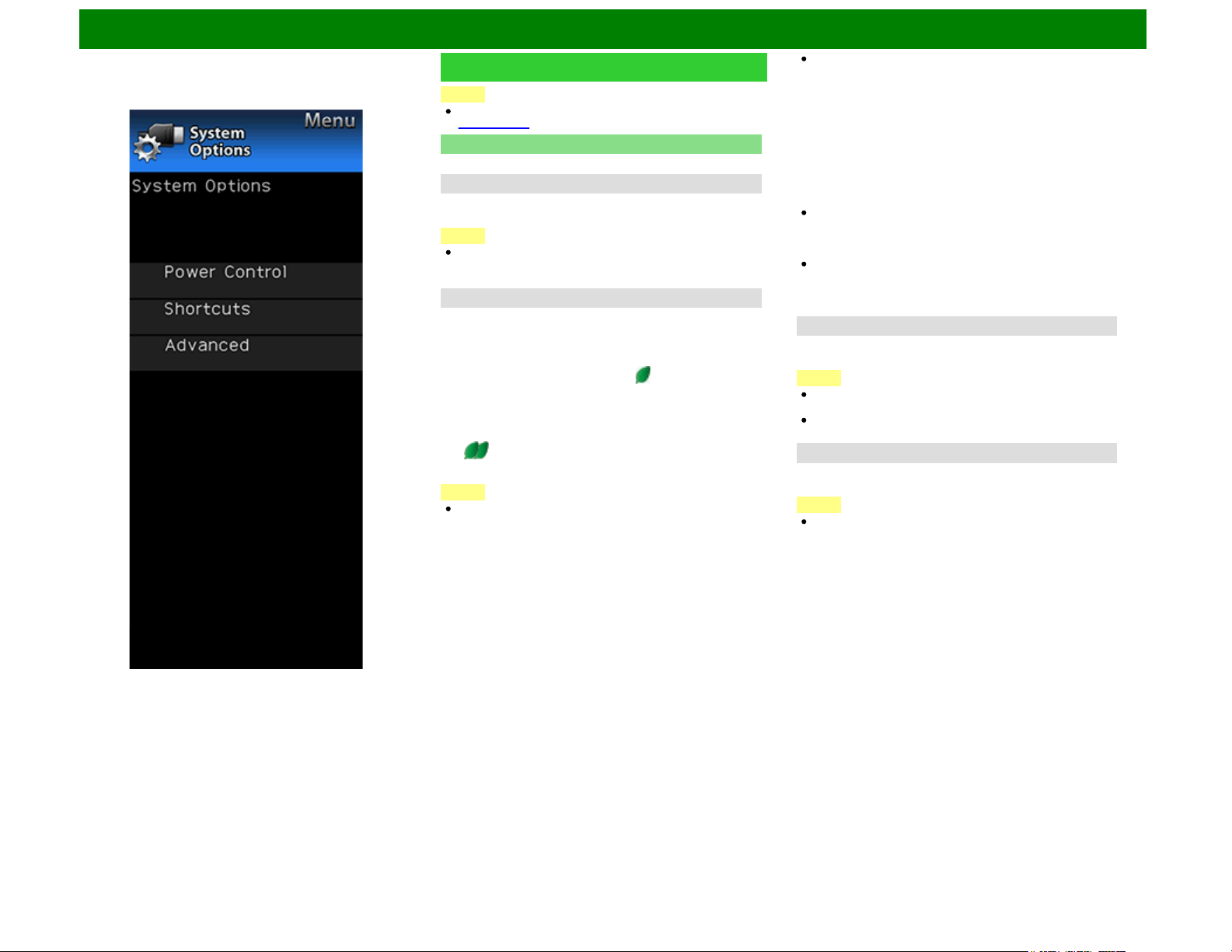
On-Screen Display Menu
Example
System Options
NOTE
For operating the on-screen display menu,
see page 4-3.
Power Control
Power control setting allows you to save energy.
Audio Only
When listening to music from a music program, you can turn
the screen off and enjoy audio only.
NOTE
The screen image will return to normal when a button
(except those for audio adjustment, such as VOL, MUTE)
is pressed.
Power Saving
This function allows you to set the Power Saving level in order
to decrease the power consumption and increase the
backlight lifespan.
Standard: Optimizes power reduction based upon video
content. When set to "Standard", " " appears on the
screen.
Advanced: Optimizes power reduction based upon video
content and engages Light Sensor. When set to
"Advanced",
" " appears on the screen.
Off: This function does not work.
NOTE
"Power Saving" does not function when you set AV MODE
to "AUTO"*1 or "DYNAMIC (Fixed)".
You cannot select a different Power Saving item for each
AV MODE.
When "Power Saving" is set, the "Automatic Light Sensor"
settings for all AV Modes will automatically change.
- If you set "Automatic Light Sensor" to "On" when "Power
Saving" is set to "Standard", then the "Power Saving"
setting will change to "Advanced".
- When you change the "Power Saving" setting from
"Advanced" to "Off" or to "Standard", "Automatic Light
Sensor" will be set to "Off".
- "AUTO"*1 and "DYNAMIC (Fixed)" will remain set to
"Off".
When "Power Saving" is set to "Standard" or "Advanced",
the Power Saving leaf icon appears to the left of
"Automatic Light Sensor" in the Picture Settings menu
screen.
"Power Saving" is not available when the TV is in 3D
mode. (For the UQ17U, TQ15U, SQ17U, SQ15U, LE657U
and UD1U models)
*1: Except for LC-70UD1U.
No Signal Off
When this function is enabled, the TV automatically shuts
down if no signal is received for more than 15 minutes.
NOTE
When it is 5 minutes before the power shuts down, the
remaining time will start to keep appearing every minute.
When a TV program finishes, this function may not
operate.
No Operation Off
When you enable this function, the TV automatically shuts
down if no operation is performed for more than 3 hours.
NOTE
When it is 5 minutes before the power shuts down, the
remaining time will start to keep appearing every minute.
ENG 4-27
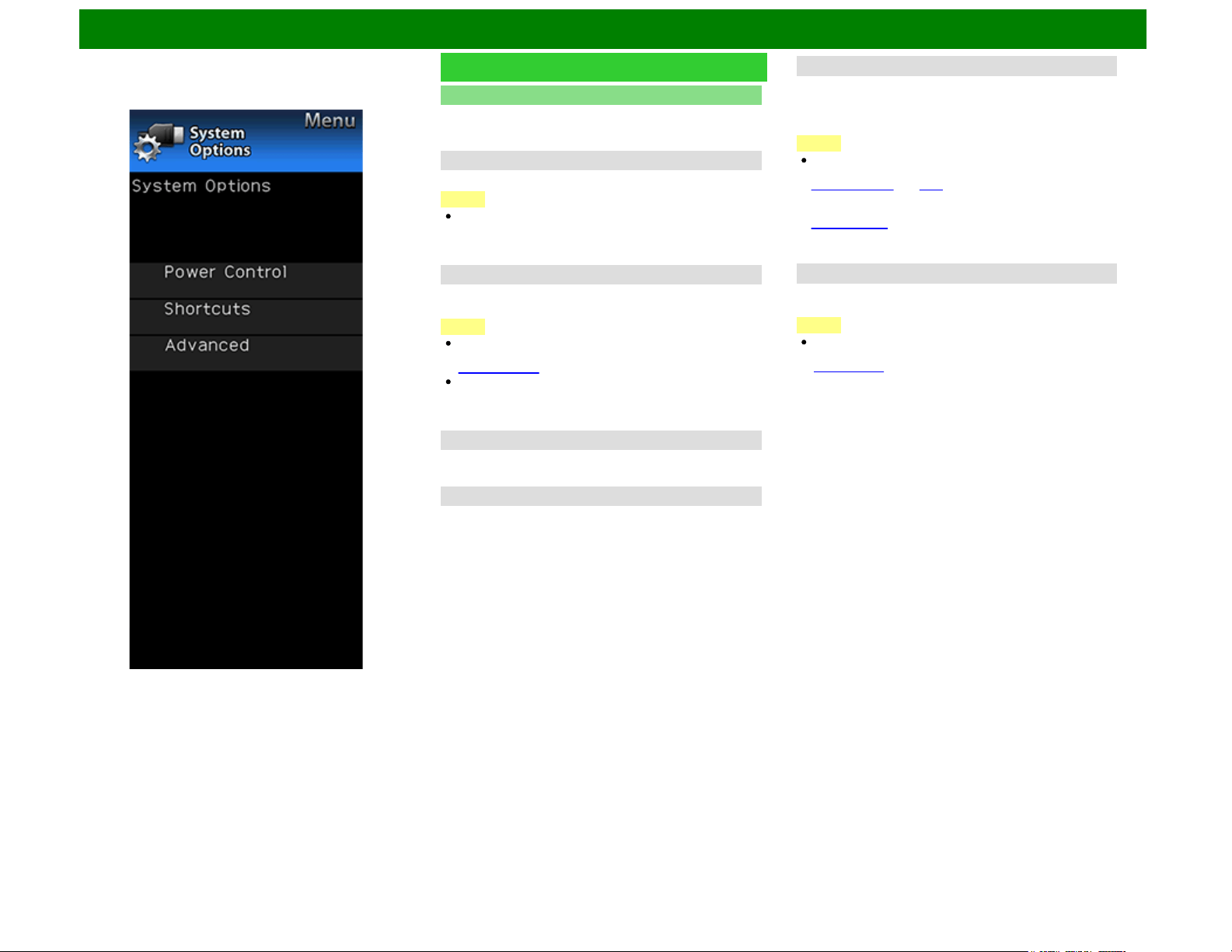
On-Screen Display Menu
Example
System Options (Continue)
Shortcuts
These functions are useful for adjusting the audio and video
settings. The Shortcuts functions can be operated with the
remote control unit.
SmartCentral Home
Displays the SmartCentral home screen.
NOTE
On the UD1U model, you cannot operate the "SmartCental
Home" function during 4K60P signal input. Operate this
function during the input of other types of signals (such as
Full HD).
App Dock
The application window can be displayed by selecting "App
Dock" on the MENU screen.
NOTE
You can display the application window by pressing
SmartCentral on the remote control unit.
(See page 3-6.)
On the UD1U model, you cannot operate the "App Dock"
function during 4K60P signal input. Operate this function
during the input of other types of signals (such as Full
HD).
USB Operation Panel*1
Displays the USB Operation Panel.
*1: Operation Panel (For the UD1U)
Home Network Operation Panel
Displays the Home Network Panel.
View Mode
This function changes the screen size.
Select "Shortcuts" on the menu to display the View Mode
menu screen.
The View Mode menu varies depending on the input source.
NOTE
You can select View Mode by pressing VIEW MODE on
the remote control unit.
— See pages 3-14 and 3-15 for adjusting the video being
input from a TV, other audiovisual equipment, USB-Video,
SD-Video*1, Home Network Video or Internet applications.
— See page 3-16 for adjusting the video being input from a
PC.
*1: For the UD1U only.
Freeze
Allows you to capture and freeze a moving image that you are
watching.
NOTE
You can select Freeze by pressing FREEZE on the remote
control unit.
See page 3-4 for details of Freeze function.
ENG 4-28
On-Screen Display Menu
Example
System Options (Continue)
Change Audio
Allows you to change the audio when multiple audio is
available for the program you are watching.
NOTE
You can change Audio by pressing AUDIO on the remote
control unit.
See page 3-8 for details of Audio function.
Change CC
Allows you to change the Closed Caption display.
Select "Change CC" on the menu to display the Closed
Caption information.
The information displayed varies depending on the
program you are watching.
NOTE
You can change Closed Caption by pressing CC on the
remote control unit.
See pages 3-12 to 3-13 for details of Closed Caption
function.
Advanced
Menu Design
Configures Letter and Caption screen display settings.
Channel Changing Effect
You can select whether to use transition effects when
changing channels.
NOTE
In some cases, "Channel Changing Effect" does not work.
Program Title Display
Select the CH display when changing channels for digital
broadcasting.
Position
For adjusting a picture's horizontal and vertical position.
H-Pos.: Centers the image by moving it to the left or right.
V-Pos.: Centers the image by moving it up or down.
NOTE
For resetting adjustments to the factory preset values,
press / to select "Reset", and then press ENTER.
When connecting a PC to the HDMI IN terminal, the image
position will be automatically adjusted. It cannot be
manually adjusted.
The screen position variable ranges depend on the View
Mode or the signal type. The ranges can be seen on the
position-setting screen.
Adjustments are stored separately according to input
source.
"Position" does not work when USB mode, SD/USB
mode*1, Home Network mode or an Internet application is
used.
You may not be able to adjust the position while in 3D
mode. (For the UQ17U, TQ15U, SQ17U, SQ15U, LE657U
and UD1U models)
*1: For the UD1U only.
ENG 4-29
On-Screen Display Menu
Example
System Options (Continue)
Caption Setup
This function allows you to adjust the closed caption screen
appearance to suit your preference.
Caption Size/Font Style/Foreground Color/Foreground
Opacity/Background Color/Background
Opacity/Character Edge
NOTE
For resetting adjustments to the factory preset values,
press / to select "Reset", and then press ENTER.
The default value depends on the broadcasting station.
Startup Screen
With this function activated, the SHARP logo will be displayed
when you turn on the TV.
NOTE
This function is not available when the TV is set to "Quick
Start Mode".
Demo Mode
You can select the image from several types of demo mode.
NOTE
What kinds of setting item are available depends on the
model of your TV.
This function will be canceled when you press EXIT on the
remote control unit.
"Demo Mode" may not be selected depending on input
signal type or application status.
"Demo Mode" may be automatically canceled depending
on input signal type.
On the UD1U model, you cannot operate the "Demo
Mode" function during 4K60P signal input. Operate this
function during the input of other types of signals (such as
Full HD).
ENG 4-30
On-Screen Display Menu
Example
System Options (Continue)
Front Indicator Light
When this function is set to "On", the LED on the front of the
TV turns on.
For UQ17U, TQ15U, SQ17U, SQ15U and LE657U models
The LED lights white in 2D mode.
The LED lights blue in 3D mode.
For UD1U model
The POWER indicator lights blue when TV is turned on.
The 3D indicator lights blue in 3D mode.
The TIME indicator lights red when the sleep timer is set to
"On".
NOTE
"On" is the factory preset value. If you want to turn off the
LED, set the function to "Off".
Game Play Time
This function will enable the TV to display the elapsed time
every 30 minutes, so that you do not become too absorbed in
game playing to keep track of time.
Switch AV MODE to "GAME" to activate the function.
Operation Lock Out
This function locks the operation buttons on the TV and the
remote control.
Off: No adjustment.
RC Control Lock: All buttons on the remote control are
locked.
Button Control Lock: All buttons on the TV, except
POWER, are locked.
When "RC Control Lock" or "Button Control Lock" is
selected, a confirmation screen appears.
Yes: Locks the operation buttons.
No: No adjustment.
NOTE
To unlock the buttons on the remote control by using the
control panel of the TV
(see page 4-4):
Press MENU to display the MENU screen, press VOL+/-
to select "System Options", and then press INPUT.
Press CH / to select "Operation Lock Out", and then
press INPUT.
Press CH / to select "Off", and then press INPUT.
Press MENU to exit.
To unlock the buttons on the TV, press MENU on the
remote control, and then select "Off" in "Operation Lock
Out".
On the UD1U model, you cannot operate the "Operation
Lock Out" function during 4K60P signal input. Operate this
function during the input of other types of signals (such as
Full HD).
ENG 4-31
On-Screen Display Menu
Example
Information
NOTE
For operating the on-screen display menu,
see page 4-3.
Identification
The current version of the TV software is displayed.
Digital Caption Info.
(Digital Caption Information)
This function allows viewing of digital closed caption
information for the digital broadcast program being viewed.
NOTE
This list is not displayed for analog broadcasts or external
input audio/video.
This information is not included in CC1, CC2, Text1, or
Text2, and is not displayed in a list.
Software Update
This is used to upgrade the system software to enhance the
TV functions.
1 Press MENU to display the MENU screen, and then press
/ to select "Information".
2 Press / to select "Software Update", and then press
ENTER.
If you have already set the Secret No., go to step 3.
3 Input the 4-digit secret number by using 0-9.
4 Press / to select "Manual Update" or "Auto Update
Setting", and then press ENTER.
The operations thereafter vary depending on the setting.
Auto Update Setting
When the TV is on, or when an Internet application is being
accessed, this function enables the TV to connect to the
network and check for updates automatically.
When an update is available, a message is displayed.
Press / to select "Yes", and then press ENTER to display
the download screen.
(See page 4-34.)
NOTE
This function does not work when a broadband connection
or Internet Setup is not available.
A message may also be displayed when an application is
running.The message varies depending on the application.
Manual Update
Select the method for manually updating the software.
USB Update: Updates the software using a USB memory
device containing the update file. (See "Updating the
Software with a USB Memory Device".)
Network Update: Downloads the update file via the network
and then updates the software.
(See page 4-34.)
NOTE
You cannot update the software using a SD memory card
containing the update file.
A broadband connection and Internet Setup are required to
update the software using the network.
(See pages 9-2 to 9-4.)
It may take time to access and download the update
depending on the Internet connection and other factors.
On the UD1U model, you cannot operate the "Manual
Update" function during 4K60P signal input. Operate this
function during the input of other types of signals (such as
Full HD).
Updating the Software with a USB Memory Device
To check for the availability of a software update, visit
http://www.sharpusa.com/products/support/. If you have any
questions, please
call 1-800-BE-SHARP (800-237-4277).
ENG 4-32
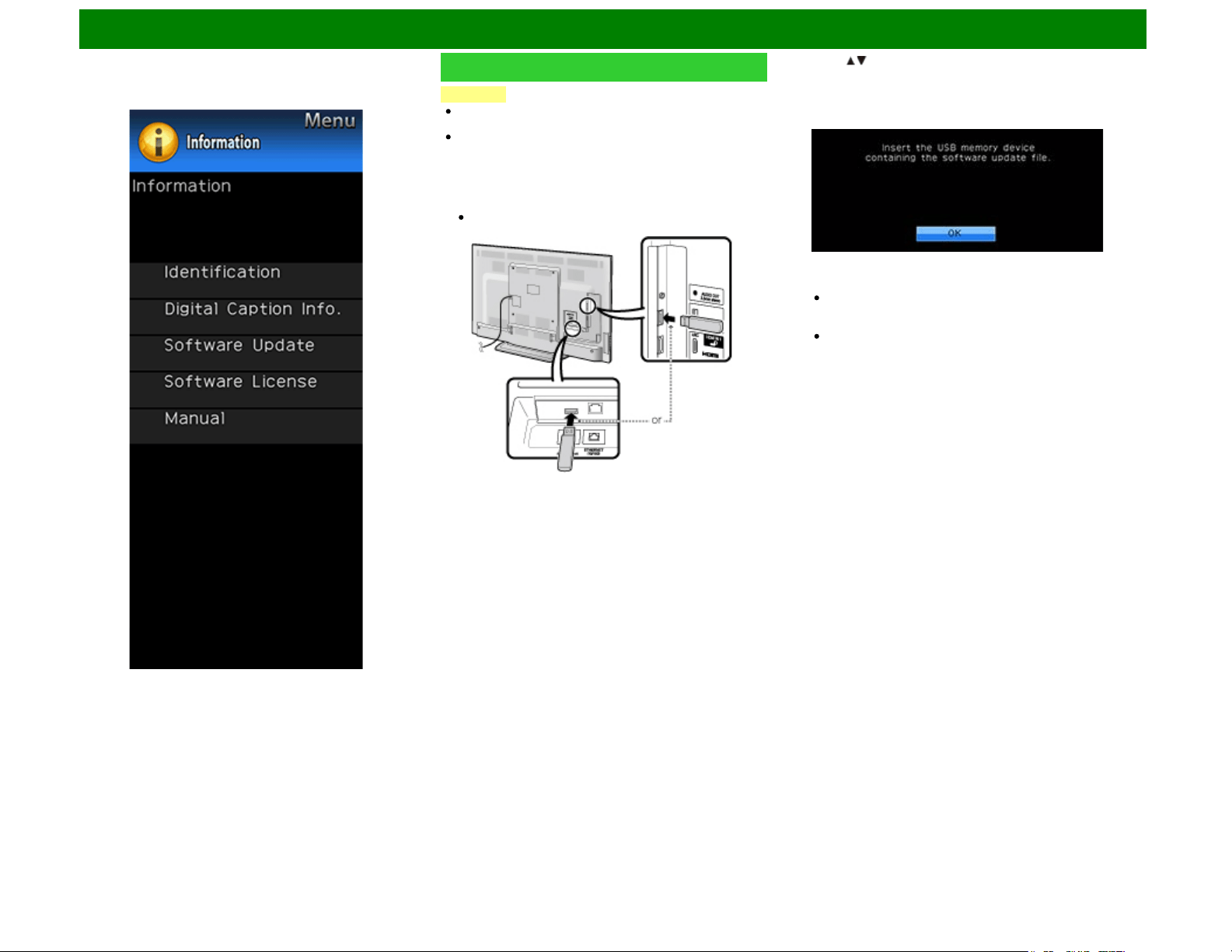
On-Screen Display Menu
Example
Information (Continue)
CAUTION
Do not remove the USB memory device or unplug the
AC cord while the software is being updated.
Be sure to properly follow the whole procedure
described below, step by step. Otherwise, for
example, the TV cannot read the data in the USB
memory device and software updating will fail.
1 Insert the USB memory device with the update file into the
USB 1 or USB 2 terminal on the TV.
When you update the software, use only one USB
terminal. Either USB 1 or USB 2 is usable.
2 Press / on the Manual Update screen to select "USB
Update", and then press ENTER.
3 Press ENTER to start checking the data in the USB
memory device.
4 During the data checking, "Checking" blinks.
The current version of the TV software and the version
of the update file on the USB memory device are
displayed.
If the USB memory device is not properly installed or the
correct update file cannot be found on the USB memory
device, an error message is displayed.
Check the file on the USB memory device, and then
reinsert the USB memory device correctly.
ENG 4-33
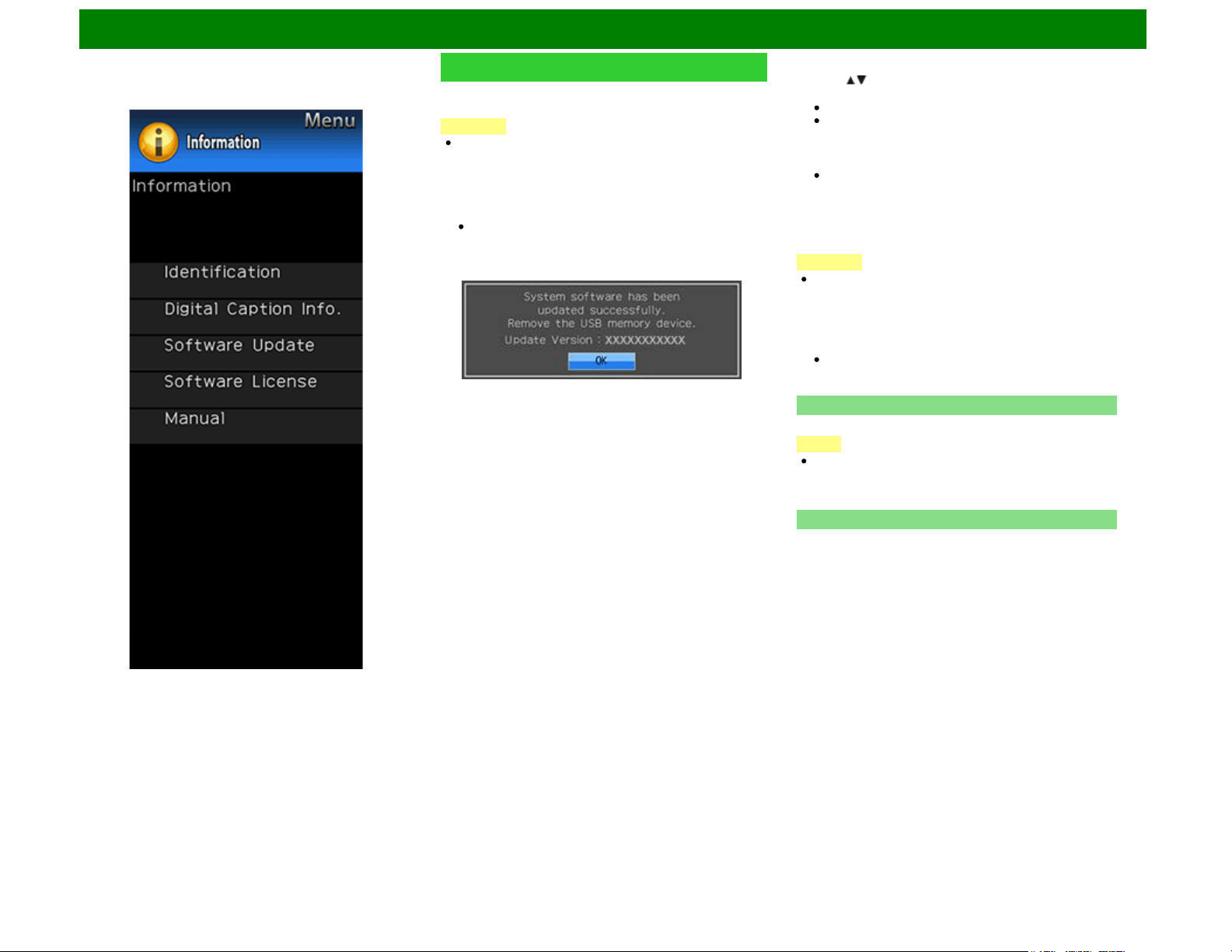
On-Screen Display Menu
Example
Information (Continue)
5 To update the TV software with the update file, select
"Yes", and then press ENTER.
CAUTION
Do not remove the USB memory device or unplug the
AC cord while the software is being updated.
6 When the software is successfully updated, a screen is
displayed indicating that the update process is completed.
After this screen is displayed, the TV automatically turns off
and then turns on again.
If the update has failed, check the file in the USB
memory device and try Software Update again.
7 After the screen shown below is displayed, press ENTER.
8 Remove the USB memory device.
Updating the Software via the Network
1 Press / on the Manual Update screen to select "Network
Update", and then press ENTER.
The TV connects to the network and checks for updates.
To cancel, press ENTER.
2 The current version of the TV and the latest version of
software are displayed. To update the TV software, select
"Yes", and then press ENTER.
When a server connection cannot be established or an
update is not available, a message is displayed.
If a server connection cannot be established, check the
broadband connection and Internet Setup.
3 After the update file is downloaded, the software update
process begins.
CAUTION
Do not unplug the AC cord while the software is being
updated.
4 When the software is successfully updated, a screen is
displayed indicating that the update process is completed.
A screen indicating that the update is completed is
displayed. 4 seconds later, the TV restarts automatically.
If the software was not updated successfully, check the
broadband connection and Internet Setup, and then try
updating the software again.
Software License
Displays software version information.
NOTE
On the UD1U model, you cannot display the software
license information during 4K60P signal input. Display this
information during the input of other types of signals (such
as Full HD).
Manual
Displays the built-in operation manual on the screen. You can
read information about how to use this device.
ENG 4-34
Enjoying 3D Image Viewing (For the UQ17U, TQ15U, SQ17U, SQ15U, LE657U and UD1U models)
Information
You can use special 3D Glasses to watch 3D-supported images on this TV.
You can enjoy 3D movies on this TV by viewing the movie through SHARP 3D Glasses supplied
with the TV or through optional 3D Glasses sold separately.
To produce 3D images, liquid crystal shutters in the 3D Glasses alternately open and close
imperceptibly fast to exactly match alternating left and right video images displayed by the TV.
Not all consumers can experience and enjoy 3DTV. Some people suffer from stereo blindness
which prevents them from perceiving the intended depth of 3D entertainment. Also, some people
who watch 3D programming may experience initial feelings of motion sickness as they adjust to
the picture. Others may experience headaches, eye fatigue or motion sickness. Some viewers
might also experience epileptic seizures. Like a roller coaster, the experience is not for everyone.
CAUTION
The 3D Glasses are precision equipment. Handle them with care.
Improper use of the 3D Glasses or failure to follow these instructions can result in eye
strain.
If you experience dizziness, nausea, or other discomfort while viewing 3D images,
immediately discontinue use of the 3D Glasses. Using the 3DTV with incompatible 3D
broadcasts or software can make images appear blurry or create overlapping images.
When viewing 3D images continuously, be sure to take a break periodically to prevent eye
strain.
If you are nearsighted or farsighted or have astigmatism or a different level of eyesight
between the left and right eyes, you should take the necessary steps, such as wearing
eyeglasses, to correct your eyesight before viewing 3D images. The 3D Glasses can be
worn over eyeglasses.
When viewing 3D images, keep the 3D Glasses horizontally level with the TV screen. If you
tilt the 3D Glasses with respect to the TV screen, the images viewed by the left and right
eyes may appear significantly different or images may appear overlapping.
View 3D images at the appropriate distance from the TV screen. The recommended
distance is three times the effective height of the TV screen.
Examples of recommended distances
90-inch screen: Approx. 11.2 ft (3.4 m)
80-inch screen: Approx. 9.8 ft (3.0 m)
70-inch screen: Approx. 8.5 ft (2.6 m)
60-inch screen: Approx. 7.2 ft (2.2 m)
Viewing should not be done closer than the recommended distance.
Be careful of your surroundings when viewing 3D images. When you view 3D images,
objects may appear closer or farther than they are. This may cause you to misjudge the
distance and possibly result in injury if you accidentally hit the screen or surrounding
objects.
The 3D Glasses are not recommended for people aged less than 6.
When children are viewing 3D images, be sure a parent or guardian is present. Monitor
children viewing 3D images, and if they show signs of discomfort, immediately
discontinue use of the 3D Glasses.
People with a known history of photosensitivity and people with heart problems or poor
health should not use the 3D Glasses. This can worsen existing health conditions.
Do not use the 3D Glasses for other purposes (such as general eyeglasses, sunglasses, or
protective goggles).
Do not use the 3D function or 3D Glasses while walking or moving around. This may result
in injuries due to running into objects, tripping, and/or falling.
When using the 3D Glasses, take care not to accidentally strike the TV screen or other
people. Viewing 3D images may cause you to misjudge the distance to the TV screen and
accidentally strike the screen, resulting in possible injury.
It is recommended that you do not view 3D images if you are sleep deprived or if you have
been drinking alcohol.
ENG 5-1
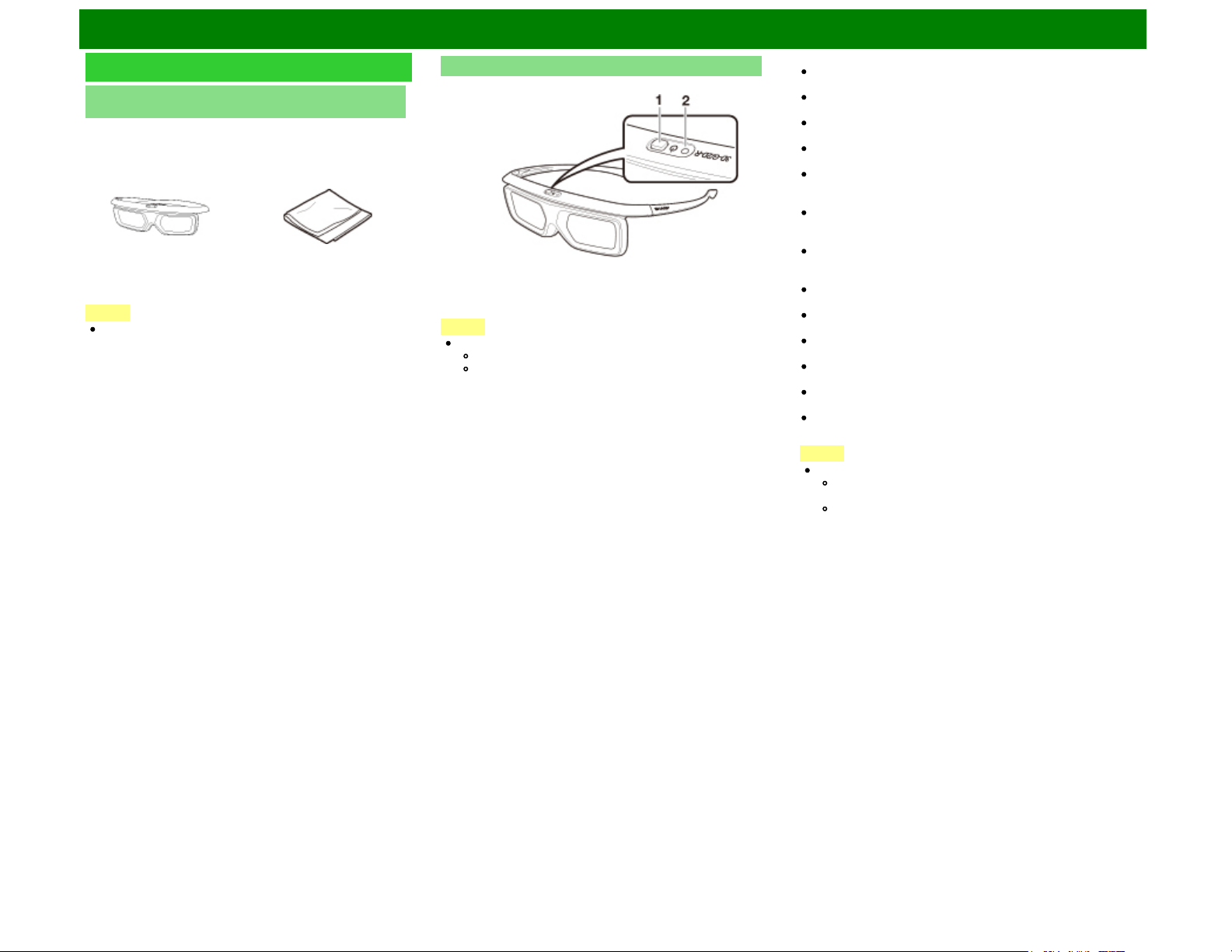
Enjoying 3D Image Viewing (For the UQ17U, TQ15U, SQ17U, SQ15U, LE657U and UD1U models)
Preparing for the 3D glasses
Supplied accessories (For the UQ17U, SQ17U, LE657U
and UD1U models)
Make sure the following accessories are provided with
the 3D glasses.
3D glasses x 2 Cleaning cloth x 1
NOTE
The illustrations above are for explanation purposes and
may vary slightly from the actual accessories.
Part Names
1 Power button
2 LED indicator
NOTE
The power turns off automatically in the following cases:
When pairing fails
When the 3D glasses are not operated in standby for
15 seconds
1 Power button:
When the power button is pressed for 2 or more seconds
with the power off, pairing with the TV starts.
When the power button is pressed for 2 or more seconds
with the power on, the power turns off.
When paired, the power will turn off if the power button is
pressed for 2 or more seconds.
When the power button is pressed for less than 2 seconds
with the power off, the 3D glasses will turn to standby.
When the 3D glasses are in 3D mode with the power on,
pressing the power button for less than 2 seconds will turn
the 3D glasses to 2D mode.
When the 3D glasses are in 2D mode with the power on,
pressing the power button for less than two seconds will
turn the 3D glasses to 3D mode.
When paired, the 3D glasses will be non-reactive if the
power button is pressed for less than 2 seconds.
2 LED light
When paired with the TV, the LED light blinks in red and
green.
When pairing is completed successfully, the LED blinks in
green for 3 seconds.
When the power is turned on, the LED lights up in green
for 3 seconds.
When in 3D mode, the LED blinks in green in 3-second
intervals.
When in 2D mode, the LED blinks in red in 3-second
intervals.
When the power is turned off, the LED blinks in green 3
times.
NOTE
When in low voltage mode:
When in 3D mode, the LED blinks in green in 3-
second intervals.
When in 2D mode, the LED blinks in red in 3-second
intervals.
ENG 5-2
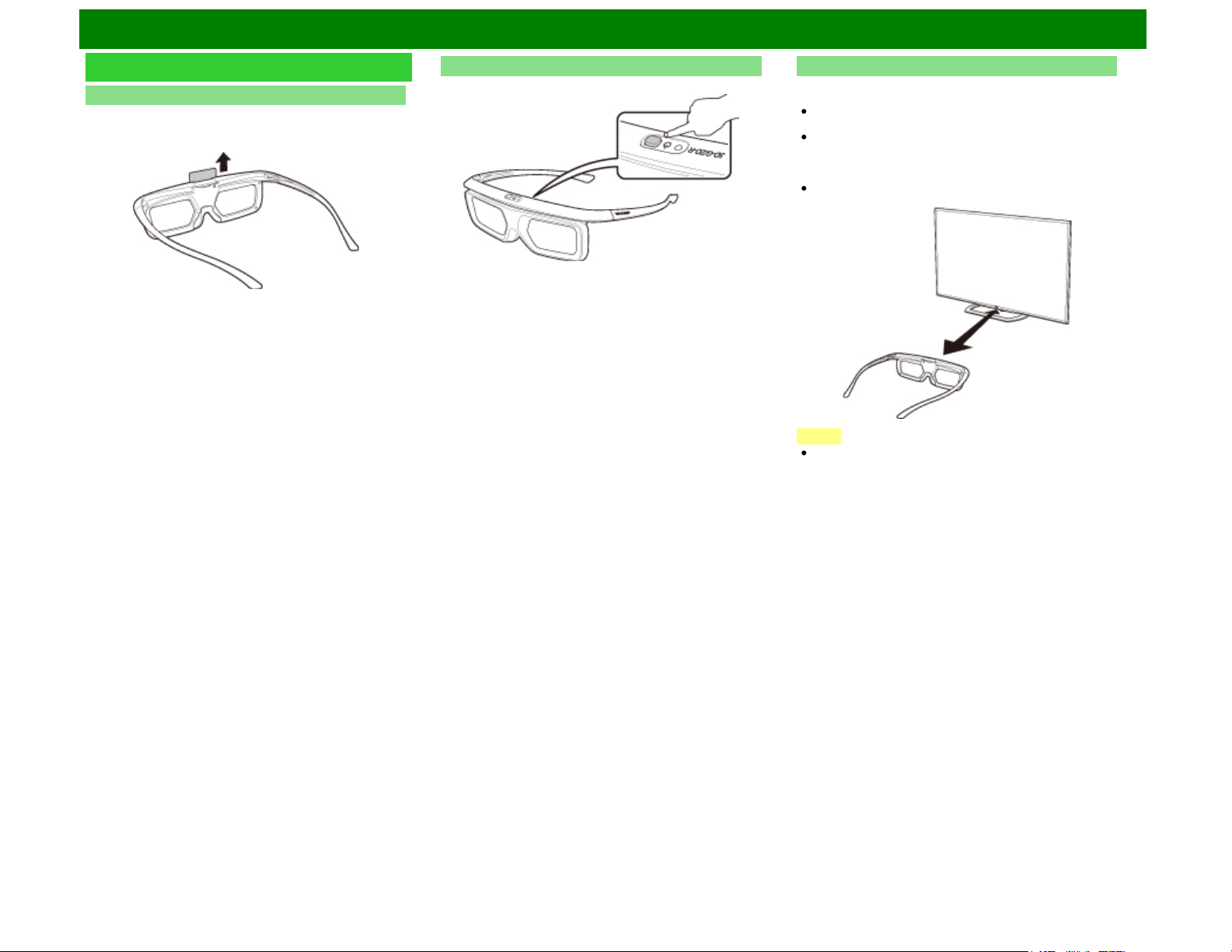
Enjoying 3D Image Viewing (For the UQ17U, TQ15U, SQ17U, SQ15U, LE657U and UD1U models)
Using the 3D glasses
Before using the 3D Glasses
Before using the 3D glasses for the first time, remove the
insulating sheet attached to them.
Using the 3D glasses Pairing the 3D glasses
To view 3D images, it is necessary to pair the 3D glasses and
TV.
To confirm pairing of the 3D glasses and TV, make sure
that 3D images are displayed on the TV screen.
When the power button is pressed for 2 or more seconds
with the power off, pairing with the TV starts. When pairing
is completed successfully, the LED blinks in green for 3
seconds.
To switch between 2D and 3D modes, briefly press the
power button.
NOTE
When paired, make sure that the 3D glasses are kept at a
distance of 1.64-6.56 ft (50 cm-2 m) from the TV. If too
close, pairing cannot be performed.
ENG 5-3
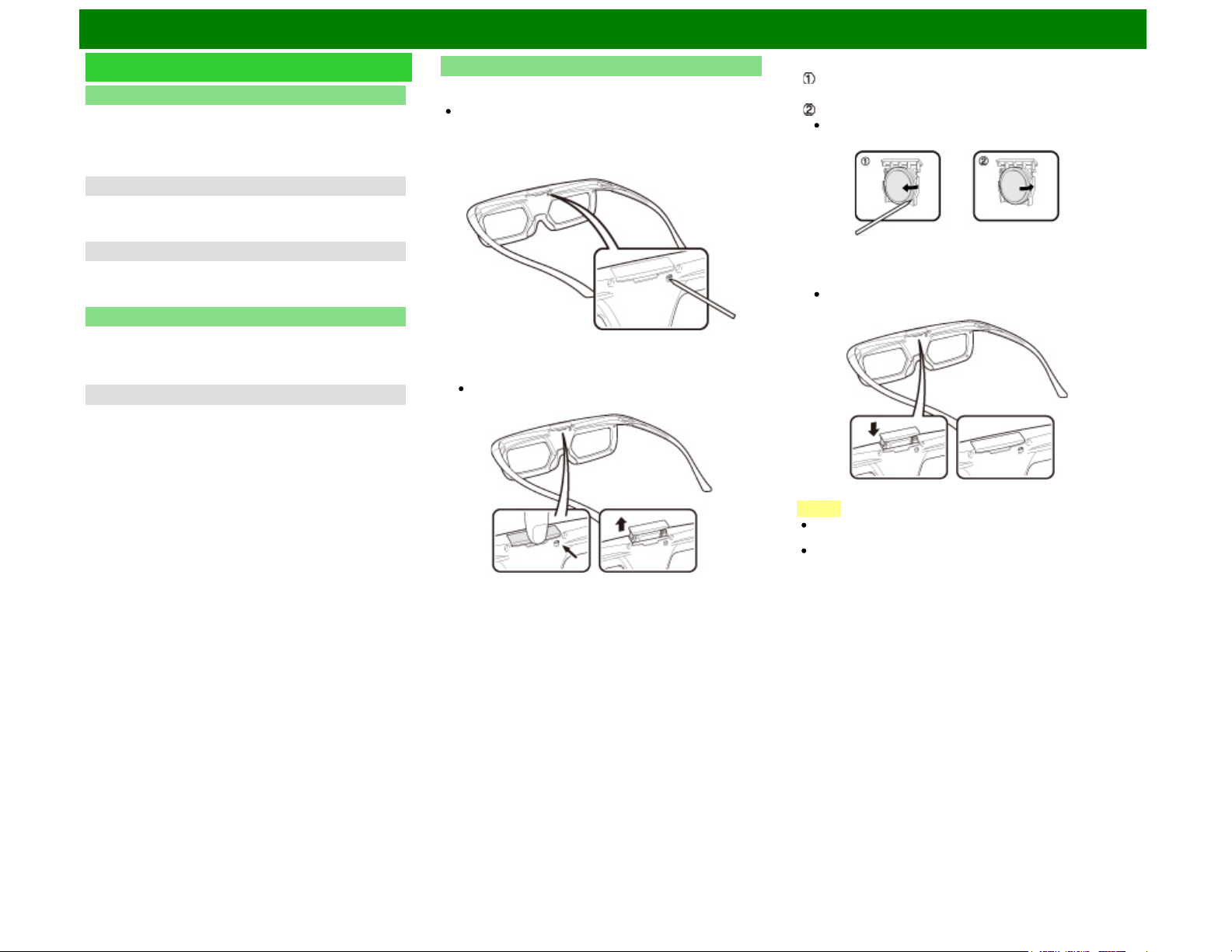
Enjoying 3D Image Viewing (For the UQ17U, TQ15U, SQ17U, SQ15U, LE657U and UD1U models)
Using the 3D glasses (Continue)
Switching to 3D and 2D Mode
When viewing 3D images, you can press the power button to
switch between 2D and 3D modes. This is useful when
several people are viewing 3D images on the same TV with
some people wanting to watch in 3D and some people
wanting to watch in 2D.
Viewing 2D images
When you press and hold for less than 2 seconds while
viewing 3D images, the LED light blinks in red and the 3D
images switch to 2D images.
Viewing 3D images
When you press and hold for less than 2 seconds while
viewing 2D images, the LED light blinks in green and the 2D
images switch to 3D images.
Usage Range of the 3D Glasses
The 3D glasses can be used by receiving a signal sent from
the TV.
The 3D glasses turn off automatically after 15 seconds if no
signal is received from the TV.
Operating range
From directly the TV: approx. 17 ft (5 m) (within approx. 30°
horizontally and 20° vertically)
Replacing the Battery
The battery has an expected service life of approximately 75
hours.
When replacing the button battery, use only the designated
battery (Maxell branded CR2025 lithium button battery).
1 Use the tip of a ballpoint pen or similar object to press in
on the lock.
2 While pressing in on the lock, place your fingertip in the
groove and pull out the battery holder.
Pull the battery holder all the way out.
3 Replace the battery.
Use the tip of a ballpoint pen or similar object to
remove the battery.
Insert a new battery.
Insert the battery with the negative side (-) facing up.
4 Align the battery holder with the battery slot on the 3D
glasses and slide it back into place.
Press it in until it locks.
NOTE
Take care not to reverse the battery poles (+) and (-) when
loading the battery.
Used batteries should be disposed of strictly in accordance
with the applicable local laws and regulations.
ENG 5-4
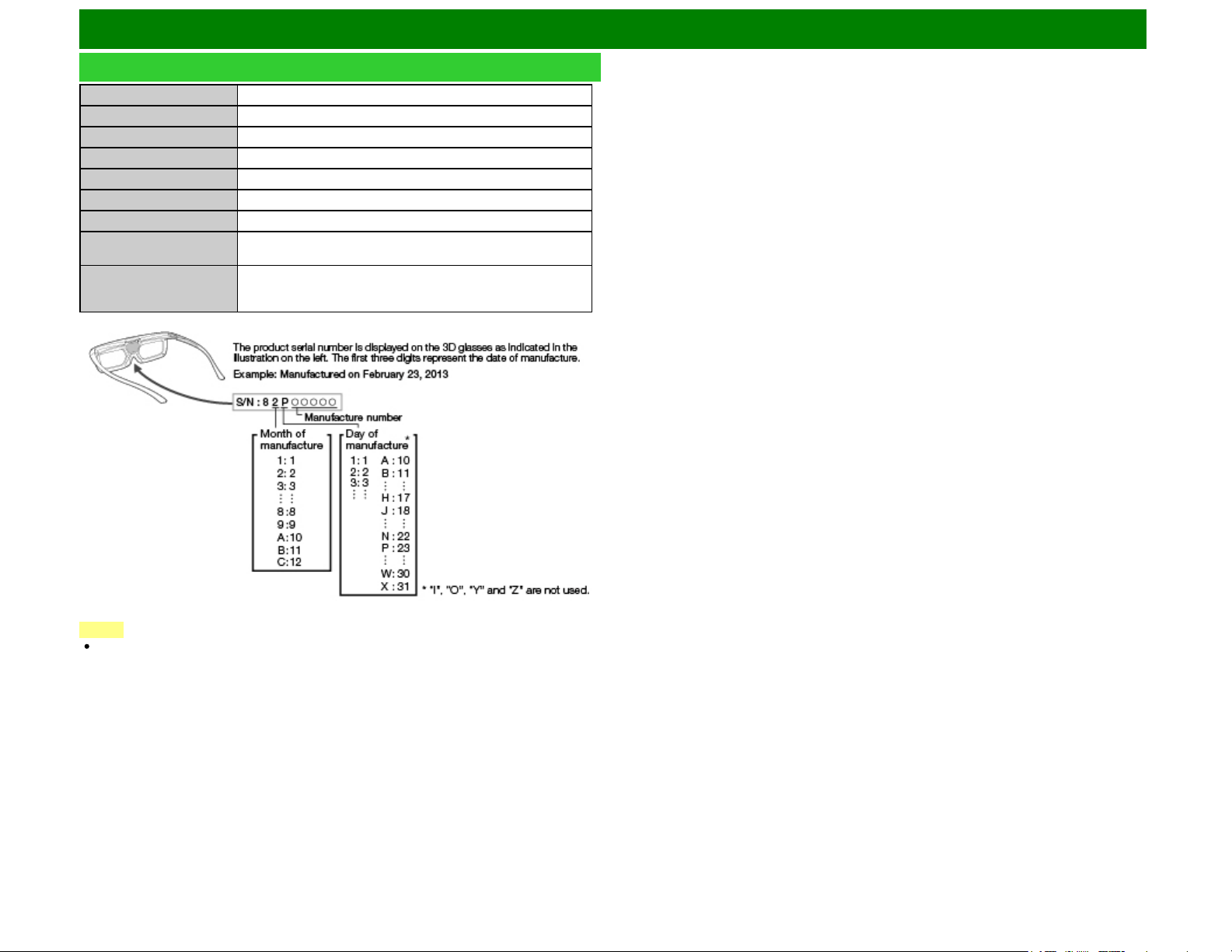
Enjoying 3D Image Viewing (For the UQ17U, TQ15U, SQ17U, SQ15U, LE657U and UD1U models)
Specifications - 3D glasses (sold separately)
Product 3D Glasses
Model number AN-3DG40
Lens type Liquid crystal shutter
Power supply DC3V
Battery Lithium button battery (CR2025 x 1)
Battery life Approx. 100 hours of continuous use
Dimension (W x H x D) 171.2 × 46.0 × 162.4 mm
Weight Approx. 31.0 g (including the lithium ion polymer rechargeable
battery)
Operating temperature 10°C to 40°C (The 3D glasses cannot operate fully at extreme
high or low temperatures. Please use them within the specified
usage temperature range.)
NOTE
Please contact your local authority for the correct method of disposal of this product and/or
packing.
ENG 5-5
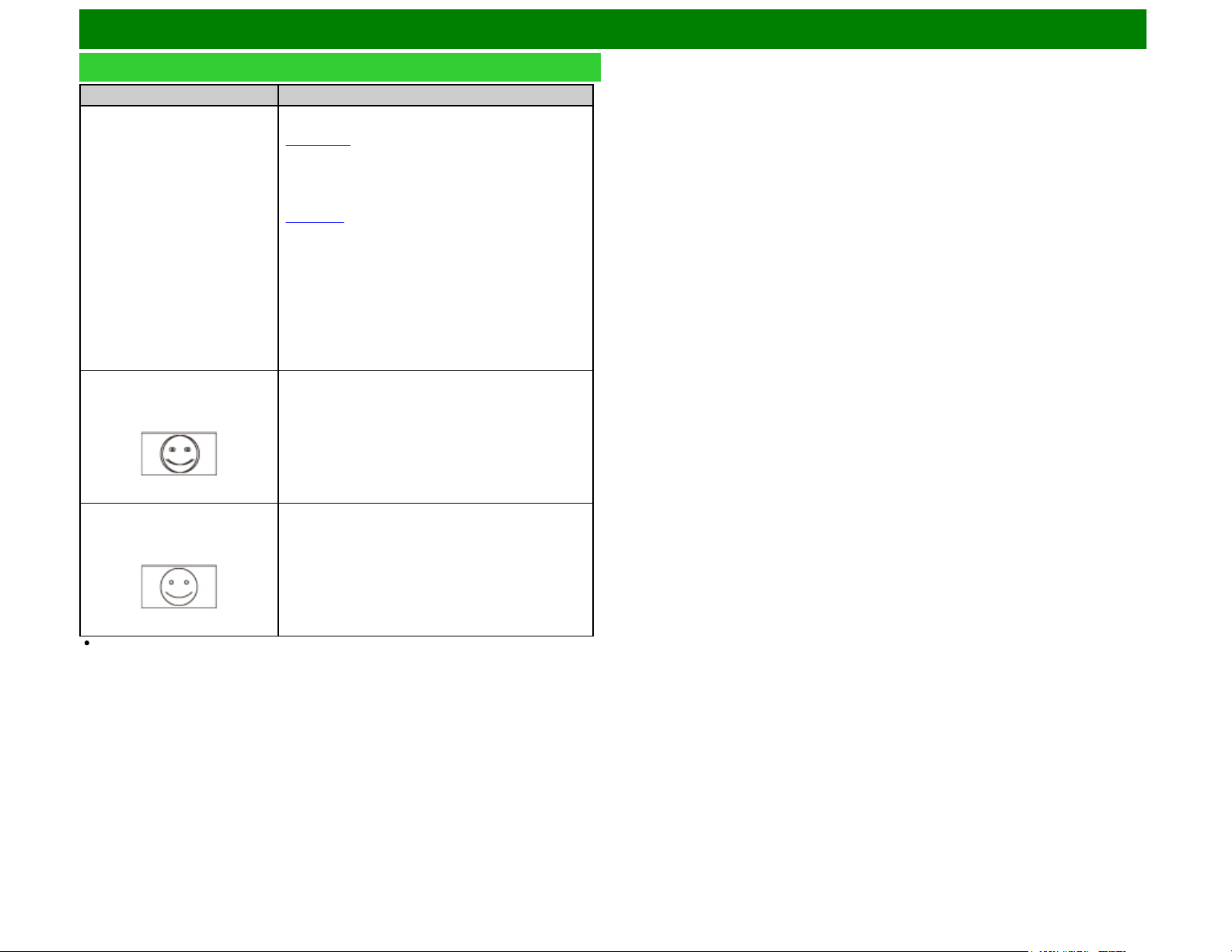
Enjoying 3D Image Viewing (For the UQ17U, TQ15U, SQ17U, SQ15U, LE657U and UD1U models)
Troubleshooting - 3D Images
Problem Possible solution
3D images are not displayed. Is “3D auto change” set to “Off”? Press 2D/3D to switch to
3D mode
(Page 5-11).
If “3D auto change” is set to “Mode1” or “Mode2” but no
3D images are displayed, check the display format of the
content being viewed. Some 3D image signals may not be
recognized as 3D images automatically. Press 2D/3D to
select the appropriate display format for the 3D image
(Page 5-9).
Is the power of the 3D glasses turned on? Press the
power button for at least 2 seconds to turn on the 3D
glasses.
Are the 3D glasses set to 2D mode? Press the power
button for an amount of time that is less than 2 seconds to
switch the 3D glasses to 3D mode.
Is there an obstacle between the 3D glasses and the TV,
or is something covering the receiver on the 3D glasses?
The 3D glasses operate by receiving a signal from the TV.
Do not place anything between the 3D emitter on the TV
and the receiver on the 3D glasses.
Images displayed in 3D mode
appear doubled while you are
wearing the 3D glasses.
Is the power of the 3D glasses turned on? Press the
power button for at least 2 seconds to turn on the 3D
glasses.
Images displayed in 3D mode
appear 2D while you are wearing
the 3D glasses.
Are the 3D glasses set to 2D mode? Press the power
button while viewing 2D images, the LED light blinks in
green and the 2D images switch to 3D images.
For further details, refer to the operation manual of the 3D glasses.
ENG 5-6
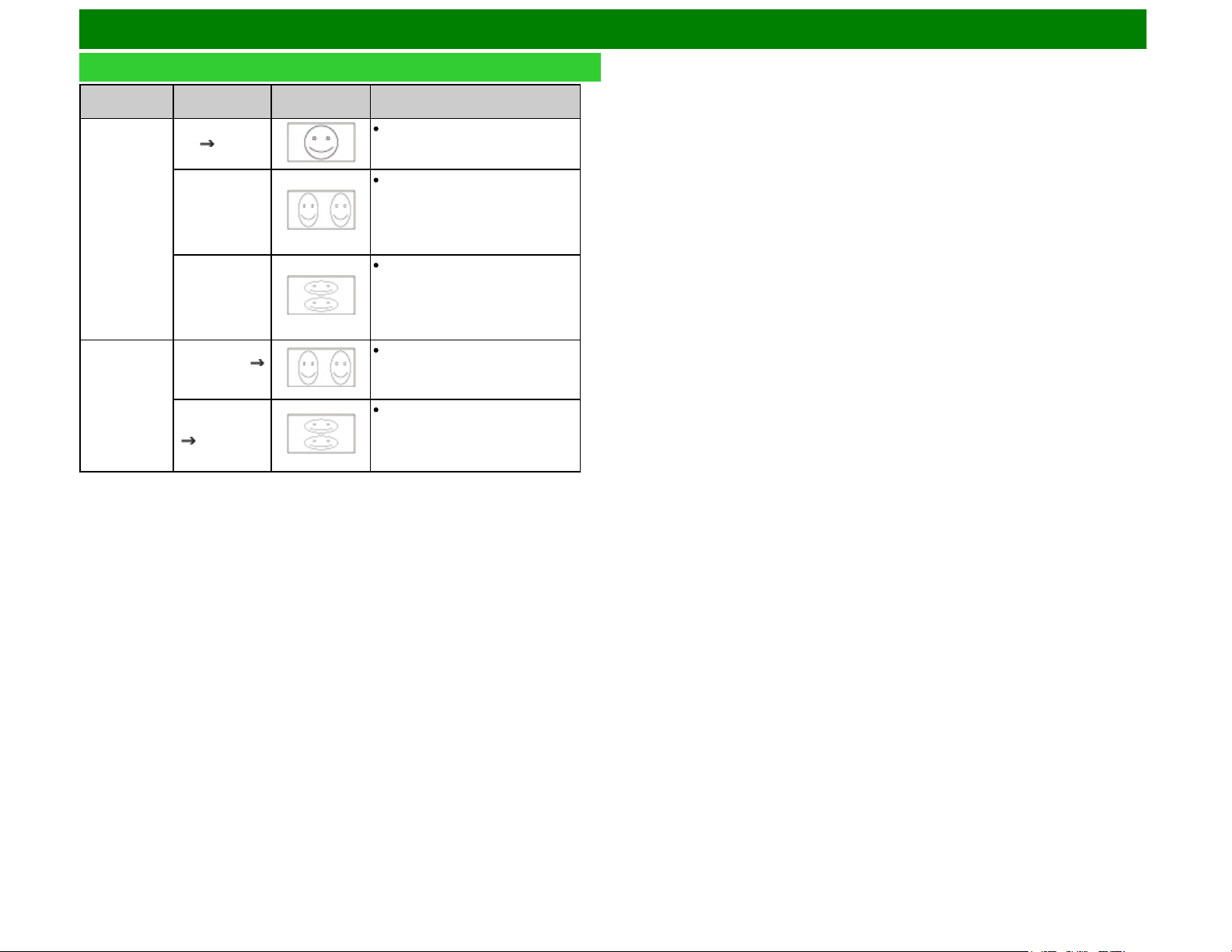
Enjoying 3D Image Viewing (For the UQ17U, TQ15U, SQ17U, SQ15U, LE657U and UD1U models)
Display Methods for 3D and 2D Images
Display method
Example
display
Description
3D mode
(using the 3D
Glasses)
2D 3D
Converts normal 2D images into 3D
images.
Side by Side
Creates 3D images from 3D images
displayed side by side. The image is
split into a left and right image, and
then the images are stretched and
displayed sequentially to create a
3D image.
Top and Bottom
Creates 3D images from 3D images
displayed on the top and bottom.
The image is split into a top and
bottom image, and then the images
are stretched and displayed
sequentially to create a 3D image.
2D mode
(without using
the 3D
Glasses)
Side by Side
2D
Creates 2D images from 3D images
displayed side by side. Only the left
image is stretched and displayed.
The image does not appear in 3D.
*
Top and Bottom
2D
Creates 2D images from 3D images
displayed on the top and bottom.
Only the top image is stretched and
displayed. The image does not
appear in 3D.
*
* These functions can also be used by the SQ10U, EQ10U, LE650U, C6500U and LE642U.
ENG 5-7
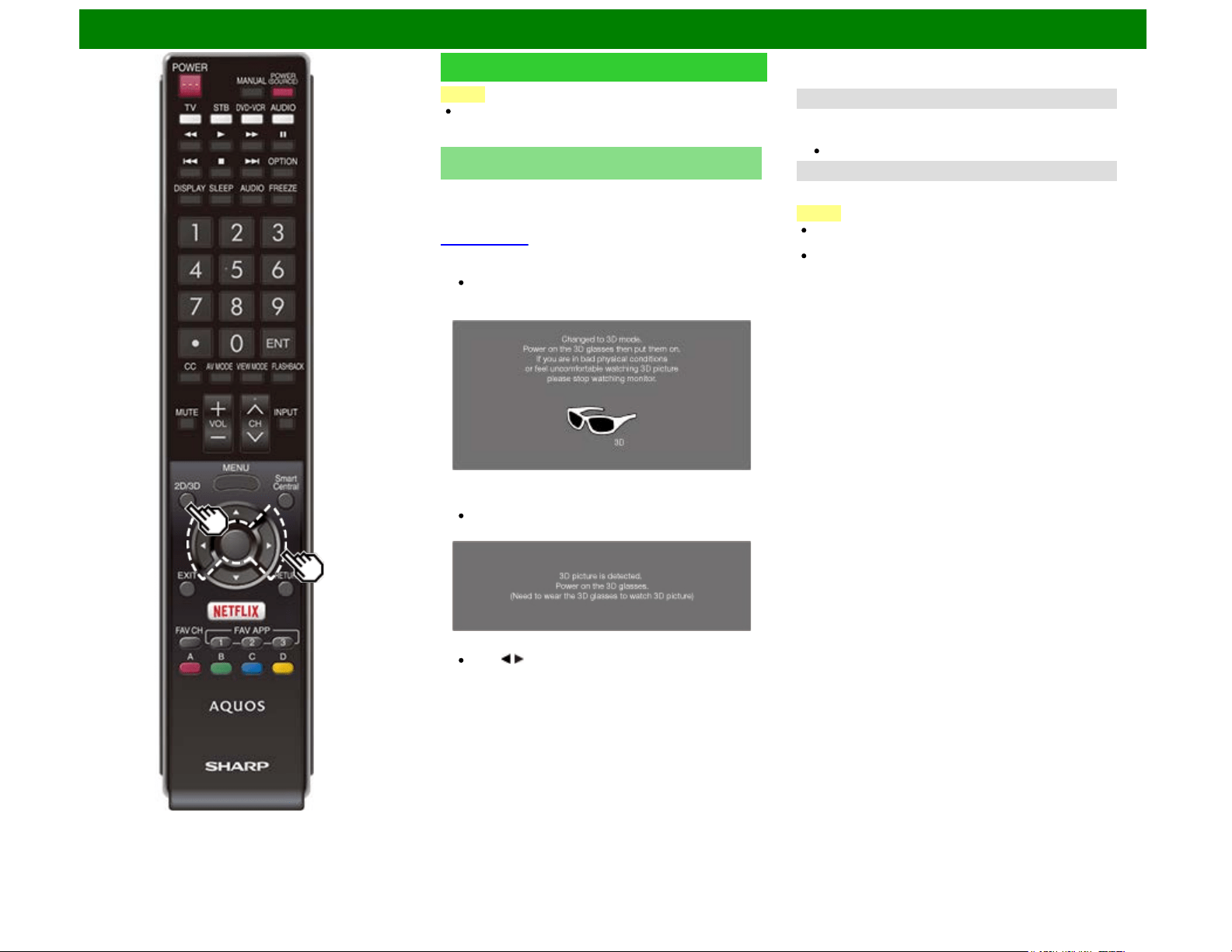
Enjoying 3D Image Viewing (For the UQ17U, TQ15U, SQ17U, SQ15U, LE657U and UD1U models)
Viewing 3D Images
NOTE
The TV screen may temporarily become black when the
TV is trying to detect a 3D image signal and when
switching from 3D to 2D mode.
Receiving a 3D Image Signal That Can Be Detected
Automatically
The image signal may contain a 3D identification signal. You
can enable the TV to automatically detect the 3D image type
by selecting "Setup" > "3D Setup" > "3D Auto Change" on the
TV.
(See page 5-11.)
1 When "3D Auto Change" is set to "Mode 1" or "Mode
2"
The 3D image type is detected automatically and the
appropriate 3D image is displayed.
When "3D Auto Change" is set to "Off"
The following message is displayed. Press 2D/3D.
Press / to select the "Yes", and then press ENTER.
2 Turn on the 3D Glasses and place them on your head.
3 You can now view 3D images.
Switching from 3D to 2D Mode
4 Press 2D/3D during the 3D mode.
Select "Yes" and press ENTER to switch to 2D mode.
Take off the 3D Glasses and turn off the power.
Ending 3D Image Viewing
5 Take off the 3D Glasses and turn off the power.
NOTE
If the input signal switches to 2D, 2D images are displayed
automatically.
3D mode is canceled automatically when the setting is
changed, input selection is changed, or the power is
turned off.
ENG 5-8
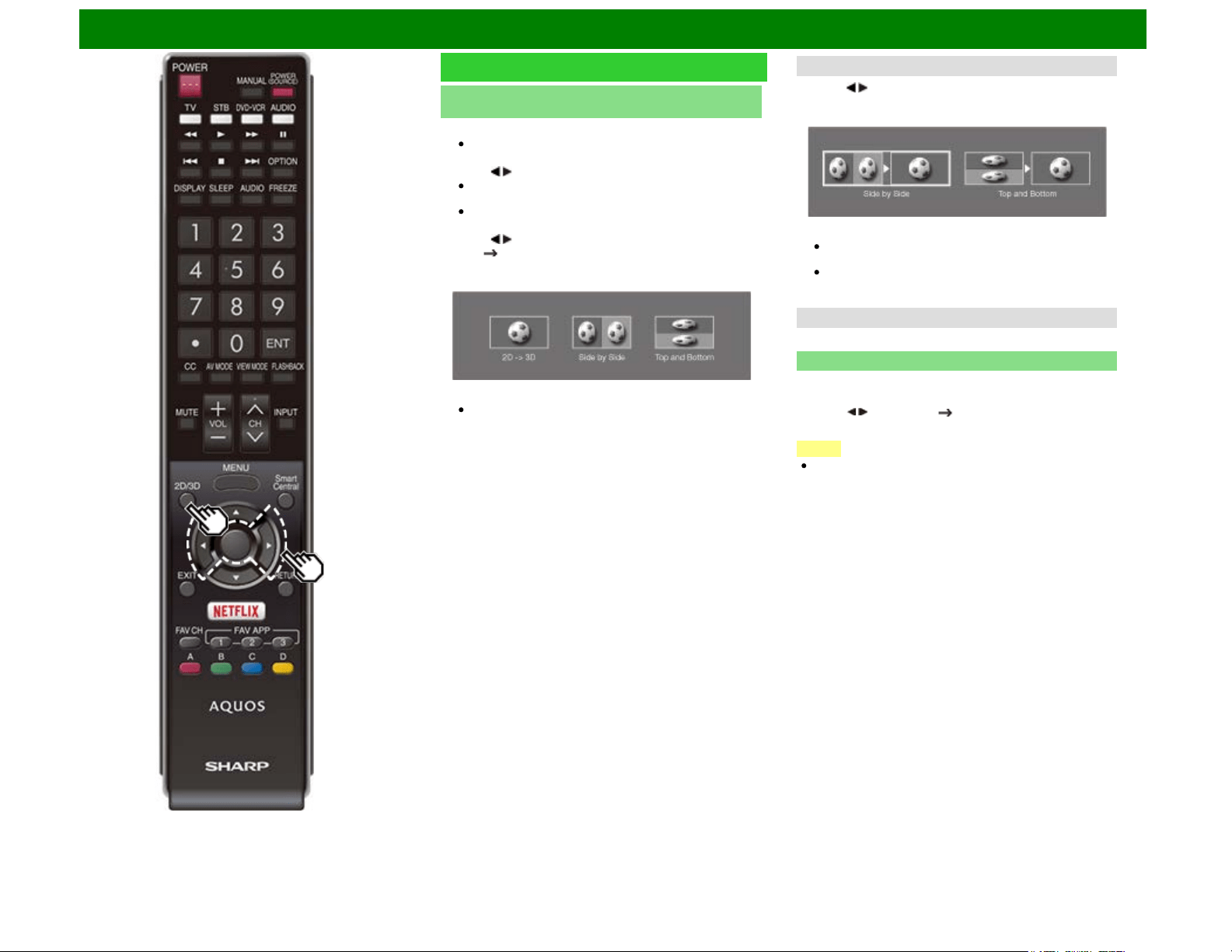
Enjoying 3D Image Viewing (For the UQ17U, TQ15U, SQ17U, SQ15U, LE657U and UD1U models)
Viewing 3D Images (Continue)
Receiving a 3D Image Signal That Cannot Be Detected
Automatically
1 Press 2D/3D.
A screen appears prompting you to select between 3D
and 2D image viewing.
2 Press / to select "3D" or "2D", and then press ENTER.
To view in 3D mode: Select "3D", and then go to step
3.
To view in 2D mode: Select "2D", and then go to step
6.
3 Press / to select the 3D signal type
("2D 3D", "Side by Side" or "Top and Bottom") and then
press ENTER.
If you select the same system as that of the input signal,
3D images are displayed.
4 Turn on the 3D Glasses and place them on your head.
5 You can now view 3D images.
Switching from 3D to 2D Mode
6 Press / to select the 2D signal type ( "Side by Side" or
"Top and Bottom") and then press ENTER.
If you select the same system as that of the input signal,
2D images are displayed.
Take off the 3D Glasses and turn off the power.
This function can also be used by the SQ10U, EQ10U,
LE650U, C6500U and LE642U.
Ending 3D Image Viewing
7 Take off the 3D Glasses and turn off the power.
Watching 2D Images in 3D
You can convert normal 2D images into 3D images.
1 Press 2D/3D.
2 Press / to select "2D 3D", and then press ENTER.
3 Turn on the 3D Glasses and place them on your head.
NOTE
The TV returns to 2D mode after 1 hour has passed.
ENG 5-9
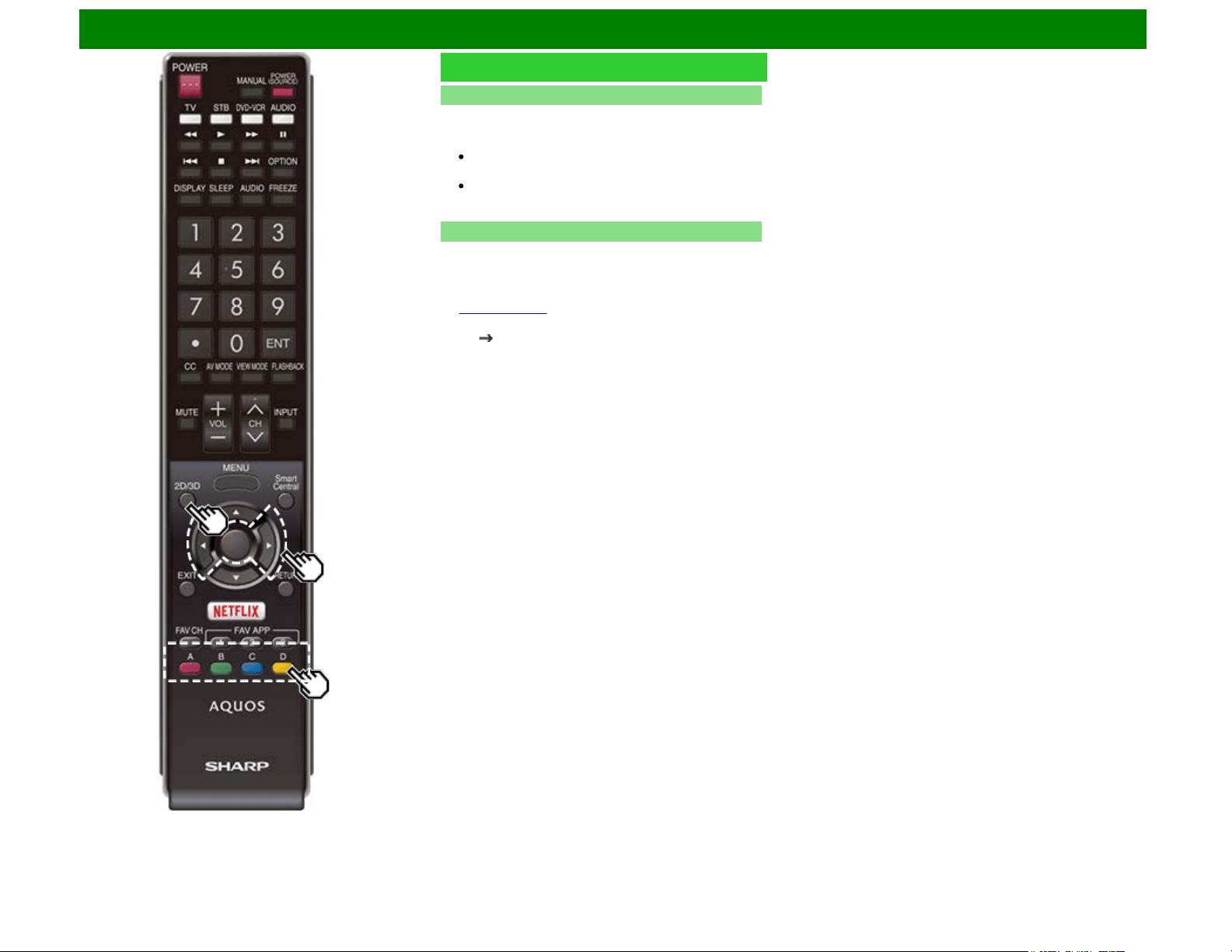
Enjoying 3D Image Viewing (For the UQ17U, TQ15U, SQ17U, SQ15U, LE657U and UD1U models)
Viewing 3D Images (Continue)
Switching to the Previous Mode
You can switch back to the previous mode by pressing
2D/3D.
1 Press 2D/3D.
A confirmation screen is displayed.
2 Select "Yes" and then press ENTER.
The TV returns to the previous mode.
This function can also be used by the SQ10U, EQ10U,
LE650U, C6500U and LE642U.
3D Menu
Pressing 2D/3D in 3D mode displays the 3D menu. Press the
colored buttons to make the necessary settings.
A: 3D Brightness Boost *1
B: 3D Surround
(See page 4-12.)
The surround mode changes each time you press B.
C: 2D 3D Convert Effect
D: 3D Setup
*1: Except for LC-70UD1U.
ENG 5-10
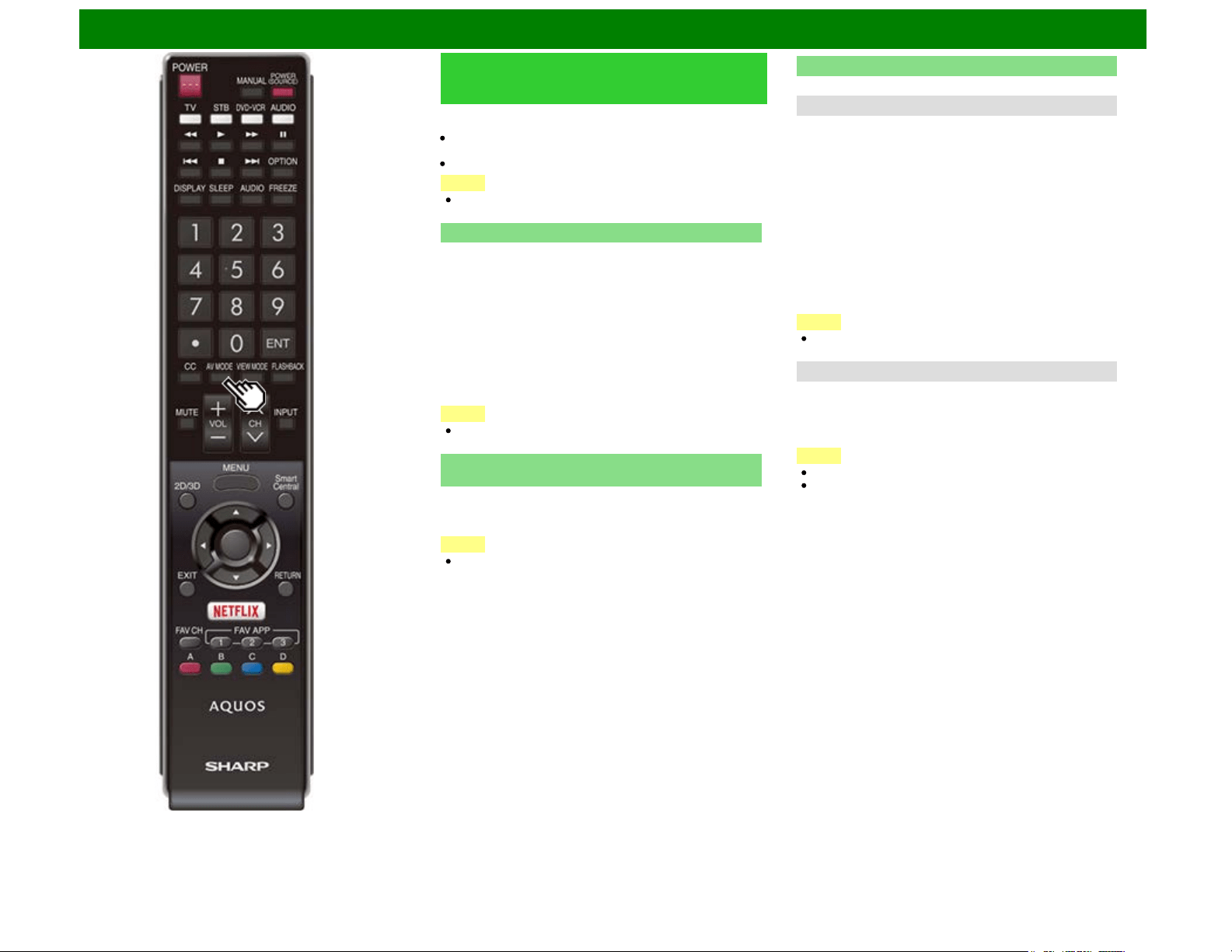
Enjoying 3D Image Viewing (For the UQ17U, TQ15U, SQ17U, SQ15U, LE657U and UD1U models)
Configuring the TV Setting to
Enhance 3D Image Viewing
You can adjust the 3D image to the desired image quality and
make various settings for 3D image viewing.
Set AV MODE and "3D Brightness Boost" with "Picture
Settings".
Set the 3D viewing settings with "Setup" > "3D Setup".
NOTE
Which items can be selected/adjusted differs depending on
whether the TV is in 2D mode or in 3D mode.
AV MODE
The audio and video settings can be changed to suit the
program or input content being watched.
3D: For a highly defined image in a normal lighting.
GAME (3D): Lowers image brightness for easier viewing.
For the LE657U model
STANDARD (3D): For a highly defined image in a normal
lighting.
MOVIE (3D): For a movie.
GAME (3D): Lowers image brightness for easier viewing.
NOTE
You can select AV MODE by pressing AV MODE on the
remote control unit.
3D Brightness Boost
(For the UQ17U, TQ15U, SQ17U and SQ15U models)
You can adjust the backlight of the TV for 3D image viewing.
High/Middle/Low: Select a desired level of 3D Brightness
Boost.
NOTE
When "High" or "Low" is selected, "Automatic Light
Sensor", "Backlight" and "Light Sensor Adjustment" are
not available.
3D Setup
You can make various settings to enhance 3D image viewing.
3D Auto Change
This setting can be used to switch to 3D mode automatically
when a 3D identification signal is detected.
Set the desired mode according to the type of media you are
viewing, such as video from a connected device or video from
an internet application.
Mode 1: 3D mode is selected automatically when a 3D
signal is detected while viewing video from a VOD service
or HDMI-connected equipment.
Mode 2: 3D mode is selected automatically when, in
addition to detecting a 3D signal while viewing video from
a VOD service or HDMI-connected equipment, a video
pattern with "Side by Side" or "Top and Bottom" format is
also detected.
Off: Auto change is not performed.
NOTE
This function does not work when the input source is
Composite, Component, RGB or Analog/Digital tuner.
3D Depth Control
Select the method for adjusting the 3D depth.
Auto: The depth is adjusted automatically.
Manual: You can manually adjust the depth using the
function "Depth Change".
NOTE
This function is only available when the input signal is 3D.
This function may not be displayed depending on the type
of 3D signal.
ENG 5-11
Enjoying 3D Image Viewing (For the UQ17U, TQ15U, SQ17U, SQ15U, LE657U and UD1U models)
Configuring the TV Setting to
Enhance 3D Image Viewing
(Continue)
Depth Change
Adjusts the depth manually. "0" is the level where no
adjustment is made.
NOTE
This function is only available when "3D Depth Control" is
"Manual".
On the UD1U model, you cannot operate the "Depth
Change" function during 4K60P signal input. Operate this
function during the input of other types of signals (such as
Full HD).
2D 3D Convert Effect
You can adjust the 3D effect when converting images from 2D
mode to 3D mode.
Select a desired level of convert effect from +1 to +16.
NOTE
This function is only available when converting 2D images
to 3D images.
When you use this function, image conversion on the TV
will result in some differences in the original images and
how they appear.
2D images that have been converted to 3D images may be
viewed only for personal use.
Viewing Time Info
This displays the elapsed time of 3D image viewing.
Yes: Displays the elapsed viewing time on the screen every
hour.
No: Does not display the elapsed viewing time.
3D Test
This displays 3D images for testing the 3D operation. Clicking
"Start" on the screen plays back 3D test images.
If you press RETURN during playback, the previous screen
will be displayed.
On the UD1U model, you cannot operate the "3D Test"
function during 4K60P signal input. Operate this function
during the input of other types of signals (such as Full
HD).
3D Glasses Control
To enable this function, set "TV Location" to "Store".
On: Switch on signals to the 3D glasses. When watching 3D
images, switch this setting to "On".
Off: Switch off signals to the 3D glasses. This will stop the
TV from influencing 3D glasses that may be in that area of
the store.
NOTE
Appropriate 3D Glasses are required to view 3D images.
Purchase 3D Glasses for use with Sharp brand 3D LCD
TVs.
ENG 5-12
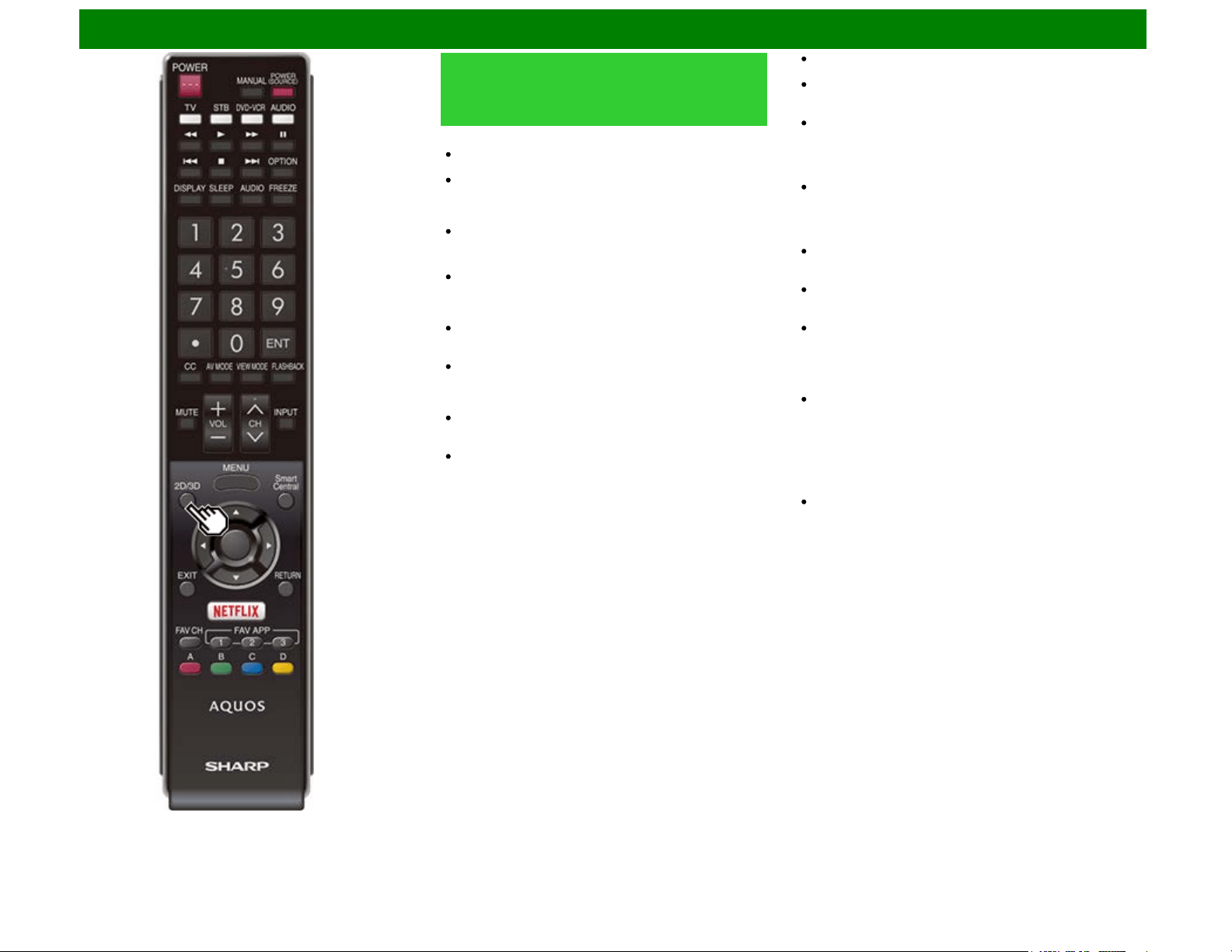
Enjoying 3D Image Viewing (For the UQ17U, TQ15U, SQ17U, SQ15U, LE657U and UD1U models)
Configuring the TV Setting to
Enhance 3D Image Viewing
(Continue)
3D Glasses lenses
Do not apply pressure to the lenses of the 3D Glasses.
Also, do not drop or bend the 3D Glasses.
Do not scratch the surface of the lenses of the 3D Glasses
with a pointed instrument or other object. Doing so may
damage the 3D Glasses and reduce the quality of the 3D
image.
Use only the cloth provided with the optional 3D Glasses to
clean the lenses.
Caution during viewing
Do not use devices that emit strong electromagnetic waves
(such as cellular phones or wireless transceivers) near the
3D Glasses. Doing so may cause the 3D Glasses to
malfunction.
The 3D Glasses cannot operate fully at extreme high or
low temperatures. Please use them within the specified
usage temperature range.
If the 3D Glasses are used in a room with fluorescent
lighting (60 Hz), the light within the room may appear to
flicker. In this case, either darken or turn off the
fluorescent lights when using the 3D Glasses.
Wear the 3D Glasses correctly. 3D images will not be
correctly visible if the 3D Glasses are worn upside down or
back-to-front.
Other displays (such as computer screens, digital clocks,
and calculators) may appear dark and difficult to view
while wearing the 3D Glasses. Do not wear the 3D
Glasses when watching anything other than 3D images.
If you lie on your side while watching the TV with 3D
Glasses, the picture may look dark or may not be visible.
Be sure to stay within the viewing angle and optimum TV
viewing distance when watching 3D images. Otherwise,
you may not be able to enjoy the full 3D effect.
The 3D Glasses may not work properly if there is any other
3D product or electronic devices turned on near the
glasses or TV. If this occurs, turn off the other 3D product
or electronic devices or keep the devices as far away as
possible from the 3D Glasses.
Stop using the 3D Glasses in any of the following
situations:
– When images consistently appear doubled while you are
wearing the 3D Glasses
– When you have difficulty perceiving the 3D effect
If the 3D Glasses are faulty or damaged, stop using them
immediately. Continued use of the 3D Glasses may cause
eye fatigue, headaches and illness.
If you have any abnormal skin reaction, stop using the 3D
Glasses. In very rare instances, such reactions may be
due to an allergic reaction to the coating or materials used.
If your nose or temples become red or you experience any
pain or itchiness, stop using the 3D Glasses. Pressure
caused by long periods of use may lead to such reactions
and may result in skin irritation.
Usage range of the 3D Glasses
The 3D Glasses can be used by receiving a signal sent
from the TV.
The 3D Glasses turn off automatically after 15 seconds if
no signal is received from the TV.
Operating range:
From directly in front of the 3D emitter on the TV: approx.
17 ft (5 m)
(within approx. 30° horizontally and 20° vertically)
For further details, refer to the operation manual of your 3D
Glasses.
ENG 5-13
Enjoying Photo/Music/Video Playback (Except for UD1U)
Preparation
You can connect the TV to a USB memory device, USB hard drive or Home Network server to enjoy
viewing pictures, listening to music, and watching videos.
NOTE
Depending on the USB memory device/USB hard drive/Home Network server, the TV may not be
able to recognize the recorded data.
It may take time to read the recorded data if the USB memory device/USB hard drive/Home
Network server contains many files or folders.
Use only alphanumeric characters for naming files.
File names over 80 characters (may vary depending on character set) may not be displayed.
Connecting a USB Memory Device/USB Hard Drive
Insert the USB memory device with recorded photos, music or videos into the USB 1 or USB 2
terminal on the TV.
If USB memory devices are inserted into both terminals, the USB 1 terminal has priority.
When connecting a USB hard drive, be sure to use a hard drive with an AC adapter.
Do not remove a USB memory device or memory card from the TV while transferring files, using
the slide show function, or switching screens, or before you exit "USB" from the INPUT list.
Do not insert and remove a USB memory device/USB hard drive to and from the TV repeatedly.
When using a card reader, be sure to insert a USB memory device first.
CAUTION
Do not use a USB extension cable when connecting a USB memory device to the USB
terminal on the TV.
Using a USB extension cable with the USB memory device may prevent the TV from
performing correctly.
Connecting a Home Network Server
Connect the TV to the Home Network server using an ETHERNET cable.
You can also connect a Home Network server by using a wireless LAN.
NOTE
Do not disconnect a Home Network server from the TV while transferring files, when a screen is
switching to another or before you exit "Home Network" from the INPUT list.
Do not connect and disconnect a Home Network server from the TV repeatedly.
ENG 6-1
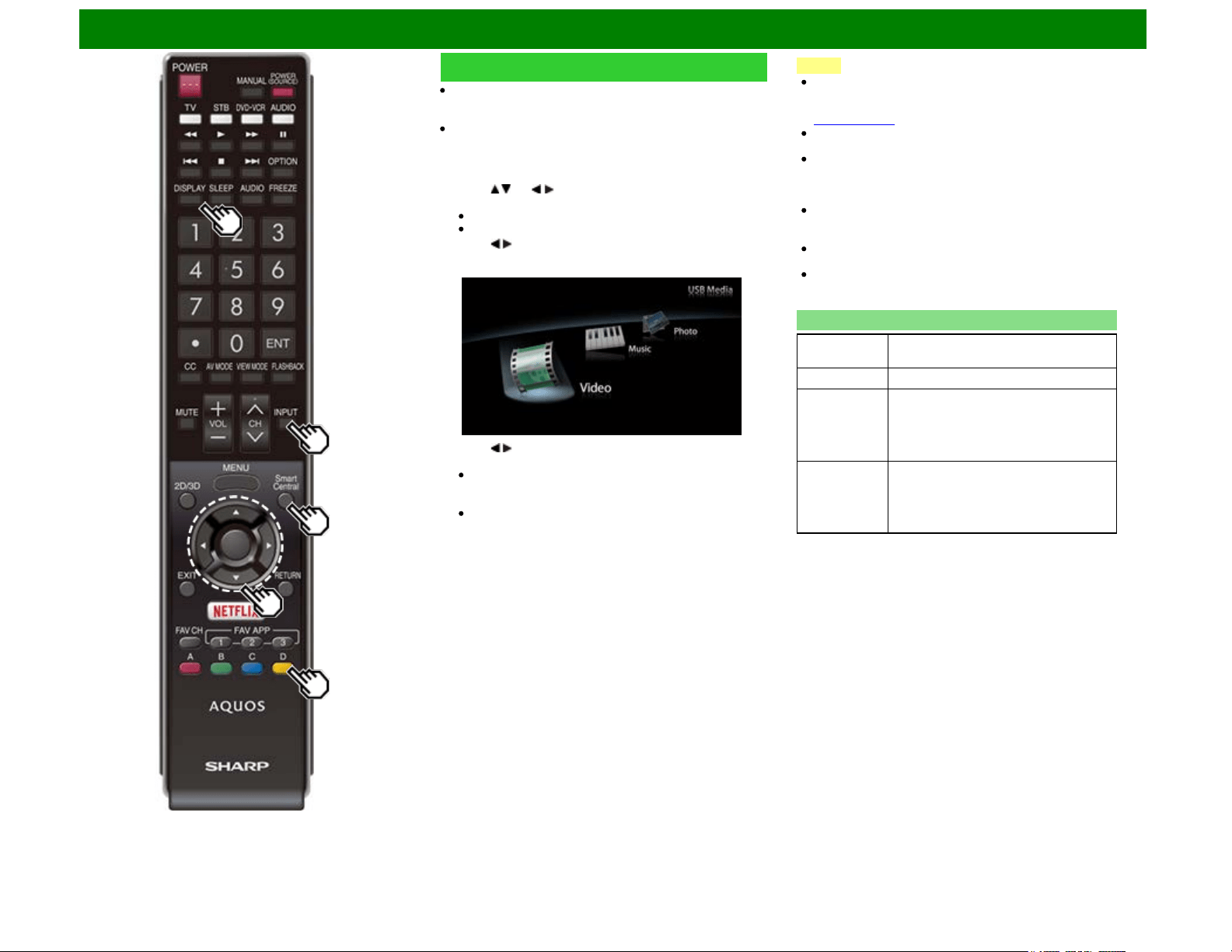
Enjoying Photo/Music/Video Playback (Except for UD1U)
Selecting the Folders to Play Back
To play back data on a USB memory device, insert the USB
memory device on the TV. USB mode is selected
automatically. (Go to step 2)
Use the following procedure to switch back to USB mode
after switching from USB mode to another mode.
1 Select "USB" or "Home Network" from INPUT list screen.
2 Press D.
3 Press / (or / ) to select the drive/server where you
want to find your files, and then press ENTER.
For USB mode, select the drive.
When in Home Network mode, select the server.
4 Press / to select "Photo", "Music" or "Video", and then
press ENTER.
Example
5 Press / to select the desired folder, and then press
ENTER.
"VIEW MODE" is fixed during the Music mode. During
"Photo mode" or "Video mode", you can select "Auto" or
"Original"
During "Photo mode" or "Video mode", photos and
videos that are smaller than the number of pixels on the
screen are displayed at their original size.
In these cases, switch "VIEW MODE" to "Auto" to have
the photo or video fill the screen.
NOTE
The Media screen can be displayed even by using the
application window. To display the application window,
press SmartCentral.
(See page 3-6.)
You cannot switch the input mode if a USB memory device
is not connected.
You do not need to select the drive/server in step 3 when
there is only one drive in the connected USB memory
device or there is only one Home Network server
connected to the TV.
16 is the maximum number of USB drives and 10 is the
maximum number of Home Network servers that can be
displayed.
If the TV is turned off and then on again, the number
assigned to the USB drive may change.
The key guide display disappears automatically after a
particular time has elapsed. To display the key guide
display again, press DISPLAY.
USB Device Compatibility
USB device USB Memory, USB card reader (Mass
Storage class), USB hard drive
File system FAT/FAT32/NTFS (USB hard drive only)
Photo file
format
JPEG (.jpg) (DCF2.0 compliant)
Multi-Picture Format (.mpo) (CIPA DC-
007 Compliant)
MP Type : Multi view individually image
(stereoscopic view)
Music file
format
MP3 (.mp3)
Bitrate: 32k, 40k, 48k, 56k, 64k, 80k, 96k,
112k, 128k, 160k, 192k, 224k, 256k,
320kbps
Sampling frequency: 32k, 44.1k, 48kHz
ENG 6-2
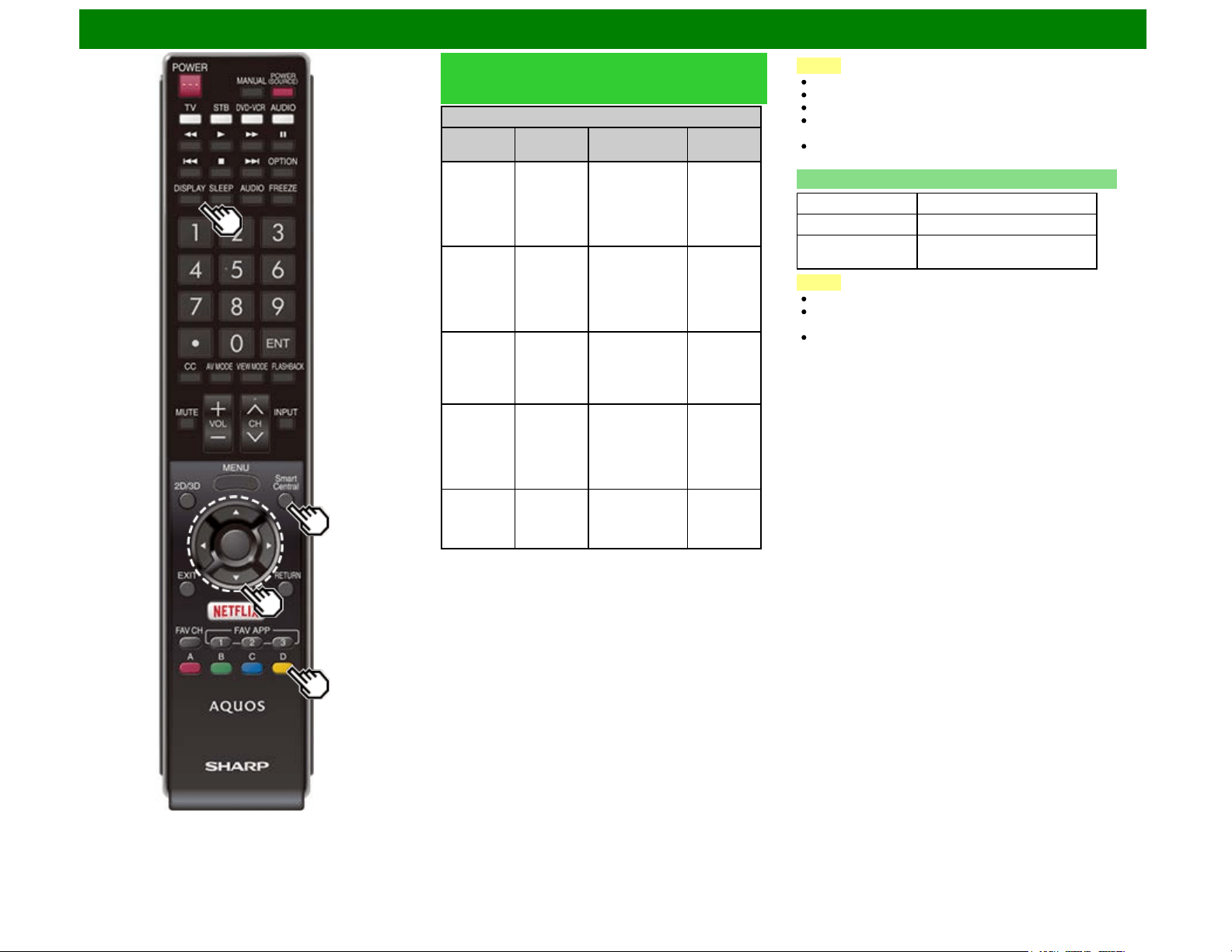
Enjoying Photo/Music/Video Playback (Except for UD1U)
Selecting the Folders to Play Back
(Continue)
Video file format
File
extension
Container Video Audio
.avi AVI
XviD
H.264
MPEG4
Motion Jpeg
MP3
Dolby
Digital
LPCM
ADPCM
DTS
.mkv MKV
XviD
H.264
MPEG4
MP3
Dolby
Digital
LPCM
ADPCM
DTS
.asf
.wmv
ASF
XviD
MPEG4
VC-1
Windows Media
Video v9
MP3
Dolby
Digital
LPCM
WMA
.mp4
.mov
MP4
(SMP4)
H.264
MPEG4
Motion Jpeg
MP3
Dolby
Digital
Dolby
Digital Plus
AAC
.mpg
.mpeg
PS
MPEG2
MPEG1
Dolby
Digital
MPEG
LPCM
NOTE
Progressive format jpeg files are not supported.
USB 1.1 devices may not be played properly.
Operation using USB hubs is not guaranteed.
Some video file formats may not be played depending on
the file.
Some images may not be displayed in the appropriate
aspect ratio depending on the file format.
Home Network Server Compatibility
Photo file format JPEG
Music file format LPCM, MP3
Video file format MPEG2-PS, MPEG2-TS,
WMV, ASF, MP4, MOV, AVI
NOTE
Progressive format jpeg files are not supported.
Some video file formats may not be played depending on
the file or the server.
WMV, ASF, MP4, MOV and AVI are not Home Network
contents.
ENG 6-3
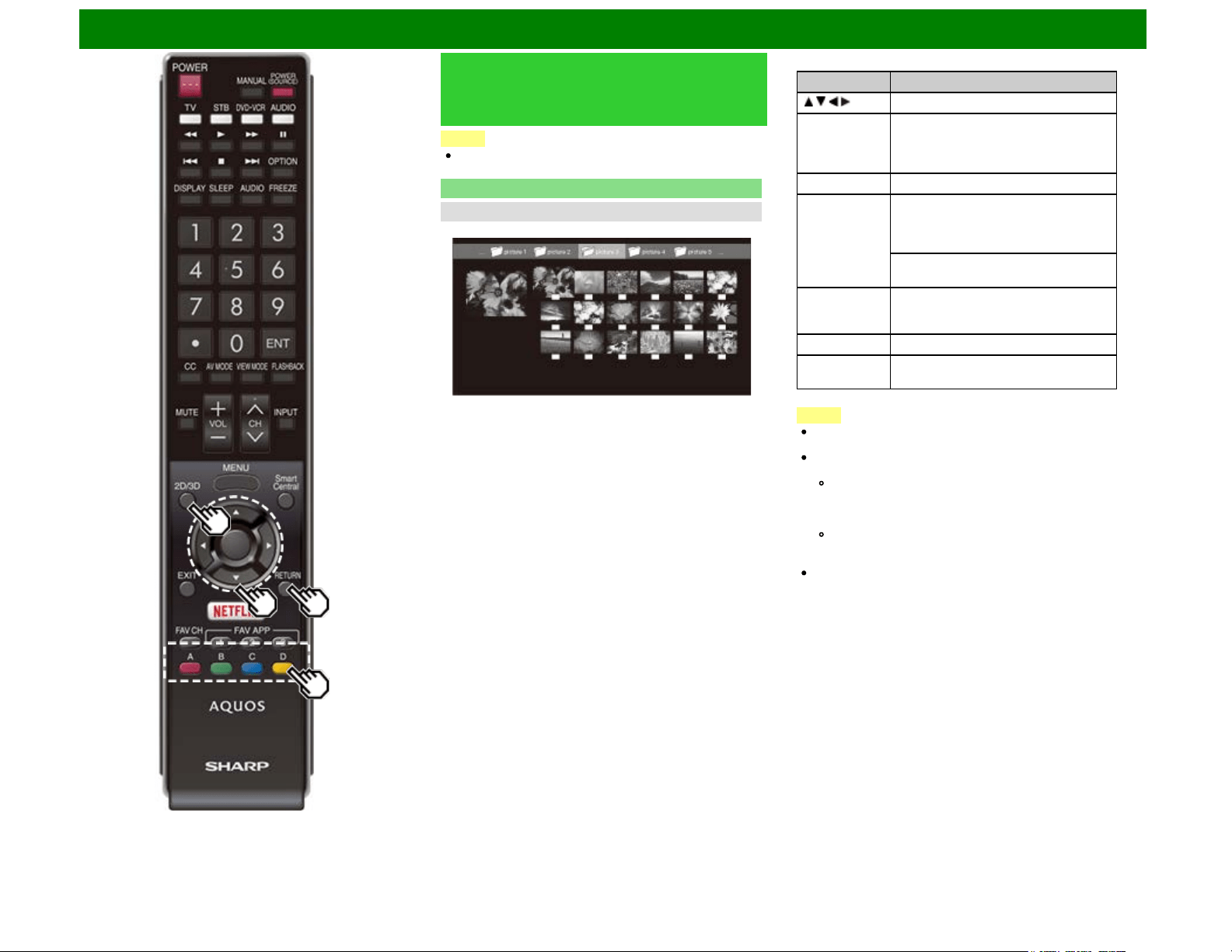
Enjoying Photo/Music/Video Playback (Except for UD1U)
Playing Back Files on a USB
Memory Device/Home Network
Server
NOTE
The screen images in this section are for the USB mode. It
may be slightly different in the Home Network mode.
Photo Mode
Viewing Thumbnails
Example
Buttons for thumbnail operations
Buttons Description
/ / / Select a desired item.
ENTER When selecting a folder icon:
Enter this directory.
When selecting a photo thumbnail:
Enlarge the photo.
RETURN Return to the previous process.
A (red) USB mode:
Select the images to be displayed. Press
this button to add or remove a
checkmark.
Home Network mode:
Display the Media screen.
B (green)* Display the music list screen. You can
select the background music to be played
for the slide show.
C (blue) Start the slide show.
D (yellow) Display the USB MENU/Home Network
Menu screen.
*This function is available only for the USB mode.
NOTE
When there are invalid photo files, the X mark will be
displayed for the file. (USB mode only.)
The icon "3D" appears on the thumbnails of 3D images.
(USB mode only.)
For the UQ17U, TQ15U, SQ17U, SQ15U and LE657U
models
If you do not switch to 3D mode for the 3D images,
they will be displayed in 2D.
For the SQ10U, EQ10U, LE650U, C6500U and
LE642U models 3D images are always displayed in 2D
mode.
You can see the file name, shooting date, file size and
pixel size of the selected photo in the lower-left corner of
the screen (shooting date is only available in the EXIF file
format).
ENG 6-4
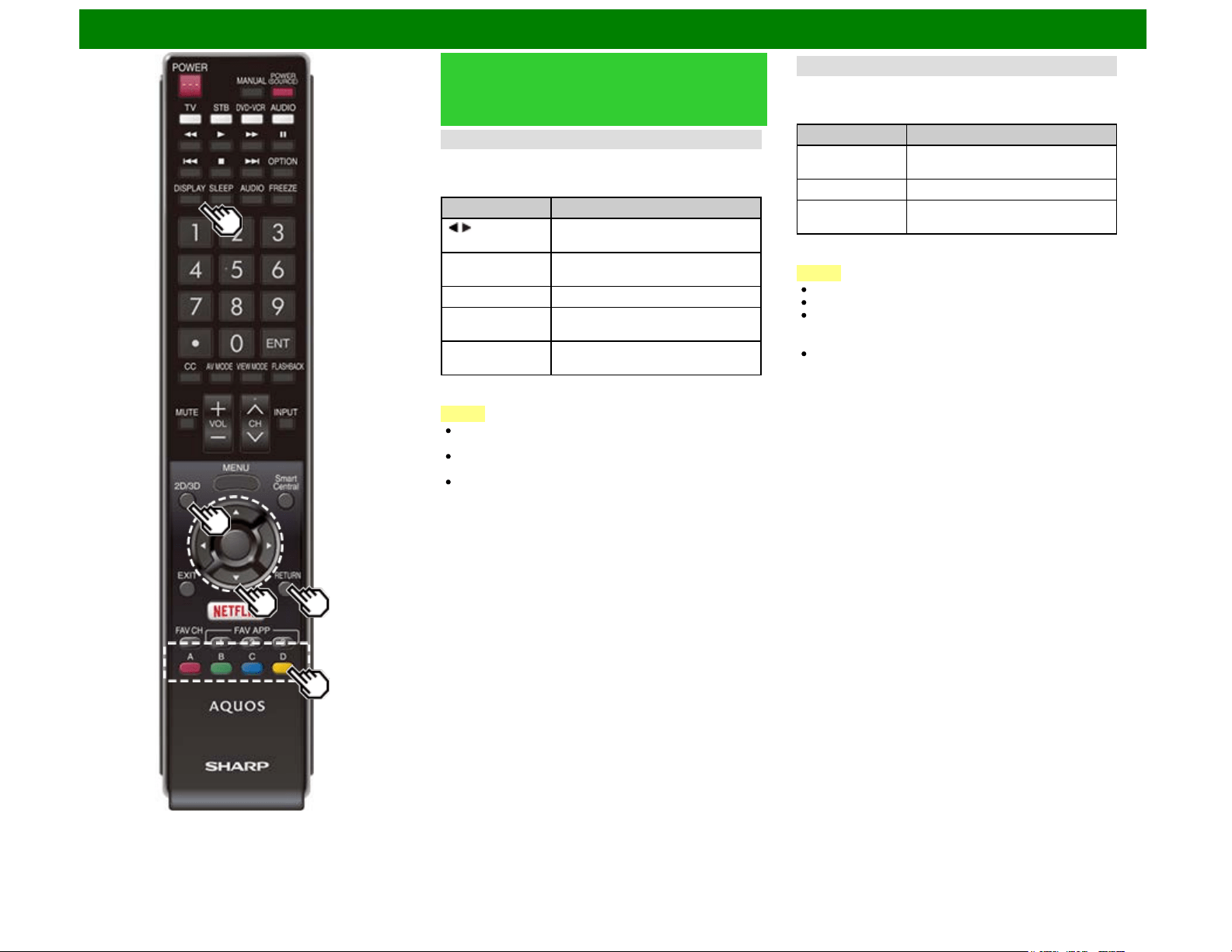
Enjoying Photo/Music/Video Playback (Except for UD1U)
Playing Back Files on a USB
Memory Device/Home Network
Server (Continue)
Viewing Individual Photos
The photo selected on the thumbnail selection screen is
displayed.
Buttons for individual display operation
Buttons Description
/ Go to the previous/next photo in the
same directory.
RETURN Return to the thumbnail selection
screen.
2D/3D* Switches between 2D and 3D modes.
A (red) Rotate the photo by 90 degrees to the
left.
B (green) Rotate the photo by 90 degrees to the
right.
* This function is available for the UQ17U, TQ15U, SQ17U,
SQ15U and LE657U models.
NOTE
Rotating photos only applies to the temporarily selected
item and this setting is not saved.
In 3D mode, you cannot rotate the photos. (For the
UQ17U, TQ15U, SQ17U, SQ15U and LE657U models)
The key guide display disappears automatically after a
particular time has elapsed. To display the key guide
display again, press DISPLAY.
Slide Show
The photos displayed on the thumbnail selection screen are
displayed as a slide show.
Buttons for slide show operation
Buttons Description
RETURN Return to the thumbnail selection
screen.
2D/3D* Switches between 2D and 3D modes.
D (yellow) Display the USB MENU/Home
Network Menu screen.
* This function is available for the UQ17U, TQ15U, SQ17U,
SQ15U and LE657U models.
NOTE
The selected BGM is played repeatedly.
The slide show continues until you press RETURN.
For setting the slide show speed, select "Select Slide
Show Interval" on the USB MENU/Home Network Menu
screen.
The key guide display disappears automatically after a
particular time has elapsed. To display the key guide
display again, press DISPLAY.
ENG 6-5
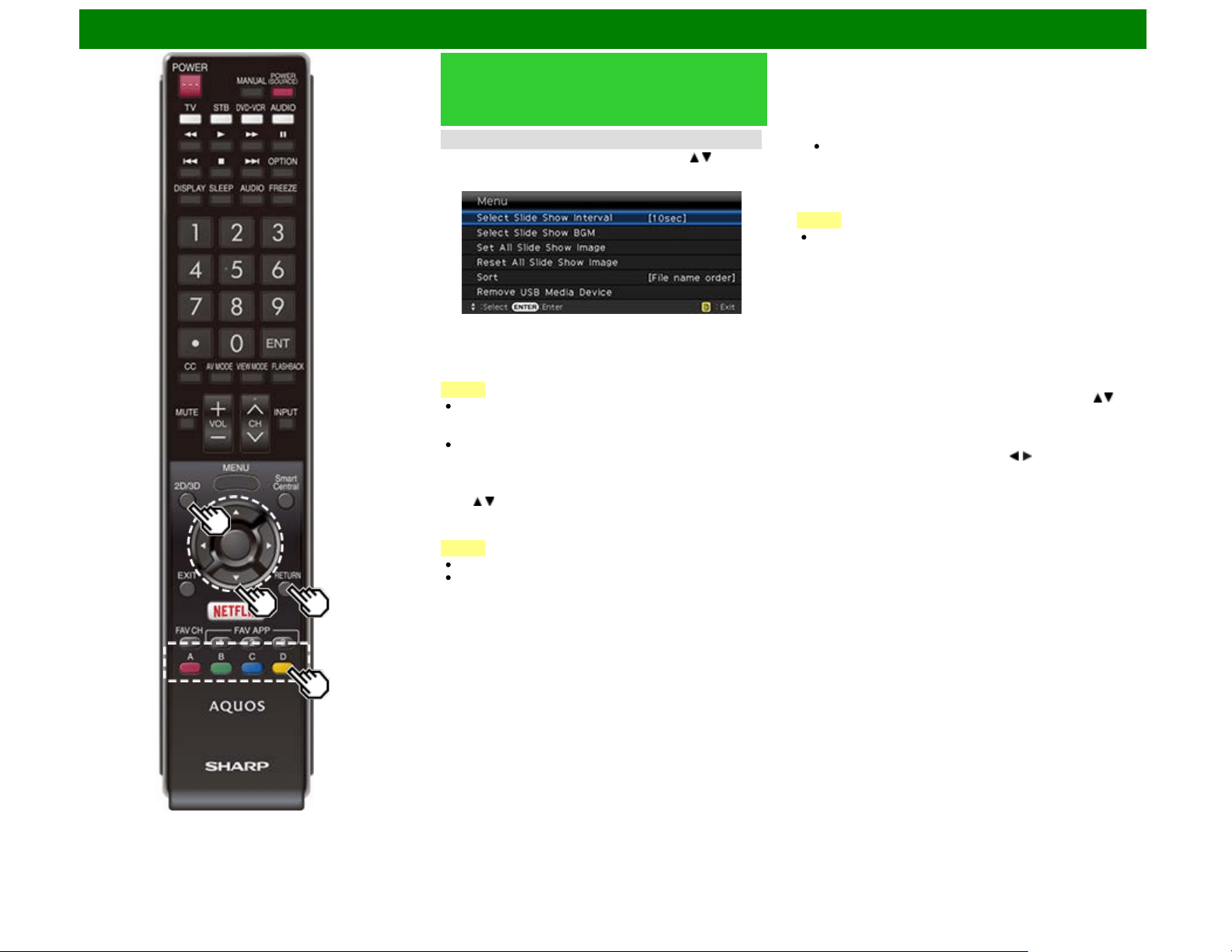
Enjoying Photo/Music/Video Playback (Except for UD1U)
Playing Back Files on a USB
Memory Device/Home Network
Server (Continue)
USB Menu
On the menu to be displayed in USB mode, use / to select
an item and make settings to your preferences.
Example
3D Display
(for the UQ17U, TQ15U, SQ17U, SQ15U and LE657U
models)
You can view photos in 3D.
NOTE
You can select "3D display" from "USB MENU" only when
the thumbnails screen for the photo mode in USB mode is
displayed on the screen.
Depending on the file, the photos may not be displayed in
3D.
Select Slide Show Interval
Specify the length of time before the next image appears.
Press / to select the desired length of the time, and then
press ENTER.
5sec/10sec/30sec/60sec
NOTE
For Home Network mode, follow the same procedure.
Depending on the photo files, the length of the slide show
interval may differ from the selected interval time.
Select Slide Show BGM
The music list screen appears when you select "Select Slide
Show BGM".
You can select the music to be played in the background
while the slide show is being displayed.
1 Select the music you want to play from the music list.
For operations on the music list screen, see "Music
Mode".
2 Press RETURN to display the thumbnail selection screen,
and then press C to start the slide show and the
background music.
NOTE
All of the music files are selected by default.
Set/Reset All Slide Show Image
Selecting "Set All Slide Show Image" or "Reset All Slide Show
Image" will display the thumbnail selection screen. On the
screen, set or reset the images to be displayed in the slide
show.
Set All Slide Show Image: Checkmarks are added to all the
images.
Reset All Slide Show Image: Removes all the checkmarks
from all the images.
Sort
You can change the way in which files are ordered.Press /
to select "new→old", "old→new", or "File name order", and
then press ENTER.
Remove USB Media Device
To remove the USB device properly, use / to select "Yes"
and then press ENTER.
ENG 6-6
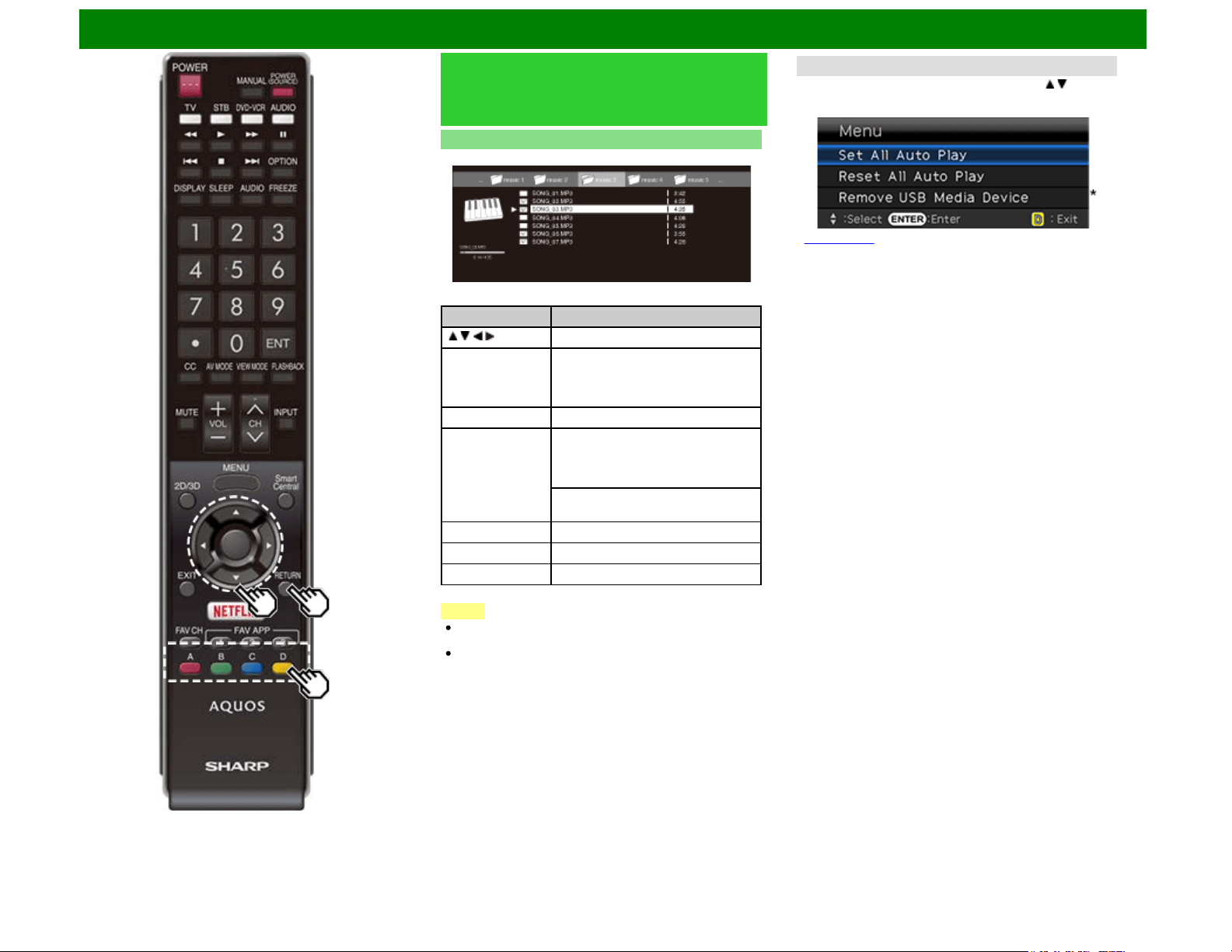
Enjoying Photo/Music/Video Playback (Except for UD1U)
Playing Back Files on a USB
Memory Device/Home Network
Server (Continue)
Music Mode
Example
Buttons for music mode
Buttons Description
/ / / Select a desired item.
ENTER When selecting a folder icon:
Enter this directory.
When selecting a music file:
Play music.
RETURN Return to the previous process.
A (red) USB mode:
Select the music to be played back.
Press this button to add or remove a
checkmark.
Home Network mode:
Display the Media screen.
B (green) Stop music.
C (blue) Play/(Pause)* music.
D (yellow)* Display the USB MENU screen.
* This function is available only for the USB mode.
NOTE
When there are invalid music files, the X mark will be
displayed for the file. (USB mode only.)
The displayed play time may differ slightly from the actual
play time depending on the files.
USB Menu
On the menu to be displayed in USB mode, use / to select
an item and make settings to your preferences.
Example
* See page 6-6 for details on the Remove USB Media Device
function.
Set/Reset All Auto Play
Selecting "Set All Auto Play" or "Reset All Auto Play" will
display the music list screen. On the screen, set or reset the
music to be played back in the slide show.
Set All Auto Play: Checkmarks are added to all the music
files.
Reset All Auto Play: Removes all the checkmarks from all
the music files.
ENG 6-7
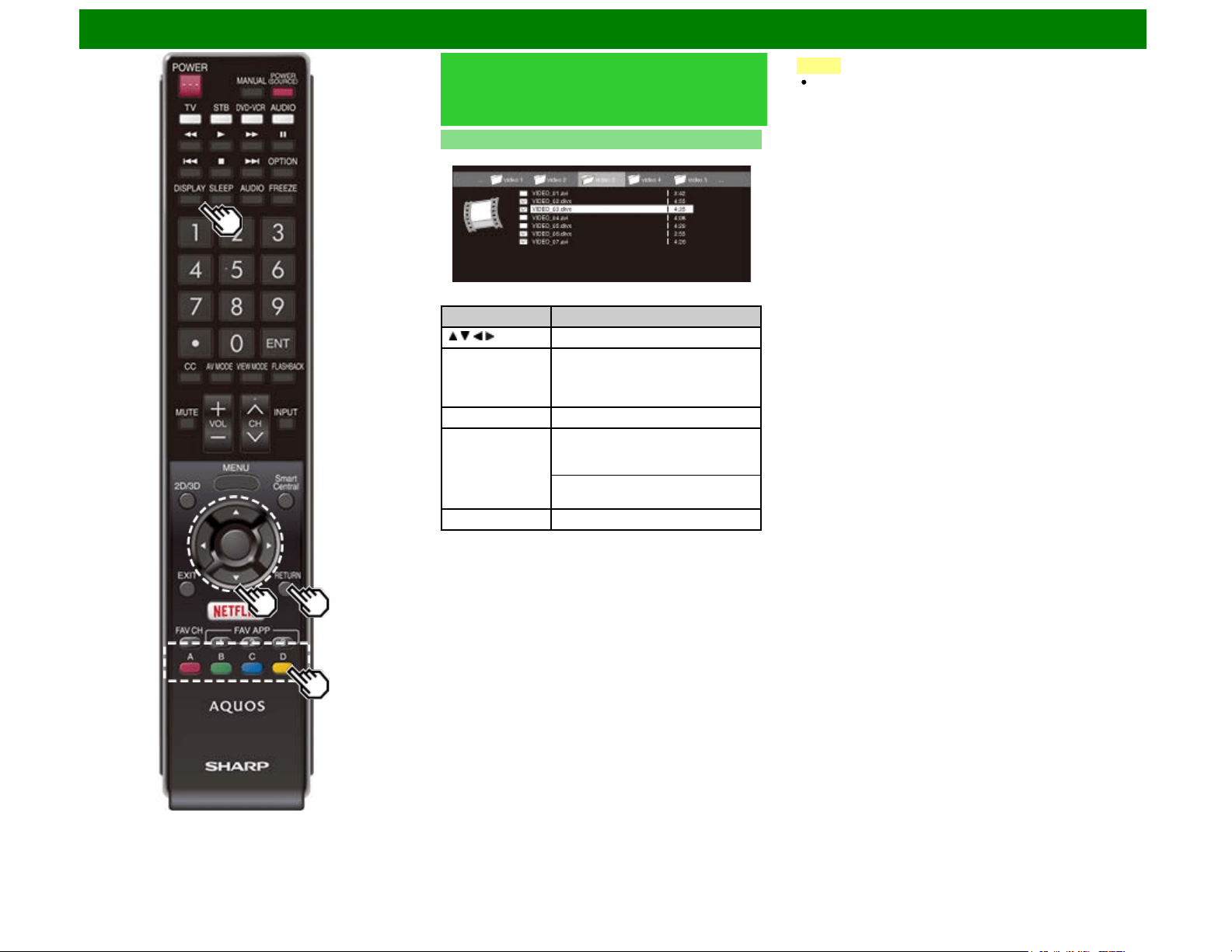
Enjoying Photo/Music/Video Playback (Except for UD1U)
Playing Back Files on a USB
Memory Device/Home Network
Server (Continue)
Video Mode
Example
Buttons for file selecting operations
Buttons Description
/ / / Select a desired item.
ENTER When selecting a folder icon:
Enter this directory.
When selecting a video file: Play the
video.
RETURN Return to the previous process.
A (red) USB mode:
Select/deselect items (checkmarks
are added to the selected items).
Home Network mode:
Display the Media screen.
D (yellow)* Display the USB MENU screen.
* This function is available only for the USB mode.
NOTE
The key guide display disappears automatically after a
particular time has elapsed. To display the key guide
display again, press DISPLAY.
ENG 6-8
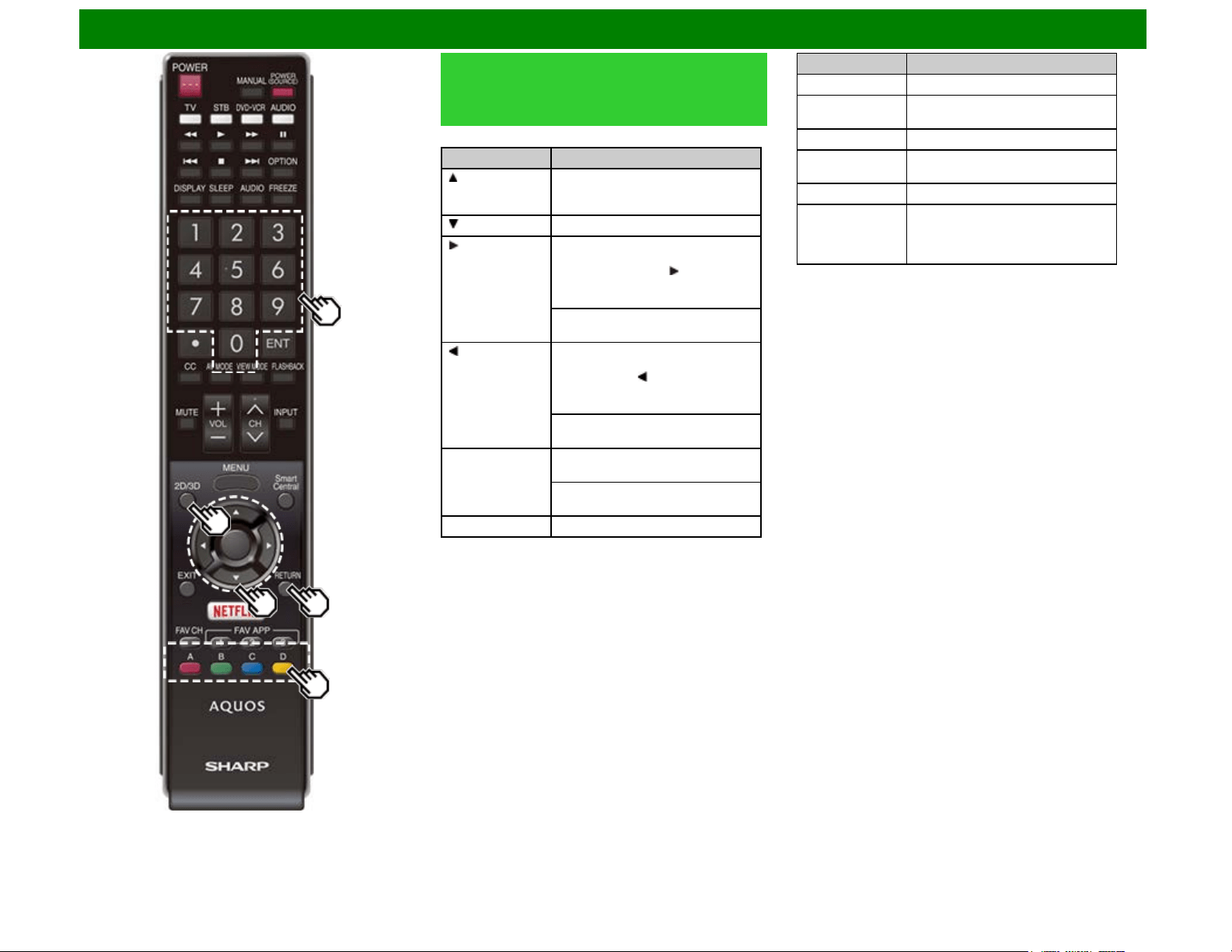
Enjoying Photo/Music/Video Playback (Except for UD1U)
Playing Back Files on a USB
Memory Device/Home Network
Server (Continue)
Buttons for playing mode
Buttons Description
Go to the beginning of a file by
pressing once or to the previous file
by pressing twice.
Go to the next file.
USB mode:
The fast forward speed changes
every time you press . After playing
to the end, the TV goes to the next file
and starts to play.
Home Network mode:
Jump forward in a video. *3
USB mode:
The reverse speed changes every
time you press . After going back to
the beginning, the TV starts to play
the same file.
Home Network mode:
Jump back in a video. *3
ENTER USB mode:
Pause the video.
Home Network mode:
Play/Pause the video. *3
RETURN Go back to the file selection screen.
Buttons Description
2D/3D*1 Switches between 2D and 3D modes.
A (red)*2 Jump to the scene where playback
was last stopped.
B (green) Stop a video.
C (blue) Display the USB/Home Network
operation panel.
D (yellow)*2 Display the USB MENU screen.
0-9*2 Jump to a point in the video during
playback of a file without chapters.
You can jump to a later point by
pressing a higher number.*4
*1 This function is available for the UQ17U, TQ15U, SQ17U,
SQ15U and LE657U models.
*2 These functions are available only for the USB mode.
*3 Jump forward/back and play/pause may not be available
depending on the files.
*4 During playback of a file without chapters, playback points
are set automatically. Playback points are set at intervals of a
one-tenth of playback time.
Example for a file with a playback time of 100 minutes:
Pressing 1 jumps 10 minutes forward, and pressing 2 jumps
20 minutes forward. Pressing 0 returns to the start of the file
being played back.
ENG 6-9
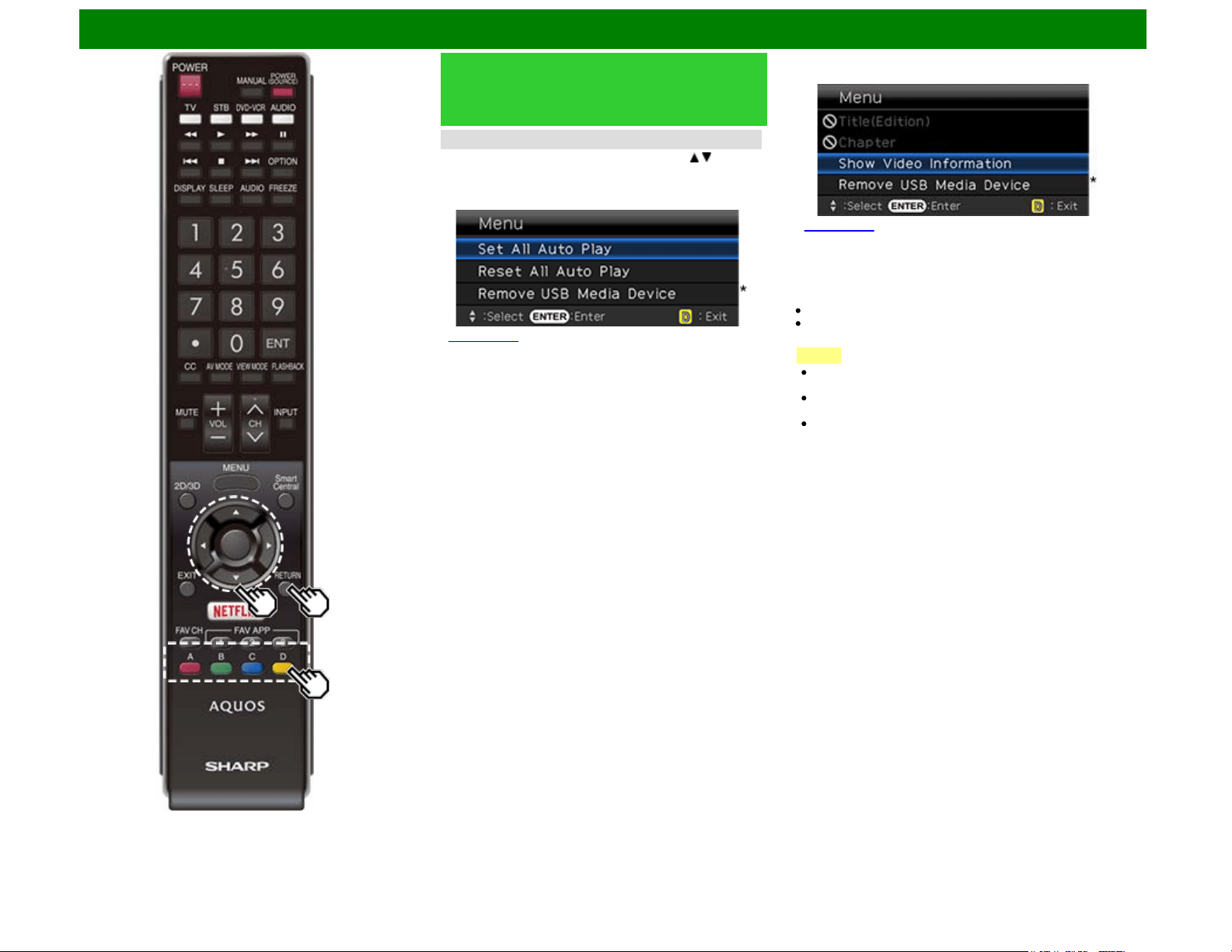
Enjoying Photo/Music/Video Playback (Except for UD1U)
Playing Back Files on a USB
Memory Device/Home Network
Server (Continue)
USB Menu
On the menu to be displayed in USB mode, use / to select
an item and make settings to your preferences.
Menu for file selecting operations
Example
* See page 6-6 for details on the Remove USB Media Device
function.
Set/Reset All Auto Play
Selecting "Set All Auto Play" or "Reset All Auto Play" will
display the video list screen. On the screen, set or reset the
video to be played back in the slide show.
Set All Auto Play: Checkmarks are added to all the video
files.
Reset All Auto Play: Removes all the checkmarks from all
the video files.
Menu for playing mode
Example
* See page 6-6 for details on the Remove USB Media Device
function.
Title (Edition)/Chapter
Selecting "Title (Edition)" or "Chapter" will display a list of
titles/chapters contained in the video file. Select the title or
chapter you want to play back.
The selected title or chapter is played back.
"0-9" is displayed for files without chapters. Playback jumps
to the playback point of the selected number.
NOTE
If there is Edition information, this screen is displayed
when the title is selected.
If there is no title or edition, you cannot select "Title
(Edition)".
"Chapter" cannot be selected when there is no chapter.
Show Video Information
The information of the current file is displayed.
ENG 6-10
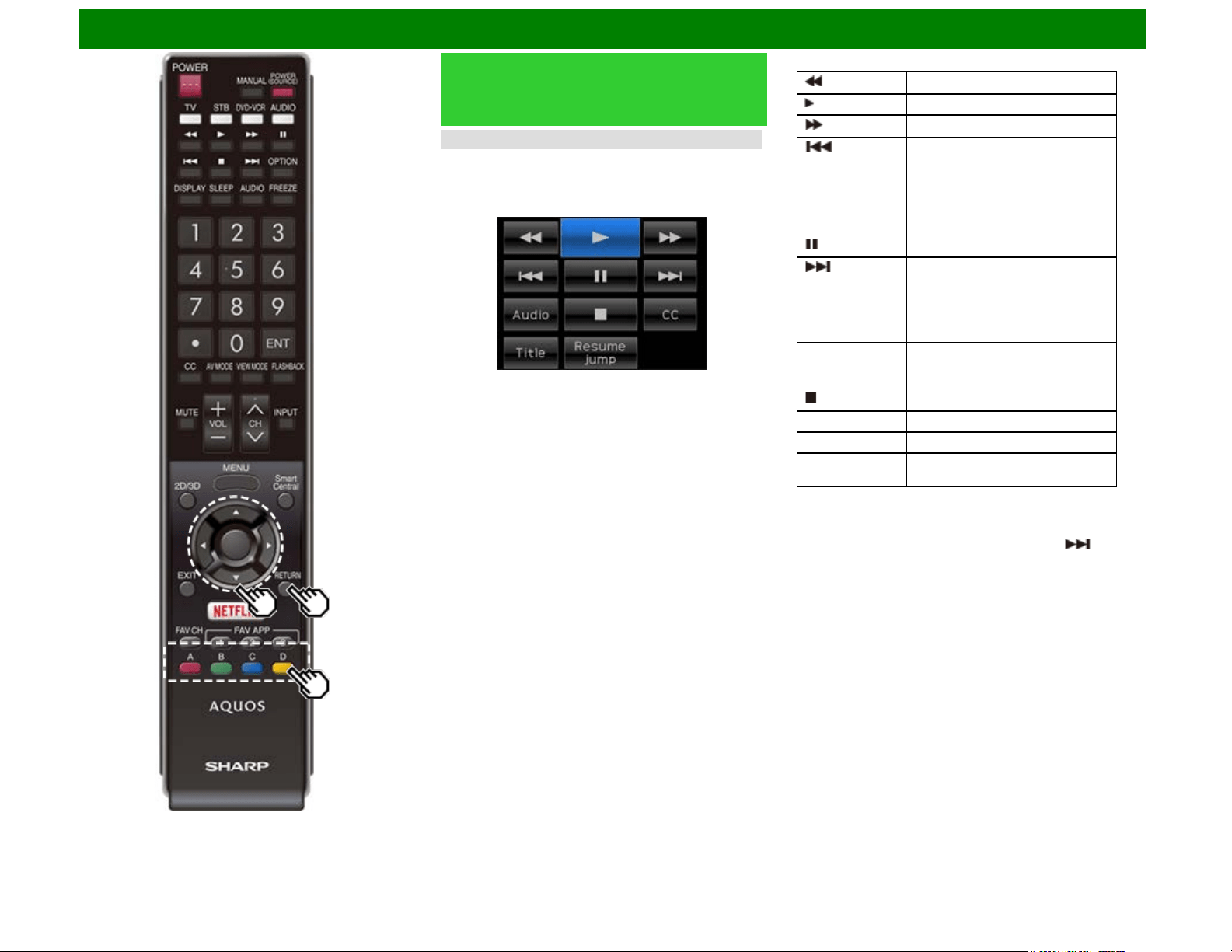
Enjoying Photo/Music/Video Playback (Except for UD1U)
Playing Back Files on a USB
Memory Device/Home Network
Server (Continue)
USB Operation Panel/Home Network Operation Panel
You can use the operation panel for video playback
operations.
You can call up this operation panel from "System Options" >
"Shortcuts".
Example
Buttons for using the USB operation panel
Hold down to go in reverse.
Starts playback.
Hold down to fast forward.
Video without chapters: Press once to
return to the previous playback point.*
Press twice to return to the previous
file.
Video with chapters: Press once to
return to the previous chapter. Press
twice to return to the previous file.
Sets pauses and still pictures.
Video without chapters: Press once to
advance to the next playback point.*
Press twice to display the next file.
Video with chapters: Press once to
advance to the next chapter. Press
twice to display the next file.
Audio Change the audio when multiple
audio is available for the video you
are watching.
Playback stops.
CC Change the Closed Caption display.
Title Displays the title (edition).
Resume jump Jump to the scene where playback
was last stopped.
* During playback of a file without chapters, playback points
are set automatically. Playback points are set at intervals of a
one-tenth of playback time.
Example for a file with a playback time of 100 minutes:
Playback points are set every 10 minutes. Pressing one
time after viewing the file for 15 minutes jumps to the 20-
minute playback point.
ENG 6-11
Enjoying Photo/Music/Video Playback (Except for UD1U)
Playing Back Files on a USB
Memory Device/Home Network
Server (Continue)
NOTE
Reverse/fast forward continues from one file to another
during continuous playback.
Use "CC" on the operation panel to change the Closed
Caption display. You can also switch the Closed Caption
display by using "System Options" > "Shortcuts" >
"Change CC" or by pressing CC on the remote control
unit.
Use "Audio" on the operation panel to change the audio.
You can also switch the audio by using "System Options"
> "Shortcuts" > "Change Audio".
Buttons for using the Home Network operation panel
Starts playback.
Go to the beginning of a file by
pressing once or to the previous file
by pressing twice.
Sets pauses and still pictures.
Go to the next file.
Playback stops.
Jump back in a video.
Jump forward in a video.
ENG 6-12
Enjoying Photo/Music/Video Playback (Except for UD1U)
Playing Back Files from a Portable
Device or PC
With the remote playback function, you can use your portable
device to play back pictures, video, and music on the Home
Network server.
This TV is a DLNA certified Digital Media Renderer (DMR).
To use the remote playback function, your portable device
must be a DLNA Certified Digital Media Controller.
A wireless access point is required to use a portable device.
Set Up Home Network
Make the settings for remote playback.
1 Press / to select "Smart TV", and then press ENTER.
2 Press / to select "Internet Setup", and then press
ENTER.
3 Press / to select "Home Network", and then press
ENTER.
4 Press / to select the specific adjustment item, and then
press ENTER to set each item.
Remote Control Play Settings
This setting allows the TV to perform remote playback.
Permitted/Not allowed
Timeout Setup
This sets the time until the TV returns automatically to TV
mode after remote playback ends.
10 sec./60 sec./No
NOTE
This function may not work while an Internet application is
being used.
For information on the compatible formats, see "Home
Network Server Compatibility" on
page 6-3.
ENG 6-13
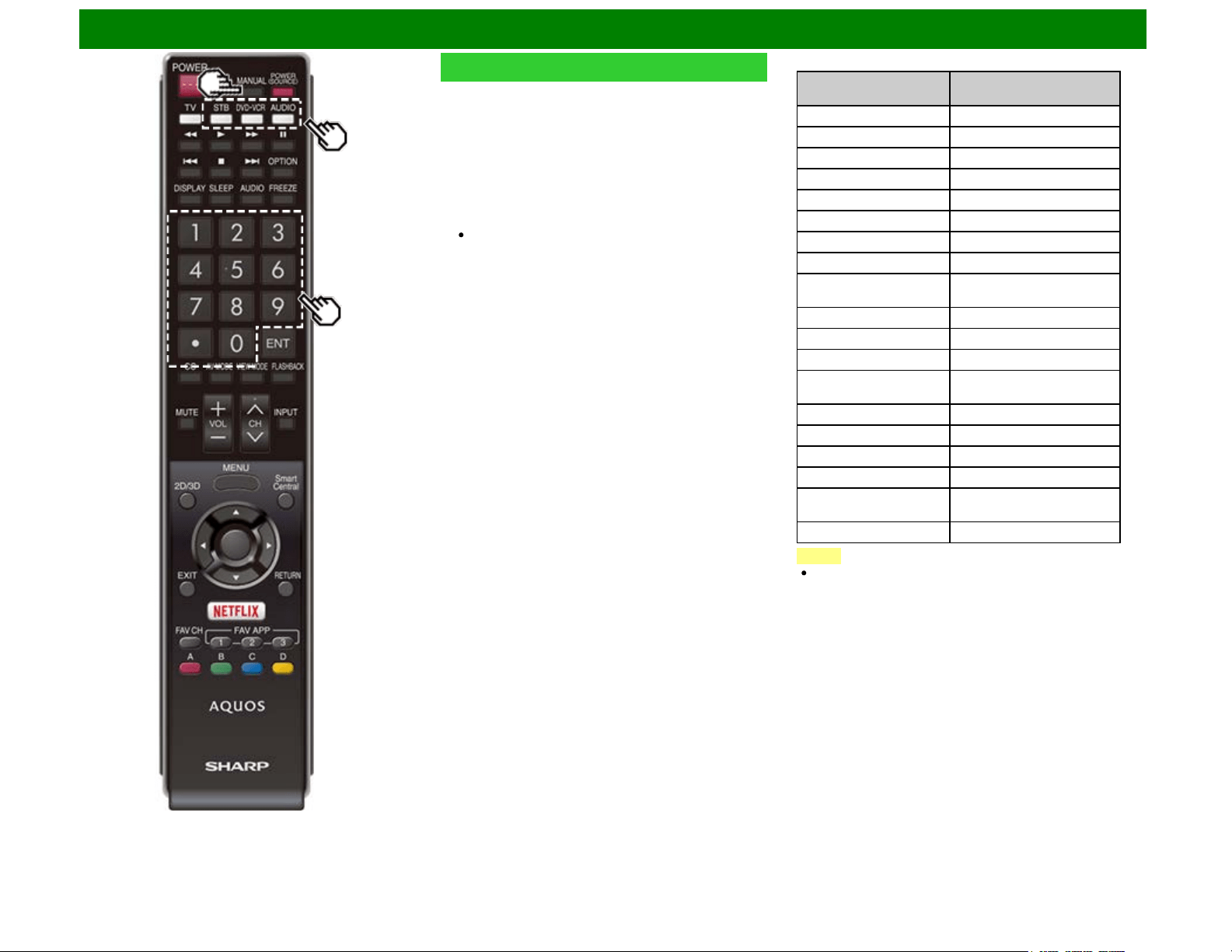
Enjoying Photo/Music/Video Playback (Except for UD1U)
Presetting Remote Control Function
You can operate the connected AV products (AV receiver,
cable box, SAT tuner, DTV, VCR, BD, DVD, LD) using the
presetting manufacturer function of your remote control unit.
Presetting manufacturer codes
1 Press an appropriate button (STB, DVD•VCR or AUDIO)
to operate the connected equipment.
2 Press an appropriate button (STB, DVD•VCR or AUDIO)
and MANUAL at the same time to enter the code
registration mode.
3 Press 0–9 to enter the manufacturer code.
Preset mode is finished once the LED no longer lights
up.
4 After registering the code, the LED will stop blinking then
turn off after one second. (If you perform an incorrect
operation, the LED will blink quickly then turn off.)
Manufacturer codes
STB BRAND
REMOTE CONTROL
CODE NUMBER
ANVISION 04, 05
CABLE STAR 04, 05
DISH NETWORK 39, 40
DIRECTV 41
EAGLE 05
G.INSTRUMENT 02, 03, 10, 11, 17, 20
GERROLD 17
JERROLD 02, 03, 10, 11, 12, 20, 25-34
MAGNAVOX 04, 05, 08, 12, 15, 16, 18, 19,
22, 23
MOTOROLA 38
OKA SIGMA 07
PANASONIC 14, 21
PHILIPS 04, 05, 08, 13, 15, 16, 18, 19,
22, 23
PIONEER 07
RANDTEK 04, 05
RCA 14, 36*, 37*
S.ATLANTA 01, 09, 24
VIEWSTAR 04, 05, 08, 13, 15, 16, 18, 19,
22, 23
ZENITH 06, 35
NOTE
Numbers marked with * are SAT codes, all others are STB
codes.
ENG 6-14
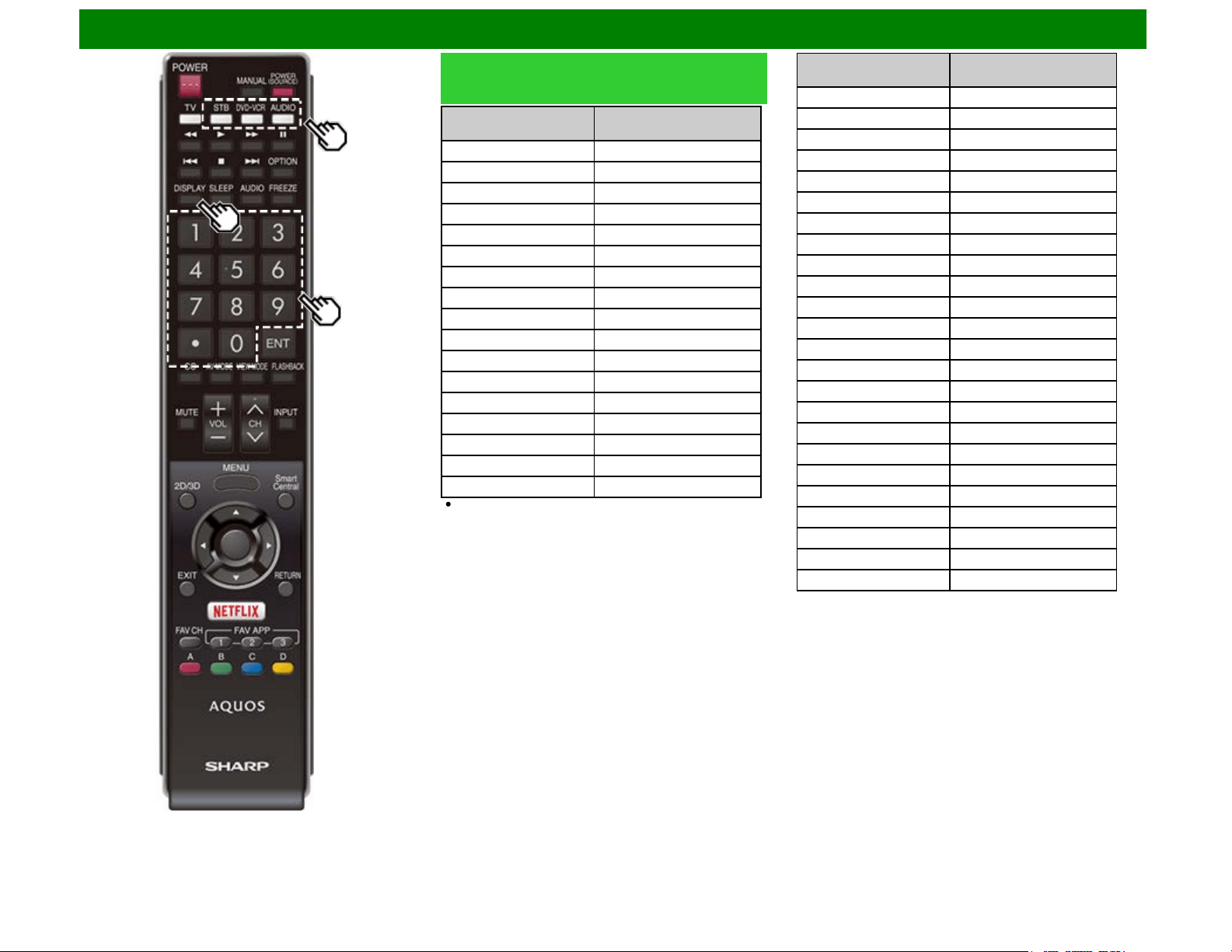
Enjoying Photo/Music/Video Playback (Except for UD1U)
Presetting Remote Control Function
(Continue)
BD/DVD/LD BRAND
REMOTE CONTROL
CODE NUMBER
DENON 24
JVC 31
KENWOOD 36
MAGNAVOX 26
MARANTZ 26
MITSUBISHI 28
PANASONIC 24, 37
PHILIPS 26, 38
PIONEER 30, 33, 35
PROSCAN 25
RCA 25, 39
SAMSUNG 29, 34
SHARP 23, 32, 41, 42
SONY 27, 40
TOSHIBA 26
YAMAHA 24
ZENITH 26
Depending on the brand, the codes of some BD players
may not be supported.
VCR BRAND
REMOTE CONTROL
CODE NUMBER
AUDIO DYNAMICS 09
BROCKSONIC 13
CANON 04
CRAIG 12
CURTIS MATHIS 04
DBX 09
EMERSON 10, 13, 14
GE 04
INSTANT REOLYA 04
JC PENNEY 04
JVC 09, 16, 17, 22
KENWOOD 09
MAGNAVOX 04, 05, 06
MAGNIN 12
MEMOREX 04
MONTGOMERY WARD 02
NEC 09
PANASONIC 04, 18, 19, 20, 21
PENTAX 05
PHILCO 04, 05
PHILIPS 04, 05, 06
QUASAR 04
REALISTIC 01, 02
SAMSUNG 11, 12
ENG 6-15
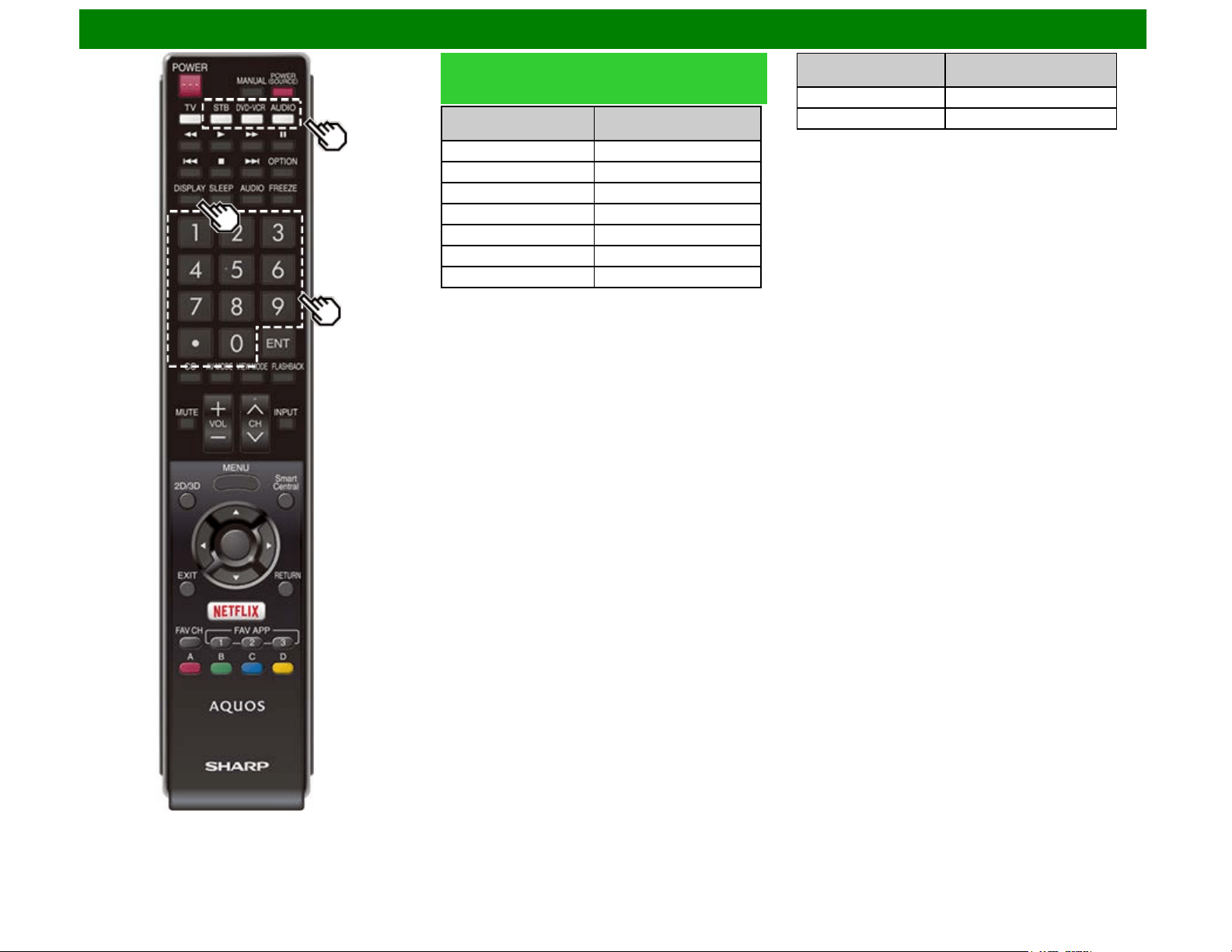
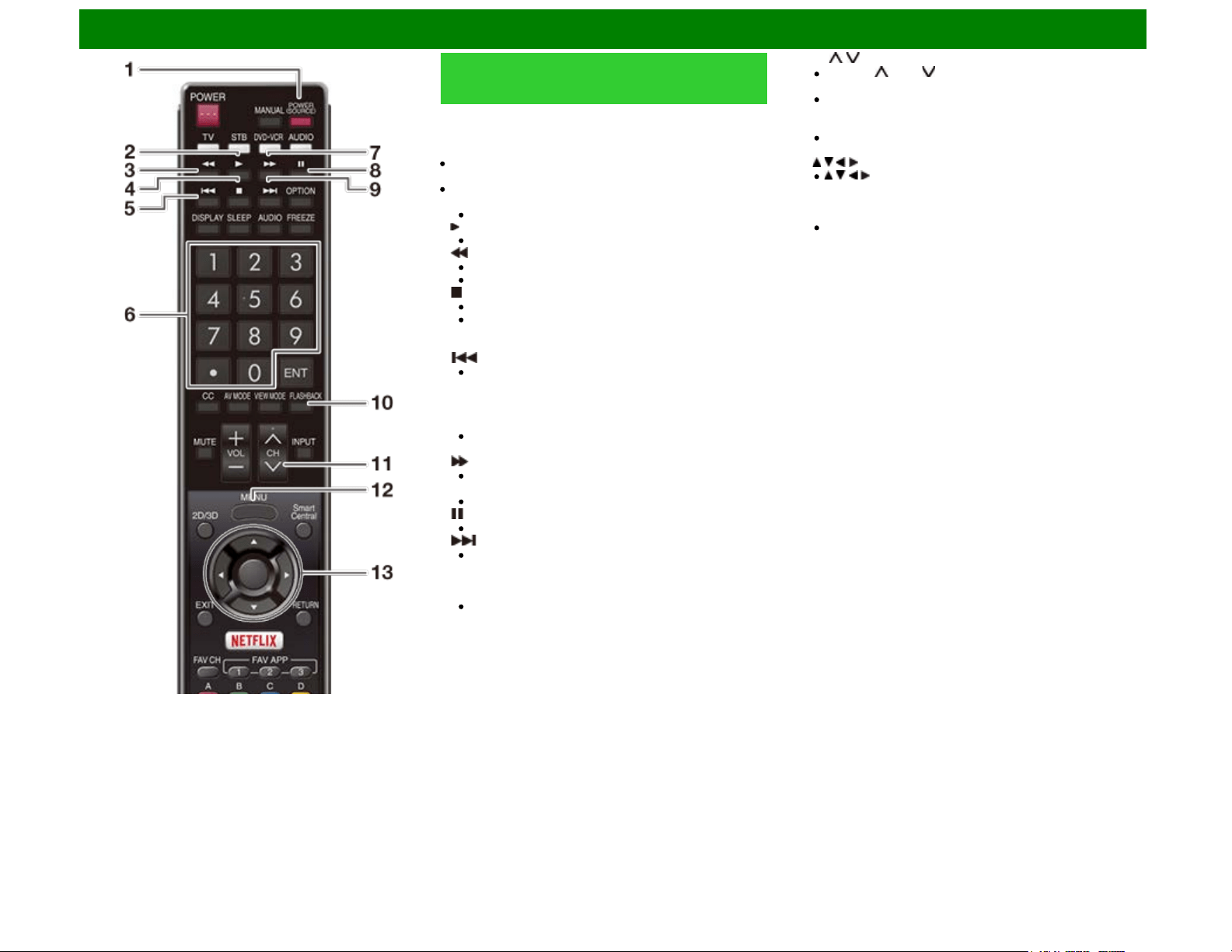
Enjoying Photo/Music/Video Playback (Except for UD1U)
Operating the Connected
Equipment
To operate the connected equipment, press STB, DVD•VCR
or AUDIO to select your device. (STB
(cable/satellite set-top box), BD, DVD, VCR or AUDIO.) The
remote control unit button will function as follows.
When you operate VCR, DVD or BD, press INPUT to select
the terminal connected to your device.
CABLE and SAT cannot be selected at the same time.
1 POWER (SOURCE)
Turns the connected equipment power on and off.
2
Starts playback. (VCR, BD, DVD)
3
Rewinds the tape and allows picture search. (VCR)
Hold down to go in reverse. (BD, DVD)
4
Stops the tape transport. (VCR)
Playback stops when pressed. With some Blu-ray
disc/DVD players, pressing the button twice may open
the disc tray. (BD, DVD)
5
Pressing quickly once takes you to the start of the
chapter currently playing. Each time you press it, you
move back to the start of the previous chapter. (BD,
DVD)
6 0–9, • (DOT)
Press a button (or buttons) that corresponds to the
channel that you wish to watch.(STB)
7
Rapidly advances the tape and allows picture search.
(VCR)
Hold down to fast forward. (BD, DVD)
8
Sets pauses and still pictures. (VCR, BD, DVD)
9
Pressing quickly once takes you to the start of the next
chapter. Each time you press it, you move ahead to the
start of the next chapter. (BD, DVD)
10 FLASHBACK
Press to switch between the current channel and the
channel you were watching immediately before. Some
manufacturers do not preset FLASHBACK. (STB)
11 CH /
Press CH or CH to tune in to a higher or lower
channel. (STB)
Press to select the channel of the TV tuner on the VCR.
(VCR)
12 MENU
When this button is pressed, the BD/DVD menu will
display. (BD, DVD)
13 / / / , ENTER
/ / / : Press the button to select items on the STB
GUIDE screen or STB MENU screen. (STB)
Press the button to select items on the BD/DVD menu
screen. (BD, DVD)
ENTER: Press to activate the selected function. (STB,
BD, DVD)
ENG 6-17
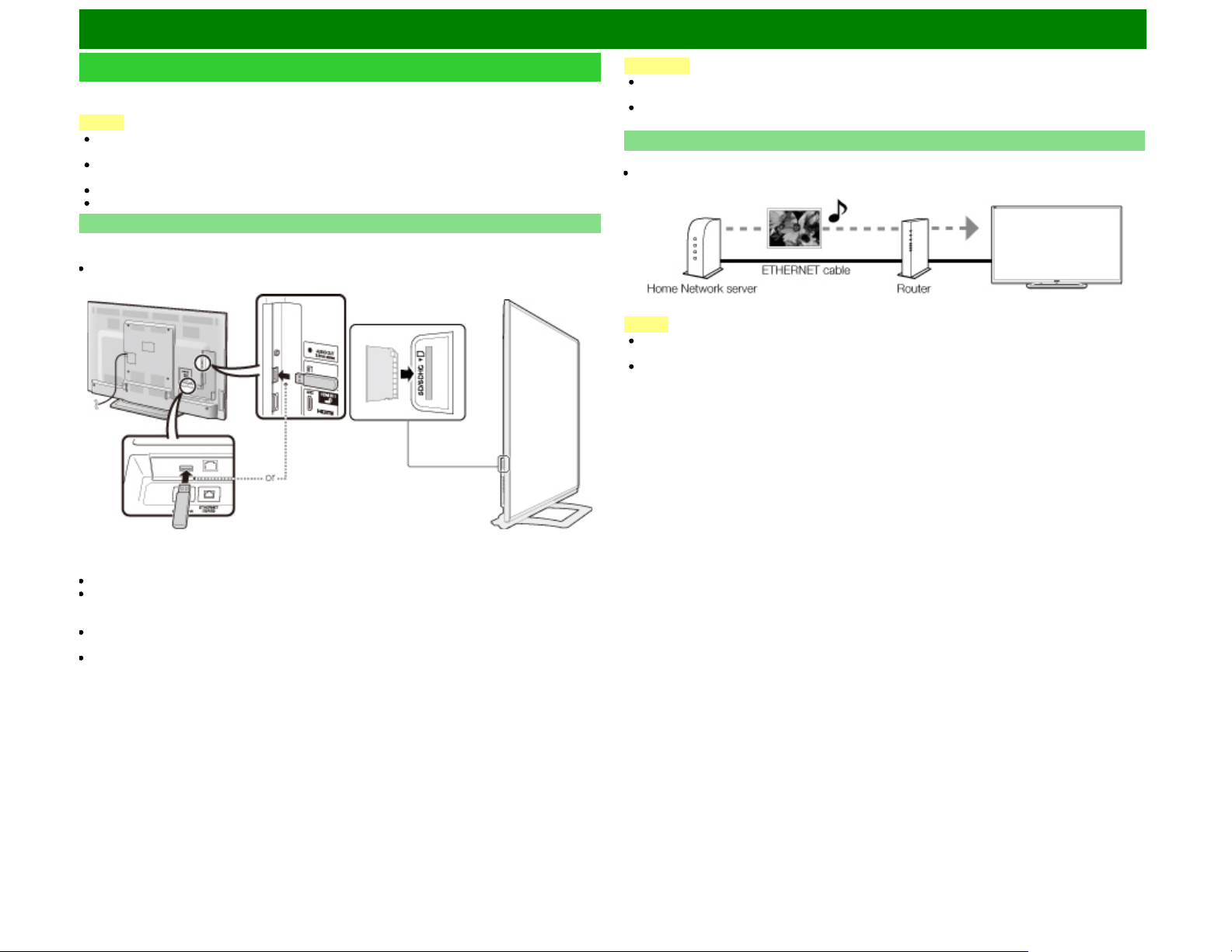
Enjoying Photo/Music/Video Playback (For the UD1U model)
Preparation
You can connect the TV to a USB memory device, USB hard drive, SD memory card or Home
Network server to enjoy viewing pictures, listening to music, and watching videos.
NOTE
Depending on the USB memory device/USB hard drive/SD memory card/Home Network server,
the TV may not be able to recognize the recorded data.
It may take time to read the recorded data if the USB memory device/USB hard drive/SD memory
card/Home Network server contains many files or folders.
Use only alphanumeric characters for naming files.
File names over 80 characters (may vary depending on character set) may not be displayed.
Connecting a USB Memory Device/USB Hard Drive/SD Memory Card
Insert the USB memory device or SD memory card with recorded photos, music or videos into the
USB 1 or USB 2 terminal or SD memory card slot on the TV.
If USB memory devices are inserted into both terminals, the USB 1 terminal has priority.
When connecting a USB hard drive, be sure to use a hard drive with an AC adapter.
Do not remove a USB memory device or SD memory card from the TV while transferring files,
using the slide show function, or switching screens, or before you exit "SD/SDHC/USB" from the
INPUT list.
Do not insert and remove a USB memory device/USB hard drive/SD memory card to and from the
TV repeatedly.
When using a card reader, be sure to insert a USB memory device first.
CAUTION
Do not use a USB extension cable when connecting a USB memory device to the USB
terminal on the TV.
Using a USB extension cable with the USB memory device may prevent the TV from
performing correctly.
Connecting a Home Network Server
Connect the TV to the Home Network server using an ETHERNET cable.
You can also connect a Home Network server by using a wireless LAN.
NOTE
Do not disconnect a Home Network server from the TV while transferring files, when a screen is
switching to another or before you exit "Home Network" from the INPUT list.
Do not connect and disconnect a Home Network server from the TV repeatedly.
ENG 6-18
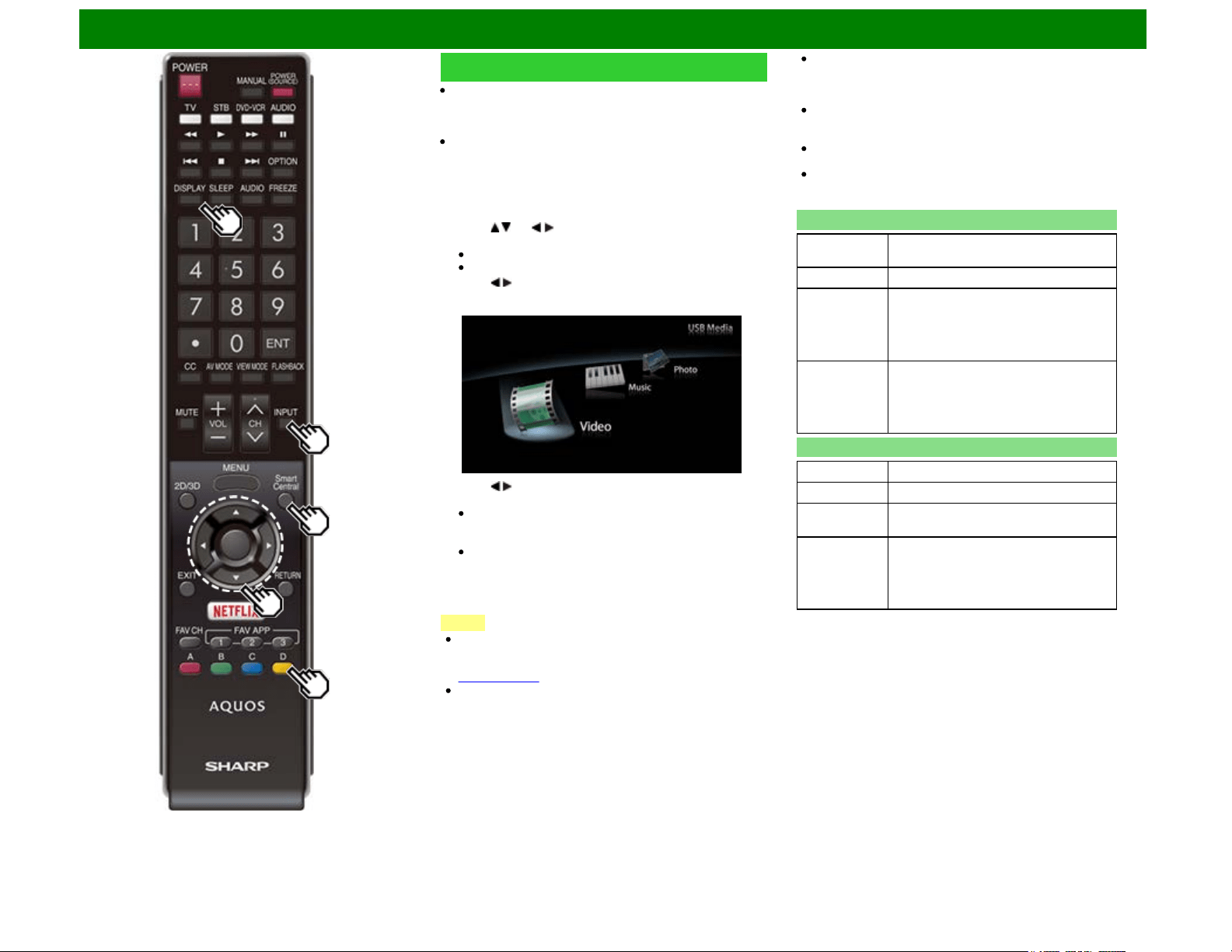
Enjoying Photo/Music/Video Playback (For the UD1U model)
Selecting the Folders to Play Back
To play back data on a USB memory device or SD memory
card, insert the USB memory device or SD memory card on
the TV. USB mode or SD mode is selected automatically.
(Go to step 2)
Use the following procedure to switch back to USB mode or
SD mode after switching from USB mode or SD mode to
another mode.
1 Select "SD/SDHC/USB" or "Home Network" from INPUT
list screen.
2 Press D.
3 Press / (or / ) to select the drive/server where you
want to find your files, and then press ENTER.
For USB or SD mode, select the drive.
When in Home Network mode, select the server.
4 Press / to select "Photo", "Music" or "Video", and then
press ENTER.
Example
5 Press / to select the desired folder, and then press
ENTER.
"VIEW MODE" is fixed during the Music mode. During
"Photo mode" or "Video mode", you can select "Auto" or
"Original"
During "Photo mode" or "Video mode", photos and
videos that are smaller than the number of pixels on the
screen are displayed at their original size.
In these cases, switch "VIEW MODE" to "Auto" to have
the photo or video fill the screen.
NOTE
The Media screen can be displayed even by using the
application window. To display the application window,
press SmartCentral.
(See page 3-6.)
You cannot switch the input mode if a USB memory device
or SD memory card is not connected.
You do not need to select the drive/server in step 3 when
there is only one drive in the connected USB memory
device or SD memory card or there is only one Home
Network server connected to the TV.
16 is the maximum number of USB or SD drives and 10 is
the maximum number of Home Network servers that can
be displayed.
If the TV is turned off and then on again, the number
assigned to the USB or SD drive may change.
The key guide display disappears automatically after a
particular time has elapsed. To display the key guide
display again, press DISPLAY.
USB Device Compatibility
USB device USB Memory, USB card reader (Mass
Storage class), USB hard drive
File system FAT/FAT32/NTFS (USB hard drive only)
Photo file
format
JPEG (.jpg) (DCF2.0 compliant)
Multi-Picture Format (.mpo) (CIPA DC-
007 Compliant)
MP Type : Multi view individually image
(stereoscopic view)
Music file
format
MP3 (.mp3)
Bitrate: 32k, 40k, 48k, 56k, 64k, 80k, 96k,
112k, 128k, 160k, 192k, 224k, 256k,
320kbps
Sampling frequency: 32k, 44.1k, 48kHz
SD memory card Comptibility
SD card SD/SDHC memory card
File system FAT/FAT32
Photo file
format
JPEG(.jpg)(DCF2.0 compliant)
Music file
format
MP3 (.mp3)
Bitrate: 32k, 40k, 48k, 56k, 64k, 80k, 96k,
112k, 128k, 160k, 192k, 224k, 256k,
320kbps
Sampling frequency: 32k, 44.1k, 48kHz
ENG 6-19
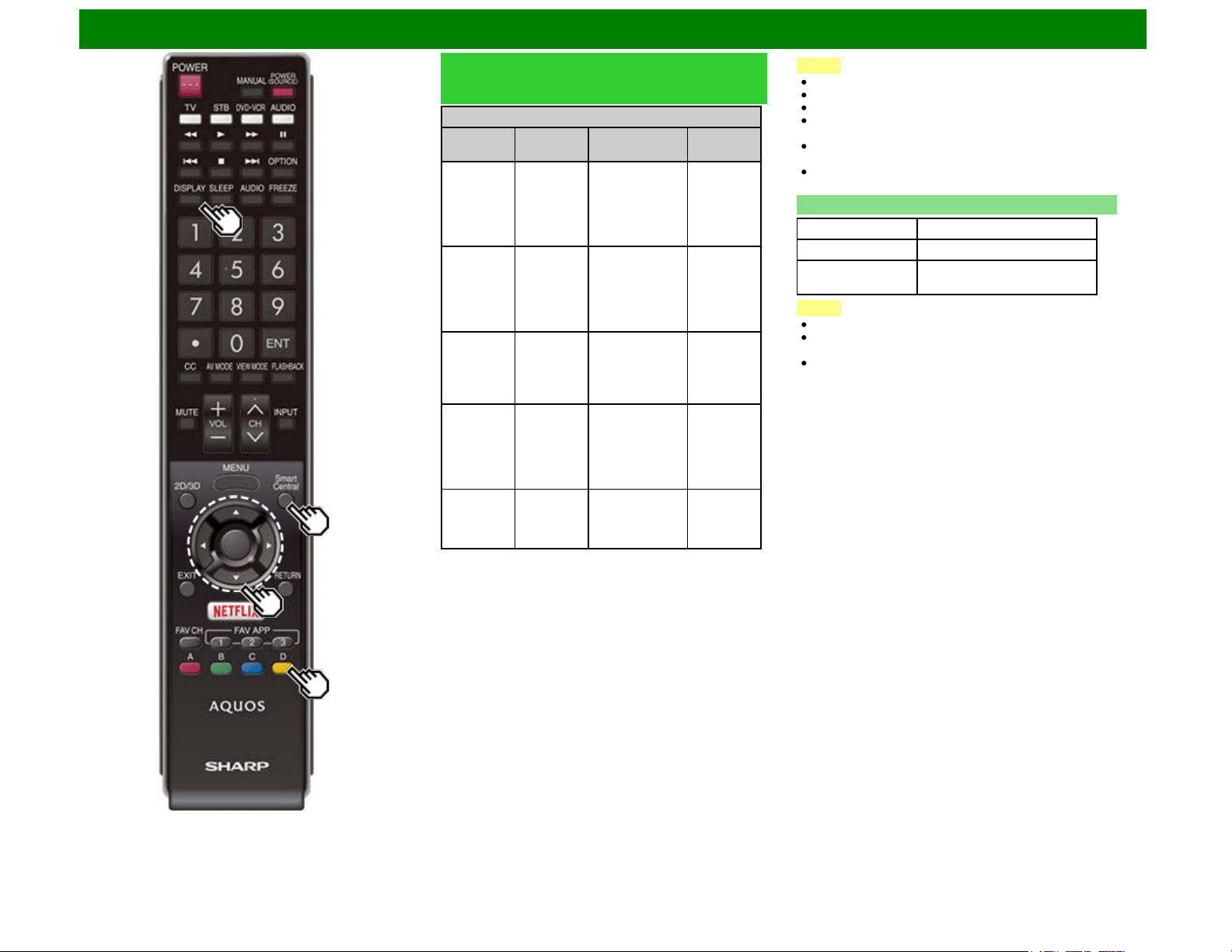
Enjoying Photo/Music/Video Playback (For the UD1U model)
Selecting the Folders to Play Back
(Continue)
Video file format
File
extension
Container Video Audio
.avi AVI
XviD
H.264
MPEG4
Motion Jpeg
MP3
Dolby
Digital
LPCM
ADPCM
DTS
.mkv MKV
XviD
H.264
MPEG4
MP3
Dolby
Digital
LPCM
ADPCM
DTS
.asf
.wmv
ASF
XviD
MPEG4
VC-1
Windows Media
Video v9
MP3
Dolby
Digital
LPCM
WMA
.mp4
.mov
MP4
(SMP4)
H.264
MPEG4
Motion Jpeg
MP3
Dolby
Digital
Dolby
Digital Plus
AAC
.mpg
.mpeg
PS
MPEG2
MPEG1
Dolby
Digital
MPEG
LPCM
NOTE
Progressive format jpeg files are not supported.
USB 1.1 devices may not be played properly.
Operation using USB hubs is not guaranteed.
Some video file formats may not be played depending on
the file.
Some images may not be displayed in the appropriate
aspect ratio depending on the file format.
If you insert any card other than the SD/SDHC (class 6
or higher), it will not work.
Home Network Server Compatibility
Photo file format JPEG
Music file format LPCM, MP3
Video file format MPEG2-PS, MPEG2-TS,
WMV, ASF, MP4, MOV, AVI
NOTE
Progressive format jpeg files are not supported.
Some video file formats may not be played depending on
the file or the server.
WMV, ASF, MP4, MOV and AVI are not Home Network
contents.
ENG 6-20
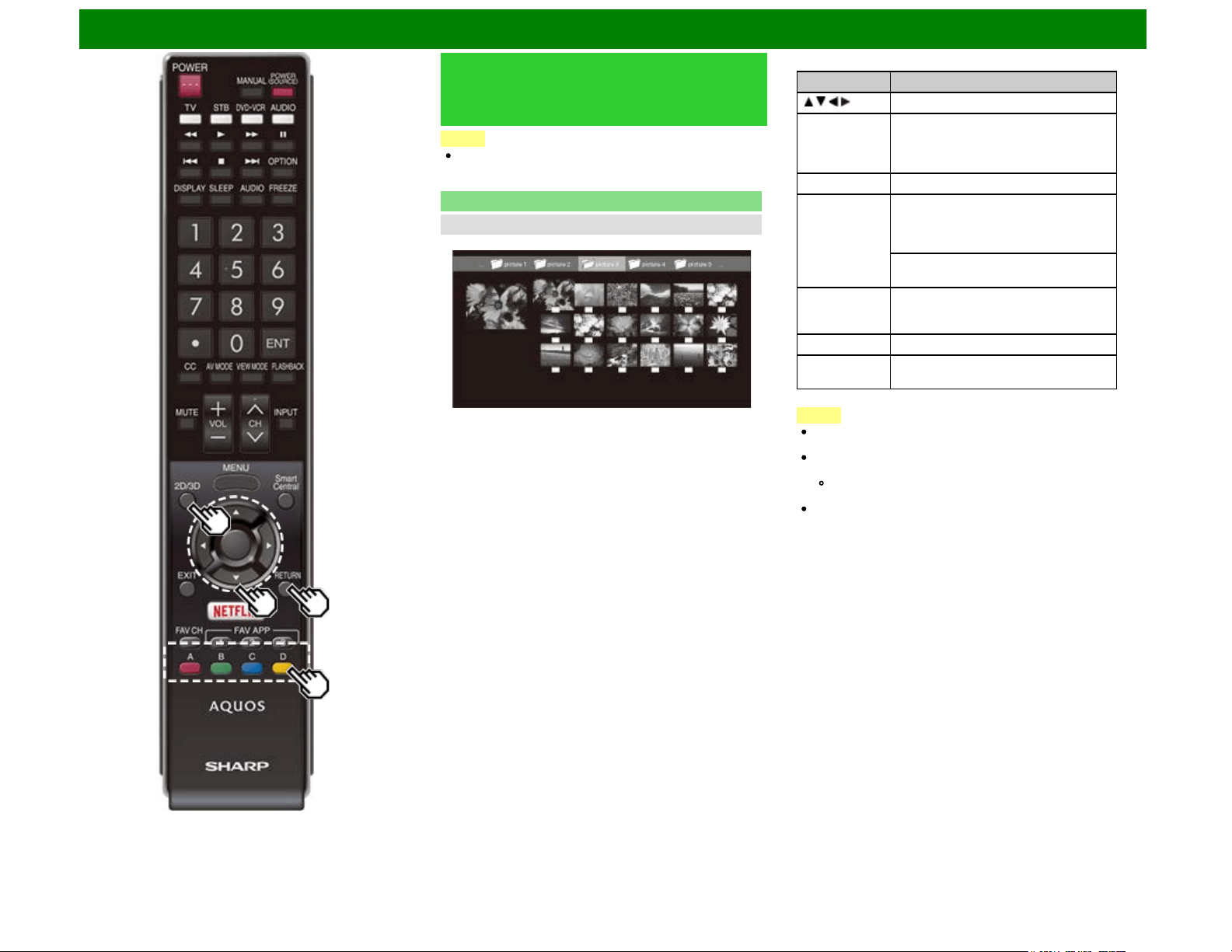
Enjoying Photo/Music/Video Playback (For the UD1U model)
Playing Back Files on a USB
Memory Device/SD Memory
Card/Home Network Server
NOTE
The screen images in this section are for the USB mode. It
may be slightly different in the SD mode or Home network
mode.
Photo Mode
Viewing Thumbnails
Example
Buttons for thumbnail operations
Buttons Description
/ / / Select a desired item.
ENTER When selecting a folder icon:
Enter this directory.
When selecting a photo thumbnail:
Enlarge the photo.
RETURN Return to the previous process.
A (red) USB or SD mode:
Select the images to be displayed. Press
this button to add or remove a
checkmark.
Home Network mode:
Display the Media screen.
B (green)* Display the music list screen. You can
select the background music to be played
for the slide show.
C (blue) Start the slide show.
D (yellow) Display the USB MENU/SD MENU/Home
Network Menu screen.
*This function is available only for the USB or SD mode.
NOTE
When there are invalid photo files, the X mark will be
displayed for the file. (USB or SD mode only.)
The icon "3D" appears on the thumbnails of 3D images.
(USB or SD mode only.)
If you do not switch to 3D mode for the 3D images, they
will be displayed in 2D.
You can see the file name, shooting date, file size and
pixel size of the selected photo in the lower-left corner of
the screen (shooting date is only available in the EXIF file
format).
ENG 6-21
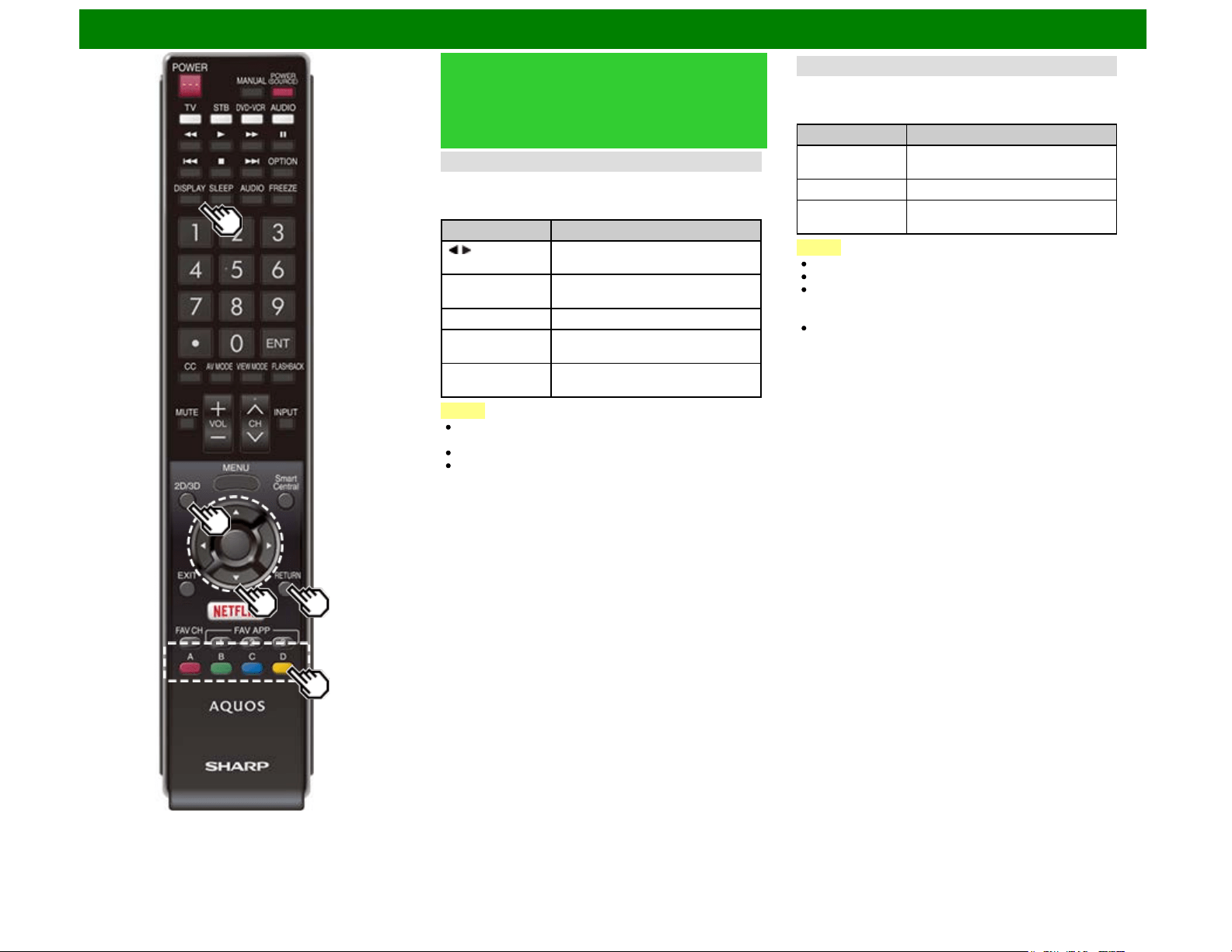
Enjoying Photo/Music/Video Playback (For the UD1U model)
Playing Back Files on a USB
Memory Device/SD Memory
Card/Home Network Server
(Continue)
Viewing Individual Photos
The photo selected on the thumbnail selection screen is
displayed.
Buttons for individual display operation
Buttons Description
/ Go to the previous/next photo in the
same directory.
RETURN Return to the thumbnail selection
screen.
2D/3D Switches between 2D and 3D modes.
A (red) Rotate the photo by 90 degrees to the
left.
B (green) Rotate the photo by 90 degrees to the
right.
NOTE
Rotating photos only applies to the temporarily selected
item and this setting is not saved.
In 3D mode, you cannot rotate the photos.
The key guide display disappears automatically after a
particular time has elapsed. To display the key guide
display again, press DISPLAY.
Slide Show
The photos displayed on the thumbnail selection screen are
displayed as a slide show.
Buttons for slide show operation
Buttons Description
RETURN Return to the thumbnail selection
screen.
2D/3D Switches between 2D and 3D modes.
D (yellow) Display the USB MENU//SD
MENU/Home Network Menu screen.
NOTE
The selected BGM is played repeatedly.
The slide show continues until you press RETURN.
For setting the slide show speed, select "Select Slide
Show Interval" on the USB MENU/SD MENU/Home
Network Menu screen.
The key guide display disappears automatically after a
particular time has elapsed. To display the key guide
display again, press DISPLAY.
ENG 6-22
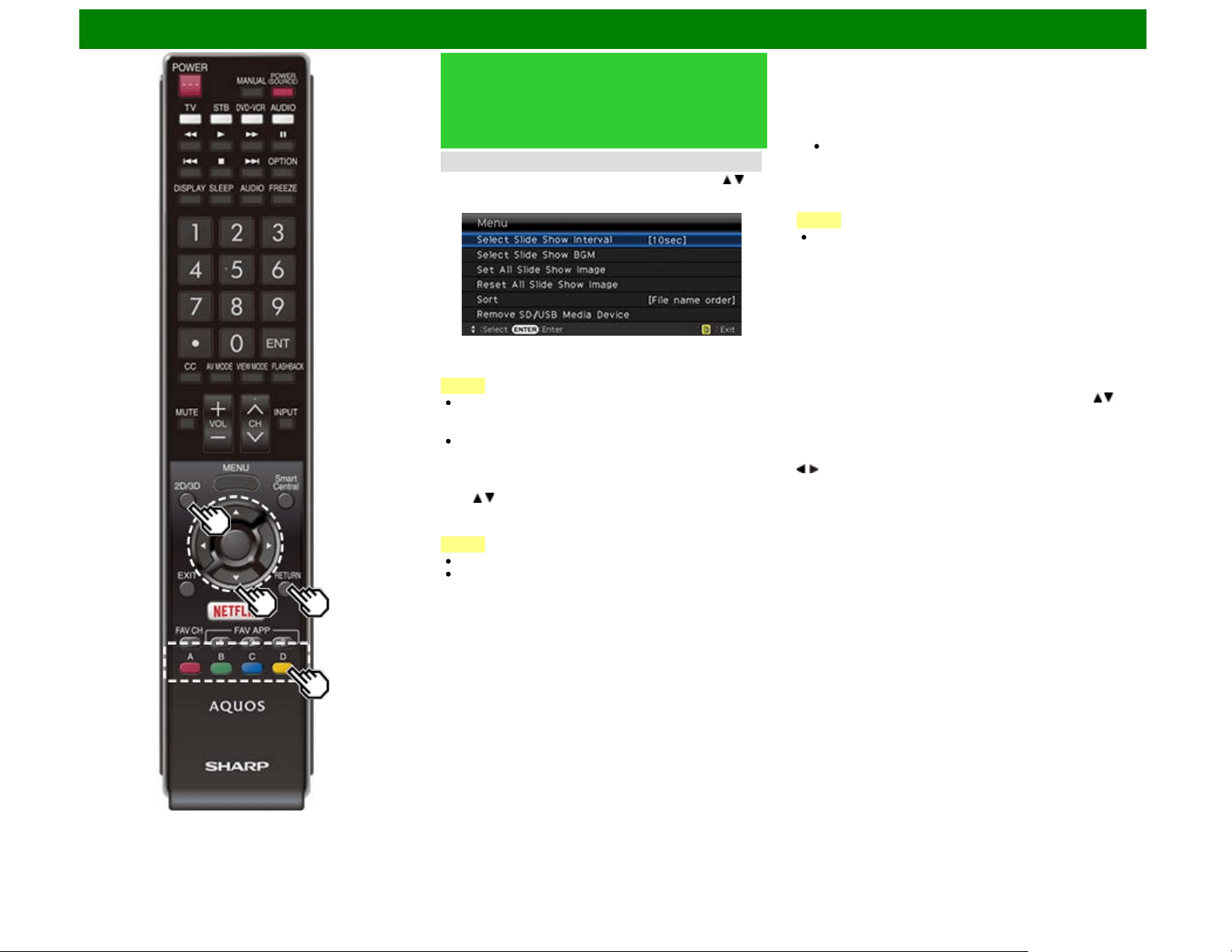
Enjoying Photo/Music/Video Playback (For the UD1U model)
Playing Back Files on a USB
Memory Device/SD Memory
Card/Home Network Server
(Continue)
USB MENU or SD MENU
On the menu to be displayed in USB or SD mode, use / to
select an item and make settings to your preferences.
Example
3D Display
You can view photos in 3D.
NOTE
You can select "3D display" from "USB MENU" or "SD
MENU" only when the thumbnails screen for the photo
mode in USB or SD mode is displayed on the screen.
Depending on the file, the photos may not be displayed in
3D.
Select Slide Show Interval
Specify the length of time before the next image appears.
Press / to select the desired length of the time, and then
press ENTER.
5sec/10sec/30sec/60sec
NOTE
For Home Network mode, follow the same procedure.
Depending on the photo files, the length of the slide show
interval may differ from the selected interval time.
Select Slide Show BGM
The music list screen appears when you select "Select Slide
Show BGM".
You can select the music to be played in the background
while the slide show is being displayed.
1 Select the music you want to play from the music list.
For operations on the music list screen, see "Music
Mode".
2 Press RETURN to display the thumbnail selection screen,
and then press C to start the slide show and the
background music.
NOTE
All of the music files are selected by default.
Set/Reset All Slide Show Image
Selecting "Set All Slide Show Image" or "Reset All Slide Show
Image" will display the thumbnail selection screen. On the
screen, set or reset the images to be displayed in the slide
show.
Set All Slide Show Image: Checkmarks are added to all the
images.
Reset All Slide Show Image: Removes all the checkmarks
from all the images.
Sort
You can change the way in which files are ordered.Press /
to select "new→old", "old→new", or "File name order", and
then press ENTER.
Remove SD/USB Media Device
To remove the USB device or SD memory card properly, use
/ to select "Yes" and then press ENTER.
ENG 6-23
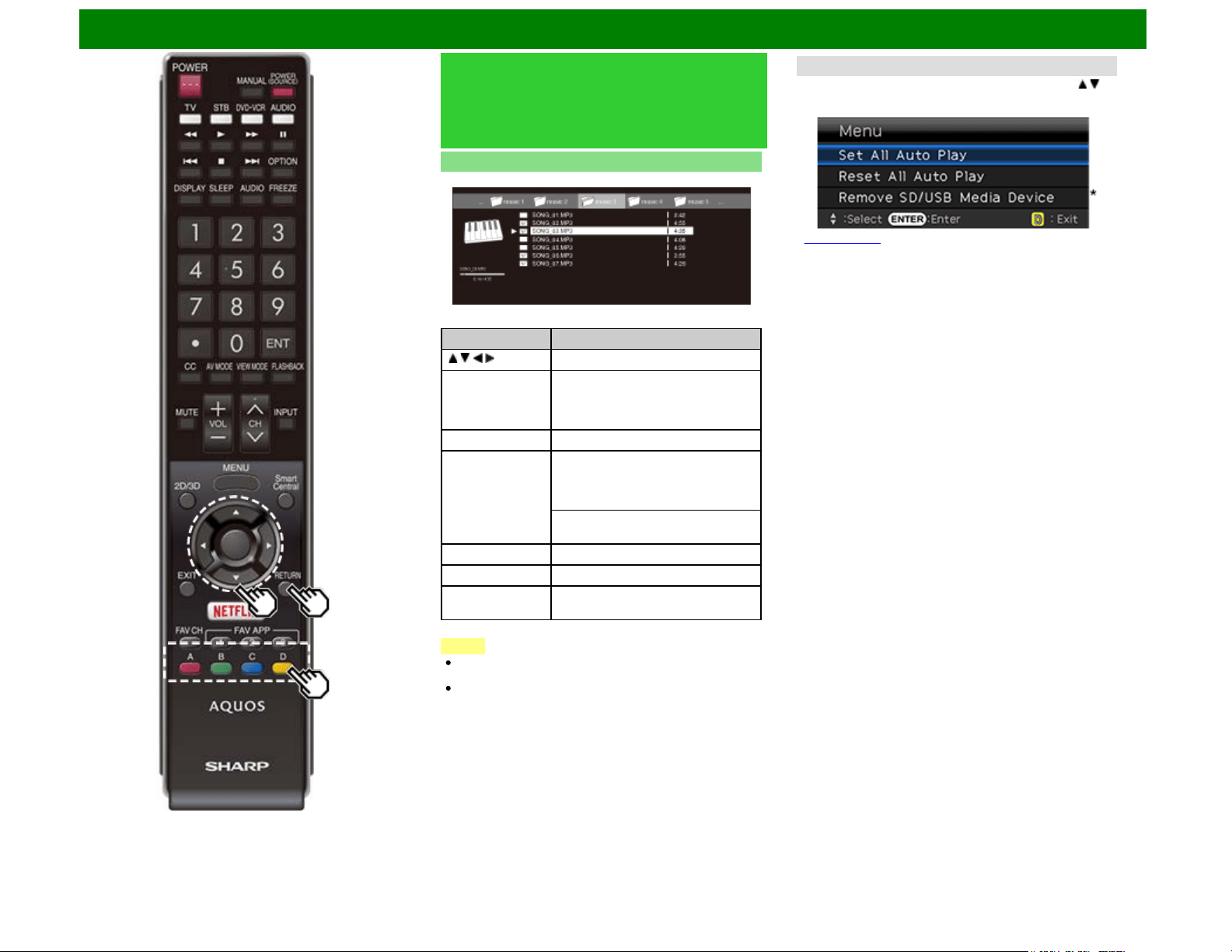
Enjoying Photo/Music/Video Playback (For the UD1U model)
Playing Back Files on a USB
Memory Device/SD Memory
Card/Home Network Server
(Continue)
Music Mode
Example
Buttons for music mode
Buttons Description
/ / / Select a desired item.
ENTER When selecting a folder icon:
Enter this directory.
When selecting a music file:
Play music.
RETURN Return to the previous process.
A (red) USB or SD mode:
Select the music to be played back.
Press this button to add or remove a
checkmark.
Home Network mode:
Display the Media screen.
B (green) Stop music.
C (blue) Play/(Pause)* music.
D (yellow)* Display the USB MENU or SD MENU
screen.
* This function is available only for the USB or SD mode.
NOTE
When there are invalid music files, the X mark will be
displayed for the file. (USB or SD mode only.)
The displayed play time may differ slightly from the actual
play time depending on the files.
USB Menu or SD Menu
On the menu to be displayed in USB or SD mode, use / to
select an item and make settings to your preferences.
Example
* See page 6-23 for details on the Remove SD/USB Media
Device function.
Set/Reset All Auto Play
Selecting "Set All Auto Play" or "Reset All Auto Play" will
display the music list screen. On the screen, set or reset the
music to be played back in the slide show.
Set All Auto Play: Checkmarks are added to all the music
files.
Reset All Auto Play: Removes all the checkmarks from all
the music files.
ENG 6-24
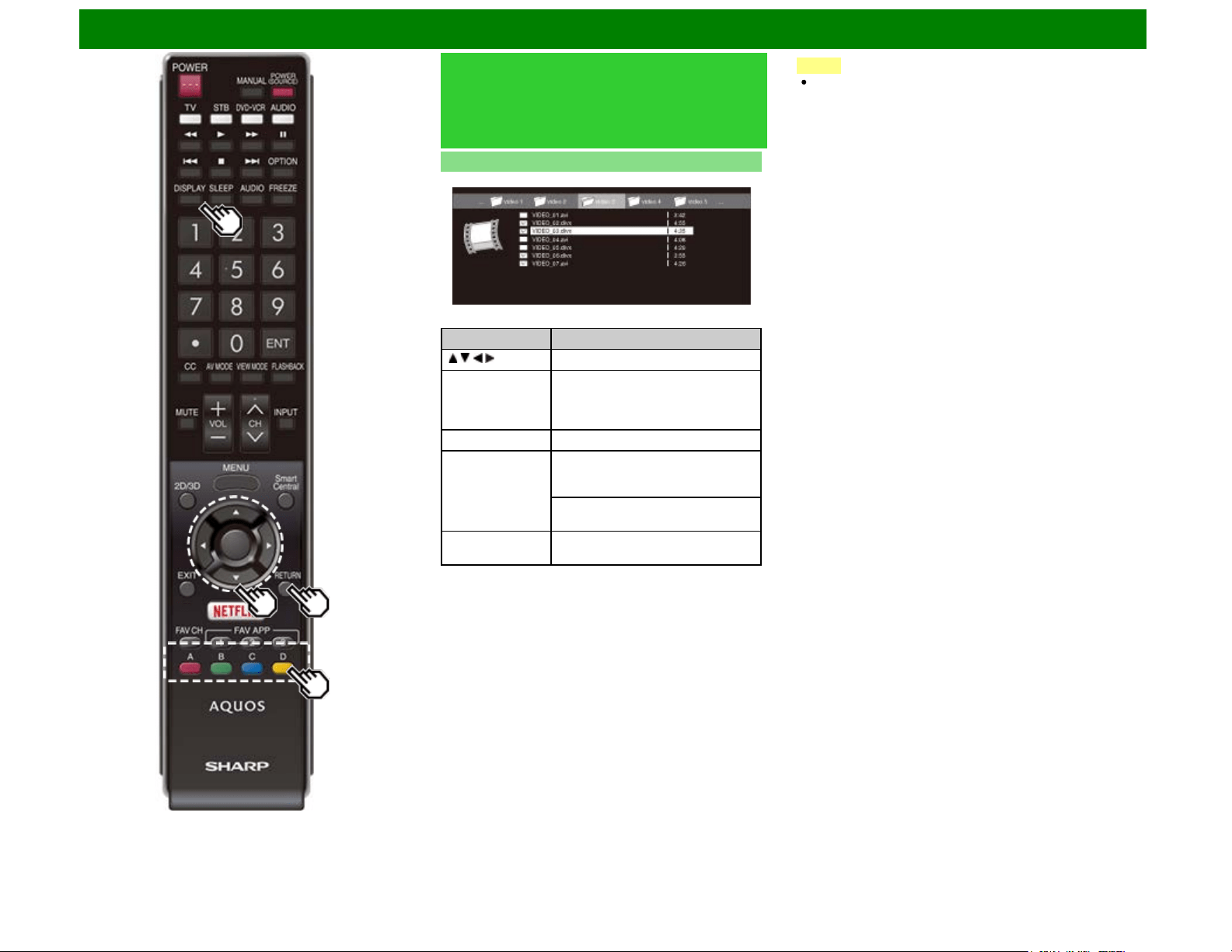
Enjoying Photo/Music/Video Playback (For the UD1U model)
Playing Back Files on a USB
Memory Device/SD Memory
Card/Home Network Server
(Continue)
Video Mode
Example
Buttons for file selecting operations
Buttons Description
/ / / Select a desired item.
ENTER When selecting a folder icon:
Enter this directory.
When selecting a video file: Play the
video.
RETURN Return to the previous process.
A (red) USB or SD mode:
Select/deselect items (checkmarks
are added to the selected items).
Home Network mode:
Display the Media screen.
D (yellow)* Display the USB MENU or SD MENU
screen.
* This function is available only for the USB or SD mode.
NOTE
The key guide display disappears automatically after a
particular time has elapsed. To display the key guide
display again, press DISPLAY.
ENG 6-25
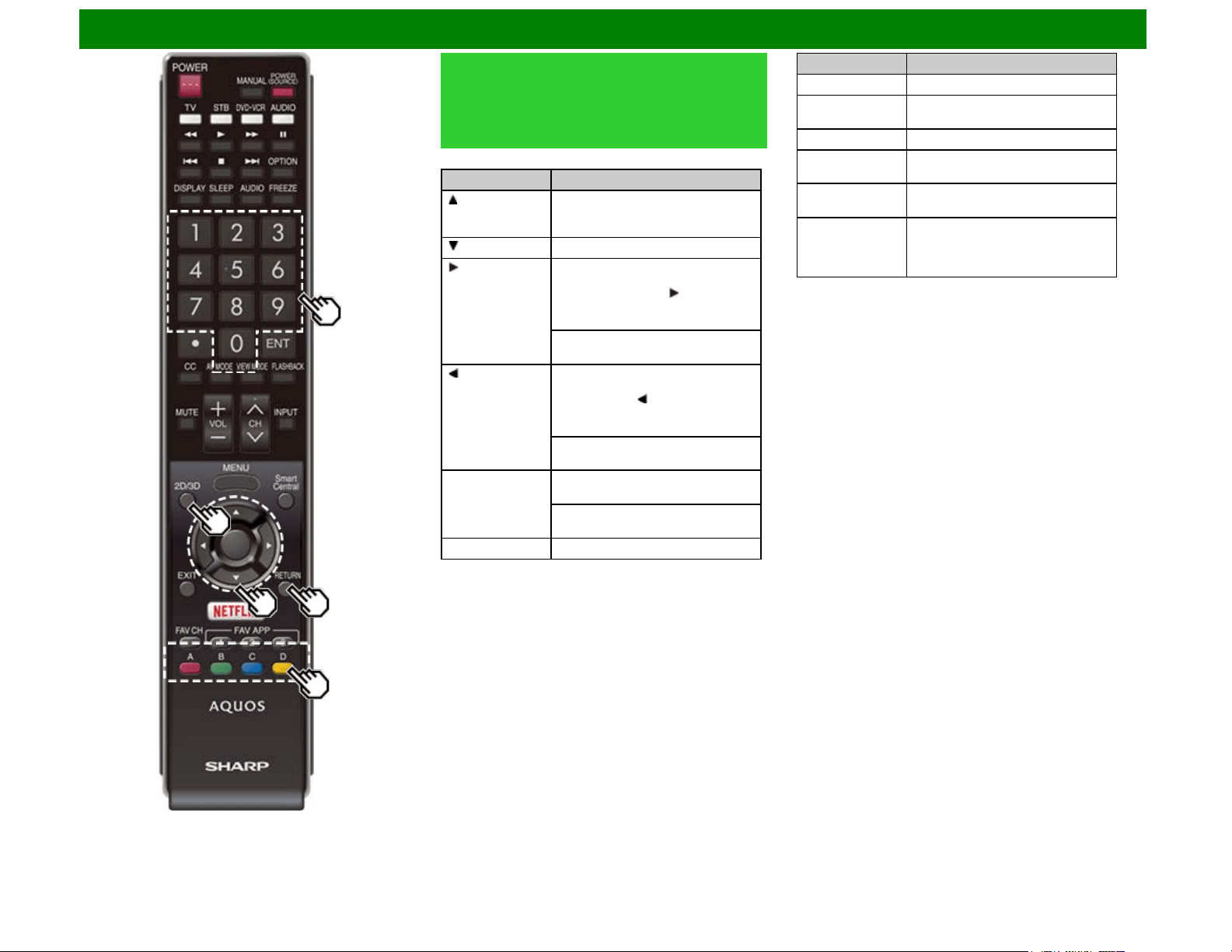
Enjoying Photo/Music/Video Playback (For the UD1U model)
Playing Back Files on a USB
Memory Device/SD Memory
Card/Home Network Server
(Continue)
Buttons for playing mode
Buttons Description
Go to the beginning of a file by
pressing once or to the previous file
by pressing twice.
Go to the next file.
USB or SD mode:
The fast forward speed changes
every time you press . After playing
to the end, the TV goes to the next file
and starts to play.
Home Network mode:
Jump forward in a video. *2
USB or SD mode:
The reverse speed changes every
time you press . After going back to
the beginning, the TV starts to play
the same file.
Home Network mode:
Jump back in a video. *2
ENTER USB or SD mode:
Pause the video.
Home Network mode:
Play/Pause the video. *2
RETURN Go back to the file selection screen.
Buttons Description
2D/3D Switches between 2D and 3D modes.
A (red)*1 Jump to the scene where playback
was last stopped.
B (green) Stop a video.
C (blue) Display the USB/Home Network
operation panel.
D (yellow)*1 Display the USB MENU or SD MENU
screen.
0-9*1 Jump to a point in the video during
playback of a file without chapters.
You can jump to a later point by
pressing a higher number.*3
*1 These functions are available only for the USB or SD
mode.
*2 Jump forward/back and play/pause may not be available
depending on the files.
*3 During playback of a file without chapters, playback points
are set automatically. Playback points are set at intervals of a
one-tenth of playback time.
Example for a file with a playback time of 100 minutes:
Pressing 1 jumps 10 minutes forward, and pressing 2 jumps
20 minutes forward. Pressing 0 returns to the start of the file
being played back.
ENG 6-26
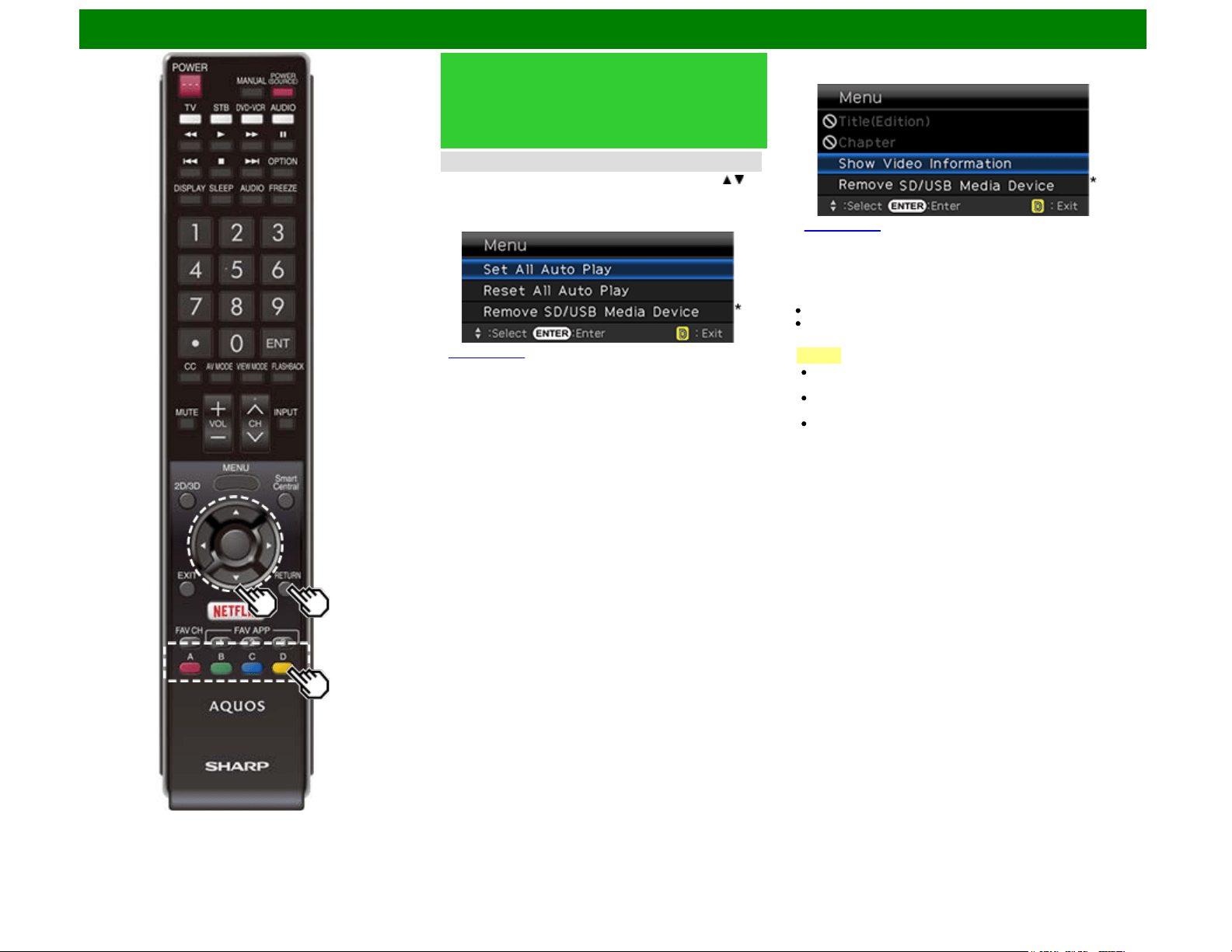
Enjoying Photo/Music/Video Playback (For the UD1U model)
Playing Back Files on a USB
Memory Device/SD Memory
Card/Home Network Server
(Continue)
USB Menu or SD Menu
On the menu to be displayed in USB or SD mode, use / to
select an item and make settings to your preferences.
Menu for file selecting operations
Example
* See page 6-23 for details on the Remove SD/USB Media
Device function.
Set/Reset All Auto Play
Selecting "Set All Auto Play" or "Reset All Auto Play" will
display the video list screen. On the screen, set or reset the
video to be played back in the slide show.
Set All Auto Play: Checkmarks are added to all the video
files.
Reset All Auto Play: Removes all the checkmarks from all
the video files.
Menu for playing mode
Example
* See page 6-23 for details on the Remove SD/USB Media
Device function.
Title (Edition)/Chapter
Selecting "Title (Edition)" or "Chapter" will display a list of
titles/chapters contained in the video file. Select the title or
chapter you want to play back.
The selected title or chapter is played back.
"0-9" is displayed for files without chapters. Playback jumps
to the playback point of the selected number.
NOTE
If there is Edition information, this screen is displayed
when the title is selected.
If there is no title or edition, you cannot select "Title
(Edition)".
"Chapter" cannot be selected when there is no chapter.
Show Video Information
The information of the current file is displayed.
ENG 6-27
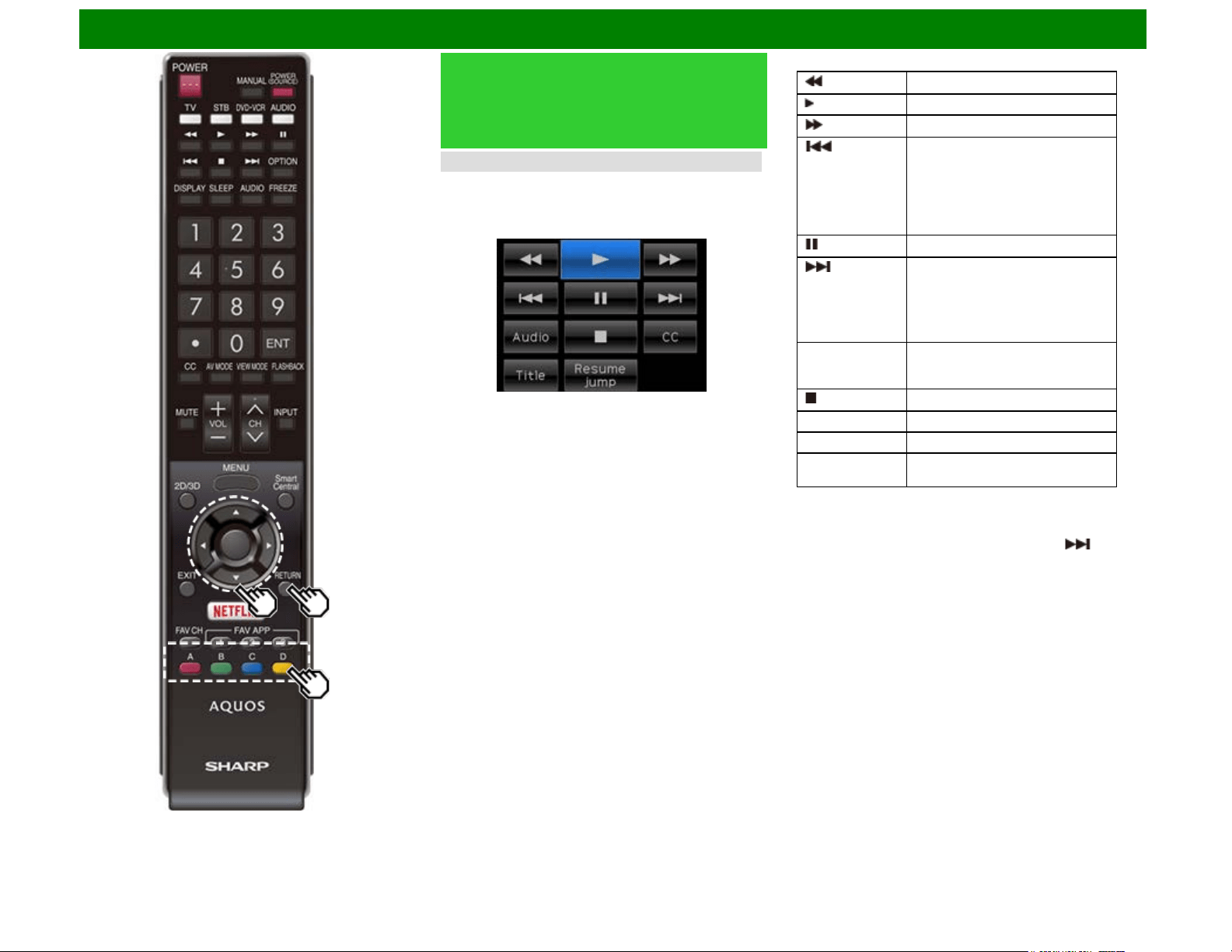
Enjoying Photo/Music/Video Playback (For the UD1U model)
Playing Back Files on a USB
Memory Device/SD Memory
Card/Home Network Server
(Continue)
USB Operation Panel/Home Network Operation Panel
You can use the operation panel for video playback
operations.
You can call up this operation panel from "System Options" >
"Shortcuts".
Example
Buttons for using the USB operation panel
Hold down to go in reverse.
Starts playback.
Hold down to fast forward.
Video without chapters: Press once to
return to the previous playback point.*
Press twice to return to the previous
file.
Video with chapters: Press once to
return to the previous chapter. Press
twice to return to the previous file.
Sets pauses and still pictures.
Video without chapters: Press once to
advance to the next playback point.*
Press twice to display the next file.
Video with chapters: Press once to
advance to the next chapter. Press
twice to display the next file.
Audio Change the audio when multiple
audio is available for the video you
are watching.
Playback stops.
CC Change the Closed Caption display.
Title Displays the title (edition).
Resume jump Jump to the scene where playback
was last stopped.
* During playback of a file without chapters, playback points
are set automatically. Playback points are set at intervals of a
one-tenth of playback time.
Example for a file with a playback time of 100 minutes:
Playback points are set every 10 minutes. Pressing one
time after viewing the file for 15 minutes jumps to the 20-
minute playback point.
ENG 6-28
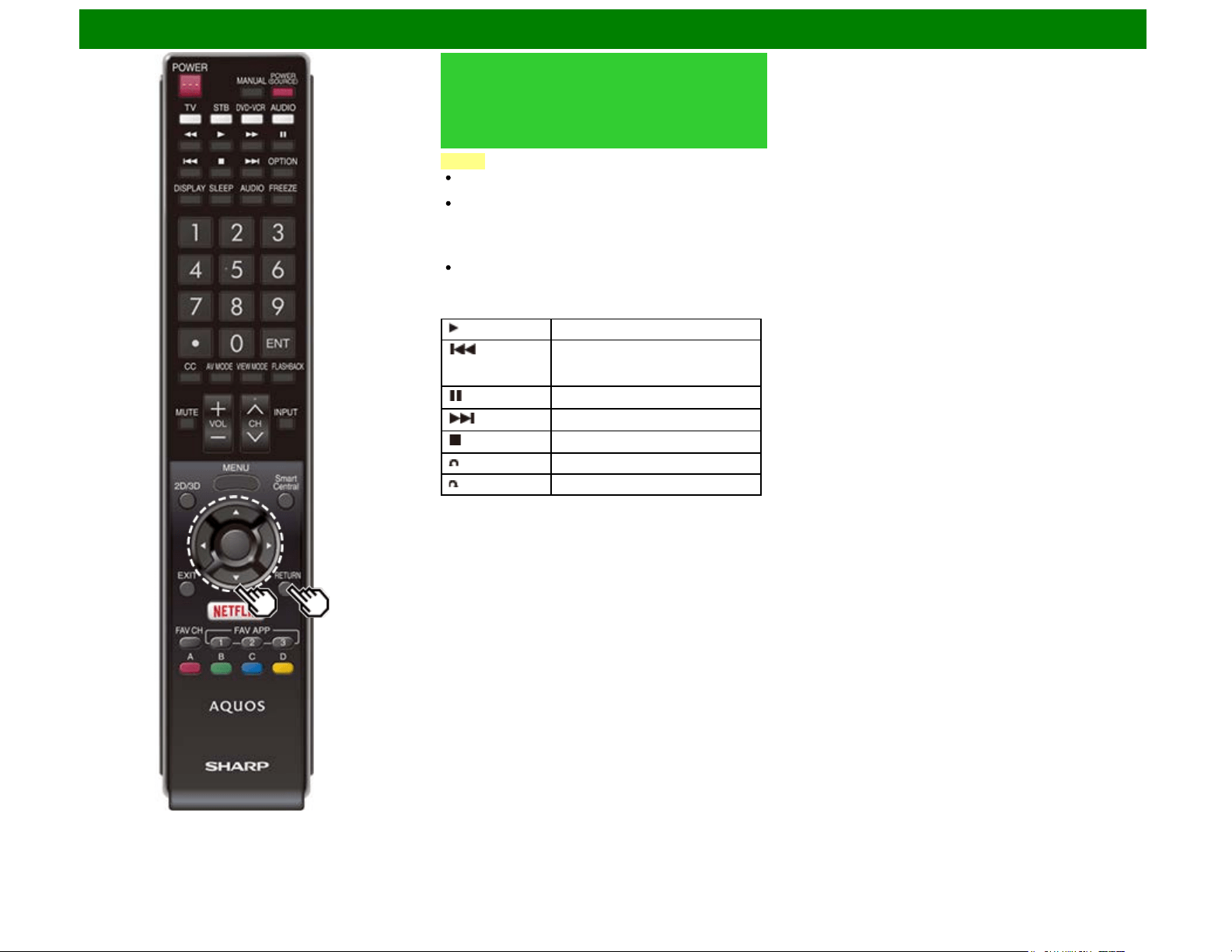
Enjoying Photo/Music/Video Playback (For the UD1U model)
Playing Back Files on a USB
Memory Device/SD Memory
Card/Home Network Server
(Continue)
NOTE
Reverse/fast forward continues from one file to another
during continuous playback.
Use "CC" on the operation panel to change the Closed
Caption display. You can also switch the Closed Caption
display by using "System Options" > "Shortcuts" >
"Change CC" or by pressing CC on the remote control
unit.
Use "Audio" on the operation panel to change the audio.
You can also switch the audio by using "System Options"
> "Shortcuts" > "Change Audio".
Buttons for using the Home Network operation panel
Starts playback.
Go to the beginning of a file by
pressing once or to the previous file
by pressing twice.
Sets pauses and still pictures.
Go to the next file.
Playback stops.
Jump back in a video.
Jump forward in a video.
ENG 6-29
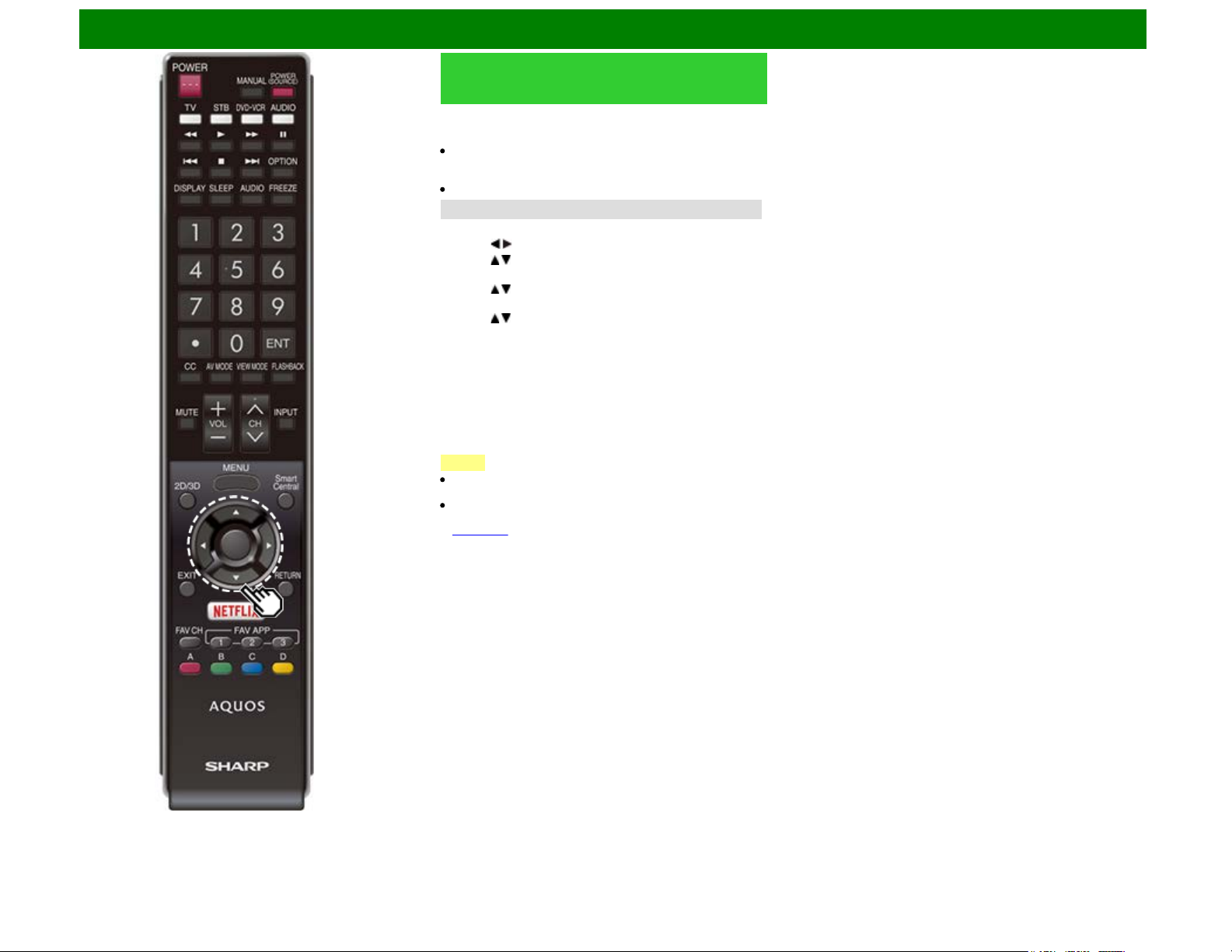
Enjoying Photo/Music/Video Playback (For the UD1U model)
Playing Back Files from a Portable
Device or PC
With the remote playback function, you can use your portable
device to play back pictures, video, and music on the Home
Network server.
This TV is a DLNA certified Digital Media Renderer (DMR).
To use the remote playback function, your portable device
must be a DLNA Certified Digital Media Controller.
A wireless access point is required to use a portable device.
Set Up Home Network
Make the settings for remote playback.
1 Press / to select "Smart TV", and then press ENTER.
2 Press / to select "Internet Setup", and then press
ENTER.
3 Press / to select "Home Network", and then press
ENTER.
4 Press / to select the specific adjustment item, and then
press ENTER to set each item.
Remote Control Play Settings
This setting allows the TV to perform remote playback.
Permitted/Not allowed
Timeout Setup
This sets the time until the TV returns automatically to TV
mode after remote playback ends.
10 sec./60 sec./No
NOTE
This function may not work while an Internet application is
being used.
For information on the compatible formats, see "Home
Network Server Compatibility" on
page 6-20.
ENG 6-30
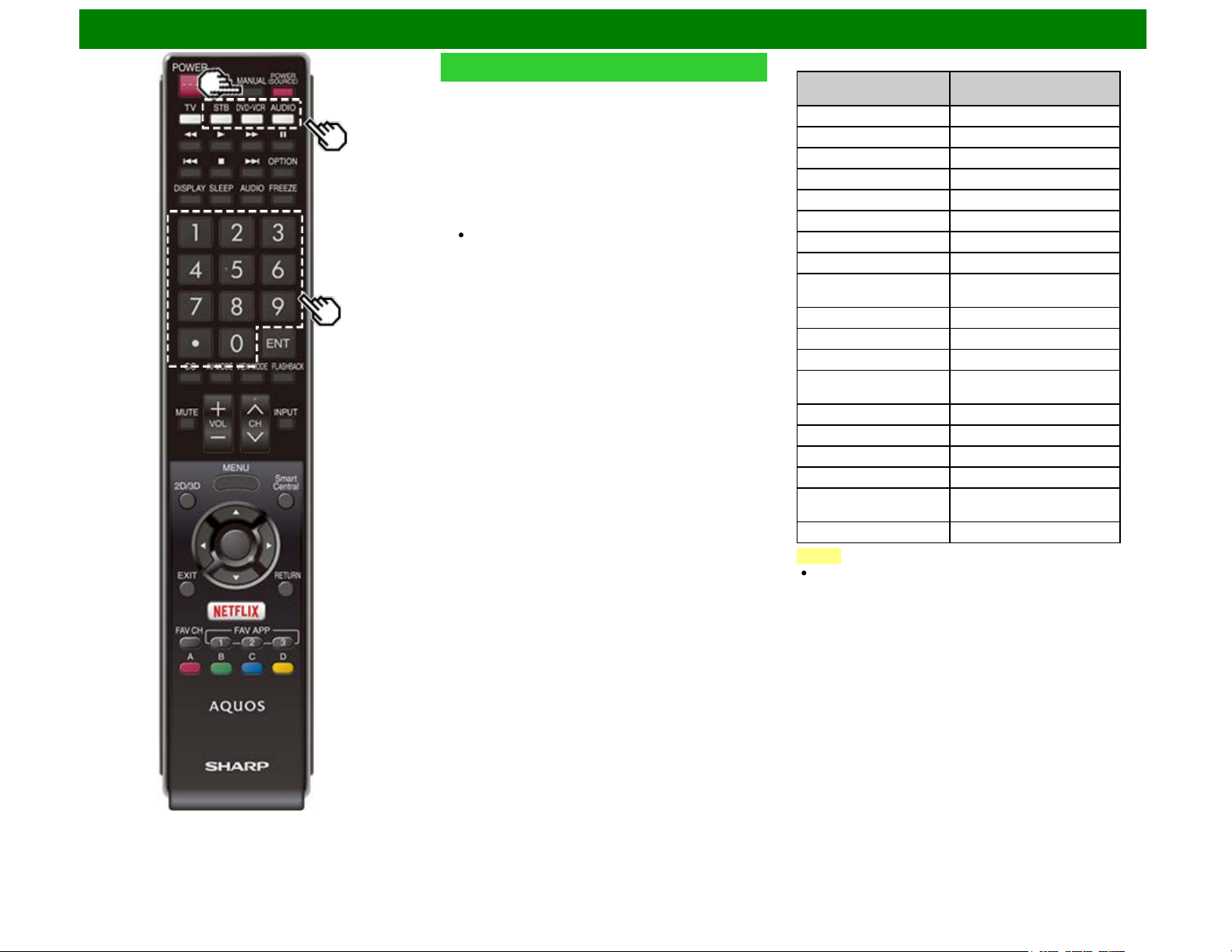
Enjoying Photo/Music/Video Playback (For the UD1U model)
Presetting Remote Control Function
You can operate the connected AV products (AV receiver,
cable box, SAT tuner, DTV, VCR, BD, DVD, LD) using the
presetting manufacturer function of your remote control unit.
Presetting manufacturer codes
1 Press an appropriate button (STB, DVD•VCR or AUDIO)
to operate the connected equipment.
2 Press an appropriate button (STB, DVD•VCR or AUDIO)
and MANUAL at the same time to enter the code
registration mode.
3 Press 0–9 to enter the manufacturer code.
Preset mode is finished once the LED no longer lights
up.
4 After registering the code, the LED will stop blinking then
turn off after one second. (If you perform an incorrect
operation, the LED will blink quickly then turn off.)
Manufacturer codes
STB BRAND
REMOTE CONTROL
CODE NUMBER
ANVISION 04, 05
CABLE STAR 04, 05
DISH NETWORK 39, 40
DIRECTV 41
EAGLE 05
G.INSTRUMENT 02, 03, 10, 11, 17, 20
GERROLD 17
JERROLD 02, 03, 10, 11, 12, 20, 25-34
MAGNAVOX 04, 05, 08, 12, 15, 16, 18, 19,
22, 23
MOTOROLA 38
OKA SIGMA 07
PANASONIC 14, 21
PHILIPS 04, 05, 08, 13, 15, 16, 18, 19,
22, 23
PIONEER 07
RANDTEK 04, 05
RCA 14, 36*, 37*
S.ATLANTA 01, 09, 24
VIEWSTAR 04, 05, 08, 13, 15, 16, 18, 19,
22, 23
ZENITH 06, 35
NOTE
Numbers marked with * are SAT codes, all others are STB
codes.
ENG 6-31
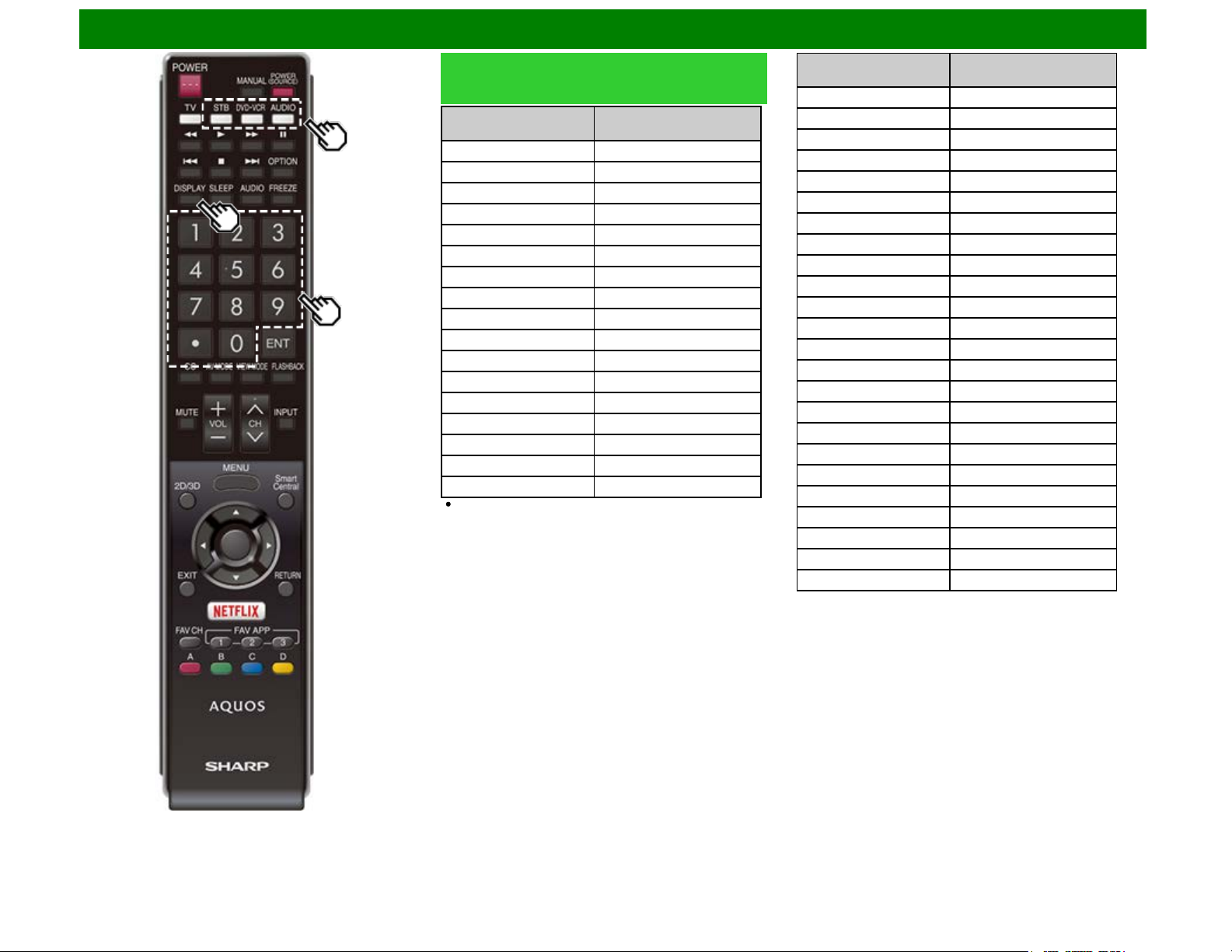
Enjoying Photo/Music/Video Playback (For the UD1U model)
Presetting Remote Control Function
(Continue)
BD/DVD/LD BRAND
REMOTE CONTROL
CODE NUMBER
DENON 24
JVC 31
KENWOOD 36
MAGNAVOX 26
MARANTZ 26
MITSUBISHI 28
PANASONIC 24, 37
PHILIPS 26, 38
PIONEER 30, 33, 35
PROSCAN 25
RCA 25, 39
SAMSUNG 29, 34
SHARP 23, 32, 41, 42
SONY 27, 40
TOSHIBA 26
YAMAHA 24
ZENITH 26
Depending on the brand, the codes of some BD players
may not be supported.
VCR BRAND
REMOTE CONTROL
CODE NUMBER
AUDIO DYNAMICS 09
BROCKSONIC 13
CANON 04
CRAIG 12
CURTIS MATHIS 04
DBX 09
EMERSON 10, 13, 14
GE 04
INSTANT REOLYA 04
JC PENNEY 04
JVC 09, 16, 17, 22
KENWOOD 09
MAGNAVOX 04, 05, 06
MAGNIN 12
MEMOREX 04
MONTGOMERY WARD 02
NEC 09
PANASONIC 04, 18, 19, 20, 21
PENTAX 05
PHILCO 04, 05
PHILIPS 04, 05, 06
QUASAR 04
REALISTIC 01, 02
SAMSUNG 11, 12
ENG 6-32
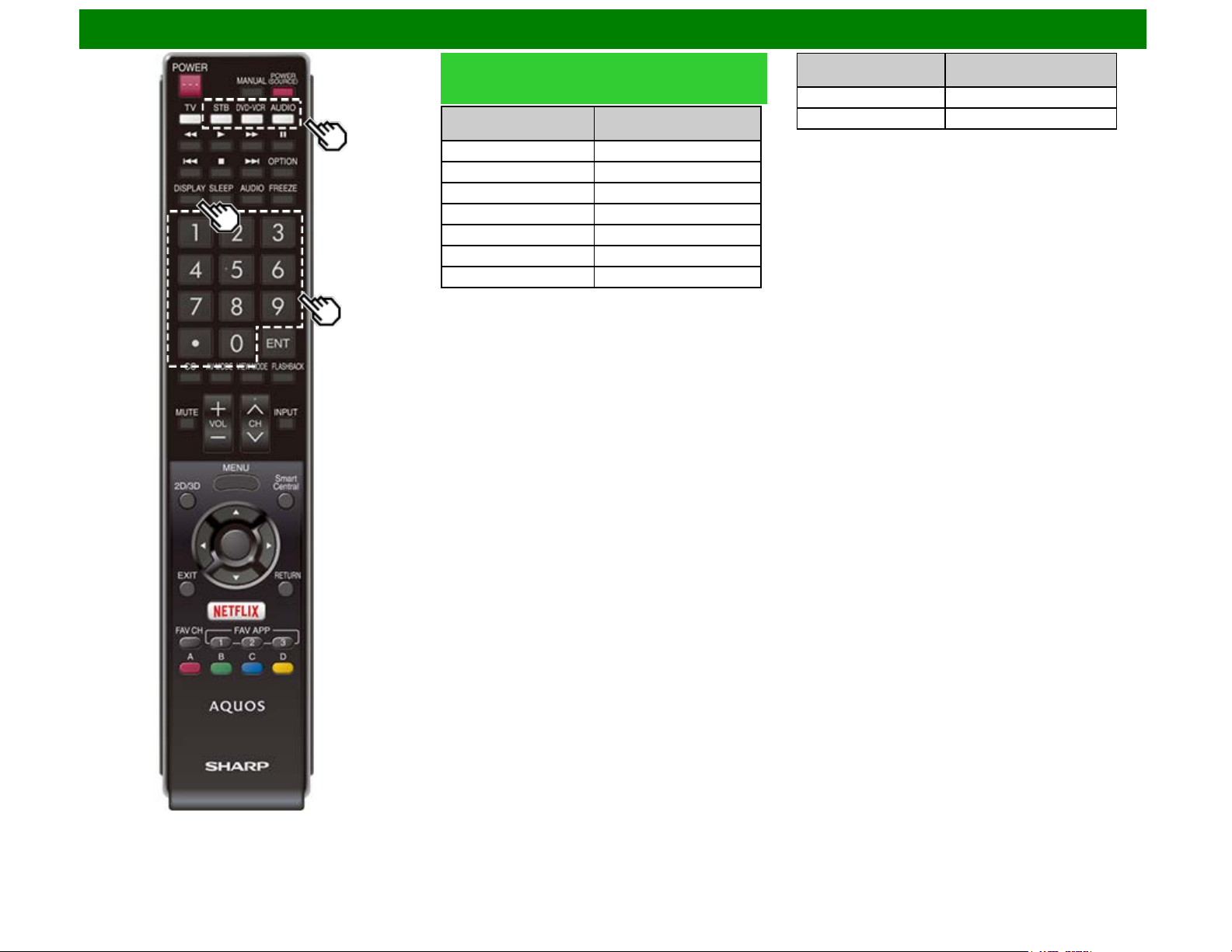
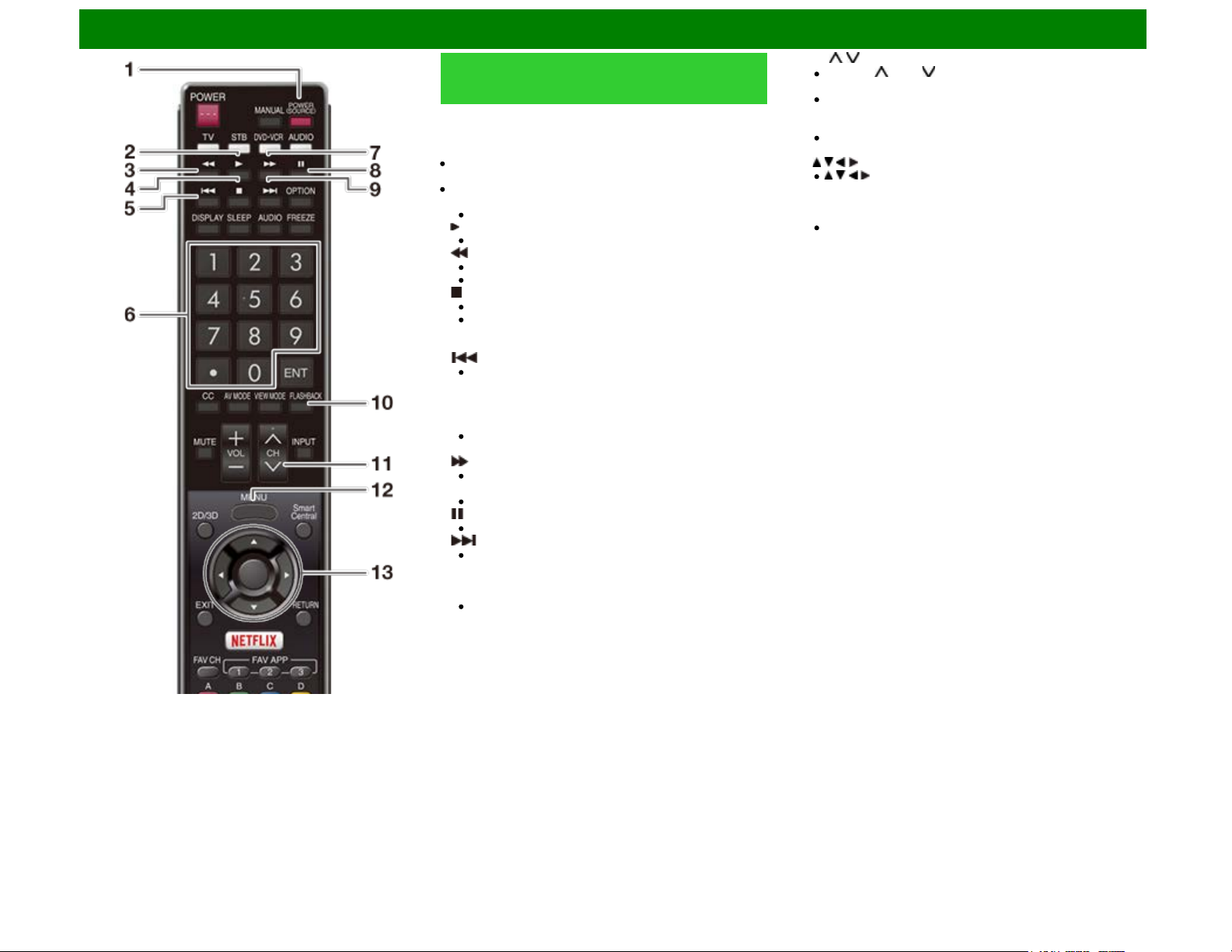
Enjoying Photo/Music/Video Playback (For the UD1U model)
Operating the Connected
Equipment
To operate the connected equipment, press STB, DVD•VCR
or AUDIO to select your device. (STB
(cable/satellite set-top box), BD, DVD, VCR or AUDIO.) The
remote control unit button will function as follows.
When you operate VCR, DVD or BD, press INPUT to select
the terminal connected to your device.
CABLE and SAT cannot be selected at the same time.
1 POWER (SOURCE)
Turns the connected equipment power on and off.
2
Starts playback. (VCR, BD, DVD)
3
Rewinds the tape and allows picture search. (VCR)
Hold down to go in reverse. (BD, DVD)
4
Stops the tape transport. (VCR)
Playback stops when pressed. With some Blu-ray
disc/DVD players, pressing the button twice may open
the disc tray. (BD, DVD)
5
Pressing quickly once takes you to the start of the
chapter currently playing. Each time you press it, you
move back to the start of the previous chapter. (BD,
DVD)
6 0–9, • (DOT)
Press a button (or buttons) that corresponds to the
channel that you wish to watch.(STB)
7
Rapidly advances the tape and allows picture search.
(VCR)
Hold down to fast forward. (BD, DVD)
8
Sets pauses and still pictures. (VCR, BD, DVD)
9
Pressing quickly once takes you to the start of the next
chapter. Each time you press it, you move ahead to the
start of the next chapter. (BD, DVD)
10 FLASHBACK
Press to switch between the current channel and the
channel you were watching immediately before. Some
manufacturers do not preset FLASHBACK. (STB)
11 CH /
Press CH or CH to tune in to a higher or lower
channel. (STB)
Press to select the channel of the TV tuner on the VCR.
(VCR)
12 MENU
When this button is pressed, the BD/DVD menu will
display. (BD, DVD)
13 / / / , ENTER
/ / / : Press the button to select items on the STB
GUIDE screen or STB MENU screen. (STB)
Press the button to select items on the BD/DVD menu
screen. (BD, DVD)
ENTER: Press to activate the selected function. (STB,
BD, DVD)
ENG 6-34
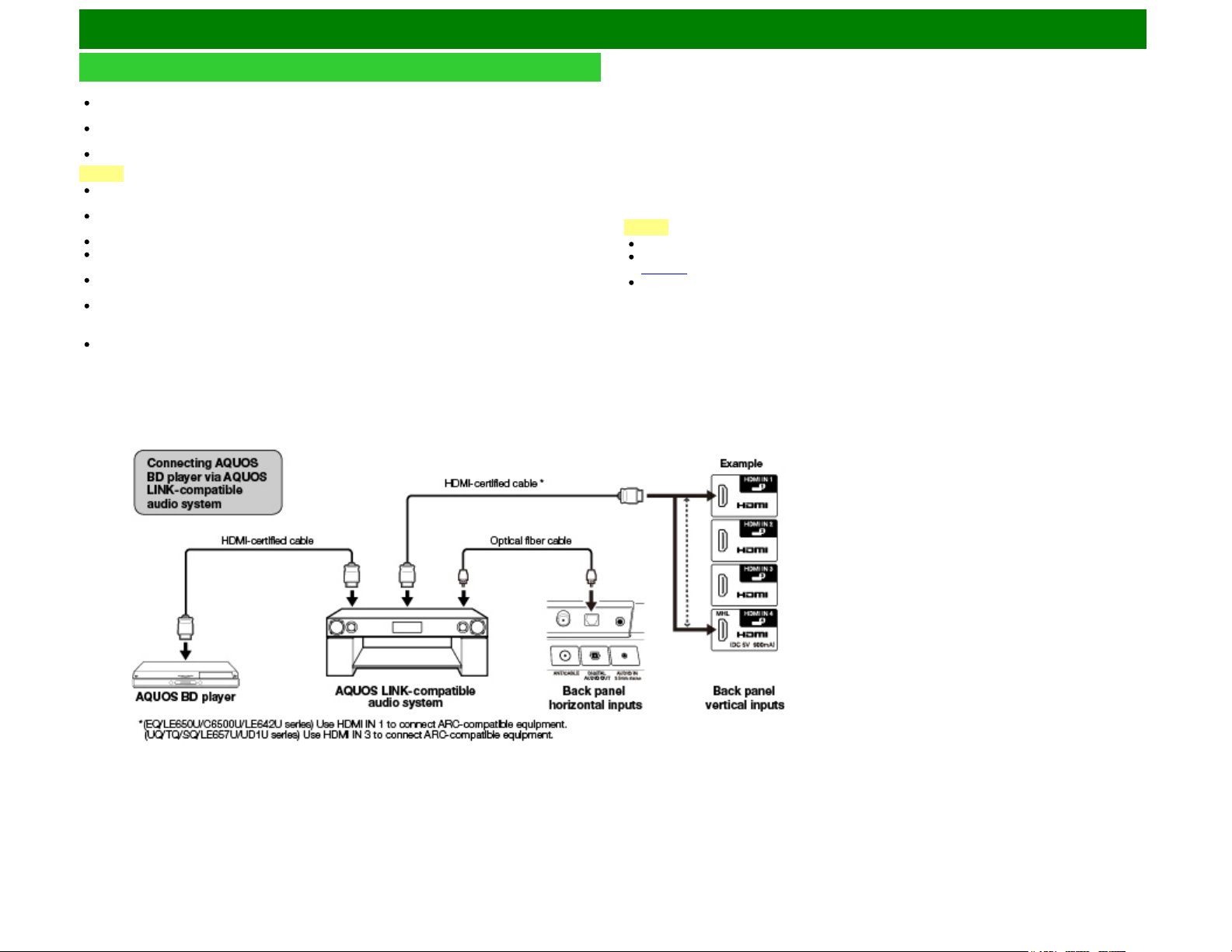
Using AQUOS LINK
Controlling HDMI Equipment Using AQUOS LINK
What’s AQUOS LINK?
Using the HDMI CEC (Consumer Electronics Control) protocol, with AQUOS LINK you can
interactively operate compatible system equipment (Blu-ray disc equipment, AV amplifier, DVD).
By connecting AQUOS LINK-compatible devices with HDMI-certified cables to the TV, you can
control a recorder or AV amplifier using the remote control of the TV.
AQUOS LINK allows you to operate the HDMI-connected equipment with one remote control.
NOTE
(UQ/TQ/SQ/UD1U series) Connect 4K signals (HDCP2.2) to the HDMI IN 1 terminal. These
signals will not be displayed if connected to the HDMI IN 2, 3, or 4 terminals.
For connecting the TV to AQUOS LINK-compatible equipment, use commercially available
cables.
Point the remote control toward the TV, not to connected HDMI equipment.
Video noise may occur depending on the type of HDMI cable used. Make sure to use an HDMI-
certified cable.
Up to 3 pieces of HDMI recording equipment and one AV amplifier can be connected using this
system.
These operations affect the HDMI equipment selected as the current input source. If the
equipment does not operate, turn on the equipment and select the appropriate input source using
INPUT.
The AQUOS LINK feature may not operate properly when an HDMI splitter or AV selector unit is
used. These devices may cause interruptions to the image and/or sound.
Connected AQUOS LINK-compatible devices can be operated without changing the settings of the
remote control unit.
The
OPTION button will function only when AQUOS LINK is used.
One Touch Play
While the TV is in standby mode, it automatically turns on and plays back the image from the HDMI
source.
Single remote control
The AQUOS LINK automatically recognizes the connected HDMI device and you can control the TV
and the devices as if using a universal remote control.
Control the AQUOS LINK-compatible audio system
Set the volume of AQUOS LINK-compatible audio system.
NOTE
The above description is an example of the AQUOS LINK function.
The steps in "AQUOS LINK Setup" on
page 7-2 need to be completed beforehand.
Refer to this operation manual and the operation manual of the AQUOS LINK device to be used
with this TV.
ENG 7-1
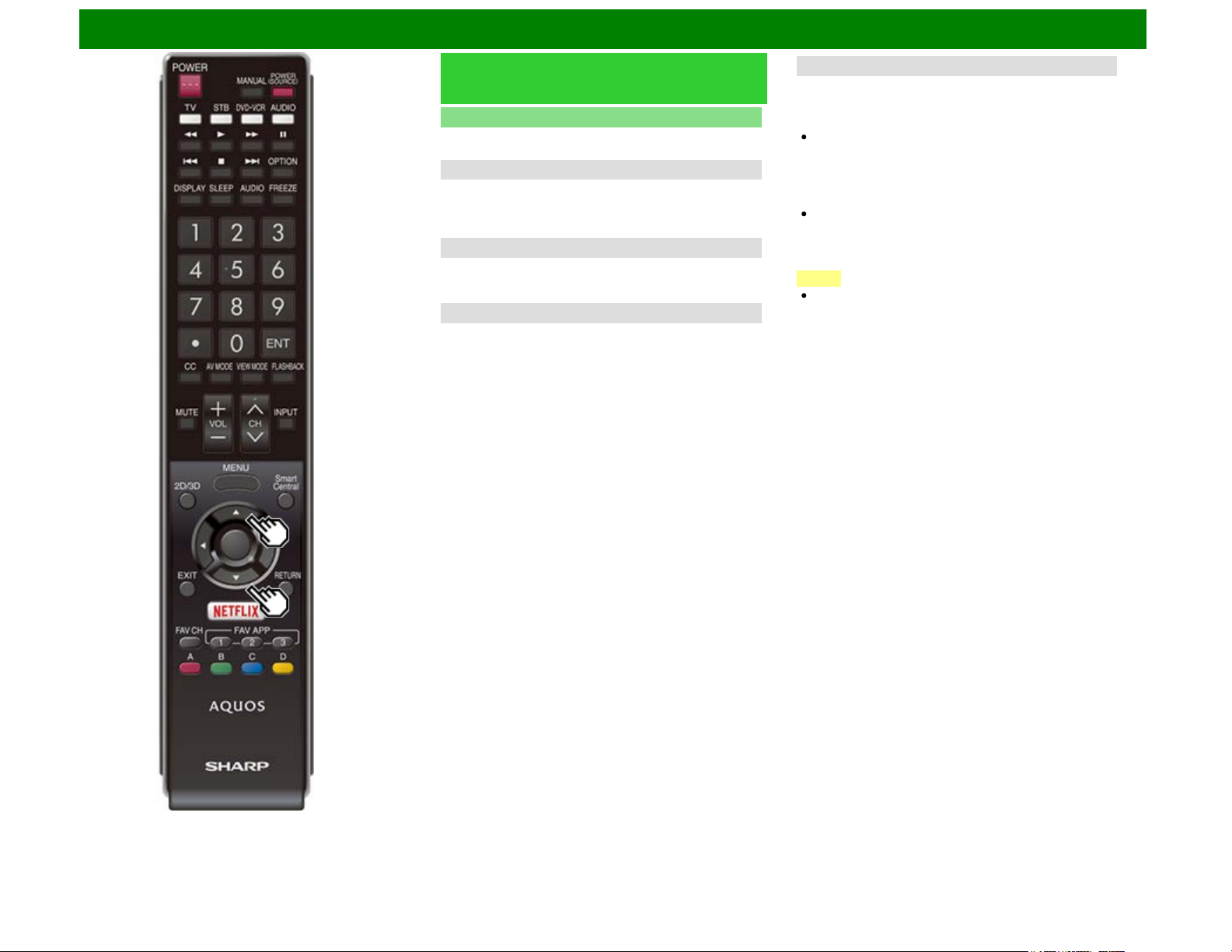
Using AQUOS LINK
Controlling HDMI Equipment Using
AQUOS LINK (Continue)
AQUOS LINK Setup
Make the settings to use AQUOS LINK. Set the settings with
"Setup" > "Advanced" > "AQUOS LINK Setup".
AQUOS LINK Control
Select AQUOS LINK Control to disable the AQUOS LINK
function even when an AQUOS LINK-compatible HDMI
device is connected to the TV. This function prevents the
device from starting to operate unexpectedly.
Auto Power On
If this is activated, the One Touch Play function is enabled.
While the TV is in standby mode, it automatically turns on and
plays back the image from the HDMI source.
Channel Select Key
This function can be set for each input terminal.
The remote control unit of the TV can be used to select the
channel, display program information, and perform other
operations of the connected AQUOS LINK-compatible
equipment.
Audio Return Channel
This function allows you to listen to the TV audio via audio
equipment without using an optical fiber cable, which
conventionally is required.
Requirements for using an ARC-compatible AV amplifier:
ARC-compatible AV amplifier connected to the ARC-
compatible HDMI IN terminal.
EQ/LE650U/C6500U/LE642U series:HDMI IN 1
UQ/TQ/SQ/LE657U/UD1U series:HDMI IN 3
(Refer to the operation manual of the ARC-compatible
equipment for details.)
Use of an ARC-compatible cable.
Auto: You can listen to the TV audio with ARC-compatible
audio equipment.
Off: This function does not work.
NOTE
If the TV audio cannot be output from the AV amplifier
even after making the necessary settings, connect the TV
to the AV amplifier with an optical fiber cable and select
"Off".
ENG 7-2
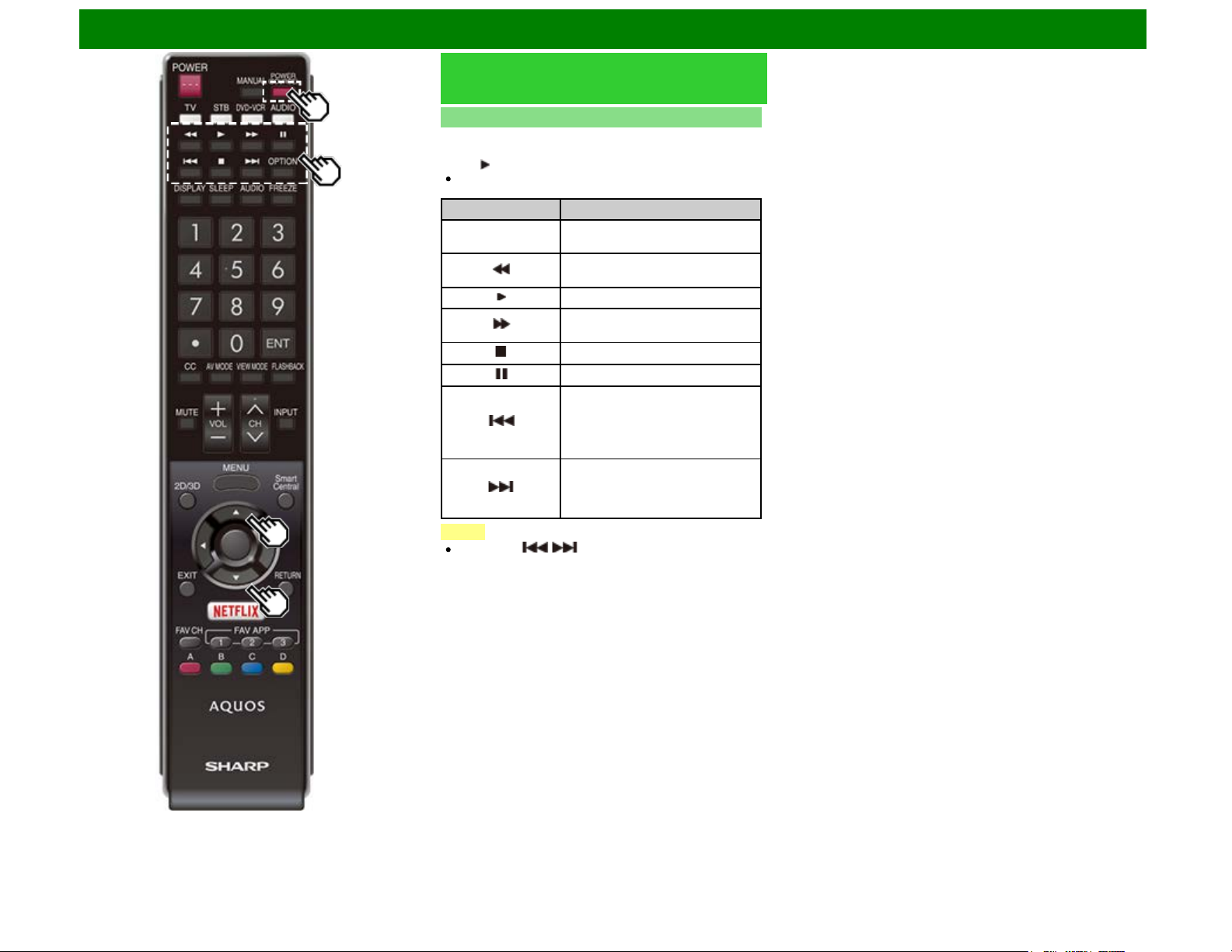
Using AQUOS LINK
Controlling HDMI Equipment Using
AQUOS LINK (Continue)
One Touch Playback
AQUOS LINK allows you to operate the HDMI-connected
equipment with one remote control.
Press to start playing back a title.
The last played program is played back. You can use the
following buttons during broadcast viewing.
Buttons Description
POWER
(SOURCE)
Turns the power of the HDMI
connected devices on and off.
Hold down this button to go in
reverse.
Starts playback.
Hold down this button to fast
forward.
Stops playback.
Sets pauses and still pictures.
Pressing quickly once takes you to
the start of the chapter currently
playing. Each time you press it, you
move back to the start of the
previous chapter.
Pressing quickly once takes you to
the start of the next chapter. Each
time you press it, you move ahead
to the start of the next chapter.
NOTE
The buttons / do not function with the following
Blu-ray disc players currently available.
- BD-HP20U, BD-HP50U
ENG 7-3
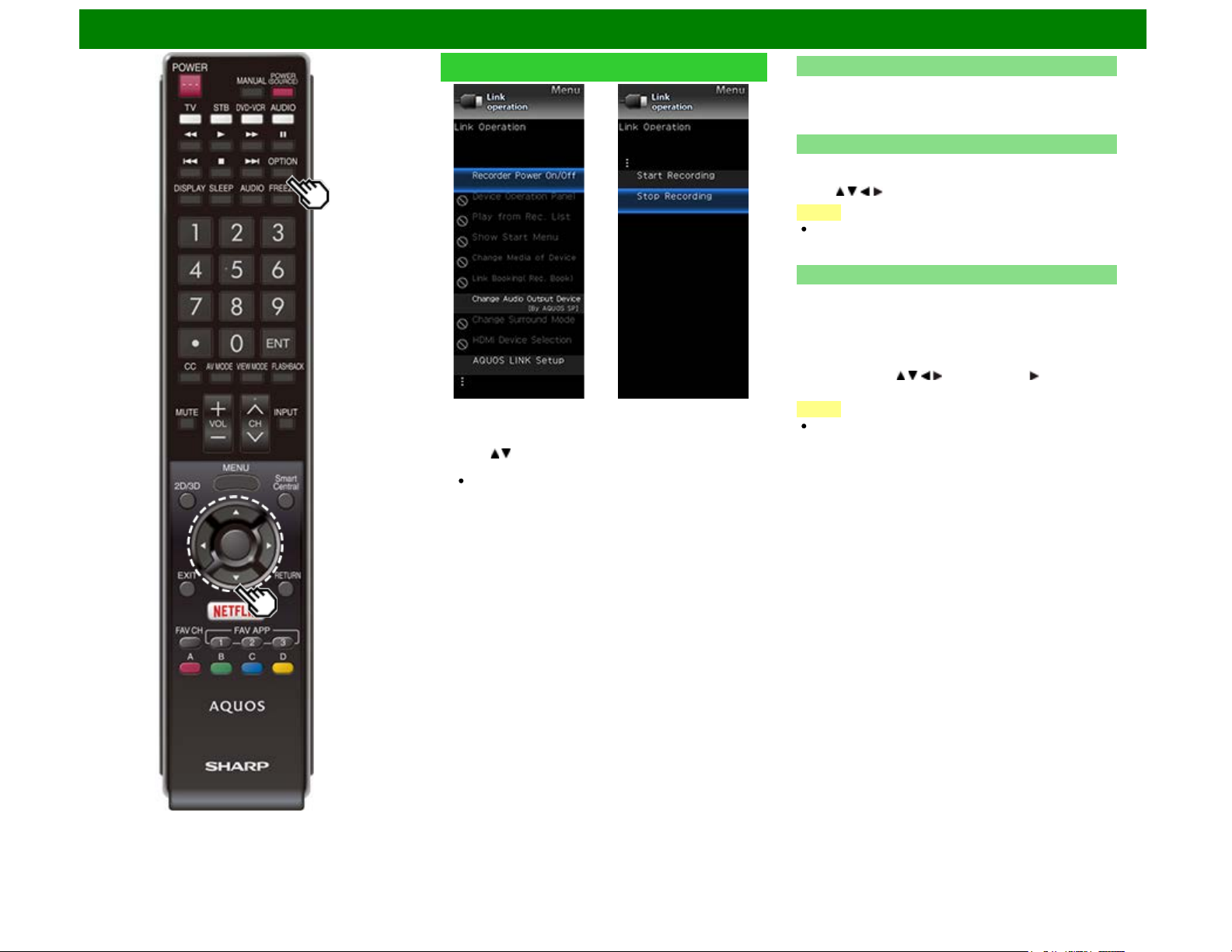
Using AQUOS LINK
Link Operation Menu
The Link Operation Menu allows you to make adjustments
during operation of AQUOS LINK-compatible equipment.
1 Press OPTION to display the Link Operation Menu.
2 Press / to select the desired item, and then press
ENTER.
Specific operations differ depending on the item you
select. Following are the basic operations for each item.
Recorder Power On/Off
You can manually turn on/off the power of the connected
AQUOS LINK-compatible equipment.
Each time you press ENTER, the connected equipment
switches on or off.
Device Operation Panel
You can use the device operation panel to control playback
operations.
Press / / / to select the desired operation.
NOTE
This function works only when AQUOS LINK-compatible
equipment with the Device Operation Panel function is
connected.
Play from Rec. List
This function allows you to display the title list for the
connected equipment and to play back the title you want to
enjoy.
Before using this function.
Power on the AQUOS LINK-compatible equipment, and
select the appropriate external input.
Select the title with / / / , and then press to start
playback.
NOTE
This function works only when AQUOS LINK-compatible
equipment is connected.
ENG 7-4
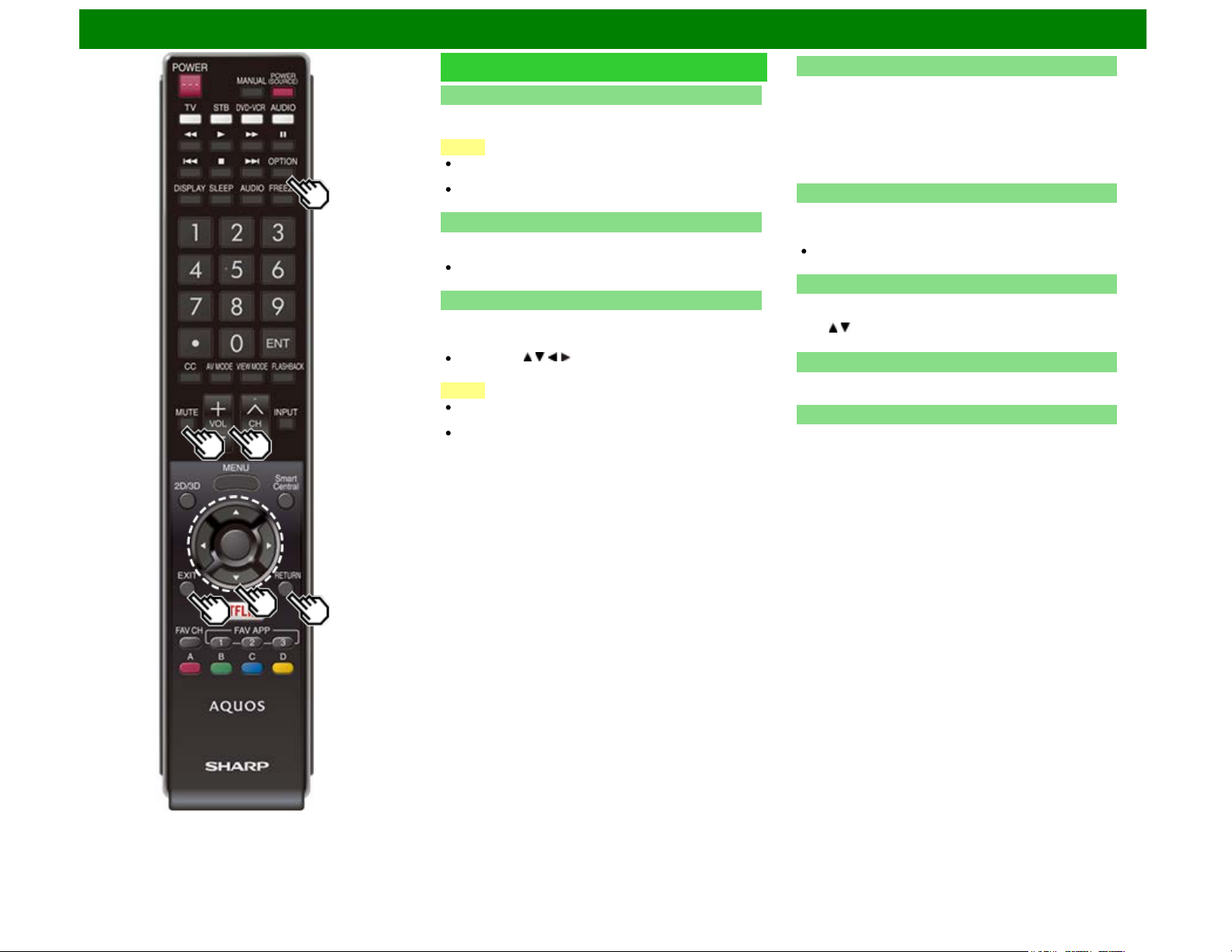
Using AQUOS LINK
Link Operation Menu (Continue)
Show Start Menu
You can call up a setup menu from the connected AQUOS
LINK-compatible equipment.
NOTE
Depending on the status of the equipment (recording or in
standby mode, etc), the setup menu will not be displayed.
The setup menu will not be displayed with the player BD-
HP20U currently available.
Change Media of Device
You can switch the media (HDD or DVD) for playback or
recording on the AQUOS LINK-compatible recorder.
The Media type toggles each time you press ENTER in
"Change Media of Device".
Link Booking (Rec. Book)
You can call up the AQUOS LINK-compatible recorder's EPG
and preset timer recordings using the TV's remote control.
Select the program on the recorder's EPG.
You can use / / / , ENTER, RETURN, EXIT and the
colored buttons.
NOTE
This function works only when an AQUOS LINK-
compatible recorder is connected.
Refer to the operation manual of the recorder for details.
Change Audio Output Device
You can select to listen to the TV sound only from the
AQUOS LINK-compatible audio system.
By AQUOS audio SP: The sound from the TV speaker is
muted and only the sound from the AQUOS LINK-
compatible audio system is audible.
• You can use VOL+/- and MUTE.
By AQUOS SP: The sound is output from the TV speaker.
Change Surround Mode
You can manually change the AQUOS AUDIO speaker
system's sound mode.
The sound mode changes each time you press ENTER.
Refer to the operation manual of the AQUOS LINK-
compatible audio system for details.
HDMI Device Selection
If multiple HDMI devices are connected in a daisy chain, you
can specify which device to control here.
Press / to select the desired device from a list of
connected HDMI devices, and then press ENTER.
AQUOS Link Setup
You can also display the AQUOS LINK Setup screen from the
Link Operation Menu.
Start/Stop Recording
You can also use the Link Operation Menu for recording on
the connected AQUOS LINK-compatible equipment.
ENG 7-5
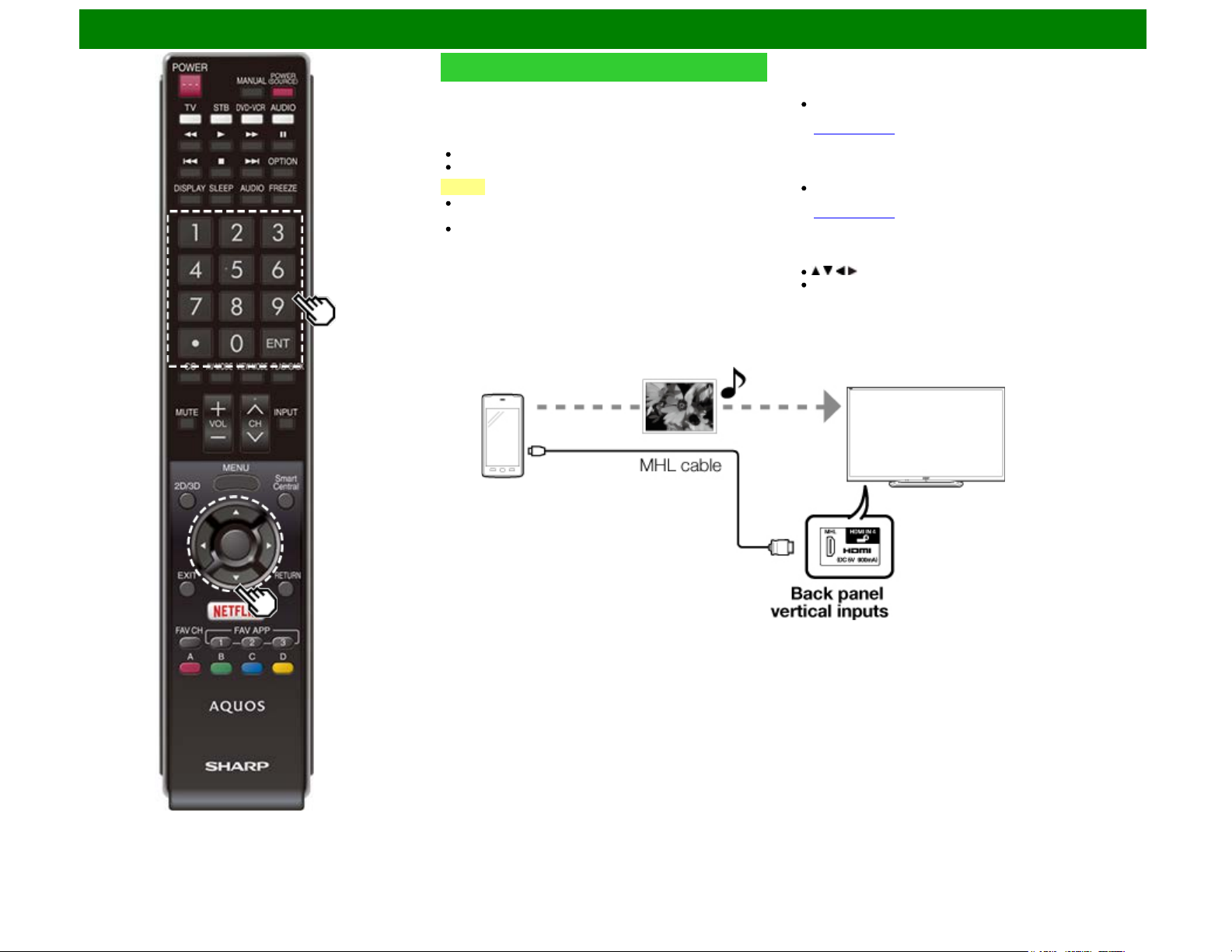
Using AQUOS LINK
Using a Smartphone with the TV
This function enables you to connect the TV to a smartphone
that supports Mobile High-Definition Link
(MHL™ ) using an MHL cable.
To connect the TV to your MHL-compatible smartphone, be
sure to use an MHL cable (commercially available).
You can view pictures and video on a large screen.
You can play back music files.
NOTE
An MHL-compatible portable device is required to use this
function. Connect the device to the HDMI IN 4 terminal.
This product incorporates MHL 1.
Auto Power On
When an MHL-compatible device is connected to the TV, the
TV turns on automatically.
This function operates when "AQUOS LINK Control" is set
to "On".
(See page 7-2.)
Auto Input Selection
When an MHL-compatible device is connected while the TV is
on, the input mode is selected automatically.
This function operates when "AQUOS LINK Control" is set
to "On".
(See page 7-2.)
Operation Using the Remote Control
The remote control of the TV can be used to operate a
portable device.
/ / / , ENTER, EXIT, 0-9, • (DOT), ENT, etc.
The operations vary depending on the connected
equipment and content being viewed.
ENG 7-6
Using a PC
Adjusting the PC Image
You can adjust the position of the image input from a PC the settings with "Setup" > "Input Settings"
> "PC input".
Auto Sync. (for Analog PC Input Mode Only)
For automatically adjusting the PC image.
Yes: Auto Sync. starts and "Now adjusting the image." displays.
No: This function does not work.
NOTE
When "Auto Sync." is successful, "Completed" displays. If not, "Auto Sync." failed.
"Auto Sync." may fail even if "Completed" displays.
"Auto Sync." may fail if the computer image has low resolution, has unclear (black) edges, or is
moved while executing "Auto Sync.".
Be sure to connect the PC to the TV and switch it on before starting "Auto Sync.".
Fine Sync.
Ordinarily you can easily adjust the picture as necessary to change image position using "Auto
Sync.". In some cases, however, manual adjustment is needed to optimize the image.
H-Pos.: Centers the image by moving it to the left or right.
V-Pos.: Centers the image by moving it up or down.
Clock: Adjust when the image flickers with vertical stripes.
Phase: Adjust when characters have low contrast or when the image flickers.
NOTE
For resetting all "Fine Sync." adjustment items to the factory preset values, press / to select
"Reset", and then press ENTER.
It is not necessary to adjust the "Clock" or "Phase" when a digital signal is being input, so it cannot
be selected.
The default cursor position may not be in the center, because the screen position variable ranges
may be asymmetrical.
The screen position variable ranges depend on the View Mode or the signal type. The ranges can
be seen on the position-setting screen.
ENG 8-1
Using a PC
Setting Audio Input
Audio Select
This function sets the terminal to output the computer audio.
The adjustment items vary depending on the input source. Select the input source corresponding to
the terminal connected to the PC and then adjust the desired item.
To perform the operation, refer to "Setup" > "Advanced" > "Audio Select".
PC IN
Video: Select this when the TV and PC are connected using an analog RGB cable and the audio is
not input.
Video+Audio: Select this when the TV and PC are connected using an analog RGB cable and the
audio is input via a Ø 3.5 mm stereo minijack.
HDMI 2
HDMI(Digital): Select this when the TV and PC are connected using an HDMI-certified cable and
audio is input via the same cable.
HDMI+Analog: Select this when the TV and PC are connected using a DVI-HDMI conversion cable
and the audio is input via a Ø 3.5 mm stereo minijack.
NOTE
On the UD1U model, you cannot operate the "Audio Select" function during 4K60P signal input.
Operate this function during the input of other types of signals (such as Full HD).
When "Audio Select" is set to "HDMI(Digital)", sound will not be produced if you use only an
HDMI-certified cable to connect HDMI-compatible equipment. To produce sound, you should
make an analog audio connection.
If you want to connect HDMI-compatible equipment using only an HDMI-certified cable, set "Audio
Select" to "HDMI(Digital)".
ENG 8-2
Using a PC
Control of the TV
The TV can be controlled from a PC, control panels and other devices using the RS-232C or IP.
Use a cross-type RS-232C cable, ETHERNET cable (commercially available) or wireless LAN for
the connections.
NOTE
This operation system should be used by a person who is accustomed to using computers.
AQUOS Remote Control
Set this function when operating the TV from equipment connected by LAN or wireless LAN. To
perform the operation, refer to "Smart TV".
Remote Control App
When "Remote Control App" is selected, "Change" will be highlighted. Press
ENTER.
Detailed Settings
Make the detailed settings (Login ID, password, etc.).
Follow the on-screen instructions to configure the settings.
NOTE
On the UD1U model, you cannot operate the "AQUOS Remote Control" function during 4K60P
signal input. Operate this function during the input of other types of signals (such as Full HD).
TV Name Setting
Set the name of the TV displayed on other network devices.
Use the software keyboard to set the name.
See page 9-5 for details on the software keyboard.
NOTE
On the UD1U model, you cannot operate the "TV Name Setting" function during 4K60P signal
input. Operate this function during the input of other types of signals (such as Full HD).
Communication Conditions for IP
Connect to the TV with the following settings made for IP on the PC.
IP protocol: TCP/IP
Host IP address: Set the IP address on the TV menu
Service: None (Do not select Telnet or SSH)
TCP port#: Set a port number on the TV menu (Control port)
When you set your ID and password on the TV menu, you need to enter them as soon as you
connect to the TV.
NOTE
When you use this function, make settings for "AQUOS Remote Control".
The connection will be cut off when there has been no communication for 3 minutes.
Communication Conditions for RS-232C
Set the RS-232C communication settings on the PC to match the TV's communication conditions.
The TV's communication settings are as follows:
Baud rate: 9,600 bps
Data length: 8 bits
Parity bit: None
Stop bit: 1 bit
Flow control: None
Communication procedure
Send the control commands from the PC via the RS-232C or IP.
The TV operates according to the received command and sends a response message to the PC.
Do not send multiple commands at the same time.
Wait until the PC receives the OK response before sending the next command.
ENG 8-3
Using a PC
Control of the TV (Continue)
Command format
Eight ASCII codes +CR
Command 4-digits: Command. The text of four characters.
Parameter 4-digits: Parameter 0–9, x, blank, ?
Parameter
Input the parameter values, aligning left, and fill with blank(s) for the remainder. (Be sure that 4
values are input for the parameter.)
When the input parameter is not within an adjustable range, "ERR" returns. (Refer to "Response
code format".)
Any numerical value can replace the "x" on the table.
Response code format
Normal response
Problem response
(communication error or incorrect command)
Command table
Commands not indicated here are not guaranteed to operate.
CONTROL ITEM COMMAND PARAMETER CONTROL CONTENTS
POWER ON
COMMAND SETTING
R S P W 0 _ _ _ Off The Power On
command
rejected.
1 _ _ _ On [RS-232C] The Power On
command
accepted.
2 _ _ _ On [IP] The Power On
command
accepted.
POWER SETTING P O W R 0 _ _ _ Power Off It shifts to
standby.
1 _ _ _ Power On Power On
INPUT
SELECTION
TOGGLE I T G D x _ _ _ (Toggle) It input-switches
by the toggle. (It
is the same as
an input change
key)
TV I T V D 0 _ _ _ It input-switches
to TV. (A
channel remains
as it is. (Last
memory))
1-8 I A V D * _ _ _ 1: HDMI IN 1,
2: HDMI IN 2,
3: HDMI IN 3,
4: HDMI IN 4,
5: COMPONENT
IN,
6: VIDEO IN 1,
7: VIDEO IN 2,
8: PC IN
NOTE
If an underbar (_) appears in the parameter column, enter a space.
If an asterisk (*) appears, enter a value in the range indicated in brackets under CONTROL
CONTENTS.
Any numerical value can replace the "x" on the table.
ENG 8-4
Using a PC
Control of the TV (Continue)
CONTROL ITEM COMMAND PARAMETER CONTROL CONTENTS
AV MODE SELECTION A V M D * * * _ 0: (Toggle),
1: STANDARD
(ENERGY
STAR)*1,
2: MOVIE,
3: GAME,
4: USER,
5: DYNAMIC
(Fixed),
6: DYNAMIC,
7: PC,
8: x.v.Color,
13: VINTAGE
MOVIE,
14: STANDARD
(3D)/3D,
15: MOVIE (3D),
16: GAME (3D),
17: MOVIE THX,
100: AUTO
Although it can
choose now, it
is toggle
operation in
inside.
8, 13: For the
UQ17U,
TQ15U,
SQ17U,
SQ15U, SQ10U
and EQ10U
models.
14, 16: For the
UQ17U,
TQ15U,
SQ17U,
SQ15U,
LE657U and
UD1U models.
15: For the
LE657U model.
17: For the
UQ17U and
UD1U models.
100: Except for
UD1U
VOLUME V O L M * * *_ _ Volume (0-100)
POSITION H-
POSITION
H P O S * * * _ The screen
position variable
ranges depend
on the View
Mode or the
signal type.
V-
POSITION
V P O S * * * _
CLOCK C L C K * * * _ Only PC mode.
(0-180)
PHASE P H S E * * _ _ Only PC mode.
(0-40)
*1: Except for LE657U and UD1U
CONTROL
ITEM
COMMAND PARAMETER CONTROL CONTENTS
VIEW MODE W I D E * * _ _ 0: (Toggle) [AV],
1: Side Bar [AV],
2: S.Stretch [AV]
3: Zoom [AV],
4: Stretch [AV, USB-
Video, Home
Network Video or
Internet
applications],
5: Normal [PC]
6: Zoom [PC],
7: Stretch [PC],
8: Dot by Dot [PC]
[AV],
9: Full Screen [AV]
10: Auto [USB-
Video, USB-Photo,
SD-Video, SD-
Photo, Home
Network Video,
Photo or Internet
applications],
11: Original [USB-
Video, USB-Photo,
SD-Video, SD-
Photo, Home
Network Video,
Photo or Internet
applications]
0: Although it can
choose now, it is
toggle operation
in inside.
1: Only available
when 4:3 signal is
being input.
5, 6: Only
available when
4:3 signal is
being input.
8: [PC] Available
except when
UXGA is being
input.
[AV] Only
available when
1080i/p is being
input.
9: Only available
when 720p is
being input.
10, 11: Available
when USB-Video,
USB-Photo, SD-
Video, SD-Photo,
Home Network
Video, Photo or
Internet
application is
used.
10, 11: SD-Video,
SD-Photo is
available only for
the UD1U model.
MUTE M U T E * _ _ _ 0: (Toggle),
1: On,
2: Off
NOTE
If an underbar (_) appears in the parameter column, enter a space.
If an asterisk (*) appears, enter a value in the range indicated in brackets under CONTROL
CONTENTS.
Any numerical value can replace the "x" on the table.
ENG 8-5
Using a PC
Control of the TV (Continue)
CONTROL ITEM COMMAND PARAMETER CONTROL CONTENTS
SURROUND A C S U * _ _ _ For the UQ17U, TQ15U,
SQ17U, SQ15U, LE657U
and UD1U models:
0: (Toggle),
1: Normal,
2: Off,
4: 3D Hall,
5: 3D Movie,
6: 3D Standard,
7: 3D Stadium
For the SQ10U, EQ10U,
LE650U, C6500U and
LE642U models:
0: (Toggle),
1: On,
2: Off
AUDIO
SELECTION
A C H A x _ _ _ (Toggle)
SLEEP TIMER O F T M * _ _ _ 0: Off,
1: OFF TIMER - 30 MIN.,
2: OFF TIMER - 60 MIN.,
3: OFF TIMER - 90 MIN.,
4: OFF TIMER - 120
MIN.
CONTROL ITEM COMMAND PARAMETER CONTROL CONTENTS
CHANNEL DIRECT
CHANNEL
(ANALOG)
D C C H * * * _ The
channel
number of
TV
(1-135)
An input change is included if it
is not TV display.
In Air, 2-69ch is effective.
In Cable, 1-135ch is effective.
DIRECT
CHANNEL
(DIGITAL)
D A 2 P * * * * (0100-
9999)
DIGITAL Air (Two-Part
numbers, 2-digit plus 2-digit)
D C 2 U * * * _ (1-999) DIGITAL Cable (Two-Part
numbers, 3-digit plus 3-digit)
Front half of DIGITAL CABLE
CHANNEL NO. (Designate
major channel)
D C 2 L * * * _ (0-999) DIGITAL Cable (Two-Part
numbers, 3-digit plus 3-digit)
Rear half of DIGITAL CABLE
CHANNEL NO. (Designate
minor channel)
NOTE
If an underbar (_) appears in the parameter column, enter a space.
If an asterisk (*) appears, enter a value in the range indicated in brackets under CONTROL
CONTENTS.
Any numerical value can replace the "x" on the table.
ENG 8-6
Using a PC
Control of the TV (Continue)
CONTROL ITEM COMMAND PARAMETER CONTROL CONTENTS
CHANNEL DIRECT
CHANNEL
(DIGITAL)
D C 1 0 * * * * (0-9999) DIGITAL Cable
(One-Part
numbers, 5-
digit, less than
10,000)
D C 1 1 * * * * (0-6383) DIGITAL Cable
(One-Part
numbers, 5-
digit, more than
10,000)
CH UP C H U P x _ _ _ The channel
number of TV
+1
If it is not TV
display, it will
input-switch to
TV. (same
function as CH
)
CH DOWN C H D W x _ _ _ The channel
number of TV
-1
If it is not TV
display, it will
input-switch to
TV. (same
function as CH
)
CC C L C P x _ _ _ (Toggle) Toggle
operation of a
closed caption.
DEVICE NAME T V N M 1 _ _ _ The device
name set in “TV
Name Setting”
is displayed.
MODEL NAME M N R D 1 _ _ _ The model
name of the TV
CONTROL ITEM COMMAND PARAMETER CONTROL CONTENTS
SOFTWARE
VERSION
S W V N 1 _ _ _ The current version
of the TV software
is displayed.
IP PROTOCOL
VERSION
I P P V 1 _ _ _ The currently
supported version
of IP protocol is
displayed.
3D T D C H * _ _ _ 0: 3D Off,
1: 2D 3D,
2: SBS,
3: TAB,
4: 3D 2D (SBS),
5: 3D 2D (TAB),
6: 3D auto,
7: 2D auto
0,1,2,3,6,7:
For the UQ17U,
TQ15U, SQ17U,
SQ15U, LE657U
and UD1U models.
NOTE
If an underbar (_) appears in the parameter column, enter a space.
If an asterisk (*) appears, enter a value in the range indicated in brackets under CONTROL
CONTENTS.
Any numerical value can replace the "x" on the table.
ENG 8-7
Using a PC
Control of the TV (Continue)
CONTROL ITEM COMMAND PARAMETER CONTROL CONTENTS
REMOTE CONTROL
BUTTONS
R C K Y * * _ _ 0-9: 0-9,
10: DOT,
11: ENT,
12: POWER,
13: DISPLAY,
14: POWER (SOURCE)
15: ,
16: ,
17: ,
18: ,
19: ,
20: ,
21: ,
23: OPTION,
24: SLEEP,
27: CC,
28: AV MODE,
29: VIEW MODE,
30: FLASHBACK,
31: MUTE,
32: VOL -,
33: VOL +,
34: CH ,
35: CH ,
36: INPUT,
38: MENU,
39: SmartCentral,
40: ENTER,
41: ,
42: ,
43: ,
44: ,
45: RETURN,
46: EXIT,
47: FAVORITE CH,
49: AUDIO,
50: A (red),
51: B (green),
52: C (blue),
53: D (yellow),
54: FREEZE,
55: FAV APP 1,
56: FAV APP 2,
57: FAV APP 3,
58: 2D/3D,
59: NETFLIX,
60: AAL,
61: MANUAL
NOTE
If an underbar (_) appears in the parameter column, enter a space.
If an asterisk (*) appears, enter a value in the range indicated in brackets under CONTROL
CONTENTS.
Any numerical value can replace the "x" on the table.
ENG 8-8
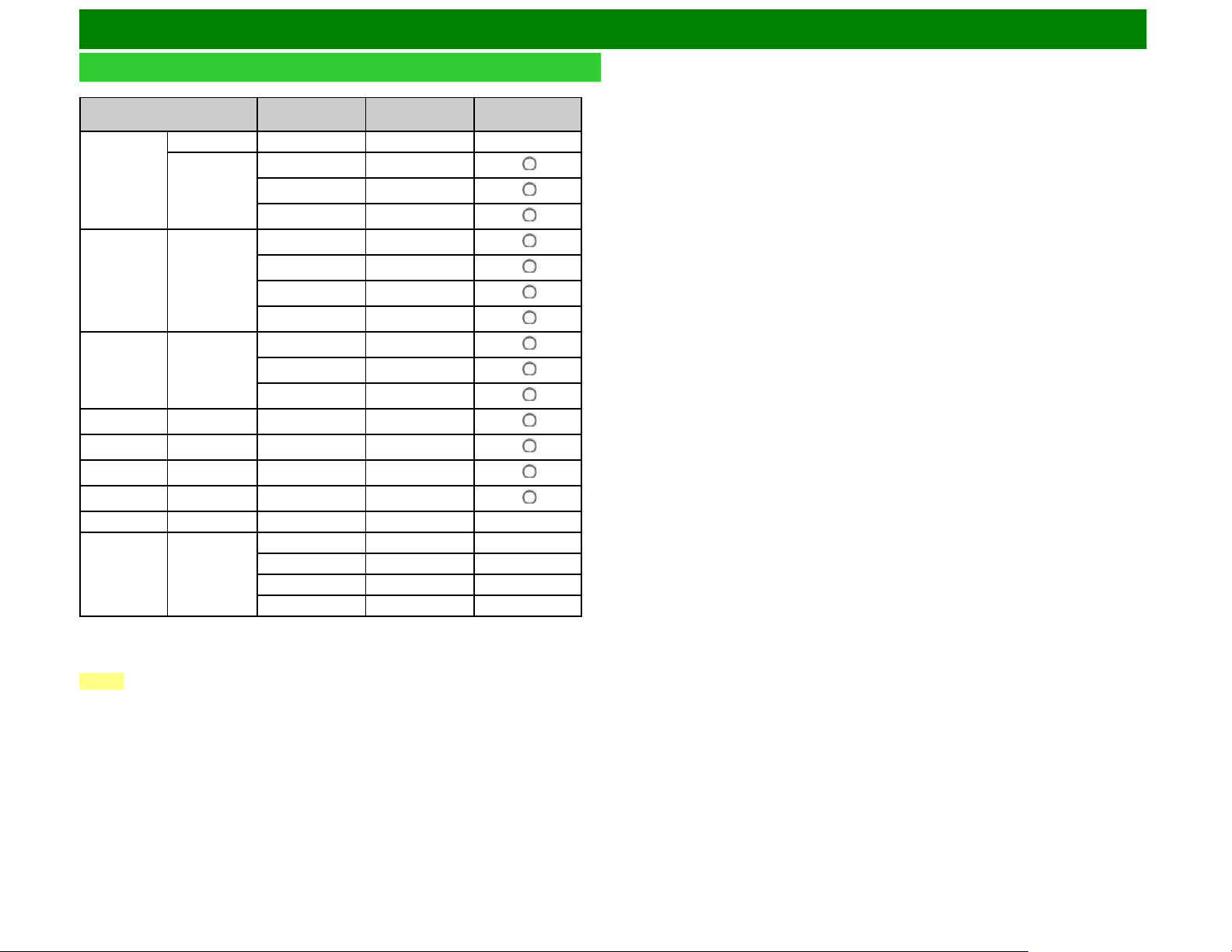
Using a PC
PC Compatibility Chart
It is necessary to set the PC correctly to display XGA and WXGA signal.
Resolution
Horizontal
Frequency
Vertical
Frequency
VESA Standard
VGA
720 x 400 31.5 kHz 70 Hz —
640 x 480
31.5 kHz 60 Hz
37.9 kHz 72 Hz
37.5 kHz 75 Hz
SVGA 800 x 600
35.1 kHz 56 Hz
37.9 kHz 60 Hz
48.1 kHz 72 Hz
46.9 kHz 75 Hz
XGA 1024 x 768
48.4 kHz 60 Hz
56.5 kHz 70 Hz
60.0 kHz 75 Hz
WXGA 1360 x 768 47.7 kHz 60 Hz
SXGA 1280 x 1024 64.0 kHz 60 Hz
SXGA+ 1400 x 1050 65.3 kHz 60 Hz
UXGA 1600 x 1200 75.0 kHz 60 Hz
1080p 1920 x 1080 67.5 kHz 60 Hz ―
2160p 3840 x 2160
53.95 kHz 24 Hz ―
*1
56.25 kHz 25 Hz ―
*1
67.5 kHz 30 Hz ―
*1
135 kHz 60 Hz ―
*2
VGA and XGA are registered trademarks of International Business Machines Corp.
*1: For the UQ/TQ/SQ/UD1U models. When connecting 4K equipment, use HDMI IN 1, 2, 3 or 4
terminal.
*2: For the UD1U only. When connecting 4K60P equipment, use HDMI IN 1, 2, 3 or 4 terminal.
NOTE
When connecting HDCP 2.2 equipment, use HDMI IN 1 terminal.
ENG 8-9
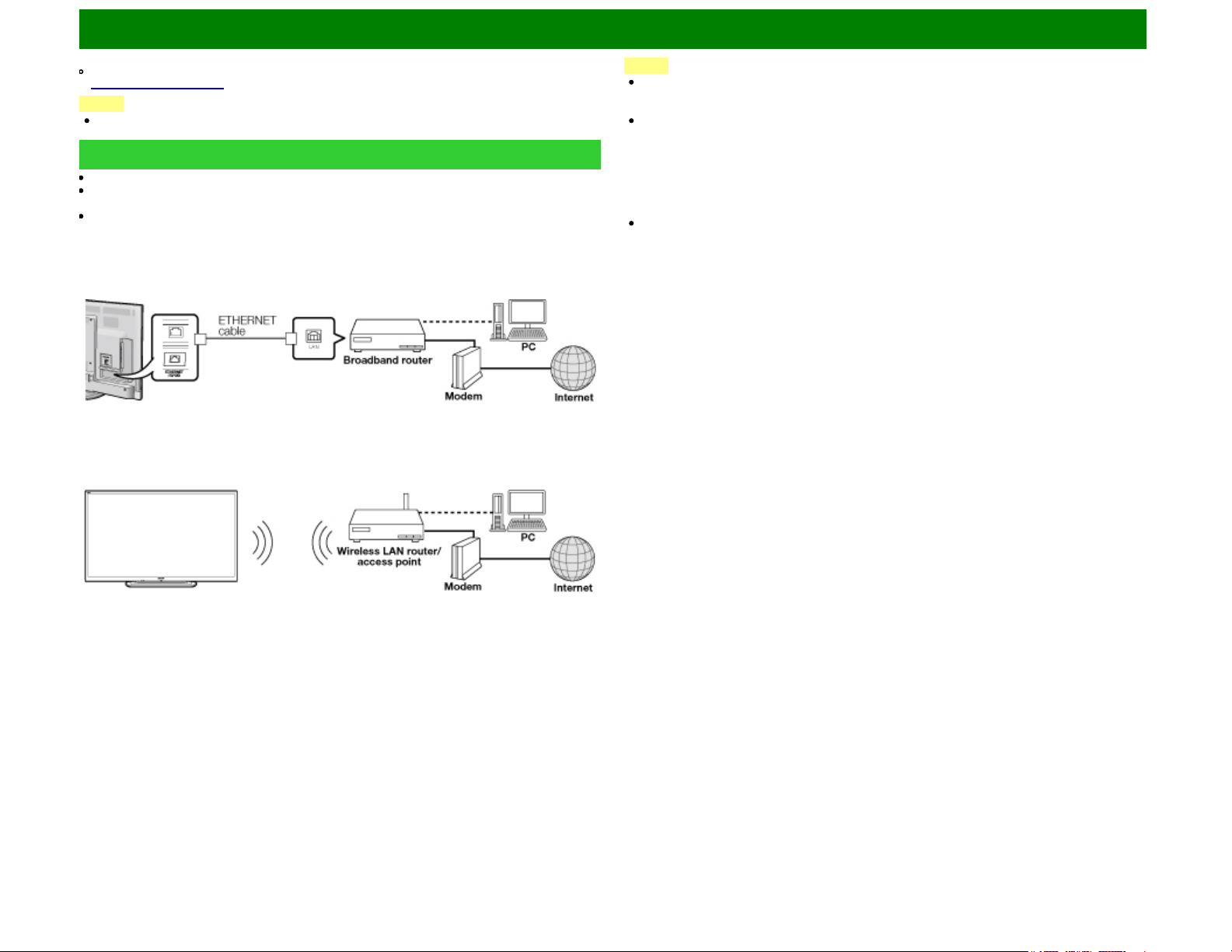
Using the Internet
By connecting your TV to a broadband system, you can access the Internet from the TV.
You can enjoy a variety of streaming content and Internet applications.
(See pages 9-12 to 9-14.)
NOTE
You may not be able to view 3D images when accessing the Internet. (For the UQ17U, TQ15U,
SQ17U, SQ15U, LE657U and UD1U models)
Connecting to the Internet
To connect your TV to the Internet, you must have a broadband Internet connection.
If you do not have a broadband Internet connection, consult the store where you purchased your
TV or ask your Internet service provider or telephone company.
When an Internet connection is made, an Ethernet and wireless connection cannot be used at the
same time. Use only one of the connection types.
Using an ETHERNET cable
Use an ETHERNET cable (commercially available) to connect the ETHERNET terminal on the TV to
your broadband router (commercially available).
Using the wireless LAN
This TV is equipped with a wireless LAN function.
For a wireless LAN connection, you must use "Wireless Setup" to connect the access point and TV.
NOTE
This TV has a built-in wireless LAN function. Using a separate wireless USB LAN adapter may
result in radio communications that do not comply with regulations on radio communications.
Therefore, do not use a separate wireless LAN adapter.
A wireless LAN connection and performance cannot be guaranteed for all residential
environments. In the following cases, the wireless LAN signal may be poor or drop, or the
connection speed may become slower.
- When used in buildings made with concrete, reinforced steel, or metal
- When placed near objects that obstruct the signal
- When used with other wireless devices that emit the same frequency
- When used in the vicinity of microwave ovens and other devices that emit a magnetic field,
electrostatic charge, or electromagnetic interference
When there is significant interference in the 2.4-GHz frequency (such as from other wireless LAN
devices, Bluetooth® devices, 2.4-GHz cordless telephones, and microwave ovens), it is
recommended that you use a wireless LAN router/access point that supports IEEE802.11a/n (5
GHz) and set the access point to transmit at 5 GHz. For setup details, see the operation manual
of your access point.
ENG 9-1
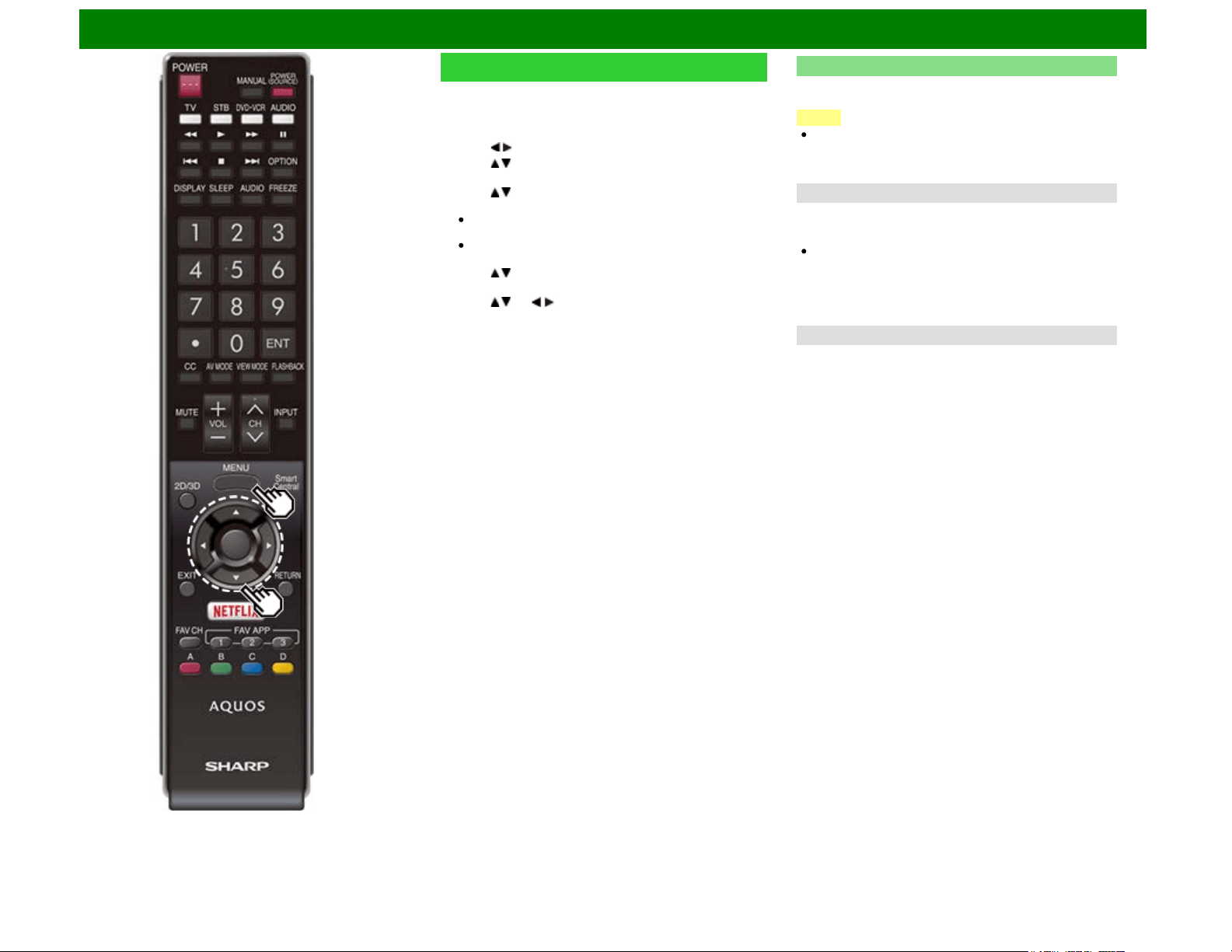
Using the Internet
Internet Setup
Perform the procedure below to make adjustments or to
confirm the settings for accessing the Internet.
1 Press MENU to display the MENU screen, and then press
ENTER.
2 Press / to select "Smart TV", and then press ENTER.
3 Press / to select "Internet Setup", and then press
ENTER.
4 Press / to select "Internet Connection" or "Interactive
Service", and then press ENTER.
Select "Internet Connection" when you make general
adjustments to connect to the Internet.
If you want to make settings to restrict access to the
Internet, then select "Interactive Service".
5 Press / to select a specific item, and then press
ENTER.
6 Press / (or / ) to select the desired setting, and then
press ENTER.
7 Press MENU to exit.
Internet Connection
You can connect your TV to the Internet using the setting item
"Internet Connection".
NOTE
On the UD1U model, you cannot operate the "Internet
Connection" function during 4K60P signal input. Operate
this function during the input of other types of signals
(such as Full HD).
Auto Setup
Adjustments for network connection will be made
automatically. Select "Wired" or "Wireless" and follow the
instructions displayed on the screen.
Automatic adjustments for wireless LAN connection can be
made only for the WPS method.
If your access point uses any other method, perform
"Manual Setup".
Select the desired connection method and follow the
instructions shown on the display.
Manual Setup
You can make adjustments manually for network connection.
Connection Type
Select the connection type.
Wired: The signal is detected and setup is performed
automatically. Use "IP Setup" to check and change the
settings as necessary.
Wireless: Configure the access point settings on "Wireless
Setup".
ENG 9-2
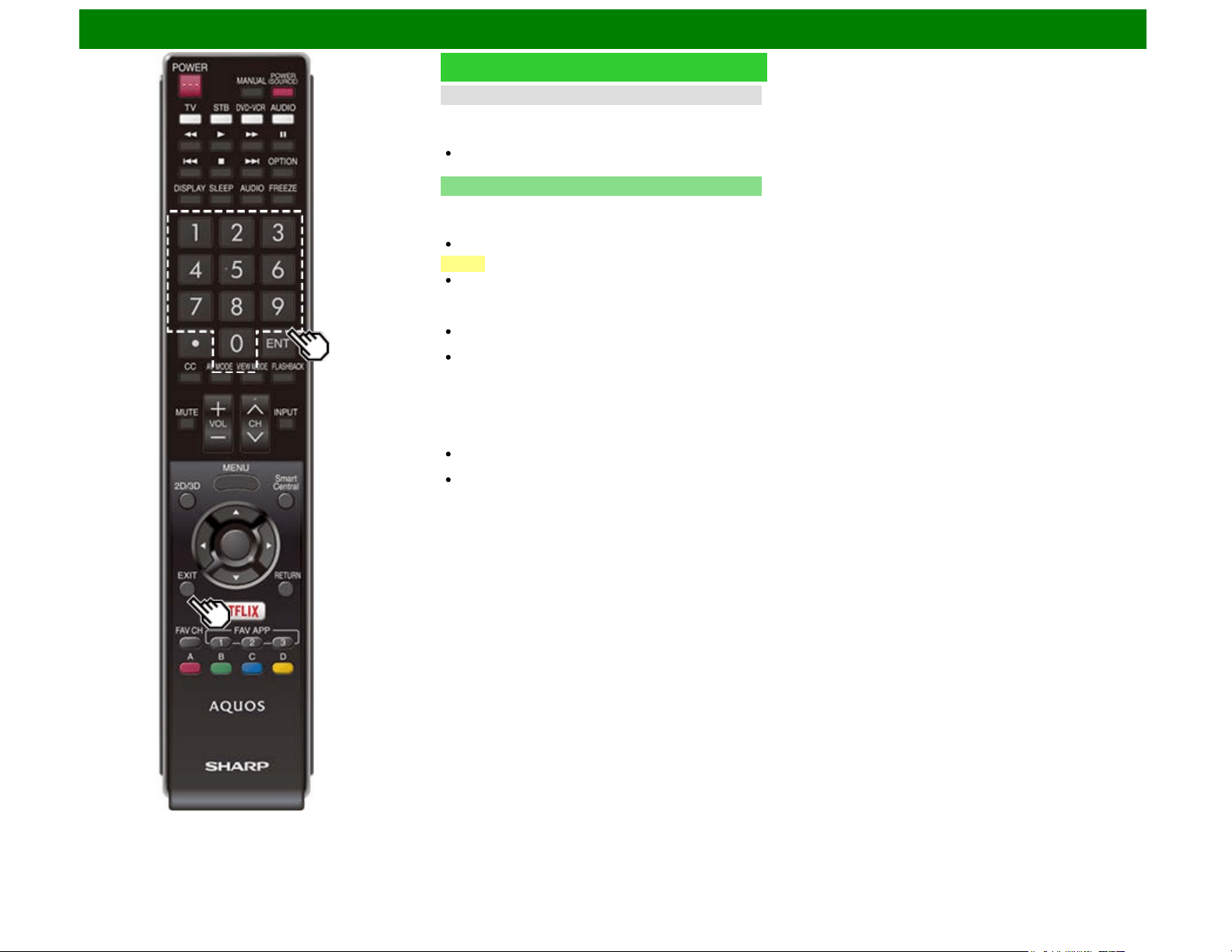
Using the Internet
Internet Setup (Continue)
Connection Test
After the connecting and setting procedures have been
completed, you can check that the preparation is correct.
Press "Yes" to start the "Connection Test".
When the test results are displayed, follow the instructions
shown on the screen.
Interactive Service
If you do not want other people to connect to the Internet in
your absence, you can make settings to keep the TV away
from the Internet.
Input the 4-digit secret number by using 0-9.
NOTE
If you have failed to connect to the Internet in the above
operation, then an error message will appear. In this case,
press EXIT to exit from the connected TV feature to make
changes to the network settings.
If you still cannot connect to the Internet, please consult
your Internet service provider or telephone company.
When an application is used, you cannot make settings for
"Internet Setup".
If you need to make the settings of "Internet Setup", press
EXIT to exit from the connected TV feature.
If you cannot connect to the Internet
If the TV fails to connect to the Internet, then select "Internet
Connection" and;
When the TV is in a wired LAN connection, make sure the
values for "IP Setup" are all correctly set.
In the case of a wireless LAN connection, check the
settings of "Wireless Setup".
ENG 9-4
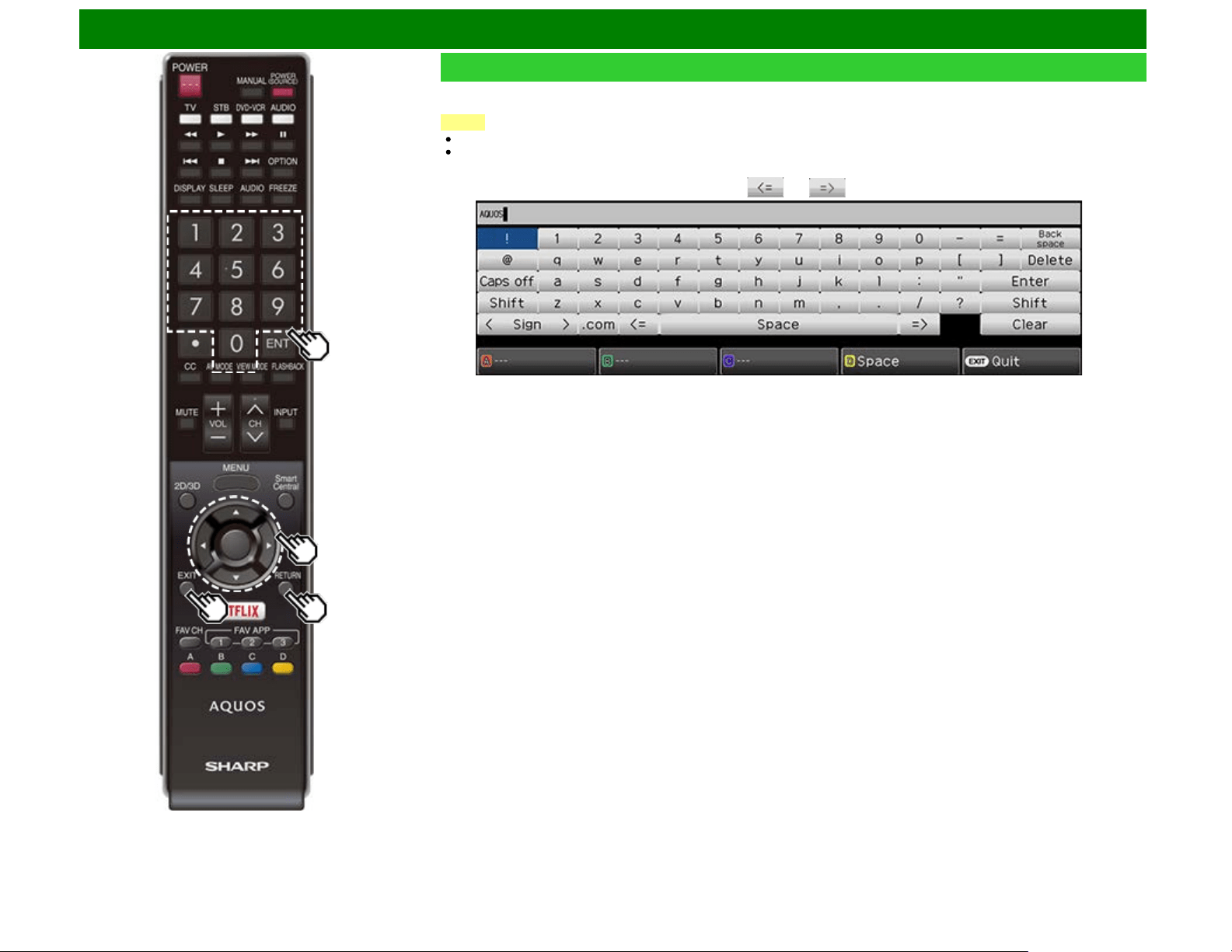
Using the Internet
Caps Off/Caps Lock
If "alphabet" is selected, this switches characters between
uppercase and lowercase.
Each time you press ENTER, the character type switches as
shown below:
Caps Off: all the characters are lowercased
Caps Lock: all the characters are uppercased
Shift
Capitalizes the first character entered.
alphabet/Sign
Press ENTER to select the type of characters entered:
alphabet, or sign.
Back space/Delete
Erases text one character at a time.
Entering Text (Software Keyboard)
When you are editing an input screen or specifying the Network settings used for accessing the Internet, enter text from the software
keyboard.
NOTE
You can enter up to 128 characters for text.
Some special characters or diacritics may not be available depending on where you enter the text.
ENG 9-5
The text you enter is displayed as you type it in.
To move the cursor (the current input position), use " " or " " on the software keyboard.
While you are entering text, likely input conversion candidates are displayed based on what you typed in.
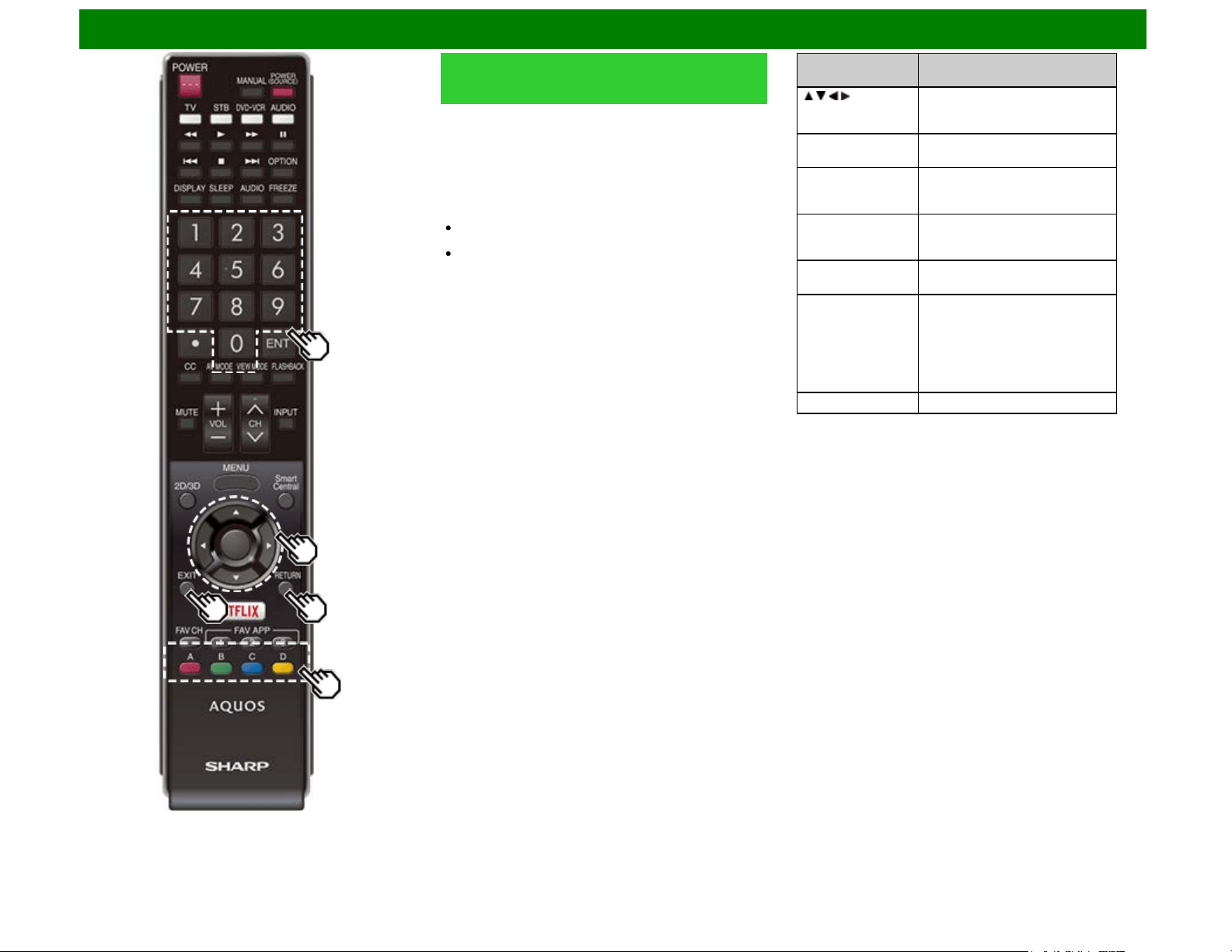
Using the Internet
Entering Text (Software Keyboard)
(Continue)
Enter
Applies the entered information and closes the software
keyboard.
Space
Enters a space.
Clear
Erases the character string.
When the cursor is somewhere in a line: the character
string to the right of the cursor will be erased.
When the cursor is at the right end of a line: the entire line
will be erased.
Quit
Closes the software keyboard without applying the entered
information.
Buttons on the
remote control unit
Description
/ / / Moves the focus. When moved at
the far edge, the focus moves to the
opposite edge.
ENTER Performs the processing for the
button currently in the focus.
EXIT Closes the software keyboard
without applying the original input
elements for the entered text.
RETURN When the cursor is at the end of a
sentence, this acts as a back
space.
0-9 Directly enters the single-byte
number for that button.
A, B, C When A, B or C is pressed on the
remote control while the characters
to be entered in the likely input
conversion candidate are displayed
in A, B or C on the keyboard, that
character string is entered into the
display field.
D Enters a space
ENG 9-6
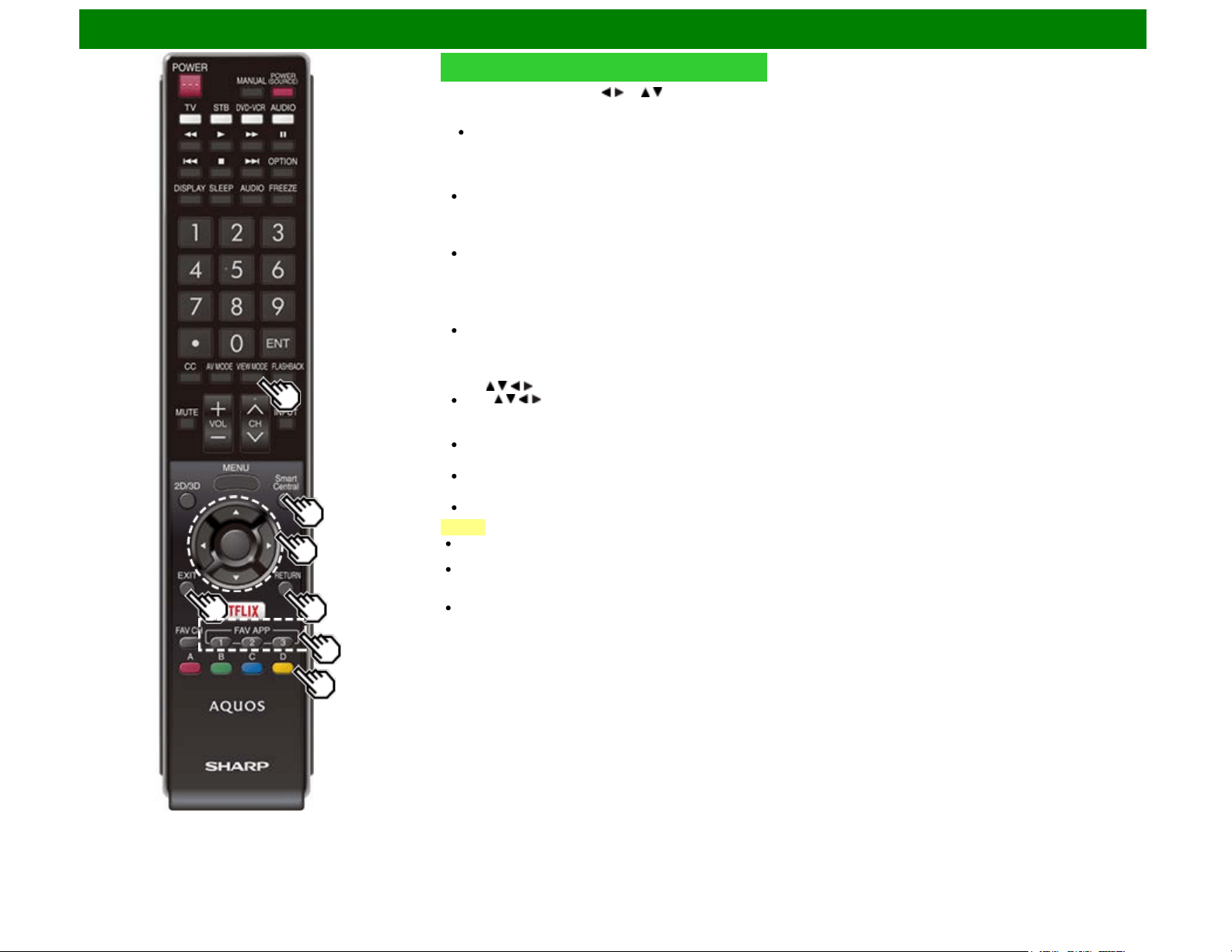
Using the Internet
Using the Browser
1 Press SmartCentral, press / (or / ) to select the
browser icon from the application window, and then press
ENTER.
Press SmartCentral again to display a list of
applications by category.
Buttons for Using the Browser
VIEW MODE
Each time you press VIEW MODE when a browser
screen is shown, the display pattern toggles between a
website-only screen and a TV+Web screen.
FAV APP1, 2, 3 (TV+Web)
You can change the screen display method when a Web
browser application is assigned to the FAV APP buttons.
Each time a FAV APP button assigned to a browser
application is pressed while a browser is open, the
screen switches between Web-site only screen and
TV+Web screen.
On the UD1U model, you cannot display the TV+Web
screen during 4K60P signal input.
Operate this function during the input of other types of
signals (such as Full HD).
ENTER, / / /
Press / / / to select a link that you want to jump, and
then press ENTER.
EXIT
Press the button to return to the TV screen.
RETURN
Press the button to return to the previous page.
D
Display the toolbar.
NOTE
You cannot play audio or movies in the browser screen
while a TV+Web screen is displayed.
When displaying TV+Web with a channel in which the V-
Chip is enabled, the cursor keys on the remote control unit
do not function.
Restrictions apply to window display.
ENG 9-7
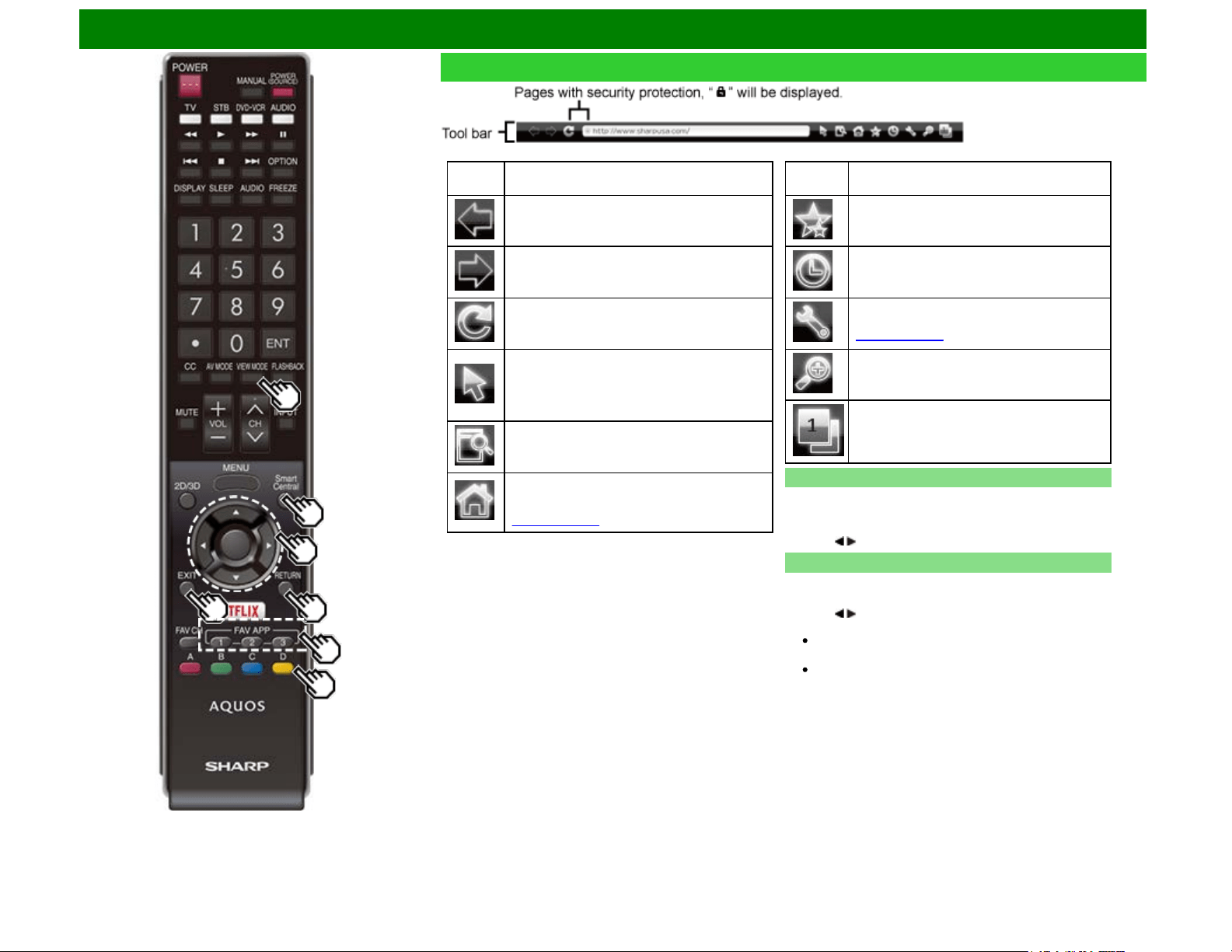
Using the Internet
Selected
item
Description
Allows you to go back to the previous page.
Allows you to go to the next page.
Refreshes the page.
Interrupts a page while it is loading.
Switches between virtual mouse and spatial
navigation modes. Switching modes also
switches the display.
Depending on the page displayed, switching this
function may make it easier to use the browser.
Opens a search window below the toolbar. You
can use this to search for a word within the
displayed page.
Displays the home page. You can set the page
displayed as your home page when the browser
starts up.
(See page 9-10.)
Selected
item
Description
Displays the bookmarks list.
Displays your browsing history.
Configures browser settings such as your home
page and browsing security.
(See page 9-10.)
Zooms the display in or out.
Restrictions apply to window display.
Using the Toolbar
You can use the toolbar to control the browser and to specify
settings.
1 Press D to control the toolbar.
2 Press / to select a function, and then press ENTER.
Browsing Web Contents
You can display the web content you want to enjoy.
1 Press D to display the toolbar.
2 Press / to move to the address area in the toolbar, and
then press ENTER.
The Enter Address menu is displayed.
3 Enter an address, and then press ENTER.
The web content you want to view is displayed.
Using the Browser (Continue)
ENG 9-8
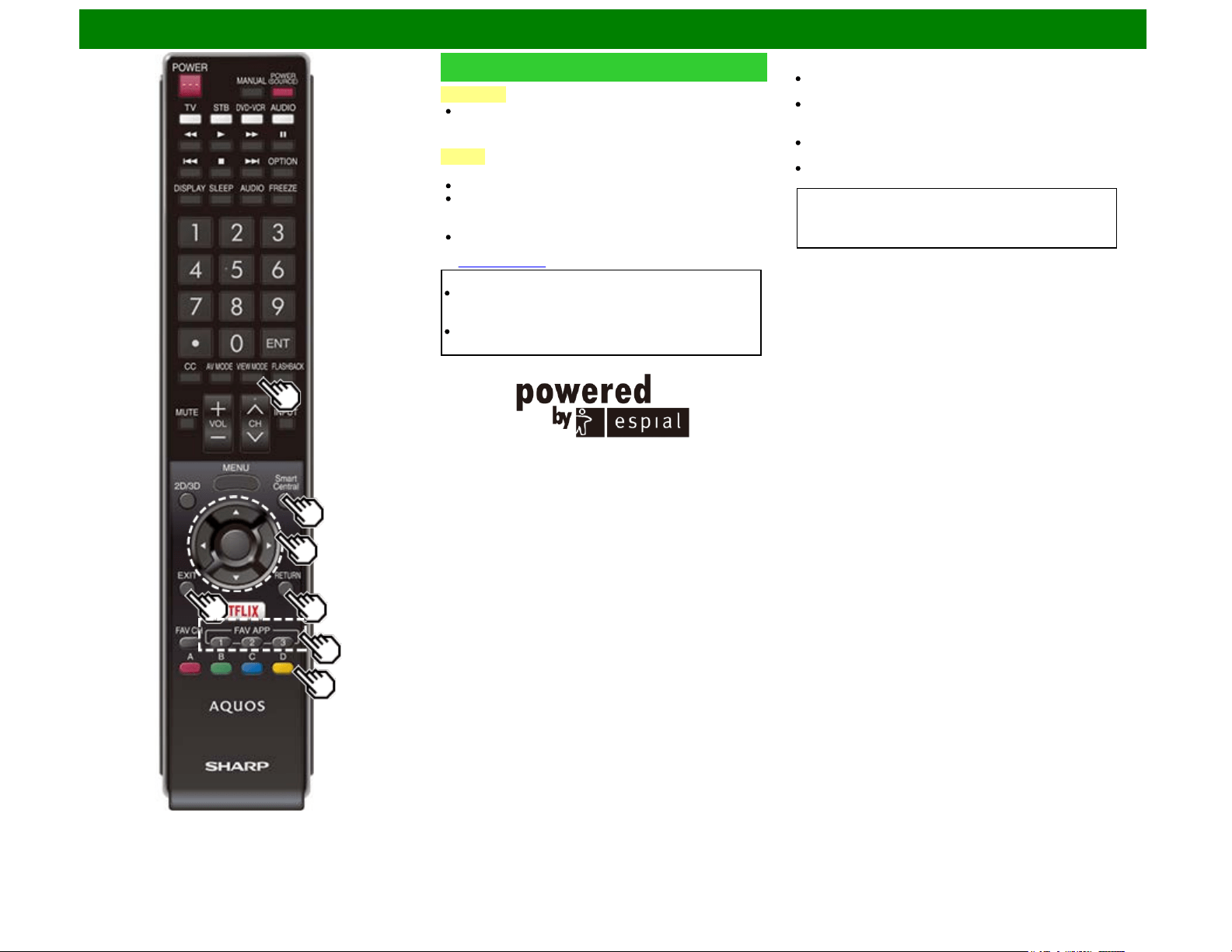
Using the Internet
Using the Browser (Continue)
CAUTION
If the power is cut due to a power failure or the TV being
unplugged while you are using the Internet, information
such as bookmarks or cookies may not be saved correctly.
NOTE
When a security notification window is displayed:
Press ENTER to close the window.
This window appears when you visit a web page that has
security protection, or when you move from a protected
page to an unprotected page.
In "Security" you can set whether or not this window is
displayed.
(See page 9-10.)
To users who access the Internet from a PC
When you access the Internet from this TV, the
procedures may not be the same as regular browser-
based access on a PC.
On some pages, video and audio, text or images may not
be displayed correctly.
http://www.espial.com
About links
Web pages on the Internet often include "links" that allow
you to jump to other web pages (or sites).
"Links" can take various forms, including words or images,
but they always work in the same way letting you jump to
the link destination when you select them.
Selected items (such as links of text input fields) are
enclosed in a frame.
You can jump from a "link" to the corresponding link
destination.
DISCLAIMERS
SHARP corporation bears no responsibility regarding the
content and quality of the content provided by the content
serve provider.
ENG 9-9
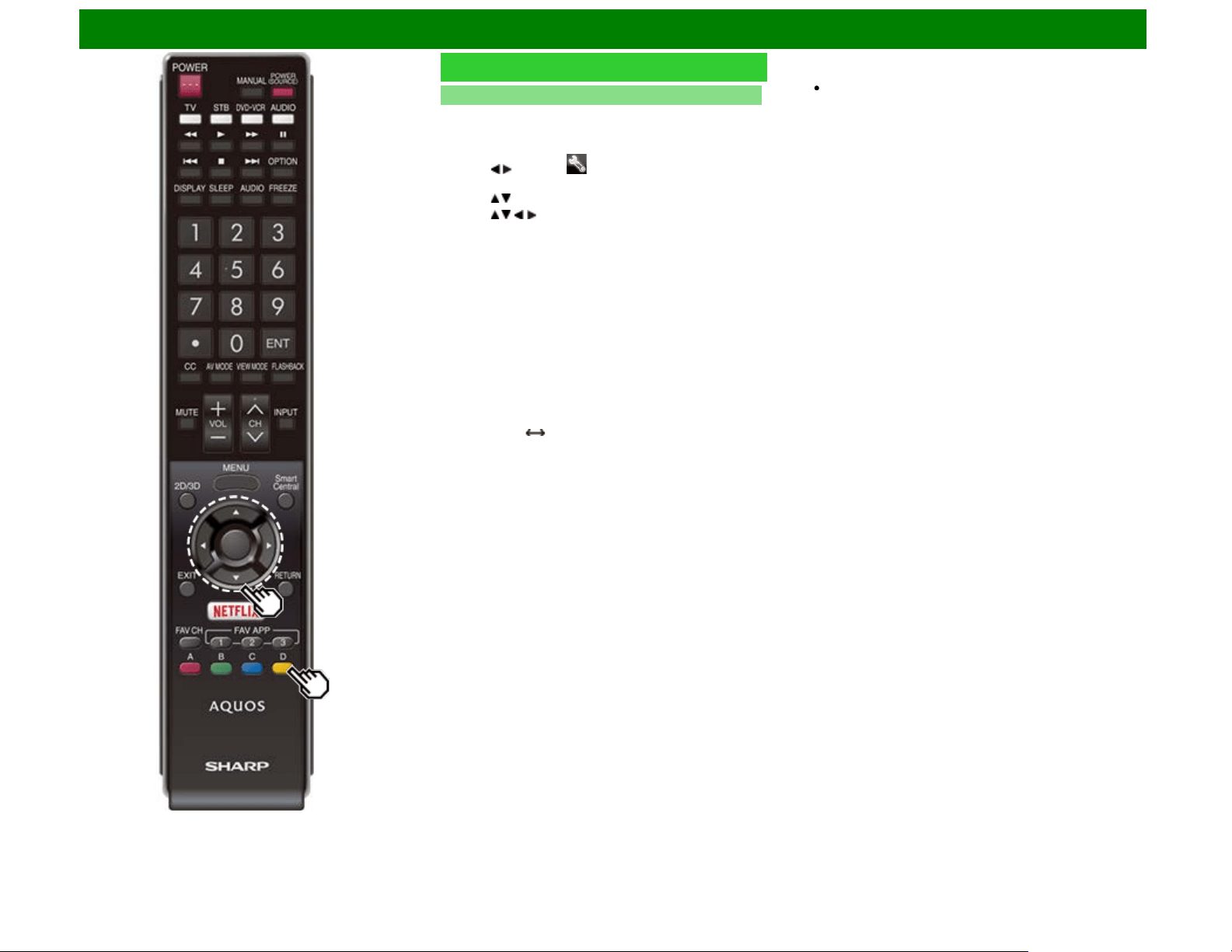
Using the Internet
Using the Browser (Continue)
Browser Settings
You can check or modify your browser settings from the
Browser menu.
1 Press D to display the toolbar.
2 Press / to select " " in the toolbar, and then press
ENTER.
3 Press / to select and confirm the item you want to set.
4 Press / / / to specify the required setting, and then
press ENTER.
5 Press D to exit.
Home Page: You can set the page displayed as your home
page when the browser starts up.
Encoding: You can select the desired encoding from the list
below:
Western (ISO-8859-1)/Unicode (UTF-8)
Page Information: Displays information about the currently
displayed page.
Security:
Secure sites:
When set to "Disabled", HTTPS sites cannot be accessed.
Security warnings:
When set to "Enabled", displays warning dialogs when
going HTTP HTTPS.
Certificates: Display the list of certificates. You can choose
to enable/disable a certificate.
Disable certificate are shown unticked in the certificate
list screen.
Cookies:
Accept all: Select this option to accept all cookies.
Reject all: Select this option when you do not want to
accept cookies.
Delete All Cookies: Deletes all your cookies.
ENG 9-10
Using the Internet
Using Keyboard and Mouse
You can use a keyboard or mouse for operating the TV while
using the browser.
When you use the USB devices, connect the device to the
USB terminal on the TV.
When you use the bluetooth device, make necessary
settings with "Bluetooth".
(See page 4-24.) (For the UQ17U, TQ15U, SQ17U,
SQ15U, SQ10U, LE657U and UD1U models)
NOTE
The keyboard and mouse can only be used on a browser
screen.
The keyboard or mouse may not operate properly
depending on the application being used.
The software keyboard cannot be used by the keyboard
and mouse connected via Bluetooth even on the browser
screen.
The bluetooth device may not operate properly depending
on the device being used.
ENG 9-11
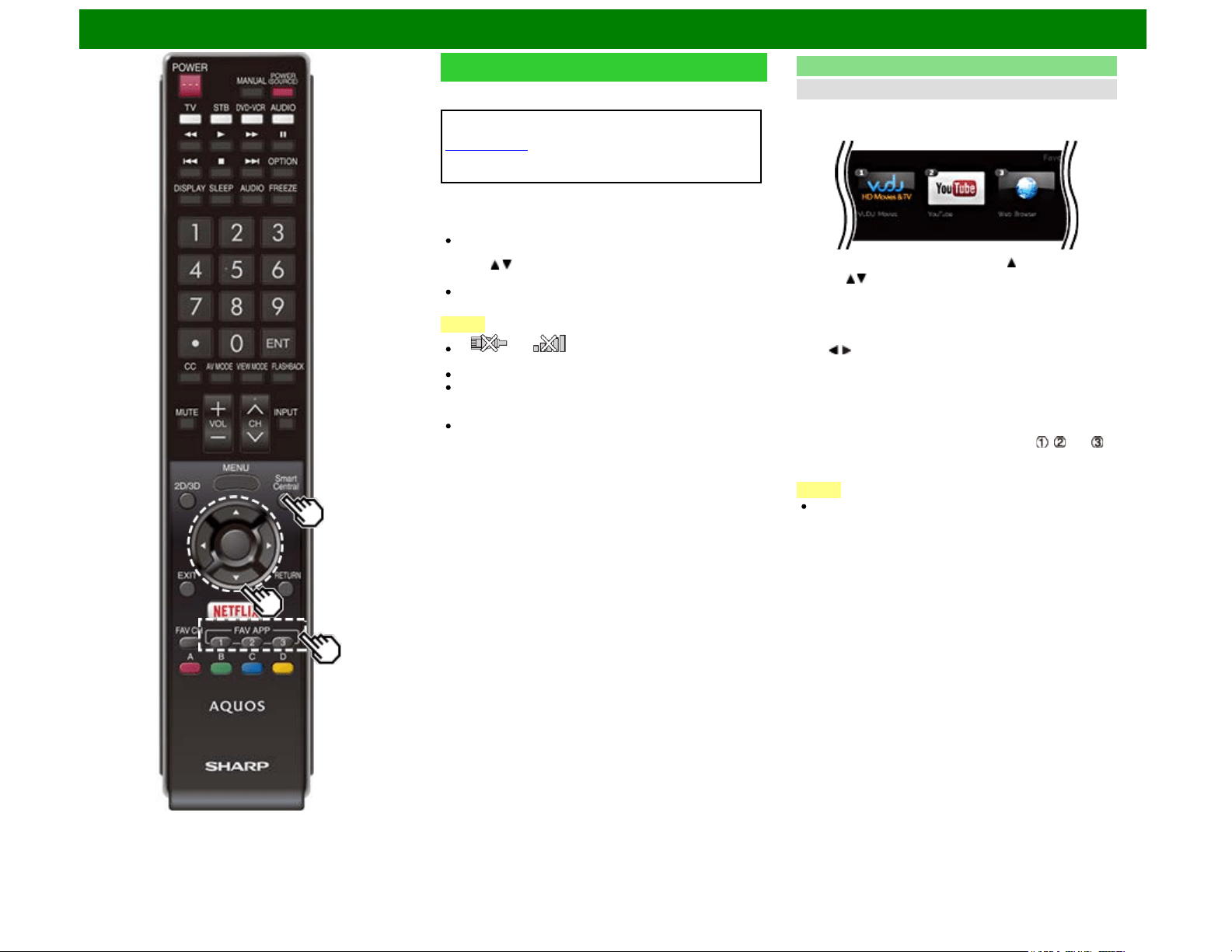
Using the Internet
Using Applications via the Internet
By connecting the TV to the Internet, you can enjoy a variety
of broadband content, including videos, music and photos.
Please check that the most current software is loaded on TV
by selecting "Auto Update Setting" on "Software Update"
(see page 4-32) or by visiting
http://www.sharpusa.com/products/support/
to check for a download of the newest software version.
Use the application window to access your favorite Internet
applications. Press SmartCentral to display the application
window.
Follow the on-screen instructions for each application.
When using this TV to access an Internet application for
the first time, the Disclaimer appears on the screen.
Press / to select "Agree", and then press ENTER. (You
must select "Agree" to use the application.)
Check the web site of the provider for details on setup and
use of the functions.
NOTE
If " " or " " is displayed after you connect to the
Internet, check your TV's network settings and connection.
Additional applications will be available in the future.
These applications are provided by content providers. The
available applications vary depending on your country or
region.
The delivery speed of applications varies depending on the
network speed. Check the web site of the provider for
details on application setup and other information.
Using the Application Window
During Dock Display
You can move the application icons and delete any unused
icons.
Example
1 Select an application, and then press .
2 Press / to select "Move App" or "Delete App", and then
press ENTER.
Move the Icons
You can move the icons of the more commonly used
applications closer to the left.
Press / to move the icon to the desired location.
Delete an Application
Select "Delete App" to delete the icon.
Saving Favorite Applications
You can set your favorite applications to the FAV APP1, 2,
and 3 buttons on the remote control for easier startup.
The applications whose icons are moved onto , and
during Dock Display will be assigned to the FAV APP 1, 2
and 3 buttons respectively.
NOTE
The SmartCentral icon cannot be moved or deleted.
ENG 9-12
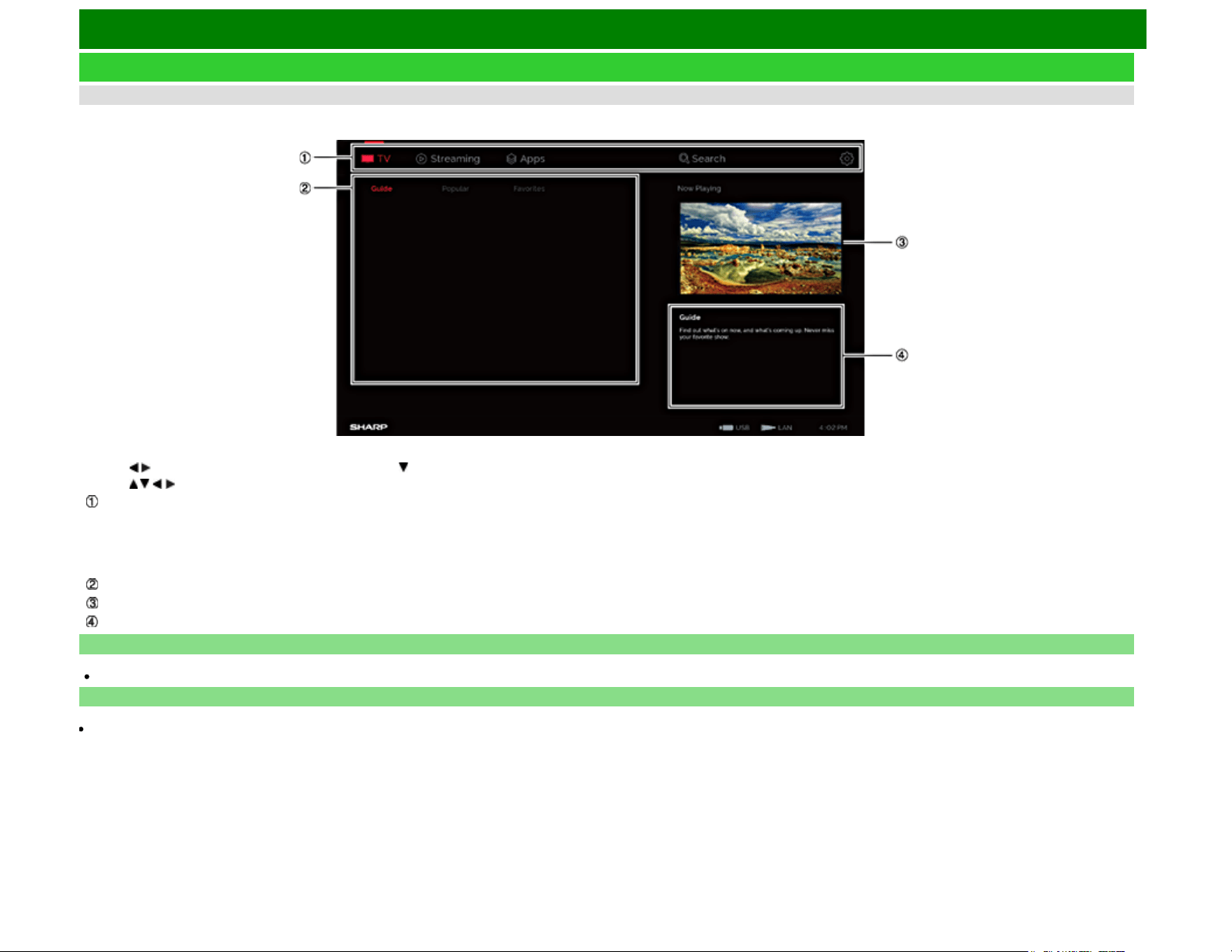
Using the Internet
Using Applications via the Internet (Continue)
During Gallery Display
During Dock display, press
SmartCentral again to display a list of applications by category.
1 Press / to select a category, and then press ENTER or .
2 Press / / / to select an application, and then press ENTER.
Displays the categories.
TV: Displays broadcast programs.
Streaming: Displays VOD content.
Apps: Displays various apps offered by AQUOS.
Search: Allows you to search broadcast programs and VOD.
Settings: Allows you to configure various settings for this function.
Displays a list of contents and applications for the selected category.
Displays the image now playing.
Provides a description of the selected item.
Deactivating Netflix Function
You can deactivate the Netflix function. Refer to "Information" > "Netflix Help" and select "Deactivate".
To confirm the Netflix status, check the information displayed on the screen and click "OK".
Deactivating the VUDU Function
To deactivate the VUDU function, refer to "Information" > "VUDU Help" and select "Yes".When you access the Internet application for the first time, the following appears.
This message is available only in English.
ENG 9-13
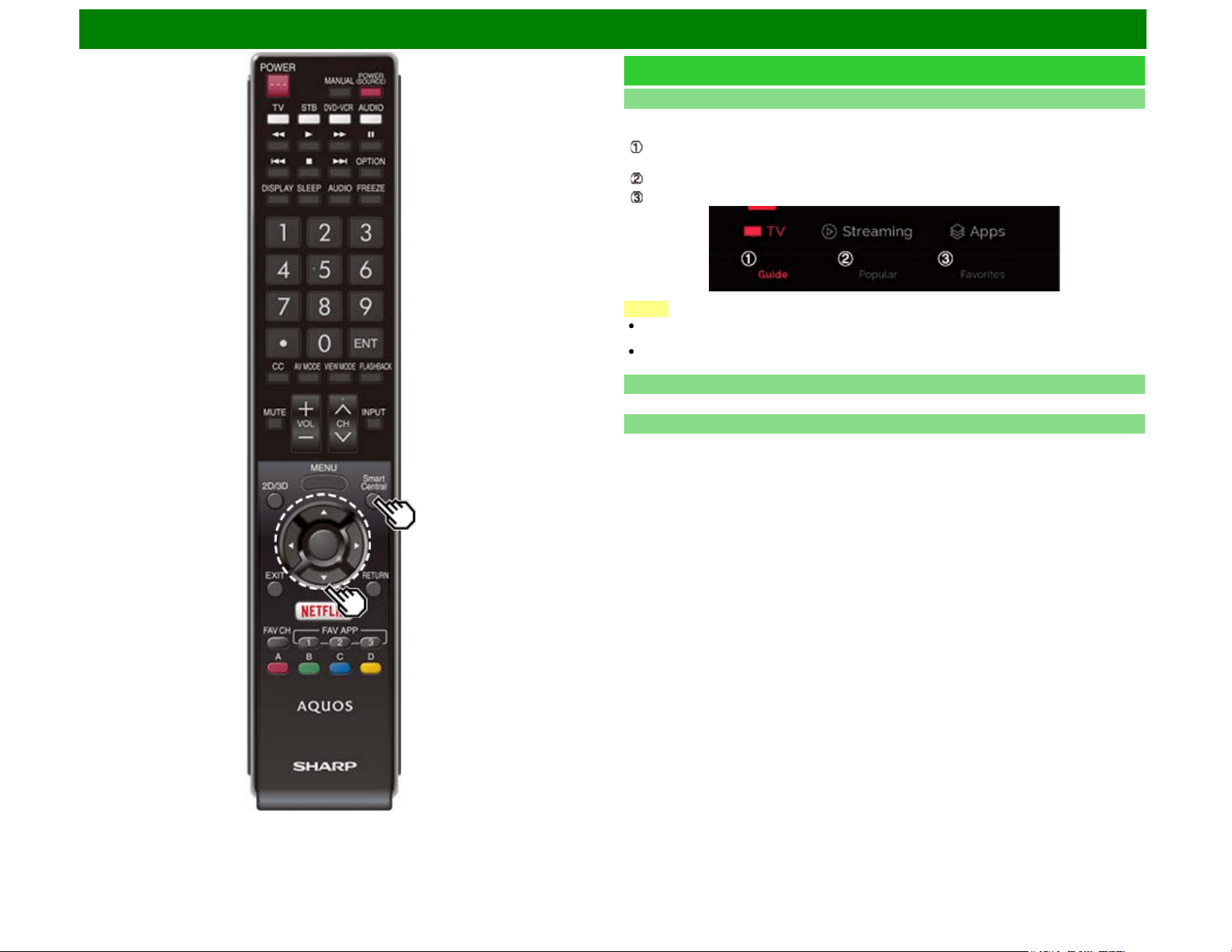
Using the Internet
Using Applications via the Internet (Continue)
SmartCentral TV/Streaming
When "TV" or "Streaming" is
selected on the SmartCentral screen, a list of broadcast programs or
VOD is
displayed.
(TV)Guide: Displays a list of all broadcast programs.
(Streaming)New: Displays a list of new content.
Popular: Displays popular programs.
Favorites: Displays programs/content sorted by favorite genre as set in Settings.
NOTE
To display broadcast programs, you must set your ZIP code and TV provider on the Settings
screen.
To display streaming content, you must select the apps on the Settings screen.
However, the set apps may not be displayed on the list depending on the region.
SmartCentral Search
You can search across broadcast programs and VOD.
AQUOS Advantage Live
When you select this app on the SmartCentral
screen, you can use the remote support function from
the support center and
display the network status.
ENG 9-14
Using the Internet
Notes
DISCLAIMERS
This SHARP device facilitates the access to content and services provided by third parties. The content and services accessible via this device belong to and may be proprietary to third parties.
Therefore, any use of such third party content and services must be in accordance with any authorization or terms of use provided by such content or service provider. SHARP shall not be liable to you
or any third party for your failure to abide by such authorization or terms of use. Unless otherwise specifically authorized by the applicable content or service provider, all third party content and services
provided are for personal and non-commercial use; you may not modify, copy, distribute, transmit, display, perform, reproduce, upload, publish, license, create derivative works from, transfer or sell in
any manner or medium any content or services available via this device.
SHARP is not responsible, nor liable, for customer service-related issues related to the third party content or services. Any questions, comments or service-related inquiries relating to the third party
content or service should be made directly to the applicable content or service provider.
You may not be able to access content or services from the device for a variety of reasons which may be unrelated to the device itself, including, but not limited to, power failure, other Internet
connection, or failure to configure your device properly. SHARP, its directors, officers, employees, agents, contractors and affiliates shall not be liable to you or any third party with respect to such
failures or maintenance outages, regardless of cause or whether or not it could have been avoided.
ALL THIRD PARTY CONTENT OR SERVICES ACCESSIBLE VIA THIS DEVICE IS PROVIDED TO YOU ON AN "AS-IS" AND "AS AVAILABLE" BASIS AND SHARP AND ITS AFFILIATES MAKE NO
WARRANTY OR REPRESENTATION OF ANY KIND TO YOU, EITHER EXPRESS OR IMPLIED, INCLUDING, WITHOUT LIMITATION, ANY WARRANTIES OF MERCHANTABILITY, NON-
INFRINGEMENT, FITNESS FOR A PARTICULAR PURPOSE OR ANY WARRANTIES OF SUITABILITY, AVAILABILITY, ACCURACY, COMPLETENESS, SECURITY, TITLE, USEFULNESS, LACK
OF NEGLIGENCE OR ERROR-FREE OR UNINTERRUPTED OPERATION OR USE OF THE CONTENT OR SERVICES PROVIDED TO YOU OR THAT THE CONTENT OR SERVICES WILL MEET
YOUR REQUIREMENTS OR EXPECTATIONS.
SHARP IS NOT AN AGENT OF AND ASSUMES NO RESPONSIBILITY FOR THE ACTS OR OMISSIONS OF THIRD PARTY CONTENT OR SERVICE PROVIDERS, NOR ANY ASPECT OF THE
CONTENT OR SERVICE RELATED TO SUCH THIRD PARTY PROVIDERS.
IN NO EVENT WILL SHARP AND/OR ITS AFFILIATES BE LIABLE TO YOU OR ANY THIRD PARTY FOR ANY DIRECT, INDIRECT, SPECIAL, INCIDENTAL, PUNITIVE, CONSEQUENTIAL OR
OTHER DAMAGES, WHETHER THE THEORY OF LIABILITY IS BASED ON CONTRACT, TORT, NEGLIGENCE, BREACH OF WARRANTY, STRICT LIABILITY OR OTHERWISE AND WHETHER
OR NOT SHARP AND/OR ITS AFFILIATES HAVE BEEN ADVISED OF THE POSSIBILITY OF SUCH DAMAGES.
Examples of Application Logos
ENG 9-15
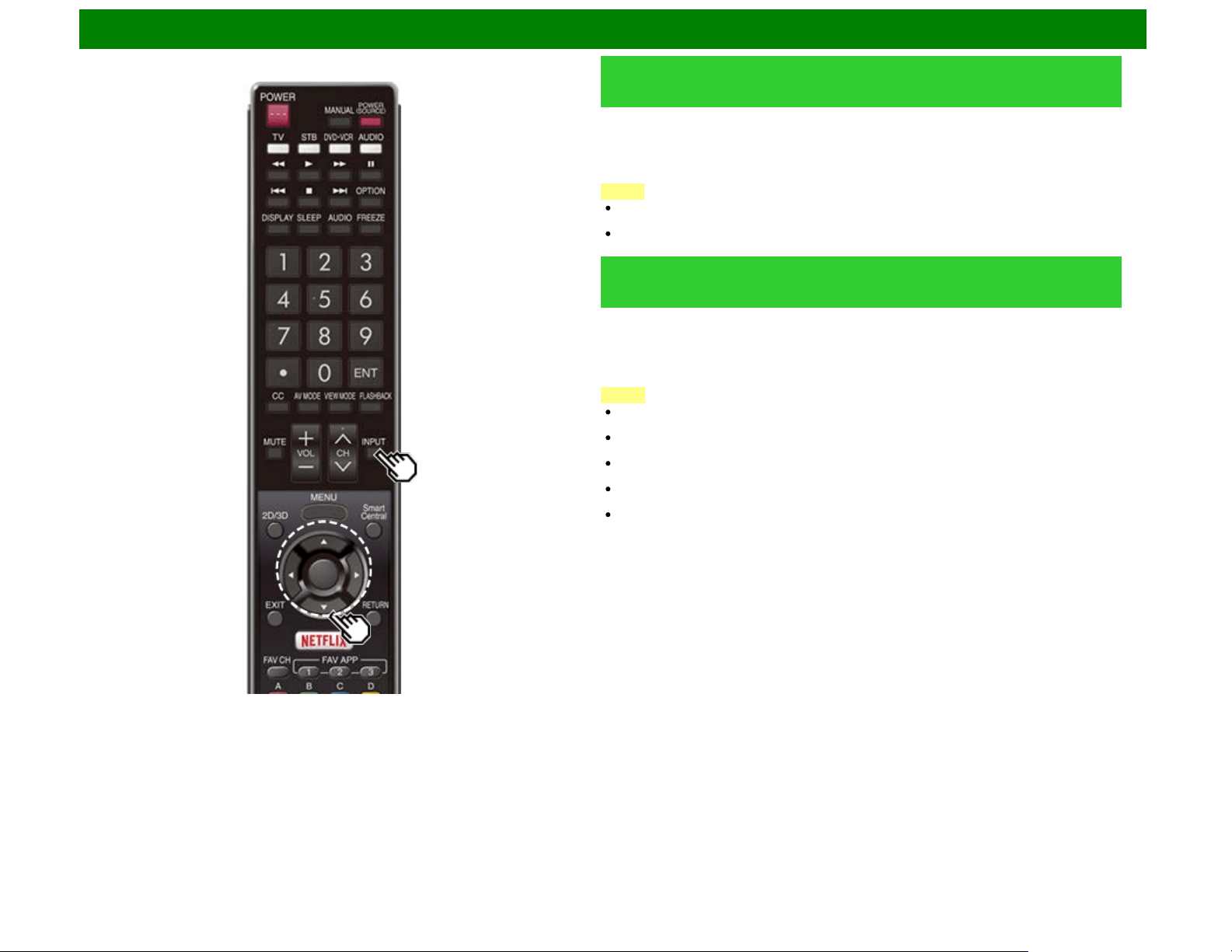
Using the Bluetooth/Miracast devices
Bluetooth devices (For the UQ17U, TQ15U, SQ17U, SQ15U,
SQ10U, LE657U and UD1U models)
You can listen to music from your TV when you connect a smartphone or other Bluetooth music
player to your TV.
And when "Quick Start Mode" is set to "ON", you can also turn on your TV with a Bluetooth signal.
(The TV automatically goes to the Bluetooth Music playback screen)
1 Switch the TV input to "Bluetooth".
NOTE
Before using a Bluetooth device, you must pair it to the TV with "Menu" > "Smart TV" >
"Bluetooth" > "Pairing New Device" > "Other Devices Setting".
When the Bluetooth device is connected to the TV over a wireless LAN, Bluetooth audio may be
interrupted depending on the status of the TV's connection to the access point.
Miracast devices (For the UQ17U, TQ15U, SQ17U, SQ15U,
SQ10U, EQ10U and UD1U models)
When you connect a device such as a Miracast-compatible smartphone or tablet to this TV, you can
enjoy video and audio from the device on the TV's large screen and speakers.
1 Switch the TV input to "Screen Sharing".
2 Enable the Miracast function on the Miracast device and connect to the TV.
(The TV screen changes according to the behavior of the device)
NOTE
When the TV is turned off or the connection is ended on the device, you must connect the device
again.
When connecting using a PIN code, first select the corresponding menu on the "Miracast Screen
Sharing" menu, and then perform the operations from step 1.
If you want to specify the preferred band to use with this function, select the corresponding menu
on the "Miracast Screen Sharing" menu.
For details about the operation of the Miracast-compatible device, check the manual for that
device.
When the Miracast device is connected to the TV over a wireless LAN, Miracast video may be
distorted and Miracast audio may be interrupted depending on the status of the TV's connection
to the access point.
ENG 10-1
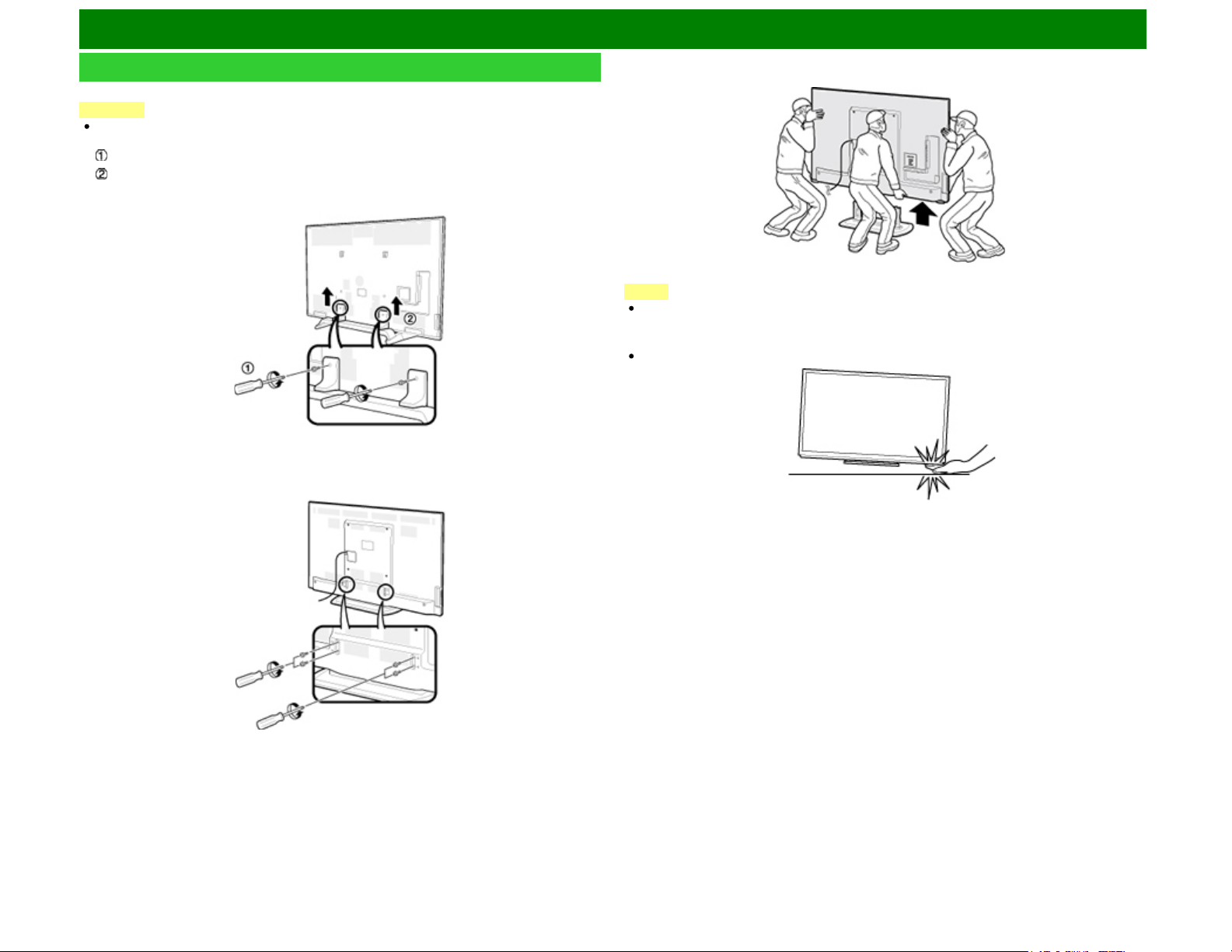
Appendix
Removing the Stand
Before detaching (or attaching) the stand, make sure to turn off the TV and unplug the AC cord.
CAUTION
Do not remove the stand from the TV unless using an optional wall mount bracket to
mount it.
1 Loosen the screw(s) used to secure the stand cover.
Remove the cover.
Example
2 Unfasten the four screws used to secure the stand in place.
Example
3 Detach the stand from the TV.
NOTE
Be sure to always carry the TV by two people (90/80 inch models: three people) holding it with
two hands.
In the installation procedure, be careful not to catch your fingers between the TV set and the floor.
ENG 11-1
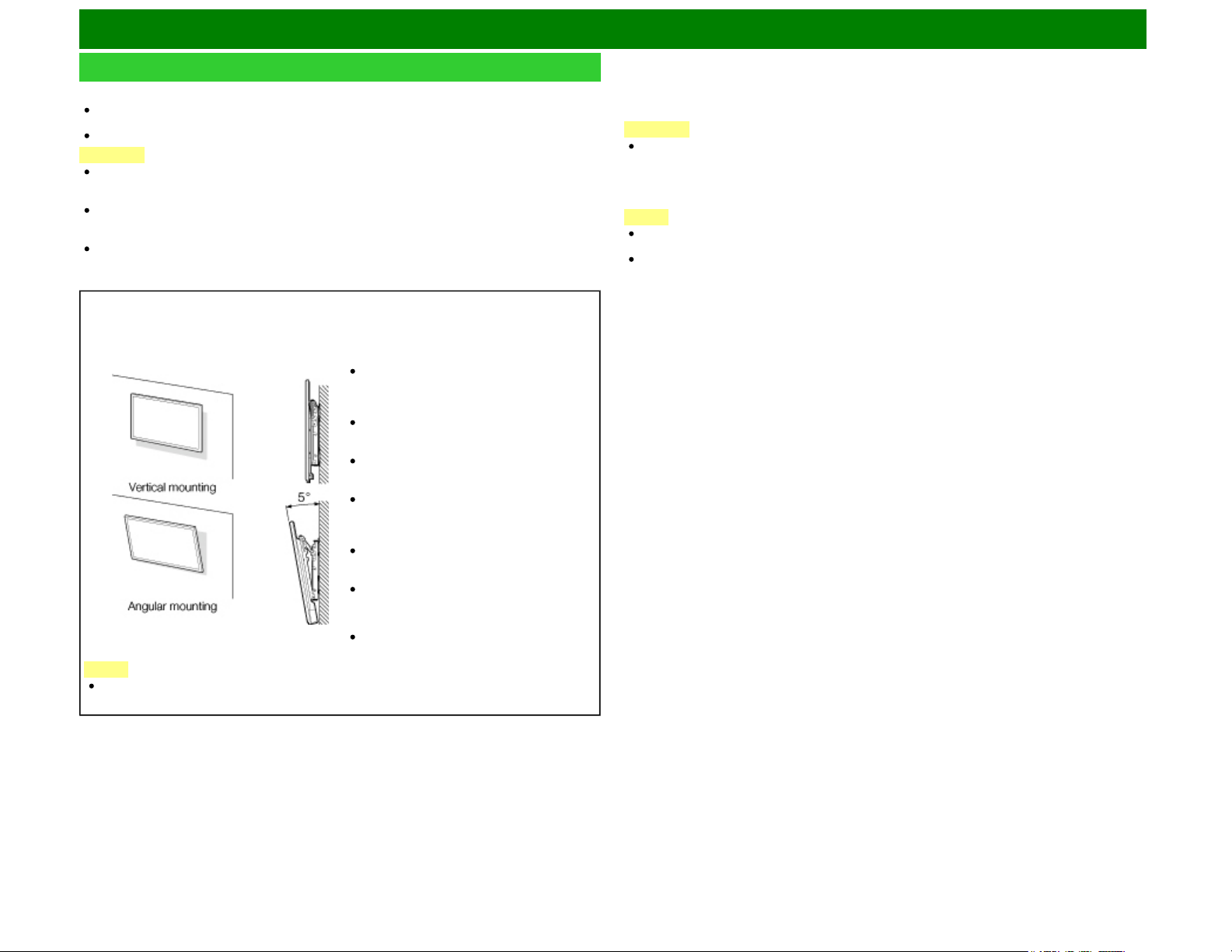
Appendix
Setting the TV on the Wall
Using an optional bracket to mount the TV
You can ask a qualified service professional about using an optional AN-52AG4 bracket to mount
the TV on the wall.
Carefully read the instructions that come with the bracket before beginning work.
CAUTION
This TV should be mounted on the wall only with the wall mount bracket AN-52AG4
(SHARP). The use of other wall mount brackets may result in an unstable installation and
may cause serious injuries.
Installing the TV requires special skill that should only be performed by qualified service
personnel. Customers should not attempt to do the work themselves. SHARP bears no
responsibility for improper mounting or mounting that results in accident or injury.
Use commercially available wall mount brackets with the 80/90 inch models and with the
UD1U.
Hanging on the wall
AN-52AG4 wall mount bracket.
(See the bracket instructions for
details.)
Hanging on the wall
AN-52AG4
LC-70UQ17U/LC-70TQ15U
The "c" position is at the center of the
display.
LC-70SQ17U/LC-70SQ15U/LC-70SQ10U/LC-
70EQ10
The canter of display : 7/16 inch (11mm)
above the "c" position.
LC-70LE650U/LC-70C6500U
The canter of display : 25/64 inch (10mm)
above the "c" position.
LC-60UQ17U/LC-60TQ15U
The "c" position is at the center of the
display.
LC-60SQ17U/LC-60SQ15U/LC-60SQ10U/LC-
60EQ10U
The canter of display : 1/4 inch (6mm) above
the "e" position.
LC-60LE650U/LC-60C6500U
The "e" position is at the center of the
display.
Refer to the operation manual of AN-52AG4
for details.
NOTE
The UQ and TQ series cannot be mounted on a wall at an angle.
The wall mount kit (sold separately) allows you to mount the TV on the wall.
For detailed information on installing the wall mount, see the instructions provided with the product.
We recommend you to contact a technician for assistance when installing it.
SHARP is not responsible for any damage to the product or injury to yourself or others if you elect to
install the wall mount on your own.
CAUTION
Install your wall mount on a solid wall perpendicular to the floor.
When you want to attach the wall mount to surfaces other than plaster board, please
contact your nearest retailer/adviser for additional information. If you install the TV on a
ceiling or slanted wall, it may fall and result in severe personal injury. Always have two
people mount the TV on a wall.
NOTE
Due to the terminal configuration on this TV, when you wall-mount this model, make sure there is
enough space between the wall and the TV for the cables.
To use this TV mounted on a wall, remove the AC cord holder on the rear of the TV, and then use
the screws supplied with the wall mount bracket to secure the bracket to the rear of the TV.
ENG 11-2
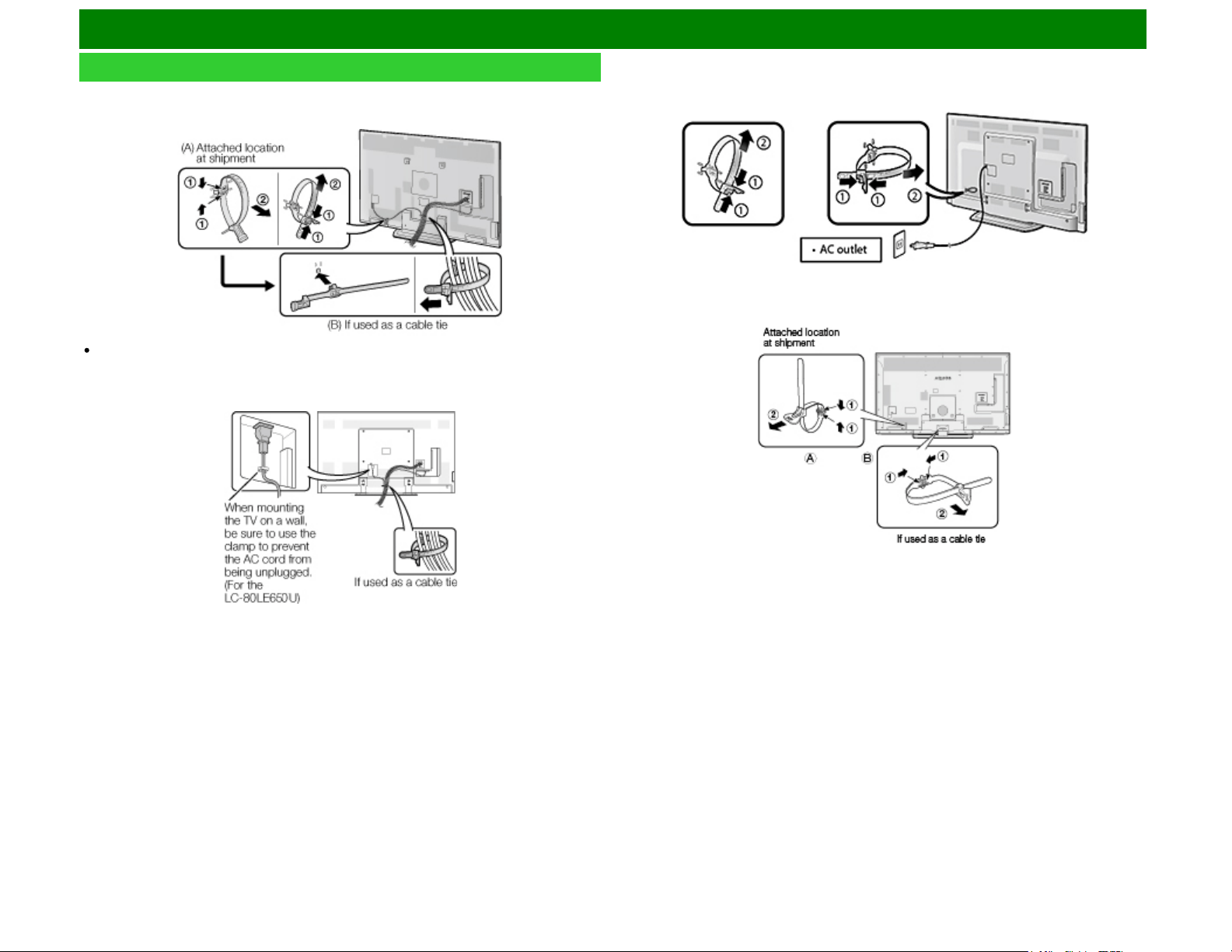
Appendix
Setting the TV on the Wall(Continue)
LC-70UQ17U/LC-70TQ15U/LC-70SQ17U/LC-70SQ15U/LC-70SQ10U/
LC-70EQ10U/LC-60UQ17U/LC-60TQ15U/LC-60SQ17U/LC-60SQ15U/
LC-60SQ10U/LC-60EQ10U
The location of the AC cord holder differs depending on whether it is in its shipment location (A)or
has been used as a cable tie (B).
LC-80UQ17U/LC-80LE650U/LC-90LE657U/LC-80LE642U
LC-70LE650U/LC-70C6500U/LC-60LE650U/LC-60C6500U
LC-70UD1U
ENG 11-3
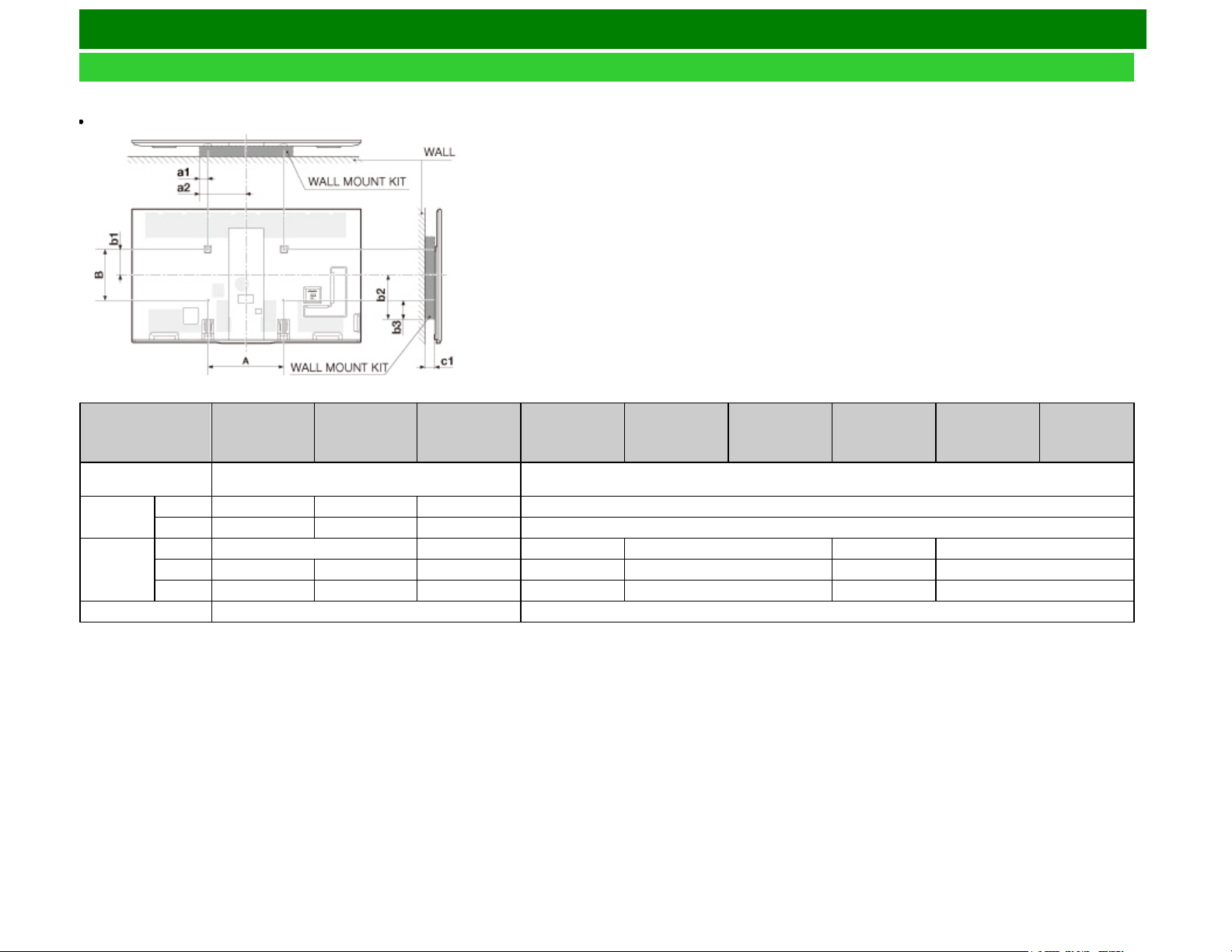
Appendix
Setting the TV on the Wall(Continue)
Wall Mount Kit Specifications
Standard dimensions for wall mount kits are shown below.
The illustration is based on the LC-80UQ17U model as an example.
LC-90LE657U
LC-80LE642U
LC-80UQ17U LC-80LE650U
LC-70UQ17U
LC-70TQ15U
LC-70UD1U
LC-70SQ17U
LC-70SQ15U
LC-70SQ10U
LC-70EQ10U
LC-70LE650U
LC-70C6500U
LC-60UQ17U
LC-60TQ15U
LC-60SQ17U
LC-60SQ15U
LC-60SQ10U
LC-60EQ10U
LC-60LE650U
LC-60C6500U
VESA screw
hole specs (A-B)
23 5/8 (600) - 15 3/4 (400) 15 3/4 (400) - 15 3/4(400)
Width
a1 1 37/64 (40) 2 61/64 (75) 1 37/64 (40) 2 61/64 (75)
a2 13 25/64 (340) 14 49/64 (375) 13 25/64 (340) 10 27/32 (275)
Height
b1 7 7/8 (200) 10 41/64 (270) 7 7/8 (200) 7 31/64 (190) 7 7/8 (200) 9 1/16 (230)
b2 14 49/64 (375) 13 19/32 (345) 11 1/32 (280) 14 11/64 (360) 10 41/64 (270) 12 39/64 (320) 9 1/16 (230)
b3 6 57/64 (175) 5 23/32 (145) 5 59/64 (150) 6 5/16 (160) 2 3/8 (60) 4 47/64 (120) 2 3/8 (60)
c1 3 5/32 (80) 2 49/64 (70)
ENG 11-4
a1: Maximum distance from the mounting hole
a2: Maximum distance from the TV's center
b1: Distance between the TV's center and the mounting hole
b2: Maximum distance from the TV's center
b3: Maximum distance from the mounting hole
c1: Minimum gap
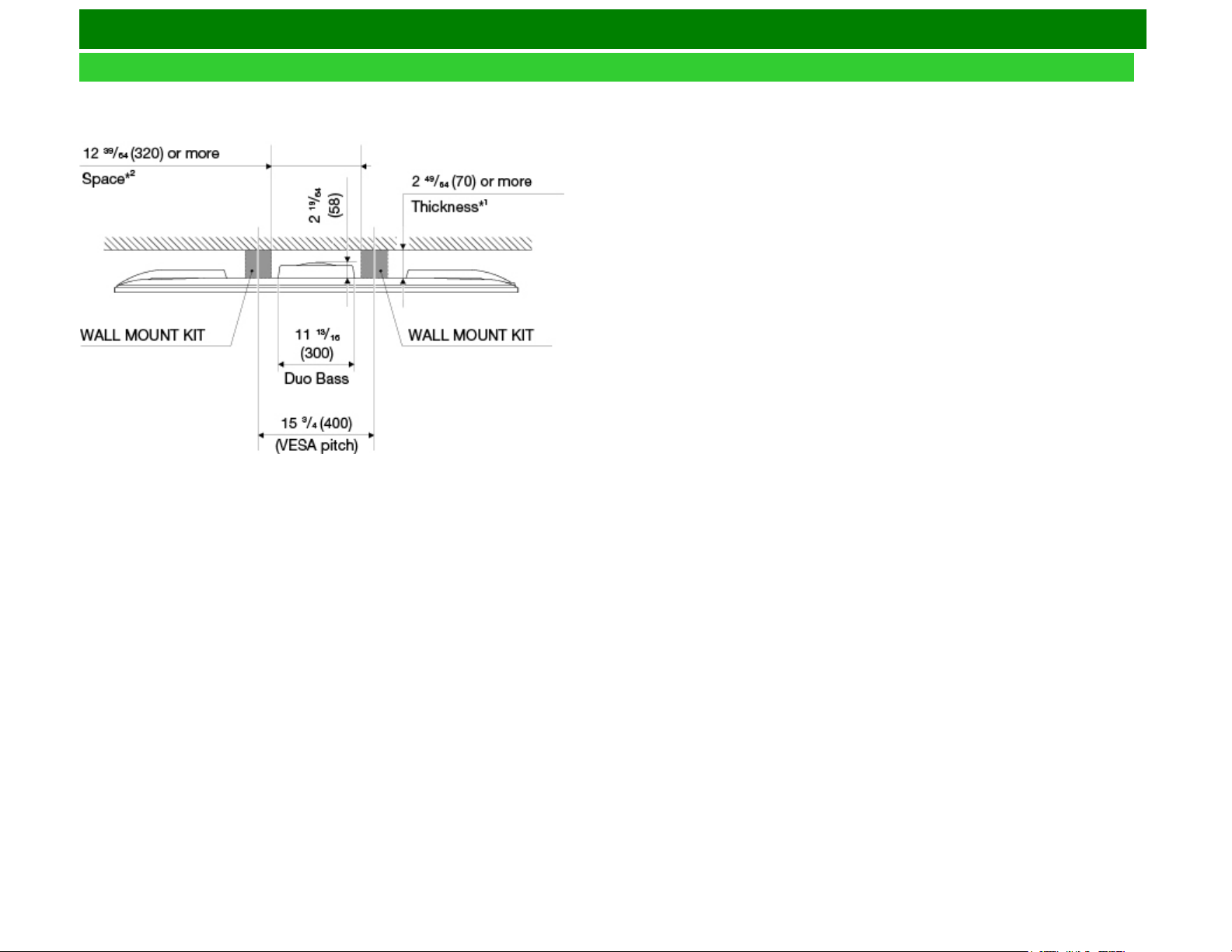
Appendix
Setting the TV on the Wall(Continue)
Wall Mount Kit Specifications (For the UD1U model)
When mounting your TV on a wall, avoid that the DuoBass unit on the rear does not come in contact with the wall. Use a Wall Mount Kit with bracket thickness*1 of 2 49/64 inches (70 mm) or more and
inter-bracket space*2 of 12 39/64 inches (320 mm) or more.
ENG 11-5
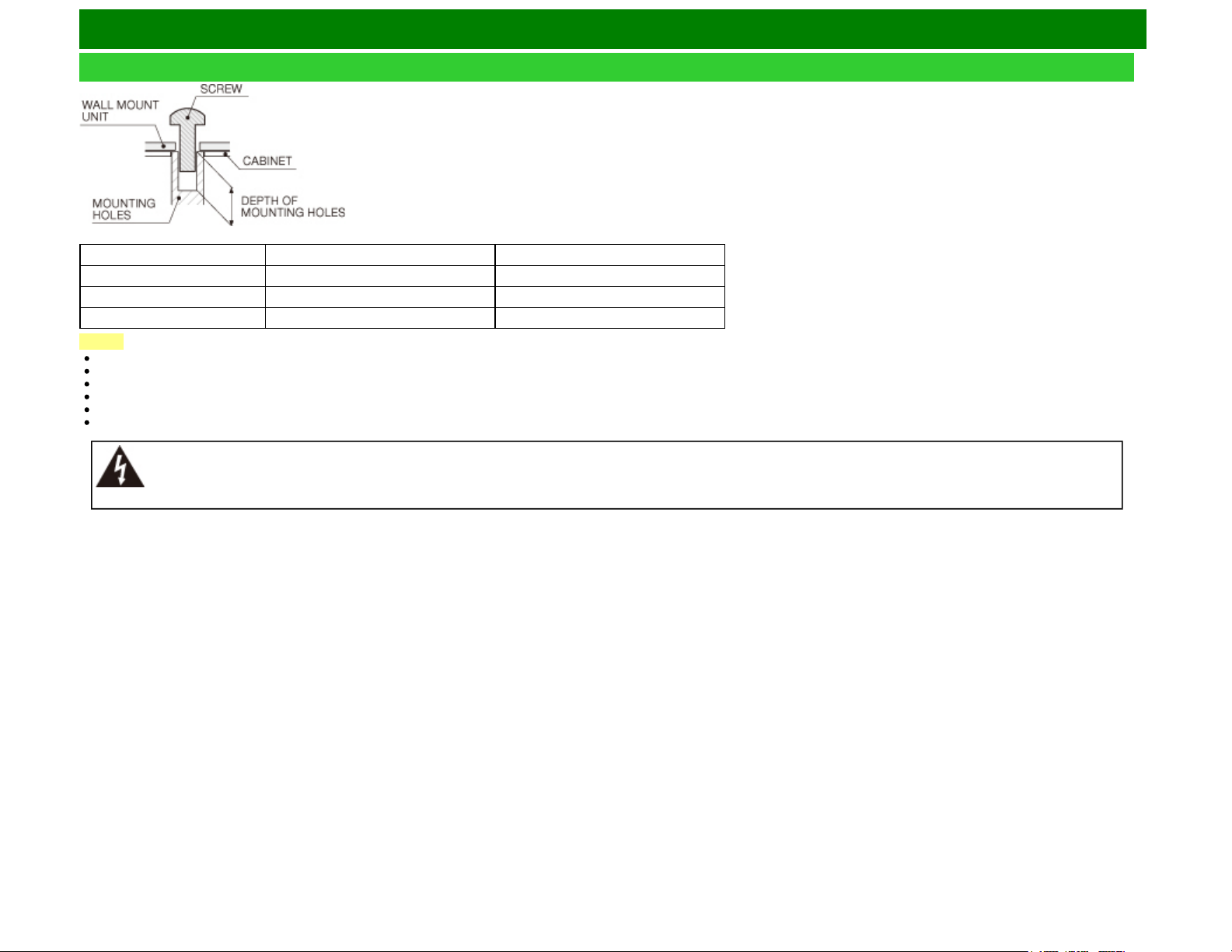
Appendix
Setting the TV on the Wall(Continue)
For the screws, refer to the table shown below.
90/80 inch models 70/60 inch models
Standard screws M8 (Use 1.25 pitch screws.) M6 (Use 1.0 pitch screws.)
Length(Depth of mounting holes) 15/32 (12) 15/32 (12)
Quantity 4 pcs. 4 pcs.
NOTE
Do not mount the TV at a tilt.
To use this TV mounted on a wall, remove the cable tie as needed.
Do not use screws that do not comply with the VESA standard screw specifications.
Do not use screws that are longer than the standard length. Screws that are too long may cause damage to the inside of the TV.
Do not fasten the screws too firmly or loosely. This may damage the product or cause the product to fall, leading to personal injury. SHARP is not liable for these kinds of accidents.
SHARP is not liable for product damage or personal injury when a non-VESA or non-specified wall mount is used or the consumer fails to follow the product installation instructions.
Do not install the wall mount kit while your TV is turned on. It may result in personal injury due to electric shock.
ENG 11-6
Appendix
Troubleshooting
Problem Possible Solution
No power Check if you pressed POWER on the remote control unit.
Is the AC cord disconnected?
Has the power been turned on?
Unit cannot be
operated.
External influences such as lightning, static electricity, may cause improper
operation. In this case, operate the unit after first turning off the power of the
TV or unplugging the AC cord and replugging it in after 1 or 2 minutes.
Remote
control unit
does not
operate.
Is the equipment to be operated by the remote control unit set correctly? Press
TV to set the remote control unit to the setting for operating the TV.
Are batteries inserted with polarity (+, -) aligned?
Are batteries worn out? (Replace with new batteries.)
Are you using it under strong or fluorescent lighting?
Is a fluorescent light illuminated near the remote control sensor?
Is "RC Control Lock" selected in "Operation Lock Out"?
Page 4-31
Picture is cut
off/with
sidebar
screen.
Is the image position correct?
Pages 4-29 and 8-1
Are screen mode adjustments such as picture size made correctly?
Pages 3-14 to 3-16
Strange color,
light color, or
color
misalignment
Adjust the picture tone.
Pages 4-5 to 4-10
Is the room too bright? The picture may look dark in a room that is too bright.
Power is
suddenly
turned off.
Is the sleep timer set?
Pages 3-9
Check the power control settings.
Page 4-27
The unit's internal temperature has increased. Remove any objects blocking
vent or clean.
Problem Possible Solution
No picture Is connection to other components correct?
Is the correct input selected?
Pages 2-1
Is "On" selected in "Audio Only"?
Page 4-27
If the PC image is not displayed, check the following:
- When connecting a laptop PC to the TV, check that display output
mode of the PC is set to external monitor.
- Check the resolution setting on the PC. Is a non-compatible signal
being input?
Page 8-9
The 4K signal (HDCP2.2) can be viewed via HDMI IN 1 only.
Change the connection. (UQ/TQ/SQ series only)
Picture quality of HD
programs is poor.
To enjoy HD images from external equipment, you are required to
set up HDMI connection or component connection.
If the program content is not of HD quality, HD images cannot be
displayed. Check that the program you are viewing provides HD
images.
The HD cable/satellite set-top box may need to be configured to
output HD images via cable/satellite.
The cable/satellite broadcast may not support a signal resolution of
1080p.
The TV sometimes
makes a cracking sound.
This is not a malfunction. This happens when the cabinet slightly
expands and contracts according to change in temperature. This
does not affect the TV's performance.
Some Internet functions
used on a PC are not
available from the TV.
The TV has only limited functions compared with regular PC
browsers.
Pages 9-7 to 9-9
ENG 11-7
Appendix
Troubleshooting (Continue)
Problem Possible Solution
No sound Is connection to other components correct?
Is the volume too low?
Page 3-2
Is "Variable" selected in "Output Select"?
Page 4-20
Have you pressed MUTE on the remote control unit?
Page 3-3
Check the audio output of the connected external equipment. Is the
volume too low or muted?
When external equipment is connected via an HDMI cable, you
may need to configure the audio to be output through the HDMI
cable.
When audio is not output from external equipment connected to the
PC IN or HDMI IN 2 terminal, check the "Audio Select" setting.
Page 8-2
Even when external equipment is connected using an HDMI-
certified cable, an audio cable connection may be required
depending on the type of equipment and the media being played
back. In this case, in addition to connecting an HDMI-certified
cable to the HDMI IN 2 terminal, connect a Ø 3.5 mm stereo
minijack cable to the AUDIO IN terminal and set "Audio Select" to
"HDMI+Analog".
Page 8-2
When connecting a PC via an HDMI-certified cable, check the
following:
- Is the audio output of the PC configured correctly? Check the
audio output settings and output audio format in Sound Properties
on the PC.
The audio formats compatible with this TV are PCM, Dolby Digital
and DTS. With other formats, audio cannot be output.
- Depending on the board, only video signals may be output. In this
case, in addition to connecting an HDMI-certified cable to the HDMI
IN 2 terminal, connect a Ø 3.5 mm stereo minijack cable to the
AUDIO IN terminal and set "Audio Select" to "HDMI+Analog".
Page 8-2
Problem Possible Solution
No sound If you are using a DVI-HDMI conversion cable to connect external
equipment to the TV, check the following:
- Is an audio cable connected? The DVI-HDMI conversion cable is
for video only. Connect a Ø 3.5 mm stereo minijack cable to listen
to the audio.
- Is HDMI IN 2 being used? When the TV is connected to another
HDMI IN terminal, the audio and video are not output together even
if a Ø 3.5 mm stereo minijack cable is connected to the shared
AUDIO IN terminal for PC IN and HDMI IN 2.
- Check the "Audio Select" setting. Set "Audio Select" to
"HDMI+Analog".
Page 8-2
Bluetooth (smartphone)
playback cannot be
displayed on the TV.
Check pairing.
If you register 6 or more smartphones, these smartphones will be
automatically deleted starting with the ones that are not being
used. Perform the pairing operation again.
Miracast image/audio
cannot be output to the
TV.
Check pairing.
For the UD1U model.
Problem Possible Solution
The menu is displayed in
gray
During 4K60P signal input, the menu is displayed in gray.
For Tint in the Picture Settings, the red mark is displayed as "R"
and the green mark is displayed as "G".
The TV+Web split screen
cannot be displayed
During 4K60P signal input, the split screen cannot be displayed.
Switch to a signal other than 4K60P (such as Full HD) and then
start the split screen.
Cannot start Dock,
SmartCentral
During 4K60P signal input, the Dock and SmartCentral cannot be
started.
Switch to a signal other than 4K60P (such as Full HD) and then
start the split screen.
Apps other than VUDU can be started by registering them in
advance to the FAV APP buttons on the remote control.
ENG 11-8
Appendix
Troubleshooting - 3D Images
Problem Possible Solution
3D images are not
displayed.
Is "3D Auto Change" set to "Off"? Press 2D/3D to switch to 3D
mode.
Page 5-11
If "3D Auto Change" is set to "Mode 1" or "Mode 2" but no 3D
images are displayed, check the display format of the content
being viewed. Some 3D image signals may not be recognized as
3D images automatically. Press 2D/3D to select the appropriate
display format for the 3D image.
Pages 5-8 to 5-9
Is the power of the 3D Glasses turned on?
Are the 3D Glasses set to 2D mode?
For further details, refer to the operation manual of your 3D Glasses.
ENG 11-9
Appendix
Troubleshooting - Error Message
The example of an error
message displayed on a
screen
Error code Possible Solution
Failed to receive
broadcast.
E202 Check the antenna cable. Check that the antenna
is correctly setup.
No broadcast now. E203 Check the broadcast time in the program guide.
An incompatible audio
signal has been received.
Check the output device
settings.
— This message is displayed when an audio format
other than PCM, DTS or Dolby Digital is input.
- Set the audio output format of connected external
HDMI equipment to PCM, DTS or Dolby Digital.
- Refer to the operation manual of the external
equipment for setting details.
ENG 11-10
Appendix
Information on the Software License for This Product
Software License
You can read the software licenses in the on-screen display menu. Refer to "Information" >
"Software License".
Software composition
The software included in this product is comprised of various software components whose individual
copyrights are held by SHARP or by third parties.
Cautions regarding use in high and low temperature environments
When the unit is used in a low temperature space (e.g. room, office), the picture may leave trails
or appear slightly delayed. This is not a malfunction, and the unit will recover when the
temperature returns to normal.
Do not leave the unit in a hot or cold location. Also, do not leave the unit in a location exposed to
direct sunlight or near a heater, as this may cause the cabinet to deform and the front panel to
malfunction.
Storage temperature: -4°F to +140°F (-20°C to +60°C)
CLEARING THE SECRET NUMBER
If you forget the secret number, clear the secret number using the following procedure.
1 Select an item from the list below to display the secret number input screen. (For operating the
on-screen display menu,
see page 4-3.)
"Color System" ( "Advanced" Setup menu).
"Easy Setup" or "Reset" ( Setup menu).
"CH Setup” ( "TV Channel Setup" Setup menu).
"Parental Control" ( Setup menu).
"Interactive Service" ( "Internet Setup" Smart TV menu).
"Software Update" ( Information menu).
2 Press and hold both CH and VOL+ on the TV simultaneously until the message appears on
the screen.
ENG 11-11
Specifications
TV (For the UQ17U models)
Item Model: LC-80UQ17U Model: LC-70UQ17U Model: LC-60UQ17U
LCD panel
Size 80" Class (80" Diagonal) 70" Class (69 1/2" Diagonal) 60" Class (60 1/32" Diagonal)
Resolution 2,073,600 pixels (1,920 x 1,080)
TV Function
TV-standard (CCIR) American TV Standard ATSC/NTSC System
Receiving Channel
VHF/UHF VHF 2-13ch, UHF 14-69ch
CATV 1-135ch (non-scrambled channel only)
Digital Terrestrial Broadcast (8VSB) 2-69ch
Digital cable*1 (64/256 QAM) 1-135ch (non-scrambled channel only)
Audio multiplex BTSC System
Audio out 10W x 2 + 15W (WF)
Terminals
Back panel vertical side
HDMI IN 1 HDMI in with HDCP (HDCP2.2 supported)
HDMI IN 2 HDMI in with HDCP, Audio in (Ø 3.5 mm stereo jack)
HDMI IN 3 HDMI in with HDCP, ARC
HDMI IN 4 HDMI in with HDCP, MHL
AUDIO OUT Audio out (Ø 3.5 mm stereo jack)
USB 1 Photo/Music/Video mode, Software update, USB keyboard/mouse, Wallpaper Picture
Back panel surface side
COMPONENT IN COMPONENT in
VIDEO IN 1 AV in
VIDEO IN 2 AV in
PC IN
ANALOG RGB (PC) in (15-pin mini D-sub female connector),
Audio in (Ø 3.5 mm stereo jack)
RS-232C 9-pin D-sub male connector
Back panel horizontal side
ANT/CABLE
75 Unbalance, F Type x 1 for Analog (VHF/UHF/CATV) and Digital (AIR/CABLE)
AUDIO IN Audio in (Ø 3.5 mm stereo jack)
DIGITAL AUDIO OUT Optical Digital audio out x 1 (PCM/Dolby Digital/DTS)
ETHERNET Network connector
USB 2 Photo/Music/Video mode, Software update, USB keyboard/mouse, Wallpaper Picture
OSD language English/French/Spanish
Power Requirement AC 120 V, 60 Hz
On Mode Power 111 W 97 W 79 W
Power Consumption 306 W (0.1 W Standby with AC 120 V) 227 W (0.1 W Standby with AC 120 V) 187 W (0.1 W Standby with AC 120 V)
Weight
TV + stand 156.5 lbs./71.0 kg 106.9 lbs./48.5 kg 84.9 lbs./38.5 kg
TV only 135.6 lbs./61.5 kg 93.7 lbs./42.5 kg 71.7 lbs./32.5 kg
Dimensions
(W x H x D)(inch)
TV + stand 71 55/64 x 44 7/64 x 18 3/64 62 9/64 x 38 35/64 x 15 11/64 54 17/64 x 33 25/32 x 15 11/64
TV only 71 55/64 x 42 1/16 x 2 3/8 62 9/64 x 36 25/32 x 2 21/64 54 17/64 x 31 31/32 x 2 21/64
Operating temperature +32°F to +104°F (0°C to +40°C)
*1 Emergency alert messages via Cable are unreceivable.
As part of policy of continuous improvement, SHARP reserves the right to make design and specification changes for product improvement without prior notice. The performance specification figures
indicated are nominal values of production units. There may be some deviations from these values in individual units.
On Mode Power Consumption is measured according to Energy Star program requirements for televisions.
ENG 12-1
Specifications
TV (For the TQ15U models)
Item Model: LC-70TQ15U Model: LC-60TQ15U
LCD panel
Size 70" Class (69 1/2" Diagonal) 60" Class (60 1/32" Diagonal)
Resolution 2,073,600 pixels (1,920 x 1,080)
TV Function
TV-standard (CCIR) American TV Standard ATSC/NTSC System
Receiving Channel
VHF/UHF VHF 2-13ch, UHF 14-69ch
CATV 1-135ch (non-scrambled channel only)
Digital Terrestrial Broadcast (8VSB) 2-69ch
Digital cable*1 (64/256 QAM) 1-135ch (non-scrambled channel only)
Audio multiplex BTSC System
Audio out 10W x 2 + 15W (WF)
Terminals
Back panel vertical side
HDMI IN 1 HDMI in with HDCP (HDCP2.2 supported)
HDMI IN 2 HDMI in with HDCP, Audio in (Ø 3.5 mm stereo jack)
HDMI IN 3 HDMI in with HDCP, ARC
HDMI IN 4 HDMI in with HDCP, MHL
AUDIO OUT Audio out (Ø 3.5 mm stereo jack)
USB 1 Photo/Music/Video mode, Software update, USB keyboard/mouse, Wallpaper Picture
Back panel surface side
COMPONENT IN COMPONENT in
VIDEO IN 1 AV in
VIDEO IN 2 AV in
PC IN
ANALOG RGB (PC) in (15-pin mini D-sub female connector),
Audio in (Ø 3.5 mm stereo jack)
RS-232C 9-pin D-sub male connector
Back panel horizontal side
ANT/CABLE
75 Unbalance, F Type x 1 for Analog (VHF/UHF/CATV) and Digital (AIR/CABLE)
AUDIO IN Audio in (Ø 3.5 mm stereo jack)
DIGITAL AUDIO OUT Optical Digital audio out x 1 (PCM/Dolby Digital/DTS)
ETHERNET Network connector
USB 2 Photo/Music/Video mode, Software update, USB keyboard/mouse, Wallpaper Picture
OSD language English/French/Spanish
Power Requirement AC 120 V, 60 Hz
On Mode Power 97 W 79 W
Power Consumption 227 W (0.1 W Standby with AC 120 V) 187 W (0.1 W Standby with AC 120 V)
Weight
TV + stand 109.1 lbs./49.5 kg 87.1 lbs./39.5 kg
TV only 93.7 lbs./42.5 kg 71.7 lbs./32.5 kg
Dimensions
(W x H x D)(inch)
TV + stand 62 9/64 x 38 15/64 x 15 11/64 54 17/64 x 33 7/16 x 15 11/64
TV only 62 9/64 x 36 25/32 x 2 21/64 54 17/64 x 31 31/32 x 2 21/64
Operating temperature +32°F to +104°F (0°C to +40°C)
*1 Emergency alert messages via Cable are unreceivable.
As part of policy of continuous improvement, SHARP reserves the right to make design and specification changes for product improvement without prior notice. The performance specification figures
indicated are nominal values of production units. There may be some deviations from these values in individual units.
On Mode Power Consumption is measured according to Energy Star program requirements for televisions.
ENG 12-2
Specifications
TV (For the SQ17U, SQ15U and SQ10U models)
Item
Model: LC-70SQ17U/LC-70SQ15U/
LC-70SQ10U
Model: LC-60SQ17U/LC-60SQ15U/
LC-60SQ10U
LCD panel
Size 70" Class (69 1/2" Diagonal) 60" Class (60 3/32" Diagonal)
Resolution 2,073,600 pixels (1,920 x 1,080)
TV Function
TV-standard (CCIR) American TV Standard ATSC/NTSC System
Receiving Channel
VHF/UHF VHF 2-13ch, UHF 14-69ch
CATV 1-135ch (non-scrambled channel only)
Digital Terrestrial Broadcast (8VSB) 2-69ch
Digital cable*1 (64/256 QAM) 1-135ch (non-scrambled channel only)
Audio multiplex BTSC System
Audio out 10W x 2
Terminals
Back panel vertical side
HDMI IN 1 HDMI in with HDCP (HDCP2.2 supported)
HDMI IN 2 HDMI in with HDCP, Audio in (Ø 3.5 mm stereo jack)
HDMI IN 3 HDMI in with HDCP, ARC
HDMI IN 4 HDMI in with HDCP, MHL
AUDIO OUT Audio out (Ø 3.5 mm stereo jack)
USB 1 Photo/Music/Video mode, Software update, USB keyboard/mouse, Wallpaper Picture
Back panel surface side
COMPONENT IN COMPONENT in
VIDEO IN 1 AV in
VIDEO IN 2 AV in
PC IN ANALOG RGB (PC) in (15-pin mini D-sub female connector), Audio in (Ø 3.5 mm stereo jack)
RS-232C 9-pin D-sub male connector
Back panel horizontal side
ANT/CABLE
75 Unbalance, F Type x 1 for Analog (VHF/UHF/CATV) and Digital (AIR/CABLE)
AUDIO IN Audio in (Ø 3.5 mm stereo jack)
DIGITAL AUDIO OUT Optical Digital audio out x 1 (PCM/Dolby Digital/DTS)
ETHERNET Network connector
USB 2 Photo/Music/Video mode, Software update, USB keyboard/mouse, Wallpaper Picture
OSD language English/French/Spanish
Power Requirement AC 120 V, 60 Hz
On Mode Power 97 W 79 W
Power Consumption 228 W (0.1 W Standby with AC 120 V) 188 W (0.1 W Standby with AC 120 V)
Weight
TV + stand 83.8 lbs./38.0 kg 61.7 lbs./28.0 kg
TV only 77.2 lbs./35.0 kg 55.1 lbs./25.0 kg
Dimensions
(W x H x D)(inch)
TV + stand 62 39/64 x 38 45/64 x 14 21/32 54 19/64 x 33 29/32 x 14 21/32
TV only 62 39/64 x 37 21/64 x 3 9/32 54 19/64 x 32 17/32 x 3 3/64
Operating temperature +32°F to +104°F (0°C to +40°C)
*1 Emergency alert messages via Cable are unreceivable.
As part of policy of continuous improvement, SHARP reserves the right to make design and specification changes for product improvement without prior notice. The performance specification figures
indicated are nominal values of production units. There may be some deviations from these values in individual units.
On Mode Power Consumption is measured according to Energy Star program requirements for televisions.
ENG 12-3
Specifications
TV (For the EQ10U models)
Item Model: LC-70EQ10U Model: LC-60EQ10U
LCD panel
Size 70" Class (69 1/2" Diagonal) 60" Class (60 3/32" Diagonal)
Resolution 2,073,600 pixels (1,920 x 1,080)
TV Function
TV-standard (CCIR) American TV Standard ATSC/NTSC System
Receiving Channel
VHF/UHF VHF 2-13ch, UHF 14-69ch
CATV 1-135ch (non-scrambled channel only)
Digital Terrestrial Broadcast (8VSB) 2-69ch
Digital cable*1 (64/256 QAM) 1-135ch (non-scrambled channel only)
Audio multiplex BTSC System
Audio out 10W x 2
Terminals
Back panel vertical side
HDMI IN 1 HDMI in with HDCP, ARC
HDMI IN 2 HDMI in with HDCP, Audio in (Ø 3.5 mm stereo jack)
HDMI IN 3 HDMI in with HDCP
HDMI IN 4 HDMI in with HDCP, MHL
AUDIO OUT Audio out (Ø 3.5 mm stereo jack)
USB 1 Photo/Music/Video mode, Software update, USB keyboard/mouse, Wallpaper Picture
Back panel surface side
COMPONENT IN COMPONENT in
VIDEO IN 1 AV in
VIDEO IN 2 AV in
PC IN ANALOG RGB (PC) in (15-pin mini D-sub female connector), Audio in (Ø 3.5 mm stereo jack)
RS-232C 9-pin D-sub male connector
Back panel horizontal side
ANT/CABLE
75 Unbalance, F Type x 1 for Analog (VHF/UHF/CATV) and Digital (AIR/CABLE)
AUDIO IN Audio in (Ø 3.5 mm stereo jack)
DIGITAL AUDIO OUT Optical Digital audio out x 1 (PCM/Dolby Digital/DTS)
ETHERNET Network connector
USB 2 Photo/Music/Video mode, Software update, USB keyboard/mouse, Wallpaper Picture
OSD language English/French/Spanish
Power Requirement AC 120 V, 60 Hz
On Mode Power 97 W 79 W
Power Consumption 228 W (0.1 W Standby with AC 120 V) 188 W (0.1 W Standby with AC 120 V)
Weight
TV + stand 83.8 lbs./38.0 kg 61.7 lbs./28.0 kg
TV only 77.2 lbs./35.0 kg 55.1 lbs./25.0 kg
Dimensions
(W x H x D)(inch)
TV + stand 62 39/64 x 38 45/64 x 14 21/32 54 19/64 x 33 29/32 x 14 21/32
TV only 62 39/64 x 37 21/64 x 3 9/32 54 19/64 x 32 17/32 x 3 3/64
Operating temperature +32°F to +104°F (0°C to +40°C)
*1 Emergency alert messages via Cable are unreceivable.
As part of policy of continuous improvement, SHARP reserves the right to make design and specification changes for product improvement without prior notice. The performance specification figures
indicated are nominal values of production units. There may be some deviations from these values in individual units.
On Mode Power Consumption is measured according to Energy Star program requirements for televisions.
ENG 12-4
Specifications
TV (For the LE650U and C6500U models)
Item Model: LC-80LE650U
Model: LC-70LE650U/
LC-70C6500U
Model: LC-60LE650U/
LC-60C6500U
LCD panel
Size 80" Class (80" Diagonal) 70" Class (69 1/2" Diagonal) 60" Class (60 1/32" Diagonal)
Resolution 2,073,600 pixels (1,920 x 1,080)
TV Function
TV-standard (CCIR) American TV Standard ATSC/NTSC System
Receiving Channel
VHF/UHF VHF 2-13ch, UHF 14-69ch
CATV 1-135ch (non-scrambled channel only)
Digital Terrestrial Broadcast (8VSB) 2-69ch
Digital cable*1 (64/256 QAM) 1-135ch (non-scrambled channel only)
Audio multiplex BTSC System
Audio out 10W x 2
Terminals
Back panel vertical side
HDMI IN 1 HDMI in with HDCP, ARC
HDMI IN 2 HDMI in with HDCP, Audio in (Ø 3.5 mm stereo jack)
HDMI IN 3 HDMI in with HDCP
HDMI IN 4 HDMI in with HDCP, MHL
AUDIO OUT Audio out (Ø 3.5 mm stereo jack)
USB 1 Photo/Music/Video mode, Software update, USB keyboard/mouse, Wallpaper Picture
Back panel surface side
COMPONENT IN COMPONENT in
VIDEO IN 1 AV in
VIDEO IN 2 AV in
PC IN ANALOG RGB (PC) in (15-pin mini D-sub female connector), Audio in (Ø 3.5 mm stereo jack)
RS-232C 9-pin D-sub male connector
Back panel horizontal side
ANT/CABLE 75 Unbalance, F Type x 1 for Analog (VHF/UHF/CATV) and Digital (AIR/CABLE)
AUDIO IN Audio in (Ø 3.5 mm stereo jack)
DIGITAL AUDIO OUT Optical Digital audio out x 1 (PCM/Dolby Digital/DTS)
ETHERNET Network connector
USB 2 Photo/Music/Video mode, Software update, USB keyboard/mouse, Wallpaper Picture
OSD language English/French/Spanish
Power Requirement AC 120 V, 60 Hz
On Mode Power 111 W 98 W 85 W
Power Consumption 306 W (0.1 W Standby with AC 120 V) 228 W (0.1 W Standby with AC 120 V) 188 W (0.1 W Standby with AC 120 V)
Weight
TV + stand 124.6 lbs./56.5 kg 82.7 lbs./37.5 kg 61.7 lbs./28.0 kg
TV only 115.7 lbs./52.5 kg 76.1 lbs./34.5 kg 55.1 lbs./25.0 kg
Dimensions*2
(W x H x D)(inch)
TV + stand 71 15/16 x 43 43/64 x 17 17/32 62 39/64 x 38 19/64 x 14 11/64 54 19/64 x 33 1/2 x 14 11/64
TV only 71 15/16 x 42 23/32 x 3 25/64 62 39/64 x 37 21/64 x 3 9/32 54 19/64 x 32 17/32 x 3 1/32
Operating temperature +32°F to +104°F (0°C to +40°C)
*1 Emergency alert messages via Cable are unreceivable.
As part of policy of continuous improvement, SHARP reserves the right to make design and specification changes for product improvement without prior notice. The performance specification figures
indicated are nominal values of production units. There may be some deviations from these values in individual units.
On Mode Power Consumption is measured according to Energy Star program requirements for televisions.
ENG 12-5
Specifications
TV (For the LE657U model)
Item Model: LC-90LE657U
LCD panel
Size 90" Class (90 1/64" Diagonal)
Resolution 2,073,600 pixels (1,920 x 1,080)
TV Function
TV-standard (CCIR) American TV Standard ATSC/NTSC System
Receiving Channel
VHF/UHF VHF 2-13ch, UHF 14-69ch
CATV 1-135ch (non-scrambled channel only)
Digital Terrestrial Broadcast (8VSB) 2-69ch
Digital cable*1 (64/256 QAM) 1-135ch (non-scrambled channel only)
Audio multiplex BTSC System
Audio out 10W x 2 + 15W (WF)
Terminals
Back panel vertical side
HDMI IN 1 HDMI in with HDCP
HDMI IN 2 HDMI in with HDCP, Audio in (Ø 3.5 mm stereo jack)
HDMI IN 3 HDMI in with HDCP, ARC
HDMI IN 4 HDMI in with HDCP, MHL
AUDIO OUT Audio out (Ø 3.5 mm stereo jack)
USB 1 Photo/Music/Video mode, Software update, USB keyboard/mouse, Wallpaper Picture
Back panel surface side
COMPONENT IN COMPONENT in
VIDEO IN 1 AV in
VIDEO IN 2 AV in
PC IN ANALOG RGB (PC) in (15-pin mini D-sub female connector), Audio in (Ø 3.5 mm stereo jack)
RS-232C 9-pin D-sub male connector
Back panel horizontal side
ANT/CABLE
75 Unbalance, F Type x 1 for Analog (VHF/UHF/CATV) and Digital (AIR/CABLE)
AUDIO IN Audio in (Ø 3.5 mm stereo jack)
DIGITAL AUDIO OUT Optical Digital audio out x 1 (PCM/Dolby Digital/DTS)
ETHERNET Network connector
USB 2 Photo/Music/Video mode, Software update, USB keyboard/mouse, Wallpaper Picture
OSD language English/French/Spanish
Power Requirement AC 120 V, 60 Hz
On Mode Power 138 W
Power Consumption 381 W (0.1 W Standby with AC 120 V)
Weight
TV + stand 150.0 lbs./68.0 kg
TV only 141.1 lbs./64.0 kg
Dimensions*2
(W x H x D)(inch)
TV + stand 80 7/8 x 48 61/64 x 17 3/32
TV only 80 7/8 x 47 11/16 x 4 37/64
Operating temperature +32°F to +104°F (0°C to +40°C)
*1 Emergency alert messages via Cable are unreceivable.
As part of policy of continuous improvement, SHARP reserves the right to make design and specification changes for product improvement without prior notice. The performance specification figures
indicated are nominal values of production units. There may be some deviations from these values in individual units.
On Mode Power Consumption is measured according to Energy Star program requirements for televisions.
ENG 12-6
Specifications
TV (For the LE642U model)
Item Model: LC-80LE642U
LCD panel
Size 80" Class (80" Diagonal)
Resolution 2,073,600 pixels (1,920 x 1,080)
TV Function
TV-standard (CCIR) American TV Standard ATSC/NTSC System
Receiving Channel
VHF/UHF VHF 2-13ch, UHF 14-69ch
CATV 1-135ch (non-scrambled channel only)
Digital Terrestrial Broadcast (8VSB) 2-69ch
Digital cable*1 (64/256 QAM) 1-135ch (non-scrambled channel only)
Audio multiplex BTSC System
Audio out 10W x 2
Terminals
Back panel vertical side
HDMI IN 1 HDMI in with HDCP, ARC
HDMI IN 2 HDMI in with HDCP, Audio in (Ø 3.5 mm stereo jack)
HDMI IN 3 HDMI in with HDCP
HDMI IN 4 HDMI in with HDCP, MHL
AUDIO OUT Audio out (Ø 3.5 mm stereo jack)
USB 1 Photo/Music/Video mode, Software update, USB keyboard/mouse, Wallpaper Picture
Back panel surface side
COMPONENT IN COMPONENT in
VIDEO IN 1 AV in
VIDEO IN 2 AV in
PC IN ANALOG RGB (PC) in (15-pin mini D-sub female connector), Audio in (Ø 3.5 mm stereo jack)
RS-232C 9-pin D-sub male connector
Back panel horizontal side
ANT/CABLE
75 Unbalance, F Type x 1 for Analog (VHF/UHF/CATV) and Digital (AIR/CABLE)
AUDIO IN Audio in (Ø 3.5 mm stereo jack)
DIGITAL AUDIO OUT Optical Digital audio out x 1 (PCM/Dolby Digital/DTS)
ETHERNET Network connector
USB 2 Photo/Music/Video mode, Software update, USB keyboard/mouse, Wallpaper Picture
OSD language English/French/Spanish
Power Requirement AC 120 V, 60 Hz
On Mode Power 111 W
Power Consumption 307 W (0.1 W Standby with AC 120 V)
Weight
TV + stand 123.5 lbs./56.0 kg
TV only 114.6 lbs./52.0 kg
Dimensions*2
(W x H x D)(inch)
TV + stand 73 5/16 x 45 3/32 x 17 3/32
TV only 73 5/16 x 43 25/32 x 3 29/32
Operating temperature +32°F to +104°F (0°C to +40°C)
*1 Emergency alert messages via Cable are unreceivable.
As part of policy of continuous improvement, SHARP reserves the right to make design and specification changes for product improvement without prior notice. The performance specification figures
indicated are nominal values of production units. There may be some deviations from these values in individual units.
On Mode Power Consumption is measured according to Energy Star program requirements for televisions.
ENG 12-7
Specifications
TV (For the UD1U model)
Item Model: LC-70UD1U
LCD panel
Size 70" Class (69 1/2" Diagonal)
Resolution 8,294,400 pixels (3,840 x 2,160)
TV Function
TV-standard (CCIR) American TV Standard ATSC/NTSC System
Receiving Channel
VHF/UHF VHF 2-13ch, UHF 14-69ch
CATV 1-135ch (non-scrambled channel only)
Digital Terrestrial Broadcast (8VSB) 2-69ch
Digital cable*1 (64/256 QAM) 1-135ch (non-scrambled channel only)
Audio multiplex BTSC System
Audio out 10W x 2 + 15W(WF)
Terminals
Side SD card slot SD/SDHC memory card *2
Back panel vertical side
HDMI IN 1 HDMI in with HDCP (HDCP2.2 supported)
HDMI IN 2 HDMI in with HDCP, Audio in (Ø 3.5 mm stereo jack)
HDMI IN 3 HDMI in with HDCP, ARC
HDMI IN 4 HDMI in with HDCP, MHL
AUDIO OUT Audio out (Ø 3.5 mm stereo jack)
USB 1 Photo/Music/Video mode, Software update, USB keyboard/mouse, Wallpaper Picture
Back panel surface side
COMPONENT IN COMPONENT in
VIDEO IN 1 AV in
VIDEO IN 2 AV in
PC IN ANALOG RGB (PC) in (15-pin mini D-sub female connector), Audio in (Ø 3.5 mm stereo jack)
RS-232C 9-pin D-sub male connector
Back panel horizontal side
ANT/CABLE
75 Unbalance, F Type x 1 for Analog (VHF/UHF/CATV) and Digital (AIR/CABLE)
AUDIO IN Audio in (Ø 3.5 mm stereo jack)
DIGITAL AUDIO OUT Optical Digital audio out x 1 (PCM/Dolby Digital/DTS)
ETHERNET Network connector
USB 2 Photo/Music/Video mode, Software update, USB keyboard/mouse, Wallpaper Picture
OSD language English/French/Spanish
Power Requirement AC 120 V, 60 Hz
On Mode Power 189 W
Power Consumption 405 W (0.15 W Standby with AC 120 V)
Weight
TV + stand 121.3 lbs./55.0 kg
TV only 103.6 lbs./47.0 kg
Dimensions*2
(W x H x D)(inch)
TV + stand 62 9/64 x 39 7/32 x 14 47/64
TV only 62 9/64 x 37 13/32 x 4 1/2
Operating temperature +32°F to +104°F (0°C to +40°C)
*1 Emergency alert messages via Cable are unreceivable.
*2 If you insert any card other than the SD/SDHC (class 6 or higher), it will not work.
As part of policy of continuous improvement, SHARP reserves the right to make design and specification changes for product improvement without prior notice. The performance specification figures
indicated are nominal values of production units. There may be some deviations from these values in individual units.
On Mode Power Consumption is measured according to Energy Star program requirements for televisions.
ENG 12-8
Specifications
Wireless LAN
Specification
Standard IEEE 802.11a/b/g/n
Frequency Band
2412-2484 MHz
5150-5850 MHz
Security
Static WEP (64/128 bit key Index 1 only)
WPA-PSK (TKIP)
WPA2-PSK (AES)
Modulation
DBPSK@1Mbps
DQPSK@2Mbps
[email protected]/11Mbps
BPSK@6/9 Mbps
QPSK@12/18Mbps
16-QAM@24Mbps
64-QAM@48/54Mbps and above, Rx up to 300Mbps
ENG 12-9
Specifications
Bluetooth (For the UQ17U, TQ15U, SQ17U, SQ15U, SQ10U,
LE657U and UD1U models)
Specification
Ver. name Ver. 3.0+EDR
profile name
HID
A2DP*
* For the UQ17U, TQ15U, SQ17U, SQ15U, SQ10U and UD1U models.
IMPORTANT SAFETY INSTRUCTIONS
Bluetooth
Notes on Radio Wave Certification in the U.S.A. and Canada
This device complies with part 15 of the FCC Rules. Operation is subject to the following two
conditions: (1) This device may not cause harmful interference, and (2) this device must accept any
interference received, including interference that may cause undesired operation.
"This transmitter must not be co-located or operated in conjunction with any other antenna or
transmitter."
FCC/INDUSTRY CANADA NOTICE
This device complies with Part 15 of FCC Rules and Industry Canada license-exempt RSS
standard(s). Operation is subject to the following two conditions: (1) this device may not cause
interference, and (2) this device must accept any interference, including interference that may cause
undesired operation of this device.
This equipment complies with FCC/IC radiation exposure limits set forth for an uncontrolled
environment and meets the FCC radio frequency (RF) Exposure Guidelines in Supplement C to
OET65 and RSS-102 of the IC radio frequency (RF) Exprosure rules. This equipment has very low
levels of RF energy that are deemed to comply without testing of specific absorption ratio (SAR).
FCC CAUTION
Changes or modifications not expressly approved by Hosiden responsible for compliance could void
the user's authority to operate the equipment.
Note: This equipment has been tested and found to comply with the limits for a Class B digital
device, pursuant to Part 15 of the FCC Rules. These limits are designed to provide reasonable
protection against harmful interference in a residential installation. This equipment generates, uses
and can radiate radio frequency energy and, if not installed and used in accordance with the
instructions, may cause harmful interference to radio communications. However, there is no
guarantee that interference will not occur in a particular installation. If this equipment does cause
harmful interference to radio or television reception, which can be determined by turning the
equipment off and on, the user is encouraged to try to correct the interference by one or more of the
following measures:
Reorient or relocate the receiving antenna. Increase the separation between the equipment and
receiver. Connect the equipment into an outlet on a circuit different from that to which the receiver is
connected. Consult the dealer or an experienced radio/TV technician for help.
This Class B digital apparatus complies with Canadian ICES-003
Le présent appareil est conforme aux la prtie 15 des règles de la FCC et CNR d'Industrie Canada
applicables aux appareils radio exempts de licence. L'exploitation est autorisée aux deux conditions
suivantes : (1) l'appareil ne doit pas produire de brouillage, et (2) l'uitilisateur de l'appareil doit
accepter tout brouillage radioélectrique subi, même si le brouillage est susceptible d'en
compromettre le fonctionnement.
Cet équipement est conforme aux limites d'exposition aux rayonnements énoncées pour un
environnement non contrôlé et respecte les règles les radioélectriques (RF) de la FCC lignes
directrices d'exposition dans le Supplément C à OET65 et d'exposition aux fréquences
radioélectriques (RF) CNR-102 de l'IC. Cet équipement émet une énergie RF très faible qui est
considérée conforme sans évaluation du débit d'absorption spécifique (DAS).
Cet appareil numérique de la classe B est conforme à la norme NMB-3 du Canada.
3D Glasses
Notas sobre la Certificación de Radiodifusión en México
IFETEL: RCPHOAR14-0001
Nombre de la marca del módulo con licencia: SHARP CORPORATION
Nombre de modelo del módulo con licencia: ARC0557
Módulo ARC0557 instalado adentro de esta gafas
PRECAUCIÓN
La operación de este equipo está sujeta a las siguientes dos condiciones: (1) es posible que este
equipo o dispositivo no cause interferencia perjudicial y (2) este equipo o dispositivo debe aceptar
cualquier interferencia, incluyendo la que pueda causar su operación no deseada.
Número de licencia para la certificación de radiodifusión
Estados Unidos CONTAINS FCC ID: VIYARC0557
Canadá CONTAINS IC: 7305A-ARC0557
ENG 12-10
Trademarks
SmartCentral is a registered trademark of Sharp Corporation.
Manufactured under license from Dolby Laboratories. Dolby and the double-D symbol
are trademarks of Dolby Laboratories.
The terms HDMI and HDMI High-Definition Multimedia Interface, and the HDMI Logo
are trademarks or registered trademarks of HDMI Licensing LLC in the United States
and other countries.
The Wi-Fi CERTIFIED Logo is a certification mark of the Wi-Fi Alliance.
The Wi-Fi Protected Setup Mark is a mark of the Wi-Fi Alliance.
Wi-Fi CERTIFIED Miracast™ and Miracast™ are trademarks of Wi-Fi Alliance.
DLNA®, the DLNA Logo and DLNA CERTIFIED™ are trademarks, service marks, or
certification marks of the Digital Living Network Alliance.
This product includes Home Networking Software 'DiXiM' developed by DigiOn, Inc.
and LC logo mark are
registered trademarks of SHARP Corporation.
This product is embedded with LC Font technology, which was developed by SHARP
Corporation for clearly displaying easy-to-read characters on LCD screens. However,
other fonts are used for some screen pages, too.
"x.v.Color" and are trademarks of Sony Corporation.
Netflix and the Netflix logo are the registered trademarks of Netflix, Inc.
VUDU™ is a trademark of VUDU, Inc.
For DTS patents, see http://patents.dts.com. Manufactured under license from DTS
Licensing Limited. DTS, the Symbol, & DTS and the Symbol together are registered
trademarks, and DTS 2.0+Digital Out is a trademark of DTS, Inc. © DTS, Inc. All
Rights Reserved.
MHL, the MHL Logo, and Mobile High-Definition Link are trademarks or registered
trademarks of MHL LLC in the United States and other countries.
MHL™
The Bluetooth® word mark and logos are registered trademarks owned by Bluetooth
SIG, Inc. and any use of such marks by SHARP Corporation is under license. Other
trademarks and trade names are those of their respective owners.
THX and the THX logo are trademarks of THX Ltd., registered in the United States and
other jurisdictions. All rights reserved.
ENERGY STAR® User Information
(Except for LC-90LE657U and LC-70UD1U)
For more information on the ENERGY STAR program, you can refer to energystar.gov.
Leaving the ENERGY STAR home mode or enabling optional features will cause an
increase power consumed.
This product qualifies for ENERGY STAR when "Home" is selected for "TV Location".
Setting "TV Location" to "Home" allows the TV to achieve an energy-saving status for
household use.
Products that have earned the ENERGY STAR® are designed to
protect the environment through superior energy efficiency.
ENG 13-1
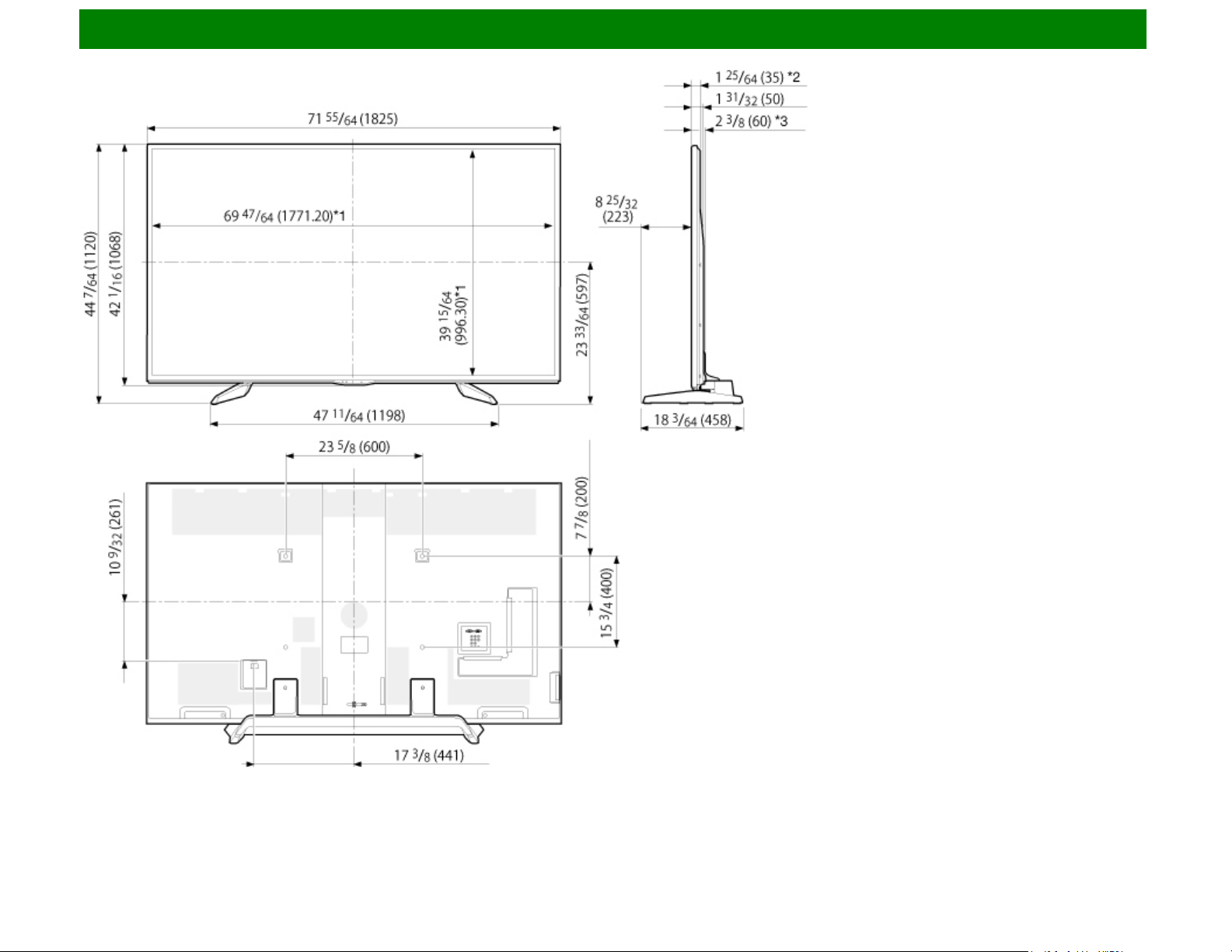
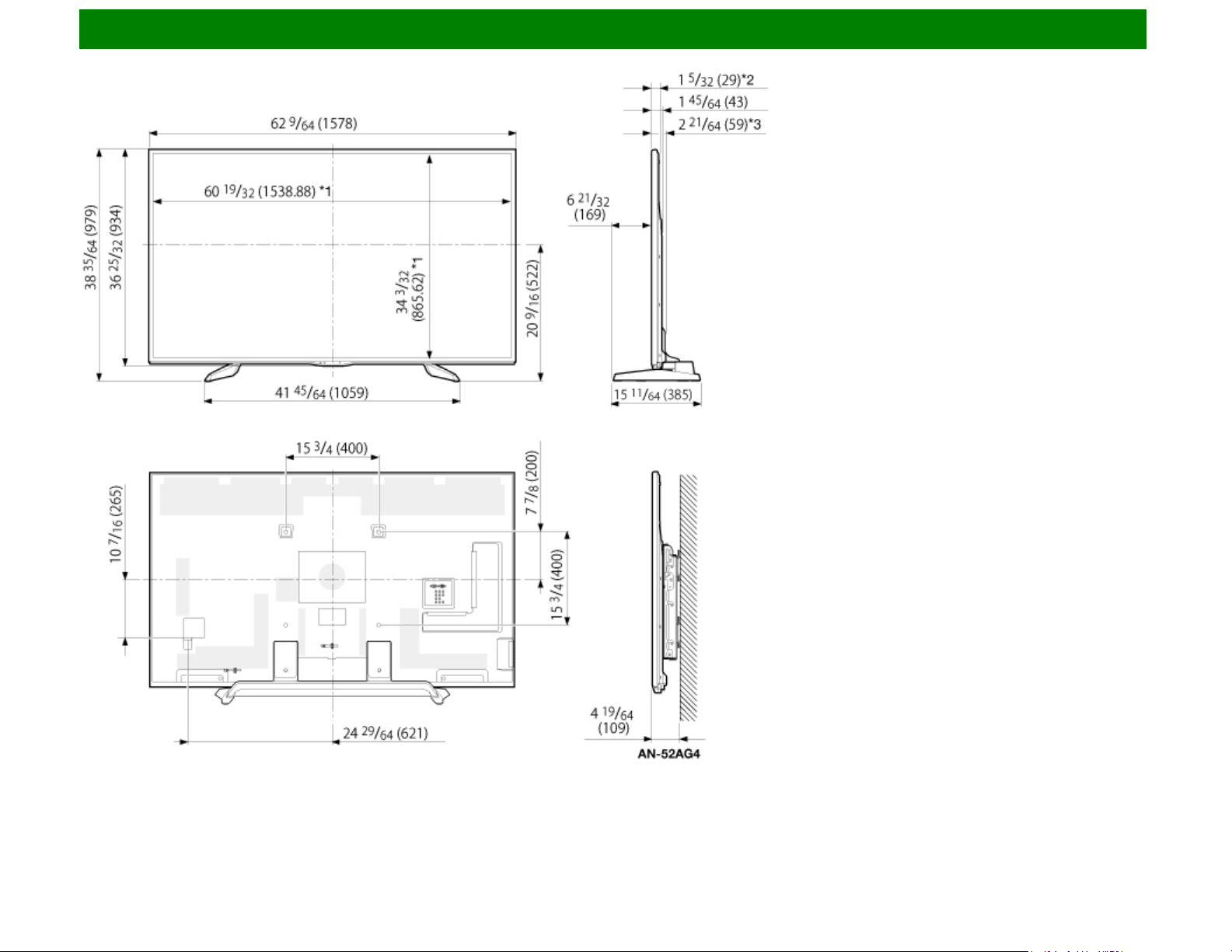
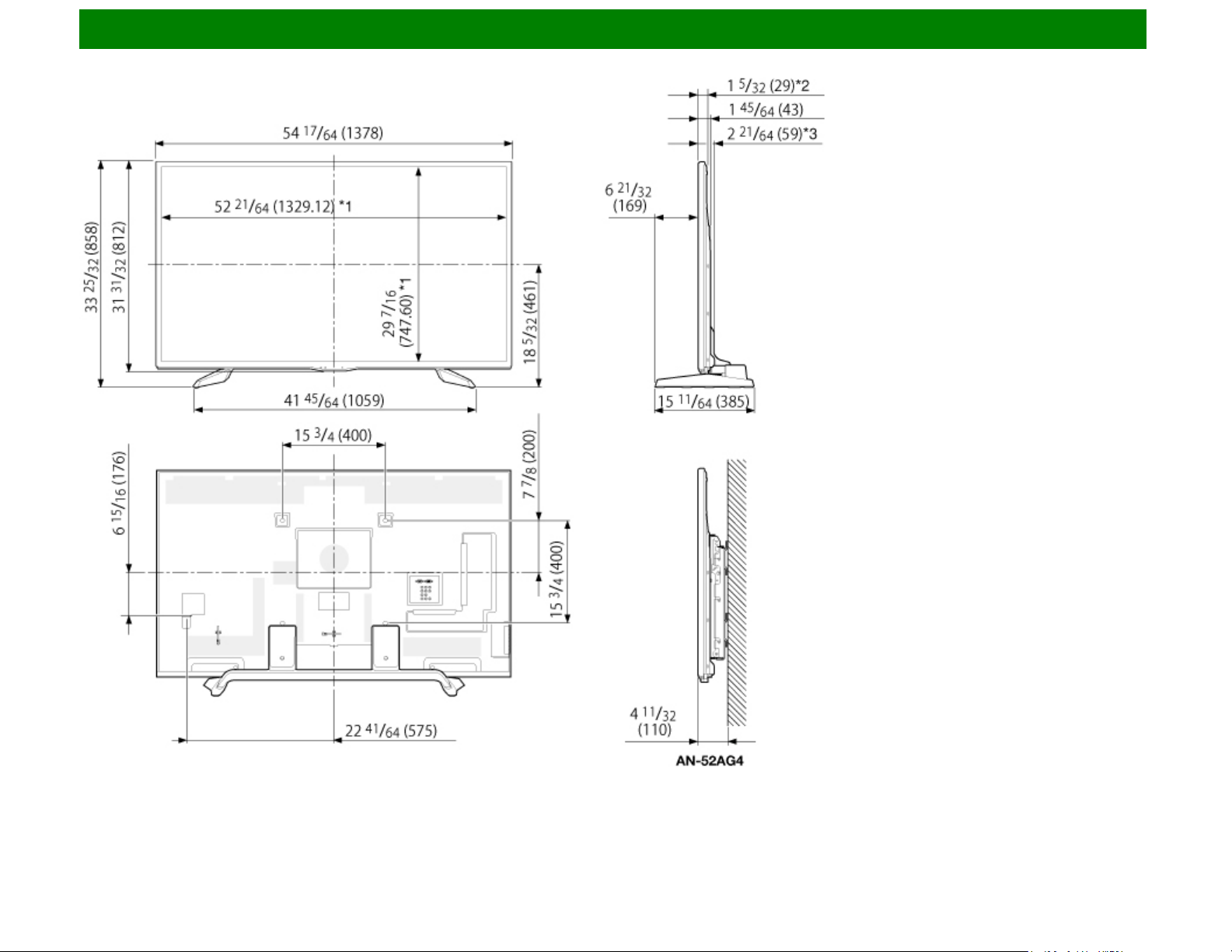
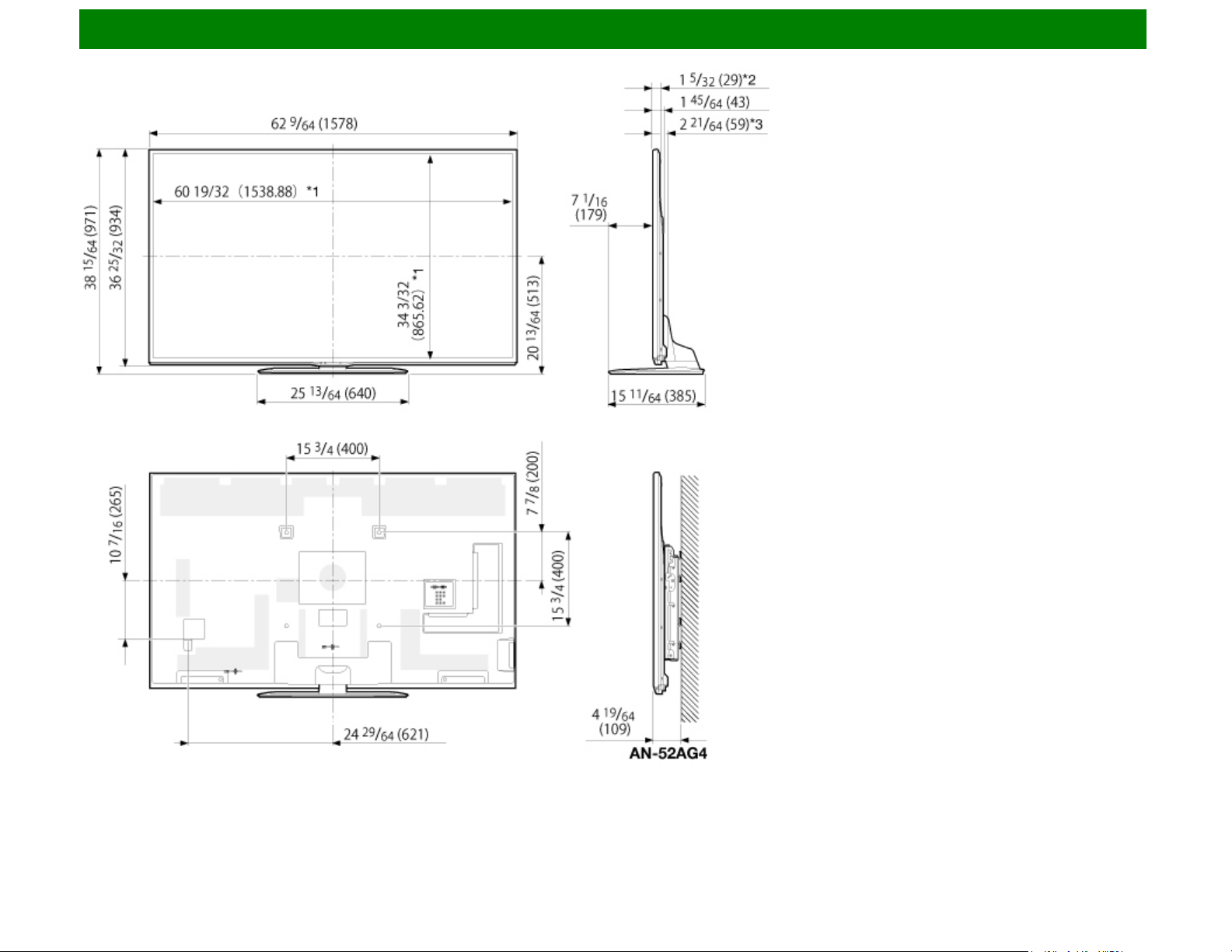
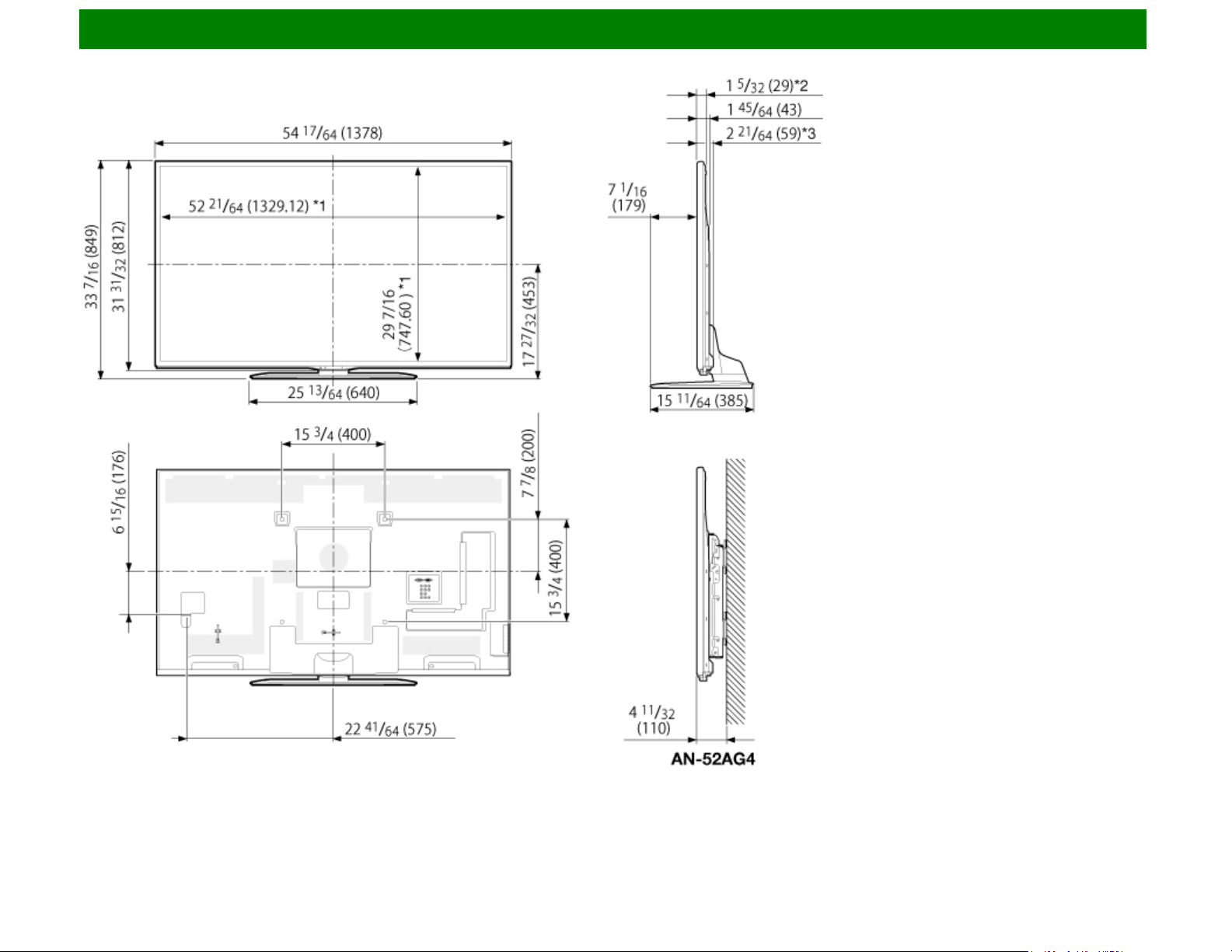
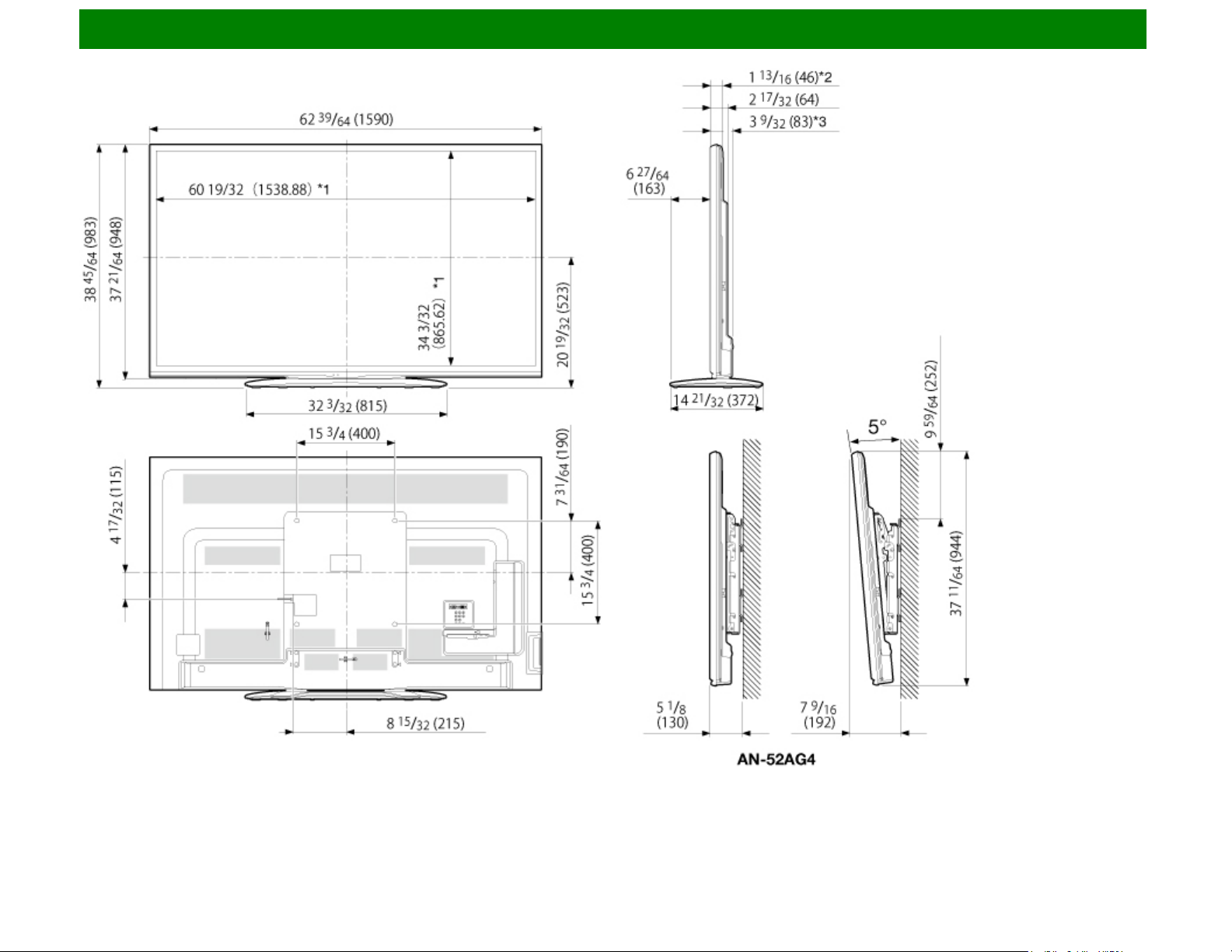
Unit: inch (mm)
Unité: pouce (mm)
Unidad: pulgada (mm)
Dimensional Drawings
LC-70SQ17U/LC-70SQ15U/LC-70SQ10U/LC-70EQ10U
*1 Active area/Área activa/Zone active
*2 Thinnest part/Parte más delgada/Partie la plus mince
*3 Including projecting parts/Incluyendo partes salientes/Parties saillantes incluses
ENG 14-6
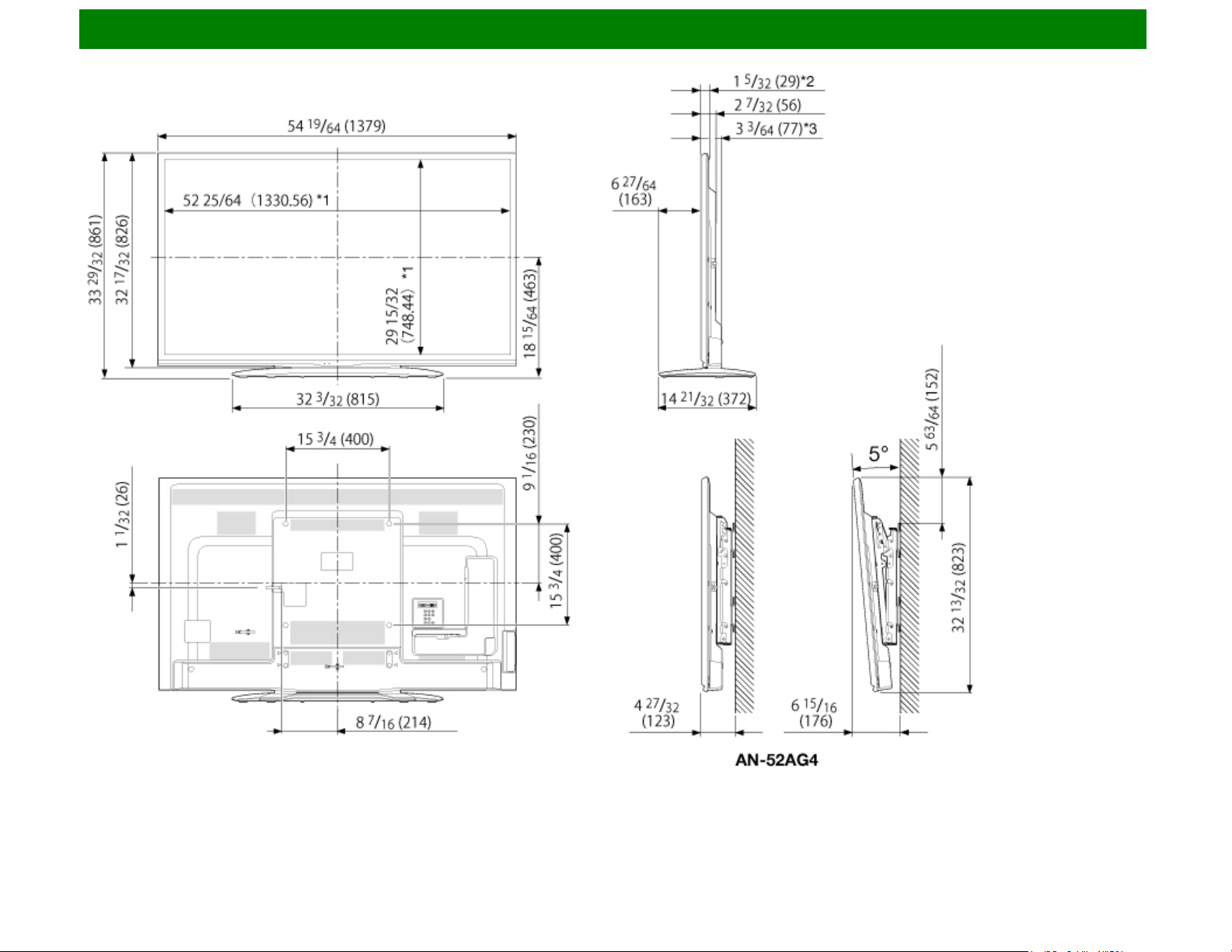
Unit: inch (mm)
Unité: pouce (mm)
Unidad: pulgada (mm)
Dimensional Drawings
LC-60SQ17U/LC-60SQ15U/LC-60SQ10U/LC-60EQ10U
*1 Active area/Área activa/Zone active
*2 Thinnest part/Parte más delgada/Partie la plus mince
*3 Including projecting parts/Incluyendo partes salientes/Parties saillantes incluses
ENG 14-7