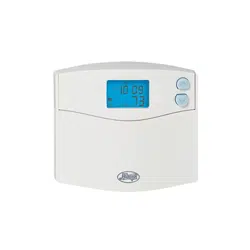
User manual Thermostat for Hunter 44378
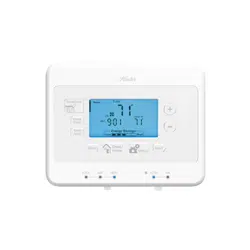
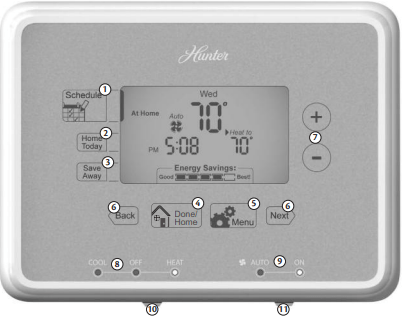
Know Your Thermostat
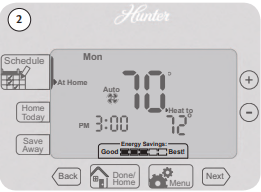
- Enters Schedule Setup for altering scheduled programs.
- Sets the Home Today feature for when you are home during a regularly scheduled Away period.
- Sets the Save Away feature for when you will not be home during a regularly programmed time.
- Confirms completion of an action or returns you to the Home screen.
- Allows access to the advanced features of the thermostat.
- Moves you forward or backward while setting up features or schedules.
- Adjusts time and temperature settings as well as moving up or down menu lists.
- Indicates whether the system is set to Heat, Cool, or Off.
- Shows if the fan is set to Auto or On modes.
- Allows you to switch between Heat, Cool, and Off modes.
- Allows you to switch between fan Auto and On modes.
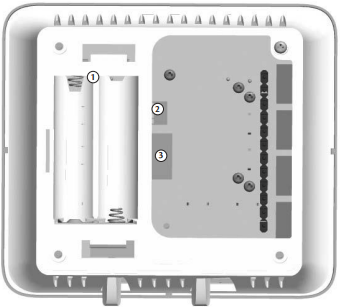
- Holds 2 “AA” Batteries.
- HE/HG Switch - allows you to set your furnace to Gas/Oil or Electric, based on the type of system you have.
- Conventional/Heat Pump System Switch - Allows your thermostat to operate your HVAC system properly by selecting the system type that you have.
*Conventional System: Uses a condensing unit for cooling and a separate furnace system for heating.
*Heat Pump System: Uses the condensing unit for both heating and cooling.
NOTE: If you are unsure of your system type it may be necessary to contact our technical support department, your HVAC manufacturer, or a local HVAC technician to determine this. Improper selection of your system type could cause the thermostat to not operate your system properly
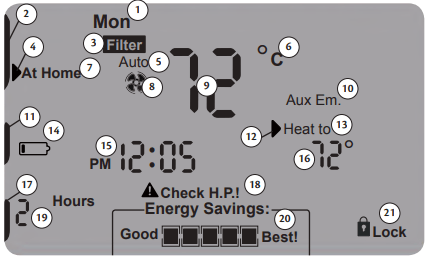
- Shows the current day of the week or weekend.
- Indicates the thermostat is running in schedule mode.
- Flashes when the furnace filter should be checked for replacement.
- On when the current schedule period is running.
- Shows the current mode of the fan: Auto or On.
- C will display when in Celsius mode. Nothing will display when set to Fahrenheit.
- Indicates the current active schedule period.
- Shows the system fan is running.
- Indicates the current room temperature.
- Indicates your Heat Pumps Auxiliary Heat is running.
- Shows when the Home Today feature is running.
- On when the current operating mode, heat or cool, is running.
- Current operating mode, heat or cool.
- Low battery warning, indicates you need to replace the batteries in the thermostat.
- Indicates the current time in am or pm .
- Current Set temperature the thermostat is scheduled to run.
- Indicates the Thermostat is running in save away mode.
- Will show when your heat pump or system is reporting a problem to the Thermostat.
- Indicates in hours or days how long the Save Away period is set for.
- Energy saver bar helps you make decisions on conserving energy.
- Indicates the thermostat is locked and will not accept input.
Setting Day and Time
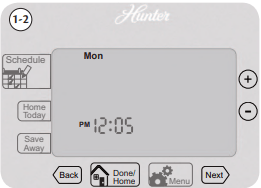
Once you install the batteries, the thermostat will prompt you to set the current day and time.
- You will notice that “Mon” will be flashing at the top left of your screen. Use the
 or
or  buttons to move to your current day of the week and press the
  button to advance to the next step.
- Use the or button to change between am and pm. Choose to advance.
- Next you will select your current hour by using the or buttons. The button advances you to the next step.
- Set your minutes using the or and press
 to finish or
  if you need to make a correction to a previous step.
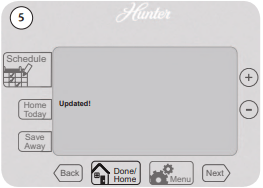
- When finished, the thermostat will show “Updated!” to confirm your settings are saved.
- Your thermostat will next prompt you to set your programming, see page 14 step 2 if you wish to alter your programs at this time.
Scheduling Introduction
Read the scheduling section thoroughly to ensure you understand your scheduling options and which will best fit with your lifestyle. The following notes should help you with scheduling:
- The schedule time can be set in 15 minute increments, and remains the same for both Heat and Cool programs.
- The scheduled temperature can be set in increments of 1°F (1°C).
- After 15 minute without a key press, the thermostat will return to the home display screen.
- When setting the schedule time, note the AM / PM indicator.
- At any stage during your scheduling, you can use the or buttons to move forward or backwards through the steps. will save any changes, even if you have not scheduled or altered all settings.
- Arrows beside each schedule mode and beside heat/cool modes will indicate which ones are active.
This thermostat has been pre-programmed to provide optimal energy savings. No programming is necessary. We recommend you run these programs for a few days before adjusting your programming. If it is necessary to change these settings, use the scheduling table on the next page to record your new settings. You will also find the default schedule there as well.
Personal Scheduling Charts
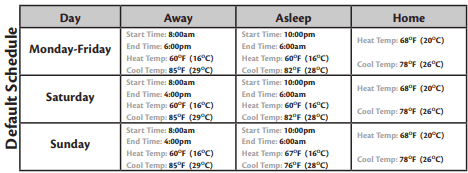
* The Home schedule automatically calculates the remaining times from Away and Asleep and assigns them the Home temperature.
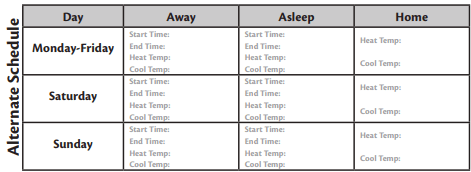
Note: Use a pencil so these records may be changed at a later time if necessary.
Setting Your Schedule
- Press the
 Button to enter Scheduling mode.
- Use the or buttons to select “On” and then to move forward to Scheduling. Note: If you do not wish to use the scheduling option on your thermostat, refer to page 22, step 2.
- Monday will be flashing on the screen, to proceed with scheduling, press . If you wish to start programming another day, press the or button until it shows at the top of the screen and press .
- By default “Away” will be flashing on screen to start your scheduling. Use the button to proceed to the next step.
- Use the or buttons to adjust the start time on the left of the screen for the period and press . Again you will use the or buttons to adjust the end time on the left of the screen for this scheduled period. Press again.
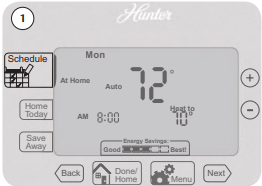
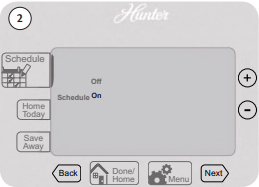
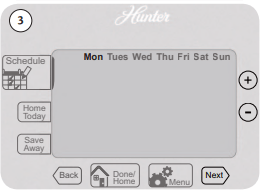
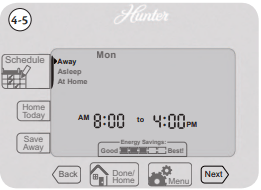
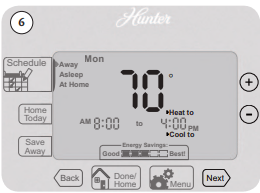
6. Set the temperature for your heating cycle as indicated by the flashing ”Heat to” icon on your screen. Use the and buttons to change the temperature and press . You will be asked to set your cooling cycle, indicated by the flashing “Cool to”. Set this temperature with your or buttons and hit .
7. The thermostat will start this process again for “Asleep”. Repeat steps 1-5 to schedule the time and set the temperature for your sleep period. When finished press to get to “At Home”.
8. When setting “At Home”, you will only be asked to set a temperature. The thermostat calculates your “At Home” time by what remains unscheduled from your “Away” and “Asleep” periods. Set your “Heat To” temperature fir[]st and press , then Set your “Cool To” temp and press to finish Scheduling your current day.
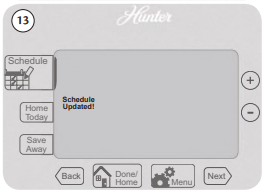
9. When you have completed scheduling your day, the screen will flash “Schedule Updated!” and return you to the day select screen.

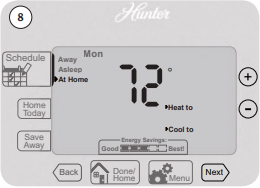
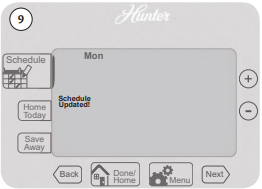
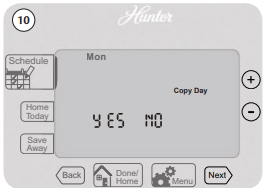
10. The day select screen will now show “Copy Day” and ask you if you wish to copy the day you just scheduled to any other days. Select “YES” and or see step 13 for selecting “NO”.
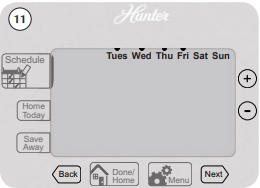
11. Select each day you wish to copy the schedule to by using the or buttons to turn days on or off and the or buttons to scroll through the days. An arrow  above each day will indicate it has been selected. Note: The original day you schedule will not show on the screen as it is the one being copied.
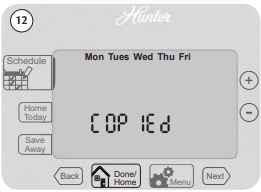
12. Select and the screen will show the days that now have the same schedule and flash “COPIED”. You will be taken back to the day select screen to schedule your remaining days. Repeat steps 3-12 to finish scheduling. Note: If you select “NO” and then you will be asked to select the next day to schedule, bypassing the “Copy” function. Repeat steps 3-11 for each day you wish to schedule separately.
13. When all days have been scheduled, whether using the copy function or not, the screen will flash “Schedule Updated!” along with all the days, and return you to the home screen. Note: To go back and edit schedules, you will follow the same process as outlined above.
Temporary Temperature Change
With Temporary Temperature Change you have the ability to alter the temperature for only the current running schedule.
- Press the or button once to activate the screen, the backlight will come on.
- Use the or buttons again to select a new temperature.
- Press the button to save changes. Note: Temporary Temperature Change is not a permanent setting. Your thermostat will only run the new temperature until the next scheduled period change. After your thermostat changes to a new schedule set, your thermostat will forget the temporary setting and resume your existing schedule.
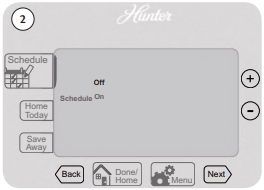
- To escape Temporary Temperature Change, press the button. The screen will flash “Schedule ON” to indicate the thermostat has resumed your regular schedule.
Turning Off Scheduling
To turn off your schedule and have the thermostat permanently set to one temperature:
- Press the button once.
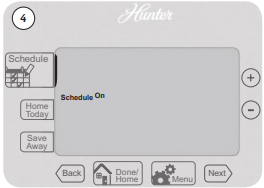
- Use the or button to switch to Off and select .
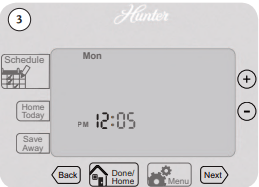
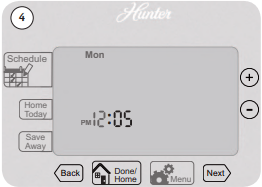
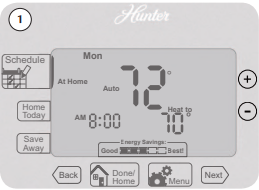
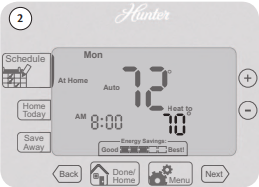
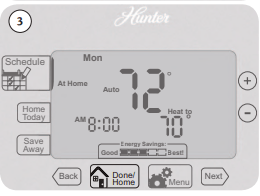
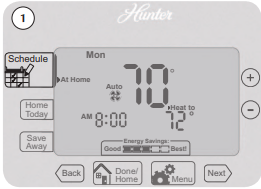
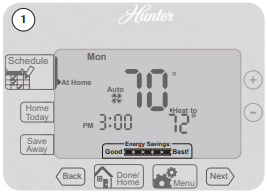
- The screen will show “Updated!” and return you to the home screen. Note: You will notice the black bar on the screen beside the Schedule button is not displayed anymore. This indicates, no schedule is set to run. You can see the difference between figure 1 and 4.
- From the home screen, use the or buttons to adjust your temperature. The system will now ignore all schedules and run at the temperature set by you on the home screen.
- If at anytime you wish to change the temperature, just use the or buttons.
- If you wish to reactivate your schedules, press the button, use the or buttons to select “ON” and then press .
Home Today
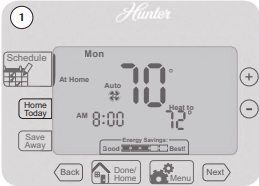
The Home Today feature allows you to override your schedule for 1 day. It can be used for example if you are home on a day when you would normally have the thermostat‘s “Away” mode active. When used, the Home Today feature will select your At Home temperature to run at for the course of the day until your scheduled Asleep time starts, then revert back to running your normal schedule. To activate:
- Press the
 button.
- The current “At Home” temperature will be defaulted on the screen.
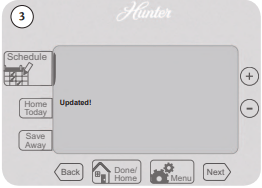
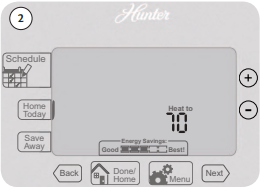
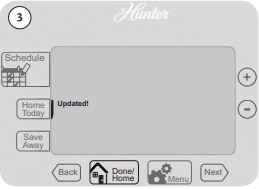
- Press the button and the screen will flash “Updated!”. The bar beside the button will indicate it is active.
Save Away
The Save Away feature allows you to set a lower or higher temperature for the time you will be away from your home outside of your normal Away schedule. This can include days you will be away for vacation, or a few hours away from your home.
The Save Away feature can be set for as little as 1 hour or as much as 30 days. To set the save away feature:
- Press the
 button.
- You will see the number of hours or days flashing on the screen, use the or to adjust the amount of time you will be away. Press the button to advance to your temperature setting. By default, the “Away” temperature will be selected. You can use the or to adjust the degrees if you do not want to run this temperature. Note: Up to 12 hours can be set before changing to day increments.
- Press the button to finish save away settings. The screen will show “Update!” and return to the home screen.
Note: You will notice the bar will be active beside the Save Away button to indicate it is running. Also, the screen displays the number of hours or days the Save Away feature is set for.
Note: To escape Save Away mode, press the button and select “ON” using the or buttons. Press to resume your schedules.

Alerts
This chapter will outline the various alerts the thermostat will report to you and how to respond to them.
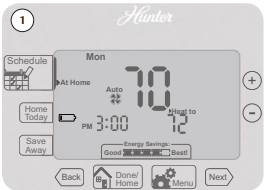
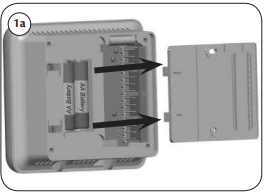
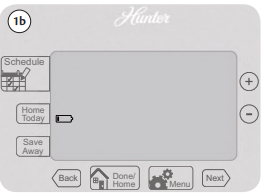
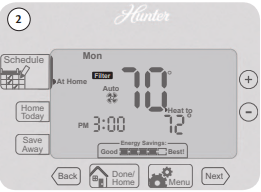
- Low Battery: This icon will appear when your batteries are starting to run low on power and should be changed to avoid system interruptions, (Figure 1) Change the batteries by gripping the sides of the thermostat firmly and pulling straight back, (Figure 1a). The batteries are located in the backside of the thermostat. The thermostat requires 2 (AA) alkaline batteries to operate. If you do not replace the batteries in a timely manner, the screen will go blank except for the low battery warning, (Figure 1b). Your system will shut down and will not operate until you replace the batteries. Replacing the batteries will clear this alert. Note: Settings will not be lost while replacing the batteries. They are stored in the thermostat’s memory.
- Filter Change: When this icon appears on the screen, it indicates you should check your furnace filter to see if it needs to be replaced. To reset this counter see page 32.
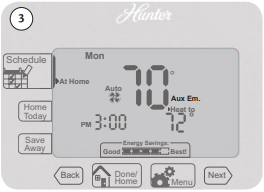
3. Auxiliary Heat: On multi-stage heat pumps this alert indicates your second stage heat is running.
Energy Saver Bar
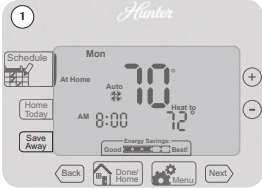
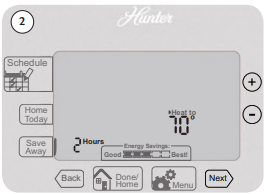
The Energy Saver Bar indicates estimated energy savings. The preset schedules in the thermostat have been designed to give you optimal energy savings, five bars. Altering these schedules has a direct impact on the energy saver indicator. Altering the temperatures and/or times that the schedules run could decrease the estimated energy savings.
- Example 1 shows the thermostat running the default schedules in the thermostat.
- Example 2 shows the thermostat running altered schedules. This example could indicate the “At Home” schedule running for a longer time frame, or the temperatures may have been altered to where there is less of a gap between the “At Home” and “away” or “Asleep” temperatures.
Note: The Energy Saver Bar is only to be used as a guide to potential energy savings. Due to varied energy consumption costs, regional temperatures, and personal comfort levels, this bar cannot be equated into actual dollar or energy amounts.
Additional Features
Armchair Programming
- There is no need to stand at the wall where the thermostat is mounted while programming or changing settings. Simply remove the thermostat from the wall and make the necessary changes in the comfort of a chair. You can also set your programming and settings before you even install the thermostat.
Blue Backlight
- Your thermostat has a blue LED lamp that backlights the display for easy viewing in the dark. When any key is pressed, the backlight will be activated. The display will stay illuminated for 15 seconds after the last key is pressed.
System Protection
- To protect your system from cycling, system turning on and off rapidly, your thermostat will prevent your system from turning back on for up to 3.5 minutes after it has been shut down.
Reset
- In situations where your thermostat may not seem to be operating properly or if you just want to reset and start over, press and hold the and buttons for 3 seconds until the screen flashes “Updated!”. This will restore the thermostat to factory condition.
Troubleshooting and Support
No display.
- Check battery position and battery life
Program does not change at desired setting.
- Check the time in all programs for proper am/pm time.
- Ensure thermostat is not in “Save Away” mode.
- Make sure the thermostat is set to the proper day
Auto / Fan does not turn on
- Move HG/HE switch to opposite position.
- Check the fan setting and make sure that it is not set to off.
Fan runs continuously.
- Check fan setting to see if it is set to on.
- Move HG/HE switch to opposite position.
Heating or cooling does not turn on or off.
- Check the system is in the right mode (heat or cool).
- Be sure to wait up to 3.5 minutes for system protection if your system was just on.
- Check breakers to make sure power is getting to your system.
- Replace the batteries.