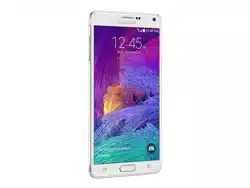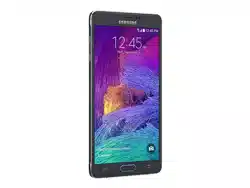
4G LTE SMARTPHONE
User Manual
Please read this manual before operating your
phone and keep it for future reference.

Warning!
This product contains chemicals known to the State of California to cause cancer and reproductive toxicity.
Intellectual Property
All Intellectual Property, as defined below, owned by or which is otherwise the property of Samsung or its respective suppliers
relating to the SAMSUNG Phone, including but not limited to, accessories, parts, or software relating there to (the “Phone
System”), is proprietary to Samsung and protected under federal laws, state laws, and international treaty provisions. Intellectual
Property includes, but is not limited to, inventions (patentable or unpatentable), patents, trade secrets, copyrights, software,
computer programs, and related documentation and other works of authorship. You may not infringe or otherwise violate the
rights secured by the Intellectual Property. Moreover, you agree that you will not (and will not attempt to) modify, prepare
derivative works of, reverse engineer, decompile, disassemble, or otherwise attempt to create source code from the software. No
title to or ownership in the Intellectual Property is transferred to you. All applicable rights of the Intellectual Property shall remain
with SAMSUNG and its suppliers.
Open Source Software
Some software components of this product incorporate source code covered under GNU General Public License (GPL), GNU Lesser
General Public License (LGPL), OpenSSL License, BSD License and other open source licenses. To obtain the source code covered
under the open source licenses, please visit:
http://opensource.samsung.com
.
Disclaimer of Warranties; Exclusion of Liability
EXCEPT AS SET FORTH IN THE EXPRESS WARRANTY CONTAINED ON THE WARRANTY PAGE ENCLOSED WITH THE PRODUCT, THE
PURCHASER TAKES THE PRODUCT "AS IS", AND SAMSUNG MAKES NO EXPRESS OR IMPLIED WARRANTY OF ANY KIND
WHATSOEVER WITH RESPECT TO THE PRODUCT, INCLUDING BUT NOT LIMITED TO THE MERCHANTABILITY OF THE PRODUCT OR
SM-N900T_UM_MR2_English_PS_NE4_052314_F3

ITS FITNESS FOR ANY PARTICULAR PURPOSE OR USE; THE DESIGN, CONDITION OR QUALITY OF THE PRODUCT; THE
PERFORMANCE OF THE PRODUCT; THE WORKMANSHIP OF THE PRODUCT OR THE COMPONENTS CONTAINED THEREIN; OR
COMPLIANCE OF THE PRODUCT WITH THE REQUIREMENTS OF ANY LAW, RULE, SPECIFICATION OR CONTRACT PERTAINING
THERETO. NOTHING CONTAINED IN THE INSTRUCTION MANUAL SHALL BE CONSTRUED TO CREATE AN EXPRESS OR IMPLIED
WARRANTY OF ANY KIND WHATSOEVER WITH RESPECT TO THE PRODUCT. IN ADDITION, SAMSUNG SHALL NOT BE LIABLE FOR
ANY DAMAGES OF ANY KIND RESULTING FROM THE PURCHASE OR USE OF THE PRODUCT OR ARISING FROM THE BREACH OF
THE EXPRESS WARRANTY, INCLUDING INCIDENTAL, SPECIAL OR CONSEQUENTIAL DAMAGES, OR LOSS OF ANTICIPATED PROFITS
OR BENEFITS.
Modification of Software
SAMSUNG IS NOT LIABLE FOR PERFORMANCE ISSUES OR INCOMPATIBILITIES CAUSED BY YOUR EDITING OF REGISTRY SETTINGS,
OR YOUR MODIFICATION OF OPERATING SYSTEM SOFTWARE.
USING CUSTOM OPERATING SYSTEM SOFTWARE MAY CAUSE YOUR DEVICE AND APPLICATIONS TO WORK IMPROPERLY. YOUR
CARRIER MAY NOT PERMIT USERS TO DOWNLOAD CERTAIN SOFTWARE, SUCH AS CUSTOM OS.
SAFE™ (Samsung Approved For Enterprise)
SAFE™: "SAFE™" (Samsung for Enterprise) is a mark for a Samsung device which has been tested against Samsung's own
internal criteria for interoperability with certain third party security-related solutions for MDM and VPN. The testing includes field
testing with local network connection and menu tree testing which tests functionality of the solutions in conjunction with the
Samsung device. During the testing, the device is tested with the security solutions to see if the solutions work with the device as
described by the third party security solution providers. The testing, for example, includes field testing with local network
connection and menu tree testing which tests functionality of the solutions in conjunction with the Samsung device. For more
information about Samsung's SAFE™ program, please refer to
www.samsung.com/us/safe
.
Disclaimer of Warranties: EXCEPT AS OTHERWISE PROVIDED IN THEIR STANDARD END USER LICENSE AND WARRANTY, TO THE
FULL EXTENT PERMITTED BY LAW SAMSUNG ELECTRONICS CO., LTD., SAMSUNG TELECOMMUNICATIONS AMERICA, LLC, AND

THEIR AFFILIATES (COLLECTIVELY REFERRED TO HEREIN AS THE "SAMSUNG ENTITIES") EXPRESSLY DISCLAIM ANY AND ALL
WARRANTIES, EXPRESS OR IMPLIED, INCLUDING ANY WARRANTY OF MERCHANTABILITY, FITNESS FOR A PARTICULAR PURPOSE,
INTEROPERABILITY OR NON-INFRINGEMENT, WITH RESPECT TO INFORMATION TECHNOLOGY SECURITY PROTECTION, SAFE™
DEVICES AND APPLICATIONS TESTED WITH SAFE™ DEVICES. IN NO EVENT SHALL THE SAMSUNG ENTITIES BE LIABLE FOR ANY
DIRECT, INDIRECT, INCIDENTAL, PUNITIVE, OR CONSEQUENTIAL DAMAGES OF ANY KIND WHATSOEVER WITH RESPECT TO
INFORMATION TECHNOLOGY SECURITY PROTECTION, SAFE™ DEVICES OR APPLICATIONS TESTED WITH SAFE™ DEVICES. In
addition, information technology security protection will be affected by features or functionality associated with, among other
things the e-mail platform, master data management, and virtual private network solutions selected by the software provider,
solution provider or user. Choice of an e-mail, master data management, and virtual private network solution is at the sole
discretion of the software provider, solution provider or user and any associated effect on information technology security
protection is solely the responsibility of the software provider, solution provider or user. For complete statement of limited
warranty, please refer to
www.samsung.com/us/safe
, available on the web and where Samsung smartphones and mobile devices
are sold. [051214]
Samsung Telecommunications America (STA), LLC
Headquarters:
1301 E. Lookout Drive
Richardson, TX 75082

Customer Care Center:
1000 Klein Rd.
Plano, TX 75074
Toll Free Tel: 1.888.987.HELP (4357)
Internet Address:
www.samsung.com
©
2014 Samsung Telecommunications America, LLC. Samsung is a registered trademark of Samsung Electronics Co., Ltd.
Do you have questions about your Samsung Mobile Device?
For 24 hour information and assistance, we offer a new FAQ/ARS System (Automated Response System) at:
www.samsung.com/us/support

The actual available capacity of the internal memory is less than the specified capacity because the operating system and default
applications occupy part of the memory. The available capacity may change when you upgrade the device.
Nuance®, VSuite™, T9® Text Input, and the Nuance logo are trademarks or registered trademarks of Nuance Communications,
Inc., or its affiliates in the United States and/or other countries.
ACCESS
®
and NetFront™ are trademarks or registered trademarks of ACCESS Co., Ltd. in Japan and other countries.
The Bluetooth
®
word mark, figure mark (stylized “B Design”), and combination mark (Bluetooth word mark and “B Design”) are
registered trademarks and are wholly owned by the Bluetooth SIG.
microSD™ and the microSD logo are Trademarks of the SD Card Association.
Openwave
®
is a registered Trademark of Openwave, Inc.
Google, the Google logo, Android, the Android logo, Google Play, Gmail, Google Mail, Google Maps, Google Music, Google Talk,
Hangouts, Picasa, YouTube and other marks are trademarks of Google Inc.
Wi-Fi is a registered trademark of the Wireless Fidelity Alliance, Inc.
LTE is a trademark of ETSI
Swype and the Swype logos are trademarks of Swype, Inc.
©
2010 Swype, Inc. All rights reserved.
Dynamic Noise Suppression from Audience
Your phone is equipped with an advanced voice processing chip that delivers clear mobile calls by suppressing background noise,
intermittent sounds (like a siren or nearby conversation), and echoes, allowing you to hear and be heard nearly anywhere.
How Does It Work?
Based on the intelligence of the human hearing system, the technology:
•
Captures, evaluates and distinguishes all the sound signals surrounding your phone, and the person you're speaking with.

•
Then isolates the primary voice in conversation and filters out the background noise - so the person you're calling hears only your voice,
without disturbing background noise.
•
Dynamically equalizes and adjusts voice volume to optimize your calling experience, so you can hear clearly and don't need to speak louder to
overcome surrounding noise.
The noise suppression technology is built-in and already enabled in your new mobile phone. So it's ready to provide unsurpassed
voice clarity with every call.

Table of Contents
Section 1: Getting Started ...........................6
Understanding this User Manual . . . . . . . . . . . .6
Removing the Battery Cover . . . . . . . . . . . . . . .7
Installing and Removing the SIM card . . . . . . . . 8
Installing the microSD Memory Card . . . . . . . . 10
Installing the Battery . . . . . . . . . . . . . . . . . . . .11
Replacing the Battery Cover . . . . . . . . . . . . . .11
Charging the Battery . . . . . . . . . . . . . . . . . . . . 12
Extending Your Battery Life . . . . . . . . . . . . . . . 14
Switching the Device On or Off . . . . . . . . . . . .15
Initial Device Configuration . . . . . . . . . . . . . . .15
Restarting the Device . . . . . . . . . . . . . . . . . . .16
Locking and Unlocking the Device . . . . . . . . . . 16
Voicemail . . . . . . . . . . . . . . . . . . . . . . . . . . . .17
Section 2: Understanding Your Device .....18
Features of Your Device . . . . . . . . . . . . . . . . . .18
Front View . . . . . . . . . . . . . . . . . . . . . . . . . . . . 20
Back View . . . . . . . . . . . . . . . . . . . . . . . . . . . . 22
Status Bar . . . . . . . . . . . . . . . . . . . . . . . . . . . . 23
Home Screen . . . . . . . . . . . . . . . . . . . . . . . . . .28
Customizing the Screens . . . . . . . . . . . . . . . . .31
Screen Navigation . . . . . . . . . . . . . . . . . . . . . .36
S Pen . . . . . . . . . . . . . . . . . . . . . . . . . . . . . . . .38
Using the Multi Window . . . . . . . . . . . . . . . . . .43
Menu Navigation . . . . . . . . . . . . . . . . . . . . . . .50
Section 3: Call Functions and
Contacts List ..............................................51
Displaying Your Phone Number . . . . . . . . . . . .51
Making a Call . . . . . . . . . . . . . . . . . . . . . . . . .51
Ending a Call . . . . . . . . . . . . . . . . . . . . . . . . . .52
Making Emergency Calls . . . . . . . . . . . . . . . . .53
Dialing Options . . . . . . . . . . . . . . . . . . . . . . . .54
Answering a Call . . . . . . . . . . . . . . . . . . . . . . .55
Managing Reject Calls . . . . . . . . . . . . . . . . . . .55
International Calls . . . . . . . . . . . . . . . . . . . . . .56
Pause Dialing . . . . . . . . . . . . . . . . . . . . . . . . .57
Wait Dialing . . . . . . . . . . . . . . . . . . . . . . . . . . .57
Redialing the Last Number . . . . . . . . . . . . . . . .58
1

Speed Dialing . . . . . . . . . . . . . . . . . . . . . . . . 58
In Call Options . . . . . . . . . . . . . . . . . . . . . . . . 60
Logs Tab . . . . . . . . . . . . . . . . . . . . . . . . . . . . 64
Section 4: Entering Text ........................... 68
Text Input Methods . . . . . . . . . . . . . . . . . . . . 68
Selecting the Text Input Method . . . . . . . . . . . 68
Using the Google Voice Typing . . . . . . . . . . . . 69
Using the Samsung Keyboard . . . . . . . . . . . . 70
Section 5: Contacts .................................. 74
Accounts . . . . . . . . . . . . . . . . . . . . . . . . . . . . 74
Contacts List . . . . . . . . . . . . . . . . . . . . . . . . . 74
Finding a Contact . . . . . . . . . . . . . . . . . . . . . . 77
Contact List Options . . . . . . . . . . . . . . . . . . . . 79
Contact Menu Options . . . . . . . . . . . . . . . . . . 80
Contact Entry Options . . . . . . . . . . . . . . . . . . 81
Linking Contact Information . . . . . . . . . . . . . . 81
Sending a Namecard . . . . . . . . . . . . . . . . . . . 84
Copying Contact Information . . . . . . . . . . . . . 85
Synchronizing Contacts . . . . . . . . . . . . . . . . . 86
Display Options . . . . . . . . . . . . . . . . . . . . . . . 87
Additional Contact Options . . . . . . . . . . . . . . . 87
Groups . . . . . . . . . . . . . . . . . . . . . . . . . . . . . . 89
The Favorites Tab . . . . . . . . . . . . . . . . . . . . . . 91
Section 6: Messages .................................92
Types of Messages . . . . . . . . . . . . . . . . . . . . 92
Creating and Sending Messages . . . . . . . . . . 93
Message Options . . . . . . . . . . . . . . . . . . . . . . 94
Viewing Newly Received Messages . . . . . . . . 97
Deleting Messages . . . . . . . . . . . . . . . . . . . . . 99
Message Search . . . . . . . . . . . . . . . . . . . . . 100
Messaging Settings . . . . . . . . . . . . . . . . . . . 100
Assigning Messages as Spam . . . . . . . . . . . 104
Accessing Your Spam Folder . . . . . . . . . . . . 106
Text Templates . . . . . . . . . . . . . . . . . . . . . . 106
Using Email . . . . . . . . . . . . . . . . . . . . . . . . . 106
Microsoft Exchange Email (Outlook) . . . . . . . 112
Section 7: Multimedia .............................116
Assigning the Default Storage Location . . . . 116
Using the Camera . . . . . . . . . . . . . . . . . . . . . 117
Camera Options . . . . . . . . . . . . . . . . . . . . . . 118
Quick Settings . . . . . . . . . . . . . . . . . . . . . . . 120
Camera and Camcorder Settings . . . . . . . . . 121
Using the Camcorder . . . . . . . . . . . . . . . . . .
126
Sharing Pictures . . . . . . . . . . . . . . . . . . . . . . 128
2

Editing a Photo . . . . . . . . . . . . . . . . . . . . . . .135
The Gallery . . . . . . . . . . . . . . . . . . . . . . . . . .137
Section 8: Applications and
Development ............................................138
Applications . . . . . . . . . . . . . . . . . . . . . . . . . 138
Application Folders . . . . . . . . . . . . . . . . . . . .140
Action Memo . . . . . . . . . . . . . . . . . . . . . . . . .141
Bloomberg+ . . . . . . . . . . . . . . . . . . . . . . . . . 142
Calculator . . . . . . . . . . . . . . . . . . . . . . . . . . . 143
Calendar . . . . . . . . . . . . . . . . . . . . . . . . . . . . 143
Camera . . . . . . . . . . . . . . . . . . . . . . . . . . . . . 146
ChatON . . . . . . . . . . . . . . . . . . . . . . . . . . . . . 146
Chrome . . . . . . . . . . . . . . . . . . . . . . . . . . . . .148
Clock . . . . . . . . . . . . . . . . . . . . . . . . . . . . . . . 149
Contacts . . . . . . . . . . . . . . . . . . . . . . . . . . . . 151
Downloads . . . . . . . . . . . . . . . . . . . . . . . . . . 152
Drive . . . . . . . . . . . . . . . . . . . . . . . . . . . . . . . 152
Dropbox . . . . . . . . . . . . . . . . . . . . . . . . . . . . 152
Email . . . . . . . . . . . . . . . . . . . . . . . . . . . . . . . 154
Evernote . . . . . . . . . . . . . . . . . . . . . . . . . . . . 154
Flipboard . . . . . . . . . . . . . . . . . . . . . . . . . . . . 154
Gallery . . . . . . . . . . . . . . . . . . . . . . . . . . . . . .155
Gmail . . . . . . . . . . . . . . . . . . . . . . . . . . . . . . .155
Google . . . . . . . . . . . . . . . . . . . . . . . . . . . . . .156
Google Settings . . . . . . . . . . . . . . . . . . . . . . .157
Google + . . . . . . . . . . . . . . . . . . . . . . . . . . . .157
Group Play . . . . . . . . . . . . . . . . . . . . . . . . . . .158
Hangouts . . . . . . . . . . . . . . . . . . . . . . . . . . . .160
Help . . . . . . . . . . . . . . . . . . . . . . . . . . . . . . . .161
Internet . . . . . . . . . . . . . . . . . . . . . . . . . . . . .161
Kids Mode . . . . . . . . . . . . . . . . . . . . . . . . . . .168
KNOX . . . . . . . . . . . . . . . . . . . . . . . . . . . . . . .169
Lookout Security . . . . . . . . . . . . . . . . . . . . . .169
Maps . . . . . . . . . . . . . . . . . . . . . . . . . . . . . . .170
Messages . . . . . . . . . . . . . . . . . . . . . . . . . . .171
Mobile HotSpot . . . . . . . . . . . . . . . . . . . . . . .171
Music . . . . . . . . . . . . . . . . . . . . . . . . . . . . . .172
Using Playlists . . . . . . . . . . . . . . . . . . . . . . . .175
Creating a Playlist . . . . . . . . . . . . . . . . . . . . .175
My Files . . . . . . . . . . . . . . . . . . . . . . . . . . . . .176
My Magazine . . . . . . . . . . . . . . . . . . . . . . . . .177
PEN.UP . . . . . . . . . . . . . . . . . . . . . . . . . . . . .178
Phone . . . . . . . . . . . . . . . . . . . . . . . . . . . . . .179
Photos . . . . . . . . . . . . . . . . . . . . . . . . . . . . . .179
3

Play Books . . . . . . . . . . . . . . . . . . . . . . . . . . 179
Play Games . . . . . . . . . . . . . . . . . . . . . . . . . 180
Play Movies & TV . . . . . . . . . . . . . . . . . . . . . 180
Play Music . . . . . . . . . . . . . . . . . . . . . . . . . . 180
Play Newsstand . . . . . . . . . . . . . . . . . . . . . . 182
Play Store . . . . . . . . . . . . . . . . . . . . . . . . . . 183
POLARIS Office 5 . . . . . . . . . . . . . . . . . . . . . 183
S Health . . . . . . . . . . . . . . . . . . . . . . . . . . . . 184
S Note . . . . . . . . . . . . . . . . . . . . . . . . . . . . . 186
S Translator . . . . . . . . . . . . . . . . . . . . . . . . . 186
S Voice . . . . . . . . . . . . . . . . . . . . . . . . . . . . 188
Samsung Apps . . . . . . . . . . . . . . . . . . . . . . . 189
Samsung Hub . . . . . . . . . . . . . . . . . . . . . . . 189
Samsung Link . . . . . . . . . . . . . . . . . . . . . . . 192
Scrapbook . . . . . . . . . . . . . . . . . . . . . . . . . . 196
Settings . . . . . . . . . . . . . . . . . . . . . . . . . . . . 197
SketchBook for Galaxy . . . . . . . . . . . . . . . . . 197
Story Album . . . . . . . . . . . . . . . . . . . . . . . . . 197
T-Mobile My Account . . . . . . . . . . . . . . . . . . 198
T-Mobile Name ID . . . . . . . . . . . . . . . . . . . . 198
T-Mobile TV . . . . . . . . . . . . . . . . . . . . . . . . . 199
TripAdvisor . . . . . . . . . . . . . . . . . . . . . . . . . 199
Video . . . . . . . . . . . . . . . . . . . . . . . . . . . . . . 200
Visual Voicemail . . . . . . . . . . . . . . . . . . . . . . 202
Voice Recorder . . . . . . . . . . . . . . . . . . . . . . . 202
Voice Search . . . . . . . . . . . . . . . . . . . . . . . . 204
VPN Client . . . . . . . . . . . . . . . . . . . . . . . . . . 205
WatchON . . . . . . . . . . . . . . . . . . . . . . . . . . . 205
YouTube . . . . . . . . . . . . . . . . . . . . . . . . . . . . 210
Section 9: Connections ...........................212
Wi-Fi Connections . . . . . . . . . . . . . . . . . . . . 212
Bluetooth Connection . . . . . . . . . . . . . . . . . . 214
PC Connections . . . . . . . . . . . . . . . . . . . . . . 217
Enabling the USB 3.0 Connection . . . . . . . . . 219
USB Tethering . . . . . . . . . . . . . . . . . . . . . . . 219
Mobile HotSpot . . . . . . . . . . . . . . . . . . . . . . . 221
Section 10: Changing Your Settings .......224
Accessing the Settings Tabs . . . . . . . . . . . . . 224
Settings Tabs - Overview . . . . . . . . . . . . . . . 224
Wi-Fi Settings . . . . . . . . . . . . . . . . . . . . . . . 226
Bluetooth settings . . . . . . . . . . . . . . . . . . . . 231
Tethering and Mobile HotSpot . . . . . . . . . . . 232
Airplane Mode . . . . . . . . . . . . . . . . . . . . . . . 236
Download booster . . . . . . . . . . . . . . . . . . . .
236
4

Data Usage . . . . . . . . . . . . . . . . . . . . . . . . . .237
Location . . . . . . . . . . . . . . . . . . . . . . . . . . . .238
More Networks . . . . . . . . . . . . . . . . . . . . . . . 239
Near Field Communication . . . . . . . . . . . . . . 247
S Beam . . . . . . . . . . . . . . . . . . . . . . . . . . . . . 248
Nearby Devices . . . . . . . . . . . . . . . . . . . . . . .248
Screen Mirroring . . . . . . . . . . . . . . . . . . . . . .249
Sound Settings . . . . . . . . . . . . . . . . . . . . . . .249
Display Settings . . . . . . . . . . . . . . . . . . . . . .253
Multi Window . . . . . . . . . . . . . . . . . . . . . . . .254
LED Indicator . . . . . . . . . . . . . . . . . . . . . . . . . 254
Lock Screen . . . . . . . . . . . . . . . . . . . . . . . . .255
Wallpaper . . . . . . . . . . . . . . . . . . . . . . . . . . .261
Font . . . . . . . . . . . . . . . . . . . . . . . . . . . . . . .261
Notification Panel . . . . . . . . . . . . . . . . . . . . . 262
Easy Mode . . . . . . . . . . . . . . . . . . . . . . . . . .262
Accessibility Settings . . . . . . . . . . . . . . . . . . .263
Call Settings . . . . . . . . . . . . . . . . . . . . . . . . .266
Blocking Mode . . . . . . . . . . . . . . . . . . . . . . .275
Language and Input Settings . . . . . . . . . . . . . 275
Voice Control . . . . . . . . . . . . . . . . . . . . . . . . .281
Hands-free Mode . . . . . . . . . . . . . . . . . . . . .281
S Pen Settings . . . . . . . . . . . . . . . . . . . . . . . .282
One-Handed Operation . . . . . . . . . . . . . . . . .282
Motions and Gestures Settings . . . . . . . . . . .283
Add Account . . . . . . . . . . . . . . . . . . . . . . . . .287
Cloud . . . . . . . . . . . . . . . . . . . . . . . . . . . . . . .290
Backup and Reset . . . . . . . . . . . . . . . . . . . . .291
Backing up Your Data Before Factory Reset . .291
Date and Time . . . . . . . . . . . . . . . . . . . . . . . .296
Accessory . . . . . . . . . . . . . . . . . . . . . . . . . . .296
Application Manager . . . . . . . . . . . . . . . . . . .297
Default Applications . . . . . . . . . . . . . . . . . . . .299
Battery Usage . . . . . . . . . . . . . . . . . . . . . . . .300
Power Saving Mode . . . . . . . . . . . . . . . . . . . .300
SD Card & Device Storage . . . . . . . . . . . . . . .301
Security . . . . . . . . . . . . . . . . . . . . . . . . . . . . .302
About Device . . . . . . . . . . . . . . . . . . . . . . . . .305
Software Update . . . . . . . . . . . . . . . . . . . . . .307
Index .........................................................308
5

Section 1: Getting Started
This section explains how to get started with your phone by
installing and charging the battery, installing the micro SIM
card and optional memory card, and setting up your voice
mail.
Before using your device for the first time, you’ll need to
install and charge the battery and install the micro SIM card.
The micro SIM card is loaded with your subscription details,
such as your PIN
, available optional services, and many other
features. If desired, you can also install an SD card to store
media for use with your phone.
Understanding this User Manual
The sections of this manual generally follow the features of
your phone. A robust index for feature
s begins on
page 308.
Also included is important safety informat
ion that you should
know before using your device. This information is available
near the back of the guide, beginning on page 310.
This manual provides navigation instructions a
ccording to
the default display settings. If you select other settings,
navigation may be different.
Unless otherwise specified, all instructions in this manual
assume you are starting from the Home screen and using the
available keys.
Note:
Instructions in this manual are based on default settings,
and may vary from your device, depending on the
software version on your device, and any changes to the
device’s Settings.
Unless stated otherwise, instructions in this User Manual
start with the device unlocked, at the Home screen.
All screen images in this manual are simulated. Actual
displays may vary, depending on the software version of
your device and any changes to the device’s Settings.
Getting Started 6

Special Text
Throughout this manual, you’ll find text that is set apart from
the rest. These are intended to point out important
information, share quick methods for activating features, to
define terms, and more. The definitions for these methods
are as follows:
•
Notes
: Presents alternative options for the current feature, menu,
or sub-menu.
•
Tips
: Provides quick or innovative methods, or useful shortcuts.
•
Important
: Points out important information about the current
feature that could affect performance.
•
Warning
: Brings to your attention important information to
prevent loss of data or functionality, or even prevent damage to
your phone.
Text Conventions
This manual provides condensed information about how to
use your phone. To make this possible, the following text
conventions are used to represent often-used steps:
Arrows are used to represent the sequence of
selecting successive options in longer, or
repetitive, procedures.
7
Example:
From the Home screen, press (
Menu
)
Settings
Connections
tab
Bluetooth
.
Removing the Battery Cover
The battery, micro SIM card and SD card are installed under
the battery cover.
Important!
Before removing or replacing the battery cover,
make sure the device is switched off. To turn the
device off, hold down the
key until the
Device options pop up displays, then tap
Power off
.
Caution!
Do not bend or twist the back cover excessively
during installation or removal. Doing so may damage
the cover.
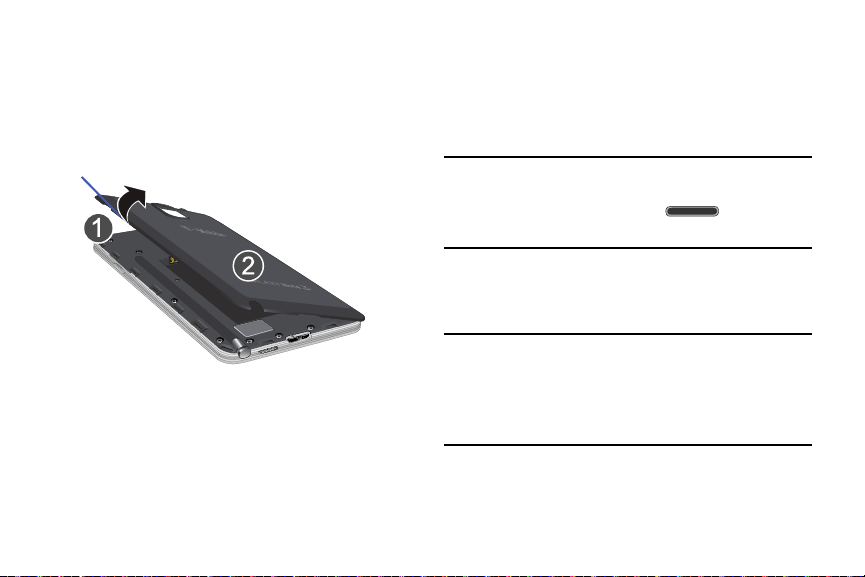
To remove the battery cover:
1. Hold the device firmly and locate the cover release
latch (1).
2. Place your fingernail in the opening (2) and firmly
“pop” the cover off the device (similar to a soda can).
Release Latch
Installing and Removing the SIM card
This device uses a different type of SIM card called a “micro
SIM”. Other larger SIM cards will not function or fit within this
slot.
SIM Card Overview
Important!
Before removing or replacing the micro SIM card,
make sure the device is switched off. To turn the
phone off, hold down the
key until the
Device options pop up displays, then tap
Power off
.
The micro SIM card is loaded with your subscription details
such as your telephone number, PIN, available optional
services, and many other features.
Important!
The micro SIM card and its information can be
easily damaged by scratching or bending, so be
careful when handling, inserting, or removing the
card. Keep all SIM cards out of reach of small
children.
Getting Started 8
Some features on your device (such as Wi-Fi Calling) can be
unlocked by using the new micro SIM card.
To use this new micro SIM card, call or contact T-Mobile
customer service for more information.
This card contains the necessary information for identifying
and authenticating the user to the IMS (IP Multimedia
Subsystem).
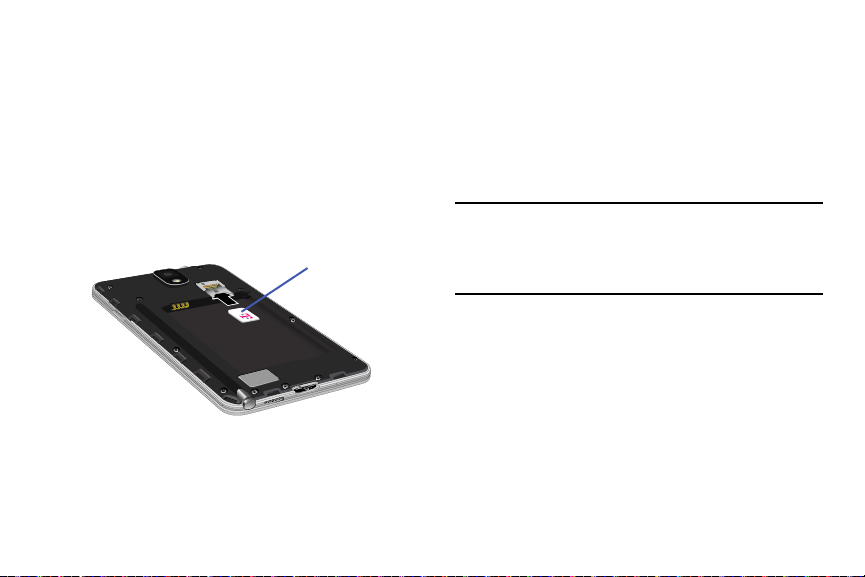
To install the SIM card:
1. Carefully slide the micro SIM card into the SIM card
socket until it is secured into place.
Micro SIM card
2. Make sure that the card’s gold contacts face into the
device and that the upper-left angled corner of the card
is positioned as shown.
To remove the micro SIM card:
1. Remove the battery cover.
2. Remove the battery (page 11).
3. Carefully place your fingernail into the end of the micro
SIM slot and begin to pull the card slightly out.
4. Carefully slide the card out of the micro SIM card
socket.
Note:
If the card is not inserted correctly, the device will not
detect it and no service will be available. If this happens,
turn off the device, remove the card, and reinstall the
card in the correct orientation.
9
Installing the microSD Memory Card
Your device supports an optional (external) microSD™
memory cards for storage of media such as music, pictures,
video and other files. The SD card is designed for use with
this mobile device and other devices.
Note:
This device supports a memory card of up to a 64GB.
Important!
The microSD memory card is inserted just above
the micro SIM card. Take care not to dislodge the
micro SIM card during the installation of the
microSD card.
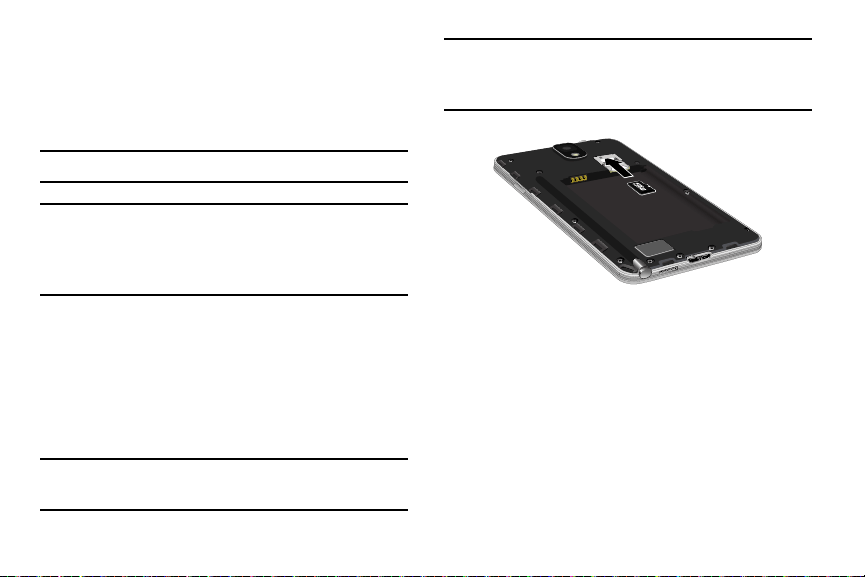
1. Remove the battery cover.
2. Locate the microSD card slot on the inside of the
device and just above the micro SIM card.
3. Orient the card with the gold strips facing down.
4. Carefully slide the microSD card into the card socket
until it is secured into place.
Important!
Be sure to align the gold contact pins on the card
with the device’s contact pins.
Note:
MicroSD cards should be formatted within the Storage
menu. Using an older or slow microSD card can affect
camera performance, especially for video recording.
To remove the microSD Memory Card:
1. Remove the battery cover.
2.
Remove the battery (page 11).
3. Carefully place your fingernail into the end of the micro
SIM slot and begin to pull the car
d slightly out.
4. Replace the battery cover.
Getting Started 10
Installing the Battery
Before using your device for the first time, install the battery
and charge it fully.
Important!
Before removing or replacing the battery, make
sure the device is switched off. To turn the device
off, hold down the
key until the Device
options pop up displays, then tap
Power off
.
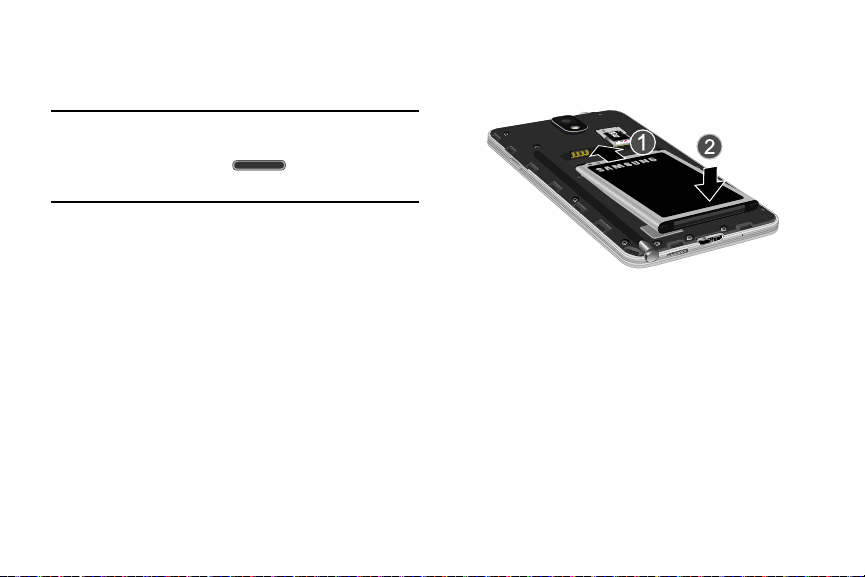
To install the battery:
1. Slide the battery into the compartment (1) so that the
tabs on the end align with the slots at the bottom of the
phone, making sure the connectors align.
2. Gently press down to secure the battery (2).
To remove the battery:
Grip the battery at the top end and lift it up and out of
the battery compartment.
Installing Battery
Replacing the Battery Cover
Position the battery cover over the battery
compartment and press down until you hear a click.
When replacing the battery cover, do not apply pressure to
the screen (“squeeze”) as this can damage the screen.
11
Charging the Battery
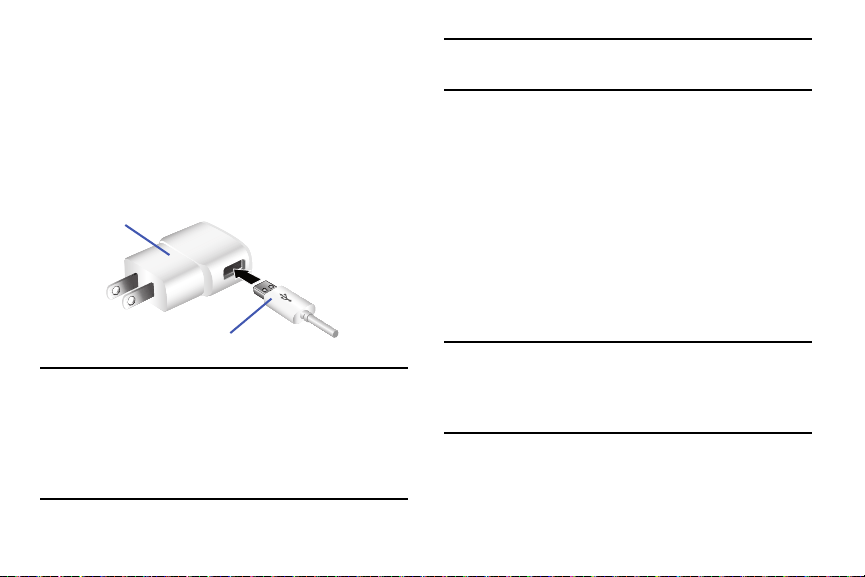
Your device is powered by a rechargeable Li-ion battery. A
wall charger, which is used for charging the battery, is
included with your device. Use only approved batteries and
chargers. Ask your local Samsung dealer for further details.
Before using your device for the first time, you should fully
charge the battery.
Charging Head
USB Cable
Note:
Verify that the battery is installed prior to connecting the
wall charger. If both the wall charger is connected and
the battery is not installed, the handset will power cycle
continuously and prevent proper operation. Failure to
unplug the wall charger before you remove the battery,
can cause the device to become damaged.
Important!
It is recommended you fully charge the battery
before using your device for the first time.
For more information, refer to “Enabling the USB 3.0
Connection” on page 219.
To connect a USB 3.0 cable to the device:
1. Connect the USB cable to the charging head.
2. Locate the Charger/Accessory jack.
3. Insert the USB 3.0 cable into the device’s
Charger/Accessory jack.
4. Plug the charging head into a standard AC power
outlet. The device turns on with the screen locked and
indicates both its charge state and percent of charge.
Warning!
While the device is charging, if the touch screen
does not function due to an unstable power supply
unplug the USB power adapter from the power outlet
or unplug the USB cable from the device.
Getting Started 12
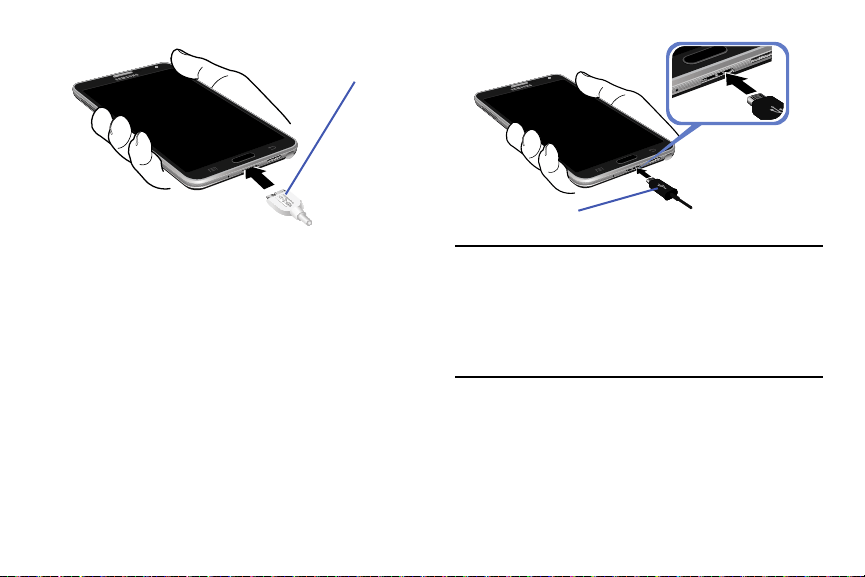
USB 3.0 connector
5. When charging is finished, first unplug the charger’s
power plug from the AC wall outlet, then disconnect
the charger’s connector from the device.
6. If you are using the older style USB 2.0 cable to charge
your battery, plug the flat end of the cable into the
smaller port in the device’s Charger/Accessory jack.
USB 2.0 connector
Important!
If your handset has a touch screen display, please
note that a touch screen responds best to a light
touch from the pad of your finger or a non-metallic
stylus. Using excessive force or a metallic object
when pressing on the touch screen may damage
the tempered glass surface and void the warranty.
13

Low Battery Indicator
When the battery level is low and only a few minutes of talk
time remain (~15% charge), a warning tone sounds and the
“Battery low” message repeats at regular intervals on the
display. In this condition, your device conserves its remaining
battery power, by dimming the backlight.
When the battery level becomes too low, the device
automatically turns off.
The on-screen battery charge is represented (by default) as a
colored battery icon. You can also choose t
o display a
percentage value. Having a percentage value on-screen can
provide a better idea of the remaining charge on the
battery.
Press and then tap
Settings
Device
tab
Display
Show battery percentage
.
Extending Your Battery Life
Active applications, light levels, Bluetooth usage, and GPS
functionality all act to drain your battery. The following is a
list of helpful tips that can help conserve your battery power:
•
Reduce the time your backlight stays on.
•
Turn Bluetooth off when not in use.
•
Turn Wi-Fi off when not in use.
•
Deactivate the GPS when not needed. Most applications using
this function will periodically query the GPS satellites for your
current location; each query drains your battery.
•
Do not wait until your battery is completely depleted before
charging your device. Repeating this process of a complete
discharge and recharge can over time reduce the storage
capacity of any battery.
•
Use the Power Saving feature to deactivate some hardware and
interface functions.
•
Check the Battery use screen to review what features or functions
have been consuming your battery resources.
•
Check the Running Services and close any unnecessary
applications.
Getting Started 14
•
Use the Task Manager feature to end/shutdown background
applications that are still running. These minimized applications
can, over time, cause your device to “slow down”.
•
Animated wallpapers use processing power, memory, and more
power. Change your Live Wallpaper to a non-animated Wallpaper
gallery or Gallery image.
Switching the Device On or Off
Once the device has been configured, you will not be
prompted with setup screens again.
To turn the device on:
Press and hold (
Power/Lock
) until the device
switches on.
Note:
The display language is preset to English at the factory.
To change the language, use the Language menu. For
more information, refer to
“Language and Input
Settings” on page 275.
To turn the device off:
1. Press and hold (
Power/Lock
) until the Device
options screen appears.
2. Tap
Power off
( ).
Initial Device Configuration
1. Select a language from the associated field.
English is the default language.
Note:
If you are visually impaired or have difficulty hearing, tap
Accessibility
to configure the accessibility settings.
2. Tap
Next
and follow the on-screen setup instructions.
Note:
You may be prompted with a notification that your
activation is completed.
Note:
Enabling Google location services can drain battery
power.
For more information, refer to “Creating a Samsung Account”
on page 289.
15
Important!
The device name is also used to provide an
identification for your device’s Bluetooth and
Wi-Fi Direct names.
3. Tap
Finish
to complete the setup process.
4. Read the on-screen Collect diagnostics information.
Note:
This software collects only diagnostic data from your
device so that T-Mobile technicians can better
troubleshoot issues with your device.
5. Select either
More Info...
(to read additional
information) or
Close
to close the message screen.
Important!
Selecting
Close
only closes the current description
screen and does not disable data collection.
To disable data collection, see “Collect
Diagnostics” on page 295.
Restarting the Device
1. Press and hold (
Power/Lock
) until the Device
options screen appears.
2. Tap
Restart
( ).
Locking and Unlocking the Device
By default, the device screen locks when the backlight turns
off.
Place your finger on the screen and swipe the glass in
any of the directions shown unlock the device.
Note:
You can choose to configure lock settings to prevent
unauthorized use of your device. For more information,
refer to “Security” on page 302.
Getting Started 16
Voicemail
Setting Up Your Voicemail
Your device automatically transfers all unanswered calls to
voicemail, even if your device is in use or turned off. As soon
as your battery is charged and the micro SIM card inserted,
activate your voicemail account.
Important!
Always use a password to protect against
unauthorized access.
For new users, follow the instructions below to set up voice
mail:
Note:
Voicemail setup may be different depending on your
network.
1. From the Home screen, tap and then touch and
hold the
key until the device dials voicemail.
You may be prompted to enter a password.
2. Follow the tutorial to create a password, a greeting,
and a display name.
Accessing Your Voicemail
To access Voicemail using the menu:
1. From the Home screen, tap and then touch and
hold
until the device dials voicemail.
2. When connected, follow the voice prompts from the
voicemail center.
17

Section 2: Understanding Your Device
This section outlines key features of your device. It also
describes the device’s keys, screen and the icons that
display when the device is in use.
Features of Your Device
Your device is lightweight, easy-to-use and offers many
significant features. The following list outlines a few of the
features included in your device.
•
Touch screen with virtual (on-screen) QWERTY keyboard
•
Brilliant 5.7” Full HD Super AMOLED
®
(1920 x 1080)
•
Multi-core processor (LTE 2.3 GHz Quad-Core Processor)
•
4G LTE and High Speed Packet Access Plus (HSPA+).
•
Android 4.4.2, Kit Kat OS Platform
•
USB 3.0 connector for faster transfer speeds
•
Galaxy Gear™ compliant. For a list of compatible smartphones,
please visit: www.samsung.com/us/galaxygearsupport.
•
Smart Switch™ compliant. For more information, see
www.samsungsmartswitch.com
•
KNOX™ compliant. For more information, see
www.samsung.com/knox
•
Support for Air View
®
and Air Gestures
®
.
•
S Pen functionality
•
S Pen Optimized Features: Air Command: Action Memo,
Scrapbook, Screen Write, S Finder, Pen Window, S Note,
Multi Window, new Easy Clip, and Direct Pen Input
•
Wi-Fi
®
Capability
•
WatchON
®
– Rich TV experience with Infrared (IR) remote
•
Access Movies, TV Shows, Music, Games, and Books with
Samsung Hub™
•
Samsung Link™ to share your media content across connected
devices. Cloud connectivity is enabled via the use of an external
Web storage service
•
Compliant with AllShare Cast Hub
®
(not provided)
•
13 Megapixel Camera and Camcorder with autofocus with smart
stabalization, LED flash, and zero shutter lag.
Full HD recording @30fps
•
2 Megapixel Front Facing camera for Video Chat
•
Video Codec: H.264, MPEG-4, H.263, VC-1, WMV7, WMV8,
Sorenson Spark, MP43, VP8, HEVC
Understanding Your Device 18

•
Recording & Playback: Full HD (1080p), UHD (*may differ by
market)
•
Share Shot picture sharing functionality, Camera sharing via
multi-connect Wi-Fi Direct connection
•
S-Beam file transfer technology
•
Wi-Fi 802.11 A/B/G/N/AC
•
Bluetooth v4.0 enabled
•
NFC-compatible
•
IR LED (Remote Control)
•
Full Integration of Google Mobile™ Services (Gmail, Google+,
Google Maps, Google Hangouts, etc..)
•
Multiple Messaging Options: Text/Picture/Video Messaging and
Google Hangouts™
•
Corporate and Personal Email
•
Music Player with multitasking features
•
Pre-loaded e-reader applications such as: Play Books™ and Play
Newsstand™
•
Assisted GPS Navigation
•
Webkit-based browser
•
Expandable memory slot - supports up to 64GB microSD
•
Mobile HotSpot and USB Tethering-capability
•
T-Mobile
®
TV
•
Video Chat via Google Hangouts
•
Google Play™ Music
•
Wi-Fi
®
Calling via the use of a micro SIM card
•
Video Player support for PIP (Picture in Picture) viewing
19
14
13
15
11
16
6
5
17
7 8
1
7
9
3
4
10
12
2
15
14
11
16
6
5
17
7 8
1
7
9
3
4
10
12
13
2
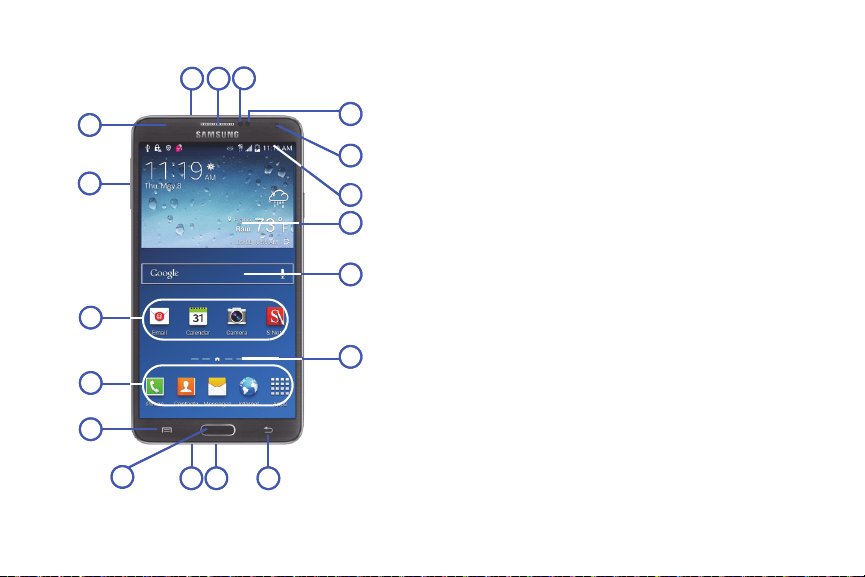
Front View
1.
Indicator light
illuminates with a series of distinct
colors and flashing patterns to indicate different
notifications and statuses. Events include Charging,
Low battery, and Missed event:
•
Powering on -
blue
blinks/animates
•
Battery Charging -
red
remains on
•
Battery Fully Charged -
green
remains on.
•
Low Battery or Charging Error-
red
blinks/animates
•
Missed Notification (Call or Messaging) -
blue
blinks/animates
For more information, refer to “LED Indicator” on page
254.
2.
Volume key
allows you to adjust the ringer volume in
standby mode or adjust the voice volume during a call.
When receiving an incoming call:
•
Pressing the volume key down mutes the ring tone.
3.
Application icons
are shortcuts to your favorite
applications on the Home screen.
4.
Primary Shortcuts
allow quick access to important
features such as Phone, Contacts, Messaging, Internet,
and Apps.
Understanding Your Device 20

5.
Menu key
displays a list of options available for the
current screen. From the Home screen it displays
Add apps and widgets, Create folder, Set wallpaper,
Edit page, Settings, and Help options.
6.
Home
key displays the Home screen when pressed.
Press and hold to display your recent apps, Task
manager, and Remove all option.
Double-press to activate S Voice.
7.
Microphones
are used during phone calls and allow
other callers to hear you clearly when you are speaking
to them. There are two microphones on the device:
•
Bottom microphone: used during handset mode.
•
Top microphone: used while an active call is in the
speakerphone mode and assists in noise cancellation
(2 microphone solution).
8.
USB Power/Accessory connector
allows you to connect
a power cable or optional accessories such as a USB/
data cable.
9.
Back key
redisplays the previous screen or clears
entries.
10.
Home screen indicator
shows which Home screen is
presently displayed.
11.
Google Quick Search bar
provides a shortcut to Google
Search that allows you to search for items on the
internet.
12.
Widgets
are self-contained on-screen applications (not
shortcuts). These can be placed onto any of the
available screens (Home or extended).
13.
Indicator icons
shows the information needed to
operate your phone, such as the received signal
strength, phone battery level, time, unread Emails,
missed calls, etc.
14.
Front Facing Camera
allows you to take pictures while
facing the screen and allows you to video conference.
15.
Gestures Sensor
used to detect Air View and Air Gesture
motions.
16.
Proximity and Light Sensor
uses the ambient light level
to make adjustments. If the light path is blocked, for
example, when holding the phone close to your ear, the
touch screen will turn off.
21
•
While talking on the phone, the sensor detects talk activity and
5.
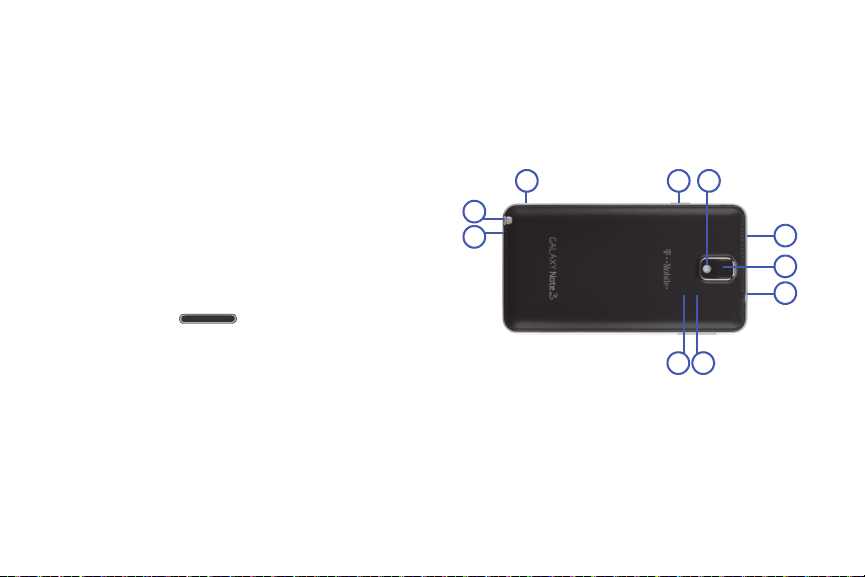
External speaker
allows you to hear ringers, music, and
locks the keypad to prevent accidental key presses.
other sounds offered by your device.
•
In a bright light condition (outdoors), the sensors cause the
6.
micro SIM Card Slot
(internal) Installation location for
device to increase the brightness and contrast for better
SIM card.
viewing.
7.
microSD Card Slot
(internal) allows you use a microSD
•
In dim light conditions, the device decreases the screen
card to expand the memory of your device.
brightness to compensate.
17.
Receiver
allows you to hear the other caller.
Back View
The following illustration shows the external elements of your
Device:
1.
Flash
is used to take photos in low-light conditions.
2.
Power/Lock key
ends a call or switches the
phone off and on. Press and hold for two seconds to
access the Device options screen.
3.
Temperature and Humidty sensor
allows your device to
read both temperature and humidity conditions. This is
useful to calculate calories burned within S Health.
4.
S Pen
provides a stylus that assists you in performing
different functions.
Understanding Your Device 22
8.
Headset jack
allows you to connect a hands-free
headset so you can listen to music.
9.
Camera lens
is used to take photos.
10.
IR Transmitter
used to emit infrared signals used for
controlling external devices. For more information,
refer to “WatchON” on page 205.
6 7
9
5
1
10
8
4
23
Status Bar
The Status Bar shows information about the connection
status, signal strength, phone battery level, and time, and
displays notifications about incoming messages, calls and
other actions.
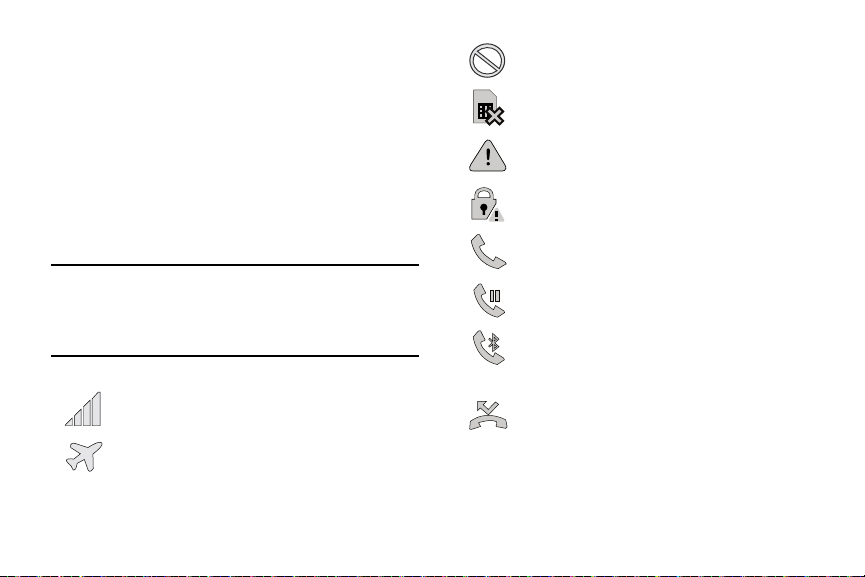
This list identifies the icons you see on your phone’s display
screen:
Indicator Icons
This list identifies the symbols you’ll see on your device’s
display and Indicator area:
Note:
Some Notification icons can be hidden manually by
toggling the status of the Notification panel function.
For more information, refer to “Accessing Additional
Screen Functions” on page 30.
Displays your current signal strength. The greater
the number of bars, the stronger the signal.
Indicates that the Airplane Mode is active. You
cannot send or receive any calls or access online
information.
Indicates there is no signal available.
Displays when there is no SIM card in the phone.
Displays when there is a system error or alert.
Displays to indicate a security warning. You are
prompted to set a screen lock password.
Displays when a call is in progress. Icon is
displayed in the Status bar area.
Displays when a call is on hold. Icon is displayed in
the Status bar area.
Displays when an active call is routed through a
Bluetooth headset. Icon is displayed in the Status
bar area.
Displays when you have missed an incoming call.
23
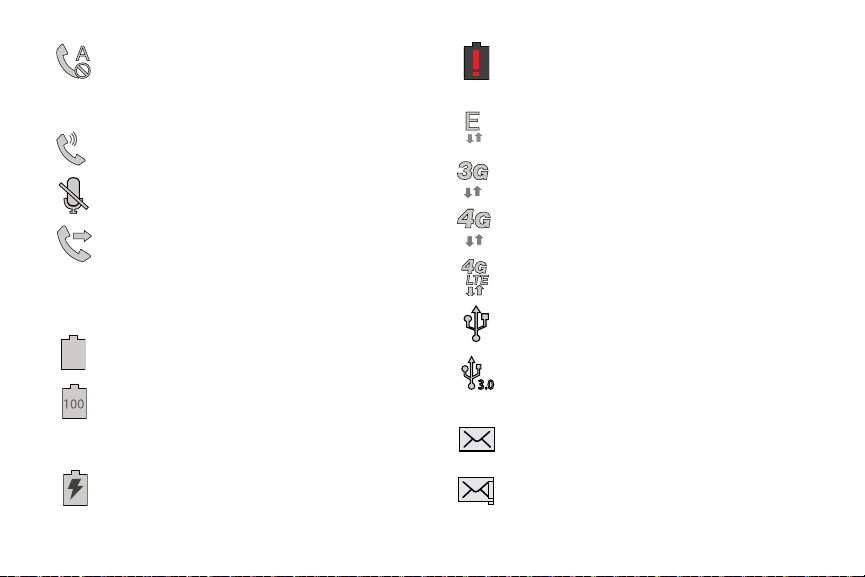
Displays when you device is set to automatically
reject all incoming calls. The All numbers option
is enabled from within
Call settings
Call rejection
Auto reject mode
menu.
Displays when the speakerphone is on. Icon is
displayed in the Status bar area.
Displays when the microphone is muted. Icon is
displayed in the Status bar area.
Displays when Call forwarding is set to Always
forward. Displayed in the Status bar when the
current call is minimized. For more information,
refer to “Configuring Additional Voice Call Settings”
on page 270.
Displays your
current battery charge level. Icon
shown is fully charged.
Displays when the current battery is 100 percent
charged and the Display battery percentage option
is enabled within the
Settings
Device
tab
Display
menu
Show battery percentage
.
Displays your battery is currently charging.
Shows your current battery only has up to 4%
power remaining and will soon shutdown.
(Charge: ~4% - 1%).
Displays when connected to the EDGE network.
Displays when connected to the 3G network.
Displays when connected to the HSPA+ network.
Displays when your phone is communicating
with the 4G LTE network.
Displays when the device has detected an active
USB connection and is in a USB Debugging mode.
Displays when the device has detected an active
USB 3.0 connection and has been enabled for
USB 3.0 communication.
Displays when there is a new text message.
Displays when an outgoing text message has
failed to be delivered.
Understanding Your Device 24
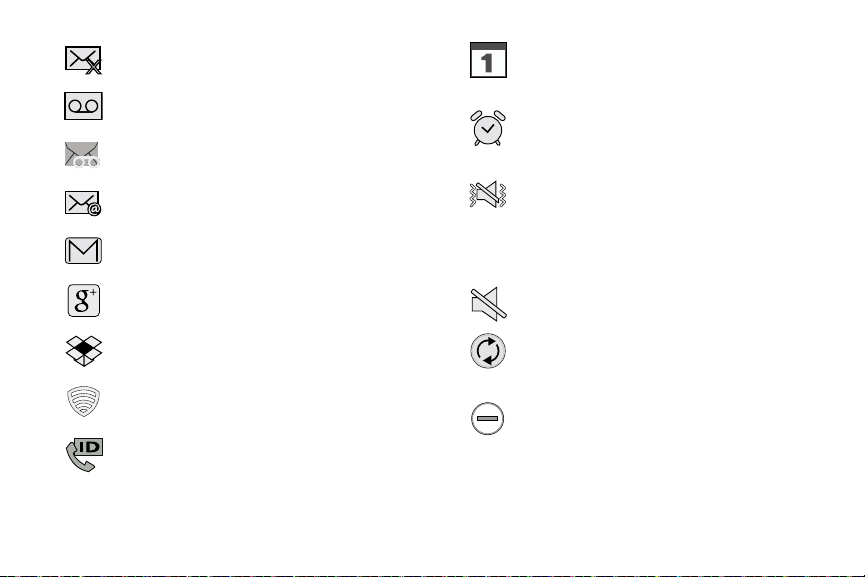
Displays when an incoming text message
content has failed to be downloaded.
Displays when there is a new voicemail message.
Displays when there is a new visual voicemail
message.
Displays in the notifications window when there
is a new Email message.
Displays in the notifications window when there
is a new Gmail message.
Displays when a new Google+ notification has
been received.
Displays when the user is prompted to set up a
new Dropbox account.
Displays when the user is prompted with a
Lookout Security notification.
Displays when the T-Mobile Name ID
application did not recognize a recent number
and would like to know whether you wish to
Not add, or add as a New or Existing number.
Displays when the time and date for a Calendar
Event has arrived. For more information, refer to
“Calendar” on page 143.
Displays when an alarm is set.
For more information, refer to “Setti
ng an Alarm” o n
page 149.
Displays when the device is in Silent mode.
All sounds except media and alarms are silenced,
and Silent mode is set to
Vibrate
. For more
information, refer to “Silent mode via Device
Options Screen” on page 250.
Displays when the device is in Silent mode. All
sounds are silenced, and Silent mode is set to
Mute
.
Displays when data synchronization and
application sync is active and synchronization is in
progress for Gmail, Calendar, and Contacts.
Displays when the Blocking mode feature is
active. For more information, refer to “Blocking
Mode” on page 275.
25
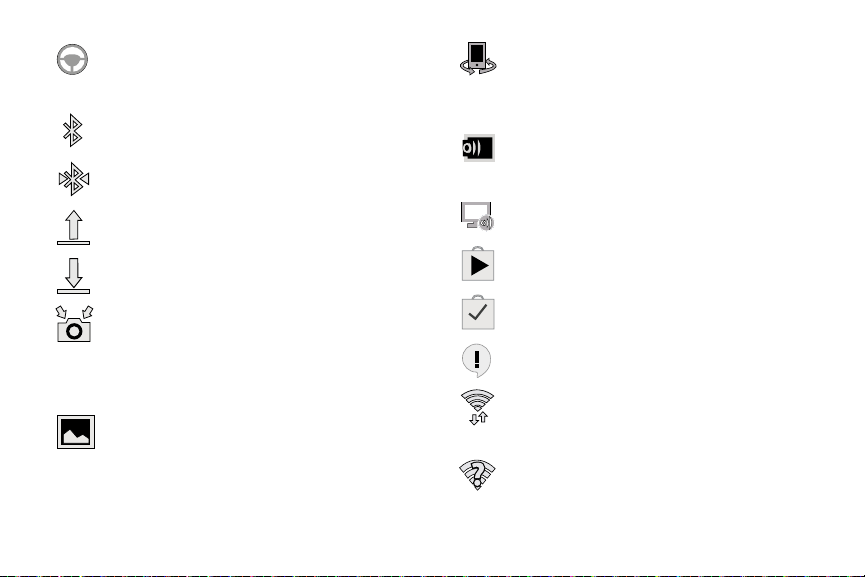
Displays when the Hands-free Mode is active.
For more information, refer to “Hands-free Mode”
on page 281.
Displays when Bluetooth technology is active and
enabled.
Displays when the Bluetooth technology is active
and communicating with an external device.
Displays when the an outbound file transfer is
in progress.
Displays when a file or application download is
in progress.
Displays when the Share shot option is enabled
from within the Camera Shooting mode menu and
images and being shared via Wi-Fi Direct.
For more information, refer to
“Camera Options” on
page 118.
Displays when a screen capture has been taken
and stored in the clipboard.
Displays when your device is connected being
used to control streaming media and is connected
to a Digital Living Network Alliance (DLNA)
certified devices.
Displays when your device is currently sharing/
streaming media to paired device using the
Samsung Link application.
Displays when AllShare Cast Hub is active,
connected to your device, and communicating.
Displays when updates are available for download.
Displays when a Play Store download has
completed.
Displays when Hangout updates are available for
download.
Displays when Wi-Fi is connected, active, and
communicating with a Wireless Access Point
(WAP).
Displays when Wi-Fi is active and there is an
available open wireless network.
Understanding Your Device 26
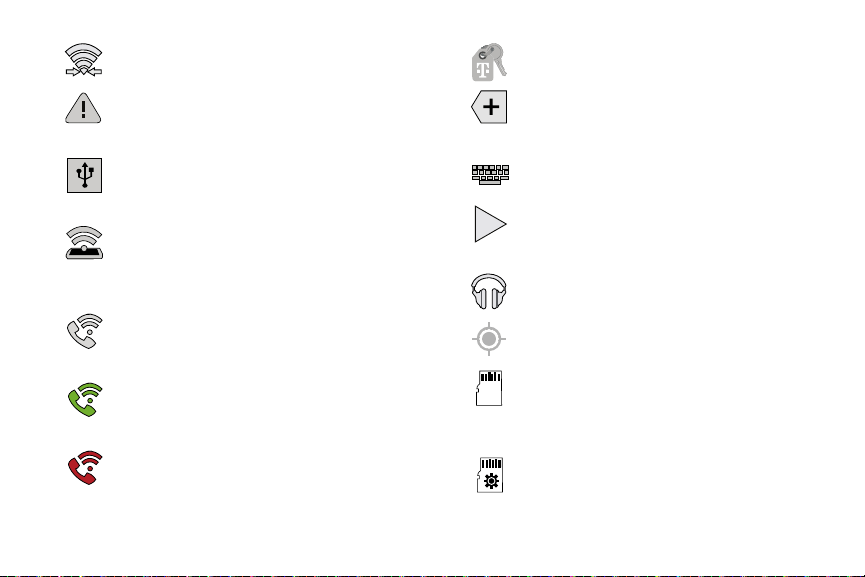
Displays when Wi-Fi Direct is communicating
with another compatible device.
Displays to alert you to disable an active Wi-Fi
Direct connection if not in use - to conserve
battery power.
Displays when the USB Tethering mode is active
and communicating. For more information, refer to
“Tethering and Mobile HotSpot” on page 232.
Displays when Wi-Fi is being used as a Mobile
Hot
Spot feature is active and communicating.
For more information, refer to “Tethering and
Mobile HotSpot” on page 232.
Displays when the Wi-Fi calling feature is active.
Minutes used while connected to the Wi-Fi network
count against available rate plan minutes.
Displays when the Wi-Fi calling feature is active
and you are using it with within your current active
call.
Displays when there is an error in the use or 911
registration of the Wi-Fi Calling feature.
Displays in the notifications window when
a new T-Mobile account information is available.
Displays in the notifications window when there are
too many on-screen notification icons to display.
Tap to show more notifications.
Tap to select a text input method.
Displays in the notifications window when a
song is currently playing within the Music
application.
Displays in the notifications window when a song is
currently playing within the Play Music application.
Displays when your device’s GPS is on and
communicating.
Displays when the external SD card (internal
microSD) has been disconnected (unmounted)
from the phone and is now ready for either removal
or formatting.
Displays when the External SD card is being
prepared for mounting to the device. This is
required for communication with the card.
27
Displays when the microSD card has been
improperly or unexpectedly removed.
Displays when storage within either the internal
location or the external SD card has reached its
capacity. It is recommended you either move
files off or delete them to make additional room.
Displays when the Power saving alert notification
has been activated. You are then prompted to view
your current battery level.
Displays when Near Field Communication (NFC)
has been activated.
The Smart stay feature is activated. The screen
stays on as long as you are looking at it.
Displays when TTY device has been inserted.
For more details on configuring your phone’s settings, see
“Changing Your Settings” on page 224.
Home Screen
The Home screen is the starting point for using the
applications on your device. There are initially five available
panels, each populated with default shortcuts or
applications. You can customize each of these panels.
Home Screen Menu Settings
When on the Home screen, press and then select any
of the following menu options:
•
Add apps and widgets
allows you to quickly access the Widget
tab where you can then drag a selected widget to an available
area on a selected screen.
•
Create folder
allows you to create on-screen folders to help
organize files of application shortcuts.
•
Set wallpaper
allows you to assign the current wallpaper for the
Home screen, Lock screen, or Home and lock screens.
Choose from Gallery, Live wallpapers, or Wallpapers.
•
Edit page
allows you to add or remove extended screens from
your device. You can have up to six extended screens (one Home
screen and six Extended screens).
Understanding Your Device 28
•
Settings
provides quick access to the device’s settings menu.
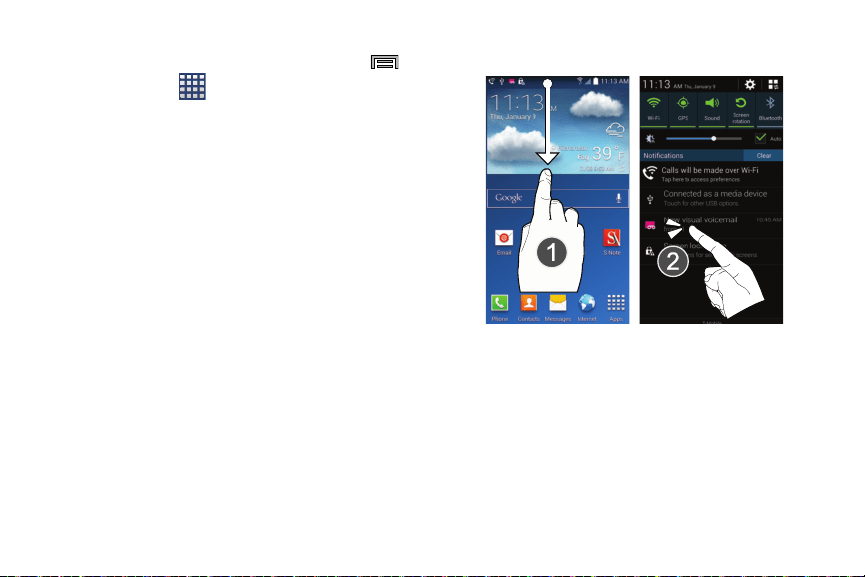
2. Tap a notification entry to open the associated
–
The Settings menu can also be accessed by pressing
application (2).
and then tapping
Settings
.
•
Help
displays the on-screen Help application. For more
information, refer to
“Help”
on page 161.
Notification Bar
The Notification area indicates new message events (data
sync status, new messages, calendar events, call status,
etc). You can expand this area to display the Notification
screen that provides more detailed information about the
current on-screen notification icons.
1. Touch the Status bar to reveal the Notifications tab, and
then drag the tab to the bottom of the screen to open
the Notifications panel (1).
29
Clearing Notifications
1. In a single motion, touch and drag the Status bar down
to the bottom of the screen to open the Notifications
panel.
2. Tap
Clear
. The notifications are cleared from the panel.
Accessing Additional Screen Functions
In addition to notifications, this screen also provides quick
and ready access to device functions. These can be quickly
activated or deactivated.
Scrolling across a horizontal list of functions has been
enhanced with an accessible Grid view.
Note:
You can select the function buttons you see at the top of
the Notifications panel.
Only 5 buttons are shown at any one time.
The Grid view is the only way to view all functions.
To activate the Grid view:
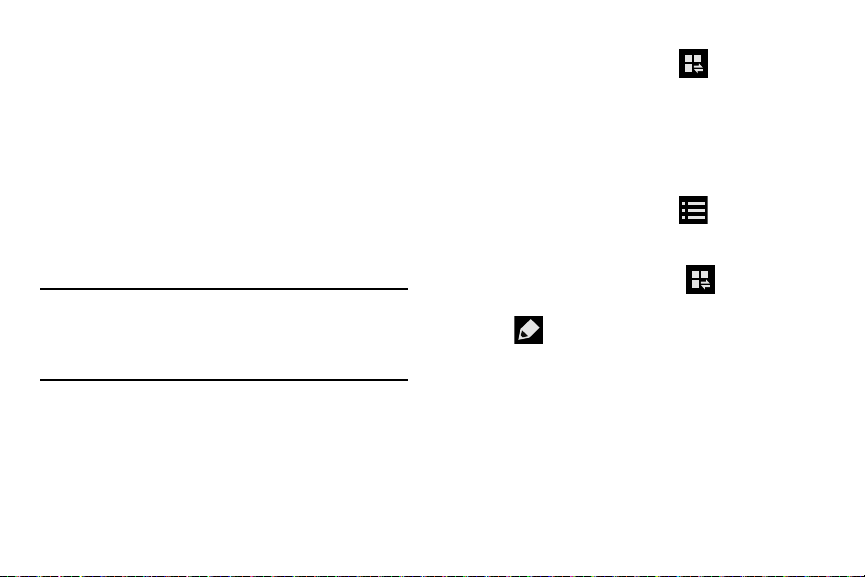
From the Notification panel, tap (
Open Grid view
)
to display additional functions.
– or –
Using two fingers, touch and drag the Status bar
downwards to display additional functions.
To minimize the Grid view:
From the Notification panel, tap (
Close Grid view
)
to show only your primary functions.
To customize the functions displayed:
1. From the Notification screen, tap (
Open Grid
view
) to display additional functions.
2. Tap
(
Edit
) then locate the Notifications panel area
located at the bottom of the Notifications panel screen.
3. In a single motion, touch and hold a desired function
then drag it to the top row.
Understanding Your Device 30
Customizing the Screens
You can customize the Home screens (panels) to display the
Widgets, Shortcuts, Folders, or Wallpapers. For example, one
screen could contain the Music Player shortcut and other
forms of media, while another screen might contain
communication apps such as Gmail.
You can customize your Home screen by doing the following:
•
Adding, Deleting, and Rearranging screens
•
Assigning a New Home screen
•
Adding and Removing Primary Shortcuts
•
Sharing Application Information
•
Managing Shortcuts
•
Adding and Removing Widgets
•
Changing the Background (Wallpapers)
Adding and Deleting Screens
Your phone comes with five default screens. You can delete
these screens and then add them back later.
Note:
These screens can be deleted and re-arranged.
Important!
Your phone can only contain at most seven screens
and at least one screen.
To delete a screen:
1. From the Home screen, press and then tap
Edit page
.
2. Touch and hold, then drag the undesired screen up to
the
Remove
tab ( ).
3. Press
to return to the main Home screen.
To add a screen:
1. From the Home screen, press and then tap
Edit page
.
2. Tap
(
Add screen
). The newly added screen
appears as the last page.
3. Press
to return to the main Home screen.
31
Touch and hold a screen and then drag it into its new
location. Upper-left is screen position #1 and
bottom-right is screen last screen.
Assigning a New Home Screen
From the Home screen, press
Edit page
.
Tap
5. While still holding the on-screen icon, position it on the
current screen. Once compl
ete, release the screen to
lock the shortcut into its new position.
and then tap
. The new Home screen then indicates this
(
Home screen
) icon at the top of the selected
2. Tap
Apps
(
applicat
ions. By default, applications are displayed as
an Alphabeti
cal grid.
3. Scroll across
the screens and locate your desired
application.
4. To
uch and hold the on-screen icon. The new shortcut
then appears to hover over the current screen.
Rearranging the Screens
1. From the Home screen, press and then tap
Edit page
.
2.
1.
2.
screen.
Managing Shortcuts
Note:
To move a shortcut from one screen to another, you
must carefully touch and hold the shortcut and slowly
drag it to the edge of the screen. As the shortcut turns
light blue, you can begin to move it to the adjacent
screen.If this does not work, delete it from its current
screen. Activate the new screen and then add the
selected shortcut.
To add a shortcut from the Applications screen:
1. From the Home screen, select a screen location for
your new shortcut by scrolling across your available
screens until you reach the desired one.
) to reveal all your current available
To add a shortcut via the Add to Home screen:
1. From the Home screen, navigate to a screen with an
empty area.
2. Touch and hold an empty area of the screen.
3. From the
Home screen
window, tap
Apps and widgets
Apps
.
Understanding Your Device 32
4. Scroll across the pages and in a single motion, touch
and hold an application to place a copy on the current
screen.
To delete a shortcut:
1. From the Home screen, touch and hold the desired
shortcut. This unlocks it from its location on the current
screen.
2. Drag the shortcut over the
Remove
tab ( ) and
release it.
Adding and Removing Primary Shortcuts
Note:
You can change any of your primary shortcuts with the
exception of the
Apps
shortcut.
To remove a primary shortcut:
From the Home screen, touch and hold the primary
shortcut you want to replace, then drag it to an empty
space on any available screen. The primary shortcuts
are now updated to show an empty slot.
To insert a new primary shortcut:
1. From the Home screen, tap (
Apps
).
2. Locate your desired application, then touch and hold
the on-screen icon to position it on a desired screen.
For more information, refer to “Managing Shortcuts”
on page 32.
3. Locate the screen with the desired shortcut you want
to add as the new primary shortcut.
4. Touch and hold the shortcut until it detaches from the
screen.
5. In a single motion, touch and hold the new shortcut,
then drag it into the empty space within the row of
primary shortcuts. The new primary shortcut will now
appear on both the Home and Extended screens.
33

Adding and Removing Widgets
Widgets are self-contained applications that can be placed
on any screen. Unlike shortcuts, widgets appear as
applications.
To add a Widget:
1. From the Home screen, tap (
Apps
)
Widgets
tab.
2. Scroll across the Widget pages and locate a desired
Widget.
3. Touch and hold an available Widget until it detaches
from the screen.
4. While still holding the Widget, scroll left or right across
the available screens and let go of the Widget to place
it on your current screen.
To remove a Widget:
1. Touch and hold a Widget until it unlocks from the
current screen.
2. Drag the widget over the
Remove
tab ( ) and
release it.
•
As you place the Widget into the Trash, both items turn red.
•
This action doesn’t delete the Widget, it just removes it from the
current screen.
To place a widget onto a different screen:
1. Touch and hold the widget until it becomes
transparent.
2. Slowly drag it past the edge of the screen until the
adjacent page appears highlighted and it then snaps
onto the new page.
3. Drag the widget to its desired position on the new
screen.
4. Repeat these steps to continue moving it to other
screens.
Understanding Your Device 34

Managing Wallpapers
Wallpapers consist of either Gallery images (user taken), Live
wallpapers (animated backgrounds), or Wallpaper gallery
(default phone wallpapers).
Note:
Selecting animated Live wallpapers will require
additional battery power.
To change the current Home screen wallpaper:
1. Navigate to any screen.
– or –
Press
to go to the Home screen.
2. Touch and hold an empty area of the screen.
3. From the
Home screen
window tap
Set wallpaper
Home screen
.
4. Select a Wallpaper type:
•
Tap
Gallery
to select from a user image stored in the camera
image gallery, crop the image, and tap
Done
.
•
Tap
Live wallpapers
to select from a list of animated
backgrounds, once done tap
Set wallpaper
.
•
Tap
Photos
to select from a list of available images, once done
tap
SET WALLPAPER
.
•
Tap
Wallpapers
, scroll through the images, tap a wallpaper
image, then tap
Set wallpaper
.
Note:
Wallpapers supports the following image types: JPEG,
PNG, GIF, BMP, and WBMP.
To change Wallpapers from Settings Menu:
1. From the main
Settings
page, tap
Device
tab
Wallpaper
.
– or –
Touch and hold an empty area of the screen and select
Set wallpaper
.
2. Choose from
Home screen
,
Lock screen
, or
Home and
lock screens
.
Note:
The
Home and lock screens
is an additional option that
allows you to change both screens at the same time.
3. Select a wallpaper type (
Gallery
,
Live wallpaper
, or
Wallpapers
).
4. Choose an image and tap
Done
or
Set wallpaper
.
35

To change the current Lock screen wallpaper:
1. Navigate to any screen, touch and hold an empty area
of the screen, and tap
Set wallpaper
Lock screen
.
– or –
From the main
Settings
page, tap
Device
tab
Wallpaper
Lock screen
.
2. Select a Wallpaper type:
•
Tap
Gallery
to select from a user image stored in the camera
image gallery, crop the image, and tap
Done
.
•
Tap
Travel wallpaper
to display recommended destination
images on your lock screen. Select a slideshow interval.
•
Tap
Wallpapers
, scroll through the images, tap a wallpaper
image, then tap
Set wallpaper
.
Screen Navigation
Using the touch screen display and the keys, you can
navigate the features of your device and enter characters.
The following conventions are used in this manual to
describe the navigation action in the procedures.
Navigating Through the Screens
The following terms describe the most common hardware
and on-screen actions.
•
Press and hold
: Pressing relates to use of the hardware keys and
buttons to select or activate an item. For example: press the
Navigation key to scroll through a menu. Some buttons and keys
require you to press and hold them to activate a feature, for
example, you press the Lock key to lock and unlock the device.
•
Tap
: Use a brief touch to select items on the display or to enter
text on the virtual QWERTY keyboard. For example: tap an
Application icon to open the application.
•
Touch and hold
: Touch and hold an icon or key to open the
available options, or to access a pop-up menu. For example:
touch and hold from the Home screen to access a menu of
customization options.
Understanding Your Device 36
•
Flick
: Move your finger in lighter, quicker strokes than swiping.
This finger gesture is always used in a vertical motion, such as
when flicking through contacts or a message list.
•
Swipe or slide
: Quickly drag your finger vertically or horizontally
across the screen. This allows you to move the area of focus or to
scroll through a list. For example: slide your finger left or right on
the Home screen to scroll among the seven panels.
•
Drag
: Press and hold your finger with some pressure before you
start to move it. Do not release your finger until you have reached
the target position.
•
Rotate
: Automatically change the screen orientation from portrait
to landscape by turning the device sideways. For example: rotate
to landscape orientation when entering text, to provide a larger
keyboard, or when viewing web content to minimize scrolling.
•
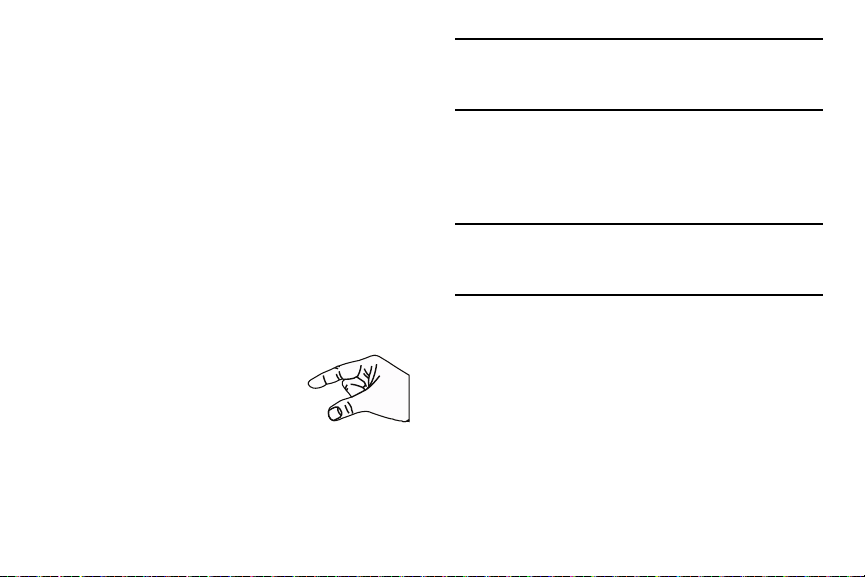
Pinch
: “Pinch” the screen using your
thumb and forefinger to zoom out when
viewing a picture or a Web page. (Move
fingers inward to zoom out.)
•
Spread
: “Spread” the screen using your thumb and forefinger to
zoom in when viewing a picture or a Web page. (Move fingers
outward to zoom in.)
Note:
These screens can be re-arranged in any desired order.
For more information, refer to “Customizing the
Screens” on page 31.
•
Motion Navigation and Activation
: The device comes equipped
with the ability to assign specific functions to certain device
actions that are detected by both the accelerometer and
gyroscope.
Note:
Motion must be enabled for this feature to be active. For
more information, refer to “Motions and Gestures
Settings” on page 283.
37

S Pen
The S Pen™ is a stylus that assists you in performing
different functions. By using the Pen button, you can
minimize having to switch between touch and pen input.
Air View is a new S Pen technology that allows you to hover
over the touch screen (< 2mm) and still interact with the
display.
1
2
1.
S Pen button
: by pressing the Pen button, you can add
functionality to the S Pen.
2.
Stylus tip
: the tip of the S Pen is used for tapping the
screen.
For more information, refer to “S Pen Settings” on page 282.
Rich S Pen Functionality
•
S Pen Input
: When the S Pen hovers over an input area, selecting
the
(
Handwriting Input
)
provides an on-screen
Handwriting Area.
•
Air Button
: S Pen provides a fast experience in performance by
showing a menu via the Air Button interaction for different
applicable contents.
•
Air Command
: Once removed from its slot, S Pen shows an
on-screen Air Command button toolbar that allows you to quickly
activate frequently used applications or actions.
•
Action Memo
: Located within the Air Command toolbar, allows
you to quickly link short notes to applications like Phone,
Contacts, Messages and so on.
•
Smart Clip
: Instantly outline and crop anything on the screen and
freely edit or share with others via several applications.
•
Effectively express yourself
: Write/Draw directly into an email,
or the calendar, annotate Word, Excel, PowerPoint, and PDF
documents, capture your ideas in S Note, write a note on the back
of the picture.
Understanding Your Device 38
Removing the S Pen from your Phone
The S Pen is stored within your device to make it easier to
keep track of.
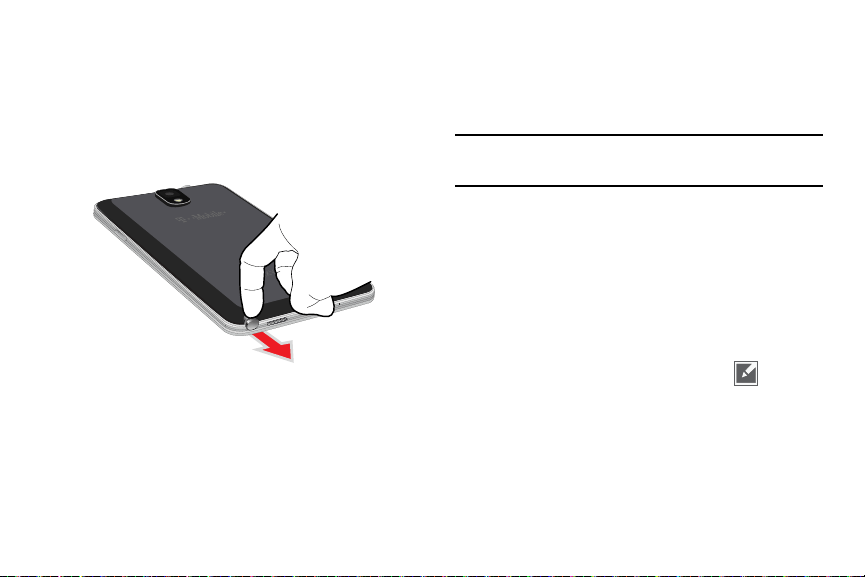
To remove the S Pen:
Use your fingernail or a sharp object to pop the end of
the S Pen out of the device and gently pull it out.
Using the S Pen
There are several different available functions.
Screen Shots Using S Pen
To take a screen capture using the pen:
Note:
These steps allow you to take a capture of the entire
screen contents.
1. Grasp the pen and press the
Pen button
.
2. Pressing the S Pen button then touch and hold the
screen for 2 seconds takes a screen shot.
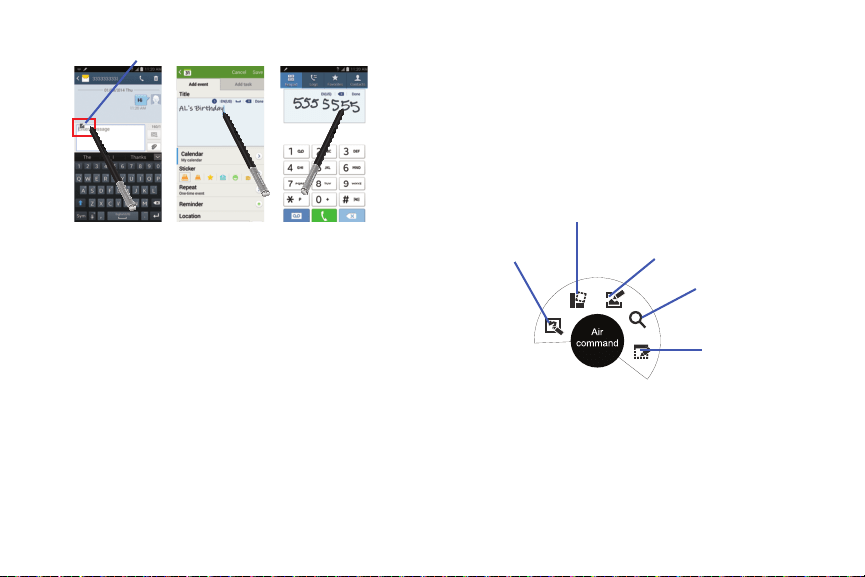
S Pen Input - Using Handwriting
1. Remove the S Pen from its slot.
2. Launch an application that contains an input area (ex:
Messages, Dailer Keypad, etc..)
3. Hover the S Pen over a input area until
(
Handwriting Input
) appears, then quickly tap the icon
to reveal a new Handwriting Area. Use this area to
enter your input (text or numbers) and then have the
device recognize that information.
39
Scrap booker
Action Memo
Screen Write
S Finder
Pen window
Handwriting Input button
Air Button
The S Pen displays a menu via the Air Button interaction for
different applicable contents.
1. Remove the S Pen from its slot.
2. Launch an application that contains an attachment or
selection field such as:
•
Attachment button within Messages or Email: provides a list of
the most recently used
•
Recipient selector within Messages or Email
•
Enter message field within Messages
3. Press and hold the S Pen button to reveal some of your
most used items, contents, or text strings.
4. Make a selection.
Air Command Toolbar
Once removed from its slot, S Pen shows an on-screen Air
Command button toolbar that allows you to quickly activate
frequently used applications or actions.
S Pen - Using Action Memo
1. Remove the S Pen from its slot.
– or –
Hover over the screen and press the S Pen button.
Understanding Your Device 40
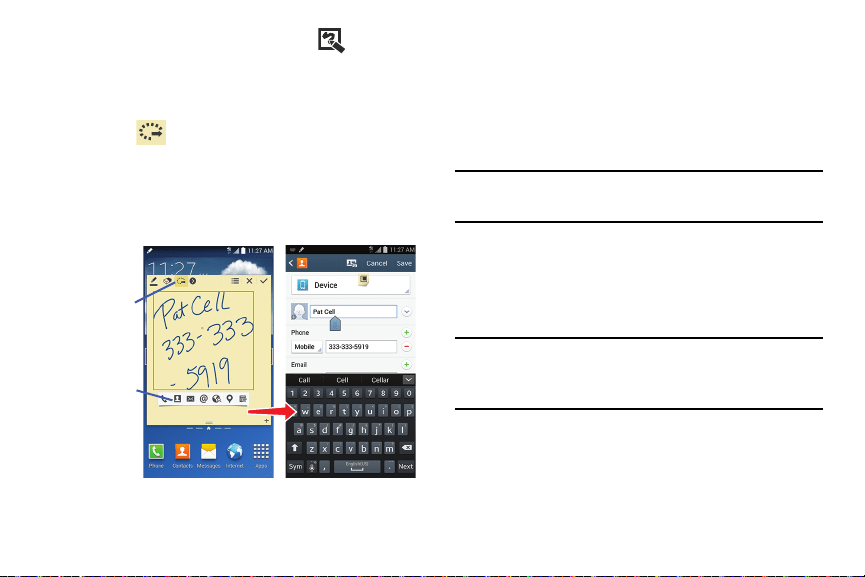
(
Link to action
), circle the action memo
content, and from the application toolbar, select an
available application (such as Contacts).
3.
numbers.
2. From the Air Command menu, select
Use the on-screen pop up page to enter in text and
(
Action
Memo
).
4. Select
5. The new content is then copied into
your selected
application.
Action Memo
Toolbar
Application
Toolbar
S Pen - Using Smart Clip
Instantly outline and crop images displayed on the screen in
any shape to share or paste with Smart Clip. Once desired
image is selected, users can freely edit the cropped content,
or personalize with their own handwriting.
To take a selective screen capture:
Note:
These steps allow you to capture selected areas of a
screen based on a freehand area drawn on-screen.
1. Grasp the pen.
2. In a single motion, press and hold the
S Pen button
then
quickly draw a freeform enclosed shape on the screen
to select the area you want to capture.
Note:
The shape you draw must be completed by ending over
the same point at which you started. This creates a
closed shape.
3. After a second, confirm the newly captured image
appears on-screen.
41
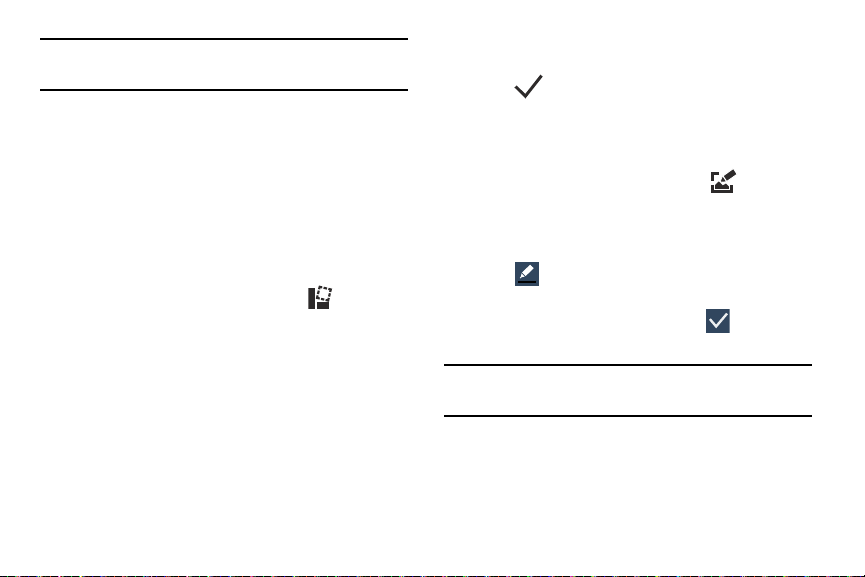
Note:
Additional options are available by scrolling left across
the bottom of the screen.
4. Select a destination for the newly captured image from
the bottom of the screen. Tap an available on-screen
option.
S Pen - Using Scrapbooker
1. Remove the S Pen from its slot.
2. Navigate to your target medium, such as a YouTube
video, document, or image.
3. Hover over the screen and press the S Pen button.
4. From the Air Command menu, select
(
Scrapbooker
).
5. In a single motion, quickly draw a freeform enclosed
shape on the screen to select the area you want to
capture into your Scrapbook.
6. Select the
Scapbook
option. The image is copied into
your clipboard.
7. From the top drop-down menu, select the target
scrapbook into which to place the current selection.
8. Enter a memo and tag that can be assigned/attached
to your selection.
9. Tap
(
Save
) to save your new entry.
S Pen - Using Screen Write
1. Remove the S Pen from its slot.
2. Hover over the screen and press the S Pen button.
(
Screen
Write
).
3. From the Air Command menu, select
4. The current on-screen elements are shot and then
displayed as an editable image.
5. Tap
to open the Pen settings menu and adjust the
pen color and thickness.
(
Save
) to
store the new image.
6. Begin to write on the image and tap
Note:
Results are stored in the
My Files
All
Device
storage
Pictures
Screenshots
.
Understanding Your Device 42
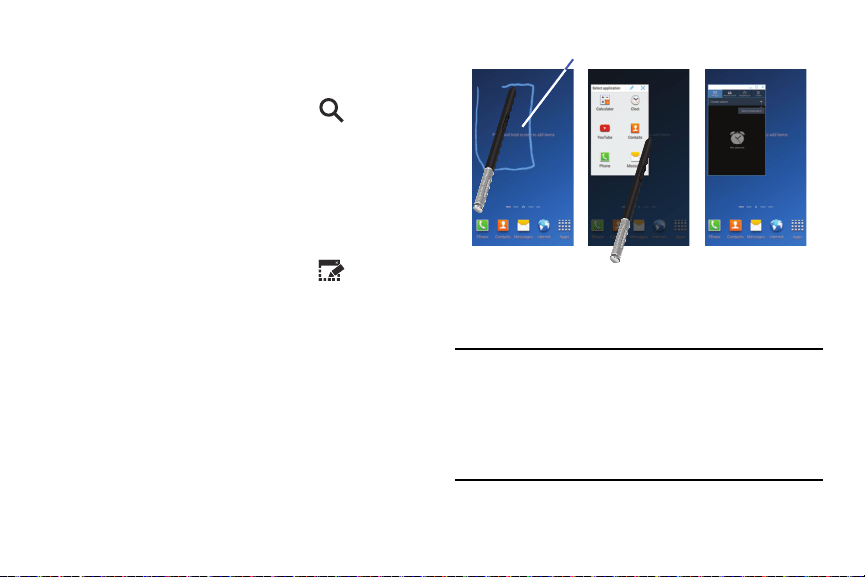
S Pen Using S Finder
1. Remove the S Pen from its slot.
2. Hover over the screen and press the S Pen button.
3. From the Air Command menu, select (
S Finder
)
and use the on-screen search tools.
S Pen - Using Pen Window
This feature allows you to draw an on-screen window and
then populate the drawn area a target application,
1. Remove the S Pen from its slot.
2. Hover over the screen and press the S Pen button.
3. From the Air Command menu, select (
Pen
Window
).
4. Locate an on-screen area and use the S Pen to draw
out a rectangular shaped window.
5. Select an available application. The desired app then
appears within the drawn area.
Pen window
Using the Multi Window
This feature allows you to run multiple applications on the
current screen at the same time.
Note:
Only applications found within the Multi window panel
can be active atop another current application on the
screen.
When launching applications that contain multimedia
files (music/video), audio from both files will be played
simultaneously.
43
Activating and Deactivating Multi window
To activate Multi window via the Notification screen:
1. In a single motion, touch the Status bar to reveal the
Notifications tab, and then drag it to the bottom of the
screen to open the Notifications screen.
(
Open Grid
view
) to display additional functions.
– or –
Using two fingers, touch and drag the Status bar
downwards to display additional functions.
2. From the Notification screen, tap
3. Tap the
Multi window
entry to activate the feature. The
icon turns green when active.
Note:
Although the Multi window feature is now active
(as shown via the Notifications screen), the user must
enable/display the Multi window list is shown only by
using the Back button. This action is a one time event
during the initial access. After that, the Multi window list
is displayed whenever the feature in active via the
Notifications screen.
To display the Multi window tab:
1. Press and hold the
Back
key ( ).
The Multi window tab appears (by default) on the
left side of the screen.
Note:
Initially open activation, the entire apps panel is briefly
displayed, then minimized to only show the tab.
2. Tap the tab to open the application panel showing all
the available Multi window apps.
To activate Multi window via the Settings menu:
1. From the Home screen, press and then tap
Settings
Device
tab
Multi window
.
2. Verify feature is active (indicated by
ON
ON
).
3. Press
to return to the Home screen and then tap
you open the application panel showing all the
available Multi window apps.
To hide the Multi window tab:
Press and hold the
Back
key ( ). This action hides
the Multi window tab from view.
Understanding Your Device 44
ON
ON
Repositioning the Multi Window
The Multi window contains two components: tab and apps
panel. The tab can be manually moved across the screen.
The apps panel (containing the scrollable apps) can be
relocated to lock onto the different sides of the screen.
To move the tab Up or Down:
1. Activate the Multi window feature (page 44).
2. Press and ho
ld the
Back
key ( ) to view the tab.
3. In a single motion, touch and hold the tab for
approximately one-second, then slowly drag it to its
new location
along the current
screen edge.
Note:
This is a quick way to get the tab out of the way if you
can’t get to a button or option behind it.
To relocate the Multi window apps panel:
1. Activate the Multi window feature.
2. Tap the tab to display the apps panel (containing the
scrollable apps).
Note:
Its only when the tab is detached that the entire panel
can be relocated.
3. In a single motion, touch and hold for approximately
one-second to detach it from the screen, then slowly
drag it to its new location
along any other
available
screen edge.
45
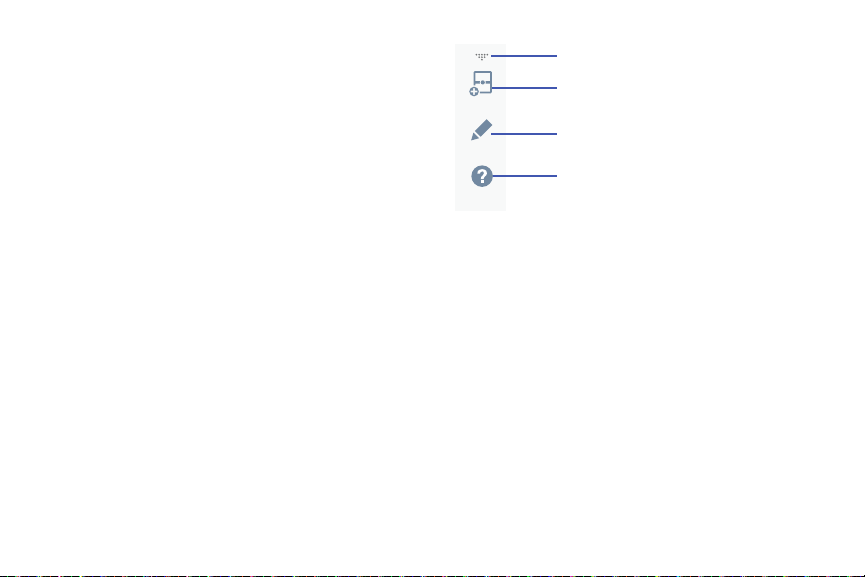
Customizing the Multi Window apps
The applications found within the apps panel of the Multi
window can be organized by either being rearranged or
removed.
To rearrange the Multi window applications:
1. Activate the Multi window feature.
2. Tap the tab to display the apps panel (containing the
scrollable apps).
3. In a single motion, touch and hold a desired app until it
detaches from the panel, then carefully drag it to a new
location in the list of apps. Lift your finger or stylus off
the screen to let go of the app and drop it into its new
location.
More
- access to additional functions
Create
- create a user-defined custom
Create
Multi window (paired window)
Edit
- edit the available Multi window apps
Edit
Help
- access to Help information
Help
To edit a Multi window application:
1. Activate the Multi window feature.
2. Tap the tab to display the apps panel (containing the
scrollable apps).
3. Tap
More
Edit
(located at the bottom of the list) to
reveal a staging area (on the right) that can house any
removed applications from the Multi window panel.
4. Tap
Done
once you have completed the removal
process.
Understanding Your Device 46
To restore a Multi window application:
1. Activate the Multi window feature.
2. Tap the tab to display the apps panel (containing the
scrollable apps).
(
More
) (
Edit
) located at the bottom of
the list) to reveal the staging area containing any
previously removed apps.
3. Tap
4. Locate the desired application.
5. In a single motion, touch and hold a desired app until it
detaches from the staging area, then carefully drag it
to a new location in the current list of apps.
Using Multi Window to run multiple apps on the
same screen
Any of the apps found within the Multi window panel can be
run at the same time as a current on-screen app.
Once multiple apps are running on the same screen, you can
then choose to either swap their positions or maximize a
desired app.
Note:
Only applications found within the Multi-window panel
can be active atop another current application on the
screen.
When launching applications that contain multimedia
files (music/video), audio from both files will be played
simultaneously.
Note:
Multi window can now run two separate instances of the
same application. If there are any issues with activating
Multi window, confirm the setting is activated
(page 254). Ex: Separate Messages within both the top
and bottom split views.
47
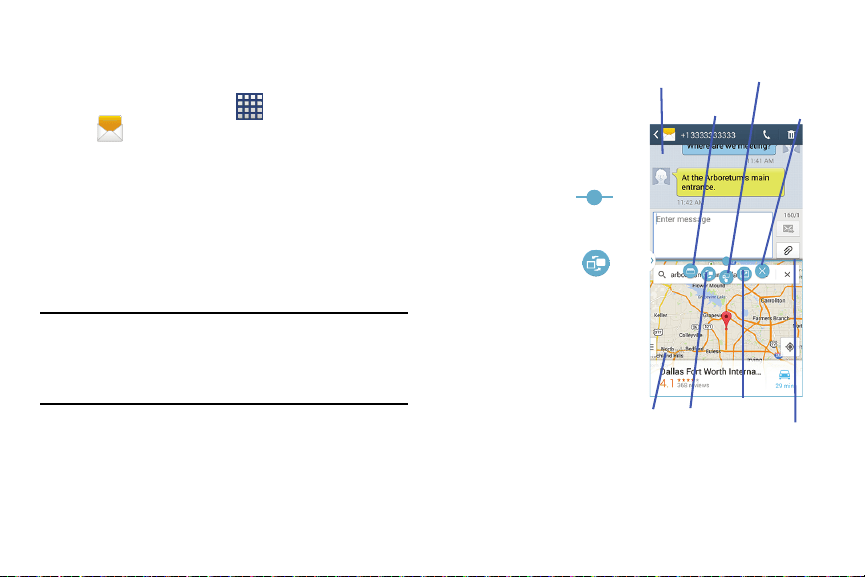
In this example we will be launching both the Messages and
Maps applications.
To switch the arrangement of the applications:
1. Tap the desired
application area (top or
bottom).
Drag/Drop Content
App #1
1. Launch an application.
Switch App
•
From the Home screen, tap (
Apps
)
Close
(
Messages
).
2. With the two
applications shown in a
split screen, tap the
2. Activate the Multi window feature.
3. Tap the tab to display the apps panel.
4. Touch and hold the desired app, such as Maps, until it
detaches from the panel.
Border button
to show the on-screen
functions.
5. In a single motion, drag it over the current app and
drop the new Multi window app over either the top or
bottom area of the current on-screen app.
3. Locate and tap
(
Switch Window
). The
current apps
are
switched.
Note:
Once two applications are running, the device displays a
split screen view containing both the initial app and the
new Multi window app.
Each application is still independent of the other.
To increase the size of a
desired application window:
1. With the two
applications shown in a
split screen, locate the
Full View
App Switch
#2
Window
Border Bar
Border bar indicating the edge of the app window.
Understanding Your Device 48

(
Close Application
). The current
2. In a single motion, touch and hold the Border bar then
drag it to resize the desired window.
To maximize an active window:
1. With the two applications shown in a split screen, tap
one of the on-screen application windows to make it
active.
2. Locate and tap
(
Full View
).
3. Tap the upper right of the po up to exit the app.
To close a selected application:
1. With the two applications shown in a split screen, tap
one of the two on-screen apps to select it.
2. Tap the Border bar to show the on-screen icons.
2. With the two applica
t
ions shown in a split screen, tap
the Border button .
1. Drag the Gallery a
p
p onto one of the available on-
screen windows.
Op
en an image folder.
Dragging and dropping a par
a
graph of text or a screen shot
image is now possible w
i
th Multi Window.
To add paragraph to an app:
3. Locate and tap
app is closed and the remaining app is maximized.
3. Locate and tap
(
Drag and Drop Content
).
4. Drag and drop a paragraph of text or an image from
one window into the other.
Note:
Not all apps support this feature.
To switch applications:
1. With the two applications shown in a split screen, tap
the Border button
.
2. Locate and tap
(
Switch Application
). If the
selected area contains more than one app, they will
then appear as on-screen pop ups.
3. Tap the upper right of the po up to exit the app.
Creating a Customized Multi Window Preset
1. Arrange the Multi window view as desired (app
location, high of windows, etc..)
1. Once configured, tap
(
More
) (
Create
).
2. Use the on-screen keyboard to name the new preset of
paired windows.
3. Tap
OK
. The new preset then appears at the top of the
Multi window list of apps.
49

Menu Navigation
You can tailor the device’s range of functions to fit your needs
using both menus and applications. Menus, sub-menus, and
features are accessed by scrolling through the available
on-screen menus. Your device defaults with seven screens.
Navigating Through the Application Menus
There are three default Application Menu screens available.
As you add more applications from the Play Store, more
screens are created to house these new apps.
1. From the Home screen, tap
(
Apps
). The first
Application Menu screen displays.
•
To close the Applications screen, press
(
Home
)
.
2. Sweep the screen to access the other menus.
3. Tap any of the on-screen icons to launch the
associated application.
Using Sub-Menus
Sub-menus are available from within most screen and
applications.
1. Press
. A sub-menu displays at the bottom of the
screen.
2. Tap an available on-screen option.
Using Context Menus
Context menus (also called pop-up menus) contain options
that apply to a specific item on the screen. They function
similarly to menu options that appear when you right click
your mouse on your desktop computer.
Touch and hold an item on-screen to open its context
menu.
Understanding Your Device 50
Section 3: Call Functions and Contacts List
This section describes features and functionality associated
with making or answering calls, and the Contacts list, which
is used to store contact information.
Displaying Your Phone Number
From the Home screen, press and then tap
Settings
General
(
General
tab)
About device
Status
. Your phone number displays in the
My phone number
field.
Note:
The device’s
Settings
menu can also be activated
by pressing
and then tapping (
Apps
)
(
Settings
).
Making a Call
You can store phone numbers that are regularly used to the
SIM card or to the device’s memory. These entries are
referred to as the
Contacts list
.
1. From the Home screen, tap
(
Phone
).
2. Enter the phone number and then tap
.
If you make a mistake while dialing, tap to
clear the last digit. Touch and hold
to clear the
entire sequence.
Note:
When you activate the
Auto redial
option from within the
Call settings
Additional settings
menu, the device automatically redials up to 10 times
when the person does not answer the call or is already
on the phone, provided your call is not sent to voicemail.
Note:
If your screen goes black during your interaction with
the device (launching Keypad, etc.), you might be
accidentally swiping over the front sensors.
51
General
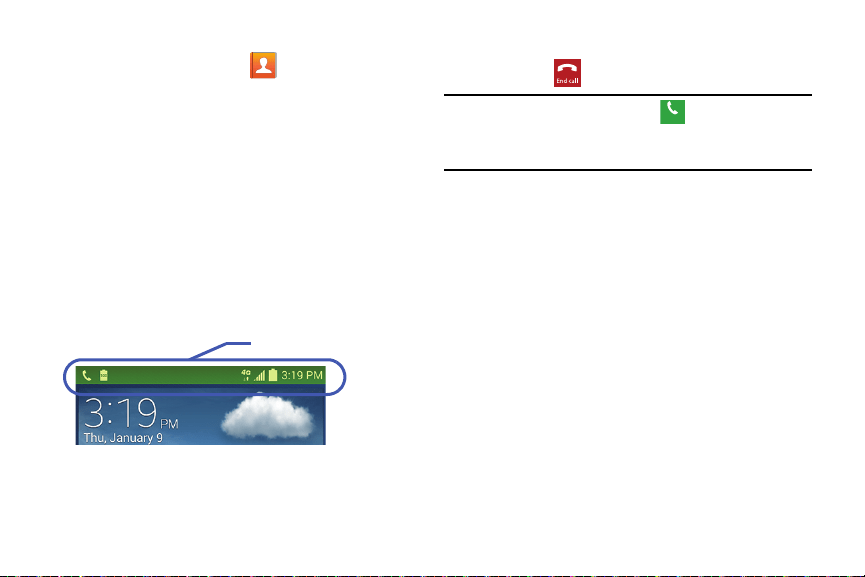
Quick Dialing a Number from the Contacts List
1. From the Home screen, tap (
Contacts
).
2. Locate a contact from the list.
3. In a single motion, touch and drag your finger over the
number by going to the right. This action places a call
to the recipient.
Running a Call in the Background
If you exit the current call screen and return to the Home
screen, you are visually notified that you are still on an active
call by the green phone icon within the Status bar.
This is the best way to stay on your current call and do
something else (multi-task) such as access the Contacts list,
view a recent email, locate a picture, etc..
In Call Notification
Ending a Call
Briefly tap key to end the call.
Note:
To redial a recent number, tap at the end of the call
or locate the number from the Logs list, tap the entry
and tap
Call
.
Call
Ending a Call from the Status Bar
1. From an active call, you can launch a separate
application or return to the Home screen. The current
call is kept active in the background.
2. Tap the Status bar to reveal the Notifications tab, and
then drag the tab to the bottom of the screen to open
the Notifications panel.
3. Tap
End
to end the currently active call.
Call Functions and Contacts List 52
Call
Without a SIM card, you can only make an emergency call
with the pho ne; normal cell phone service is not available.
Making an Emergency Call Without a SIM card
installed
During this type of call, you will have access to the
Speaker mode, Keypad, and End Call features.
to exit this calling mode.
. Complete your call.
2. From the Home screen, tap
3. Enter the emergency number (ex: 911) and then tap
.
4. Complete your call. During this type of call, you will
have access to the Speaker mode, Keypad, and End
Call features.
Note:
This mode can drain your battery power more rapidly
than a normal calling mode.
Making Emergency Calls
If you do not have a SIM card installed the first time you turn
on the phone, the
Insert SIM card to make calls
message
displays and an animated tutorial shows you how to install
the SIM card.
1. Tap
Emergency call
from the on-screen display to make
an emergency call.
2. Enter 9-1-1 and tap
3. Tap
Making an Emergency Call With a SIM card installed
The Emergency calling mode makes redialing an emergency
number a 1-tap process. Before you can resume normal
calling operations, you should first exit this mode.
1. Swipe the Lock screen to unlock the device.
.
5. At the Emergency Callback screen, follow the
on-screen instructions.
53
Dialing Options
When you enter numbers on the Keypad, you will see three
on-screen options.
From the keypad screen, use one of the following options:
•
Voicemail
( ) to access your Voicemail service.
•
Call
( ) to call the entered number.
•
Delete
( ) to delete digits from the current number.
To view additional dialing options:
After entering a number, tap :
• Send message
to send the current caller a text message while
still maintaining the current call active.
•Add to contacts
to add the current number to either a new or
existing Contacts entry.
• Speed dial setting
to access the Speed dialing setting menu
where you can assign a speed dial location to a current
Contacts entry.
• Add 2-sec pause
to insert a two-second pause to enter a
2-second delay within a number string (the phone continues
dialing after 2 seconds without any additional keys being
pressed.
Tip:
You can create pauses longer than two seconds by
entering multiple 2 second pauses.
• Add wait
to insert a hard pause within the number string (the
phone waits for your input). A wait requires that any
consecutive numbers be manually sent by tapping
Yes
.
• One-handed operation on/off
to enable or disable the
resize and reposition the keypad/dialer for either left (off) or
right handed operation (on).
• Call settings
to provide you access to the Call settings screen.
•Help
to available on-screen help regarding calling features.
Call Functions and Contacts List 54
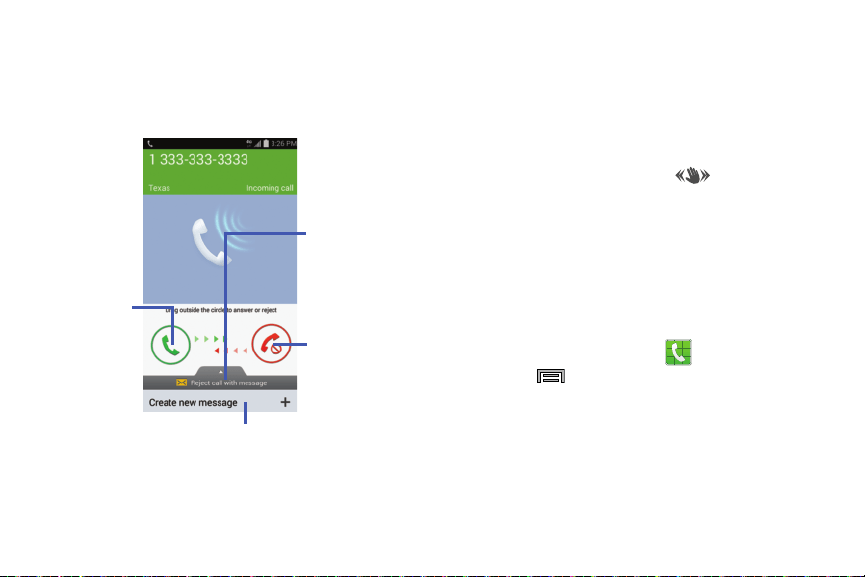
Answering a Call
When somebody calls you, the phone rings and displays the
incoming call image. The caller's phone number, picture, or
name if stored in Contacts List, displays.
Touch and drag
upward to reject
with a message
Touch and
slide in any
direction to
answer the
Touch and slide
in any direction
call
to reject the call
Tap Cr
eate new message
to create a new custom message
Pressing the Volume down button mutes the ringer.
Answering a call with Air Gesture
1. Verify the Air Gestures feature is on and Air call-accept
is active. For more information, refer to “Motions and
Gestures Settings” on page 283.
2. At the incoming call screen, wave your hand over the
screen to accept the incoming call.
•
If active, the Air call-accept icon appears at the top of
the incoming call screen.
Managing Reject Calls
This feature allows you to categorize both known and
unknown callers as rejected contacts. These Contacts are
then added to your Rejection list which can be managed for
individual entries from within the Contacts list or as a whole
from the Call rejection screen.
1. From the Home screen, tap
.
2. Press
and then tap
Call settings
Call rejection
.
55
3. Tap the
Auto reject mode
field to configure your
automatic rejection settings. Rejected calls are routed
automatically to your voicemail. Choose from:
•Off
: disables the auto rejection feature.
• All numbers
: enables the features for all known and unknown
numbers, including those contacts that are not assigned to the
rejection list.
• Auto reject numbers
: automatically rejects all entries assigned
to the Reject list/Blacklist.
Adding numbers to the rejection list
Entries can be added to the list via either the Contacts menu
or via the Auto reject list menu. The Contacts menu option
assigns all numbers for an individual as rejected. The Auto
reject list allows to assign individual numbers.
To assign multiple numbers as rejected via Contacts:
1. From the Home screen, tap (
Contacts
).
2. Locate an entry and tap it to open the Contact
Overview Screen (page 81).
3. Press
and then tap
Add to reject list
. All phone
numbers associated with this entry are then added to
the reject list.
To assign single number as rejected via Auto reject list:
1. From the main
Call settings
page, tap
Call rejection
Auto reject list
.
2. Tap
(
Create
) and either enter the phone number
or select a Contact from your Logs or Contacts list.
3. Tap
Save
to complete the assignment.
International Calls
1. From the Home screen, tap and then touch and
hold
until the device shows “+” on-screen.
2. Use the on-screen keypad to enter the country code,
area code, and phone number.
3. If you make a mistake, tap
once to delete a
single digit.
– or –
Touch and hold
to delete all digits.
4. Tap
.
Call Functions and Contacts List 56
0
Pause Dialing
You can dial or save phone numbers with pauses for use with
automated systems, such as voicemail or financial phone
numbers.
•
2-Second Pause
automatically sends the next set of numbers
after a two-second pause. This is indicated in the number string
as a comma (
,
).
1. From the Home screen, tap and use the
on-screen keypad to enter the phone number.
2. Press
and then tap
Add 2-sec pause
. This feature
adds an automatic two-second pause.
3. Use the keypad to enter the additional numbers that
will be dialed automatically after the second pause.
Tip:
You can create pauses longer than two seconds by
entering multiple 2 second pauses.
4. Tap
.
Wait Dialing
Inserting a Wait into your dialing sequence means that the
phone waits until it hears a dial tone before proceeding with
the next sequence of numbers.
•
Wait
sends the next set of numbers only after tapping
Yes
. This is
indicated in the number string as a semicolon (
;
).
Note:
Do not add multiple Waits (;) to a number string as this
will continue to prompt you after each sequence.
1. From the Home screen, tap and use the
on-screen keypad to enter the phone number.
2. Press
and then tap
Add wait
. This feature causes
the phone to require your acceptance before sending
the next set of entered digits.
3. Tap .
4. Once prompted to
Send the following tones?
, tap
Yes
to
dial the remaining digits.
57
(
Logs
tab) to display the list of recent
and then tap
Speed dial setting
. The
Speed
Redialing the Last Number
Setting Up Speed Dial Entries
The device stores the numbers of the calls you’ve dialed,
received, or missed if the caller is identified.
Important!
Speed dial location #1 is reserved for Voicemail. No
other number can be assigned to this slot.
To recall any of these numbers:
1. From the Home screen, tap
(
Keypad
2. Press
1. From the Home screen, tap
.
2. Tap the
3. Tap the name/number and tap .
tab).
calls.
dial setting
screen displays a virtual list of locations
Speed Dialing
with the numbers 2 through 100.
Once you have stored phone numbers from your Contacts
List, you can set up to 99
speed dial entries (2-100) and then
dial them easily whenever you want, simply by touching the
associated numeric key.
3. Tap an unassigned number slot. The
Select contact
screen displays.
4. Tap a contact and select a number to assign it to the
speed dial location. The selected contact number/
Note:
Speed dial location #1 must be reserved for Voicemail
use.
image is displayed in the speed dial number box.
Call Functions and Contacts List 58
Changing a Speed Dial Entry Order
1. From the Home screen, tap
Keypad
tab.
and then tap
Speed dial setting
.2. Press
Important!
The number 1 is reserved for Voicemail and
another number cannot be assigned to this slot.
3. Press
and then tap
Change order
.
4. Tap the current entry then tap the new target speed
dial location.
Note:
Tapping 2 existing speed dial locations causes the
entries to switch positions.
5. Tap
Done
. to store the change.
6. Press
to return to the previous screen.
Removing a Speed Dial Entry
1. From the Home screen, tap
Keypad
tab.
and then tap
Speed dial setting
.2. Press
3. Touch and hold a existing on-screen speed dial
location and select
Remove
from the context menu.
– or –
Press
and then tap
Remove
. Tap an entry and
select (
Remove entry
). Select either
Done
(to complete the deletion) or
Cancel
(to exit).
4. Press
to return to the previous screen.
Making a Call Using Speed Dial
You can assign a short cut number to a phone number in the
Contacts List for speed dialing.
1. From the Home screen, tap
.
2. Touch and hold a previously created speed dial location
(numbers 2-100, or 1 if you are dialing voice mail) until
the number begins to dial.
3. If you are not certain of the speed dial location, tap
Speed dial setting
and tap a speed
dial number to view the assigned phone number.
59
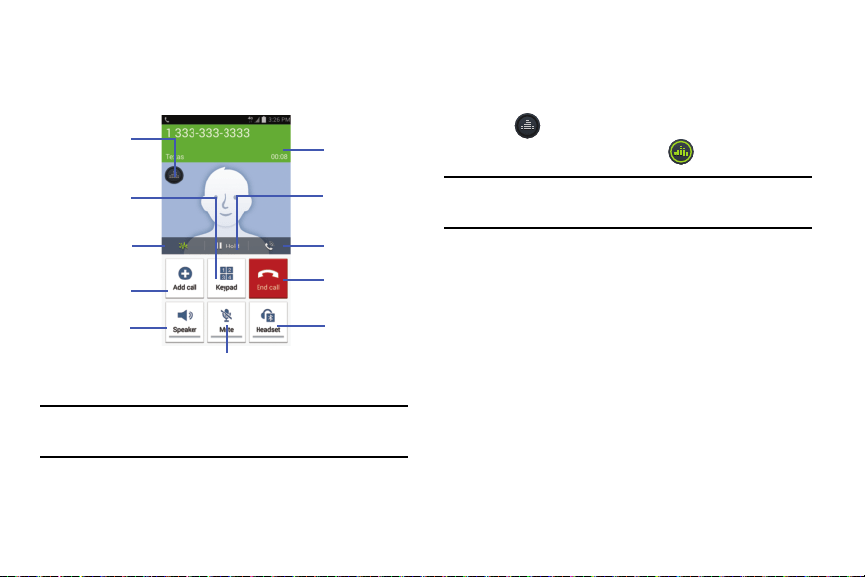
Personalized
call sound
Call duration
Places a
Dialer
call on hold
Background
Noise
Extra volume
Reduction
Ends the
Adds a
call
new call
Activates or
Activates or
Deactivates
Deactivates
speakerphone
M
utes or Unmutes
Bluetooth
the call
Headset
In Call Options
Your device provides a number of features that are available
for use during a call.
Note:
Noise reduction and Extra volume features are disabled
while using Wi-Fi Calling.
Personalizing the Call Sound Setting
During a call it may be necessary to adjust the sound of the
incoming call by selecting an audio equalizer setting for the
current call.
1. Tap
(
Personalize call sound
).
2. Confirm the option is enabled
.
Note:
If prompted to enable the feature via the Call settings
menu, go to
Call settings
Personalize call sound
.
3. Select an available option.
Choose from: Adapt Sound, Soft sound, Clear sound,
and Off.
Call Functions and Contacts List 60
Placing a Call on Hold
You can place the current call on hold whenever you want. If
your network supports this service, you can also make
another call while a call is in progress.
To place a call on hold:
1. Tap
Hold
to place the current call on hold.
2. Tap
Unhold
to activate the call that is on hold.
To make a new call while a call is in progress:
1. Enter the new phone number that you wish to dial or
look it up in Call history.
2. Once connected, tap
Add call
to dial the second call.
3. Dial the new phone number and tap
.
To switch between the two calls:
Tap (
Swap
Swap
)
Swap
.
The previous In call number turns gray and displays
On hold. The new active call displays a green
background behind the number.
More In-call Options
During a call you can save the current caller’s information to
the Contacts list, or create a Memo.
Press and then select an available in-call option:
• Contacts
: During a call you can look up a number in the
Contacts list. Browse the Contacts list for the information you
need.
• Acti on Memo
: During a call it may be necessary to create a
new action memo via an available pop up screen.
• Message
: During a call you can create a message.
–
Tap
Message
(
Tap to compose message
).
–
Address and create the message.
–
Review your message and tap (
Send
).
• One-handed operation on/off
to enable or disable the
resize and reposition the keypad/dialer for either left (off) or
right handed operation (on).
61
Swap
Swap
Multi-Party calls
Making a Multi-Party Call
A multi-party cal l is a network service t hat multiple people to
participate in a multi-party or conference call.
For further details about subscribing to this service, contact
T-Mobile customer service.
Setting up a Multi-Party Call
1. From the Home screen, tap .
2. Dial the number for the first participant and tap
.
3. Once connected, tap
Add call
, enter the second phone
number and tap
. The first caller is placed on
hold.
4. Wait for the second caller to answer the incoming call
and tap
Merge
. The two calls are now joined into a
multi-party call and display in the order in which they
were called.
Important!
Multiple callers can be joined to a single
multi-party line. Additional callers participate in a
new Multiparty session and are held in conjunction
with the previous multiparty call. You can swap or
place each multi-party call on hold.
Having a Private Conversation With One Participant
Note:
The Manage conference call option is not available for
multi-party calls created while using the Wi-Fi Calling
feature. You must be on the cellular network to use the
manage feature.
When you have two participants in a multi-party session, it
might be necessary to place one of those participants on
hold so that a private conversation can be held with a single
caller. While you are in a multi-party call:
1. Press
and then tap
Manage conference call
.
(
Split Caller
) adjacent to the participants you
would like to split from the current multi-line call. The
list displays the callers in the order they were dialed.
2. Tap
Call Functions and Contacts List 62
Note:
The Manage conference call option is not available for
multi-party calls created while using the Wi-Fi Calling
feature. You must be on the cellular network to use the
manage feature.
3. Tap the participant to which you want to speak
privately.
You can now talk privately to that person while the
other participants can continue to converse with each
other. If there is only one other participant, that person
is placed on hold.
4. To return to the multi-party call, tap the
Merge
icon. All
of the multi-party call participants can now hear each
other.
Dropping One Participant
1. Press and then tap
Manage conference call
End
to the right of the number to drop.
The participant is disconnected and you can continue
the call with the other participant.
2. Tap
to end your conversation with the remaining
caller.
Call Waiting
You can answer an incoming call while you have a call in
progress, if this service is supported by the network and you
have previously set the Call waiting option to
Activate
.
You are notified of an incoming call by a call waiting tone. For
more information, refer to “Configuring Additional Voice Call
Sett
ings” on page 270.
To answer a new call while you have a call in progress:
1. In a single motion, touch and slide it in any
direction to answer the new incoming call.
63
End
2. Tap an option from the Accept call after menu:
• Putting xxx on hold
to place the previous caller on hold while
you answer the new incoming call.
• Ending call with xxx
to end the previous call and answer the
new call.
Note:
The new caller appears at the top of the list. The
previous caller is placed on hold and appears at the
bottom of the list.
3. Tap
Swap
to switch between the two calls. This places
the new caller on hold and activates the previous call.
Important!
The currently active call is displayed with a green
background.
4. Tap
Swap
again to switch back.
Logs Tab
The Logs tab is a list of the phone numbers (or Contacts
entries) for calls you placed, accepted, or missed. The Logs
tab makes redialing a number fast and easy. It is continually
updated as your device automatically adds new numbers to
the beginning of the list and removes the oldest entries from
the bottom of the list.
The Notification area of the Home screen (upper left) displays
phone notifications, status, or alerts such as:
Displays when a call is in progress.
Displays when a call was missed.
Call Functions and Contacts List 64
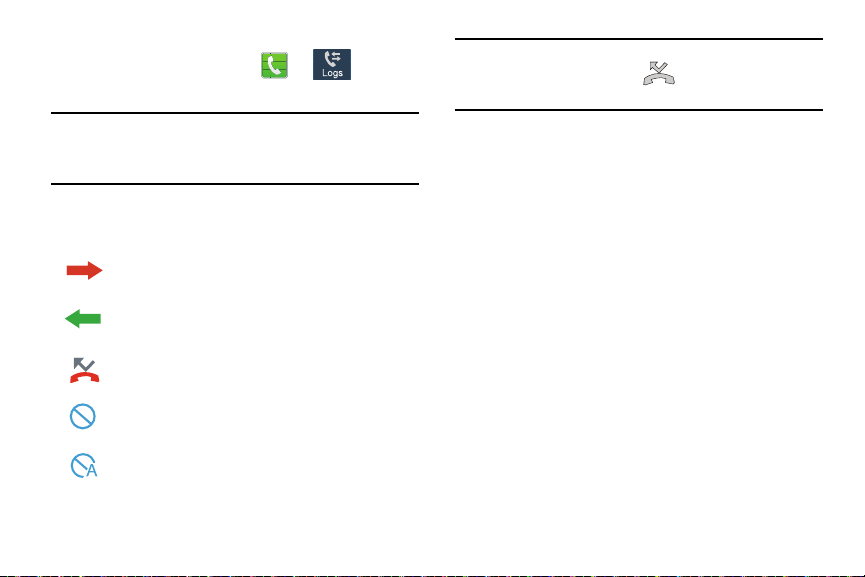
From the Home screen, tap
Note:
The Logs tab only records calls that occur while the
phone is turned on. If a call is received while it is turned
off, it will not be included in your calli
ng history.
Each
entry contains the phone number (if it is a
vailable) and
Contacts entr
y name (if the number is in your
Contacts).
(
Logs
tab).
2.
Tap an entry to view available options.
Indicates all outgoing calls made from
your device.
Accessing the Logs Tab
Note:
You can also view missed calls from within the
1.
Notifications area. Select
and tap the Missed call
entry to open the Logs screen.
Call logs - Caller Overview
1. Tap a contact entry name or number to reveal the
Call
options
screen:
• Create contact
to save the number if it is not already in your
Contacts.
•View contact
to view the Contact details for the current entry.
• Update existing
to update an existing Contacts entry with the
current number.
Indicates any received calls that were answered.
•Call
allows you to redial the entry by name or number.
• Send message
allows you to create a new text message to the
Indicates a missed call.
selected entry.
•Time
provides the time and date of the call and its duration.
Indicates any received calls that were rejected.
•View more
to view additional log information from the current
entry.
Indicates auto rejected calls.
65
2. Press
to reveal additional options:
• Copy to dialing screen
to pass the current number to your
dialer and then edit the selected number before you place your
next outbound call.
•Delete
to delete the Contacts entry.
• Send number
to send the current Contacts entry information to
an external recipient.
• Add to reject list
to add the current phone number to an
automatic rejection list. Similar to a block list, the selected caller
will be blocked from making an incoming calls to your phone.
•
Touch and hold an entry to display the entry-specific context
menu:
• Copy to dialing screen
to make alterations to the current
phone number prior to redial.
•Add to contacts
to save the number if it is not already in your
Contacts.
• Send number
to send the current Contacts entry information to
an external recipient.
•View contact
to view the information for the currently stored
Contacts entry.
• Add to reject list
to add the current phone number to an
automatic rejection list. Similar to a block list, the selected caller
will be blocked from making an incoming calls to your phone.
• Delete
to delete the entry from the Logs list.
Altering Numbers from the Logs List
If you need to make a call from the Logs screen and you
need to alter the number prior to dialing, you can add the
appropriate prefix by prepending the number.
1. From the Home screen, tap
Logs
tab.
2. Touch and hold an entry to access the entry-specific
context menu.
3. Tap
Copy to dialing screen
.
4.
Edit the number using the on-screen keypad or delete
digits by pressing to erase the numbers.
5. Tap once the number has been changed.
Call Functions and Contacts List 66
Erasing the Call logs List Call Duration
Logs
tab.
entries from the Logs list.
2. Press
You can delete either an indivi
dual call log entry or all current
1. From the Home screen, tap
and then tap
Call duration
.
To clear a single entry from the list:
3. The following times are displayed for Voice and Data:
1. From the Home screen, tap
Logs
tab.
•Last call
: shows the length of time for the last call.
2. Touch and hold an entry and select
Delete
Delete
.
• Dialed calls
: shows the total length of time for all calls made.
To clear all entries from the list: • Received calls
: shows the total length of time for all calls
1. From the Home screen, tap
Logs
tab.
received.
and then tap
Delete. • All calls
: shows the total length of time for all calls made and
2. Press
3. Tap
Select all
.
received.
4. Tap
Delete
Delete
to continue with the erasure.
4. You may reset these times to zero by pressing
– or –
then tapping
Reset
.
Tap
Cancel
to stop the current process.
67

l
Section 4: Entering Text
This section describes how to select the desired text input
method when entering characters into your device. This
section also describes the predictive text entry system that
reduces the amount of key strokes associated with entering
text.
Your device comes equipped with an orientation detector that
can tell if the phone is being held in an upright (Portrait) or
sideways (Landscape) orientation. This is useful when
entering text.
Text Input Methods
There are two text input methods available:
•
Google voice typing
: provides a voice to text interface.
•
Samsung keyboard
(default): an on-screen QWERTY
keyboard that can be used in both portrait and landscape
orientation.
Note:
SwiftKey Flow (previously known as Swype) can be
enabled from within the Samsung keyboard to allow
word creating via swiping.
The on-screen QWERTY keypad works the same in both
portrait and landscape mode.
Selecting the Text Input Method
The Text Input Method can be assigned from within one of
two locations:
Settings Menu:
From the Home screen, press and then tap
Settings
Contro s
(
Controls
tab)
Language and
input
Default
and select an input method.
Text Input field:
1. From a screen where you can enter text, in a single
motion, touch and drag the Status bar down to the
bottom of the screen to open the Notifications screen.
2. Tap
(
Choose input method
) and select an
available input method.
Entering Text 68
Controls
(
Choose input method
)
Google voice
(
Speak now
), speak
(
Done
) when you are finished.
(
Resume
) to resume recognition.
bottom of the screen, then select
method
)
Google voice typing
. The virtual keyboard is
then removed and all subsequent input to done via the
microphone as
text to speech.
2. Speak into the device’s microphone and watch your
text being entered on-screen.
3. If the text is incorrect, tap
DELETE
.
Using the Google Voice Typing
This feature uses Google voice recognition to convert your
spoken words into on-screen text.
You can use your voice to enter text using the Google Voice
typing fea
ture.
1. From the keyboard, touch the
top of the screen and
drag it
down to dis
play your notifi
cation panel.
2. Tap
typing
.
3. At the Listening prompt
clearly and distinctly into the microphone.
The text is displayed in the message as you are
speaking.
For more detailed information on configuring Google Voice
Typing settings, see “Configure Google Voice Typing” on
page 278.
4. Tap
– or –
Tap
Note:
The feature works best when you break your message
down into smaller segments.
Using Google Voice Typing
1. From a screen where you can enter text, in a single
motion, touch and drag the Status bar down to the
(
Choose input
69
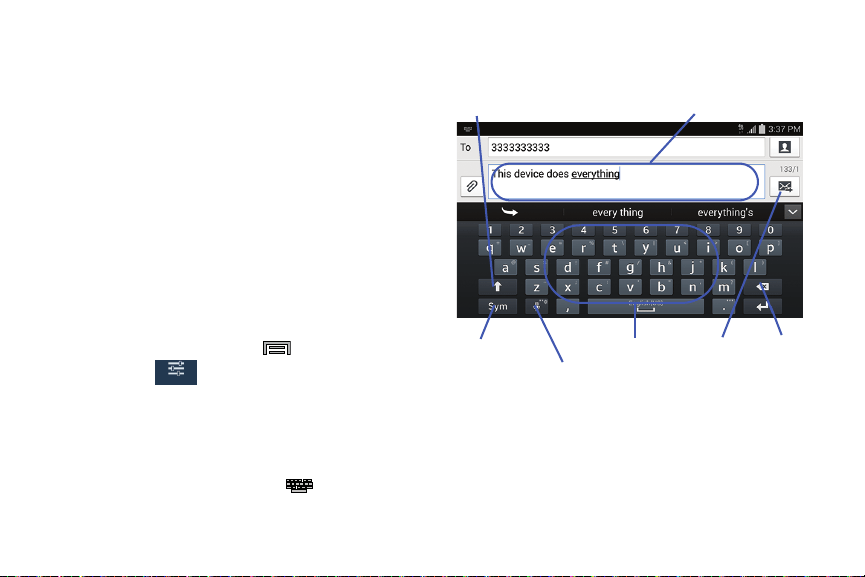
l
Using the Samsung Keyboard
2. The virtual keyboard is then assigned to the Samsung
keyboard configuration for all subsequent text input.
This QWERTY keyboard can be used to enter text in either a
Portrait or landscape orient
ation. The only difference
Shift key
Text input field
between the two orientations are the sizes of the keys.
From a screen where you enter text, r
otate your phone
counterclockwise to a landscape orientation. The on-screen
QWERTY keyboard displays.
The Samsung Keyboard
This device has a built-in, QWERTY keypad (portrait mode) or
keyboard (landscape mode). Using th
e QWERTY keypad/
keyboard, you can type letter, numbers, punctuat
ion, and
other characters.
To use the Samsung keyboard you must first
configure the
settings to default to the Samsung keyboard.
1. From the Home screen, press
and then tap
Input Mode Current Mode Send Delete
Indicator
Settings
(
Controls
tab)
Language and
Input Options
input
Default
Contro s
Samsung keyboard
.
/Settings
– or –
For more detailed information on configuring Samsung
Keyboard settings, see “Samsung Keyboard Settings” on
From a screen where you can enter text, in a single
page 276.
motion, touch and drag the Status b
ar down to the
bottom of the screen, then select
(
Choose input
method
)
Samsung keyboard
.
Entering Text 70
Controls
, then tap
al the on-scree
•Abc
Entering Text using Different Input Options
Although the default text input method with the Samsung
keyboard is to use the on-screen keys you have other
options.
2. Tap (
Input Methods
) to use the default Voice
typing input method to convert your spoken words to
on-screen text.
– or –
Touch and hold to select from other input
methods such as:
1. From within an active message, tap the text input field
to reve n keyboard.
Note:
To access settings, touch and hold the
Input Methods
button (
Settings
) then select it from
the available options.
• Voice to text
to launch the device’s Google Voice typing
application to covert spoken words into on-screen text.
• Handwriting
to launch an on-screen handwriting area that can
be used to convert on-screen patterns (text) to text.
ABC
•Clipboard
to launch the device’s clipboard area from where
you can select a current clipboard item to place in your current
message.
• Settings
to access the Samsung keyboard settings menu.
•Emoticons
to access a variety of emoticon pages.
• Keyboard alignment
to detach the on-screen keyboard so that
you can manually dock it anywhere on the current text entry
screen. Selecting the feature again redocks the keyboard into
its original location using the original size.
Changing the Text Input Mode in Keyboard
1. From a screen where you can enter text, tap the text
input field to reveal the on-screen keyboard.
2. With Samsung keyboard as your text entry method,
select one of the following text mode options:
: to use alphabetic characters from the on-screen
keyboard. In this mode, the text mode button displays
Sym Sym
.
•Symbol/Numeric
Sym
: to enter numbers by pressing the
numbers selecting them on the on-screen keyboard. In this
mode, the text mode button displays
ABC ABC
.
There are up to 2 available pages of numeric symbols available
by tapping
1/2 1/2
.
71
ABC
Sym
2. Tap
Once in this mode, the text input type shows
Note:
After typing an initial uppercase character, the
changes to
case.
3. Enter your text using the on-screen keyboard.
If you make a mistake, tap
Touch and hold to erase an entire word.
4. Tap (
Send
) to deliver the message.
All lowercase
Displays when the next character is entered in
lo
wercase.
Initial Uppercase
Displays when the first character of each word is
entered as uppercase but all subsequent
characters are lowercase.
All Uppercase
Displays when all characters will be entered as
upper
case characters.
Using ABC Mode in Samsung Keyboard
Note:
After typing an initial uppercase character, tap to
1. From a screen where you can enter text, tap the text
input field to reveal the on
-screen keyboard.
toggle capitalization.
to configure the keyboard for ABC mode.
SySymm
.
to erase a single character.
–
ABC ABC
key
and all letters that follow are in lower
By default, the first letter
of a new entry is capitalized a
nd the
following letters a
re lowercased. After a character is entered,
the cursor automatically advances to the next space.
Entering Text 72

ABC ABC
Using Symbol/Numeric Mode
Use the Symbol/Numeric Mode to add numbers, symbols,
or emoticons. While in this mode, the text mode key
displays
.
1. From a screen where you can enter text, ta
p the text
input field to reveal the on-screen keyboard. Rotate the
phone counterclockwise to a landscape orientation, if
desired.
2. Tap
Sym Sym
to configure the keyboard for Symbol
mode. Once in this mode, the text input type shows
.
ABC ABC
Tap
mode.
Sym Sym
3. Tap a number, symbol, or emoticon character.
4. Tap
ABC ABC
to return to ABC mode.
To enter symbols:
1. to configure the keyboard for Symbol
2. Tap the appropriate symbol key.
– or –
Tap
1/2 1/2
button to cycle through additional pages.
•
The first number on this key indicates which page (1 or 2) of
additional characters is active.
73
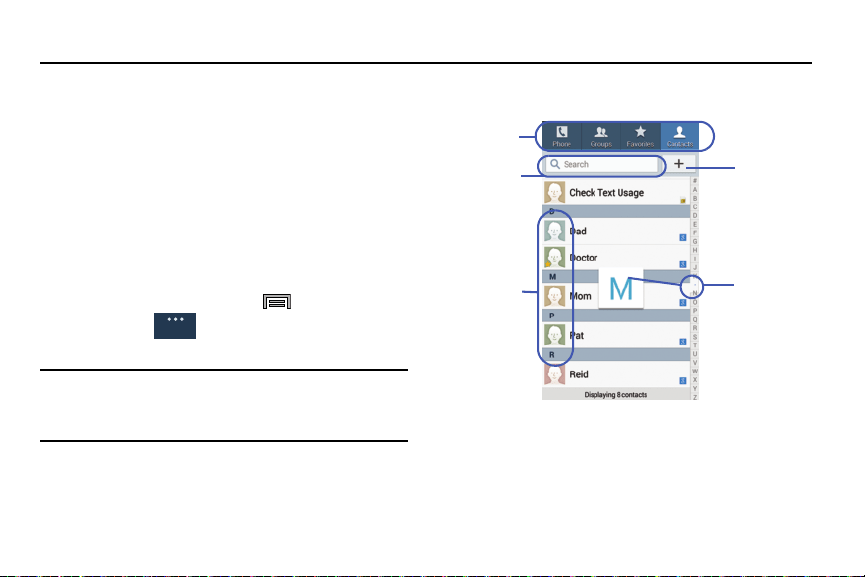
Section 5: Contacts
This section explains how to use and manage your Contacts
List. You can save phone numbers to your device’s memory.
Contacts List
Accounts
Tabs
From the Accounts menu you decide if you want applications
to synchronize, send, and receive data at any given time, or if
you want the applications to synchronize automatically. After
determining how you want the accounts to synchronize,
indicate which account to synchronize with your Contacts
list.
Search
Create
Contacts
Contacts
field
1. Sign in to your Google account.
Tabbed
Contacts
Navigation
2. From the Home screen, press and then tap
Settings
General
(
General
tab)
Accounts
and then
navigate to the
My accounts
area.
Note:
The Accounts area lists those accounts that have been
added to the device and provides an
Add account
button
to quickly and easily add new ones.
Contacts 74
General

Creating a Contact
The default storage location for saving phone numbers to
your Contacts List is your device’s built-in memory.
If existing Google and Corporate email accounts have been
synchronized to your phone, these will be made available to
your device during the creation of new entries. These new
Contacts entries can be assigned or saved to synced
accounts such as Phone, SIM, Google, or Corporate.
Your device automatically sorts the Contacts entries
alphabetically. You can create either a
Device
,
SIM
,
Samsung
account
,
Google
, or
Microsoft Exchange ActiveSync
contact.
Important!
The Google and Microsoft Exchange ActiveSync
account types are only visible after creating an
email account of those types on your phone.
•
Device
contacts are stored locally on the device.
Note:
If the device is ever reset to its factory default
parameters, contacts stored on the phone can be lost.
•
SIM
contacts are stored within the micro SIM Card.
Note:
SIM contacts only store the Name and Phone number for
an entry.
•
Samsung account
contacts are shared with your existing
Samsung account.
•
Google
contacts are shared with your existing Google account
and can also be imported to your phone after you have created a
Google Mail account.
•
Microsoft Exchange ActiveSync
(also known as Work or
Outlook) contacts are those contacts that are intended to be
shared with either an Exchange Server or from within Microsoft
®
Outlook
®
.
•
Add new account
lets you create a new account type. Choose
from Samsung account, Google, or Microsoft Exchange
ActiveSync.
Note:
When storing an entry into your micro SIM card, note
that only the Name, and Number are saved. To save
additional information for a particular contact, such as
notes, email, dates, etc., it is important to save that
Contact into your device’s onboard memory.
75
1. From the Home screen, tap (
Contacts
).
2.
Tap
to create a contact.
Note:
You can also add a new contact by entering a number
from the keypad and pressing
and then tap
Add to contacts
Create contact
. Continue with step 3.
3. Tap a destination type (
Device
,
SIM
,
Samsung account
,
Google
, or
Microsoft Exchange ActiveSync
) (depending
on where you want to save the new contact
information).
4. Tap the
Name
field and enter a name for this contact
using the displayed keypad.
•
Tap to access additional name entries such as: Name
prefix, First name, Middle name, Last name, and Name suffix.
5. Tap the image icon and select a photo for this contact.
Selections are:
Image
,
Pictures by people
,
Take picture
,
or
S Note
.
Note:
The label entries below can change and are dependant
on the selected destination type (ex: the Other and
Custom might not appear with an Exchange ActiveSync
account destination type).
6. Tap the label button (to the left of the
Phone
field) and
scroll through the list to select a category such as
Mobile
,
Home
,
Work
,
Work Fax
,
Home Fax
,
Pager
,
Other
,
Custom
, or
Callback
.
7. Tap a phone number field and enter a phone number.
•
Tap on the QWERTY keyboard to remove a previously
entered phone number.
•
Tap to enter an additional phone number
•
Tap to remove a previously entered phone number.
Contacts 76
+
8. Enter additional information such as:
Email
,
Groups
,
Ringtone
,
Message alert
,
Vibration pattern
or tap
Add
another field
to input additional category information.
•Add another field
contains the following options: Phonetic
name, Organization, IM, Address, Notes, Nickname, Website,
Internet call, Events, or Relationship.
•
Use your finger to slide the page up or down to see additional
fields and categories.
9. Tap
Save
to complete and store the new entry.
– or –
Tap
Cancel
to delete the current entry.
To save a Number from your Keypad:
1. From the Home screen, tap (
Keypad
tab).
2. Enter a phone number.
3. Tap
Add to contacts
Create contact
.
– or –
Tap
Add to contacts
Update existing
, and select a
Contact.
4. Enter additional contact information. For more
information, refer to “Creating a Contact” on page 75.
Finding a Contact
You can store phone numbers and their corresponding
names onto either your SIM card, your phone’s built-in
memory, or an external location (such as Google, Exchange,
etc..). They are all physically separate but are used as a
single entity, called Contacts.
Depending on the storage size of the particular SIM card, the
maximum number of phone numbers the card can store may
differ.
1. From the Home screen, tap
(
Contacts
).
2. Swipe up or down until you see the contact displayed.
– or –
Tap the
Search
field and begin entering the entry’s
name. Matching entries are then displayed. This
process filters through all of your current account
Contact entries to only show you the matching entries.
– or –
In a single motion, touch and hold the letter tab area
(on the right) until on-screen letters appear, then scroll
through the list. You are then taken to that section of
the Contacts list. Touch the contact entry.
77
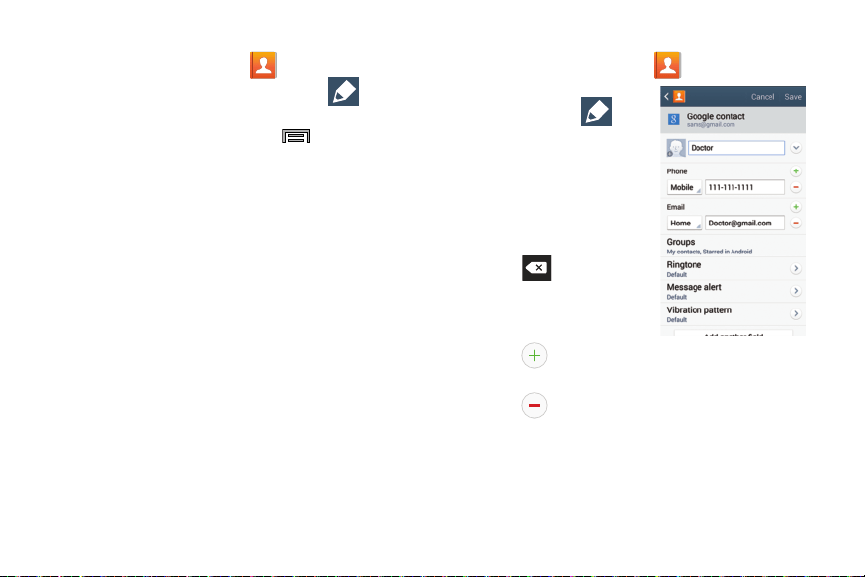
Editing Contact Information
1. From the Home screen, tap .
2. Tap a contact name from the list and tap
(
Edit
).
– or –
Select a contact name and press
and then tap
Edit
.
3. Edit the contact information then:
•
Tap
Save
to complete and store the new entry or
•
Tap
Cancel
to delete the current entry.
Adding a Number to an Existing Contact
1. From the Home screen, tap .
2. Tap a contact name from
the list and tap
(
Edit
) to reveal the
Contact entry’s details
screen.
3. Tap a phone number field
and enter a phone
number.
•
Tap on the QWERTY
number.
keyboard to
remove a
previously entered phone
•
Tap to enter an
additional phone number
•
Tap to remove a previously entered phone number.
Contact Details Screen
Contacts 78
4. Enter additional information such as:
Email
,
Groups
,
Ringtone
,
Message alert
,
Vibration pattern
or tap
Add
another field
to input additional category information.
•Add another field
contains the following options: Phonetic
name, Organization, IM, Address, Notes, Nickname, Website,
Internet call, Events, or Relationship.
•
Use your finger to slide the page up or down to see additional
fields and categories.
5. Tap
Save
to complete and store the new entry.
– or –
Tap
Cancel
to delete the current entry.
Deleting Contacts
Important!
Once Contacts list entries are deleted, they cannot
be recovered.
1. From the Home screen, tap
.
2. Touch and hold a contact name from the list and select
Delete
OK
.
Contact List Options
1. From the Home screen, tap .
2. Press
. The following options display:
•Delete
: allows you to delete 1 or more of your contacts.
• Business cards
: allows you to access previously photographed
business cards.
Tap
to begin framing then photographing a new
business card. This process automatically import that
information to update either an existing contact or create a new
one.
•Import/Export
: imports or exports contacts to or from the USB
storage location, SIM card, or SD card.
•Share namecard via
: allows you send selected namecards via
methods such as Bluetooth, ChatON, Drive, Email, Evernote -
Create Note, Gmail, Messages, or Wi-Fi Direct.
• Merge accounts
: allows you to merge all of your current
Contact entries with either your active Google or Samsung
account. If several of your contacts are from other external
sources, this allows you to “back them up” or copy them to
your Samsung account. Tap
OK
to continue or
Cancel
to exit.
79

• Accounts
: allows you to add and manage mobile accounts on
Samsung account, ChatON, Google, LDAP, or Microsoft
Exchange ActiveSync. This option also allows you to manually
synchronize all of your current contacts with their respective
accounts. For more information, refer to
“Synchronizing
Contacts”
on page 86.
• Speed dial setting
: allows you to set up speed-dialing.
• Send message/email
: allows you to send a text /picture
message or an email using your Google account.
• Contacts to display
: allows you to choose to display All
contacts, those on your Device, SIM card, Samsung account,
Gmail, or only display contacts that are part of a Customized
list.
•Settings
: allows you to configure where you save new contacts
to, or view your service numbers, or send contact information.
Options include: Only contacts with phones, List by, Display
contacts by, Service numbers, and Contact sharing settings.
•Help
: provides an on-screen Help file that covers most high
level topics for Contacts.
Contact Menu Options
1. From the Home screen, tap .
2. Touch and hold an entry to reveal the context menu.
The following options display:
• Delete
: allows you to delete the currently selected Contacts
entry.
• Send contact information
: allows you select specific elements
of an existing contact (name, Mobile number, email, etc..) and
send them to a recipient via a text message. This option does
not send the entire Contact entry but only selected elements.
•Share via
: allows you to send the current Contact entry’s
information to an external recipient via either
Bluetooth
,
ChatON
,
Drive
,
Email
(Exchange or Internet),
Evernote -
Create Note
,
Gmail
,
Messages
, or
Wi-Fi Direct
.
• Link contact
: allows you to link the current contact to another
current contact. Similar to a “see also” feature. If you can’t
remember a contact’s information, linking entries can help you
find the person you are looking for.
• Add shortcut to home
: adds a shortcut to the current Contacts
entry to an available screen location.
Contacts 80
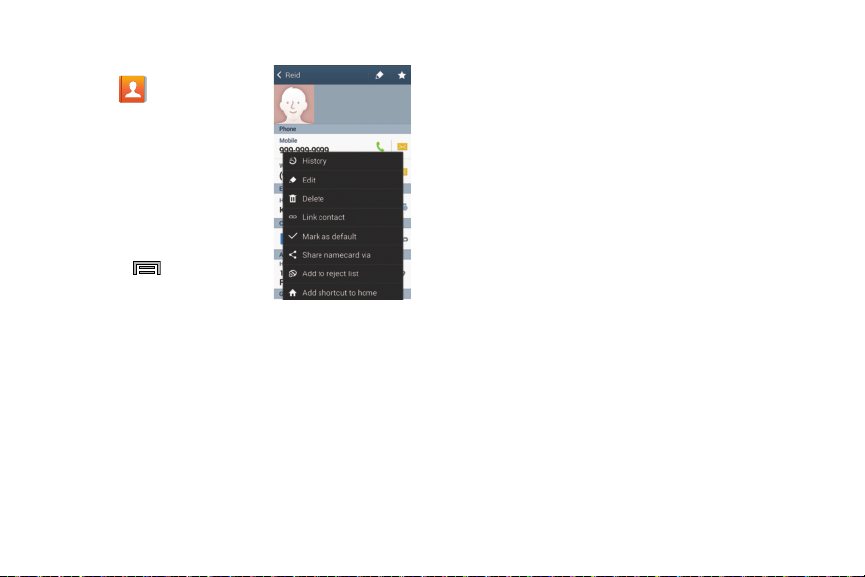
Contact Entry Options
1. From the Home screen,
tap
.
2. Tap an entry to reveal the
Contact entry’s Overview
Screen
. This screen
contains Name, contact
numbers, email, and
linked contact
information.
3. Press to reveal the
context menu specific to
this entry.
4. Tap an available option.
Contact Overview Screen
Linking Contact Information
Most people now maintain multiple email accounts, social
networking logins, and other similar account information. For
example, a Facebook account login name might differ from a
corporate email account login because they are maintained
separately and for different groups of people.
This device can synchronize with multiple accounts. When
you synchronize your phone with those accounts, each
account creates a separate contact entry in the Contacts list.
If one of your contacts (Amy Smith) has a regular email
account that you maintain in Gmail, but also has a Facebook
account under her maiden and married name, as well as a
Video! chat account, when you merge those accounts into
your Contacts list you can join all of her entries and view the
information in one record.
Joining contact information makes sending messages easy.
You can select any account email address or information all
from one screen, versus searching multiple, individual
screens to locate the desired account information.
Next time you synchronize your device with your accounts,
any updates contacts make to email account names, email
addresses, etc. automatically update in your contacts list.
81
1. From the Home screen, tap .
2. Tap a contact name (the name you want to link to
another entry) to reveal the
Contact entry’s Overview
Screen
.
Note:
Typically this is the same contact with a different name
or account information.
3. Press
and then tap
Link contact
.
4. Tap the second contact entry (the entry in which to
link). The second contact is now linked with the first
and the account information is merged into one screen.
Note:
The information is still maintained in both entries, but
displays in one record for easier viewing when you link
the contacts.
Important!
It is the first contact image that is displayed for
both, and the first contact’s name that is used.
For example: If Amy (original entry) is joined with
Julie (second entry). Julie seems to disappear and
only Amy remains. Tap the Amy entry (showing the
Amy image) to view both.
5. Tap the main linked contact to view the contact
information you linked. The contacts and information
displays with an icon next to the contact name to
indicate what type of account information is contained
in the entry.
Contacts 82
Unlinking a Contact
1. From the Home screen, tap .
2. Tap a contact name (the account name from which you
want to unlink an entry). This reveals the details for
entry.
Note:
Typically this is the same contact with a different name
or account information.
3. Tap the link icon within the
Connection
area.
– or –
Press
and then tap
Separate contact
.
4. Tap next to the entry you want to unlink and
select
OK
. The contacts are “unlinked” or separated
and no longer display in the merged record screen.
Both contacts now go back to being separately
displayed.
Marking a Contact as Default
When you use applications such as the Voice Dialer or other
messaging type applications, the application needs to know
which information is primary (default) in a contact entry list.
For example, when you say “Call John Smith”, if you have
three phone records for John Smith, the Voice dialer is
looking for the “default” number or entry.
The
Mark as default
option marks one entry in a contact
record to use as the default. This comes in handy when you
have multiple entries for the same person.
1. From the Home screen, tap
.
2. Tap a Contact entry.
3. Press
and then tap
Mark as default
. The Mark as
default screen displays radio buttons next to the
contact name, phone number, or other contact
information.
4. Tap the radio button next to the entry information you
want to be the primary information (such as name,
phone number, or email) and select
Done
.
83
Note:
If there are multiple phone numbers assigned to an
entry, assigning one as the default will automatically dial
that number when the contact is selected for dialing.
Sending a Namecard
A Namecard contains contact information, and can be sent to
recipients as a Virtual Business Card (V-card) attachment
using an available option.
1. From the Home screen, tap
.
2. Tap a Contact entry.
3. Press
and then tap
Share namecard via
and
select an available delivery method.
The Namecard attaches to the selected message type
and is delivered when you send the message.
Note:
Email appears as an option only after an Internet or
Exchange email account has been created.
For more information, refer to “Sending Contacts via
Bluetooth” on page 217.
Sending All Current Namecards
Rather than selecting once Contact entry at a time, you can
send all of your current entries at once.
1. From the Home screen, tap
.
2. Press
and then tap
Share namecard via
.
3. Tap
Select all
to place a check mark alongside all
currently displayed Contact entries.
4. Tap
Done
and select a delivery method
.
Contacts 84
Copying Contact Information
Copying Contact Information to the SIM Card
The default storage location for saving phone numbers to
your Contacts list is your phone’s built-in memory. This
procedure allows you to copy numbers saved to the phone’s
memory, onto the SIM card.
1. From the Home screen, tap
.
2. From the Contacts List, press
and then tap
Import/Export
Export to SIM card
.
3. Tap
Select all
to choose all current phone contact
entries.
– or –
Select a specific entry by touching an entry. A check
mark indicates a selection.
4. Tap
Done
. The name and phone number for the
selected contact is then copied to the SIM.
Copying Contact Information to the microSD
Card
This procedure allows you to copy entry information saved
on the phone’s memory, onto the SD card.
1. From the Home screen, tap
.
2. From the Contacts List, press
and then tap
Import/Export
Export to SD card
.
3. Tap
OK
to choose all current phone contact entries.
85
Synchronizing Contacts
4. To synchronize only Contacts, toggle the active state of
the
Sync Contacts
field. A green check mark indicates
Syncing data from your managed accounts allows you to add
and manage a new or existing contact from your online or
remote accounts to your phone. Prior to syncing, you must
first have an active Google or Microsoft Exchange account
with current Contact entries, and be signed into your account
via the phone.
the feature is enabled.
Note:
The process of updating your Contacts tab can take
several minutes. If after 10-20 minutes, your list ha
s not
been updated, repeat step 2-3.
With syncing, any Contacts
entries (with phone numbers,
email addresses, pictures, etc.) are updated and synced with
your device.
5. Your
Contacts
tab then reflects any updated Contact
information.
1. From the Home screen, press
and then tap
General
Note:
Syncing of contacts requires you are logged into your
Settings
(
General
tab)
Accounts
and then
Gmail and Corporate accounts via the device.
navigate to the
My accounts
area.
2. Select the email account containing the contacts you
wish to
synchronize.
3. Tap
within the adjacent account field to reveal the
account’s synchronization settings screen.
•
If appears within the adjacent account field, this indicates
a sync error.
Contacts 86
General
Display Options
The Display options menu allows you to allows you to choose
which contacts to display. You can also choose to display
only contacts that have phone numbers.
Note:
Once a display filter has been selected, only those
Contact entries are shown until the
All contacts
option is
re-selected.
1. From the Home screen, tap
.
2. Press
and then tap
Contacts to display
. Select any
of the following to filter according to the selection:
•All contacts
allows you to display all available Contacts.
• Device
lists those Contacts currently found only on your Phone.
•SIM
lists those Contacts currently found only on your SIM card.
• Samsung account
lists those Contacts currently found and
sync’d within the Samsung account.
•Google
lists those Contacts currently found within the Google
account.
• Microsoft Exchange ActiveSync
lists those Contacts currently
found within the Exchange account.
• Customized list
allows you to enable which account
categories are displayed. For example, on Google contacts, you
can filter which Contact categories are shown (Friends, Family,
etc..)
Additional Contact Options
Sending an Email to a Contact
Note:
Contacts must contain and email account and address
before you can use the Send email feature.
1. From the Home screen, tap
.
2. Press
and then tap
Send message/email
Send
email
. Contacts that contain an email address display.
3. Tap the contact(s) to which you want to send an email.
A check mark displays next to the selection.
Note:
The select contact must have an email as part of their
details screen.
4. Tap
Done
.
5. Select an email account type.
6. Compose the email and tap
Send
.
87

Export/Import
For more information, refer to “Copying Contact Information”
on page 85.
Contact List Settings
From this menu you can determine the default storage
location for Contacts, display your phone’s primary number,
and view service numbers listed in your Contact list.
1. From the Home screen, tap
.
2. Press
and then tap
Settings
. Configure any of the
following options:
• Only contacts with phones
allows you to display only those
contacts containing phone numbers.
•List by
defines how the current list of Contacts are sorted:
First name
or
Last name
.
• Display contacts by
defines how the current list of Contacts
are listed:
First name first
(ex: Steve Smith) or
Last name first
(Smith, Steve).
• Service numbers
lists the currently available service numbers.
• Contact sharing settings
allows you configure how your
Contacts entries are sent: individually or as a single file
containing all available entries.
Tap
Settings
to select a share setting.
–
Send all namecards
allows you to set your Contact sharing
option to all so that your entire Contacts entries are sent as a
group and not as multiple single files. If all your entries are
selected only a single file is sent.
Note:
Your destination device must support this feature or no
entries will be received by the external device.
–
Send individual namecards
allows you to set your default to
send individual contacts one at a time. Even if you select all your
entries, each is sent individually.
Contacts 88
Groups
This feature allows you to add a new or existing contact to a
call group. This group can be one of the already present
groups (Family, Friends, or Work) or a user-created group.
Creating a New Caller Group
1. From the Home screen, tap (
Groups
tab).
2. Press
and then tap
Create
.
3. Tap the
Group name
field and use the on-screen
keypad to enter a new group name. For more
information, refer to “Text I
nput Methods” on page 68.
4. Tap
Group ringtone
and select a ringtone for the group.
Selections are:
Default ringtone, Ringtones
(select from
available ringtones) or
Add
(to navigate your device and
select an existing audio file).
5. Tap
Message alert
and select a message alert ringtone
to be associated with this group.
6. Tap
Vibration pattern
and select a unique vibration
pattern either from an available list or Create your own.
This pattern is then associated with this group.
7. Tap
Add member
to add Contacts to the new group.
8. From the available list of contacts, tap the contact(s)
you want to add. A check mark displays next to contact
entry. Then tap
Done
.
– or –
Tap
Select all
to place a check mark alongside all
current entries. Then tap
Done
.
9. Tap
Save
to store the newly created group.
Note:
Some externally maintained group types (such as
Google) can only be managed or updated remotely
online vs via the device. These external types will not
allow editing or deleting members locally via the phone.
Adding an Existing Entry to a Current Caller
Group
1. From the
Groups
tab, tap a group entry
(
Add group member
).
+
2. From the available list of contacts, tap the contact(s)
you want to add. A check mark displays next to contact
entry.
3. Tap
Done
. The selected contacts are added to the
group.
89
+

Removing an Entry From a Caller Group
1. From the
Groups
tab, tap a group entry.
2. Press
and then tap
Remove member
.
3. Tap all of the contacts you want to remove from this
group. A check mark displays next to contact entry.
4.
Tap
Done
.
The contacts are removed from the group.
Editing a Caller Group
To edit a Group entry, there must be at least one member as
part of the selected group.
1. From the
Groups
tab, touch and hold a group entry then
select
Edit group
.
2. Make modifications to the
Group name
,
Group ringtone
,
Message alert
,
Vibration pattern
fields, or
Add member
.
3. Tap
Save
.
Deleting a Caller Group
1. From the
Groups
tab, press and then tap
Delete
groups
.
2. Select either
Select all
or tap the desired group.
3. Tap
Delete
.
4. Select either the
Group only
or
Group and group
members
.
5. Tap
OK
.
Sending a Message to a Group
1. From the
Groups
tab, tap an existing group, and press
and then tap
Send message
.
– or –
Touch and hold a group entry and select
Send message
.
2. Select the recipients of the new message (indicated by
a green check mark). If an entry contains multiple
phone numbers, each must be selected individually.
3. Tap
Done
.
(
Send
).4. Type your message, and tap
Contacts 90
The Favorites Tab
The Favorites tab is a list of the phone numbers that have
been designated as favorite c
ontacts.
For more information,
refer to “Logs Tab” on page 64.
1. From the Home
screen, tap
.
2. Tap
(
Favorites
tab).
Adding a contact to your favorites list:
1. From within the Favorites tab, press and select
Add to Favorites
.
2. Place a check mark alongside those current Contacts
entries you wish to assign as favorites.
3. Tap
Done
to complete the process.
91
Section 6: Messages
This section describes how to send or receive different types
of messages. It also explains the features and functionality
associated with messaging.
Types of Messages
Your phone provides the following message types:
•
Text Messages
•
Multimedia (Picture, Video, and Audio) Messages
•
Email and Gmail Messages
•
Hangouts
•
Messenger
•
ChatON
The Short Message Service (SMS) lets you send and receive
text messages to and from other mobile phones or email
addresses. To use this feature, you may need to subscribe to
your service provider’s message service.
The Multimedia Messaging Service (MMS) lets you send and
receive multimedia messages (such as picture, video, and
audio messages) to and from other mobile phones or email
addresses. To use this feature, you may need to subscribe to
your service provider’s multimedia message service.
Important!
During the creation of a text message, adding an
image, sound file, or video clip automatically
changes it from a text message (SMS) to a
multimedia message (MMS).
Message Icons on the Status Bar
Messaging icons are displayed on the Status Bar at the top of
the display when new messages are received. For more
information, refer to “Status Bar” on pa
ge 23.
Note:
The Messages application can also be accessed by
pressing
(
Apps
)
(
Messages
).
and then tapping
Messages 92
Creating and Sending Messages
1. From the Home screen, tap (
Messages
)
(
Tap to compose message
).
2. Tap the
Enter recipient
field to manually enter a
recipient.
– or –
Tap
to select from one of the following:
•Groups
: to select a recipient from the Group list.
•Favorites
: to select a recipient from the Favorites list.
•Contacts
: to select a recipient from your Contacts list (valid
entries must have a wireless phone number or email address).
•Logs
: to select a recipient from a list of recently sent
messages.
3. If adding a recipient from these categories, tap the
contact to place a check mark then tap
Done
. The
contact displays in the recipient field.
Note:
Delete any unnecessary members by tapping their
name/number in the recipient area and selecting
Delete
.
4. Add more recipients by tapping either the
Enter
recipient
field or and selecting recipients.
5. Tap the
Enter message
field and use the on-screen
keypad to enter a message
.
For more information, refer
to “Text Input Methods” on page 68.
6. Tap (
Attach
) to add an attachment to your
message and select one of the following options:
•Image
: allows you to tap an existing image from your Pictures
list to add it to your message.
•Take picture
: allows you to temporarily exit the message, take
a photo with phone’s camera, and then add it to your message
by tapping
Save
.
•Video
: allows you to choose an existing video from the Videos
list, then add it to your message.
•Record video
: allows you to temporarily exit the message,
record a video clip using the phone’s camera, and then add it to
your message by tapping
Save
.
•Audio
: allows you to choose an existing audio file from the
Audio list, then add it to your message by tapping the circle to
the right of the audio so that it turns green, then tapping
Done
.
93
• Record audio
: allows you to temporarily exit the message and
record an audio clip using the phone’s microphone. It is then
automatically attached to the message.
•S Note
: allows you to add an S Note that you have created.
•Scrapbook
: allows you to add a scrapbook file that you have
created.
•Calendar
: allows you to add an event from your calendar.
•Location
: allows you to attach a thumbnail of a map showing
your location.
•Contacts
: allows you to tap on an existing Address Book entry,
then add it to your message by tapping
Done
.
7. Review your message and tap (
Send
).
8. If you have more than one recipient, the same text
message is sent to all recipients in the Enter Recipients
field.
Note:
If you exit a message before you send it, it will be
automatically saved as a draft.
Quick Messaging a Number from the Contacts
List
1. From the Home screen, tap (
Contacts
).
2. Locate an entry from the Contacts list.
3. In a single motion, touch and drag your finger over the
number by going to the left. This action addresses a
new text message to the selected recipient.
Message Options
Options before composing a message
1. From the Home screen, tap (
Messages
).
2. Before composing a message, from the main Message
screen press
from the main Messaging screen to
display additional messaging options:
•Search
: allows you to search through all of your messages for
a certain word or string of words. Use the on-screen keypad to
enter a word or phrase in which to search, then tap
.
For more information, refer to
“Message Search”
on page
100.
Messages 94

• Delete threads
: allows you to delete any message thread.
Select the messages to delete and a green check mark will
appear next to the message
. Tap Delete.
For more information,
refer to
“Deleting message threads”
on page 99.
• Draft messages
: displays the draft messages folder and its
contents.
• Locked messages
: displays the locked messages folder and
its contents.
• Scheduled messages
: displays the scheduled messages
folder and its contents.
• Spam messages
: displays the spam messages folder and its
contents.
• Text templates
: displays your available text message reply
templates. For more information, refer to
“Text Templates”
on page 106.
•Font size
: allows you to configure the font size in use within
your Messages application.
• Settings
: allows you to access Messaging settings. For more
information, refer to
“Messaging Settings”
on page 100.
3. From the Messaging screen list, touch and hold an
on-screen message and select an option:
•Delete
: deletes the entire message and its bubbles.
• Add to contacts
: allows you to add the sender to either a new
or existing Contacts entry.
•View contact
: allows you to view the current entry information
for the sender.
• Add to spam numbers
: allows you to tag a number as spam
so that these messages can be directly delivered to your spam
folder.
95

Options while in a current message
1. From the Home screen, tap (
Messages
).
2. From within an open message, press to display
additional messaging options:
•Insert smiley
: allows you to add insert smiley icons
images (emoticons).
•Add text
: allows you to add text items from sources
such as: S Note, Calendar, Location, Contacts, and Text
templates.
•Preview
(only in MMS): allows you to add preview the
MMS message prior to delivery.
•Add to contacts
: allows you to add the sender to either a new
or existing Contacts entry.
•View contact
: reveals the current Contact’s overview screen.
• Add slide
: converts an SMS message into an MMS
(Multimedia) message and allows you to attach an existing
slideshow.
• Remove slide
: allows you to remove a previously attached
slideshow.
• Add subject
: allows you to enter a subject.
• Duration (5 secs)
(only in MMS): allows you to change the
duration of the image slideshow.
• Layout (bottom)
(only in MMS): allows you to change the
layout.
• Add recipients
: allows you to enter additional recipients to the
message.
• Scheduling
: allows you to schedule a time for the current
message to be delivered.
• Add to spam numbers
: allows you to tag a number as spam
so that these messages can be directly delivered to your spam
folder.
•Discard
: closes the current open message.
•Font size
: allows you to configure the font size in use within
your Messages application.
Messages 96
Adding Additional Text
You can copy text such as names, phone numbers, and
events from your Contacts, Calendar, or a Memo.
1. While composing a message, press
Add text
.
2. At the Add text screen, select one of the following:
•S Note
: allows you to insert text from an existing S Note.
•Calendar
: allows you to add the name, date, and time of a
calendar event to your message.
•Location
: allows you to add an address and the link to the
location on Google Maps.
•Contacts
: allows you to add the name and phone number of
any of your contacts to your message.
• Text templates
: allows you to add pre-defined phrases and
sentences. For more information, refer to
“Text Templates”
on page 106.
The information is added to your message.
Viewing Newly Received Messages
When you receive a message, your phone notifies you by
displaying
within the Notification area
at the top left of
your Home screen.
To read a message:
1. Open the Notification Bar and select the message. For
more information, refer to “Notification Bar” on page
29.
– or –
From the Home screen, tap
then tap the new
message to view its contents. The selected message
displays on the screen.
to play a multimedia message. 2. Tap
•
To pause playback of the multimedia message, tap .
3. In a single motion, touch and drag up or down the page
to scroll through the message (if additional pages were
added).
97
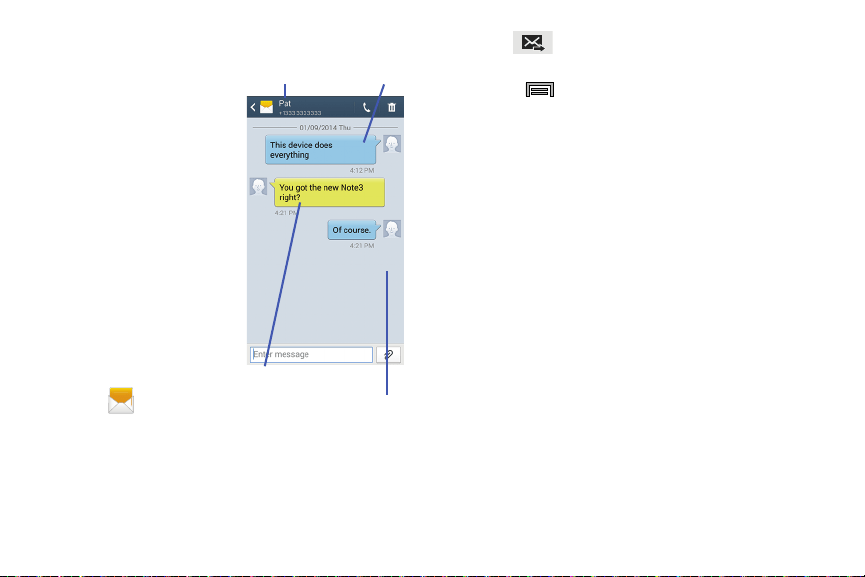
(
Send
) to deliver your reply.
Sent and received text and
picture messages are
grouped into message
threads. Threaded messages
allow you to see all the
messages exchanged (similar
to a chat program) and
displays a contact on the
screen.
Current Recipient
Message Threads
4. Tap
– or –
My Text
Press
and then select one of the available
message options (page 94).
To access message thread options:
From the main Messaging screen, touch and hold the
message to display the following options:
• Delete
: deletes the currently selected message thread.
•View contact
: displays the Contact’s Overview page.
Message threads are listed in
the order in which they were
received, with the latest
message displayed at the
top.
•Add to contact
: begins the process of adding the new number
to your Contacts list.
•Add to spam numbers
: adds the current sender to a spam list.
ny new texts from this sender are automatically blocked.
To reply to a text message:
1. From the Home screen,
tap
.
2. While the message is
open, tap the
Enter message
field and then type your
reply message.
3. Compose your reply.
Reply Bubble
Text Message Thread
Messages 98
To access additional Bubble options:
Touch and hold the message bubble within an active
message conversation to display the following options:
•Delete
: deletes the currently selected message bubble from
the thread.
•Copy text
: copies the currently selected message bubble from
the thread.
•Forward
: allows you to forward the currently selected message
bubble to an external recipient.
•Lock/Unlock
: locks or unlocks the currently selected message
bubble from being accidentally deleted.
•Share
: allows you to share the contents of the currently
selected bubble. Choose from Add to Dropbox, Bluetooth,
ChatON, Copy to clipboard, Drive, Email, Evernote - Create
Note, Flipboard, Gmail, Google, Google+, Hangouts,
Messages, S Note, Scrapbook, or Wi-Fi Direct.
•Copy to SIM
: copies the currently selected message bubble as
a single text message within the SIM card.
• View message details
: displays details for the currently
selected message bubble.
Deleting Messages
Deleting message threads
1. From the Home screen, tap .
2. Touch and hold a message from the Messages list,
then select
Delete
.
– or –
Press
and then tap
Delete threads
, tap each
message thread you want to delete, and tap
Delete
.
Deleting message bubbles
1. From the Home screen, tap .
2. Open a message to reveal the message string.
3. Touch and hold a message bubble, then select
Delete
.
99
Message Search
You can search through your messages by using the
Message Search feature.
1. From the Home screen, tap
.
2. Press
and then tap
Search
.
3. Use the on-screen keypad to enter a word or phrase in
which to search
, then tap
.
4. All messages that contain the entered search string
display.
Messaging Settings
To configure the settings for text messages, multimedia
messages, Voice mails, and Push messages.
1. From the Home screen, tap
.
2. Press and then tap
Settings
.
3. Tap the
Default messaging app
field to set your default
messaging application. For more information, refer to
“Default Applications” on page 299.
The following Messaging settings are available within the
following available tabs:
General Tab
Default messaging app
: Sets your default messaging
application. For more information, refer to “Default
messaging app” on page 239.
General settings
• Delete old messages
: deletes old messages when the limit is
reached, rather than overwriting them.
• Text message limit
: allows you to set a limit on how many text
messages are allowed in one conversation.
• Multimedia message limit
: allows you to set a limit on how
many multimedia messages are allowed in one conversation.
Messages 100

Display
• Bubble style
: allows you to choose from several bubble styles
for your messages. Bubbles are the rounded boxes that
surround each message.
• Background style
: allows you to choose from several
background styles for your messages.
•Split view
: when in Landscape mode, allows you to view both
the message list and the contents of the currently selected
message.
• Use the volume key
: allows you to change the text size by
using the up or down volume keys.
Signature settings
• Add signature
: when enabled, this feature allows you to create
a signature at the end of your outgoing text messages.
• Signature text
: allows you to enter a desired signature for your
message.
SMS/MMS Tab
Text message (SMS) settings
• Delivery reports
: when this option is activated, the network
informs you whether or not your message was delivered.
• Manage SIM card messages
: allows you to manage the
messages stored on the SIM card.
• Message center
: allows you to enter the number of your
message center where your messages reside while the system
is attempting to deliver them.
• Input mode
: allows you to set the input mode for your text
messages. Choose from: GSM Alphabet, Unicode, or
Automatic.
Multimedia message (MMS) settings
• Group messaging
: when this option is activated, you are able
to send a single message to multiple people.
• Delivery reports
: when this option is activated, the network
informs you whether or not your message was delivered.
•Read reports
: when this option is activated, your phone
receives a request for a read reply along with your message to
the recipient.
101

•Auto retrieve
: allows the message system to automatically
retrieve messages.
• Roaming auto retrieve
: allows the message system to
automatically retrieve while roaming.
•Creation mode
: allows you to select the creation mode: Free,
Restricted, or Warning.
–
Restricted
: you can only create and submit messages with
content belonging to the Core MM Content Domain.
–
Warning
: the phone will warn you via pop up messages that
you are creating a multimedia message which does not fit the
Core MM Content Domain.
–
Free
: you may add any content to the message.
•MMS alert
: alerts you when the messaging modes changes
from an SMS (text) to MMS (multimedia) mode.
More Tab
Push message settings
• Push messages
: allows you to receive push messages from
the network.
• Service loading
: allows you to set the type of service loading
notification. Choose from: Always, Prompt, or Never.
Notification settings
• Notifications
: allows you to see message notifications on your
status bar.
• Select ringtone
: allows you to set the ringtone for your
message notifications.
•Vibrate
: allows you to configure the vibration mode associated
with message alerts.
• Message alert repetition
: allows you to set the interval for new
message alerts. Choose from: Once, Every 2 minutes, or
Every 10 minutes.
• Preview message
: when enabled, allows you to view a brief
preview of new message text on the Status bar.
Messages 102

Emergency message settings
• Emergency alerts
: allows you to configure emergency alert
settings. You can enable/disable those alert categories you
wish to receive. Choose from: Imminent extreme alert,
Imminent severe alert, and AMBER alerts.
Note:
The Presidential alert can not be disabled.
• Emergency notification preview
: allows you to play a sample
emergency alert tone. Tap
Stop
to cancel the playback.
Spam message settings
• Spam settings
: when enabled, allows you to configure
available spam settings such as:
–
Add to spam numbers
: allows you to manually enter and
assign a phone number as being sent from a spam source.
–
Add to spam phrases
: allows you to assign a specific text
phrase as belonging to a spam message. Ex: Dear friend.
–
Block unknown senders
: when active, automatically blocks
incoming messages from unknown sources or blocked
numbers.
Emergency Alert Configuration
This device is designed to receive wireless emergency alerts
from the Commercial Mobile Alerting System (CMAS); which
may also be known as the Personal Localized Alerting
Network (PLAN). If your wireless provider has chosen to
participate in CMAS/PLAN, alerts are available while in the
provider's coverage area. If you travel outside your provider's
coverage area, wireless emergency alerts may not be
available. For more information, please contact your wireless
provider.
Emergency Alerts allows customers to receive
geographically-targeted messages. Alert messages are
provided by the US Department of Homeland Security and
will alert customers of imminent threats to their safety within
their area. There is no charge for receiving an Emergency
Alert message.
103
There are three types of Emergency Alerts:
•
Alerts issued by the President
•
Alerts involving imminent threats to safety of life
•
AMBER Alerts (missing child alert)
Customers may choose not to receive Extreme Alerts, Severe
Alerts, and AMBER Alerts.
Important!
Alerts issued by the President can not be disabled.
To disable Extreme, Severe, and AMBER Alerts:
1. From the Home screen, tap .
2. Press and then tap
Settings
More
tab.
3. Scroll to the bottom and select
Emergency alerts
. All
alerts are enabled by default (check mark showing).
4. Tap on an alert option to disable the alert and remove
the check mark.
Assigning Messages as Spam
You can now assign either a phone number as spam or use a
key term or phrase. Any message assigned as spam is
automatically placed with your Spam messages folder.
To assign a phone number from Messages list as spam:
1. From the Home screen, tap .
2. Touch and hold a message from a phone number.
3.
Select
Add to spam numbers
and tap
OK
.
To assign a phone number manually as spam:
1. From the Home screen, tap .
2. Press and then tap
Settings
More
tab.
3. Locate and activate the
Spam settings
option.
• Spam settings
: when enabled, allows you to configure
available spam settings.
4. Tap
Add to spam numbers
(
Add
).
•
This function allows you to manually enter and assign a phone
number as being sent from a spam source.
Messages 104
5. Tap the
Number
field to manually enter phone number.
– or –
Tap
to select from either your existing Logs or
Contacts.
– or –
Tap
Match criteria
and select a parameter that must
match for the spam action to take effect. Choose from:
Same as, Starts with (ex: 800 or 888), Ends with, or
includes.
6.
Tap
Save
.
To register text phrases as spam:
Some incoming messages might not be associated with a
phone number but rather an email address. In these cases,
the only way to block those messages, would be assign a
key used term or phrase to activate the Spam block. Ex:
“Dear friend”, “Stock Alert”, or “Act Now”.
1. From the Home screen, tap
.
2. Press and then tap
Settings
More
tab.
3. Locate and activate the
Spam settings
option.
4. Tap
Add to spam phrases
(
Add
).
•
This function allows you to assign a specific text phrase as
belonging to a spam message. Ex: Dear friend.
5. Enter a term or word into the field.
6.
Tap
Save
.
To register unknown numbers as spam:
Some incoming messages might not be associated with
either a phone number or email address. These incoming
messages contain no information as their info is blocked by
the sender.
1. From the Home screen, tap
.
2. Press and then tap
Settings
More
tab.
3. Locate and activate the
Spam settings
option.
4. Tap
Block unknown senders
. A green check mark
indicates the feature is active.
• Block unknown senders
: when active, automatically blocks
incoming messages from unknown sources or blocked
numbers.
If an incoming message is designated in coming from an
unknown sender, it is automatically assigned as spam and is
now located in your Spam folder.
105
Accessing Your Spam Folder
Any message assigned as spam is automatically placed with
your Spam messages folder.
1. From the Home screen, tap
.
2. Press and then tap
Spam messages
.
Text Templates
This screen displays your available text message reply
templates.
This is a readily accessible list of
both default
and
user-defined text snippets that can be used to quickly reply
to incoming messages.
1. From the Home screen, tap
.
2. From the Messaging list, press
and then tap
Text templates
.
3. Tap a message to immediately insert it into your
current message conversation.
To create your own text template:
1. From the Home screen, tap .
2. From the Messaging list, press
and then tap
Text templates
.
(
Create
).3. Tap
4. Enter a new text string and tap
Save
.
Using Email
Email (or Internet Email) enables you to review and create
email using several email services. You can also receive text
message alerts when you receive an important email. Your
phone’s Email application lets you access and manage
multiple email accounts simultaneously in one convenient
location.
There are currently three main types of email accounts on
your phone: Gmail, Internet-based email, and Microsoft
Exchange (Corporate email or Outlook
®
).
To send and receive email messages through an ISP (Internet
Service Provider) account, or if you wish to use your device
to access your corporate email through a VPN (Virtual Private
Network), you will first need to set up an IMAP or POP
account.
Messages 106

(
Apps
)
and then tap
•
IMAP
(Internet Message Access Protocol) - This protocol is
frequently used in large networks and commercial settings.
IMAP4 is the current standard.
•
POP3
(Post Office Protocol) - This protocol is supported by most
ISPs (Internet service providers) and common among consumer
applications. POP3 is the current standard.
•
Microsoft Exchange ActiveSync
- This protocol is frequently
used with a large corporate email server system and provides
access to email, contact, and calendar synchronization.
Creating an Internet Email Account
1. From the Home screen, tap
•
Open an existing email account, press
Settings
2.
If you already have other email account setup:
(
Email
).
(
Add account
).
– or –
Enter your
Email address
and
Password
information.
• Email address
: your Internet email address.
• Password
: typically your network access password
(case-sensitive).
3. Tap
Show password
to display the password as you
enter it in the associated field.
•
Tap
Manual setup
to configure your connection settings
manually (POP3 or IMAP). Follow the on-screen prompts and
enter the information specific to your email provider.
•
Tap
Send email from this account by default
to assign this
email account as your default account for all outgoing emails.
4. Tap
Next
.
107
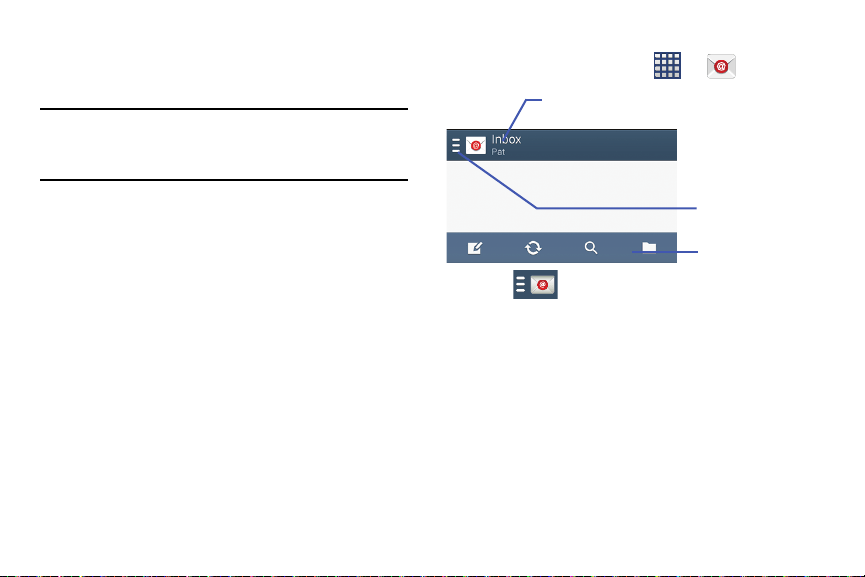
5. At the
Account options
screen, select the frequency
which the device should check for new email on the
server and tap
Next
.
Important!
The
Sync Email
feature must be enabled to allow
synching between your device and the remote
server.
•
Tap the
Notify me when email arrives
field to receive new
email notifications.
•
Tap the
Automatically download attachments when
connected to Wi-Fi
field to assist with faster access to large
email attachments when using Wi-Fi.
6. At the
Set up email
screen, name the account and enter
a screen name to identify yourself on this account.
•
The unique account name is used to differentiate this account
from other email accounts accessed by your device.
7. Tap
Done
to store the new account.
Messages for this account display on the Inbox tab. You can
also view Personal information for this account, Receipts (if
you setup the account to retu
rn receipts), Travel information,
and more (if available).
Opening an Email
1. From the Home screen, tap (
Email
).
2. Tap (account name field upper-left) to open
the complete email account list page.
•
Selecting
Combined view
allows you to view all the emails for
your current accounts, managed by the application, to be listed
on a single screen.
3. Select an email account and tap an email message.
Account name
Access available
accounts and
folders
Email functions
Messages 108
Refreshing Email messages
1. From the Home screen, tap (
Email
).
2. Select an email account.
•
If you are already in an email account, tap the account name
field (upper-left) to open the complete email account list page.
•
Select an available email account.
3. Tap (
Refresh
).
Composing Email
1. From the Home screen, tap (
Email
).
2. Tap
3.
Tap
Inbox
the com plete email account list page.
(account name field upper-left) to open
(
Compose
).
4. Enter the recipient’s email address in the
To
field.
•
If you are sending the email message to several recipients,
separate the email addresses with a comma. You can add as
many message recipients as you want.
5. Tap
Cc/Bcc
to add additional carbon copy and blind
copy recipients.
•
Use the
Cc
field to carbon copy additional recipients.
•
Use the
Bcc
field to blind copy additional recipients.
6. Tap the
Subject
field and enter the email subject.
7. Tap the email text field and compose your email
message.
•
To add an attachment (such as image, video, audio, etc..),
tap
Attach
(from the top of the screen) and make a
category selection.
–
Tap the file you wish to attach.
–
Tap to delete the attached file.
Note:
If you attach an image to your email, you have the option
to resize it prior to delivery. Choose from: Original,
Large (70%), Medium (30%), or Small (10%). Once
chosen, tap either
Always
or
Just once
.
8. Tap
(
Save
) to store a draft of the current email
on your device so that you can come back later and
continue the email.
– or –
Tap
(
Delete
) to discard the current email.
9. Once complete, tap
(
Send
).
109
(
Email
).
and then tap
Settings
and alter any of the
Configuring Email Settings
1.
2.
3.
From the Home screen, tap
Select an account.
Press
following General settings:
•Display
: allows you to configure the way in which your email
list is displayed.
• Composing and sending
: allows you to configure the
functions available during both creating and sending emails.
•Auto advance
: allows you to assign an action after an email is
deleted.
• Confirm deletions
: requires that you provide confirmation
before deleting a selected email.
•Priority senders
: allows you to assign Contacts as priority
senders, set as the default folder, assign email notifications,
ringotnes, and vibration patterns for emails from these senders.
• Spam addresses
: allows you to create a list of spam email
addresses.
• Rules for filtering
: allows you to create and manage filters for
emails.
• Split view mode
: when in Landscape mode, turns on the split
view mode that allows you to view both the message list and
the contents of the currently selected message.
– or –
From the email application, press
and then tap
Settings
Account settings
<Account>
. Alter any of
the following settings:
• Sync settings
to configure the following sync options:
–
Sync Email
: enables automatic email synching between your
device and the remote server.
–
Sync schedule
: allows you to control the email sync schedule
on both Peak and Off-Peak times.
–
Period to sync email
to assign the sync range for your
incoming and outgoing email messages between your phone
and your external exchange server. How many days worth of
email messages should the phone and server synchronize.
–
Size to retrieve emails
: configures the incoming email size
allowed to pass through to your phone automatically without
user interaction. Emails with attachments larger than
configured will have to be retrieved manually.
Messages 110

•Signature
: lets you attach a customized signature to the
bottom of all outgoing emails.
–
In a single motion touch and slide the
Signature
slider to the
right to turn it on.
–
Tap the
Signature
field, change the current text, and tap
Done
to save the new signature.
• Default account
: assign this account as the default email
account used for outgoing messages.
• Password
: allows you to update your password to match the
information on the email server.
• Email notifications
: activates the email notification icon to
appear within the Notifications area of the status bar when a
new email (Gmail, etc..) is received.
• Select ringtone
: plays a selected ringtone when a new email
message is received.
•Vibrate
: activates a vibration when a new email message is
received.
4. Tap the
More settings
field to access additional options:
•Account name
: displays your uniquely created account display
name.
•Your name
: displays the name used in the From field of your
outgoing email messages.
• Always Cc/Bcc myself
allows you to include your own email
address in either the CC, Bcc, or None fields. Lets you always
receive a copy of outgoing emails.
•Show images
: allows you to view embedded images located
within the body of the currently displayed email.
• Security options
: allows you to enable several security options
such as: Encrypt all, Sign all, Create keys, Private keys, Public
keys, and Set default key. These security policies could restrict
some functions from corporate servers.
• Auto download attachments
: allows the device to
automatically download email attachments when an active
Wi-Fi connection is detected. This process speeds up the
process of downloading an emails attachments for offline
review by not using a 3G or 4G/LTE network connection.
• Auto resend times
: enables the device to resend an outgoing
email a specified number of times if delivery fails.
111
• Incoming settings
: lets you specify incoming email settings,
such as Email address, Username, Password, IMAP server,
Security type, Port, and IMAP path prefix.
• Outgoing settings
: lets you specify outgoing email settings,
such as SMTP server, Security type, Port, Require sign-in, User
name, or Password.
Note:
Some the above options may not be displayed when
using some Internet account types.
Microsoft Exchange Email (Outlook)
Your device also provides access to your company’s Outlook
Exchange server. If your company uses either Microsoft
Exchange Server 2003 or 2007, you can use this email
application to wirelessly synchronize your email, Contacts,
and Calendar information directly with your company’s
Exchange server.
Setting Up a Microsoft Exchange Email account
1. From the Home screen, tap (
Email
).
Note:
If you have already set up an email account and want to
add an additional email account, press and then
tap
Settings
Add account
.
2. Enter your
Email address
and
Password
information.
•
Tap
Show password
to display the password as you enter it
in the associated field.
3. Follow the on-screen instructions.
Note:
If prompted with an on-screen notification that the
connection that the “Setup could not finish”, tap
Edit details
to continue with a manual update of
necessary information.
Important!
Remember to manually place the cursor in the
correct spot and enter a Domain name before the
“
[Domain]\[user name]
” entry. Most servers only
provide a username.
Messages 112
4. Consult your IT Administrator if it is necessary to
enable the
Use client certification
option.
5. Identify your new work email account with a unique
name (Ex: Work), then tap
Done
.
Opening an Exchange Email
1. From the Home screen, tap (
Email
).
2. Tap the account name field (upper-left) to open the
complete email account list page.
3. Select an exchange email account and tap an email
message.
Refreshing Exchange Email
1. From the Home screen, tap (
Email
).
2. Select an email account.
•
If you are already in an email account, tap the account name
field (upper-left) to open the complete email account list page.
•
Select an available email account.
3. Tap (
Refresh
).
Composing Exchange Email
For more information, refer to “Composing Email” on
page 109.
Deleting an Exchange Email Message
Touch and hold an email (from your inbox list) and
select
Delete
from the on-screen context menu.
– or –
With the email message displayed, tap
(
Delete
).
Configuring Microsoft Exchange Email Settings
1. From the Home screen, tap (
Email
).
2. Tap the Microsoft Exchange account.
and then tap
Settings
Account settings
3. Press
<Exchange email account>
. For more information,
refer to “Configuring Email Settings” on page 110.
4. Alter any of the following settings:
• Sync settings
to configure the following sync options:
–
Sync Email
: enables automatic email synching between your
device and the remote server.
–
Sync schedule
: allows you to control the email sync schedule
on both Peak and Off-Peak times.
113

–
Period to sync email
to assign the sync range for your
incoming and outgoing email messages between your phone
and your external exchange server. How many days worth of
email messages should the phone and server synchronize.
Choose from:
All
,
1 day
,
3 days
,
1 week
,
2 weeks
, or
1 month
.
–
Size to retrieve emails
configures the incoming email size
allowed to pass through to your phone automatically without
user interaction. Emails with attachments larger than
configured will have to be retrieved manually.
•Signature
: lets you attach a customized signature to the
bottom of all outgoing emails.
–
In a single motion touch and slide to the right to turn it on.
–
Tap the
Signature
field, change the current text, and tap
Done
to save the new signature.
• Out of office settings
allows you to both activate/deactivate
your email’s out of office settings, and configure both the
start/end dates and your outgoing message.
• Default account
: assign this account as the default email
account used for outgoing messages.
•Password
: allows you to change your password
• Email notifications
: activates the email notification icon to
appear within the Notifications area of the status bar when a
new email is received.
• Select ringtone
: plays a selected ringtone when a new email
message is received.
•Vibrate
: activates a vibration when a new email message is
received.
5. Tap the
More settings
field to access additional options:
• Account name
displays the name used by the device to track
the account.
• Always Cc/Bcc myself
allows you to include your own email
address in either the CC, Bcc, or None fields. Lets you always
receive a copy of outgoing emails.
•Show images
: allows you to view embedded images located
within the body of the currently displayed email.
• Auto download attachments
: allows the device to
automatically download email attachments when an active
Wi-Fi connection is detected. This process speeds up the
process of downloading an emails attachments for offline
review by not using a 3G or 4G/LTE network connection.
Messages 114

• Auto resend times
enables the phone to resend an outgoing
email a specified number of times if delivery fails.
• Folder sync settings
allows you to configure the sync settings
for various folders such as Inbox, Drafts, Outbox, etc..
• Period to sync Calendar
assigns a period for your phone to
sync calendar events. Choose from:
2 weeks, 1 month
,
3 months
,
6 months
, or
All calendar
.
• Empty server trash
: allows you to delete your email account’s
trash bin remotely.
• In case of sync conflict
allows you to assign the master
source on emails. If there is a conflict with the current email
sync you can assign the server as the main source for all
emails (
Server has priority
) or assign the phone to be the main
source and update the server accordingly (
Device has
priority
).
• Security options
: allows you to enable several security options
such as: Encrypt, Encryption algorithm, Sign, Sign algorithm,
Email encryption cert, Email signing cert, and Security policy
list. These security policies could restrict some functions from
corporate servers.
–
Security policy list
: lists the current email’s security policy.
These policies could restrict some functions from corporate
servers.
•Sync Contacts
synchronizes the contacts between your device
and the remote exchange server.
•Sync Calendar
synchronizes your exchange calendar entries
between your device and the remote exchange server.
• Sync Task
synchronizes your exchange tasks entries between
your device and the remote exchange server.
• Exchange server settings
provides access to the
Domain\user name, Password, and Exchange server settings.
6. Press to return to the previous page.
115
Section 7: Multimedia
This section explains how to use the multimedia features of
your device, including the Camera/Camcorder, Music Player,
Samsung Link, and how to manage your photos, images and
sounds.
You can take photographs and shoot video by using the
built-in camera functionality. Your camera produces photos in
JPEG format.
Important!
Do not take photos of people without their
permission.
Do not take photos in places where cameras are
not allowed.
Do not take photos in places where you may
interfere with another person’s privacy.
Note:
An SD card is no longer needed to take pictures or shoot
video since there is already built-in storage.
Note:
Using an older or slow microSD card can affect camera
performance, especially for video recording.
Assigning the Default Storage
Location
Important!
Too many users can overlook this storage location
until something goes wrong. It is recommended
that you verify this location or change it before
initiating the use of the camera or camcorder
features.
(
Apps
)
(
Camera
).
1. From the Home screen, tap
2. Press and then tap
Settings
(
Settings
)
and scroll up to the
Storage
entry.
3. Tap this entry and select the desired default storage
location for newly taken pictures or videos. Choose
from:
Device
or
Memory card
.
Note:
It is recommended that you set the option to
Memory
card
.
4. Press to return to the Home screen.
Multimedia 116
Using the Camera
Taking Photos
Taking pictures with your device’s built-in camera is as
simple as choosing a subject, pointing the camera, then
pressing the camera key.
Note:
When taking a photo in direct sunlight or in bright
conditions, shadows may appear on the photo.
1. From the Home screen, tap
(
Apps
)
(
Camera
).
– or –
From the Lock screen, swipe across the on-screen
camera icon to launch the camera application.
2. Using the device’s main display screen as a viewfinder,
adjust the image by aiming the camera at the subject.
3. Before you take a picture, use the
Up
and
Down
Volume
keys to zoom in or out. You can magnify the picture up
to x4 (400 percent).
– or –
Pinch the screen to zoom out or pinch outwards to
zoom in.
4. If desired, before taking the photo, you can tap
on-screen icons to access various camera options and
settings.
5. You can also tap the screen to move the focus to a
desired area of interest.
(
Camera
) until the shutter sounds. (The picture
is automatically stored within your designated storage
location (page 116). If no microSD is installed, all
pictures are stored on the Device.) For more
information, refer to “Camera Options” on page 118.
6. Tap
Note:
Touch and hold to take a burst shot. These are
saved using a Fine image quality.
117
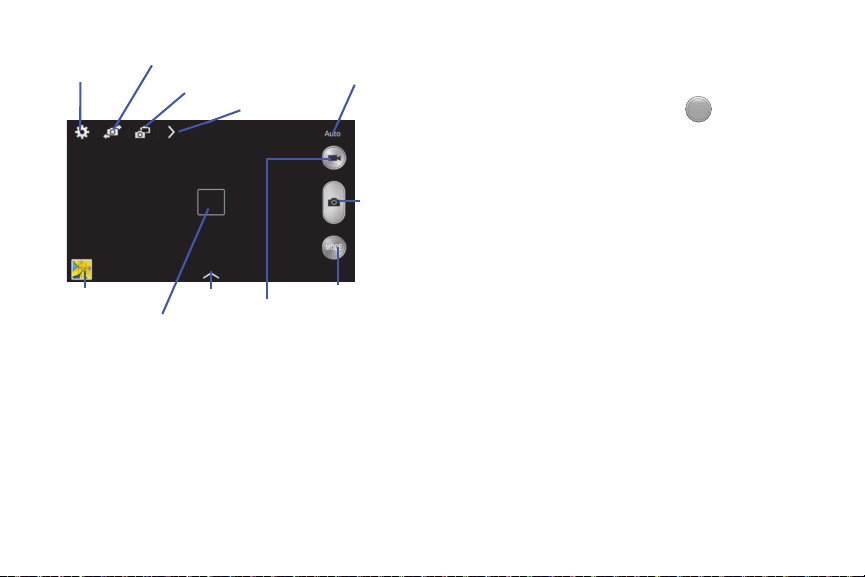
Self-portrait
Settings
Camera mode
Dual Camera
Quick Settings
Record video
button
Take
Picture
Image viewer
Effects
Mode (Change)
Viewfinder
Camera Options
Options are represented by icons across both sides of the
screen.
1. From the camera viewfinder, tap
MODE
(
Mode
) to
change the mode to one of the following:
–
Auto
: Use this mode to automatically adjust the exposure, color,
and brightness settings. This mode allows single image shots or
burst shots.
–
Beauty face
: Use this to take photos with lightened faces for
gentler images.
–
Best photo
: Use this to take multiple photos in a short time,
and then choose the best photos among them. Press the
Shutter button to take multiple photos. When Gallery opens, tap
and hold thumbnails of photos to save, and tap Done.
–
Best face
: Use this to take multiple group shots at the same
time and combine them to create the best possible image. Press
the Shutter button to take multiple photos. When Gallery opens,
tap the yellow frame on each face, and choose the best
individual face for the subject. After choosing a pose for each
individual, tap Done to merge the images into a single photo,
and tap Save.
Multimedia 118
MODE
–
Sound & shot
: Use this mode to enrich pictures by adding
background sounds for a few seconds. The background sound
is recorded for up to 9 seconds after taking the photo.
–
Drama
: Use this to take a series of photos of a moving object
and then merge them together into one image.
–
Animated photo
: Use this to create a picture in which a few
selected static objects move by animating objects detected by
the device.
–
Golf
: Use this feature to take pictures of a gold swing and then
play the pictures back (forwards or backwards).
–
Rich tone (HDR)
: Use this to take photos with richer colors and
contrasts by merging images taken at different exposure levels.
–
Eraser
: Saves the best of 5 taken pictures and removes any
passers by.
–
Panorama
: Use this to take wide panoramic photos. Press the
Shutter button to take a photo, and then move the camera in
any direction. When the blue frame aligns with the preview
screen, the camera automatically takes another shot in the
panoramic sequence. To stop shooting, press the Shutter button
again.
–
Surround shot
: Use this to take a 360-degree pictures that are
then used to create a spherical panorama.
–
Sports
: Use this to take fast action photos.
–
Virtual tour
: Take a virtual 3D shot of your surroundings. With
Virtual Tour Shot you’re able to capture a sphere of photos that
will then be output as a video file that can be played back and
explored. It offers a virtual view which you can watch, just like if
you were there Follow the on-screen instructions.
2. From the top of the camera, the following shortcuts are
available for the camera:
Focus area
: displays the area of the image used as
the main focus area. If the image is too close, the
square will turn red.
Settings
: provides access to the Settings menu.
Self portrait
: allows you to set the front camera so
you can take pictures of yourself.
119
Front Camera/Dual Camera
: allows you to activate
both the front and rear cameras simultaneously. For
more information, re
fer to “Taking Dual Camera
Photos” on page 121.
Quick Settings
: activates the Quick Settings menu
bar from where you can select several additional
settings.For more information, refer to “Quick
Settings” on page 120.
Image viewer
: allows you to access the Image
viewer and the various viewing options for a
selected picture. The last picture you took, will be
displayed as a thumbnail in the Image viewer icon.
Effects/Downloads
: provides access to pre-installed
and downloaded effects. Default effects include:
No effect, Cartoon, Faded color, Fisheye, Grayscale,
Moody, Oil pastel, Rugged, Sepia, Tint, Turquoise,
Vignette, Vintage, and Download.
Camcorder button
: shoots a video when pressed.
MODE
Camera button
: takes a photo when pressed in
Camera mode.
Mode button
: allows you to select from different
camera modes.
Quick Settings
Tap at the top of the display to quickly change Camera
settings. Not all of the following options are available in both
still camera and video camera modes. The available options
vary by mode.
Flash
:
activate or deactivate the flash.
Smart Stabalization
:
use this activate/deactivate the
stabalization feature.
Voice control
:
activate or deactivate the voice control to
take photos.
Recording mode
:
select a resolution for videos. Choose
from: Normal, Limit for MMS, Slow motion,
Fast motion, or Smooth motion.
Multimedia 120
MODE
Share functions
:
activate or deactivate the sharing
options. Choose from Off, Share Shot, Buddy photo share,
ChatON photo share, or Remote viewfinder.
Share shot - Shooting mode
: lists the current shooting
modes available from with the Share Shot mode.
Choose from Easy connect, Wi-Fi Direct, or Cancel.
Quick Settings
: hide Quick settings.
Taking Dual Camera Photos
With the Dual Camera feature, you can take a picture with
both the front and rear cameras at the same time.
To take a Dual Camera picture:
1. From the camera viewfinder, tap (
Dual Camera
)
located at the top left side of the screen. The camera
viewfinder displays an image from the front-facing
camera within a mini picture frame on top of the main
image displayed from the rear-facing camera.
2. Tap (
Camera
) until the shutter sounds.
To resize the front camera image:
Touch and hold the mini picture frame until the resize
handles appear, then drag a corner to enlarge the
image.
To reposition the front camera image:
Touch and hold the mini picture frame to detach it and
then place it in a desired location.
Camera and Camcorder Settings
This section describes the different settings that you can
configure on your camera. Not all of the following options are
available in both still camera and video camera modes. The
available options vary by mode.
1. From the viewfinder, tap (
Settings
).
2. The following settings are located under the Camera,
Camcorder, and Gener
al tabs. The settings that are
displayed will depend on what camera mode you are
in.
Camera
:
•Photo size
: Select a resolution for photos. Use higher
resolution for higher quality. Higher resolution photos take up
more memory.
121

•Burst shot
: allows several photographs to be captured in quick
succession by touching and holding the Camera button.
• Tap to take pics
: allows you to tap the screen to also take a
new picture (vs using the Camera button).
• Face detection
: allows you to adjust the camera focus based
on face detection technology.
• Metering modes
: allows you to set how the camera measures
or meters the light source: Center-weighted, Matrix, or Spot.
•ISO
: determines how sensitive the light meter is on your digital
camera. Choose from Auto, 100, 200, 400, or 800. Use a
lower ISO number to make your camera less sensitive to light, a
higher ISO number to take photos with less light, or Auto to let
the camera automatically adjust the ISO for each of your shots.
• Smart stabilization
: compensates for camera movement.
•Save as
: allows you to assign rich tone usage to an image.
Camcorder
:
•Video size
: Select a resolution for videos. Use higher resolution
for higher quality. Higher resolution videos take up more
memory.
• Video stabilization
: Activate or deactivate Optical Image
Stabilization.
• Audio zoom
: when active, allows you to focus your
microphone on a zoomed area during video recording.
Multimedia 122

Settings
:
•Location tag
: attach a GPS location tag to the photo. To
improve GPS signals, avoid shooting in locations where the
signal may be obstructed, such as between buildings or in low-
lying areas, or in poor weather conditions. Your location may
appear on your photos when you upload them to the Internet.
To avoid this, deactivate the GPS tag setting.
• Review pics/videos
: set this option if you want to view each
picture after you take it. Select a time value.
•Volume key
: assigns a function to the volume key. Choose
from The zoom key, The camera key, or The record key.
•Timer
: Use this for delayed-time shots. You can set the timer to
Off, 2 sec, 5 sec, or 10 sec.
• White balance
: Select an appropriate white balance, so
images have a true-to-life color range. The settings are
designed for specific lighting situations. These settings are
similar to the heat range for white-balance exposure in
professional cameras.
•Exposure value
: allows you to adjust the brightness level by
moving the slider.
• Guidelines
: Display viewfinder guides to help composition
when selecting subjects.
•Flash
: activate or deactivate the flash.
• Voice control
: activates/deactivates voice control feature that
allows you to verbally take a photo.
• Contextual filename
: allows you to have your location added
as part of the filename. You must first activate GPS tag
described above.
• Save as flipped
: when set to On, this option allows you to take
and save a mirror-image video when using self-recording
mode.
•Storage
: Select the memory location for storage.
•Shutter sound
: Turn the shutter sound on or off.
• Reset
: Reset the camera settings.
123
Pictures and Videos Image Viewer Options
After you take a photo or record a video, you can access
various options.
Photo viewing options
1. Tap a thumbnail to view the picture.
Note:
If no control icons are displayed on the screen in
addition to the picture, tap anywhere on the screen to
display them.
2. The following options are available at the top of the
screen:
• Change player
: allows you to select a different
Samsung Link device from your available list.
•Share via
: allows you to share the picture via an
available on-screen option.
•Edit
: (in Landscape mode) allows you to edit the current
image. Launches the Photo Ed
itor application.
For more
information, refer to
“Editing a Photo”
on page 135.
• Delete
: allows you to delete the current picture.
3. Press for additional options such as:
–
Favorite
: allows you to assign the current image as a favorite.
–
Slideshow
: allows you to see your photos in a slideshow.
–
Photo frame
: takes the current image and creates a
surrounding photo frame that can be edited with edited text or
drawn object, then saved.
–
Photo note
:
allows you
to write notes on your current image
and then save it.
–
Signature
: allows you to edit the current image using the photo
editor.
–
Copy to clipboard
: allows you to copy one or more pictures to
a different folder.
–
Print
: allows you to print the current image on a compatible
Samsung printer.
–
Rename
: allows you to rename the current file.
–
Buddy photo share
: allows you to share the current image
with active ChatON buddies.
–
Rotate left
: allows you to rotate the view of the current image in
a counterclockwise direction.
–
Rotate right
: allows you to rotate the view of the current image
in a clockwise direction.
Multimedia 124
–
Crop
: provides an on-screen box that allows you to crop the
current picture. Tap
Done
to update the image with the new
dimensions or tap
Cancel
to ignore any changes.
–
Set as
: allows you to assign the current image as a Contact
photo, Home screen, Lock screen, or Home and lock screens.
–
Details
: files details such as Title, Type, Date, Album, SIze,
Resolution, Orientation, Manufacturer, Model, White balance,
and Path.
–
Settings
: provides access to the Gallery options menu. Choose
from SNS data management (Sync only via Wi-Fi), Tags (Tag
buddy or Face tag), and Sound & shot (Auto play sound).
Video viewing options
Note:
If no control icons are displayed on the screen in
addition to the picture, tap anywhere on the screen to
display them.
1. Tap a video to select it.
2. Tap to play the video.
•Share via
: allows you to share the video via an available
on-screen option.
•Trim
: activates the Trim feature so that you can edit the
length of the current video.
• Delete
: allows you to delete the current video.
Choose either
OK
or
Cancel
.
3. Press for additional options.
125
Using the Camcorder
In addition to taking photos, the camera also doubles as a
camcorder that also allows you to record, view, and send
high definition videos.
Shooting Video
Tip:
When shooting video in direct sunlight or in bright
conditions, it is recommended that you provide your
subject with sufficient light by having the light source
behind you.
Note:
The camera may not be able to properly record videos to
a memory card with a slow transfer speed.
(
Apps
)
(
Camera
) to activate the camera mode.
1. From the Home screen, tap
2. Using the camera’s main display screen as a
viewfinder, adjust the image by aiming the camcorder
at the subject.
3. Before you take a video, use the Volume control
buttons to zoom in or out. You can magnify the video up
to x4 (400 percent).
Note:
Use either the Up and Down volume keys or spread/
pinch the screen to zoom in or out. For more
information, refe
r to “Navigating Through the Screens”
on page 36.
4. Tap (
Video
) to begin shooting video. The red light
will blink while recording.
5. Tap anywhere on the screen to re-focus the camera on
that object. The camcorder auto-focuses on the new
target area.
6. To capture an image from the video while recording,
tap (
Take Picture
). This feature is not available
while the anti-shake feature is activated.
7. Tap (
Stop
) to stop the recording and save the
video file to your Camera folder.
– or –
Tap (
Pause
) to pause the recording.
8. Once the file has been saved, tap the image viewer,
then tap (
Play
) to playback your video for review.
9.
Press to return to the viewer.
Multimedia 126
Accessing Videos
When you shoot a video, the file is saved in the Camera
folder. You can view your videos immediately or view them
anytime in the Camera folder.
1. From the Home screen, tap (
Apps
)
(
Gallery
).
2. Select a folder location and tap a video icon to begin
video playback.
3. Tap (
Play
) to begin video playback.
– or –
Touch and hold the video icon from the main Gallery to
select the video (selection indicated on-screen) and
display the following video menu context options:
•Share via
: allows you to share the video via an available
option.
• Delete
: allows you to delete the current video.
Choose either OK or Cancel.
– or –
Touch and hold a listed video file to place a checkmar
k
alongside and then press
for additional options:
–
Slideshow
:
allows you to see your files in a slideshow or
access the slideshow settings.
–
Copy
: allows you to create a duplicate of the currently selected
file.
–
Move
: allows you to move a selected file to a new location.
–
Create video clip
: allows you to edit the current video, apply
effects, and create a new video. Create video clips from your
pictures. Select pictures from your album, select “create video
clip”, choose one of the themes and save.
–
Hide items
: allows you to hide selected items.
–
Show hidden items
: allows you to show selected items that
were previously hidden.
–
Rename
: allows you to rename the filename of the currently
selected video.
–
Details
: displays video file information.
– or –
With the video displayed on-screen (but not playing),
press
for additional options:
127

–
Favorite
: tags the current video as a favorite file
.
–
Slideshow
: create a new on-screen slideshow
.
–
Rename
: allows you to rename the filename of the currently
selected video.
–
Details
: displays video file information.
–
Settings
: provide access to the Galley settings page. From this
page you can configure the SNS data management and Tag
options.
Sharing Pictures
Pictures are the best way of remembering the moment, but
an even better treat is to share them with others.
Two new features allow you to either instantly share a series
of pictures as they are taken or quickly share a picture
without using email or messaging.
•
Share Shot
is a great way to instantly share a series of pictures
among a group of users. The best example for this feature is
having multiple users instantly sharing each others pictures at a
company or family gathering. As each person takes a separate
picture with their own device, they are all pooled together and
instantly appear in each user’s Gallery.
No more “Email your pictures to me later”. Each person walks out
of the event with all the pictures taken by everyone.
This method of image transfer requires that both devices have
Wi-Fi Direct active and be paired prior to use.
Note:
You can only share a shot with other external users who
also have their Wi-Fi Direct feature active.
•
S Beam Transfer
uses the NFC (near Field Communication)
feature found on your device to transmit large files directly to
another compatible device by
direct touch
.
This method of image transfer requires NFC and S Beam to be
enabled prior to use.
For more information, refer to
“Using S Beam to Share
Pictures”
on page 131.
Multimedia 128
Enabling Share Shot
Share shot is a Wi-Fi Direct group sharing feature where
multiple users can Wi-Fi connect their devices and then all
share each others pictures in real-time. This is really useful
in group events (ex: family gathering or company party)
where you don’t want to have to email everyone later and
make sure you all can share your pics at a later date.
For more information, refer to “Wi-Fi Direct Setup and
Settings” on page 230.
The general process is:
•
Enable Wi-Fi Direct communication
•
Pair your device with other users
•
Enable Share shot
To enable Wi-Fi Direct:
Important!
The target device must already be connected to the
same Wi-Fi and have its Wi-Fi Direct feature active
and scanning before you can your pairing.
1. From the main
Settings
page, tap
Connections
tab
Wi-Fi
.
2. In a single motion touch and slide the
Wi-Fi
slider to the
right to turn it on. The slider color indicates the
activation status.
3. Tap
Wi-Fi Direct
.
4. Tap
Scan
and select the single device name to begin
the connection process to another Wi-Fi Direct
compatible device.
– or –
Tap
Multi-connect
Scan
and select all the device
names to begin the connection process to these Wi-Fi
Direct compatible devices.
Note:
The target device must also have Wi-Fi Direct service
active and running before it can be detected by your
device.
5. Tap
Done
. The direct connection is then established.
Confirm
appears in the Status bar.
6. When prompted to complete the connection, the
recipient should tap
OK
. Your status field now reads
“Connected” and your connected device is listed within
the Wi-Fi Direct devices listing.
129
7. Each partner (including yourself) must then tap
Accept
to consent to the new Wi-Fi Direct pairing.
To enable Share shot on Camera:
1. From the Home screen, tap (
Camera
)
(
Quick Settings
) (
Share
) (
Share shot
).
2. If you are prompted to activate your Wi-Fi Direct
connection, tap
OK
and follow the activation
procedures for Wi-Fi Direct.
To configure your Share Shot options:
1. Confirm the Share Shot viewfinder is active (
appe
ars at the top of the screen).
2. Tap (
Devices for sharing with
) to display list of
current share shot participants.
•
Stop sharing images with select participants by tapping their
entry and removing the green check mark.
3. Tap (
Shooting modes
) to regain access to the
Share menu.
4.
Tap
Off
to disable share shot while
maintaining a Wi-Fi Direct connection.
To take share shot images:
1. Tap (
Camera
) until the shutter sounds.
2. From the Home screen, tap (
Apps
)
(
Gallery
) to locate your newly shot images located in
their default storage location.
•
External users will be able to locate their images in either a
downloaded or
RECV
(received) folder.
3. Confirm (
Share shot images delivered/received
)
appears in the Notifications area of the screen.
Multimedia 130
Using S Beam to Share Pictures
This feature (when activated via NFC) allows you to beam
large files directly to another compatible device that is in
direct contact. These files can be larger, such as Videos, HD
pictures, and other large files.
You can beam images and
videos from your gallery, music files from your music player,
and more.
1. From the main
Settings
page, tap
Connections
tab.
2. If not already active, in a single motion touch and slide
the
NFC
slider to the right to turn it on.
3. Tap
S Beam
and make sure the feature is turned on.
4. If not already active, in a single motion touch and slide
the
S Beam
slider to the right to turn it on.
5. On the source device (containing the desired image or
video), tap (
Apps
) (
Gallery
).
6. Locate and tap the selected image to open it in the
preview window.
Important!
Neither device must be in Lock mode or displaying
the Lock screen. They must both be active and
unlocked. It is recommended that the target device
be on the Home screen.
7. Place the two active NFC-enabled devices back to back
to begin.
Note:
If the
Touch to beam
screen does not appear on the
source device:
- Pull them apart
- Verify the image is visible in the preview window on
the source device (providing the file)
- Place them together again
8. From the
Touch to beam
screen, tap the reduced image
preview to begin the transfer. After a few seconds
(depending on file size) the recipient with then see the
transferred file displayed on their screen.
131
To share multiple pictures via S Beam:
1. On the source device (containing the desired image or
video), tap (
Apps
) (
Gallery
).
2. Locate the selected folder.
3. Touch and hold the first image and place a check mark
on it and all desired images.
4. Place the two active NFC-enabled devices back to back
to begin.
5. From the
Touch to beam
screen, tap the reduced image
preview to begin the transfer.
6. When prompted, separate the two devices.
Camera Gallery Options
The Gallery is where you can access the Gallery of stored
camera images.
1. From the Home screen, tap (
Apps
)
(
Gallery
).
2. Select a folder location (ex:
Camera
) and tap an image
to open it.
– or –
Touch and hold an image to place a checkmark
alongside the file and select multiple files.
– or –
Tap the upper-right camera to begin taking pictures
that are placed in this folder.
– or –
3. Tap the on-screen image to use additional image menu
options. For more information, refer to “Pictures and
Videos Image Viewer Options” on page 124.
Multimedia 132
l
Sharing a Gallery Image to a Target Device
Important!
Make sure all communicating devices are
connected to the same Wi-Fi.
1. Launch Samsung Link on the target device (such as an
Internet TV, Samsung Tablet, etc..).
2. From the Home screen, tap (
Apps
)
(
Gallery
).
Note:
You must be signed in to your Samsung Account before
you can use this feature.
3. Open a selected image.
4. Tap (
Stream to connected devices
) and select an
available target device to begin streaming.
5. On a target device (ex: Internet TV) select the
on-screen
Allow
button to continue.
Note:
At this stage your device is requesting access to share
media with the external source.
6. Confirm (
AllShare Controller enabled
) appears in
the Notification area at the top of the device to indicate
you are using your device as the media source.
Taking a Screen Shot
Also known as a screen capture, this feature allows you to
mimic the print screen function on most computers.
1.
From the Home screen, press and then tap
Settings
(
Controls
tab).
Contro s
2. In a single motion touch and slide the
Palm motion
slider to the right to turn it on.
3. Read the on-screen notification and tap
OK
.
Note:
At least one feature must be activated before Palm
motion can be activated.
4. In a single motion, slide a feature’s activation slider to
the on position.
5. With the current screen showing the desired image, in
a single motion, place the side of your palm along the
one side of the device and then slowly swipe it in the
opposite direction over the screen.
133
Controls
Assigning an Image as a Contact Photo Assigning an Image as a Wallpaper
1. From the Home screen, tap (
Apps
) 1. From the Home screen, tap (
Apps
)
(
Gallery
). (
Gallery
).
2. Select a folder location and tap a file to open it. 2. Select a folder location and tap a file to open it.
3. With the image displayed, press and then tap 3. With the image displayed, press and then tap
Set as
Contact photo
.
Set as
.
4. Tap a contact to make a selection. 4. Select one of the these options:
5. Use the on-screen crop the image by dragging it
around or out from its corners.
• Home screen
assigns the current image to the home screen
background. This image is spread across all available screens.
6. Tap
Done
to store the new image.
• Lock screen
assigns the selected image to the background for
the lock screen.
• Home and lock screens
assigns the current image to both the
Home screen and Lock screens.
5. Touch and drag the crop box anywhere on the picture.
Touch and drag the sides of the crop box to zoom in or
out to create a cropped area.
6. Tap
Done
to assign the wallpaper image.
– or –
Tap
Cancel
to stop without updating the wallpaper
image.
Multimedia 134
Editing a Photo
You can edit your photos using the built-in Photo editor
application on your device. The photo editor application
provides basic editing functions for pictures that you take on
your phone. Along with basic image tuning like brightness,
contrast, and color it also provides a wide variety of effects
used for editing the picture.
1. From the Home screen, tap (
Apps
)
(
Gallery
).
2. Select a folder location and tap a file to open it.
3.
With the image displayed, press and then tap
Edit
.
•Edit
: allows you to edit the current image. Launches the Photo
Editor application.
Note:
To select the picture area, touch and hold the current
picture.
4. Select an image area by touching and holding the
image and then selecting an available option:
•Selection mode
: provides several on-screen selection options
such as: Select area, Inverse selection, Selection size, and
Selection mode (Magnetic, Lasso, Brush, Round, or Square).
•Select all
: select the entire area of the current image.
•Clipboard
: copies the currently selected are to your device’s
clipboard.
5. Use the following editor controls to edit your picture:
Previous
: lets you undo the current operation.
Next
: lets you redo the previous operation.
Cancel/Delete
: exits the current photo editing
session.
Save
: stores the currently edited photo.
Rotate
: allows you to rotate a photo in all 4
directions. You can also mirror image a photo.
135
Crop
: allows you to crop (cut-out) an area of a
photo.
Color
: allows you to Auto adjust color, Brightness,
Contrast, Saturation, Adjust RGB, Temperature,
Exposure, and Hue of a photo.
Effects
: allows you to add various effects to your
photo.
Portrait
: allows you to apply various face
correction effects such as: Red-eye fix, Airbrush
face, Face brightness, Out-of-focus, or Spot
healing.
6. Press to access the following options:
•Save as
: allows you to rename your current image and save it
to your gallery.
• Select image
: allows you to select a new image for editing.
• Take picture
: allows you to activate the camera and take a
new image for editing.
•Share via
: allows you to share your saved photo via an
available on-screen option.
•Set as
: assigns the currently saved image as either a: Contact
photo, Home and lock screens, Home screen, or Lock screen.
Sticker
: allows you to place various pre-created
on-screen stickers atop your current image.
Drawing
: allows you to add draw directly on your
current picture by using either a brush/pen or
eraser.
Frame
: places a pre-created border style atop
your current image.
Multimedia 136
The Gallery
The Gallery is where you view photos and play back videos.
For photos, you can also perform basic editing tasks, view a
slideshow, set photos as wallpaper or caller image, and
share as a picture message.
Note:
If the phone displays a memory full message when
accessing the Gallery, access
Files
and remove some of
the media files from the folders, and then open the
Gallery.
Opening the Gallery
From the Home screen, tap (
Apps
)
(
Gallery
). For more information, refer to “Camera
Gallery Options” on page 132.
Note:
If you stored your files in folders (directories) on the
storage card, Gallery displays these folders as separate
albums. The top left album contains all the pictures in
the storage card.
Viewing a Video within the Gallery
1. From the Home screen, tap (
Apps
)
(
Gallery
).
2. Locate your folder and video.
3.
Tap (
Play
) to playback your video.
For more information on using the Picture-in-Picture feature
for video playback, see “Using Picture-In-Picture
” on
page 201.
137
Section 8: Applications and Development
This section contains a description of each application that is
available in the Applications Menu, its function, and how to
navigate through that particular application. If the application
is already described in another section of this user manual,
then a cross reference to that particular section is provided.
Note:
This manual only addresses applications that have been
loaded on your [device/computer/tablet] as of the date
of purchase. Information concerning third party
applications that you may choose to download from the
Google Play Store or otherwise should be obtained from
the application provider directly.
Tip:
To open applications quickly, add the icons of frequently-
used applications to one of the Home s
creens.
For more
information, refer to “Customizi
ng the Screens” on page
31.
You can also add an application icon as a Primary
Shortcut that will display on all Home screens. If you add
an application as a primary shortcut, the application icon
will not be displayed in the Applications menu.
Applications
The Applications list provides quick access to all the
available applications on the device.
The Application menu provides quick access to the most
frequently used applications. Applications display on each of
the three panels on the Applications screens.
Important!
Once you log into your Google account, any
previously downloaded or purchased applications
will be available from the "My apps" section in the
Google Play Store.
Application Screen Menu Settings
When on the Apps screen, the following menu options are
available:
1. Press
and then tap
(
Apps
).
2. Press
and then select from the following options:
•Edit
: allows you to organize your current applications by moving
them around the screen, edit or delete existing Apps folders.
Applications and Development 138
• Create folder
: allows you to create an application folder where
you can better organize and group desired apps.
•View type
: allows you to customize the way the Apps menu
listing is shown.
• Uninstall/disable apps
: allows you to uninstall or disable
selected applications. User-downloaded apps will be
uninstalled, but core applications can only be disabled.
Tap
to remove the selected app.
• Show disabled applications
: allows you to re-enable
previously disabled applications for viewing in this menu.
Once you have selected the apps, tap
Done
.
3. Press
to return to the Home screen.
Accessing Recently-Used Apps
1. Press and hold from any screen to open the
recently-used applications window.
Note:
The larger the number of applications running on your
phone, the larger the energy drain on your battery.
2. Tap an icon to open the selected application:
•
Tap to go to the Task manager.
–
Active applications
display those currently active applications
running on your phone.
–
Downloaded
displays any installed packages or applications
from the Play Store that are taking up memory space. Tap
Uninstall
to remove them from your phone.
–
RAM
, which displays the amount of current RAM (Random
Access Memory) currently being used and allow you to
Clear
Memory
.
–
Clear defaults
allows you to clear the current default
applications.
–
Storage
displays a visual graph indicating the available and
used space within the System storage and external SD card.
Note:
For more information on closing recently opened apps,
see “Shutting Down an Currently Active Application” on
page 140.
•
Tap to go to Google Search. For more information, refer
to
“Google”
on page 156.
•
Tap to delete the record of all recently used applications.
139
(
Home
) and then tap
Shutting Down an Currently Active Application
Press and hold (
Home
) and then tap
(
End all
)
– or –
1. Press and hold
(
Task manager
).
2. From the
Active applications
tab, tap
End
to close
selected applications.
– or –
Tap
End all
to close all background running
applications.
Application Folders
There are several applications that are grouped into different
folders. The applications in this sections are described
alphabetically. The following folders contain the applications
listed below:
Samsung
:
This folder contains the following applications:
Action Memo, Calculator, Downloads, Group Play ,
Internet, KNOX, My Files, PEN.UP, S Health,
S Translator, S Voice, Samsung Link,
Story Album, Voice Recorder, VPN Client, and
WatchON.
Google
:
This folder contains the following applications:
Gmail, Google, Google Settings, Google+,
Hangouts, Photos, Play Books, Play Games, Play
Newsstand, Play Movies & TV, Play Music,
Vo
ice Search, Chrome, and Drive.
Applications and Development 140
Galaxy Plus
:
This folder contains the following applications:
Bloomberg+, Dropbox, Evernote, Flipboard,
POLARIS Office 5, SketchBook for Galaxy, and
TripAdvisor.
T-Mobile
:
This folder contains the following applications:
T-Mobile TV, T-Mobile My Account,
T-Mobile Name ID, Visual Voicemail, Mobile
HotSpot, and Lookout Security.
Customizing the Application Folder Names
1. From the Home screen, tap (
Apps
).
2. Tap a group entry then touch and hold the name of the
group from the top of the on-screen pop up.
3. Use the on-screen text entry method to replace the
name.
Action Memo
The S Pen and inventive Action Memo let you quickly access
the information you need, while using any application. You
can keep a memo always nearby by pinning it to the screen.
Link your short notes to applications like Phone, Contacts,
Messages and so on. For more information, refer to “S Pen”
on page 38.
Creating a New Memo
1. From the Home screen, tap (
Apps
)
(
Samsung
folder) (
Action Memo
). The
action Memo screen is displayed.
2. Tap an existing Memo to open it then tap the screen to
enter edit mode.
– or –
Tap (
Create
) to create a new action memo.
3. Use the on-screen options to create your memo.
4. Tap (
Save
) to store the new memo.
141
The icons that you see displayed on the screen are described
in the following table:
Allows you to add free-format drawing and change the
input color.
Allows you to erase ma
rk
s and drawings.
Circle an on-screen text or drawing to then assign that
as an action item to an available application such as:
Call, Contacts, Messages, Email, Internet, Maps
Calendar event.
Displays additional functions.
Allows you to edit the current color.
Detaches the current memo and converts it in a small
popup box.
Reduces the number of on-screen options.
Closes the current session and save the action
memo.
Cancels the current memo.
Saves the current memo and creates a new one.
Add an additional page to the memo.
5. From within the main application scr
een select the
following functions:
•Search ( )
: allows you to search for information within
existing memos.
•Create ( )
: allows you to create a new memo.
• Delete ( )
: allows you to delete an existing memo.
Bloomberg+
This application provide access to the latest business news
and data, no matter where you are.
1. From the Home screen, tap (
Apps
)
(
Galaxy Plus
folder) (
Bloomberg+
).
2. Read the on-screen Terms and Conditions information
and then tap
ACCEPT
.
3. Follow the on-screen instructions.
Applications and Development 142
Calculator
Using this feature allows you to use your device as a
calculator. The calculator provides the basic arithmetic
functions; addition, subtraction, multiplication, and division.
You can also use this as a scientific calculator.
1. From the Home screen, tap
(
Apps
)
(
Samsung
folder) (
Calculator
).
2. Enter the first number using the numeric keys.
3. Enter the operation for your calculation by tapping the
Plus, Minus, Multiplication,
or
Division
key.
4. Enter the next number.
5. To view the result, tap the
= (equals)
key.
6. Repeat steps 1 to 4 as many times as required.
Note:
Place the screen in Landscape mode to reveal additional
scientific functions.
Calendar
With this feature, you can consult the calendar by day, week,
or month, create events, and set an alarm to act as a
reminder. Google Calendar is built into the phone and
synchronizes both new and existing entries between your
phone and your online Google account.
Important!
You should previously add an account (Facebook,
Microsoft Exchange ActiveSync, or Google) prior to
using the Calendar.
(
Apps
)
(
Calendar
). The following tabs are available on
the right side of the display:
1. From the Home screen, tap
•Year
: displays the Year view.
•Month
: displays the Month view.
• Week
: displays the Week view.
•Day
: displays the Day view.
•List
: displays the events in a List view.
•Task
: allows you to search for tasks.
143
2. Tap
(
Create event
) to create a new Calendar
event.
– or –
Tap
Today
to display the current date indicated by a
blue box, then press
and select one of the
following options:
•Go to
: displays a specific date.
•Delete
: allows you to delete All events, All events before today,
or an individual event.
•Search
: allows you to search within your current events.
•Calendars
: allows you to view the current Calendar accounts.
•Settings
: displays a list of configurable settings.
Creating a Calendar Event
1. From the Home screen, tap (
Apps
)
(
Calendar
).
2. Within the Year, Month, Week, and Day tabs,
(
Create event
) to create a new Calendar event.
Enabling the Handwriting mode
1. From the Home screen, tap (
Apps
)
(
Calendar
).
2. Tap
(
Enable Handwriting
) to edit the on-screen
Calendar by adding hand-written information.
3. Use the following functions:
Allows you to add free-format drawing.
Allows you to erase marks and drawings.
Undo the last action.
Redo the last action that was undone.
Exits the current action and returns to the Calendar
application.
Saves the current updates.
Applications and Development 144
Calendar Settings
Using the Calendar settings you can select the day with
which you want the calendar to begin. You also select how
you want to view the calendar, by Month, Week, or Day or
determine how to manage events, notifications, sounds, and
defaults reminders.
1. From the Home screen, tap
(
Apps
) .
Settings
.2. Press
3. Tap
View styles
and select an option.
•
Tap
Month view styles
and select an option.
•
Tap
Week view
and select a type.
4. Tap
First day of week
and select either
Locale default
,
Saturday
,
Sunday
or
Monday
.
5. Tap
Hide declined events
to activate this option. A check
mark indicates selection.
6. Tap
Lock time zone
(to lock event time based on your
current user-selected time zone). Select a time zone
from within the
Select time zone
field.
7. Tap
Show week number
to display the week numbers
along the side of the week entries.
8. Tap
Hide completed tasks
to activate this option. A
check mark indicates selection.
9. Tap
Weather
to activate this option. A check mark
indicates selection.
10. Tap
Set alerts and notifications
to adjust the event
notification method. Choose from:
Alert
,
Status bar
notification
, and
Off
.
11. Tap
Select ringtone
to assign a ringtone to a calendar
event notification.
12. Tap
Vibration
to assign a vibration notification to this
event.
13. Tap
Quick responses
to edit your default quick
responses for outbound emails. These are default
responses similar to those used by text templates.
145

Camera
Use your rear 13.0 megapixel camera feature to produce photos
in a JPEG format. The Camcorder shoots High Definition video in
an MP4 format.
Recording is UHD @ 30fps, Smooth motion (FHD @ 60fps), and
Slow motion (HD @120fps)
Note:
A microSD card is no longer necessary before you take
pictures or shoot video.
It is recommended that you confirm your default storage
location for images and videos.
From the Home screen, tap (
Apps
)
(
Camera
).
For more information, refer to “Using the Camera” on page 117.
ChatON
Provides a global mobile communication service where you
can chat with more than 2 buddies via a group chat. Share
things such as pictures, videos, audio, Contacts, Calendar
entries, and Location information.
Important!
The Samsung account manages the access
information (username/password) to several
applications, such as Samsung Link, ChatON, and
Samsung Hub.
For more information, visit:
https://web.samsungchaton.com
.
Applications and Development 146
Registering with the Service
1. Confirm you have already logged in to your Samsung
account.
2. From the Home screen, tap
(
Apps
)
(
ChatON
).
3. If prompted to connect via a mobile network, tap
Connect
.
4. Tap
Sign in
to log into your Samsung account
– or –
Tap
Skip
to continue without logging in.
5. Read the on-screen notification about data charges
and tap
OK
.
6. Select a country code, enter your current phone
number to register with the service, and tap
Register
.
7. Choose to receive the verification code via either
SMS
(text message) or
Voice
(answering machine call) to
your device.
Note:
If you opt to receive the verification code via SMS, this
information is sent directly to your device. Once
received, the
Verification
field is automatically filled in.
8. Enter your name and tap
Done
.
9. Review the
Terms and conditions
and tap
Accept
to
continue.
10. Tap
Sign in
to log into your Samsung account
– or –
11. Tap
Not now
to continue without logging in.
Adding Your First Chat On Buddy
1. From the
ChatON
application screen, tap (
Add
buddy
) and choose a search method.
• Suggestions
: provides a list of suggested buddies that you
might know.
•Tell friends
: to send current buddies a download link so that
they can then install ChatON.
• Phone number
: to search by Country code and phone number.
• Search by ID
: to search by using a known Samsung account
ID.
2. Select a country code if it differs from yours.
(
Search
). Once the
recipient is matched, their entry appears in the
Results
area.
3. Enter the information and tap
147
4. Tap (
Add
) and confirm your new buddy appears
in the Buddies tab.
Using ChatON for Chatting
1. From the
ChatON
application screen, tap the Buddies
tab.
2. Select a buddy by tapping the Chat image to initiate
your chat.
3. Enter your message using the on-screen text entry
method.
4. Tap
(
Send
).
To reply to a ChatON message:
1. While the chat session is active, tap the
Enter message
field and then type your reply message.
2. Compose your reply.
3. Tap
(
Send
) to deliver your reply.
Deleting a single message bubble
1. From the
ChatON
application screen, launch a chat
session to reveal the message string.
2. Touch and hold a message bubble, then select
Delete
.
Chrome
The Google Chrome app allows you to use the Google
Chrome Web browser on your device.
1. From the Home screen, tap (
Apps
)
(
Google
folder) (
Chrome
).
2. Read the Google Chrome Terms of Service and tap
Accept and Continue
.
3. If you have an existing Google account, tap
Sign in
to
bring your open tabs, bookmarks, and data from your
computer to your phone, otherwise tap
No thanks
.
4. Follow the on-screen instructions to use Google
Chrome.
Applications and Development 148

Clock
Here you can set an Alarm, configure and view the World
clock, use a Stopwatch, or set a Timer. The applications
display in a tabular format and quickly accessed with the
touch of a finger.
From the Home screen, tap (
Apps
)
(
Clock
).
Setting an Alarm
1. From the Home screen, tap (
Apps
)
(
Clock
).
2. From the
Alarm
tab, tap (
Create alarm
).
3. Use the arrow symbols to enter adjust the hour, and
minutes, then tap
AM
or
PM
(toggles depending on
which was last selected).
4. Tap the
Alarm repeat
field and touch the number of
times you want this alarm to repeat. Selections are:
day blocks or
Repeat weekly
. Selected day blocks turn
a different color when active.
5. Tap the
Alarm type
field and select one of the following:
Melody
,
Vibration
, or
Vibration and melody
.
6. Tap the
Alarm tone
field and either select an available
tone or select
Add
to use locate a sound to use as an
alarm ringtone. Tap
OK
to activate the ringtone.
7. Slide the slider bar left or right in the
Alarm volume
field
to decrease or increase the alarm volume. A sample of
the volume level plays.
8. Move the
Location alarm
slider to the right to activate
the feature, then follow the on-screen instructions to
enter a location. When activated, the alarm only
sounds when you are at a specific location.
9. Move the
Snooze
slider to the right to activate the
feature. Tap the field to assign a
Interval
time
(3 minutes, 5 minutes, 10 minutes, 15 minutes, or
30 minutes) and
Repeat
(1 time, 2 times, 3 times,
5 times, and 10 times).
•Interval
indicates the length of time the alarm will remain silent
between alarm notifications (snooze time).
• Repeat
indicates the numbers of snooze sessions that are
assigned to this alarm. How many times will the snooze silence
the alarm.
149
10. Move the
Smart alarm
slider to the right to activate this
feature which slowly increases screen brightness and
the volume of nature tones to simulate dawn breaking.
Tap the field to assign a interval time (1 minute,
3 minutes, 5 minutes, 10 minutes, 15 minutes, or
30 minutes) and nature tone (Fairy fountain, Birdsong
by the lake, Sparkling mist, The secret forest, Serenity,
or Gentle spring rain).
•Interval
category describes the length of time the alarm will
remain silent between alarm notifications (snooze time).
•Tone
category provides one of several nature sounds that are
used as the alarm tone.
11. Tap the
Name
field and enter a name for this Alarm.
12. Tap
Save
to store the new alarm event.
Turning Off an Alarm
To stop an alarm when it sounds, touch and slide
to any direction.
Setting the Snooze Feature
To activate the Snooze feature after an alarm sounds,
touch and slide
to any direction. Snooze must
first be set in the alarm settings.
Deleting an Existing Alarm
1. From within the
Clock
application, touch and hold an
on-screen alarm event.
2. Tap
Delete
.
World Clock
This feature allows you to find out what time it is another part
of world.
1. From within the
Clock
application, tap the
World clock
tab.
2. Tap
(
Add city
) then scroll and select the desired
city, or tap in the search field to locate a city.
•
You can also press the GPS button to get a refined list based on
your current location.
Applications and Development 150

To assign DST settings:
1. Locate a desired city from the World clock list.
2. Touch and hold a city and select
DST settings
.
3. Select a DST setting (Automatic, Off, or 1 hour).
If Daylight Savings Time is selected, a sun symbol
appears next to the World Clock city listing.
Stopwatch
This feature allows you to capture elapsed time while letting the
stopwatch keep running.
1. From within the
Clock
application, tap
Stopwatch
tab.
2. Tap
Start
to start the stopwatch counter.
3. Tap
Lap
to begin the lap time counter.
4. Tap
Stop
to stop the counter.
5. Tap
Restart
to restart the lap counter. You can have
multiple lap times.
6. Tap
Reset
to reset the counter.
Setting a Timer
1. From within the
Clock
application, tap
Timer
tab.
2. Tap the
Hours
,
Minutes
, or
Seconds
field and use the
on-screen keypad to enter the hour, minute, or
seconds. The timer plays an alarm at the end of the
countdown.
3. Tap
Start
to start the timer.
4. Tap
Stop
to stop the timer or
Reset
to reset the timer
and start over.
5. Tap
Restart
to resume the timer counter.
Contacts
The default storage location for saving phone numbers to
your Contacts List is your phone’s built-in memory.
From the Home screen, tap (
Apps
)
(
Contacts
).
For more information, refer to “Contacts List” on page 74.
151

Downloads
Provides quick access to tabs containing a list of your current
downloaded files (Internet and Other).
1. From the Home screen, tap (
Apps
)
(
Samsung
folder) (
Downloads
).
2. Place a check mark on an available file to select it.
3. Choose an available on-screen action.
Drive
Also known as Google Drive, this application is a file storage
and synchronization service provided by Google. This service
enables user access cloud storage and enable file sharing.
1. Log into your existing Google account.
2. From the Home screen, tap (
Apps
)
(
Google
folder) (
Drive
).
3. Follow the on-screen instructions to set up your drive.
Dropbox
Works to provide access to your desktop files directly from
your device. This applications allows you to bring your files
with you when you're on the go, edit files in your Dropbox
from your device, upload photos and videos to Dropbox, and
share your selected files freely with family and friends.
The in-device application works in conjunction with a partner
program placed on a target computer using an active Internet
connection.
Dropbox creates a folder that automatically synchronizes its
contents across all of your connected devices on your
account. Update a file to your Dropbox on your computer, and
its automatically updated to the same folder on your other
devices.
Download the Desktop application
1. Use your computer’s browser to navigate to:
http://www.dropbox.com/
.
2. Follow the on-screen setup and installation instructions
on your target computer containing the desired files.
Applications and Development 152
Important!
The computer application must be installed on the
computer containing the desired files. This
computer must have an active Internet connection.
Note:
It might be necessary to configure your router’s firewall
settings to allow this application to gain access to the
Internet.
Accessing Dropbox on your Device
1. From the Home screen, tap (
Apps
)
(
Galaxy Plus
folder) (
Dropbox
)
Start
.
2. Tap
Sign in
, enter your current account credentials, and
tap
Sign in
.
– or –
Tap
Sign up for Dropbox
and follow the on-screen
instructions to register for a new account.
3. Follow the on-screen instructions.
4. Initially, you will need to configure your
Camera Upload
parameters. Choose from Wi-Fi only or Wi-Fi or data
plan.
•
Tap
Turn on Camera Upload
after making your selection.
Caution!
Enabling this feature can incur data charges
(depending on your plan) if the Wi-Fi or data plan is
selected.
5. Tap (
Access Dropbox
) at the top of the application
window to access the files and folders you are
currently sharing from your computer.
Manually uploading a Picture to Dropbox
1. From the Home screen, tap (
Apps
)
(
Camera
).
2. After the image is taken, tap the Image Viewer box at
the top. This previews the current image.
3. Tap the image to reveal the image options at the top of
the screen.
(
Add to Dropbox
) select a folder
location and tap
Add
4. Tap
153
Note:
If your share folder is located on your computer, you will
momentarily receive an on-screen popup notifying you
that a new image was uploaded to your shared Dropbox
folder.
Email
Email enables you to review and create email using most
email services. The device alerts you when you receive an
email message.
From the Home screen, tap (
Apps
)
(
Email
).
For more information, refer to “Using Email” on page 106.
Evernote
This application allows you to easily remind yourself of things
across all of your current devices. Evernote lets you create
to-do lists, take pictures, record voice memos, and write
reminders to yourself. These notes are both accessible and
searchable from any location that is accessible by your
device.
1. From the Home screen, tap (
Apps
)
(
Galaxy Plus
folder) (
Evernote
).
Note:
If prompted for an update, follow the on-screen
prompts.
2. Tap either
CREATE ACCOUNT
or
SIGN IN
and follow the
on-screen instructions.
Flipboard
This application creates a personalized digital magazine out
of everything being shared with you. Access news stories,
personal feeds and other related material. Flip through your
Facebook newsfeed, tweets from your Twitter account,
photos from friends and much more.
1. From the Home screen, tap (
Apps
)
(
Galaxy Plus
folder) (
Flipboard
).
2. Follow the on-screen instructions.
Applications and Development 154
Gallery
The Gallery is where you view photos and play back videos.
For photos, you can also perform basic editing tasks, view a
slideshow, set photos as wallpaper or caller image, and
share as a picture message.
From the Home screen, tap (
Apps
)
(
Gallery
).
For more information, refer to “The Gallery” on page 137.
Gmail
Google Mail (Gmail) is a Web-based email service. Gmail is
configured when you first set up your phone. Depending on
your synchronization settings, Gmail can automatically
synchronize with your Gmail account.
Creating a New Google Account
You should create a Google
™
Account when you first use
your device in order to fully utilize the functionality. This
account provides access to several device features such as
Gmail
™
, Hangouts
™
, and the Google Play Store
™
applications. Before you are able to access Google
applications, you must enter your account information. These
applications sync between your device and your online
Google account.
Signing into Your Google Account
1. Launch an application that requires a Google account
(such as Play Store or Gmail).
2. Click
Existing
.
3. Tap the
Email
and
Password
fields and enter your
information.
4. Tap (
Sign in
). Your device communicates with the
Google servers to confirm your information.
5. If prompted, you can enable the option to stay up to
date on news and offers, then tap
OK
.
Opening Gmail
1. From the Home screen, tap (
Apps
)
(
Google
folder) (
Gmail
).
2. Tap an existing email message.
155
(
Home
) and then tap (
Google
on the Google Search bar and say the search
1. From the Home screen, tap (
Apps
)
(
Google
folder) (
Google
).
2. Follow the on-screen instructions to review the
available informatio
n.
3. When prompted, agree to
launch the application. Some
initial on-screen “cards” are shown. A default is the
Weather card that provides updated weather
information in your area.
To configure the Google Now settings:
1. From the Home screen, tap (
Apps
)
(
Google
) (
Google
).
2. Press and select
Settings
.
3. Access each desired Settings pa
ge and configure it as
desired.
When these condition are met,
new card information will
begin to appear in the Google Now l
ist of cards.
Google
To initially set up Google Now:
These cards are not manually added.
The service uses your GPS, Google Search, and usage
information to gener
ate these cards automatically.
From the Ho
me screen, tap (
Apps
)
(
Google
folder) (
Google
) and enter the
search text.
Tip:
Press and hold
Now
).
– or –
Tap
information.
Applications and Development 156
Use Google Search to search the Web. Google Now
®
(a part
of the Google application) recognizes a user’s repeated
actions performed on the device (including access of
common locations, repeated calendar appointments, search
queries, etc.). This information is then used to display more
relevant information to the user in the form of “cards”. These
scrollable on-screen cards are displayed when the Google
Now application is launched.
Note:
Google Now will recognize searches and display them
on your device, even if that search took place on your
home computer or on another device. These searches
are linked into your Google Account.
Google Settings
As Google has become more intertwined with other
applications, this menu provides a quick and ready access
point to configure preferences for Google+, Maps, Location,
etc.. You can also use the Search function to initiate a Google
Search from this menu.
1. From the Home screen, tap
(
Apps
)
(
Google
folder) (
Google Settings
) and
select an on-screen option.
2. Select one of the available on-screen options.
3. Follow the on-screen prompts.
Google +
Google+ makes messaging and sharing with your friends a
lot easier. You can set up Circles of friends, visit the Stream
to get updates from your Circles, or use Instant Upload to
automatically upload videos and photos to your own private
album on Google+.
1. Sign on to your Google account.
2. From the Home screen, tap
(
Apps
)
(
Google
folder) (
Google+
).
3. Select the account you want to use to sign in to
Google+.
– or –
Tap
Add account
to create another account.
4. Follow the on-screen instructions to use Google+.
5. Visit
www.google.com/mobile/+/
for more information.
Note:
Google+ instant upload may resize your images in order
to reduce size.
157
Group Play
This application lets you share documents, photos or music
in real-time with other connected friends.
Note:
Group play is not the same as Screen mirroring which
requires a connection to a Wi-Fi capable Samsung TV or
via the use of the AllShare Cast Hub.
Important!
To share via Group Play, all users must be
connected to the same Wi-Fi access point.
(
Apps
)
(
Samsung
folder)
1. From the Home screen, tap
(
Group Play
).
2. Read the on-screen Disclaimer information and tap
Agree
to continue.
3. Follow the on-screen tutorials.
Creating a group
If you have media you want to share, create a group for other
users to join to and then share/collaborate with what you are
sharing.
The creator of the group is the leader and is the source of the
shared file. All other joined members can then interact with
the file being shared.
1. Connect to an active Wireless Access Point and confirm
your other participants are also connected to this same
Wi-Fi.
2. From within the Group Play application, tap the
Set
group password
field to enable the function which
requires users to enter a password prior to connecting
to your new group.
3. Tap
Create group
. If previously selected, enter your
group password and tap
OK
. Mobile AP is enabled.
4. Tap one of the media items listed under the
Share and
play content
heading.
5. Tap to select the items you want to share (indicated by
a check mark), then tap
Done
or
OK
.
Applications and Development 158

6. Have your friends sign onto Group Play from their
devices (see below) and they can view your media
using you as a Mobile AP.
Joining a group
A joiner is the participant of an already created group. You
can only view and interact with media shared by the leader
of an existing group.
1. Connect to an active Wireless Access Point and confirm
your connection is this same Wi-Fi as the group leader.
2. From within the Group Play application, tap
Join group
.
Your device then scans for available groups for you to
join.
3. Select a group to join. Once connected, you can then
select the shared content and interact with your
group’s shared media.
4. Press
and select
Help
for additional information.
Using Group Play to Share Videos via Split
Screens
1. Connect to an active Wireless Access Point and confirm
your connection is this same Wi-Fi as the group leader.
2. From within the Group Play application, tap
Create
group
. If previously selected, enter your group
password and tap
OK
.
3. Before continuing, have all users launch their
respective Group Play application and connect to your
new group.
Important!
Once users begin to connect, you are notified by an
on-screen pop up and the connected user indicator
(
) displays the new number of connected
users.
4. On your source device, tap
Share video,
select the
desired video file
Done
.
5. As the video begins to play, all connected users must
tap the
Share video
option within their Group Play.
159
Note:
Without users tapping the
Share video
option, the
Sharing slider will de disabled and you will only be able
to display the video on your device.
6. At the source device, drag the enabled Split screen
slider from a single screen session ( ) to the
Multi-Screen setting (
) to span videos across
multiple devices.
7. Use the on-screen number on each participant’s screen
to align the devices accordingly and display the same
video over several different screens.
Using Group Play to Simultaneously Share Music
1. Connect to an active Wireless Access Point and confirm
your connection is this same Wi-Fi as the group leader.
2. From within the Group Play application, tap
Create
group
. If previously selected, enter your group
password and tap
OK
.
3. Before continuing, have all users launch their
respective Group Play application and connect to your
new group.
4. On your source device, tap
Share music,
select the
desired file
Done
.
5. As the song begins to play, all connected users must
tap the
Share music
option within their Group Play.
Hangouts
Previously known as Google Talk™, is an updated place to
hangout, share photos, and even video calls. This is a free
web-based application for instant messaging offered by
Google. Conversation logs are automatically saved to a Chats
area in your Gmail account. This allows you to search a chat
log and store them in your Gmail accounts.
Note:
Before using this application, you must first have an
active Gmail account available and be currently
logged in.
1. From the Home screen, tap (
Apps
)
(
Google
folder) (
Hangouts
).
2. If prompted, select whether to enable SMS messaging
via the Hangouts application.
Applications and Development 160
Note:
If you are not already logged into Google, refer to the
instructions for signing in on page 155.
3. If prompted, read the on-screen information and
conf
irm your phone number is correct before using the
application. Tap
Confirm
.
Note:
Confirming your phone number does not make it publicly
available.
Help
Provides access to built-in Help information.
1. From the Home screen, tap (
Apps
) (
Help
).
2. Select an on-screen topics for more information:
•New features
: provides help on all of the new features and
applications such as Air command, Action Memo, Scrapbook,
S Finder, S Note, etc...
•Basics
: provides basic information on using your device.
•Applications
: provides information on how to use basic
applications like Contacts, Email, Internet, Camera, etc..
• Settings
: provides information on settings for Wi-Fi, Bluetooth,
Mobile HotSpot, Ringtone, Power saving mode, NFC, Screen
Mirroring, and Voice control.
• Online help
: provides more detailed online help for additional
questions you may have.
Internet
Open the browser to start surfing the Web. The browser is
fully optimized and comes with advanced functionality to
enhance the Internet browsing feature on your phone.
Your device is equipped with a Google browser to navigate
the mobile Web. This section explains how to navigate the
browser and use the basic features.
Accessing the Internet
To access the Browser:
From the Home screen, tap (
Apps
)
(
Samsung
folder) (
Internet
).
Navigating with the Browser
1. Tap an entry to select an item.
2. Sweep the screen with your finger in an up or down
motion to scroll through a website.
161

.
3. To return to a previous page, tap
– or –
From the home page, press to access the
following options:
• Bookmarks
: provides access to the Bookmarks screen.
•Windows
: displays a list of the windows you have open.
•Refresh
: reloads the current page.
• Navigation
: use the forward and ba ck buttons to navigate
through your browsing activity.
1. From the top of the browser
scr
een, select one of the
available options:
4. To move forward to a Web pa
ge, tap
.
Browser Options
•Homepage
: displays the home Web page.
•New window
: launches a new browser window. By default,
this screen shows the home page.
• Add bookmark
: allows you to add a URL to your bookmark list.
• Edit bookmark
: allows you to edit a previously added
bookmark.
• Add shortcut to home
: allows you to add a shortcut to your
Home screen.
•Save page
: allows you to save a link to the current Web page.
•Share via
: allows you to share the page using an available
on-screen option.
• Find on page
: allows you to search in the current page.
• Incognito mode
: pages viewed in incognito mode won’t
appear within your browser history or search history, and no
traces (such as cookies) are left on your device. For more
information, refer to
“Going Incognito”
on page 164.
• Desktop view
: allows you to assign the browser to display the
current page in the desktop view (to closely mimic the display
as it would appear on a Desktop computer).
•Brightness
: allows you to assign a brightness level specifically
for the browser window. This is dependent on the brightness
assigned within the device’s Settings menu.
•Print
: provides print access on compatible Samsung printers.
•Settings
: allows you to change the way you view your web
pages by changing these options. For more information, refer
to
“Browser Settings”
on page 167.
Applications and Development 162
•Help
: allows you view additional information concerning the
Internet application
Entering a URL
You can access a website quickly by entering the URL.
Websites are optimized for viewing on your phone.
To enter a URL and go to a particular website:
From the homepage tap the URL field at the top of the
screen, enter the URL and tap
.
Search the Internet
To perform an Internet search using keywords:
1. From within the Google search application, tap the
Google search field, enter the keyword(s) to search
using the on-screen keypad.
2. Tap the entry from the list of search results that are
displayed.
3. Tap a link to view the website.
Adding and Deleting Windows
You can have up to eight Internet windows open at one time.
To add a new window:
1. From your browser window, tap (
Window
)
(
New window
).
2. A new browser window displays.
Note:
The number of currently open windows is displayed at
the bottom of the Windows screen.
3. Scroll across the screen to view the currently active
windows and tap an entry to launch the selected
Internet window.
To delete an existing window:
1. From your browser window, tap (
Windows
).
2. Scroll across the available windows and locate your
target window.
3. Tap
next to the listing to delete the window.
163
(
Windows
).
next to the incognito listing to delete this
Going Incognito
The incognito feature allows you to view Internet sites
outside of the normal browsing. Pages viewed in this
incognito window won’t appear within your browser history
or search history, and no traces (such as cookies) are left on
your device.
Note:
Any downloaded files will be preserved and will stay on
your device after you exit the incognito mode.
To add a new incognito window:
1. From your browser window, press and select
Incognito mode
.
2. At the information prompt, tap
OK
.
3. A new browser window displays.
To exit from the incognito window:
1. From your browser window, tap
2. Scroll across the available windows and locate the
3. Tap
window.
appears at
the top of the new browser window while you are in
this mo de.
incognito window. The incognito icon
Using Bookmarks
While navigating a website, you can bookmark a site to
quickly and easily access it at a future time. The URLs
(website addresses) of the bookmarked sites display in the
Bookmarks page. From the Bookmarks page you can also
view your Most visited websites and view your History.
1. From the webpage, tap
(
Bookmarks
).
The
Bookmarks
page displays.
to display the following options: 2. Press
• List/Thumbnail view
: Select
Thumbnail view
(default) to view
a thumbnail of the webpage with the name listed, or select
List view
to view a list of the bookmarks with Name and URL
listed.
Applications and Development 164

• Create folder
: Creates a new folder in which to store new
bookmarks.
•Delete
: Erases selected bookmarks.
• Change order
: Rearranges the current bookmarks.
• Move to folder
: Selected bookmarks are moved to a selected
folder.
3. Tap a bookmark to view the webpage, or touch and
hold a bookmark for the following options:
• Open in new window
: Opens the webpage in a new window.
•Delete
: Allows you to delete a bookmark. For more information,
refer to
“Deleting Bookmarks”
on page 166.
•Edit
: Allows you to edit the name or URL of the bookmark. For
more information, refer to
“Editing Bookmarks”
on page
165.
•Share via
: Allows you to share a URL address via an available
on-screen option.
• Add shortcut to home
: Adds a shortcut to the bookmarked
webpage to your phone’s Home screen.
• Set as homepage
: Sets the bookmark to your new homepage.
Adding Bookmarks
1. From the webpage, tap (
Add bookmark
).
2. Use the on-screen keypad to enter the name of the
bookmark and the URL.
3. Select a storage location for your new bookmark.
4. Update the title of the Bookmark and confirm the URL.
5. Tap
Save
. The new save page now appears on the
Bookmarks page.
Editing Bookmarks
1. From the Bookmarks page, touch and hold the
bookmark you want to edit.
2. Tap
Edit
.
3. Use the on-screen keypad to edit the name of the
bookmark or the URL.
4. Tap the
Location
field to assign a new folder location.
5. Tap
Save
or
Cancel
to exit the operation.
165

Deleting Bookmarks
1. From the Bookmarks page, touch and hold the
bookmark you want to delete.
2. Tap
Delete
.
3. At the confirmation window, tap
OK
.
Emptying the Cookies
A cookie is a small file placed on your phone by a website
during navigation. In addition to containing some
site-specific information, a cookie can also contain some
personal information (such as a username and password)
which might pose a security risk if not properly managed.
You can clear these cookies from your device at any time.
1. From an active Web page, press
and then tap
Settings
Privacy
Delete personal data
.
2. Tap
Cookies and site data
to create a check mark.
3. Tap
Done
.
Using Web History
The History list displays a list of the most recently viewed
websites. These entries can be used to return to previously
unmarked web pages.
1. From the webpage, tap
History
.
2. Select a visited range category. Choose from:
Today
,
Last 7 days
, or
Most visited
.
3. Tap an entry to display the webpage.
– or –
Press
and then tap
Clear history
to delete the
current History list.
Applications and Development 166

Browser Settings
To configure browser settings:
1. From the Home screen, tap (
Apps
)
(
Samsung
folder) (
Internet
).
2.
Press and then tap
Settings
.
3. Choose an option from the following categories:
Basics:
•Account
: allows you to log into your Samsung account.
• Set homepage
: Sets the current home page for the Web
browser.
• Auto fill forms
: Allows you to set the text used for the Web
form auto-fill feature.
Privacy:
• Search and Web address suggestions
: displays predictions
of related queries and popular websites in the address bar as
you type.
• Preload available links before opening
: allows you improve
performance when loading pages.
• Remember form data
: allows the device to store data from
any previously filled out forms. Remove the check mark to
disable this function.
• Remember passwords
: stores usernames and passwords for
visited sites. Remove the check mark to disable this function.
• Delete personal data
: allows you to delete all personal data
such as Browsing history, Cache, Cookies and site data,
Passwords, Auto-fill data, and Location access.
Screen and text:
•Text scaling
: allows you to preview the text size, scale the text
size using a slider bar, set the zoom amount on double tap, and
minimize the font size using a slider bar.
• Force zoom
: allows you to override the website’s request to
control zoom.
• Text encoding
: adjusts the current text encoding.
• Full screen
: allows you to use Fullscreen mode to hide the
status bar.
• Text booster
: allows you to boost the text size on PC websites
to make it easier to read.
167

Content settings:
• Accept cookies
: allows sites, that require cookies, to save and
read cookies from your device.
• Turn on location
: allows websites to request access to your
location.
• Turn on JavaScript
: enables Javascript for the current Web
page. Without this feature, some pages may not display
properly. Remove the check mark to disable this function.
• Block pop-ups
: prevents popup advertisement or windows
from appearing on-screen. Remove the check mark to disable
this function.
•Default storage
: allows you to set your default storage to
Device or Memory Card.
• Website settings
: view advanced settings for individual
websites.
• Turn on notifications
allows website notifications. Select
Always on, On demand, or Off.
• Clear notifications
: deletes website notification access
information.
• Reset settings
: restores all settings to default.
Bandwidth management:
• Preload webpages
: allows the browser to preload Web pages.
Choose from Always, Only on Wi-Fi, or Never.
•Load images
: allows web page images to load along with the
other text components of a loaded website.
• Open pages in overview
: displays an overview of newly
opened web pages.
Kids Mode
The Kids Mode application is the starting point for using the
device in Kids mode. Features and functions are limited to
users in this mode.
1. From the Home screen, tap
(
Apps
) (
Kids
Mode
).
2. Follow the on-screen installation instructions.
Applications and Development 168
KNOX
Samsung KNOX is a comprehensive enterprise mobile
solution for use with both work and play. With the increasing
use of smartphones in businesses, Samsung KNOX
addresses the mobile security needs of enterprise IT without
invading the privacy of its employees.
For more information, go to
www.samsung.com/knox
.
(
Apps
)
(
Samsung
folder) (
KNOX
).
1. From the Home screen, tap
2. Tap
Install
and read the on-screen Terms and
Conditions, agree to the terms and tap
Confirm
.
3. Follow the on-screen instructions.
Lookout Security
Lookout Security™ provides mobile device-specific security
features that are coupled with a minimal performance hit.
Lookout Mobile Security provides key security options that
are unique to the mobile market. Along with the antivirus and
anti-malware tech, there's a lost and stolen phone locator
service, an application privacy adviser, and a backup service.
1. From the Home screen, tap (
Apps
)
(
T-Mobile
folder) (
Lookout Security
).
2. Read the on-screen information, tap
Activate Lookout
Next
.
3. Read the on-screen descriptions and activate those
desired features. Tap
Next
to progress to the next
screen
4. Follow the on-screen instructions.
169
(
Maps
).
Maps
Enabling a Location source
Google Maps allow you to track your current location, view
real-time traffic issues, and view detailed destination
directions. There is also a search tool included to help you
locate places of interest or a specific address. You can view
locations on a vector
or aerial map, or
you can view locations
at the street level.
Before you use Google Maps and find your location or search
for places of interest, you must enable a location source. To
enable the location source you must enable the wireless
network, or enable the GPS satellites.
Important!
The more location determining functions are
enabled, the more accurate the determination will
be of your position.
Important!
Before using Google Maps you must have an active
data (3G/4G/LTE) or Wi-Fi connection. The Maps
application does not cover every country or city.
1. From the Home screen, press
Connections
and then tap
Settings
(
Connections
tab)
Location
.
From the Home screen, tap (
Apps
)
2. Tap
Mode
and select an available on-screen location
accuracy setting. Choose from High accuracy, Power
saving, or GPS only.
Important!
For best results, it is recommended that you enable
•Mode
: allows you to choose a location mode. each mode
enables different technologies and affects both the accuracy of
the location and battery usage.
all of your location services. For more information,
refer to “Location” on page 238.
3. Tap
My places
to enable the storage of your favorite
locations.
Applications and Development 170
Connections
To receive better GPS signals, avoid using your device in the
following conditions:
•
inside a building or between buildings
•
in a tunnel or underground passage
•
in poor weather
•
around high-voltage or electromagnetic fields
•
in a vehicle with tinted windows
Opening Maps
1. From the Home screen, tap (
Apps
)
(
Maps
).
2. Tap
Accept & continue
from within the Welcome page.
3. Tap the bottom-right My location button to find your
location on the map with a blinking blue dot.
4. Locate the top row of the buttons to access additional
options.
Messages
This application allows you to use the Short Message Service
(SMS) to send and receive short text messages to and from
other mobile phones.
You can also use the Multi Media Service (MMS) to create
multimedia messages to send and receive from other mobile
phones.
From the Home screen, tap (
Apps
)
(
Messages
).
For more information, refer to “Messages” on page 92.
Mobile HotSpot
Provides access to the Tethering and Mobile HotSpot menu
where you can use either the USB tethering or portable
HotSpot functionality.
1. From the Home screen, tap (
Apps
)
(
T-Mobile
folder) (
Mobile HotSpot
).
2. Activate the desired connection method.
For more information see either "USB Tethering"on page 219
or "Mobile HotSpot"on page 221.
171
Music
The Music Player is an application that can play music files.
The music player supports files with extensions AAC, AAC+,
eAAC+, MP3, WMA, 3GP, MP4, and M4A. Launching the
Music Player allows you to navigate through your music
library, play songs, and create playlists (music files bigger
than 300 KB are displayed).
Playing Music
1. From the Home screen, tap (
Apps
)
(
Music
).
2. Tap a library category tab to select the music category:
Songs
,
Playlists
,
Albums
,
Artists
, or
Folders
.
3. Scroll through the list and tap an entry to begin
playback.
4. Use any of the following Music player controls:
Pause the song.
Start the song after pausing.
Press and hold to rewind the song. Tap to go to
previous song.
Press and hold to fast-forward the song. Tap to
go to next song.
Volume control and SoundAlive.
Volume control showing volume muted.
Plays the entire song list once.
Replays the current list when the list ends.
Repeats the currently playing song.
Shuffles the current list of songs randomly.
Songs play in order and are not shuffled.
Lists the current playlist songs.
Returns the user to the music category screen.
Assign the current song as a Favorite.
Streams the current music file to another device
via Samsung Link.
Applications and Development 172

Making a Song a Phone Ringtone
1. From within the
Music
application, tap the
Songs
tab.
2. Touch and hold a song from the list to reveal the
on-screen context menu.
3. Tap
Set as
Phone ringtone.
4. Choose a starting point for the ringtone to start playing
from. Select either
From the beginning
or
Auto
recommendations
(you can allow the application to
choose the best part to start from).
5. Select
Done
.
Note:
Additional Set as options include
Caller ringtone
and
Alarm tone
.
Music Options
The Music settings menu allows you to set preferences for
the music player such as whether you want the music to play
in the background, sound effects, and how the music menu
displays.
With the application displayed and playing a song,
press
and select one of the following options:
• Via Bluetooth
: scans for devices and pairs with a Bluetooth
headset.
• Play via Group Play
: allows you to share music with others via
the Group Play application. All users must be connected to the
same Wi-Fi. For more information, refer to
“Group Play”
on
page 158.
• Add to playlist
: allows you to add the current music file to a
selected playlist.
•Set as
: allows you to set the current song as a Phone ringtone,
Caller ringtone, or Alarm tone. Additionally you can either
choose to start the selected song from the beginning or allow
the application to automatically recommend a start point.
• Settings
: allows you to change your music player settings.
173

•Details
: allows you to view media info such as Artist, Title,
Album, Track length, Genre, Track number, Format, Bit depth,
Sampling rate, Size, and Location.
•End
: closes the application.
Music Settings
The settings menu allows you to set preferences for the
music player such as whether you want the music to play in
the background, sound effects, and how the music menu
displays.
1. From within the
Music
application, press
Settings
.
2. Select one of the following settings:
• Music menu
: this menu allows you to select which categories
you want to display. Choices are: Albums, Artists, Genres,
Music square, Folders, Composers, Years, Most played,
Recently played, or Recently added. Tap each item that you
want to display in the Music menu.
• Adapt Sound
: enable or disable the adaptive sound feature to
adjust to the sound levels of your current environment.
• SoundAlive
: set a type of equalization such as Normal, Pop,
Rock, Jazz, Dance, Classic, etc.
• Play speed
: set the play speed anywhere between 0.5X and
2.0X using the slider.
• Music auto off
: when enabled, sets a timer for the Music
application to automatically turn off after a pre-selected amount
of time.
•Lyrics
: when activated, the lyrics of the song are displayed if
available.
• Smart volume
: when activated, automatically adjusts each
track’s volume to an equal level.
• Voice control
: when activated, allows you to use voice control
commands to control the music player.
Applications and Development 174

Using Playlists
Playlists are used to assign music files into groups for
playback. These Playlists can be created using the Music
player on this device, or using a third-party application (such
as Windows Media Player) and downloading those files to an
SD card inserted into the device.
Creating a Playlist
1. From within the
Music
application, tap the
Playlists
tab.
2. Press
and then tap
Create playlist
.
3. Backspace over the default playlist title and type a new
name for this playlist, then tap
OK
.
4. Tap
(
Add
), make on-screen selections, and tap
Done
.
Adding Music to a Playlist
1. From within the
Music
application, tap the
Playlists
tab.
2. Tap the playlist name in which to add music.
3. Tap
(
Add
). This option is available within
user-created playlists.
Note:
If a playlist is empty, add a song by touching a holding a
song name from the main screen to open the context
menu. Select
Add to playlist
and choose the playlist.
4. Tap a music file, or tap
Select all
to add all the music
tracks to this playlist then tap
Done
.
Removing Music from a Playlist
1. From within the
Music
application, tap the
Playlists
tab.
2. Tap the playlist name in which to delete music.
3. Touch and hold a song to reveal the on-screen context
menu.
4. Tap
Remove
.
175
Editing a Playlist
Besides adding and removing music files in a playlist, you
can also share, delete, or rename the playlist.
Note:
Only those playlist you have created can be edited.
Default playlists can not be renamed.
1. From within the
Music
application, tap the
Playlists
tab.
2. Touch and hold a playlist entry to reveal the on-screen
context menu.
3. Tap
Edit title
.
4. Enter a new name for this playlist and tap
OK
.
Transferring Music Files
Music files can be downloaded to the phone using one of two
methods:
1. Downloaded to the device from the Play Store.
Music files are directly stored on your phone.
2. Downloaded to the phone via a direct USB connection.
Music files are stored into a Music folder on the SD
card.
Removing Music Files
1. From within the
Music
application, tap the
Songs
tab.
2. Touch and hold a song entry to reveal the on-screen
context menu.
3. Tap
Delete
OK.
The music file(s) is deleted.
My Files
This application allows you to manage your sounds, images,
videos, bluetooth files, Android files, and other memory card
data in one convenient location. This application allows you
to launch a file if the associated application is already on
your phone (ex: MP4).
From the Home screen, tap (
Apps
)
(
Samsung
folder) (
My Files
).
Note:
Navigation in this viewer works on a hierarchy structure
with folders, subfolders, etc.
Note:
The application lets you view supported image files and
text files on both your internal storage and microSD
card.
Applications and Development 176

Opening and Navigating within Files
DCIM is the default location for pictures or video taken by the
device. These files are actually stored in the DCIM folder
location.
To open files:
1. From the Home screen, tap (
Apps
)
(
Samsung
folder) (
My Files
).
2. Tap a folder and scroll down or up until you loca
te your
selected file.
•Home tab
allows you to back up to the root directory.
•Up tab
allows you to back up into a higher directory.
•
Press and then tap
View as
to change the way the files
are displayed on-screen. Choose from:
List
,
List and details
,
or
Thumbnail
.
•
Press for these additional options:
Select item
,
Create folder
,
Sort by
,
Add shortcut
, and
Settings
.
To navigate:
1. Tap
All
to see the contents of both your device or
internal SD card.
2. Select an available folder.
Note:
Different folders may appear depending on how your
phone is configured.
3. Once you have located your file, tap the file name to
launch the associated application.
My Magazine
Enjoy all of your available updates in a single place. My
Magazine recommends content, information, and
applications within a single location.
1. From the Home screen, flip up from the bottom of the
screen.
2. If prompted, select
OK
to use a mobile network
connection instead of Wi-Fi.
3. Tap
Next
, read and agree to the Terms of Use, and tap
Start
.
177
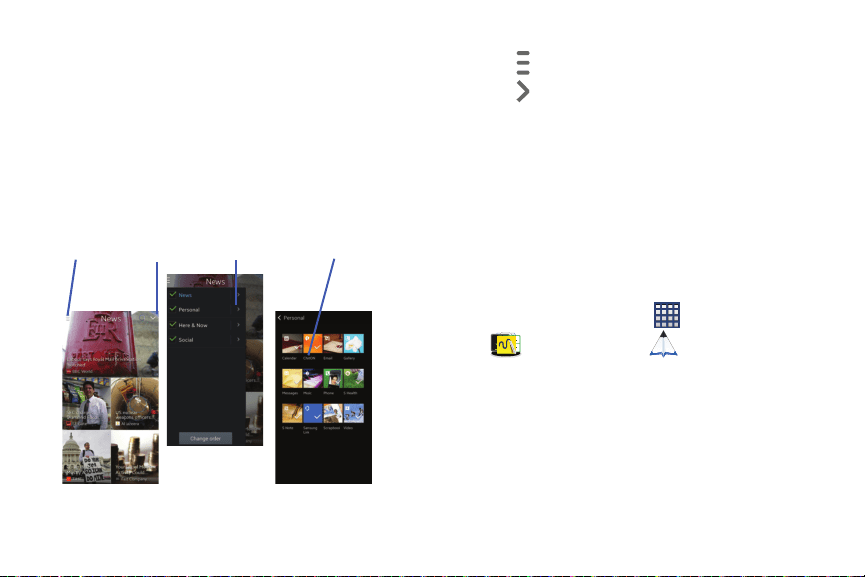
Navigating My Magazine
1. Scroll up or down the on-screen pages to view more
content.
2. Swipe left or right to move among the previous or next
page.
3. Tap an available tile to view more details.
4. Tap the
Omni button
to quick access common
functions.
Menu Omni button Options Category Options
Changing Received Content
1. Tap (
Menu
) to view available options.
2. Tap (
Options
) to select or deselect content
assigned to each page.
PEN.UP
This Samsung application allows you to join a an online
community, follow your favorite artists, show off your
artwork, and connect with other artists.
This community brings together anyone that uses the S Pen
to draw, sketch, scribble or paint. Share pictures, comment
on other creations, or just browse through the pages for
something to add to your personal collection.
1. From the Home screen, tap
(
Apps
)
(
Samsung
folder) (
PEN.UP
).
2. From the main screen tap either
Sign up
or
Explore
PEN.UP
.
3. Follow the on-screen instructions.
Applications and Development 178
Phone
This application provides the ability to make or answering
calls, access the Contacts list, which is used to store contact
information.
From the Home screen, tap (
Phone
).
For more information, refer to “Call Functions and Contacts
List” on page 51.
Photos
This application (also known as Google Photos) provide a
means for automatically backing up your photos and videos
to a centralized Google cloud location.
1. From the Home screen, tap
(
Apps
)
(
Google
folder) (
Photos
).
2. Tap
Get started
and follow the on-screen prompts to
configure a connection method and other related
parameters.
Play Books
Formerly known as Google Books, this application allows you
to read millions of ebooks on the go.
Build your ebooks library in the cloud with Play Books: jump
right into a bestseller or select from available ebooks.
Personalize the reader to your liking, pick up reading where
you left off on your phone or computer, and settle down with
a great book on your Android phone!
Note:
You must logged into your Google account prior to using
this feature.
(
Apps
)
(
Google
folder)
1. From the Home screen, tap
(
Play Books
).
2. Follow the on-screen prompts to download the ebook
to your device.
179
Play Games
This application takes you directly to the Play Store Games
area from where you can make purchases.
1. From the Home screen, tap (
Apps
)
(
Google
folder) (
Play Games
).
2. Accept the Mobile terms of service for Google+ by
tapping
Accept
.
3. Select from an available on-screen option.
Play Movies & TV
This application allows you to connect to the Play Store,
download a movie and then watch it instantly.
Choose from thousands of movies, including new releases and
HD titles in the Play Store and stream them instantly on your
Android device.
Movies, previously rented via the Play Store are automatically
added to your My Movies library
across your devices.
Learn more about Google Play Movies at:
http://play.google.com/about/movies
.
1. From the Home screen, tap (
Apps
)
(
Google
folder) (
Play Movies & TV
).
2. Log on to your Google account if you have not already
done so. A list of videos sorted on the SD card displays
in the Video list.
3. Following the on-screen instructions for renting and
viewing movies.
Play Music
Also known as Google Music, allows you to browse, shop,
and playback songs purchased from the Play Store. The
music you choose is automatically stored in your Google
Music library and instantly ready to play or download.
The Music application contains a music player that plays
music and other audio files that you copy from your computer.
1. From the Home screen, tap (
Apps
)
(
Google
folder) (
Play Music
).
The Music app searches both your online library and
your device’s internal storage for music and playlists;
this can take from a few seconds to several minutes,
depending on the amount of new music added since
you last opened the application.
Applications and Development 180
2. If prompted to join the service, select either
Add
account
or
Not now
.
3. Follow the on-screen log in screens.
4. Return to the Library screen from most other screens
in the Music application by tapping the Music
application icon (
Music notification icon
) at the
top-left of the Application bar.
Searching for Music in Your Library
1. From within the
Play Music
application, tap
(
Search
) to search through your available songs.
2. Type the name of an artist, album, song, or playlist.
Matching songs are displayed in a list below the search
box.
3. Tap a matching song to play it, tap a matching album,
artist or playlist to view a list of its’ songs.
Playing Music
From within the
Play Music
application, tap a song in
your library to listen to it.
The
Now playing
screen opens and the song you
touched or the first song in the album or playlist starts
to play. The tracks in the current list play in order until
you reach the end of the list (unless you choose a
repeat option). Otherwise, playback stops only if you
stop it, even when you switch applications.
Note:
If you navigate away from the
Now playing
screen in the
Music application, the Now Playing bar appears at the
bottom of the screen.
181
Displaying the Now Playing Screen
If you navigate away from the
Now playing
screen, to return
to the
Now playing
screen from other Music screens:
Tap the name of the current song in the Now Playing
bar.
– or –
In a single motion, touch and drag
(
Music
notification icon
) down from the Status bar and tap the
song title from the Notifications area. You can also
pause and resume playback and skip to the next song
in the panel. For more information, refer to
“Notification Bar” on page 29.
Play Newsstand
With Google Play Newsstand, you can subscribe to and
discover more of your favorite news magazines, and have
them available to read on your device at any time or any
place.
1. Log into your existing Google account.
2. From the Home screen, tap
(
Apps
)
(
Google
folder) (
Play Newsstand
).
3. Follow the on-screen inst
ructions to subscribe to a
magazine.
Applications and Development 182
Play Store
Formerly known as the “Android Market”, this application
provides access to downloadable applications and games to
install on your phone. The Play Store also allows you to
provide feedback and comments about an application, or flag
an application that might be incompatible with your phone.
Before using the Play Store, you must have a Google
Account.
Accessing the Play Store
1. From the Home screen, tap (
Apps
)
(
Play Store
).
2. Tap
Existing
and enter your Google account
information.
3. Tap
OK
to agree to the Play Store terms of service.
4. Follow the on-screen instructions to complete your
setup.
POLARIS Office 5
Polaris Office Mobile for Android is a Microsoft Office
compatible office suite. This application provides a central
place for managing your documents online or offline.
The application can also open Adobe PDF (Portable
Document Format) files.
1. From the Home screen, tap (
Apps
)
(
Galaxy Plus
folder) (
POLARIS Office 5
).
2. From the Registration screen, enter your Email
information (if desired) and tap
Register
to complete
the process.
– or –
Tap
Skip
to ignore this registration. The main Polaris
Office screen displays.
3. Follow the on-screen instructions to use Polaris Office.
183
4. On its initial launch, navigate the application to begin
use:
•New
: creates a new office document.
•Menu
: provides access to Settings and Help.
• Recent documents
: provides a scrollable list of recently
accessed documents.
•Samples
: provides access to sample Word, PowerPoint, and
Excel files.
• File Browser
: allows you to search on your device and SD card
for compatible documents.
•Form type
: allows you to quickly access your documents
based on file type. Each type is separated into several available
tabs located at the bottom of the screen, such as: Word, Excel,
PowerPoint, Other, and PDF.
•Favorites
: allows you to list only those documents tagged as
Favorite.
•View Together
: once connected to the same Wi-Fi, you can
share or collaborate with other Polaris users.
S Health
S Health is a wellness application that allows you to better
manage your health by providing you with relevant
information.
Note:
Access to this feature requires that you already be
logged in to your Samsung account application. For
more information, refer
to “Creating a Samsung
Account” on page 289.
1. From the Home screen, tap
(
Apps
)
(
Samsung
folder) (
S Health
).
2. Read the introduction and tap
Start
.
3. Read the Terms and conditions information, place a
check mark in the
Agree
checkbox.
4. Tap
Next
.
5. Tap
Sign in
to log into your personal Samsung account
or tap
Skip
to continue.
6. Enter your personal information, then tap
Next
.
7. Follow the on-screen instructions to use S Health.
and then tap
Help
for more detailed
information.
Applications and Development 184
8. Press

Before You Start Exercising
This app can be used to monitor your exercise. While
moderate physical activity, such as brisk walking, is safe for
most people, health experts suggest that you talk with your
doctor before you start an exercise program, particularly if
you have any of the following conditions:
•
Heart disease;
•
Asthma or lung disease;
•
Diabetes, or liver or kidney disease;
•
Arthritis.
You should also check with your doctor if you have symptoms
suggestive of heart, lung, or other serious disease, such as:
•
Pain or discomfort in your chest, neck, jaw, or arms during
physical activity;
•
Dizziness or loss of consciousness;
•
Shortness of breath with mild exertion or at rest, or when lying
down or going to bed;
•
Ankle swelling, especially at night;
•
A heart murmur or a rapid or pronounced heartbeat;
•
Muscle pain when walking upstairs or up a hill that goes away
when you rest.
Finally, the American College of Sports Medicine
recommends that you see your doctor before engaging in
vigorous exercise if two or more of the following apply:
•
You are a man older than age 45 or a woman older than age 55;
•
You have a family history of heart disease before age 55;
•
You smoke or quit smoking in the past six months;
•
You have not exercised for three months or more;
•
You are overweight or obese;
•
You have high blood pressure or high cholesterol.
•
You have impaired glucose tolerance, also called pre-diabetes.
When in Doubt - Check it Out
If you are unsure of your health status, have several health
problems, or are pregnant, you should speak with your
doctor before starting a new exercise program. Working with
your doctor ahead of time is a good way to plan an exercise
program that is right and safe for you. Consider it the first
step on your path to physical fitness.
185
S Note
Use this application to create notes with productivity tools
that turn handwriting into typed text and correct drawn
shapes, lines, and formulas to make them perfect.
1. From the Home screen, tap (
Apps
)
(
S Note
).
2. Tap
Start
, select a cover style by tapping an on-screen
selection, and tap
Next
.
3. Select an available template and tap
Next
.
4. Synchronize your note with an available account type.
Choose from Samsung account, Evernote, or Set later.
5. Tap
Start
to begin creating your note.
S Translator
Allows you can easily translate words and phrases (verbal or
text messages) into many different languages.
Note:
Access to this feature requires that you already be
logged in to your Samsung account application. For
more informatio
n, refer to “Creating a Samsung
Account” on page 289.
1. From the Home screen, tap (
Apps
)
(
Samsung
) (
S Translator
).
2. If prompted, follow the on-screen steps to install the
full version of the application.
3. If prompted, follow the on-screen instructions to log
into your Samsung account.
Applications and Development 186
To translate text:
1. At the S Translator screen, tap the top language bar to
select your target/source language. Default is Spanish.
2. Tap the bottom language bar to select the destination
language that you would like to translate to. Default is
English (US).
3. Enter text into the top box and it will automatically be
translated into the lower box.
(
Translate
) button within the
bottom field. The top target language field is then
updated with the new translation.
4. Tap the selected
To translate using your voice:
Important!
The two on-screen buttons at the bottom of the
application correspond to the two currently
selected languages.
1. At the S Translator screen, tap the left voice button to
verbally speak the selected language (corresponds to
top field).
2. Wait a few seconds until the on-screen notification
shows “Speak in...” then speak using the selected
language.
3. Within a few seconds, confirm the translated text now
appears in the other translation field.
(
Speak
) button to translate
using your selected input language and voice.
4. Tap the selected
•
Example, if trying to speak in English and get a Spanish
translation, tap the
Speak (English (US))
button and wait for
the text to appear on-screen.
5. Press for additional options. Choose from:
TTS readout speed, Auto readout, and Help.
187
S Voice
Launches your phone’s built-in voice recognition system that
allows you to initiate several common tasks without having
to touch the device.
This is a voice recognition application used to activate a wide
variety of functions on your device. This is a natural language
recognition application.
This goes beyond the Google Search Voice Actions feature
that simply recognizes Google commands and search terms.
You can ask it questions (Is it raining in Dallas?) or give it
commands (Show me where to find cheap gas).
From the Home screen, tap (
Apps
)
(
Samsung
folder) (
S Voice
).
Using S Voice
1. From the Home screen, tap (
Apps
)
(
Samsung
folder) (
S Voice
).
2. Read the on-screen disclaimer information and tap
Confirm
to continue.
3. Review the Terms of Service and tap
Agree
to continue.
4. Navigate through the following on-screen tutorial
screens by reading the information and tapping
Next
,
or tap
Skip
to continue without reading the information.
5. Wake up the application by repeating the phrase
Hi Galaxy
.
Note:
The wake-up command/phrase can be changed from
“Hi Galaxy” to anything else.
6. Tap (
Speak
) if the device does not hear you or
to give it a command.
Example 1:
•
I want to find the best pizza online.
•
Tap and say “Find me the best Pizza”. This launches
an Internet search.
Example 2:
•
I want to go to Cambridge.
•
Tap and say “Navigate to Cambridge”. This launches
the Map application and indicates where this is in relation to
your current position.
Applications and Development 188
Samsung Apps
Allows you to easily download an abundance of applications
that are directly compatible with your device. This includes
games, news, reference, social networking, navigation, and
more. Samsung Apps makes your Smartphone smarter.
Note:
Access to this feature requires that you already be
logged in to your Samsung account ap
plication.
For
more informat
ion, refer to “Creating a Samsung
Account” on page 289.
1. Confirm you are currently signed into your Samsung
account.
2. From the Home screen, tap (
Apps
)
(
Samsung Apps
).
3. If prompted, read the Disclaimer, Terms and conditions,
and Privacy policy and tap
Accept
.
4. Follow the on-screen instructions.
Samsung Hub
Samsung Hub makes it easy to find, sample, and purchase
movies, TV shows, books, games, and music, in one user-
friendly location. With hundreds of titles available,
entertaining your family on-the-go has never been easier.
You can rent or purchase your favorite content and watch
from any location. Samsung Hub is your gateway to mobile
entertainment.
You must have an active Samsung Account to purchase and
rent content via Samsung Hub.
Note:
Samsung Hub usage is based on service availability.
Important!
You must be using an active Wi-Fi/4G/LTE
connection to preview and download a media file.
The internal memory acts as a storage location for
your downloaded rental or purchase.
Important!
The Samsung account manages the access
information (username/password) to several
applications, such as Samsung Link, Chat On, and
Samsung Hub.
189
Creating a New Samsung Hub Account
Before you can rent or buy media, you must first create an
account. Enter the required information.
1. Confirm you have already logged in to your Samsung
account.
2. From the Home screen, tap
(
Apps
)
(
Samsung Hub
).
3. When prompted to connect via mobile networks, select
either
Cancel
or
Connect
.
4. If notified your Samsung account is not yet active or
verified, tap
OK
. You must be signed in to your
Samsung account to use the application’s various
features.
Tip:
In some cases it might be necessary to sign in to your
Samsung account via the application.
Press
and then select
Sign in
.
Note:
Your Samsung Hub account is managed by the Samsung
account application. This application manages your user
profile information.
Using Samsung Hub
The main Samsung Hub screen provides an overview of all
the available categories on one page such as: Music, Video,
Books, and Games. The overview page also displays recently
added media that you can rent or purchase.
1. From the Home screen, tap
(
Apps
)
(
Samsung Hub
).
•
The
OVERVIEW
screen (landing page) displays an main access
for all available categories and recently available content for
purchase or rental.
2. Scroll across the screen to select from the following
available pages:
•MUSIC
: displays featured Music content available for purchase/
stream from the Music store & Radio. This page also allows you
to search for new content, or navigate directly to the Music
store page by clicking on the "Music” link at the top of the
page.
•VIDEO
: displays featured film and TV content available for
purchase/rent from the video store. This page also allows you
to search for new content, or navigate directly to the Movie &
TV store page by clicking the "Video" link a the top of the page.
Applications and Development 190

•BOOKS
: displays featured Book content available for purchase
from the Book store. This page also allows you to search for
new content, or navigate directly to the Book store page by
clicking the "Books" link a the top of the page.
•GAMES
: displays featured Game content available from the
Game store. This page also allows you to search for new
content, or navigate directly to the Game store page by clicking
the "Games" link a the top of the page.
3. To purchase or view featured content in more detail,
tap on any content (Thumbnail or text) to navigate to
the product detail page.
4. Depending on the content, you can either purchase,
rent, or stream the content directly from the product
detail page.
5. Choose a payment method, then follow the on-screen
instructions.
Samsung Hub Notices
•
Any media item (Media Content) may be rented or purchased after
you create an account in Samsung Hub.
•
Media Content that is purchased and downloaded may be viewed
concurrently on up to five (5) devices with Samsung Hub (or “the
service”) that are also registered to the same account.
•
You may remove a device from your account no more than once
every 90 days.
•
You may remove Media Content from a device as many times as
you’d like. You will have the ability to re-download the Media
Content later subject to content re-download availability and
content provider permissions.
•
You may need network coverage to access Media Content you
have acquired through the Service.
•
You can use 3G, 4G, or Wi-Fi connectivity to download Media
Content.
•
Unlike purchased Media Content, rented Media Content will be
viewable on only 1 device in your account at a time.
•
Media Content is downloaded and saved to your authorized
device's SD card. No SD Card included out of box.
191

•
Your Media Content may pause/stop or not download in networks
where there is a weak signal.
•
You may begin watching downloaded Media Content as soon as a)
license acquisition has occurred and b) sufficient amount of the
Media Content has been buffered.
•
You must finish watching Media Content within the time limit set
out for each piece of content (which may be as short as 24
consecutive hours).
•
Stopping, pausing or restarting rented Media Content does not
extend the available viewing time.
•
In no event will rented Media Content be available for a period
of more than thirty (30) days (or shorter on a title-by-title basis)
after the Media Content has been rented (e.g., if you begin
viewing rented Media Content on the 29th day after the rental
transaction, but do not finish viewing the entire title, that rented
Media Content may not be available for the entire twenty-four
(24) consecutive hour period if such period would extend the
viewable time beyond the thirty (30) day rental window).
•
Unless otherwise restricted by the Content Providers, you can
download Media Content to your TV using HDMI connections;
otherwise, you cannot play Media Content downloaded from your
mobile device output. (4/1/2013)
Samsung Link
This application wirelessly synchronizes your Samsung
mobile phone with your TV, streams content and even keeps
tabs on who calls or sends text messages with real-time,
on-screen monitoring. Samsung’s Samsung Link makes
staying connected easy.
Allows users to share their in-device media content with
other external devices using DLNA certified™ (Digital Living
Network Alliance) Devices. These external devices must also
be DLNA-compliant. Wi-Fi capability can be provided to TVs
via a digital multimedia streamer.
AllShare/Samsung Link Definitions:
Samsung Link/
AllShare Play
This new feature builds on the
previous AllShare Play functionality. It
includes features
such as Web storage
integration and social networking
integration. This is a Web service
that requires using a Samsung account.
Applications and Development 192
Group Play
A subset feature of Samsung Link, this
allows you to mirror photos and
multimedia presentations with other
members of your current Wi-Fi
group. Users must be on the same
Wi-Fi and provide an access code to
join the group.
AllShare Cast
(with Hub
accessory)
This feature functions with an
external AllShareCast Hub to fully
mirror what is currently displayed on
your device to the external TV.
Important!
You must first connect both of your communicating
devices to the same Wi-Fi and be using an
active/registered Samsung account prior to using
this application.
For more information, refer to “Wi-Fi settings” on
page 226.
For more information, refer to “Creating a
Samsung Account” on page 289.
Important!
The Samsung account manages the access
information (username/password) to several
applications, such as Samsung Link.
1. Confirm you have already logged in to your Samsung
account.
2. From the Home screen, tap (
Apps
)
(
Samsung
folder) (
Samsung Link
).
3. If prompted with an on-screen notification about no
Wi-Fi detect
ed, tap
Cancel
(to continue by using your
network connection) or
Connect
to continue.
4. Tap
Get started
.
Note:
If the main screen still shows a Sign in box, close the
application and restart it.
5. Follow the on-screen prompts.
193

(
Apps
)
(
Samsung Link
).
and then tap
Settings
and configure the
6. Tap and select a target device. Available tabs
•
Registered devices
allows you to stream/share selected
multimedia content from your device to DLNA compliant device
connected to the same Wireless Access Point.
•Registered storage
: allows you to receive and playback media
store d externally (server, laptop, etc.) directly on your device by
allowing you to add a Web storage service for streaming
content.
The Samsung Link™ application must first be configured
prior to its initial use. You must setup parameters such as
connected Wi-Fi, Items to share, source server address, and
external device accept
ance rights.
1. From the Home screen, tap
2. Press
following settings as desired:
(
Samsung
folder)
include: Photos, Music, Video,
or Document. This list
contains two separate stream
ing media options:
Configuring Samsung Link Settings
•Registered storage
: allows you to add a Web storage location.
Without a storage service/location added, you will not be able
to use Samsung Link.
•Save to
: allows you to save your media to your internal phone
memory or to an SD card.
• Auto upload
: allows you to enable automatic upload of images
from your device to those storage locations specified within the
Web storage list. Move the slider to the on position to activate
the feature.
• Video optimization
: allows you to setup the video quality for
streamed video content. Move the slider to the on position to
activate the feature.
•Password lock
: allows you to restrict access to Samsung Link
by requiring a user enter the currently active and associated
Samsung account password. Move the slider to the on position
to activate the feature.
•My account
: displays Samsung account information.
• About this service
: displays application information.
Applications and Development 194
Add storage
and choose from:
Setting Up Web Storage
Web storage services allow you to use storage space to store
your files and share them on the “Cloud”.
Note:
If you are using another Web storage service, log into
that service first before using Samsung Link.
1. From the Home screen, tap
(
Apps
)
(
Samsung
folder) (
Samsung Link
).
Note:
When adding storage, an N Drive is added.
2. Tap
SugarSync, Dropbox, or SkyDrive.
– or –
Press and then tap
Settings
Registered storage
Add storage
.
3. Follow the on-screen instructions to register or log into
your cloud service.
4. Once the process is successfully completed, the Web
storage icon or name appears in the Web storage area
of the main screen.
5. From the main screen, select a connected device and
then tap on the media that you would like to share.
•
A file with in the upper-left indicates it is stored remotely
on a Web storage location. Selecting this media causes your
device to access the file currently stored on your services’
servers.
To de-register Web storage service:
1. From the Samsung Link application, press and
then tap
Settings
Registered storage
.
2. Select
(
Delete
) (
Delete
).
3. Select a current storage service and tap
OK
.
195
and select your device name from the
Sharing Media via Samsung Link to a Target
Device
Important!
Make sure all communicating devices are
connected to the same Wi-Fi.
1.
Launch AllShare Play/Samsung Link on the target
device (such as an Internet TV, Samsung Tablet, etc..).
2. From the Home screen, tap
(
Apps
)
(
Samsung
folder) (
Samsung Link
).
Note:
You must be signed in to your Samsung Account before
you can use this feature.
3. Tap
Registered devices
area.
4. Tap an available category tab (Pictures, Music, Video,
Document, or Files) and select a file.
•
A file with in the upper-left indicates it is stored remotely
on a Web storage location. Selecting this me
dia causes your
device to access the file currently stored on your services’
servers.
5. Tap an available on-screen file, image, or video to
place a green check mark alongside it.
6. Tap (
Stream to connected devices
) and select an
available target device to begin streaming.
7. On a target device (ex: Internet TV) select the
on-screen
Allow
button to continue.
Note:
At this stage your device is requesting access to share
media with the external source.
(
Samsung Link Controller enabled
)
appears in the Notification area at the top of the device
to indicate you are using your device as the media
source.
8. Confirm
Scrapbook
This application allows you to combine documents, images,
and music into a digital scrapbook.
1. From the Home screen, tap (
Apps
)
(
Scrapbook
).
2. Tap
Start
and follow the on-screen tutorials.
Applications and Development 196

80
Last Name First 88
Merge with Samsung Account 79
Send Specific Contact Information
Sending All 84
Setting Default Locati
on 80
Settings 88
Share Via 80
Sharing Settings 88
Sharing/Sending 84
Contacts List
51
Context Menus 78
, 80
Navigation 50
Using 50
Cookies
Emptying
166
Copying Contact 85
Create Folder
Group Apps 139
Creating a Playlist 175
Creating and sending
Messages
93
Customizing
Home screens 31
D
Dark Screen 264
Data
Auto Sync
Data 237
Restr
ict Background Data 237
Data Limit
Setting 237
Data Roaming 240
Activate/Deactivate 237
, 240
Data Usage
Cycle 237
Limiting 237
Date
Selecting Format 296
Date and Time 29
6
Default Messaging App 239
Default Storage
Assigning 116
Camcorder 116
Camera 116
Dele
ting
Message Bubbles 99
Message Threads 99
Deleting a contact 79
Deregister
Web Storage 195
Device
Reset 294
De
vice Health 198
Devic
e Name
Edit
306
Device Options
Screen 250
Disable
Applications 139
Disabled Applications
Show 139
Display
Icons 23
Status Bar 23
Using Negative Colors 264
Display Settings 253
Displaying your phone number 51
Dock
Sound 296
Download Booster 236
On 236
312

Downloads 152
Draft Messages 95
Drive 152
Dropbox 195
Uploading Picture 153
Dual Camera 121
Relocate 121
Resize 121
Dual View
see Dual Camera
121
E
Easy Mode 262
EDGE Network 242
Edit Page 31
Editing a Picture 135
Email 106
Changing Signature 111
, 114
Composing 109
Configuring Settings 110
Creating a Spam List 110
Creating an Internet Account 107
Internet Email 107
Opening 108
Refreshing Messages 109
Sending 87
Wi-Fi Download of Attachments
111
, 114
Emergency
Alert Preview 103
Alerts 103
Em
ergency Alert
Configuration 103
Emergency Alerts 103
AMBER 103
Imminent Extreme 103
Message Settings 103
Severe 103
Emergency Calls
Making 53
With SIM 53
W
ithout SIM 53
Emoticons 96
Ending
A call 52
Entering Text 68
Erasing Files
Memory Card 302
Evernote
154
Excercise
Risks 185
Exchange Email 112
Account Setup 112
Composing 113
Configuring Settings 113
Deleting Message 113
Opening 113
Refreshing Messages 113
Exercising
Before You Start 185
Extr
eme Alert
Disable 104
F
Facebook
Personalize 278
Predictive Text 278
Factory Data Reset 294
Prior To 291
313

Favorites Tab 91
Fixed Dialing Numbers 272
Flipboard 154
Folder
Create 28
Font 261
Size 261
Style 261
Font Size
Changing 264
Messages 95
, 96
Forgot Pattern? 259
G
Galaxy Gear 18
Gallery
Folder Options 132
Opening 137
P
icture-In-Picture 201
Games
Volume 250
Gesture
Settings 283
Getting Started 6
Bat
tery 11
Battery Cover 7
Locking/Unlocking the Device 16
microSD card 10
SIM Card
8
Switching Device On/Off 15
Voicemail 17
Gmail
155
Opening 155
Personalize 278
Google
Backing Up Settings 294
Settings 157
Signing into Your Account 155
Voice Typing 68
Google Books 179
Google Drive 152
see Drive 152
Google Maps
Enabling a Location Source
170
Opening a map 171
Google Music 180
Google Now 156
, 204
Adjust Settings 156
Google Settings 157
Google Talk
see Hangouts 160
Google Voice Typing
Configur
ing 278
Using 69
Group
Joining 159
Group Play 158
Cr
eating a Group 158
Joining a Group 159
Share Music 160
, 173
Sharing Pictures 158
Spanning Screens 159
Groups
Adding an Member to an Existing
Group 89
Creating a new caller group 89
Deleting 90
Deleting a Caller Group 90
Editing a Caller Group 90
Removing an Entry 90
Settings 90
314

H
Handrwriting
Language Search 279
Handwriting 71
Haptic Feedback
Turn On/Off 300
Vibrate 252
Vibration Setting 250
HDR 119
Hearing Aid
Compatibility 275
Hearing Aids 265
, 267
Help
In-Device 161
Hold
Placing a Call on Hold 61
Home 28
Home Screen
Assigning a New 32
Changing Wallpaper 35
Menu Settings 28
Overview 28
Home screens
Customizing 31
Homepage
Setting New 165
I
Icons
Description 23
Indicator 23
Status 23
Images
Assigning as a Contact icon 134
Assigning as wallpaper 134
Tran
sferring 292
Verifying 292
Importing and Exporting
To micro SI
M card 88
In Call
Options 60
In call
Options 61
Incognito 164
Create Window 164
Exit Window 164
Incoming Call
Vibration Setting 250
Indicator icons 23
International Call 56
International Calls
Making 56
Internet
161
Brightness Setting 162
Search 163
Set Homepage 167
Set New Homepage 165
Internet Email 106
IP Address 305
IR
Smart Remote 18
K
Kids Mode 168
L
Language
Select 275
, 279
Linking
Contact Information 81
Live Wallpaper
Sel
ecting 35
315

Loacation Services 238
Location
Accuracy 238
Mode 238
Lock Pattern
If
I Forgot My Pattern 259
Lock Screen 255
Changing Wallpaper 36
Say Wake-Up Command 256
Shortcuts 256
Logs 64
Accessing 65
Accessing from Notifications 65
Altering Numbers 66
Erasing 67
Lookout Security 169
Low battery indicator 14
LTE
Network Mode 241
Selecting 241
LTE Network 241
M
Magnification
Gestures 264
Making
Emergency Calls 53
International Calls 56
New call 51
Ma
naging Applications
Clearing Application Cache 297
Uninstalling Thir
d-party
Applications 297
Market
see Play Store 183
Markin
g contact
As a default 83
Media
Backing Up to mi
croSD Card 293
Backing Up to PC 292
Memory Card
Erasing Files 302
Mer
ge Calls 62
Merge with Google 79
Message
Options 94
Read 97
Register a Number as Spam 98
Reply 98
, 148
Thread Options 98
Threads 98
Message Search 100
Message threads 98
Messages
Assigning a Default Application
239
Font Siz
e 95
, 96
Messaging
Adding a Signature 101
Addin
g Attachments 93
Additional Text 97
Block Unknown Senders 103
,
105
Creating and sending 93
Creating and Sending Text
Messages 93
Current Message Options 96
Default Application 100
, 299
Deleting a message 99
Draft 95
Google Mail 155
Icons on the Status Bar 92
Insert Smiley 96
316

Locked 95
Menu Options 94
Options 94
Scheduled Messages 95
Settings 100
Signature 101
Spam 95
Text Templates 106
Types of Messages 92
Viewing new 97
micro SIM Card 8
Changing Existing PIN 303
Importing and Exporting 88
Insertion 8
Lock 303
Removal 9
Setting Up Lock 303
microSD Card
Insertion 10
Removal 10
Micr
osoft Exchange 75
, 106
Mobile Data
Activate/Deactiv
ate 237
Set Data Limit 237
Usage 240
Mobile HotSpot 221
, 232
Activating
221
, 233
Allowed Devices
223
, 234
Changing Password
222
, 234
Connecting 222
, 233
MAC FIltering 223
, 234
Range Configuration 235
Mobile HotSpots
Detect and Connect 238
Mobile Networks 240
Data Roaming 24
0
Mobile Data 240
Mobile Web 161
Entering Text in the Mobile Web
Browser 163
Navigating with the Mobile Web
161
Using Bookmarks 164
Mono
Audio Setu
p 265
Motion
Activate 285
Air Command 285
Ai
r View 284
Auto-adjust Touch Sensitivity 287
Browse Image 286
Direct Call 286
Mute/Pause 286
On 285
Settings 283
Smart Alert 286
Smart Screen 287
Zoom 286
Mounting the SD card 301
Multi Window
Activate/Deactivate 44
Acti
vating 254
Activation 254
Close App 49
Custom Preset 49
Customizing 46
Increase App Window Size 48
Panel Relocation 45
Rearrange Apps 46
Removing Apps 46
Restoring Apps 47
Running Multiple Apps 47
317

Switch Arrangement 48
Tab Repositioning 45
Using 43
Multi-Party Call 62
Dropping One Participant 63
Private conversation 62
Multi-party call
Setting up 62
Multi-party calls 62
Multi-Screen
Spanning 160
Multi-Tasking
Background
Calling 52
Watching Videos 201
Music 172
Adding Music 175
Creating a Playlist 175
Editing a Playlist 176
Making a Song a Ringtone 173
Options 173
Playing Music 172
Removing Music 175
, 176
Share via Group Play 160
Simultaneoulsy Playback 160
Using Playlists 175
Volume 250
Music App
Music Applica
tion 180
Now Playing Screen 182
Playing 181
Searching for Music 181
Music File Extensions
3GP 172
AAC 172
AAC+ 172
eAAC+ 172
M4A 172
MP3 172
MP4 172
WMA 172
Music Files
Removing 176
Transferring 176
My Maga
zine 177
Changing Received Content 178
Navigation 178
Omni Button 178
My Places 170
, 239
N
Namecard
Sending 84
Sending All 84
Share Via 84
Navigating
Application Menus 50
Sub-Menus 50
Thr
ough Screens 36
Negative Colors 264
Network Mode
2G Network 241
, 242
LTE 241
WCDMA/GSM 241
NFC (Near Field Communication) 247
Notification
Vibration Setting 250
Noti
fication Bar 29
Using 29
Notification Panel
Customizing Quick Access
262
Notifications
Volume 250
318

O
Omni Button
My Magazine 178
On/Off Switch 15
One-Handed Operation 282
On/Off
54
, 61
Organizer
Calculator 143
World Clock 150
Out of Office
Message 114
Settings 114
Outlook 106
Overview
Home Scr
een 28
P
Paired Windows
Multi Window Preset 49
Palm Motion
Activate 286
Capture Screen 286
Mute/Pause 286
On 133
, 286
Passpoint
On 227
Passwords
Make Visible 303
Pause Dialing 57
Pen Window 43
Phone
Ico
ns 23
Switching o
n/off 15
Phone number
Finding
51
Phone Ringtone 250
Phone Vibration 251
Photo
Editing 135
Photos
Change Player 124
Google Photos 179
Options 124
, 125, 127
Sharing 124
, 125, 127
Picture
Color Correction 136
Face C
orrections 136
Frame 136
Set As 134
S
treaming from Gallery 133
Picture-In-Picture 201
Pictures
Instant Sharing 129
Sharing 128
, 131
Pinning
Memo 141
Place 238
Play Books 179
Play Games 180
Play Newsstand 182
Play Store 183
Pointer Speed
Configuration 280
Power
Auto Adjust Scr
een Tone 254
Power Saving
CPU Power 300
Haptic Feedback 300
LCD Ad
justment 254
Learning About 301
Screen Power 300
319

Power Saving Mode 300
Predictive Text
Activation 277
Prepend
Ar
ea Code 271
Primary Shortcuts 20
Adding and Deleting 33
Customizing 33
Replacing 33
Printing
Wireless 240
Q
Quick Dialing 52
Quick Messaging 94
R
Rapid Key Input 264
Reading Mode 254
Recent Location Requests 238
Red Eye
Correction 136
Redialing the last number 58
Reject Call
Rejection Messages 266
Reject Calls
Managing 55
Reject
List
Add To 56
Add to 66
Auto Reje
ct 56
Rejection List
Assigning Multiple Number
s 56
Assigning Single Numbers 56
Rejection Messages
Set Up 266
Reset 294
Reset App Preferences 299
Reset Device 294
Restarting
Device 16
Restore 291
Restrict
Background Data 237
Ringtone
Assigning 267
Assigning V
oicemail 274
Device 250
Vo
lume 250
S
S Beam 248
On 131
, 248
Sharing Multiple Pictures 132
Sharing Pictures 131
S Finder
Using S Pen 43
S Note 186
S Pen
Functionality 38
Handwritng Input 38
, 39
Kepper Notification 282
Overview 38
Removing 39
Settings 282
Taking Screen Shots 39
Using 39
S Translator
Translate Te
xt 187
Translate Using Voice 187
S Voice 188
Using 188
Samsung Account
Backing Up Bookmarks 293
320

Creating 289
Merge Contacts 79
Samsung Applications
Sounds 252
Samsung Hub
Creating a New
Account 190
Usin
g 190
Samsung Keyboard 70
ABC Mode 72
Changing the Input Type 71
Enabling 70
Entering Symbols 73
Keyboard Swipe 276
Predictive Text Settings 277
Reset Settings 277
Settings 276
Sounds 252
Symbol/Numeric Mode 73
Samsung Link
Configuring Settings 194
Definitions 192
Der
egister Storage 195
Sharing Media 196
Web Storage Setup 195
Save a Number
From Keypad 77
Scrapbook 196
Using S Pen 42
Screen
Home 28
Navigation 36
Screen Capture 286
Taking a Screen Shot 133
Screen Lock
Pen Attach/Detach 252
Set Up 257
Sounds 252
Screen Lock Pattern
Changing 258
Creating 257
Deleting 258
Forgot My Pattern 259
Screen Mirroring
Activation 249
On 249
Screen Mode
Chnaging Clarity 253
Screen Rotation
Auto-Rotate 254
Screen Shots
Selective 41
Screen
Timeout 253
Screen Unlock
Signature 256
Signature Options 257
Swipe 255
Screen Write
Using S Pen 42
Screens
Adding and Deleting 31
Customizing 31
Rearranging 32
SD card
Mounting
the 301
Unmounting 302
Searching
Menu Options 224
Security
Auto Update 304
321

Sending a Namecard 84
Sensitivity
Auto-Adjust Touch Sensitivity
283
, 287
Sensor
Temperature and Humidity 22
Se
tting an alarm 149
Setting up
Voicemail 17
Settings 121
, 224
Accessing 224
Browser 167
Call 54
Contact list 88
Messaging 100
Search 224
Searching 224
Tab Overview 224
Wallpaper 35
, 36
Setup
Initial 15
Seve
re Alert
Disable 104
Share Shot 129
Activate 121
Configurin
g 130
Enabling 130
Stop Sharing 130
Taking Images 130
Share Videos 159
Shortcuts
Adding from Application Screen
32
Adding from Home Screen 32
Deleting from a Screen 33
Managing 32
Primary 20
Signature
Unlock 256
SIM
Micro 6
, 8
see also micro SIM 8
SketchBook for Galaxy 197
SkyDrive 195
Smart Alarm 150
Smart Clip 38
Using 41
Smart Screen 283
, 287
On 287
Smart Switch 18
Snooze 150
Repeat
149
Software Update 305
Wi-Fi 307
Song
Set As 173
Sound
Adapt Sound 253
Default Notification 251
Sounds
Hearing Aids 265
Turn Off All 265
Spam 106
Accessing Your Spam Folder 106
Add a Phrase 103
, 105
Add Number 95
, 96, 98
Assigning Manually 104
Assigning Phone Numbers 104
Block Unknown Numbers 105
Block Unknown Senders 103
,
105
322

Email Addresses 110
Manually Add a Number 103
, 104
Match Criteria 105
Registering a Phrase as Spam 105
Settings 103
, 104
Spam Messages 95
Assigning 95
Speed Dial
Changing an entry 59
Making a call
59
Removing an entry 59
Setting up entries 58
Split Screens
Group Play 159
Stabilization
Camera/Camcorder 122
Status Bar 23
Storage
Imag
es and Videos 123
Sub-Menus
Navigation 50
Subtitles
Google 265
Samsung 265
SugarSync 195
SwiftK
eyFlow
Samsung Keyboard 276
Swype
see SwiftKey Flow 68
System
Volume 250
System Manager 295
System Tone
Settings 251
T
Tag Current Location 238
Task Manager 139
Tethering
Active Icon 220
, 236
Disconnecting 220
, 236
see USB Tethering 219
, 235
Text Booster
Accessibility 167
Text Input
Methods 68
Text Input Method
Selecting
68
Text Templates 106
Create Your Own 106
Te
xt To Speech 280
Te
xt-to-speech
Configuration 280
Third-Party Applications 297
Time Zone
Selecting 296
Timer
Automatic Answering 267
, 269
Tools
Camera 117
Touch Sensitivity 287
Touchpad/Cursor
Settings 265
TrackPad
Configure 280
Transferring Large Files 131
, 248
Transferring Music Files 176
Travel Wallpaper
Lock Screen 36
323

TTS 280
TTY Mode 274
Twitter
Predictive Text 278
U
Understanding Your Device 18
Back View 22
Features 18
Front View 20
Home 28
S Pen 38
Unknown Numbers
Blocking Messages 105
Unknown Sources 304
Unlock
Using a Signature 256
Unmounting
SD card 302
Usage
Battery 300
USB 2.0
Cable Insta
llation 13
USB 3.0 18
, 24
Cable Installation 12
Enabling Connection 219
Reverting to USB2.0 219
USB Connections
As Storage
Device 218
USB Settings
As Storag
e
Device 218
USB Tethering 219
, 235
Activating 220
, 235
Using Favorites
Adding Favorites 165
V
Vibrate 267
Activate/Deactivate for Voicemail
274
Vibration
Create 273
Device 251
Intensity Setup 250
Video
Crete Video Clip 127
Picture-In-Picture 201
Shar
ing Videos 200
Volume 250
Videos
Options 125
Voice Control 281
Voice Input
Recognition 279
Voice Search 204
, 279
Voice Typing 68
Configuring 278
Using 69
Voicemail 274
Accessing 17
Setting up 17
Volume Settings
Adjusting 250
VPN
Adding 243
Settings 243
VPN Client 205
W
Wait 57
Wait dialing 57
Wallpaper
Assign Home 28
Home and Lock Screens 35
324

Wallpapers
Assigning from Gallery 125
Changing Home Screen 35
Changing Lock Screen 36
Changing via Settings Menu 35
Managing 35
WatchON 205
Adding a New Room 209
Changing Channels 207
Configure Just For You 209
Customizing Your Remote 206
Initial Configuration 205
Locating Programs 208
Personalize 209
Settings 208
Using 207
Web 161
History 166
Widget
Adding Widgets 28
Widgets
Adding and Removing 34
Moving to a D
ifferent Screen 34
Set
tings 197
Stopwatch 151
Wi-Fi
About 212
Activating 212
, 226
Calling 244
Connecting to 213
Connections 212
Deactivating 212
, 226
Direct Connection 230
During Sleep 227
MAC Address 228
Manually Adding Network 213
Off 212
, 226
On
129
, 212, 226
Settings 226
Show Usage 237
Sorting Entries 227
Wi-Fi Calling 9
Activating 244
, 245
Connection Preferences 246
Icons 247
Launching 246
Settings 245
Wi-Fi Direct 230
Activate and Connect 230
Device Name 16
On 129
, 230
World Clock
DST Settings 151
WPA2 PSK 221
, 222, 233, 234
WPS PIN
Pairing 229
WPS Push Button
Connect 229
Pairing 229
Y
YouTube
High Quality 211
Settings 210
325