INSTRUCTION MANUAL
E

2 3
Thank you for purchasing this Minolta digital camera. Please take the time to read
through this instruction manual so you can enjoy all the features of your new camera.
This manual contains information regarding products introduced before August, 2001.
To obtain compatibility information for products released after this date, contact a
Minolta Service Facility listed on the back cover of this manual.
Check the packing list before using this product. If any items are missing, immediately
contact your camera dealer.
Minolta DiMAGE S304 digital camera
AA alkaline batteries (set of four)
Neck strap for DiMAGE S304 NS-DG304
Lens cap for DiMAGE S304 LF-236
16MB CompactFlash card
AV cable for DiMAGE S304 AVC-100
USB cable for DiMAGE S304 USB-200
DiMAGE software CD-ROM for DiMAGE S304
ArcSoft PhotoImpression CD-ROM
DiMAGE Image Viewer Utility instruction manual
Camera manual
Warranty card
Read and understand all warnings and cautions before using this product.
Using batteries improperly can cause them to leak harmful solutions, overheat, or explode
which may damage property or cause personal injury. Do not ignore the following
warnings.
• Only use the batteries specified in this instruction manual.
• Do not install the batteries with the polarity (+/–) reversed.
• Do not use batteries which show wear or damage.
• Do not expose batteries to fire, high temperatures, water, or moisture.
• Do not attempt to short or disassemble batteries.
• Do not store batteries near or in metallic products.
• Do not mix batteries of different types, brands, ages, or charge levels.
• Do not charge alkaline batteries.
• When recharging rechargeable batteries, only use the recommended charger.
• Do not use leaking batteries. If fluid from the batteries enters your eye, immediately
rinse the eye with plenty of fresh water and contact a doctor. If fluid from the batteries
makes contact with your skin or clothing, wash the area thoroughly with water.
WARNING
FOR PROPER AND SAFE USEBEFORE YOU BEGIN
• Use only the specified AC adapter within the voltage range indicated on the adapter
unit. An inappropriate adapter or current may cause damage or injury through fire or
electric shock.
• Do not disassemble this product. Electric shock may cause injury if a high voltage circuit
inside the product is touched.
• Immediately remove the batteries or unplug the AC adapter and discontinue use if the
camera is dropped or subjected to an impact in which the interior, especially the flash
unit, is exposed. The flash has a high voltage circuit which may cause an electric shock
resulting in injury. The continued use of a damaged product or part may cause injuries
or fire.
Because the performance of alkaline batteries
with digital cameras is low, the use of
Ni-MH batteries is recommended.
4 5
FOR PROPER AND SAFE USE
• Do not use or store the product in a hot or humid environment such as the glove
compartment or trunk of a car. It may damage the product and batteries which may
result in burns or injuries caused by heat, fire, explosion, or leaking battery fluid.
• If batteries are leaking, discontinue use of the product.
• The camera temperature rises with extended periods of use. Care should be taken to
avoid burns.
• Burns may result if the CompactFlash card or batteries are removed immediately after
extended periods of use. Turn the camera off and wait for it to cool.
• Do not fire the flash while it is in contact with people or objects. The flash unit
discharges a large amount of energy which may cause burns.
• Do not apply pressure to the LCD monitor. A damaged monitor may cause injury, and
the liquid from the monitor may cause inflammation. If liquid from the monitor makes
contact with skin wash the area with fresh water. If liquid from the monitor comes in
contact with the eyes, immediately rinse the eyes with plenty of water and contact a
doctor.
• When using the AC adapter, insert the plug securely into the electrical outlet.
• Do not use if the AC adapter cord is damaged.
• Do not cover the AC adapter. A fire may result.
• Do not obstruct access to the AC adapter; this can hinder the unplugging of the unit in
emergencies.
• Unplug the AC adapter when cleaning or when the product is not in use.
CAUTION
• Keep batteries or small parts that could be swallowed away from infants. Contact a
doctor immediately if an object is swallowed.
• Store this product out of reach of children. Be careful when around children, not to harm
them with the product or parts.
• Do not fire the flash directly into the eyes. It may damage eyesight.
• Do not fire the flash at vehicle operators. It may cause a distraction or temporary
blindness which may lead to an accident.
• Do not use the monitor while operating a vehicle or walking. It may result in injury or an
accident.
• Do not use this product in a humid environment, or operate this product with wet hands.
If liquid enters the product, immediately remove the batteries or unplug the AC adapter
and discontinue use. The continued use of a product exposed to liquids may cause
damage or injury through fire or electric shock.
• Do not use the product near inflammable gases or liquids such as gasoline, benzine, or
paint thinner. Do not use inflammable products such as alcohol, benzine, or paint
thinner to clean the product. The use of inflammable cleaners and solvents may cause
an explosion or fire.
• When unplugging the AC adapter, do not pull on the power cord. Hold the adapter unit
when removing it from an outlet.
• Do not damage, twist, modify, heat, or place heavy objects on the AC adapter cord. A
damaged cord may cause damage or injury through fire or electric shock.
• If the product emits a strange odor, heat, or smoke, discontinue use. Immediately
remove the batteries taking care not to burn yourself as the batteries become hot with
use. The continued use of a damaged product or part may cause injuries or fire.
• Take the product to a Minolta Service Facility when repairs are required
6 7
TABLE OF CONTENTS
Names of parts
Camera body...........................................................................................................................10
Viewfinder................................................................................................................................12
Mode dial.................................................................................................................................12
Data panel...............................................................................................................................13
LCD monitor display................................................................................................................14
Getting up and running.........................................................................................................................15
Attaching the neck strap and lens cap....................................................................................15
Changing batteries ..................................................................................................................16
Battery condition indicator.......................................................................................................17
Auto power save......................................................................................................................17
External power supplies (sold separately)...............................................................................18
Changing the CompactFlash card...........................................................................................18
Auto-recording mode - basic operation................................................................................................20
Handling the camera ...............................................................................................................20
Setting the camera to record images automatically................................................................21
Zoom lens and digital zoom ....................................................................................................22
Basic recording operation........................................................................................................23
Focus lock ...............................................................................................................................24
Focus range.............................................................................................................................24
Focus signals...........................................................................................................................25
Special focusing situations......................................................................................................25
Quick view...............................................................................................................................26
Quick-view display......................................................................................................27
Deleting images in quick view ....................................................................................27
Digital-subject-program button ................................................................................................28
Flash modes............................................................................................................................30
Flash range - auto-recording mode.........................................................................................31
Flash signals............................................................................................................................31
Camera-shake warning ...........................................................................................................31
Drive modes ............................................................................................................................32
Self-timer.....................................................................................................................33
Remote control (sold separately)................................................................................34
Continuous advance...................................................................................................35
Bracketing...................................................................................................................36
Display button - recording mode .............................................................................................37
Navigating the auto-recording mode menu.............................................................................38
Image size ..................................................................................................................40
Image quality ..............................................................................................................41
Image-file size and CompactFlash card capacity.......................................................42
Voice memo................................................................................................................43
Date imprinting............................................................................................................44
Instant playback..........................................................................................................45
Exposure compensation..........................................................................................................46
What is an Ev? What is a stop?..............................................................................................47
Multi-function recording mode - advanced operation...........................................................................48
Autofocus areas and control....................................................................................................48
Navigating the multi-function recording mode menu...............................................................50
Exposure modes.........................................................................................................52
Program.................................................................................................................52
Aperture priority - A ...............................................................................................52
Manual exposure - M ............................................................................................53
White balance.............................................................................................................54
Automatic white balance .......................................................................................54
Preset white balance.............................................................................................54
The basic operation of this camera is covered between pages 10 and 27. This section
of the manual covers the camera parts, preparation of the camera for use, and the
basic camera operation for recording, viewing, and deleting images.
The auto-recording mode section covers all the basic functions of the camera in this
mode and the multi-function recording mode. Take time to read this section before
moving on to the multi-function recording mode. The other sections, movie recording
mode, playback mode, setup mode, and data transfer mode, can be read as needed.
Many of the features of this camera are controlled with menus. The menu navigation
sections concisely describe how to change menu settings. Descriptions of the settings
immediately follow the navigation sections.
Throughout the text are shooting tips and camera notes. Shooting tips give advice and
information on photography and how to use the camera to achieve the best results.
Camera notes cover details on camera operation.
ABOUT THIS MANUAL
8 9
TABLE OF CONTENTS
Custom white balance...........................................................................................55
Focus modes..............................................................................................................56
Camera sensitivity - ISO.............................................................................................57
Flash range and camera sensitivity............................................................................57
Full-time AF.................................................................................................................58
Metering modes..........................................................................................................58
Exposure bracketing...................................................................................................59
Digital zoom and image size.......................................................................................59
Image control - color, sharpness, contrast, & saturation............................................60
Bulb exposures........................................................................................................................61
A short guide to photography...............................................................................................................62
Movie recording....................................................................................................................................64
Recording movies with the RC-3 remote control (sold separately).........................................65
Playback mode - viewing and editing images......................................................................................66
Single-frame playback display.................................................................................................67
Movie playback display............................................................................................................67
Viewing pictures ......................................................................................................................68
Viewing movies........................................................................................................................69
Deleting images.......................................................................................................................69
Display button - playback mode..............................................................................................70
Enlarged playback...................................................................................................................71
Navigating the playback-mode menu......................................................................................72
Playback-mode menu - basic..................................................................................................74
Deleting images..........................................................................................................74
Locking images...........................................................................................................75
Changing the index playback format..........................................................................75
Playback-mode menu - custom 1 (Slide Show)......................................................................76
Playback-mode menu - custom 2............................................................................................78
About DPOF ...............................................................................................................78
Creating a DPOF print order.......................................................................................78
Ordering an index print...............................................................................................79
Canceling a DPOF print order....................................................................................79
Copying images..........................................................................................................80
Frame-selection screen...........................................................................................................81
Viewing images on a television...............................................................................................82
Setup mode - controlling the camera’s operation ................................................................................83
Navigating the setup menu......................................................................................................84
Setup menu - basic .................................................................................................................86
LCD monitor brightness..............................................................................................86
Formatting CompactFlash cards.................................................................................86
Auto power save.........................................................................................................87
Beep............................................................................................................................87
Language....................................................................................................................87
Setup menu - custom 1...........................................................................................................88
File number memory...................................................................................................88
Select folder................................................................................................................88
Setup menu - Custom 2 ..........................................................................................................89
Reset default...............................................................................................................89
Setting the date and time............................................................................................90
Setting the date format...............................................................................................91
Video output................................................................................................................91
Data-transfer mode - connecting to a computer ..................................................................................92
Arcsoft PhotoImpression 3.0 system requirements.................................................................93
QuickTime 5.0 system requirements.......................................................................................93
Connecting the camera to a computer....................................................................................94
Connecting to Windows 98 and 98SE.....................................................................................96
Automatic installation..................................................................................................96
Manual installation......................................................................................................97
Connecting to Mac OS 8.6......................................................................................................99
Auto power save (data-transfer mode)....................................................................................99
CompactFlash card folder organization .............................................................................................100
Disconnecting the camera from the computer ......................................................................102
Windows 98 and 98SE.............................................................................................102
Windows Me and Windows 2000 Professional ........................................................102
Macintosh..................................................................................................................103
Changing the CompactFlash card (data-transfer mode).......................................................104
Appendix ..................................................................................................................................105
Troubleshooting.....................................................................................................................106
Care and storage...................................................................................................................109
Technical specifications .........................................................................................................114
* This camera is a sophisticated optical instrument. Care should be taken to keep
these surfaces clean. Please read the care and storage instructions in the back of
this manual (p. 109).
10 11
NAMES OF PARTS
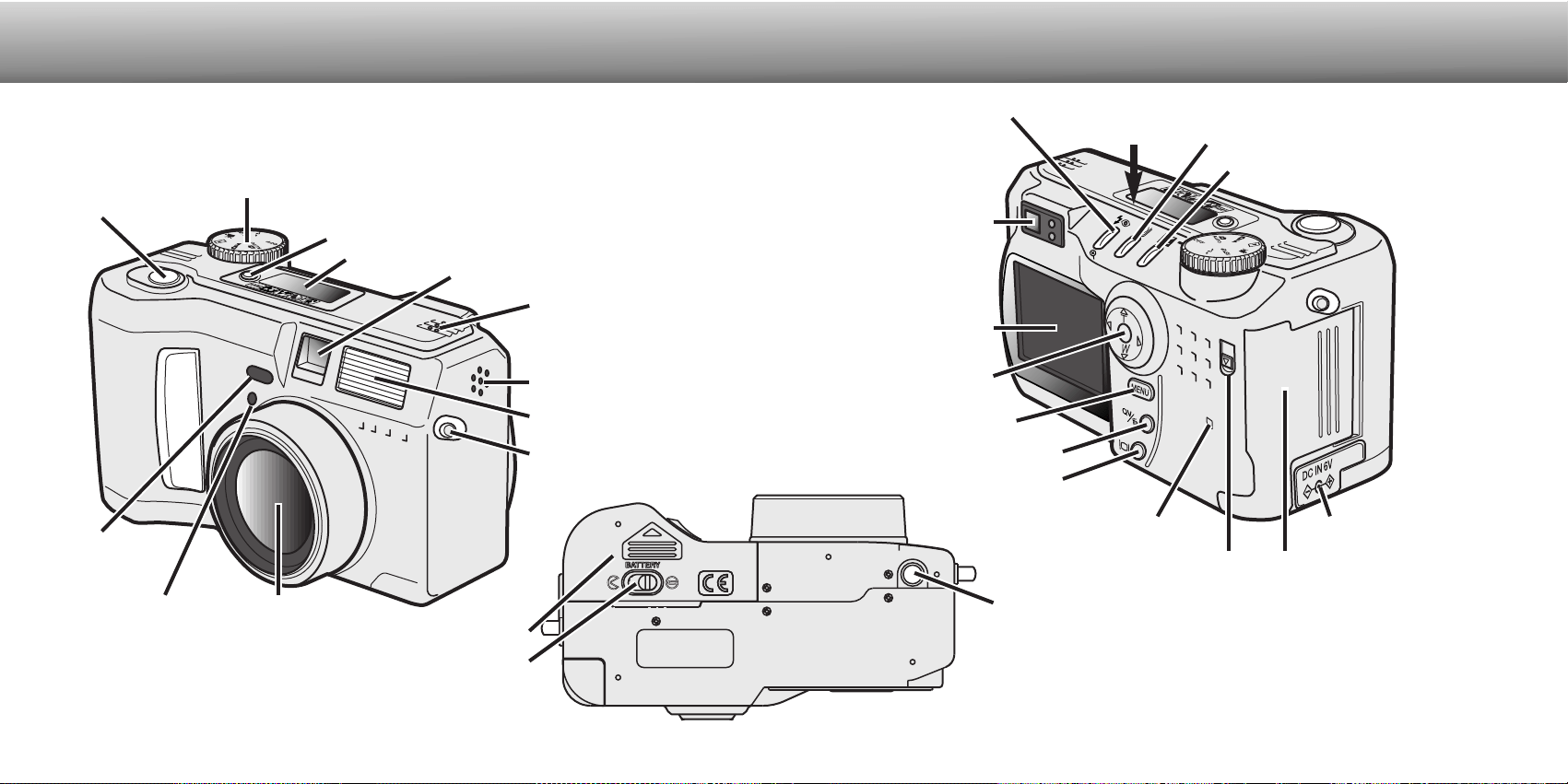
CAMERA BODY
Data panel (p. 13)
Shutter-release button
Lens*
Card-slot door (p. 18)
The USB port and AV-out
terminal are located behind
the card-slot door.
Self-timer/
Remote-control
lamp (p. 32)
Flash (p. 30)
Digital-subject-program button (p. 28)
Strap eyelet (p. 15)
Viewfinder* (p. 12)
LCD monitor*
(p. 14)
Menu button
Battery-chamber lock (p. 16)
Flash mode/Magnification button (p. 30, 71)
DC terminal cover (p. 18)
Access lamp
QV/ Delete button (p. 26)
Tripod socket
Speaker
Microphone
Remote-control
receiver
Mode dial (main switch)
Viewfinder window*
Battery-chamber door (p. 16)
Card-slot door release
Drive-mode button (p. 32)
Exposure-compensation button (p. 46)
Controller
CCD plane
Display button (p. 37, 70)
12 13
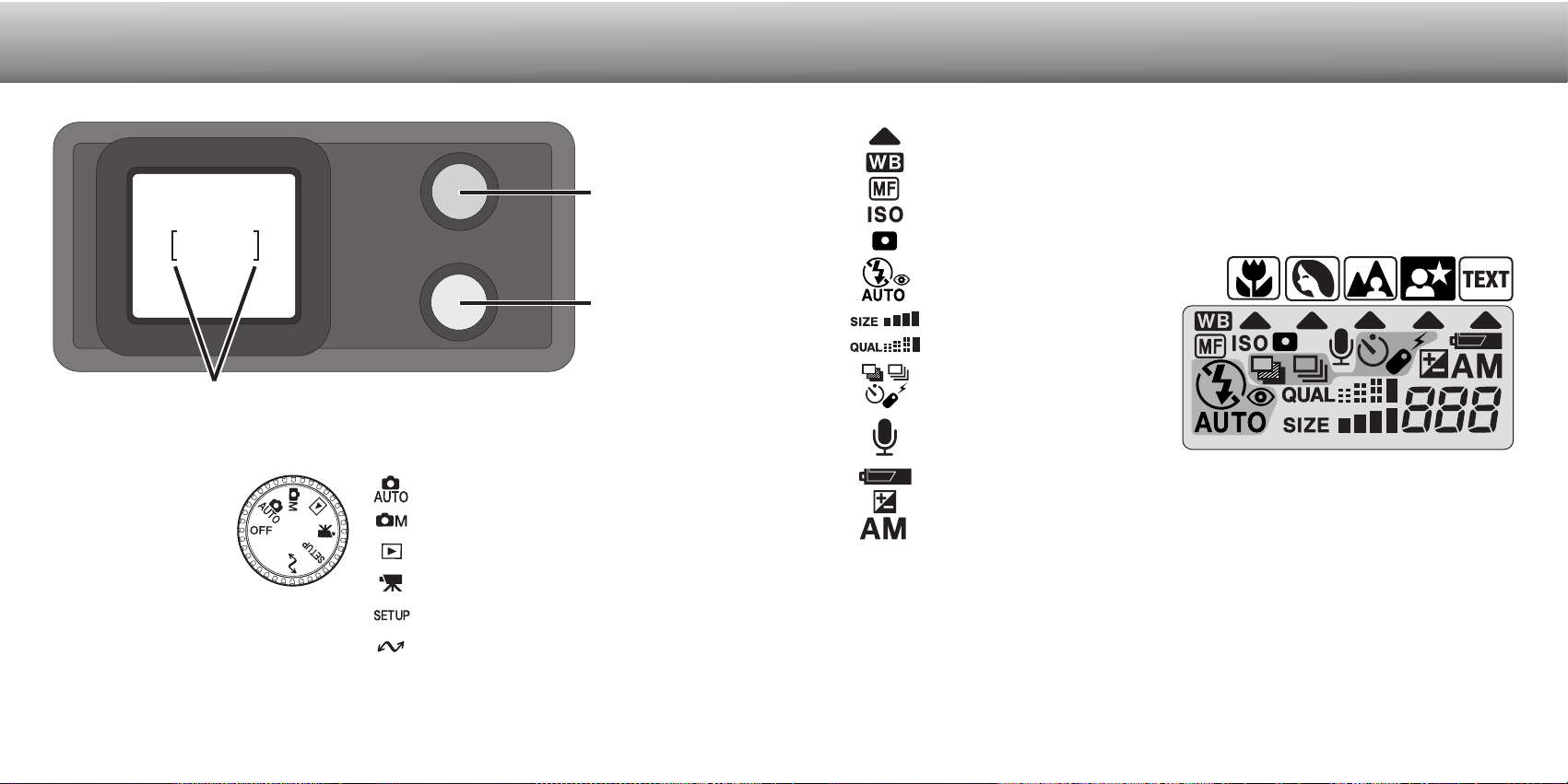
DATA PANEL
Frame counter
(p. 42)
NAMES OF PARTS
MODE DIAL
Auto-recording mode (p. 20)
Multi-function recording mode (p. 48)
Playback mode (p. 66)
Movie-recording mode (p. 64)
Setup mode (p. 83)
Data-transfer mode (p. 92)
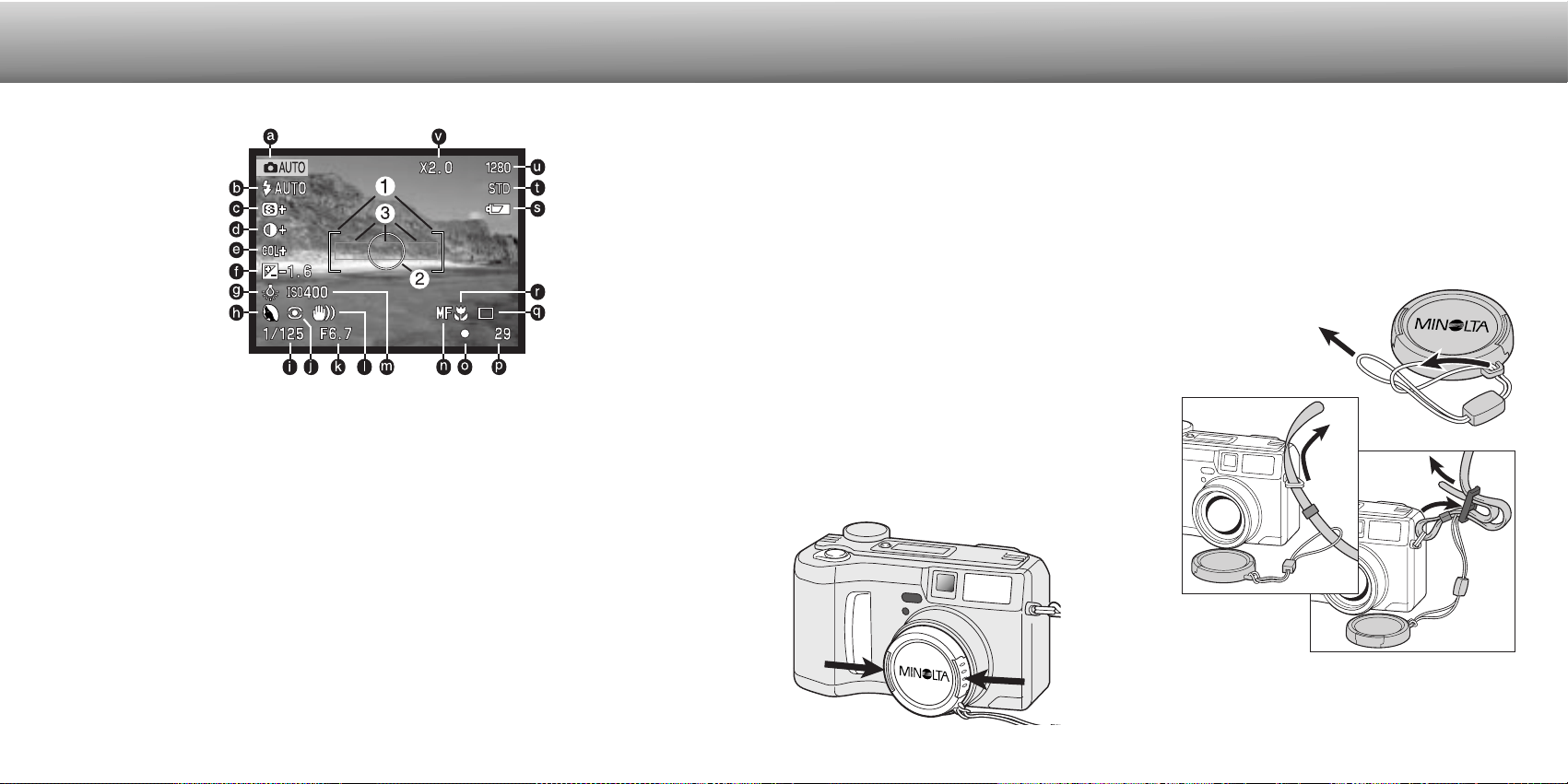
VIEWFINDER
Focus lamp
(green)
Flash lamp
(orange)
Focus frame
This dial gives direct
and easy access to
the camera’s major
modes. It also acts
as the main switch
Digital-subject-program indicators (p. 28)
Exposure-compensation indicator (p. 46)
Camera-sensitivity indicator (p. 57)
Spot-metering indicator (p. 58)
Battery-condition indicator (p. 17)
White-balance indicator (p. 54)
Flash-mode indicators (p. 30)
Manual-focus indicator (p. 56)
Image-size display (p. 40)
Image-quality display (p. 41)
Drive-mode indicators (p. 32)
Microphone indicator (p. 43)
Exposure-mode indicators (p. 52)
Digital-subject-program icons (p. 28)
14 15
NAMES OF PARTS
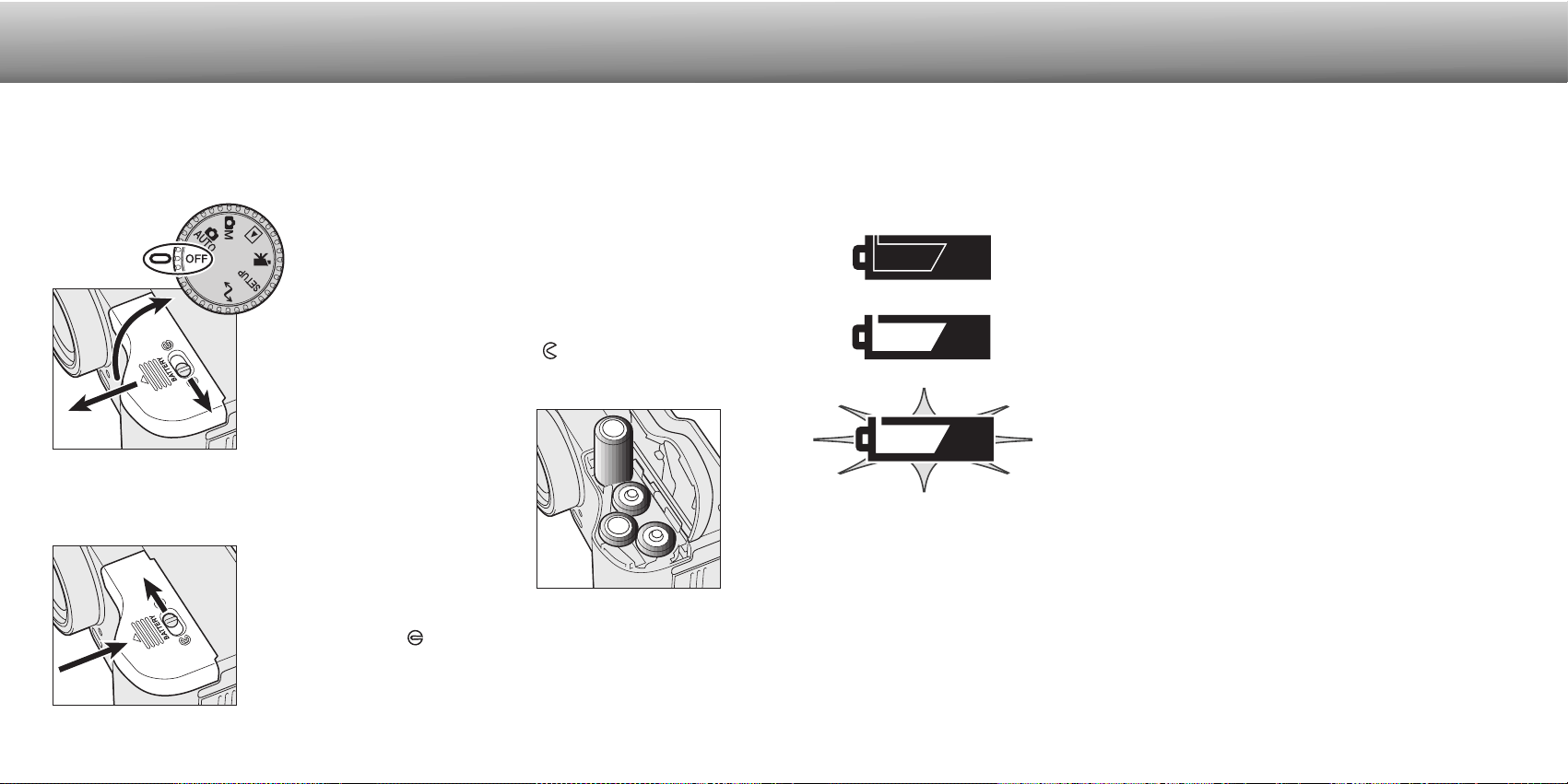
LCD MONITOR DISPLAY
b. Flash-mode indicators (p. 30)
d. Contrast-compensation display (p. 60)
e. Color-saturation-compensation
display (p. 60)
f. Exposure-compensation display (p. 46)
g. White-balance indicators (p. 54)
m. Camera-sensitivity (ISO) display (p. 57)
j. Metering-mode indicators (p. 58)
l. Camera-shake warning (p. 31)
i. Shutter-speed display
k. Aperture display
n. Manual-focus indicator (p. 56)
r. Macro indicator (p. 28)
q. Drive-mode indicators (p. 32)
o. Focus signals (p. 25)
p. Frame counter (p. 42)
v. Digital-zoom display (p. 22)
u. Image-size display (p. 40)
t. Image-quality indicator (p. 41)
s. Battery-condition indicator (p. 17)
a. Mode indicator (p. 12)
1. Focus frame (p. 48)
2. Spot metering area (p. 58)
3. AF sensors (p. 23)
Attach the camera strap to the strap eye-
lets as shown.
• Make sure the neck strap passes through
the loop of the lens-cap strap.
• Always keep the camera strap around your
neck in the event that you drop the camera.
Attach the small strap to the lens cap by passing one of the
small loops through the eyelet on the cap (1) and then pass-
ing the other loop through the first loop (2) and tightening.
1
2
ATTACHING THE NECK STRAP AND LENS CAP
GETTING UP
AND RUNNING
4
3
Using your thumb and index
finger, pinch the outside tabs
of the lens cap to remove or
attach.
• When the camera is not in use,
always replace the lens cap.
h. Exposure-mode (p. 52)/
Digital-subject-program indicators (p. 28)
c. Sharpness display (p. 60)
1716
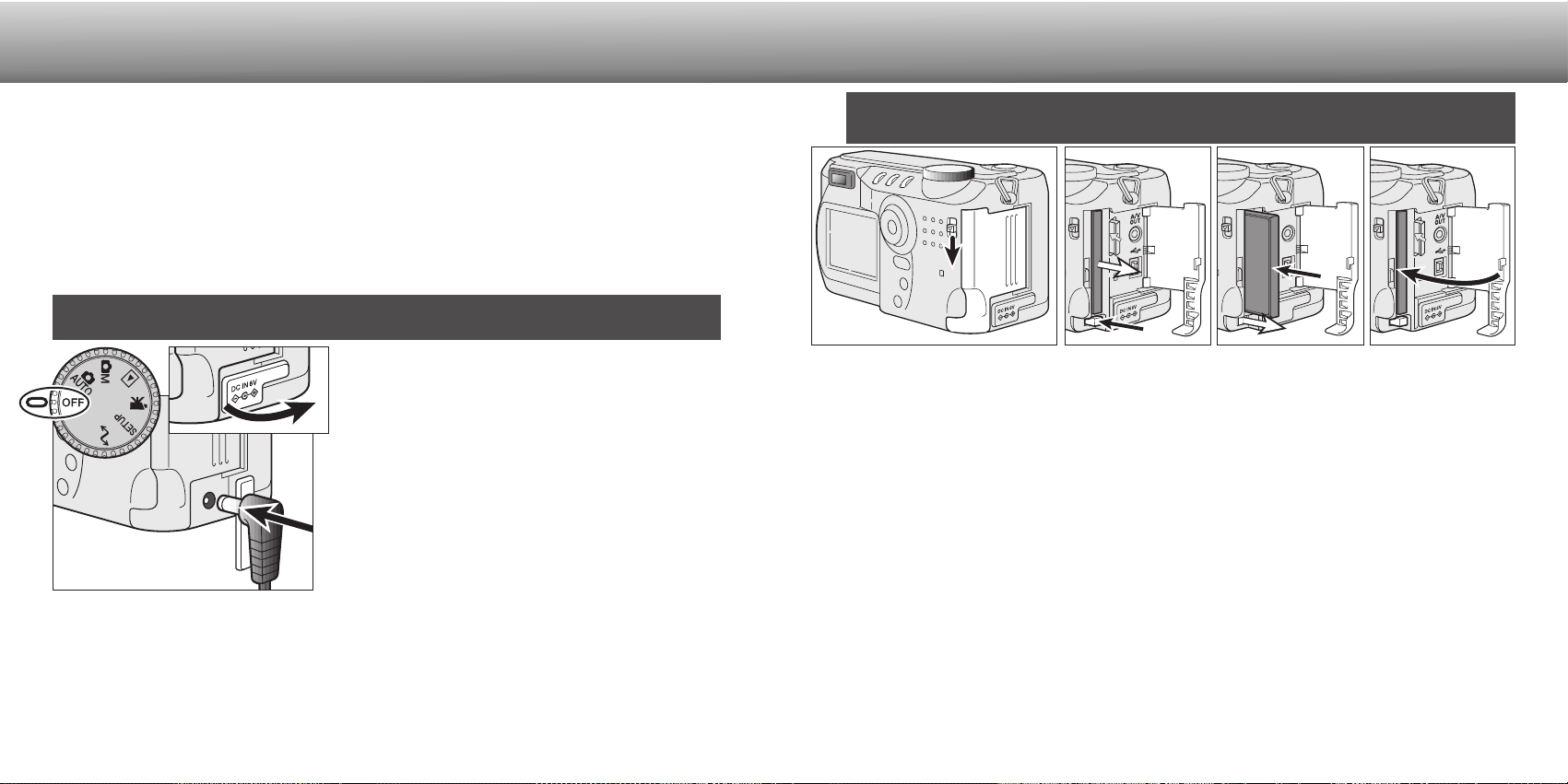
CHANGING BATTERIES
Insert the batteries.
• Make sure the positive and negative
battery terminals are orientated as
illustrated on the diagram in the
battery chamber.
This digital camera uses four AA-size alkaline batteries. AA-size Ni-MH batteries can
also be used, and are recommended because of longer life. When using Ni-MH
batteries, fully recharge them with a battery charger suitable for complex electronic
equipment. Please consult your vendor about an appropriate charger.
When replacing batteries, check that the mode dial is
in the off position.
Close the battery-chamber door and slide it back toward the
body (4) to engage the safety catch. Move the lock lever (5)
to the close position .
• After changing the batteries, if the set-time/date message
appears on the monitor, reset the clock and calender in the
custom 2 section of the setup menu (p. 84).
BATTERY CONDITION INDICATOR
Full-battery Icon - the batteries are fully charged. This icon is
displayed for five seconds on the monitor when the camera is
turned on. The icon remains on the data panel.
Blinking low battery icon - when displayed on the data panel
with no other icons, power is insufficient for camera operation.
The shutter will not release. Replace the batteries immediately.
Low battery warning - battery power is very low, but all
functions are operational. The batteries should be replaced as
soon as possible. This warning automatically appears and
remains on the monitor until the batteries are changed.
AUTO POWER SAVE
To conserve battery power, the camera will turn off displays and unnecessary functions
if an operation is not made within a certain period. The LCD monitor will turn off after
thirty seconds. The data panel turns off after one minute. To restore the displays, press
the menu, quick view, display button, or controller, or turn the mode dial to another
position. The length of the auto-power-save period for the data panel can be changed
in the basic section of the setup menu (p. 84).
This camera is equipped with an automatic battery-condition indicator. When the
camera is on, the battery-condition indicator appears on the data panel and monitor.
The monitor icon will change from white to red when battery power is low. If the data
panel and monitor are blank, the batteries may be dead or installed incorrectly.
Open the battery-chamber door by moving the battery-
chamber lock (1) to the open position . Slide the door
forward (2) to release the safety catch; the door should spring
open (3).
1
2
4
3
5
GETTING UP AND RUNNING
18 19
GETTING UP AND RUNNING
EXTERNAL POWER SUPPLIES (SOLD SEPARATELY)
CHANGING THE COMPACTFLASH CARD
The AC Adapter allows the camera to be powered from an electrical household outlet.
The AC Adapter is recommended when the camera is interfaced with a computer or
during periods of heavy use. AC Adapter model AC-1L is for use in North America,
Japan, and Taiwan and AC-2L is for use in all other areas.
The External High-power Battery Pack Kit EBP-100 is a portable source of power for
the camera. The kit contains a high-power lithium-ion battery, holder, and charger. The
battery and charger are also available separately. This battery pack will significantly
extend the operating time of the camera.
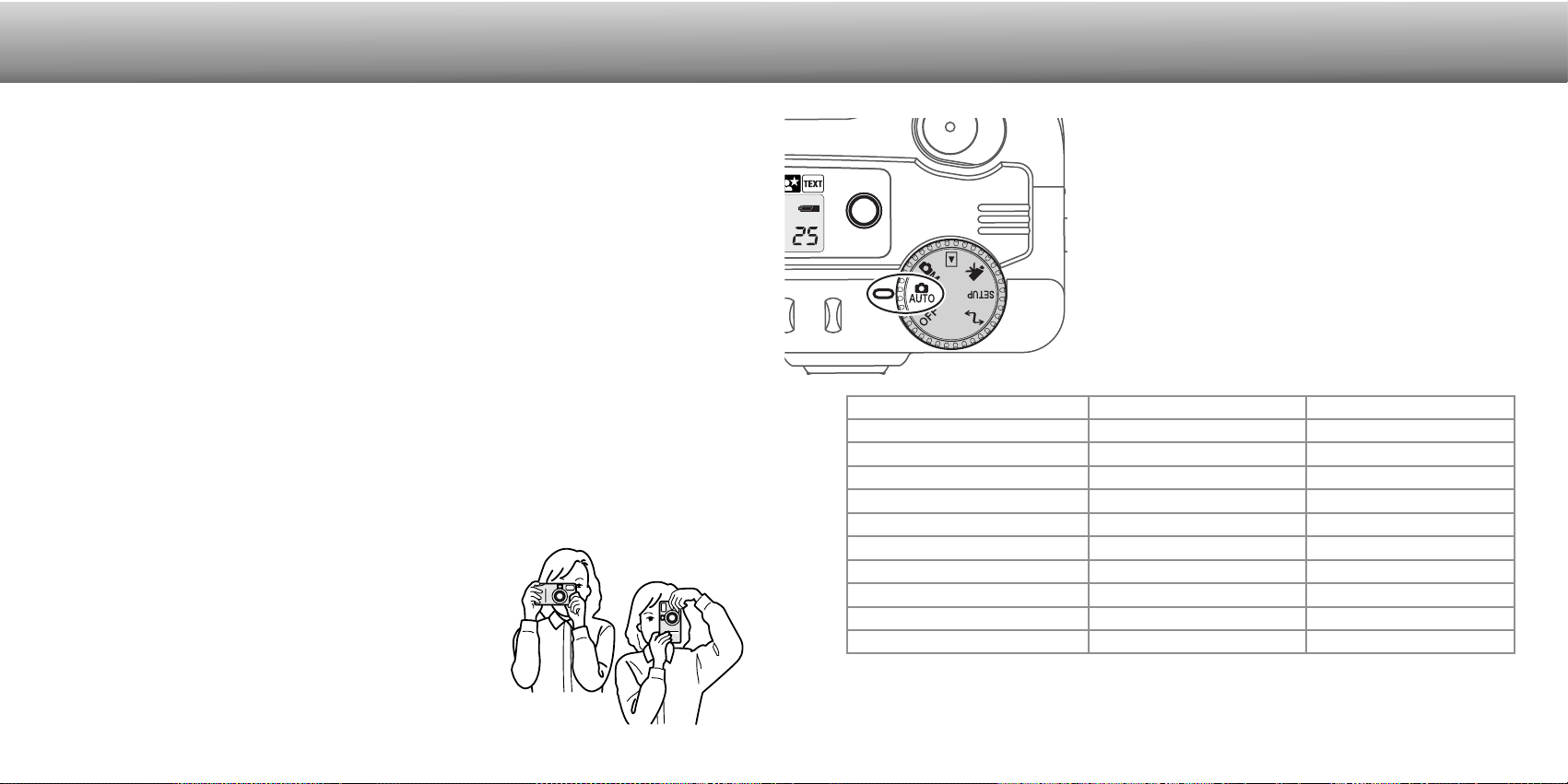
Insert the mini plug of the AC adapter or battery
pack into the DC terminal.
• Always remove exhausted batteries before
connecting an external power supply.
Insert the AC adapter plug into an electrical outlet.
Do not change the power supply while the camera is on.
Always turn off the camera before changing between power supplies.
Remove the DC terminal cover from the left.
• The cover is attached to the body to prevent loss.
A type I CompactFlash card must be inserted for the camera to operate. If a card has
not been inserted, a no-card warning will automatically be displayed on the monitor and
three dashes (– – –) will be displayed on the data-panel frame counter. For
CompactFlash card care and storage, see page 109.
Slide the card-slot door release down to open the card-slot door (1).
Insert the CompactFlash card into the card slot until the card-eject lever pops out (3).
• Insert the card so the face is toward the front of the camera. Always push the card in straight,
never at an angle. Never force the card. If the card does not fit, check that it is orientated
correctly.
Close the card-slot door (4).
To eject a CompactFlash card, press the card-eject lever (2). The card can now be
pulled out.
• Take care when removing the card as it becomes hot with use.
If the card-not-recognized message appears, the inserted card in the camera may need
to be formatted. A card used in another camera may have to be formatted before
being used. If the unable-to-use-card message appears, the card is not compatible with
the camera and cannot be formatted. A card can be formatted in the basic section of
the setup menu (p. 84). When a card is formatted, all the data on the card is perma-
nently erased.
1
Always turn off the camera and confirm the access lamp is not lit before inserting or
removing a CompactFlash card, otherwise the card may be damaged, and data lost.
2 3 4
20 21
AUTO-RECORDING
MODE
BASIC OPERATION
AUTO-RECORDING MODE
SETTING THE CAMERA TO RECORD IMAGES AUTOMATICALLY
Turn the mode dial to automatic recording (1); all
camera operations are now fully automatic. The
autofocus, exposure, and imaging systems will work
together to bring beautiful results effortlessly.
While many of the camera’s systems in this mode are
automatic, the camera’s operation can be optimized to
different subjects very simply with the digital subject
program button (p. 28). The flash mode (p. 30) and
drive mode (p. 32) can also be changed. Image size
and quality can be set on the auto-recording mode
menu (p. 38).
1
Exposure mode
Camera sensitivity (ISO)
Flash mode
Focus area
Focus control
Drive mode
Exposure compensation
Sharpness
Color mode
White balance
Program
Multi-segment
Auto
Metering mode
Auto flash
Wide focus area
Autofocus
0.0
Normal
Color
Auto
Fixed
Fixed
Fixed
Can be changed*
Fixed
Fixed
Can be changed*
Can be adjusted*
Fixed
Fixed
Fixed
Single-frame advance
* Changes to the flash or drive mode will reset when the mode dial is turned to another
position. Adjustments made with exposure compensation will be reset to 0.0 when the
camera is turned off or changed to another mode.
While using the viewfinder or LCD monitor, grip the camera
firmly with your right hand while supporting the body with
your left hand. Keep your elbows at your side and your feet
shoulder-width apart to hold the camera steadily.
When taking vertical pictures, hold the camera so that the
flash is above the lens with the grip to the bottom. Take
care not to cover the lens with your fingers or the strap.
HANDLING THE CAMERA
This section covers the basic operation of this camera. Thoroughly familiarize yourself
with the operations in this section before moving on to the other sections in the manual.
The sophisticated technology employed in the auto-recording mode frees the photogra-
pher from complicated camera settings to be able to simply concentrate on the subject
and composition. Although automated, the camera’s operation can be changed to meet
various conditions as well as to suit personal shooting preferences.
To set the camera’s clock and calendar, see the navigating the setup menu section on
page 84. The menu language can also be changed on the setup menu.
23
AUTO-RECORDING MODE
BASIC RECORDING OPERATION
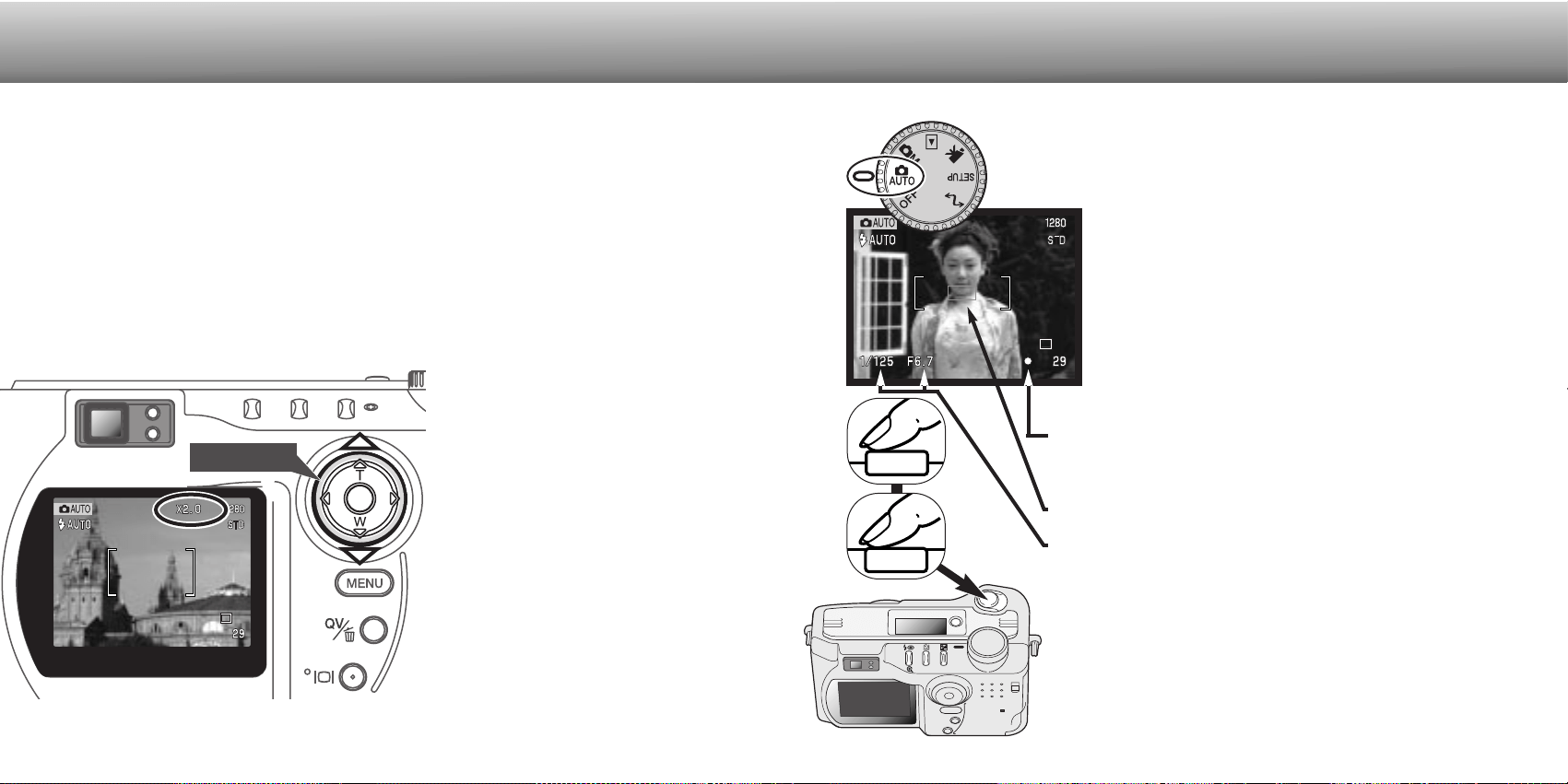
Place the subject within the focus frame.
• The focus-lock function (p. 24) can be used with off-center
subjects.
• Make sure the subject is within the focus range of the
lens: 0.5m - ∞ (wide-angle position), 0.9m - ∞ (telephoto
position. For subjects closer than 0.6m, use the macro
function (p. 28).
Press the shutter-release button partway down (1) to lock
the focus and exposure.
• The focus signals (p. 25) in the monitor will confirm that the
image is in focus. If the focus signal is red, the camera was
unable to focus on the subject. Repeat the previous steps until
the signal is white.
• When the focus is set, an AF sensor will briefly appear on the
live image to indicate the point of focus.
• The shutter speed and aperture value will change from white to
black indicating the exposure is locked.
Press the shutter-release button all the way down (2) to take
the picture.
• The access lamp will glow indicating image data is being
written to the CompactFlash card. Never remove a
CompactFlash card while data is being transferred.
With the mode dial set to auto recording, the camera will be on and
the LCD monitor will activate.
1
2
ZOOM LENS AND DIGITAL ZOOM
22
This camera is equipped with a 7.15 to 28.6mm optical zoom. This is equivalent to a 35
to 140mm zoom lens on a 35mm camera. In 35mm photography, focal lengths below
50mm are referred to as wide-angle; the angle of view is larger than that of the human
eye. Above 50mm is referred to as telephoto and makes distant objects appear closer.
The effect of the optical zoom is visible in both the viewfinder and LCD monitor.
Assisting the optical zoom is a 2X digital zoom. The effect of the digital zoom doubles
the power of the greatest setting of the optical zoom giving the equivalent of a 280mm
lens on a 35mm camera. The effect of the digital zoom is visible on the LCD monitor
only. This digital-zoom function is canceled if the LCD monitor is turned off (p. 37). The
digital zoom can be disabled in the auto-recording menu (p. 38). In the multi-function
recording mode, the zoom can be disabled in the custom 1 section of the multi-function
recording mode menu (p. 50).
At the maximum telephoto position,
pressing the up key (T) will activate
the digital zoom.
• X2.0 will be displayed in the top right
corner of the monitor.
• To cancel the digital zoom, press the
down key.
The zoom lens is operated by the
controller. Pressing the down key (W)
will zoom out to the wide-angle posi-
tion of the lens. Pressing the up key
(T) will zoom in to the telephoto posi-
tion of the lens.
Controller
24
FOCUS LOCK FOCUS SIGNALS
SPECIAL FOCUSING SITUATIONS
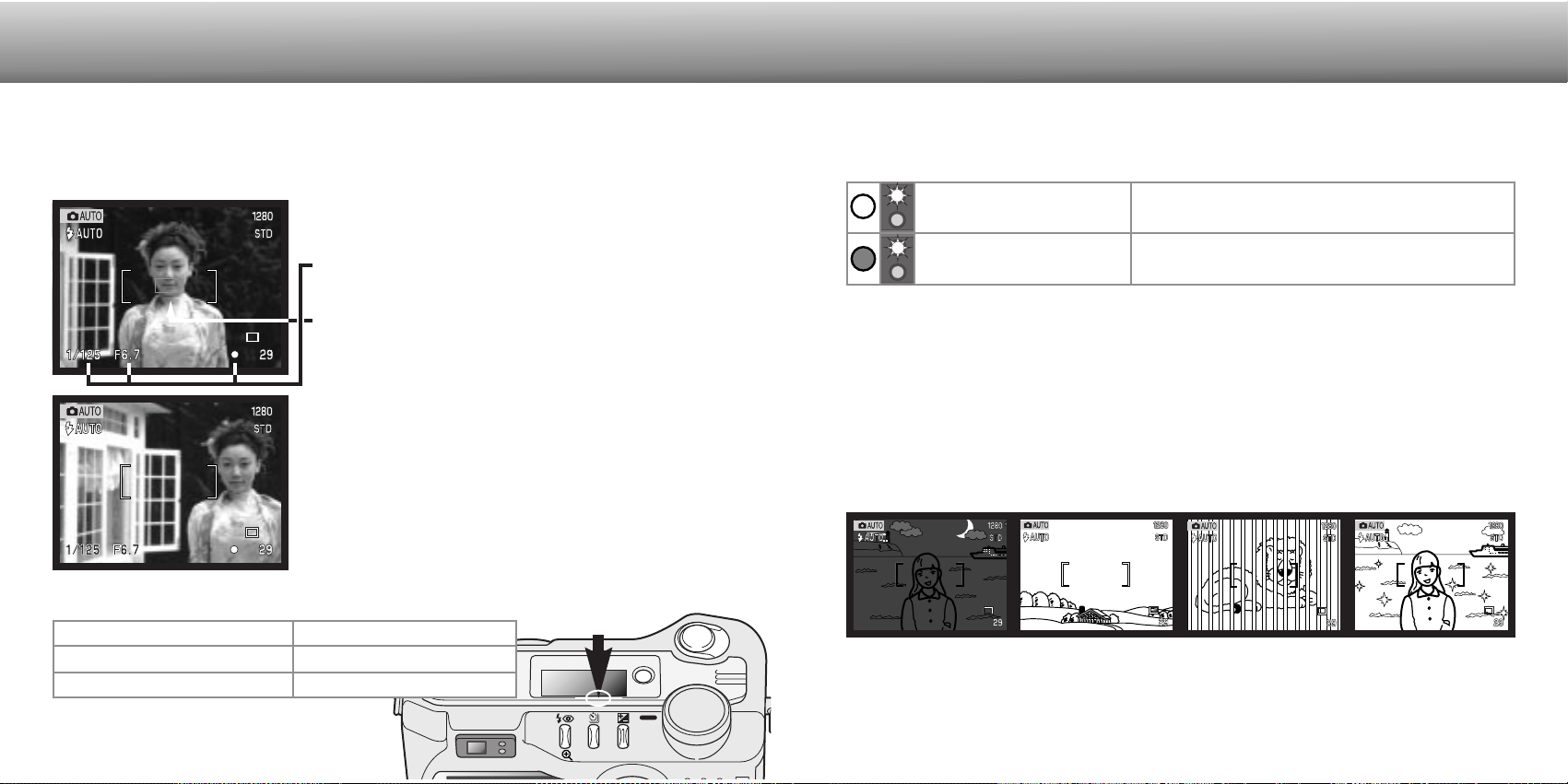
This digital camera has a quick, accurate autofocusing system. The focus icon in the
lower right corner of the LCD monitor and the green focus lamp next to the viewfinder
indicate the focus status.
Focus confirmed.
Focus icon: white
Focus lamp: steady
Focus icon: red
Focus lamp: blinking
The camera may not be able to focus in certain situations. If the autofocus system
cannot focus on a subject, the focus icon will turn red. In this situation the focus-lock
function can be used to focus on another object at the same distance as your main
subject, and then the image can be recomposed to take the picture.
The subject in the
focus frame is low in
contrast.
The subject is too dark. Two subjects at differ-
ent distances overlap
in the focus frame.
The subject is near a
very bright object or
area.
The focus-lock function is used when the subject is off-center and outside the focus
frame. Focus lock may also be used when a special focusing situation prevents the
camera from focusing on the subject. This function is controlled with the shutter-release
button.
Place the subject within the focus frame. Press and
hold the shutter-release button partway down.
• The focus signals will indicate that the focus is locked.
The shutter speed and aperture value will change from
white to black indicating the exposure is locked.
• When the focus is set, an AF sensor will briefly appear
on the live image to indicate the point of focus.
Without lifting your finger from the shutter-release
button, recompose the subject within the image area.
Press the shutter-release button all the way down to
take the picture.
25
Cannot focus. The subject is too close or a special
situation is preventing the AF system from focusing.
• The shutter can be released even if the camera cannot focus on the subject.
• When the AF system cannot focus, the focus is set to infinity. When the flash is in use, the
focus is set between 3.0 and 3.8m. In this case, focus lock can be used with an object at the
same distance as the main subject or the camera can be focused manually in the multi-
function recording mode (p. 56).
AUTO-RECORDING MODE
FOCUS RANGE
Wide-angle lens position
Telephoto lens position
Macro mode (p. 28)
0.5m - ∞ (1.6ft - ∞)
0.9m - ∞ (3ft - ∞)
0.16m - 0.6 (0.5ft - 2ft)
All distances are measured from the CCD
CCD plane
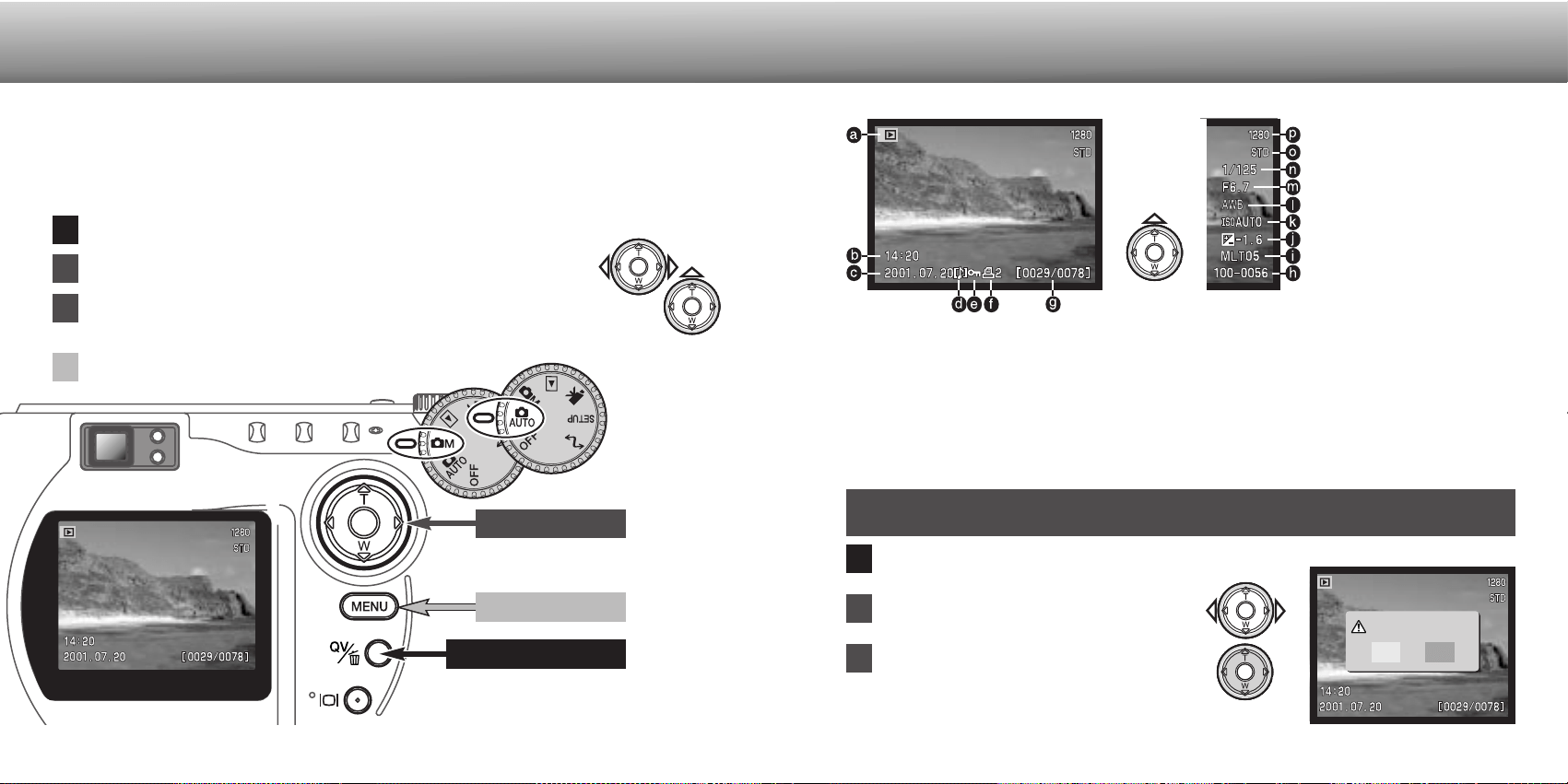
To delete a displayed image, press the QV/delete button.
• A confirmation screen will appear.
26 27
AUTO-RECORDING MODE
Captured images can be viewed in auto-recording and multi-function recording mode.
Simply press the QV/delete button to access the images, and use the controller to
scroll through the pictures on the CompactFlash card. Images can be displayed with
various information: date, frame number, printing status, and lock status. The camera
settings used to take the picture can also be displayed.
QV/delete button
In quick view, the displayed image can be deleted. When selecting an image for
deletion, a confirmation screen will appear before the operation is executed.
1
2
1
2
3
Pressing the controller will execute the
command on the confirmation screen.
• The camera will return to quick view.
QUICK VIEW
QUICK-VIEW DISPLAY
Once deleted, an image cannot be recovered.
Care should always be taken when deleting images.
DELETING IMAGES IN QUICK VIEW
Use the left/right keys to highlight “Yes.”
• “No” will cancel the operation.
4
c. Date of capture
g. Frame number/
total number of images
e. Lock icon (p. 75)
f. Print icon (p. 78)
p. Image size (p. 40)
o. Image quality (p. 41)
Controller
Menu button
3
b. Time of capture
a. Mode indicator
Delete this frame?
NoYes
Press the QV/delete button to play back the recorded images.
Use the left/right keys of the controller to scroll through the images.
To return to the recording mode, press the menu button.
Press the up key to see the shooting data for the displayed image.
• When the data is displayed, the left/right keys cannot scroll to the next image.
Press the down key to cancel the shooting-data display.
d. Voice-memo icon (p. 43)
To view the
shooting
data, press
the up key.
n. Shutter speed
m. Aperture value
l. White balance setting
(p. 54)
k. Camera sensitivity (ISO)
setting (p. 57)
j. Degree of exposure
compensation (p. 46)
i. Folder name (p. 100)
h. Folder number -
image file number
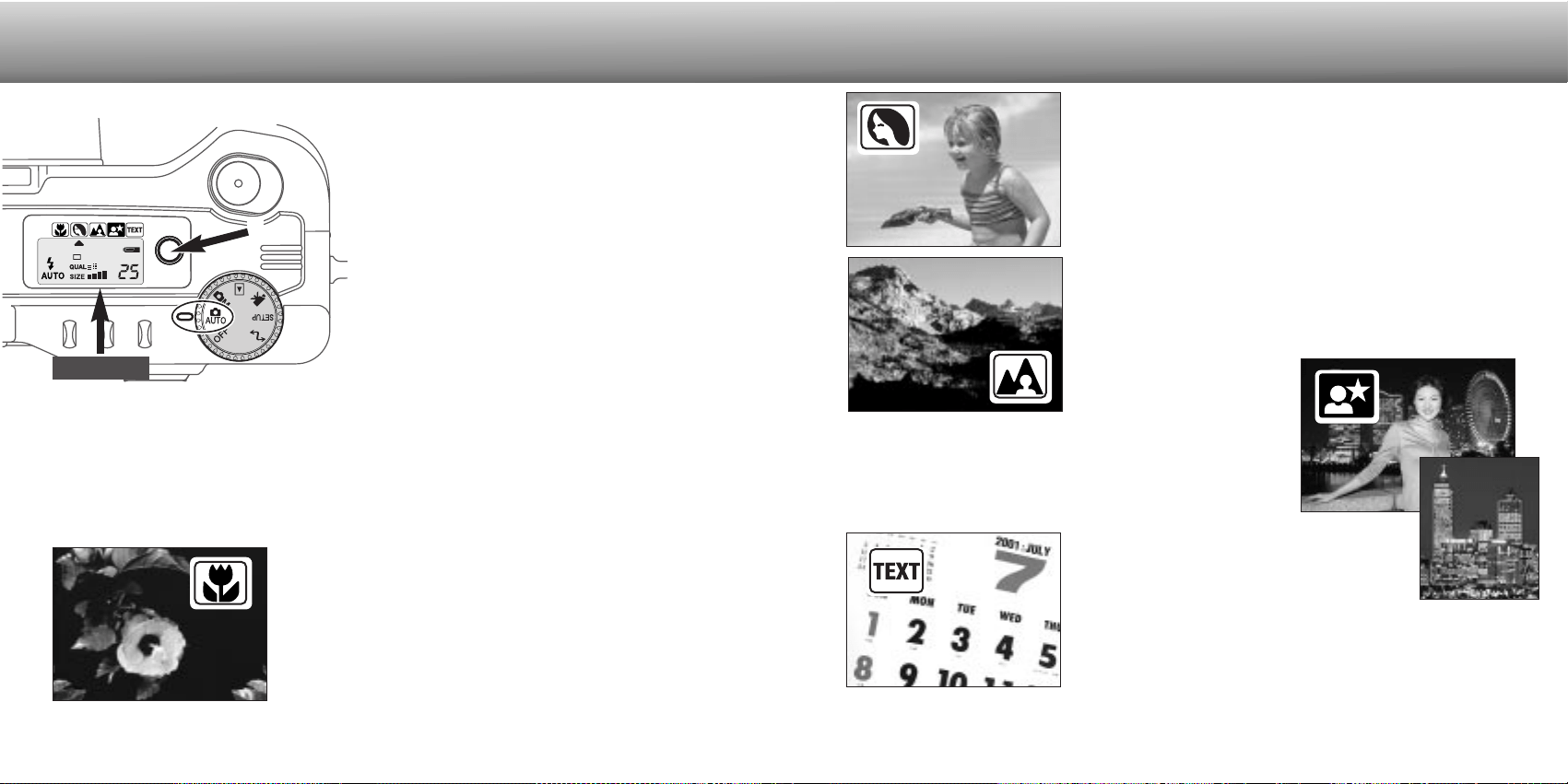
TEXT - for the crisp reproduction of black
text on white backgrounds. The flash will
not fire in this mode when set to an
autoflash mode(p. 30).
• Use a tripod to eliminate camera shake and
ensure the sharpest images.
NIGHT PORTRAIT - for deep, subtle night scenes.
When used with fill-flash, the subject and background
exposures are balanced.
• When taking pictures of a landscape at night, use a tripod
to eliminate blurring from camera shake. To take portraits
with night scenes, set the
flash mode to fill-flash (p.
30). When taking portraits,
ask your subject not to move
after the flash burst; the
shutter will still be open for
the background exposure.
The digital-subject-program button (1) optimizes
the camera’s performance for various conditions
and subjects. Exposure, white-balance, and
image-processing systems work in unison for
beautiful results.
Pressing the subject-program button cycles
through the modes: macro, portrait, landscape,
night portrait, text, and the original exposure
mode. A pointer will indicate the active subject
program. The subject program will remain in
effect until it is changed or the mode dial is
turned to another position. Except for macro
mode, digital subject programs cannot be used
in the multi-function recording mode.
While camera performance is optimized for each shooting condition, some changes
can be made to camera settings with subject programs. The flash mode (p. 30) can be
changed and the exposure can be altered using the exposure-compensation function
(p. 46). In extreme lighting conditions, changes in exposure compensation may not
produce the intended results in the portrait, night portrait, or text modes. The camera-
shake warning (p. 31) may appear in macro, landscape, night portrait, or text modes.
2928
AUTO-RECORDING MODE
DIGITAL-SUBJECT-PROGRAM BUTTON
1
CCD plane
MACRO - used for close-up photography between 16 and
60 cm from the CCD. When the macro mode is selected,
the lens will automatically zoom to the correct position.
The zoom position cannot be changed. The LCD monitor
will automatically activate and should be used to compose
the picture. The viewfinder cannot be used because of
parallax. The flash will not fire when set to an autoflash
mode (p. 30).
PORTRAIT - optimized to reproduce soft skin tones and
a slight defocusing of the background.
• Most portraits look best at a telephoto setting; the longer
focal length does not exaggerate facial features and the
shallower depth of field softens the background. Use fill flash
(p. 30) with strong direct sunlight to reduce harsh shadows.
LANDSCAPE - optimized to
produce sharp, colorful
landscapes. The flash will not
fire in this mode when set to
an autoflash mode (p. 30).
30 31
AUTO-RECORDING MODE
If the shutter speed falls below the point where the camera can be safely hand held,
the camera-shake warning will appear on the LCD monitor and the orange focus lamp
will blink slowly. Camera shake is slight blurring caused by subtle hand motion and is
more pronounced at the telephoto setting of the lens than at the wide-angle setting.
Although the warning appears, the shutter can still be released. If the warning appears,
the following steps can be taken:
• Place the camera on a tripod.
• Use the built-in flash.
• Zoom the lens towards the wide-angle position until the warning
disappears.
CAMERA-SHAKE WARNING
FLASH RANGE - AUTO-RECORDING MODE
The camera will automatically control the flash output. For well-exposed images, the
subject must be within the flash range. Because of the optical system, the flash range
is not the same at the lens’ wide-angle position as it is at the telephoto position.
Wide-angle position
Telephoto position
0.5m ~ 3.5m (1.6 ft. ~ 11.5 ft.)
0.9m ~ 3.0m (3.0 ft. ~ 9.8 ft.)
Autoflash
Fill-flash
Flash cancel
Autoflash with
red-eye reduction
Fill-flash with
red-eye reduction
LCD
monitor
Data
panel
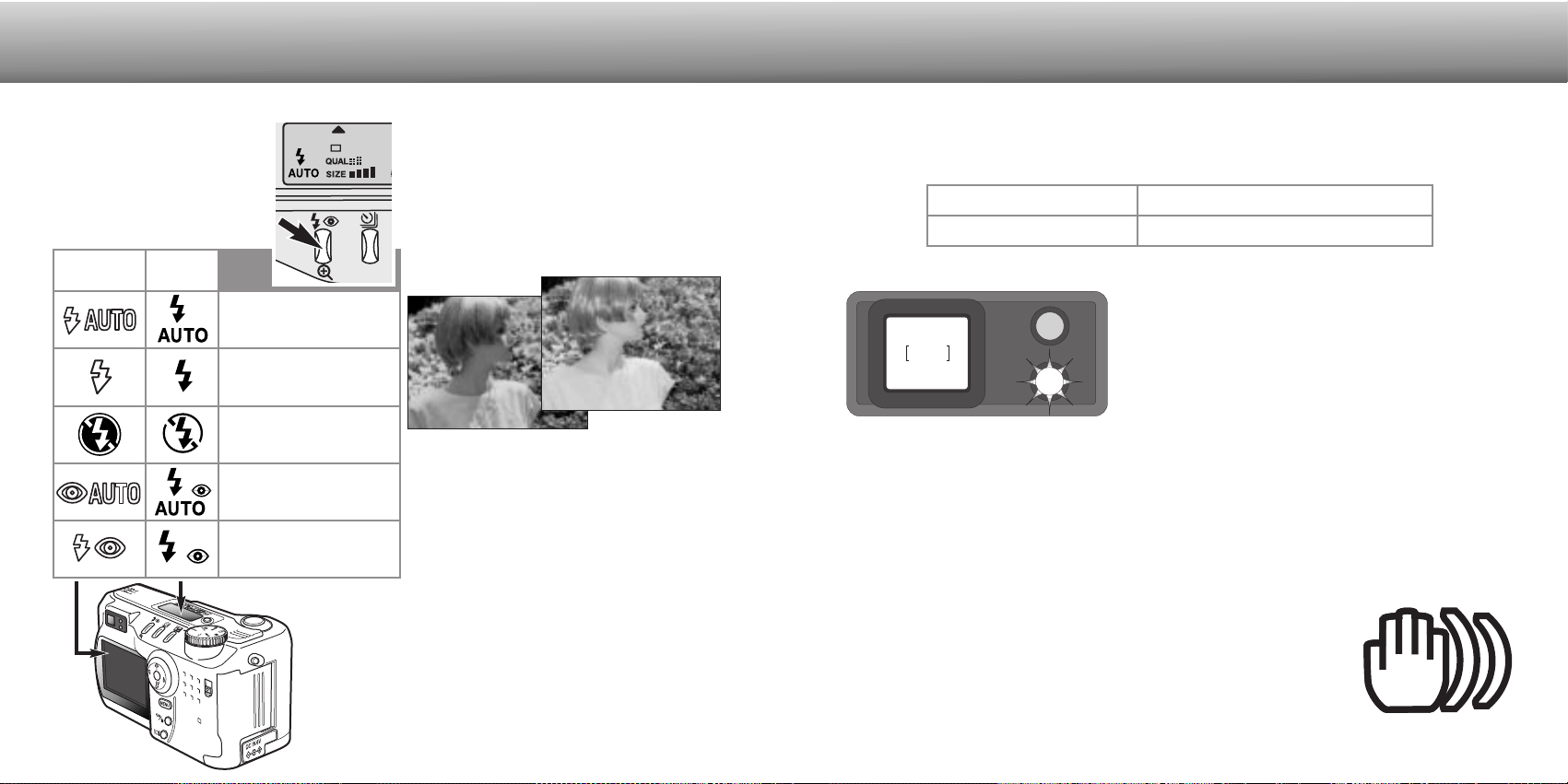
Autoflash - the flash fires automatically
in low-light and backlit conditions.
Red-eye reduction - the flash fires twice before the
main flash burst to reduce red-eye; an effect caused
by light reflected from the retina. Use in low-light con-
ditions when taking photographs of people or ani-
mals. The pre-flashes contract the pupils of the sub-
ject’s eyes.
Flash cancel - the flash will not fire.
Use flash cancel when flash photogra-
phy is prohibited, natural light is desired
to illuminate the subject, or the subject
is beyond the flash range. The camera-
shake warning may appear when flash
cancel is selected (p. 31).
Fill-flash - the flash fires with each
exposure regardless of the amount of
ambient light. Fill-flash can be used to
reduce harsh shadows caused by strong
direct light or sunshine.
FLASH MODES
To set the flash mode, sim-
ply press the flash mode
button (1) on the back of
the camera until the
desired mode is displayed.
1
FLASH SIGNALS
The orange flash lamp next to the viewfinder indi-
cates the status of the flash. When the lamp
glows steadily, the flash is charged and ready to
fire. When the lamps blinks quickly, the flash is
charging and the shutter will not release. The
flash lamp is also used as a camera-shake warn-
ing, see below.
Used for self-portraits, the self-timer will delay the release of the shutter for
approximately ten seconds after the shutter-release button is pressed. The self-timer is
set with the drive-mode button (p. 32).
With the camera on a tripod, compose the picture as described in the
basic recording operation section (p. 23). Focus lock (p.24) can be
used with off-center subjects. Press the shutter-release button partway
down to lock the exposure and focus (1). Press the shutter-release
button all the way down to begin the countdown (2). Because focus and
exposure are determined when the shutter-release button is pressed,
do not stand in front of the camera when taking a self-timer image.
Always confirm the focus with the focus signals before beginning the
countdown (p. 25).
During the countdown, the self-timer lamp on the front
of the camera (3) will start to blink and is accompanied
by an audio signal. A few seconds before the exposure,
the self-timer lamp will blink rapidly. The lamp will glow
steadily just before the shutter fires. To stop the
countdown, press the drive-mode button. The audio
signal can be turned off in the basic section of the
setup menu (p. 84).
3332
AUTO-RECORDING MODE
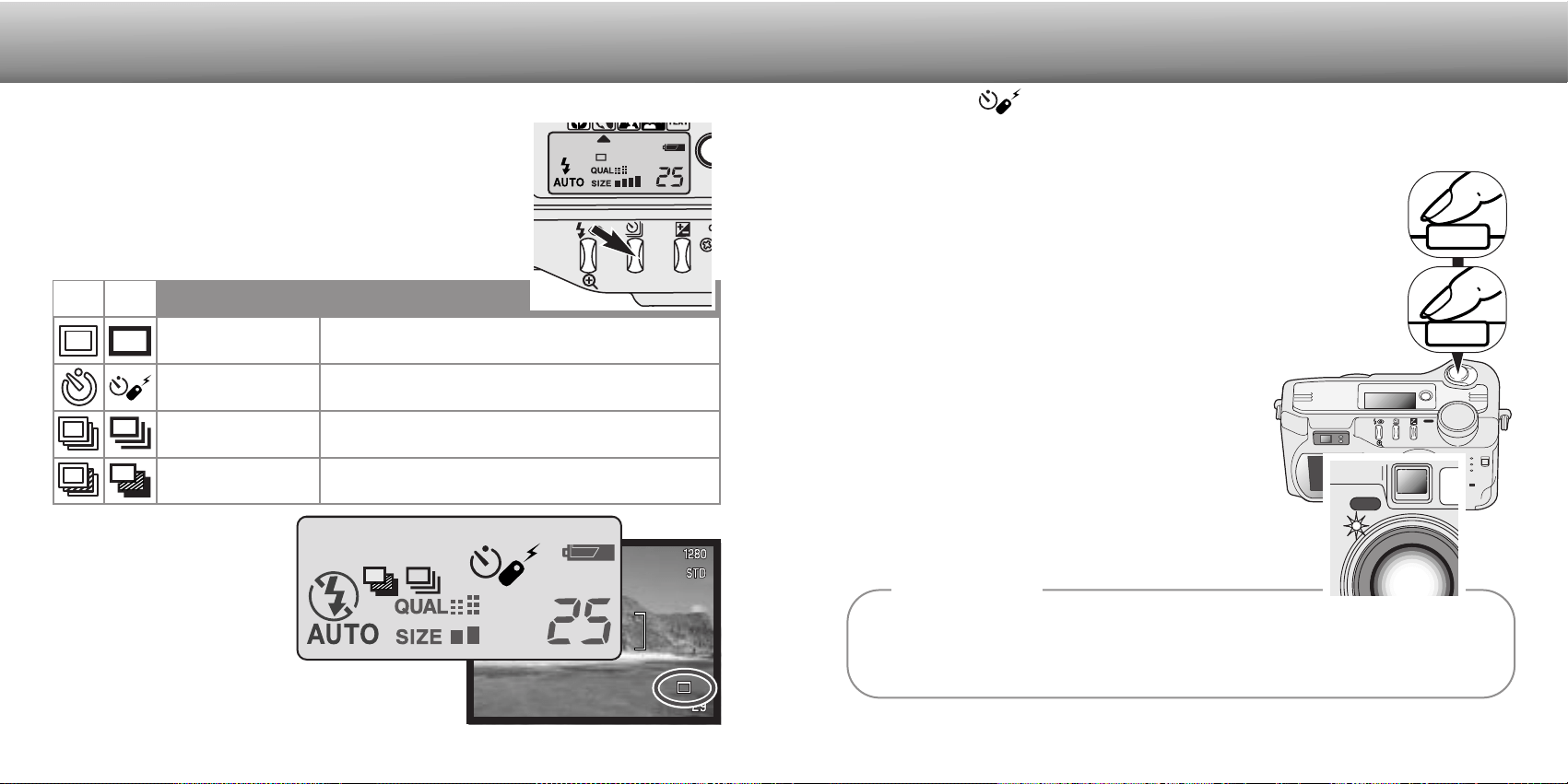
The drive modes control the rate and method images are
captured. Icons indicating the selected drive mode appear on
the data panel and LCD monitor.
To change the drive mode, simply press the drive-mode
button (1) on the back of the camera until the desired mode is
displayed.
DRIVE MODES
Single-frame
advance
Continuous
advance
Self-timer/
Remote control
Bracketing
To take a single image each time the shut-
ter-release button is pressed (p. 23).
To take multiple images when the shutter-
release button is pressed and held.
To delay the release of the shutter. Used for
self-portraits.
To take a series of three images with
differing exposures.
LCD monitor
Data panel
All icons have been
shown for clarity. The
single-frame advance
and continuous drive
indicators occupy the
same area of the data
panel. All the drive-mode
icons appear in the lower
right corner of the
monitor.
LCD
Monitor
Data
Panel
1
The self-timer can be used to minimize camera shake with long exposures. When using the
camera on a tripod, photographs of static subjects (landscapes, still-lifes, or close-up pho-
tographs) can be made with the self-timer. Because no contact is made with the camera during
exposure, there is no risk of camera shake caused by the operator.
Shooting tips
1
2
3
SELF-TIMER
35
AUTO-RECORDING MODE
REMOTE CONTROL (SOLD SEPARATELY)
The continuous-advance drive mode allows a series of images to be captured while
holding down the shutter-release button. Continuous advance acts like a motor drive on
a film camera. The number of images that can be captured at one time and the rate of
capture depend on the image-quality and image-size setting. The maximum rate of
capture is 1.0 fps. The continuous-advance mode is set with the drive-mode button (p.
32).
When the shutter-release button is pressed and held, the camera will
begin recording images until the maximum number has been taken or
the shutter button is released. This mode cannot be used with super-
fine images (p. 41). The built-in flash can be used, but the rate of
capture is reduced because the flash must recharge between frames.
Compose the picture as described in the basic
recording operation section (p. 23). Press the shutter-
release button partway down to lock the exposure and
focus for the series. Press and hold the shutter-release
button all the way down (1) to begin taking pictures.
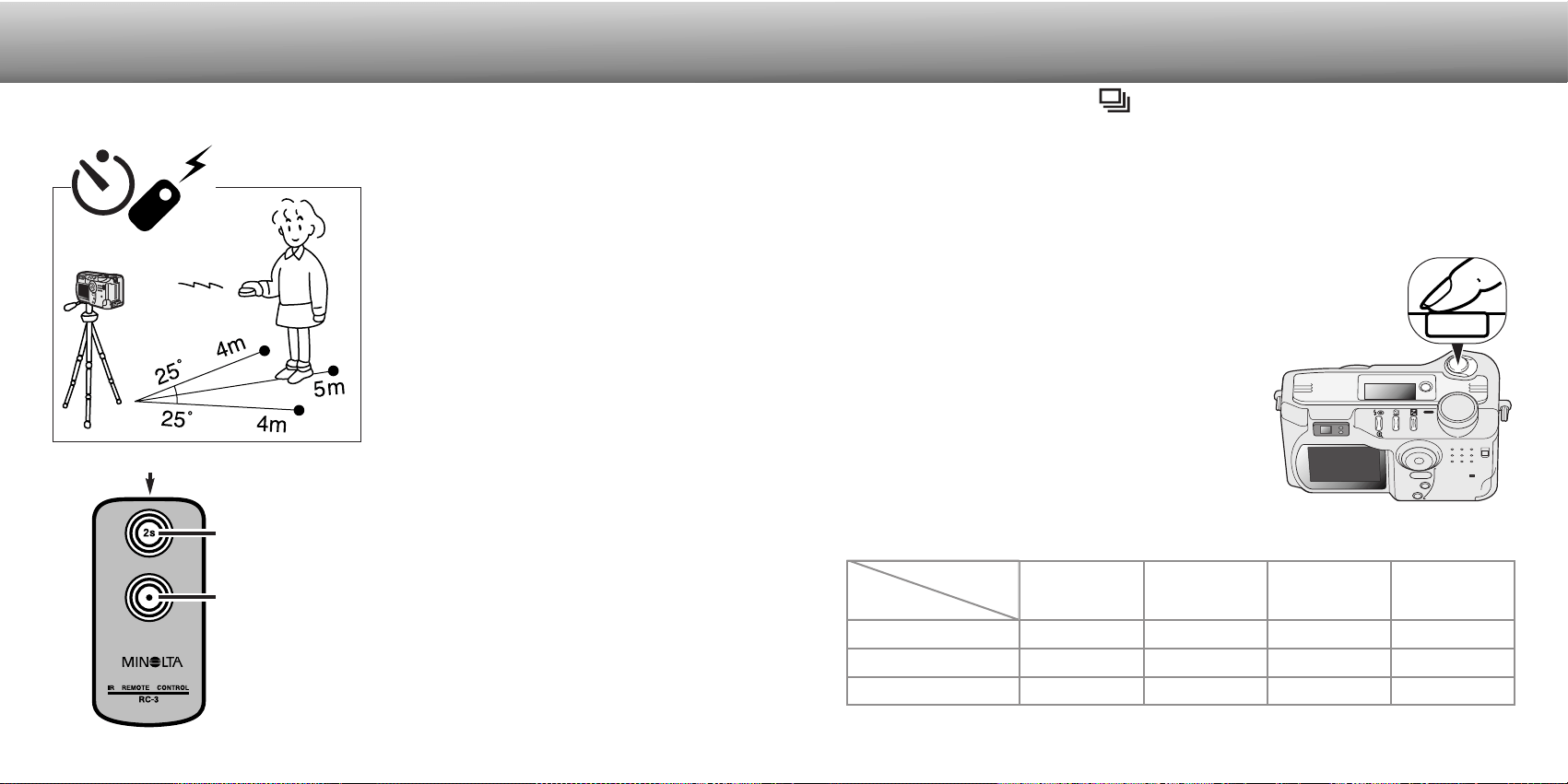
The following chart lists the maximum number of
images that can be captured with different image-
quality and image-size combinations.
Economy
Standard
Fine
2048 X 1536
Image
Quality
Image
Size
1600 X 1200 1280 X 960 640 X 480
4
5
8
5
7
11
7
10
14
14
19
25
1
The IR Remote Control RC-3 allows remote camera operation
up to 5m (16 ft.) away. The remote control unit can be used in
movie recording (p. 65).
Place the camera on a tripod, and set the
drive mode to self-timer / remote control
(p. 32).
Arrange the camera and subject to compose
the picture. Frame the subject within the
focus frame when setting up the camera.
• Focus lock cannot be used with the IR remote
control.
• In multi-function recording mode, focus area
selection can be used for off-center subjects
(p. 48).
While pointing the emitter window of the
remote control unit toward the camera, press
the release button or the delay button to
take the picture.
• When the release button is pressed, the self-
timer lamp on the front of the camera will blink
once before the picture is taken.
• When the delay button is pressed, the self-
timer lamp on the front of the camera will blink
for two seconds before the picture is taken.
• The remote control may not operate with
backlit subjects or under fluorescent light.
34
Emitter window
Delay button
Release button
CONTINUOUS ADVANCE
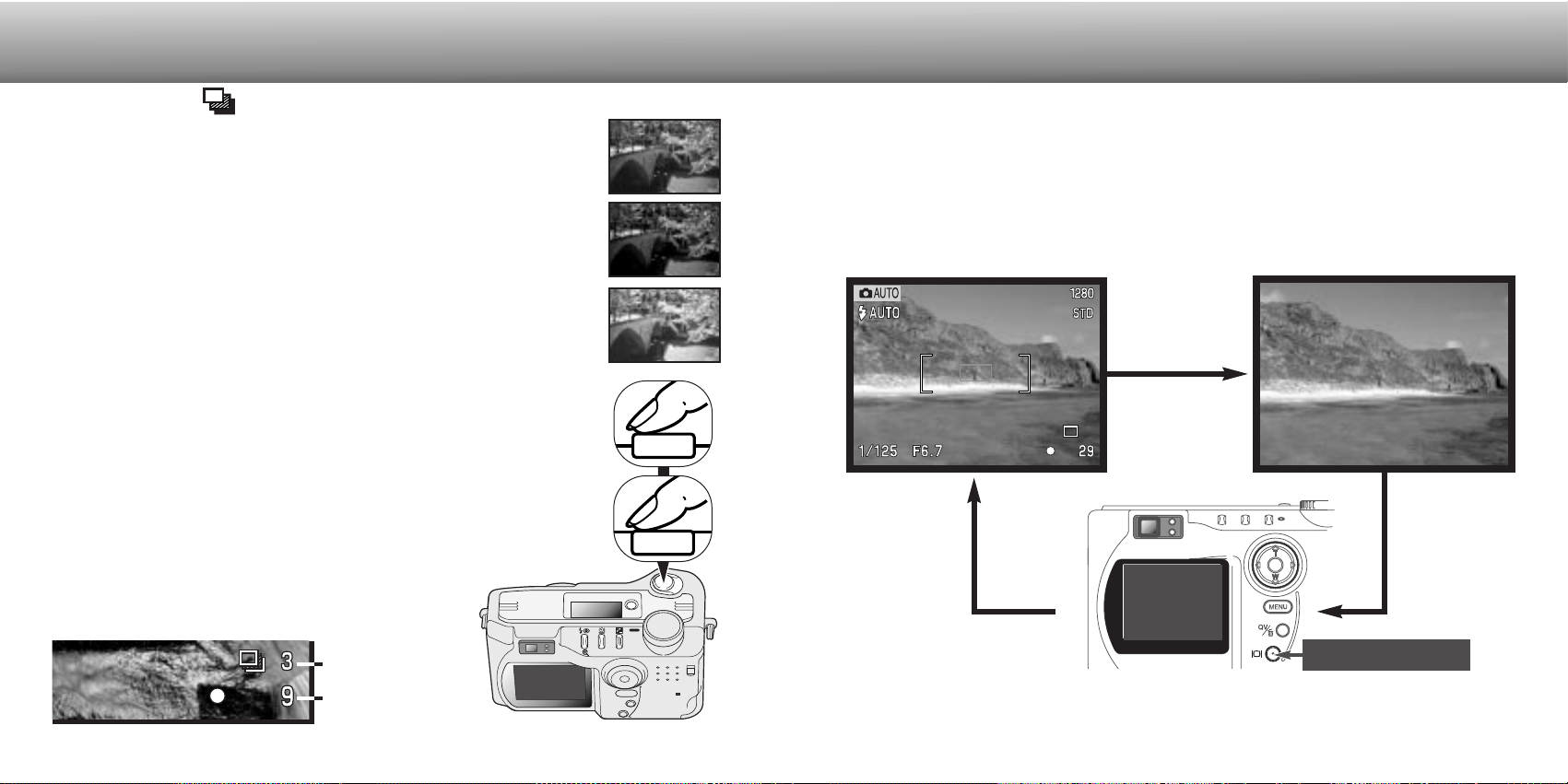
This mode makes a three image bracket of a scene. Bracketing is a
method of taking a series of images of a static subject in which each
image has a slight variation in exposure. The bracketing mode is set
with the drive-mode button (p. 32). Brackets cannot be made with
super-fine images (p. 41).
The order of the bracket series is normal exposure (as indicated by the
shutter speed and aperture displays), underexposure, and
overexposure. The exposure bracket in auto-recording mode is set to
0.5Ev increments. In multi-function recording mode the increment can
be set to 0.3, 0.5, or 1.0 Ev increments (p. 50).
Compose the picture as described in the basic recording operation
section (p. 23). Press the shutter-release button partway down (1) to
lock the exposure and focus for the series. Press and hold the shutter-
release button all the way down (2) to make the bracket series; three
consecutive images will be captured. If the CompactFlash is filled or
the shutter button is released before the series has completed, the
camera will reset and the entire bracket must be made again. When
using flash, there will be a delay between frames as the flash charges.
The remaining number of frames in the bracket series is displayed on
the monitor next to the bracketing icon.
When using exposure compensation (p. 46), the bracketing series will
be made in relation to the compensated exposure.
Under extreme conditions, one of the bracketed
exposures may be inaccurate because it is outside the
exposure control range of the camera.
36 37
Number of frames
in bracketing series
Frame counter
Under
AUTO-RECORDING MODE
1
2
LCD
monitor
off
The display-information button controls the LCD monitor display. The display cycles to
the next position each time the button is pressed: full display, live image only, and
monitor off.
Battery power can be conserved by turning the monitor off and using the viewfinder to
take pictures. When the menu or exposure-compensation button is pressed, or the
macro mode is activated, the monitor will automatically turn on. Full-time AF (p. 58) and
the digital zoom are disabled when the monitor is off.
Full display
Live image only
Display button
DISPLAY BUTTON - RECORDING MODE
Over
Normal
BRACKETING
Settings made with the auto-recording menu will
remain in effect until changed or the camera is
reset to its default settings (p. 89).
Image size - To set the pixel resolution of the
images. Image size affects the size of the
image file.
Image quality - To set the rate of compression
of the images. Image quality affects the size of
the image file.
Voice memo - To record audio after a still
image has been captured. The function can be
turned off and the length of the recording can
be set.
Date imprint - The date of recording can be
imprinted on each image. The date is set in the
custom 2 section of the setup menu (p. 84).
Digital zoom - The digital zoom can be turned off or on (p. 22).
Instant playback - After taking a picture, the image will be displayed on the monitor for
two or ten seconds. The displayed image can be deleted before being saved to the
CompactFlash card.
Please read the following sections for more details. All of these functions appear on the
multi-function recording mode menu.
39
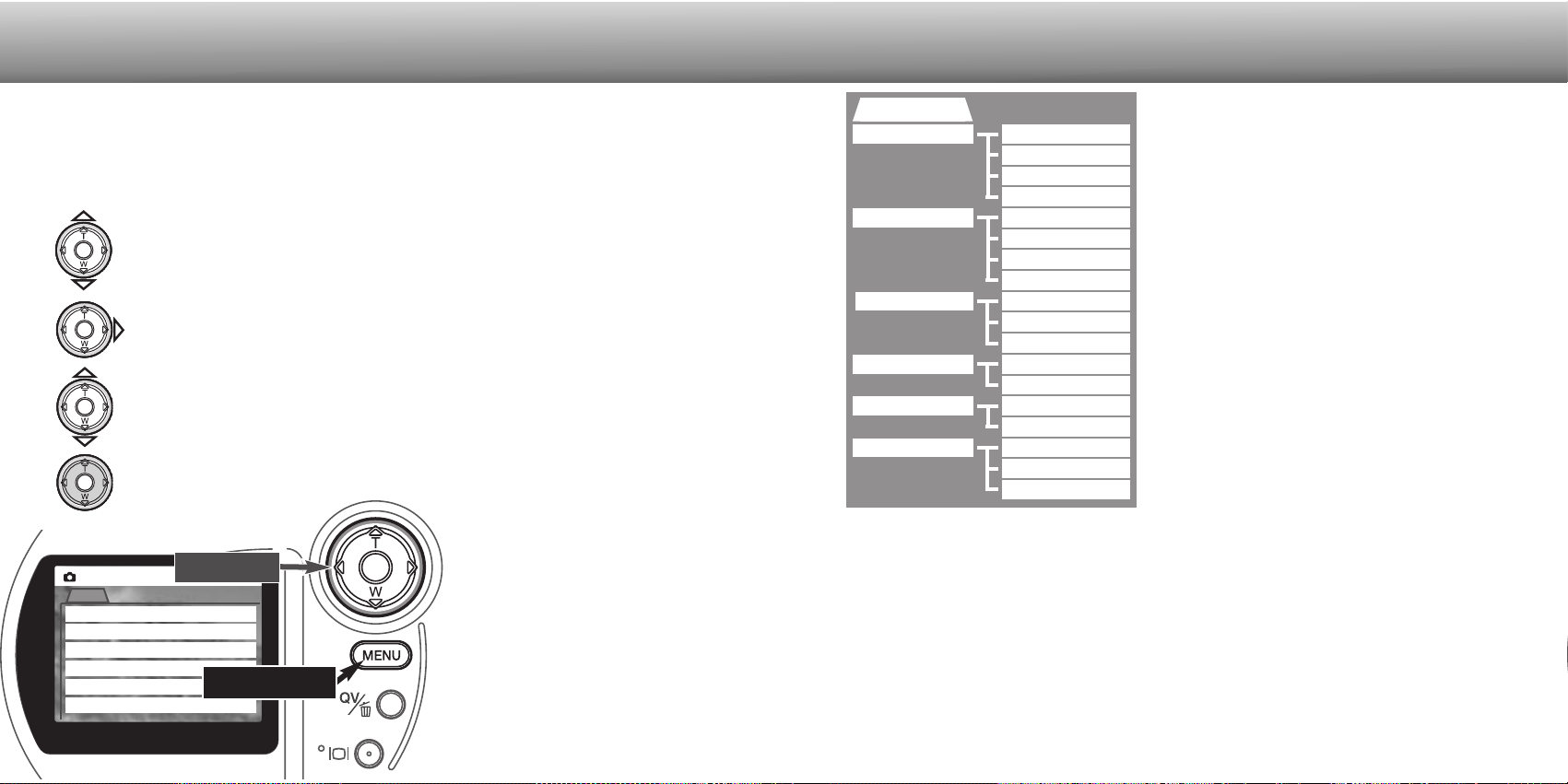
NAVIGATING THE AUTO-RECORDING MODE MENU
In auto-recording mode, press the menu button to activate the menu. The menu button
also turns off the menu after settings are made. The four-way keys of the controller are
used to move the cursor in the menu. Pressing the center of the controller will enter a
setting.
Use the up/down keys of the controller (2) to scroll through the menu options.
Highlight the option whose setting needs to be changed.
• When scrolling in one direction, the cursor will jump between the top and bottom
of the menu.
With the menu option to be changed highlighted, press the right controller key; the
settings will be displayed with the current setting highlighted.
• To return to the menu options, press the left key.
Once a setting has been
selected, the cursor will return to
the menu options and the new
setting will be displayed. Changes
can continue to be made. To
return to the auto-recording
mode, press the menu button.
Changes made on the auto-
recording mode menu will also
affect the multi-function recording
mode.
Auto
Auto
Image size
Quality
Voice memo
Date imprint
Digital zoom
2048 X1536
Standard
No
No
Yes
Inst.Playback
No
38
Use the up/down keys to highlight the new setting.
Press the center of the
controller to select the
highlighted setting.
Auto
Image size
Quality
Voice memo
Date imprint
Digital zoom
2048 X 1536
1600 X 1200
1280 X 960
640 X 480
Super fine
Fine
Standard
Economy
5 sec.
15 sec.
No
Inst.Playback
Yes
No
Yes
No
2 sec.
10 sec.
No
AUTO-RECORDING MODE
Menu button
Controller
40 41
Data
panel
IMAGE QUALITY
S. FIN
FINE
STD
ECON
Economy - the smallest file sizes.
LCD monitor
Super fine - the highest quality image.
Fine - high quality image.
Standard - the default setting.
IMAGE SIZE
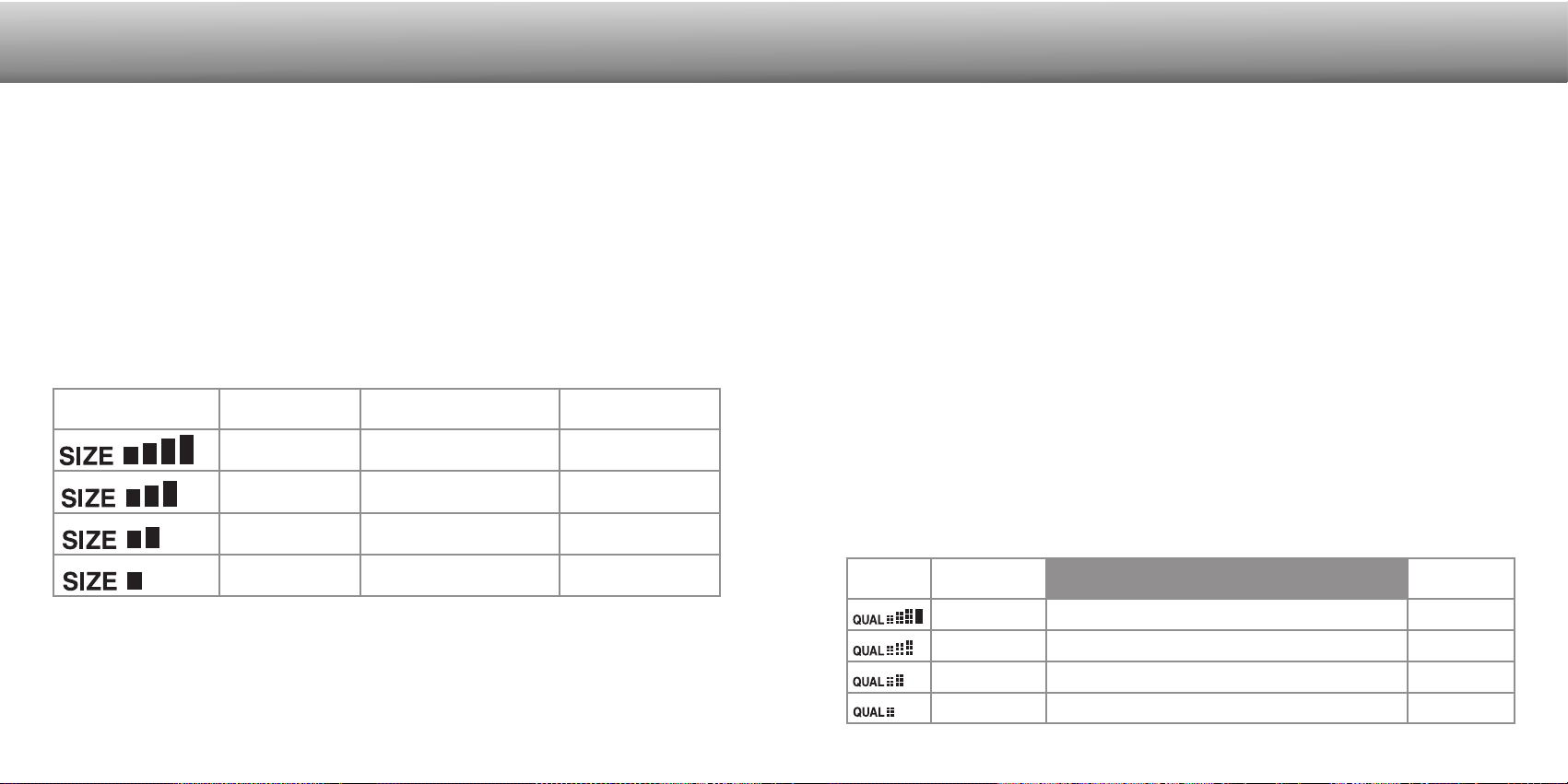
Changing image size affects the number of pixels in each image. The greater the
image size, the larger the file size. Choose image size based on the final use of the
image - smaller images will be more suitable for web sites whereas larger sizes will
produce higher quality prints.
Image size must be set before the picture is taken. Changes made to image size are
displayed on the data panel and LCD monitor. Image size must be reset manually. See
navigating the auto-recording mode menu section on page 38. In multi-function
recording mode, image size is controlled in the basic section of the multi-function
recording menu (p. 50).
If the image size is changed, the data panel will display the approximate number of
images that can be recorded at that setting on the installed CompactFlash card. One
CompactFlash card can contain images with differing sizes.
Data panel
LCD monitor
2048
1600
1280
640
Number of pixels
(hor. X vert.)
2048 X1536
1600 X 1200
1280 X 960
640 X 480
Image size
FULL
UXGA
SXGA
VGA
File type
TIFF
JPEG
JPEG
JPEG
AUTO-RECORDING MODE
This camera has four image quality settings: super fine, fine, standard, and economy.
Always select the desired setting before taking the picture. See navigating the auto-
recording mode menu section on page 38. In multi-function recording mode, image
quality is controlled in the basic section of the multi-function recording menu (p. 50).
Image quality controls the rate of compression, but has no effect on the number of
pixels in the image. The higher the image quality, the lower the rate of compression
and the larger the file sizes. If the economical use of the CompactFlash card is
important, use the economy mode. Standard image quality is sufficient for normal
usage. The super-fine mode will produce the highest quality image and the largest
image files. Depending on image size, when capturing super-fine images, a delay of up
to fifty seconds can occur as the image is saved to the CompactFlash card; the
monitors will be blank and the access lamp will glow during that period.
File formats vary with the image quality setting. Super fine images are saved as a TIFF
file. The fine, standard, and economy settings are formatted as a JPEG file. Super fine,
fine, standard, and economy files can be recorded as color or monochrome images (p.
60) in the multi-function recording mode.
If the image quality is changed, the data panel will display the approximate number of
images that can be recorded at that setting on the installed CompactFlash card. One
CompactFlash card can contain images with differing qualities.
42 43
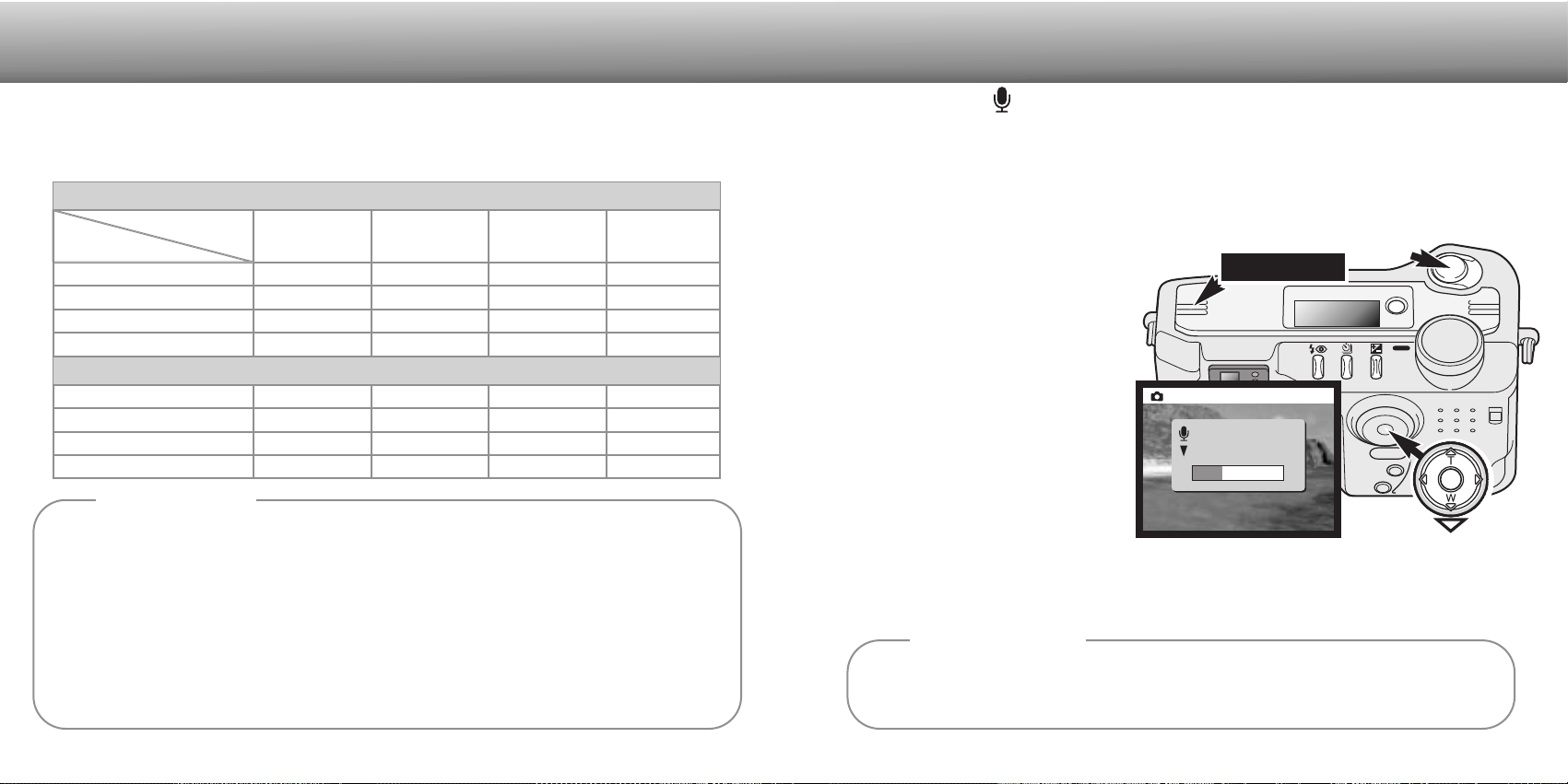
IMAGE-FILE SIZE AND COMPACTFLASH CARD CAPACITY
Super fine
Fine
Standard
Economy
1 2 4 16
9 15 23 57
16 26 38 81
27 41 54 104
Approximate number of images that can be stored on a 16MB CompactFlash card.
Image
quality
Image
size
2048 X 1536
1600 X 1200
1280 X 960 640 X 480
Super fine
Fine
Standard
Economy
9.1MB 5.6MB 3.6MB 0.96MB
1.6MB 1.0MB 0.66MB 0.27MB
0.9MB 0.6MB 0.41MB 0.2MB
0.59MB 0.38MB 0.29MB 0.15MB
Approximate file sizes.
The number of images that can be stored on a CompactFlash card is determined by
the size of the card and the file size of the images. The actual file size is determined by
the scene; some subjects can be compressed further than others.
The frame counter indicates the approximate number of images that can be stored on the
CompactFlash card at the camera’s image quality and size settings. If the settings are changed, the
frame counter adjusts accordingly. Because the calculation is based on average file sizes, the actual
image taken may not change the counter or may decrease it by more than one.
When the frame counter displays zero, it indicates no more images at the image size and quality set-
tings can be captured. Changing the image size or quality settings may allow more image to be saved
to the CompactFlash card.
The frame counter cannot exceed 999. When the number of recordable images exceeds this, 999 will
be displayed. The frame counter will continue to count down when the number of recordable images
falls below one thousand.
Camera Notes
AUTO-RECORDING MODE
Voice memo allows a five or fifteen second audio track to be recorded with a still
image. The function is activated and the length of the recording time is set on the auto-
recording mode menu (p. 38). In multi-function recording mode, voice memo is
controlled in the custom 2 section of the multi-function recording menu (p. 50). When
the function is active, the microphone icon is displayed on the data panel and LCD
monitor. The voice memo must be set before taking a picture. It will remain in effect
until reset.
After an image is captured, a screen
will appear indicating the audio
recording has started. A bar graph (1)
will display the amount of recorded
time remaining. The recording will
automatically stop when the set time
has elapsed. To cancel the recording
and erase the audio track, press the
down key of the controller (2) or the
shutter-release button (3) before the
recording has finished.
Voice memo can be used with all
drive modes. When using continuous
advance or bracketing, the audio file
is attached to the last image in the series. The voice memo cannot be played back in
quick view; it can only be heard in the playback mode (p. 68). Images with voice-memo
audio tracks have a note icon displayed with them.
VOICE MEMO
3
Microphone
When making audio recordings, be careful not to touch or cover the microphone. The quality of
the recording is proportional to the subject to microphone distance; the closer to the micro-
phone the better the sound recording.
Recording Tips
Recording audio
: Stop
Auto
1
2
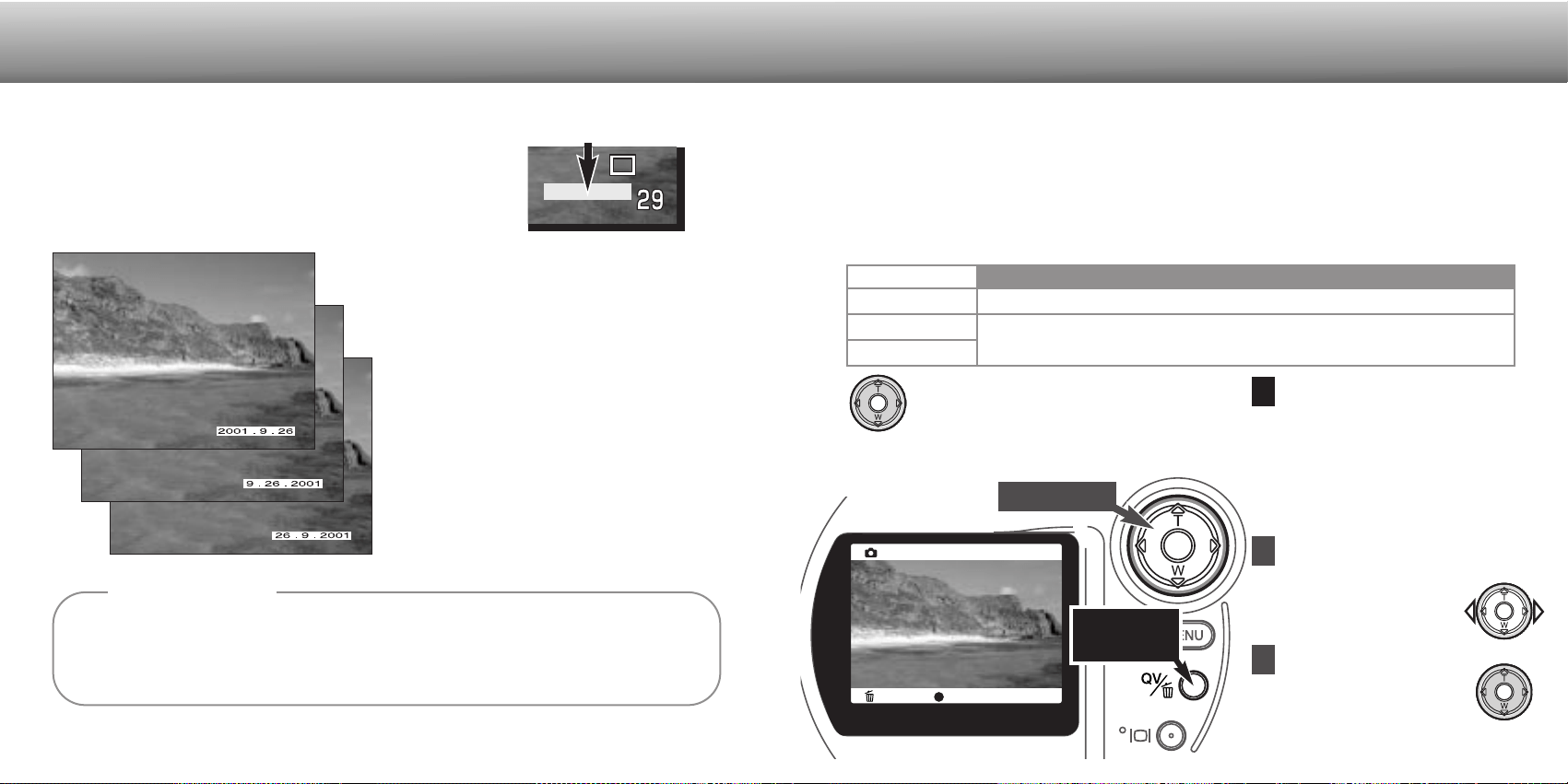
The date of recording can be printed directly on the image.
The imprinting function must be activated before the image is
taken. Once activated, the date will continue to be imprinted
until the function is reset; a yellow bar is displayed behind the
frame counter on the monitor to indicate the imprinting
function is active.
Date imprinting is activated with a menu;
see navigating the auto-recording mode
menu section on page 38. In multi-function
recording mode, date imprinting is
controlled in the custom 2 section of the
multi-function recording menu (p. 50).
The date is imprinted in the lower right
corner of the image when viewed
horizontally. It is printed directly on the
photograph writing over the image
information. The date can be imprinted in
three formats: year/month/day,
month/day/year, and day/month/year. The
date and date format are set in the custom
2 section of the setup-mode menu (p. 84).
4544
AUTO-RECORDING MODE
DATE IMPRINTING INSTANT PLAYBACK
QV/delete
button
No
2 sec
10 sec
Menu setting
Instant playback is disabled.
The captured image will be displayed for two or ten seconds. While dis-
played, the image can be deleted before being saved.
: delete : store
Auto
Every time a still image is recorded, it is stored with an exif tag that contains the date and time
of recording as well as shooting information. This information can be viewed with the camera in
the playback or quick-view mode, or on a computer with the DiMAGE Image Viewer Utility soft-
ware.
Camera Notes
1
2
3
Press the controller to delete
the image.
• The live image will be
displayed on the monitor.
Use the left/right keys of the
controller to highlight “YES.”
• “NO” will cancel the
operation.
To delete an image during
the instant playback, press
the QV/delete button.
• A confirmation screen will
appear.
• When using continuous
advance or bracketing, the
entire series will be erased.
After an image is captured, it can be displayed on the monitor before being saved.
When in continuous-advance or bracketing mode, an index display is used (p. 70).
Instant playback is activated with a menu; see navigating the auto-recording mode
menu section on page 38. In multi-function recording mode, instant playback is set in
the custom 2 section of the multi-function recording menu (p. 50). When used with
voice memo, the audio recording will begin after the image is played back.
If the center of the controller is pressed
during the instant playback, the displayed
image will immediately be saved and the
playback canceled.
Controller
Date-imprinting indicator
47
AUTO-RECORDING MODE
WHAT IS AN EV? WHAT IS A STOP?
Ev stands for exposure value. Stop refers to click stops in mechanical cameras. A
change of one Ev or one stop will adjust the exposure calculated by the camera by a
factor of two.
Change in Ev
Change in stops Adjustment to exposure
+2.0 Ev
+1.0 Ev
0.0 Ev
–1.0 Ev
–2.0 Ev
+2 stops
+1 stop
Calculated exposure
–1 stop
–2 stops
4X as much light
2X as much light
1/2 as much light
1/4 as much light
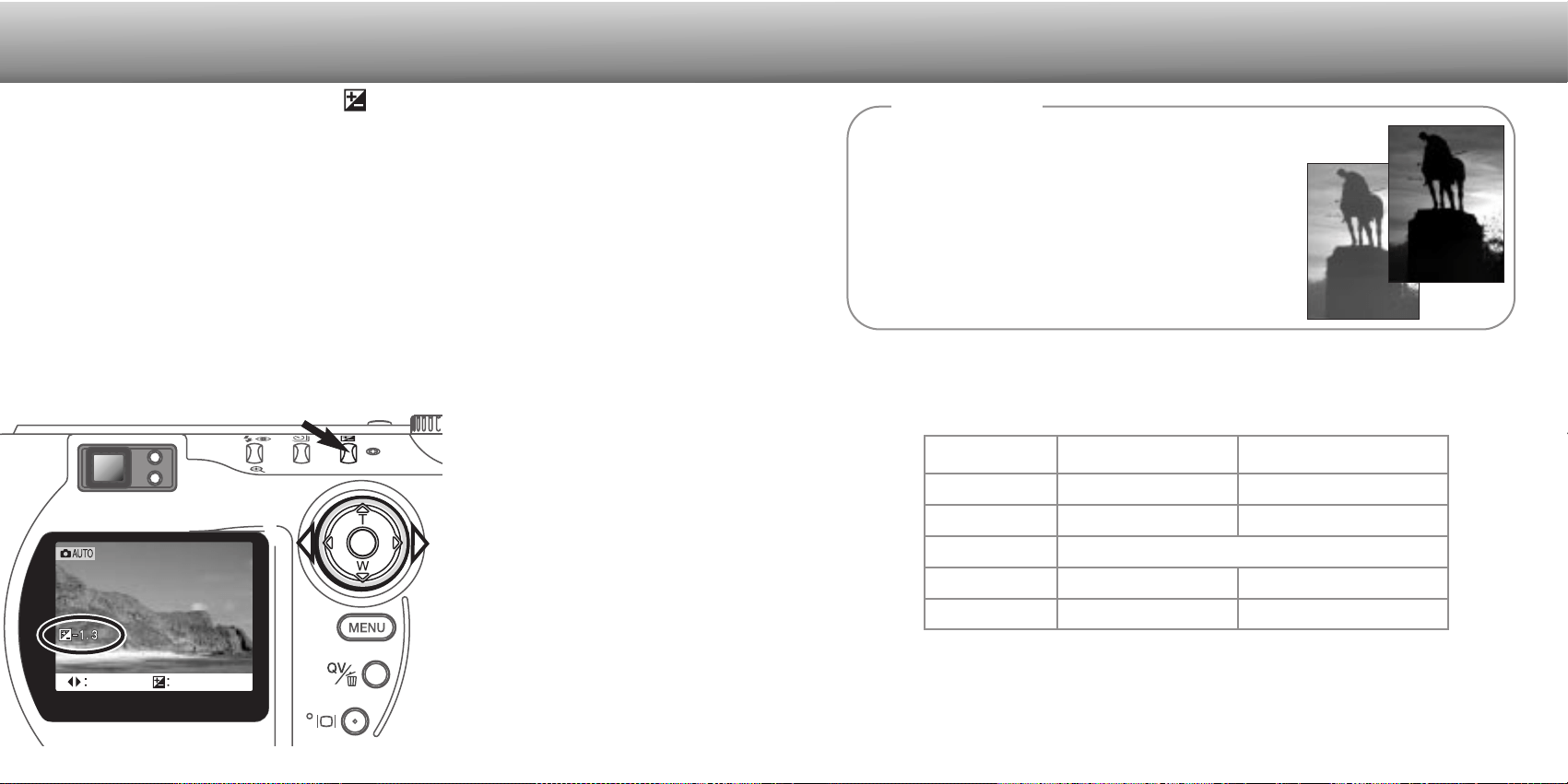
Sometimes the camera’s exposure meter is deceived by certain conditions.
Exposure compensation can be used in these situations. For example, a very
bright scene, such as a snowy landscape or a white sandy beach,
can appear too dark in the captured image. Before taking the pic-
ture, adjusting the exposure by +1 or +2 EV will result in an image
with normal tonal values.
In this example, the dark scene appears bright and washed-out on
the LCD monitor. By decreasing the exposure by –1.5 EV, the rich-
ness of the sunset is preserved.
Shooting tips
46
adjust set
1
2
To adjust the exposure, press the
exposure-compensation button (1).
• The exposure compensation screen
will appear.
Use the left/right keys of the con-
troller (2) to adjust the exposure-
compensation value.
• Change in exposure compensation
is visible in the live image on the
monitor.
Press the exposure-compensation
button (1) to set the adjustment in
exposure.
EXPOSURE COMPENSATION
The camera exposure can be adjusted to make the final picture lighter or darker by as
much as ±2Ev in 1/3 increments. The exposure-compensation value will remain in
effect until it has been reset. In auto-recording mode, exposure compensation is also
reset when the mode dial is moved to another position.
The exposure compensation must be set before the image is captured. When setting
the exposure compensation, the amount of compensation is shown next to the
exposure-compensation icon on the monitor. After the setting is made, the shutter-
speed and aperture displays will indicate the actual exposure. Because the exposure
can be adjusted in fine steps, the shutter speed or aperture value displayed may not
change. When set to any value other than 0.0, the exposure-compensation icon will
remain on the data panel and LCD monitor as a warning.
If the flash mode is set to autoflash, the flash will not fire. To use the flash, set the flash
mode to fill-flash (p. 30).
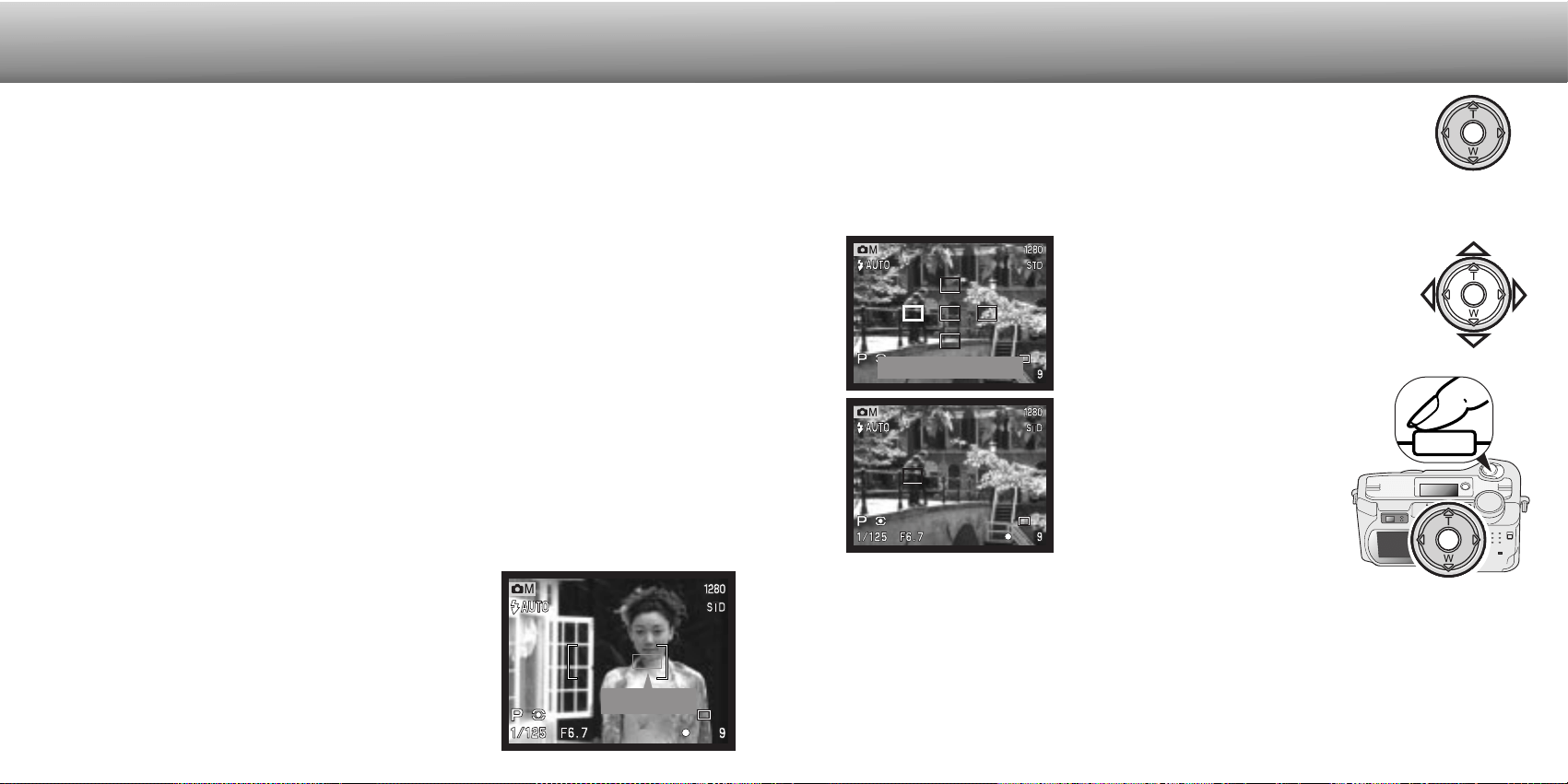
Switching between the wide focus area and the spot focus areas is simple.
Press and hold the controller (1) until the wide-focus-area frame lines
change to the spot-focus-area display. Press and hold the controller again
to return to the wide-focus-area frame lines.
The focus area selection controls which spot focus area is active. This function can be
used for off-center subjects or to single out an individual subject from a group.
48
MULTI-FUNCTION RECORDING
MULTI-FUNCTION
RECORDING MODE
ADVANCED OPERATION
Except for digital subject programs, the basic operation of the camera in multi-function
recording mode is identical to the auto-recording mode. Thoroughly familiarize yourself
with the previous section before moving on.
The multi-function recording mode allows greater control over image making. This
recording mode gives more control over autofocus and composition. The menu controls
are extensive allowing critical adjustments to image qualities such as sharpness, con-
trast, and color saturation. Unlike the auto-recording mode, all settings made in multi-
function recording are not reset when the position of the mode dial is changed.
AUTOFOCUS AREAS AND CONTROL
1
49
In the multi-function recording mode, the controller selects the focus area used. The
wide focus area and focus area selection allow flexibility in a variety of situations.
The wide focus area is an array of local focus areas that
work together to control focus. This system is especially
effective with moving subjects or quick shooting in fast-
moving events. When the focus is locked, one of the AF
sensors within the wide focus area will briefly indicate the
point of focus.
AF sensor
Spot focus areas
Once a spot focus area is selected, it will remain active even after the picture has been
taken. Only when one focus area is displayed, can the controller be used to zoom (p.
22) or adjust the exposure (p. 52).
To select another focus area, press the center of the controller; all five areas should be
displayed. The controller can now be used to change the spot focus area. Focus area
selection will remain in effect when the LCD monitor is turned off.
Pressing the shutter-release button
partway down (3) or pressing the
center of the controller (4) will select
the area; the other four areas will
disappear.
2
3
4
Press and hold the controller to display the
spot focus areas; the active area is blue.
Use the four-way key of the controller (2) to
highlight the desired autofocus area.
Menu button
Controller
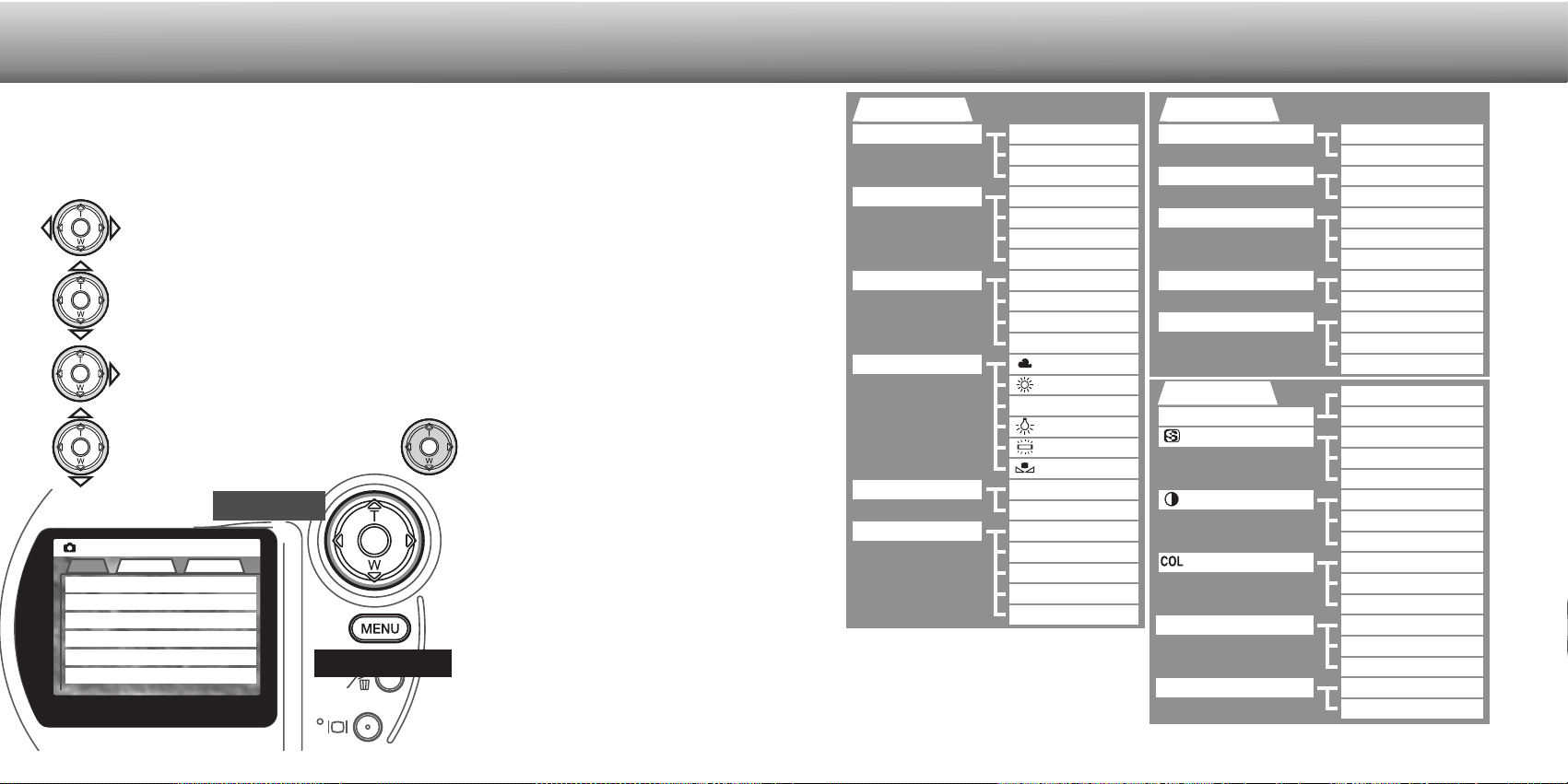
Activate the recording-mode menu with the menu button. The “Basic” tab at the top
of the menu will be highlighted. Use the left/right keys of the controller to highlight
the appropriate menu tab; the menus will change as the tabs are highlighted.
50
NAVIGATING THE MULTI-FUNCTION RECORDING MODE MENU
In multi-function recording mode, press the menu button to activate the menu. The
menu button also turns off the menu after making settings. The four-way keys of the
controller are used to move the cursor in the menu. Pressing the center of the
controller will enter a setting.
When the desired menu section is displayed, use the up/down keys to scroll through
the menu options. Highlight the option whose setting needs to be changed.
• When scrolling in one direction, the cursor will jump between the top and bottom of
the menu.
With the menu option to be changed highlighted, press the right controller key; the
settings will be displayed with the current setting highlighted.
• To return to the menu options, press the left key.
Press the controller to select the
highlighted setting.
Once a setting has been
selected, the cursor will return to
the menu options and the new
setting will be displayed. Changes
can continue to be made. To
return to the recording mode,
press the menu button. Changes
made to image size, image
quality, voice memo, date imprint,
digital zoom, and instant playback
will affect the auto-recording
mode.
Multi
Basic Custom1 Custom2
Exposure mode
Image size
Quality
White balance
Focus mode
Program
2048 X 1536
Standard
Auto
AF
Sensitivity Auto
51
Basic
Exposure mode
Image size
Quality
White balance
Focus mode
Program
Aperture priority
Manual
2048 X 1536
1600 X 1200
1280 X 960
640 X 480
Super fine
Fine
Standard
Economy
Custom 1
Metering mode
Full-time AF
Exposure bracket
Digital zoom
Instant playback
Multi-segment
Spot
Yes
No
1.0 Ev
0.5 Ev
0.3 Ev
Yes
No
2 sec.
10 sec.
No
Custom 2
Color mode B&W
Normal
Soft (–)
Normal
Low (–)
High (+)
Normal
Low (–)
5 sec.
15 sec.
No
Yes
No
Sensitivity
High (+)
Color
Hard (+)
Voice memo
Date imprint
Auto
AF
MF
ISO 800
ISO 400
ISO 200
ISO 100
Auto
Custom
Fluorescent
Tungsten
Cloudy
Daylight
Refer to the auto-recording mode section
for details on image size (p. 40), image
quality (p. 41), voice memo (p. 43), date
imprinting (p. 44), and instant playback
(p. 45).
Use the up/down keys to highlight
the new setting.
MULTI-FUNCTION RECORDING
Saturation
Contrast
Sharpness
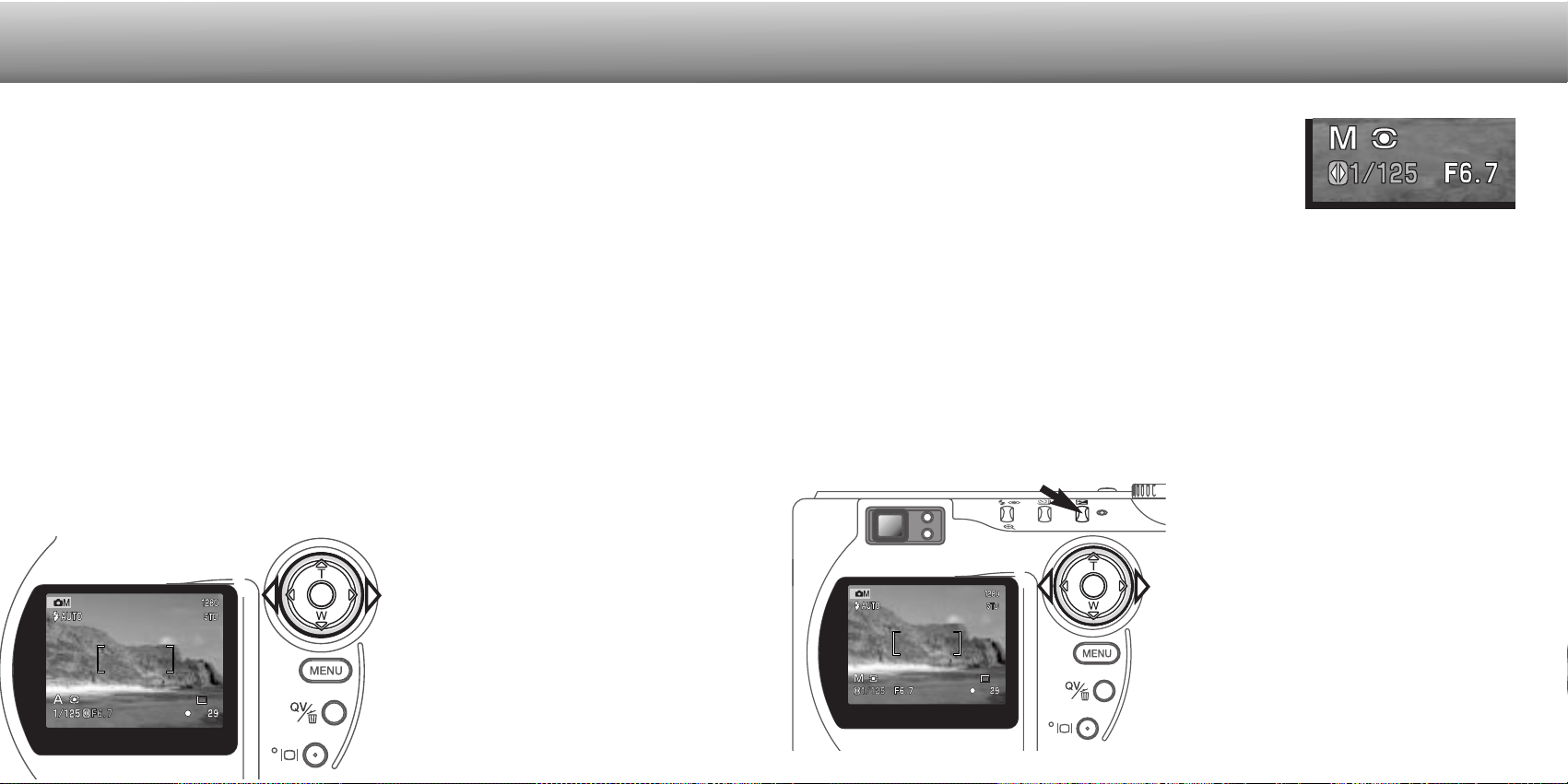
The photographer selects the aperture and the camera sets the appropriate shutter
speed to ensure correct exposure. When aperture priority is selected, the aperture
value on the monitor turns blue and a double arrow icon appears next to it. If the LCD
monitor is turned off, the aperture value is fixed at the last setting and cannot be
changed. The flash will not fire if set to an autoflash mode; to use the flash, set the
flash mode to fill-flash (p.30).
Use the left/right keys of the controller (1) to set the desired aperture value. Press the
shutter-release button to activate the exposure system; the corresponding shutter
speed will be displayed on the monitor.
The aperture value can be changed in two
steps: f/3.0 and f/6.7 at the lens’ wide-
angle position, f/3.6 and f/8.0 at the lens’
telephoto position. As the lens is zoomed,
the aperture will automatically shift. If the
aperture value is beyond the shutter-speed
range, the shutter-speed display will turn
red on the monitor. For more on the
aperture and image control, see page 62.
53
PROGRAM
The program exposure mode controls both the shutter speed and aperture to ensure
perfect exposures. The sophisticated exposure system allows the photographer the
freedom to shoot without having to worry about the technical details of exposure
settings. The shutter speed and aperture values of the exposure are displayed on the
monitor. If shutter speed and aperture displays turn red, the scene is beyond the
exposure control range of the camera.
EXPOSURE MODES
The three exposure modes allow extensive control over image making: program,
aperture priority, and manual exposure. Exposure modes are set in the basic section of
the multi-function recording mode menu (p. 50).
MULTI-FUNCTION RECORDING
APERTURE PRIORITY - A
52
MANUAL EXPOSURE - M
To set the shutter speed:
• Use the left/right keys of the controller (1)
to set the desired shutter speed.
To set the aperture:
• Press the exposure-compensation button
(2). The aperture value will turn blue.
• Use the left/right keys of the controller (1)
to set the desired aperture.
The exposure-compensation button switches
between the shutter speed and aperture dis-
play. The value that can be set will be blue
with a double arrow icon to the left of it.
Manual exposure mode allows individual selection of
shutter speeds and apertures. This mode overrides the
exposure system giving the photographer total control over
the final exposure. The shutter speeds can be changed in
half stop increments between 1/1000 and 4 seconds.
As changes are made to the exposure, the effect will be visible on the monitor. The
shutter-speed and aperture display will turn red on the monitor if the image is extremely
under or overexposed. If the monitor is black, increase the exposure until the image is
visible; decrease the exposure if the monitor is white. If the LCD monitor is turned off,
the exposure is fixed at the last setting and cannot be changed. When the shutter-
release button is pressed partway down, the brightness of the live image may change
while the camera is focusing.
In manual exposure mode, the auto camera-sensitivity setting will fix the ISO value at
100. The camera sensitivity can be changed in the basic section of the multi-function
recording menu (p. 50). The flash will not fire if set to an autoflash mode; to use the
flash, set the flash mode to fill-flash (p.30). Bulb exposures can be made, see page 61.
2
1
1
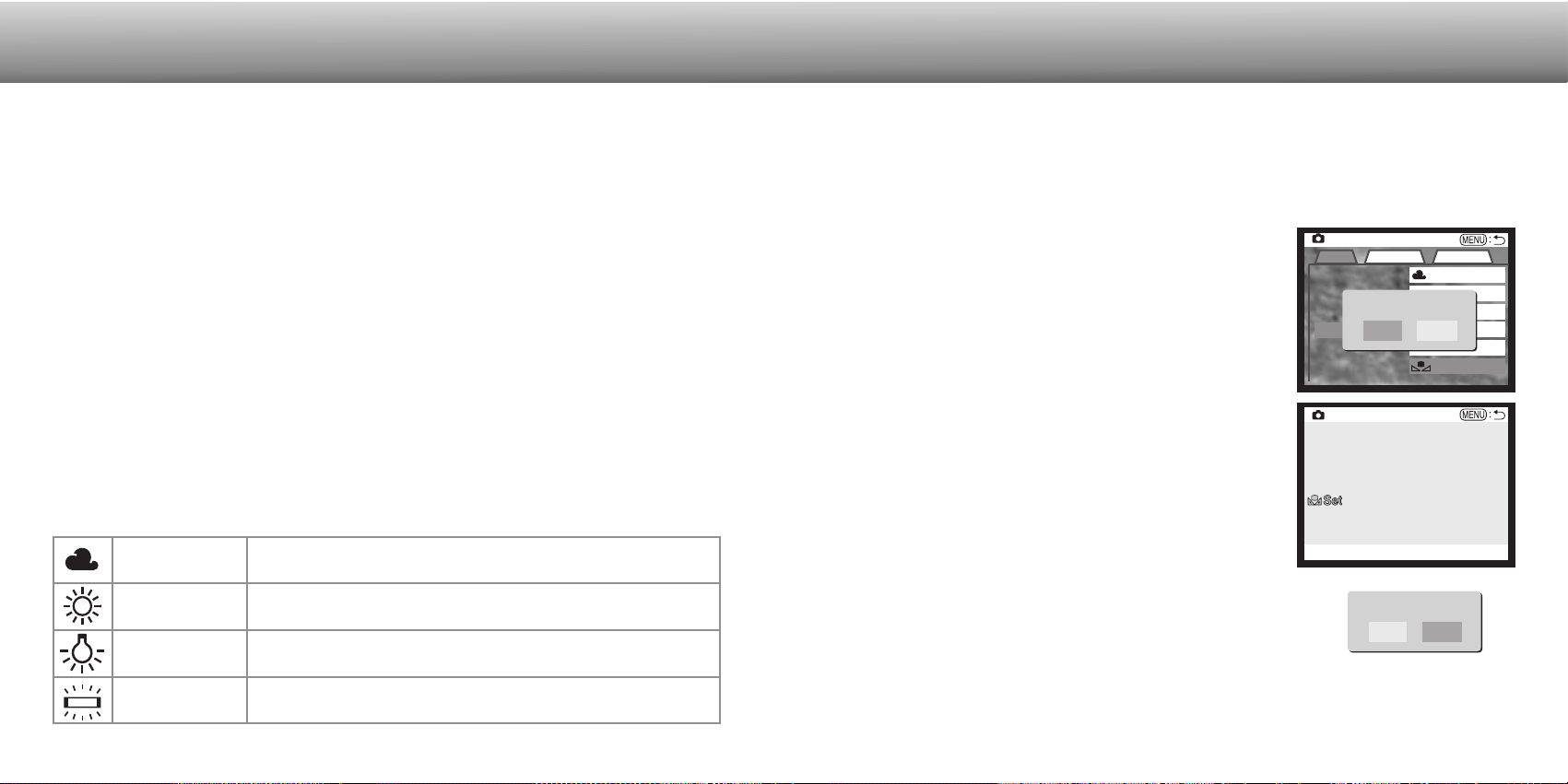
Custom-white-balance function allows a photographer to calibrate the camera to a
specific lighting condition. The setting can be used repeatedly until reset. Custom white
balance is especially useful with mixed-lighting conditions or when critical control over
color is needed. The object used to make a calibration should be white. A blank piece
of white paper is an ideal surface and can easily be carried in a camera bag.
54 55
AUTOMATIC WHITE BALANCE
PRESET WHITE BALANCE
The automatic white balance compensates for the color temperature of a scene. In
most cases, the AUTO setting will balance the ambient light and create beautiful
images, even under mixed-lighting conditions. When the built-in flash is used, the white
balance is set for the color temperature of the flash.
WHITE BALANCE
Fluorescent
Tungsten
Daylight
Cloudy
For fluorescent lighting: office ceiling lights.
For incandescent lighting: household filament light
bulbs.
For outdoor and sunlit subjects.
For overcast outdoor scenes.
Preset white-balance settings must be set before the image is taken. Once set, the
effect is immediately visible on the LCD monitor.
The built-in flash can be used with preset white-balance settings, but will create a
pinkish or blueish cast with the fluorescent and tungsten settings. The flash is daylight
balanced and will produce acceptable results with the daylight and cloudy settings.
MULTI-FUNCTION RECORDING
CUSTOM WHITE BALANCE
White balance is the camera’s ability to make different types of lighting appear neutral.
The effect is similar to selecting daylight or tungsten film, or using color compensating
filters in conventional photography.
An icon will be displayed on the monitor if a setting other than auto white-balance is
chosen. White balance is set in the basic section of the multi-function recording mode
menu (p. 50).
Multi
Basic Custom1 Custom2
Exposure mode
Ima
Qua
Foc
Cloudy
Sensitivity Custom
Whi
Select set or recall.
RecallSet
M
Custom WB set
Set WB with shutter button
If the custom white-balance setting needs to be used again,
select the custom setting on the basic section of the menu; a
window will appear. Highlight “recall” and press the controller to
enter the command; the last custom white-balance setting will
be applied to the camera.
Fill the image area with a white object; the object does
not need to be in focus. Press the shutter-release button
to make the calibration. The custom setting will remain in
effect until another calibration is made or the white-
balance setting is changed.
To calibrate the camera, select the custom setting in the
white balance option in the basic section of the multi-
function recording mode menu; a window will open
asking you to choose “set” or “recall.” Use the controller
to highlight “set” and then press the center of the
controller to enter the command; the custom white-
balance calibration screen will appear.
Select set or recall.
RecallSet
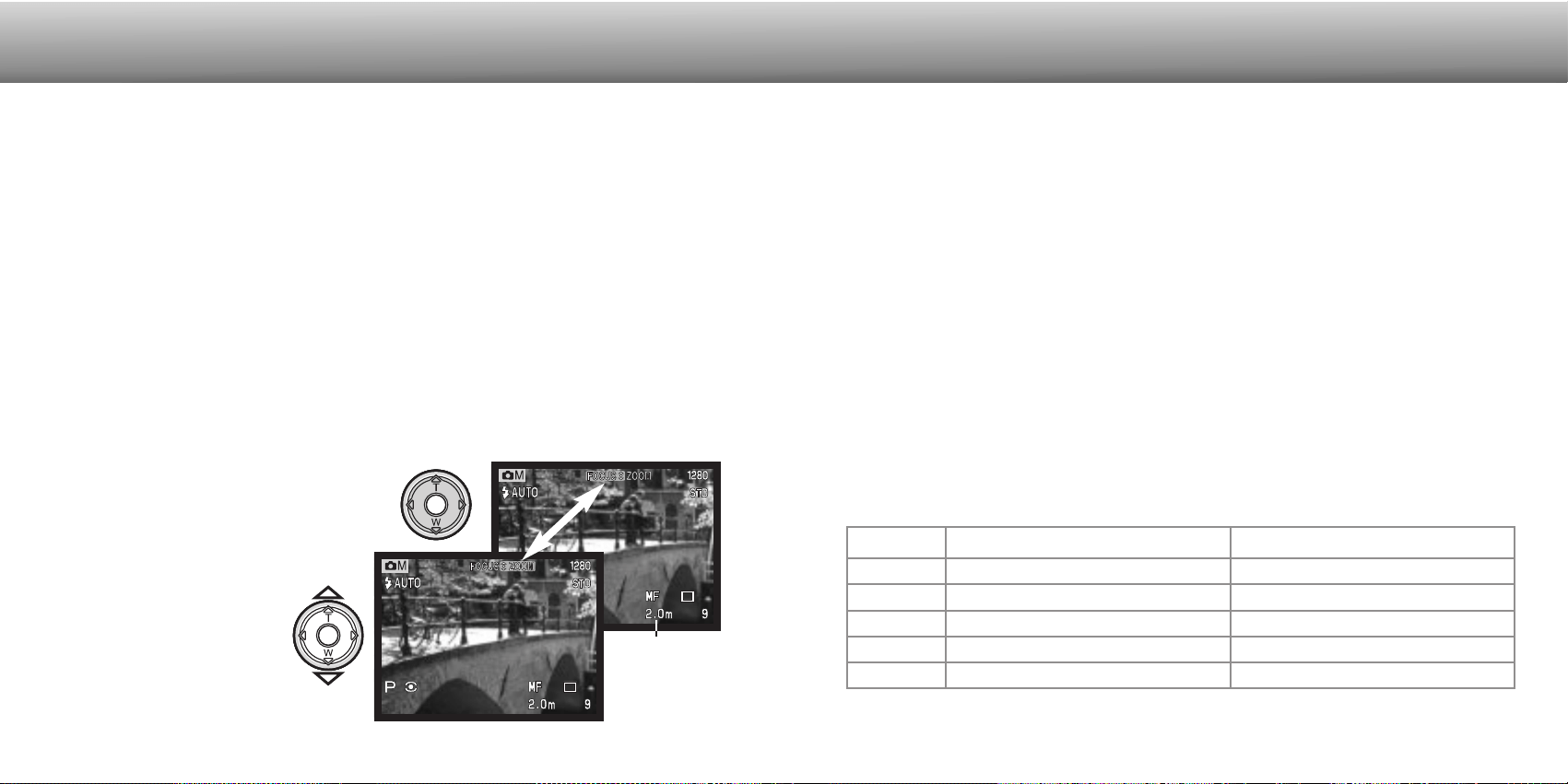
57
CAMERA SENSITIVITY - ISO
MULTI-FUNCTION RECORDING
FLASH RANGE AND CAMERA SENSITIVITY
Flash range (wide angle)ISO setting
AUTO
100
200
400
800
0.5m ~ 3.5m (1.6 ft. ~ 11.5 ft.)
Flash range (telephoto)
0.9m ~ 3.0m (3.0 ft. ~ 9.8 ft.)
0.5m ~ 2.4m (1.6 ft. ~ 7.8 ft.)
0.5m ~ 3.5m (1.6 ft. ~ 11.5 ft.)
0.5m ~ 4.9m (1.6 ft. ~ 16 ft.)
0.5m ~ 7.0m (1.6 ft. ~ 23 ft.)
0.9m ~ 2.1m (3.0 ft. ~ 6.9 ft.)
0.9m ~ 3.0m (3.0 ft. ~ 9.8 ft.)
0.9m ~ 4.2m (3.0 ft. ~ 13.8 ft.)
0.9m ~ 6.0m (3.0 ft. ~ 19.6 ft.)
The flash range is measured from the CCD. Because of the optical system, the flash
range is not the same at the lens’ wide-angle position as it is at the telephoto position.
Five camera sensitivity settings can be selected: Auto, 100, 200, 400, and 800; the
numerical values are based on an ISO equivalent. ISO is the standard used to indicate
film sensitivity: the higher the number, the more sensitive the film. Camera sensitivity is
set in the basic section of the multi-function recording mode menu (p. 50).
The auto setting automatically adjusts the camera sensitivity to the light conditions
between ISO 100 and 400. When the flash is activated and camera sensitivity is set to
auto, the ISO value is set to 200. When any other setting than auto is used, “ISO” will
appear on the data panel, and “ISO” and the set value will be displayed on the monitor.
Photographers can select a specific sensitivity setting. As the ISO value doubles, the
camera sensitivity doubles. Like grain in silver-halide film that increases with speed,
noise increases with sensitivity in digital imaging; an ISO setting of 100 will have the
least noise and 800 will have the most noise. High ISO settings (400, 800) will allow
the photographer to hand hold the camera in low-light conditions without the need of a
flash. A change in ISO also affects the flash range; see below.
FOCUS MODES
56
This camera has autofocus and manual focus control. The focus mode is set in the
basic section of the multi-function recording mode menu (p. 50).
Autofocus will produce excellent results in almost every situation, however, under
certain conditions, the autofocus system will not work accurately; see special focusing
situations on page 25. In these situations the camera can be manually focused.
After setting the camera to the manual focus mode (MF), “ZOOM” and “FOCUS” will
appear at the top of the LCD monitor. Press the center of the controller to switch
between the two functions; the function highlighted in blue is active. With “FOCUS”
highlighted, use the up/down keys of the controller to focus; the approximate focus
distance is displayed at the bottom of the monitor next to the frame counter. All
distances are measured from the CCD.
When the focus is set to the minimum focusing distance, as the lens is zoomed, the
distance will change to match the minimum focusing distance at each focal length.
Manual focus is not available when the monitor is turned off. The controller function will
automatically switch to the zoom.
Press the controller to switch between
focus and zoom (1). The active function is
highlighted in blue (2).
Use the up/down keys of the
controller to zoom or focus.
Focus
distance
from the
CCD.
2
1
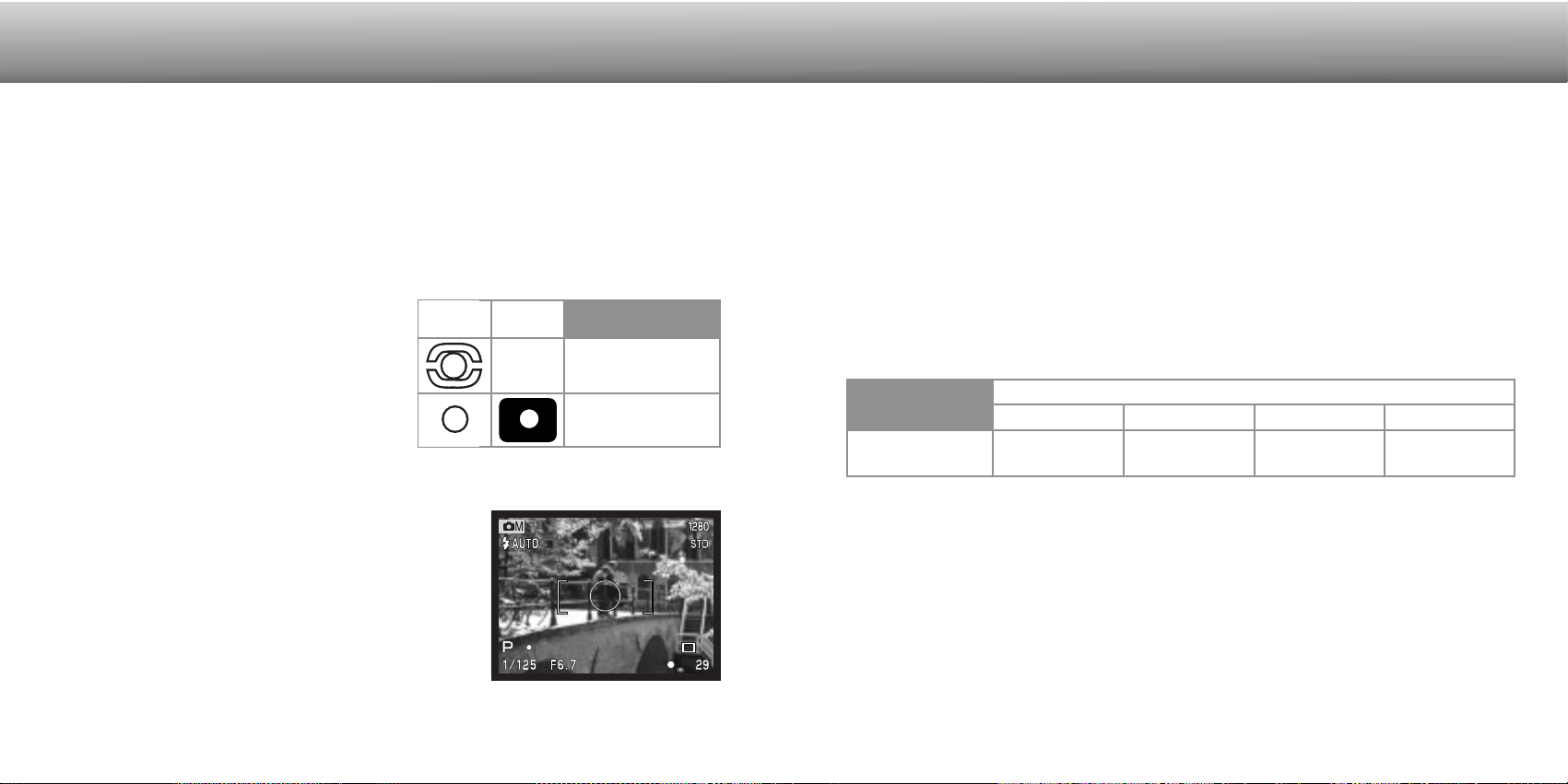
58
METERING MODES
The icons indicating both metering modes are
displayed on the monitor only. The metering
mode is set in the custom 1 section of the
multi-function recording mode menu (p. 50).
Multi-segment metering uses 256 segments to
measure luminance and color. This data is
combined with distance information to calculate
the camera exposure. This advanced metering
system will give accurate worry-free exposures in
almost all situations.
Spot metering uses a small area within the image to
calculate the exposure. When this mode is selected,
the LCD monitor will automatically activate if off and a
small circle will appear in the middle of the live image
indicating the measuring area. The spot allows precise
exposure measurements of a particular object without
being influenced by extremely bright or dark areas
within the scene. If the LCD monitor is turned off, the
spot-metering mode will remain active.
MULTI-FUNCTION RECORDING
59
FULL-TIME AF
With full-time AF active, the autofocus systems continually focuses to keep the monitor
image sharp. This also reduces the autofocusing time when taking pictures. Full-time
AF can be activated in the custom 1 section of the multi-function recording mode menu
(p. 50).
When the monitor is turned off or when the camera is set to manual focus, full-time AF
is disabled. Turning the full-time AF function off can help conserve battery power.
EXPOSURE BRACKETING
In multi-function recording mode, the bracketing increment can be changed in three
steps: 0.3 Ev, 0.5 Ev, 1.0 Ev. The larger the number, the greater the difference in
exposure between the images in the bracketing series. For information on the
bracketing drive mode, see page 36. The bracketing increment can be changed in the
custom 1 section of the multi-function recording mode menu (p. 50).
The digital zoom doubles the lens magnification (p. 22). The digital zoom can be
disabled in the custom 1 section of the multi-function recording mode menu (p. 50).
When an image is taken with the digital zoom, the final image size depends on the
image-size setting on the camera. The image is trimmed and then the total number of
pixels are recalculated to produce an image with a pixel resolution shown in the chart.
Image size setting
2048 X 1536 1600 X 1200 1280 X 960 640 X 480
Size of
recorded image
1024 X 768 1024 X 768 1024 X 768 640 X 480
DIGITAL ZOOM AND IMAGE SIZE
LCD
monitor
Data
panel
–
Spot metering
Multi-segment
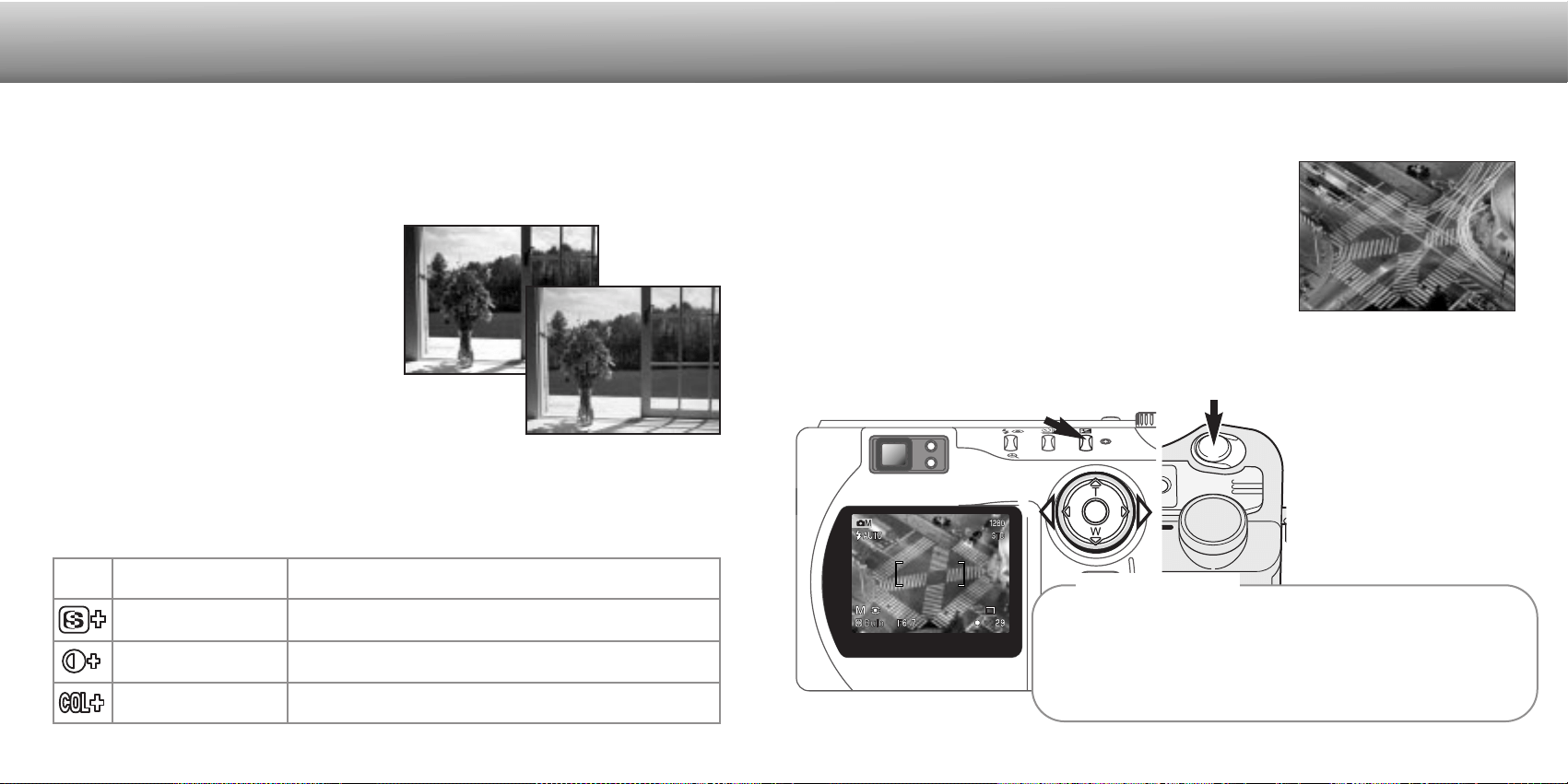
Changes in color, sharpness, contrast, and saturation can be made using the custom 2
section of the multi-function recording mode menu (p. 50). These imaging controls give
photographers the ability to maximize the image information at the scene. For example,
if a scene is too contrasty, information can be lost in the shadows and highlights;
decreasing the contrast will bring out more detail.
Any changes made with these functions are
applied to the live image on the monitor.
The color mode, sharpness, contrast, and
color saturation levels must be set before
the image is recorded. If sharpness,
contrast, or color saturation is set to any
setting other than normal, an icon will be
displayed indicating an increase (+) or
decrease (–) in the quality selected. Turning
the camera off will not reset these functions;
they must be manually reset using the
menu.
Unlike the display on a computer, changes made with sharpness, contrast, and color
saturation may be difficult to see on the LCD monitor. However, when viewed with
imaging software, the changes will be evident.
60 61
MULTI-FUNCTION RECORDING
IMAGE CONTROL - COLOR, SHARPNESS, CONTRAST, & SATURATION
Color saturation
Contrast
Sharpness
Color mode
To accent or subdue the color of a scene in three
levels: high (+), normal, and low (–).
To increase or decrease the contrast of the scene in
three levels: high (+), normal, and low (–).
To accent or soften details in an image in three levels:
hard (+), normal, and soft (–).
To select between 24-bit color and 8-bit monochrome
images. It has no effect on image file size.
High
contrast
scene
After compensation (–)
BULB EXPOSURES
Bulb photographs can be taken in the manual-exposure mode (M) (p. 53). Exposures
up to fifteen seconds can be made by pressing and holding the shutter-release button.
The use of a tripod is recommended for bulb exposures.
To set the aperture value, press the exposure-compensation button (2); the aperture
display should turn blue. Use the controller (1) to set the aperture.
• The camera’s exposure system cannot be used to calculate bulb exposures. The use of a
separate light meter is recommended.
Use the controller (1) to decrease the shutter-speed
value below four seconds until “bulb” is displayed.
To take the picture, press
and hold the shutter-release
button (3) for the duration of
the exposure.
• Releasing the shutter button
will end the exposure.
• The monitors will be blank
during the exposure.
Set the exposure mode to manual in the basic section of
the multi-function recording mode menu (p. 50).
2
1
3
When making bulb exposures, noise can be more pronounced
because of the unusually long exposure times, especially at 400 and
800 ISO. When making long bulb exposures, a camera sensitivity set-
ting of 100 or 200 will produce excellent results. At higher ISO settings,
using shorter exposure times (8 seconds or less) will reduce the effect
of noise.
Camera Notes
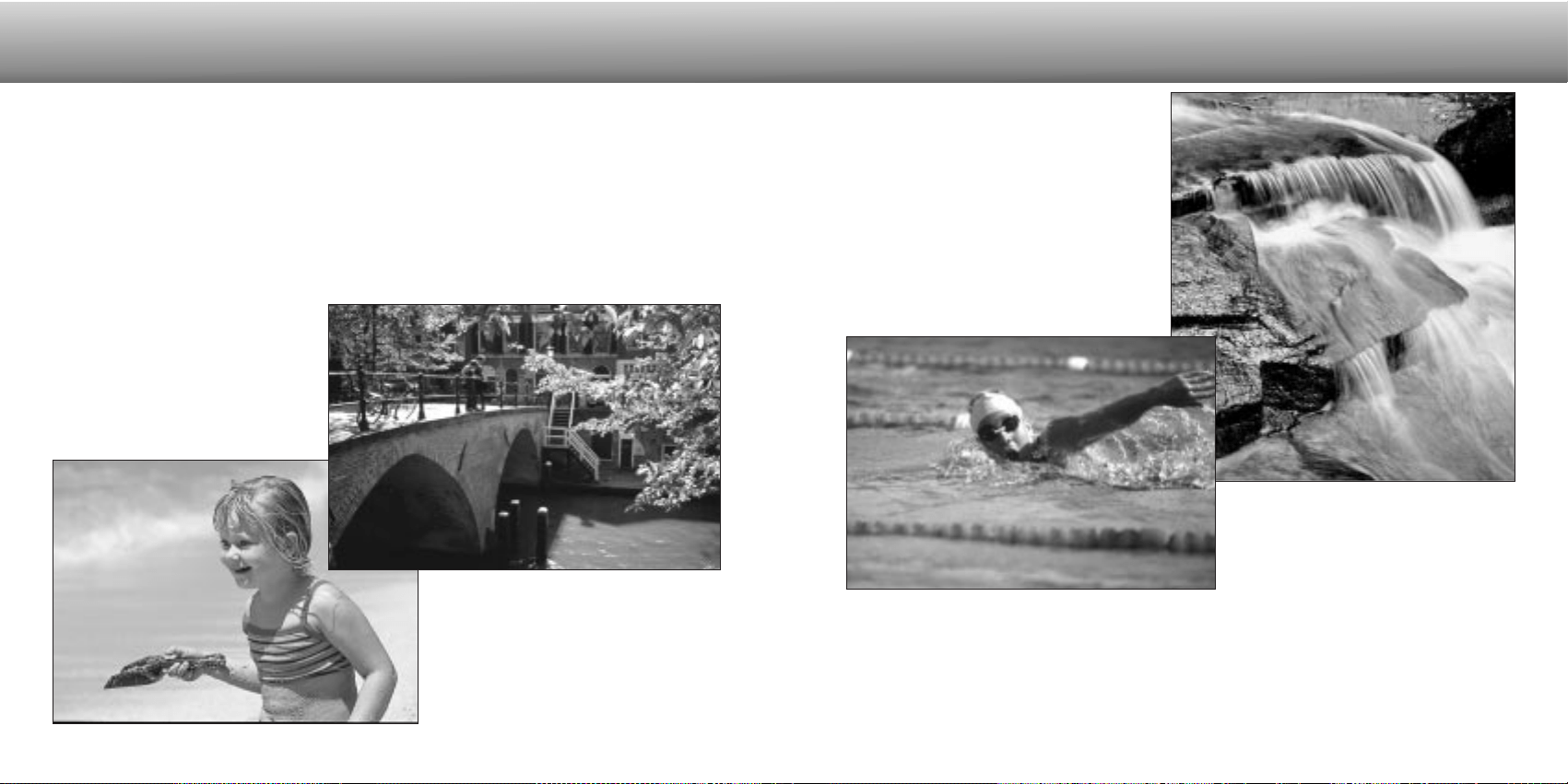
The lens aperture controls not only exposure, but also depth of field; the area between
the closest object in focus and the furthest object in focus. The larger the aperture
value, the greater the depth of field and the longer the shutter speed needed to make
the exposure. The smaller the aperture value, the shallower the depth of field and the
faster the shutter speed needed to make the exposure. Usually landscape photographs
use a large depth of field (large
aperture value) to keep the fore-
ground and background in focus,
and portraits use a shallow depth
of field (small aperture value) to
separate the subject from the
background.
62
A SHORT GUIDE TO PHOTOGRAPHY
Photography can be a rewarding pursuit. It is a broad and disciplined field that can take
years to master. But the pleasure in making photographs and the joy of capturing a
magical moment cannot be compared. This guide is an introduction to some basic pho-
tographic principles.
Depth of field also changes with focal
length. The wide-angle position of the
lens has a large depth of field; the
telephoto position has a shallow depth
of field.
63
The shutter controls not only exposure,
but also the ability to stop motion. Fast
shutter speeds are used in sport pho-
tography to stop action. Slow shutter
speeds can be used to show the flow of
motion such as water cascading over a
waterfall. The use of a tripod is recom-
mended with slow shutter speeds.
The change in aperture and shutter speed is not apparent in the live image. Unlike film
cameras, test photographs can be taken and immediately viewed. For critical work,
take a test photograph at the set aperture or shutter speed and view the result in quick
view (p. 26). The image can be deleted if not acceptable and another test image can
be taken at a different setting.
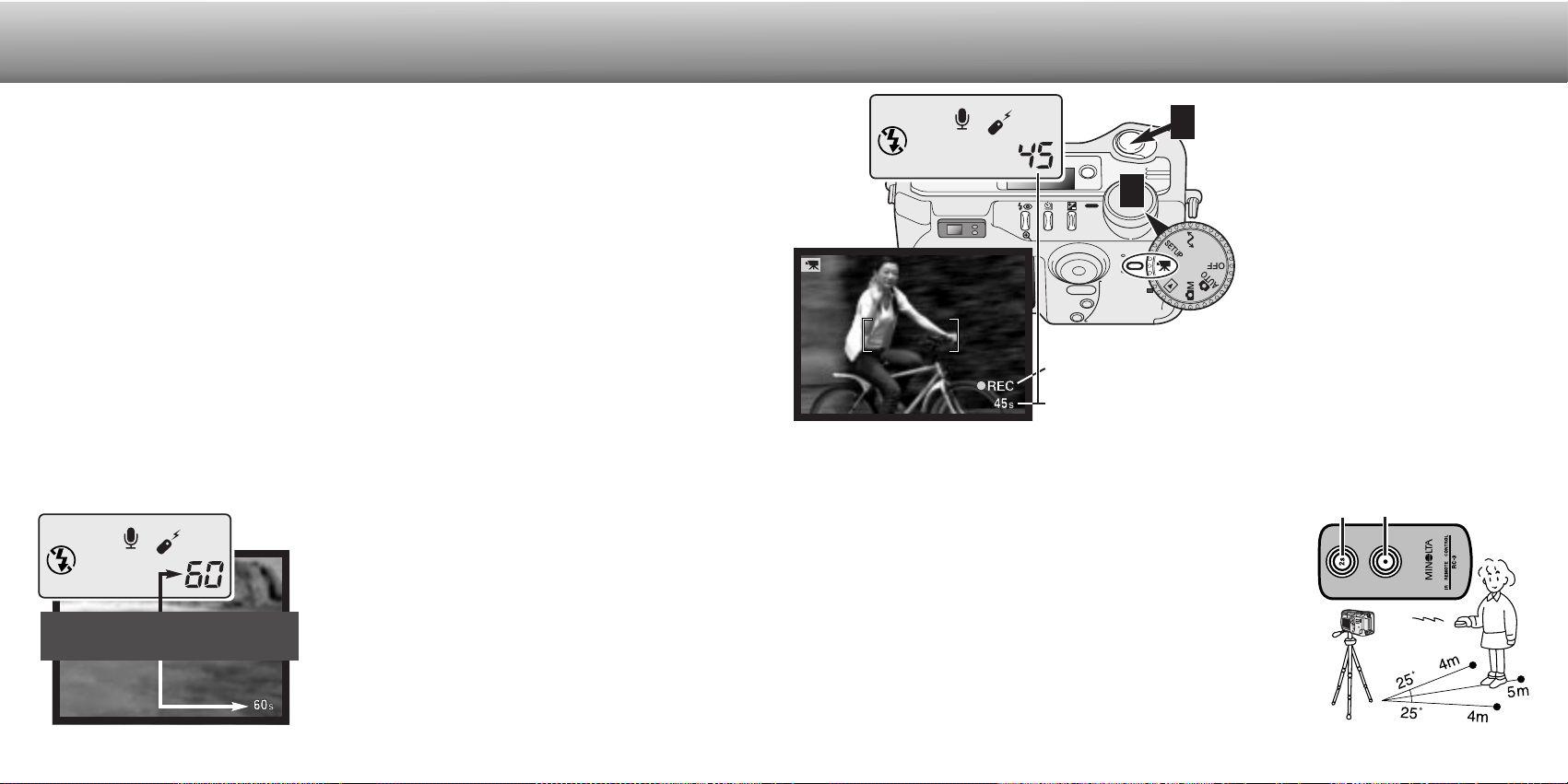
Shooting digital video is simple.
Set the main dial to movie
recording (1). Frame the picture
as described in the basic
recording operation section (p.
23). Press the shutter-release
button partway down to lock the
focus and exposure. Press the
shutter-release button all the way
down and release to start
recording (2). The zoom and focus
are fixed during recording. The
camera will continue to record
until the recording time is used or
the shutter-release button is
pressed again. When recording,
the data panel and monitor frame
counters will count down the
remaining time.
The RC-3 remote control (sold separately) can be used to
record movie clips up to 5m (16ft) away. Simply point the
remote control toward the camera and use the release or
delay button to start and stop the recording.
When using the release button (1), the self-time lamp will
blink once before the camera starts to record; when using
the delay button (2), the self-timer lamp will blink for two
seconds before recording. The lamp will glow to indicate
the camera is recording. Both buttons will stop the camera
instantly when pressed. The remote control may not
operate with backlit subjects or under fluorescent light.
64
This camera can record up to sixty seconds of digital video with sound. The motion
JPEG image is 320 X 240 pixels (QVGA). The effective image area is 304 X 240 pixels;
two thin lines will appear to the left and right of the image when played back. Under
certain conditions less than sixty seconds of digital video may be recorded.
Total recording time with an 16MB CompactFlash card is approximately 70 seconds.
The digital video recording rate is approximately 0.23MB per second. Actual
CompactFlash card capacity depends on the subject and the number of still images
captured.
In movie recording, some functions can be used, some are fixed, and some are
disabled. Exposure compensation (p. 46) and macro mode (p. 28) can be used. The
focus mode is set to auto focus; the autofocus area is set to wide; the exposure mode
is set to program; camera sensitivity and white balance is set to auto. The flash and
digital zoom is disabled. This mode has no menu controls.
MOVIE RECORDING
MOVIE RECORDING
Before recording, the data-panel and monitor frame
counters will show the maximum time in seconds
can be recorded with the next movie clip. A
maximum of 60 seconds will be displayed until the
amount of remaining time falls below one minute,
then the remaining number of seconds that can be
recorded will be displayed.
Total recording time for the
next movie clip
2
1
Countdown in seconds
Recording indicator
1
2
65
RECORDING MOVIES WITH THE RC-3 REMOTE CONTROL
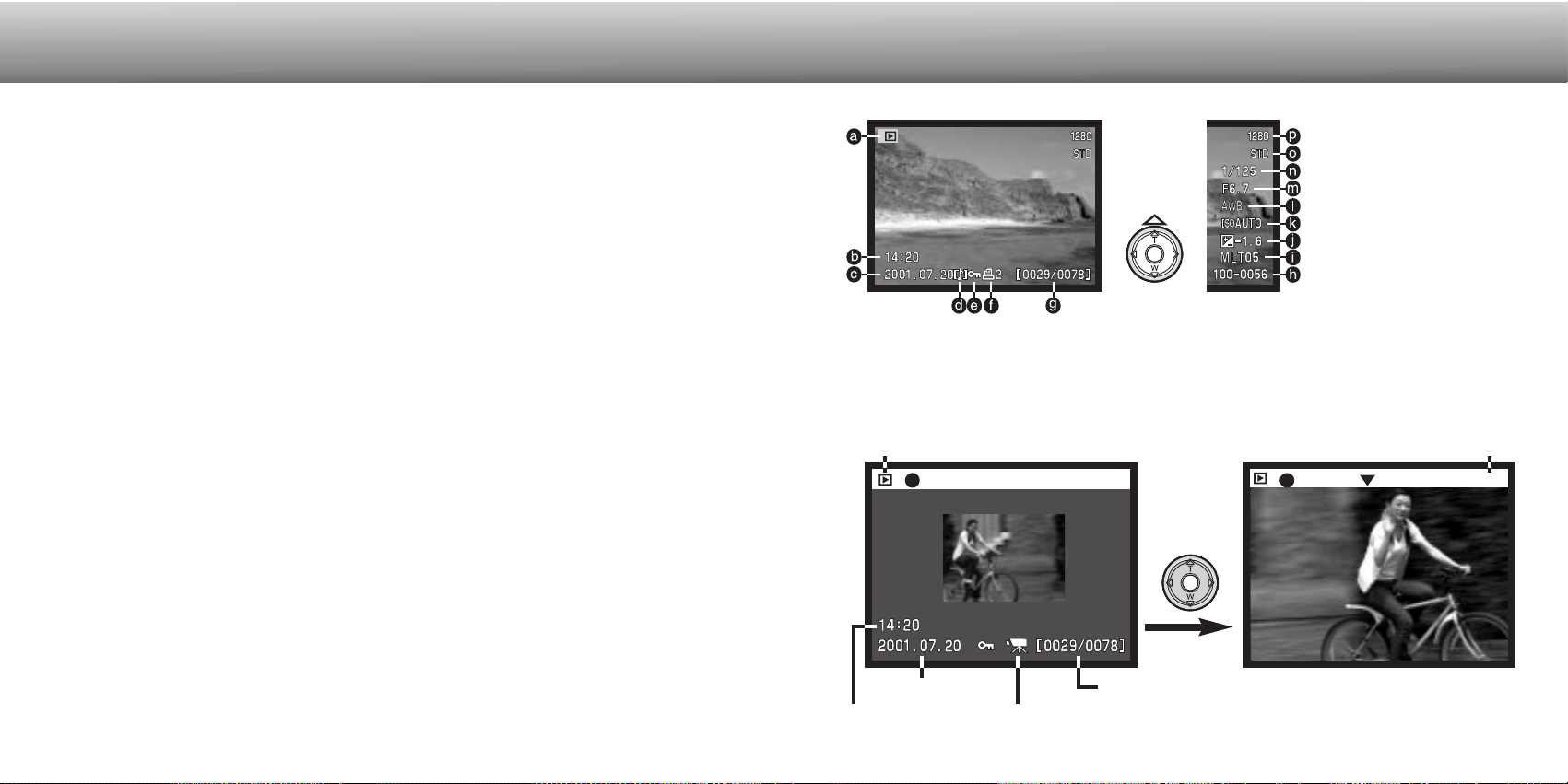
66 67
PLAYBACK MODE
PLAYBACK MODE
VIEWING AND EDITING IMAGES
This section contains detailed information on the camera’s playback functions and
operation. Read the sections pertaining to your interest and need. The viewing pictures,
viewing movies, deleting images (p. 68 - 69), the navigating the playback-mode menu
(p. 72), and frame-selection screen (p. 81) sections cover the use of most of the fea-
tures for viewing and editing images. The navigating the playback-mode menu section
is followed by detailed descriptions of the settings.
SINGLE-FRAME PLAYBACK DISPLAY
MOVIE PLAYBACK DISPLAY
Frame number/ total number of images in folder
Date of recording
Time of recording Movie icon
Mode indicator
Playback time
Play Pause Stop 23s
c. Date of capture
g. Frame number/
total number of images
e. Lock icon (p. 75)
f. Print icon (p. 78)b. Time of capture
a. Mode indicator
d. Voice-memo icon (p. 43)
To view the
shooting
data, press
the up key.
To view the
movie,
press the
controller.
p. Image size (p. 40)
o. Image quality (p. 41)
n. Shutter speed
m. Aperture value
l. White balance setting
(p. 54)
k. Camera sensitivity (ISO)
setting (p. 57)
j. Degree of exposure
compensation (p. 46)
i. Folder name (p. 100)
h. Folder number -
image file number
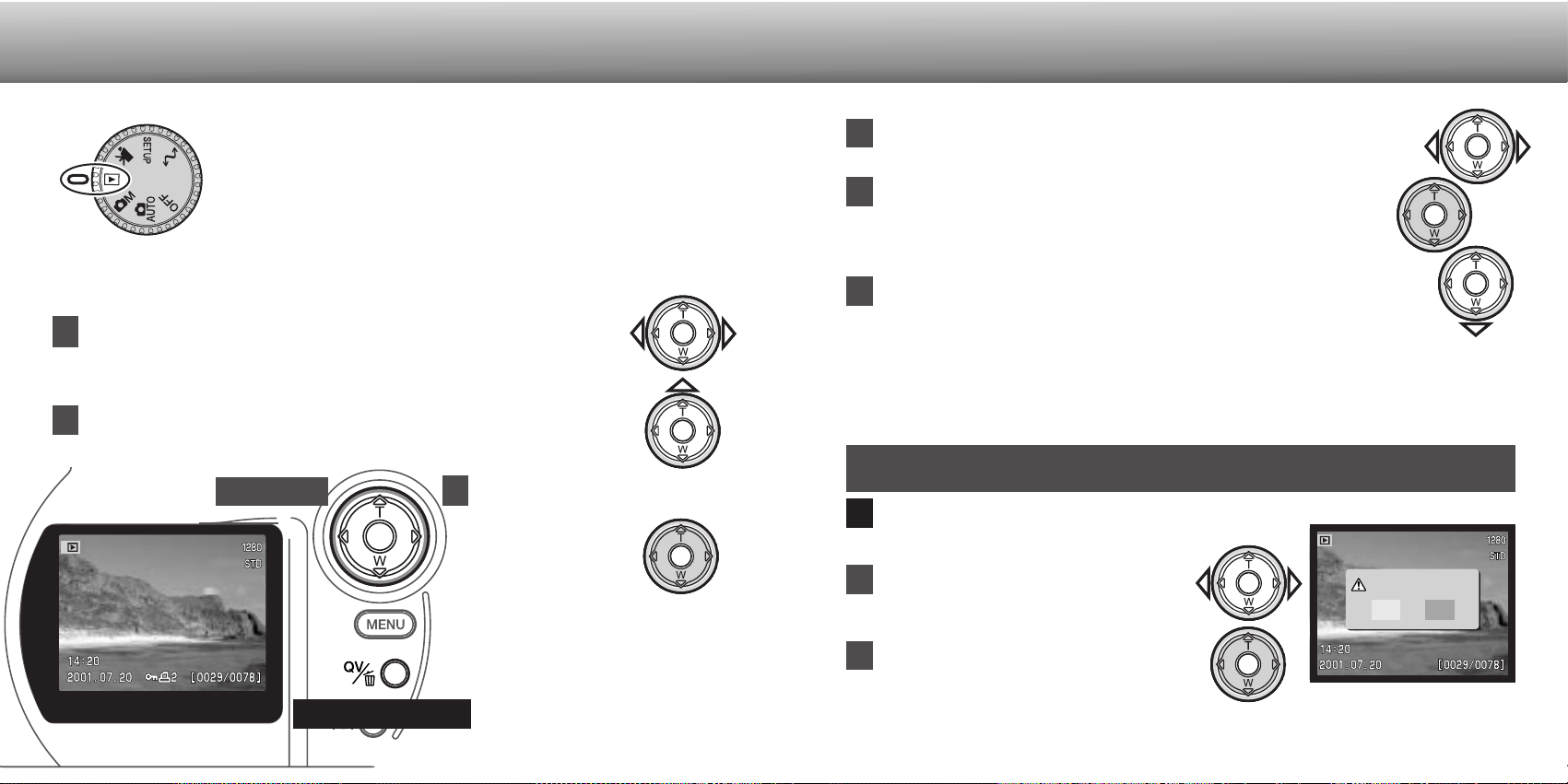
To delete a displayed image, press the QV/delete button.
• A confirmation screen will appear.
1
Still images and movie clips can easily be viewed and edited in
playback mode. To set the camera to view images, turn the mode
dial to the playback position (1).
Simply use the controller to scroll through the pictures on the
CompactFlash card. Images are displayed with date, frame
number, voice memo, printing status, and lock status information.
Still images can be displayed with shooting data. The first frame of each movie clip is
shown; a movie clip is indicated by the movie icon displayed with a thumbnail of the
first frame.
QV/delete button
In playback mode, the displayed image or movie clip can be deleted. When selecting
an image for deletion, a confirmation screen will appear before the operation is
executed.
2
2
3
Use the left/right keys of the controller to scroll through the images.
Press the controller to delete the image.
VIEWING PICTURES
Once deleted, an image cannot be recovered.
Care should always be taken when deleting images.
DELETING IMAGES
3
Press the up key to display the image’s shooting data.
• The left/right keys are disabled when the shooting data is displayed. Press
the down key to return to the playback mode.
Use the left/right keys to highlight “YES.”
• “NO” will cancel the operation.
69
PLAYBACK MODE
1
VIEWING MOVIES
Use the left/right keys of the controller to display the movie clip to be
viewed.
Press the center of the controller to play back the clip.
• Pressing the controller during playback will pause the movie clip;
pressing the controller again will resume the playback.
• When the movie clip finishes, the first frame will be displayed.
To cancel the playback of a movie, press the down key of the controller.
1
2
3
Controller
Confirmation screen
Delete this frame?
NoYes
4
To play back a voice memo
accompanying a still image,
press the center of
the controller.
• A note icon indicates
if the image has an
audio track.
• To cancel the audio playback,
press the down key.
68
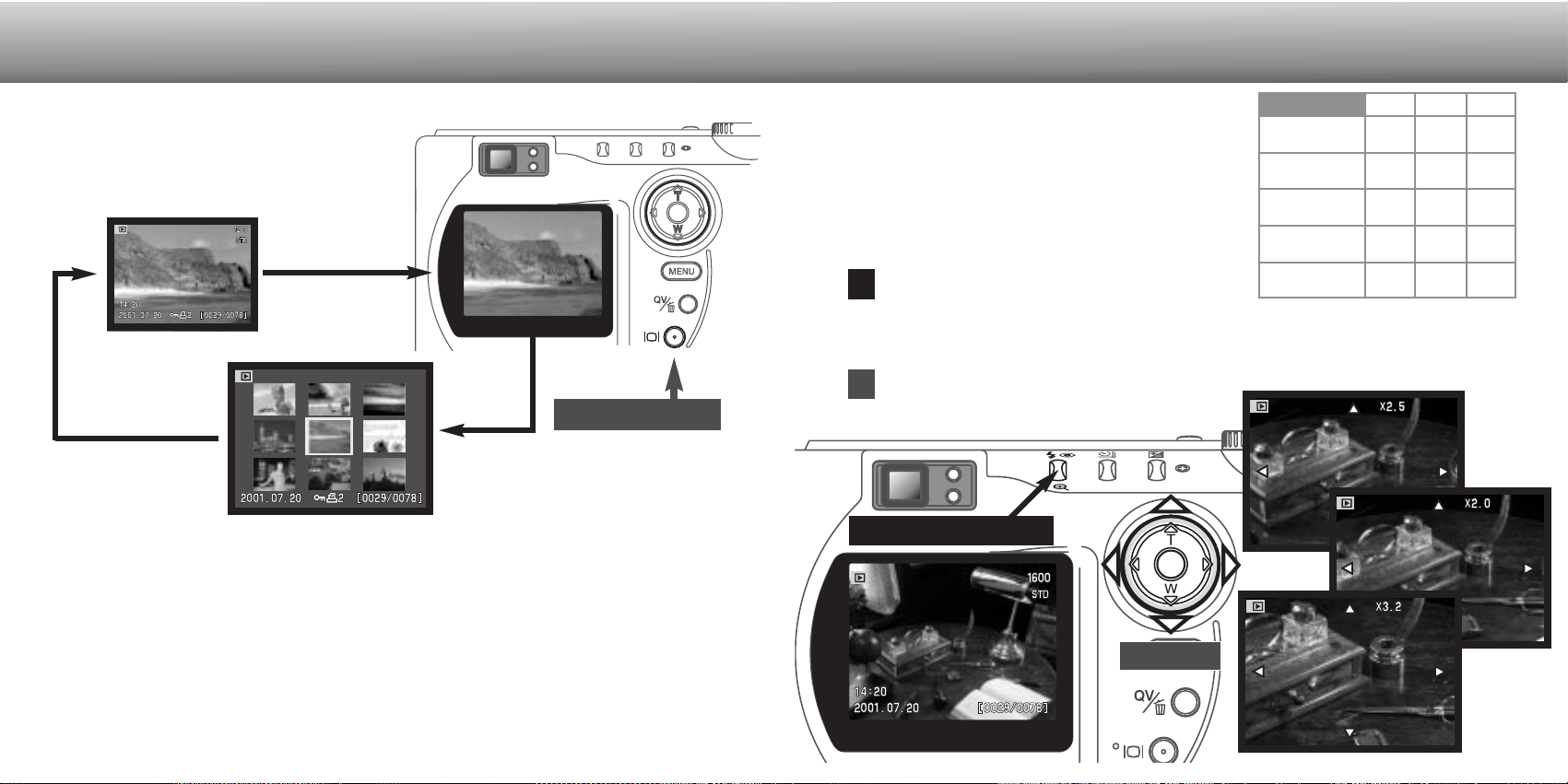
71
Full display
Index playback
In index playback, the left/right keys of the controller will move the yellow border to the
next or the previous image. When the image is highlighted with the border, the date of
recording, voice memo icon, the lock and printing status, and the frame number of the
image are displayed at the bottom of the screen. The highlighted image can be deleted
using the QV/delete button (p. 69), or an accompanying voice memo can be played by
pressing the controller. When the display information button is pressed again, the
highlighted image will be displayed in the single-frame playback mode. A nine or four
image index can be displayed. The index-playback format can be changed in the basic
section of the playback-mode menu (p. 72).
70
PLAYBACK MODE
ENLARGED PLAYBACK
With the image to be enlarged displayed, press
the magnification button.
• The degree of magnification is displayed on the LCD monitor.
• Each time the magnification button is pressed, the image is enlarged in a maximum of
three steps. After the final step, the image is displayed at the original size.
When enlarged, the four-way keys of the
controller can scroll the image.
1
2
Controller
In single-frame playback, a still image can be
enlarged for closer examination. The number of
magnification steps is dependent on the pixel size
of the recorded image. With 640 X 480 size images,
only one step is available. Super fine images cannot
be enlarged.
1
st
2
nd
3
rd
2048 X 1536
1600 X 1200
1280 X 960
640 X 480
2X
2X
2X
2.5X
2.5X
3.2X
3.2X
2.5X
2X
3.2X
– –
1024 X 768
(Digital zoom)
2.5X 3.2X2X
Magnification button
The display button controls the display
format. Each time the button is pressed, the
display cycles through to the next format:
full display, image only, index playback.
Image only
DISPLAY BUTTON - PLAYBACK MODE
Display button
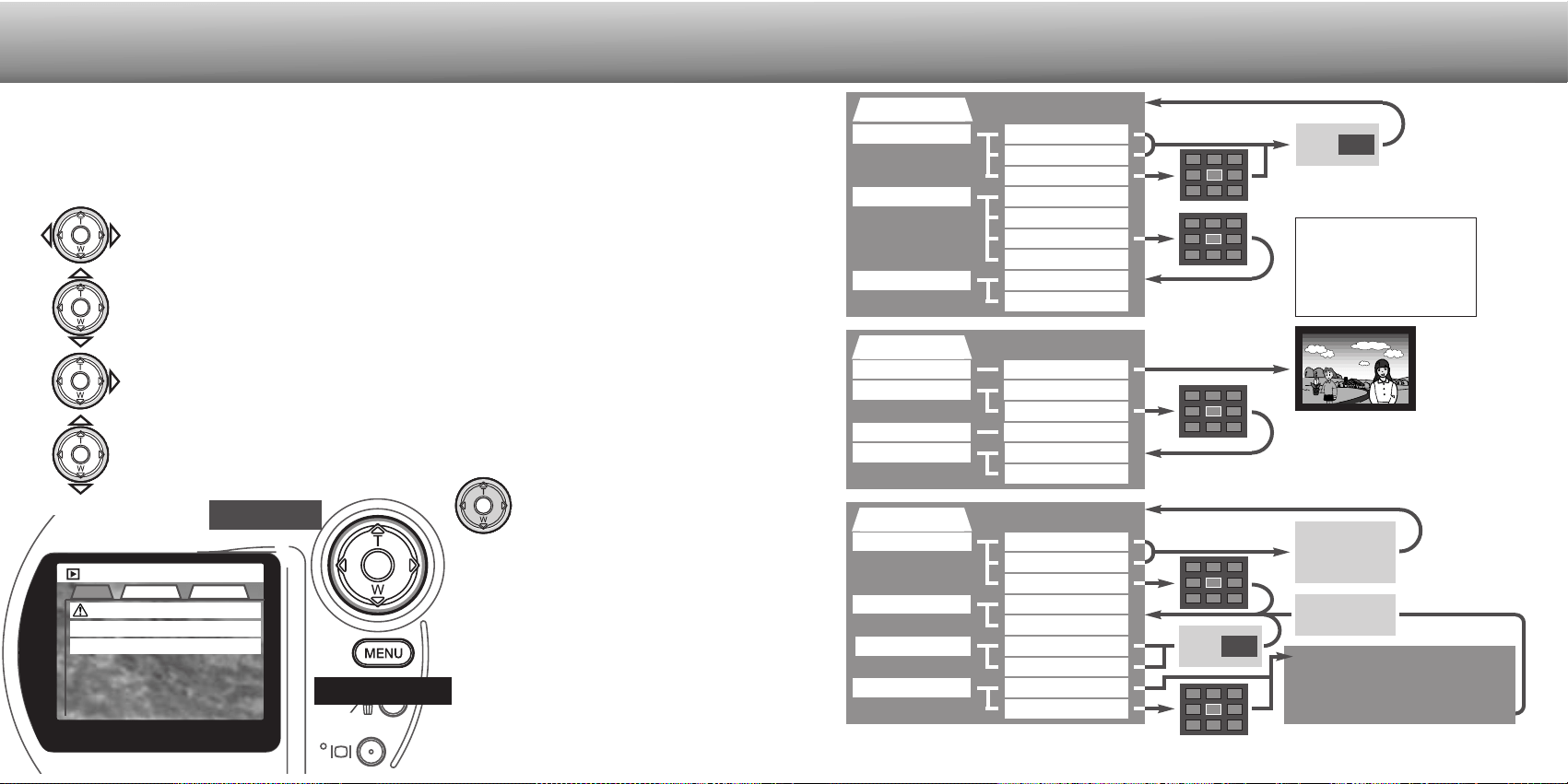
Play
Basic Custom1 Custom2
Delete
Lock
Index format
–
–
9 frames
72 73
PLAYBACK MODE
Basic
Delete
Lock
Index format
This frame
All frames
Marked frames
This frame
All frames
Marked frames
9 frames
4 frames
Custom 2
Print
Index print
Cancel print
Copy
This frame
All frames
Marked frames
No
Yes
All frames - F
All frames - C
This frame
Marked frames
Please refer to the
following sections
for descriptions of
the menu options
and their settings.
Custom 1
Slide show
Playback
Duration
Repeat
Enter
All frames
Marked frames
1 ~ 60 sec.
No
Yes
Unlock frames
Yes No
Number of
copies
Choosing “Yes” will execute
the operation, “No” will cancel
the operation
Pressing the down key of the
controller will cancel the slide
show playback and return to
the playback-mode menu.
Yes No
1
2
3
4
New folder
number
For information
on frame-selec-
tion screens,
see page 81.
Copying to camera memory
Change CF card
Copying to CF card
Copy completed
Menu button
Controller
Activate the playback-mode menu with the menu button. The “Basic” tab at the top
of the menu will be highlighted. Use the left/right keys of the controller to highlight
the appropriate menu tab; the menus will change as the tabs are highlighted.
In playback mode, press the menu button to activate the menu. The menu button also
turns off the menu after making settings. The four-way keys of the controller are used
to move the cursor in the menu. Pressing the center of the controller will enter a
setting.
When the desired menu section is displayed, use the up/down keys to scroll through
the menu options. Highlight the option whose setting needs to be changed.
• When scrolling in one direction, the cursor will jump between the top and bottom of
the menu.
With the menu option to be changed highlighted, press the right controller key; the
settings will be displayed with the current setting highlighted.
• To return to the menu options, press the left key.
Press the controller to
select the highlighted
setting.
Once a setting has been
selected, the cursor will return to
the menu options and the new
setting will be displayed.
Changes can continue to be
made. To return to the playback
mode, press the menu button.
Use the up/down keys to highlight the new setting.
NAVIGATING THE PLAYBACK-MODE MENU
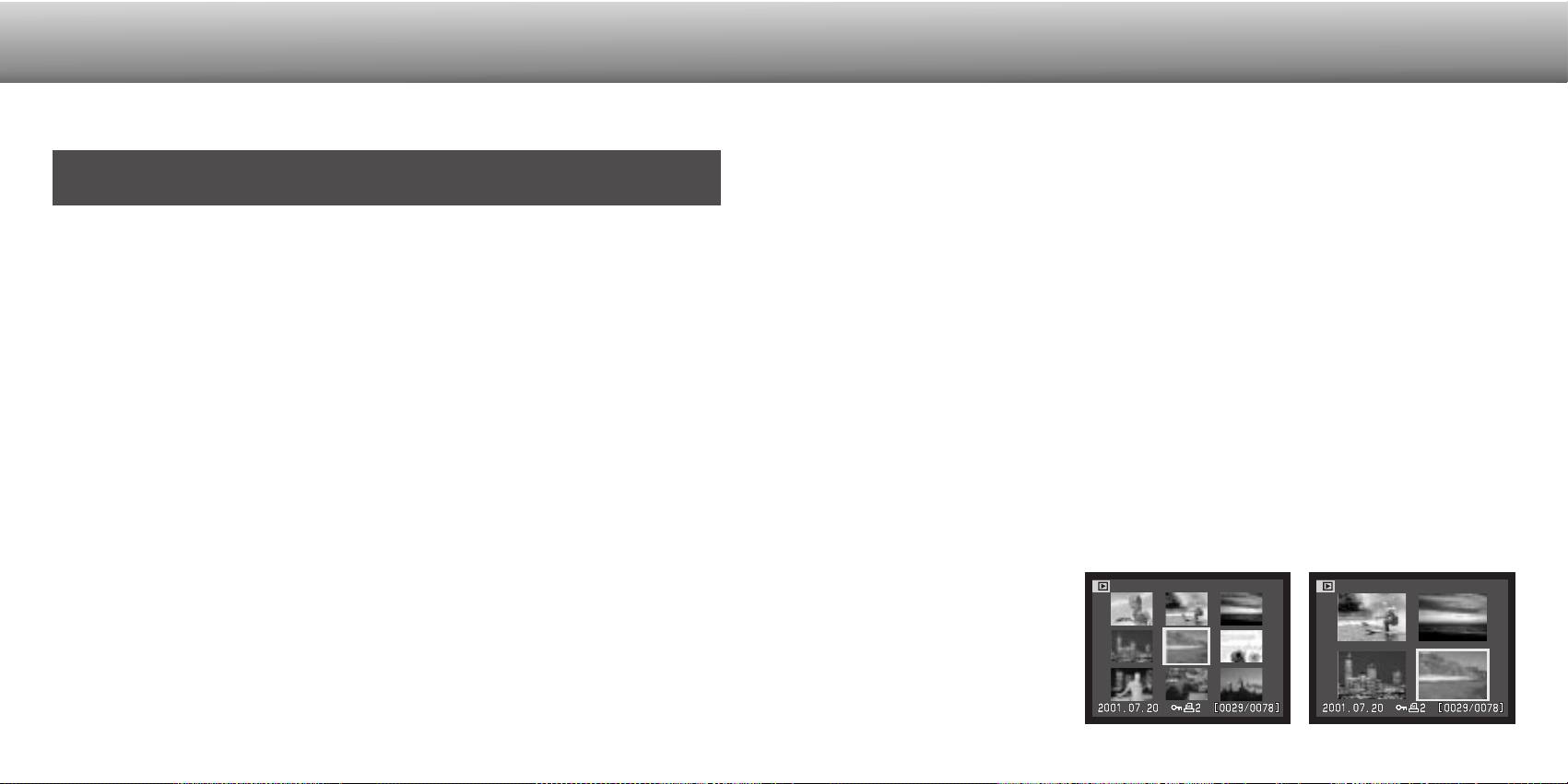
74 75
PLAYBACK MODE
PLAYBACK-MODE MENU - BASIC
Deleting permanently erases the image. Once deleted, an image cannot
be recovered. Care should be taken when deleting images.
Single, multiple, or all images in a folder can be deleted with the playback-mode menu.
Before an image is deleted, a confirmation screen will appear; choosing “Yes” will
execute the operation, “No” will cancel the operation. To delete images in other folders,
the folder must first be selected in the custom 1 section of the setup menu (p. 84). The
delete option has three settings:
This frame - The image displayed or highlighted in playback mode will be deleted.
All frames - All unlocked images in the selected folder will be deleted.
Marked frames - To delete multiple images. When this setting is chosen, the frame-
selection screen will be displayed. Use the left/right keys of the controller to highlight
the first image to be deleted. Pressing the up key will mark the image with the garbage-
can icon. To deselect an image for deletion, highlight it with the yellow border and
press the down key; the garbage-can icon will disappear. Continue until all the images
to be deleted are marked. Press the controller to continue (the confirmation screen will
appear), or press the menu button to cancel the operation and return to the playback
menu. On the confirmation screen, highlighting and entering “Yes” will delete the
marked images.
The delete function will only erase unlocked images. If an image is locked, it must be
unlocked before it can be deleted.
Single, multiple, or all images in a folder can be locked. A locked image cannot be
deleted by either the playback-mode menu functions or the QV/delete button. Important
images should be locked. To lock images in other folders, the folder must first be
selected in the custom 1 section of the setup menu (p. 84). The lock option has four
settings:
This frame - The image displayed or highlighted in playback mode will be locked.
All frames - All images in the folder will be locked.
Marked frames - To lock or unlock multiple images. When this setting is chosen, the
frame-selection screen will be displayed. Use the left/right keys of the controller to
highlight the image to be locked. Pressing the up key will mark the image with the key
icon. To unlock an image, highlight it with the yellow border and press the down key;
the key icon will disappear. Continue until all the images to be locked are marked.
Press the controller to lock the marked frames, or press the menu button to cancel the
operation and return to the playback menu.
Unlock frames - All images in the folder will be unlocked.
Locking an image will protect it from a delete function. However, the formatting function
(p. 86) will erase all images on a CompactFlash card whether locked or not.
The index format option
allows the index playback to
be displayed with four or
nine images. This affects all
index displays.
DELETING IMAGES
CHANGING THE INDEX PLAYBACK FORMAT
LOCKING IMAGES
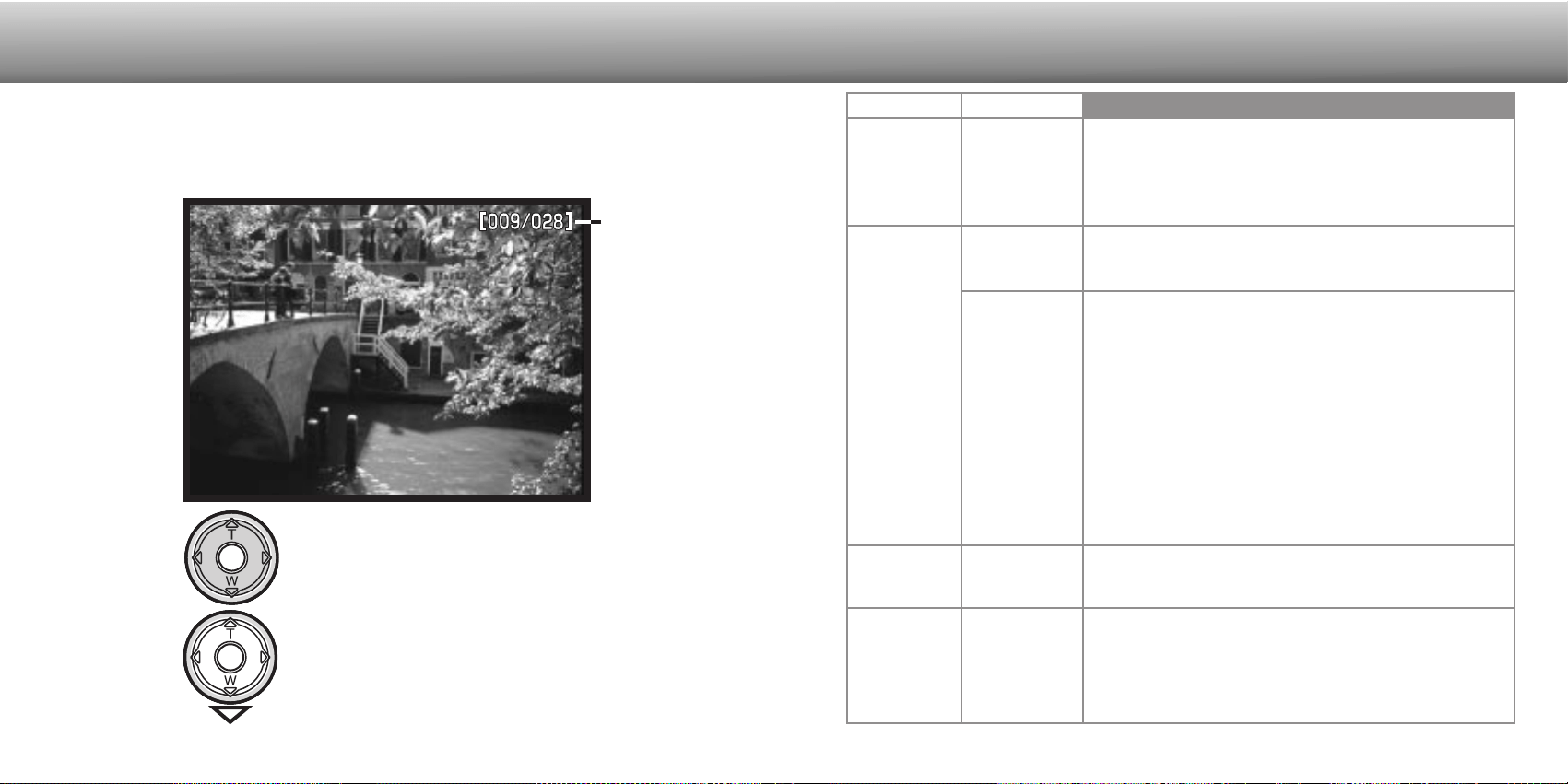
To select all the images in the folder to be displayed in the
slide-show presentation.
The custom 1 section of the playback-mode menu controls the slide-show function.
This function automatically displays all still images in a folder in order.
76 77
PLAYBACK MODE
PLAYBACK-MODE MENU - CUSTOM 1 (SLIDE SHOW)
Slide
show
Menu options
Playback
Duration
Settings
Enter
Repeat
All frames
Marked
Frames
1 - 60s.
Yes / No
To select specific images in the folder to be displayed in
the slide-show presentation. When this setting is chosen,
the frame-selection screen will be displayed. Use the
left/right keys of the controller to highlight the image to be
included in the presentation. Pressing the up key will mark
the image with a check icon. To deselect a marked image,
highlight it with the yellow border and press the down key;
the check icon will disappear. Continue until all the images
have been edited. Press the controller to set the marked
frames, or press the menu button to cancel the operation
and return to the playback menu.
To select the period each image will be displayed during
the slide show.
To start the slide-show presentation. Pressing the center of
the controller will pause the presentation. During the slide
show, press the down key of the controller to stop the pre-
sentation and return to the playback-mode menu.
Selecting “Yes” will cause the slide show to repeat until it is
canceled using the down key of the controller. “No” will end
the slide show presentation and return to the playback-
mode menu when all the images have been displayed
once.
Frame counter
/ total number
of images in
the presenta-
tion.
Press the controller to pause and restart
the presentation.
To cancel the presentation, press the
down key of the controller.
78 79
PLAYBACK MODE
PLAYBACK-MODE MENU - CUSTOM 2
The print menu option is used to set an order for standard prints from images in a
specific folder. Single, multiple, or all images can be printed. If a CompactFlash card
has multiple folders, a printing file must be created for each folder. Folders are selected
in the custom 1 section of the setup menu (p. 84).
This-frame - To create a DPOF file for the image displayed or highlighted in playback
mode.
All-frames - To create a DPOF file for all images in the folder specified in the custom 1
section of the setup menu (p. 84).
Marked frames - To chose a group of images to be printed or when the number of
copies for each image varies. When selected, the frame selection screen will appear.
Use the left/right keys of the controller to highlight an image to be printed. Pressing the
up key will mark the image with the printer icon. The number next to the icon indicates
the number of copies of that image will be printed. Pressing the up key will increase the
number of copies, pressing the down key will decrease the number. A maximum of nine
copies can be ordered. To deselect an image for printing, press the down key until the
the number of copies reaches zero and the printer icon disappears. Continue until all
the images to be printed are marked. Press the controller to create the DPOF file, or
press the menu button to cancel the operation and return to the playback menu.
ABOUT DPOF
This camera is supported by DPOF™ version 1.1. The DPOF (Digital Print Order
Format) allows direct printing of still images from digital cameras. After the DPOF file is
created, the CompactFlash card is simply taken to a photofinishing service or inserted
into the CompactFlash-card slot of DPOF compatible printers. When a DPOF file is
created, a misc. folder is automatically made on the CompactFlash card to store it (p.
100).
CREATING A DPOF PRINT ORDER
When the this-frame or all-frames setting is chosen, a screen will appear requesting the
number of copies of each image; a maximum of nine copies can be ordered. Use the
up/down keys of the controller to set the number of copies desired. If the all-frames
setting was used to create a print order, any additional images saved afterwards in the
folder will not be included in the order.
DPOF files cannot be created for images captured with another camera. DPOF data
created on other cameras will not be recognized.
The cancel-print option deletes the DPOF files. When the setting is selected, a
confirmation screen will appear; choosing and entering “Yes” will execute the operation
and cancel the print order. After the pictures have been printed, the DPOF file will still
remain on the CompactFlash card and must be canceled manually.
All frames C - To cancel all printing files on the CompactFlash card.
All frames F - To cancel the printing file in the folder. Folders are selected in the
custom 1 section of the setup menu (p. 84).
CANCELING A DPOF PRINT ORDER
ORDERING AN INDEX PRINT
To create an index print of all the images in the folder,
select “Yes.” To cancel an index print, simply change the
setting to “No.” If an index-print order is created, any
additional images saved afterwards in the folder will not be
included in the index print. The number of images printed
per sheet differs between printers. The information printed
with the thumbnails can vary.
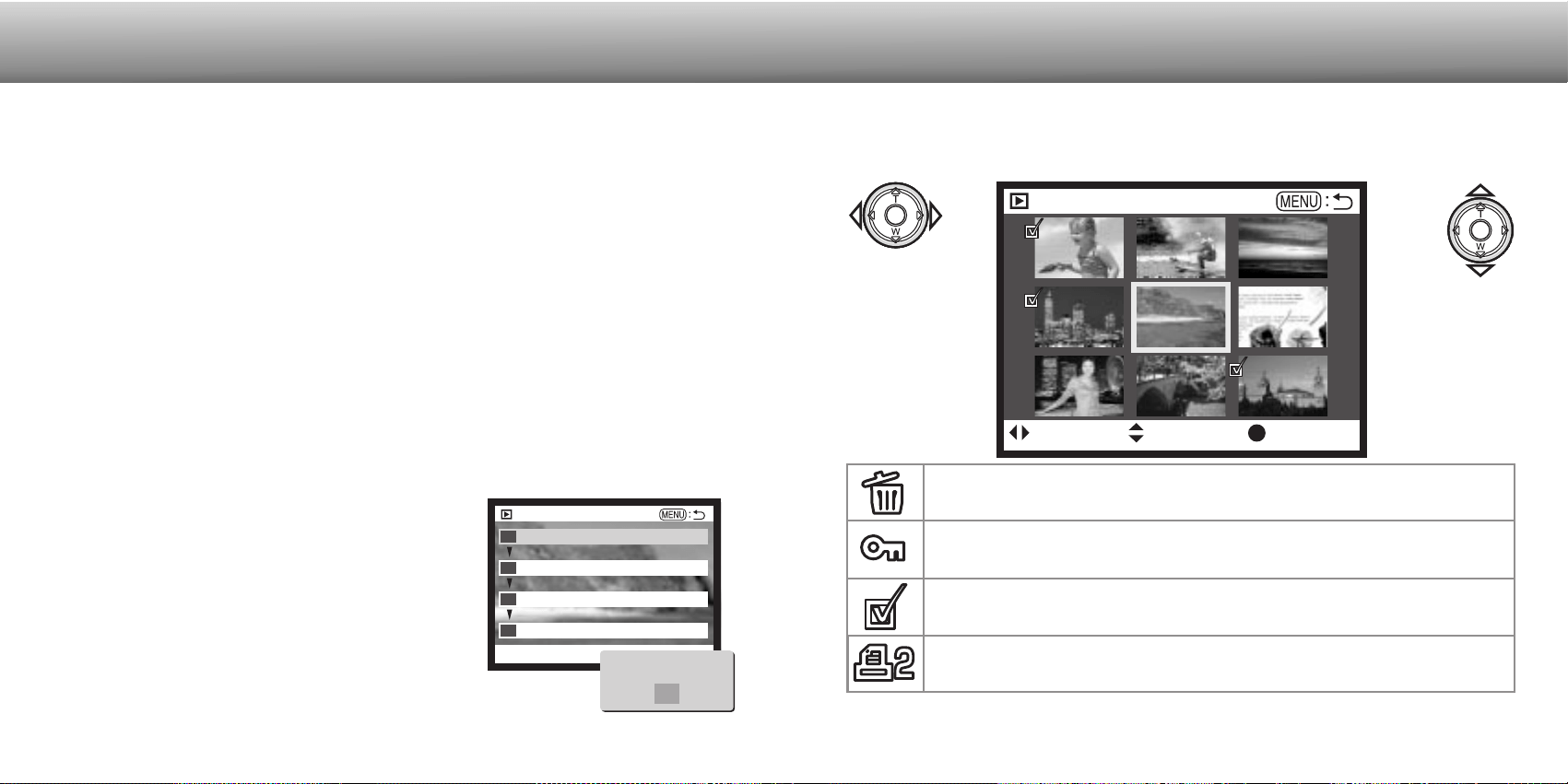
Image files can be copied from one CompactFlash card to another. Up to 8MB of data
can be transferred. Every time the copy function is used, a new folder is automatically
created for the images (p. 100). Images with voice memos are copied with their audio
files. Copies of locked images are unlocked (p. 75). DPOF information is not copied.
This frame - To copy the image displayed or highlighted in playback mode.
Marked frames - To copy single or multiple images. When selected, the frame-
selection screen will appear; highlight the image to be copied with the yellow border
and then press the up key of the controller to mark it with the check icon. To deselect
an image to be copied, highlight the selected image and press the down key; the check
icon will disappear. Continue until all the images to be copied are marked. Press the
controller to continue, or press the menu button to cancel the operation and return to
the playback menu.
When the controller is pressed, a screen with four messages will be displayed; the
messages are highlighted as the copying procedure is executed. When the change-CF-
card message is highlighted, remove the camera’s CompactFlash card and insert the
card to which the image should be copied. Press the center of the controller to
continue. Wait until the copy-completed message is highlighted. A new screen will
appear to indicate the name of the new folder
containing the copied images; press the controller to
return to the playback menu.
If too many images have been selected, a warning will
appear and the copy routine will be canceled. Divide
the number of images into two or three batches. The
copy-unsuccessful message will appear when one or all
of the images could not be copied. Check the second
CompactFlash card to see which files were copied and
then repeat the procedure for the images that could not
be transferred.
8180
PLAYBACK MODE
COPYING IMAGES
FRAME-SELECTION SCREEN
When a marked-frames setting is chosen on a menu, the frame selection screen will
appear. This screen allows multiple images to be chosen. The index format of the
screen can be changed in the basic section of the playback-mode menu (p. 72).
The left/right keys
of the controller
move the yellow
border to select
the image.
The up key of the
controller selects
the frame; when
selected, an icon
will appear next to
the image. The
down key will
deselect the image
removing the icon.
Menu button
Cancels the
screen and any
operation made.
The garbage-can icon indicates the image is selected for deletion.
The key icon indicates the image is locked or selected to be
locked.
The check icon indicates the image is selected for the slide show
or to be copied to another CompactFlash card.
The printer icon indicates the image is selected for printing. The
number next to the icon shows the number of copies requested.
Play
: select : confirm : enter
Play Copy
Enter
Copying to camera memory
1
2
3
4
Change CF card
Copying to CF card
Copy completed
<101MLTCP>
OK
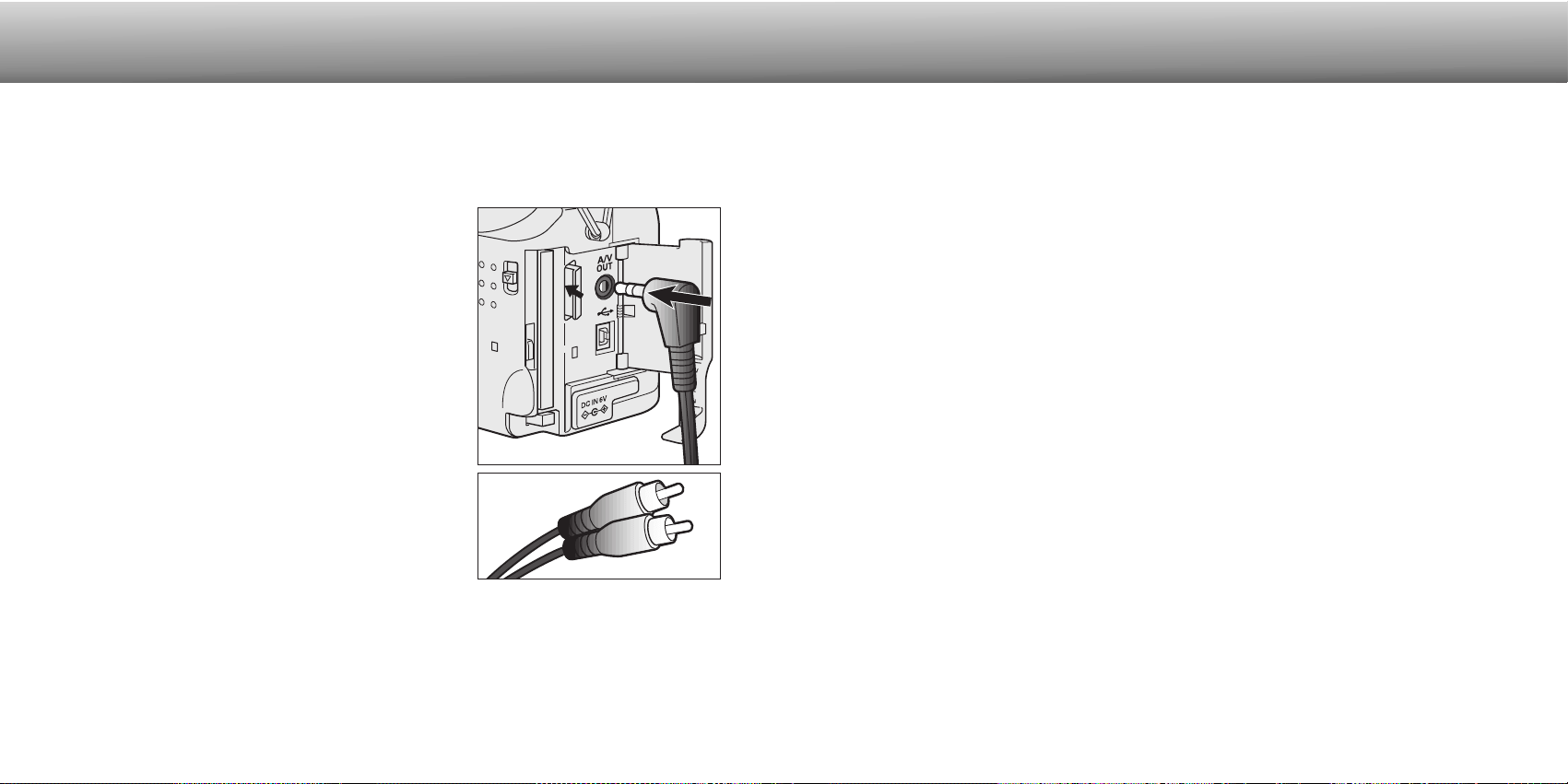
View images as described in the playback section.
82 83
The setup mode is used to control the camera’s functions and operation as well as to
select image folders. The navigating the setup menu section (p. 84) covers the opera-
tion of the menu. The section is followed by detailed descriptions of the settings.
SETUP MODE
CONTROLLING THE
CAMERA’S OPERATION
VIEWING IMAGES ON A TELEVISION
It is possible to view camera images on your television. The camera has a video-out
terminal to make the connection using the supplied AV cable. The camera is compatible
with the NTSC and PAL standards. The video-output setting can be checked and set in
the custom 2 section of the setup menu (p. 84).
Turn off the television and the camera.
Insert the mini-plug end of the AV cable into the
camera’s video-out terminal.
Plug the other end of the AV cable into the video
and audio input terminals on the television.
• The yellow plug is for the video output. The white
plug is for the monaural audio output.
• The audio output will also be heard through the
camera’s speaker while connected to a television.
Turn the television on.
Turn the camera’s mode dial to the playback
position.
• The camera’s monitors will not activate when the
camera is attached to a television. The playback-
mode display will be visible on the television screen.
Change the television to the video channel.
2
1.
2.
3.
4.
5.
6.
7.
3
PLAYBACK MODE
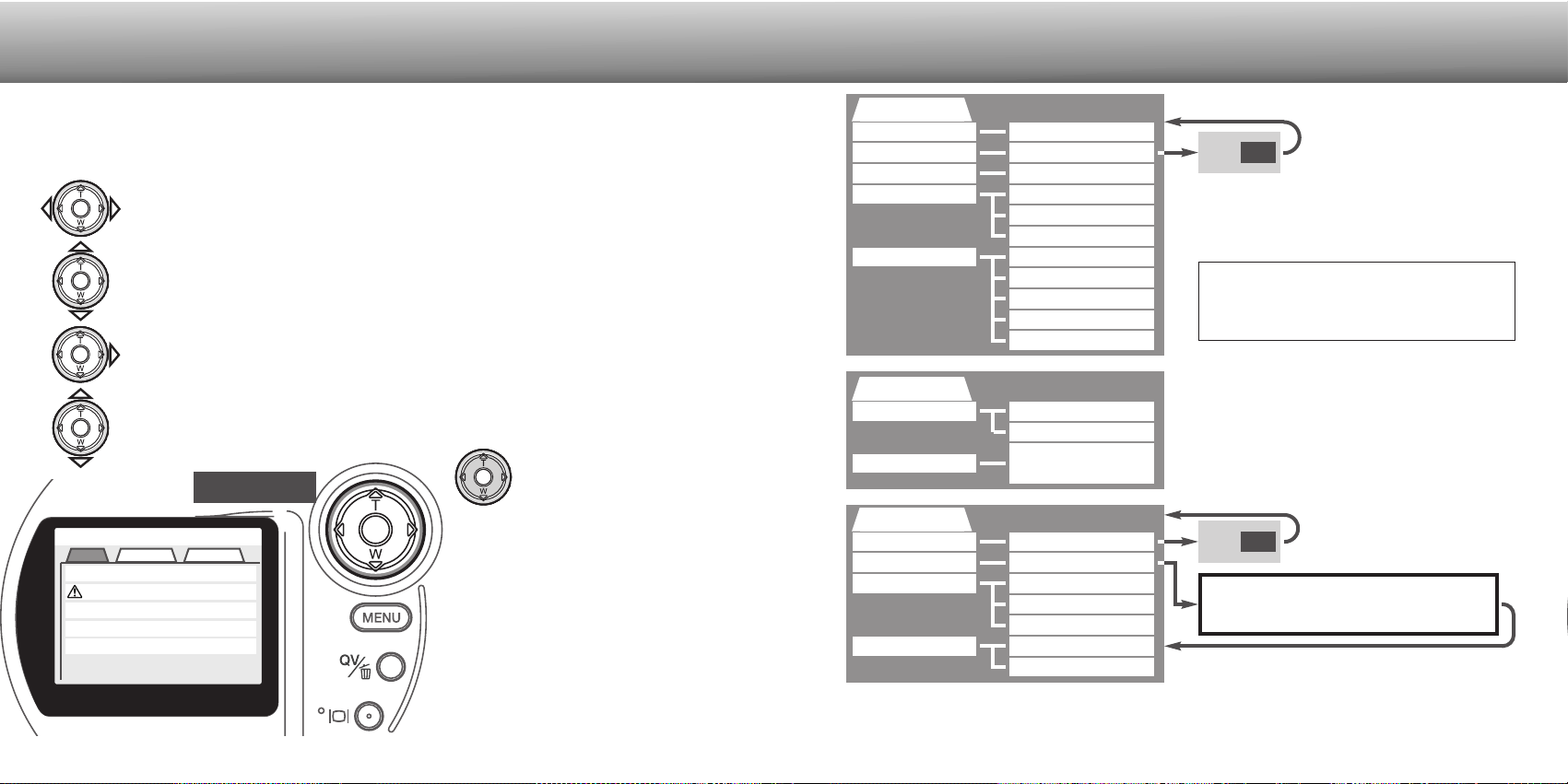
84 85
NAVIGATING THE SETUP MENU
To access the menu, simply turn the mode dial to the setup position. The four-way keys
of the controller are used to move the cursor in the menu. Pressing the controller will
enter a setting.
Once a setting has been
selected, the cursor will return to
the menu options and the new
setting will be displayed. Setting
can continue to be made.
SETUP MODE
Basic
LCDbrightness
Format
1 (low) ~ 5 (high)
Enter
Off
On
English
Deutsch
Custom 2
Reset default
Date/Time set
Date format
Enter
Enter
YYYY/MM/DD
MM/DD/YYYY
DD/MM/YYYY
NTSC
PAL
Please refer to the following sec-
tions for descriptions of the menu
options and their settings.
Custom 1
File # memory
Select folder
No
Yes
w/ sound FX
Yes No
Choosing “Yes” on the confirmation
screens will execute the operation, “No”
will cancel the operation
Power Save
Beep
Language
1, 3, 5, or 10 min
Français
Español
(Folder names)
Video output
Yes No
Year • Month • Day Hour : Minute
Controller
Setup
Basic Custom1 Custom2
LCDbrightness
Format
Power save
Beep
Language
3
–
1 min
On
English
When the menu activates, the “Basic” tab at the top of the menu will be highlighted.
Use the left/right keys of the controller to highlight the appropriate menu tab; the
menus will change as the tabs are highlighted.
When the desired menu section is displayed, use the up/down keys to scroll through
the menu options. Highlight the option whose setting needs to be changed.
• When scrolling in one direction, the cursor will jump between the top and bottom of
the menu.
With the menu option to be changed highlighted, press the right controller key; the
settings will be displayed with the current setting highlighted.
• To return to the menu options, press the left key.
Press the controller to
select the highlighted
setting.
Use the up/down keys to highlight the new setting.
Japanese
86 87
SETUP MODE
SETUP MENU - BASIC
The basic section of the setup menu allows changes to be made to the operation of the
camera as well as the ability to format CompactFlash cards.
LCD MONITOR BRIGHTNESS
The brightness of the LCD monitor can be set in five levels from 1 (low) to 5 (high). As
each setting is highlighted, the monitor will adjust accordingly; the controller must be
pressed to set the highlighted level.
FORMATTING COMPACTFLASH CARDS
When a CompactFlash card is formatted, all data on the card is erased.
The formatting function is used to erase all data on a CompactFlash card. Before for-
matting a CompactFlash card, copy the data to a computer or storage device. Locking
images will not protect them from being deleted when the card is formatted. Always for-
mat the CompactFlash card using the camera; never use a computer to format a card.
When the format option is selected and entered, a confirmation screen will appear.
Choosing “Yes” will format the card, choosing “No” will cancel the formatting operation.
A screen will appear to indicate the card has been formatted; press “OK” to return to
the setup menu.
If the card-not-recognized message appears, the inserted card in the camera may need
to be formatted. A CompactFlash card used in another camera may have to be format-
ted before being used. If the unable-to-use-card message appears, the card is not
compatible with the camera and cannot be formatted.
AUTO POWER SAVE
The camera will turn off the data panel to conserve battery power if no operation is
made within a certain period. The length of this period can be changed to 1, 3, 5, or 10
minutes. The auto-power-save option will not affect the display period of LCD monitor;
it will shut down after 30 seconds. To restore the displays when they shut down, simply
press the shutter-release button.
When the camera is connected to the computer, the auto-power-save period is set to
ten minutes. This period cannot be changed.
BEEP
The audio signal can be turned off or on. The sound effects setting simulates a film
camera when the shutter is released.
LANGUAGE
The language used in the menus can be changed.
88 89
SETUP MODE
SETUP MENU - CUSTOM 1
The custom 1 section of the setup menu controls file number sequencing and the
selection of folders. See page 100 for information on the organization of the folders on
the CompactFlash card
FILE NUMBER (#) MEMORY
When file number memory is selected, if a new folder is created, the first file stored in
the folder will have a number one greater than the last file saved. If the file number
memory is disabled, the image file name will have a number one greater than the last
image saved in the folder.
If file number memory is active and the CompactFlash card is changed, the first file
saved to the new card will have a number one greater than the last file saved on the
previous card if the new card does not contain an image with a greater file number. If it
does, the file number of the new image will be one greater than the greatest on the
card.
SELECT FOLDER
This option allows the selection of existing folders. After folder is selected, all images
recorded will be placed in that folder. In quick view or playback mode, only the images
in the selected folder can be viewed or edited.
Except for the all-frames-C setting in the custom 2 section of the playback-mode menu,
changes made with menus only affect the images in the selected folder. To make
changes to all images in multiple folders, each folder must be selected and the menu
operation repeated for each folder. Formatting a CompactFlash card erases all folders
regardless if they are selected or not.
Image quality
SETUP MENU - CUSTOM 2
RESET DEFAULT
This function affects all modes. When selected, a confirmation screen will appear;
choosing “Yes” resets the following functions and settings, “No” cancels the operation.
Default Setting Page
Image size
Camera sensitivity (ISO)
Drive mode
Metering mode
Flash mode
Voice memo
Exposure bracket
Standard
2048 X 1536
Auto
Single-frame advance
Multi-segment
Auto flash
Canceled
0.5 Ev
52
56
48
Exposure mode
Focus mode
Focus area
Digital zoom
Program
Autofocus
Wide focus area
On
Exposure compensation 0.0
White balance Auto white balance
Date imprinting
Instant playback
No (Disabled)
No
Color mode Color
22
32
30
41
40
43
44
45
58
46
57
54
59
60
Continued on next page
90 91
SETUP MODE
Sharpness
Index playback format
Duration (Slide Show)
Repeat (Slide Show)
Index print
LCD monitor brightness
Auto-power-save period
Beep
File number memory
Normal
9 frames
5 seconds
No
No (Canceled)
3
1 minute
On
No (Disabled)
Default Setting Page
Color-saturation
Contrast Normal
Normal
60
60
60
75
76
76
79
86
87
87
88
SETTING THE DATE AND TIME
It is important to accurately set the clock. When a still image or a movie clip is record-
ed, the date and time of the recording are saved with the image and are displayed dur-
ing playback or can be read with the DiMAGE Image Viewer Utility software included
on the CD-ROM. The camera’s clock is also used with date imprinting (p. 44).
When the Date/Time-set option is selected and entered,
the date/time screen will be displayed. The left/right
keys of the controller are used to select the item to be
changed and the up/down keys are used to change the
value. From left to right, the screen shows the year,
month, day, hour, and minute. When the date and time
have been adjusted, set the clock by pressing the cen-
ter of the controller.
Enter
Setup
Date/Time set
2001 7 20 16 33:..
SETTING THE DATE FORMAT
The date format that is displayed or imprinted can be changed: YYYY/MM/DD (year,
month, day), MM/DD/YYYY (month, day, year), DD/MM/YYYY (day, month, year).
Simply select the format and enter it by pressing the center of the controller; the new
format will be displayed on the menu.
VIDEO OUTPUT
Camera images can be displayed on a television (p. 82). The video output can be
changed between NTSC and PAL. North America uses the NTSC standard and Europe
uses the PAL standard. Check which standard is used in your region to play back
images on your television set.
On February 20th, 1962, John Glenn became the first American to orbit the Earth.
On board his Friendship 7 spacecraft was a Minolta Hi-matic camera to record that
historic event. The 4 hour, 55 minute, and 23 second flight orbited the Earth three
times at an average speed of 28,000 kph (17,500 mph).
Mr. Glenn visited our Sakai camera factory in Japan on
May 24th, 1963 to plant a palm tree to celebrate the occa-
sion. The palm tree is still in the courtyard of the factory
and stands over eight meters tall (26ft).
The camera? It was not lost. It is on display at the
Smithsonian Institution’s National Air and Space
Museum in Washington D.C. This and other
objects from John Glenn’s Friendship 7 Mercury
flight can be found in galley 210, “Apollo to the
Moon.”
Minolta History
92 93
DATA-TRANSFER
MODE
CONNECTING TO A COMPUTER
Users with Windows 98 or 98 second edition will need to install the driver software on
the included CD-ROM (p. 96). Users with Mac OS 8.6 will need to download and install
a USB mass storage device from the Apple web site (p. 99). There have been no
reports of compatibility problems with Apple G4 computers with Mac OS 10.0.3 or earli-
er.
Read this section carefully before connecting the camera to a computer. Details on
using and installing the DiMAGE Image Viewer Utility software are found in the sup-
plied software manual. The DiMAGE manuals do not cover the basic operation of com-
puters or their operating systems; please refer to the manual supplied with your com-
puter.
For the camera to be connected directly to the computer and used as a mass storage
device, the following requirements must be met:
DATA-TRANSFER MODE
QUICKTIME 5.0 SYSTEM REQUIREMENTS
IBM PC / AT Compatible
Pentium-based computer
Windows 95, 98, 98SE, NT, Me,
or 2000 Professional.
32MB or more of RAM
IBM PC / AT Compatible Macintosh
Preinstalled Windows 98, 98SE, Me, or
2000 Professional operating systems
Preinstalled Mac OS 8.6 ~ 9.1
USB port as standard interface
ARCSOFT PHOTOIMPRESSION 3.0 SYSTEM REQUIREMENTS
IBM PC / AT Compatible
Pentium-based computer
Windows 95, 98, 98SE, NT 4.0, Me,
or 2000 Professional.
125MB or more of hard disk space
32MB or more of RAM
A monitor with 32000 colors or more
CD-ROM drive
Macintosh
Power PC
Mac OS 8.5 - 9.1
120MB or more of hard disk space
32MB or more of RAM
(64MB or more is recommended)
A monitor with 32000 colors or more
CD-ROM drive
To view images correctly on your computer, the monitor’s color space may need to be adjust-
ed. Refer to your computer manual on how to calibrate the display to the following require-
ments: sRGB, with a color temperature of 6500K, and a gamma of 2.2.
Camera Notes
PhotoImpression is an application software for still images. To install PhotoImpression,
follow the instructions in the read-me folder and installer.
QuickTime is used for viewing movie clips
and playing voice-memo audio files. To
install QuickTime, follow the instructions in
the read-me folder and in the installer.
Macintosh users can download the latest
version of QuickTime free of charge from
the Apple Computer web site:
http://www.apple.com.
Sound Blaster or compatible sound card
DirectX 3.0 or later recommended
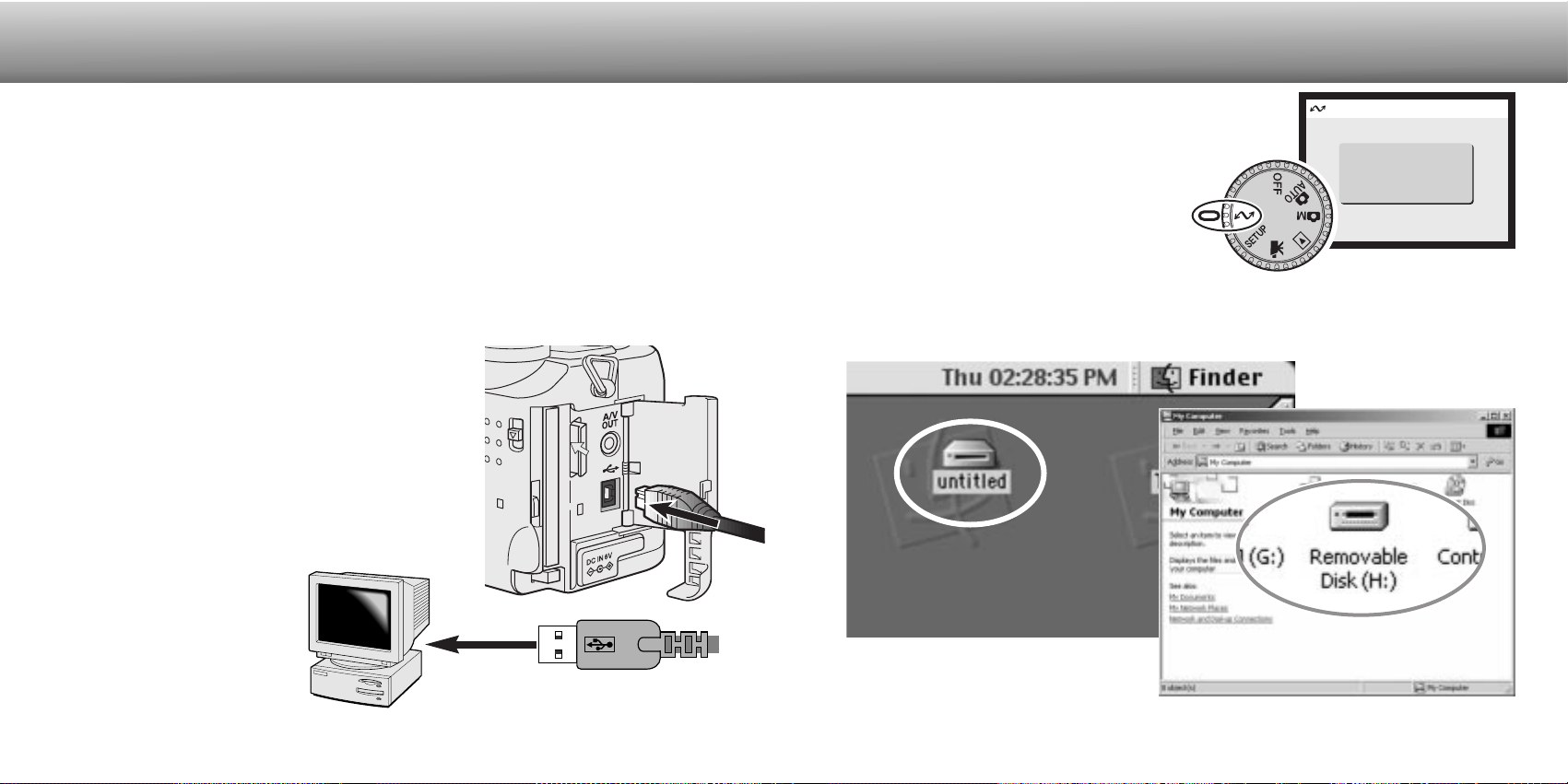
CONNECTING THE CAMERA TO A COMPUTER
9594
DATA-TRANSFER MODE
When the camera is properly connected to the computer, a drive icon will appear. If the
computer does not recognize the camera, disconnect the camera and restart the com-
puter. Repeat the connection procedure above.
Start up the computer.
• The computer must be turned on before connecting the camera.
Insert the CompactFlash card into the camera.
• Confirm that the correct card is in the camera. To change the CompactFlash while the
camera is connected to a computer, see page 104.
Attach the other end of the USB cable to the com-
puter’s USB port.
• Make sure the plug is firmly attached.
• The camera should be connected directly to the
computer’s USB port. Attaching the camera to a USB
hub may prevent the camera from operating
properly.
A fresh set of batteries should be used when the camera is connected to a computer.
The use of the AC adapter (sold separately) is recommended over the use of batteries.
For users with Windows 98, 98SE, or Mac OS 8.6, read the respective sections on how
to install the necessary USB driver before connecting the camera to a computer
(Windows 98 - p. 96, OS 8.6 - p. 99).
Set the mode dial to the data-transfer position to initi-
ate the USB connection.
• A screen will appear to indicate the beginning of the
connection process. When the signal has
been received by the computer, the LCD
monitor will turn off.
1
2
3
4
5
4
Open the card-slot door. Attach the smaller plug of
the USB cable to the camera.
• Make sure the plug is firmly attached.
Trans
Initializing USB
connection
3
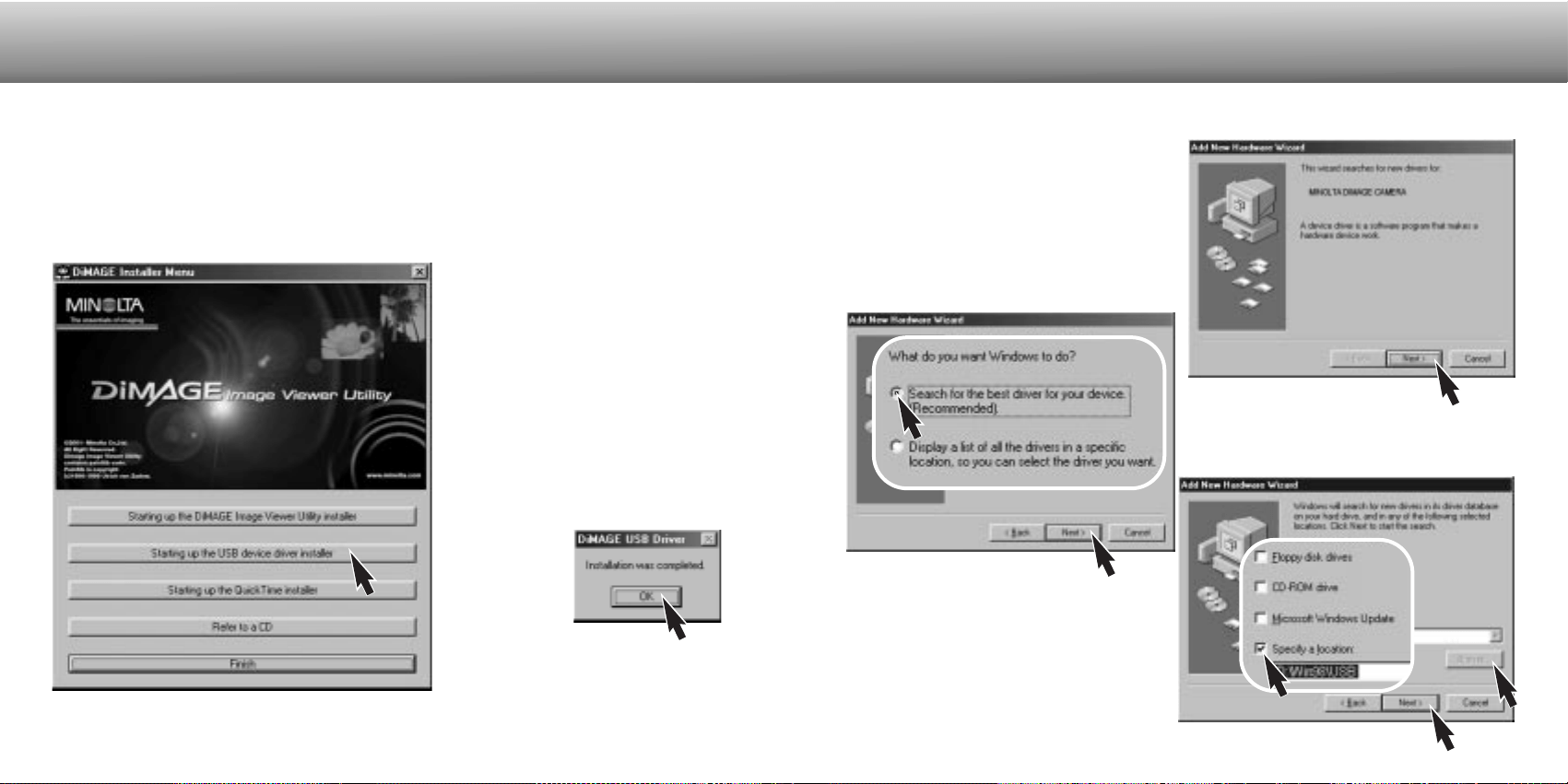
9796
DATA-TRANSFER MODE
CONNECTING TO WINDOWS 98 AND 98SE
Choose the recommended search for a
suitable driver. Click “Next.”
Choose to specify the location of the dri-
ver. The browse window can be used to
indicate the driver location. When the
location is shown in the window, click
“Next.”
• The driver should be located in the CD-
ROM drive at :\Win98\USB.
The driver needs only to be installed once. If the driver cannot be installed automatical-
ly, it can be installed manually with the operating system’s add-new-hardware wizard;
see the instructions on the following page. During installation, if the operating system
requests the Windows 98 CD-ROM, inset it into the CD-ROM drive and follow the
accompanying instructions on the screen.
Before connecting the camera to the
computer, place the DiMAGE soft-
ware CD-ROM in the CD-ROM
drive. The DiMAGE installer menu
should automatically activate. To
automatically install the Windows 98
USB driver, click on the starting-up-
the-USB-device-driver-installer but-
ton. A window will appear to confirm
that the driver should be installed;
click “Yes” to continue.
When the driver has been success-
fully installed, a
window will
appear. Click
“OK.” The cam-
era can now be
attached to the
computer (p. 94).
AUTOMATIC INSTALLATION
MANUAL INSTALLATION
To install the Windows 98 driver manually, follow the instructions in the connecting-the-
camera-to-a-computer section on page 94.
When the camera is plugged into the com-
puter, the operating system will detect the
new device and the add-new-hardware-
wizard window will open. Place the
DiMAGE software CD-ROM in the CD-
ROM drive. Click “Next.”
(Continued on the next page)
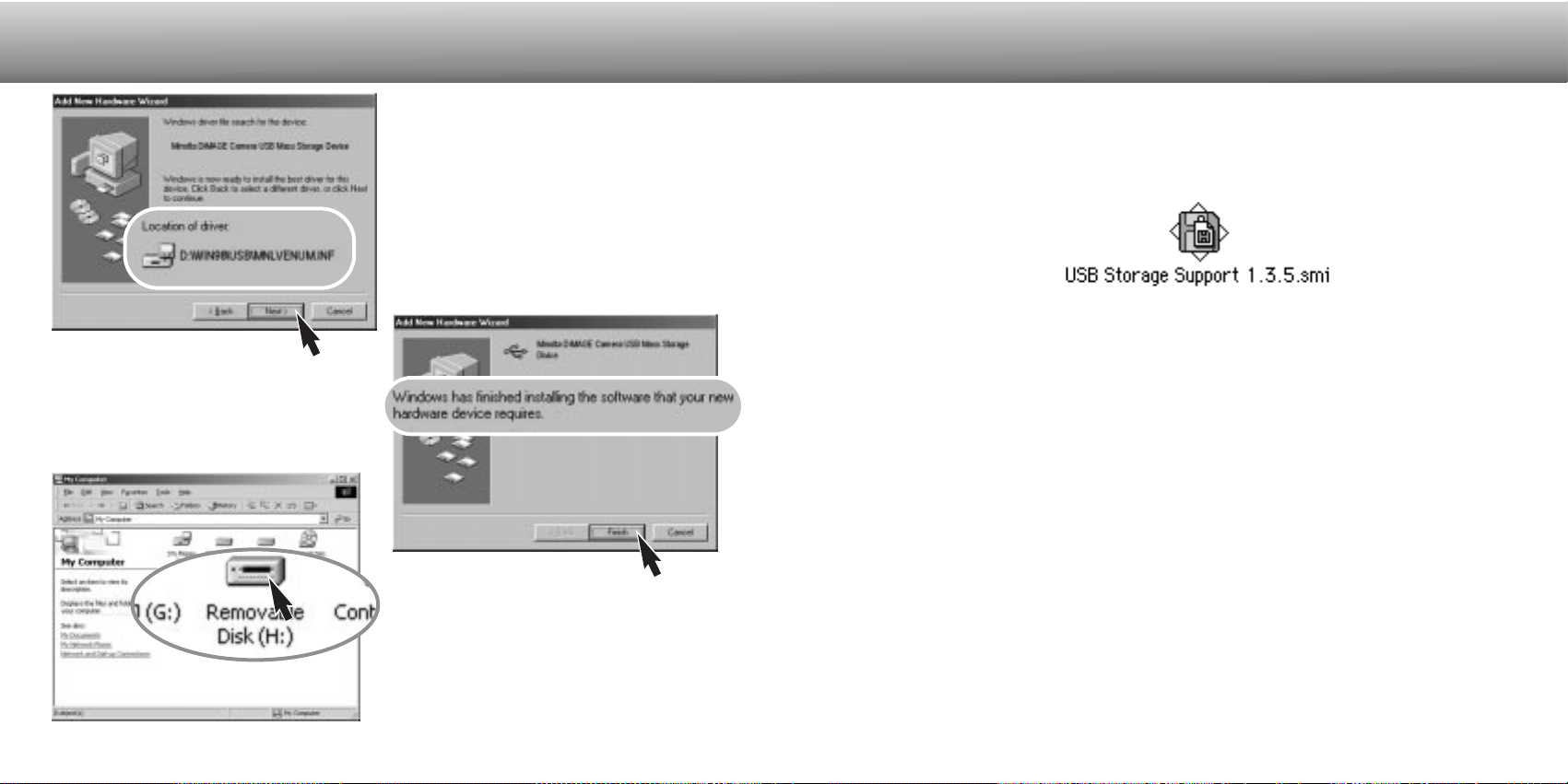
9998
DATA-TRANSFER MODE
CONNECTING TO MAC OS 8.6
To download and install this software, follow the instruction on the Apple web site.
Always read the attached terms and conditions before installing any new software.
The add new hardware wizard will confirm
the location of the driver. Click “Next” to
install the driver in the system.
• One of three drivers may be located:
MNLVENUM.inf, USBPDR.inf, or
USBSTRG.inf.
• The letter designating the CD-ROM drive will
vary between computers.
The last window will confirm the driver has
been installed. Click “Finish” to close the
add new hardware wizard.
When the my-computer window is
opened, a new removable-disk icon will
be displayed. Double click on the icon to
access the camera’s CompactFlash card;
see page 100.
To access this camera with a computer with Mac OS 8.6, the USB storage support
1.3.5.smi must be installed first. This software is supplied by Apple Computer, Inc. free
of charge. It can be downloaded from the Apple Software Updates web site at
http://www.apple.com/support.
AUTO POWER SAVE (DATA-TRANSFER MODE)
If the camera does not receive a read or write command within ten minutes, it will shut
down to save power. When the camera shuts down, an unsafe-removal-of-device warn-
ing may appear on the computer monitor. Click “OK.” Neither the camera or computer
will be damaged in this operation.
Turn off the camera with the mode dial. Remake the USB connection by turning the
mode dial back to the data-transfer position.
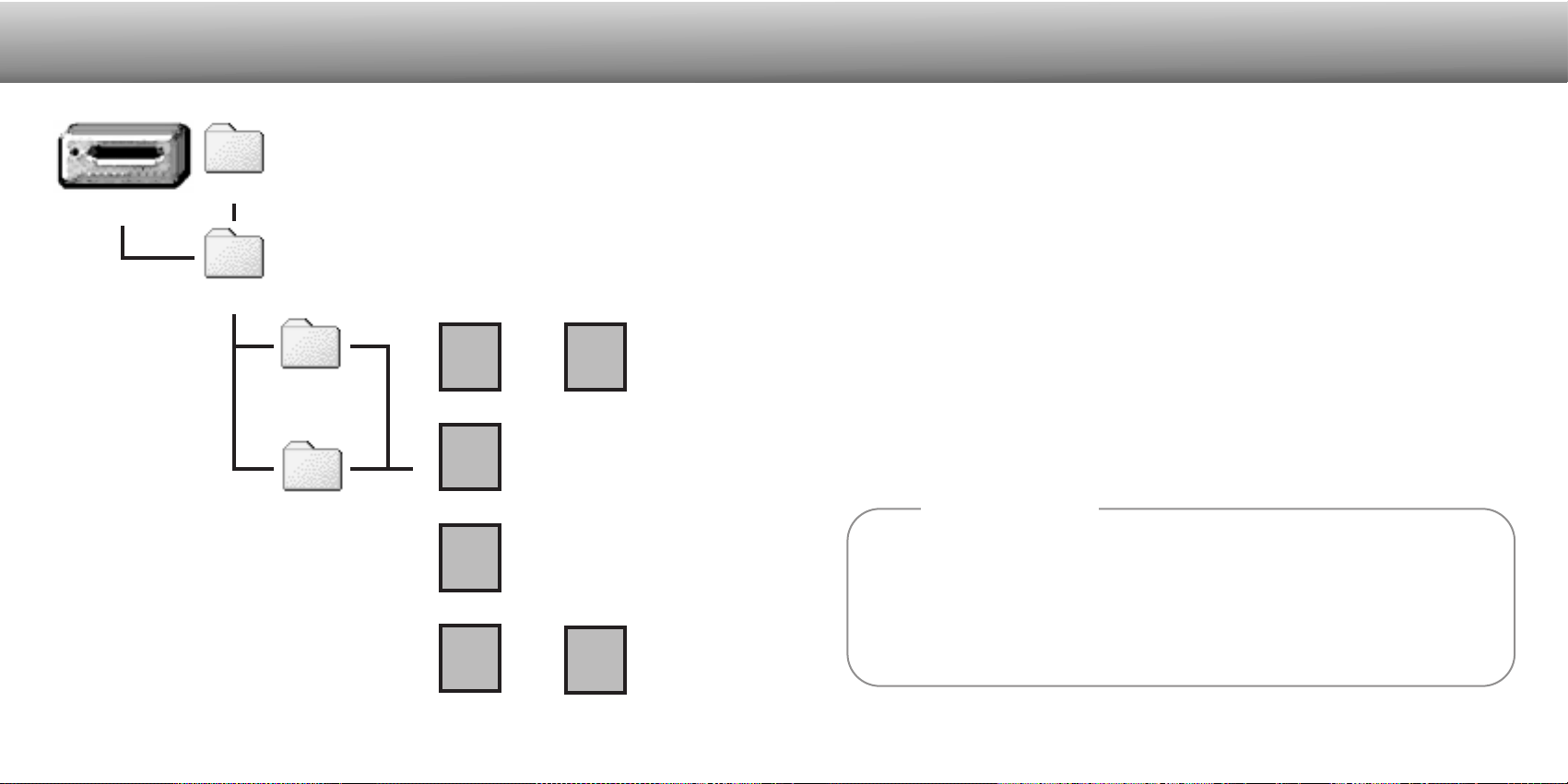
101100
DATA-TRANSFER MODE
Image-file names begin with “pict,”
followed by a four-digit file number,
and a tif, jpg, avi, or thm extension.
Voice-memo audio files have a wav
extension and the file name corre-
sponds to its image file. The thumb-
nail images (thm) are used in cam-
era operation and cannot be
opened.
Once the camera is connected to the computer, image files can be accessed by simply
double clicking on icons. Copying images can be done by dragging and dropping the
image-file icon into a location in the computer. Files and folders on the CompactFlash
card can be deleted using the computer. Never format the CompactFlash card from the
computer; always use the camera to format the card.
The index number on the image file may not correspond to the frame number of the
image. As images are deleted on the camera, the frame counter will adjust itself to
show the number of images in the folder and reassign the frame numbers accordingly.
The index numbers on the image files will not change when an image is deleted. When
a new image is recorded, it will be assigned a number one greater than the largest
index number in the folder. File numbers can be controlled with the file-number-memory
function in the custom 1 section of the setup menu (p. 88).
When the index number in the image file name exceeds 9,999, a new folder will be cre-
ated with a number one greater than the greatest folder number on the CompactFlash
card: e.g. from 100MLT05 to 101MLT05. When a DPOF file is created for a print order
(p. 78), a misc. folder is automatically made for the file.
COMPACTFLASH CARD FOLDER ORGANIZATION
Drive Icon
Dcim
100MLT05
101MLTCP
PICT0001.TIF PICT0001.THM
PICT0002.JPG
PICT0003.AVI PICT0003.THM
Super-fine
image
Fine, standard, or
economy image
Movie clip
The last two digits in
the folder name indi-
cate the camera that
was used to capture
the images; “05” indi-
cates a DiMAGE S304.
Images copied from one CompactFlash to
another (p. 80) are placed in a folder with a
name ending in “CP.” When a new folder is
created, the first three digits in the folder
name will be one greater than the largest
folder number on the card.
Misc
The misc. folder
contains DPOF
print files (p. 78).
PICT0002.WAV
PICT0002’s voice-
memo audio file
Image files contain exif tag data. This data includes the time and date the image was recorded
as well as the camera settings used. This data can be viewed with the camera or the DiMAGE
Image Viewer utility software.
If a camera image is opened in a photo-retouching application like Arcsoft PhotoImpression,
and then the image is saved overwriting the original data, the exif tag information will be
erased. When using software other than the DiMAGE Image Viewer Utility, always rename the
image file to protect the exif tag data.
Camera Notes
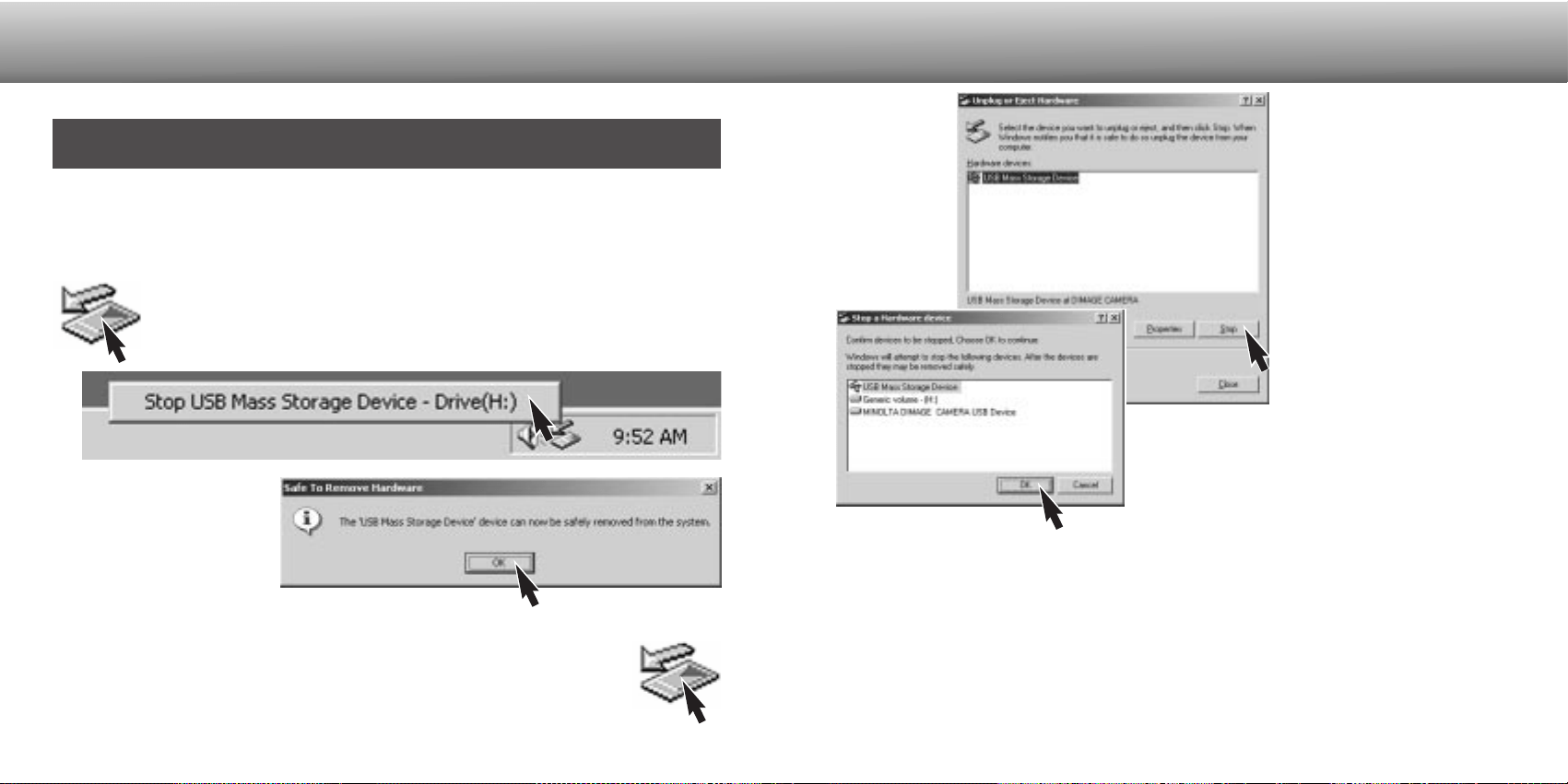
DISCONNECTING THE CAMERA FROM THE COMPUTER
103102
DATA-TRANSFER MODE
WINDOWS ME AND WINDOWS 2000 PROFESSIONAL
Confirm that the access lamp is not lit. Turn the mode dial to another position and then
disconnect the USB cable.
Never disconnect the camera when the access lamp is lit - the data or
CompactFlash card may permanently be damaged.
To disconnect the camera, click once on the unplug-or-eject-hardware icon
located on the task bar. A small window will open indicating the device to
be stopped.
The hardware devices to be
stopped will be displayed.
Highlight the device by click-
ing on it then click “Stop.”
Confirm that the access lamp is not lit and then drag the mass-storage device icon and
drop it into the trash.
WINDOWS 98 AND 98SE
When more than one external device are connected to the computer, the
unplug-or-eject-hardware window can be used. To disconnect the camera,
double click on the unplug-or-eject-hardware icon located on the task bar
to activate the window.
Click on the small window
to stop the device. The
safe-to-remove-hardware
window will appear. Click
“OK.” Turn the mode dial to
another position and then
disconnect the USB cable.
A confirmation screen will appear to indicate the
devices to be stopped. Clicking “OK” will stop the
device.
A third and final screen will appear to indicate the
camera can be safely disconnected from the
computer. Turn the mode dial to another position
and then disconnect the USB cable.
Disconnect the USB cable.
• If the USB cable is disconnected before performing the first step, an alert message will
appear. Always complete the first step before disconnecting the USB cable.
MACINTOSH
105104
DATA-TRANSFER MODE
CHANGING THE COMPACTFLASH CARD (DATA-TRANSFER MODE)
Care should be taken when changing CompactFlash cards while the camera is
attached to the computer. Data could be lost or damaged if the camera is not properly
disconnected.
WINDOWS 98 AND 98SE
1. Turn off the camera.
2. Change the CompactFlash card.
3. Turn the mode dial to the data-transfer position to remake the USB connection.
WINDOWS ME AND 2000 PROFESSIONAL
MACINTOSH
APPENDIX
Always confirm the access lamp is out
before removing the CompactFlash card.
1. Stop the USB connection using the unplug-or-eject-hardware routine (p. 102).
2. Turn off the camera.
3. Change the CompactFlash card.
4. Turn the mode dial to the data-transfer position to remake the USB connection.
1. Stop the USB connection by dragging the drive icon into the trash (p. 103).
2. Turn off the camera.
3. Change the CompactFlash card.
4. Turn the mode dial to the data-transfer position to remake the USB connection.
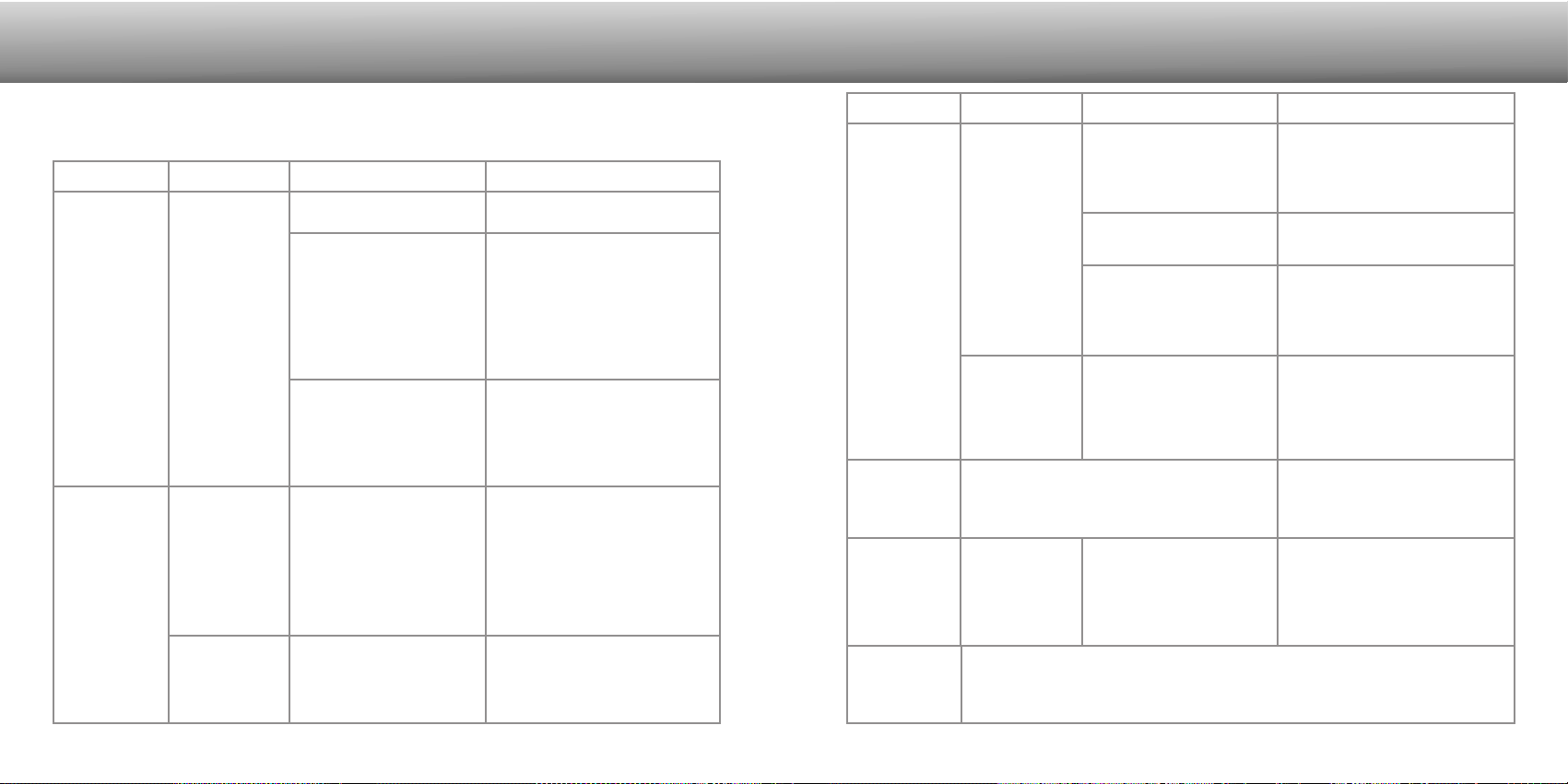
107106
Problem Symptom Cause Solution
The camera
will not work.
Nothing dis-
played on the
data panel or
the monitors.
The batteries are dead.
The batteries are inserted
incorrectly.
The AC adapter is not
connected properly.
Replace batteries (p. 16).
Reinsert the batteries taking
care that the negative and pos-
itive terminals are orientated
as indicated on the inside of
the battery chamber door
(p.16).
Check that the adapter is con-
nected to the camera and a
live electrical outlet (p. 18).
TROUBLESHOOTING
The section covers minor problems with basic camera operation. For major problems or
damage, or if a problem continues to reoccur frequently, contact a Minolta service facili-
ty listed on the back cover of this manual.
Shutter will
not release.
“000” is dis-
played on the
frame counter.
CompactFlash card is full
and unable to store an
image at the image-quali-
ty or image-size setting
on the camera.
Insert a new CompactFlash
card (p. 18), delete some
images (p. 72), or change the
image-quality or image-size
setting (p. 38, 50).
Pictures are
not sharp.
Focus signal is
red.
Subject is too close.
Make sure the subject is within
the autofocus range (p. 24) or
use the macro mode (p. 28).
The camera is in macro
mode.
Cancel the macro mode setting
(p. 28).
A special situation is pre-
venting the autofocus
system from focusing
(p.25)
Use the focus-lock function to
focus on an object at the same
distance as the subject (p. 24)
or use manual focus (p. 56).
Pictures are
taken indoors
or in low-light
situations with-
out flash.
Slow shutter speeds
result in blurred images
when the camera is
hand-held.
Use a tripod, change the cam-
era sensitivity to a higher set-
ting (p. 50), or use the flash (p.
30).
Continuous
drive does
not work.
The image quality is set to super fine.
Change the image-quality set-
ting (p. 38, 50).
While using
flash, the pic-
tures are too
dark.
The subject is beyond
the flash range (p. 57).
Move closer to the subject or
change the camera sensitivity
to a higher setting (p. 50).
Problem Symptom Cause Solution
No-card warn-
ing appears on
the monitors.
No CompactFlash card in
the camera.
Insert a CompactFlash card
(p.18).
“Err” dis-
played on the
data panel.
Turn off the camera and remove and reinsert the batteries, or unplug and
reconnect the AC adapter. If the camera is hot, allow it to cool before remov-
ing the batteries and Compactflash card.
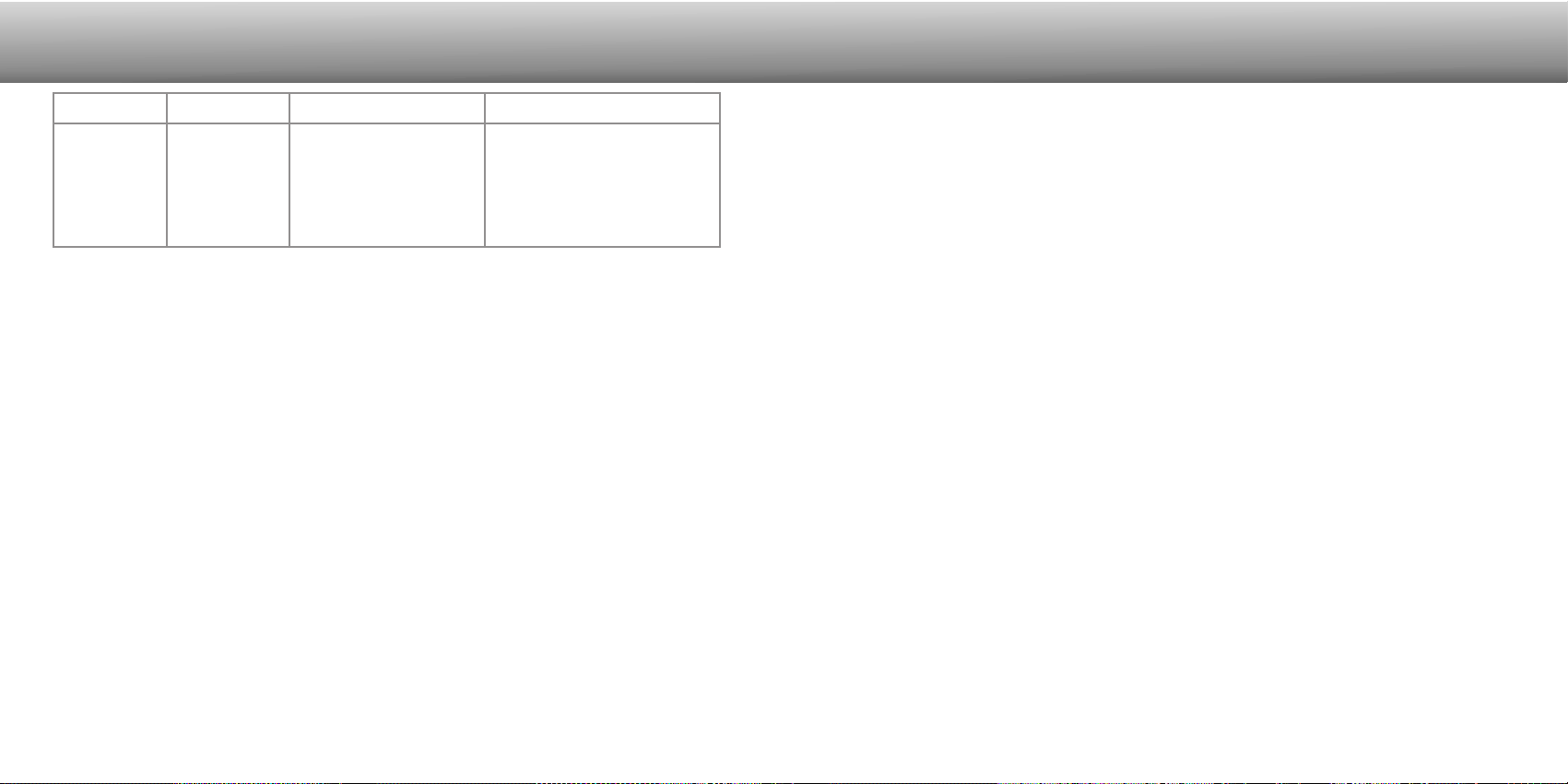
109108
TROUBLESHOOTING
If the camera does not function normally, turn it off, remove and reinsert the batteries,
or unplug and reconnect the AC adapter. Always turn the camera off using the mode
dial otherwise the CompactFlash card may be damaged and camera settings reset.
The camera temperature rises with extended periods of use. Care should be taken to
avoid burns when handling the camera, batteries, or CompactFlash card.
Shutter speed and
aperture combination is
extremely under or over-
exposing the live image.
Change the shutter speed or
aperture value until an image
appears on the monitor (p.
53).
Shooting data
is displayed,
but live image
is entirely
black or
white.
Camera set to
manual-
exposure
mode (M).
Problem Symptom Cause Solution
CLEANING
• If the camera or the outside of the lens is dirty, gently wipe it with a soft, clean, dry
cloth. If the camera or lens comes in contact with sand, gently blow away loose
particles. Wiping may scratch the surface.
• To clean the lens surface, first blow away any dust or sand, then, if necessary,
moisten a lens tissue or soft cloth with lens cleaning fluid and gently wipe the lens.
• Never use organic solvents to clean the camera.
• Never touch the lens surface with your fingers.
CAMERA CARE
• Do not subject the camera to shock or impact.
• Turn off the camera when transporting.
• This camera is neither waterproof nor splashproof. Inserting or removing batteries or
the CompactFlash card, or operating the camera with wet hands may damage the
camera.
• When at the beach or near water, take care not to expose the camera to water or
sand. Water, sand, dust, or salt can damage the camera.
• Do not leave the camera under direct sunlight. Do not point the lens directly at the
sun; the CCD may be damaged.
CARE AND STORAGE
STORAGE
• Store in a cool, dry, well-ventilated area away from dust and chemicals. For long
periods of disuse, store the camera in an airtight container with a silica-gel drying
agent.
• Remove the batteries and CompactFlash card from the camera when not in use for
extended periods.
• Do not store the camera in an area with naphthalene or mothballs.
• During long periods of storage, operate the camera occasionally. When taking the
camera out of storage, check that the camera is functioning properly before using.
111110
OPERATING TEMPERATURES AND CONDITIONS
• This camera has been designed for use in temperatures from 0°C to 40°C (32°F to
104°F).
• Never leave the camera exposed to extreme high temperatures, such as in a car
parked in the sun, or to extreme humidity.
• When taking the camera from a cold to a warm environment, place it in a sealed
plastic bag to prevent condensation from forming. Allow the camera to come to room
temperature before removing it from the bag.
CARE AND STORAGE
COMPACTFLASH CARD CARE AND HANDLING
• The following may cause data loss or damage.
1 Improper use of the card.
2 Static electrical discharge or electromagnetic fields near the card.
3 Removing the card or interrupting the power supply while the camera or
computer is accessing the card (reading, writing, formatting, etc.).
4 The disuse of a card for an extended period.
5 Using the card beyond its life
Minolta has no responsibility for any loss or damage to data. It is recommended
that a copy of the card data be made in another media such as a ZIP disc, hard disk,
CD-ROM, etc.
• When the card is formatted, all recorded data will be deleted. Be sure to make a
backup of any important data.
• The storage capability of the CompactFlash card will diminish with extended use. It
may be necessary to purchase a new card periodically.
• Keep away from static electricity and electromagnetic fields.
• Do not bend, drop, or subject the card to impact.
• Strong static electrical discharges or physical shock may prevent the card from being
able to transfer data.
• Do not touch the electrical contacts of the card with your fingers or metal objects.
• Keep away from heat, moisture, and direct sunlight.
• Keep away from small children.
BATTERIES
• Battery performance decreases with temperature. In cold environments, we
recommend keeping spare batteries in a warm place, such as the inside of a coat.
Batteries can recover their power when they warm up. As the performance of Ni-MH
batteries are less affected by temperature, their use is recommended when shooting
in cold environments.
•Remove the batteries when the camera is not in use for an extended period. Leaking
battery fluid may damage the battery-chamber.
• Occasionally, when using alkaline batteries, the battery-condition indicator will give a
false low-battery-power warning, even though there is enough power capacity.
Continue to use the camera; the low-battery indicator will disappear.
• If batteries have been exhausted when used in the camera, do not reload them even
if their charge seems to recover over time. These batteries will interfere with normal
camera operation.
LCD MONITOR CARE
• Although the LCD monitor is manufactured using high precision technology, there
may occasionally be a lack of color or bright points on the LCD monitor.
• Do not apply pressure to the surface of the LCD monitor; it may be permanently
damaged.
• In a cold environment, the LCD monitor may become temporarily dark. When the
camera warms up, the display will function normally.
• The LCD monitor may be slow to react in low temperatures or may turn dark in a hot
environment. When the camera reaches normal operating temperature, the display
will function normally.
• If fingerprints are on the LCD monitor surface, gently wipe with a soft, clean, dry
cloth.
COPYRIGHT
• TV program, films, video tapes, photographs, and other materials may be
copyrighted. Unauthorized recording or duplication of such material may be contrary
to copyright laws. Taking pictures or images of performances, exhibitions, etc., is
prohibited without approval and can infringe on copyright. Images protected by
copyright can only be used under the provisions within the copyright laws.
113112
CARE AND STORAGE
BEFORE IMPORTANT EVENTS OR JOURNEYS
• Check the camera’s operation; take test pictures and purchase spare batteries.
• Minolta has no responsibility for any damage or loss incurred by equipment
malfunction.
QUESTIONS AND SERVICE
• If you have questions about your camera, contact your local camera dealer or write to
the Minolta distributor in your area.
• Before shipping your camera for repair, please contact a Minolta Service Facility.
Apple, the Apple logo, Macintosh, Power Macintosh, Mac OS, and the Mac OS logo are registered
trademarks of Apple Computer Inc. Microsoft and Windows are registered trademarks of the
Microsoft Corporation. The official name of Windows® is Microsoft Windows Operating System.
Pentium is a registered trademark of the Intel Corporation. PhotoImpression is a trademark of
ArcSoft, Inc. Power PC is a trademark of the International Business Machines Corporation.
QuickTime is a trademark used under license. All other trademarks are the property of their respec-
tive owners.
This mark on your camera certifies that this camera meets the requirements
of the EU (European Union) concerning interference causing equipment
regulations. CE stands for Conformité Européenne (European Conformity).
Digital Camera:
Tested To Comply
With FCC Standards
FOR HOME OR OFFICE USE
This device complies with Part 15 of the FCC Rules.
Operation is subject to the following two conditions: (1) This
device may not cause harmful interference, and (2) this
device must accept any interference received, including
interference that may cause undesired operation.
Tested by the Minolta Corporation
101 Williams Drive, Ramsey, New Jersey 07446, U.S.A.
This Class B digital apparatus complies with Canadian ICES-003.
Cet appareil numérique de la classe B est conforme à la norme NMB-003 du Canada.
Do not remove the ferrite cores from the cables.
The following marks may be found on the product:
This mark certifies that this camera meets the requirements concerning
interference causing equipment regulations in Japan.

115114
TECHNICAL SPECIFICATIONS
Batteries: 4 AA alkaline or Ni-MH batteries
Battery performance (recording): Approx. number of recorded images: 180 frames
Based on Minolta’s standard test method: alkaline
batteries, LCD monitor off, full-size images (2048 X
1535), flash used with 50% of the frames, no instant
playback.
Approx. number of recorded images: 280 frames
Based on Minolta’s standard test method: Ni-MH bat-
teries, LCD monitor off, full-size images (2048 X
1535), flash used with 50% of the frames, no instant
playback.
Battery performance (playback): Approx. continuous playback time: 110 min. Based
on Minolta’s standard test method: alkaline batteries,
LCD monitor on.
Approx. continuous playback time: 110 min. Based
on Minolta’s standard test method: Ni-MH batteries,
LCD monitor on.
External power source: AC adapter (AC-1L or AC-2L)
High-power battery pack (EBP-100)
Dimensions: 113.5 (W) X 64.5 (H) X 58.5 (D) mm
Weight: Approximately 335g
(without batteries or CompactFlash card)
Operating temperature: 0° - 40°C
Operating humidity: 5 - 85% (noncondensing)
Specifications are based on the latest information available at the time of printing and
are subject to change without notice.
CCD: 1/1.8-type interline primary-color CCD with a total of
3.34 million pixels.
Number of effective pixels: 3.17 million
Camera sensitivity (ISO): Auto and 100, 200, 400, and 800 ISO equivalents.
Aspect ratio: 4:3
Lens construction: 11 elements in 9 groups including one AD glass and
two double-sided aspheric elements.
Maximum aperture: f/3.0 (wide-angle position), f/3.6 (telephoto position)
Focal length: 7.15 - 28.6 mm (35mm equivalent: 35 - 140 mm)
Focusing range (from the CCD): 0.5 m - infinity (wide-angle position)
0.9 m - infinity (telephoto position)
0.16 - 0.6 m in macro mode
Filter diameter: 35.5 mm
Autofocusing system: Video AF
Shutter: CCD electronic shutter plus mechanical shutter
Shutter speeds: 1/1000 - 4s, bulb (15s maximum)
Built-in flash recycling time: 7s (approx)
Viewfinder: Optical real-image zoom viewfinder.
Monitor LCD: 46 mm TFT color
Monitor field of view: Approximately 100%
A/D conversion: 12 bits
Recording media: Type I CompactFlash cards
File formats: Exif 2.1 (JPEG, TIFF), motion JPEG (avi), WAV.
DCF 1.0 and DPOF compliant.
Print Image Matching: Yes
Menu languages: Japanese, English, German, French, and Spanish
Video output: NTSC and PAL

Minolta Co., Ltd. 3-13, 2-Chome, Azuchi-Machi, Chuo-Ku, Osaka 541-8556, Japan
Minolta Corporation
Head Office 101 Williams Drive, Ramsey, New Jersey 07446, U.S.A.
Los Angeles Branch 11150 Hope Street Cypress, CA 90630, U.S.A.
Minolta Canada Inc. 369 Britannia Road East, Mississauga, Ontario L4Z 2H5, Canada
Minolta Europe GmbH Minoltaring 11, D-30855 Langenhagen, Germany
Reparatur/Repair Senator-Helmken-Strasse 1, D-28197 Bremen, Germany
Minolta France S.A. 365 Route de Saint-Germain, F-78420 Carrieres-Sur-Seine, France
Minolta (UK) Limited 7 Tanners Drive, Blakelands, Milton Keynes, MK14 5BU, England
Minolta Austria Ges. m.b.H. Amalienstrasse 59-61, A-1131 Wien, Austria
Minolta Camera Benelux B.V. Zonnebaan 39, P.O. Box 6000, NL-3600 HA Maarssen, The Netherlands
Belgian Branch Prins Boudewijnlaan 1, B-2550 Kontich, Belgium
Minolta (Schweiz) AG Riedstrasse 6, CH-8953 Dietikon, Switzerland
Minolta Svenska AB Albygatan 114, S-171 54 Solna, Sweden
Finnish Branch Niittykatu 6 PL 37, SF-02201 Espoo, Finland
Minolta Portugal Limitada Av. do Brasil 33-A, P-1700 Lisboa, Portugal
Minolta Hong Kong Limited Room 208, 2/F, Eastern Center, 1065 King’s Road, Quarry Bay, Hong Kong
Minolta Singapore (Pte) Ltd. 10, Teban Gardens Crescent, Singapore 608923
9222-2770-31 P-A107Printed in Japan
© 2001 Minolta Co., Ltd. under the Berne Convention
and the Universal Copyright Convention.