EINSTRUCTION MANUAL
2
Getting Started
Please be sure to read this manual before use.
•Test shooting
Be sure to take some test shots before taking important pictures
(such as business or weddings) to make sure that the camera is
working properly.
• Results are not guaranteed
In the unlikely event that a problem arises in shooting or reproducing
pictures due to the camera or memory card used, please understand
that no compensation can be made.
• Be aware of Copyright
Any pictures that you take of existing images may be used for
personal use only. Copyright law prohibits the use of pictures without
the permission of the rightful owner. Also, please note that some
occasions of the performing arts, demonstrations and exhibitions
may restrict photography even for the purpose of personal enjoyment.
Caution for Extended Camera Use:
The camera body may become hot when used for a long period of
time, but it doesn’t mean that the camera is broken. However, if
the camera keeps touching the skin for a long time, this may cause
a cryogenic burn. Please be careful with it.
About trademarks
• Minolta, The essentials of imaging, and DiMAGE are trademarks
or registered trademarks of Minolta Co., Ltd.
•Windows 98, Windows 98SE, Windows XP, Windows 2000
Professional and Windows Me are trademarks or registered
trademarks of Microsoft Corporation in the U.S. and other countries.
• Apple, Macintosh, Mac OS, QuickTime and Power PC are
trademarks or registered trademarks of Apple Computer in the
U.S. and other countries.
• All other brand and product names are trademarks or registered
trademarks of their respective owners.
* The illustrations in this guide are for the purpose of explanation
and may differ from the actual design of your camera.
*You can also order a digital print at a photo lab (except for some
labs) such as a traditional photofinishing service. For detailed
information, please contact your photo lab.
3
Important Safety Precautions ................................................ 6
Preparation
Necessary Accessories ......................................................... 11
Names of Parts ...................................................................... 14
Camera Body ....................................................................... 14
Operation Buttons ............................................................... 16
Attaching the Strap ............................................................... 17
Preparing the Power Supply ................................................ 18
Charging the (supplied) Battery Pack ................................. 18
Installing the (supplied) Battery Pack ................................. 19
Connecting the AC Adapter (sold separately) .................... 22
Inserting/Removing Cards ................................................... 24
Turning the Power ON/OFF ................................................. 26
Setting the Menu Language/Date and Time ..................... 27
Basic Operation
Taking Pictures ...................................................................... 29
Holding Your Camera .......................................................... 29
Viewfinder and Indicator LEDs............................................ 29
Taking Pictures using the Viewfinder .................................. 31
Shooting with Focus Lock ................................................... 34
Taking Pictures using the LCD Monitor .............................. 35
Selecting the Shooting Mode .............................................. 38
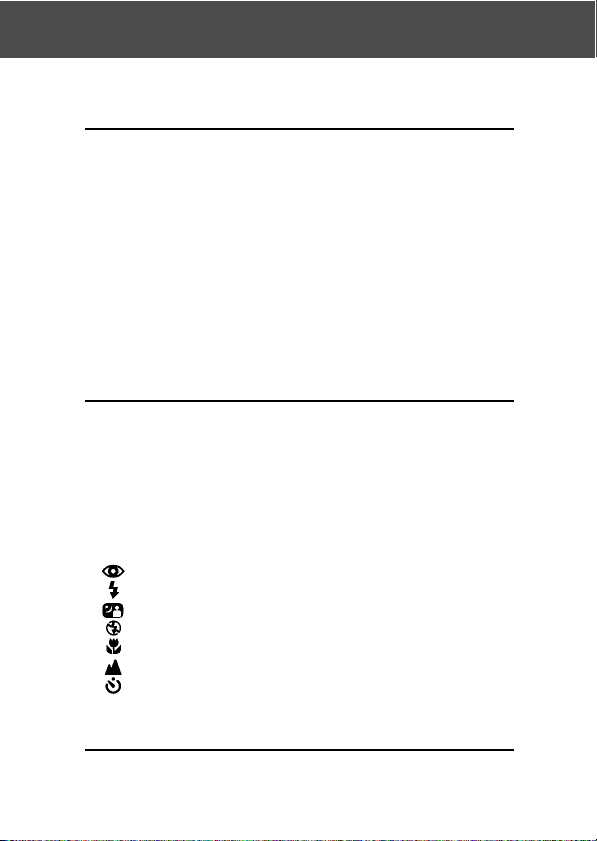
AUTO (Auto Flash) .............................................................. 40
Red-Eye Reduction ...................................................... 40
Fill-In ............................................................................. 41
Slow-Sync ..................................................................... 41
Off (Flash Override) ...................................................... 41
Macro-photo Mode ....................................................... 42
Distant View Mode ........................................................ 42
Self-Timer Mode ........................................................... 43
Fixed focus mode ................................................................ 43
Advanced Shooting
Using the REC Menu ............................................................. 44
Setting with the REC (DETAILS) Menu .............................. 44
Contents

4
Contents (Cont’d)
Selecting a Combination of Image Sizes and
Compression Ratios ..................................................... 46
Shooting Movies .................................................................. 49
Adjusting Exposure Compensation..................................... 51
Adjusting White Balance ..................................................... 52
Changing Auto-Exposure (AE) Modes ................................ 54
Taking Monochrome Pictures.............................................. 55
Using the Digital Zoom ........................................................ 56
Adjusting the Brightness and Color of the LCD Monitor .... 57
Making Voice Memos .......................................................... 58
Using After Recording ......................................................... 59
Changing slow shutter speed.............................................. 61
Taking photograph in manual exposure mode ................... 62
Setting up image quality ...................................................... 64
Selecting the Set-up Menu .................................................. 66
Setting with the REC (BASIC) Menu .................................. 67
Selecting the Image Size .................................................... 68
Basic Playback/Erasing
Playback .................................................................................. 70
Playing Back Pre-recorded Images .................................... 70
Playing Back Movies ........................................................... 72
Playing Back Voice Memos ................................................. 73
Playing back the sound of After Recording image ............. 73
Playing Back Enlarged Images (Digital Zoom) ................... 74
Using the Quick-view Function ........................................... 75
Erasing the Playback Image ................................................. 76
Advanced Playback/Erasing
Using the PLAY Menu ........................................................... 77
Viewing Multiple Pages at Once (Index Playback) ............. 78
Copying an Image ............................................................... 79
Erasing Unwanted Images .................................................. 82
Adjusting LCD Monitor Brightness and Color ..................... 85
Selecting/Deselecting Images to Print (DPOF) .................. 86
Reducing Image Size (Resizing) ........................................ 90
Setting/Canceling Protection for Your Important Images ... 91
Moving the Image Data to Another Memory Card .............. 94

5
Contents (Cont’d)
Playing a Slide Show .......................................................... 97
Using the After Recording Function .................................... 97
Selecting the Set-up Menu .................................................. 97
Advanced Operations
Using the Set-up Menu ........................................................ 98
Formatting a Memory Card ................................................. 99
REC Menu Settings ........................................................... 100
Quick View Settings........................................................... 100
Make so the Image Information is not displayed .............. 101
Setting the Operation Sounds ........................................... 102
Adjusting the Date and Time ............................................. 103
Setting the Self-timer Delay Time ..................................... 103
Setting the Auto Power-OFF Time .................................... 104
Resetting the File Numbers .............................................. 104
Setting Memory Priority .................................................... 105
Changing Languages ........................................................ 105
Taking Still Images with Sound ......................................... 106
Customizing the Camera................................................... 107
Restoring the Default Settings .......................................... 110
Connecting to your PC
Connecting to your PC ........................................................ 111
Operating Environments ................................................... 111
Connecting with a USB cable ........................................... 112
Installing software and downloading images ................. 113
Installing USB Driver Software ......................................... 113
Downloading (transferring) Images ................................... 115
Using Windows .................................................................. 117
Using Macintosh ................................................................ 119
Others
When Carrying the Camera Overseas ............................... 120
Care and Storage ................................................................. 121
Troubleshooting .................................................................. 123
Main Specifications ............................................................. 125
6
!
Important Safety Precautions
This product has been designed with safety in mind; however, please
read the following display marks, warnings and cautions for its correct
usage.
The following warning and caution symbols are to prevent damage to
the user, other persons and property.
Definitions of the symbols
The following categories explain the degree of danger or
damage that may occur if the displayed content is not
followed or the product is misused.
Warning
This symbol indicates that misuse may result in serious
injury and even death.
Caution
This symbol indicates that misuse may result in bodily injury
or physical damage.
The following categories explain the contents to be
followed using symbols.
This symbol indicates that the content requires caution
when performed.
This symbol indicates that the content is prohibited.
This symbol indicates that the content must always be
followed.
7
Important Safety Precautions (Cont’d)
Warning
Should any of the following occur, stop using the product
immediately. Remove the batteries from the unit and
disconnect the AC adapter. If using the AC adapter,
disconnect the power plug from the wall outlet.
Consult the dealer from whom you bought the product for
further assistance.
Continued use of the product may result in fire or electrical
shock.
• If you notice any abnormality such as smoke or an
abnormal smell, or if the camera becomes extremely hot.
• If liquid gets inside the camera.
• If any foreign object gets inside the camera.
Do not dismantle, modify or repair the camera yourself.
Fire and/or electrical shock may occur as a result.
For repair or internal inspection, consult the dealer from
whom you bought the product.
Do not allow the camera to get wet.
Fire, electrical shock and/or malfunction of the unit may occur
if internal parts are exposed to water or other liquids.
Do not drop or insert metal objects or combustible items
inside the camera.
Fire, electrical shock and/or malfunction of the unit may occur
as a result of metal objects, etc. getting inside the camera.
Do not use the camera while driving.
May cause traffic accidents.
When using the camera while walking, pay attention to the
road surface, surroundings, etc.
Do not use the camera on unstable ground.
Serious injury and even death may occur as a result
especially when falling from high places.
8
Warning
Important Safety Precautions (Cont’d)
Do not directly look at the sun through the viewfinder.
Loss of or impaired eyesight may result.
Do not touch the metal parts on the camera during thunder
and lighting.
Death may occur if lighting strikes the camera.
Do not use AC adapters other than those specified.
Fire may occur as a result of AC adapters other than those
specified being used.
Do not dismantle, short-circuit, coat (solder, etc.), apply
heat, apply pressure (with nail, etc.) to the battery, or throw
into a fire. Furthermore, do not allow metals (wires,
necklaces, etc.) to come into contact with batteries.
Fluid leakage, heat, fire and damage may occur as a result.
Caution
Do not point the lens directly at the sun or at a strong light
source.
Malfunction of internal parts may occur from concentrated
rays of light. Using the camera in such conditions may cause
short circuits and breakdown of insulation, resulting in
overheating and/or fire.
Take care not to get fingers caught in the battery/card cover.
Personal injury may occur as a result.
When using the camera inside an airplane, follow the
directions of the airline company.
Electric waves emitted from the camera may affect airplane
cockpit instruments.
Do not use the flash near eyes.
Eye injury may occur as a result.
9
Important Safety Precautions (Cont’d)
Caution
When taking a picture, wipe off the flash surface and be
careful not to cover the flash.
If the flash surface is dirty or you take a shot with the flash
covered, it is possible for the flash surface quality or color to
change, due to the high temperature of the flash.
Check that the polarity is correct when inserting batteries.
The battery may heat, damage or leak if the polarity is not
correct, possibly causing skin burns and/or personal injury
as a result.
Do not use batteries which have become soiled with oil or
sweat.
If soiled, wipe the contacts with a dry cloth before use.
When cleaning or carrying out non-photographic
operations on the camera, disconnect the AC adapter for
safety.
Do not leave the camera in locations such as:
•
A location exposed to direct sunlight or inside a car, etc.
where the temperature may become extremely high.
Fire and/or damage to the unit may occur.
•Within the reach of children.
The strap may wrap around the neck causing strangulation,
or accessories such as batteries, Memory Card, etc. may
be swallowed.
• Unstable surfaces such as on an unstable table or an
angled surface.
Camera dropping on the head or other body parts may not
only cause personal injury but malfunction of the unit as
well.
•A location exposed to lampblack, steam, high humidity,
dust or vibration.
If dust or liquid enters the camera or if the internal parts
are damaged by strong vibration, overheating, fire or
electrical shock may occur as a result.
10
Important Safety Precautions (Cont’d)
Caution
Remove the batteries when the camera will not be used
for an extended period.
Do not use force when operating the camera.
The camera may become damaged, causing personal injury
as a result.
Do not rotate the camera when mounting on a tripod.
About battery fluid leakage
• Should battery fluid leaks ever come into contact with
hands or clothing, wash immediately with water.
• Loss of eyesight may occur if battery fluid enters the
eye. In such case, do not rub the eye. Immediately flush
the eye with water and seek medical attention.
About the LCD monitor
• Due to the characteristics of liquid crystals, the brightness of the
LCD monitor may appear uneven with changes in temperature, etc.
• The LCD monitor has been developed using high-precision
engineering and is superior in sharpness and picture quality. Due to
the nature of liquid crystals, however, there may be missing or
constantly lit pixels on the monitor. This is not a malfunction of the
unit.
• If the LCD monitor becomes damaged for some reason, take care to
prevent personal injury from broken glass, etc. Furthermore, take
care that liquid crystals do not touch the skin or enter the eyes or
mouth.
WARNING: Handling the cord on this product may expose you to
lead, a chemical known to the State of California to cause cancer,
and birth defects or other reproductive harm.
Wash hands after handling.

11
Checking the Packing Contents
The following accessories should be packed with your new camera;
please make sure all are enclosed after opening the packaging. In the
unlikely event that something is missing, please contact the sales
outlet.
• Lithium-ion Battery NP-500
• Battery Charger BC-500
• USB Cable USB-800
• Hand Strap HS-DG130
• SD Memory Card
• DiMAGE Viewer CD-ROM
• Instruction Manual CD-ROM
• Quick Guide
•Warranty Card
Optional Accessories
• AC Adapter AC-8U/AC-8E/AC-8GB
(The AC Adapter unit varies with region. AC-8U is for use in North
America, Taiwan, and Japan. AC-8E is for continental Europe,
Oceania, and Asia (except Hong Kong). AC-8GB is for the United
Kingdom and Hong Kong.)
• Lithium-ion Battery NP-500
This product can be used with the following power supplies:
1) Lithium-ion battery (the packaged item or purchased separately)
• Read the user’s guide on the battery and the charger thoroughly,
and use them accordingly.
•You cannot charge the battery in the camera.
• When disposing of rechargeable batteries, please support
recycling by participating in the recovering system of the store
from which you bought the batteries.
• The number of pictures you can take varies with the conditions of
use and the performance of the rechargeable batteries.
* Please refer to page 20 for information on battery life.
2) Plugging in at home
• Connect the optional AC adapter.
Preparation
Necessary Accessories
12
Necessary Accessories (Cont’d)
Compatible Recording Media
This camera comes with approximately 2 MB of memory installed, but
if you would like to use additional memory, the following cards are
compatible:
• SD Memory Card
• MultiMedia Card
• Memory Stick
About the SD Memory Card/Multi-Media Card/Memory
Stick
Caution
SD Memory Cards, Multi-Media Cards and Memory Stick are
manufactured using precision electronic components. Do not
perform the following as malfunction or damage may occur as a
result.
• Do not touch the terminals with hands or metal objects. Damage to
the components may occur as a result of static electricity. Before
handling an SD Memory Card, Multi-Media Card or Memory Stick,
discharge any static build-up from your body by touching grounded
metal, etc.
• Do not bend, drop or apply excessive force.
•Avoid heat, liquid and direct sunlight when using and for storage.
• Do not open the battery/card cover or remove the SD Memory Card/
Multi-Media Card/Memory Stick while data is being read or written.
• Do not dismantle or modify.
* The SD logo is a trademark.
* “Memory Stick” and are trademarks of Sony Corporation.

13
Necessary Accessories (Cont’d)
Important
• In the event of malfunction or damage, it is possible that data may
be lost. Minolta can not accept responsibility in any way for such
data loss.
• Always back-up important data.
• When using SD Memory Cards/Multi-Media Cards/Memory Stick on
a PC, do not change the attributes(read-only, etc.) of the files (image
data) on the card. Doing so may prevent the camera from working
properly when deleting images, etc.
• Do not change the file names or the directory name of image data
saved on an SD Memory Card/Multi-Media Card/Memory Stick using
a PC or save files other than image data taken by this camera. Images
that have been changed or added will not only play back on the
camera but may cause the camera to malfunction as well.
• Always format SD Memory Cards/Multi-Media Cards/Memory Stick
using this camera. A card formatted in a PC may not operate properly.
• The SD Memory Card and Memory Stick includes a write-protect
switch.
Sliding this switch downward prevents data from being written to the
card and images, etc. saved on the card are protected.
Please note that pictures cannot be taken or deleted when the write-
protect switch is on.
• When using a large-capacity card, card check and deletion may take
some time.
• When using Multi-Media Cards, the operation response time may be
longer during shooting and playback when compared with SD
Memory Cards. However, this is due to the specification of the Multi-
Media Card and is not a malfunction.
14
Names of Parts
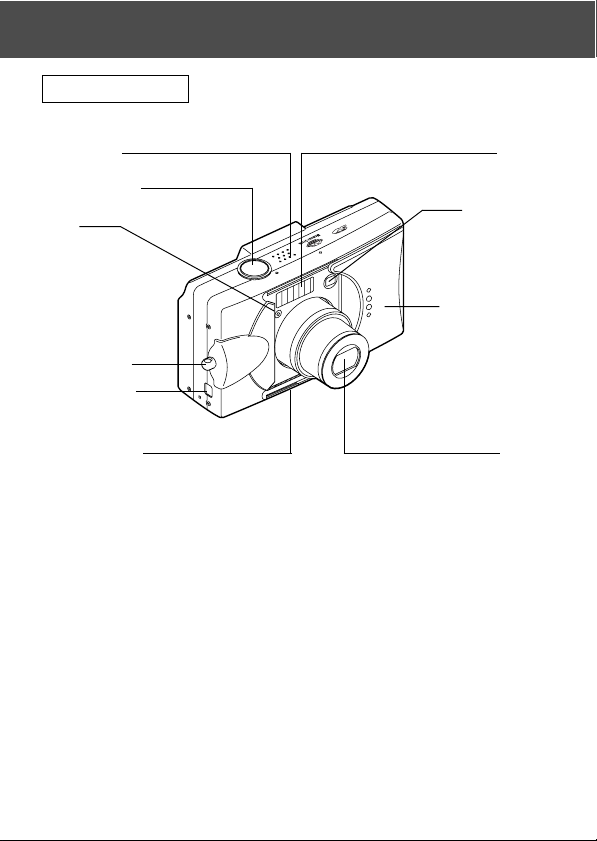
Camera Body
Microphone
Shutter Button
Light
Sensor
Strap Holder
USB Terminal
Self-timer LED
Flash
Viewfinder
Window
Lens Cover (Main
Switch)
Lens
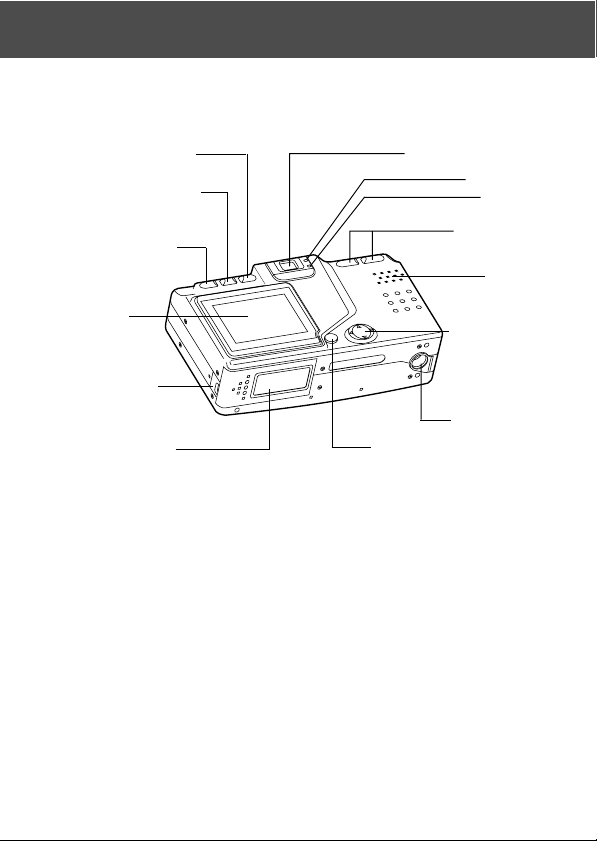
15
Delete Button (→ P.16)
Display Button (→ P.16)
Play Button(→ P.16)
LCD Monitor
Battery Sub-cap
Battery/Card Cover
Menu/Set Button (→ P.16)
4-way Button
(→ P.16)
Speaker
Zoom Buttons
(→ P.16)
Red LED
Green LED
Viewfinder Eyepiece
Tripod Socket
Names of Parts (Cont’d)
16
Names of Parts (Cont’d)
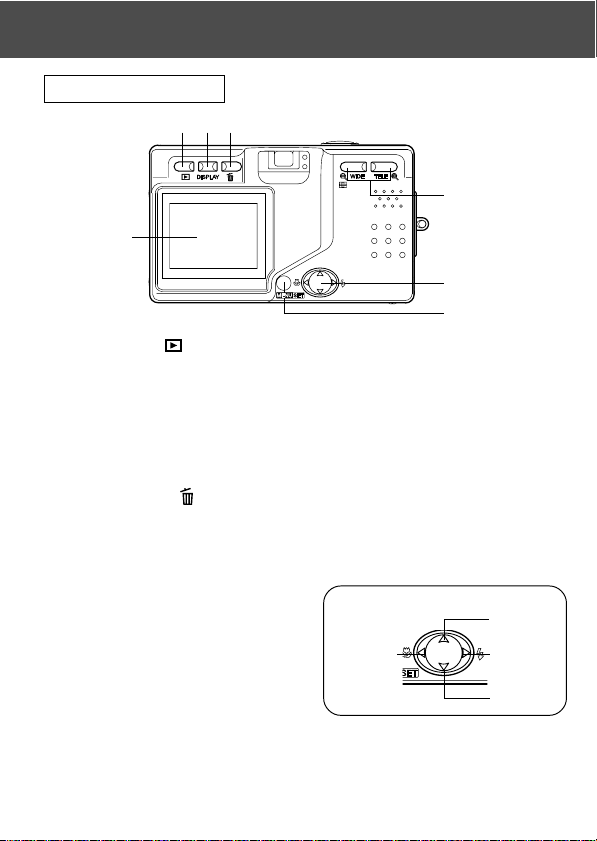
Operation Buttons
q Play Button ( )
Use this button for playing back images, or setting up the play menu.
This button can be used whether the camera’s power is ON or OFF
(p.26).
w Display Button
For turning LCD monitor on and off, and switching the picture information
display on and off. When the power is ON, the LCD monitor lights, so it
should be turned OFF when you are shooting through the viewfinder.
e Delete Button ( )
For deleting unwanted photos.
r Zoom Buttons
For operating the optical and digital zoom functions.
t 4-way Button ()
Use the different buttons , , ,
and , to select menu items,
images, etc. This button is used
for the following:
• Selecting shooting mode
• Selecting menus
• Selecting pictures
• Scrolling a picture in an enlarged display
• Customizing the camera
y Menu/Set Button
For displaying the menu screen, selecting the contents and confirming
choices.
q
r
t
y
LCD Monitor
w
e
4-way Button
17
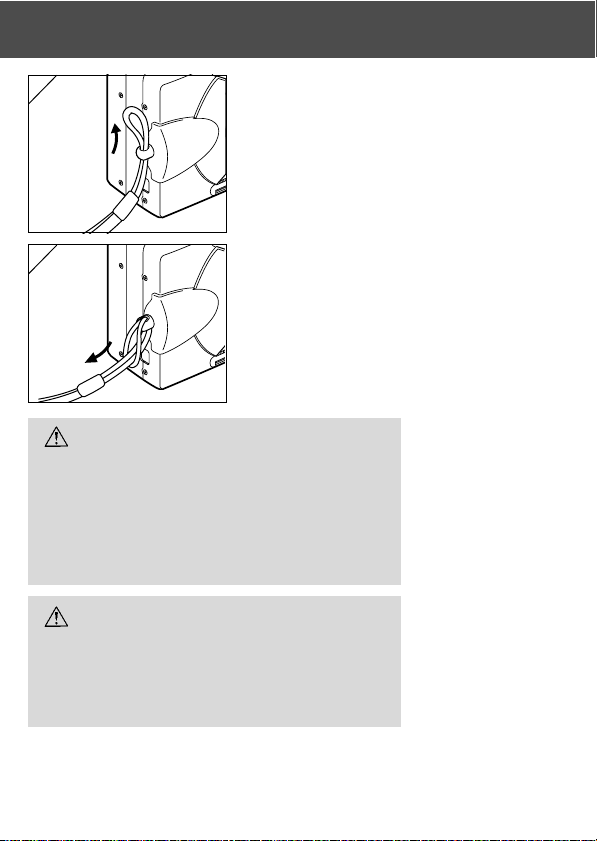
Attaching the Strap
Warning: When using the camera with the
strap attached, take care so that it
does not wrap around the neck. On
no account hang the camera round
the neck of small children and
infants. Strangulation may occur as
a result if the strap wraps around the
neck.
• When carrying the camera hanging from the
strap, take care so that it is not accidentally
hit nearby objects.
• Place the camera on a stable surface before
installing the strap, to avoid the possibility
of it being dropped and damaged.
1. Push the loop on the small end of the strap
through the strap holder.
2. Pass the other end of the strap through the
loop that is sticking out from the strap holder.
1
2
18
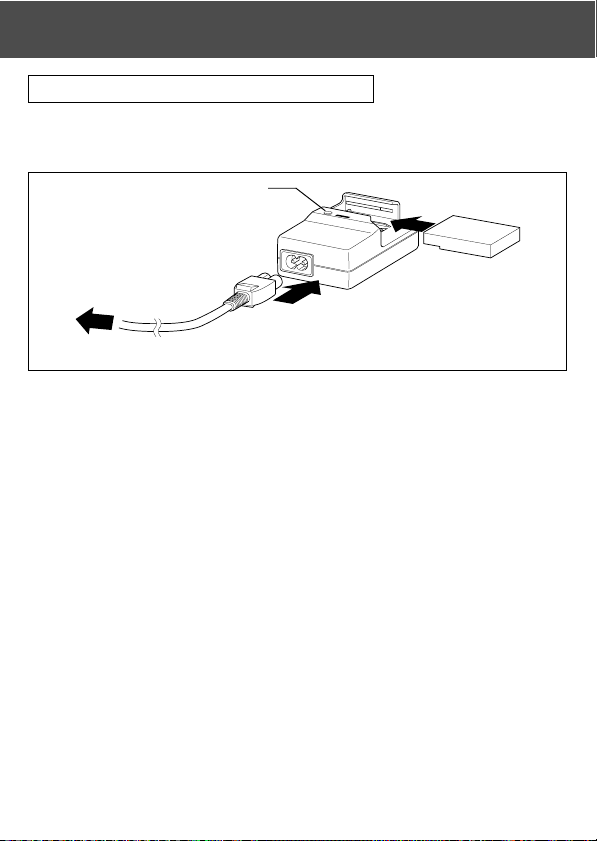
Charging the (supplied) Battery Pack
- Charge the battery pack before you use it for the first time and when the
LCD monitor indicates, “NO MORE POWER”.
1. Connect the power cord to the charger.
2. Plug the cord into an outlet.
3. Put the battery pack in the charger.
• While the battery pack is being charged, the charging display LED will be red;
when the battery pack is fully charged, the light will turn green.
4. After charging, remove the battery pack from the charger and then the
power cord from the outlet and the charger.
• Normal charging time is about 2.5 hours. Please charge your battery pack in an area
with a temperature between 0°C (32°F) and 40°C (104°F).
• Charging time will vary with the surrounding temperature and the condition of the
battery pack.
• Before using new battery packs or battery packs that have not been used for some
time, be absolutely sure to charge them.
• When a battery pack reaches the end of its useful life, it can be used only for a short
time, even when fully charged. When that happens, replace with a new battery pack
(sold separately, Lithium-ion Battery NP-500).
• During charging both the charger and the battery pack get hot; this is normal.
• If dirt gets on the battery contact points, the battery pack will not be fully charged or
charging time will get longer. Please wipe them off with a soft, dry cloth.
Preparing the Power Supply
q
w
e
Charging display LED
to an outlet
19
Installing the (supplied) Battery Pack
- Before installing or changing battery packs, make sure the power is OFF
(p.26), check that the LCD monitor is not lit and turn OFF all switches.
Preparing the Power Supply (Cont’d)
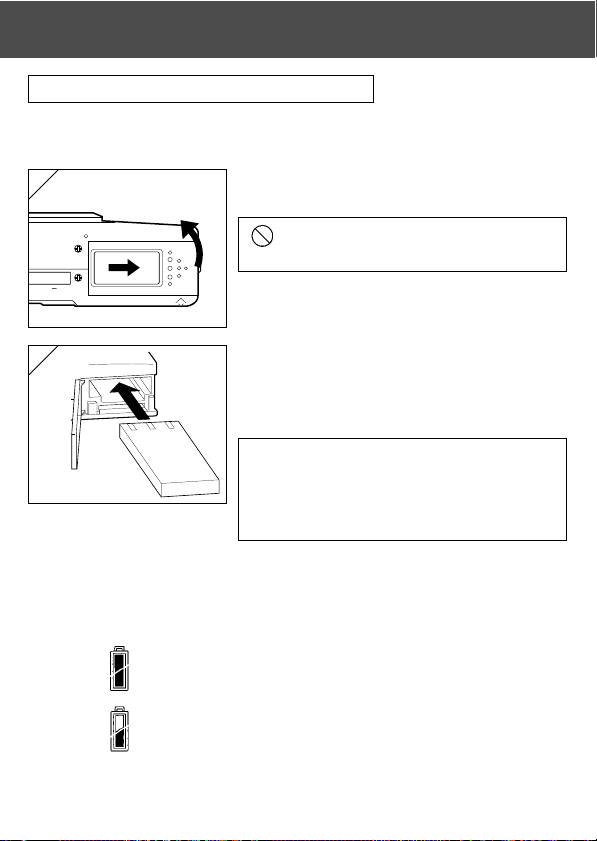
1. Open the battery/card cover by sliding it in
the direction of the arrow.
Do not change the battery with wet hands,
as there is a danger of electric shock.
2. Install the battery with the terminals facing
inside the camera. After making sure the
battery pack is properly installed, close the
battery/card cover securely.
Make sure that the battery pack is facing the
right way. If the battery pack is installed
incorrectly, there is a danger of injury or
contamination, or the camera may be damaged
due to leakage and/or heat.
Battery level indicator
As the battery runs out of power, the battery level indicator displays the
power remaining as follows:
(Remaining power is shown on the LCD monitor in two levels)
1. Fully charged
2. Power is running out; change (charge) the battery.
1
2
20
Preparing the Power Supply (Cont’d)
Battery life guide (reference)
Number of Pictures
Continuous
With LCD Monitor On With LCD Monitor Off
Playback Time
About 100 About 200 About 90 Minutes
* Our test conditions: Normal humidity and temperature, flash intensity 50%, shot every
30 sec. Zoomed one direction, once, 2592 × 1944 pixels.
* The Battery life will vary depending on the environment, shooting mode, and shooting
conditions.
* The above values are for reference only and are not guaranteed.
* Power is consumed by the following operations even when not recording and these
will reduce the number of images that can be recorded.
• Repeated focus operations by pressing the shutter button halfway.
• Repeated zoom operations.
• Extensive use of the LCD monitor in the Playback mode.
• Communication with a PC.
Warning
• When you continue using the camera for a long time, the batteries become
hot. Contact with the batteries can lead to burns.
• Never open the battery/card cover while the camera is accessing the card
or processing images (p.32).
•To recharge the battery (NP-500), do not use any charger other than the
supplied charger (BC-500). Also, do not use the supplied charger (BC-500)
to recharge batteries other than our special battery (NP-500).
• Do not leave the battery anywhere where the temperature may reach 60Cº
(140°F), such as inside a car, in the sun, near a heater, etc.
• Do not get the battery wet, drop it or subject it to violent shocks.
•
Battery Charger BC-500
Main Specifications
· Input voltage : AC100–240V (50/60Hz)
· Rated Input : 8VA (100V) 12 VA (240V)
· Rated Output : DC4.2V/600mA
· Recharge time : Approx. 2.5hr
·Temperature for use: 0˚–40˚C (32˚–104˚F)
· Storage temperature: -20˚–60˚C (-4˚–76˚F)
· External dimensions:
55(W) × 30(H) × 90(D) mm
2
1
/4"(W) × 1
1
/4"(H) × 3
5
/8"(D)
·Weight : Approx. 70g (2oz)
•
Lithium-ion Battery NP-500
Main Specifications
· Nominal voltage : 3.7 V
· Nominal capacity: 820mAh
·Temperature for use: 0˚–40˚C (32˚–104˚F)
· External dimensions :
31.8(W) × 9(H) × 49.8(D) mm
1
5
/16"(W) ×
3
/8"(H) × 2"(D)
·Weight : Approx. 25g (1oz)
21
Preparing the Power Supply (Cont’d)
Please co-operate in recycling the lithium battery.
• This product uses a lithium battery.
• This battery is recyclable and a valuable resource.
• For recycling exhausted batteries or batteries removed from a used product,
as a precaution against a short circuit, that could result in smoke or fire,
please tape the terminals to insulate them or put them in a plastic bag and
take them to a retailer participating in a recycling program, where you can
deposit them in a recycling box for rechargeable batteries.
Warnings about recycling
Do not short circuit the battery. This may cause a fire or electrical shock.
Do not peel off the outer cover (insulation cover, tube, etc.) This may
cause the battery to leak, get hot, catch fire, or explode.
Do not dismantle the battery. This may cause it to leak, get hot, catch fire,
or explode.
FCC Compliance Statement:
This device complies with Part 15 of the FCC Rules.
Operation is subject to the following two conditions: (1)
This device may not cause harmful interference, and (2)
this device must accept any interference received,
including interference that may cause undesired
operation. Changes or modifications not approved by the
party responsible for compliance could void the user’s authority to operate the equipment.
This equipment has been tested and found to comply with the limits for a Class B digital
device, pursuant to Part 15 of the FCC Rules. These limits are designed to provide
reasonable protection against harmful interference in a residential installation. This
equipment generates, uses and can radiate radio frequency energy and, if not installed
and used in accordance with the instructions, may cause harmful interference to radio
communications. However, there is no guarantee that interference will not occur in a
particular installation. If this equipment does cause harmful interference to radio or
television reception, which can be determined by turning the equipment off and on, the
user is encouraged to try to correct the interference by one or more of the following
measures:
• Reorient or relocate the receiving antenna.
• Increase the separation between the equipment and the receiver.
• Connect the equipment to an outlet on a circuit different from that to which the receiver
is connected.
• Consult the dealer or an experienced radio/TV technician for help.
Tested by the Minolta Corporation 101 Williams Drive, Ramsey, New Jersey 07446, U.S.A.
Do not remove the ferrite cores from the cables.
Industry Canada’s Compliance Statement:
This Class B digital apparatus complies with Canadian ICES-003.
Cet appareil numérique de la classe B est conforme à la norme NMB-003 du Canada.
Digital Camera:
Tested To Comply
With FCC Standards
FOR HOME OR OFFICE USE

22
Preparing the Power Supply (Cont’d)
Connecting the AC Adapter (sold separately)
- If you do not want to worry about battery consumption, we recommend using
the specified AC adapter (sold separately, AC-8U/AC-8E/AC-8GB; see P.11 for
details) when shooting pictures, during playback, or when transferring data (USB
connection).
- Only use the AC adapter (sold separately) specified for your camera as use of
any other device may result in a breakdown, fire or electrical shock.
- Make sure the camera is OFF, check that the LCD monitor is not lit and turn OFF
all power.
- After reading the “Important Safety Precautions” (pp.7-10) in this manual and
the warnings supplied with the AC adapter, connect the adapter as instructed.
1. Connect the AC adapter to the power supply
cord, and plug in the power supply plug.
2. Insert the connecting plug of the battery type
adapter to the AC adapter plug.
1
2
23
3. After opening the battery/card cover,
remove the battery sub-cap. Insert the
battery adapter in the battery compartment,
and close the battery/card cover.
• When finished using the camera, turn OFF the
power supply to the camera, and then
disconnect the connecting plug of the battery-
type plug from the AC adapter.
Never handle the adapter with wet hands. It may
result in electric shock.
Preparing the Power Supply (Cont’d)
3
24
- About 2 MB of memory are built into this camera as recording media for
image data, and other information, such as date and time, so even without a
card inserted, the camera can record in an emergency. If you wish to use an
aftermarket card, any of the following are appropriate: SD Memory Card, Multi-
Media Card, Memory Stick. (All three will be called “card” hereafter.)
- First, turn OFF the main switch (lens cover closed), make sure the LCD monitor
is OFF and turn OFF all power. If power is ON, damage may occur to the card
or to the camera itself.
Inserting/Removing Cards
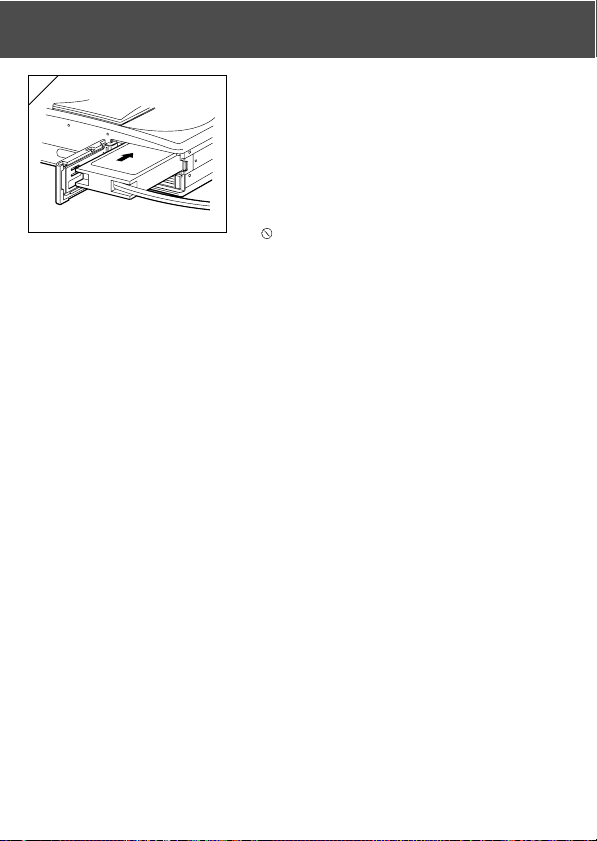
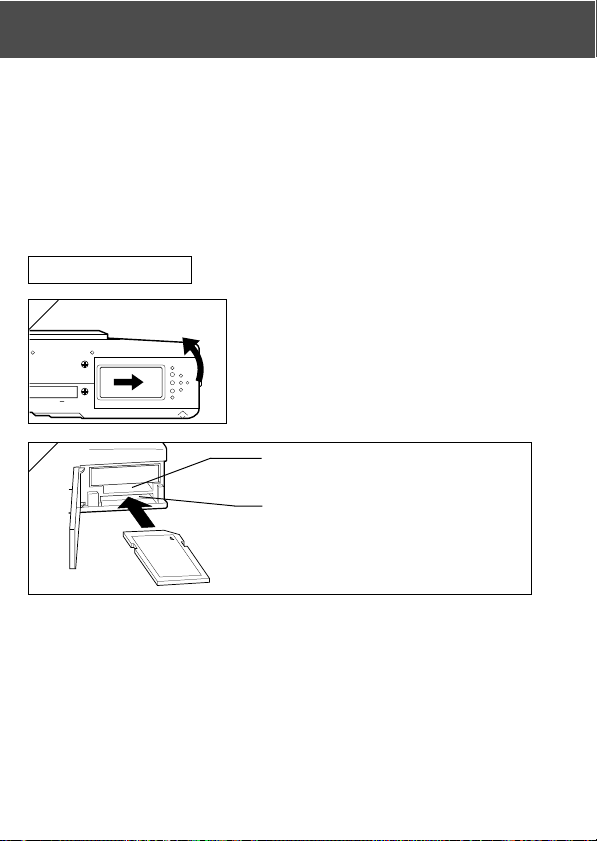
1. Open the battery/card cover.
2. With the camera and the label of the card facing up, insert the card with
the knocked out part first into the slot and push in until a click is heard.
•Take care that the card is inserted facing the right way. If the card is forcefully
inserted facing the wrong way, it will damage the connector.
• There are two card slots. When a SD Memory card or MultiMedia Card are used,
insert them in the slot at the back of the camera, and if a Memory Stick is used,
insert it in the slot toward the front.
3. Close the battery/card cover.
Inserting a Card
1
Memory Stick slot
SD Memory Card/MultiMedia Card slot
2
25
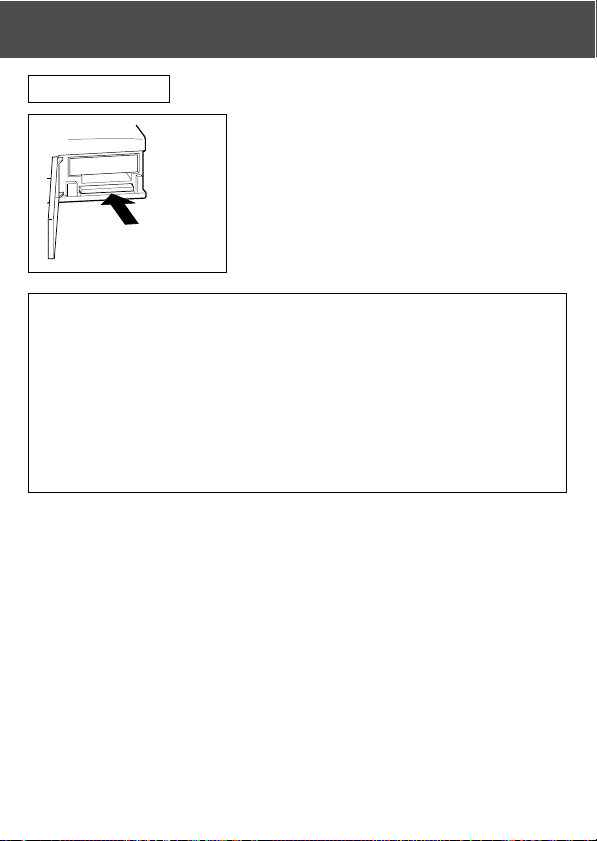
Card Removal
1. Open the battery/card cover.
2. If you gently push in on the card, the lock
will release and the card will come out a
little. Then carefully draw the card out.
3. Again, close the battery/card cover.
Warning! Insert or remove cards only after making sure that absolutely
all power is OFF as indicated by the viewfinder LED being
off.
While the card is being accessed, or an image is being processed,
the LCD monitor will show “Now COPY…”, etc., and the red LED
will come on.
If you open the battery/card cover while the red LED is flashing,
image processing may be interrupted or hindered.
While the red LED is still lit, make sure that you DO NOT open the
battery/card cover.
• When a card is inserted, it is recorded on first. (When a card is not inserted,
internal memory is used for recording. However, in this case the recording
image size is limited to only 640 × 480 pixels.)
• Also, it is possible to insert and use two cards simultaneously, such as an
SD memory card (or multi-media card) and a Memory Stick.
In this case the card being used will be recorded on first. By using the Set-
up menu, you can select which to record to first (p.105).
Inserting/Removing Cards (Cont’d)
26
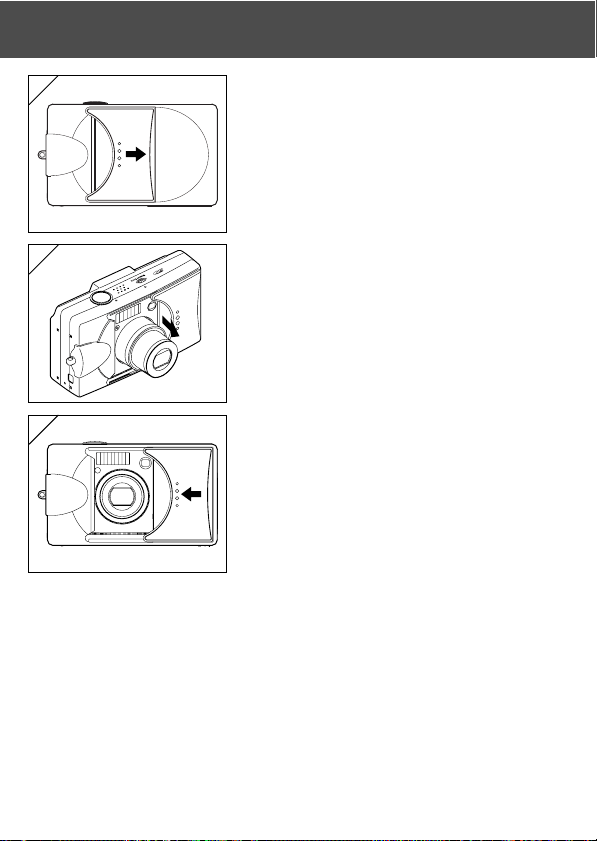
1. Gently slide the lens cover (main switch) in
the direction indicated by the arrow until it
stops.
2. Once the lens extends to the shooting
position (wide-angle side), the power will
come on.
•With the power ON it is possible to shoot
pictures. Also, the LCD display will be lit.
3. When you wish to turn the power OFF, slide
the lens cover just a little in the direction
indicated by the arrow. The power will turn
OFF and the lens will retract. After you are
sure the lens has fully retracted, you can
close the lens cover to its fully closed
position.
Turning the Power ON/OFF
1
2
3
27
Setting the Menu Language/Date and Time
- The first time that you use your camera, a screen will automatically appear
and prompt you to set the time, date and language. To make those settings,
please follow the steps below.
-You can select from among four languages, Japanese, English, French,
and German.
- Make sure that either the AC adapter is connected or that there is enough
battery power.
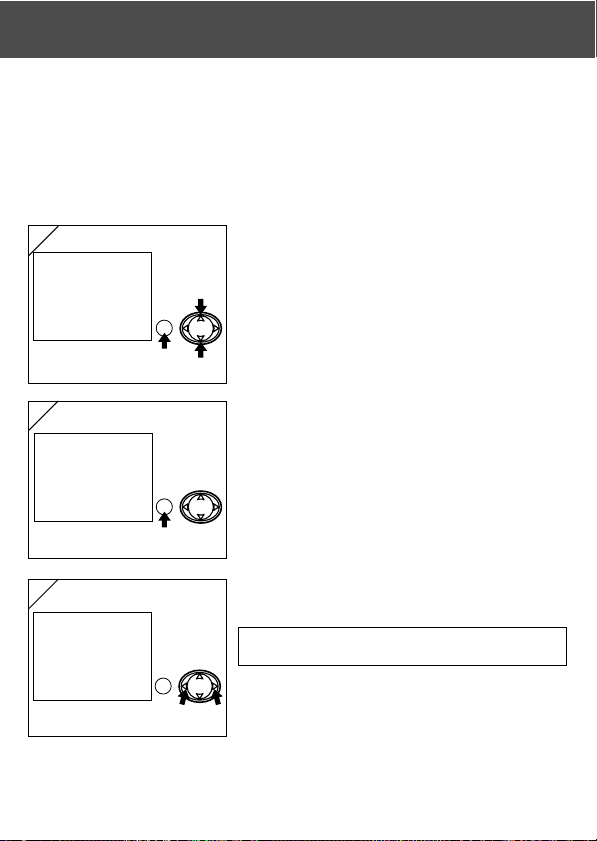
1. Turn the power on by either opening the lens
cover or pressing the PLAY button. The
language selection screen will automatically
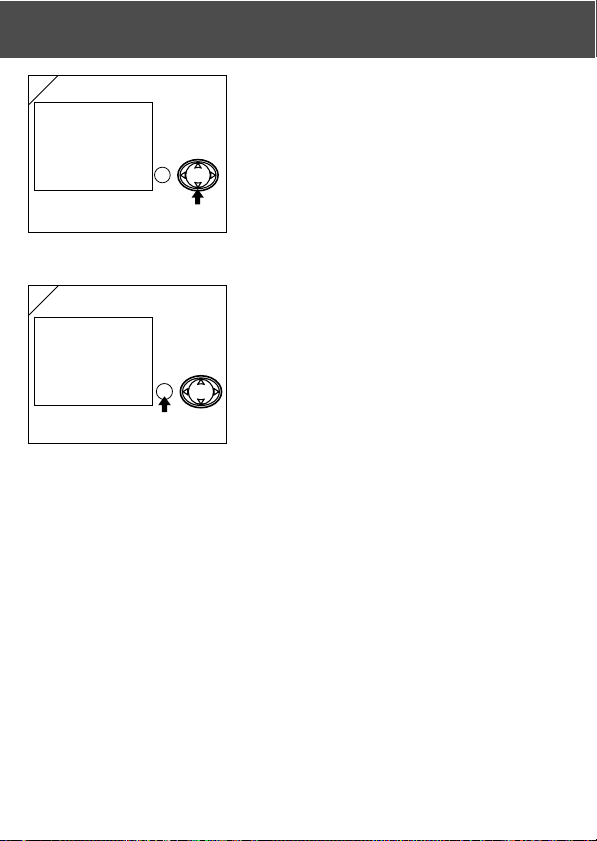
appear on the LCD monitor. By pressing
or , select the desired language and push
the MENU/SET button.
2. You will be prompted to confirm your
language selection; confirm the selected
“YES” by pressing the MENU/SET button.
• If you select “NO” with and press the MENU/
SET button, the current setting is invalidated and
you will return to the first screen.
* Once you have finished language selection,
the next screen “DATE SET” will appear.
3. With “YEAR” selected, use or to adjust
to the appropriate year.
The date may be adjusted up to Dec. 31, 2050.
1
2
3
28
4. (1) Once the “YEAR” has been adjusted,
press to move to the “MONTH” setting
mode.
(2) Use or to adjust the month in the
same way as Step 3 on page 27.
• By repeating procedures (1) and (2) above, adjust
the date-and-time setting, and set the date format.
• The date format can be selected from among three
patterns: yy/mm/dd, dd/mm/yy, and mm/dd/yy.
• By using , you can return to the previous screen
and make corrections.
5. Once you have finished making all of the
settings, press the MENU/SET button.
Setting the Menu Language/Date and Time
(Cont’d)
6. After finishing the settings…
• If you turned the power ON with the main switch (by opening the lens cover), you can
take pictures once the lens has reached its extended position.
• If you made the settings after pressing the PLAY button, the LCD monitor will display
playback images.
* The internal clock is maintained by a back-up battery. Without a battery in the camera,
the information will be maintained for about 24 hours. If the battery is removed for
some time, you may have to reset the information (p.103).
* Do not remove the battery from the camera for at least three hours after making new
date-and-time settings. They will be lost if the back-up battery is not fully charged.
4
5
29
Basic Operation
Holding Your Camera
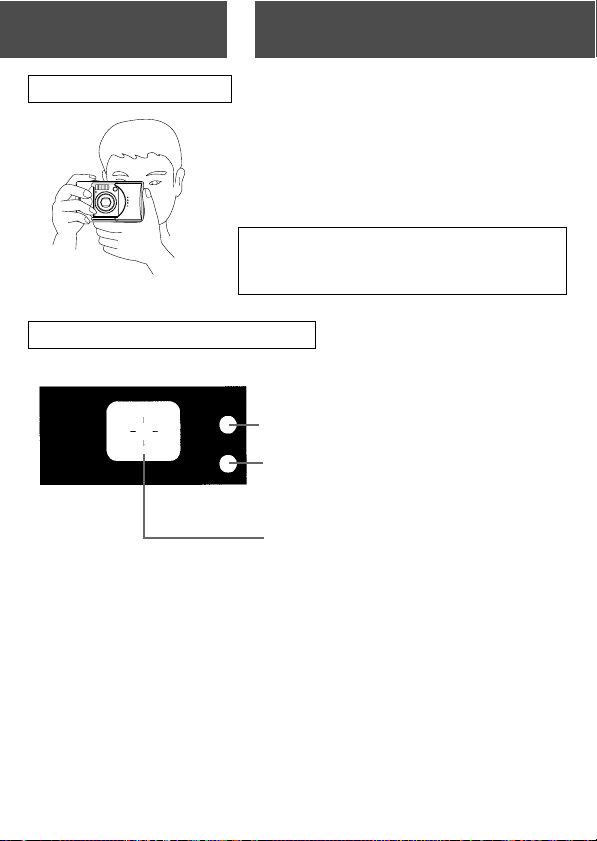
- Hold the camera securely with both hands
and your elbows against your body for a stable
position.
-To take a vertical picture, hold the camera so
that the flash is at the top.
Please be careful that your fingers, hair, or the
strap do not cover the lens, flash, or the light
sensor.
Taking Pictures
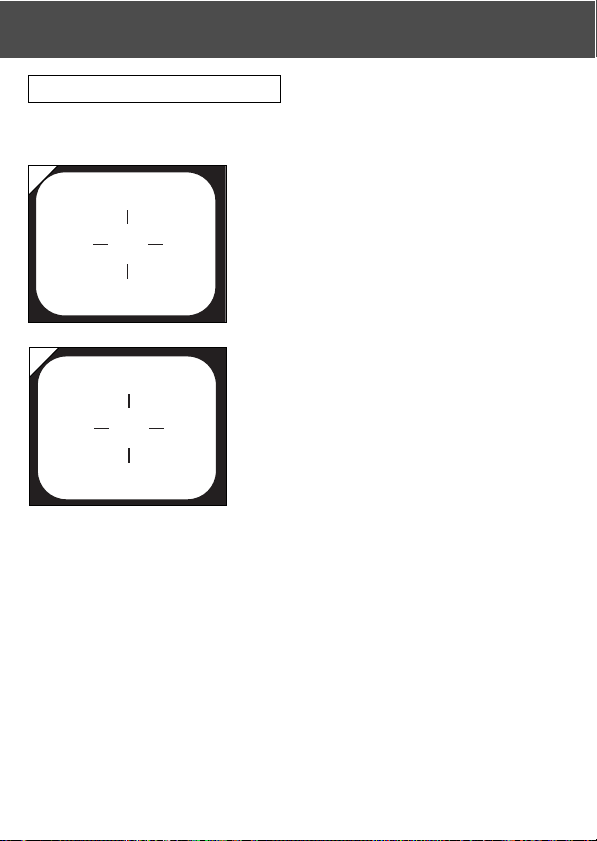
Auto-focus Mark
Align the crosshairs on the subject
of your picture.
Viewfinder and Indicator LEDs
• In the macro-photo mode (p.42), we recommend that you use the LCD
monitor for composing your pictures (p.35). If you use the viewfinder, what
you can see and what the camera records may be different.
Viewfinder LEDs (→ p.30)
Green LED
Red LED

30
Viewfinder LED Indicators
When the LED Indicators light, they mean the following:
• Green LED:(On) Camera ready to shoot (Flash does not fire)
(Flashing) Warning that the camera cannot auto-focus (AF)
• Red LED: (On) Flash charging, Formatting the card
(Flashing) Warning that your hands are shaking
• Both Red and Green LEDs:
(On) Camera ready to shoot (Flash fires)
USB cable is being connected
(Flashing) System error; Card has insufficient memory, is faulty,
not formatted; Insufficient battery warning
(Green LED flashing/Red LED on)
Card being accessed, images being processed,
compressed/expanded, other processing
Taking Pictures (Cont’d)
31
Taking Pictures (Cont’d)
Taking Pictures using the Viewfinder
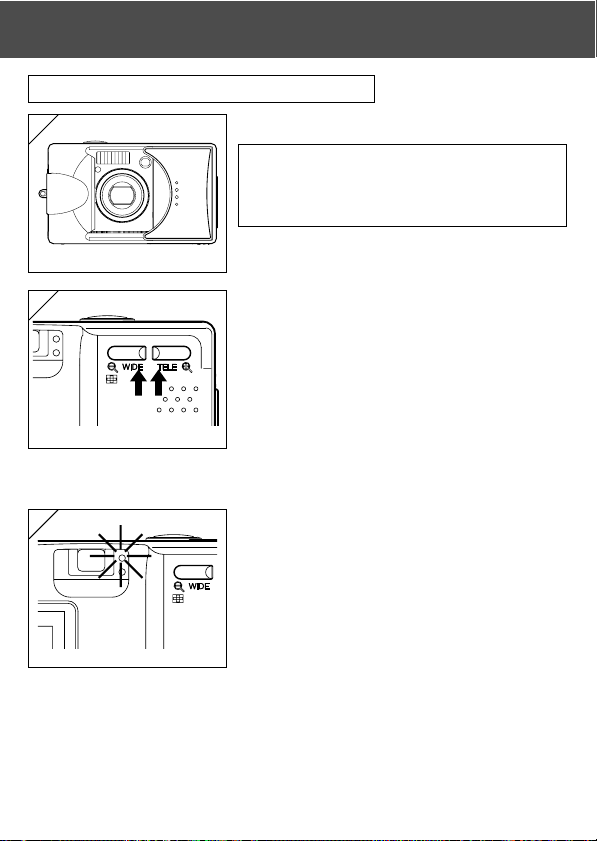
1. Opening the lens cover turns ON the power.
When the power comes ON, the LCD monitor
will be on. If you will be using the viewfinder, to
conserve your battery, press the DISPLAY
button and the LCD monitor will turn off.
• If the surface of the lens is dirty, gently wipe it
clean with a soft, dry cloth.
2. Looking through the viewfinder, compose
the photo you wish to take and determine
the size of the subject using the zoom
buttons. Also, put the auto focus mark on
the subject you wish to bring into focus.
• If you press the TELE (Telephoto) Zoom button,
the camera zooms in, while if you press the
WIDE (Wide-angle) button, it zooms out.
• If the subject you wish to focus on is not in the
screen center, use “Shooting with Focus Lock”
(p.34).
3. Press the shutter button half way and the
green LED will light, indicating that the focus
and exposure are locked.
• If it is difficult to focus, the green LED will flash.
See page 33.
• If the camera senses your shaking, the red
viewfinder LED will flash.
1
3
2
WT
32
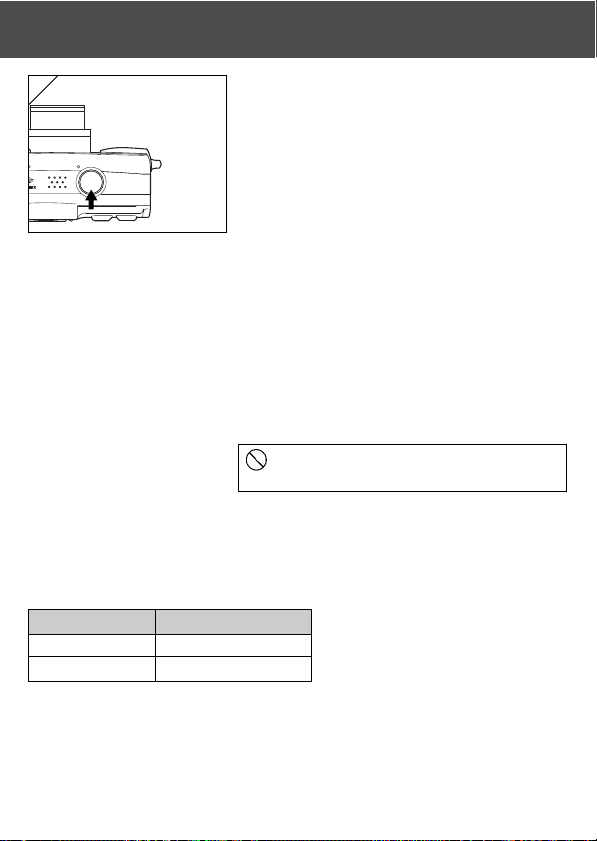
4. Take a picture by pressing the shutter button
further. When it makes a sound, the shot
has been taken, and the image will be
recorded on the card (or built-in memory).
• The beep will not sound if the beeper setting is
turned off (p.102).
5. During recording to the card, the red LED
and the self-timer LED on the front of the
camera will come on, and the green LED
will flash.
• If you set the beep sound to off (p.102), the self-
timer LED will not be lit.
• While the card is processing image data, you
cannot operate the camera.
Once the red and green LEDs disappear,
the recording has finished.
Do not open the battery/card cover while
the red and green LEDs are flashing.
6. When you are finished taking pictures, close
the lens cover and turn OFF the power
supply.
4
Taking Pictures (Cont’d)
Daytime (normal) shooting distances
Focal Length Shooting Distance
Wide-angle* 0.5m (1.6ft) to ∞
Telephoto** 0.8m (2.6ft) to ∞
• If you wish to take a picture of a subject closer than the above ranges, use the macro-
photo mode (pp.39, 42).
* Equivalent to 39mm in 35mm camera
conversion
**Equivalent to 117mm in 35mm
camera conversion

33
When you press the shutter halfway and the green LED flashes…
This may suggest that the focusing on the subject is difficult, and/or the
subject is too dark. Should this be the case, please take the following steps.
• Make sure that the camera is not too close to the subject, then align the
subject to the auto-focus mark in the center of the viewfinder. (For the
shooting distance, see page 32.)
• If the subject is too dark (such as a person in the shade), use the flash
(pp.38, 40, 41).
• Use a similar subject, at the same distance and with the same brightness,
to adjust the auto focus and exposure. After the focus lock is set, aim at
your original subject and shoot your picture (p.34).
Taking Pictures (Cont’d)
34
Taking Pictures (Cont’d)
Shooting with Focus Lock
- If the subject you wish to focus on is not in the center of the screen, use the
focus lock photography.
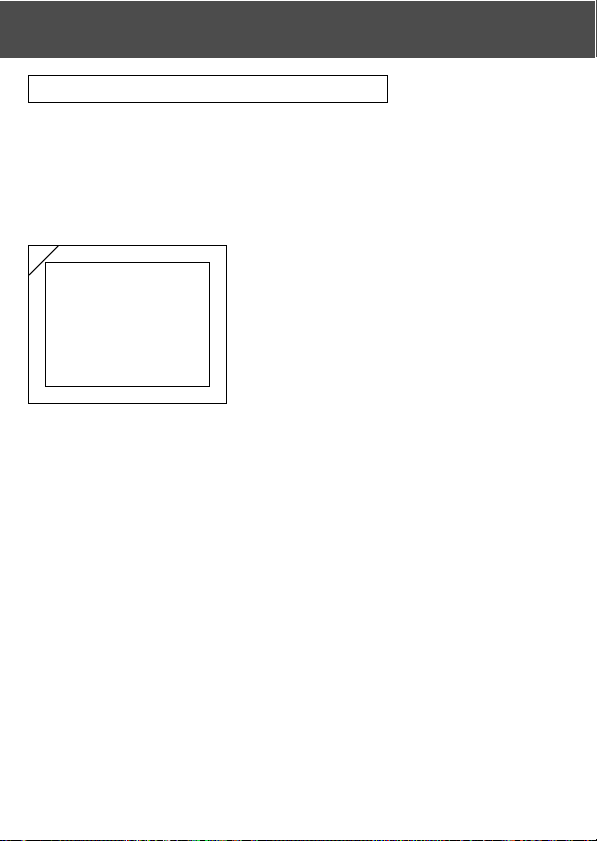
1. Align the auto focus mark on the subject,
and push the shutter button half-way. The
green LED light will come on, locking the
focus position.
• The exposure is fixed at the same time the focus
is locked.
• If you release your finger from the half-pushed
shutter button, the focus lock will be released
and you can repeat the procedure.
2. With the shutter button pressed half-way, re-
compose your photo and press the shutter
button all the way to take the picture.
• When re-composing the photo, do not change
the shooting distance. If the distance has
changed, repeat the procedure.
The following subjects may be difficult to bring into focus:
• Subjects with no contrast (variance in brightness, e.g., the sky, a
white wall, the hood of a car)
• Subjects with only horizontal lines and no surface texture
• Quickly moving subjects
• Poorly lit subjects (in a dark place)
• Subjects with a strong light or reflected light behind them
• Subjects in a flickering light, such as a fluorescent light
In the above circumstances, take your picture after the focus lock is set to
the same distance and brightness as the subject.
1
2
35
Taking Pictures (Cont’d)
Taking Pictures using the LCD Monitor
-You can take a picture while looking at the LCD monitor as through the
viewfinder.
- Using the LCD monitor consumes battery power at a high rate, so it is
recommended to have a spare charged battery on hand (sold separately,
Lithium-ion Battery NP-500), or to use the AC adapter (sold separately,
AC-8U/AC-8E/AC-8GB; see P.11 for details).
1. Once the power supply is turned on by
opening the lens cover, the LCD monitor will
come on, and a through image (the image
taken though the lens) will be projected.
• Date and time displayed will go off in approx. 5
seconds.
2. While looking at the LCD monitor, compose
and take your photo.
•The shooting procedures are the same as
“Taking a picture using the viewfinder” (pp.31-
32).
• Focus value and shutter speed will be displayed
by half depressing the shutter button on through
image.
• When the writing process to the card is
completed, the through image will reappear.
1
36
Image Display
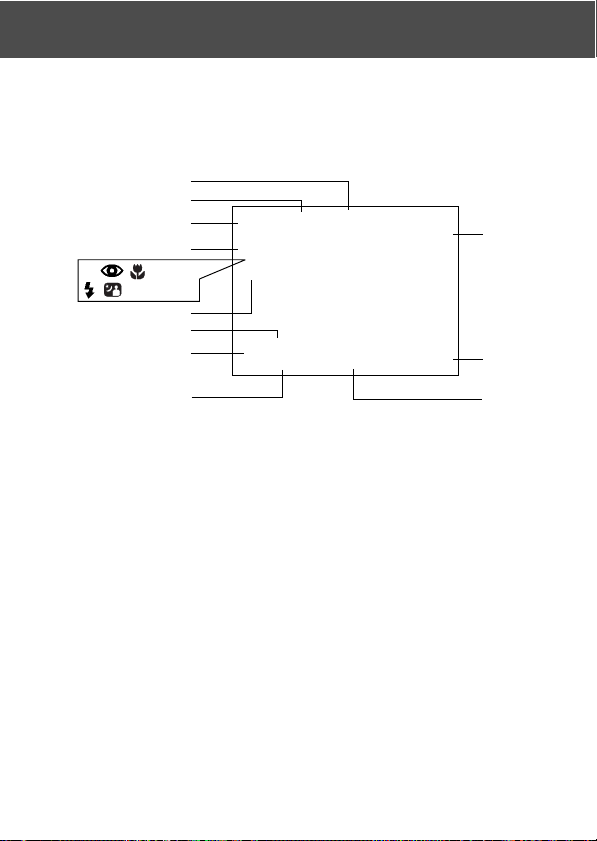
Shooting with the LCD monitor displays the picture and the following other
information:
•You can set the camera so information is not displayed (p.101).
Taking Pictures (Cont’d)
q Recording Media Display
This shows the media type.
• SD Memory Card or
MultiMedia Card : SD*
• Memory Stick : MS
• Built-in Memory : IN
* Even when a Multi Media Card
is used, the type will be displayed
as SD.
w AF/AE Lock Display
This will be displayed when the AF/AE
Lock functions are used (pp.107-108).
e Exposure Compensation
The compensation value will be
displayed. For details of how to adjust
the exposure, see pages 51 and 107.
r Shooting Mode
The selected shooting mode** will be
displayed.
**For details on each shooting mode,
see pages 38 to 43.
t White Balance
White balance icon will be displayed.
For details of how to select the white
balance, see page 52 and 107.
y Digital Zoom Magnification
This will be displayed when the digital
zoom function is used (p.56).
u Battery Remaining Display
If the battery is being used, the
remaining battery power will be
displayed in two levels (p.19).
o
r
!0
w
i
u
e
q
or,
t
!1
y
4m 2m 1m

37
About Auto Power Off Function
If you do not operate for a certain period of time with the camera power on
and the lens cover open, the auto power off function (pause status) will be
activated and power will be turned off (with the lens still out).
By pressing the shutter button, zoom button, or another button, the camera
will return to the shooting mode.
• When finished shooting, or if you are not going to take a picture for a long
time, close the lens cover.
• The default auto power off time is set at three minutes. This can be changed
in the set-up menu (p.104).
• When using an AC adapter, the auto power off function will be activated.
Taking Pictures (Cont’d)
i Counter
The remaining number of pictures you
can take will be displayed.
o Date and time/focus value/
shutter speed
1) The date and time will be displayed
when turning the power on and
when REC menu screen (p.44) or
playback image (p.70) is changed
back to through image. Date and
time displayed will go off in approx.
5 seconds.
2) Focus value and shutter speed will
be displayed by half depressing
the shutter button.
3) Focus value and shutter speed will
be displayed all the time when
setting up manual exposure (p.62).
!0 Picture Size
The picture size of the photo being
taken will be displayed.
!1 Picture Quality Mode
1) Normally the photo quality of the
picture being taken is displayed.
2) When shooting a movie,
is
displayed.
38
- Selecting different shooting modes enables you to create the best shooting
condition for your subject.
- Once a mode is set (apart from the self-timer), you can shoot continuously.
It is recommended that the mode should be returned to AUTO mode (no
display) after shooting.
-You can set the self-timer for a 3- or a 10-second delay (factory setting),
although the 10-second setting is effective for the next shot only. The 3-
second setting remains in effect until you change it again.
- Also, when you turn the camera OFF, the shooting mode you set is canceled
and the camera automatically returns to AUTO-mode shooting operation
(no display). But the flash-mode setting remains in effect even if you switch
the power OFF and back ON.
- Using the custom function (p.107) enables you to set up your favorite
shooting modes.
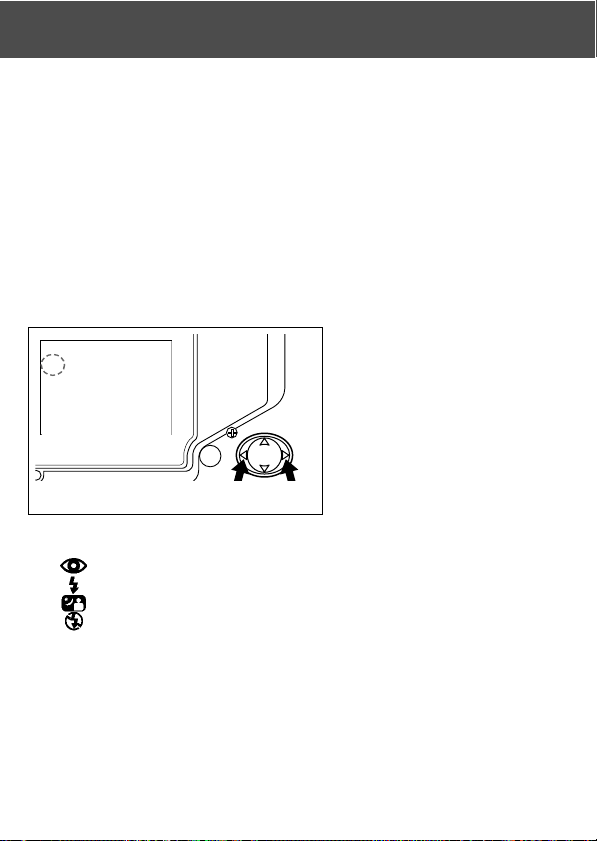
Selecting the Shooting Mode
1. Turn the power on so that the
LCD monitor is lit.
2. By pressing or , bring up
the desired shooting mode
symbol on the LCD monitor.
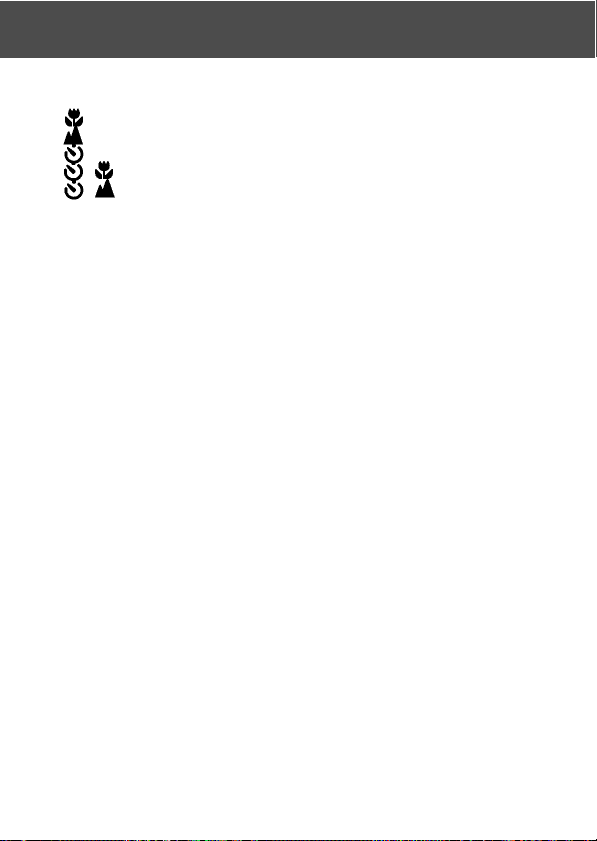
Pressing enables the selection of the following modes.
1) AUTO (Automatic Flash) (p.40)
2) Red Eye Reduction (p.40)
3) Fill-In (p.41)
4) Slow Sync (p.41)
5) Off (Flash Override) (p.41)
• Every time is pressed, the mode symbol will be displayed one by one, through the list.
39
Selecting the Shooting Mode (Cont’d)
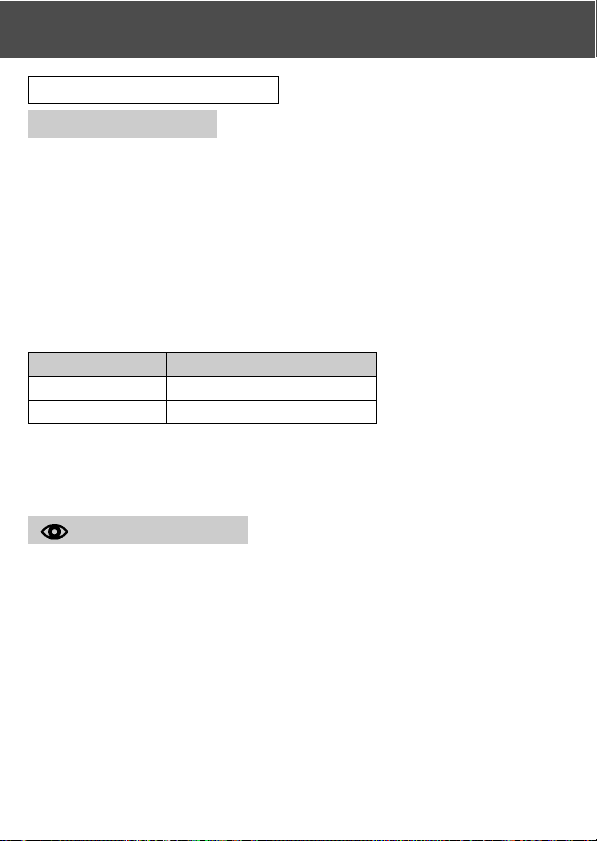
Pressing enables the selection of the following modes.
1) AUTO mode (no display)
2) Macro-photo mode (p.42)
3) Distant View mode (p.42)
4) Self-Timer mode (p.43)
5) Self-Timer + Macro-photo mode
6) Self-Timer + Distant View mode
7) 4m Fixed focus mode (p.43)
8) 2m Fixed focus mode (p.43)
9) 1m Fixed focus mode (p.43)
• Every time is pressed, the mode symbol will be displayed one by one, through the list.
40
Switching the Flash Mode
AUTO (Auto Flash)
- This is the normal mode. When the camera is turned ON, it is set at Auto
(Auto Flash). No symbol will be displayed on the LCD monitor.
- The flash will operate automatically when it is dark.
• The red light after the flash indicates charging; while it is lit, you cannot take a
picture.
• The shutter speed is slower than 1/60 second at wide angle and 1/90 second at
telephoto. Keep in mind that the picture will be blurry due to camera shake.
• It is best to use the red-eye reduction when using a flash with people.
Flash Shooting Distances
Focus Distance Shooting Distance
Wide-Angle * 0.5m (1.6ft) to 3.5m (9.9ft)
Telephoto ** 0.5m (1.6ft) to 2.0m (6.6ft)
• If the shooting range is not in the above range, the picture may appear too bright
when it is too close, and the picture may appear dark without enough lighting when
it is too far. It is recommended you check the photo with the LCD monitor after
shooting.
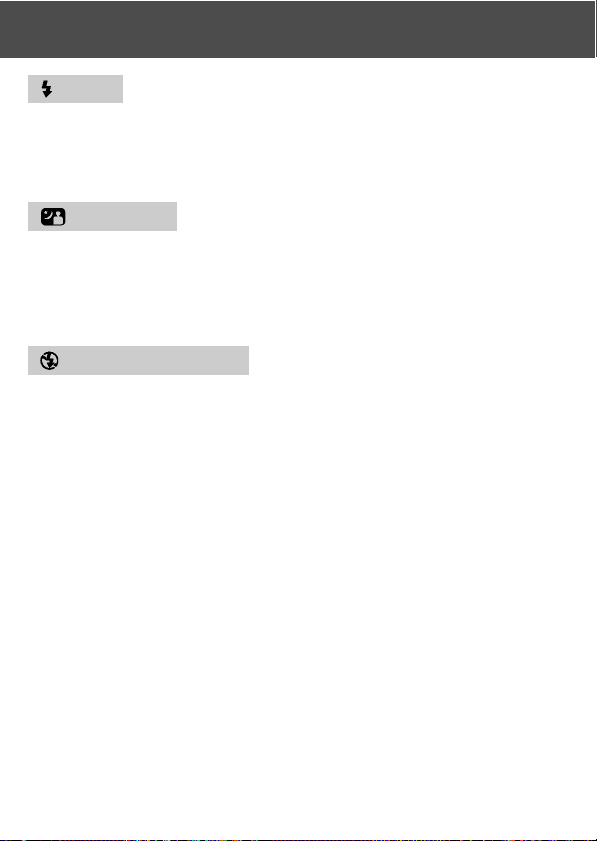
Red-Eye Reduction
- Using this mode can reduce the “red-eye phenomenon”, which is people
with red glaring eyes caused by the flash.
- When you press the shutter button, the pre-flash comes on, followed by
the real flash which finishes the shot.
• Until the real flash comes on, do not move the camera or let the subject move.
• If the subject is not facing the pre-flash or final flash, or the distance to the subject
is too far, the red-eye reduction effect may not be apparent.
• The flash is in the AUTO flash mode and will not come on in a bright place.
* Equivalent to 39 mm in
35mm
camera
conversion
**Equivalent to 117mm in
35mm camera
conversion
Selecting the Shooting Mode (Cont’d)
41
Selecting the Shooting Mode (Cont’d)
Fill-In
- Use this mode when a shadow falls on the subject’s face due to shade or
artificial lighting, or when taking a picture against the light.
- Regardless of the brightness of the surroundings, the flash will always
comes on.
Slow-Sync
- Use this mode when shooting a subject with a background of a night or
evening view.
- Shooting with a flash is possible with a slow shutter speed.
• Shutter speeds will be slower, so use a tripod to prevent shaking.
• If the subject is moving, the picture will be blurred.
Off (Flash Override)
- Use this mode for places (such as museum) where flash is prohibited, or
when taking a picture of a night view, or taking a picture using indoor lighting.
- The flash will not come on even when it is dark.
• Use a tripod to prevent shaking as shutter speeds are slower in the dark.
• If the red LED comes on when the shutter button pressed half-way, this is a warning
that the lighting is not sufficient and the resulting picture will be dark.
42
Selecting the Shooting Mode (Cont’d)
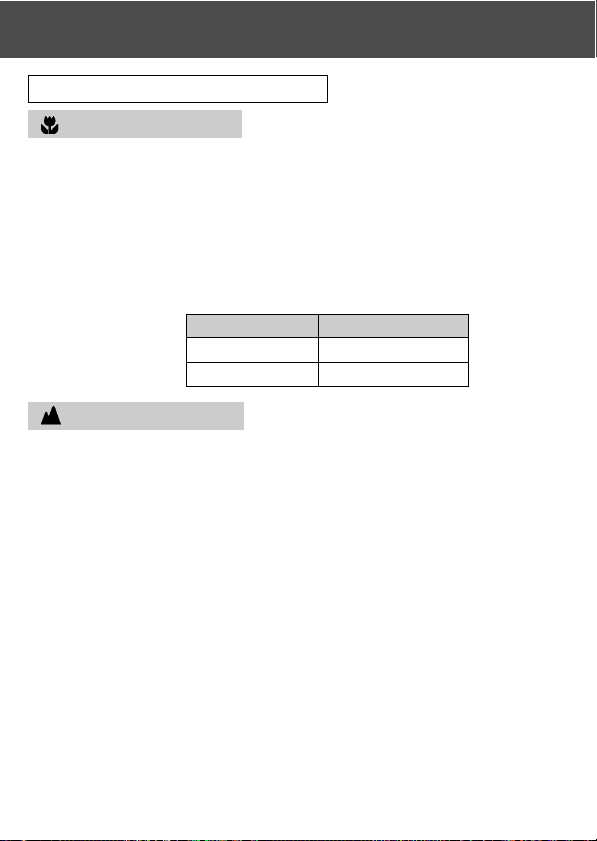
Shooting Close Up/Long Range
Macro-photo Mode
- Use this mode when you want to be close to the subject.
- If the distance between the camera and the subject is close, there will be a
difference between the image in the viewfinder and the picture that is actually
taken. It is recommended that the LCD monitor be used.
• Use a tripod to prevent shaking as shutter speeds are slower when taking close-ups.
• The self-timer function can be used in conjunction with this function for shooting.
• If you use the flash when shooting very close to the subject, the image may come
out too bright. For information about the flash shooting distance, see page 40.
Focus Distance Shooting Distance
Wide-Angle 6cm (2.4in.) to ∞
Telephoto 0.5m (1.6ft) to ∞
Distant View Mode
- Use this mode when shooting a distant subject, such as scenery or buildings.
• Always use a tripod.
• The flash will not come on.
• The self-timer function can be used in conjunction with this function for shooting.
Macro-photo Mode
Shooting Distances
43
Using the Self-Timer
Self-Timer Mode
- Use a tripod.
- When the shutter button is pressed, the self-timer LED comes on, and
after 10 seconds, a picture will be shot.
• If you wish to cancel the self-timer function, close the lens cover.
• After a picture is taken, the self-timer mode (10-second delay) will be cancelled. If
you wish to use the self-timer repeatedly, set the mode every time you take a picture.
• The activation time for the self-timer can be also set at “3-second delay” by using
the set-up menu (p. 103). If you set the self-timer for a 3-second delay, the setting
is effective even after shooting so that you can continue to take a picture using the
self-timer.
Taking photographs by fixing focus
Fixed focus mode
- Use this mode if you want to take photographs using fixed focus.
- Distance can be set to 4m, 2m or 1m.
• This mode is set to OFF as a default. In order to use this mode, select “MACRO” in
custom mode menu and then set the mode setting to ON (p.109,3).
Selecting the Shooting Mode (Cont’d)
44
Using the REC MenuAdvanced Shooting
- By using the REC menu, you can take pictures with your desired settings.
You can set the camera using the “REC (DETAILS) menu” (default setting),
or “REC (BASIC)” (p.67).
- The settings made with each menu will be maintained, even when power is
turned off, until the settings are changed, unless otherwise described.
Setting with the REC (DETAILS) Menu
1. Turn the power ON, with the LCD monitor
on (through image display).
Pressing the MENU/SET button will display
the REC menu screen.
2. Select the menu you wish to set by pressing or . Every time the
button is pressed, the menu mode changes as follows;
RESOLUTION (→ p.46)
MOVIE ON (→ p.49)
EXPOSURE (→ p.51)
WHITE BALANCE (→ p.52)
AE (→ p.54)
MONOCHROME (→ p.55)
DIGITAL ZOOM (→ p.56)
MONITOR ADJ. (→ p.57)
VOICE (→ p.58)
ADD REC (→ p.59)
SLOW SHUTTER (→ p.61)
MAN EXPOSURE ON (→ p.62)
QUALITY (→ p.64)
SETUP (→ p.66)
RETURN
1
45
3
3. After selecting the menu, pressing will
display the set-up screen (screen 3) of the
menu. After selecting the desired content
with or , pressing or the MENU/SET
button will complete the set-up and will
return you to screen 1.
4. You can cancel the REC Menu mode at Step 1 (REC Menu screen) on
the left page by pressing , or pressing or the MENU/SET button after
selecting “RETURN”. This will close the menu and return you to the through
image (picture shooting image).
• For details of each set-up menu, refer to the pages hereafter.
• If you press the shutter button half-way even when you are setting the menu, the
display returns to the through image (picture shooting mode).
Using the REC Menu (Cont’d)
46
Using the REC Menu (Cont’d)
Selecting a Combination of Image Sizes and Compression Ratios
-You can select a combination of four image sizes and two compression
ratios.
- While using the same card, you can change the picture resolution settings
for every photo. Every time you change the picture resolution, the number
of images remaining will change and be displayed on the LCD monitor.
- When quality is the priority, select “FINE”; when the number of photos is
more important, select “NORMAL”.
1. Select “RESOLUTION” and press .
2. Use or to select image size or
compressions ratio, then press .
3. Select the picture size
Use or to select the desired image size,
then press either or the MENU/SET
button. You will return to screen 2 with your
chosen size displayed.
• If you press , the setting is invalidated and you
will return to screen 2.
2
3
1

47
Using the REC Menu (Cont’d)
4. Selecting the compression ratio
Use or to select the desired
compression ratio, then press either or
the MENU/SET button. You will return to
screen 2 with your chosen compression
ratio displayed.
• If you press , the setting is invalidated and you
will return to screen 2.
4
48
Using the REC Menu (Cont’d)
Image size and pixel count (width) × (height)
1) 2592 × 1944 pixels (approximately 5,040,000 pixels)
This is the highest quality image. Use this mode for important pictures
you want to keep, for images you want to edit on your computer, etc. As
it is the largest, it is also ideal for printing out your enlarged photos.
2) 2048 × 1536 pixels (approximately 3,140,000 pixels)
This mode is a good standard setting when you want to view memorable
photos on your computer screen, or for printing them out.
3) 1600 × 1200 pixels (approximately 1,920,000 pixels)
You can shoot pictures in high quality resolution with low memory
requirements. This mode is suitable if you wish to take more shots and
the memory does not have enough space.
4) 640 × 480 pixels (approximately 300,000 pixels)
As this mode produces the smallest file size, it is best for sending via
email, for use in home pages, etc.
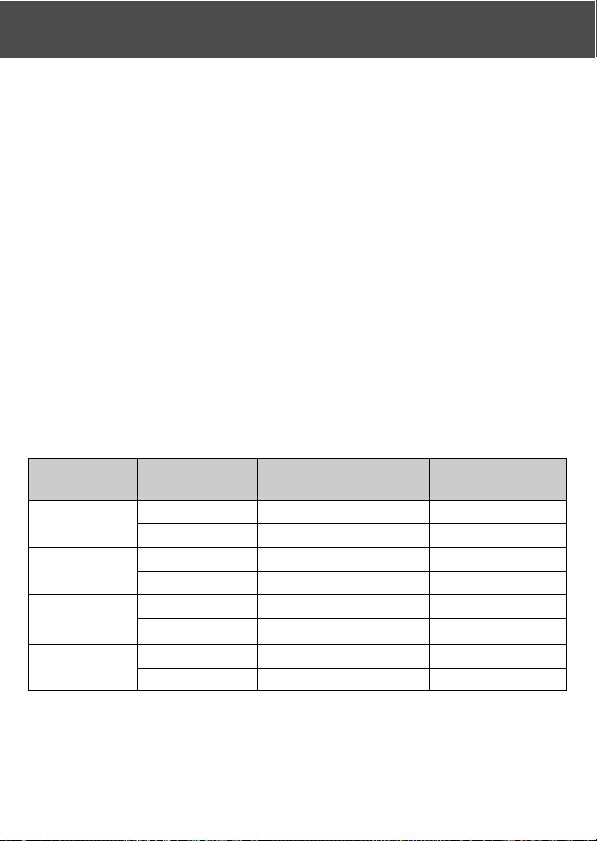
Standard number of pictures you can take in each resolution mode (without
sound or motion)
Image Size
Compression 64 MB
Internal Memory
Ratio
SD Memory Card
2592 × 1944
FINE About 30 Photos –
NORMAL About 51 Photos –
2048 × 1536
FINE About 53 Photos –
NORMAL About 85 Photos –
1600 × 1200
FINE About 91 Photos –
NORMAL About 160 Photos –
640 × 480
FINE About 320 Photos About 10 Photos
NORMAL About 640 Photos About 20 Photos
• The number of photos you can take may vary depending on the subject.
• When there are files other than images, or when the resolution and/or recording
mode have been changed, the number of photos you can take is not limited to the
table above. Please use the table is a guide for the number of photos you can take.
49
Using the REC Menu (Cont’d)
Shooting Movies
- Set your camera to this mode to shoot movies.
-You can take a movie with sound for approximately 30 seconds. Your camera
records an image with a 320 × 240 pixel count.
- While you are shooting a movie, the LCD monitor stays on. Even if you
press the DISPLAY button, the LCD monitor will not turn off. Please view
the LCD monitor while shooting your movies.
2
1
1. Select “MOVIE ON” and press .
2. The display returns to the through image,
with movie information displayed as in
screen 2. In this screen you can start taking
a movie.
• When you are not recording a movie, press the
MENU/SET button, select “MOVIE OFF” and
then press button.

50
Using the REC Menu (Cont’d)
3. When you press the shutter button, your
movie will start recording. You can record
for about 30 seconds.
•You need not hold the shutter button down.
• When the remaining time runs out, the camera
stops recording automatically. If you wish to stop
while the camera is recording, simply press the
shutter button again.
• The elapsed time is displayed on the upper right
of the screen.
NOTE: 1) While recording a movie, the sound is also being recorded, so take care not
to cover the microphone on the top of the camera with your fingers, etc.
2) As long as the camera’s power is ON, you can continue to take movies, but
if you turn the power off, it exits the movie mode. If you turn the power back
ON and wish to shoot another movie, reset the camera to the movie mode.
3) Once you have pushed the shutter button, and started taking a movie, you
cannot use the optical zoom.
4) The digital zoom is also inoperable.
5) While shooting a movie, the sound is always recorded with built-in
microphone. Therefore, you cannot take the movie without sound.
3
51
Using the REC Menu (Cont’d)
Adjusting Exposure Compensation
- If you wish to brighten or darken an entire image, use the exposure
adjustment function.
- The exposure can be corrected ±1.5 EV in adjustment steps of 0.3 EV.
- The compensation value is displayed on the monitor.
1. Select “EXPOSURE” and press .
2. The through image mode is entered, and
the adjusting exposure compensation bar
is displayed. If you press , the cursor
moves toward the plus side while pressing
moves it toward the minus. Select the
desired compensation level (brightness) and
press the MENU/SET button. The setting is
completed and you will return to screen 1.
• Even after a correction, there are times when the change is not apparent, such as
when the subject is in a semi-dark place.
• When flash is used, the compensation effect may not be sufficient.
1
2
52
Using the REC Menu (Cont’d)
Adjusting White Balance
- The color tone of your photos will change according to the kind of light
source. While the “AUTO” mode can be used in almost all instances, you
can alter the white balance settings to suit the environment and lighting
when you take a picture.
- The mode you set is displayed with icon on the monitor.
1. Select “WHITE BALANCE” and press .
2. Use or to select the desired mode, then
press either or the MENU/SET button.
The setting is completed and you will return
to screen 1.
• If you press , the selection is invalidated and
you will return to screen 1.
•To return to normal still-image shooting, set the
mode to “AUTO”.
1
2
53
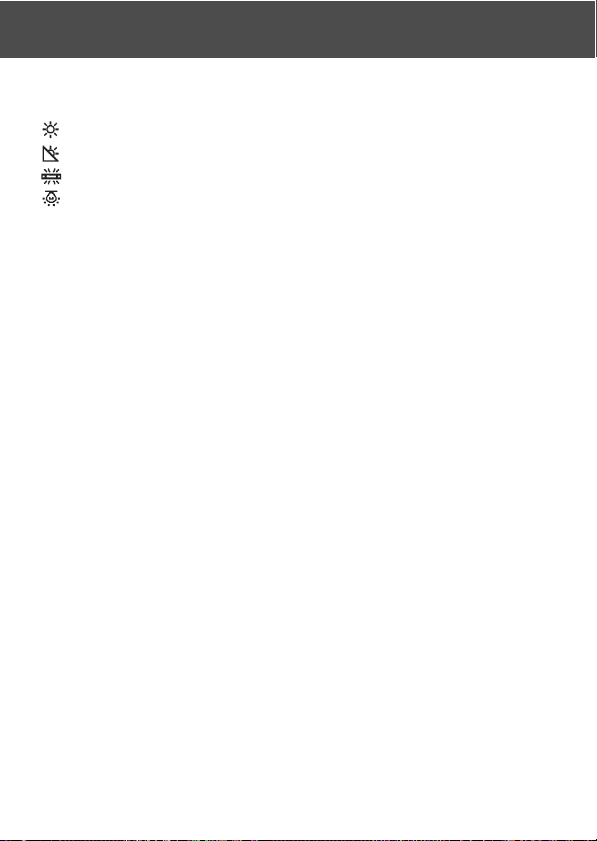
Available Modes
• AUTO (Default) : The camera adjusts the white balance automatically.
• DAY LIGHT : Ideal for taking photos in strong sunlight.
• CLOUDY : Ideal for taking photos in the shade or when it is cloudy.
• FLUO : Ideal for taking photos indoors with fluorescent lighting.
• TUNGSTEN : Ideal for taking photos indoors with normal incandescent lighting.
About White Balance
The human eye has the ability to compensate so that it sees white subjects as
white, whatever the light source. Digital cameras and similar devices can also
“see” white subjects as white by first adjusting the color balance of the ambient
light to match the photo subject. This adjustment is called the White Balance.
Using the REC Menu (Cont’d)
54
Changing Auto-Exposure (AE) Modes
-Your camera uses center-weighted metering as the default, but it can be
changed to spot metering.
- Spot metering is used to ensure matching the exposure to a targeted part
of your subject.
1. Select “AE” and press .
2. Use or to select “SPOT”, then press
either or the MENU/SET button. When
the setting is completed, you will return to
screen 1.
• If you press , the selection is invalidated and
you will return to screen 1.
Center-weighted metering
In this mode the camera sets the exposure according to the metering for the
central part of the whole frame. It is ideal for taking photos where the brightness
of the subject in the center of the frame is desired.
Spot metering
In spot metering the camera measures the light of just the subject in the center of
the frame, and sets the exposure to it. This mode is ideal when the background of
the picture is brighter than the subject, or there is a great deal of contrast between
the two, as the camera allows you to take the photo with the exposure set to the
brightness of your desired subject.
1
2
Using the REC Menu (Cont’d)
55
Taking Monochrome Pictures
-You can take monochrome images, such as black and white or sepia tone.
1. Select “MONOCHROME” and press .
2. Use or to select “SEPIA” or “B&W”, then
press either or the MENU/SET button.
When the setting is completed, you will
return to screen 1.
• If you press , the selection is invalidated and
you will return to screen 1.
•To return the normal color mode, select “OFF”
in screen 2, and then press either or the
MENU/SET button.
1
2
Using the REC Menu (Cont’d)
56
Using the REC Menu (Cont’d)
Using the Digital Zoom
- Digital zoom can double or triple the zoom ratio achieved by the optical zoom.
- When using the digital zoom, view the field through the LCD monitor.
Because the zoom effect is accomplished electronically, it is not possible
to use the viewfinder.
- When shooting movies, the digital zoom function is not available.
1. Select “DIGITAL ZOOM” and press .
2. Use or to select “ON”, then press either
or the MENU/SET button. The setting is
completed and you will return to screen 1.
• If you press , the selection is invalidated and
you will return to screen 1.
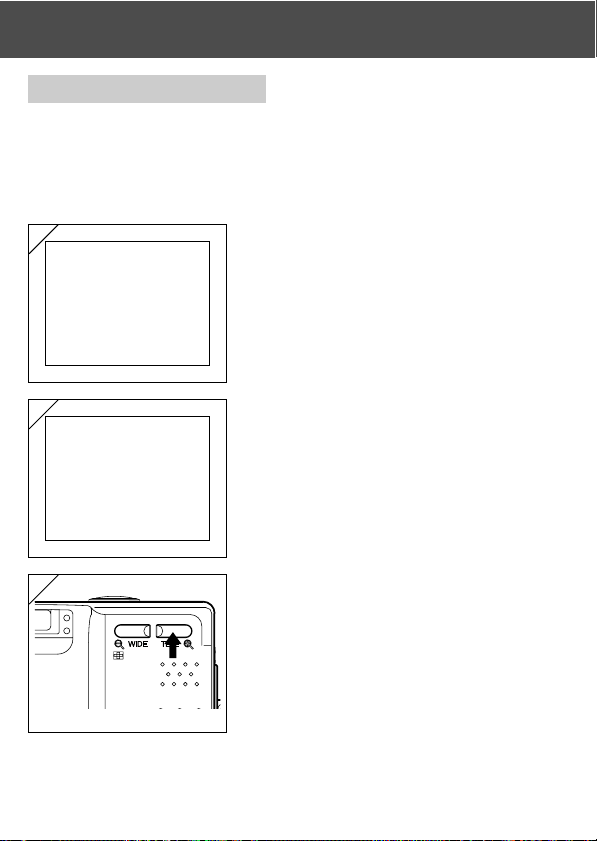
3. From screen 1, when you press , you will
return to the through image mode. To take a
picture, press the TELE zoom button until it
reaches the end of the optical range, then
release the button for a moment, then press
and hold the TELE zoom button and the digital
zoom is engaged. Use the LCD monitor to
compose your photo, and take your photos.
• The LCD monitor will display the digital zoom
ratio (×2, ×3).
•To return to normal mode, press the WIDE zoom
button.
1
2
3
57
Using the REC Menu (Cont’d)
Adjusting the Brightness and color of the LCD Monitor
-You can adjust the brightness of the LCD monitor to suit your shooting
location. The color of the LCD monitor (red, green, blue) can also be
adjusted.
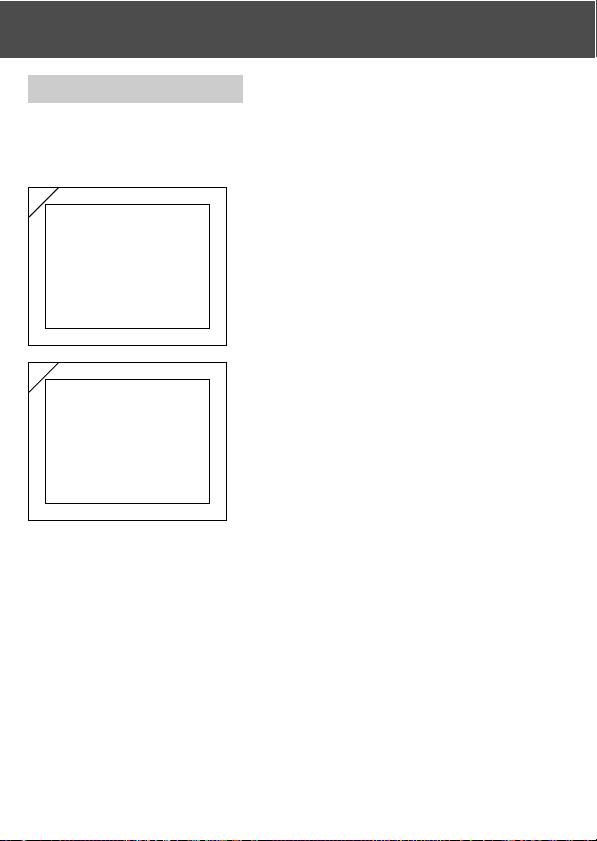
1. Select “MONITOR ADJ.” and press .
2. It will turn to the through image and the
monitor adjustment screen will be displayed.
Select the mode (brightness or color) you
want to adjust by moving the cursor within
the selecting mode using or button.
Move the cursor on adjustment bar at the
bottom of the screen by pressing or
button. To make screen brighter (to make color
deeper.), move the cursor to the “+” with
button. To make the screen darker (to make
color lighter.), move the cursor to the “–” with
button. Adjust to the best brightness and
color setting you prefer and press the
MENU/SET button. You will then return to
screen 1.
• Color is set up as a relative value.
For example, to emphasize red most, green and
blue need to be set up to the furthest left as
well as setting up red to the furthest right.
2
1
Selectable modes
Brightness
Colour tone (Red)
Colour tone (Green)
Colour tone (Blue)
123456
123456
123456
123456
123456
123456
123456
123456
123456
123456
58
Using the REC Menu (Cont’d)
Making Voice Memos
- The longest voice only memo you can record at one time is approximately
30 seconds.
-Take care not to cover the microphone on the top of the camera.
1. Select “VOICE” and press .
2. Screen 2 will appear and the camera enters
in the voice recording mode.
Press the shutter button and recording
begins.
• If you do not press the shutter button, you can
return to screen 1 without making a recording
by pressing the MENU/SET button.
• When the available recording time runs out, recording will end automatically. If you
wish to stop recording, simply press the shutter button again.
• While recording, the elapsed time is displayed on the upper right of the screen.
•To play back the recording, see page 73.
• Recording a voice memo reduces the number of photos you can take.
1
2
59
Using the REC Menu (Cont’d)
Using After Recording
-You can add voice comments (After Recording) to photos you have already
taken. You can also erase previous voice comments, as well as re-write
them.
- The maximum length of time per photo you can record is about 30 seconds.
1. Select “ADD REC” and press .
2. Previously recorded photos are displayed.
By pressing or , select the still photo to
which you wish to attach a voice comment.
• Sound cannot be recorded to a photo displayed
in the movie (
) mode.
• If you press the MENU/SET button, the selection
is invalidated and you will return to screen 1.
3. Press the shutter button to start recording.
Record your comments facing the
microphone on top of the camera.
• When remaining time runs out, the camera stops
recording automatically. You can stop recording
at any time by simply pressing the shutter button
again.
• While recording, the elapsed time is displayed
on the side of the screen.
1
2
3
60
Using the REC Menu (Cont’d)
Erasing recorded voice comments
1. When you are on screen 2 on page 59,
select the picture with the recording you
wish to erase and press the DELETE button.
• Photos with voice comments have a
displayed on them.
2. If you wish to erase only the voice
comments, select “THIS”, and if to erase all
the voice comments attached to the pictures
in one go, select “ALL”. Use or to select
the appropriate setting, and then press the
MENU/SET button.
• If you decide not to erase, select “CANCEL” or
press the DELETE button again.
3. When the “THIS DELETE…” sign
disappears, erasing has finished and you
will return to the REC menu screen.
1
2
•To re-record, erase the recorded voice comments once using Step 1 to 2 on page 60,
and then repeat the procedures again in Step 1 to 3 on page 59.
• It is not possible to record to a protected photo or when either a card or internal
memory doesn’t have enough space.
• Making recording with After Recording reduces the number of pictures you can take.
61
Using the REC Menu (Cont’d)
Changing slow shutter speed
- Slow shutter speed can be changed according to the flash mode.
- Shutter speed will become slow when taking photographs in dark places,
so please use a tripod to prevent movement during exposure.
1. Select “SLOW SHUTTER” and press
button.
2. Select “ON” with button.
3. Select flash mode with or button and
press or button to set up shutter speed.
Press MENU/SET button to finish set up and
go back to the screen in 1.
• Change the slow shutter settings to “OFF” to
go back to the normal shutter speed (default
setting). When the slow speed setting is “OFF”
and if flash mode is AUTO or
(Fill-In), the
shutter speed will be 1/60 seconds.
When the slow speed setting is “OFF” and if
flash mode is
(OFF) or (Slow Sync),
shutter speed will be 1/8 seconds.
1
2
3
62
Taking photographs in manual exposure mode
- Shutter speed and focus value can be set according to conditions and
purpose.
- Shutter speed can be set between 15 and 1/1000 seconds. Focus value
differs with zoom magnifications and can be switched to 2 levels according
to magnification.
1. Select “MAN EXPOSURE ON” and press
button.
2. It will turn to through image and M mark,
focus value and shutter speed will be
displayed in blue. Set up becomes available.
Set up focus value with button and shutter
speed with or button.
• Please use a tripod to prevent movement during
slow shutter speed exposure.
Using the REC Menu (Cont’d)
1
2

63
Using the REC Menu (Cont’d)
- When setting up manual exposure mode, the function of , and button
can be changed every time button is pressed.
Manual exposure can be set up when focus value and shutter speed is
displayed in blue. Press button to switch over the function of , and
button. Each mode of “flash (p.38)”, “shooting (p.39)” and “white
balance (p.107)” can be set up.
-M mark, focus value and shutter speed will be displayed on the LCD monitor
all the time when setting up manual exposure mode.
Exposure value (exposure difference to brightness) will be displayed by
half depressing shutter button. (Displays in 0.3EV steps within ±2.0.)
Even if brightness around changes, the exposure value can be confirmed
whenever the shutter button is half depressed.
- In manual exposure mode, if shutter mode is set slower than 1/2 second, it
will take longer for processing due to the noise reduction function.
- Some of the functions will be restricted on manual exposure mode.
• “Exposure correction” mode (p.50) in the REC menu cannot be set.
• ISO sensitivity (p.64) will be fixed to “ISO50” when it is set to “AUTO”.
• Flash AUTO mode and portrait night view mode cannot be selected.
• When flash emits light on red eye reduction mode, set up shutter speed will be
used.
- When taking a photograph using a flash in manual exposure mode, the
intensity may not be appropriate according to conditions. In such a case,
please use flash intensity mode in image quality setting (p.64).
-To go back to auto mode, press MENU/SET button, select “manual exposure
OFF” and press button. It will revert to the through image.
In auto mode, shutter speed is between slow shutter speed (setting value)
and 1/2000 second. Focus value can be changed to F2.8/F4.7 for a wide
lens and to F4.9/F8.3 for a telephoto lens.
- Settings for manual exposure will not be available when taking a movie.

64
Setting up image quality
- Image quality including sensitivity, flash intensity, contrast and color of
images can be set to meet your taste.
-2 different settings are available for image quality.
Using the REC Menu (Cont’d)
1. Select “QUALITY” and press button.
2. Select “1”
(or 2) in “SET” pressing button.
• Image quality can be set up to “1” as well as “2” .
(2 different settings are available.)
3. Select mode with or button and select
setting value with or button.
Press the MENU/SET button to finish setting
up and go back to through image.
•To take photographs in normal settings (default
settings), select “OFF” and press the MENU/
SET button. To take photograph in image quality
you set up, select “1” or “2”.
1
2
3

65
Using the REC Menu (Cont’d)
Modes you can set up
ISO
Sensitivity can be switched over.
AUTO ; Normal sensitivity is equivalent to ISO100. Sensitivity can be changed
automatically to adjust to the condition of an object.
50/100/200/400 ; High sensitivity is suitable for an object with quick motion or for dark
places. However, the higher the sensitivity is, the more noise image will
have. Low sensitivity is suitable for bright place or slow shutter speed.
Flash intensity
Flash intensity can be adjusted.
If you want to reduce the flash intensity, so as to take photograph of a close object, adjust
the volume to the “–”.
If you want to increase the flash intensity, such as when the background of an object is far
away, adjust to the “+”.
Flash intensity may be restricted by hardware depending on the conditions (focusing
distance, focus value, distance to an object, sensitivity etc.)
Clearness
Color clearness of images can be adjusted.
Adjust to the “+” to increase color clearness and adjust to the “–” to reduce color clearness.
Contrast
Contrast of images (gap between bright and dark) can be adjusted.
Adjust to the “+” to increase the gap between brightness and darkness for sharp images
and adjust to the “–” to decrease the gap for soft images.
Sharpness
Sharpness of images (sharpness of outline) can be adjusted.
Adjust to the “+” to make the image outline sharper and adjust to the “–” to make it softer.
Color
Color of images can be adjusted. (Specified color can be emphasized.)
Color (red, green, blue) is set up as a relative value.
0, 0, 0 and -2, -2, -2 are regarded as the same. For example, to emphasize the red most,
colors need to be set up to +2 (red), -2 (green), -2 (blue) not +2 (red), 0 (green), 0 (blue).
• When taking photographs in sepia, clearness, sharpness and color settings cannot be
reflected.
• When taking photographs in black and white, color settings cannot be reflected.
• When taking movies, only color settings can be reflected.
66
Using the REC Menu (Cont’d)
Selecting the Set-up Menu
- By setting each item on the set-up menu to your preferences, you can
customize your camera to suit you.
1. Select “SETUP” and press .
2. You will enter the SET UP Menu mode.
For details, see “Using the Set-up Menu” on
page 98.
•Version of current camera can be displayed by
pressing DISPLAY button on screen 2.
2
1
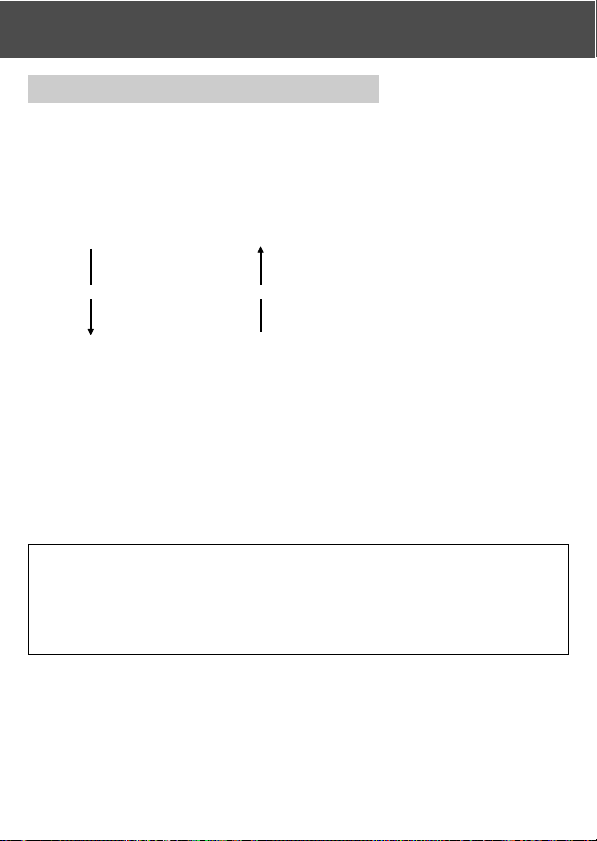
67
Using the REC Menu (Cont’d)
Setting with the REC (BASIC) Menu
- It allows you for the quick access to the basic operation. For information
about how to set REC (BASIC) menu mode, see page 100.
- Similarly, to learn how to enter the REC menu screens and how to select
menus, refer to “Setting with the REC (DETAILS) Menu” on page 44.
- In the REC (BASIC) menu mode, every time you press the or button
the menu cycles through the following screens:
RESOLUTION (→ p.68)
MOVIE ON
MONITOR ADJ.
SETUP
RETURN
• When you are on REC Menu screen, you can cancel the REC Menu mode by pressing
, or pressing or the MENU/SET button after selecting “RETURN”. This will close
the menu and return you to the through image (picture shooting image).
• If you press the shutter button half-way even when you are setting the menu, the
display returns to the through image (picture shooting mode).
• The following menus are explained in the same way under “Setting with the REC
(DETAILS) Menu”. (See the pages below for the appropriate explanation.)
• MOVIE ON (→ p.49)
• MONITOR ADJ. (→ p.57)
• SETUP (→ p.66)
Note: When REC menu is changed from “DETAILS” to “BASIC”, the
following mode will be changed to the default settings.
• Resolution, exposure compensation, white balance, AE,
monochrome, digital zoom, manual exposure
Also, settings for slow shutter and image quality will become invalid.
68
Using the REC Menu (Cont’d)
Selecting the Image Size
-You can select from among four image sizes.
- All on the same card, you can choose a different image size for every
picture. Every time you change the image size, the number of remaining
photos also changes, which is displayed on the LCD monitor.
1. Select “RESOLUTION” and press .
1
2
2. Choose the desired picture size using or
and enter your selection with or by
pressing the MENU/SET button. After
selecting the size, you will return to screen
1.
• If you press , the selection is invalidated and
you will return to screen 1.
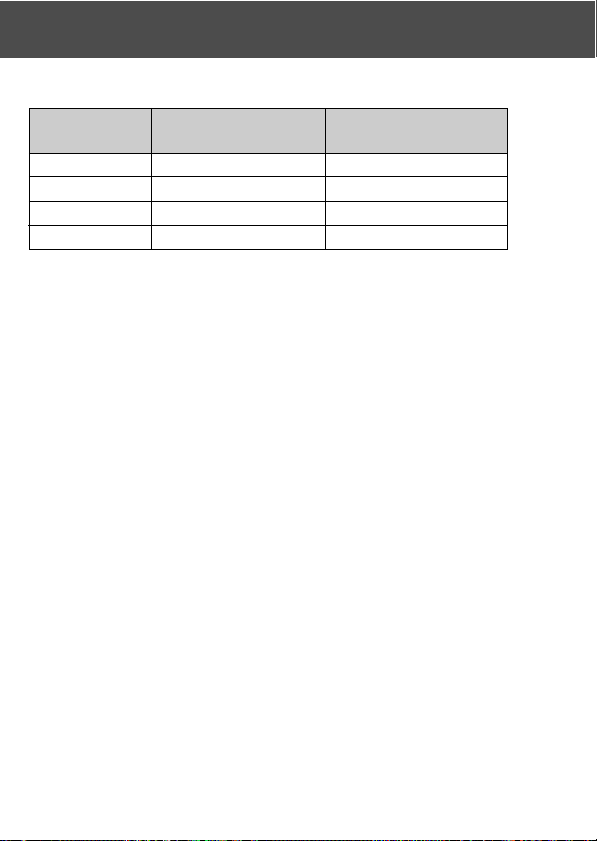
69
Standard number of pictures you can take of each size (without sound or movie)
Image Size
Using a 64 MB
Internal Memory
SD Memory Card
2592 × 1944 About 51 photos –
2048 × 1536 About 85 photos –
1600 × 1200 About 160 photos –
640 × 480 About 640 photos About 20 photos
• The number of photos you can take varies depending on the subject .
• When there are files other than images, or when the image size and/or recording
mode have been changed, the number of photos you can take is not limited to the
table above. Please use the table is a guide for the number of photos you can take.
•You can also mix the different image sizes and the 2 compression rates (p. 46).
Using the REC Menu (Cont’d)
70
Basic Playback/Erasing Playback
Playing Back Pre-recorded Images
-You can play back pre-recorded images on the LCD monitor.
- When you play back images, it doesn’t matter whether the camera’s power
is OFF or ON.
- Just in case battery power runs low, have a spare charged battery pack
(sold separately, Lithium-ion Battery NP-500) on hand. Alternatively, using
the AC adapter is recommended. (sold separately, AC-8U/AC-8E/AC-8GB;
see P.11 for details)
1. Press the PLAY button and the last recorded
photo will be played back on the LCD
monitor.
When the camera’s power is OFF (with the
lens cover closed), you can play back
images by holding down the PLAY button
for more than 2 seconds.
• If there isn’t any image data recorded, the
message “NO DISPLAY DATA” will be displayed.
2. Every time you press or , the previous
or next photo will be played back.
• If you press the W side on the zoom button,
Index Playback will start.
For operation after play back please refer to
page 78, Items 2 and 3.
• Half depress shutter button when power is ON
and when playing back in normal image size. It
will turn to through image and photographing
will become available again.
• When you have finished playing back photos,
turn off the LCD monitor by pressing the PLAY
button again to prevent battery consumption.
Also, if you will not be taking any photos, close
the lens cover, turning OFF the power.
1
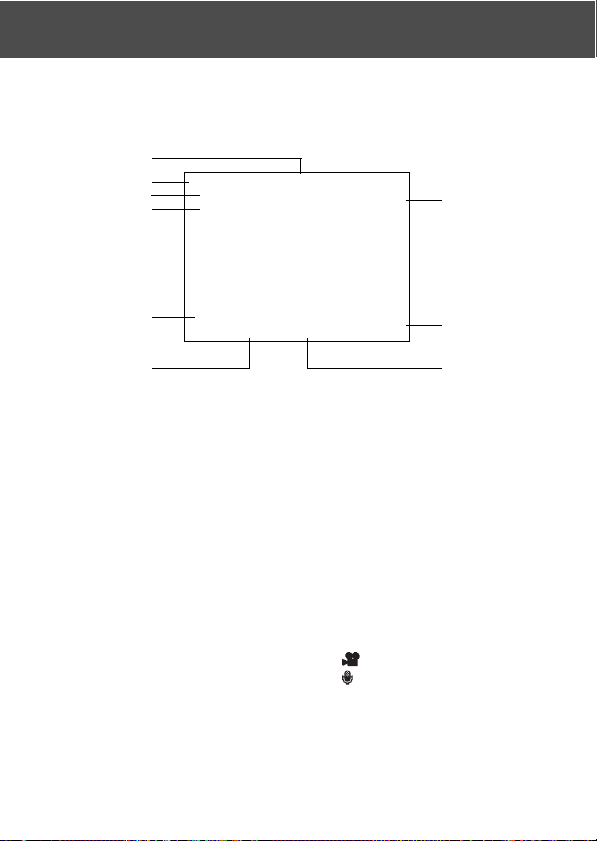
71
The Playback Image Display
In addition to the images you’ve taken, the following information is displayed.
•You can set the camera so information is not displayed (p.101).
Playback (Cont’d)
q
u
e
t
y
i
w
r
o
q Recording Media Display
The type of media in use is displayed.
• The SD Memory Card or Multi-
media Card* :SD
• Memory Stick :MS
• Internal Memory :IN
* Even if a Multi-media Card is used,
“SD” will be displayed.
w File Number
The file and directory numbers
recorded in the card are displayed.
e Protected Display
If an image is protected, the Protected
symbol is displayed.
r Digital Zoom Magnification
The magnification ratio is displayed
when images are enlarged and played
back.
t Remaining Battery Power
Display
When the battery is in use, the
remaining power is displayed in two
levels (p.19).
y Image No. (Playback Frame No./
Total Frame No.)
Your camera is capable of playing back
up to 999 frames. If there are more than
999 frames on a card, it is not possible
to use playback.
u Date & Time Recorded
1)Normally the time & date an image
was recorded are displayed.
2)When movie images or still images
with sound are played back, the
playback time is displayed.
i Image Size
1)Image size is displayed.
2)
is displayed in movie images.
3)
is displayed in still images with
sound.
o Picture quality mode
The picture quality mode when the
picture was shot is shown. (This is not
displayed during movie’s playback.)
72
Playback (Cont’d)
Playing Back Movies
1. After pressing the PLAY button, use or
to select the movie you wish to see.
• is displayed on the movie image.
2. If you press the shutter button, the movie
images will be played back. When playback
is finished, the display returns to screen 1.
• Symbols displayed when a movie is played back
are recording media, file number, image number,
and elapsed playback time only.
• If you want to stop during playback, press the
shutter button again.
2
1
73
Playing Back Voice Memos
- Play back the contents of your voice memos (p. 58).
Playback (Cont’d)
1. After pressing the PLAY button, use or
to select a voice memo image.
• The voice memo time is displayed in the upper
right of the screen.
2. Press the shutter button and the voice
memo is played back. When the memo
finishes, the display returns to screen 1.
• The playback time (elapsed) is displayed in the
upper right of the screen.
1
Playing back the sound of After Recording image
- Playing back the sound of After Recording image (p.59).
1. Press PLAY button and then select After
Recording image with or button.
• When playing back After Recording image, a
screen will be displayed as in 1. Recording time
will be displayed at the upper-right of the screen.
2. Press shutter button to play back sound. It
will revert back to image 1 when playback
finishes.
• Playback time will be displayed in the upper-
right of the screen.
1
- Playing back voice memo and sound for After Recording image.
•Take care not to cover the speaker on the back of the camera (p.15).
• Press the shutter button again if you want to stop during playback.
74
Playing Back Enlarged Images (Digital Zoom)
-You can play back your images as enlargements.
Playback (Cont’d)
1. After pressing the PLAY button, use or
to select the image you wish to see.
Then use the TELE zoom button to zoom
in; every time you press the TELE button,
the image is enlarged further.
• The zoom ratio is displayed on the LCD monitor.
•To zoom back out, press the WIDE zoom button.
Also, half depress shutter button to display the
image in the normal size.
2. Use , , , or to scroll around the photo
to the part you want to see.
•To conserve your battery once you’ve finished
viewing, press the PLAY button again to turn off
the LCD monitor.
1
2
75
Using the Quick-view Function
- If you pre-set the camera to the Quick-view mode (p. 100), you can review
pictures on the LCD monitor right after you’ve taken them.
When using the viewfinder to shoot images, with the LCD monitor off:
After the LCD monitor displays the last image that you have taken, it will
automatically turn back to off.
When using the LCD monitor for shooting images:
1) After you take a picture, the LCD monitor automatically displays it.
2) After about three seconds, the LCD monitor returns to the through image.
Playback (Cont’d)
76
-You can erase playback images (one frame or all).
-You cannot erase protected images.
- Once an image is erased, it cannot be restored.
Erasing the Playback Image
1. After pressing the PLAY button, use or
to select the image you wish to erase.
• If you wish to erase all frames, it doesn’t matter
which image is displayed.
2. Press the DELETE button and a screen
appears indicating the media type to be
erased and prompting you to select the
frame range. Press or to select “THIS”
(the selected image) or “ALL”, and press the
MENU/SET button.
• If you decide not to erase a frame, select
“CANCEL” or press the DELETE button again,
then you will return to screen 1.
3. Once erasing starts, the “THIS DELETE…”
screen is displayed. When the process is
finished, the display returns to the playback
image.
• If there isn’t any image data, “NO DISPLAY
DATA” is displayed.
• Once an image is erased, it cannot be restored.
1
2
3
77
- By using the PLAY menu, you can play back images, erase unwanted
pictures and edit images. It does not matter whether the camera’s power is
OFF or ON.
Using the PLAY MenuAdvanced Playback/Erasing
1. After pressing the PLAY button, press the
MENU/SET button and the PLAY menu
screen will be displayed.
2. Using or , select the desired settings menu. Every time you press the
button, the menu mode screen changes as follows:
INDEX (→ p.78)
COPY (→ p.79)
DELETE (→ p.82)
MONITOR ADJ. (→ p.85)
DPOF (→ p.86)
RESIZE (→ p.90)
PROTECT (→ p.91)
MOVE (→ p.94)
SLIDE SHOW (→ p.97)
ADD REC (→ p.97)
SET UP (→ p.97)
RETURN
3. After selecting the menu, press and in the same way as the REC menu
(p.44), the setting screen of the selected menu will be displayed. After
selecting the desired contents with or , press either or the MENU/
SET button, completing the setting, and you will return to screen 1.
4. When you are in screen 1 (PLAY menu screen), to exit the PLAY menu
mode, press either or the MENU/SET button after selecting “RETURN”.
You will return to either the Playback mode. Press the PLAY button to
turn off the LCD monitor.
• If you press the shutter button half-way even when you are setting the menu, the
display returns to the playback image.
• For details on making settings for each menu, refer to the following pages.
1
78
Viewing Multiple Pages at Once (Index Playback)
- Up to nine frames can be displayed on the LCD monitor simultaneously.
You can quickly access the images you want displayed. You can also erase
unwanted images.
Using the PLAY Menu (Cont’d)
1. Select “INDEX” and press .
2. The 9-frame index are displayed at the same
time. The image selected when you entered
the menu will be surrounded by a red frame.
Use , , , or to move the frame and
select the image you wish to display (or
erase).
• Pressing when the first frame is selected or
on the last frame will switch the screen to the
next nine images.
3. Press the TELE zoom button or the MENU/
SET button and the selected image will be
displayed in the normal size.
If you wish to delete the selected image,
press the DELETE button. After pressing the
DELETE button, the procedures are the
same as explained at Step 2 to 3 on page
76.
• If you wish to delete all the images on a card, it
doesn’t matter which image is displayed.
1
2
3
79
Copying an Image
-You can copy a previously recorded still photo or movie onto another memory
media. (You can select one frame, multiple frames or all frames.)
Using the PLAY Menu (Cont’d)
1. Select “COPY” and press .
2. A screen with each setting item will appear.
At first “FROM” is selected, so press .
•To select a different item, press or .
3. The media types will be displayed. Using
or , select the media on which the image
you wish to copy is recorded, then press
or the MENU/SET button. The setting is
completed and you will return to screen 2.
• If you press , the setting is invalidated and you
return to screen 2.
• If there are no images on the media selected,
or if a card is not inserted in the camera, you
return to screen 3.
1
2
3
80
4. Returning to screen 2, select “TO”. Then the
screen shown left (screen 4) appears. After
pressing , use or to select the
destination media by pressing either or
the MENU/SET button. The setting is
completed and you will return to screen 2.
• If you press , the setting is invalidated and you
return to screen 2.
• If the selected media doesn’t have enough free
space, an error message will appear, then you
will return to screen 4.
5. Returning to screen 2, select “UNIT”. Then
the screen shown left (screen 5) appears.
After pressing , use or to choose
“SELECT” (If one or multiple frames are to
be selected) or “ALL ON”. Then press either
or the MENU/SET button, and the settings
are completed, returning you to screen 2.
• If you press , the setting is invalidated and you
return to screen 2.
6. After you have made all the settings, select
“ENTER” and press either or the MENU/
SET button.
• If you chose “SELECT” on screen 5, go to Step
7; if you chose “ALL ON”, go to Step 9.
• If you press , the setting is invalidated and you
return to screen 1 on page 79.
Using the PLAY Menu (Cont’d)
4
5
6
81
7. The 8-frame index appears. Using , , ,
or , move the red frame to an image you
wish to select and press the MENU/SET
button.
• Pressing when the first frame is selected or
on the last frame will switch the screen to the
next eight images.
8. Images selected at Step 7 are surrounded
by a yellow frame. When you have finished
selecting images, use , , , or to select
“END”, and then press the MENU/SET
button. (Go to Step 9)
To select other images, repeat the selection
procedure. (Return to Step 7)
•To select multiple images, repeat the procedures
Steps 7 and 8.
9. A confirmation screen appears. To carry out
copying, select “YES” with or , then
press the MENU/SET button.
• If you select “NO” and press the MENU/SET
button, you will return to screen 1 without making
a copy.
10.Once copying starts, “Now COPY…” is
displayed. Once copying is completed, the
display returns to screen 1.
Using the PLAY Menu (Cont’d)
7
8
9
82
Erasing Unwanted Images
-You can erase unwanted still pictures, movie images etc. (you can select
one frame, multiple frames or all frames.)
- Once images are erased, they cannot be recovered.
- Protected images cannot be erased unless the protection is removed.
Using the PLAY Menu (Cont’d)
1. Select “DELETE” and press .
2. A screen with each setting item will appear.
At first “MEDIA” is selected, so press .
•To select a different item, press or .
3. Using or , select the media on which
the image you wish to erase is recorded,
then press or the MENU/SET button. The
setting is completed and you will return to
screen 2.
• If you press , the setting is invalidated and you
return to screen 2.
• If there are no images on the media selected,
or if a card is not inserted in the camera, you
return to screen 3.
1
2
3
83
4. Returning to screen 2, select “UNIT”. Then
the screen shown left (screen 4) appears.
After pressing , use or to choose
“SELECT” (If one or multiple frames are to
be selected) or “ALL ON”. Then press either
or the MENU/SET button. The settings are
completed and you will return to screen 2.
• If you press , the setting will be invalidated
and you will return to screen 2.
5. After you have made all the settings, select
“ENTER” and press either or the MENU/
SET button.
• If you chose “SELECT” on screen 4, go to Step
6; if you chose “ALL ON”, go to Step 8 on page
84.
• If you press , the setting is invalidated and you
return to screen 1.
6. The 8-frame index appears. Using , , ,
or , move the red frame to an image you
wish to erase and press the MENU/SET
button.
• Pressing when the first frame is selected or
on the last frame will switch the screen to the
next eight images.
Using the PLAY Menu (Cont’d)
4
5
6
84
7. Images selected at Step 6 on page 83 are
surrounded by a yellow frame. When you
have finished selecting images, use , ,
, or to select “END”, and then press the
MENU/SET button. (Go to Step 8)
To select other images, repeat the selection
procedure. (Return to Step 6)
•To select multiple images, repeat Steps 6 and
7.
8. A confirmation screen appears. To carry out
erasing, select “YES” with or , then
press the MENU/SET button.
• If you select “NO” and press the MENU/SET
button, you will return to screen 1 without
erasing anything.
9. Once erasing starts, “THIS DELETE…” is
displayed. Once erasing is completed, the
disply returns to screen 1.
Using the PLAY Menu (Cont’d)
7
8
85
Adjusting LCD Monitor Brightness and Color
-You can adjust the brightness of your LCD monitor as needed to suit the
lighting where you are viewing images. Color of LCD monitor (red, green,
blue) can also be adjusted.
- Brightness and color settings are not altered by turning the power ON/OFF
and are saved until changed again.
Using the PLAY Menu (Cont’d)
1. Select “MONITOR ADJ.” and press .
2. It will go to display screen for playback
image and monitor adjustment.
See p.57-2 for selectable mode and
adjustment method.
Adjust the best brightness and color setting
for you and press the MENU/SET button.
You will then return to screen 1.
1
2
86
Using the PLAY Menu (Cont’d)
Selecting/Deselecting Images to Print (DPOF)
- DPOF is short for Digital Print Order Format. DPOF is a format for recording
information on memory cards, etc. so they can be used by DPOF compatible
digital printers and lab print services for printing out images you’ve taken
with your camera.
-You can select the frames (one frame, multiple frames or all frames) you
want to print from all the still images you’ve taken. You can also deselect
the settings. However, you cannot print movie images.
- When you print a photo you took previously, you can imprint the date (the
date taken) onto the image. (You can also select not to imprint the date.)
1. Select “DPOF” and press .
2. A screen with each setting item will appear.
At first “MEDIA” is selected, so press .
•To select a different item, press or .
3. Using or , select the media on which
the image you wish to print (or deselect) is
recorded, then press or the MENU/SET
button. The setting is completed and you will
return to screen 2.
• If you press , the setting is invalidated and you
return to screen 2.
• If there are no images on the media selected,
or if a card is not inserted in the camera, you
return to screen 3.
1
2
3
87
Using the PLAY Menu (Cont’d)
4. Returning to screen 2, select “UNIT”. Then
the screen shown left (screen 4) appears.
After pressing , if you want to print (or
deselect) one or multiple frames, use or
to choose “SELECT”. To print all frames,
choose “ALL ON”, or to deselect all frames
from printing, choose “ALL OFF”. After
making your selection, press or the
MENU/SET button. The settings are
complete and you will return to screen 2.
• If you press , the settings will be invalidated
and you will returns to screen 2.
5. Select “DATE” on screen 2, and then press
. If you wish to print the date, select “ALL
ON” with or , or if not, select “ALL OFF”.
After making your choice, press either or
the MENU/SET button. The settings are
complete and you return to screen 2.
• If you press , the setting will be invalidated
and you will return to screen 2.
6. After you have made all the settings, select
“ENTER” and press either or the MENU/
SET button.
• If you chose “SELECT” for “UNIT” at on screen,
go to Step 7; if you chose “ALL ON” or “ALL
OFF” go to Step 9 on page 89.
4
5
6
88
Using the PLAY Menu (Cont’d)
8. Images selected at Step 7 are surrounded
by a yellow frame. For auto mode, specify
the number of prints using zoom button (T,
W). The number of prints will be displayed
in the upper left of the screen.
When you have finished selecting images,
use , , , or to select “END”, and then
press the MENU/SET button. (Go to Step
9)
To select other images, repeat the selection
procedure. (Return to Step 7)
•To select multiple images, repeat the procedures
Steps 7 and 8.
• Number of prints can be set up to 999.
7. The 8-frame index appears. Using , , ,
or , move the red frame to an image you
wish to print (or deselect) and press the
MENU/SET button.
• Pressing when the first frame is selected or
on the last frame will switch the screen to the
next eight images.
8
7
89
Using the PLAY Menu (Cont’d)
9. A confirmation screen appears.
If you choose “SELECT”: select “YES” with
or button and press MENU/SET button.
If you chose “ALL ON”: Set the number of
prints using or , or zoom button (T or
W). Next, select “YES” with or and press
the MENU/SET button.
•You can print from 1 to 999 photos.
• If you select “NO” and press the MENU/SET
button, your settings will be invalidated and you
will return to screen 1.
If you chose “ALL OFF”: select “YES” and
press the MENU/SET button.
• If you select “NO” and press the MENU/SET
button, you will return to screen 1 without
deselecting anything.
10.The “Now DPOF SET…” (or “Now DPOF
OFF…”) screen is displayed. Once settings
(or deselection) are completed, the display
returns to screen 1.
•You can also order a digital print at a photo lab
9
(except for some labs) such as a traditional photofinishing service. For detailed
information, please contact your photo lab.
90
Reducing Image Size (Resizing)
-You can reduce the size of images you have taken. When you resize an
image, a new, smaller file is created.
- Use this function when you send images as e-mail attachments or when
you otherwise need a smaller image.
- The resize function is not available for movie images.
1. Select “RESIZE” and press .
2. Select the desired size with or and
press or the MENU/SET button.
VGA records at 640 × 480 pixels and QVGA
at 320 × 240.
3. As you are in the playback mode, press or
to select an image you want to resize. Then
press the MENU/SET button and after the
newly resized image is recorded, the display
returns to screen 1.
• If you do not want to resize, select “RETURN”
with or and press the MENU/SET button.
• If there is not enough memory to save the image,
an error message “MEMORY FULL” is displayed.
1
2
3
Using the PLAY Menu (Cont’d)
91
Setting/Canceling Protection for Your Important Images
-You can protect your important still and moving images from being erased.
(You can select some or all images to be protected). You can also cancel
the protection.
- If you format a card (p.99), even protected images will be erased.
1. Select “PROTECT” and press .
2. A screen with each setting item will appear.
At first “MEDIA” is selected, so press .
•To select a different item, press or .
3. Using or , select the media on which
the image to protect (or cancel protect) is
recorded, then press or the MENU/SET
button. The setting is completed and you will
return to screen 2.
• If you press , the setting will be invalidated
and you return to screen 2.
• If there are no images on the media selected,
or if a card is not inserted in the camera, you
return to screen 3.
1
2
3
Using the PLAY Menu (Cont’d)
92
4. Returning to screen 2, select “UNIT”. Then
the screen shown left (screen 4) appears.
After pressing , if you want to protect (or
cancel protect) one or multiple frames, use
or to choose “SELECT”. To protect all
frames, choose “ALL ON”.
Further, to cancel protection of all frames,
choose “ALL OFF”. After making your
selection, press or the MENU/SET button.
The settings are complete and you will
return to screen 2.
• If you press , the settings will be invalidated
and you will return to screen 2.
5. After you have made all the settings, select
“ENTER” and press either or the MENU/
SET button.
• If you chose “SELECT” for the “UNIT” setting,
go to step 6; if you chose “ALL ON” or “ALL
OFF”, go to Step 8.
6. The 8-frame index appears. Using , , ,
or , move the red frame to an image you
wish to protect (or cancel protect) and press
the MENU/SET button.
• Pressing when the first frame is selected or
pressing on the last frame will switch the
display to the next eight images.
Using the PLAY Menu (Cont’d)
4
5
6

93
7. Images selected at Step 6 are surrounded
by a yellow frame. When you have finished
selecting images, use , , , or to select
“END”, and then press the MENU/SET
button. (Go to Step 8)
To select other images, repeat the selection
procedure. (Return to Step 6)
•To select multiple images, repeat the procedures
Steps 6 and 7.
8. The confirmation screen appears with
“YES”selected.
If you chose “SELECT” or “ALL ON”:
leave “YES” as is and press the MENU/SET
button.
• If you select “NO” with or and press the
MENU/SET button, your settings will be
invalidated and you return to screen 1.
If you chose “ALL OFF”: select “YES” with
or and press the MENU/SET button.
• If you select “NO” and press the MENU/SET
button, you will return to screen 1 without
canceling any settings.
9. The “Now EXEC…” (or “Now PROTECT
OFF”) screen is displayed. Once settings (or
cancel protect) are completed, the display
returns to screen 1.
Using the PLAY Menu (Cont’d)
7
8
94
Moving the Image Data to Another Memory Card
-You can move previously recorded still or movie image data to another
memory card.
- For protected images, you must cancel their protection before you can move
them.
Using the PLAY Menu (Cont’d)
1. Select “MOVE” and press .
2. A screen with each setting item will appear.
At first “FROM” is selected, so press .
•To select a different item, press or .
3. Using or , select the media on which
the image you wish to move is recorded,
then press or the MENU/SET button. The
setting is completed and you will return to
screen 2.
• If you press , the setting is invalidated and you
return to screen 2.
• If there are no images on the media selected,
or if a card is not inserted in the camera, you
return to screen 3.
1
2
3
95
4. Returning to screen 2, select “TO”. Then the
screen shown left (screen 4) appears. After
pressing , use or to select the
destination media, then press or the
MENU/SET button.
• If you press , the settings will be invalidated
and you return to screen 2.
• If the selected media doesn’t have enough free
space, or if a card is not inserted, after which
you will return to screen 4.
5. Returning to screen 2, select “UNIT”. Then
the screen shown left (screen 5) appears.
After pressing , use or to choose
“SELECT” (if you are moving one or multiple
images), or “ALL” and then press the MENU/
SET button.
The settings are complete and you will
return to screen 2.
• If you press , the setting is invalidated and you
return to screen 2.
6. After you have made all the settings, select
“ENTER” and press either or the MENU/
SET button.
• If you chose “SELECT” in screen 5, go to Step
7; if you chose “ALL”, go to Step 9.
• If you press , the settings will be invalidated
and you return to screen 1.
Using the PLAY Menu (Cont’d)
4
5
6
96
7. The 8-frame index appears. Use , , ,
or to move the red frame to an image you
wish to transfer and then press the MENU/
SET button.
• Pressing when the first frame is selected or
on the last frame will switch the screen to the
next eight images.
8. Images selected at Step 7 are surrounded
by a yellow frame. When you have finished
selecting images, use , , , or to select
“END”, and then press the MENU/SET
button. (Go to Step 9)
To select other images, repeat the selection
procedure. (Return to Step 7)
•To select multiple images, repeat the procedures
Steps 7 and 8.
9. A confirmation screen appears. To move the
image(s), select “YES” with or , then
press the MENU/SET button.
• If you select “NO” and press the MENU/SET
button, you will return to screen 1 without moving
anything.
10.The “Now MOVE…” screen is displayed.
Once moving is completed, the display
returns to screen 1.
Using the PLAY Menu (Cont’d)
7
8
9

97
Playing a Slide Show
- The slide show will proceed in order from the first image at a set interval.
Using the PLAY Menu (Cont’d)
1. Select “SLIDE SHOW” and press .
2. Slides will be displayed in order, starting with
the 1st slide at about 2 second intervals.
The slide show will finish with the last frame
displayed.
If you wish to stop during a slide show, press
the MENU/SET button.
• If stopped, the current frame will be displayed.
Using the After Recording Function
1. Select “ADD REC” and press .
For details on the function and how to make
settings, see page 59 to 60.
Selecting the Set-up Menu
1. Select “SETUP” and press .
2. The set-up menu mode screen appears.
For details on set-up menu settings, see
page 98.
1
1
1
98
Using the Set-up MenuAdvanced Operations
- By setting each item on the set-up menu to your preferences, you can
customize your camera to suit you.
- It does not matter whether the main power is ON or OFF, as the settings
are saved by the camera until they are changed.
1. To display the “SET UP” menu screen, select SETUP menu from either
the REC menu (p.66) or the PLAY menu (p.97).
2. Using or , select the menu settings; every time the button is pressed,
the menu scrolls through the items one by one.
FORMAT (→ p.99)
REC MENU (→ p.100)
QUICK VIEW (→ p.100)
INFO DISP (→ p.101)
SOUND (→ p.102)
DATE SET (→ p.103)
SELF TIMER (→ p.103)
AUTO POWER OFF (→ p.104)
NUMBER RESET (→ p.104)
MEMORY PRIORITY (→ p.105)
LANGUAGES (→ p.105)
ADD REC SET (→ p.106)
CUSTOM (→ p.107)
DEFAULT (→ p.110)
RETURN
You can close the Set-up menu screen by pressing or selecting “RETURN”
and then pressing the MENU/SET button.
When you close the set-up menu mode, the LCD monitor will display as follows:
1) If you entered the Set-up menu from the REC menu, the display returns to the REC
menu.
2) If you entered the Set-up menu from the PLAY menu, the display returns to the
PLAY menu.
• If you press the shutter button half-way even when you are setting the menu, the
display returns to the through image (picture shooting mode) or playback image.
• Refer to the following pages for details on making settings for each menu.
99
Formatting a Memory Card
- Formatting a card returns it to the initial state (when it was purchased).
- Caution: Formatting erases all data, even images that are protected (p.91).
- Always format cards inside the camera. If a card is formatted by a computer
it may not perform normally.
Using the Set-up Menu (Cont’d)
1. Select “FORMAT”and press ; you will be
prompted to select the media type. Use
or to choose which media type to format
and then press either or the MENU/SET
button.
• If you press , the setting is invalidated and you
return to the Set-up menu.
2. You will be asked for confirmation. To
execute formatting, select “YES” with or
and press the MENU/SET button.
• If you decide not to format, select “NO” and
press the MENU/SET button.
3. Once formatting starts, the message “Now
FORMAT…” will appear.
When formatting is complete, the camera
returns to the Set-up menu mode.
During formatting be sure not to open the
battery/card cover as damage to the card
may result.
1
2
3
100
REC Menu Settings
-You can change the contents of REC menu from “DETAILS” (default settings)
to “BASIC”.
- See pages 44 and 67 for details on this function.
Using the Set-up Menu (Cont’d)
1. Select “REC MENU”, press and the
settings screen appears. Use or to
select “BASIC”, and then press either or
the MENU/SET button. The setting is
completed and you return to the set-up
menu.
• If you press , the setting is invalidated and you
return to the set-up menu.
1
1
Quick View Settings
-Turn this mode “ON” if you want to be able to check your images on the
LCD monitor immediately after you have taken them.
- See page 75 for details on this function.
1. Select “QUICK VIEW”, press and the
settings screen appears.
Using or , select “ON” and press either
or the MENU/SET button. The setting is
completed and you return to the Set-up
menu.
• If you press , the setting is invalidated and you
return to the Set-up menu.
101
Using the Set-up Menu (Cont’d)
Make so the Image Information is not displayed
-You can set the camera not to display information (p.36, 71) during shooting
or play back.
- The default setting is “ON” (display).
1. Select “INFO DISP” and press .
Use or to select “OFF”, and press or
the MENU/SET button. The setting is
completed and the screen will return to the
set-up menu.
• If you press , the setting is invalidated and you
return to the Set-up menu.
1
102
Setting the Operation Sounds
-You can turn on and off the beeps (sounds made for each type of operation
and warnings), the shutter sound, or the sound effects.
- The default setting is turned “ON” (set to sound).
Using the Set-up Menu (Cont’d)
1. Select “SOUND”, press and the settings
screen appears. “BEEP” is selected, so
press .
2. Using or , select “OFF” or “ON” and
press either or the MENU/SET button. You
will return to screen 1.
• If you press , the setting is invalidated and you
return to screen 1.
3. Returning to screen 1, select “EFFECT”.
Then the shown left (screen 3) appears. After
pressing , use or to select “OFF” or
“ON”. Then press either or the MENU/SET
button and you will return to screen 1.
• If you press , the setting is invalidated and you
return to screen 1.
4. Select “SHUTTER” on screen 1 and then
press . Use or to select “ON” or “OFF”,
and then press or the MENU/SET button.
The settings are complete and you return
to screen 1.
• If you press , the setting will be invalidated
and you will return to screen 1.
1
2
3
4
103
Adjusting the Date and Time
- If the battery is removed for approximately 24 hours or more, the date and
time settings will be lost. In this case, please reset the date and time.
Using the Set-up Menu (Cont’d)
1. Select “DATE SET”, press and the date
and time settings screen appears.
See Steps 3 to 6 on pages 27 and 28 about
how to make the settings.
• Once settings are completed, you will return to
the set-up menu.
Setting the Self-timer Delay Time
-You can change the length of time the self-timer delays before shooting
from 10 seconds (default) to 3 seconds.
- The self-timer mode for a 10-second delay (default setting) will be cancelled
after a picture is taken. However, if you set the self-timer for a 3-second
delay, the setting is effective even after shooting so that you can continue
to take a picture using the self-timer.
1. Select “SELF TIMER”, press and the
settings screen appears.
Using or , select “3 sec” and press either
or the MENU/SET button. The setting is
completed and you return to the set-up
menu.
• If you press , the setting is invalidated and you
return to the set-up menu.
1
1
104
Setting the Auto Power-OFF Time
-You can change the Auto Power-OFF not-in-use interval starting at 3 minutes
(default).
Using the Set-up Menu (Cont’d)
1. Select “AUTO POWER OFF”, press and
the settings screen appears.
Use or to select “10 min” or “OFF” and
then press either or the MENU/SET
button. The setting is completed and you
return to the Set-up menu.
• If you press , the setting is invalidated and you
return to the Set-up menu.
Resetting the File Numbers
-You can reset your file numbers.
1. Select “NUMBER RESET”, press and the
settings screen appears.
Using or , select “ON” and press either
or the MENU/SET button. The setting is
completed.
• If you press , the setting is invalidated and you
return to the Set-up menu.
Reference:
• At initial setting, “NUMBER RESET” is turned “OFF”, and it will assign
consecutive file numbers as follows.
XXXXX1.jpg, XXXXX2.jpg, XXXXX3.jpg…
• If there are no images shot on the card when “NUMBER RESET” is turned
“ON”, it will attach numbers starting with XXXXX1.jpg. If pictures exist, the
number following already existing file numbers will be given.
1
1
105
Setting Memory Priority
- When you have 2 cards in the camera at once, an SD memory card (or
Multi-Media card) and a Memory Stick, you can decide which to record to
first.
Using the Set-up Menu (Cont’d)
1. Select “MEMORY PRIORITY”, press and
the settings screen appears.
Using or , select the media type to have
priority and press either or the MENU/
SET button. The setting is completed and
you will return to the Set-up menu.
• If you press , the setting is invalidated and you
return to the Set-up menu.
Changing Languages
1. Select “LANGUAGE”, press and the
language settings screen appears.
See page 27 for instructions on making the
settings.
• When the setting is completed, you will return
to the Set-up menu. If you press , the setting
is invalidated and you return to the Set-up menu.
1
1

106
Taking Still Images with Sound
Using the Set-up Menu (Cont’d)
1. Select “ADD REC SET”, press and the
settings screen will appear.
Using or , select the desired setting and
press either or the MENU/SET button.
The setting is completed and you will return
to the set-up menu.
• If you press , the setting is invalidated and you
return to the Set-up menu.
For the Choose-to-Record Setting (“IF SELECTED”)
This is the normal (default) mode. By using the REC menu (p.59) or the PLAY menu
(p.97) to select “ADD REC”, you can add sound to still images after they’ve been taken.
For the Always-ON Setting (“ALWAYS”)
You can add sound to every still image you take. Every time an image is taken, once
recording finishes, the After Recording screen is displayed, as Step 2 on page 59, so
by simply pressing the shutter, you can record sound. The maximum recording time is
about 30 seconds. During recording, the elapsed time is displayed on the upper right
corner of the image. When time runs out, the recording stops automatically. If you wish
to stop during a recording, press the shutter button again.
1
107
Customizing the camera
1) The shooting and flash mode settings (see page 38-39) assigned to each
and can be set to on or off respectively.
*You cannot set all settings to off. If you try to turn all settings to off, the camera
automatically turns “ON” the “AUTO” setting in the flash and shooting modes.
2) You may assign part of the exposure-adjustment to , and part of white
balance switch function to .
Setting the exposure compensation to “ON”
If button is pressed when taking a photograph, the exposure correction
adjustment bar will be displayed. Exposure can be corrected with or
button. Press button again to make settings effective. Exposure
compensation can be corrected in the range of ± 0.6 EV in 0.3 EV steps.
The compensation setting can be corrected in the range of ± 1.5 EV by
combining with “EXPOSURE” in the REC menu.
When the compensation setting of REC Menu (p.51) is + 0.9 EV, you can
adjust compensation between + 0.3 EV and + 1.5 EV.
Setting the white balance switch function to “ON”
You can select the white balance mode by pressing . Each time you
press , the mode alters, and the selected mode is displayed on the
LCD monitor. For information on displayed icons and white balance modes,
see page 53.
3) You can engage AF/AE lock function in this feature.
Setting the AF-Lock to “ON”
If you press while activating focus lock (pressing the shutter button
half-way on page 34), the focus setting locks and the AF-lock icon appears
on the LCD monitor. The setting becomes effective even after you take a
shot.
*To cancel the AF-lock, turn the camera’s power OFF or press the Zoom, MENU/
SET, , or PLAY button.
Using the Set-up Menu (Cont’d)
108
Setting the AE-Lock to “ON”
If you press while activating focus lock (pressing the shutter button
half-way on page 34), the exposure setting locks and the AE lock icon
appears on the LCD monitor. The setting becomes effective even after
you take a shot.
*To cancel the AE-lock, turn the camera’s power OFF, press the Zoom, MENU/
SET, or PLAY button, or change the white balance setting.
4) You can also set the sequence shooting to on or off. If you set it to on, this
feature lets you take a sequence shot by holding down the shutter button.
* If you are taking photos with the flash, make sure that the flash is fully charged
before taking next photo.
Using the Set-up Menu (Cont’d)
1. Select “CUSTOM” and press . The
settings screen appears. Select the desired
setting with or , and press either or
the MENU/SET button.
2. In screen 1, select “FLASH” and press .
The flash mode settings screen appears.
Select the desired mode with or , and
press either or the MENU/SET button to
change the setting. When the setting is
completed, press to return to screen 1.
1
2
109
3. In Screen 1, select “MACRO” and press .
The shooting mode settings screen
appears. Select the desired mode with
or , and press either or the MENU/SET
button to change the setting. When the
setting is completed, press to return to
screen 1.
4. In Screen 1, select “AF AE AWB” and press
. The settings screen for each item
appears. Select the desired mode with
or , and press either or the MENU/SET
button to change the setting. When the
setting is completed, press to return to
screen 1.
5. In Screen 1, select “CONTINUOUS” and
press . The settings screen appears. Press
or to select “ON” or “OFF”, and press
either or the MENU/SET button to return
to screen 1. If you press , your settings
will be invalidated and you return to screen
1.
4
3
Using the Set-up Menu (Cont’d)
5
110
1
Using the Set-up Menu (Cont’d)
Restoring the Default Settings
-You can change the various settings made in the REC menu and the SET
UP menu back to their default settings all at one time.
1. Select “DEFAULT”, press and a
confirmation screen will appear. Using or
, select “YES” and press the MENU/SET
button.
The setting is completed and you return to
the set-up menu.
• If you select “NO” and press the MENU/SET
button, the setting is invalidated and you return
to the set-up menu.

111
Operating Environments
- Images recorded with the camera can be transferred to a PC using the
USB cable supplied.
1. Windows
OS: Preinstalled versions of Microsoft Windows 98, Windows 98 SE,
Windows XP, Windows 2000 Professional or Windows Me
Memory: 16MB or more of available RAM (32MB or more recommended)
Display: 32,000 colors or more, resolution of 640 × 480 pixels or more
Others: CD-ROM drive, USB port (standard equipped)
2. Macintosh
OS: Mac OS 9.0-9.2/Mac OS X v 10.0.4-10.2
CPU: PowerPC or more
Memory: 16MB or more of available RAM (32MB or more recommended)
Display: 32,000 colors or more, resolution of 640 × 480 pixels or higher
Others: CD-ROM drive, USB port (standard equipped)
Connecting to your PC Conncting to your PC
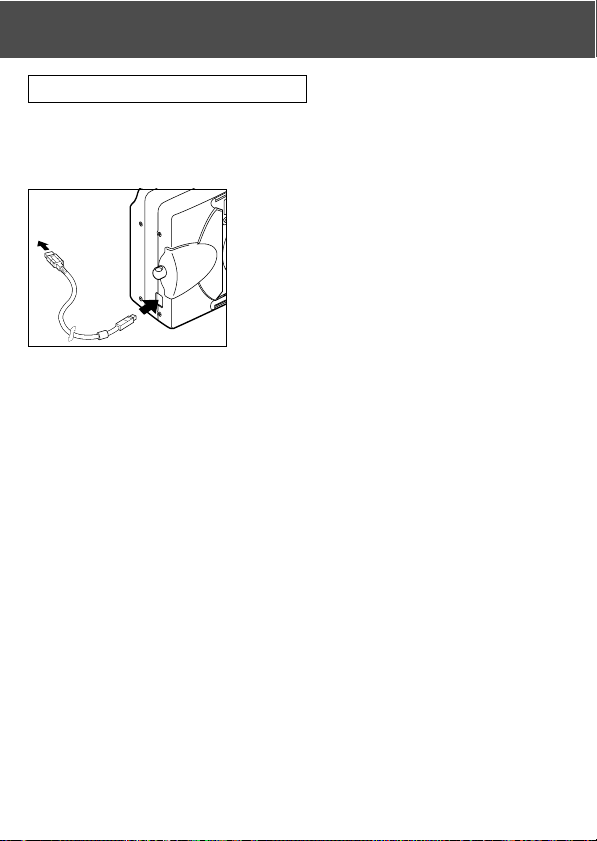
112
Connecting with a USB cable
-Turn OFF the power supply to the camera.
- There is no need to turn off your PC power supply when connecting or
disconnecting the USB cable to the camera.
Connecting to your PC (Cont’d)
1. Turn on the power supply to your PC, and
start up the Windows or Mac OS.
2. When Mac OS or Windows desktop screen
appears, connect the camera and PC using
the USB cable.
• Please use only the USB cable supplied with the camera.
• While the camera is connected to your PC, the camera is inoperable.
• While connected to your PC, do not detach the USB cable or open the battery/
card cover.
•Turn the power supply to the camera OFF when detaching the USB cable.
• When communicating with your PC, we recommend using the AC adapter (sold
separately). Attach/detach the AC adapter when the camera power supply is
OFF and your PC and the camera are not connected.
To USB
connector on PC

113
Installing USB Driver Software
- Installing from attached DiMAGE Viewer CD-ROM.
- Install the software only if you are using Windows 98 or Windows 98SE. If
you are using another OS, you do not need to install this.
-Turn OFF the power supply to the camera.
-To conserve the battery, using the AC adapter (sold separately, AC-8U/
AC-8E/AC-8GB; see P.11 for details) is recommended.
1) Turn on the PC power and start Windows.
2) After connecting your camera and PC with USB cable (p.112), turn ON
the power supply to the camera.
3) The “Add New Hardware Wizard” screen will appear.
4) Insert the DiMAGE Viewer CD-ROM supplied into the CD-ROM drive.
5) Click “Search for the best driver for your device (Recommended).” and
then click “Next”.
Installing software and downloading images

114
6) Click “Specify a location:” and input “D:\”.
Click “Next”.
• Here, the CD-ROM drive is assumed
to be drive D.
Use a different letter if appropriate.
• The INF file necessary for the install is
located in “D:\”.
• When searching a different location,
click “Browse”.
7) Click “Next”.
8) Click “Finish”.
The USB device driver is now installed.
Installing software and downloading images (Cont’d)

115
Installing software and downloading images (Cont’d)
Downloading (transferring) Images
-To conserve the battery, using the AC adapter (sold separately, AC-8U/
AC-8E/AC-8GB; see P.11 for details) is recommended.
- If you are using Windows 98 or Windows 98SE, first install the “USB device
driver software” (attached DiMAGE Viewer CD-ROM) (pp.113-114).
1. Turn on the power supply to your PC, and start up Windows or Mac OS,
and connect your camera and PC with USB cable (p.112).
2. If you are using Windows, open “My Computer” and double-click the newly
created icon “removable device”. If you are using Mac, an “Undefined
Name” icon will be displayed on the desktop.
3. Double-click the “DCIM” folder.
4. If you double-click “100MLT35”, the image file icon will be displayed.
• The first 3-digit number of “100MLT35” differs depending on the directory in the
card.
5. If you double-click the file, the image will be displayed. When saving the
file, copy it to where you want to save it.

116
Installing software and downloading images (Cont’d)
Notes
• The camera cannot be connected to your PC if no image data is recorded
on the built-in memory of the camera, or a card with an image data record
is not in the camera.
• When 2 memory cards are inserted in the camera, the Memory Priority will
be displayed (p.25, p.105).
• Image files can be copied to a hard disk or other media and deleted as
necessary. For details, refer to the instruction manual operating system in
use.
Please note that Minolta will not be responsible for any loss resulting from
such operations.
• Always back up important data.
• The protect setting set with this camera is equivalent to the read-only
attribute of a file.
Please note that, if the attribute of a file is changed using a PC the protect
setting set with the camera will be disabled.
• Do not change the file name of image data saved on an SD Memory Card/
Multi-Media Card/Memory Stick using a PC or save files other than image
data taken by this camera. Images that have been altered or newly saved
on an SD Memory Card/Multi-Media Card/Memory Stick using a device
other than this camera will not only play back on the camera but may cause
the camera to malfunction when inserted.
• Do not format the SD Memory Card or Multi-Media Card or Memory Stick
using a PC. Data may become damaged.
• Before editing the image files, copy them to your PC hard disk.

117
Installing software and downloading images (Cont’d)
Using Windows
Installing the included software (CD-ROM) and Instruction Manual
1) Turn on the PC power and start Windows.
2) Set the included INSTRUCTION MANUAL CD-
ROM in the CD-ROM drive.
3) Click the Start button and select “Run...”.
4) Enter “D:\install.exe” and click “OK”.
• The above assumes that your CD-ROM
is D. To check the CD-ROM drive letter of
your PC, open “My Computer” and check
the letter displayed on the CD-ROM drive
icon.

118
5) Check to see that “Adobe Acrobat Reader” and “DiMAGE G500, DiMAGE
Viewer INSTRUCTION MANUAL” in the “MINOLTA DiMAGE G500 setup
menu” are checked and click “OK”.
• Be sure to install “Adobe Acrobat Reader” and “DiMAGE G500, DiMAGE Viewer
INSTRUCTION MANUAL”.
6) Software checked in 5) will be installed in order. Follow the onscreen
guidance to continue the installation.
Note: Clicking “Cancel” during the installation process will cancel
installation. In this case, perform the installation again.
However, do not restart the PC until all the installations have been
completed.
7) When all of the software checked in 5) have been installed, the “MINOLTA
DiMAGE G500 Setup Menu” screen will appear. Click “OK” to finish the
installation process.
Viewing the DiMAGE G500, DiMAGE Viewer INSTRUCTION MANUAL
1) Double click the “DiMAGE G500, DiMAGE Viewer INSTRUCTION
MANUAL” icon on the desktop.
2) The DiMAGE G500, DiMAGE Viewer INSTRUCTION MANUAL will be
displayed.
Installing software and downloading images (Cont’d)
119
Using Macintosh
Installing the Adobe Acrobat Reader
QuickTime installation is not necessary.
• Be sure to install if Adobe Acrobat Reader is not already installed in your
Macintosh. And it is not necessary to install the Adobe Acrobat Reader for
Mac OS X users.
1) Turn on the power of your Macintosh, and set the included Instruction
Manual CD-ROM in the CD-ROM drive.
2) Double click the “Minolta” icon.
3) Double click the “Adobe” icon.
4) Double click the “English” icon.
5) Double click the “Acrobat Reader Installer” icon.
6) Follow the instructions shown on the screen.
Installing the DiMAGE G500, DiMAGE Viewer INSTRUCTION MANUAL
• Be sure to install.
1) Set the included CD-ROM in the CD-ROM drive.
2) Double click the “Minolta” icon.
3) Double click the “Manual” folder.
4) Copy “G500_EG.PDF” to a location of your choice.
5) Double click the copied “G500_EG.PDF” to display the “DiMAGE G500,
DiMAGE Viewer INSTRUCTION MANUAL”.
Installing software and downloading images (Cont’d)

120
Using the dedicated AC adapter (AC-8U, AC-8E, or AC-8GB
- Please do not use the AC adapter where the voltage is outside the displayed
power supply voltage (AC 100V to AC240V).
Using the Attached Charger (BC-500)
- Please do not use the charger where the voltage is outside the displayed
power supply voltage (AC 100V to AC240V).
When Carrying the Camera OverseasOthers
121
Cleaning the camera
When cleaning the camera, do not use solvents such as benzene or paint
thinner.
• Before cleaning, remove the batteries from the camera, or disconnect the
power plug of the AC adapter from the wall outlet.
• The exterior casing surface consists of paint and printing. Wiping the casing
with benzene or paint thinner may cause discoloration, or the paint or
printing to be removed.
• When the camera becomes dirty, wipe off the dust with a soft, dry cloth.
For stubborn dirt, dampen a cloth in diluted neutral detergent (kitchen
detergent), wring thoroughly and wipe. When finished, wipe the camera
with a dry cloth.
• When using a chemical cloth, follow the safety precautions of the product.
After using the camera
If the camera is not to be used for a long period, remove the batteries
and ensure that the power plug of the AC adapter is disconnected from
the wall outlet.
• Leaving the batteries inside the camera for a long time may cause the
battery fluid to leak, resulting in malfunction of the unit.
• When storing, keep both camera and batteries in cool place with low
humidity and under constant temperature as much as possible.
Recommended temperature: 15˚ – 25˚C (59˚ – 77˚F)
Recommended humidity: 40% – 60%
About the SD Memory Card/Multi-Media Card/Memory Stick
Handling
• Do not bend or apply excessive force.
• Do not store the card in places with high humidity, dusty places or where
static electricity or electromagnetic fields are likely to occur.
• Keep dust, water and foreign objects away from the terminal section.
Care and Storage
122
About image data
• Use a PC to delete images and files recorded with other models.
• The recorded data may be lost when you or a third part misuses the SD
Memory Card/Multi-Media Card/Memory Stick, if the card is affected by
strong static electricity or electrical shock, or during card repair or
malfunction.
Minolta will not be responsible in any way for the loss of recorded data or
the consequences of such loss.
About the LCD monitor
• The LCD monitor has been developed using high-precision engineering.
Although the percentage of active pixels is more than 99.98%, there may
be missing or constantly lit pixels.
• When using the LCD monitor in a cold location, the screen may appear
darker than normal immediately after starting use. The screen will return to
normal brightness as the internal temperature of the camera rises.
• When the LCD monitor becomes dirty with finger prints or dust, wipe with a
soft, dry cloth.
Questions and service
• If you have questions about your camera, contact your local camera dealer
or write to the Minolta distributor in your area.
• Before shipping your camera for repair, please contact a Minolta Service
Facility.
Care and Storage (Cont’d)
123
Check this: Page
• Battery level too low 19
• Battery inserted incorrectly 19
• AC Adaptor attached incorrectly 22
• Battery level too low 19
• Low ambient temperature 126
• Power supply not on. 26
• SD Memory Card or Memory Stick’s
write protected. 13
• Pictures taken have reached the
maximum number.
→ Erase unwanted pictures. 76,82
• Set to the Self-Timer mode. 43
• Flash being charged. 40
• Subject not in the center 34
• Subject hard to focus 34
• Dirty lens 31
• Incorrect distance from the subject 32
• LCD brightness adjusted incorrectly 57,85
• Finger prints or dirt on the monitor 122
• Set to “Flash off” mode 41
- If the following does not solve your problem, please contact the point of
purchase.
Troubleshooting
Symptom
Power will not turn ON
Power turns OFF right
after turning on
Can’t take a picture
even if pressing the
shutter button
Can’t focus
LCD monitor display
and images are not
clear
Doesn’t Flash
Power
Supply
Shooting
the
pictures
124
Check this: Page
• PLAY button not ON 70
• No image data 70
• All image data is erased
76,82,99
• White balance incorrect 52
• Distance too great, the flash didn’t
reach the subject 40
• Not enough light 33
• Exposure correction is not
adjusted properly
51, 107
• Flash used with subject too close 40
• Exposure correction is not
adjusted properly
51, 107
• Not connected to your PC correctly 112
• No image data inserted in the camera 115
• Left without battery over 24 hours 103
Troubleshooting (Cont’d)
Play back
Other
Symptom
Won’t play back
Image with no natural
color
Image appears dark
Image too bright
Can’t transfer to your
PC
Incorrect date and time
125
Main Specifications
Model :Digital Still Camera with zoom lens
Effective picture resolution :5.0 mega pixels
Recording media :Internal recording media; approx. 2MB flash memory
built-in
External recording media; SD Memory Card, Multi Media
Card, Memory Stick
Image recording capacity :2592 × 1944pixels
(About 51 frames/SD Memory Card at 64MB)
2048 × 1536 pixels
(About 85 frames/SD Memory Card at 64 MB)
1600 × 1200 pixels
(About 160 frames/SD Memory Card at 64 MB)
640 × 480 pixels
(About 640 frames/SD Memory Card at 64 MB)
Recording method :Still picture; JPEG
(DCF compatible
1)
) /
DPOF compatible
2)
Still picture sound voice; WAV Compatible
Movie; DCF Compatible
(AVI style Motion JPEG compatible)
Image pickup :1/1.8 inch CCD
Total resolution 2690 × 1994 pixels (5,360,000 pixels)
Sensitivity : equivalent to ISO 100, changeable sensitivity (AUTO, 50,
100, 200, 400)
Lens : F 2.8-4.9, f=8-24mm (7 elements in 6 groups)
Equivalent to 35mm camera conversion of 39 to117mm
Focus adjustment/Photometric
:TTL center-weighed metering using a CCD image surface
luminance signal, spot metering
Focal Range :Normal; wide angle 0.5m to ∞ (1.6" to ∞),
telephoto 0.8m to ∞ (2.6" to ∞)
Macro-photo mode; wide angle 6cm to ∞infinity,
telephoto 0.5m to ∞infinity
Aperture :Wide angle; F2.8/F4.7, Telephoto; F4.9/F8.3
Shutter speed :Still picture; about 1 to 1/2000sec. (Manual exposure
mode : approx. 15 – 1/1000 seconds)
Movie; about 1/30 to 1/5000sec
Exposure control :Program AE (ISO100; 3EV-15.5EV)
White balance :Auto correct, manual setting (daylight, cloudy, tungsten,
fluorescent)
Viewfinder :True-image zoom viewfinder
126
Main Specifications (Cont’d)
Flash :Built-in auto adjust lighting flash, flash interval about 5 sec.
Flash working range (ISO100);
wide angle about 0.5m to 3.5m (1.6" – 9.9")
telephoto about 0.5m to 2.0m (1.6" – 6.6")
Viewfinder red LED on while charging
Shooting modes :Single shooting/ red eye reduction/ forced flash/ portrait
night view/ no flash/ macro-photo/ distant view/ self-timer
(10 sec, 3 sec.)/ digital zoom (×2, ×3)/ movie (320 × 240,
with maximum length of sound voice 30 sec.) /
monochrome (B&W, sepia)/ continuous
LCD monitor : 1.5 inch low temperature poly-silicon TFT with back light
LCD color monitor
Playback : Single frame/ index playback/ slide show playback/ digital
zoom playback
Erase function : Single frame/ designated frames/ all frames/ format
LED display :Self-timer LED, viewfinder LED
Buzzer :When shooting, as a warning
Auto-date function : Year, month, date and time up to 2050
3)
Power supply :Lithium battery, dedicated AC adapter (sold separately)
I/O terminals :USB terminal
Operating temperature :0˚(32˚)-50˚C(122˚F) (humidity 20%-80%)
Dimensions :94(W) × 56(H) × 29.5 (D)mm
(3
3
/4"(W) × 2
1
/4"(H) × 1
3
/16"(D))
(except parts that stick out)
Weight : 200 g (7.1oz) excluding battery, card
Attachments :Lithium-ion Battery NP-500
Battery Charger BC-500
USB Cable USB-800
Hand Strap HS-DG130
SD Memory Card
DiMAGE Viewer CD-ROM
Instruction Manual CD-ROM
Quick Guide
Warranty Card

127
• The performance of the items above is according to the conditions used in our test.
• The specifications and/or appearance of the product may be altered without
notification.
1)
DCF (Design rule for Camera File system) is a standard by JEITA mainly for the
purpose of simplifying the use of image files taken by digital cameras with other
related devices.
2)
DPOF (Digital Print Order Format) specified by Canon, Inc., Kodak Co., Ltd., Fuji
Photo Film Co., Ltd., and Matsushita Electric Industrial Co., Ltd. is a standard for
recording specified information such as the images or quantity to print from the images
taken by a digital camera on a recording medium.
3)
Manganese lithium silicon battery is in use as back-up battery for calendar system
(Refer to p.28). It is recommended to replace with new ones at least once three to
five years. (Additional charge is required at the time of replacement.)
Main Specifications (Cont’d)

© 2003 Minolta Co., Ltd. under the Berne Convention
and the Universal Copyright Convention.
9224-27311-11 M-A306
Minolta Co., Ltd.
Minolta Europe GmbH
Reparatur/Repair
Minolta France S.A.S.
Minolta (UK) Limited
Minolta Austria Ges. m.b.H.
Minolta Camera Benelux B.V.
Belgian Branch
Minolta (Schweiz) AG
Minolta Svenska AB
Finnish Branch
Minolta Portugal Limitada
Minolta Corporation
Minolta Canada Inc.
Minolta Hong Kong Limited
Minolta Singapore (Pte) Ltd.
Shanghai Minolta Optical
Products Co., Ltd.
3-13, 2-Chome, Azuchi-Machi, Chuo-Ku,
Osaka 541-8556, Japan
Minoltaring 11, D-30855 Langenhagen,
Germany
Senator-Helmken-Strasse 1, D-28197
Bremen, Germany
365 Route de Saint-Germain, F-78420
Carrieres-Sur-Seine, France
7 Tanners Drive, Blakelands, Milton Keynes,
MK14 5BU, England
Amalienstrasse 59-61, A-1131 Wien, Austria
Zonnebaan 39, P.O. Box 6000, NL-3600
HA Maarssen, The Netherlands
Prins Boudewijnlaan 1, B-2550 Kontich,
Belgium
Riedstrasse 6, CH-8953 Dietikon, Switzerland
Albygatan 114, S-171 54 Solna, Sweden
Niittykatu 6 PL 37, SF-02201 Espoo, Finland
Av. do Brasil 33-A, P-1700 Lisboa, Portugal
101 Williams Drive, Ramsey, New Jersey
07446, U.S.A.
369 Britannia Road East, Mississauga,
Ontario L4Z 2H5, Canada
Room 208, 2/F, Eastern Center, 1065
King’s Road, Quarry Bay, Hong Kong
10, Teban Gardens Crescent, Singapore
608923
368 Minolta Road, Songjiang, Shanghai, China
INSTRUCTION MANUALE
2 EXAMPLES
By selecting individual color channels on the tone curve, adjustments to the overall color
of an image can be made. If the image is too red, green, or blue, simply drag the
corresponding color-channel curve down until the color appears natural. If the color cast
is predominantly one of the secondary colors, cyan, magenta, or yellow, move the curve
of the complementary color up. In this example, the image is too yellow. By moving the
blue curve up, the image looks more neutral. For more on tone-curve corrections, see
page 50.
TONE-CURVE CORRECTIONS

3
BEFORE YOU BEGIN
Before installing the DiMAGE Viewer software, read the data-transfer section in the
camera manual. This section details how to connect the camera to a computer using the
supplied USB cable. The examples in this manual assume the camera is connected to
the computer with a USB cable as described in the camera manual.
This instruction manual does not provide instruction in the basic operation of the personal
computers, or the basic operation of Windows or Macintosh operating systems; refer to
the manuals supplied with the computer.
The examples in this manual use Windows software. The appearance of the screens may
differ from the examples when using Macintosh or other Windows operating systems.
Every precaution has been taken to ensure the accuracy of this material. Contact Minolta
if you have any questions. Minolta is not responsible for any loss or damage caused by
the use of this software.
This instruction manual may not be copied either in part or in its entirety without the prior
permission of Minolta.
TABLE OF CONTENTS
System requirements .............................................................................................................................6
DiMAGE Viewer system requirements ......................................................................................6
QuickTime system requirements...............................................................................................7
Before installing the DiMAGE Viewer ........................................................................................7
Installation ......................................................................................................................................8
Installing the DiMAGE Viewer - Windows..................................................................................8
Installing the DiMAGE Viewer - Macintosh..............................................................................10
Starting up the Viewer..........................................................................................................................12
Starting up the Viewer - Windows ...........................................................................................12
Starting up the Viewer - Macintosh .........................................................................................13
Importing and editing images...............................................................................................................14
Loading image files..................................................................................................................14
Updating the thumbnail window ..............................................................................................14
Opening audio files..................................................................................................................15

4 TABLE OF CONTENTS
Changing the display format....................................................................................................16
Changing the thumbnail format ...............................................................................................17
Sorting image files...................................................................................................................18
Selecting thumbnails ...............................................................................................................18
Renaming single files ..............................................................................................................19
Renaming multiple files ...........................................................................................................19
Creating folders .......................................................................................................................20
Moving images to another folder .............................................................................................21
Copying images to another folder............................................................................................22
Cut, copy, paste, and delete - Windows ..................................................................................23
Cut, copy, paste, and delete - Macintosh ................................................................................23
Displaying and saving image information ................................................................................24
Image information setup..........................................................................................................25
Editing the subject line ............................................................................................................25
Basic image processing .......................................................................................................................26
Image-correction window.........................................................................................................26
Tool bars .....................................................................................................................27
Displaying images in the image-correction window.................................................................28
Flip and rotate images.............................................................................................................29
Controlling the image display ..................................................................................................30
Fit-to-window button....................................................................................................30
Resizing the viewer window........................................................................................30
Grab tool .....................................................................................................................31
Magnifying tool............................................................................................................31
Menu options ..............................................................................................................31
Variation palette.......................................................................................................................32
Brightness, contrast, and color-balance palette ......................................................................33
An introduction to color............................................................................................................35
Comparing pre- and post correction images ...........................................................................36
Undoing and redoing an image correction ..............................................................................37
Processing images of text and line art ...................................................................................37
Data imprinting ........................................................................................................................38
Saving images ....................................................................................................................................40
Resizing an image to be saved ...............................................................................................40
Saving an image......................................................................................................................40
Changing the image name or format.......................................................................................41
Printing ....................................................................................................................................42
Creating an index sheet...........................................................................................................44
Advanced image processing ................................................................................................................46
The tone curve / histogram palette..........................................................................................47

5
Using the tone curve ...............................................................................................................48
Drawing tone curves by freehand............................................................................................49
A short guide to tone-curve corrections ..................................................................................50
White, black, and gray-point corrections .................................................................................52
Setting the white and black-point values .................................................................................54
Tone-curve / histogram auto setting ........................................................................................55
Displaying the color histograms...............................................................................................55
Histogram corrections..............................................................................................................56
A short guide to histogram corrections....................................................................................58
Hue, saturation, and lightness palette.....................................................................................60
Auto-setting button......................................................................................................61
Sharpness ...............................................................................................................................62
Area marquee - saving or printing a portion of an image .......................................................64
Tracking image corrections - snapshot button.........................................................................65
Saving image corrections ........................................................................................................66
Loading image-correction Jobs ...............................................................................................67
Processing RAW images .........................................................................................................68
Saving RAW images................................................................................................................70
Saving RAW Jobs....................................................................................................................71
Loading RAW Jobs ..................................................................................................................71
Batch processing .....................................................................................................................72
Movie Enhancer ...................................................................................................................................74
Flicker correction .....................................................................................................................75
Editing movie files....................................................................................................................76
Splicing two movie clips..............................................................................................76
Copying sections from movie to another ....................................................................77
Correcting movie images.........................................................................................................78
Advanced setup....................................................................................................................................80
Customizing the viewer - Preferences.....................................................................................80
Color matching - Color preferences ........................................................................................82
Using printer ICC profiles ........................................................................................................84
Using monitor ICC profiles ......................................................................................................85
About DiMAGE Viewer ICC profiles.........................................................................................85
ICC profile locations ................................................................................................................86
Viewer notes ....................................................................................................................................87
Uninstalling the DiMAGE Viewer .............................................................................................87
Copying Job files .....................................................................................................................88
Embedded camera color profiles.............................................................................................90
Note on color measurement ....................................................................................................90
Hue correction example...........................................................................................................91

Apple Macintosh series computersIBM PC/AT compatible computers
6 SYSTEM REQUIREMENTS
PowerPC 100MHz or higher
128MB or more of available RAM
200MB or more of available hard-disk
space
A 24-bit color or greater monitor with a
minimum resolution of 800 X 600. 1024
X 768 or higher is recommended.
DIMAGE V
IEWER SYSTEM REQUIREMENTS
Refer to the DiMAGE Viewer CD-ROM for Windows and Macintosh operating system
requirements. The requirements are printed on the CD-ROM disk. Compatibility with
Windows XP is with the Home or Professional editions only.
Computers with Windows 98 operating systems require Microsoft Internet Explorer 5.0 or
later.
133MHz Pentium processor or higher
64MB or more of RAM
(128MB or more with Windows XP)
200MB or more of available hard-disk
space
A True Color (24 bit) or greater monitor
with a minimum resolution of 800 X
600. 1024 X 768 (XGA) or higher is
recommended.
CD-ROM drive
QuickTime 5 or later QuickTime 4 or later
7
RAM-stationed programs such as anti-virus or installation-monitoring software may cause
the installer to fail. Remove or disable these programs before installing the DiMAGE
Viewer. Reinstall or enable the software when the installation is complete.
If you are upgrading the DiMAGE Viewer from a version earlier than 2.2, see page 88 on
how to save any Job file which may have been created. The procedure must be completed
before installing the new Viewer version.
BEFORE INSTALLING THE DiMAGE VIEWER
QUICKTIME SYSTEM REQUIREMENTS
IBM PC / AT Compatible
Pentium-based computer
Windows 95, 98, 98SE, NT, Me,
2000 Professional, or XP.
32MB or more of RAM
Sound Blaster or compatible sound card
DirectX 3.0 or later recommended
To install QuickTime, follow the instructions in
the installer. In the window to choose the type
of installation, select the recommended
option; the minimum or custom options may
prevent the DiMAGE Viewer from operating
properly.
Macintosh users can download the latest
version of QuickTime free of charge from the
Apple Computer web site: www.apple.com.

8
INSTALLING THE DiMAGE V
IEWER - WINDOWS
In the example below, the hard disk drive is drive F. The letters designating the drives will
vary between computers. With Windows 2000 or XP, the software should be installed with
the Administrator privilege.
Turn on the computer to start Windows.
Insert the DiMAGE Viewer CD-ROM into the CD-
ROM drive. The DiMAGE Viewer Installer window
will open automatically. The installer window varies
with the camera model.
Click the “Starting up the DiMAGE Viewer installer”
button to begin installation.
The welcome window
will open. Click “Next>”
to continue.
The license agreement appears. If you accept the
agreement, click “Yes” to continue the installation
routine.
Read the entire license agreement carefully before
continuing. If you do not agree to the terms, click
“No” to exit the installation program.
INSTALLATION
9
To install the software in the default location -
F:\Program Files\DiMAGE Viewer, click “Next >.” To
install the software in a different location, click
browse button to display the folder selection
window. Specify the directory in which to install the
software.
The name of the default program folder is
displayed.To install the software icons in this folder,
click “Next>.” Installation will begin.
To install the software icons in another folder,
select one of the folders listed in the existing-
folders box below. Click “Next>” to begin
installation.
When the software installation has been
completed, a message will be displayed. Click
“Finish.”
The DiMAGE Viewer
installer window will be
displayed. Click “Finish” to
close the window.
10 INSTALLATION
The license agreement appears. If you accept the agreement,
click “Yes” to continue the installation routine.
Read the entire license agreement carefully before continuing.
If you do not agree to the terms, click “No” to exit the installation
program.
Turn on the computer to start the operating system. When the desktop appears, insert the
DiMAGE Viewer CD-ROM into the CD-ROM drive. The contents of the CD-ROM appear
automatically. If the contents do not appear, double-click the CD-ROM icon to open it.
INSTALLING THE DiMAGE V
IEWER - MACINTOSH
Open the utility folder, and then open
the appropriate operating system and
language folder.
Double-click on the installer icon to start the
Installation program.
When the installation screen appears click “Next>” to begin the
setup.
11
The location for the DiMAGE Viewer files must be specified.
Click the reference button.
Confirm the installation location on the installer screen. Click
“Next >>” to install the DiMAGE Viewer.
A window will appear when the software has been installed.
Click “Finish” to exit the installer.
Using the folder-selection
dialog box, select the
location where the software
should be installed. Click
“Choose.”
12 STARTING UP THE VIEWER
STARTING UP THE VIEWER
- WINDOWS
Select the DiMAGE Viewer from
the DiMAGE Viewer folder in the
program option of the start
menu.
The utility will start up
and the thumbnail win-
dow will be displayed.
13
STARTING UP THE VIEWER
- MACINTOSH
Open the DiMAGE Viewer folder.
Double-click the DiMAGE Viewer icon to
start up the application. The main
window of the utility will be displayed.

14 IMPORTING AND EDITING IMAGES
Images can be loaded directly from a digital camera or from
image folders saved in the computer. Simply use the folder
tree to select the file containing the images. For information
on the camera’s folder organization, and connecting the
camera to the computer, refer to the camera’s instruction
manual.
Click on the positive (+) nodes to display the contents of a
folder. Click on a negative (–) node to hide the folder contents.
Click on the image folder to load the images. All still-image,
audio, and movie files in the folder will be loaded.
LOADING IMAGE FILES
UPDATING THE THUMBNAIL WINDOW
If any changes are made to the folder tree or thumbnail
display, for example, the camera is disconnected from
the computer, the window can be updated. Select the
update option from the view menu to update the
DiMAGE Viewer.
IMPORTING AND EDITING IMAGES

15
OPENING AUDIO FILES
Voice memos, audio captions, and audio
recordings made with the camera can
be played back with the DiMAGE Viewer.
To confirm if your camera can make
audio recordings, refer to the instruction
manual. After setting up the preferences
box (see below), simply click on the note
button or double click on the audio file to
play back the recordings.
Voice memo / Audio caption
Audio recording
To set up the Viewer to play back audio files, select the
preferences option from the file menu to open the
dialog box.
Click on the view button next to the WAV file playback
application text box to display the open dialog box.
Locate the application to play back audio files;
QuickTime or the Windows Media Player can be used
for playback. Click the open button; the execution path
will be displayed in the preferences window.
Click the OK button in the preferences
window to complete the operation.
16 IMPORTING AND EDITING IMAGES
CHANGING THE DISPLAY FORMAT
The contents of a folder can be displayed as thumbnail images, icons, or in a list with file
data. To change the display format, simply press the appropriate button located on the
tool bar.
Thumbnail display button
Icon display button
List display button
17
CHANGING THE THUMBNAIL FORMAT
The thumbnail format can be
changed. Four format are
available: large, medium, small,
and medium with data.
To change the format, highlight
the Thumbnail Preferences option
on the view menu to display the
format options. Highlight and click
the desired thumbnail format; the
thumbnail display will change
accordingly.
Large
Medium
Small
Medium with data
To edit or add a
subject line in
the data display
see page 25.
18 IMPORTING AND EDITING IMAGES
SORTING IMAGE FILES
Image files can be sorted by name, date, extension, or subject line in ascending or
descending order. This function works with the thumbnail, icon, or list displays (p. 16). To
sort the displayed images, use the sort menu or the sort-by drop-down menu on the tool
bar. Simply highlight the sorting category with the mouse.
The sort menu can also be used to change the display between ascending and
descending order. The reverse-order button on the tool bar will also change the display
order.
Reverse-order button
SELECTING THUMBNAILS
Click on the thumbnail boarders or file icon to select a
single image. To select multiple images, press and hold
the control key (Windows) or command key (Macintosh)
and then click on each image; the selected frames will
have a dark border. To deselect an image, click on the
thumbnail or icon a second time while holding the control
key (Windows) or command key (Macintosh). To select
consecutive images, press and hold the shift key and
then click on the first and last image of the series. Press
the control key (Windows) or command key (Macintosh)
and “A” key at the same time to select all images.
19
RENAMING MULTIPLE FILES
Multiple files can be renamed in the thumbnail, icon, or list displays (p. 16). Click on the
thumbnail boarders or file icon to select the images to be renamed (p. 18).
From the tool menu, select the
rename-all option. The rename-
all window will open.
In the rename-all window, enter the new file
name up to ten characters, and enter the
first serial number up to five digits.
Click the OK button to change the file
names of the selected images.
RENAMING SINGLE FILES
Single files can be renamed in the thumbnail, icon, or list
displays (p. 16). When rewriting file names, always include
the original file extension.
Click on the thumbnail, icon, or file name to highlight it.
Click on the file name to activate the cursor or select rename
from the edit menu. Use the keyboard to change the file
name.

20 IMPORTING AND EDITING IMAGES
New folders can be created to store images. Click on the
desired location for the new folder. In this example the new
folder will be placed in Camera Images.
Click on the new-folder button on the tool bar
or select new folder from the file menu. The
new folder will be created in the specified
location.
The folder name can be changed with the
keyboard.
CREATING FOLDERS
MOVING IMAGES TO ANOTHER FOLDER
Multiple files can be moved from one folder to
another. Click on the thumbnail boarders or file icon
to select the images to be moved.
•To select multiple images, press and hold the control
key (Windows) or command key (Macintosh) and then
click on each image to be moved; the selected frames
will have a dark border. To deselect an image, click on
the thumbnail or icon a second time while holding the
control key (Windows) or command key (Macintosh). To
select consecutive images, press and hold the shift key
and then click on the first and last image of the series.
Press the control key (Windows) or command key
(Macintosh) and “A” key at the same time to select all
images.
Click on the move-to-folder button on
the tool bar or select the move-to-folder
option from the edit menu. The move-
to-folder window will open.
In the move-to-folder window, click on the destination
folder. Click the select button to move the specified
images to the designated folder. If an image has an
attached audio, or thumbnail file, those files will also be
copied.
A new folder can be created in this window. Click on the
location for the new folder and click the new-folder
button; a folder will appear in the folder tree in the
window. The folder can be renamed.
New-folder button
21
22 IMPORTING AND EDITING IMAGES
COPYING IMAGES TO ANOTHER FOLDER
Multiple files can be copied from one folder to
another. Click on the thumbnail boarders or file icon
to select the images to be copied.
•To select multiple images, press and hold the control
key (Windows) or command key (Macintosh) and then
click on each image to be copied; the selected frames
will have a dark border. To deselect an image, click on
the thumbnail or icon a second time while holding the
control key (Windows) or command key (Macintosh).
To select consecutive images, press and hold the shift
key and then click on the first and last image of the
series. Press the control key (Windows) or command
key (Macintosh) and “A” key at the same time to select
all images.
Click on the copy-to-folder button
on the tool bar or select the copy-
to-folder option from the edit menu.
The copy-to-folder window will
open.
In the copy-to-folder window, click on the destination
folder. Click the select button to copy the specified
images to the designated folder If an image has an
attached audio, or thumbnail file, those files will also be
copied.
A new folder can be created in this window. Click on the
location for the new folder and click the new-folder
button; a folder will appear in the folder tree in the
window. The folder can be renamed.
New-folder button
23
CUT, COPY,
PASTE, AND DELETE - WINDOWS
When a delete command is given, a
confirmation screen will appear. Clicking
the yes button will execute the command
and delete the data, clicking the no button
will cancel the delete command.
Cut Copy Paste Delete
Select the folder or images to be moved. Click the cut or copy button. The display will not
change when a cut is made until the paste has been completed. Click on the new location
for the folder or images. Click the paste button to complete the operation.
The cut, copy, and paste functions are located in the edit menu. They can be used for
editing file and folder names, but they cannot be used to cut, copy, or paste files and
folders.
The delete button on the tool bar or pressing the command and delete button on the
keyboard will erase files and folders. When a delete command is given, a confirmation
screen will appear. Clicking the yes button will execute the command and delete the data,
clicking the no button will cancel the delete command.
CUT
, COPY, PASTE, AND DELETE - MACINTOSH
The tool bar and edit menu can be used to cut, copy,
paste, and delete folders and single or multiple images.
These functions affect any audio or thumbnail files
attached to an image. The delete key on the keyboard
will also delete folders and images.

Image information can be saved as a special text file.
Simply select single or multiple thumbnails and then
select the save-image-information option from the file
menu; the save-as dialog box will open.
The image-information file can be
opened in spreadsheet software
such as Microsoft Excel or with
word processing application like
Simple Text.
24
DISPLAYING AND SAVING IMAGE INFORMATION
With an image selected in the thumbnail window, click
the image-information button. If more than one thumbnail
image is selected, one window for each image will open.
To close the window, click the close button in the top
right corner. The information displayed in the window
may vary between camera models.
Recording data is contained in an exif tag attached to
the image file. If an image is opened in a image-
processing application that does not support exif tag
data, and then the image is saved overwriting the
original data, the exif tag information will be erased.
When using software other than the DiMAGE Viewer,
always rename the image file to protect the exif tag data.
IMPORTING AND EDITING IMAGES
25
IMAGE INFORMATION SETUP
The Exif information displayed in the image
information window can be edited. Select
the image-information-setup option from
the file menu to open the setup window.
Click on the item to be added to or
removed from the image information
display and click the appropriate move
button.
>>: to move to the show list.
<<: to move to the hide list.
The show-all and hide-all buttons adds or
removes all Exif information in the image-
information display.
Click “OK” to save the setup.
EDITING THE SUBJECT LINE
Cameras like the DiMAGE A1 can attach text
to an image’s Exif data. This is shown in the
subject field in the image-information display.
Exif 2.1 or later format images can have a
subject line added or edited.
Select the image(s) to be edited. Choose the
edit-subject-line option from the tool menu to
open the edit window. Enter the subject line
and click the save button to complete the
operation.

26 BASIC IMAGE PROCESSING
BASIC IMAGE PROCESSING
The image-correction window displays the utility’s image-processing tools. Adjustments to
color, contrast, brightness, and saturation can be made. This section contains details on
the basic image-processing tools. For descriptions of the advanced tools, see pages 46
though 73.
IMAGE-CORRECTION WINDOW
Tool bars
Status bar
Color
histogram
display
Image
information
display
(p. 25)
The view menu can
turn the tool bars,
snapshot display area,
status bar, image
information display,
and color histograms
on and off. Simply
choose the menu
option to show or hide
the display.
Snapshot
display area
(p. 65)
Image display area
Image display area only
27
Brightness, contrast, and color-balance button (p. 33)
Image number
display (p. 28)
Fit-to-window button
(p. 30)
Reset-all button (p. 37)
Redo button (p. 37)
Undo button (p. 37)
Variation button (p. 32)
Tool bars
Magnifying button (p. 31)
Grab button (p. 31)
Index-display button (p. 28)
Flip-vertical button (p. 29)
Flip-horizontal button (p. 29)
Rotate-left button (p. 29)
Rotate-right button (p. 29)
Comparison-display button (p. 36)
Data-imprinting button
(p. 38)
28 BASIC IMAGE PROCESSING
In the index display, an image can automatically
be loaded into the image-correction window.
Simply double-click on a thumbnail or icon to
display the image in the image-correction
window.
The color-correction window will display the image number and the total number of
images loaded. Clicking on the arrows on each side of the display will load the previous
or next image.
Image number of the image currently displayed
Total number of images loaded in the utility
DISPLAYING IMAGES IN THE IMAGE
-CORRECTION WINDOW
Click to display the previous image
Click to display the next image
To return to the index
display, click the
index-display button.
29
FLIP AND ROTATE IMAGES
Original image
Flip - when an image is
flipped, it will create a mirror
image.
Rotate - the rotate-right button rotates
the thumbnail 90° clockwise and the
rotate-left button rotates the thumbnail
90° counterclockwise each time the
buttons are clicked.
The orientation of the displayed image can be changed with the flip and rotate buttons on
the tool bar or with the tool menu. Any changes to image orientation will be applied to the
thumbnail image in the index display.
30 BASIC IMAGE PROCESSING
Normally, an image is displayed based on its size and resolution. When the
image is too large for the display area, clicking the fit-to-window button will
automatically resize the image to fit the display area. Clicking the button again
displays the image at its original size. The grab and zoom tool cannot be used with the fit-
to-window function.
CONTROLLING THE IMAGE DISPLAY
Fit-to-window button
Resizing the viewer window
The utility window can be resized by clicking and dragging the bottom right corner. If the
fit-to-window function is active, the displayed image will automatically adjust to fit the
display area.
31
The display image can be enlarged or
reduced. Click the magnifying button on
the tool bar or select Magnifying Tool from
the cursor option on the view menu. Click on the
image to enlarge. To reduce, hold down the shift
(Windows) or option key (Macintosh) and click on
the image. When the image has reached the
magnification limit, the plus or minus sign in the
magnifying icon will disappear.
When an image is larger than the display
area, the grab tool can be used to scroll
the image. Click the grab button on the tool
bar or select Grab Tool from the cursor option on
the view menu. Click and drag on the image to
scroll.
Grab tool
Magnifying tool
Enlarge Reduce
Menu options
The zoom option on the view menu
controls the size of the display
image. As well as the magnifying
tool’s enlarge and reduce functions
and fit-to-window function, the
menu can display the image at
actual size or at preset
magnifications. The tool bar, status
bar, histogram, image information,
and snapshot display areas can be
hidden or shown by selecting the
appropriate option on the menu.
32
The variation palette allows an image to be corrected by comparing it to other slightly
corrected images surrounding it. This is an easy method to correct images for individuals
who are inexperienced in image processing or photofinishing.
Click the arrow next to the variation list box to select the image quality to be corrected:
color balance, brightness and contrast, or saturation. Each variation palette shows the
current image in the center with corrected samples displayed around it.
VARIATION PALETTE
Click the variation button or select
Variation from the image-correction
option on the correction menu to display
the palette.
BASIC IMAGE PROCESSING
Checking the display-limit check box will indicate when any of the image values exceed
0 (black limit) or 255 (white limit) with the complementary color. For example, if the blue
area of the image exceeds those values, the limit is displayed with the complementary
color, yellow.
33
Click the best image among the frames. The
selected image becomes the new center
surrounded by a set of new images and the
change is applied to the prescan image. This
procedure can be repeated until the desired
correction is obtained. Click the reset button
to cancel all changes.
Click the close button to close the palette to apply any image corrections.
The difference between the samples can be
changed. Drag the variation-step slider, or
enter a value into the text box to set the
degree of correction. The initial setting is 10.
The correction step can be set between 1
and 20.

34 BASIC IMAGE PROCESSING
BRIGHTNESS, CONTRAST,
AND COLOR-BALANCE PALETTE
Click the brightness, contrast, color-
balance button or select Brightness,
Contrast, Color Balance from the
image-correction option on the
correction menu to display the palette.
Drag the brightness, contrast, or color sliders, or enter specific
values in the corresponding text box to make corrections.
Dragging each slider to the right or inputting a positive number
in the text box increases the brightness, contrast, and color.
Changes will be reflected in the displayed image and in the
graph at the top of the palette. The horizontal axis of the chart
indicates the original image values and the vertical axis the new
values. Click the reset button to cancel all changes.
Clicking the auto-setting button corrects the brightness and
contrast automatically without affecting the color balance. Click
the reset button to cancel the changes.
Is this picture too light? Adjusting brightness and contrast
can be more difficult than it looks. The top image looks too
bright, especially the mountains in the background.
Simply making everything darker with the brightness
control creates a muddy image - the snow and sky are a
dull gray and there are no strong blacks.
By adding contrast to the image, the snow is brightened
while the darker trees are accentuated. The extra contrast
also gives the image the appearance of being sharper as
well as revealing fine details.
In photography, red, green, and blue are
the primary colors. The secondary
colors, cyan, magenta, and yellow, are
made from combining the primary
colors: cyan = blue + green, magenta =
blue + red, and yellow = red + green. The
primary and secondary colors are
grouped in complementary pairs: red
and cyan, green and magenta, and blue
and yellow.
Knowing the complementary colors is
very important in color balancing. If the
image has a specific color cast, either subtracting the color or adding its complementary
color will create a natural looking image. For example, if the image is too red, decrease
the amount of red; if the image is too yellow, increase the amount of blue.
Adding or subtracting equal parts of red, green, and blue will have no affect on the color
balance. However, it can change the overall image brightness and contrast. Usually, no
more than two color channels are needed to color balance an image.
Color balancing is a skill that develops with practice. While the human eye is extremely
sensitive in making comparative judgements, it is a poor tool when making absolute
measurements of color. Initially, it can be very difficult to distinguish between blue and
cyan, and red and magenta. However, adjusting the wrong color channel never improves
an image; subtracting blue from an image that is too cyan will give a green cast to the
image.
35
ANINTRODUCTION TO COLOR
RED
GREENBLUE
CYAN
MAGENTA YELLOW
36 BASIC IMAGE PROCESSING
COMPARING PRE AND POST CORRECTION IMAGES
Clicking the comparison display button divides the image display area in two.
The original image is on the left and the corrected image is on the right. To
display the corrected image only, click the comparison display button again.
Original image Corrected image
Changes made with the magnifying tool, grab tool, or scroll bars on one image will be
applied to the other. Using the fit-to-window button automatically resizes both images to
fit the display area.
37
Images of black text or line art on
white backgrounds can be
processed to sharpen detail and
reduce uneven illumination. Only
images with horizontal and vertical
dimensions between 240 pixels and
3072 pixels can be processed.
Simply display the image in the correction window and select the text-image-processing
option from the plug-in menu. To reset the correction, select the text-image-processing
option again from the plug-in menu.
Click the undo button to cancel the last image correction applied to the image.
Image corrections can continue to be undone as far as the computer memory
capacity allows.
Click the redo button to reapply the last image correction canceled with the undo
button.
Click the reset-all button to cancel all image corrections applied to the image.
UNDOING AND REDOING AN IMAGE CORRECTION
PROCESSING IMAGES TEXT AND LINE ART
38
DATAIMPRINTING
The date and time of
recording, file name, and
the subject line can be
imprinted into the image. To
add a subject line to an
image, see page 25.
Select the imprinting-setup
option from the tool menu
to open the setup dialog
box.
Select the information to be imprinted
by checking the appropriate boxes.
Click the appropriate button to select the corner to
imprint the data. If the within-area-marquee check box
is selected, the data will appear inside the area
marquee in the position selected. For more about the
area marquee, see page 64.
The font, font style, and point size can be
specified. Simply click the font-setup button to
open the font dialog box. The sample area will
reflect the settings. The script can be selected
from the drop-down menu at the bottom of the
window. The fonts and scripts available vary with
the computer system.
BASIC IMAGE PROCESSING
39
The font color can be specified. Click the
font-color button to open the color dialog
box. 48 colors are available. Click on the
color sample to select it.
Custom samples can be created; click
the define-custom-colors button to open
the palette. Values can be entered into
the text boxes or a color can be created
by clicking on the hue/saturation and
luminance fields. Click the add-to-
custom-colors button to add the color to
the custom palette. Click the custom
sample and then the OK button.
Luminance
Hue / Saturation
Click the OK button in the data-
imprinting dialog box to complete the
operation. Select the data-imprint
option from the tool menu or click the
data-imprinting button to apply the
settings.
The relative size of the imprinted data varies
with image size. To cancel the imprinting
function, select the data-imprint option from the
tool menu or click the data-imprinting button
again.
When the image is saved, the data will be
embedded into the image. Always rename the
file to protect the original image.

40 SAVING IMAGES
SAVING IMAGES
RESIZING AN IMAGE TO BE SAVED
Enter the new width or height value in the text
boxes. Only one value needs to be entered, the
other value will adjust automatically to keep the
image proportions unchanged. The dimensions
cannot exceed 5120 X 3840 pixels.
Select bilinear or bicubic interpolation.
Click the OK button to set the new dimensions.
The image is resized when it is saved or printed.
SAVING AN IMAGE
Click the save button on the tool bar or select the save option on the
file menu. The image will be saved in its original location overwriting
the current file. If a JPEG image is saved, the save-as dialog box will
open; the location and compression rate must be specified, see next
page.
To resize the displayed image, click the image-
size button. The image size window will open.
41
Click the save button
to save the image.
CHANGING THE IMAGE NAME OR FORMAT
To save an image file under a new name or
in a new file format, select the save-as
option from the file menu. The save-as
dialog box will open.
Specify the location to save the file.
Enter the file name without an extension.
Specify the file format of the image from
the drop-down menu. The file does not
need to be saved in the original file
format. If JPEG is selected, the
compression rate must be fixed using the
slide bar at the bottom of the dialog box.
The higher the compression rate, the
smaller the file size, and the lower the
image quality.
42 PRINTING
PRINTING
With the image to be printed displayed
in the correction window, click the print
button or select the print option from
the file menu to open the print setup
window.
43
Position
The image can be positioned within the printing area. Simply click on the appropriate
radio buttons. Changes are immediately displayed in the preview area.
Size
Clicking the top radio button allows manual adjustments based on printing resolution or
dimensions. Enter the print resolution or one of the dimensions in the text box and click
the apply button; the other two values and the preview display change accordingly. With
manual adjustments the print image can be made bleed to the edge of the printing area
by setting the dimensions larger than the area.
Click the size-to-page radio button to automatically size the image to the printing area.
The print size can be adjusted between 1% and 100% of the printing area in integers.
Click the apply button each time the percentage of reproduction is change to see the
result in the preview area.
Preview area
To preview the affect of the printing parameters. When the any of the size settings are
changed, the apply button must be used to view the change.
Printer setup
To access the setup dialog box of the printer.
Print
To print the image.
Close
To close the print window without printing the image.
44 PRINTING
CREATING AN INDEX SHEET
Multiple images can be laid out in index
sheets. Select the images in the thumbnail
display choose the create-index-sheet option
from the tool menu.
Click the save
button to save
the index sheet
as a file.
Click the print button to open the
print-preview dialog box. See
page 42 for information on print
settings.
45
The font, font style, and point size can be specified for the
folder path and page number, caption, and title. Simply
click the font-setup button to open the font dialog box. The
sample area will reflect the settings. The script can be
selected from the drop-down menu at the bottom of the
window. The fonts and scripts available vary with the
computer system.
Select from the following setting to lay out the index sheets. All changes are reflected in
the preview display.
Rows x Column - to lay out the images in a specified number of horizontal rows and
vertical columns.
Size - to select the pixel dimensions of the index sheet. The greater the number of pixels,
the fine the image resolution and the larger the file size.
Thumbnail frame - to print a black frame around each image. The frame can indicate the
extent of an image that has a large area of white near the edges such as a cloudy sky.
Folder & Page Number - to print the folder name and location of the images and the
page number and total number of pages of the index sheets.
Caption - to print the file name, and date and time of recording under each image.
Title - to print a title at the top of each sheet.
Enter the title of the index sheets in the
dialog box. Click the OK button; the title will
appear in the title field as well as at the top
of the preview display.

46 ADVANCED IMAGE PROCESSING
ADVANCED IMAGE PROCESSING
RGB value display
Load image-correction
Job button (p. 67)
Save image-correction
Job button (p. 66)
Snapshot button (p. 65)
Hue, saturation, and lightness button (p. 60)
This section covers the advanced image-processing tools in the DiMAGE Viewer.
Adjustments to color, contrast, brightness, hue, and saturation can be made. Functions to
view and save image corrections are also available. The basic image-processing section
on pages 26 through 39 should be read before continuing.
The RGB display will show the color values for any point on the image. The first number
are the values for the original image before corrections are applied followed by the current
values. Simply place the mouse pointer on the image area to see the RGB values of that
point. Pressing the shift key (Windows) or command key (Macintosh) will display the CMY
values.
Sharpness button (p. 62)
Area-marquee (p. 64)
Tone curve/histogram button (p. 47)
47
Click the tone-curve/histogram button to display the palette.
THE TONE-
CURVE / HISTOGRAM PALETTE
Reset buttonAuto-setting button
Output shadow and
highlight text boxes
Output shadow and
highlight sliders
Input shadow, gamma,
and highlight sliders
Input shadow, gamma,
and highlight text
boxes
Histogram
Apply button
White, gray, and black-
point buttons
Tone curve
Smooth curve button
Freehand curve button
Channel list box Color-histogram button

Place the mouse pointer over the tone curve. Click and
drag the curve.
Each time the tone curve is clicked, a new node will be
attached to the curve. The nodes can be moved by
clicking and dragging. The input and output levels of
the node are displayed as it is moved. The input level
(horizontal axis) refers to the original image, and the
output level (vertical axis) refers to the correction
applied to the image.
Any corrections made on the tone curve are
immediately applied to the displayed image. By
placing the mouse pointer on the displayed image, the
grey or color level of that point will be indicated on the
tone curve by a white circle.
The reset button cancels all corrections in all
channels.
48 ADVANCED IMAGE PROCESSING
Click the arrow next to the channel box to select the
channel from the drop-down menu. To make
adjustments to the color balance of the image, select
the appropriate color channel. To adjust the contrast or
brightness of the image without affecting the color,
select the RGB channel.
The tone curves can be displayed with keyboard
shortcuts. While holding the control key (Windows) or
command key (Macintosh), press “1” to display the red
channel, “2” to display the green channel, “3” to display
the blue channel, or “0” (zero) to display the RGB
channel.
USING THE TONE CURVE
49
DRAWING TONE CURVES BY FREEHAND
Click the freehand-curve button (1). The mouse
pointer changes to the pencil tool when placed
in the tone-curve box.
Click and drag the pointer to draw a new curve.
Extreme image manipulations are possible with
the freehand curve tool.
To smooth a rough freehand curve, click the
smooth-curve button (2). Nodes will be
automatically placed on the curve and can be
adjusted with the mouse.
With extreme freehand curves, the smooth
curve button may significantly change the
shape of the curve. Click the undo button to
return to the original freehand curve.
1
2
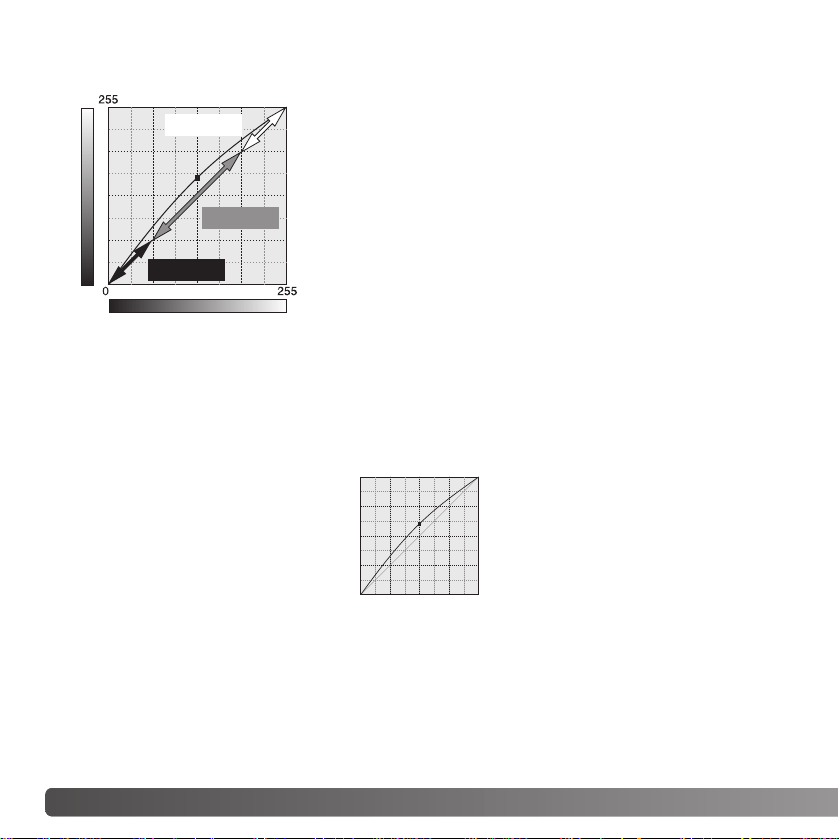
50 ADVANCED IMAGE PROCESSING
The tone curve is a graphic representation of the
brightness and color levels of the image. The bottom axis
is the 256 levels of the original image (input data) from
black to white. The vertical axis is the corrected image
(output data) with the same scale from top to bottom.
The bottom left portion of the graph represents the dark
colors and shadow areas of the image. The middle section
represents the mid-tones: skin, grass, blue sky. The top
right section is the highlights: clouds, lights. Changing the
tone curve can affect the brightness, contrast, and color of
the image.
A SHORT GUIDE TO TONE
-CURVE CORRECTIONS
Input
Output
Highlights
Mid-tones
Shadows
Bring out detail in the shadows
With the RGB channel selected, place the smooth-curve
cursor on the center of the curve. Click and drag the curve
up. Look at the displayed image to judge the result. The
adjustment can be very small and still have a significant
impact on the image. Moving the tone curve down will
make the image darker.
This is a simple technique to make a subject hidden in the
shadows brighter. Unlike the brightness level control (page
33), this method of correction will not loose details in the
highlight areas of the image.
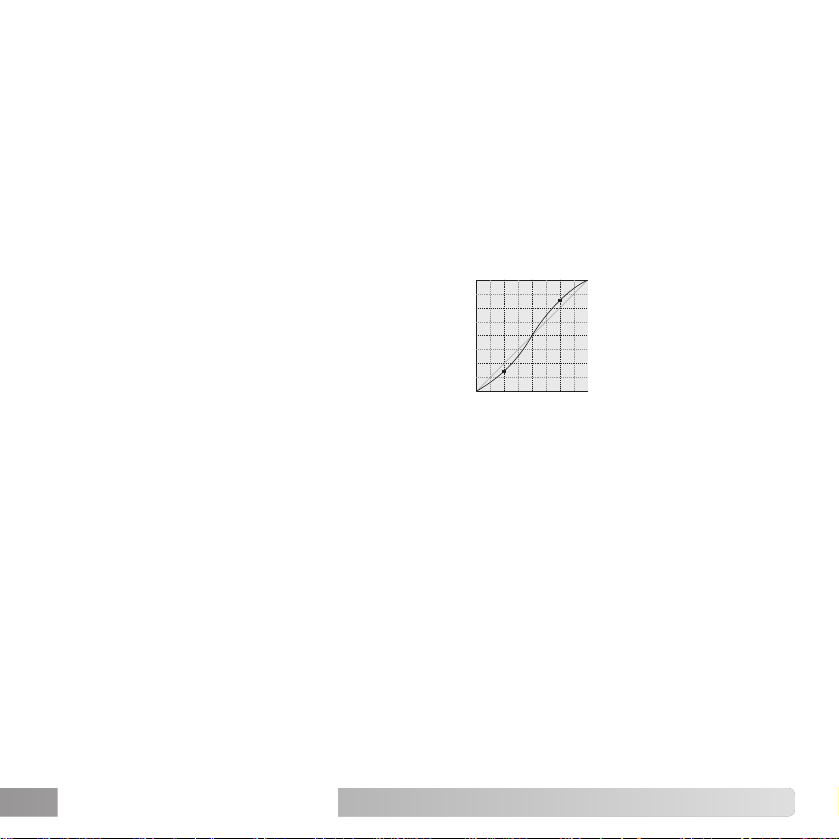
By selecting individual color channels on the tone curve, adjustments to the overall color
of an image can be made. This can be used to eliminate unnatural color casts or add
warmth to a picture.
If the image is too red, green, or blue, simply drag the
corresponding color-channel curve down until the
color appears natural. If the color cast is
predominantly one of the secondary colors, cyan,
magenta, or yellow, move the curve of the
complementary color up. For example, if the image is
too yellow, move the blue curve up, see the color
example on page 2. For more on color, see page 35.
51
The contrast of an image can be
changed. The light blue 45° line on
the tone-curve graph represents the
original contrast of the image.
Making the angle of the tone curve
greater than 45° will increase the
contrast of the image. Making the
angle less than 45° will reduce the
contrast.
Increasing contrast
With the RGB channel selected, click on the tone
curve near the top and bottom to add two nodes.
Slightly move the top node up and the bottom
node down. This will increase the angle of the
central portion of the tone curve and increase the
contrast of the image without making an overall
change in image brightness.
Correcting color
52 ADVANCED IMAGE PROCESSING
On the tone-curve / histogram palette, corrections
can be made by specifying a white, black, and gray
point within the image. Locating an appropriate
neutral area within the image is critical to correctly
calibrate the software. When the dropper tool is
selected, the RGB display is active and can be used
to evaluate the image area. All changes are
immediately reflected in the displayed image.
WHITE, BLACK
, AND GRAY-POINT CORRECTIONS
Click the white-point button; the mouse
pointer changes to the white dropper
tool.
Click the black-point button.
With the dropper tool, click on the brightest neutral
area of the image to define it as the white point. The
values of the image will be adjusted based on the
selected point. The default level for the white point is
255 for each RGB channel.
With the dropper tool, click on the darkest neutral area
of the image to define it as the black point. The values
of the image will be adjusted based on the selected
point. The default level for the black point is 0 for each
RGB channel.
53
Click and hold the apply
button to show the change
on the histogram.
Click the reset button to
cancel all corrections.
Click the gray-point button. The grey
point controls the color of the image.
With the dropper tool, click a neutral area of the image
to be defined as the gray point. The area used to
calibrate the gray point must be neutral. The
brightness level of the area is not important, but if the
area has a definite color, the image will not be color
balanced correctly.
54 ADVANCED IMAGE PROCESSING
The white and black-point values are set to 255 and 0 for each RGB level. Changing
these values allow the calibration of an image with no true white or black. This is an
advanced image-processing tool.
SETTING THE WHITE AND BLACK
-POINT VALUES
Double-click on either the white-point or black-
point button to activate the point-value-setting
dialog box.
Input the new white-point or black-point values.
Click [OK].
With the point-value-setting dialog box open,
the mouse pointer can be used to measure the
color of any point on the displayed image.
Press the shift key (Windows) or command key
(Macintosh) to display the CMY levels in the
RGB display. The RGB display shows the
original values for the image on the left and the
current values for the image on the right.
Calibrate the image following the steps in
white, black, and gray point corrections
section.
55
TONE-CURVE
/ HISTOGRAM AUTO SETTING
Click the auto-setting button. The change is immediately
reflected in the displayed image.
The auto-setting function automatically adjusts the tone
curve and histogram to maximize image data. The
darkest pixels in the image are set to a black level for 0,
the brightest pixels are set to a white level of 255, and
the rest of the pixels are distributed between them
equally. To view the change in the histogram, press the
apply button. Click the reset button to cancel the auto
setting.
DISPLAYING THE COLOR HISTOGRAMS
Click the color-histogram button to
view the red, green, and blue
histograms.
Click the histogram RGB display
button again to close the color
histogram display.
56 ADVANCED IMAGE PROCESSING
The color histograms can be displayed with the channel list box or with keyboard
shortcuts. While holding the shift key (Windows) or command key (Macintosh), press “1”
to display the red channel, “2” to display the green channel, “3” to display the blue
channel, or “0” (zero) to display the RGB channel.
HISTOGRAM CORRECTIONS
The histogram indicates the distribution of pixels with specific brightness and color values
of the displayed image. Using the histogram can maximize the output of the image data.
Changes made with the histogram are also displayed on the tone curve.
Input shadow slider
Input gamma slider
Input highlight slider
Input shadow text box
Input gamma text box
Input highlight text box
Output shadow slider
Output highlight slider Output shadow text box
Output highlight text box

57
The highlight level, shadow level, and gamma can be set manually. The histogram can be
used to maximize the distribution of the pixels in the image. All the levels on the histogram
are displayed numerically to the right of the sliders. These numbers can be changed with
the keyboard.
The gamma slider defines the mid-tones of the image. Dragging the gamma slider to the
right will darken the image, and dragging it to the left will brighten it. Similar to the tone-
curve correction described on page 50, the gamma slider allows the brightness of the
image to be adjusted without loosing image information.
The input highlight slider sets the white level. As the slider is moved to the left, an
apparent increase in contrast can be seen in the displayed image. All pixels to the right
of the slider are set to 255 and any image detail they may contain will be lost. This can
be an important tool for improving copy images of text on a white background. Uneven
illumination, or faded or stained paper can be distracting when copying text or line art. By
adjusting the white level, the imperfections of the white background can be eliminated
leaving only the darker text visible.
The input shadow slider sets the black level. As the slider is moved to the right, an
apparent increase in contrast can be seen in the displayed image. All pixels to the left of
the slider are set to 0 and any image detail they may contain will be lost.
The black and white output levels can be adjusted. By moving the output highlight and
shadow sliders, the contrast of the image can be reduced.
For examples of histogram corrections, see the following section.

58 ADVANCED IMAGE PROCESSING
A SHORT GUIDE TO HISTOGRAM CORRECTIONS
This guide shows simple corrections that can be made with a histogram. Unlike the tone
curve, the histogram provides information on a specific image. This can used to evaluate
the image and make adjustments accordingly.
The histogram of the cherry blossoms shows a gap at the right and the flowers look a
little grey. This is caused by slight underexposure when the image was captured.
By moving the highlight slider to the left to set the white point to where the pixel
distribution ends, the whites become more brilliant and the contrast increases.
This image is flat. The pixel distribution in
the histogram reflects the low-contrast
scene. The lack of any strong shadows or
dark tones is indicated by the absence of
pixels on the left of the histogram. Most of
the detail is concentrated in a narrow range
in the mid-tones.
59
By moving the
shadow slider to the
right to set the black
level to where the
pixel distribution
begins, image
contrast is improved.
The gamma slider can be used to change the relative distribution of the tones in the
image. By moving the gamma slider to the left toward the shadows, the image becomes
lighter. By moving the gamma slider in the opposite direction, the image becomes darker.
However, unlike the brightness control in the brightness, contrast, and color-balance
palette (p. 33), details are not lost in the shadows or highlights.

60
HUE, SATURATION
, AND LIGHTNESS PALETTE
This palette adjusts the image in reference to the HSB color model. These controls can
be used to manipulate the color image rather than producing a realistic representation.
The HSB color model defines color based upon human perception rather than
photographic processes. Hue refers to each separate color in the model. Saturation is
how vivid each colors is. Lightness describes how bright or dark a color is in the color
space.
The hue control is not a color balancing tool. It is a creative tool. When changing hue in
the palette, each color is assigned a new hue depending on the degree of rotation
through the color space. For example, a very simple color space could have three colors:
red, green, and blue. I have a red barn next to a green tree with a blue sky. Now I rotate
the my image in the color space; the colors are reassigned a new hue based on the
position - the barn is green, the tree is blue, and the sky is red. The HSB color space is
similar, but with many more hues; see the color example on page 91.
Unlike the brightness control in the brightness, contrast, color balance palette, the
lightness control does not change the apparent density of the colors equally. For
example, with an extreme increase in lightness, blue will not appear as light as yellow.
Click the hue, saturation, and lightness button to
open the palette.
ADVANCED IMAGE PROCESSING

61
Drag the hue, saturation, or lightness slider, or
enter specific values in the corresponding text
box to make corrections.
Dragging each slider to the right or inputting a
positive number in the text box increases the
saturation, and lightness. The hue slider rotates
the colors in the image through the color space;
the maximum position to the right (180°) is the
same as the maximum position to the left
(–180°).
Two color spaces are displayed at the bottom of
the palette. The top bar indicates the color
space of the original image. The bottom bar
displays the relative changes to the color space.
Changes will be reflected in the displayed
image. Click the reset button to cancel any
changes.
Clicking the auto-setting button adjusts the saturation automatically without affecting the
hue or lightness. Click the reset button to cancel any changes.
Auto-setting button
Original color space
New color space
62 ADVANCED IMAGE PROCESSING
The apparent sharpness of the image can be increased. Sharpness is a very subtle, but
can have a powerful affect on overall image quality. Click the sharpness button or select
Sharpness from the image-correction option in the correction menu to open the palette.
SHARPNESS
Reduce and
enlarge buttons
The preview image can be scrolled using the mouse. Place the mouse pointer over the
image area; it will change to the grab tool. Click and drag the image to scroll. Click the
display-area-preview check box to view the effects of the sharpness controls on the
image displayed in the main window.

63
Frequency slider - affects the sharpness of image details. The high frequency setting
maximizes resolution, and the low-frequency setting maximizes acutance. The optimal
frequency setting will vary from image to image. It is recommended to view the image at
various magnifications to judge the results.
Contrast slider - controls the contrast of the set frequency. The degree of sharpness can
be set between 0 and 2 in 0.1 increments. The higher the value, the greater the contrast;
compare the examples above, which are at the maximum setting, with the original image
on the facing page. The degree of sharpness can also be entered in the text box next to
the slider. Like frequency, the optimal contrast setting will vary from image to image.
Reduce and enlarge button - to adjust the size of the preview image in the sharpness
window. The preview image can be displayed at 25%, 50%, 100%, and 200%.
Reset button - resets all changes made to the image.
High-frequency setting Low-frequency setting
64 ADVANCED IMAGE PROCESSING
AREA MARQUEE -
SAVING OR PRINTING A PORTION OF AN IMAGE
Click and drag over the area of the
image to be selected. The area-marquee
tool will create a rectangle with a dashed
boarder.
The marquee can be moved by placing
the cursor within the area and clicking
and dragging. It can be resized by
clicking and dragging on the boarders.
Select the save-selected-area option or
the print-selected-area option from the
view menu.
Area marquee
When the print-selected-area option is chosen, the
print dialog box open. The selected area will be seen
in the preview display. See page 42 on how to make
print settings.
When the save-selected-area option is chosen, the
save-as dialog box will open. Enter the file name for
the selected area, choose the file format, specify the
location to which to save the file, and save the image
(p. 40).
An area of an image can be selected and saved as a separate image file or
printed. The marquee can also be used to specify the area used for data
imprinting (p. 38). Click on the area-marquee button on the tool bar or select the
area marquee from the cursor option of the view menu.
65
TRACKING IMAGE CORRECTIONS
- SNAPSHOT BUTTON
Image corrections can be stored temporarily as a thumbnail next to the
displayed image. Simply click the snapshot button on the tool bar or select the
snapshot option from the correction menu to create a thumbnail with the current
image corrections.
To return to a previous
image correction, click
on the corresponding
thumbnail. The
thumbnail image will
replace the displayed
image. The number of
snapshots that can be
made is only limited by
the computer memory.
To delete a snapshot,
click on the thumbnail
and press the keyboard
delete key.
Snapshot display area
66 ADVANCED IMAGE PROCESSING
All corrections applied to an image can be saved as an image-correction Job.The Job can
be loaded into the utility at any time and applied to different images. This is a time-saving
function when a large number of images need too be processed with the same correction
settings.
Click the save image-correction Job
button or select the save-image-
correction-Job option from the
correction menu to save the current
image-correction settings.
Enter the Job name. Click the OK button to
save the settings.
SAVING IMAGE CORRECTIONS
67
LOADING IMAGE
-CORRECTION JOBS
Display the image to be corrected in
the image-correction window. Click
the load image-correction Job
button or select the load-image-correction-
Job option from the correction menu to load
a saved image-correction setting.
Click on an image-correction Job thumbnail to
select it. Click the OK button to apply the Job to the
displayed image.
Jobs are loaded into the snapshot display area.
Multiple Jobs can be loaded.

68 ADVANCED IMAGE PROCESSING
Certain digital cameras, such as the DiMAGE 7Hi, or DiMAGE A1, use a special file
format called Minolta-RAW. This file can only be read and processed by the DiMAGE
Viewer software. To open a RAW file, simply double click on it in the thumbnail display
The open dialog box is used to define the parameters for the image. First the color mode
of the image should be selected; if black and white is chosen, the white-balance and filter
controls are not available.
White balance controls the overall
color of the image. The drop-down
menu automatically applies the
camera setting used when the
image was captured or balances it
to a specific light source. The
preset white-balance settings vary
between camera model.
Click on the manual-setting check
box for fine control over white
balance. The grey-point dropper
tool can be used to balance the
image in reference to a neutral
point within the image area. The
color-temperature and CC index
slider and text box can be used to
enter the color temperature of the
scene when the image was
recorded.
Before adjusting white balance,
set the filter and saturation sliders
to zero (0) so that image color can
be judged accurately.
PROCESSING RAW IMAGES
b
c
a

69
Click on the gray-point button (a) to calibrate the white balance to a point within the
image; the cursor will change to the gray-point dropper tool. When the dropper is placed
in the image area, the RGB values of that point are displayed at the top of the window
(b). Click on a neutral point within the image to make the calibration (c). The point chosen
can be at any brightness level, but it must have no definite color. Although the filter and
saturation setting in the dialog box will not affect the calibration, the sliders should be set
to zero so that the results can be judged.
A Minolta color meter can be used to measure the approximate color temperature of a
scene when the RAW image is captured. The recorded color temperature and CC index
value from the meter can be entered in the text boxes to set the white balance. A green
CC value should be entered as a negative integer and a magenta value as a positive
integer. When making the reading, both the the color temperature and the CC value must
be recorded. See page 90 for information on color measurement.
If the camera’s filter, saturation, contrast, or sharpness controls were used when the
picture was taken, the settings will be displayed in the dialog box. Changes to these
settings are reflected in the preview image. The cursor can be used to measure the RGB
values of any point within the image. When a Vivid color image is opened, the saturation
level will be set to zero (0), but the high saturation level of the color mode will be applied
to the image. If color matching is on (p. 82), except when using the original color space,
any changes to the contrast will not be applied when the file is opened.
The image brightness can be adjust by ±2.0Ev with the exposure-compensation slider.
The slider will not reflect the degree of exposure compensation used when the image was
captured. Like the brightness control in the brightness, contrast, and color-balance
palette, detail can be lost in the highlights and shadows. To preserve these details, it is
recommended to open the image without compensating the exposure and adjust the
image brightness with the tone-curve / histogram palette (p. 47).
The reset button returns all setting to their initial position. The close button cancels any
settings made and closes the window without processing the RAW image. To apply the
settings to the image data and open the file, click the OK button.
70 ADVANCED IMAGE PROCESSING
Click the save button on the tool bar or select the save option from the file menu to save
the displayed image. In the save-as window, specify the location to save the file (1). Enter
the file name without an extension (2).
Specify the file type of the image (3). If saved as a TIFF file, the bit length must be
selected (4): 24 bit or 48 bit. Once saved as 24 bit, the image cannot be saved as a 48-
bit file. If the data imprinting function is used (p. 38), the file can only be saved as 24 bit.
If saved as a JPEG file, the compression rate should also be set (5). The higher the
compression rate the smaller the file size and the lower the image quality.
Click the save button to complete the operation.
1
2
3
5
4
SAVING RAW IMAGES

71
SAVING RAW JOBS
RAW processing settings can be saved and
applied to other images.
After all setting have been made on the open-
Minolta-RAW-file dialog box, click the save-
RAW-Job button. Enter the name of the Job in
the save-RAW-Job window and click save.
LOADING RAW JOBS
To apply a RAW Job to another image, click on
the load-RAW-Job button in the open-Minolta-
RAW-file dialog box.
Select the Job in the load-RAW-Job window
and click the load button to apply the settings
to the image.
72 ADVANCED IMAGE PROCESSING
Except for RAW processing, the settings in
the dialog box are applied equally to all
images. If RAW images are included in the
batch, they can be processed with the
camera settings used when they were
recorded, or a RAW Job can be used (p. 71).
Click the select button to open the load-RAW
Job window and select the Job.
Images can be rotated or flipped.
To apply an image-correction Job click the
image-correction check box. The select
button opens the load-image-correction-Job
window (p. 67). Select the Job to be applied to
the images in the batch and click “OK.” If a
RAW Job and image-correction Job are
selected for batch processing, RAW images
will have both Jobs applied to them.
Images can be resized between 10% and 200%. If the result of the resizing exceeds the
maximum pixel size of 5120 X 3840, an alert message will be displayed. Reenter a new
magnification. When resizing images, select either bilinear or bicubic interpolation.
BATCH PROCESSING
Multiple images can be processed and saved
at one time. Highlight the images to be
processed on the thumbnail display and then
select the batch-processing option from the
tools menu. The batch-processing dialog box
will open.
73
Click the OK button to begin processing. The save-in dialog box will open.
Select the location to save
the images on the folder
tree (1).
Specify the file type of the
images (2). If saved in the
TIFF format, the bit length
must be selected (3): 24 bit
or 48 bit. Once saved as 24
bit, images cannot be
resaved as a 48-bit file. If
saved in the JPEG format,
the compression rate
should also be set (4). The
higher the compression rate
the smaller the file size and
the lower the image quality.
Click the change-file-name check box (5) to rename the image files. Enter the file name
up to ten characters and enter the first serial number up to five digits.
Click the OK button to begin batch processing.
1
2
3
4
5

74 MOVIE ENHANCER
MOVIE ENHANCER
QuickTime must be installed on the
computer system for the Movie
Enhancer to be used. For QuickTime
system requirements, see page 7.
To open a movie file in this
application, simply double click on the
thumbnail in the DiMAGE Viewer
thumbnail display. To play the movie
clip back, use the controls at the
bottom of the screen. Only MOV or
AVI format images can be opened.
Volume
Play / Pause
Jog slider
Forward
Reverse
Resize
When the resize button is clicked and dragged, there is a maximum limit to how large the
screen area can be. The jog slider is used in editing (p. 76).
75
The Movie Enhancer can minimize flicker in 640 X 480 (VGA) or smaller movie files.
General flicker effects the overall image area evenly. Localized flicker is isolated to only a
portion of the image area; a scene with natural light and fluorescent lighting may only
show flicker in the area illuminated by the fluorescent lights.
FLICKER CORRECTION
The save dialog box will open; enter a new file name and
specify the location to save the file. The file can only be
saved in the MOV format.
Choose the type of flicker to be corrected on the drop-down
menu in the flicker-correction window. Click the OK button
to process the movie file.
With the movie displayed in the main window, select the
flicker-correction option from the correction menu.

76 MOVIE ENHANCER
EDITING MOVIE FILES
The Movie Enhancer can join movie clips together, cut sections from a clip, or copy
sections from one clip to another with the edit menu. Open the necessary movie files in
the main window with the file menu.
Click on the first movie clip to select it; the slider bar should be dark (1). If not, choose
the select-all option from the edit menu to darken the bar and indicate the selection.
Select the copy-frame option from the edit menu.
Click on the second clip. Position the jog slider all the way to the left to attach the first clip
to the beginning of the second or all the way to the right to attach it to the end (2).
Select the paste-frame option from the edit menu to complete the operation.
1
2
Splicing two movie clips
77
1
2
In the first movie file, use the jog slider to locate the beginning of the section to be pasted.
While pressing the shift key, drag the jog slider to mark the frames in the section (1); the
slider bar darkens to indicate the selected section. To deselect the section, click on a gray
area on the slider bar.
Select the copy-frame option from the edit menu.
On the second movie clip, use the jog slider to locate the point to paste the copied section
(2).
Select the paste-frame option from the menu to complete the operation.
Copying sections from one movie to another
The image quality of a 640 X 480 (VGA) or smaller
movie clip can be adjusted. If both flicker correction
and image correction is applied to the same movie
clip, the flicker correction processing should be done
first. With the movie displayed in the movie enhancer,
select the image-correction option from the correction
menu to open the palette.
The drop-down menu at the top of the window switches between the the basic and
advance setup palettes. Both palettes control the same image qualities, but the advance
setup palette allows finer adjustments.
The correction-preview display
shows the original image and the
corrected image. To initially display
the corrected image, press the
preview button. Use the preview
button to update the image display
every time a setting is changed.
The frame-selection slider can
display any frame in the movie clip.
The basic setup palette allows
corrections to color, contrast,
saturation, sharpness, and
brightness in three degrees. “Low”
makes a slight adjustment to the
quality, whereas “High” makes a
large change.
78 MOVIE ENHANCER
CORRECTING MOVIE IMAGES
79
Color corrects the overall color cast of an image. The higher the level, the greater the
color balance is shifted toward neutral. Contrast controls the relative brightness levels.
The higher the level, the brighter the highlights and the darker the shadows. Saturation
controls the vividness of colors. Sharpness controls the sharpness of image details.
Brightness controls how bright the image is.
The advanced setup palette has five correction settings for color, contrast, saturation,
sharpness, and brightness. Selected with the drop-down menu for each of the five image
qualities, low, standard, and high are preset levels, manual setup activates the slider for
manual adjustments, and no correction turns off the correction function.
To save the current settings. Only
one set of settings can be saved.
Each time the function is used, the
previous setting are replaced with
the new ones.
To apply the last set of settings
saved.
When all settings have been made,
press the preview button to confirm
the effect on the image.
Click the OK button to begin
processing. The save dialog box
will open; rename the file and
specify the location to save it. The
file can only be saved in the MOV
format.

80 ADVANCED SETUP
The application software to open
still images, movie clips, and
audio files can be specified in the
preferences dialog box. To open
the dialog box, select the
preferences option from the file
menu.
The default application setup
specifies the software used to
open certain files. When a
thumbnail is double clicked in the
DiMAGE Viewer, it will be
opened in the specified
application.
ADVANCED SETUP
CUSTOMIZING THE VIEWER - PREFERENCES
The radio button indicates the
application used to open still
images and movie clips. To link a
new application, click the others
radio button and then the view
button; the open dialog box will be
displayed. Select the new
application and click the open
button. The file path will be
displayed in the preference
window. Click OK to complete the
setup.

81
The create-application-link function links another image-processing application to the
DiMAGE Viewer. When the link is made, the application icon is displayed in the thumbnail
window.
To create the link, click the view button; the open dialog box will be displayed. Select the
new application and click the open button. The file path will be displayed in the preference
window. Click the link button.
Click OK to complete the operation. The application icon will be displayed in an area
below the folder tree.
To open a file in the application, drag and drop the file onto the icon or highlight the file
and select the application from the open-with option on the file menu.
To remove the application from the display, click on the icon and then use the delete
button on the tool bar or keyboard to delete it. This also resets the preference box.

82 ADVANCED SETUP
COLOR MATCHING - C
OLOR PREFERENCES
Each output device (monitor or printer) defines
color and contrast differently. To ensure
accurate reproduction, the output color space
must be defined. Color matching is used for
professional color management. It is not
needed for normal personal use.
Select the color-preferences option from the
file menu to open the dialog box.
In the dialog box, click the color-matching-on
check box.
Select a color space from the drop-down list.
The following color spaces are available:
Original Color Space (sRGB) - the color space of the camera image is not converted to
a standard color space. This color space is recommended for images captured with a
Minolta DiMAGE digital camera. The DiMAGE Viewer, monitor, and printer interprets the
color as sRGB for reproduction purposes, but does not convert the original camera color
space.
Original Color Space (Adobe RGB) - Adobe-RGB color-mode images captured with a
Minolta digital camera such as the DiMAGE 7Hi or DiMAGE A1 must be opened with this
color space unless the color profile has been embedded; see the embedded camera
profiles section on page 90. As with Original Color Space (sRGB), the color space of the
camera image is not converted to a standard color space. The DiMAGE Viewer, monitor,
and printer interprets the color as Adobe RGB for reproduction purposes, but does not
convert the original camera color space.
sRGB - the color space promoted by Hewlett Packard and Microsoft. Since it reflects the
average PC monitor characteristics, it is widely used around the world, and is considered
to be the standard for multi-media and Internet usage. sRGB is not suitable for
professional prepress applications because of its narrow reproduction range.

83
Apple RGB - widely used in DTP. It is the standard color space in many common graphic
arts and design applications: Adobe Illustrator, Photoshop, etc.
SMPTE-C - the current television broadcasting standard used in the United States.
PAL/SECAM - the current television broadcasting standard used in Europe.
ColorMatch RGB - this standard has a wide color space and is ideal for use with Radius
Press View monitors, which are commonly used in prepress production.
Adobe RGB - this color space is wider than ColorMatch RGB. The extensive color range
makes it ideal for prepress use. However, the range is so great that it includes many
colors that cannot be reproduced with a four-color printing process.
Wide-gamut RGB - utilizing the color coordinates of the spectrum, this standard offers
an extreme range of colors. Many of the colors that can be generated cannot be
reproduced on standard computer monitors or by printing technology.
NTSC - the current television broadcasting standard used in Japan.
CIE RGB - this color space is defined by the CIE.
Use ICC Profile - to employ a specific ICC profile.
To use a specific profile, select the use-
ICC-profile option. Click the load button
and use the open window to open the
profile; the profile name will appear in the
color-preferences window. Click the OK
button to set the color space and close
the color-preferences window.
84 ADVANCED SETUP
USING PRINTER ICC PROFILES
Specific printer ICC profiles can be used with
the DiMAGE Viewer. Select the color-
preferences option from the file menu to open
the dialog box.
In the dialog box, click the color-matching-on
and printer-ICC-profile check boxes.
Click on the printer ICC profile load button to
display the open window.
Locate the ICC profile for the specific
device; for profile locations, see page 86.
Click the open button to complete the
operation.
CMY or CMYK printer profiles are not
compatible with the DiMAGE Viewer
software.
When loaded correctly, the ICC profile will be displayed in the color preference window.
The profile can be temporarily disabled by clicking on the printer-ICC-profile check box.
85
USING MONITOR ICC PROFILES
The computer system’s monitor ICC profiles
can be used with the DiMAGE Viewer. Select
the color-preferences option from the file menu
to open the dialog box. In the dialog box, click
the color-matching-on and monitor-ICC-profile
check boxes.
If the monitor ICC profile fields are gray, the
monitor profile has not been specified with the
operating system. Refer to your operating
system’s manual or help on how to install
monitor ICC profiles. For profile locations, see
page 86.
Generic monitor and printer profiles are supplied with the DiMAGE Viewer. In Windows,
the profiles folder is located in the DiMAGE Viewer application folder. The profiles are in
the following location in a Macintosh: [System]>[Preferences]>[7300]>[Profiles]; or for
Mac OS X: [Library]>[Preferences]>[7300]>[Profiles].
Std_Monitor.icc
sRGB_Monitor.icc
Printer profiles
sRGB_Printer.icc
Std_ColorLBP.icc
Std_DyeSublimation.icc
Std_InkJet.icc
Std_SilverHalide.icc
For average monitors.
For Windows sRGB monitors.
For printers which use sRGB color space.
For color laser printers.
For dye-sublimation printers.
For inkjet printers.
For silver-halide dye-transfer printers.
Monitor profiles
Apple_Monitor.icc For Apple monitors.
ABOUT DiMAGE VIEWER ICC PROFILES
86 ADVANCED SETUP
ICC profiles for a specific monitors or printers are available from the manufacturer. These
may be downloaded from the manufacturer’s web site. See the instruction manual of the
specific device on how to install the ICC profile.
ICC PROFILE LOCATIONS
ICC profiles can be found in the following locations:
Windows
Windows
98, 98SE, Me
System Color
Windows XP
Mac OS 9
Mac OS X
System32
System folder
Library
Windows Spool Drivers Colors
System32WINNT Spool Drivers Colors
ColorSync profile folder
ColorSync Profiles Displays
Windows 2000
87
VIEWER NOTES
UNINSTALLING THE DiMAGE VIEWER
Windows
Uninstall the the DiMAGE Viewer using the add/remove programs or add/remove
applications (XP) routine in the control panel. Afterwards, place the 7300 folder in the
trash and empty it to complete the operation. The folder contains the Job files.
Macintosh
As well as the DiMAGE Viewer application folder, the following files and folders should
also be deleted:
System
Mac OS 9
Preferences
PreferencesLibrary
7300
System Extensions
CFMSupportLibrary
Mac OS X
DSCIPLibrary2
MQTQueenLib MQueenLib
MCMLibraryDSC2
MQTQueenLib2 MQueenLib2
7300
Users Logon name Library
Preferences 7300
Delete
Windows 98,
98SE, and Me
Windows
(Logon name)Documents and
settings
Application data DiMAGE 7300
Windows 2000
and XP
Delete

88 VIEWER NOTES
Windows
If you are upgrading the DiMAGE Viewer from a version earlier than 2.2, the following
procedure can be used to copy Job files from the old application to the new one. This is
not necessary for Macintosh OS 9 operating systems.
COPYING JOB FILES
1. Log on to your computer as an administrator. Open the DiMAGE Viewer application
folder. If the standard installation was used, it will be located in C:\Program
Files\DiMAGE Viewer. Letters designating the hard drive can vary between
computers.
2. Copy the Prefs folder into another folder in a different location. Example,
C:\Job_Move.
3. Uninstall the old version of the DiMAGE Viewer using the add/remove programs or
add/remove applications (XP) routine in the control panel.
4. Install the new DiMAGE Viewer. See page 8.
5. While logging on as a user, launch the DiMAGE Viewer once and close it to create the
necessary folders.
6. Open the Prefs folder that was copied from the old DiMAGE Viewer application to
show the ImageCorrectJob and MRWCorrectJob folders.
7. Copy all the files in the ImageCorrectJob folder with an .icj extension to the following
location:
Windows XP/2000: C:Document and Settings \ (Logon user name) \ ApplicationData
\ DiMAGE \ 7300 \ Prefs \ ImageCorrectJob.
Windows 98/98SE/Me: C:\ Windows \ ApplicationData \ DiMAGE \ 7300 \ Prefs \
ImageCorrectJob.

89
Macintosh OS X
1. Log on to your computer an administrator. Open the 7300 folder: /Library/
Preferences/7300.
2. Copy the Prefs folder into another folder in a different location. Example, /Job_Move.
3. Delete the old DiMAGE Viewer application folder.
4. Install the new DiMAGE Viewer. See page 10.
5. While logging on as a user, launch the DiMAGE Viewer once and close it to create the
necessary folders.
6. Open the Prefs folder that was copied from the old DiMAGE Viewer application. Copy
all the files with an .icj and .mrj extension to the following location: /Users/(logon user
name)/Library/Preferences/7300/Prefs.
7. Open the DiMAGE Viewer to confirm the Jobs can be loaded.
8. Copy the MRWCorrectJob folder to the following location:
Windows XP/2000: C:Document and Settings \ (Logon user name) \ ApplicationData
\ DiMAGE \ 7300 \ Prefs.
Windows 98/98SE/Me: C:\ Windows \ ApplicationData \ DiMAGE \ 7300 \ Prefs.
9. Open the DiMAGE Viewer to confirm the Jobs can be loaded.

90 ADVANCED SETUP
Minolta, The essentials of imaging, and DiMAGE are trademarks or registered trademarks of
Minolta Co., Ltd. Microsoft and Windows are registered trademarks in the United States and other
countries of Microsoft Corporation. The official name of Windows is Microsoft Windows Operating
System. Pentium is a registered trademark of Intel Corporation. Apple, the Apple logo, Macintosh,
Power Macintosh, Mac OS and the Mac OS logo are registered trademarks of Apple Computer,
Inc. All other brand and product names are are trademarks or registered trademarks of their
respective owners.
NOTES ON COLOR MEASUREMENT
When opening a Minolta-RAW image (p. 68), color information recorded on location with
a Minolta color meter can be used to set the white balance of the image. If the image is
captured under a continuous source like the sun or tungsten lighting, the corresponding
measurement can be very effective in balancing the color of the image. However,
because the spectral response of the camera’s CCD and the color meter are not the
same, if images are captured under lighting with a discontinuous line spectrum like
fluorescent or mercury vapor, the values recorded with the color meter may not result in
an accurate reproduction.
EMBEDDED CAMERA COLOR PROFILES
Certain Minolta digital cameras, such as the DiMAGE 7Hi or DiMAGE A1, can embed the
camera’s color profile into the image data for color matching. The color mode on the
camera determines the profile: sRGB, used with Natural and Vivid Color, or Adobe RGB.
By setting the color space to either Original Color Space (sRGB) or Original Color Space
(Adobe RGB) in the color preference window, the DiMAGE Viewer can determine the
color space embedded in the image and adjust accordingly. If the color space is not
embedded in the image, the color space must be set manually for both color spaces, see
color matching on page 82.
91
Changes in hue rotate the original
color values though a color space and
reassigns a new hue depending on
the new position in the color space. In
this example, the original image was
rotated 180° through the color space.
For more on the hue, saturation, and
brightness palette, see page 60.
HUE CORRECTION EXAMPLE
Two color spaces are displayed at the
bottom of the palette. The top bar
indicates the color space of the
original image. The bottom bar
displays the relative shift to the color
space. In the example, the reds have
been shifted to cyan and the yellows to
lavender.
Original color space
New color space
Saturation
Lightness
Hue

©2003 Minolta Co., Ltd. under the Berne Convention and the Universal Copyright Convention.
Printed in Japan
9222-7300-41 SY-A306
1AG6P1P1616--
2.2.0
Minolta Co., Ltd. 3-13, 2-Chome, Azuchi-Machi, Chuo-Ku, Osaka 541-8556, Japan
Minolta Europe GmbH Minoltaring 11, D-30855 Langenhagen, Germany
Reparatur/Repair Senator-Helmken-Strasse 1, D-28197 Bremen, Germany
Minolta France S.A.S. 365 Route de Saint-Germain, F-78420 Carrieres-Sur-Seine, France
Minolta (UK) Limited 7 Tanners Drive, Blakelands, Milton Keynes, MK14 5BU, England
Minolta Austria Ges. m.b.H. Amalienstrasse 59-61, A-1131 Wien, Austria
Minolta Camera Benelux B.V. Zonnebaan 39, P.O. Box 6000, NL-3600 HA Maarssen, The Netherlands
Belgian Branch Prins Boudewijnlaan 1, B-2550 Kontich, Belgium
Minolta (Schweiz) AG Riedstrasse 6, CH-8953 Dietikon, Switzerland
Minolta Svenska AB Albygatan 114, S-171 54 Solna, Sweden
Finnish Branch Niittykatu 6 PL 37, SF-02201 Espoo, Finland
Minolta Portugal Limitada Av. do Brasil 33-A, P-1700 Lisboa, Portugal
Minolta Corporation 101 Williams Drive, Ramsey, New Jersey 07446, U.S.A.
Minolta Canada Inc. 369 Britannia Road East, Mississauga, Ontario L4Z 2H5, Canada
Minolta Hong Kong Limited Room 208, 2/F, Eastern Center, 1065 King’s Road, Quarry Bay, Hong Kong
Minolta Singapore (Pte) Ltd. 10, Teban Gardens Crescent, Singapore 608923
Shanghai Minolta Optical
Products Co., Ltd. 368 Minolta Road, Songjiang, Shanghai, China