USER MANUAL

2 3
/ Join the GoPro Movement
twitter.com/GoPro
facebook.com/GoPro
youtube.com/GoPro
instagram.com/GoPro
To download this user manual in a different language, visit gopro.com/support.
Pour télécharger ce manuel de l’utilisateur dans une autre langue, rendez-vous
sur gopro.com/support.
Wenn Sie dieses Benutzerhandbuch in einer anderen Sprache herunterladen
möchten, besuchen Sie gopro.com/support.
Per scaricare questo manuale utente in un’altra lingua, visita gopro.com/support.
Para descargar este manual de usuario en otro idioma, visite gopro.com/support.
Para baixar este manual do usuário em outro idioma, acesse gopro.com/support.
このユーザーマニュアルの他言語版をダウンロードするには、
gopro.com/supportにアクセ スしてくだ さ い 。
若要下載其他語言版本的使用說明書,請前往:gopro.com/support。
如需下载本用户手册的其他语言版本,请访问gopro.com/support。
Чтобы загрузить это руководство пользователя на другом языке, посетите
страницу gopro.com/support.

4 5
The Basics
6
Getting Started
7
Capturing Video and Time Lapse Photos
16
Changing Video and Time Lapse Settings
21
Accessing All Camera Settings
23
Camera Icons
28
Video Mode
30
Photo Mode
45
Multi-Shot Mode
48
Setup Mode
56
Protune
™
69
Transferring Files to a Computer
73
Playing Back Video and Photos
75
Important Messages
77
The Frames
80
Mounting Your Camera
83
Battery
93
Troubleshooting
98
Customer Support
104
Regulatory Information
104
/ Table of Contents / Table of Contents
6 7
CHARGING THE BATTERY
The integrated battery comes partially charged. No damage occurs
to the camera or battery if used before being fully charged.
To Charge the Battery:
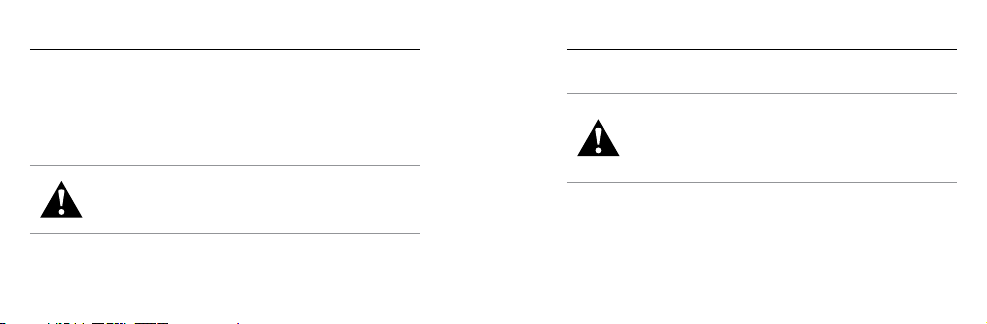
1. Open the side door. 2. Charge the battery using the
included USB cable.
Note: The battery cannot be removed from the camera.
/ The Basics
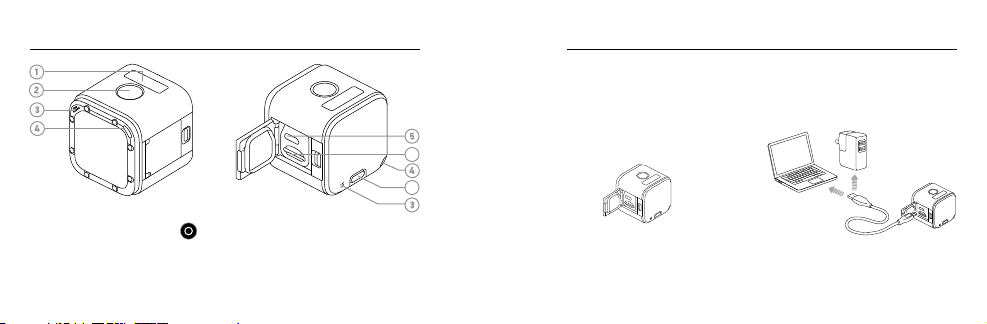
1. Camera Status Screen
2. Shutter/Select Button [ ]
3. Microphone
4. Camera Status Light (red) /
Wireless Status Light (blue)
5. Micro-USB Port
6. microSD Card Slot
7. Info/Wireless Button
/ Getting Started
6
7
8 9
/ Getting Started
The camera status lights (red) turn on during charging and turn
off when charging is complete. When charging the camera with a
computer, be sure that the computer is connected to a power source.
If the camera status lights do not turn on to indicate charging, use a
different USB port.
WARNING: Using a wall charger other than a GoPro Wall Charger
can damage the GoPro camera battery and could result in fire or
leakage. Only use chargers marked: Output 5V 1A. If you do not
know the voltage and current of your charger, use the included
USB cable to charge the camera from your computer.
/ Getting Started
For more battery information, see Battery (page 93).
WARNING: Use caution when using your GoPro as part of your
active lifestyle. Always be aware of your surroundings to avoid
injury to yourself and others.
Abide by all local laws when using your GoPro and related
mounts and accessories, including all privacy laws, which may
restrict recording in certain areas.
10 11
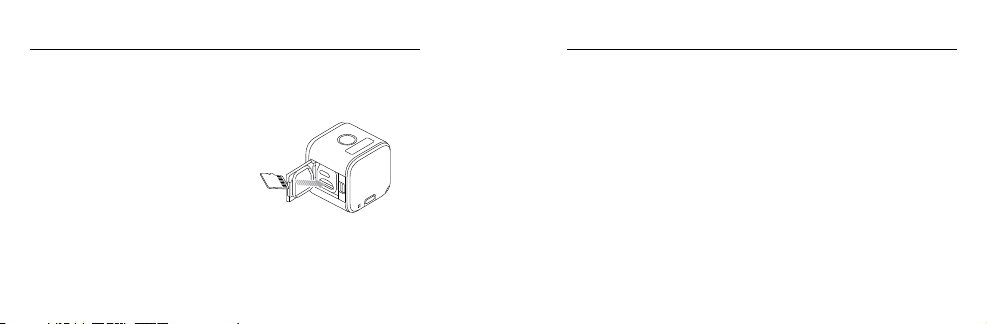
INSERTING + REMOVING MEMORY CARDS
Insert the SD card at a downward angle with the label facing down.
Use brand name memory cards
(sold separately) that meet these
requirements:
• microSD, microSDHC,
or microSDXC
• Class 10 or UHS-I rating
• Capacity up to 64GB
For a list of the recommended microSD cards, visit gopro.com/support.
/ Getting Started
NOTICE: Use care when handling memory cards. Avoid liquids, dust,
and debris. As a precaution, power off the camera before inserting or
removing the card. Check manufacturer guidelines regarding use in
acceptable temperature ranges.
CAMERA SOFTWARE UPDATES
To get the latest features and best performance from your
HERO4 Session camera, make sure you are using the most current
camera soware. You can update your camera soware with the
GoPro App, GoPro Studio, or at gopro.com/getstarted.
/ Getting Started

12 13
/ Getting Started
POWERING ON + OFF
HERO4 Session powers on when you press the
Shutter/Select button [
] to begin capturing
video or Time Lapse photos. When you press the
Shutter/Select button [
] again to stop recording,
the camera automatically powers off to conserve
battery power.
PRO TIP: When carrying your camera in a bag or pocket, place the
camera upside down in a frame (with the Shutter/Select button [
]
covered) to protect the camera from accidentally capturing video or
Time Lapse photos. To prevent the frame from marking the surface of
the camera, leave the latch on the frame open.
/ Getting Started
DISPLAYING STATUS INFO
Short press the Info/Wireless button to display status information
about your camera. The screen cycles through the information below,
then automatically turns off.
Note: To exit these screens sooner, press and hold the Info/Wireless button for three seconds.
• Video resolution/fps/FOV
• Time Lapse photo resolution/
FOV/interval
• Remaining microSD card
memory for each mode
• Protune status
• Spot Meter status
• Wireless status
• Battery status

14 15
/ Getting Started
HELPFUL TIPS
Follow these guidelines to get the best performance from
your camera:
• The camera is waterproof to 33’ (10m)—no housing needed.
Ensure that the side door is closed before using the camera in
or around water, dirt, or sand.
• Before closing the side door, be sure the seal is free of debris.
If needed, clean with a blower brush or canned air.
• Before opening the side door, be sure the camera is free of water or
debris. If needed, rinse the camera with water and dry it with a cloth.
• If sand or debris hardens around the side door, soak the camera
in warm tap water for 15 minutes and then rinse thoroughly to
remove the debris before opening the door.
• For best audio performance, shake the camera or blow on the mic
to remove water and debris from the microphone holes.
• Aer every use in salt water, rinse the camera with fresh water,
and dry with a so cloth.
• If the camera lens becomes foggy, let it sit with the door open until
it dries.
PRO TIP: During water activities, tether your camera for added
security and use a Floaty to keep your camera afloat (sold separately).
For more information, visit gopro.com.
/ Getting Started

16 17
When your camera is not connected to a GoPro remote (sold
separately) or the GoPro App, two capture modes are available: Video
and Time Lapse. To access more modes, see Accessing All Camera
Settings (page 23).
CAPTURING VIDEO
The default video resolution is 1080p30. To select a different resolution,
see Changing Video and Time Lapse Settings (page 21).
To Start Recording Video:
Short press the Shutter/Select button [
]. Your camera powers
on, emits three beeps, and automatically begins recording video.
The camera status lights blink while the camera is recording.
/ Capturing Video and Time Lapse Photos / Capturing Video and Time Lapse Photos
If the memory card is full or the battery is out of power, your
camera automatically stops recording and saves the video before
powering off.
To Stop Recording:
Short press the Shutter/Select button [
]. The camera stops
recording, beeps several times, and automatically powers off to
maximize battery life.
PRO TIP: You can turn off the camera status lights and your camera’s
sound. For more information, see Setup Mode (page 56).
18 19
HILIGHT TAGGING
You can mark specific moments in your video as
they happen with HiLight Tags. HiLight Tags make
it easy to find the best moments to share.
Note: HiLight Tags are visible during playback on the GoPro App or in
GoPro Studio.
To Add HiLight Tags During Recording:
Short press the Info/Wireless button.
PRO TIP: You can also add HiLight Tags during recording with the
GoPro App or the Smart Remote.
/ Capturing Video and Time Lapse Photos / Capturing Video and Time Lapse Photos
CAPTURING TIME LAPSE PHOTOS
The default interval for Time Lapse is 0.5 second. To select a different
interval, see Changing Video and Time Lapse Settings (page 21).
To Start Capturing Time Lapse Photos:
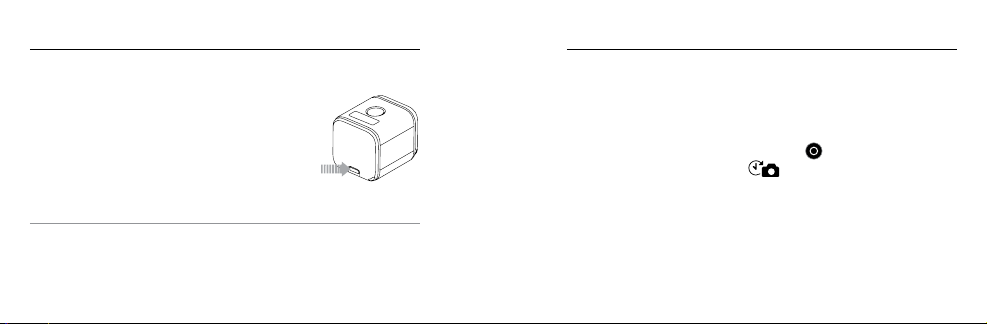
Press and hold the Shutter/Select button [
] for about three seconds
until the Time Lapse photo icon [
] appears on the camera status
screen. Your camera powers on, emits two beeps, and automatically
begins capturing Time Lapse photos. The camera status lights blink
while the camera is capturing photos.

20 21
/ Changing Video and Time Lapse Settings
You can change some of the Video and Time Lapse settings using
the buttons on the camera. For Video, you can change resolution,
frames per second (fps), and field of view (FOV). For Time Lapse, you
can change the megapixels and interval. To access other settings and
modes, see Accessing All Camera Settings (page 23).
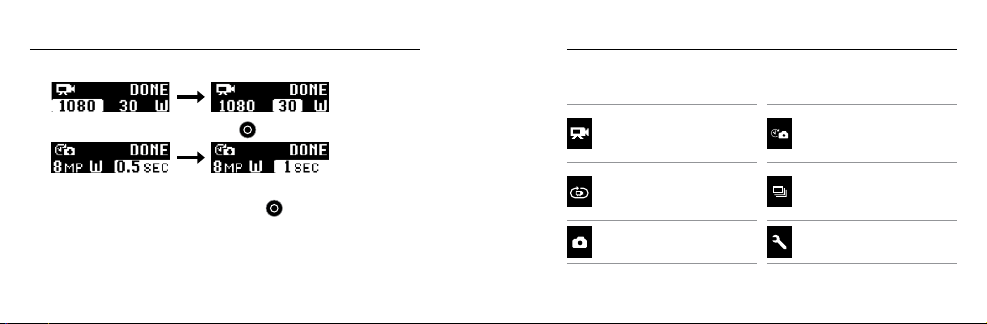
TO CHANGE VIDEO AND TIME LAPSE SETTINGS:
1. Press the Info/Wireless button to turn on the status screen.
2. Press the Info/Wireless button repeatedly until you get to
Video & Time Lapse Settings, then press the Shutter/Select
button [
] to select it.
To Stop Recording:
Short press the Shutter/Select button [
]. The camera stops
recording, beeps several times, and automatically powers off to
maximize battery life.
/ Capturing Video and Time Lapse Photos
22 23
3. Press the Info/Wireless button repeatedly to move to a setting.
4. Press the Shutter/Select button [ ] to select a new option.
5. Press the Info/Wireless button repeatedly until you get to Done,
then press the Shutter/Select button [
] to select it.
For information about video settings, see Video Settings (page 33).
For information about Time Lapse settings, see Multi-Shot Settings
(page 51).
/ Changing Video and Time Lapse Settings
/ Accessing All Camera Settings
To access all modes and settings, connect your camera to a GoPro
remote (sold separately) or the GoPro App.
VIDEO
Record video
TIME LAPSE PHOTOS
Shoot photos at
time intervals
LOOPING VIDEO
Record continuously
BURST PHOTO
Capture up to 10 photos
in 1 second
PHOTO
Capture a single photo
SETTINGS
Adjust all camera settings

24 25
All modes and settings that you select are saved aer you disconnect
the camera. However, only Video and Time Lapse modes can be
accessed when the camera is not connected to the remote or the app.
CONNECTING TO THE GOPRO APP
The free GoPro App lets you change all modes and camera settings
using a smartphone or tablet. Features include full camera control,
live preview, playback and sharing of content, and camera soware
updates. To learn more about the app, see gopro.com/getstarted.
/ Accessing All Camera Settings / Accessing All Camera Settings
To Connect to the GoPro App:
1. Download the GoPro App to your smartphone/tablet from the
Apple
®
App Store, Google Play, or Windows
®
Phone store.
2. Open the app.
3. Follow the app’s on-screen instructions to connect your camera.
Note: If needed, the default password for your camera is goprohero.
For complete pairing instructions, visit
gopro.com/support
.
PAIRING WITH THE REMOTE
The Smart Remote lets you change capture modes and settings,
power your GoPro on/off, start/stop recording, and add HiLight Tags.
Note: HERO4 Session is compatible with the Smart Remote and the Wi-Fi Remote.

26 27
/ Accessing All Camera Settings
To Pair with the Remote:
1. On the camera, short press the Info/Wireless button to display the
status screen.
2. Short press the Info/Wireless button repeatedly to cycle to RC,
then short press the Shutter/Select button [
] to select it. The
camera automatically begins pairing.
Note: If you already paired your HERO4 Session with the GoPro App or a GoPro remote, cycle to
Add New instead of RC. For details, see the user manual for your remote.
3. Put the remote into pairing mode. For more information, see the
user manual for your remote at gopro.com/getstarted.
CONNECTING AFTER PAIRING
Aer connecting your camera to the GoPro App or the remote for the
first time, you can connect in the future through the wireless menu.
To Connect Your Camera aer Pairing:
1. On the camera, short press the Info/Wireless button to display
the status screen, then short press it repeatedly until you get to the
setting that you want (App, RC, or App & RC).
2. Short press the Shutter/Select button [
] to select it.
Note: App & RC appears only if you paired your camera with a smartphone/tablet that uses
Bluetooth
®
LE. With this option, you can connect your camera to either the remote or the app.
The wireless status lights (blue) blink when wireless is on and the
camera is not recording.
/ Accessing All Camera Settings
28 29
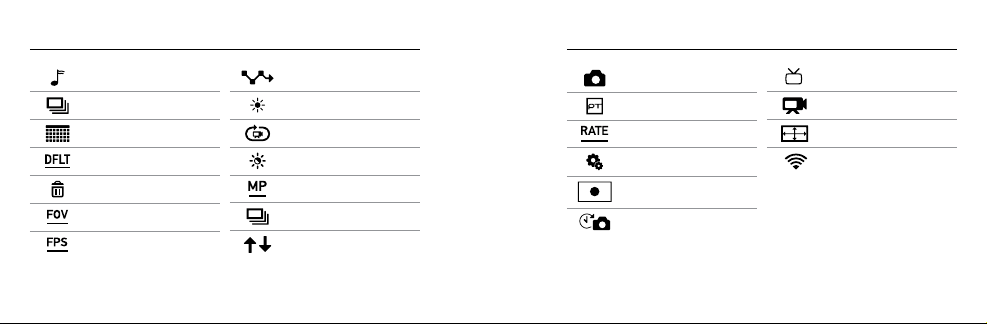
/ Camera Icons
Beeps
Burst Photos
Date/Time
Default Mode
Delete
Field of View
Frames Per Second
Interval
LEDs
Looping Video
Low Light
Megapixels
Multi-Shot Mode
Orientation
/ Camera Icons
Photo Mode
Protune
™
Burst Rate
Setup Mode
Spot Meter
Time Lapse
Video Format
Video Mode
Video Resolution
Wireless
30 31
/ Video Mode
VIDEO CAPTURE MODES
When you connect your camera to the GoPro App or the remote,
you can access two capture modes in Video mode: Video and
Looping Video.
Capture Mode Description
Video (default) Captures video.
Looping Video
Lets you continuously record and save only
the moments that you want to save, which
helps to conserve space on your microSD
card. For more information, see Interval
(page 33).
CAPTURING VIDEO
1. Select Video mode [
] on the GoPro App or the remote.
2. If necessary, select a different capture mode (Video or
Looping Video).
3. Tap the record button on the app, or short press the Shutter/
Select button [
] on the remote or the camera. The camera
beeps once and the camera status lights flash while the camera
is recording.
4. To stop capturing, tap the Record button on the app, or short press
the Shutter/Select button [
] on the remote or the camera.
The camera status lights flash three times and the camera beeps
multiple times.
/ Video Mode

32 33
Note: When your camera is connected to the GoPro App or the remote, it remains in standby mode
aer capturing video or photos. If you want to power off the camera, tap the Power button on the
app or press the Power/Mode button on the remote. Wireless remains on so your camera is still
connected to the app or the remote.
PRO TIP: Videos captured at lower resolutions such as 720p30 fps are
supported by more mobile devices and are easier to share and upload
to the web.
/ Video Mode / Video Mode
VIDEO SETTINGS
You can change the video settings by connecting HERO4 Session to
the GoPro App or the remote. When you connect to the remote, the
capture mode that you select (Video or Looping Video) determines the
settings that appear when you press the Settings/Tag button [
].
Interval
The Interval setting applies to Looping Video. Interval determines the
length of a video loop segment.

34 35
Looping Intervals
Available intervals for Looping are 5, 20, 60, and 120 minutes. For
example, if you select a 5-minute interval, only the previous 5 minutes
are saved when you stop recording.
You can also select Max as the interval. With this option, the camera
records until the memory card is full, then overwrites the oldest
content to continue recording.
Note: To use Looping, be sure that your microSD card has sufficient space to create the loop segment
based on the interval that you select. If the microSD card becomes full, Looping does not overwrite
the content.
/ Video Mode
Resolution, FPS, and FOV
HERO4 Session features the video resolutions listed below.
The default video resolution is 1080p30.
Video
Resolution
FPS
(NTSC/PAL)
FOV
Screen
Resolution
1440p 30/25 Ultra Wide 1920x1440, 4:3
1080p
SuperView™
48/48
30/25
Ultra Wide 1920x1080, 16:9
1080p
60/50
30/25
Ultra Wide,
Medium
1920x1080, 16:9
/ Video Mode

36 37
Video
Resolution
FPS
(NTSC/PAL)
FOV
Screen
Resolution
960p
60/50
30/25
Ultra Wide 1280x960, 4:3
720p SuperView
60/50
30/25
Ultra Wide 1280x720, 16:9
720p
100/100
60/50
30/25
Ultra Wide,
Medium
1280x720, 16:9
WVGA 120/100 Ultra Wide 848x480, 16:9
/ Video Mode
Resolution Best Use
1440p
Good for advanced users who want to
capture a full image and then edit to the
desired aspect ratio.
1080p SuperView
SuperView delivers the world’s most
immersive field of view. Recommended for
body-or gear-mounted shots. More vertical
4:3 content is automatically stretched to full-
screen 16:9 for stunning widescreen playback
on your computer.
/ Video Mode

38 39
Resolution Best Use
1080p
Great for all shots. High resolution and frame
rate yield stunning results.
960p
Good for users who want to capture a
full image and then edit to the desired
aspect ratio.
/ Video Mode
Resolution Best Use
720p SuperView
SuperView delivers the world’s most
immersive field of view. Good for body-or
gear-mounted shots. More vertical 4:3
content is automatically stretched to
full-screen 16:9 for stunning widescreen
playback on your computer.
/ Video Mode

40 41
Resolution Best Use
720p
Good for handheld shots and when slow
motion is desired. 720p is optimal for sharing
on social media sites. 720p100 is great for
slow motion.
WVGA
Good when super slow motion is desired
and standard definition is acceptable.
/ Video Mode / Video Mode
FOV Best Use
Ultra Wide (W)
Largest field of view. Recommended for
body-and gear-mounted shots. Good for
action shots where you want to capture
as much as possible within the frame.
Medium (M)
Mid-range field of view. Good for shots where
you want the subject to fill the frame.
PRO TIP: Easily create epic GoPro-style videos using free GoPro
Studio soware. Learn more at gopro.com/getstarted.

42 43
Low Light
Auto Low Light allows you to shoot in low-light environments or
when quickly transitioning in and out of low-light conditions. The
camera automatically adjusts fps according to lighting conditions to
achieve the optimal exposure and best results.
Auto Low Light is available at 48 fps and higher. Auto Low Light is
not available for WVGA. The options for this setting are Auto/On
(default) and Off.
/ Video Mode
Spot Meter
Spot Meter is good for filming into a setting where the lighting is
different from where you are. Examples include filming the outdoors
from within a car or filming a shaded environment while standing in
the sun. Spot Meter automatically sets the exposure based on a single
spot in the middle of the imagerather than on the entire frame. The
options for this setting are Off (default) and On.
Note: Changes that you make to Spot Meter in Video settings apply only to video capture. To adjust
this setting for photo capture, adjust Spot Meter in Photo settings. To adjust this setting for multi-shot
capture, adjust Spot Meter in Multi-Shot settings.
/ Video Mode
44 45
Protune
For details about Protune settings, see Protune (page 69).
/ Video Mode
PHOTO CAPTURE MODE
When you connect your camera to the GoPro App or the remote, you
can access one capture mode in Photo mode: Single photo.
CAPTURING A SINGLE PHOTO
1. Select Single photo mode [
] on the GoPro App or the remote.
2. Tap the Record button on the app, or short press the Shutter/
Select button [
] on the remote or the camera. The camera
beeps once, the camera status lights flash, and the counter on the
camera status screen increases by one.
Note: When your camera is connected to the GoPro App or the remote, it remains on in standby mode
aer capturing video or photos.
/ Photo Mode
46 47
PHOTO SETTINGS
You can change the photo settings by connecting HERO4 Session
to the GoPro App or the remote.
Megapixels
HERO4 Session captures photos at 8MP and 5MP.
8MP Ultra Wide
(default)
Largest field of view. Good for action shots.
5MP Medium
Mid-range field of view. Good for shots where
you want the subject to fill the frame.
Note: Changes that you make to Megapixels in Photo settings apply only to photo capture. To adjust
this setting for multi-shot capture, adjust Spot Meter in Multi-Shot settings.
/ Photo Mode
Spot Meter
Spot Meter is good for capturing photos in a setting where the lighting
is different from where you are. Examples include capturing photos
of the outdoors from within a car or in a shaded environment while
standing in the sun. Spot Meter automatically sets the exposure based
on a single spot in the middle of the image, rather than on the entire
frame. The options for this setting are Off (default) and On.
Note: Changes that you make to Spot Meter in Photo settings apply only to photo capture. To adjust
this setting for video capture, adjust Spot Meter in Video settings. To adjust this setting for multi-shot
capture, adjust Spot Meter in Multi-Shot settings.
/ Photo Mode
48 49
MULTI-SHOT CAPTURE MODES
When you connect your camera to the GoPro App or the remote,
you can access two capture modes in Multi-Shot mode: Time Lapse
and Burst.
Capture Mode Description
Time Lapse
(default)
Captures a series of photos at specified
intervals. You can use Time Lapse to capture
photos of any activity, so you can choose the
best ones later.
/ Multi-Shot Mode
Capture Mode Description
Burst
Captures up to 10 photos in 1 second. Burst is
perfect for capturing the definitive moment in
fast-action sports.
CAPTURING TIME LAPSE PHOTOS
1. Select Time Lapse mode [
] on the GoPro App or the remote.
2. Tap the Record button on the app, or short press the Shutter/
Select button [
] on the remote or the camera. The camera
beeps once and the camera status lights flash each time a photo
is captured.
/ Multi-Shot Mode
50 51
/ Multi-Shot Mode
3. To stop capturing, tap the Record button on the app, or short press
the Shutter/Select button [
] on the remote or the camera.
The camera status lights flash three times and the camera beeps
multiple times.
Note: When your camera is connected to the GoPro App or the remote, it remains in standby mode
aer capturing video or photos.
CAPTURING BURST PHOTOS
1. Select Burst mode [ ] on the GoPro App or the remote.
2. Tap the Record button on the app, or short press the Shutter/
Select button [
] on the remote or the camera. The camera
status lights flash and the camera beeps multiple times.
MULTI-SHOT SETTINGS
You can change the Multi-Shot settings by connecting HERO4 Session
to the GoPro App or the remote. When you connect to the remote, the
capture mode that you select (Burst or Time Lapse) determines the
settings that appear when you press the Settings/Tag button [
].
Interval
The Interval setting applies to Time Lapse photos. Interval determines
the amount of time that passes between each captured photo.
/ Multi-Shot Mode
52 53
Time Lapse Intervals
Available intervals range from 0.5 second (default) to 60 seconds.
INTERVAL EXAMPLES
0.5-2 seconds Surfing, biking, or other sports
2 seconds Busy street corner
5-10 seconds Sunset
10-60 seconds
Lengthy activities, such as construction
projects or family gatherings
PRO TIP: Create a video from your Time Lapse photos with free
GoPro Studio soware. Learn more at gopro.com/getstarted.
/ Multi-Shot Mode
Rate applies only to Burst photos. Photos can be captured at the
following rates:
3 photos in 1 second
5 photos in 1 second
10 photos in 1 second (default)
10 photos in 2 seconds
/ Multi-Shot Mode
54 55
Megapixels
HERO4 Session captures photos at 8MP and 5MP. Smaller megapixel
values take up less space on the microSD card.
Setting Description
8MP Ultra Wide
(default)
Largest field of view. Good for action shots.
5MP Medium
Mid-range field of view. Good for shots where
you want the subject to fill the frame.
Note: Changes that you make to Megapixels in Multi-Shot settings apply only to multi-shot capture.
To adjust this setting for photo capture, adjust Megapixels in Photo settings.
/ Multi-Shot Mode
Spot Meter
Spot Meter is good for capturing photos in a setting where the lighting
is different from where you are. Examples include capturing photos
of the outdoors from within a car or in a shaded environment while
standing in the sun. Spot Meter automatically sets the exposure based
on a single spot in the middle of the image, rather than on the entire
frame. The options for this setting are Off (default) and On.
Note: Changes that you make to Spot Meter in Multi-Shot settings apply only to multi-shot capture.
To adjust this setting for video capture, adjust Spot Meter in Video settings. To adjust this setting for
photo capture, adjust Spot Meter in Photo settings.
/ Multi-Shot Mode

56 57
SETUP MODE SETTINGS
In Setup mode, you can change settings that apply to all camera
modes. To change a setting in this mode, your camera must be
connected to the GoPro App or the remote. For more information,
see Accessing All Camera Settings (page 23).
When you disconnect your camera from the app or the remote, your
camera saves the settings and returns to two capture modes: Video
and Time Lapse.
/ Setup Mode
Wireless
This setting lets you connect your camera to the GoPro App or the
remote. When wireless is on, a wireless status icon appears on the
camera status screen and the blue wireless lights blink intermittently.
The blue wireless lights do not blink during recording.
Accessing Wireless Options:
1. Short press the Info/Wireless button to display the status info.
2. Short press the Info/Wireless button repeatedly until you get to
the wireless option that you want, then press the Shutter/Select
button [
] to select it.
/ Setup Mode

58 59
/ Setup Mode
PRO TIP: To quickly exit the wireless menu or the status info screens,
press and hold the Info/Wireless button for three seconds.
Setting Description
App
Connects the camera to the GoPro App. For
instructions on connecting to this app, see
Connecting to the GoPro App (page 24).
RC
Connects the camera to a GoPro remote
control. For instructions on pairing, see
Pairing with the Remote (page 25).
Setting Description
Turn Camera Off
Turns off the camera. This option appears
only if wireless is on and the camera is
connected to the GoPro App or a GoPro
remote. If you select this option, the camera
turns off, but wireless remains on.
Turn WiFi Off
Turns off wireless. This option appears only
if wireless is on. When wireless is off, the
available capture modes on the camera are
Video and Time Lapse.
/ Setup Mode

60 61
Setting Description
Add New
Pairs your camera with an additional remote
or with the GoPro App on an additional
smartphone/tablet. This option appears
only if you already paired your camera with a
GoPro remote or a smartphone/tablet.
Note: If your smartphone/tablet uses Bluetooth
®
LE, the App and RC options are combined into one
(App & RC) aer you connect for the first time. App & RC lets you connect your camera to either the
remote or the app.
/ Setup Mode
Resetting Your Camera’s Wireless Name and Password
1. With your camera off, press and hold the Info/Wireless button
until the reset options appear (about eight seconds).
2. Short press the Info/Wireless button again to highlight Yes.
3. Short press the Shutter/Select button [
] to select Yes and
reset your camera name and password. The default password
is goprohero.
PRO TIP: When you turn off your camera with the app or the remote,
wireless remains on so that you can quickly reconnect. To save
battery power, turn off wireless when you are finished using it.
/ Setup Mode
62 63
Orientation
This setting lets you determine if you want your captured video to be
upside down or right-side up.
Note: This setting applies only when capturing video.
Setting Description
Auto (default)
(Auto Image Rotation) Camera automatically
selects Up or Down, based on the orientation
of the camera when recording begins. This
option eliminates the need to flip your video
during editing when the camera is mounted
upside down.
/ Setup Mode
Setting Description
Up Camera is used right-side up.
Down
Camera is used upside down. This option
eliminates the need to flip your video during
editing when the camera is mounted
upside down.
/ Setup Mode
64 65
Default Mode
This setting applies only when HERO4 Session is connected to the
GoPro App or a GoPro remote. You can select the capture mode that
appears when the camera is powered on with the app or the remote.
The options are Video (default), Looping Video, Photo, Burst, and
Time Lapse.
/ Setup Mode
LED
This setting determines whether the camera status lights (red) and
wireless status lights (blue) are on (default) or off.
Beeps
You can set the volume for the sound indicators to be 100% (default),
70%, or Off.
/ Setup Mode
66 67
Video Format
The NTSC/PAL settings govern frame rates for recording and
playback when viewing video on a TV/HDTV.
Setting Description
NTSC (default)
Viewing video on an NTSC TV/HDTV (most
televisions in North America)
PAL
Viewing video on a PAL TV/HDTV (most
televisions outside of North America)
/ Setup Mode
Date/Time
Your camera’s date and time are automatically set when you connect
your camera to the GoPro App or GoPro Studio. This setting lets you
manually set the date and time, if needed.
Delete
This setting lets you delete the most recently captured video, photo,
Burst sequence, or Time Lapse sequence. You also have the option
to delete all files and reformat the memory card. The camera status
lights blink until the operation is complete.
/ Setup Mode

68 69
NOTICE: If you select All/Format, the memory card is reformatted,
which deletes every video and photo file on your card.
Camera Reset
With this setting, you can reset your camera’s settings to their default
values. This option does not reset the Date/Time setting, the camera’s
name and wireless password, or remote control pairing. This option is
available only if your camera is connected to a GoPro remote.
Note: If your camera is not responding but you do not want to lose your settings, press and hold the
Shutter/Select button until your camera powers off.
/ Setup Mode
PROTUNE BENEFITS
Protune unlocks the camera’s full potential, yielding stunning
image quality and cinema-caliber video optimized for professional
productions. Protune gives content creators more flexibility and
workflow efficiency than ever before.
Protune is compatible with professional color correction tools,
GoPro soware, and other video editing soware.
Protune enables manual control of ISO Limit and Sharpness for
advanced control and customization of your video footage.
/ Protune
70 71
PROTUNE
The options for this setting are Off (default) and On. When Protune
is on, PT appears on the camera status screen. Protune is available
for these video resolutions (Ultra Wide FOV only): 1440p, 1080p, and
960p60/50. Protune is not available for Looping Video or photos.
/ Protune
ISO LIMIT
ISO Limit adjusts the camera’s sensitivity in low-light environments,
and creates a balance between brightness and resulting image noise.
Image noise refers to the degree of graininess in the image.
Setting Resulting Quality
1600 (default)
Moderately bright video in low light,
moderate image noise
400
Darker video in low light, reduced
image noise
/ Protune
72 73
SHARPNESS
Sharpness controls the level of detail and contrast in your video.
Setting Resulting Quality
On (default) Moderately sharp video
Off
Soer video that allows for more flexibility
during post-production
PRO TIP: If you plan to increase sharpness during editing, turn this
setting off.
/ Protune
To play back your video and photos on a computer, you must first
transfer these files to a computer. Transferring also frees up space
on your microSD card for new content.
To Transfer Files to a Computer
1. Download and install GoPro Studio from gopro.com/getstarted.
The HERO4 Session camera was designed to communicate with
GoPro Studio to help you easily locate and transfer your files.
2. Connect the camera to your computer using the included
USB cable.
/ Transferring Files to a Computer

74 75
3. Short press the Shutter/Select button [ ] to power on the
camera and open GoPro Studio Importer.
4. Follow the on-screen instructions.
PRO TIP: You can also transfer files to a computer using a card reader
(sold separately). Connect the card reader to your computer and insert
the microSD card into the reader. You can then transfer your files to
your computer or delete selected files on your card.
/ Transferring Files to a Computer / Playing Back Video and Photos
PLAYING BACK CONTENT ON A COMPUTER
1. Download and install GoPro Studio from gopro.com/getstarted.
The HERO4 Session camera was designed to communicate with
GoPro Studio to help you easily locate and transfer your files.
2. Transfer your files to your computer. For more information,
see Transferring Files to a Computer (page 73).
3. Use GoPro Studio to play back the files.

76 77
/ Playing Back Video and Photos
PLAYING BACK CONTENT ON A SMARTPHONE/TABLET
1. Connect your camera to the GoPro App. For more information,
see Connecting to the GoPro App (page 24).
2. Use the controls on the app to play back your footage on your
smartphone/tablet.
MICROSD CARD MESSAGES
NO SD CARD
No card present. The camera requires a
microSD, microSDHC or microSDXC card to
capture videos and photos.
SD FULL Card is full. Delete files or swap card.
SD ERROR
Camera is unable to read card formatting.
Reformat the card in the camera.
NOTICE: If you select Yes to reformat the
card, all of the content on the card is deleted.
/ Important Messages

78 79
PRO TIP: Reformat your microSD card on a regular basis to ensure
that the card can continue to receive information from the camera.
IMPORTANT CAMERA MESSAGES
REPAIRING FILE
If your last video file was corrupted during
recording, the camera displays REPAIRING
FILE while it tries to repair the file. When this
process is finished, the camera powers off if
it is not connected to the GoPro App or
the remote.
/ Important Messages
REPAIRING FILE
(continued)
If the camera is connected to the GoPro App
or the remote, tap the Shutter button on the
app or short press the Shutter/Select button
[
] on the remote or the camera when the
repair is finished to continue using the camera.
The Temperature icon and CAMERA TOO HOT
appear on the camera status screen when
the camera becomes too hot and needs to
cool down. Simply let it sit and cool before
attempting to use it again.
/ Important Messages
80 81
Your HERO4 Session comes with two frames: the Standard Frame
and the Low-Profile Frame. Both frames work great in all scenarios.
For the most compact mounting, use the Low-Profile Frame.
Note: To prevent the frame from marking the surface of your camera, leave the latch on the frame
open when storing your camera in a frame for a long period of time.
The HERO4 Session camera is waterproof to 33’ (10m) with the
side door closed—no additional housing is needed when using the
camera in or around water.
NOTICE: The Standard Frame and the Low-Profile Frame do not
provide additional waterproof protection for your camera.
/ The Frames
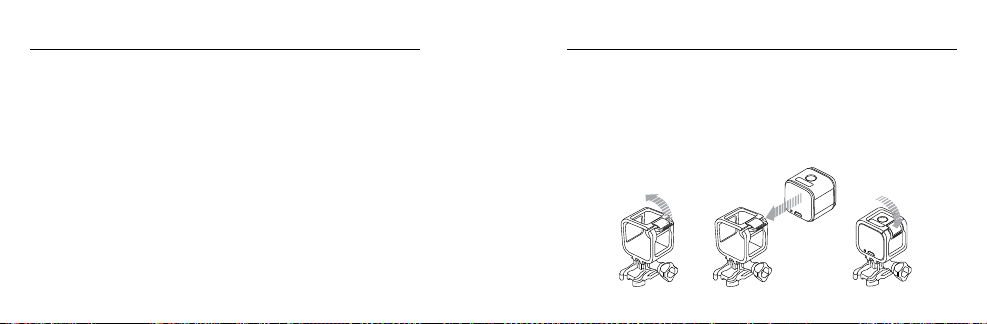
TO SECURE THE CAMERA IN THE FRAME:
1. Open the latch.
2. Rotate the camera to the desired orientation, and then slide it into
the frame. The back of the frame has a raised edge. Be sure the
back of the camera sits flush against it.
3. Close the latch.
/ The Frames
82 83
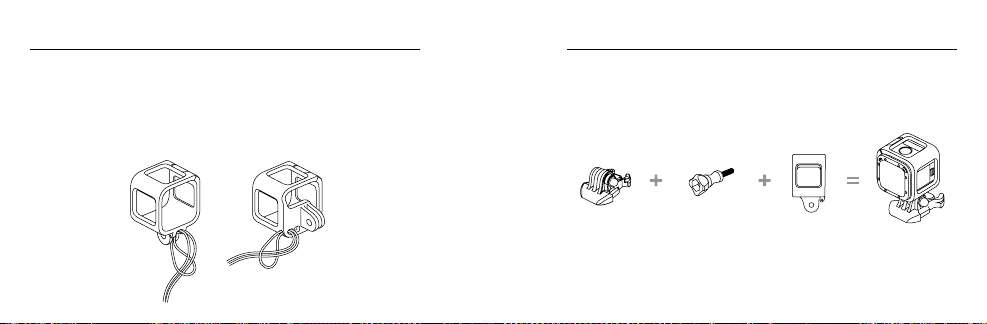
PRO TIP: For added security during water activities, tether the frame
to the mount. On the Standard Frame, loop the tether over the small
bar behind the mounting fingers. On the Low-Profile Frame, loop the
tether through the points on the back corner of the frame. Camera
Tethers are sold separately.
/ The Frames
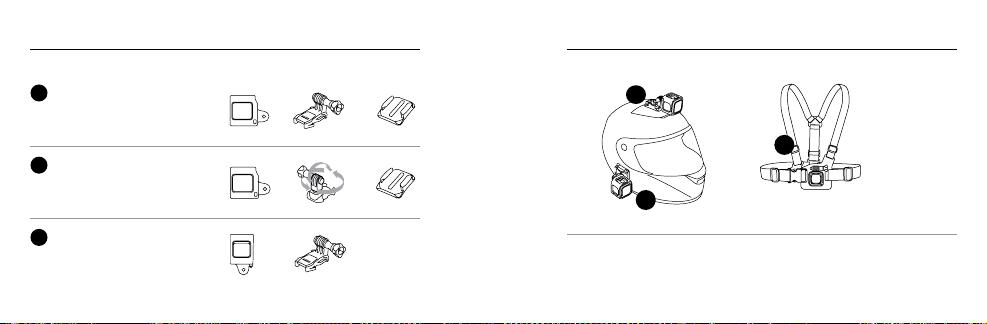
ATTACHING YOUR CAMERA TO MOUNTS
To attach your HERO4 Session camera to a mount, you need a
mounting buckle and/or thumb screw, depending on the mount
you are using.
Mounting
Buckle
Thumb Screw Frame Complete Unit
/ Mounting Your Camera
84 85
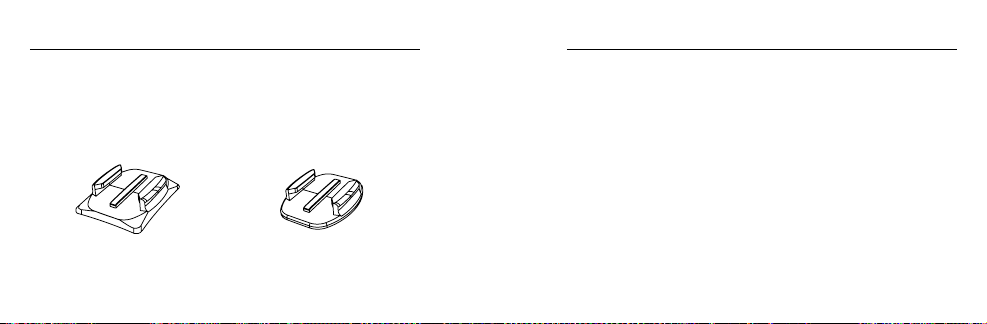
Horizontal Mounting
Low-Profile Frame +
Vertical Mounting Buckle
Side Mounting
Low-Profile Frame +
Ball Joint Buckle
Vertical Mounting
Standard Frame +
Vertical Mounting Buckle
/ Mounting Your Camera
2
3
1
WAYS TO MOUNT WAYS TO MOUNT
/ Mounting Your Camera
PRO TIP: If you mount your HERO4 Session upside down, the camera
automatically changes the orientation of your image to be right-side
up. For more information, see Orientation (page 62).
Chesty (Chest Harness)
Sold Separately
1
2
3
86 87
USING CURVED + FLAT ADHESIVE MOUNTS
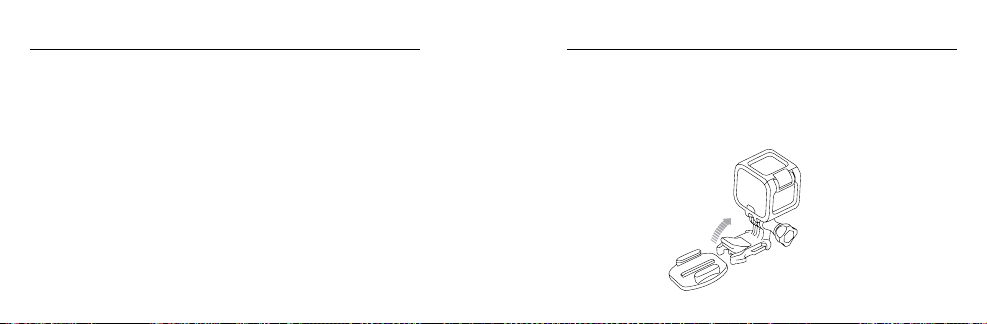
The Curved + Flat Adhesive Mounts make it easy to attach the camera
to curved and flat surfaces of helmets, vehicles, and gear. With the
mounting buckle, the frame can be clicked on and off the secured
Curved or Flat Adhesive Mounts.
Curved Adhesive Mount Flat Adhesive Mount
/ Mounting Your Camera
MOUNTING GUIDELINES
Follow these guidelines when attaching mounts:
• Attach the adhesive mounts at least 24 hours before use.
• Adhesive mounts must be mounted only on smooth surfaces.
Porous or textured surfaces do not enable a proper bond. When
applying the mount, firmly press it into place and ensure full
contact over the entire surface.
• Apply adhesive mounts to clean surfaces only. Wax, oil, dirt, or
other debris reduce adhesion, which can result in a weak bond
and risk of losing the camera should the connection fail.
/ Mounting Your Camera
88 89
• Attach adhesive mounts in room temperature conditions.
Adhesives do not bond properly if applied in cold or damp
environments to cold or damp surfaces.
• Check state and local regulations and laws to ensure that
attaching a camera to equipment (such as hunting equipment)
is permitted. Always comply with regulations that restrict the use
of consumer electronics or cameras.
WARNING: To avoid injury, do not use a tether when mounting
the camera on a helmet.
/ Mounting Your Camera
For more information on mounts, see gopro.com.
WARNING: If using your camera with a GoPro mount or strap
intended for use with a helmet, always select a helmet that
meets the applicable safety standard.
Choose the right helmet for your particular sport or activity
and make sure that it is the right fit and size for you. Inspect
your helmet to ensure that it is in good condition, and follow the
helmet manufacturer's instructions on safe helmet use.
Any helmet that has sustained a major impact should be
replaced. No helmet can protect against injury in every accident.
/ Mounting Your Camera
90 91
SECURING LOCKING PLUGS
If you are using HERO4 Session in sports such as surfing or skiing,
the integrated locking plug securely locks the fingers on the Ball Joint
Buckle and the Vertical Mounting Buckle into place.
The white locking plug is used with the Mounting Buckle. The circular
ring acts as a leash to prevent dropping or losing the plug.
/ Mounting Your Camera
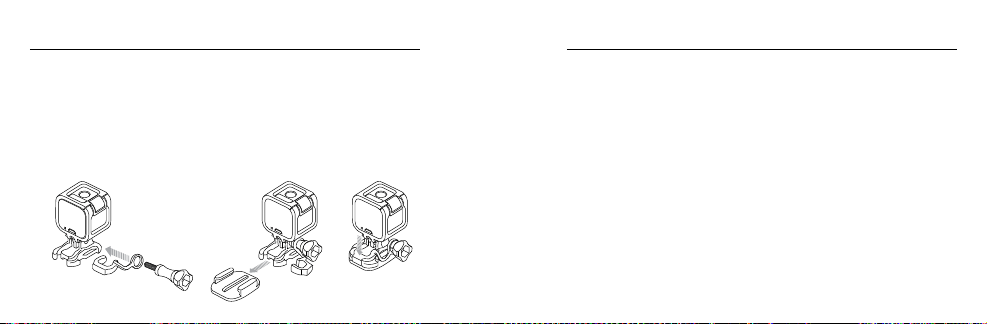
To Secure the Integrated Locking Plug:
1. Flip up the plug.
2. Slide the buckle into the mount until it clicks into place.
3. Press down on the plug so that it sits flush with the buckle.
/ Mounting Your Camera
92 93
To Attach the White Locking Plug:
1. Loop the circular ring over the thumb screw. The circular ring acts
as a leash to prevent dropping or losing the locking plug.
2. Slide the Mounting Buckle into the mount until it clicks into place.
3. Press the U-shaped part of the plug into the U-shaped space in the
Mounting Buckle.
/ Mounting Your Camera
Your HERO4 Session camera and battery are integrated. You cannot
remove the battery from the camera.
The battery icon displayed in the camera status screen blinks
when the battery drops below 10%. If the battery reaches 0% while
recording, the camera saves the file and powers off.
MAXIMIZING BATTERY LIFE
Extreme cold temperatures can decrease battery life. To maximize
battery life in cold conditions, keep camera in a warm place prior
to use.
/ Battery

94 95
When you are not using HERO4 Session, rotate it in the frame so the
Shutter/Select button [
] is covered to prevent the camera from
accidentally turning on.
Note: To prevent the frame from marking the surface of your camera, leave the latch on the frame
open when storing your camera in a frame for a long period of time.
CHARGING TIME
The battery charges to 80% in approximately one hour and 100% in
approximately two hours when using GoPro’s USB-compatible Wall
Charger, Auto Charger, or other USB charging adapter. Other chargers
might charge at a slower rate.
/ Battery
WARNING: Using a wall charger other than a GoPro Wall Charger
can damage the GoPro camera battery and could result in fire or
leakage. Only use chargers marked: Output 5V 1A. If you do not
know the voltage and current of your charger, use the included
USB cable to charge the camera from your computer.
USING THE CAMERA WHILE CHARGING
You can capture video and photos while the camera is plugged in to
a USB charging adapter, or the GoPro Wall Charger or Auto Charger
with the included USB cable. (You cannot record while charging the
camera through a computer.) When you stop recording, the camera
battery begins to charge.
Note: Because the side door is open, the camera is not waterproof during charging.
/ Battery

96 97
BATTERY STORAGE AND HANDLING
The camera contains sensitive components, including the battery.
Avoid exposing your camera to very cold or very hot temperatures.
Low or high temperature conditions may temporarily shorten the
battery life or cause the camera to temporarily stop working properly.
Avoid dramatic changes in temperature or humidity when using the
camera, as condensation may form on or within the camera.
/ Battery
Do not dry the camera or battery with an external heat source such
as a microwave oven or hair dryer. Damage to the camera or battery
caused by contact with liquid inside the camera is not covered under
the warranty.
WARNING: Do not drop, disassemble, open, crush, bend, deform,
puncture, shred, microwave, incinerate, or paint the camera.
Do not insert foreign objects into any opening on the camera,
such as the micro-USB port. Do not use the camera if it has been
damaged—for example, if cracked, punctured, or harmed by
water. Disassembling or puncturing the integrated battery can
cause an explosion or fire.
/ Battery

98 99
MY GOPRO WON’T POWER ON
Make sure your GoPro is charged. To charge your camera, use the
included USB cable and a computer. You can also use a charging
device manufactured by GoPro.
MY GOPRO WON’T RESPOND WHEN I PRESS A BUTTON
Press and hold the
Shutter/Select button
[ ] for about eight
seconds until your camera powers off. This reset saves all of your
content and settings.
/ Troubleshooting
I WANT TO RESET MY GOPRO SETTINGS TO THE DEFAULTS
In Setup mode, select Camera Reset. This option does not reset the
Date/Time or your camera’s username and wireless password.
Note: Camera Reset is available only when your camera is connected to the GoPro remote.
I FORGOT MY CAMERA’S USERNAME OR PASSWORD
See Resetting Your Camera’s Wireless Name and Password
(page 61).
HOW DO I TURN OFF MY CAMERA?
If HERO4 Session is not connected to the GoPro App or the Smart
Remote, it powers off automatically aer you stop recording.
/ Troubleshooting
100 101
/ Troubleshooting
When your camera is connected to the GoPro App or the Smart
Remote, tap the Power icon in the app or press the Power/Mode
button on the Smart Remote to turn off the camera. Wireless
remains on.
If your camera goes out of range of the GoPro App or the Smart Remote,
or you close the app, short press the Info/Wireless button to display
Turn Camera Off, then press the
Shutter/Select
[ ] button to select
it. Wireless remains on.
To turn off wireless and power off the camera, short press the
Info/Wireless button, short press it repeatedly to display Turn WiFi
Off, then press the
Shutter/Select
[ ] button to select it.
/ Troubleshooting
I POWERED OFF MY GOPRO, BUT THE BLUE LIGHT IS
STILL BLINKING
The blue light indicates that wireless is on. To turn off wireless, short
press the Info/Wireless button to display Turn WiFi Off, then press the
Shutter/Select
[ ] button to select it.
MY PLAYBACK IS CHOPPY
Choppy playback is typically not a problem with the file. If your footage
skips, one of these situations is likely the cause:
• Using an incompatible video player. Not all video players
support the H.264 codec. For best results, use the latest
GoPro Studio soware.

102 103
/ Troubleshooting
• The computer does not meet the minimum requirements for
HD playback. The higher the resolution and frame rate of your
video, the harder the computer has to work to play it back. If you
are using GoPro Studio to play back your files, be sure that your
computer meets the minimum system requirements, available
on gopro.com/getstarted.
• Playing content directly from your camera over a USB connection.
Transfer the file to the computer to play back. If your computer
does not meet the minimum requirements, record with Protune
off and make sure that all other programs on your computer
are closed.
WHAT SOFTWARE VERSION AM I RUNNING?
Short press the Info/Wireless button to display the status screen,
then short press it repeatedly until you get to Exit. The soware
version number appears in the upper le of the status screen. To exit
the menu, short press the
Shutter/Select button
[ ].
WHAT IS MY CAMERA’S SERIAL NUMBER?
The camera’s serial number is listed in several places:
• On the inside of the camera’s side door
• On your camera’s microSD card (in the version.txt file in the
MISC folder)
• On your camera’s original packaging
/ Troubleshooting
104 105
/ Customer Support
GoPro is dedicated to providing the best possible service. To reach
GoPro Support, visit gopro.com/support.
/ Regulatory Information
To see the complete list of country certifications, refer to the Important
Product + Safety Information included with your camera.
GoPro, HERO, the GoPro logo, the GoPro Be a Hero logo, BacPac,
Protune, SuperView, and Wear It. Mount It. Love It. are trademarks or
registered trademarks of GoPro, Inc. in the U.S. and internationally.
Other names and marks are the property of their respective owners.
/ Trademarks
130-09698-000 REVD