
1



Contents Contents
MAX—Regulatory Model Number SPCC1
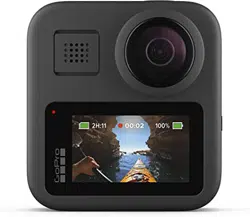
Meet MAX 6
Setting Up Your Camera 8
Getting to Know Your GoPro 13
HERO Mode + 360 Mode 18
Changing Modes + Settings 22
On-Screen Shortcuts 25
Using QuikCapture 28
Adding HiLight Tags 31
Setting the Screen Orientation 32
Recording Video 33
Video Settings 36
Taking Photos 38
Photo Settings 42
Capturing Time Lapse 43
Time Lapse Settings 45
Live Streaming 47
Exposure Control 48
Controlling Your GoPro With Your Voice 51
Playing Back Your Media 55
Connecting to Other Devices 59
Transferring Your Media 61
Customizing Your GoPro 66
Important Messages 75
Resetting Your Camera 77
Mounting Your GoPro 79
Removing the Door 84
Maintenance 86
Battery Information 88
Troubleshooting 91
Tech Specs: Video 92
Tech Specs: Photo 97
Tech Specs: Time Lapse 98
Tech Specs: Protune 101
Customer Support 112
Trademarks 112
Regulatory Information 112
Contents Contents
MAX—Regulatory Model Number SPCC1
Meet MAX 6
Setting Up Your Camera 8
Getting to Know Your GoPro 13
HERO Mode + 360 Mode 18
Changing Modes + Settings 22
On-Screen Shortcuts 25
Using QuikCapture 28
Adding HiLight Tags 31
Setting the Screen Orientation 32
Recording Video 33
Video Settings 36
Taking Photos 38
Photo Settings 42
Capturing Time Lapse 43
Time Lapse Settings 45
Live Streaming 47
Exposure Control 48
Controlling Your GoPro With Your Voice 51
Playing Back Your Media 55
Connecting to Other Devices 59
Transferring Your Media 61
Customizing Your GoPro 66
Important Messages 75
Resetting Your Camera 77
Mounting Your GoPro 79
Removing the Door 84
Maintenance 86
Battery Information 88
Troubleshooting 91
Tech Specs: Video 92
Tech Specs: Photo 97
Tech Specs: Time Lapse 98
Tech Specs: Protune 101
Customer Support 112
Trademarks 112
Regulatory Information 112
6 7
Meet MAX Meet MAX
Learn how to use the accessories that came with your GoPro.
See Mounting Your GoPro (page 79).
1. Shutter Button
2. Status Light
3. Microphone
4. Door Lock
5. Door
6. USB-C Port
7. microSD™ Card Slot
8. Battery
9. Camera Lens
(Non-Screen Side)
10. Folding Fingers
11. Speaker
12. Mode Button
13. Camera Lens
(Screen Side)
14. Touch Screen
1
2
3
3
11
12
4
5
6
7
8
9
13
14
10
6 7
Meet MAX Meet MAX
Learn how to use the accessories that came with your GoPro.
See Mounting Your GoPro (page 79).
1. Shutter Button
2. Status Light
3. Microphone
4. Door Lock
5. Door
6. USB-C Port
7. microSD™ Card Slot
8. Battery
9. Camera Lens
(Non-Screen Side)
10. Folding Fingers
11. Speaker
12. Mode Button
13. Camera Lens
(Screen Side)
14. Touch Screen
1
2
3
3
11
12
4
5
6
7
8
9
13
14
10
8 9
MICROSD CARDS
You’ll need a microSD card (sold separately) to save your videos and
photos. Use a brand-name card that ts these requirements:
• microSD, microSDHC™, or microSDXC™
• Class 10 or UHS-I rating
• Capacity up to 256GB
For a list of recommended microSD cards, visit gopro.com/microsdcards.
Heads Up: Be sure your hands are clean and dry before handling your
SD card. Check the manufacturer’s guidelines to see your card’s
acceptable temperature range and other important information.
PRO TIP: Keep your SD card in good condition by reformatting it
regularly. This will erase all of your media, so be sure to save it rst.
1. Swipe down to access the Dashboard.
2. Tap Preferences > Reset > Format SD Card.
To learn how to save your videos and photos, see Transferring Your
Media (page 61).
RECHARGEABLE BATTERY
For the best performance, be sure to use a MAX Rechargeable Battery
with your new GoPro.
PRO TIP: There’s an easy way to check your battery’s condition.
1. Swipe down to access the Dashboard.
2. Tap Preferences > About > Battery Info.
Setting Up Your Camera Setting Up Your Camera
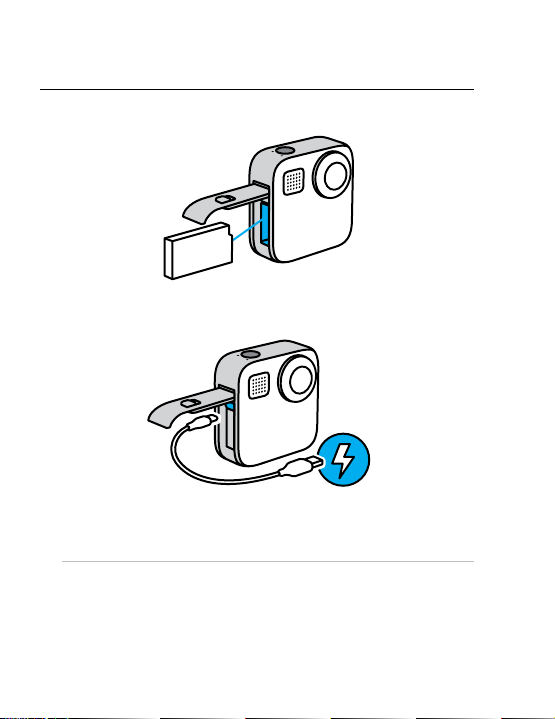
MICROSD CARD + BATTERY SETUP
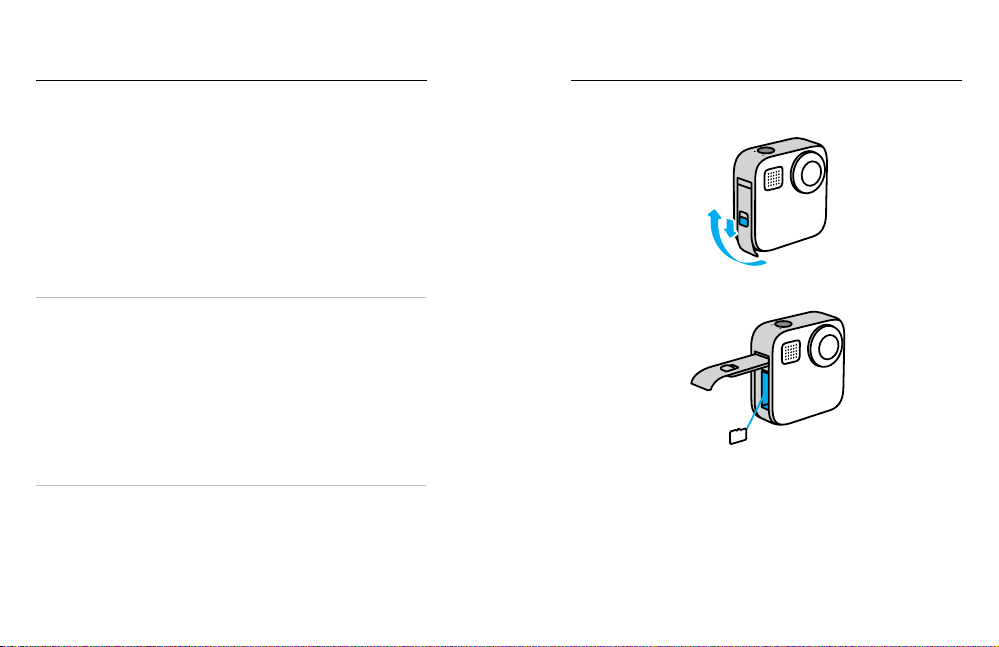
1. Unlock the door, slide it down, and ip it open.
2. With your camera o, insert the SD card into the card slot with the
label facing the battery compartment.
You can eject the card by pressing it into the slot with your ngernail.
8 9
MICROSD CARDS
You’ll need a microSD card (sold separately) to save your videos and
photos. Use a brand-name card that ts these requirements:
• microSD, microSDHC™, or microSDXC™
• Class 10 or UHS-I rating
• Capacity up to 256GB
For a list of recommended microSD cards, visit gopro.com/microsdcards.
Heads Up: Be sure your hands are clean and dry before handling your
SD card. Check the manufacturer’s guidelines to see your card’s
acceptable temperature range and other important information.
PRO TIP: Keep your SD card in good condition by reformatting it
regularly. This will erase all of your media, so be sure to save it rst.
1. Swipe down to access the Dashboard.
2. Tap Preferences > Reset > Format SD Card.
To learn how to save your videos and photos, see Transferring Your
Media (page 61).
RECHARGEABLE BATTERY
For the best performance, be sure to use a MAX Rechargeable Battery
with your new GoPro.
PRO TIP: There’s an easy way to check your battery’s condition.
1. Swipe down to access the Dashboard.
2. Tap Preferences > About > Battery Info.
Setting Up Your Camera Setting Up Your Camera
MICROSD CARD + BATTERY SETUP
1. Unlock the door, slide it down, and ip it open.
2. With your camera o, insert the SD card into the card slot with the
label facing the battery compartment.
You can eject the card by pressing it into the slot with your ngernail.
10 11
Setting Up Your Camera
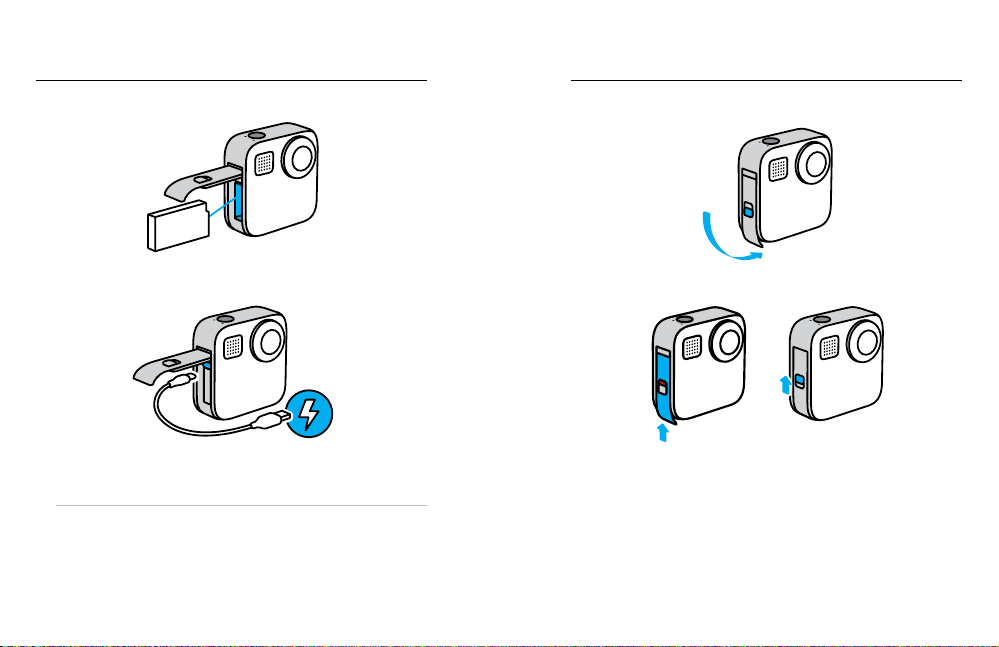
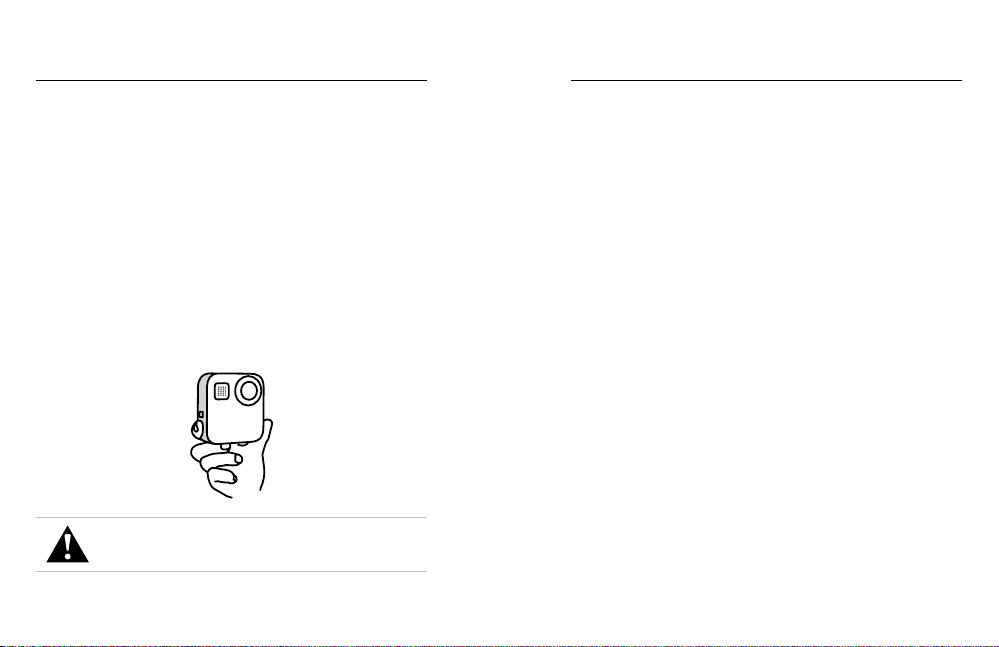
3. Insert the battery.
4. Connect your camera to a USB charger or computer using the
included USB-C cable.
It takes about 3 hours for the battery to fully charge. The camera
status light will turn o when it’s done. To learn more, see Battery
Information (page 88).
PRO TIP: For the fastest charging, use the GoPro Supercharger
(sold separately).
Setting Up Your Camera
5. Unplug the cable and shut the door when charging’s complete.
6. Slide the door all the way up until there’s no gap, and then lock it.
NOTICE: Push from the bottom to make sure that the door is closed
correctly. Don’t use the lock to slide the door closed.
10 11
Setting Up Your Camera
3. Insert the battery.
4. Connect your camera to a USB charger or computer using the
included USB-C cable.
It takes about 3 hours for the battery to fully charge. The camera
status light will turn o when it’s done. To learn more, see Battery
Information (page 88).
PRO TIP: For the fastest charging, use the GoPro Supercharger
(sold separately).
Setting Up Your Camera
5. Unplug the cable and shut the door when charging’s complete.
6. Slide the door all the way up until there’s no gap, and then lock it.
NOTICE: Push from the bottom to make sure that the door is closed
correctly. Don’t use the lock to slide the door closed.
12 13
UPDATING YOUR CAMERA’S SOFTWARE
To get the latest features and best performance from your GoPro,
make sure it’s using the most current software.
Updating With the GoPro App
1. Download the app from the Apple
©
App Store
©
or Google Play
™
.
2. Follow the app’s on-screen instructions to connect your camera
to your mobile device. If new camera software is available, the app
will tell you how to install it.
Updating Manually
1. Visit gopro.com/update.
2. Choose MAX from the list of cameras.
3. Select Update your camera manually and follow the instructions.
PRO TIP: Need to know your camera name, password, and software
version? Here’s where you can nd out.
1. Swipe down to access the Dashboard.
2. Tap Preferences > Connections > Camera Info.
Heads Up: Scroll down to see the software version.
Setting Up Your Camera
POWERING ON
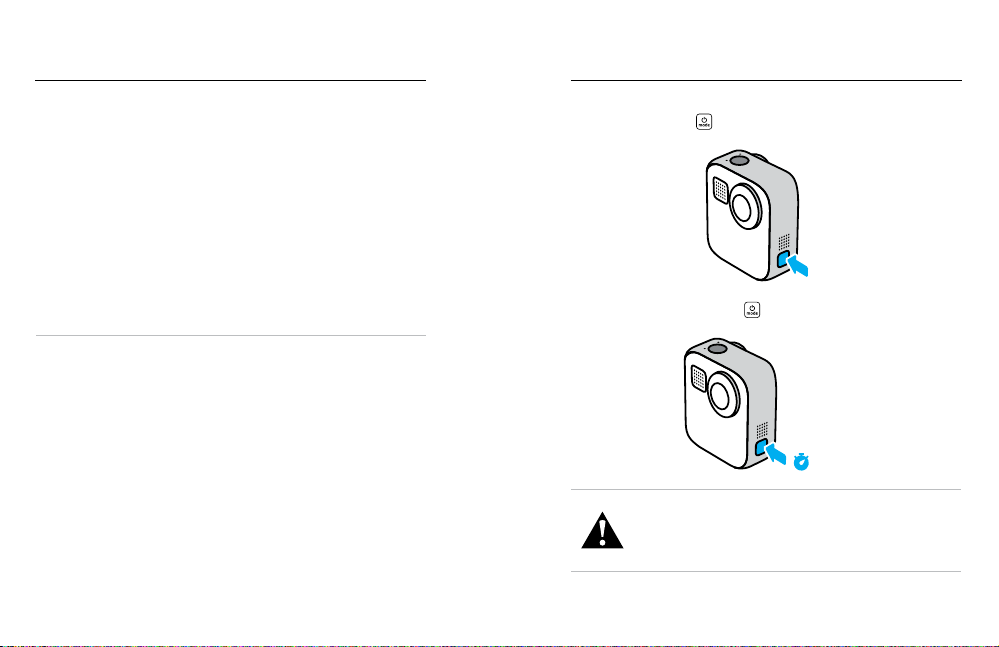
Press the Mode button
to turn on MAX.
POWERING OFF
Press and hold the Mode button
for 3 seconds to turn it o.
3s
WARNING: Use caution when using your GoPro and related
mounts and accessories. Always be aware of your surroundings
to avoid injuring yourself and others.
Be sure to follow all local laws including all privacy laws,
which may restrict recording in certain areas.
Getting to Know Your GoPro
12 13
UPDATING YOUR CAMERA’S SOFTWARE
To get the latest features and best performance from your GoPro,
make sure it’s using the most current software.
Updating With the GoPro App
1. Download the app from the Apple
©
App Store
©
or Google Play
™
.
2. Follow the app’s on-screen instructions to connect your camera
to your mobile device. If new camera software is available, the app
will tell you how to install it.
Updating Manually
1. Visit gopro.com/update.
2. Choose MAX from the list of cameras.
3. Select Update your camera manually and follow the instructions.
PRO TIP: Need to know your camera name, password, and software
version? Here’s where you can nd out.
1. Swipe down to access the Dashboard.
2. Tap Preferences > Connections > Camera Info.
Heads Up: Scroll down to see the software version.
Setting Up Your Camera
POWERING ON
Press the Mode button
to turn on MAX.
POWERING OFF
Press and hold the Mode button
for 3 seconds to turn it o.
3s
WARNING: Use caution when using your GoPro and related
mounts and accessories. Always be aware of your surroundings
to avoid injuring yourself and others.
Be sure to follow all local laws including all privacy laws,
which may restrict recording in certain areas.
Getting to Know Your GoPro
14 15
Getting to Know Your GoPro
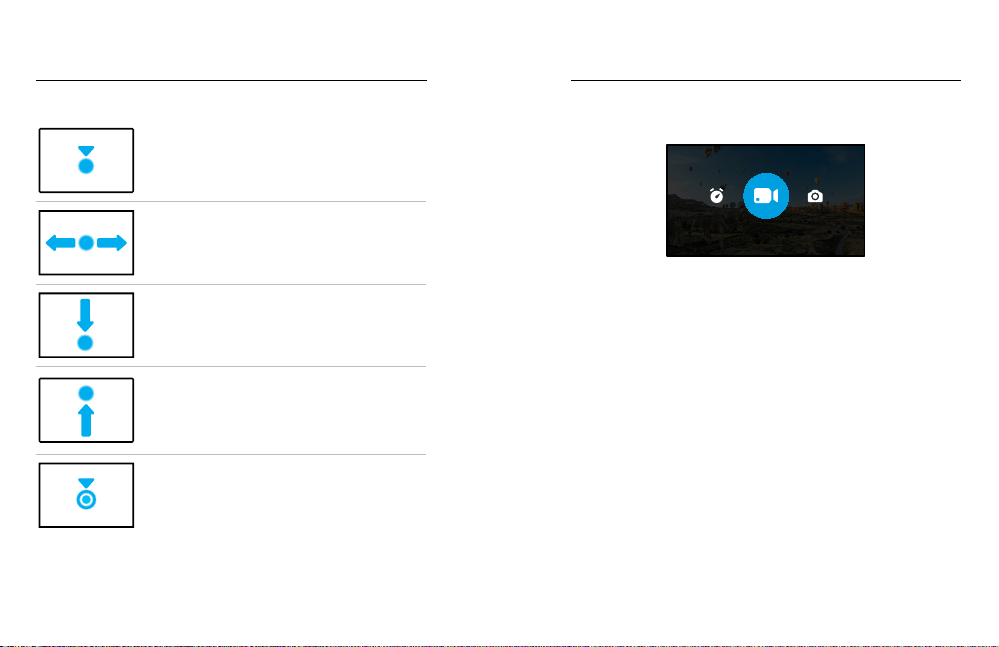
USING THE TOUCH SCREEN
Tap
Selects an item and turns a setting on or o.
Swipe Left or Right
Switch between Video, Photo,
and Time Lapse modes.
Swipe Down From the Edge of the Screen
Open the Dashboard when your camera
is in a landscape orientation.
Swipe Up From the Edge of the Screen
See the last photo or video you captured and
access the Media Gallery.
Press and Hold the Capture Screen
Turn on and adjust Exposure Control.
CAPTURE MODES
Your GoPro has three main capture modes.
VIDEO
Change modes by swiping left or right to the one you want.
Video
To learn more, see Recording Video (page 33).
Photo
Includes Photo and PowerPano modes.
To learn more, see Taking Photos (page 38).
Time Lapse
Includes TimeWarp and Time Lapse modes.
To learn more, see Capturing Time Lapse (page 43).
Getting to Know Your GoPro
14 15
Getting to Know Your GoPro
USING THE TOUCH SCREEN
Tap
Selects an item and turns a setting on or o.
Swipe Left or Right
Switch between Video, Photo,
and Time Lapse modes.
Swipe Down From the Edge of the Screen
Open the Dashboard when your camera
is in a landscape orientation.
Swipe Up From the Edge of the Screen
See the last photo or video you captured and
access the Media Gallery.
Press and Hold the Capture Screen
Turn on and adjust Exposure Control.
CAPTURE MODES
Your GoPro has three main capture modes.
VIDEO
Change modes by swiping left or right to the one you want.
Video
To learn more, see Recording Video (page 33).
Photo
Includes Photo and PowerPano modes.
To learn more, see Taking Photos (page 38).
Time Lapse
Includes TimeWarp and Time Lapse modes.
To learn more, see Capturing Time Lapse (page 43).
Getting to Know Your GoPro
16 17
Getting to Know Your GoPro
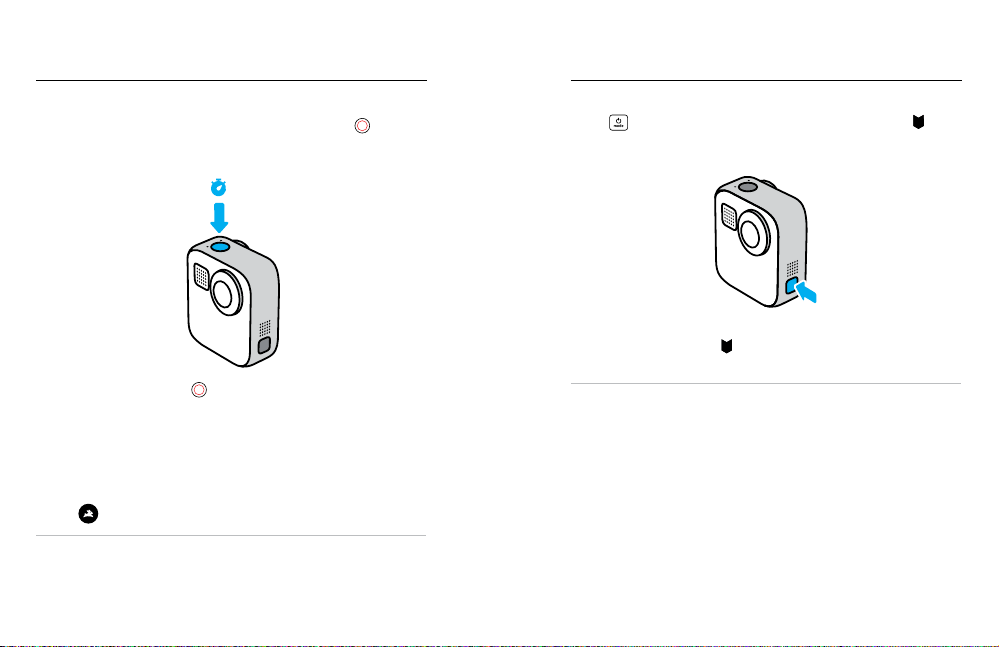
GETTING THE SHOT
1. Simply press the Shutter button
to start recording.
2. Press the Shutter button
again to stop recording
(Video, Time Lapse, and Live Streaming only).
Getting to Know Your GoPro
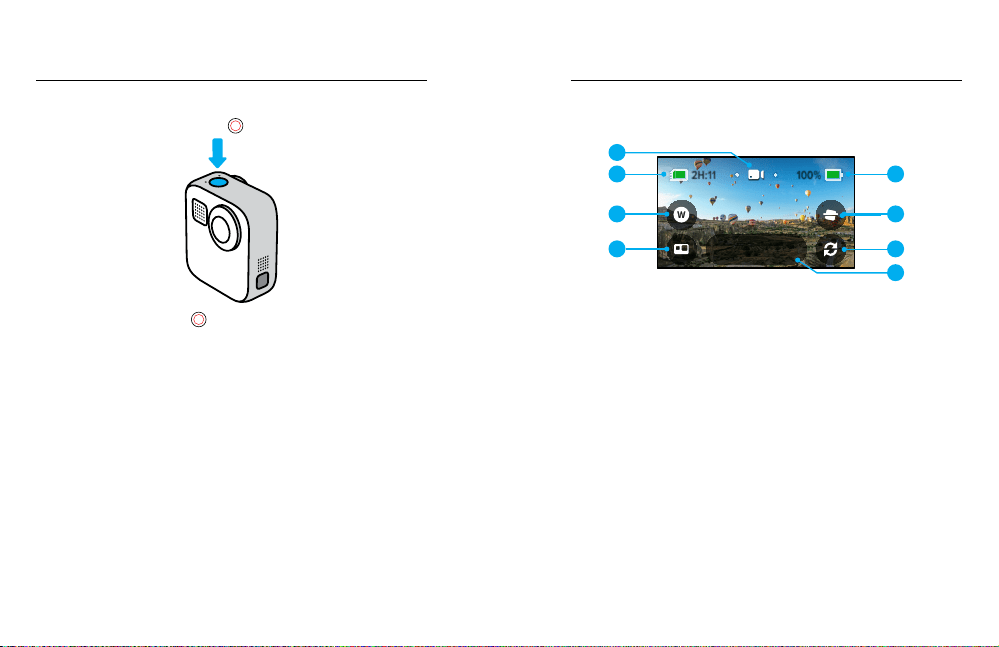
CAPTURE SCREEN
This screen gives you access to your camera’s capture settings.
100%
100
%
2H:11
1080 | 60 | A
Video
1
2
3
5
4
8
7
6
1. Current Mode (Video, Photo, or Time Lapse)
2. Recording Time/Photos Remaining
3. Digital Lens Shortcut
4. HERO/360 Mode Select
5. Battery Status
6. Horizon Lock Shortcut
7. Lens Switch
8. Capture Settings
Heads Up: The capture settings are not available when you rotate your
GoPro to take portrait shots. Be sure to choose the settings you want
before rotating your camera.

16 17
Getting to Know Your GoPro
GETTING THE SHOT
1. Simply press the Shutter button
to start recording.
2. Press the Shutter button
again to stop recording
(Video, Time Lapse, and Live Streaming only).
Getting to Know Your GoPro
CAPTURE SCREEN
This screen gives you access to your camera’s capture settings.
100%
100
%
2H:11
1080 | 60 | A
Video
1
2
3
5
4
8
7
6
1. Current Mode (Video, Photo, or Time Lapse)
2. Recording Time/Photos Remaining
3. Digital Lens Shortcut
4. HERO/360 Mode Select
5. Battery Status
6. Horizon Lock Shortcut
7. Lens Switch
8. Capture Settings
Heads Up: The capture settings are not available when you rotate your
GoPro to take portrait shots. Be sure to choose the settings you want
before rotating your camera.
18 19
HERO Mode + 360 Mode
MAX lets you capture traditional HERO-style videos and photos or
immersive 360 footage. Just tap HERO/360 mode select in the lower
left corner of the screen to pick your shot.
HERO MODE
HERO mode
lets you shoot traditional videos and photos with either
the front (non-touch screen side) or back lens (touch screen side).
1. Tap
to choose the lens you’ll be using.
100%
100
%
2H:11
1080 | 60 | A
Video
2. Press the Shutter button
to start recording.
PRO TIP: Choose HERO mode and the back lens to frame and capture
awesome seles.
HERO Mode + 360 Mode
360 MODE
Use 360 mode
to capture amazing spherical footage. View and share
it as 360 content or use the GoPro app to reframe it as traditional videos
and photos.
1. 360 mode captures everything around you, but you can tap
to
choose which lens view will be shown on the touch screen.
100% 100%
2H:11
5.6K | 30
360 Video
2. Press the Shutter button
to start recording.
18 19
HERO Mode + 360 Mode
MAX lets you capture traditional HERO-style videos and photos or
immersive 360 footage. Just tap HERO/360 mode select in the lower
left corner of the screen to pick your shot.
HERO MODE
HERO mode
lets you shoot traditional videos and photos with either
the front (non-touch screen side) or back lens (touch screen side).
1. Tap
to choose the lens you’ll be using.
100%
100
%
2H:11
1080 | 60 | A
Video
2. Press the Shutter button
to start recording.
PRO TIP: Choose HERO mode and the back lens to frame and capture
awesome seles.
HERO Mode + 360 Mode
360 MODE
Use 360 mode
to capture amazing spherical footage. View and share
it as 360 content or use the GoPro app to reframe it as traditional videos
and photos.
1. 360 mode captures everything around you, but you can tap
to
choose which lens view will be shown on the touch screen.
100% 100%
2H:11
5.6K | 30
360 Video
2. Press the Shutter button
to start recording.
20 21
HERO Mode + 360 Mode
360 Mode Audio Settings
In 360 mode, MAX uses its six microphones to record amazing audio
that’s just as immersive as the footage itself. It features two audio
settings for recording 360 surround sound or stereo sound. You can
also set it up to lter out excessive wind noise.
To learn more, see:
• 360 Audio (page 110)
• Wind-Noise Reduction (page 111)
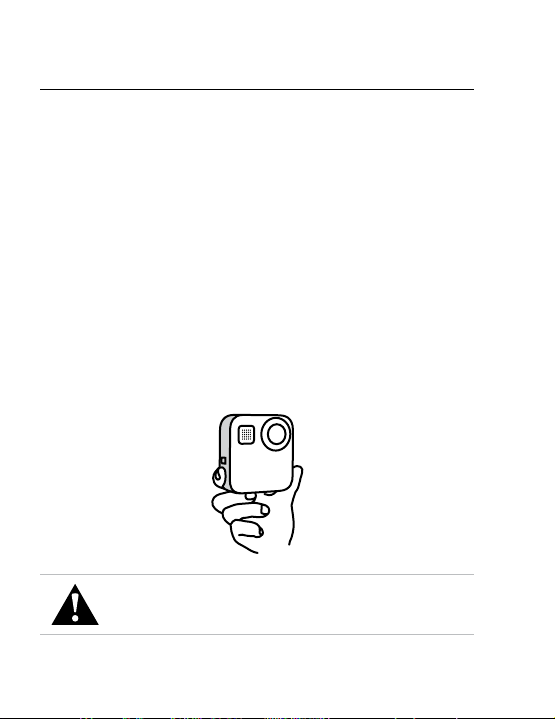
Tips for Capturing 360 Content
• For the best results, mount MAX on the Max Grip + Tripod (sold
separately). It was specially designed for shooting 360 footage
without getting the grip in your shot.
• Mounting with the Max Grip + Tripod is recommended, but if you’re
going to take a handheld shot, hold MAX near its base to minimize
how much of your hand gets into your footage.
CAUTION: Do not use the folding ngers to hold your camera.
They can heat up during recording. Leave the ngers folded
for handheld shots.
HERO Mode + 360 Mode
• Aim one of the lenses directly at your subject. Even though MAX
captures everything around you, you’ll get better footage if you lock
in on your subject.
• Use voice commands. This will let you start capture remotely so
you don’t have to move your hand out of the way after pressing
the Shutter button.
• Watch your 360 footage on the GoPro app to see your stabilized
Video and TimeWarp shots. This will give you the smoothest 360
footage possible.
• Use Reframe in the GoPro app to turn your 360 content into amazing
traditional videos and photos. You’ll be able to recapture the scene
from any angle as many times as you want.
20 21
HERO Mode + 360 Mode
360 Mode Audio Settings
In 360 mode, MAX uses its six microphones to record amazing audio
that’s just as immersive as the footage itself. It features two audio
settings for recording 360 surround sound or stereo sound. You can
also set it up to lter out excessive wind noise.
To learn more, see:
• 360 Audio (page 110)
• Wind-Noise Reduction (page 111)
Tips for Capturing 360 Content
• For the best results, mount MAX on the Max Grip + Tripod (sold
separately). It was specially designed for shooting 360 footage
without getting the grip in your shot.
• Mounting with the Max Grip + Tripod is recommended, but if you’re
going to take a handheld shot, hold MAX near its base to minimize
how much of your hand gets into your footage.
CAUTION: Do not use the folding ngers to hold your camera.
They can heat up during recording. Leave the ngers folded
for handheld shots.
HERO Mode + 360 Mode
• Aim one of the lenses directly at your subject. Even though MAX
captures everything around you, you’ll get better footage if you lock
in on your subject.
• Use voice commands. This will let you start capture remotely so
you don’t have to move your hand out of the way after pressing
the Shutter button.
• Watch your 360 footage on the GoPro app to see your stabilized
Video and TimeWarp shots. This will give you the smoothest 360
footage possible.
• Use Reframe in the GoPro app to turn your 360 content into amazing
traditional videos and photos. You’ll be able to recapture the scene
from any angle as many times as you want.
22 23
Changing Modes + Settings
CHANGING MODES
1. Swipe left or right to the mode you want.
PHOTO
2. Tap the capture settings to see all of the available capture options.
100% 100%
999+
Wide
Photo
3. Choose an option from the list.
Auto | Wide
Night Photo
Auto | Wide
Burst
3 Seconds
PowerPano
Wide
Photo
PHOTO
Changing Modes + Settings
CHANGING CAPTURE SETTINGS
Each mode has its own settings that can be adjusted with just a few taps.
1. Tap
next to the mode you want to change.
Auto | Wide
Night Photo
Auto | Wide
Burst
3 Seconds
PowerPano
Wide
Photo
PHOTO
2. Tap the setting that you want to change.
100
ISO Min
Lens
Upper Left
0
EV Comp
High
Sharpness
Auto
Shutter
1600
ISO Max
O
Upper Right
Auto
White Balance
GoPro
Color
PROTUNE
ON-SCREEN SETTINGS
PHOTO
Wide
Lens
O
Timer
The on-screen instructions will give you a rundown of your options.
16mm
Wide
For details on settings, see Tech Specs (starting page 92).
22 23
Changing Modes + Settings
CHANGING MODES
1. Swipe left or right to the mode you want.
PHOTO
2. Tap the capture settings to see all of the available capture options.
100% 100%
999+
Wide
Photo
3. Choose an option from the list.
Auto | Wide
Night Photo
Auto | Wide
Burst
3 Seconds
PowerPano
Wide
Photo
PHOTO
Changing Modes + Settings
CHANGING CAPTURE SETTINGS
Each mode has its own settings that can be adjusted with just a few taps.
1. Tap
next to the mode you want to change.
Auto | Wide
Night Photo
Auto | Wide
Burst
3 Seconds
PowerPano
Wide
Photo
PHOTO
2. Tap the setting that you want to change.
100
ISO Min
Lens
Upper Left
0
EV Comp
High
Sharpness
Auto
Shutter
1600
ISO Max
O
Upper Right
Auto
White Balance
GoPro
Color
PROTUNE
ON-SCREEN SETTINGS
PHOTO
Wide
Lens
O
Timer
The on-screen instructions will give you a rundown of your options.
16mm
Wide
For details on settings, see Tech Specs (starting page 92).

24 25
Changing Modes + Settings
3. Scroll down for the more advanced settings.
100
Lens
Upper Left
High
Sharpness
1600
ISO Max
O
Upper Right
Auto
GoPro
Color
ON-SCREEN SETTINGS
ISO Min
0
EV Comp
Auto
Shutter
White Balance
PROTUNE
For details on all advanced settings, see Protune (starting page
101).
4. Tap
to save your changes and return to the mode selection screen.
100
ISO Min
Lens
Upper Left
0
EV Comp
High
Sharpness
Auto
Shutter
1600
ISO Max
O
Upper Right
Auto
White Balance
GoPro
Color
PROTUNE
ON-SCREEN SETTINGS
O
PHOTO
Lens
Wide
Timer
HERO
Mode
PRO TIP: From the capture screen, you can press and hold the capture
settings to skip straight to the settings menu.
RESTORING THE DEFAULT SETTINGS
You can go back to your camera’s original capture settings any time.
1. Swipe down to access the Dashboard.
2. Tap Preferences > Reset > Reset Defaults.
On-screen shortcuts give you quick one-tap access to your camera’s
capture settings. Each mode has its own default shortcuts, but you can
change them to the settings that you use most. You can even set up
dierent shortcuts for each capture mode.
1. Tap the
next to the preset you want to adjust.
Auto | Wide
Night Photo
Auto | Wide
Burst
3 Seconds
PowerPano
Wide
Photo
PHOTO
2. Scroll down to the On-Screen Shortcuts.
Lens
Upper Left
O
Upper Right
GoPro
ON-SCREEN SETTINGS
On-Screen Shortcuts
24 25
Changing Modes + Settings
3. Scroll down for the more advanced settings.
100
Lens
Upper Left
High
Sharpness
1600
ISO Max
O
Upper Right
Auto
GoPro
Color
ON-SCREEN SETTINGS
ISO Min
0
EV Comp
Auto
Shutter
White Balance
PROTUNE
For details on all advanced settings, see Protune (starting page
101).
4. Tap
to save your changes and return to the mode selection screen.
100
ISO Min
Lens
Upper Left
0
EV Comp
High
Sharpness
Auto
Shutter
1600
ISO Max
O
Upper Right
Auto
White Balance
GoPro
Color
PROTUNE
ON-SCREEN SETTINGS
O
PHOTO
Lens
Wide
Timer
HERO
Mode
PRO TIP: From the capture screen, you can press and hold the capture
settings to skip straight to the settings menu.
RESTORING THE DEFAULT SETTINGS
You can go back to your camera’s original capture settings any time.
1. Swipe down to access the Dashboard.
2. Tap Preferences > Reset > Reset Defaults.
On-screen shortcuts give you quick one-tap access to your camera’s
capture settings. Each mode has its own default shortcuts, but you can
change them to the settings that you use most. You can even set up
dierent shortcuts for each capture mode.
1. Tap the
next to the preset you want to adjust.
Auto | Wide
Night Photo
Auto | Wide
Burst
3 Seconds
PowerPano
Wide
Photo
PHOTO
2. Scroll down to the On-Screen Shortcuts.
Lens
Upper Left
O
Upper Right
GoPro
ON-SCREEN SETTINGS
On-Screen Shortcuts

26 27
On-Screen Shortcuts
3. Tap where you’d like to put your new shortcut.
Lens
Upper Left
O
Upper Right
ON-SCREEN SETTINGS
4. Scroll through all of the available shortcuts on the right and choose
the one you want.
Shoot quick 15 or 30 second
videos for easy sharing on
social media.
Clips
UPPER RIGHT
For details on shortcuts, see Tech Specs (starting page 92)
and Protune (starting page 101).
5. Ta p
to save your changes and return to the presets screen.
Lens
Upper Left Upper Right
PHOTO
ON-SCREEN SETTINGS
Clips
Now you can simply tap the shortcut to change settings.
PRO TIP: From the capture screen, you can press and hold the shortcut
to skip to the shortcut selection screen.
On-Screen Shortcuts

26 27
On-Screen Shortcuts
3. Tap where you’d like to put your new shortcut.
Lens
Upper Left
O
Upper Right
ON-SCREEN SETTINGS
4. Scroll through all of the available shortcuts on the right and choose
the one you want.
Shoot quick 15 or 30 second
videos for easy sharing on
social media.
Clips
UPPER RIGHT
For details on shortcuts, see Tech Specs (starting page 92)
and Protune (starting page 101).
5. Ta p
to save your changes and return to the presets screen.
Lens
Upper Left Upper Right
PHOTO
ON-SCREEN SETTINGS
Clips
Now you can simply tap the shortcut to change settings.
PRO TIP: From the capture screen, you can press and hold the shortcut
to skip to the shortcut selection screen.
On-Screen Shortcuts
28 29
Using QuikCapture
QuikCapture is the fastest and easiest way to power on your GoPro
and get the shot. All it takes is the push of the Shutter button.
RECORDING WITH QUIKCAPTURE
1. With your camera o, press the Shutter button
.
2. Press the Shutter button
again to stop recording and turn o
your camera.
For more Video options, see Recording Video (page 33).
Using QuikCapture
Setting the Default Capture Mode
You can choose your default QuikCapture mode in Preferences.
1. Swipe down to access the Dashboard.
2. Tap Preferences > General > QuikCapture Default.
Setting Description
Last Used (Default) Records using the video mode and
settings you used last.
HERO Mode Video Records traditional HERO mode video.
360 Video Records 360 video.

28 29
Using QuikCapture
QuikCapture is the fastest and easiest way to power on your GoPro
and get the shot. All it takes is the push of the Shutter button.
RECORDING WITH QUIKCAPTURE
1. With your camera o, press the Shutter button
.
2. Press the Shutter button
again to stop recording and turn o
your camera.
For more Video options, see Recording Video (page 33).
Using QuikCapture
Setting the Default Capture Mode
You can choose your default QuikCapture mode in Preferences.
1. Swipe down to access the Dashboard.
2. Tap Preferences > General > QuikCapture Default.
Setting Description
Last Used (Default) Records using the video mode and
settings you used last.
HERO Mode Video Records traditional HERO mode video.
360 Video Records 360 video.

30 31
Using QuikCapture
TAKING TIME LAPSE WITH QUIKCAPTURE
1. With your camera o, press and hold the Shutter button
until your
camera turns on (about 3 seconds). It will start recording in the last
Time Lapse mode that you used.
3s
2. Press the Shutter button
again to stop Time Lapse and turn o
your camera.
For more Time Lapse options, see Capturing Time Lapse (page 43).
TURNING OFF QUIKCAPTURE
QuikCapture is on by default, but you can turn it o.
1. Swipe down to access the Dashboard.
2. Tap
.
PRO TIP: Since it only turns the camera on when it’s recording,
QuikCapture is a great way to maximize battery life.
Mark favorite moments in your videos and photos by pressing the Mode
button
during recording or playback. This adds a HiLight Tag that
makes those moments easier to nd when you’re watching your footage,
creating a video, or looking for a certain shot.
You can also add HiLight Tags by saying, “GoPro, HiLight” when Voice
Control is on and by tapping
when watching your footage with
the GoPro app.
PRO TIP: The GoPro app looks for HiLight Tags when it automatically
creates videos. This helps ensure that favorite moments are included in
your stories.
Adding HiLight Tags

30 31
Using QuikCapture
TAKING TIME LAPSE WITH QUIKCAPTURE
1. With your camera o, press and hold the Shutter button
until your
camera turns on (about 3 seconds). It will start recording in the last
Time Lapse mode that you used.
3s
2. Press the Shutter button
again to stop Time Lapse and turn o
your camera.
For more Time Lapse options, see Capturing Time Lapse (page 43).
TURNING OFF QUIKCAPTURE
QuikCapture is on by default, but you can turn it o.
1. Swipe down to access the Dashboard.
2. Tap
.
PRO TIP: Since it only turns the camera on when it’s recording,
QuikCapture is a great way to maximize battery life.
Mark favorite moments in your videos and photos by pressing the Mode
button
during recording or playback. This adds a HiLight Tag that
makes those moments easier to nd when you’re watching your footage,
creating a video, or looking for a certain shot.
You can also add HiLight Tags by saying, “GoPro, HiLight” when Voice
Control is on and by tapping
when watching your footage with
the GoPro app.
PRO TIP: The GoPro app looks for HiLight Tags when it automatically
creates videos. This helps ensure that favorite moments are included in
your stories.
Adding HiLight Tags

32 33
You can easily switch between landscape and portrait shots by rotating
your camera. MAX can even capture photos and videos right-side up
when it’s mounted upside down. The touch screen menu will automatically
adjust, and your media will play back right-side up.
The orientation is locked in when you press the Shutter button
.
If your camera tilts during recording, like on a roller coaster, your
footage will tilt with it. You’ll capture every twist and turn.
LOCKING THE ORIENTATION
MAX lets you lock the screen in landscape or portrait orientation.
This is especially useful when you’re using body and handheld mounts.
That’s when accidentally shooting in the wrong orientation is mostly
likely to happen.
Swipe down to access the Dashboard.
1. Turn your camera to the orientation you want.
2. Tap
on the Dashboard.
The screen is now locked and will match the orientation of your camera.
Heads Up: Locking the screen in this way will only work when the
Orientation is set to All (default) in Preferences.
SETTING LANDSCAPE LOCK
You can also set your GoPro to record only in landscape orientation.
Swipe down to access the Dashboard.
1. Tap Preferences > Touch Screen > Orientation.
2. Switch from All (default) to Landscape.
Your GoPro will record right-side up whether your camera is right-side up
or upside down. You can also lock the orientation on the Dashboard.
Setting the Screen Orientation
Your GoPro can capture traditional videos with either lens in HERO mode
or capture everything from every angle in 360 mode.
VIDEO
HERO mode shoots traditional videos with a resolution of 1080p or 1440p.
The default settings are 1080p video at 60 frames per second (fps) with
a Wide digital lens and Max HyperSmooth on. 360 mode can capture 6K
source/5.6K stitched video at 30 and 24 fps or 3K source/stitched video
at 60 fps for slo-mo playback.
ON-SCREEN SHORTCUTS
HERO mode features two default shortcuts, but you can swap them
out for others.
Heads Up: 360 mode doesn’t have default shortcuts, but you can
add up to two.
To learn more, see On-Screen Shortcuts (page 25).
Recording Video

32 33
You can easily switch between landscape and portrait shots by rotating
your camera. MAX can even capture photos and videos right-side up
when it’s mounted upside down. The touch screen menu will automatically
adjust, and your media will play back right-side up.
The orientation is locked in when you press the Shutter button
.
If your camera tilts during recording, like on a roller coaster, your
footage will tilt with it. You’ll capture every twist and turn.
LOCKING THE ORIENTATION
MAX lets you lock the screen in landscape or portrait orientation.
This is especially useful when you’re using body and handheld mounts.
That’s when accidentally shooting in the wrong orientation is mostly
likely to happen.
Swipe down to access the Dashboard.
1. Turn your camera to the orientation you want.
2. Tap
on the Dashboard.
The screen is now locked and will match the orientation of your camera.
Heads Up: Locking the screen in this way will only work when the
Orientation is set to All (default) in Preferences.
SETTING LANDSCAPE LOCK
You can also set your GoPro to record only in landscape orientation.
Swipe down to access the Dashboard.
1. Tap Preferences > Touch Screen > Orientation.
2. Switch from All (default) to Landscape.
Your GoPro will record right-side up whether your camera is right-side up
or upside down. You can also lock the orientation on the Dashboard.
Setting the Screen Orientation
Your GoPro can capture traditional videos with either lens in HERO mode
or capture everything from every angle in 360 mode.
VIDEO
HERO mode shoots traditional videos with a resolution of 1080p or 1440p.
The default settings are 1080p video at 60 frames per second (fps) with
a Wide digital lens and Max HyperSmooth on. 360 mode can capture 6K
source/5.6K stitched video at 30 and 24 fps or 3K source/stitched video
at 60 fps for slo-mo playback.
ON-SCREEN SHORTCUTS
HERO mode features two default shortcuts, but you can swap them
out for others.
Heads Up: 360 mode doesn’t have default shortcuts, but you can
add up to two.
To learn more, see On-Screen Shortcuts (page 25).
Recording Video
34 35
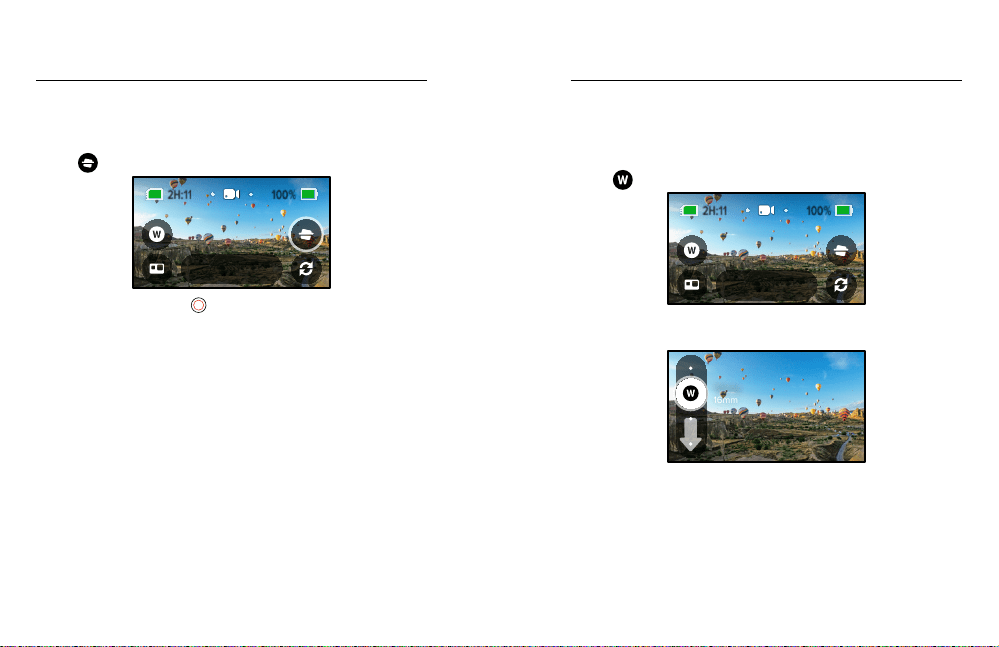
Recording Video
Horizon Lock (HERO Mode)
This shortcut automatically straightens out your shot by keeping the
horizon level even if you rotate your camera during recording.
1. Tap
.
100%
100
%
2H:11
1080 | 60 | A
Video
2. Press the Shutter button
to start recording.
To learn more, see Horizon Lock (page 96).
Recording Video
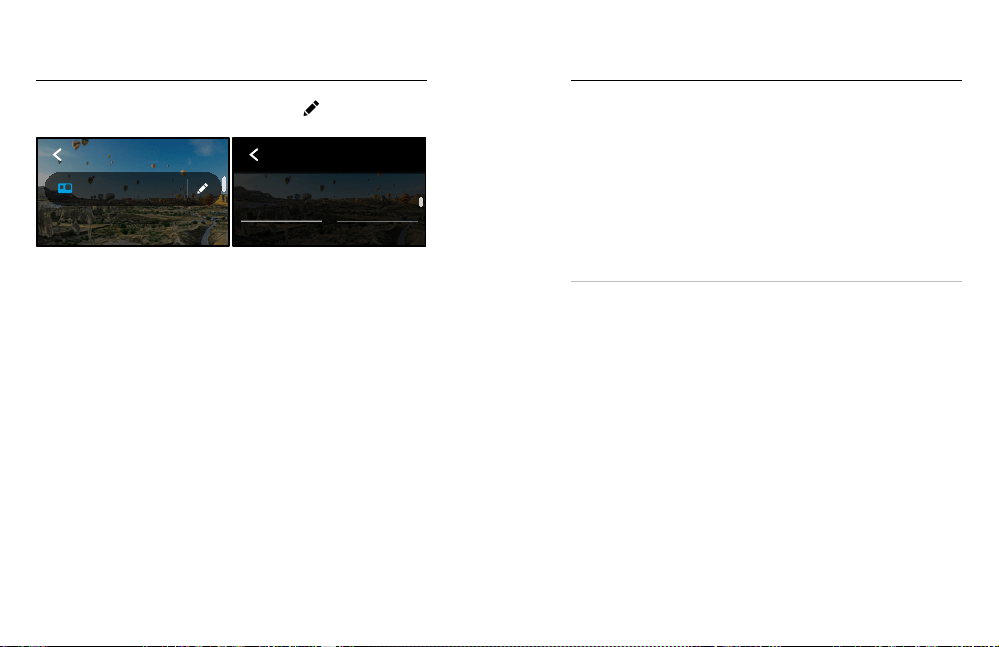
Digital Lens (HERO Mode)
Changing digital lenses on your GoPro is just like switching out the lenses
on a DSLR. They aect the eld of view, the cropping, and the sheye
eect in your shot.
1. Tap
.
100%
100
%
2H:11
1080 | 60 | A
Video
2. Scroll through the options to see a live preview of each option,
and then tap the one that you want.
16mm
Wide

34 35
Recording Video
Horizon Lock (HERO Mode)
This shortcut automatically straightens out your shot by keeping the
horizon level even if you rotate your camera during recording.
1. Tap
.
100%
100
%
2H:11
1080 | 60 | A
Video
2. Press the Shutter button
to start recording.
To learn more, see Horizon Lock (page 96).
Recording Video
Digital Lens (HERO Mode)
Changing digital lenses on your GoPro is just like switching out the lenses
on a DSLR. They aect the eld of view, the cropping, and the sheye
eect in your shot.
1. Tap
.
100%
100
%
2H:11
1080 | 60 | A
Video
2. Scroll through the options to see a live preview of each option,
and then tap the one that you want.
16mm
Wide
36 37
Video Settings
Here’s a breakdown of the video settings. Tap the and then the
setting to make changes.
1080 | 60 | Wide
Video
VIDEO
Low
Bit Rate
100
ISO Min
Stereo
Mics
Lens
Upper Left
Wide
O
Level Horizon
0
EV Comp
High
Sharpness
O
RAW Audio
O
Clips
Auto
Shutter
1600
ISO Max
Auto
Wind
O
Upper Right
On
Auto
White Balance
GoPro
Color
PROTUNE
ON-SCREEN SETTINGS
Lens
1080 | 60
RES | FPS
Max HyperSmooth
VIDEO
Mode
HERO
MODE
Shows you whether your camera is currently in HERO mode or 360 mode.
RES | FPS
HERO mode features two resolutions (RES). 1080p is a widescreen 16:9
resolution that’s great for cinematic shots. 1440p is a tall 4:3 resolution
that’s for seles and point-of-view shots.
360 mode captures 6K source/5.6K stitched spherical content at
30 frames per second (fps). It can also capture 3K source/stitched
spherical content at at 60 fps, which lets you slow the footage down
to 2x slo-mo during playback.
The available frame rates for both HERO mode and 360 modes are
listed at the bottom of the screen.
To learn more, see:
• Resolution (page 92)
• Frames per Second (Video) (page 94)
LENS (HERO MODE)
Choose the best digital lens for your shot—Max SuperView, Wide, Linear,
or Narrow.
To learn more, see Digital Lenses (Video) (page 95).
MAX HYPERSMOOTH (HERO MODE)
Perfect for biking, skiing, handheld shots, and more, Max HyperSmooth
delivers unbreakable video stabilization for the smoothest shots possible.
Max HyperSmooth is on by default.
To learn more, see Max HyperSmooth Video Stabilization (page 96).
PRO TIP: Watch your 360 footage on the GoPro app to see your Video
and TimeWarp shots with full stabilization.
CLIPS
Shoot short 15- or 30-second video clips that are quick and easy to
save on your phone and share on social media. Clips are o by default.
HORIZON LOCK (HERO MODE)
Gives your HERO mode footage an ultra smooth cinematic look
with a level horizon even if your camera gets ipped upside down
while recording.
To learn more, see Horizon Lock (page 96).
PROTUNE
Use Protune to take manual control of advanced settings, including
Bit Rate, Color, ISO Limit, Exposure, microphone settings, and more.
To learn more, see Protune (page 101).
Video Settings

36 37
Video Settings
Here’s a breakdown of the video settings. Tap the and then the
setting to make changes.
1080 | 60 | Wide
Video
VIDEO
Low
Bit Rate
100
ISO Min
Stereo
Mics
Lens
Upper Left
Wide
O
Level Horizon
0
EV Comp
High
Sharpness
O
RAW Audio
O
Clips
Auto
Shutter
1600
ISO Max
Auto
Wind
O
Upper Right
On
Auto
White Balance
GoPro
Color
PROTUNE
ON-SCREEN SETTINGS
Lens
1080 | 60
RES | FPS
Max HyperSmooth
VIDEO
Mode
HERO
MODE
Shows you whether your camera is currently in HERO mode or 360 mode.
RES | FPS
HERO mode features two resolutions (RES). 1080p is a widescreen 16:9
resolution that’s great for cinematic shots. 1440p is a tall 4:3 resolution
that’s for seles and point-of-view shots.
360 mode captures 6K source/5.6K stitched spherical content at
30 frames per second (fps). It can also capture 3K source/stitched
spherical content at at 60 fps, which lets you slow the footage down
to 2x slo-mo during playback.
The available frame rates for both HERO mode and 360 modes are
listed at the bottom of the screen.
To learn more, see:
• Resolution (page 92)
• Frames per Second (Video) (page 94)
LENS (HERO MODE)
Choose the best digital lens for your shot—Max SuperView, Wide, Linear,
or Narrow.
To learn more, see Digital Lenses (Video) (page 95).
MAX HYPERSMOOTH (HERO MODE)
Perfect for biking, skiing, handheld shots, and more, Max HyperSmooth
delivers unbreakable video stabilization for the smoothest shots possible.
Max HyperSmooth is on by default.
To learn more, see Max HyperSmooth Video Stabilization (page 96).
PRO TIP: Watch your 360 footage on the GoPro app to see your Video
and TimeWarp shots with full stabilization.
CLIPS
Shoot short 15- or 30-second video clips that are quick and easy to
save on your phone and share on social media. Clips are o by default.
HORIZON LOCK (HERO MODE)
Gives your HERO mode footage an ultra smooth cinematic look
with a level horizon even if your camera gets ipped upside down
while recording.
To learn more, see Horizon Lock (page 96).
PROTUNE
Use Protune to take manual control of advanced settings, including
Bit Rate, Color, ISO Limit, Exposure, microphone settings, and more.
To learn more, see Protune (page 101).
Video Settings

38 39
Taking Photos
Your GoPro can take traditional, 360, and panoramic photos. Simply
choose the type of photo you want, and press the Shutter button
.
All HERO mode shots are captured at 5.5MP. 360 photos are captured
at 18MP source/16.6MP stitched.
PHOTO
Use this mode to take a single photo in either HERO or 360 mode.
You can also press and hold the Shutter button
in HERO mode
to take a continuous series photos at a rate of 3 or 30 per second
(depending on lighting conditions).
POWERPANO
PowerPano takes incredible 270
°
distortion-free panoramic photos
without having to scan the horizon. Hold MAX horizontally for traditional
panoramic photos, or rotate it to portrait orientation for amazing extra-tall
shots. All PowerPano photos are captured at 6.2MP. Horizon Lock is on
by default.
Heads Up: PowerPano uses both lenses to take the shot, no matter
whether your subject is front of or behind your camera. Make sure both
lenses are uncovered.
PRO TIP: Keep your camera level with the horizon to minimize distortion
when taking a PowerPano shot.
Taking Photos
ON-SCREEN SHORTCUTS
When taking photos, HERO and 360 mode each feature one default
shortcut. You can swap it out with another shortcut or add a second.
To learn more, see On-Screen Shortcuts (page 25).
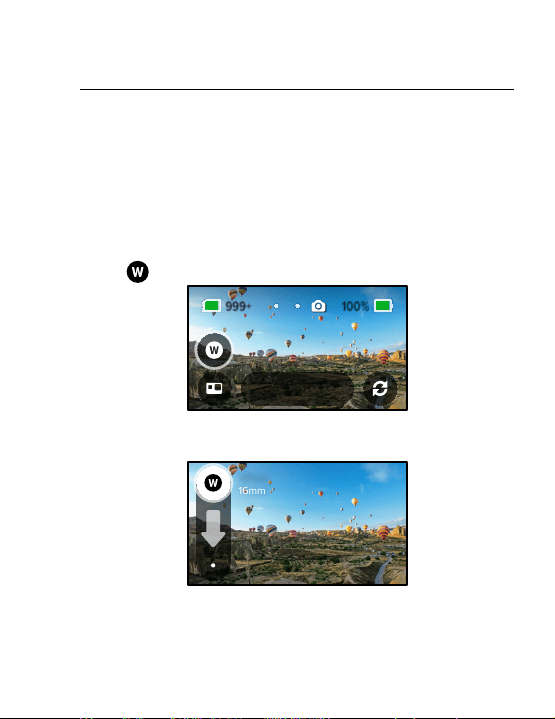
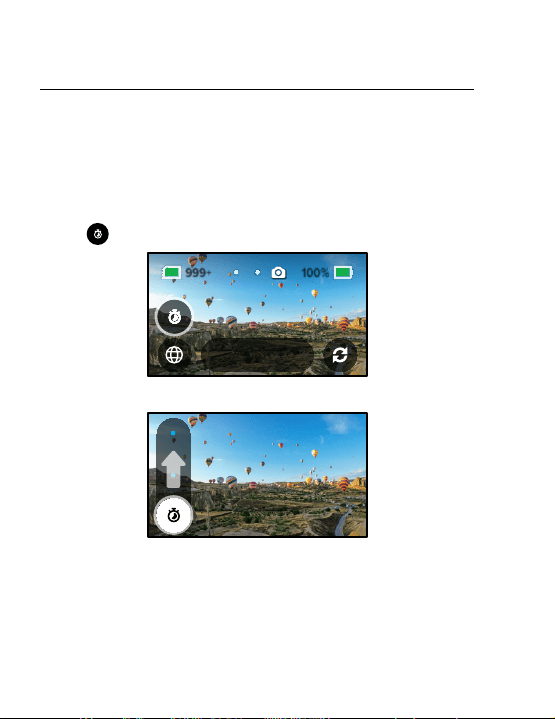
Digital Lens (HERO Mode)
Digital lenses aect the eld of view, the cropping, and the sheye eect
in your photo. Switch them up to see what works best for your shot.
1. Tap
.
100% 100%
999+
Wide
Photo
2. Scroll through the options to see a live preview of each option,
and then tap the one that you want.
16mm
Wide
38 39
Taking Photos
Your GoPro can take traditional, 360, and panoramic photos. Simply
choose the type of photo you want, and press the Shutter button
.
All HERO mode shots are captured at 5.5MP. 360 photos are captured
at 18MP source/16.6MP stitched.
PHOTO
Use this mode to take a single photo in either HERO or 360 mode.
You can also press and hold the Shutter button
in HERO mode
to take a continuous series photos at a rate of 3 or 30 per second
(depending on lighting conditions).
POWERPANO
PowerPano takes incredible 270
°
distortion-free panoramic photos
without having to scan the horizon. Hold MAX horizontally for traditional
panoramic photos, or rotate it to portrait orientation for amazing extra-tall
shots. All PowerPano photos are captured at 6.2MP. Horizon Lock is on
by default.
Heads Up: PowerPano uses both lenses to take the shot, no matter
whether your subject is front of or behind your camera. Make sure both
lenses are uncovered.
PRO TIP: Keep your camera level with the horizon to minimize distortion
when taking a PowerPano shot.
Taking Photos
ON-SCREEN SHORTCUTS
When taking photos, HERO and 360 mode each feature one default
shortcut. You can swap it out with another shortcut or add a second.
To learn more, see On-Screen Shortcuts (page 25).
Digital Lens (HERO Mode)
Digital lenses aect the eld of view, the cropping, and the sheye eect
in your photo. Switch them up to see what works best for your shot.
1. Tap
.
100% 100%
999+
Wide
Photo
2. Scroll through the options to see a live preview of each option,
and then tap the one that you want.
16mm
Wide
40 41
Taking Photos
Photo Timer (360 Mode + PowerPano)
360 photos and PowerPano shots capture everything around your
camera. This can include your nger pressing the Shutter button.
The Timer is set to 3 seconds by default so that you’ll have enough
time to reposition your hand out of the shot. You can also turn the
timer o or set it to 10 seconds.
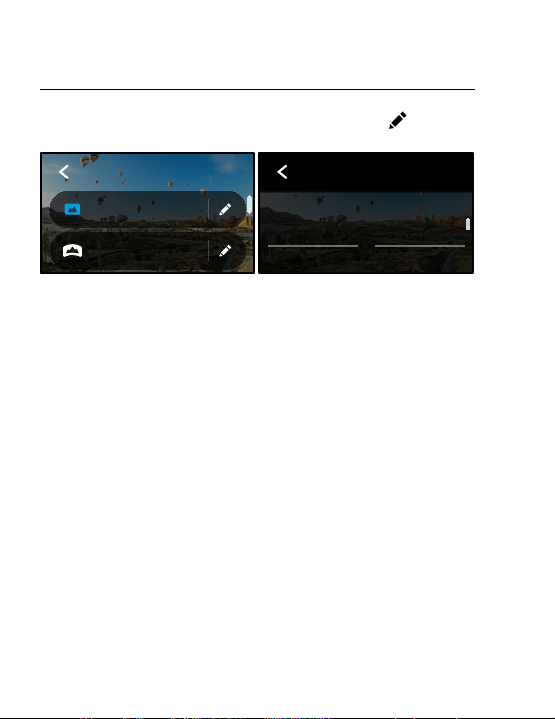
1. Tap
.
100% 100%
999+
3 Sec
360 Photo
2. Choose 3 seconds, 10 seconds, or O.
O
3. Press the Shutter button
. Your camera will start the countdown.
It will also beep, and the front status light will blink. Both will speed up
as the time winds down before snapping the photo.
3
To learn more, see Tips for Capturing 360 Content (page 20).
PRO TIP: Try using voice commands when capturing 360 shots. This will
let you start capture remotely so you don’t have to move your ngers out
of the way after pressing the Shutter button.
To learn more, see Controlling Your GoPro With Your Voice (page 51).
Taking Photos

40 41
Taking Photos
Photo Timer (360 Mode + PowerPano)
360 photos and PowerPano shots capture everything around your
camera. This can include your nger pressing the Shutter button.
The Timer is set to 3 seconds by default so that you’ll have enough
time to reposition your hand out of the shot. You can also turn the
timer o or set it to 10 seconds.
1. Tap
.
100% 100%
999+
3 Sec
360 Photo
2. Choose 3 seconds, 10 seconds, or O.
O
3. Press the Shutter button
. Your camera will start the countdown.
It will also beep, and the front status light will blink. Both will speed up
as the time winds down before snapping the photo.
3
To learn more, see Tips for Capturing 360 Content (page 20).
PRO TIP: Try using voice commands when capturing 360 shots. This will
let you start capture remotely so you don’t have to move your ngers out
of the way after pressing the Shutter button.
To learn more, see Controlling Your GoPro With Your Voice (page 51).
Taking Photos
42 43
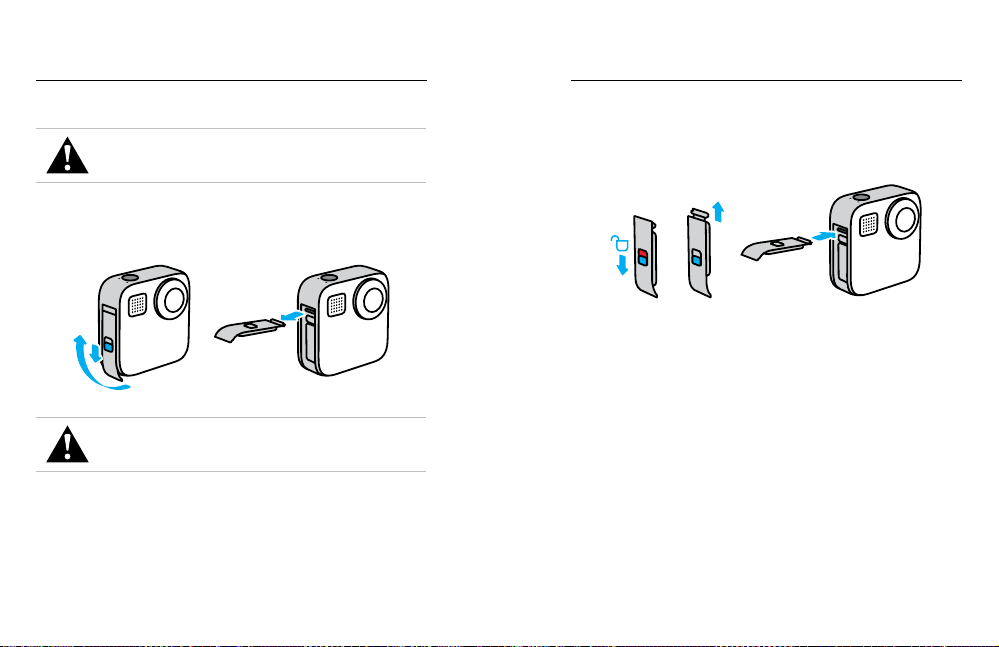
Here’s an overview of the available photo settings. Tap the to access
the settings menu, and then tap the setting itself to make changes.
Auto | Wide
Night Photo
Auto | Wide
Burst
3 Seconds
PowerPano
Wide
Photo
PHOTO
100
ISO Min
Lens
Upper Left
0
EV Comp
High
Sharpness
Auto
Shutter
1600
ISO Max
O
Upper Right
Auto
White Balance
GoPro
Color
PROTUNE
ON-SCREEN SETTINGS
O
PHOTO
Lens
Wide
Timer
HERO
Mode
LENS (HERO MODE)
Choose best digital lens for your shot—Max SuperView or Wide.
Scroll to see a live preview of each, and then tap the one you want.
To learn more, see Digital Lenses (Photo) (page 97).
HORIZON LOCK (HERO MODE + POWERPANO)
Helps you capture amazing panoramic shots with a level horizon
even when your camera is tilted. Horizon Lock is on by default.
To learn more, see Horizon Lock (PowerPano) (page 97).
TIMER
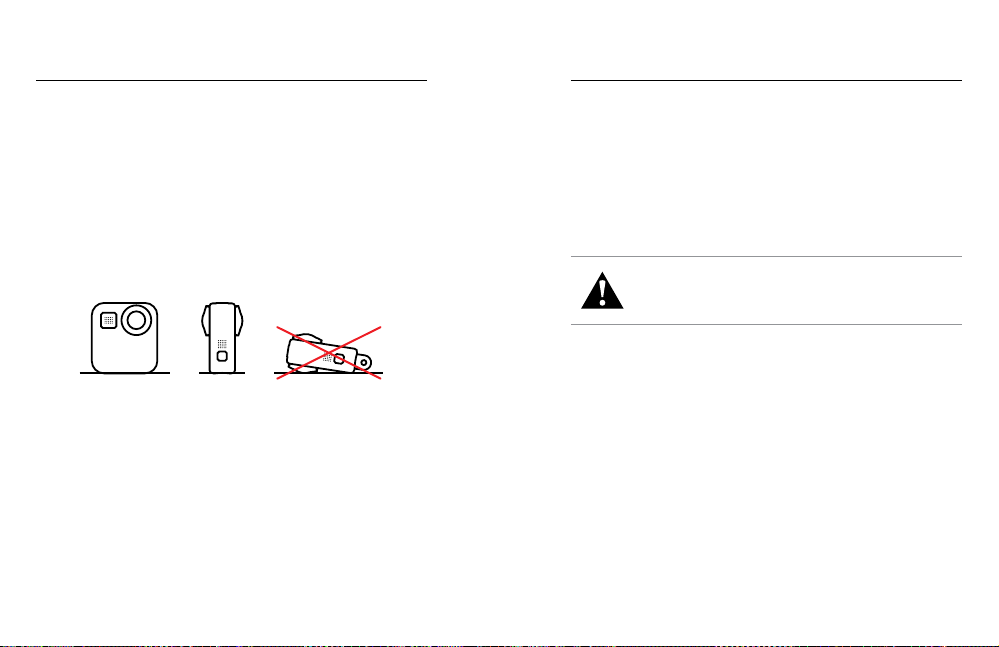
Set up a 3- or 10-second timer for your photo.
PROTUNE (PHOTO)
Protune gives you manual control of advanced settings including Color,
ISO Limit, Exposure, and more.
To learn more, see Protune (starting page 101).
Photo Settings Capturing Time Lapse
Time Lapse turns long events into short shareable videos by taking
a frame of video at set intervals. All you have to do is press the Shutter
button
to start recording, and then press it again to stop.
TIMEWARP
MAX lets you speed up time by using TimeWarp video stabilization to
capture ultra smooth time lapse video while you’re on the move. This
makes it perfect for mountain bike runs, hikes, and more.
In HERO mode, you can also tap
to slow down the eect to
real time—savoring interesting moments—and then tap to speed
it back up.
TIME LAPSE
Use Time Lapse when your camera is mounted and still. It’s great for
sunsets, street scenes, art projects, and other shots that unfold over
a long period of time.
PRO TIP: MAX can also capture Time Lapse photos. Simply go to Format
in settings and chose Photo.
42 43
Here’s an overview of the available photo settings. Tap the to access
the settings menu, and then tap the setting itself to make changes.
Auto | Wide
Night Photo
Auto | Wide
Burst
3 Seconds
PowerPano
Wide
Photo
PHOTO
100
ISO Min
Lens
Upper Left
0
EV Comp
High
Sharpness
Auto
Shutter
1600
ISO Max
O
Upper Right
Auto
White Balance
GoPro
Color
PROTUNE
ON-SCREEN SETTINGS
O
PHOTO
Lens
Wide
Timer
HERO
Mode
LENS (HERO MODE)
Choose best digital lens for your shot—Max SuperView or Wide.
Scroll to see a live preview of each, and then tap the one you want.
To learn more, see Digital Lenses (Photo) (page 97).
HORIZON LOCK (HERO MODE + POWERPANO)
Helps you capture amazing panoramic shots with a level horizon
even when your camera is tilted. Horizon Lock is on by default.
To learn more, see Horizon Lock (PowerPano) (page 97).
TIMER
Set up a 3- or 10-second timer for your photo.
PROTUNE (PHOTO)
Protune gives you manual control of advanced settings including Color,
ISO Limit, Exposure, and more.
To learn more, see Protune (starting page 101).
Photo Settings Capturing Time Lapse
Time Lapse turns long events into short shareable videos by taking
a frame of video at set intervals. All you have to do is press the Shutter
button
to start recording, and then press it again to stop.
TIMEWARP
MAX lets you speed up time by using TimeWarp video stabilization to
capture ultra smooth time lapse video while you’re on the move. This
makes it perfect for mountain bike runs, hikes, and more.
In HERO mode, you can also tap
to slow down the eect to
real time—savoring interesting moments—and then tap to speed
it back up.
TIME LAPSE
Use Time Lapse when your camera is mounted and still. It’s great for
sunsets, street scenes, art projects, and other shots that unfold over
a long period of time.
PRO TIP: MAX can also capture Time Lapse photos. Simply go to Format
in settings and chose Photo.
44 45
Capturing Time Lapse
ON-SCREEN SHORTCUTS
Time Lapse mode includes one default shortcut for HERO mode (Digital
Lens), but you can switch it out for a dierent shortcut or add another.
To learn more, see On-Screen Shortcuts (page 25).
Digital Lens (HERO mode)
Swap out digital lenses to change the eld of view, the cropping,
and the sheye eect in your shot.
1. Tap
.
100% 100%
2H:11
1080 | Auto | W
TimeWarp
2. Scroll through the options to see a live preview of each option,
and then tap the one that you want.
16mm
Wide
Time Lapse Settings
Here’s where you can make adjustments to your Time Lapse settings.
Tap the
and then tap the setting to make changes.
1080 | Auto | Wide
Night Lapse
1080 | 0.5s | Wide
Time Lapse
1080 | Auto | Wide
TimeWarp
TIME LAPSE
100
ISO Min
Lens
Upper Left
0
EV Comp
High
Sharpness
1600
ISO Max
O
Upper Right
Auto
White Balance
GoPro
Color
PROTUNE
ON-SCREEN SETTINGS
Wide 15x
TIMEWARP
HERO
Mode
Lens
1440
Resolution
Speed
RESOLUTION
HERO mode features two resolutions (RES) in both TimeWarp
and Time Lapse mode. 1080p is a widescreen 16:9 resolution that’s
great for cinematic shots. 1440p is a tall 4:3 resolution that’s great
for seles and POV shots. In TimeWarp mode, all 360 footage can
be shot in 6K source/5.6K stitched or 3K stitched/captured.
To learn more, see Resolution (page 92).
LENS
Choose best digital lens for your shot. Scroll through the options
to see a live preview of each, then tap the one you want.
Heads Up: Available lenses will vary based on the mode you select.
To learn more, see Digital Lenses (Photo) (page 97).

44 45
Capturing Time Lapse
ON-SCREEN SHORTCUTS
Time Lapse mode includes one default shortcut for HERO mode (Digital
Lens), but you can switch it out for a dierent shortcut or add another.
To learn more, see On-Screen Shortcuts (page 25).
Digital Lens (HERO mode)
Swap out digital lenses to change the eld of view, the cropping,
and the sheye eect in your shot.
1. Tap
.
100% 100%
2H:11
1080 | Auto | W
TimeWarp
2. Scroll through the options to see a live preview of each option,
and then tap the one that you want.
16mm
Wide
Time Lapse Settings
Here’s where you can make adjustments to your Time Lapse settings.
Tap the
and then tap the setting to make changes.
1080 | Auto | Wide
Night Lapse
1080 | 0.5s | Wide
Time Lapse
1080 | Auto | Wide
TimeWarp
TIME LAPSE
100
ISO Min
Lens
Upper Left
0
EV Comp
High
Sharpness
1600
ISO Max
O
Upper Right
Auto
White Balance
GoPro
Color
PROTUNE
ON-SCREEN SETTINGS
Wide 15x
TIMEWARP
HERO
Mode
Lens
1440
Resolution
Speed
RESOLUTION
HERO mode features two resolutions (RES) in both TimeWarp
and Time Lapse mode. 1080p is a widescreen 16:9 resolution that’s
great for cinematic shots. 1440p is a tall 4:3 resolution that’s great
for seles and POV shots. In TimeWarp mode, all 360 footage can
be shot in 6K source/5.6K stitched or 3K stitched/captured.
To learn more, see Resolution (page 92).
LENS
Choose best digital lens for your shot. Scroll through the options
to see a live preview of each, then tap the one you want.
Heads Up: Available lenses will vary based on the mode you select.
To learn more, see Digital Lenses (Photo) (page 97).

46 47
SPEED (TIMEWARP)
Set your video speed. Choose a lower speed (2x or 5x) for short activities
or higher speeds (10x, 15x, or 30x) for longer activities. In HERO mode,
Auto lets your GoPro automatically adjust the speed based on motion,
scene detection, and lighting.
To learn more, see TimeWarp Video Speed (page 98).
FORMAT (HERO MODE)
Switch from capturing Time Lapse Video to Time Lapse Photo. The photo
format takes a continuous series of photos at set intervals. This lets
you focus on your activity instead of on your camera. You can then look
through all of your photos and nd the best shots later.
INTERVAL (TIME LAPSE)
Choose how often your camera captures a frame of time lapse video
or takes a time lapse photo. Use shorter intervals for quick activities
and longer intervals for extended activities.
To learn more, see Time Lapse Interval (page 99).
HORIZON LOCK (HERO MODE TIMEWARP)
Smooths out your HERO mode TimeWarp footage by keeping the horizon
smooth and level horizon even if your camera is turned completely upside
down while recording.
To learn more, see Horizon Lock (page 96).
PROTUNE (TIMEWARP, TIME LAPSE VIDEO)
Protune gives you manual control of advanced settings including Color,
ISO Limit, Exposure, and more.
To learn more, see Protune (starting page 101).
Time Lapse Settings Live Streaming
SETTING UP A LIVE STREAM
1. Connect to the GoPro app. For details, see Connecting to the GoPro
App (page 59).
2. In the app, tap
to control your camera.
3. Tap
and follow the instructions to set up your stream.
For complete step-by-step instructions, visit
gopro.com/live-stream-setup.

46 47
SPEED (TIMEWARP)
Set your video speed. Choose a lower speed (2x or 5x) for short activities
or higher speeds (10x, 15x, or 30x) for longer activities. In HERO mode,
Auto lets your GoPro automatically adjust the speed based on motion,
scene detection, and lighting.
To learn more, see TimeWarp Video Speed (page 98).
FORMAT (HERO MODE)
Switch from capturing Time Lapse Video to Time Lapse Photo. The photo
format takes a continuous series of photos at set intervals. This lets
you focus on your activity instead of on your camera. You can then look
through all of your photos and nd the best shots later.
INTERVAL (TIME LAPSE)
Choose how often your camera captures a frame of time lapse video
or takes a time lapse photo. Use shorter intervals for quick activities
and longer intervals for extended activities.
To learn more, see Time Lapse Interval (page 99).
HORIZON LOCK (HERO MODE TIMEWARP)
Smooths out your HERO mode TimeWarp footage by keeping the horizon
smooth and level horizon even if your camera is turned completely upside
down while recording.
To learn more, see Horizon Lock (page 96).
PROTUNE (TIMEWARP, TIME LAPSE VIDEO)
Protune gives you manual control of advanced settings including Color,
ISO Limit, Exposure, and more.
To learn more, see Protune (starting page 101).
Time Lapse Settings Live Streaming
SETTING UP A LIVE STREAM
1. Connect to the GoPro app. For details, see Connecting to the GoPro
App (page 59).
2. In the app, tap
to control your camera.
3. Tap
and follow the instructions to set up your stream.
For complete step-by-step instructions, visit
gopro.com/live-stream-setup.

48 49
MAX automatically scans the entire scene to choose the exposure level
for your shot. Exposure Control lets you decide if only a section of the
shot should be used to set the exposure.
Check out the shot preview on your touch screen. Try Exposure Control
if there are sections that are too dark or too light.
SETTING EXPOSURE CONTROL USING AUTO EXPOSURE
With this option, the camera automatically bases exposure on the area
that you select.
Imagine your camera is mounted on your dashboard. You probably want
to set the exposure based on the scene outside the car instead of the
dashboard. This will help prevent your shots from being overexposed
(too bright).
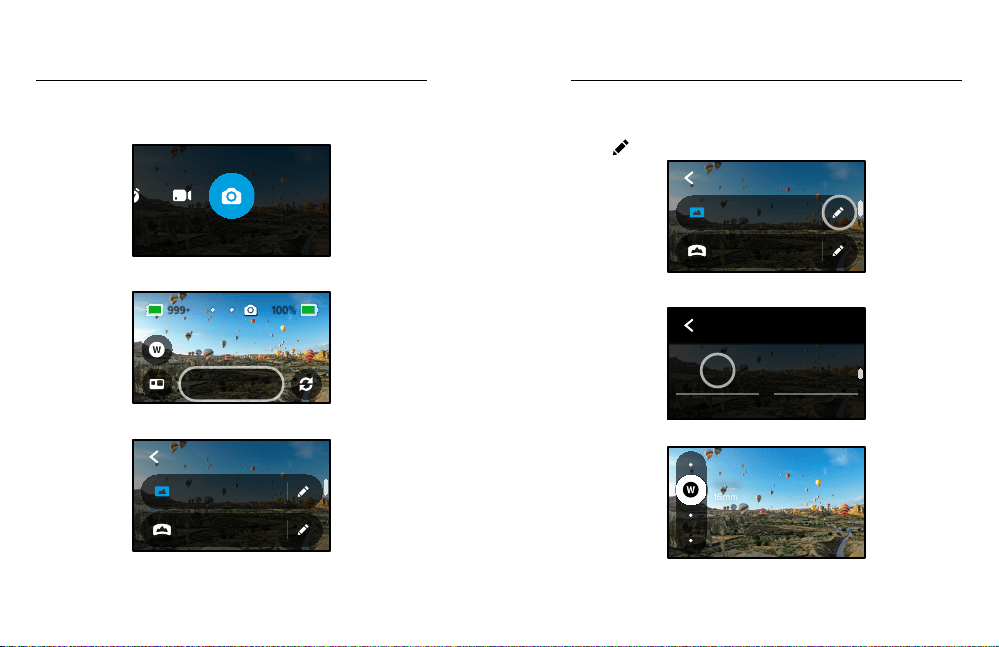
1. Press the touch screen until a set of brackets with a dot in the middle
appears in the center of the screen. This is the Spot Meter. It will base
the exposure on the center of the shot.
2. Drag the brackets away from the center if you want to use another
area of the shot to set the exposure. (You can also tap that area
instead of dragging the brackets.)
3. Check the screen to see if the exposure looks good. Tap
in the
lower right corner.
AUTO EXPOSURE
Exposure Control
SETTING EXPOSURE CONTROL USING LOCKED EXPOSURE
With this option, your camera locks the exposure until you cancel it.
If you’re snowboarding on a sunny day, you might try locking the exposure
on your subject’s jacket. This will help prevent your shots from being
underexposed (too dark) compared to the bright snow.
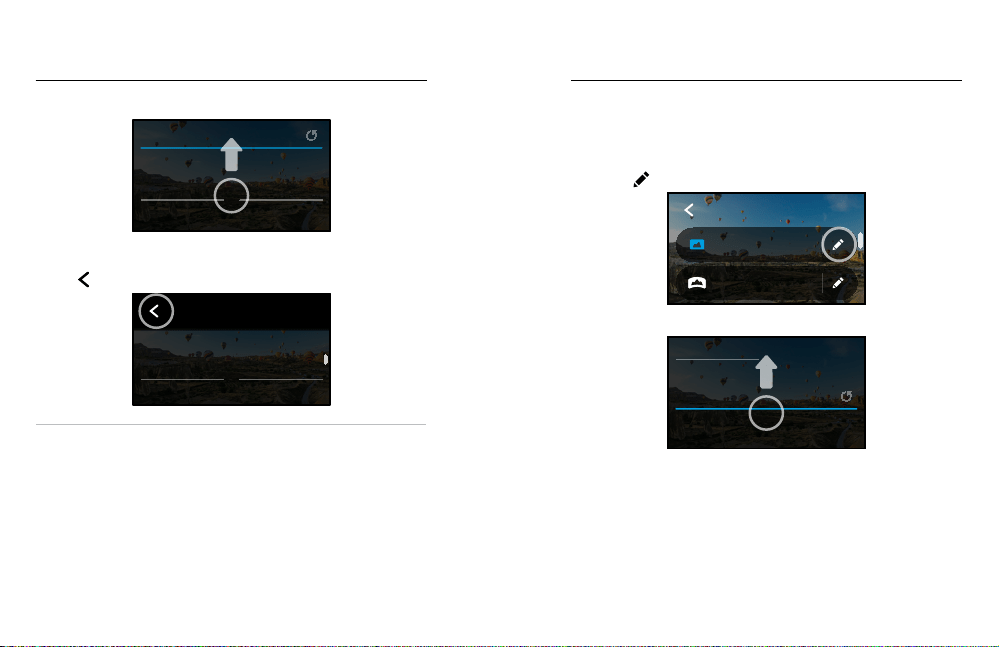
1. Press the touch screen until a set of brackets with a dot in the middle
appears in the center of the screen. This is the Spot Meter. It will base
the exposure on the center of the shot.
2. Drag the brackets away from the center if you want to use another
area of the shot to set the exposure. (You can also tap that area
instead of dragging the brackets.)
3. Tap inside the brackets to lock the exposure.
4. Check the screen to see if the exposure looks good. Tap
in the
lower right corner to lock it in.
LOCKED EXPOSURE
Exposure Control

48 49
MAX automatically scans the entire scene to choose the exposure level
for your shot. Exposure Control lets you decide if only a section of the
shot should be used to set the exposure.
Check out the shot preview on your touch screen. Try Exposure Control
if there are sections that are too dark or too light.
SETTING EXPOSURE CONTROL USING AUTO EXPOSURE
With this option, the camera automatically bases exposure on the area
that you select.
Imagine your camera is mounted on your dashboard. You probably want
to set the exposure based on the scene outside the car instead of the
dashboard. This will help prevent your shots from being overexposed
(too bright).
1. Press the touch screen until a set of brackets with a dot in the middle
appears in the center of the screen. This is the Spot Meter. It will base
the exposure on the center of the shot.
2. Drag the brackets away from the center if you want to use another
area of the shot to set the exposure. (You can also tap that area
instead of dragging the brackets.)
3. Check the screen to see if the exposure looks good. Tap
in the
lower right corner.
AUTO EXPOSURE
Exposure Control
SETTING EXPOSURE CONTROL USING LOCKED EXPOSURE
With this option, your camera locks the exposure until you cancel it.
If you’re snowboarding on a sunny day, you might try locking the exposure
on your subject’s jacket. This will help prevent your shots from being
underexposed (too dark) compared to the bright snow.
1. Press the touch screen until a set of brackets with a dot in the middle
appears in the center of the screen. This is the Spot Meter. It will base
the exposure on the center of the shot.
2. Drag the brackets away from the center if you want to use another
area of the shot to set the exposure. (You can also tap that area
instead of dragging the brackets.)
3. Tap inside the brackets to lock the exposure.
4. Check the screen to see if the exposure looks good. Tap
in the
lower right corner to lock it in.
LOCKED EXPOSURE
Exposure Control

50 51
EXPOSURE CONTROL IN 360 MODE
In 360 mode, you can set the exposure based on any area of the shot
using either lens.
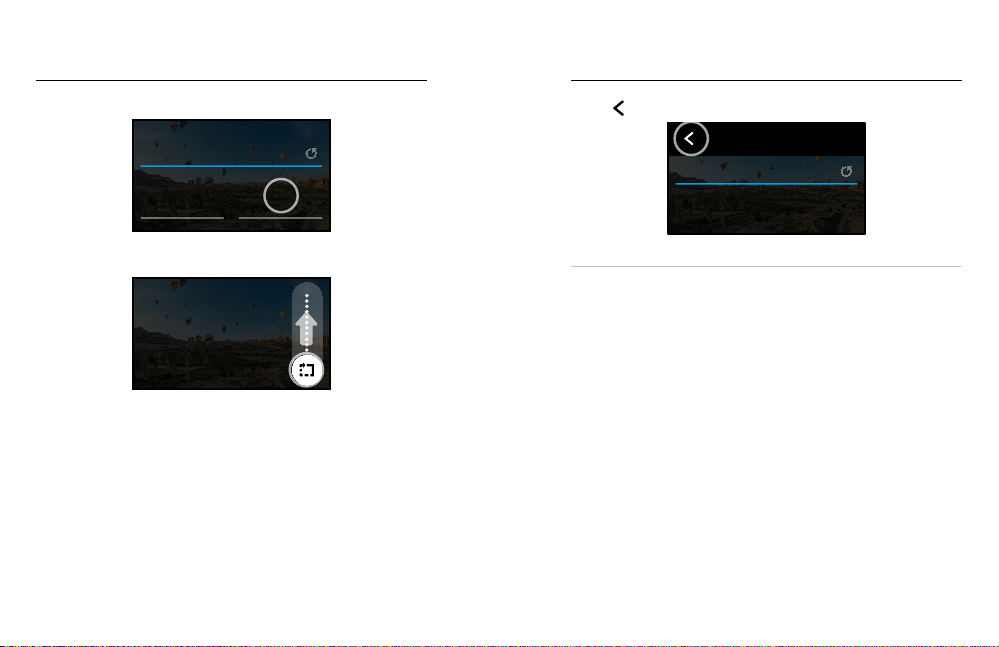
1. Press the touch screen until a square appears in the middle.
2. Tap
to switch between the view from each lens.
3. Drag the brackets away from the center if you want to use another
area of the shot to set the exposure. (You can also tap that area
instead of dragging the brackets.)
4. Check the screen to see if the exposure looks good. Tap
in the
lower right corner.
TURNING EXPOSURE CONTROL OFF
Exposure Control is automatically turned o when you switch capture
modes or restart your camera. It can also be turned o manually.
5. Press the touch screen until a square appears in the middle.
6. Tap
in the lower left corner.
Heads Up: After canceling Exposure Control, your camera will go back
to automatically using the entire scene to set the exposure level.
Exposure Control
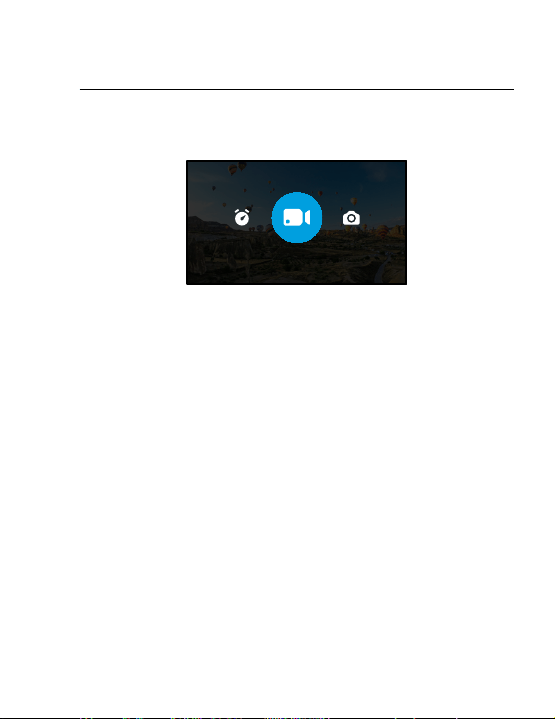
Voice Control gives you easy, hands-free control of your GoPro. It’s great
when you’re busy with handlebars, ski poles, and more. Just tell your
GoPro what you want it to do.
TURNING VOICE CONTROL ON + OFF
1. Swipe down to access the Dashboard.
2. Tap
to turn Voice Control on or o.
CAPTURING WITH VOICE CONTROL
With Voice Control on, you can simply tell your GoPro to start capturing.
Command Description
GoPro, capture Starts capturing with the mode your
camera is set to.
GoPro, stop capture Stops capture in Video and Time Lapse
modes.
PRO TIP: Saying “GoPro, capture” and “GoPro, stop capture” is the
hands-free way of pressing the Shutter button. They will start and stop
capture using the mode and settings you currently have on your camera.
Controlling Your GoPro With Your Voice

50 51
EXPOSURE CONTROL IN 360 MODE
In 360 mode, you can set the exposure based on any area of the shot
using either lens.
1. Press the touch screen until a square appears in the middle.
2. Tap
to switch between the view from each lens.
3. Drag the brackets away from the center if you want to use another
area of the shot to set the exposure. (You can also tap that area
instead of dragging the brackets.)
4. Check the screen to see if the exposure looks good. Tap
in the
lower right corner.
TURNING EXPOSURE CONTROL OFF
Exposure Control is automatically turned o when you switch capture
modes or restart your camera. It can also be turned o manually.
5. Press the touch screen until a square appears in the middle.
6. Tap
in the lower left corner.
Heads Up: After canceling Exposure Control, your camera will go back
to automatically using the entire scene to set the exposure level.
Exposure Control
Voice Control gives you easy, hands-free control of your GoPro. It’s great
when you’re busy with handlebars, ski poles, and more. Just tell your
GoPro what you want it to do.
TURNING VOICE CONTROL ON + OFF
1. Swipe down to access the Dashboard.
2. Tap
to turn Voice Control on or o.
CAPTURING WITH VOICE CONTROL
With Voice Control on, you can simply tell your GoPro to start capturing.
Command Description
GoPro, capture Starts capturing with the mode your
camera is set to.
GoPro, stop capture Stops capture in Video and Time Lapse
modes.
PRO TIP: Saying “GoPro, capture” and “GoPro, stop capture” is the
hands-free way of pressing the Shutter button. They will start and stop
capture using the mode and settings you currently have on your camera.
Controlling Your GoPro With Your Voice

52 53
LIST OF VOICE COMMANDS
There are two types of voice commands: Action commands and Mode
commands.
Using Action Commands
These commands let you switch modes on the y. If you just recorded
a video, you can say, “GoPro take a photo” to snap a photo without
manually switching modes.
Action Command Description
GoPro, start recording Starts recording video.
GoPro, HiLight Adds a HiLight Tag to your video
during recording.
GoPro, stop recording Stops recording video.
GoPro, take a photo Takes a single photo.
GoPro, start time lapse Starts capturing with the last
Time Lapse mode you used.
GoPro, stop time lapse Stops capturing time lapse.
GoPro, turn o Turns your camera o.
Controlling Your GoPro With Your Voice
Using Mode Commands
Use these commands to switch capture modes on the go. Then say,
“GoPro, capture” or press the Shutter button to get the shot.
Mode Command Description
GoPro, Video mode Switches your camera to Video mode
(does not start recording).
GoPro, Photo mode Switches your camera to Photo mode
(does not take a photo).
GoPro, Time Lapse mode Switches your camera to Time Lapse
photo mode (does not start taking time
lapse photos).
PRO TIP: If you’re recording video or time lapse, you must stop recording
by pressing the Shutter button or by saying, “GoPro, stop capture” before
trying a new command.
Controlling Your GoPro With Your Voice

52 53
LIST OF VOICE COMMANDS
There are two types of voice commands: Action commands and Mode
commands.
Using Action Commands
These commands let you switch modes on the y. If you just recorded
a video, you can say, “GoPro take a photo” to snap a photo without
manually switching modes.
Action Command Description
GoPro, start recording Starts recording video.
GoPro, HiLight Adds a HiLight Tag to your video
during recording.
GoPro, stop recording Stops recording video.
GoPro, take a photo Takes a single photo.
GoPro, start time lapse Starts capturing with the last
Time Lapse mode you used.
GoPro, stop time lapse Stops capturing time lapse.
GoPro, turn o Turns your camera o.
Controlling Your GoPro With Your Voice
Using Mode Commands
Use these commands to switch capture modes on the go. Then say,
“GoPro, capture” or press the Shutter button to get the shot.
Mode Command Description
GoPro, Video mode Switches your camera to Video mode
(does not start recording).
GoPro, Photo mode Switches your camera to Photo mode
(does not take a photo).
GoPro, Time Lapse mode Switches your camera to Time Lapse
photo mode (does not start taking time
lapse photos).
PRO TIP: If you’re recording video or time lapse, you must stop recording
by pressing the Shutter button or by saying, “GoPro, stop capture” before
trying a new command.
Controlling Your GoPro With Your Voice

54 55
Controlling Your GoPro With Your Voice
SEE A COMPLETE LIST OF COMMANDS ON YOUR CAMERA
1. Swipe down to access the Dashboard.
2. Tap Preferences > Voice Control > Commands.
CHANGING YOUR VOICE CONTROL LANGUAGE
1. Swipe down to access the Dashboard.
2. Tap Preferences > Voice Control > Language.
Heads Up: Voice Control may be aected by wind, noise, and your
distance from the camera. Keep your camera clean, and wipe away
any debris for the best performance.
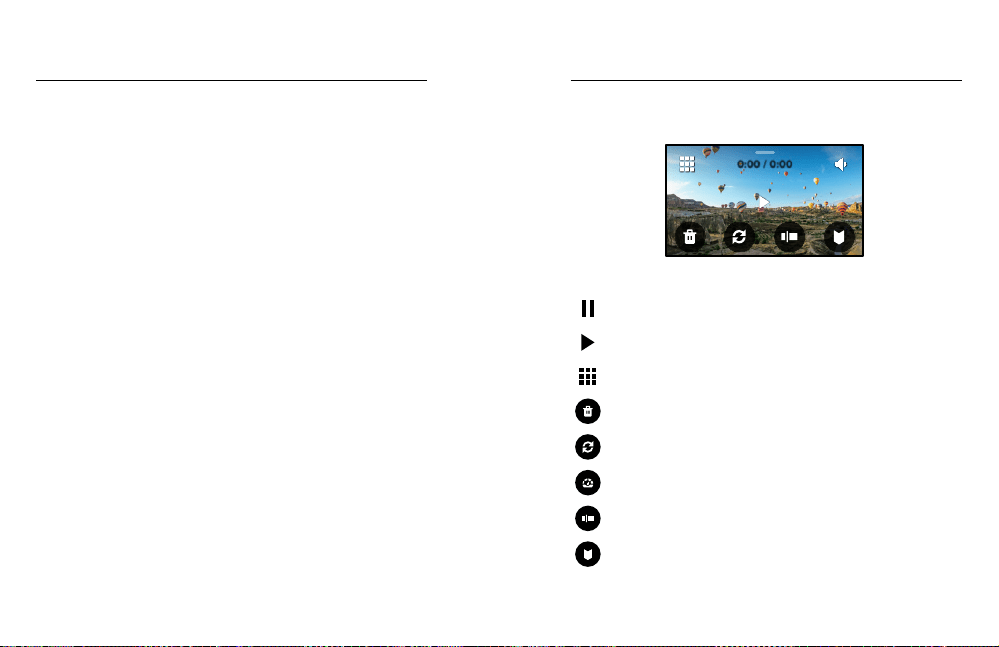
Swipe up to see the last video, photo, or time lapse you took. Swipe left
and right to ip through the other les on your SD card.
0:00 / 0:00
The Media Gallery includes the following playback options:
Pause playback
Resume playback
See all of the media on your SD card
Delete the le from your SD card
Playback view
Play back at slo-mo or normal speed
Use a slider to scan through your videos or group
of continuous photos
Add/remove HiLight Tag
Playing Back Your Media

54 55
Controlling Your GoPro With Your Voice
SEE A COMPLETE LIST OF COMMANDS ON YOUR CAMERA
1. Swipe down to access the Dashboard.
2. Tap Preferences > Voice Control > Commands.
CHANGING YOUR VOICE CONTROL LANGUAGE
1. Swipe down to access the Dashboard.
2. Tap Preferences > Voice Control > Language.
Heads Up: Voice Control may be aected by wind, noise, and your
distance from the camera. Keep your camera clean, and wipe away
any debris for the best performance.
Swipe up to see the last video, photo, or time lapse you took. Swipe left
and right to ip through the other les on your SD card.
0:00 / 0:00
The Media Gallery includes the following playback options:
Pause playback
Resume playback
See all of the media on your SD card
Delete the le from your SD card
Playback view
Play back at slo-mo or normal speed
Use a slider to scan through your videos or group
of continuous photos
Add/remove HiLight Tag
Playing Back Your Media

56 57
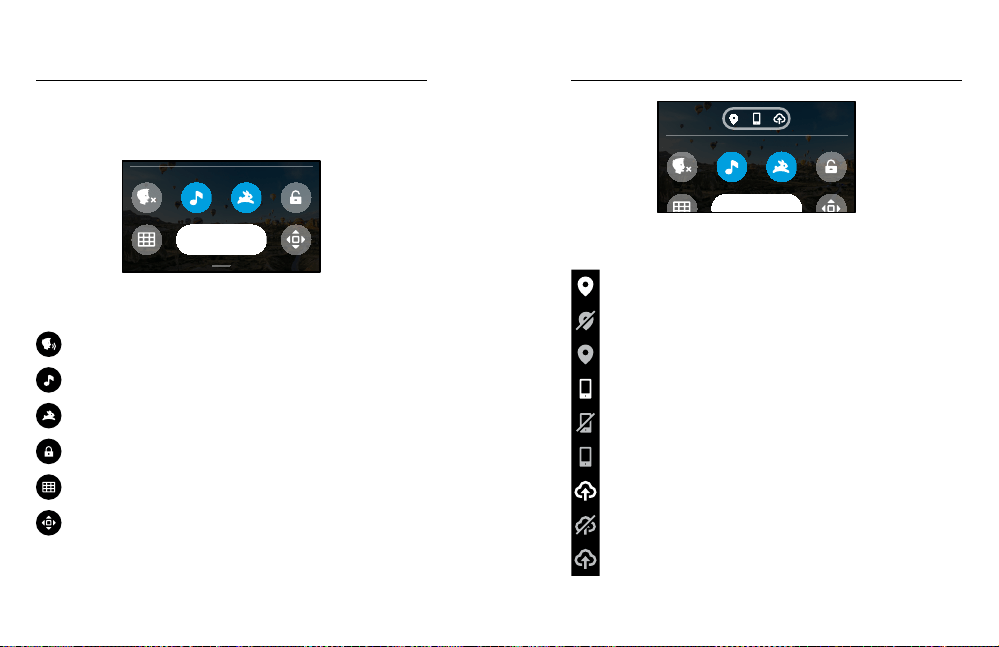
Adjust the playback volume
Go to the previous or next photo in a group of continuous photos
Heads Up: The playback options will vary based on the type of media
you’re viewing.
PRO TIP: Some playback options are not available when you’re holding
your camera in portrait orientation. Make adjustments to those settings
in landscape orientation before rotating your camera.
Playing Back Your Media
01:19
MEDIA (14)
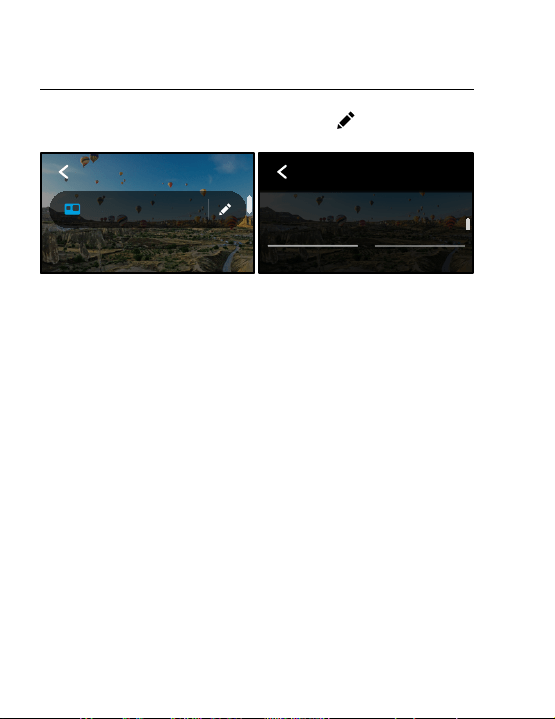
USING GALLERY VIEW
Gallery view gives you quick access to all of the videos and photos stored
on your SD card.
1. From the playback screen, tap
.
2. Swipe up to scroll through your media.
3. Tap a video or photo to see it in full-screen view.
4. Tap
to select les.
5. Ta p
to go back to the playback screen.
Heads Up: Gallery view is not available when you’re holding your camera
in portrait orientation. Also, the more content you have on your SD card,
the longer it will take to load.
Playing Back Your Media

56 57
Adjust the playback volume
Go to the previous or next photo in a group of continuous photos
Heads Up: The playback options will vary based on the type of media
you’re viewing.
PRO TIP: Some playback options are not available when you’re holding
your camera in portrait orientation. Make adjustments to those settings
in landscape orientation before rotating your camera.
Playing Back Your Media
01:19
MEDIA (14)
USING GALLERY VIEW
Gallery view gives you quick access to all of the videos and photos stored
on your SD card.
1. From the playback screen, tap
.
2. Swipe up to scroll through your media.
3. Tap a video or photo to see it in full-screen view.
4. Tap
to select les.
5. Ta p
to go back to the playback screen.
Heads Up: Gallery view is not available when you’re holding your camera
in portrait orientation. Also, the more content you have on your SD card,
the longer it will take to load.
Playing Back Your Media

58 59
Deleting Multiple Files
1. Tap
.
2. Tap all of the les that you want to delete. Tap a le again if you want
to de-select it.
3. Tap
to delete the selected les.
VIEWING VIDEOS + PHOTOS ON A MOBILE DEVICE
1. Connect your camera to the GoPro app. For details, see Connecting
to the GoPro App (page 59).
2. Use the controls on the app to play back, edit, and share your videos
and photos.
PRO TIP: Use the GoPro app to grab still photos from videos, create
short shareable videos from full-length footage, save media to your
phone, and more.
VIEWING VIDEOS + PHOTOS ON A COMPUTER
To see your media on a computer, you must rst save the les to
the computer. To learn more, see Transferring Your Media (page 61).
Playing Back Your Media
CONNECTING TO THE GOPRO APP
Use the GoPro app to control your MAX, share videos and photos on the
go, and automatically transform your footage into awesome video stories
synced with eects and music.
Connecting for the First Time
1. Download the GoPro app from the Apple
©
App Store
©
or Google Play
™
.
2. Follow the app’s on-screen instructions to connect your camera.
Heads Up for iOS
®
: When prompted, be sure to allow notications
from the GoPro app so you know when your video is ready.
To learn more, see Creating Video Stories (page 61).
FINDING THE BEST SHOTS
After you’ve connected once, you can start connecting through your
camera’s Connections menu.
1. If your camera’s wireless is not already on, swipe down to access
the Dashboard.
2. Tap Preferences > Connections > Connect Device.
3. Follow the on-screen instructions in the GoPro app to connect.
Connecting to Other Devices

58 59
Deleting Multiple Files
1. Tap
.
2. Tap all of the les that you want to delete. Tap a le again if you want
to de-select it.
3. Tap
to delete the selected les.
VIEWING VIDEOS + PHOTOS ON A MOBILE DEVICE
1. Connect your camera to the GoPro app. For details, see Connecting
to the GoPro App (page 59).
2. Use the controls on the app to play back, edit, and share your videos
and photos.
PRO TIP: Use the GoPro app to grab still photos from videos, create
short shareable videos from full-length footage, save media to your
phone, and more.
VIEWING VIDEOS + PHOTOS ON A COMPUTER
To see your media on a computer, you must rst save the les to
the computer. To learn more, see Transferring Your Media (page 61).
Playing Back Your Media
CONNECTING TO THE GOPRO APP
Use the GoPro app to control your MAX, share videos and photos on the
go, and automatically transform your footage into awesome video stories
synced with eects and music.
Connecting for the First Time
1. Download the GoPro app from the Apple
©
App Store
©
or Google Play
™
.
2. Follow the app’s on-screen instructions to connect your camera.
Heads Up for iOS
®
: When prompted, be sure to allow notications
from the GoPro app so you know when your video is ready.
To learn more, see Creating Video Stories (page 61).
FINDING THE BEST SHOTS
After you’ve connected once, you can start connecting through your
camera’s Connections menu.
1. If your camera’s wireless is not already on, swipe down to access
the Dashboard.
2. Tap Preferences > Connections > Connect Device.
3. Follow the on-screen instructions in the GoPro app to connect.
Connecting to Other Devices

60 61
SETTING THE CONNECTION SPEED
Your GoPro is set to use the 5GHz Wi-Fi band (the fastest available)
when connecting to other mobile devices.
Change the Wi-Fi band to 2.4GHz if your device or region does not
support 5GHz.
1. Swipe down to access the Dashboard.
2. Tap Preferences > Connections > Wi-Fi Band.
Connecting to Other Devices
CREATING VIDEO STORIES
You can set up your GoPro to automatically send videos and photos
to your phone. The GoPro app will use them to create fully edited
video stories complete with music and eects.
1. Connect your camera to the GoPro app. For details, see Connecting
to the GoPro App (page 59).
2. Swipe down on the app’s home screen. Shots from your most
recent session will be copied to your phone and transformed
into a fully edited video.
3. Tap your video to view it.
4. Make any edits you’d like.
5. Save the story or share it with your friends, family, and followers.
Finding the Best Shots
Be sure to mark your best shots with HiLight Tags. The GoPro app looks
for tags when it creates videos. This helps ensure that favorite moments
are included in your stories.
To learn more, see Adding HiLight Tags (page 31).
Transferring Your Media

60 61
SETTING THE CONNECTION SPEED
Your GoPro is set to use the 5GHz Wi-Fi band (the fastest available)
when connecting to other mobile devices.
Change the Wi-Fi band to 2.4GHz if your device or region does not
support 5GHz.
1. Swipe down to access the Dashboard.
2. Tap Preferences > Connections > Wi-Fi Band.
Connecting to Other Devices
CREATING VIDEO STORIES
You can set up your GoPro to automatically send videos and photos
to your phone. The GoPro app will use them to create fully edited
video stories complete with music and eects.
1. Connect your camera to the GoPro app. For details, see Connecting
to the GoPro App (page 59).
2. Swipe down on the app’s home screen. Shots from your most
recent session will be copied to your phone and transformed
into a fully edited video.
3. Tap your video to view it.
4. Make any edits you’d like.
5. Save the story or share it with your friends, family, and followers.
Finding the Best Shots
Be sure to mark your best shots with HiLight Tags. The GoPro app looks
for tags when it creates videos. This helps ensure that favorite moments
are included in your stories.
To learn more, see Adding HiLight Tags (page 31).
Transferring Your Media

62 63
Transferring Your Media Transferring Your Media
TRANSFERRING YOUR MEDIA TO A COMPUTER
1. Be sure that your computer is running the latest version
of its operating system.
2. Download and install the GoPro Player for Mac
®
or Windows
®
from gopro.com/apps.
3. Remove the SD card from your camera.
4. Insert the card into an SD card reader or adapter.
5. Plug the card reader into your computer’s USB port or insert
the adapter into the SD card slot.
6. Open the les on the SD card. GoPro Player will automatically
open and play .360 les.4
Heads Up: Your computer’s default importer will open and play .mp4
and .jpg les.
AUTO UPLOADING TO THE CLOUD
With a GoPro subscription, you can automatically upload your media to
the cloud where you can view, edit, and share it from any device.
1. Subscribe to GoPro at gopro.com/subscribe or through
the GoPro app.
2. Connect your camera to the the GoPro app. For details,
see Connecting to the GoPro App (page 59).
3. Tap
on the camera chooser screen.
4. Connect your camera to a power outlet. The upload will start
automatically.
After rst-time setup, your camera won’t need to connect to the app to
start Auto Upload.
Heads Up: Your original les remain on your camera even after they’ve
been backed up to the cloud.
PRO TIP: Use the GoPro app to connect to a dierent wireless network
when you’re away from home. The network can’t be hidden or require an
end-user license agreement (for example, a network in a hotel).

62 63
Transferring Your Media Transferring Your Media
TRANSFERRING YOUR MEDIA TO A COMPUTER
1. Be sure that your computer is running the latest version
of its operating system.
2. Download and install the GoPro Player for Mac
®
or Windows
®
from gopro.com/apps.
3. Remove the SD card from your camera.
4. Insert the card into an SD card reader or adapter.
5. Plug the card reader into your computer’s USB port or insert
the adapter into the SD card slot.
6. Open the les on the SD card. GoPro Player will automatically
open and play .360 les.4
Heads Up: Your computer’s default importer will open and play .mp4
and .jpg les.
AUTO UPLOADING TO THE CLOUD
With a GoPro subscription, you can automatically upload your media to
the cloud where you can view, edit, and share it from any device.
1. Subscribe to GoPro at gopro.com/subscribe or through
the GoPro app.
2. Connect your camera to the the GoPro app. For details,
see Connecting to the GoPro App (page 59).
3. Tap
on the camera chooser screen.
4. Connect your camera to a power outlet. The upload will start
automatically.
After rst-time setup, your camera won’t need to connect to the app to
start Auto Upload.
Heads Up: Your original les remain on your camera even after they’ve
been backed up to the cloud.
PRO TIP: Use the GoPro app to connect to a dierent wireless network
when you’re away from home. The network can’t be hidden or require an
end-user license agreement (for example, a network in a hotel).

64 65
SWITCHING TO MANUAL CLOUD UPLOAD
You can also manually upload your media to the cloud at any time.
(Your GoPro must be connected to a power outlet, and Auto Upload
must be o.)
1. Connect your camera to a power outlet.
2. Swipe down to access the Dashboard.
3. Tap Preferences > GoPro Subscription > Manual Upload.
ACCESSING YOUR CLOUD MEDIA
1. Open the GoPro app on your device.
2. Tap
and select Cloud to view, edit, and share your content.
PRO TIP: Use your cloud media to create video stories with the GoPro
app. Simply choose Cloud Media when you start a new story.
Transferring Your Media Transferring Your Media
TURNING OFF AUTO UPLOAD
You can keep your camera from trying to upload every time it’s connected
to a power outlet.
1. Swipe down to access the Dashboard.
2. Tap Preferences > GoPro Subscription > Auto Upload.
3. Tap O.
CHANGING YOUR GOPRO SUBSCRIPTION PREFERENCES
Manage your Auto Upload settings, set up your wireless network,
and more.
1. Swipe down to access the Dashboard.
2. Tap Preferences > GoPro Subscription.
Heads Up: GoPro Subscription will be available in your Preferences after
you’ve signed up.

64 65
SWITCHING TO MANUAL CLOUD UPLOAD
You can also manually upload your media to the cloud at any time.
(Your GoPro must be connected to a power outlet, and Auto Upload
must be o.)
1. Connect your camera to a power outlet.
2. Swipe down to access the Dashboard.
3. Tap Preferences > GoPro Subscription > Manual Upload.
ACCESSING YOUR CLOUD MEDIA
1. Open the GoPro app on your device.
2. Tap
and select Cloud to view, edit, and share your content.
PRO TIP: Use your cloud media to create video stories with the GoPro
app. Simply choose Cloud Media when you start a new story.
Transferring Your Media Transferring Your Media
TURNING OFF AUTO UPLOAD
You can keep your camera from trying to upload every time it’s connected
to a power outlet.
1. Swipe down to access the Dashboard.
2. Tap Preferences > GoPro Subscription > Auto Upload.
3. Tap O.
CHANGING YOUR GOPRO SUBSCRIPTION PREFERENCES
Manage your Auto Upload settings, set up your wireless network,
and more.
1. Swipe down to access the Dashboard.
2. Tap Preferences > GoPro Subscription.
Heads Up: GoPro Subscription will be available in your Preferences after
you’ve signed up.
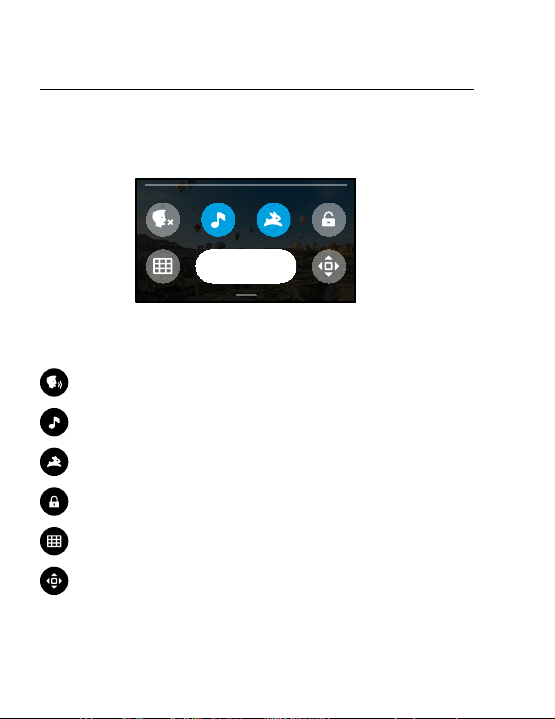
66 67
USING THE DASHBOARD
With your camera in landscape orientation, swipe down to access the
Dashboard and Preferences.
Preferences
DASHBOARD FEATURES
The Dashboard lets you quickly tap the following settings on and o:
Voice Control
Camera Beeps
QuikCapture
Screen Lock
Grid
Orientation Lock
Customizing Your GoPro Customizing Your GoPro
09/19/19
04:53 PM
Preferences
CONNECTION STATUS
Check the top of the Dashboard to see your connection status.
GPS is on (white).
GPS is o (gray).
GPS is unavailable (gray).
Camera is connected to the GoPro app (white).
Camera is not paired to the GoPro app (gray).
Camera is not connected to the GoPro app (gray).
Auto Upload is on and ready (white).
Auto Upload is o (gray).
Auto Upload is on but not ready (gray).
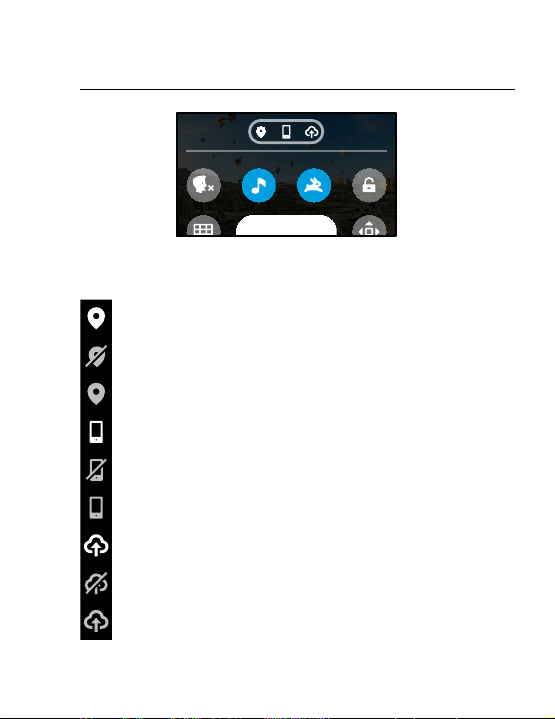
66 67
USING THE DASHBOARD
With your camera in landscape orientation, swipe down to access the
Dashboard and Preferences.
Preferences
DASHBOARD FEATURES
The Dashboard lets you quickly tap the following settings on and o:
Voice Control
Camera Beeps
QuikCapture
Screen Lock
Grid
Orientation Lock
Customizing Your GoPro Customizing Your GoPro
09/19/19
04:53 PM
Preferences
CONNECTION STATUS
Check the top of the Dashboard to see your connection status.
GPS is on (white).
GPS is o (gray).
GPS is unavailable (gray).
Camera is connected to the GoPro app (white).
Camera is not paired to the GoPro app (gray).
Camera is not connected to the GoPro app (gray).
Auto Upload is on and ready (white).
Auto Upload is o (gray).
Auto Upload is on but not ready (gray).

68 69
CHANGING PREFERENCES
Preferences let you set up your GoPro any way you want.
CONNECTIONS
Set all of your GoPro’s wireless connections.
Wireless Connections
Turn your camera’s wireless con\nections on and o.
Connect Device
Connect to the GoPro app or The Remote. To learn more, see Connecting
to the GoPro App (page 59).
Camera Info
See your camera’s name and password.
Wi-Fi Band
Choose 5GHz or 2.4GHz as your connection speed. Set 5GHz only if your
phone and region support it. To learn more, see Setting the Connection
Speed (page 60).
Reset Connections
Use to reset all of your wireless connections to their default settings.
Customizing Your GoPro Customizing Your GoPro
GENERAL
Here’s everything you’ll nd under General settings:
Beep Volume
Choose High (default), Med, Low, or O. The volume you set here can
be toggled on or o using the Dashboard.
QuikCapture
QuikCapture is on by default. You can turn it o here. It can also be
toggled on or o using the Dashboard.
QuikCapture Default
Choose the video mode you’d like to use when you start QuikCapture.
Default Mode
Set the mode your GoPro captures in when you turn it on using the
Mode button
. This setting does not aect QuikCapture.
Auto Power O
Choose 5 Min, 15 Min (default), 30 Min, or Never.
LEDs
Set which status lights blink. Choose All On (default), All O,
or Front O.
Anti-Flicker
Choose the regional frame rate for recording and playback on a TV. Set
60Hz (NTSC) for North America. Try 50Hz (PAL) if you’re outside North
America. The right format for your region will help prevent icker on a
TV/HDTV when you play back video that was recorded indoors.

68 69
CHANGING PREFERENCES
Preferences let you set up your GoPro any way you want.
CONNECTIONS
Set all of your GoPro’s wireless connections.
Wireless Connections
Turn your camera’s wireless con\nections on and o.
Connect Device
Connect to the GoPro app or The Remote. To learn more, see Connecting
to the GoPro App (page 59).
Camera Info
See your camera’s name and password.
Wi-Fi Band
Choose 5GHz or 2.4GHz as your connection speed. Set 5GHz only if your
phone and region support it. To learn more, see Setting the Connection
Speed (page 60).
Reset Connections
Use to reset all of your wireless connections to their default settings.
Customizing Your GoPro Customizing Your GoPro
GENERAL
Here’s everything you’ll nd under General settings:
Beep Volume
Choose High (default), Med, Low, or O. The volume you set here can
be toggled on or o using the Dashboard.
QuikCapture
QuikCapture is on by default. You can turn it o here. It can also be
toggled on or o using the Dashboard.
QuikCapture Default
Choose the video mode you’d like to use when you start QuikCapture.
Default Mode
Set the mode your GoPro captures in when you turn it on using the
Mode button
. This setting does not aect QuikCapture.
Auto Power O
Choose 5 Min, 15 Min (default), 30 Min, or Never.
LEDs
Set which status lights blink. Choose All On (default), All O,
or Front O.
Anti-Flicker
Choose the regional frame rate for recording and playback on a TV. Set
60Hz (NTSC) for North America. Try 50Hz (PAL) if you’re outside North
America. The right format for your region will help prevent icker on a
TV/HDTV when you play back video that was recorded indoors.

70 71
Customizing Your GoPro
Video Compression
Set the le format for your videos. Choose HEVC (to reduce le sizes) or
H.264 + HEVC (to use H.264 to maximize compatibility with older devices
while using HEVC for advanced settings).
Time and Date
Use to manually adjust the time and date. Both are automatically updated
when you connect your camera to the GoPro app.
Date Format
This is set automatically based on the language that you chose at setup.
You can also change it manually here.
VOICE CONTROL
Choose your Voice Control settings and see all of the available
commands.
Voice Control
Turn Voice Control on and o. It can also be toggled on or o using
the Dashboard.
Language
Choose your Voice Control language.
Commands
See a complete list of voice commands.
To learn more, see Controlling Your GoPro With Your Voice (page 51).
TOUCH SCREEN
Adjust Orientation, set the Screen Saver, and adjust brightness.
Orientation
Keeps your screen right-side up when you rotate your camera.
To learn more, see Setting the Screen Orientation (page 32).
Screen Saver
Set your camera’s screen saver to 1, 2, or 3 minutes. Choose Never to
leave your screen on.
Heads Up: The camera buttons and Voice Control still work even when
the screen is o.
Brightness
Use the slider to adjust your screen’s brightness.
Customizing Your GoPro

70 71
Customizing Your GoPro
Video Compression
Set the le format for your videos. Choose HEVC (to reduce le sizes) or
H.264 + HEVC (to use H.264 to maximize compatibility with older devices
while using HEVC for advanced settings).
Time and Date
Use to manually adjust the time and date. Both are automatically updated
when you connect your camera to the GoPro app.
Date Format
This is set automatically based on the language that you chose at setup.
You can also change it manually here.
VOICE CONTROL
Choose your Voice Control settings and see all of the available
commands.
Voice Control
Turn Voice Control on and o. It can also be toggled on or o using
the Dashboard.
Language
Choose your Voice Control language.
Commands
See a complete list of voice commands.
To learn more, see Controlling Your GoPro With Your Voice (page 51).
TOUCH SCREEN
Adjust Orientation, set the Screen Saver, and adjust brightness.
Orientation
Keeps your screen right-side up when you rotate your camera.
To learn more, see Setting the Screen Orientation (page 32).
Screen Saver
Set your camera’s screen saver to 1, 2, or 3 minutes. Choose Never to
leave your screen on.
Heads Up: The camera buttons and Voice Control still work even when
the screen is o.
Brightness
Use the slider to adjust your screen’s brightness.
Customizing Your GoPro

72 73
REGIONAL
Turn on GPS, choose your language, and see all of your camera’s
regulatory information.
GPS
Turn on GPS to track your speed, distance, and more. Add performance
stickers in the GoPro app to show how fast, far, and high you were going
in your videos. For more information and mobile device compatibility,
check out gopro.com/telemetry.
Language
Choose the language that appears on the camera.
Regulatory
See your GoPro’s certications.
Customizing Your GoPro
ABOUT
Update your GoPro, plus nd your camera’s name, serial number, battery
condition, and software version.
GoPro Updates
Update your camera with the latest software to ensure you have the
latest features and performance upgrades.
Camera Info
See your camera’s name, serial number, and the current software version.
Battery Info
Check your battery’s health here. Be sure to use the MAX Rechargeable
Battery. Using an older GoPro battery or non-GoPro battery could greatly
limit your camera’s performance.
Customizing Your GoPro

72 73
REGIONAL
Turn on GPS, choose your language, and see all of your camera’s
regulatory information.
GPS
Turn on GPS to track your speed, distance, and more. Add performance
stickers in the GoPro app to show how fast, far, and high you were going
in your videos. For more information and mobile device compatibility,
check out gopro.com/telemetry.
Language
Choose the language that appears on the camera.
Regulatory
See your GoPro’s certications.
Customizing Your GoPro
ABOUT
Update your GoPro, plus nd your camera’s name, serial number, battery
condition, and software version.
GoPro Updates
Update your camera with the latest software to ensure you have the
latest features and performance upgrades.
Camera Info
See your camera’s name, serial number, and the current software version.
Battery Info
Check your battery’s health here. Be sure to use the MAX Rechargeable
Battery. Using an older GoPro battery or non-GoPro battery could greatly
limit your camera’s performance.
Customizing Your GoPro

74 75
Customizing Your GoPro
RESET
Format your SD card or reset your camera’s settings.
Format SD Card
Reformat your SD card. This will erase all of your media, so be sure to
save it rst.
Reset Defaults
Reset all capture settings to their default settings.
Reset Camera Tips
See all of the camera tips from the beginning.
Factory Reset
Restore all of your camera’s settings and clear all connections.
HIGH TEMPERATURE
The Temperature icon appears on the touch screen if your camera
becomes too hot and needs to cool down. Your camera was designed
to recognize when it’s at risk of overheating and will shut down when
needed. Simply let it sit and cool before using it again.
Heads Up: The operating ambient temperature range of your camera is
14
°
F ~ 95
°
F (10
°
C ~ 35
°
C). High temperatures will cause your camera to
use more power and will drain the battery faster.
PRO TIP: Shooting video at a high resolution and frame rate will also
cause your camera to heat up faster, especially in hot environments.
Try switching to a lower resolution and frame rate to lower the risk
of overheating your GoPro.
Important Messages

74 75
Customizing Your GoPro
RESET
Format your SD card or reset your camera’s settings.
Format SD Card
Reformat your SD card. This will erase all of your media, so be sure to
save it rst.
Reset Defaults
Reset all capture settings to their default settings.
Reset Camera Tips
See all of the camera tips from the beginning.
Factory Reset
Restore all of your camera’s settings and clear all connections.
HIGH TEMPERATURE
The Temperature icon appears on the touch screen if your camera
becomes too hot and needs to cool down. Your camera was designed
to recognize when it’s at risk of overheating and will shut down when
needed. Simply let it sit and cool before using it again.
Heads Up: The operating ambient temperature range of your camera is
14
°
F ~ 95
°
F (10
°
C ~ 35
°
C). High temperatures will cause your camera to
use more power and will drain the battery faster.
PRO TIP: Shooting video at a high resolution and frame rate will also
cause your camera to heat up faster, especially in hot environments.
Try switching to a lower resolution and frame rate to lower the risk
of overheating your GoPro.
Important Messages

76 77
Important Messages
FILE REPAIR
MAX will automatically try to x damaged les. Files can be damaged if
your camera loses power while recording or if there’s a problem saving
the le. The File Repair icon will appear on the touch screen when a repair
is in progress. Your camera will let you know when it’s nished and if the
le was xed.
MEMORY CARD FULL
Your camera will let you know when your SD card is full. You’ll need to
move or delete some les if you want to keep recording.
BATTERY LOW, POWERING OFF
A low battery message will appear on the touch screen when the battery
charge drops below 10%. If the charge runs out while recording video,
your camera will stop recording, save the video, and turn itself o.
RESTARTING YOUR GOPRO
If your camera is not responding, press and hold the Mode button
for 10 seconds. This will restart your camera. There will be no changes
to your settings.
RESTORE ALL SETTINGS TO THE DEFAULTS
This will reset all of your camera settings to their defaults.
1. Swipe down to access the Dashboard.
2. Tap Preferences > Reset > Reset Defaults.
RESETTING CONNECTIONS
This will clear your device connections and reset your camera’s password.
Resetting connections means you’ll have to reconnect all of your devices.
1. Swipe down to access the Dashboard.
2. Tap Preferences > Connections > Reset Connections.
RESETTING THE CAMERA TIPS
Want to see the camera tips again? Here’s how to see them all
from the beginning.
1. Swipe down to access the Dashboard.
2. Tap Preferences > Reset > Reset Camera Tips.
Resetting Your Camera

76 77
Important Messages
FILE REPAIR
MAX will automatically try to x damaged les. Files can be damaged if
your camera loses power while recording or if there’s a problem saving
the le. The File Repair icon will appear on the touch screen when a repair
is in progress. Your camera will let you know when it’s nished and if the
le was xed.
MEMORY CARD FULL
Your camera will let you know when your SD card is full. You’ll need to
move or delete some les if you want to keep recording.
BATTERY LOW, POWERING OFF
A low battery message will appear on the touch screen when the battery
charge drops below 10%. If the charge runs out while recording video,
your camera will stop recording, save the video, and turn itself o.
RESTARTING YOUR GOPRO
If your camera is not responding, press and hold the Mode button
for 10 seconds. This will restart your camera. There will be no changes
to your settings.
RESTORE ALL SETTINGS TO THE DEFAULTS
This will reset all of your camera settings to their defaults.
1. Swipe down to access the Dashboard.
2. Tap Preferences > Reset > Reset Defaults.
RESETTING CONNECTIONS
This will clear your device connections and reset your camera’s password.
Resetting connections means you’ll have to reconnect all of your devices.
1. Swipe down to access the Dashboard.
2. Tap Preferences > Connections > Reset Connections.
RESETTING THE CAMERA TIPS
Want to see the camera tips again? Here’s how to see them all
from the beginning.
1. Swipe down to access the Dashboard.
2. Tap Preferences > Reset > Reset Camera Tips.
Resetting Your Camera

78 79
Resetting Your Camera
RESTORING FACTORY SETTINGS
This will restore all of your camera’s original settings, clear all device
connections, and deregister your camera from GoPro PLUS. This is useful
if you’re giving your camera to a friend and want to completely reset it to its
original state.
1. Swipe down to access the Dashboard.
2. Tap Preferences > Reset> Factory Reset.
Heads Up: Restoring the factory settings will not delete any content
from your SD card or have any eect on your camera’s software.
Mounting Your GoPro
MOUNTING HARDWARE
1. Mounting Buckle
2. Thumb Screw
3. Curved Adhesive Mount
1 2 3
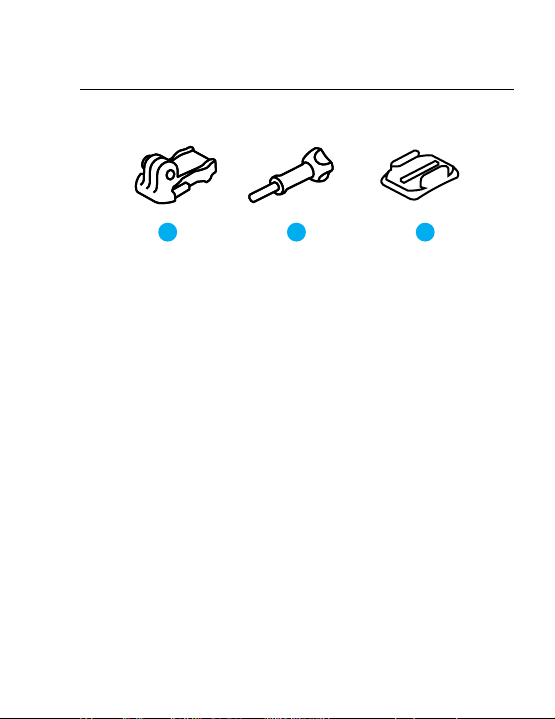
78 79
Resetting Your Camera
RESTORING FACTORY SETTINGS
This will restore all of your camera’s original settings, clear all device
connections, and deregister your camera from GoPro PLUS. This is useful
if you’re giving your camera to a friend and want to completely reset it to its
original state.
1. Swipe down to access the Dashboard.
2. Tap Preferences > Reset> Factory Reset.
Heads Up: Restoring the factory settings will not delete any content
from your SD card or have any eect on your camera’s software.
Mounting Your GoPro
MOUNTING HARDWARE
1. Mounting Buckle
2. Thumb Screw
3. Curved Adhesive Mount
1 2 3
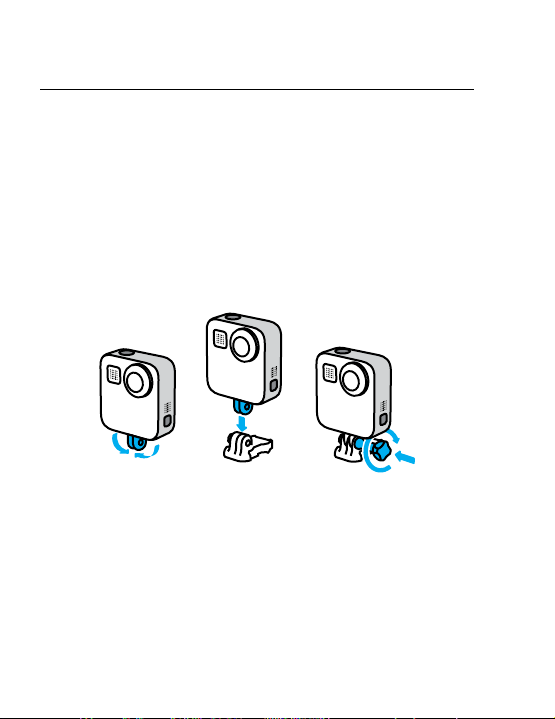
80 81
Mounting Your GoPro
ATTACHING YOUR CAMERA TO MOUNTS
Depending on the mount you’re using, you’ll either use a mounting buckle
or attach your GoPro directly to the mount itself.
See Using Adhesive Mounts (page 82) for tips on using adhesive
mounts.
1. Flip the folding ngers down into the mounting position.
2. Interlock the folding ngers on your camera with the mounting ngers
on the buckle.
3. Secure your camera to the mounting buckle with a thumb screw.
Mounting Your GoPro
4. Attach the mounting buckle to the mount.
a. Flip up the mounting buckle plug.
b. Slide the buckle into the mount until it clicks into place.
c. Press the plug back down so that it sits ush with the buckle.
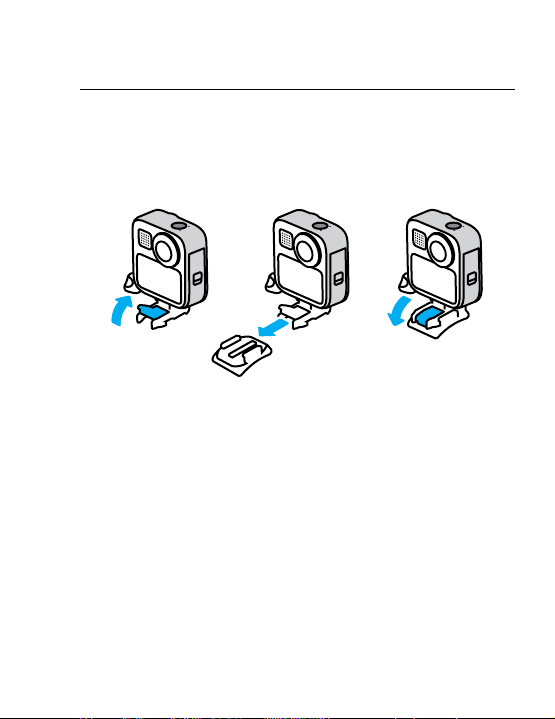
80 81
Mounting Your GoPro
ATTACHING YOUR CAMERA TO MOUNTS
Depending on the mount you’re using, you’ll either use a mounting buckle
or attach your GoPro directly to the mount itself.
See Using Adhesive Mounts (page 82) for tips on using adhesive
mounts.
1. Flip the folding ngers down into the mounting position.
2. Interlock the folding ngers on your camera with the mounting ngers
on the buckle.
3. Secure your camera to the mounting buckle with a thumb screw.
Mounting Your GoPro
4. Attach the mounting buckle to the mount.
a. Flip up the mounting buckle plug.
b. Slide the buckle into the mount until it clicks into place.
c. Press the plug back down so that it sits ush with the buckle.

82 83
USING ADHESIVE MOUNTS
Follow these guidelines when attaching adhesive mounts to helmets,
vehicles, and gear:
• Attach mounts at least 24 hours before you use them.
• Only attach the mounts to smooth surfaces. They won’t stick properly
to porous or textured surfaces.
• Firmly press mounts into place. Be sure the adhesive is in full contact
with the surface.
• Only use on clean, dry surfaces. Wax, oil, dirt, or other debris will
weaken the bond, and you could lose your camera.
• Attach mounts in room temperature conditions. They won’t stick
properly in cold or damp environments or on cold or damp surfaces.
• Check state and local regulations and laws to ensure that attaching
a camera to equipment (such as hunting gear) is permitted. Always
comply with regulations that restrict the use of consumer electronics
or cameras.
For more information about mounts, visit gopro.com.
Mounting Your GoPro
WARNING: The Curved Adhesive Mount and Mounting Buckle
included with MAX may be used for helmet mounting. Do not
use the Curved Fusion Mount (included with Fusion Mounts,
sold separately) to mount MAX to a helmet.
Always use a helmet that meets applicable safety standards if
you’re using a GoPro helmet mount or strap.
Choose the right helmet for your sport or activity, and make
sure that it’s the right size and t for you. Check to see
that your helmet’s in good condition, and always follow the
manufacturer’s instructions on safe use.
Replace any helmet that’s been subjected to a major impact.
No helmet can protect against injury in every accident. Be
safe.
To avoid injury, do not use a tether when mounting the camera
on a helmet. Do not mount the camera directly on skis or
snowboards.
USING YOUR GOPRO AROUND WATER
MAX is waterproof to 16ft (5m). You won’t need an additional housing
to capture surf footage or any other shots on the water. MAX is not
designed for underwater use.
The touch screen may not work when wet, but you can use the Mode
button
to switch between Video, Photo, and Time Lapse modes
when your camera is on.
PRO TIP: Use Screen Lock to prevent water from accidentally triggering
and changing settings on the touch screen.
1. Swipe down to access the Dashboard.
2. Tap
.
Mounting Your GoPro
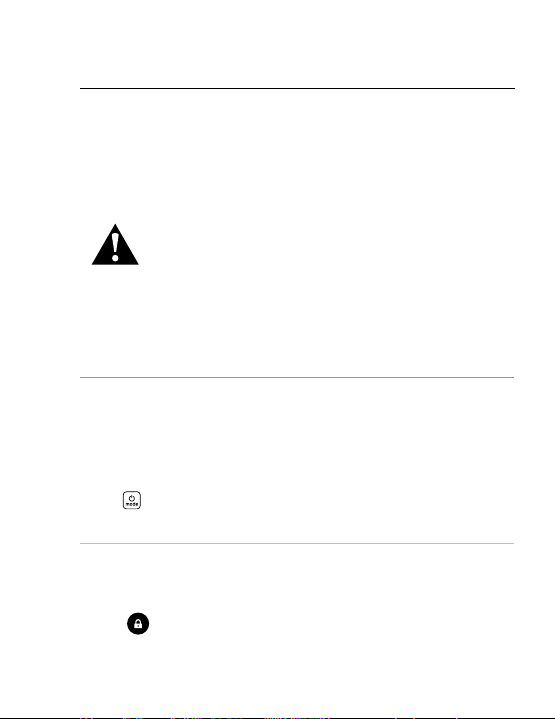
82 83
USING ADHESIVE MOUNTS
Follow these guidelines when attaching adhesive mounts to helmets,
vehicles, and gear:
• Attach mounts at least 24 hours before you use them.
• Only attach the mounts to smooth surfaces. They won’t stick properly
to porous or textured surfaces.
• Firmly press mounts into place. Be sure the adhesive is in full contact
with the surface.
• Only use on clean, dry surfaces. Wax, oil, dirt, or other debris will
weaken the bond, and you could lose your camera.
• Attach mounts in room temperature conditions. They won’t stick
properly in cold or damp environments or on cold or damp surfaces.
• Check state and local regulations and laws to ensure that attaching
a camera to equipment (such as hunting gear) is permitted. Always
comply with regulations that restrict the use of consumer electronics
or cameras.
For more information about mounts, visit gopro.com.
Mounting Your GoPro
WARNING: The Curved Adhesive Mount and Mounting Buckle
included with MAX may be used for helmet mounting. Do not
use the Curved Fusion Mount (included with Fusion Mounts,
sold separately) to mount MAX to a helmet.
Always use a helmet that meets applicable safety standards if
you’re using a GoPro helmet mount or strap.
Choose the right helmet for your sport or activity, and make
sure that it’s the right size and t for you. Check to see
that your helmet’s in good condition, and always follow the
manufacturer’s instructions on safe use.
Replace any helmet that’s been subjected to a major impact.
No helmet can protect against injury in every accident. Be
safe.
To avoid injury, do not use a tether when mounting the camera
on a helmet. Do not mount the camera directly on skis or
snowboards.
USING YOUR GOPRO AROUND WATER
MAX is waterproof to 16ft (5m). You won’t need an additional housing
to capture surf footage or any other shots on the water. MAX is not
designed for underwater use.
The touch screen may not work when wet, but you can use the Mode
button
to switch between Video, Photo, and Time Lapse modes
when your camera is on.
PRO TIP: Use Screen Lock to prevent water from accidentally triggering
and changing settings on the touch screen.
1. Swipe down to access the Dashboard.
2. Tap
.
Mounting Your GoPro
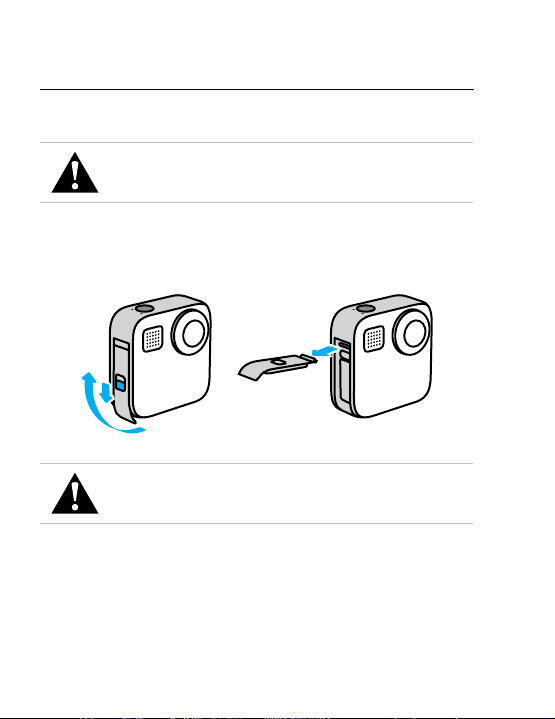
84 85
There might be times when you need to remove your camera’s door.
WARNING: Only remove the door in a dry, dust-free
environment. The camera is not waterproof when the door is
open or removed.
REMOVING THE DOOR
1. Unlock the door, slide it down, and ip it open.
2. Gently force the door open until it snaps o.
WARNING: Avoid using MAX with the door o. The battery
could slide out during use.
Removing the Door
REATTACHING THE DOOR
1. Line the door up with the small silver bar.
2. Press the door tightly into the small silver bar until it snaps into place
and is securely attached.
NOTICE: Slide the door all the way up until there’s no gap, and then
lock it. Don’t use the lock to slide the door closed.
Removing the Door
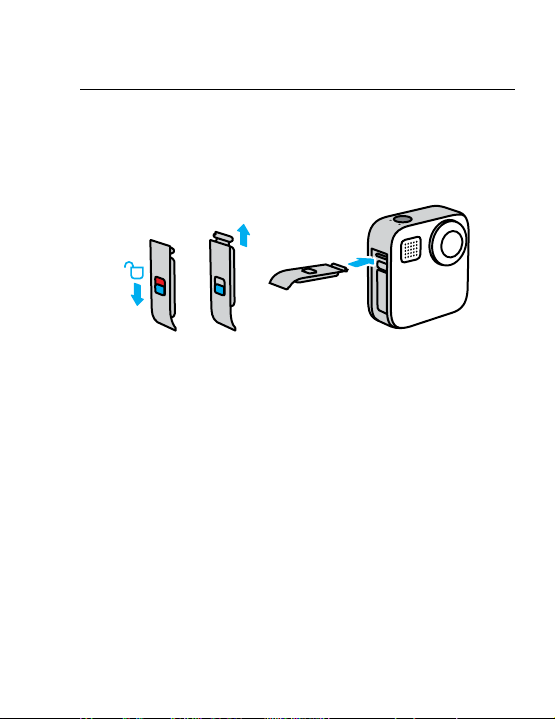
84 85
There might be times when you need to remove your camera’s door.
WARNING: Only remove the door in a dry, dust-free
environment. The camera is not waterproof when the door is
open or removed.
REMOVING THE DOOR
1. Unlock the door, slide it down, and ip it open.
2. Gently force the door open until it snaps o.
WARNING: Avoid using MAX with the door o. The battery
could slide out during use.
Removing the Door
REATTACHING THE DOOR
1. Line the door up with the small silver bar.
2. Press the door tightly into the small silver bar until it snaps into place
and is securely attached.
NOTICE: Slide the door all the way up until there’s no gap, and then
lock it. Don’t use the lock to slide the door closed.
Removing the Door
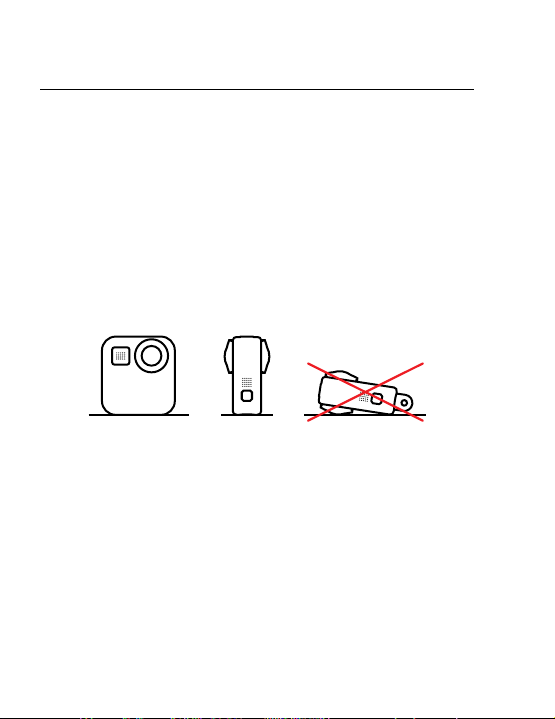
86 87
Maintenance
Here are some more tips to get the best performance from your camera:
• Always use the black lens caps to protect the lenses when you’re
not using your camera. The lenses are exposed to capture spherical
content and are unprotected. Scratches to the lenses are not covered
under the warranty.
• Use the clear Protective Lenses if you want added lens protection
when you’re using your camera. NOTICE: The clear lenses may
aect image quality under certain conditions.
• To protect the lenses from damage, do not rest your camera on
its front or back side. Be sure the lenses are not resting against
any surface.
To clean the lenses, wipe them with a soft, lint-free cloth. If debris
gets stuck between the lens and the trim ring, ush it out with water
or air. Do not insert foreign objects around the lenses.
• Your camera is waterproof to 16ft (5m)—no housing needed.
Be sure the door is closed before using the camera around water,
dirt, or sand.
• Before closing the door, be sure the seal is free of debris. Use a cloth
to clean the seal if needed.
• Before opening the doors, be sure that your camera is clean and dry.
Rinse your camera with fresh water and dry it with a cloth if needed.
Maintenance
• If sand or debris hardens around the doors, soak your camera in warm
tap water for 15 minutes and then rinse thoroughly to remove the
debris. Make sure your camera is dry before opening the doors.
• For best audio performance, shake your camera or blow on the mics
to remove water and debris from the microphone holes. Do not use
compressed air to blow into the mic holes. This could damage the
internal waterproof membranes.
• After every use in salt water, rinse your camera with fresh water, and
dry with a soft cloth.
WARNING: The dual lenses of MAX are unprotected and are
susceptible to scratches, if not cared for properly. Always
store MAX with the provided lens protection and avoid resting
the lens on any surface. Scratches to the lens are not covered
by the warranty.

86 87
Maintenance
Here are some more tips to get the best performance from your camera:
• Always use the black lens caps to protect the lenses when you’re
not using your camera. The lenses are exposed to capture spherical
content and are unprotected. Scratches to the lenses are not covered
under the warranty.
• Use the clear Protective Lenses if you want added lens protection
when you’re using your camera. NOTICE: The clear lenses may
aect image quality under certain conditions.
• To protect the lenses from damage, do not rest your camera on
its front or back side. Be sure the lenses are not resting against
any surface.
To clean the lenses, wipe them with a soft, lint-free cloth. If debris
gets stuck between the lens and the trim ring, ush it out with water
or air. Do not insert foreign objects around the lenses.
• Your camera is waterproof to 16ft (5m)—no housing needed.
Be sure the door is closed before using the camera around water,
dirt, or sand.
• Before closing the door, be sure the seal is free of debris. Use a cloth
to clean the seal if needed.
• Before opening the doors, be sure that your camera is clean and dry.
Rinse your camera with fresh water and dry it with a cloth if needed.
Maintenance
• If sand or debris hardens around the doors, soak your camera in warm
tap water for 15 minutes and then rinse thoroughly to remove the
debris. Make sure your camera is dry before opening the doors.
• For best audio performance, shake your camera or blow on the mics
to remove water and debris from the microphone holes. Do not use
compressed air to blow into the mic holes. This could damage the
internal waterproof membranes.
• After every use in salt water, rinse your camera with fresh water, and
dry with a soft cloth.
WARNING: The dual lenses of MAX are unprotected and are
susceptible to scratches, if not cared for properly. Always
store MAX with the provided lens protection and avoid resting
the lens on any surface. Scratches to the lens are not covered
by the warranty.

88 89
MAXIMIZING BATTERY LIFE
A low battery message will appear on the touch screen when the battery
charge drops below 10%.
If the charge runs out while recording video, your camera will stop
recording, save the video, and turn itself o.
Here are some things you can do to maximize battery life:
• Capture video at lower frame rates and resolutions.
• Use the Screensaver and lower the screen Brightness.
• Turn o GPS.
• Turn o Wireless Connections.
• Use these settings:
• QuikCapture (page 28)
• Auto Power O (page 69).
RECORDING WHEN PLUGGED INTO A POWER SOURCE
You can use the USB-C cable that came with your camera to shoot
videos and photos while your camera is plugged in to a USB-charging
adapter, the GoPro Supercharger, another GoPro charger, or the
GoPro Portable Power Pack. This is perfect for capturing long videos
and time lapse events.
Even though your camera is charging, the battery will not charge during
recording. It will start charging when you stop recording. You cannot
record while plugged into a computer.
Heads Up: Because the door is open, your camera is not waterproof
when charging.
Battery Information
WARNING: Using a non-GoPro wall charger could damage
your camera battery and could lead to re or leakage. With the
exception of the GoPro Supercharger (sold separately), only
use chargers marked Output 5V 1A. If you don’t know your
charger’s voltage and current, use the included USB cable to
charge your camera with a computer.
BATTERY STORAGE + HANDLING
MAX is full of sensitive components, including the battery. Avoid exposing
your camera to very hot or cold temperatures. Extreme temperatures may
temporarily shorten battery life or cause your camera to temporarily stop
working properly. Avoid dramatic temperature or humidity changes as
condensation may form on or within the camera.
Do not dry your camera with an external heat source such as a microwave
oven or hair dryer. Damage to the camera or battery caused by contact
with liquid inside the camera is not covered under the warranty.
Do not store your battery with metal objects like coins, keys, or necklaces.
If the battery terminals come in contact with metal objects, this may
cause a re.
Do not make any unauthorized alterations to your camera. Doing so may
compromise safety, regulatory compliance, and performance, and may
void the warranty.
Heads Up: Batteries have reduced capacity in cold weather. This aects
older batteries even more. If you regularly shoot at low temperatures,
replace batteries yearly for optimal performance.
PRO TIP: Fully charge your camera before storing it away to help
maximize battery life.
Battery Information

88 89
MAXIMIZING BATTERY LIFE
A low battery message will appear on the touch screen when the battery
charge drops below 10%.
If the charge runs out while recording video, your camera will stop
recording, save the video, and turn itself o.
Here are some things you can do to maximize battery life:
• Capture video at lower frame rates and resolutions.
• Use the Screensaver and lower the screen Brightness.
• Turn o GPS.
• Turn o Wireless Connections.
• Use these settings:
• QuikCapture (page 28)
• Auto Power O (page 69).
RECORDING WHEN PLUGGED INTO A POWER SOURCE
You can use the USB-C cable that came with your camera to shoot
videos and photos while your camera is plugged in to a USB-charging
adapter, the GoPro Supercharger, another GoPro charger, or the
GoPro Portable Power Pack. This is perfect for capturing long videos
and time lapse events.
Even though your camera is charging, the battery will not charge during
recording. It will start charging when you stop recording. You cannot
record while plugged into a computer.
Heads Up: Because the door is open, your camera is not waterproof
when charging.
Battery Information
WARNING: Using a non-GoPro wall charger could damage
your camera battery and could lead to re or leakage. With the
exception of the GoPro Supercharger (sold separately), only
use chargers marked Output 5V 1A. If you don’t know your
charger’s voltage and current, use the included USB cable to
charge your camera with a computer.
BATTERY STORAGE + HANDLING
MAX is full of sensitive components, including the battery. Avoid exposing
your camera to very hot or cold temperatures. Extreme temperatures may
temporarily shorten battery life or cause your camera to temporarily stop
working properly. Avoid dramatic temperature or humidity changes as
condensation may form on or within the camera.
Do not dry your camera with an external heat source such as a microwave
oven or hair dryer. Damage to the camera or battery caused by contact
with liquid inside the camera is not covered under the warranty.
Do not store your battery with metal objects like coins, keys, or necklaces.
If the battery terminals come in contact with metal objects, this may
cause a re.
Do not make any unauthorized alterations to your camera. Doing so may
compromise safety, regulatory compliance, and performance, and may
void the warranty.
Heads Up: Batteries have reduced capacity in cold weather. This aects
older batteries even more. If you regularly shoot at low temperatures,
replace batteries yearly for optimal performance.
PRO TIP: Fully charge your camera before storing it away to help
maximize battery life.
Battery Information
90 91
Battery Information
WARNING: Do not drop, disassemble, open, crush, bend,
deform, puncture, shred, microwave, incinerate, or paint
your camera or battery. Do not insert foreign objects into any
opening on the camera, such as the USB-C port. Do not use
your camera if it’s been damaged—for example, if cracked,
punctured, or harmed by water. Disassembling or puncturing
the integrated battery can cause an explosion or re.
BATTERY DISPOSAL
Most rechargeable lithium-ion batteries are classied as non-hazardous
waste and are safe for disposal in the normal municipal waste stream.
Many regions require battery recycling. Check your local laws to make
sure that you can dispose of rechargeable batteries in your regular trash.
To safely dispose of lithium-ion batteries, protect terminals from exposure
to other metal with packing, masking, or electrical tape so they do not
cause a re while being transported.
Lithium-ion batteries, however, do contain recyclable materials and
are accepted for recycling by the Rechargeable Battery Recycling
Corporation’s (RBRC) Battery Recycling Program. We encourage
you to visit Call2Recycle at call2recycle.org or call 1-800-BATTERY
in North America to nd a convenient recycling location.
Never dispose of a battery in a re because it may explode.
WARNING: Only use GoPro replacement batteries for
your camera.
MY GOPRO WON’T POWER ON
Make sure your GoPro is charged. See microSD Card + Battery Setup
(page 9). If charging the battery didn’t work, try restarting your
camera. See Restarting Your GoPro (page 77).
MY GOPRO WON’T RESPOND WHEN I PRESS A BUTTON
See Restarting Your GoPro (page 77).
PLAYBACK ON MY COMPUTER IS CHOPPY
Choppy playback is usually not a problem with the le. If your footage
skips, one of these issues is probably the cause:
• The computer doesn’t work with HEVC les. Try downloading
the latest version of the GoPro Player Mac
®
or Windows
®
free
at gopro.com/apps.
• Your computer doesn’t meet the minimum requirements of the
software you’re using for playback.
I FORGOT MY CAMERA’S USERNAME OR PASSWORD
Swipe down to access the Dashboard, and then tap Preferences >
Connections > Camera Info.
I DON’T KNOW WHICH SOFTWARE VERSION I HAVE
Swipe down to access the Dashboard, and then tap Preferences >
About > Camera Info (scroll down to see your software version).
I CAN’T FIND MY CAMERA’S SERIAL NUMBER
The serial number is stamped inside the battery compartment of your
camera. You can also nd it by swiping down to access the Dashboard,
and then tapping Preferences > About > Camera Info.
For more answers to commonly asked questions, see gopro.com/help.
Troubleshooting

90 91
Battery Information
WARNING: Do not drop, disassemble, open, crush, bend,
deform, puncture, shred, microwave, incinerate, or paint
your camera or battery. Do not insert foreign objects into any
opening on the camera, such as the USB-C port. Do not use
your camera if it’s been damaged—for example, if cracked,
punctured, or harmed by water. Disassembling or puncturing
the integrated battery can cause an explosion or re.
BATTERY DISPOSAL
Most rechargeable lithium-ion batteries are classied as non-hazardous
waste and are safe for disposal in the normal municipal waste stream.
Many regions require battery recycling. Check your local laws to make
sure that you can dispose of rechargeable batteries in your regular trash.
To safely dispose of lithium-ion batteries, protect terminals from exposure
to other metal with packing, masking, or electrical tape so they do not
cause a re while being transported.
Lithium-ion batteries, however, do contain recyclable materials and
are accepted for recycling by the Rechargeable Battery Recycling
Corporation’s (RBRC) Battery Recycling Program. We encourage
you to visit Call2Recycle at call2recycle.org or call 1-800-BATTERY
in North America to nd a convenient recycling location.
Never dispose of a battery in a re because it may explode.
WARNING: Only use GoPro replacement batteries for
your camera.
MY GOPRO WON’T POWER ON
Make sure your GoPro is charged. See microSD Card + Battery Setup
(page 9). If charging the battery didn’t work, try restarting your
camera. See Restarting Your GoPro (page 77).
MY GOPRO WON’T RESPOND WHEN I PRESS A BUTTON
See Restarting Your GoPro (page 77).
PLAYBACK ON MY COMPUTER IS CHOPPY
Choppy playback is usually not a problem with the le. If your footage
skips, one of these issues is probably the cause:
• The computer doesn’t work with HEVC les. Try downloading
the latest version of the GoPro Player Mac
®
or Windows
®
free
at gopro.com/apps.
• Your computer doesn’t meet the minimum requirements of the
software you’re using for playback.
I FORGOT MY CAMERA’S USERNAME OR PASSWORD
Swipe down to access the Dashboard, and then tap Preferences >
Connections > Camera Info.
I DON’T KNOW WHICH SOFTWARE VERSION I HAVE
Swipe down to access the Dashboard, and then tap Preferences >
About > Camera Info (scroll down to see your software version).
I CAN’T FIND MY CAMERA’S SERIAL NUMBER
The serial number is stamped inside the battery compartment of your
camera. You can also nd it by swiping down to access the Dashboard,
and then tapping Preferences > About > Camera Info.
For more answers to commonly asked questions, see gopro.com/help.
Troubleshooting

92 93
Tech Specs: Video
RESOLUTION (VIDEO, TIMEWARP, TIME LAPSE)
Video resolution refers to the number of horizontal lines used in each
frame of video. MAX features a choice two resolutions in both HERO
mode and 360 mode.
HERO Mode
Resolution
Description
1080p
The standard resolution and aspect ratio (16:9)
for HDTV. Use 1080p if you want full-screen
playback on your TV or phone.
1440p
The tall 4:3 aspect ratio ts more into the frame
than 1080p. Great for seles, point-of-view
shots, and sharing to social media.
Heads Up: Black bars will appear on both sides
of the screen when playing back 1440p footage
on an HDTV.
Tech Specs: Video
360 Mode
Resolution
Description
6K Source,
5.6K Stitched
High resolution 360 video that captures
everything around you in stunning detail.
Lets you create amazing 1080p30 traditional
videos using Reframe in the GoPro app.
3K Source/Stitched
Records video at 60 frames per second (fps) that
can be slowed down to 2x normal speed during
playback. Lets you create 720p60 traditional
videos using Reframe in the GoPro app.
PRO TIP: Be sure that your phone, computer, or TV can support
5.6K video before recording.

92 93
Tech Specs: Video
RESOLUTION (VIDEO, TIMEWARP, TIME LAPSE)
Video resolution refers to the number of horizontal lines used in each
frame of video. MAX features a choice two resolutions in both HERO
mode and 360 mode.
HERO Mode
Resolution
Description
1080p
The standard resolution and aspect ratio (16:9)
for HDTV. Use 1080p if you want full-screen
playback on your TV or phone.
1440p
The tall 4:3 aspect ratio ts more into the frame
than 1080p. Great for seles, point-of-view
shots, and sharing to social media.
Heads Up: Black bars will appear on both sides
of the screen when playing back 1440p footage
on an HDTV.
Tech Specs: Video
360 Mode
Resolution
Description
6K Source,
5.6K Stitched
High resolution 360 video that captures
everything around you in stunning detail.
Lets you create amazing 1080p30 traditional
videos using Reframe in the GoPro app.
3K Source/Stitched
Records video at 60 frames per second (fps) that
can be slowed down to 2x normal speed during
playback. Lets you create 720p60 traditional
videos using Reframe in the GoPro app.
PRO TIP: Be sure that your phone, computer, or TV can support
5.6K video before recording.

94 95
Tech Specs: VideoTech Specs: Video
DIGITAL LENSES (HERO MODE–VIDEO)
Digital lenses let you choose how much of the scene is captured by your
camera. The dierent lenses also aect the zoom level and the sheye
eect in your shot. For Video mode, Max SuperView captures the largest
eld of view while Narrow captures the smallest.
Setting Description
Max SuperView
(13mm)
Widest, most immersive eld of view
ever on a GoPro.
Wide
(16mm)
Wide eld of view with less sheye eect
than Max SuperView.
Linear
(19m m)
Wide eld of view without the sheye eect.
Narrow
(27mm)
Narrow eld of view without the sheye eect.
FRAMES PER SECOND (VIDEO)
Frames per second (fps) refers to the number of frames captured in each
second of video. A higher fps value (60 fps) is better at capturing fast-
action shots. You can also use high fps footage for slow-motion playback.
High Resolutions/High Frame Rates
Shooting high-resolution or high-fps video when it’s warm out can cause
your camera to heat up and use more power.
Lack of airow and connecting to the GoPro app can cause your camera
to warm up even more, use even more power, and shorten recording time.
If heat’s a problem, try recording shorter videos. Also limit use of features
that take a lot of power, like the GoPro app.
Your camera will tell you if it needs to shut down and cool o. To learn
more, see Important Messages (page 75).

94 95
Tech Specs: VideoTech Specs: Video
DIGITAL LENSES (HERO MODE–VIDEO)
Digital lenses let you choose how much of the scene is captured by your
camera. The dierent lenses also aect the zoom level and the sheye
eect in your shot. For Video mode, Max SuperView captures the largest
eld of view while Narrow captures the smallest.
Setting Description
Max SuperView
(13mm)
Widest, most immersive eld of view
ever on a GoPro.
Wide
(16mm)
Wide eld of view with less sheye eect
than Max SuperView.
Linear
(19m m)
Wide eld of view without the sheye eect.
Narrow
(27mm)
Narrow eld of view without the sheye eect.
FRAMES PER SECOND (VIDEO)
Frames per second (fps) refers to the number of frames captured in each
second of video. A higher fps value (60 fps) is better at capturing fast-
action shots. You can also use high fps footage for slow-motion playback.
High Resolutions/High Frame Rates
Shooting high-resolution or high-fps video when it’s warm out can cause
your camera to heat up and use more power.
Lack of airow and connecting to the GoPro app can cause your camera
to warm up even more, use even more power, and shorten recording time.
If heat’s a problem, try recording shorter videos. Also limit use of features
that take a lot of power, like the GoPro app.
Your camera will tell you if it needs to shut down and cool o. To learn
more, see Important Messages (page 75).

96 97
Tech Specs: Video
MAX HYPERSMOOTH VIDEO STABILIZATION (HERO MODE)
Max HyperSmooth gives you unbreakable stabilization by using a 180
°
eld
of view as the ultimate video buer. It lets your camera eliminate almost all
bumps and shakes while you’re recording. This makes it perfect for biking,
skating, handheld shots, and more.
PRO TIP: Watch your 360 footage on the GoPro app to see your Video
and TimeWarp shots with full stabilization.
HORIZON LOCK (HERO MODE)
Horizon Lock keeps your footage smooth and level even if your camera
gets ipped upside down while recording.
With Horizon Lock on, your footage and the live view on the touch screen
will be locked into the orientation your camera was in when you pressed
the Shutter button. If your camera was in a portrait orientation, your
footage will stay in a level portrait orientation no matter how much your
camera rotates.
With Horizon Lock o, your footage and the live view on the touch screen
will roll with the rotation of your camera.
PRO TIP: To capture all the twists of barrel rolls, banked turns, and
other activities, make sure that Horizon Lock is o when you’re shooting
extreme POV action.
Tech Specs: Photo
DIGITAL LENSES (HERO MODE–PHOTO)
The eld of view (FOV) refers to how much of the scene is captured
by your camera. MAX takes photos using two elds of view.
Setting Description
Max SuperView
(13mm)
Widest, most immersive eld of view
ever on a GoPro.
Wide
(16mm)
Wide eld of view will less sheye eect
than Max SuperView.
HORIZON LOCK (POWERPANO)
Horizon Lock helps you capture amazing panoramic photos with a level
horizon even when your camera isn’t perfectly straight.
With Horizon Lock on, the live view on your camera’s touch screen will
match the angle that your camera is tilted. The horizon is automatically
locked when you press the Shutter button to take the shot. You can check
out the results by swiping up to see the photo in the Media Gallery.
Horizon Lock works for both horizontal and vertical PowerPano shots.
PRO TIP: Use Landscape Lock to avoid capturing vertical PowerPano
shots by mistake. This can happen if you accidentally tilt your camera too
close to vertical.
To learn more, see Setting the Screen Orientation (page 32).

96 97
Tech Specs: Video
MAX HYPERSMOOTH VIDEO STABILIZATION (HERO MODE)
Max HyperSmooth gives you unbreakable stabilization by using a 180
°
eld
of view as the ultimate video buer. It lets your camera eliminate almost all
bumps and shakes while you’re recording. This makes it perfect for biking,
skating, handheld shots, and more.
PRO TIP: Watch your 360 footage on the GoPro app to see your Video
and TimeWarp shots with full stabilization.
HORIZON LOCK (HERO MODE)
Horizon Lock keeps your footage smooth and level even if your camera
gets ipped upside down while recording.
With Horizon Lock on, your footage and the live view on the touch screen
will be locked into the orientation your camera was in when you pressed
the Shutter button. If your camera was in a portrait orientation, your
footage will stay in a level portrait orientation no matter how much your
camera rotates.
With Horizon Lock o, your footage and the live view on the touch screen
will roll with the rotation of your camera.
PRO TIP: To capture all the twists of barrel rolls, banked turns, and
other activities, make sure that Horizon Lock is o when you’re shooting
extreme POV action.
Tech Specs: Photo
DIGITAL LENSES (HERO MODE–PHOTO)
The eld of view (FOV) refers to how much of the scene is captured
by your camera. MAX takes photos using two elds of view.
Setting Description
Max SuperView
(13mm)
Widest, most immersive eld of view
ever on a GoPro.
Wide
(16mm)
Wide eld of view will less sheye eect
than Max SuperView.
HORIZON LOCK (POWERPANO)
Horizon Lock helps you capture amazing panoramic photos with a level
horizon even when your camera isn’t perfectly straight.
With Horizon Lock on, the live view on your camera’s touch screen will
match the angle that your camera is tilted. The horizon is automatically
locked when you press the Shutter button to take the shot. You can check
out the results by swiping up to see the photo in the Media Gallery.
Horizon Lock works for both horizontal and vertical PowerPano shots.
PRO TIP: Use Landscape Lock to avoid capturing vertical PowerPano
shots by mistake. This can happen if you accidentally tilt your camera too
close to vertical.
To learn more, see Setting the Screen Orientation (page 32).

98 99
Tech Specs: Time Lapse
TIMEWARP VIDEO SPEED
You can increase TimeWarp video speed up to 30x to turn longer activities
into shareable moments.
Use this chart to estimate the length of your videos. For example,
recording at 2x speed for 1 minute will give you about 30 seconds of
TimeWarp video. Recording at 2x speed for 4 minutes will give you
approximately 2 minutes of TimeWarp video.
In HERO mode, you can select Auto to let your GoPro automatically set
the speed for you. HERO mode also lets you tap
to dramatically slow
down your footage to real time, and then tap the button again to speed
it back up.
Setting Recording Time Video Length
2x 1 minute 30 seconds
5x 1 minute 10 seconds
10x 5 minutes 30 seconds
15x 5 minutes 20 seconds
30x 5 minutes 10 seconds
Heads Up: Recording times are approximate. The video length may vary
depending on the movement in your shot.
Tech Specs: Time Lapse
Setting Examples
2x–5x Driving through a scenic route
10x Hiking and exploring
15x–30x Running and mountain biking
PRO TIP: For the best results, try speeds 10x and up when shooting
footage that may get bumpy.
TIME LAPSE INTERVAL
The interval sets how often your camera takes a shot in Time Lapse Video
and Time Lapse Photo modes.
Available intervals are 0.5 (default), 1, 2, 5, 10, and 30 seconds; 1, 2, 5,
and 30 minutes; and 1 hour.
Setting Examples
0.5–2 seconds Surng, biking, or other sports
2 seconds Busy street corner
5–10 seconds Clouds or outdoor scenes for long durations
10 seconds–1 minute Art projects or other lengthy activities
1 minute–1 hour
Construction work or other activities that take
place over an very long period of time

98 99
Tech Specs: Time Lapse
TIMEWARP VIDEO SPEED
You can increase TimeWarp video speed up to 30x to turn longer activities
into shareable moments.
Use this chart to estimate the length of your videos. For example,
recording at 2x speed for 1 minute will give you about 30 seconds of
TimeWarp video. Recording at 2x speed for 4 minutes will give you
approximately 2 minutes of TimeWarp video.
In HERO mode, you can select Auto to let your GoPro automatically set
the speed for you. HERO mode also lets you tap
to dramatically slow
down your footage to real time, and then tap the button again to speed
it back up.
Setting Recording Time Video Length
2x 1 minute 30 seconds
5x 1 minute 10 seconds
10x 5 minutes 30 seconds
15x 5 minutes 20 seconds
30x 5 minutes 10 seconds
Heads Up: Recording times are approximate. The video length may vary
depending on the movement in your shot.
Tech Specs: Time Lapse
Setting Examples
2x–5x Driving through a scenic route
10x Hiking and exploring
15x–30x Running and mountain biking
PRO TIP: For the best results, try speeds 10x and up when shooting
footage that may get bumpy.
TIME LAPSE INTERVAL
The interval sets how often your camera takes a shot in Time Lapse Video
and Time Lapse Photo modes.
Available intervals are 0.5 (default), 1, 2, 5, 10, and 30 seconds; 1, 2, 5,
and 30 minutes; and 1 hour.
Setting Examples
0.5–2 seconds Surng, biking, or other sports
2 seconds Busy street corner
5–10 seconds Clouds or outdoor scenes for long durations
10 seconds–1 minute Art projects or other lengthy activities
1 minute–1 hour
Construction work or other activities that take
place over an very long period of time

100 101
Tech Specs: Time Lapse
Time Lapse Video Recording Time
Use this chart to determine the length of your videos. For example,
recording for 5 minutes with a 0.5-second interval will give you 20
seconds of time lapse video. Recording for 15 minutes will give you
1 minute of video.
Setting Recording Time Video Length
0.5 second 5 minutes 20 seconds
1 second 5 minutes 10 seconds
2 seconds 10 minutes 10 seconds
5 seconds 1 hour 20 seconds
10 seconds 1 hour 10 seconds
30 seconds 5 hours 20 seconds
1 minute 5 hours 10 seconds
2 minutes 5 hours 5 seconds
5 minutes 10 hours 4 seconds
30 minutes 1 week 10 seconds
1 hour 1 week 5 seconds
PRO TIP: For the best results, mount your camera on a tripod or place it
on a stable surface where it won’t wobble or shake. Use TimeWarp video
to capture time lapse video when you’re on the move.
To learn more, see TimeWarp Video Speed (page 98).
Tech Specs: Protune
PROTUNE
Protune unlocks your camera’s full creative potential by giving you manual
control of Color, White Balance, Shutter Speed, and more. It’s compatible
with professional color correction tools and other editing software.
Here are some things to keep in mind:
• Protune is available as an advanced setting for selected modes.
Scroll down in the settings menu to see all of the Protune settings.
• Some Protune settings are not available when you use
Exposure Control.
• Changes to Protune settings in one capture mode apply only to that
capture mode. For example, changing the White Balance in Video
mode does not aect White Balance for Photo mode.
PRO TIP: You can restore all Protune settings to their defaults by tapping
in the settings menu.

100 101
Tech Specs: Time Lapse
Time Lapse Video Recording Time
Use this chart to determine the length of your videos. For example,
recording for 5 minutes with a 0.5-second interval will give you 20
seconds of time lapse video. Recording for 15 minutes will give you
1 minute of video.
Setting Recording Time Video Length
0.5 second 5 minutes 20 seconds
1 second 5 minutes 10 seconds
2 seconds 10 minutes 10 seconds
5 seconds 1 hour 20 seconds
10 seconds 1 hour 10 seconds
30 seconds 5 hours 20 seconds
1 minute 5 hours 10 seconds
2 minutes 5 hours 5 seconds
5 minutes 10 hours 4 seconds
30 minutes 1 week 10 seconds
1 hour 1 week 5 seconds
PRO TIP: For the best results, mount your camera on a tripod or place it
on a stable surface where it won’t wobble or shake. Use TimeWarp video
to capture time lapse video when you’re on the move.
To learn more, see TimeWarp Video Speed (page 98).
Tech Specs: Protune
PROTUNE
Protune unlocks your camera’s full creative potential by giving you manual
control of Color, White Balance, Shutter Speed, and more. It’s compatible
with professional color correction tools and other editing software.
Here are some things to keep in mind:
• Protune is available as an advanced setting for selected modes.
Scroll down in the settings menu to see all of the Protune settings.
• Some Protune settings are not available when you use
Exposure Control.
• Changes to Protune settings in one capture mode apply only to that
capture mode. For example, changing the White Balance in Video
mode does not aect White Balance for Photo mode.
PRO TIP: You can restore all Protune settings to their defaults by tapping
in the settings menu.

102 103
Tech Specs: Protune
BIT RATE (HERO MODE)
Bit Rate determines the amount of data used to record a second of video.
MAX lets you choose between high or low.
Setting Description
Low (default) Use a lower bit rate to minimize le sizes.
High
Use higher bit rates up to 78Mbps for
optimal image quality.
Tech Specs: Protune
COLOR
Color lets you adjust the color prole of your videos or photos. Scroll
between the options on the right side of the Color screen to see a
live preview of each setting, and then tap the one you want.
Setting Description
GoPro Color (default)
Provides GoPro color-corrected prole (same
great color as when Protune is turned o).
Flat
Provides neutral color prole that can be color-
corrected to better match footage captured
with other equipment, oering more exibility
in post-production. Due to its long curve, Flat
captures more details in shadows and highlights.
WHITE BALANCE
White Balance lets you adjust the color temperature of videos and photos
to optimize for cool or warm lighting conditions. Scroll between the
options on the right side of the White Balance screen to see a live preview
of each setting, and then tap the one you want.
Options for this setting are Auto (default), 2300K, 2800K, 3200K, 4000K,
4500K, 5500K, 6000K, 6500K, and Native. Lower values will give you
warmer tones.
You can also choose Native to create a minimally color-corrected le that
allows for more precise adjustments in post-production.

102 103
Tech Specs: Protune
BIT RATE (HERO MODE)
Bit Rate determines the amount of data used to record a second of video.
MAX lets you choose between high or low.
Setting Description
Low (default) Use a lower bit rate to minimize le sizes.
High
Use higher bit rates up to 78Mbps for
optimal image quality.
Tech Specs: Protune
COLOR
Color lets you adjust the color prole of your videos or photos. Scroll
between the options on the right side of the Color screen to see a
live preview of each setting, and then tap the one you want.
Setting Description
GoPro Color (default)
Provides GoPro color-corrected prole (same
great color as when Protune is turned o).
Flat
Provides neutral color prole that can be color-
corrected to better match footage captured
with other equipment, oering more exibility
in post-production. Due to its long curve, Flat
captures more details in shadows and highlights.
WHITE BALANCE
White Balance lets you adjust the color temperature of videos and photos
to optimize for cool or warm lighting conditions. Scroll between the
options on the right side of the White Balance screen to see a live preview
of each setting, and then tap the one you want.
Options for this setting are Auto (default), 2300K, 2800K, 3200K, 4000K,
4500K, 5500K, 6000K, 6500K, and Native. Lower values will give you
warmer tones.
You can also choose Native to create a minimally color-corrected le that
allows for more precise adjustments in post-production.

104 105
Tech Specs: Protune
ISO MINIMUM/MAXIMUM
ISO Minimum and ISO Maximum let you set a range for the camera’s
sensitivity to light and image noise. Image noise refers to the degree
of graininess in the shot.
In low light, higher ISO values result in brighter images but with more
image noise. Lower values result in darker images with less image noise.
Scroll between the options to see a live preview of each setting, and then
tap the one you want.
The default for ISO Maximum is 1600 for video and 3200 for photos.
The default for ISO Minimum is 100.
Heads Up: For the Video and Photo modes, ISO behavior depends on
the Protune Shutter setting. The ISO Maximum that you select is used
as the maximum ISO value. The ISO value that is applied might be lower
depending on the lighting conditions.
PRO TIP: To lock the ISO at a specic value, set ISO Minimum and ISO
Maximum to the same values.
Darker image
Lower image noise
Brighter image
Greater image noise
100 200 400 800 1600 3200 6400
Tech Specs: Protune
SHUTTER
The Protune Shutter setting only applies to the Video and Photo modes.
This setting determines how long the shutter stays open. Scroll between
the options to see a live preview of each setting, and then tap the one you
want. The default setting is Auto.
For Photo, the options are Auto, 1/125, 1/250, 1/500, 1/1000, and 1/2000
second.
For Video, the options depend on the fps setting, as shown below.
Setting
Example 1:
1080p30
Example 2:
1080p60
Auto Auto Auto
1/fps 1/30 sec 1/60 sec
1/(2xfps) 1/60 sec 1/120 sec
1/(4xfps) 1/120 sec 1/240 sec
1/(8xfps) 1/240 sec 1/48 0 sec
1/(16xfps) 1/48 0 sec 1/960 sec
PRO TIP: To reduce the amount of blur in videos and photos when
using the Shutter setting, mount your camera on a tripod or other
stable surface where it won’t wobble or shake.

104 105
Tech Specs: Protune
ISO MINIMUM/MAXIMUM
ISO Minimum and ISO Maximum let you set a range for the camera’s
sensitivity to light and image noise. Image noise refers to the degree
of graininess in the shot.
In low light, higher ISO values result in brighter images but with more
image noise. Lower values result in darker images with less image noise.
Scroll between the options to see a live preview of each setting, and then
tap the one you want.
The default for ISO Maximum is 1600 for video and 3200 for photos.
The default for ISO Minimum is 100.
Heads Up: For the Video and Photo modes, ISO behavior depends on
the Protune Shutter setting. The ISO Maximum that you select is used
as the maximum ISO value. The ISO value that is applied might be lower
depending on the lighting conditions.
PRO TIP: To lock the ISO at a specic value, set ISO Minimum and ISO
Maximum to the same values.
Darker image
Lower image noise
Brighter image
Greater image noise
100 200 400 800 1600 3200 6400
Tech Specs: Protune
SHUTTER
The Protune Shutter setting only applies to the Video and Photo modes.
This setting determines how long the shutter stays open. Scroll between
the options to see a live preview of each setting, and then tap the one you
want. The default setting is Auto.
For Photo, the options are Auto, 1/125, 1/250, 1/500, 1/1000, and 1/2000
second.
For Video, the options depend on the fps setting, as shown below.
Setting
Example 1:
1080p30
Example 2:
1080p60
Auto Auto Auto
1/fps 1/30 sec 1/60 sec
1/(2xfps) 1/60 sec 1/120 sec
1/(4xfps) 1/120 sec 1/240 sec
1/(8xfps) 1/240 sec 1/48 0 sec
1/(16xfps) 1/48 0 sec 1/960 sec
PRO TIP: To reduce the amount of blur in videos and photos when
using the Shutter setting, mount your camera on a tripod or other
stable surface where it won’t wobble or shake.

106 107
Tech Specs: Protune
EXPOSURE VALUE COMPENSATION (EV COMP)
Exposure Value Compensation aects the brightness of your videos and
photos. Adjusting this setting can improve image quality when shooting
scenes with sharply contrasting lighting conditions.
Options for this setting range from -2.0 to +2.0. The default setting is 0.
Scroll between the options to see a live preview of each setting, and then
tap the one you want. Higher values result in brighter images.
Heads Up: For Video, this setting is available only if Shutter is set to Auto.
You can also adjust the exposure based on a certain area of your scene.
To learn more, see Exposure Control (page 48).
PRO TIP: EV Comp adjusts brightness within the existing ISO setting. If
brightness has already reached the ISO setting in a low-light environment,
increasing the EV Com does not have any eect. To continue increasing
the brightness, select a higher ISO value.
Tech Specs: Protune
SHARPNESS
Sharpness controls the quality of details captured in your video footage
or photos. Options for this setting are High (default), Medium, and Low.
Scroll between the options to see a live preview of each setting, and then
tap the one you want.
PRO TIP: If you plan to increase sharpness during editing, select Low
for this setting.

106 107
Tech Specs: Protune
EXPOSURE VALUE COMPENSATION (EV COMP)
Exposure Value Compensation aects the brightness of your videos and
photos. Adjusting this setting can improve image quality when shooting
scenes with sharply contrasting lighting conditions.
Options for this setting range from -2.0 to +2.0. The default setting is 0.
Scroll between the options to see a live preview of each setting, and then
tap the one you want. Higher values result in brighter images.
Heads Up: For Video, this setting is available only if Shutter is set to Auto.
You can also adjust the exposure based on a certain area of your scene.
To learn more, see Exposure Control (page 48).
PRO TIP: EV Comp adjusts brightness within the existing ISO setting. If
brightness has already reached the ISO setting in a low-light environment,
increasing the EV Com does not have any eect. To continue increasing
the brightness, select a higher ISO value.
Tech Specs: Protune
SHARPNESS
Sharpness controls the quality of details captured in your video footage
or photos. Options for this setting are High (default), Medium, and Low.
Scroll between the options to see a live preview of each setting, and then
tap the one you want.
PRO TIP: If you plan to increase sharpness during editing, select Low
for this setting.

108 109
Tech Specs: Protune
RAW AUDIO (HERO MODE)
This setting creates a separate .wav le for your video, in addition to the
standard .mp4 audio track. You can select the level of processing to apply
to the RAW audio track.
Setting Description
O (default) No separate .wav le is created.
Low
Applies minimal processing. Ideal if you want to
apply audio processing in post-production.
Med
Applies moderate processing based on the
Wind-Noise Reduction setting. Ideal if you
want to apply your own gain.
High
Applies full audio processing (automatic gain
and Wind-Noise Reduction). Ideal if you want
processed audio without AAC encoding.
Insert your SD card into a card reader to access the .wav les with your
computer. They’re saved with the same name and in the same location
as the .mp4 les.
Tech Specs: Protune
MICROPHONES (HERO MODE)
Your camera’s Microphone settings give you unprecedented versatility,
especially if you’re a vlogger. You can choose from four settings that
prioritize sound coming from either side of the camera based on which
lens is being used.
Setting Description
Stereo (default)
Uses audio from all six microphones to record
in stereo. Great for all-purpose recording.
Front
Prioritizes recording audio coming from the
front of the camera (non-touch screen side)
regardless of which lens is being used. Great
when you’re out exploring and describing the
scene in front of you.
Back
Prioritizes recording audio coming from the
back of the camera (touch screen side)
regardless of which lens is being used. Great
for seles and reaction shots.
Match Lens
Record audio in sync with the side of the
camera being used. Great if you frequently
switch between recording with the front
and back lens.
Heads Up: Wind-Noise Reduction is prioritized over the microphone
settings. Turn Wind-Noise Reduction o if you want to be sure that
your GoPro is recording with the microphone setting that you want.
To learn more, see Wind-Noise Reduction (page 111).

108 109
Tech Specs: Protune
RAW AUDIO (HERO MODE)
This setting creates a separate .wav le for your video, in addition to the
standard .mp4 audio track. You can select the level of processing to apply
to the RAW audio track.
Setting Description
O (default) No separate .wav le is created.
Low
Applies minimal processing. Ideal if you want to
apply audio processing in post-production.
Med
Applies moderate processing based on the
Wind-Noise Reduction setting. Ideal if you
want to apply your own gain.
High
Applies full audio processing (automatic gain
and Wind-Noise Reduction). Ideal if you want
processed audio without AAC encoding.
Insert your SD card into a card reader to access the .wav les with your
computer. They’re saved with the same name and in the same location
as the .mp4 les.
Tech Specs: Protune
MICROPHONES (HERO MODE)
Your camera’s Microphone settings give you unprecedented versatility,
especially if you’re a vlogger. You can choose from four settings that
prioritize sound coming from either side of the camera based on which
lens is being used.
Setting Description
Stereo (default)
Uses audio from all six microphones to record
in stereo. Great for all-purpose recording.
Front
Prioritizes recording audio coming from the
front of the camera (non-touch screen side)
regardless of which lens is being used. Great
when you’re out exploring and describing the
scene in front of you.
Back
Prioritizes recording audio coming from the
back of the camera (touch screen side)
regardless of which lens is being used. Great
for seles and reaction shots.
Match Lens
Record audio in sync with the side of the
camera being used. Great if you frequently
switch between recording with the front
and back lens.
Heads Up: Wind-Noise Reduction is prioritized over the microphone
settings. Turn Wind-Noise Reduction o if you want to be sure that
your GoPro is recording with the microphone setting that you want.
To learn more, see Wind-Noise Reduction (page 111).

110 111
Tech Specs: Protune
360 AUDIO (360 MODE)
MAX uses its six microphones to deliver spherical surround sound not only
from in front of and behind the camera, but also above and below it. The
result is amazing audio that’s just as immersive as the footage itself.
Setting Description
360 + Stereo (default)
Record simultaneously in omni-directional
and stereo sound.
Stereo Record only in stereo.
Heads Up: Wind-Noise Reduction is prioritized over the 360 audio settings.
Turn Wind-Noise Reduction o if you want to be sure that
your GoPro is recording with the audio setting that you want.
To learn more, see Wind-Noise Reduction (page 111).
Tech Specs: Protune
WIND-NOISE REDUCTION
Your GoPro uses six microphones to capture sound while recording video.
You can customize how they’re used based on conditions where you’re
shooting and the type of sound you want in your nished video.
Setting Description
Auto (default)
Automatically lters out excessive wind
(and water) noise.
On
Use to lter out excessive wind noise or when
our GoPro is mounted on a moving vehicle.
O
Use when wind will not aect sound quality and
you want to ensure that your GoPro is recording
in stereo.
Heads Up: Wind-Noise Reduction is prioritized over your camera’s other
audio settings.
To learn more, see:
• Microphones (page 109)
• 360 Audio (page 110)

110 111
Tech Specs: Protune
360 AUDIO (360 MODE)
MAX uses its six microphones to deliver spherical surround sound not only
from in front of and behind the camera, but also above and below it. The
result is amazing audio that’s just as immersive as the footage itself.
Setting Description
360 + Stereo (default)
Record simultaneously in omni-directional
and stereo sound.
Stereo Record only in stereo.
Heads Up: Wind-Noise Reduction is prioritized over the 360 audio settings.
Turn Wind-Noise Reduction o if you want to be sure that
your GoPro is recording with the audio setting that you want.
To learn more, see Wind-Noise Reduction (page 111).
Tech Specs: Protune
WIND-NOISE REDUCTION
Your GoPro uses six microphones to capture sound while recording video.
You can customize how they’re used based on conditions where you’re
shooting and the type of sound you want in your nished video.
Setting Description
Auto (default)
Automatically lters out excessive wind
(and water) noise.
On
Use to lter out excessive wind noise or when
our GoPro is mounted on a moving vehicle.
O
Use when wind will not aect sound quality and
you want to ensure that your GoPro is recording
in stereo.
Heads Up: Wind-Noise Reduction is prioritized over your camera’s other
audio settings.
To learn more, see:
• Microphones (page 109)
• 360 Audio (page 110)

112
GoPro is dedicated to providing the best possible service. To reach GoPro
Customer Support, visit gopro.com/help.
GoPro, HERO and their respective logos are trademarks or registered
trademarks of GoPro, Inc. in the United States and other countries.
© 2021 GoPro, Inc. All rights reserved. For patent information, visit
gopro.com/patents. GoPro, Inc., 3025 Clearview Way, San Mateo CA
94402 | GoPro GmbH, Floessergasse 2, 81369 Munich, Germany
Customer Support
Trademarks
For more information about country certication, please refer to the
Important Product + Safety Instructions included with your camera
or visit gopro.com/help.
130-28346-000 REVB
Regulatory Information