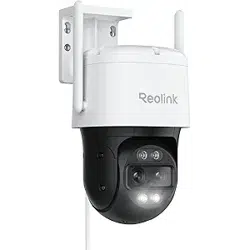
TrackMix WiFi
TrackMix WiFi with 4K 8MP Ultra HD resolution captures images with great details.
Discover more when zooming in. It can distinguish people, vehicles and pets* from
other objects, providing more accurate alerts. Plus, you can talk back via the
camera's built-in mic and speaker.
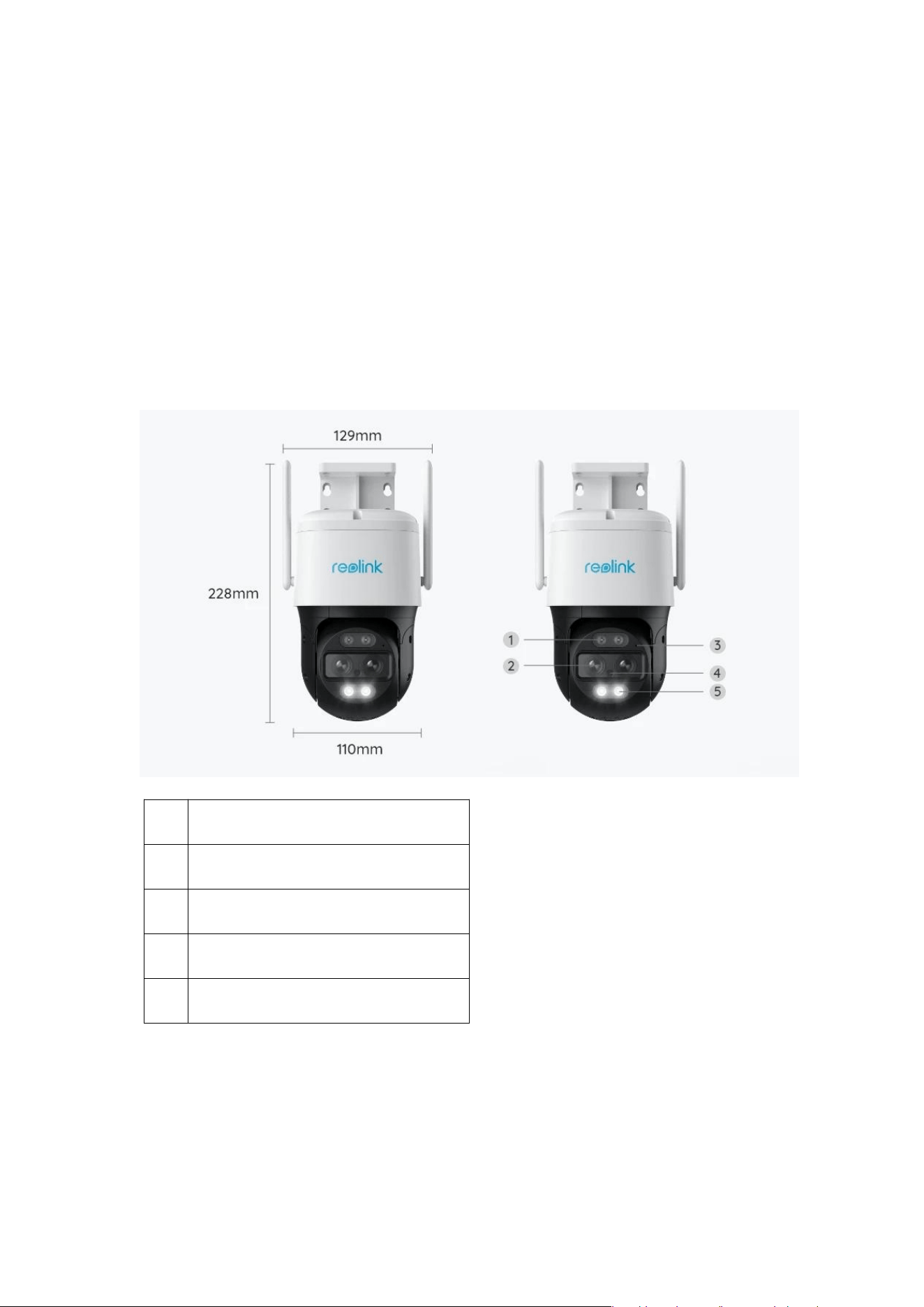
1. Specs
1
Infrared LED
2
Lens
3
Mic
4
Daylight Sensor
5
Spotlight
2. Setup and Install
Set up the Camera
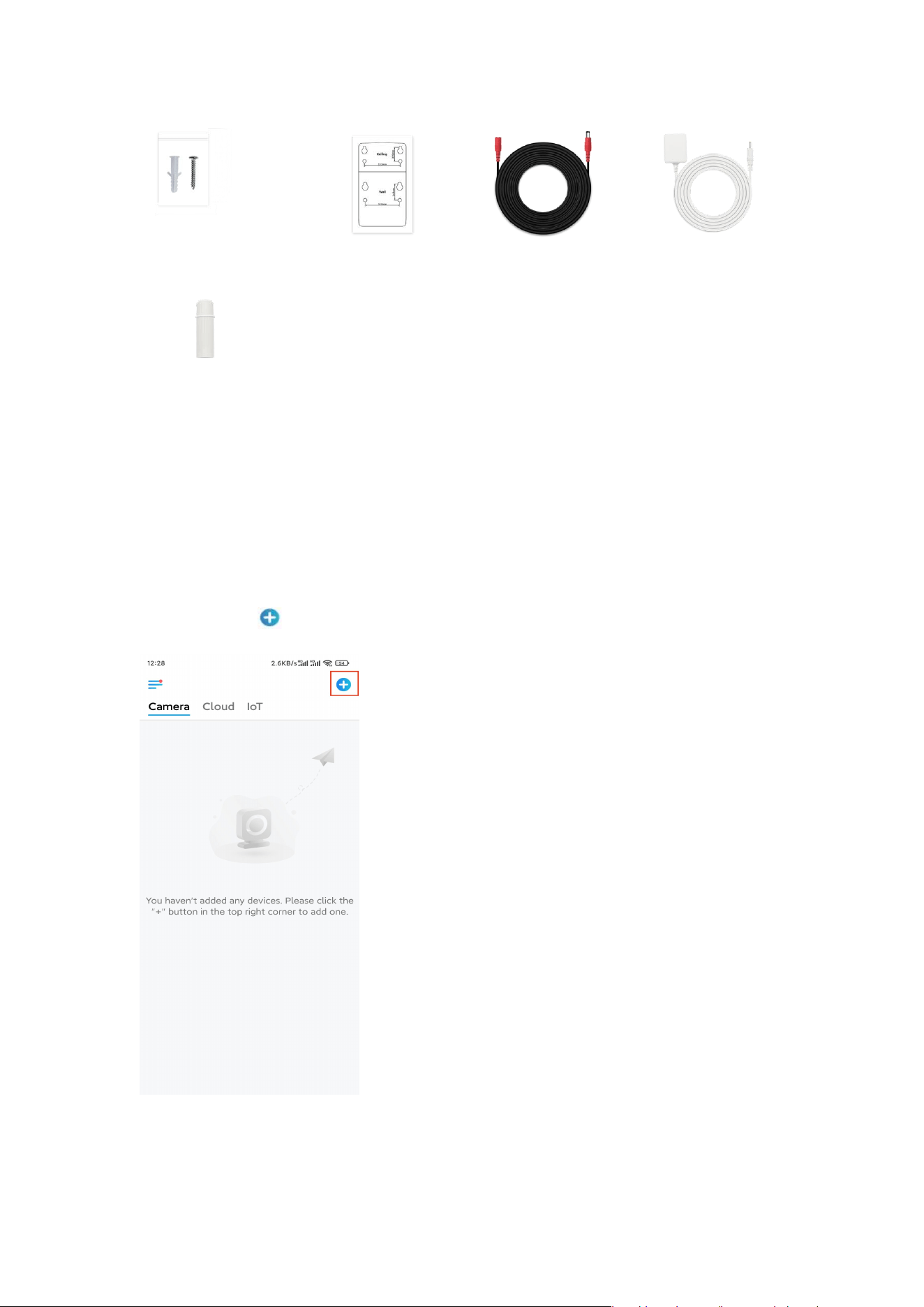
What’s in the Box
Note: The package content may vary and update with different version and
platforms, please take the below information only for a reference. And the actual
package content are subject to the latest information on the product selling page.
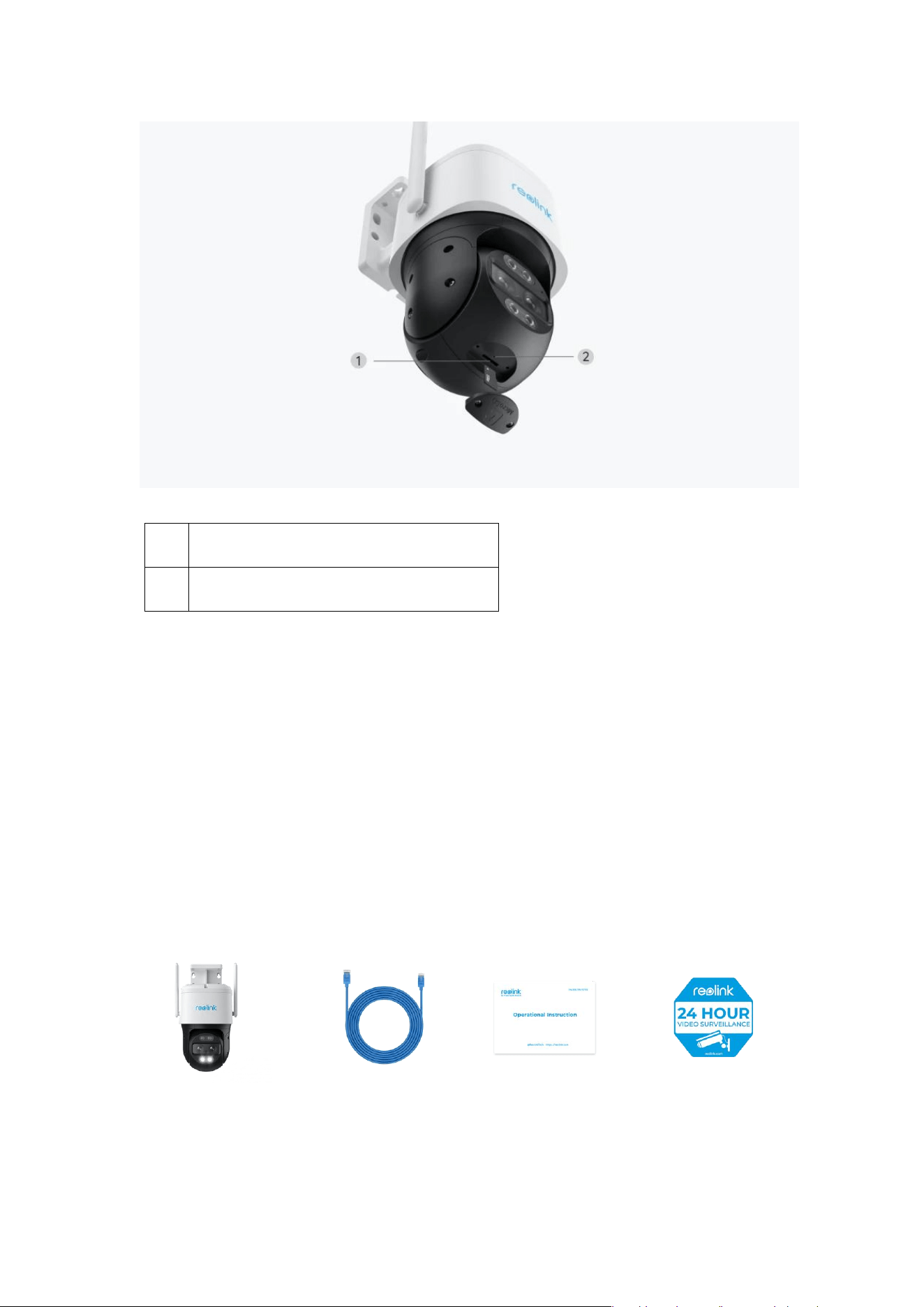
TrackMix WiFi
1
Micro SD Card Slot
2
Reset Button
Surveillance Sticker*1
Reolink TrackMix
WiFi*1
Quick Start Guide*1
1m Network
Cable*1
Set up the Camera on the App
There are two methods to do the initial setup of the camera:
1. with a Wi-Fi connection; 2. with a network cable connection.
1. With Wi-Fi Connection
Step 1. Tap the icon in the top right corner to add the camera.
Step 2. Scan the QR code on the camera.
Pack of Screws*1
Mounting Template *1
Waterproof Lid *1
Power Adapter
12V/2A *1
4.5m Power Extension
Cable *1
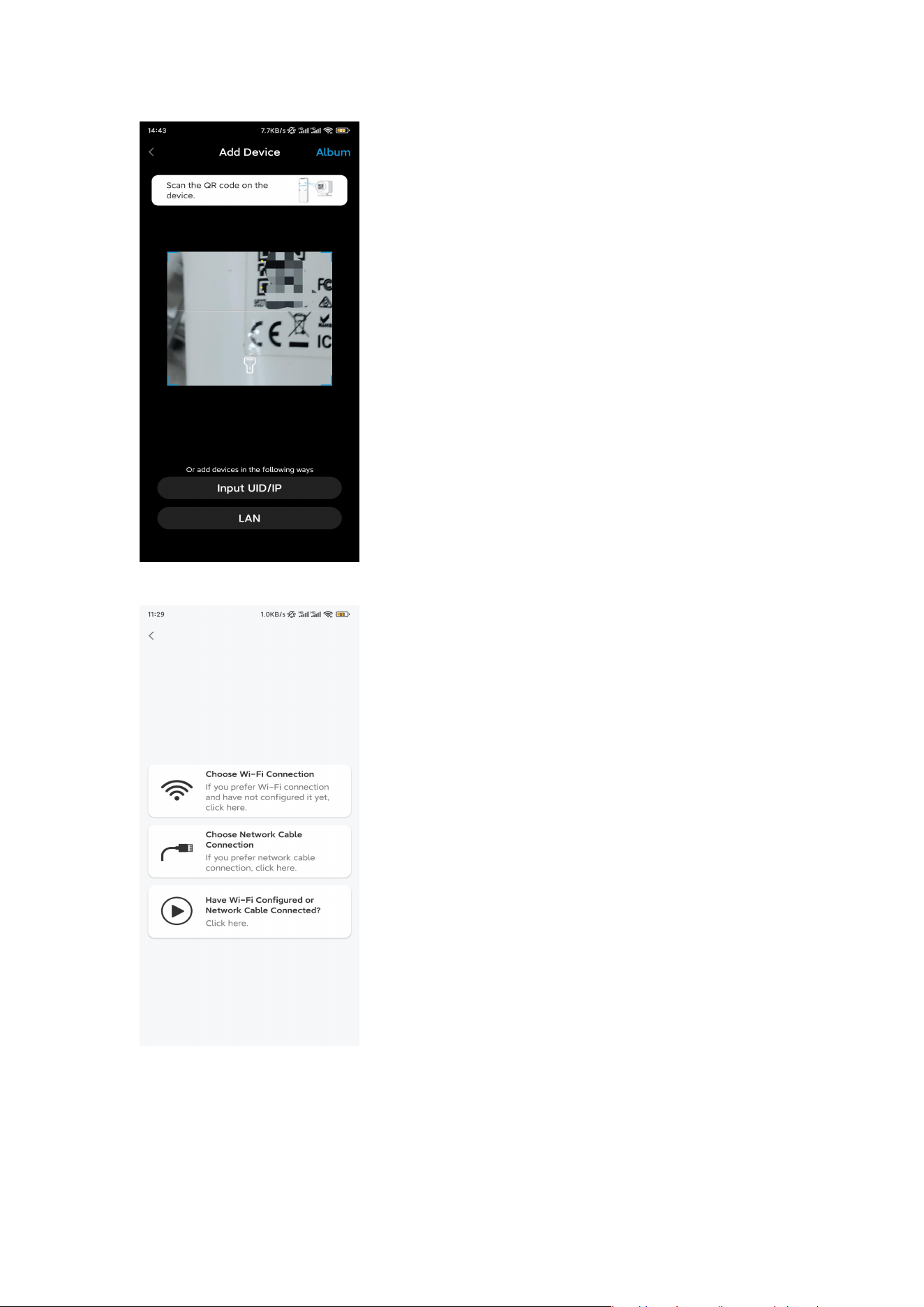
Step 3. Tap Choose Wi-Fi Connection to configure the Wi-Fi settings.
Step 4. After you hear the voice prompts from the camera, tick “I have heard the
voice played by the camera“ and tap Next.
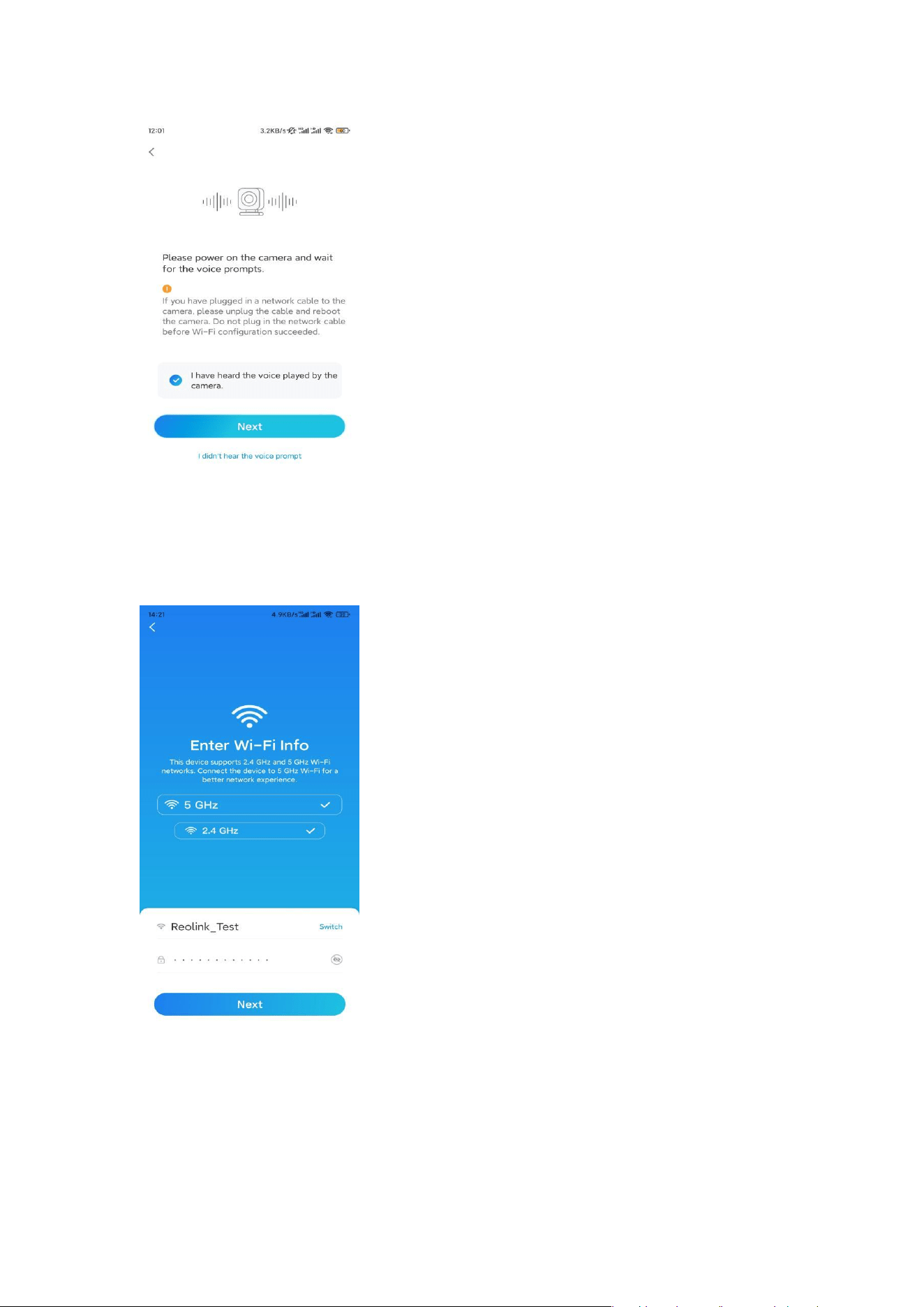
Step 5. Select a WiFi network, enter the WiFi password, and tap Next.
Step 6. Scan the QR code on the app with the camera lens.
Tap Scan Now. The QR code will be generated and displayed on your phone.
Please hold your phone in front of the camera at a distance of about 20 cm (8
inches) and have the phone face the camera lens to let the camera scan the QR
code.
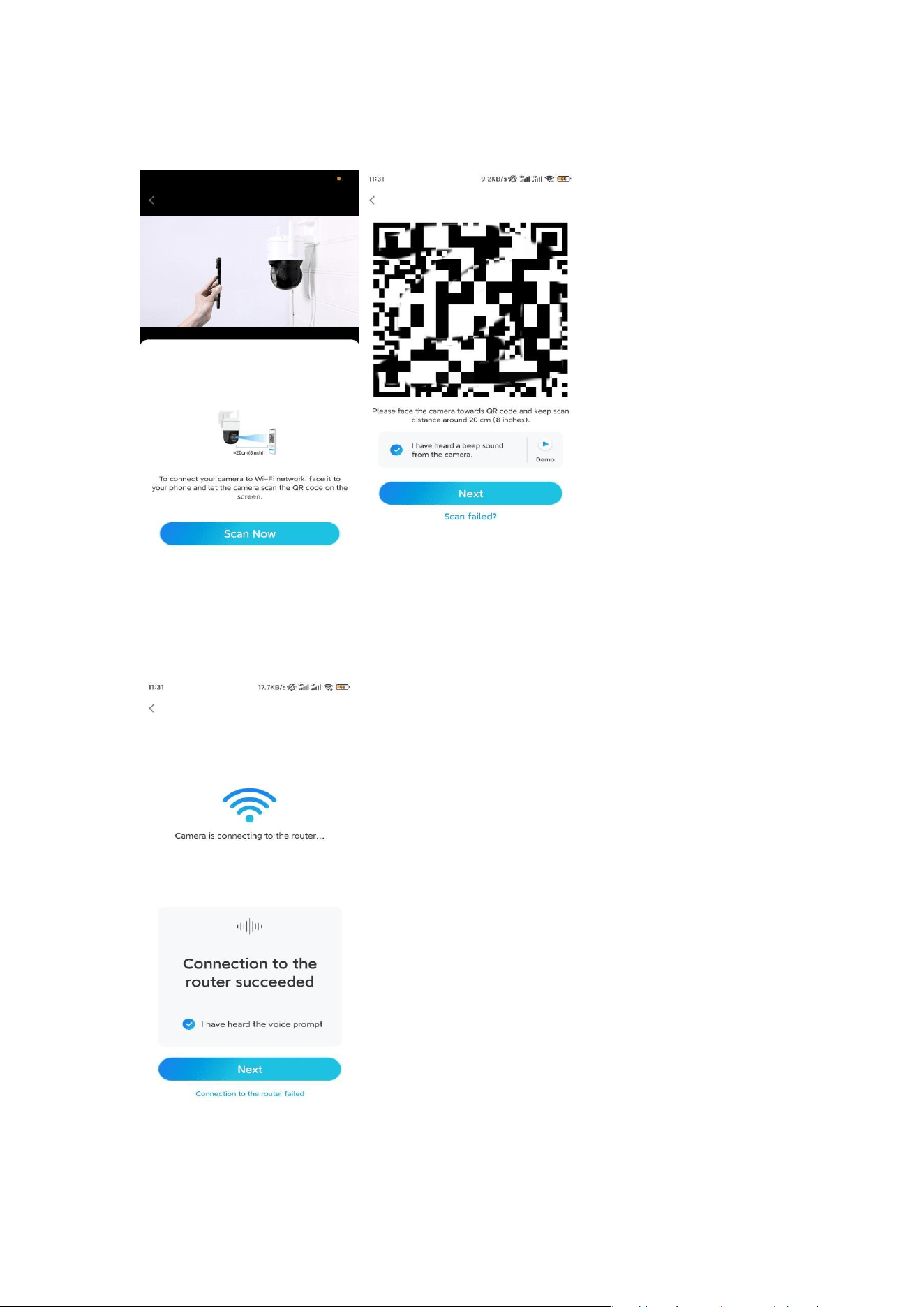
After you hear the beep sound, tick "I have heard a beep sound from the
camera" and tap Next.
Step 7. After you hear a voice prompt "Connection to the router succeeded" from
the camera, tick "I have heard the voice prompt" and tap Next.
Note: If you hear the voice prompt "Connection to the router failed", please
double-check if you have entered the Wi-Fi information correctly in the previous
step.
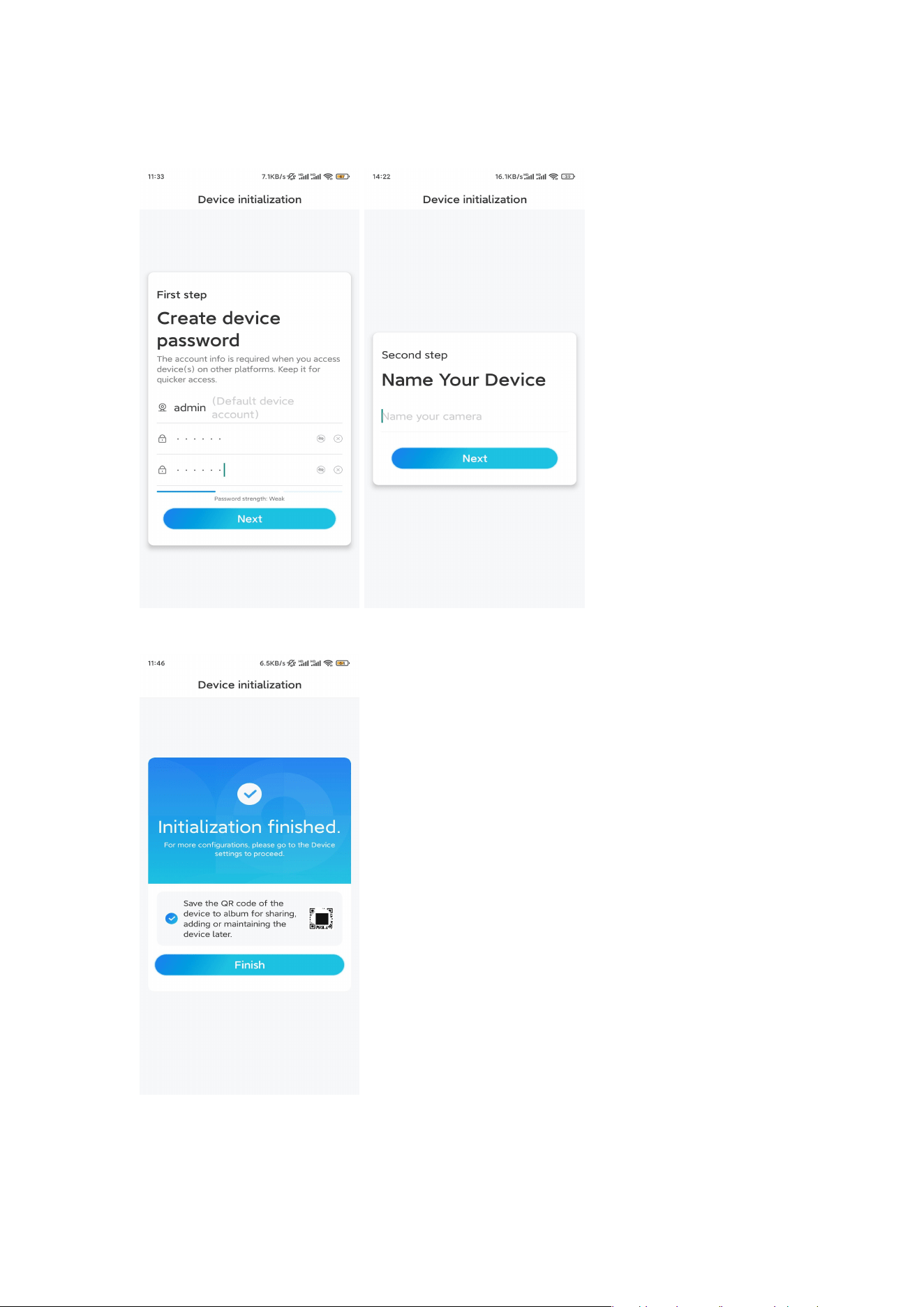
Step 8. Create a login password and name your camera.
Step 9. Initialization finished. Tap Finish, and you can start live viewing now.
2. With a Network Cable Connection
To do the initial setup, please power on the camera with the DC adapter, connect
the camera to your router's LAN port with an Ethernet cable, and follow the steps
below.
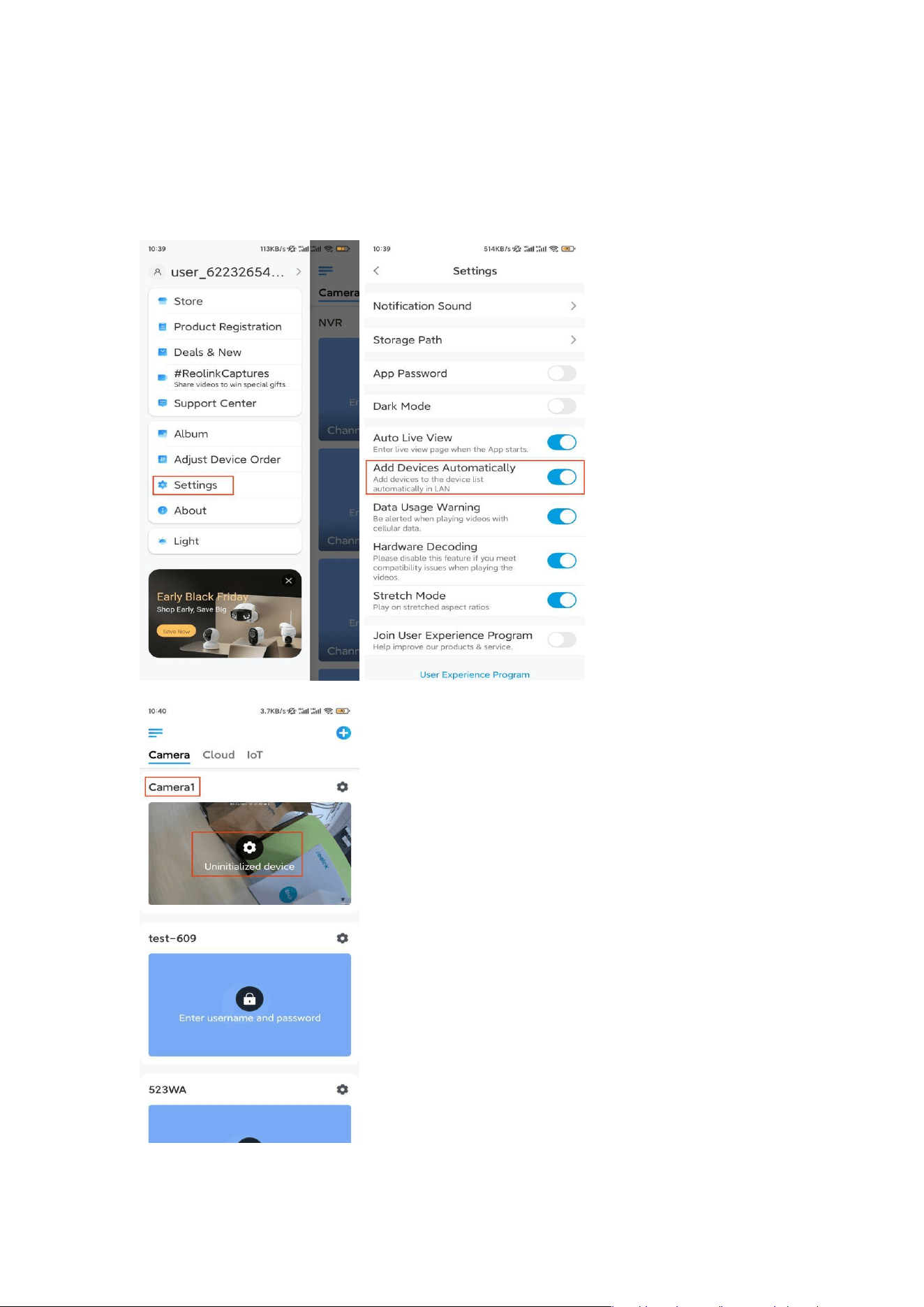
Step 1. If your phone, the camera, and the router are on the same network and
you've enabled the Add Device Automatically option in the App Settings, you
can tap and select this device on the Devices page and skip to Step 3.
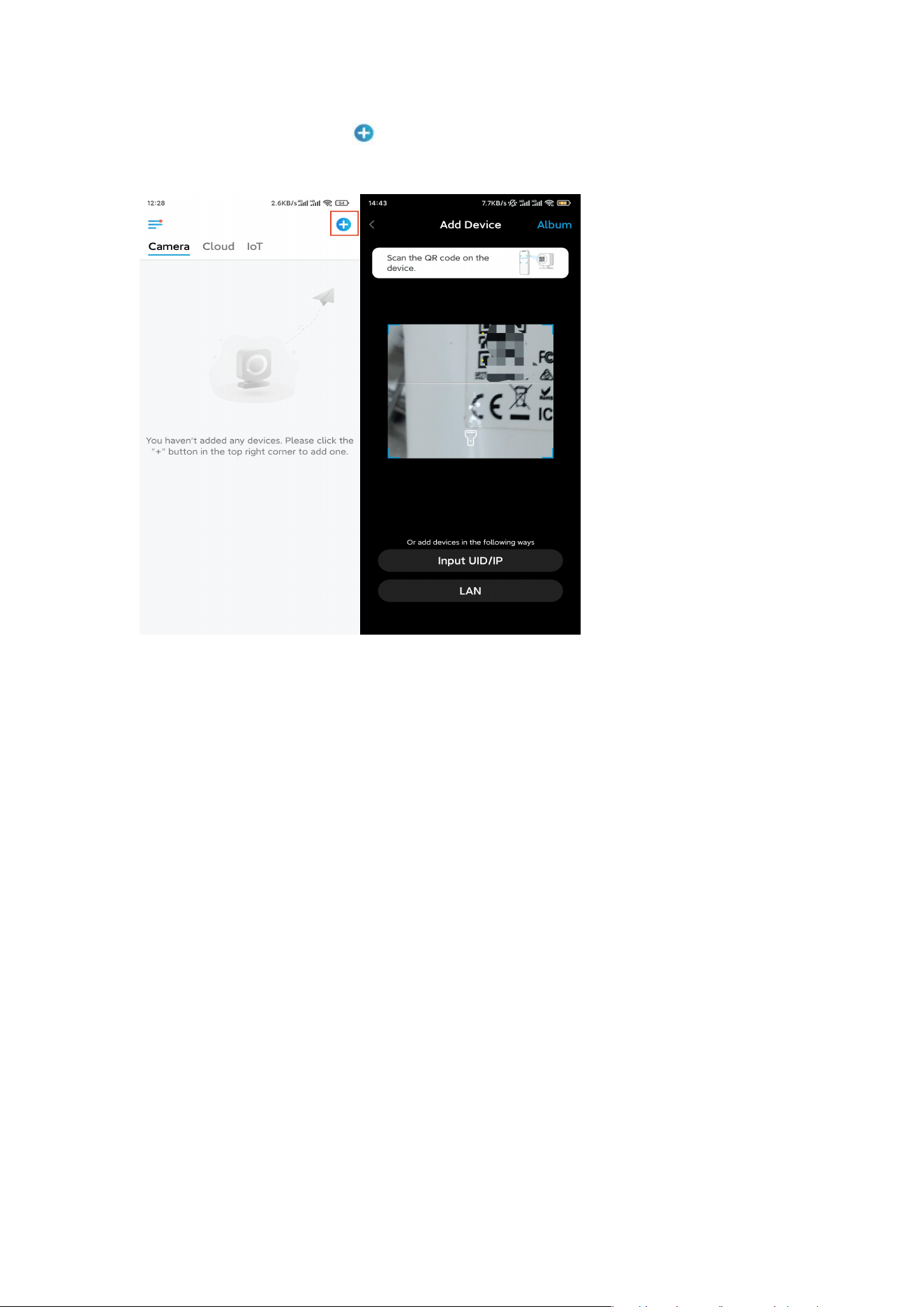
Otherwise, you can tap the icon in the top right corner and scan the QR code
on the camera to add the camera.
Step 2. Tap Choose Network Cable Connection.
Please make sure the camera is connected in the correct way, as shown in the
diagram, and then tap Access the Camera.
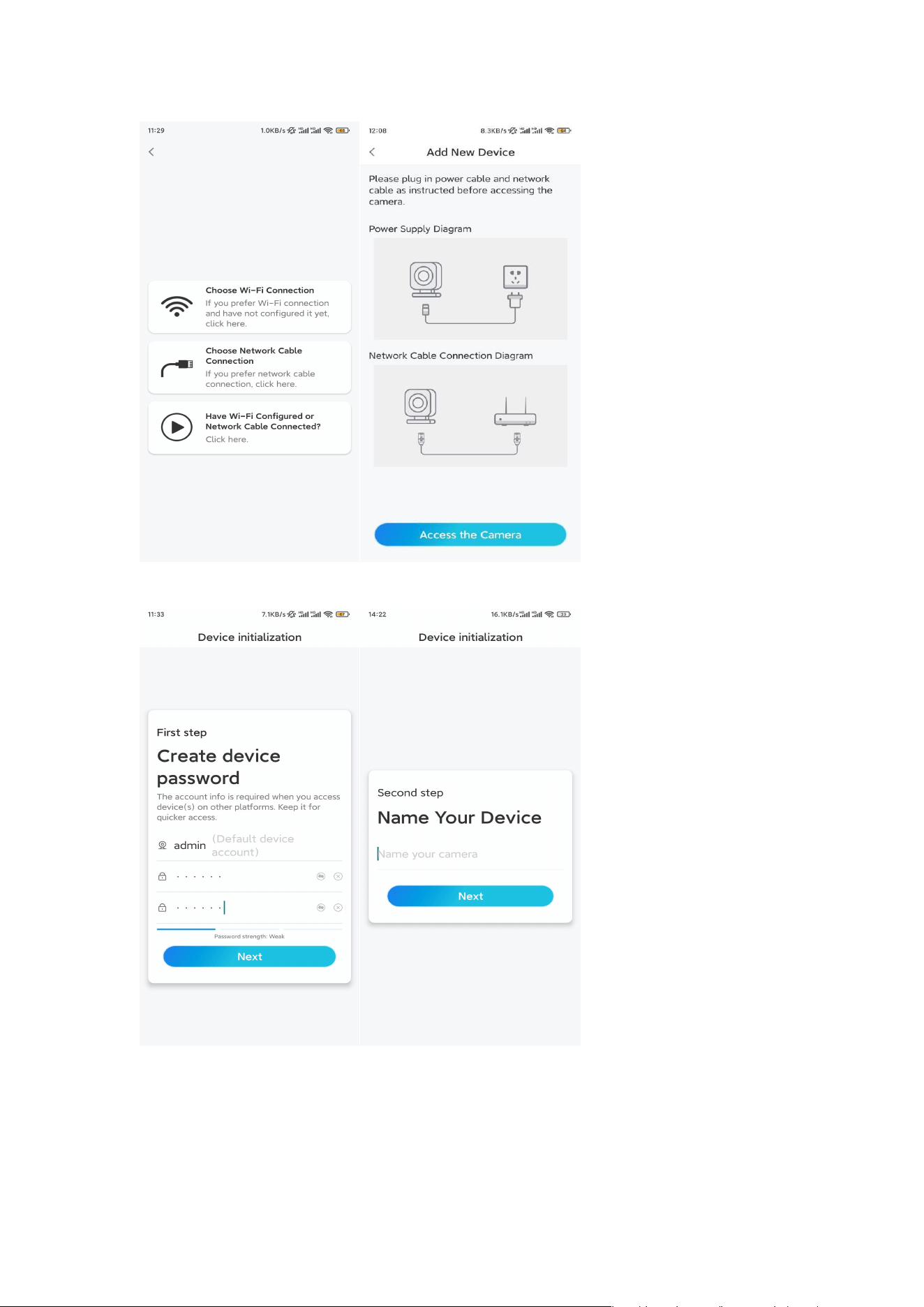
Step 3. Create a device password and name the device.
Step 4. Select the WiFi network that you want to join, enter the password of the
WiFi network, and tap Save to save the configuration.
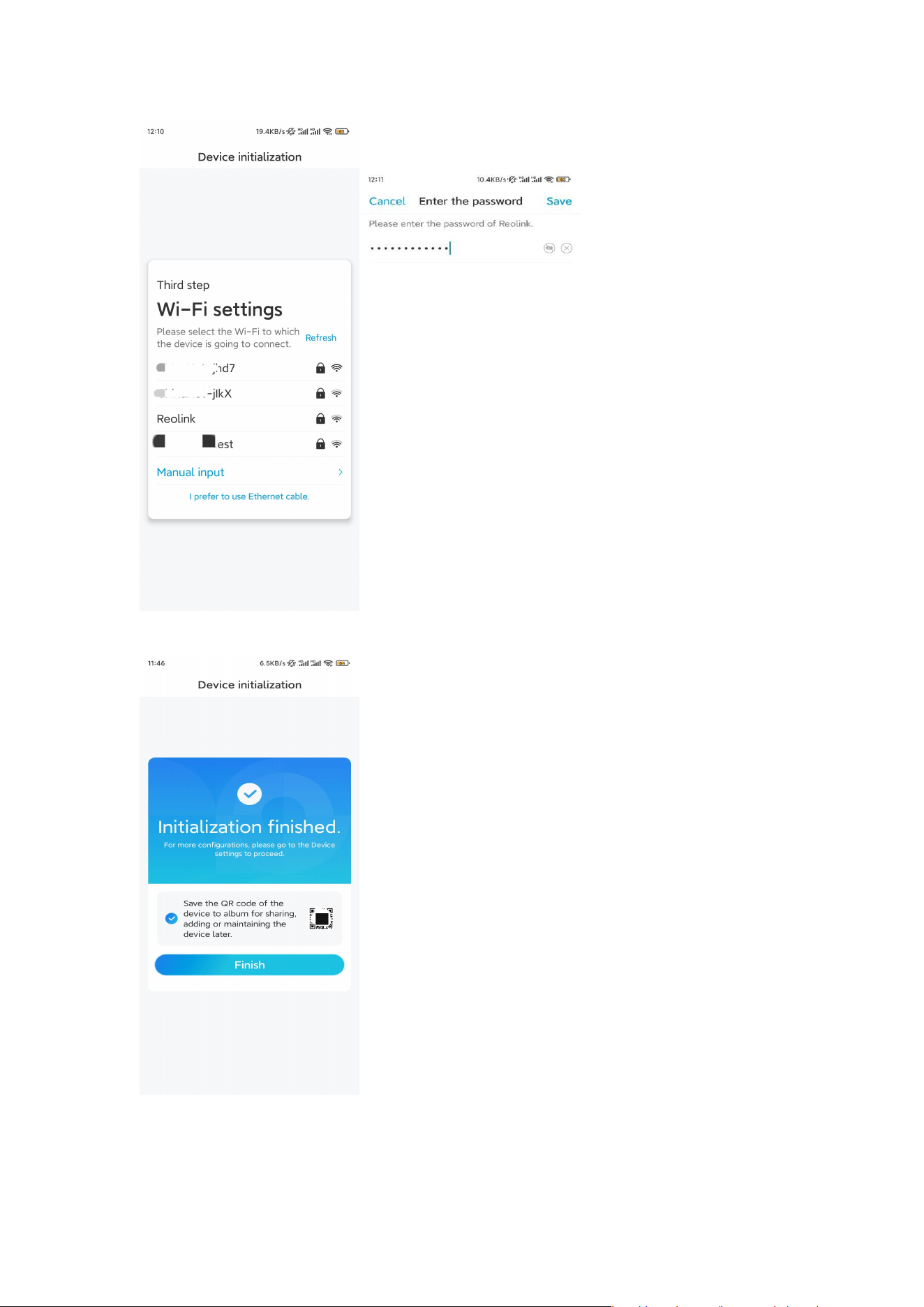
Step 5. Initialization finished. Tap Finish, and you can start live viewing now.
Install the Camera
Following the excitement of setting up your TrackMix, you will face up the
installation of the camera. So we are here to help you with guides on how to mount
the TrackMix camera on the wall or the ceiling. It's up to you.
Mount the Camera on the Wall
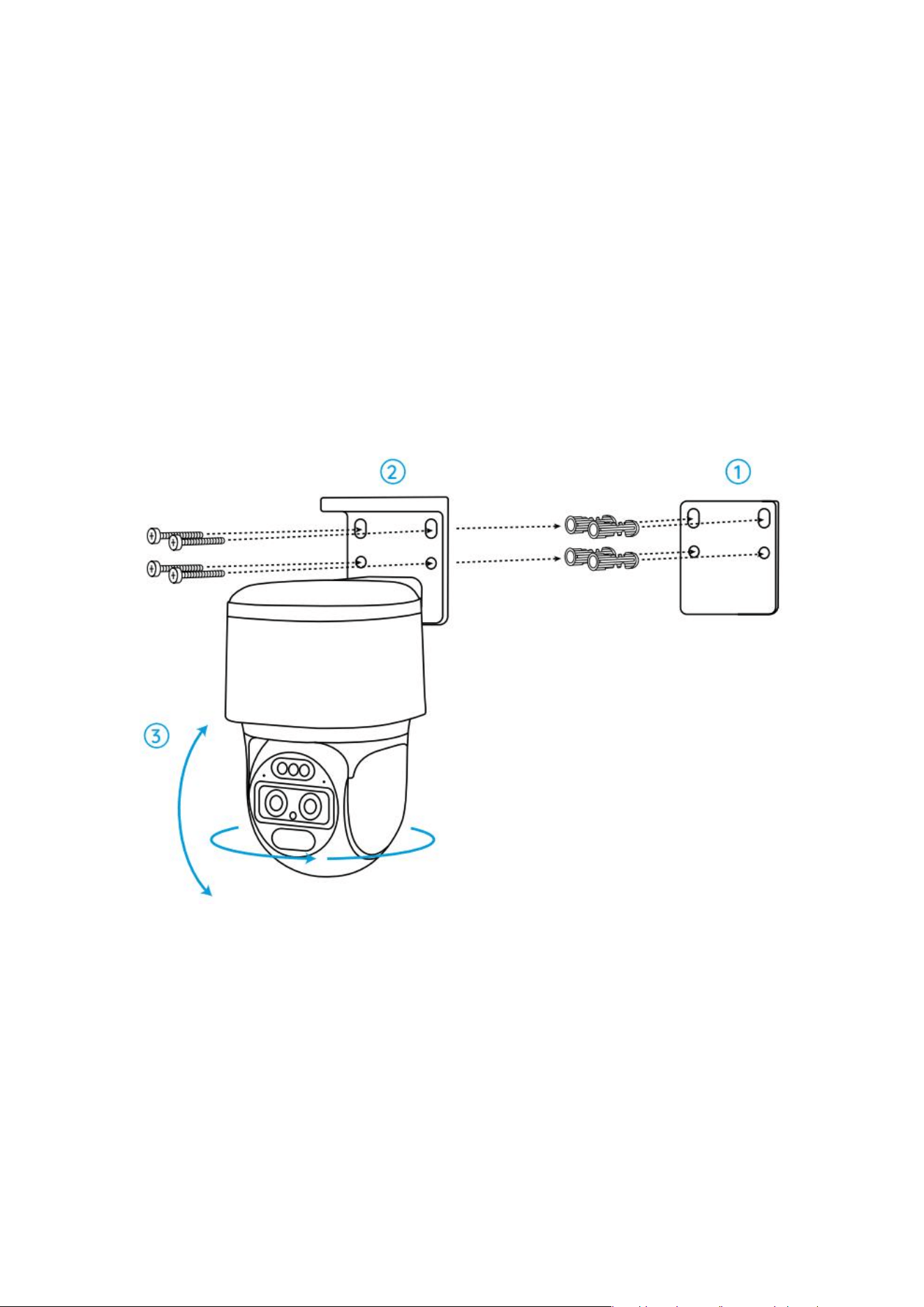
Step 1. Stick the mounting hole template on the wall and drill holes
correspondingly.
Step 2. Screw the mount base to the wall using the screws included in the
package.
Step 3. You may control the camera to pan and tilt via Reolink App or Client to
adjust the camera's direction.
Note: If you install the camera on a pretty hard surface such as drywall, use the
drywall anchors included in the package.
Mount the Camera on the Ceiling
Step 1. Stick the mounting hole template on the ceiling and drill holes
correspondingly.
Step 2. Install the mount base to the wall using the screws included in the
package.
Step 3. Adjust the camera's direction by controlling the camera to pan and tilt via
the Reolink App or Client.
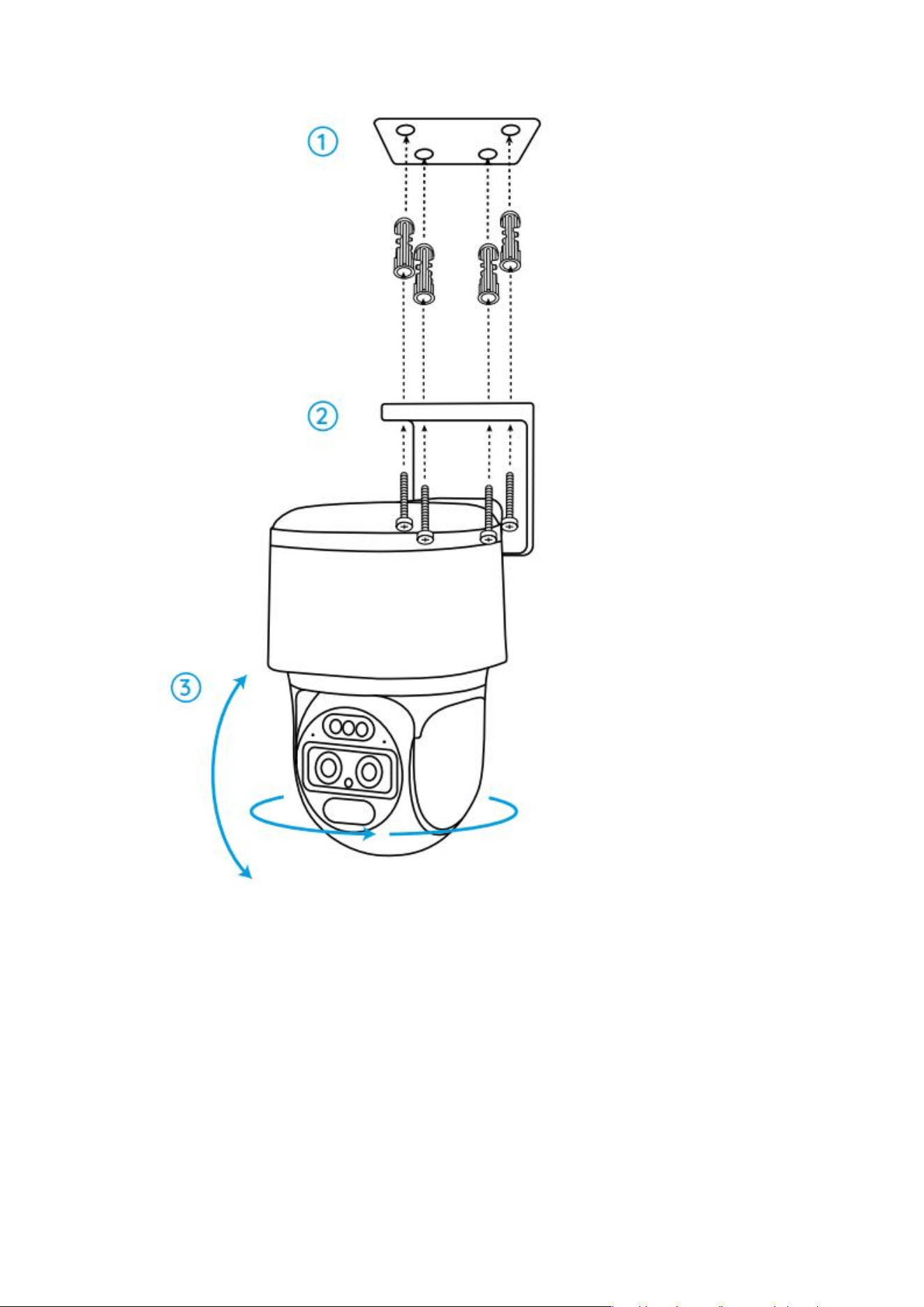
Note: Use the drywall anchors included in the package if needed.