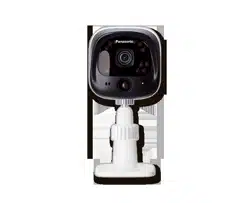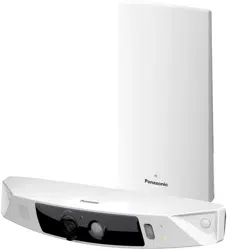

User’s Guide
Text entity: en_us
Model No.

Welcome to the HomeHawk!
What is the HomeHawk? ..................................4
Overview .............................................................4
What kinds of devices are available? .............5
Overview .............................................................5
Access point (KX-HNB700, KX-HNB705) ...........6
Front door camera (KX-HNC700,
KX-HNC705) .......................................................7
Outdoor camera (KX-HNC710, KX-HNC715) .....8
HD Camera (KX-HNC800, KX-HNC805,
KX-HN1003) .......................................................9
Usage examples ..............................................10
Introduction .......................................................10
I want to view live camera images while I’m
out .....................................................................10
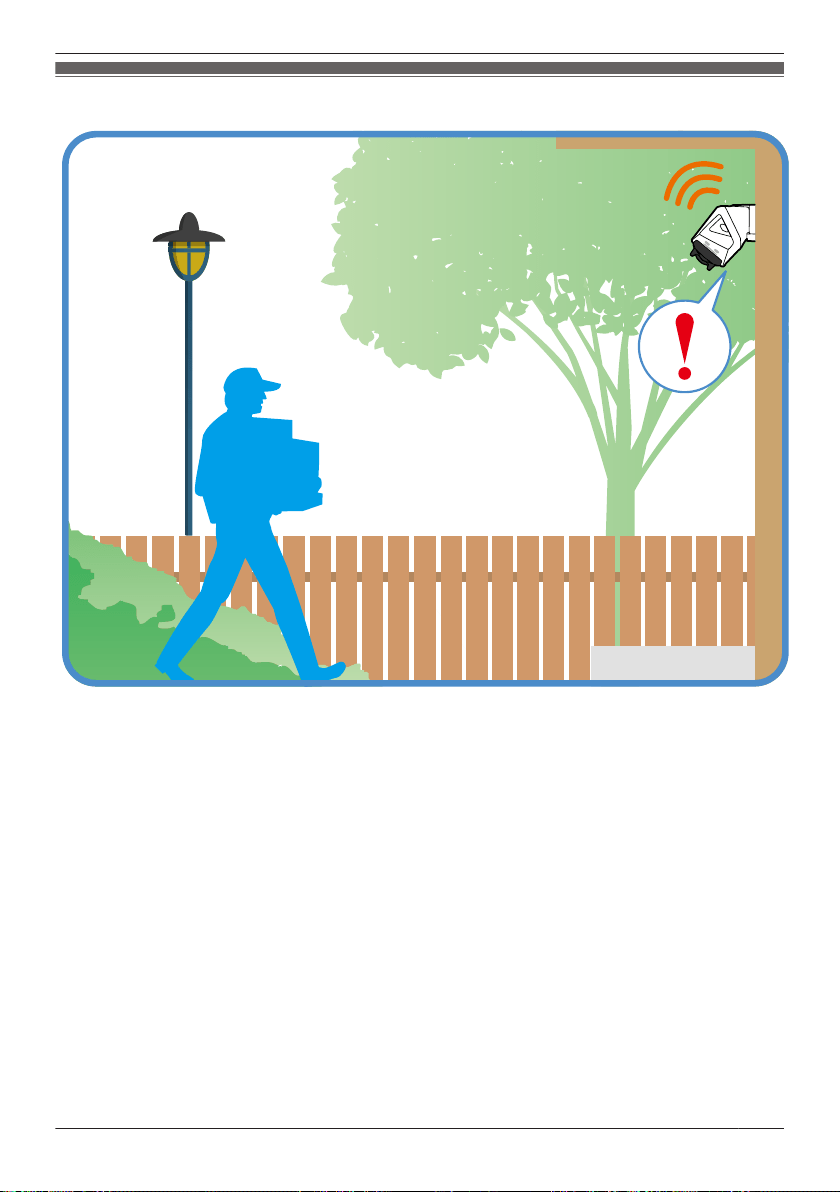
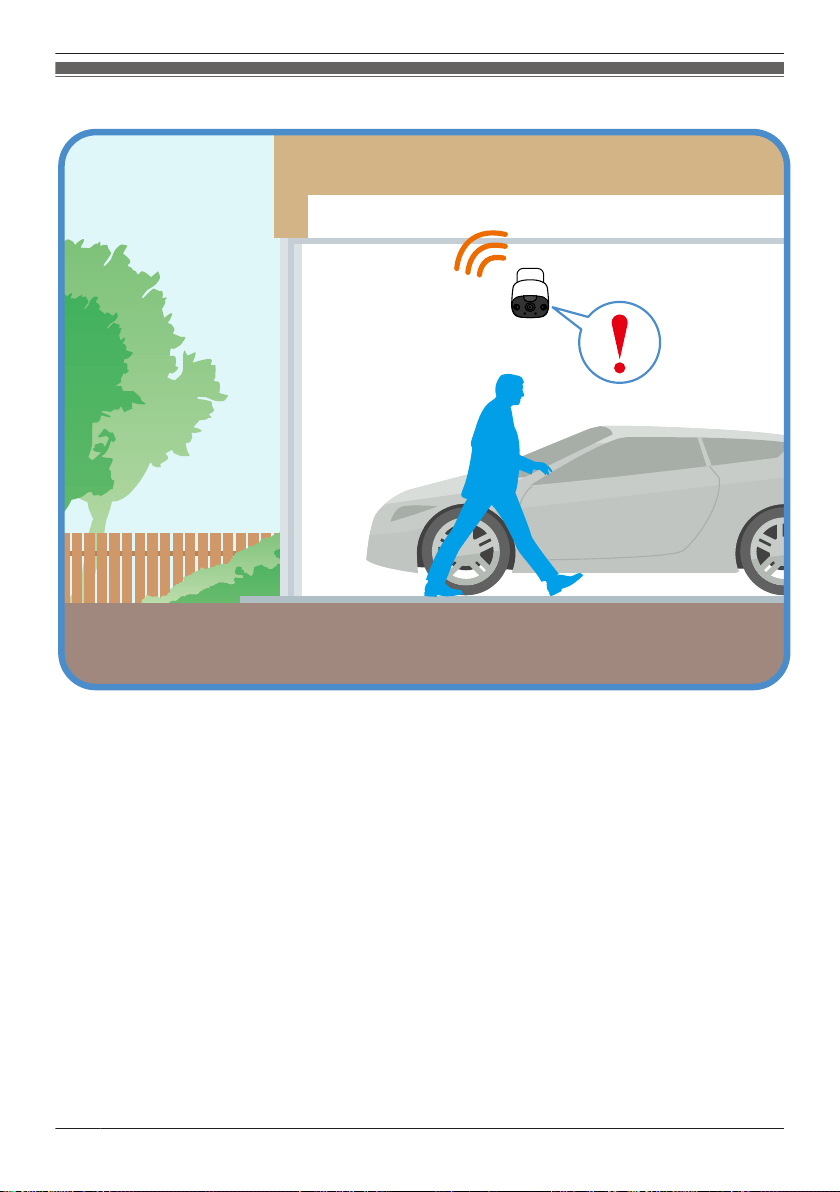
I want to know if someone approaches my home
while I’m out ......................................................10
I want to automatically sound a voice alert to
protect my packages .........................................11
I want to view color images at night ..................11
I want to know when my baby wakes up ..........11
System setup
System setup (overview) ................................13
Downloading the [HomeHawk] app ...............13
Initial setup ......................................................14
Registering other mobile devices to the access
point .................................................................15
Using the app
App basics .......................................................17
App basics (overview) .......................................17
Using the home screen .....................................18
Displaying the settings menu ............................19
Selecting devices ..............................................20
Accessing from multiple mobile devices ...........20
Exiting and logging out .....................................20
Using multiple access points ........................20
Using multiple access points (overview) ...........20
Registering your mobile device to additional
access points ....................................................21
Confirming system status ..............................21
Confirming system status (overview) ................21
Status notifications ............................................21
Device LED indicators ......................................22
System expansion ..........................................24
System expansion (overview) ...........................24
Registering devices ..........................................24
Mobile device features ...................................25
Mobile device features (overview) ....................25
Access point features ....................................26
Access point features (overview) ......................26
Mode settings ..................................................28
Mode settings (overview) ..................................28
Checking the selected mode ............................29
Accessing the mode screen ..............................29
Selecting modes ...............................................29
Turning modes off .............................................29
Preset modes ....................................................29
Creating new modes .........................................30
Editing modes ...................................................31
Deleting modes .................................................31
Amazon Alexa features ..................................32
Amazon Alexa features (overview) ...................32
Linking with your Amazon Echo Show ..............32
Using Amazon Alexa to control devices ...........33
Google Home features ...................................33
Google Home features (overview) ....................33
Linking with your Google Home ........................34
Using Google Home to control devices ............35
System settings and maintenance ................35
Notification settings ...........................................35
Login settings ....................................................36
Event logs .........................................................36
Network features ...............................................37
Home wireless network SSID features .............38
Deregistering devices .......................................38
Access point SD cards ......................................39
Support information .......................................40
Accessing the User’s Guide ..............................40
Accessing customer support .............................40
Viewing the Camera Installation / Removal Guide 40
Viewing system information ..............................41
Appendix .........................................................41
Copyright information ........................................41
Open source software information ....................41
Software information .........................................41
Using a front door camera and
outdoor camera
Front door camera and outdoor camera
features ............................................................42
Front door camera and outdoor camera features
(overview) .........................................................42
Main features ...................................................42
Viewing the camera image/recording list
screen ...............................................................42
Viewing the live camera image screen .............44
Recording camera images (manual
recording) ..........................................................46
Taking snapshots ..............................................46
Talking to the camera .......................................46
Playing back recordings ....................................47
Erasing recordings ............................................48
Protecting recordings ........................................48
Status ...............................................................49
2
Table of Contents

Camera battery level .........................................49
Camera signal strength .....................................49
Image, sound, and recording settings ..........50
Speaker volume settings ..................................50
Recording settings ............................................50
Using night vision ..............................................51
Video settings ...................................................51
Detection settings ...........................................53
Detection area ..................................................53
Motion sensitivity ..............................................53
Disabling detections when leaving your
house ................................................................54
Detection test ....................................................54
Front door camera and outdoor camera
settings ............................................................54
Changing the name of cameras ........................54
Status LED ........................................................55
Updating firmware .............................................55
Resetting camera settings ................................55
Using an HD camera
Setting up an HD camera ...............................57
Setting up an HD camera (overview) ................57
Downloading the [HomeHawk] app ..................57
Setting up the HD camera ................................58
HD camera basics ...........................................60
HD camera basics (overview) ...........................60
Displaying the options menu .............................60
Accessing the HD camera from multiple
devices ..............................................................61
HD camera main features ...............................61
HD camera main features (overview) ...............61
Viewing the HD camera list ...............................62
Viewing live HD camera images .......................62
Taking snapshots ..............................................63
Talking to the HD camera .................................64
Recording HD camera images (manual
recording) ..........................................................65
Viewing the HD camera recording list ...............65
Playing back HD camera recordings ................66
Erasing HD camera recordings .........................66
HD camera SD cards ........................................67
Confirming HD camera status .......................68
Confirming HD camera status (overview) .........68
Status notifications ............................................68
HD camera LED indicator .................................69
Smart recording features ...............................70
Smart recording features (overview) .................70
Creating smart recording scenarios ..................70
Turning smart recording scenarios on and
off ......................................................................71
Editing smart recording scenarios ....................71
Erasing smart recording scenarios ...................72
HD camera sensor features ...........................72
HD camera sensor features (overview) ............72
Viewing HD camera sensor history ...................72
Temperature sensor .........................................73
Sound sensor ....................................................73
Motion detection ...............................................74
Image, sound, and recording settings ..........74
HD camera speaker volume .............................74
Image brightness ..............................................75
Image resolution ...............................................75
Frame rate ........................................................75
Recording overwrite ..........................................75
Talk mode .........................................................76
Recording sound ...............................................76
Night vision mode .............................................76
Thumbnail image ..............................................76
Other image settings .........................................77
HD camera settings ........................................78
General settings ................................................78
Login password .................................................79
HD camera device profiles ................................79
Network features ...............................................80
Updating the HD camera’s firmware .................81
Resetting the HD camera’s settings .................81
System expansion ..........................................82
Registering other mobile devices to the HD
camera ..............................................................82
Adding another HD camera ..............................83
Deregistering your mobile device .....................83
Appendix .........................................................84
Open source software information ....................84
Software information .........................................84
Troubleshooting
General information ........................................85
Messages .........................................................86
Initial setup ......................................................87
Connecting from your mobile device ...........87
Notification features .......................................88
Front door camera and outdoor camera
features ............................................................89
HD camera sensor features ...........................91
Amazon Alexa features ..................................91
Google Home features ...................................92
About this document
3
Table of Contents
What is the HomeHawk?
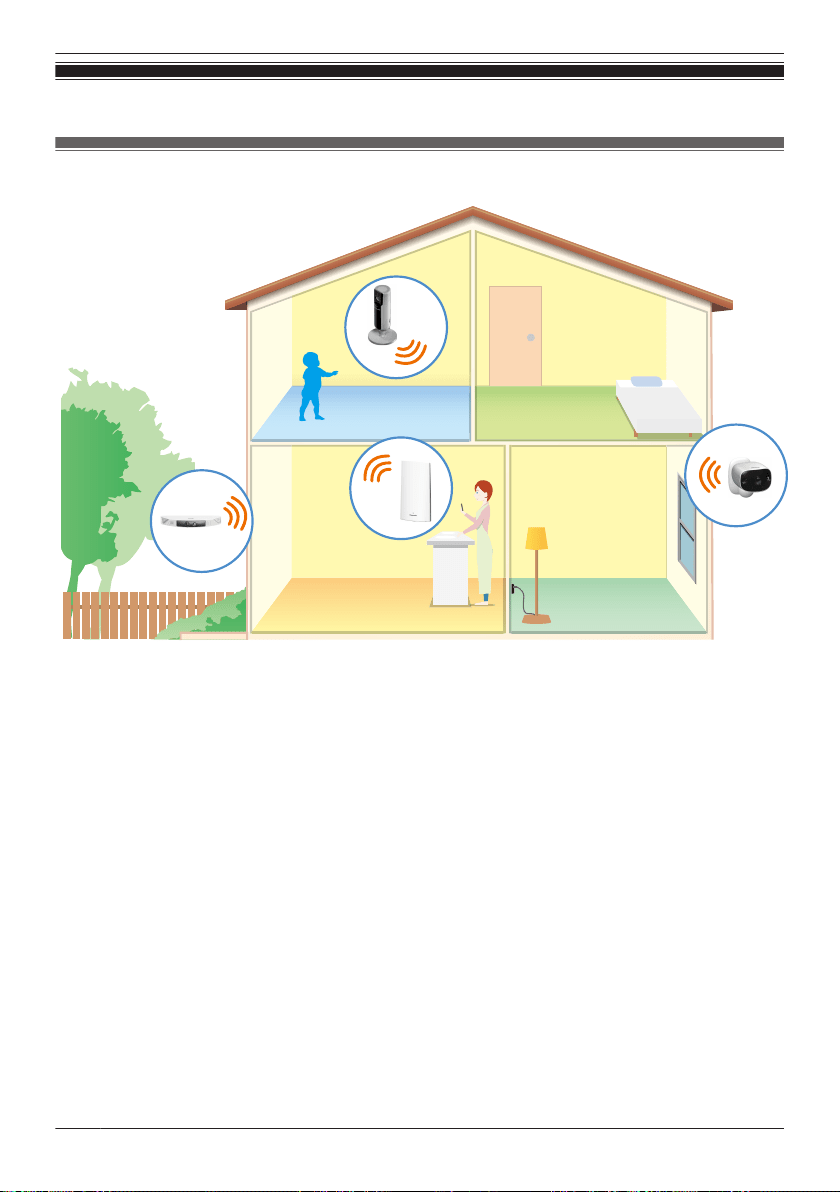
Overview
The Panasonic Home Monitoring Camera is a wireless network of devices that help you monitor your
home. Its easy-to-use app allows you to stay in charge even when away from home.
4
Welcome to the HomeHawk!
What kinds of devices are available?
Overview
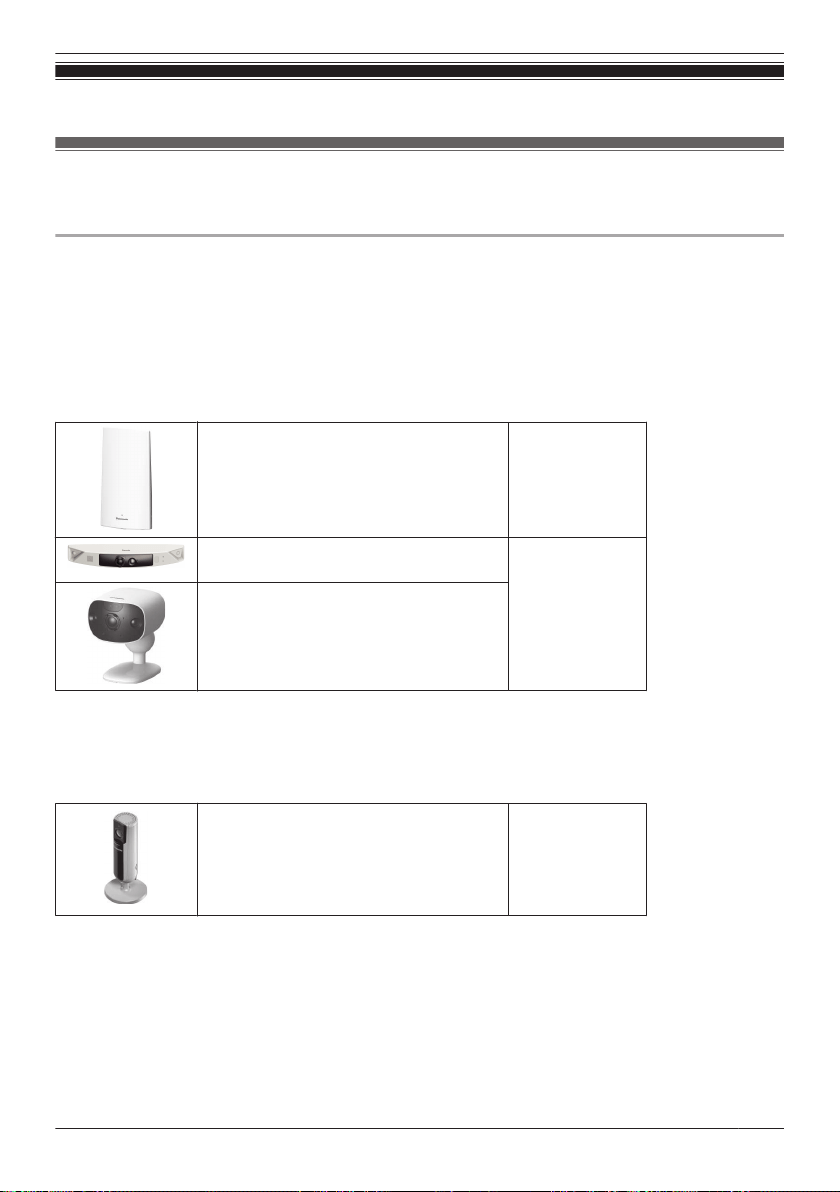
The Home Monitoring Camera can be expanded to suit your needs.
Panasonic Home Monitoring Camera device lineup
The maximum number of camera devices for each type are listed below.
In order to use front door cameras and outdoor cameras, they must be connected to an access point.
Note:
R Availability and release dates of devices and bundles may vary by region.
R Device appearance may vary by region.
For monitoring outside your premises
Access point (KX-HNB700, KX-HNB705)
1
*1,
*2
Front door camera (KX-HNC700,
KX-HNC705)
16
*3
Outdoor camera (KX-HNC710,
KX-HNC715)
*1 Up to 8 mobile devices can be registered to 1 access point.
*2 Up to 4 access points can be registered to a mobile device.
*3 Front door cameras and outdoor cameras can only be registered to 1 access point.
For monitoring inside your premises
HD Camera (KX-HNC800, KX-HNC805,
KX-HN1003)
16
*1
*1 This number indicates the number of devices that can be registered to a mobile device. Depending
on the specifications of your wireless router, the number of devices that can be accessed may be
lower.
5
Welcome to the HomeHawk!
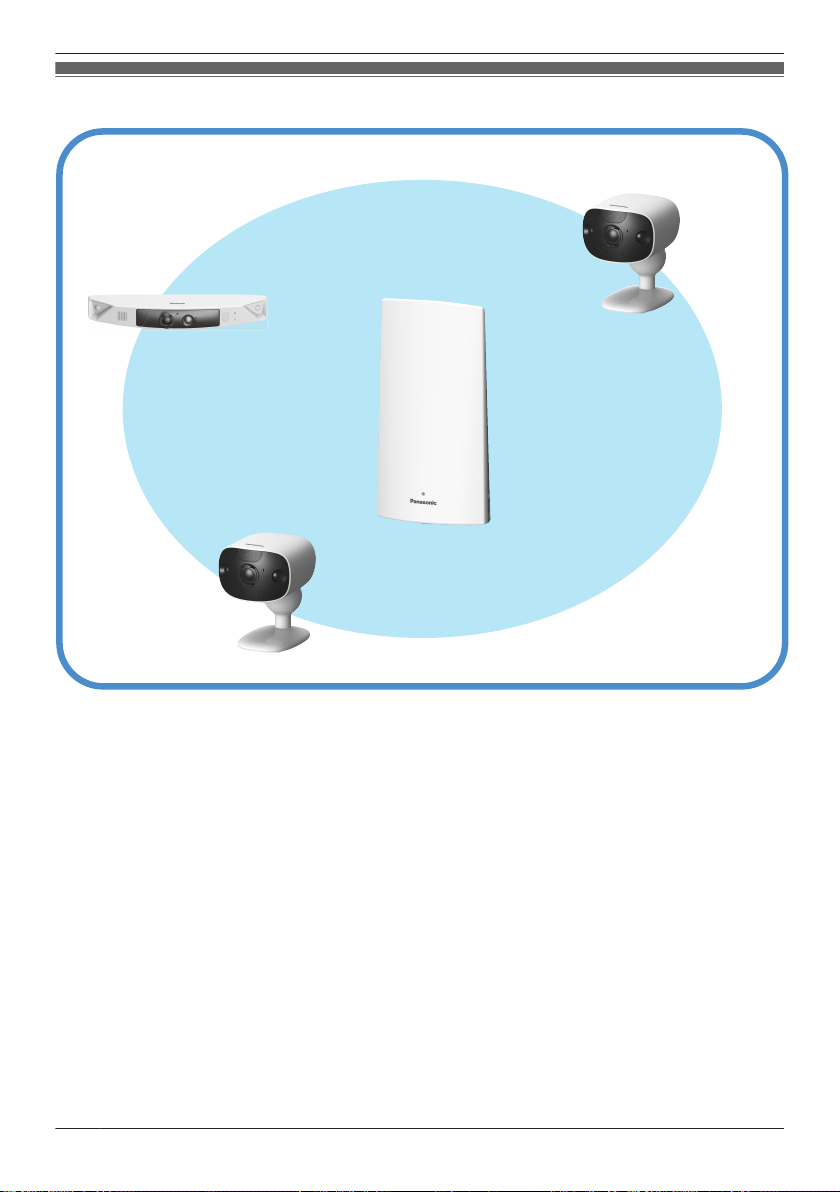
Access point (KX-HNB700, KX-HNB705)
R Joins front door cameras and outdoor cameras together
R Connects to your wireless router with an Ethernet cable
R Supports SD card connection for recording video and audio from cameras
6
Welcome to the HomeHawk!
Front door camera (KX-HNC700, KX-HNC705)
R Full-color camera with night vision (including color night vision) and built-in microphone for live
monitoring and recording
R Built-in motion sensor (visual detection) can be used to trigger other actions (alerts, etc.)
R Built-in microphone and speaker for two-way communication
7
Welcome to the HomeHawk!
Outdoor camera (KX-HNC710, KX-HNC715)
R Full-color camera with night vision (including color night vision) and built-in microphone for live
monitoring and recording
R Built-in motion sensor (visual detection) can be used to trigger other actions (alerts, etc.)
R Built-in microphone and speaker for two-way communication
8
Welcome to the HomeHawk!
HD Camera (KX-HNC800, KX-HNC805, KX-HN1003)
R Full-color, high-definition camera with night vision and built-in microphone for live monitoring and
recording
R Built-in motion sensor (visual detection), sound sensor, and temperature sensor can be used to trigger
other actions (camera recording, etc.)
R Built-in microphone and speaker for two-way communication
9
Welcome to the HomeHawk!

Usage examples
Introduction
This section describes commonly used system features, the devices required for each example, and
briefly explains the required settings.
I want to view live camera images while I’m out
While away from home, you can view live camera images.
Required devices
R Front door camera (KX-HNC700, KX-HNC705)/Outdoor camera (KX-HNC710, KX-HNC715)
– Mobile device (smartphone or tablet) with an Internet connection
– Wireless router
– Access point (KX-HNB700, KX-HNB705)
R HD Camera (KX-HNC800, KX-HNC805, KX-HN1003)
– Mobile device (smartphone or tablet) with an Internet connection
– Wireless router
Required procedures
R Access point initial setup and mobile device registration
Refer to the Installation Guide included with your access point.
R Device registration (if you didn’t purchase the device as part of a pre-configured bundle)
Refer to the Installation Guide included with your device.
R Use the [HomeHawk] app to access the desired camera.
– Front door cameras and outdoor cameras: See “Viewing the live camera image screen”, Page 44.
– HD Camera: See “Viewing live HD camera images”, Page 62.
I want to know if someone approaches my home while I’m
out
While away from home, you can receive a notification on your mobile device if it is detected that
someone approaches your home.
Required devices
R Mobile device (smartphone or tablet) with an Internet connection
R Wireless router
R Access point (KX-HNB700, KX-HNB705)
R Front door camera (KX-HNC700, KX-HNC705) or outdoor camera (KX-HNC710, KX-HNC715)
Required procedures
R Access point initial setup and mobile device registration
Refer to the Installation Guide included with your access point.
R Device registration (if you didn’t purchase the device as part of a pre-configured bundle)
Refer to the Installation Guide included with your device.
R Use the [HomeHawk] app to configure a mode or use a preset mode. See “Mode settings
(overview)”, Page 28 or “Preset modes”, Page 29.
10
Welcome to the HomeHawk!

I want to automatically sound a voice alert to protect my
packages
You can configure the front door camera to sound a voice alert if a suspicious person approaches your
house or package.
Required devices
R Mobile device (smartphone or tablet) with an Internet connection
R Wireless router
R Access point (KX-HNB700, KX-HNB705)
R Front door camera (KX-HNC700, KX-HNC705)
Required procedures
R Access point initial setup and mobile device registration
Refer to the Installation Guide included with your access point.
R Device registration (if you didn’t purchase the device as part of a pre-configured bundle)
Refer to the Installation Guide included with your device.
R Use the [HomeHawk] app to configure a mode or use a preset mode. See “Mode settings
(overview)”, Page 28 or “Preset modes”, Page 29.
I want to view color images at night
You can configure the front door camera and outdoor camera to display images in color even at night or
when the area surrounding the cameras is dark.
Required devices
R Mobile device (smartphone or tablet) with an Internet connection
R Wireless router
R Access point (KX-HNB700, KX-HNB705)
R Front door camera (KX-HNC700, KX-HNC705) or outdoor camera (KX-HNC710, KX-HNC715)
Required procedures
R Access point initial setup and mobile device registration
Refer to the Installation Guide included with your access point.
R Device registration (if you didn’t purchase the device as part of a pre-configured bundle)
Refer to the Installation Guide included with your device.
R Use the [HomeHawk] app to set [Night Vision] to [Color].
See “Using night vision”, Page 51.
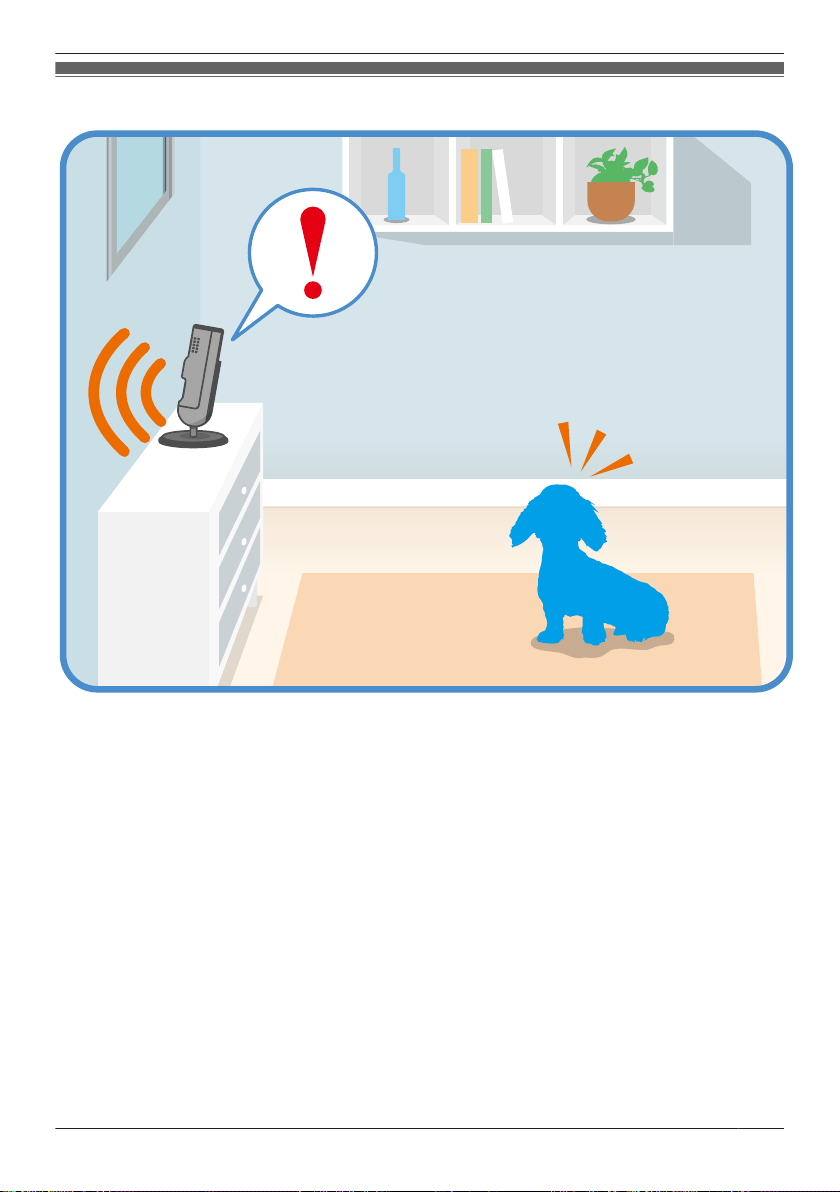
I want to know when my baby wakes up
You can configure a HD camera to notify your mobile device when sound (such as a crying baby) is
detected.
Required devices
R Mobile device (smartphone or tablet) with an Internet connection
R Wireless router
R HD Camera (KX-HNC800, KX-HNC805, KX-HN1003)
Required procedures
R Camera registration
Refer to the Installation Guide included with your camera.
11
Welcome to the HomeHawk!


System setup (overview)
There are 4 basic steps you need to perform in order to access the access point and your devices from
your mobile device.
Connections
¯
Connect your access point to a power outlet and to your wireless
router.
*1
Download
¯
Download the [HomeHawk] app to your mobile device.
Initial setup
¯
Use the [HomeHawk] app to register your mobile device to the access
point.
Register devices Add more mobile devices (smartphones and tablets), or cameras to the
system.
*1 Refer to the Installation Guide included with your access point for more information.
Note:
R For information about the setup for HD cameras, see page 57.
Downloading the [HomeHawk] app
Download information is available at the web page listed below.
{{"https://panasonic.net/cns/pcc/support/homehawk"|tolink("https://panasonic.net/cns/pcc/
support/homehawk")}}
Requirements
– Access point (KX-HNB700, KX-HNB705)
– A wireless router
– A compatible mobile device
Compatible mobile devices
Please check the latest information at the following supported page.
{{"https://panasonic.net/cns/pcc/support/homehawk"|tolink("https://panasonic.net/cns/pcc/
support/homehawk")}}
– iPhone and iPad (iOS 10.0 or later) or Android devices (Android 4.1 or later) (As of October 2017)
– Minimum recommended screen size: 1280´720 (screen content may not be displayed properly on
devices with smaller screens)
Note:
R The [HomeHawk] app may not function properly depending on the system environment, such as the
model of your mobile device, the peripherals connected to your mobile device, and the apps installed
on your mobile device. Bluetooth headsets are not supported by the [HomeHawk] app.
R The following Android devices are not compatible with the [HomeHawk] app.
– Android devices that are not supported by Google Play
– Android devices with limited hardware features
(Bluetooth, Wireless LAN, and microphone support are required.)
13
System setup
Initial setup
Before you begin
Confirm the following before you begin.
– Make sure you have installed the [HomeHawk] app on your mobile device
– Make sure your wireless router and the access point are turned on and the access point’s LED
indicator is lit in amber or green
– Make sure your access point is connected to your wireless router with an Ethernet cable
– Make sure your mobile device is connected to the same wireless router as your access point
– Make sure your mobile device can connect to the Internet
Note:
R If you have completed this procedure and want to register another mobile device to the access point,
see “Registering other mobile devices to the access point”, Page 15.
R If you experience trouble while performing this procedure, refer to the information in “Sometimes I
cannot connect while at home”, Page 87.
R For information about the setup for HD cameras, see page 57.
Initial setup
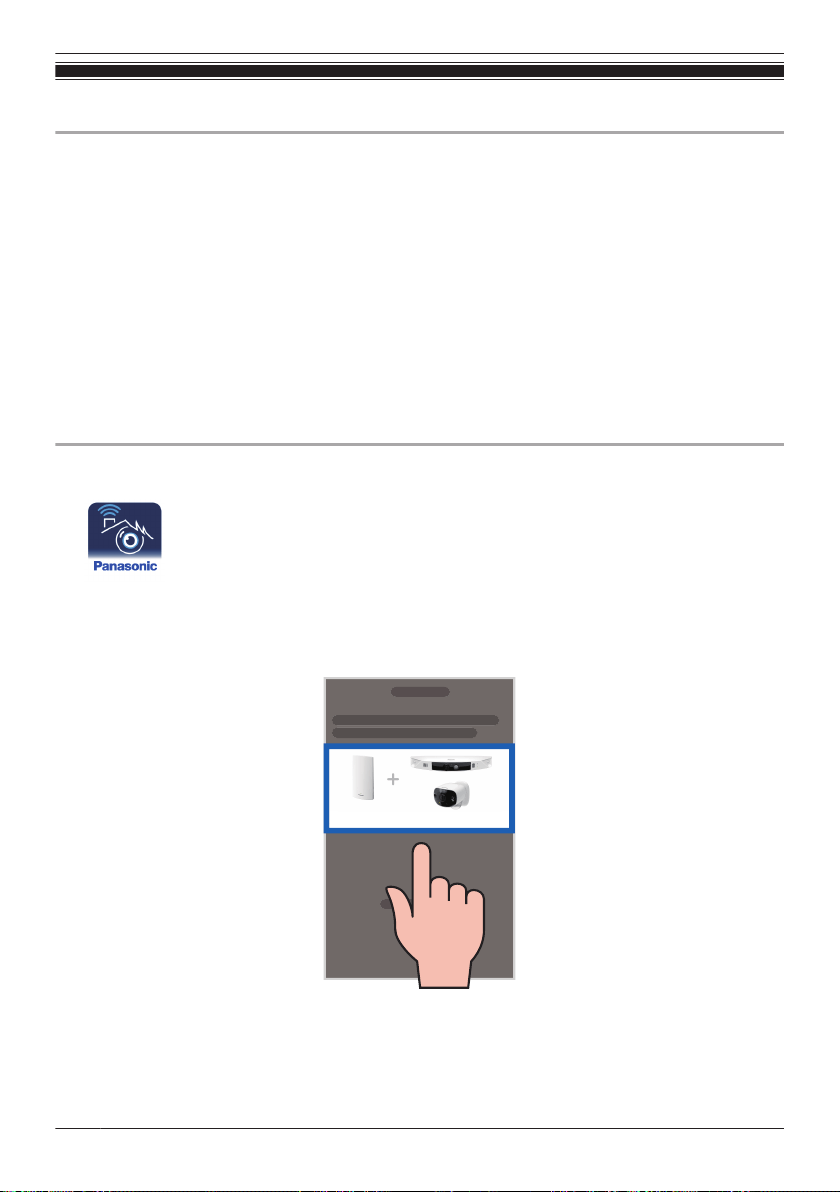
1 Start the [HomeHawk] app by tapping its icon (shown below).
R The end-user license agreement is displayed the first time you start the app.
2 Follow the on-screen instructions.
3 Tap [Access Point + Front Door/Outdoor Camera(s)] wait for a while, and then follow the
on-screen instructions.
Access Point + Front Door/Outdoor Camera(s)
R If the access point’s LED indicator lights in green, tap the green lit button, and then go to step 4.
R If the access point’s LED indicator blinks in amber, tap the amber blinking button, and then
connect the Ethernet cable between the access point and router. Next, follow the on-screen
instructions, wait for a while, and then check the color of the LED lights again.
14
System setup

R If the access point’s LED indicator blinks in green, tap the blinking green button, check if DHCP
(Dynamic Host Configuration Protocol) is operating for the router (refer to the operating
instructions included with your router or contact your Internet service provider), and then tap [OK].
4 When prompted, press the SETUP button on the access point.
5 When prompted, set the password that will be used to log in to the access point and then tap [OK].
6 When prompted, enter a name for the access point
*1
and for your mobile device and then tap [OK].
R The access point name setting is used by your mobile device to identify the access point. This is
useful when you have multiple access points.
R The mobile device name setting is used by the access point and other system users to identify
your mobile device. This is useful when performing certain operations, such as deregistering.
7 Follow the on-screen instructions and tap [Next] ® [OK].
R The app’s home screen is displayed when initial setup is completed.
*1 A name can only be entered for the access point the first time initial setup is performed. See
“Changing access point names”, Page 26 for information on how to change the name for the
access point.
Registering other mobile devices to the access
point
In order to access the access point and its connected devices from a mobile device, you must first
register the mobile device to the access point. You can register up to 8 mobile devices to an access point.
Confirm the following before you begin.
– Make sure you have completed the initial setup procedure ( “Initial setup”, Page 14)
– Make sure your mobile device can connect to the Internet
– Make sure your wireless router and the access point are turned on
– Make sure your mobile device and the access point are connected to the same wireless router
1 Using the mobile device that you want to register, download the [HomeHawk] app and then start the
app.
2 Follow the on-screen instructions.
3 Tap [Access Point + Front Door/Outdoor Camera(s)] wait for a while, and then follow the
on-screen instructions.
R If the access point’s LED indicator lights in green, tap the green lit button, and then go to step 4.
R If the access point’s LED indicator blinks in amber, tap the amber blinking button, and then
connect the Ethernet cable between the access point and router. Next, follow the on-screen
instructions, wait for a while, and then check the color of the LED lights again.
R If the access point’s LED indicator blinks in green, tap the blinking green button, check if DHCP
(Dynamic Host Configuration Protocol) is operating for the router (refer to the operating
instructions included with your router or contact your Internet service provider), and then tap [OK].
4 When prompted, press the SETUP button on the access point.
5 When prompted, enter the password used to log in to the access point and then tap [OK].
6 When prompted, enter a name for your mobile device, and then tap [OK].
R The mobile device name setting is used by the access point and other system users to identify
your mobile device. This is useful when performing certain operations, such as deregistering.
7 Follow the on-screen instructions and tap [Next] ® [OK].
R The app’s home screen is displayed when initial setup is completed.
15
System setup

Note:
R To register other devices, see “Registering devices”, Page 24.
R For privacy, we recommend that you deregister your mobile device from the access point
( “Deregistering mobile devices”, Page 38) before handing it over to a third party (such as when
submitting your mobile device for service, lending it to someone else, selling it, etc.), or if you no longer
intend to use the mobile device with the access point.
16
System setup

App basics
App basics (overview)
To begin, simply start the [HomeHawk] app on your mobile device by tapping its icon (shown below).
To prevent unauthorized access to the access point and its connected devices, you may need to enter a
system password. Whether or not you need to enter the system password depends on how your mobile
device is connecting to the access point, as explained below.
Accessing while at home
If your mobile device is connected to the same wireless network as the access point, you do not need to
enter the system password when connecting to the access point. This is because it is assumed that in
this situation, anyone in your home who is using your mobile device is authorized to access the access
point and its connected devices.
Note that even when you are at home, you will need to enter the system password if your mobile device
is not connected to the same wireless network as the access point. This could occur if your mobile device
is connected to the Internet using its mobile network connection instead of your wireless network, or if
your mobile device is connected to a different wireless network.
Accessing while away from home
If your mobile device is not connected to the same wireless network as the access point, including
situations when you are away from home, you will need to enter the system password when connecting
to the access point. This is to prevent someone from using your mobile device to access the access point
and its connected devices in the event that you lose your mobile device while away from home, for
example.
Note:
R The password is set during initial setup ( “Initial setup”, Page 14).
R You can change the password if necessary ( “Changing the login password”, Page 36).
R If the app disconnects from the access point while away from home (such as when you turn your
mobile device’s screen off and then on, or you switch to another app and then return to the
[HomeHawk] app), the app’s home screen will be displayed instead of the last screen you were
viewing. Also note that in this case, it may take some time for the app’s screen to be displayed.
Automatic login
When entering the login password, you can enable the automatic login feature by turning on the
[Automatic Login (for remote access)] checkbox. In this case the password that you enter will be
saved, allowing the [HomeHawk] app to connect to the access point automatically.
Note:
R You can turn this feature on and off later if desired ( “Configuring automatic login”, Page 36).
Important:
R Turning on this feature could allow unauthorized parties to access the access point and its connected
devices if they are using your mobile device.
17
Using the app

Privacy information for iPhone and iPad users
Certain features of the app function by accessing your mobile device’s hardware, such as the
microphone, or the information stored in your mobile device. While using the app, a dialog may be
displayed that asks whether you want to allow the app to access these features of your mobile device.
You can change this setting later if desired in the privacy section of your mobile device’s [Settings] app.
Using the home screen
The [HomeHawk] app home screen is displayed when you start the app.
HomeHawk
D
E
F
A
B
C
A Displays the settings menu D Shows the selected mode and displays the
mode screen
( “Mode settings (overview)”, Page 28)
B Shows the access point’s name E Displays the camera setting screen
C Shows the camera’s name F Displays the HD camera list
Note:
R The displayed home screen differs depending on the number and type of devices registered. If only 1
camera is registered to the access point, the camera image/recording list screen ( “Viewing the camera
image/recording list screen”, Page 42) is displayed.
18
Using the app
Connection mode when away from home
When connected away from home (i.e., your mobile device is not connected to the same wireless router
as the access point), an icon is displayed in the live camera image screen ( “Viewing the live camera
image screen”, Page 44), camera image/recording list screen ( “Viewing the camera image/recording
list screen”, Page 42), and playback screen ( “Playing back recordings”, Page 47) to indicate that you
are connected away from home and whether you are connected via a relay server. (A relay server is
used to make connections with your wireless router when you are away from home.)
– is displayed when connected away from home using a relay server.
– is displayed when connected away from home without using a relay server.
Viewing live images
Cameras can be selected on the home screen to watch live images for.
See the following for more information.
– Front door cameras/outdoor cameras: “Viewing the live camera image screen”, Page 44
– HD cameras: “Viewing live HD camera images”, Page 62
Returning to the previous screen
iPhone, iPad
Tap .
Android devices
Press your device’s “back” button.
Returning to the [HomeHawk] app home screen
Tap
or press your mobile device’s home button and then start the [HomeHawk] app again.
Home screen options
While viewing the home screen, the following items are available in the settings menu (see “Displaying
the settings menu”, Page 19). Note that the available options may vary depending on system
configuration and current connection status.
– [Recording List]
Displays a list of recordings for devices registered to the mobile device.
– [Event Log]
Displays logs of events such as motion detection.
– [Settings]
Allows you to configure settings for devices used with the [HomeHawk] app.
– [Support]
Allows you to access support options and information.
– [Add Camera(s)]
Allows you to register cameras to your mobile device.
Displaying the settings menu
Tap
to display the settings menu. Note that the settings menu is not available on all screens.
19
Using the app

Selecting devices
You can select the desired access point and device (front door camera, outdoor camera, etc.) when
viewing recorded images, configuring settings, etc.
If there are multiple devices registered to your mobile device you can select devices by tapping .
Accessing from multiple mobile devices
There are certain limitations when multiple mobile devices are connected to an access point at the same
time, as explained below.
Front door camera and outdoor camera features
Viewing camera images
Up to 4 mobile devices, including 2 connected while away from home (i.e., connecting while away from a
different network) can view images from a maximum of 2 cameras.
Recording camera images
Images from up to 2 cameras can be recorded. If you attempt to record images from a 3rd camera, the
recording for the 1st camera will stop, and recording for the 3rd camera will start.
Playing images
Only 1 mobile device can play images. Subsequent mobile devices are blocked from playing images
while images are being played on another mobile device.
Changing settings
Only 1 mobile device can change settings. Subsequent mobile devices are blocked from changing
settings while settings are being changed by another mobile device.
Note:
R Additional information for HD cameras
See “Accessing the HD camera from multiple devices”, Page 61.
Exiting and logging out
Exiting and logging out
Use the standard method for exiting an app used by your mobile device.
Using multiple access points
Using multiple access points (overview)
You can purchase and configure multiple systems, such as one for your home, one for your workplace,
and one for your vacation home. If you register your mobile device to each access point, you can access
any of your systems conveniently from the same mobile device, and switch between systems as desired.
20
Using the app

Note:
R Your mobile device can only connect and control one access point (and devices connected to it) at a
time.
Registering your mobile device to additional access points
You can register your mobile device to multiple access points. Use this procedure to register your mobile
device to an additional access point.
1 From the [HomeHawk] app home screen, tap .
2 Tap [Add Camera(s)].
3 Tap [Access Point + Front Door/Outdoor Camera(s)] and continue from step 3 of “Initial setup”,
Page 14.
Confirming system status
Confirming system status (overview)
The access point and its connected devices can provide information about system status in a variety of
ways.
– Displaying status notifications on your mobile device using your mobile device’s notifications features
( “Status notifications”, Page 21)
– Lighting the LED indicators on each device ( “Device LED indicators”, Page 22)
Status notifications
Your mobile device can receive status notifications that provide feedback about how the access point
and its connected devices are functioning. Details vary depending on the app’s settings and the type of
mobile device you are using.
Note:
R After recording has started for a camera, motion detection notifications from that camera are not sent
to mobile devices. However, motion detection notifications from other cameras are sent.
Enabling and disabling status notifications
See Notification settings and Push Notification.
Alert tone
The app sounds an alert tone when your mobile device receives a notification from the access point. The
volume is determined by your mobile device’s alert volume setting.
Status notifications for iPhone, iPad
The app provides information about system status by displaying status notifications and error messages
in the iOS Notifications Center.
If your mobile device is registered to multiple access points, your mobile device can receive notifications
from all access points, regardless of the access point that your mobile device is currently connected to.
21
Using the app
When you tap a notification in the iOS Notifications Center, the app will attempt to connect to the
corresponding camera.
Status notifications for Android devices
The app provides information about system status by displaying status notifications, error messages, and
the following icons in your mobile device’s status bar and notifications panel.
If your mobile device is registered to multiple access points, your mobile device can receive notifications
from all access points, regardless of the access point that your mobile device is currently connected to.
When you tap a notification in the notifications panel, the app will attempt to connect to the corresponding
camera.
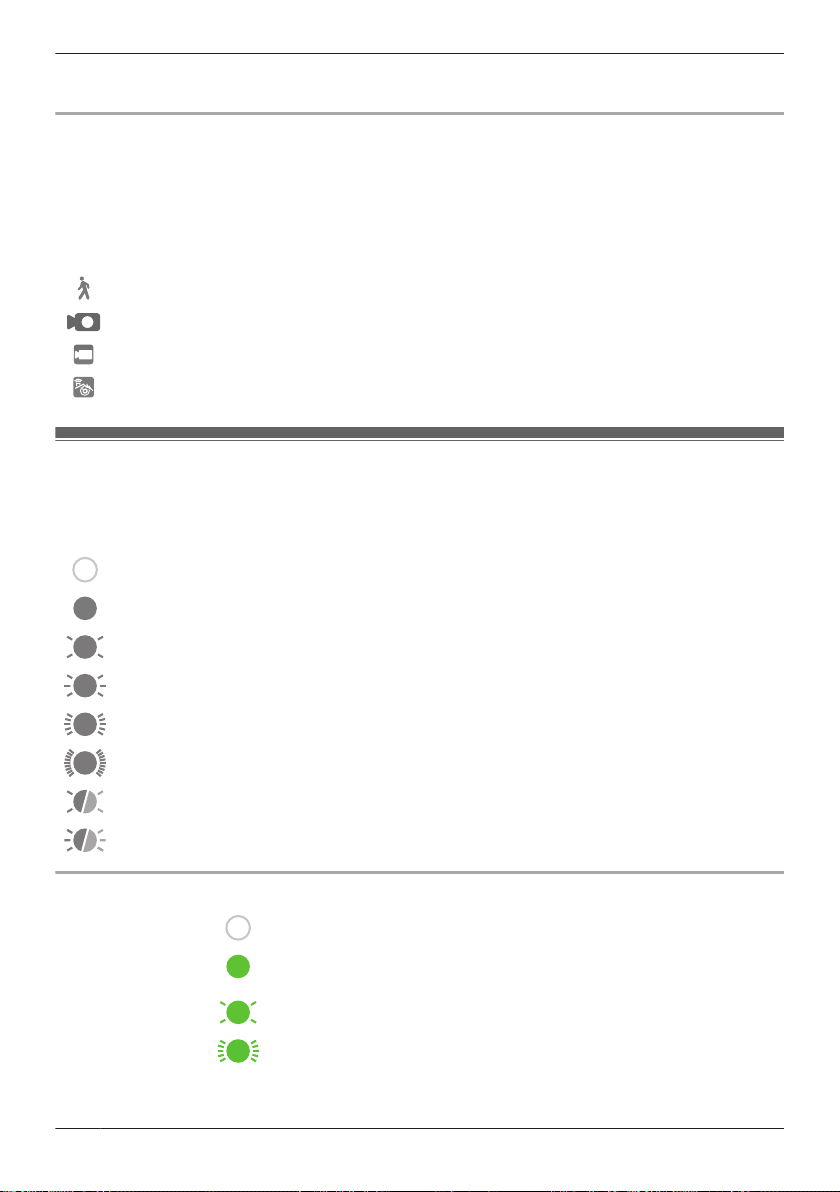
The front door camera or outdoor camera motion sensor was triggered
The front door camera or outdoor camera motion sensor was triggered and recording starts
The mode set to the access point was changed
An error occurred
Device LED indicators
Each device can provide information about its status by turning on its LED indicator.
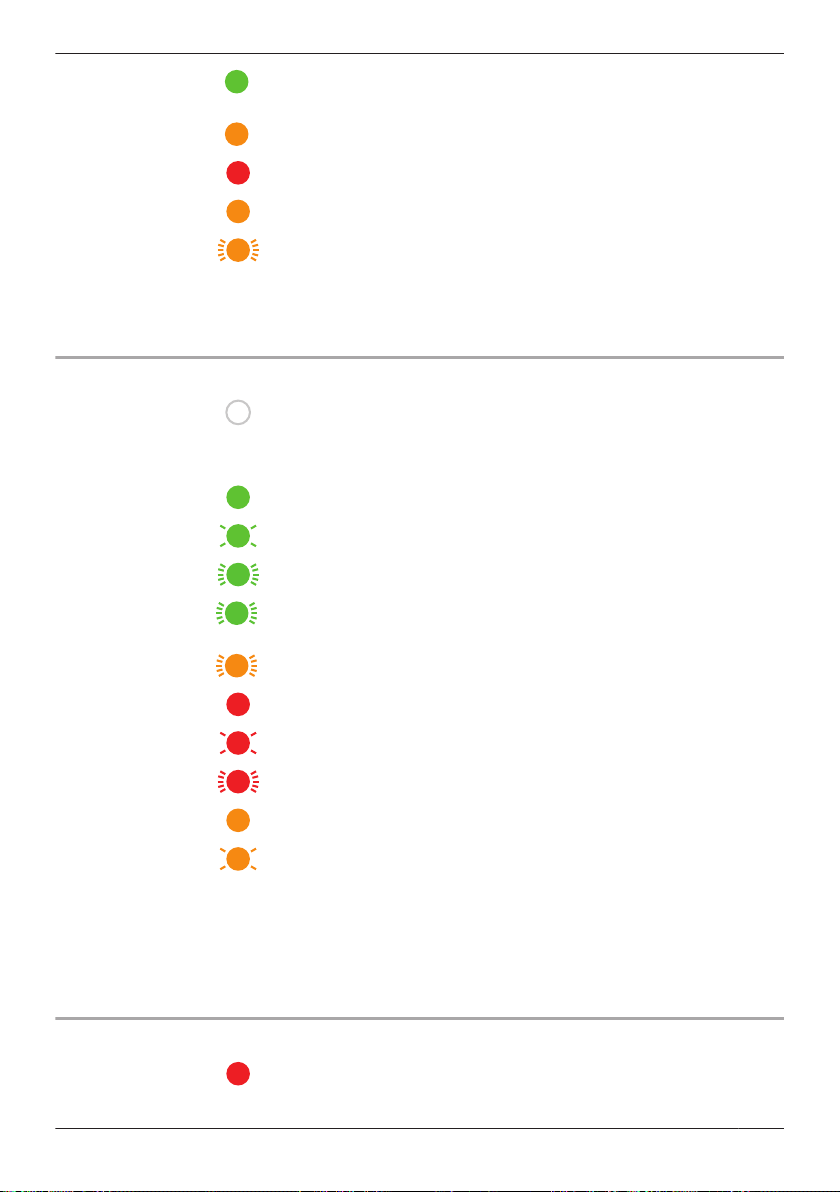
Meaning of symbols used in this section
Indicator off
Indicator lit
Indicator blinking slowly
Indicator blinking
Indicator blinking quickly
Indicator blinking very quickly
Indicator blinking slowly in two colors
Indicator blinking in two colors
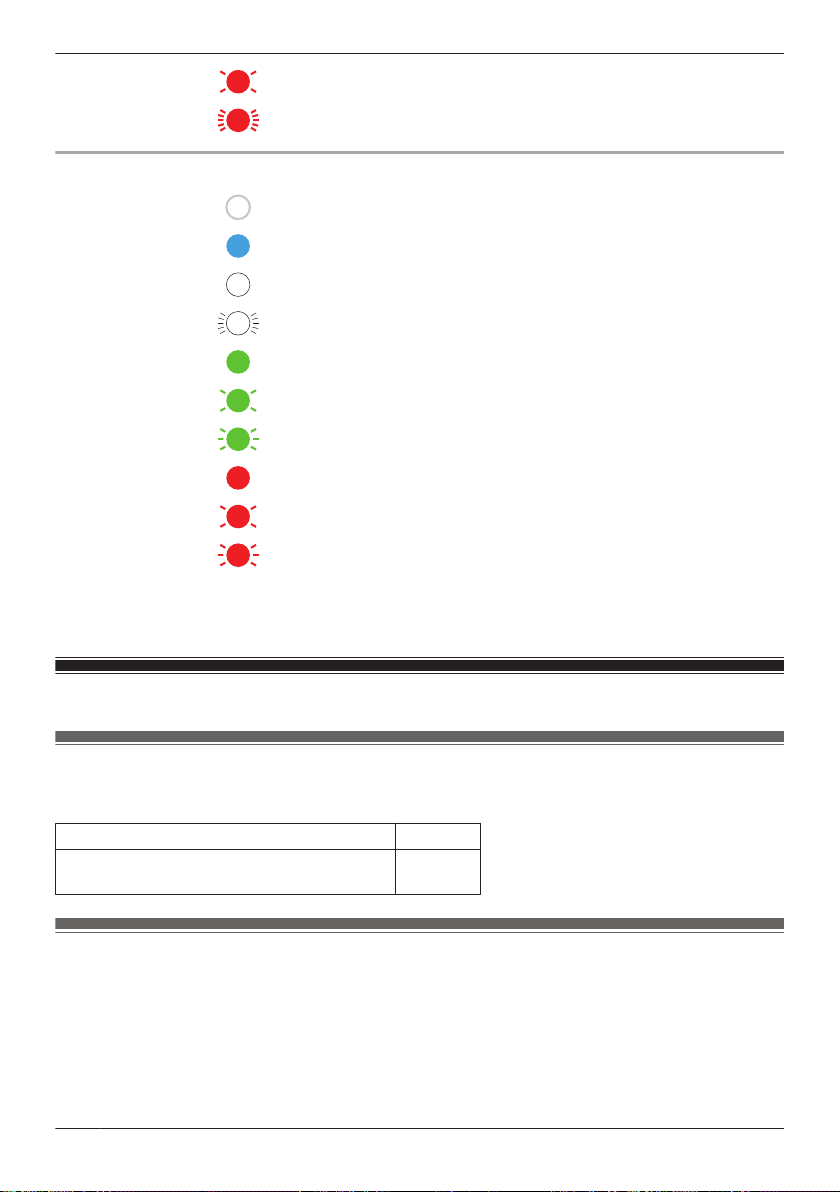
Access point LED indicator
Off
No power, or LED indicator is turned off
*1
Green
Power is on (normal operations)
*1
, or registration completed for the
camera or mobile device
Registration mode, updating
Obtaining an IP address, or accessing a microSD card
*1
22
Using the app
Green or amber
(alternating)
or
Starting up
*2
Red Registration failed
Amber Power on until start up completed
IP address is not obtained, or Ethernet cable is not connected to the
router
*1 You can configure the access point so that its LED indicator does not light in most states. See
“Status LED settings”, Page 26.
*2 It may take some time for the access point to finish starting up.
Front door camera and outdoor camera LED indicator
Off R No power
R More than 5 seconds have passed since turning on the power when
the camera is not registered to the access point
R LED indicator is turned off
*1
Green
Registration successfully completed or signal level is strong
*3
Registration mode, updating
Camera is searching for an access point
*1
Green or amber
blinking quickly -
off for 1 second
or
Camera is on
*1
Red
Registration failed, signal level is weak
*3
, or detecting motion
*1,
*4
Camera is out of range of the access point
*1,
*3
Streaming data
*1
Amber
Not registered to the access point
*2
, or signal level is good
*3
Battery is running low
*1
*1 You can configure the camera so that its LED indicator does not light in most states. See “Status
LED”, Page 55.
*2 The LED indicator lights in amber for 5 seconds after the power is turned on for the camera.
*3 The signal level (strong, good, weak, out of range) is shown after pressing the SETUP button for 3
seconds. You can also check the signal level from “Camera signal strength”, Page 49.
*4 Motion detection can also be checked from “Detection test”, Page 54.
Front door camera and outdoor camera charging LED indicator
Red Charging is completed
23
Using the app
Charging
Charging failure
HD camera LED indicator
Off
No power, or LED indicator is turned off
*1
Blue
Normal operation, connected to wireless router
*1
, privacy shutter is open
White
Normal operation, connected to wireless router
*1
, privacy shutter is closed
Camera is searching for wireless router
Green Initial setup required
Initial setup is in progress with mobile device connected
Initial setup is starting
Red
Motion detected
*1
, or camera is starting up
Live images are being viewed or recorded, or camera is starting up
Device malfunction
*1 You can configure the camera so that its LED indicator does not light during normal operation or
when motion is detected. See “HD camera device profiles”, Page 79.
System expansion
System expansion (overview)
You can expand the system by registering additional devices to the access point.
Maximum number of mobile devices 8
Maximum number of front door cameras
and outdoor cameras
16
Registering devices
If you purchased any devices separately from the access point, you must register them to the access
point before you can use them. You can also register additional access points.
Note:
R To register a mobile device, use the procedure described in “Registering other mobile devices to the
access point”, Page 15.
24
Using the app

Registering access points
1 From the [HomeHawk] app home screen, tap ® [Add Camera(s)].
2 Tap [Access Point + Front Door/Outdoor Camera(s)].
3 Perform the procedure described in “Initial setup”, Page 14, starting from step 3.
Registering front door cameras and outdoor cameras
1 From the [HomeHawk] app home screen, tap ® [Add Camera(s)].
2 Tap [Front Door/Outdoor Camera(s)].
3 If you are close to the access point and can press its SETUP button:
Press and hold the access point’s SETUP button until the access point’s LED indicator blinks slowly
in green, and then tap [Click here to continue].
If you are not close to the access point and cannot press its SETUP button:
Tap [Click here if you are not close to the Access Point].
R If there are multiple access points, select the access point that you want to register the device to.
4 When prompted, press and hold the SETUP button on the camera that you want to register until the
camera’s LED indicator blinks slowly in green.
R When registration is complete, the camera sounds one long beep.
R If registration fails, the camera sounds several short beeps.
Note:
R You can customize the name of each device for easier management. For details, see “Changing the
name of cameras”, Page 54.
Registering HD cameras
1 From the [HomeHawk] app home screen, tap
® [Add Camera(s)].
2 Tap [Indoor HD Camera].
3 For iPhone or iPad:
Continue from step 5 of “Initial setup for iPhone, iPad”, Page 58.
For Android devices:
Continue from step 5 of “Initial setup for Android devices”, Page 59.
Mobile device features
Mobile device features (overview)
You can configure settings for your mobile device.
Editing mobile device names
1 From the [HomeHawk] app home screen, tap
® [Settings].
2 Tap [Mobile Device Name].
3 Enter the desired name.
4 Tap [OK].
25
Using the app

Adjusting mobile device speaker and microphone volume (Android devices only)
You can adjust the volume of your mobile device’s microphone, which determines the volume of your
voice that is sent to the camera when talking to the camera, and your mobile device’s speaker, which
determines the volume of the camera audio that is heard on your mobile device.
1 From the [HomeHawk] app home screen, tap ® [Settings].
2 Tap [Mobile Device Volume].
3 Select the desired volume for [Speaker] and [Microphone].
4 Tap [OK].
Access point features
Access point features (overview)
Changing access point names
You can change the access point name.
The access point name setting is used to identify the access point. This is useful when you have multiple
access points.
1 From the [HomeHawk] app home screen, tap ® [Settings].
2 Tap [Access Point Settings] and select the desired access point.
3 Tap [Name].
4 Enter the desired name.
5 Tap [OK].
Recording settings
You can specify whether to allow recorded camera images to be erased automatically by new images
when the access point’s SD card is full, and check the remaining capacity of the SD card.
1 From the [HomeHawk] app home screen, tap ® [Settings].
2 Tap [Access Point Settings] and select the desired access point.
3 Tap [Recording].
4 Select the desired setting.
– [Overwrite Recording]: Determines whether recorded camera images are erased automatically
by new images when the access point’s SD card is full.
– [SD Card]: Displays the remaining capacity of the SD card.
Status LED settings
You can specify whether the device’s LED indicator lights or is disabled.
1 From the [HomeHawk] app home screen, tap ® [Settings].
2 Tap [Access Point Settings] and select the desired access point.
3 Tap [System].
– [Status LED]: Determines whether the device’s LED indicator lights or is disabled.
Adjusting the bit rate for Amazon Echo Show and Google Home
You can select the bit rate to be used when transmitting data for Amazon Echo Show or Google Home
Chromecast.
26
Using the app
If you cannot display camera images on Amazon Echo Show or via Google Home Chromecast, or if
images are not displayed smoothly, try using a lower bit rate setting.
1 From the [HomeHawk] app home screen, tap ® [Settings].
2 Tap [Access Point Settings] and select the desired access point.
3 Tap [System] ® [Bit Rate].
4 Select the desired setting.
Note:
R This setting is only available when Amazon Echo Show ( “Amazon Alexa features (overview)”,
Page 32) or Google Home ( “Google Home features (overview)”, Page 33) settings are enabled.
Time adjustment
You can manually or automatically adjust the time of the access point to match the mobile device.
1 From the [HomeHawk] app home screen, tap ® [Settings].
2 Tap [Access Point Settings] and select the desired access point.
3 Tap [System] ® [Time Adjustment].
4 To manually adjust the time:
Tap [Update Time].
To automatically adjust the time:
Tap the name of the displayed mobile device, select the mobile device to match the time with, and
then tap [OK].
Country/region settings
You can select the country and region where you use your devices.
1 From the [HomeHawk] app home screen, tap ® [Settings].
2 Tap [Access Point Settings] and select the desired access point.
3 Tap [System] ® [Country / Region].
4 Select the desired country/region and then tap [OK].
5 Tap [OK].
Displaying device information
You can displayed device information, such as firmware versions and MAC addresses, and whether or
not to upload logs.
1 From the [HomeHawk] app home screen, tap ® [Settings].
2 Tap [Access Point Settings] and select the desired access point.
3 Tap [System] ® [System Info].
– [Log Upload]: Determines whether or not logs are uploaded.
Updating the firmware
You can use this feature to check for a newer version of the access point firmware (i.e., system
software). If a newer version is found, you can update the firmware.
1 From the [HomeHawk] app home screen, tap ® [Settings].
2 Tap [Access Point Settings] and select the desired access point.
3 Tap [System] ® [Firmware Update].
R The access point will connect to the Internet and check for a newer version of its firmware.
4 Follow the on-screen instructions.
27
Using the app

Resetting an access point
1 From the [HomeHawk] app home screen, tap ® [Settings].
2 Tap [Access Point Settings] and select the desired access point.
3 Tap [System] ® [Reset Access Point].
4 Select the desired setting.
– [Reset All Settings]: Resets all access point settings except camera registration settings.
– [Reset Access Point Settings]: Resets access point settings except for camera registration
information, smartphone registration information, and network related settings.
5 Follow the on-screen instructions.
Note:
R An access point can also be restarted or reset manually by pressing buttons on the access point.
– To restart an access point:
Press the reset button using an object with a thin tip.
– To reset all access point settings except camera registration settings:
Press and hold the reset button for about 5 seconds using an object with a thin tip.
– To reset access point network settings (do this if the network settings ( “Changing IP
settings”, Page 37) are incorrectly configured):
While pressing and holding the SETUP button, press the reset button using an object with a thin tip.
Mode settings
Mode settings (overview)
Modes allows the access points and their connected front door cameras and outdoor cameras to operate
according to pre-determined settings when motion is detected. The same mode is used for all front door
cameras and outdoor cameras connected to the same access point. You can use preset modes, or
create your own modes. Each mode answers the following questions.
1 What sounds are made?
– Example: Beeps, announcements, etc.
2 Which cameras record images and for how long?
3 Are cameras combined together for pre-recording?
– Example: 2 cameras can be linked together so that if 1 camera detects motion the other camera
starts pre-recording. (Images are temporarily stored, and if motion is detected later, images are
then saved on the access point’s SD card.)
4 Are notifications sent to mobile devices when motion is detected?
Note:
R Modes cannot be used with HD cameras.
Examples
Here are some examples of how you can use modes.
I want to know when a package arrives
1 What sounds: No sounds are made
2 Which cameras: Camera 1 and Camera 2 record images for 1 minute
3 Are cameras combined: Yes
28
Using the app

4 Are notifications sent: Yes
I want to sound a voice alert if a suspicious person approaches my front door
1 What sounds: An announcement is played
2 Which cameras: Camera 1 and Camera 2 record images for 2 minutes
3 Are cameras combined: Yes
4 Are notifications sent: Yes
Checking the selected mode
The name of the selected mode is displayed next to the name of access points in the home screen
( “Using the home screen”, Page 18).
Accessing the mode screen
The mode screen can be accessed by tapping the mode icon displayed next to the name of access
points in the home screen ( “Using the home screen”, Page 18).
Selecting modes
1 Access the mode screen ( “Accessing the mode screen”, Page 29).
2 Select the desired mode.
Turning modes off
If you don’t want to receive notifications, record images, or have the camera make sounds when motion
is detected by a camera, you can turn off modes by selecting [Basic Mode].
1 Access the mode screen ( “Accessing the mode screen”, Page 29).
2 Tap [Basic Mode].
Preset modes
There are 3 preset modes that can be used: [Basic Mode], [Silent Mode], and [Protection Mode].
– [Basic Mode]:
Use this if you don't want to receive notifications, record images, or have the camera make sounds
when motion is detected.
– [Silent Mode]:
Use this if you want to receive notifications, record images, but not have the camera make sounds
when motion is detected.
– [Protection Mode]:
Use this if you want to receive notifications, record images, and have the camera make sounds when
motion is detected.
The following table describes the settings for [Silent Mode] and [Protection Mode].
29
Using the app

Setting
[Silent Mode] [Protection Mode]
1st camera
2nd or later
camera
1st camera
2nd or later
camera
Recording On On On On
[Recording Duration] [10 sec] [10 sec] [10 sec] [10 sec]
[Sync]
*1
Off Off Off Off
Push Notification On On On On
Camera Sound
[OFF] [OFF]
[Announcement
]
[OFF]
*1 Refer to “Sync”, Page 30 for more information.
Creating new modes
You can create new modes to operate access points and their connected cameras when an event occurs
such as motion is detected.
1 Access the mode screen ( “Accessing the mode screen”, Page 29).
2 Tap
.
3 Change the settings as required.
R Each setting is explained in this section.
4 When finished, tap [OK].
Mode Name
When creating a new mode, you can set the name used for the mode. This helps you to identify the
mode from other modes used on your mobile device.
– To enter a name: Tap the text field, enter the text, and then tap [OK].
Recording
You can enable and disable recording, and also specify the recording duration for each camera.
– To enable/disable recording: Slide the switch next to each camera name to the desired position.
– To select a recording duration: Tap the time displayed next to each camera name, specify the
desired duration, and then tap [OK].
Sync
You can coordinate cameras so that when 1 camera detects motion the other camera starts
pre-recording. (Images are temporarily stored, and if motion is detected later, images are then saved on
the access point’s SD card.)
– To enable/disable camera coordination: Slide the [Sync] switch to the desired position.
Note:
R Sync is only available when 2 or more cameras are registered to the access point.
Push Notification
Push notifications are displayed on your mobile device when motion is detected.
– To enable/disable push notifications: Slide the switch next to each camera name to the desired
position.
30
Using the app
Note:
R After recording has started for a camera, motion detection notifications from that camera are not sent
to mobile devices. However, motion detection notifications from other cameras are sent.
Camera Sound
You can specify what sounds a camera will automatically make when motion is detected. This can be
used to warn suspicious people approaching your house that they have been detected and that there are
cameras that can record images of them.
1 Tap the icon displayed next to the camera name.
2 Select the desired sound.
– [Beep]: Sounds a beep when motion is detected.
– [Announcement]: Plays a predetermined announcement when motion is detected.
R This setting is only available for front door cameras.
R This setting may not be available in some regions.
R The available languages of announcements may differ depending on the region of use.
– [OFF]: Disables sounds for motion detection.
3 When finished, tap [OK].
Note:
R You can change the volume of beeps and announcements played form cameras. See “Speaker
volume settings”, Page 50 for more information.
Editing modes
1 Access the mode screen ( “Accessing the mode screen”, Page 29).
2 Tap next to the desired mode.
3 Edit the desired settings.
4 When finished, tap [OK].
Deleting modes
1 Access the mode screen ( “Accessing the mode screen”, Page 29).
2 Tap
next to the desired mode.
3 Tap .
4 Tap [OK].
31
Using the app

Amazon Alexa features
Amazon Alexa features (overview)
You can link the access point with an Amazon Echo Show device or other Amazon devices
*1
and control
and view images from devices connected to the access point using Amazon Alexa.
Note:
R This feature requires third-party equipment and services.
R Feature availability may vary depending on the availability of third-party services. Panasonic cannot be
held responsible for the availability and functionality of third-party services.
R Only English is supported for use with Amazon Alexa features.
*1 The following Amazon devices are also supported. (Supported devices are subject to change without
notice.)
– Echo Spot
– All generations of Fire TV
– Second generations of Fire TV Stick
– Fire TV Edition smart TVs
– Fire tablets (generation 7 and above)
Please note that the availability of devices may vary by region.
Linking with your Amazon Echo Show
You must do the following in order to link the access point with your Amazon Echo Show.
– Create a Panasonic ID for logging in to the Panasonic server ( “Creating a Panasonic ID”, Page 32)
– Log in to the Panasonic server and configure your Amazon Echo to link with the access point
( “Logging in to the Panasonic server and linking with your Amazon Echo Show”, Page 32)
Note:
R This feature requires third-party equipment and services.
R Confirm the following before you begin.
– Make sure your Amazon Echo Show can connect to the Internet.
– Make sure you have installed the Amazon Alexa mobile app on your mobile device.
Creating a Panasonic ID
A Panasonic ID is required to log in to the Panasonic server.
1 From the [HomeHawk] app home screen, tap ® [Settings].
2 Tap [Amazon Alexa].
3 Select the desired access point.
R An agreement may be displayed. If displayed, tap [Accept] to proceed.
4 Tap [Create].
R A browser is opened. Follow the on-screen prompts to create a Panasonic ID.
Logging in to the Panasonic server and linking with your Amazon Echo Show
If you have a Panasonic ID you can log in to the Panasonic server and then configure your Amazon Echo
Show to link with the access point.
1 From the [HomeHawk] app home screen, tap
® [Settings].
32
Using the app

2 Tap [Amazon Alexa].
3 Select the desired access point.
R An agreement may be displayed. If displayed, tap [Accept] to proceed.
4 Enter your Panasonic ID and password and then tap [Login].
5 Using your Amazon Alexa mobile app, search for the “Panasonic HomeHawk” skill. Enable the skill
and enter your Panasonic ID in the displayed screen.
R For details about these settings, refer to the operating instructions and support information
provided for your Amazon Echo Show.
Changing your Panasonic ID
1 From the [HomeHawk] app home screen, tap ® [Settings].
2 Tap [Amazon Alexa].
3 Select the desired access point.
4 Tap [Unlink from Alexa] ® [OK], and follow the steps in “Logging in to the Panasonic server and
linking with your Amazon Echo Show”, Page 32 to log in using the new Panasonic ID.
Using Amazon Alexa to control devices
Once you have enabled the “Panasonic HomeHawk” skill and linked the access point to your Amazon
Echo Show, you can use Amazon Alexa to control devices connected to the access point. Devices are
controlled by talking to Amazon Alexa and using the voice commands specified in the enabled
“Panasonic HomeHawk” skill.
Note:
R Available features and voice commands are subject to change without notice. Refer to the information
provided with the “Panasonic Smart Home” skill for available features and voice commands.
Displaying live images from a camera
Live images from a camera connected to the access point can be displayed and turned off (hidden).
Displaying images voice command example:
R Alexa, show me the <camera name>.
Hiding images voice command example:
R Alexa, hide the <camera name>.
Note:
R Images stop being displayed after about 1 minute if no operations are performed.
Google Home features
Google Home features (overview)
You can link the access point with a Google Home device and control and view images from devices
connected to the access point.
Note:
R This feature requires third-party equipment and services.
33
Using the app

R Feature availability may vary depending on the availability of third-party services. Panasonic cannot be
held responsible for the availability and functionality of third-party services.
Linking with your Google Home
You must do the following in order to link the access point with your Google Home.
– Create a Panasonic ID for logging in to the Panasonic server ( “Creating a Panasonic ID”, Page 34)
– Log in to the Panasonic server and configure your Google Home to link with the access point
( “Logging in to the Panasonic server and linking with your Google Home”, Page 34)
Note:
R This feature requires third-party equipment and services.
R Confirm the following before you begin.
– Make sure your Google Home can connect to the Internet.
– Make sure you have installed the Google Home app on your mobile device.
Creating a Panasonic ID
A Panasonic ID is required to log in to the Panasonic server.
1 From the [HomeHawk] app home screen, tap ® [Settings].
2 Tap [Google Home].
3 Select the desired access point.
R An agreement may be displayed. If displayed, tap [Accept] to proceed.
4 Tap [Create].
R A browser is opened. Follow the on-screen prompts to create a Panasonic ID.
Logging in to the Panasonic server and linking with your Google Home
If you have a Panasonic ID you can log in to the Panasonic server and then configure your Google Home
to link with the access point.
1 From the [HomeHawk] app home screen, tap ® [Settings].
2 Tap [Google Home].
3 Select the desired access point.
R An agreement may be displayed. If displayed, tap [Accept] to proceed.
4 Enter your Panasonic ID and password and then tap [Login].
5 Using your Google Home app, search for the “Panasonic HomeHawk” service. Enter your Panasonic
ID in the displayed screen and enable the access point.
R For details about these settings, refer to the operating instructions and support information
provided for your Google Home.
Changing your Panasonic ID
1 From the [HomeHawk] app home screen, tap
® [Settings].
2 Tap [Google Home].
3 Select the desired access point.
4 Tap [Unlink from Google Home] ® [OK], and follow the steps in “Logging in to the Panasonic
server and linking with your Google Home”, Page 34 to log in using the new Panasonic ID.
34
Using the app

Using Google Home to control devices
Once you have enabled the access point for use with your Google Home, you can use your Google
Home to control devices connected to the access point. Devices are controlled by talking to your Google
Home and using the voice commands specified in the “Panasonic HomeHawk” service.
Note:
R Available features and voice commands are subject to change without notice. Refer to the information
provided with the “Panasonic Smart Home” skill for available features and voice commands.
Displaying live images from a camera
Live images from a camera connected to the access point can be displayed and turned off (hidden) on a
TV connected to Chromecast using Google Home.
Note:
R Chromecast must be registered to Google Home to display images from cameras.
Displaying images voice command example:
R OK Google, show me the <camera name>.
R OK Google, show me the <camera name> on <chromecast name>.
Hiding images voice command example:
R OK Google, stop the <chromecast name>.
Note:
R Images stop being displayed after about 1 minute if no operations are performed.
Starting and stopping modes
Modes can be started and stopped using Google Home.
Starting modes command example:
R OK Google, start <mode name>.
R OK Google, activate <mode name>.
Stopping modes command example:
R OK Google, stop <mode name>.
R OK Google, activate OFF Mode.
R OK Google, activate Basic Mode.
R OK Google, deactivate <mode name>.
System settings and maintenance
Notification settings
You can select which types of status notifications are displayed, and which are not.
Important:
R In order to receive notifications, your mobile device must be connected to the Internet. If your mobile
device is not connected to a wireless network, a mobile network connection is required.
1 From the [HomeHawk] app home screen, tap ® [Settings].
35
Using the app

2 Tap [Access Point Settings] and select the desired access point.
3 Tap [Notification].
4 Select the desired settings.
– [Recording Error]: Determines whether a notification is displayed when a recording error occurs.
– [Mode Change]: Determines whether a notification is displayed when a mode is changed.
Login settings
Configuring automatic login
You can specify whether or not you must enter a login password in order to connect to the access point
while away from home.
1 From the [HomeHawk] app home screen, tap ® [Settings].
2 Tap [Access Point Settings] and select the desired access point.
3 Tap [Login Settings] ® [Automatic Login].
4 To disable automatic login:
Slide the switch to the off position.
To enable automatic login:
Slide the switch to the on position, enter the password and then tap [OK].
R To display the characters that you have entered, turn on the [Show Password] checkbox.
Changing the login password
You can change the login password used in order to connect to the access point while away from home.
1 From the [HomeHawk] app home screen, tap ® [Settings].
2 Tap [Access Point Settings] and select the desired access point.
3 Tap [Login Settings] ® [Change Login Password].
4 Enter the new password.
R To display the characters that you have entered, turn on the [Show Password] checkbox.
5 Tap [OK].
Event logs
You can view and delete event logs that contain information about sensor detections, device errors, etc.
Viewing event logs
1 From the [HomeHawk] app home screen, tap .
2 Tap [Event Log].
3 Select the desired access point and camera.
R Select [All Cameras] to view event logs from all the cameras registered to the selected access
point.
4 Select a date.
R A list of all event logs recorded on the selected date is displayed.
Deleting event logs
1 From the [HomeHawk] app home screen, tap .
2 Tap [Event Log].
36
Using the app
3 Select the desired access point and camera.
R Select [All Cameras] to view event logs from all the cameras registered to the selected access
point.
4 Tap ® [OK].
R All event logs for the selected device are deleted.
Network features
Changing IP settings
Typically these settings should not be changed.
1 From the [HomeHawk] app home screen, tap
® [Settings].
2 Tap [Access Point Settings] and select the desired access point.
3 Tap [Network] ® [IP Settings].
4 Select the desired IP address mode.
R In most cases [Auto (DHCP)] is preferred. In this case, no other settings are available on this
screen.
R If you select [Manual (Static)], other settings on this screen become available.
5 Configure the settings as needed and then tap [OK].
Note:
R If you make a mistake while configuring the access point to use a static IP address and you can no
longer connect to the access point, reset the access point’s network settings (see “Resetting an
access point”, Page 28).
Port forwarding settings
These settings are only required if you need to configure your wireless router’s port forwarding feature in
order to connect to the access point while away from home.
Important:
R In order to use this feature, you must first configure the access point to use a static IP address
( “Changing IP settings”, Page 37).
1 From the [HomeHawk] app home screen, tap ® [Settings].
2 Tap [Access Point Settings] and select the desired access point.
3 Tap [Network] ® [Port Forwarding].
4 Turn on the [Enable] radio button.
5 Tap the field next to [Port] and then enter the desired port number.
R Only port numbers 60000-65000 can be assigned.
R Configure your wireless router’s port forwarding feature to forward these ports to the static IP
address that you have assigned to the access point.
6 When finished, tap [OK].
R The access point restarts.
MTU settings
This setting affects how data is sent over the network. Typically this setting does not need to be changed.
1 From the [HomeHawk] app home screen, tap ® [Settings].
2 Tap [Access Point Settings] and select the desired access point.
37
Using the app

3 Tap [Network] ® [MTU Settings].
4 Select the desired value and then tap [OK].
Remote access mode settings
Determines the protocol used when viewing camera images while away from home. This setting is set to
[UDP] by default and normally should not be changed. Select [TCP] if camera images are not displayed,
and [Loading...] is displayed for a long period when you are trying to view camera images.
1 From the [HomeHawk] app home screen, tap ® [Settings].
2 Tap [Access Point Settings] and select the desired access point.
3 Tap [Network] ® [Remote Access Mode].
4 Select the desired value and then tap [OK].
Home wireless network SSID features
The app remembers the SSIDs of wireless routers that your mobile device uses at home to connect to
the access point; it can remember 10 SSIDs, and saves them in the home wireless network SSID list. If
the list is full and you try to connect to the access point using a new SSID while at home, the app may
connect to the access point over the Internet even though you are at home, i.e., or will be
displayed at the top of the home screen. In this case, we recommend deleting unused SSIDs from the
home wireless network SSID list.
1 From the [HomeHawk] app home screen, tap ® [Settings].
2 Tap [Access Point Settings] and select the desired access point.
3 Tap [Home Wireless Network SSID].
4 Select the wireless router that you want to delete and then tap [Delete].
Deregistering devices
Deregistering mobile devices
1 From the [HomeHawk] app home screen, tap
® [Settings].
2 Tap [Deregistration] ® [Mobile Device].
3 Select the desired access point.
R A list of mobile devices registered to the selected access point is displayed.
4 Select the device that you want to deregister.
R A dialog is displayed asking whether you want to deregister the device.
5 Tap [OK].
Note:
R Refer to “Initial setup”, Page 14 if you want to register your mobile device again.
Deregistering access points
1 From the [HomeHawk] app home screen, tap ® [Settings].
2 Tap [Deregistration] ® [Access Point].
3 Select the device that you want to deregister.
R A dialog is displayed asking whether you want to deregister the device.
4 Tap [OK].
38
Using the app

Note:
R Refer to “Registering access points”, Page 25 if you want to register your access point again.
Deregistering front door camera/outdoor cameras
1 From the [HomeHawk] app home screen, tap ® [Settings].
2 Tap [Deregistration] ® [Front Door Camera]/[Outdoor Camera].
3 Select the device that you want to deregister.
R A dialog is displayed asking whether you want to deregister the device.
4 Tap [OK].
Note:
R Refer to “Registering front door cameras and outdoor cameras”, Page 25 if you want to register your
front door camera or outdoor camera again.
Deregistering HD cameras
1 From the [HomeHawk] app home screen, tap ® [Settings].
2 Tap [Deregistration] ® [Indoor HD Camera].
3 Select the device that you want to deregister.
R A dialog is displayed asking whether you want to deregister the device.
4 Tap [OK].
Note:
R Refer to “Registering HD cameras”, Page 25 if you want to register your HD camera again.
Access point SD cards
For information about HD camera SD cards, see “HD camera SD cards”, Page 67.
SD card capacity and total recording time
The following recording times apply when images from one camera are recorded. All times are
approximate.
– 2 GB card: 4 hours
– 4 GB card: 9 hours
– 8 GB card: 18 hours
– 16 GB card: 36 hours
– 32 GB card: 72 hours
– 64 GB card: 145 hours
– 128 GB card: 291 hours
Note:
R SD cards larger than 128 GB cannot be used.
R The times listed here are calculated theoretically. Actual recording time may vary.
R The times listed here apply during the following condition.
– [Resolution] is set to [HD (1280x720)] ( “Changing the camera resolution”, Page 51)
R The file system and other information is stored on the SD card, therefore the card’s actual available
capacity will be less than the card’s noted capacity.
SD card formatting
Before inserting an SD card into the access point, format the SD card using your computer and the SD
formatting tool available from the web page listed below.
39
Using the app

{{"www.sdcard.org/downloads/formatter_4/"|tolink("http://www.sdcard.org/downloads/formatter_4/")}}
Note:
R All data stored on the SD card will be erased when it is formatted.
How recordings are saved on the SD card
R Recordings are saved on the access point’s SD card in folders based on the recording date, in the
following path.
/PRIVATE/PANA_GRP/AP/HN_AP
R The file naming convention is: camera number + recording type + recording start time.
– First character: Camera number. Cameras 1-4 are indicated using 1-4.
– Second character: Recording type. A=sensor recordings, M=manual recordings.
– Remaining characters: Recording start time (hhmmss).
Example: 2M123455.mp4
This file is a manual recording (“M”) from camera 2 (“2”) that started at 12:34 PM and 55 seconds
(“123455”).
Support information
Accessing the User’s Guide
You can access the User’s Guide (this document).
1 From the [HomeHawk] app home screen, tap .
2 Tap [Support] ® [User’s Guide].
Accessing customer support
You can access the support information.
1 From the [HomeHawk] app home screen, tap
.
2 Tap [Support] ® [Customer Support].
Viewing the Camera Installation / Removal Guide
You can view information about installation and removal of the front door camera and outdoor camera.
1 From the [HomeHawk] app home screen, tap
.
2 Tap [Support] ® [Camera Installation / Removal Guide].
3 Select the desired device.
R Installation/removal information is displayed for the selected device.
Note:
R This setting is only available when a front door camera or outdoor camera are registered.
40
Using the app

Viewing system information
You can view mobile device and system information.
1 From the [HomeHawk] app home screen, tap .
2 Tap [Support] ® [System Info].
Appendix
Copyright information
R Preset melodies used in certain products in this product series © 2018 Copyrights Vision Inc. Used
with permission.
Open source software information
R Parts of this product use open source software supplied based on the relevant conditions of the Free
Software Foundation’s GPL and/or LGPL and other conditions. Please read all license information and
copyright notices related to the open source software used by this product. This information is
available at the following web page:
{{"https://panasonic.net/cns/pcc/support/homehawk"|tolink("https://panasonic.net/cns/pcc/support/
homehawk")}}
At least three (3) years from delivery of this product, Panasonic Corporation will give to any third party
who contacts us at the contact information provided below, for a charge of no more than the cost of
physically distributing source code, a complete machine-readable copy of the corresponding source
code and the copyright notices covered under the GPL and the LGPL. Please note that software
licensed under the GPL and the LGPL is not under warranty.
{{"https://panasonic.net/cns/pcc/support/homehawk"|tolink("https://panasonic.net/cns/pcc/support/
homehawk")}}
Software information
R The End User License Agreement (EULA) for the [HomeHawk] app is available at the following web
page:
{{"https://panasonic.net/cns/pcc/support/homehawk"|tolink("https://panasonic.net/cns/pcc/support/
homehawk")}}
41
Using the app

Front door camera and outdoor camera features
Front door camera and outdoor camera features (overview)
You can use front door cameras and outdoor cameras to monitor and record the sights and sounds of the
area where the cameras are located. Cameras have built-in motion detection features that, when
triggered, allow cameras to record images automatically or send a notification to your mobile device.
Additionally, built-in speakers and microphones allow you to talk to anyone who is near the camera.
Note:
R Front door cameras and outdoor cameras may stop working in extremely high or low temperatures.
Normal operations will resume once the temperature is within the supported levels. See “The camera
will not charge (the charging LED indicator blinks quickly in red)”, Page 89.
R For information about HD cameras, see “HD camera main features (overview)”, Page 61.
Main features
Viewing the camera image/recording list screen
The camera image/recording list screen shows live images and a list of recordings for the selected
camera.
42
Using a front door camera and outdoor camera
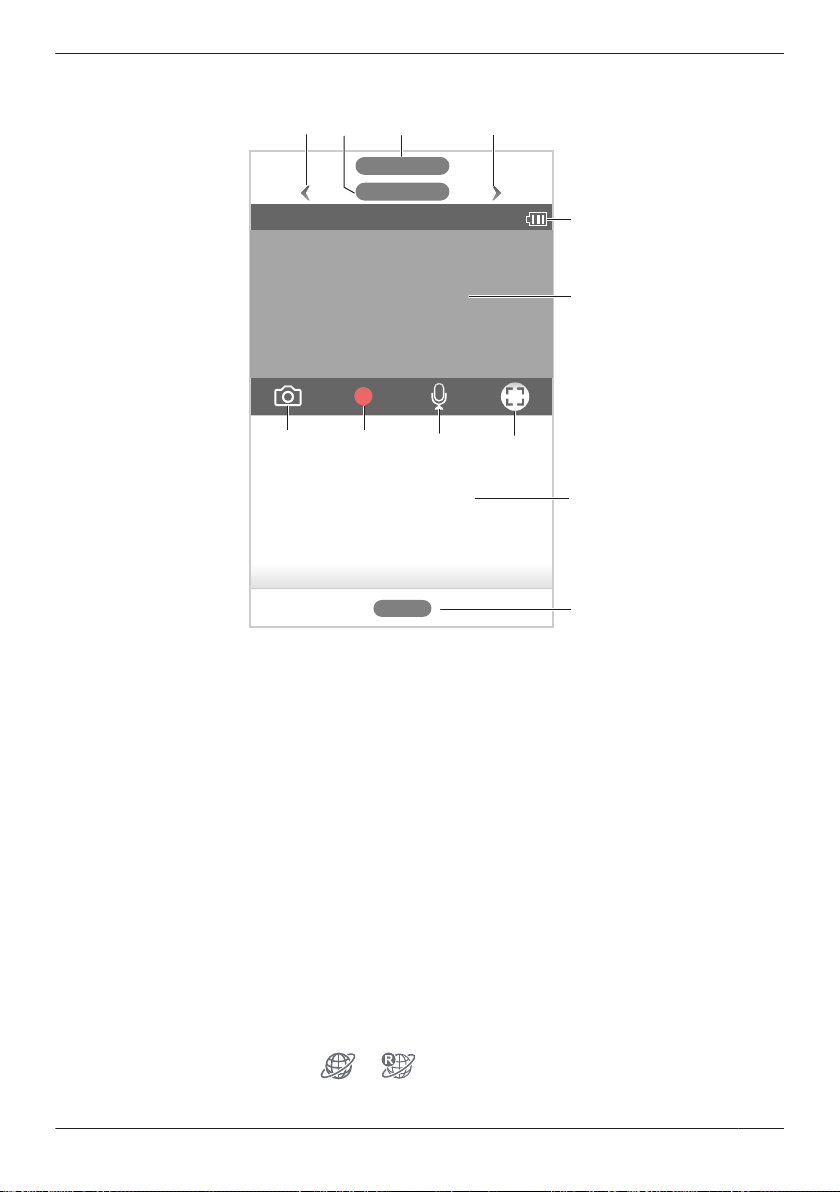
To access the camera image/recording list screen, tap the desired camera from the [HomeHawk] app
home screen ( “Using the home screen”, Page 18).
D
E
G
AB CA
F
H KI J
A Used to switch between available cameras G Displays a recording list of all images of the
selected camera
( “Playing back recordings”, Page 47)
B Shows the camera’s name H Takes snapshots
( “Taking snapshots”, Page 46)
C Shows the access point’s name I Starts/stops recording
( “Recording camera images (manual
recording)”, Page 46)
D Shows the battery level
( “Camera battery level”, Page 49)
J Enables talking with the camera
( “Talking to the camera”, Page 46)
E Shows the live camera image K Indicates that by tapping the camera image
(E) or this icon (K), the camera image can
be enlarged and the live camera image
screen ( “Viewing the live camera image
screen”, Page 44) can be accessed
F Shows today’s recorded image list for the
selected camera
Note:
R If only 1 camera is registered to the access point, the camera image/recording list screen is displayed
when you start the app.
R When connected away from home,
or is displayed next to the camera’s name. See
“Connection mode when away from home”, Page 19 for more information.
43
Using a front door camera and outdoor camera
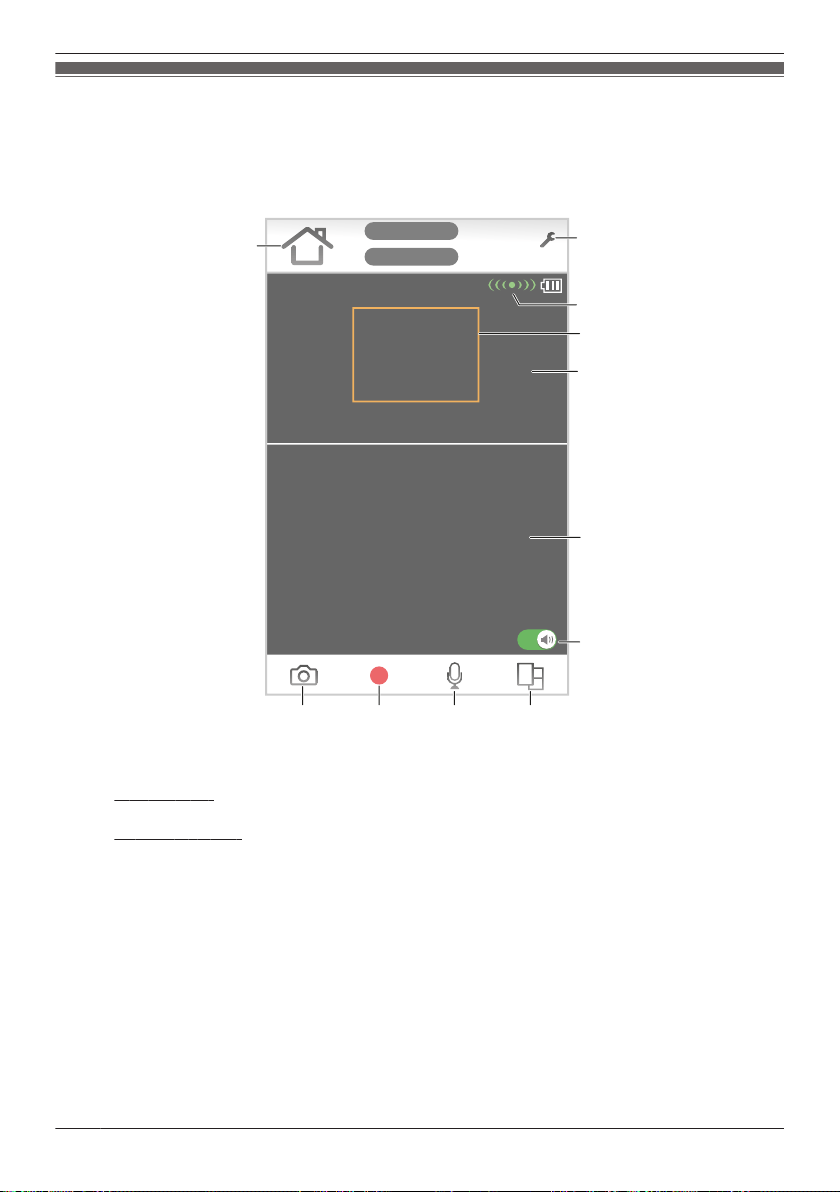
Viewing the live camera image screen
The live camera image screen shows you live camera images and also allows you to operate the
selected camera to zoom in, recording images, etc.
To access the live camera image screen, tap the desired camera from the [HomeHawk] app home
screen ( “Using the home screen”, Page 18), and then tap the displayed camera image.
D
E
J
F
G
HI
B
A
C
K
A Returns you to the home screen
( “Using the home screen”, Page 18)
R iPhone, iPad:
Displayed on the right side of the screen
R Android devices:
Displayed on the left side of the screen
F Shows the live camera image with zoom
applied
G Enables/disables camera audio
H Switches between single and dual view
( “Viewing images in dual view”, Page 45)
B Displays the camera setting screen I Enables talking with the camera
( “Talking to the camera”, Page 46)
C Shows the bit rate
( “Displaying the bit rate level icon”,
Page 52)
J Starts/stops recording
( “Recording camera images (manual
recording)”, Page 46)
D Shows the area zoomed in on K Takes snapshots
( “Taking snapshots”, Page 46)
E Shows the live camera image without zoom
applied
44
Using a front door camera and outdoor camera
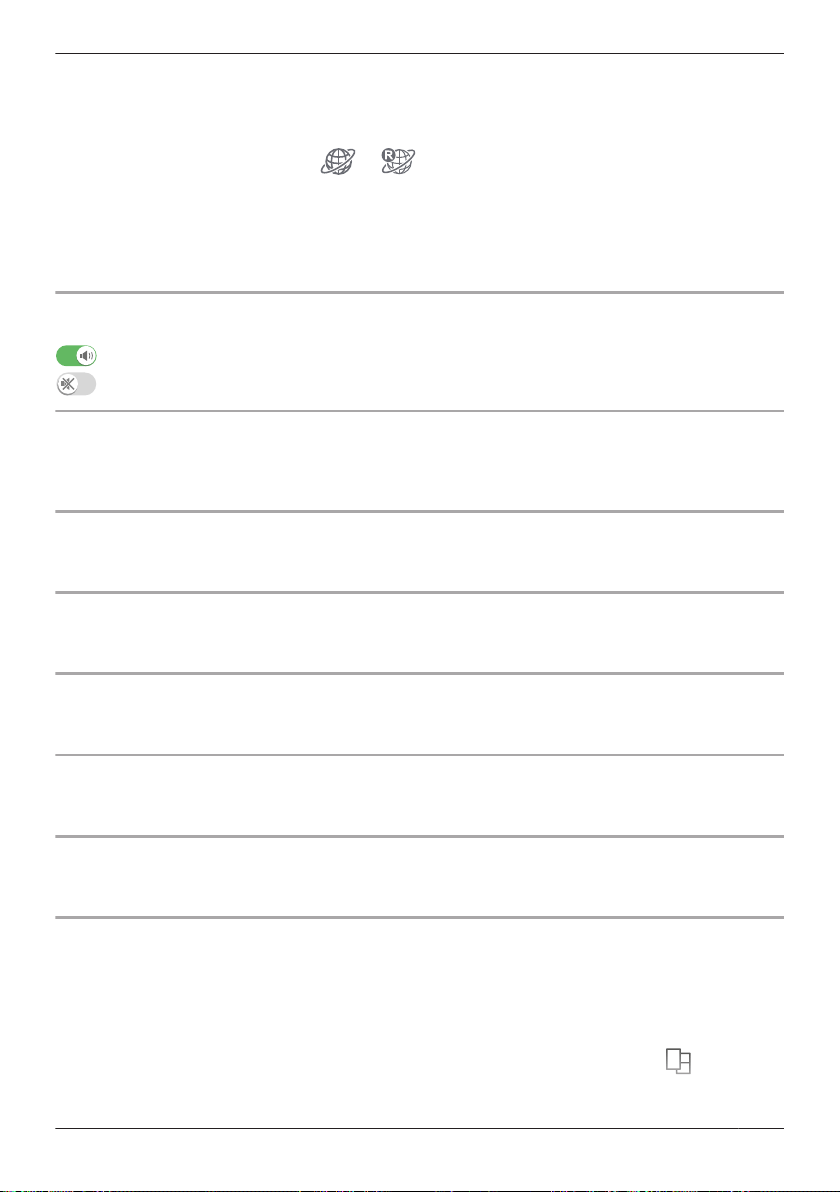
Note:
R Multiple mobile devices can view live images from the same camera at the same time ( “Accessing
from multiple mobile devices”, Page 20), however, only one mobile device can use certain features at
a time (talking to the camera, etc.).
R When connected away from home, or is displayed next to the camera’s name. See
“Connection mode when away from home”, Page 19 for more information.
R When displaying front door cameras or outdoor camera images while away from home, the app will
disconnect from the access point after a certain period of time in some conditions. This is to minimize
data usage. If you are disconnected automatically, a dialog is displayed asking if you want to connect
to the camera again. The time out period cannot be changed.
Turning the camera audio on and off
Tap the icon to select the desired setting while viewing live images from a camera.
: Camera audio will be heard
: Camera audio will not be heard
Viewing images horizontally
By turning your mobile device on its side you can display camera images horizontally.
When viewing images horizontally, icons for operating the camera (e.g., recording, talking, etc.) are not
displayed. To display these icons, tap anywhere on the camera image.
Zooming in and out
Pinch in and out on the camera image while viewing live images from a camera. While zoomed in, you
can swipe your finger on the camera image to display a different area of the image.
Using night vision
If there is not adequate light to illuminate the subject, such as at night, the camera switches to night
vision mode depending on the settings (see “Using night vision”, Page 51).
Recording camera images
To record camera images manually, see “Recording camera images (manual recording)”, Page 46.
To record images automatically when a sensor is triggered, see “Mode settings (overview)”, Page 28.
Taking snapshots
To save snapshots (i.e., still images) while viewing live camera images, see “Taking snapshots”,
Page 46.
Talking to the camera
To use your mobile device’s microphone and the camera’s built-in speaker to talk to someone where the
camera is installed, see “Talking to the camera”, Page 46.
Viewing images in dual view
While viewing images from a camera you can split the screen and display 2 images from the same
camera (dual view). While viewing images in dual view, the bottom image can be zoomed in on (the area
zoomed in on is shown in an orange box in the top image). This is convenient when you want to zoom in
and focus in on 1 part of an image (e.g., where packages are left on your porch) while viewing the entire
image to check for people approaching your house, etc.
You can switch between single view (displaying only 1 image) and dual view by tapping .
45
Using a front door camera and outdoor camera

Dual images with horizontal viewing
Dual images can also be displayed when your mobile device is displaying camera images horizontally.
You can move the sub image by tapping and holding it and then selecting where it will be displayed. The
sub image can be displayed in the 4 corners of an image.
Recording camera images (manual recording)
You can record camera images while viewing live camera images. Camera recordings are saved on the
access point’s SD card.
1 View live images from the desired camera.
2 Tap to start recording.
R Recordings include both audio and video. To disable audio recording, see “Recording sound”,
Page 50.
3 Tap to stop recording.
Note:
R You can use modes to record images. See “Mode settings (overview)”, Page 28.
R The maximum recording time is 2 minutes.
R If [Recording Error (Memory full)] is displayed, the access point’s SD card is full and new recordings
cannot be saved. Erase unneeded recordings (see “Erasing recordings”, Page 48).
R For information about SD cards and how recordings are saved, see “Access point SD cards”, Page 39.
Taking snapshots
You can save snapshots (i.e., still images) while viewing live camera images. Snapshots are saved in
your mobile device’s default photo album app.
1 View live images from the desired camera.
2 Tap
.
Note:
R Snapshot sizes are scaled to fit the width of your mobile device’s display.
R
iPhone, iPad
Snapshots are saved as JPEG files in your mobile device’s “Photos” app.
R Android devices
Snapshots are saved as JPEG files in your mobile device’s “Pictures” directory. The file naming
convention is: device name + the date and time.
Talking to the camera
You can use your mobile device’s microphone and the camera’s built-in speaker to talk to someone
where the camera is installed.
1 View live images from the desired camera.
2 Tap and hold .
R The audio from your mobile device’s microphone is played through the camera’s speaker until you
release your finger.
46
Using a front door camera and outdoor camera
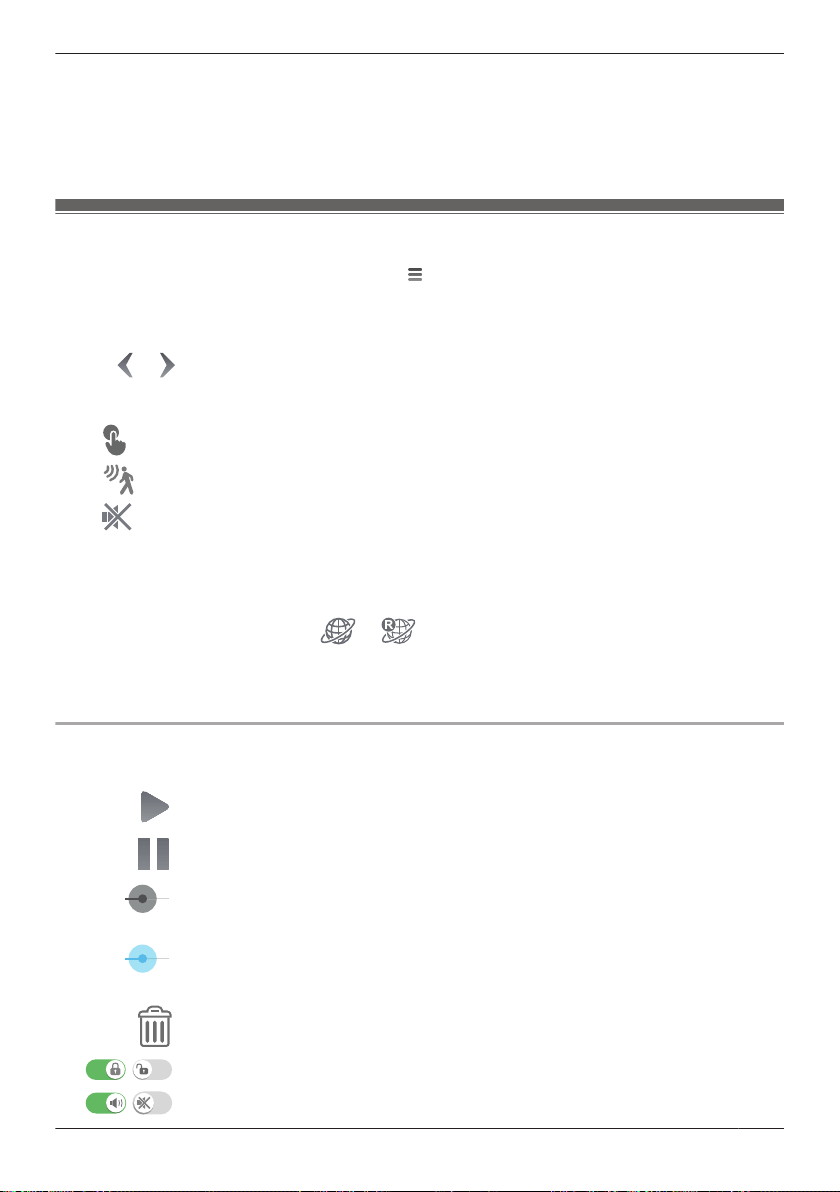
R Talk in turns with the other party. (While you are talking to the camera, you will not be able to hear
audio from the camera’s microphone.)
Note:
R For information about adjusting the camera’s speaker volume, see “Adjusting the talk volume”,
Page 50.
Playing back recordings
1 From the [HomeHawk] app home screen, tap ® [Recording List].
2 Select the desired access point and camera.
R Select [All Cameras] to see recorded images from all the cameras registered to the specified
access point.
3 Tap or to select a recording date.
R A list of all recordings recorded on the selected date is displayed.
R The icons displayed indicate details about each recording.
The recording was recorded manually.
The recording was recorded when a sensor was triggered.
The recording was recorded with the sound muted.
4 Select a recording.
R The selected recording starts playing in the playback screen.
Note:
R When connected away from home,
or is displayed on the playback screen. See
“Connection mode when away from home”, Page 19 for more information.
R Recorded images can also be played back from the camera image/recording list screen ( “Viewing the
camera image/recording list screen”, Page 42).
Playback controls
The following controls are displayed in the playback screen.
Starts or resumes playback
Pauses playback
(iPhone, iPad)
Allows you to quickly move to the desired area of the recording by sliding the
progress bar
(Android)
Erases the current recording
/ Protects or removes the protection for the recording
/ Enables or disables audio for the recording
47
Using a front door camera and outdoor camera

Erasing recordings
Erasing individual images
1 From the [HomeHawk] app home screen, tap ® [Recording List].
2 Select the desired access point and camera.
R Select [All Cameras] to see recorded images from all the cameras registered to the specified
access point.
3 Tap or to select a recording date.
4 Select the desired recording.
5 Tap
® [OK].
Erasing multiple images
1 From the [HomeHawk] app home screen, tap ® [Recording List].
2 Select the desired access point and camera.
R Select [All Cameras] to see recorded images from all the cameras registered to the specified
access point.
3 Tap or to select a recording date.
4 Tap
.
5 Select the desired recordings.
R Tap to select or deselect all images shown in the list.
6 When finished, tap [Delete] ® [OK].
Protecting recordings
You can protect recordings so that they cannot be erased.
Protecting individual images
1 From the [HomeHawk] app home screen, tap ® [Recording List].
2 Select the desired access point and camera.
R Select [All Cameras] to see recorded images from all the cameras registered to the specified
access point.
3 Tap
or to select a recording date.
4 Select the desired recording.
5 Slide to .
R
is displayed in images to indicate that the image is protected.
R Slide to to remove the protection.
Protecting multiple images
1 From the [HomeHawk] app home screen, tap
® [Recording List].
48
Using a front door camera and outdoor camera
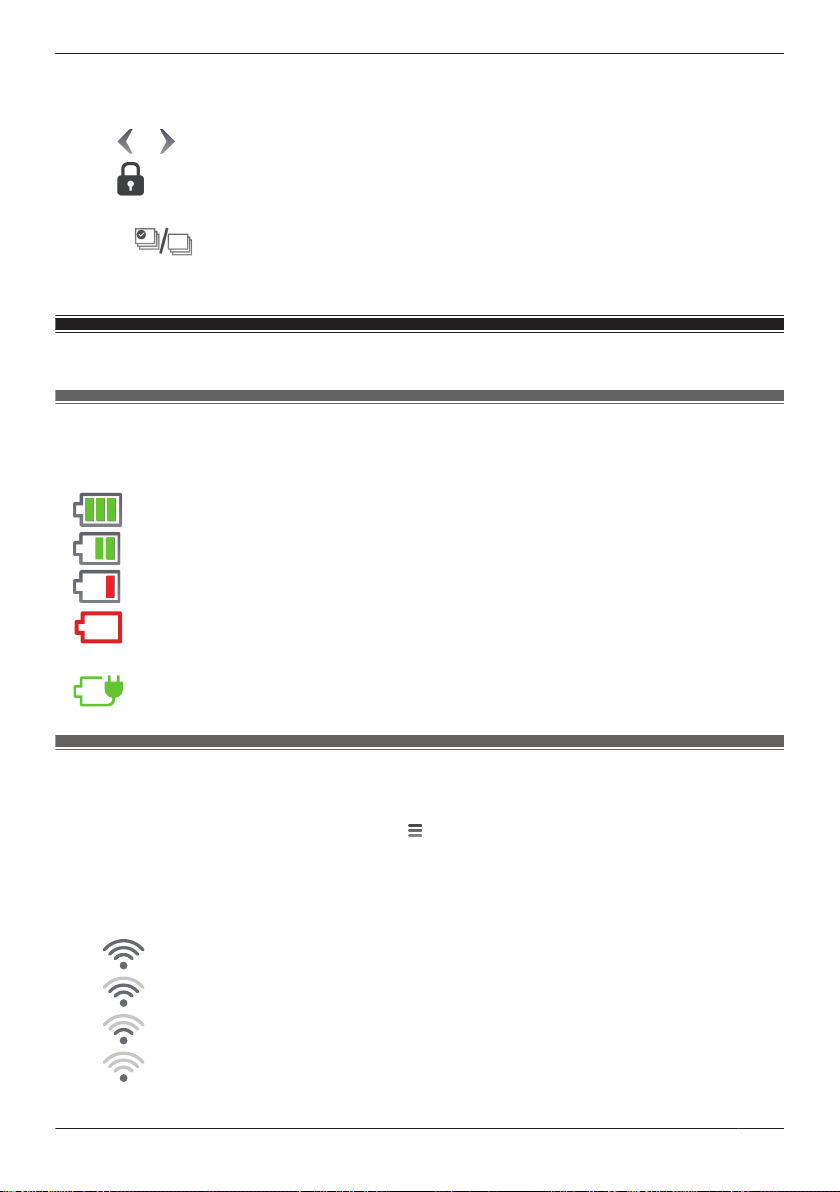
2 Select the desired access point and camera.
R Select [All Cameras] to see recorded images from all the cameras registered to the specified
access point.
3 Tap or to select a recording date.
4 Tap .
5 Select the desired recordings.
R Tap to select or deselect all images shown in the list.
6 When finished, tap [Protect].
Status
Camera battery level
Battery icons displayed on camera images show the battery level or charging status of the battery.
R Battery level icons:
high
medium
low
needs charging
R Battery charging status icons:
charging
Camera signal strength
You can check the signal strength of each camera’s wireless connection to the access point.
1 From the [HomeHawk] app home screen, tap
® [Settings].
2 Tap [Camera Settings] and select the desired camera.
3 Tap [Signal Strength].
4 Confirm the number of dark gray bars.
R More dark gray bars indicate a stronger signal.
Strongest signal
Good signal
Weak signal
Could not obtain signal information
49
Using a front door camera and outdoor camera
No signal
Note:
R You can also check this setting by tapping
displayed next to camera images in the live camera
image screen ( “Viewing the live camera image screen”, Page 44).
Image, sound, and recording settings
Speaker volume settings
Adjusting the talk volume
You can adjust the volume of your mobile device’s microphone, which determines the volume of your
voice that is sent to the camera when talking to the camera.
1 From the [HomeHawk] app home screen, tap
® [Settings].
2 Tap [Camera Settings] and select the desired camera.
3 Tap [Speaker Volume] ® [Talk Volume].
4 Adjust the volume as desired and then tap [OK].
Note:
R You can also change these settings by tapping
displayed next to camera images in the live
camera image screen ( “Viewing the live camera image screen”, Page 44).
Adjusting the motion detection volume
You can adjust the volume of the camera audio (beeps, announcements, etc.) that sounds from the
camera when motion is detected.
1 From the [HomeHawk] app home screen, tap ® [Settings].
2 Tap [Camera Settings] and select the desired camera.
3 Tap [Speaker Volume] ® [Motion detection volume].
4 Adjust the volume as desired and then tap [OK].
Note:
R You can also change these settings by tapping
displayed next to camera images in the live
camera image screen ( “Viewing the live camera image screen”, Page 44).
Recording settings
Recording sound
You can select whether audio is recorded when recording camera images.
1 From the [HomeHawk] app home screen, tap ® [Settings].
2 Tap [Camera Settings] and select the desired camera.
3 Tap [Recording].
50
Using a front door camera and outdoor camera

4 Slide the [Recording with Sound] switch to the desired position.
R When this switch is turned off, audio is not recorded when recording camera images.
Note:
R You can also change these settings by tapping displayed next to camera images in the live
camera image screen ( “Viewing the live camera image screen”, Page 44).
Adjusting the time stamp
You can change the time format and position of the time stamp that is displayed when viewing camera
images or recording. You can also turn the time stamp off.
1 From the [HomeHawk] app home screen, tap ® [Settings].
2 Tap [Camera Settings] and select the desired camera.
3 Tap [Recording] ® [Time Stamp].
4 Select the desired setting and then tap [OK].
– [Position]: Determines the position of the time stamp. To turn the time stamp off, select [OFF].
– [24-Hour Format]: Determines whether the time stamp is displayed in 24-hour format or 12-hour
format. Enable this setting to use 24-hour format time.
Note:
R You can also change these settings by tapping
displayed next to camera images in the live
camera image screen ( “Viewing the live camera image screen”, Page 44).
Using night vision
If there is not adequate light to illuminate the subject, such as at night, the camera switches to night
vision mode depending on the settings.
The following settings can be selected for the night vision.
– [Color]: Lights white LEDs so that images can displayed in color. Has shorter visibility range than
[Monochrome].
– [Monochrome]: Lights infrared LEDs so that images can be seen in the dark. Has longer visibility
range than [Color].
– [OFF]: Turns off night vision mode.
1 From the [HomeHawk] app home screen, tap
® [Settings].
2 Tap [Camera Settings] and select the desired camera.
3 Tap [Night Vision].
4 Select the desired setting and then tap [OK].
Note:
R You can also change these settings by tapping
displayed next to camera images in the live
camera image screen ( “Viewing the live camera image screen”, Page 44).
Video settings
Changing the camera resolution
1 From the [HomeHawk] app home screen, tap
® [Settings].
2 Tap [Camera Settings] and select the desired camera.
51
Using a front door camera and outdoor camera
3 Tap [Video] ® [Resolution].
4 Select the desired setting and then tap [OK].
Note:
R You can also change these settings by tapping
displayed next to camera images in the live
camera image screen ( “Viewing the live camera image screen”, Page 44).
Changing the frame rate
The frame rate determines the speed at which images from the camera are refreshed.
1 From the [HomeHawk] app home screen, tap ® [Settings].
2 Tap [Camera Settings] and select the desired camera.
3 Tap [Video] ® [Frame Rate].
4 Select the desired setting and then tap [OK].
Note:
R Higher frame rates mean images are refreshed faster and moving subjects are displayed more
smoothly, however, images displayed on your mobile device may be delayed and sound may cut out
or be delayed when talking to the camera, especially over a slow or congested network connection.
R Lower frame rates mean images are refreshed less often and moving subjects may appear “choppy”,
however, images displayed on your mobile device will be less delayed and sound may be more
consistent when talking to the camera over a slow or congested network connection.
R You can also change these settings by tapping displayed next to camera images in the live
camera image screen ( “Viewing the live camera image screen”, Page 44).
Changing the brightness
You can adjust the overall brightness of the camera image.
1 From the [HomeHawk] app home screen, tap ® [Settings].
2 Tap [Camera Settings] and select the desired camera.
3 Tap [Video] ® [Brightness].
4 Select the desired setting.
Note:
R You can also change these settings by tapping
displayed next to camera images in the live
camera image screen ( “Viewing the live camera image screen”, Page 44).
Displaying the bit rate level icon
You can display the bit rate level icons on camera images.
1 From the [HomeHawk] app home screen, tap ® [Settings].
2 Tap [Camera Settings] and select the desired camera.
3 Tap [Video].
4 Slide the [Bit Rate Level Icon] switch to the desired position.
R When the switch is turned on, bit rate is displayed while viewing camera images as follows.
Highest bit rate
High bit rate
Moderate bit rate
Lowest bit rate
52
Using a front door camera and outdoor camera

Note:
R You can also change these settings by tapping displayed next to camera images in the live
camera image screen ( “Viewing the live camera image screen”, Page 44).
Detection settings
Detection area
You can select which areas of the camera image are monitored for motion detection. This allows you to
ignore motion in certain areas of the camera’s image.
1 From the [HomeHawk] app home screen, tap ® [Settings].
2 Tap [Camera Settings] and select the desired camera.
3 Tap [Detection] ® [Set Detection Area].
4 Tap the desired areas of the camera image.
R Gray areas of the camera image indicate areas for which image detection is disabled.
5 When finished, tap [OK].
Note:
R You can also change these settings by tapping
displayed next to camera images in the live
camera image screen ( “Viewing the live camera image screen”, Page 44).
Motion sensitivity
You can adjust the sensitivity of the camera’s motion detection features.
1 From the [HomeHawk] app home screen, tap
® [Settings].
2 Tap [Camera Settings] and select the desired camera.
3 Tap [Detection] ® [Motion Sensitivity].
4 Select the desired setting.
If you want to use the same sensitivity level for the IR sensor and video motion sensor:
– [High]: The sensors are very sensitive to changes, i.e., even a small change will trigger the
sensors.
– [Normal]: The sensors are moderately sensitive to changes.
– [Low]: The sensors are somewhat sensitive to changes.
If you want to use different sensitivity levels for the IR sensor and video motion sensor:
Tap [Advanced].
– [IR Sensor]: Determines sensitivity levels for the IR sensor.
– [Video Motion]: Determines sensitivity levels for the video motion sensor.
5 When finished, tap [OK].
Note:
R You can also change these settings by tapping
displayed next to camera images in the live
camera image screen ( “Viewing the live camera image screen”, Page 44).
53
Using a front door camera and outdoor camera

Disabling detections when leaving your house
You can disable detections for when people leave your house.
This is convenient when only want to detect people approaching your house and do not want to detect
people leaving your house.
1 From the [HomeHawk] app home screen, tap
® [Settings].
2 Tap [Camera Settings] and select the desired camera.
3 Tap [Detection].
4 Slide the [Disable when leaving] switch to the desired position.
– When turned on: People leaving your house will not be detected.
– When turned off: People leaving your house will be detected.
Note:
R You can also change these settings by tapping displayed next to camera images in the live
camera image screen ( “Viewing the live camera image screen”, Page 44).
Detection test
You can test which areas of the camera image can be detected while viewing live images from the
camera. This is useful when determining where to install cameras, and also which areas you should
enable or disable detection for.
1 From the [HomeHawk] app home screen, tap ® [Settings].
2 Tap [Camera Settings] and select the desired camera.
3 Tap [Detection] ® [Detection Test].
IR Sensor
Shows which IR sensors of the camera detected motion.
Video Motion
A live image of the selected camera is displayed with detection areas colored to show their detection
status.
– Pink outlined areas: Areas where motion was detected.
– Blue outlined areas: Areas where motion was not detected.
– Grey areas with a red diagonal line: Areas where detection is disabled. (See “Detection area”,
Page 53 for more information.)
Note:
R You can also change these settings by tapping
displayed next to camera images in the live
camera image screen ( “Viewing the live camera image screen”, Page 44).
Front door camera and outdoor camera settings
Changing the name of cameras
You can edit camera names.
The camera name setting is used to identify cameras. This is useful when you have multiple cameras.
54
Using a front door camera and outdoor camera

1 From the [HomeHawk] app home screen, tap ® [Settings].
2 Tap [Camera Settings] and select the desired camera.
3 Tap [Name].
4 Enter the desired name.
5 When finished, tap [OK].
Note:
R You can also change these settings by tapping
displayed next to camera images in the live
camera image screen ( “Viewing the live camera image screen”, Page 44).
Status LED
You can determine whether the camera’s LED indicator lights or is disabled.
1 From the [HomeHawk] app home screen, tap ® [Settings].
2 Tap [Camera Settings] and select the desired camera.
3 Tap [System].
4 Slide the [Status LED] switch to the desired position.
Note:
R You can also change these settings by tapping
displayed next to camera images in the live
camera image screen ( “Viewing the live camera image screen”, Page 44).
Updating firmware
You can use this feature to check for a newer version of the camera firmware (i.e., system software). If a
newer version is found, you can update the firmware.
Important:
R Make sure to fully charge the camera before updating its firmware. The firmware may not be able to be
updated if the battery level is low.
1 From the [HomeHawk] app home screen, tap ® [Settings].
2 Tap [Camera Settings] and select the desired camera.
3 Tap [System] ® [Firmware Update].
R The camera will connect to the Internet and check for a newer version of its firmware.
4 Follow the on-screen instructions.
Note:
R You can also change these settings by tapping
displayed next to camera images in the live
camera image screen ( “Viewing the live camera image screen”, Page 44).
Resetting camera settings
1 From the [HomeHawk] app home screen, tap
® [Settings].
2 Tap [Camera Settings] and select the desired camera.
55
Using a front door camera and outdoor camera

3 Tap [System] ® [Reset Camera Settings].
4 Follow the on-screen instructions.
Note:
R Camera registration information stored on the access point is not reset.
R You can also change these settings by tapping
displayed next to camera images in the live
camera image screen ( “Viewing the live camera image screen”, Page 44).
56
Using a front door camera and outdoor camera

Setting up an HD camera
Setting up an HD camera (overview)
There are 3 basic steps you need to perform in order to connect to the HD camera from your mobile
device.
1 Download the app
Download the [HomeHawk] app to your mobile device.
See “Downloading the [HomeHawk] app”, Page 57.
2 Set up the HD camera
Use the [HomeHawk] app to configure the camera to connect to your wireless router, and then
register your mobile device to the camera.
See “Setting up the HD camera”, Page 58.
3 Register additional mobile devices (optional)
You can register additional mobile devices to the camera, for a total of 8.
See “Registering additional mobile devices to the camera”, Page 59.
Downloading the [HomeHawk] app
Download information is available at the web page listed below.
{{"https://panasonic.net/cns/pcc/support/homehawk"|tolink("https://panasonic.net/cns/pcc/
support/homehawk")}}
Using your device’s app store
iPhone, iPad users
Search for “Panasonic HomeHawk”. iPad users should search in the “iPhone only” category.
Android device users
Search for “Panasonic HomeHawk”.
Compatible mobile devices
Please check the latest information at the following supported page.
{{"https://panasonic.net/cns/pcc/support/homehawk"|tolink("https://panasonic.net/cns/pcc/
support/homehawk")}}
– iPhone and iPad (iOS 10.0 or later) or Android devices (Android 4.1 or later) (As of October 2017)
– Minimum recommended screen size: 1280´720 (screen content may not be displayed properly on
devices with smaller screens)
Note:
R The [HomeHawk] app may not function properly depending on the operating environment, such as the
model of your mobile device, peripherals connected to your mobile device, and the apps installed on
your mobile device. Bluetooth headsets are not supported by the [HomeHawk] app.
R Operating systems for mobile devices are continually updated. Accordingly, the versions of operating
systems the [HomeHawk] app supports may also be updated.
R The following Android devices are not compatible with the [HomeHawk] app.
– Android devices that are not supported by Google Play
– Android devices with limited hardware features (Bluetooth, wireless LAN, and microphone support
are required.)
57
Using an HD camera

Setting up the HD camera
Before you begin
In this procedure, the camera will enter “temporary access point mode”. In this mode, you can use your
mobile device’s wireless network feature to connect directly to the camera, and then use your mobile
device to change the camera’s wireless settings so that the camera can connect to your wireless router.
Confirm the following before you begin.
– Make sure you have installed the [HomeHawk] app on your mobile device
– Make sure the camera is located within range of your wireless router
– Make sure your mobile device is connected to your wireless router
– Make sure your mobile device can connect to the Internet
– Make sure you know the network name (SSID) and password assigned to your wireless router
Initial setup for iPhone, iPad
Important:
R If other HD cameras are already registered to your mobile device and you want to set up another HD
camera, see “Adding another HD camera”, Page 83.
1 Plug in the camera and wait about 1 minute for the camera’s LED to light in green.
R If the LED does not light in green, or if you experience trouble during this procedure, use the
camera’s reset button to reset the camera ( “Using the camera’s reset button”, Page 82) and
then repeat this procedure.
2 Start the [HomeHawk] app.
R The end-user license agreement is displayed the first time you start the app.
3 Follow the on-screen instructions.
4 Tap [Indoor HD Camera].
5 Tap [Set up the HD Camera].
6 When prompted, press the SETUP button on the back of the camera, and then tap [Next].
R The LED indicator blinks in green.
7 iOS 11.0 or later users:
Tap [Join] and then continue from step 9.
iOS 10.0 to 10.9 users:
Change your mobile device’s wireless network setting temporarily so that it connects to the camera
directly.
R Open your mobile device’s [Settings] app, tap [Wi-Fi], select “KX-HNC800_Panasonic”, enter
“00000000” as the password, and then tap [Join].
R If more than one item named “KX-HNC800_Panasonic” is displayed, turn off the power for the
other cameras and only operate 1 camera at a time.
8 Start the [HomeHawk] app again.
9 If necessary, enter the password required to connect to your wireless router and then tap [Next].
R The camera and your mobile device connect to your wireless router.
R If prompted, follow the on-screen instructions and connect your mobile device to your wireless
router, start the app again, and then tap [Add This Mobile Device].
R If you enter the wrong password, an error is displayed. Repeat the initial setup procedure from the
beginning.
10 When prompted, press the SETUP button on the back of the camera.
R The camera registers your mobile device.
11 When prompted, set the password that will be used to connect to the camera and then tap [Next].
58
Using an HD camera

12 When prompted, enter a name for your mobile device and then tap [OK].
R This setting allows you to change the name assigned to your device. It can help you identify your
mobile device when performing certain operations, such as deregistering a mobile device.
R A list of HD cameras registered to the app is displayed when initial setup is complete.
Initial setup for Android devices
Important:
R If other cameras are already registered to your mobile device and you want to set up another HD
camera, see “Adding another HD camera”, Page 83.
1 Plug in the camera and wait about 1 minute for the camera’s LED to light in green.
R If the LED does not light in green, or if you experience trouble during this procedure, use the
camera’s reset button to reset the camera ( “Using the camera’s reset button”, Page 82) and
then repeat this procedure.
2 Start the [HomeHawk] app.
R The end-user license agreement is displayed the first time you start the app.
3 Follow the on-screen instructions.
4 Tap [Indoor HD Camera].
5 Tap [Set up the HD Camera].
6 When prompted, press the SETUP button on the back of the camera.
R The LED indicator blinks in green.
R The app temporarily changes your mobile device’s wireless network setting so that it connects to
the camera directly.
7 If necessary, enter the password required to connect to your wireless router and then tap [Next].
R The camera and your mobile device connect to your wireless router.
R If you enter the wrong password, an error is displayed. Repeat the initial setup procedure from the
beginning.
8 When prompted, press the SETUP button on the back of the camera.
R The camera registers your mobile device.
9 When prompted, set the password that will be used to connect to the camera.
10 When prompted, enter a name for your mobile device and then tap [OK].
R This setting allows you to change the name assigned to your device. It can help you identify your
mobile device when performing certain operations, such as deregistering a mobile device.
R A list of HD cameras registered to the app is displayed when initial setup is complete.
Registering additional mobile devices to the camera
After you set up the camera, you can register additional mobile devices. You can register up to 8 mobile
devices to a camera. Each mobile device can be registered to up to 32 cameras.
Confirm the following before you begin.
– Make sure you have completed the initial setup procedure
– Make sure your mobile device can connect to the Internet
– Make sure your wireless router and the camera are turned on
– Make sure your mobile device and the camera are connected to the same wireless router
1 Using the mobile device that you want to register, download the [HomeHawk] app and then start the
app.
R If prompted, follow the on-screen instructions and select the appropriate region/country.
2 Tap [Indoor HD Camera].
3 Tap [Add This Mobile Device].
4 When prompted, press the SETUP button on the back of the camera.
R The camera registers your mobile device.
59
Using an HD camera

5 When prompted, enter the password required to connect to the camera.
R This password was set during initial setup.
6 When prompted, enter a name for your mobile device and then tap [OK].
R This setting allows you to change the name assigned to your device. It can help you identify your
mobile device when performing certain operations, such as deregistering a mobile device.
R A list of all cameras registered to the app is displayed when registration is complete.
HD camera basics
HD camera basics (overview)
To begin, simply start the [HomeHawk] app on your mobile device by tapping its icon (shown below).
HD camera password
To prevent unauthorized access to the camera, you will be prompted to enter the camera’s password the
first time you connect to the camera.
Note:
R The password is required whether you are connecting to the camera at home or while away from
home. It is set during initial setup ( “Setting up the HD camera”, Page 58).
R You can change the password if necessary ( “Login password”, Page 79).
R When entering the camera’s password, you can enable the automatic login feature by turning on the
[Automatic Login] checkbox. In this case the password that you enter will be saved, allowing the app
to log in to the camera automatically. You can turn the automatic login feature on and off later if
desired. See “[Automatic Login]”, Page 78.
General information
R Running the app while away from home when your mobile device is connected to a mobile network
(3G, 4G, etc.) may cause your mobile device’s battery to deplete faster than normal.
R If the app disconnects from the camera while away from home (such as when you turn your mobile
device’s screen off and then on, or you switch to another app and then return to the [HomeHawk]
app), the app’s home screen will be displayed instead of the last screen you were viewing. Also note
that in this case, it may take some time for the app’s screen to be displayed.
Privacy information for iPhone and iPad users
Certain features of the app function by accessing your mobile device’s hardware, such as the
microphone, or the information stored in your mobile device. While using the app, a dialog may be
displayed that asks whether you want to allow the app to access these features of your mobile device.
You can change this setting later if desired in the privacy section of your mobile device’s [Settings] app.
Displaying the options menu
The method used to display the options menu varies depending on your mobile device. Note that the
options menu is not available on all screens.
60
Using an HD camera

iPhone, iPad
Tap
.
Android devices with a dedicated “menu” button
Press your device’s menu button.
Android devices without a dedicated “menu” button
Tap
.
Accessing the HD camera from multiple devices
There are certain limitations when multiple mobile devices are connected to the camera at the same
time, as explained below.
Simultaneous access
The following restrictions apply for most operations when multiple mobile devices connect to the camera
at the same time.
– Up to three mobile devices can use the camera at the same time while at home.
– Up to two mobile devices can use the camera at the same time while away from home.
– The maximum number of mobile devices that can use the camera is three. For subsequent mobile
devices that try to use the camera, [Device is in use.] is displayed.
Note:
R Even if a mobile device is able to connect to the camera, certain features may be temporarily
unavailable depending on how other mobile devices are using the camera.
Other restrictions on HD camera features
If a mobile device is viewing camera images
R Other mobile devices cannot change certain settings for that camera.
If a mobile device is playing camera recordings
R Other mobile devices cannot play recordings from that camera.
If a mobile device is accessing the recording list
R Other mobile devices cannot access that camera’s recording list.
If a mobile device is talking to a camera
R Other mobile devices cannot talk to that camera.
HD camera main features
HD camera main features (overview)
You can use HD cameras to monitor and record the sights and sounds of the surrounding area. Built-in
motion detection features allow cameras to record images automatically or send a notification to your
mobile device when motion is detected. Additionally, built-in speakers and microphones allow you to talk
to anyone who is near the camera.
61
Using an HD camera
HD cameras feature a built-in temperature sensor, which allows the camera to alert you when the
ambient temperature is too high or too low, and a sound sensor, which allows the camera to alert you
when sound is detected.
Viewing the HD camera list
The HD camera list contains a link to each HD camera that your mobile device can access.
To view the camera list, tap [Indoor HD Camera] in the home screen.
Note:
R You can change the thumbnail image displayed for HD cameras in the camera list. See “Thumbnail
image”, Page 76.
HD camera icons displayed in the camera list
Camera is registered to this mobile device
Camera list options
While viewing the camera list, the following items are available in the options menu (see “Displaying the
options menu”, Page 60). Note that the available options vary depending on system configuration and
current connection status
– [Add HD Camera]
Allows you to add an HD camera.
– [Remove HD Camera]
Allows you to deregister an HD camera from this mobile device.
– [Remote Access Mode] (certain regions only)
Determines the protocol used when viewing camera images while away from home. This setting is set
to [UDP] by default and normally should not be changed. Select [TCP] if a black screen is displayed
when you are trying to view camera images.
Viewing live HD camera images
1 From the [HomeHawk] app home screen, tap [Indoor HD Camera].
2 Select the desired camera.
3 If prompted, enter the camera’s password.
R A live image from the selected camera is displayed in single-camera display mode.
Important:
R Some mobile devices may become hot when viewing HD camera images continuously for long periods
of time. If your mobile device becomes too hot, stop viewing HD camera images and wait for the
mobile device to cool down.
Turning the camera audio on and off
Slide the switch to the desired position while viewing live images from a single camera.
: Camera audio will be heard
: Camera audio will not be heard
62
Using an HD camera

Zooming in and out
Pinch in and out on the camera image while viewing live images from a single camera. While zoomed in,
you can swipe your finger on the camera image to display a different area of the image.
Using night vision
If there is not adequate light to illuminate the subject, such as at night, the camera switches to night
vision mode depending on the settings ( “Night vision mode”, Page 76). When night vision mode is
active, colors may appear different from normal.
HD camera viewing options
The following items are available in the options menu (see “Displaying the options menu”, Page 60)
while viewing live images from a single camera.
– [Settings]
Allows you to adjust settings for the selected camera.
– [Smart Recording]
Allows you to create and edit smart recording scenarios. See “Smart recording features (overview)”,
Page 70.
– [Camera Speaker Volume]
Allows you to adjust the selected camera’s speaker volume.
– [Set Thumbnail]
Allows you to set the preview image for the selected camera that is displayed in the camera list. See
“Thumbnail image”, Page 76.
– [Sensor Log]
Displays a log of previous motion detection, sound alert, and temperature alert detections for the
selected camera. See “Viewing HD camera sensor history”, Page 72.
– [Firmware Update]
Allows you to update the firmware for the selected camera. See “Updating the HD camera’s firmware”,
Page 81.
– [Version]
Displays information about the selected camera’s firmware and about the app installed on your mobile
device.
Recording HD camera images
To record camera images manually, see “Recording HD camera images (manual recording)”, Page 65.
To record images automatically according to a schedule, see “Creating a scenario that uses a schedule
as the trigger”, Page 70.
To record images automatically when a sensor is triggered, see “Creating a scenario that uses a sensor
as the trigger”, Page 71.
Taking snapshots
To save snapshots (i.e., still images) while viewing live camera images, see “Taking snapshots”,
Page 63.
Talking to the HD camera
To use your mobile device’s microphone and the camera’s built-in speaker to talk to someone where the
camera is installed, see “Talking to the HD camera”, Page 64.
Taking snapshots
You can save snapshots (i.e., still images) while viewing live camera images. Snapshots are saved in
your mobile device’s default photo album app.
63
Using an HD camera
1 View live images from the desired camera.
2 Tap [Photo].
Note:
R Snapshot sizes are scaled to fit the width of your mobile device’s display.
R
iPhone, iPad
Snapshots are saved as JPEG files in your mobile device’s “Photos” app.
R Android devices
Snapshots are saved as JPEG files in your mobile device’s “Pictures” directory. The file naming
convention is: device name + the date and time.
Talking to the HD camera
You can use your mobile device’s microphone and the camera’s built-in speaker to talk to someone
where the camera is installed.
This feature behaves differently depending on the [Talk Mode] setting ( “Talk mode”, Page 76).
[Half Duplex Mode]
When [Talk Mode] is set to [Half Duplex Mode], the following icons are displayed.
The [Talk] feature is turned off. Your voice will not be heard at the camera.
The [Talk] feature is turned on. Your voice will be heard at the camera if your voice is
louder than the audio captured by the camera’s microphone.
1 View live images from the desired camera.
2 Tap [Talk].
R Talk in turns with the other party. Only one party can be heard at a time.
R To turn the talk feature off, tap [Talk] again.
Temporary [Push to Talk Mode]
When [Talk Mode] is set to [Half Duplex Mode], you can temporarily switch to “push to talk” mode. Tap
and hold [Talk] and then select the temporary [Push to Talk Mode] option.
[Push to Talk Mode]
When [Talk Mode] is set to [Push to Talk Mode], the following icons are displayed.
The
[Talk] feature is turned off. Your voice will not be heard at the camera.
The [Talk] feature is turned on. Your voice will be heard at the camera.
1 View live images from the desired camera.
2 Tap and hold [Talk].
3 When you are finished talking or you want to hear the other party, release [Talk].
64
Using an HD camera
Note:
R To adjust the camera’s speaker volume, open the options menu (see “Displaying the options menu”,
Page 60) and tap [Camera Speaker Volume].
Recording HD camera images (manual recording)
You can record camera images while viewing live camera images. Recordings are saved on the
camera’s SD card.
1 View live images from the desired camera.
2 Tap [Recording] to start recording.
3 Tap [Stop] to stop recording.
Note:
R Recordings include both audio and video.
R You can use smart recording scenarios to record images. See “Smart recording features (overview)”,
Page 70.
R The maximum recording time is 15 minutes.
R If the camera’s SD card is full, erase unneeded recordings (see “Erasing HD camera recordings”,
Page 66).
R For information about SD cards and how recordings are saved, see “HD camera SD cards”,
Page 67.
Viewing the HD camera recording list
You can use the recording list to play back recordings saved on the camera’s SD card and to confirm
details about each recording.
1 View live images from the desired camera.
2 Tap [Videos].
R A list of recording dates is displayed.
3 Select a recording date.
R A list of all recordings recorded on the selected date is displayed.
R The icons displayed indicate details about each recording.
The recording was recorded when a sensor was triggered.
The recording was recorded according to a timer.
The recording was recorded manually.
Note:
R If a recording was recorded with no audio, is displayed next to the recording in the recording list. To
enable or disable audio recording when recording camera images, see “Recording sound”, Page 76.
65
Using an HD camera
HD camera recording list options
The following items are available in the options menu (see “Displaying the options menu”, Page 60)
while viewing the recording list.
– [Delete All]
Allows you to erase all recordings. See “Erasing HD camera recordings”, Page 66.
– [Delete Selected Contents]
Allows you to erase individual recordings. See “Erasing HD camera recordings”, Page 66.
Playing back HD camera recordings
1 View live images from the desired camera.
2 Tap [Videos].
R A list of recording dates is displayed.
3 Select a recording date.
4 Tap the desired recording.
R The recording is played back.
Playback controls
The following controls are available during playback.
Starts or resumes playback
Pauses playback
Stops playback
(iPhone, iPad)
Allows you to quickly move to the desired area of the recording by sliding the
progress bar
(Android)
Erases the current recording
Erasing HD camera recordings
1 View live images from the desired camera.
2 Tap [Videos].
3
To erase recordings recorded on one specific date
Select the desired recording date.
66
Using an HD camera

To erase recordings recorded on multiple dates
Continue to the next step.
4 Open the options menu (see “Displaying the options menu”, Page 60).
5
To erase all recordings
Tap [Delete All].
To erase selected recordings
Tap [Delete Selected Contents], and then select the dates or recordings that you want to erase.
6 Tap [OK].
Note:
R You can also erase a recording during playback by tapping ® [OK].
HD camera SD cards
SD card capacity and total recording time
All times are approximate.
– 4 GB card: 4 hours
– 8 GB card: 9 hours
– 16 GB card: 18 hours
– 32 GB card: 36 hours
– 64 GB card: 72 hours
– 128 GB card: 145 hours
Note:
R The times listed here are calculated theoretically. Actual recording time may vary.
R The times listed here apply during the following conditions.
– [Camera Resolution] is set to [HD (1280x720)] ( “Image resolution”, Page 75)
– [Frame Rate] is set to [25 fps] ( “Frame rate”, Page 75)
R The file system and other information is stored on the SD card, therefore the card’s actual available
capacity will be less than the card’s noted capacity.
SD card formatting
Before inserting an SD card into the camera, format the SD card using your computer and the SD
formatting tool available from the web page listed below.
{{"www.sdcard.org/downloads/formatter_4/"|tolink("http://www.sdcard.org/downloads/formatter_4/")}}
Note:
R All data stored on the SD card will be erased when it is formatted.
How recordings are saved on the SD card
R Recordings are saved on the camera’s SD card in folders based on the recording date, in the following
path.
\PRIVATE\PANA_GRP\PSN\HN_HDCAM
R The file naming convention is: 1 + recording type + recording start time.
– First character: 1
– Second character: Recording type.
A=Recording was triggered by the camera’s built-in motion sensor.
M=Recording was started manually.
R=Recording was started according to a schedule.
67
Using an HD camera

T=Recording was triggered by the camera’s built-in temperature sensor.
V=Recording was triggered by the camera’s built-in sound sensor.
– Remaining characters: Recording start time (hhmmss).
Example: 1A123455.mp4
This recording was triggered by the camera’s built-in motion sensor (“A”) and recording started at
12:34 PM and 55 seconds (“123455”).
Confirming HD camera status
Confirming HD camera status (overview)
The camera can provide information about its status in a variety of ways.
– Displaying status notifications on your mobile device using your mobile device’s notifications features
( “Status notifications”, Page 68)
– Lighting the camera’s LED indicator ( “HD camera LED indicator”, Page 69)
– Sounding an alert tone using your mobile device when a sensor feature is triggered
Status notifications
The camera uses status notifications to give you feedback about how it is functioning. Details vary
depending on the app’s settings and the type of mobile device you are using.
Enabling and disabling status notifications
See “[Notification Settings]”, Page 78.
Alert tone
The app sounds an alert tone when your mobile device receives a notification from the camera. The
volume is determined by your mobile device’s alert volume setting.
Status notifications for iPhone, iPad
The app provides information about camera status by displaying status notifications and error messages
in the iOS Notifications Center.
If your mobile device is registered to multiple cameras, your mobile device can receive notifications from
any camera. When you tap a notification in the iOS Notifications Center, the app will attempt to connect
to the corresponding camera.
Status notifications for Android devices
The app provides information about camera status by displaying status notifications, error messages,
and the following icons in your mobile device’s status bar and notifications panel.
If your mobile device is registered to multiple cameras, your mobile device can receive notifications from
any camera. When you tap a notification in the notifications panel, the app will attempt to connect to the
corresponding camera.
HD camera motion sensor was triggered, or HD camera images are being recorded
HD camera privacy shutter was opened or closed
68
Using an HD camera
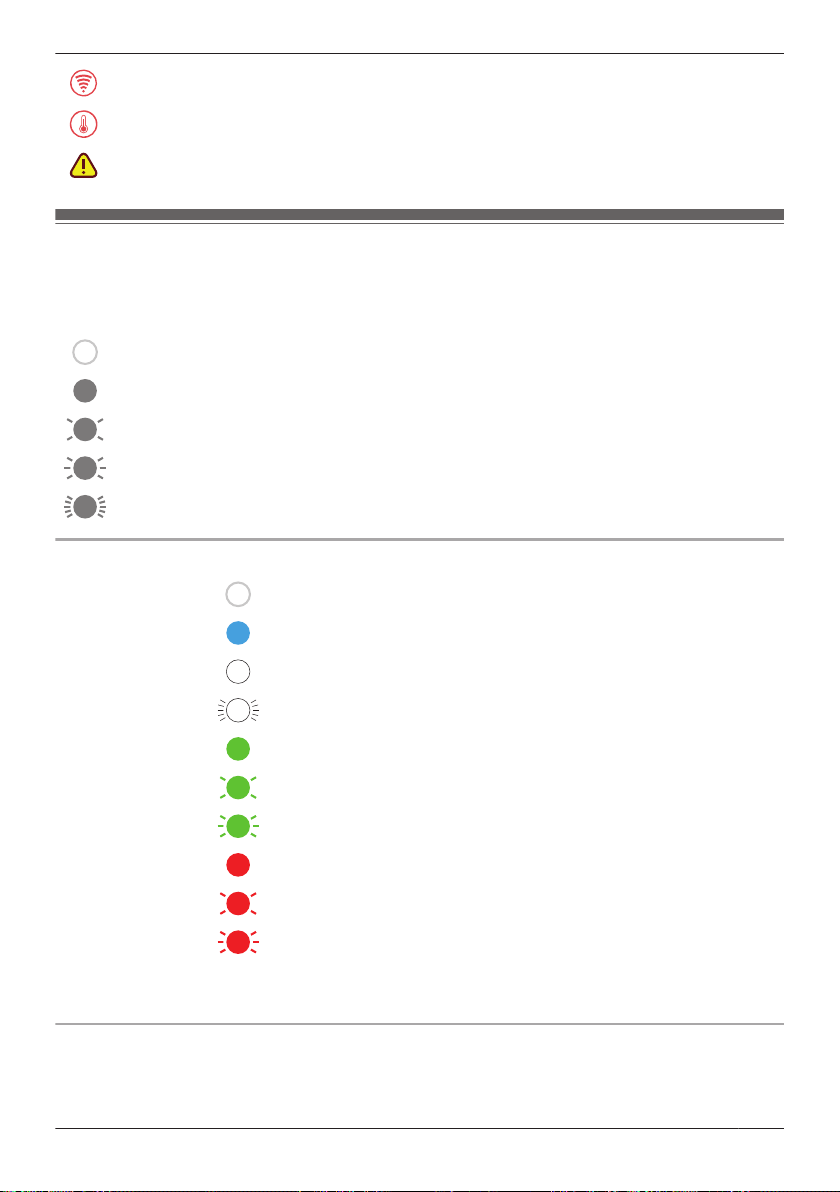
HD camera sound sensor was triggered
HD camera temperature sensor was triggered
Smart recording scenario error, or HD camera is malfunctioning
HD camera LED indicator
You can use the camera’s LED indicator to confirm the camera’s status.
Meaning of symbols used in this section
Indicator off
Indicator lit
Indicator blinking slowly
Indicator blinking
Indicator blinking quickly
HD camera LED indicator
Off
No power, or LED indicator is turned off
*1
Blue
Normal operation, connected to wireless router
*1
, privacy shutter is open
White
Normal operation, connected to wireless router
*1
, privacy shutter is closed
Camera is searching for wireless router
Green Initial setup required
Initial setup is in progress with mobile device connected
Initial setup is starting
Red
Motion detected
*1
, or camera is starting up
Live images are being viewed or recorded, or camera is starting up
Device malfunction
*1 You can configure the camera so that its LED indicator does not light during normal operation or
when motion is detected. See “Enabling and disabling the HD camera’s LED indicator”, Page 69.
Enabling and disabling the HD camera’s LED indicator
1 View live images from the desired camera.
2 Open the options menu (see “Displaying the options menu”, Page 60).
69
Using an HD camera

3 Tap [Settings] ® [Device Profiles].
4 Slide the [Camera LED] switch to the desired position.
Smart recording features
Smart recording features (overview)
Smart recording allows the HD camera to start recording images automatically. You can configure smart
recording settings by creating “scenarios”. Each scenario answers the following two questions.
1 What is the trigger that will make the camera start recording?
– A schedule
– A sensor
2 How long should the camera record images?
– Maximum 15 minutes
Sensors that can be used to trigger smart recording scenarios
– Built-in motion sensor in HD camera
– Built-in sound sensor in HD camera
– Built-in temperature sensor in HD camera
Creating smart recording scenarios
Smart recording scenarios can be executed on a schedule and when a sensor is triggered.
Note:
R 10 smart recording scenarios can be created for each camera.
Creating a scenario that uses a schedule as the trigger
1 View live images from the desired camera.
2 Open the options menu (see “Displaying the options menu”, Page 60).
3 Tap [Smart Recording].
R A list of existing scenarios is displayed.
4 Tap
.
5 Tap [Schedule].
6 Under [Timer], set each item.
– [Start Time]: Determines when camera recording starts.
– [Recording Duration]: Determines the length of the recording. The maximum setting is
15 minutes.
7 Under [Repeat], set each item.
– [Days]: Determines the days on which the scenario can record images.
8 When finished, tap [OK].
70
Using an HD camera
Note:
R If the conditions of this scenario (day and time) overlap with another scenario that is configured to
record images from the same camera, an error is displayed. The nature of the error is also displayed
on the scenario’s configuration screen.
Creating a scenario that uses a sensor as the trigger
1 View live images from the desired camera.
2 Open the options menu (see “Displaying the options menu”, Page 60).
3 Tap [Smart Recording].
R A list of existing scenarios is displayed.
4 Tap
.
5 Select the sensor that you want to use to trigger the smart recording scenario.
6 Under [Timer], set each item.
– [Recording Duration]: Determines the length of the recording. The maximum setting is
15 minutes.
7 Under [Trigger Period], set each item.
– [All Day]: Enables the scenario for all day, i.e., images will be recorded whenever the sensor is
triggered.
– [Start Time]: Determines the start time of the scenario. If the sensor is triggered before this time,
images will not be recorded.
– [End Time]: Determines the end time of the scenario. If the sensor is triggered after this time,
images will not be recorded.
8 Under [Repeat], set each item.
– [Days]: Determines the days on which the scenario can record images.
9 When finished, tap [OK].
Note:
R If the conditions of this scenario (day and time) overlap with another scenario that is configured to
record images from the same camera, an error is displayed. The nature of the error is also displayed
on the scenario’s configuration screen.
Turning smart recording scenarios on and off
1 View live images from the desired camera.
2 Open the options menu (see “Displaying the options menu”, Page 60).
3 Tap [Smart Recording].
R A list of existing scenarios is displayed.
4 Turn the checkbox for the desired scenario on or off.
Editing smart recording scenarios
1 View live images from the desired camera.
2 Open the options menu (see “Displaying the options menu”, Page 60).
3 Tap [Smart Recording].
R A list of existing scenarios is displayed.
71
Using an HD camera

4 Select the desired scenario.
5 Edit the scenario as desired.
6 When finished, tap [OK].
Erasing smart recording scenarios
1 View live images from the desired camera.
2 Open the options menu (see “Displaying the options menu”, Page 60).
3 Tap [Smart Recording].
R A list of existing scenarios is displayed.
4
iPhone, iPad
Swipe the desired scenario to the left and then tap [Delete].
Android devices
Tap and hold the desired scenario and then tap [OK].
HD camera sensor features
HD camera sensor features (overview)
The camera provides three sensor features.
– Built-in motion sensor: Detects visual differences in the camera image over time.
– Built-in sound sensor: Detects ambient sound.
– Built-in temperature sensor: Detects ambient temperature.
When these sensors are triggered, the camera can send a notification or record images. When you
receive a notification, you can connect to the camera and view live images, view camera recordings, view
the sensor log (sensor history), etc.
Viewing HD camera sensor history
You can view a log of previous sensor detections, including the date and time when sensors were
triggered and which type of sensor was triggered.
1 View live images from the desired camera.
2 Open the options menu (see “Displaying the options menu”, Page 60).
3 Tap [Sensor Log].
R The following icons are displayed for each sensor type.
Built-in motion sensor
Built-in sound sensor
72
Using an HD camera

Built-in temperature sensor
Sensor history options
The following items are available in the options menu (see “Displaying the options menu”, Page 60).
– [Filter]
Allows you to choose which sensors are displayed in the sensor history.
– [Delete All]
Allows you to erase all events in the sensor history.
Temperature sensor
You can configure the camera to send notifications if the camera’s ambient temperature is too cold or too
hot.
1 View live images from the desired camera.
2 Open the options menu (see “Displaying the options menu”, Page 60).
3 Tap [Settings] ® [Sensor Settings] ® [Temperature Sensor].
4 Slide the [Temperature Sensor] switch to the “on” position to enable the temperature sensor.
5 Slide the [Units] switch to select whether the temperature is displayed and specified in Fahrenheit or
Celsius.
6 Tap the upper threshold of the acceptable temperature range, select the desired temperature, and
then tap [OK].
7 Repeat the previous step for the lower threshold of the acceptable temperature range.
Note:
R In order to receive temperature alert notifications, make sure the [Temperature Alert] notification
setting is enabled. See “[Notification Settings]”, Page 78.
Sound sensor
You can configure the camera to send notifications if the camera’s microphone detects sound.
1 View live images from the desired camera.
2 Open the options menu (see “Displaying the options menu”, Page 60).
3 Tap [Settings] ® [Sensor Settings] ® [Sound Sensor].
4 Slide the [Sound Sensor] switch to the “on” position to enable the sound sensor.
5 Select the desired setting.
– [High]: The microphone is very sensitive to sound, i.e., even a small sound will trigger the
notification.
– [Normal]: The microphone is moderately sensitive to sound.
– [Low]: The microphone is only slightly sensitive to sound, i.e., a large sound is required to trigger
the notification.
Note:
R The camera’s microphone will not detect sound while a mobile device user is talking to the camera
( “Talking to the HD camera”, Page 64).
73
Using an HD camera

R In order to receive sound alert notifications, make sure the [Sound Detection Alert] notification setting
is enabled. See “[Notification Settings]”, Page 78.
Motion detection
The camera can detect motion by recognizing changes in the brightness of areas that are visible to the
camera. You can adjust the settings that determine how the camera detects motion.
Image sensor sensitivity
You can adjust the sensitivity of the camera’s motion detection features.
1 View live images from the desired camera.
2 Open the options menu (see “Displaying the options menu”, Page 60).
3 Tap [Settings] ® [Sensor Settings] ® [Motion Sensitivity].
4 Select the desired setting.
– [High]: The image sensor is very sensitive to changes, i.e., even a small change will trigger the
sensor.
– [Normal]: The image sensor is moderately sensitive to changes.
– [Low]: The image sensor is somewhat sensitive to changes.
– [Very Low]: The image sensor is only slightly sensitive to changes, i.e., a large change is required
to trigger the sensor.
– [OFF]: The image sensor is disabled.
5 Tap [OK].
Detection area
You can select which areas of the camera image are monitored for motion detection. This allows you to
ignore motion in certain areas of the camera’s image.
1 View live images from the desired camera.
2 Open the options menu (see “Displaying the options menu”, Page 60).
3 Tap [Settings] ® [Sensor Settings] ® [Set Detection Area].
4 Tap the desired areas of the camera image.
R Gray areas of the camera image indicate areas for which image detection is disabled.
R Tap [Reset] to enable image detection for all areas of the camera image.
5 Tap [OK].
Image, sound, and recording settings
HD camera speaker volume
Allows you to adjust the camera’s speaker volume.
1 View live images from the desired camera.
2 Open the options menu (see “Displaying the options menu”, Page 60).
3 Tap [Camera Speaker Volume].
4 Adjust the volume as desired and then tap [OK].
74
Using an HD camera

Image brightness
You can adjust the overall brightness of the camera image.
1 View live images from the desired camera.
2 Open the options menu (see “Displaying the options menu”, Page 60).
3 Tap [Settings] ® [Video Settings].
4 Tap [Brightness].
5 Tap
or to decrease or increase the image brightness.
Image resolution
You can adjust the resolution (size) of camera images. This setting affects both live images and recorded
images.
1 View live images from the desired camera.
2 Open the options menu (see “Displaying the options menu”, Page 60).
3 Tap [Settings] ® [Video Settings].
4 Tap [Camera Resolution].
5 Select the desired setting and then tap [OK].
Frame rate
You can adjust the speed at which images from the camera are refreshed.
1 View live images from the desired camera.
2 Open the options menu (see “Displaying the options menu”, Page 60).
3 Tap [Settings] ® [Video Settings].
4 Tap [Frame Rate].
5 Select the desired setting and then tap [OK].
Note:
R Higher frame rates mean images are refreshed faster and moving subjects are displayed more
smoothly, however, images displayed on your mobile device may be delayed and sound may cut out
or be delayed when talking to the camera, especially over a slow or congested network connection.
R Lower frame rates mean images are refreshed less often and moving subjects may appear “choppy”,
however, images displayed on your mobile device will be less delayed and sound may be more
consistent when talking to the camera over a slow or congested network connection.
Recording overwrite
You can choose whether recorded camera images are erased automatically by new images when the
camera’s SD card is full.
1 View live images from the desired camera.
2 Open the options menu (see “Displaying the options menu”, Page 60).
75
Using an HD camera

3 Tap [Settings] ® [Video Settings].
4 Slide the [Overwrite Recordings] switch to the desired position.
Talk mode
You can select the desired talk mode.
1 View live images from the desired camera.
2 Open the options menu (see “Displaying the options menu”, Page 60).
3 Tap [Settings] ® [Video Settings].
4 Tap [Talk Mode].
5 Select the desired setting and then tap [OK].
– [Push to Talk Mode]: You can turn the talk feature on by tapping and holding [Talk]. The talk
feature is turned off when you release your finger.
– [Half Duplex Mode]: You can turn the talk feature on and off by tapping [Talk].
Recording sound
Important:
R This feature may not be available in certain regions.
You can select whether audio is recorded when recording camera images.
1 View live images from the desired camera.
2 Open the options menu (see “Displaying the options menu”, Page 60).
3 Tap [Settings] ® [Video Settings].
4 Slide the [Recording with Sound] switch to the desired position.
R When this switch is turned off, audio is not recorded when recording camera images.
Night vision mode
If there is not adequate light to illuminate the subject, such as at night, the camera can be configured to
switch to night vision mode and turn on infrared LEDs.
You can select whether night vision mode is enabled or disabled.
1 View live images from the desired camera.
2 Open the options menu (see “Displaying the options menu”, Page 60).
3 Tap [Settings] ® [Video Settings].
4 Slide the [Night Vision LED] switch to the desired position.
– When this switch is turned on, night vision mode is enabled and lights infrared LEDs so that
images can be seen in the dark.
– When this switch is turned off, night vision mode is disabled and the infrared LEDs are turned off.
R Disabling night vision mode will reduce the visibility of images at night.
Thumbnail image
You can capture a still image from the camera and use it as its thumbnail, i.e., a small preview image.
The thumbnail is displayed in the camera list.
76
Using an HD camera
1 View live images from the desired camera.
2 Open the options menu (see “Displaying the options menu”, Page 60).
3 Tap [Set Thumbnail].
4 Tap
.
R A still image is displayed.
5 Tap [Save].
Other image settings
Displaying images upside down
You can display the camera image upside down.
1 View live images from the desired camera.
2 Open the options menu (see “Displaying the options menu”, Page 60).
3 Tap [Settings] ® [Video Settings] ® [Other Settings].
4 Tap [Upside Down].
5 Tap
.
Adjusting the time stamp
You can change the time format and position of the time stamp that is displayed when viewing camera
images or recording. You can also turn the time stamp off.
1 View live images from the desired camera.
2 Open the options menu (see “Displaying the options menu”, Page 60).
3 Tap [Settings] ® [Video Settings] ® [Other Settings].
4 Tap [Time Stamp].
5 Select the desired setting and then tap [OK].
– [Position]: Determines the position of the time stamp. To turn the time stamp off, select [OFF].
– [24-Hour Format]: Determines whether the time stamp is displayed in 24-hour format or 12-hour
format.
Note:
R To adjust the camera’s date and time setting, see “HD camera device profiles”, Page 79.
Confirming the bit rate
While viewing camera images, the camera can display an icon that corresponds to the current bit rate.
Bit rate is a measure of how much data is being transmitted; if bit rate decreases when viewing camera
images, image quality may also be reduced. Bit rate may vary depending on network conditions, however
if it is consistently low, confirm the network conditions (network traffic, camera and wireless router
placement or obstacles, etc.) for possible causes.
1 View live images from the desired camera.
2 Open the options menu (see “Displaying the options menu”, Page 60).
3 Tap [Settings] ® [Video Settings] ® [Other Settings].
4 Slide the [Bit Rate Level Icon] switch to the desired position.
R When the switch is turned on, bit rate is displayed while viewing HD camera images as follows.
77
Using an HD camera

Highest bit rate
High bit rate
Moderate bit rate
Lowest bit rate
Using WDR and HLS
These settings can produce a more pleasing image effect.
1 View live images from the desired camera.
2 Open the options menu (see “Displaying the options menu”, Page 60).
3 Tap [Settings] ® [Video Settings] ® [Other Settings].
4 Slide the [WDR] and [HLS] switches to the desired position.
R WDR brightens the darker areas of the image and provides increased contrast and picture detail.
R HLS reduces the brightness in areas of the image that are too bright.
HD camera settings
General settings
You can customize general camera settings to suit your needs.
1 View live images from the desired camera.
2 Open the options menu (see “Displaying the options menu”, Page 60).
3 Tap [Settings].
4 Change the settings as desired.
R Each setting is explained in this section.
[Automatic Login]
This setting determines whether or not you must enter a password each time you connect to the camera.
Important:
R Turning this feature on could allow unauthorized parties to access the camera if they are using your
mobile device.
[Change Login Password]
See “Login password”, Page 79.
[Deregister the Mobile Device]
See “Using one mobile device to deregister another mobile device”, Page 83.
[Device Profiles]
See “HD camera device profiles”, Page 79.
[Notification Settings]
You can select which types of status notifications are displayed, and which are not.
– [Motion Detect]
This setting determines whether a notification is displayed when the camera detects motion.
– [Camera Recording]
This setting determines whether a notification is displayed when camera images are being recorded.
78
Using an HD camera

– [Temperature Alert]
This setting determines whether a notification is displayed when the camera’s temperature sensor is
triggered.
– [Sound Detection Alert]
This setting determines whether a notification is displayed when the camera’s sound sensor is
triggered.
– [Shutter Open/Close]
This setting determines whether a notification is displayed when the camera’s privacy shutter is
opened or closed.
– [Device Error]
This setting determines whether a notification is displayed when a device error is detected.
[Wireless Settings]
See “Network features”, Page 80.
[Wireless Access Point]
See “Deleting wireless access points”, Page 81.
[Reset HD Camera]
See “Resetting the HD camera’s settings”, Page 81.
Login password
You can change the password that is used to connect to the camera.
1 View live images from the desired camera.
2 Open the options menu (see “Displaying the options menu”, Page 60).
3 Tap [Settings].
4 Tap [Change Login Password].
5 Enter the desired password and then tap [OK].
R To display the characters that you have entered, turn on the [Show Password] checkbox.
Note:
R If you forget the login password, reset the camera ( “Resetting the HD camera’s settings”, Page 81),
and then set up the camera again by following the initial setup procedure (see “Setting up the HD
camera”, Page 58).
HD camera device profiles
The camera’s device profile allows you to assign a name and location to the camera. These settings are
especially convenient when you have multiple cameras. You can also change the camera’s date and
time setting.
1 View live images from the desired camera.
2 Open the options menu (see “Displaying the options menu”, Page 60).
3 Tap [Settings].
4 Tap [Device Profiles].
5 Change the settings as desired, and then tap [OK].
– [Location]: This setting determines the location name assigned to the camera.
– [Name]: This setting determines the name assigned to the camera.
79
Using an HD camera

– [Camera LED]: This setting determines whether the camera’s LED indicator lights or is disabled.
– [Time Adjustment]: This setting allows you to synchronize the camera’s date and time setting
with the date and time setting of your mobile device.
To synchronize the date and time setting of the mobile device displayed on this screen, tap
[Update Time].
To change the mobile device used for time synchronization, tap the name of the mobile device
displayed on this screen, select the desired mobile device, and then tap [OK].
Network features
Confirming network information
1 View live images from the desired camera.
2 Open the options menu (see “Displaying the options menu”, Page 60).
3 Tap [Settings] ® [Wireless Settings].
4 Tap [Current Status].
Changing IP settings
Typically these settings should not be changed.
1 View live images from the desired camera.
2 Open the options menu (see “Displaying the options menu”, Page 60).
3 Tap [Settings] ® [Wireless Settings].
4 Tap [IP Settings].
5 Select the desired IP address mode.
R In most cases [Auto (DHCP)] is preferred. In this case, no other settings are available on this
screen.
R If you select [Manual (Static)], other settings on this screen become available. If these settings
are not configured to match your wireless router’s requirements, the camera will not be able to
connect to your wireless router and all app features will become unavailable.
6 Configure the settings as needed and then tap [OK].
Note:
R If you make a mistake while configuring the camera to use a static IP address and you can no longer
connect to the camera, reset the camera ( “Resetting the HD camera’s settings”, Page 81), and then
set up the camera again by following the initial setup procedure (see “Setting up the HD camera”,
Page 58).
[Port Forwarding] settings
These settings are only required if you need to configure your wireless router’s port forwarding feature in
order to connect to the camera while away from home.
Important:
R In order to use this feature, you must first configure the camera to use a static IP address ( “Changing
IP settings”, Page 80).
1 View live images from the desired camera.
2 Open the options menu (see “Displaying the options menu”, Page 60).
3 Tap [Settings] ® [Wireless Settings].
4 Tap [Port Forwarding].
5 Turn on the [Enable] radio button.
80
Using an HD camera

6 Tap field number 1 and enter the desired port number.
R A value must be assigned to each port.
R Only port numbers 62000–63000 can be assigned.
R Configure your wireless router’s port forwarding feature to forward these ports to the static IP
address that you have assigned to the camera.
7 When finished, tap [OK].
[MTU Settings] (maximum data size setting)
This setting affects how data is sent over the network. Typically this setting does not need to be changed.
1 View live images from the desired camera.
2 Open the options menu (see “Displaying the options menu”, Page 60).
3 Tap [Settings] ® [Wireless Settings].
4 Tap [MTU Settings].
5 Select the desired value and then tap [OK].
Deleting wireless access points
The app remembers the SSIDs of wireless routers that you use at home to connect to the camera; it can
remember 10 SSIDs, and saves them in the wireless access point list. If the list is full and you try to
connect to the camera using a new SSID while at home, the app may connect to the camera over the
Internet even though you are at home. In this case, we recommend deleting unused SSIDs from the
wireless access point list.
1 View live images from the desired camera.
2 Open the options menu (see “Displaying the options menu”, Page 60).
3 Tap [Settings].
4 Tap [Wireless Access Point].
5 Select the wireless access point that you want to delete and then tap [Delete].
Note:
R You cannot delete the wireless access point that your mobile device is currently connected to.
Updating the HD camera’s firmware
You can use this feature to check for a newer version of the camera firmware (i.e., system software). If a
newer version is found, you can update the firmware.
1 View live images from the desired camera.
2 Open the options menu (see “Displaying the options menu”, Page 60).
3 Tap [Firmware Update].
R The camera will connect to the Internet and check for a newer version of its firmware.
4 Follow the on-screen instructions.
Resetting the HD camera’s settings
1 View live images from the desired camera.
2 Open the options menu (see “Displaying the options menu”, Page 60).
3 Tap [Settings].
81
Using an HD camera
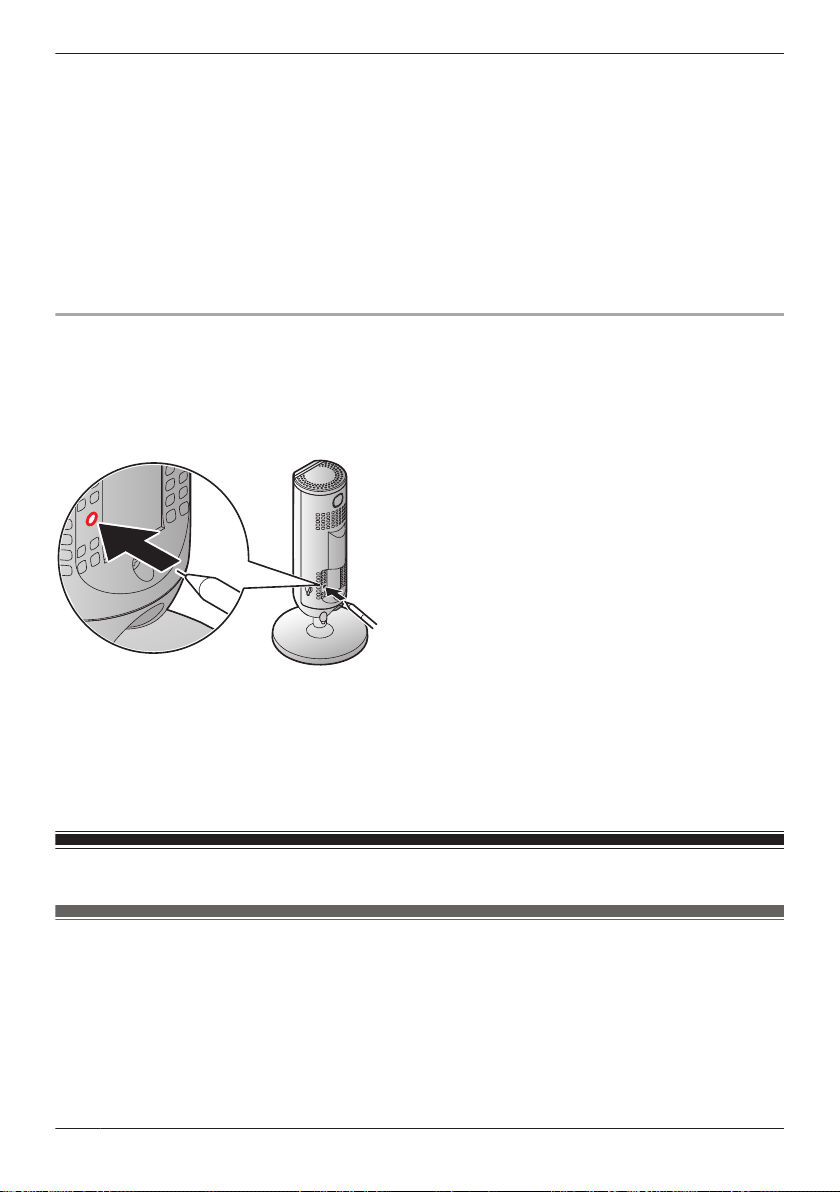
4 Tap [Reset HD Camera].
5 Select the desired feature.
– [Reset All Settings]: Resets all camera settings, including wireless settings.
– [Reset HD Camera Settings]: Resets all camera settings except wireless settings.
– [Reset Wireless Settings]: Resets wireless settings only.
6 Follow the on-screen instructions.
7 If you selected [Reset HD Camera Settings]
The procedure is complete.
If you selected [Reset All Settings] or [Reset Wireless Settings]
Wait for the camera’s LED indicator to light in green, then set up the camera again by following the
initial setup procedure (see “Setting up the HD camera”, Page 58).
Using the camera’s reset button
You can use the camera’s reset button to reset the camera’s wireless settings. Use this procedure if you
have trouble setting up the camera.
1 Plug in the camera.
2 Using an object with a thin tip, press and hold the reset button on the back of the camera for about
10 seconds, then release the button when the camera beeps.
R The camera’s settings are reset.
3 Wait for the camera’s LED to light in green.
Note:
R After resetting the camera, you cannot use the camera again until it is set up. You can set up the
camera again by following the initial setup procedure (see “Setting up the HD camera”, Page 58).
System expansion
Registering other mobile devices to the HD camera
To register a mobile device to the camera, use the procedure described in “Registering additional mobile
devices to the camera”, Page 59.
82
Using an HD camera

Adding another HD camera
You can register your mobile device to multiple HD cameras and monitor each of them from your mobile
device. Use the following procedure to add another HD camera.
1 From the [HomeHawk] app home screen, tap ® [Add Camera(s)].
2 Tap [Indoor HD Camera].
3
iPhone, iPad users
Continue from step 5 of the initial setup procedure ( “Initial setup for iPhone, iPad”, Page 58).
Android device users
Continue from step 5 of the initial setup procedure ( “Initial setup for Android devices”, Page 59).
Deregistering your mobile device
You can use this procedure to make the app “forget” its registration to the camera.
1 Display the camera list.
2 Open the options menu (see “Displaying the options menu”, Page 60).
3 Tap [Remove HD Camera].
4 Select the camera that you want to deregister your mobile device from.
5 Follow the on-screen instructions.
Note:
R If the app cannot connect to the selected camera, you will be prompted to try again later ([Try Later])
or continue with deregistration ([Forget Camera]).
If you select [Forget Camera], the camera will be removed from your app’s list of available cameras,
but your mobile device will remain registered to the camera. In this case, you can use another mobile
device to deregister your mobile device from the camera using the procedure described in “Using one
mobile device to deregister another mobile device”, Page 83.
Using one mobile device to deregister another mobile device
You can use this procedure to make the camera “forget” its registration to another mobile device.
1 View live images from the desired camera.
2 Open the options menu (see “Displaying the options menu”, Page 60).
3 Tap [Settings].
4 Tap [Deregister the Mobile Device].
5 Select the desired mobile device, and then tap [OK].
Note:
R If you use this procedure to deregister the mobile device you are using to perform the procedure, and if
there are no other cameras or access points that the app can connect to, the initial setup screen is
displayed.
83
Using an HD camera

Appendix
Open source software information
R Parts of this product use open source software supplied based on the relevant conditions of the Free
Software Foundation’s GPL and/or LGPL and other conditions. Please read all license information and
copyright notices related to the open source software used by this product. This information is
available at the following web page:
{{"www.panasonic.net/pcc/support/tel/homenetwork/"|tolink("http://www.panasonic.net/pcc/support/tel/
homenetwork/")}}
At least three (3) years from delivery of this product, Panasonic Corporation will give to any third party
who contacts us at the contact information provided below, for a charge of no more than the cost of
physically distributing source code, a complete machine-readable copy of the corresponding source
code and the copyright notices covered under the GPL and the LGPL. Please note that software
licensed under the GPL and the LGPL is not under warranty.
{{"www.panasonic.net/pcc/support/tel/homenetwork/"|tolink("http://www.panasonic.net/pcc/support/tel/
homenetwork/")}}
Software information
R The End User License Agreement (EULA) for the [HomeHawk] app is available at the following web
page:
{{"www.panasonic.net/pcc/support/tel/homenetwork/"|tolink("http://www.panasonic.net/pcc/support/tel/
homenetwork/")}}
84
Using an HD camera

General information
If you experience any trouble while using this product, the following information will solve most problems.
If the trouble persists, refer to the appropriate section in this chapter according to the trouble you are
experiencing.
For the latest troubleshooting information, visit {{"https://panasonic.net/cns/pcc/support/
homehawk"|tolink("https://panasonic.net/cns/pcc/support/homehawk")}}.
Power
Use these steps to make sure that all devices are receiving power.
1 Make sure the following devices are turned on. Check all AC adaptor connections and that all power
switches are switched on.
Refer to the operating instructions included with the device for more information.
– Access point
– Cameras
– Wireless router
– Cable or DSL modem
– Network switch
2 Make sure the electric outlets used to power the devices are functioning. If an electric outlet can be
turned on and off by a switch, make sure the switch is turned on.
3 Make sure the batteries installed in all devices have adequate charge remaining.
Check the camera battery level ( “Camera battery level”, Page 49). Refer to the Installation Guide
included with your device for information about charging batteries.
Network devices
Use these steps to make sure that each of your network devices and your Internet connection are
working properly.
1 Make sure all cables connected between your wireless router and any other network devices are
functioning and connected properly.
2 Make sure that devices connected to your wireless router can connect to the Internet.
→Refer to the operating instructions included with your wireless router for troubleshooting
information if necessary. For some Internet connection issues, you may need to contact your
Internet service provider.
System connection
Use these steps to make sure that your mobile device can connect to your devices.
1 Make sure that the access point is connected to your wireless router.
→Disconnect the access point’s AC adaptor, connect it again, and wait for the access point to start
up. If the access point’s LED indicator remains blinking in green after a few minutes, check if
DHCP (Dynamic Host Configuration Protocol) is operating for the wireless router.
2 Make sure your HD camera can connect to your wireless router.
→Disconnect the HD camera’s AC adaptor, connect it again, and wait for the camera to start up. If
the camera’s LED indicator remains blinking in white after a few minutes, the camera is not
connected to your wireless router.
In this case, set up the HD camera again by following the initial setup procedure (see “Setting up
the HD camera”, Page 58).
85
Troubleshooting
In this case, deregister the HD camera from your mobile device ( “Deregistering HD cameras”,
Page 39), and then register it again ( “Registering HD cameras”, Page 25).
3 Make sure your mobile device can connect to your access point while you are at home.
→Check your mobile device’s wireless network settings and confirm that it is connected to your
wireless router.
Next, use the [HomeHawk] app to connect to the access point, and confirm that
or
are not displayed in the live camera image screen ( “Viewing the live camera image screen”,
Page 44), camera image/recording list screen ( “Viewing the camera image/recording list screen”,
Page 42), or playback screen ( “Playing back recordings”, Page 47).
4 Make sure your mobile device can connect to your HD camera while you are at home.
→Check your mobile device’s wireless network settings and confirm that it is connected to your
wireless router.
Next, use the [HomeHawk] app to connect to the camera.
5 Make sure your devices are registered to the access point. Register them if they are not
( “Registering devices”, Page 24).
→Check the home screen ( “Using the home screen”, Page 18) or camera image/recording screen
( “Viewing the camera image/recording list screen”, Page 42). If a camera is displayed, it is
registered; if it is not displayed, it is not registered.
6 Make sure your cameras have adequate signal strength.
→Check the signal strength ( “Camera signal strength”, Page 49) and move devices closer to the
access point if necessary.
Date and time settings
Make sure the date and time settings for the access point are correct.
→Adjust the access point’s date and time setting ( “Time adjustment”, Page 27) as necessary.
Information on Disposal in other Countries outside the European Union
These symbols are only valid in the European Union. If you wish to discard these items, please contact
your local authorities or dealer and ask for the correct method of disposal.
Note for the battery removal procedure
Refer to the “Battery removal procedure” in the Installation Guide supplied with the product.
Messages
The following messages may be displayed in the Notifications Center (for iPhone, iPad) and the status
bar (for Android devices).
[Recording Error (No SD Card)] is displayed
R There is no SD card inserted in the access point.
→Insert a memory card in the access point.
[Recording Error (Memory full)] is displayed
R There is no space in the SD card.
86
Troubleshooting

→Insert a new SD memory card into the access point or enable overwrite recording ( “Recording
settings”, Page 26).
[Recording Error (SD card error)] is displayed
R There is a problem with the SD card.
→Check the SD card.
[Access Point update failed] is displayed
R An error occurred while updating the access point.
→Check all connections to the access point and try again.
Initial setup
I cannot perform initial setup
R Your mobile device is connecting to a different wireless router during the initial setup procedure.
→If your mobile device can connect to other nearby wireless routers, we recommend you turn them off
or “forget” their settings while performing initial setup.
Connecting from your mobile device
Refer to the following after checking the general troubleshooting information described in “General
information”, Page 85.
The connection is slow or disconnects while away from home
R There is too much traffic on your home network or on the mobile device’s network.
→Wait for network traffic to decrease.
I cannot connect to my devices
R You replaced your wireless router with a new router, or changed your wireless router’s SSID (i.e.,
network name) or password.
→Your mobile device may have old SSID information. Delete the SSID information in [Home Wireless
Network SSID] ( “Home wireless network SSID features”, Page 38).
→Deregister the HD camera from your mobile device ( “Deregistering HD cameras”, Page 39), and
then register it again ( “Registering HD cameras”, Page 25).
R Your wireless router at home is connected to another router.
→If your wireless router is connected to another router, make sure your network is configured so that
your mobile device and the access point can communicate over your home network. We
recommend making sure the DHCP feature of only one router is enabled and setting the other
routers to “access point mode” or “bridge mode”.
→If your wireless router is connected to another router, make sure your network is configured so that
your mobile device and the HD camera can communicate over your home network. We recommend
making sure the DHCP feature of only one router is enabled and setting the other routers to “access
point mode” or “bridge mode”.
I cannot connect while away from home
R You are using a public wireless network.
→Network traffic, network conditions, and the network provider’s settings or policies may prevent the
connection. Use a private wireless network or your mobile network service provider’s wireless
network (3G, 4G, etc.).
Sometimes I cannot connect while at home
R There is too much traffic on your home network.
87
Troubleshooting

→Wait for network traffic to decrease.
→Refer to the operating instructions included with your wireless router for other possible solutions.
R Your mobile device is discovering too many nearby wireless networks.
→Move your mobile device closer to your wireless router.
R Your mobile device has too many wireless networks stored in its wireless network list.
→Use your mobile device’s “forget this wireless network” feature and delete any unnecessary/unused
wireless networks from the list. Refer to your mobile device’s operating instructions or support site
for details.
I cannot connect to the HD camera while at home ([Connection unsuccessful] is displayed)
R Your wireless router uses the 2.4 GHz band and the 5 GHz band (this is sometimes called a “dual
band” configuration), and your mobile device and HD camera cannot communicate.
→Dual band configurations are acceptable as long as devices that connect via the 2.4 GHz band are
able to communicate with devices that connect via the 5 GHz band. For example, if you have
configured your wireless router to use the 5 GHz band for normal use and the 2.4 GHz band for a
“guest network”, devices that connect using the 2.4 GHz band cannot connect to devices that
connect using the 5 GHz band. Refer to the operating instructions included with your wireless router
for details.
→Make sure your mobile device and HD camera are using the same band (2.4 GHz or 5 GHz) to
connect to the wireless router. One way to do this is to make sure your wireless router uses different
SSIDs (i.e., network names) for each band, and then make sure that your mobile device and HD
camera are connecting via the same SSID.
To change the SSID that your mobile device is using for wireless communication, change your
mobile device’s wireless network settings.
To change the SSID that the HD camera is using for wireless communication, reset the HD
camera’s wireless settings ( “Using the camera’s reset button”, Page 82) and then set up the
camera again.
I forgot the login password for the access point
→Connect to the access point while at home and change the password. (The password is not required
when your mobile device is connected to the same wireless router as the access point.)
→If for some reason you cannot connect to the access point while at home and change the password,
force the access point to reset its settings ( “Resetting an access point”, Page 28) and then configure
the access point again.
I forgot the login password for the HD camera
→Set up the HD camera again by deregistering the camera from your mobile device ( “Deregistering HD
cameras”, Page 39), and then registering it again ( “Registering HD cameras”, Page 25).
→Set up the HD camera again by following the initial setup procedure (see “Setting up the HD camera”,
Page 58).
Notification features
Refer to the following after checking the general troubleshooting information described in “General
information”, Page 85.
Status notifications are not received
R Status notification features are disabled.
→Make sure the desired type of notifications are enabled.
For notifications sent from the access point, see “Notification settings”, Page 35 and “Mode
settings”, Page 28.
For notifications sent from the HD camera, see “[Notification Settings]”, Page 78.
R Your mobile device’s notifications feature is disabled for the [HomeHawk] app.
88
Troubleshooting

→Enable your mobile device’s notifications feature.
R Too many notifications were sent during this calendar month.
→If an excessive number of notifications (i.e., thousands of notifications) were sent during this
calendar month, an error message is displayed and no additional notifications can be received this
calendar month. Notifications will be received again when the new month starts.
R iPhone, iPad
Too many notifications were sent in a short amount of time.
→If many notifications are sent in a short time, in some cases only the last notification may be
received. This is a characteristic your mobile device’s notifications service.
Status notifications are received late
R Notifications are not received in real time; it may take some time for notifications to be received. This is
not a malfunction.
R Too many notifications were sent in a short amount of time.
→If many notifications are sent in a short time, notifications may be received late. This is a
characteristic your mobile device’s notifications service.
Front door camera and outdoor camera features
Refer to the following after checking the general troubleshooting information described in “General
information”, Page 85.
[Camera update failed] is displayed
R An error occurred while updating the camera.
→Fully charge the camera and try again.
I fully charged the camera (the charging LED indicator is lit in red), but its operation time seems
to be shorter than usual
R The temperature of the location where the camera is being used is too low.
→Use the camera in a location with a higher temperature.
The camera will not charge (the charging LED indicator blinks quickly in red)
R You are charging the camera in a location outside of the camera’s specified charging temperatures.
→Charge the camera in a location with a temperature between 5 °C and 40 °C (41 °F and 104 °F).
No sound is heard in camera recordings
R If is displayed next to the recording in the recording list, the system is configured to not record audio
when recording camera images.
→Change the [Recording with Sound] setting ( “Recording sound”, Page 50).
R The volume is turned down on your mobile device.
→Adjust the volume of your mobile device.
Colors in camera images appear different from normal
R The camera is aimed at a dark location, or it is nighttime.
→If there is not adequate light to illuminate the subject, such as at night, the camera switches to night
vision mode depending on the settings ( “Using night vision”, Page 51). In this case, colors may
appear different from normal.
Colors in front door camera images appear washed out
R Lighting conditions are poor or inconsistent.
→Adjust the camera’s brightness ( “Changing the brightness”, Page 52).
→Place the camera in a different location or position.
Condensation forms on the camera
R Extreme temperature changes are causing condensation to form.
89
Troubleshooting

→Wipe the outer surface of the camera with a soft dry cloth.
→Use the camera in a location that does not have extreme temperature changes.
There is a long delay when talking to the camera while away from home
R Your mobile device’s network connection is slow or congested.
→Wait for network traffic to decrease.
→Lower the [Frame Rate] setting ( “Changing the frame rate”, Page 52).
Images are poor at night when the camera is installed in front of a window
R Night vision mode is causing images to have poor quality.
→Turn off night vision mode ( “Using night vision”, Page 51).
LEDs light at night
R Night vision mode is enabled and automatically turns on LEDs at night.
→Turn off night vision mode or set it to [Monochrome] ( “Using night vision”, Page 51).
Note:
R Turning off night vision mode will reduce the visibility of images at night.
Camera images are not displayed at first while away from home, and are displayed after some
time passes
R Your mobile device’s network connection is slow or congested.
→Wait for network traffic to decrease.
→Lower the [Frame Rate] setting ( “Changing the frame rate”, Page 52).
I have to wait a long time before camera images are displayed while away from home
R There is too much traffic on your home network or on the mobile device’s network.
→Wait for network traffic to decrease.
Camera images are not displayed, and [Loading...] is displayed for a long period when I try to
view camera images while away from home
R The protocol used for communication is not compatible with your network.
→Set the [Remote Access Mode] setting to [TCP] ( “Remote access mode settings”, Page 38).
The camera’s sensor is triggered too easily
R The camera’s motion detection features are too sensitive.
→Reduce the sensitivity of the camera’s sensors, see “Motion sensitivity”, Page 53.
R The camera’s detection area is too large.
→Limit the detection area so that the camera ignores motion in unneeded areas of the camera’s
image, i.e., reduce the camera’s detection area ( “Detection area”, Page 53).
R The camera’s settings are not suited to the environment.
→Review the information in the Installation Guide included with your camera about sensor features
and installation environment.
→Front door cameras and outdoor cameras can detect motion visually (i.e., when an area of the
camera’s image changes brightness). For this reason, false detections may occur in the following
locations.
False detections caused by predicable movement in a specific area of the camera image
– Areas where fixed objects move in the wind, such as tree branches or hanging laundry
– Areas where animals move in a limited area, such as birds in a nest or small animals close to the
ground
– Areas where brightness significantly, such as when shadows form in the afternoon, lights turn on
at night, or vehicles pass by at night with their headlights or brakelights on
You can prevent these false detections by adjusting the position of the camera, by limiting the
detection area so that the camera ignores motion in unneeded areas of the camera’s image
( “Detection area”, Page 53) or lowering the sensitivity of sensors ( “Motion sensitivity”, Page 53).
False detections caused by unpredictable movement in any area of the camera image
– Areas where birds or flying insects move in front of the camera
90
Troubleshooting

– Areas where rain, snow, hail, or tree leaves fall in front of the camera
You can prevent these false detections by adjusting the position of the camera or lowering the
sensitivity of sensors ( “Motion sensitivity”, Page 53).
[Ambient temperature is (too high) or (too low), camera operation will be interrupted.] is displayed
R The camera is used in an environment with a temperature that exceeds -20 °C or 50 °C (-4 °F to
122 °F).
→Use the camera in an environment with temperatures within -20 °C to 50 °C (-4 °F to 122 °F).
HD camera sensor features
Refer to the following after checking the general troubleshooting information described in “General
information”, Page 85.
Notifications are not received
R The desired notification type is not enabled.
→Enable the desired notification type ( “[Notification Settings]”, Page 78).
R The camera’s date and time setting is incorrect.
→Adjust the date and time setting ( “HD camera device profiles”, Page 79).
Sensor detections are not displayed in the sensor history
R The desired feature is not enabled.
→Make sure the desired feature is enabled and configured as desired ( “Temperature sensor”,
Page 73, “Sound sensor”, Page 73).
R The camera’s date and time setting is incorrect.
→Adjust the date and time setting ( “HD camera device profiles”, Page 79).
Colors in camera images appear different from normal
R The camera is aimed at a dark location, or it is nighttime.
→If there is not adequate light to illuminate the subject, such as at night, the camera switches to night
vision mode depending on the settings ( “Night vision mode”, Page 76). In this case, colors may
appear different from normal.
Images are poor at night when the camera is installed in front of a window
R Night vision mode is causing images to have poor quality.
→Turn off night vision mode ( “Night vision mode”, Page 76).
Infrared LEDs light at night
R Night vision mode is enabled and automatically turns on infrared LEDs at night.
→Turn off night vision mode ( “Night vision mode”, Page 76).
Note:
R Turning off night vision mode will reduce the visibility of images at night.
Amazon Alexa features
Refer to the following after checking the general troubleshooting information described in “General
information”, Page 85.
My Amazon Alexa device does not respond to my voice commands
R You have not set up your Amazon Alexa device for use with the [HomeHawk] app.
91
Troubleshooting

→Set up your Amazon Alexa device for use with the [HomeHawk] app ( “Linking with your Amazon
Echo Show”, Page 32).
R You said an incorrect voice command.
→Say the correct voice commands ( “Using Amazon Alexa to control devices”, Page 33).
Images are not displayed or not displayed smoothly on Amazon Echo Show
R The bit rate setting is too high.
→Lower the bit rate setting ( “Adjusting the bit rate for Amazon Echo Show and Google Home”,
Page 26).
Google Home features
Refer to the following after checking the general troubleshooting information described in “General
information”, Page 85.
My Google Home device does not respond to my voice commands
R You have not set up your Google Home device for use with the [HomeHawk] app.
→Set up your Google Home device for use with the [HomeHawk] app ( “Linking with your Google
Home”, Page 34).
R You said an incorrect voice command.
→Say the correct voice commands ( “Using Google Home to control devices”, Page 35).
Images are not displayed or not displayed smoothly on my TV via Chromecast
R The bit rate setting is too high.
→Lower the bit rate setting ( “Adjusting the bit rate for Amazon Echo Show and Google Home”,
Page 26).
92
Troubleshooting

Compatible environments
For best results when viewing this document, we recommend the following environments.
When using a computer
– Internet Explorer 9 or later
– Firefox, latest version
– Google Chrome, latest version
– Safari 4.1 or later
When using a mobile device
– iOS 10.0 and later
– Android 4.1 and later
Note:
R Internet Explorer 8 and earlier versions are not supported.
R Some content may not be displayed properly when using Android 4.0.
Terms used in this document
R The access point supports microSD, microSDHC, and microSDXC memory cards. In this document,
the term “SD card” is used as a generic term for any of the supported cards.
Trademarks
R iPhone and iPad are registered trademarks of Apple Inc.
R Amazon, Echo Show, Alexa, Echo Spot, Fire and all related logos are trademarks of Amazon.com, Inc.
or its affiliates.
R Android, Google Play, and Google Home are trademarks of Google Inc.
R microSDHC, microSDXC Logos are trademarks of SD-3C, LLC.
R All other trademarks identified herein are the property of their respective owners.
Other information
R The suffix is omitted from most model numbers listed in this document. It is included only when
relevant.
R Screen shots and icons that appear in this document are for reference only. Actual appearance varies
depending on your mobile device, its operating system and display language, the devices that are
registered to the access point, the current status of the access point and its connected devices, etc.
R Illustrations in this document may vary from the appearance of the actual product.
R Design and specifications are subject to change without notice.
93
About this document

94
Notes

95
Notes

PNQP1406WA/eng CC1803YK3108