DIGITAL CAMERA
Quick Start Guide
En
Introduction ii
Parts of the Camera 1
Getting Started
2
Basic Shooting and Playback Operations 8
Other Functions 15
Technical Notes 19
• Read this manual thoroughly before using the camera.
• To ensure proper use of the camera, be sure to read “For
Your Safety” (page vi).
• Be sure to read “Do Not Point the Lens at the Sun” (page
24) in “Caring for the Product.”
• After reading this manual, keep it in a readily accessible
place for future reference.
ii
Introduction
Introduction
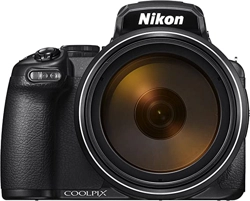
Thank you for purchasing the Nikon COOLPIX P1000 digital camera.
Downloading the “Reference Manual”
The Reference Manual (PDF format) provides details in various languages on how to use
this product. Download the Reference Manual from our Download Center at the URL
below and save it on your smart device or computer for reference.
• The Reference Manual can be viewed using Adobe Acrobat Reader (downloadable
from the Adobe website) or iBooks (an iOS app).
Downloading Nikon Software
For Computer
Download the software from our Download Center at the URL below.
• ViewNX-i: This software enables you to transfer images and movies to your
computer for viewing and editing.
• Capture NX-D: This software enables you to edit images that are transferred to a
computer and process RAW images.
For Smart Device
• SnapBridge: When you establish a wireless connection, this app enables you to
upload images and movies to your smart device. See the included “SnapBridge
Connection Guide” for information on how to download it and establish a
connection.
Visit Our Download Center
http://downloadcenter.nikonimglib.com
Visit our website to download manuals for Nikon imaging
products, computer software, or firmware.
Nikon User Support
If you need any technical assistance with the operation of your Nikon product(s),
please contact one of the Nikon representatives. For information on the Nikon
representatives in your area, please visit
http://www.nikon-asia.com/support.
Read This First
COOLPIX P1000 Model Name: N1622
iii
Introduction
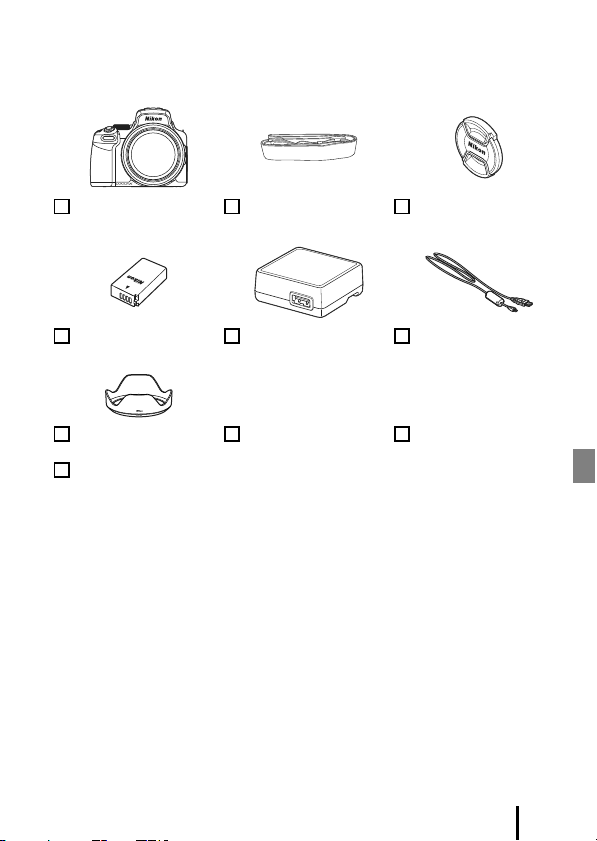
Confirming the Package Contents
In the event that any items are missing, please contact the store where you purchased
the camera.
1
A plug adapter is attached depending on the country or region of purchase. The shape of
the plug adapter varies with the country or region of purchase (A4).
2
The EH-73PCH Charging AC Adapter may be included instead of the EH-73P, depending
on the country or region where you purchased the camera.
NOTE: A memory card is not included with the camera. SD, SDHC, and SDXC memory
cards are referred to as “memory cards” in this manual.
COOLPIX P1000 Digital
Camera
Strap LC-77 Lens Cap
EN-EL20a Rechargeable
Li-ion Battery
EH-73P Charging AC
Adapter
1, 2
UC-E21 USB Cable
HB-CP1 Bayonet Lens
Hood
Quick Start Guide (this
manual)
SnapBridge Connection
Guide
Warranty
iv
Introduction
Information and Precautions
Life-Long Learning
As part of Nikon’s “Life-Long Learning” commitment to ongoing product support and
education, continually updated information is available online at the following websites:
• For users in the U.S.A.: http://www.nikonusa.com/
• For users in Europe: http://www.europe-nikon.com/support/
• For users in Asia, Oceania, the Middle East, and Africa: http://www.nikon-asia.com/
Visit these websites to keep up-to-date with the latest product information, tips, answers to
frequently asked questions (FAQs), and general advice on digital imaging and photography.
Additional information may be available from the Nikon representative in your area. Visit the
website below for contact information.
http://imaging.nikon.com/
Use Only Nikon Brand Electronic Accessories
Nikon COOLPIX cameras are designed to the highest standards and include complex
electronic circuitry. Only Nikon brand electronic accessories (including battery chargers,
batteries, AC adapters, and USB cables) certified by Nikon specifically for use with this Nikon
digital camera are engineered and proven to operate within the operational and safety
requirements of this electronic circuitry.
THE USE OF NON-NIKON ELECTRONIC ACCESSORIES COULD DAMAGE THE CAMERA AND
MAY VOID YOUR NIKON WARRANTY.
The use of third-party rechargeable Li-ion batteries not bearing the Nikon holographic seal
could interfere with normal operation of the camera or result in the batteries overheating,
igniting, rupturing, or leaking.
For more information about Nikon brand accessories, contact a local authorized Nikon
dealer.
Before Taking Important Pictures
Before taking pictures on important occasions (such as at weddings or before taking the
camera on a trip), take a test shot to ensure that the camera is functioning normally. Nikon
will not be held liable for damages or lost profits that may result from product malfunction.
Holographic seal: Identifies this
device as an authentic Nikon product.

v
Introduction
About the Manuals
• No part of the manuals included with this product may be reproduced, transmitted,
transcribed, stored in a retrieval system, or translated into any language in any form, by
any means, without Nikon’s prior written permission.
• Illustrations and screen content shown in this manual may differ from the actual product.
• Nikon reserves the right to change the specifications of the hardware and software
described in these manuals at any time and without prior notice.
• Nikon will not be held liable for any damages resulting from the use of this product.
• While every effort was made to ensure that the information in these manuals is accurate
and complete, we would appreciate it were you to bring any errors or omissions to the
attention of the Nikon representative in your area (address provided separately).
Comply with Copyright Notices
Under copyright law, photographs or recordings of copyrighted works made with the
camera can not be used without the permission of the copyright holder. Exceptions apply
to personal use, but note that even personal use may be restricted in the case of
photographs or recordings of exhibits or live performances.
Disposing of Data Storage Devices
Please note that deleting images or formatting data storage devices such as memory cards
does not completely erase the original image data. Deleted files can sometimes be
recovered from discarded storage devices using commercially available software, potentially
resulting in the malicious use of personal image data. Ensuring the privacy of such data is
the user’s responsibility.
Before discarding a data storage device or transferring ownership to another person, make
sure to reset all of the camera’s settings in Reset all in the setup menu (A17) or Restore
default settings in the network menu (A17). After resetting, erase all data in the device
using commercial deletion software, or format the device in Format card in the setup
menu (A17), then completely refill it with images containing no private information (for
example, images of empty sky).
Care should be taken to avoid injury or damage to property when physically destroying
memory cards.
vi
Introduction
To prevent damage to property or injury to yourself or to others, read “For Your Safety”
in its entirety before using this product.
Keep these safety instructions where all those who use this product will read them.
For Your Safety
DANGER
Failure to observe the precautions marked
with this icon carries a high risk of death or
severe injury.
WARNING
Failure to observe the precautions marked
with this icon could result in death or
severe injury.
CAUTION
Failure to observe the precautions marked
with this icon could result in injury or
property damage.
WARNING
• Do not use while walking or operating a vehicle. Failure to observe this
precaution could result in accidents or other injury.
• Do not disassemble or modify this product. Do not touch internal parts
that become exposed as the result of a fall or other accident. Failure to
observe these precautions could result in electric shock or other injury.
• Should you notice any abnormalities such as the product producing
smoke, heat, or unusual odors, immediately disconnect the battery or
power source. Continued operation could result in fire, burns or other injury.
• Keep dry. Do not handle with wet hands. Do not handle the plug with wet
hands. Failure to observe these precautions could result in fire or electric shock.
• Do not let your skin remain in prolonged contact with this product while it
is on or plugged in. Failure to observe this precaution could result in low-
temperature burns.
• Do not use this product in the presence of flammable dust or gas such as
propane, gasoline or aerosols. Failure to observe this precaution could result in
explosion or fire.
• Do not aim the flash at the operator of a motor vehicle. Failure to observe
this precaution could result in accidents.
vii
Introduction
• Keep this product out of reach of children. Failure to observe this precaution
could result in injury or product malfunction. In addition, note that small parts
constitute a choking hazard. Should a child swallow any part of this product, seek
immediate medical attention.
• Do not entangle, wrap or twist the straps around your neck. Failure to
observe this precaution could result in accidents.
• Do not use batteries, chargers, AC adapters, or USB cables not specifically
designated for use with this product. When using batteries, chargers, AC
adapters, and USB cables designated for use with this product, do not:
- Damage, modify, forcibly tug or bend the cords or cables, place them
under heavy objects, or expose them to heat or flame.
- Use travel converters or adapters designed to convert from one voltage
to another or with DC-to-AC inverters.
Failure to observe these precautions could result in fire or electric shock.
• Do not handle the plug when charging the product or using the AC adapter
during thunderstorms. Failure to observe this precaution could result in electric shock.
• Do not handle with bare hands in locations exposed to extremely high or low
temperatures. Failure to observe this precaution could result in burns, or frostbite.
CAUTION
• Do not leave the lens pointed at the sun or other strong light sources. Light
focused by the lens could cause fire or damage to product’s internal parts. When
shooting backlit subjects, keep the sun well out of the frame. Sunlight focused into
the camera when the sun is close to the frame could cause fire.
• Turn this product off when its use is prohibited. Disable wireless features
when the use of wireless equipment is prohibited. The radio-frequency
emissions produced by this product could interfere with equipment onboard
aircraft or in hospitals or other medical facilities.
• Remove the battery and disconnect the AC adapter if this product will not
be used for an extended period. Failure to observe this precaution could result
in fire or product malfunction.
viii
Introduction
• Do not touch moving parts of the lens or other moving parts. Failure to
observe this precaution could result in injury.
• Do not fire the flash in contact with or in close proximity to the skin or
objects. Failure to observe this precaution could result in burns or fire.
• Do not raise the built-in flash when using a flash unit mounted on the
camera accessory shoe. Failure to observe this precaution could result in fire or
damage to the product.
• Do not leave the product where it will be exposed to extremely high
temperatures, for an extended period such as in an enclosed automobile
or in direct sunlight. Failure to observe this precaution could result in fire or
product malfunction.
• Do not transport the camera with a tripod or similar accessory attached.
Failure to observe this precaution could result in injury or product malfunction.
DANGER for Batteries
• Do not mishandle batteries. Failure to observe the following precautions could
result in the batteries leaking, overheating, rupturing, or catching fire:
- Use only rechargeable batteries approved for use in this product.
- Do not expose batteries to flame or excessive heat.
- Do not disassemble.
- Do not short-circuit the terminals by touching them to necklaces, hairpins, or
other metal objects.
- Do not expose batteries or the products in which they are inserted to powerful
physical shocks.
• Charge only as indicated. Failure to observe this precaution could result in the
batteries leaking, overheating, rupturing, or catching fire.
• If battery liquid comes into contact with the eyes, rinse with plenty of
clean water and seek immediate medical attention. Delaying action could
result in eye injuries.
ix
Introduction
WARNING for Batteries
• Keep batteries out of reach of children. Should a child swallow a battery, seek
immediate medical attention.
• Do not immerse batteries in water or expose to rain. Failure to observe this
precaution could result in fire or product malfunction. Immediately dry the
product with a towel or similar object should it become wet.
• Discontinue use immediately should you notice any changes in the
batteries, such as discoloration or deformation. Cease charging if they do
not charge in the specified period of time. Failure to observe these
precautions could result in the batteries leaking, overheating, rupturing, or
catching fire.
• When batteries are no longer needed, insulate the terminals with tape.
Overheating, rupture, or fire may result should metal objects come into contact
with the terminals.
• If battery liquid comes into contact with a person’s skin or clothing,
immediately rinse the affected area with plenty of clean water. Failure to
observe this precaution could result in skin irritation.
1
Parts of the Camera
Parts of the Camera
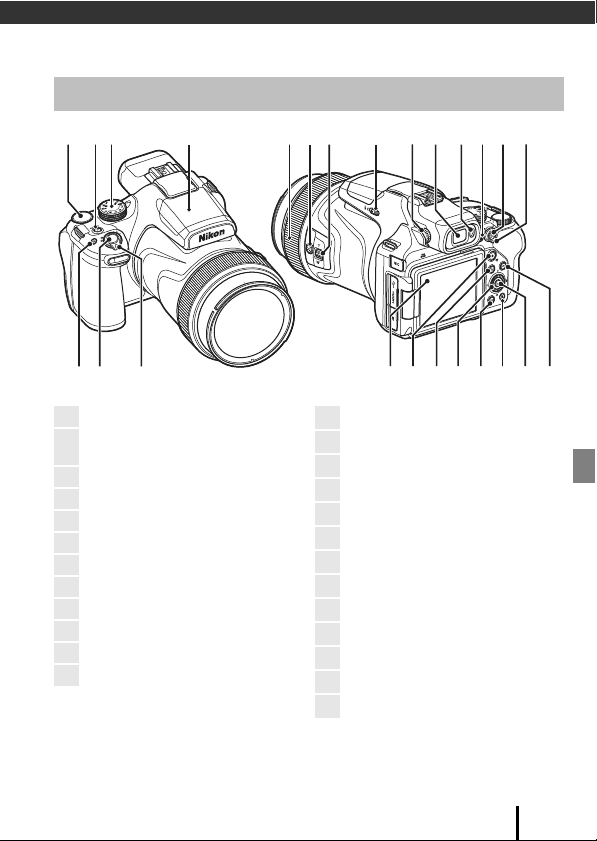
* In this manual, the operation of pressing the upper, lower, left, or right part of the multi
selector is indicated as H, I, J, or K.
The Camera Body
1 2 3 4 8 9 10 11 12 13 141516 17
1819202122232425567
1
Command dial
2
Power switch/power-on lamp (charge
lamp)
3
Mode dial
4
Built-in flash
5
Zoom control
6
Shutter-release button
7
w (function) button
8
Control ring
9
p (snap-back zoom) button
10
Side zoom control
11
K (flash pop-up) control
12
Diopter adjustment control
13
Electronic viewfinder
14
Eye sensor
15
x (monitor) button
16
o (AE-L/AF-L) button
17
Focus-mode selector
18
s (display) button
19
k (apply selection) button
20
l (delete) button
21
d (menu) button
22
Rotary multi selector (multi selector)*
23
c (playback) button
24
b (e movie-record) button
25
Monitor
2
Getting Started
Getting Started
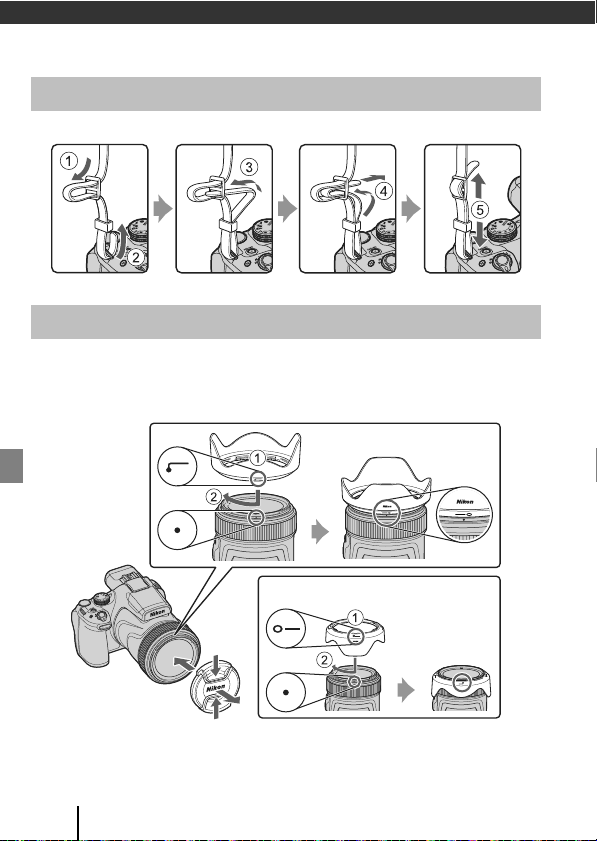
Attach the strap to the left and right side of the camera.
• When you are not shooting images, attach the lens cap to protect the lens.
• The lens hood cuts out light which adversely affects the image, and it also helps to
protect the camera. Do not use the lens hood when shooting with a flash or when
the AF-assist illuminator is necessary for shooting.
How to Attach the Camera Strap
How to Attach the Lens Cap and Lens Hood
When not using the lens hood
3
Getting Started
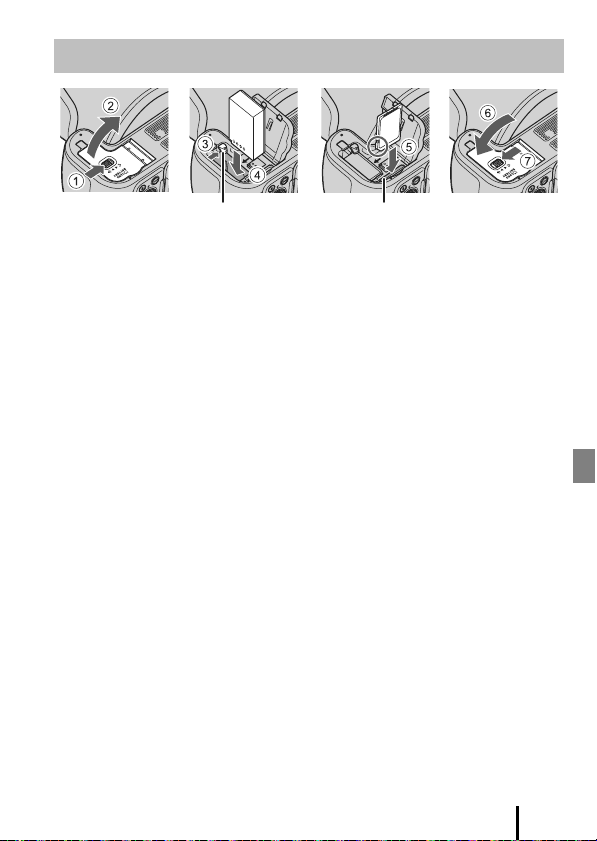
• With the battery’s positive and negative terminals oriented correctly, move the
orange battery latch (3), and fully insert the battery (4).
• Slide the memory card in until it clicks into place (5).
• Be careful not to insert the battery or memory card upside-down or backward, as
this could cause a malfunction.
• When the write-protect switch on the memory card is in the “lock” position, images
cannot be captured or deleted, and the card cannot be formatted.
B Formatting a Memory Card
The first time you insert a memory card that has been used in another device into this
camera, make sure to format it with this camera.
• Note that formatting a memory card permanently deletes all images and other
data on the memory card. Be sure to make copies of any images you wish to keep
before formatting the memory card.
• Insert the memory card into the camera, press the d button, and select Format card in
the setup menu (A17).
Removing the Battery or Memory Card
Turn the camera off and make sure that the power-on lamp and screen have turned
off, and then open the battery-chamber/memory card slot cover.
• Move the battery latch to eject the battery.
• Gently push the memory card into the camera to partially eject the memory card.
• Be careful when handling the camera, battery, and memory card immediately after
using the camera, as they may be hot.
Inserting the Battery and Memory Card
Battery latch Memory card slot
4
Getting Started
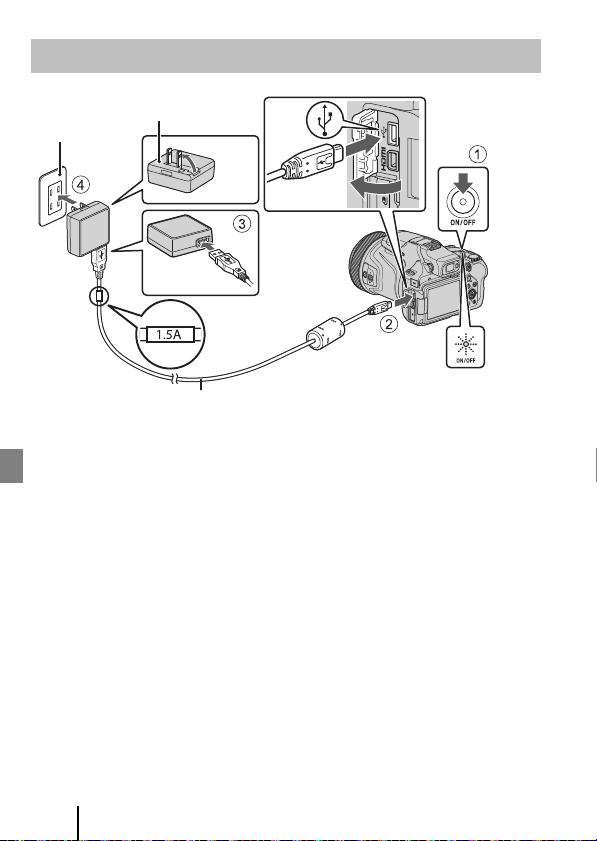
* A plug adapter is attached depending on the country or region of purchase. The
shape of the plug adapter varies with the country or region of purchase.
• Charging starts when the camera is connected to an electrical outlet while the
battery is inserted, as shown in the illustration. The power-on lamp (charge lamp)
slowly flashes while the battery is charging.
• When charging is complete, the power-on lamp turns off. Unplug the Charging AC
Adapter from the electrical outlet, and disconnect the USB cable.
Charging time is about 3 hours for a fully exhausted battery.
• The battery cannot be charged when the power-on lamp quickly flashes, possibly
due to one of the reasons described below.
- The ambient temperature is not suited to charging.
- The USB cable or Charging AC Adapter is not properly connected.
- The battery is damaged.
Charging the Battery
Power-on lamp
(charge lamp)
Electrical outlet
USB cable (included)
Charging
AC Adapter*
5
Getting Started
B Notes About the USB Cable
• Do not use a USB cable other than the UC-E21. Using a USB cable other than the UC-E21
could result in overheating, fire or electric shock.
• Check the shape and direction of the plugs and do not insert or remove the plugs at an
angle.
B Notes About Charging the Battery
• The camera can be operated while the battery is charging, but the charging time
increases. The power-on lamp (charge lamp) turns off while the camera is being operated.
• Do not, under any circumstances, use another make or model of AC adapter other than
the EH-73P/EH-73PCH Charging AC Adapter, and do not use a commercially available
USB-AC adapter or a battery charger for a mobile phone. Failure to observe this precaution
could result in overheating or in damage to the camera.
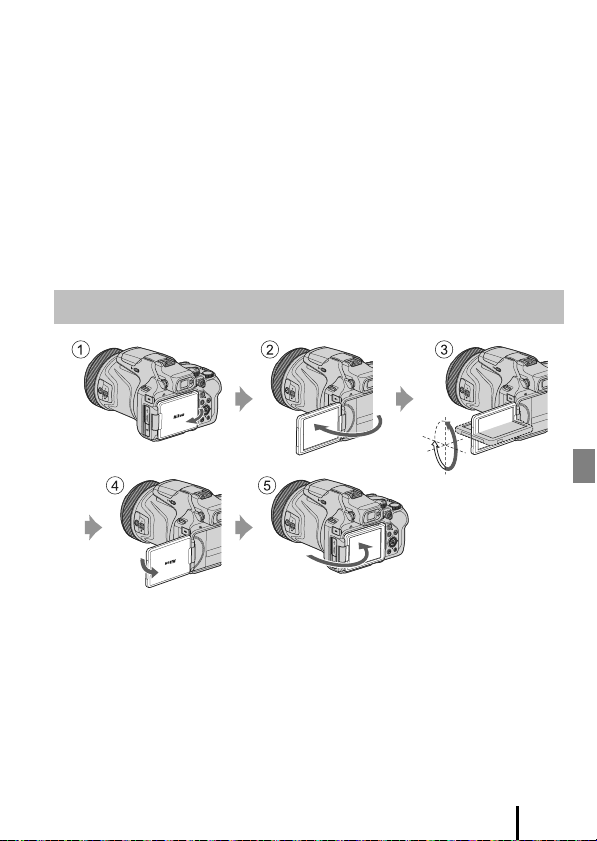
• You can adjust the direction and angle of the monitor. For normal shooting, fold
the monitor against the back of the camera, facing out (5).
• When you are not using or carrying the camera, fold the monitor against the
camera body with the screen facing in (1).
B Notes About the Monitor
• The monitor’s adjustable range may be limited when a cable or accessories are attached
to the camera.
• When moving the monitor, do not apply excessive force and move slowly within the
monitor’s adjustable range so that the connection will not be damaged.
Opening the Monitor
6
Getting Started
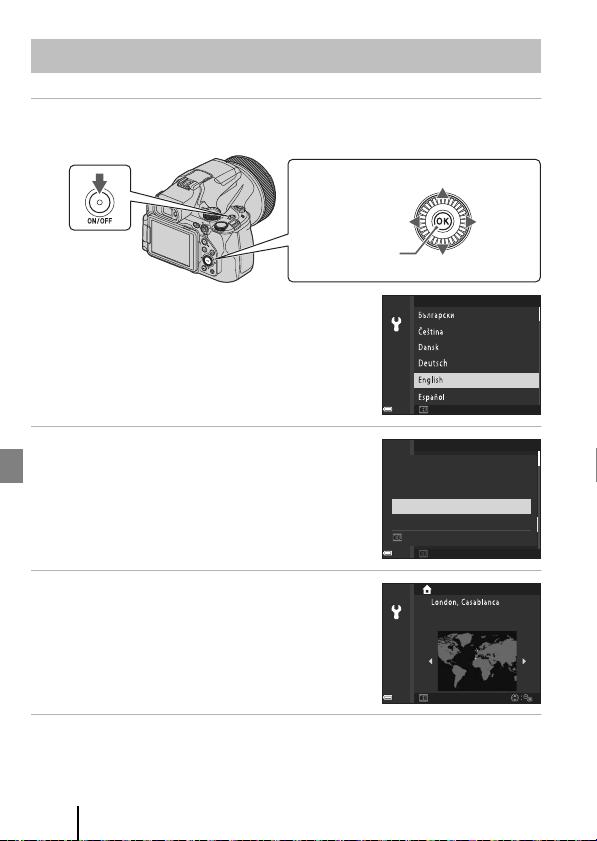
1 Turn the camera on.
• Use the multi selector to select and adjust settings.
• A language selection dialog will be displayed. Press
H or I on the multi selector to highlight a
language and press k to select.
• The language can be changed at any time using
the Language option in the setup menu (A17).
2 Select Yes and press k.
3 Highlight your home time zone and
press k.
• To turn daylight saving time on press H; W will be
displayed at the top of the map. Press I to turn
daylight saving time off.
4 Press H or I to choose a date format and press k.
Camera Setup
Multi selector
k button
(apply selection)
RightLeft
Up
Down
Power switch
Language
Cancel
Yes
No
Choose time zone and
set date and time?
Cancel
Back
7
Getting Started
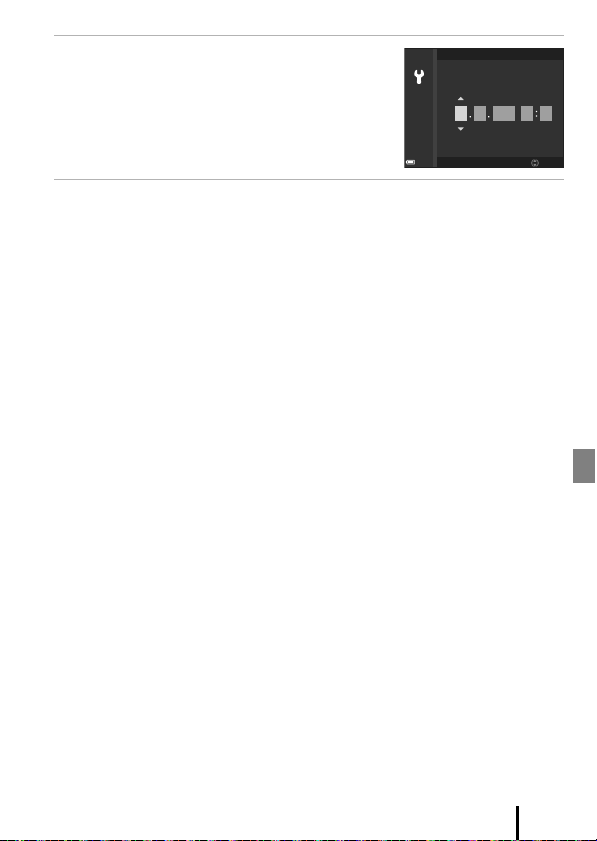
5 Enter the current date and time and
press k.
• Press J or K to highlight items and press H or I
to change.
• Select the minute field and press k to confirm the
setting.
6 When prompted, press H or I to highlight Yes and press k.
• The camera exits to the shooting display when setup is complete.
C Resetting the Clock
The Time zone and date option in the setup menu can be used to choose the time zone
and set the camera clock.
Daylight saving time can be turned on or off in the Time zone menu.
C Using the SnapBridge App
When you establish a wireless connection between the camera and a smart device using
the SnapBridge app, you can upload images captured with the camera to the smart device
or perform remote photography. See the included “SnapBridge Connection Guide” for the
connection procedure.
Edit
Date and time
D MY hm
01
01 2018 00 00
8
Basic Shooting and Playback Operations
Basic Shooting and Playback
Operations
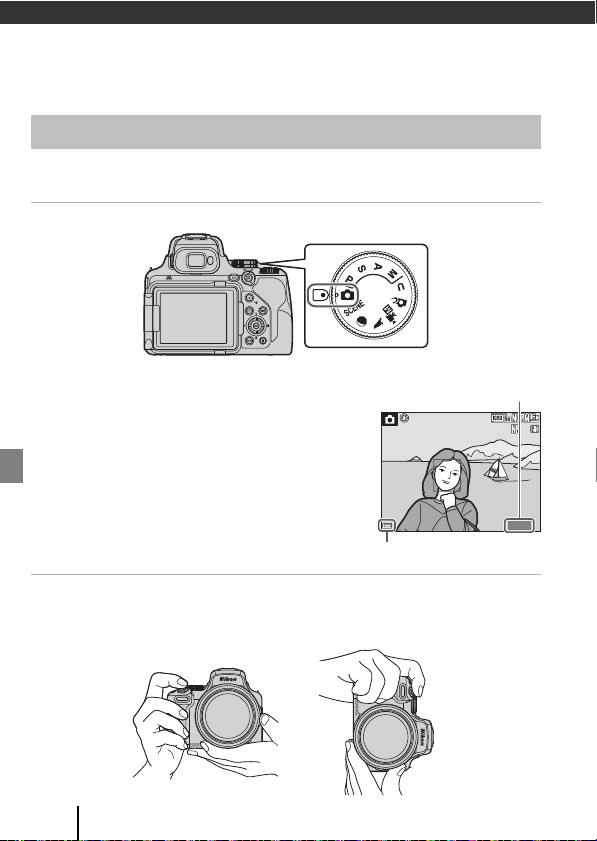
A (auto) mode is used here as an example. A (auto) mode enables you to perform
general shooting in a variety of shooting conditions.
1 Rotate the mode dial to A.
• Battery level indicator
b: The battery level is high.
B: The battery level is low.
• Press the s (display) button to switch the
information displayed on the screen each time.
2 Hold the camera steady.
• Keep fingers and other objects away from the lens, flash, AF-assist illuminator,
microphone, and speaker.
Shooting Images
Number of exposures
remaining
1 4 0 0
1400
2 5 m 0 s
25m 0s
1 / 2 5 0
1/250
F 5 . 6
F5.6
Battery level indicator
9
Basic Shooting and Playback Operations
3 Frame the picture.
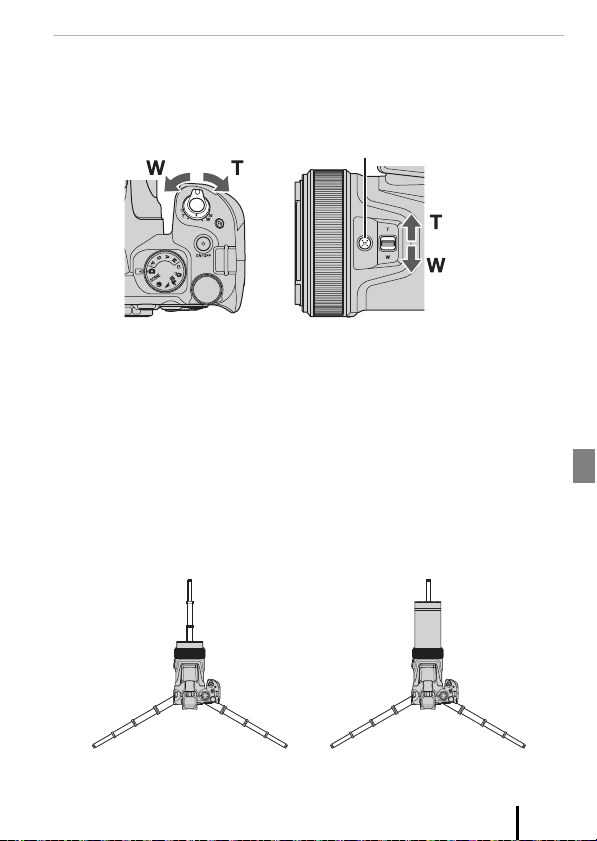
• Move the zoom control or the side zoom control to change the zoom lens position.
• If you lose sight of the subject while shooting with the lens in telephoto position,
press the p (snap-back zoom) button to temporarily widen the visible area so that
you can frame the subject more easily.
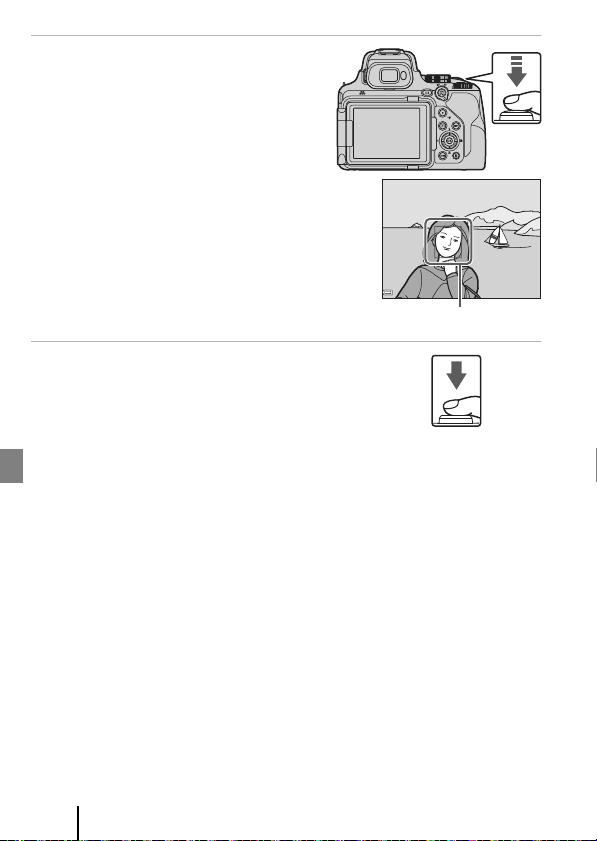
C Using a Tripod
• We recommend using a tripod to stabilize the camera in the following situations:
- When shooting in dim lighting with the flash mode set to W (off )
- When the zoom is at a telephoto position
• When using a tripod to stabilize the camera during shooting, set Vibration
reduction to Off in the setup menu (A17) to prevent potential errors caused by
this function.
• After attaching the camera to a tripod, make sure that the camera does not fall over
when zooming the lens in or out. Extend one leg of the tripod toward the subject
and the other two legs toward you at an equal distance.
• The camera may move slightly when operated, even if it is attached to a tripod,
which may interfere with the autofocus. Wait a few seconds after operating the
camera, and then slowly press the shutter-release button.
Zoom out Zoom in
Zoom in
Zoom out
p button
When zoom is at wide-angle
position
When zoom is at telephoto
position
10
Basic Shooting and Playback Operations
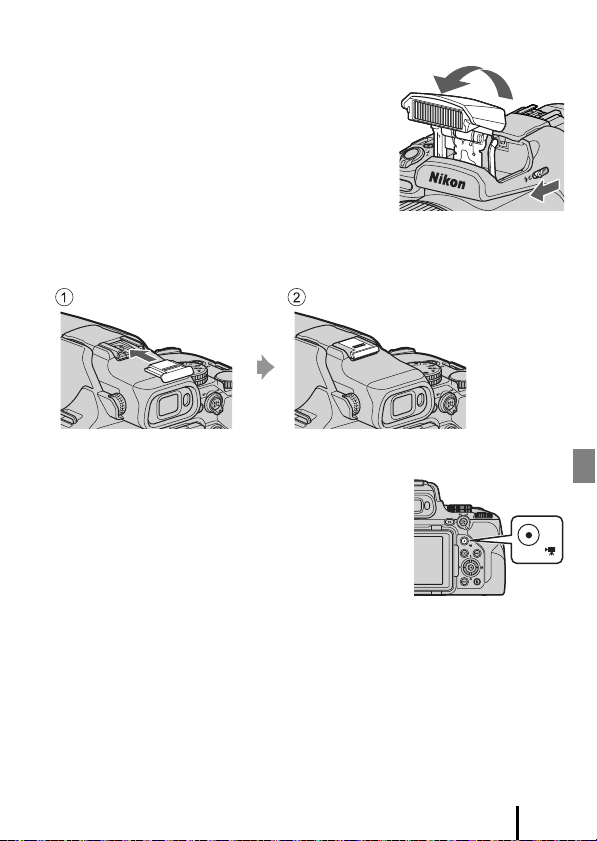
4 Press the shutter-release button
halfway.
• To press the shutter-release button
“halfway” means to press and hold the
button at the point where you feel a slight
resistance.
• When the subject is in focus, the focus area
or focus indicator is displayed in green.
• When you are using digital zoom, the
camera focuses in the center of the frame
and the focus area is not displayed.
• If the focus area or focus indicator flashes,
the camera is unable to focus. Modify the
composition and try pressing the shutter-
release button halfway again.
5 Without lifting your finger, press the
shutter-release button all the way
down.
B Notes About Saving Images or Movies
The indicator showing the number of exposures remaining or the indicator showing the
remaining recording time flashes while images or movies are being saved. Do not open
the battery-chamber/memory card slot cover or remove the battery or memory
card while an indicator is flashing. Doing this could result in loss of data, or in damage to the
camera or the memory card.
C The Auto Off Function
• When no operations are performed for about one minute, the screen turns off, the camera
enters standby mode, and then the power-on lamp flashes. The camera turns off after
remaining in standby mode for about three minutes.
• To turn the screen back on while the camera is in standby mode, perform an operation
such as pressing the power switch or shutter-release button.
F 5.6
F 5.6
1 / 2 5 0
1/250
Focus area
11
Basic Shooting and Playback Operations
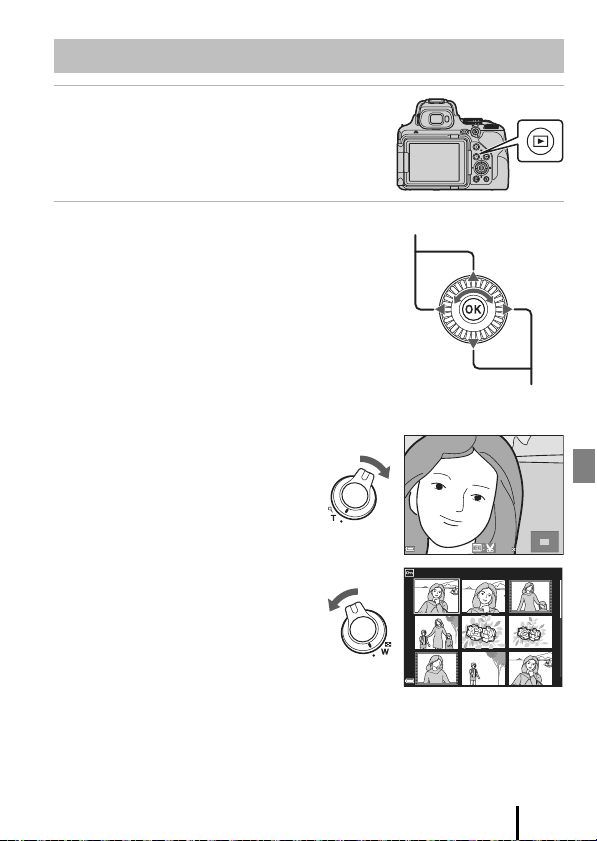
Using the Built-in Flash
In situations where a flash is needed, such as in dark
locations or when the subject is backlit, move the
K (flash pop-up) control to raise the built-in flash.
• When not using the built-in flash, gently push to
lower the built-in flash until it clicks shut.
How to Attach the BS-1 Accessory Shoe Cover
(Available Separately)
Recording Movies
Display the shooting screen and press the
b (e movie-record) button to start recording a
movie.
• Press the b (e) button again to end recording.
When you rotate the mode dial to u (Movie
manual), you can set the shutter speed and f-
number for movie recording.

12
Basic Shooting and Playback Operations
Switching Between the Monitor and Viewfinder
It is recommended that you use the viewfinder
when bright conditions make it difficult to see the
monitor, such as when outdoors in sunlight.
• When you bring your face close to the viewfinder,
the eye sensor responds to it and the viewfinder
turns on, and the monitor turns off (default
setting).
• You can also press the x (monitor) button to
switch the display between the monitor and
viewfinder.
Diopter Adjustment of the Viewfinder
When the image in the viewfinder is difficult to see,
adjust by rotating the diopter adjustment control
while looking through the viewfinder.
• Take care not to scratch your eye with your
fingertips or nails.
Viewfinder
Diopter adjustment control
13
Basic Shooting and Playback Operations
1 Press the c (playback) button to
enter playback mode.
• If you press and hold down the c button while
the camera is turned off, the camera turns on in
playback mode.
2 Use the multi selector to select an
image to display.
• Press and hold down HIJK to scroll through
the images quickly.
• Images can also be selected by rotating the
multi selector.
• Press the s (display) button to switch the
information displayed on the screen each time.
• To play back a recorded movie, press the
k button.
• To return to shooting mode, press the c button
or shutter-release button.
• Move the zoom control toward g (i)
in full-frame playback mode to zoom
in on an image.
• In full-frame playback mode, move the
zoom control toward f (h) to
switch to thumbnail playback mode
and display multiple images on the
screen.
Playing Back Images
Display the previous image
Display the next image
3 . 0
3.0
1/20
14
Basic Shooting and Playback Operations
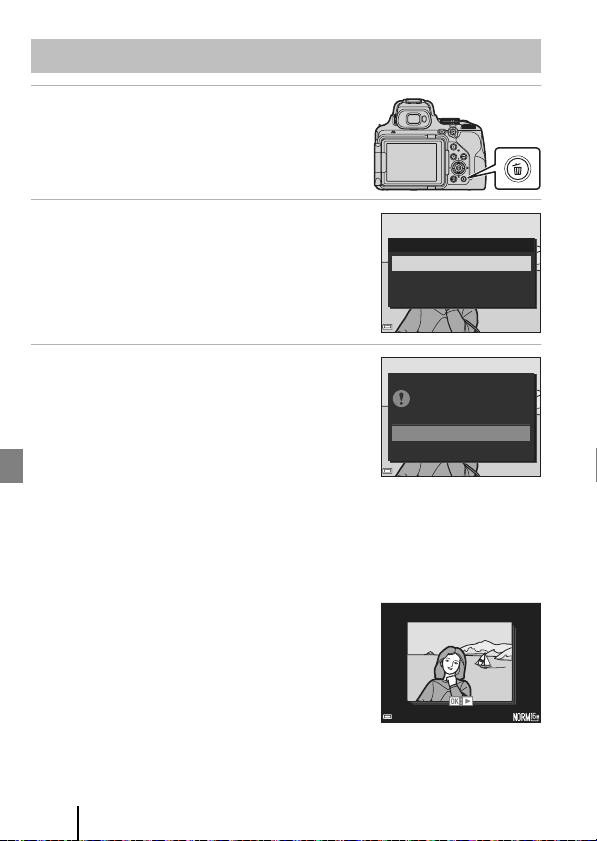
1 Press the l (delete) button to delete
the image currently displayed on the
screen.
2 Use the multi selector HI to select the
desired deletion method and press the
k button.
• To exit without deleting, press the d button.
3 Select Yes and press the k button.
• Deleted images cannot be recovered.
B Notes About Deleting Images Simultaneously Saved in RAW and JPEG
When using this camera to delete images captured using RAW + Fine or RAW + Normal in
the Image quality setting, both of the simultaneously saved RAW and JPEG images are
deleted. You cannot delete only one format.
B Deleting Images Captured Continuously (Sequence)
• Images captured continuously are saved as a sequence,
and only the first image of the sequence (the key picture)
is displayed in playback mode (default setting).
• If you press the l button while a key picture is displayed
for a sequence of images, all images in the sequence are
deleted.
• To delete individual images in a sequence, press the
k button to display them one at a time and press the
l button.
C Deleting the Image Captured While in Shooting Mode
When using shooting mode, press the l button to delete the last image that was saved.
Deleting Images
Delete
Current image
Erase selected images
All images
Yes
No
Erase 1 image?
4 / 8
4/8
1 5 / 1 1 / 2 0 1 8 1 5 : 3 0
15/11/2018 15:30
0 0 0 4 . J P G
0004.JPG
15
Other Functions
Other Functions
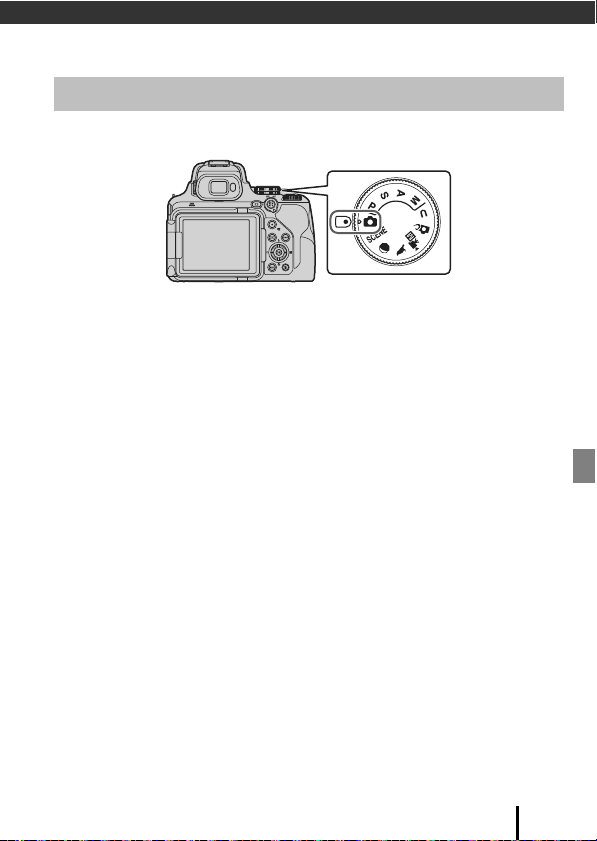
You can rotate the mode dial to align the desired shooting mode with the indicator
mark on the camera body.
• A (Auto) mode
Select this mode to perform general shooting in a variety of shooting conditions.
• y, g, and L (Scene) modes
When you select any one of the scene modes based on the shooting conditions,
you can take pictures with the appropriate settings for those conditions.
- y: Press the d button and select a scene mode. When using Scene
auto selector, the camera recognizes the shooting conditions when you frame
a picture, and you can take pictures in accordance with the conditions.
- g (moon): Use this mode when capturing images of the moon in a telephoto
position.
- L (bird-watching): Use this mode when capturing images of birds in a telephoto
position.
• p (Creative) mode
Apply effects to images during shooting.
• j, k, l, and m modes
Select these modes for greater control over shutter speed and f-number.
• M (User settings) mode
The frequently used settings in j, k, l, and m modes can be saved. To shoot
with the saved settings, rotate the mode dial to M.
• u (Movie manual) mode
You can record movies with the exposure mode set to aperture-auto priority or
manual.
Selecting a Shooting Mode
16
Other Functions
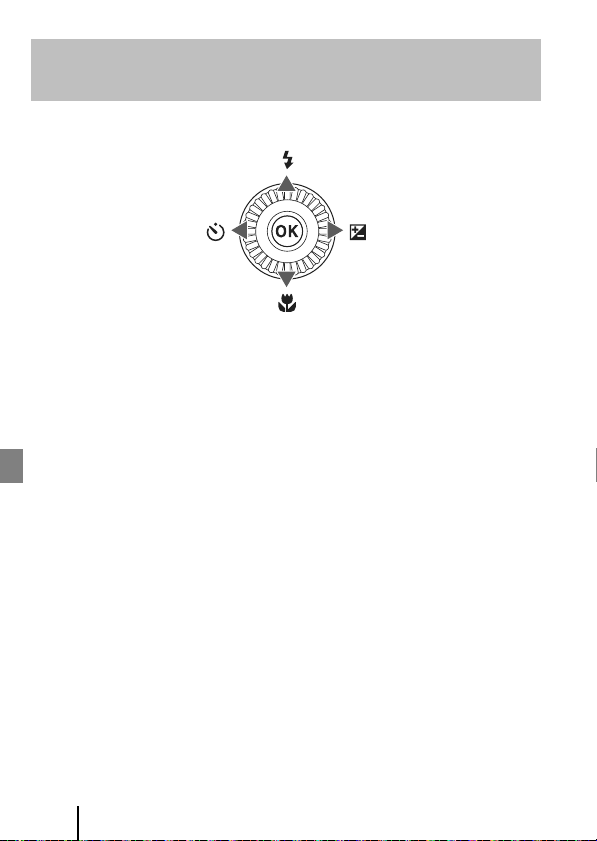
When the shooting screen is displayed, you can press the multi selector H (m) J (n)
I (p) K (o) to set the functions described below.
• m Flash mode
The flash mode can be set according to shooting conditions.
• n Self-timer/Smile timer
The camera releases the shutter when the specified time elapses after you press
the shutter-release button. If smile timer is set, the camera automatically releases
the shutter whenever a smiling face is detected.
• p Focus mode
You can specify A (autofocus), D (macro close-up), or B (infinity) according to
the distance to the subject (when the focus-mode selector is set to q
(autofocus)).
• o Exposure compensation
You can adjust overall image brightness.
The functions that can be set vary depending on the shooting mode.
Setting Shooting Functions with the Multi
Selector
17
Other Functions
You can set the menus listed below by pressing the d (menu) button.
• A Shooting menu
1, 2
• G Movie manual mode menu
3
• e Movie menu
1
• c Playback menu
4
• q Network menu
• z Setup menu
1
Press the d button when the shooting screen is displayed.
2
Menu icons and available setting options vary depending on the shooting mode.
3
Rotate the mode dial to u (Movie manual), and press the d button when the
shooting screen is displayed.
4
Press the d button when the playback screen is displayed.
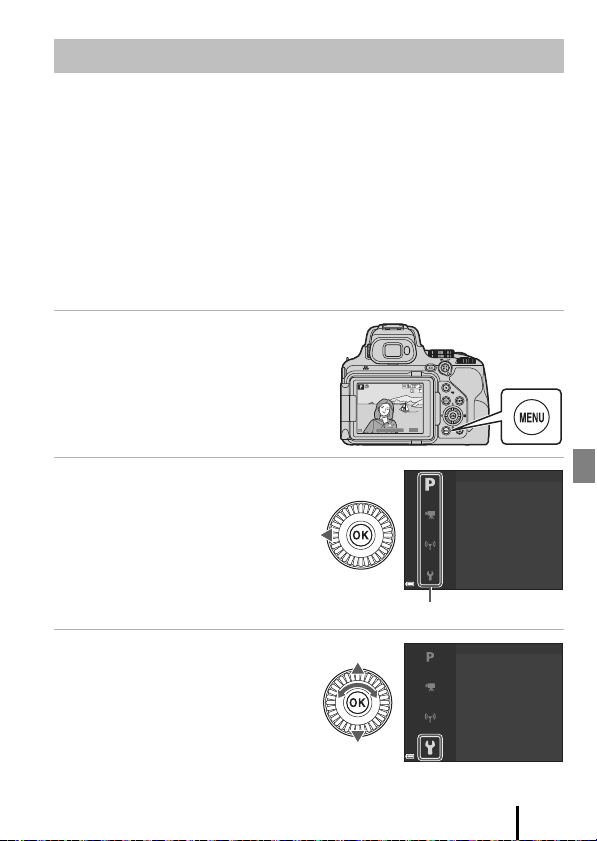
1 Press the d (menu) button.
• The menu is displayed.
2 Press the multi selector J.
• The current menu icon is displayed
in yellow.
3 Select a menu icon and press
the k button.
• The menu options become
selectable.
Menu Operations
1 40 0
1400
2 5m 0s
25m 0s
1 /2 5 0
1/250
F 5. 6
F5.6
Image quality
Metering
Shooting menu
White balance
Image size
Picture Control
Custom Picture Control
Menu icons
Time zone and date
Self-timer: after release
Set up
Date stamp
Slot empty release lock
Monitor settings
EVF auto toggle
18
Other Functions
4 Select a menu option and
press the k button.
• Certain menu options cannot be set
depending on the current shooting
mode or the state of the camera.
• Items can also be selected by
rotating the multi selector.
5 Select a setting and press the
k button.
• The setting you selected is applied.
• When you are finished using the
menu, press the d button.
• When a menu is displayed, you can
switch to shooting mode by
pressing the shutter-release button
or b (e) button.
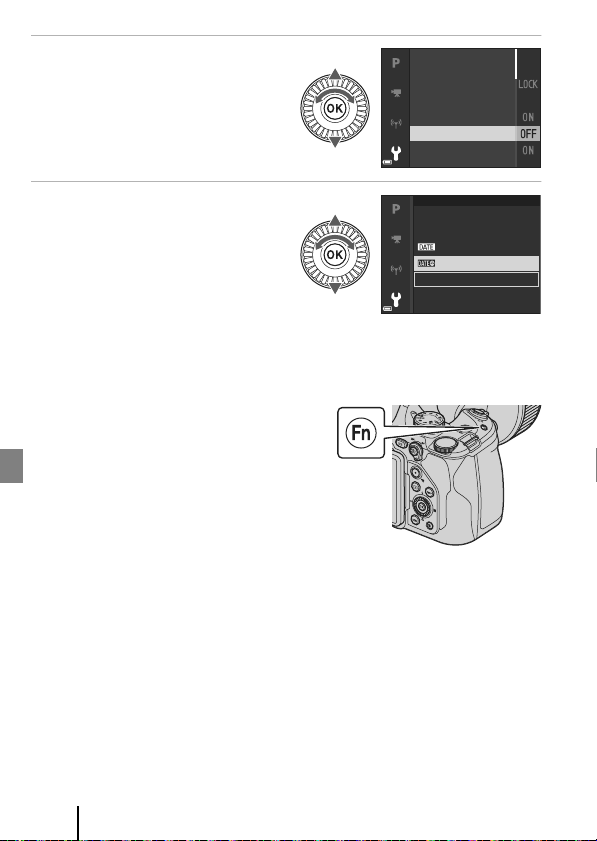
Using the w (Function) Button
If you press the w button in j, k, l, m, or M
mode, you can quickly configure the pre-saved
menu options (default setting is Continuous).
To set a different menu option, select U Fn
button and select the desired menu option.
Time zone and date
Monitor settings
Date stamp
Self-timer: after release
Slot empty release lock
EVF auto toggle
Off
Date stamp
Date and time
Date
19
Technical Notes
Technical Notes
Notices for Customers in the U.S.A.
IMPORTANT SAFETY INSTRUCTIONS -
SAVE THESE INSTRUCTIONS.
DANGER - TO REDUCE THE RISK OF FIRE OR ELECTRIC SHOCK, CAREFULLY
FOLLOW THESE INSTRUCTIONS
For connection to a supply not in the U.S.A., use an attachment plug adapter of the
proper configuration for the power outlet if needed.
The power supply unit is intended to be correctly orientated in a vertical or floor
mount position.
Federal Communications Commission (FCC) Radio Frequency Interference
Statement
This equipment has been tested and
found to comply with the limits for a
Class B digital device, pursuant to Part
15 of the FCC rules. These limits are
designed to provide reasonable
protection against harmful
interference in a residential installation. This equipment generates, uses, and can
radiate radio frequency energy and, if not installed and used in accordance with the
instructions, may cause harmful interference to radio communications. However,
there is no guarantee that interference will not occur in a particular installation. If this
equipment does cause harmful interference to radio or television reception, which
can be determined by turning the equipment off and on, the user is encouraged to
try to correct the interference by one or more of the following measures:
• Reorient or relocate the receiving antenna.
• Increase the separation between the equipment and receiver.
• Connect the equipment into an outlet on a circuit different from that to which the
receiver is connected.
• Consult the dealer or an experienced radio/television technician for help.
CAUTIONS
Modifications
The FCC requires the user to be notified that any changes or modifications made to
this device that are not expressly approved by Nikon Corporation may void the user’s
authority to operate the equipment.
Interface Cables
Use the interface cables sold or provided by Nikon for your equipment. Using other
interface cables may exceed the limits of Class B Part 15 of the FCC rules.
Notices
20
Technical Notes
Nikon Inc.,
1300 Walt Whitman Road, Melville, New York 11747-3064, U.S.A.
Tel: 631-547-4200
Notice for Customers in Canada
CAN ICES-3 B / NMB-3 B
Notices for Customers in Europe
This symbol indicates that electrical and electronic equipment is to be
collected separately.
The following apply only to users in European countries:
• This product is designated for separate collection at an appropriate
collection point. Do not dispose of as household waste.
• Separate collection and recycling helps conserve natural resources and
prevent negative consequences for human health and the environment that might
result from incorrect disposal.
• For more information, contact the retailer or the local authorities in charge of waste
management.
DISPOSE OF USED BATTERIES ACCORDING TO THE INSTRUCTIONS.
This symbol on the battery indicates that the battery is to be collected
separately.
The following apply only to users in European countries:
• All batteries, whether marked with this symbol or not, are designated
for separate collection at an appropriate collection point. Do not
dispose of as household waste.
• For more information, contact the retailer or the local authorities in charge of waste
management.
CAUTION: RISK OF EXPLOSION IF BATTERY IS REPLACED BY AN INCORRECT
TYPE.
21
Technical Notes
Restrictions on Wireless Devices
The wireless transceiver included in this product conforms to wireless regulations in
the country of sale and is not for use in other countries (products purchased in the EU
or EFTA can be used anywhere within the EU and EFTA). Nikon does not accept
liability for use in other countries. Users who are unsure as to the original country of
sale should consult with their local Nikon service center or Nikon-authorized service
representative. This restriction applies to wireless operation only and not to any other
use of the product.
Security
Although one of the benefits of this product is that it allows others to freely connect
for the wireless exchange of data anywhere within its range, the following may occur
if security is not enabled:
• Data theft: Malicious third-parties may intercept wireless transmissions to steal user
IDs, passwords, and other personal information.
• Unauthorized access: Unauthorized users may gain access to the network and alter
data or perform other malicious actions. Note that due to the design of wireless
networks, specialized attacks may allow unauthorized access even when security is
enabled. Nikon is not responsible for data or information leaks that may occur
during data transfer.
• Do not access networks that you are not permitted to use, even if they are
displayed on your smartphone or tablet. Doing so may be regarded as
unauthorized access. Only access networks that you are permitted to use.
Personal Information Management and Disclaimer
• User information registered and configured on the product, including wireless LAN
connection settings and other personal information, is susceptible to alteration
and loss resulting from operational error, static electricity, accident, malfunction,
repair or other handling. Always keep separate copies of important information.
Nikon is not responsible for any direct or indirect damages or lost profits resulting
from alteration or loss of content that is not attributable to Nikon.
• Before discarding this product or transferring it to another owner, perform Reset
all in the setup menu (A17) to delete all user information registered and
configured with the product, including wireless LAN connection settings and other
personal information.
• Nikon is not responsible for any damages resulting from unauthorized use of this
product by third parties in the event that the product is stolen or lost.
Notes About Wireless Communication
Functions

22
Technical Notes
Precautions when Exporting or Carrying This Product Abroad
This product is controlled by the United States Export Administration Regulations
(EAR). The permission of the United States government is not required for export to
countries other than the following, which as of this writing are subject to embargo or
special controls: Cuba, Iran, North Korea, Sudan, and Syria (list subject to change).
Notice for Customers in the U.S.A. and Canada
Federal Communications Commission (FCC) and Innovation, Science and
Economic Development Canada (ISED)
Declaration of Conformity
This device complies with part 15 of FCC Rules and Innovation, Science and Economic
Development Canada's licence-exempt RSSs. Operation is subject to the following
two conditions: (1) this device may not cause harmful interference, and (2) this device
must accept any interference received, including interference that may cause
undesired operation.
FCC/ISED RF Exposure Statement
This transmitter must not be co-located or operated in conjunction with any other
antenna or transmitter.
The available scientific evidence does not show that any health problems are
associated with using low power wireless devices. There is no proof, however, that
these low power wireless devices are absolutely safe. Low power wireless devices
emit low levels of radio frequency energy (RF) in the microwave range while being
used. Whereas high levels of RF can produce health effects (by heating tissue),
exposure of low-level RF that does not produce heating effects causes no known
adverse health effects. Many studies of low-level RF exposures have not found any
biological effects. Some studies have suggested that some biological effects might
occur, but such findings have not been confirmed by additional research. This
product has been tested and found to comply with FCC/ISED radiation exposure
limits set forth for an uncontrolled environment and meets the FCC radio frequency
(RF) Exposure Guidelines and RSS-102 of the ISED radio frequency (RF) Exposure rules.
Please refer to the SAR test report that was uploaded to FCC website.
23
Technical Notes
Notice for Customers in Europe
Declaration of Conformity (Europe)
Hereby, Nikon Corporation declares that the radio equipment type COOLPIX P1000 is
in compliance with Directive 2014/53/EU.
The full text of the EU declaration of conformity is available at the following internet
address:
http://imaging.nikon.com/support/pdf/DoC_P1000.pdf.
• Operating frequency:
- Wi-Fi: 2412–2462 MHz (1-11 channels)
- Bluetooth: 2402–2480 MHz
- Bluetooth Low Energy: 2402–2480 MHz
• Maximum output power: 9.2 dBm (EIRP)
Notice for Customers in Singapore
This device complies with radio-frequency regulations.
Complies with
IMDA Standards
DA103423
24
Technical Notes
Observe the precautions described below in addition to the warnings in “For Your
Safety” (Avi-ix) when using or storing the device.
The Camera
Do Not Apply Strong Impact to the Camera
The product may malfunction if subjected to strong shock or vibration. In addition, do not
touch or apply force to the lens.
Keep Dry
The device will be damaged if immersed in water or subjected to high humidity.
Avoid Sudden Changes in Temperature
Sudden changes in temperature, such as when entering or leaving a heated building
on a cold day, can cause condensation to form inside the device. To prevent condensation,
place the device in a carrying case or a plastic bag before exposing it to sudden changes in
temperature.
Keep Away from Strong Magnetic Fields
Do not use or store this device in the vicinity of equipment that generates strong
electromagnetic radiation or magnetic fields. Doing so could result in loss of data or camera
malfunction.
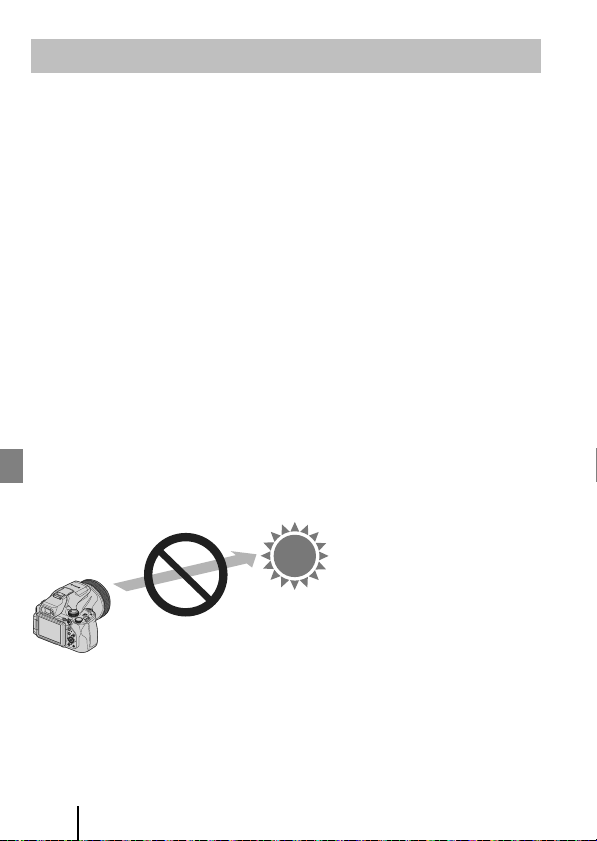
Do Not Point the Lens at the Sun
Avoid pointing the lens at the sun or other strong light sources when shooting or when leaving
the camera unattended without a lens cap. Strong light sources such as sunlight are
concentrated through the lens, which may cause deformation of the internal parts of the lens or
discoloration or burn-in on the image sensor. The camera may be damaged even when the lens
is pointed toward the sun for a few seconds, particularly when the lens is in a telephoto position.
The camera may not be able to perform exposure control when the internal parts of the lens are
deformed.
Unevenness may appear in images when discoloration or burn-in occurs on the image sensor.
It is recommended that you attach the lens cap when you are not using the camera.
Caring for the Product

25
Technical Notes
Turn the Product Off Before Removing or Disconnecting the
Power Source or Memory Card
Do not remove the battery while the product is on, or while images are being saved or
deleted. Forcibly cutting power in these circumstances could result in loss of data or in
damage to the memory card or internal circuitry.
Notes About the Monitor
• Monitors (including electronic viewfinders) are constructed with extremely high precision;
at least 99.99% of pixels are effective, with no more than 0.01% being missing or defective.
Hence while these displays may contain pixels that are always lit (white, red, blue, or
green) or always off (black), this is not a malfunction and has no effect on images recorded
with the device.
• Images in the monitor may be difficult to see under bright lighting.
• Do not apply pressure to the monitor, as this could cause damage or malfunction. Should
the monitor break, care should be taken to avoid injury caused by broken glass and to
prevent the liquid crystal from the display touching the skin or entering the eyes or
mouth.
The Battery
Precautions for Use
• Note that the battery may become hot after use.
• Do not use the battery at ambient temperatures below 0°C (32°F) or above 40°C (104°F) as
this could cause damage or malfunction.
• If you notice any abnormalities such as excessive heat, smoke, or an unusual smell coming
from the battery, immediately discontinue use and consult your retailer or Nikon-
authorized service representative.
• After removing the battery from the camera or optional battery charger, put the battery in
a plastic bag, etc. in order to insulate it.
Charging the Battery
Check the battery level before using the camera and replace or charge the battery if
necessary.
• Charge the battery indoors with an ambient temperature of 5°C to 35°C (41°F to 95°F)
before use.
• A high battery temperature may prevent the battery from charging properly or
completely, and may reduce battery performance. Note that the battery may become hot
after use; wait for the battery to cool before charging.
When charging the battery inserted into this camera using the Charging AC Adapter or a
computer, the battery is not charged at battery temperatures below 0°C (32°F) or above
50°C (122°F).
• Do not continue charging once the battery is fully charged as this will result in reduced
battery performance.
• The battery temperature may increase during charging. However, this is not a
malfunction.

26
Technical Notes
Carrying Spare Batteries
Whenever possible, carry fully charged spare batteries when taking pictures on important
occasions.
Using the Battery When Cold
On cold days, the capacity of batteries tends to decrease. If an exhausted battery is used at a low
temperature, the camera may not turn on. Keep spare batteries in a warm place and exchange as
necessary. Once warmed, a cold battery may recover some of its charge.
Battery Terminals
Dirt on the battery terminals may prevent the camera from functioning. Should the battery
terminals become dirty, wipe them off with a clean, dry cloth before use.
Charging an Exhausted Battery
Turning the camera on or off while an exhausted battery is inserted in the camera may result
in reduced battery life. Charge the exhausted battery before use.
Storing the Battery
• Always remove the battery from the camera or optional battery charger when it is not being
used. Minute amounts of current are drawn from the battery while it is in the camera, even
when not in use. This may result in excessive battery drain and complete loss of function.
• Recharge the battery at least once every six months and completely exhaust it before
returning it to storage.
• Put the battery in a plastic bag, etc. in order to insulate it and store it in a cool place. The
battery should be stored in a dry location with an ambient temperature of 15°C to 25°C (59°F
to 77°F). Do not store the battery in hot or extremely cold locations.
Battery Life
A marked drop in the time a fully charged battery retains its charge, when used at room
temperature, indicates that the battery needs to be replaced. Purchase a new battery.
Recycling Used Batteries
Recycle rechargeable batteries in accord with local regulations, being sure to first insulate
the terminals with tape.

27
Technical Notes
The Charging AC Adapter
• The EH-73P/EH-73PCH Charging AC Adapter is for use only with compatible devices. Do
not use with another make or model of device.
• Do not use any USB cable other than the UC-E21. Using a USB cable other than the UC-E21
could result in overheating, fire or electric shock.
• Do not, under any circumstances, use another make or model of AC adapter other than
the EH-73P/EH-73PCH Charging AC Adapter, and do not use a commercially available
USB-AC adapter or a battery charger for a mobile phone. Failure to observe this precaution
could result in overheating or in damage to the camera.
• The EH-73P/EH-73PCH is compatible with AC 100–240 V, 50/60 Hz electrical outlets. When
using in other countries, use a plug adapter (commercially available) as necessary. For
more information about plug adapters, consult your travel agency.
• The symbols on this product represent the following:
D AC, E DC, F Class II equipment (The construction of the product is double-insulated.)
28
Technical Notes
Cleaning
Do not use alcohol, thinner, or other volatile chemicals.
Storage
Remove the battery if the camera will not be used for an extended period. To prevent
mold or mildew, take the camera out of storage at least once a month.
Turn the camera on and release the shutter a few times before putting the camera
away again. Do not store the camera in any of the following locations:
• Places that are poorly ventilated or subject to humidity of over 60%
• Exposed to temperatures above 50°C (122°F) or below –10°C (14°F)
• Next to equipment that produces strong electromagnetic fields, such as televisions
or radios
For storing the battery, follow the precautions in “The Battery” (A25) in “Caring for
the Product” (A24).
Cleaning and Storage
Lens/
viewfinder
Avoid touching glass parts with your fingers. Remove dust or lint with a
blower (typically a small device with a rubber bulb attached to one end that
is pumped to produce a stream of air out the other end). To remove
fingerprints or other stains that cannot be removed with a blower, wipe the
lens with a soft cloth, using a spiral motion that starts at the center of the
lens and working toward the edges. If this fails, clean the lens using a cloth
lightly dampened with commercial lens cleaner.
Monitor
Remove dust or lint with a blower. To remove fingerprints and other stains,
clean the monitor with a soft, dry cloth, being careful not to apply pressure.
Body
Use a blower to remove dust, dirt, or sand, then wipe gently with a soft, dry
cloth. After using the camera at the beach or other sandy or dusty
environment, wipe off any sand, dust, or salt with a dry cloth lightly
dampened with fresh water and dry thoroughly. Note that foreign matter
inside the camera could cause damage not covered by the warranty.
29
Technical Notes
If the camera fails to function as expected, check the list of common problems below
before consulting your retailer or Nikon-authorized service representative.
Also, refer to the Reference Manual (PDF format) for further details on how to use this
camera (Aii).
Troubleshooting
Problem Cause/Solution
A
The camera is
on but does not
respond.
• Wait for recording to end.
• If the problem persists, turn the camera off.
If the camera does not turn off, remove and reinsert the
battery or batteries or, if you are using an AC adapter,
disconnect and reconnect the AC adapter.
Note that although any data currently being recorded will
be lost, data that have already been recorded will not be
affected by removing or disconnecting the power source.
–
The camera
cannot be
turned on.
The battery is exhausted. 3, 4, 25
The camera
turns off
without
warning.
• The camera automatically turns off to save power (auto off
function).
• The camera and battery may not work properly at low
temperatures.
• The inside of the camera has become hot. Leave the camera
off until the inside of the camera has cooled, and then try
turning it on again.
10
25
–
The monitor or
viewfinder is
blank.
• The camera is off.
• The battery is exhausted.
• The camera automatically turns off to save power (auto off
function).
• You cannot turn on both the monitor and viewfinder at the
same time. It may take a while to switch between the
monitor and viewfinder.
• The camera is connected to a TV or computer.
• Interval timer shooting, Multiple exp. Lighten scene
mode (when Star trails is set) shooting, or time-lapse
movie shooting is in progress, or the camera is capturing
images with a long time-exposure using the Bulb setting or
Time setting.
6
8
10
–
–
–
The camera
becomes hot.
The camera may become hot when used for an extended
period of time such as to shoot movies, or when used in a hot
environment; this is not a malfunction.
–
30
Technical Notes
Memory Cards That Can Be Used
The camera supports SD, SDHC, and SDXC memory cards.
• The camera supports UHS-I.
• Memory cards with an SD Speed Class rating of 6 or faster are recommended for
recording movies (when recording 4K UHD movies at an image size/frame rate of
2160/30p or 2160/25p, cards rated UHS Speed Class 3 or faster are
recommended). When using a memory card with a lower Speed Class rating,
movie recording may stop unexpectedly.
• If you use a card reader, make sure that it is compatible with your memory card.
• Contact the manufacturer for information on features, operation, and limitations
on use.
Trademark Information
• Windows is either a registered trademark or trademark of Microsoft
Corporation in the United States and/or other countries.
• The Bluetooth® word mark and logos are registered trademarks owned by
Bluetooth SIG, Inc. and any use of such marks by Nikon Corporation is under
license.
• Apple®, App Store®, the Apple logos, Mac, OS X, macOS, iPhone®, iPad®, iPod
touch® and iBooks are trademarks or registered trademarks of Apple Inc., in the
U.S. and other countries.
• Android and Google Play are trademarks or registered trademarks of Google
Inc. The Android robot is reproduced or modified from work created and
shared by Google and used according to terms described in the Creative
Commons 3.0 Attribution License.
• iOS is a trademark or registered trademark of Cisco Systems, Inc., in the United
States and/or other countries and is used under license.
• Adobe, the Adobe logo, Acrobat, and Reader are either trademarks or
registered trademarks of Adobe Systems Incorporated in the United States
and/or other countries.
• SDXC, SDHC, and SD Logos are trademarks of SD-3C, LLC.
• PictBridge is a trademark.
• HDMI, HDMI logo and High-Definition Multimedia Interface are trademarks or
registered trademarks of HDMI Licensing, LLC.
31
Technical Notes
• Wi-Fi and the Wi-Fi logo are trademarks or registered trademarks of the Wi-Fi
Alliance.
• All other trade names mentioned in this manual or the other documentation
provided with your Nikon product are the trademarks or registered trademarks
of their respective holders.
AVC Patent Portfolio License
This product is licensed under the AVC Patent Portfolio License for the personal and
non-commercial use of a consumer to (i) encode video in compliance with the AVC
standard (“AVC video”) and/or (ii) decode AVC video that was encoded by a consumer
engaged in a personal and non-commercial activity and/or was obtained from a video
provider licensed to provide AVC video. No license is granted or shall be implied for
any other use. Additional information may be obtained from MPEG LA, L.L.C.
See http://www.mpegla.com.
FreeType License (FreeType2)
Portions of this software are copyright © 2012 The FreeType Project
(http://www.freetype.org). All rights reserved.
MIT License (HarfBuzz)
Portions of this software are copyright © 2016 The HarfBuzz Project
(http://www.freedesktop.org/wiki/Software/HarfBuzz). All rights reserved.
Use of the Made for Apple badge means that an accessory has been designed to
connect specifically to the Apple products identified in the badge, and has been
certified by the developer to meet Apple performance standards. Apple is not
responsible for the operation of this device or its compliance with safety and
regulatory standards. Please note that the use of this accessory with an Apple
product may affect wireless performance.
32
Technical Notes

YP8H03(11)
6MQA6311-03
No reproduction in any form of this manual, in whole or in part
(except for brief quotation in critical articles or reviews), may be
made without written authorization from NIKON CORPORATION.
http://downloadcenter.nikonimglib.com