Contents
Contents
How to Control the Online Manual 1
How to Print Out the Online Manual 1
Printer Properties 2
Outline of the Printer Driver
Starting the Printer Driver
Printer Driver Functions
"Main" Tab Settings
"Paper" Tab Settings
"Advanced" Tab Settings
"Output Quality" Settings
"Watermark" Tab Settings
"Version" Tab Settings
Print 19
Printing Overview
Basic Printing
Printing a Watermark
Enlarge/Reduce the Printed Image
Printing Multiple Pages on One Page
Printing a Photograph
Print Status Window 26
Outline of the Print Status Window
Print Status Window Functions
Understanding Error Messages
"Maintenance" Tab
"Options" Tab
Sharing Printer 31
Sharing the Printer using Windows Networking
Shared Printer Settings
Client Settings
Outline of the SHARP TWAIN Driver 34
What is the SHARP TWAIN Driver?
Starting the SHARP TWAIN Driver 35
Scanning an Image 36
SHARP TWAIN Driver Functions 37
"Standard" Scan Preferences 38
"Professional" Scan Preferences ("Main" Tab) 39
"Professional" Scan Preferences ("Image" Tab) 41
"Professional" Scan Preferences ("Preference" Tab) 43
"Standard Mode Setting" Dialog Box 44
Preview Screen 45
Setting the Scanning Area
Variation Preview Screen 46
Default Settings for the SHARP TWAIN Driver 47
Outline of the AJ Series Utility 48
Copy JX2 49
Button Manager 59
Time to Change the Ink Tank 66
Changing the Ink Tank 67
Test Print Head 70
Cleaning the Print Head 71
Changing the Print Head 72
Aligning the Print Head 75
Identifying Unit Problems 77
Check the Connection between the Unit and Computer 78
Check Your Computer 79
Failed to Install the AJ-6000 Series Driver (USB Interface)
Nothing Prints 81
Uninstalling the Printer Driver
Faint, Uneven or Smeared Print Output 83
Characters or Graphics are not Printed in Correct Position
84
Printed Lines are not Straight, or Have Blank Spaces 85
Unit does not Print in Colour 86
Unable to Scan the Image 87
Poor Scanning Result 88
The Scanned Image is Incorrectly Positioned 89
Uninstalling the AJ Series Utility 90
How to Use the Online Manual
Print
Scanning
Utility Software
Maintenance
Troubleshooting
1
How to Use the Online Manual
How to Use the Online Manual
This Online Manual provides instruction for the operation of your new unit. It is designed to assist you in the operation of
the Online Manual and provide you with all relevant information.
For more information about computers, operating systems and Acrobat Reader, please refer to the relevant manual or
help file.
How to Control the Online Manual
How to Print Out the Online Manual
In order to print out a hard copy of the Online Manual for your reference, go to Acrobat Reader, click the "File" menu,
and select "Print". After specifying the printer setting, click the "OK" button to print.
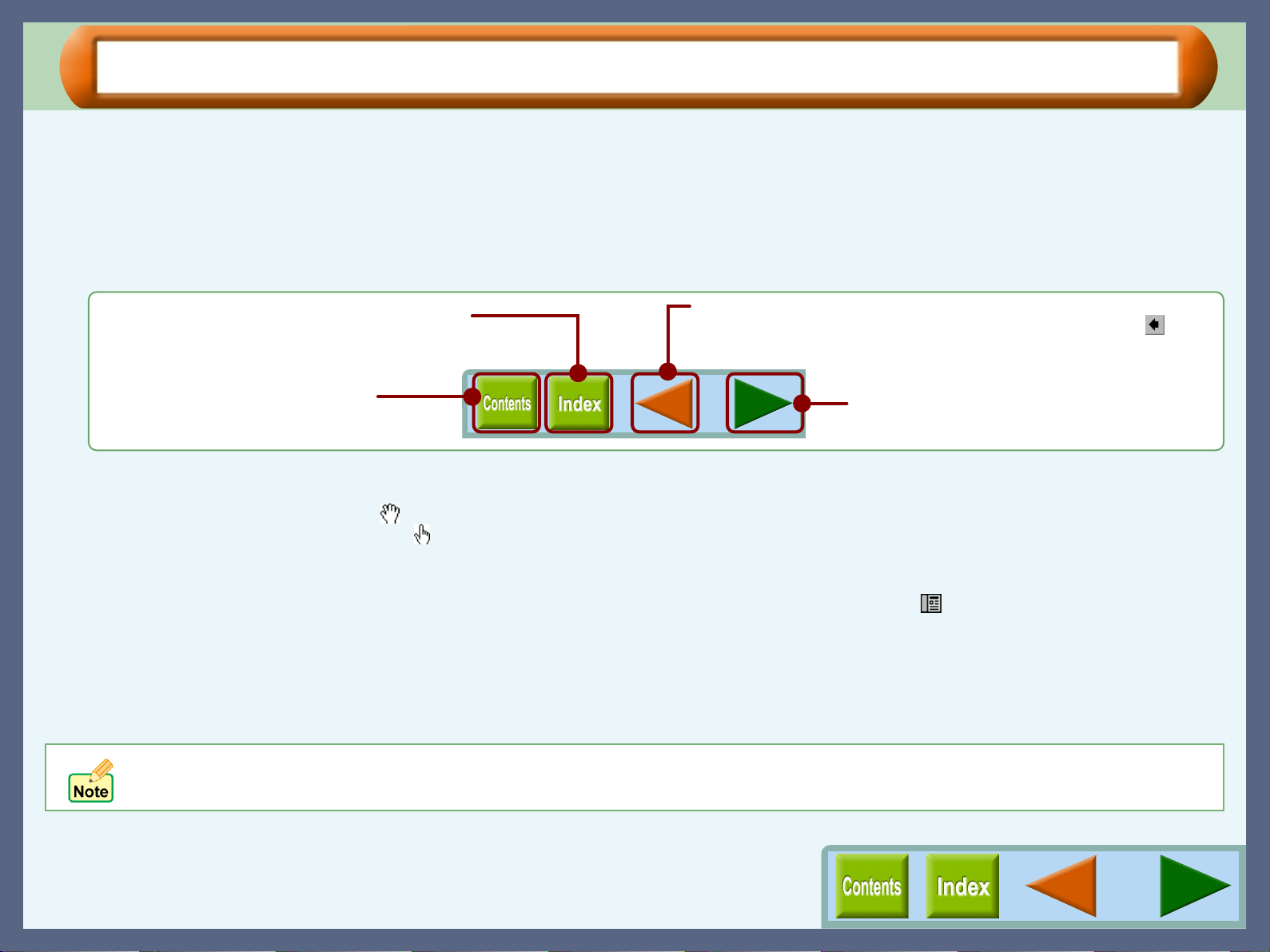
1
Click this button to display the Table of
Contents of the Online Manual. From the Table
of Contents you can jump to various pages.
Click this button to display the Index of the Online
Manual. From the Index you can jump to various pages.
Takes you forward page by page.
Takes you back page by page. To return to the previously viewed page
from the page displayed by clicking a reference topic, click the ( )
button on the menu bar of the Acrobat Reader.
Following links
Links can connect parts of a document to other parts for further information. In this document, green coloured letters are linked areas.
To follow a link, select the hand tool ( ), a zoom tool, or a selection tool. Position the pointer over the linked area on the page until the pointer
changes to a hand with a pointing finger ( ). Then click the link.
Using Bookmarks
This online manual has Bookmarks on the main pages of each section. You can move to the desired pages by simply clicking its bookmark. To use
Bookmarks, show the bookmarks by clicking the "Bookmarks" tab of the "Show/Hide Navigation Pane" icon ( ), and then click the bookmark of the
destination page.
In this online manual, screen images and operating procedures are mainly for Windows 98. With other versions of Windows,
some screen images may be different from those in this manual.
2
Printer Properties
Outline of the Printer Driver
What is the Printer Driver?
A printer driver is a program designed to convert print data from any application into data understandable by the printer
so that the printer can quickly and efficiently print out the data.
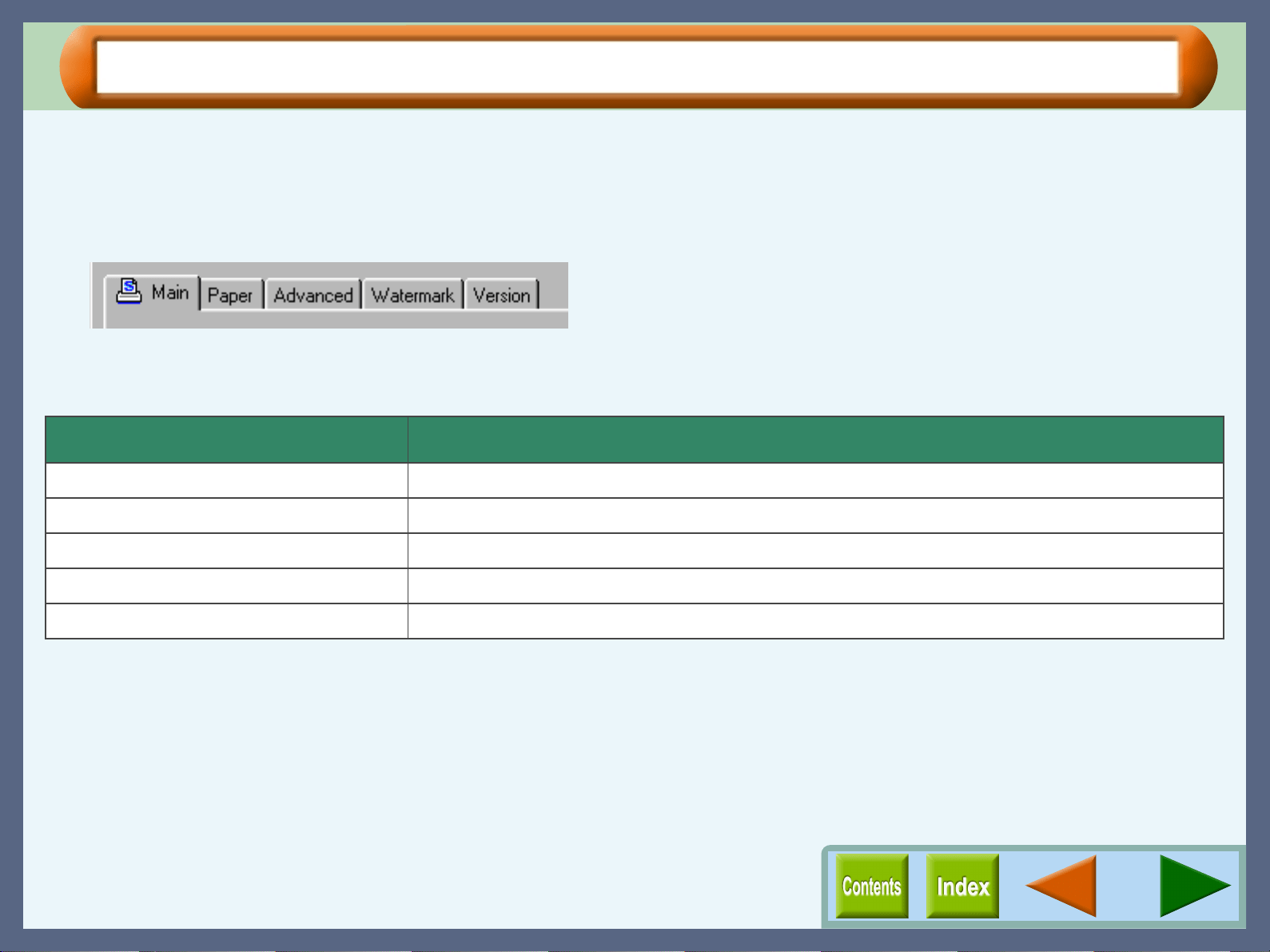
The five tabs of this printer driver are shown below.
By clicking the tabs displayed above, you will jump to a detailed description.
The items shown below can be setup on each tab.
Tab Name Setup Items
Main Orientation, Copies, Order, N-Up Printing, Current Settings
Paper Paper Selection, Custom Paper, Paper Size, Fit To Paper Size, Zoom[%]
Advanced Output Type, Print Quality, Media Type, Maintenance
Watermark Watermark, Size, Angle, Edit Colour, Edit Fonts
Version About
Printer Properties
3
Starting the Printer Driver (part 1)
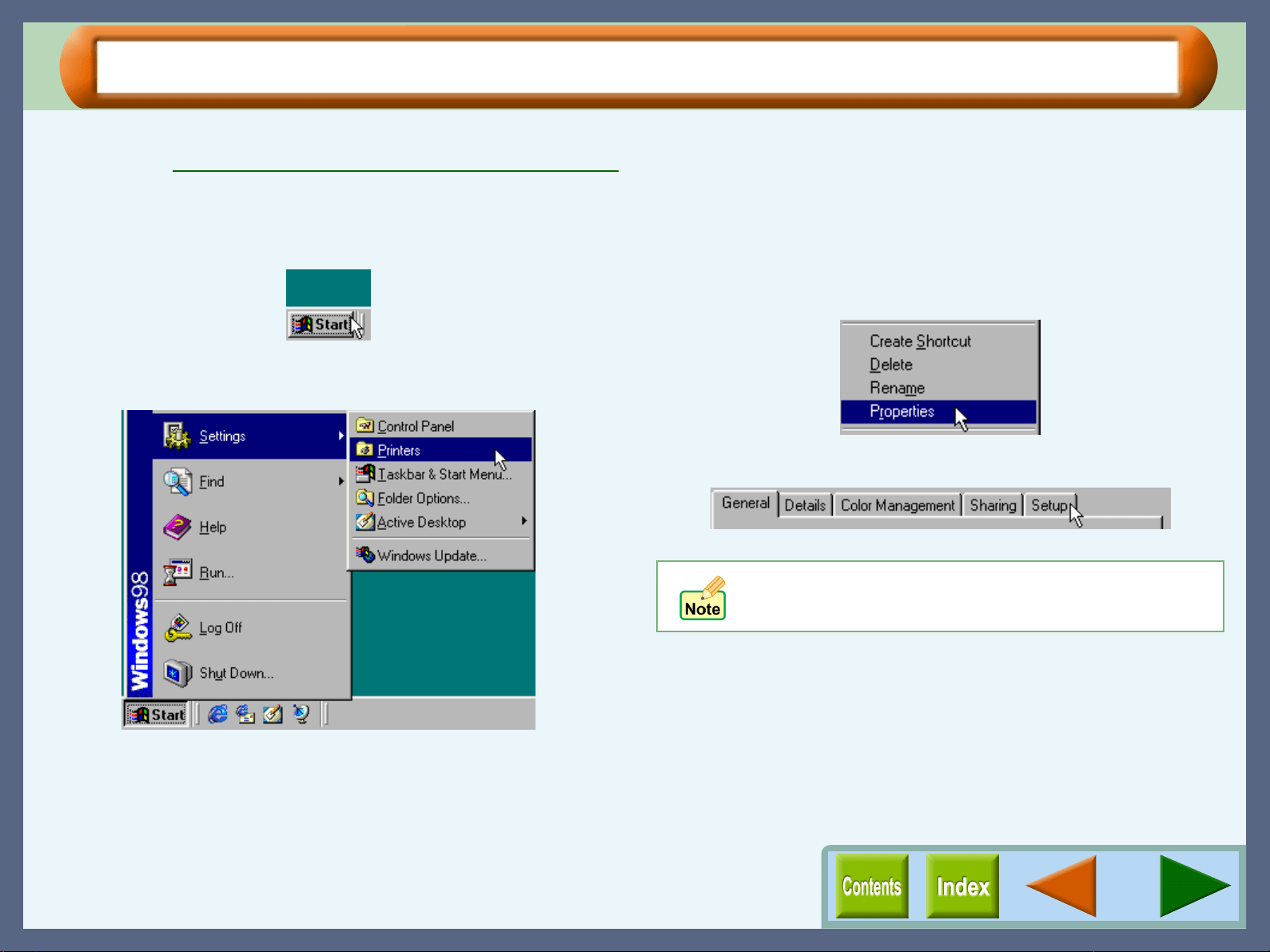
Open the printer driver setup screen (properties dialog box) by either of the methods shown below.
Reference: Starting the Printer Driver through an Application
Starting the Printer Driver using the "Start" Button
1
11
1
Click the "Start" button.
2
22
2
Select "Settings" and click "Printers".
3
33
3
Click the "SHARP AJ-6010" printer driver icon in
the "Printers" window and from the "File" menu
select "Properties".
4
44
4
Click the "Setup" tab.
The properties dialog box will appear.
Refer to the Windows manual or help file for more
information on the "General" tab, "Details" tab, "Color
Management" tab and "Sharing" tab.
Printer Properties
4
Starting the Printer Driver (part 2)
Starting the Printer Driver through an Application
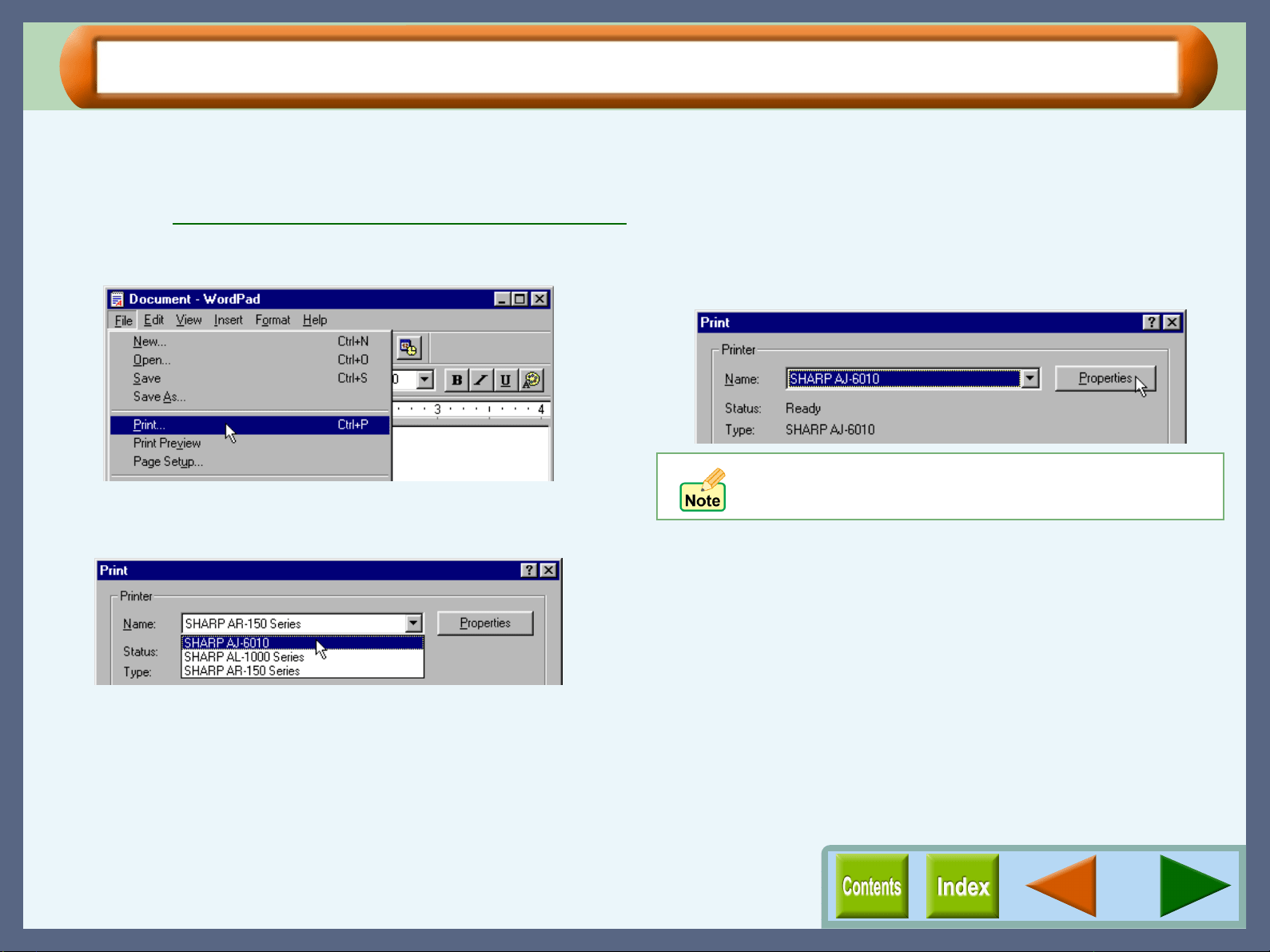
Follow the steps shown below to open the printer driver setup screen (properties dialog box) through WordPad. First,
activate WordPad. (Click the "Start" button, select "Programs", select "Accessories" and then click "WordPad".)
Reference: Starting the Printer Driver using the "Start" Button
1
11
1
Go to "File" menu in WordPad, and select "Print".
2
22
2
Select "SHARP AJ-6010" from the Printer Name
drop-down list.
3
33
3
Click the "Properties" button to open the
properties dialog box.
If the dialog box is setup through an application, all
settings will be void when you quit the application.
Printer Properties
5
Printer Driver Functions
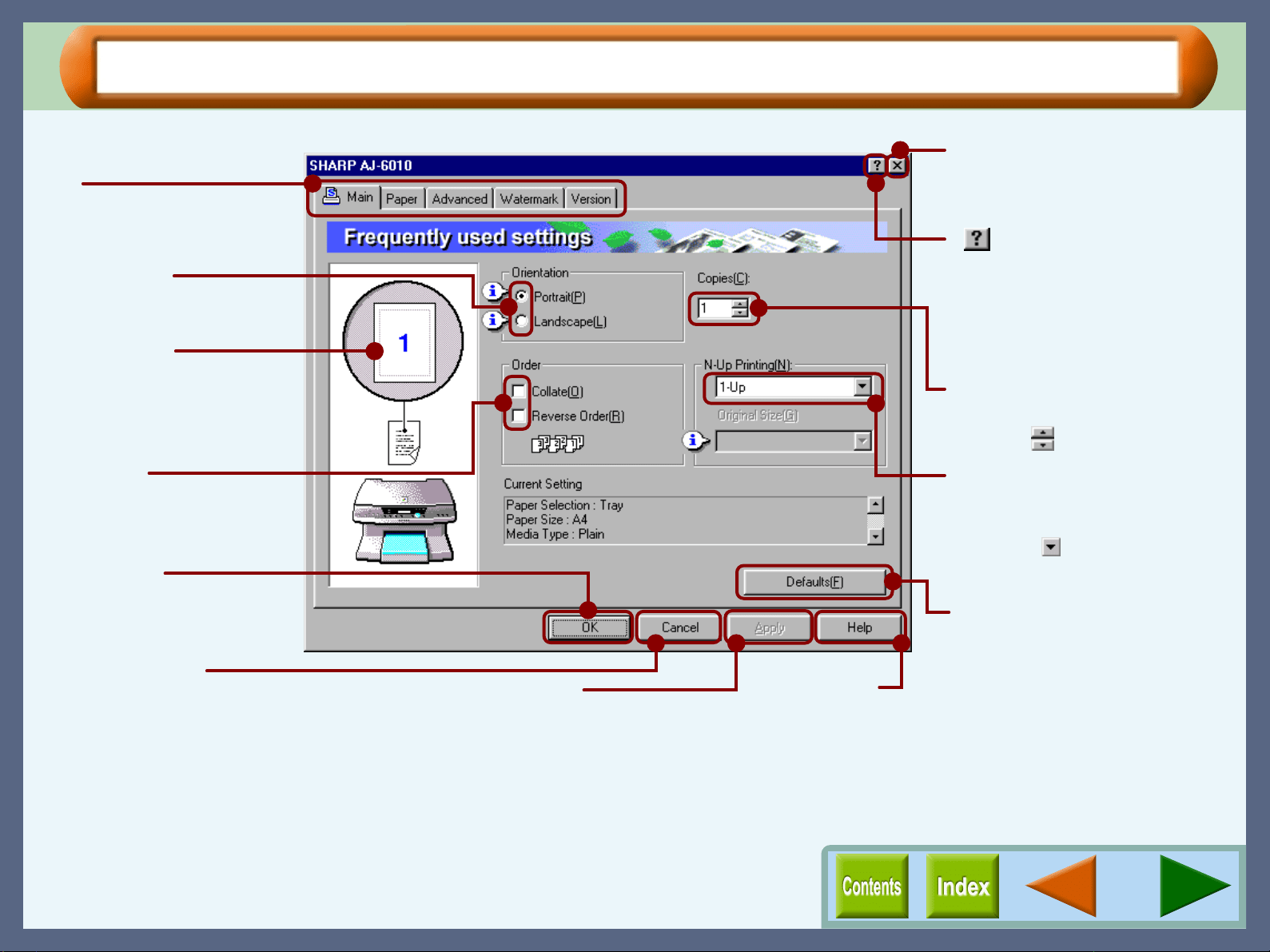
Tab
Index which allows you to
switch between the various
setup screens.
( ) button
After clicking this button, click
the preference located in the
dialog box you want to know
more about, and receive a
basic explanation.
Check button
Allows you to select one
item from a list of options.
Output Image
The settings you made at
"Orientation" and "N-Up
Printing" are shown in this
image.
"OK" button
Click this button to save
your settings, and exit the
dialog box.
"Cancel" button
Click this button to exit the dialog box
without making any changes to the settings.
"Apply" button
Click to save your settings
without closing the dialog box.
Check box
Click this option to
activate/deactivate each
function.
Quit button
Click this button to quit the
properties dialog box.
"Defaults" button
Returns settings to default
mode of the tab. Refer to the
information page for each tab
to check the values of the
default settings.
"Help" button
Click this button to
display the help file
for this driver.
Drop-down list
Allows you to make one
selection from a list of choices.
Click the ( ) button to display
your choices.
Spin box
Enter the number directly or
use the ( ) buttons.
Printer Properties
6
"Main" Tab Settings (part 1)
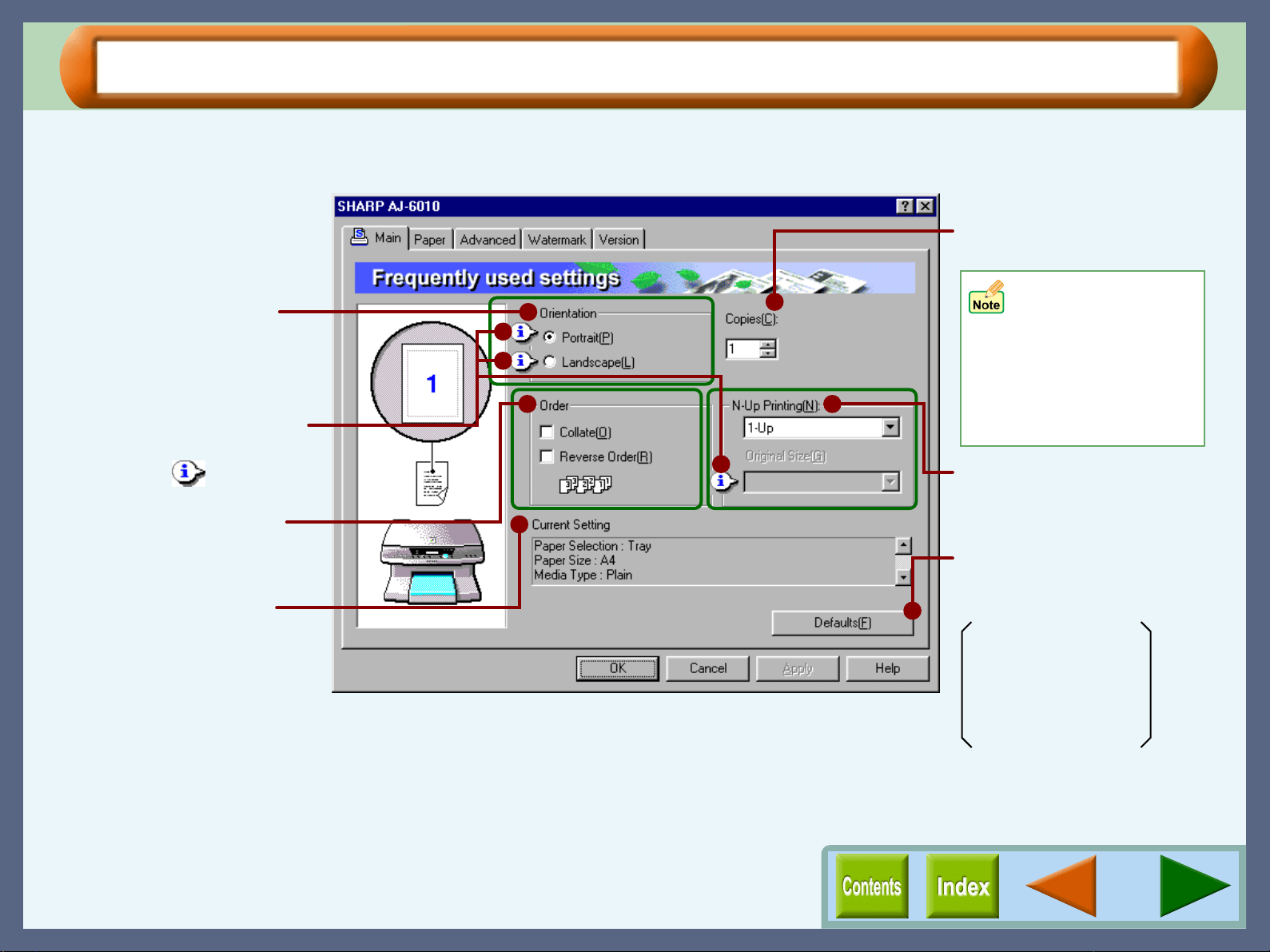
Basic print options, including orientation and the number of copies, are controlled through this dialog box. You
can usually print simply by adjusting and confirming the printer options listed in this dialog box.
When either of
"Banner A4", or
"Banner Letter" is
selected for "Paper
Size", you cannot
specify any value for
"Copies" setting.
Allows you to set "N-Up
Printing" option.
Set the number of copies
between 1 - 50.
On the above screen, click on options shown in the green boxes to
make additional changes.
Select the orientation for
your documents.
Displays important print
settings. Use the scroll bar
to check these settings.
When multiple copies are
printed, this setting allows
you to set the order.
Returns all user modified
settings back to default
settings of this tab.
Orientation: Portrait
Copies: 1
Collate: Off
Reverse Order: Off
N-Up Printing: 1-Up
Further information on each
option is available by
clicking the ( ) button.
Printer Properties
7
"Main" Tab Settings (part 2)
Orientation
Set the orientation for your documents either to "Portrait" or
"Landscape".
Portrait
Check this setting to print your documents vertically.
Landscape
Check this setting to print your documents horizontally.
Order
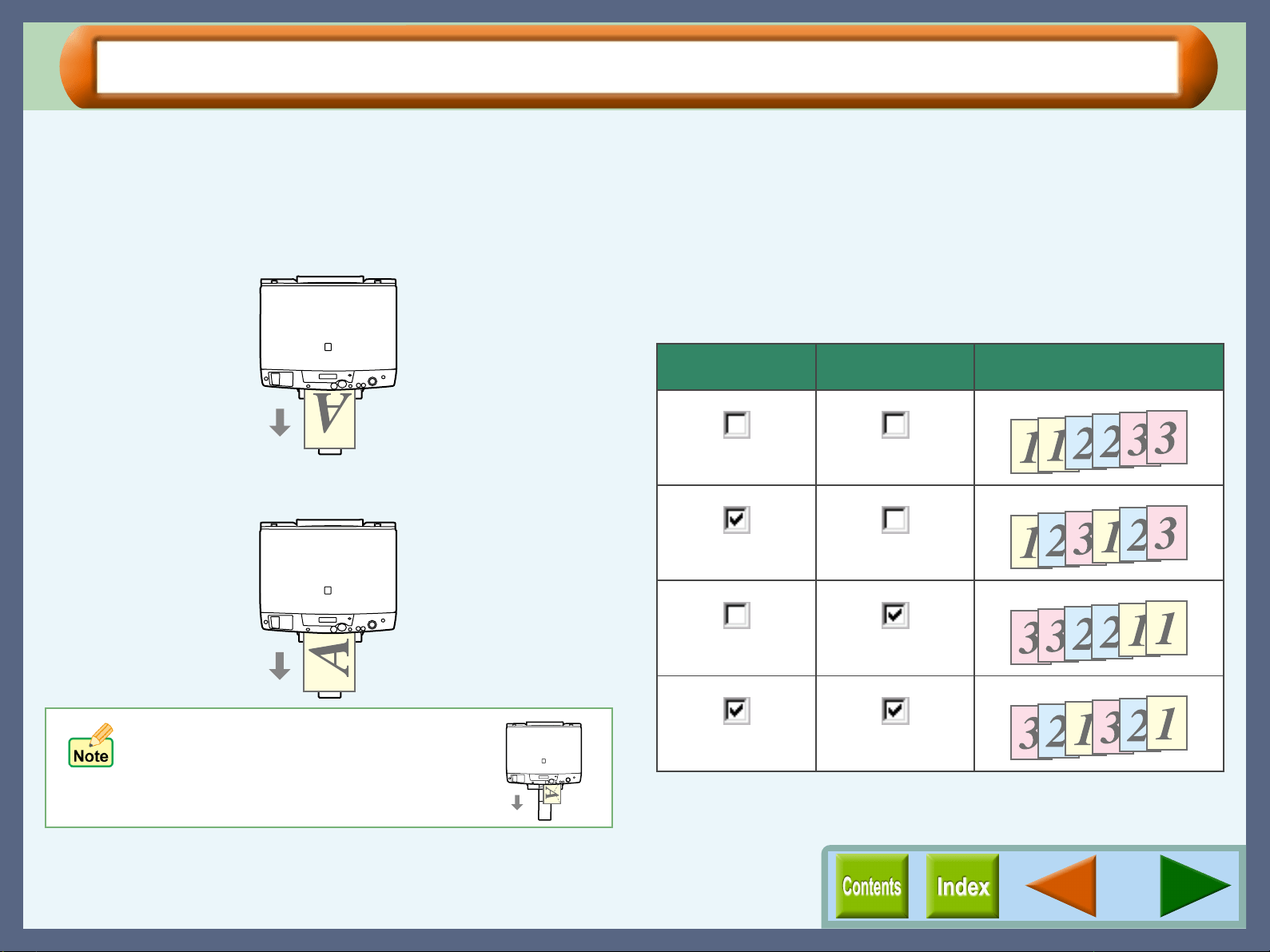
Allows you to change the print out order of your documents.
Collate
When multiple copies are printed, this setting places each copy
in numerical order.
Reverse Order
Check this box to print documents in reverse order.
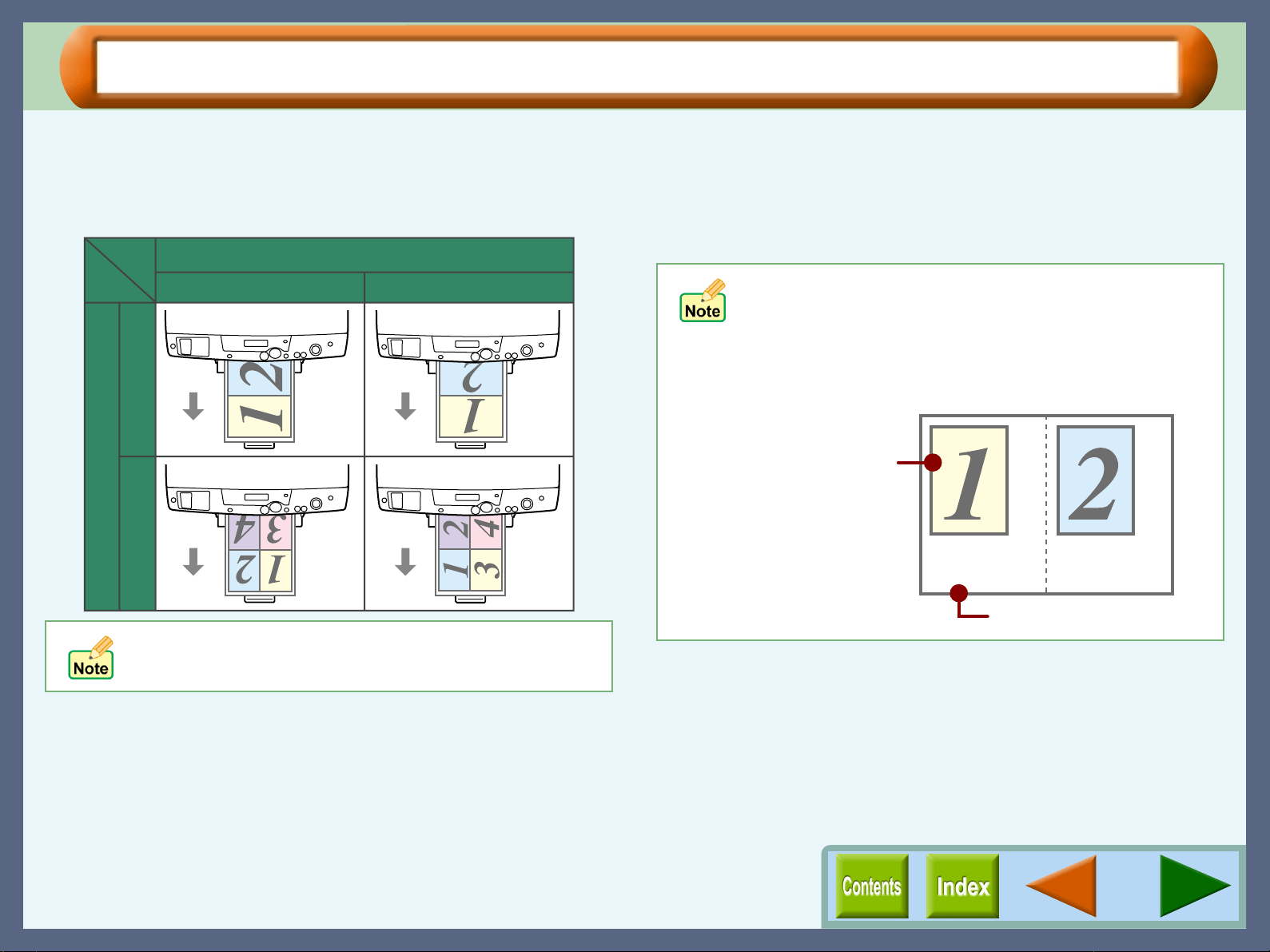
For more detailed information, refer to the table below.
Example: When printing out two copies of a three-page document.
If "Com10", "DL", "C6", or "Invitation
A2" is selected for the "Paper Size"
setting and set to "Landscape", the
paper will be output in the orientation
shown in the right illustration.
Collate Reverse Order Output Result
Printer Properties
8
"Main" Tab Settings (part 3)
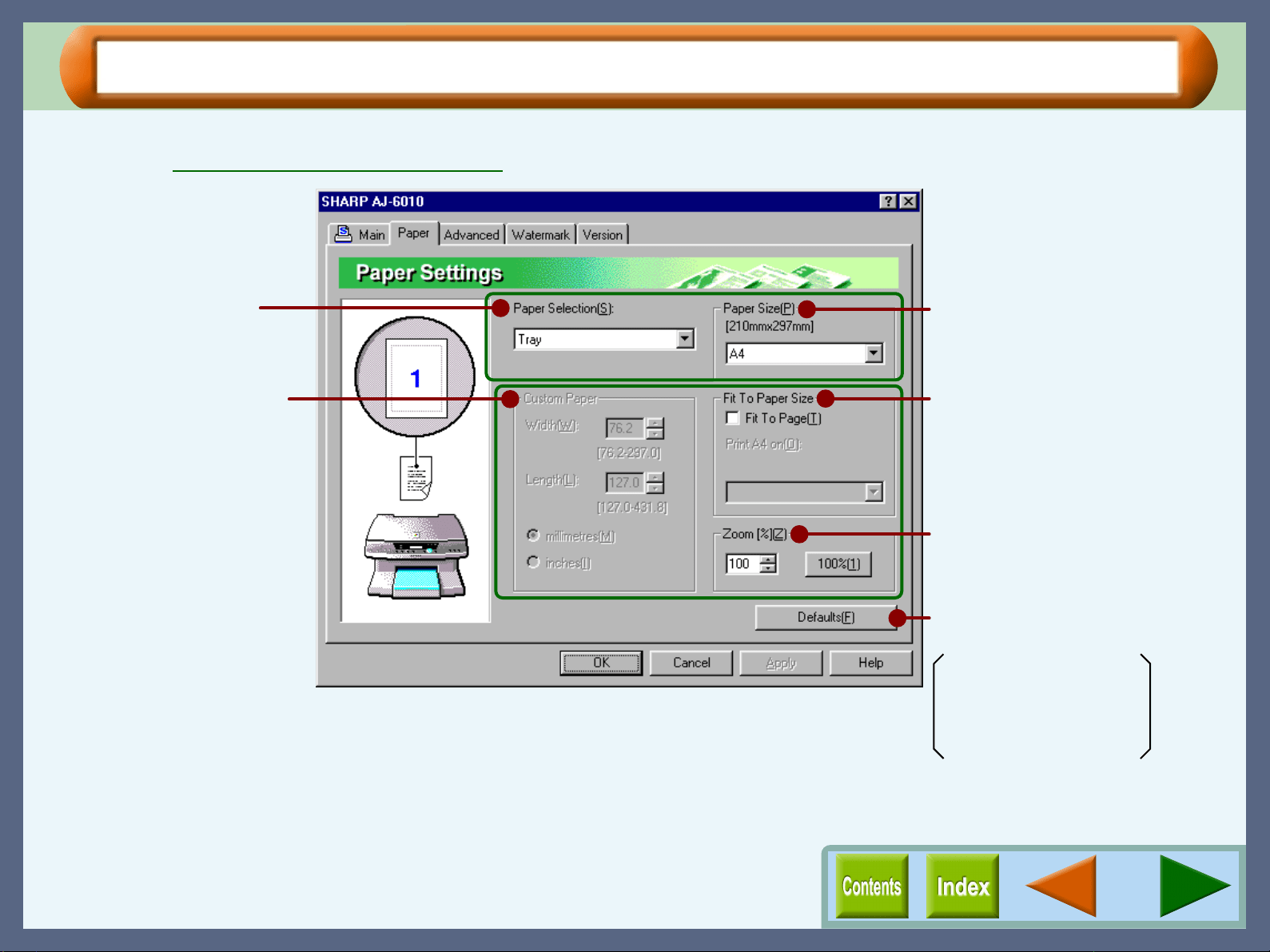
N-Up Printing
Set this feature to place multiple reduced pages onto a single
page. Select the "2-Up" option to copy two pages or the "4-Up"
option to copy four pages onto a single printed page.
Original Size
Set the original size when you select "2-Up" or "4-Up" for "N-Up
Printing". Select the document size specified through your
application from "Letter", "Legal", "Executive", "A4", "A5", "A6",
"B5", "Index card 3" x 5", "Index card 4" x 6", or "Index card 5" x
8".
The illustrations above assume that the "Original Size"
is set to the same size as the document size of your
application.
Orientation
Portrait Landscape
N-Up Printing
4-Up 2-Up
If "Original Size" is not set to the same size as the
document size of your application, the output will not fit
exactly on the paper.
Example:
When the document size of your application is smaller than
"Original Size".
Original Size
Document size of
your application.
Printer Properties
9
"Paper" Tab Settings (part 1)
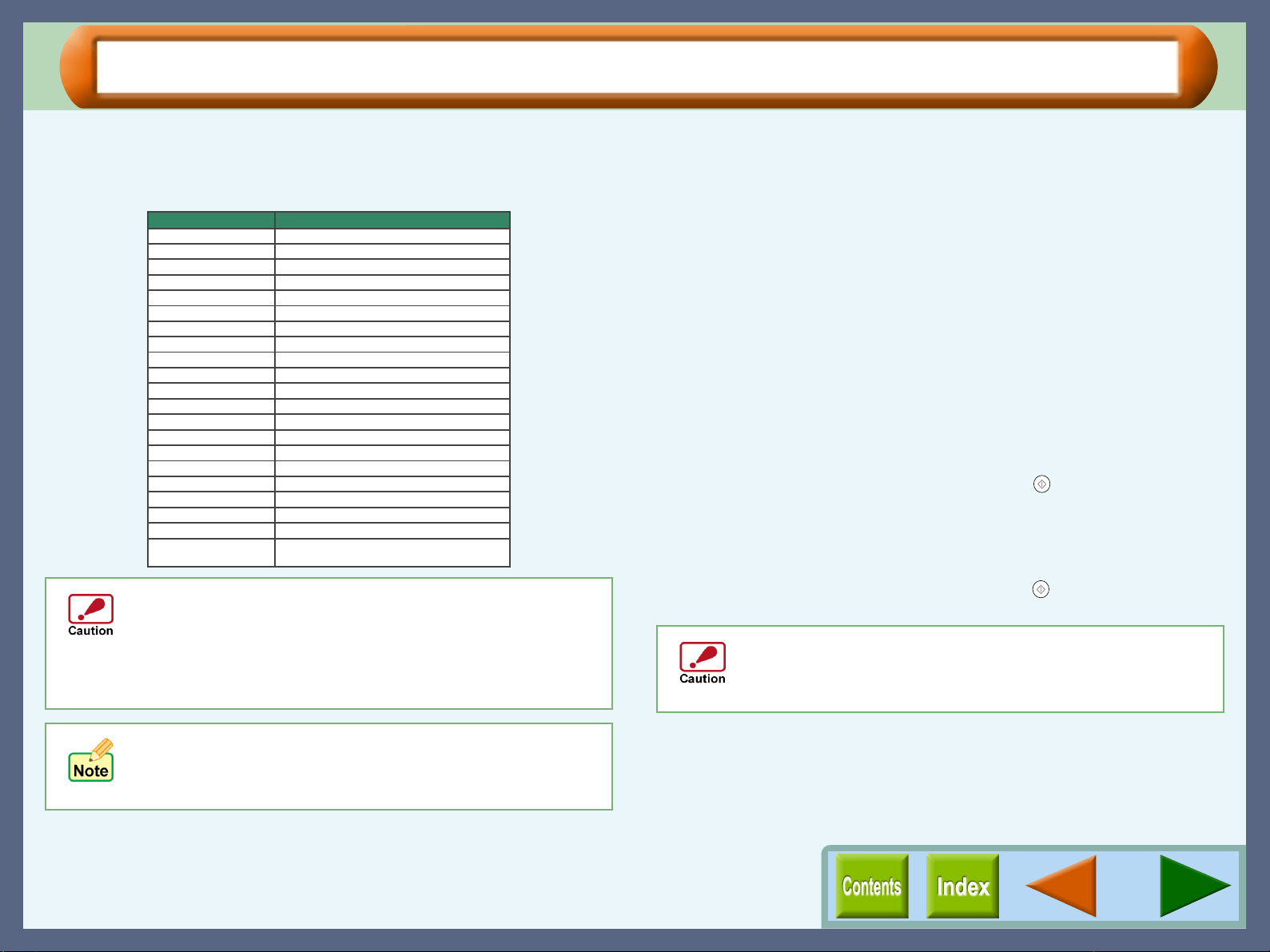
Use this screen to select the paper size, tray and zoom.
Reference: Guaranteed area and printable area
Select the paper size for your
document.
Select the paper source.
Allows you to customize the
size of the paper.
Enlarges/reduces the image to fit
to the size of paper in the printer.
Allows you to reduce or enlarge
the size of the print.
Returns all user modified settings
back to default settings of this tab.
Paper Selection: Tray
Paper Size: A4 or Letter
Fit To Page: Off
Zoom[%]: 100%
On the above screen, click on options shown in the green boxes to
make additional changes.
Printer Properties
10
"Paper" Tab Settings (part 2)
Paper Size
Select an appropriate paper size for your document from drop-
down list.
Paper Selection
Select "Tray" or "Bypass" for your print job.
Tray
Paper is fed to the printer from the paper tray.
Bypass
Paper will be fed to the printer from the bypass tray. Only one
sheet can be loaded into the bypass tray. To load paper into the
bypass, align the paper with the right side of the bypass.
When printing one page:
Select "Bypass" for "Paper Selection" setting and send the print
job. "Please set a sheet of paper on bypass and press the START
button" message will appear on the print status window.
After confirming the messages, open the bypass tray to set the
paper and then press the START button ( ) on the unit.
When printing more than one page:
The message described above will also appear when printing of
the first page has completed. Load the paper again for the next
page, and then press the START button ( ). Repeat this
process for each page.
! The document size must be smaller than the selected
(loaded) paper. If not, printing will occur over the edge of
the paper causing the machine to become internally dirty.
! Ledger, A3, or B4 sized paper can not be loaded in this
printer. The print image should be reduced by the "Fit To
Paper Size" or "Zoom[%]" setting.
"N-Up Printing", "Fit To Page", and "Zoom[%]" settings are
not available when you select "COM10", "DL", "C6",
"Invitation A2", "Japanese Hagaki", "Banner Letter", or
"Banner A4" sized paper.
Size
8.5" x 11"
8.5" x 14"
7.25" x 10.5"
210mm x 297mm
148mm x 210mm
8.5" x 11"
210mm x 297mm
4.125" x 9.5"
4.375" x 5.75"
110mm x 220mm
114mm x 162mm
3" x 5"
4" x 6"
5" x 8"
105mm x 148mm
100mm x 148mm
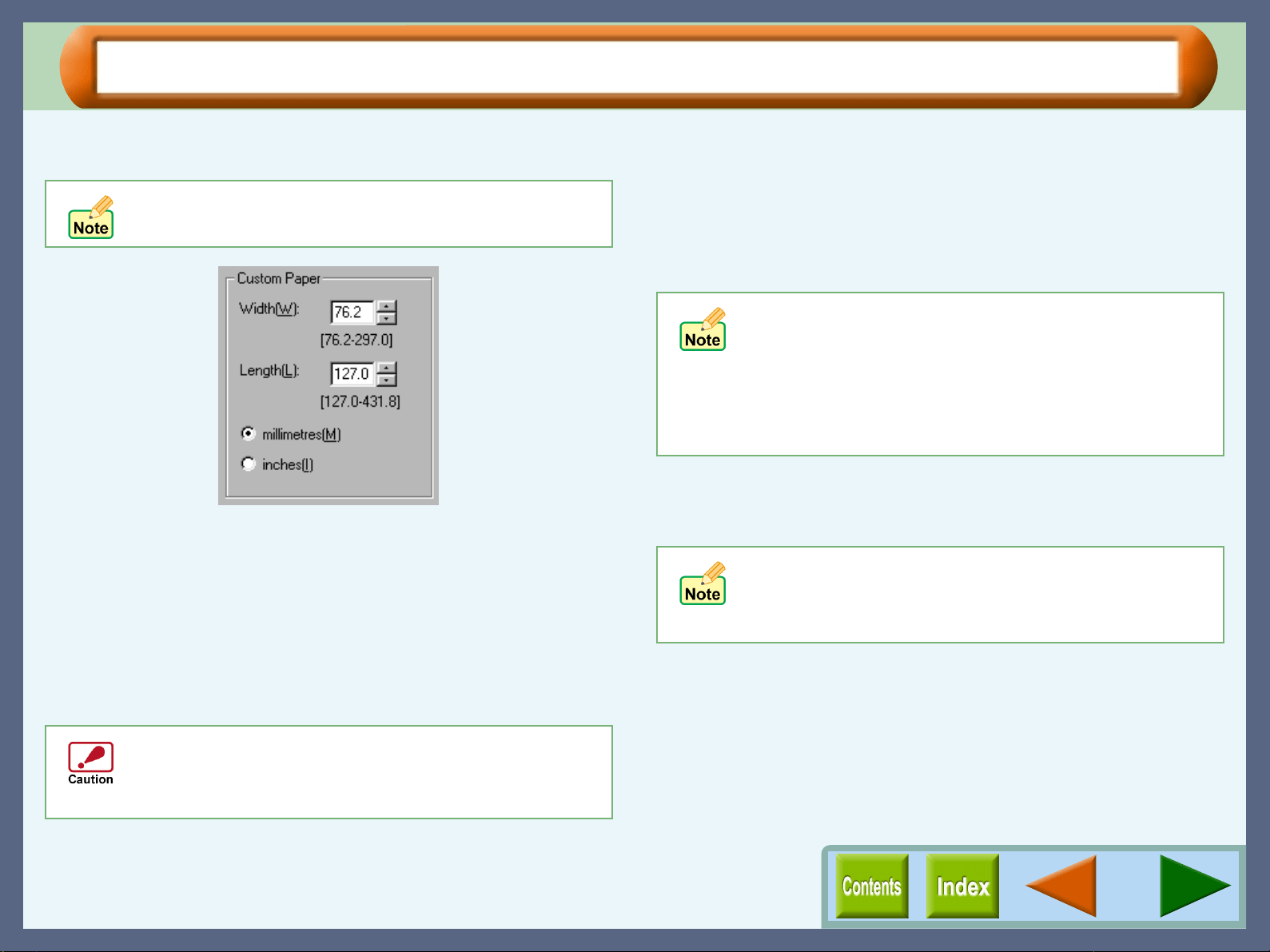
Min. : 76.2mm x 127.0mm (3.00" x 5.00")
Max. : 297.0mm x 431.8mm (11.69" x 17.00")
Paper
Letter
11" x 17"
Ledger
Legal
Executive
297mm x 420mmA3
A4
A5
257mm x 364mmB4
182mm x 257mmB5
Banner Letter
Banner A4
COM10
Invitation A2
DL
C6
Index card 3" x 5"
Index card 4" x 6"
Index card 5" x 8"
A6
Japanese Hagaki
Custom
Make sure to insert "Banner Letter" and "Banner A4"
through the bypass tray. Max. 5 sheets of banner paper can
be set to the bypass tray. Make sure that your application
supports Banners when you intend to print onto Banners.
Printer Properties
11
"Paper" Tab Settings (part 3)
Custom Paper
Custom paper sizes for your document.
Width
Click the up and down arrows of the spin box, or enter a number
to customize the width to the custom paper you wish to use.
Length
Click the up and down arrows of the spin box, or enter a number
to customize the length to the custom paper you wish to use.
millimetres / inches
Select the units of measurement for paper size settings: either
"millimetres" or "inches".
Fit To Paper Size
Fit To Page
Check this box to fit the image to the paper size. If this function is
selected, you can fit the paper size specified for "Paper Size"
setting to the size listed on the drop-down options of "Fit To
Paper Size".
Example "Print A4 on:" A6
Zoom[%]
Allows you to reduce or enlarge the size of the print from 25%
to 200% in 1% increments.
"100%" button
Click to return to 100% (default setting).
To utilise this option, the "Paper Size" option must be
set to "Custom".
Paper sizes larger than 215.9mm x 355.6mm (8.5" x
14") cannot be used in this printer. You can print the
image by using the reduction feature of the "Zoom[%]"
setting.
! When "COM10", "DL", "C6", "Invitation A2",
"Japanese Hagaki", "Banner Letter", or "Banner A4"
is selected for "Paper Size", this function is
disabled.
! The "Fit To Paper Size" option cannot be utilised
when the "N-Up Printing" option in the "Main" tab is
selected.
!
The "Zoom[%]" option cannot be utilised when the
"N-Up Printing" option in the "Main" tab is selected.
! If "Fit To Page" is checked, you cannot specify any
value for "Zoom[%]" settings.
Printer Properties
12
"Paper" Tab Settings (part 4)
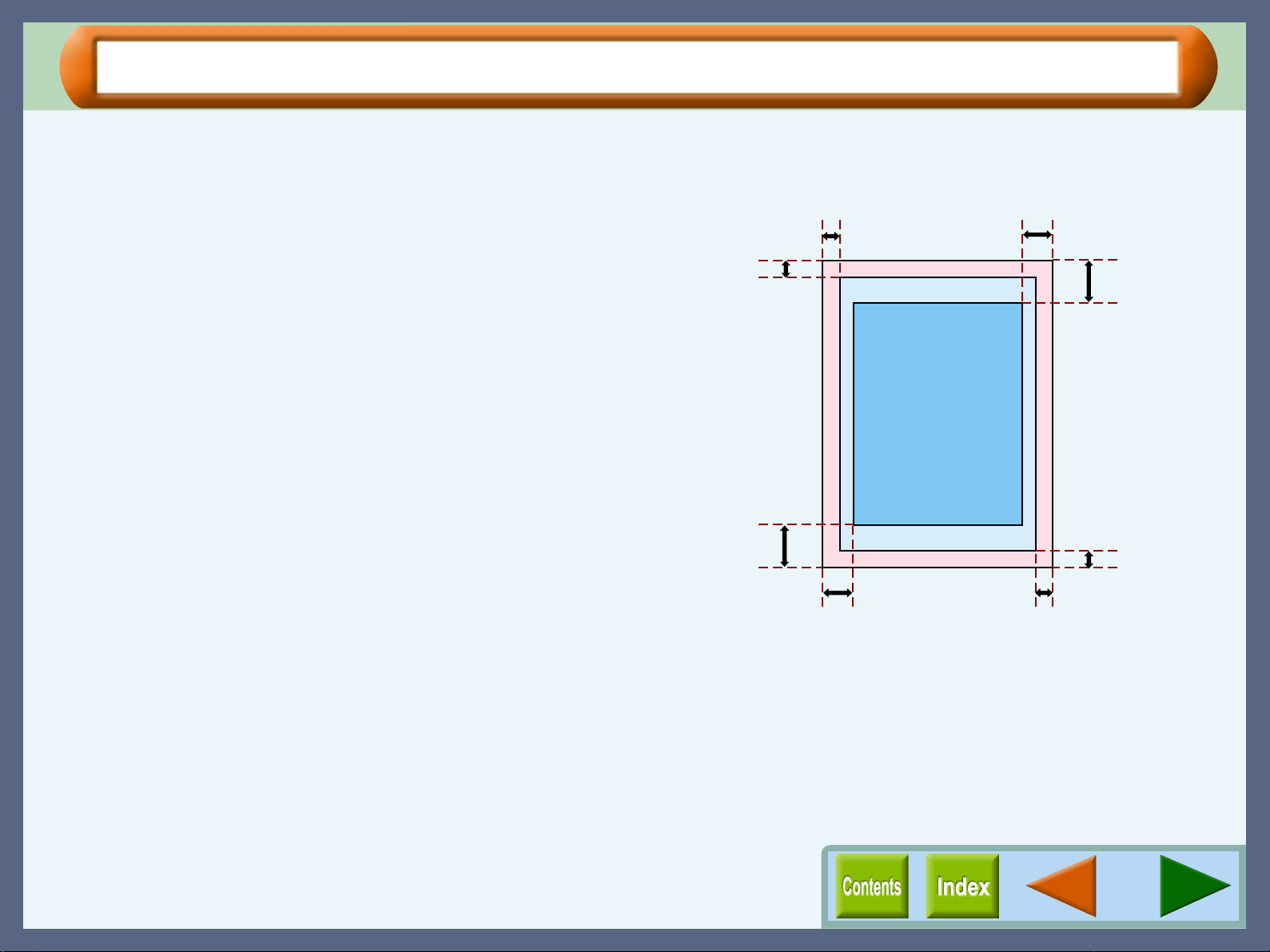
Guaranteed area and printable area
This printer can print onto the following area of the paper. It is
recommended that you specify margins from your application
to fit within the quality guaranteed area.
Quality guaranteed area
Guaranteed area is inside 19mm from the top / bottom edge of
the paper, and 10mm from the right / left edge of the paper.
Printable area
The void area of the printer driver is 3mm from the paper edges.
The print quality may be degraded outside the guaranteed area
according to the contents of your document.
19mm
Quality
guaranteed area
Printable area
Printable area
3mm
3mm
3mm
3mm
19mm
10mm
10mm
Printer Properties
13
"Advanced" Tab Settings (part 1)
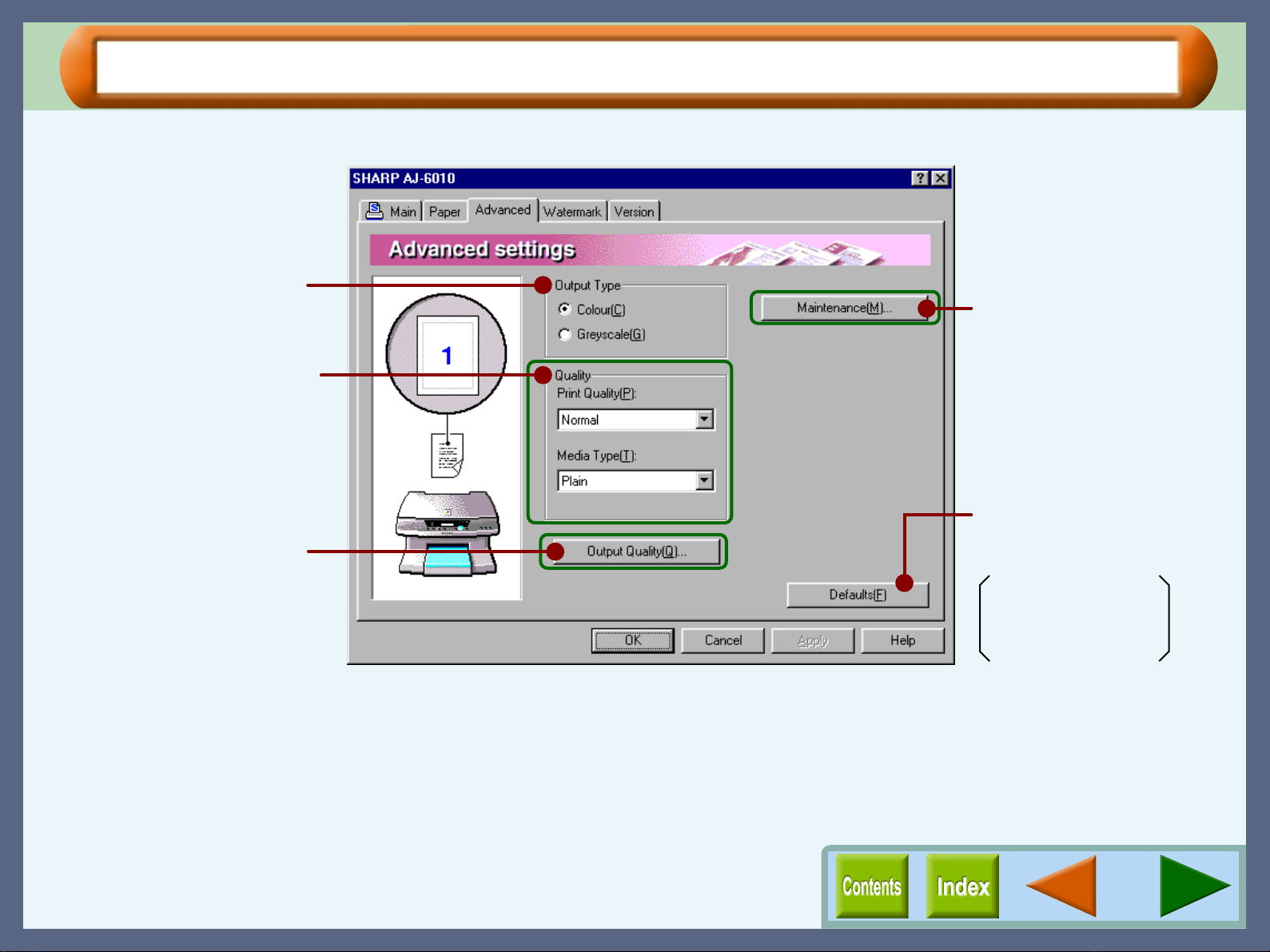
Set your colour and quality preferences for printing using this screen.
Set printer output preferences
to colour or greyscale.
Click to access
maintenance options.
Returns all user modified
settings back to default
settings of this tab.
Output Type: Colour
Print Quality: Normal
Media Type: Plain
Customize printer output quality
to suit your needs.
Open to set output quality and
adjust colours.
On the above screen, click on options shown in the green boxes to
make additional changes.
Printer Properties
14
"Advanced" Tab Settings (part 2)
Quality
Set the printer output quality settings below.
Print Quality
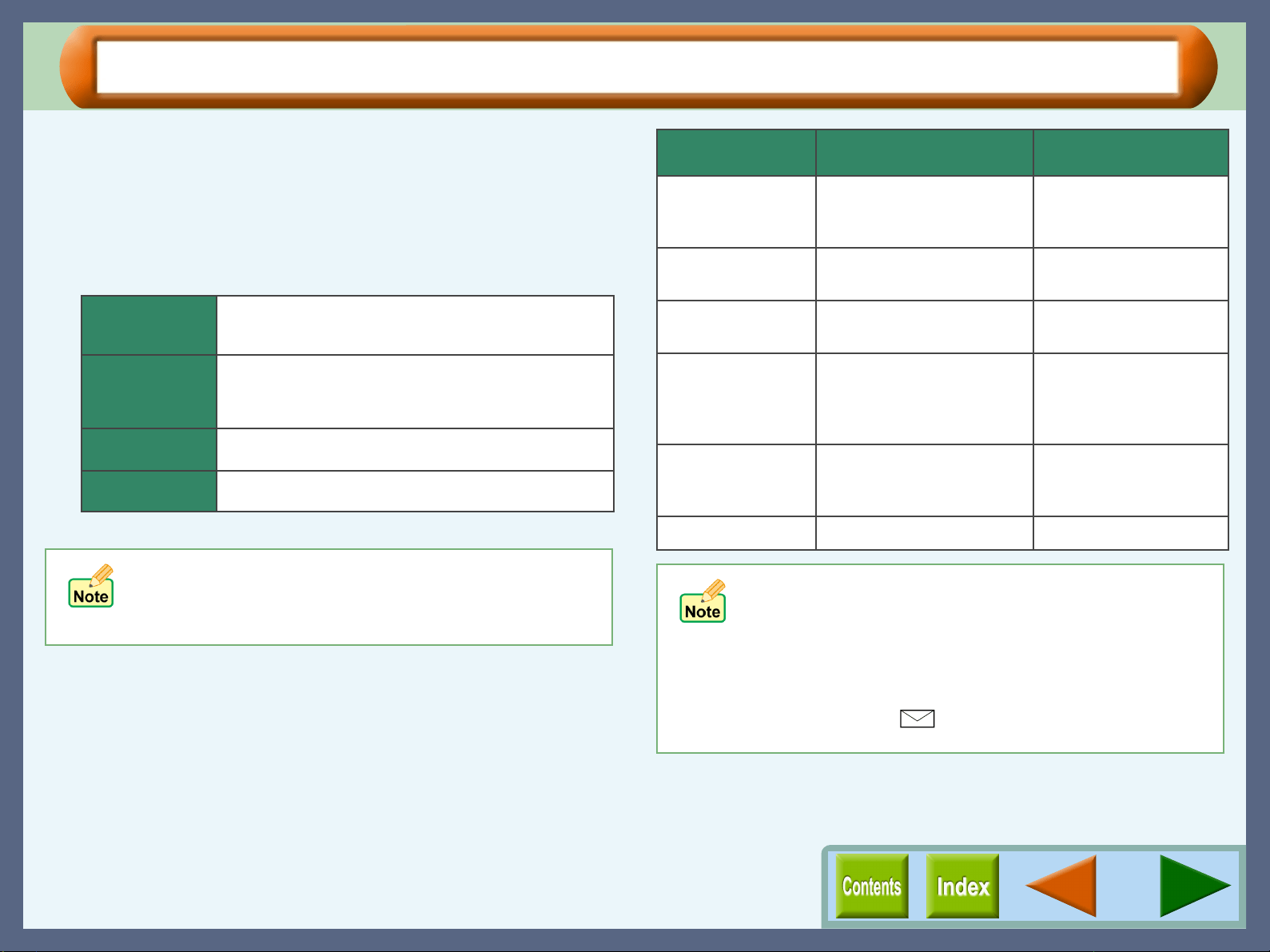
This option sets printing speed and quality. You can trade off
speed for quality. "Draft" is the fastest and lowest quality, "Best"
is the slowest and best quality.
Media Type
Select the type of paper to be used. Select from "Plain", "Coated",
"Photo", "Transparency", "T-shirt transfer", and "Card Stock".
Insert the paper that was selected into the tray.
For more information on various paper types, refer to the
following table.
! If lines are broken when printing with "Draft", change
the setting to any other option.
! Some of the settings cannot be selected depending
on the "Media Type".
Draft
Sharp Special
Normal
Best
Select this option when you want to print text data
with high speed. If you print graphics, illustrations, or
lines with this option, the print quality is low.
Select this option when you want to print a document
containing graphics or illustrations with high speed.
This option provides a lower print quality than
"Normal" or "Best".
This option offers you normal print quality with normal
print speed.
Select this option when you want to get high print
quality for photographs or images.
* The print quality also depends on the specified (loaded) paper type.
Media Type Description Media Usage
Plain Normal office paper
(copier paper and high
quality paper)
Corporate documents
Coated The print side of coated
paper is whiter.
Graphics, Images
Photo The print side of photo
paper is glossy.
Photographs
Transparency Overhead presentation on
clear film. The print side of
transparency film is
rougher.
Overhead presentations
T-shirt transfer This media is to be
transferred to cloth
materials by an iron.
T-shirt, Place mat
Card Stock Thick plain paper Card printing
!
Be sure to use Sharp recommended OHP films
when you select "Transparency".
!
If you select "T-shirt transfer", the original image will
be reversed on the printed media to make a proper
image on the T-shirt.
!
When "Card Stock" is selected, be sure to turn the
paper knob to ( ) direction to feed the thicker card
stock.
Printer Properties
15
"Output Quality" Settings
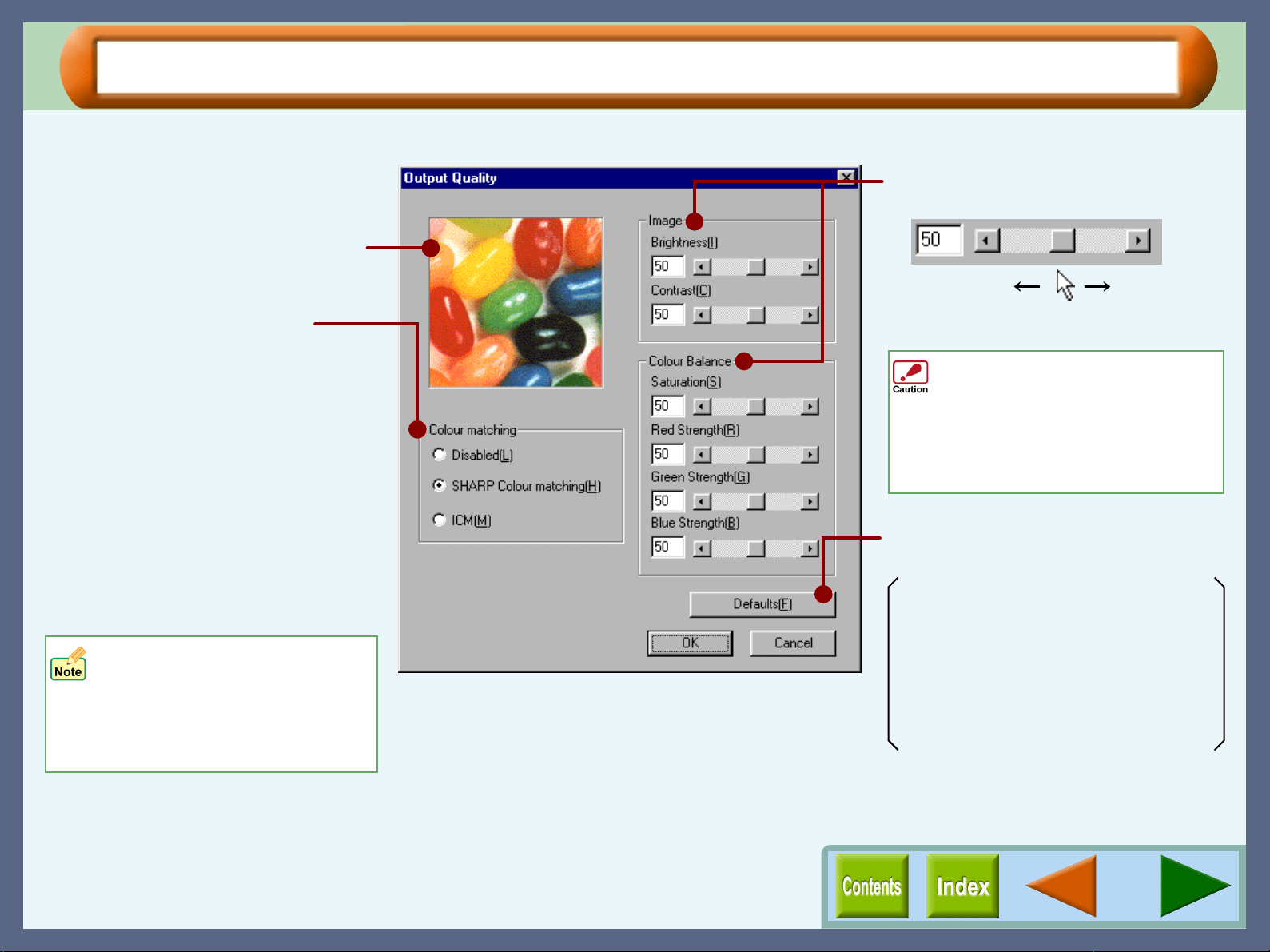
Set the colour matching as well as the brightness, contrast and colour balance of an image.
Check your colour image preferences
using this screen.
Set the brightness, contrast and colour
balance level of your print job here.
Directly enter the figure or move the
scroll bar.
0% 100%
Returns all user modified settings back
to default settings of this dialog box.
Colour matching: SHARP Colour matching
Brightness: 50%
Contrast: 50%
Saturation: 50%
Red Strength: 50%
Green Strength: 50%
Blue Strength: 50%
• By selecting "ICM", both the
"Image" and "Colour Balance"
options become disabled.
• The "ICM" setting is
unavailable with Windows 95.
To print a document containing text
data, make sure to keep the values
of "Red Strength", "Green Strength"
and "Blue Strength" above 50. When
set under 50, background of
characters in your document may be
printed in a different colour.
Allows you to select the Colour
Management System.
The Colour Management System
enables you to adjust the image colour
on your display to the result of the print
job.
SHARP Colour matching
Select this option to utilise SHARP's
original Colour Management System.
ICM
Select this option to utilise Windows
standard Colour Management
System.
Printer Properties
16
"Watermark" Tab Settings (part 1)
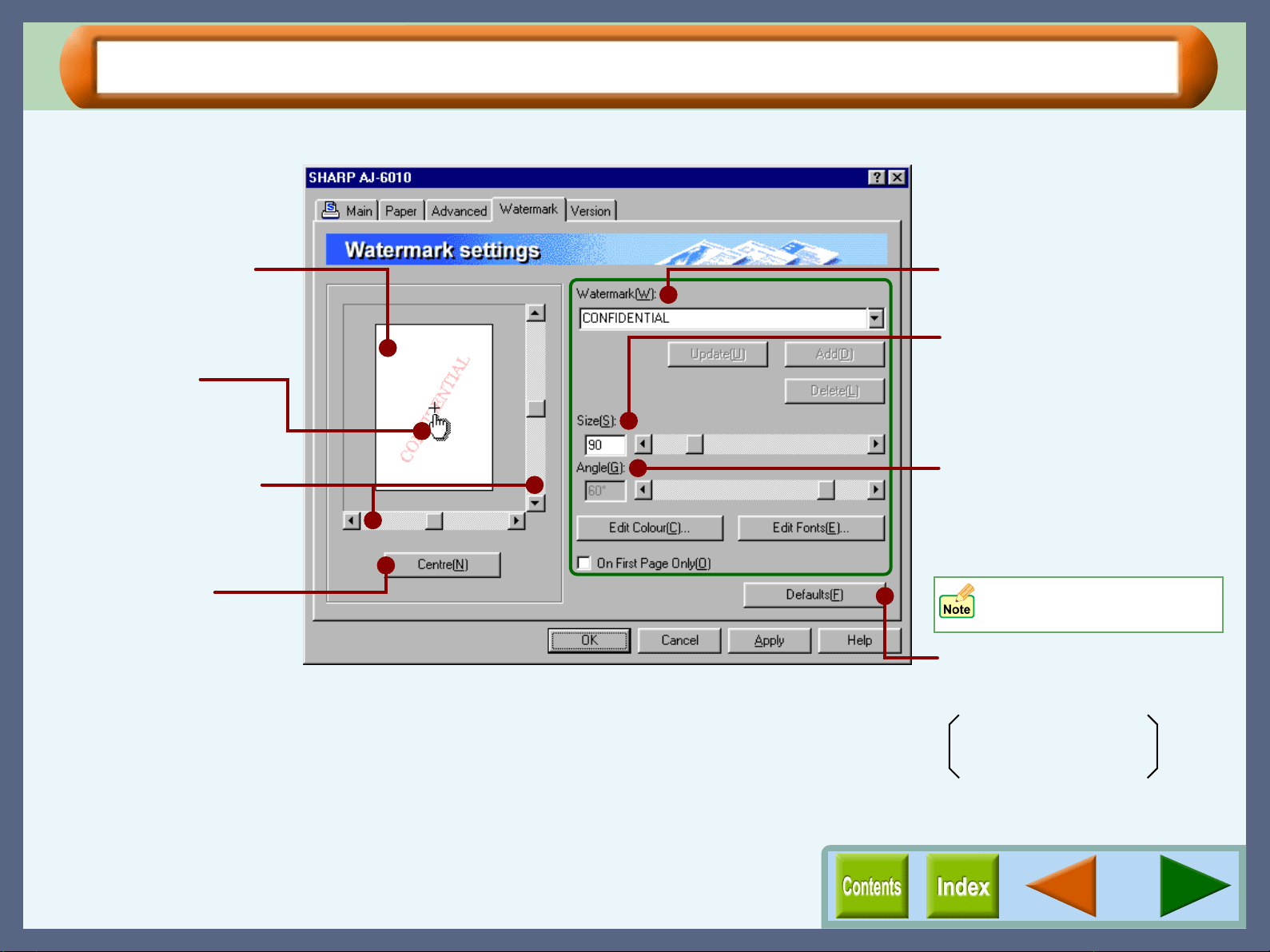
Use this screen to set watermarks.
Use this screen to view
how the watermark will
appear on your
document.
You can drag the
watermark to your
favourite place by using
the mouse.
Select the type of watermark.
Use the scroll bar or enter a
figure to set the font size of a
watermark from 6 to 500 points.
Use the scroll bar to set the
print angle of a watermark from
-90˚ to 90˚.
(The angle can be set in 15˚
multiples.)
Returns all user modified
settings back to default settings
of this tab.
Watermark: (None)
On First Page Only: Off
Move the location of the
watermark using the
scroll bar.
Click this button to
centre a watermark in
the middle of the
document.
You cannot type the desired
angle value in this field.
On the above screen, click on options shown in the green boxes to
make additional changes.
Printer Properties
17
"Watermark" Tab Settings (part 2)
Watermark
Select a watermark from the drop-down list. Select from "TOP
SECRET", "CONFIDENTIAL", "DRAFT", "ORIGINAL" and
"COPY". No watermark will appear on the document if
"(None)" is selected. You can also create and input your
original watermarks.
"Update" button
Select your original watermark from the drop-down list. After
adjusting the size and angle to suit your preferences, click the
"Update" button to save.
"Add" button
Enter your text over the currently displayed text and click this
button to add a new watermark.
After selecting a watermark from the drop-down list and setting its
size and angle, click this button to add new changes.
"Delete" button
To remove your original watermark from the drop-down list,
select it and click this button.
"Edit Colour" button
For setting the colour of a watermark, click this button to display
the "Color" dialog box.
For more information on this dialog box, click the ( ) button, and
then point and click on the item that you want information on.
"Edit Fonts" button
To adjust the font style of a watermark, click this button to display
the "Font" dialog box.
For more information on this dialog box, click the ( ) button, and
then point and click on the item that you want information on.
On First Page Only
Check this box to ensure a watermark is printed only on the first
page of the document. By leaving this box unchecked, the
watermark will appear on every page of the printed document.
You cannot permanently save changes to the size and
angle of a default watermark using this button. To
permanently save all new changes use the "Add"
button.
Default watermarks cannot be deleted.
19
Print
Printing Overview
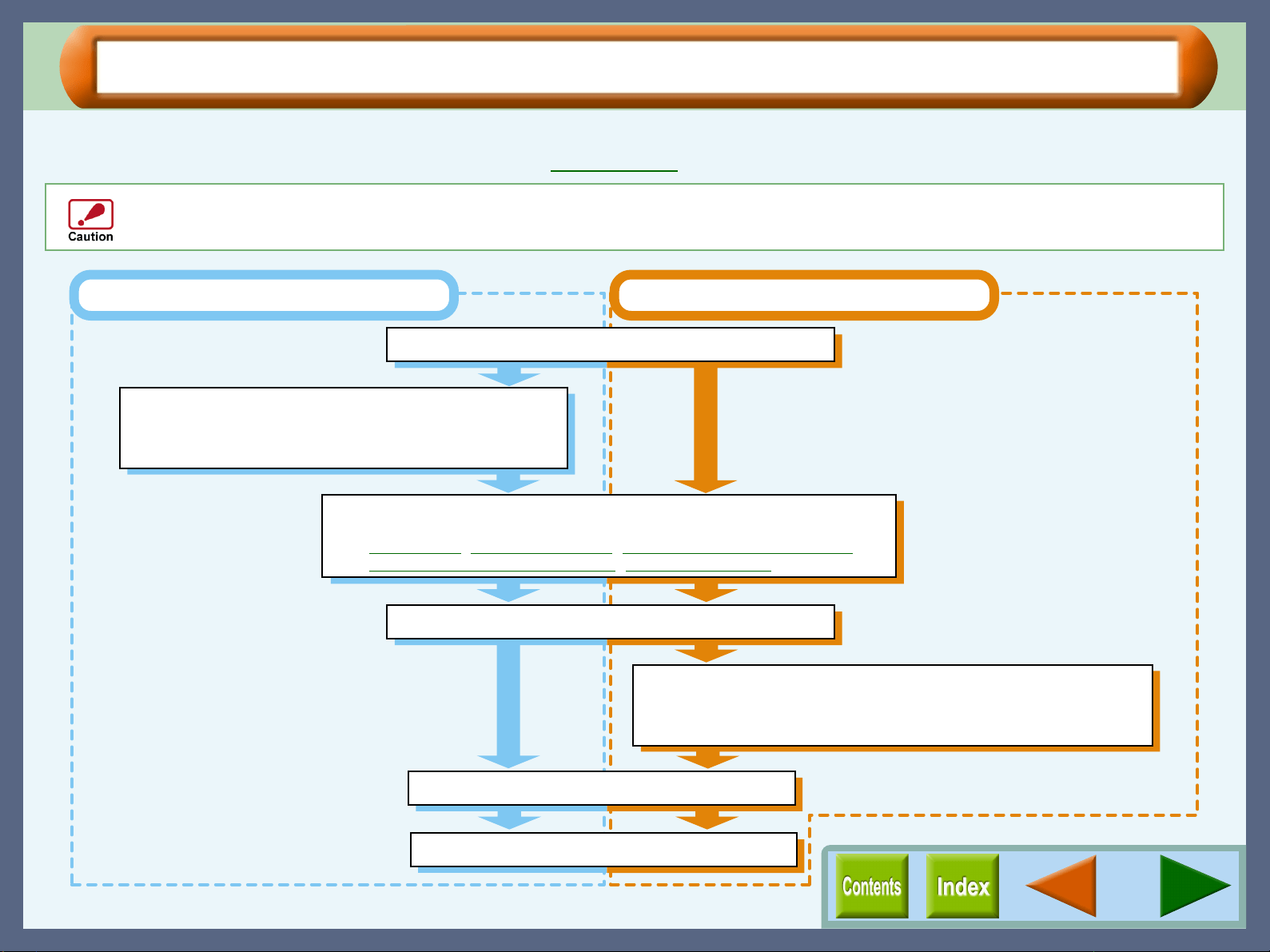
The flow chart shown below provides printing overview.
Reference: For more information on printing, refer to Basic Printing.
Ensure printing has been completed before turning the power off. Do not remove the power cord before turning the printer off.
When printing from paper tray When printing from bypass tray
Prepare the document you intend to print
Send print data from your computer
Printing
Exit printing
Load paper into the paper tray
Reference:
For more detail, refer to the "LOADING PAPER INTO THE
PAPER TRAY" in the Setup Guide and Operation Manual.
Load paper onto the bypass tray, and then press the START button
Reference:
For more detail, refer to the "LOADING THE BYPASS TRAY WITH
PAPER" in the Setup Guide and Operation Manual.
Open the printer driver setup screen and set the print preferences
Reference:
Basic Printing, Printing a Watermark, Enlarge/Reduce the Printed Image,
Printing Multiple Pages on One Page, Printing a Photograph
Print
20
Basic Printing (part 1)
This is a printing example using WordPad to print a document onto A4 size paper.
1
11
1
Start WordPad, make a new file, and enter the text
you intend to print.
2
22
2
Select "Print" from the application's "File" menu.
Make sure that "SHARP AJ-6010" is selected as the
current printer, and then click the "Properties"
button.
The properties dialog box will open.
Reference:See the Starting the Printer Driver through
an Application for details on how to open
the properties dialog box.
3
33
3
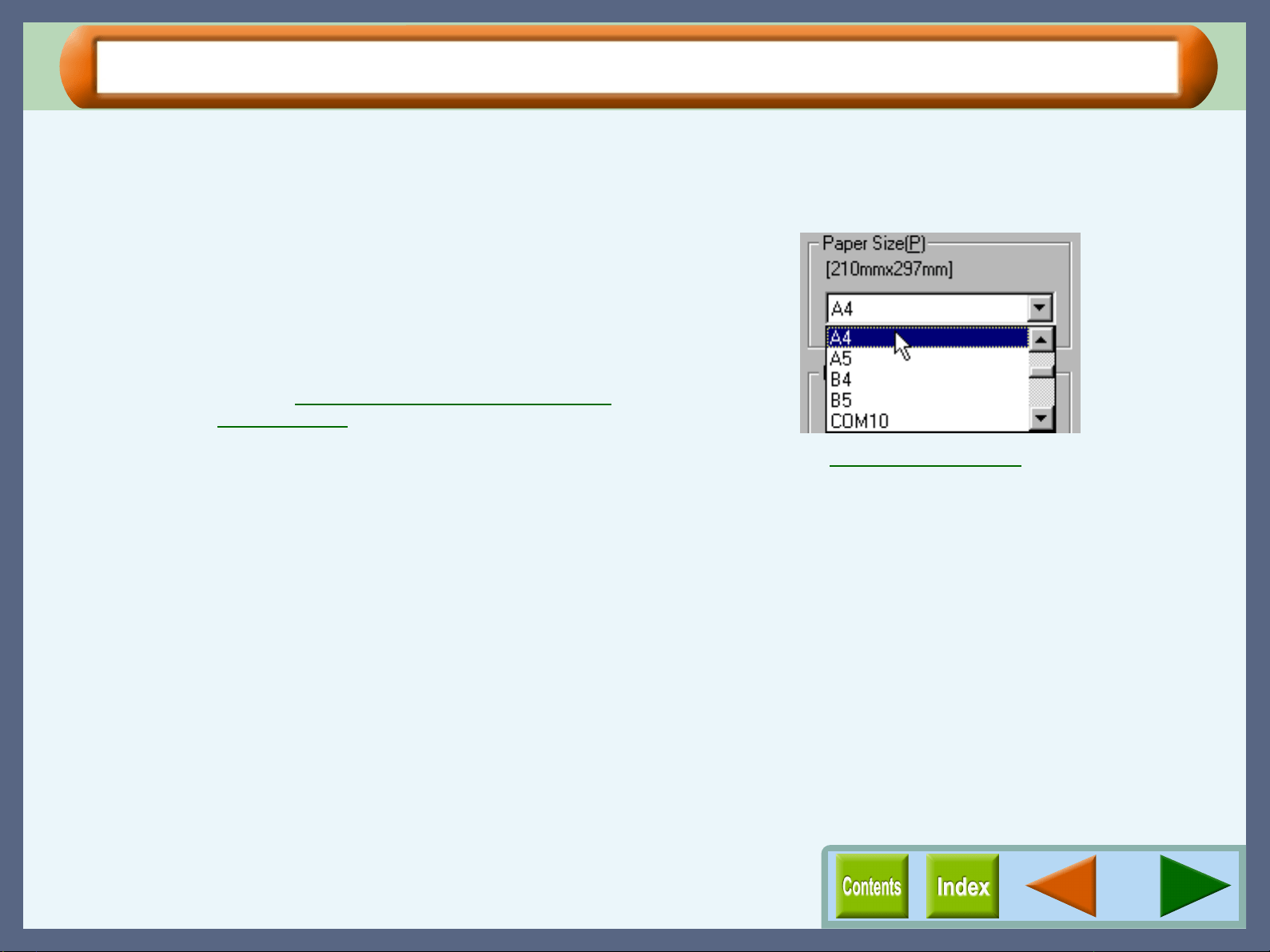
Click the "Paper" tab, and select "A4" from the
"Paper Size" drop-down list.
Reference:"Paper" Tab Settings
Print
21
Basic Printing (part 2)
4
44
4
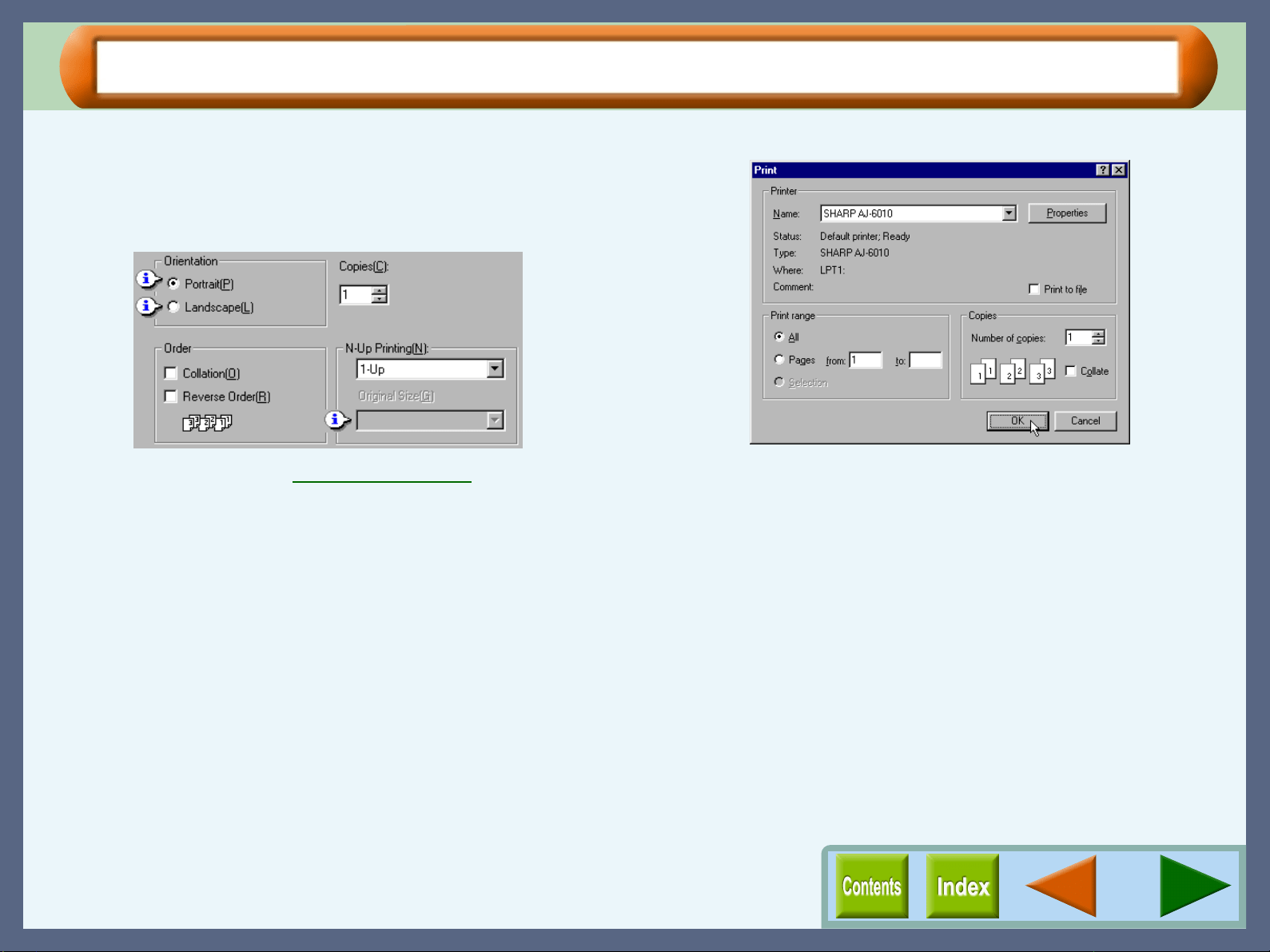
Click the "Main" tab. After setting your
preferences, click the "OK" button.
To print a single copy of a document in portrait orientation,
confirm the "Portrait" option in the "Orientation", and "1" in
the "Copies" box.
Reference:See the "Main" Tab Settings
for information
on setting preferences.
5
55
5
Click the "OK" button in the "Print" dialog box.
Printing starts according to your preferences.
Print
22
Printing a Watermark
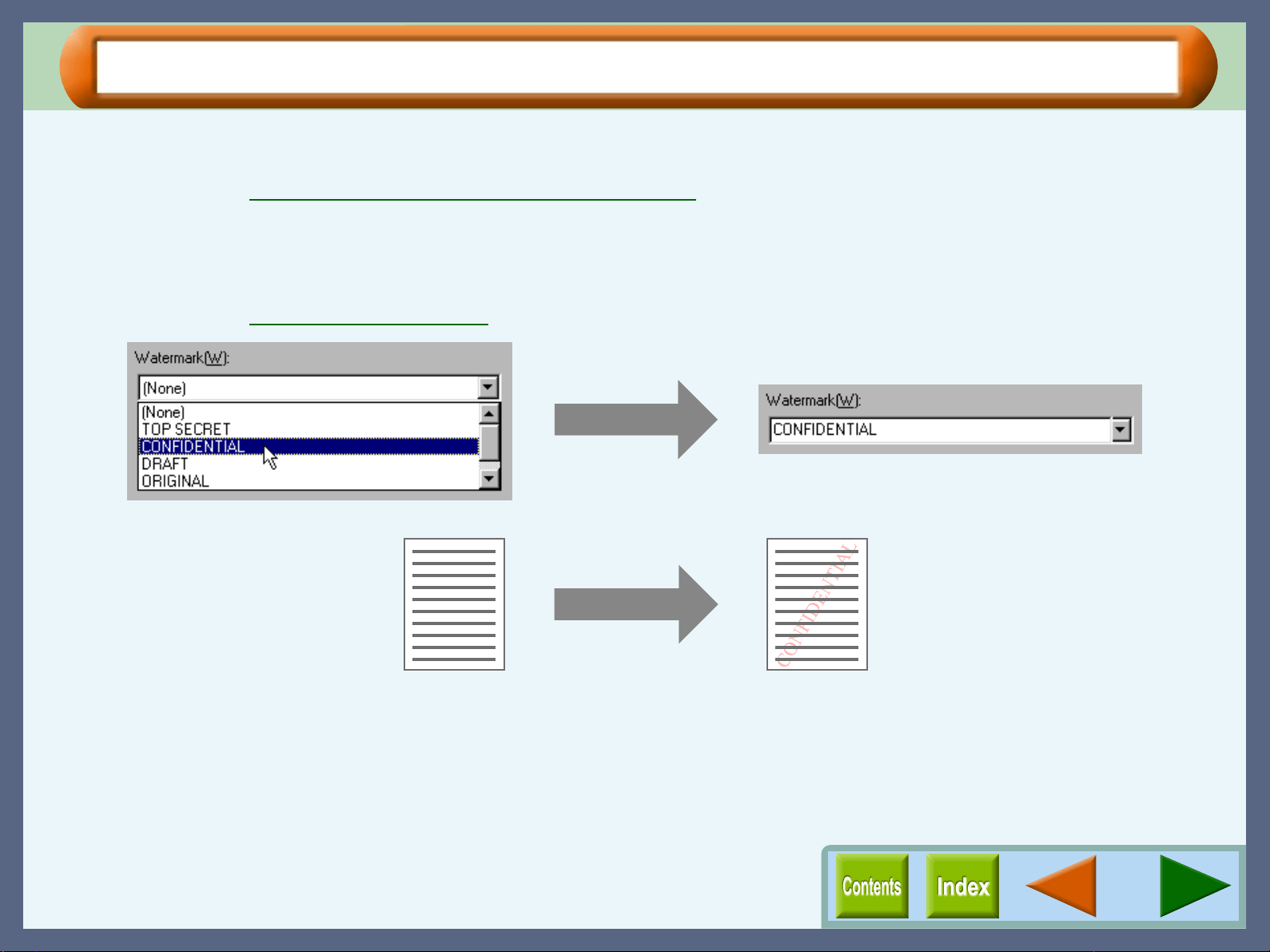
To print a watermark, for example "CONFIDENTIAL", on your document, refer to the following steps. Open the
printer driver and click the "Watermark" tab.
Reference: See the Starting the Printer Driver through an Application for details on how to open the printer driver.
How to Print a Watermark
From the "Watermark" drop-down list, select the watermark, for example "CONFIDENTIAL", you wish to print on your
document, and click the "OK" button.
Reference: See the "Watermark" Tab Settings for details on how to create your own watermarks.
Print sample
Print
23
Enlarge/Reduce the Printed Image
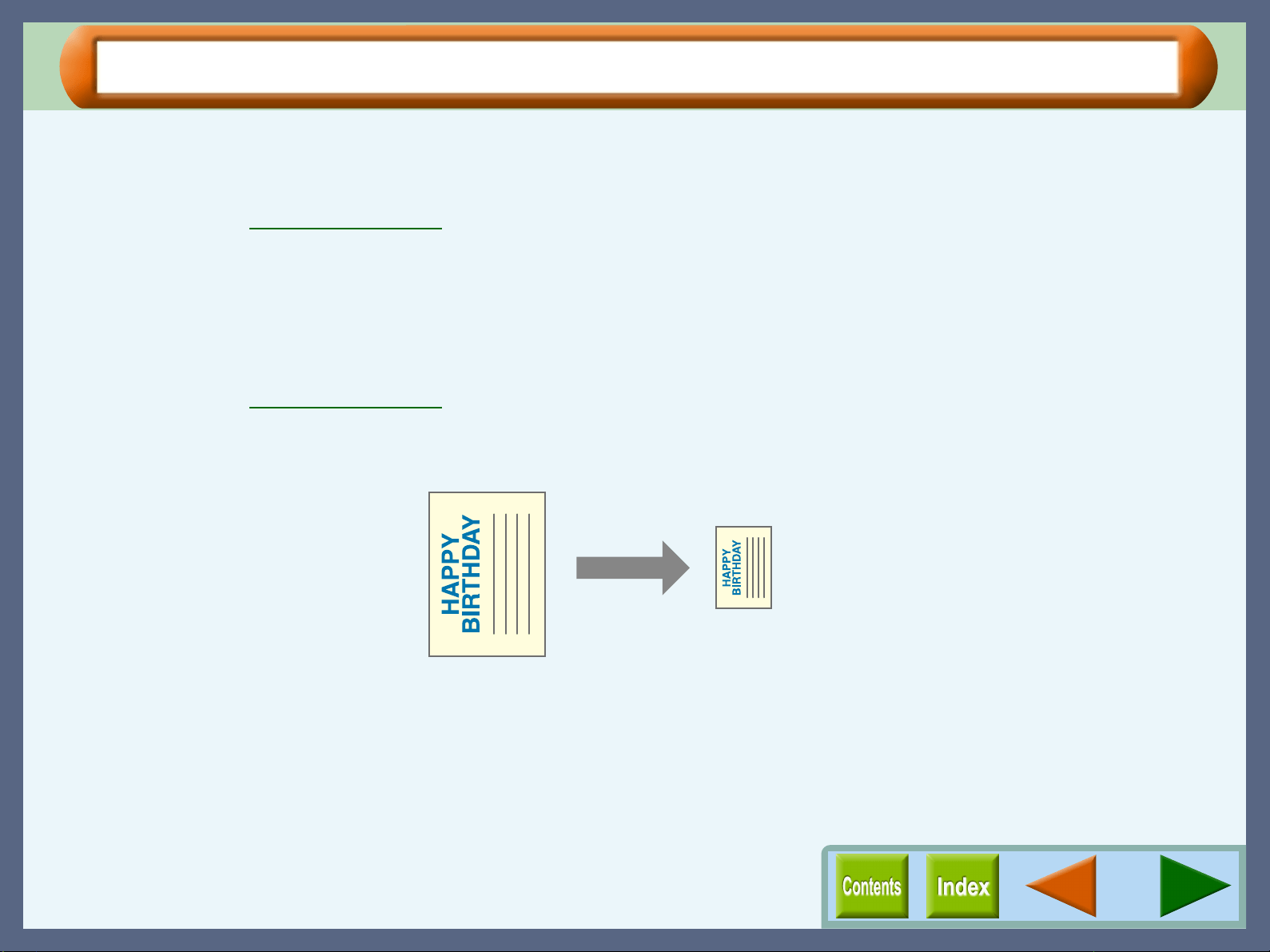
You can enlarge or reduce the size of your document from 25% to 200% in 1% increments.
To use this option, open the properties dialog box, select the "Paper" tab, and type a percentage, or click the
arrows in the "Zoom[%]" box to change the setting.
Reference: See the "Paper" Tab Settings for details on "Zoom[%]" option.
Automatic Zooming to the Loaded Paper
This printer driver can adjust the zoom ratio for printing according to the paper loaded in the printer.
To use this function, select the "Paper" tab from the properties dialog box of the printer driver, check the "Fit To Page"
selection box, and then select the document "Paper Size" from the drop-down list. Set the currently loaded paper size as
indicated under the "Fit To Paper Size" setting drop-down list.
Reference: See the "Paper" Tab Settings for information on the "Fit To Page" setting.
"Print A4 on:" A6
A4 size document (Paper Size)
A6 size paper (Fit To Paper Size)
Example: Printing a A4 size document on A6 size paper.
Print
24
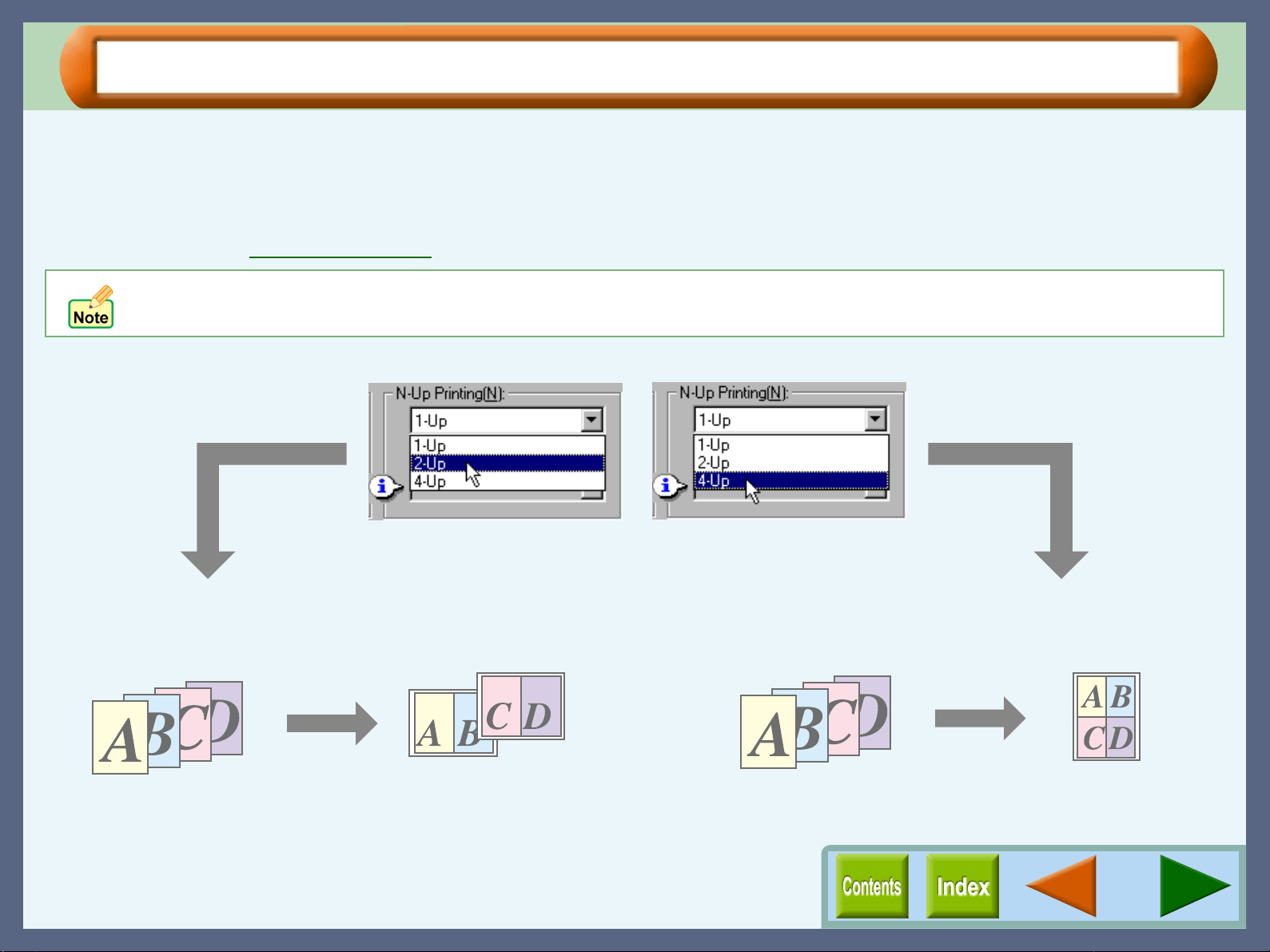
Printing Multiple Pages on One Page
This feature allows you to print two or four document pages onto a single page. To use this function, open the
properties dialog box, select "2-Up" or "4-Up" for "N-Up Printing" on the "Main" tab, and then select the same
paper size from the drop-down list of "Original Size" setting that has been selected for the document size
specified through your application.
Reference: See the "Main" Tab Settings for details on the "N-Up Printing" option.
"2-Up" Printing
"2-Up" printing places two pages of the document stack onto a
single printed page.
"4-Up" Printing
"4-Up" printing places four pages of the document stack onto
a single printed page.
By selecting the "N-Up Printing" option, the "Zoom[%]" function becomes disabled.
For "2-Up" printing For "4-Up" printing
Print
25
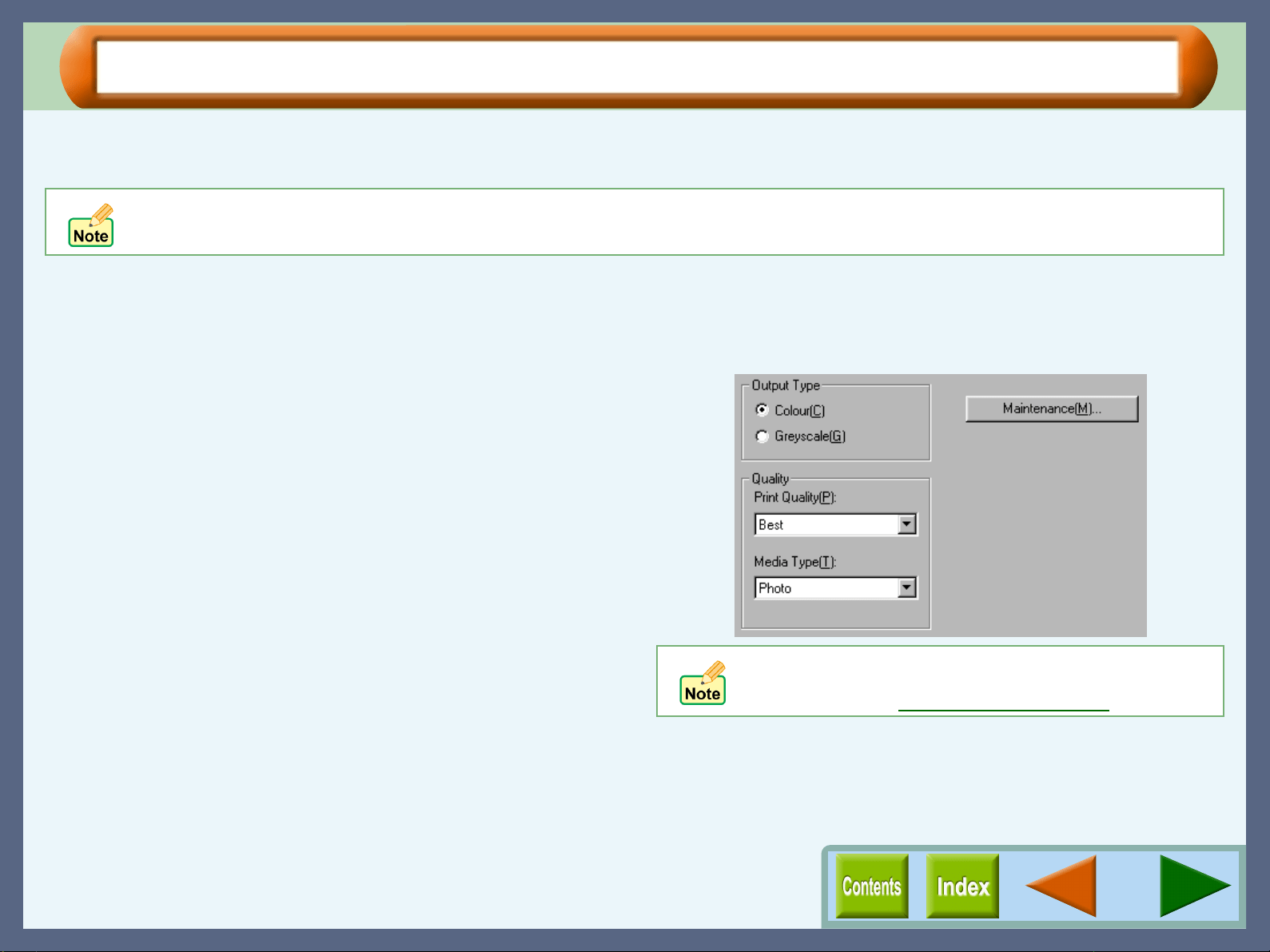
Printing a Photograph
To ensure pictures taken with a digital camera are printed clearly, use quality photo paper and follow the
instructions below.
1
11
1
Click the "Advanced" tab in the properties dialog
box, and check if the "Output Type" option is set to
"Colour".
2
22
2
In the "Quality" area, set the "Print Quality" option
to "Best".
3
33
3
In the "Quality" area, set the "Media Type" option to
"Photo".
The result of setting the preferences as shown from Step 1 to
Step 3 are displayed below.
When loading photo paper into the paper tray, insert the glossy side face down. When loading photo paper into the bypass tray,
insert the glossy side face up.
If required, you may adjust the image or colour balance
through clicking the "Output Quality" button. For
details, view the "Output Quality" Settings.
26
Print Status Window
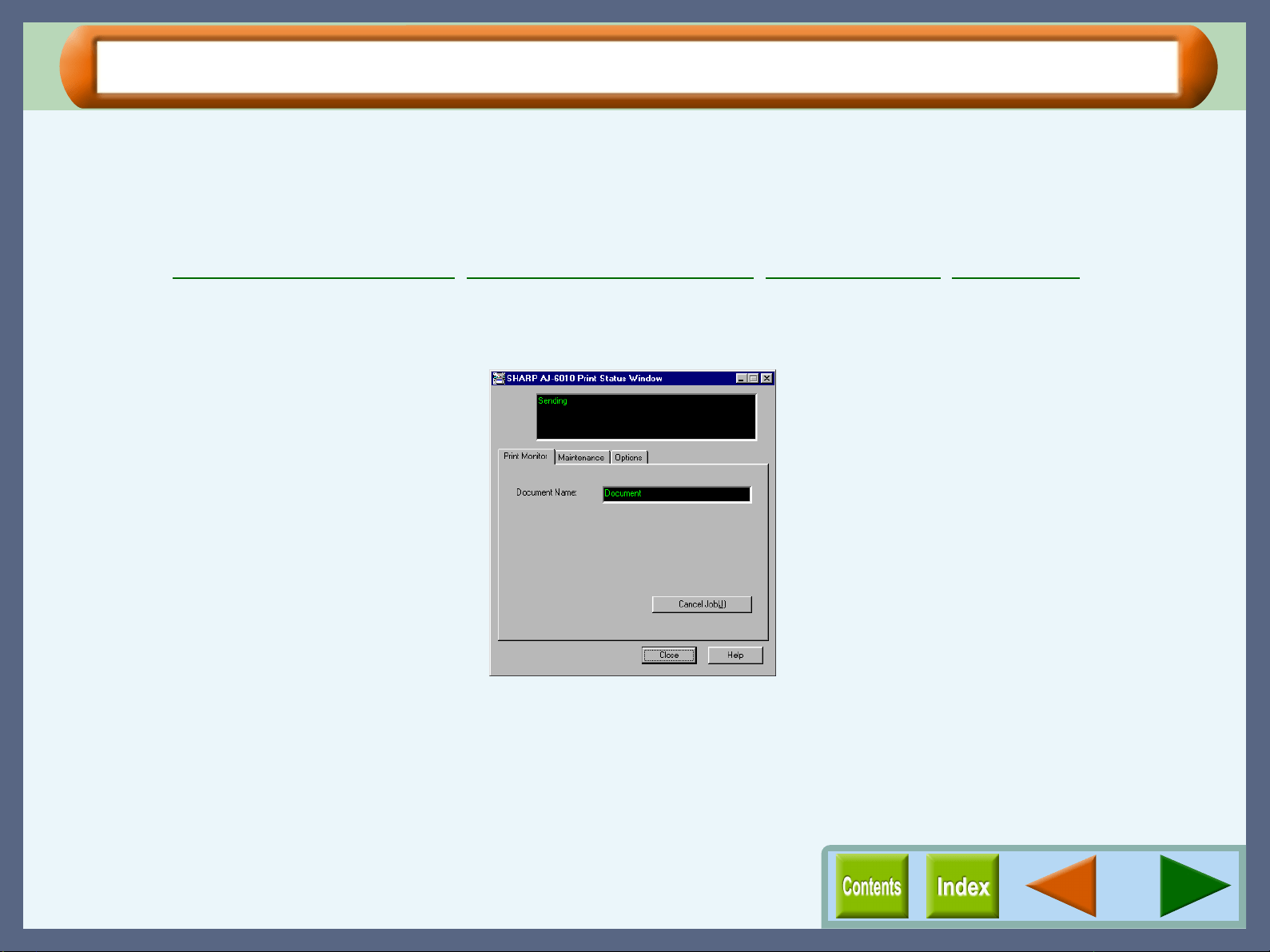
Outline of the Print Status Window
What is the Print Status Window?
The print status window is a program designed to show the remaining ink levels and current printer status including the
document name printing and error messages. It also controls head cleaning and head position adjustment.
The print status window contains status window and three tabs. The status window displays Normal, Warning and Fault
type messages.
Reference: Print Status Window Functions, Understanding Error Messages, "Maintenance" Tab, "Options" Tab
Starting the Print Status Window
The default setting of the print status window is to open automatically when printing starts.
To open the print status window while the printer is not working, select "Advanced" tab from the printer driver properties
dialog box, and then click the "Maintenance" button.
Print Status Window
27
Print Status Window Functions
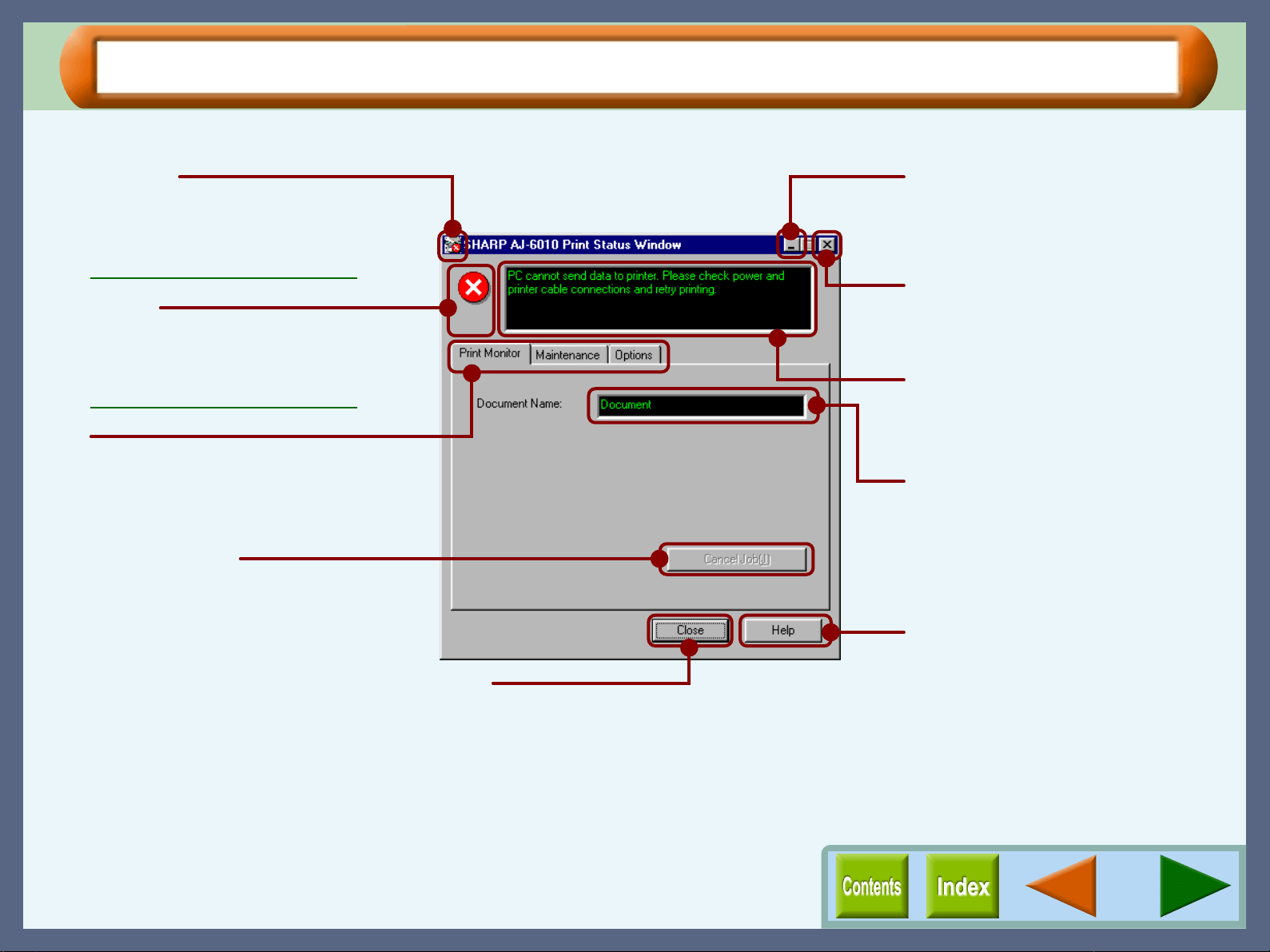
The functions of the print status window are shown below.
Program icon
This icon informs you of the print
status.
Reference:
Understanding Error Messages
Minimize button
Click this button to minimize the print
status window into the task bar.
Quit button
Click this button to quit the print
status window.
Status window
Provides details on the current
status of the print job.
Document Name
Displays the name of the active print
job.
"Help" button
Click this button to display help file
for the print status window.
Status icon
This icon informs you of the print
status.
Reference:
Understanding Error Messages
Tab
Index which allows you to switch
between the three setup screens.
"Cancel Job" button
Click this button during printing to
cancel the job that is currently being
executed.
"Close" button
Click this button to close the print
status window.
Print Status Window
28
Understanding Error Messages
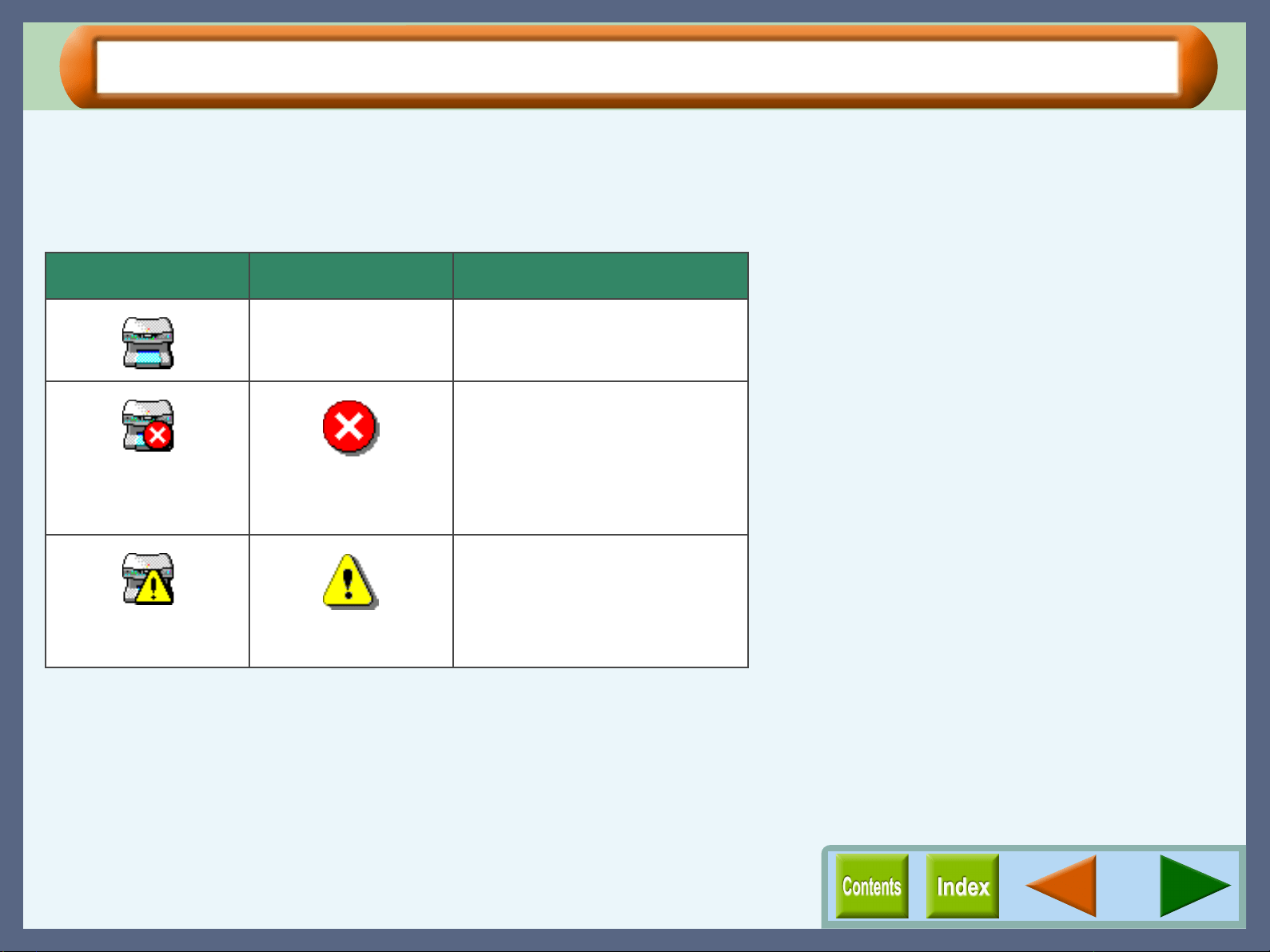
The status icon and program icon provide you with information on printer status.
Understanding the Status and Program Icon
Refer to the table below for an explanation of the printer condition.
Program icon Status icon Condition
None Normal
Fault
Printing has stopped because of a
problem.
Follow the instruction on the status
window to solve the problem
immediately.
Warning
A problem requires your attention.
Follow the instruction on the status
window to solve the problem as
soon as possible.
Print Status Window
29
"Maintenance" Tab
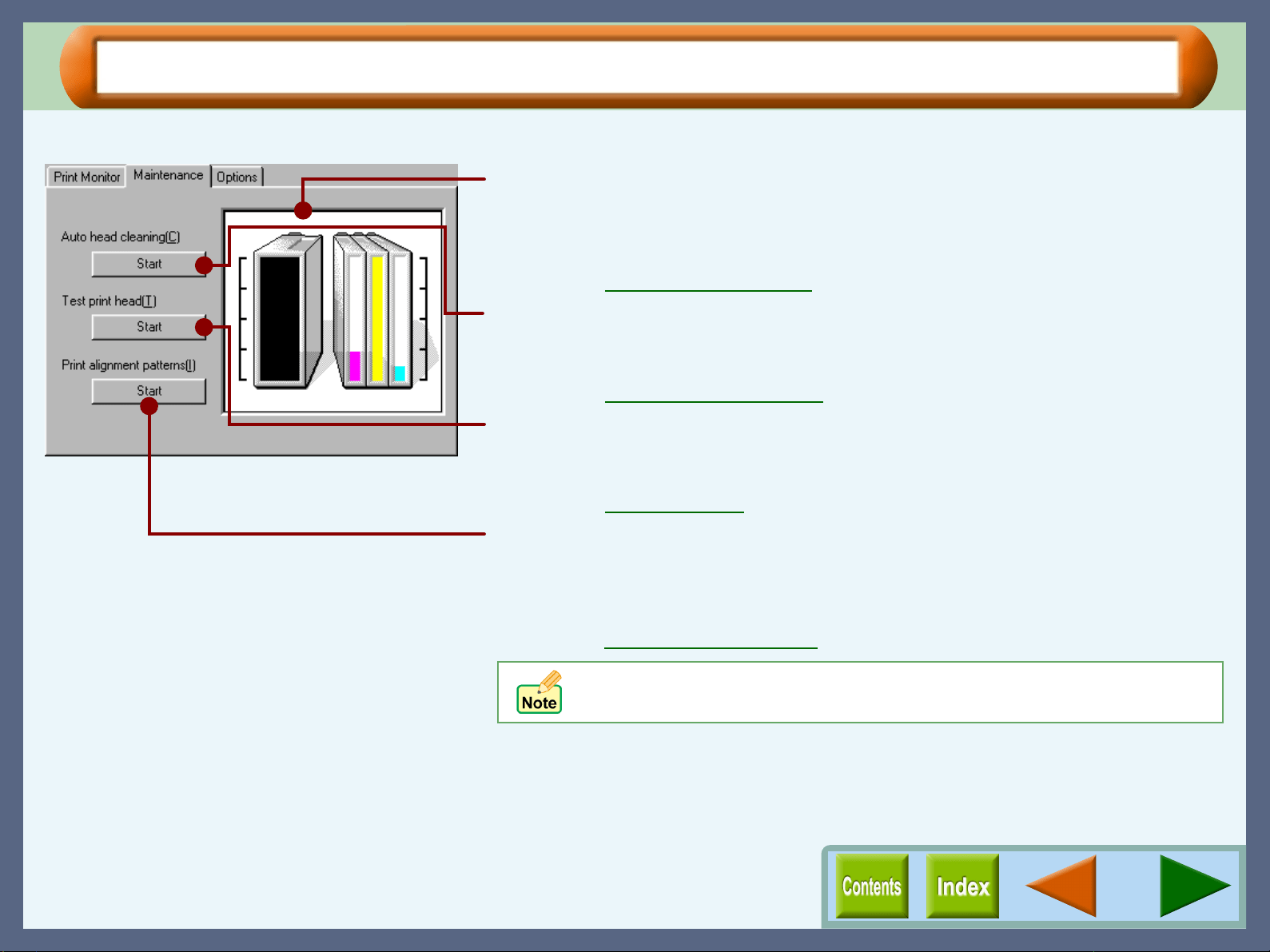
Click this tab to conduct print head maintenance, and to check the amount of available ink.
Remaining ink indicator window
This window indicates the level of ink remaining in the printer. A message
appears when the ink tank is nearly empty. Prepare a new ink tank and replace
it when required.
Reference: Changing the Ink Tank
Auto head cleaning
Click the "Start" button to initiate cleaning of the print head. After the dialog box
for selecting which print head to clean appears, click the "OK" button.
Reference: Cleaning the Print Head
Test print head
Click the "Start" button to print a test page which lets you check the print
quality. After the confirmation dialog box appears, click the "OK" button.
Reference: Test Print Head
Print alignment patterns
Click the "Start" button to print a test chart to align the print head. After the
confirmation dialog box appears, click the "OK" button. The "Align print head"
dialog box opens and a test chart is printed.
Reference: Aligning the Print Head
When cleaning and aligning the print head, the printer cannot perform
other operations.
Print Status Window
30
"Options" Tab
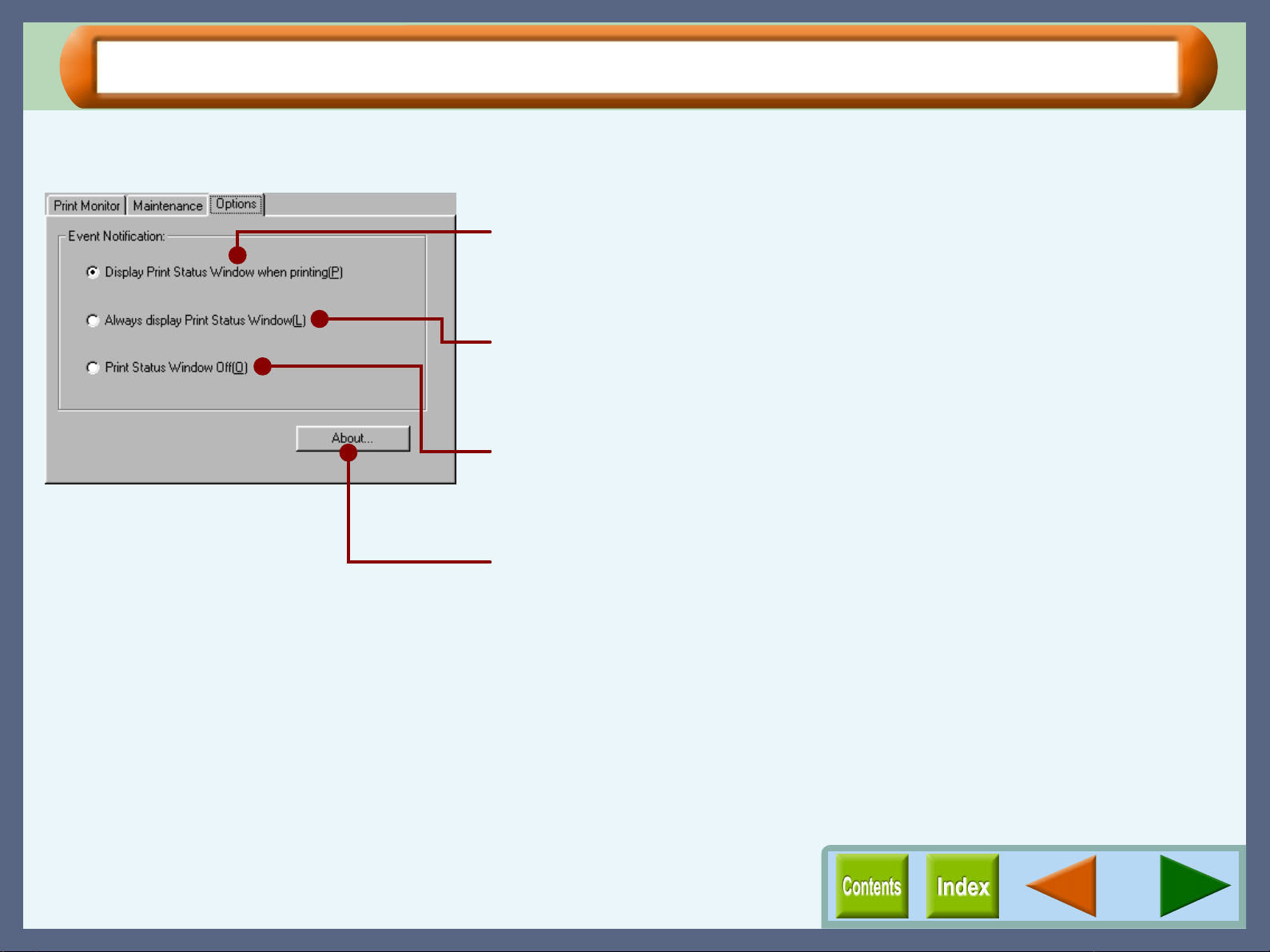
Allows you to select when to display the print status window.
Select one option from the three shown below.
Display Print Status Window when printing
The print status window will be displayed automatically at the start of the print
job. It will close automatically when the print job is finished.
Always display Print Status Window
The print status window will be displayed all the time. It will stay open even
after the print job is finished.
Print Status Window Off
The print status window will not be displayed even while printing if this option is
selected.
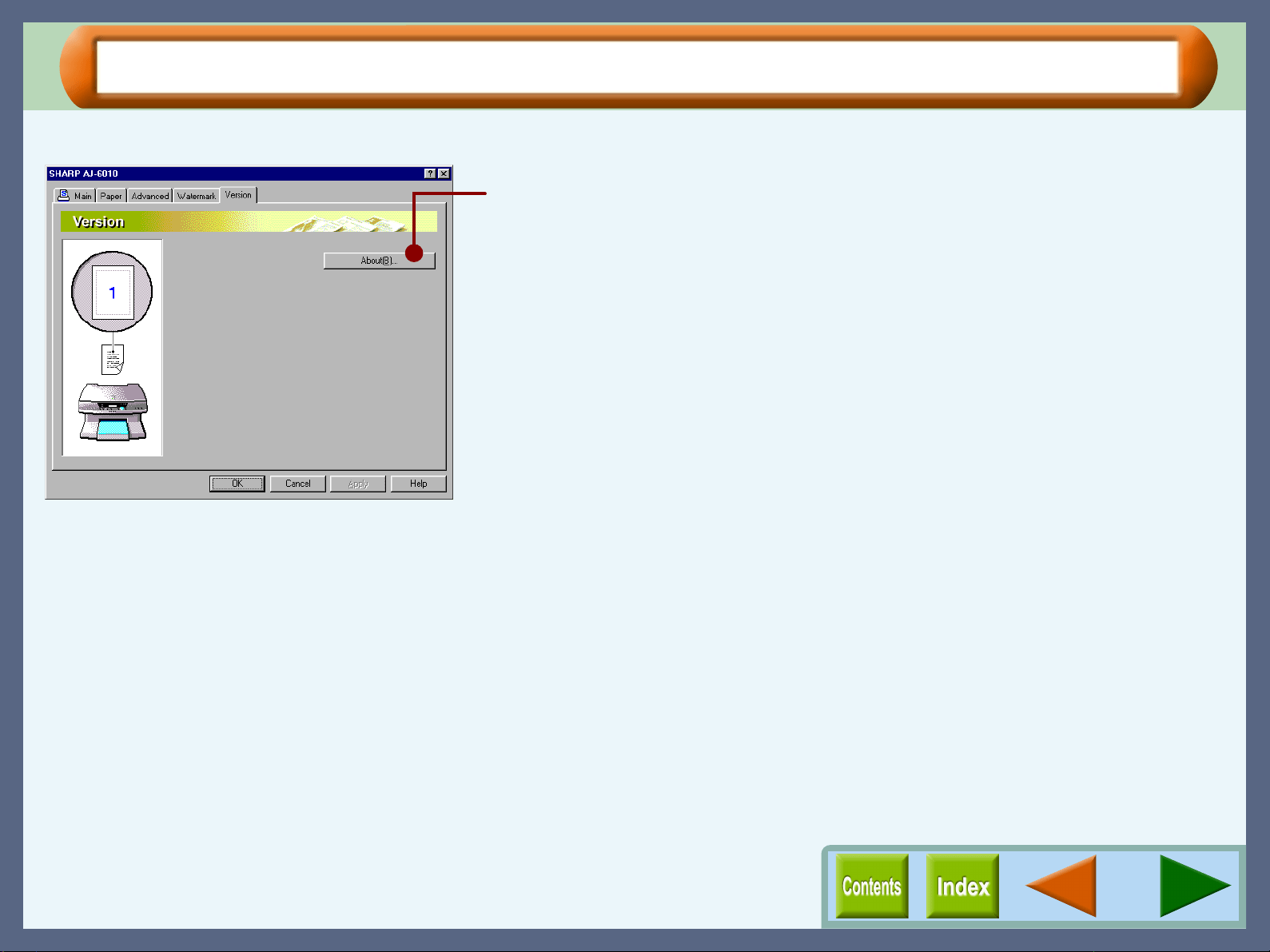
"About" button
Click for details on the version of the print status window.
31
Sharing Printer
Sharing the Printer using Windows Networking
Using Windows networking, it is very easy to share the printer.
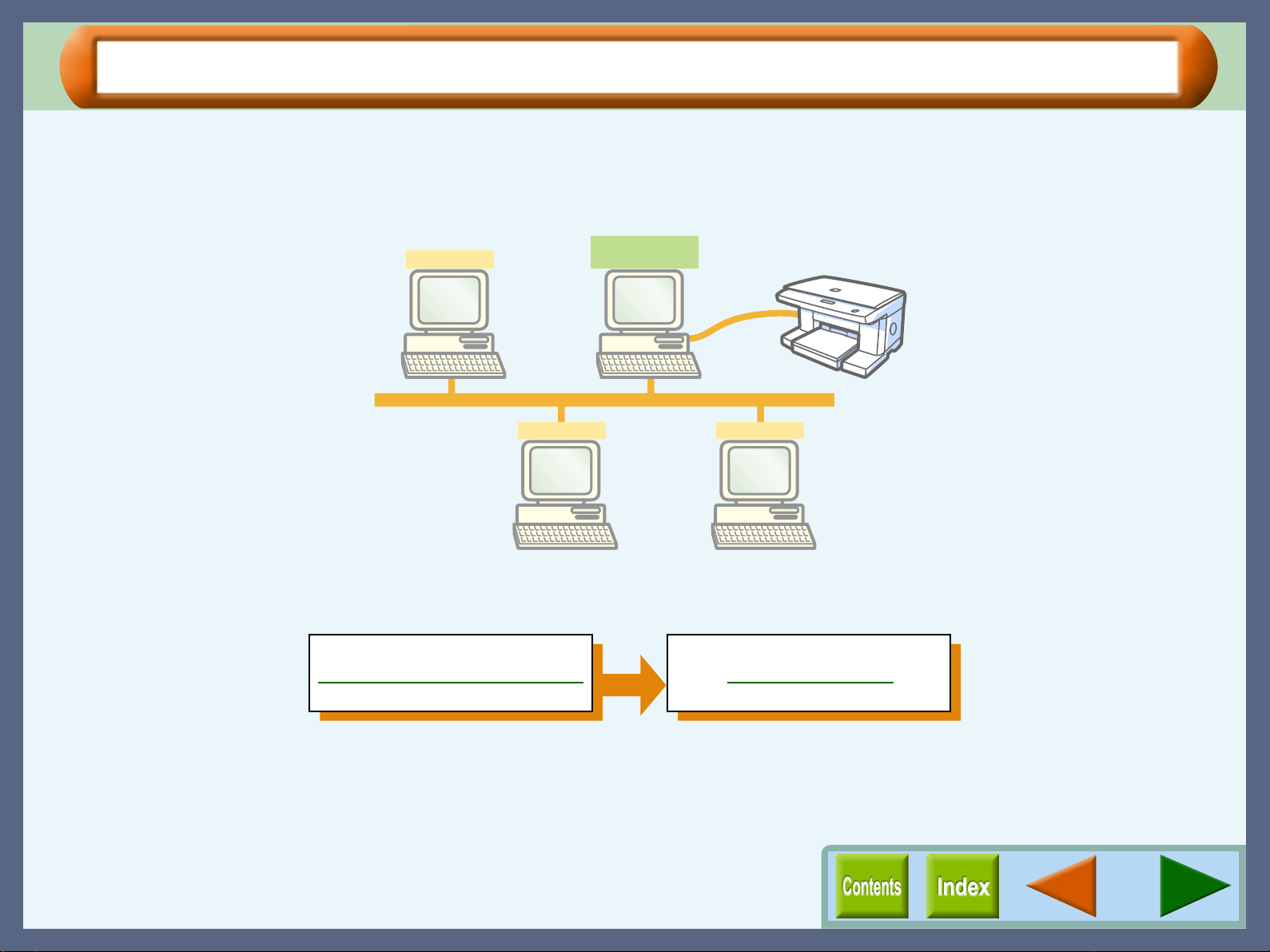
Rather than using a network server, we will explain how to connect the printer using a Peer To Peer connection.
Our explanation, shown below, is based on the following assumptions; there is an established network in place.
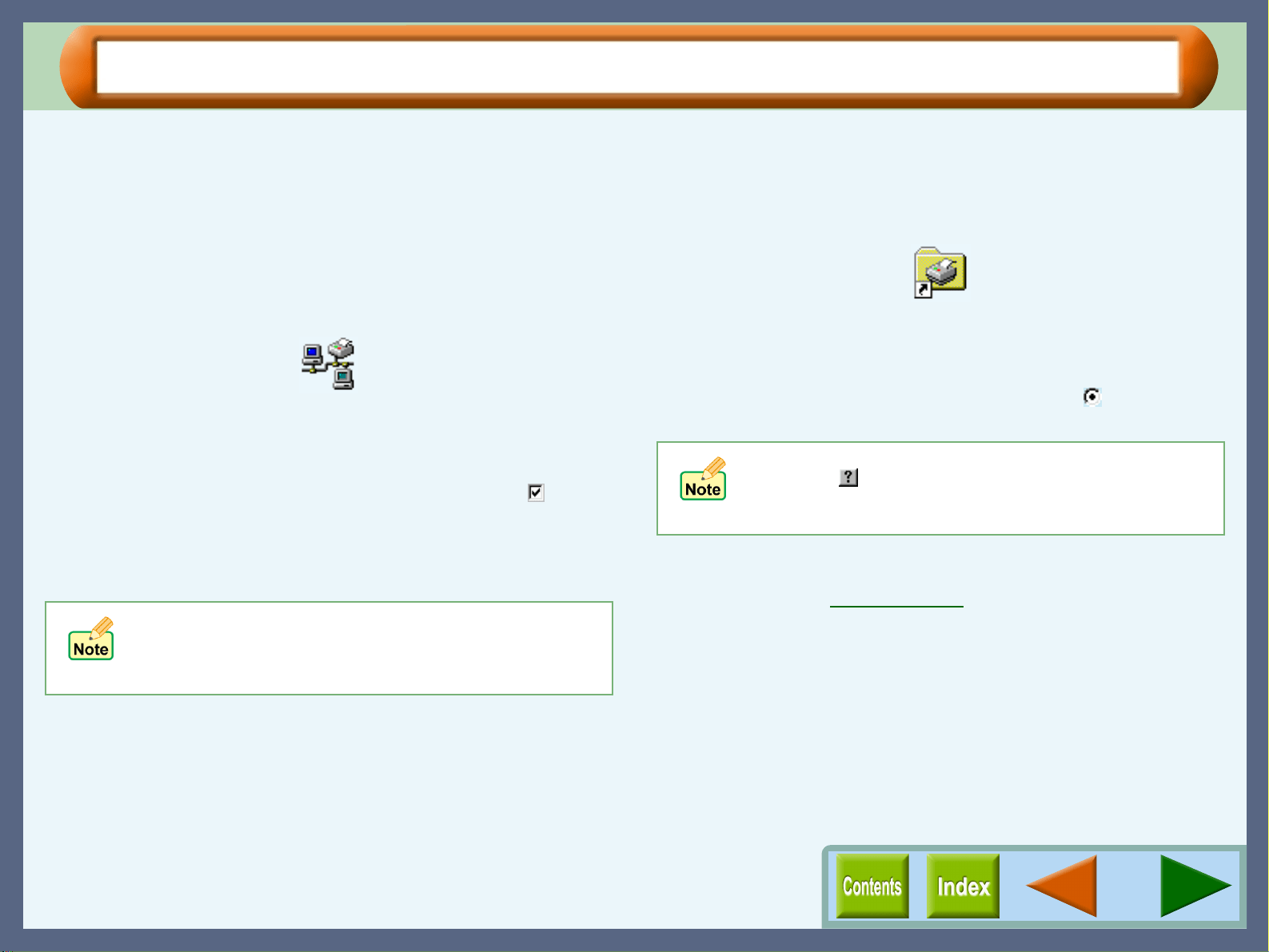
With Peer To Peer connections, the print server is a client to which a printer is directly connected, and a "Client"
is any computer, which is connected to the same network.
Shared printer
Client
Client Client
Client with
shared printer
Shared Printer Settings Client Settings
Sharing Printer
32
Shared Printer Settings
For sharing a printer on a Windows operating system, follow the setup procedures below.
On the computer to which the printer is directly connected
1
11
1
Click the "Start" button, select "Settings", and then
click "Control Panel".
2
22
2
Double-click the "Network" icon.
The "Network" dialog box will appear.
3
33
3
Click the "File and Print Sharing" button.
4
44
4
Enable "I want to be able to allow others to print to
my printer(s)." by clicking the check box ( ), and
then click "OK" button.
5
55
5
Click the "OK" button in the "Network" dialog box.
6
66
6
Double-click the printer icon in the control panel.
7
77
7
Right-click the "SHARP AJ-6010" printer driver
icon, and select "Sharing" from the pop-up menu.
8
88
8
Enable the check button for sharing ( ), input your
preferences, and click "OK" button.
You have completed the setup procedures for the shared
printer.
Reference:Client Settings
If a message appears asking you to restart the
computer, click the "Yes" button and restart the
computer. Then, open the printer folder and continue
the setup procedures from Step 6.
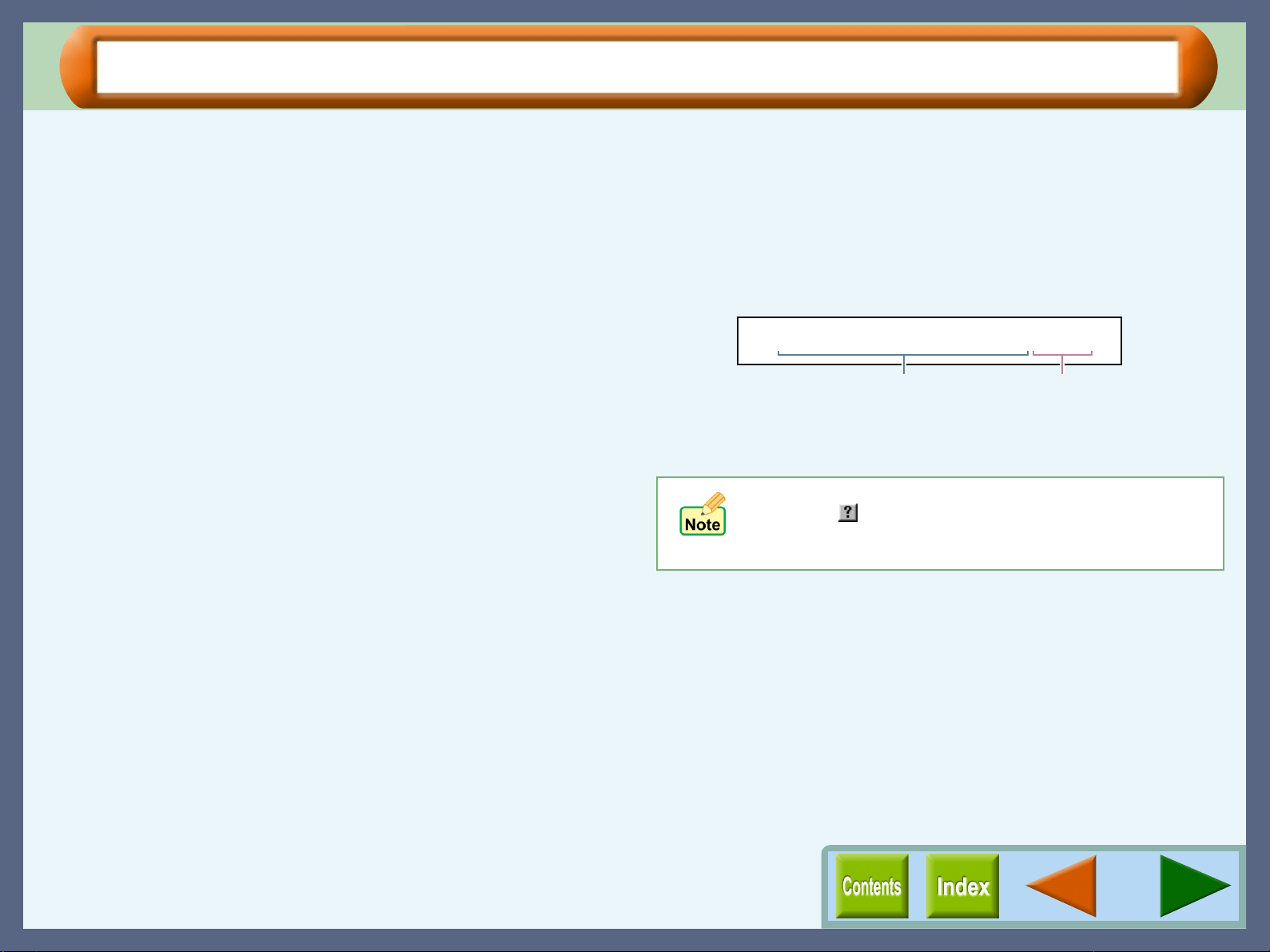
For information on the various preferences available,
click the ( ) button located at the top-right of the
dialog box. Then, click the option you want to know
more about, for a pop-up explanation to appear.
Sharing Printer
33
Client Settings
After installing the printer driver on the client computer, follow the setup procedures below. For details on
installing the printer driver, refer to "INSTALLING THE PRINTER DRIVER" in the Setup Guide and Operation
Manual.
1
11
1
Click the "Start" button, select "Settings", and then
click "Printers".
2
22
2
Right-click the "SHARP AJ-6010" printer driver
icon, and select "Properties" from the pop-up
menu.
3
33
3
Click the "Details" tab, and click the "Add Port"
button.
4
44
4
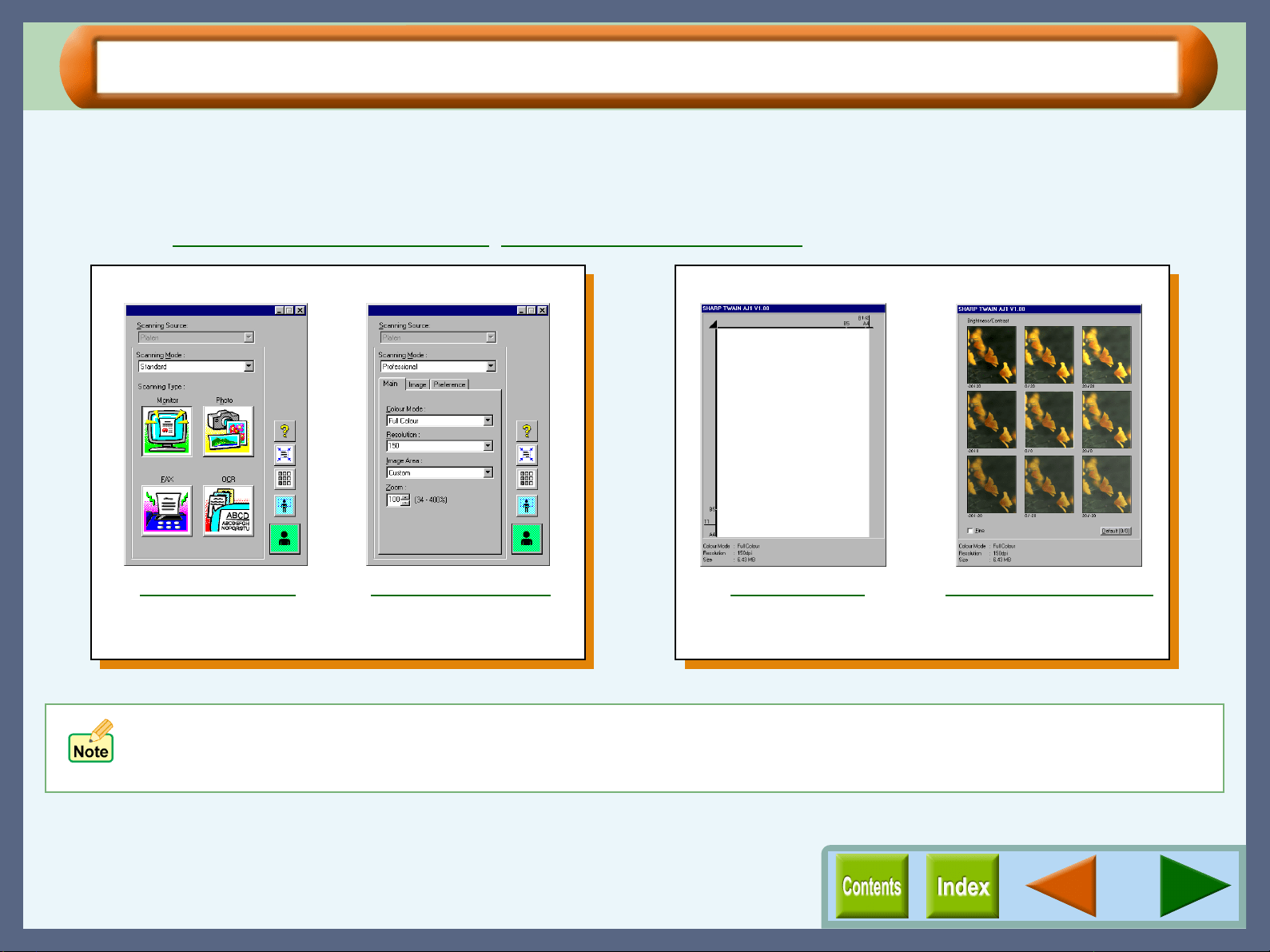
Type the port name as shown below or click
"Browse" button and double-click Server's
computer name and then click "Sharp".
5
55
5
Input your options, and click the "OK" button.
For information on the various preferences available,
click the ( ) button located at the top-right of the
dialog box. Then, click the option you want to know
more about, for a pop-up explanation to appear.
\\Client with shared printer\Sharp
Computer name
Printer name
34
Scanning
Outline of the SHARP TWAIN Driver
What is the SHARP TWAIN Driver?
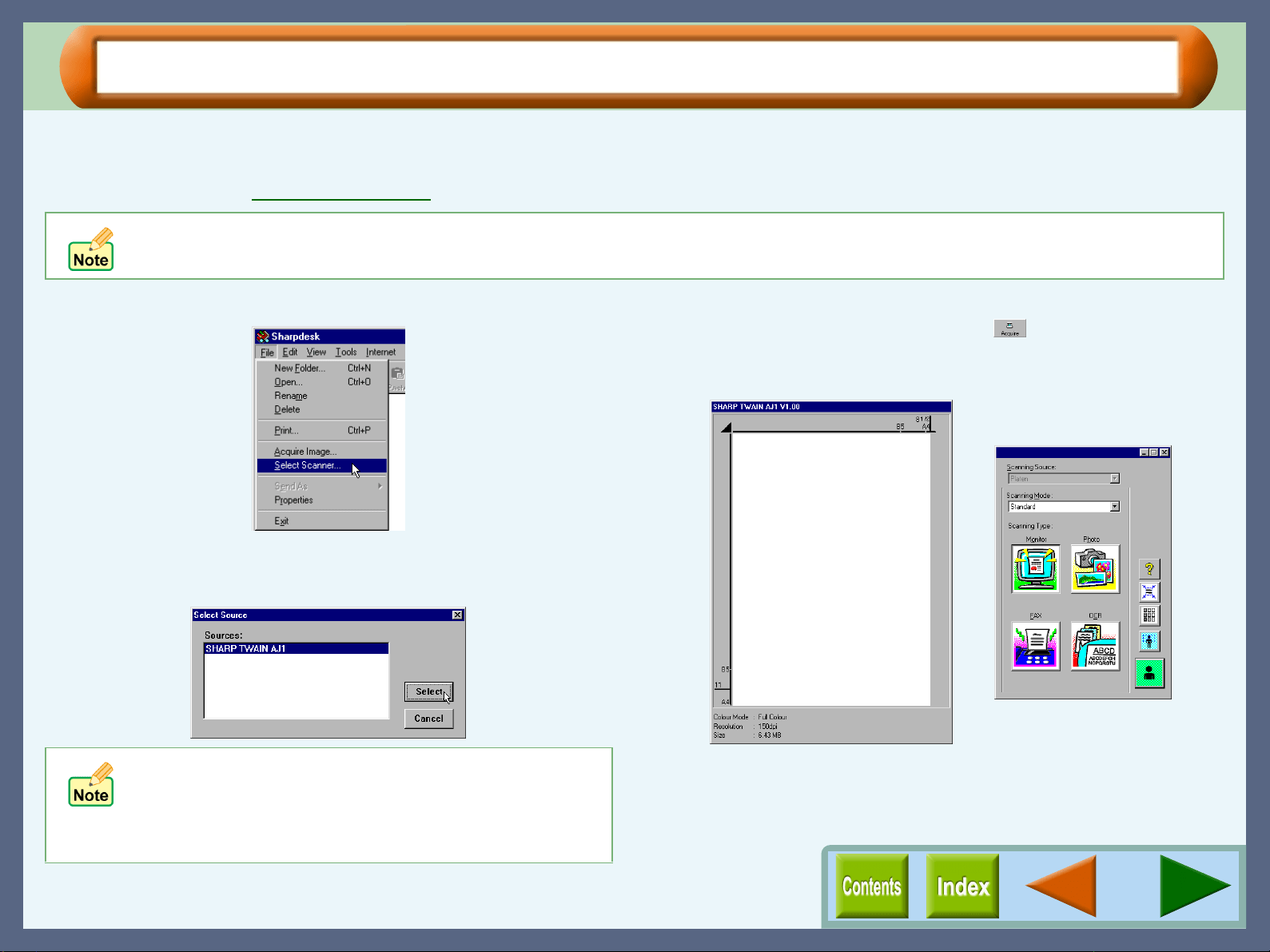
The SHARP TWAIN driver conforms to TWAIN, the industry standard, making it compatible with a variety of TWAIN-
compliant applications. This driver consists of "Set-up" and "Display image" screens, both of which have two screens
respectively as shown below.
Reference: Starting the SHARP TWAIN Driver, SHARP TWAIN Driver Functions
Set-up screen Display image screen
"Standard" screen
The four buttons enables you
to set the scan type easily.
Preview screen
Displays preview image,
allowing you to set the
scanning area.
Variation preview screen
Displays nine different preview
images, allowing you to set
"Brightness" and "Contrast".
"Professional" screen
Use three tabs for scan
setting in detail.
Click any of the screens displayed above to jump to its detailed description.
TWAIN is an industry standard for interface of image data processing devices including scanners. By installing a TWAIN driver
onto your computer, you can scan and work with images using a variety of TWAIN-compliant applications. This allows you not
only to scan images efficiently, but also to eliminate any necessity of switching among various image acquiring applications and
plug-in drivers depending on your job.
Scanning
35
Starting the SHARP TWAIN Driver
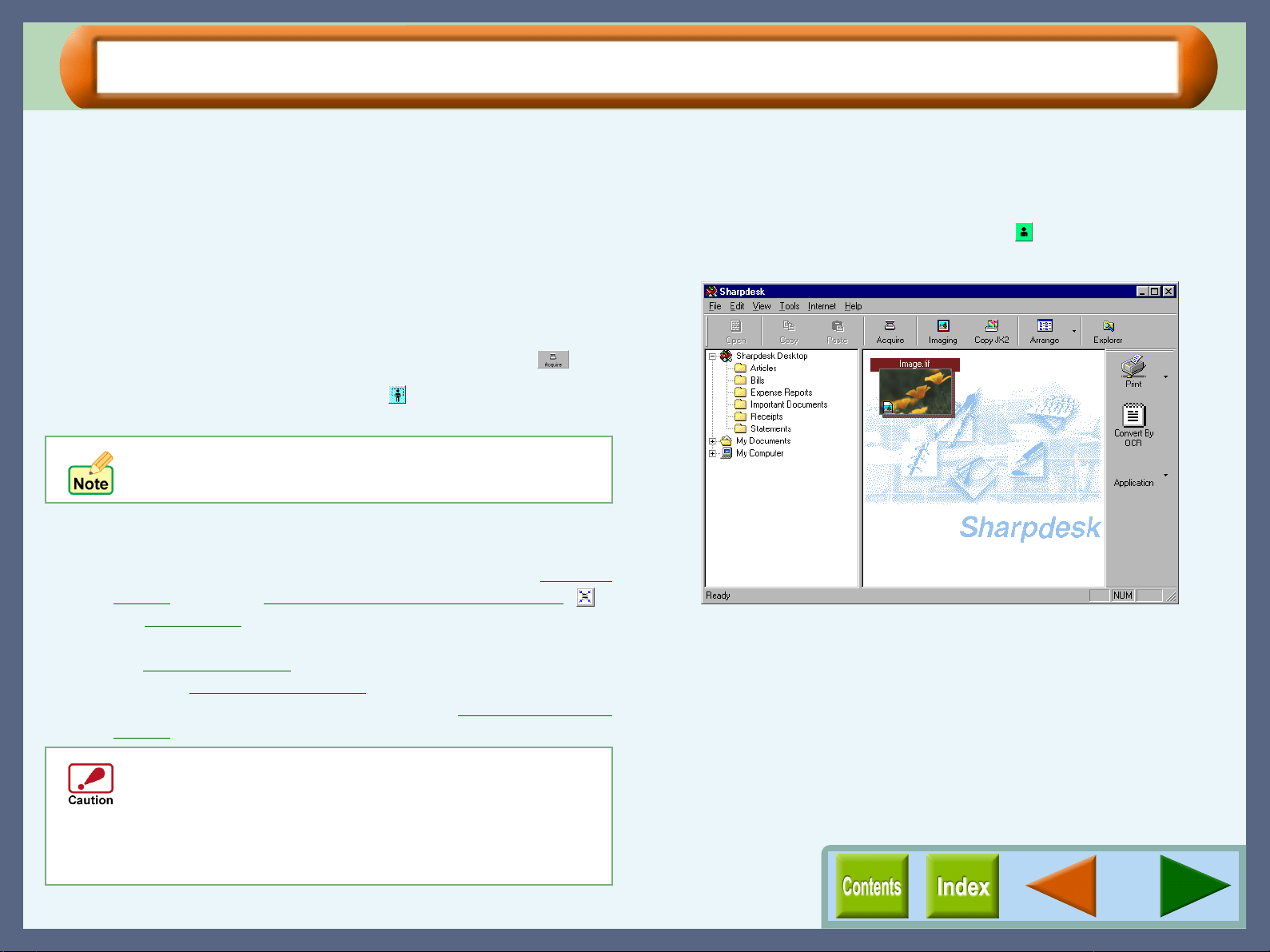
Follow the steps shown below to run the SHARP TWAIN setup screen. As an example, this instruction is given
using Sharpdesk as a data processing application. Start Sharpdesk first.
Reference: Refer to Scanning an Image for the detail of scanning process.
1
11
1
Click the "File" menu and select "Select Scanner".
2
22
2
Select "SHARP TWAIN AJ1", and click the "Select"
button.
3
33
3
Select "Acquire Image" from the "File" menu, or
click the "Acquire" button ( ) to display the
SHARP TWAIN driver.
The SHARP TWAIN driver will appear.
The method for starting the SHARP TWAIN driver differs depending on the type of application. Refer to the manual or the help
file of your application.
If you use more than one scanning device, select the
scanner you want to use through the application. The
method for accessing the "Select Scanner" option,
depends upon the application. For more information,
refer to the manual or the help file of your application.
Scanning
36
Scanning an Image
Below is a step-by-step guide for acquiring a scanned image to the Sharpdesk desktop screen using Sharpdesk.
It is assumed that the SHARP TWAIN driver has been installed without changing the default setting, and
Sharpdesk is running.
1
11
1
Place a document on the original table.
Reference:For information on setting a document for
scanning, refer to "MAKING COPIES" in
the Setup Guide and Operation Manual.
2
22
2
From Sharpdesk, select "Acquire Image" from the
"File" menu, or click the "Acquire" button ( ).
3
33
3
Click the "Preview" button ( ).
The preview image will appear.
4
44
4
Specify the scanning area, and set the scan
preferences.
To specify the scanning area, follow the steps on the Preview
Screen, or use the "Auto Scan Area Judgement" button (),
or "Image Area
".
To set the scan preferences, use the four buttons displayed on
the "Standard" screen
. To set your scan preferences in detail,
go to the "Professional" screen
. To adjust the brightness and
contrast of the scanned document, refer to Variation Preview
Screen.
5
55
5
Click the "Scanning" button ( ) after setting your
preferences.
After scanning, the image data will appear as a new file in
Sharpdesk.
If the rotation or angle of the image is different, reset
the document, and click the "Preview" button again.
Setting a large area with full colour together with a high
resolution setting, makes the data size large, resulting
in extended scanning times. It is recommended to set
the scanning preferences depending on the type of
original to be scanned, i.e., Text, Text/Graphics,
Photograph, Colour, Black & White.
Scanning
37
SHARP TWAIN Driver Functions
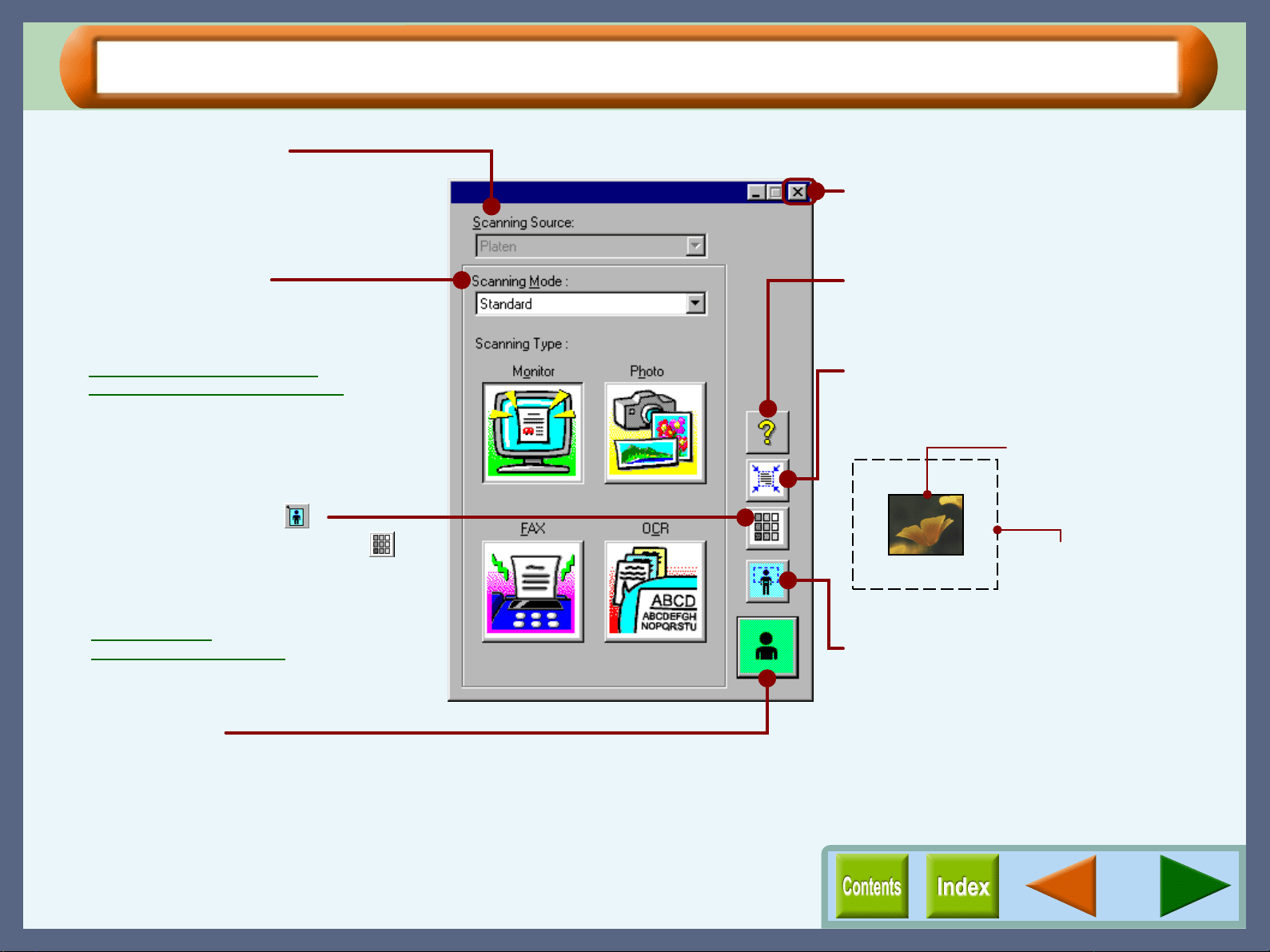
"Scanning Source" menu
For this model, this setting is fixed to "Platen".
Quit button
Click this button to quit the SHARP TWAIN
driver.
"Help" button
Click to display the help file for the SHARP
TWAIN driver.
"Auto Scan Area Judgement" button
Click when the preview screen is displayed to
automatically set the scanning area.
"Preview" button
Previews the document.
"Scanning" button
Click to scan a document or image according
to your preferences. Before clicking the
"Scanning" button, check if your preferences
are set correctly.
"Scanning Mode" menu
Switch the scanning mode between the
"Standard" and "Professional" screen.
Reference:
"Standard" Scan Preferences
"Professional" Scan Preferences
"Preview Screen" button ( )
"Variation Preview Screen" button ( )
Switch the display between the Preview
Screen and Variation Preview Screen.
Reference:
Preview Screen
Variation Preview Screen
Click the "Auto Scan Area
Judgement" button to adjust
the scanning area
automatically.
Entire preview screen
Scanning
38
"Standard" Scan Preferences
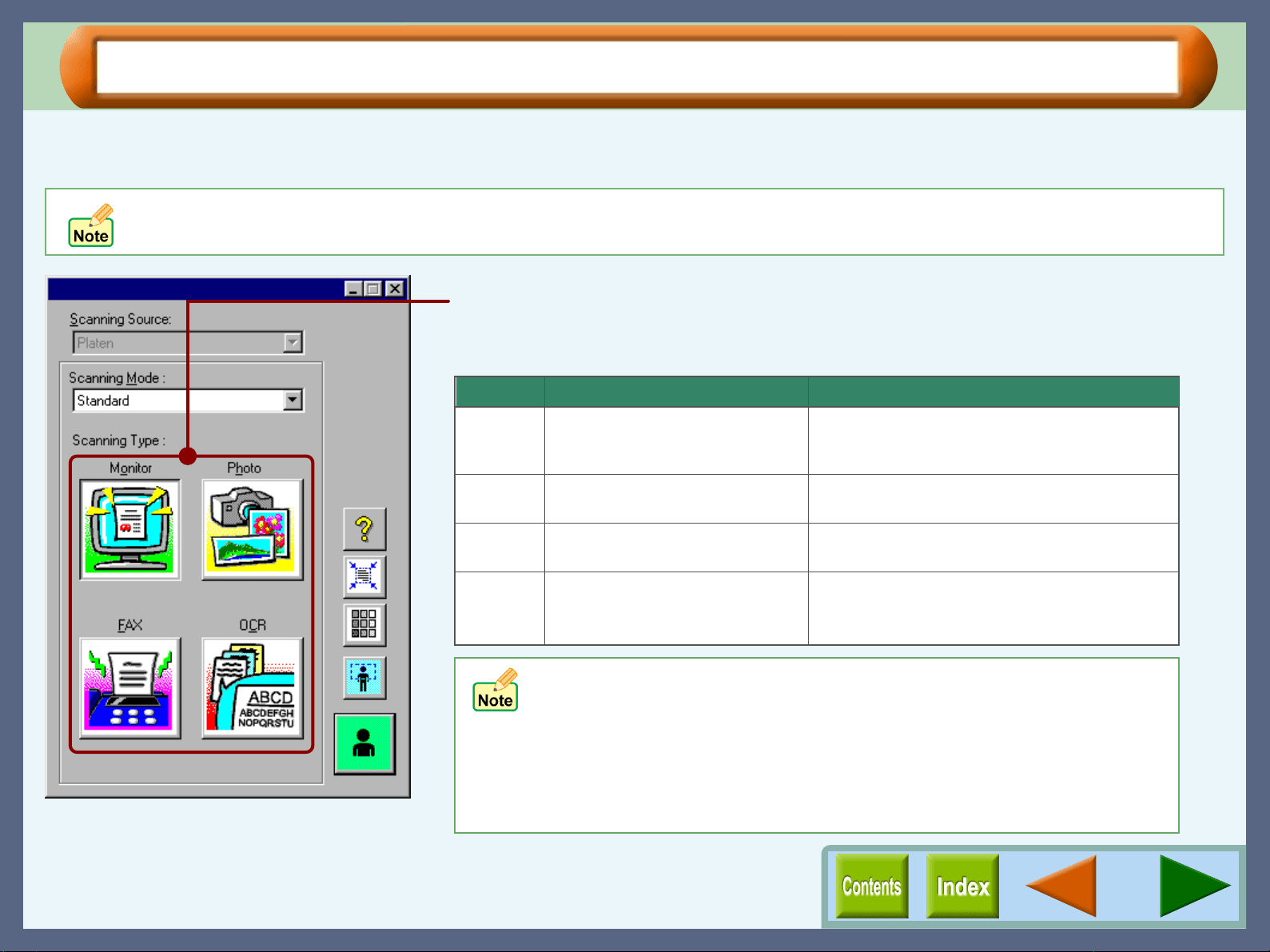
By default, four scan settings are specified for the four buttons on this screen respectively. You can access the
most frequently used settings with a simple click.
The following settings for scanning through the "Standard" screen are fixed.
Colour Matching: For Printer, Interactive: On, Zoom: 100%, Reverse: Off, Auto Contrast/Brightness Adjustment: On, Edge: Soft
"Scanning Type" button
Select from "Monitor", "Photo", "FAX" , and "OCR" button.
Default settings and possible usage for each button are shown below.
• The preferences for the four buttons listed above can be altered on the
"Professional" screen. Click the "Preference" tab and then click the
"Standard Mode Setting" button.
• When the "Auto Threshold" setting is activated, the preview image may
be different from the scanned image.
• When the "Auto Threshold" setting is deactivated, the "B/W Threshold"
will be 128.
Button
Monitor
Photo
FAX
OCR
Possible usage
Sets preferences for a scanned item to be
displayed as desktop image, or showed on-
screen.
Sets preferences to scan and print a
picture, image, etc.
Sets preferences to send a pamphlet,
catalogue, etc, by FAX after scanning.
Sets preferences for a scanned item to be
displayed in text data format.
Default setting
Colour Mode: Full Colour
Resolution: 75dpi
Colour Mode: Full Colour
Resolution: 200dpi
Colour Mode: Greyscale
Resolution: 200dpi
Colour Mode: Mono 2 gradation
Resolution: 300dpi
Auto Threshold: On
Scanning
39
"Professional" Scan Preferences ("Main" Tab) (part 1)
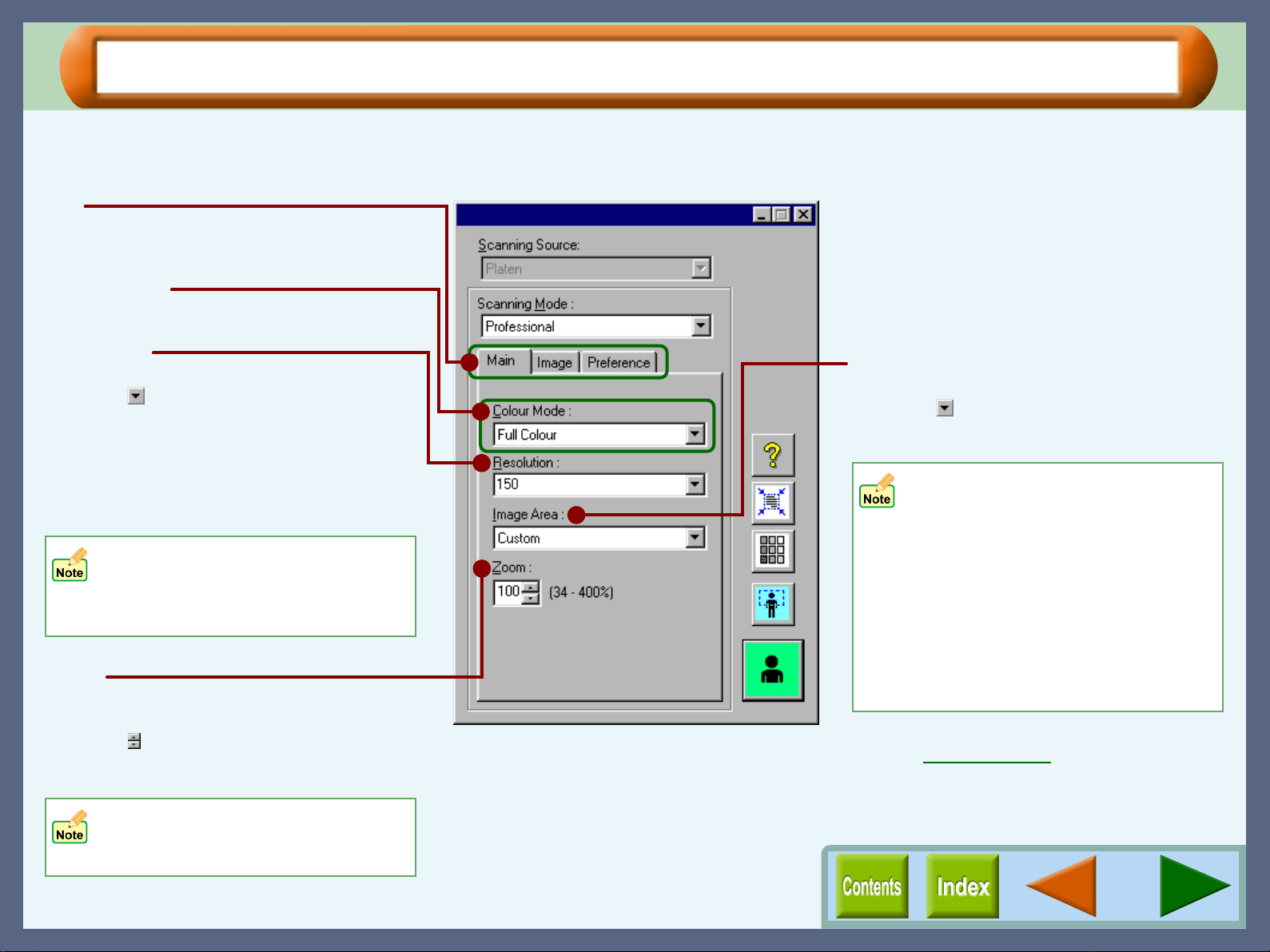
By setting the "Scanning Mode" menu to "Professional", the "Professional" screen will be displayed. Use this
screen to specify more detailed settings than the "Standard" screen.
Colour Mode
Use to set the colour mode for scanning.
• When you select "Custom", specify
the scanning area by dragging the
preferred area.
(Up to 21.6cm x 29.8cm)
• The available values vary
depending on the setting for
"Resolution" and "Zoom".
Example:
With "Resolution":9600dpi, "Zoom":100%,
the maximum scanning area is 4.9cm x
4.9cm.
When you change the value for
"Resolution" while "Zoom" is
specified to other than 100%, a
warning message will appear.
The available values vary depending
on the specified value for "Resolution"
and the size of the scanning area.
On the above screen, click on options shown in
the green boxes to make additional changes.
Resolution
Use to set the scan resolution.
Click the ( ) button, and select from "75",
"150", "300", "600", or input the required
figure into the box. (50dpi - 9600dpi)
The available values vary depending on the
size of the scanning area. If you want to scan
with high resolution, set the scanning area as
small as possible.
Zoom
Maximize/Minimize the image to be scanned
without changing the resolution setting.
Click the ( ) button to increase or decrease
the setting figure, or input the required figure
into the box provided.
Image Area
Use to specify the scanning area.
Click the ( ) button, and select the size from
"A4", "B5", "Letter", "Post card" and
"Custom".
Reference:
Refer to Preview Screen for more information
on setting the scanning area.
Tab
Index which allows you to switch between the
three setup screens.

Scanning
40
"Professional" Scan Preferences ("Main" Tab) (part 2)
Colour Mode
Setting Explanation Possible usage
Full Colour Scans a document according to the computer's ability to
display 16,770,000 colours (each containing 256
individual tones). When using a computer that can
display 65,000 colours or more, colours closely
resembling those shown in the document will be
selected.
Select this option when working with photographs or documents that
require professional results.
256 Colour Scans a document as image data using 256 colours of
16,770,000 available colours of a computer.
Select this option when you send the data through the Internet, as
the size of 256 colour data is smaller than full colour data.
Greyscale Makes a greyscale image. Produces an image like a
black and white photograph, in 256 levels.
Select this option when you send a document, which has
photograph or illustration such as pamphlets or catalogues, through
facsimile.
Mono Diffusion Scans a document using black and white, creating a half
tone image.
Select this option when you scan the originals containing the shaded
drawings. This option is also useful when you print out the scanned
data in monochrome, because the file size is small.
Mono 2 gradation Scans a document into black and white using the
threshold set on "Image" tab.
Select this option when you scan an image, which consists of
characters and line art. This option is also useful when you need to
recognise characters to use OCR software.
Scanning
41
"Professional" Scan Preferences ("Image" Tab) (part 1)
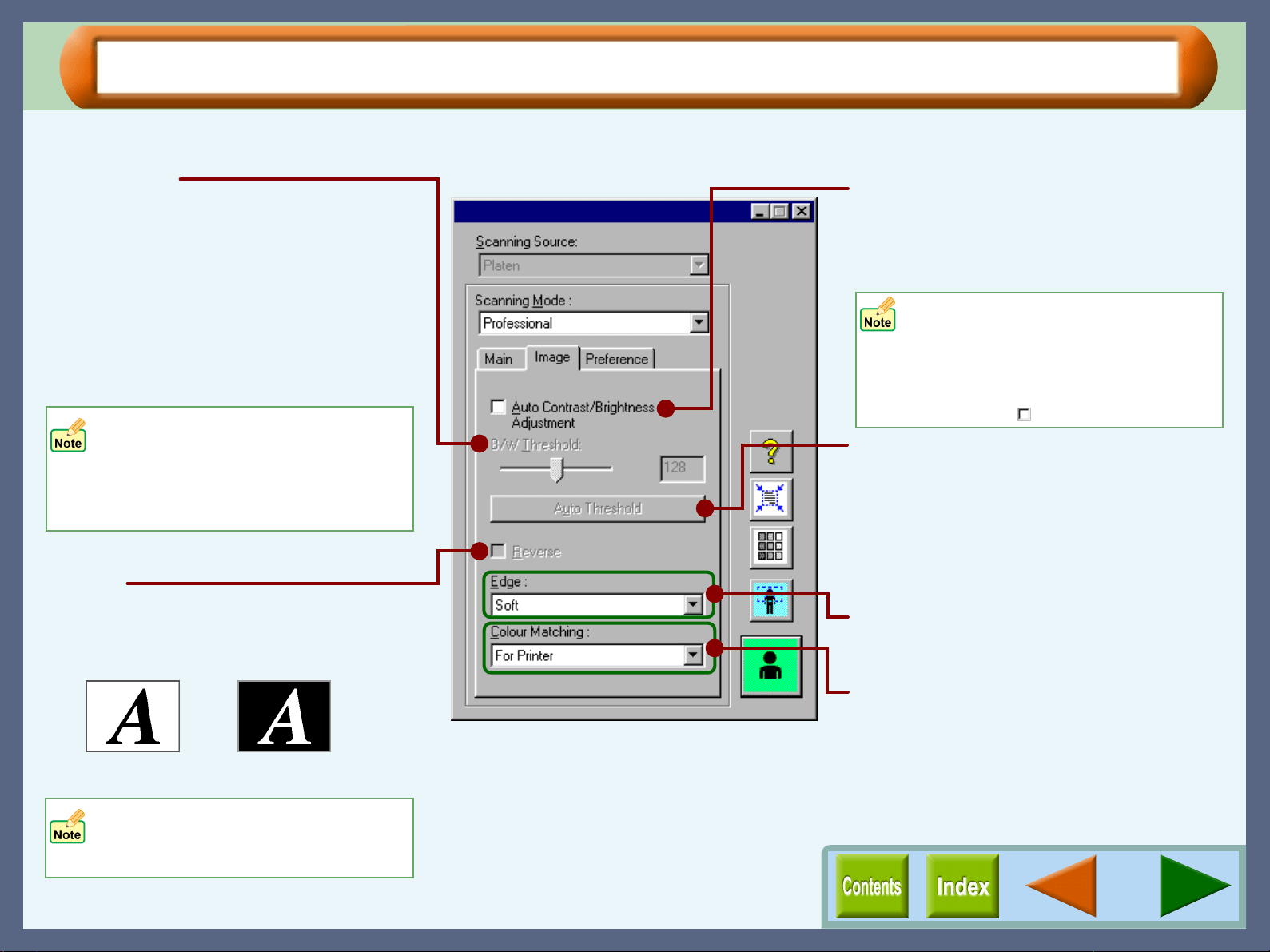
Use this screen to adjust brightness, contrast and threshold settings.
B/W Threshold
Sets the threshold when you select "Mono 2
gradation" for "Colour Mode" on the "Main"
tab. Move the slide bar to the left or right to
decrease or increase the threshold, or input a
figure directly into the setting box (1 - 254).
The threshold setting is used to grade an
image containing many colours into black and
white. Increase the threshold and the areas
shown in black will increase. On the other
hand, decrease the threshold to increase
areas represented in white.
Reverse
When using the "Mono Diffusion" or "Mono 2
gradation" colour mode setting, select this
function to convert black areas into white,
and white areas into black.
Auto Contrast/Brightness Adjustment
By checking this function, the brightness and
contrast levels used for scanning are
automatically adjusted to the most
appropriate setting.
"Auto Threshold" button
When using the "Mono 2 gradation" colour
mode to scan a document, click this button
and the threshold setting is automatically
adjusted to the most appropriate setting. The
"B/W Threshold" setting will also change
automatically after adjusting this preference.
Edge
Set the method for processing the edge of
scanned images.
Colour Matching
Use this option to specify the colour matching
method.
On the above screen, click on options shown in
the green boxes to make additional changes.
•
This setting is unavailable when the
"Colour Mode" is set to "Mono 2
gradation".
• By displaying the variation preview
screen, this setting is automatically
turned off ( ).
Specify the value for "B/W Threshold"
setting to let your OCR software read
text data clearly. The text data cannot
be recognised correctly when the data
includes blurred or faint characters.
This setting can only be used when
the "Colour Mode" is set to "Mono
Diffusion" or "Mono 2 gradation".
Document Data after selecting the
"Reverse" setting.
Scanning
42
"Professional" Scan Preferences ("Image" Tab) (part 2)
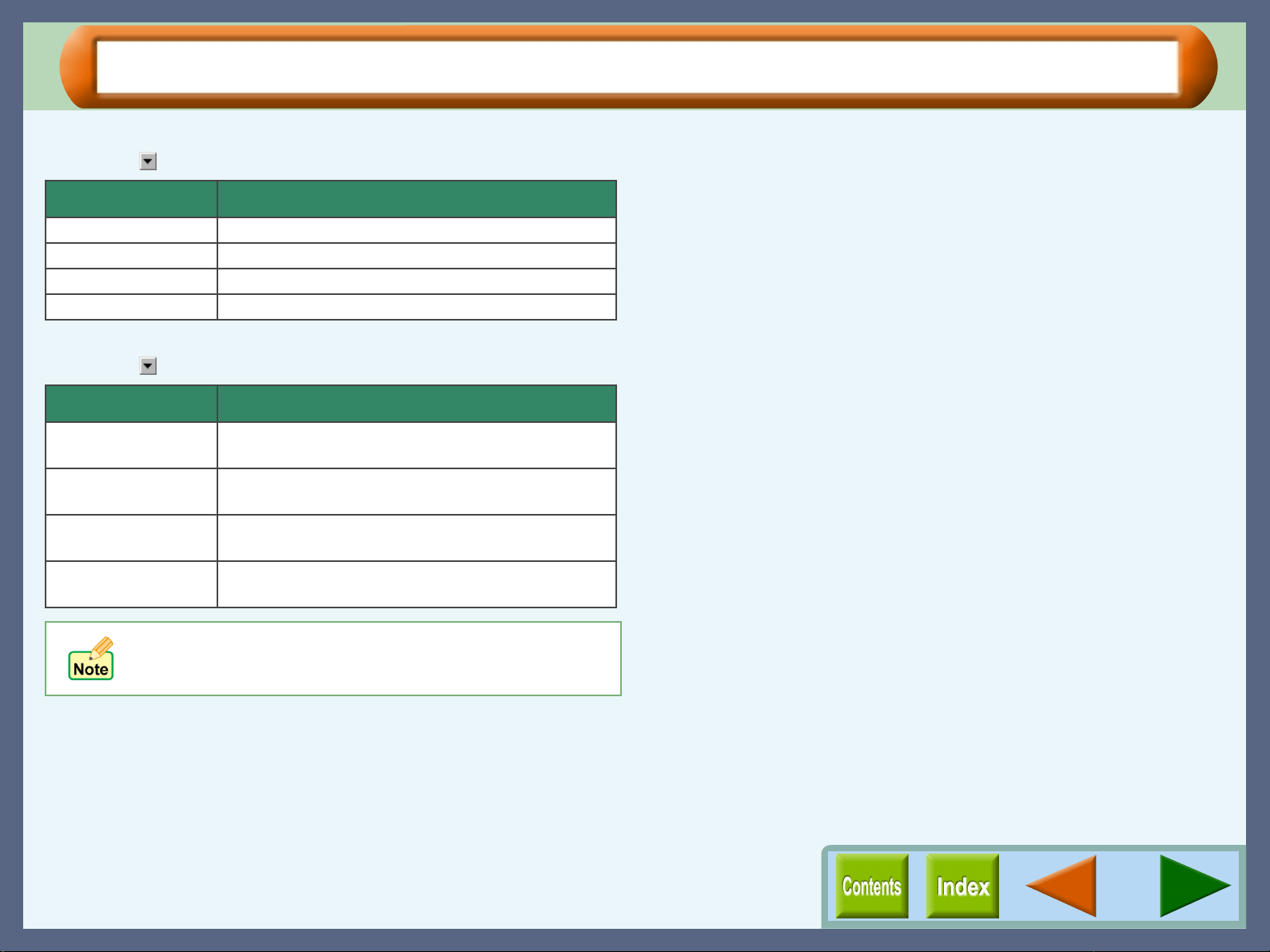
Edge
Click the ( ) button to select from the drop-down list.
Colour Matching
Click the ( ) button to select from the drop-down list.
Setting Explanation
None Edge is not emphasised.
Soft Edge is emphasised slightly.
Sharp Edge is emphasised strongly.
Normal Edge is shaded off.
Setting Explanation
For Printer Sharp's original colour matching function; matches
colours with the printer.
For CRT Sharp's original colour matching function; matches
colours displayed on a CRT monitor.
For LCD Sharp's original colour matching function; matches
colours displayed on a LCD monitor.
ICM Select to utilise Windows standard colour
management system.
! This setting is unavailable when the "Colour Mode"
option is set to "Mono 2 gradation".
! The "ICM" setting is unavailable with Windows 95.
Scanning
43
"Professional" Scan Preferences ("Preference" Tab)
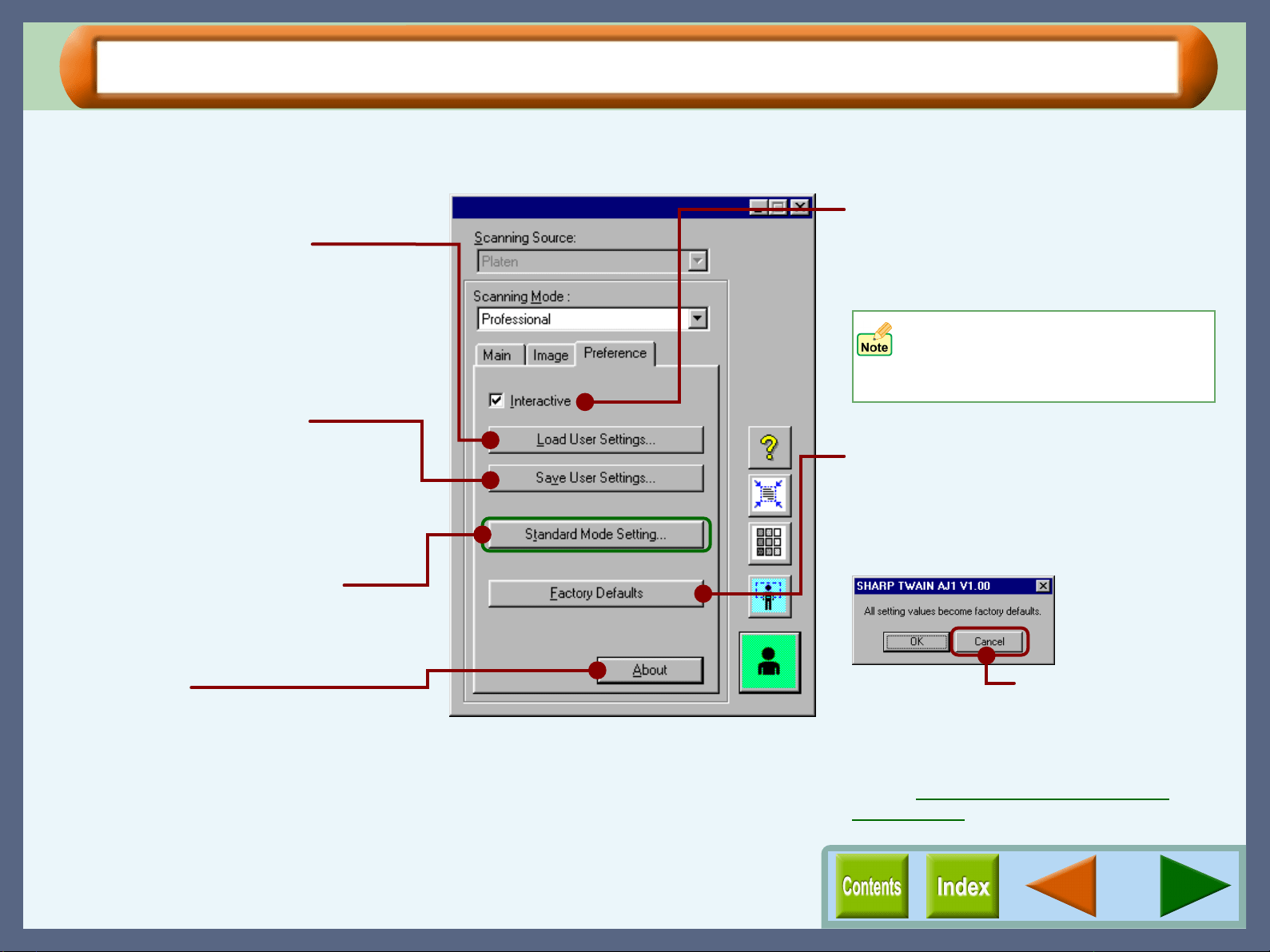
Use this screen to view the settings for a displayed preview image, to check changes made to scan preferences,
and to save your preferences.
Changes made to the "Resolution",
"Image Area", and "Zoom"
preferences will not be displayed
when previewing an image.
"Load User Settings" button
Click this button to review settings saved
using the "Save User Settings" button.
Specify a file name in the "Load User
Settings" dialog box, and click the "Open"
button to review your settings, except for the
"Image Area" and "Brightness/Contrast"
preferences.
Interactive
By checking this function, even without
previewing the document after changing
some settings, the changed settings will be
applied to the preview image.
"Factory Defaults" button
Click this button to display the dialog box
shown below, and click the "OK" button to
return the preferences shown on the
"Standard" and "Professional" screens back
to the default settings.
"Save User Settings" button
Click to save settings changed on the
"Professional" screen. Insert a file name in
the "Save User Settings" dialog box, and click
the "Save" button to save your settings,
except for the "Image Area" and
"Brightness/Contrast" preferences.
"Standard Mode Setting" button
Click this button to make changes to any of
the "Monitor", "Photo", "FAX" or "OCR"
settings shown on the "Standard" screen.
"About" button
Click for details on the version of the SHARP
TWAIN driver.
On the above screen, click on options shown in
the green boxes to make additional changes.
Click this button if you do not
want to return your preferences
to the default settings.
Reference:
For details on the various default settings,
refer to Default Settings for the SHARP
TWAIN Driver.
Scanning
44
"Standard Mode Setting" Dialog Box
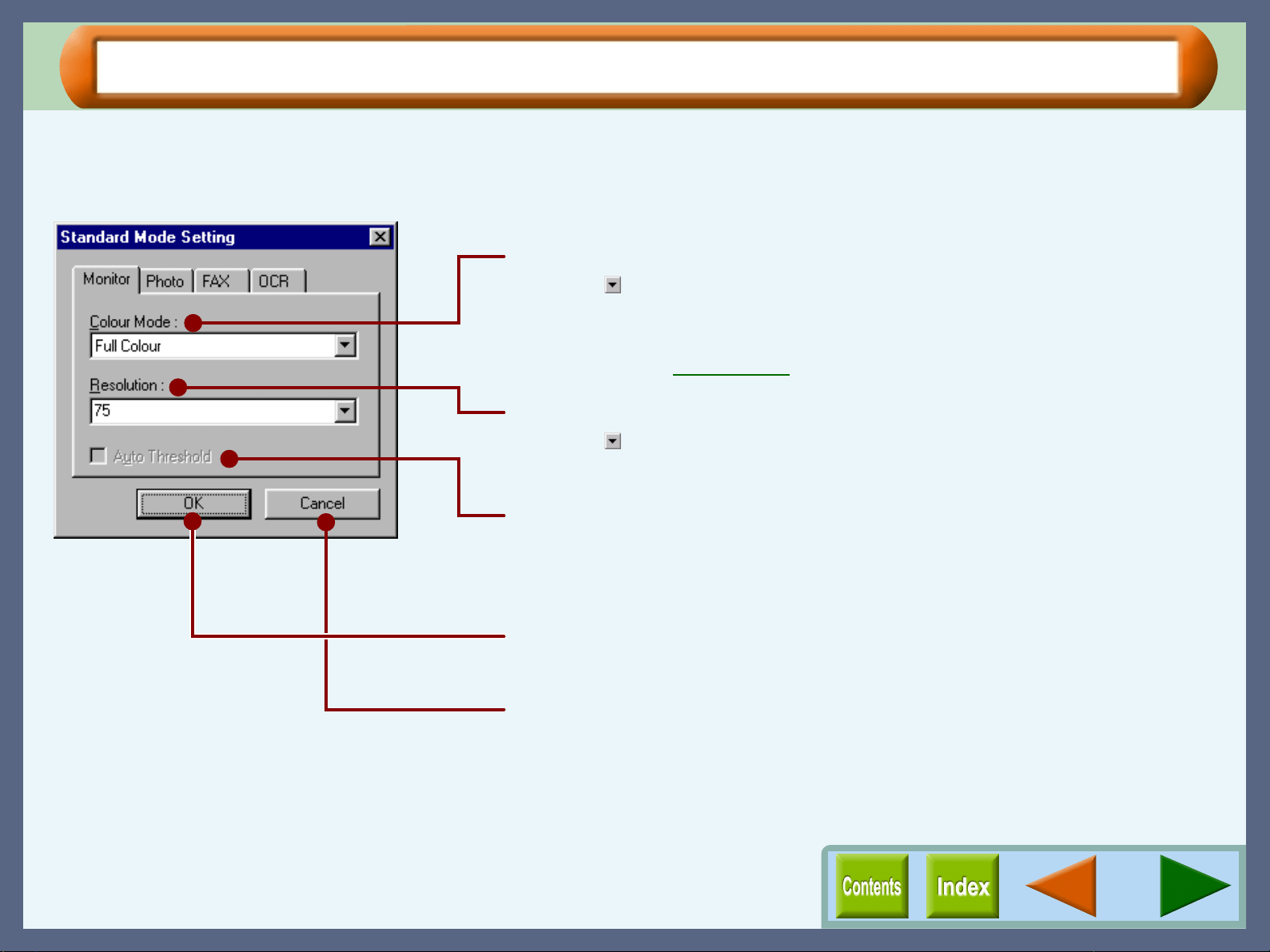
Click the "Standard Mode Setting" button to display the dialog box shown below.
On this dialog, you can change the preferences of four buttons including "Monitor", "Photo", "FAX", and "OCR"
on the "Standard" screen. Select the corresponding tab to change the desired preferences.
Colour Mode
Click the ( ) button to select the desired colour mode from "Full Colour",
"256 Colour", "Greyscale", "Mono Diffusion", and "Mono 2 gradation".
Reference:
Refer to the Colour Mode for details on each setting.
Resolution
Click the ( ) button to select the desired resolution from "75", "150", "300",
and "600" or input the required figure into the box (50dpi - 600dpi).
Auto Threshold
When "Mono 2 gradation" is selected for "Colour Mode" setting, check this
option to automatically set the threshold setting to the most appropriate
setting.
"Cancel" button
Click to close without saving the changed settings.
"OK" button
Click to save each of the changed settings.
Scanning
45
Preview Screen
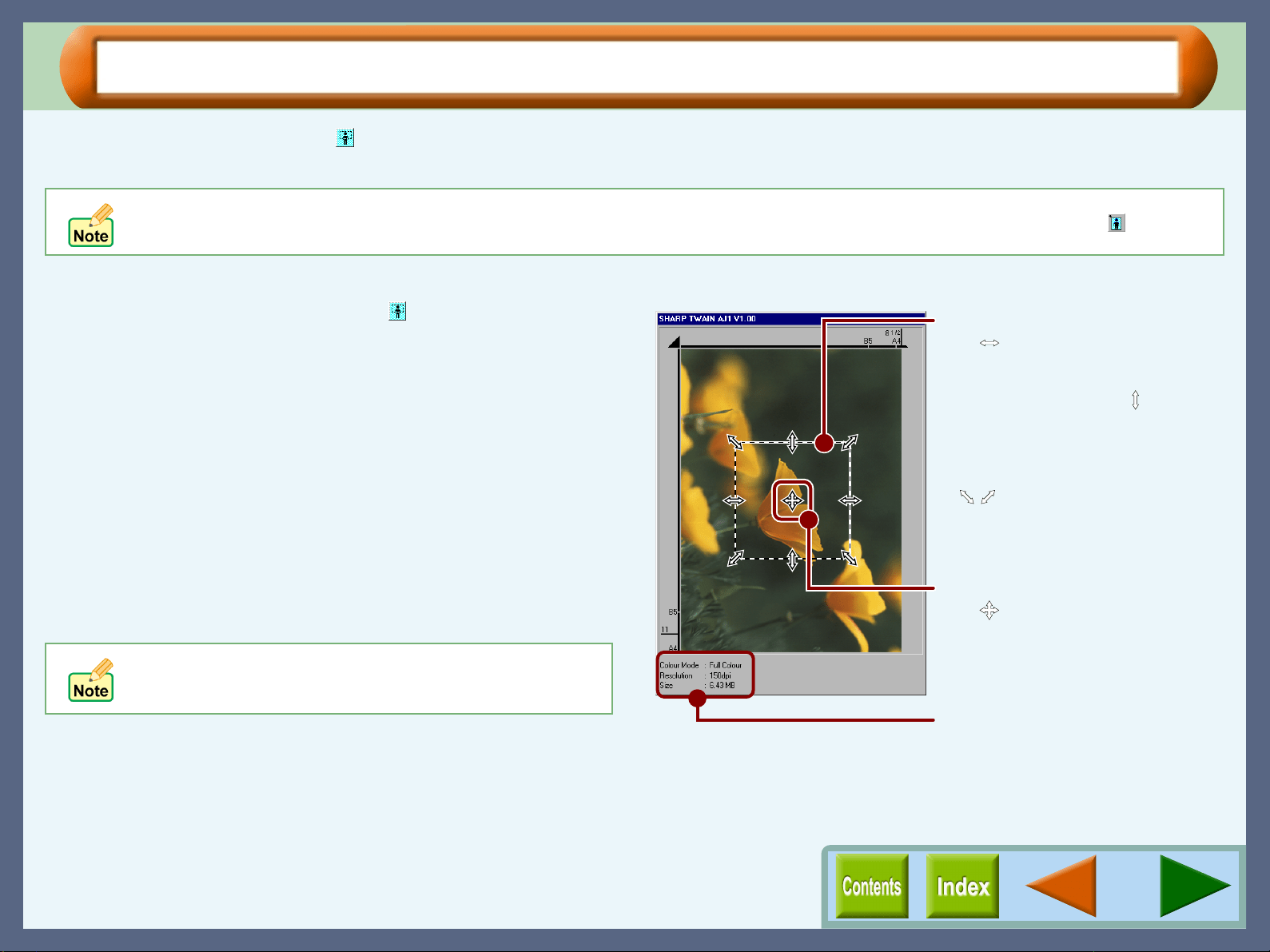
Click the "Preview" button ( ) to display a preview image on the preview screen. Specify the scanning area on
this screen following the steps shown below.
Setting the Scanning Area
1
11
1
Click the "Preview" button ( ) to preview the
document.
A preview image will appear on the preview screen.
2
22
2
Move the mouse cursor onto the preview image.
3
33
3
Click a scan starting point on the image.
Keep pressing the mouse button when selecting the area you
want to scan.
4
44
4
Drag the cursor to the bottom-right of the screen.
The area to be scanned will be indicated by a rectangular
shaped broken line. This area becomes the scanning area.
5
55
5
After selecting the scanning area, release the
mouse button.
If the variation preview screen is displayed, switch to the preview screen by clicking the "Preview Screen" button ( ).
To cancel the selected area to be scanned, click a spot
outside the scanning area or double-click a spot inside
the area.
Displays the colour mode,
resolution, and size of the data.
Altering the scanning area
The ( ) symbol will appear when
the cursor is placed on the left or
right border of the scanning area.
On the other hand, the ( ) symbol
will appear when the cursor is
placed on the top or bottom border
of the scanning area. By dragging
any of the four corners of the image,
a ( , ) symbol will appear. The size
of the image will be maximized or
minimized according to the direction
in which the symbol is moved.
Moving the scanning area
The ( ) symbol will appear when
the cursor is placed within the
scanning area after the area being
specified by dragging. Move the
image to adjust the scanning area.
Scanning
46
Variation Preview Screen
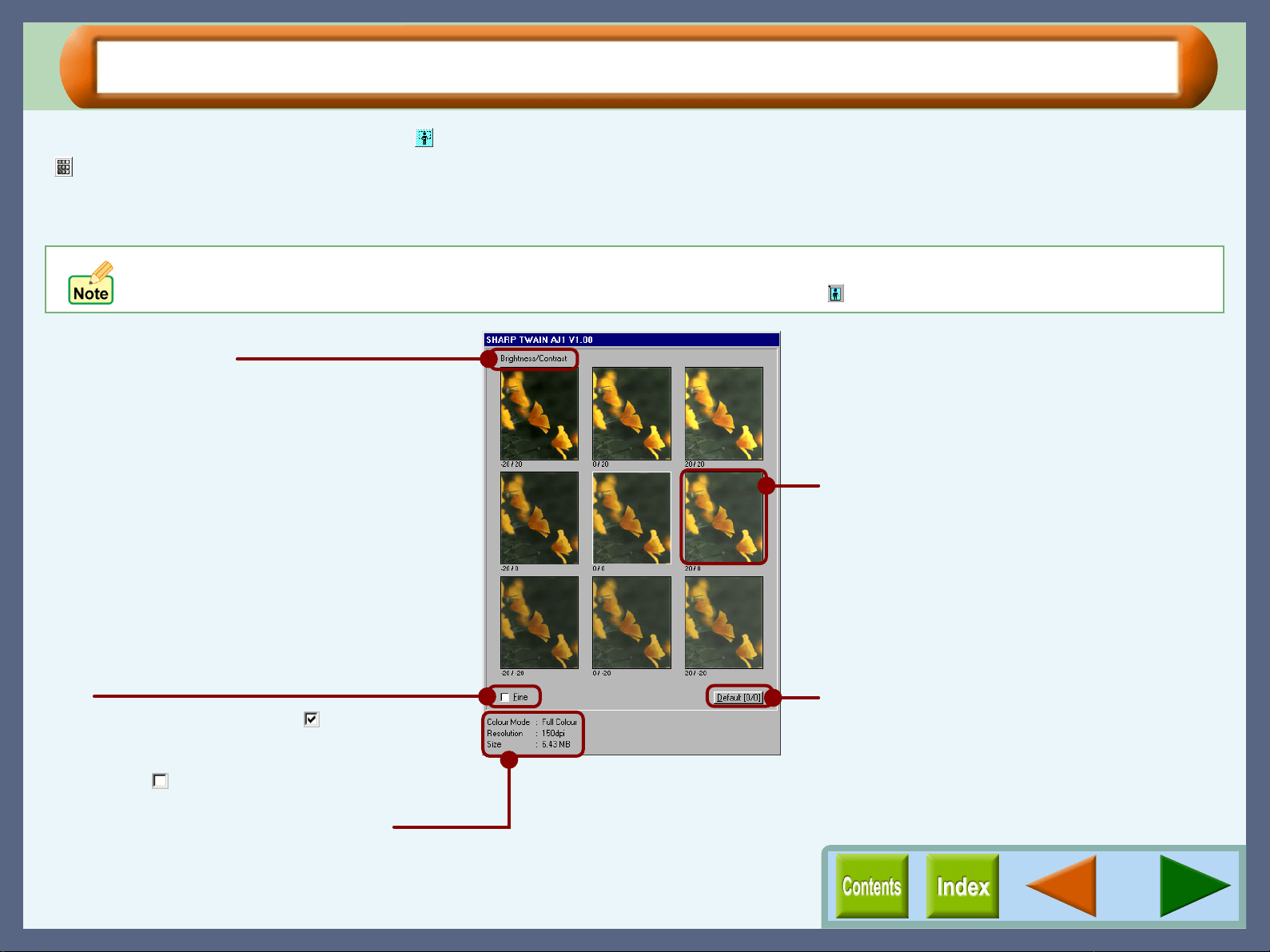
After clicking the "Preview" button ( ) and previewing the document, click the "Variation Preview Screen" button
( ) to display the variation preview screen. Nine images, which have different variations of brightness and
contrast, will be displayed on this screen. By clicking on one of the images, the scan settings will be changed to
correspond to the selected image.
! This setting is unavailable when the "Colour Mode" option is set to "Mono 2 gradation".
! After opening the variation preview screen, click the "Preview Screen" button ( ) to display the preview screen.
Brightness/Contrast
The figure shown on the left at the bottom of
each individual preview image indicates the
brightness level for scanning. The figure on
the right displays the contrast level.
Displays the colour mode, resolution, and
size of the data.
Click the most appropriate image from the nine
image options displayed for the "Brightness" and
"Contrast" levels shown at the bottom of the
image to become the settings under which the
job is scanned.
"Default" button
Click this button to return both "Brightness" and
"Contrast" levels for the centre image to 0.
Fine
By switching this check box on ( ), the
"Brightness" and "Contrast" levels will be
adjusted in multiples of five, and when
switched off ( ), multiples of twenty.
Scanning
47
Default Settings for the SHARP TWAIN Driver
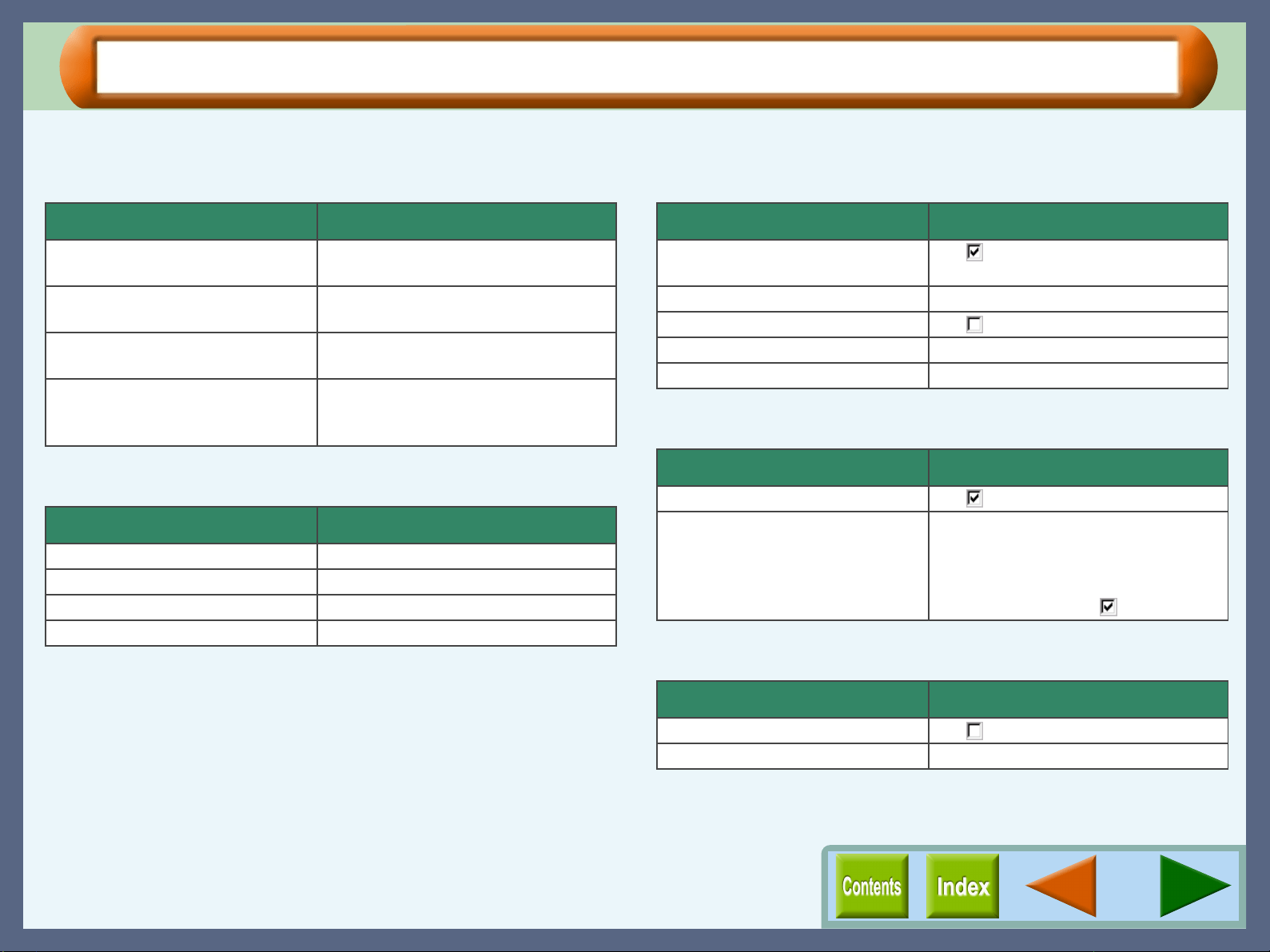
The default settings for the SHARP TWAIN driver are shown below.
"Standard" screen
"Professional" screen ("Main" tab)
"Professional" screen ("Image" tab)
"Professional" screen ("Preference" tab)
Variation preview screen
Setting Default setting
Monitor Colour Mode: Full Colour
Resolution: 75dpi
Photo Colour Mode: Full Colour
Resolution: 200dpi
FAX Colour Mode: Greyscale
Resolution: 200dpi
OCR Colour Mode: Mono 2 gradation
Resolution: 300dpi
Auto Threshold: On
Setting Default setting
Colour Mode Full Colour
Resolution 150dpi
Image Area Custom
Zoom 100%
Setting Default setting
Auto Contrast/Brightness
Adjustment
On( )
B/W Threshold 128
Reverse Off( )
Edge Soft
Colour Matching For Printer
Setting Default setting
Interactive On( )
Standard Mode Setting The Colour Mode and Resolution
settings are the same as Monitor,
Photo, Fax, and OCR default settings
shown on the "Standard" screen.
Auto Threshold: On ( ) (OCR only)
Setting Default setting
Fine Off( )
Brightness/Contrast 0/0
48
Utility Software
Outline of the AJ Series Utility
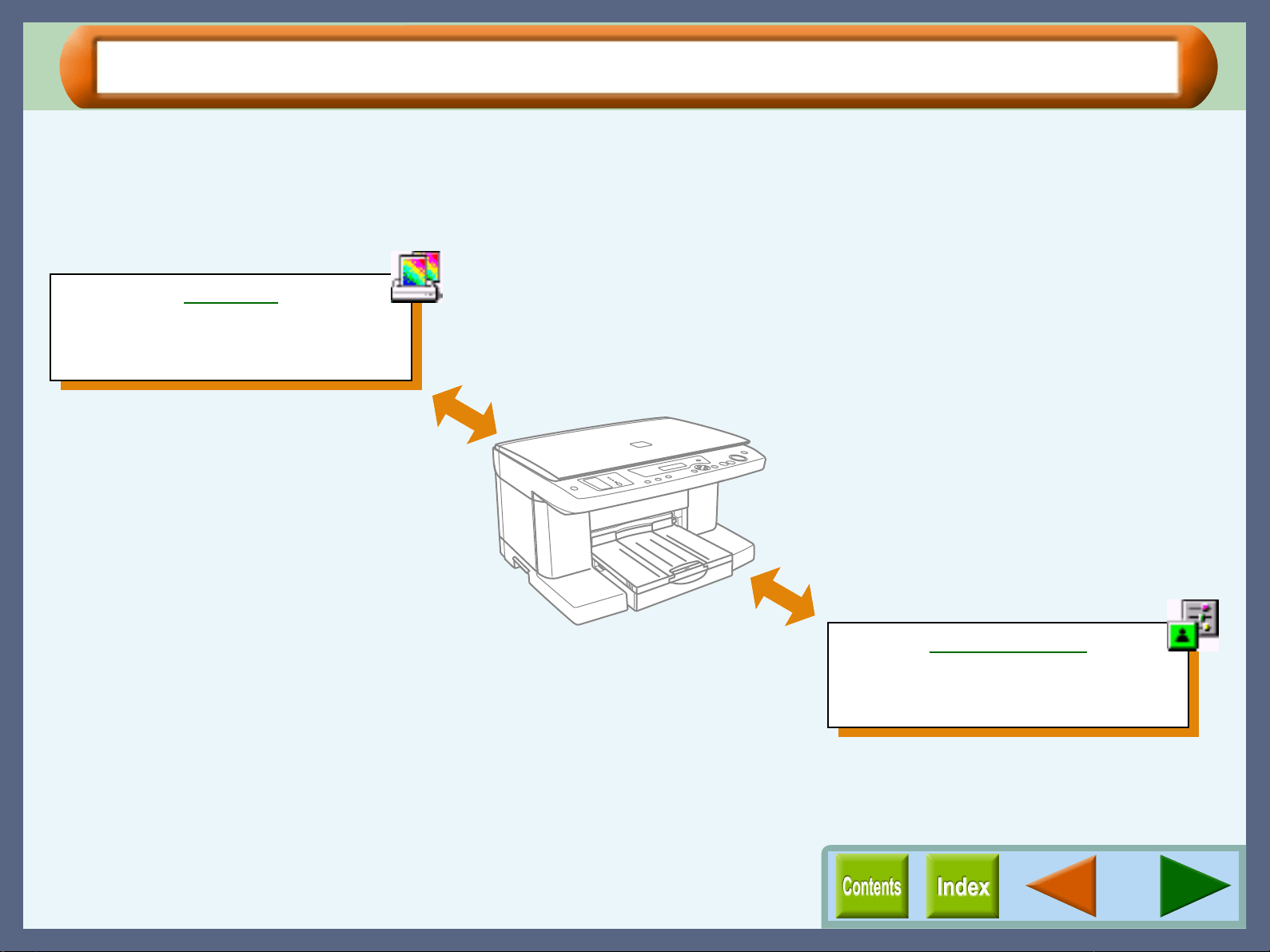
You can use your AJ-series unit with two attractive software utilities, "Copy JX2" and "Button Manager". These
utilities make this unit more useful to fit various office works.
This page shows the outline of these AJ-series utilities. To show each function, click the icon of the utility you
require information on.
Copy JX2
Enables you to make enlarged prints of a
part of image and print multiple copies on a
sheet.
Button Manager
Enables you to make detailed settings for a
scanning job using the "SCAN" button of
this unit.
49
Copy JX2
Outline of Copy JX2
What is Copy JX2?
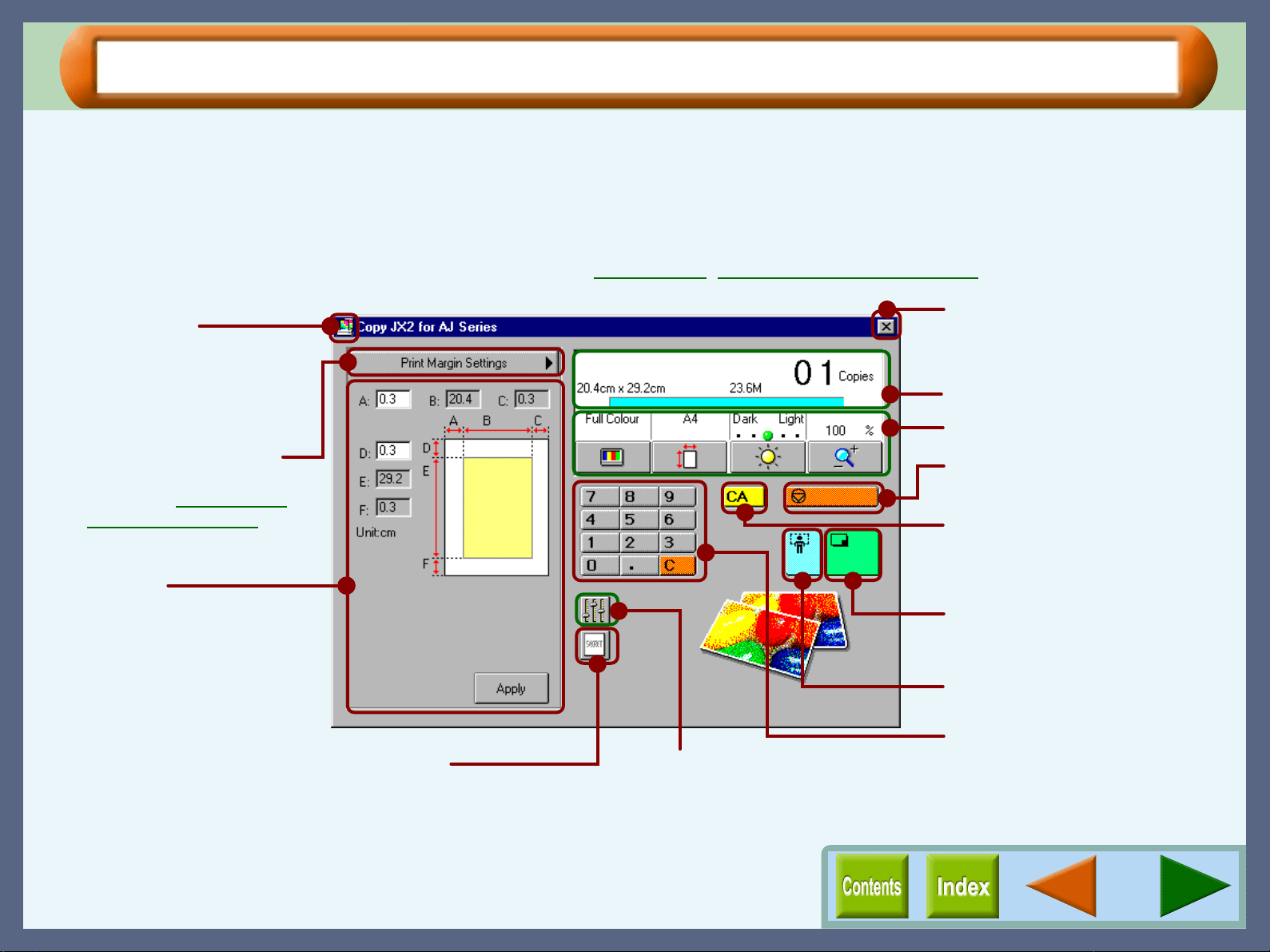
Copy JX2 is an application, which enables you easy operation of printing scanned images including making enlarged
output and making multiple copies onto stickers.
Click the "Start" button, select "Programs", select "SHARP AJ-6000 Series", select "Utility", and then click "Copy JX2 for
AJ Series" to display the screen shown below.
Reference: For the detail of the steps for printing, refer to How to Print, How to Print Multiple Copies.
Quit button
Click this button to quit Copy JX2.
Application icon
Displays the help file, and
information on the version of
Copy JX2.
"Change Preview" button
Select the preview to be
displayed from "Scan Preview"
and "Print Margin Settings".
Preview area
Specify the clipping area after
selecting the "Scan Preview" on
the "Change Preview" button
shown above. To specify the
margin, select "Print Margin
Settings" on the same button.
"Watermark" button
"Special Setting" button
Information area
General setting area
"Copy and Scan preview stop" button
Click to stop scanning or printing.
"Clear All" button
Returns all settings shown on this
screen, and in the printer driver to
default settings.
"Start" button
Click to start scanning and
printing.
"Scan Preview" button
Previews the document.
"0-9/Period/Number Clear" button
Use to input or clear the number
of copies.
On the above screen, click on options shown in the green boxes to
make additional changes.

Copy JX2
50
How to Print (part 1)
Follow the steps shown below for basic operation of Copy JX2.
1
11
1
Place the document on the original table.
Refer to "MAKING COPIES" in the Setup Guide and
Operation Manual for information on how to set a document
in the unit.
2
22
2
Click the "Change Preview" button to display a
scan preview, and click the "Scan Preview" button
().
An image as shown below will be displayed in the preview
area.
3
33
3
Set the clipping area and scanning preferences.
Reference:Refer to Scan Preview
for the detail of how
to set the clipping area by the mouse, or to
General Setting
for the detail of how to set
basic scanning preferences.
To set more detailed preferences, follow steps 1 and 2 shown
below.
1
11
1
To setup more detailed preferences, click the
"Special Setting" button ( ).
Reference:Special Setting
2
22
2
If you want to insert a watermark, click the
"Watermark" button ( ).
When the watermark setting dialog box in the printer
driver opens, specify your choice of required
preferences.
Reference:Refer to the "Watermark" Tab Settings
for
details on the Watermark setting dialog
box.
4
44
4
Click the "Change Preview" button to specify the
desired print position on the output.
Reference: Print Margin Settings
Click the "Clear All" button to return all settings to the
default settings.
Copy JX2
51
How to Print (part 2)
5
55
5
Set the number of copies to print.
Click the "Copies" on the information area, and use the
numbered buttons (0-9), or your computer's keyboard to
input the number of copies required. To change the set
number of copies, click the "Number Clear" button and enter
the correct number (1 - 50 copies).
6
66
6
Click the "Start" button ( ).
The printer settings dialog box will open. Set the print
conditions as required.
Click the "OK" button. Printing will be started after scanning
the document.
Reference:Refer to Printer Properties
for the detail of
the printer settings dialog box.
Contents of the Information Area
If you want to cancel a print job, click the "Copy and
Scan preview stop" button, or press the [Esc] key. If
you have already sent the print data to the printer
driver, follow the printer driver instructions to cancel
print job.
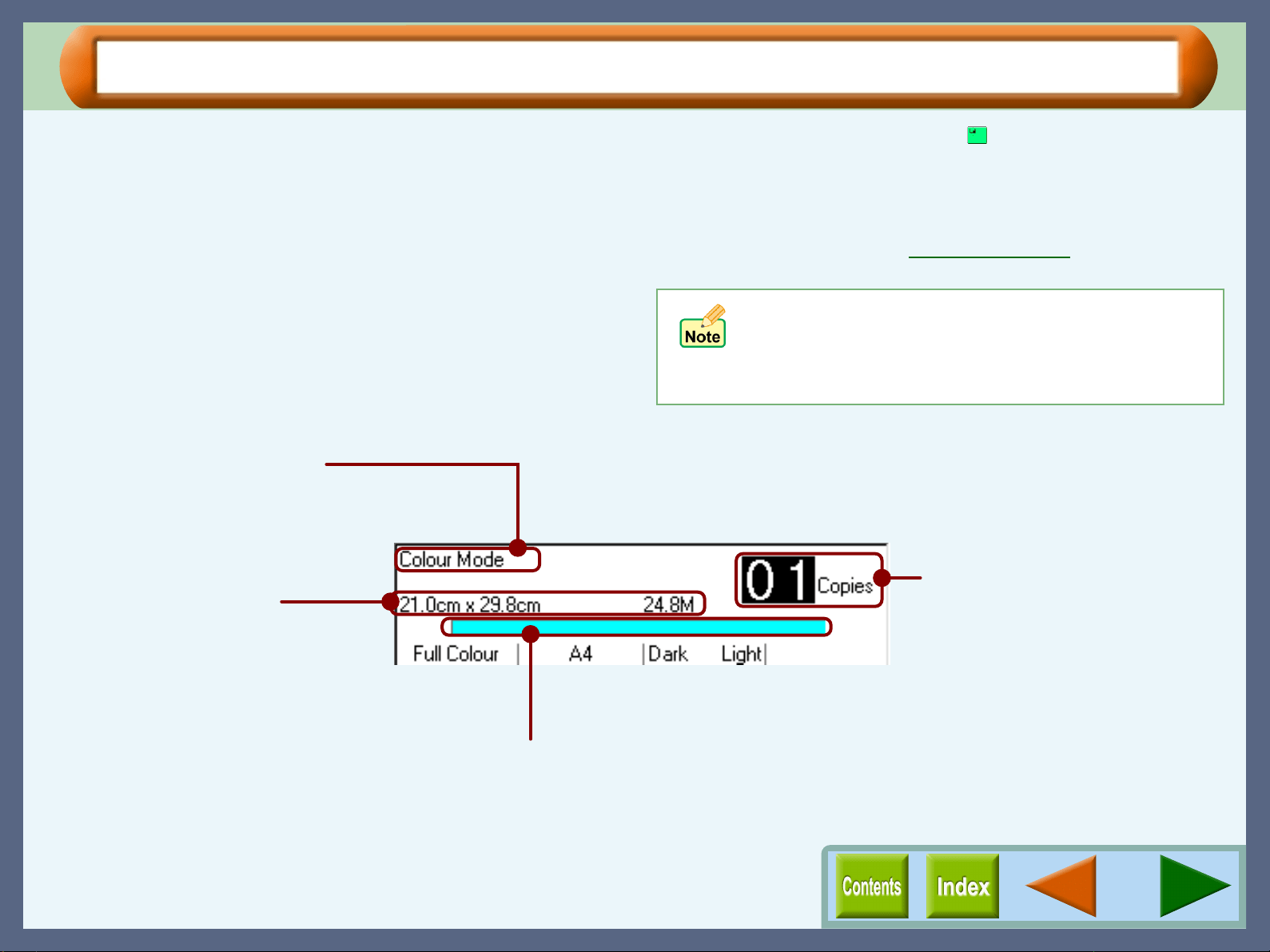
Image Size Information
Displays the size of clipping area
specified the preview image.
Information
Displays name of the portion
on which your mouse pointer is
placed.
Indicates the procedure of scanning process and data transfer to the printer
driver with figures of 0% - 100%.
Copies
Set the number of copies to be
printed here.
Default setting is "01".
Copy JX2
52
How to Print Multiple Copies (part 1)
You can print multiple copies of the same scanned image onto a single sheet. Follow the steps shown below after
running the Copy JX2 utility.
1
11
1
After performing steps 1 to 3 in How to Print, click
the "Special Setting" button ( ) to access the
detailed settings. Click the "Image Repeat" button
( ), and select "On" from the drop-down list.
2
22
2
Set the Image repeat preferences.
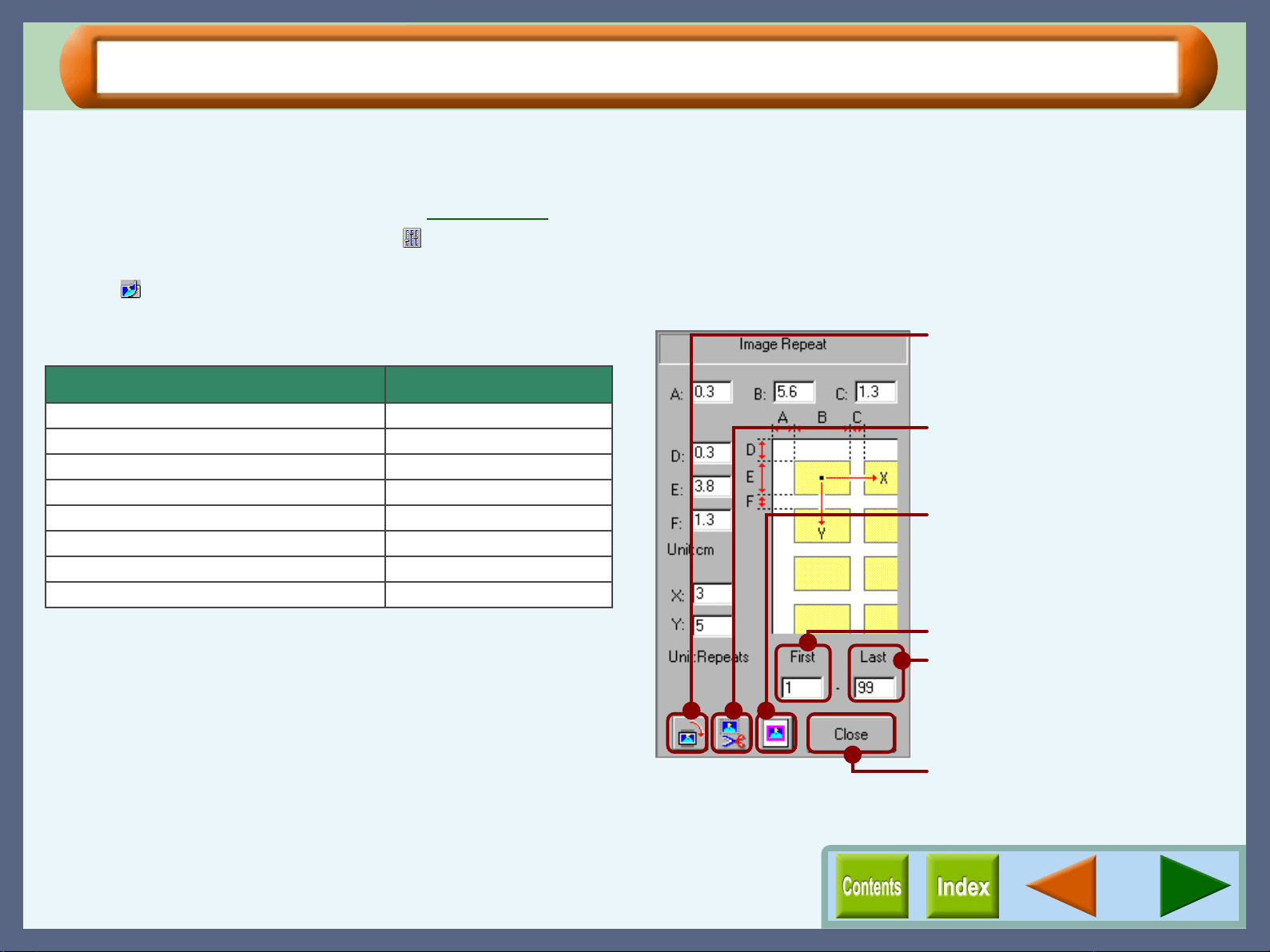
Set the preferences shown below to suit the type of paper.
Setting Default setting
A: Left margin
Printer driver's left margin
B: Frame width
5.6cm (2.2")
C: Space between each image (width)
1.3cm (0.5")
D: Top margin
Printer driver's top margin
E: Frame height
3.8cm (1.5")
F: Space between each image (height)
1.3cm (0.5")
X: Number of landscape images
3 pages
Y: Number of portrait images
5 pages
"Background Colour" button
Click this button to add a background
colour to the printed frame. Click the
button to display the "Color" dialog
box, and set the colour.
"Cutting Lines" button
Click this button to print out the frame
highlighted by the line.
"Rotate" button
Click the button to rotate the image 90
degrees.
First Frame (1-99)
Last Frame (1-99)
If you intend to print only specific
frames, input the appropriate frame
number into the "First Frame" and
"Last Frame".
"Close" button
Click to close the "Image Repeat"
screen.
Copy JX2
53
How to Print Multiple Copies (part 2)
3
33
3
After setting your preferences, click the "Close"
button.
The "Image Repeat" settings screen will close, and the
previously shown preview screen will appear.
4
44
4
Click the "Start" button ( ).
The printer settings dialog box will open. Set the print
conditions as required.
Click the "OK" button. Printing will be started after scanning
the document.
To show the "Image Repeat" settings screen again,
click the "Image Repeat" button, and then select "On"
from its drop-down list.
Copy JX2
54
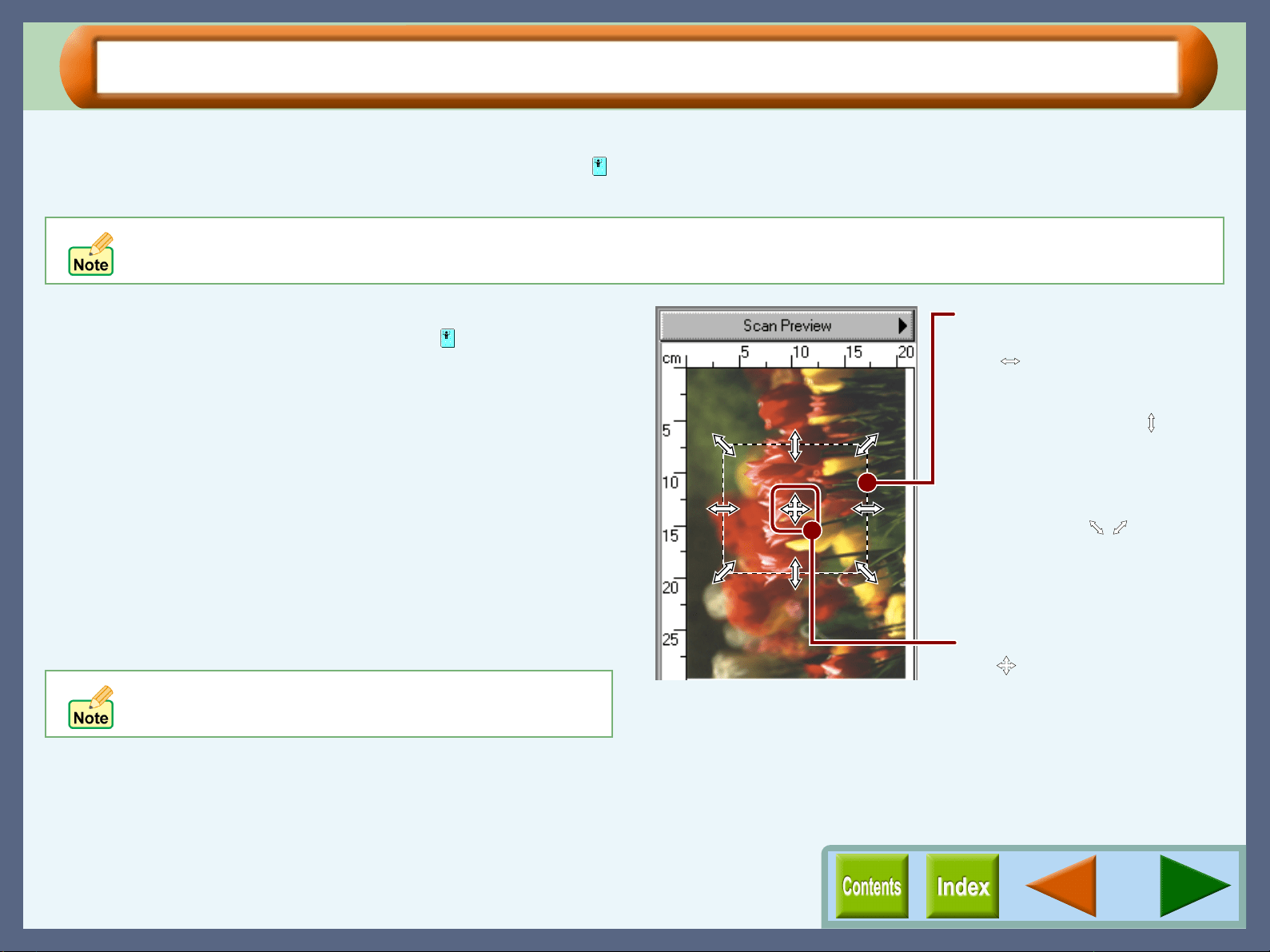
Scan Preview
The preview image can be displayed after setting your original. Click the "Change Preview" button, select "Scan
Preview", and then click the "Scan Preview" button ( ). On this screen, you can specify the clipping area. Follow
the steps shown below to specify the clipping area.
Setting the Clipping Area
1
11
1
Click the "Scan Preview" button ( ) to preview the
document.
A preview image will appear on the preview screen.
2
22
2
Move the mouse cursor onto the preview image.
3
33
3
Click a scan starting point on the image.
Keep pressing the mouse button when selecting the area you
want to scan.
4
44
4
Drag the cursor to the bottom-right of the screen.
The clipping area will be indicated by a rectangular shaped
broken line. This area becomes the clipping area.
5
55
5
After selecting the clipping area, release the mouse
button.
By setting the clipping area, the "Scan Size" setting will revert to the "Custom". The settings of the "Zoom Mode" and the "Page
Layout" will return to the default settings.
To cancel the clipping area, double-click a spot on the
preview image.
Enlarging/Reducing the
Clipping Area
The ( ) symbol will appear when
the cursor is placed on the left or
right border of the clipping area.
On the other hand, the ( ) symbol
will appear when the cursor is
placed on the top or bottom
border of the clipping area. By
dragging any of the four corners
of the image, a ( , ) symbol
will appear. The size of the image
will be enlarged or reduced
according to the direction in which
the symbol is moved.
Moving the Clipping Area
The ( ) symbol will appear when
the cursor is placed within the
clipping area. To move the clipping
area, press and hold the mouse
button, relocate and then release the
mouse button.
Copy JX2
55
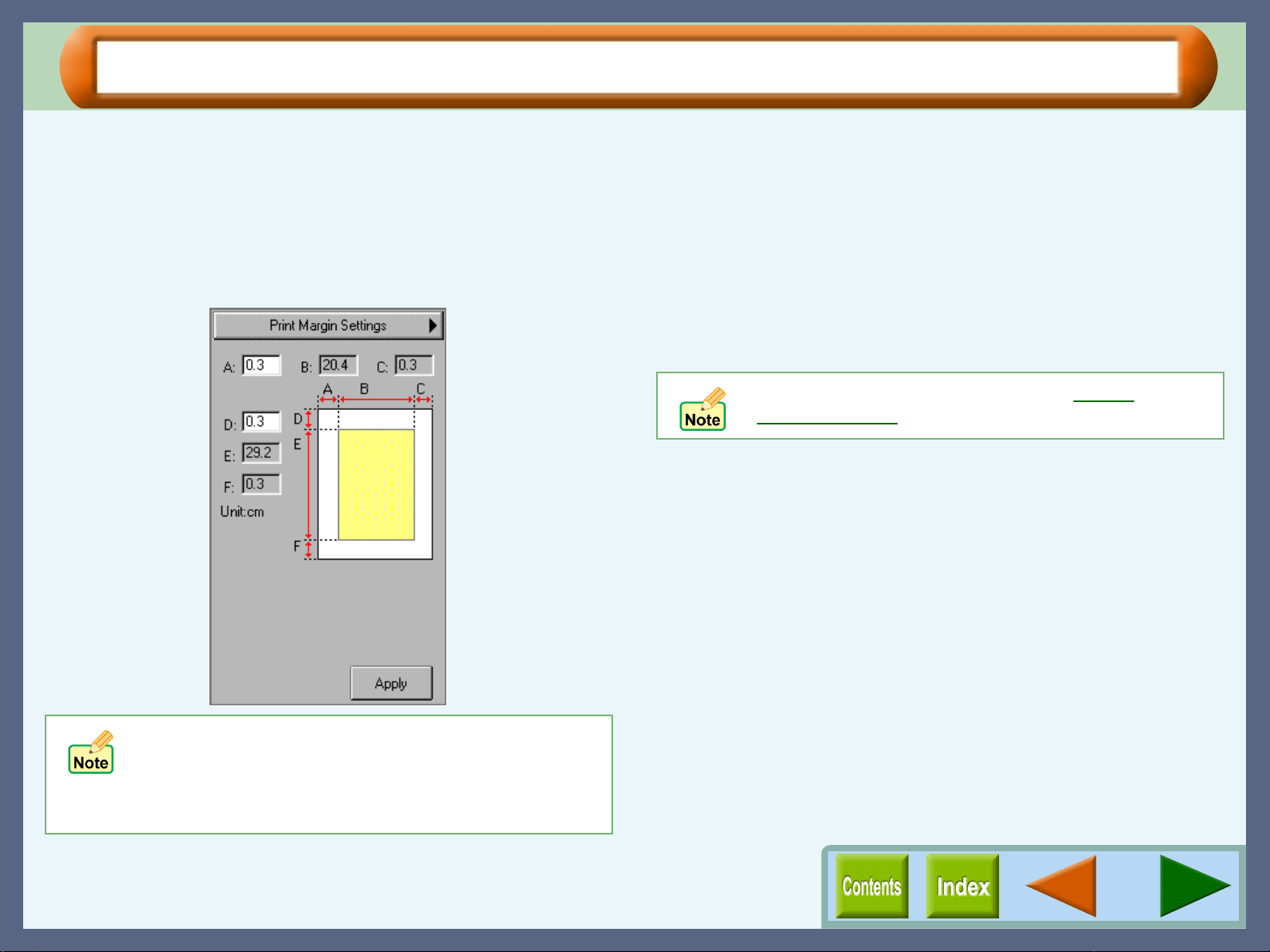
Print Margin Settings
On the "Print Margin Settings" screen, you can setup the image position on the output. Click the "Change
Preview" button to select desired print margin settings. Follow the steps below to set the print margins.
1
11
1
Enter an appropriate figure in the "Left Margin"(A)
box to specify both left and right margins.
The value for the "Right Margin"(C) is automatically
decided by entering a figure in A.
2
22
2
Enter an appropriate figure in the "Top Margin"(D)
box to specify both top and bottom margins.
The value for the "Bottom Margin"(F) is automatically
decided by entering a figure in D.
3
33
3
After entering appropriate figures in A and D, click
the "Apply" button.
! The paper size indicated on the "Print Margin
Settings" screen is the size which has been selected
through the printer driver.
! By changing the print position, the setting of "Page
Layout" will return to "Custom".
Specify values for margins within the quality
guaranteed area to ensure your print quality.
Copy JX2
56
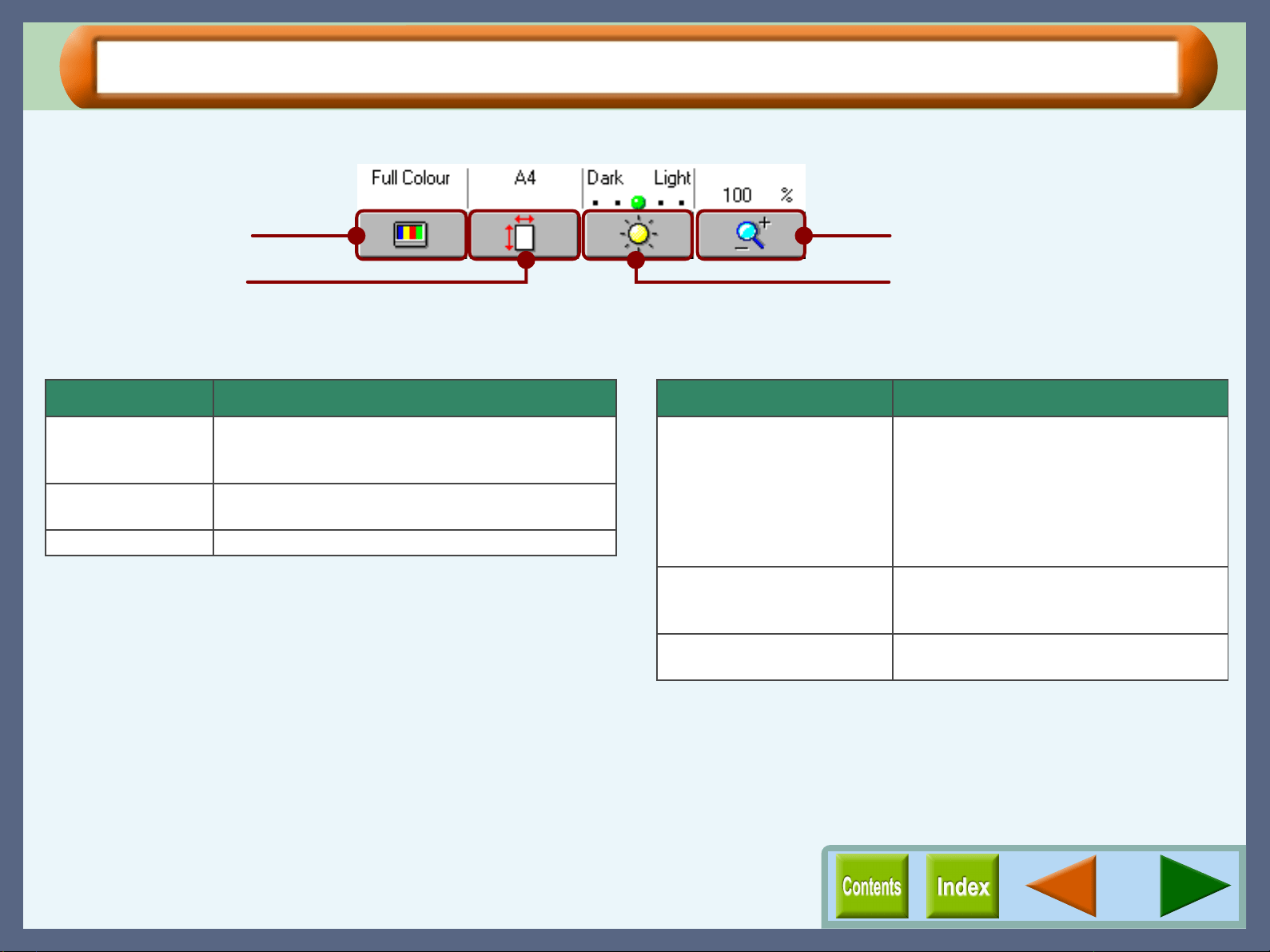
General Setting
Set basic scanning preferences using the four buttons described below.
"Colour Mode" button
Click the "Colour Mode" button to select the colour mode from the
drop-down list.
"Scan Size" button
Click the "Scan Size" button, and select the scan area from the
drop-down list. Select the size from "A5", "A4" (Default setting),
"B5", "Letter" and "Japanese HAGAKI". When you set the clipping
area by dragging the desired area on the preview image, "Custom"
is automatically selected.
"Brightness" button
Click the "Brightness" button to select the brightness of the scan
area using the drop-down list. Brightness setting is also available by
clicking one of the five buttons indicating the level of brightness
located above this button. Select the desired brightness from
"Darkest", "Dark", "Normal" (Default setting), "Light", "Lightest"
settings.
"Zoom Mode" button
Click the "Zoom Mode" button to set the reduction/enlargement ratio
using the drop-down list.
"Colour Mode" button
"Scan Size" button
"Zoom Mode" button
"Brightness" button
Setting Contents
Full Colour The computer can display 16,770,000 colours
(each containing 256 individual tones) (Default
setting)
Greyscale Monochrome (each containing 256 individual
tones)
B & W Black and white
Setting Contents
50%
70% A4 -> A5
86% A4 -> B5
100% (Default setting)
115% B5 -> A4
141% A5 -> A4
200%
Fixed percentage
Zoom Use the numbered buttons, or your
computer's keyboard to input the ratio
required. (1% - 400%)
Auto Page Fit Automatically adjusts the scan size of the
image to fit the size of print paper.
Copy JX2
57
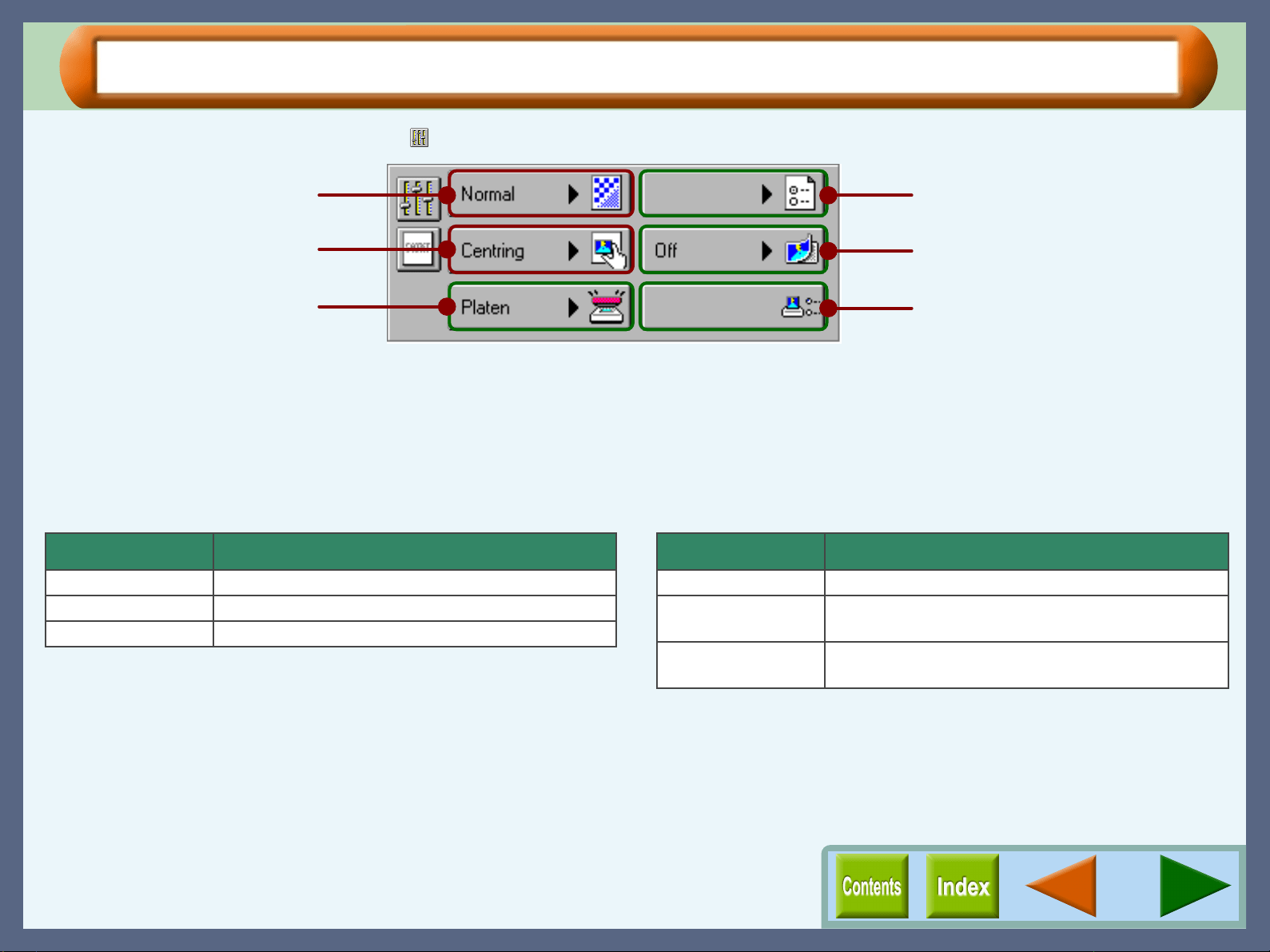
Special Setting (part 1)
Click the "Special Setting" button ( ) to display the screen shown below.
"Scan Quality" button
Click the "Scan Quality" button to set the scan resolution using
the drop-down list.
"Page Layout" button
Click the "Page Layout" button to set the print position using
the drop-down list.
"Scan Quality" button
"Page Layout" button
"Optional scan source" button
"Save/Load settings" button
"Image Repeat" button
"Printer Settings" button
On the above screen, click on options shown in the green boxes to
make additional changes.
Setting Contents
Fast 75dpi
Normal 300dpi (Default setting)
Best 600dpi
Setting Contents
Normal Prints image at top-left of the page.
Centring Prints image in the centre of the page. (Default
setting)
Custom To be selected automatically by setting the print
position at the "Print Margin Settings" screen.
Copy JX2
58
Special Setting (part 2)
"Optional scan source" button
For this model, this setting is fixed to "Platen".
"Save/Load settings" button
Use to save or load saved settings using the Copy JX2. Click
the "Save/Load settings" button to select from "Save Settings",
or "Load Settings" from the drop-down list.
"Image Repeat" button
Click the "Image Repeat" button and activate or deactivate the
print multiple copies function using the drop-down list.
"Printer Settings" button
Click the "Printer Settings" button to display the print setup
dialog box. Confirm the "SHARP AJ-6010" is selected as a
printer to be used, click the "Properties" button, and after
setting the necessary items, click "OK" button to close the
dialog box. For the detail of printer setting, refer to Printer
Properties.
Setting Contents
Save Settings Select to save the Copy JX2 settings. Enter a file
name using the save settings dialog box, and click
the "Save" button to save all settings except the
image data and printer driver settings.
Load Settings Select to load saved settings. Enter the name of
the file you require into the load settings dialog box,
and click the "Open" button to load the previously
saved settings.
Setting Contents
On Activates the print multiple copies function.
Off Deactivates the print multiple copies function.
(Default setting)
59
Button Manager
Outline of Button Manager
What is Button Manager?
Button Manager is a utility software to link scanning functions to "SCAN" button on the unit. This software enables you to
set scanning functions to five different scan menus, which will be linked the "SCAN" button on the unit.
Reference: Refer to "USING THIS UNIT WITH YOUR COMPUTER" in the Setup Guide and Operation Manual for details on
accessing the scan menu from the unit.
By default, the following functions are set for each menu.
You can specify and change your five scan menu options from six functions listed above. Refer to Button Manager
Settings to specify and change the scan menu options.
Scan menu Function Explanation
ScanMenu 1 File Starts Sharpdesk automatically, and then sends scanned image to the desktop of Sharpdesk.
ScanMenu 2 Email Starts your Email software automatically, and then sends scanned image to the Email software
as an attachment.
ScanMenu 3 FAX Starts your PC-FAX software automatically, and then sends scanned image to the PC-FAX
software.
ScanMenu 4 OCR Starts your OCR software automatically, and then sends scanned image to the OCR software.
ScanMenu 5 Word Starts Microsoft Word automatically, and then sends scanned image to Microsoft Word.
Application* Sends scanned image to the selected application.
* You can select five functions out of six listed above as scan menus.
The "Application" function is not selected as the default setting.
Close the source application before using the "SCAN" button on the unit.
Button Manager
60
Button Manager Functions
The functions of Button Manager are shown below.
Tab
Click to set scan menu
options.
Quit button
Click this button to quit the Button
Manager.
"Application Selection" area
Select the start-up application here.
"Help" button
Click this button to display the help file
for the Button Manager.
"Apply" button
Click to save your settings without
closing the dialog box.
"Cancel" button
Click this button to exit
the dialog box without
making any changes to
the settings.
"OK" button
Click to save your
settings, and exit the
dialog box.
Some applications may limit
your choice of settings.
"Scan Setup" area
Set the scan conditions.
On the above screen, click on options shown in the green boxes to
make additional changes.
Button Manager
61
Button Manager Settings
After being installed, the Button Manager keeps active under the Windows operating system. Follow the steps
shown below to set scan options as you like.
1
11
1
Right-click the Button Manager icon ( ) on the
task bar.
2
22
2
Select "Settings" from the displayed pop-up menu.
The setting screen of the Button Manager will open.
3
33
3
Click the tab of the scan menu you want to set up.
4
44
4
Set up the start-up application in the "Application
Selection" area.
Reference:"Application Selection" Settings
5
55
5
Set up the "Colour Mode", "Edge Enhancement"
and other scan settings in the "Scan Setup" area.
Reference:"Scan Setup" Settings
6
66
6
Click the "OK" button.
You have completed the settings.
The "SCAN" button on this unit is disabled when
Button Manager is inactive.
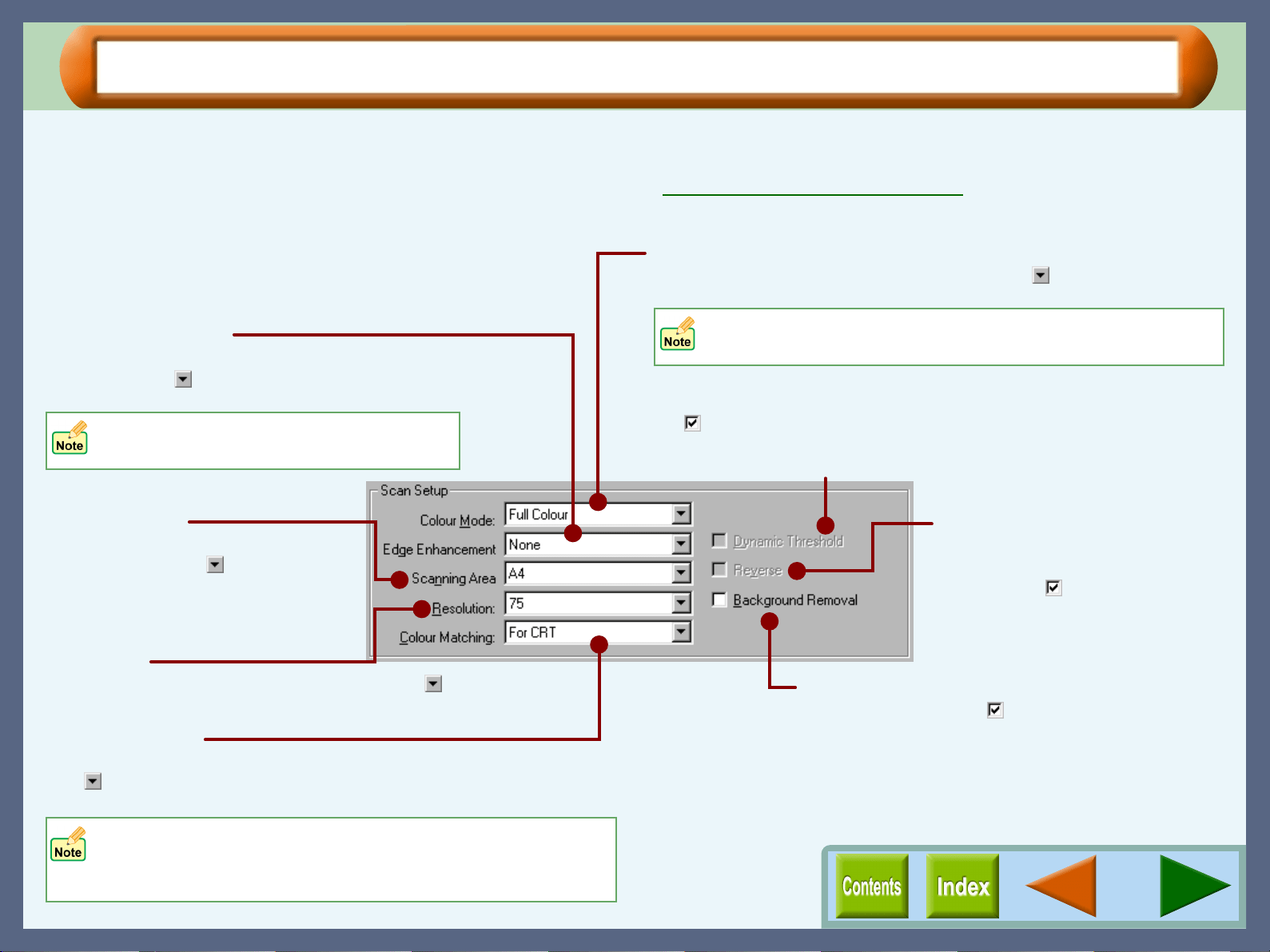
Button Manager
62
"Scan Setup" Settings
You can setup scanning preferences for each scan menu at the "Scan Setup" area.
Reference: The default settings vary depending on the specified functions, which have been selected from "File", "Email", "Fax"
and so on at the "Application Selection" area. Refer to Default Setting for Each Function
for the details on the default
settings.
Colour Mode
Use to select the scan colour mode. Click the ( ) button to select
from "Monochrome", "Greyscale", "256 Colour", and "Full Colour".
Dynamic Threshold
When the colour mode is set to "Monochrome", and this option is checked
on ( ), the unit will process the text and image data separately, and the
threshold is automatically selected to the most appropriate quality setting.
If not checked on, the threshold is set to "128".
Reverse
When the colour mode is set to
"Monochrome", and this option is
checked on ( ), the black and
white tone is reversed.
Edge Enhancement
Set the scan quality of the outline of the image
here. Click the ( ) button to select from "None",
"Soft", "Sharp", and "Normal".
When the colour mode is set to
"Monochrome", this option is unavailable.
Only "Monochrome" is available when "OCR" is selected in
the "Application Selection" area.
Scanning Area
Use to set the size of the image to be
scanned. Click the ( ) button to
select from "A4", "B5", and "Letter".
Resolution
Set the scan resolution quality here. Click the ( ) button to select
from "75", "100", "150", "200", "300", "400", and "600".
Colour Matching
Use to correctly match the colours of the image to be scanned. Click
the ( ) button to select from "For Printer", "For CRT", "For LCD", and
"ICM".
Background Removal
Check this option on ( ) to automatically remove
the background of the image to be scanned.
• When the colour mode is set to "Monochrome", this option
is unavailable.
• The "ICM" setting is unavailable with Windows 95.
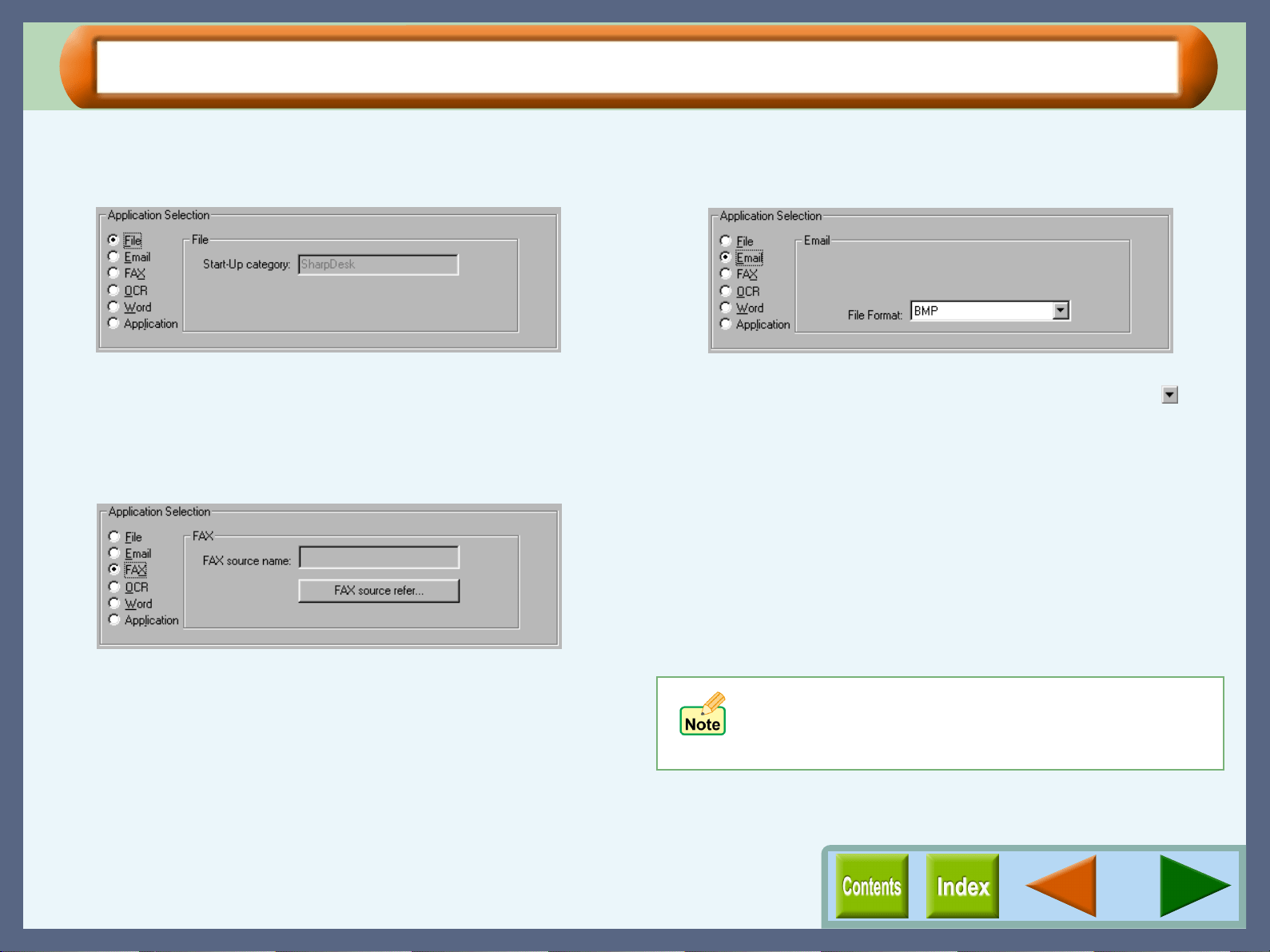
Button Manager
63
"Application Selection" Settings (part 1)
Use the "Application Selection" area to specify the start-up application starting from the scan menu.
"File" settings
Start-Up category
"SharpDesk" will be specified automatically. Your scanned image
is saved as a TIFF file on Sharpdesk. The file name is created
automatically.
"FAX" settings
FAX source name
The name of the FAX software you are using will be displayed.
"FAX source refer" button
By clicking this button, "FAX Source" dialog box will appear.
Select the FAX software you intend to use, and click "OK" button.
The selected item will appear in the "FAX source name" box. The
file name is created automatically.
"Email" settings
File Format
Select the format for the scanned image here. Click the ( )
button to select from "BMP" and "TIFF". The file name is created
automatically.
To specify the file format on your Mail application:
To open your MAPI-compliant Mail application automatically by
selecting "Email" setting, set the necessary preferences on your
Mail application beforehand.
For example, if you use Outlook Express on your computer,
select "Options" from "Tools" menu on the menu bar, select
"General" tab, and then specify required settings. For the detail,
refer to the operation manual or the help file of your Mail
application.
If any MAPI-compliant mail application, for example,
Outlook, Outlook Express, Netscape Messenger, or
Eudora, has not been installed, you cannot make the
"Email" setting.
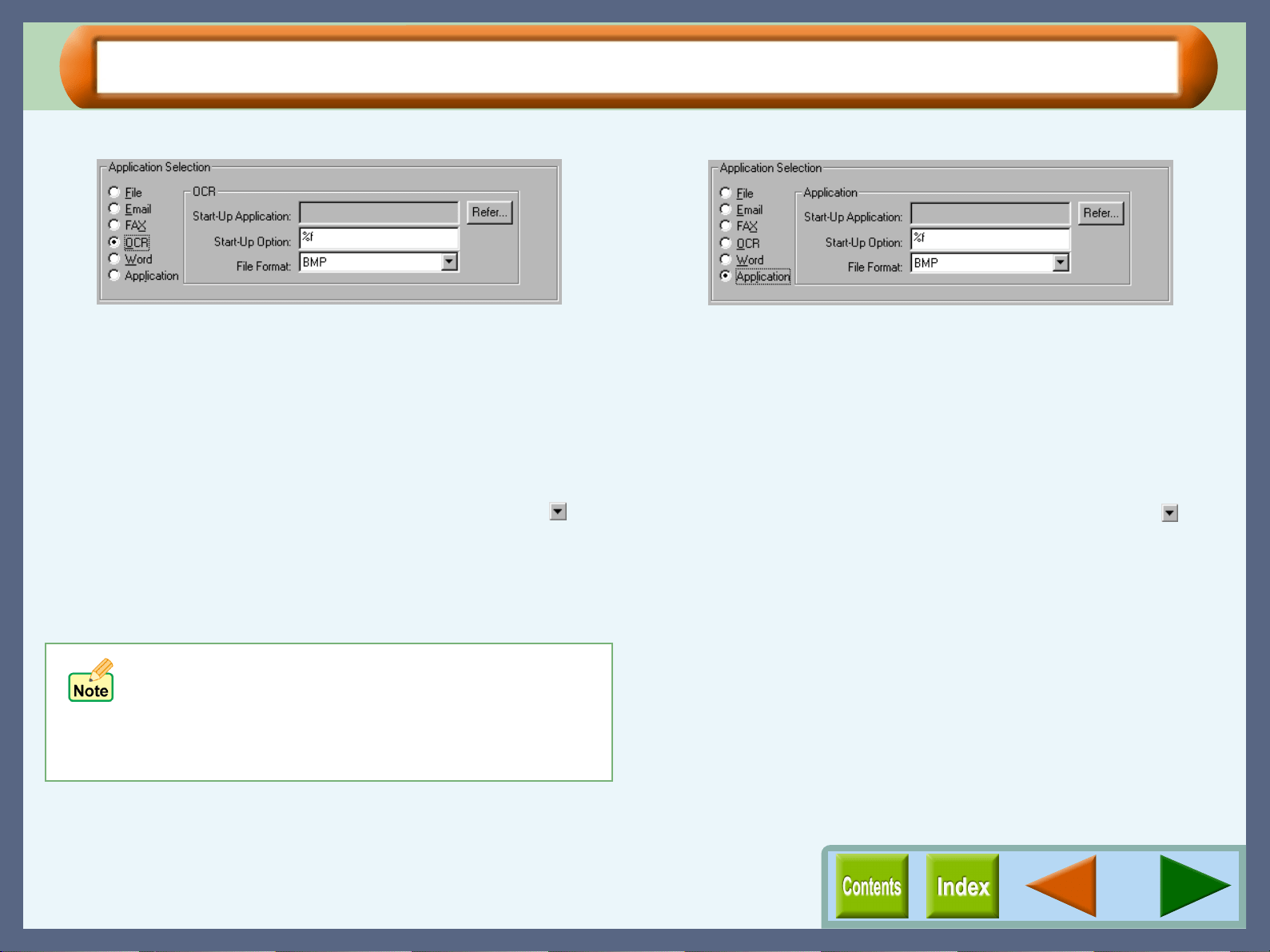
Button Manager
64
"Application Selection" Settings (part 2)
"OCR" settings
Start-Up Application
Displays the path for your OCR software.
"Refer" button
Select your OCR software. Click the "Refer" button to open a
dialog box, on which you can select the OCR software.
Start-Up Option
Specify initial settings for the selected OCR software.
File Format
Select the format for the scanned image here. Click the ( )
button to select from "BMP" and "TIFF". The file name is created
automatically.
"Word" settings
The setting options for "Word" do not appear.
"Application" settings
Start-Up Application
Displays the path for the selected application.
"Refer" button
Select the application. Click the "Refer" button to open a dialog
box, on which you can select the application.
Start-Up Option
Specify initial settings for the selected application.
File Format
Select the format for the scanned image here. Click the ( )
button to select from "BMP" and "TIFF". The file name is created
automatically.
With computers which have been installed with more
than one version of Microsoft Word, when you try to
open Microsoft Word using "SCAN" button, your
computer will automatically activate the version which
was used previously. (Microsoft Word 95 is not
available.)
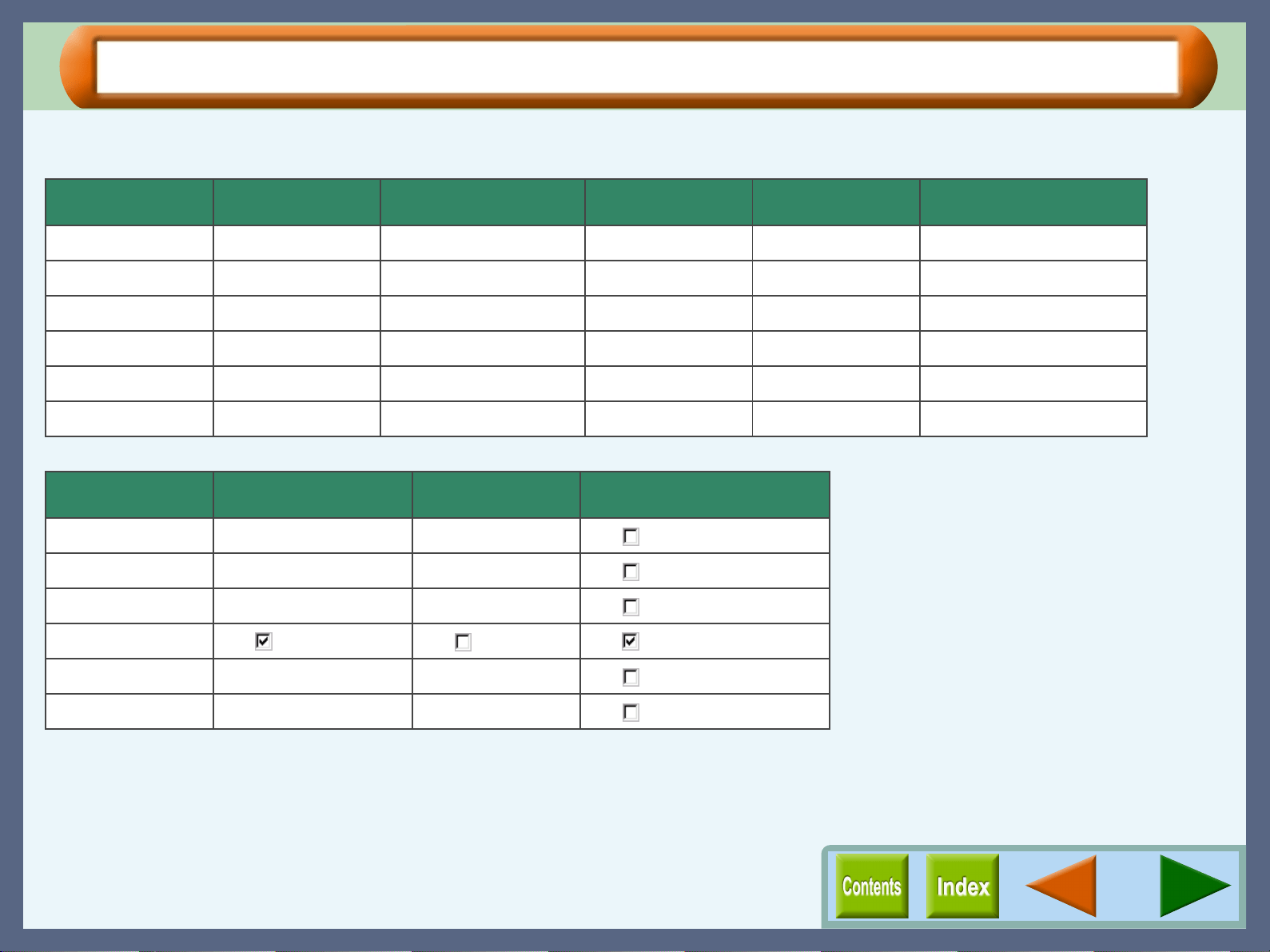
Button Manager
65
Default Setting for Each Function
The default settings for each of the functions in the "Scan Setup" area are shown below.
Function Colour Mode Edge Enhancement Scanning Area Resolution Colour Matching
File Full Colour None A4 75dpi For CRT
Email Full Colour None A4 75dpi For CRT
FAX Greyscale None A4 200dpi For CRT
OCR Monochrome Not available A4 300dpi Not available
Word Full Colour None A4 75dpi For CRT
Application Full Colour None A4 75dpi For CRT
Function Dynamic Threshold Reverse Background Removal
File Not available Not available Off( )
Email Not available Not available Off( )
FAX Not available Not available Off( )
OCR On( ) Off( ) On( )
Word Not available Not available Off( )
Application Not available Not available Off( )
66
Maintenance
Time to Change the Ink Tank
For each of the situations shown below, check which colour ink tank is low on ink before changing the tank. Click
the "Maintenance" tab of the print status window to open the "Maintenance" dialog box. Use this dialog box to
check the colour of the ink tank you should change.
Reference: Changing the Ink Tank
The "Out of ink" error message is displayed on the
print status window.
If the "Out of ink" error message appears on the print status
window, more than two of the ink tanks are out of ink. Check
the ink indicators to find the empty ones, and then immediately
replace them with new ones. If the error message indicates the
colour of the empty ink tank (see sample message below),
replace the ink tank indicated in the message.
"Out of ink - xxxx" - One of the ink colours including cyan,
yellow, magenta, and black is displayed as "xxxx" in this
message.
The "Ink low" error message is displayed on the print
status window.
When an ink tank is near empty, the status icon on the print
status window is changed into ( ). If the "Ink low" error
message appears, more than two of the ink tanks are near
empty. Check the ink indicators to find the ones which are near
empty, and replace them with new ones as soon as possible.
If the error message indicates the colour of the near-empty ink
tank (see sample message below), replace the ink tank
indicated in the message.
"Ink low - xxxx" - One of the ink colours including cyan,
yellow, magenta, and black is displayed as "xxxx" in this
message.
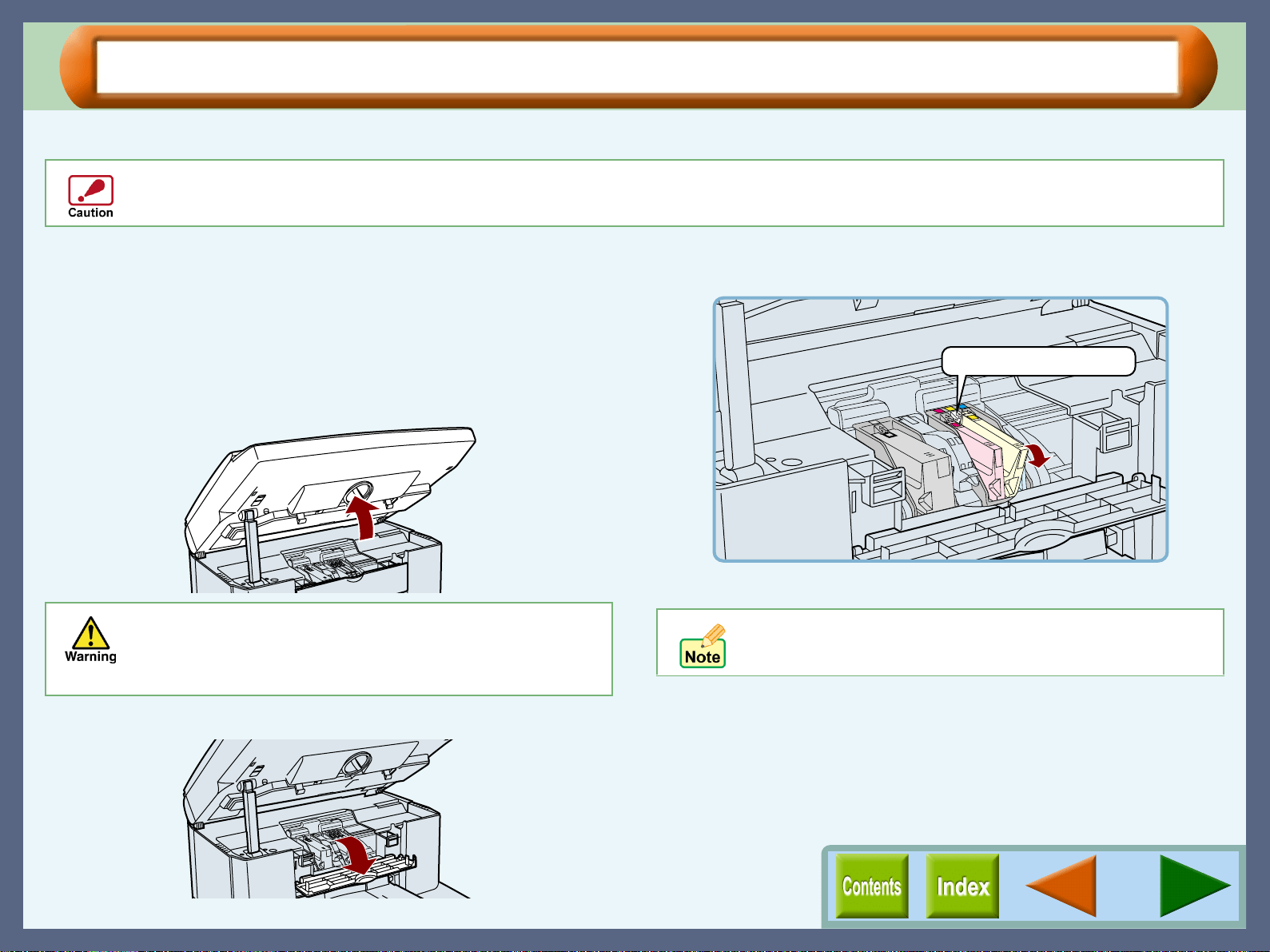
Maintenance
67
Changing the Ink Tank (part 1)
Ensure the unit is turned on before following the steps below on how to change the ink tank.
1
11
1
Turn the front cover locking knob with one hand
and lift the front cover with the other hand, while
keeping the knob in the unlocked position.
The carriage will automatically move to the centre position.
Reference:
See "INSTALLING THE PRINT HEADS AND
THE INK TANKS" in the Setup Guide and
Operation Manual for more detail on how to
open the front cover.
2
22
2
Open the maintenance cover.
3
33
3
Remove the old ink tank.
While pressing the tab forward, remove the ink tank.
During ink tank replacement, if the front cover is left open for more than 8 minutes, the carriage will automatically return to its
home position.
Do not put your hands into the unit until the carriage
stops at the centre position. Doing so may hurt your
hands. Do not try to move the carriage manually by
force, you may damage the unit.
Do not lift the print head latch to replace the ink tank.
Press the tab forward.
Example: Releasing the yellow ink
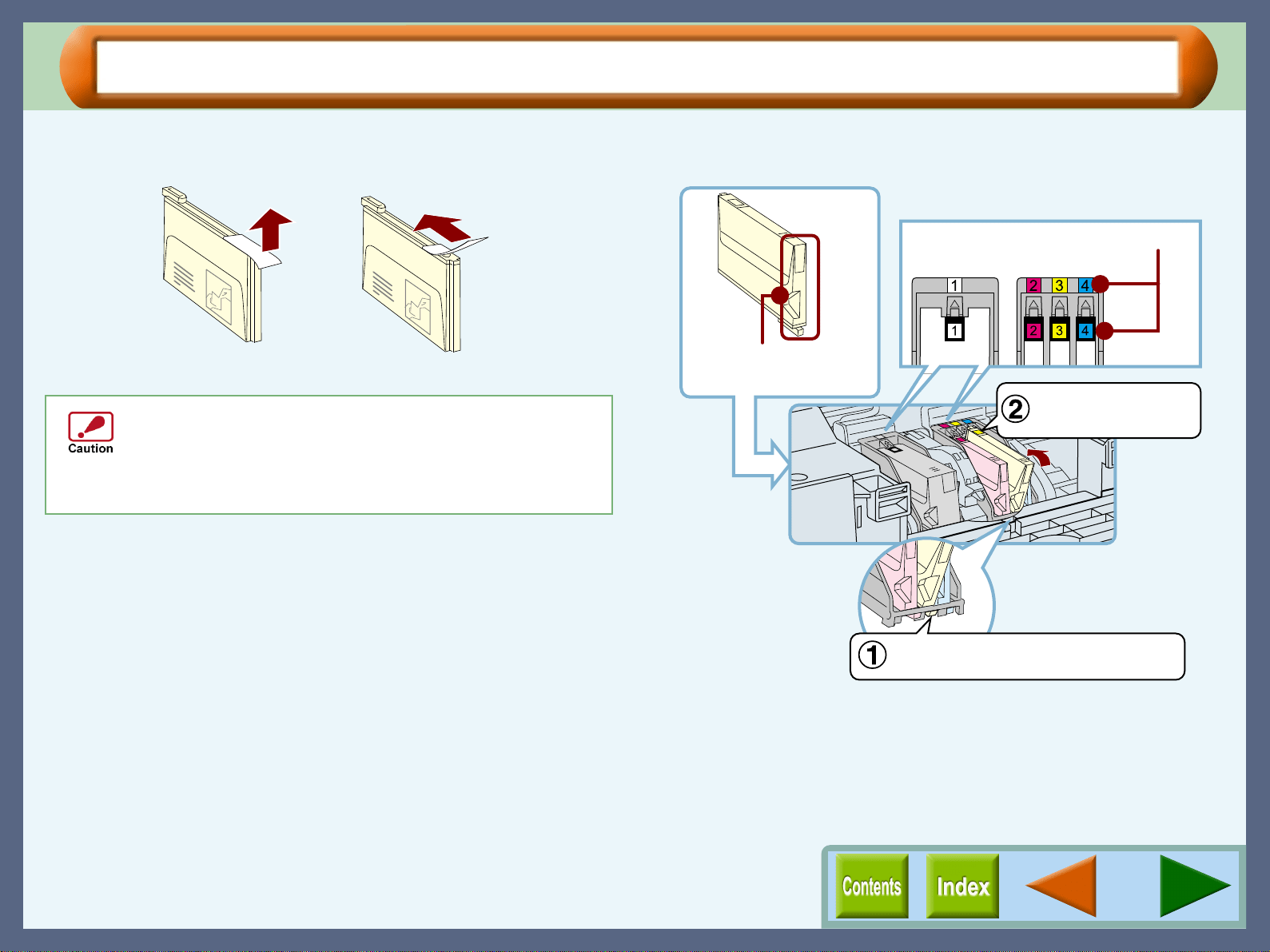
Maintenance
68
Changing the Ink Tank (part 2)
4
44
4
Unpack the ink tank from its protective wrapping
and slowly remove the tape.
5
55
5
Turn the ink upside down, and then immediately
insert it to the print head of corresponding number.
! Hold the tank upright when removing the tape. Do
not touch the uncovered opening on the ink tank, as
ink will get on your hands.
! Ensure that there are no pieces of tape remaining on
the ink tank.
Example: Removing the tape of the yellow ink tank
Example: Inserting the yellow ink tank
Properly align the tab when inserting
the ink tank.
Make sure that each tab
securely locks the ink
tank by pressing here.
Do not touch this area.
The unit may not print
if it is dirty.
Match the ink tank number to the
print head number.
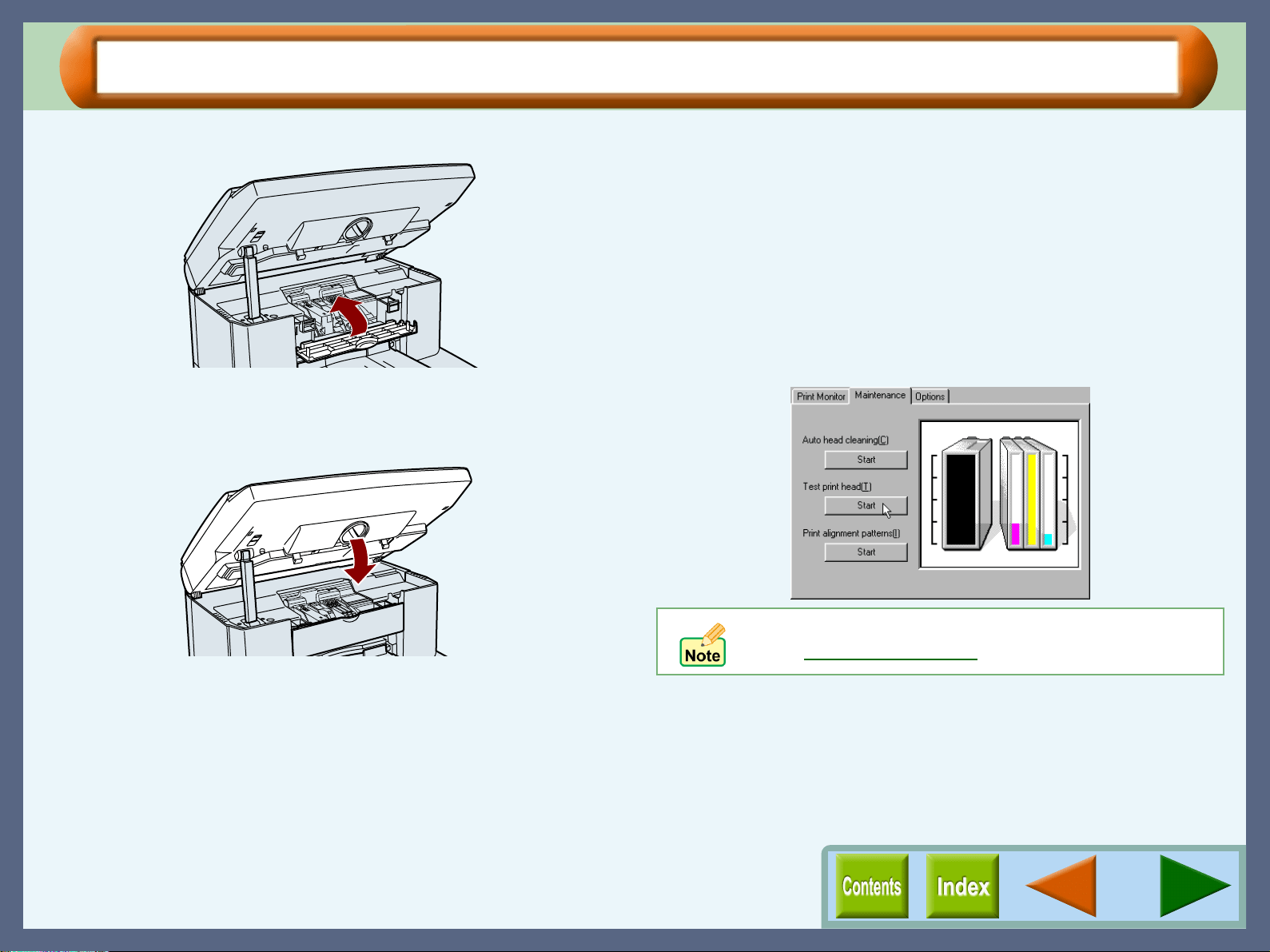
Maintenance
69
Changing the Ink Tank (part 3)
6
66
6
Close the maintenance cover.
7
77
7
Close the front cover.
Press both edges of the font cover with both of your hands
until it locks.
8
88
8
Confirm on the display panel that ink tanks have
been securely set to the unit.
If a message appears, which lets you know that any of ink
tanks have not been installed in their correct positions, open
the front cover and confirm that all the ink tanks are properly
inserted.
9
99
9
Follow the message on the operation panel to
complete the ink tank replacement.
Reference:For more detail, refer to "THE INK TANK" in
the Setup Guide and Operation Manual.
10
1010
10
Print a test page to check if the unit prints properly.
Click the "Start" button of "Test print head" found in the
"Maintenance" dialog box of the print status window to print
out a test page.
If print quality is poor, return to step 5 and follow the
procedures once more.
If print quality is poor after correctly inserting the ink
tank, clean the Print Head.
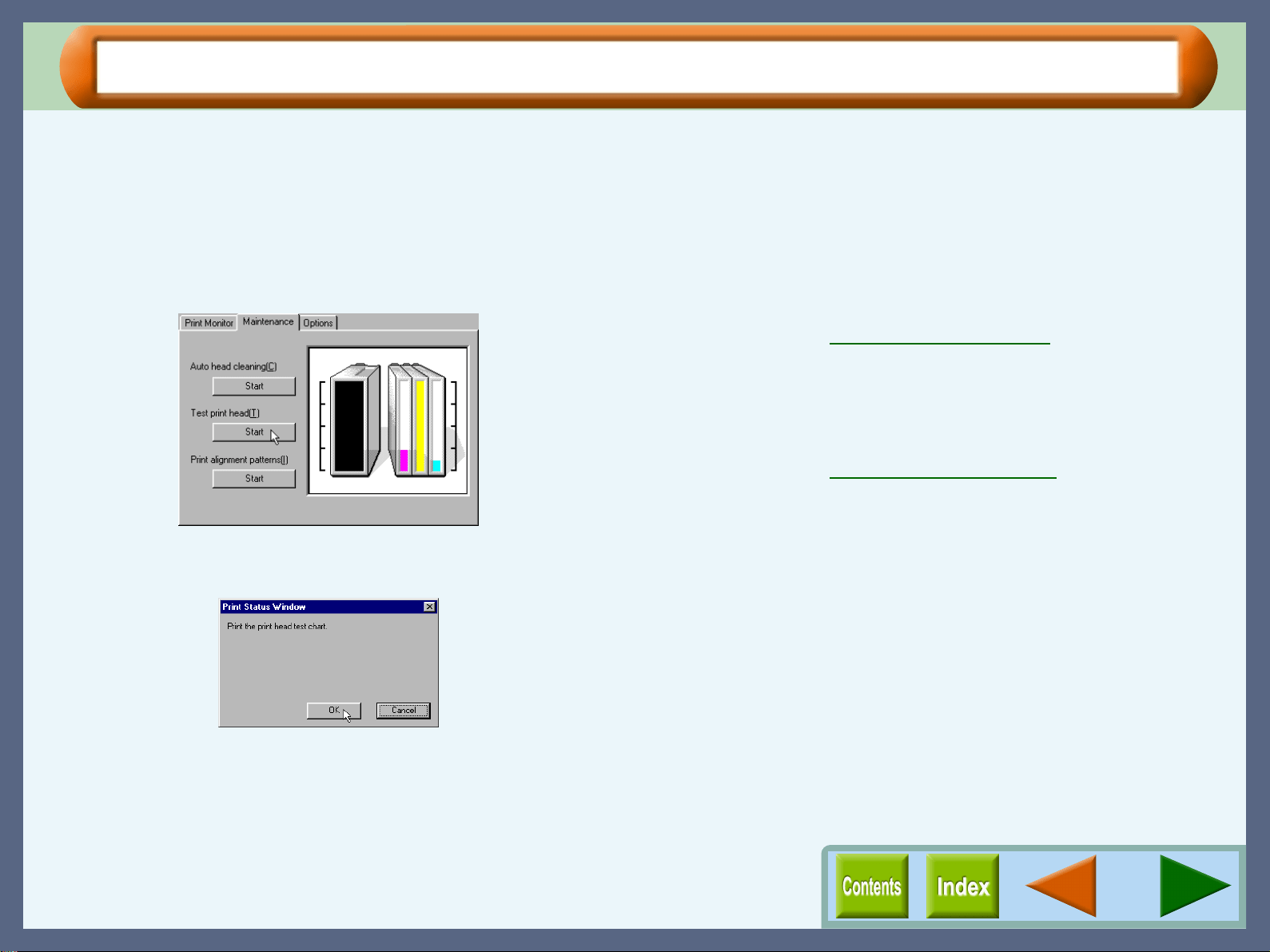
Maintenance
70
Test Print Head
If you are not satisfied with the print quality, print a test page following the steps shown below.
1
11
1
Make sure that A4 sized paper is set in the tray.
2
22
2
Click the "Advanced" tab in the properties dialog
box, and then click "Maintenance" button.
3
33
3
Click the "Start" button of "Test print head".
4
44
4
Click the "OK" button.
A test page will be printed.
5
55
5
Check the result of the test page.
If the print quality is poor, go to the next step.
6
66
6
Click the "Start" button of "Auto head cleaning" to
clean the print heads.
If you cannot get a good result printing a test page even after
cleaning the print head five times, change the print head.
Reference:Cleaning the Print Head
7
77
7
Change the print head.
Replace the black print head if white lines appear in the black
portion of your test page. If you find white lines in portions
of colours except black, replace the colour print head.
Reference:Changing the Print Head
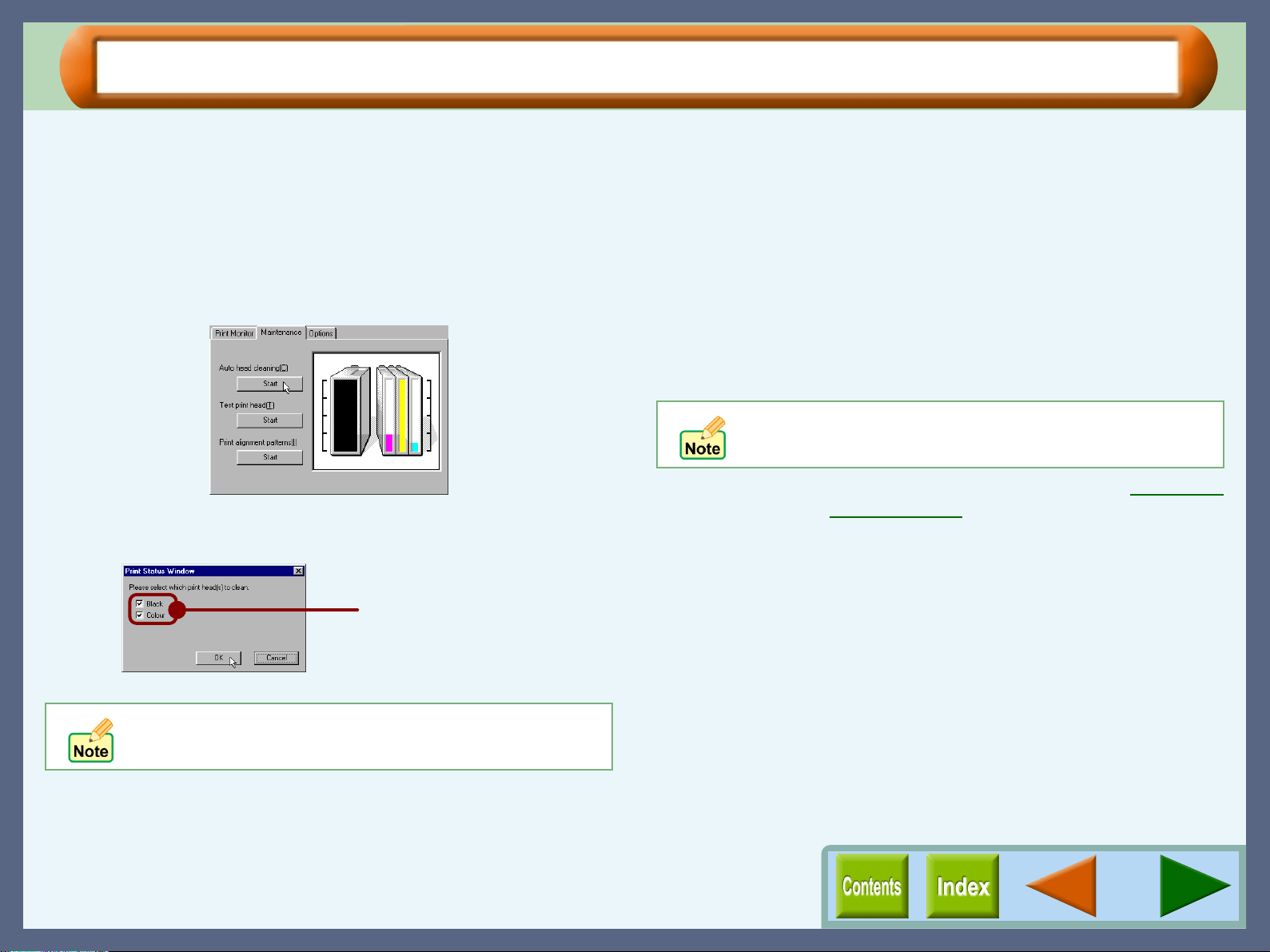
Maintenance
71
Cleaning the Print Head
If the test page from "Test print head" is faint or uneven, confirm that you are printing on the correct side of the
paper, and the driver setting and ink levels are correct. If these items are OK, then follow the steps below to clean
the print head.
1
11
1
Click the "Advanced" tab in the properties dialog
box, and then click "Maintenance" button.
2
22
2
Click the "Start" button of "Auto head cleaning".
3
33
3
Click the "OK" button to clean both the black print head
and the colour print head.
Cleaning the print head will begin.
4
44
4
Click the "Start" button of "Test print head", and
then click "OK" button on the confirmation dialog
box to print a test page.
5
55
5
Check if the test page was printed cleanly.
If print quality is poor, return to step 2 and follow the
procedures again.
Reference:If print quality is still poor, refer to Changing
the Print Head.
The unit cannot perform other operations while
cleaning the print head.
You can save the ink
consumption by checking the
box for the print head which
has poorer print result.
Do not clean the print head more than five times.
Excessive cleaning of the print head wastes ink.
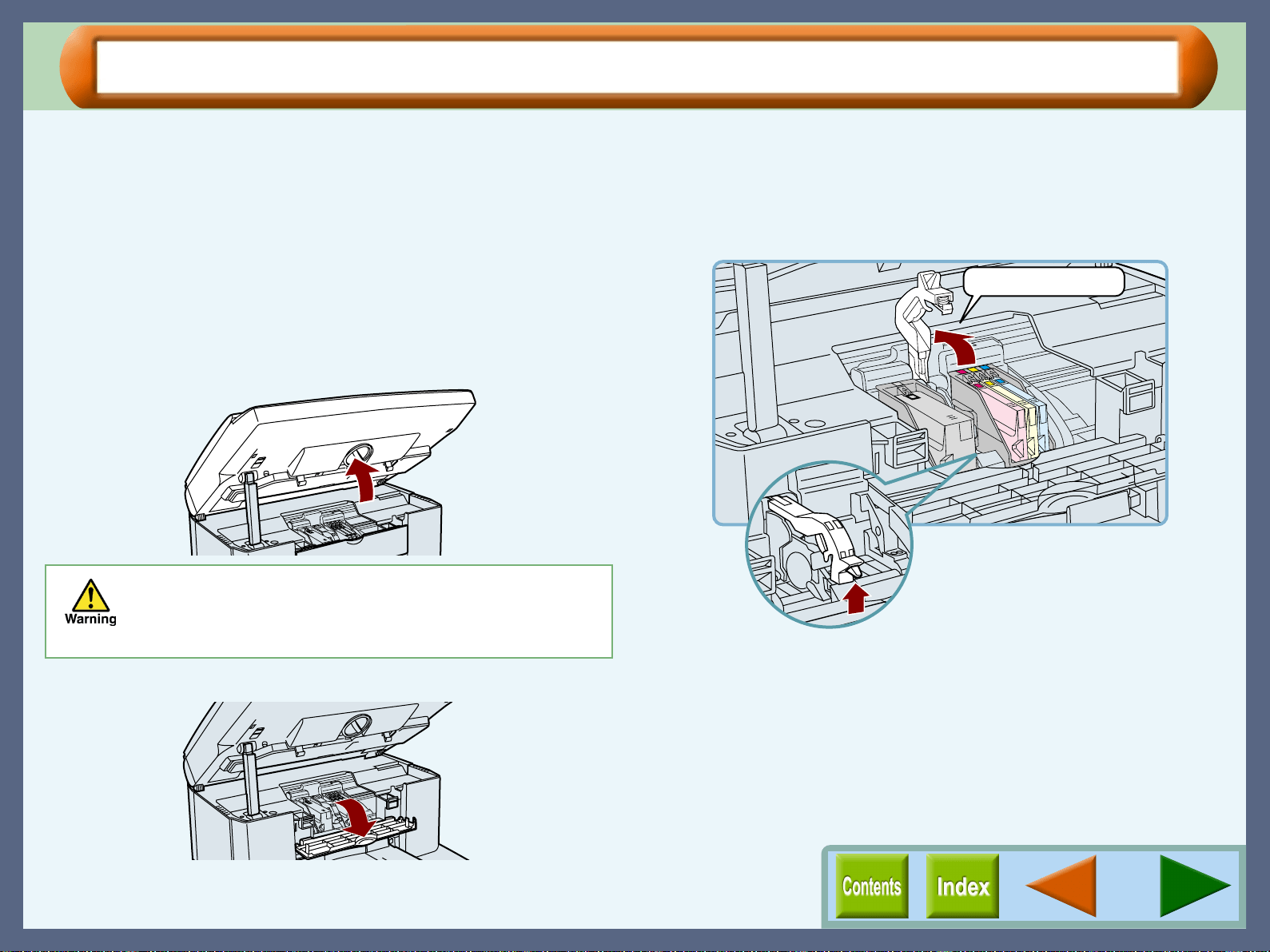
Maintenance
72
Changing the Print Head (part 1)
If print quality is poor, after cleaning the print head 5 times, the print head may be worn.
Ensure the unit is turned on before following the steps below on how to change the print head.
1
11
1
Turn the front cover locking knob with one hand
and lift the front cover with the other hand, while
keeping the knob in the unlocked position.
The carriage will automatically move to the centre position.
Reference:
See "INSTALLING THE PRINT HEADS AND
THE INK TANKS" in the Setup Guide and
Operation Manual for more detail on how to
open the front cover.
2
22
2
Open the maintenance cover.
3
33
3
Raise the print head latch.
Raise the latch until it comes to a complete halt.
Do not put your hands into the unit until the carriage
stops at the centre position. Doing so may hurt your
hands. Do not try to move the carriage manually by
force, you may damage the unit.
Raise this lever.
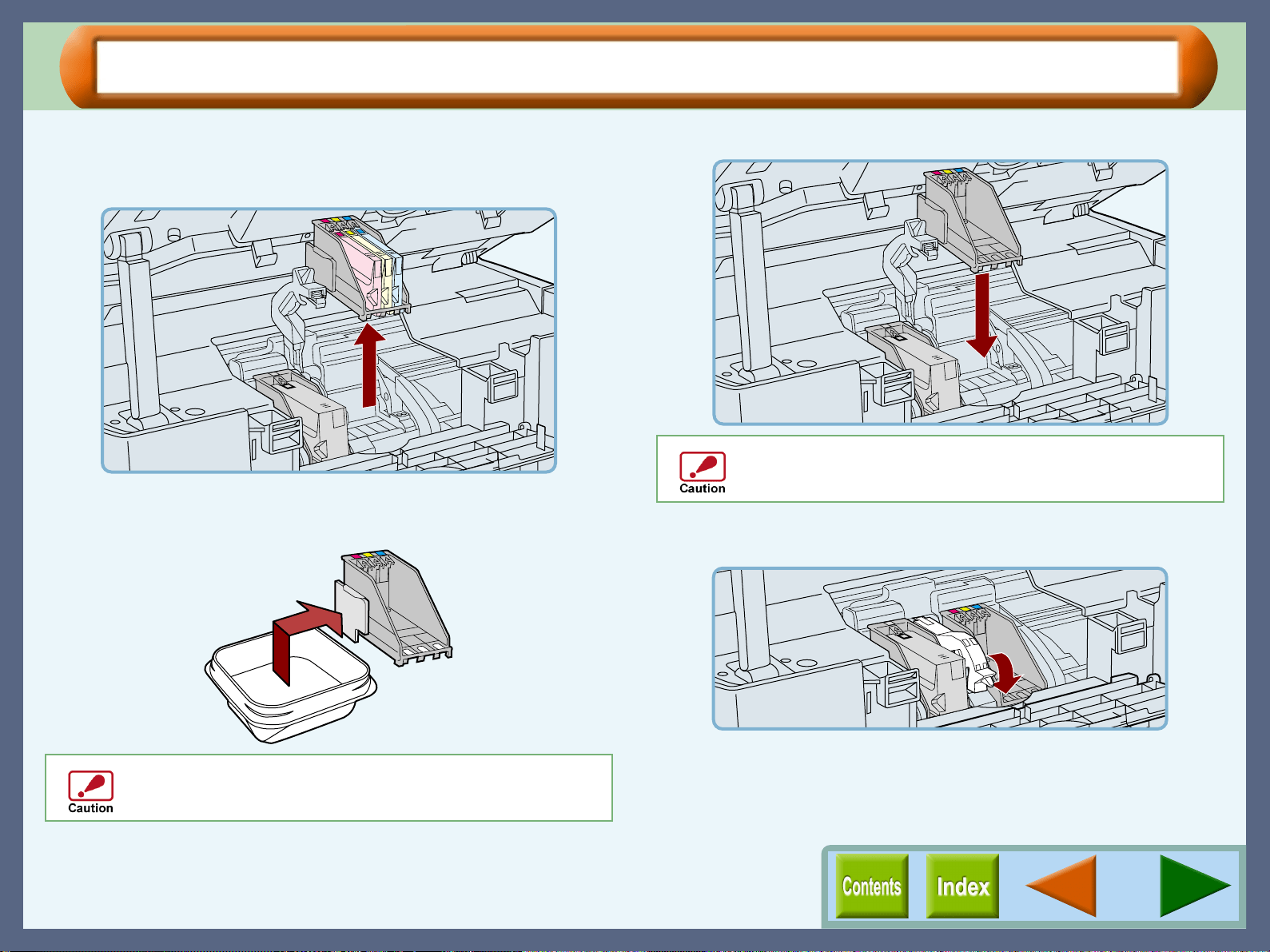
Maintenance
73
Changing the Print Head (part 2)
4
44
4
Remove the old black or colour print head with the
ink tank(s) still inserted.
Lift it straight up to remove.
5
55
5
Remove the new print head from its protective
case.
6
66
6
Insert the new print head.
7
77
7
Lower the print head latch.
Lower the latch until it is properly fixed into position.
Do not touch the metal portion of the print head. Doing
so may lead to improper printing or damage to the unit.
Be careful not to damage the print head. If any part is
damaged, the unit may not work properly.
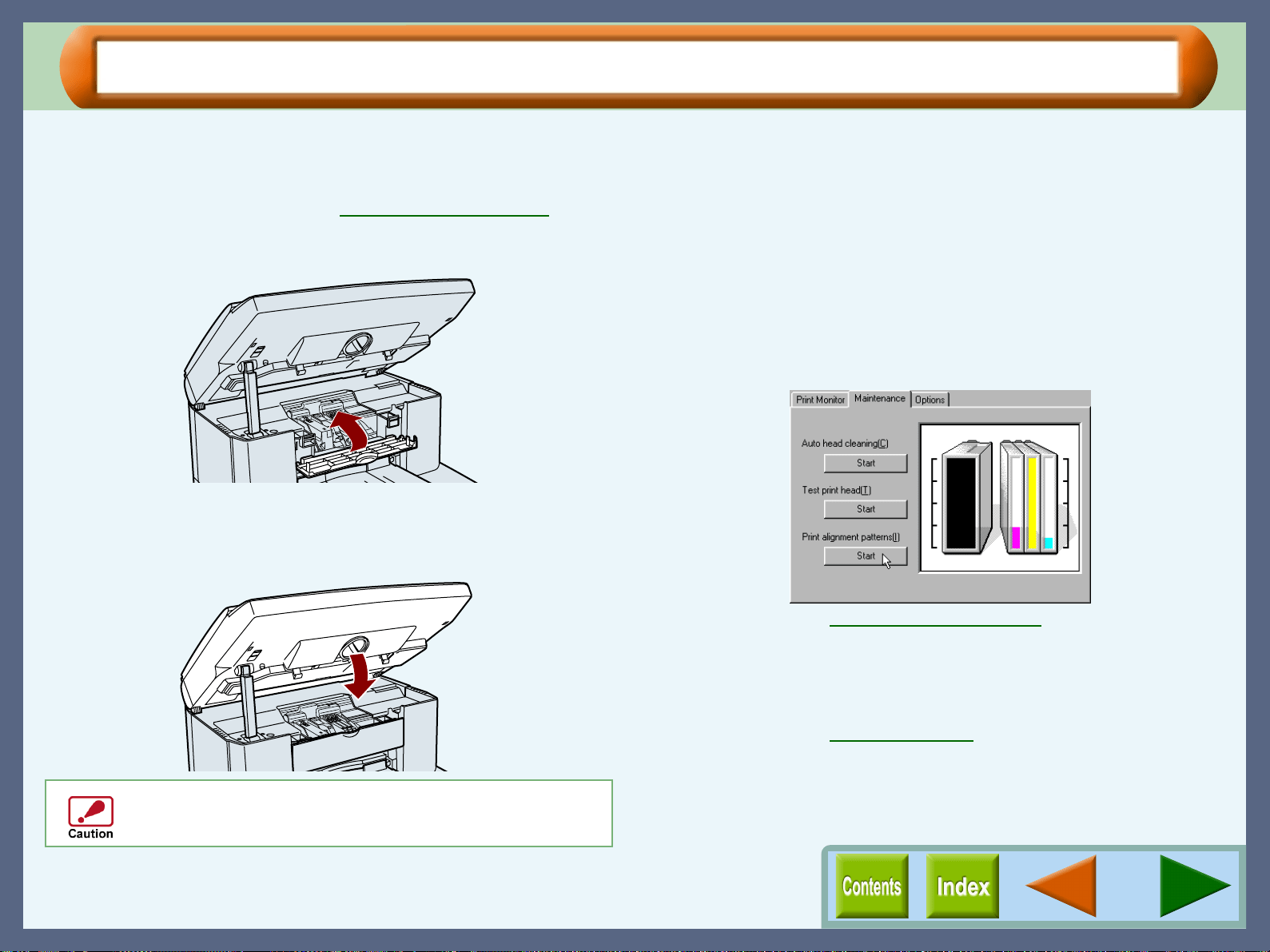
Maintenance
74
Changing the Print Head (part 3)
8
88
8
Remove the ink tank(s) from the old print head and
insert into the new print head.
Reference:For details on inserting and removing the
ink tank, see Changing the Ink Tank
.
9
99
9
Close the maintenance cover.
10
1010
10
Close the front cover.
Press both edges of the font cover with both of your hands
until it locks.
11
1111
11
Follow the message on the operation panel to
complete the ink tank replacement.
Reference:For more detail, refer to "THE PRINT
HEAD" in the Setup Guide and Operation
Manual.
12
1212
12
To maintain print quality after changing the print
head, always align the print head.
Click the "Start" button of "Print alignment patterns" located
in the "Maintenance" dialog box of the print status window
to align the print head.
Reference:Aligning the Print Head
13
1313
13
Print a test page by clicking the "Start" button of
"Test print head".
Make sure that the test page was printed clearly.
Reference:Test Print Head
To keep good print quality, keep all the ink tanks
installed to the corresponding print head.
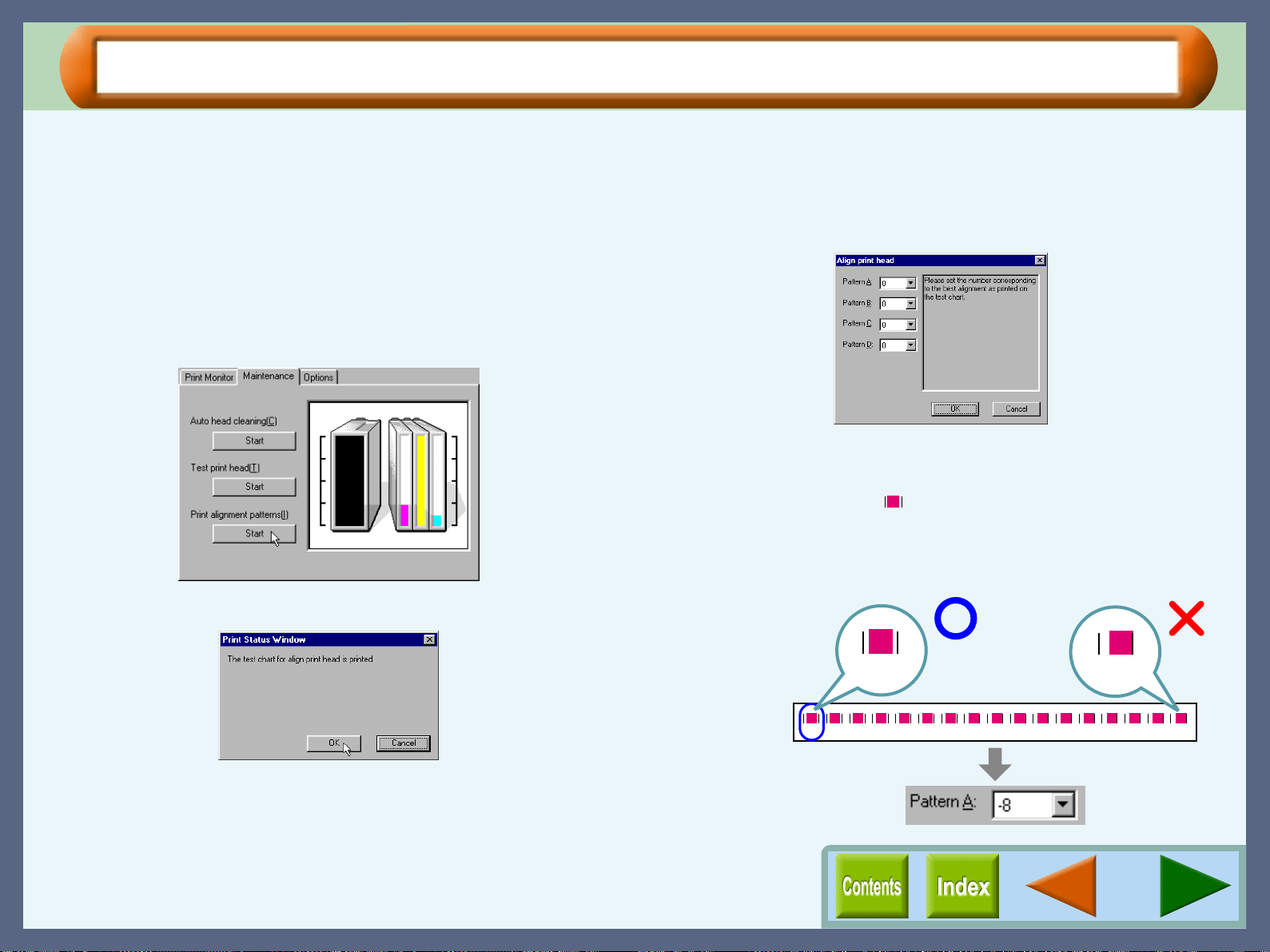
Maintenance
75
Aligning the Print Head (part 1)
Align the print head after installing or changing the print head, or if printed lines are not straight, or have blank
spaces. Follow the steps below to align the print head.
1
11
1
Make sure that A4 sized paper is set in the tray.
2
22
2
Click the "Advanced" tab in the properties dialog
box, and then click "Maintenance" button.
3
33
3
Click the "Start" button of "Print alignment
patterns".
4
44
4
Click the "OK" button.
The "Align print head" dialog box will appear, and a test
chart will be printed.
5
55
5
Check the test chart results, and change the
preferences to the best setting for each pattern.
1
11
1
Select a pattern sample for "Pattern A".
Seventeen block figures with a vertical line on each
vertical side ( ) are printed in pattern A. Of the
seventeen figures determine which block is most nearly
centred between the vertical lines and select the
corresponding number.
-8 -7 -6 -5 -4 -3 -2 -1 0 +1 +2 +3 +4 +5 +6 +7 +8
-8
+8
Example:
A
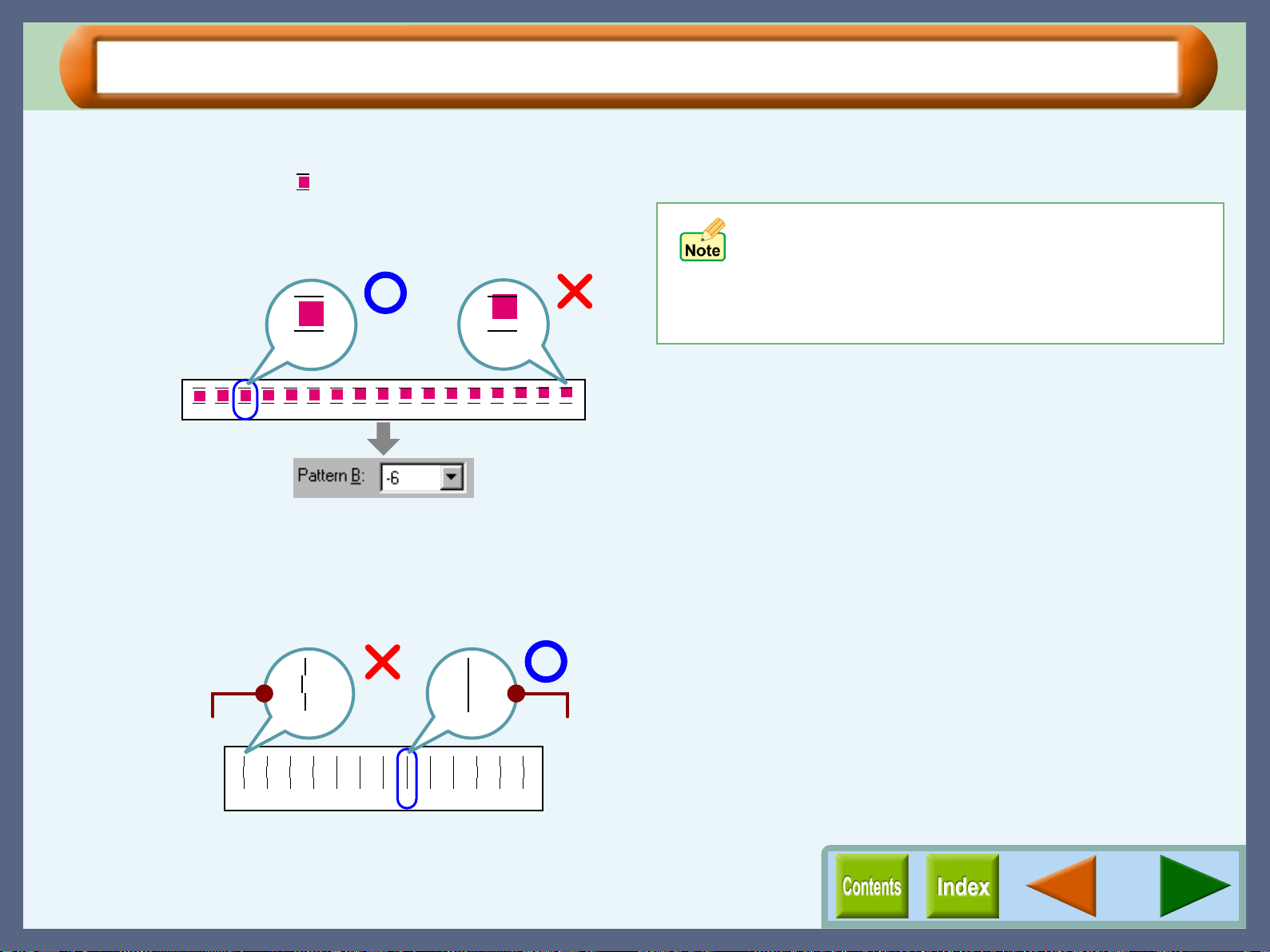
Maintenance
76
Aligning the Print Head (part 2)
2
22
2
Select a pattern sample for "Pattern B".
Seventeen block figures with a horizontal line on each
horizontal side ( ) are printed in pattern B. Of the
seventeen figures determine which block is most nearly
centred between the horizontal lines and select the
corresponding number.
3
33
3
Select pattern samples for "Pattern C" and
"Pattern D" respectively.
Thirteen lines are printed in pattern C and pattern D. Of
the thirteen lines determine which line is the straightest
and select the corresponding number.
6
66
6
Click the "OK" button in the "Align print head"
dialog box.
The print head will align itself.
-8 -7 -6 -5 -4 -3 -2 -1 0 +1 +2 +3 +4 +5 +6 +7 +8
Example:
-6 +8
B
-6 -5 -4 -3 -2 -1 0 +1 +2 +3 +4 +5 +6
-6
Example:
+1
Straight lineCracked line
C or D
! If you cannot find any satisfactory pattern sample for
each of "Pattern A" to "Pattern D" settings, select the
best ones among the printed pattern samples, and
then go back to step 3.
! The unit cannot perform other operations while
aligning the print head.
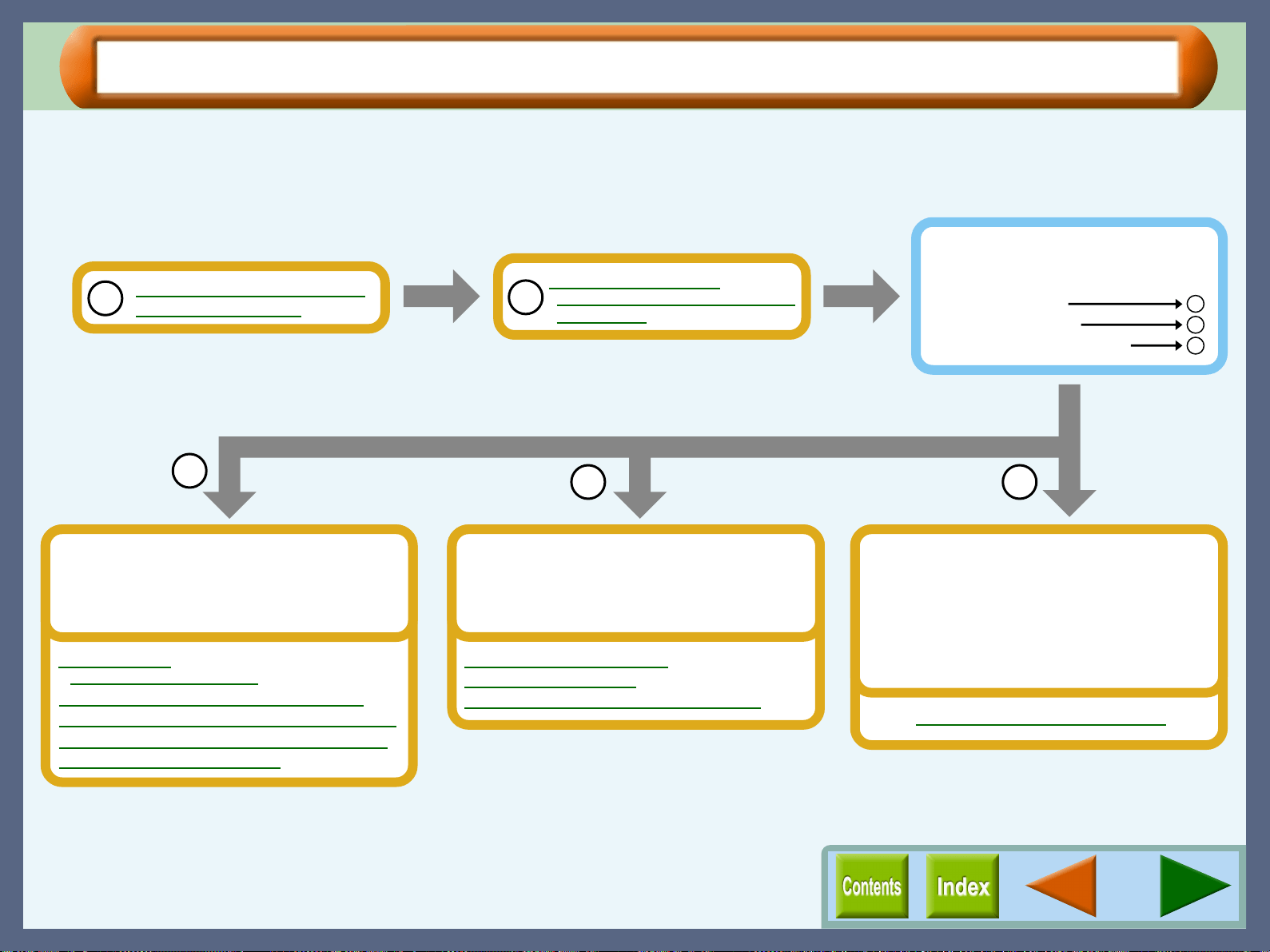
77
Troubleshooting
Identifying Unit Problems
When any trouble has occurred in the unit, first, verify whether you can make a copy or not with the unit. Check
the items shown below when the unit does not work properly but it can make a copy.
Reference: If any copier trouble occurs, refer to "TROUBLESHOOTING" in the Setup Guide and Operation Manual.
If you fail to solve the problem after verifying all the items listed above, please contact your authorised SHARP
service centre.
What type of trouble do you
have?
• Printing trouble
• Scanning trouble
• AJ Series Utility trouble
Uninstalling the AJ Series Utility
AJ Series Utility trouble
When any trouble has occurred while using
Copy JX2 or Button Manager, first, refer to
the error messages and the help file. If you
cannot solve the problem, remove the AJ
series utility software and then reinstall it.
Check Your Computer
Failed to Install the AJ-6000 Series Driver
(USB Interface)
Check the Connection between
the Unit and Computer
A
1
2
B C
C
B
A
Nothing Prints
Uninstalling the Printer Driver
Faint, Uneven or Smeared Print Output
Characters or Graphics are not Printed in Correct Position
Printed Lines are not Straight, or Have Blank Spaces
Unit does not Print in Colour
Printing trouble
When one of the troubles listed below
occurs while printing, check the
corresponding item.
Unable to Scan the Image
Poor Scanning Result
The Scanned Image is Incorrectly Positioned
Scanning trouble
When one of the troubles listed below
occurs while scanning data, check the
corresponding item.
Troubleshooting
78
Check the Connection between the Unit and Computer
CHECK1 Are the interface cables compatible with
the unit and computer?
Interface cables compatible with this unit are USB and
parallel interface cables. If you are using any other type
of interface cable, please change it to the recommended
cable. Check if either type of interface is supported by
your computer.
CHECK2 Is the interface cable connected securely?
Check if the interface cable is securely plugged into the
connectors of the unit and computer. It is also advisable
to ensure that the connector pins are not bent.
Reference:See "CONNECTING THE INTERFACE
CABLE" in the Setup Guide and Operation
Manual for more details on interface
connection.
CHECK3 Are any other USB peripherals being
connected along with the unit?
If other USB peripherals are connected through the
same hub, disconnect them to see if the problem still
exists.
Troubleshooting
79
Check Your Computer
Reference: Failed to Install the AJ-6000 Series Driver (USB Interface)
CHECK1 Is there enough computer memory or hard
disk space?
To use this unit, you must have an adequate amount of
hard disk space. If there is insufficient hard disk space,
delete unnecessary files to increase the free space of the
hard disk. If there is insufficient memory, close
unnecessary applications to increase memory available
for printing or scanning. If you are still unable to print
or scan, install more memory into your computer.
CHECK2 Is your hard disk fragmented?
When data is frequently stored/deleted, the hard disk
may become fragmented causing a reduction in
printing or scanning speed. In this case it is
recommended to defragment your hard disk. You may
use the Windows tools or a commercially available
hard disk defragmenting tool.
CHECK3 Is the parallel port (LPT) of your computer
set to "bidirectional" (when connected
through the parallel port)?
Check the current port setting, referring to the
operation manual of your computer. The unit does not
work normally when the setting is not bidirectional.
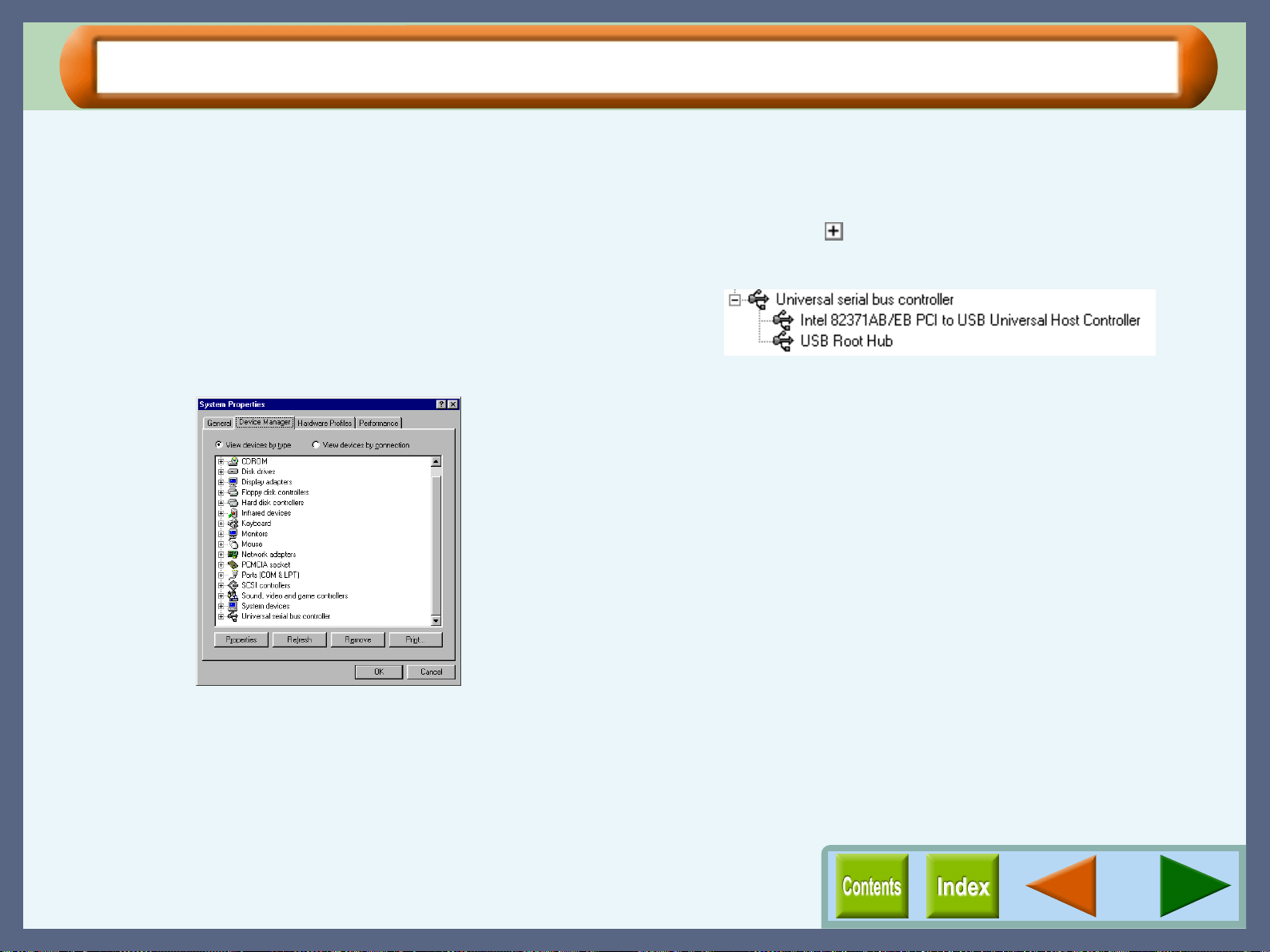
Troubleshooting
80
Failed to Install the AJ-6000 Series Driver (USB Interface)
If the unit is connected to your computer by USB cable, you must install the USB driver.
If you failed to install the AJ-6000 series driver onto your computer connected to the unit by USB interface, make
sure to enable the USB port referring to the steps shown below.
1
11
1
Click the "Start" button, select "Settings", and then
click "Control Panel".
2
22
2
Double-click the "System" icon and click the
"Device Manager" tab.
The last item listed in the Device Manager should be
"Universal serial bus controller".
3
33
3
Click the ( ) icon beside the "Universal serial bus
controller".
Two items will display, your Controller chipset type and
Root Hub. If these items appear, you can use USB port. If the
"Universal serial bus controller" shows a yellow
exclamation point or does not appear, you must check your
computer manual for USB troubleshooting or contact your
computer manufacturer.
4
44
4
When you make sure that the USB port is enabled,
install the AJ-6000 series driver including the USB
port driver, referring "INSTALLING THE
SOFTWARE" in the Setup Guide and Operation
Manual.
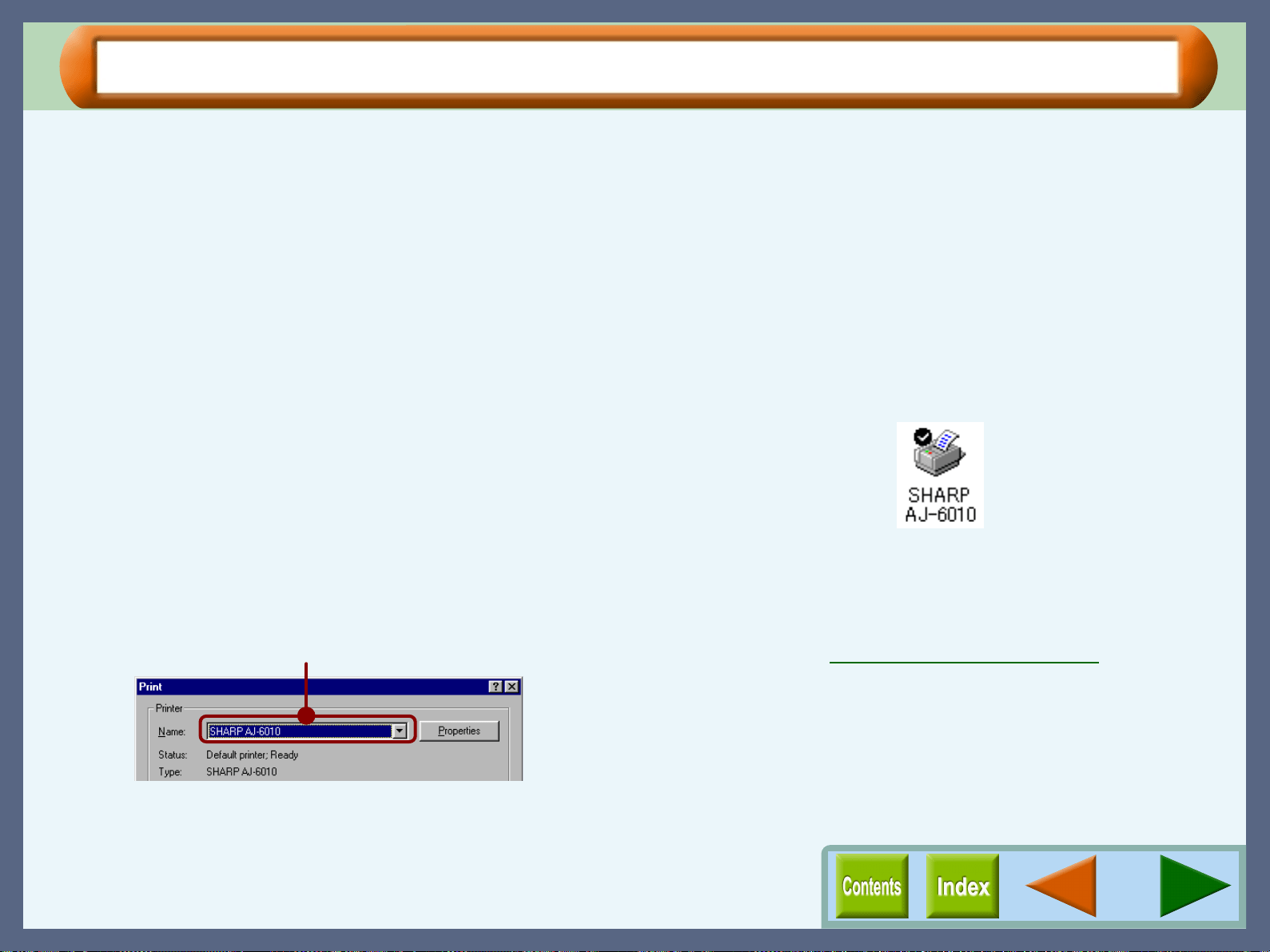
Troubleshooting
81
Nothing Prints
If nothing prints even when the unit is turned on, please wait a few moments. The printer needs a longer time to
process multicoloured or intricate data. If the unit still does not print, refer to the check list below.
CHECK1 Is the correct print port "SPRT" selected?
Make sure that "SPRT" is selected by following the
steps below.
1
11
1
Click the "Start" button, select "Settings" and then click
"Printers".
2
22
2
Right-click the "SHARP AJ-6010" printer driver icon,
and then click "Properties".
3
33
3
Click the "Details" tab to check the "Print to the
following port".
If "SPRT" is not selected for the "Print to the following
port" setting, choose "SPRT" from the listed options. On the
other hand, if "SPRT" does not appear on the option list,
refer to "INSTALLING THE SOFTWARE" in the Setup
Guide and Operation Manual to reinstall the AJ-6000 series
driver.
CHECK2 Is your printer selected correctly in the
current application for the print job?
When choosing "Print" from the "File" menu located in
applications, be sure you have selected the "SHARP
AJ-6010" displayed in the "Print" dialog box.
CHECK3 Has the printer driver been installed
properly?
Check if the printer driver has been installed, following
the steps listed below.
1
11
1
Click the "Start" button, select "Settings" and then
click "Printers".
2
22
2
Check if the "SHARP AJ-6010" printer driver icon
is shown in the "Printers" window.
If you still cannot print after confirming the "SHARP
AJ-6010" printer driver icon, the printer driver may not
have been installed correctly. In this case, you must
uninstall the printer driver and install the printer driver
again.
Reference:Uninstalling the Printer Driver
Check here
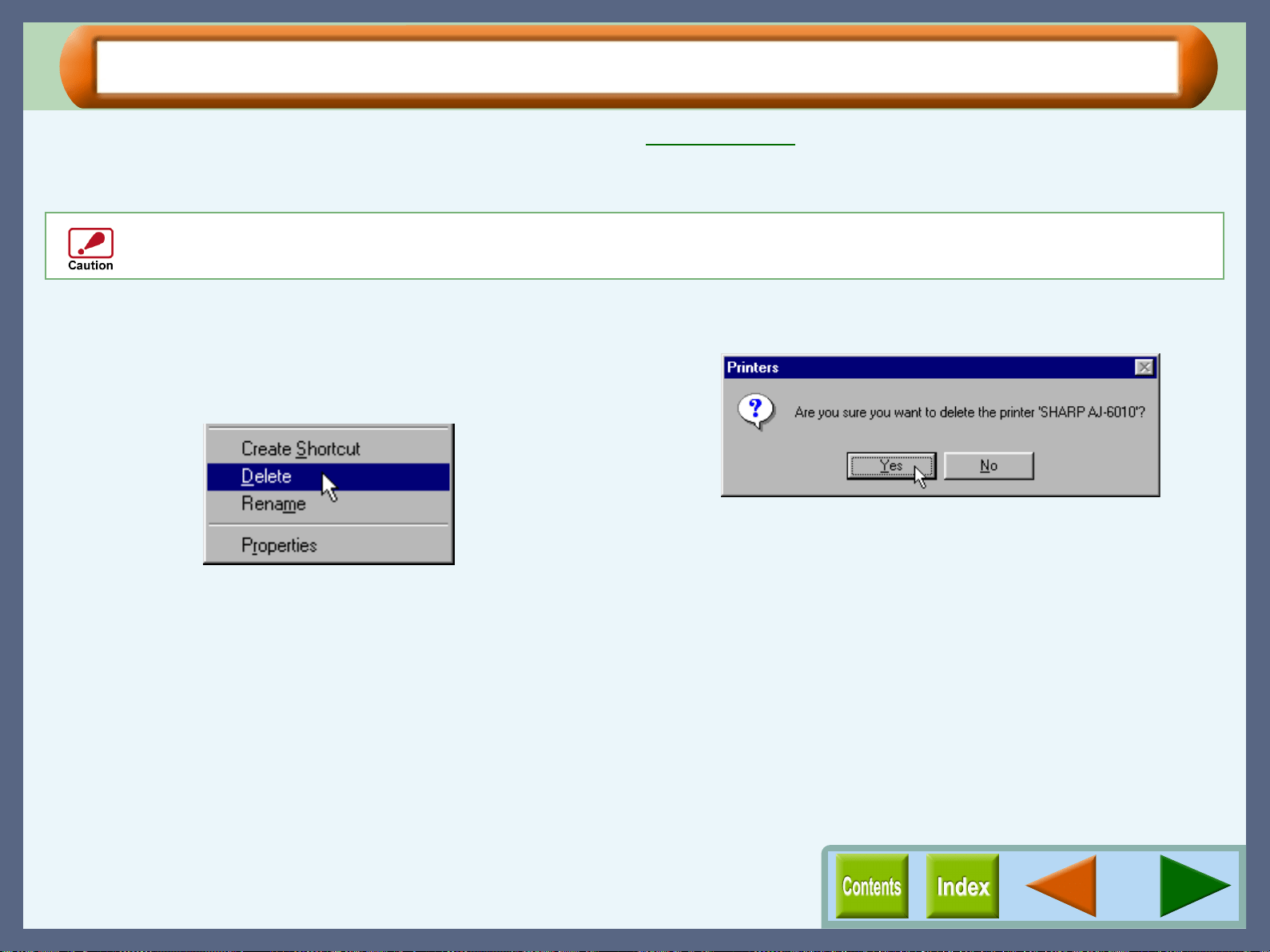
Troubleshooting
82
Uninstalling the Printer Driver
If you cannot print even after following the steps shown in Nothing Prints, you must uninstall the printer driver and
install the printer driver again.
Reference: See "INSTALLING THE PRINTER DRIVER" in the Setup Guide and Operation Manual.
1
11
1
Click the "Start" button, select "Settings", and then
click "Printers".
2
22
2
Right-click the "SHARP AJ-6010" printer driver
icon, and select "Delete" from the pop-up menu.
3
33
3
Click the "Yes" button in the confirmation dialog
box.
You have successfully completed uninstalling the printer
driver.
Before uninstalling the printer driver, close all applications.
Troubleshooting
83
Faint, Uneven or Smeared Print Output
If the print output is faint or uneven
If print output is faint or uneven, refer to checks 1 to 3 below for
possible remedies.
CHECK1 Has the paper been inserted into the printer
with the print side facing the right way?
Some types of paper have only one printable side. Print
quality will suffer if paper is loaded in the tray with the
print side facing the wrong way.
CHECK2 Has the printer driver been specified to suit
both paper and the print job?
Open the properties dialog box, and follow the steps
listed below.
1
11
1
Is the paper specified in the properties dialog box the
same as that loaded in the tray?
Click the "Advanced" tab, and check if the "Media Type"
setting matches the paper inserted in the tray.
2
22
2
Is the print quality setting in the properties dialog box
set to "Draft"?
If the "Print Quality" setting in the "Advanced" tab is set to
"Draft", you can print at higher speed but print quality may
suffer as a result. Specify another setting, and then print
again.
CHECK3 Did you get a clear result for your test
page?
Print a test page to check the print quality. To print a
test page, click the "Start" button of "Test print head"
on the "Maintenance" tab of the print status window.
Reference:Test Print Head
If the print output is smeared
First turn the paper knob to the ( ) direction and print again.
If the print output is still smeared,
CHECK1 Is the paper curled?
If the paper is curled, straighten it up and set it to the
unit again.
CHECK2 Is the paper too thick or too thin?
Only paper weighing from 60g/m
2
to 200g/m
2
(16 lbs.
to 110 lbs. index) can be used for printing.
CHECK3 Did you set sufficient margins in the paper
settings of your application?
If the margins are set outside of the quality guaranteed
area, smudges or smears may appear at the upper and
lower edges of the paper.
Set margins from your application to fit within the
quality guaranteed area.
Reference:Quality guaranteed area
Troubleshooting
84
Characters or Graphics are not Printed in Correct Position
If a document is printed skewed or partly off the paper, follow the steps listed below.
CHECK1 Is the paper size loaded in the tray the
same as that specified in the printer driver?
Click the "Paper" tab in the properties dialog box, and
check if the "Paper Size" options suit the size of the
paper loaded in the tray. If the "Fit To Page" setting is
activated, make sure that the paper size selected from
the drop-down list of the "Print xxx on:" option is the
same as the size of the loaded paper.
Example "Print A4 on:" A6
CHECK2 Is the orientation of document setting
correct?
Click the "Main" tab in the properties dialog box, and
verify if the "Orientation" option is set to your
requirements.
CHECK3 Did you correctly select the desired value
for "N-Up Printing"?
Confirm the selected value for "Original Size" when
"2-Up" or "4-Up" has been selected for "N-Up
Printing". If you have selected a smaller paper size than
the document size of your application, the image
outside the printable area is not printed.
CHECK4 Is the paper loaded correctly?
If a document is physically damaged as it is output or
the image is skewed on the paper discard the jammed
sheet, reinsert the paper supply and print again. Insert
the paper so that there is no visible space between the
paper and the paper guides.
Reference:See "LOADING PAPER" in the Setup
Guide and Operation Manual for more
details on inserting paper.
CHECK5 Did you correctly specify the margins for
the application in use?
Check the layout of the document margins and the
paper size settings for the application you are using.
Also check if the print settings are specified correctly
to suit the paper size.
Reference:Quality guaranteed area
Troubleshooting
85
Printed Lines are not Straight, or Have Blank Spaces
When printed lines are not straight, or have blank spaces, follow the steps listed below.
1
11
1
Specify the print quality setting in the printer
driver.
Click the "Advanced" tab located in the properties dialog
box, and check if the "Print Quality" option is set to "Sharp
Special", "Normal" or "Best".
If you change the setting from "Draft" to any other option
and printed lines are still poor, go to step 2.
Reference:"Advanced" Tab Settings
2
22
2
Align the print head.
Click the "Maintenance" tab of the print status window and
then click "Start" button of "Print alignment patterns" to
align the print head.
Reference:Aligning the Print Head
Troubleshooting
86
Unit does not Print in Colour
If you are unable to print a document in colour, refer to the check list below.
CHECK1 Is the printer driver set to the colour print
option?
Click the "Advanced" tab in the properties dialog box,
and change the "Output Type" setting to "Colour".
Reference:"Advanced" Tab Settings
CHECK2 Does the application you are using support
colour printing?
Some applications may not support colour printing.
Use an application that supports colour printing.
For more information, see your application's manual or
help file.
Troubleshooting
87
Unable to Scan the Image
If you cannot scan the image, refer to the check list shown below.
CHECK1 Is your application compliant to TWAIN?
If your application is not compliant to TWAIN, the
application cannot acquire images. Make sure that your
application is compliant to TWAIN.
CHECK2 Have you selected the TWAIN driver of this
unit on your application?
Make sure that the "SHARP TWAIN AJ1" is selected
on your application.
Reference:Starting the SHARP TWAIN driver
CHECK3 Have you specified all scanning
preferences appropriately?
Setting a large area with full colour together with a high
resolution setting, makes the data size large, resulting
in extended scanning times. It is recommended to set
the scanning preferences depending on the type of
original to be scanned, i.e., Text, Text/Graphics,
Photograph, Colour, Black & White.
CHECK4 Is there enough computer memory?
Your computer may not have enough available
memory to hold the document you want to scan. Lower
the resolution rate.
CHECK5 Is the AJ-6000 series driver installed
successfully?
You cannot scan with the unit when AJ-6000 series
driver is not installed in your computer.
Refer to "INSTALLING THE SOFTWARE" in the
Setup Guide and Operation Manual to reinstall the AJ-
6000 series driver.
CHECK6 Is the "SHARP TWAIN AJ1" driver installed
properly?
If you cannot scan normally even after verifying
CHECK1-CHECK5, uninstall the AJ series utility
and
then reinstall it.
Reference:When you reinstall the AJ series utility,
check the "Utility Software" option,
following step 4 of "INSTALLING THE AJ-
6000 SERIES SOFTWARE" in the Setup
Guide and Operation Manual.
Troubleshooting
88
Poor Scanning Result
If you get poor quality as a result of scanning job, and you cannot improve the quality by changing preferences,
refer to the check list shown below.
CHECK1 Is the original clean?
Check your original before scanning. If any dust sticks
to the original, you cannot obtain a clean result. In
addition, make sure that the original table is also clean.
CHECK2 Have you specified the suitable
resolution?
Make sure that the value for the "Resolution" setting in
the SHARP TWAIN driver satisfies the requirement of
the set original.
Reference:
"Professional" Scan Preferences (Main)
CHECK3 Have you specified suitable value for the
"B/W Threshold" setting?
When you scan with "Mono 2 gradation" colour mode,
make sure that a suitable value is specified for the
"B/W Threshold" setting. A larger threshold value
makes your output darker, whilst a small threshold
value makes it lighter. To adjust the threshold
automatically, click the "Auto Threshold" button on the
"Image" tab of "Professional" screen.
Reference:
"Professional" Scan Preferences (Image)
CHECK4 Have you adjusted the brightness and
contrast suitably?
If you get output which seems to have unsuitable
brightness or contrast as a result of scanning job, for
example, too bright output, activate the "Auto
Contrast/Brightness Adjustment" setting on the
"Image" tab of the "Professional" screen. Click the
"Variation Preview Screen" button
to adjust the
brightness and the contrast viewing the scanned output
image on the screen.
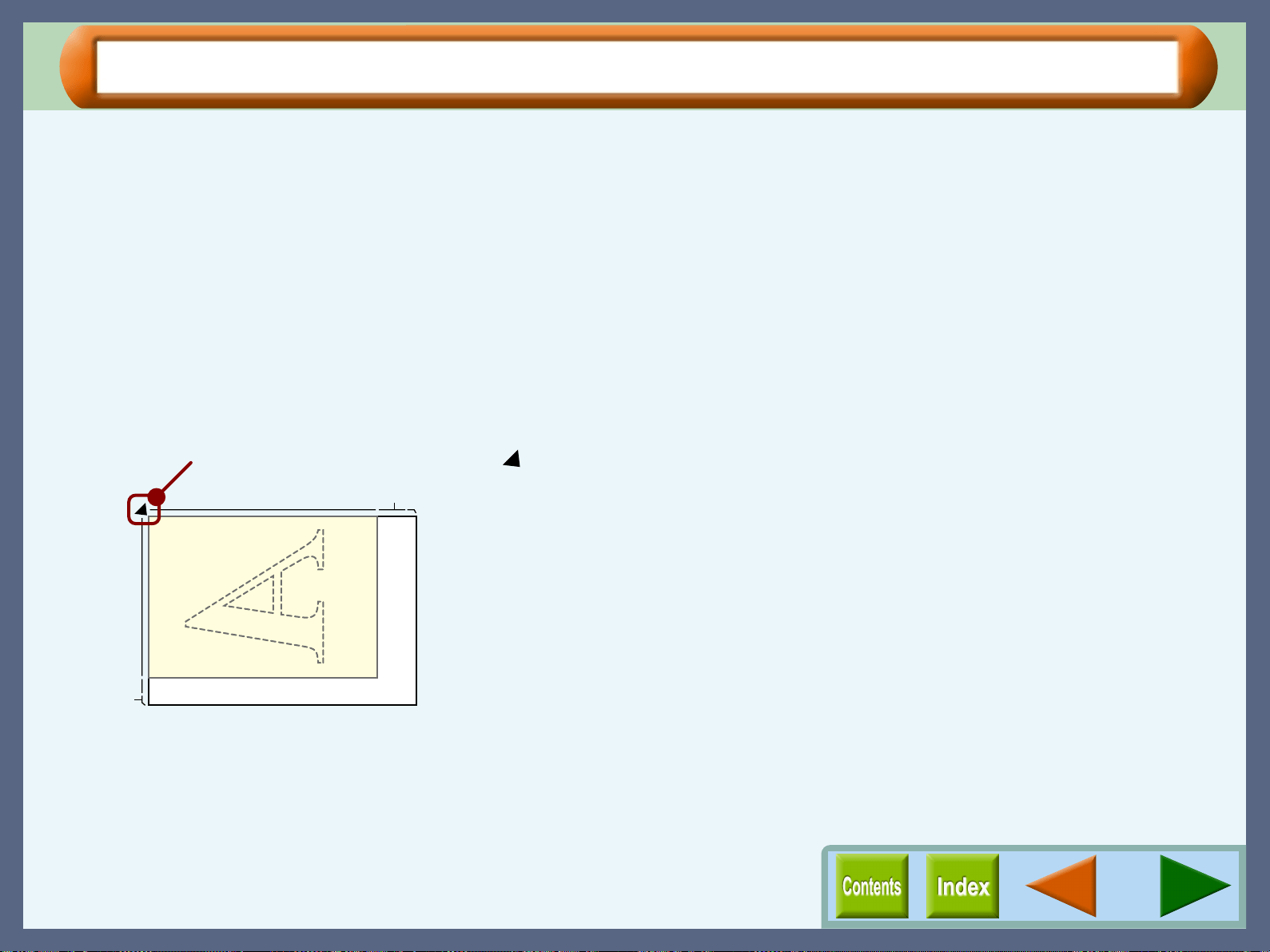
Troubleshooting
89
The Scanned Image is Incorrectly Positioned
If the scanned image is incorrectly positioned, refer to the check list shown below.
CHECK1 Have you placed the original straight?
Place the original straight on the original table.
Reference:
Refer to "ORIGINAL PLACEMENT" in the
Setup Guide and Operation Manual for the
detail on how to set the original.
CHECK2 Have you set the original correctly on the
original table?
Place the original on the original table in the direction
as shown in the illustration below. If you place the
original upside down, the scanned image will be
reversed.
Align the corner of the original with ( ) mark.
B5
A4
8
1/2
B5 A4
11
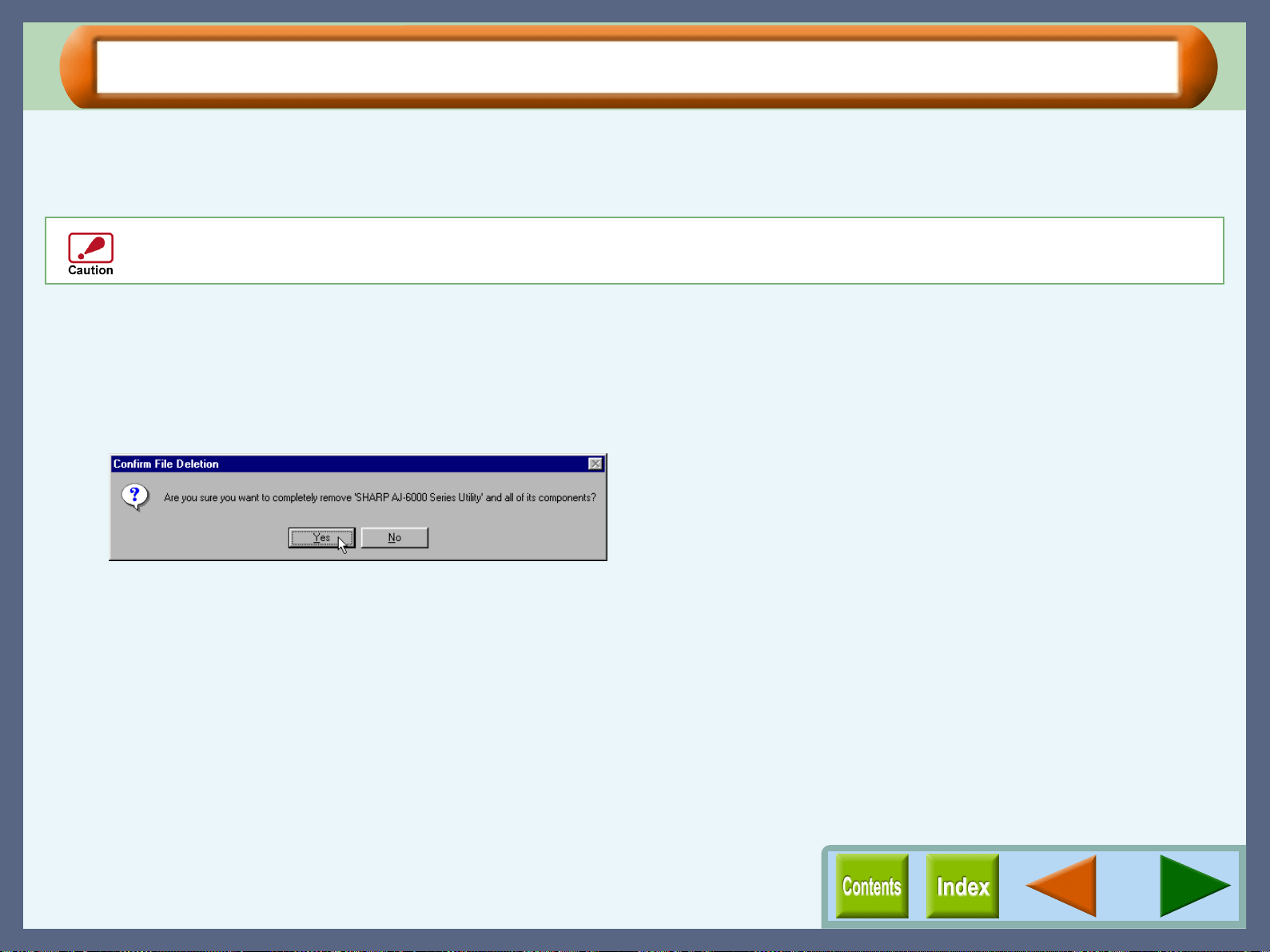
Troubleshooting
90
Uninstalling the AJ Series Utility
When the AJ series utility does not work normally, first, refer to error messages and the help file for each utility.
If the software does not work normally even after verifying them, follow the steps shown below to uninstall the AJ
series utility software and then reinstall it.
1
11
1
Click the "Start" button, select "Programs", select
"SHARP AJ-6000 Series", select "Utility", and then
click "Deleting SHARP AJ-6000 Series Utility".
2
22
2
Click the "Yes" button in the confirmation dialog
box.
The progress of removing the AJ series utility is displayed in
the progress bar.
3
33
3
When the uninstalling process completes, click the
"OK" button.
4
44
4
Refer to "INSTALLING THE AJ-6000 SERIES
SOFTWARE" in the Setup Guide and Operation
Manual to reinstall the AJ series utility software.
Before uninstalling the AJ series utility, close all applications.
Index
Index
"2-Up" Printing 24
"4-Up" Printing 24
A
"Advanced" Tab Settings 13
Aligning the Print Head 75
Application Selection 63
Auto head cleaning 29
B
Basic Printing 20
Brightness 56
Button Manager 59
Bypass 10
B/W Threshold 41
C
Changing the Ink Tank 67
Changing the Print Head 72
Cleaning the Print Head 71
Colour Mode
Button Manager 62
Copy JX2 56
Scanning 40
Copy JX2 49
Custom Paper 11
E
Enlarge/Reduce the Printed Image 23
F
Fit To Paper Size 11
G
Guaranteed area 12
H
How to Use the Online Manual 1
I
Image Repeat 52
"Image" Tab 41
Information 51
Ink tank
Changing 67
Indicator window 29
M
"Main" Tab
Printer Driver 6
SHARP TWAIN Driver 39
Maintenance 66
"Maintenance" Tab 29
Media Type 14
N
N-Up Printing 8
O
"Options" Tab 30
Order 7
Orientation 7
Outline of the SHARP TWAIN Driver 34
"Output Quality" Settings 15
P
Paper Selection 10
Paper Size 10
"Paper" Tab Settings 9
Paper tray 10
"Preference" Tab 43
Preview
Copy JX2 54
Scanning 45
Print 19
Print alignment patterns 29
Print head
Alignment 75
Changing 72
Cleaning 71
Print Margin Settings 55
Print Quality 14
Print Status Window 26
Printable area 12
Printer Properties 2
Printing a Photograph 25
Printing a Watermark 22
Printing Overview 19
"Professional" Scan Preferences 39
Q
Quality 14
R
Resolution 39
S
Scan Setup 62
Scan Size 56
Scanning 34
Scanning an Image 36
Scanning Mode 37
Scanning Type 38
Setting the Scanning Area 45
Sharing Printer 31
Special Setting 57
"Standard" Scan Preferences 38
Starting
Printer Driver 3
SHARP TWAIN Driver 35
T
Test Print Head 70
Troubleshooting 77
U
Uninstalling
AJ Series Utility 90
Printer Driver 82
Utility Software
Button Manager 59
Copy JX2 49
V
Variation Preview Screen 46
W
Watermark 17
"Watermark" Tab Settings 16
Z
Zoom
Copy JX2 56
Printer Driver 11
Scanning 39