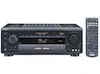
3-860-516-12(1)
1997 by Sony Corporation
FM Stereo
FM-AM Receiver
Operating Instructions
STR-DE915
STR-DE715
STR-DE615
STR-D660Z
STR-D560Z
2
WARNING
To prevent fire or shock
hazard, do not expose
the unit to rain or
moisture.
This symbol is intended to alert the user
to the presence of uninsulated
“dangerous voltage” within the
product’s enclosure that may be of
sufficient magnitude to constitute a risk
of electric shock to persons.
This symbol is intended to alert the user
to the presence of important operating
and maintenance (servicing)
instructions in the literature
accompanying the appliance.
INFORMATION
This equipment has been tested and
found to comply with the limits for a
Class B digital device, pursuant to Part
15 of the FCC Rules.
These limits are designed to provide
reasonable protection against harmful
interference in a residential installation.
This equipment generates, uses, and can
radiate radio frequency energy and, if
not installed and used in accordance
with the instructions, may cause
harmful interference to radio
communications. However, there is no
guarantee that interference will not
occur in a particular installation. If this
equipment does cause harmful
interference to radio or television
reception, which can be determined by
turning the equipment off and on, the
user is encouraged to try to correct the
interference by one or more of the
following measures:
– Reorient or relocate the receiving
antenna.
– Increase the separation between the
equipment and receiver.
– Connect the equipment into an outlet
on a circuit different from that to
which the receiver is connected.
– Consult the dealer or an experienced
radio/TV technician for help.
CAUTION
You are cautioned that any changes or
modification not expressly approved in
this manual could void your authority
to operate this equipment.
Note to CATV system installer:
This reminder is provided to call CATV
system installer’s attention to Article
820-40 of the NEC that provides
guidelines for proper grounding and, in
particular, specifies that the cable
ground shall be connected to the
grounding system of the building, as
close to the point of cable entry as
practical.
Owner’s Record
The model and serial numbers are
located on the rear of the unit. Record
the serial number in the space provided
below. Refer to them whenever you call
upon your Sony dealer regarding this
product.
Model No. STR-DE915/STR-DE715/
STR-DE615/STR-D660Z/
STR-D560Z
Serial No.
For the customers in Canada
CAUTION
TO PREVENT ELECTRIC SHOCK, DO
NOT USE THIS POLARIZED AC PLUG
WITH AN EXTENSION CORD,
RECEPTACLE OR OTHER OUTLET
UNLESS THE BLADES CAN BE FULLY
INSERTED TO PREVENT BLADE
EXPOSURE.
Precautions
On safety
• Should any solid object or liquid fall
into the cabinet, unplug the receiver
and have it checked by qualified
personnel before operating it any
further.
On power sources
• Before operating the receiver, check
that the operating voltage is identical
with your local power supply. The
operating voltage is indicated on the
nameplate at the rear of the receiver.
• The receiver is not disconnected from
the AC power source as long as it is
connected to the wall outlet, even if
the receiver itself has been turned off.
• If you are not going to use the
receiver for a long time, be sure to
disconnect the receiver from the wall
outlet. To disconnect the AC power
cord, grasp the plug itself; never pull
the cord.
• One blade of the plug is wider than
the other for the purpose of safety
and will fit into the wall outlet only
one way. If you are unable to insert
the plug fully into the outlet, contact
your dealer.
• Should the AC power cord need to be
changed, have it done at a qualified
service shop only.
On placement
• Place the receiver in a location with
adequate ventilation to prevent heat
buildup and prolong the life of the
receiver.
• Do not place the receiver near heat
sources, or in a place subject to direct
sunlight, excessive dust or
mechanical shock.
• Do not place anything on top of the
cabinet that might block the
ventilation holes and cause
malfunctions.
On operation
• Before connecting other components,
be sure to turn off and unplug the
receiver.
On cleaning
• Clean the cabinet, panel and controls
with a soft cloth slightly moistened
with a mild detergent solution. Do
not use any type of abrasive pad,
scouring powder or solvent such as
alcohol or benzine.
If you have any question or problem
concerning your receiver, please
consult your nearest Sony dealer.

3
TABLE OF CONTENTS
Getting Started
Unpacking 4
Hookup Overview 4
Antenna Hookups 5
Audio Component Hookups 5
Speaker System Hookups 6
TV/VCR Hookups 9
Digital Component Hookups (STR-DE915 only) 10
AC Hookups 11
Before You Use Your Receiver 11
Receiver Operations
Selecting a Component 12
Receiving Broadcasts 15
Presetting Radio Stations 16
Indexing Preset Stations and Program Sources 16
Recording 17
Using the Sleep Timer 18
Dolby Surround Setup
Dolby Digital (STR-DE915 only) 19
Dolby Pro Logic (STR-DE715/DE615/D660Z/D560Z only) 20
Sound Adjustment
Using Pre-programmed Sound Fields 22
Customizing the Sound Fields 25
Advanced Remote Operations
Operating One Component While Using Another (background operation)
29
Changing the Factory Setting of a FUNCTION Button 29
Programming the Remote (STR-DE915/DE715/D660Z only) 30
Additional Information
Troubleshooting 31
Specifications 32
Glossary 33
Table of Functions of the SET UP Button 35
Rear Panel Descriptions 36
Remote Button Descriptions 37
Index 39
Quick Reference Guide Back cover
About This Manual
The instructions in this manual are for
models STR-DE915, DE715, DE615,
D660Z, and D560Z. Check your model
number by looking at the upper right
corner of the front panel. In this
manual, the USA and Canadian STR-
DE915 and the programmable remote
commander RM-P501 (supplied with
the STR-DE915, DE715, and D660Z) are
used for illustration purposes unless
stated othewise. Any difference in
operation is clearly indicated in the text,
for example, “STR-DE915/DE715
(USA, Canada) only.”
Type of differences
Model DE915 DE715 D660Z
Feature DE615 D560Z
EN
r
* USA and Canadian models only
Conventions
• The instructions in this manual
describe the controls on the receiver.
You can also use the controls on the
remote if they have the same or
similar names as those on the
receiver.
• A “Quick Reference Guide” is
supplied on the back cover.
• The “Remote Button Descriptions”
section on page 37 provides an
overview of the remote buttons.
• The following icons are used in this
manual:
Z
Indicates that you can use only
the remote to do the task.
z
Indicates hints and tips for
making the task easier.
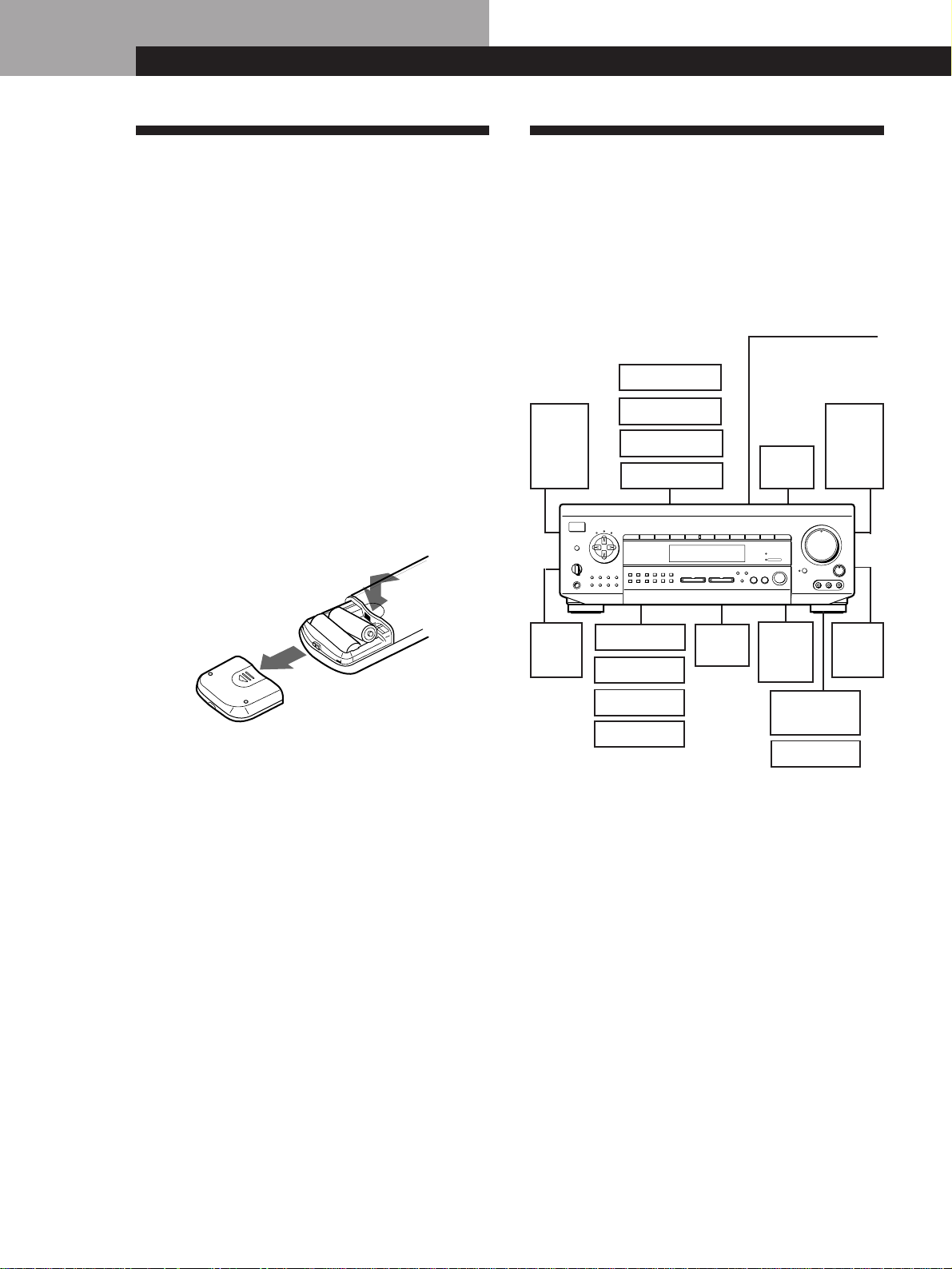
This receiver incorporates the Dolby*
Pro Logic Surround system.
* Manufactured under license from
Dolby Laboratories Licensing
Corporation. DOLBY, the double-D
symbol a, “AC-3,” and “PRO
LOGIC” are trademarks of Dolby
Laboratories Licensing Corporation.
3 video inputs
r
Built-in Dolby
Digital
processor
Digital jacks
r
5.1 INPUT
jacks
r
r
Control A1/
Control S
r*
DE715*
WIRELESS
REAR
SPEAKER
connector
rr
Programmable
remote
r
DE715 D660Z
4
Getting Started
Front
speaker
(L)
Front
speaker
(R)
AM/FM antenna
Antenna Hookups (5)
Rear
speaker
(L)
Rear
speaker
(R)
CD player
Tape deck
DAT/MD deck
Turntable
Center
speaker
Active
woofer
DVD player
TV
VCR
LD player
Speaker
System
Hookups
(6)
TV/VCR Hookups (9)
Digital Component
Hookups (10)
Hookup Overview
The receiver allows you to connect and control the
following audio/video components. Follow the
hookup procedures for the components that you want
to connect to the receiver on the pages specified. To
learn the locations and names of each jacks, see “Rear
Panel Descriptions” on page 36.
Before you get started
• Turn off the power to all components before making
any connections.
• Do not connect the AC power cords until all of the
connections are completed.
• Be sure to make connections firmly to avoid hum
and noise.
• When connecting an audio/video cable, be sure to
match the color-coded pins to the appropriate jacks
on the components: Yellow (video) to Yellow; White
(left, audio) to White; and Red (right, audio) to Red.
Getting Started
Wireless
rear
speaker
SHIFT
INPUT
MODE
DIRECT
0
5
9
4
8
3
7
2
6
1
VIDEO FUNCTION AUDIO FUNCTION
GENRE
MEMORY
PRESET
TUNING
TUNING
TONE
SUR INDEX
+
DISPLAY
–
FM / AM
+
FM MODE
–
SET UP
DIRECT
PASS
MODE
DIRECT PASS
SOUND FIELD
ON / OFF
BASS
BOOST
BALANCE
LR
DISCRETE
5
0
1
3
9
7
4
6
2
8
10
•
•
•
•
•
•
•
•
•
•
•
•
•
•
•
•
•
•
•
•
•
•
•
•
•
•
•
•
•
•
•
PHONES
POWER
SPEAKERS
DPC
MODE
A
OFF
A
+
B
B
g
MASTER VOLUME
VIDEO 2VIDEO 1 VIDEO 3 LD / DVD TV/DBS TAPE DAT / MD CD TUNER PHONO
RLVIDEO AUDIO
VIDEO 3 INPUT
Video camera
recorder
Video game
Audio Component
Hookups (5)
Unpacking
Check that you received the following items with the
receiver:
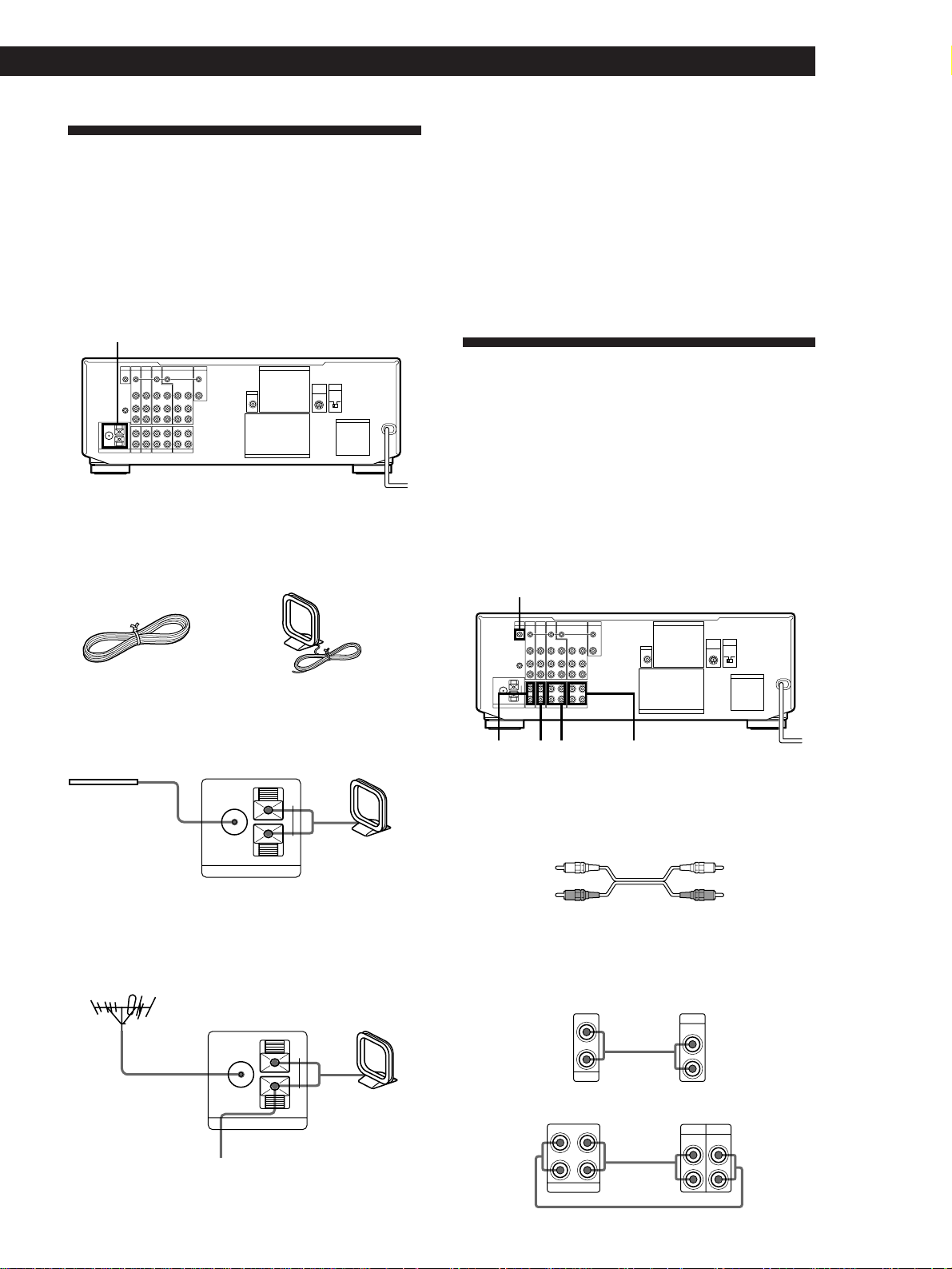
• FM wire antenna (1)
• AM loop antenna (1)
• Remote commander (remote) (1)
RM-P501 (STR-DE915/DE715/D660Z only)
RM-U501 (STR-DE615/D560Z only)
• Size AA (R6) batteries (2)
• Audio/video cable (1)
(STR-DE915/DE715 (USA, Canada) only)
• Control S cord (1)
(STR-DE915/DE715 (USA, Canada) only)
Inserting batteries into the remote
Insert two size AA (R6) batteries with the + and – on
the battery compartment. When using the remote,
point it at the remote sensor g on the receiver.
}
}
]
]
z When to replace batteries
Under normal use, the batteries should last for about 6
months. When the remote no longer operates the
receiver, replace both batteries with new ones.
Notes
• Do not leave the remote in an extremely hot or humid
place.
• Do not use a new battery with an old one.
• Do not expose the remote sensor to direct sunlight or
lighting apparatuses. Doing so may cause a malfunction.
• If you don’t use the remote for an extended period of time,
remove the batteries to avoid possible damage from
battery leakage and corrosion.
5
Getting Started
Getting Started
Important
If you connect an outdoor antenna, ground it against
lightning. To prevent a gas explosion, do not connect
the ground wire to a gas pipe.
Notes
• Do not use y SIGNAL GND for this connection.
• To prevent noise pickup, keep the AM loop antenna away
from the receiver and TV.
Audio Component Hookups
Overview
This section describes how to connect your audio
components to the receiver. If you want to use the
receiver as an amplifier, complete these connections.
Note for STR-DE915
For digital connections, see “Digital Component Hookups
(STR-DE915 only)” on page 10.
S-LINK CTRL A1
(STR-DE915/DE715 (USA, Canada) only)
MONITOR
VIDEO
OUT
CTRL S
IN
VIDEO
IN
VIDEO
OUT
VIDEO
IN
CTRL S
OUT
VIDEO
OUT
CTRL S
OUT
VIDEO
IN
VIDEO
IN
IN
L
R
REC OUT
IN
REC OUT
ININ
CTRL S
STATUS
IN
SIGNAL
GND
FM
75Ω
COAXIAL
AM
AUDIO
IN
L
R
AUDIO
OUT
AUDIO
IN
AUDIO
OUT
AUDIO
IN
CTRL A1
y
y
PHONO
ANTENNA CD DAT / MD TAPE
MONITOR
VIDEO 1
VIDEO 2LD/DVDS-LINK
S-LINK
AUDIO
IN
TV/DBS
AC OUTLET
4 Ω 8 Ω
FRONT SPEAKERS
SURROUND SPEAKERS
WOOFER
AUDIO
OUT
IMPEDANCE
SELECTOR
FRONT
WIRELESS
REAR
SPEAKER
PHONO CD TAPEDAT/MD
What cords will I need?
Audio cords (not supplied) (1 for each CD player and
turntable; 2 for each tape deck, DAT deck, or MD deck)
White (L) White (L)
Red (R) Red (R)
Hookups
The arrow ç indicates signal flow.
CD player
Receiver CD player
Ç
L
R
IN
CD
L
R
LINE
OUTPUT
Tape deck
Receiver Tape deck
Ç
ç
L
R
LINE
OUTPUT
L
R
LINE
INPUT
IN
REC OUT
TAPE
(Continued)
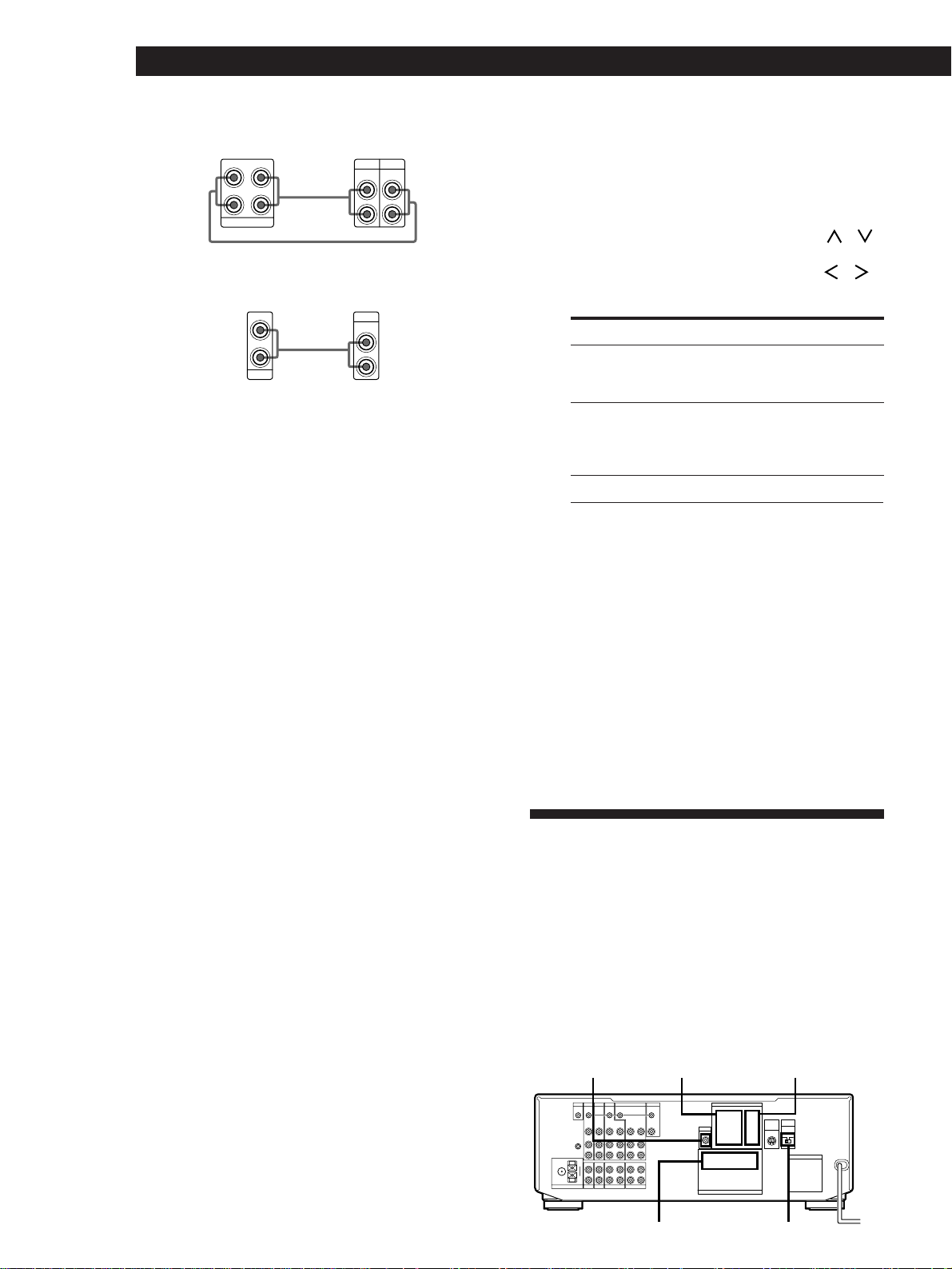
Antenna Hookups
Overview
This section describes how to connect AM and FM
antennas to the receiver. If you want to receive radio
broadcasts with the receiver, complete these
connections first, then go to the following pages.
MONITOR
VIDEO
OUT
CTRL S
IN
VIDEO
IN
VIDEO
OUT
VIDEO
IN
CTRL S
OUT
VIDEO
OUT
CTRL S
OUT
VIDEO
IN
VIDEO
IN
IN
L
R
REC OUT
IN
REC OUT
ININ
CTRL S
STATUS
IN
SIGNAL
GND
FM
75Ω
COAXIAL
AM
AUDIO
IN
L
R
AUDIO
OUT
AUDIO
IN
AUDIO
OUT
AUDIO
IN
CTRL A1
y
y
PHONO
ANTENNA CD DAT / MD TAPE
MONITOR
VIDEO 1
VIDEO 2LD/DVDS-LINK
S-LINK
AUDIO
IN
TV/DBS
AC OUTLET
IMPEDANCE
SELECTOR
4 Ω 8 Ω
FRONT SPEAKERS
SURROUND SPEAKERS
WOOFER
AUDIO
OUT
FRONT
WIRELESS
REAR
SPEAKER
ANTENNA
What antennas will I need?
Hookups
FM wire antenna Receiver AM loop antenna
FM
75Ω
COAXIAL
AM
y
ANTENNA
z If you have poor FM reception
Connect a 75-ohm coaxial cable (not supplied) to an FM
outdoor antenna.
FM outdoor antenna
Receiver
FM
75Ω
COAXIAL
AM
y
ANTENNA
v
To ground
• FM wire antenna
(supplied) (1)
• AM loop antenna
(supplied) (1)
After connecting
the wire antenna,
keep it as
horizontal as
possible.
Ground wire (not supplied)
6
Getting Started
DAT deck or MD deck
Receiver DAT deck or MD deck
Ç
ç
L
R
LINE
OUTPUT
L
R
LINE
INPUT
IN
REC OUT
DAT/MD
Turntable
Receiver Turntable
Ç
PHONO
L
R
IN
L
R
LINE
OUTPUT
If your turntable has an earth lead
To prevent hum, connect the earth lead to the y SIGNAL
GND terminal on the receiver.
CONTROL A1 Hookups (STR-DE915/DE715
(USA, Canada) only)
• If you have a CONTROL A1 compatible Sony CD player,
tape deck, or MD deck
Use a CONTROL A1 cord (not supplied) to connect the
S-LINK CTRL A1 jack on the CD player, tape deck, or MD
deck to the S-LINK CTRL A1 jack on the receiver. Refer
the separate manual “CONTROL-A1 Control System” and
the Operating Instructions supplied with your CD player,
tape deck, or MD deck for details.
• If you have a Sony CD changer with a COMMAND
MODE selector
If the CD changer’s COMMAND MODE selector can be
switched between CD 1, CD 2, and CD 3, be sure to set the
command mode to “CD 1” and connect the changer to the
CD jacks on the receiver.
However, if you have a Sony CD changer with VIDEO
OUT jacks, set the command mode to “CD 2” and connect
the changer to the VIDEO 2 jacks on the receiver.
z You can display the operating status of the
component connected to the S-LINK CTRL A1 jack
(STR-DE915/DE715 (USA, Canada) only)
1 Press SET UP repeatedly to select OTHER SETUP
(STR-DE915 only) or DISPLAY SETUP (STR-DE715
only).
2 Use the digital processing control buttons ( / )
to select CONTROL-A1.
3 Use the digital processing control buttons ( / )
to select the setting you want by referring to the
following table.
Notes
• This setting is effective only when the receiver is set to
TAPE, DAT/MD, VIDEO 2, or CD (see page 12). For
VIDEO 2, the CD changer command mode must be
“CD 2” and the CD changer must be connected to the
VIDEO 2 jacks on the receiver. For CD, the CD
changer command mode must be “CD 1” and the CD
changer must be connected to the CD jacks on the
receiver.
• If the disc or track memo contains a character that the
receiver cannot display, “.” appears for that character.
• When the Mega Control function of the CD player is
active, the operating status of the main player is
displayed.
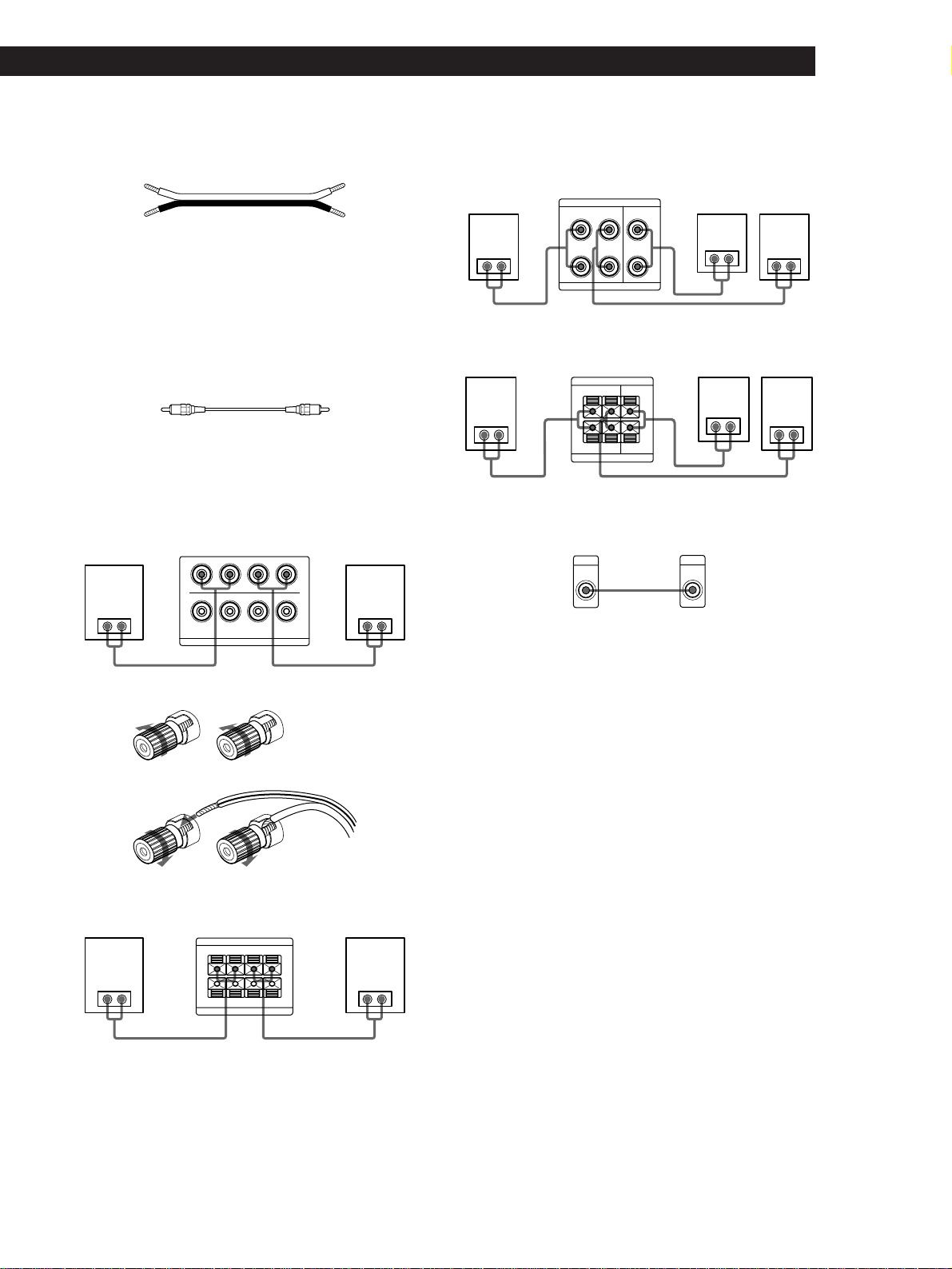
Speaker System Hookups
Overview
This section describes how to connect your speakers to
the receiver. Although front (left and right) speakers
are required, center and rear speakers are optional.
Adding center and rear speakers will enhance the
surround effects. Connecting an active woofer will
increase bass response.
MONITOR
VIDEO
OUT
CTRL S
IN
VIDEO
IN
VIDEO
OUT
VIDEO
IN
CTRL S
OUT
VIDEO
OUT
CTRL S
OUT
VIDEO
IN
VIDEO
IN
IN
L
R
REC OUT
IN
REC OUT
ININ
CTRL S
STATUS
IN
SIGNAL
GND
FM
75Ω
COAXIAL
AM
AUDIO
IN
L
R
AUDIO
OUT
AUDIO
IN
AUDIO
OUT
AUDIO
IN
CTRL A1
y
y
PHONO
ANTENNA CD DAT / MD TAPE
MONITOR
VIDEO 1
VIDEO 2LD/DVDS-LINK
S-LINK
AUDIO
IN
TV/DBS
AC OUTLET
4 Ω 8 Ω
FRONT SPEAKERS
SURROUND SPEAKERS
WOOFER
AUDIO
OUT
IMPEDANCE
SELECTOR
FRONT
WIRELESS
REAR
SPEAKER
WOOFER
FRONT SPEAKERS A IMPEDANCE SELECTOR
SURROUND
SPEAKERS REAR
SURROUND
SPEAKERS CENTER
To Select
Display “PLAY,” “STOP,” “PAUSE,”
or “REC” for about 8 seconds when
the operation switches
AUTO
Display “PLAY,” “STOP,” “PAUSE,”
“REC,” or the contents of a disc or
track memo of a CD or MD whenever
you press the DISPLAY button
FIX
Turn off the operation status display OFF
7
Getting Started
Getting Started
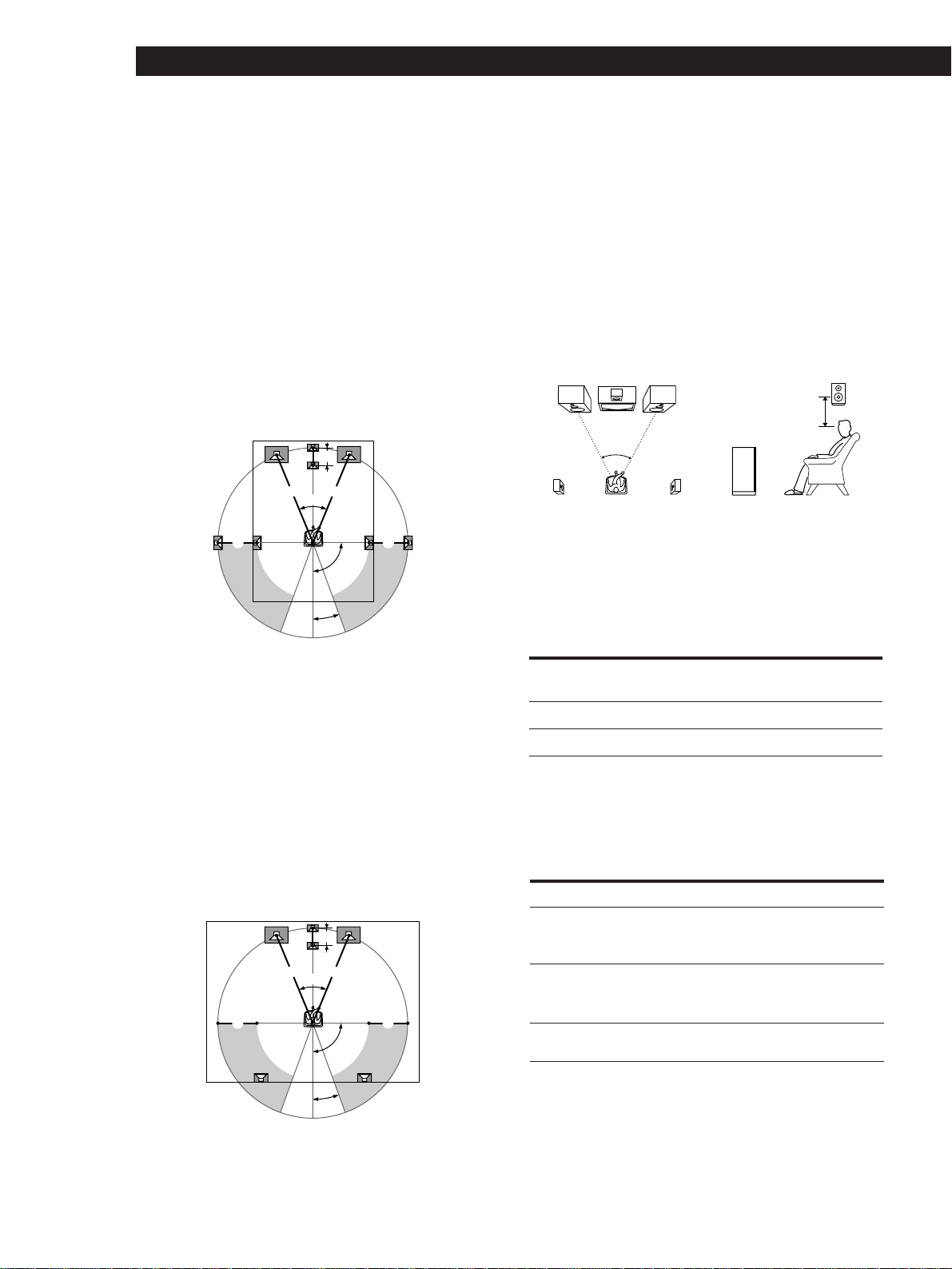
What cords will I need?
• Speaker cord (not supplied) (1 for each speaker)
(+) (+)
(–) (–)
Twist the stripped ends of the cord about 2/3 inch (15
mm). Be sure to match the speaker cord to the appropriate
terminal on the components: + to + and – to –. If the cords
are reversed, the sound will be distorted and will lack
bass.
• Monaural audio cord (not supplied) (1 for an active
woofer)
Black Black
Hookups
Front speakers
■ STR-DE915
]]}}
FRONT SPEAKERS
A
R
B
A
L
B
IMPEDANCE USE 4–16 Ω
++
––
++
––
To connect the speaker cords
]}
]}
√
■ STR-DE715/DE615/D660Z/D560Z
FRONT SPEAKERS
IMPEDANCE USE 4–16 Ω
+ R –
AA
BB
– L +
+
R – – L +
]]}}
Rear and center speakers
■ STR-DE915
]
]
}]}
}
SURROUND SPEAKERS
IMPEDANCE USE 8–16 Ω
REAR
+
–
+
–
R
L
CENTER
■ STR-DE715/DE615/D660Z/D560Z
SURROUND SPEAKERS
IMPEDANCE USE 8–16 Ω
REAR
++
––
CENTER
RL
RL
]
]
}]}
}
Active woofer
Receiver Active woofer
ç
WOOFER
AUDIO
OUT
INPUT
Wireless rear speaker (STR-DE915/DE715/DE615 only)
When using an optional Sony wireless rear speaker system,
connect the transmitter to the WIRELESS REAR SPEAKER
jack.
Note
Do not connect any other component to the WIRELESS
REAR SPEAKER jack.
z If you have an additional front speaker system
Connect them to the FRONT SPEAKERS B terminals.
Note
If you use front speakers with low maximum power input,
adjust the volume carefully to avoid excessive output on the
speakers.
Front speaker
(R)
Front speaker
(L)
Receiver
Rear speaker
(R)
Rear speaker
(L)Center speaker
Receiver
Front speaker
(R)
Front speaker
(L)
Receiver
Rear speaker
(R)
Rear speaker
(L)
Center speakerReceiver
8
Getting Started
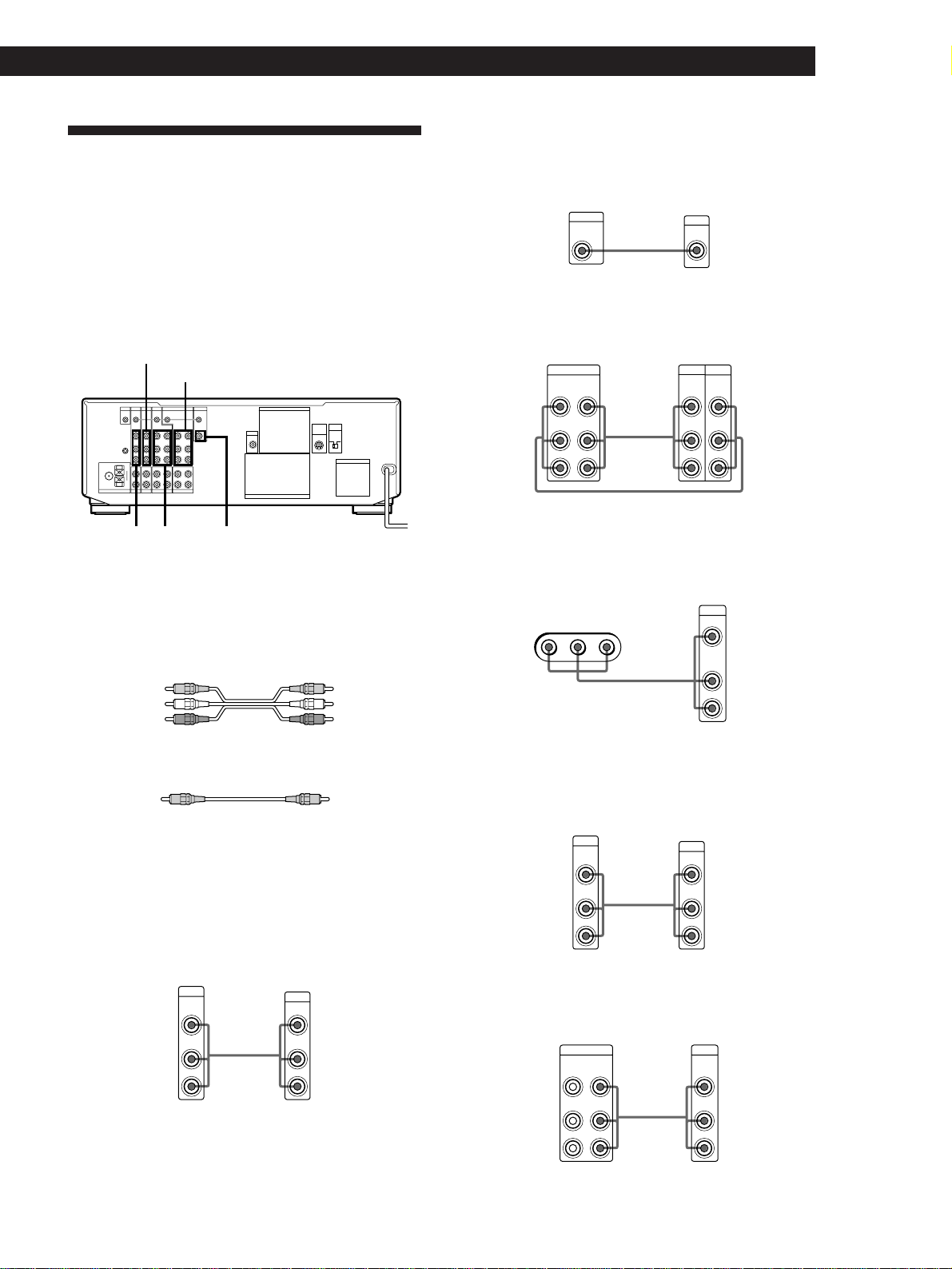
Speaker placement for STR-DE915
For the best possible surround sound, we recommend:
• The best quality speakers possible
• Front, center, and rear speakers of equivalent size
and quality
• Positioning of speakers at the same distance from the
listening position (A).
The center speaker, however, may be moved closer,
but not beyond the straight line connecting the two
front speakers (B). The rear speakers may also be
closer to listening position than the front speakers (C),
to suit the configuration of your room. If the surround
effect is still inadequate, adjust the CENTER DELAY
and REAR DELAY parameters (see page 19).
A
C C
A
45°
90°
20°
B
Notes
• Do not place the center or rear speakers farther away from
the listening position than the front speakers.
• When mounting the rear speakers on side walls
perpendicular to the listening position they should be
placed 60 - 90 cm above the listening position (as shown
below in “Speaker placement for STR-DE715/DE615/
D660Z/D560Z”).
Depending on the shape of your room (etc.), you may
wish to place the rear speakers behind you instead of
on the side walls. One advantage of this placement is
that you can use a pair of large floor standing speakers
matching your front speakers.
A
C C
A
45°
90°
20°
B
Selecting the speaker system
If you connect only one set of front speakers, set the
SPEAKERS selector on the front panel to A. If you
connect two sets of front speakers, see the following:
Note
If you place the rear speakers behind you, be sure to
check the speaker location setting in the SPEAKER
SETUP menu when using VIRTUAL MULTI REAR
and VIRTUAL REAR SHIFT sound fields (see pages 19
and 24 for details).
Speaker placement for STR-DE715/DE615/
D660Z/D560Z
For optimum surround sound effect, place your
speakers as shown below.
Selecting the impedance
Set the IMPEDANCE SELECTOR for the front speakers
as indicated in the table below. Check the instruction
manual of your speakers if you’re not sure of the
impedance. (This information is usually printed on a
label on the back of the speaker.)
If nominal impedance of
your speaker is
Set IMPEDANCE SELECTOR to
8 ohms or higher
4 Ω
8 Ω
Between 4 and 8 ohms
Set SPEAKERS selector to
*
Do not use A+B with SOUND FIELD set to ON.
A
B
A+B
*
To drive
Speaker system A (connected
to the FRONT SPEAKERS A
terminals)
Speaker system B (connected
to the FRONT SPEAKERS B
terminals)
Both speaker systems A and B
(parallel connection)
Rear speaker
60 - 90 cm
Front speaker
45°
9
Getting Started
Getting Started
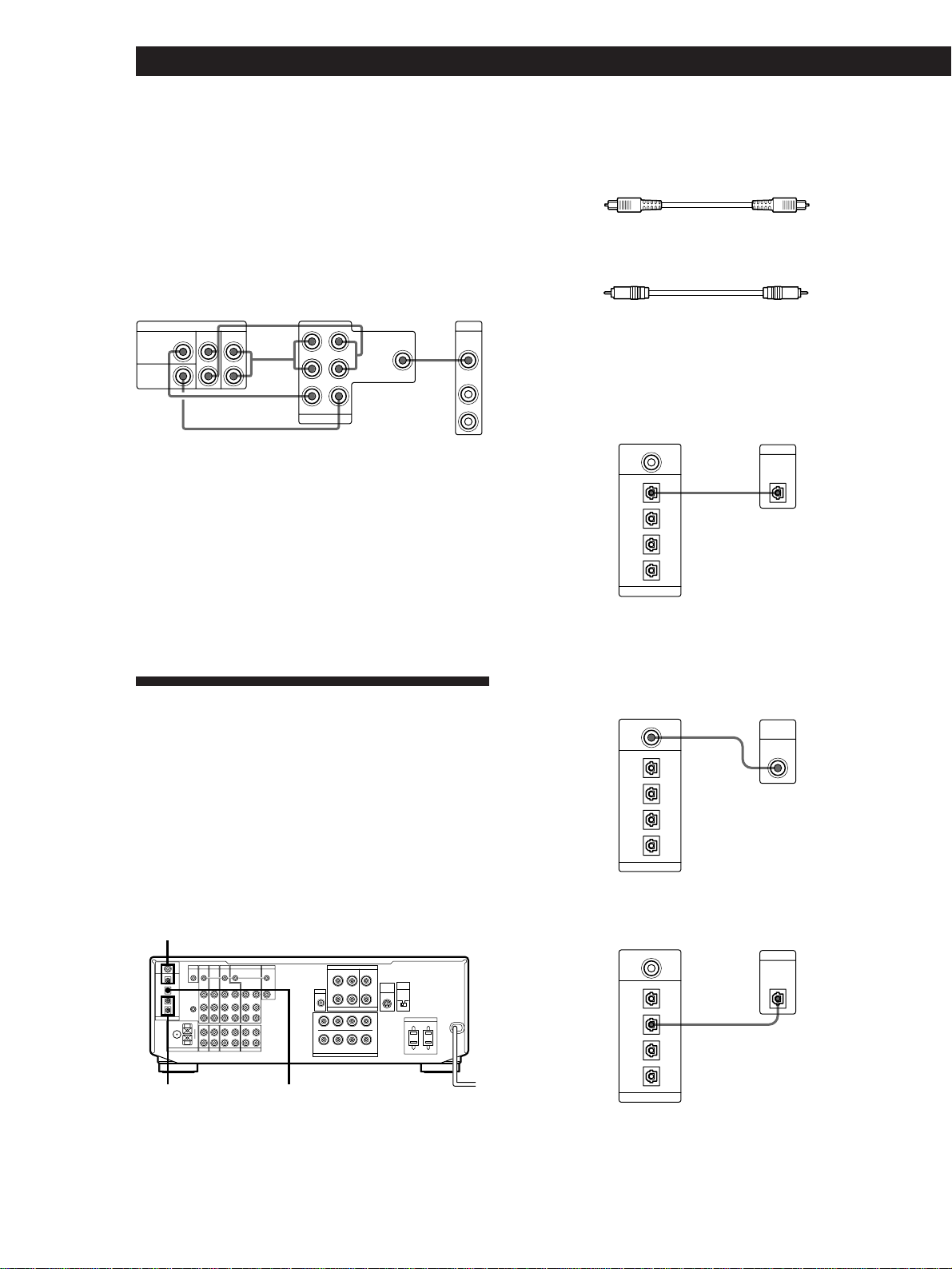
TV/VCR Hookups
Overview
This section describes how to connect video
components to the receiver.
Note for STR-DE915
For digital connections, see “Digital Component Hookups
(STR-DE915 only)” on page 10.
LD/DVD (STR-DE915 only)
MONITOR
VIDEO
OUT
CTRL S
IN
VIDEO
IN
VIDEO
OUT
VIDEO
IN
CTRL S
OUT
VIDEO
OUT
CTRL S
OUT
VIDEO
IN
VIDEO
IN
IN
L
R
REC OUT
IN
REC OUT
ININ
CTRL S
STATUS
IN
SIGNAL
GND
FM
75Ω
COAXIAL
AM
AUDIO
IN
L
R
AUDIO
OUT
AUDIO
IN
AUDIO
OUT
AUDIO
IN
CTRL A1
y
y
PHONO
ANTENNA CD DAT / MD TAPE
MONITOR
VIDEO 1
VIDEO 2LD/DVDS-LINK
S-LINK
AUDIO
IN
TV/DBS
AC OUTLET
4
Ω
8
Ω
FRONT SPEAKERS
SURROUND SPEAKERS
WOOFER
AUDIO
OUT
IMPEDANCE
SELECTOR
FRONT
WIRELESS
REAR
SPEAKER
VIDEO 1
TV/DBS
*
MONITORVIDEO 2
* TV/DBS: USA, Canadian, and Australian models
TV: other models
What cables will I need?
• Audio/video cable (supplied with STR-DE715 (USA,
Canada) only) (1 for each TV or LD player; 2 for each VCR)
Yellow Yellow
White (L) White (L)
Red (R) Red (R)
• Video cable (not supplied) (1 for a TV monitor)
Yellow Yellow
Hookups
The arrow ç indicates signal flow.
TV or Digital Broadcasting System (DBS) tuner
DBS tuners can be used with the USA, Canadian, and
Australian models.
Receiver TV or DBS tuner
Ç
L
R
L
R
OUTPUT
TV/DBS
VIDEO
IN
AUDIO
IN
VIDEO
AUDIO
TV monitor
If you use a TV monitor, do not connect anything to the TV/
DBS VIDEO IN jack.
Receiver TV monitor
ç
VIDEO
INPUT
MONITOR
VIDEO
OUT
MONITOR
VCR (via the VIDEO 1/2 jacks)
If you have two VCRs, connect the second one to the VIDEO
2 jacks.
Receiver VCR
Ç
ç
OUTPUT INPUT
VIDEO 1
VIDEO
IN
VIDEO
OUT
AUDIO
IN
L
R
AUDIO
OUT
VIDEOVIDEO
AUDIO
L
R
AUDIO
Video camera recorder or video game (STR-DE915 only)
Use the VIDEO 3 INPUT jacks on the front panel.
Ç
OUTPUT
VIDEO
L
R
AUDIO
RLVIDEO AUDIO
VIDEO 3 INPUT
LD or DVD player (STR-DE915 only)
If you have an additional LD or DVD player, connect it to
the VIDEO 2 jacks.
Receiver LD or DVD player
Ç
L
R
L
R
OUTPUT
LD/DVD
VIDEO
IN
AUDIO
IN
VIDEO
AUDIO
LD player (via the VIDEO 2 jacks) (STR-DE715/DE615/
D660Z/D560Z only)
Receiver LD player
Ç
OUTPUT
VIDEO
L
R
L
R
AUDIO
VIDEO
IN
VIDEO
OUT
AUDIO
IN
AUDIO
OUT
VIDEO 2
(Continued)
Receiver
Video camera recorder or
video game
10
Getting Started
Dolby Digital (AC-3)
decoder etc.
Receiver
DVD player or
LD player etc.
z You can play decoded Dolby Digital AC-3
soundtracks through the speakers connected to the
receiver (STR-DE715/DE615/D660Z/D560Z only)
If you have a Dolby Digital (AC-3) decoder, you can use
the receiver to amplify a decoded Dolby Digital AC-3
soundtrack with the following connections. Refer to the
instruction manual supplied with your Dolby Digital
(AC-3) decoder.
Ç
ç
ç
ç
ç
OUTPUT
VIDEO
L
R
AUDIO
VIDEO
IN
FRONT
CENTER
REAR
WOOFER
L
R
5.1 INPUT
REAR
CENTER
WOOFER
PRE OUT
FRONT
If you have a CONTROL S compatible Sony TV, DBS tuner,
monitor, VCR or LD player (STR-DE915/DE715 (USA,
Canada) only)
Use a CONTROL S cord (supplied) to connect the CTRL S
(STATUS) IN (for TV, DBS tuner, or monitor) or OUT (for
VCR or LD player (STR-DE715 (USA, Canada) only)) jack on
the receiver to the appropriate S-LINK jack on the respective
component. Refer to the Operating Instructions supplied
with your TV, DBS tuner, monitor, VCR, or LD player for
details.
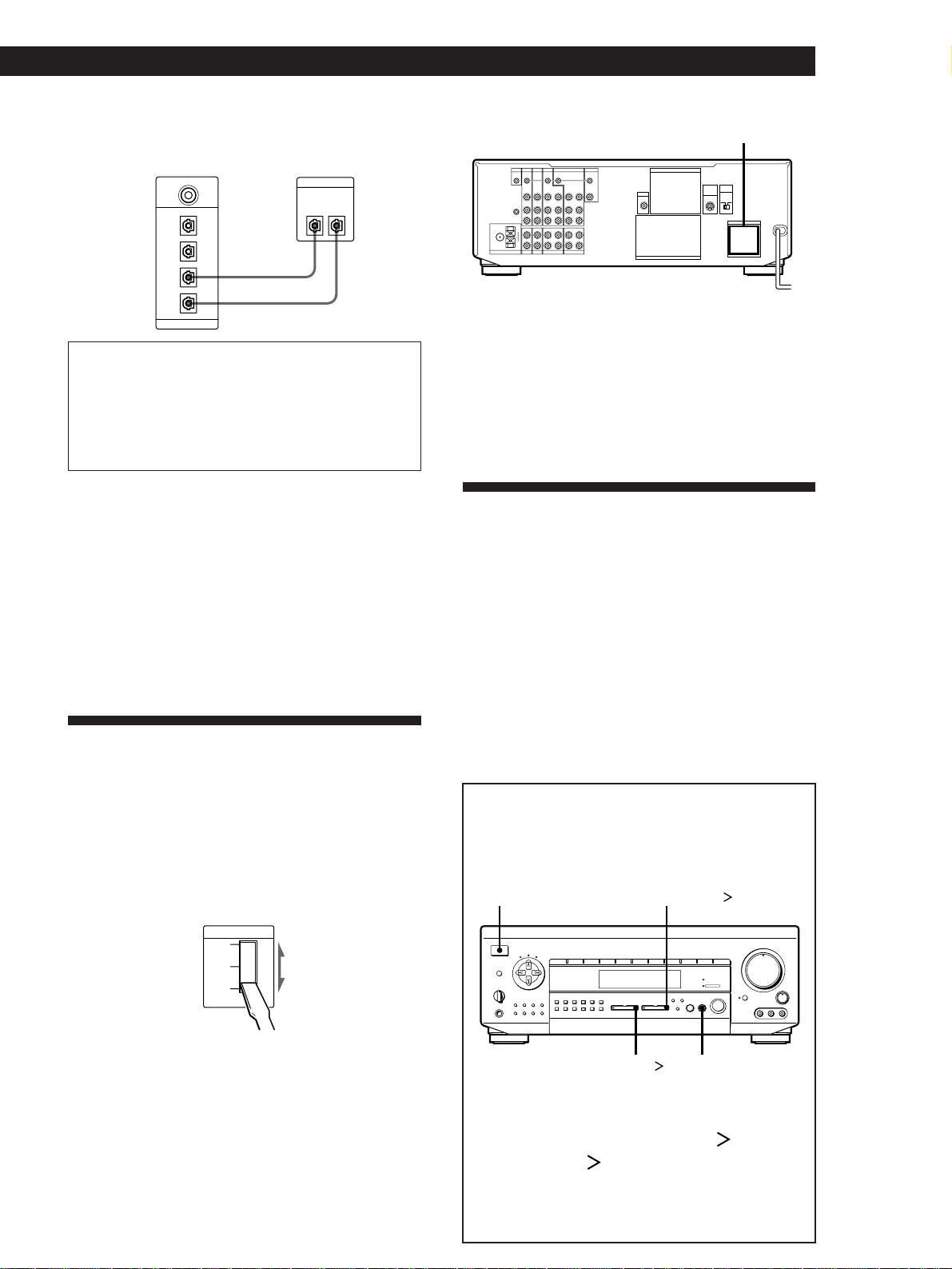
Digital Component Hookups
(STR-DE915 only)
Overview
This section describes how to connect a LD/DVD
player, DAT/MD decks, and CD player equipped with
digital jack(s) to the STR-DE915. If you use a digital
component, select the appropriate input mode for the
component (see page 12).
AC OUTLET
SWITCHED 120W / 1A MAX
AC 120V 60Hz
MONITOR
VIDEO
OUT
CTRL S
IN
VIDEO
IN
VIDEO
OUT
VIDEO
IN
CTRL S
OUT
VIDEO
OUT
CTRL S
OUT
VIDEO
IN
VIDEO
IN
IN
L
R
REC OUT
IN
REC OUT
ININ
CTRL S
STATUS
IN
SIGNAL
GND
FM
75Ω
COAXIAL
AM
AUDIO
IN
L
R
AUDIO
OUT
AUDIO
IN
AUDIO
OUT
AUDIO
IN
CTRL A1
LD / DVD IN
LD / DVD IN
AC-3
RF
OPTICAL
y
y
PHONO
ANTENNA CD DAT / MD TAPE
MONITOR
VIDEO 1
VIDEO 2LD/DVDS-LINK
S-LINK
CD IN
OPTICAL
DAT / MD IN
OPTICAL
DAT / MD OUT
OPTICAL
DIGITAL
AUDIO
IN
TV/DBS
4 Ω 8 Ω
FRONT SPEAKERS
A
R
B
A
L
B
SURROUND SPEAKERS
IMPEDANCE USE 8–16 Ω
REAR
IMPEDANCE USE 4–16 Ω
+
–
++
––
++
––
+
–
R
WOOFER
AUDIO
OUT
L
CENTER
IMPEDANCE
SELECTOR
FRONT
WIRELESS
REAR
SPEAKER
LD/DVD IN AC-3 RF/OPTICAL
DAT/MD IN/OUT
OPTICAL
CD IN OPTICAL
What cords will I need?
• Optical digital connecting cord (not supplied) (1 for a
DVD, LD or CD player; 2 for a DAT or MD deck)
• Coaxial digital connecting cord (not supplied) (1 for a
DVD or LD player)
Hookups
The arrow ç indicates signal flow.
LD or DVD player
Receiver LD or DVD player
Ç
DIGITAL
LD / DVD IN
LD / DVD IN
AC-3
RF
OPTICAL
OUT
CD IN
OPTICAL
DAT / MD IN
OPTICAL
DAT / MD OUT
OPTICAL
DIGITAL
If your LD or DVD player has an optical output jack, connect
it to the LD/DVD IN OPTICAL jack. If your LD player has
an RF output jack, connect it to the LD/DVD IN AC-3 RF
jack of the receiver as shown below.
Receiver LD player
Ç
AC-3
RF
LD / DVD IN
LD / DVD IN
AC-3
RF
OPTICAL
OUT
CD IN
OPTICAL
DAT / MD IN
OPTICAL
DAT / MD OUT
OPTICAL
DIGITAL
CD player
Receiver CD player
Ç
DIGITAL
LD / DVD IN
LD / DVD IN
AC-3
RF
OPTICAL
OUT
CD IN
OPTICAL
DAT / MD IN
OPTICAL
DAT / MD OUT
OPTICAL
DIGITAL
11
Getting Started
Getting Started
DAT or MD deck
Receiver DAT or MD deck
Xç
Ç
DIGITAL
LD / DVD IN
LD / DVD IN
AC-3
RF
OPTICAL
OUT IN
CD IN
OPTICAL
DAT / MD IN
OPTICAL
DAT / MD OUT
OPTICAL
DIGITAL
Warning regarding the playback of DAT/MD sources
When playing DAT/MD sources through the receiver,
do not play a DAT/MD that contains digital recordings
made from a DVD player whose digital output was set
to “DOLBY DIGITAL.” High volume will be output
which may damage the receiver and your speakers.
Notes
• You cannot connect a LD or DVD player through digital
connection when the LD/DVD IN OPTICAL jack is
already used. In this case, connect the LD or DVD player
to the LD/DVD jacks.
• This receiver is compatible only with digital components
using 32, 44.1, or 48-kHz sampling frequencies and not
compatible with 96 kHz.
• Be sure to connect digital components (CD player, DAT/
MD deck, etc.) to the analog jacks as well as the digital
jacks in order to do analog recording.
AC Hookups
Setting the voltage selector (only on the
models supplied with the voltage selector)
Check that the voltage selector on the rear panel of the
receiver is set to the local power supply voltage. If
not, set the selector to the correct position using a
screwdriver before connecting the AC power cord to a
wall outlet.
220V
240V
120V
VOLTAGE SELECT
Connecting the AC power cord
Connect the AC power cord from this receiver and
from your audio/video components to a wall outlet.
If you connect other audio components to AC OUTLET
on the receiver, the receiver can supply power to the
connected component(s) so you can turn on/off whole
system when you turn on/off the receiver. Note that
only one switched AC outlet is supplied with the
Australian STR-DE915/DE715.
MONITOR
VIDEO
OUT
CTRL S
IN
VIDEO
IN
VIDEO
OUT
VIDEO
IN
CTRL S
OUT
VIDEO
OUT
CTRL S
OUT
VIDEO
IN
VIDEO
IN
IN
L
R
REC OUT
IN
REC OUT
ININ
CTRL S
STATUS
IN
SIGNAL
GND
FM
75Ω
COAXIAL
AM
AUDIO
IN
L
R
AUDIO
OUT
AUDIO
IN
AUDIO
OUT
AUDIO
IN
CTRL A1
y
y
PHONO
ANTENNA CD DAT / MD TAPE
MONITOR
VIDEO 1
VIDEO 2LD/DVDS-LINK
S-LINK
AUDIO
IN
TV/DBS
AC OUTLET
4 Ω 8 Ω
FRONT SPEAKERS
SURROUND SPEAKERS
WOOFER
AUDIO
OUT
IMPEDANCE
SELECTOR
FRONT
WIRELESS
REAR
SPEAKER
AC OUTLET
b
to a wall
outlet
Caution
Make sure that the total power consumption of the
component(s) connected to receiver’s AC OUTLET does not
exceed the wattage stated on the rear panel. Do not connect
high-wattage electrical home appliances such as electric
irons, fans, or TVs to this outlet.
Before You Use Your Receiver
Before you start using your receiver, make sure that
you have:
• Turned MASTER VOLUME to the leftmost position
(0).
• Selected the appropriate speaker system. (For
details, see “Selecting the speaker system” on
page 8.)
• Set BALANCE to the center position.
Turn on the receiver and check the following indicator.
• Press MUTING on the remote if “MUTING” appears
in the display.
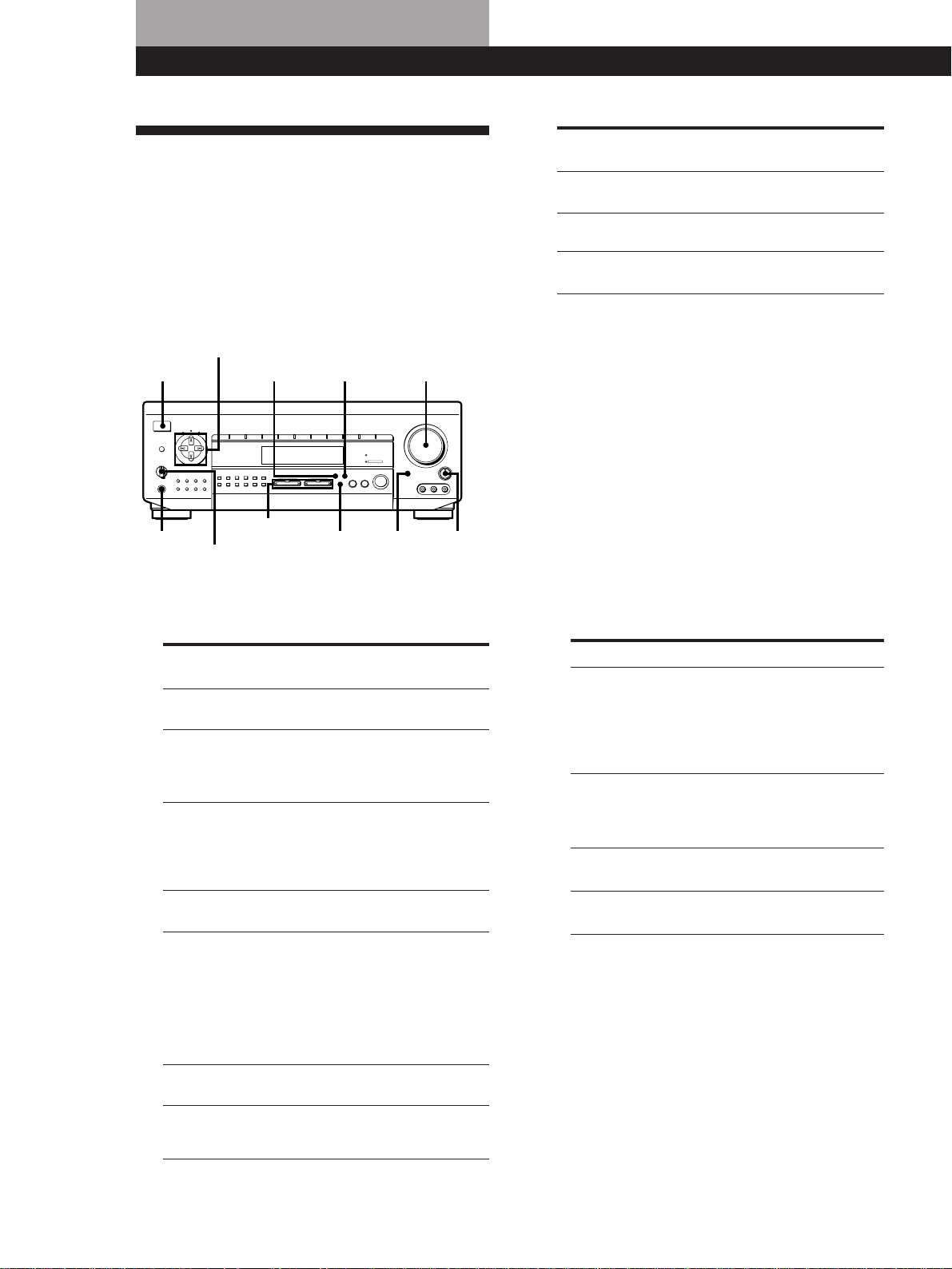
Clearing the receiver’s memory
Before you use your receiver for the first time or
when you want to clear the receiver’s memory, do
the procedure below.
SHIFT
INPUT
MODE
DIRECT
0
5
9
4
8
3
7
2
6
1
VIDEO FUNCTION AUDIO FUNCTION
GENRE
MEMORY
PRESET
TUNING
TUNING
TONE
SUR INDEX
+
DISPLAY
–
FM / AM
+
FM MODE
–
SET UP
DIRECT
PASS
MODE
DIRECT PASS
SOUND FIELD
ON / OFF
BASS
BOOST
BALANCE
LR
DISCRETE
5
0
1
3
9
7
4
6
2
8
1
0
•
•
•
•
•
•
•
•
•
•
•
•
•
•
•
•
•
•
•
•
•
•
•
•
•
•
•
•
•
•
•
PHONES
POWER
SPEAKERS
DPC
MODE
A
OFF
A
+B
B
g
MASTER VOLUME
VIDEO 2VIDEO 1 VIDEO 3 LD / DVD TV/DBS TAPE DAT / MD CD TUNER PHONO
RLVIDEO AUDIO
VIDEO 3 INPUT
MODE
POWER
AUDIO FUNCTION
VIDEO FUNCTION
1 Turn off the receiver.
2 Press down VIDEO FUNCTION , AUDIO
FUNCTION , MODE, and POWER
simultaneously.
The contents of the memory (preset station
and other parameter settings) are erased.
12
Receiver Operations
Selecting a Component
To listen to or watch a connected component, first
select the function on the receiver or with the remote.
Before you begin, make sure you have:
• Connected all components securely and correctly as
indicated on pages 4 to 11.
• Turned MASTER VOLUME to the leftmost position
(0) to avoid damaging your speakers.
SHIFT
INPUT
MODE
DIRECT
0
5
9
4
8
3
7
2
6
1
VIDEO FUNCTION AUDIO FUNCTION
GENRE
MEMORY
PRESET
TUNING
TUNING
TONE
SUR INDEX
+
DISPLAY
–
FM / AM
+
FM MODE
–
SET UP
DIRECT
PASS
MODE
DIRECT PASS
SOUND FIELD
ON / OFF
BASS
BOOST
BALANCE
LR
DISCRETE
5
0
1
3
9
7
4
6
2
8
1
0
•
•
•
•
•
•
•
•
•
•
•
•
•
•
•
•
•
•
•
•
•
•
•
•
•
•
•
•
•
•
•
PHONES
POWER
SPEAKERS
DPC
MODE
A
OFF
A
+B
B
g
MASTER VOLUME
VIDEO 2VIDEO 1 VIDEO 3 LD / DVD TV/DBS TAPE DAT / MD CD TUNER PHONO
RLVIDEO AUDIO
VIDEO 3 INPUT
POWER SET UPDIRECT PASS
PHONES
SPEAKERS
VIDEO/AUDIO
FUNCTION
MASTER VOLUME
INPUT
MODE
BASS
BOOST
BALANCE
1 Press POWER to turn on the receiver.
2 Select the component you want to use:
AUDIO
FUNCTION
AUDIO
FUNCTION
AUDIO
FUNCTION
* DBS tuners can be used with the USA, Canadian, and
Australian models.
3 Turn on the component, for example, a CD player,
and then start playing.
To tune in radio stations on this receiver, see
“Receiving Broadcasts” on page 15.
4 Turn MASTER VOLUME to adjust the volume.
To adjust the volume of the TV’s speakers, use the
volume control on the TV.
z To listen to digital program sources (STR-DE915
only)
Do the procedure below.
1 Do Steps 1 and 2 above to select the component.
2 Press INPUT MODE repeatedly to select input mode
for the component.
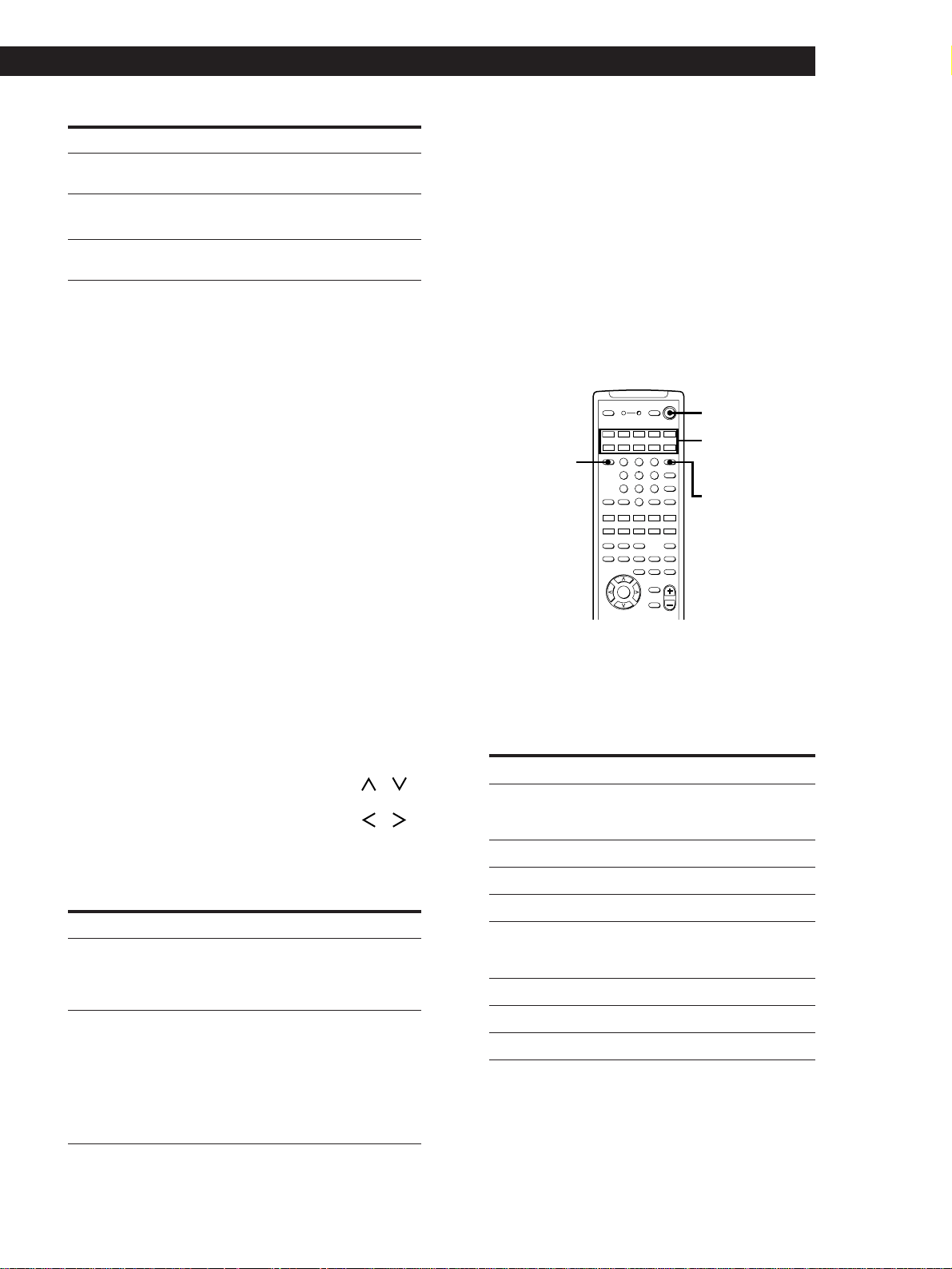
When you select The receiver selects
Digital processing control buttons
Receiver Operations
Compact Discs (CD)
Radio programs
Records
CD
TUNER
PHONO
To watch or
listen to
To light upPress
(repeatedly)
To watch or
listen to
To light up
VIDEO
FUNCTION
AUDIO
FUNCTION
VIDEO
FUNCTION
VIDEO
FUNCTION
AUDIO
FUNCTION
Press
(repeatedly)
Video tapes
Laser discs
TV programs
Audio tapes
Digital Audio Tapes
(DAT) or MiniDiscs
(MD)
VIDEO 1 or VIDEO 2
LD/DVD (STR-
DE915 only) or
VIDEO 2 (STR-
DE715/DE615/
D660Z/D560Z only)
TV/DBS* (STR-
DE915 (USA, Canada,
and Australia)/
DE715/DE615/
D660Z/D560Z only)
or TV (STR-DE915
(for all other
countries) only)
TAPE
DAT/MD
VIDEO
FUNCTION
Video camera
recorder or video
game (STR-DE915
only)
VIDEO 3
VIDEO
FUNCTION
DVD (STR-DE915
only)
LD/DVD
* Only when you selected LD/DVD in Step 1
To play the decoded Dolby Digital AC-3 program
source connected to the 5.1 INPUT jacks (STR-
DE715/DE615/D660Z/D560Z only)
Press 5.1/DVD INPUT so that the 5.1 INPUT
indicator lights up.
AUTO INPUT the component connected to the
following jack(s) (listed in order
of priority):
1 the LD/DVD IN AC-3 RF jack*
2 the OPTICAL jack
3 the analog jacks
DIGITAL (AC-3 RF)
(appears only when
you selected LD/
DVD in Step 1)
the component connected to the
LD/DVD IN AC-3 RF jack
DIGITAL(OPTICAL)
the component connected to the
OPTICAL jack
ANALOG INPUT
the component connected to the
analog jacks
13
Getting Started
Receiver Operations
LD
z When you watch TV or video programs
We recommend you play audio portion through the
receiver instead of your TV’s speakers. This lets you
take advantage of the receiver’s surround sound effects,
like Dolby Surround, and lets you use the receiver’s
remote to control the audio.
Turn off the speakers on your TV before you start so
you can enjoy the surround sound from your receiver.
Using the remote Z
The remote lets you operate the receiver and the Sony
components that are connected to it.
SYSTEM OFF
SYSTEM
CONTROL/
FUNCTION
TV CONTROL
ON
5.1 INPUT
21 3
LEARN
SLEEP
VISUAL
POWER
SYSTEM OFF
SLOPEBAND
EQ/
TONE
DIGTAL
PROCESSING
CONTROL
PROGRAMMABLE
—
LEVEL
—
DIRECT
REAR
BASS
BOOST
MUTING
CENTER
MASTER
VOL
MODEGENRE
—
SOUND FIELD
—
ON/OFF
TEST
TONE
TV
CONTROL
5.1
INPUT
54 6
TV/VIDEO
87 9
D.TUNING
DISC
0
BACK
GROUND
SHIFT ENTER
RMS/START
CH/
PRESET
SYSTEM CONTROL / FUNCTION
VIDEO 3VIDEO 2VIDEO 1
LD TV
(AUTO CATEGORIZE SYSTEM)
CD
DAT/MD
>
10
TAPE
ON
TUNER PHONO
++
––
+
–
POSITION
–
SUB CH
+
—
RMS
—
SWAP
ANT
TV/VTR
=)0+
D. SKIP
CLEARDIRECTION P IN P JUMP
p(
DPC
MODE
9Pr
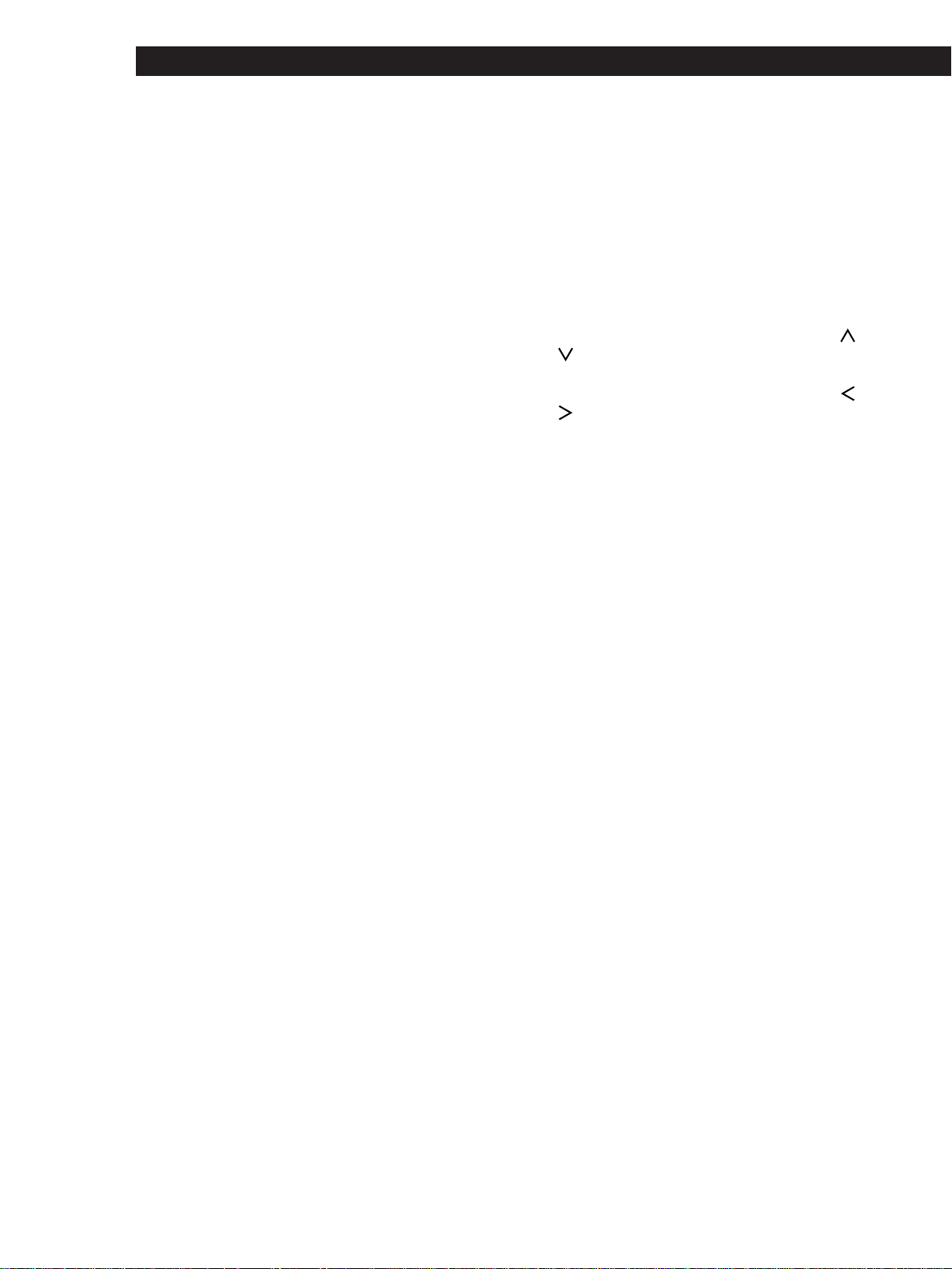
1 Press one of the SYSTEM CONTROL/
FUNCTION buttons to select the component you
want to use.
The receiver and the selected component turn on.
The SYSTEM CONTROL/FUNCTION buttons on
the remote are factory-set as follows:
To play Press
Records PHONO
Radio programs
TUNER
Compact Discs (CD) CD
Digital Audio Tapes
(DAT) or MiniDiscs
(MD)
DAT/MD
Audio tapes TAPE
TV programs
Video tapes
VIDEO 1 (VTR*),
VIDEO 2 (VTR 1*) or
VIDEO 3 (VTR 2*)
Laser discs or DVD
TV
To Do this
Mute the sound Z Press MUTING on the remote. Press
again to restore the sound.
Reinforce the bass Press BASS BOOST to turn on the
BASS BOOST indicator
Adjust the balance of
front speakers
Turn BALANCE left or right
z When you listen with headphones
Connect the headphones to the PHONES jack and set
SPEAKERS to OFF.
z When you want to enjoy high quality sound
Press DIRECT PASS to bypass the tone controls, bass
reinforcement, and surrround effects.
The DIRECT PASS indicator lights up.
z To select another component when a decoded Dolby
Digital AC-3 program source is selected (STR-DE715/
DE615/D660Z/D560Z only)
Press VIDEO/AUDIO FUNCTION to turn off the 5.1
INPUT indicator.
Note
BASS BOOST, DIRECT PASS, and SOUND FIELD ON/
OFF buttons do not operate when the 5.1 INPUT
indicator is on.
z You can adjust the brightness of the display
1 Press SET UP repeatedly to select OTHER SETUP
(STR-DE915 only), DISPLAY SETUP (STR-DE715/
D660Z only), or DISPL SETUP (STR-DE615/D560Z
only).
2 Use the digital processing control buttons ( / )
to select DIMMER.
3 Use the digital processing control buttons ( / )
to adjust the brightness.
Watching TV/video programs
To watch Do this
TV programs Turn on both the TV and the receiver
and press VIDEO FUNCTION
repeatedly until the TV/DBS (or TV)
indicator lights up
Videos, laser discs or
DVD
1 Press VIDEO FUNCTION
repeatedly to select the component
(for example, VIDEO 1).
2 Turn on the TV and set the TV’s
video input to match your video
component.
3 Turn on the component (VCR, LD/
DVD player), and start playback.
* Sony VCRs are operated with a VTR 1, 2, or 3 setting
that corresponds to Beta, 8mm, and VHS,
respectively.
(Continued)
14
Receiver Operations
Note
Pressing a SYSTEM CONTROL/FUNCTION button
will activate the component indicated for that button
(i.e., the component connected to the respective
connector). If, however, the connected component is
different from the one indicated for the button, the
component will not be activated when the button is
pressed only once.
For example, to watch Sony LD player connected to the
VIDEO 2 jacks (as shown on page 9):
Press VIDEO 2 to switch the function, then press LD to
set the remote control to operate the LD player.
To play the decoded Dolby Digital AC-3 program
source connected to the 5.1 INPUT jacks (STR-
DE715/DE615/D660Z/D560Z only)
Press 5.1 INPUT so that the 5.1 INPUT indicator on
the main unit lights up.
If you want to change the factory setting of a
button
See page 29.
If the component does not turn on
Press the power switch on the component.
2 Start playing.
See “Remote Button Descriptions” on page 37 for
details.
To turn off the components
Press SYSTEM OFF. This will also turn off the video/
audio component(s) connected to AC OUTLET on the
back of this unit at the same time.
z If you use a Sony TV
When you press TV to watch a TV program, the TV
turns on and switches to the TV input. The TV also
turns on automatically and switches to the appropriate
video input when you press VIDEO 1 or VIDEO 2. If the
TV does not switch to the appropriate input
automatically, press TV/VIDEO on the remote.
z Watching TV without the receiver (for Sony TVs only)
Press TV CONTROL ON to set the remote to operate TV
functions only. When you press this button, the TV
turns on and switches to the TV input. If the TV does
not automatically switch to the TV input, press TV/
VIDEO.
z To select another component when a decoded Dolby
Digital AC-3 program source is selected (STR-DE715/
DE615/D660Z/D560Z only)
Press any SYSTEM CONTROL/FUNCTION button to
turn off the 5.1 INPUT indicator on the main unit.
Making components selectable/
unselectable
You can do these settings so that certain components
become unselectable even if you press AUDIO/VIDEO
FUNCTION.
1 Press SET UP repeatedly to select FUNCTION
HOOKUP (STR-DE915/DE715/D660Z only) or
FUNC HOOK UP (STR-DE615/D560Z only).
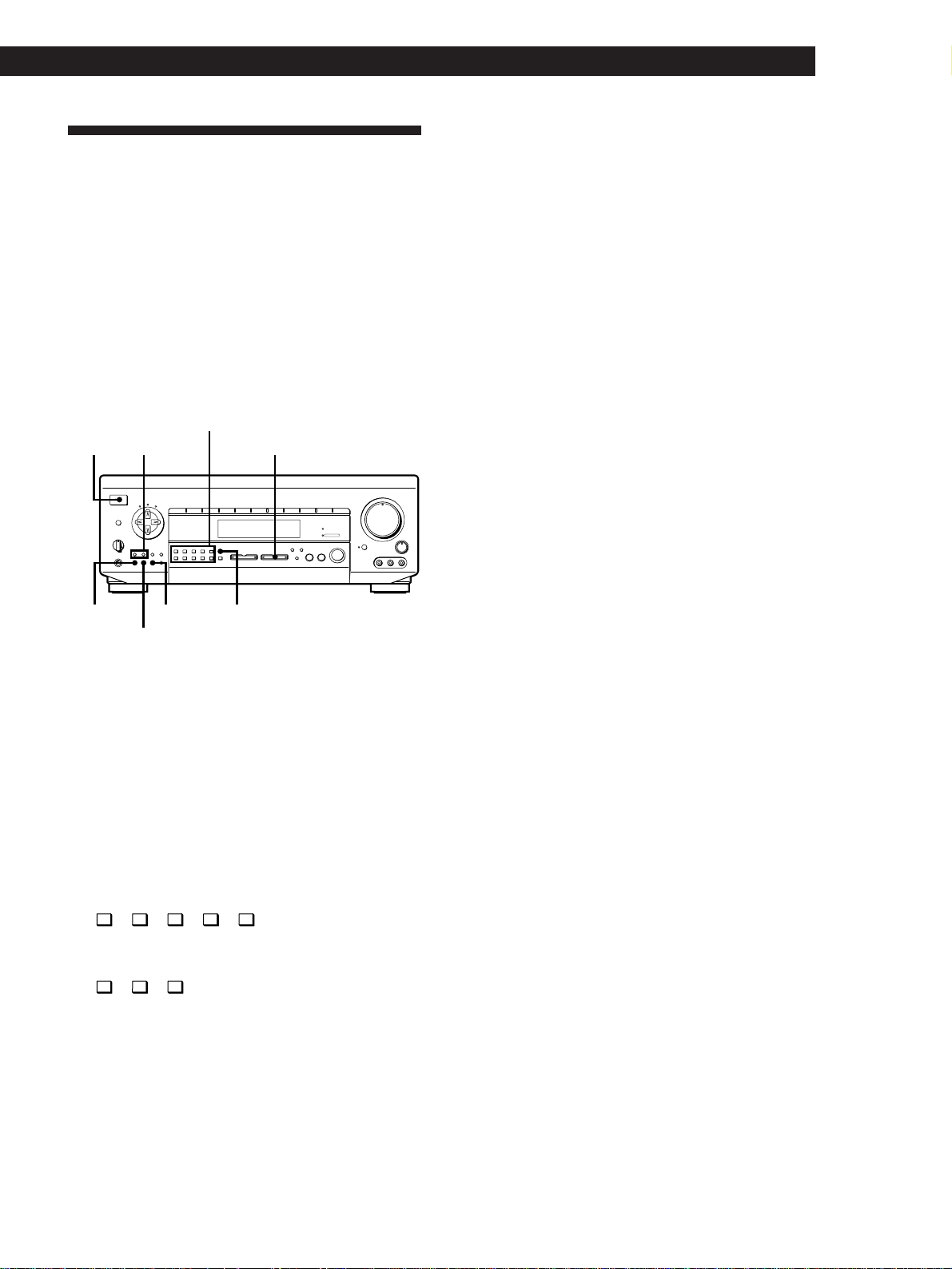
2 Use the digital processing control buttons ( /
) to select a component.
3 Use the digital processing control buttons ( /
) to select YES (selectable) or NO (unselectable)
(STR-DE915/DE715/D660Z only) or –Y–
(selectable) or –N– (unselectable) (STR-DE615/
D560Z only).
Notes
• When the receiver accepts the signal from the S-LINK
CTRL A1 jack or CTRL S (STATUS) IN or OUT jack to
select that component which is set to NO on the receiver,
the setting changes to CONNECT or YES automatically
and the component is selected (STR-DE915/DE715 (USA,
Canada) only).
• If you try to select the component which is set to NO or
–N– using the remote, “NO CONNECTION” (STR-
DE915/DE715/D660Z only) or “CANNOT USE” (STR-
DE615/D560Z only) appears in the display.
15
Getting Started
Receiver Operations
Receiving Broadcasts
This receiver lets you enter a station’s frequency
directly by using the numeric buttons (direct tuning). If
you don’t know the frequency of the station you want,
see “Receiving broadcasts by scanning stations
(automatic tuning)”on this page.
Before you begin, make sure you have:
• Connected an FM/AM antenna to the receiver as
indicated on page 5.
• Selected the appropriate speaker system. (For details,
see “Selecting the speaker system” on page 8.)
Numeric buttons
SHIFT
INPUT
MODE
DIRECT
0
5
9
4
8
3
7
2
6
1
VIDEO FUNCTION AUDIO FUNCTION
GENRE
MEMORY
PRESET
TUNING
TUNING
TONE
SUR INDEX
+
DISPLAY
–
FM / AM
+
FM MODE
–
SET UP
DIRECT
PASS
MODE
DIRECT PASS
SOUND FIELD
ON / OFF
BASS
BOOST
BALANCE
LR
DISCRETE
5
0
1
3
9
7
4
6
2
8
1
0
•
•
•
•
•
•
•
•
•
•
•
•
•
•
•
•
•
•
•
•
•
•
•
•
•
•
•
•
•
•
•
PHONES
POWER
SPEAKERS
DPC
MODE
A
OFF
A
+B
B
g
MASTER VOLUME
VIDEO 2VIDEO 1 VIDEO 3 LD / DVD TV/DBS TAPE DAT / MD CD TUNER PHONO
RLVIDEO AUDIO
VIDEO 3 INPUT
POWER
FM/AM
TUNING
+
/
–
AUDIO FUNCTION
DISPLAY DIRECTFM MODE
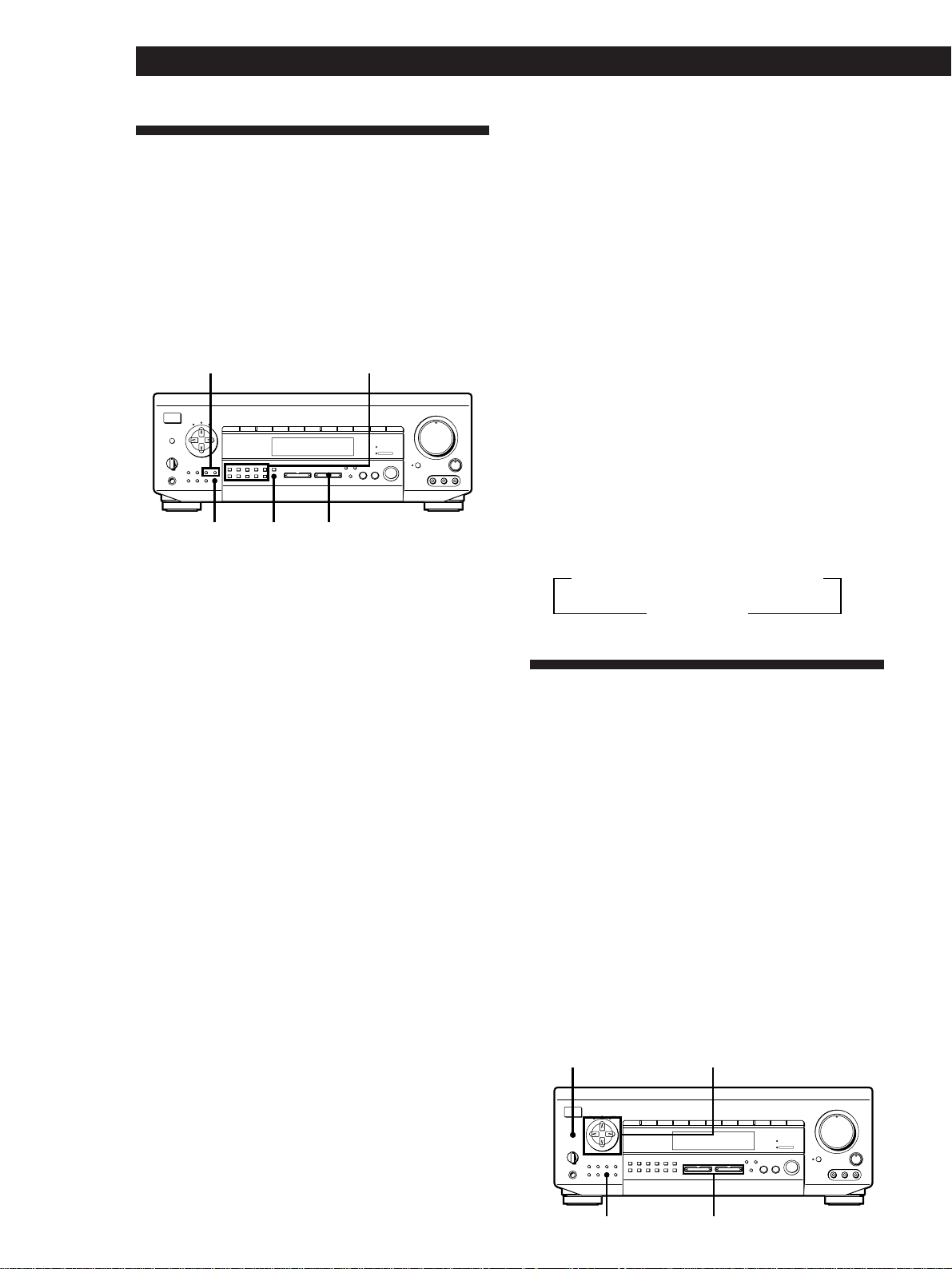
1 Press POWER to turn on the receiver.
2 Press AUDIO FUNCTION repeatedly until the
TUNER indicator lights up.
The last received station is tuned in.
3 Press FM/AM to select FM or AM stations.
4 Press DIRECT.
5 Press the numeric buttons to enter the frequency.
Example 1: FM 102.50 MHz
05201
bbbb
Example 2: AM 1350kHz
(You don’t have to enter the last “0.”)
531
bb
6 When you tune in AM stations, adjust the
direction of the AM loop antenna for optimum
reception.
To receive other stations
Repeat Steps 3 to 5.
z If the STEREO indicator remains off
Press FM MODE even when an FM stereo broadcast is
received.
z If an FM stereo program is distorted
The STEREO indicator flashes. Press FM MODE to
change to monaural (MONO). You will not have the
stereo effect but the distortion will be reduced. To
return to the auto stereo mode, press this button again.
z If you cannot tune in a station and the entered
numbers are flashing
Make sure you’ve entered the right frequency. If not,
press DIRECT and reenter the frequency you want.
If the entered numbers still flash, the frequency is not
used in your area.
z To watch FM simulcast TV programs
Make sure that you tune in the simulcast program on
both the TV (or VCR) and the receiver.
z If you enter a frequency not covered by the tuning
interval
The entered value is automatically rounded up or down
to the closest covered value.
Tuning intervals for direct tuning are:
FM: 50 kHz intervals
AM: 10 kHz intervals (USA and Canadian model only;
to change to 9 kHz intervals, see page 33.)
9 kHz intervals (Australian model only)
9 kHz intervals (models for all other countries; to
change to 10 kHz intervals, see page 33.)
Receiving broadcasts by scanning stations
(automatic tuning)
If you don’t know the frequency of the radio station
you want, you can have the receiver scan all the
receivable stations to locate the one you want.
1 Press AUDIO FUNCTION repeatedly until the
TUNER indicator lights up.
The last received station is tuned in.
2 Press DISPLAY so that the frequency appears in
the display.
3 Press FM/AM to select FM or AM.
4 Press TUNING + or –.
Press the + button for a higher station number;
press the – button for a lower one. When you tune
past either end of the band, the receiver
automatically jumps to the opposite end and
continues scanning in the same direction. Every
time a station is received, the receiver stops
scanning. To continue scanning, press the button
again.
16
Receiver Operations
Presetting Radio Stations
You’ll most likely want to preset the receiver with the
radio stations you listen to often so that you don’t have
to tune in the station every time. The receiver can store
a total of 30 FM or AM stations. You can store the
stations on preset numbers combining 3 characters (A,
B and C) and numbers (0-9). For example, you can
store a station as preset number A1, B6, or C9.
Numeric buttons
SHIFT
INPUT
MODE
DIRECT
0
5
9
4
8
3
7
2
6
1
VIDEO FUNCTION AUDIO FUNCTION
GENRE
MEMORY
PRESET
TUNING
TUNING
TONE
SUR INDEX
+
DISPLAY
–
FM / AM
+
FM MODE
–
SET UP
DIRECT
PASS
MODE
DIRECT PASS
SOUND FIELD
ON / OFF
BASS
BOOST
BALANCE
LR
DISCRETE
5
0
1
3
9
7
4
6
2
8
1
0
•
•
•
•
•
•
•
•
•
•
•
•
•
•
•
•
•
•
•
•
•
•
•
•
•
•
•
•
•
•
•
PHONES
POWER
SPEAKERS
DPC
MODE
A
OFF
A
+B
B
g
MASTER VOLUME
VIDEO 2VIDEO 1 VIDEO 3 LD / DVD TV/DBS TAPE DAT / MD CD TUNER PHONO
RLVIDEO AUDIO
VIDEO 3 INPUT
PRESET TUNING
+
/
–
AUDIO FUNCTIONSHIFTMEMORY
1 Press AUDIO FUNCTION repeatedly until the
TUNER indicator lights up.
The last received station is tuned in.
2 Tune in the station you want.
If you are not familiar with how to tune in a
station, see “Receiving Broadcasts” on page 15.
3 Press MEMORY.
“MEMORY” appears for a few seconds.
Do Steps 4 and 5 before “MEMORY” goes out.
4 Press SHIFT to select a memory page (A, B or C).
Each time you press SHIFT, the letter “A,” “B” or
“C” appear in the display.
5 Press the number you want to use (0 to 9).
If “MEMORY” goes out before you specify the
preset number, start again from Step 3.
6 Repeat Steps 2 to 5 to preset other stations.
To change a preset station
Preset a new station on the number you want to
change.
Note
If the AC power cord is disconnected for about one week,
the preset stations will be cleared from the receiver’s
memory, and you will have to preset the stations again.
Tuning preset stations (preset tuning)
You can tune directly to a preset station by entering its
preset number. If you don’t know which stations are
preset on which numbers, you can tune by scanning
the preset stations.
1 Press AUDIO FUNCTION repeatedly until the
TUNER indicator lights up.
The last received station is tuned in.
2 Press SHIFT to select a memory page (A, B or C),
then press the number.
For example, select A and then press 7 to tune in
the station preset as A7.
z You can tune by scanning the preset stations
Press AUDIO FUNCTION repeatedly until the TUNER
indicator lights up, and then press DISPLAY so that the
frequency display appears. Then press PRESET
TUNING + or – to select the station you want. Each
time you press the buttons, the preset numbers change
as follows:
nA1˜A2˜...˜A0˜B1˜B2˜...˜B0N
nC0˜...C2˜C1N
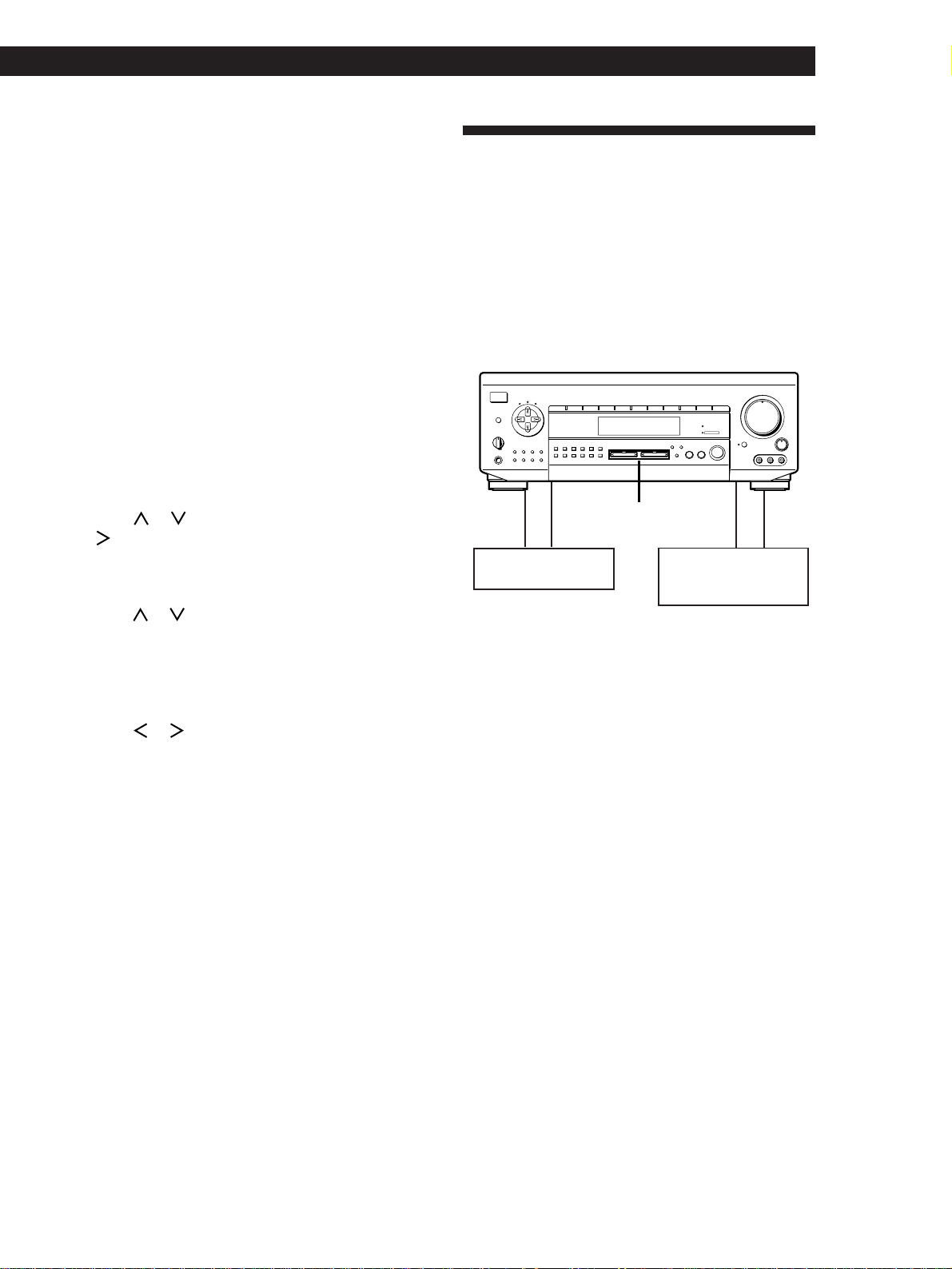
Indexing Preset Stations and
Program Sources
You can enter a name of up to 8 characters for preset
stations (station index) and program sources. These
index names (for example, “VHS”) appear in the
receiver’s display when a station or program source is
selected.
Note that no more than one name can be entered for
each preset station or program source.
This function is useful for distinguishing components
of the same kind; 2 VCRs, for example, can be specified
as “VHS” and “8MM,” respectively. It is also handy for
identifying components connected to jacks meant for
another type of component; for example, a second CD
player connected to the DAT/MD jacks.
Digital processing
control buttons
SHIFT
INPUT
MODE
DIRECT
0
5
9
4
8
3
7
2
6
1
VIDEO FUNCTION AUDIO FUNCTION
GENRE
MEMORY
PRESET
TUNING
TUNING
TONE
SUR INDEX
+
DISPLAY
–
FM / AM
+
FM MODE
–
SET UP
DIRECT
PASS
MODE
DIRECT PASS
SOUND FIELD
ON / OFF
BASS
BOOST
BALANCE
LR
DISCRETE
5
0
1
3
9
7
4
6
2
8
1
0
•
•
•
•
•
•
•
•
•
•
•
•
•
•
•
•
•
•
•
•
•
•
•
•
•
•
•
•
•
•
•
PHONES
POWER
SPEAKERS
DPC
MODE
A
OFF
A
+
B
B
g
MASTER VOLUME
VIDEO 2VIDEO 1 VIDEO 3 LD / DVD TV/DBS TAPE DAT / MD CD TUNER PHONO
RLVIDEO AUDIO
VIDEO 3 INPUT
DPC MODE
DISPLAY VIDEO/AUDIO FUNCTION
17
Getting Started
Receiver Operations
Playback component
(program source)
c
ç
ç
c
Recording component
(tape deck, DAT deck,
MD deck, VCR)
1 To index a preset station
Press AUDIO FUNCTION repeatedly until the
TUNER indicator lights up.
The last station you received is tuned in.
To index a program source
Select the program source (component) to be
named, then go to Step 3.
2 Tune in the preset station you want to create an
index for.
If you are not familiar with how to tune in preset
stations, see “Tuning preset stations (preset
tuning)” on page 16.
3 Press DPC MODE repeatedly until the INDEX
indicator lights up.
4 Create an index name by using the digital
processing control buttons as follows:
Press
or to select a character, and then press
to move the cursor to the next position.
The index name is stored automatically.
To insert a space
Press or until a blank space appears in the
display (the space is between “"” and “A” (STR-
DE915/DE715/D660Z) or “]” and “A” (STR-
DE615/D560Z)).
If you’ve made a mistake
Press or repeatedly until the character you
want to change flashes. Then select the right
character.
To assign index names to other stations
Repeat Steps 2 to 4.
z You can display either the preset station name
(program source name) or frequency (component
originally meant for the selected jacks)
Each time you press DISPLAY, the display switches
between the frequency (or component originally meant
for the selected jacks) and the preset station name
(program source name).
z You can create an index name for the component
connected to the 5.1 INPUT jacks (STR-DE715/DE615/
D660Z/D560Z only)
Press 5.1/DVD INPUT and do the procedure above
starting from Step 3.
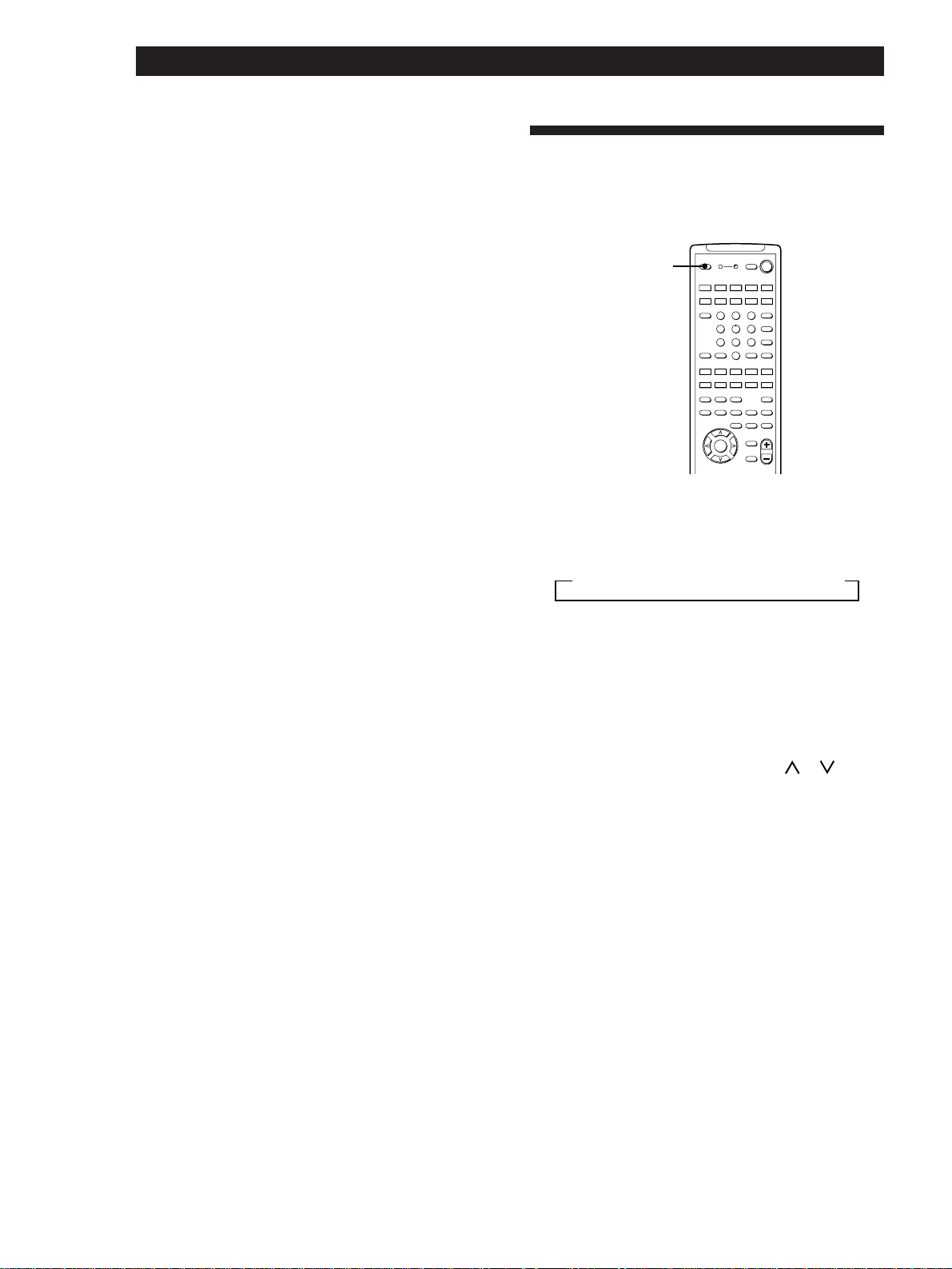
Recording
This receiver makes it easy to record to and from the
components connected to the receiver. You don’t have
to connect playback and recording components
directly: once you select a program source on the
receiver, you can record and edit as you normally
would using the controls on each component.
Before you begin, make sure you’ve connected all
components properly.
SHIFT
INPUT
MODE
DIRECT
0
5
9
4
8
3
7
2
6
1
VIDEO FUNCTION AUDIO FUNCTION
GENRE
MEMORY
PRESET
TUNING
TUNING
TONE
SUR INDEX
+
DISPLAY
–
FM / AM
+
FM MODE
–
SET UP
DIRECT
PASS
MODE
DIRECT PASS
SOUND FIELD
ON / OFF
BASS
BOOST
BALANCE
LR
DISCRETE
5
0
1
3
9
7
4
6
2
8
1
0
•
•
•
•
•
•
•
•
•
•
•
•
•
•
•
•
•
•
•
•
•
•
•
•
•
•
•
•
•
•
•
PHONES
POWER
SPEAKERS
DPC
MODE
A
OFF
A
+B
B
g
MASTER VOLUME
VIDEO 2VIDEO 1 VIDEO 3 LD / DVD TV/DBS TAPE DAT / MD CD TUNER PHONO
RLVIDEO AUDIO
VIDEO 3 INPUT
VIDEO/AUDIO FUNCTION
ç: Audio signal flow
c: Video signal flow
Recording on an audio tape or MiniDisc
You can record on a cassette tape, Digital Audio Tape
or MiniDisc using the receiver. See the instruction
manual of your cassette deck, DAT deck, or MD deck if
you need help.
1 Select the component to be recorded.
2 Set the component to be ready for playing.
For example, insert a CD into the CD player.
3 Insert a blank tape or an MD into the recording
deck and adjust the recording level, if necessary.
4 Start recording on the recording deck and then
start playing the component.
Notes
• You cannot record analog audio signal from a program
source connected to the LD/DVD IN AC-3 RF/OPTICAL,
LD/DVD jack (STR-DE915 only), or 5.1 INPUT jacks (STR-
DE715/DE615/D660Z/D560Z only).
• Sound adjustments do not affect the signal output from
the DAT/MD OUT OPTICAL jack (STR-DE915 only),
TAPE REC OUT jacks, and DAT/MD REC OUT jacks .
18
Receiver Operations
Recording on a video tape
You can record from a VCR, a TV, or an LD player
using the receiver. You can also add audio from a
variety of audio sources when editing a video tape. See
your VCR or LD player’s instruction manual if you
need help.
1 Select the program source to be recorded.
2 Set the component to be ready for playing.
For example, insert the laser disc you want to
record from into the LD player.
3 Insert a blank video tape into the VCR (VIDEO 1
or VIDEO 2) for recording.
4 Start recording on the recording VCR and then
start playing the video tape or laser disc you want
to record.
z You can record sound from a different audio source
onto a video tape while copying from a video tape
or laser disc
Locate the point where you want to start recording from
another audio source, select the program source, then
start playback. The audio from that source will be
recorded onto the audio track of the video tape instead
of the audio from the original.
To resume audio recording from the original, select the
video source again.
Note
You cannot record audio from a program source connected
to the LD/DVD IN AC-3 RF/OPTICAL or LD/DVD jack
(STR-DE915 only) or 5.1 INPUT jacks (STR-DE715/DE615/
D660Z/D560Z only).
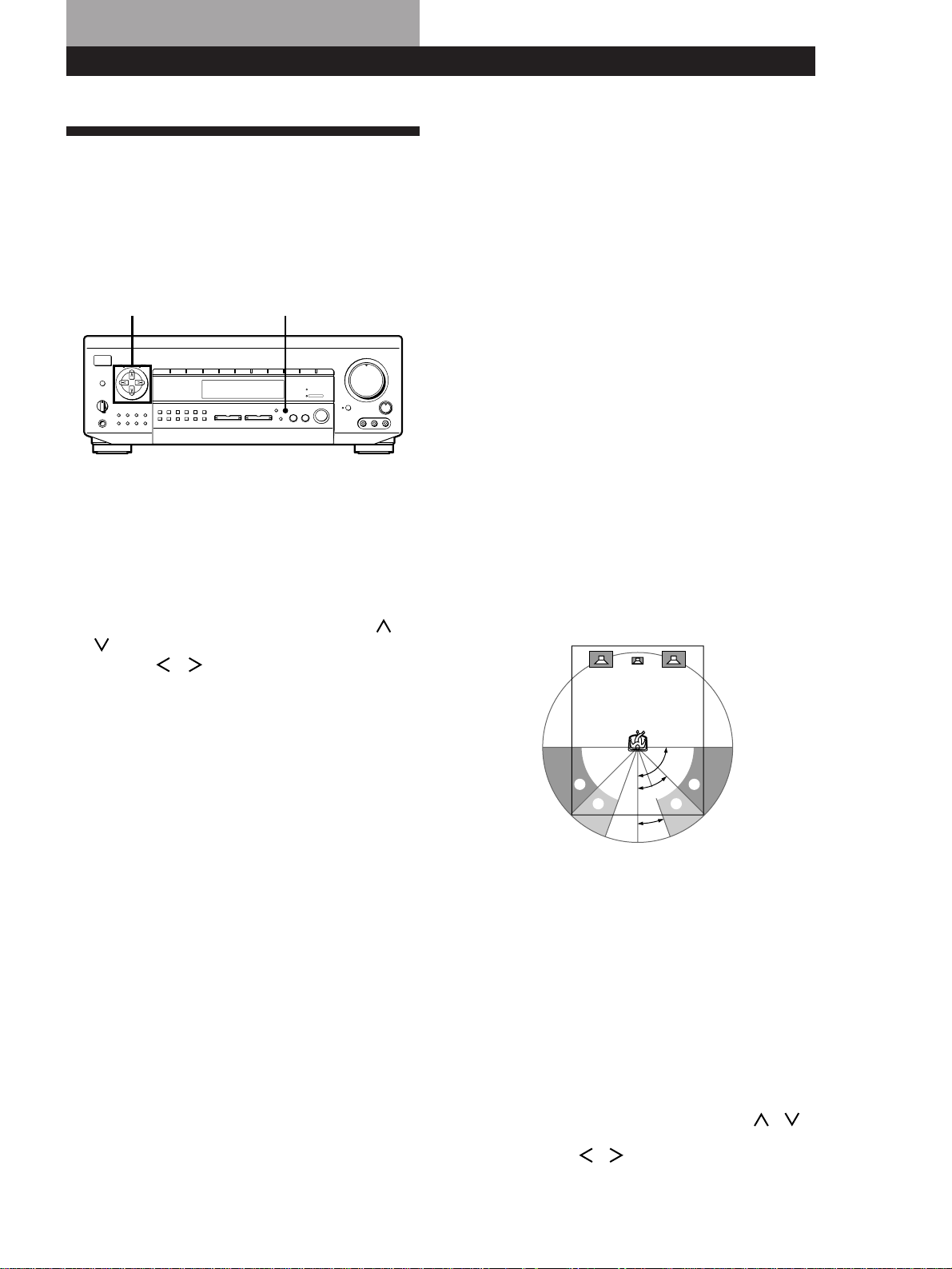
Using the Sleep Timer Z
You can set the receiver to turn off automatically at a
time you specify.
SLEEP
21 3
LEARN
SLEEP
VISUAL
POWER
SYSTEM OFF
SLOPEBAND
EQ/
TONE
DIGTAL
PROCESSING
CONTROL
PROGRAMMABLE
—
LEVEL
—
DIRECT
REAR
BASS
BOOST
MUTING
CENTER
MASTER
VOL
MODEGENRE
—
SOUND FIELD
—
ON/OFF
TEST
TONE
TV
CONTROL
5.1
INPUT
54 6
TV/VIDEO
87 9
D.TUNING
DISC
0
BACK
GROUND
SHIFT ENTER
RMS/START
CH/
PRESET
SYSTEM CONTROL / FUNCTION
VIDEO 3VIDEO 2VIDEO 1
LD TV
(AUTO CATEGORIZE SYSTEM)
CD
DAT/MD
>
10
TAPE
ON
TUNER PHONO
++
––
+
–
POSITION
–
SUB CH
+
—
RMS
—
SWAP
ANT
TV/VTR
=)0+
D. SKIP
CLEARDIRECTION P IN P JUMP
p(
DPC
MODE
9Pr
Press SLEEP on the remote while the power is on.
Each time you press SLEEP, the time changes as shown
below.
n 2:00:00 n 1:30:00n 1:00:00 n 0:30:00 n OFF
The display dims after you specify the time.
Note
On the STR-DE615 and D560Z, “–” appears instead of “:”.
z You can freely specify the time
Press SLEEP first, then specify the time you want using
the digital processing control buttons ( or ). The
sleep time changes in 1 minute intervals. You can
specify up to 5 hours.
z You can check the time remaining before the
receiver turns off
Press SLEEP. The remaining time appears in the
display.
19
Getting Started
Dolby Surround SetupDolby Surround Setup
Digital processing
control buttons
Dolby Digital (STR-DE915 only)
To obtain the best possible surround sound, first
specify the type of speakers you have connected and
the location of the rear speakers. Then use the test tone
to adjust the speaker volumes to the same level.
SHIFT
INPUT
MODE
DIRECT
0
5
9
4
8
3
7
2
6
1
VIDEO FUNCTION AUDIO FUNCTION
GENRE
MEMORY
PRESET
TUNING
TUNING
TONE
SUR INDEX
+
DISPLAY
–
FM / AM
+
FM MODE
–
SET UP
DIRECT
PASS
MODE
DIRECT PASS
SOUND FIELD
ON / OFF
BASS
BOOST
BALANCE
LR
DISCRETE
5
0
1
3
9
7
4
6
2
8
1
0
•
•
•
•
•
•
•
•
•
•
•
•
•
•
•
•
•
•
•
•
•
•
•
•
•
•
•
•
•
•
•
PHONES
POWER
SPEAKERS
DPC
MODE
A
OFF
A
+
B
B
g
MASTER VOLUME
VIDEO 2VIDEO 1 VIDEO 3 LD / DVD TV/DBS TAPE DAT / MD CD TUNER PHONO
RLVIDEO AUDIO
VIDEO 3 INPUT
SET UP
Specifying the speaker type and the
location of the rear speakers
1 Press SET UP repeatedly to select SPEAKER
SETUP.
2 Use the digital processing control buttons ( /
) to select the parameter to be set and use the
buttons (
/ ) to select the setting.
FRONT SP. (front speaker)
• If you connect large speakers that will effectively
reproduce bass frequencies, select “LARGE.”
• When a Dolby Digital sound source (indicated by the
lighting of the DISCRETE indicator) produces an
inadequate surround effect, or when cracking occurs
in the sound output, select “SMALL” to activate the
Dolby Digital (AC-3) bass redirection circuitry and
output the front channel bass frequencies from the
subwoofer or other “LARGE” speakers.
CENTER SP. (center speaker size)
• If you connect large speakers that will effectively
reproduce bass frequencies, select “LARGE.”
• When a Dolby Digital sound source (indicated by the
lighting of the DISCRETE indicator) produces an
inadequate surround effect, or when cracking occurs
in the sound output, select “SMALL” to activate the
Dolby Digital (AC-3) bass redirection circuitry and
output the center channel bass frequencies from the
front speakers, subwoofer or other “LARGE”
speakers.
• If you do not connect the center speaker, select
“NO.”
REAR SP. (rear speaker)
• If you connect large speakers that will effectively
reproduce bass frequencies, select “LARGE.”
• When a Dolby Digital sound source (indicated by the
lighting of the DISCRETE indicator) produces an
inadequate surround effect, or when cracking occurs
in the sound output, select “SMALL” to activate the
Dolby Digital (AC-3) bass redirection circuitry and
output the rear channel bass frequencies from the
subwoofer or other “LARGE” speakers.
• If you do not connect rear speakers, select “NO.”
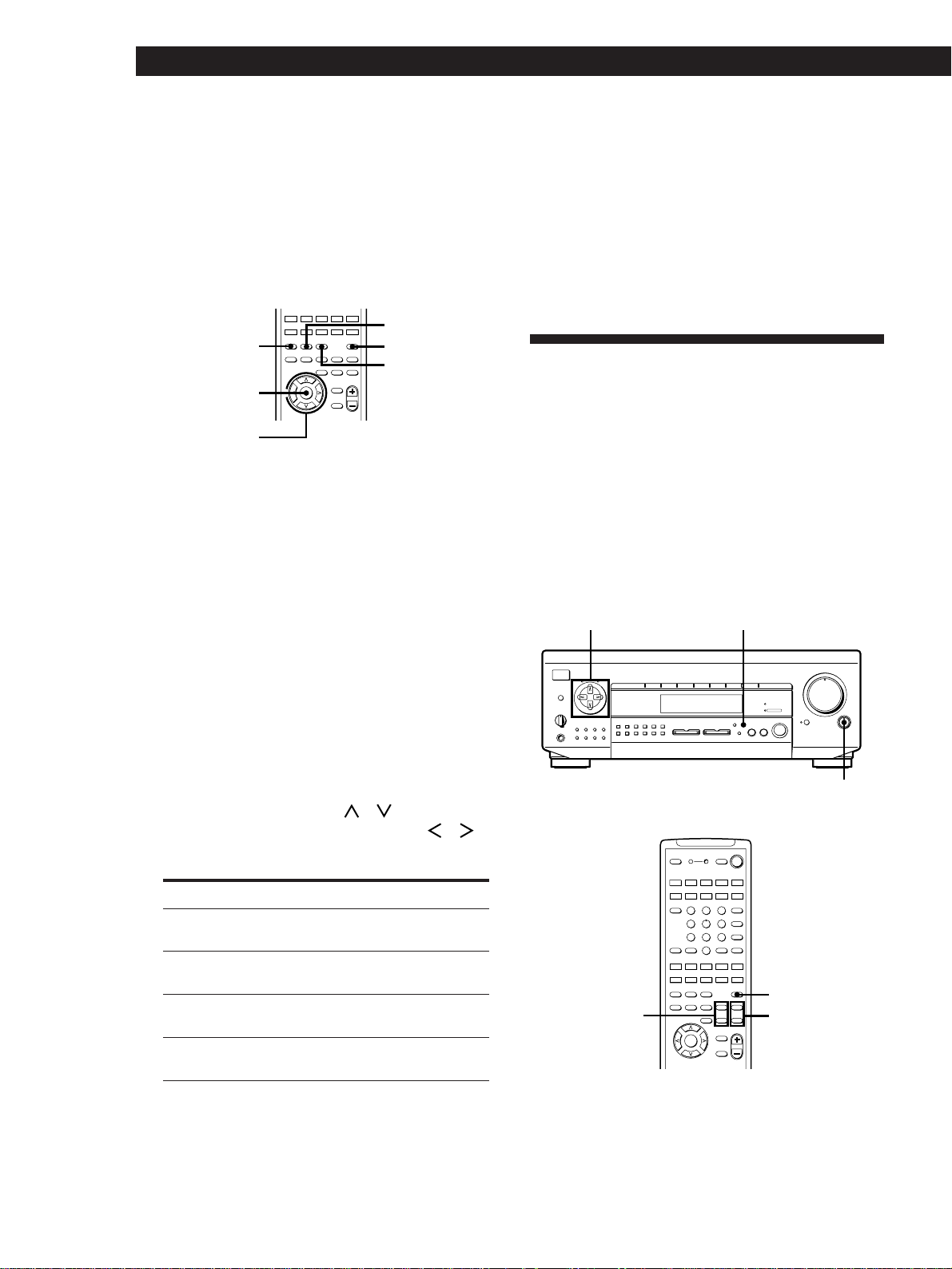
REAR SP. (rear speaker place)
This parameter lets you specify the location of your
rear speakers for proper implementation of the Digital
Cinema Sound VIRTUAL REAR SHIFT and VIRTUAL
MULTI REAR sound fields. Refer to the illustration
below.
• Set to SIDE if the location of your rear speakers
corresponds to section A.
• Set to BEHIND if the location of your rear speakers
corresponds to section B.
This setting affects only the VIRTUAL REAR SHIFT
and VIRTUAL MULTI REAR sound fields.
Note that this parameter does not appear when the
REAR SP. (rear speaker) parameter is set to “NO.”
BB
90°
45°
20°
AA
SUB WOOFER (subwoofer selection)
• If you connect a subwoofer, select “YES” to output
the LFE (low frequency extension) channel from the
subwoofer.
• If you do not connect a subwoofer, select “NO.” This
activates the Dolby Digital (AC-3) bass redirection
circuitry and outputs the LFE signals from other
speakers.
z If you feel the surround effect is inadequate
Do the procedure below to adjust the delay time for the
center and rear speakers.
1 Press SET UP repeatedly to select OTHER SETUP.
2 Use the digital processing control buttons ( / )
to select CENTER DELAY or REAR DELAY and use
the buttons ( / ) to select the delay time.
20
Dolby Surround Setup
Adjusting the speaker volume Z
Use the remote while seated in your listening position
to adjust the volume of each speaker.
Note
This receiver incorporates a new test tone with a frequency
centered at 800 Hz for easier speaker volume adjustment.
SOUND FIELD
ON/OFF
GENRE
MODE
DPC MODE
DIGITAL
PROCESSING
CONTROL
TEST TONE
SLOPEBAND
EQ/
TONE
DIGTAL
PROCESSING
CONTROL
PROGRAMMABLE
—
LEVEL
—
DIRECT
REAR
BASS
BOOST
MUTING
CENTER
MASTER
VOL
MODEGENRE
—
SOUND FIELD
—
ON/OFF
TEST
TONE
++
––
POSITION– SUB CH +
—
RMS
—
SWAP
ANT
TV/VTR
=)0+
D. SKIP
CLEARDIRECTION P IN P JUMP
p(
DPC
MODE
9Pr
1 Press SOUND FIELD ON/OFF to turn on the
sound field.
2 Press GENRE repeatedly to select “DOLBY.”
3 Press MODE to select “NORMAL SURROUND”
or “ENHANCED SURROUND.”
4 Press DPC MODE repeatedly until the SUR
indicator lights up.
5 Press TEST TONE.
You will hear the test tone (see page 22) from each
speaker in sequence.
6 From your listening position, use the digital
processing control buttons (
/ ) to select the
parameter to be set and use the buttons (
/ )
to select the setting so that the test tone can be
heard at the same level from all speakers.
To turn off the test tone
Press TEST TONE.
Notes
• Be sure to select “NORMAL SURROUND” or
“ENHANCED SURROUND” before outputting the test
tone.
• The test tone is not output when:
— The DIRECT PASS indicator is on.
— ”MUTING” appears in the display.
Dolby Pro Logic (STR-DE715/
DE615/D660Z/D560Z only)
To obtain the best possible Dolby Pro Logic Surround
sound, first select the center mode according to your
speaker system. Then, adjust the sound parameters of
the PRO LOGIC sound field.
Note that you must have at least one additional pair of
speakers and/or one center speaker to do the following
adjustments.
SHIFT
5.1/DVD
INPUT
DIRECT
0
5
9
4
8
3
7
2
6
1
VIDEO FUNCTION AUDIO FUNCTION
GENRE
MEMORY
PRESET
TUNING
TUNING
TONE
SUR INDEX
+
DISPLAY
–
FM / AM
+
FM MODE
–
SET UP
DIRECT
PASS
MODE
DIRECT PASS
SOUND FIELD
ON / OFF
BASS
BOOST
BALANCE
LR
5.1 INPUT
5
0
1
3
9
7
4
6
2
8
1
0
•
•
•
•
•
•
•
•
•
•
•
•
•
•
•
•
•
•
•
•
•
•
•
•
•
•
•
•
•
•
•
PHONES
POWER
SPEAKERS
DPC
MODE
A
OFF
A
+
B
B
g
MASTER VOLUME
VIDEO 1 VIDEO 2 TV / DBS TAPE DAT / MD CD TUNER PHONO
BALANCE
SET UP
TEST TONE
CENTER
LEVEL
+
/
–
REAR
LEVEL
+
/
–
21 3
LEARN
SLEEP
VISUAL
POWER
SYSTEM OFF
SLOPEBAND
EQ/
TONE
DIGTAL
PROCESSING
CONTROL
PROGRAMMABLE
—
LEVEL
—
DIRECT
REAR
BASS
BOOST
MUTING
CENTER
MASTER
VOL
MODEGENRE
—
SOUND FIELD
—
ON/OFF
TEST
TONE
TV
CONTROL
5.1
INPUT
54 6
TV/VIDEO
87 9
D.TUNING
DISC
0
BACK
GROUND
SHIFT ENTER
RMS/START
CH/
PRESET
SYSTEM CONTROL / FUNCTION
VIDEO 3VIDEO 2VIDEO 1
LD TV
(AUTO CATEGORIZE SYSTEM)
CD
DAT/MD
>
10
TAPE
ON
TUNER PHONO
++
––
+
–
POSITION
–
SUB CH
+
—
RMS
—
SWAP
ANT
TV/VTR
=)0+
D. SKIP
CLEARDIRECTION P IN P JUMP
p(
DPC
MODE
9Pr
Digital processing
control buttons
During adjustment of the respective speaker level/
balance, the test tone is output from the speaker(s)
only.
After adjusting the subwoofer level, the test tone
turns off automatically.
To adjust Select And set between
rear speaker
balance
REAR L R L (left) and R (right)
REAR –20.0dB and +10.0dB
(in 0.5 dB steps)
center speaker
level
CENTER
subwoofer
level
SUB WOOFER
rear speaker
level
–20.0dB and +10.0dB
(in 0.5 dB steps)
–20.0dB and +10.0dB
(in 0.5 dB steps)
21
Getting Started
Dolby Surround Setup
Selecting the center mode
The receiver offers you four center modes:
PHANTOM, 3 CH LOGIC, NORMAL, and WIDE. Each
mode is designed for a different speaker configuration.
Select the mode that best suits your speaker system
configuration.
1 Press SET UP on the main unit repeatedly to
select CENTER MODE (STR-DE715/D660Z) or
CTR MODE (STR-DE615/D560Z).
2 Use the digital processing control buttons ( /
/ / ) to select the center mode you want
by referring to the following table.
If you have So thatSelect
Front and rear
speakers, no center
speaker
PHANTOM The sound of the
center channel is
output from the
front speakers
Front and center
speakers, no rear
speaker
3 CH LOGIC
(3 Channel
Logic)
The sound of the
rear channel is
output from the
front speakers
Front and rear
speakers, and a small
center speaker
NORMAL The bass sound of
the center channel
is output from the
front speakers
(because a small
speaker cannot
produce enough
bass)
Front and rear
speakers, and a
center speaker
equivalent to your
front speakers
WIDE You can obtain
“complete” Dolby
Pro Logic Surround
sound
Adjusting the speaker volume Z
The test tone feature lets you set the volume of your
speakers to the same level. (If all of your speakers have
equal performance, you don’t have to adjust the
speaker volume.)
Using the controls on the remote lets you adjust the
volume level from your listening position.
1 Do Steps 1 to 3 on page 22 to select the PRO
LOGIC sound field.
2 Make sure the center mode setting is correctly
made (see the table on this page).
3 Press TEST TONE on the remote.
You will hear the test tone from each speaker
sequentially.
4 Adjust the volume levels so that you hear the test
tone from each speaker at the same volume level
when you are in your listening position:
• To adjust the balance of the front right and front
left speakers, use the BALANCE control on the
front of the main unit.
• To adjust the level of center speaker, press
CENTER LEVEL + or – on the remote.
• To adjust the level of rear speakers, press REAR
LEVEL + or – on the remote.
5 Press TEST TONE on the remote to turn off the
test tone.
z You can adjust all the speakers at one time
Adjust MASTER VOLUME.
z You can increase the output level of the rear
speakers
You can raise the output of the rear speakers by 5 dB.
When turning on the receiver, press POWER and
MODE simultaneously to display “GAIN UP.” To
return the output level to normal, repeat this procedure
to display “GAIN NORMAL” (STR-DE715/D660Z) or
“GAIN NORM” (STR-DE615/D560Z).
(Continued)
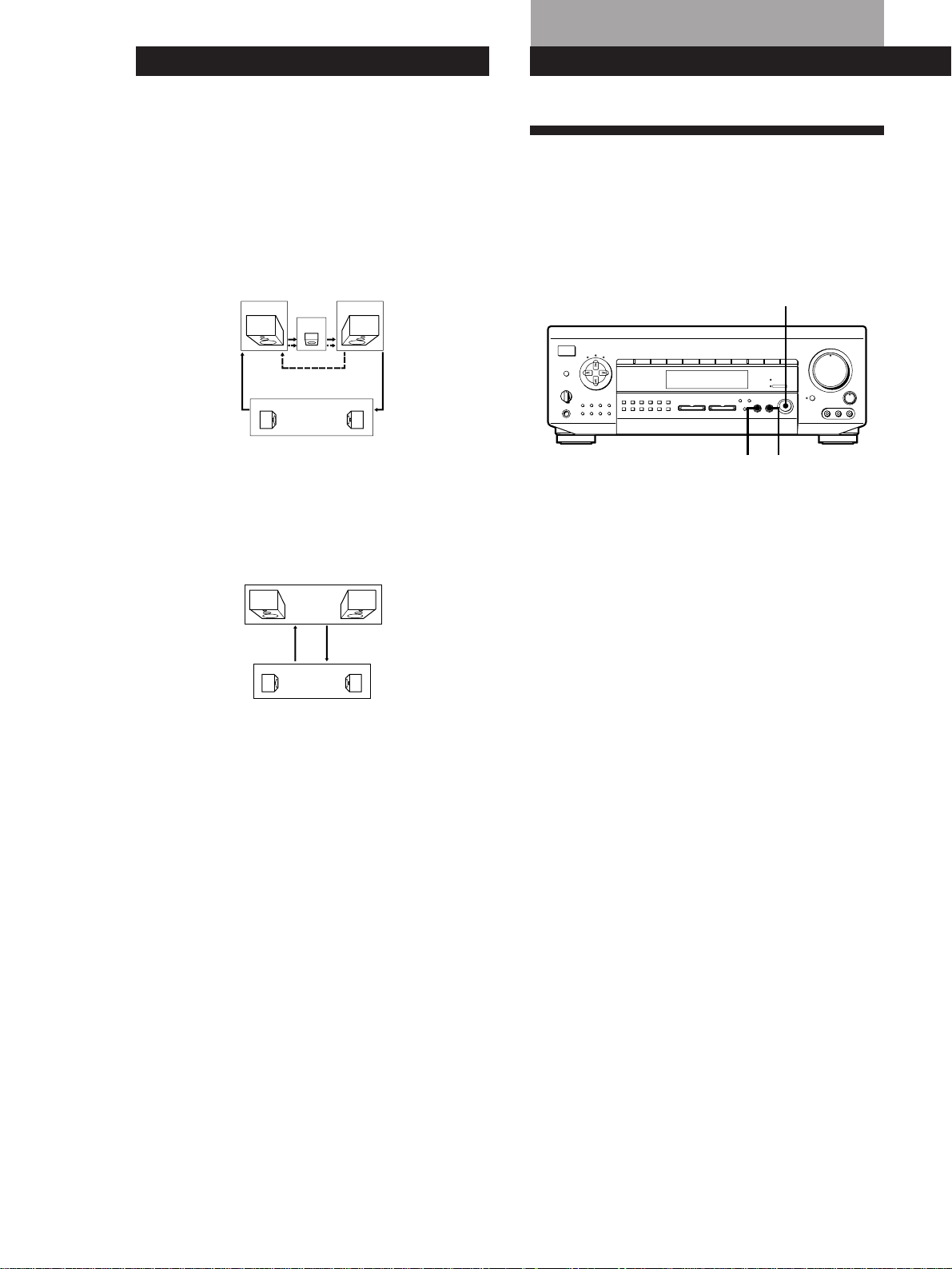
22
Dolby Surround Setup
z What is the test tone?
Signal given out by the receiver for adjusting the
speaker volume. The test tone will come out as follows:
• In a system with a center speaker (NORMAL/WIDE
/3 CH LOGIC modes)
The test tone is output from the front L (left), center,
front R (right), and rear speakers in succession.
• In a system without a center speaker (PHANTOM
mode)
The test tone is output from the front and the rear
speakers alternately.
3 CH LOGIC
Center
Front (R)Front (L)
NORMAL/WIDE
Rear (L, R)
Rear (L, R)
PHANTOM
Front (L, R)
Sound Adjustment
Using Pre-programmed Sound
Fields
You can take advantage of surround sound simply by
selecting one of the pre-programmed sound fields
according to the program you want to play.
SHIFT
INPUT
MODE
DIRECT
0
5
9
4
8
3
7
2
6
1
VIDEO FUNCTION AUDIO FUNCTION
GENRE
MEMORY
PRESET
TUNING
TUNING
TONE
SUR INDEX
+
DISPLAY
–
FM / AM
+
FM MODE
–
SET UP
DIRECT
PASS
MODE
DIRECT PASS
SOUND FIELD
ON / OFF
BASS
BOOST
BALANCE
LR
DISCRETE
5
0
1
3
9
7
4
6
2
8
1
0
•
•
•
•
•
•
•
•
•
•
•
•
•
•
•
•
•
•
•
•
•
•
•
•
•
•
•
•
•
•
•
PHONES
POWER
SPEAKERS
DPC
MODE
A
OFF
A
+
B
B
g
MASTER VOLUME
VIDEO 2VIDEO 1 VIDEO 3 LD / DVD TV/DBS TAPE DAT / MD CD TUNER PHONO
RLVIDEO AUDIO
VIDEO 3 INPUT
SOUND FIELD ON/OFF
MODEGENRE
1 Press SOUND FIELD ON/OFF to turn on the
sound field.
One of the indicators lights up in the display.
2 Press GENRE to select the type of sound field you
desire.
3 Press MODE to select the mode you desire from
the respective genre.
Select the appropriate sound field according to the
chart on page 23 or 25.
To play without surround effects
Select “ACOUSTIC” from MUSIC. The surround
effects are defeated but you can still adjust the tone
parameter (see page 27).
To turn off the sound fields
Press SOUND FIELD ON/OFF.
z You can find Dolby Surround-encoded software by
looking at the packaging
However, some videos and laser discs may use Dolby
Surround sound even if it’s not indicated on the
package.
Notes
• Do not select both speakers (A+B) with the SPEAKERS
selector when using sound fields.
• Sound fields are turned off whenever the program source
connected to the 5.1 INPUT jacks is selected (STR-DE715/
DE615/D660Z/D560Z only).

23
Getting Started
Sound Adjustment
Use 3D sound imaging to
create virtual rear speakers
from the sound of the front
speakers without using actual
rear speakers as shown in the
illustration B on page 24
GENRE MODE To
DOLBY
1)
MOVIE
NORMAL
SURROUND
ENHANCED
SURROUND
CINEMA STUDIO
A
CINEMA STUDIO
B
CINEMA STUDIO
C
SMALL THEATER
MEDIUM
THEATER
LARGE THEATER
NIGHT THEATER
MONO MOVIE
VIRTUAL
ENHANCED A
VIRTUAL
ENHANCED B
Decode programs processed
with Dolby Surround
Provide a greater sence of
presence from Dolby Digital
sources with monaural rear
channel sound
Reproduce the sound
characteristics of the Sony
Pictures Entertainment “Cary
Grant Theater” cinema
production studio
Reproduce the sound
characteristics of the Sony
Pictures Entertainment “Kim
Novak Theater” cinema
production studio
Reproduce the sound
characteristics of the Sony
Pictures Entertainment
scoring stage
Add the acoustic reflections of
a theater to decoded Dolby
Surround signals
Watch a movie at low volume
during the night-time
Create a theater-like
environment from movies
with 2 channel monaural
soundtracks
Use 3D sound imaging to
create virtual rear speakers
from the sound of the front
speakers without using actual
rear speakers as shown in the
illustration A on page 24
3D
Sound fields for STR-DE915
SPORTS
GAME
VIRTUAL MULTI
REAR
SMALL HALL
LARGE HALL
SMALL OPERA
HOUSE
LARGE OPERA
HOUSE
SMALL JAZZ
CLUB
LARGE JAZZ
CLUB
CHURCH
LIVE HOUSE
ACOUSTIC
2)
KARAOKE
3)
ARENA
STADIUM
Use 3D sound imaging to
create an array of virtual rear
speakers from a single pair of
actual rear speakers as shown
in the illustration D on page
24. The position of the virtual
speakers differs according to
the REAR SP. setting (see
page 19).
Reproduce the acoustics of a
rectangular concert hall. Ideal
for soft acoustic sounds.
Reproduce the acoustics of a
opera house
Reproduce the acoustics of a
jazz club
Reproduce the acoustics of a
church
Reproduce the acoustics of a
live house
Reproduce normal 2 channel
stereo. (No surround effects)
Reduce the vocals of a normal
2 channel music source
Reproduce the feeling of
being in a front row of a large
concert arena. Great for rock
music.
Reproduce the feeling of a
large open-air stadium. Great
for sporting events or electric
sounds.
MUSIC
GAME
VIRTUAL REAR
SHIFT
Use 3D sound imaging to shift
the sound of the rear speakers
away from the actual position
as shown in the illustration C
on page 24. The shift position
differs according to the REAR
SP. setting (see page 19).
GENRE MODE To
1) Be sure to adjust the volume level of the center and/or
rear speakers to get the most out of the Dolby Digital (AC-
3) Surround Sound (page 20).
2) The hookups of the center and/or rear speakers are
unnecessary.
3) This parameter has no effect on the music source that has
separate vocal channel (e.g., a Video CD containing
karaoke tracks).
(Continued)
Obtain maximum audio
impact from video game
software
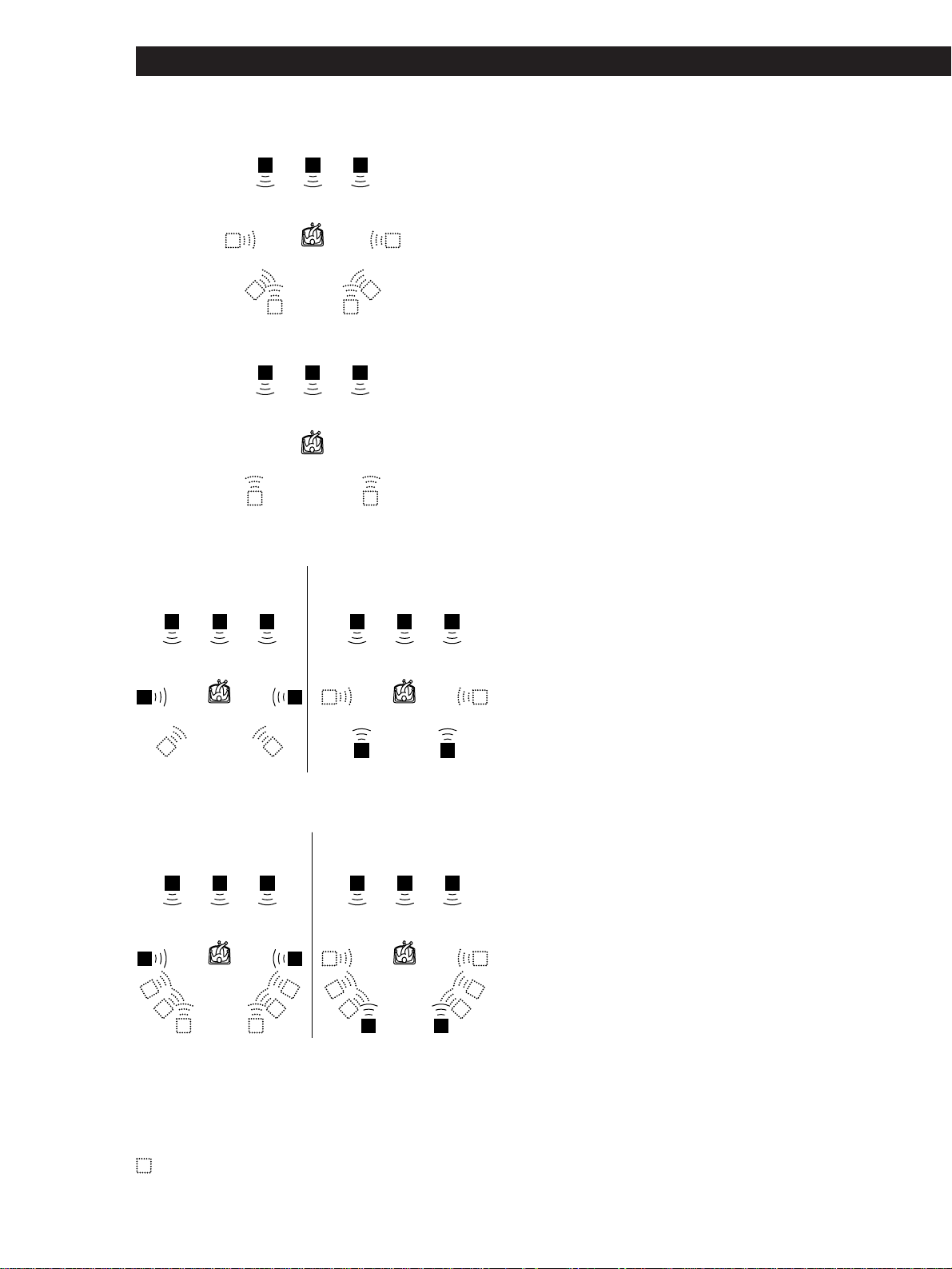
24
Sound Adjustment
A VIRTUAL ENHANCED A
RCL
B VIRTUAL ENHANCED B
RCL
C VIRTUAL REAR SHIFT
RCL
SL SR
RCL
SL SR
D VIRTUAL MULTI REAR
RCL
SL SR
RCL
SL SR
When REAR SP. is set to
SIDE*
When REAR SP. is set to
BEHIND*
When REAR SP. is set to
SIDE*
When REAR SP. is set to
BEHIND*
L: front speakers (left)
R: front speakers (right)
C: center speaker
SL: rear speaker (left)
SR: rear speaker (right)
: virtual speaker
* See page 19 for details on
how to set the rear speaker
place.
Relationship between a Dolby-surround-sound-
encoded source and sound output from the receiver
Sound output from the receiver for a Dolby-surround-
sound-encoded source will differ according to the
contents of the sound source and the settings on the
receiver, as described below.
• For a sound source consisting of Discrete data
When the DOLBY NORMAL SURROUND or ENHANCED
SURROUND sound field is selected or the DIRECT PASS
indicator is on:
The DISCRETE indicator lights up and the sound is
decoded and output as is for all Dolby Digital sound
channels in the source.
When a sound field other than ACOUSTIC and KARAOKE* is
selected:
The DISCRETE indicator lights up and all Dolby Digital
sound channels in the source are processed with the sound
field before being output.
When the ACOUSTIC sound field is selected or the sound field
is turned off:
The sound source is downmixed to 2 channels (L/R
stereo) and output. When the ACOUSTIC sound field is
selected, you can adjust the equalizer parameters (see
page 27).
• For a sound source with Dolby Pro Logic data
When the DOLBY NORMAL SURROUND or ENHANCED
SURROUND sound field is selected or the DIRECT PASS
indicator is on:
“PRO LOGIC” appears and the Dolby Pro Logic sound is
decoded and output.
When a sound field other than ACOUSTIC is selected:
The sound source is processed with the sound field before
being output. If the sound field genre is MOVIE
(excluding MONO MOVIE sound field) or 3D, “PRO
LOGIC“ appears in the display and Dolby Pro Logic
sound is decoded and output.
When the ACOUSTIC sound field is selected or the sound field
is turned off:
The sound source is downmixed to 2 channels (L/R
stereo) and output. When the ACOUSTIC sound field is
selected, you can adjust the equalizer parameters (see
page 27).
* The KARAOKE sound field reduces the level of the vocal
component which is located at the center of 2-channel
stereo sound. Since this sound field downmixes a 5-
channel Dolby Digital source to two channels and
processes it in the same way, the DISCRETE indicator
does not light up in KARAOKE mode.
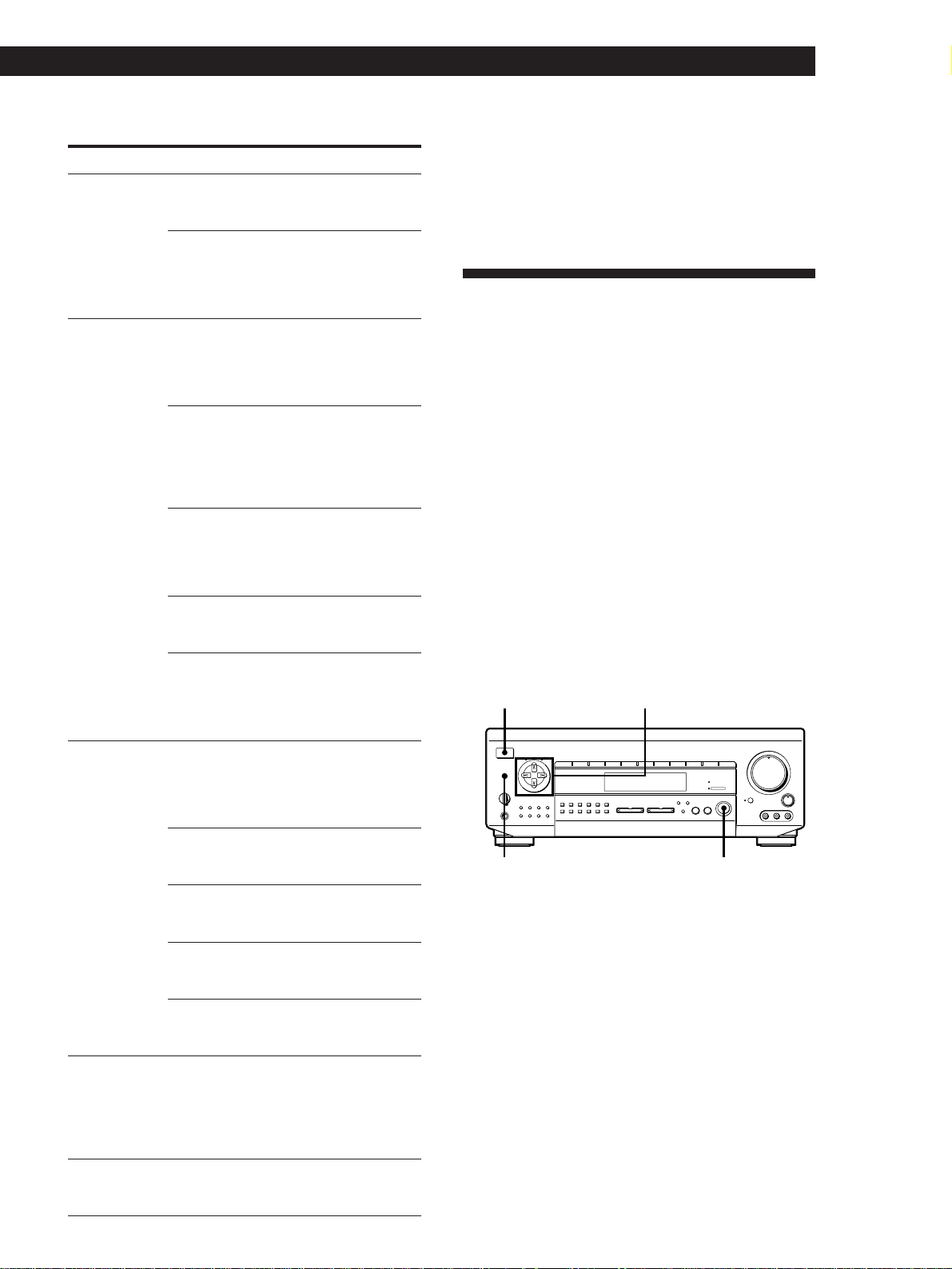
25
Getting Started
Sound Adjustment
1) Be sure to adjust the volume level of the center and/or
rear speakers to get the most out of the Dolby Pro Logic
Surround Sound (page 21).
2) Unavailable on the STR-DE615/D560Z
3) The hookups of the center and/or rear speakers are
unnecessary.
Customizing the Sound Fields
Each sound field is composed of a tone parameter
(bass/treble) and surround sound parameters —
variables of sound that create the sound image. You
can customize the sound fields by adjusting some of
the sound parameters to suit your listening situation.
Also, since this receiver uses Digital Signal Processing
(DSP), you can adjust the sound parameters
electronically (STR-DE915 only). DSP automatically
converts analog audio signals to digital, which lets you
adjust the sound with virtually no degradation in
sound quality.
Once you customize the sound fields, they are stored in
memory unless the receiver is unplugged for about 1
week. To change a customized sound field, make new
adjustments to the sound field.
SHIFT
INPUT
MODE
DIRECT
0
5
9
4
8
3
7
2
6
1
VIDEO FUNCTION AUDIO FUNCTION
GENRE
MEMORY
PRESET
TUNING
TUNING
TONE
SUR INDEX
+
DISPLAY
–
FM / AM
+
FM MODE
–
SET UP
DIRECT
PASS
MODE
DIRECT PASS
SOUND FIELD
ON / OFF
BASS
BOOST
BALANCE
LR
DISCRETE
5
0
1
3
9
7
4
6
2
8
1
0
•
•
•
•
•
•
•
•
•
•
•
•
•
•
•
•
•
•
•
•
•
•
•
•
•
•
•
•
•
•
•
PHONES
POWER
SPEAKERS
DPC
MODE
A
OFF
A
+
B
B
g
MASTER VOLUME
VIDEO 2VIDEO 1 VIDEO 3 LD / DVD TV/DBS TAPE DAT / MD CD TUNER PHONO
RLVIDEO AUDIO
VIDEO 3 INPUT
DPC MODE SOUND FIELD ON/OFF
POWER
(Continued)
Sound fields for STR-DE715/DE615/D660Z/D560Z
GENRE MODE To
PRO LOGIC
1)
PRO LOGIC Decode programs
processed with
Dolby Surround
ENHANCED Provide additional
output to the rear
speakers after
decoding the Dolby
Surround program
MOVIE C(INEMA) STUDIO A Reproduce the
acoustics of a sound
stage of a studio
producing regular
movies
C(INEMA) STUDIO B Reproduce the
acoustics of a sound
stage of a studio
producing SFX or
action movies with
lots of sound effects
THEATER Add the acoustic
reflections of a
theater to decoded
Dolby Surround
signals
N(IGHT) THEATER
2)
Watch a movie at
low volume during
the nighttime
MONO MOVIE Create a theater-like
environment from
movies with
monaural
soundtracks
MUSIC S(MALL) HALL
2)
Reproduce the
acoustics of a small
rectangular concert
hall. Ideal for soft
acoustic sounds.
L(ARGE) HALL Reproduce the
acoustics of a larger
hall
JAZZ CLUB Reproduce the
acoustics of a jazz
club
LIVE HOUSE
2)
Reproduce the
acoustics of a live
house
ACOUSTIC
3)
Reproduce normal 2
channel stereo. (No
surround effects)
SPORTS STADIUM Reproduce the
feeling of a large
open-air stadium.
Great for sporting
events or electric
sounds.
GAME GAME Obtain maximum
audio impact from
video game software
Digital processing
control buttons
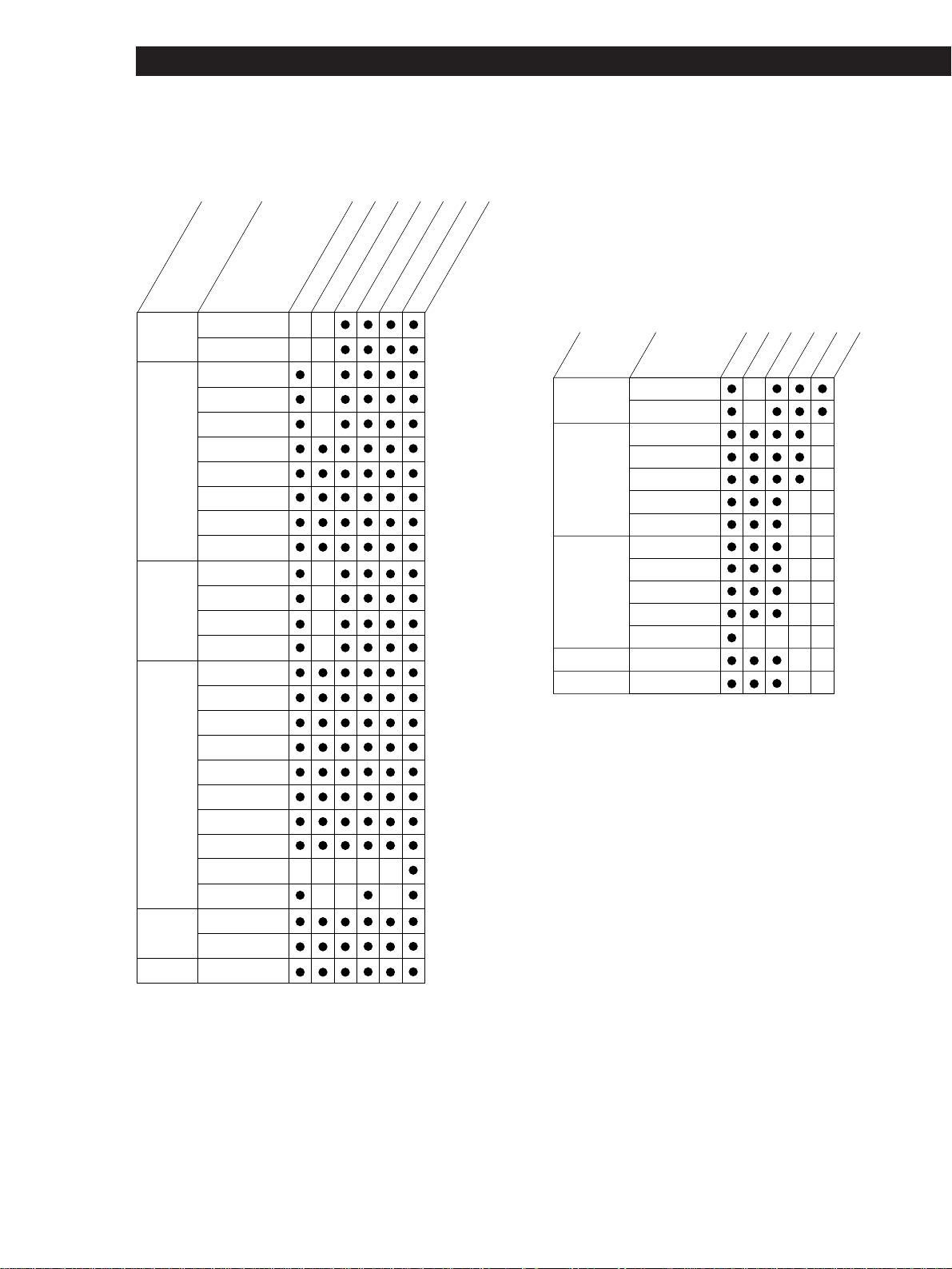
26
Sound Adjustment
Notes
• All the sound fields can be used with Dolby Digital (AC-3)
sound sources.
• The EFFECT parameter allows you to adjust the overall
presence of the sound field.
• The volume of the rear speakers, subwoofer, and center
speaker can still be adjusted even when the DIRECT PASS
indicator is on.
Adjustable parameters for each sound field
of STR-DE715/DE615/D660Z/D560Z
PRO LOGIC
ENHANCED
C STUDIO A
C STUDIO B
THEATER
N THEATER
MONO MOVIE
S HALL
L HALL
JAZZ CLUB
LIVE HOUSE
ACOUSTIC
STADIUM
GAME
DELAY
CENTER
REAR
EFFECT
TONE
MODE
GENRE
PRO LOGIC
MOVIE
MUSIC
SPORTS
GAME
3)2)
1)
1)
1)
3)2)
3)2)
3)2)
3)2)
1) Unavailable on the STR-DE615/D560Z
2) Adjustable only when center mode is set to
PHANTOM, NORMAL, or WIDE (see page 21).
3) Adjustable only when center mode is set to 3 CH
LOGIC, NORMAL, or WIDE (see page 21).
Note
The EFFECT parameter allows you to adjust the overall
presence of the sound field.
Before you get started
To take advantage of Dolby Surround sound, go to
“Dolby Digital (STR-DE915 only)” on page 19 or
“Dolby Pro Logic (STR-DE715/DE615/D660Z/D560Z
only)” on page 20. These sections describe how to
adjust the levels of your speaker system and customize
the DOLBY (STR-DE915) or PRO LOGIC (STR-DE715/
DE615/D660Z/D560Z) sound field.
Adjustable parameters for each sound field
of STR-DE915
EQ
C LEV*
R (BAL/LEV)*/W LEV*
LFE MIX/D.COMP
MODE
GENRE
WALL/SEAT (F-R/L-R)/REV
EFFECT
DOLBY
MOVIE
3D
MUSIC
SPORTS
GAME
NORMAL
ENHANCED
C STUDIO A
C STUDIO B
C STUDIO C
S THEATER
M THEATER
L THEATER
N THEATER
MONO MOVIE
VIRTUAL
ENHANCED A
VIRTUAL
ENHANCED B
VIRTUAL REAR
SHIFT
VIRTUAL
MULTI REAR
S HALL
L HALL
S OPERA
HOUSE
L OPERA
HOUSE
S JAZZ CLUB
L JAZZ CLUB
CHURCH
LIVE HOUSE
ACOUSTIC
KARAOKE
ARENA
STADIUM
GAME
EFFECT: effect level
WALL: wall type
SEAT (F-R/L-R): seat position (front-rear/left-right)
REV: reverberation time
LFE MIX: low frequency effect mix
D. COMP: dynamic range compression
R (BAL/LEV) : rear speaker’s balance/level
W LEV: subwoofer level
C LEV: center speaker level
EQ: equalizer parameter
* The settings of these parameters are not stored separately
for each sound field. They effect all the sound fields.
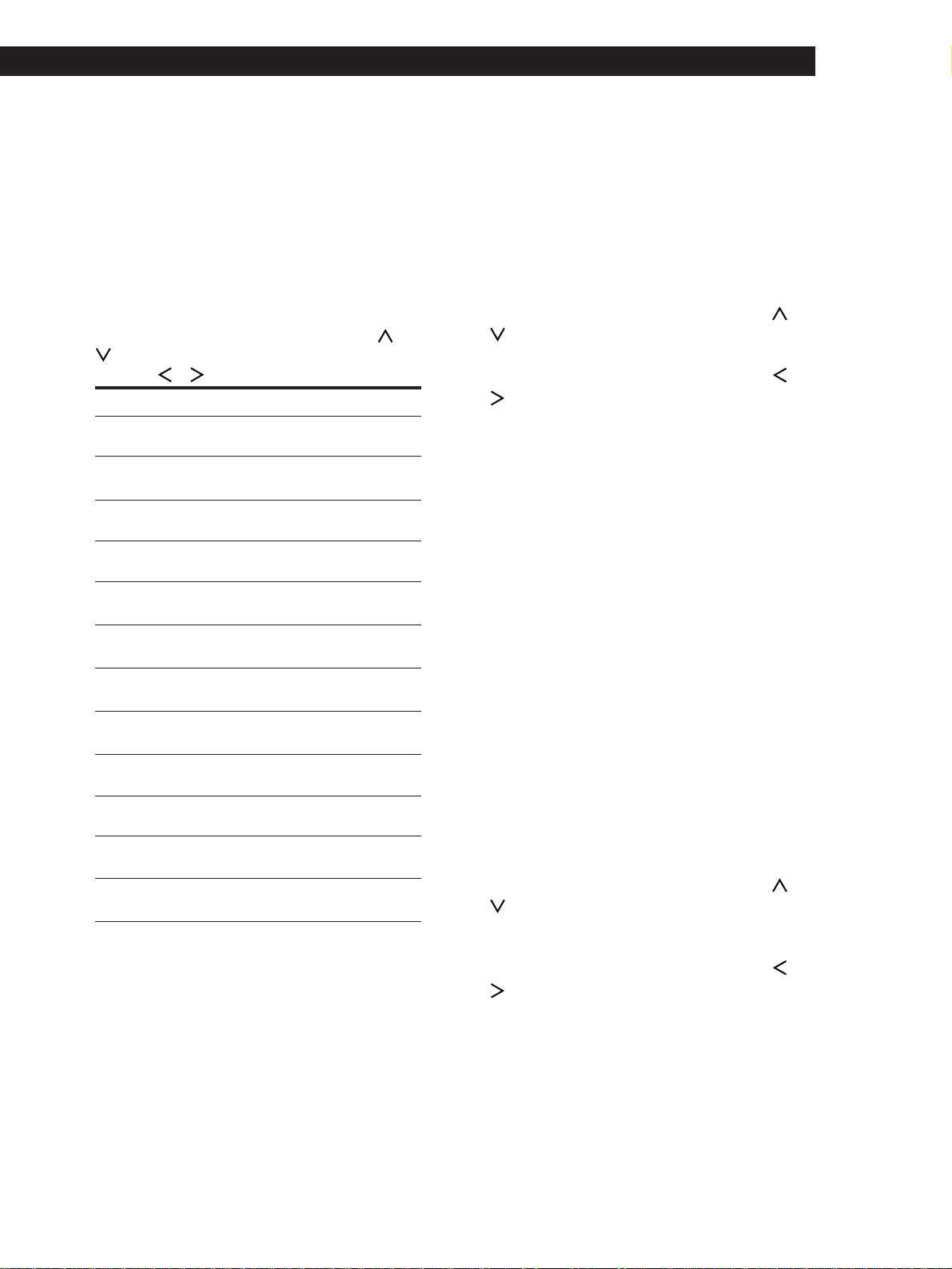
27
Getting Started
Sound Adjustment
Adjusting the tone parameter (STR-DE715/
DE615/D660Z/D560Z only)
Adjust the tone (bass or treble) of the front, center and
rear speakers for optimum sound. You can adjust the
tone of all sounds fields, including Dolby Surround.
1 Press DPC MODE repeatedly until the TONE
indicator lights up.
2 Use the digital processing control buttons ( /
) to select BASS or TREBLE.
3 Use the digital processing control buttons ( /
) to adjust the tone level.
The adjusted tone level is stored automatically.
z You can turn off the tone adjustments without
erasing them
The tone adjustments and on/off setting are stored
separately for each sound field. Press DPC MODE
repeatedly to turn off the TONE indicator.
Adjusting the delay time (STR-DE715/
DE615/D660Z/D560Z only)
You can make the surround sound more effective by
delaying the output from the rear speakers (delay
time). You can select a delay time of 15, 20, and 30 ms.
Set a short delay time when the rear speakers are
located in a large room or far from your listening
position.
1 Start playing a program source encoded with
Dolby surround sound.
2 Press DPC MODE repeatedly until the SUR
indicator lights up.
3 Use the digital processing control buttons ( /
) to select the delay time.
The current delay time appears in the display.
4 Use the digital processing control buttons ( /
) to adjust the delay time.
Adjusting the equalizer parameters
(STR-DE915 only)
Adjust the equalization (bass or treble) of the front,
center and rear speakers for optimum sound.
The following adjustments effect all sound fields
simultaneously.
1 While playing a component, press DPC MODE
repeatedly until the TONE indicator lights up.
2 Use the digital processing control buttons ( /
) to select the parameter to be set and use the
buttons (
/ ) to select the setting.
To set Select And set between
bass level of the
front speakers
F: BASS –10.0dB and +10.0dB
(in 0.5 dB steps)
bass frequency of
the front speakers
F: BASS
99Hz and 992Hz (in
21 levels)
treble level of the
front speakers
F: TREBLE –10.0dB and +10.0dB
(in 0.5 dB steps)
treble frequency of
the front speakers
F: TREBLE 1.0kHz and 8.6kHz
(in 21 levels)
bass level of the
center speaker
C: BASS –10.0dB and +10.0dB
(in 0.5 dB steps)
bass frequency of
the center speaker
C: BASS 99Hz and 992Hz (in
21 levels)
treble level of the
center speaker
C: TREBLE –10.0dB and +10.0dB
(in 0.5 dB steps)
treble frequency of
the center speaker
C: TREBLE 1.0kHz and 8.6kHz
(in 21 levels)
bass level of the rear
speakers
R: BASS –10.0dB and +10.0dB
(in 0.5 dB steps)
bass frequency of
the rear speakers
R: BASS 99Hz and 992Hz (in
21 levels)
treble level of the
rear speakers
R: TREBLE –10.0dB and +10.0dB
(in 0.5 dB steps)
treble frequency of
the rear speakers
R: TREBLE 1.0kHz and 8.6kHz
(in 21 levels)
3 Repeat Step 2 if necessary.
z You can turn off the equalizer adjustments without
erasing them Z
press EQ/TONE on the remote.
Note
You may hear some noise as you adjust the parameters.
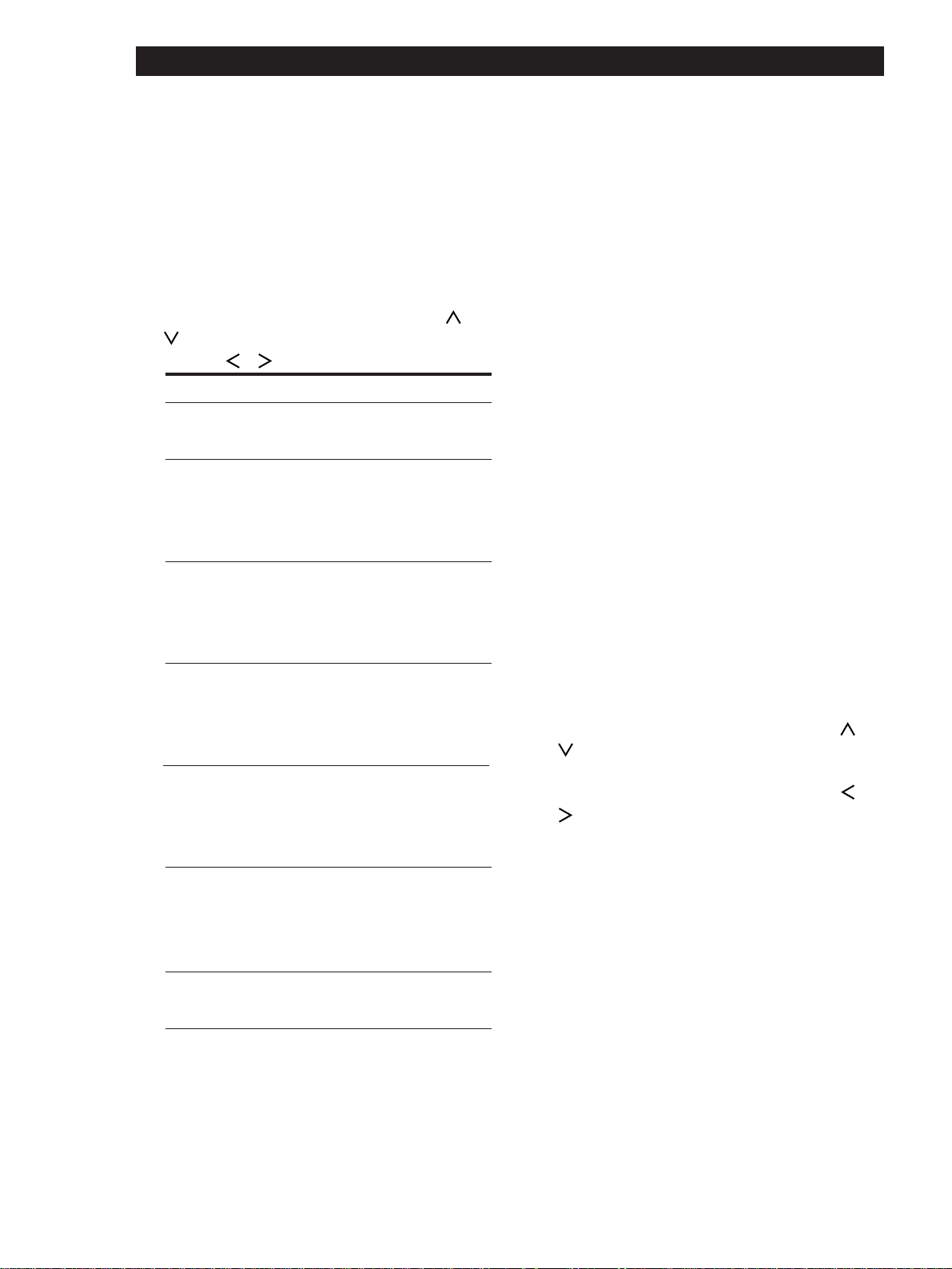
28
Sound Adjustment
Adjusting the effect and surround sound
parameters (STR-DE915 only)
Change the surround parameters to fit your listening
situation. See the chart on page 26 for parameters you
can adjust in each sound field.
1 Press DPC MODE repeatedly until the SUR
indicator lights up.
2 Use the digital processing control buttons ( /
) to select the parameter to be set and use the
buttons (
/ ) to select the setting.
To Select And set between
set the overall
presence of the
sound field
1)
EFFECT 0% and 100%
set the level of the
high frequencies
to alter the sonic
character of your
listening
environment
WALL S (soft wall) and H
(hard wall) (in 17
levels)
Select your seat
position (front or
rear) to simulate
the acoustics of
the selected
position
SEAT F (front) and R (rear)
(in 17 levels)
Select your seat
position (left or
right) to simulate
the acoustics of
the selected
position
SEAT L (left) and R (right)
(in 17 levels)
set the length of
time required for
the reverberation
from a given sound
to attenuate to –60
dB
REVERB
LFE MIX
S (short) and L (long)
(in 17 levels)
attenuate the level
of the LFE (Low
Frequency
Extension) channel
output from the
subwoofer
2)
MUTE, –20.0dB and
0dB (in 0.5 dB steps)
compress the
dynamic range of
the sound track
D.RANGE
COMP
OFF, 0.1 to 0.9, STD,
MAX
3)
1) When the sound field is KARAOKE, this parameter
adjusts the vocal presence. The higher the setting, the
less dominant the vocal sound.
2) The adjustment of this parameter does not affect the
level of the bass frequencies sent to the subwoofer
from the front, center, or rear channels via the bass
redirection circuitry. Setting this parameter to 0dB
outputs the full LFE signal at the mix level
determined by the recording engineer. Selecting
MUTE mutes the sound of the LFE channel from the
subwoofer. However, the low frequency sounds of
the front, center, and rear speakers are output from
the subwoofer according to the setting of each
speaker (page 19).
3) Setting this parameter to OFF reproduces the sound
track with no dynamic range compression. STD
reproduces the sound track with the full dynamic
range as intended by the recording engineer. MAX
provides a dramatic compression of the dynamic
range.
Adjusting surround sound parameters
(STR-DE715/DE615/D660Z/D560Z only)
Change the surround parameters to fit your listening
situation. See the chart on page 26 for parameters you
can adjust in each sound field.
To adjust the parameters of the PRO LOGIC sound
field, see “Dolby Pro Logic (STR-DE715/DE615/
D660Z/D560Z only)” on page 20.
1 Press DPC MODE repeatedly until the SUR
indicator lights up.
2 Use the digital processing control buttons ( /
) to select the parameter you want.
3 Use the digital processing control buttons ( /
) to adjust the level of the parameter.
The adjusted parameters are stored automatically.
Note
If you make new adjustments to a sound field, the previous
settings are replaced by the new ones.
Resetting customized sound fields to the
factory settings
1 If the power is on, press POWER to turn off the
power.
2 Hold down SOUND FIELD ON/OFF and press
POWER.
“SURR CLEAR!” appears in the display and all the
sound fields are reset at once.

29
Getting Started
Advanced Remote Operations
Operating One Component
While Using Another
(background operation)
You can temporarily operate other components while
listening to or watching a program.
BACKGROUND
21 3
LEARNSLEEP
VISUAL
POWER
SYSTEM OFF
SLOPEBAND
EQ/
TONE
DIGTAL
PROCESSING
CONTROL
PROGRAMMABLE
—
LEVEL
—
DIRECT
REAR
BASS
BOOST
MUTING
CENTER
MASTER
VOL
MODEGENRE
—
SOUND FIELD
—
ON/OFF
TEST
TONE
TV
CONTROL
5.1
INPUT
54 6
TV/VIDEO
87 9
D.TUNING
DISC
0
BACK
GROUND
SHIFT ENTER
RMS/START
CH/
PRESET
SYSTEM CONTROL / FUNCTION
VIDEO 3VIDEO 2VIDEO 1
LD TV
(AUTO CATEGORIZE SYSTEM)
CD
DAT/MD
>10
TAPE
ON
TUNER PHONO
++
––
+
–
POSITION– SUB CH +
—
RMS
—
SWAP
ANT
TV/VTR
=)0+
D. SKIP
CLEARDIRECTION P IN P JUMP
p(
DPC
MODE
9Pr
1 Hold down BACKGROUND.
2 Press both the corresponding button of the
component you’re going to use (see the table
below) and one of the following buttons at the
same time; VISUAL POWER, TV/VIDEO, CH/
PRESET +/–, ANT TV/VTR, D.SKIP, (, 9, p,
0/), =/+, P, r.
Example: To start recording on a tape deck
while listening to a CD
While holding down BACKGROUND,
press 4 (or 5) and press r + ( at the
same time.
The following buttons correspond to the
components.
The button Corresponds to
1 CD player
2 DAT deck
3 MD deck
4 Tape deck A
5 Tape deck B
6 LD player
7 VCR (remote control mode VTR 1*)
8 VCR (remote control mode VTR 2*)
9 VCR (remote control mode VTR 3*)
>10 DBS tuner
ENTER DVD player
*
Sony VCRs are operated with a VTR 1, 2 or 3 setting
that corresponds to Beta, 8mm, and VHS,
respectively.
Changing the Factory Setting
of a FUNCTION Button
If the factory settings of the FUNCTION buttons (page
13) don’t match your system components, you can
change them. For example, if you connect a Sony LD
player to the VIDEO 2 jacks, you can assign the VIDEO
2 button to set the remote to control the LD player.
Note that the settings of the TUNER and PHONO
buttons cannot be changed.
SYSTEM
CONTROL/
FUNCTION
21 3
LEARNSLEEP
VISUAL
POWER
SYSTEM OFF
SLOPEBAND
EQ/
TONE
DIGTAL
PROCESSING
CONTROL
PROGRAMMABLE
—
LEVEL
—
DIRECT
REAR
BASS
BOOST
MUTING
CENTER
MASTER
VOL
MODEGENRE
—
SOUND FIELD
—
ON/OFF
TEST
TONE
TV
CONTROL
5.1
INPUT
54 6
TV/VIDEO
87 9
D.TUNING
DISC
0
BACK
GROUND
SHIFT ENTER
RMS/START
CH/
PRESET
SYSTEM CONTROL / FUNCTION
VIDEO 3VIDEO 2VIDEO 1
LD TV
(AUTO CATEGORIZE SYSTEM)
CD
DAT/MD
>10
TAPE
ON
TUNER PHONO
++
––
+
–
POSITION– SUB CH +
—
RMS
—
SWAP
ANT
TV/VTR
=)0+
D. SKIP
CLEARDIRECTION P IN P JUMP
p(
DPC
MODE
9Pr
1 Hold down the SYSTEM CONTROL/FUNCTION
button whose function you want to change
(VIDEO 2, for example).
2 Press the corresponding numeric button of the
component you want to assign to the SYSTEM
CONTROL/FUNCTION button (6 - LD player,
for example).
For the numeric buttons, see the table in
“Operating One Component While Using
Another” on this page.
Now you can use the VIDEO 2 button to control
your Sony LD player.
To reset the setting to the factory setting
Repeat the above procedure.
Numeric and
ENTER buttons
Numeric
and ENTER
buttons
Advanced Remote Operations
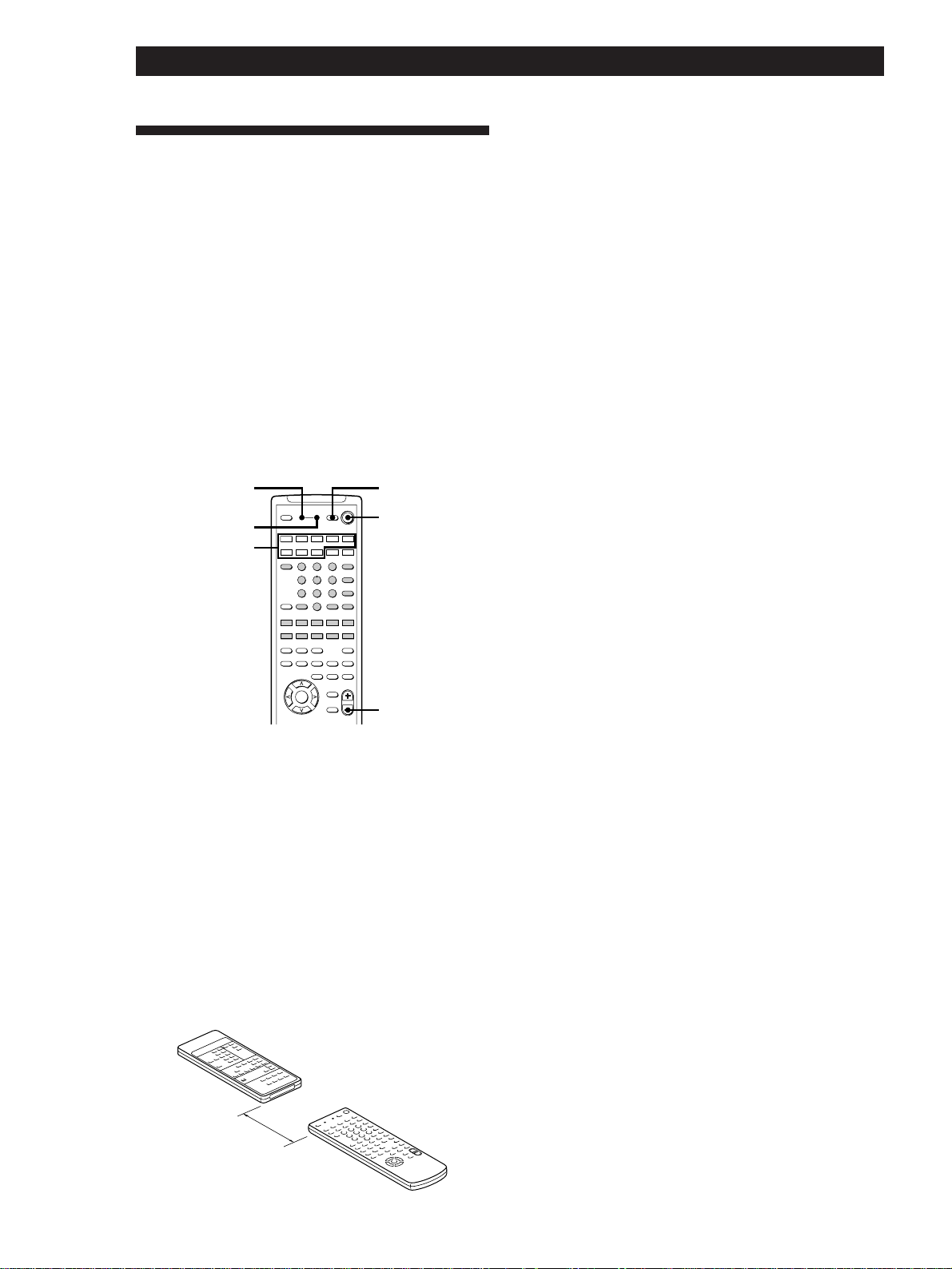
30
Advanced Remote Operations
Programming the Remote
(STR-DE915/DE715/D660Z only)
The RM-P501 remote included with the STR-DE915,
DE715, and D660Z can control non-Sony components
by “learning” the control signals from their remotes.
Once this remote learns the other components signals,
you can use these components as part of your system.
Additionally, if you have any Sony components that
fail to operate with this remote, use this programming
function. This remote can “learn” signals only from
other infrared wireless remotes. Before you program
signals, make sure that the two remotes:
• Face straight at each other (see Step 3 below)
• Are placed at a distance of about 2 inches (5 cm)
• Are not moved during programming
SYSTEM
CONTROL/
FUNCTION
VISUAL POWER
SYSTEM OFF
LEARN
MASTER VOL –
21 3
LEARN
SLEEP
VISUAL
POWER
SYSTEM OFF
SLOPEBAND
EQ/
TONE
DIGTAL
PROCESSING
CONTROL
PROGRAMMABLE
—
LEVEL
—
DIRECT
REAR
BASS
BOOST
MUTING
CENTER
MASTER
VOL
MODEGENRE
—
SOUND FIELD
—
ON/OFF
TEST
TONE
TV
CONTROL
5.1
INPUT
54 6
TV/VIDEO
87 9
D.TUNING
DISC
0
BACK
GROUND
SHIFT ENTER
RMS/START
CH/
PRESET
SYSTEM CONTROL / FUNCTION
VIDEO 3VIDEO 2VIDEO 1
LD TV
(AUTO CATEGORIZE SYSTEM)
CD
DAT/MD
>
10
TAPE
ON
TUNER PHONO
++
––
+
–
POSITION
–
SUB CH
+
—
RMS
—
SWAP
ANT
TV/VTR
=)0+
D. SKIP
CLEARDIRECTION P IN P JUMP
p(
DPC
MODE
9Pr
1 Press the SYSTEM CONTROL/FUNCTION
button of the component you want to program
(except the TUNER and PHONO buttons).
For example, if you want to program a CD player’s
remote, press CD.
2 Press LEARN to turn on the LEARN indicator.
3 Press the button on this unit’s remote that is to
“learn” the signal from the other remote.
The LEARN indicator flashes slowly.
Use only the shaded buttons shown above (see
“Remote Button Descriptions” on page 37 for the
buttons you can use to operate each component).
If the LEARN indicator flashes rapidly
You cannot use the button you’ve pressed.
4 On the other remote, select the function that the
receiver’s remote is to “learn” and hold down its
button until the LEARN indicator lights steadily.
5 Repeat Steps 3 and 4 to program other buttons.
Note that each button can only “learn” one signal
from another remote.
6 Press LEARN.
After the LEARN indicator turns off, you can
control the other component with the programmed
buttons.
z When you program the recording signal
Use the r button to memorize the signal.
z If you cannot successfully program signals, check the
following:
• If the LEARN indicator does not light up at all, the
batteries are weak. Replace both batteries.
• If the LEARN indicator does not flash or light up in
Step 3 or 4, there is interference. Clear the signal as
described in “Clearing the programmed signals”
below and program again from the beginning.
• The two remotes are placed too far apart. Make sure
they are only 2 inches apart.
• If you don’t proceed to the following steps within
about 1 minute during Steps 2 and 3, the remote
automatically exits learning mode. Start again from
Step 2.
• If the memory in the remote has become full (If you
program signals of Sony components, you can store
about 60 signals.), you can program a new signal on a
previously programmed button, but the new signal
will replace the previously programmed one.
Notes
• You cannot turn on programmed components by pressing
a SYSTEM CONTROL/FUNCTION button. You have to
turn on the component’s power switch.
• Do not program remote signals of air conditioners or other
household appliances.
Clearing the programmed signals
To clear all the programmed signals, do the following.
The button’s functions are reset to the factory-preset.
1 Press LEARN to turn on the LEARN indicator.
2 Hold down SYSTEM OFF, VISUAL POWER, and
MASTER VOL – until the LEARN indicator
flashes three times and then turns off.
Other remote
Receiver’s remote
About 2 inches
(5 cm)
LEARN indicator

31
Getting Started
Additional InformationAdditional Information
Troubleshooting
If you experience any of the following difficulties while
using the receiver, use this troubleshooting guide to
help you remedy the problem. Should any problem
persist, consult your nearest Sony dealer.
There’s no sound or only a very low-level sound is heard.
/ Check that the speakers and components are connected
securely.
/ Make sure you select the correct component on the
receiver.
/ Make sure you set the SPEAKERS selector correctly
(see page 8).
/ Press MUTING on the remote if “MUTING” is shown
in the display.
/ The protective device on the receiver has been
activated because of a short circuit. Turn off the
receiver, eliminate the short-circuit problem and turn
on the power again.
The left and right sounds are unbalanced or reversed.
/ Check that the speakers and components are connected
correctly and securely.
/ Adjust the BALANCE control.
Severe hum or noise is heard.
/ Check that the speakers and components are connected
securely.
/ Check that the connecting cords are away from a
transformer or motor, and at least 10 feet (3 meters)
away from a TV set or fluorescent light.
/ Place your TV away from the audio components.
/ Make sure you connect a ground wire to the y SIGNAL
GND terminal.
/ The plugs and jacks are dirty. Wipe them with a cloth
slightly moistened with alcohol.
No sound is heard from the center speaker.
/ Select a DOLBY (STR-DE915 only), PRO LOGIC (STR-
DE715/DE615/D660Z/D560Z only), or MOVIE (except
MONO MOVIE) sound field (see page 22).
/ Select the appropriate speaker type and the location of
the rear speakers (STR-DE915 only) or center mode
(STR-DE715/DE615/D660Z/D560Z only) (see pages 19
and 21).
/ Adjust the speaker volume appropriately (see pages 20
and 21).
A component cannot be selected.
/ Check the FUNCTION HOOKUP (STR-DE915/DE715/
D660Z only) or FUNC HOOK UP (STR-DE615/D560Z
only) setting of the component (see page 14).
Recording cannot be made.
/ Check that the components are connected correctly.
/ Select the source component with the VIDEO/AUDIO
FUNCTION buttons.
/ You cannot record audio from a program source
connected to the LD/DVD IN AC-3 RF/OPTICAL or
LD/DVD jack (STR-DE915 only) or 5.1 INPUT jacks
(STR-DE715/DE615/D660Z/D560Z only).
No sound or only a very low-level sound is heard from
the rear speakers.
/ Select the appropriate size of the rear speakers (STR-
DE915 only) or center mode (STR-DE715/DE615/
D660Z/D560Z only) (see pages 19 and 21).
/ Adjust the speaker volume appropriately (see pages 20
and 21).
/ Make sure you turned on the sound field function.
Radio stations cannot be tuned in.
/ Check that the antennas are connected securely.
Adjust the antennas and connect an external antenna if
necessary.
/ The signal strength of the stations is too weak (when
you tune in with automatic tuning). Use direct tuning.
/ Make sure you set the tuning interval correctly (when
you tune in AM stations with automatic tuning) (see
pages 15 and 33).
/ No stations have been preset or the preset stations have
been cleared (when you tune in with scanning preset
stations). Preset the stations (see page 16).
/ Press DISPLAY so that the frequency appears in the
display.
Surround effect cannot be obtained.
/ Turn on the sound field function.
/ Make sure that the SPEAKERS selector is set to A or B
when you use two sets of front speakers.
No picture or an unclear picture appears on the TV
screen or on the monitor.
/ Select the appropriate function on the receiver.
/ Set your TV to the appropriate input mode (press TV/
VIDEO on the remote for Sony TVs).
/ Place your TV away from the audio components.
The remote does not function.
/ Point the remote at the remote sensor g on the
receiver.
/ Remove the obstacles in the path of the remote and the
receiver.
/ Replace both batteries in the remote with new ones if
they are weak.
/ Make sure you select the correct function on the
remote.
/ Pressing TV CONTROL ON sets the remote to operate
the TV only. In this case, press one of the SYSTEM
CONTROL/FUNCTION buttons before operating the
receiver (etc.).
/ Press POWER on the main unit to turn on the receiver
and check the FUNCTION HOOKUP (FUNC HOOK
UP) setting of the component you want to use. If the
component is set to NO (–N–), the receiver and the
component will not turn on when you press respective
SYSTEM CONTROL/FUNCTION button.

32
Additional Information
Specifications
AUDIO POWER SPECIFICATIONS
POWER OUTPUT AND TOTAL
HARMONIC DISTORTION
With 8-ohm load, both
channels driven, from 20 -
20,000 Hz, rated 100 watts
per channel, minimum RMS
power, with no more than
0.09% total harmonic
distortion from 250
milliwatts to rated output
(USA model only).
Amplifier section
POWER OUTPUT
Stereo mode (8 ohms 20 Hz - 20 kHz,
THD 0.09%)
100 W + 100 W
Surround mode (8 ohms at 1 kHz, THD
0.8%)
Front: 100 W/ch
Center*: 100W
Rear*: 100 W/ch
* Depending on the sound
field settings and the
source, sound will not be
output.
5.1/DVD mode (unavailable on STR-DE915)
(8 ohms at 1 kHz, THD
0.8%)
Front: 100 W/ch
Center: 100W
Rear: 100 W/ch
Dynamic power output
155 W + 155 W, 8 ohms
220 W + 220 W, 4 ohms
Harmonic distortion at rated output
Less than 0.09% (with
DIRECT PASS on)
Frequency response
PHONO: RIAA
equalization curve
±0.5 dB
CD, TAPE, DAT/MD,
VIDEO 1, 2,:
10 Hz - 50 kHz
–2
+0.5
dB (with
DIRECT PASS on)
Outputs VIDEO 1, 2 AUDIO OUT:
Voltage: 150 mV,
Impedance: 10 kilohms
WOOFER:
Voltage: 2 V
Impedance: 1 kilohms
PHONES:
Accepts low and high
impedance headphones
BASS BOOST STR-DE915: +6 dB at 50 Hz
STR-DE715/DE615/D660Z/
D560Z: +10 dB at 70 Hz
TONE (unavailable on STR-DE915)
±8 dB at 100 Hz and 10 kHz
Digital signal processor section
(STR-DE915 only)
Modulation (A/D conversion)
High Density Linear
Converter
Demodulation (D/A conversion)
High Density Linear
Converter (Advanced
pulse D/A converter)
Sampling frequency
48 kHz
Inputs
Impedance
S/N
(weighting
network,
input level)
Sensitivity
PHONO
* ‘78 IHF
2.5 mV
50
kilohms
75 dB*
(A, 2.5 mV)
82 dB*
(A, 150 mV)
50
kilohms
150 mV
150 mV
CD (STR-
DE915)
TAPE, DAT/MD,
VIDEO 1, 2, 3
(STR-DE915
only),
LD/DVD,
TV/DBS
LD/DVD
AC-3 RF
(STR-DE915
only)
200 mV
50
kilohms
82 dB*
(A, 150 mV)
LD/DVD, CD,
DAT/MD
OPTICAL
(STR-DE915
only)
5.1 INPUT
(Unavailable
on STR-
DE915)
—
—
75 Ω
—
100 dB
(A, 20 kHz,
LPF)
100 dB
(A, 20 kHz,
LPF)
Surround LFE MIX:
MUTE, –20 - 0 dB, 0.5 dB
step
D. RANGE COMP:
OFF, 0.1 - 0.9, STD, MAX
REAR level:
–20 - +10 dB, 0.5 dB step
CENTER level:
–20 - +10 dB, 0.5 dB step
SUB WOOFER level:
–20 - +10 dB, 0.5 dB step
EFFECT:
21-step adjustable
WALL:
17-step adjustable
SEAT F/R:
17-step adjustable
SEAT L/R:
17-step adjustable
REBERB time:
17-step adjustable
Depending on the sound
field, some parameters
may not be adjustable (see
page 26).
Equalizer BAND: BASS/TREBLE
Turnover frequency:
Bass: 99 Hz - 992 Hz
Treble: 1.0 kHz - 8.6 kHz
Level: ±10 dB, 0.5 dB step
FM tuner section
Tuning range 87.5 - 108.0 MHz
Antenna terminals
75 ohms, unbalanced
Sensitivity Mono: 18.3 dBf, 4.5 µV
Stereo: 38.3 dBf, 45 µV
Usable sensitivity
11.2 dBf, 2 µV (IHF)
S/N Mono: 76 dB
Stereo: 70 dB
Harmonic distortion at 1 kHz
Mono: 0.3%
Stereo: 0.5%
Separation 45 dB at 1 kHz
Frequency response
30 Hz - 15 kHz
–2
+0.5
dB
Selectivity 60 dB at 400 kHz
AM tuner section
Tuning range With 10 kHz interval:
530 - 1710 kHz (USA and
Canadian model only**)
530 - 1610 kHz (models for
all other countries except
for Australia)
With 9 kHz interval:
531 - 1710 kHz (USA and
Canadian model only)
531 - 1602 kHz (Australian
model and models for all
other countries**)
CD (other
models)
200 mV

33
Getting Started
Additional Information
Antenna Loop antenna
Usable sensitivity
50 dB/m (at 1,000 kHz or
999 kHz)
S/N 54 dB (at 50 mV/m)
Harmonic distortion
0.5 % (50 mV/m,
400 kHz)
Selectivity At 9 kHz: 35 dB
At 10 kHz: 40 dB
** You can change the AM tuning
interval to 9 kHz (USA and Canadian
model only) or to 10 kHz (models for
all other countries except for
Australia). After tuning in any AM
station, turn off the receiver. Hold
down the PRESET TUNING + button
and press the POWER button. All
preset stations will be erased when
you change the interval. To reset the
interval to 10 kHz (or 9 kHz), repeat
the procedure.
Video section
Inputs 1 Vp-p 75 ohms
Outputs 1 Vp-p 75 ohms
General
System Tuner section:
PLL quartz-locked digital
synthesizer system
Preamplifier section:
Low-noise NF type
equalizer
Power amplifier section:
Pure-complementary SEPP
Power requirements
USA and Canadian models:
120 V AC, 60 Hz
Australian model:
240 V AC, 50 Hz
Other models:
120/240/220 V AC
selectable, 50/60 Hz
Power consumption
STR-DE915:
Canadian model: 480 VA
Other models: 290 W
STR-DE715/DE615/D660Z/
D560Z:
USA model: 280 W
Canadian model: 480 VA
Australian model: 280 W
AC outlets Australian model:
1 switched, maximum
100 W
Other models:
2 switched, total
120 W
Glossary
Center mode
Setting of speakers to enhance Dolby
Pro Logic Surround mode. To obtain the
best possible surround sound, specify
the type of each speaker (page 19) (STR-
DE915 only) or select one of the four
center modes (page 21) according to
your speaker system (STR-DE715/
DE615/D660Z/D560Z only).
For your reference, the following table
shows the relationship between the
speaker type parameters and the center
mode.
FS CS RS C.Mode
SMALL SMALL SMALL —
LARGE SMALL SMALL
NORMAL
SMALL SMALL LARGE —
LARGE SMALL LARGE
NORMAL
LARGE LARGE SMALL WIDE
LARGE LARGE LARGE WIDE
SMALL LARGE SMALL —
SMALL LARGE LARGE —
SMALL NO SMALL —
LARGE NO SMALL
PHANTOM
LARGE NO LARGE
PHANTOM
SMALL NO LARGE —
LARGE SMALL NO —
LARGE LARGE NO
3CH LOGIC
SMALL SMALL NO —
SMALL LARGE NO —
FS: Front speaker size
CS: Center speaker size
RS: Rear speaker size
C.Mode: Dolby Pro Logic center mode
Delay time
Time lag between the surround sound
output from front speakers and rear
speakers. By adjusting the delay time of
the rear speakers, you can obtain the
feeling of presence. Make the delay time
longer when you have placed the rear
speakers in a small room or close to
your listening position, and make it
shorter when you have placed them in a
large room or apart from your listening
position.
Dimensions 430 × 155 × 350 mm
(17 × 6
1
/8 × 13
7
/8 inches)
including projecting parts
and controls
Mass (Approx.)
STR-DE915: 11.2 kg (24 lb
10 oz)
STR-DE715/DE615/D660Z/
D560Z: 9.8 kg (21 lb 9 oz)
Supplied accessories
See page 4.
Design and specifications are subject to
change without notice.
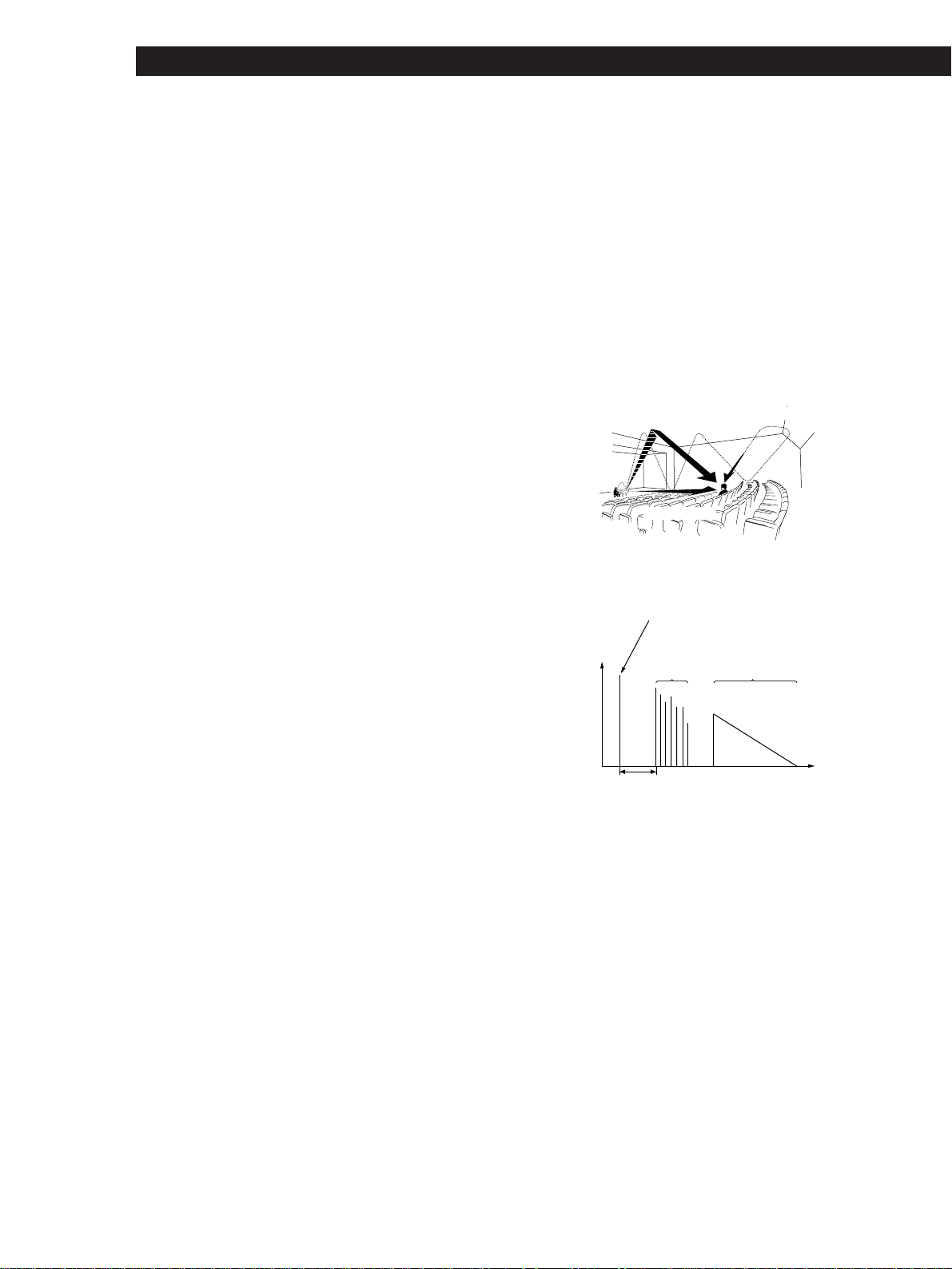
34
Additional Information
Sound field
Sound pattern produced by a sounding source or sources in
a given environment due to direct and reflected sounds and
the acoustics of the environment.
Surround sound
Sound that consists of three elements: direct sound, early
reflected sound (early reflections) and reverberative sound
(reverberation). The acoustics where you hear the sound
affect the way these three sound elements are heard. These
sound elements are combined in such a way that you can
actually feel the size and the type of a concert hall.
• Types of sound
• Transition of sound from rear speakers
Dolby Digital (AC-3)
This is a new digital surround system proposed to reproduce
Dolby SR-D (the 3 dimensional sound system developed for
use in movie theaters) in the home. This technology allows
you to enjoy the full 5.1 ch soundtrack intended by the
filmmaker, in the comfort of your own home.
Dolby Pro Logic Surround
Decoding system of Dolby Surround sound standardized in
TV programs and movies. Compared with the former Dolby
Surround system, Dolby Pro Logic Surround improves
sound image by using four separate channels: off-screen
audio effects, on-screen dialog, left-to-right panning, and
music. These channels manipulate the sound to be heard and
enhance the action as it happens on the screen. To take
advantage of Dolby Pro Logic, you should have at least one
pair of rear speakers and/or one center speaker. You also
need to select the appropriate center mode to enjoy a full
effect.
Effect level
Combination of the level of early reflections and
reverberation. You can adjust the effect level in 6 levels. As
you select higher levels, the room becomes “live,” and as
you select lower levels, the room becomes “dead.”
5.1 INPUT jacks
These jacks are used to input decoded Dolby Digital AC-3
audio signals, allowing you to enjoy 5.1 channel surround
sound (STR-DE715/DE615/D660Z/D560Z only). Use these
jacks to connect a Dolby Digital AC-3 decoder or a DVD
player with a built-in AC-3 decoder.
Parameter
Variable of sound that composes sound image, such as tone
or delay time. You can customize the pre-programmed
sound fields by adjusting parameters to suit your listening
situation.
Reverberation
Direct sound
Early
reflections
Reverberation
Level
Early reflection time
Time
Early reflections
Direct sound
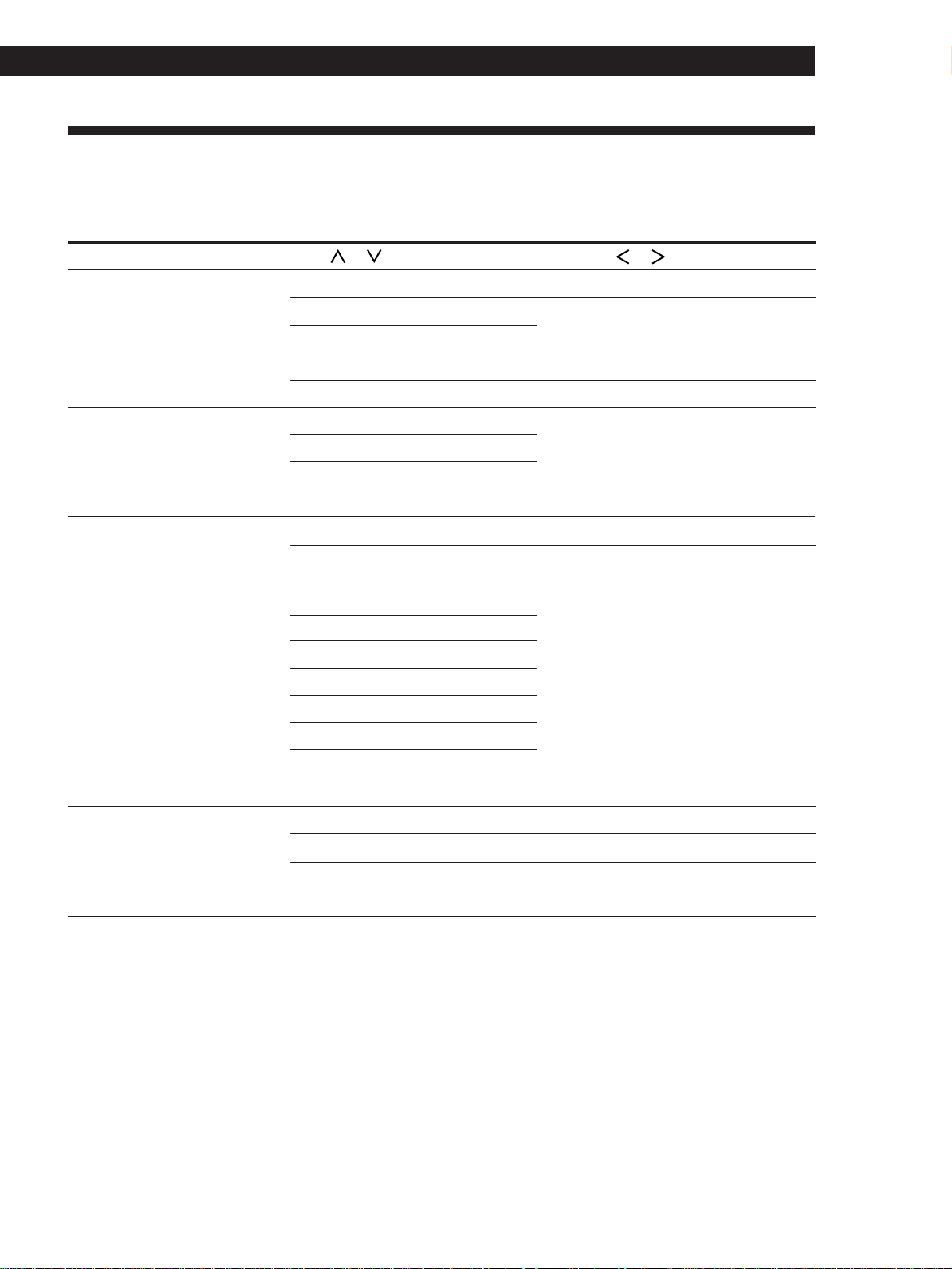
35
Getting Started
Additional Information
Table of Functions of the SET UP Button
You can make various settings using the SET UP button on the main unit and the digital processing control buttons.
Operations related to each menu are explained in the previous sections. The table below describes how to access
each menu.
Press SET UP repeatedly to select* Press or to select Then press or to select See page
CENTER MODE (STR-DE715/D660Z)
CTR MODE (STR-DE615/D560Z)
PHANTOM — 21
3 CH LOGIC
NORMAL
WIDE
DISPLAY SETUP (STR-DE715/D660Z)
DISPL SETUP (STR-DE615/D560Z)
DIMMER among 4 levels of brightness 13
FUNCTION HOOKUP (STR-DE915/
DE715/D660Z)
FUNC HOOK UP (STR-DE615/
D560Z)
VIDEO 1 YES or NO (STR-DE915/DE715/
D660Z)
–Y– or –N– (STR-DE615/D560Z)
14
VIDEO 2
TV/DBS
TAPE
DAT/MD
CD
SPEAKER SETUP
(STR-DE915)
FRONT SP. LARGE or SMALL 19
CENTER SP. LARGE, SMALL, or NO 19
REAR SP.
REAR SP. SIDE or BEHIND 19
SUB WOOFER YES or NO 19
LD/DVD (STR-DE915)
PHONO
CENTER DELAY 0 to 5ms (in 1 ms steps) 19OTHER SETUP (STR-DE915)
REAR DELAY
0 to 15ms (in 5 ms steps) 19
CONTROL A1 (STR-DE915/DE715 (USA,
Canada))
6AUTO, FIX, or OFF
DIMMER
among 4 levels of brightness 13
CONTROL-A1
AUTO, FIX, or OFF 6
* “PLEASE PUSH CURSOR” (STR-DE915 only) or “USE CURSOR” (STR-DE715/DE615/D660Z/D560Z only) appears in the
display after 4 seconds you press the SET UP button.
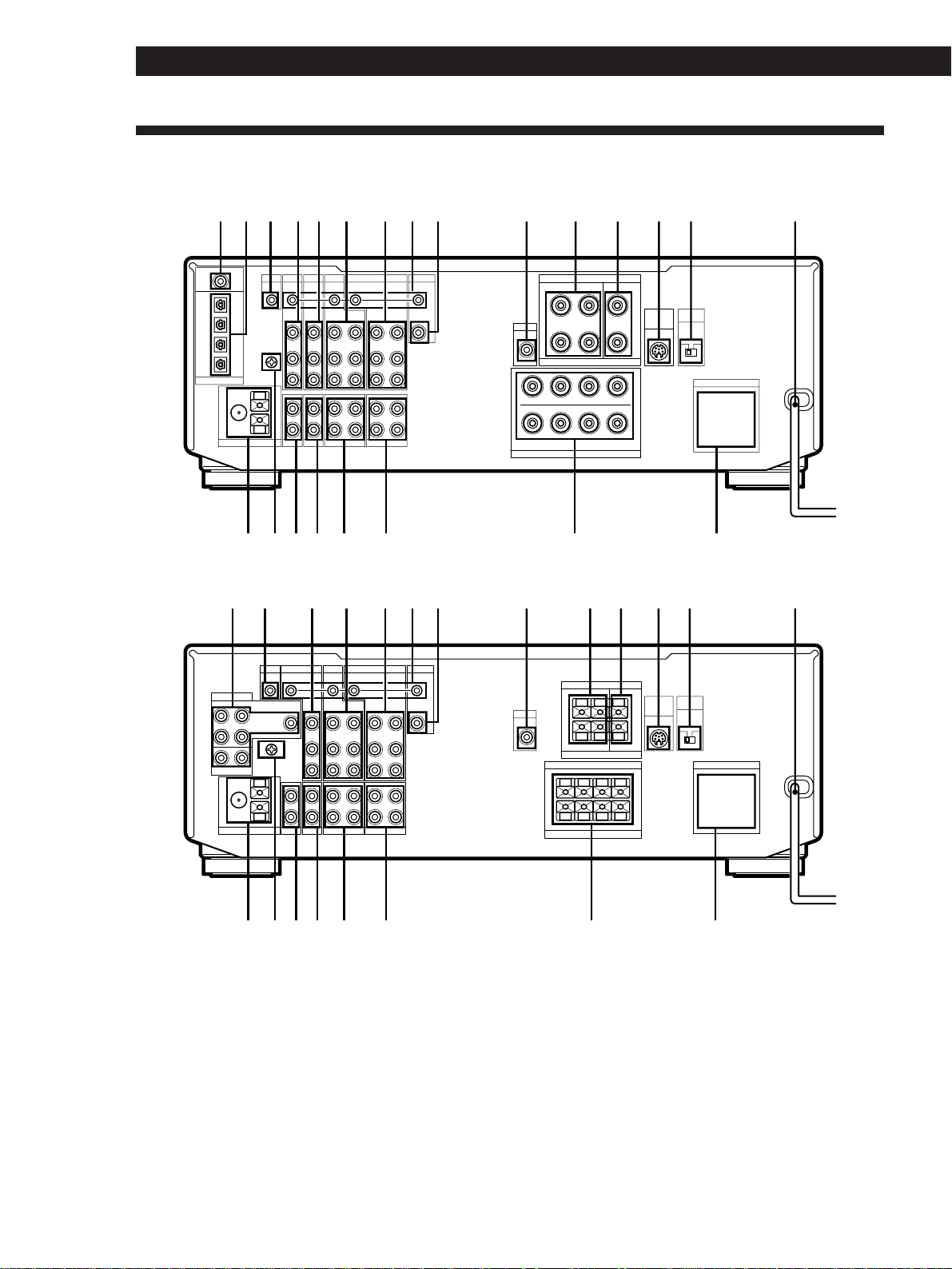
36
Additional Information
Rear Panel Descriptions
STR-DE915
AC OUTLET
IMPEDANCE
SELECTOR
FRONT
4 Ω 8 Ω
MONITOR
VIDEO
OUT
CTRL S
IN
VIDEO
IN
VIDEO
OUT
VIDEO
IN
CTRL S
OUT
VIDEO
OUT
CTRL S
OUT
VIDEO
IN
VIDEO
IN
IN
L
R
REC OUT
IN
REC OUT
ININ
CTRL S
STATUS
IN
SIGNAL
GND
FM
75Ω
COAXIAL
AM
AUDIO
IN
L
R
AUDIO
OUT
AUDIO
IN
AUDIO
OUT
AUDIO
IN
CTRL A1
LD / DVD IN
LD / DVD IN
AC-3
RF
OPTICAL
y
y
PHONO
ANTENNA CD DAT / MD TAPE
MONITOR
VIDEO 1
VIDEO 2LD/DVDS-LINK
S-LINK
WIRELESS
REAR
SPEAKER
FRONT SPEAKERS
A
R
B
A
L
B
SURROUND SPEAKERS
IMPEDANCE USE 8–16 Ω
REAR
IMPEDANCE USE 4–16
Ω
+
–
++
––
++
––
+
–
R
WOOFER
AUDIO
OUT
L
CENTER
CD IN
OPTICAL
DAT / MD IN
OPTICAL
DAT / MD OUT
OPTICAL
DIGITAL
AUDIO
IN
TV/DBS
1
@¢ @£@™ !•
042 96 8
@¡ @º !ª
!¡ !¢ !∞ !§!™
!¶
!£5 7
STR-DE715 (DE615/D660Z/D560Z)
AC OUTLETFRONT SPEAKERS
IMPEDANCE USE 4–16 Ω
+
R –
AA
BB
– L
+
+
R – – L
+
SURROUND SPEAKERS
IMPEDANCE USE 8–16 Ω
REAR
++
––
CENTER
RL
RL
MONITOR
VIDEO
OUT
CTRL S
IN
VIDEO
IN
VIDEO
OUT
VIDEO
IN
CTRL S
OUT
VIDEO
OUT
CTRL S
OUT
VIDEO
IN
VIDEO
IN
IN
L
R
REC OUT
IN
REC OUT
ININ
CTRL S
STATUS IN
FRONT
CENTER
REAR
SIGNAL GND
FM
75Ω
COAXIAL
AM
WOOFER
AUDIO
IN
L
R
L
R
AUDIO
OUT
AUDIO
IN
AUDIO
OUT
AUDIO
IN
CTRL A1
y
y
PHONO
ANTENNA
5.1/DVD INPUT
CD DAT / MD TAPE
MONITOR
VIDEO 1
VIDEO 2
TV / DBS
S-LINK
S-LINK
IMPEDANCE
SELECTOR
FRONT
4 Ω 8 Ω
WIRELESS
REAR
SPEAKER
WOOFER
AUDIO
OUT
3
@¢ @£@™ !•
04 95 8
@¡ @º !ª
!¡ !¢ !∞ !§!™
!¶
!£7
1 LD/DVD IN AC-3 RF (STR-
DE915 only)
2 LD/DVD IN/CD IN/DAT/MD
IN/OUT OPTICAL (STR-DE915
only)
3 5.1 INPUT (STR-DE715/DE615/
D660Z/D560Z only)
4 S-LINK CTRL A1 (STR-DE915/
DE715 (USA, Canada) only)
5 TV/DBS (USA, Canadian, and
Australian models)
TV (other models)
6 LD/DVD (STR-DE915 only)
7 VIDEO 2
8 VIDEO 1
9 CTRL S (STR-DE915/DE715
(USA, Canada) only)
0 MONITOR
!¡ WOOFER
!™ SURROUND SPEAKERS
(REAR)
!£ SURROUND SPEAKERS
(CENTER)
!¢ WIRELESS REAR SPEAKER
(STR-DE915/DE715/DE615
only)
!∞ IMPEDANCE SELECTOR
!§ AC power cord
!¶ AC OUTLET (Outlet shape and
position varies according to
destination)
!• FRONT SPEAKERS (A/B)
!ª TAPE
@º DAT/MD
@¡ CD
@™ PHONO
@£ y SIGNAL GND
@¢ ANTENNA (AM/FM)
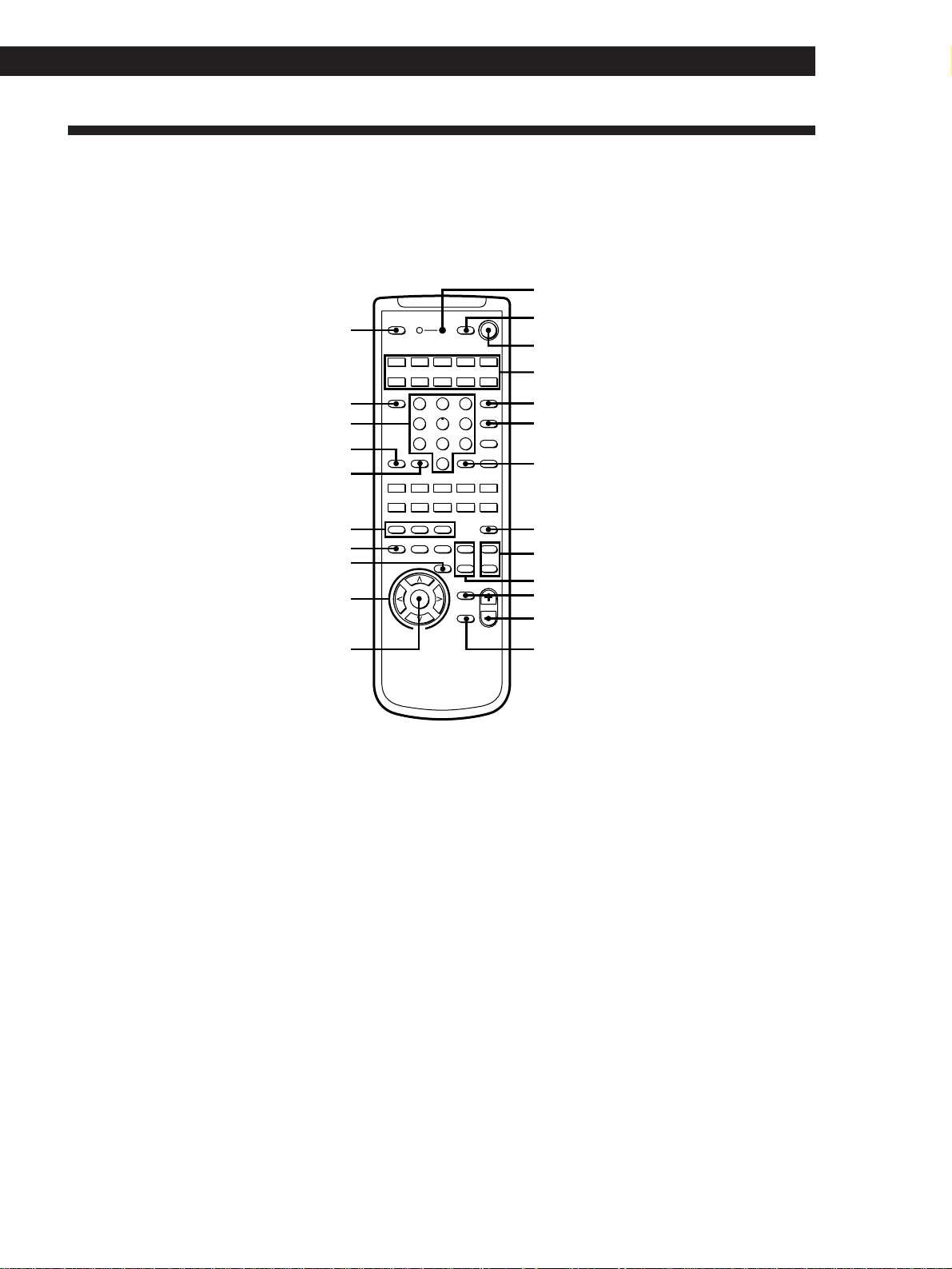
37
Getting Started
Additional Information
Remote Button Descriptions
Page numbers in parentheses refer to procedures that use the remote button. In these procedures, the remote button
is either required or used in place of a main-unit button with the same function and name (or a similar name).
Refer to the table on the next page for an explanation of remote buttons not indicated below or for remote buttons
without a corresponding button on the main unit.
5
4
1
@£
@¡
@º
!•
!¶
!§
!∞
!ª
@™
6
7
9
!£
!¢
!™
!¡
8
2
0
3
21 3
LEARN
SLEEP
VISUAL
POWER
SYSTEM OFF
SLOPEBAND
EQ/
TONE
DIGTAL
PROCESSING
CONTROL
PROGRAMMABLE
—
LEVEL
—
DIRECT
REAR
BASS
BOOST
MUTING
CENTER
MASTER
VOL
MODEGENRE
—
SOUND FIELD
—
ON/OFF
TEST
TONE
TV
CONTROL
5.1
INPUT
54 6
TV/VIDEO
87 9
D.TUNING
DISC
0
BACK
GROUND
SHIFT ENTER
RMS/START
CH/
PRESET
SYSTEM CONTROL / FUNCTION
VIDEO 3VIDEO 2VIDEO 1
LD TV
(AUTO CATEGORIZE SYSTEM)
CD
DAT/MD
>
10
TAPE
ON
TUNER PHONO
++
––
+
–
POSITION
–
SUB CH
+
—
RMS
—
SWAP
ANT
TV/VTR
=)0+
D. SKIP
CLEARDIRECTION P IN P JUMP
p(
DPC
MODE
9Pr
1 SLEEP (18)
2 LEARN (RM-P501 only) (30)
3 VISUAL POWER (30)
4 SYSTEM OFF (14, 30)
5 SYSTEM CONTROL/
FUNCTION (12, 13, 15 to 18, 29,
30)
6 5.1 INPUT (14, 17)
7 TV/VIDEO (14)
8 ENTER (29)
9 TEST TONE (20, 21)
0 CENTER LEVEL +/– (21)
!¡ REAR LEVEL +/– (21)
!™ BASS BOOST (13)
!£ MASTER VOL +/– (12, 21, 30)
!¢ MUTING (13)
!∞ DPC MODE (17, 20, 27, 28)
!§ DIGITAL PROCESSING
CONTROL (17, 19 to 21, 27, 28)
!¶ DIRECT (13)
!• EQ/TONE (27)
!ª SOUND FIELD ON/OFF/
GENRE/MODE (20 to 22)
@º SHIFT (16)
@¡ BACKGROUND (29)
@™ Numeric buttons (15, 16, 29)
@£ TV CONTROL ON (14)

38
Additional Information
Remote
Button
Operates Function Remote
Button
Operates Function
0-9, >10 Receiver Selects preset numbers
CH/PRESET
+/–
CD player/MD
deck/LD player
Selects track numbers.
0 selects track 10.
TV/VCR Selects channel numbers
Receiver Scans and selects preset
stations
Selects preset channelsTV/VCR
D.TUNING Receiver Selects the direct tuning
mode
CD player
0/)
=/+
CD/DVD
player
Skips discs (CD player with
multi-disc changer only)
Searches tracks (forward or
backward)
Tape deck/MD
deck/VCR/LD
player
RMS
DIRECTION
Tape deck Selects tape direction (tape
decks with the RMS
*
function only)
RMS CLEAR Tape deck Clears RMS
*
program (tape
decks with the RMS
function only)
RMS
DIRECTION
9/(
Tape deck Programs tracks (tape deck
with the RMS
*
function
only)
Changes channels/discs
when used with 0-9
TV/VCR/DBS
tuner/CD
player
ENTER
Turns on or off the powerDVD/TV/
VCR/DBS
tuner/LD
player
VISUAL
POWER
TV CONTROL
ON
TV Turns on the TV, switches
the input to “TV,” and sets
the remote to operate the TV
Selects the channel entry
mode, either one or two
digit (in Europe only)
TV-/- -
Selects preset channels for
the small picture
**
TVSUB CH +/–
Changes the position of the
small picture
**
TVPOSITION
Swaps the small and the
large picture
**
TVSWAP
Activates the picture-in-
picture function
**
TVP IN P
Jumps back and forth
between the previous and
current channels
TVJUMP
Selects output signal from
the antenna terminal: TV
signal or VCR program
VCRANT TV/VTR
Normally, adjusts the
master volume of the
receiver.
If TV CONTROL ON was
pressed, it adjusts the
volume on the TV.
TVMASTER VOL
+/–
Normally, mutes the sound
from the receiver.
If TV CONTROL ON was
pressed, the sound on the
TV itself is muted.
TVMUTING
Not applicable—SLOPE
Not applicable—BAND
*
RMS: Random Music Sensor
**
Only for Sony TVs with the picture-in-picture function
Selects discs (CD player
with multi-disc changer
only)
CD/DVD
player/
MD deck/LD
player
Fast forwards or rewinds
P CD/DVD
player/Tape
deck/MD
deck/LD
player/VCR
Skips tracks
(
p
CD/DVD
player/Tape
deck/MD
deck/LD
player/VCR
Pauses play or record. (Also
starts recording with
components in record
standby.)
CD/DVD
player/Tape
deck/MD
deck/LD
player/VCR
9
Starts play
r
Tape deck
Stops play
Tape deck
Starts play on the reverse
side
Tape deck/MD
deck/VCR
Sets tape decks to the record
standby mode
CD playerDISC
D. SKIP
Starts recording when
pressed with ( (or 9
on tape deck)
r + (

39
Getting Started
Advanced Remote OperationsIndex
A
Adjusting
delay time 19, 27
effect and surround sound
parameters 28
equalizer parameters 27
speaker volume 20, 21
tone parameter 27
Automatic tuning 15
B
Background operation 29
Battery 4
C
Center mode 21, 33
Connecting. See Hookups
Customizing
remote 29, 30
sound field 25-28
D
Delay time 19, 27, 33
Direct tuning 15
Dolby Digital 19, 33
Dolby Pro Logic
Surround 20-22, 34
Dolby Surround setup
Dolby Digital 19, 20
Dolby Pro Logic 20-22
Dubbing. See Recording
E, F, G
Editing. See Recording
Effect level 26, 34
H
Hookups
AC power cord 11
antennas 5
audio components 5, 6
CONTROL A1 6
digital components 10, 11
overview 4
speakers 6, 7
TV/VCRs 9, 10
I, J, K
Indexing preset station and
program source 16, 17
L
Labeling. See Indexing preset
station and program source
M, N, O
Making components
selectable/unselectable 14
P, Q
Parameter 26-28, 34
Preset number 16
Preset station 16, 17
Preset tuning 16
R
Receiving broadcasts
by scanning stations. See
Automatic tuning
directly. See Direct tuning
using preset stations. See
Preset tuning
Recording
on an audio tape or MD 17
on a video tape 18
Remote
changing the setting 29
clearing the signals 30
controlling non-Sony
components 30
background operation 29
programming 30
S
Scanning
preset stations. See Preset
tuning
radio stations 15
Selecting a component
input mode 12
on the main unit 12
using the remote 13, 14
Selecting the center mode 21
Sleep timer 18
Sound field
adjustable parameters 27, 28
customizing 25-28
pre-programmed 22-25, 34
resetting 28
Speakers
connection 6, 7
impedance 8
placement 8
selecting speaker system 8
specifying the speaker type
and location of the rear
speakers 19
Supplied accessories 4
Surround sound 19-22, 34
T
Test tone 22
Tuning. See Receiving
broadcasts
U, V
Unpacking 4
W, X, Y, Z
Watching TV/video programs
13
Names of controls
Buttons
BACKGROUND 29
BASS BOOST 12
CENTER LEVEL +/– 20
/ / / (digital processing
control) 12, 16, 19, 20, 25
DIRECT 15
DIRECT PASS 12
DISPLAY 15, 16
DPC MODE 16, 20, 25
ENTER 29
FM/AM 15
FM MODE 15
GENRE 20, 22
INPUT MODE 12
LEARN 30
MASTER VOL +/– 30
MEMORY 16
MODE 11, 20, 22
MUTING 11, 13
PRESET TUNING +/– 16
REAR LEVEL +/– 20
SET UP 12, 19, 20
SHIFT 16
SLEEP 18
SOUND FIELD
ON/OFF 20, 22, 25
SYSTEM CONTROL/
FUNCTION 13, 29, 30
SYSTEM OFF 13, 30
TEST TONE 20
TUNING +/– 15
TV CONTROL ON 13
VIDEO/AUDIO FUNCTION
11, 12, 15-17
VISUAL POWER 30
Numeric buttons 15, 16, 29
5.1(/DVD) INPUT 12, 13
Switch and selector
INPEDANCE SELECTOR 6
POWER 11, 12, 15, 25
SPEAKERS 8, 12
Connectors and terminals
ANTENNA (FM/AM) 5
FRONT SPEAKERS A/B 6
y SIGNAL GND 6
SURROUND SPEAKERS
(CENTER/REAR) 6
Controls
BALANCE 11, 12, 20
MASTER VOLUME 11, 12
Jacks
CD 5
CD IN OPTICAL 10
CONTROL S 10
DAT/MD 5
DAT/MD IN/OUT OPTICAL
10
LD/DVD 9
LD/DVD IN AC-3 RF/
OPTICAL 10
MONITOR 9
PHONES 12
PHONO 5
S-LINK CTRL A1 5
TAPE 5
TV (/DBS) 9
VIDEO 1/2 9
WIRELESS REAR SPEAKER 7
WOOFER 6
5.1 INPUT 10
Indicators
BASS BOOST 13
DIRECT PASS 13
INDEX 17
LEARN 30
STANDBY 12, 15
SUR 27, 28
TONE 27
5.1 INPUT 12, 14
Other
AC OUTLET 11
g 4
40
Advanced Remote OperationsQuick Reference Guide
Receiving Broadcasts
(direct tuning)
Example: Receiving FM
102.50 MHz
AUDIO FUNCTION
Press repeatedly until
the TUNER indicator
lights up.
v
FM / AM
Select FM.
v
DIRECT
v
05201
Display
FM 102.50MHz
Scanning Radio
Stations
(automatic tuning)
Example: Scanning FM
stations
AUDIO FUNCTION
Press repeatedly until
the TUNER indicator
lights up.
v
DISPLAY
Select the frequency
display.
v
FM / AM
Select FM.
v
TUNING
+
–
v
TUNING
+
–
(To continue scanning.)
Receiving Preset
Stations
Example: Receiving station
number A7
AUDIO FUNCTION
Press repeatedly until
the TUNER indicator
lights up.
v
SHIFT
Select A.
v
7
Scanning Preset
Stations
AUDIO FUNCTION
Press repeatedly until
the TUNER indicator
lights up.
v
DISPLAY
Select the frequency
display.
v
PRESET
TUNING
+
–
Selecting a
Component
Example1: Playing a CD
AUDIO FUNCTION
Press repeatedly until
the CD indicator
lights up.
v
Turn on the CD player.
v
Start playing.
Example2: Watching a video
tape
VIDEO FUNCTION
Press repeatedly until
the VIDEO 1 indicator
lights up.
v
Turn on the VCR.
v
Start playing.
Using Pre-
programmed Sound
Fields
Example: Watching a Dolby
Surround-encoded movie on
a laser disc player connected
to LD/DVD (STR-DE915) or
VIDEO 2 (STR-DE715/DE615/
D660Z/D560Z)
VIDEO FUNCTION
Press repeatedly until
the LD/DVD or
VIDEO 2 indicator
lights up.
v
SOUND FIELD
ON / OFF
v
GENRE
Press repeatedly to
select DOLBY (STR-
DE915) or PRO
LOGIC (STR-DE715/
DE615/D660Z/
D560Z).
v
MODE
Press repeatedly to
select NORMAL
(STR-DE915), PRO
LOGIC (STR-DE715/
DE615/D660Z/
D560Z), or
ENHANCED.
v
Turn on the LD player.
v
Start playing.
Sony Corporation Printed in Malaysia