© 1997 by Sony Corporation
3-860-819-12(1)
Operating Instructions
STR-DE1015G
STR-DE815G
STR-D760Z
FM Stereo
FM-AM Receiver
2
WARNING
To prevent fire or shock hazard, do
not expose the unit to rain or
moisture.
For customers in the U.S.A.
This symbol is intended to alert the user
to the presence of uninsulated
“dangerous voltage” within the
product’s enclosure that may be of
sufficient magnitude to constitute a risk
of electric shock to persons.
This symbol is intended to alert the user
to the presence of important operating
and main maintenance (servicing)
instructions in the literature
accompanying the appliance.
INFORMATION
This equipment has been tested and
found to comply with the limits for a
Class B digital device, pursuant to Part
15 of the FCC Rules.
These limits are designed to provide
reasonable protection against harmful
interference in a residential installation.
This equipment generates, uses, and can
radiate radio frequency energy and, if
not installed and used in accordance
with the instructions, may cause harmful
interference to radio communications.
However, there is no guarantee that
interference will not occur in a particular
installation. If this equipment dose
cause harmful interference to radio or
television reception, which can be
determined by turning the equipment
off and on, the user is encouraged to try
to correct the interference by one or
more of the following measures:
- Reorient or relocate the receiving
antenna.
- Increase the separation between the
equipment and receiver.
- Connect the equipment into an outlet
on a circuit different from that to
which the receiver ifs connected.
- Consult the dealer or an experienced
radio/TV technician for help.
CAUTION
You are cautioned that any changes or
modification not expressly approved in
this manual could void your authority to
operate this equipment.
Note to CATV system installer
This reminder is provided to call CATV
system installer’s attention to Article
820-40 of the NEC that provides
guidelines for proper grounding and, in
particular, specifies that the cable
ground shall be connected to the
grounding system of the building, as
close to the point of cable entry as
practical.
Owner’s record
The model and serial numbers are
located on the rear of the unit.
Record the serial number in the space
provided below. Refer to them
whenever you call upon your Sony
dealer regarding this product.
Model No. STR-DE1015G
STR-DE815G
STR-D760Z
Serial No.
For customers in Canada
CAUTION
TO PREVENT ELECTRIC SHOCK,
DO NOT USE THIS POLARIZED
AC PLUG WITH AN EXTENSION
CORD, RECEPTACLE OR OTHER
OUTLET UNLESS THE BLADES
CAN BE FULLY INSERTED TO
PREVENT BLADE EXPOSURE.
This receiver incorporates the Dolby*
Pro Logic Surround system.
* Manufactured under license from
Dolby Laboratories Licensing
Corporation. “Dolby ,” the double-D
symbol a, “AC-3” and “Pro Logic”
are trademarks of Dolby Laboratories
Licensing Corporation.
Precautions
On safety
• Should any solid object or liquid fall
into the cabinet, unplug the receiver
and have it checked by qualified
personnel before operating it any
further.
On power sources
• Before operating the receiver, check
that the operating voltage is identical
with your local power supply. The
operating voltage is indicated on the
nameplate at the rear of the receiver.
• This unit is not disconnected from the
AC power source (mains) as long as it
is connected to the wall outlet, even if
the unit itself has been turned off.
• If you are not going to use the receiver
for a long time, be sure to disconnect
the receiver from the wall outlet. To
disconnect the AC power cord, grasp
the plug itself; never pull the cord.
• One blade of the plug is wider than
the other for the purpose of safety and
will fit into the wall outlet only one
way. If you are unable to insert the
plug fully into the outlet, contact your
dealer.
• AC power cord must be changed only
at the qualified service shop.
On placement
• Do not install the appliance in a
confined space, such as a bookcase or
built-in cabinet.
• Place the receiver in a location with
adequate ventilation to prevent heat
buildup and prolong the life of the
receiver.
• Do not place the receiver near heat
sources, or in a place subject to direct
sunlight, excessive dust or mechanical
shock.
• Do not place anything on top of the
cabinet that might block the
ventilation holes and cause
malfunctions.
On operation
• Before connecting other components,
be sure to turn off and unplug the
receiver.
On cleaning
• Clean the cabinet, panel and controls
with a soft cloth slightly moistened
with a mild detergent solution. Do not
use any type of abrasive pad, scouring
powder or solvent such as alcohol or
benzine.
3
For customers in the USA
For detailed safety precautions, see the
“IMPORTANT SAFEGUARDS” leaflet.
If you have any question or problem
concerning your receiver, please
consult your nearest Sony dealer.
About This Manual
The instructions in this manual are
for models STR-DE1015G, STR-
DE815G and STR-D760Z. Check
your model number by looking at
the upper right corner of the front
panel. Functionally, the main
difference between the models is that
the STR-DE1015G is equipped with a
Dolby Digital (AC-3) decoder and
the STR-DE815G and STR-D760Z are
not.
In this manual, the STR-DE1015G is
the model used for illustration
purposes, any difference in
operation is clearly indicated in the
text, for example, “STR-DE1015G
only.”
This manual is divided into three
sections; Getting Started, On-screen
Operations and Front Panel
Operations.
The “Getting Started” section
describes connections, how to set up
the remote for on-screen control, and
Dolby Surround.
The “On-Screen Operations” section
describes how to operate the receiver
using the remote to manipulate the
on-screen display on your TV screen.
The remote lets you perform almost
all of the receiver operations.
You can also control the receiver
without the remote. The “Front
Panel Operations” section describes
how to operate the receiver using the
front panel controls. In addition, for
the USA and Canadian models, this
section also explains how to use the
remote short-cut buttons.
The following icon is used in this
manual:
Indicates hints and tips for
making the task easier.
Table of contents
Welcome! 4
Hooking Up the System
Hookup Overview 5
Infrared (IR) Repeater Hookups 7
Antenna Hookups 7
Audio Component Hookups 8
Speaker System Hookups 9
TV/VCR Hookups 11
Digital Component Hookups (STR-DE1015G only) 13
AC Hookups 14
Setting Up the Remote for On-Screen Control
Using the Remote 15
Registering a TV (or Monitor) 17
Registering Audio and Video Components 19
Dolby Surround Setup
Dolby Digital (AC-3) (STR-DE1015G only) 22
Dolby Pro Logic (STR-DE815G and STR-D760Z) 24
Playback/Recording
Selecting a Component 26
Watching TV or Video Programs 28
Tuning and Presetting Radio Stations 29
Recording 31
Sound Adjustment
Using the Pre-programmed Sound Field 33
Customizing the Sound Fields 37
Additional Operations and Settings
Registering Desired Component (User IR setting) 42
Indexing 43
Playing Sources Automatically (Auto Play) 44
Starting a Source Automatically at Power On (Auto Start) 44
Starting Several Components in Sequence Automatically
(Macro Play) 45
Adjusting the Sensitivity of the Remote 46
Changing the Display Settings 46
Using the Sleep Timer 48
Operating a CD Changer 48
Front Panel Operations (Remote Short-cuts: USA and Canada only)
Front Panel Descriptions 51
Remote Descriptions 52
Selecting a Component 53
Tuning Radio Stations 54
Recording 55
Adjusting the Sound 55
Customizing the Receiver Operations 57
Indexing 59
Playing Audio Sources Without the TV (Flasher)
(except for USA and Canada) 60
Additional Information
Troubleshooting 61
Specifications 63
Glossary 65
Index (Back Cover)
Getting Started
On-Screen Operations
Front Panel Operations
z
4
Welcome!
3
1
º‚
¢
¢
¢
¢
≠±
·
∏π
FUNCTION
USERSUBINPUT
SETUPSOUND
()0pP=+
2
Â
µ
Mm
Video signal
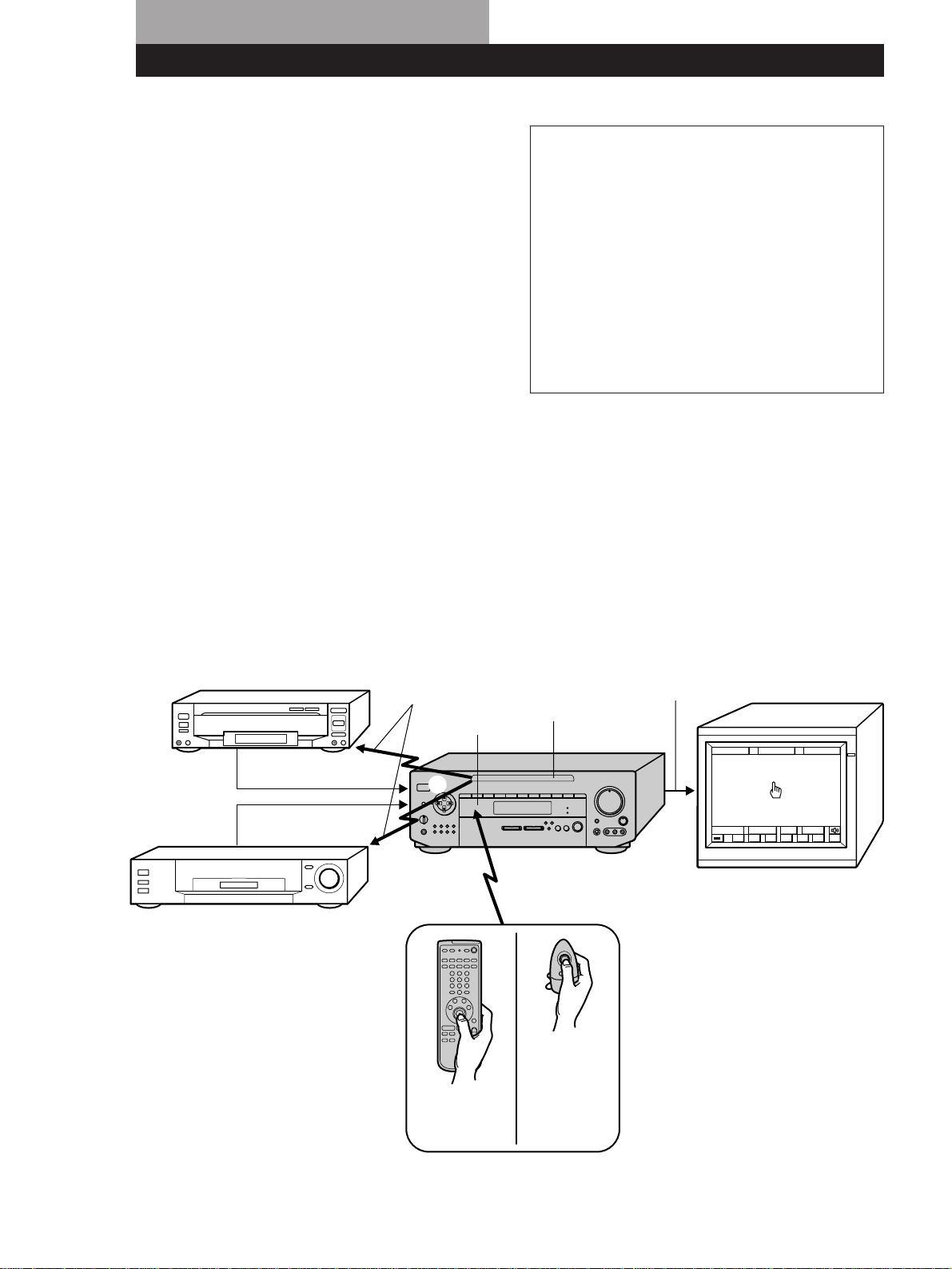
Thank you for purchasing the STR-DE1015G, STR-
DE815G or STR-D760Z Sony FM Stereo/FM-AM
Receiver.
Your new receiver is an audio/video control center
with a unique interface. When you connect the
receiver to your TV, an on-screen display (shown
below) appears and lets you operate the various
connected audio/video components with this
receiver’s remote.
Also, the on-screen display lets you control any other
device that can be controlled by an infrared remote
control, such as air conditioners.
Understanding How the Receiver Works
1 The remote emits an infrared (IR) signal when you
press direction control button (see 1 below).
2 This controls the movement of the pointer (hand-
shaped icon) in the on-screen display (see 2 below).
3 When you move the pointer to an on-screen icon,
and press the center of the direction control button
on the remote, the infrared (IR) emitter on the front
panel transmits the corresponding IR control code to
the respective component (see 3 below).
For USA
and Canada
(RM-H501)
For other
countries
(RM-VR101)
TV (monitor)
Video signal (Input from source
components combined with on-screen
display)
STR-DE1015G
IR emitter
IR receptor
IR control codes
LD player, etc.
VCR, etc.
Video signal
About the color system for video input
This unit is compatible with the following color
systems.
USA and Canadian model : NTSC
Australian model : PAL*
Singaporean model : PAL*
Other countries : NTSC
* Although the normal OSD is displayed in color, when
video signals are input from other components the
OSD is displayed in black and white.

5
Hooking Up the System
DIGITAL
IR OUT
S-LINK
TV/DBS VIDEO2
MONITOR
WOOFER
SURROUND SPEAKERS
WIRELESS
REAR
SPEAKER
AC OUTLET
IMPEDANCE USE 8-16Ω
FRONT SPEAKERS
VIDEO 1
ANTENNA
PHONO
CD TAPEDAT / MD
IMPEDANCE
SELECTOR
LD/
DVD
Speaker System Hookups (9)
* DBS receivers can be used with USA, Canadian and Australian models only.
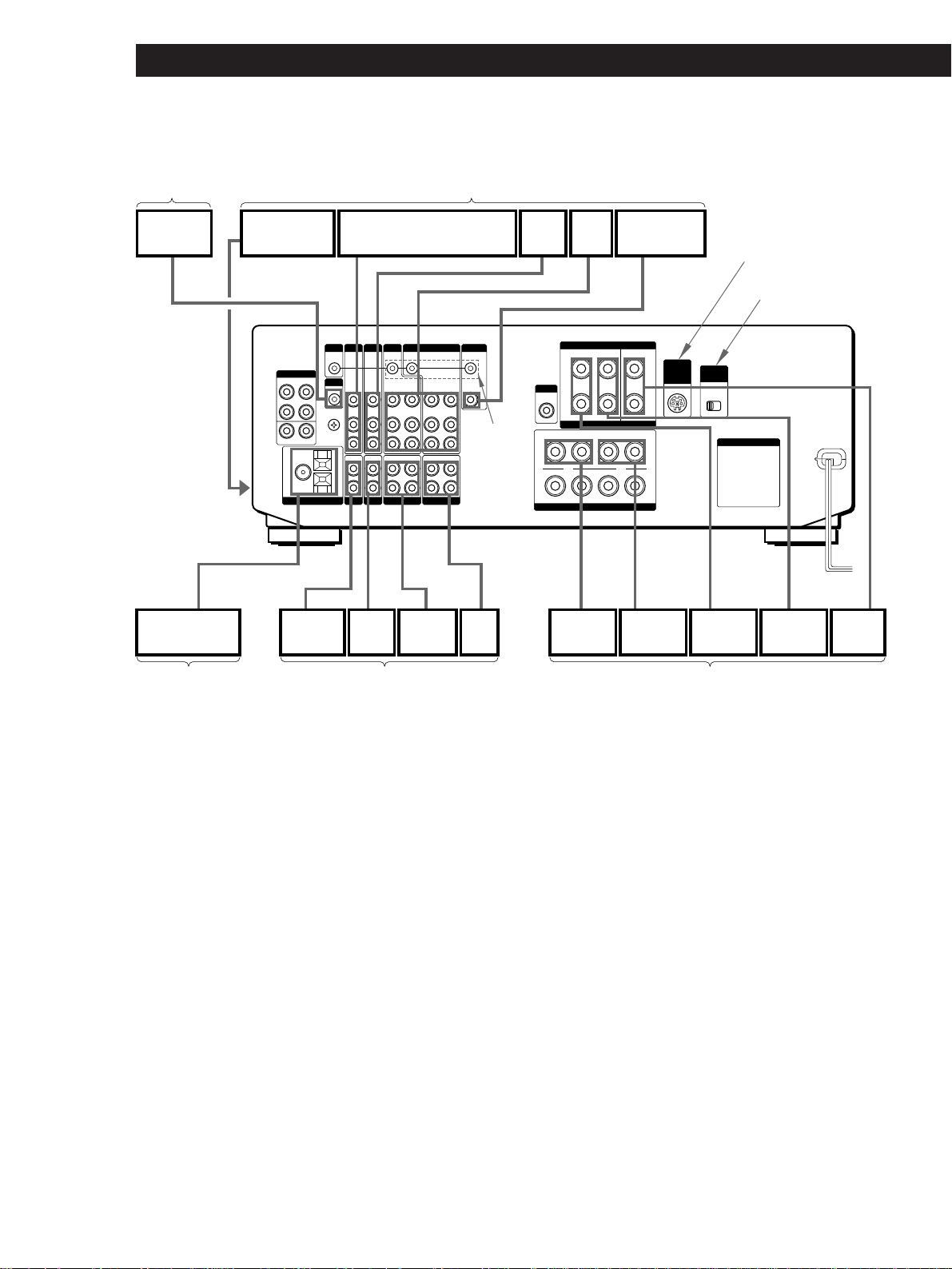
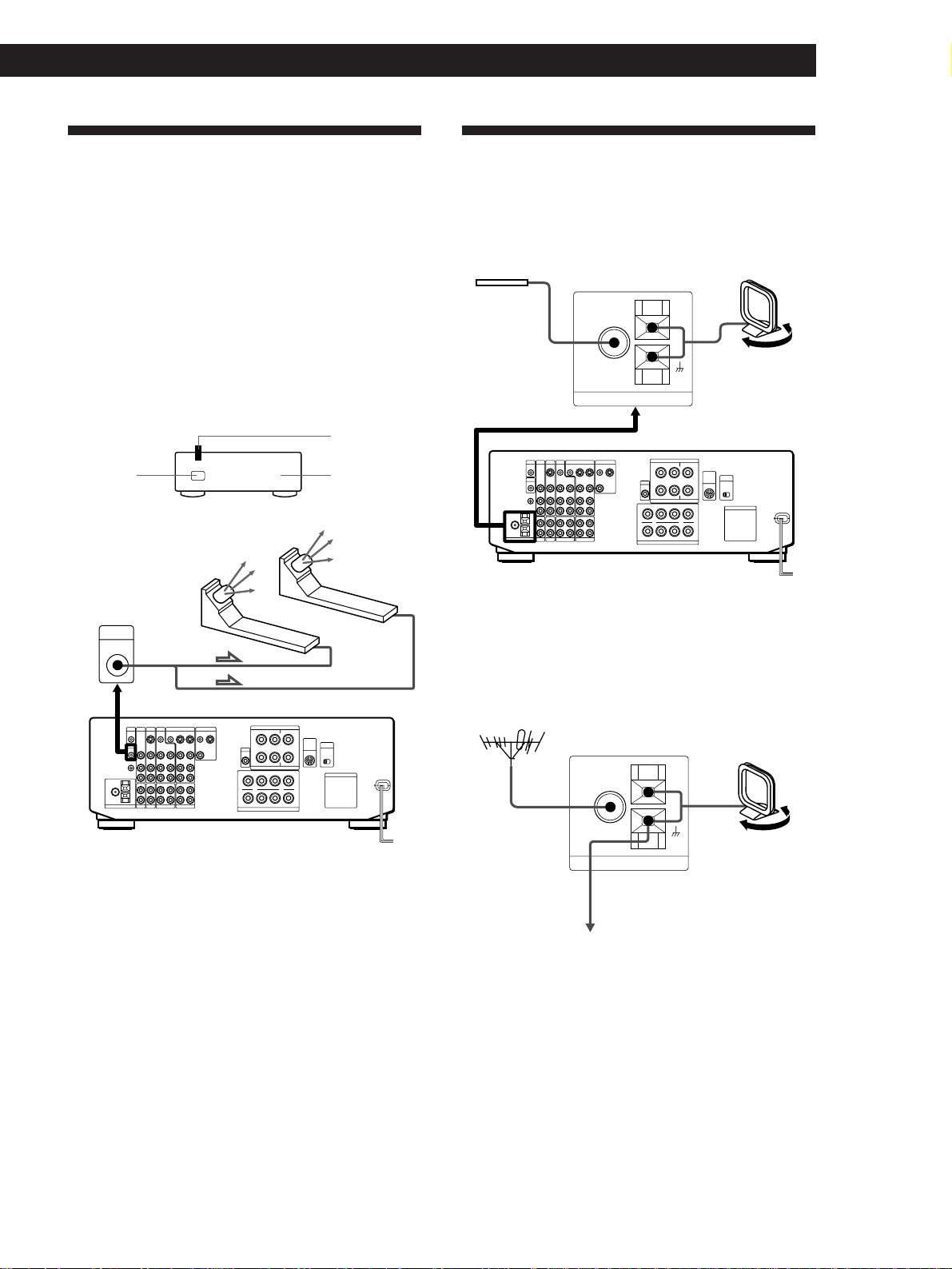
Hookup Overview
The receiver allows you to connect and control the
following audio/video components. For details on
connection of each component, see the pages in
parentheses.
p STR-DE1015G
Infrared (IR) Repeater
Hookups (7)
TV/VCR Hookups (11)
Digital
Component
Hookups (13)
Antenna Hookups (7) Audio Component Hookups (8)
IR Repeater
Video camera/
video game
TV tuner/Digital Broadcasting
Satellites (DBS) receiver*
LD/DVD
player
VCR TV/MONITOR
DVD player
(etc.)
AM/FM antenna
CD
player
DAT/MD
deck
Tape
deck
Front
speaker (R)
Front
speaker (L)
Rear
speaker (R)
Rear
speaker (L)
Center
speaker
Turntable
Except for
Singaporean model
To the
front panel
6
Hooking Up the System
5-1 INPUT
IR OUT
S-LINK
TV/DBS VIDEO2
MONITOR
SURROUND SPEAKERS
WIRELESS
REAR
SPEAKER
AC OUTLET
IMPEDANCE USE 8-16Ω
FRONT SPEAKERS
VIDEO 1
ANTENNA
PHONO
CD TAPEDAT / MD
WOOFER
LD/
DVD
IMPEDANCE
SELECTOR
Before you get started
• Check that you received the following items with the
receiver:
- FM wire antenna (1)
- AM loop antenna (1)
- Remote commander (remote) (1)
(remote for USA and Canada: RM-H501)
(Remote for other countries: RM-VR101)
- Size AA (R6) batteries (2)
- IR repeater (1)
- Video Cable (1)
(USA and Canadian models only)
- Control S cable for TV (1)
(USA and Canadian models only)
• Turn off the power to all components before making
any connections.
• Do not connect the AC power cords until all of the
connections are completed.
• Be sure to make connections firmly to avoid hum
and noise.
p STR-DE815G and STR-D760Z
Speaker System Hookups (9)
* DBS receivers can be used with USA, Canadian and Australian models only.
Infrared (IR) Repeater
Hookups (7)
TV/VCR Hookups (11)
Antenna Hookups (7) Audio Component Hookups (8)
IR Repeater
Video camera/
video game
TV tuner/Digital Broadcasting
Satellites (DBS) receiver*
LD/DVD
player
VCR
TV/MONITOR
AM/FM antenna
CD
player
DAT/MD
deck
Tape
deck
Front
speaker (R)
Front
speaker (L)
Rear
speaker (R)
Rear
speaker (L)
Center
speaker
Turntable
STR-DE815G only
Except for
Singaporean model
To the
front panel
STR-DE815G
USA and
Canada only
7
Getting StartedHooking Up the System
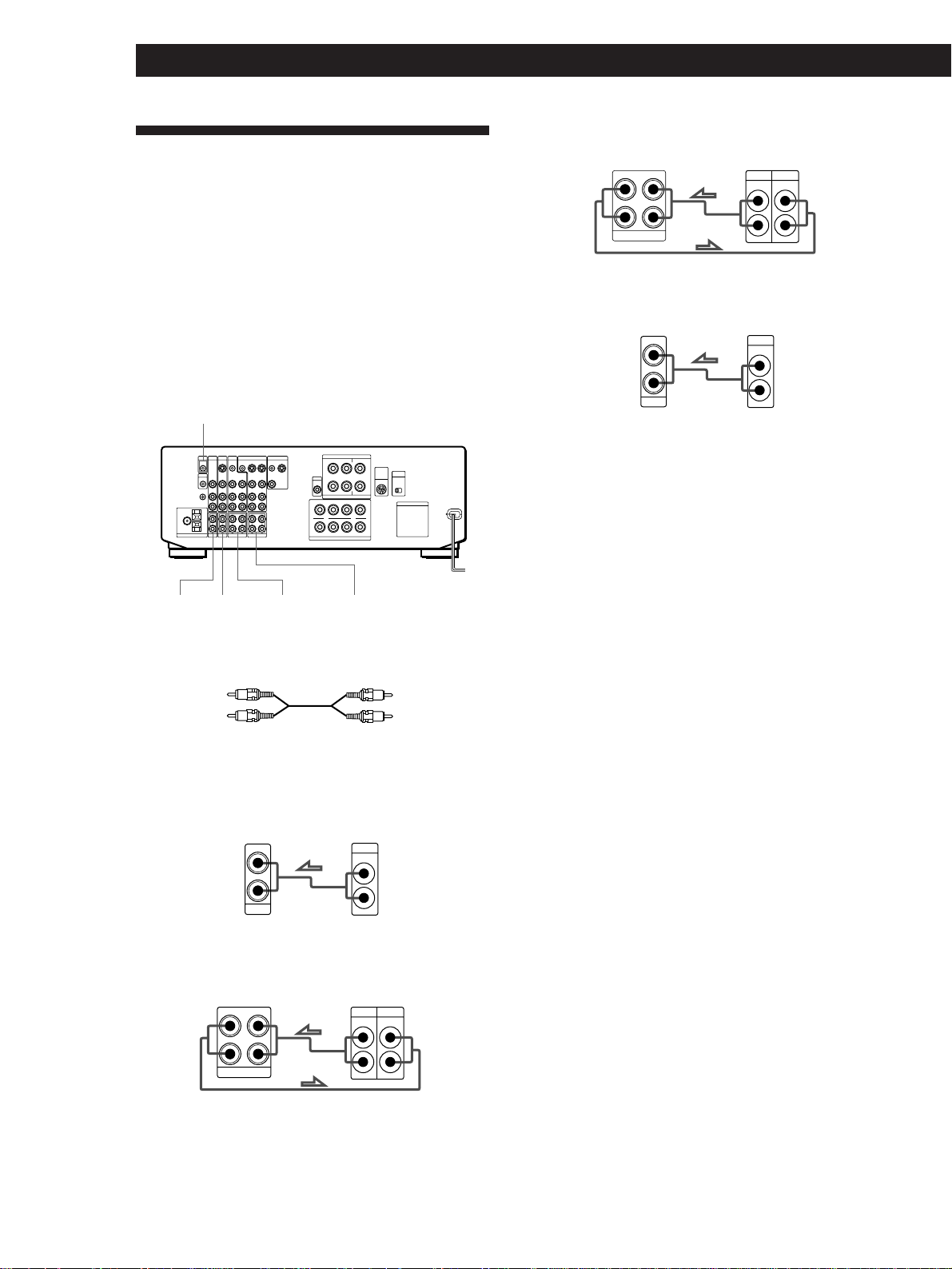
Antenna Hookups
You can receive radio broadcasts by connecting FM
and AM antennas.
Connecting an outdoor antenna
We recommend that you connect an outdoor antenna
for better reception. Connect an optional FM outdoor
antenna for FM.
Important
If you connect an outdoor antenna, ground it against
lightning. To prevent a gas explosion, do not connect the
ground wire to a gas pipe.
Notes
• Do not use the y SIGNAL GND for this connection.
• To prevent noise pickup, keep the AM loop antenna away
from the receiver and TV.
Infrared (IR) Repeater Hookups
The IR repeater emits infrared signals corresponding to
those emitted by the remote controls supplied with the
components. Connect the IR repeater if:
• You experience difficulty controlling a certain
component using the on-screen display control.
• Your installation configuration prevents the IR
repeater on the receiver’s front panel from reaching
all of the components you need to control.
After connecting the IR repeater, set it above or below
the IR sensor on the component(s) to be controlled.
Each IR repeater can send infrared signals to one
component.
Note
Use the supplied adhesive tape to secure the IR repeater so
that its front faces the component to be controlled.
infrared
signals
µ
IR OUT
IR repeater(s)
IR sensor
IR repeater
75-ohm
coaxial cable
(not supplied)
FM wire antenna
(supplied)
Extend the
FM wire
antenna
horizontally.
AM
FM
75Ω
COAXIAL
ANTENNA
AM
FM
75Ω
COAXIAL
ANTENNA
AM loop antenna
(supplied)
Adjust the
direction.
FM outdoor antenna
(not supplied)
Ground wire
(not supplied)
to ground
Component
8
Hooking Up the System
Audio Component Hookups
You can use the receiver as an amplifier by completing
these connections.
If your components are Sony products, connect them to
the jacks as shown in the table on page 19 so that the IR
registration is unnecessary.
Note for STR-DE1015G
For digital connections see “Digital Component Hookups”
(page 13).
What cords will I need?
Audio cord (not supplied)
Ç : signal flow
a CD (to CD player)
b TAPE (to a tape deck)
c DAT/MD (to DAT/MD deck)
d PHONO (to a turntable)*
* If your turntable has an earth lead, connect it to y
SIGNAL GND on the unit to prevent hum.
z To use Sony components with a CONTROL A1
terminal
You can connect a CONTROL A1 compatible Sony CD
player, tape deck or MD deck to the receiver. Use a
CONTROL A1 cord (not supplied) to connect the CTRL
A1 jack on each component to the S-LINK CTRL A1 jack
on the receiver. See the instructions for each
component.
z You can display the operating status of the
component connected to the CTRL A1 jack
See page 58 for DTR-DE1015G.
See page 59 for STR-DE815G.
z To use a Sony CD changer with a COMMAND MODE
selector
• If the changer does not have a VIDEO OUT jack, set
the command mode to “CD 1” and connect the
changer to the CD jack on the receiver.
• If the changer has a VIDEO OUT jack, set the
command mode to “CD 2” and connect the changer
to the VIDEO 1, VIDEO 2, or LD jack on the receiver.
Receiver
S-LINK/CTRL A1
d PHONO a CD c DAT/MD b TAPE
White (L)
Red (R)
White (L)
Red (R)
OUTPUT
LINE
L
R
IN
CD
CD player
L
R
RECOUT IN
TAPE
OUTPUT
LINELINE
L
R
INPUT
Receiver
Tape deck
RECOUT IN
DAT / MD
L
R
OUTPUT
LINELINE
L
R
INPUT
OUTPUT
LINE
L
R
IN
PHONO
Receiver
Turntable
Receiver
DAT/MD
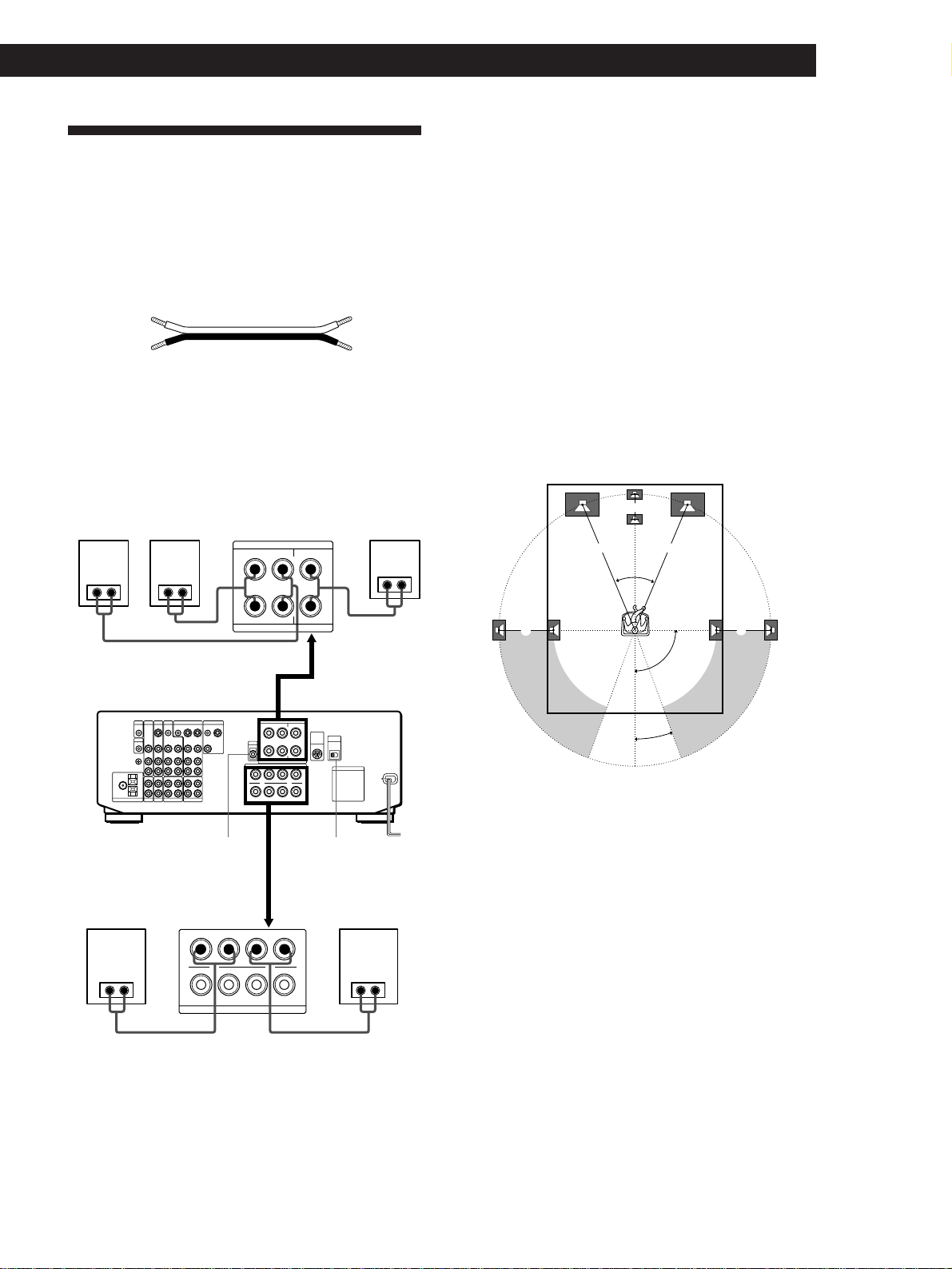
9
Getting StartedHooking Up the System
Speaker System Hookups
Although front (left and right) speakers are required,
center and rear speakers are required only for enjoying
surround sound.
What cords will I need?
Speaker cord (not supplied)
Twist the stripped ends of the cord about 2/3 inch (15
mm). Be sure to match the speaker cord to the
appropriate terminal on the components: + to + and –
to –. If the cords are reversed, the sound will be
distorted and will lack bass.
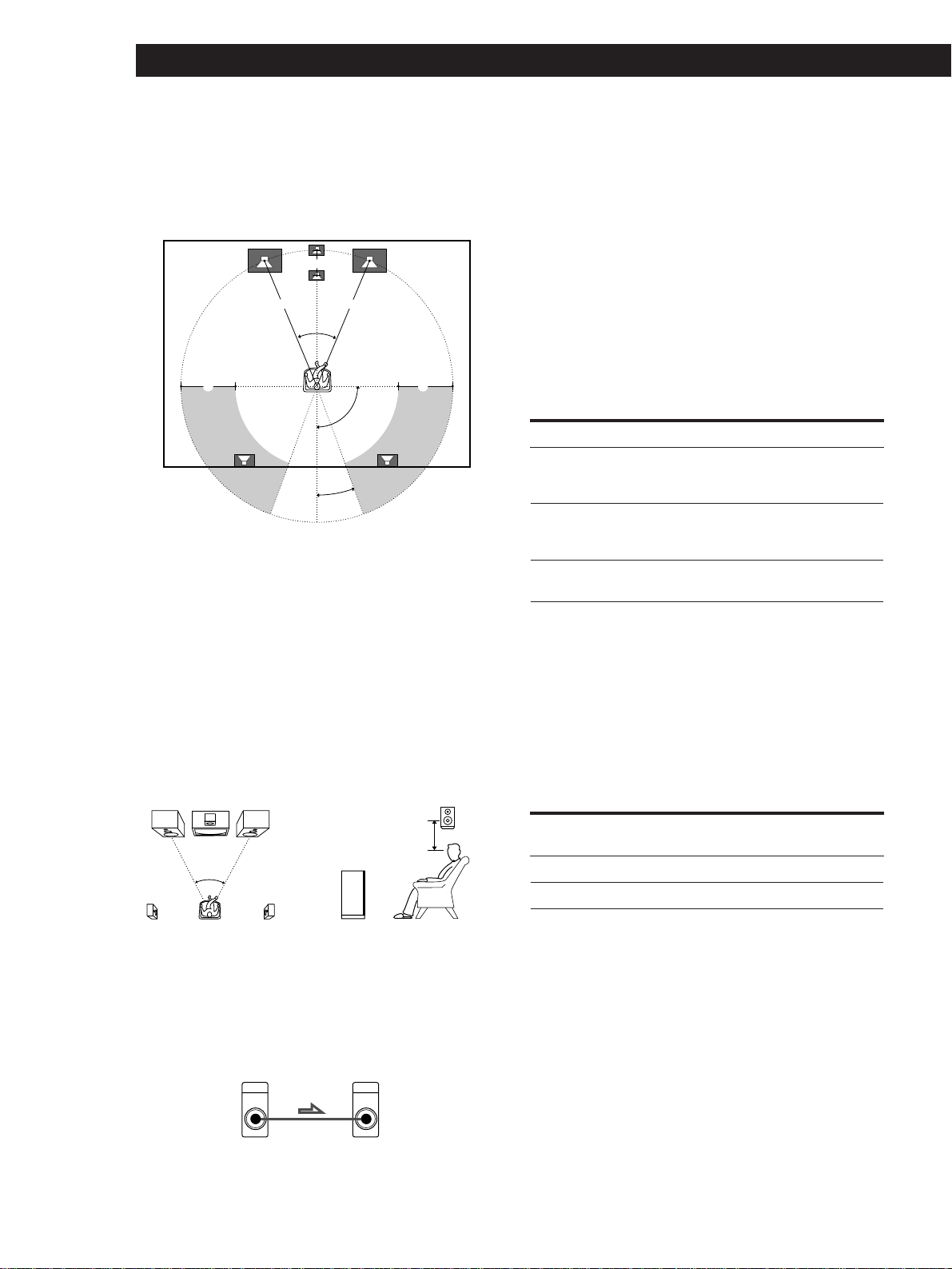
Speaker placement for STR-DE1015G
Normally, to obtain the best possible surround sound
all speakers should be placed the same distance from
your listening position (A).
This unit, however, allows you to place the center
speaker closer (B), so that is lines up with the front
speakers. The rear speakers can also be placed closer
(C), according to the shape of your room.
If you feel that this placement reduces the surround
effects, you can adjust the center and rear delay
parameters to obtain the effect you desire (see page 39).
Note
To take full advantage of Dolby Digital (AC-3) surround
effects we reccommend using high quality speakers. We also
reccommend using front, center, and rear speakers that are
of the same size and quality.
Notes
• Do not place the center or rear speakers father away from
the listening position than the front speakers.
• When mounting the rear speakers on side walls
perpendicular to the listening position they should be
placed 60 - 90 cm (24 - 35 inches) above the listening
position (as shown in “Speaker placement for STR-
DE815G and STR-D760Z” on page 10).
(+)
(–)
Rear
speaker (L)
(+)
(–)
IMPEDAMCE USE 8-16Ω
USE IMPEDANCE 4-16Ω
A
++--
++--
R
B
A
L
B
FRONT SPEAKERS
REAR CENTER
RL
R
+
-
+
-
L
SURROUND SPEAKERS
Rear
speaker (R)
Receiver
Center
speaker
WOOFER
AUDIO
OUT
IMPEDANCE
SELECTOR
Front speaker (R) Front speaker (L)
45°
90°
20°
A A
B
CC
10
Hooking Up the System
Depending on the shape of your room (etc.), you may
wish to place the rear speakers behind you instead of
on the side walls. One advantage of this placement is
that you can use a pair of large floor standing speakers
matching your front speakers.
Note
If you place the rear speakers behind you, be sure to check
the rear speaker position setting in the SPEAKER SETUP
before using the VIRTUAL MULTI REAR and VIRTUAL
REAR SHIFT sound fields (see pages 22 and 33 to 34 for
details).
Speaker placement for STR-DE815G and
STR-D760Z
For optimum surround sound effect, place your
speakers as shown below.
z You can connect an active woofer
You can reinforce the bass sound by connecting an
optional active woofer to the WOOFER AUDIO OUT
terminal.
z You can connect wireless rear speakers
(except for STR-D760Z)
When using an optional Sony wireless rear speaker
system, connect the transmitter to the WIRELESS REAR
SPEAKER connector.
Note
Do not connect any other components to the WIRELESS
REAR SPEAKER connector.
Selecting the speaker system
You can connect one set or two sets of speakers. Set the
SPEAKERS selector on the front panel according to
your speaker system.
To drive Set SPEAKERS selector to
Speaker system A A
(connected to the FRONT
SPEAKERS A terminals)
Speaker system B B
(connected to the FRONT
SPEAKERS B terminals)
Both speaker systems A and B A+B*
(parallel connection)
* Connect speakers with nominal impedance of 8 ohms, or
higher, to the A and B terminals.
Selecting the impedance (except for
Singaporian models)
Check the impedance of your speakers (usually
indicated on the back of the speaker), and set the
IMPEDANCE SELECTOR for the front speakers.
If nominal impedance of Set IMPEDANCE SELECTOR
your speaker is your speaker is to
Between 4 and 8 ohms 4 Ω
8 ohms or higher 8 Ω
Active woofer
Front speaker
45°
90°
20°
A A
B
CC
Rear speaker
60 - 90 cm
(2 - 3 feet)
AUDIO
OUT
WDOFER INPUT
Receiver

11
Getting StartedHooking Up the System
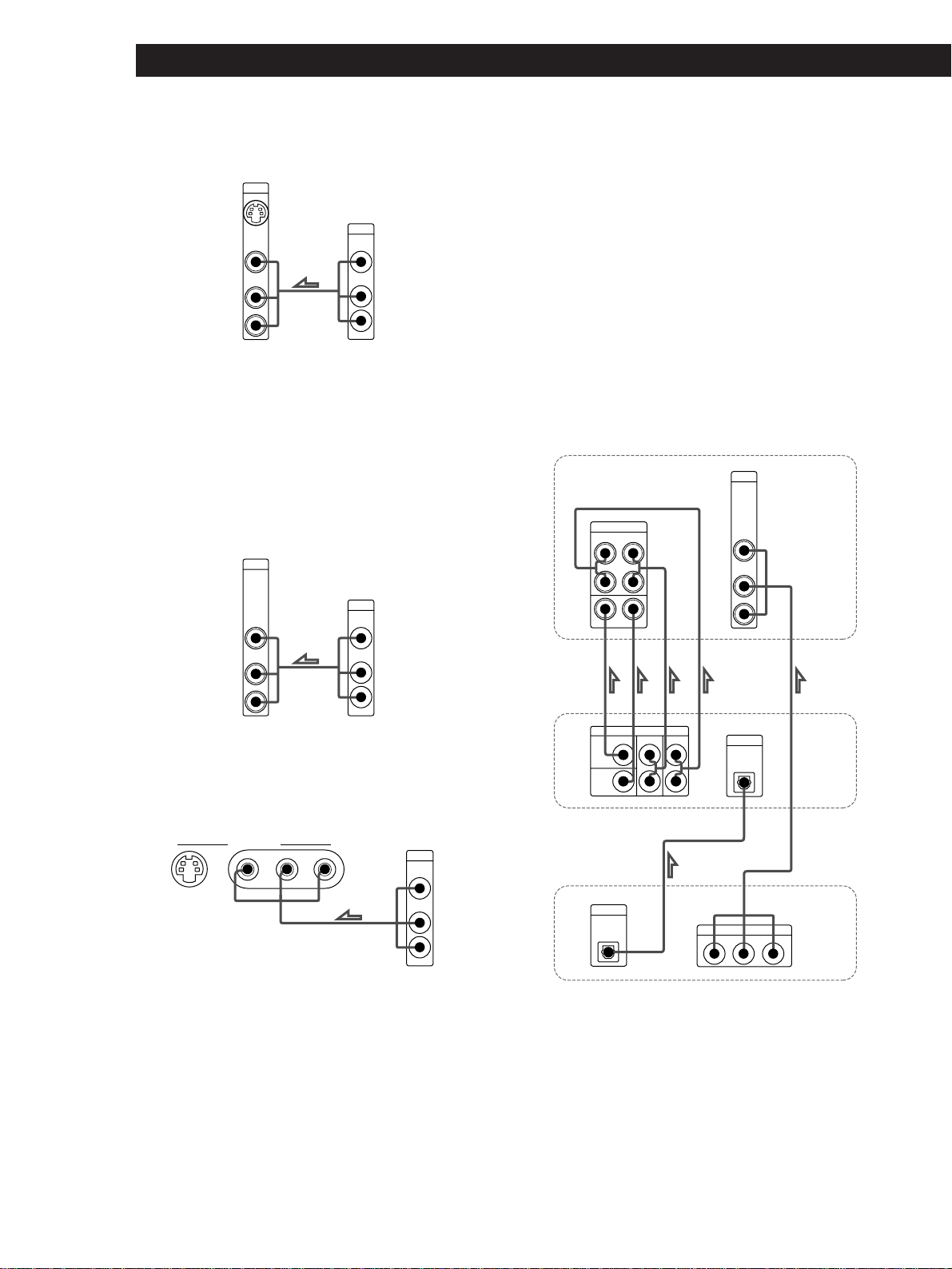
TV-VCR Hookups
You must connect a TV to control the receiver using the
on-screen display. Also, to enjoy the Dolby Pro Logic
Surround encoded videos and TV programs, you need
to connect TV and VCRs together with the center and
rear speakers.
If your components are Sony products, connect them to
the jacks as shown in the table on page 19, this makes
IR registration is unnecessary.
p STR-DE1015G
For digital connections see “Digital Component
Hookups” (page 13)
p STR-DE815G and STR-DE760Z
* TV/DBS : USA, Canada and Australia
TV : Other countries
What cables will I need?
• Audio/video cable (not supplied)
• Video cable (not supplied)
Make sure to match the color of the plugs and the
jacks: Yellow (video) to Yellow; White (left, audio) to
White; and Red (right, audio) to Red. If your
components have S-video jacks, we recommend that
you use the S-video jacks instead of the video jacks.
Ç : signal flow
a MONITOR (to TV or monitor)
Be sure to use your TV as a monitor, and use the TV
tuner built-in to the VCR to watch TV programs. If
you use your TV’s tuner, the on-screen display will
change to a TV program when you switch channels.
Also, do not connect anything to the TV/DBS* IN
jacks.
If you connect a Sony TV with TV OUT jacks, you can
use the TV tuner in your TV (see page 28 for details)
and the TV/DBS IN jacks without disrupting the on-
screen display.
b VIDEO 1, 2 (to VCR)
Connect VCRs to the VIDEO 1 or/and VIDEO 2 jacks.
If you connect a Sony StarSight tuner, connect it to the
VIDEO 1 jacks.
d TV/DBS*
5.1 INPUT
Yellow
b VIDEO 1, 2 a MONITOR
e VIDEO 3 INPUT
(on the front panel)
c LD/DVD
d TV/DBS* b VIDEO 1, 2 a MONITOR
e VIDEO 3 INPUT
(on the front panel)
c LD/DVD
White (L)
Red (R)
Yellow
White (L)
Red (R)
Yellow Yellow
Receiver
Monitor
S-LINK
CTRL S
VIDEO
OUT
MONITOR
INPUT
S-VIDEO
IN
OUT
L
R
S-LINK
CTRL S
VIDEO
OUT
AUDIO
OUT
VIDEO
IN
AUDIO
IN
VIDEO 1
OUTPUT
VIDEO VIDEO
AUDIO AUDIO
L
R
INPUT
S-VIDEO S-VIDEO
OUT
OUT IN
Receiver
VCR
12
Hooking Up the System
Receiver
c LD/DVD (to LD or DVD player)
Note for STR-DE815G and STR-D760Z
To input decoded Dolby Digital (AC-3) soundtracks, make
connections as shown below in “Playing decoded Dolby
Digital (AC-3) soundtracks”.
d TV/DBS* (to TV tuner or Digital Broadcasting
Satellites (DBS) receiver)
e VIDEO 3 INPUT (to a video camera or a video game)
* TV/DBS : USA, Canada and Australia
TV : Other countries
z If you have a CONTROL S compatible monitor or VCR
(for USA and Canada only)
Use a CONTROL S cord (supplied) to connect the CTRL
S IN (for monitor) or CTRL S OUT (for VCR) jack on the
receiver to the appropriate S-LINK jack on the
respective component. Refer to the Operating
Instructions supplied with your monitor or VCR for
details.
Note
Set the TV tuner to skip channels where there is no broadcast
so that an image is always displayed on the TV screen;
otherwise, the on-screen display is distorted.
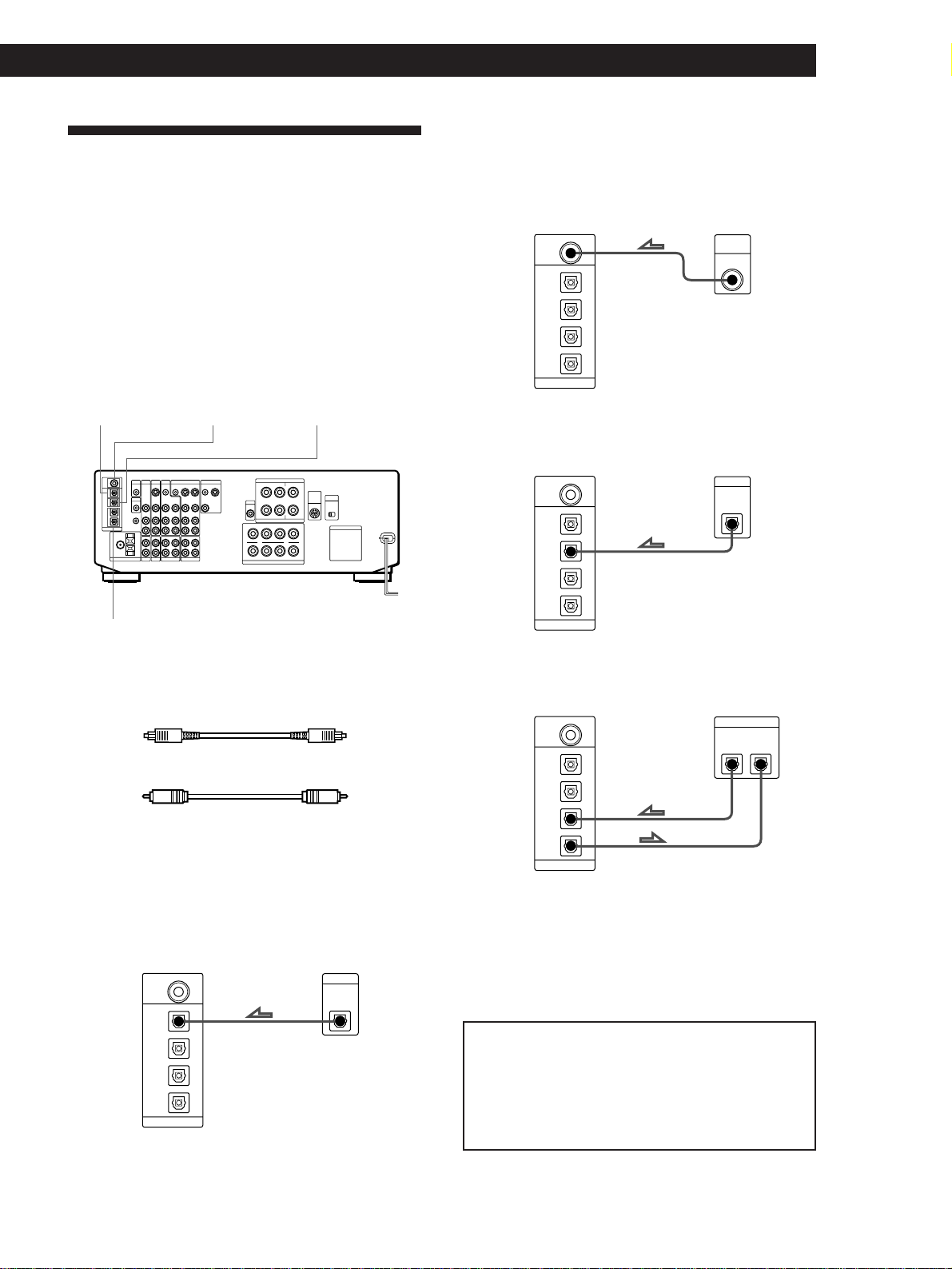
Playing decoded Dolby Digital (AC-3)
soundtracks (STR-DE815G and STR-D760Z)
If you have a Dolby Digital (AC-3) decoder, you can
use the receiver to amplify decoded Dolby Digital (AC-
3) soundtracks with the following connections. These
audio signals are paired with the video signals input to
the LD/DVD VIDEO IN jack (see page 27 for details
regarding operation).
VIDEO
IN
AUDIO
IN
LD/
DVD
L
R
OUTPUT
VIDEO
AUDIO
L
R
S-VIDEO
IN
VIDEO
IN
AUDIO
IN
TV/DBS
L
R
OUTPUT
VIDEO
AUDIO
L
R
Receiver
TV tuner/DBS
VIDEO L AUDIO R
VIDEO 3 INPUT
L
R
OUTPUT
VIDEO
AUDIO
Receiver
(front panel)
Video camera/
video game
LD/DVD
>
STR-DE1015G
only
Receiver
Dolby Digital (AC-3)
decoder (etc.)
DVD player
FRONT
L
R
REAR
CENTER
WOOFER
5-1 INPUT
CENTER
WOOFER
REAR FRONT
PRE OUT
OUT
DIGITAL
IN
DIGITAL
VIDEO
IN
AUDIO
IN
LD/
DVD
L
R
LINE OUT
R L VIDEO- AUDIO -
13
Getting StartedHooking Up the System
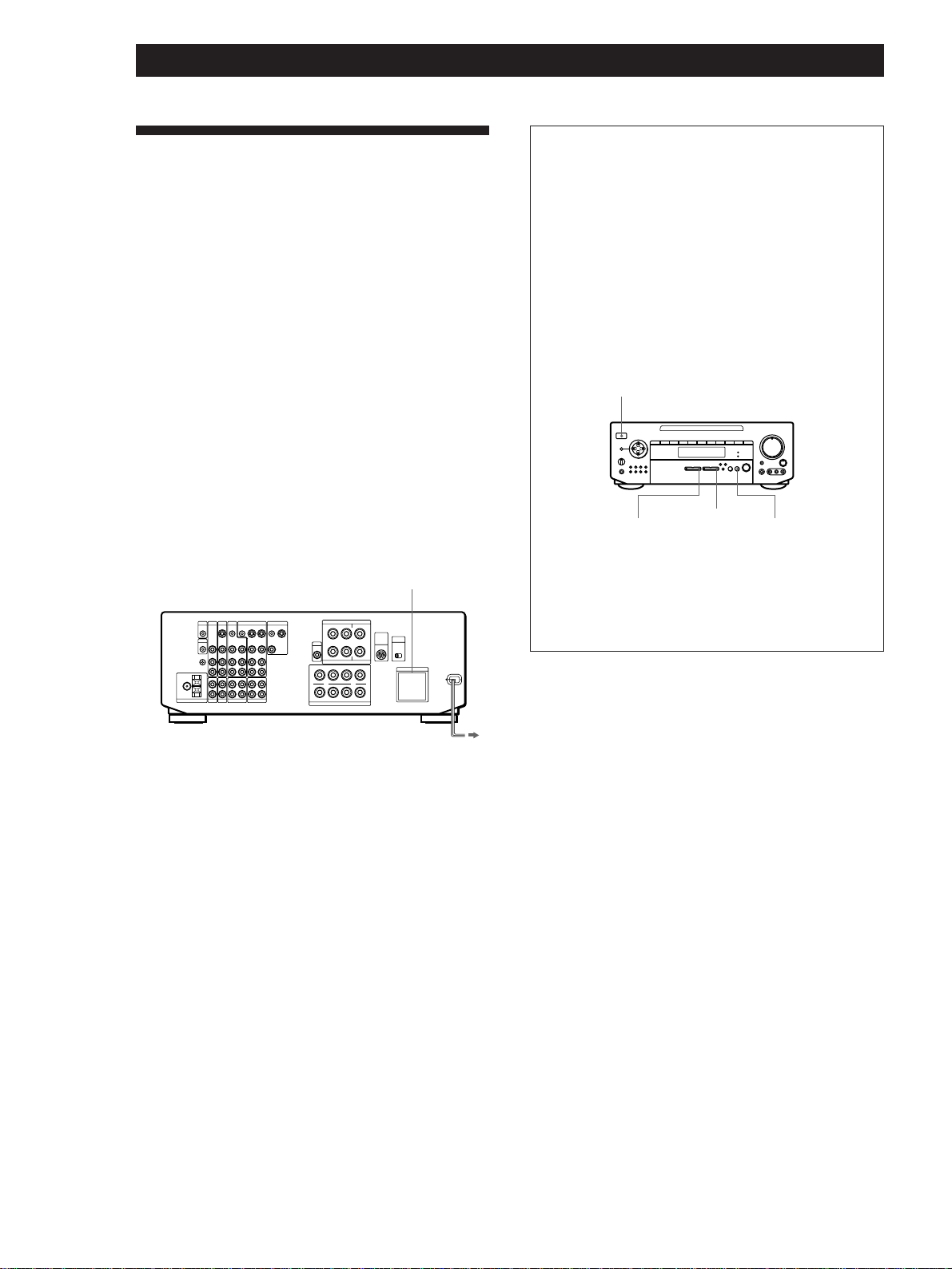
Digital Component Hookups
(STR-DE1015G only)
You can connect the optical digital output jack of a
DVD player, DAT/MD deck, CD player (etc.) to the
receiver’s optical digital input jacks.
You can also connect the AC-3 RF output terminal of
an LD player to the receiver’s AC-3 RF input terminal.
You can connect the receiver’s optical digital output
jack to a DAT/MD deck.
After making digital connections, also be sure to select
the appropriate INPUT MODE (see page 27 for details).
What cords will I need?
• Optical digital connecting cord (not supplied)
• Coaxial digital connection cord (not supplied)
Ç : signal flow
a LD/DVD IN: OPTICAL (to DVD player)
If you connect a DVD player to the analog LD/DVD in
jacks, be sure to connect the DVD player’s optical
digital output to the LD/DVD IN : OPTICAL jack.
d DAT/MD IN (OUT): OPTICAL
a LD/DVD: OPTICAL b LD/DVD: RF c CD IN: OPTICAL
b LD/DVD IN: AC-3 RF (to LD player)
If you connect an LD player to the analog LD/DVD in
jacks, be sure to connect the LD player’s AC-3 RF
output to the LD/DVD IN: AC-3 RF jack.
c CD IN: OPTICAL (to CD player)
d DAT/MD IN(OUT):OPTICAL (to DAT or MD deck)
Note
This unit is only compatible with digital components using
32 kHz/44.1 kHz/48 kHz sampling frequencies. It is not
compatible with 96 kHz.
DAT/MD OUT
DIGITAL
OPTICAL
DAT/MD IN
OPTICAL
CD IN
OPTICAL
LD/DVD IN
OPTICAL
LD/DVD IN
AC-3
RF
OUT
DIGITAL
Receiver DVD player
Receiver LD player
DAT/MD OUT
DIGITAL
OPTICAL
DAT/MD IN
OPTICAL
CD IN
OPTICAL
LD/DVD IN
OPTICAL
LD/DVD IN
AC-3
RF
OUT
AC-3
RF
Receiver CD player
DAT/MD OUT
DIGITAL
OPTICAL
DAT/MD IN
OPTICAL
CD IN
OPTICAL
LD/DVD IN
OPTICAL
LD/DVD IN
AC-3
RF
OUT
DIGITAL
DAT/MD OUT
DIGITAL
OPTICAL
DAT/MD IN
OPTICAL
CD IN
OPTICAL
LD/DVD IN
OPTICAL
LD/DVD IN
AC-3
RF
OUT
DIGITAL
IN
Receiver DAT/MD deck
Warning regarding the playback of DAT/MD sources
When playing DAT/MD sources through this unit, do
not play a DAT/MD that contains digital recordings
made from a DVD player whose digital output was set to
“DOLBY DIGITAL”. High volume noise will be output
which may damage this unit or your speakers.
Hooking Up the System
14
AC Hookups
Setting the voltage selector (only on the
models supplied with the voltage selector)
Check that the voltage selector on the rear panel of the
receiver is set to the local power supply voltage. If not,
set the selector to the correct position using a
screwdriver before connecting the AC power cord to a
wall outlet.
Connecting the AC power cord
Connect the AC power cord from this receiver and
from your audio/video components to a wall outlet.
If you connect other audio components to the
SWITCHED AC OUTLET(s) on the receiver, the
receiver can supply power to the connected
components so you can turn on/off the entire system
when you turn on/off the receiver.
Caution
Make sure that the power consumption of the component(s)
connected to the receiver’s AC outlet(s) does not exceed the
wattage indicated on the rear panel. Do not connect high-
wattage electrical home appliances such as electric irons,
fans, or TVs to this outlet.
to a wall
outlet
SWITCHED AC OUTLET(s)
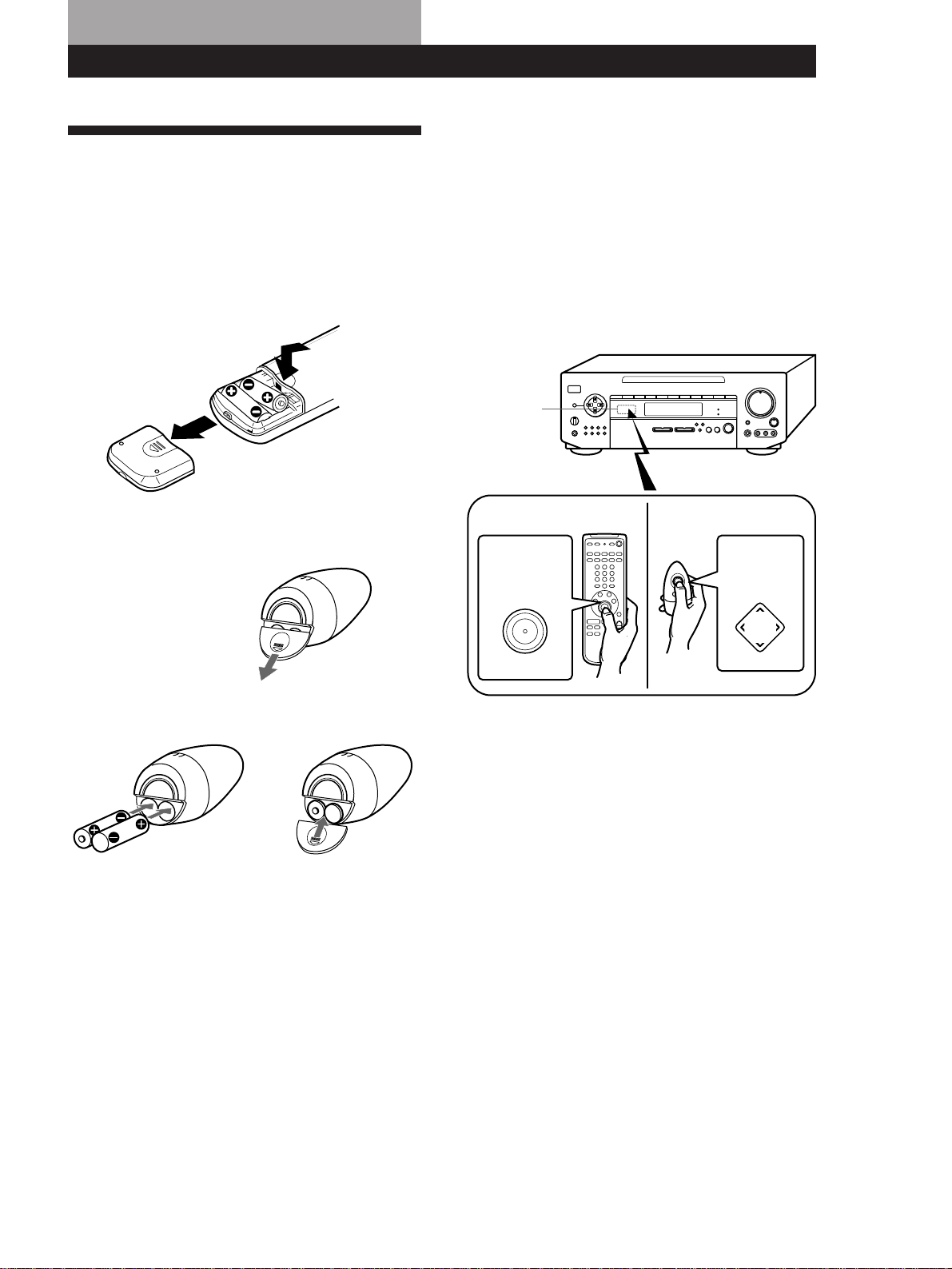
Before using for the first time
Be sure to clear the receiver’s memory before using
for the first time.
1 Make sure the POWER is set to off.
2 While holding down the VIDEO FUNCTION >,
AUDIO FUNCTION > and SOUND FIELD
MODE buttons, press POWER to turn on the
receiver.
“ALL CLEAR!” appears in the display.
Note
Clearing the receiver’s memory erases all preset radio
stations and IR code settings etc.
POWER
VIDEO
FUNCTION
>
AUDIO
FUNCTION
>
SOUND FIELD
MODE
15
Setting Up the Remote for On-Screen Control
PUSH
ENTER
º‚
¢
¢
¢
¢
≠±
·
∏π
¢
¢
¢
¢
Using the Remote
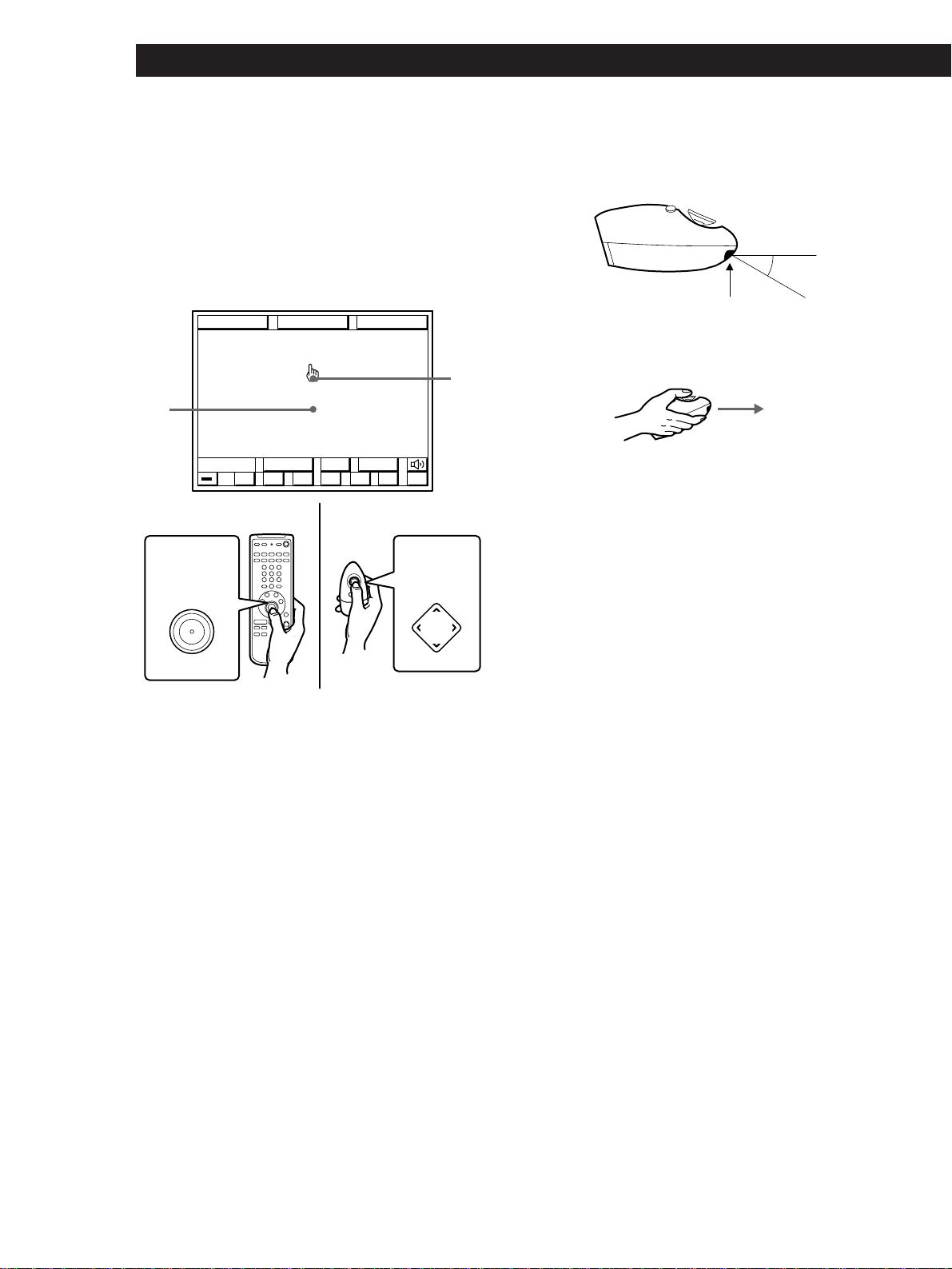
Inserting batteries into the remote (USA
and Canada)
Insert two size AA (R6) batteries with the + and – on
the battery compartment. When using the remote,
point it at the remote sensor g on the receiver.
Inserting batteries into the remote (other
countries)
1 Open the cover on the
bottom of the remote.
2 Insert two size AA (R6) batteries with correct
polarity (+/–), then close the cover.
Notes on the remote
Battery life
Under normal use, the batteries should last for about 6
months. When the remote no longer operates the receiver,
replace both batteries with new ones.
Notes
• Do not leave the remote in an extremely hot or humid
place.
• Do not use a new battery with an old one.
• Do not expose the remote sensor to direct sunlight or
lighting apparatuses. Doing so may cause a malfunction.
• If you don’t use the remote for an extended period of time,
remove the batteries to avoid possible damage from
battery leakage and corrosion.
Turning on the receiver and bringing up the
on-screen display on your TV (or monitor)
To turn on the receiver, point the remote at the IR
receptor, and then press the direction control button on
the remote once or twice. To bring up the on-screen
display, turn on your TV and set it to the appropriate
video input. If you register the IR code of your TV (see
“Registering a TV (or Monitor)” on page 17), you can
turn on your TV automatically whenever you turn on
the receiver.
IR receptor
(continued)
For USA and Canada
For other countries
Direction
control
button
Direction
control
button
b
16
Setting Up the Remote for On-Screen Control
FUNCTION
USERSUBINPUT
SOUND
()0pP=+
PUSH
ENTER
Mm
Â
µ
º‚
¢
¢
¢
¢
≠±
·
∏π
¢
¢
¢
¢
Mm
Â
µ
SETUP
Blank
area
IR emitter
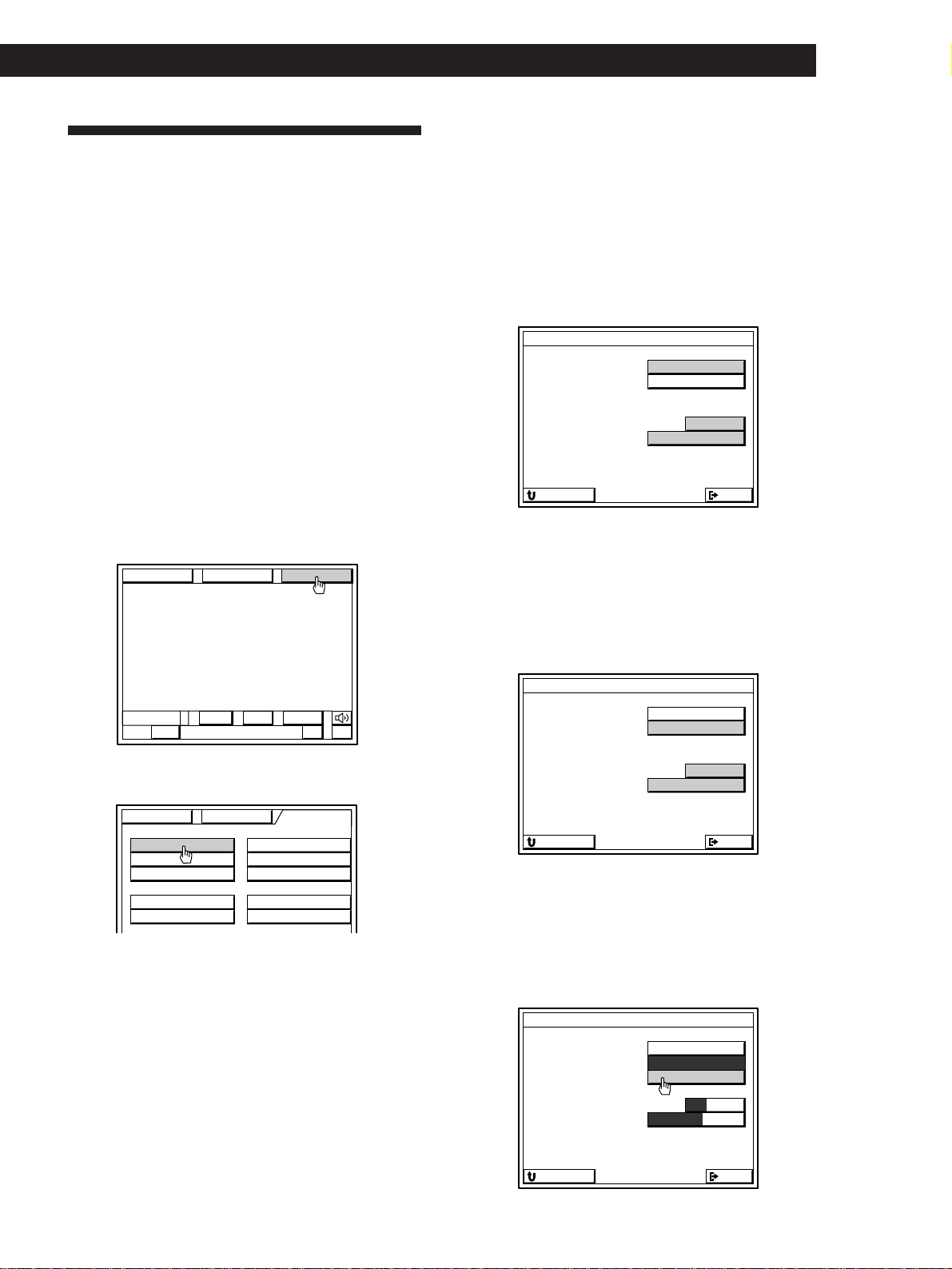
How to use the remote
The supplied remote lets you perform almost all of the
receiver operations.
This section describes how to use the direction control
button. For certain operations, you can also control the
receiver using the other (short-cut) buttons instead of
the direction control button.
For details, see page 52.
1 Press the direction control button on the remote
once to recall the on-screen display.
2 Press repeatedly (or hold down) the corner of the
direction control button (M, m, Â, µ) in the
direction you want to move the pointer (hand-
shaped icon) on the on-screen display.
3 To “click” on an item, position the pointer so that
it is on one of the on-screen items, then press and
quickly release the center of the direction control
button (indicated by “PUSH ENTER”).
To make the on-screen display disappear
Position the pointer in the blank area, and press the center of
the direction control button.
• For USA and Canada : You can also turn the on-screen
display on or off by pressing GUI.
Direction
control
button
Direction
control
button
Notes on handling the remote (except for USA and
Canada)
• Do not cover the IR emitter on the remote when operating
the remote.
• Hold the remote with its direction control button facing
up, as shown below.
Pointer
For USA and Canada
For other countries
30°
17
Getting StartedSetting Up the Remote for On-Screen Control
Registering a TV (or Monitor)
You must register the IR code of your TV (or monitor)
in order to turn on your TV automatically whenever
you turn on the receiver.
IR code registration is unnecessary in the
following case
If your TV is a Sony product that can be controlled by
an infrared remote, and it is connected to the receiver
by its VIDEO 1 video input jack, you do not need to
register its IR code.
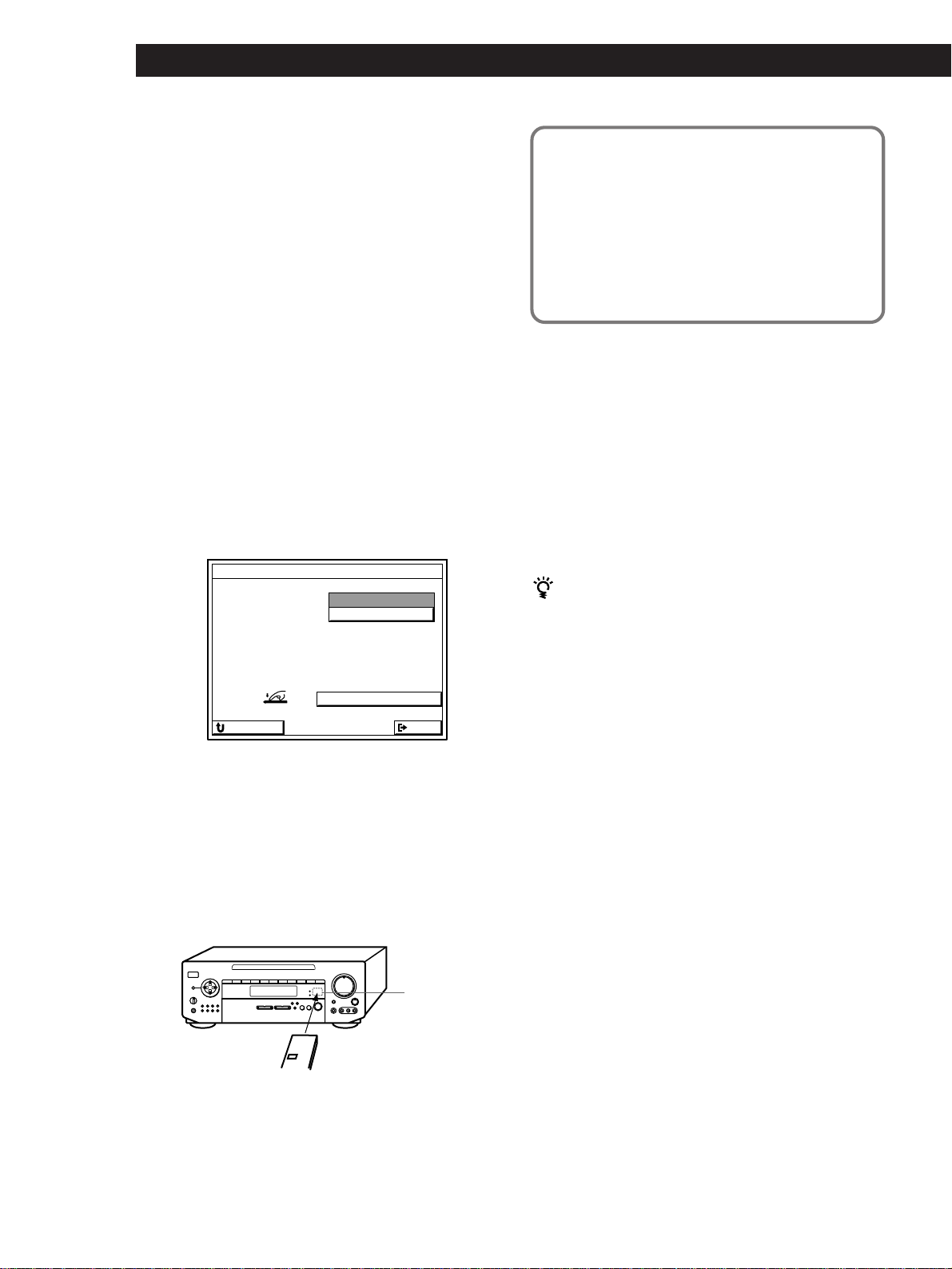
Registering IR codes
1 Turn on the receiver and the TV.
Make sure the input selector on the TV is set to
the video input.
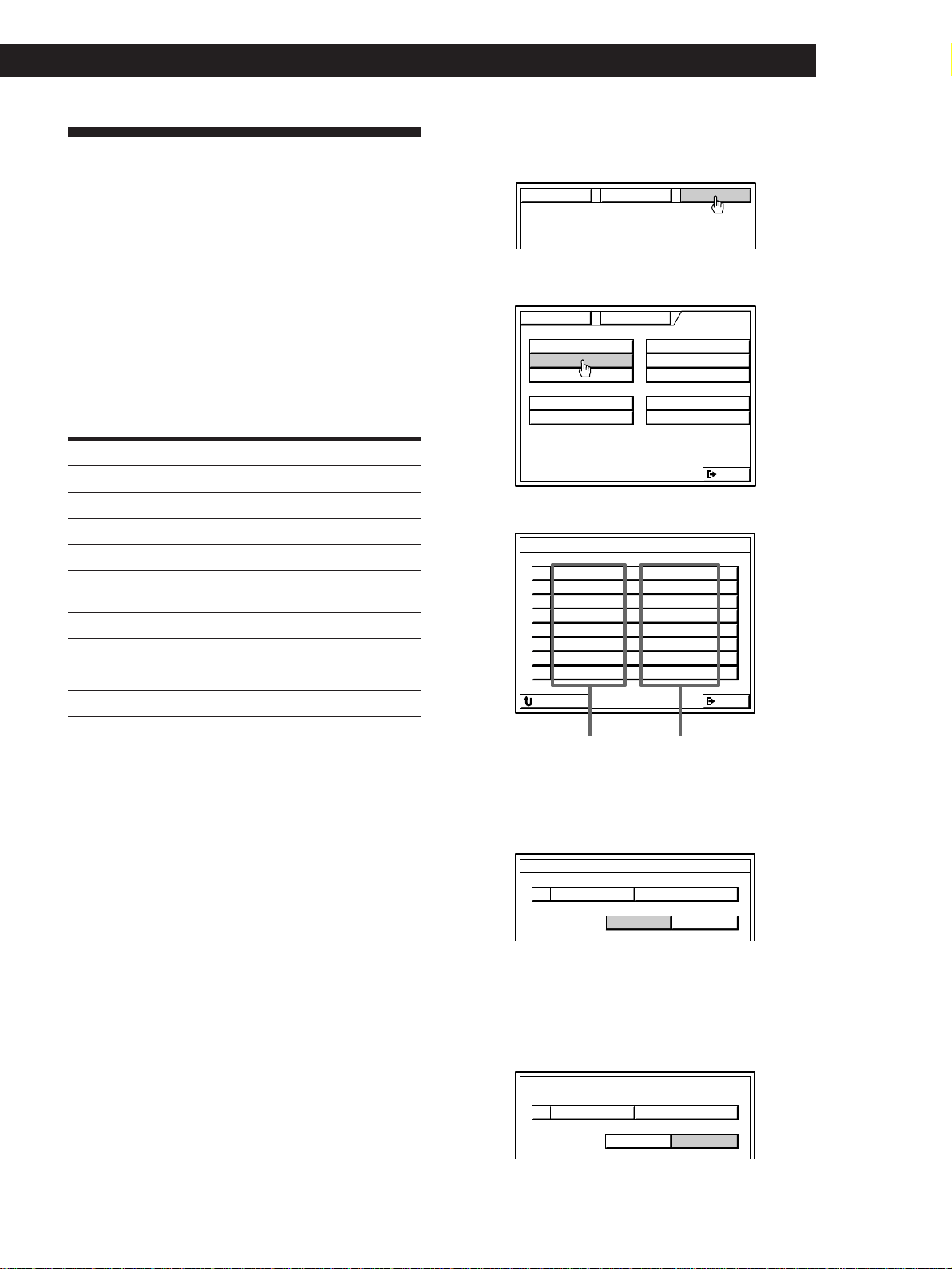
2 Click SETUP in the main menu.
3 Click TV SET.
4 • Sony TV
1 Click Sony TV.
2 Click VIDEO 1, 2 or 3 to select the video
input of the TV that is connected to the
receiver.
3 If your TV type is a wide screen type (screen
ratio:16 x 9), click WIDE (except for Australian
and Singaporean models).
The IR codes are automatically registered
and registration is complete.
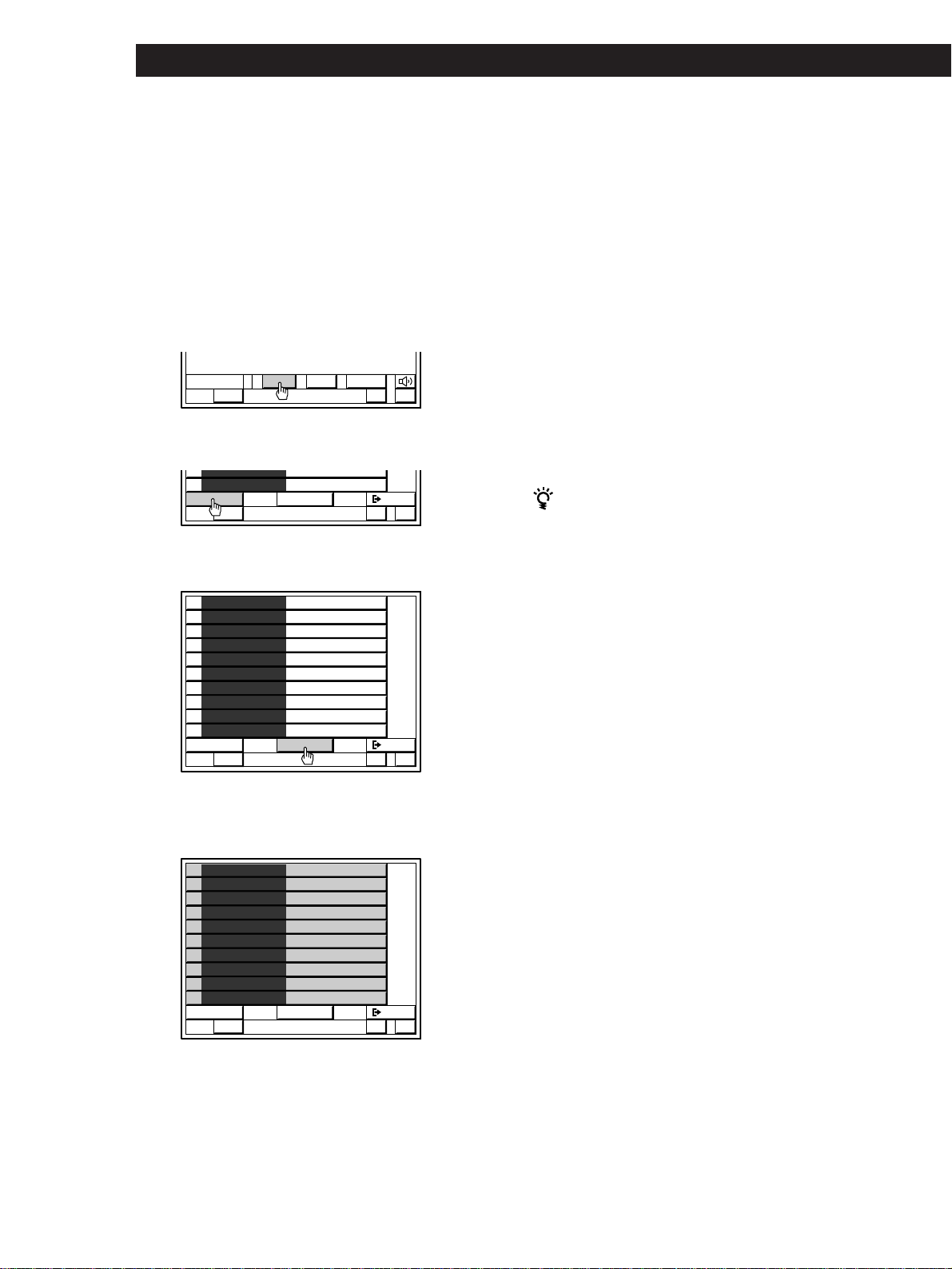
• Non-Sony TV
1 Click OTHER TV.
2 Click VIDEO 1, 2 or 3 to select the video input
of the TV that is connected to the receiver.
3 If you are using a wide TV, click WIDE (except
for Australian and Singaporean models).
4 Go to step 5.
5 Cover the IR sensor on the TV to prevent
accidental operation. Otherwise, the on-screen
display may be turned off during the registration
procedure.
6 Click START.
(continued)
USERSUBLIST
+–
BAND
FM 102.50
M
H
z STEREO
FUNCTION SOUND SETUP
TV FUNC
CD
IR
TUNER
USER IR
SET
SET
INDEX
INDEX
INDEX
AUTO START SLEEP TIMER
OSD SETUP
MACRO PLAY
FUNCTION SOUND SETUP
TV MONITOR SET
TV IR SET
Sony TV
OTHER TV
NORMAL WIDE
1
VIDEO
32
TV SIZE
TV INPUT
EXITRETURN
TV MONITOR SET
TV IR SET
Sony TV
OTHER TV
NORMAL WIDE
1
VIDEO
32
TV SIZE
TV INPUT
EXITRETURN
TV MONITOR SET
TV IR SET
START
Sony TV
OTHER TV
NORMAL WIDE
1
VIDEO
32
TV SIZE
TV INPUT
EXITRETURN
18
Setting Up the Remote for On-Screen Control
7 When “PUSH YOUR REMOTE” appears in the
on-screen display, press the button on the TV's
remote that corresponds to the highlighted
control button (e.g., POWER).
• If your TV’s remote has an independent input
selector button (e.g., VIDEO 1).
Register the IR code of this button when the VIDEO 1
button appears. When you turn on the receiver, the
TV switches to the video input automatically.
• If your TV does not have an independent input
selector button or has a cyclic input selector
button.
Do not register an IR code of the input selector
button. The TV’s input cannot be switched
automatically when you turn on the receiver. Switch
the TV to the video input manually. If you registered
an IR code for the VIDEO 1 button, erase the VIDEO 1
code following the steps in “To erase a specific IR
code” below.
• If you selected WIDE in step 4.
Register the IR code for the wide TV mode button on
your TV’s remote when the WIDE TV DISPLAY
MODE button appears.
For Australian and Singaporean models
The on-screen display also includes the following
settings for your TV's remote control.
• TV/VIDEO : Use to program the cyclic input selector
button on your TV’s remote. This allows you to
switch the TV’s input selector using this unit’s
remote. Do not program an independant input
selector button at this setting.
• WIDE TV DISPLAY MODE: Use to program the wide
TV mode button on your TV’s remote.
When registering the IR code, be sure to do the
following; otherwise, the IR code may not be
registered correctly.
• Point the remote at the IR sensor on the
receiver from a distance of less than 2 inches (5 cm).
• Hold down the button on the remote for about 2 or 3
seconds until the “RECEIVING” display switches to
“RELEASE YOUR REMOTE”.
• Keep the remote pointed horizontally at the IR sensor
until the code is registered.
8 Repeat step 7 for the remaining buttons that
appear in the on-screen display.
If “NG” is displayed, an IR code was not
registered correctly. In this case, repeat step 7
again.
To return to the main menu
Click EXIT.
To return to a previous menu
Click RETURN.
To exchange from a non-Sony TV to a Sony TV
Connect the receiver’s MONITOR OUT jack to the
VIDEO 1 input jack of the Sony TV. Follow the
registration steps 1 to 3, then click SONY TV in step 4.
Click VIDEO 1 2 3 and/or WIDE to specify VIDEO 1
and/or WIDE if necessary.
Note
Some IR codes may not have been successfully registered,
even if “RELEASE YOUR REMOTE” appears on the TV
screen. In this case, try registering the IR code again. If the
IR code still cannot be registered, follow the procedure
described in “Registering Desired Components (User IR
setting)” on page 42.
Erasing TV IR codes
Click CODE CLEAR in the TV IR SET menu that
appears when you click START.
• To erase a specific IR code
1 Click SINGLE IR CODE CLEAR.
2 Click the button you want to clear.
“Are you sure?” appears.
3 Click YES to erase the code.
To cancel erasing, click NO.
To erase another code repeat steps 2 and 3.
• To erase all the TV IR codes
1 Click TV IR CODE CLEAR.
“Are you sure?” appears.
2 Click YES to erase the codes.
“CODE CLEAR!” appears in the display.
To cancel erasing, click NO.
IR sensor
TV's remote
TV IR SET
TV IR SET
TV POWER
VIDEO 1
PUSH YOUR REMOTE
CODE CLEAR
EXITRETURN
19
Getting StartedSetting Up the Remote for On-Screen Control
Registering IR codes
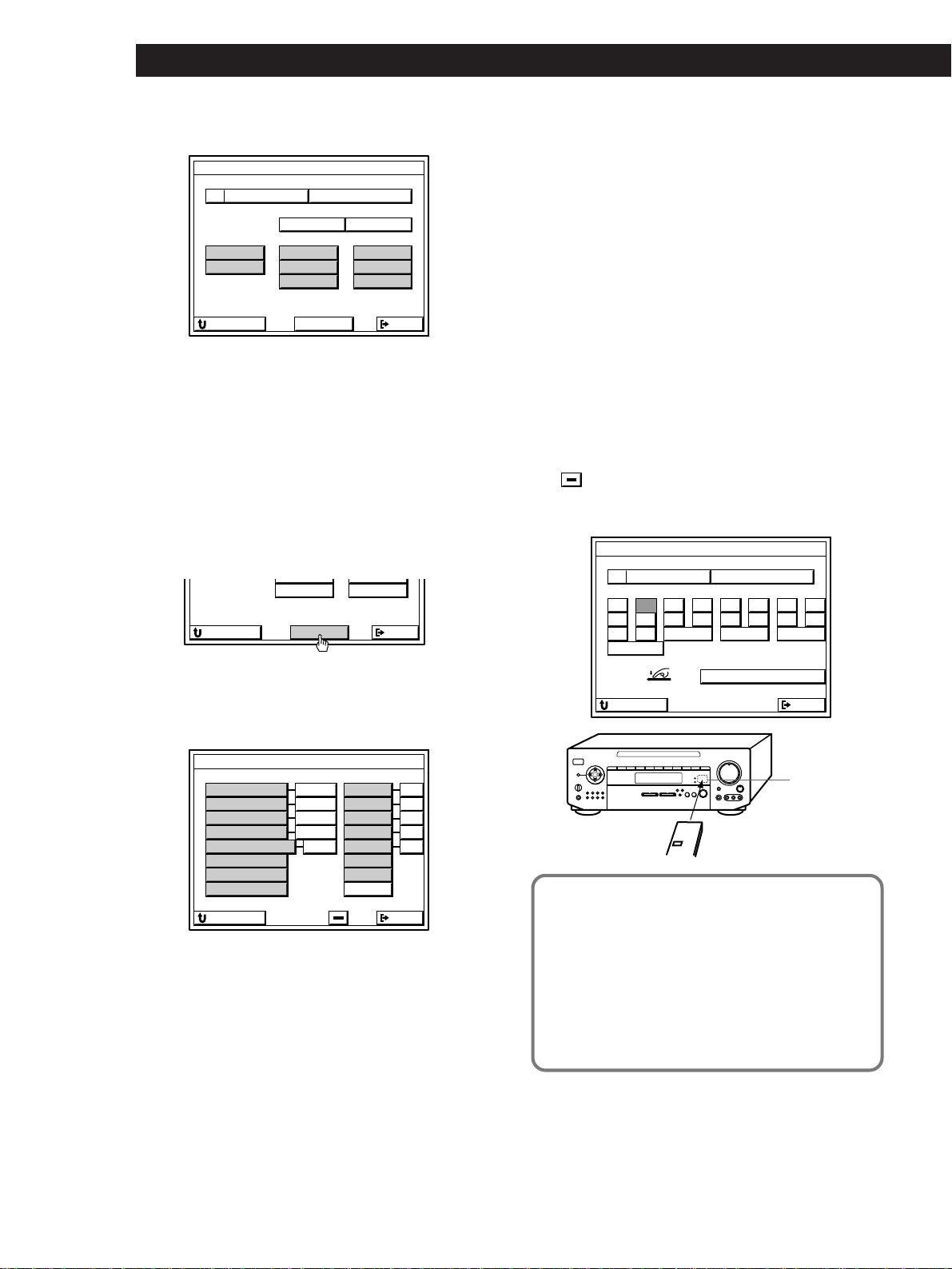
1 Click SETUP in the main menu.
2 Click IR SET.
3 Click the name of the receiver's jack you want.
4 • Sony product
Click Sony.
The IR codes are automatically registered and
registration is complete.
To take advantage of CONTROL-A1 compatible audio
components, such as multi-disc CD players, click
CONTROL-A1 to select CONTROL-A1.
• non-Sony product
Click OTHER.
Registering Audio and Video
Components
You must register the IR code of your audio/video
component to control your component using the on-
screen display.
IR code registration is unnecessary in the
following case
If your audio/video component is a Sony product that
can be controlled by an infrared remote, and it is
connected to the jacks shown in the following table,
you do not need to register the IR code.
Receiver jacks Component to be connected
VIDEO 1 Sony VTR 3 (VHS)
VIDEO 2 Sony VTR 1 (BETA)
VIDEO 3 Sony VTR 2 (8 mm)
LD/DVD Sony LD player
TV/DBS Sony DBS receiver (USA, Canada and
Australia only)
DAT/MD Sony DAT deck
CD Sony CD player (CD 1)
TAPE Sony Tape deck
MONITOR Sony TV (via its VIDEO 1 jack)
The following cases require registration of Sony products
• When connecting a Sony MD deck to the DAT/MD
jacks.
• When connecting a Sony audio product with
CONTROL-A1 compatibility.
• When connecting a Sony product to jacks other than
those specified in the previous table (e.g., when
connecting a Sony LD player to the VIDEO 3 jacks).
• When exchanging a non-Sony audio or video
component with a Sony product.
Notes
• If your VCR has a COMMAND CODE selector switch (for
VTR1, VTR2, or VTR3), set the switch to the applicable
setting. If your VCR has a built-in StarSight tuner, you
must set the COMMAND CODE selector switch to VTR 3.
• If your CD changer has a COMMAND MODE selector
switch (for CD 1, CD 2, or CD 3), normally it should be set
to “CD 1.” However, if your CD changer has VIDEO OUT
terminals, set the command mode to “CD 2” or “CD 3”
(“CD 3” should be used only when making CONTROL-A1
connections).
Receiver's jacks
Connected
component
(continued)
FUNCTION SOUND SETUP
TV FUNC
CD
IR
TUNER
USER IR
EXIT
SET
SET
INDEX
INDEX
INDEX
AUTO START SLEEP TIMER
OSD SETUP
MACRO PLAY
FUNCTION SOUND SETUP
OTHERMAKER
IR CODE SETTING
Sony
OUTPUT IR
VIDEO 1 Sony VTR3
Sony VTR1
Sony VTR2
TV/DBS
TAPE
Sony TAPE
DAT/MD Sony DAT
CD Sony CD1
Sony DBS
Sony LD
IR CODE SETTING
VIDEO 2
VIDEO 3
LD/DVD
EXITRETURN
OTHERMAKER
IR CODE SETTING
Sony
OUTPUT IR
20
Setting Up the Remote for On-Screen Control
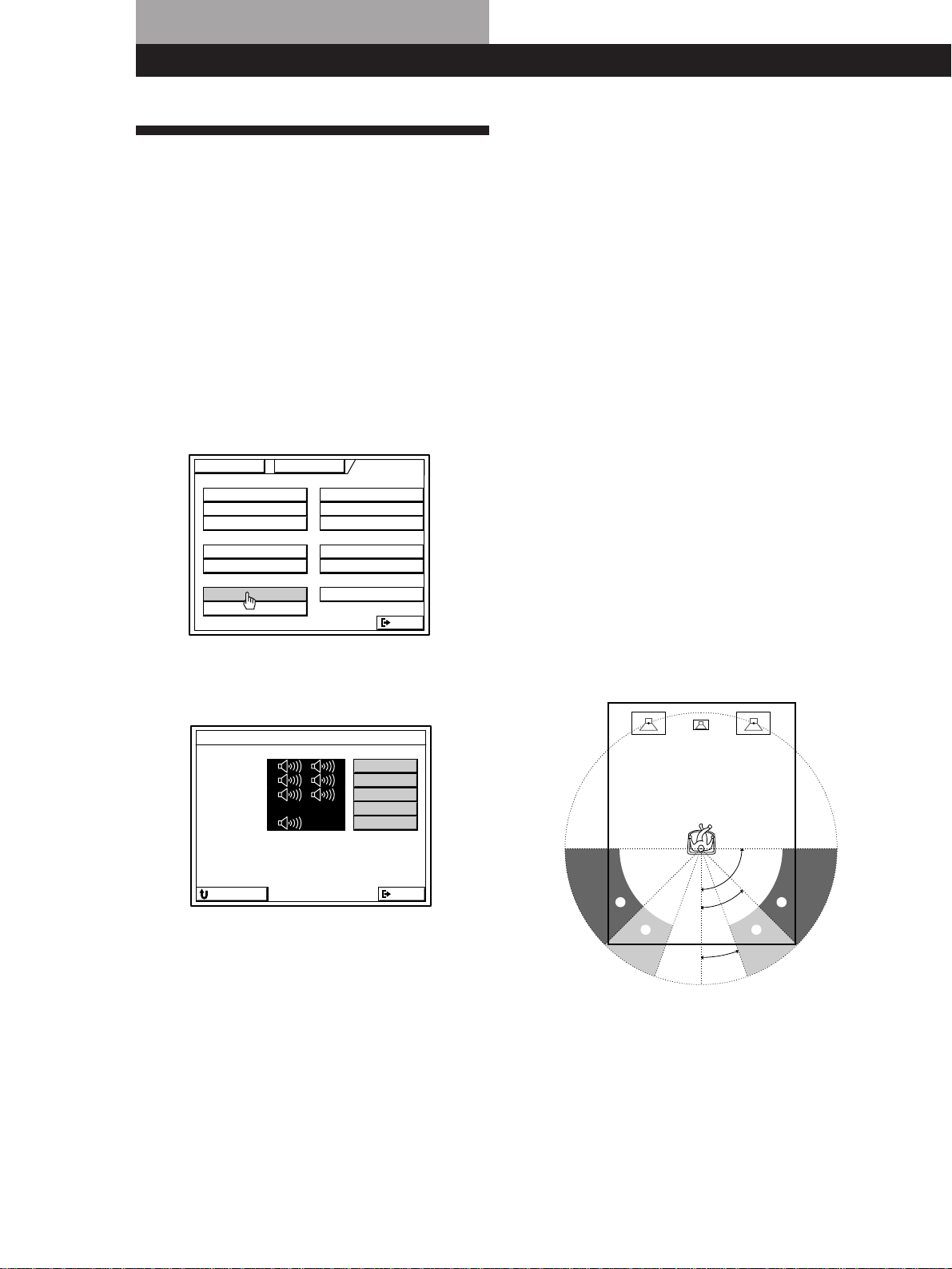
5 Click the respective component.
• If the component is not a VCR or laser disc
player
1 Cover the IR sensor on the component to
prevent accidental operation during the
registration procedure.
2 Click START, then go to step 6.
• If the component is a VCR, DVD or laser disc
player:
1 Click START.
A list of other manufacturers appears.
2 Click the manufacturer of the component you
want.
The IR codes for that component are
automatically registered.
If the manufacturer is not listed, cover the IR
sensor on the component to prevent accidental
operation during the registration procedure,
click OTHER, then go to step 6.
3 Click TEST.
If the selected component turns on, the IR
codes have been registered. The registration is
complete.
If the component does not turn on:
Click the number button beside the
manufacturer’s name to select another number,
then click TEST again.
If the component still does not turn on:
Cover the IR sensor on the component to
prevent accidental operation during the
registration procedure is complete, click
OTHER, then go to step 6.
6 When “PUSH YOUR REMOTE” appears, press
the button on your audio/video component's
remote that corresponds to the control button
highlighted.
is the POWER switch.
After you have registered all the IR codes, the IR CODE
SETTING menu reappears.
When registering the IR code, be sure to do the
following; otherwise, the IR code may not be
registered correctly.
• Point the remote at the IR sensor on the
receiver from a distance of less than 2 inches (5 cm).
• Hold down the button on the remote for about 2 or 3
seconds until the “RECEIVING” display switches to
“RELEASE YOUR REMOTE”.
• Keep the remote pointed horizontally at the IR sensor
until the code is registered.
7 Repeat steps 3 to 6 to register IR codes from other
components.
audio/video component's
remote
IR sensor
OTHERMAKER
IR CODE SETTING
TAPE
DAT
DVD
LD
CD
VCR
MD
Sony
START
OUTPUT IR
EXITRETURN
TV
DATLD
CD
MD
START
EXITRETURN
VCR MAKER SETTING
EMERSON
TEST
EXITRETURN
FISHER
PANASONIC
TOSHIBA
MITSUBISHI
GRUNDIG
HITACHI
PHILIPS
AKAI
GE
JVC
RCA
SANYO
SHARP
ZENITH
OTHER
1 2
1 2
1 2
1 2
1 2
1 2 3 4
1 2 3
1 2
1 2
1 2 3
IR CODE SETTING
1
9
2
10/0
3
>10
4
DISC
5 6 7 8
)(0pP=+
PUSH YOUR REMOTE
CODE CLEAR
EXITRETURN
TRACK ENTER
D. SKIP

21
Getting StartedSetting Up the Remote for On-Screen Control
To return to the main menu
Click EXIT.
To return to a previous menu
Click RETURN.
To register special IR codes that do not appear as on-
screen controls
See “Registering Desired Components (User IR setting)” on
page 42.
Notes
• If the IR codes do not operate as expected, perform the
registration operation(s) again to make sure the IR codes
are registered correctly. If the IR code still cannot be
registered, see “Registering Desired Components (User IR
setting)” on page 42.
• If you experience difficulty operating the INPUT, number,
or ENTER buttons of a VCR or LD player after automatic
registration in step 5, register the IR codes for that
component manually as shown in step 6.
• When using components made by other manufacturers,
certain operations may not be possible even after selecting
manufacturer (in step 5). In this case, register the IR codes
for those buttons manually as shown in step 6.
• If you register a playback source as TOSHIBA 2 or RCA 2,
you cannot turn the TV on or off using the receiver’s
remote (the power will not go on when you click TEST).
• Do not register the same type of component (e.g., an LD
player) at several different functions.
• You can register about 200 IR codes, including user IR
codes (see page 42); however, depending on the type of
codes recorded, the maximum limit may be less than 100.
It may be difficult or impossible to register about 200
codes under the following conditions:
-When registering from remotes with weak batteries.
-When registering IR codes that have been registered to a
programmable remote (e.g., any IR code not originally
supplied in the respective remote).
• Keep the IR sensor away from fluorescent light or direct
sunlight. Otherwise, the IR codes may not be registered.
• If the AC power cord is disconnected for about two
weeks, the registered IR codes will be erased. “ALL
CLEAR!” will appear on the TV screen the next time you
turn on the receiver.
• Some remote controls supplied with audio and video
components made by other manufacturers may have a
special formats. In such cases, it may not be possible for
the receiver to learn (or properly execute) their command
codes.
Erasing IR codes
Click CODE CLEAR in the IR CODE SETTING menu
that appears when you click START.
• To erase a specific IR code
1 Click SINGLE IR CODE CLEAR.
“SELECT CLEAR CODE KEY” appears.
2 Click the button you want to clear.
“Are you sure?” appears.
3 Click YES to erase the code.
“CODE CLEAR!” appears.
To cancel erasing, click NO.
To erase another code repeat steps 2 and 3.
• To erase all the IR codes for the current component
(e.g., OTHER CD)
1 Click (OTHER CD) CODE CLEAR.
“Are you sure?” appears.
2 Click YES to erase the codes.
“CODE CLEAR!” appears.
To cancel erasing, click NO.
• To erase all the IR codes
1 Click ALL IR CODE CLEAR.
“Are you sure?” appears.
2 Click YES to erase the codes.
“CODE CLEAR!” appears.
To cancel erasing, click NO.
22
Dolby Surround Setup
Dolby Digital (AC-3)
(STR-DE1015G only)
To obtain the best possible surround sound, first
specify the type of speakers you have connected Then
use the test tone to adjust the speaker volumes to the
same level.
Specifying the speaker type
1 Click SETUP in the main menu.
2 Click SPEAKER.
3 Set the speaker size parameters according to the
type of speakers you connected.
Front speaker (FRONT)
• If you connect large speakers that will effectively
reproduce bass frequencies, select “LARGE”.
• If you cannot obtain sufficient surround effects when
playing a Dolby Digital (AC-3) source (a source for which
the DISCRETE indicator lights), select “SMALL”. The bass
frequencies for the front speakers will be output from the
sub woofer or other “LARGE” speakers.
Center speaker (CENTER)
• If you connect a large speaker that will effectively
reproduce bass frequencies, select “LARGE”.
• If you cannot obtain sufficient surround effects when
playing a Dolby Digital (AC-3) source (a source for which
the DISCRETE indicator lights), select “SMALL”. The bass
frequencies for the center speaker will be output from the
sub woofer or other “LARGE” speakers.
• If you do not connect the center speaker, select “NO”.
Rear speaker (REAR)
• If you connect large speakers that will effectively
reproduce bass frequencies, select “LARGE”.
• If you cannot obtain sufficient surround effects when
playing a Dolby Digital (AC-3) source (a source for which
the DISCRETE indicator lights), select “SMALL”. The bass
frequencies for the rear speakers will be output from the
sub woofer or other “LARGE” speakers.
• If you do not connect rear speakers, select “NO”.
Rear speaker place (REAR)
This parameter lets you specify the location of your rear
speakers for proper implementation of the Digital Cinema
Sound VIRTUAL REAR SHIFT and VIRTUAL MULTI REAR
modes. Refer to the illustration below.
• Set to SIDE if the location of your rear speakers
corresponds to section A.
• Set to BEHIND if the location of your rear speakers
corresponds to section B.
This setting effects only the VIRTUAL REAR SHIFT and
VIRTUAL MULTI REAR modes.
This parameter does not appear when the rear speaker
parameter is set to “NO”.
Sub woofer (WOOFER)
• If you connect a sub woofer, select “YES” to output the
LFE (low frequency extension) channel from the sub
woofer.
• If you do not connect a sub woofer, select “NO”. This
activates the Dolby Digital (AC-3) bass redirection
circuitry and outputs the LFE signals from other speakers.
• In order to take full advantage of the Dolby Digital (AC-3)
bass redirection circuitry, we recommend setting the sub
woofer’s cut off frequency as high as possible.
DELAY
TV FUNC
CD
IR
TUNER
USER IR
EXIT
SET
SET
INDEX
INDEX
INDEX
AUTO START SLEEP TIMER
OSD SETUP
MACRO PLAY
SPEAKER
FUNCTION SOUND SETUP
INPUT MODE
90°
20°
A
B
45°
B
A
SPEAKER SETUP
FRONT
LARGE
EXITRETURN
CENTER
LARGE
REAR
LARGE
WOOFER
p
p
p
p
YES
SIDE

23
Dolby Surround Setup
Adjusting the speaker volume
Use the remote while seated in your listening position
to adjust the volume of each speaker.
Note
This unit incorporates a new test tone with a frequency
centered at 800 Hz for easier speaker volume adjustment.
1 Click SOUND in the main menu.
2 Click DOLBY, then click SUR.
3 Click TEST.
You will hear the test tone from each speaker in
sequence.
4 From your listening position, use the remote to
adjust the volume of each speaker so that the test
tone can be heard at the same level from all
speakers.
Center speaker level (CENTER)
• Click CENTER + or – to adjust the level of the center
speaker from –20.0 dB to +10.0 dB (0.5 dB/steps).
• During this adjustment, the test tone is emitted from the
center speaker.
Rear speaker level (REAR)
• Click REAR + or – to adjust the level of the rear
speakers from –20.0 dB to +10.0 dB (0.5 dB/steps).
• During this adjustment, the test tone is emitted from
both speakers simultaneously.
Rear speaker balance (--+--)
• Click REAR BALANCE ? or / to adjust the balance
between the rear left and right speakers ±8 dB (1 dB/
steps).
• During this adjustment, the test tone is emitted from
both speakers simultaneously.
5 Click TEST again to turn off the test tone.
To return to the main menu
Click EXIT.
To return to a previous menu
Click RETURN.
You can adjust all speakers at one time
Use MASTER VOL on the remote.
To adjust the subwoofer level (WOOFER)
Click WOOFER + or – to adjust the level of the sub
woofer from –20.0 dB to +10.0 dB (0.5 dB/steps).
This adjustment is not possible during the test tone
operation.
Note
The test tone cannot be used in the following cases:
– When the DIRECT PASS is ON
– When the “MUTING” is displayed
– When the SOUND FIELD is OFF
– When a sound field genre other than “DOLBY” is
selected.
DOLBY MUSIC
SPORTS
MOVIE
3D
EXIT
MODE
O N
O N
O N
SOUND FIELD
BASS BOOST
DIRECT PASS
OFF
OFF
OFF
SUREQ
NORMAL SURROUND
FUNCTION
SOUND SETUP
GAME
SURROUND EDIT
CENTER :
REAR :
+
–
LEVEL
dB
dB
+
–
RETURN STANDARD
EXIT
OTHER
TEST
BALANCE
+
–
WOOFER : dB
+10
+10
+10
[]
– – – – – – + – – – – – –
bB
REAR
SURROUND EDIT
CENTER :
REAR :
+
–
LEVEL
dB
dB
+
–
RETURN STANDARD
EXIT
OTHER
TEST
BALANCE
TEST TONE
+10
+10
[]
– – – – – – + – – – – – –
bB
REAR

24
Dolby Surround Setup
Dolby Pro Logic
(STR-DE815G and STR-D760Z)
Dolby Pro Logic Surround is a decoding system
standardized in TV programs and movies. Dolby Pro
Logic Surround improves sound image by using four
separate channels. These channels manipulate the
sound and enhance the action as it happens on the
screen.
Specifying the center mode
To take advantage of Dolby Pro Logic Surround, you
should connect at least one pair of rear speakers and/
or one center speaker, plus a TV and a VCR. Also, to
enjoy a full effect, you need to select the appropriate
center mode (WIDE, NORMAL, PHANTOM, or 3 CH
LOGIC modes) on the receiver, according to your
speaker system.
WIDE mode
Select this mode if you have front and rear speakers and a
large center speaker. With this mode, you can take full
advantage of Dolby Surround sound.
NORMAL mode
Select this mode if you have front and rear speakers and a
small center speaker. Since a small speaker cannot produce
enough bass, the bass sound of the center channel is output
from the front speakers.
Front speaker (L)
Front speaker (R)
Center speaker
Rear speaker (R)
Rear speaker (L)
Front speaker (L)
Front speaker (R)
Center speaker
Rear speaker (R)
Rear speaker (L)
PHANTOM mode
Select this mode if you have front and rear speakers but no
center speaker. The sound of the center channel is output
from the front speakers.
3 CH LOGIC mode
Select this mode if you have front and center speakers but no
rear speakers. The sound of the rear channel is output from
the front speakers to let you experience some of the
surround sound without using rear speakers.
Adjusting the speaker volume
To enjoy Dolby Pro Logic Surround sound, select the
appropriate center mode. Then adjust the volume of
each speaker using the test tone that the receiver
provides. The test tone feature lets you set the volume
of your speakers to the same level. (If all of your
speakers have equal performance, you do not have to
adjust the speaker volume.)
Using the remote lets you adjust the volume level from
your listening position.
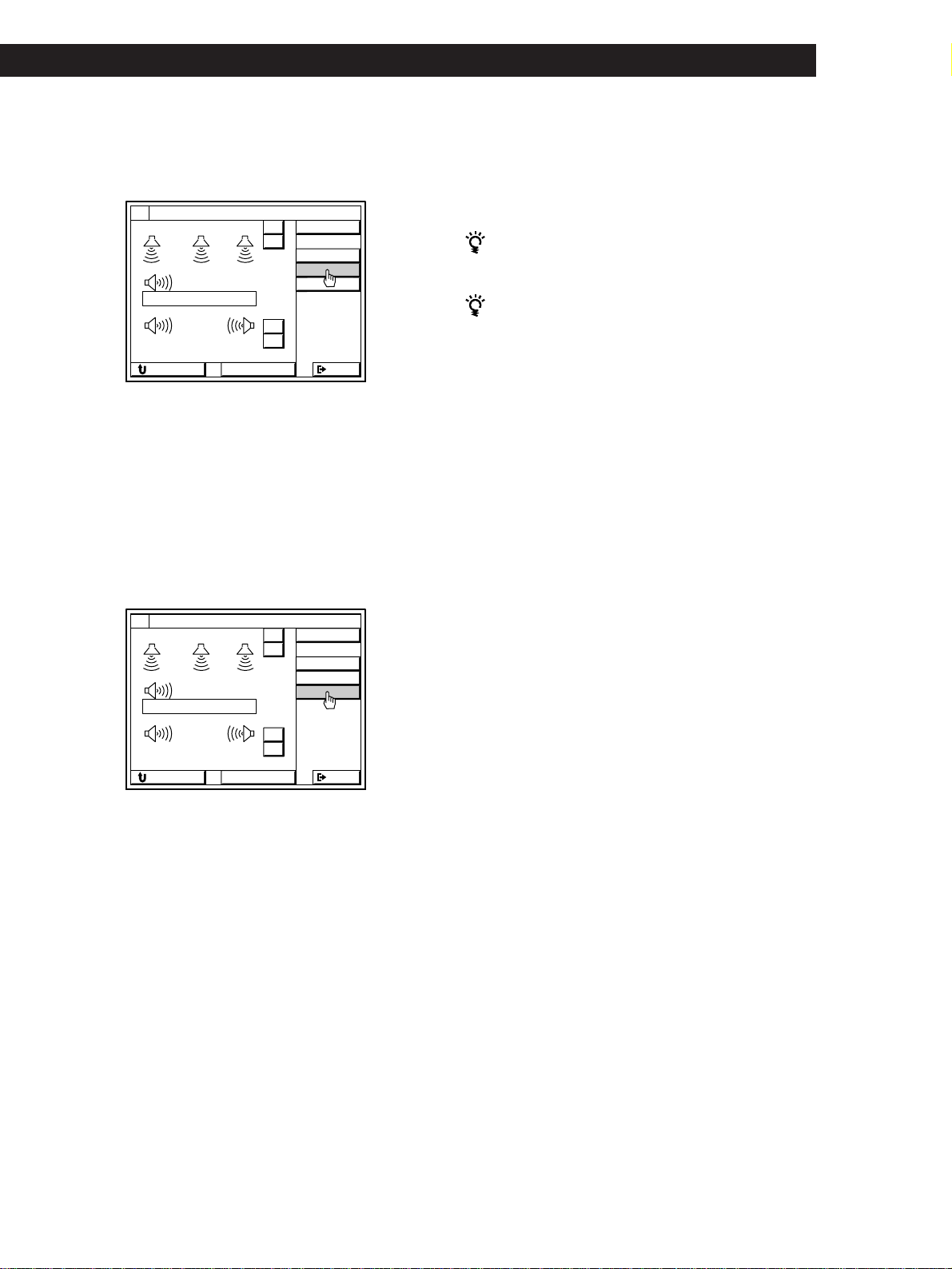
1 Click SOUND in the main menu.
2 Click PRO LOGIC, then click SUR.
Front speaker (R)
Center speaker
Front speaker (L)
Rear speaker (R)
Rear speaker (L)
Front speaker (L)
Front speaker (R)
PRO LOGIC SPORTS
GAME
MOVIE
MUSIC
EXIT
MODE
O N
O N
O N
SOUND FIELD
BASS BOOST
DIRECT PASS
OFF
OFF
OFF
SURTONE
PRO LOGIC
FUNCTION
SOUND SETUP
25
Dolby Pro Logic Surround SetupDolby Surround Setup
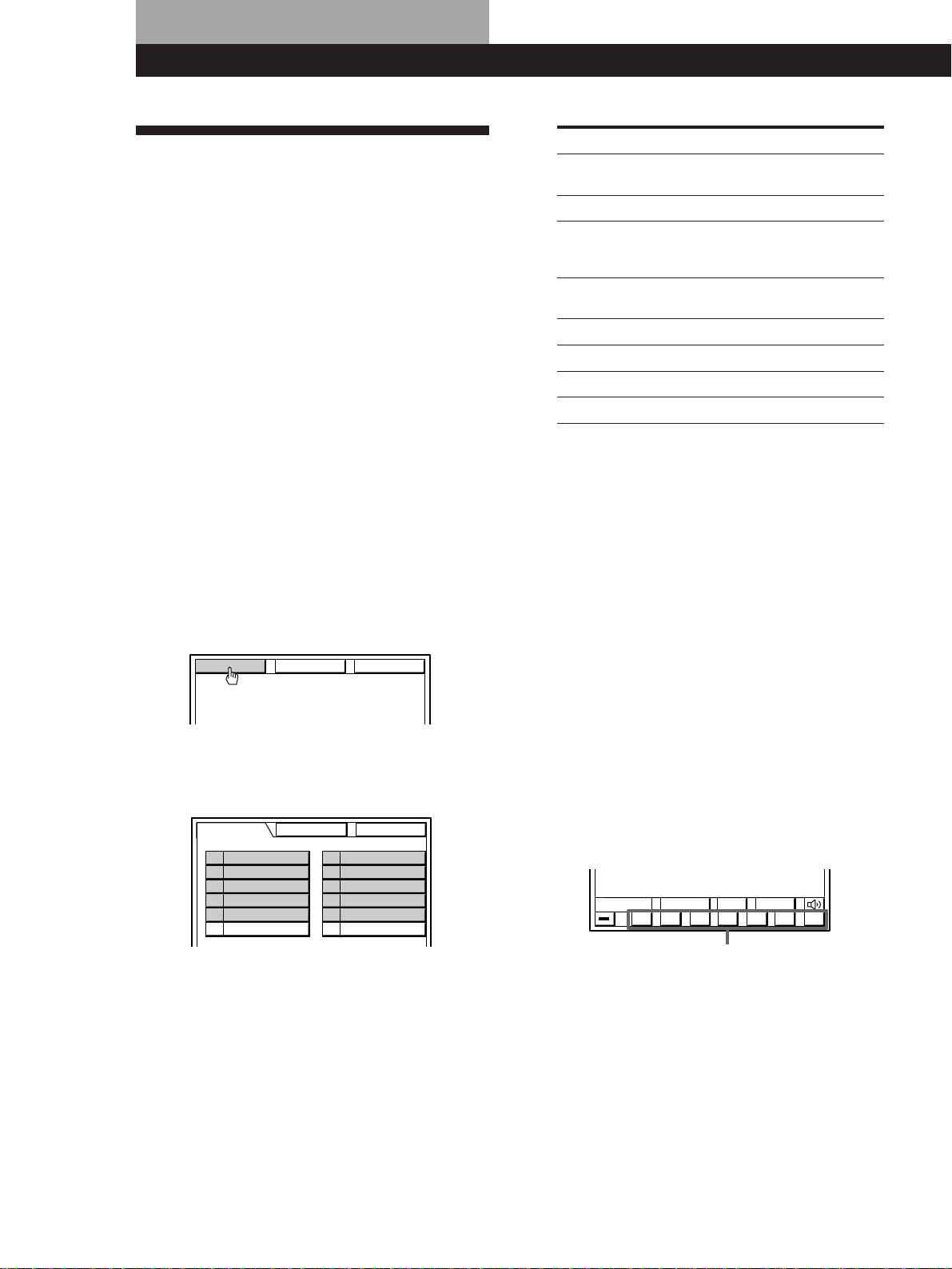
3 Click C MODE repeatedly to display the center
mode appropriate for your speaker system (see
page 24).
4 Click TEST.
You will hear a test tone from the speakers in the
following order. The speaker emitting the test
tone is shown in red on the SURROUND EDIT
menu.
WIDE, NORMAL: Front (left) n Center n
Front (right) n Rear
PHANTOM: Front (left and right) n Rear
3CH LOGIC: Front (left) n Center n Front (right)
5 Adjust the volume levels so that you hear the test
tone from each speaker at the same volume level
when you are in your listening position:
• Click CENTER + or – to adjust the level of the
center speaker from –15.0 dB to +10.0 dB (1
dB/steps).
During this adjustment, the test tone is emitted
from the center speaker.
• Click REAR + or – to adjust the level of the rear
speakers from –15.0 dB to +10.0 dB (1 dB/
steps).
During this adjustment, the test tone is emitted
from both speakers simultaneously.
6 Click TEST when you are done adjusting.
The test tone is turned off.
To return to the main menu
Click EXIT.
To return to a previous menu
Click RETURN.
You can adjust all speakers at one time
Use MASTER VOL on the remote.
You can increase the output level of the rear
speakers
You can raise the output of the rear speakers by 5 dB.
When turning on the receiver, press POWER and
MODE simultaneously to display “GAIN UP”. To
return the output level to normal, repeat this procedure
to display “GAIN NORMAL”.
SURROUND EDIT
DELAY
CENTER :
REAR :
+
–
LEVEL
C MODE
dB
dB
+
–
RETURN STANDARD
EXIT
TEST
WOOFER
0
0
NORMAL
SURROUND EDIT
DELAY
CENTER :
REAR :
+
–
LEVEL
C MODE
dB
dB
+
–
RETURN STANDARD
EXIT
TEST
WOOFER
0
0
NORMAL
26
Playback/Recording
Selecting a Component
You can listen to or watch a connected component by
clicking on the component in the on-screen display.
Before you begin, make sure you have:
• Registered the IR codes for the connected
components (see pages 17 to 21).
• Turned MASTER VOL on the front panel to the
leftmost position (0) to avoid damaging your
speakers.
• Set the Auto Play function to ON. (The factory
setting is ON, see page 44.)
• Selected the appropriate speaker system (see page
10).
• Set BALANCE on the front panel to the center
position.
1 Press the button on the remote once or twice to
turn on the receiver.
The TV turns on automatically, and the main
menu appears. If the TV does not turn on
automatically, see pages 17 to 18 to register your
TV.
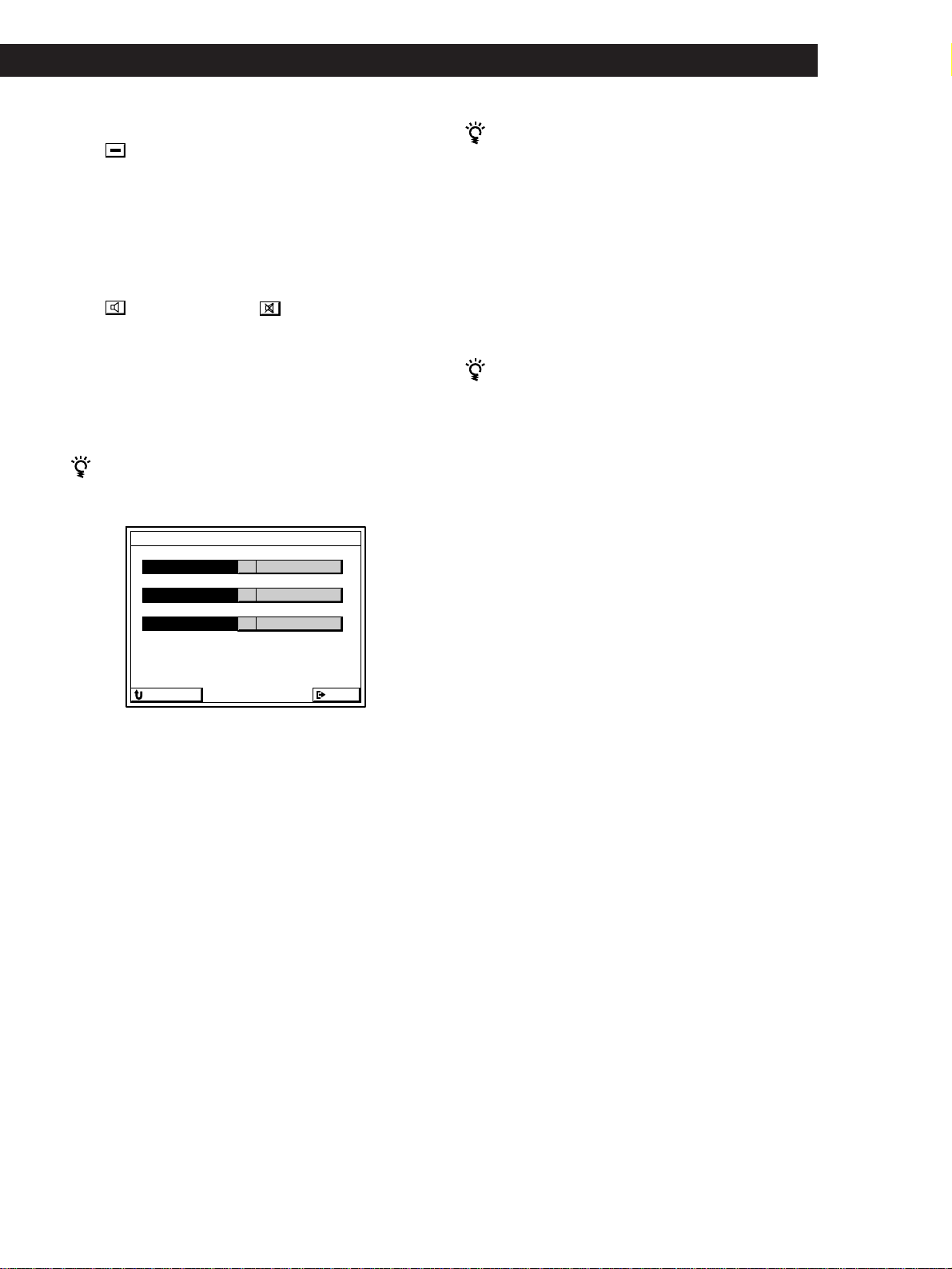
2 Click FUNCTION in the main menu.
3 Click the component you want.
The control buttons appear, then the component
turns on and starts playing automatically.
To listen to or watch Click*
1
TV programs*
2
or video tapes VIDEO 1, VIDEO 2
or VIDEO 3
Laser Discs (LD) or DVD LD/DVD
TV programs (only for Sony TV TV/DBS (or TV)*
3
with TV OUT jacks) or Digital
Broadcasting Satellites (DBS)*
2
Digital Audio Tapes (DAT) or DAT/MD
MiniDiscs (MD)
Compact Discs (CD) CD
Radio programs*
4
TUNER
Records PHONO*
5
Analog audio tapes TAPE
*
1
If you connect the component to jacks other than
those specified in the table, click the appropriate one
according to your connection (e.g., If you connect the
LD player to the VIDEO 3 jacks, click VIDEO 3 to
watch the LD).
*
2
For details about watching TV or controlling a DBS
receiver, see page 28.
*
3
TV/DBS : USA, Canada, and Australia
TV : Other countries
*
4
For details about tuning radio stations, see page 29.
*
5
Control buttons do not appear when you select
PHONO.
4 Use MASTER VOL + or – on the remote to adjust
the volume.
To adjust the volume of the TV's speakers, use the
volume control on the TV.
To operate the selected component, click the
control buttons. For details of the functions of the
control buttons, see the instructions of the
selected component. To display other control
buttons for the selected component, click SUB.
Control buttons
FUNCTION SOUND SETUP
VIDEO 1 TAPE
DAT / MD
VIDEO 2
CD
VIDEO 3
TUNER
L D / DVD
PHONOTV / DBS
MACRO 1
MACRO 2
FUNCTION SOUND
SETUP
USERSUBINPUT
()0pP=+
27
Playback/Recording
To turn off the selected component
Click in the bottom left corner. To turn on the
component, follow steps 1 to 3.
To turn off all components
Press SYSTEM OFF (for USA and Canadian models) or ALL
OFF (for other models) on the remote control.
To mute the sound
Click . The icon changes to . “MUTING” appears
in the display on the front panel. To turn the sound back on,
click on the icon again.
• For USA and Canada : You can also mute the sound by
pressing MUTING on the remote control. “MUTING”
appears in the display on the front panel. Press again to
restore the sound.
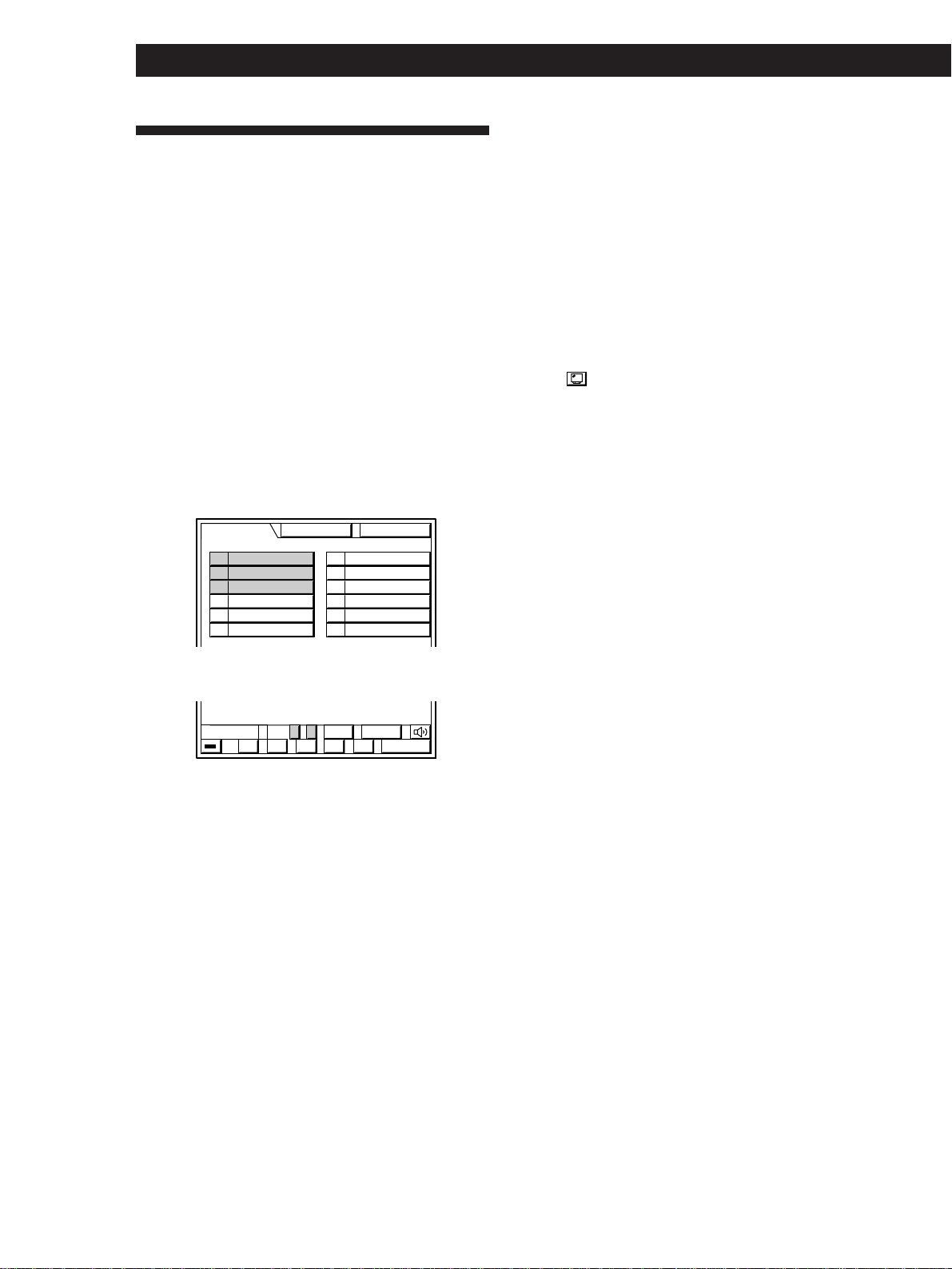
To listen to digital program sources (STR-DE1015G)
Click SETUP in the main menu, then click INPUT
MODE.
Click the buttons next to each program source to select
the audio signals you desire:
• AUTO : gives priority to digital signals when there
are both digital and analog connections. If there are
no digital signals, analog is selected.
• ANALOG : selects the analog audio signals input to
the AUDIO IN (L and R) jacks.
• DIGITAL (OPTICAL) : selects the digital audio
signals input to the DIGITAL OPTICAL IN jack.
• AC-3 RF : selects the digital RF audio signals input to
the DIGITAL AC-3 RF IN jack (LD/DVD only).
To listen to decoded Dolby Digital (AC-3) program
sources (STR-DE815/D760Z)
Click FUNCTION, then click 5.1 INPUT.
The video signal from the LD/DVD VIDEO IN jack is
automatically paired with the audio signals from the 5.1
INPUT jacks. When set to this mode, the audio signals
bypass the receiver‘s sound fields. To customize the
sound of the 5.1 INPUT, use the controls on your Dolby
Digital (AC-3) decoder.
To listen to the analog audio signals input to the LD/
DVD AUDIO (L and R) jacks, select LD/DVD from the
FUNCTION menu.
You can play video and audio components at the
same time
Play a video component you want, then play audio
component. Make sure the AUTO PLAY function is set
to off (see page 44).
Notes
• Components of the same type (e.g., Sony LD player) will
be controlled simultaneously by the on-screen controls.
• If a component does not respond, it may be because IR
codes from the IR emitter are not fully reaching the
component. In this case, connect the extra IR repeater
(supplied) and position it facing the component (see
“Infrared (IR) Repeater Hookups” on page 7). If the IR
repeater is already connected, change the position of the
IR repeater or program source.
• When 5.1 INPUT is selected, sound fields cannot be
selected or edited (STR-DE815G and STR-D760Z only).
INPUT MODE SETTING
EXITRETURN
LD/DVDAUTO
DAT/MDAUTO
CDAUTO
28
Playback/Recording
To watch TV programs using a Sony TV with TV OUT jacks
When connecting a Sony TV with TV OUT jacks, connect the
TV OUT jacks to this receiver’s TV/DBS* IN jacks, then set
the TV/DBS* function to “Sony TV.” This lets you watch TV
programs by selecting the TV/DBS* function. Also, use the
TV’s VIDEO LABEL function to set the video input jack (e.g.,
VIDEO 1 IN) connected to this receiver’s MONITOR OUT
jack to “RECEIVER.”
To change the video input of a Sony VCR
Click SUB, then click INPUT.
To switch the screen size when using a wide TV monitor
Click repeatedly to select the screen size you desire.
This operation is possible only when TV SIZE in the TV
MONITOR SET menu is set to WIDE (see page 17).*
* Except for Australian and Singaporean models.
• For USA and Canada : You can also switch the screen size
by pressing WIDE on the remote control repeatedly.
• For non-Sony TVs : You must register the IR code for the
wide TV mode button on your TV’s remote (see pages 17
and 18).
To control a Sony DBS receiver (USA, Canada and
Australia only)
1 Select the component to which you assigned Sony DBS
receiver IR codes (e.g., TV/DBS).
2 Click CURSOR MENU.
The DBS receiver control panel appears.
The icons in the cursor menu have the same function as
those on the DBS receiver (except for SELECT, which
substitutes for the enter button). Click the boarders at the
edge of the screen to move the DBS cursor.
To jump between the current and the previous
channels
Click JUMP.
To control StarSight functions of a Sony VCR (USA and
Canada only)
1 Select the component to which you assigned StarSight
VCR IR codes (e.g., VIDEO 1).
2 Click SUB
3 Click STARSIGHT.
The StarSight control panel appears.
Click the boarders at the edge of the screen to move the
StarSight cursor.
Watching TV or Video Programs
Use the TV tuner built-in to the VCR to watch TV
programs; otherwise, the on-screen display will change
to a TV program when you switch channels. Also, set
the VCR’s TV tuner to skip channels where there is no
broadcast so that an image is always displayed on the
TV screen; otherwise, the on-screen display will be
distorted.
Before you begin, make sure you have:
• Connected your TV and VCR to the receiver (see
pages 11 to 12).
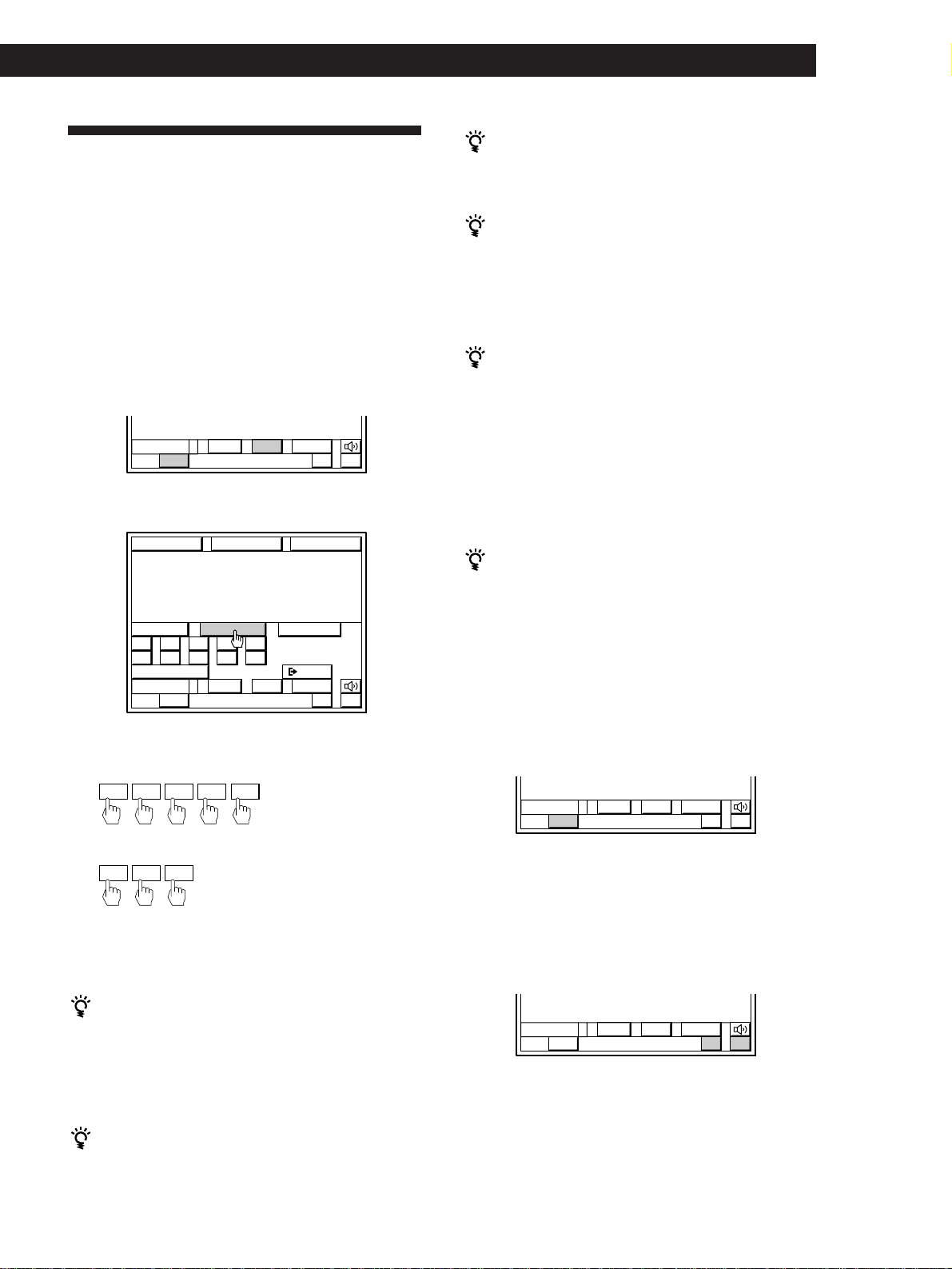
1 Select the appropriate VCR component (e.g.,
VIDEO 2).
Do not select TV/DBS*. If you select TV/DBS, the
Auto Play function (page 44) will not operate the
next time you select the VCR.
2 Click CH + or – to select the channel you desire.
* TV/DBS : USA, Canada and Australia
TV : Other countries
If the Auto Play function is set to on (page 44).
Be sure to click p to stop playback from the VCR before
clicking CH + or –.
VIDEO 1 TAPE
DAT / MD
VIDEO 2
CD
VIDEO 3
TUNER
L D / DVD
PHONOTV / DBS
MACRO 1
MACRO 2
FUNCTION SOUND
SETUP
USERSUB+
()0pP
REC
–
CH
29
Getting StartedPlayback/Recording
Tuning and Presetting Radio
Stations
The receiver lets you directly enter a station's
frequency using the number buttons (Direct Tuning).
You can also tune a station by scanning stations
(Automatic Tuning), and by selecting preset stations
(Preset Tuning: see page 30).
1 Click FUNCTION in the main menu, then click
TUNER.
2 Click FM/AM to select FM or AM, then click SUB.
3 Click DIRECT.
4 Click the number buttons to enter the frequency.
Example 1: FM 102.50 MHz
Example 2: AM 1350kHz
5 Repeat steps 2 to 4 to receive other stations.
If an FM stereo program is noisy
“STEREO” flashes next to the frequency. Click FM
MODE to change to monaural (MONO) reception.
There will be no stereo effect, but the reception will
improve. To return to the auto stereo mode, click this
icon again.
If “STEREO” remains off
Click FM MODE, even when an FM stereo broadcast is
received.
If an AM program is noisy
Adjust the direction of the AM loop antenna for
optimum reception.
If you cannot tune in a station and the entered
numbers are flashing
Make sure you have entered the right frequency. If not,
reenter the frequency you want.
If the entered numbers still flash, the frequency is not
used in your area.
If you enter a frequency not covered by the tuning
interval
The entered value is automatically rounded up or down
to the closest covered value.
Tuning intervals for Direct Tuning are:
FM: 50 kHz intervals
AM: 10 kHz intervals
(except for Australian and Singaporean models)
(to change to 9 kHz intervals, see page 64)
9 kHz intervals
To watch FM simulcast TV programs
Make sure that you tune in the simulcast program on
both the TV (or VCR) and the receiver.
Tuning radio stations by scanning stations
(Automatic Tuning)
1 Click FUNCTION in the main menu, then click
TUNER.
2 Click FM/AM to select FM or AM.
3 Click + or –.
The frequency indication changes and scanning
stops when the receiver tunes in a station. To
continue scanning, click + or – again. Click + for a
higher station number; click – for a lower one.
When the scanning is finished, the receiver starts
scanning again.
USERSUBLIST
+–
FM/AM
FM 102.50
M
H
z STEREO
USERSUBLIST
+–
FM/AM
FM 102.50
M
H
z STEREO
5 4 3 2 1
6 7 8 9
A B C
DIRECT
REC EDIT
0
FM MODE
EXIT
FUNCTION SOUND SETUP
1 0250
135
USERSUBLIST
+–
FM/AM
FM 102.50
M
H
z
STEREO
USERSUBLIST
+–
FM/AM
FM 102.50
M
H
z STEREO
(continued)
30
Playback/Recording
To change a preset station
Preset a new station at the number you want to change.
Note
If the AC power cord is disconnected for about 1 week, the
preset stations will be cleared. Preset the stations again.
Tuning preset stations (Preset Tuning)
1 Click FUNCTION in the main menu, then click
TUNER.
2 Click LIST.
3 Click A B C repeatedly to select the page, then
click the number button (0 to 9) of the station you
want.
To recall preset stations from the SUB menu
Click SUB, then click A B C repeatedly to select the
page, and then click the number button (0 to 9).
Presetting the radio stations
The receiver can store a total of 30 FM or AM stations.
You can store up to 10 stations in three different
“pages”: A, B and C, and recall them later with a
simple click. You can also assign names to the preset
stations (see page 43).
1 Tune in the station you want.
2 Click LIST.
The memory list appears.
3 Click A B C repeatedly to select the page (A, B, or
C) you want.
4 Click MEMORY.
MEMORY turns red.
5 Click the number button (0 to 9) you want.
The number button lights up and the station is
stored.
6 Repeat steps 1 to 5 to preset up to 30 stations.
You can also use + or – next to the frequency to
tune stations from the LIST menu.
USERSUBLIST
+–
FM/AM
FM 102.50
M
H
z
STEREO
+–
FM/AM
FM 102.50
M
H
z
STEREO
A B C MEMORY
EXIT
9
102
.
50MHzFM
0
102.50MHzFM
+–
FM/AM
FM 102.50
M
H
z STEREO
A B C MEMORY
EXIT
1
102.50MHzFM
2
102.50MHzFM
3
102.50MHzFM
4
102.50MHzFM
5
102.50MHzFM
6
102.50MHzFM
7
102.50MHzFM
8
102.50MHzFM
9
102.50MHzFM
0
102.50MHzFM
+–
FM/AM
FM 102.50
M
H
z STEREO
A B C MEMORY
EXIT
1
102.50MHzFM
2
102.50MHzFM
3
102.50MHzFM
4
102.50MHzFM
5
102.50MHzFM
6
102.50MHzFM
7
102.50MHzFM
8
102.50MHzFM
9
102.50MHzFM
0
102.50MHzFM
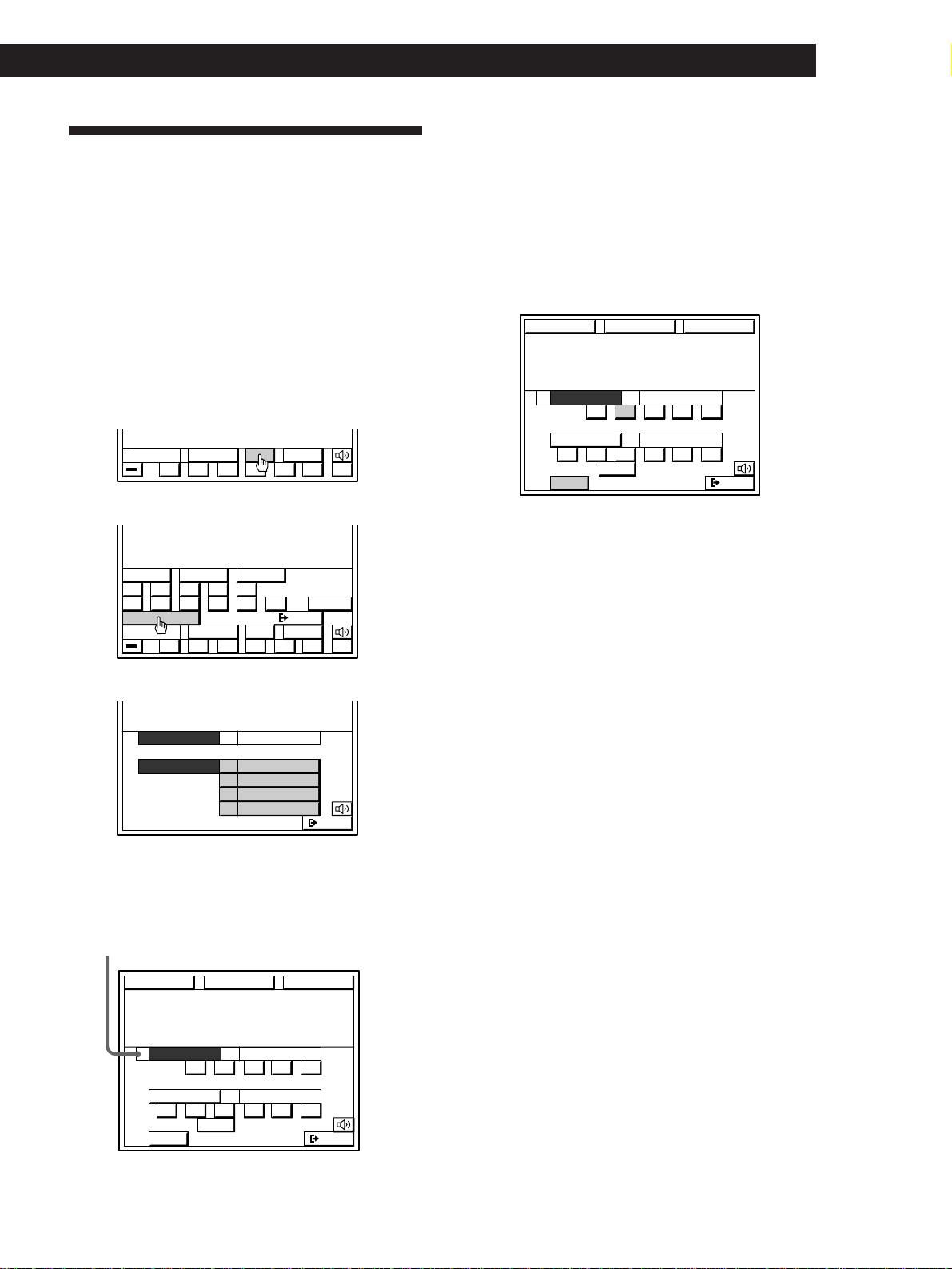
31
Getting StartedPlayback/Recording
Recording
You can control both playback and recording
components using the receiver's on-screen display. If
necessary, see the instructions of your recording
component.
p Recording to audio tape or MD
1 Click FUNCTION in the main menu.
2 Click the playback component you want (e.g.,
CD).
3 Click SUB.
4 Click REC EDIT.
5 Click a recording component (e.g., TAPE).
The control buttons for both components appear.
“PLAYER” for the playback component, and
“RECORDER” for the recording component.
The arrow indicates the operative component.
6 Insert a blank tape into the recording component
(tape deck, etc.) and adjust the recording level, if
necessary.
7 Click REC to start recording, then click the play
button (() on the PLAYER control.
Recording starts. Do not click any RECORDER
controls while recording. This will cut off the
source being recorded.
To stop recording
Click the recording component‘s p control.
To control the recorder after recording
Click RECORDER. RECORDER becomes the operative
component and you can use the RECORDER controls to
rewind and playback the recording (etc.).
Click PLAYER to operate the playback component.
To return to the main menu
Click EXIT.
Digital recording (STR-DE1015G only)
If you connect your CD player and DAT(or MD) deck using
digital connections (see page 13) and specify the OPTICAL
jacks for both components (see page 27), the previous
operations will let you make digital recordings from CD to
DAT (or MD).
Notes
• If you leave the REC EDIT menu by clicking FUNCTION,
SOUND, or EXIT, recording continues, but control returns
to the PLAYER side, even if you previously clicked
RECORDER.
• Some tape decks require that you press the r REC and (
buttons simultaneously to start recording. To perform
one-button recording from the on-screen display, be sure
to record the recording signal as shown in steps 1 to 7 of
“Registering IR codes” (pages 19 to 21).
• Sound input through the 5.1 INPUT jacks cannot be
recorded on a recording component (STR-DE815G only).
• When you record on a DAT or MD connected to the DAT/
MD REC OUT jacks, sound adjustments do not affect the
recording.
USERSUBINPUT
()0pP=+
USERSUBINPUT
()0pP=+
5 4 3 2 1
6 7 8 9
DISC
REC EDIT
10/0
EXIT
>10
ENTER
TRACK D. SKIP
TAPE
EXIT
DAT/MD
VIDEO 2
VIDEO 1
CD
RECORDER
PLAYER
EXIT
TAPE
CD
RECORDER
PLAYER
()0pP
()9pP0
A B
REC
/
FUNCTION SOUND SETUP
EXIT
TAPE
CD
RECORDER
PLAYER
()0pP
()9pP0
A B
REC
/
FUNCTION SOUND SETUP
(continued)
arrow
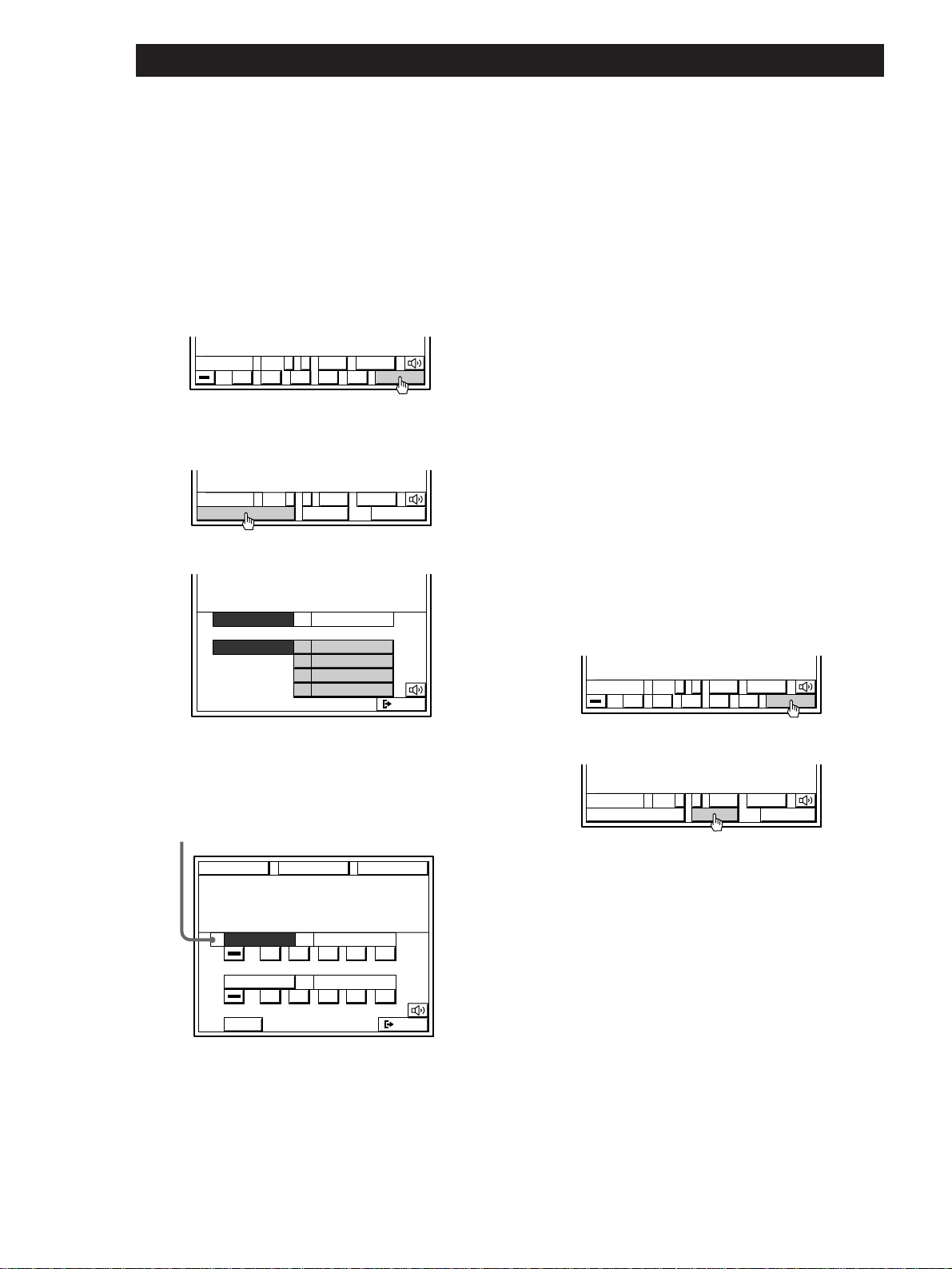
32
Playback/Recording
p Recording other components to video
tape
1 Click FUNCTION in the main menu.
2 Click the video playback component you want
(VCR 1, VCR 2, LD/DVD, etc.).
3 Click REC.
(If you selected LD/DVD or TV/DBS* in step 2
click SUB.)
4 Click REC EDIT.
(If you selected LD/DVD or TV/DBS* in step 2
click REC EDIT in the sub menu.)
5 Click a recording component (e.g., VIDEO 2).
The control buttons for both components appear.
“PLAYER” for the playback component, and
“RECORDER” for the recording component.
The arrow indicates the operative component.
6 Insert a blank tape into the recording component
(VCR, etc.) and adjust the recording level, if
necessary.
7 Click REC to start recording, then click the play
button (() on the PLAYER control.
Recording starts. Do not click any RECORDER
controls while recording. This will cut off the
source being recorded.
To stop recording
Click the recording component‘s p control.
To control the recorder after recording
Click RECORDER. RECORDER becomes the operative
component and you can use the RECORDER controls to
rewind and playback the recording (etc.).
Click PLAYER to operate the playback component.
To return to the main menu
Click EXIT.
p Recording TV programs to video tape
1 Click FUNCTION in the main menu and select a
VCR 1 or 2.
2 Tune in the TV program on your video deck.
3 Click REC.
4 Click REC again to start recording.
arrow
USERSUB+
()0pP
REC
–
CH
USERSUB+
CANCEL
–
CH
REC EDIT REC
TAPE
EXIT
DAT/MD
VIDEO 2
VIDEO 1
VIDEO 1
RECORDER
PLAYER
EXIT
VIDEO 2
VIDEO 1
RECORDER
PLAYER
()0pP
()0pP
REC
/
FUNCTION SOUND SETUP
USERSUB+
()0pP
REC
–
CH
USERSUB+
CANCEL
–
CH
REC EDIT REC
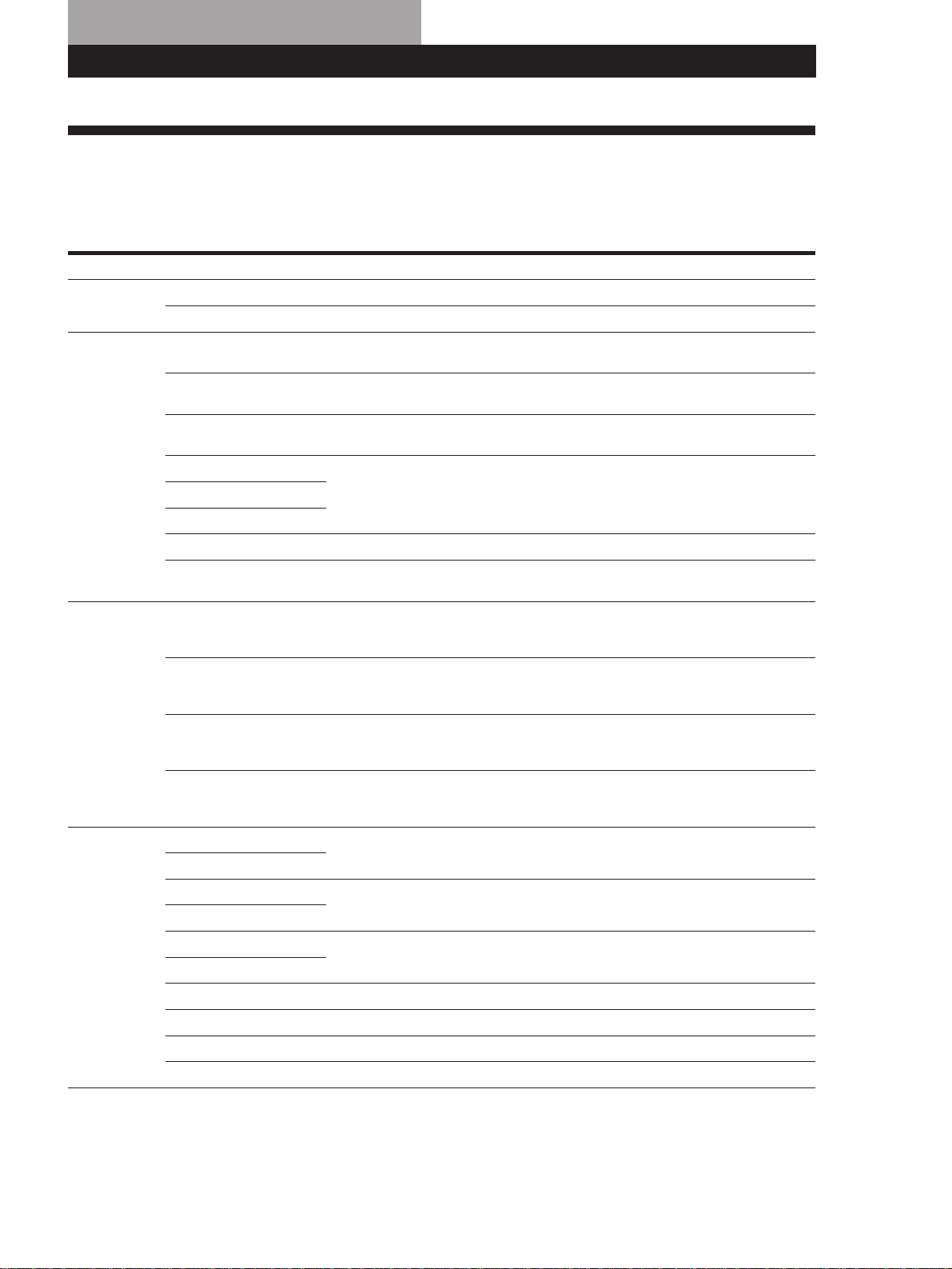
33
Sound Adjustment
Sound fields for STR-DE1015G
Genre Mode Surround effect
DOLBY*
1
NORMAL SURROUND Decodes programs processed with Dolby Surround.
ENHANCED SURROUND Additional output from rear speakers when decoding Dolby Surround programs.
MOVIE CINEMA STUDIO A Reproduces the sound characteristics of the Sony Pictures Entertainment “Cary
Grant Theater” cinema production studio.
CINEMA STUDIO B Reproduces the sound characteristics of the Sony Pictures Entertainment “Kim
Novak Theater” cinema production studio.
CINEMA STUDIO C Reproduces the sound characteristics of the Sony Pictures Entertainment scoring
stage.
SMALL THEATER
MEDIUM THEATER Adds acoustic reflections of a theaters to decoded Dolby Surround signals.
LARGE THEATER
NIGHT THEATER Compresses the dynamic range for listening at low volume levels.
MONO MOVIE Creates a theater-like environment from movies with 2-channel monaural
soundtracks.
3D VIRTUAL ENHANCED A Uses 3D sound imaging to create virtual rear speakers from the sound of the front
speakers without using actual rear speakers. The virtual speakers are reproduced as
shown in Ill. A on page 34.
VIRTUAL ENHANCED B Uses 3D sound imaging to create virtual rear speakers from the sound of the front
speakers without using actual rear speakers. The virtual speakers are reproduced as
shown in Ill. B on page 34.
VIRTUAL REAR SHIFT Uses 3D sound imaging to shift the sound of the rear speakers away from the actual
speaker position (Ill. C on page 34). The shift position differs according to the
setting of the rear speaker position (see page 22).
VIRTUAL MULTI REAR Uses 3D sound imaging to create an array of virtual rear speakers from a single pair
of actual rear speakers (Ill. D on page 34). The position of the virtual rear speakers
differs according to the setting of the rear speaker position (see page 22).
MUSIC SMALL HALL Reproduces the acoustics of a rectangular concert hall. Ideal for soft acoustic sounds.
LARGE HALL
SMALL OPERA HOUSE Reproduces the acoustics of an opera house. Ideal for musicals and operas.
LARGE OPERA HOUSE
SMALL JAZZ CLUB Reproduces the acoustics of a jazz club.
LARGE JAZZ CLUB
CHURCH Reproduces the acoustics of a church.
LIVE HOUSE Reproduces the acoustics of a rock and roll club.
KARAOKE Reduces the vocal tracks of normal 2-channel stereo music sources.
ACOUSTIC*
2
Reproduces normal 2-channel stereo with equalization (EQ).
Using the Pre-programmed Sound Fields
The sound fields let you select a sound characteristic to enhance the type of programs or music you are listening to.
To make the most out of this feature, we recommend that you connect center and/or rear speakers.
(continued)
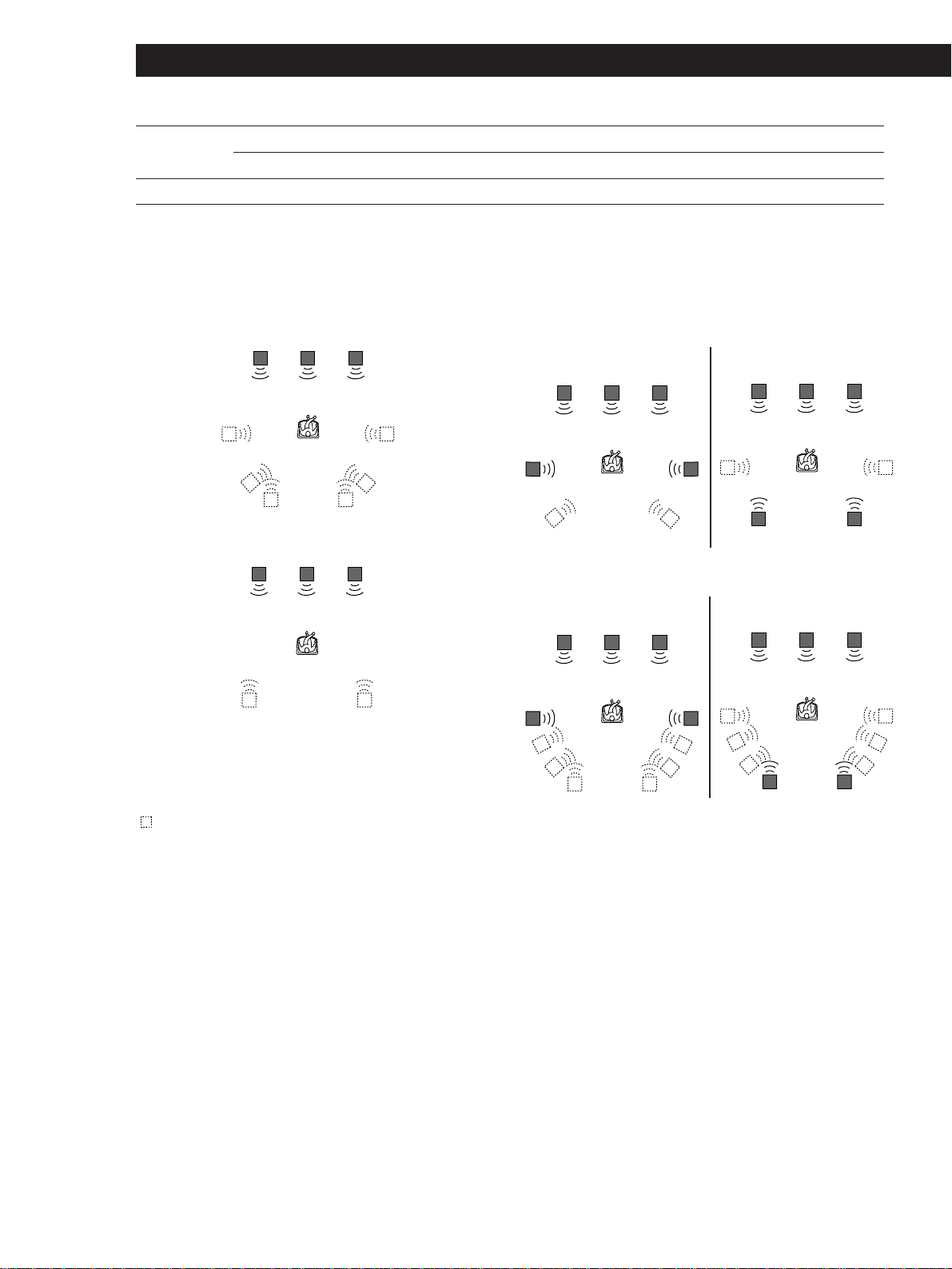
34
Sound Adjustment
*
1
If you select DOLBY, be sure to adjust the volume level of the center and/or rear speakers to get the most out of the Dolby
Digital (AC-3) Surround Sound (see page 22).
*
2
If you select ACOUSTIC, the hookups of the center and/or rear speakers are unnecessary.
Ill.A VIRTUAL ENHANCED (SURROUND) A
Ill.B VIRTUAL ENHANCED (SURROUND) B
Ill.C VIRTUAL REAR SHIFT
For REAR SP [SIDE]* For REAR SP [BEHIND]*
Ill.D VIRTUAL MULTI REAR
For REAR SP [SIDE]*
For REAR SP [BEHIND]*
L : Front speaker (left) * See page 10 for details on
R : Front speaker (right) how to set the rear speaker
C : Center speaker place.
SL : Rear speaker (left)
SR : Rear speaker (right)
: Virtual speaker
LCR
LCR
LCR
SRSL
LCR
SR
SL
LCR
SRSL
LCR
SRSL
SPORTS ARENA Reproduces the feeling of a large concert arena. Great for rock and roll.
STADIUM Reproduces the feeling of a large open-air stadium. Great for electric sounds.
GAME GAME Obtains maximum audio impact from video game software.
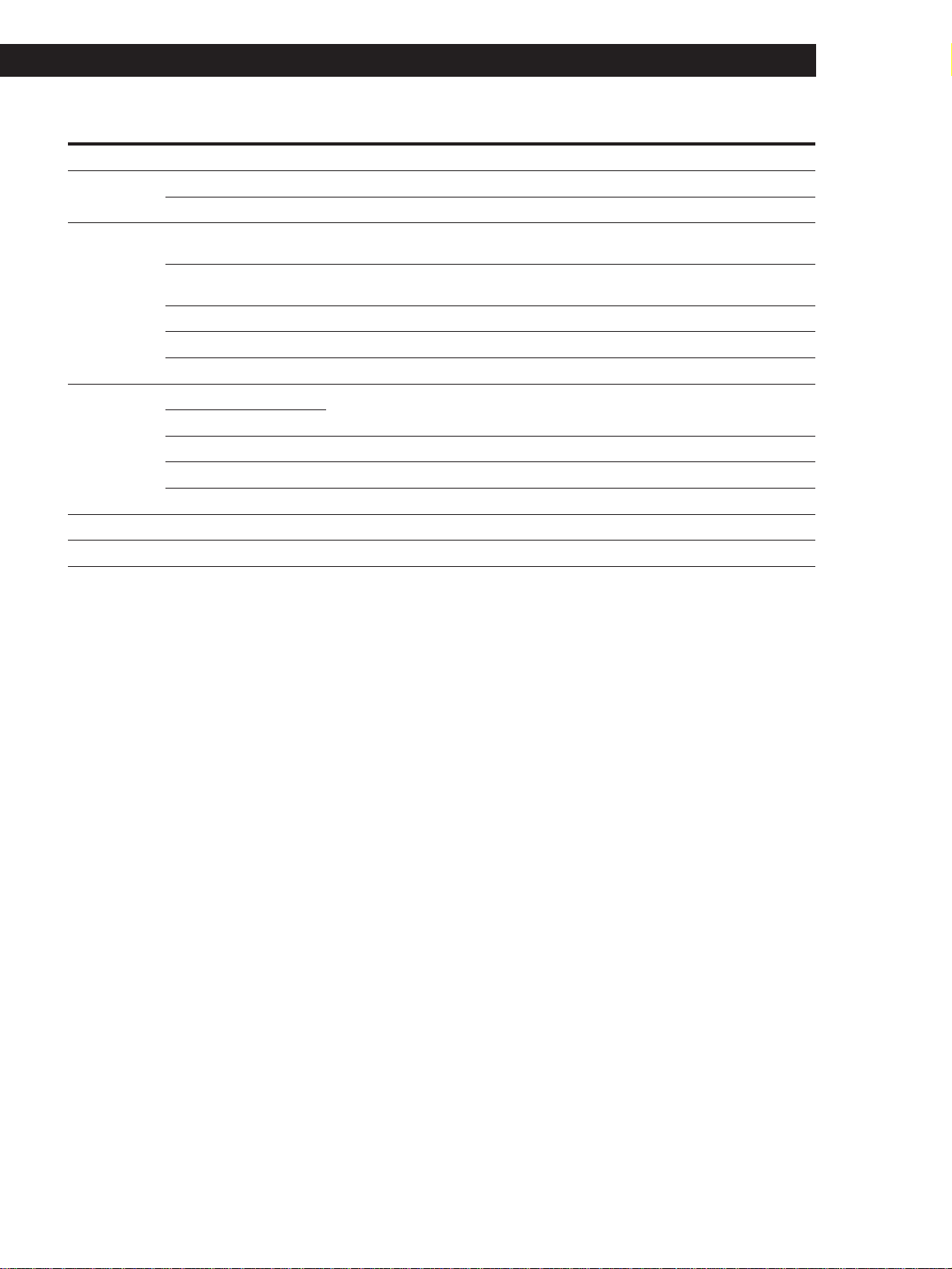
35
Getting StartedSound Adjustment
Sound fields for STR-DE815G and STR-D760Z
Genre Mode Surround effect
PRO LOGIC*
1
PRO LOGIC Decodes programs processed with Dolby Surround.
ENHANCED PRO LOGIC Additional output from rear speakers when decoding Dolby Surround programs.
MOVIE CINEMA STUDIO A Reproduces the sound characteristics of the Sony Pictures Entertainment “Cary
Grant Theater” cinema production studio.
CINEMA STUDIO B Reproduces the sound characteristics of the Sony Pictures Entertainment “Kim
Novak Theater” cinema production studio.
THEATER Adds acoustic reflections of a theater to decoded Dolby Surround signals.
NIGHT THEATER Compresses the dynamic range for listening at low volume levels.
MONO MOVIE Creates a theater-like environment from movies with monaural soundtracks.
MUSIC SMALL HALL Reproduces the acoustics of a rectangular concert hall. Ideal for soft acoustic sounds.
LARGE HALL
JAZZ CLUB Reproduces the acoustics of a jazz club.
LIVE HOUSE Reproduces the acoustics of a rock and roll club.
ACOUSTIC*
2
Reproduces normal 2-channel stereo with equalization (TONE).
SPORTS STADIUM Reproduces the feeling of a large open-air stadium. Great for electric sounds.
GAME GAME Obtains maximum audio impact from video game software.
*
1
If you select PRO LOGIC, be sure to adjust the volume level of the center and/or rear speakers to get the most out of the Dolby
Pro Logic Surround Sound (see pages 24 to 25).
*
2
If you select ACOUSTIC, the hookups of the center and/or rear speakers are unnecessary.
(continued)
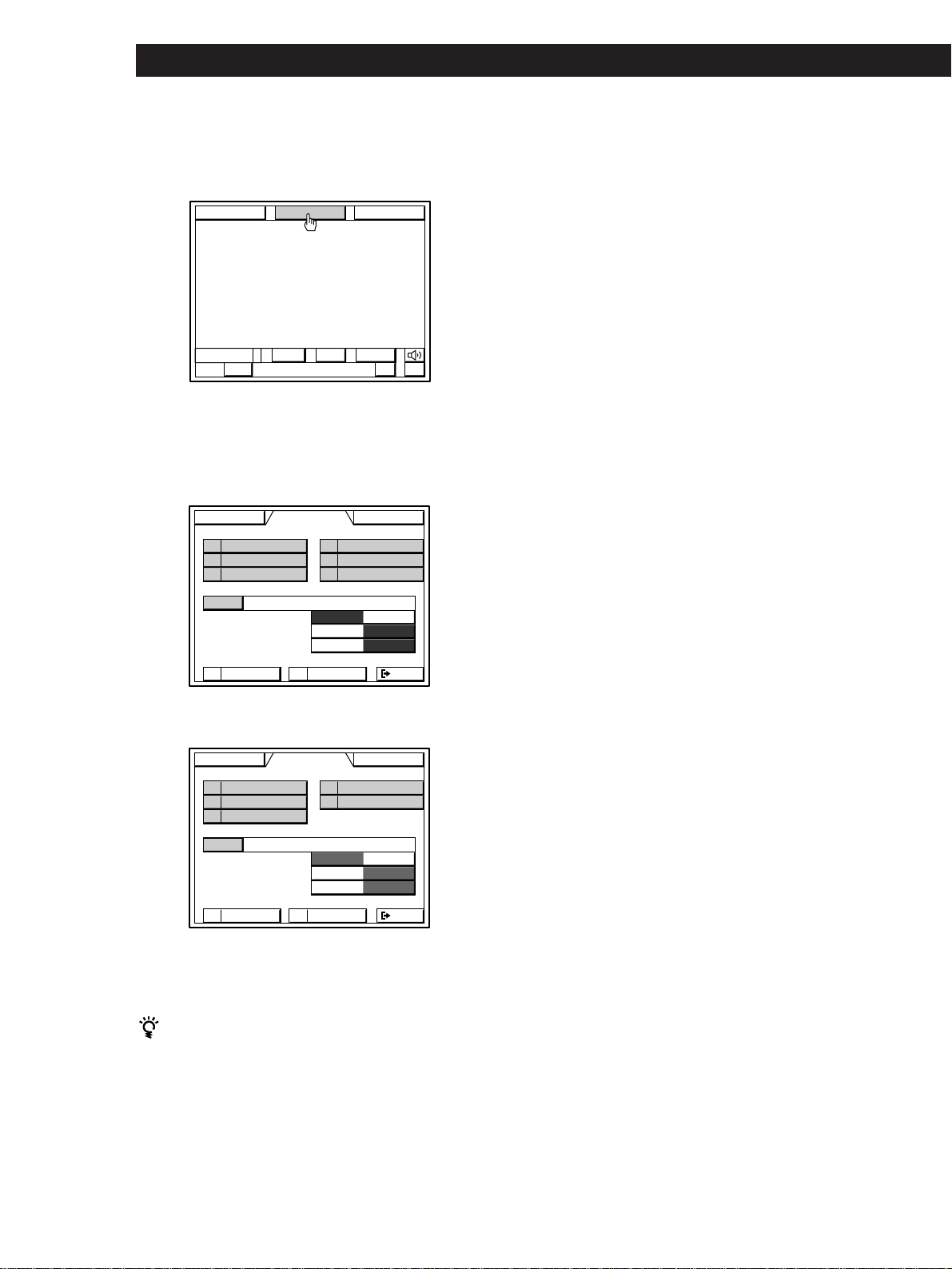
36
Sound Adjustment
Selecting the sound fields
1 While playing a component, click SOUND in the
main menu.
2 Click a sound field genre, then click MODE
repeatedly until the mode you want appears.
See “Sound fields. . .” charts on pages 33 and 35.
p STR-DE1015G
p STR-DE815G and STR-D760Z
To turn off the sound fields
Click SOUND FIELD OFF.
You can adjust the bass sound or listen to the music
directly in the SOUND FIELD SELECT menu
To increase the bass sound, click BASS BOOST ON. To
listen to the music without any audio effects, click
DIRECT PASS ON. Click OFF to cancel. Even if you set
SOUND FIELD to OFF, these functions are effective.
USERSUBLIST
+–
BAND
FM 102.50
M
H
z STEREO
FUNCTION SOUND SETUP
PRO LOGIC SPORTS
GAME
MOVIE
MUSIC
EXIT
MODE
O N
O N
O N
SOUND FIELD
BASS BOOST
DIRECT PASS
OFF
OFF
OFF
SURTONE
PRO LOGIC
FUNCTION
SOUND SETUP
DOLBY MUSIC
SPORTS
MOVIE
3D
EXIT
MODE
O N
O N
O N
SOUND FIELD
BASS BOOST
DIRECT PASS
OFF
OFF
OFF
SUREQ
NORMAL SURROUND
FUNCTION
SOUND SETUP
GAME
Notes on the output of Dolby Digital (AC-3) source
signals
When Dolby Digital (AC-3) encoded sources are played back
through this unit, the output method changes automatically
according to the information recorded on the source and the
settings of this unit.
• When playing a source encoded with discrete
information
If the “DOLBY” sound field or DIRECT PASS is set to
ON: The DISCRETE indicator lights up and the number
of channels recorded in the source are decoded and
output directly.
If a sound field (other than “ACOUSTIC” or
“KARAOKE”) is set to ON: The DISCRETE indicator
lights up and the number of channels recorded in the
source are decoded. The effects provided by each sound
field are then added to each channel before the sound is
output.
If the “ACOUSTIC” soundfield is selected or the
sound field is set to OFF: The source signal is
downmixed to 2 ch (Left and Right) stereo before
output. When “ACOUSTIC” is selected equalizer (EQ)
adjustments can be performed.
• When playing a source encoded with Dolby Pro Logic
information
If the “DOLBY” sound field or DIRECT PASS is set to
ON: “PRO LOGIC” appears in the display, the sound is
decoded using Pro Logic formula and output.
If a sound field (other than “ACOUSTIC”) is set to
ON: The effects provided by each sound field are added
to each channel before the sound is output.
When the sound field genre is MOVIE (except for
MONO MOVIE) or 3D the sound is decoded using the
Pro Logic formula and “PRO LOGIC” appears in the
display.
If the “ACOUSTIC” sound field is selected or the
sound field is set to OFF: The source signal is
downmixed to 2 ch (Left and Right) stereo before
output. When “ACOUSTIC” is selected equalizer (EQ)
adjustments can be performed.
Note on the “KARAOKE” mode
The KARAOKE mode is designed to reduce vocal tracks
positioned in the center of 2 channel sources. Therefore,
5.1 channel Dolby Digital (AC-3) sources must be
downmixed to 2 channels before the KARAOKE effect can
be applied. Consequently, the “DISCRETE” indicator does
not light when you select KARAOKE while inputting 5.1
channel Dolby Digital (AC-3) sources.
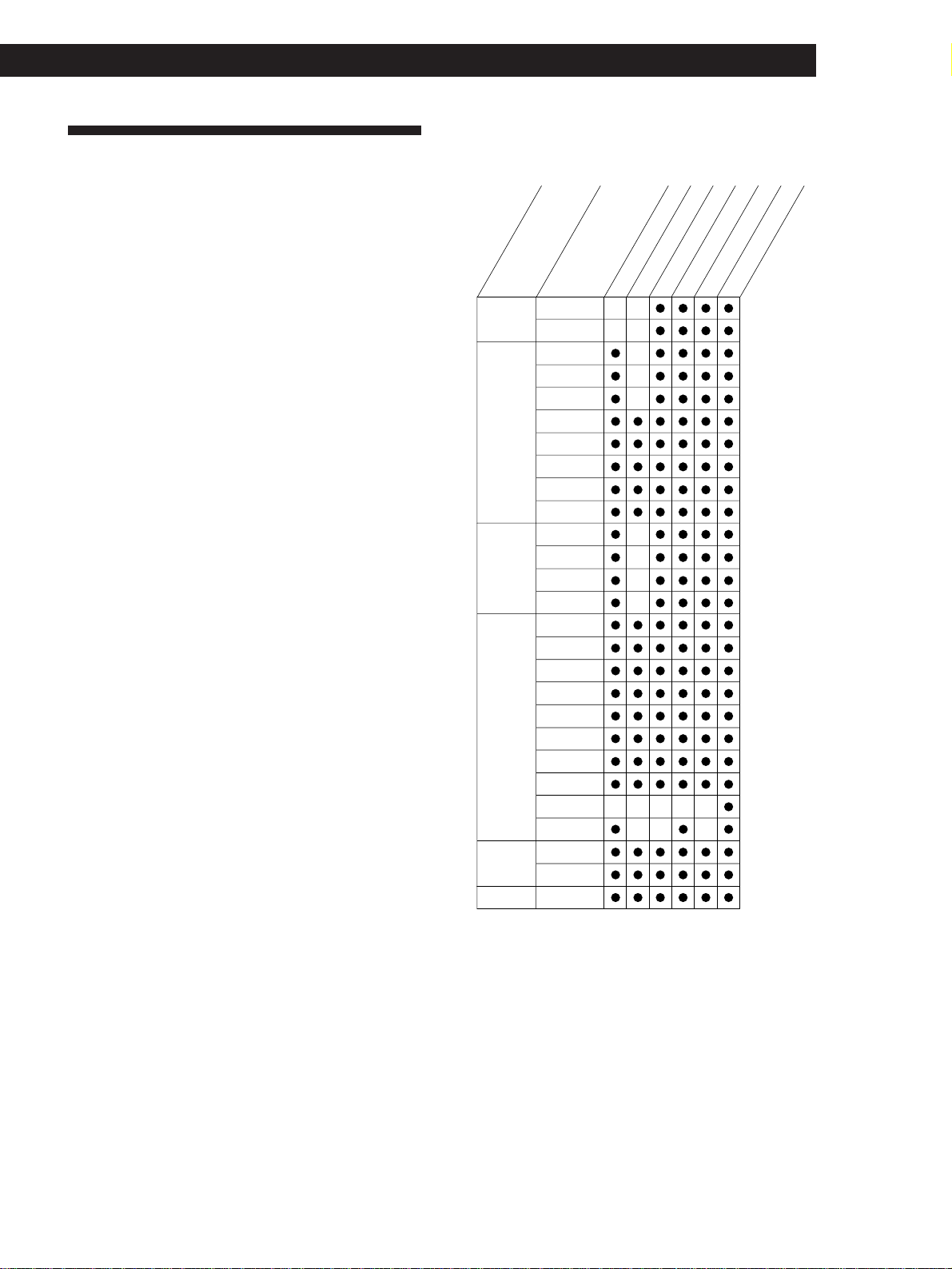
37
Getting StartedSound Adjustment
Adjustable sound parameters for
STR-DE1015G
EFFECT : Effect level
WALL : Wall type
SEAT (F-R/L-R) : Seat (Front-Rear/Left-Right)
REV : Reverberation time
LFE MIX : Low Frequency Effect Mix
D.COMP : Dynamic Compression
R (BAL/LEV) : Rear speaker level and balance
W LEV : Woofer Level
C LEV : Center Level
EQ : Equalizer parameter
* These settings are not stored separately for each sound
mode. They effects all of the sound modes simultaneously.
Customizing the Sound Fields
Each sound field is composed of a tone parameter
(bass/treble) and surround sound parameters —
variables of sound that create the sound image. You
can customize the sound fields by adjusting some of
the sound parameters (tone and/or surround sound
parameters) to suit your listening situation.
Also, since this receiver uses Digital Signal Processing
(DSP), you can adjust the sound parameters
electronically. DSP automatically converts analog
audio signals to digital, which lets you adjust the
sound with virtually no degradation in sound quality.
Once you customize the sound fields, they are stored in
memory unless the receiver is unplugged for about 1
week. To change a customized sound field, make new
adjustments to the sound field.
EQ
C LEV*
R (BAL/LEV)*/W LEV*
LFE MIX/D.COMP
WALL/SEAT (F-R/L-R)/REV
EFFECT
MODE
GENRE
NORMAL
ENHANCED
C STUDIO A
C STUDIO B
C STUDIO C
S THEATER
M THEATER
L THEATER
N THEATER
MONO MOVIE
VIRTUAL
ENHANCED A
VIRTUAL
ENHANCED B
VIRTUAL REAR
SHIFT
VIRTUAL
MULTI-REAR
S HALL
L HALL
S OPERA
HOUSE
L OPERA
HOUSE
S JAZZ CLUB
L JAZZ CLUB
CHURCH
LIVE HOUSE
ACOUSTIC
KARAOKE
ARENA
STADIUM
GAME
DOLBY
3 D
MUSIC
SPORTS
GAME
MOVIE
(continued)
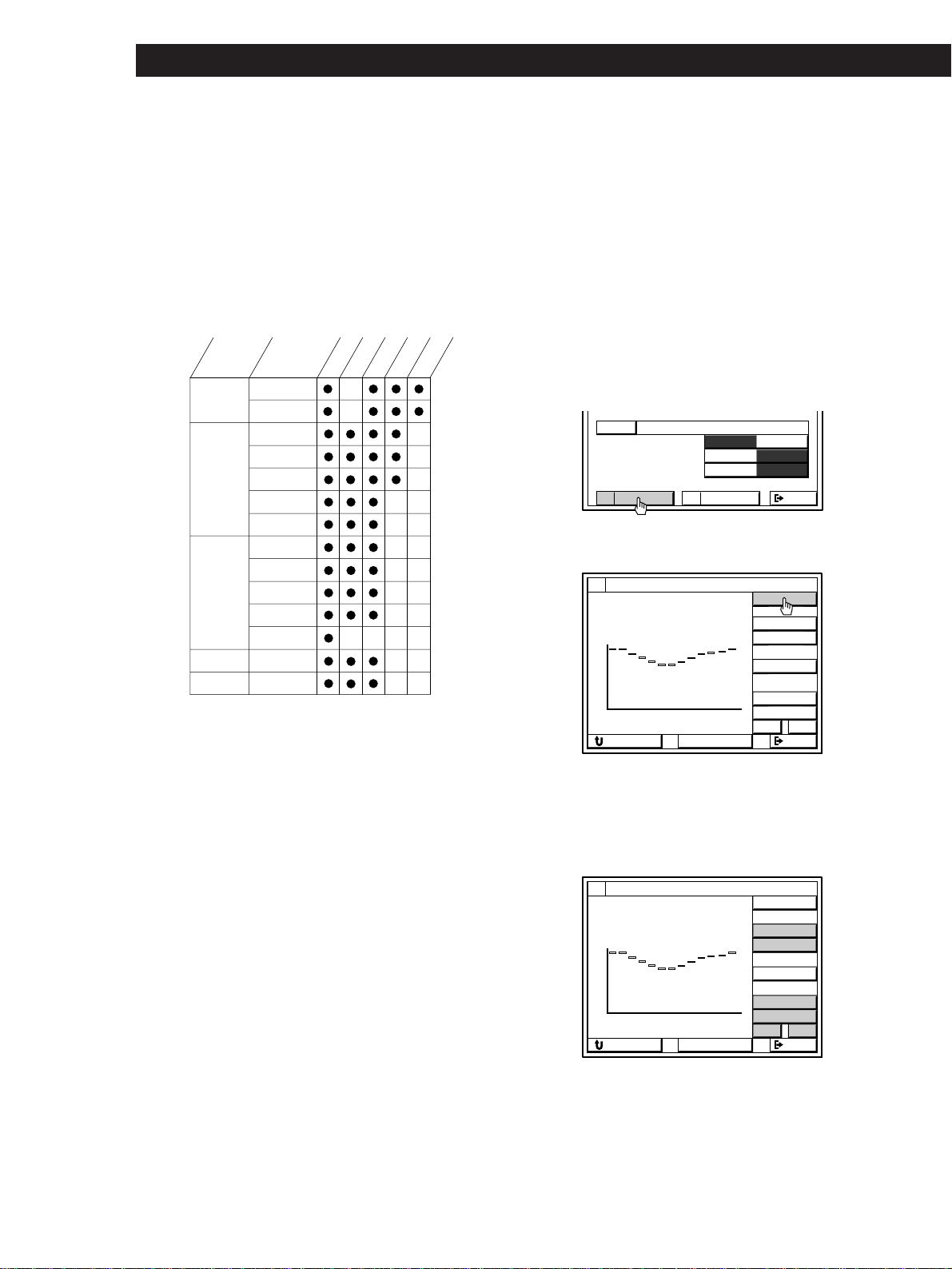
38
Sound Adjustment
Adjusting the equalizer parameter
(STR-DE1015G)
Adjust the equalization (bass or treble) of the front,
center and rear speakers for optimum sound.
The following adjustments effect all sound fields
simultaneously.
1 While playing a component, click SOUND in the
main menu.
2 Click a sound field genre, then click MODE
repeatedly until the mode you want appears.
3 Click EQ.
4 Click CHANNEL to select the speakers you want
to adjust (FRONT, CENTER or REAR).
5 Click BASS or TREBLE to select a frequency band.
Then click UP or DOWN to raise or lower the
level of the selected frequency.
Click B or b to select specific frequencies within
the frequency band.
6 Repeat steps 4 and 5 as necessary.
To start adjustment with a flat equalizer curve
Click FLAT.
EXIT
MODE
O N
O N
O N
SOUND FIELD
BASS BOOST
DIRECT PASS
OFF
OFF
OFF
SUREQ
THEATER
EQUALIZER EDIT
LEVEL :
CHANNEL
dB
RETURN STANDARD
EXIT
BASS
FLAT
+10
bB
FREQ : kHz1.0
100 10k
+10
–10
1k
TREBLE
DOWN
UP
FRONT
EQUALIZER EDIT
LEVEL :
CHANNEL
dB
RETURN STANDARD
EXIT
BASS
FLAT
+10
FREQ : kHz1.0
100 10k
+10
–10
1k
TREBLE
bB
DOWN
UP
REAR
DELAY
CENTER
REAR
EFFECT
TONE
MODE
GENRE
PRO LOGIC
ENHANCED
PRO LOGIC
C STUDIO A
C STUDIO B
THEATER
N THEATER
MONO MOVIE
S HALL
L HALL
JAZZ CLUB
LIVE HOUSE
ACOUSTIC
STADIUM
GAME
PRO LOGIC
MOVIE
MUSIC
SPORTS
GAME
1) 2)
1) 2)
1) 2)
1) 2)
1) 2)
Notes
• All sound fields can be used with Dolby Digital (AC-3)
sound sources.
• The EFFECT parameter allows you to adjust the overall
presence of the sound field.
• When DIRECT PASS is set to ON, only the R LEV, W LEV,
and C LEV parameters can be adjusted.
Adjustable sound parameters for
STR-DE815G and STR-D760Z
1) Adjustable only when the center mode is set to
PHANTOM, NORMAL, or WIDE (see page 24).
2) Adjustable only when the center mode is set to 3 CH
LOGIC, NORMAL, or WIDE (see page 24).
Notes
• To get the most out of the PRO LOGIC sound fields, also
see the chapter “Dolby Pro Logic (STR-DE815G and STR-
D760Z)” on page 24.
• The EFFECT parameter allows you to adjust the overall
presence of the sound field.
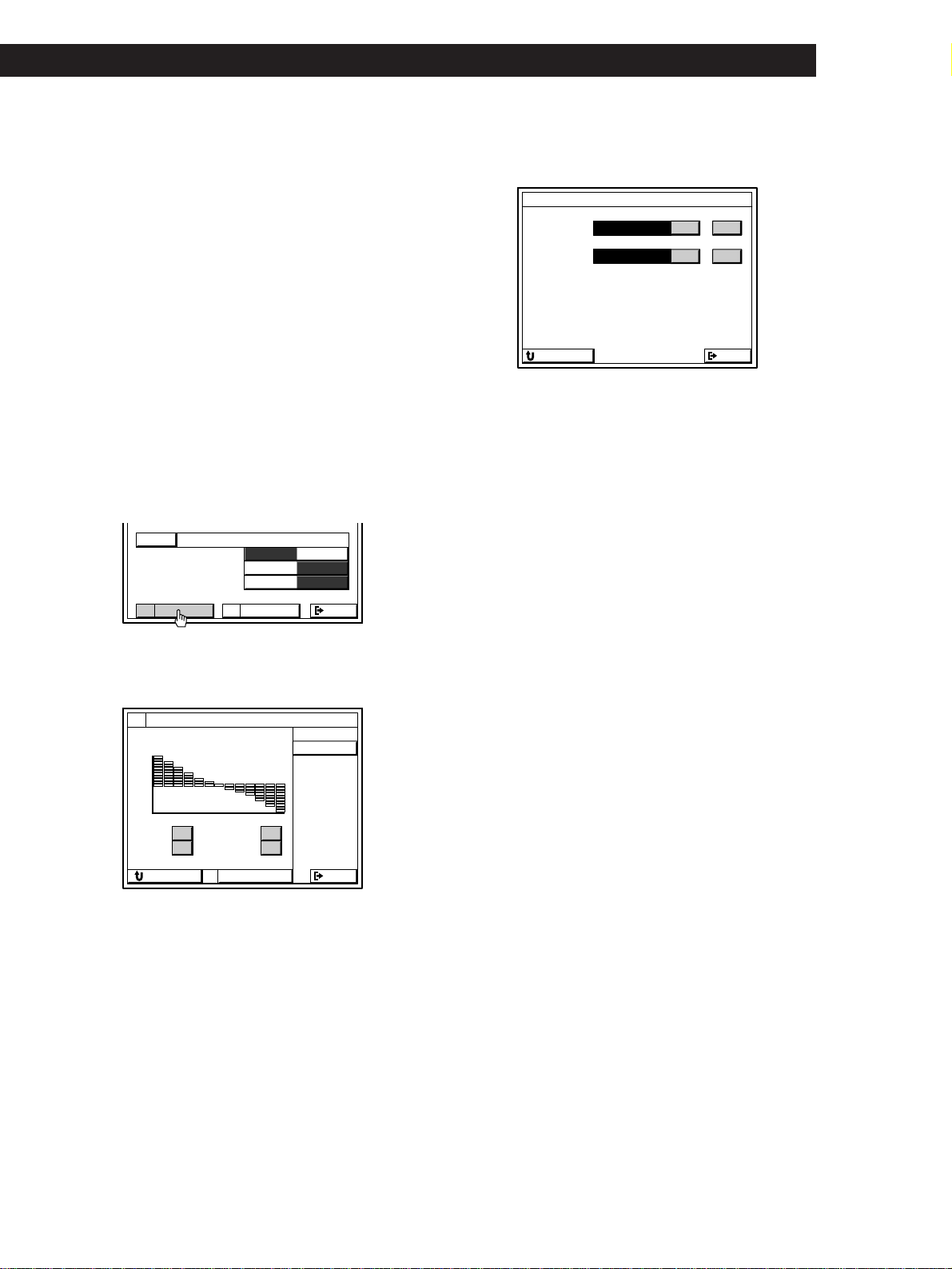
39
Getting StartedSound Adjustment
To reset the equalizer to the factory settings
Click STANDARD.
Note
You may hear some noise as you adjust the parameters.
Adjusting the tone parameter
(STR-DE815G and STR-D760Z)
Adjust the tone (bass or treble) of the front, center and
rear speakers for optimum sound. You can adjust the
tone of all sound fields.
1 While playing a component, click SOUND in the
main menu.
2 Click a sound field genre, then click MODE
repeatedly until the mode you want appears.
3 Click TONE.
4 Click BASS + or – to adjust the level of the low
frequencies and click TREBLE + or – to adjust the
level of the high frequencies.
To start adjustment with a flat equalizer curve
Click FLAT.
To reset the tone to the factory settings
Click STANDARD.
Note
You may hear some noise as you adjust the parameters.
EXIT
MODE
O N
O N
O N
SOUND FIELD
BASS BOOST
DIRECT PASS
OFF
OFF
OFF
SURTONE
THEATER
TONE EDIT
FLAT
RETURN STANDARD
EXIT
+10 dB
BASS TREBLE
++
-10 dB
+10
-10
––
(continued)
Adjusting the delay time (STR-DE1015G)
Click SETUP in the main menu, then click DELAY.
Click the buttons next to each setting to adjust the
delay time as you desire.
CENTER
Use this adjustment to add a sense of depth to the center
channel. Longer delay times create a greater sense of depth.
The CENTER delay can be set from 0 to 5 ms (in 1 ms steps).
REAR
Use this adjustment to add a sense of depth to the rear
channel. Longer delay times create a greater sense of depth.
The REAR delay can be set from 0 to 20 ms (in 5 ms steps).
Adjusting the delay time
(STR-DE815G and STR-D760Z)
The delay time is the time lag between the surround
sound output from front and rear speakers. You can
make the surround sound more effective by delaying
the output from the rear speakers. You can select
between three different delay times: 15ms, 20ms, and
30ms. For example, if you have placed the rear
speakers in a large room or apart from your listening
position, you might want to shorten the delay time.
Delay time adjustment is only available for the PRO
LOGIC genre.
1 Start playing a component encoded with Dolby
surround sound, then click SOUND in the main
menu to display the SOUND FIELD SELECT
menu.
2 Click PRO LOGIC, then click SUR.
DELAY SETTING
CENTER
EXITRETURN
REAR
p
p
ms
ms
0
5
+
–
+
–
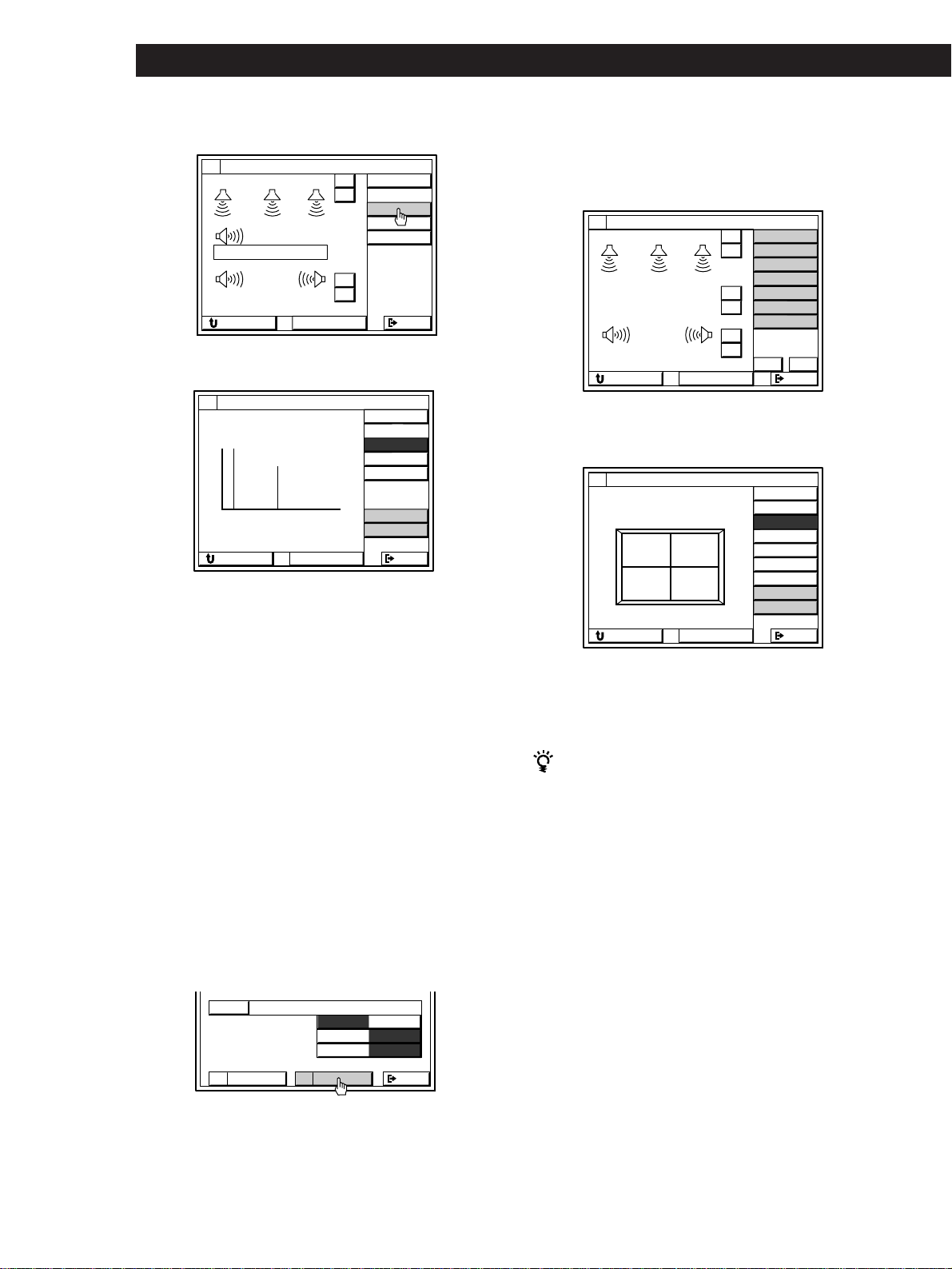
40
Sound Adjustment
SURROUND EDIT
WALL
EFFECT
LEVEL
SEAT
RETURN STANDARD
EXIT
OTHER
REVERB
TEST
TYPE : SOFT1
FRONT
HARD
SOFT
4 Click the icon for the parameter you want to
adjust.
The parameter chart for your selection appears.
See the next page for details of each adjustment.
5 Click an adjustment icon (+ / – , UP/DOWN,
SHORT, LONG, etc.,) to adjust the parameter.
To reset all parameters (except for the delay time) of the
current sound field to the factory settings.
Click STANDARD.
Hints for adjusting the parameters (STR-DE1015G)
• Wall material simulation (WALL)
When sound is reflected off soft material, such as a
curtain, the high frequency elements are reduced. A
hard wall is highly reflective and does not significantly
affect the frequency response of the reflected sound.
The WALL parameter lets you control the level of the
high frequencies to alter the sonic character of your
listening environment by simulating a softer (SOFT), or
harder (HARD) wall. The midpoint designates a neutral
wall (made of wood).
SURROUND EDIT
DELAY
TIME :
LEVEL
ms
RETURN STANDARD
EXIT
TEST
20
15 30
C MODE
LONG
SHORT
3 Click DELAY.
4 Click SHORT or LONG to adjust the delay time.
To reset the delay time to the factory settings
Click STANDARD.
Adjusting surround sound parameters
(except for delay time)
Adjust the surround sound parameters to fit your
listening situation. See the charts “Adjustable sound
parameters . . .” on pages 37 and 38 for parameters you
can adjust in each sound field.
1 While playing a component, click SOUND in the
main menu to display the SOUND FIELD
SELECT menu.
2 Click a sound field genre, then click MODE
repeatedly until the mode you want appears.
3 Click SUR.
EXIT
MODE
O N
O N
O N
SOUND FIELD
BASS BOOST
DIRECT PASS
OFF
OFF
OFF
SUREQ
THEATER
SURROUND EDIT
WALL
CENTER :
REAR :
+
–
EFFECT
LEVEL
SEAT
dB
dB
+
–
RETURN STANDARD
EXIT
OTHER
REVERB
TEST
BALANCE
+
–
WOOFER : dB
+10
+10
+10
[]
– – – – – – + – – – – – –
bB
REAR
SURROUND EDIT
DELAY
CENTER :
REAR :
+
–
LEVEL
C MODE
dB
dB
+
–
RETURN STANDARD
EXIT
TEST
WOOFER
0
0
NORMAL

41
Getting StartedSound Adjustment
•Seat position simulation (SEAT)
(FRONT/REAR and LEFT/RIGHT)
If you sit in the front of a room, you hear more direct
sound from the front speakers. As you move to the
rear, the reflected sound increases. Similarly, the
reflected sound changes when you move from left to
right, and vice versa.
The FRONT/REAR and LEFT/RIGHT parameters let
you control the balance of direct and reflected sound to
simulate your listening position.
In the FRONT/REAR parameter, “F” signifies the front
of the room and “R” signifies the rear. The midpoint
designates the center.
In the LEFT/RIGHT parameter, “L” signifies the left
side of the room and “R” signifies the right side. The
midpoint designates the center.
•Reverberation time (REVERB)
This parameter adjusts the length of time required for
the reverberation (echoes) generated from a given
sound to attenuate –60 dB.
You can choose shorter (S) or longer (L) reverberation
times.
•Low Frequency Extension (LFE) mix level (OTHER)
This parameter lets you attenuate the level of the LFE
(Low Frequency Extension) channel output from the
sub woofer without effecting the level of the bass
frequencies sent to the sub woofer from the front, center
or rear channels via the bass redirection circuitry. The
level can be adjusted in 0.5 dB steps from –20.0 dB to 0
dB (line level). 0 dB outputs the full LFE signal at the
mix level determined by the recording engineer.
Selecting MUTE mutes the sound of the LFE channel
from the sub woofer. However, the low frequency
sounds of the front, center, or rear speakers are output
from the sub woofer according to the settings made for
each speaker in the speaker setup (page 22).
•Dynamic range compression ratio (OTHER)
Lets you compress the dynamic range of the sound
track. This may be useful when you want to watch
movies at low volumes late at night.
OFF reproduces the sound track with no compression.
STD reproduces the sound track with the full dynamic
range as intended by the recording engineer.
0.1 ~ 0.9 allow you to compress the dynamic range in
small steps to achieve the sound you desire.
MAX provides a dramatic compression of the dynamic
range.
•Test tone (TEST)
This parameter emits the test tone and allows you to
check the balance of the speaker levels. See “Adjusting
the speaker volume” on page 23 for details.
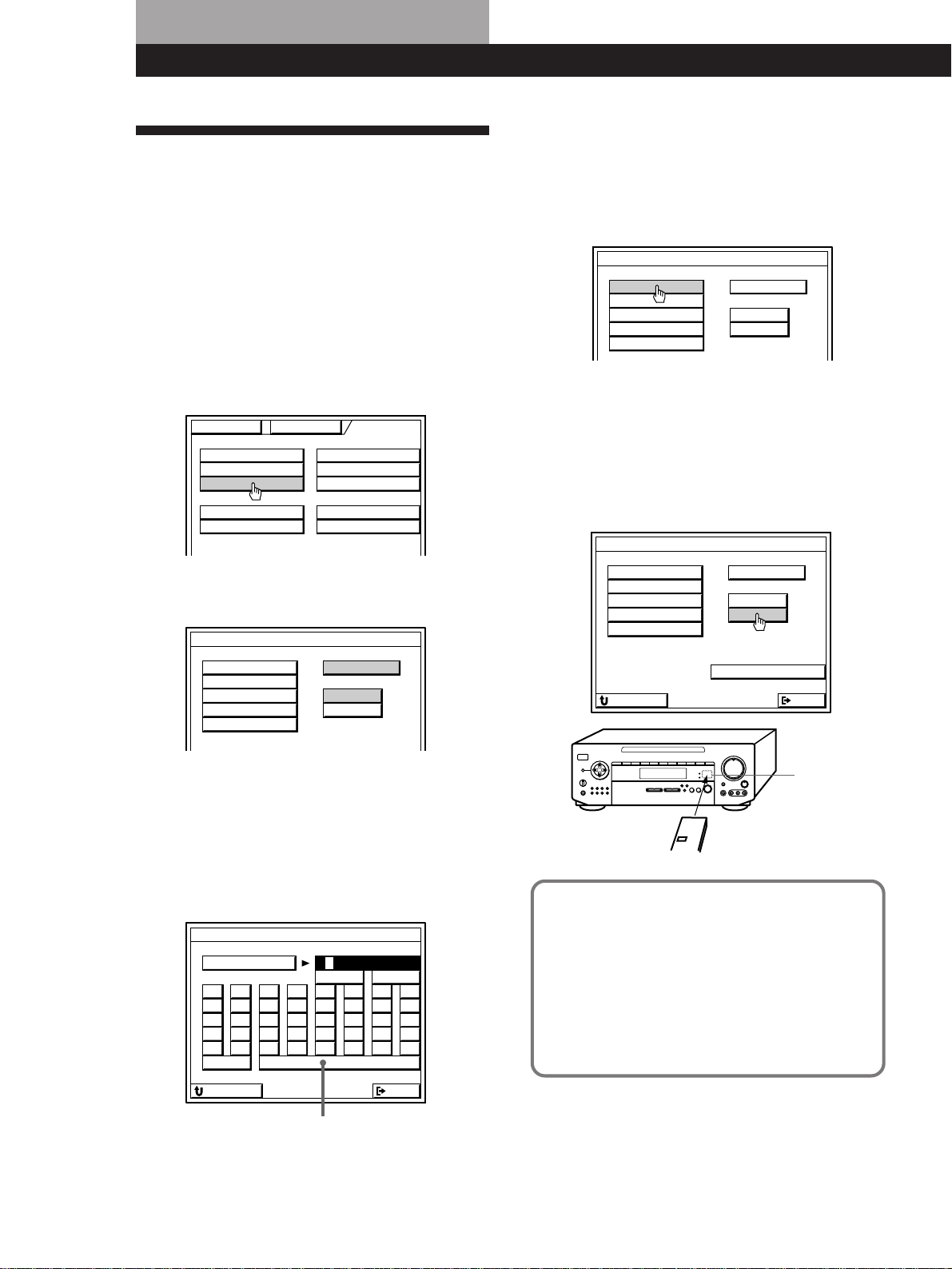
42
Additional Operations and Settings
Registering Desired
Components (User IR setting)
Use the USER IR CODE SETTING menu to register any
IR codes that could not be registered in “Registering
Audio and Video Components” on page 19. By
registering User IR codes, you can control a variety of
appliances (such as air conditioners) as well as audio/
video components. You can register up to 20 User IR
codes.
1 Click SETUP in the main menu to display the
SETUP menu, then click USER IR.
2 Click A B C D to select a User IR code page, then
click INDEX.
3 Create a name for the IR code by clicking each
character. The name is automatically stored. To
enter a space, click the space bar. To switch
between upper and lower case letters, click CAPS.
If you made a mistake, click ? or / to move the
cursor to the character to be changed, then click
the correct character.
4 Click RETURN to go back to the USER IR CODE
SETTING menu, then repeat steps 2 to 4 until you
enter the names of all the IR codes you want to
register.
5 Click the name of the first IR code.
6 Cover the IR sensor on the respective component
to prevent accidental operation during the
registration procedure.
7 Click START.
When “PUSH YOUR REMOTE” appears on the
TV screen, press the button you want to register.
When registering the IR code, be sure to do the
following; otherwise, the IR code may not be
registered correctly.
• Point the remote at the IR sensor on the
receiver from a distance of less than 2 inches (5 cm).
• Hold down the button on the remote for about 2 or 3
seconds until the “RECEIVING” display switches to
“RELEASE YOUR REMOTE”.
• Keep the remote pointed horizontally at the IR sensor
until the code is registered.
To register a specific IR code
Click the button where the IR code was registered, then click
START.
IR sensor
Your component's remote
Space bar
TV FUNC
CD
IR
TUNER
USER IR
SET
SET
INDEX
INDEX
INDEX
AUTO START SLEEP TIMER
OSD SETUP
MACRO PLAY
FUNCTION SOUND SETUP
USER IR CODE SETTING
START
INDEX
A B C D
USER A1
USER A2
USER A3
USER A4
USER A5
USER IR CODE SETTING
A
F
K
P
U
B
G
L
Q
V
C
H
M
R
W
D
I
N
S
X
E
J
O
T
Y
1
4
7
/
Z
2
5
8
0
–
3
6
9
*
+
bB
CAPS
EXITRETURN
USER IR CODE SETTING
START
INDEX
A B C D
LIGHT 1
LIGHT 2
LIGHT 3
LIGHT 4
LIGHT 5
USER IR CODE SETTING
START
INDEX
A B C D
CODE CLEAR
EXITRETURN
LIGHT 1
LIGHT 2
LIGHT 3
LIGHT 4
LIGHT 5

43
Additional Operations and Settings
Notes
• If the AC power cord is disconnected for about two weeks,
the registered IR codes will be cleared. “ALL CLEAR!”
will appear on the TV screen the next time you turn on the
receiver.
• The power switch on some air conditioners use two
independent IR codes, even when there is only one switch.
If you cannot turn the air conditioner off with the IR code
registered for the on/off switch, repeat the procedure and
register the on and off IR codes separately.
• The receiver may not be able to register IR codes with
special waveforms produced on some remote controls.
Erasing IR codes
Click CODE CLEAR in the USER IR CODE SETTING
menu.
• To erase a specific IR code
1 Click SINGLE IR CODE CLEAR.
2 Click the button you want to clear.
“Are you sure?” appears.
3 Click YES to erase the code.
“CODE CLEAR!” appears.
To cancel erasing, click NO.
To erase another code, repeat steps 2 and 3.
• To erase all the User IR codes
1 Click USER IR CODE CLEAR.
“Are you sure?” appears.
2 Click YES to erase the codes.
“CODE CLEAR!” appears.
To cancel erasing, click NO.
Indexing
The Index functions let you specify icons for each
function button and names up to 8 characters long for
each function button and preset radio station.
1 Click SETUP in the main menu to display the
SETUP menu, then click FUNC INDEX or TUNER
INDEX.
2 • For the function buttons (FUNCTION INDEX)
1 Click the icon to be specified.
2 Click the icon you want from the icon menu,
then click RETURN.
3 Click the function button to be specified.
• For the preset radio stations (TUNER INDEX)
1 Click LIST TUNER to display the list of the
preset frequencies
2 Click ABC to select the page, then select the
station to be named.
3 Create the new name by clicking each character.
The name is stored automatically. To enter a
space, click the space bar. If you made a mistake,
click ? or / to move the cursor to the character
to be changed, then click the correct character.
Space bar
Icons Function buttons
TV FUNC
CD
IR
TUNER
USER IR
SET
SET
INDEX
INDEX
INDEX
FUNCTION SOUND SETUP
INDEX SETTING
VIDEO 1 TAPE
DAT / MD
VIDEO 2
CD
VIDEO 3
TUNER
L D / DVD
PHONOTV / DBS
MACRO 1
MACRO 2
1
102.50MHzFM
2
102.50MHzFM
3
102.50MHzFM
4
102.50MHzFM
5
102.50MHzFM
INDEX SETTING
A
F
K
P
U
B
G
L
Q
V
C
H
M
R
W
D
I
N
S
X
E
J
O
T
Y
1
4
7
/
Z
2
5
8
0
–
3
6
9
*
+
bB
CAPS
EXITRETURN
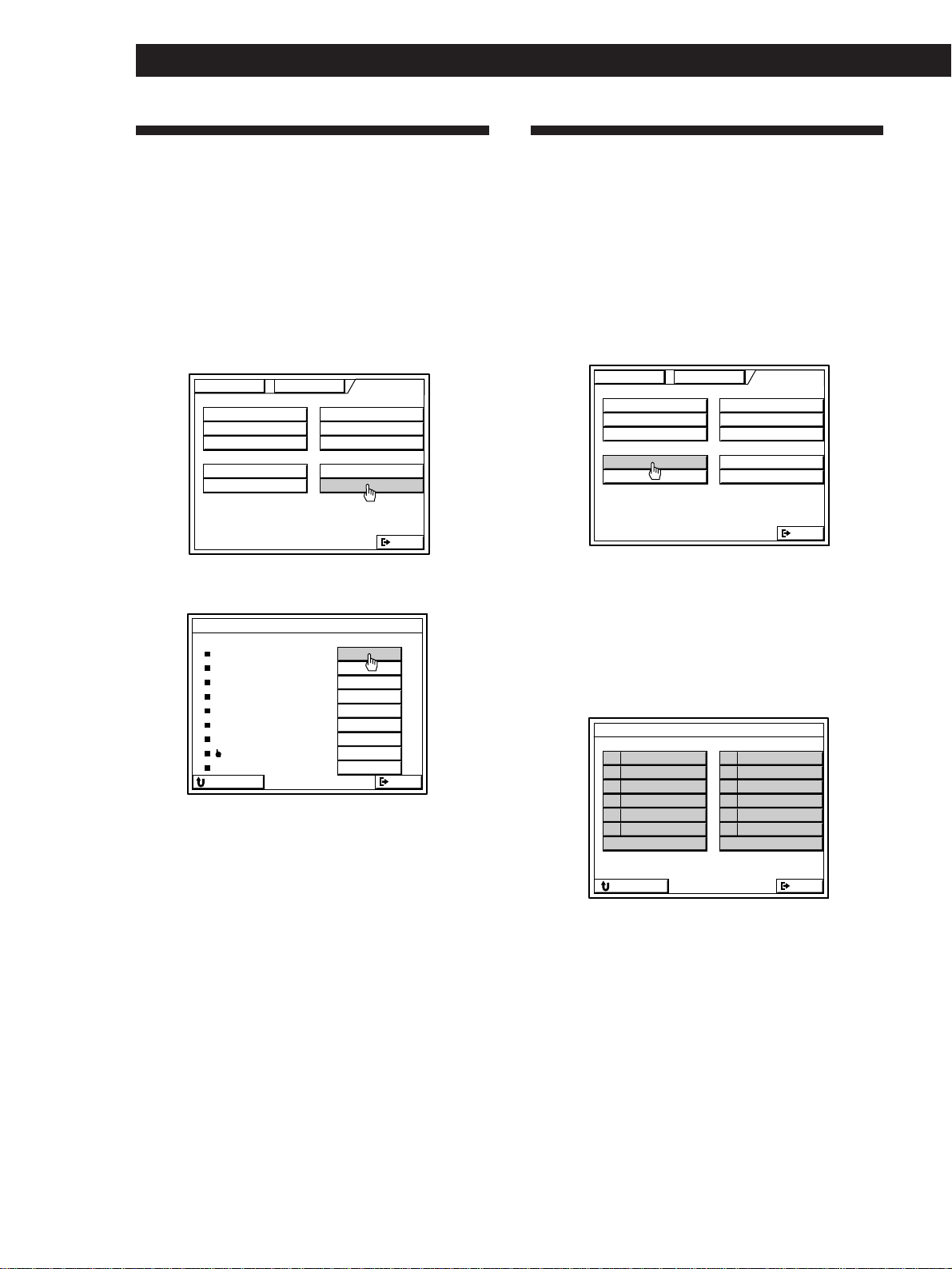
44
Additional Operations and Settings
Starting a Component
Automatically at Power On
(Auto Start)
The Auto Start function lets you set the receiver to start
playing a specific component immediately whenever
you turn on the receiver.
1 Click SETUP in the main menu to display the
SETUP menu, then click AUTO START.
2 Click the component you want.
• To start the last-played component
automatically when you turn on the receiver,
click LAST.
• To do a macro automatically when you turn on
the receiver, click MACRO 1 or MACRO 2. Be
sure that the Auto Play function is set to on.
To cancel the Auto Start function
Click NO SET in step 2.
Note
A Macro Play setting containing the ALL OFF command
cannot be selected for Auto Start.
Playing Components
Automatically (Auto Play)
The Auto Play function lets you set the receiver to start
playing the components immediately after they are
selected from the FUNCTION SELECT menu. The
receiver comes from the factory with Auto Play set to
on.
1 Click SETUP in the main menu to display the
SETUP menu, then click OSD SETUP.
2 Click AUTO PLAY ON or OFF.
Notes
• The Auto Play function does not work when you operate
the receiver from the front panel.
• The receiver cancels the automatic playback function of
components designed to start playing when they are
turned on (such as laser disc and CD players). To activate
the auto play function, set the receiver’s Auto Play to on.
OSD SETUP
AUTO PLAY
DEMO
IR OUTPUT
SEE-THROUGH
FEELING
LANGUAGE
AUTO OSD ERASE
POINTER ONLY
OFF
ON OFF
ON OFF
ON OFF
ENGLISH
SET
1 2 3 4 5
START
EXIT
RETURN
ON
OSD POSITION
SET
TV FUNC
CD
IR
TUNER
USER IR
EXIT
SET
SET
INDEX
INDEX
INDEX
AUTO START SLEEP TIMER
OSD SETUP
MACRO PLAY
FUNCTION SOUND SETUP
TV FUNC
CD
IR
TUNER
USER IR
EXIT
SET
SET
INDEX
INDEX
INDEX
AUTO START SLEEP TIMER
OSD SETUP
MACRO PLAY
FUNCTION SOUND SETUP
AUTO START SETTING
VIDEO 1 TAPE
DAT / MD
VIDEO 2
CD
VIDEO 3
TUNER
L D / DVD
PHONOTV / DBS
MACRO 1
MACRO 2
EXIT
NO SET
LAST
RETURN
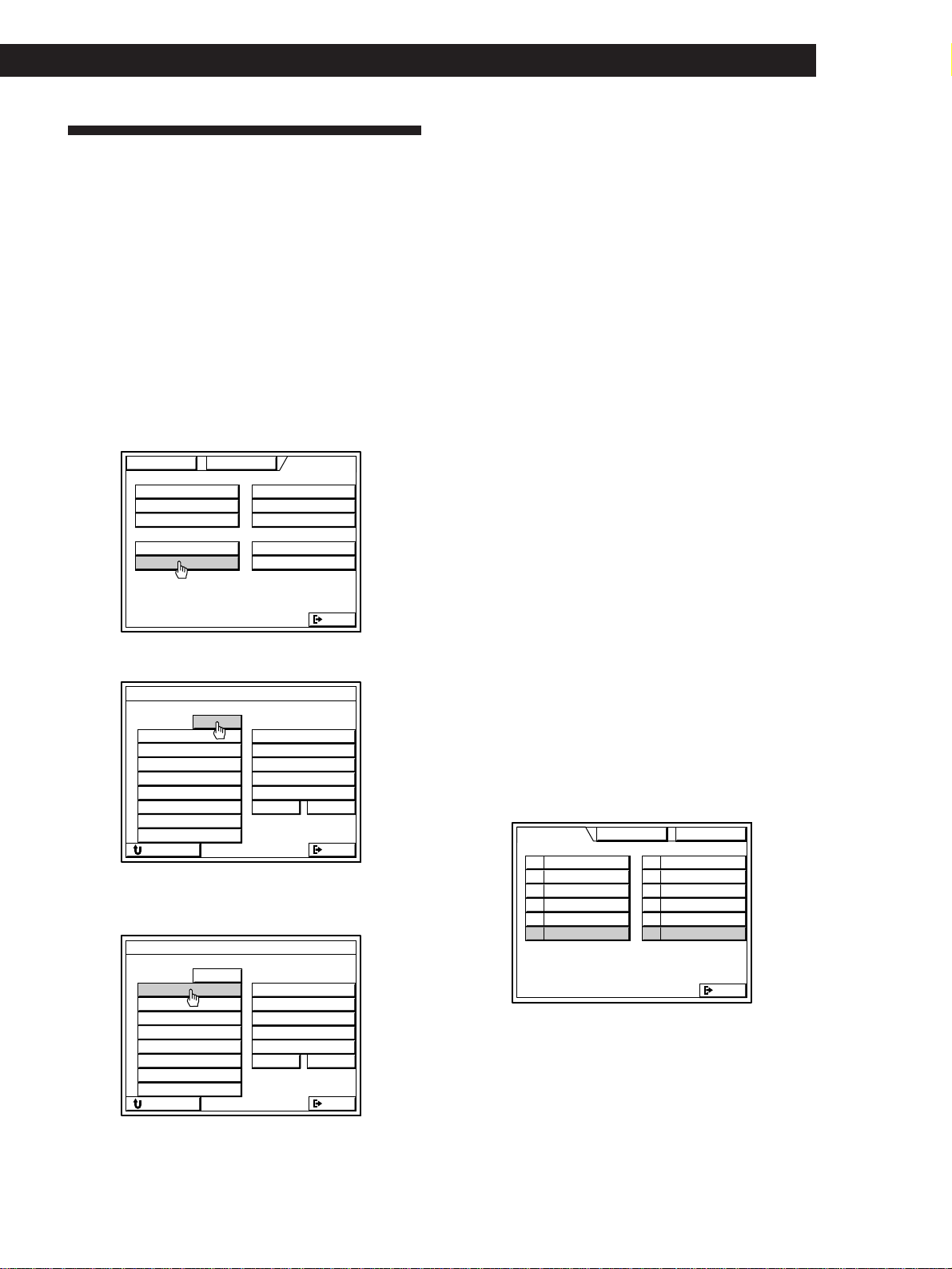
45
Additional Operations and Settings
Starting Several Components
in Sequence Automatically
(Macro Play)
The Macro Play function lets you link several IR codes
in a sequential order as a single command. The
receiver provides 2 pages (MACRO 1 and 2). You can
specify up to 8 of the registered IR codes for each page.
Setting the sequence of IR codes
1 Click SETUP in the main menu to display the
SETUP menu, then click MACRO PLAY.
2 Click MACRO 1 or 2.
3 Click macro step number 1.
This is the first IR code in the macro sequence.
4 Click ? or / to show the IR codes available for
that button.
The registered IR codes appear at the right of the
screen.
• To specify a time lag between commands, click
? or / repeatedly until the time lag
commands (WAIT 10s, WAIT 5s, and WAIT 1s)
appear.
• To specify an IR code to turn off all the
components, click ? or / repeatedly until
ALL OFF appears.
5 Click the IR code you want.
The name of the IR code appears in the
highlighted macro step number and the highlight
moves to next macro step number.
6 Repeat steps 4 and 5 to enter up to 8 IR codes.
To erase an entered IR code
1 Click the code you want to erase.
2 Click ? or / repeatedly until NO SET appears at the
right of the screen.
3 Click NO SET.
Note
The ALL OFF command is not available for the Macro Play
selected for Auto Start.
Starting a Macro Play
Click FUNCTION in the main menu, then click
MACRO 1 or MACRO 2. The specified IR codes start
automatically.
You can start a Macro Play automatically when you
turn on the receiver by selecting a Macro Play in the
Auto Start function (see page 44).
MACRO PLAY SETTING
1
2
3
4
5
6
7
/?
8
1 2MACRO COMMAND
WAIT 10s
WAIT 5s
WAIT 1s
ALL OFF
NO SET
NO SET
NO SET
NO SET
NO SET
NO SET
NO SET
NO SET
NO SET
EXIT
RETURN
MACRO PLAY SETTING
1
2
3
4
5
6
7
/?
8
1 2MACRO COMMAND
WAIT 10s
WAIT 5s
WAIT 1s
ALL OFF
NO SET
NO SET
NO SET
NO SET
NO SET
NO SET
NO SET
NO SET
NO SET
EXIT
RETURN
TV FUNC
CD
IR
TUNER
USER IR
EXIT
SET
SET
INDEX
INDEX
INDEX
AUTO START SLEEP TIMER
OSD SETUP
MACRO PLAY
FUNCTION SOUND SETUP
VIDEO 1 TAPE
DAT / MD
VIDEO 2
CD
VIDEO 3
TUNER
L D / DVD
PHONOTV / DBS
MACRO 1
MACRO 2
EXIT
FUNCTION SOUND SETUP
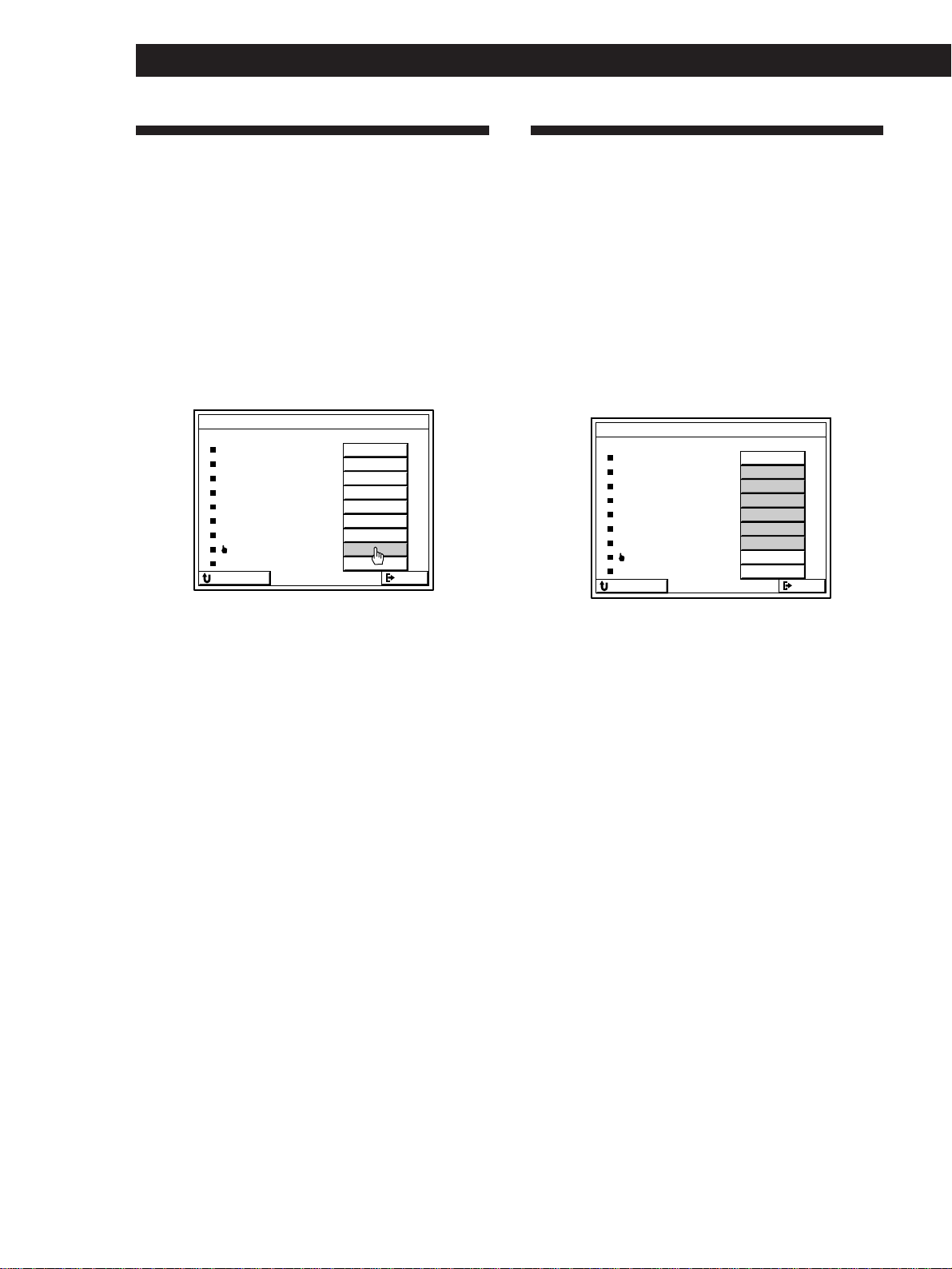
46
Additional Operations and Settings
Changing the Display Settings
Selecting the display parameters
You can select the display modes (AUTO OSD ERASE,
POINTER ONLY or DEMO) and the display type (SEE-
THROUGH or LANGUAGE). You can also switch the
IR OUTPUT setting when you connect the IR repeater.
1 Click SETUP in the main menu to display the
SETUP menu, then click OSD SETUP.
2 Select the display parameters you want to change.
• To select the display mode, click AUTO OSD
ERASE (ON or OFF), POINTER ONLY (SET) or
DEMO (START).
AUTO OSD ERASE: This display mode is useful
during LD player operations since it allows you
to see chapter numbers that otherwise might be
hidden by the control panel. When this mode is
on, control panels disappear whenever you
click and hold down the direction control
button on the remote. When you release the
button, the control panel reappears.
POINTER ONLY: This display mode allows you
to use the pointer to point to various on-screen
items, such as during a presentation (etc.).
When you click POINTER ONLY SET, the on-
screen display disappears except for the pointer
and an EXIT button. To freeze the pointer, hold
down the direction control button on the
remote.
DEMO: This display mode activates a program
that explains the various functions of the
receiver. Note that when the program is
running, it replaces previously stored data
(such as surround sound parameters) with
data from the program. Click START to
activate the program. To stop the program,
press any button on the remote or receiver.
Adjusting the Sensitivity of the
Remote
You can select from five sensitivity levels that
determine the speed at which the pointer moves.
1 Click SETUP in the main menu to display the
SETUP menu, then click OSD SETUP.
2 Click FEELING 1 to 5 to select the sensitivity level
you want.
The higher the number, the faster the speed.
OSD SETUP
AUTO PLAY
DEMO
IR OUTPUT
SEE-THROUGH
FEELING
LANGUAGE
AUTO OSD ERASE
POINTER ONLY
OFF
ON OFF
ON OFF
ON OFF
ENGLISH
SET
1 2 3 4 5
START
EXIT
RETURN
ON
OSD POSITION
SET
OSD SETUP
AUTO PLAY
DEMO
IR OUTPUT
SEE-THROUGH
FEELING
LANGUAGE
AUTO OSD ERASE
POINTER ONLY
OFF
ON OFF
ON OFF
ON OFF
ENGLISH
SET
1 2 3 4 5
START
EXIT
RETURN
ON
OSD POSITION SET
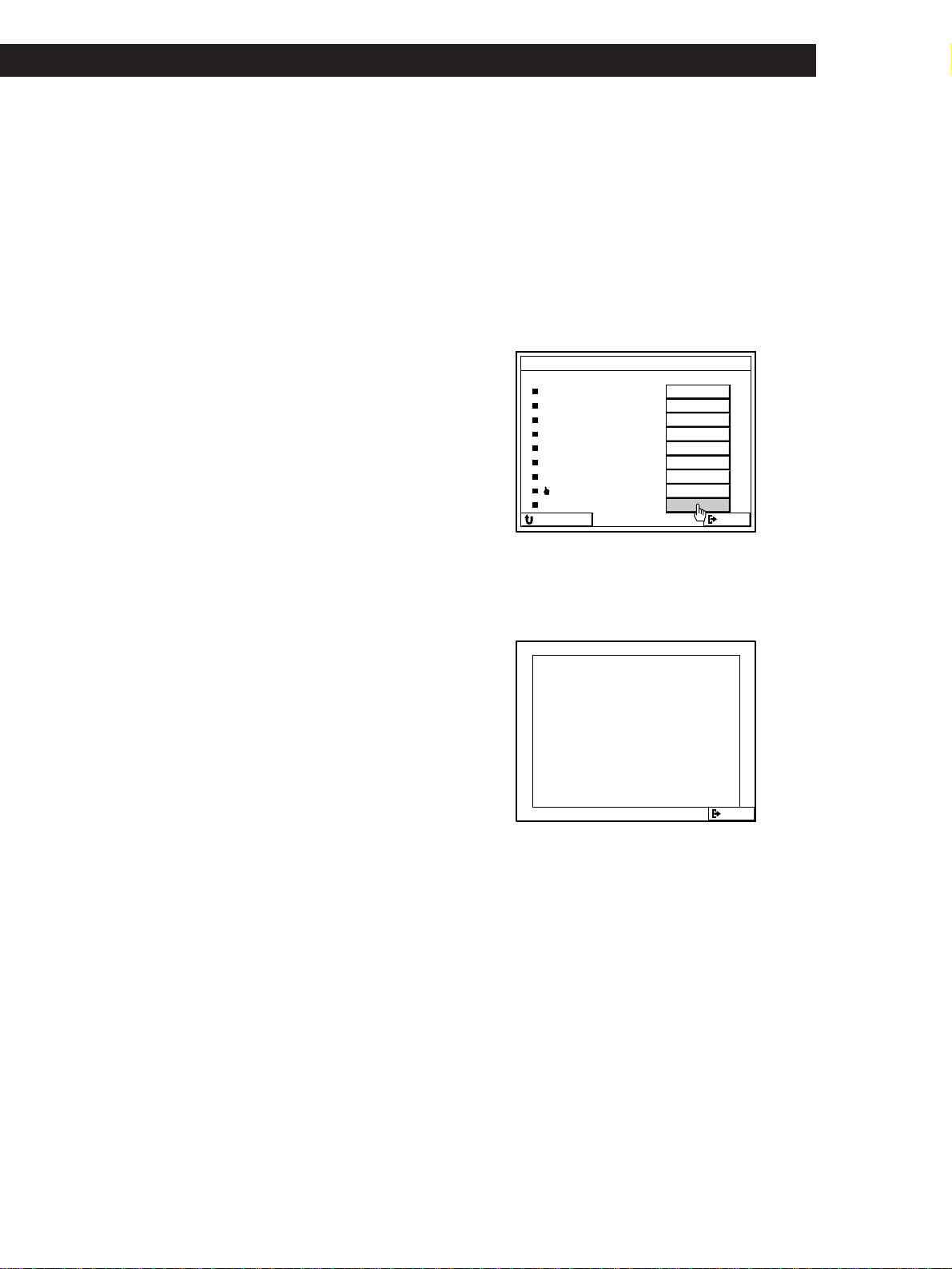
47
Additional Operations and Settings
• To select the display type, click SEE–
THROUGH (ON or OFF) and LANGUAGE
(ENGLISH, FRENCH or GERMAN).
SEE-THROUGH: When set to OFF, the display
appears in the factory–set color. When set to
ON, all menus and control panels are
transparent, with only characters and outlines
visible, allowing you to see the contents of
video programs.
LANGUAGE: This setting lets you specify the
language appearing in the on-screen display
and the display on the front of the receiver. You
can choose between three languages: English,
French and German.
• To switch the IR OUTPUT setting, click IR
OUTPUT ON or OFF. When it is set to OFF, the
IR signals are output only from the IR OUT jack
on the rear panel. No IR signals will be output
from the IR emitter on the front panel. When
the IR OUTPUT is set to OFF, “IR OFF” appears
in the main menu. Normally, IR OUTPUT
should be set to ON.
Note
Even if you have selected SEE-THROUGH ON, the display
changes to the factory set color when there is no video signal
being input. When a video signal is input, the display
reverts to SEE-THROUGH ON.
Adjusting the position of the on-screen
display
You can adjust the overall position of the on-screen
display control panel.
1 Click SETUP in the main menu to display the
SETUP menu, then click OSD SETUP.
2 Click OSD POSITION SET.
The position adjustment screen appears.
3 Click the borders to adjust the position so you can
just see the top, bottom, right and left edges of the
border.
OSD SETUP
AUTO PLAY
DEMO
IR OUTPUT
SEE-THROUGH
FEELING
LANGUAGE
AUTO OSD ERASE
POINTER ONLY
OFF
ON OFF
ON OFF
ON OFF
ENGLISH
SET
1 2 3 4 5
START
EXIT
RETURN
ON
OSD POSITION
SET
V
B
v
b
EXIT
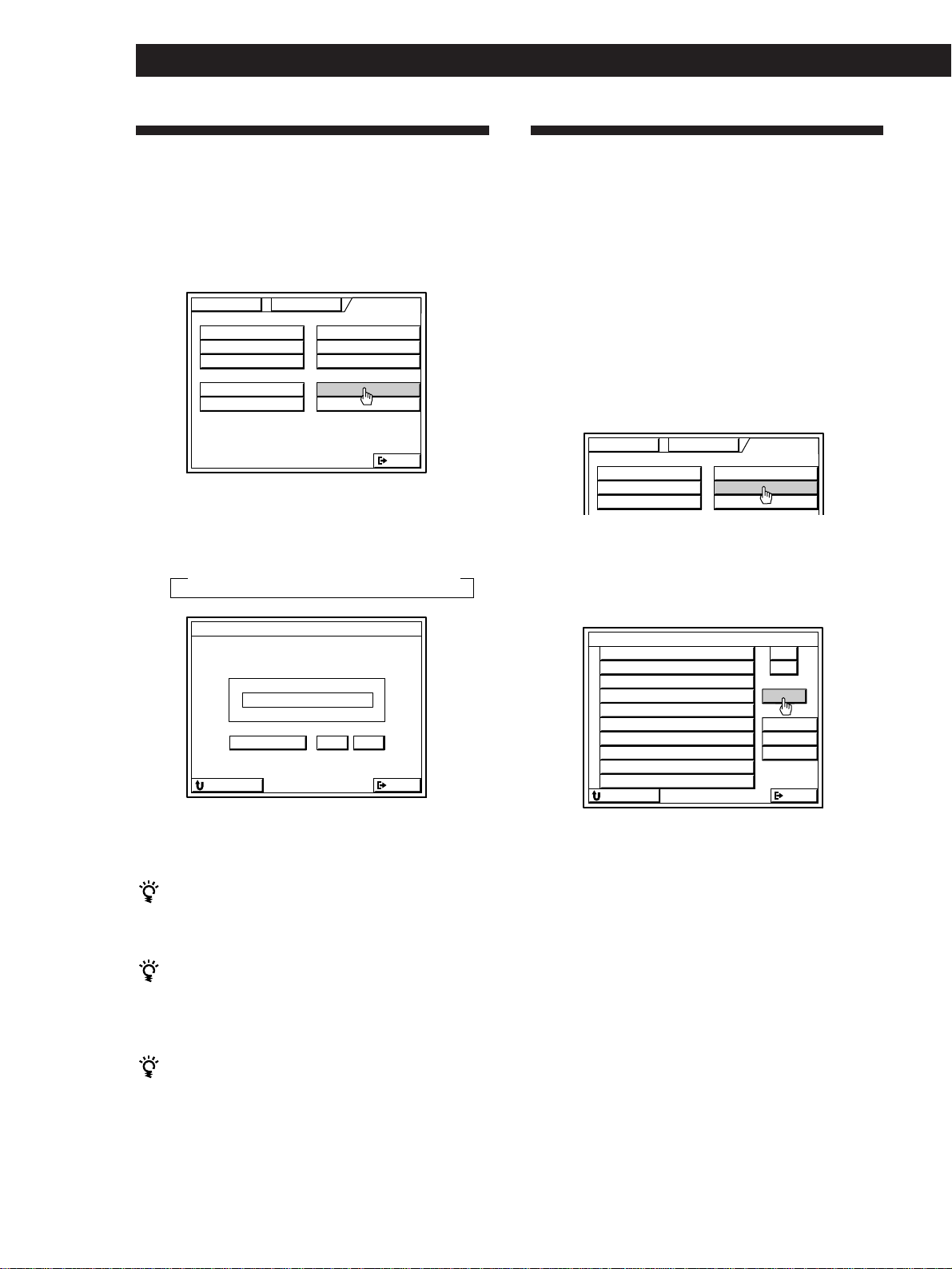
48
Additional Operations and Settings
Using the Sleep Timer
You can set the receiver to turn off automatically at a
time you specify.
1 Click SETUP in the main menu to display the
SETUP menu, then click SLEEP TIMER.
2 Click TIMER repeatedly to select the length of the
sleep timer.
Each time you click TIMER, the menu changes as
follows:
“SLEEP” appears in the upper left corner of the
main menu.
You can also freely specify the time
Click + or – to change the sleep time in 1 minute
increments. You can specify up to 5 hours.
You can check the time remaining before the
receiver turns off
Click FUNCTION, then click SLEEP. The remaining
time appears in the on-screen display.
For USA and Canada
You can also operate the sleep timer by pressing SLEEP
on the remote. Each time you press SLEEP, the time
changes as shown in step 2 above. The display dims
after you specify the time.
To check the time remaining before the receiver turns
off, press SLEEP.
Operating a CD Changer
Downloading the CD name data in a Sony
CD changer with a CTRL A1 jack
You can download all of the CD name data in a Sony
CD changer that is equipped with a CTRL A1 jack, thus
saving you the trouble of adding names one by one.
Make sure that the CONTROL A1 connection is
complete (see page 8) and the CD changer is registered
as a Sony CONTROL A1 CD in the IR CODE SETTING
menu (see page 19).
1 Click SETUP in the main menu to display the
SETUP menu, then click CD INDEX.
2 Click DATA LOAD.
The CD name data is downloaded and after a few
minutes, the downloaded data appears in the CD
INDEX SETTING menu.
Note
If the characters (# $ ; • ä ö ü) have been recorded in the CD
changer, they will appear as blanks in the on-screen display.
SLEEP TIMER SETTING
HOUR
SLEEP
+
–
MIN SEC
20000::
EXITRETURN
TV FUNC
CD
IR
TUNER
USER IR
SET
SET
INDEX
INDEX
INDEX
FUNCTION SOUND SETUP
CD INDEX SETTING
3
4
5
6
7
>
2
1
8
9
10
.
TITLE
GROUP
SELECT
LOAD
DATA
EXITRETURN
n 2:00:00 n 1:30:00n 1:00:00 n 0:30:00 n OFF
TV FUNC
CD
IR
TUNER
USER IR
EXIT
SET
SET
INDEX
INDEX
INDEX
AUTO START SLEEP TIMER
OSD SETUP
MACRO PLAY
FUNCTION SOUND SETUP
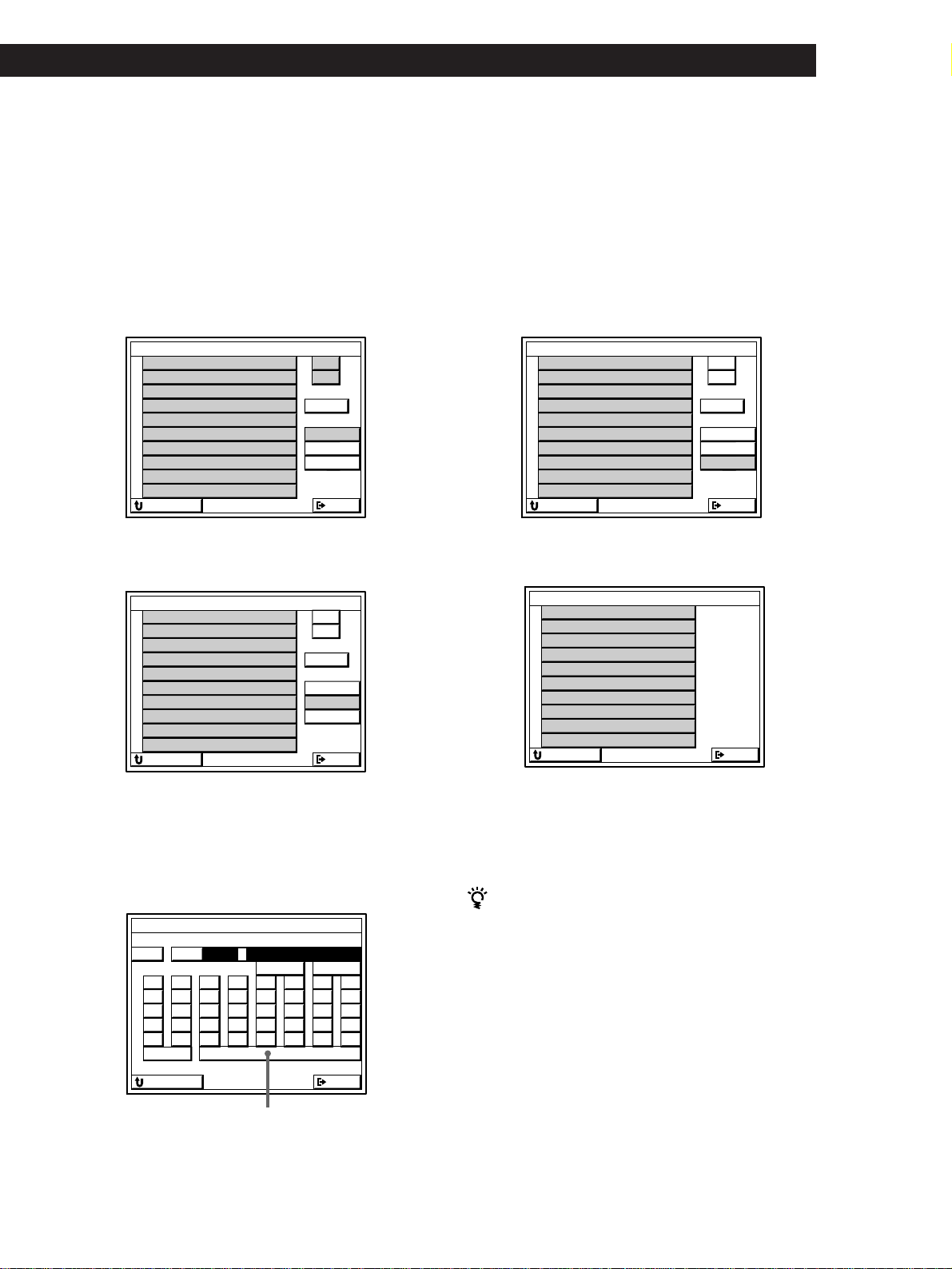
49
Additional Operations and Settings
Indexing a CD
You can specify the names up to 12 characters for each
CD (up to 200 discs) or group of discs in a CD changer.
1 Click SETUP in the main menu, then click CD
INDEX.
2 • To name a disc, click TITLE. And then Click >
or . to display the number of the disc to be
named, then click the disc.
• To name a group, click GROUP, then click the
group to be named.
3 Create the new name by clicking each character.
The name is automatically stored.
To enter a space, click the space bar.
If you made a mistake, click ?or /to move the
cursor to the character to be changed, then click
the correct character.
Grouping CDs
You can assign your CDs to one or more groups.
1 Click SETUP in the main menu, then click CD
INDEX.
2 Click SELECT, then click the disc you want to
assign to a new group.
If the disc you want does not appear, click > or
..
3 Click the names of the groups to which you want
to assign the CD.
To remove the CD from one or more groups
Click the highlighted group name so that it goes out in step
3.
You can assign the CD to one or more group
For example, to assign the CD to both “GROUP 1” and
“GROUP 4,” click both group names in step 3.
CD INDEX SETTING
3
4
5
6
7
>
2
1
8
9
10
.
TITLE
GROUP
SELECT
LOAD
DATA
EXITRETURN
CD INDEX SETTING
3
4
5
6
7
>
2
1
8
9
10
.
TITLE
GROUP
SELECT
LOAD
DATA
EXITRETURN
GROUP 3
GROUP 4
GROUP 5
GROUP 6
GROUP 7
GROUP 2
GROUP 1
GROUP 8
GROUP 9
GROUP 10
CD INDEX SETTING
A
F
K
P
U
B
G
L
Q
V
C
H
M
R
W
D
I
N
S
X
E
J
O
T
Y
1
4
7
/
Z
2
5
8
0
–
3
6
9
*
+
bB
CAPS
10
vV
EXITRETURN
Space bar
CD INDEX SETTING
>
30
.
TITLE
GROUP
SELECT
LOAD
DATA
EXITRETURN
Love Songs
Best of AA
Best of BB
Best of CC
Best of DD
BGM B
BGM A
29
28
27
26
25
24
23
22
21
CD INDEX SETTING
3
4
5
6
7
2
1
8
9
10
EXITRETURN
GROUP 3
GROUP 4
GROUP 5
GROUP 6
GROUP 7
GROUP 2
GROUP 1
GROUP 8
GROUP 9
GROUP 10
(continued)
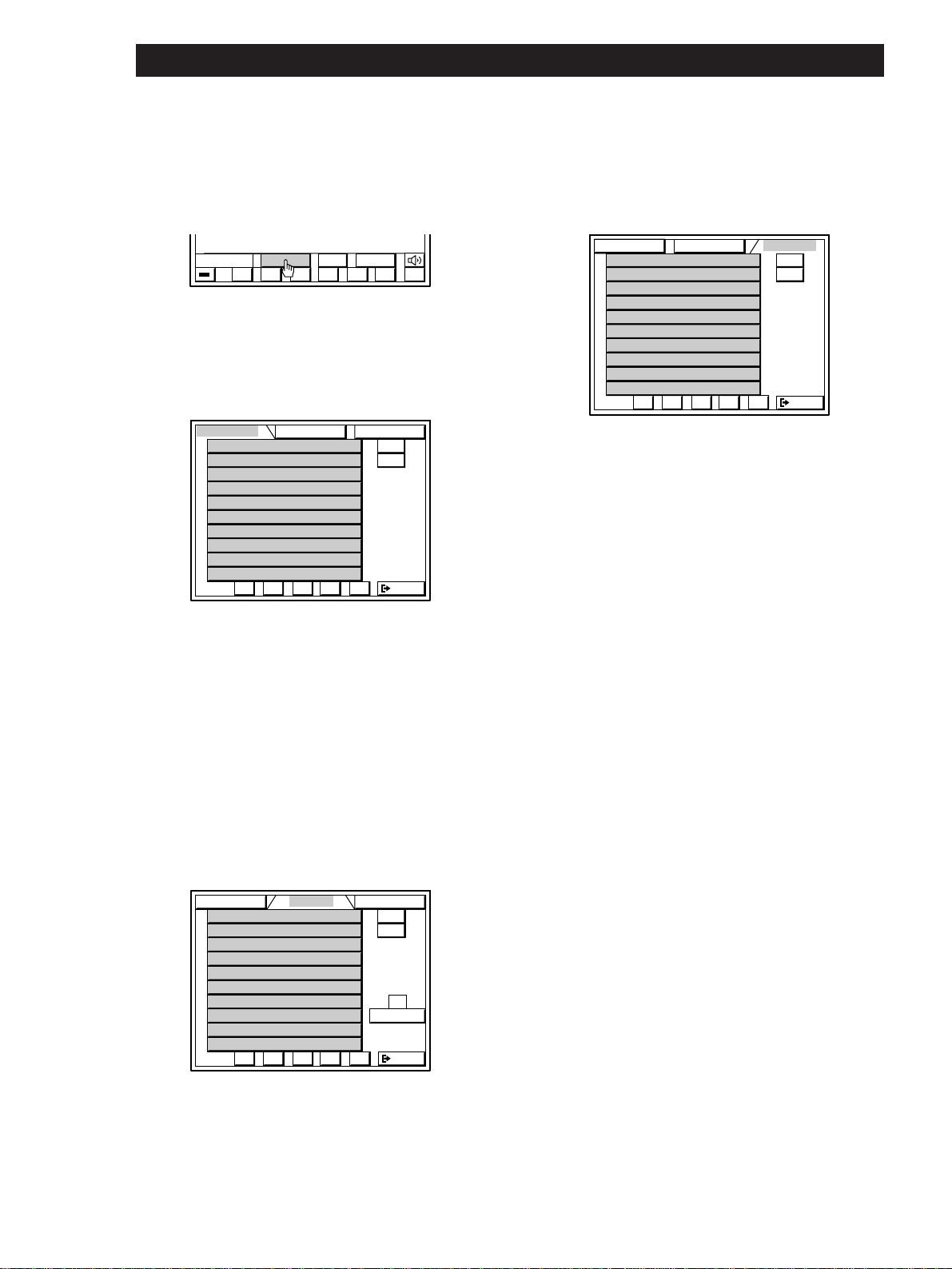
50
Additional Operations and Settings
Searching for a CD quickly
1 Click FUNCTION in the main menu, then click
CD.
2 Click LIST.
3 • To search in alphabetical order
1 Click ALPHABET to display the discs in
alphabetical order.
2 Click the disc. If the disc you want is not
displayed, click > or ..
• To search using the group names
1 Click GROUP.
The GROUP SELECT button and a group
number appear at the right side of the screen.
If there is no group corresponding to the
respective group number, “NO ENTRY” is
displayed.
2 Click SELECT to display groups 1~10.
3 Click the group you desire.
The group number and disc list for the selected
group appear on screen.
4 Click the disc. If the disc you want is not
displayed, click > or ..
• To search by disc number.
1 Click NUMBER to display the discs in
numerical order.
2 Click the disc. If the disc you want is not
displayed, click > or ..
Playback starts automatically.
Notes
• Depending on the type of CD changer connected (3 or 5
disc changer, etc.), you may not be able to select the CD by
clicking the disc name. In this case, select the CD from the
normal CD control panel.
• If the CD changer is made by another manufacturer, and
the sequence of operations required to start playback is
other than; 1 pressing a numeric button followed by 2
pressing the disc button, then playback may not start
when you click the disc name. In this case, return to the
main menu, click SUB, and operate the CD changer
according to its normal playback procedure.
USERSUBLIST
()0pP=+
ALPHABET
>
10
.
EXIT
9
8
7
6
5
4
3
2
1
()0pP
GROUP NUMBER
>
10
.
EXIT
9
8
7
6
5
4
3
2
1
()0pP
ALPHABET GROUP NUMBER
1
SELECT
GROUP
>
10
.
EXIT
9
8
7
6
5
4
3
2
1
()0pP
ALPHABET GROUP NUMBER
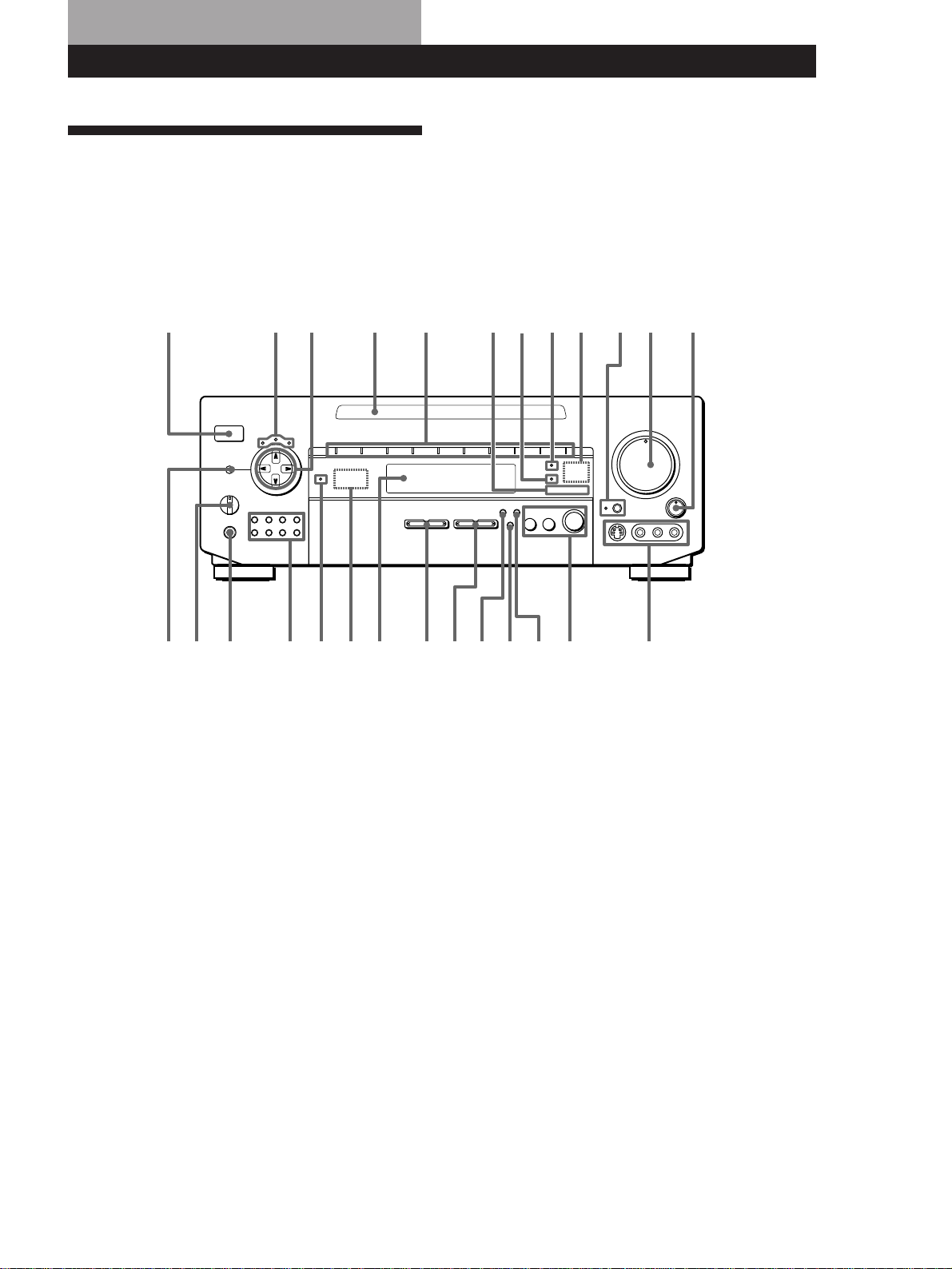
51
Front Panel Operations (Remote Short-cuts: USA and Canada only)
Front Panel Descriptions
You can control the receiver using the front panel
instead of the remote. For details of the operations, see
the pages in parenthesis.
!∞ SET UP button (57)
!§ INPUT MODE button (STR-DE1015G) (53)
5.1 INPUT button (STR-DE815G / D760Z) (53)
!¶ DIRECT PASS button (56)
!• AUDIO FUNCTION selector (53)
!ª VIDEO FUNCTION selector (53)
@º Display
@¡ IR receptor (15)
@™ STANDBY indicator (except for USA and
Canadian models)
@£ Tuner operation buttons (54)
TUNING (+/–) buttons
PRESET (+/–) buttons
FM MODE button
FM/AM button
SHIFT button
DISPLAY button
@¢ PHONES jack (53)
@∞ SPEAKERS selector (10)
@§ DPC MODE button (55, 56, 59)
1 POWER switch
2 SUR indicator (56)
EQ indicator (STR-DE1015G) (55)
TONE indicator (STR-DE815G / D760Z) (56)
INDEX indicator (59)
3 Digital Processing Controls
4 IR emitter (4)
5 FUNCTION indicators
6 DISCRETE indicator (STR-DE1015G) (36)
5.1 INPUT indicator (STR-DE815G / D760Z) (53)
7 DIRECT PASS indicator (56)
8 LEARNING SENSOR indicator
9 IR sensor (18)
0 BASS BOOST button and indicator (53)
!¡ MASTER VOLUME control (53)
!™ BALANCE control (53)
!£ VIDEO 3 input jacks (12)
(S-VIDEO terminal for STR-1015G only)
!¢ SOUND FIELD buttons (55)
SOUND FIELD ON/OFF button
SOUND FIELD GENRE button
SOUND FIELD MODE button
1
@§ !£@¡@£ !¢@¢ !∞!§!¶!•!ª@º@∞
!™!¡0532 6 894 7
@™
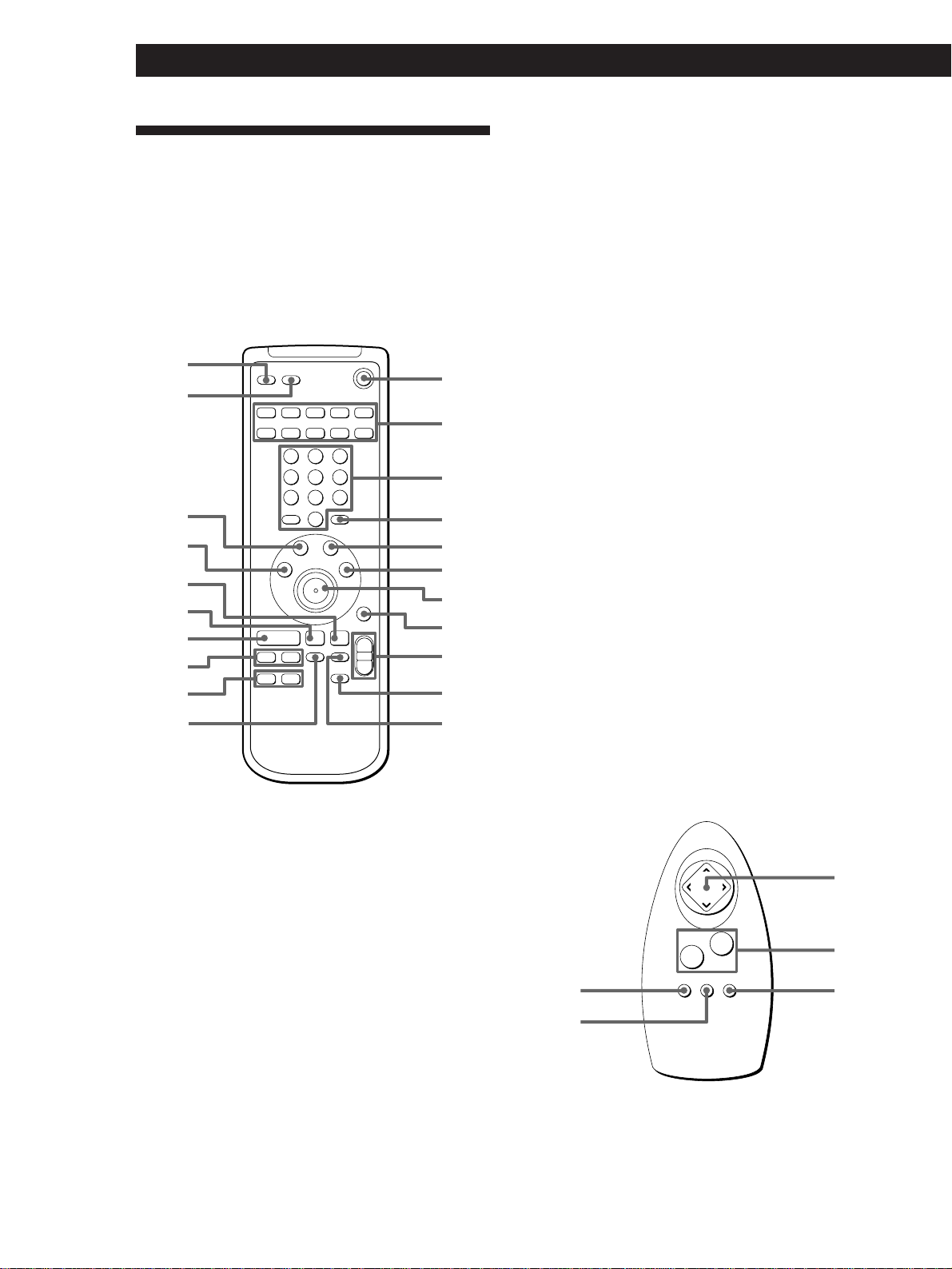
52
Front Panel Operations (Remote Short-cuts: USA and Canada only)
Remote Descriptions
p USA and Canada
Although the direction control button lets you perform
almost all of the receiver operations, for certain
operations, you can also control the receiver using the
other (short-cut) buttons. For details of the operations,
see the pages in parenthesis.
1 SYSTEM OFF
2 SYSTEM CONTROL FUNCTION buttons (54)
3 Number buttons
CD, MD, LD, DVD : Selects track numbers (0
selects track 10).
TV, VCR, DBS : selects channel (press ENTER to
change the channel).
4 ENTER
TV/VCR/DBS : changes channels when used with
buttons 0-9.
5 DBS MENU* : displays the menu of the connected
DBS tuner.
6 DBS GUIDE* : displays the guide of the connected
DBS tuner.
7 Direction control button (16)
8 EXIT
Press to exit the current menu (same function as
EXIT icon in on screen display).
9 MASTER VOL +/– (26)
0 MUTING
!¡ WIDE MODE (29)
!™ DISC SKIP
MULTI-CD : Press repeatedly to skip between
discs.
!£ 0/) buttons
CD : searches tracks (Forward or backward)
Tape, MD, VCR, LD : fast forwards or rewinds
!¢ =/+ buttons
CD, MD, LD : skips tracks.
!∞ (
CD, Tape, MD, LD, VCR : starts play.
!§ ∏
CD, Tape, MD, LD, VCR : pauses play or record
(also starts recording with components in record
standby).
!¶ π
CD, Tape, MD, LD, VCR : stops play.
!• VCR MENU* : displays the menu of the connected
VCR.
!ª GUI : displays or erases this unit's on-screen
display.
@º 5.1 INPUT button (STR-DE815G / D760Z) (53)
(This button cannot be used with STR-DE1015G.)
@¡ SLEEP (48)
* When you press these buttons, the receiver’s on-screen
display will disappear. To operate the receiver, press !ª.
p Other countries
Although the direction control button lets you perform
almost all of the receiver operations, for certain
operations, you can also control the receiver using the
other (short-cut) buttons. For details of the operations,
see the pages in parenthesis.
1 Direction control button (16)
2 VOL +/– (26)
3 ALL OFF
4 TV/VIDEO
TV : switches TV’s input mode.
5 FLASHER (60)
1
2
5
4
3
º‚
¢
¢
¢
¢
≠±
·
∏π
1
2
3
4
5
6
8
0
7
9
@¡
@º
!ª
!¶
!§
!∞
!¢
!£
!•
!¡
!™
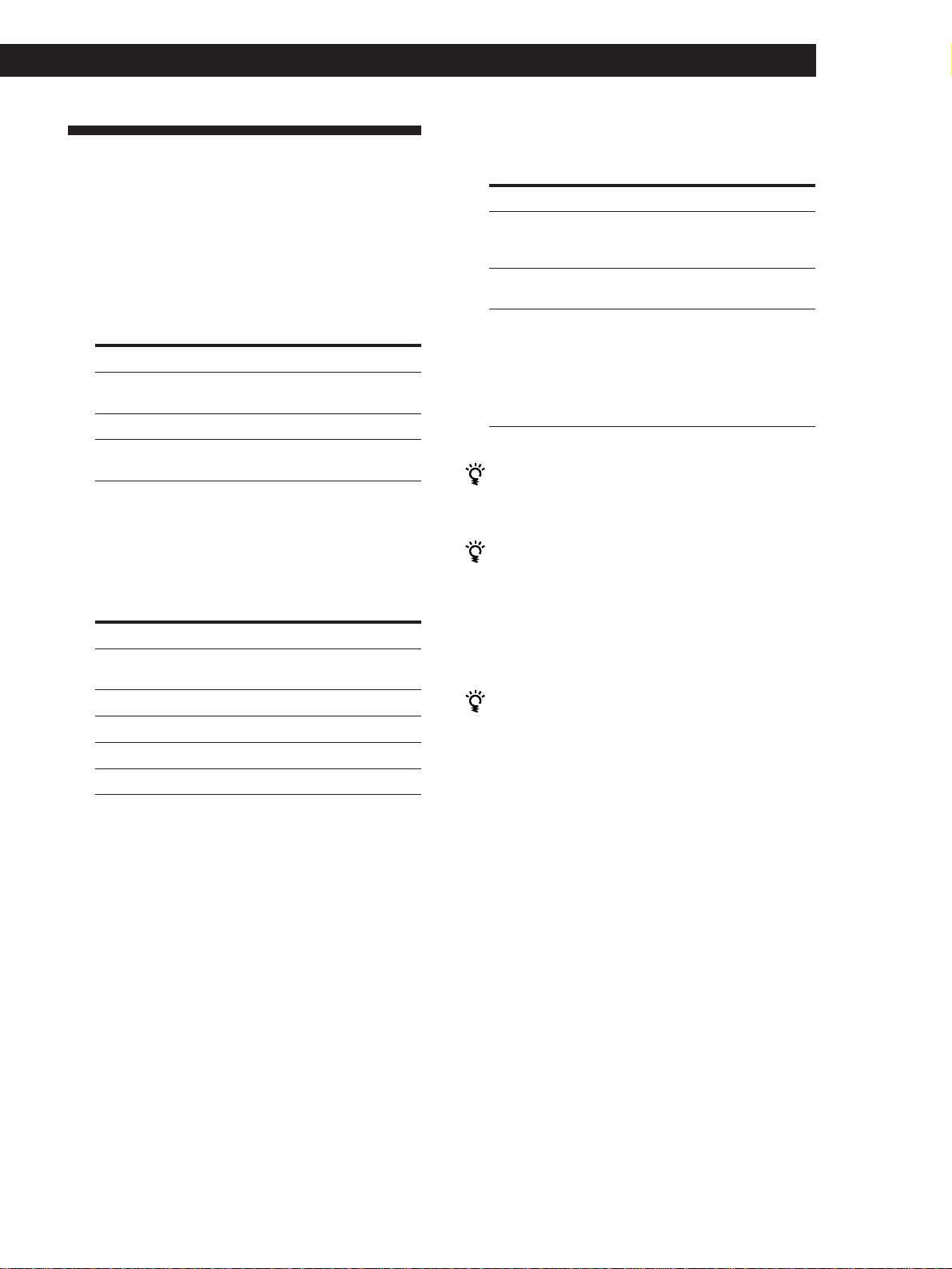
53
Getting StartedFront Panel Operations (Remote Short-cuts: USA and Canada only)
Selecting a Component
For the on-screen operations, see page 26.
1 Press POWER to turn on the receiver, then press
VIDEO FUNCTION or AUDIO FUNCTION
repeatedly until the component you want appears
in the display.
VIDEO FUNCTION
To listen to or watch Select*
1
Video tapes VIDEO 1, VIDEO 2 or
VIDEO 3
Laser discs (LD) or DVD LD/DVD
TV programs or Digital TV/DBS*
2
Broadcasting Satellites (DBS)
*
1
The FUNCTION HOOKUP setting (see below) allows
you to delete the names of components which are not
connected.
*
2
TV/DBS : USA, Canada and Australia
TV : Other countries
AUDIO FUNCTION
To listen to or watch Select*
Digital Audio Tapes (DAT) DAT/MD
or MiniDiscs (MD)
Compact Discs (CD) CD
Analog audio tapes TAPE
Radio programs TUNER
Records PHONO
* The FUNCTION set up (see page 58 or 59) allows you
to delete the names of components which are not
connected. When a function is set to “NO” in the
FUNCTION set up menu, it cannot be selected.
2 Start playing the component, then use MASTER
VOLUME to adjust the volume.
To Do This
Reinforce the bass Press BASS BOOST to turn
on the BASS BOOST
indicator.
Adjust the balance Turn the BALANCE control
to the left (L) or right (R).
Enjoy high quality sound Press DIRECT PASS to
bypass audio effects the
equalizer, bass
reinforcement, and
surround effects. The
DIRECT PASS indicator
lights up.
When you listen with headphones
Connect the headphones to the PHONES jack and set
the SPEAKERS selector to OFF.
To listen to digital program sources (STR-DE1015G)
Select the digital source you desire (LD/DVD, CD or
DAT/MD), then press INPUT MODE on the front panel
repeatedly to select “AUTO”, “DIGITAL”, or
“ANALOG”.
See “To listen to digital program sources” on page 27
for details.
To listen to decoded Dolby Digital (AC-3) program
sources (STR-DE815G / D760Z)
Press 5.1 INPUT. The 5.1 INPUT indicator lights up and
the function automatically switches to LD/DVD. To
listen to analog signals from the component connected
to the LD/DVD jacks, select LD/DVD using the VIDEO
FUNCTION selector.
Playing audio and video components at the
same time
1 Press VIDEO FUNCTION repeatedly to select the
video component you want.
2 Press AUDIO FUNCTION repeatedly to select the
audio component you want.
3 Start playing the selected video and audio
components.
(continued)
54
Front Panel Operations (Remote Short-cuts: USA and Canada only)
nA1˜A2˜...A9˜A0˜B1˜B2˜...B9˜B0N
nC0˜C9...C2˜C1N
Selecting a component directly from the
remote control (USA and Canada only)
1 Press one of the SYSTEM CONTROL FUNCTION
buttons to select the component you want to use.
The receiver and the selected component turn on.
The SYSTEM CONTROL FUNCTION buttons on
the remote are factory-set as follows:
To listen to or watch Press*
Records PHONO
Radio programs TUNER
Compact Discs (CD) CD
Digital Audio Tapes (DAT) DAT/MD
or MiniDiscs (MD)
Audio tapes TAPE
TV programs or video tapes VIDEO 1, VIDEO 2
or VIDEO 3
Laser discs/DVD LD/DVD
Digital program sources INPUT MODE
(STR-DE1015G only)
Decoded AC-3 programs 5.1 INPUT
(STR-DE815G / D760Z only)
* “NO CONNECTION” is displayed if you select a
function that was set to “NO” in the FUNCTION set
up menu (see page 58 or 59).
If the component does not turn on
Press the power switch on the component.
2 Start playing.
Refer to “Remote Descriptions” on page 52 for
details.
To turn off the components
Press SYSTEM OFF. This will also turn off the video and
audio components connected to the SWITCHED AC
OUTLETs on the back of this unit at the same time.
Tuning Radio Stations
The receiver lets you tune a station by scanning
stations (Automatic Tuning), and by selecting preset
stations (Preset Tuning).
For the on-screen operations, see pages 29 to 30.
1 Press AUDIO FUNCTION repeatedly to display
“TUNER,” then press FM/AM to select FM or
AM.
2 Press DISPLAY so that the frequency appears.
3 Press TUNING + or –.
The frequency indication changes and scanning
stops when the receiver tunes in a station. To
continue scanning, press + or – again. Press + for
a higher station number; press – for a lower one.
Tuning preset stations (Preset Tuning)
1 Press AUDIO FUNCTION repeatedly to display
“TUNER”.
2 Press SHIFT to select a memory page (A, B or C).
3 Press PRESET TUNING + or – repeatedly to select
the station you want. Each time you press the
buttons, the preset numbers change as follows:
Note
If the AC power cord is disconnected for about 1 week, the
preset stations will be cleared. Preset the stations again.

55
Getting StartedFront Panel Operations (Remote Short-cuts: USA and Canada only)
Recording
For the on-screen operations, see page 31.
1 Press VIDEO FUNCTION or AUDIO FUNCTION
repeatedly to select the playback component you
want to record.
2 Insert a blank tape into the recording component
and adjust the recording level, if necessary.
3 Start recording on the recording component, then
start playing the playback component.
To stop recording
Stop both components.
Digital Recording (STR-DE1015G only)
EXAMPLE: Recording a CD using a DAT deck.
See your DAT or CD player’s instruction manual if you need
help.
1 Press INPUT MODE repeatedly to select CD (if
the CD player is connected to the DIGITAL
OPTICAL: CD IN jack).
2 Insert a blank digital audio tape into the DAT for
recording.
3 Start recording on the DAT, then start playing the
CD you want to record.
Note
You cannot record the digital signal from a Dolby Digital
(AC-3) program source.
Adjusting the Sound
The adjusted sounds are stored automatically.
To select the sound fields
For the on-screen operations, see page 36.
Press GENRE repeatedly to display the sound fields
genres, then press MODE repeatedly to display the
sound fields mode. For the list of sound fields, see
page 33 (STR-DE1015G) or 35 (STR-DE815G / D760Z).
To turn off the sound fields
Press SOUND FIELD ON/OFF.
To adjust the equalizer parameters
(STR-DE1015G)
For the on-screen operations, see page 38.
1 Start playing a component, then select the sound
field you want to adjust.
2 Press DPC MODE repeatedly until the EQ
indicator lights up.
3 Use digital processing control buttons ( / ) to
select the parameter you want.
Front speaker bass adjustment
Level : F: BASS 0dB
Frequency : F: BASS 250Hz
Front speaker treble adjustment
Level : F: TREBLE 0dB
Frequency : F: TREBLE 2.5kHz
Center speaker bass adjustment
Level : C: BASS 0dB
Frequency : C: BASS 250Hz
Center speaker treble adjustment
Level : C: TREBLE 0dB
Frequency : C: TREBLE 2.5kHz
Rear speaker bass adjustment
Level : R: BASS 0dB
Frequency : R: BASS 250Hz
Rear speaker treble adjustment
Level : R: TREBLE 0dB
Frequency : R: TREBLE 2.5kHz
(continued)

56
Front Panel Operations (Remote Short-cuts: USA and Canada only)
3 Use digital processing control buttons ( / ) to
select the parameter you want.
See “Surround (SUR) parameters” below for
details.
4 Use digital processing control buttons ( / ) to
adjust the level of the parameter.
Note
Certain menu items may not be available for adjustment
depending on the current settings and menu modes.
Unavailable items appear dimmed when shown in the
display.
Surround (SUR) parameters (STR-DE1015G)
p Surround sound parameters (See page 40 for
details)
Surround effect level (Digital Cinema Sound modes only)
Initial setting is : EFFECT [_______]
It lets you adjust the “presence” of the current digital cinema
sound surround effect.
• In the KARAOKE mode, use the effect level to adjust the
amount of vocal cancellation. Greater effect levels produce
greater reduction of the vocals.
Wall Type
Initial setting is : WALL S___1___H
It lets you adjust the “brightness” of the current digital
cinema sound surround effect.
Front to rear seat position
Initial setting is : SEAT F___1___R
It lets you adjust the atmosphere of the current digital
cinema sound surround effect.
Left to right seat position
Initial setting is : SEAT L___1___R
It lets you adjust the atmosphere of the current digital
cinema sound surround effect.
Reverberation time
Initial setting is : REVERB S___1___L
It lets you adjust the amount of reverberation present in the
current digital cinema sound surround effect.
Low Frequency Extension (LFE) mix level (DISCRETE only)
Initial setting is : LFE MIX 0dB
This parameter lets you attenuate the level of the LFE (Low
Frequency Extension) channel output from the sub woofer
without effecting the level of the bass frequencies sent to the
sub woofer from the front, center or rear channels via the
bass redirection circuitry.
4 Use digital processing control buttons ( / ) to
adjust the level, then press (
/ ) to select the
frequency (Hz). You can adjust the level ± 10 dB
in 0.5 dB steps.
5 Repeat steps 3 and 4 to make all necessary
adjustments.
To adjust the tone parameters
(STR-DE815G / D760Z)
For the on-screen operations, see page 39.
1 Start playing a component, then select the sound
field you want to adjust.
2 Press DPC MODE repeatedly until the TONE
indicator lights up.
3 Use digital processing control buttons ( / ) to
select BASS or TREBLE.
Bass adjustment
Initial setting is : 0 dB
Treble adjustment
Initial setting is : 0 dB
4 Use digital processing control buttons ( / ) to
adjust the tone level. You can adjust the level ± 10
dB in 2 dB steps.
5 Repeat steps 3 and 4 to make all necessary
adjustments.
To turn off the equalizer or tone adjustments
without erasing them
Press DIRECT PASS.
To adjust the surround sound parameters
For the on-screen operations, see pages 37 and 40 (STR-
DE1015G) or 38 and 40 (STR-DE815G / D760Z).
1 Start playing a component, then select the sound
field you want to adjust.
2 Press DPC MODE repeatedly until the SUR
indicator lights up.
57
Getting StartedFront Panel Operations (Remote Short-cuts: USA and Canada only)
Dynamic range compression ratio
Initial setting is : D.RANGE COMP OFF
Lets you compress the dynamic range of the sound track.
This may be useful when you want to watch movies at low
volumes late at night.
p Speaker level / balance parameters (See page 23
for details)
Rear speaker balance
Initial setting is : REAR L___1___R
Lets you adjust balance between the rear speakers.
Rear speaker level
Initial setting is : REAR 0 dB
Lets you adjust level of the rear speakers.
Center speaker level
Initial setting is : CENTER 0 dB
Lets you adjust the level of the center speaker.
Sub woofer level
Initial setting is : SUB WOOFER 0 dB
Lets you adjust the level of the sub woofer.
Surround (SUR) parameters (STR-DE815G /
STR-D760Z)
Surround effect level
It lets you adjust the “presence” of the current surround
effect.
Delay time (Dolby Surround mode only)
Initial setting is : DELAY 20
It lets you adjust the delay time of the Dolby Pro Logic
surround sound.
See page 39 for details.
Rear speaker level
Initial setting is : REAR SP 0 dB
Lets you adjust level of the rear speakers.
See pages 24 and 25 for details.
Center speaker level
Initial setting is : CENT.SP 0 dB
Lets you adjust the level of the center speaker.
See pages 24 and 25 for details.
Customizing the Receiver
Operations
The menu operations allow you to customize various
aspects of the receiver to suit your listening
environment, your speakers, your components, and
your personal preferences.
For the on-screen speaker setup operations, see page 22
(STR-DE1015G) or 24 (STR-DE815G / D760Z).
1 Press SET UP.
“SET UP” appears in the display.
2 Press SET UP repeatedly to display one of the
following menus:
STR-DE1015G STR-DE815G / STR-D760Z
SPEAKER SETUP CENTER MODE
FUNCTION HOOKUP DISPLAY SETUP
OTHER SETUP FUNCTION HOOKUP
3 Use digital processing control buttons ( / ) to
select the parameter you want.
4 Use digital processing control buttons ( / ) to
adjust the parameter.
5 Repeat steps 2 and 4 to make all necessary
adjustments.
6 Press SET UP twice to exit the set up mode.
(continued)

58
Front Panel Operations (Remote Short-cuts: USA and Canada only)
p OTHER SETUP
Center speaker delay
Initial setting is : CENT. DELAY 0
See page 39 for details.
Rear speaker delay
Initial setting is : REAR DELAY 5
See page 39 for details.
Dimmer level
This setting lets you select brightness of the display on the
front panel.
• You can select between four different settings.
Control A1 display
Initial setting is : CTRL A1 [AUTO]
This setting lets you specify the display mode for Control A1
components.
• AUTO displays “PLAY”, “STOP”, “PAUSE” or “REC” for
about 8 seconds when the operation switches.
• FIX displays “PLAY”, “STOP”, “PAUSE”, “REC” or the
contents of a disc or track memo of a CD or MD at all
times.
• OFF turns off the operation status display.
Notes
• This setting is only effective when the IR code setting is
set to Sony Control A1.
• If the disc or track memo contains a character that the
receiver cannot display, “.” appears for that character.
Set up parameters (STR-DE1015G)
p SPEAKER SETUP (see pages 22 to 23 for details)
Front speaker
Initial setting is : FRONT SP [LARGE]
Center speaker
Initial setting is : CENTER SP [LARGE]
Rear speaker
Initial setting is : REAR SP [LARGE]
Rear speaker place
Initial setting is : REAR SP [SIDE]
Sub woofer
Initial setting is : SUB WOOFER [ YES ]
p FUNCTION HOOKUP
VIDEO1, VIDEO2, LD/DVD, TV/DBS, TAPE, DAT/MD, CD,
PHONO
Initial setting is : YES
These settings let you delete the names of unconnected
components from the function lists.
• YES displays the name of the respective component
(jacks).
• NO deletes the name of the respective component (jacks).
Notes
• When a function is set to “NO”, it cannot be selected.
• If an S-LINK signal (Control A1, Control-S) is input to
the S-LINK jack from a component whose function was
set to “NO”, the function will automatically switch to
“YES” and that function will be selected.
• When using the remote, “NO CONNECTION” is
displayed if you select a function that was set to “NO”
(USA and Canada only).
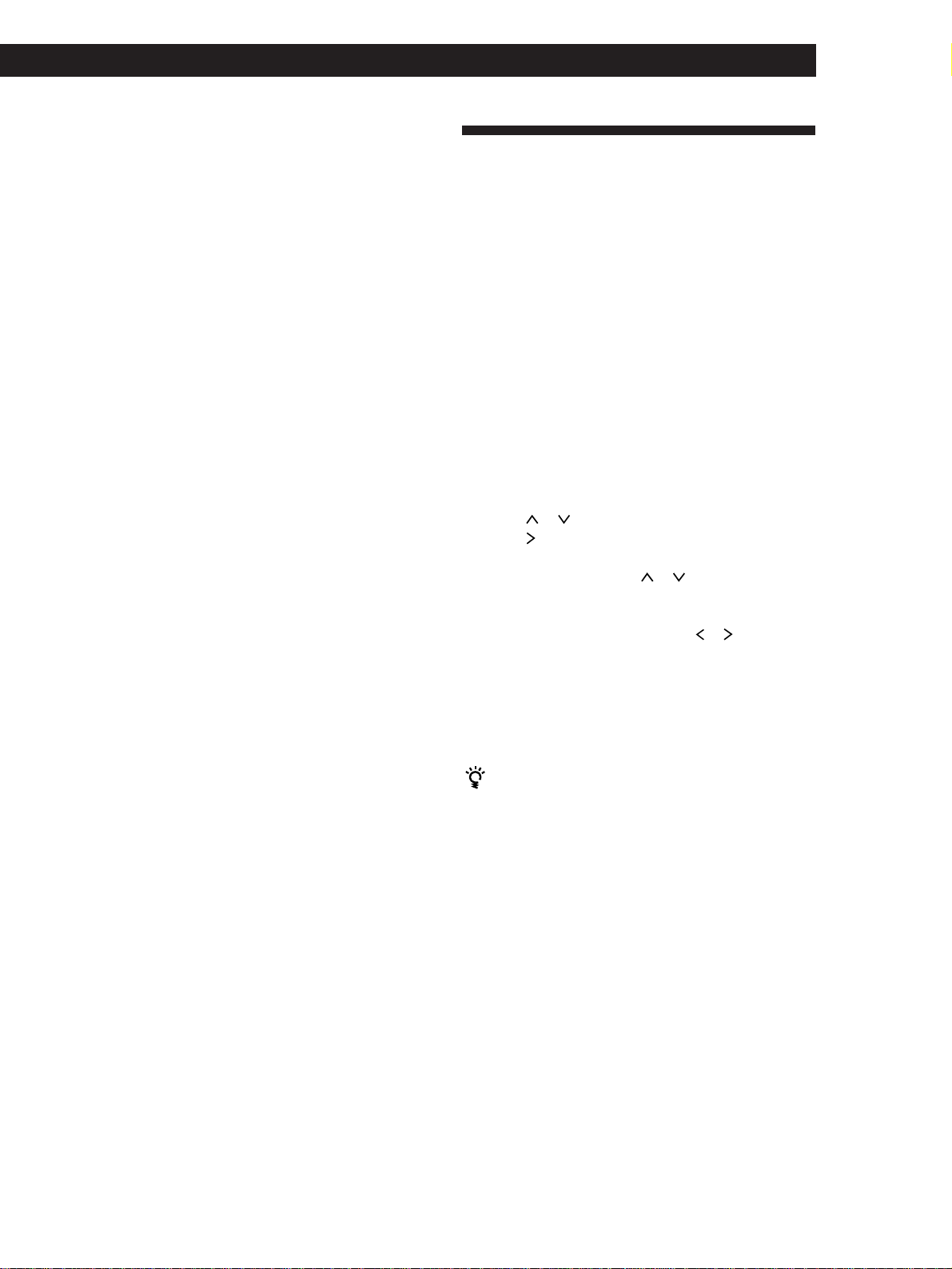
59
Getting StartedFront Panel Operations (Remote Short-cuts: USA and Canada only)
Indexing
Using the index functions, you can specify names up to
8 characters long for each component and preset radio
station.
For the on-screen operations, see page 43.
1 • For the components
Press AUDIO FUNCTION or VIDEO
FUNCTION repeatedly to select a component.
• For the preset stations
Tune in a preset station.
2 Press DPC MODE repeatedly until the INDEX
indicator lights up.
3 Create a name using the digital processing control
buttons.
Press or to select a character, and then
press
to move the cursor to the next position.
The name is stored automatically.
To insert a space, press or until a blank space
appears in the display. The space appears
between " and A.
If you’ve made a mistake, press
or repeatedly
until the character you want to change flashes.
Then select the right character.
4 Repeat steps 1 to 3 to assign index names to other
components or stations.
To switch the display
Each time you press DISPLAY, the display switches
between the index name n component name (or
frequency) n track memo*
1)
n disc memo*
1)
.
• If the Control-A1 display mode is set to “AUTO” or
“FIX” when listening to a Control-A1 compatible tape
or DAT deck, the Control-A1 operations are
displayed together with the index name and
component name.
Example: TAPE [PLAY] n index name [PLAY]
*
1)
If the Control-A1 display mode is set to “FIX” when
listening to a Control-A1 compatible CD player or
MD deck, you can display the disc memo and track
memo information in addition to the Control-A1
operations.
Example: CD [PLAY] n index name [PLAY] n
disc memo*
2)
n track memo*
3)
*
2)
Up to 13 characters for CD (15 for MD).
*
3)
Up to 14 characters for CD (15 for MD).
Note
The display mode returns to FREQUENCY automatically
when you press TUNING +/–.
Set up parameters (STR-DE815G / D760Z)
Center mode
Initial setting is : CENTER [NORMAL]
See page 24 for details.
p DISPLAY set up
Dimmer level
This setting lets you select brightness of the display on the
front panel.
• You can select between four different settings.
Control A1 mode
Initial setting is : CTRL A1 [AUTO]
This setting lets you specify the display mode for Control A1
components.
• AUTO displays “PLAY”, “STOP”, “PAUSE” or “REC” for
about 8 seconds when the operation switches.
• FIX displays “PLAY”, “STOP”, “PAUSE”, “REC” or the
contents of a disc or track memo of a CD or MD at all
times.
• OFF turns off the operation status display.
Notes
• This setting is only effective when the IR code setting is
set to Sony Control A1.
• If the disc or track memo contains a character that the
receiver cannot display, “.” appears for that character.
p FUNCTION set up
VIDEO1, VIDEO2, LD/DVD, TV/DBS, TAPE, DAT/MD, CD,
PHONO
Initial setting is : YES
These settings let you delete the names of unconnected
components from the function lists.
• YES displays the name of the respective component
(jacks).
• NO deletes the name of the respective component (jacks).
Notes
• When a function is set to “NO”, it cannot be selected.
• If an S-LINK signal (Control A1, Control-S) is input to
the S-LINK jack from a component whose function was
set to “NO”, the function will automatically switch to
“YES” and that function will be selected.
• When using the remote, “NO CONNECTION” is
displayed if you select a function that was set to “NO”
(USA and Canada only).
Front Panel Operations (Remote Short-cuts: USA and Canada only)
60
Playing Audio Components
Without the TV (Flasher)
(except for USA and Canada)
Using the flasher function, you can control components
without using the TV's on-screen display. Instead, you
use the remote and the display on the front panel of the
receiver.
1 Press the FLASHER button on the remote to turn
off the on-screen display.
If you are listening to an audio source the TV
turns off automatically.
2 Press the left or right corner of the direction
control button repeatedly.
Each time you press the direction control button
the receiver displays a different operation (the
FUNCTION indicators also light to help separate
the different operations).
The operations available for each component are
shown below.
Component Operations
VIDEO 1, 2, 3 FLASHER OFF, POWER ON/OFF,
0, (, ), p, P, CH –, CH +, REC
LD/DVD FLASHER OFF, POWER ON/OFF,
0, (, ), p, P, =, +
CD FLASHER OFF, POWER ON/OFF*
1)
,
0, (, ), p, P, =, +,
DISC SKIP
TUNER FLASHER OFF, PRESET CH –,
PRESET CH +
TAPE FLASHER OFF, POWER ON/OFF,
0, (, ), p, P, REC
DAT FLASHER OFF, 0, (, ), p, P,
=, +, REC
MD FLASHER OFF, POWER ON/OFF,
0, (, ), p, P, =, +, REC
PHONO FLASHER OFF
TV/DBS FLASHER OFF, POWER ON/OFF,
CH –, CH +
5.1 INPUT*
2)
FLASHER OFF, POWER ON/OFF,
0, (, ), p, P, =, +
*
1)
Sony CD player only.
*
2)
STR-DE815G and STR-D760Z only.
3 Click the remote when the operation you want
appears in the front panel display.
The “<------>” and “<------” displays indicate that
no operations are available at the current flasher
position.
To select another component
Press the up or down corner of the direction control button.
The component names appear in the display one at a time.
If you select a video component, the TV will turn on
automatically.
To temporarily cancel the Flasher function
Press the left or right corner of the direction control button
repeatedly to display “FLASHER OFF”, then click the
remote.
You can also cancel by pressing FLASHER on the remote.
If you turn off the receiver while the Flasher
function is on
The next time the receiver is turned on “FLASHER
START” is displayed and the receiver turns on in the
flasher mode.
61
Additional Information
Troubleshooting
If you run into any problems using this receiver, use
the following list.
First, check that the power cord is connected firmly.
Should any problem persist, consult your nearest Sony
dealer.
Power
The TV turns off when you turn on the receiver with the
remote.
/ Make sure that the TV is off when you turn
on the receiver with the remote.
The component turns off when you select a component
with the remote.
/ The component was turned on by another
remote. The component needs to be turned
on by the receiver's remote or manually (after
selection).
Some components do not turn off when you press ALL
OFF / SYSTEM OFF.
/ The component was turned on by another
remote. Turn off the component manually.
On-screen control
The on-screen display does not appear.
/ Set your TV to the appropriate input mode.
/ Place your TV away from the audio
components.
/ Select the appropriate component on the
receiver.
The on-screen display does not respond or disappears
while you are using the remote.
/ Make sure the remote is not too far from the
IR sensor.
The on-screen display becomes distorted when you select
a component with the remote.
/ There may be distortion in the video signal,
but this is not a malfunction, continue as is.
You have difficulty operating the unit because the on-
screen display is distorted.
/ If you connect two or more VCRs to the
receiver, make sure to use a distributor when
connecting the TV antenna to the VCRs to
preserve video signal quality.
/ Clean the head of the VCR.
/ Do not select channels where there is no
broadcast. Set your VCR (etc.) to skip
channels where there is no broadcast.
The remote does not function.
/ Replace weak batteries in the remote with
new ones.
/ Remove any obstacles in the path of the
remote and the IR sensor.
/ The infrared (IR) signals transmitted from the
IR emitter may not be reaching the IR sensor
on the respective component. In such a case,
connect the IR repeater to IR OUT jack on the
rear of the receiver (see page 7).
/ Press the GUI button on the remote before
performing the operation (USA and Canada
only).
Sound
No sound or only a very low-level sound is heard.
/ Check that the speakers and components are
connected securely.
/ Make sure you select the correct component
on the receiver.
/ Make sure you set the SPEAKERS selector
correctly (see page 10).
/ Click the
icon if “MUTING” is displayed.
/ The protective device on the receiver has been
activated because of a short circuit.
(“PROTECTOR” flashes.) Turn off the
receiver, eliminate the short-circuit problem
and turn on the power again.
The left and right sounds are unbalanced or reversed.
/ Check that the speakers and components are
connected correctly and securely.
/ Adjust the BALANCE control on the front
panel.
(continued)
62
Additional Information
Severe hum or noise is heard.
/ Check that the speakers and components are
connected securely.
/ Check that the connecting cords are away
from a transformer or motor, and at least 10
feet (3 meters) away from a TV set or
fluorescent light.
/ Place your TV away from the audio
components.
/ Make sure you connect a ground wire to the
antenna ground terminal.
/ The plugs and jacks are dirty. Wipe them
with a cloth slightly moistened with alcohol.
No sound is heard from the center speaker.
/ STR-DE1015G : Select a sound mode other
than ACOUSTIC or KARAOKE (see page 37).
/ STR-DE815G / D760Z : Select a sound field
using the center speaker: PRO LOGIC,
MOVIE (except NIGHT THEATER and
MONO MOVIE) (see page 38).
/ STR-DE815G / D760Z : Select the appropriate
center mode (see pages 24 and 25).
/ Adjust the speaker volume appropriately
(see page 23 for STR-DE1015G or pages 24
and 25 for STR-DE815G / D760Z).
No sound or only a very low-level sound is heard from
the rear speakers.
/ Select a sound field other than ACOUSTIC.
/ STR-DE815G / D760Z : Select the appropriate
center mode (see pages 24 and 25).
/ Adjust the speaker volume appropriately
(see page 22 for STR-DE1015G or pages 24
and 25 for STR-DE815G / D760Z).
Surround effect cannot be obtained.
/ Turn on the sound field function.
/ Set DIRECT PASS to OFF.
/ Make sure you set the SPEAKERS selector
correctly (see page 10).
Tuner
Radio stations cannot be tuned in.
/ Check that the antenna is connected securely.
Adjust the antenna and connect an external
antenna if necessary.
/ The signal strength of the stations is too weak
(when you tune in with Automatic Tuning).
Use Direct Tuning (see page 29).
/ Make sure you set the tuning interval
correctly (when you tune in AM stations with
Automatic Tuning) (see page 29 or 54 and 64).
/ No stations have been preset or the preset
stations have been cleared (when you tune in
with Preset Tuning). Preset the stations (see
page 30).
/ Display the frequency by pressing DISPLAY
(when you tune with Automatic Tuning).
Others
IR codes of components cannot be registered.
/ When registering the IR code, be sure to
check the following:
• Point the remote at the IR sensor on the
receiver from a distance of less than 2 inches
(5 cm).
• Hold down the button on the remote for
about 2 or 3 seconds until the “RECEIVING”
display switches to “RELEASE YOUR
REMOTE”.
• Keep the remote pointed horizontally at the
IR sensor until the code is registered.
Recording cannot be made.
/ Check that the components are connected
correctly.
/ Select the playback component with the
remote or with the AUDIO FUNCTION or
VIDEO FUNCTION controls on the front
panel.
A component cannot be selected
/ Check the FUNCTION hookup setting of the
component (see page 58 or 59).
63
Getting Started
Setting Up the Remote for On-Screen Control
Setting Up the Remote for On-Screen Control
Additional Information
Equalizer
Digital signal processor section
(STR-DE1015G ONLY)
Modulation
(A/D conversion)
Demodulation
(D/A conversion)
Sampling
frequency
Surround
The available parameters are different for
each sound field, see page 37 for details.
High Density Linear
Converter
High Density Linear
Converter (Advanced
Pulse D/A converter)
48 kHz
LFE MIX
MUTE, -20 ~ 0 dB, 0.5
dB step
D.RANGE COMP
OFF, 0.1 ~ 0.9, STD,
MAX
REAR level
–20 ~ +10 dB, 0.5 dB
step
CENTER level
–20 ~ +10 dB, 0.5 dB
step
SUB WOOFER level
–20 ~ +10 dB, 0.5 dB
step
WALL
17-step adjustable
SEAT
L/R 17-step adjustable
F/R 17-step adjustable
EFFECT
21-step adjustable
REVERB time
17-step adjustable
Band
BASS/TREBLE
Turnover frequency
BASS: 99 Hz ~ 992 Hz
TREBLE: 1.0 kHz ~ 8.6
kHz
Level
±10 dB, 0.5 dB step
Specifications
Audio power specifications
POWER OUTPUT AND TOTAL
HARMONIC DISTORTION
With 8-ohm loads both
channels driven, from 20 -
20,000 Hz; rated 100 watts
per channel minimum RMS
power, with no more than
0.09 % total harmonic
distortion from 250
milliwatts to rated output
(USA model only).
Amplifier section
POWER OUTPUT
Stereo mode
Surround mode
5.1 mode
(STR-DE815G/
D760Z only)
Singaporean models :
4 ohms DIN 1 kHz,
100W + 100W
Other models :
8 ohms 20 Hz - 20
kHz, THD 0.09%,
100 W + 100 W
Singaporean models :
(4 ohms DIN 1 kHz)
Front: 100 W + 100 W
Center*: 100 W
Rear*: 100 W/ch
Other models:
(8 ohms at 1kHz,
THD 0.8%)
Front: 100 W/ch
Center*: 100 W
Rear*: 100 W/ch
* No sound may be
output when using
certain sound sources
and/or sound mode
settings.
Singaporean models:
(4 ohms DIN 1 kHz)
Front: 100 W + 100 W
Center: 100 W
Rear: 100 W/ch
Other models:
(8 ohms 20 Hz - 20
kHz, THD 0.09%)
Front: 100 W/ch
Center: 100 W
Rear: 100 W/ch
Input (ANALOG)
Sensitivity Impedance
S/N
PHONO 2.5 mV 50 75 dB
1)
kilohms
(A, 2.5 mV)
CD
3)
, 200 mV
LD/DVD
3)
TAPE, 50 82 dB
1)
DAT/MD, kilohms
(A, 150mV)
VIDEO, 150 mV
LD/DVD
2)
,
TV/DBS, CD
2)
5.1 200 mV 50 82 dB
1)
INPUT
3)
kilohms
(A, 150mV)
Input (DIGITAL)
2)
Sensitivity Impedance
S/N
LD/DVD – 75 ohms 100 dB
AC-3 RF
(A, 20 kHz LPF)
LD/DVD, – – 100 dB
CD, DAT/MD
(A, 20 kHz LPF)
OPTICAL
1)
’78 IHF
2)
STR-DE1015G only
3)
STR-DE815G/D760Z only
Outputs
BASS BOOST
TONE
(STR-DE815G/
D760Z only)
REC OUT VIDEO 1, 2
(AUDIO) OUT:
Voltage 150 mV,
Impedance 10 kilohms
WOOFER OUT
Voltage: 2 V
Impedance: 1 kilohms
PHONES: Accepts low
and high impedance
headphones
STR-DE1015G:
+6 dB at 50 Hz
STR-DE815G/D760Z:
+10 dB at 70 Hz
±8 dB at 100 Hz and
10 kHz
Dynamic power
output (USA and
Canadian models
only)
Harmonic
distortion at
rated output
Frequency
response
155 W + 155 W, 8 ohms
220 W + 220 W, 4 ohms
Less than 0.09%
(Direct Pass)
PHONO: RIAA
equalization curve
±0.5 dB
CD, TAPE, DAT/MD,
LD/DVD, TV/DBS,
VIDEO: 10 Hz - 50
kHz dB
(Direct Pass)
+0.5
–2

64
Additional Information
AM tuner section
Tuning range
Antenna
Usable sensitivity
S/N
Harmonic
distortion
Selectivity
With 10 kHz interval*
(except for Australia and
Singapore) :
530 - 1710 kHz (USA
and Canada)
530 - 1610 kHz (other
countries)
With 9 kHz interval:
531 - 1710 kHz (USA
and Canada)
531 - 1602 kHz (Other
countries)
Loop antenna
50 dB/m (at 1,000 kHz or
999 kHz)
54 dB (at 50 mV/m)
0.5 % (50 mV/m,
400 kHz)
At 9 kHz: 35 dB
At 10 kHz: 40 dB
87.5 - 108.0 MHz
75 ohms, unbalanced
Mono: 18.3 dBf, 4.5 µV
Stereo: 38.3 dBf, 45 µV
11.2 dBf, 2 µV (IHF)
Mono: 76 dB
Stereo: 70 dB
Mono: 0.3 %
Stereo: 0.5 %
45 dB at 1 kHz
30 Hz - 15 kHz dB
60 dB at 400 kHz
FM tuner section
Tuning range
Antenna
terminals
Sensitivity
Usable sensitivity
S/N
Harmonic
distortion at
1 kHz
Separation
Frequency
response
Selectivity
* You can change the AM tuning
interval between 9 kHz and 10 kHz.
After tuning in any AM station, turn
off the receiver. While holding down
the PRESET + button, press the
POWER switch. When you change
the interval, all the preset stations will
be erased. To reset the interval, repeat
the same procedure.
+0.5
–2
General
System
Power
requirements
Power
consumption
AC outlets
Dimensions
Mass (Approx.)
Supplied
accessories
Design and specifications are subject to
change without notice.
Tuner section: PLL
quartz-locked digital
synthesizer system
Preamplifier section:
Low-noise NF type
equalizer
Power amplifier section:
Pure-complimentary
SEPP
Australian models:
240 V AC, 50 Hz
USA, Canadian models:
120 V AC, 60 Hz
Singaporean models:
230 V AC, 50/60 Hz
Other models:
120/240/220 V AC,
50/60 Hz
STR-DE1015G:
USA models: 290 W
Canada models: 480 VA
STR-DE815G/D760Z:
USA models: 280 W
Canada models: 480 VA
Singaporean models:
240 W
Other models: 280 W
Australian and
Singaporean models:
1 switched, total 100 W
Other models:
2 switched, total 120 W
430 x 155 x 350 mm
(17 x 6
1
/
8
x 13
7
/
8
inches)
STR-DE1015G:
11.4 kg (25 lb 3 oz)
STR-DE815G/D760Z:
Singaporean models:
11.5 kg (25 lb 6 oz)
Other models:
10.5 kg (23 lb 3 oz)
See page 5.
Video section
Inputs
Outputs
1 Vp-p 75 ohms
1 Vp-p 75 ohms
65
Getting Started
Setting Up the Remote for On-Screen Control
Setting Up the Remote for On-Screen Control
Additional Information
Glossary
Center mode
Setting of speakers to enhance Dolby Pro
Logic Surround mode. To obtain the
best possible surround sound, select one
of the four center modes (WIDE,
NORMAL, PHANTOM or 3 CH LOGIC)
according to your speaker system.
Dolby Pro Logic Surround
Decoding system of Dolby Surround
sound standardized in TV programs and
movies. Compared with the former
Dolby Surround system, Dolby Pro
Logic Surround improves sound image
by using four separate channels: off-
screen audio effects, on-screen dialog,
left-to-right panning, and music. These
channels manipulate the sound to be
heard and enhance the action as it
happens on the screen.
Dolby Surround
Encoding and decoding system of Dolby
Surround sound for consumer use.
Dolby Surround decodes the extra
channels on the Dolby Surround-
encoded sound tracks of movie videos
and TV programs and produces sound
effects and echoes that make the action
seem to envelop you.
The receiver offers Dolby Surround
(PRO LOGIC) as one of the pre-
programmed sound fields. If you have
rear or center speaker(s), we recommend
that you customize the Dolby Surround
sound field by selecting the appropriate
center mode to take advantage of Dolby
Pro Logic Surround sound.
Effect level
Combination of the level of early
reflections and reverberation. You can
adjust the effect level in 6 levels. As you
select higher levels, the room becomes
“live,” and as you select lower levels, the
room becomes “dead.”
Parameter
Variable of sound that composes sound
image, such as tone or delay time. You
can customize the pre-programmed
sound fields by adjusting parameters to
suit your listening situation.
Sound field
Sound pattern produced by a sounding
source or sources in a given
environment due to direct and reflected
sounds and the acoustics of the
environment. The receiver offers pre-
programmed sound fields to let you
enjoy surround sound easily.
Surround sound
Sound that consists of three elements:
direct sound, early reflected sound
(early reflections) and reverberative
sound (reverberation). The acoustics
where you hear the sound affect the
way these three sound elements are
heard. These sound elements are
combined in such a way that you can
actually feel the size and the type of a
concert hall.
• Types of sound
• Transition of sound from rear
speakers
Early reflections
Direct sound
Level
Early reflection time
Reverberation
Direct sound
Early
reflections
Reverberation
Time

66

67

Sony Corporation Printed in Malaysia
Index
A, B
AC-3. See Dolby Digital (AC-3)
Adjusting
delay time 39, 57
position of the on-screen
display 47
sound parameter 37, 38, 55
sensitivity of remote 46
speaker volume 23, 24, 58
tone 38, 39, 55, 56
volume 23, 25, 26, 53
Antenna hookups
AM/FM 7
Audio components hookups 8
Automatic play 44
Automatic start 44
Automatic tuning 29, 54
C
Center mode 24, 25, 59, 65
NORMAL mode 24
PHANTOM mode 24
3 CH LOGIC mode 24
WIDE mode 24
CD changer operation 48
Changing the display settings
46
Connecting. See Hookups
Customizing sound fields 37, 55
D
Decoded Dolby Digital AC-3
programs 27, 53
Delay time 39, 57, 58
Digital components
connecting 13
playback from 27, 53
Dimming the display 58, 59
Direct tuning 29
Dolby Digital (AC-3)
speaker setting 9-10
sound modes 33
Dolby Pro Logic Surround
getting the most out of 24
Dolby Surround sound 33, 65
Dubbing. See Recording
E
Editing. See Recording
Effect level 37, 38, 56, 57
F
Front panel 51
G
Grouping CDs 49
H
Hookups
AC power cord 14
AM/FM antennas 7
audio components 8
digital components 13
IR repeater 7
overview 5
speakers 9
TV/VCRs 11
I, J, K
Indexing
CDs 49
preset stations 43, 59
program sources 43, 59
using the controls on the
front panel 59
Inserting batteries into the
remote 15
IR repeater 7, 46-47
L
Labeling. See Indexing
M
Macro operations 45
N, O
Naming. See Indexing
NORMAL mode 24
P, Q
Parameter 37, 38, 65
PHANTOM mode 24
Playing audio components
without TV 60
Preset station 30
Presetting
radio stations 30
Preset tuning 30, 54
Program source
indexing 43, 59
selecting 26, 53
R
Rear panel 5, 6
Receiving broadcasts. See
Tuning
Recording 31
using the controls on the
front panel 55
Registering IR codes 17, 19, 42
clearing the signal 18, 21,
43
Remote 15-21, 52
controlling non-Sony
components 17, 19, 42
controlling Sony
components 17, 19
inserting batteries 15
sensitivity 46
usage 15-16
S
Scanning
CD list 50
preset stations 30, 54
radio stations 29, 54
Searching for a CD 50
Selecting
a component 26
using the front panel 53
display parameter 57-59
Sleep timer 48
Sound field
adjustable parameters 37, 38
customizing 37-41, 55-57
pre-programmed 33-35
Speakers
connection 9
impedance 10
placement 9-10
selecting the speaker
system 10
Storing radio stations. See
Presetting
Surround sound 65
T
Test tone 23, 24
3 CH LOGIC mode 24
Troubleshooting 61
Tuning
by scanning indexed
stations 30
directly 29
using preset stations 30, 54
using the controls on the
front panel 54
TV/VCR hookups 11
U, V
Unpacking 6
W, X, Y, Z
Watching
TV 28
video programs 28
WIDE mode 24
Additional Information