If you mount this TV on a wall, follow the instructions exactly as set out by the manufacturer. If it is not correctly mounted, the TV may slide or fall and cause serious injury to a child or adult and serious damage to the TV.
You can mount the TV on the wall using a wall mount kit (sold separately).
Samsung Electronics is not responsible for any damage to the product or injury to yourself or others if you choose to install the wall mount on your own.
To order the wall mount kit, contact Samsung Customer Care at 1-800-SAMSUNG (1-800-726-7864).
You can install your wall mount on a solid wall perpendicular to the floor. Before attaching the wall mount to surfaces other than plaster board, contact your nearest dealer for additional information. If you install the TV on a ceiling or slanted wall, it may fall and result in severe personal injury.
When installing a wall mount kit, we recommend you fasten all four VESA screws.
If you want to install a wall mount kit that attaches to the wall using two top screws only, be sure to use a Samsung wall mount kit that supports this type of installation. (You may not be able to purchase this type of wall mount kit, depending on the geographical region.)
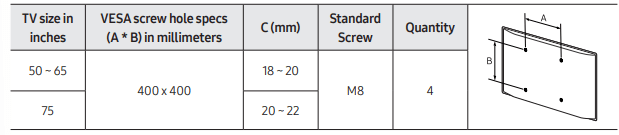
Standard dimensions for wall mount kits are shown in the table below.
If you are installing a third-party wall mount, note that the length of the screws you can use to attach the TV to the wall mount is shown in column C in the table below.
Do not install your wall mount kit while your TV is turned on. This may result in personal injury from electric shock.
Do not use screws that are longer than the standard dimension or do not comply with the VESA standard screw specifications. Screws that are too long may cause damage to the inside of the TV set.
For wall mounts that do not comply with the VESA standard screw specifications, the length of the screws may differ depending on the wall mount specifications.
Do not fasten the screws too firmly. This may damage the product or cause the product to fall, leading to personal injury. Samsung is not liable for these kinds of accidents.
Samsung is not liable for product damage or personal injury when a non-VESA or non-specified wall mount is used or when the consumer fails to follow the product installation instructions.
Do not mount the TV at more than a 15 degree tilt.
Always have two people mount the TV onto a wall. – For 82 inch or larger models, have four people mount the TV onto a wall.
Providing proper ventilation for your TV
When you install your TV, maintain a distance of at least 4 inches (10 cm) between the TV and other objects (walls, cabinet sides, etc.) to ensure proper ventilation. Failing to maintain proper ventilation may result in a fire or a problem with the product caused by an increase in its internal temperature.
When you install your TV with a stand or a wall mount, we strongly recommend you use parts provided by Samsung Electronics only. Using parts provided by another manufacturer may cause difficulties with the product or result in injury caused by the product falling.
Safety Precaution: Securing the TV to the wall to prevent falling
Caution: Pulling, pushing, or climbing on the TV may cause the TV to fall. In particular, ensure your children do not hang on or destabilize the TV. This action may cause the TV to tip over, causing serious injuries or death. Follow all safety precautions provided in the Safety Flyer included with your TV. For added stability and safety, you can purchase and install the anti-tip device as described below.
WARNING: Never place a television set in an unstable location. The television set may fall, causing serious personal injury or death. Many injuries, particularly to children, can be avoided by taking simple precautions such as
• Using cabinets or stands recommended by the manufacturer of the television set.
• Only using furniture that can safely support the television set.
• Ensuring the television set is not overhanging the edge of the supporting furniture.
• Not placing the television set on tall furniture (for example, cupboards or bookcases) without anchoring both the furniture and the television set to a suitable support.
• Not placing the television set on cloth or other materials that may be located between the television set and supporting furniture.
• Educating children about the dangers of climbing on furniture to reach the television set or its controls.
If you are retaining and relocating the television set that you are replacing with this new set, you should apply the same precautions to the old set.
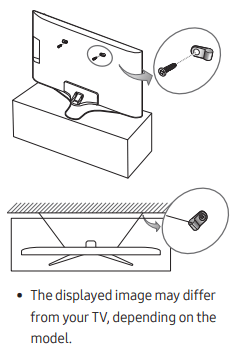
Preventing the TV from falling
1. Using the appropriate screws, firmly fasten a set of brackets to the wall. Confirm that the screws are firmly attached to the wall.
You may need additional material such as wall anchors depending on the type of wall.
2. Using the appropriately sized screws, firmly fasten a set of brackets to the TV.
For the screw specifications, refer to "Standard Screw" in the table on page 8.
3. Connect the brackets fixed to the TV and the brackets fixed to the wall with a durable, heavy-duty string, and then tie the string tightly.
Install the TV near the wall so that it does not fall backwards.
Connect the string so that the brackets fixed to the wall are at the same height as or lower than the brackets fixed to the TV.
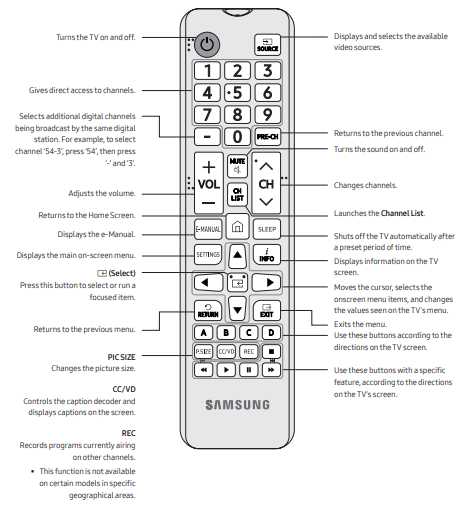
The Remote Control
• The button names above may differ from the actual names.
• The remote control may differ by its model.
• This remote control has Braille points on the Power, Channel, Volume, and Enter buttons and can be used by visually impaired persons.
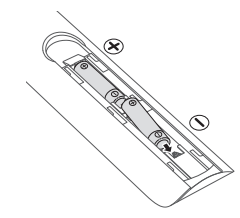
Installing batteries into the remote control
Match the polarity of the batteries to the symbols in the battery compartment.
• Use the remote control within 23 feet of the TV.
• Bright light may affect the performance of the remote control. Avoid using near bright fluorescent lights or neon signs.
• The color and shape of the remote may vary depending on the model.
Initial Setup
When you turn on your TV for the first time, it immediately starts the Initial Setup. Follow the instructions displayed on the screen and configure the TV's basic settings to suit your viewing environment.
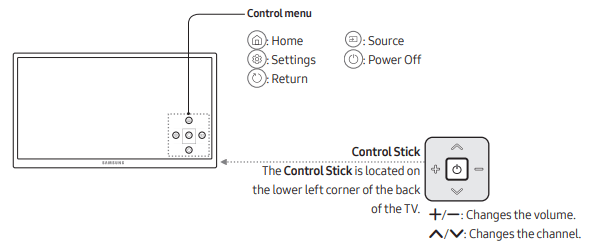
Using the TV Controller
You can use the TV Controller on the back of the TV instead of the remote control to control most of the functions of your TV. While watching TV or cable TV, you can change the channel or adjust the volume by pressing the Control Stick. When using Smart Hub, the TV's menu, or selecting a source, move the Control Stick up, down, left, or right to move the cursor. Press the Control Stick to select or activate the item highlighted by the cursor.
Troubleshooting and Maintenance
Troubleshooting
If the TV seems to have a problem, first review this list of possible problems and solutions. Alternatively, review the Troubleshooting Section in the e-Manual. If none of the troubleshooting tips apply, visit www.samsung.com/support or call Samsung Customer Service at 1-800-SAMSUNG (1-800-726-7864)
• This TFT LED panel is made up of sub pixels which require sophisticated technology to produce. There may be, however, a few bright or dark pixels on the screen. These pixels will have no impact on the performance of the product.
• To keep your TV in optimum condition, upgrade to the latest software. Use the Update Now or Auto Update functions on the TV's menu ( > Settings > Support > Software Update > Update Now or Auto Update).
The TV won’t turn on.
• Make sure that the AC power cord is securely plugged in to the TV and the wall outlet.
• Make sure that the wall outlet is working and the power indicator on the TV is lit and glowing a solid red.
• Try pressing the Power button on the TV to make sure that the problem is not with the remote control. If the TV turns on, refer to “Remote control does not work” below.
There is no picture/video/sound, or a distorted picture/video/sound from an external device, or “Weak or No Signal” is displayed on the TV, or you cannot find a channel.
• Make sure the connection to the device is correct and that all cables are fully inserted.
• Remove and reconnect all cables connected to the TV and the external devices. Try new cables if possible.
• Confirm that the correct input source has been selected ( > Source).
• Perform a TV self diagnosis to determine if the problem is caused by the TV or the device ( > Settings > Support > Self Diagnosis > Start Picture Test or Start Sound Test).
• If the test results are normal, reboot the connected devices by unplugging each device's power cord and then plugging it in again. If the issue persists, refer to the connection guide in the user manual of the connected device.
• If the TV is not connected to a cable or satellite box, run Auto Program to search for channels ( > Settings > Broadcasting > Auto Program).
The remote control does not work.
• Check if the power indicator on the TV blinks when you press the remote's Power button. If it does not, replace the remote control's batteries.
• Make sure that the batteries are installed with their poles (+/–) in the correct direction.
• Try pointing the remote directly at the TV from 5 ft. to 6 ft. (1.5~1.8 m) away.
The cable or satellite box remote control doesn’t turn the TV on or off or adjust the volume.
• Program the cable or satellite box remote control to operate the TV. Refer to the cable or satellite box user manual for the SAMSUNG TV code.
The TV settings are lost after 5 minutes.
• The TV is in the Retail Mode. Change the Usage Mode in the System Manager Menu to Home Mode ( > Settings > General > System Manager > Usage Mode > Home Mode).
Intermittent Wi-Fi
• Make sure the TV has a network connection ( > Settings > General > Network > Network Status).
• Make sure the Wi-Fi password is entered correctly.
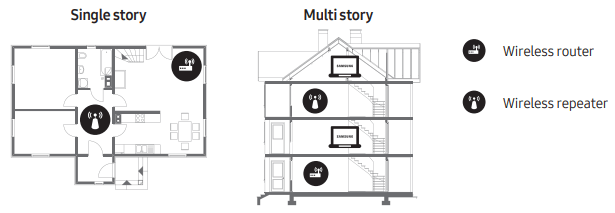
• Check the distance between the TV and the Modem/Router. The distance should not exceed 50 ft (15.2 m).
• Reduce interference by not using or turning off wireless devices. Also, verify that there are no obstacles between the TV and the Modem/Router. (The Wi-Fi strength can be decreased by appliances, cordless phones, stone walls/fireplaces, etc.)
• Contact your ISP and ask them to reset your network circuit to re-register the Mac addresses of your new Modem/Router and the TV.
Video Apps problems (Youtube etc)
• Change the DNS to 8.8.8.8. Select > Settings > General > Network > Network Status > IP Settings > DNS Setting > Enter manually > DNS Server > enter 8.8.8.8 > OK.
• Reset by selecting > Settings > Support > Self Diagnosis > Reset Smart Hub.
What is Remote Support?
Samsung Remote Support service offers you one-on-one support with a Samsung Technician who can remotely:
• Diagnose your TV
• Adjust the TV settings for you
• Perform a factory reset on your TV
• Install recommended firmware updates
How does Remote Support work?
You can easily have a Samsung Tech service your TV remotely:
1. Call the Samsung Contact Center and ask for remote support.
2. Open the menu on your TV and go to the Support section.
3. Select Remote Management, then read and agree to the service agreements. When the PIN screen appears, provide the PIN number to the agent.
4. The agent will then access your TV.
Eco Sensor and screen brightness
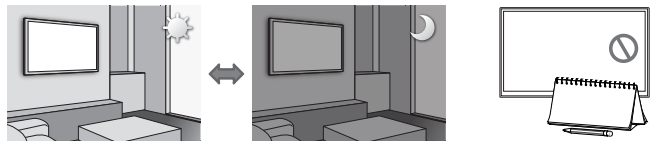
Eco Sensor adjusts the brightness of the TV automatically. This feature measures the light in your room and optimizes the brightness of the TV automatically to reduce power consumption. If you want to turn this off, go to > Settings > General > Eco Solution > Ambient Light Detection.
• If the screen is too dark while you are watching TV in a dark environment, it may be due to the Ambient Light Detection function.
• Do not block the sensor with any object. This can decrease picture brightness.
Still image warning
Avoid displaying still images (such as jpeg picture files), still image elements (such as TV channel logos, stock or news crawls at the screen bottom etc.), or programs in panorama or 4:3 image format on the screen. If you constantly display still pictures, it can cause image burn-in on the LED screen and affect image quality. To reduce the risk of this adverse effect, please follow the recommendations below:
• Avoid displaying the same TV channel for long periods.
• Always try to display any image in full screen. Use the picture format menu of the TV for the best possible match.
• Reduce brightness and contrast to avoid the appearance of after-images.
• Use all TV features designed to reduce image retention and screen burn. Refer to the e-Manual for details.
Caring for the TV
• If a sticker was attached to the TV screen, some debris can remain after you remove the sticker. Please clean the debris off before watching TV.
• The exterior and screen of the TV can get scratched during cleaning. Be sure to wipe the exterior and screen carefully using a soft cloth to prevent scratches.
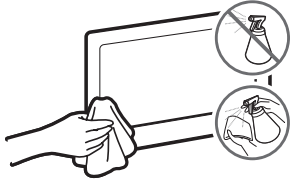
• Do not spray water or any liquid directly onto the TV. Any liquid that goes into the product may cause a failure, fire, or electric shock.
• To clean the screen, turn off the TV, then gently wipe away smudges and fingerprints on the panel with a micro-fiber cloth. Clean the body or panel of the TV with a micro-fiber cloth dampened with a small amount of water. After that, remove the moisture with a dry cloth. While cleaning, do not apply strong force to the surface of the panel because it can damage the panel. Never use flammable liquids (benzene, thinner, etc.) or a cleaning agent. For stubborn smudges, spray a small amount of screen cleaner on a micro-fiber cloth, and then use the cloth to wipe away the smudges.
 If you mount this TV on a wall, follow the instructions exactly as set out by the manufacturer. If it is not correctly mounted, the TV may slide or fall and cause serious injury to a child or adult and serious damage to the TV.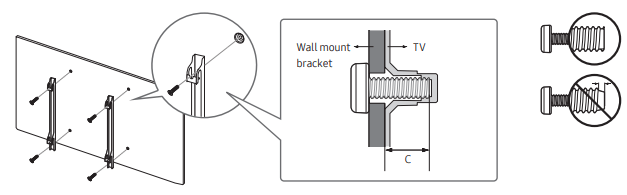

 >
>  Settings > Support > Software Update > Update Now or Auto Update).