Accessories
4
Features
5
High quality
5
High performance
5
Part names and functions
6
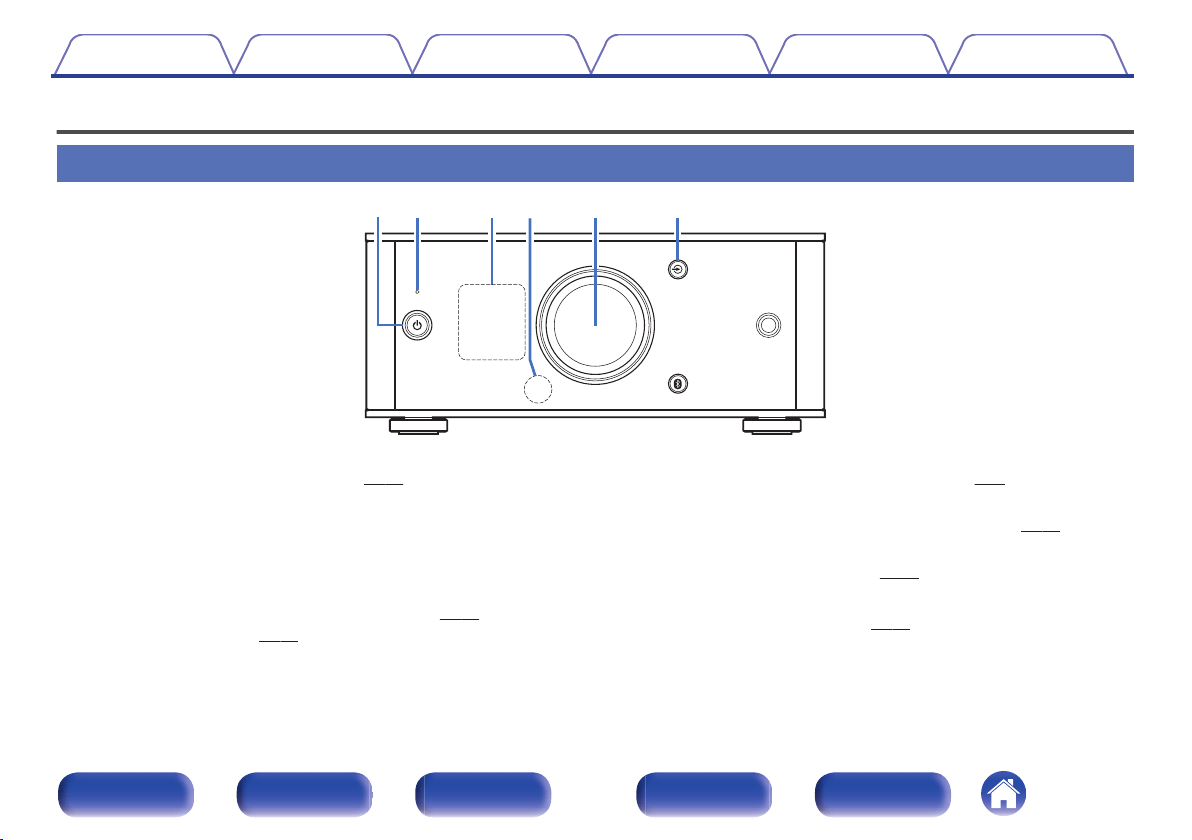
Front panel
6
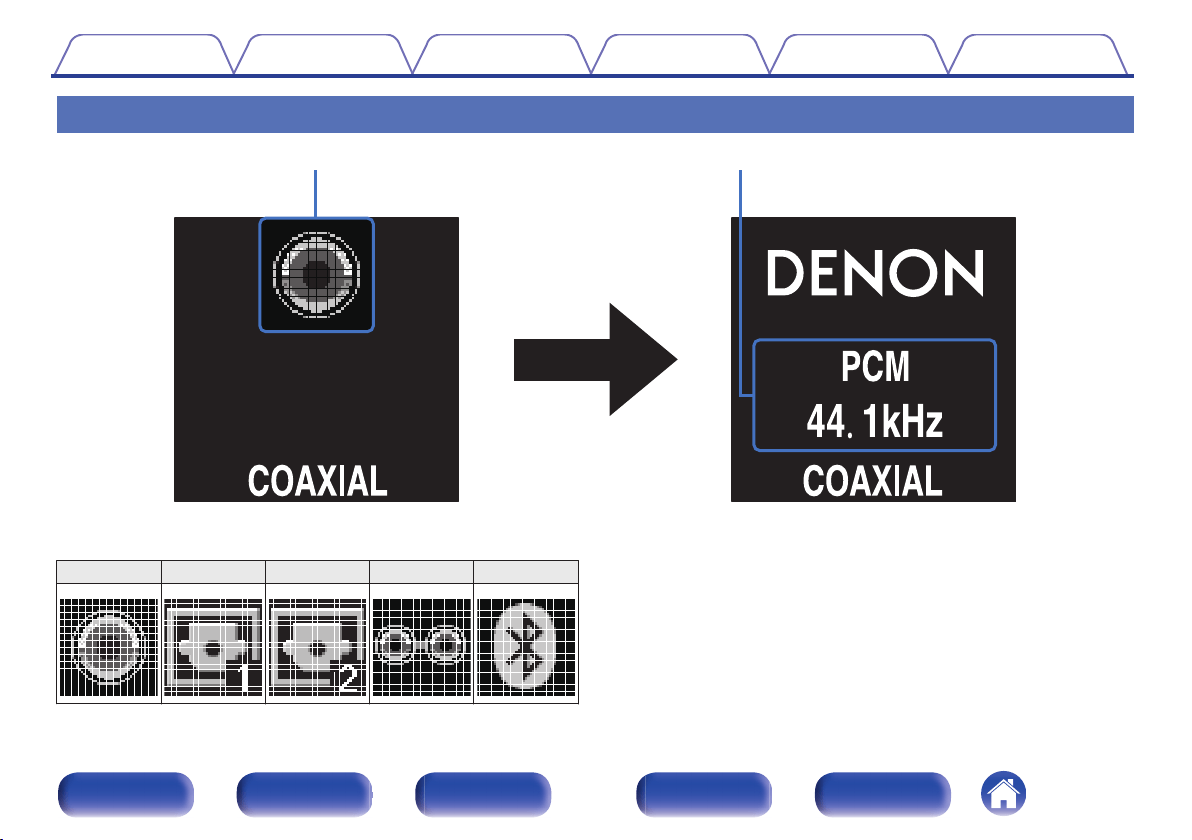
Display
8
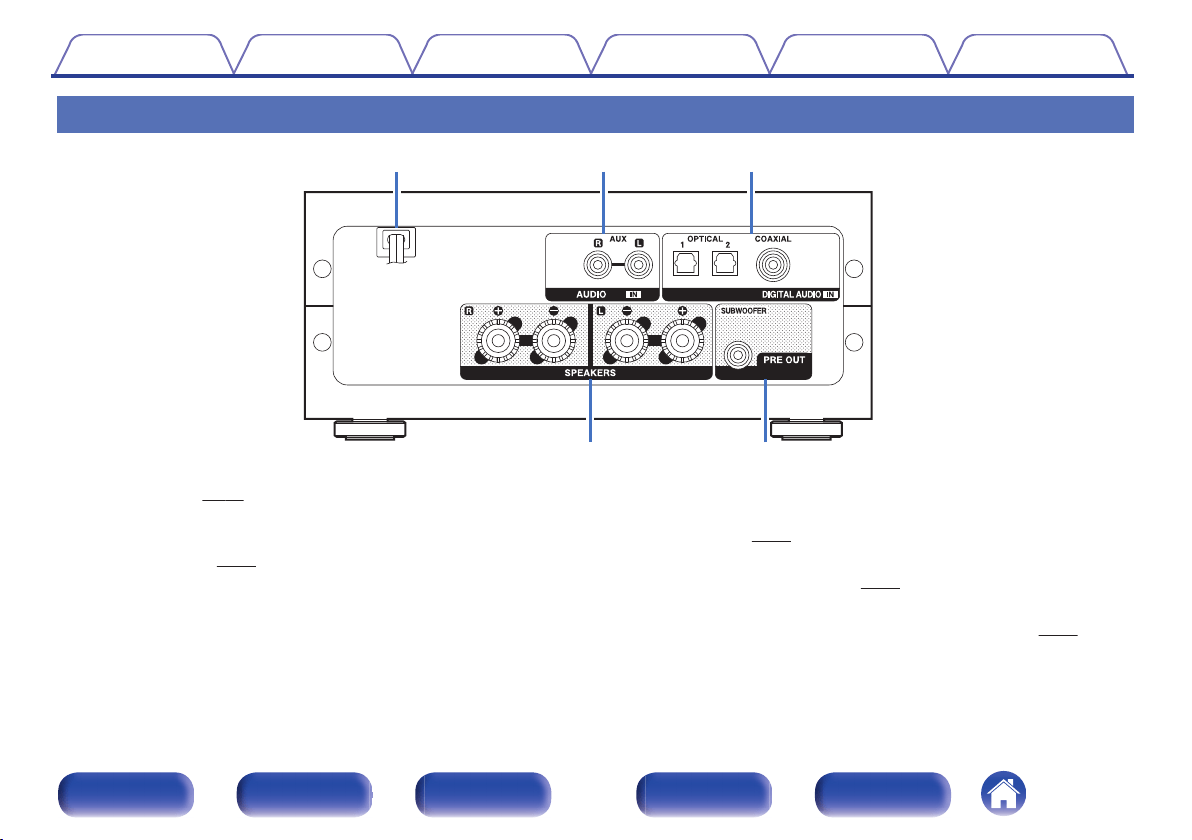
Rear panel
9
Remote control unit
10
Connections
Installing this unit
14
Installing horizontally
14
Installing vertically
15
Before using the remote control unit
17
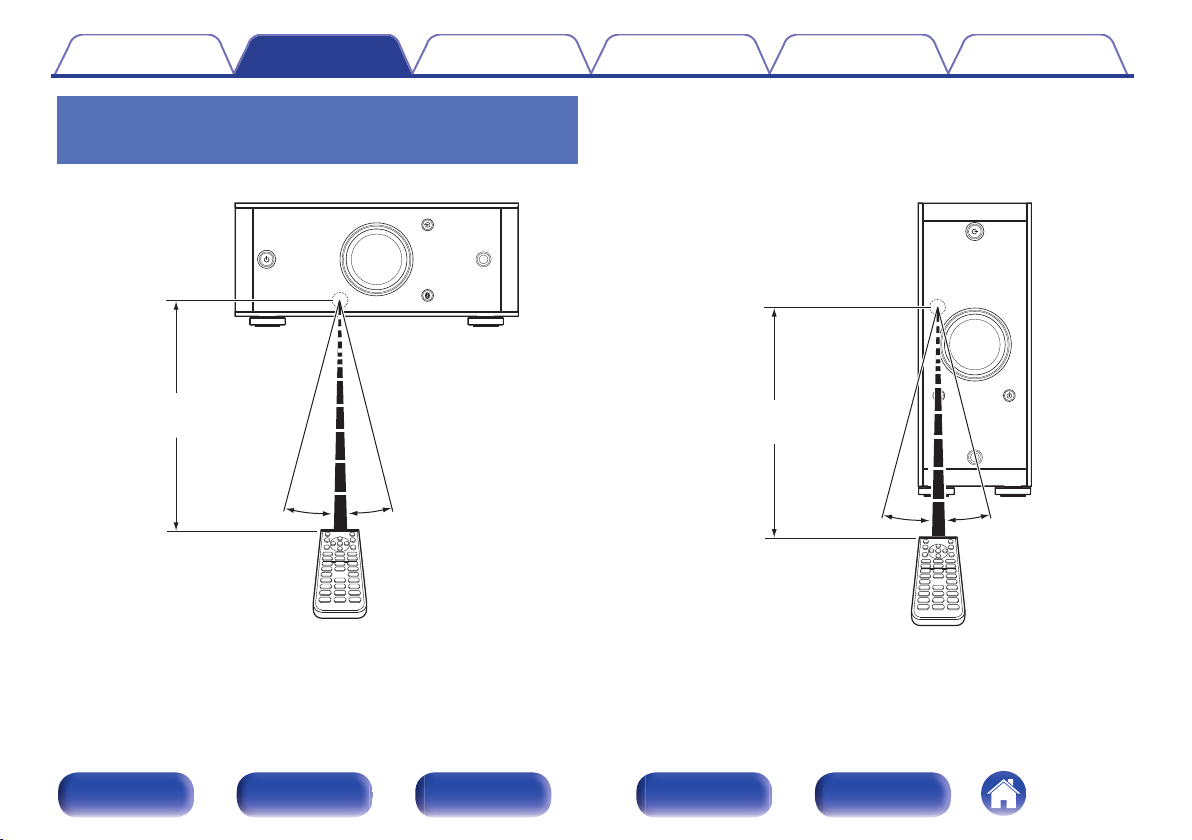
Operating range of the remote control unit
18
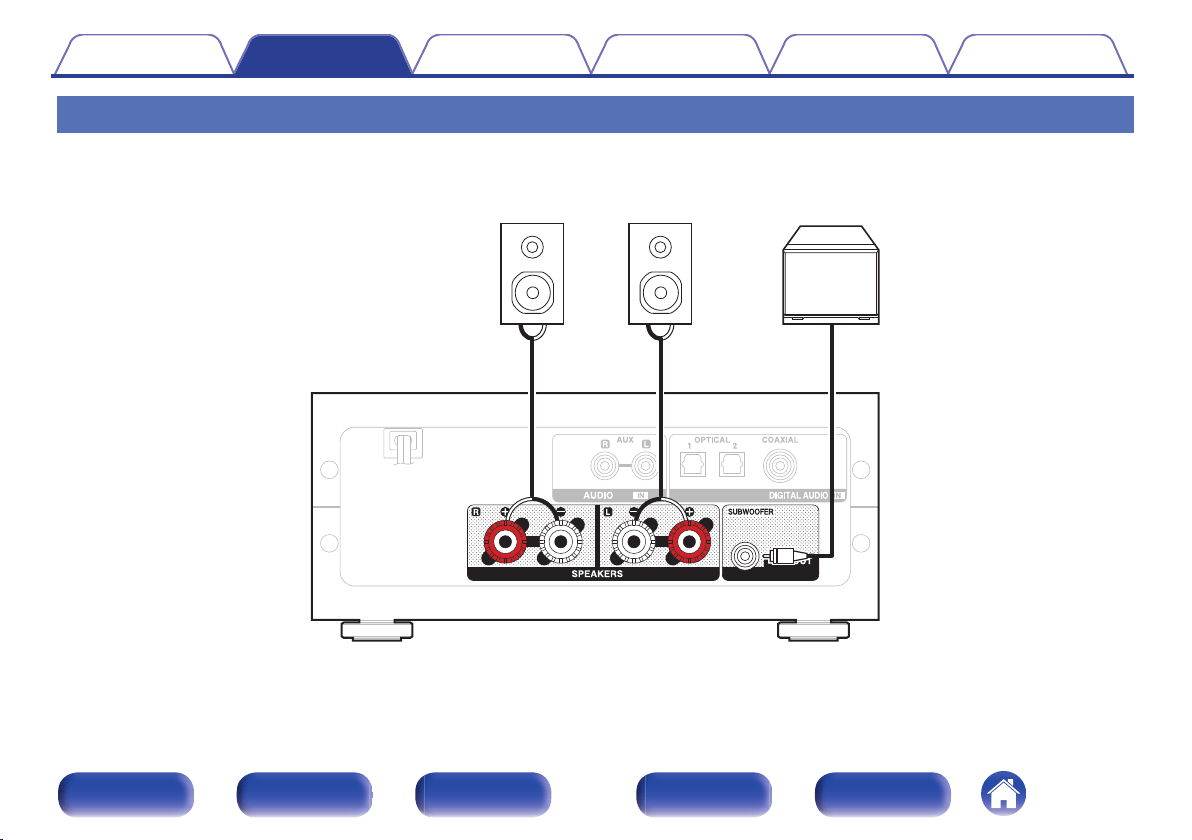
Connecting speakers
19
Speaker connection
20
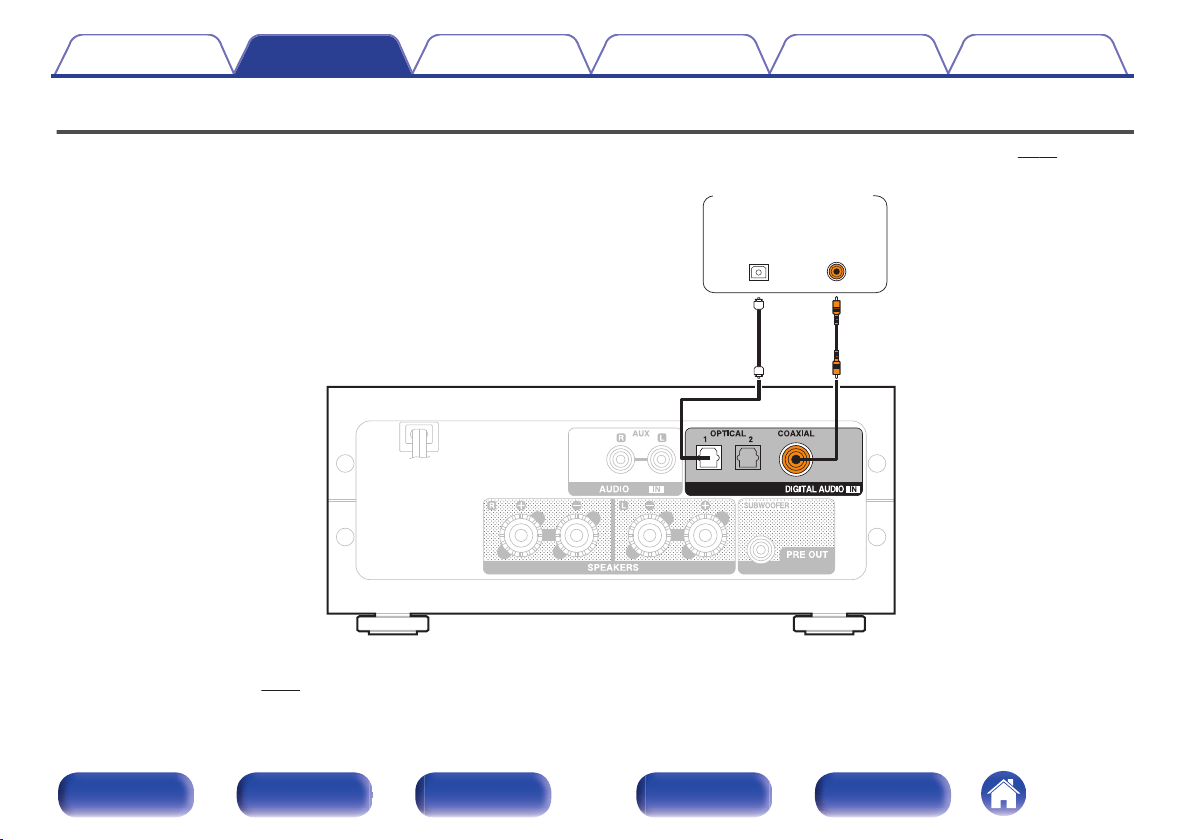
Connecting to a device with digital audio output connectors
21
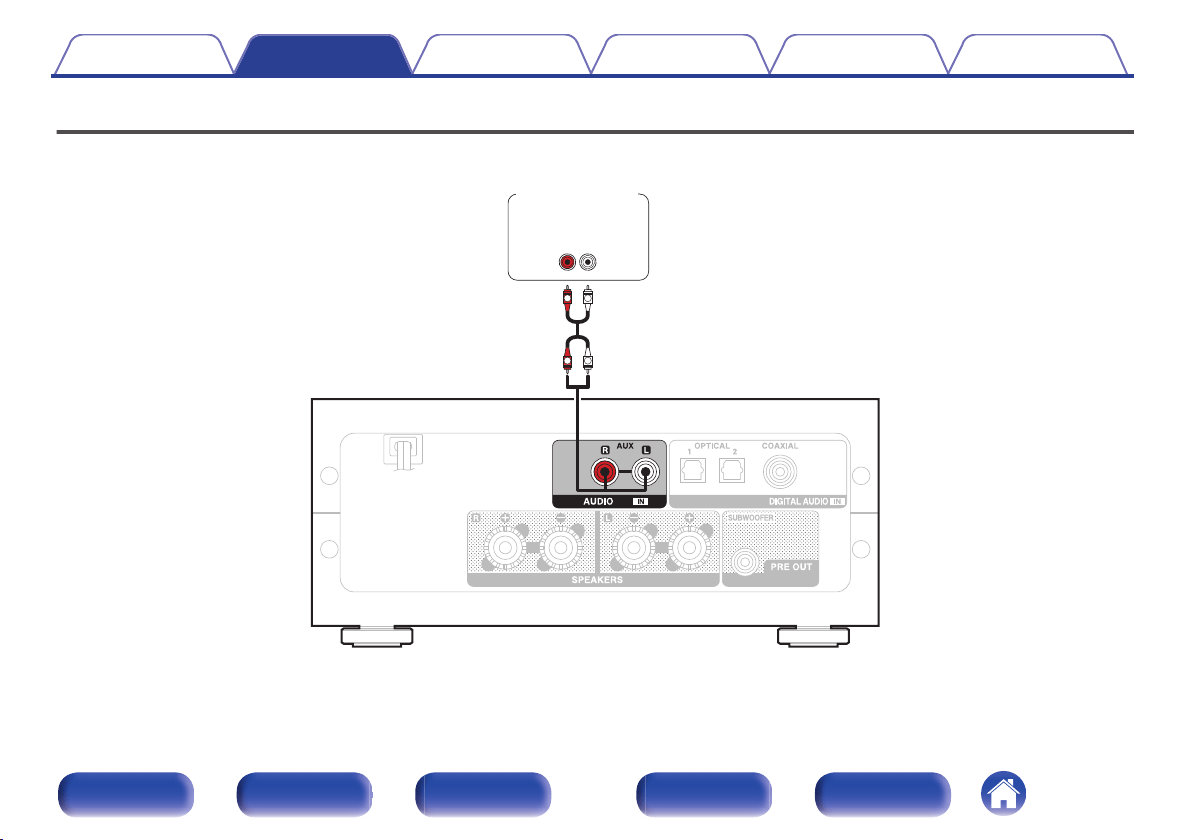
Connecting to a device with analog audio output connectors
22
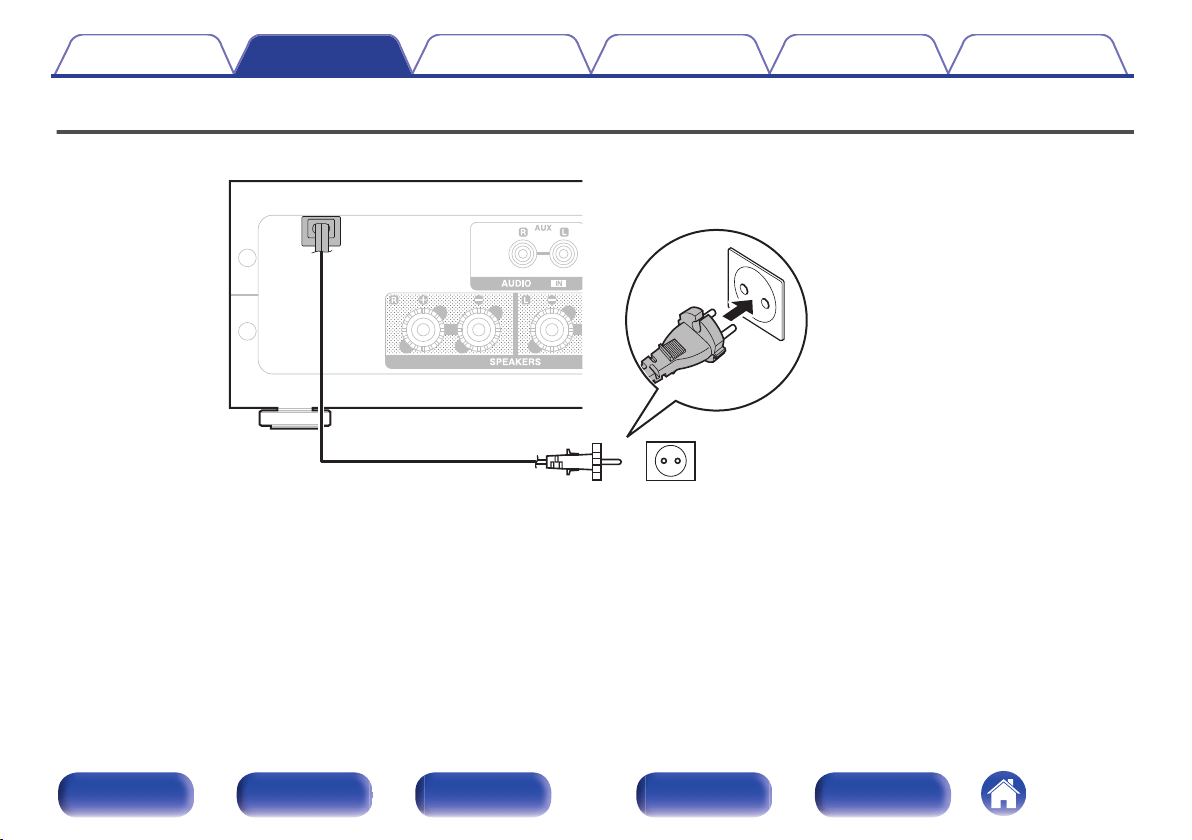
Connecting the power cord
23
Contents Connections Playback Settings Tips Appendix
2
Front panel Display Rear panel Remote Index
Playback
Basic operation
25
Turning the power on
25
Switching the power to standby
25
Selecting the input source
26
Adjusting the volume
27
Turning off the sound temporarily (Muting)
27
Switching the display’s brightness
27
Playing a device
28
Playing CDs
28
Listening to music via a digital connection (COAXIAL/OPTICAL-1/
OPTICAL-2)
29
Listening to music via a analog connection (AUX)
30
Listening to music on a Bluetooth device
31
Settings
Menu map
37
Source Direct
39
Bass
39
Treble
39
Balance
39
H/P AMP Gain
39
Bluetooth
40
Auto Standby
40
Tips
Tips
42
Troubleshooting
43
Resetting to factory settings
49
Appendix
Specifications of supported audio formats
50
D/A Converter
50
Playing back Bluetooth devices
50
Bluetooth communications
50
Explanation of terms
51
Trademark information
52
Specifications
53
Index
56
Contents Connections Playback Settings Tips Appendix
3
Front panel Display Rear panel Remote Index
Thank you for purchasing this Denon product. To ensure proper operation, please read this owner’s manual carefully before using the product.
After reading this manual, be sure to keep it for future reference.
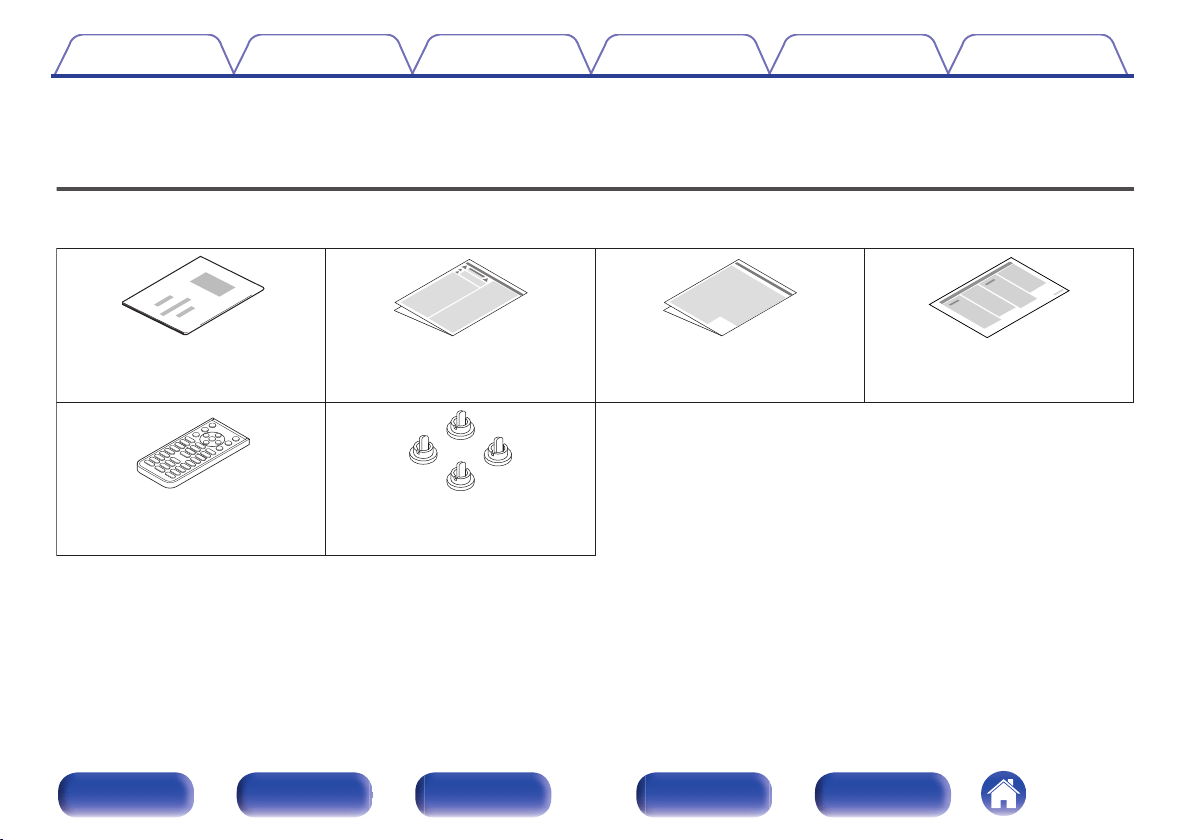
Accessories
Check that the following parts are supplied with the product.
.
Quick Start Guide Safety Instructions Cautions on Using Batteries Notes on radio
Remote control unit
(RC-1220) (built-in battery)
Caps (silver) (x4)
Contents Connections Playback Settings Tips Appendix
4
Front panel Display Rear panel Remote Index
Features
High quality
0
The Denon unique digital integrated stereo amplifier
With an output of 40 W+40 W (4 Ω/ohms) much higher than you would
expect from an enclosure of this size, you can enjoy the balance
between delicacy and power that Denon’s sound is known for.
0
Durable Aluminum Panels
The upper and lower panels of this device are made with 3mm-thick
aluminum. The highly rigid aluminum panels allow the device to perform
to its full capabilities by suppressing the negative effects external
vibrations have on sound quality.
High performance
0
Compatible with a wide range of digital input equipment
This device is installed with two optical digital input interfaces and one
coaxial digital input interface to enable connection to a variety of TVs
and other digital input devices.
0
Wireless connection with Bluetooth enabled devices (v p. 31)
You can connect Bluetooth enabled devices such as smartphones and
tablets with this unit to listen to music while browsing email and Web
sites in the Internet away from this unit. In addition, this unit supports
high quality audio codecs, aptX Low Latency and AAC, to enjoy music
and games with a powerful sound.
0
Supports vertical installation
This unit can be installed vertically or horizontally. The display
automatically rotates to match the installation orientation.
0
System remote control
This unit comes with a system remote control that can also operate the
Denon's CD Player DCD-50.
Contents
Connections Playback Settings Tips Appendix
5
Front panel Display Rear panel Remote Index
Part names and functions
Front panel
.
w e
t y
q r
A
Power operation button (X)
This turns the power on/to standby. (v p. 25)
The power status is indicated as follows.
0
Power on: Display lit
0
Standby: Display off
B
Protection circuit indicator
This blinks when the protection circuit has operated.
0
“Power does not turn on/Power is turned off” (v p. 44)
0
“Protection circuit” (v p. 51)
C
Display
This displays various pieces of information. (v
p. 8)
D
Remote control sensor
This receives signals from the remote control unit. (v p. 18)
E
Volume control knob
This adjusts the volume level. (v
p. 27)
F
Input source switching button (q)
This switches input sources. (v
p. 26)
Contents Connections Playback Settings Tips Appendix
6
Front panel Display Rear panel Remote Index
.
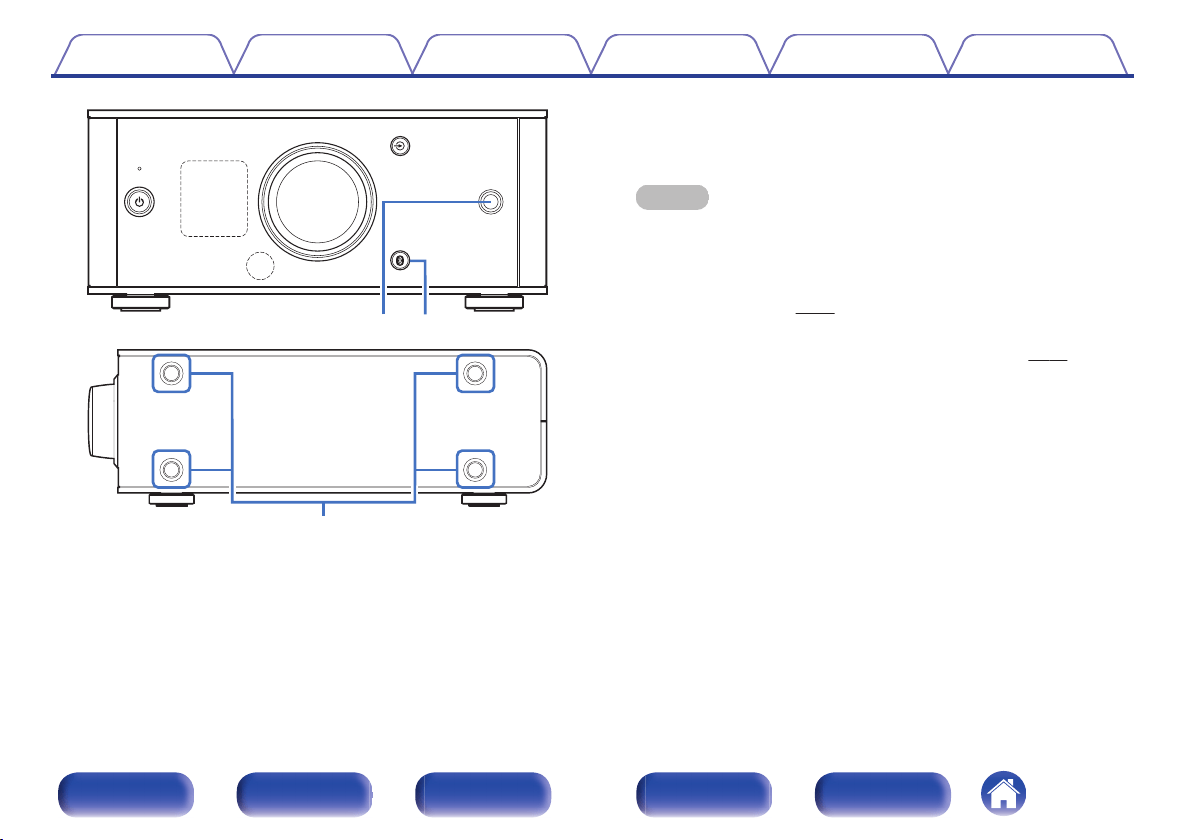
i
u
.
o
G
Headphones jack
Used to connect headphones.
When the headphones are plugged into this jack, audio will no longer
be output from the speaker terminals.
NOTE
0
To prevent hearing loss, do not raise the volume level excessively when using
headphones.
H
Bluetooth button (V)
This switches the input to Bluetooth. This is also pressed during the
pairing operation. (v
p. 32)
I
Installation holes for vertical installation feet
These are used when the unit is installed vertically. (v p. 15)
Contents Connections Playback Settings Tips Appendix
7
Front panel Display Rear panel Remote Index
Display
.
q w
A
Input source indicator
The following is displayed depending on the selected input source.
COAXIAL
OPTICAL-1 OPTICAL-2
AUX
Bluetooth
.
.
.
.
.
B
Information display
Displays items such as information on the audio signal being input or
the name of a Bluetooth device.
Contents Connections Playback Settings Tips Appendix
8
Front panel Display Rear panel Remote Index
Rear panel
.
q
r t
we
A
Power cord (v p. 23)
B
AUX input connectors (AUDIO IN)
Used to connect devices equipped with analog audio connectors such
as CD players. (v p. 22)
C
DIGITAL AUDIO IN connectors
Used to connect devices equipped with digital audio output
connectors. (v p. 21)
D
Speaker terminals (SPEAKERS)
Used to connect speakers. (v
p. 20)
E
Subwoofer terminal (PRE OUT)
Used to connect a subwoofer with a built-in amplifier. (v
p. 20)
Contents Connections Playback Settings Tips Appendix
9
Front panel Display Rear panel Remote Index
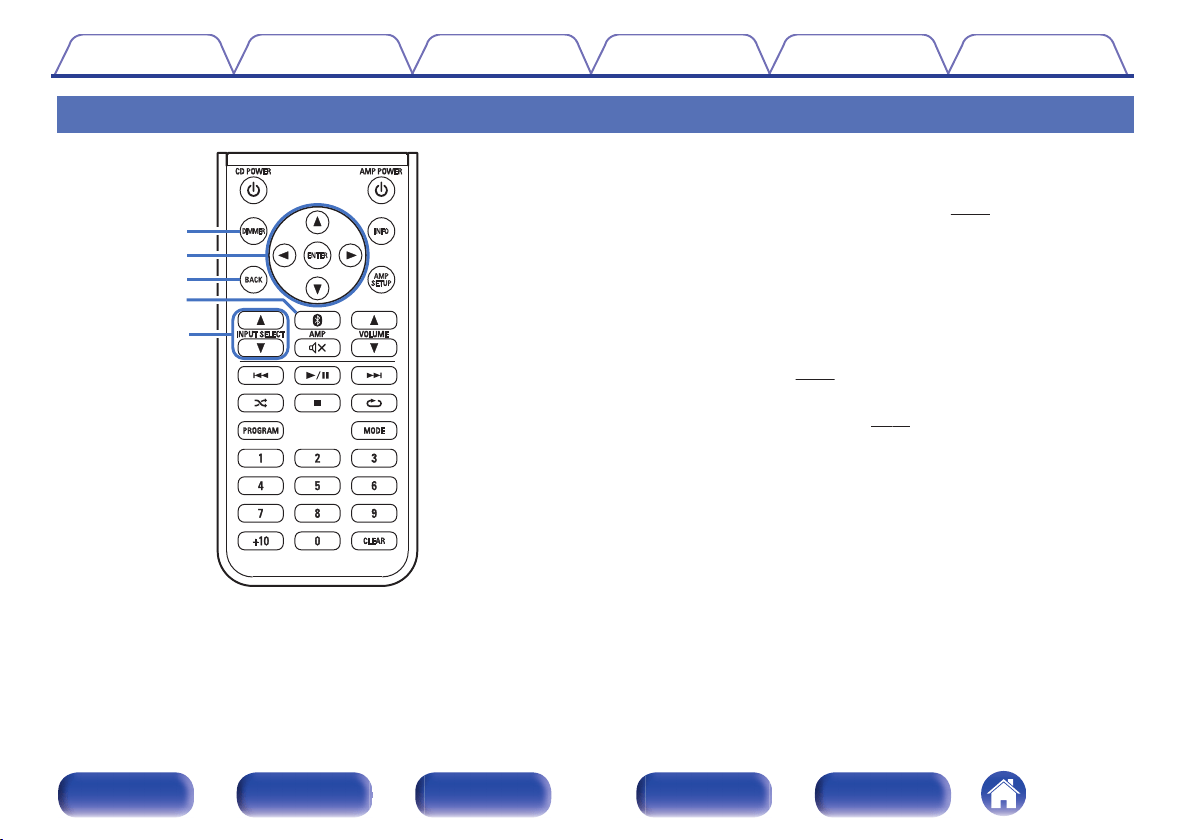
Remote control unit
.
q
e
r
t
w
o
Operating this unit
A
DIMMER button
Adjust the display brightness of this unit. (v
p. 27)
B
Cursor buttons (uio p)
These select menu items.
C
BACK button
Returns to the previous item.
D
Bluetooth button (V)
This switches the input to Bluetooth. This is also pressed during the
pairing operation. (v
p. 32)
E
INPUT SELECT buttons (df)
This switches input sources. (v p. 26)
Contents Connections Playback Settings Tips Appendix
10
Front panel Display Rear panel Remote Index
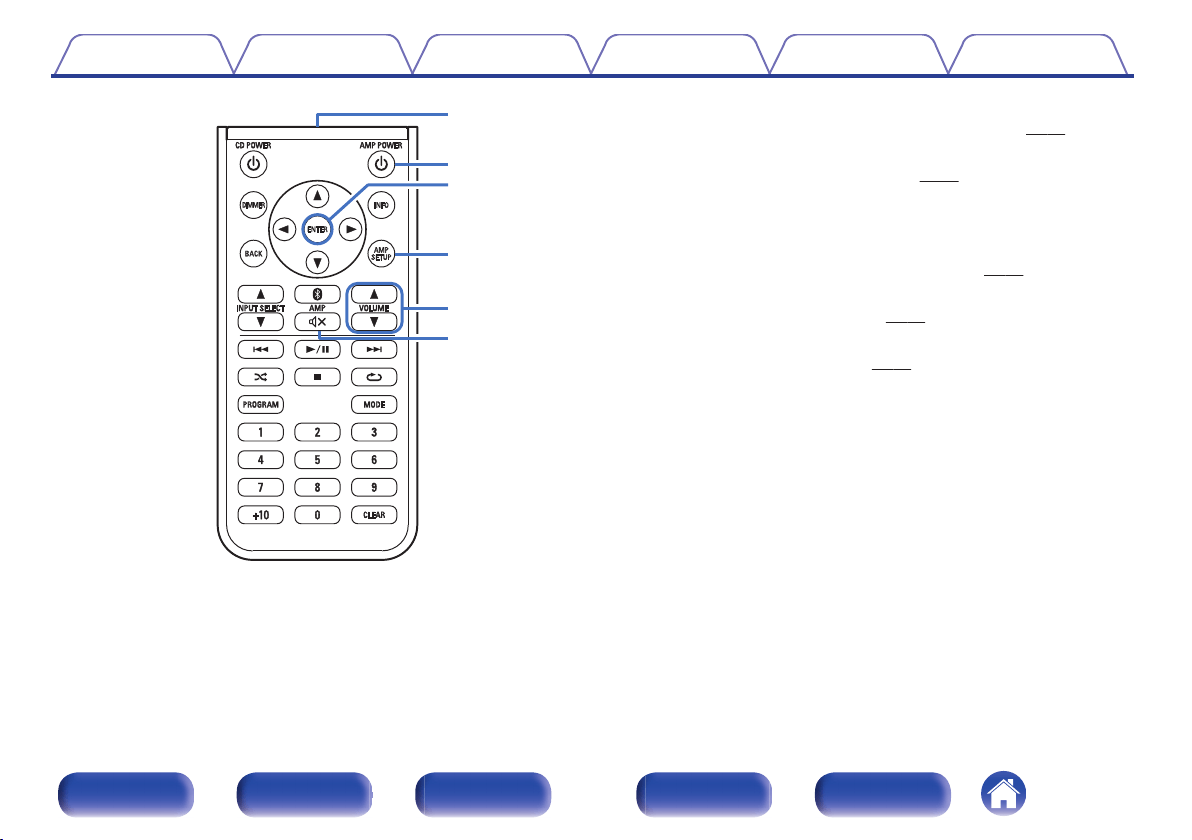
.
u
y
o
Q0
i
Q1
F
Signal transmitter
This transmits signals from the remote control unit. (v
p. 18)
G
Power operation button (AMP POWER X)
This turns the power on/to standby. (v p. 25)
H
ENTER button
This determines the selection.
I
AMP SETUP button
The setting menu is displayed on the display. (v
p. 38)
J
VOLUME buttons (df)
These adjust the volume level. (v
p. 27)
K
Mute button (:)
This mutes the output audio. (v p. 27)
Contents Connections Playback Settings Tips Appendix
11
Front panel Display Rear panel Remote Index
.
q
w
e
r
t
y
i
o
Q0
Q1
Q2
u
o
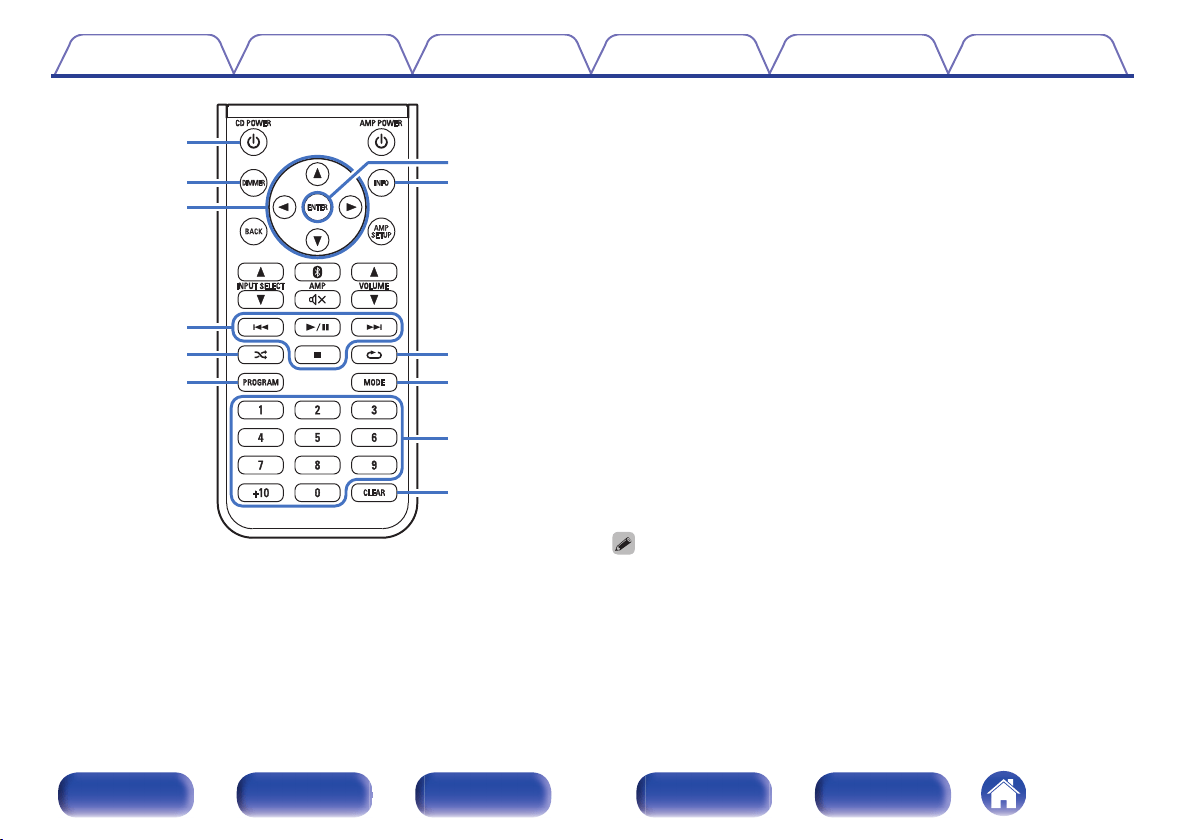
CD player operations
A Denon CD player can be operated.
A
Power operation button (CD POWER X)
B
DIMMER button
C
Cursor buttons (uio p)
D
System buttons
0
Skip buttons (8 / 9)
0
Play/pause button (1 / 3)
0
Stop button (2)
E
Random button (P)
F
PROGRAM button
G
ENTER button
H
INFO button
I
Repeat button (L)
J
MODE button
K
Number buttons (0 – 9, +10)
L
CLEAR button
0
The remote control may not operate some products.
Contents Connections Playback Settings Tips Appendix
12
Front panel Display Rear panel Remote Index
o
Contents
Installing this unit 14
Installing horizontally 14
Installing vertically 15
Before using the remote control unit 17
Connecting speakers 19
Connecting to a device with digital audio output connectors 21
Connecting to a device with analog audio output connectors 22
Connecting the power cord 23
NOTE
0
Do not plug in the power cord until all connections have been completed.
0
Do not bundle power cords together with connection cables. Doing so can result in
humming or noise.
o
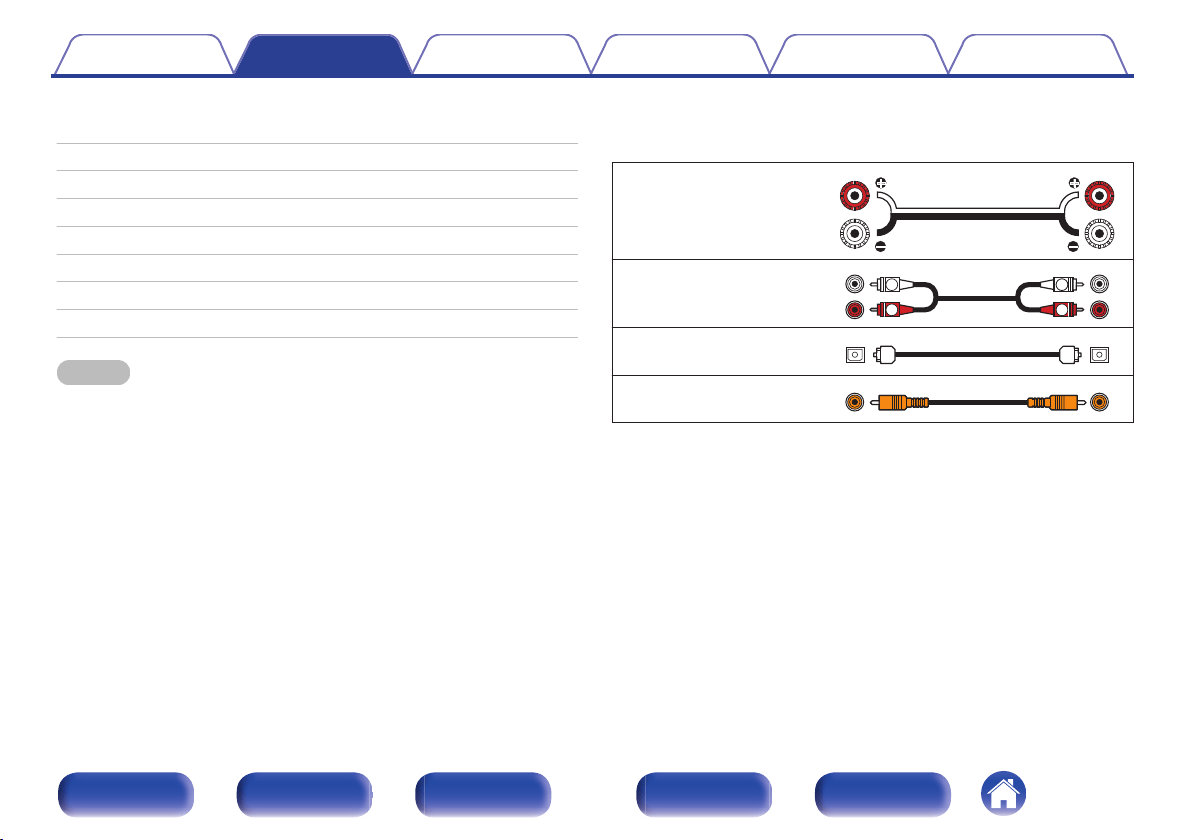
Cables used for connections
Provide necessary cables according to the devices you want to
connect.
Speaker cable
.
Audio cable
.
R
L
R
L
Optical cable
.
Coaxial digital cable
.
Contents Connections Playback Settings Tips Appendix
13
Front panel Display Rear panel Remote Index
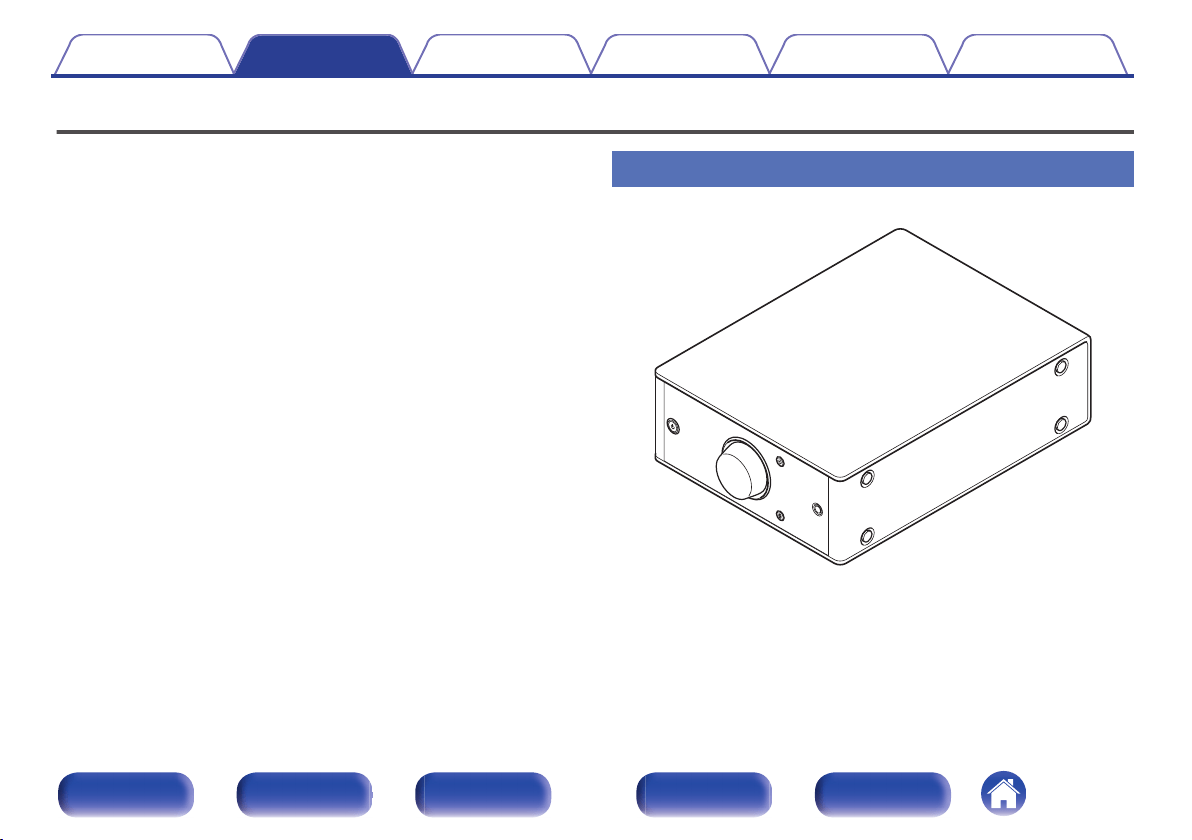
Installing this unit
This unit can be installed in two ways - horizontally or vertically. You can
select how to install this unit according to the installation place and your
preference.
Installing horizontally
The feet are initially attached to the unit for horizontal installation.
.
Contents
Connections Playback Settings Tips Appendix
14
Front panel Display Rear panel Remote Index
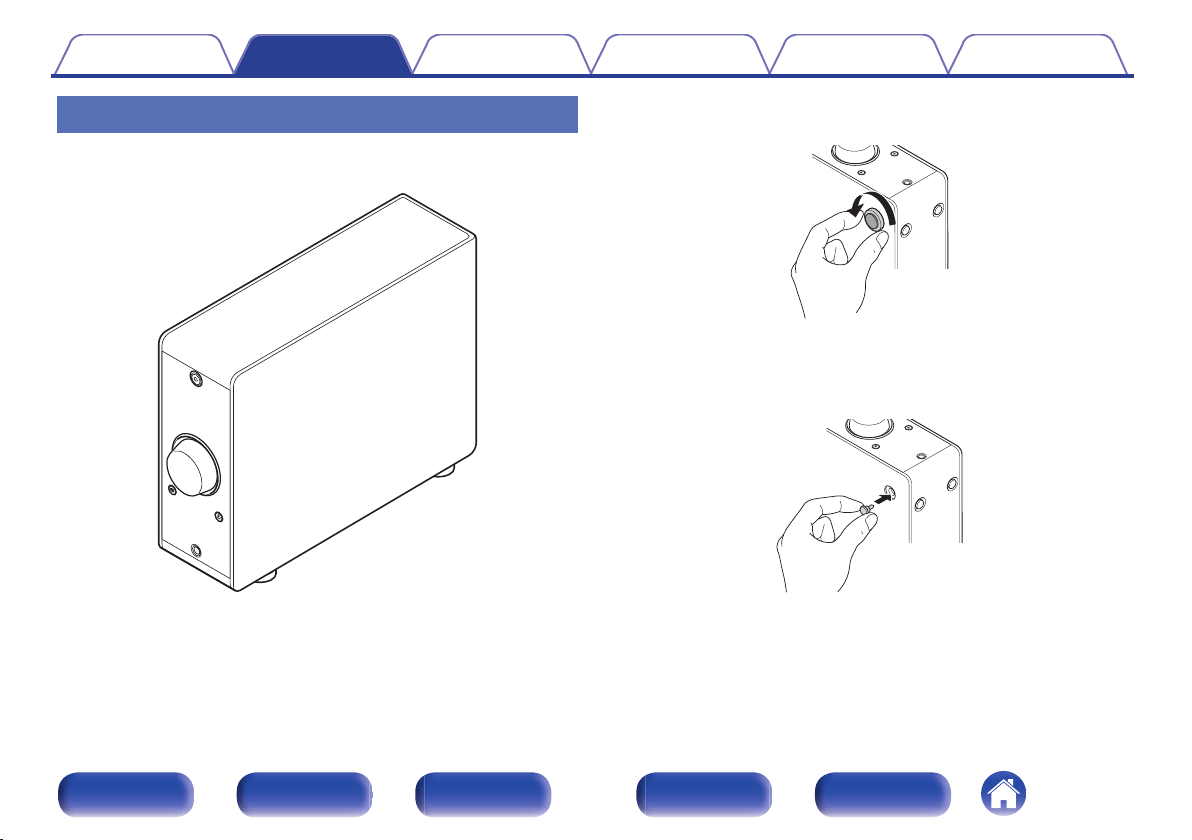
Installing vertically
This orientation is suitable for placing a narrow place such as a place next
to a laptop computer.
.
1
Remove the feet.
.
0
Rotate each of the 4 feet counter-clockwise to remove.
2
Insert the supplied caps (silver) into the holes from
which the feet were removed.
.
Contents
Connections Playback Settings Tips Appendix
15
Front panel Display Rear panel Remote Index
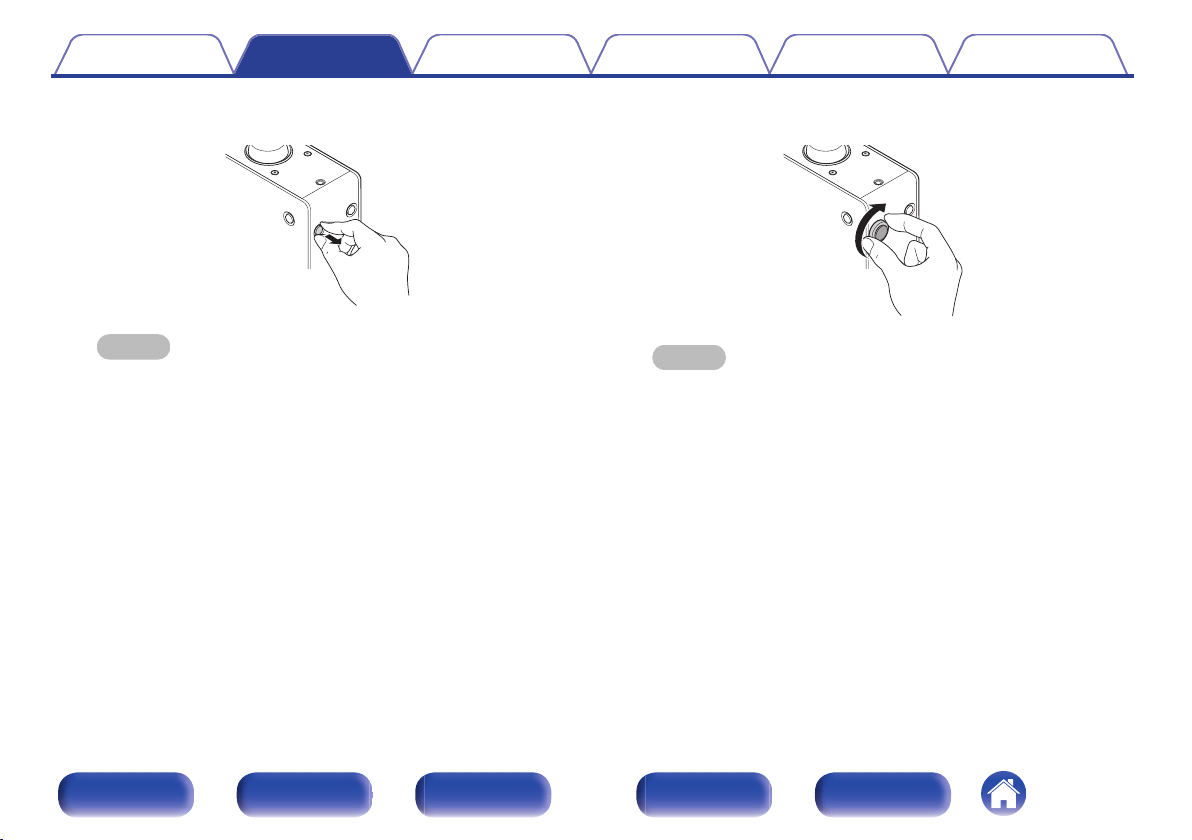
3
Remove the cap (black).
.
NOTE
0
Be careful not to damage your nails when removing the caps.
If necessary, use a thin-tipped tool to remove the caps. However, be careful
not to damage the unit when using tools.
4
Rotate the removed feet clockwise to attach them.
.
NOTE
0
After attaching the feet, adjust the height of the feet as necessary so that the
set is stable when installed.
Contents Connections Playback Settings Tips Appendix
16
Front panel Display Rear panel Remote Index
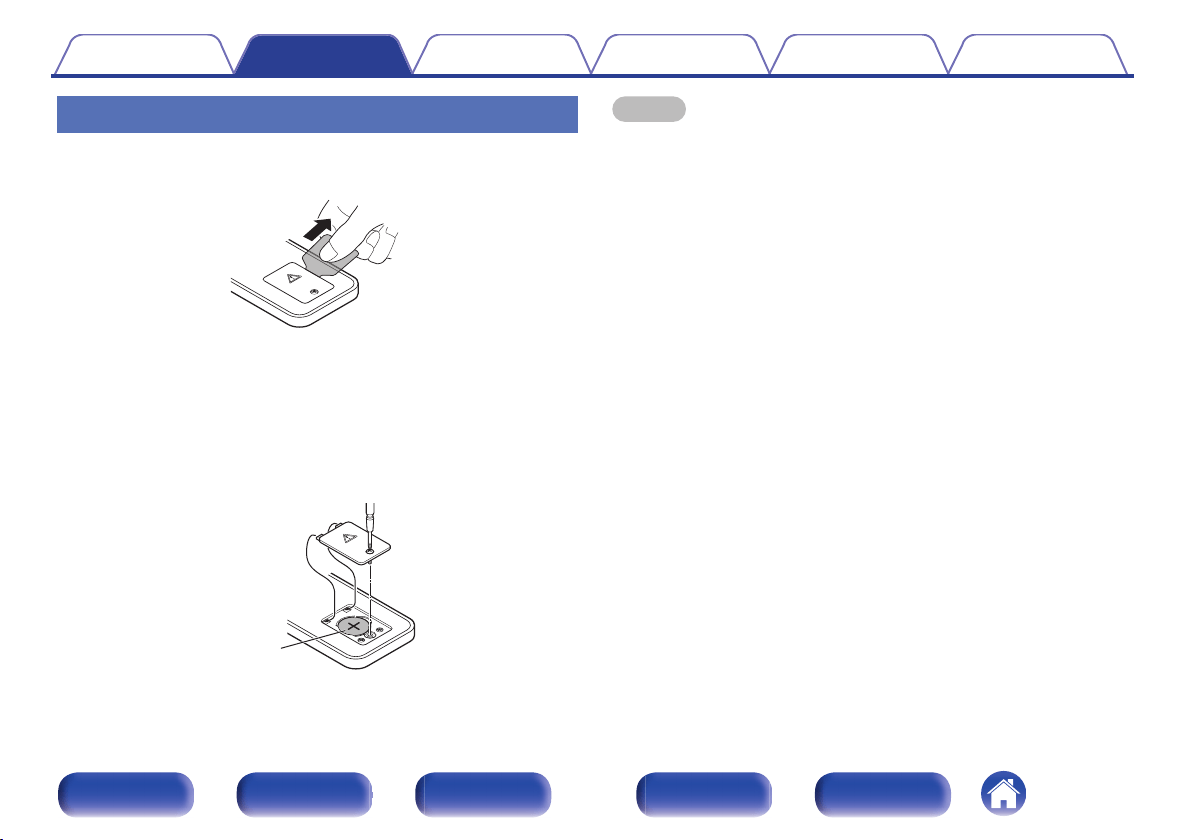
Before using the remote control unit
The remote control unit has a built-in lithium battery.
Pull out the insulation sheet before use.
.
o
Replacing the battery
1. Loosen the screws of the back cover with a fine crosshead screwdriver
(purchased separately) and remove the back cover.
2. Remove the old battery, then insert a new coin-shaped lithium battery
(CR2025) so that the + symbol engraved on the battery faces upwards.
3. Put the back cover back on and tighten the screws.
.
CR2025
NOTE
0
If the battery should have a leakage, immediately replace and dispose of the
battery. In this case, there is a risk of burn when the liquid comes in contact with
skins or clothes, so a great care should be taken. If the liquid accidentally comes in
contact, wash with tap water and consult a doctor.
0
Remove the battery from the remote control unit if it will not be in use for long
periods.
Contents Connections Playback Settings Tips Appendix
17
Front panel Display Rear panel Remote Index
Connecting speakers
NOTE
0
Disconnect this unit’s power plug from the power outlet before connecting the
speakers. Also, turn off the subwoofer.
0
Connect so that the speaker cable core wires do not protrude from the speaker
terminal. The protection circuit may be activated if the core wires touch the rear
panel or if the + and - sides touch each other. (“Protection circuit” (v
p. 51))
0
Never touch the speaker terminals while the power cord is connected. Doing so
could result in electric shock.
0
Use speakers with impedance of 4 - 16 Ω/ohms.
o
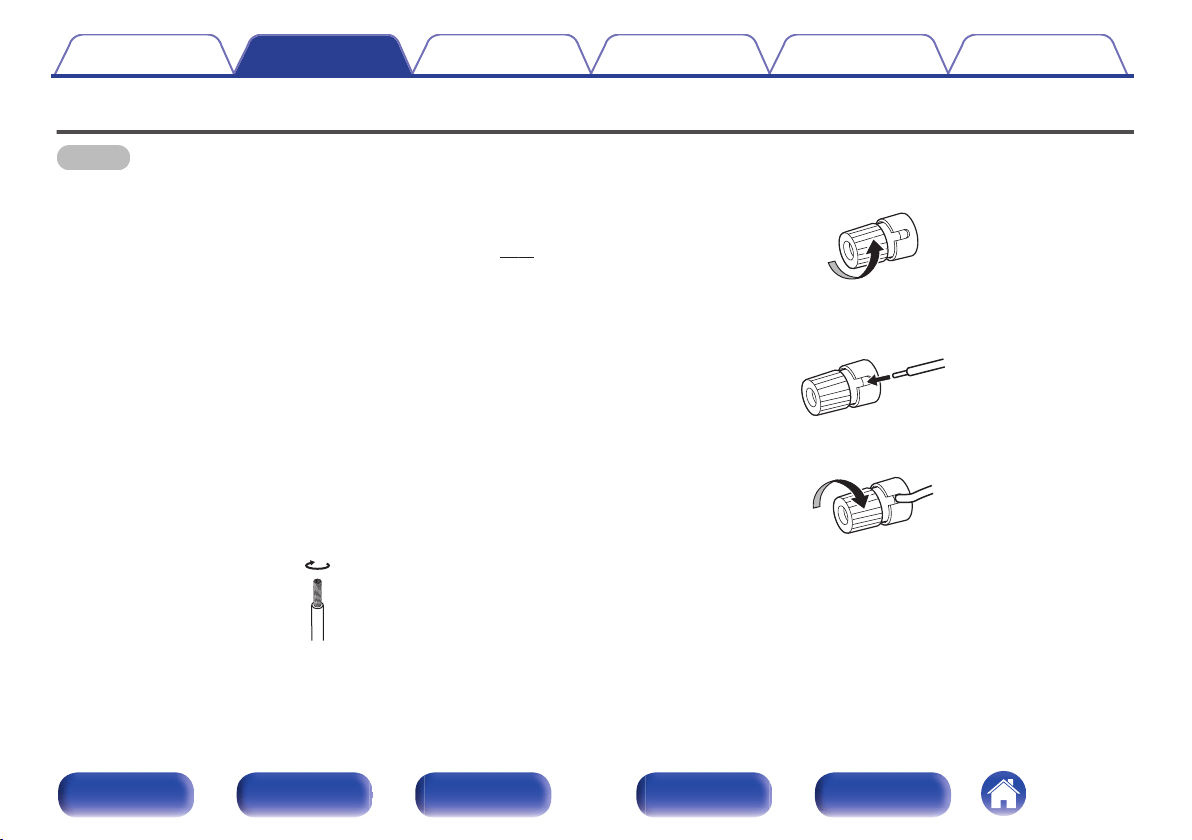
Connecting the speaker cables
Carefully check the left (L) and right (R) channels on the speakers
being connected to this unit, and be sure to connect the polarities
correctly.
1
Peel off about 10 mm of sheathing from the tip of the
speaker cable, then either twist the core wire tightly or
terminate it.
.
2
Turn the speaker terminal counterclockwise to loosen
it.
.
3
Insert the speaker cable’s core wire to the hilt into the
speaker terminal.
.
4
Turn the speaker terminal clockwise to tighten it.
.
Contents
Connections Playback Settings Tips Appendix
19
Front panel Display Rear panel Remote Index
Connecting to a device with digital audio output connectors
Use this connection to input digital audio signals to this unit, and convert the signals for playback using the D/A converter of this unit. (v p. 29)
.
OPTICAL
OUT
COAXIAL
OUT
CD player/
Digital device
o
Audio signals that can be played back
See “D/A Converter” (v p. 50).
Contents
Connections Playback Settings Tips Appendix
21
Front panel Display Rear panel Remote Index
o
Contents
Basic operation
Turning the power on 25
Switching the power to standby 25
Selecting the input source 26
Adjusting the volume 27
Turning off the sound temporarily (Muting) 27
Switching the display’s brightness 27
Playing a device
Playing CDs 28
Listening to music via a digital connection (COAXIAL/OPTICAL-1/
OPTICAL-2) 29
Listening to music via a analog connection (AUX) 30
Listening to music on a Bluetooth device 31
Contents Connections Playback Settings Tips Appendix
24
Front panel Display Rear panel Remote Index
Basic operation
.
X
VOLUME
df
INPUT SELECT
df
AMP POWER
DIMMER
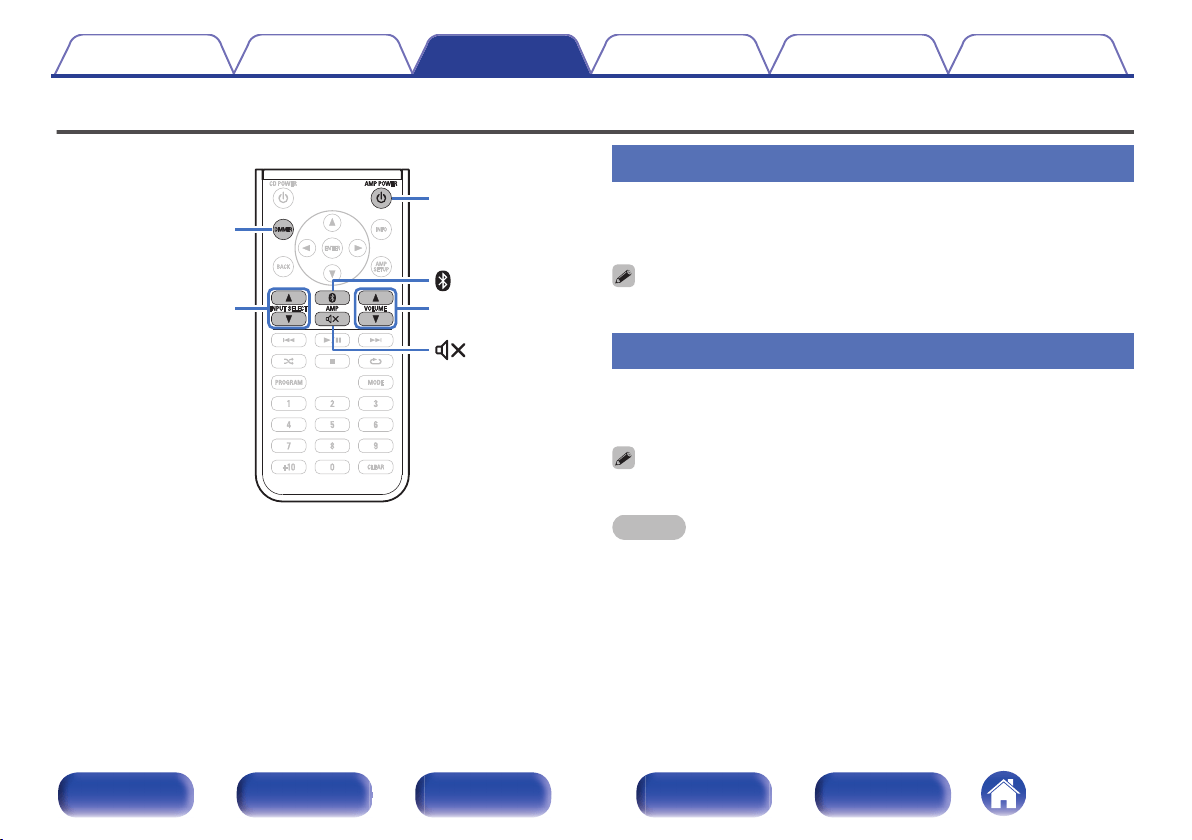
Turning the power on
1
Press AMP POWER X to turn on power to this unit.
Turns the display on.
0
You can also press X on the main unit to turn on power from standby mode.
Switching the power to standby
1
Press AMP POWER X.
Turns the display off.
0
You can also switch the power to standby by pressing X on the main unit.
NOTE
0
When the power is in the standby mode, some circuits are electrified. Before you
go out or travel for a long period of time, disconnect the power cord from the power
outlet.
Contents Connections Playback Settings Tips Appendix
25
Front panel Display Rear panel Remote Index
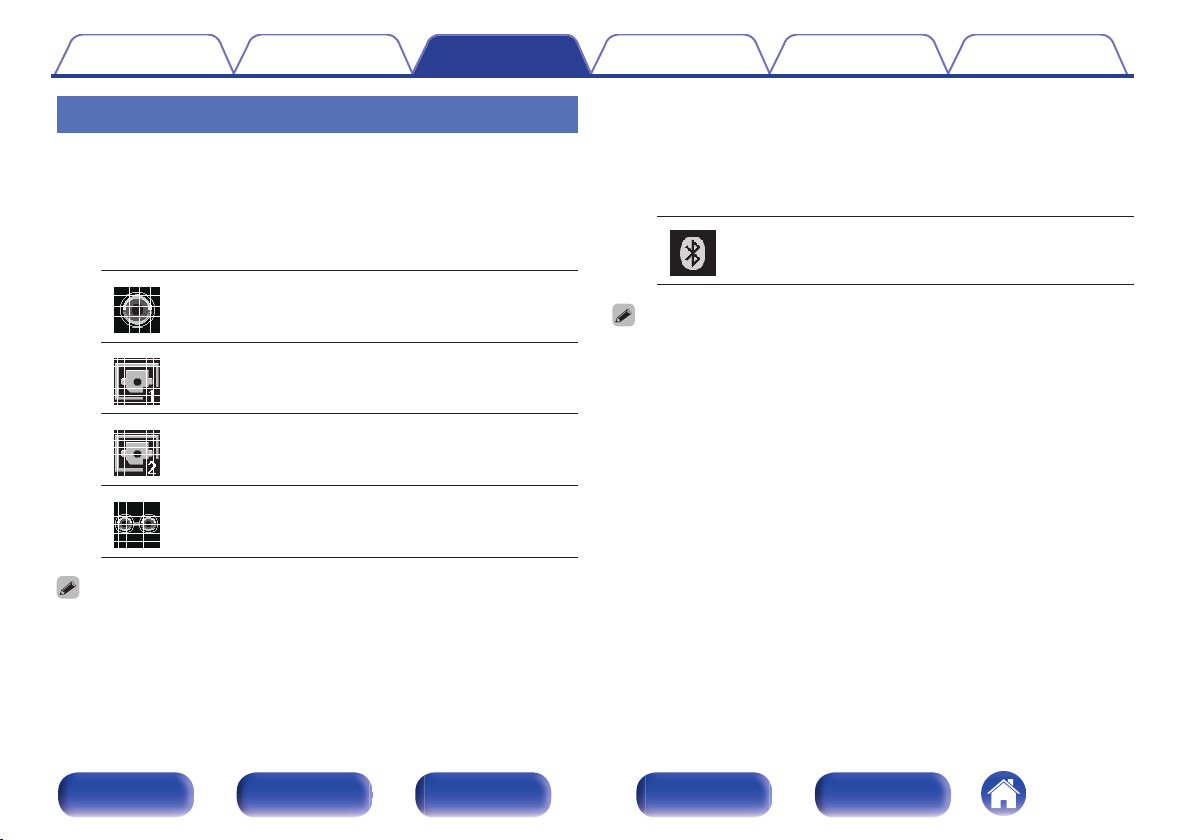
Selecting the input source
o
Selecting DIGITAL IN or ANALOG IN
1
Use INPUT SELECT df to select the input source to be
played.
The following icon appears on the display.
.
COAXIAL:
Plays back the device connected to the
COAXIAL connector.
.
OPTICAL-1:
Plays back the device connected to the
OPTICAL 1 connector.
.
OPTICAL-2:
Plays back the device connected to the
OPTICAL 2 connector.
.
AUX:
Plays back the device connected to the
AUX connector.
0
You can also press q on the main unit for this operation.
o
Selecting Bluetooth
1
Press V.
The following icon appears on the display.
.
Bluetooth:
Connects and plays back a Bluetooth
device.
0
You can also press V on the main unit for this operation.
Contents Connections Playback Settings Tips Appendix
26
Front panel Display Rear panel Remote Index
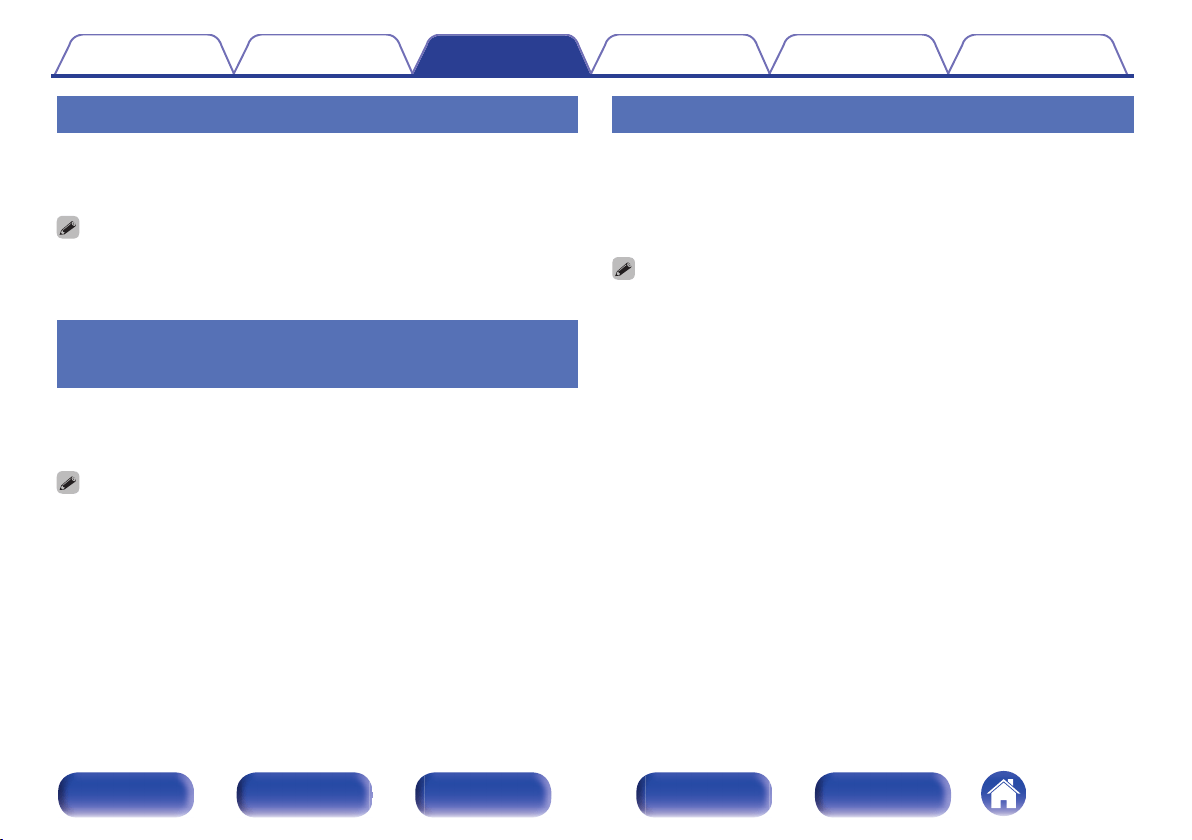
Adjusting the volume
1
Use VOLUME df to adjust the volume.
The volume level appears on the display.
0
You can also adjust the volume by turning the volume control knob on the main
unit.
0
You can adjust the volume level to --- dB (mute) and between -90 dB and 0 dB.
Turning off the sound temporarily
(Muting)
1
Press :.
“MUTING” appears on the display.
0
Press : again to cancel the muting.
Switching the display’s brightness
The display brightness can be adjusted between three levels.
1
Press DIMMER.
0
The brightness of the display switches each time the button is
pressed.
0
The DIMMER button also controls the Denon's CD Player DCD-50, so the DCD-50
can be operated simultaneously with this unit. When the two units have different
settings, press and hold in the button for lease 2 seconds to reset them both to the
default setting, then make the desired setting.
0
The display brightness is set to most brightly by default.
Contents Connections Playback Settings Tips Appendix
27
Front panel Display Rear panel Remote Index
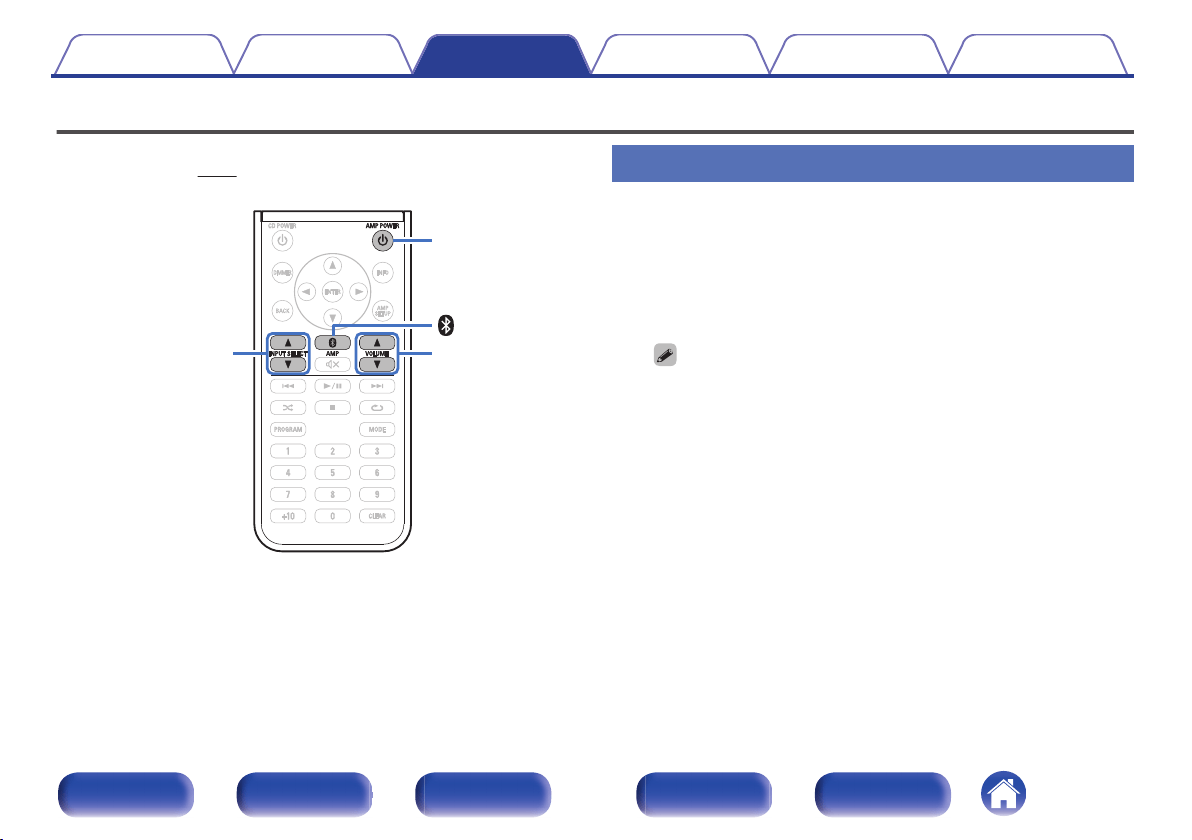
Playing a device
Connect the device you want to play back beforehand.
(“Connections” (v p. 13))
.
X
VOLUME
df
INPUT SELECT
df
AMP POWER
Playing CDs
This section explains how to make a digital (COAXIAL) connection
between this unit and a CD player and play audio using this unit’s D/A
converter.
1
Use INPUT SELECT df to switch the input source to
“COAXIAL”.
“COAXIAL” is displayed on the display of this unit.
0
If connecting a CD player to this unit by analog, switch the input source to
“AUX”.
2
Playback the CD.
3
Use VOLUME df to adjust the volume.
Contents Connections Playback Settings Tips Appendix
28
Front panel Display Rear panel Remote Index
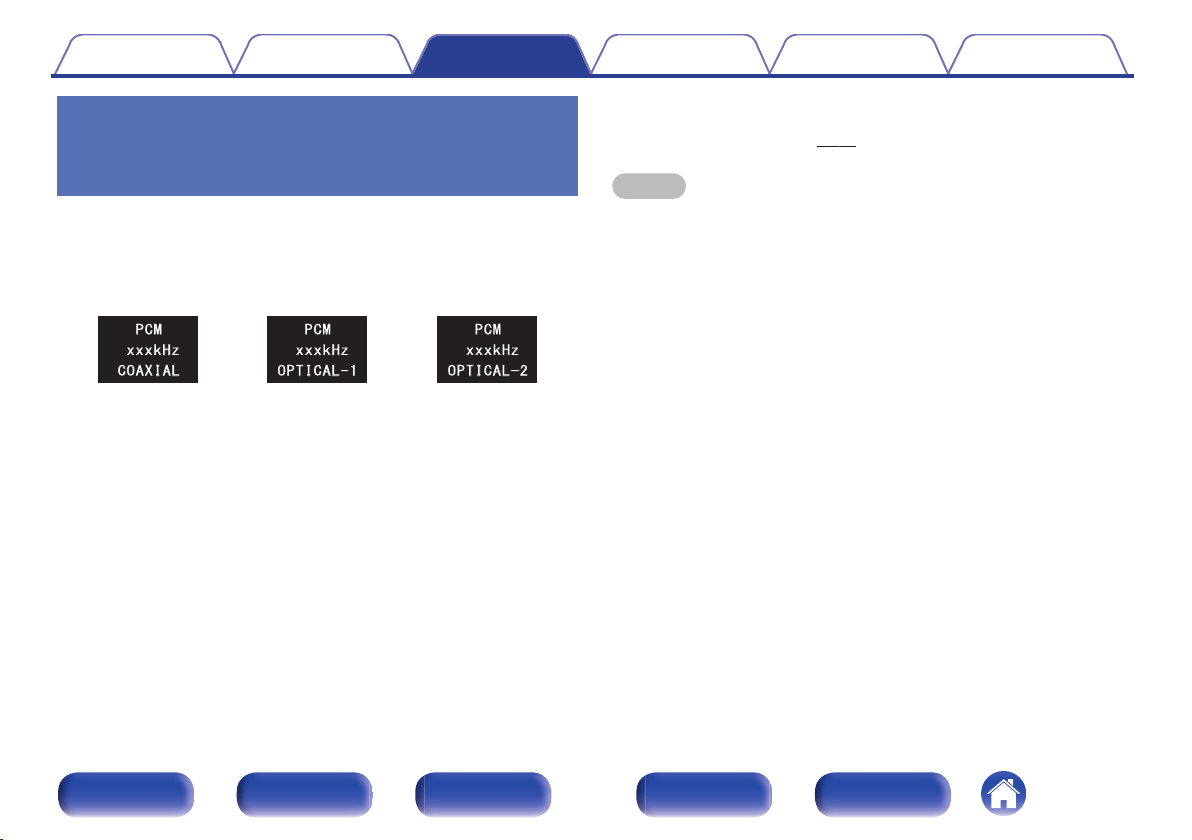
Listening to music via a digital
connection (COAXIAL/OPTICAL-1/
OPTICAL-2)
1
Use INPUT SELECT df to switch the input source to
“COAXIAL”, “OPTICAL-1” or “OPTICAL-2”.
The digital audio signal that is being input is shown as follows in the
display.
.
or
or
(xxxx is the sampling frequency.)
0
If the sampling frequency cannot be detected, “Unlocked” will be
displayed.
0
“Unsupported” is displayed when audio signals that are not
supported by this unit are input.
2
Play back music on the connected device.
The speakers output music from the connected device.
o
Audio signals that can be played back
See “D/A Converter” (v p. 50).
NOTE
0
Do not input non-PCM signals, such as Dolby Digital and DTS. This causes noise
and could damage the speakers.
Contents Connections Playback Settings Tips Appendix
29
Front panel Display Rear panel Remote Index
Listening to music on a Bluetooth
device
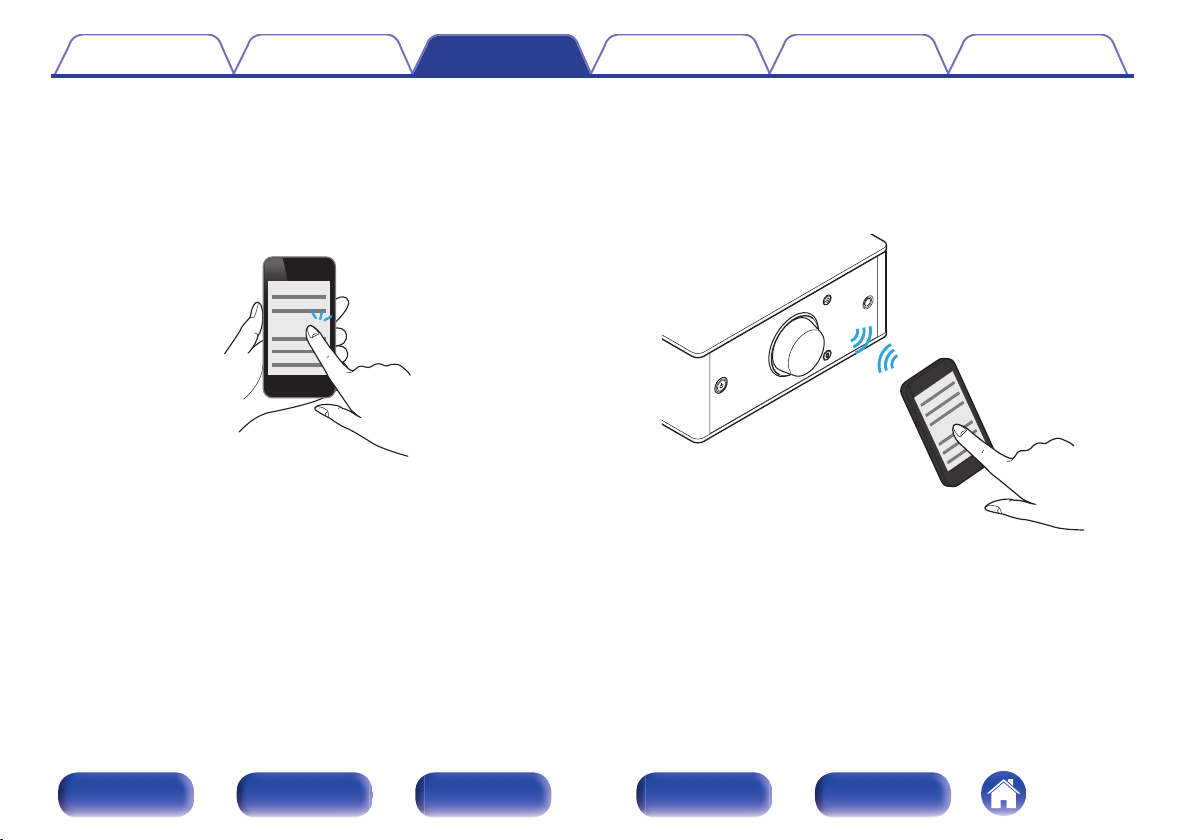
You can listen to music wirelessly by connecting this unit to a Bluetooth
device via Bluetooth.
o
Pairing
Pairing (registration) is an operation that is required in order to connect
a Bluetooth device to this unit using Bluetooth. When paired, the
devices authenticate each other and can connect without mistaken
connections occurring.
When using Bluetooth connection for the first time, you need to pair
this unit and the Bluetooth device to be connected. This unit can store
pairing information for a maximum of 8 devices.
NOTE
0
You cannot simultaneously output music from multiple Bluetooth devices.
o
How to establish a Bluetooth connection
There are three types of Bluetooth connection methods. Use an
appropriate type depending on your environment.
Case 1
Pairing with this unit for the first time
(v p. 32)
Case 2
Connecting a Bluetooth device that this unit performed
pairing for before
(v p. 34)
Contents Connections Playback Settings Tips Appendix
31
Front panel Display Rear panel Remote Index
o
Case 1: Pairing with this unit for the first time
1
Press AMP POWER X to turn on power to this unit.
Turns the display on.
2
Turn on the Bluetooth function on the Bluetooth device.
0
For details, see the owner’s manual for your Bluetooth device.
.
Bluetooth ON
3
Press V for 3 seconds or longer.
“Pairing” appears on the display, and the unit enters the pairing
mode.
0
When you press V for the first time after purchase, this unit
automatically enters the pairing mode.
4
Select “Denon PMA-30” from the list of devices
displayed in the screen on the Bluetooth device.
When pairing is complete and the device is connected via Bluetooth,
the device name appears on the display of this unit.
.
D
e
non
P
M
A
-
3
0
Contents
Connections Playback Settings Tips Appendix
32
Front panel Display Rear panel Remote Index
0
When “Denon PMA-30” is not displayed in the screen on the Bluetooth
device, search for devices on the Bluetooth device.
0
When you are prompted for a pass key in the screen on the Bluetooth
device, enter “0000”.
0
English letters, numbers and certain symbols are displayed. Incompatible
characters are displayed as “.” (period).
5
Play back music on the Bluetooth device.
The speakers output music that the Bluetooth device is playing
back.
0
Adjust to the appropriate volume level.
0
When the pairing fails, retry from step 3.
0
To perform pairing for another Bluetooth device, repeat steps 2 to 5 for each
device you want to perform pairing for.
0
When no Bluetooth device is connected, “No Connection” appears on the display.
NOTE
0
The pairing mode on this unit lasts for approx. 5 minutes. When the pairing mode
on this unit is canceled before the pairing is completed, retry from step 3.
0
This unit cannot perform pairing against a Bluetooth device with a pass key other
than “0000”.
Contents
Connections Playback Settings Tips Appendix
33
Front panel Display Rear panel Remote Index
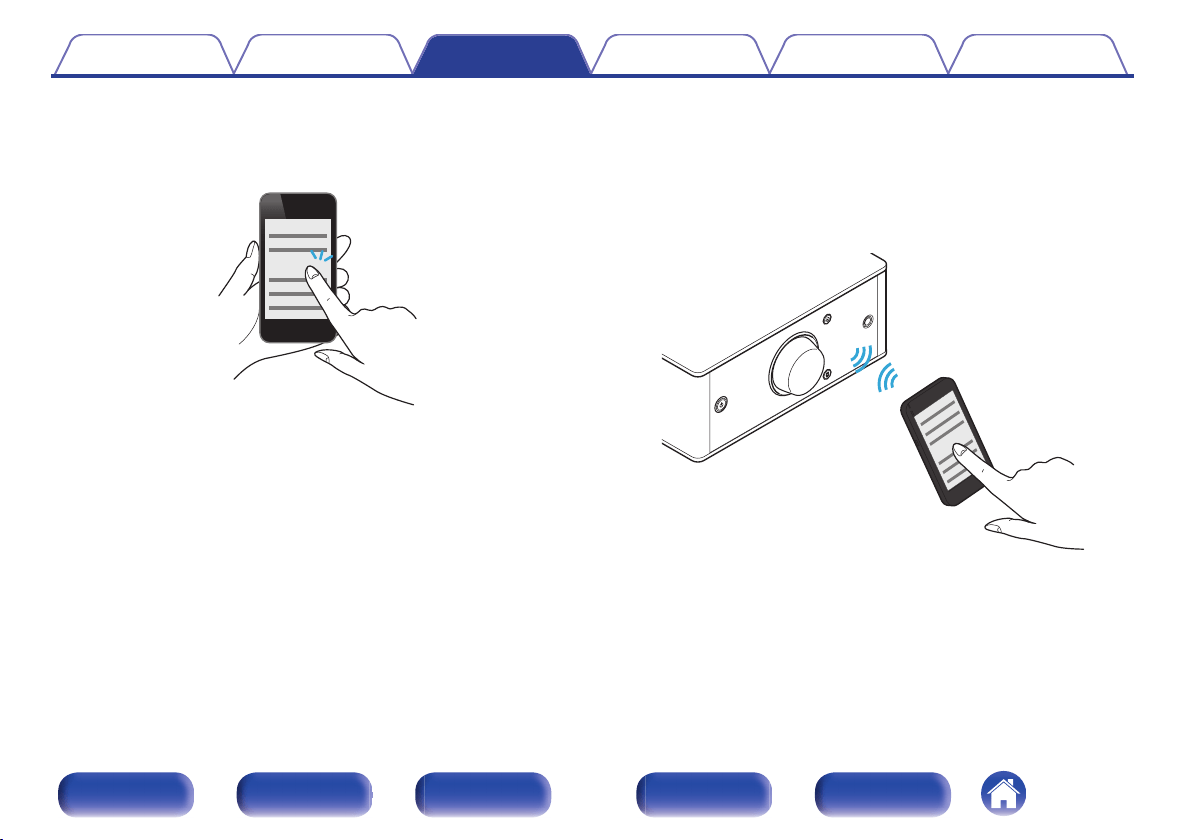
o
Case 2: Connecting a Bluetooth device that this unit performed pairing for before
1
Turn on the Bluetooth function on the Bluetooth device.
0
For details, see the owner’s manual for your Bluetooth device.
.
Bluetooth ON
2
Select “Denon PMA-30” from the list of devices
displayed in the screen on the Bluetooth device.
Power to this unit is automatically turned on and this unit attempts to
establish the Bluetooth connection. When the device is connected
via Bluetooth, the device name appears on the display of this unit.
.
D
e
non
P
M
A
-
3
0
3
Play back music on the Bluetooth device.
The speakers output music from the Bluetooth device.
Contents
Connections Playback Settings Tips Appendix
34
Front panel Display Rear panel Remote Index
o
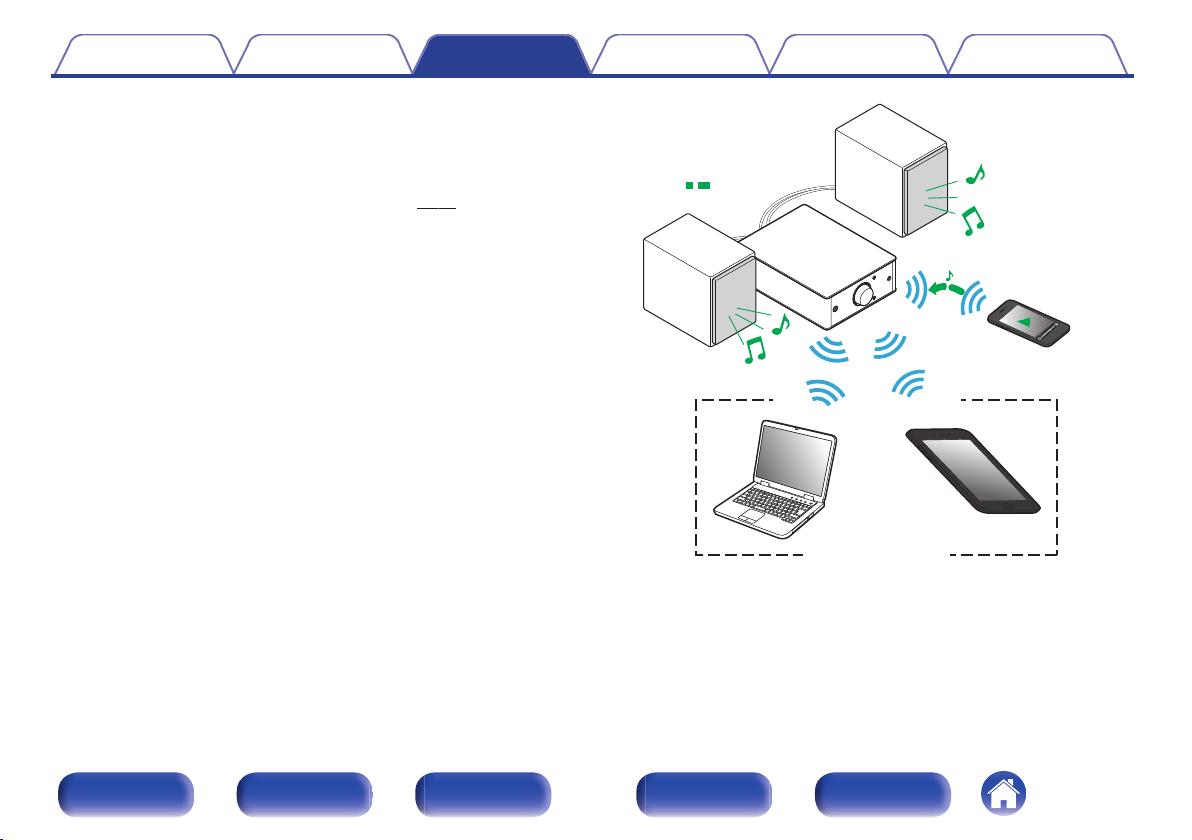
Simultaneously connecting multiple Bluetooth
devices (multi point function)
This unit can only output music from one connected Bluetooth device,
but up to 3 Bluetooth devices can simultaneously be connected.
(“Listening to music on a Bluetooth device” (v p. 31))
If frequently used devices are connected, it is useful for switching the
playback device because you do not have to reconnect them.
Perform pairing for devices you want to connect to beforehand.
.
Audio signals
Playing back
Connected via Bluetooth
Contents
Connections Playback Settings Tips Appendix
35
Front panel Display Rear panel Remote Index
o
Switching the playback device
1
Stop or pause the device that is currently played back.
2
Play back the device that you want to output music
from.
0
Turn the power of this unit to standby before turning the Bluetooth function of the
Bluetooth device off.
Contents Connections Playback Settings Tips Appendix
36
Front panel Display Rear panel Remote Index
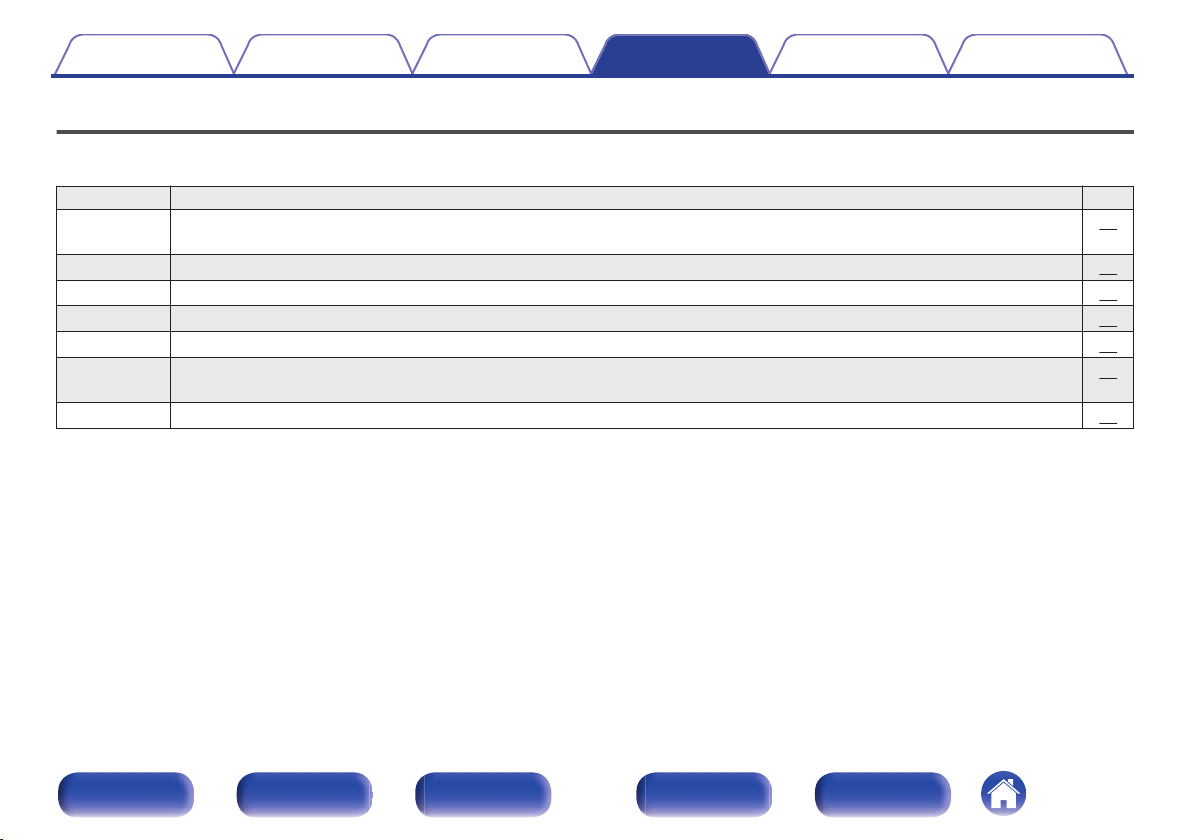
Menu map
For menu operations, see the following page.
By default, this unit has recommended settings defined. You can customize this unit based on your existing system and your preferences.
Setting items Description Page
Source Direct Sets Source Direct Mode. The audio signal is not passed through the sound quality adjustment circuits (Bass, Treble, Balance).
This provides playback that is more faithful to the original sound, but disables sound quality adjustment.
39
Bass Adjusts the bass sound. 39
Treble Adjusts the treble sound. 39
Balance Adjust the left/right volume balance. 39
H/P AMP Gain Set the gain of the headphone amplifier. Set this according to the impedance of the connected headphones. 39
Bluetooth Switches the Bluetooth function on/off. Stopping Bluetooth function reduces a source of noise that affects sound quality, enabling
higher sound quality playback.
40
Auto Standby Sets whether to automatically switch the unit to the standby mode when there is no input signal and operation for 30 minutes. 40
Contents Connections Playback Settings Tips Appendix
37
Front panel Display Rear panel Remote Index
.
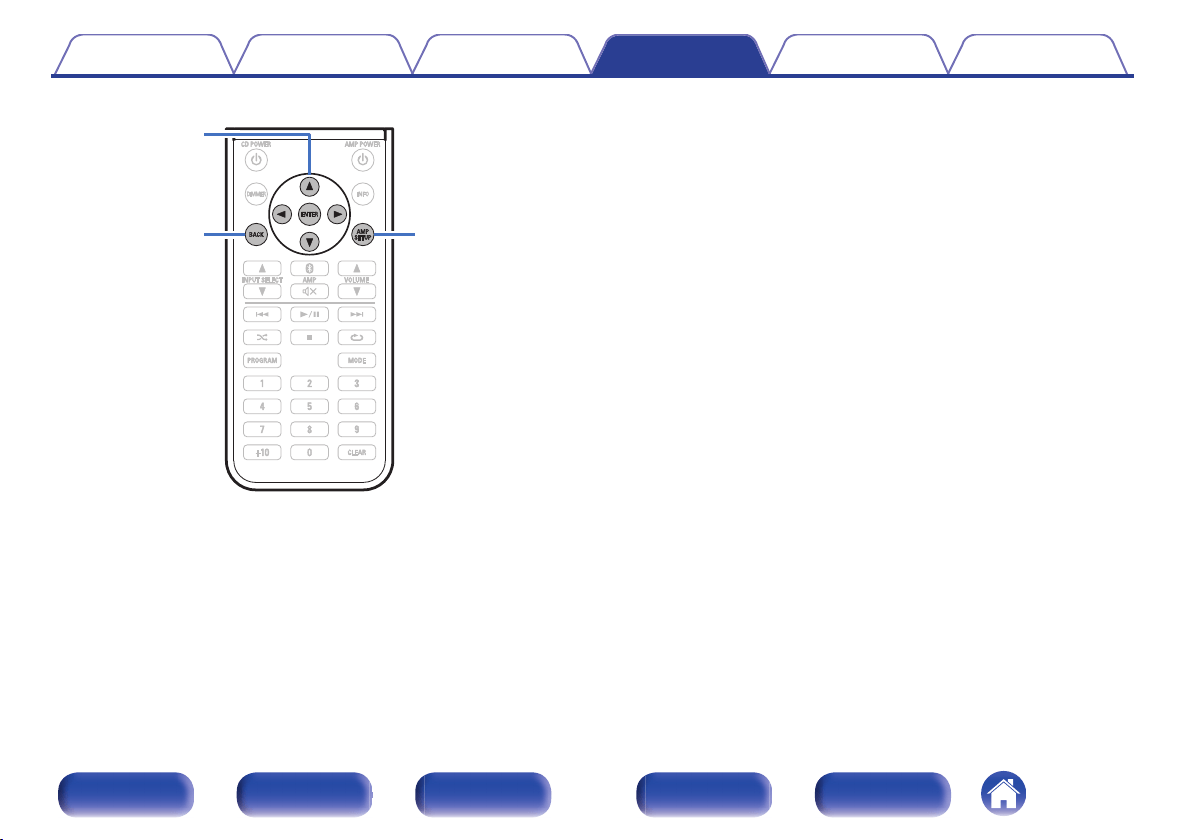
AMP SETUP
uio
p
ENTER
BACK
o
Menu operation
1
Press AMP SETUP.
The menu is displayed on the display.
2
Use ui to select the menu to be set or operated, then
press ENTER.
3
Use uio p to change to desired setting.
4
Press ENTER to enter the setting.
0
To return to the previous item, press BACK or o.
0
Exiting the Menu, press AMP SETUP while the menu is
displayed.
The menu display disappears.
Contents Connections Playback Settings Tips Appendix
38
Front panel Display Rear panel Remote Index
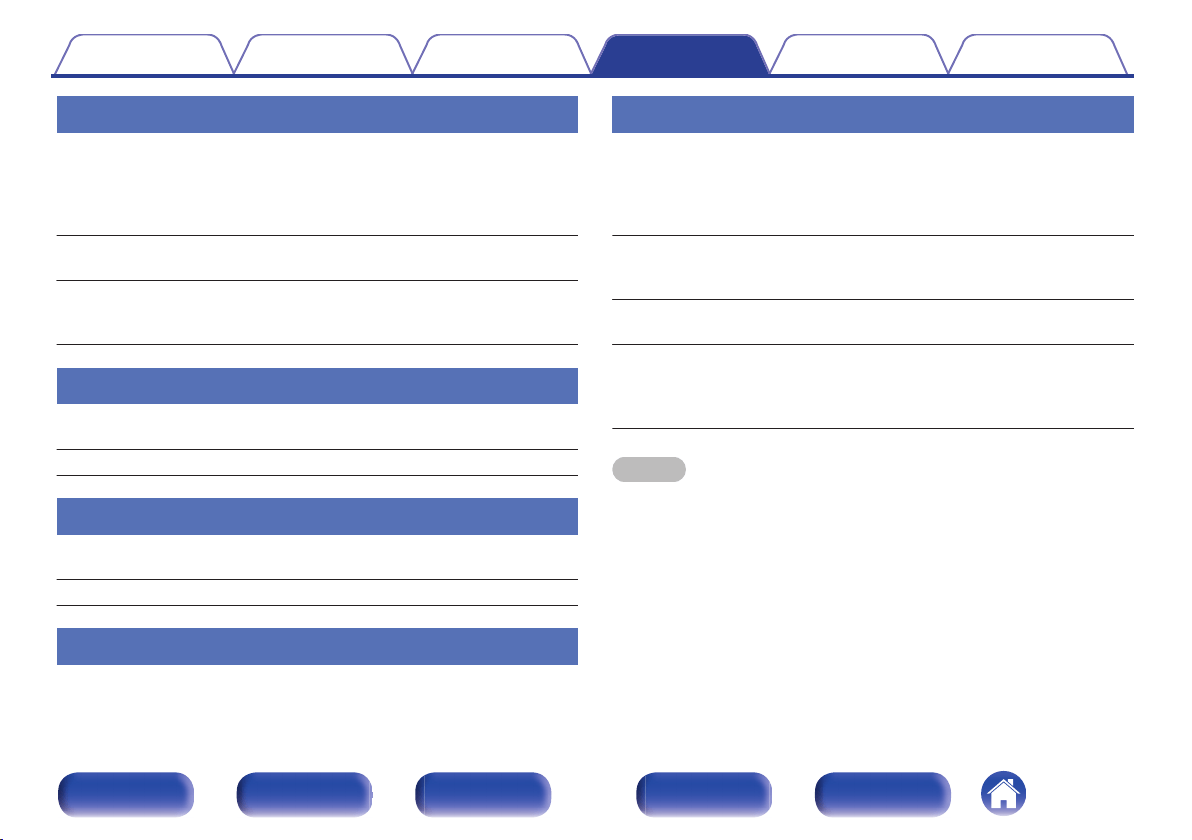
Source Direct
Sets Source Direct Mode. The audio signal is not passed through the
sound quality adjustment circuits (Bass, Treble, Balance). This provides
playback that is more faithful to the original sound, but disables sound
quality adjustment.
Off
(Default):
Disable source direct function.
On:
Playback sound is closer to the source
sound. Tone adjustments (Bass, Treble,
Balance) are disabled.
Bass
Adjusts the bass sound.
–8dB – +8dB (Default : 0dB)
Treble
Adjusts the treble sound.
–8dB – +8dB (Default : 0dB)
Balance
Use o p to adjust the left/right volume balance.
H/P AMP Gain
Set the gain of the headphone amplifier. Set this according to the
impedance of the connected headphones. It is recommended that this is
set on the “Low” side if the headphones have low impedance and on the
“High” side if they have high impedance.
Low:
Set the gain of the headphone amplifier to
“Low”. Set if the volume is too high when
the gain setting is “Mid”.
Mid
(Default):
Set the gain of the headphone amplifier to
“Mid”.
High:
Set the gain of the headphone amplifier to
“High”.Set when there is insufficient
volume, even when the gain setting is
“Mid”.
NOTE
0
The headphone volume varies depending on the “H/P AMP Gain” setting.
Decrease the volume or mute the audio first if changing this setting while listening
to audio.
Contents Connections Playback Settings Tips Appendix
39
Front panel Display Rear panel Remote Index
Bluetooth
Stopping Bluetooth function reduces a source of noise that affects sound
quality, enabling higher sound quality playback.
On
(Default):
Enables the Bluetooth function.
Off: Disables the Bluetooth function.
0
When Bluetooth is “Off”, the input source cannot be switched to Bluetooth.
Auto Standby
When there is no input signal and operation for 30 minutes, this unit
automatically enters the standby mode.
On
(Default):
The unit goes into standby after 30 minutes.
Off:
The unit does not go into standby
automatically.
Contents Connections Playback Settings Tips Appendix
40
Front panel Display Rear panel Remote Index
o
Contents
Tips
I want to turn on power to this unit from a Bluetooth device 42
I want to switch the connection to a different Bluetooth device 42
I want to adjust the tone myself 42
I want sound playback that is faithful to the original sound 42
Troubleshooting
Power does not turn on/Power is turned off 44
No sound comes out 45
Sound is distorted or interrupted, or noise occurs 46
Desired sound does not come out 46
Audio from digital devices cannot be played back (Coaxial/Optical) 47
Operations cannot be performed through the remote control unit 47
Bluetooth cannot be played back 48
Contents Connections Playback Settings Tips Appendix
41
Front panel Display Rear panel Remote Index
Tips
I want to turn on power to this unit from a Bluetooth device
0
Once you perform pairing between this unit and a Bluetooth device, you can turn on power to this unit by operating the Bluetooth device. Select
“PMA-30” from the list of Bluetooth devices to turn on power to this unit.
I want to switch the connection to a different Bluetooth device
0
This unit can only output music from one connected Bluetooth device, but up to 3 Bluetooth devices can simultaneously be connected. To switch the
connection easily, always have the frequently used Bluetooth devices connected. When multiple Bluetooth devices are connected and you want to
switch to a different Bluetooth device, stop playback on the device that is currently played back and play back the Bluetooth device that you want to
output music from. (v
p. 36)
I want to adjust the tone myself
0
Adjust the “Bass”, “Treble” and “Balance” in the setup menu to the desired levels. (v p. 39)
I want sound playback that is faithful to the original sound
0
Set “Source Direct” in the setup menu to “On”. (v
p. 39)
Contents
Connections Playback Settings Tips Appendix
42
Front panel Display Rear panel Remote Index
Troubleshooting
1. Are the connections correct?
2. Is the set being operated as described in the owner’s manual?
3. Are the other devices operating properly?
If this unit does not operate properly, check the corresponding symptoms in this section.
If the symptoms do not match any of those described here, consult your dealer as it could be due to a fault in this unit. In this case, disconnect the power
immediately and contact the store where you purchased this unit.
Contents Connections Playback Settings Tips Appendix
43
Front panel Display Rear panel Remote Index
o
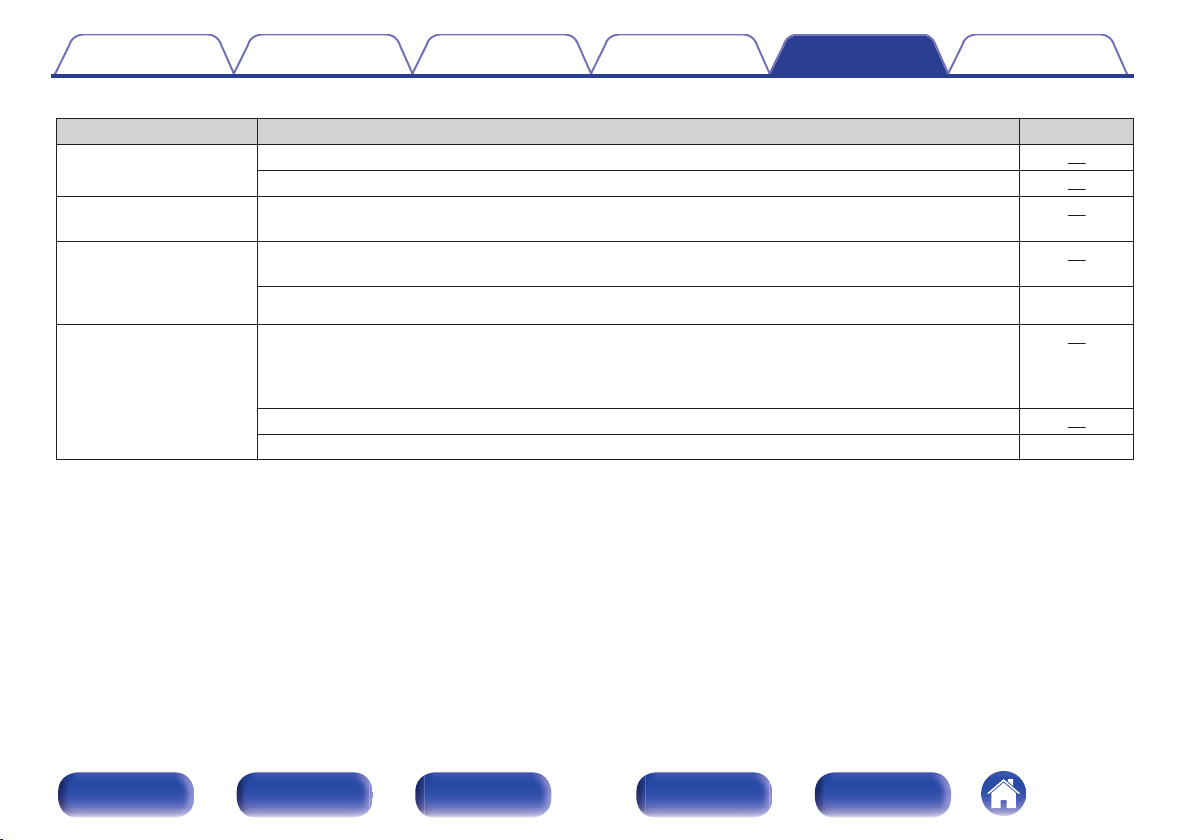
Power does not turn on/Power is turned off
Symptom Cause / Solution Page
Power does not turn on.
0
Check whether the power cord is correctly inserted into the power outlet. 23
0
This unit is in the standby mode. Press the power button (AMP POWER X).
25
Power automatically turns
off.
0
The auto standby mode is on. When approx. 30 minutes pass with no audio input, this unit automatically
enters the standby mode. To turn Auto Standby mode off, set “Auto Standby” on the setup menu to “Off”.
40
Power turns off and the
protection circuit indicator
flashes in red approx.
every 2 seconds.
0
The protection circuit has been activated due to a rise in temperature within this unit. Turn the power off,
wait about an hour until this unit cools down sufficiently, and then turn the power on again.
25
0
Please re-install this unit in a place having good ventilation. -
Power turns off and the
protection circuit indicator
flashes in red approx.
every 0.5 seconds.
0
Check the speaker connections. The protection circuit may have been activated because speaker cable
core wires came in contact with each other or a core wire was disconnected from the connector and
came in contact with the rear panel of this unit. After unplugging the power cord, firmly re-twist the core
wire, and then reconnect the wire.
19
0
Turn down the volume and turn on the power again. 25
0
This unit’s amplifier circuit has failed. Unplug the power cord and contact our customer service center. -
Contents Connections Playback Settings Tips Appendix
44
Front panel Display Rear panel Remote Index
o
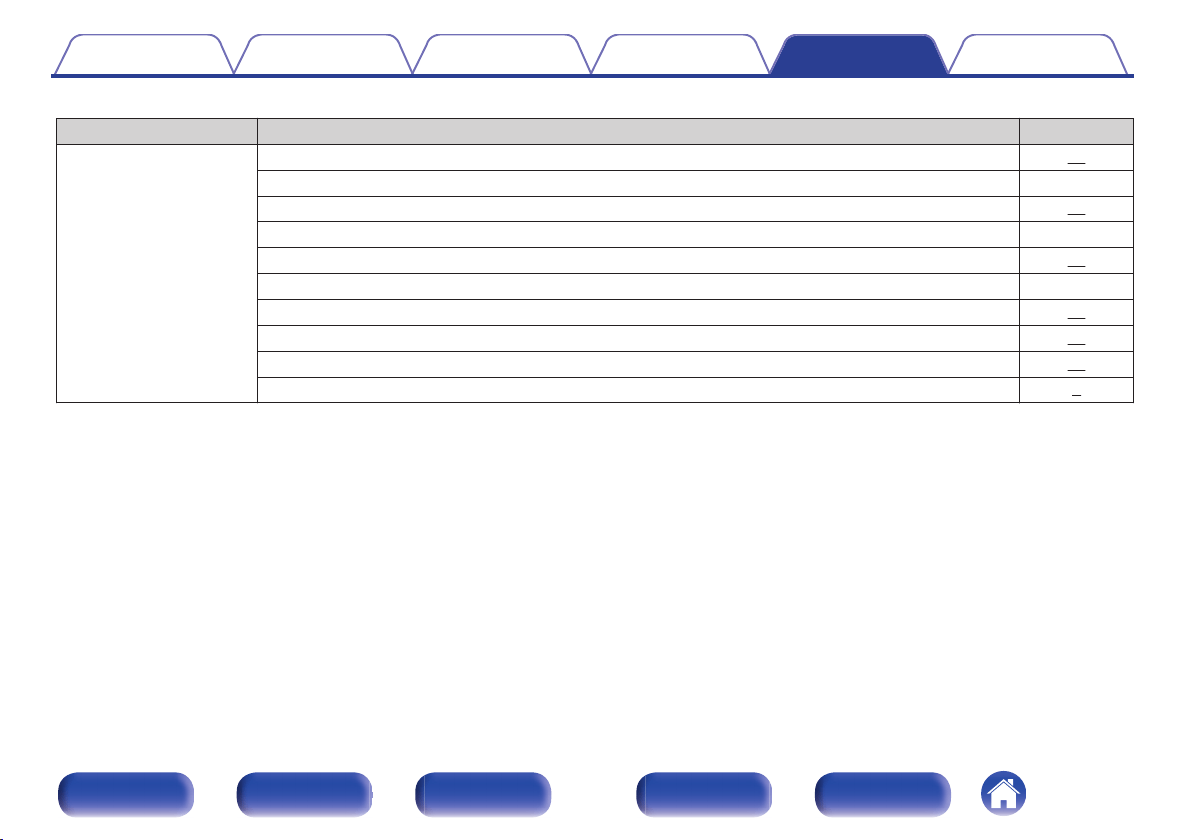
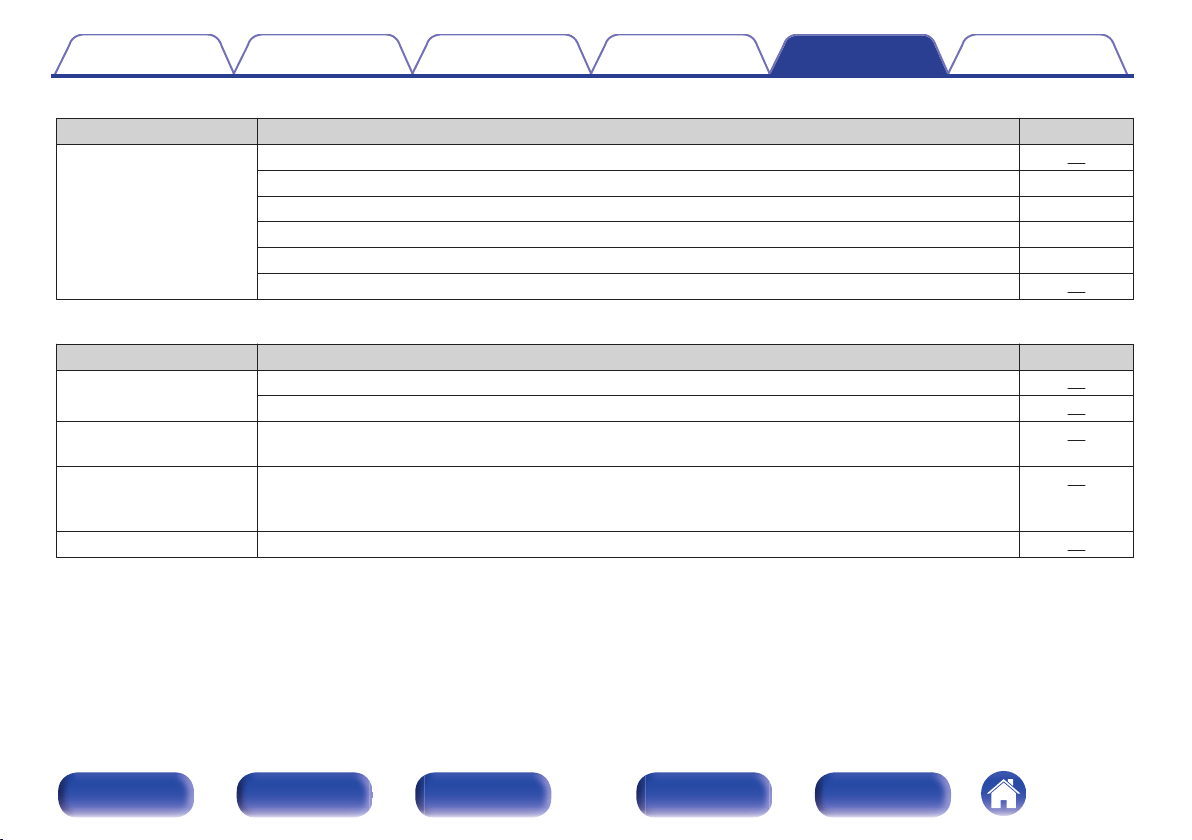
No sound comes out
Symptom Cause / Solution Page
Audio is not output.
0
Check the connections for all devices. 13
0
Insert connection cables all the way in. -
0
Check that the covered part of the speaker cable is not inserted into the speaker terminal. 19
0
Check cables for damage. -
0
Check that a proper input source is selected. 26
0
Check that power to this unit and the connected devices is on. -
0
Adjust to an appropriate volume level on this unit and the connected devices. 27
0
To playback via a Bluetooth connection, perform pairing between this unit and the Bluetooth device. 31
0
When the muting mode is enabled, cancel the muting. 27
0
No sound is output from the speakers when headphones are connected. 7
Contents Connections Playback Settings Tips Appendix
45
Front panel Display Rear panel Remote Index
o
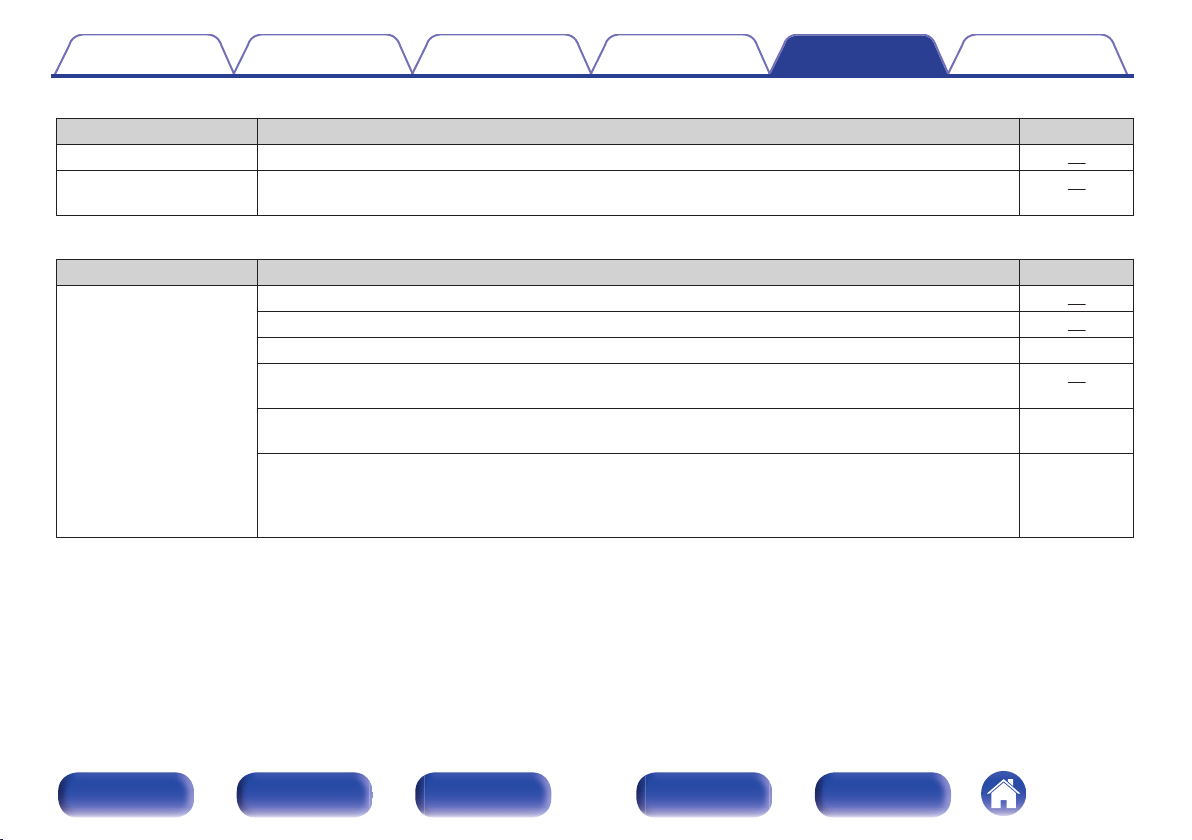
Sound is distorted or interrupted, or noise occurs
Symptom Cause / Solution Page
Sound is distorted or
interrupted, or noise
occurs.
0
Adjust to an appropriate volume level on this unit and the connected devices. 27
0
Place the device connected via Bluetooth closer to this unit. -
0
Place this unit away from microwaves, wireless LAN devices, etc. -
0
Turn off and on power to Bluetooth devices. -
0
Turn down the volume of the playback device connected to the AUX connector. -
0
Switch “H/P AMP Gain” to “High” if using headphones with high impedance or low sensitivity. 39
o
Desired sound does not come out
Symptom Cause / Solution Page
No sound comes out of a
specific speaker.
0
Check that speaker cables are properly connected. 19
0
Set the left/right volume balance using “Balance” in the setup menu. 39
The left and right of stereo
sound is reversed.
0
Check whether the left and right speakers are connected to the correct speaker terminals. 20
Set values are not reflected
in “Bass”, “Treble” and
“Balance”.
0
Set “Off” to the “Source Direct”. 39
Headphone volume is low.
0
Switch “H/P AMP Gain” to “High” if using headphones with high impedance or low sensitivity. 39
Contents Connections Playback Settings Tips Appendix
46
Front panel Display Rear panel Remote Index
o
Audio from digital devices cannot be played back (Coaxial/Optical)
Symptom Cause / Solution Page
“Unlocked” is displayed.
0
When digital audio signals cannot be detected properly, “Unlocked” is displayed. 29
“Unsupported” is
displayed.
0
“Unsupported” is displayed when audio signals that are not supported by this unit are input. Check the
audio output signal format from your digital device.
29
o
Operations cannot be performed through the remote control unit
Symptom Cause / Solution Page
Operations cannot be
performed through the
remote control unit.
0
Batteries are worn out. Replace with new batteries. 17
0
Operate the remote control unit within a distance of about 7 m from this unit and at an angle of within 30°. 18
0
Remove any obstacle between this unit and the remote control unit. -
0
The coin-shaped lithium battery (CR2025) is not positioned correctly. Correct the positioning so that the +
symbol engraved on the battery faces upwards.
17
0
The set’s remote control sensor is exposed to strong light (direct sunlight, inverter type fluorescent bulb
light, etc.). Move the set to a place in which the remote control sensor will not be exposed to strong light.
-
0
When using a 3D video device, the remote control unit of this unit may not function due to effects of
wireless communications between units (such as TV and glasses for 3D viewing). In this case, adjust the
direction of units with the 3D communications function and their distance to ensure they do not affect
operations from the remote control unit of this unit.
-
Contents Connections Playback Settings Tips Appendix
47
Front panel Display Rear panel Remote Index
o
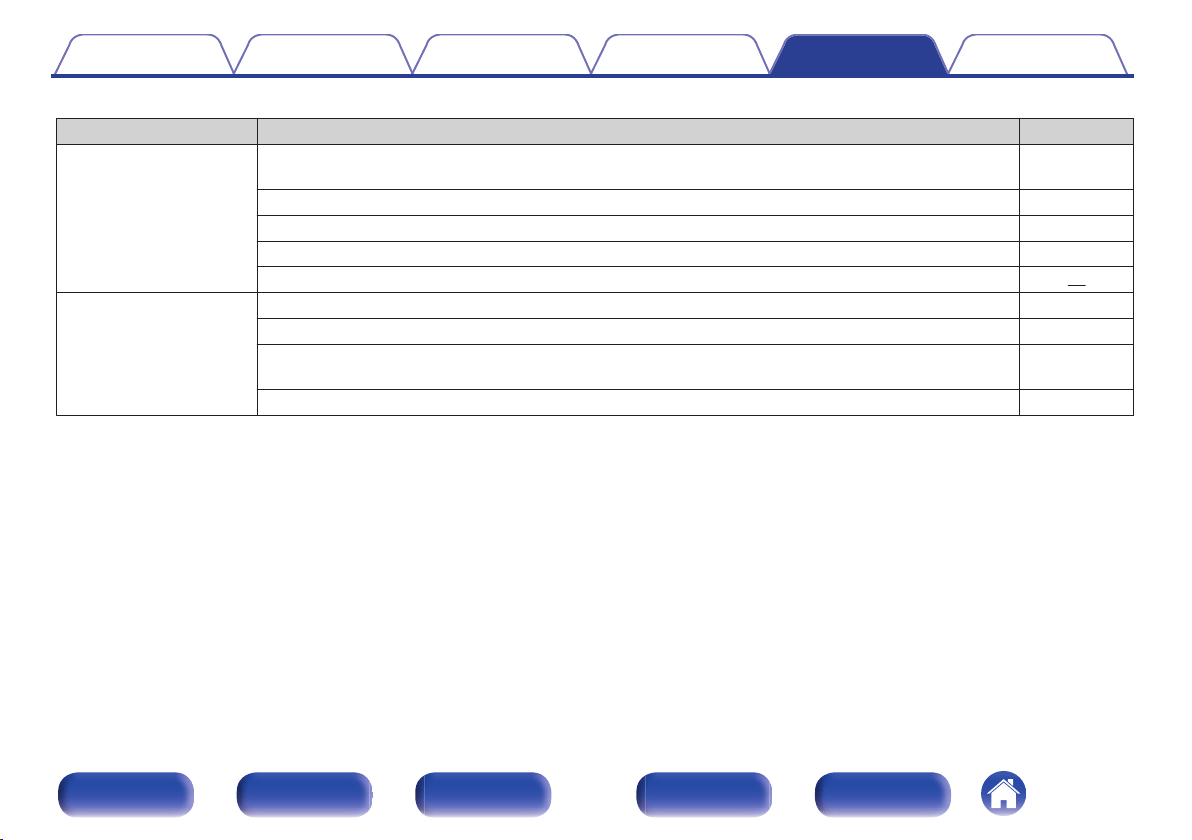
Bluetooth cannot be played back
Symptom Cause / Solution Page
Bluetooth devices cannot
be connected to this unit.
0
The Bluetooth function in the Bluetooth device has not been enabled. See the Owner’s Manual of the
Bluetooth device to enable the Bluetooth function.
-
0
Bring the Bluetooth device near to this unit. -
0
The Bluetooth device cannot connect with this unit if it is not compatible with the A2DP profile. -
0
Turn the power of the Bluetooth device off and on again, and then try again. -
0
The Bluetooth function is off. Press Bluetooth button, activate the Bluetooth function and connect again. 40
The sound is cut off.
0
Bring the Bluetooth device near to this unit. -
0
Remove obstructions between the Bluetooth device and this unit. -
0
To prevent electromagnetic interference, locate this unit away from microwave ovens, wireless LAN
devices and other Bluetooth devices.
-
0
Reconnect the Bluetooth device. -
Contents Connections Playback Settings Tips Appendix
48
Front panel Display Rear panel Remote Index
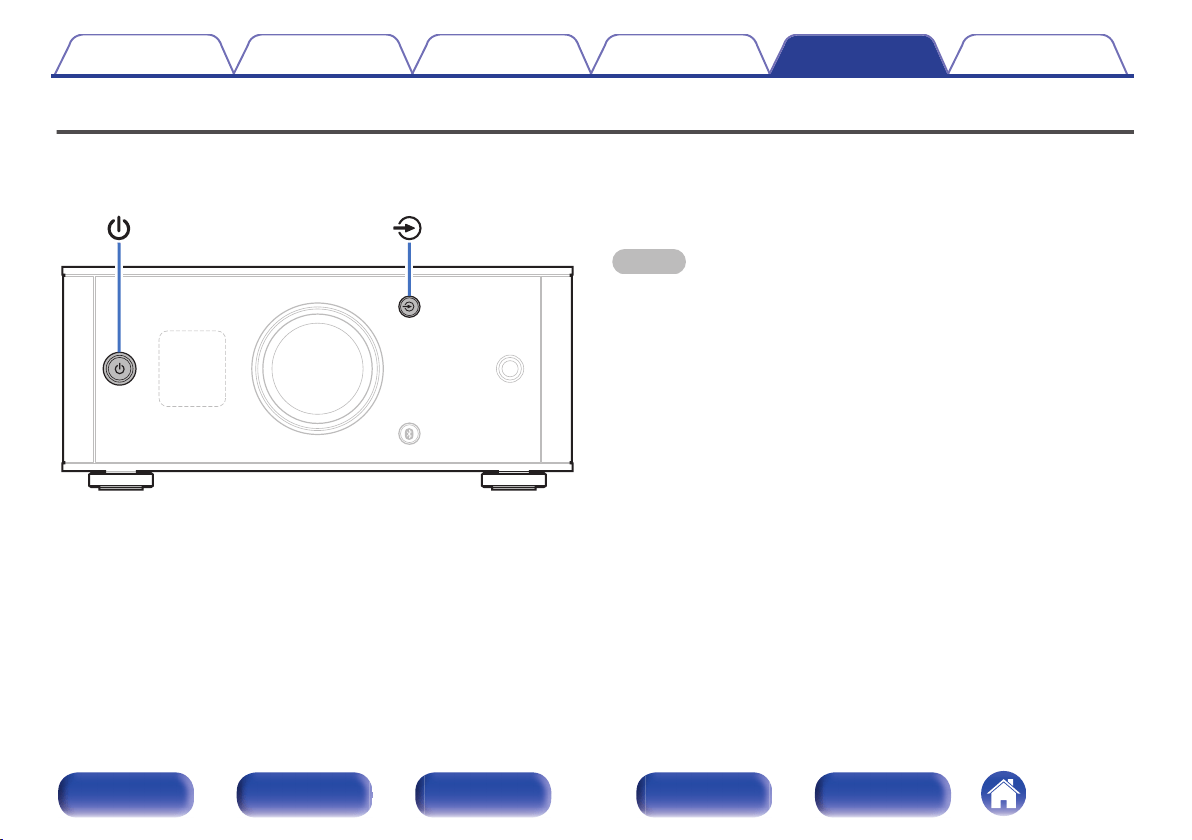
Resetting to factory settings
Perform this when this unit does not operate properly.
Various settings are reset to the factory default values. Make settings
again.
.
1
When this unit is in the standby mode, press X while
holding q.
“INITIALIZE” appears on the display and this unit restarts.
NOTE
0
Pairing information stored on this unit is also initialized. Perform pairing again.
Contents Connections Playback Settings Tips Appendix
49
Front panel Display Rear panel Remote Index
Specifications of supported audio
formats
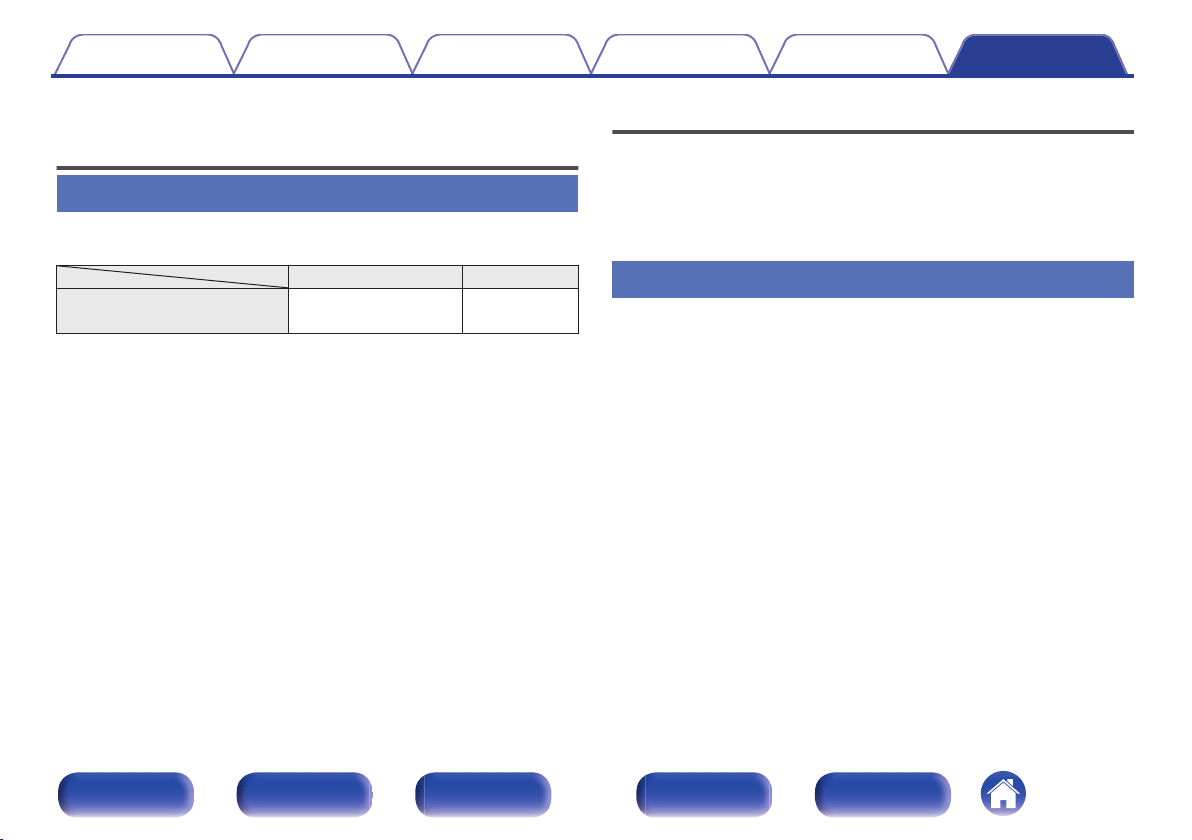
D/A Converter
n
Coaxial/Optical
Sampling frequency Bit length
Linear PCM
(2-channel)
32/44.1/48/88.2/96/
176.4/192 kHz
16/24 bits
Playing back Bluetooth devices
This unit supports the following Bluetooth profiles.
0
A2DP (Advanced Audio Distribution Profile) :
When a Bluetooth device that supports this specification is connected, you
can perform high quality streaming distribution of monaural and stereo
audio data.
Bluetooth communications
The radio waves broadcast from this unit may interfere with operations on
medical equipment. The radio wave interference may cause a malfunction.
Therefore, make sure to turn off power to this unit and Bluetooth devices in
the following places.
0
Hospitals, trains, airplanes, gas stands, and other places where
flammable gas may occur.
0
Places near automatic doors and fire alarms.
Contents
Connections Playback Settings Tips Appendix
50
Front panel Display Rear panel Remote Index
Explanation of terms
Bluetooth
Technology for near field wireless communications. This unit can connect
to Bluetooth devices wirelessly. To establish a Bluetooth connection, you
must perform pairing (registering) beforehand.
Sampling frequency
Sampling involves taking a reading of a sound wave (analog signal) at
regular intervals and expressing the height of the wave at each reading in
digitized format (producing a digital signal).
The number of readings taken in one second is called the “sampling
frequency”. The larger the value, the closer the reproduced sound is to the
original.
Pairing
Pairing (registration) is an operation that is required in order to connect a
Bluetooth device to this unit using Bluetooth. When paired, the devices
authenticate each other and can connect without mistaken connections
occurring.
When using Bluetooth connection for the first time, you need to pair this
unit and the Bluetooth device to be connected.
This unit can store pairing information for a maximum of 8 devices.
Protection circuit
This is a function to prevent damage to devices within the power supply
when an abnormality such as an overload, excess voltage occurs or over
temperature for any reason.
Linear PCM
Uncompressed PCM (Pulse Code Modulation) signals. Unlike lossy
compression audio sources such as MP3, no audio quality or dynamic
range deteriorates.
Contents
Connections Playback Settings Tips Appendix
51
Front panel Display Rear panel Remote Index
Trademark information
.
The Bluetooth
®
word mark and logos are registered trademarks owned
by Bluetooth SIG,Inc. and any use of such marks by D&M Holdings Inc. is
under license. Other trademarks and trade names are those of their
respective owners.
.
Qualcomm aptX is a product of Qualcomm Technologies International,
Ltd.Qualcomm is a trademark of Qualcomm Incorporated, registered in
the United States and other countries, used with permission. aptX is a
trademark of Qualcomm Technologies International, Ltd., registered in
the United States and other countries, used with permission.
Contents Connections Playback Settings Tips Appendix
52
Front panel Display Rear panel Remote Index
Specifications
o
Audio section
0
Output performance
Rated output: both channels driven
20 W+20 W (8 Ω/ohms, 1 kHz, T.H.D. 0.7 %)
40 W+40 W (4 Ω/ohms, 1 kHz, T.H.D. 1.0 %)
Output connectors: Speaker: 4-16 Ω/ohms
Headphones: Φ6.3 mm jack
Total harmonic distortion: 0.05 % (Digital in, Rated output -3 dB, 8 Ω/ohms, 1 kHz)
S/N ratio: 100 dB (Digital in, 25 W, 8 Ω/ohms, 1 kHz, IHF-A)
0
Digital input signal
Audio formats: Digital audio interface (Linear PCM)
Coaxial input: 0.5 Vp-p/50 Ω/ohms
Optical input: More than – 27 dBm
Wavelength: 660 nm
0
Input performance
Input sensitivity/impedance: AUX: 0.13 V / 22 kΩ/kohms
Contents Connections Playback Settings Tips Appendix
53
Front panel Display Rear panel Remote Index
o
Bluetooth section
Communication system: Bluetooth version 3.0
Transmission power: Maximum 2.5 mW (Class2)
Maximum communication range: Approx. 10 m in line of sight *
Frequency band: 2.4 GHz band
Modulation method: FHSS (Frequency-Hopping Spread Spectrum)
Supported profiles: A2DP 1.3/AVRCP 1.5
Supported codecs: aptX Low Latency/AAC/SBC
z
The actual communication range varies depending on the influence of such factors as obstructions between devices, electromagnetic waves from microwave ovens, static
electricity, cordless phones, reception sensitivity, antenna performance, operating system, application software etc.
o
General
Power supply: AC230 V, 50/60 Hz
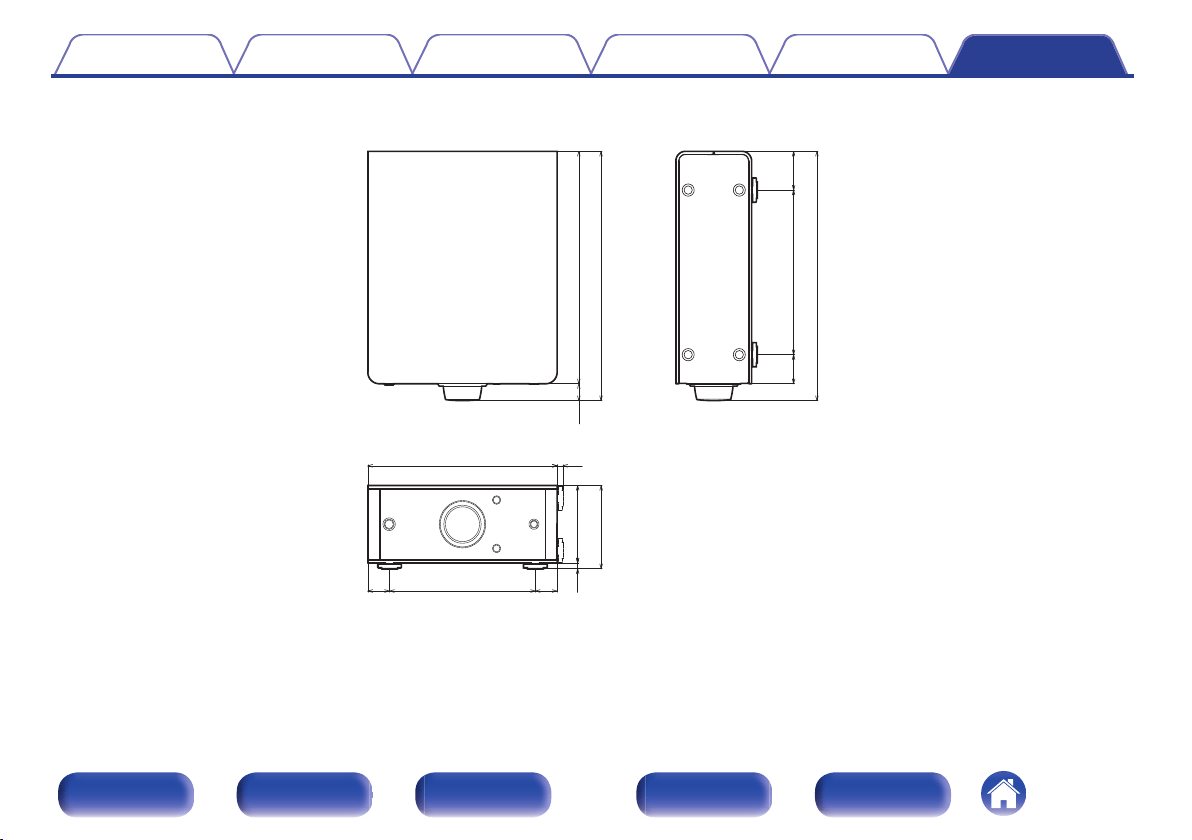
Power consumption: 35 W
Power consumption in standby mode: 0.2 W
For purposes of improvement, specifications and design are subject to change without notice.
Contents
Connections Playback Settings Tips Appendix
54
Front panel Display Rear panel Remote Index
Index
v A
Auto Standby ................................................. 40
v B
Bluetooth device ............................................ 31
v C
CD player ........................................... 21, 22, 28
v D
Display ............................................................. 8
v F
Front panel ....................................................... 6
v I
Installing horizontally ...................................... 14
Installing vertically .......................................... 15
v M
Multi point function ......................................... 35
Muting ............................................................ 27
v P
Protection circuit ............................................ 51
v R
Rear panel ........................................................ 9
Remote control unit ........................................ 10
Resetting factory settings ............................... 49
v S
Source direct .................................................. 39
Speakers ........................................................ 19
v T
Tips ................................................................ 42
Troubleshooting ............................................. 41
v V
Volume ........................................................... 27
Contents Connections Playback Settings Tips Appendix
56
Front panel Display Rear panel Remote Index

.
www.denon.com
3520 10551 00ADA
Copyright ©2017 D&M Holdings Inc.All Rights Reserved.
57