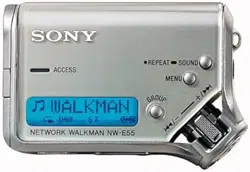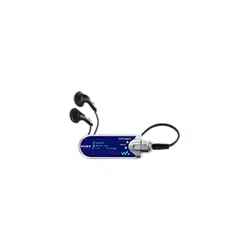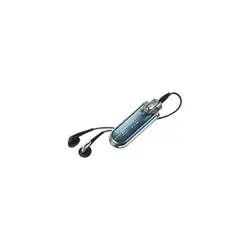
NW-E75
Operating Instructions
Portable IC Audio Player
Network Walkman
“WALKMAN” is a registered trademark of
Sony Corporation to represent Headphone
Stereo products.
is a trademark of Sony
Corporation.
3-267-071-81(1)
© 2004 Sony Corporation

2
WARNING
To prevent fire or shock hazard, do
not expose the unit to rain or
moisture.
Do not install the appliance in a confined
space, such as a bookcase or built-in
cabinet.
To prevent fire, do not cover the ventilation
of the apparatus with news papers, table
cloths, curtains, etc. And don’t place lighted
candles on the apparatus.
To prevent fire or shock hazard, do not place
objects filled with liquids, such as vases, on
the apparatus.
Note on installation
If you use the unit at a place subject to static or
electrical noise, the track’s transferring information
may be corrupted. This would prevent successful
transferring authorization on your computer.
For the customers in
the United States
Owner’s Record
The model number is located in the front and the
serial number is located on the rear side of the
player (see page 8). Record the serial number in the
space provided below.
Refer to them whenever you call your Sony dealer
regarding this product.
Model No.
Serial No.
INFORMATION:
This equipment has been tested and found to
comply with the limits for a Class B digital device,
pursuant to Part 15 of the FCC Rules. These limits
are designed to provide reasonable protection
against harmful interference in a residential
installation. This equipment generates, uses, and
can radiate radio frequency energy and, if not
installed and used in accordance with the
instructions, may cause harmful interference to
radio communications.
However, there is no guarantee that interference
will not occur in a particular installation. If this
equipment does cause harmful interference to radio
or television reception, which can be determined by
turning the equipment off and on, the user is
encouraged to try to correct the interference using
one or more of the following measures:
– Reorient or relocate the receiving antenna.
– Increase the separation between the equipment
and receiver.
– Connect the equipment into an outlet on a circuit
different from that to which the receiver is
connected.
– Consult the dealer or an experienced radio/TV
technician for help.
You are cautioned that any changes or
modifications not expressly approved in this
manual could void your authority to operate this
equipment.
If you have any questions about this product:
Visit: www.sony.com/walkmansupport
Contact: Sony Customer Information Services
Center at (866)-456-7669
Write: Sony Customer Information Services Center
12451 Gateway Blvd..
Fort Myers, FL33913

3
This manual explains how to operate
your Network Walkman. For details on
how to use the SonicStage (supplied
software), refer to the SonicStage
operating instructions.
Notice for users
On the supplied software
• Copyright laws prohibit reproducing the software
or the manual accompanying it in whole or in
part, or renting the software without the
permission of the copyright holder.
• In no event will SONY be liable for any financial
damage, or loss of profits, including claims made
by third parties, arising out of the use of the
software supplied with this player.
• In the event a problem occurs with this software
as a result of defective manufacturing, SONY
will replace it.
However, SONY bears no other responsibility.
• The software provided with this player cannot be
used with equipment other than that which is so
designated.
• Please note that, due to continued efforts to
improve quality, the software specifications may
be changed without notice.
• Operation of this player with software other than
that provided is not covered by the warranty.
Program ©2001, 2002, 2003, 2004 Sony
Corporation
Documentation ©2004 Sony Corporation
Declaration of Conformity
Trade Name: SONY
Model No.: NW-E75
Responsible Party: Sony Electronics Inc.
Address: 16450 W. Bernardo Dr,
San Diego, CA 92127
USA
Telephone Number: 858-942-2230
This device complies with Part 15 of the FCC
Rules. Operation is subject to the following two
conditions: (1) This device may not cause
harmful interference, and (2) this device must
accept any interference received, including
interference that may cause undesired
operation.

4
OpenMG and its logo are trademarks of Sony
Corporation.
SonicStage and its logo are trademarks of Sony
Corporation.
ATRAC, ATRAC3, ATRAC3plus and their logos
are trademarks of Sony Corporation.
Microsoft, Windows and Windows Media are
trademarks or registered trademarks of Microsoft
Corporation in the United States and/or other
countries.
US and foreign patents licensed from Dolby
Laboratories.
All other trademarks and registered trademarks are
trademarks or registered trademarks of their
respective holders.
In this manual,
TM
and ® marks are not specified.

5
Table of Contents
Overview
What you can do with your Network
Walkman ............................................ 6
Other features ......................................... 7
Step 1: Checking the package contents ...... 8
Step 2: Inserting the battery........................ 9
Locating controls ...................................... 10
Front side.............................................. 10
Rear side ............................................... 10
Display ................................................. 11
Basic Operations
Transferring audio files from the computer
to your Network Walkman ................ 12
Note on playing songs with a limited
playing period (Timeout contents) ... 13
Note on playing songs with a limited
playing count.................................... 13
Listening to music with your Network
Walkman............................................ 14
What is the Group function? ................ 15
On other operations .............................. 16
Advanced Operations
Repeat mode ............................................. 17
Selecting the repeat mode .................... 17
Playing the tracks repeatedly
(Track Repeat).................................. 18
Playing a specified section repeatedly
(A-B Repeat) .................................... 18
Playing specified sentences repeatedly
(Sentence Repeat) ............................ 19
Setting the repeat counts ...................... 20
Changing the display mode ...................... 21
Selecting the group display mode ........ 22
Adjusting treble and bass
(Digital sound preset) ........................ 22
Selecting the Sound quality.................. 22
Adjusting the sound quality ................. 23
Locking the controls (HOLD) .................. 24
Storing non-audio data ............................. 24
Adjusting the settings of your
Network Walkman
Adjusting the time setting of your
Network Walkman to a computer’s
built-in clock...................................... 25
Adjusting the current time setting
(DATE-TIME) ................................... 26
Limiting the volume (AVLS).................... 27
Setting the volume using the preset
volume function................................. 28
Setting a volume level of the preset
mode................................................. 28
Switching to the manual mode ............. 29
Turning off the beep sound (BEEP) ......... 30
Changing the backlight setting ................. 31
Other functions
Regrouping songs (REGROUP) ............... 32
Formatting memory (FORMAT) .............. 33
Other Information
Precautions ............................................... 34
Troubleshooting ........................................ 35
To reset the player ................................ 35
What happened? ................................... 35
Messages .............................................. 38
Specifications ........................................... 40
Glossary .................................................... 41
Menu list ................................................... 43
Index ......................................................... 44
6
Overview
What you can do with your Network Walkman
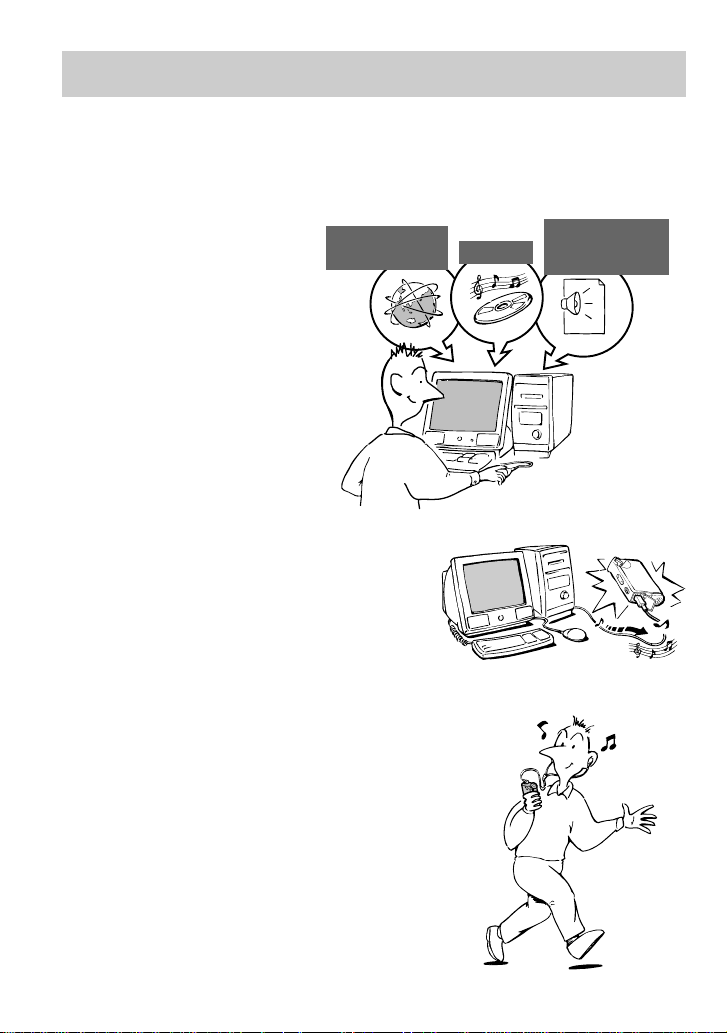
First, you need to install the “SonicStage” software into your computer. You can easily transfer
digital audio files from your computer to the built-in flash memory and carry it anywhere to
enjoy.
1 Store digital
audio files on
your computer.
2 Transfer files to
your Network
Walkman.
3 Enjoy music with
your Network
Walkman.
USB connection
Download the
latest audio
files!
Store favorite
songs!
EMD (Electric Music
Distribution) Services
Audio CDs
MP3, WAV and
Windows
®
Media
Format Audio Files

7
NOTES:
• The recorded music is limited to private use only. Use of the music beyond this limit requires permission
of the copyright holders.
• Sony is not responsible for incomplete recording/downloading or damaged data due to problems of the
Network Walkman or computer.
Other features
• Compact size, light weight, skip-proof operation, high portability.
• Continuous playback time with a battery
Approximately 70*
1
hours
• Recording time*
2
256MB built-in flash memory, more than 11 hours 40 minutes.
• The supplied SonicStage software enables you to record songs from audio CDs to the hard disk
of your computer using the ATRAC3plus format (high sound quality, high compression).
• Sentence Repeat: Useful function for learning a foreign language.
• High-speed data transfer using the dedicated USB cable.
• Backlight LCD screen: song titles and artist names can be displayed.
• Group function: you can select songs to be played by album.
• Storage function: you can store a variety of data as well as audio files.
*
1
Differs according to the data format. In this case, the figure for the battery duration is when continuously
playing ATRAC3 format audio files.
*
2
Differs according to the bit rate when recording. In this case, the figure for the recordable time is when
recording at 48kbps ATRAC3plus format.
8
O
P
E
N
Serial NO.
Serial Number
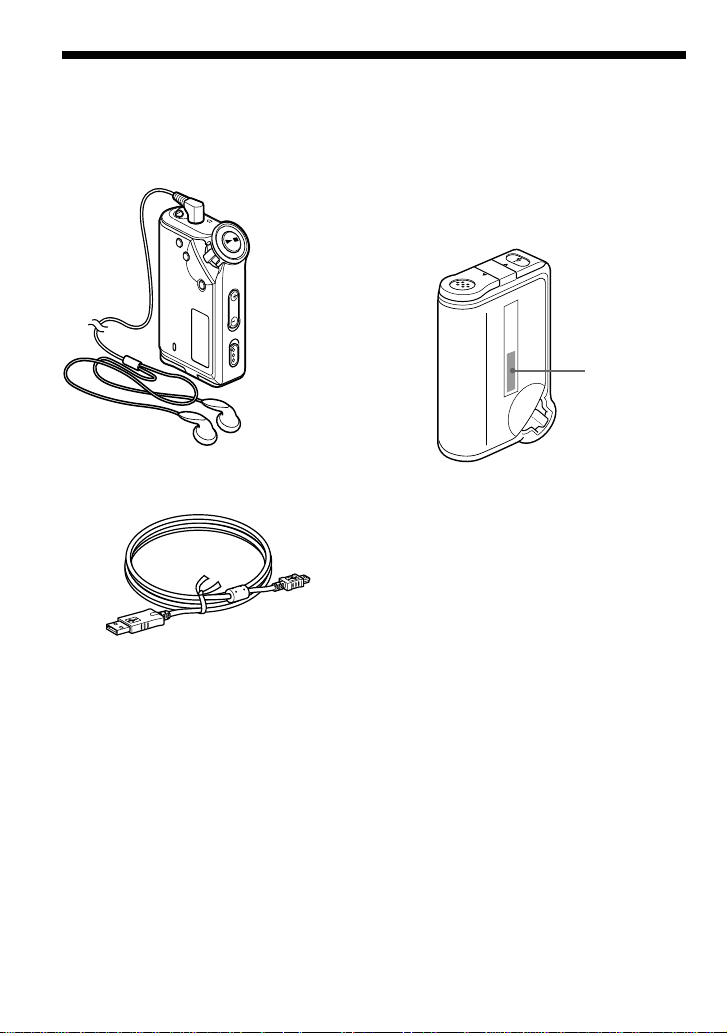
Please check the accessories in the package.
• Network Walkman (1)
• Headphones (1)
• Dedicated USB cable (1)
Step 1: Checking the package contents
G
r
o
u
p
M
o
d
e
Record the serial number in the space
provided below. Refer to it whenever you
call upon your Sony dealer regarding this
product.
Serial No. _____________________
• CD-ROM (1)
• Operating instructions (1)
• SonicStage operating instructions (1)
About the Serial Number
The serial number provided for your device
is required for the customer registration. The
number is on the rear side of your Network
Walkman.
9
Step 2: Inserting the battery
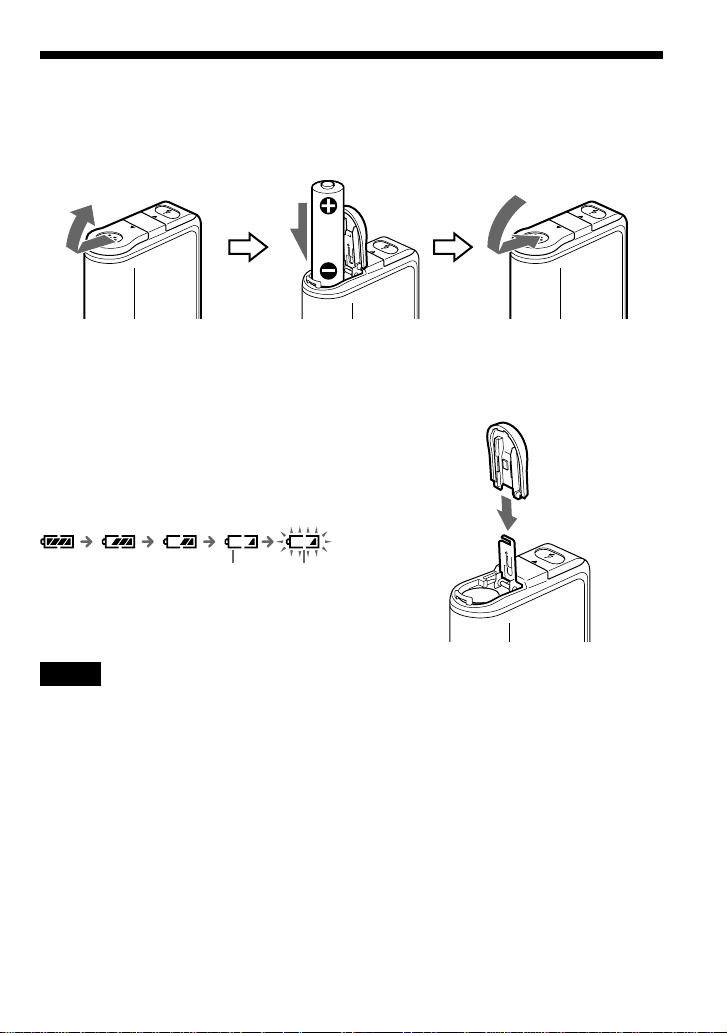
Insert the size AAA (LR03) alkaline battery with correct polarity. Be sure to insert it from the E
side as illustrated.
O
P
E
N
O
P
E
N
If the battery compartment lid is accidentally
detached, attach it as illustrated.
Battery duration
*
ATRAC3 format: Approximately 70 hours
ATRAC3plus format: Approximately 60 hours
* The battery life may be shorter due to operating
conditions and the temperature of the location.
On the remaining battery indication
The battery icon in the display changes as shown
below.
If “LOW BATT” is displayed in the display, you
need to change the battery.
Notes
If you do not use the battery correctly, it may
become damaged from leakage and corrosion. For
best results:
– Use the alkaline battery.
– Make sure the polarity is correct.
– Do not charge a dry cell battery.
– Remove the battery, if you do not intend to use
the player for an extended period of time.
– If you have battery leakage, replace with a new
battery after cleaning the battery compartment.
low battery change the
battery
10
Locating controls
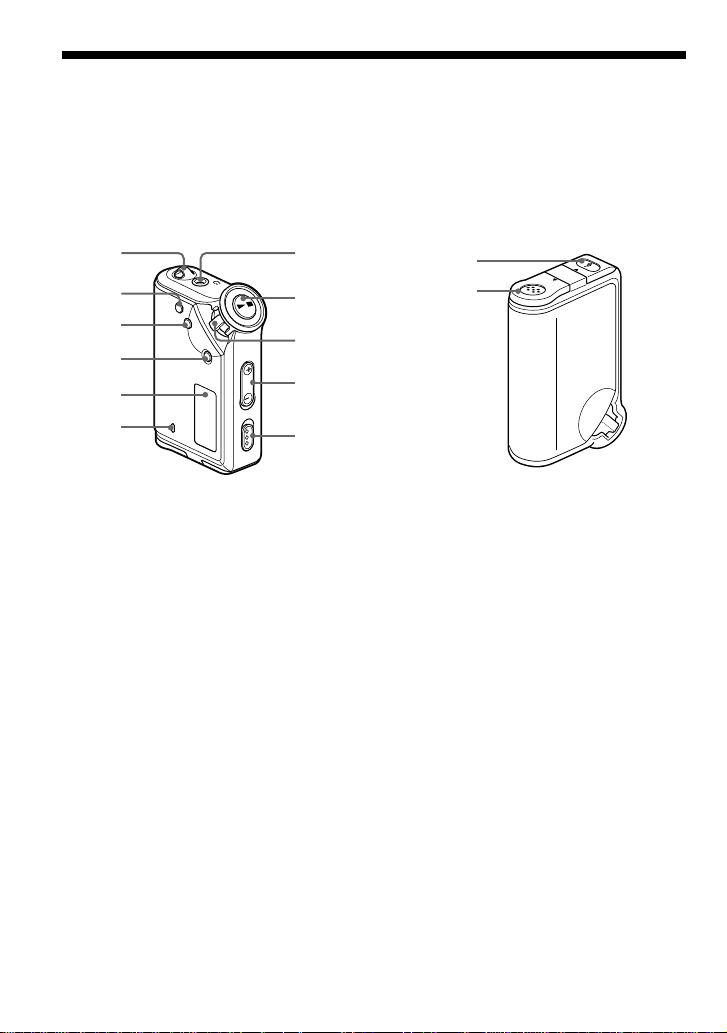
For details about each part, refer to the pages in parentheses.
Rear sideFront side
7 Headphone jack (page 14)
8 Nx button
(page 14, 16 to 21, 23, 25 to 33)
9 Shuttle switch
(page 16 to 21, 23, 25 to 33)
0 VOLUME +/– button (page 14, 28)
qa HOLD (Locking controls) switch
(page 14, 24)
qs USB jack (page 12)
qd Battery compartment (page 9)
G
r
o
u
p
M
o
d
e
1
2
3
4
5
6
7
8
9
0
qz
O
P
E
N
qs
qd
1 Strap hole for attaching the strap
2 REPEAT/SOUND button
(page 18 to 19, 22)
3 MENU button (page 17, 19 to 21, 23,
25 to 33)
You can switch to the Time display by
pressing the MENU button for a while.
4 GROUP button (page 15, 19 to 20, 22)
5 Display (page 11, 18, 38)
For details on the display and icons,
refer to page 11.
6 ACCESS lamp (page 12)
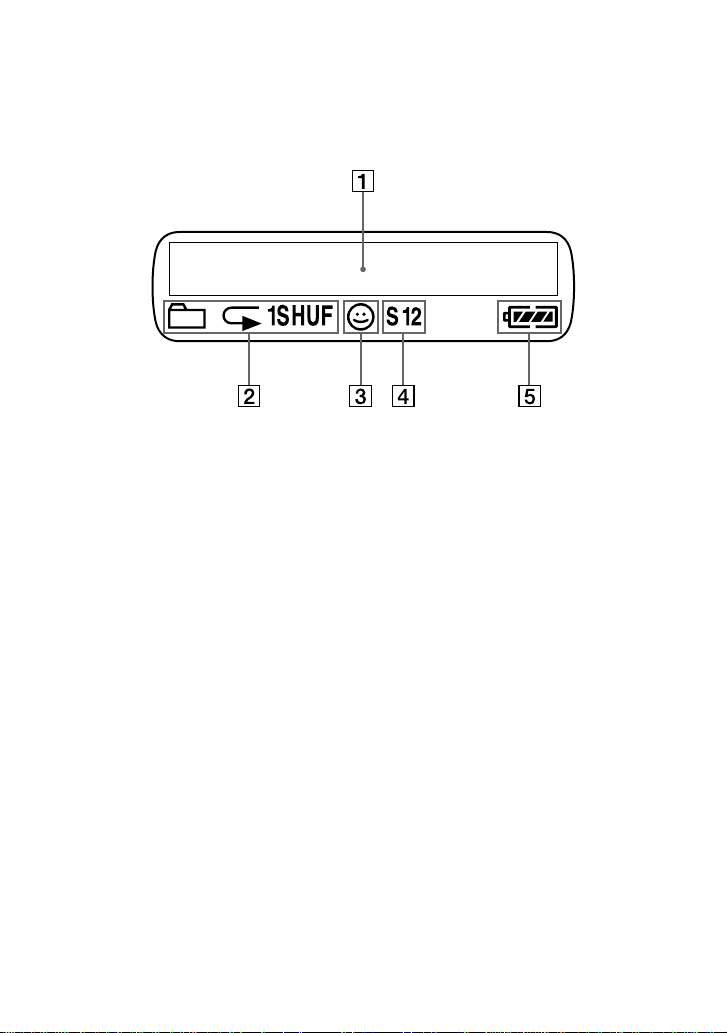
11
1 Text/graphic information display (page
17)
Displays track number, track name,
current date and time (page 21 to 27),
MESSAGE (page 13, 38) and menu.
Press the MENU button to switch the
display mode. For details, refer to
“Changing the display mode” on page
21.
2 Repeat mode indication (page 18)
The current repeat mode is displayed.
3 AVLS indication (page 27)
The indication appears while the AVLS
function is activated.
4 Digital sound preset indication
(page 22 to 23)
The current sound setting is displayed.
5 Remaining battery indication (page 9)
The remaining battery power is
displayed.
Display
12
Basic Operations
Transferring audio files from the computer to
your Network Walkman
Note
Before connecting your Network Walkman to the computer for the first time, be sure to
install the “SonicStage” software from the supplied CD-ROM in your computer. Even if the
SonicStage software is already installed, you need to install the SonicStage software
supplied with this Network Walkman before connecting your Network Walkman to the
computer (update programs may be available).
1 Install the SonicStage software in your computer using the supplied CD-ROM.
Follow step 1 only for the first time when you connect your Network Walkman to the
computer.
For details, refer to the SonicStage operating instructions.
2 Import audio files into the SonicStage software.
For details, refer to the manual “SonicStage operating instructions.”
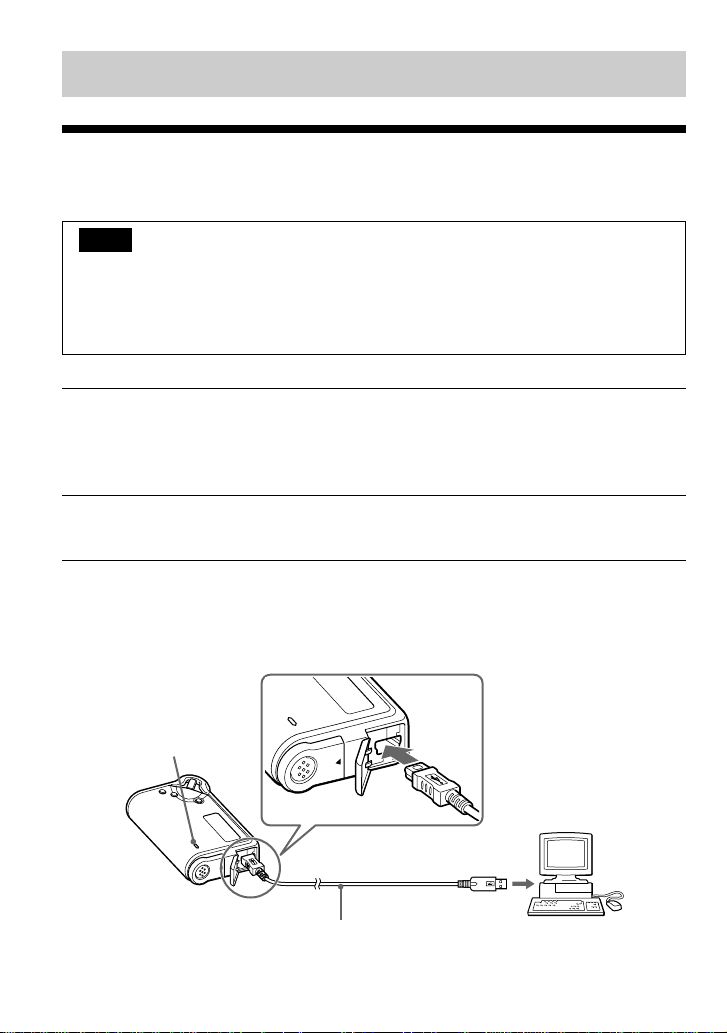
3 Connect your Network Walkman to your computer.
Connect the small connector of the dedicated USB cable into the USB jack on the Network
Walkman, then the large connector to a USB port on your computer.
“CONNECT” appears in the display.
O
P
E
N
O
PEN
Dedicated USB cable (supplied)
to a USB portto the USB jack
ACCESS lamp

13
Basic Operations
Notes
• The ACCESS lamp blinks while your Network Walkman accesses the computer.
• Do not disconnect the USB cable when the ACCESS lamp is blinking. The data being transferred may be
destroyed.
• Use of your Network Walkman with a USB hub or a USB extension cable is not guaranteed. Always connect
your Network Walkman to the computer directly using the dedicated USB cable.
• Some USB devices connected to the computer may interfere with the proper operation of your Network
Walkman.
• The control buttons on your Network Walkman are all disabled while it is connected to a computer.
• You can display the data stored in the built-in flash memory using Windows Explorer when your Network
Walkman is connected to the computer.
4 Transfer audio files to your Network Walkman.
For information on transferring audio files to the built-in flash memory, refer to the separate
manual “SonicStage operating instructions.”
z Tip
For information on transferring audio files back to the computer, refer to the manual “SonicStage operating
instructions” or online Help for the SonicStage software.
Note on playing songs with a limited playing
period (Timeout contents)
Some songs distributed via the Internet (EMD service) have a limited playing period.
If you try to play an expired song, “EXPIRED” blinks and the next song will be played after a
moment.
In addition, an expired song cannot be played using the SonicStage software, or transferred to
your Network Walkman. Delete any songs as needed.
Note on playing songs with a limited playing
count
Your Network Walkman does not support contents with a limited playing count.
When you try to play a song with a limited playing count, “EXPIRED” will be displayed and the
song will not be played.
14
Listening to music with your Network
Walkman
Please insert the battery before use (see page 9).
Note
When using Network Walkman, be sure do disconnect it from the computer.
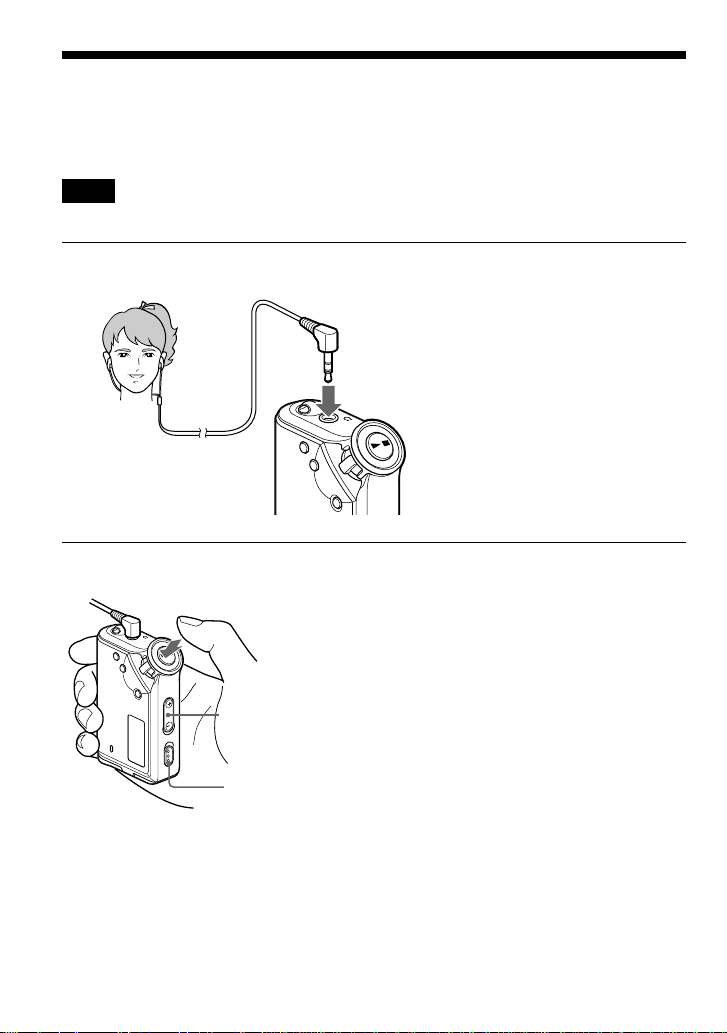
1 Connect the headphones.
G
r
o
u
p
M
o
d
e
1 Press the Nx button.
2 Press the
VOLUME +/–
button to adjust
the volume.
HOLD switch
G
o
u
p
M
o
d
e
to i jack
z Tip
If your Network Walkman is not operated for 10
seconds while in stop mode, the display
automatically turns off.
When scrolling track titles, etc., the display turns
off after scrolling is finished.
2 Start playback.
When the normal playback mode is selected,
playback stops automatically after the last
song is played.
If playback does not start
Make sure that the HOLD switch is set to off
(page 24).
To stop playback
Press the Nx button.
To adjust the volume
The volume can be set in the PRESET and
MANUAL mode (page 28 to 29).
15
Basic Operations
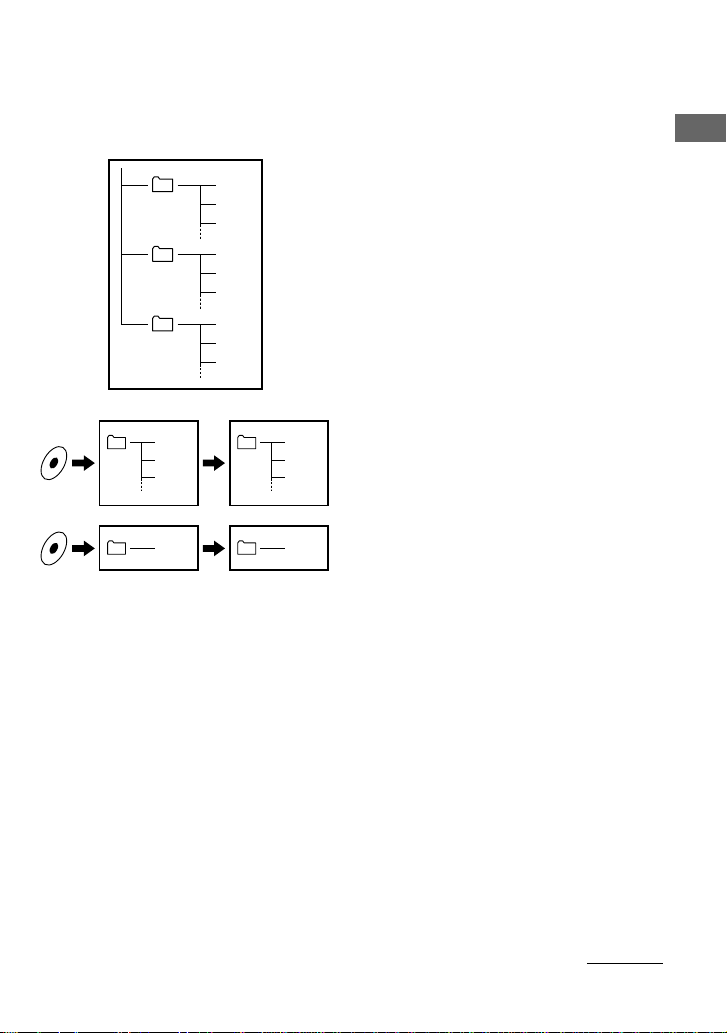
What is the Group function?
The Group function enables you to select favorite music conveniently on your Network
Walkman. You can transfer to audio files or play songs by album or artist using the Group
function.
Tra ck1
Group1
Tra ck2
Tra ck3
Tra ck1
Tra ck2
Tra ck3
Tra ck1
Tra ck2
Tra ck3
Group2
Group3
Tra ck1
Tra ck2
Tra ck3
Tra ck1
Tra ck1
Tra ck2
Tra ck3
Tra ck1
• The track number is the order of songs in each
group.
• You can switch between Track Name mode and
Group mode by pressing the GROUP button.
• In the Group mode, group names are displayed
instead of track names. In addition, any shift
operations, such as Skip or Repeat, are performed
by group.
Transferring by group
The audio files transferred to the SonicStage
software are always grouped when transferred to
the built-in flash memory.
continued

16
To
Skip to the
beginning of the
next track/group*
1
Skip to the
beginning of the
current track/
group*
1
Fast-forward*
2
Fast-rewind*
2
*
1
Rotating and holding of the Shuttle switch during
stop mode allows you to skip to the beginning of
the next (current and previous) track/group
continuously.
*
2
Fast-forward and fast-rewind speed become
faster if the operation is continued for five
seconds.
On other operations
z Tip
You can switch to the Group mode by pressing the
Group mode button.
Shuttle switch operation
Rotate the Shuttle switch
clockwise once (+/>).
Rotate the Shuttle switch
counterclockwise once
(./–).
Rotate the Shuttle switch
clockwise (+/>) and hold
it.
Rotate the Shuttle switch
counterclockwise (./–)
and hold it.
G
r
o
u
p
M
o
d
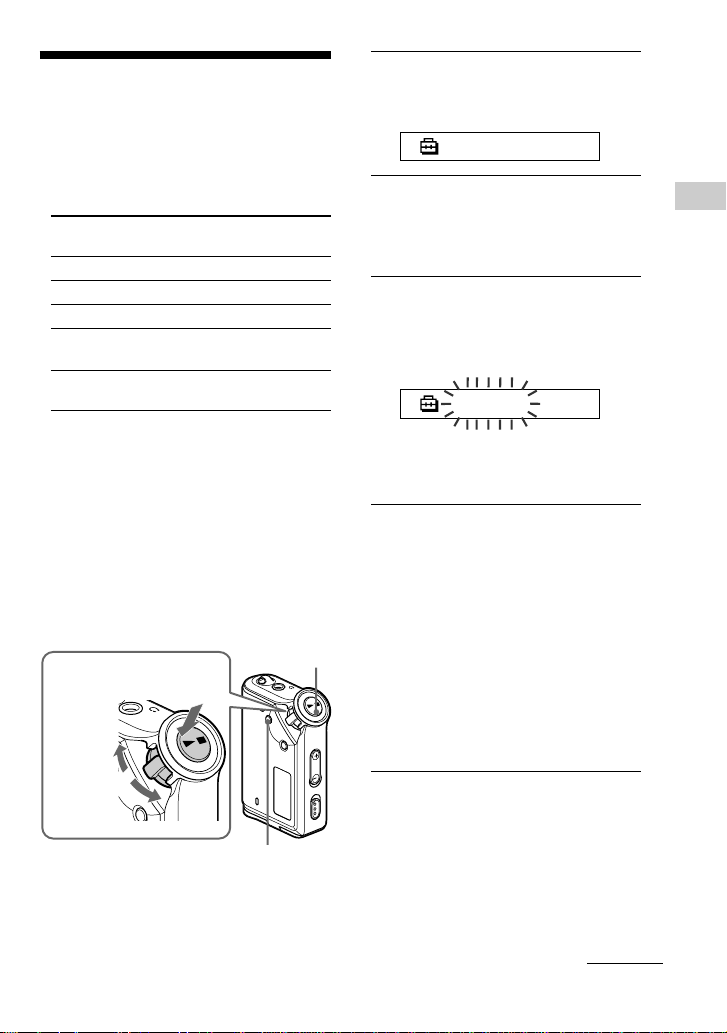
e
o
d
e
Shuttle switch
Press
(Confirm)
Nx button
MENU button
to (+/>)
to (./–)
Listening to music with your Network Walkman
17
Advanced Operations
Repeat mode
There are three types of repeat mode: Track
Repeat, A-B Repeat and Sentence Repeat.
• Track Repeat (TRK Rep)
This mode plays back tracks repeatedly in
the following five ways.
Track Repeat
mode
All Repeat
Single Repeat
Group Repeat
Group Shuffle
Repeat
All Groups Shuffle
Repeat
• A-B Repeat (A-B Rep)
This mode plays back the specified section
in a track repeatedly.
• Sentence Repeat (SENTENCE Rep)
This mode plays back voice data within a
specified section in a track repeatedly.
Selecting the repeat
mode
Operation
All tracks repeatedly
Current track repeatedly
Current group repeatedly
Current group repeatedly
in random order
All groups repeatedly
in random order
G
r
o
u
p
M
o
d
e
o
d
e
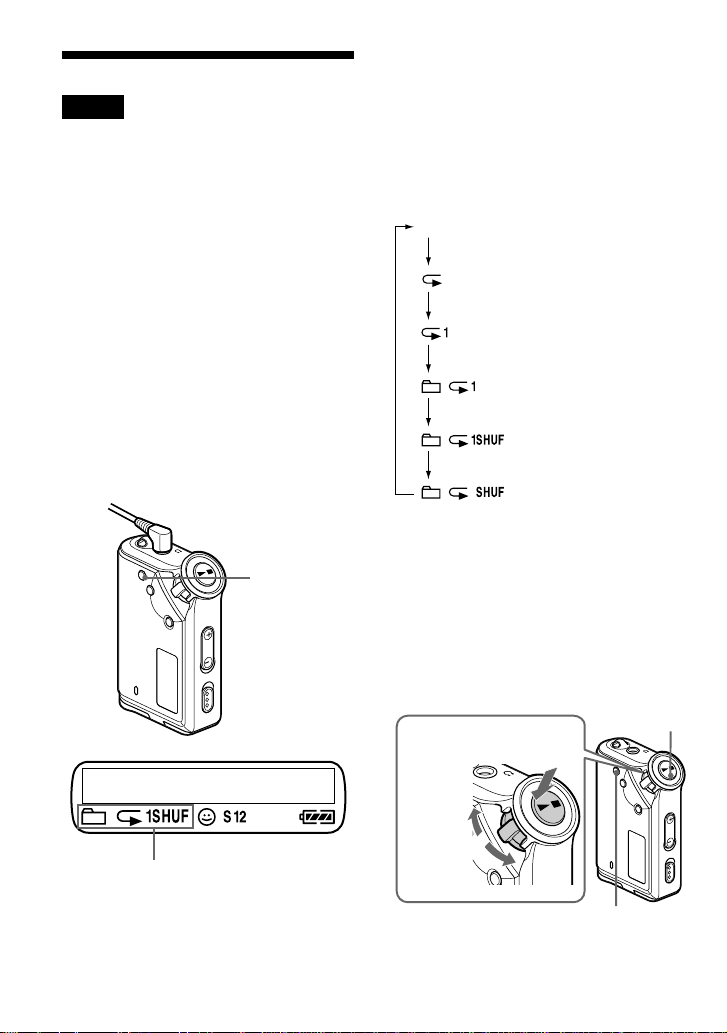
Shuttle switch
Press
(Confirm)
Nx button
MENU button
to (+/>)
to (./–)
1 Press the MENU button in stop
mode.
The menu screen is displayed.
REPEAT MODE>
2 Rotate the Shuttle switch to
select “REPEAT MODE >” and
press the Nx button to
confirm.
3 Rotate the Shuttle switch to
select a desired repeat mode
and press the Nx button to
confirm.
TRKRep
You can choose one mode among
“TRK Rep,” “A-B Rep” and
“SENTENCE Rep.”
4 Press the MENU button.
The display returns to the normal
screen.
You can operate each repeat mode
you selected, as refer to the below.
• TRK Rep: see “Playing the tracks
repeatedly (Track Repeat).”
• A-B Rep: see “Playing a specified
section repeatedly (A-B Repeat).”
• SENTENCE Rep: see “Playing
specified sentences repeatedly
(Sentence Repeat).”
To cancel the Menu mode
Select [RETURN] in the menu screen or press
the MENU button.
B
Advanced Operations
continued
18
Playing the tracks
repeatedly (Track
Repeat)
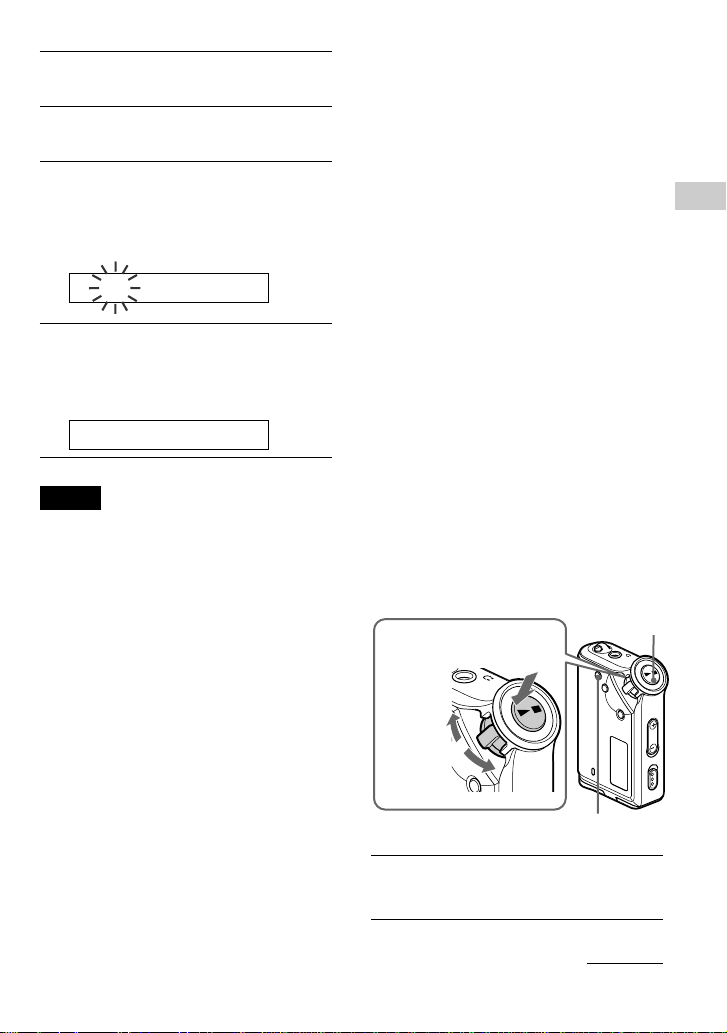
The Track Repeat mode is changed by
pressing the REPEAT/SOUND button. You
can check the current Track Repeat mode
with the icon of the display.
Track Repeat icon
G
r
o
u
p
M
o
d
e
REPEAT/
SOUND button
Playing a specified
section repeatedly
(A-B Repeat)
While playing a track, you can set the start
point (A) and end point (B) for a section you
wish to play repeatedly.
G
r
o
u
p
M
o
d
e
o
d
e
Shuttle switch
Press
(Confirm)
Nx button
REPEAT/SOUND button
to (+/>)
to (./–)
Repeat mode
none (Normal play)
(All Repeat)
(Single Repeat)
(Group Repeat)
(Group Shuffle Repeat)
(All Groups Shuffle Repeat)
Notes
• The display automatically returns to the normal
playback screen if you do not operate any button
for 60 seconds.
• When there is no audio files in the built-in flash
memory, you cannot set any repeat mode.
• When you connect the Network Walkman to your
computer, the selected desired mode will be
cancelled.
• You can select repeat mode only in stop mode.
Select the Track Repeat mode
(TRK Rep) first (page 17).
Then, press the REPEAT/SOUND
button repeatedly to select the
repeat mode you want.
Each press changes the Track Repeat icon as
follows:
19
Advanced Operations
1 Select the A-B Repeat mode (A-B
Rep) (page 17).
2 Press the Nx button to start
playback.
3 Press the REPEAT/SOUND button
to set the start point (A) while
playing back.
“B” blinks.
:00A00B01
4 Press the REPEAT/SOUND button
to set the end point (B).
“A B” is displayed and the specified
section is played back repeatedly.
:00A55B01
Notes
• You cannot set A-B Repeat for a section
that overlaps two or more tracks.
• If you do not set the end point (B), the end
point is automatically set at the end of the
track.
• You cannot use A-B Repeat in the Group
mode or when the current time is
displayed.
z Tips
• You can fast-forward or fast-rewind by rotating
the Shuttle switch, after the start point (A) is set.
If the track reaches the end while fast-forwarding,
the end point is set as point (B) and fast-
forwarding continues.
A-B Repeat starts when you release the Shuttle
switch.
If the track reaches the beginning while fast-
rewinding, it jumps to the end of the track, the
end point is set as point (B), and fast-rewinding
continues.
• You can fast-forward or fast-rewind by rotating
the Shuttle switch, during A-B Repeat playback.
If the track reaches the track start/end while fast-
forwarding or fast-rewinding, playback is stopped
(enters Standby). A-B Repeat restarts when you
release the Shuttle switch.
To clear the start point (A) and end point (B)
• Press the REPEAT/SOUND button during
A-B Repeat playback.
• Press the MENU button during A-B Repeat
playback.
•
Select the Group mode by pressing the
GROUP button during A-B Repeat playback.
•
Select the previous or next track by rotating the
Shuttle switch during A-B Repeat playback.
(The A-B Repeat mode is not canceled.)
To cancel the A-B Repeat mode
Change the Repeat mode in the menu screen
(page 17).
Playing specified
sentences repeatedly
(Sentence Repeat)
This function automatically detects only
voice data from the setting point and repeats
the voice data for setting counts. It is useful
for learning a foreign language.
z Tip
The default repeat counts setting is 2 times for one
sentence. But you can change the repeat counts setting.
Refer to “Setting the repeat counts” on page 20.
1 Select the Sentence Repeat mode
(SENTENCE Rep) (page 17).
G
r
o
u
p
M
o
d
e
o
d
e
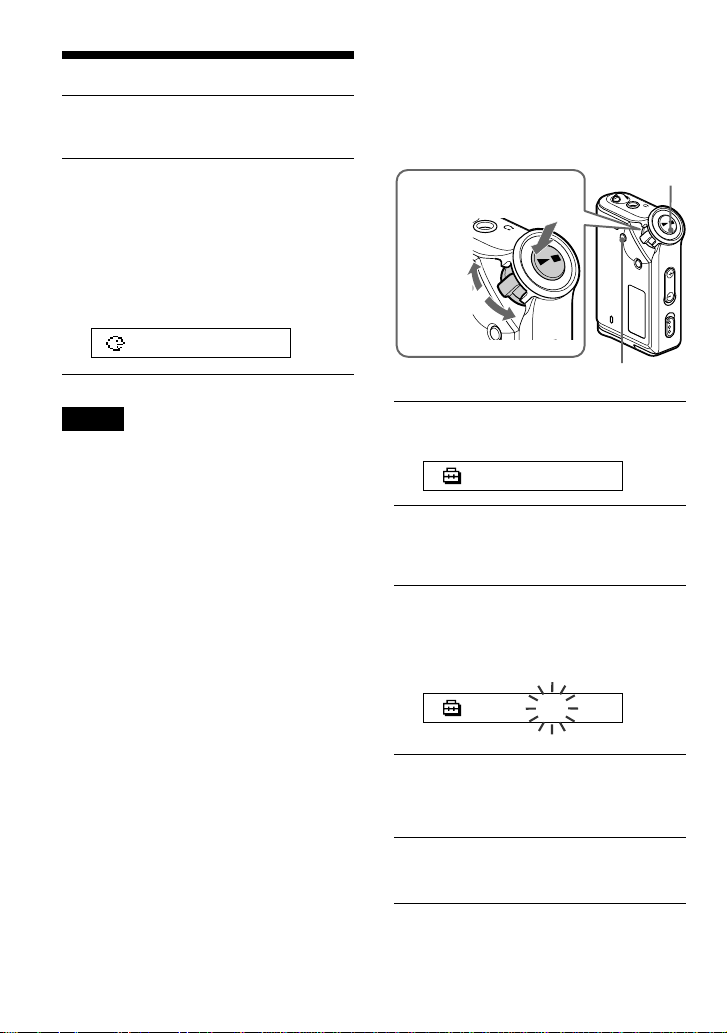
Shuttle switch
Press
(Confirm)
Nx button
to (+/>)
to (./–)
REPEAT/SOUND button
continued
20
2 Press the Nx button to start
playback.
3 Press the REPEAT/SOUND button
to place the setting point during
playback.
The Network Walkman detects spoken
sections and non-spoken sections from
the set point, and Sentence Repeat starts.
(The spoken section is repeated once (during
detection), and the setting is counted.)
1:0201 0
Notes
•
You cannot use Sentence Repeat in the Group
mode, or when the current time is displayed.
•A spoken or non-spoken section of less
than 1 second will not be detected.
•
If a non-spoken section is not detected until
the track end, the track end point is recognized
as a non-spoken section and Sentence Repeat
begins from the previous spoken section.
To clear the setting point
• Press the REPEAT/SOUND button during
Sentence Repeat playback.
• Press the MENU button during Sentence
Repeat playback.
•
Select the Group mode by pressing the GROUP
button during Sentence Repeat playback.
• Select the previous or next track by rotating
the Shuttle switch during Sentence Repeat
playback.
(The Sentence Repeat mode is not canceled.)
To cancel the Sentence Repeat mode
Change the Repeat mode in the menu screen
(page 17).
G
r
o
u
p
M
o
d
e
o
d
e
Shuttle switch
Press
(Confirm)
Nx button
MENU button
to (+/>)
to (./–)
Setting the repeat
counts
You can set the repeat counts (1-9) of one
sentence for the Sentence Repeat mode.
1 Press the MENU button.
The menu screen is displayed.
REPEAT MODE>
2 Rotate the Shuttle switch to select
“REPEAT MODE >” and press the
Nx button to confirm.
3 Rotate the Shuttle switch to select
“SENTENCE Rep” and press the
Nx button to confirm.
“COUNT:” is displayed on the screen.
COUNT:2
4 Rotate the Shuttle switch to select
a desired repeat counts and press
the Nx button to confirm.
5 Press the MENU button.
The display returns to the normal screen.
To cancel the Menu mode
Select [RETURN] in the menu screen or press the
MENU button.
Repeat mode
21
Advanced Operations
1 Press the MENU button.
The menu screen is displayed.
REPEAT MODE>
2 Rotate the Shuttle switch to select
“DISPLAY >” and press the Nx
button to confirm.
The selected display mode blinks.
LapT ime
3 Rotate the Shuttle switch to select
a desired display mode and press
the Nx button to confirm.
The display switches to the selected
display mode.
DISPLAY>
4 Press the MENU button.
The display returns to the normal screen.
To cancel the menu mode
Select [RETURN] in the menu screen or press the
MENU button.
G
r
o
u
p
M
o
d
e
o
d
e
Shuttle switch
Press
(Confirm)
Nx button
MENU button
to (+/>)
to (./–)
Changing the
display mode
You can view information such as track
numbers or titles in the display while music
is played or stopped. Change the display
mode by operating the Shuttle switch in the
Menu mode.
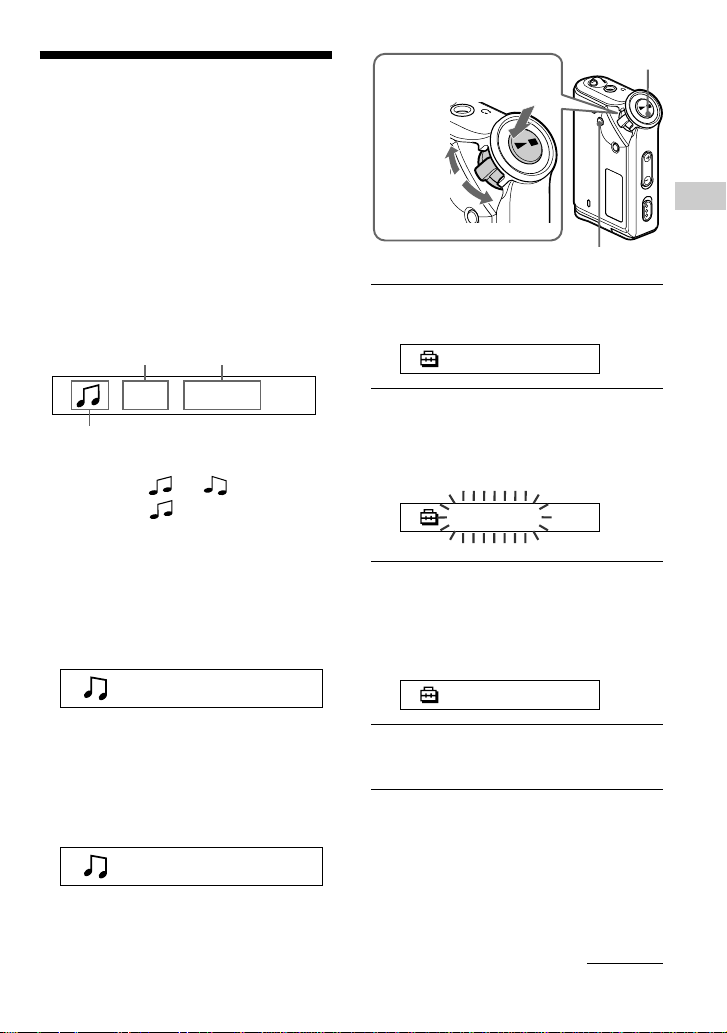
• Lap Time: Elapsed time display mode
The following will be displayed after a music title
and artist name are displayed.
* Play: Displays and alternately.
Stop: Displays .
Search track: Displays > or ..
Fast-forward/Fast-rewind: Displays M or
m.
• Title: Title display mode
When the music title includes more than 12
characters, the title will be automatically scrolled.
T itle/Artis
• Track info: Track information display
mode
The track title, CODEC, and bit rate are
displayed. When the information includes more
than 12 characters, the information will be
automatically scrolled.
T itle/Codec/
While searching, fast-forwarding, or fast-
rewinding a track, the current playing position is
displayed.
009 01:36
Track number Elapsed time
Play status*
continued
22
Adjusting treble
and bass (Digital
sound preset)
You can adjust the treble and bass. You can
preset two settings, which can be selected
during playback.
Selecting the Sound
quality
Default settings
Sound SOUND 1 SOUND 2 SOUND OFF
quality
(S1) (S2)
(NORMAL SOUND)
Bass +1 +3 ±0
Treble ±0 ±0 ±0
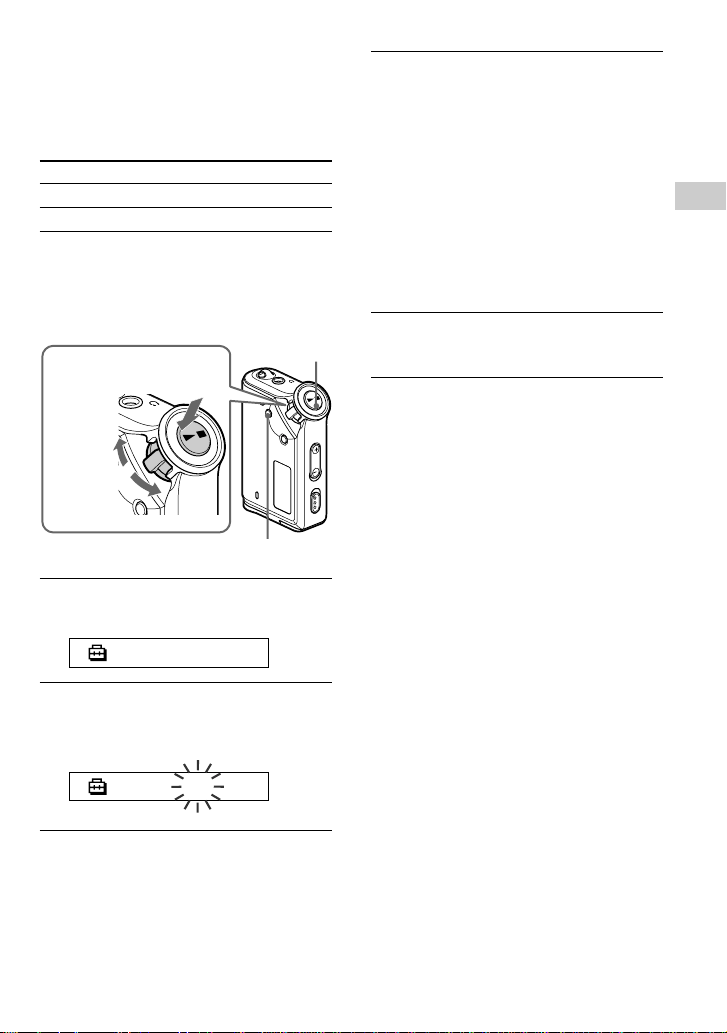
Press and hold the REPEAT/
SOUND button for half a second.
The Sound quality setting is changed as
follows:
To return to the normal Sound quality
Select “SOUND OFF.”
G
r
o
u
p
M
o
d
e
REPEAT/
SOUND button
S1 S2 (none)
Selecting the group
display mode
For any menu mode, you can select the group
display by pressing the GROUP button.
G
r
o
u
p
M
o
d
e
GROUP button
To cancel the group mode
Press the GROUP button in the group mode screen.
Note
The display automatically returns to the normal
playback screen if you do not operate any button
for 30 seconds.
Changing the display mode
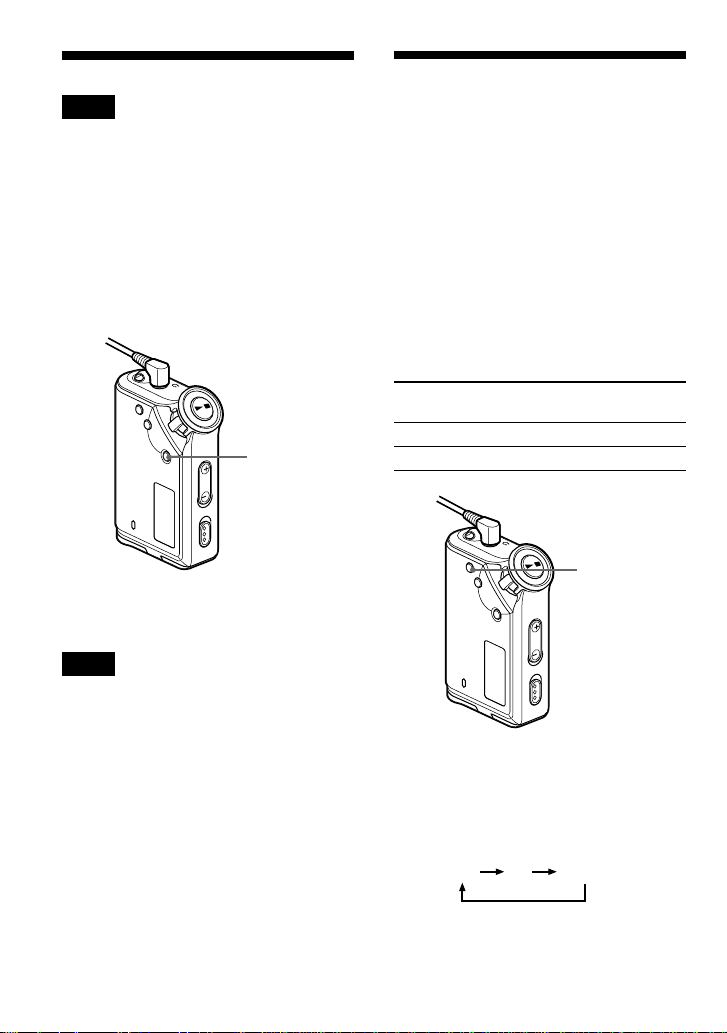
Note
The display automatically returns to the normal
playback screen if you do not press any buttons for
60 seconds.
23
Advanced Operations
3 Set the tone for “SOUND 1.”
1 Rotate the Shuttle switch to select
“SOUND 1 >” and press the Nx
button to confirm.
2 “BASS:+1” appears, rotate the
Shuttle switch to adjust the emphasis
level of bass sound and press the
Nx button to confirm.
3 “TREBLE: 0” appears, rotate the
Shuttle switch to adjust the emphasis
level of treble sound and press the
Nx button to confirm.
4 Press the MENU button
The display returns to the normal screen.
To adjust the “SOUND 2” setting
Select “SOUND 2” in step 3.
To cancel the menu mode
Select [RETURN] in the menu screen or press the
MENU button.
Adjusting the sound
quality
You can adjust the sound quality of bass and
treble parts.
Sound quality Emphasis level
Bass -4 to +3
Treble -4 to +3
You can preset desired sound quality settings
as “Sound 1” and “Sound 2.” While playing
music, you can assign a preset sound quality
to music.
1 Press the MENU button.
The menu screen is displayed.
REPEAT MODE>
2 Rotate the Shuttle switch to select
“SOUND >” and press the Nx
button to confirm.
SOUND: 2 >
G
r
o
u
p
M
o
d
e
o
d
e
Shuttle switch
Press
(Confirm)
Nx button
MENU button
to (+/>)
to (./–)
24
Storing non-audio
data
You can transfer data from the hard disk of
your computer to the built-in flash memory
using Windows Explorer.
The built-in flash memory is displayed in
Windows Explorer as an external drive (for
example: as the D drive).
Notes
• You cannot operate the SonicStage software
while operating the data storage function of your
Network Walkman to use files stored in the built-
in flash memory. The error message “Cannot
access the Device/media.” will be displayed when
you try to operate both of them simultaneously.
• If you store a lot of non-audio data into the built-
in flash memory, the space for audio data is
reduced by the same amount.
Locking the
controls (HOLD)
You can protect your Network Walkman
against accidental operation by using the
HOLD function when carrying it.
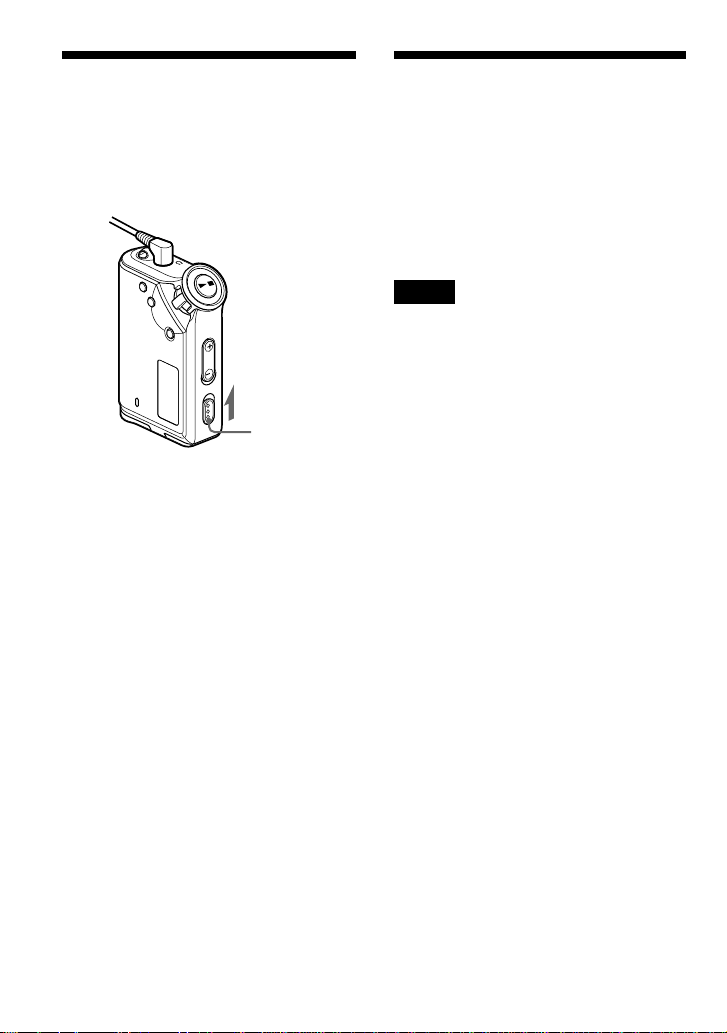
Slide the HOLD switch in the
direction of the arrow.
All operation buttons are disabled.
If you press buttons while the HOLD switch
is on, “HOLD” blinks in the display.
To release the HOLD function
Slide the HOLD switch in the opposite direction of
the arrow.
G
r
o
u
p
M
o
d
e
HOLD switch
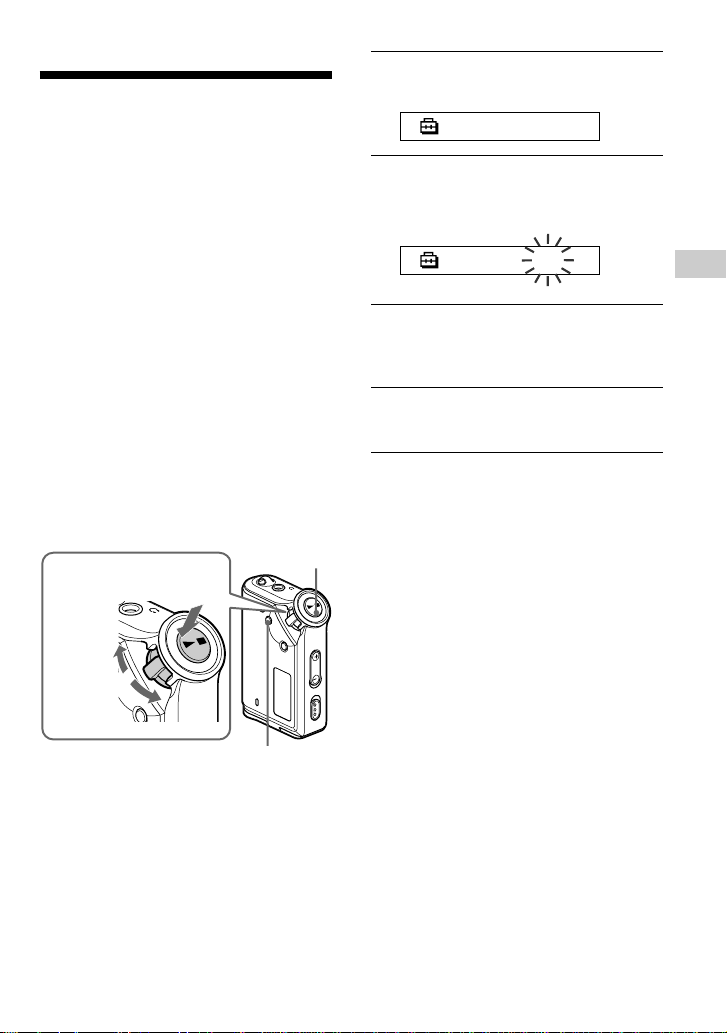
25
Adjusting the settings of your Network Walkman
1 Press the MENU button.
The menu screen is displayed.
REPEAT MODE>
2 Rotate the Shuttle switch to select
“PC CLK:” and press the Nx
button to confirm.
PC CLK:ON
3 Rotate the Shuttle switch to select
“OFF” and press the Nx button
to confirm.
4 Press the MENU button
The display returns to the normal screen.
To change the setting to “ON”
Select “ON” in step 3.
To cancel the menu mode
Select [RETURN] in the menu screen or press the
MENU button.
Adjusting the time
setting of your
Network Walkman
to a computer’s
built-in clock
If the function is set to “ON,” the time
setting of your Network Walkman is
automatically adjusted to the computer’s
built-in clock when your Network Walkman
is connected and audio file transferring is
executed (the SonicStage software must be
started). “ON” is selected by default.
You cannot play a song with a limited
playing period without the time setting of
your Network Walkman. Be sure to adjust
the time setting.
To set the date and time on your Network
Walkman, refer to “Adjusting the current
time setting (DATE-TIME)” on page 26.
Changing the setting to “OFF”
The time setting of your Network Walkman
does not change even when your Network
Walkman is connected to a computer.
G
r
o
u
p
M
o
d
e
o
d
e
Shuttle switch
Press
(Confirm)
Nx button
MENU button
to (./–)
to (+/>)
B
Adjusting the settings of
your Network Walkman
26
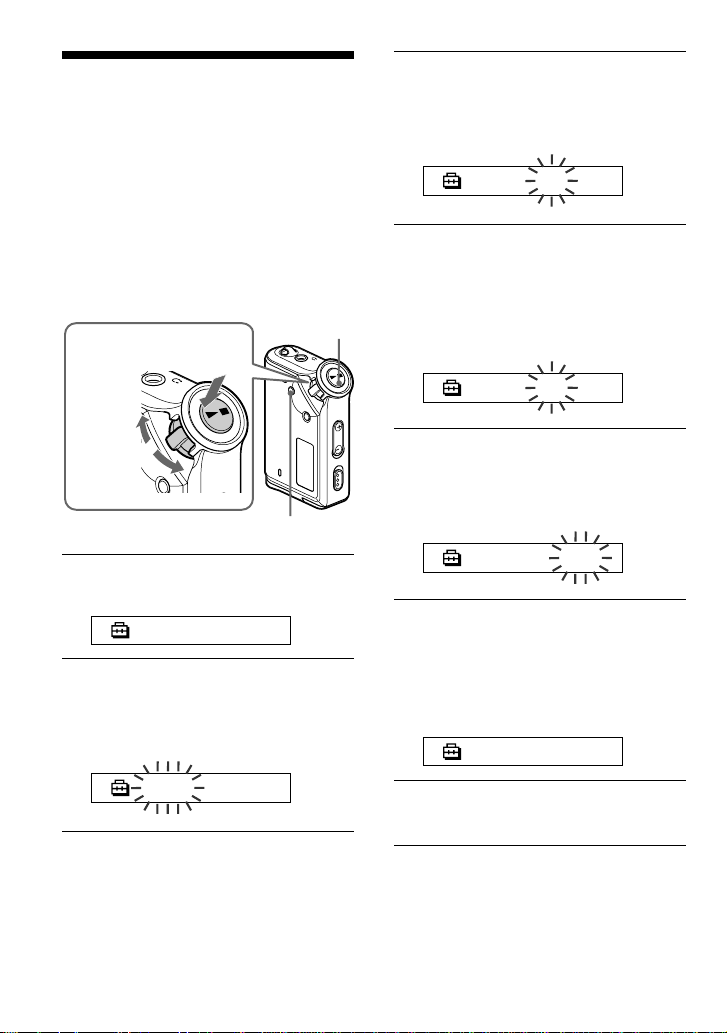
3 Rotate the Shuttle switch to adjust
the “year” setting and press the
Nx button to confirm.
The “month” digit blinks.
2004y 1m 1d
4 As you did in step 3, adjust the
settings for “month” and “date.”
After rotating the Shuttle switch to
adjust the “date” setting and pressing the
Nx button to confirm, the display
switches to the time setting screen.
0:00
5 Rotate the Shuttle switch to adjust
the “hour” setting and press the
Nx button to confirm.
The “minute” digit blinks.
0:00
6 As you did in step 5, adjust the
settings for “minute.”
After rotating the Shuttle switch to
adjust the “minute” setting and pressing
the Nx button to confirm, the display
switches to the time setting screen.
DAT E-T IME
7 Press the MENU button.
The display returns to the normal screen.
Adjusting the
current time
setting
(DATE-TIME)
You can set and display the current time.
You can also adjust the time setting of your
Network Walkman to a computer’s built-in
clock by connecting your Network Walkman
to the computer (page 25).
1 Press the MENU button.
The menu screen is displayed.
REPEAT MODE>
2 Rotate the Shuttle switch to select
“DATE-TIME” and press the Nx
button to confirm.
The “year” digit blinks.
2004y 1m 1d
G
r
o
u
p
M
o
d
e
o
d
e
Shuttle switch
Press
(Confirm)
Nx button
MENU button
to (+/>)
to (./–)
27
Adjusting the settings of your Network Walkman
Limiting the
volume (AVLS)
You can set AVLS (Automatic Volume
Limiter System) to limit the maximum
volume to prevent auditory disturbance or
distraction. With AVLS, you can listen to
music at a comfortable volume level.
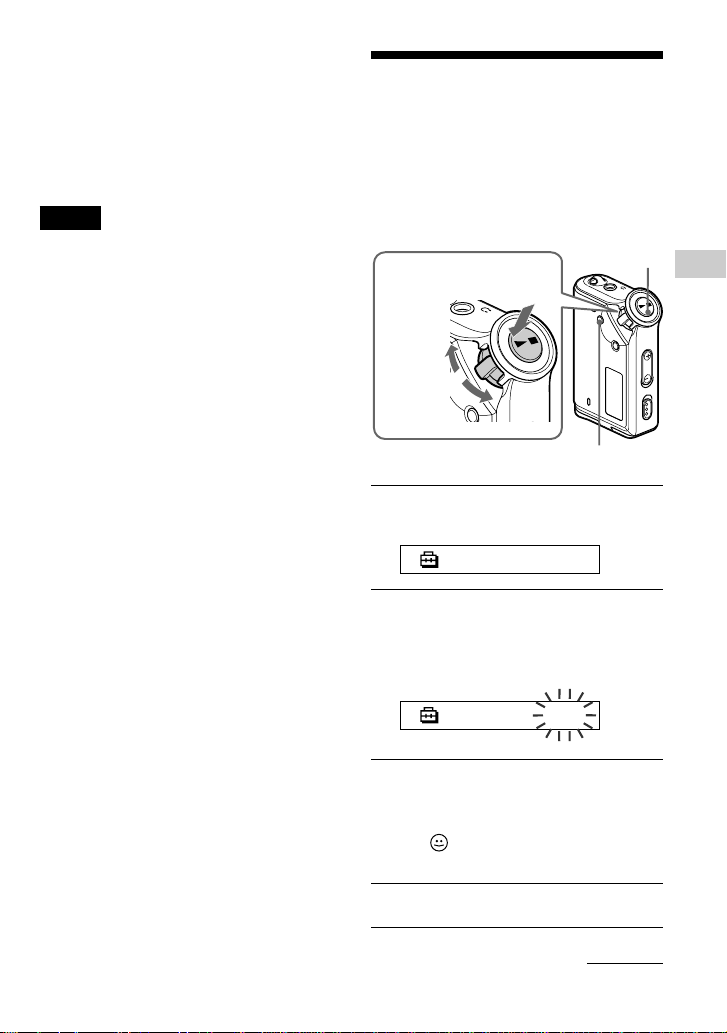
1 Press the MENU button.
The menu screen is displayed.
REPEAT MODE>
2 Rotate the Shuttle switch to select
“AVLS” and press the Nx button
to confirm.
“OFF” blinks.
AVLS :OFF
3 Rotate the Shuttle switch to select
“ON” and press the Nx button
to confirm.
The (AVLS) indication is displayed.
The volume is kept at a moderate level.
4 Press the MENU button.
G
r
o
u
p
M
o
d
e
o
d
e
Shuttle switch
Press
(Confirm)
Nx button
MENU button
to (+/>)
to (./–)
To cancel the menu mode
Select [RETURN] in the menu screen or press the
MENU button.
To display the current time
Press the MENU button and hold it.
You can display the current time while pressing the
button.
Notes
• If the unit is not used for a long time, your
settings of the date and time may be reset.
• If the current time is not set, the display for the
date and time will be “-- --.”
• If PC CLK is set to “ON” (page 25), the time
setting of your Network Walkman is
automatically adjusted to a computer’s built-in
clock when your Network Walkman is connected
to the computer.
• Depending on the shipping area, the time display
format of the unit is set to a 12-hour display or a
24-hour display.
You cannot switch between a 12-hour display and
a 24-hour display in the unit.
A 24-hour display is shown in this manual.
continued
28
To change the setting to “OFF”
Select “OFF” in step 3.
To cancel the menu mode
Select [RETURN] in the menu screen, or
press the MENU button.
Limiting the volume (AVLS)
Setting the volume
using the preset
volume function
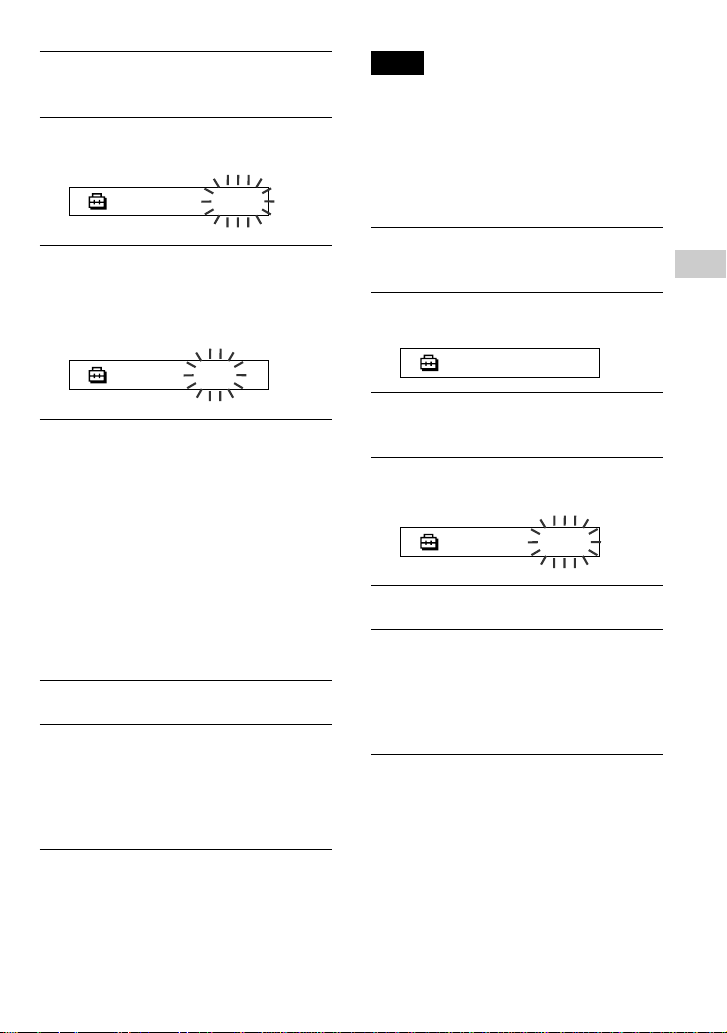
There are two modes to adjust the volume
level.
Manual mode: Press the VOLUME +/–
button to adjust the volume
level in the range of 0 to 31.
Preset mode: Press the VOLUME +/–
button to set the volume
level to any of three preset
levels: LO, MID, or HI.
Setting a volume level
of the preset mode
1 Press the MENU button.
The menu screen is displayed.
REPEAT MODE>
2 Rotate the Shuttle switch to select
“VOL: MAN.”
VOL :MAN
G
r
o
u
p
M
o
d
e
o
d
e
Shuttle switch
Press
(Confirm)
Nx button
MENU button
to (+/>)
to (./–)
VOLUME
+/– button
29
Adjusting the settings of your Network Walkman
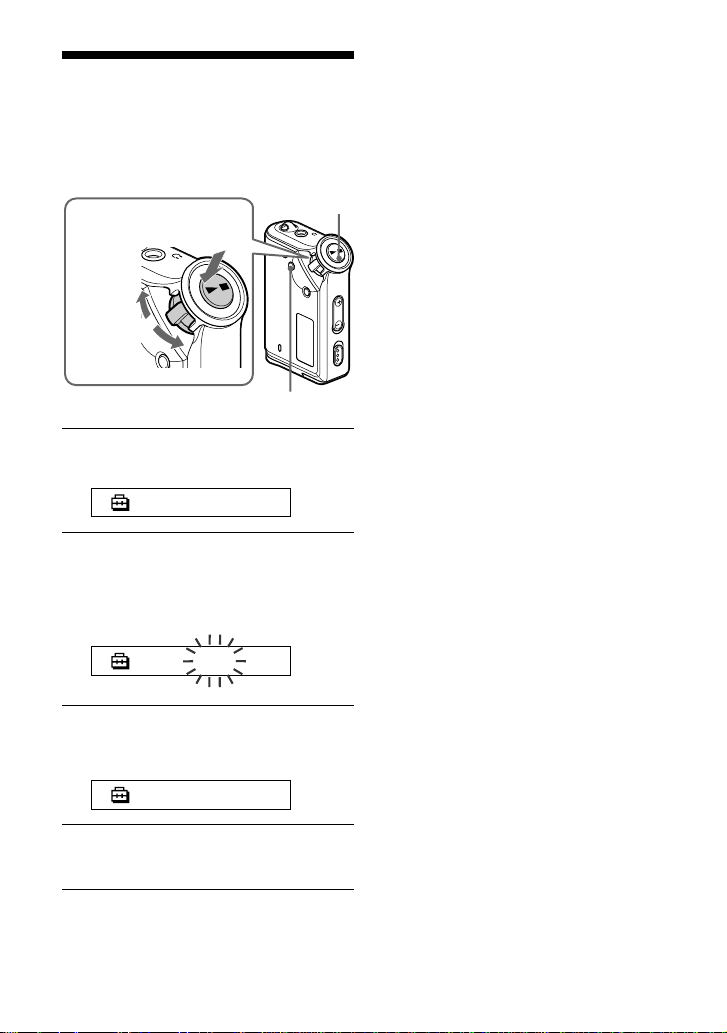
Switching to the
manual mode
1 Press the MENU button.
The menu screen is displayed.
2 Rotate the Shuttle switch to select
“VOL: SET.”
VOL :SET>
3 Press the Nx button to confirm.
“SET >” blinks.
4 Rotate the Shuttle switch to select
“MAN.”
VOL :MAN
5 Press the Nx button to confirm.
6 Press the MENU button.
The display returns to the normal screen.
With this setting, you can adjust the
volume level by pressing the volume
button.
3 Press the Nx button to confirm.
“MAN” blinks.
4 Rotate the Shuttle switch to select
“SET >.”
VOL :SET>
5 Press the Nx button to confirm.
“VOL LO xx”* blinks.
* “xx” stands for numeric values of the
volume level.
VOL LO xx
6 Set volume levels of three preset
levels: LO, MID, or HI.
1 Press the VOLUME +/– button to set
the volume level of the LO preset.
2 Rotate the Shuttle switch to select
“VOL MID xx,” and then press the
VOLUME +/– button to set the
volume level of the MID preset.
3 Rotate the Shuttle switch to select
“VOL HI xx,” and then press the
VOLUME +/– button to set the
volume level of the HI preset.
7 Press the Nx button to confirm.
8 Press the MENU button.
The display returns to the normal screen.
With these settings, you can adjust the
volume level to any of three preset
levels: LO, MID, or HI.
To cancel the menu mode
Select [RETURN] in the menu screen or press the
MENU button.
Note
If AVLS (page 27) is set, the actual volume may be
lower than the settings.
30
G
r
o
u
p
M
o
d
e
o
d
e
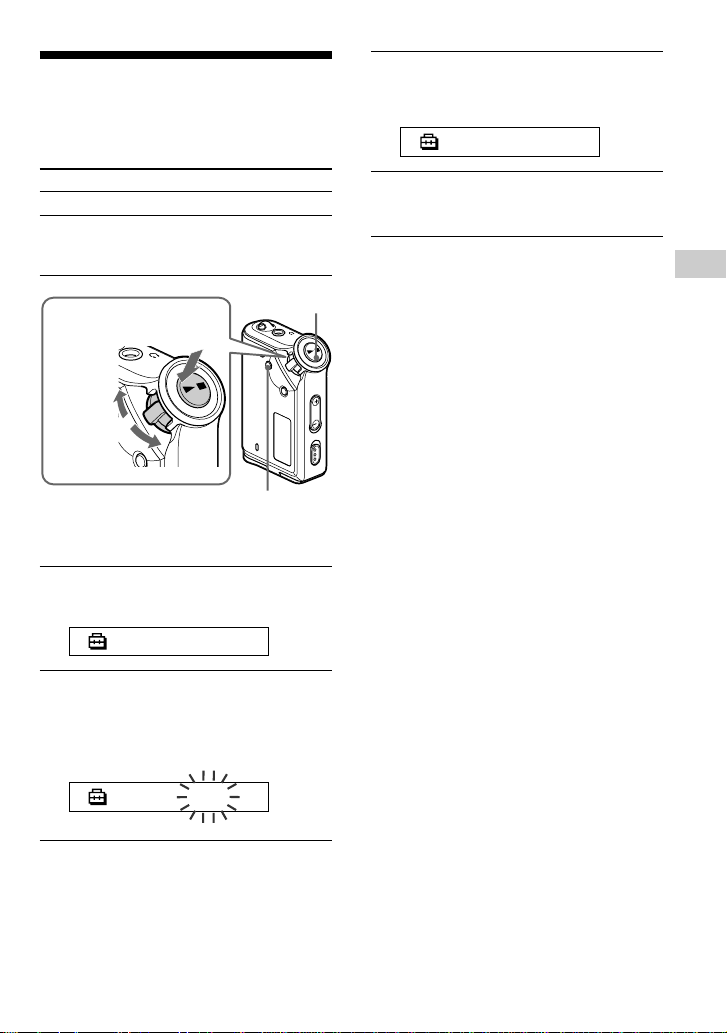
Turning off the
beep sound (BEEP)
You can turn off the beep sounds of your
Network Walkman.
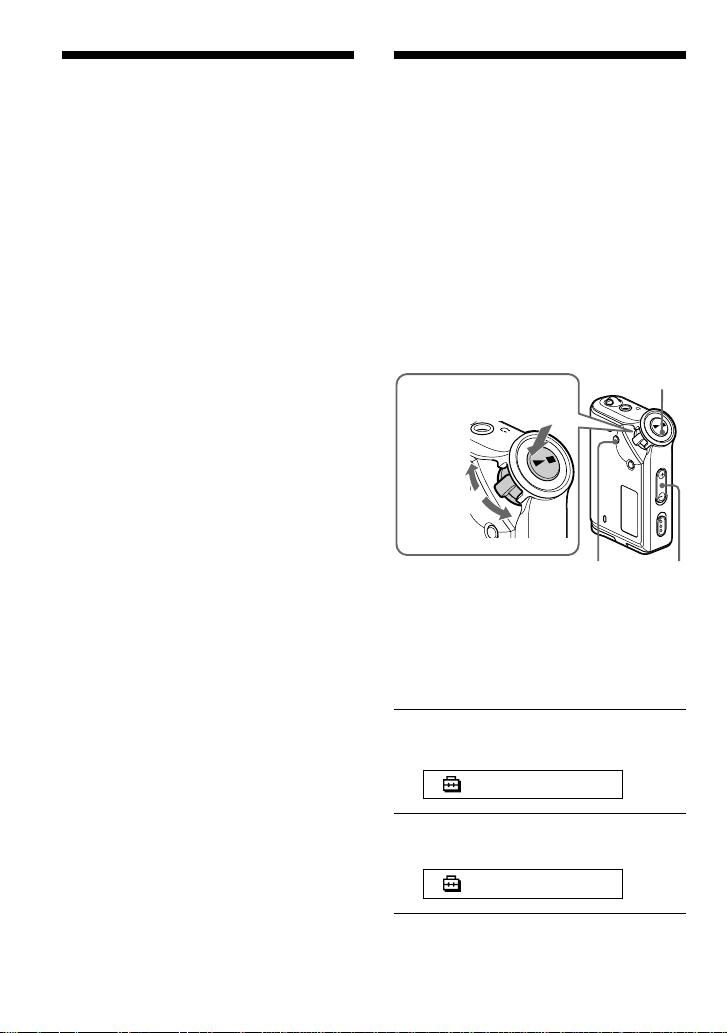
1 Press the MENU button.
The menu screen is displayed.
REPEAT MODE>
2 Rotate the Shuttle switch to select
“BEEP:” and press the Nx
button to confirm.
“ON” blinks.
BEEP:ON
3 Rotate the Shuttle switch to select
“OFF” and press the Nx button
to confirm.
BEEP:OFF
4 Press the MENU button.
The display returns to the normal screen.
Shuttle switch
Press
(Confirm)
Nx button
MENU button
to (+/>)
to (./–)
To change the setting to “ON”
Select “ON” in step 3.
To cancel the menu mode
Select [RETURN] in the menu screen, or press the
MENU button.
31
Adjusting the settings of your Network Walkman
G
r
o
u
p
M
o
d
e
o
d
e
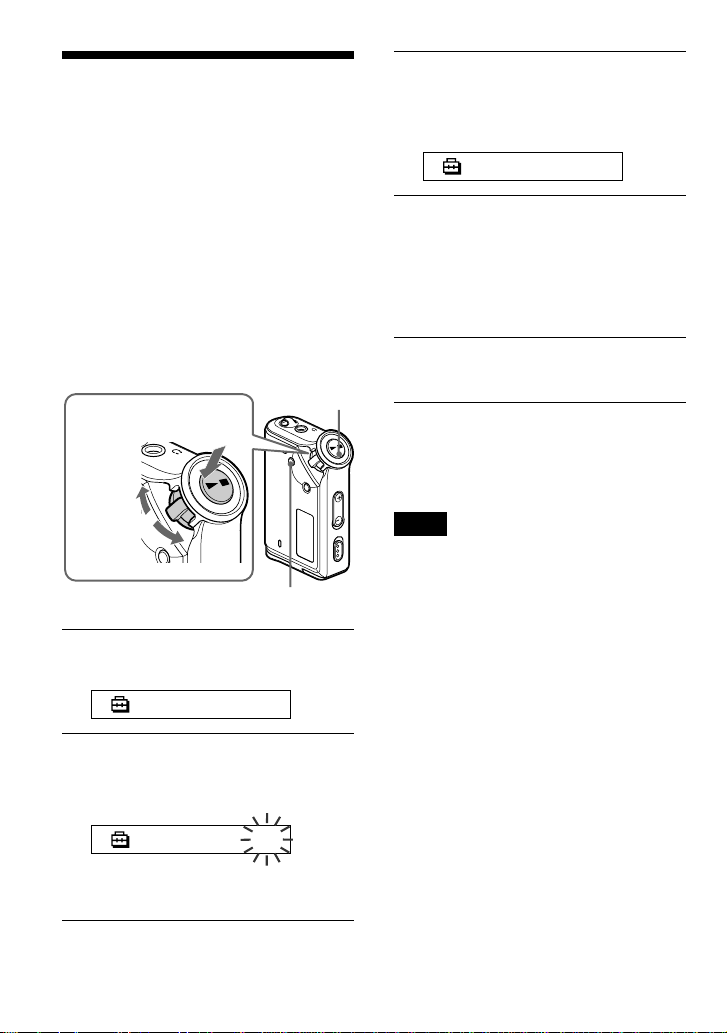
Changing the
backlight setting
You can select ON or OFF.
Menu Backlight mode
OFF Always off
ON Turns on for three seconds
after each operation
(or until scrolling is complete)
To set “ON”
1 Press the MENU button.
The menu screen is displayed.
REPEAT MODE>
2 Rotate the Shuttle switch to select
“LIGHT:” and press the Nx
button to confirm.
“OFF” blinks.
LIGHT:OFF
Shuttle switch
Press
(Confirm)
Nx button
MENU button
to (+/>)
to (./–)
3 Rotate the Shuttle switch to select
“ON” and press the Nx button to
confirm.
LIGHT:ON
4 Press the MENU button.
The display returns to the normal screen.
To change the setting to “OFF”
Select “LIGHT: OFF” in step 3.
To cancel the menu mode
Select [RETURN] in the menu screen or press the
MENU button.
32
Regrouping songs
(REGROUP)
The songs group function may be disabled*
when a song has been deleted from or added
the built-in flash memory by operating the
computer in which the SonicStage software
is not installed (page 12). In such a case, you
may enable the group function by regrouping
audio file. When you need to edit audio file,
make sure that you connect your Network
Walkman to the computer and use the
SonicStage software.
* The order of songs will not be changed even if
the song group function is disabled.
1 Press the MENU button.
The menu screen is displayed.
REPEAT MODE>
2 Rotate the Shuttle switch to select
“REGROUP” and press the Nx
button to confirm.
REGROUP: N
You cannot regroup audio file while
playing music.
3 Rotate the Shuttle switch to select
“Y” and press the Nx button to
confirm.
“Really?” is displayed.
Really?
4 Press the Nx button.
Regrouping starts and “REGROUPING”
blinks. When regrouping audio file is
complete, “COMPLETE” is displayed
and the display returns to the indication
in step 2.
5 Press the MENU button.
The display returns to the normal screen.
To cancel the menu mode
Select [RETURN] in the menu screen or press the
MENU button.
Note
You cannot regroup songs while playing music.
(“REGROUP” will not be displayed in the menu
screen.)
z Tip
In some cases, you may not be able to restore
the former grouping. When you need to edit
audio file, connect your Network Walkman
to the computer and use the SonicStage
software.
G
r
o
u
p
M
o
d
e
o
d
e
Shuttle switch
Press
(Confirm)
Nx button
MENU button
to (+/>)
to (./–)
B
Other functions

33
Other functions
Formatting
memory (FORMAT)
You can use your Network Walkman to
format the built-in flash memory.
If memory is formatted, all data previously
stored in the memory will be erased. Be sure
to verify the data stored in the memory prior
to formatting.
1 Press the MENU button.
The menu screen is displayed.
REPEAT MODE>
2 Rotate the Shuttle switch to select
“FORMAT” and press the Nx
button to confirm.
FORMAT:N
You cannot format memory while
playing music.
3 Rotate the Shuttle switch to select
“Y” and press the Nx button to
confirm.
“Really?” is displayed.
4 Press the Nx button.
“FORMATTING” blinks and formatting
starts.
When formatting is complete,
“COMPLETE” is displayed and the
display returns to the indication in step
2.
5 Press the MENU button.
The display returns to the normal screen.
To cancel the menu mode
Select [RETURN] in the menu screen or press the
MENU button.
To cancel formatting
Select “N” in step 3.
Note
You cannot format memory while playing music.
(“FORMAT” will not be displayed in the menu
screen.)
G
r
o
u
p
M
o
d
e
o
d
e
Shuttle switch
Press
(Confirm)
Nx button
MENU button
to (+/>)
to (./–)

34
Precautions
On installation
Never use your Network Walkman where it
will be subjected to extremes of light,
temperature, moisture or vibration.
On the headphones
Road Safety
Do not use headphones while driving,
cycling, or operating any motorized vehicle.
It may create a traffic hazard and is illegal in
many areas. It can also be potentially
dangerous to play your Network Walkman at
a high volume while walking, especially at
pedestrian crossings. You should exercise
extreme caution or discontinue use in
potentially hazardous situations.
Preventing hearing damage
Avoid using the headphones at a high
volume. Hearing experts advise against
continuous, loud and extended play. If you
experience a ringing in your ears, reduce the
volume or discontinue use.
Caring for others
Keep the volume at a moderate level. This
will allow you to hear outside sounds and to
be considerate to the people around you.
Warning
If there is lightning when you are using your
Network Walkman, take off the headphones
immediately.
On cleaning
• Clean your Network Walkman casing with
a soft cloth slightly moistened with water
or a mild detergent solution.
• Clean the headphone plug periodically.
Note
Do not use any type of abrasive pad, scouring
powder or solvent such as alcohol or benzene as it
may mar the finish of the casing.
If you have any questions or problems
concerning your Network Walkman, please
consult your nearest Sony dealer.
B
Other Information

35
Other Information
Troubleshooting
If you experience any of the following difficulties while using your Network Walkman, use this
troubleshooting guide to help you to remedy the problem prior to consult a Sony dealer. Should
any problem persist, consult your nearest Sony dealer. For trouble concerning operations while
connected to your computer, please refer to “Troubleshooting” in the online help of the supplied
software in addition.
To reset the player
If your Network Walkman does not operate normally or if there is no sound, even after checking
the troubleshooting guide below, remove the battery, then re-insert it.
What happened?
On operating
Symptom
There is no sound.
Noise is generated.
Buttons do not work.
The volume is not loud
enough.
There is no sound from the
right channel of the
headphones.
Playback has stopped
suddenly.
Cause/Remedy
• The volume level is set to zero.
c Turn the volume up (page 14).
• The headphone jack is not connected properly.
c Connect the headphone jack properly (page 14).
• The headphone plug is dirty.
c Clean the headphone plug with a soft dry cloth.
• Songs with a limited playing period is played.
c Songs with an expired playing period cannot be played.
• No audio files are stored in the memory.
c If “NO DATA” is displayed, transfer audio file(s) from the
computer.
• The HOLD switch is set to on.
c Set the HOLD switch to off (page 24).
• Your Network Walkman contains moisture condensation.
c Keep your Network Walkman aside for a few hours.
• The remaining battery power is insufficient.
c Replace the battery (page 9).
The AVLS is enabled.
c Disable the AVLS (page 27).
• The headphone jack is not fully connected.
c Connect the headphone jack fully (page 14).
The remaining battery power is insufficient.
c Replace the battery (page 9).
continued

36
On the display window
Symptom
The backlight is not turned
on.
“s” is displayed for a title.
On the connection with the computer or supplied software
Symptom
The software cannot be
installed.
“CONNECT” is not
displayed when connecting
to the computer with the
dedicated USB cable.
Your Network Walkman is
not recognized by the
computer when it is
connected to the computer.
Song cannot be transferred
to your Network Walkman.
Cause/Remedy
LIGHT is set to “OFF.”
c In the menu mode, set “LIGHT” to “ON” (page 31).
Characters that cannot be displayed on your Network Walkman are
involved.
c Use the supplied SonicStage software to rename the title with
appropriate characters.
Cause/Remedy
An operating system not compatible with the software is used.
c For details, refer to the separate manual “SonicStage operating
instructions.”
• Please wait for the authentication of the SonicStage software.
• Another application is running on the computer.
c Wait for a while and reconnect the USB cable. If the problem
persists, disconnect the USB cable, restart the computer, and then
reconnect the USB cable.
• The dedicated USB cable is disconnected.
c Connect the dedicated USB cable.
•A USB hub is used.
c Connecting via a USB hub is not guaranteed. Connect the
dedicated USB cable directly to the computer.
The dedicate USB cable is disconnected.
c Connect the dedicated USB cable.
• The dedicated USB cable is not connected properly.
c Connect the USB cable properly.
• The free space of the built-in flash memory to where you want to
transfer audio files to is insufficient.
c Transfer any unnecessary songs back to your computer to
increase free space.
• You have already transferred to 400 songs or 400 groups to the
built-in flash memory using the SonicStage software.
c The maximum number of songs or groups that you can transfer to
the built-in flash memory using the SonicStage software is 400.
• Audio files with a limited playing period or playing count may not
be transferred due to restrictions set by copyright holders. For details
on the settings of each audio file, contact the distributor.
Troubleshooting

37
Other Information
Symptom
The number of audio files
that can be transferred to is
limited. (Available
recording time is short.)
The operation of the
Network Walkman
becomes unstable while it is
connected to the computer.
“Failed to authenticate
Device/Media” is displayed
on the computer screen
while connecting the
Network Walkman to the
computer.
Other
Symptom
There is no beep sound
when your Network
Walkman is operated.
Your Network Walkman
gets warm.
Cause/Remedy
• The free space of the built-in flash memory to where you want to
transfer to is not enough for the size of audio files you wish to
transfer.
c Transfer any unnecessary audio files back to the computer to
increase free space.
• Non-audio data is stored in the built-in flash memory to where you
want to transfer audio files to.
c Move non-audio data to the computer to increase free space.
USB hub or USB extension cable is used.
c Connecting via a USB hub or USB extension is not guaranteed.
Connect the dedicated USB cable directly to the computer.
Your Network Walkman is not connected to the computer properly.
c Quit the SonicStage software and verify the connection of the
dedicated USB cable. Restart the SonicStage software.
Cause/Remedy
BEEP is set to “OFF.”
c In the menu mode, set “BEEP” to ”ON” (page 30).
Sometimes, during normal conditions, the player becomes slightly
warm.
continued

38
Messages
Follow the instructions below if an error message appears in the display.
Message
ACCESS
AVLS
CANNOT PLAY
CONNECT
ERROR
EXPIRED
FILE ERROR
HOLD
LOW BATT
MEMORY FULL
Meaning
Accessing the built-in flash
memory.
The volume level exceeds the rated
value while the AVLS is enabled.
• Your Network Walkman cannot
play certain files because of
incompatible formats.
• Transferring has been interrupted
forcefully.
Your Network Walkman is
connected to the computer.
A malfunction is detected.
• The song with a playback
restriction has expired.
• The current time has not been set
to play the song with a playback
restriction.
• The song is protected by the
playback restriction that is not
compatible with your Network
Walkman.
• The file cannot be read.
• The file is not normal.
All operation buttons are disabled
since the HOLD switch is set to on.
The battery is low.
The memory is full or there are 400
groups.
Remedy
Please wait for access to complete. This
message appears while transferring audio
files and during initialization of the built-
in flash memory.
Turn the volume down or disable the
AVLS.
If the file cannot be played, you can erase
it from the built-in flash memory.
For details, refer to “To delete abnormal
data from the built-in flash memory”
(page 39).
You can operate your Network Walkman
using the SonicStage software, but you
cannot operate the controls on your
Network Walkman.
Please consult your nearest Sony dealer.
• If the current time has not been set yet,
set the current time in the menu mode
(page 26).
• If song cannot be played, you can erase
it from the built-in flash memory.
For details, refer to “To delete abnormal
data from the built-in flash memory
(page 39).
• Your Network Walkman does not
support contents with a limited playing
count. For details, refer to “Note on
playing songs with a limited playing
count” (page 13).
Transfer the normal audio file back to the
computer and then format your Network
Walkman. (For details, refer to “To delete
abnormal data from the built-in flash
memory” on page 39.)
Set the HOLD switch to off to operate the
buttons.
You must change the battery (page 9).
Delete songs or groups. A group without
song is also regarded as one group. To
delete groups without song, use the
SonicStage software.
Troubleshooting

39
Other Information
To delete abnormal data from the built-in flash memory
If “CANNOT PLAY,” “EXPIRED,” or “FILE ERROR” is displayed, there is a problem with all
or part of the data stored in the built-in flash memory.
Please follow the procedures below to erase data you cannot play.
1 Connect your Network Walkman to the computer, and start the SonicStage software.
2 If you have already specified the data with problems (such as expired songs), erase the data
from the Portable Player window of the SonicStage software.
3 If the problem persists, click the button on the SonicStage software to transfer
all data without problems while your Network Walkman is connected to the computer.
4 Disconnect your Network Walkman from the computer and then format the built-in flash
memory using the FORMAT menu (page 33).
Message
MG ERROR
NO AUDIO
Meaning
An unauthorized distribution file is
detected for copyright protection.
There is no audio files in the built-
in flash memory.
Remedy
Transfer normal audio files back to the
computer and then format the built-in
flash memory of your Network Walkman.
(For details, refer to “To delete abnormal
data from the built-in flash memory” on
page 39.)
If there is no audio files in the built-in
flash memory, use the SonicStage
software to transfer audio files.

40
Power source
Size AAA (LR03) alkaline battery
Battery life (continuous
playback)
ATRAC3 format: Approximately 70 hours
ATRAC3plus format: Approximately 60 hours
Dimension
56 × 37.3 × 15 mm (2
1
/
4
× 1
1
/
2
×
19
/
32
inches)
(w/h/d, projecting parts not included)
Mass
Approx. 40 g (2 oz) (battery not included)
Supplied accessories
Headphones (1)
Dedicated USB cable (1)
CD-ROM (1)
Operating Instructions (1)
SonicStage operating instructions (1)
Design and specifications are subject to
change without notice.
Sampling frequency
ATRAC3, ATRAC3plus: 44.1 kHz
Audio compression technology
Adaptive Transform Acoustic Coding3 (ATRAC3)
Adaptive Transform Acoustic Coding3plus
(ATRAC3plus)
Frequency response
20 to 20,000 Hz (single signal measurement)
Output
Headphone: Stereo mini-jack
Signal-to-noise ratio (S/N)
80 dB or more (excluding ATRAC3 66 kbps)
Dynamic range
85 dB or more (excluding ATRAC3 66 kbps)
Operating temperature
5˚C to 35˚C (67˚F to 95˚F)
Specifications
Maximum recording time (Approx.)
ATRAC3plus
2 hr. 00 min. (256 kbps)
8 hr. 30 min. (64 kbps)
11 hr. 40 min. (48 kbps)
ATRAC3
4 hr. 10 min. (132 kbps)
5 hr. 10 min. (105 kbps)
8 hr. 20 min. (66 kbps)

41
Other Information
Glossary
MagicGate
Copyright protection technology that consists of authentication and encryption technology.
Authentication ensures that protected content is transferred only between compliant devices and
media, and that protected content is recorded and transferred in an encrypted format to prevent
unauthorized copying or playback.
Note
is terminology denoting the copyright protection system developed by Sony. It does not
guarantee conversion among other media.
OpenMG
Copyright protection technology that securely manages music content from the EMD/Audio CD
on a personal computer. Application software that is installed on the computer encrypts the
digital music content when recording on the hard drive. This allows you to enjoy music content
on the computer, but prevents unauthorized transmission of this content across a network (or
elsewhere). This PC copyright protection complies with “MagicGate”, and allows you to transfer
digital music content from a PC’s hard drive to a compliant device.
SonicStage
Copyright protection technology that securely manages music content from the EMD/Audio CD
on a personal computer. Application software that is installed on the computer encrypts the
digital music content when recording on the hard drive. This allows you to enjoy music content
on the computer, but prevents unauthorized transmission of this content across a network (or
elsewhere). This PC copyright protection complies with “MagicGate”, and allows you to transfer
digital music content from a computer’s hard disk to a compliant device.
ATRAC3
ATRAC3, which stands for Adaptive Transform Acoustic Coding3, is audio compression
technology that satisfies the demand for high sound quality and high compression rates.
The ATRAC3 compression rate is approximately 10 times higher than that of the Audio CD,
resulting in an increased data capacity for the media.
ATRAC3plus
ATRAC3plus, which stands for Adaptive Transform Acoustic Coding3plus, is audio
compression technology that compresses data higher than ATRAC3. The ATRAC3plus is new
audio compression technology that enables equal or higher quality sound comparing to
ATRAC3.
continued

42
Glossary
Bit rate
Indicates the data amount per second. The rate is reflected in bps (bit per second).
64 kbps means 64000 bits of information per second. If the bit rate is large, that means a large
amount of information is used to play music. Comparing music of the same format (e,g.,
ATRAC3plus), 64 kbps data offers better sound quality than 48 kbps data. However, audio files
in formats such as MP3 have different encoding methods, and thus sound quality cannot be
determined by simply comparing the bit rate.

43
Other Information
Display
(Menu mode)
FORMAT >
(Formatting
memory)
REGROUP >
(Regrouping
data)
[RETURN]
Purposes
You can format the built-in
flash memory. (page 33)
You can restore the group
function. (page 32)
You can switch to the normal
mode by selecting
[RETURN] and pressing the
Nx button.
Menu list
Press the MENU button to display the menu mode and use the Shuttle switch
(rotate: select/press: confirm) to change the settings of your Network Walkman.
For details about each menu, refer to the pages in parentheses. The menu with a “>” mark will be
followed by a detailed-setting screen when you press the Shuttle switch to confirm.
Display
(Menu mode)
REPEAT
MODE >
DISPLAY >
(Display
mode)
VOL:
(Preset
volume)
SOUND >
(Digital sounds
preset)
AVLS:
(Automatic
Volume Limiter
System)
BEEP:
(Operation
sounds setting)
LIGHT:
(LCD
backlight
setting)
DATE-TIME
(Current time
setting)
PC CLK:
(Adjusting the
time setting to
a computer
built-in clock)
Purposes
You can select your favorite
repeat mode. (page 17)
You can select your favorite
display mode. (page 21)
You can preset your desired
volume level. (page 28)
You can preset your desired
sound quality. (page 22)
You can set to “ON” or
“OFF.” (page 27)
You can set to “ON” or
“OFF.” (page 30)
“OFF”: Always off
“ON”: Turns on for three
seconds after each operation
(page 31)
You can set and display the
current time. (page 26)
You can adjust the time
setting of your Network
Walkman to a computer built-
in clock. (page 25)

44
Index
A
A-B Repeat 18
ACCESS lamp 12
Accessories 8
ATRAC3 41
ATRAC3plus 41
Audio CDs 6
AVLS (Limiting the volume)
11, 27
B
Backlight 31
Battery 7, 9
BEEP (Beep sound) 30
Bit rate 42
C
CD (Audio CDs) 6
CD-ROM 8, 12
Clock 25, 26
Computer 6, 12
D
DATE-TIME 26
Display 11, 18, 38
Display mode 21
Download 6
E
EMD service 6, 13
Explorer (Windows Explorer)
13, 24
F
Fast-forward 16
Fast-rewind 16
FORMAT 33
Formatting 33
G
Group 15, 22
H
Headphones 8, 14, 34
HOLD 24
HOLD function (Locking the controls)
24
L
LIGHT 31
Limiting the volume (AVLS)
27
Listening 14
Locking the controls (HOLD function)
24
M
MENU button 17, 19-21, 23,
25-33
Menu list 43
MP3 6
O
OpenMG 41
P
PC CLK 25
Playback 14

45
Other Information
R
Regroup 32
Remaining battery indication
9
Repeat 17
Repeat count 20
Reset 35
RETURN 43
S
Sentence Repeat 19
Serial Number 8
Shuffle Repeat 17
Shuttle switch 16-21, 23, 25-33
Skip to the beginning of a track
16
SonicStage 41
Sound preset (Digital Sound Preset)
22
T
Time setting 25, 26
Title 21
Track Repeat 18
Transferring 6, 12
Troubleshooting 35
U
USB cable 8, 12
V
Volume 28
W
WAV format 6
Windows Explorer 13, 24


Printed in China
This warranty is valid only in the United States.