
E-MANUAL
Thank you for purchasing this Samsung product.
To receive more complete service, please register your
product at
www.samsung.com
Model Serial No.
To directly go to the page that provides instructions on
how to use the manual for visually impaired users, select
the Menu Learning Screen link below.
"Menu Learning Screen
" Link

Contents
Guide
Connections
5
Connection Guide
7 Connecting an Antenna (Aerial)
8
Connecting to the Internet
12 Screen Sharing (Smart View) with your Mobile Device
16 Connection Cables for External Devices
18 Switching between external devices connected to the TV
20 Connection Notes
Remote Control and Peripherals
23
About the Samsung Smart Remote (QLED TV / AU9 Series or
higher/The Frame)
26 About the Samsung Smart Remote (AU8 Series)
29 Connecting the Samsung Smart Remote to the TV
30
Controlling External Devices with a Samsung Remote
Control - Using the Universal Remote
31
Using Anynet+ (HDMI-CEC)
32
Controlling the TV with a Keyboard, Mouse or Gamepad
34 Entering Text using the On-Screen Virtual Keyboard
Smart Features
36
Using Smart Hub
46
Using a Samsung account
48
Using Ambient Mode
54
Using Art Mode
63
Using the Shortcuts
65
Using PC on TV
71
Using the Apps Service
75
Using the e-Manual
77
Using the Internet
78
Using SmartThings
81
Playing pictures/video/music
87
Using Bixby
92 Using the Game Bar
TV Viewing
95 Using the Guide
98
Recording Programmes
100 Setting Up Schedule Viewing
102 Using Timeshift
102 Buttons and functions available while recording a
programme or Timeshift
104
Using the Channel List
105
Editing channels
106 Using a Personal Favourites List
107 TV-Viewing Support Functions
Picture and Sound
114
Using Intelligent Mode
116
Adjusting the Picture Quality
118
Setting the Viewing Environment for External Devices
121
Picture Support Functions
123 Conguring a Sound Mode and Expert Settings
125 Using the Sound Support Functions
System and Support
127
Using the Time Functions and the Timers
130
Using the Power and Energy Saving Functions
132
Updating the TV's Software
133
Audio and Video Functions for the Visually or Hearing
Impaired
139
Using Voice Assistants on the TV
140
Using Other Functions
142 HbbTV
143 Using a TV Viewing Card (“CI or CI+ Card”)
146 Teletext Feature
Precautions and Notes
150 Before Using the Recording and Timeshift Functions

151 Supported broadcasting audio options
152
Read Before Using Apps
153
Read Before Using the Internet Function
155
Read Before Playing Photo, Video or Music Files
167 Read After Installing the TV
168
Supported Resolutions for UHD Input Signals
169
Resolutions for Input Signals supported by QN7**A series or
higher
170 Supported Resolutions for FreeSync (VRR)
171 Supported Resolutions for Wide Screen
172 Read Before Connecting a Computer (Supported
Resolutions)
175
Supported Resolutions for Video Signals
177 Read Before Using Bluetooth Devices
178 Licences & Other Information
Troubleshooting
Picture Issues
180
Testing the picture
Sound and Noise Issues
186 Testing the sound
Channel and Broadcast Issues
External Device Connectivity Issues
Network Issues
Anynet+ (HDMI-CEC) Issues
Remote Control Issues
Recording Issues
Apps
Media Files
Voice Assistant Issues
Other issues
Diagnosing TV operational issues
Getting Support
203
Getting support through Remote Management
203
Finding the contact information for service
203 Requesting service

FAQ
The TV Screen does not Display Properly
204
When the TV screen does not display properly
The TV does not Turn On
209 When your TV does not turn on
The Picture is Distorted, or No Sound Comes Out of the
Sound Bar
215 When the TV does not connect with an external device
properly
Internet Access is not Available
219
When the TV can't connect to the Internet
There is No Sound or the Speakers are Making an Odd Sound
224
When no sound comes out of the TV, or the sound is
breaking up
The Remote Control does not Work
230 When the remote control does not work
Updating the Software
234
Updating to the latest TV's software
Accessibility Guidance
Menu Learning Screen
240
Using the Remote control
242 Using the accessibility menu
246
Using the TV with Voice Guide on
248 Using the guide
252 Using Schedule Viewing
253 Using the Channel List
255 Recording
258
Using Smart Hub
262
Launching the e-Manual
263
Using Bixby

Connecting to the Internet
You can get access to the Internet through your TV.
Settings General Network Open Network Settings Try Now
Congure network settings to connect to an available network.
Establishing a wired Internet connection
Settings General Network Open Network Settings Wired
If you connect a LAN cable, the TV automatically accesses the Internet.
If the TV does not automatically connect to the network, refer to "Network Issues" in "Troubleshooting".
To connect a LAN cable, use a CAT 7 (*STP type) cable for the connection. (100/10 Mbps)
* Shielded Twisted Pair
The TV will not be able to connect to the Internet if your network speed is below 10 Mbps.
This function may not be supported depending on the model.
- 8 -
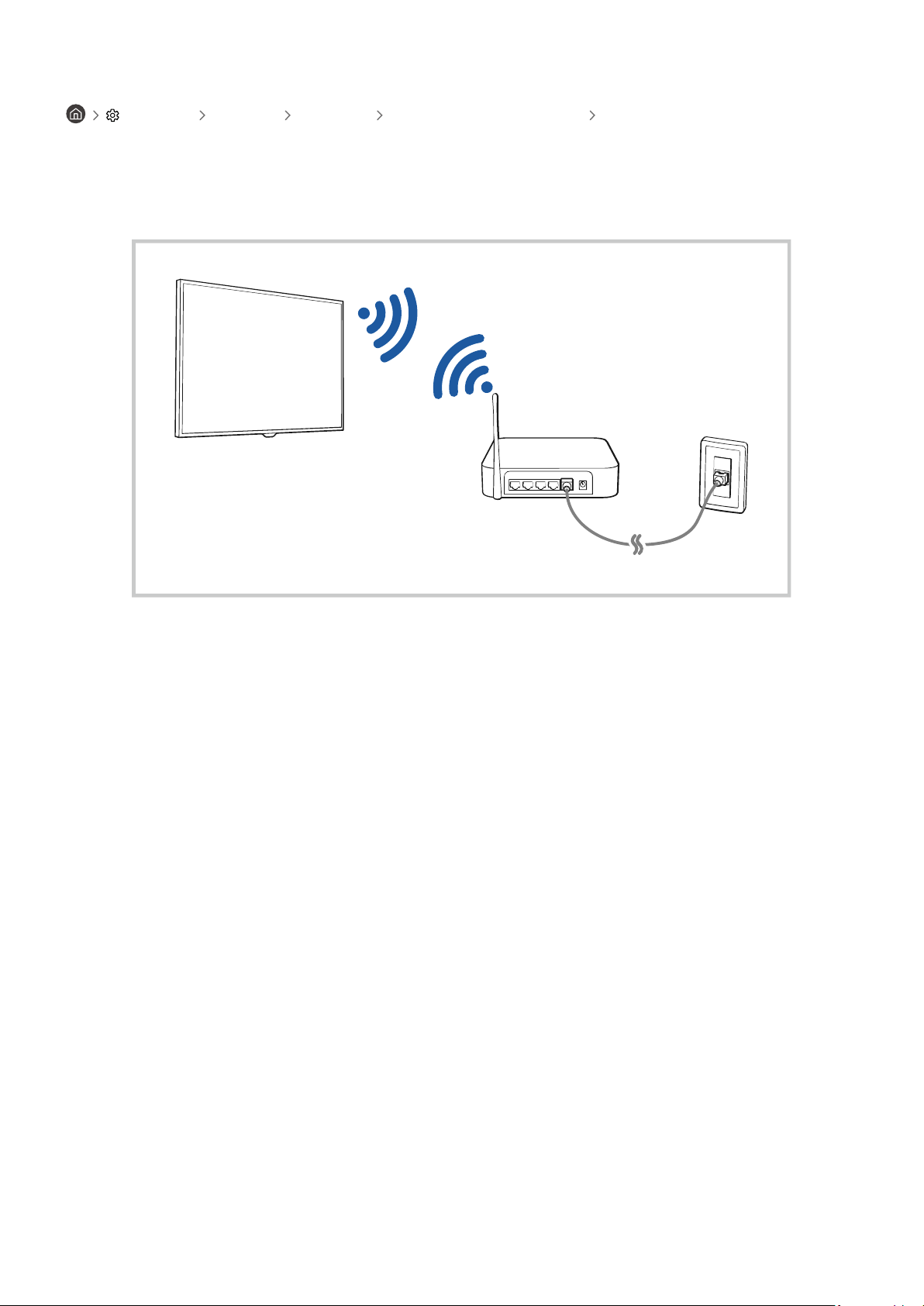
Establishing a wireless Internet connection
Settings General Network Open Network Settings Wireless
Make sure that you have the wireless access point's name (SSID) and password settings before attempting to
connect. The network name (SSID) and security key are available on the wireless access point's conguration
screen. See the wireless access point's user manual for more information.
- 9 -

When Multi View is running, press the Select button to congure the following menus.
This function and the provided options for each menu icon may not be available depending on the model and region.
• (Select content.)
You can select from the content list displayed above.
After selecting a content item, you can control the screen or change the app and source.
• Select App/Source (Content Selection Mode)
You can change the content for the selected window. To enter Content Selection Mode, press and hold the Select
button on the Samsung Smart Remote.
• (Change screen size.)
Selects the desired size of Multi View.
•
(Set Picture-in-Picture.)
Selects the position of a small screen on the full screen. The focusing left or right screen appears as small
window.
This function may not be supported depending on the model.
• (Listen to the sound from two screens.)
You will hear the sound of both screens at the same time by adjusting the ratio of each screens sound.
This function may not be supported depending on the model.
- 14 -

• (Delete screen.)
You can delete the selected screen.
This function may not be supported depending on the model.
• (Connect Bluetooth speaker.)
You can hear the sound by connecting the Bluetooth speaker.
This function may not be supported depending on the model.
• (Exit to full screen.)
Multi View is ended and then the full screen appears.
To stop Multi View, press and hold the
button on the Samsung Smart Remote. A short press of the Samsung
Smart Remote's button allows you to choose whether to save exit the current layout.
• Save and Exit
You can save the layout of the current Multi View before closing the function.
The saved layout can be used after selecting it at the top of the Multi View ( Multi View up directional
button).
- 15 -

Connection Cables for External Devices
You can view detailed information about the connection cables for external devices that can be connected to the TV.
Cable name Image Description
HDMI
to
HDMI
Each cable simultaneously transmits digital video and audio signals
from an external device to the HDMI port on the TV.
Cables are divided into various types according to the types of input/
output ports on external devices.
HDMI
to
MINI HDMI
HDMI
to
Micro HDMI
HDMI
to
USB Type-C
HDMI
to
DisplayPort
Mini DisplayPort
to
HDMI
- 16 -
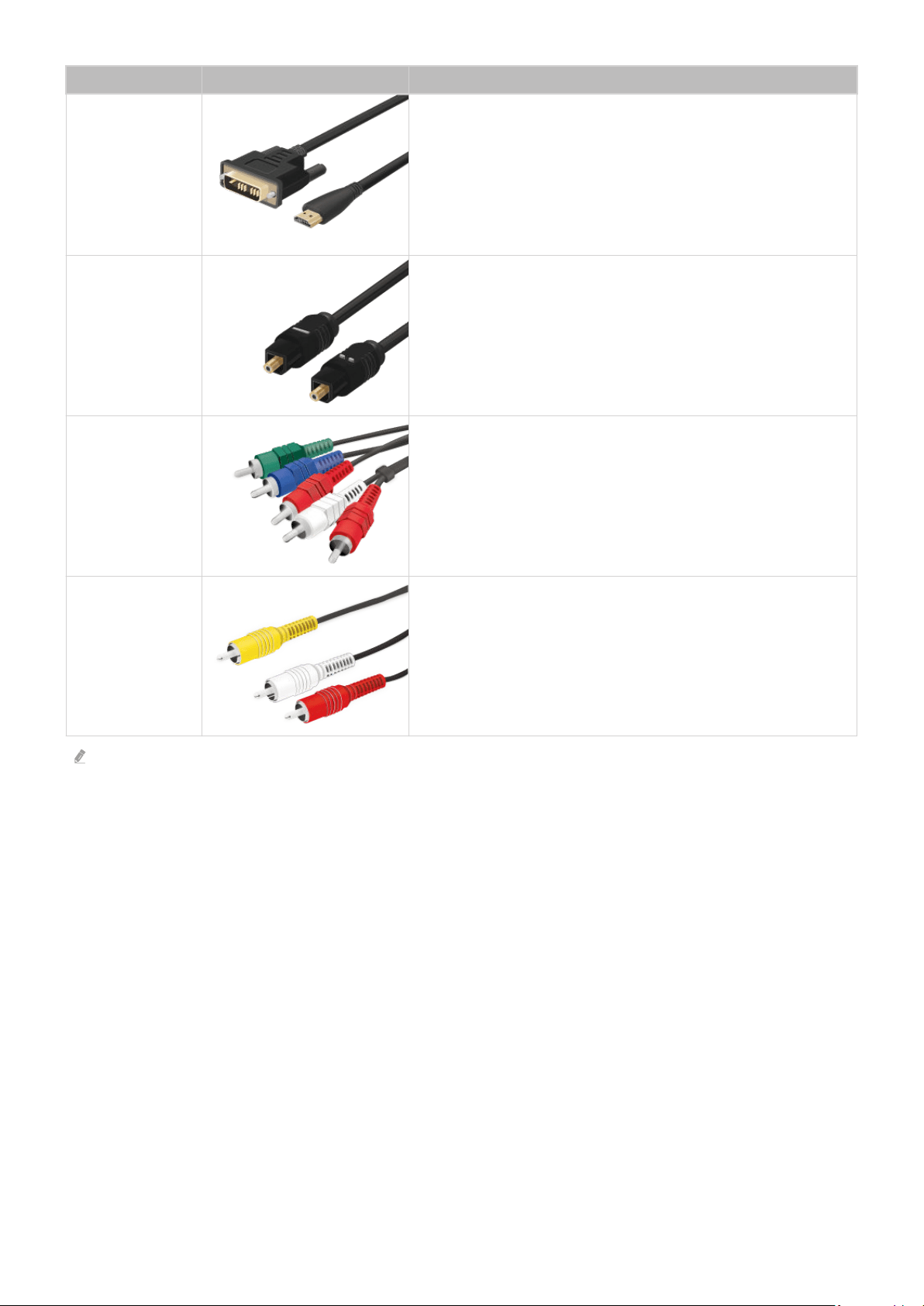
Cable name Image Description
DVI
to
HDMI
DVI to HDMI cables can transmit only digital video signals and not
audio signals. We recommend that you use HDMI to HDMI cables.
Optical
Optical cables are used to transmit audio signals to external
speakers with low signal loss.
Optical cables can't transmit video signals.
Component
Component cables transmit analogue signals.
The video signal is separated and transmitted to the red, green and
blue terminals to provide HD (1080i) pictures. The audio signal is
transmitted to the red and white terminals.
Composite
Composite cables transmit analogue signals.
The video signal is transmitted to the yellow terminal and the audio
signal is transmitted to the red and white terminals.
Available connection cables may differ depending on the model or geographical area.
- 17 -

Switching between external devices connected to the TV
You can switch between TV programmes and the content of external devices.
Source
When you select a connected external device on the Source screen, the output of the selected device is displayed on
the TV's screen.
On the Standard Remote Control, press the SOURCE button.
To control a device (Blu-ray player, game console, etc.) that supports universal remote control with the TV's remote control,
connect the device to an HDMI port on the TV, and then turn on the device. The output displayed on the TV is automatically
switched to the output of the device or you can congure universal remote control for the device automatically. For more
information, refer to "Controlling External Devices with a Samsung Remote Control - Using the Universal Remote".
When a USB device is connected to the USB port, a pop-up message appears that lets you switch easily to the media
content listed on the device.
This function may not be supported depending on the device and geographical area.
Editing the name and icon of an external device
Source
You can change the port name for a connected external device or add it to the Home Screen.
Sources
Universal Remote
Edit
Information
Add to Home
Source
The image on your TV may differ from the image above depending on the model and geographical area.
1.
Move the focus to a connected external device.
2.
Press the up directional button. The following functions become available.
Available functions may differ depending on the port type.
- 18 -

1.Universal Remote
You can control external devices connected to the TV using a Samsung remote control. To control external devices,
register them by following the instructions on the screen.
This function may not be supported depending on the model or geographical area.
For more information, refer to "Controlling External Devices with a Samsung Remote Control - Using the Universal
Remote".
2.Edit
You can rename the input ports and change the device icons.
3.Information
You can view detailed information about an external device.
4.Add to Home
You can add the port of an external device to the Home Screen for quick switching.
Using additional functions
You can use the following features on the Source screen.
• PC on TV
Use the TV to access your PC via remote PC or Screen Sharing (Wireless).
For more information, refer to "Using PC on TV".
• Connection Guide
Displays device connection instructions.
For more information about the Connection Guide, refer to "Connection Guide".
• Remote Key Guide
You can view how to use the remote control.
This function may not be supported depending on the model or geographical area.
• Universal Remote
Lets you register external devices to your Samsung remote control and control them using the Remote.
This function may not be supported depending on the model or geographical area.
For more information, refer to "Controlling External Devices with a Samsung Remote Control - Using the Universal
Remote".
- 19 -

Connection Notes
When connecting an external device, note the following.
The number of connectors and their names and locations may differ with the model.
Refer to the external device's operating manual when connecting it to the TV. The number of external device connectors
and their names and locations may differ with the manufacturer.
Connection notes for HDMI
• The following types of HDMI cables are recommended:
– High Speed HDMI Cable
– High Speed HDMI Cable with Ethernet
– Premium High Speed HDMI Cable
– Premium High Speed HDMI Cable with Ethernet
– Ultra High Speed HDMI Cable
• Use an HDMI cable with a thickness of 17 mm or less.
• Using a non-certified HDMI cable may result a blank screen or a connection error.
• Some HDMI cables and devices may not be compatible with the TV due to different HDMI specifications.
• This TV does not support HDMI Ethernet Channel. Ethernet is a Local Area Network (LAN) built with coaxial
cables standardised by the IEEE.
• Use a cable shorter than 3 m to get the best UHD viewing quality.
• Many computer graphics adaptors do not have HDMI ports, but have DVI or DisplayPort ports instead. If your PC
does not support HDMI video out, connect your PC with a DVI to HDMI or HDMI to DisplayPort cable.
• When the TV is connected to an external device such as a DVD/BD player or a set-top box via HDMI, power sync
mode will be automatically activated. In the power sync mode, the TV continues to detect and connect external
devices via HDMI cable. This function can be deactivated by removing the HDMI cable of the connected device.
This function may not be supported depending on the model.
- 20 -
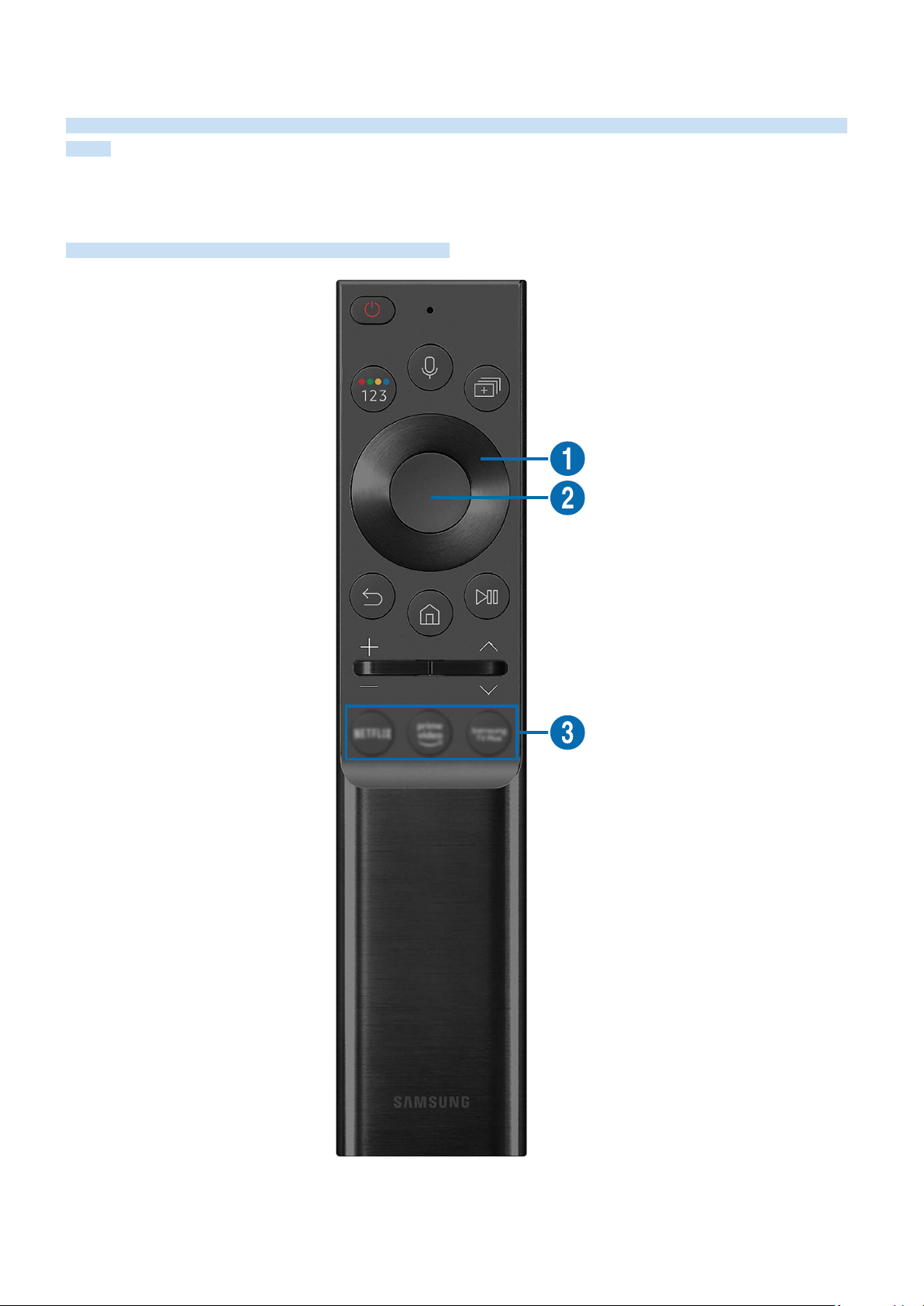
Remote Control and Peripherals
You can control TV operations with your Samsung Smart Remote. Pair external devices such as a keyboard for ease
of use.
About the Samsung Smart Remote (QLED TV / AU9 Series or higher/The
Frame)
Learn about the buttons on the Samsung Smart Remote.
- 23 -

Button Description
(Power)
Press to turn the TV on or off.
For The Frame model, When watching TV, press to switch to Art mode. In Art mode, press to
switch to watching TV. Press and hold to turn off the TV completely.
(Voice Assistant)
Runs Voice Assistant. Press and hold the button, say a command, and then release the button to
run Voice Assistant.
The supported Voice Assistant's languages and features may differ by geographical
region.
(Colour / Number
button)
Each time you press this button, the coloured buttons window and the virtual numeric pad are
displayed alternately.
• Use this button to access additional options that are specific to the feature in use.
• Press to bring up the virtual numeric pad on the screen. Use the numeric keypad to enter
numeric values. Select numbers and then select Done to enter a numeric value. Use to
change the channel, enter a PIN, ZIP code and etc.
When pressed for 1 second or more for a channel that supports the teletext service, the
TTX menu appears on the TV screen. For more information, refer to "Teletext Feature".
If the Colour Button appears with a number strip on the screen, select the Colour Button
and then select a specic colour by using the directional button (up/down/left/right). Use
this to access additional options that are specic to the feature in use.
(Multi View)
Press the button to directly enter the Multi View function.
When pressed for 1 second or more, the Shortcuts menu screen appears.
This function may not be supported depending on the model or geographical area.
Directional button
(up/down/left/right)
Moves the focus.
Select
Selects or runs a focused item. When pressed while you are watching a broadcast programme,
detailed programme information appears.
(Return)
Press to return to the previous menu. When pressed for 1 second or more, the running function
is terminated. When pressed while you are watching a programme, the previous channel
appears.
(Smart Hub)
Press to return to the Home Screen.
For The Frame model, Press in Art mode to switch to TV mode.
- 24 -
Button Description
(Play/pause)
When pressed, the playback controls appear. Using these controls, you can control the media
content that is playing.
Press the button to use the recording or Timeshift function while watching the broadcast.
To use Game Bar, press and hold the button in Game Mode.
Game Bar may not be supported depending on the model or geographical area.
(Volume)
Move the button up or down to adjust the volume. To mute the sound, press the button. When
pressed for 1 second or more, the Accessibility Shortcuts appears.
(Channel)
Move the button up or down to change the channel. To see the Guide screen, press the button.
When pressed for 1 second or more, the Channel List screen appears.
Press and hold the button up or down to quickly change the channel.
(Launch app button)
Launch the app indicated by the button.
This function may not be supported depending on the model or geographical area.
Use the Samsung Smart Remote less than 6 m from the TV. The usable distance may vary with the wireless environmental
conditions.
The images, buttons and functions of the Samsung Smart Remote may differ with the model or geographical area.
To use the Samsung Smart Remote to control a compatible external device that does not support HDMI-CEC (Anynet+), you
must congure universal remote control for the device. For more information, refer to "Controlling External Devices with a
Samsung Remote Control - Using the Universal Remote".
To use the Samsung Smart Remote to control a compatible external device that does support HDMI-CEC (Anynet+), connect
the device to an HDMI port on the TV using an HDMI cable. For more information, refer to "Using Anynet+ (HDMI-CEC)".
- 25 -

Controlling External Devices with a Samsung Remote Control - Using the
Universal Remote
Control the TV and connected external devices with a Samsung remote control.
Source Universal Remote
You can control external devices connected to the TV using a Samsung remote control. To control external devices,
register them by following the instructions on the screen.
This function may not be supported depending on the model or geographical area.
You can also use the Anynet+ (HDMI-CEC) function to operate external Samsung devices with your TV's remote control
without any additional setup. For more information, refer to "Using Anynet+ (HDMI-CEC)".
Specic external devices connected to the TV may not support the universal remote feature.
Do not place any obstacles in front of an external device and TV's logo. It may cause improper transmitted signals from the
remote control.
The TV memorises both the external device and its connection port (HDMI 1, HDMI 2, etc.).
If you have difculty controlling external devices with the Universal Remote, try adjusting the positions of the external
devices.
This function may not operate properly depending on the TV installation environment and the features of external devices.
- 30 -

Smart Features
You can enjoy various apps with Smart Hub.
Using Smart Hub
View descriptions of Smart Hub's basic functions.
From Smart Hub, you can use the Internet search function, install and use various apps, view photos and videos or
listen to music stored on external storage devices, and perform more functions.
Some Smart Hub services are paid services.
To use Smart Hub, the TV must be connected to the Internet.
Some Smart Hub features may not be supported depending on the service provider, language or geographical area.
Smart Hub service outages can be caused by disruptions in your Internet service.
To use Smart Hub, you must agree to the Smart Hub service agreement and the collection and use of personal information.
Without giving consent, you cannot use the additional features and services. You can view the entire text of the Terms &
Privacy by navigating to Settings Terms & Privacy. Try Now
If you want to stop using Smart Hub, you can cancel the agreement. To cancel the Smart Hub service agreement, select
Reset Smart Hub ( Settings Support Device Care Self Diagnosis Reset Smart Hub).
- 36 -

Displaying the Home Screen
Press the button.
Sources
TV HDMI 1 USB
PC on TV
Connection Guide
Remote Key Guide
Source
The image on your TV may differ from the image above depending on the model and geographical area.
On the Home Screen, you can easily run the apps you have used previously or frequently. The apps can also be
moved or deleted from the screen.
1.
Settings
When the focus is moved to Settings, a list of quick settings icons appears above the top of the menu. You can
quickly set frequently used functions by clicking the icons.
• e-Manual
You can open the user manual embedded in your TV.
• Intelligent Mode
In Intelligent Mode, the TV recognises and analyses the surroundings, noise, the content and your usage
patterns to provide the best viewing experience. To turn Intelligent Mode on or off, press the Select button. To
set the detailed options, press the up directional button, and then select Intelligent Mode Settings.
This function is supported only in QLED TV (except for 43Q7*A/50Q7*A model, Q6*A/Q5*A Series) and The Frame.
For more information about the Intelligent Mode, refer to "Using Intelligent Mode".
- 37 -

• Audio Language
You can change to the audio language you want to hear. To make ne adjustments, press the up directional
button, and then select Go to Audio Options.
• PIP
While using a connected external device, you can watch a TV broadcast in a small picture-in-picture (PIP)
window. To make ne adjustments, press the up directional button, and then select PIP Setup.
This function may not be supported depending on the model or geographical area.
• Network
You can view the current network and Internet status. Press the up directional button, and then select Network
Status or Network Settings.
• Picture Size
You can change to the picture size you want to view. To make ne adjustments, press the up directional button,
and then select Go to Picture Size.
• Colour Tone
You can select a colour tone suitable for your viewing preferences. To change to a colour tone that you want,
press the Select button.
• Picture Clarity
You can optimise pictures that contain a lot of motions. To turn this function on or off, press the Select button.
To set the detailed options, press the up directional button, and then select Picture Clarity Settings.
• Contrast Enhancer
You can prevent excessive differences between bright and dark areas on the TV screen. To change the Contrast
Enhancer setting, press the Select button.
• Digital Output Audio Format
You can select an output format for digital audio. Note that the Dolby Digital+ option is only available via HDMI
(eARC) for external devices that support the Dolby Digital+ format.
- 39 -

• Colour Space
You can set the spectrum of colours on the TV screen. To change to a colour space that you want, press the
Select button. To set the detailed options, press the up directional button, and then select Colour Space
Settings.
• Device Care
You can run Device Care to diagnose and optimise your TV. Device Care can also check and optimise the TV's
storage. If any trouble found, it needs for technical support.
• On Timer
You can set On Timer to turn on the TV automatically at a specic time. On Timer is only available if the Clock
has been set.
This function may not be supported depending on the model or geographical area.
• Off Timer
You can set Off Timer to shut off the TV automatically at a specic time. Off Timer is only available if the Clock
has been set.
This function may not be supported depending on the model or geographical area.
• All Settings
Display the Settings menu.
These functions may not be supported depending on the model or geographical area.
2. Source
You can select an external device connected to the TV.
For more information, refer to "Switching between external devices connected to the TV".
3. SmartThings
This function allows the TV to connect and control the detected devices in the same space.
For more information, refer to "Using SmartThings".
This function may not be supported depending on the model or geographical area.
- 40 -

8. Home
This menu appears rst when you press the button. Then you can quickly use any of Samsung Account,
Notication or Privacy Choices.
The available features may differ depending on the model or geographical area.
• Samsung Account
Go to the Samsung Account screen to create a new account or sign out of your account.
For more information about the Samsung Account, refer to "Using a Samsung account".
• Notication
You can view a list of notications for all events that occur on your TV. A notication appears on the screen
when it is time to schedule viewing or schedule recording or when an event occurs on a registered device.
If you move the focus to Notication, and then press the Select button, a notication window appears on the
right and the following functions are available:
–
Delete All
You can delete all your notifications.
– Settings
You can select services you want to be notified about.
When you select Allow sound, notifications are displayed with a notification sound.
• Privacy Choices
You can view and set the privacy policy for Smart Hub and various other services.
9.Universal Guide
Universal Guide is an app that allows you to search for and enjoy various contents such as TV shows, dramas and
movies in one place. Universal Guide can recommend content tailored to your preferences.
You can use this feature on your mobile device with the Samsung SmartThings app.
To access Universal Guide, press the down directional button on the remote control in Home Screen.
To enjoy the content from these apps on your TV, they must be installed on the TV.
When you watch some paid content, you may need to make a payment using their associated app.
Some content may be restricted depending on your network conditions and your subscriptions to paid channels.
Parental control is necessary when children use this service.
Images may look blurry depending on the service provider's circumstances.
This function may not be supported depending on the model or geographical area.
- 42 -

. Art
When you are not watching TV or when the TV is turned off, you can use the Art mode function to edit image
content such as artworks or photos or to display the content.
This function is supported only in The Frame.
For more information, refer to "Using Art Mode".
Move
Remove
The image on your TV may differ from the image above depending on the model and geographical area.
0.Moving an item on the Home Screen
Move the focus to the app you want to move, press and hold the Select button on the remote control, and then
select Move in option menu. Move the app to the desired position by pressing the left or right directional button,
and then press the Select button. The selected app is moved on the Home screen.
In the region that does not support the Universal Guide, press the down directional button on the remote control.
!.Removing an item on the Home Screen
Move the focus to the app you want to delete, press and hold the Select button on the remote control, and then
select Remove in option menu. The selected app is deleted.
In the region that does not support the Universal Guide, press the down directional button on the remote control.
You can add the apps you want to use often to the Home Screen using Apps. To add your favourite apps to the Home Screen,
refer to "Managing installed apps".
- 43 -

Using a Samsung account
Create and manage your own Samsung account.
Settings General System Manager Samsung Account Try Now
You can view the entire text of the Terms & Policy in Settings General System Manager Samsung Account
My Account Terms & Conditions, Privacy Policy after logging in to your Samsung account.
Follow the instructions on your TV screen to create or log in to a Samsung Account.
Samsung Account can be used on TV, mobile device, and website with one ID.
Signing in to a Samsung account
Settings General System Manager Samsung Account Sign In
Creating a new account
Settings General System Manager Samsung Account Create Account
Managing your Samsung account
Settings General System Manager Samsung Account My Account
When you sign in to your Samsung account, you can use the following functions:
• Sign out
When multiple people share the TV, you can sign out of your account to prevent others from using it.
To sign out of your Samsung Account ( Settings General System Manager Samsung Account), move
the focus to your account's icon, and then press the Select button. When a pop-up window appears, select Sign out.
• Edit profile
You can edit your account information.
To protect personal information, enter Edit profile and then Sign-in Method is set to Enter password when ID is selected
(high security).
If you want the TV to log you into your account automatically whenever you turn on the TV, click Stay Signed In.
When the TV is used by multiple people, turn off Stay Signed In to protect personal information.
- 46 -

• Payment Info
You can view or manage your payment information.
• Back up
You can back up the TV settings to your Cloud storage. When resetting or replacing the TV, you can also restore
its settings with the backed-up settings.
• TV Registration
You can register the current TV or see the registered information. You can easily receive services after product
registration.
You can see the registered information or delete it at the Samsung account website (http://account.samsung.com).
• Sync Internet
Once you sign in to your Samsung account and configure the Sync Internet settings, you can share the favourites
and website bookmarks that you registered on other devices.
• Remove Account
You can delete an account from the TV. Although you have deleted your Samsung account from the TV, you are
not unsubscribed.
To unsubscribe from your Samsung Account, visit the Samsung Accounts website (http://account.samsung.com).
• Terms & Conditions, Privacy Policy
You can view the user agreement and privacy policy.
For more information about the terms and conditions, privacy policy, select View Details.
- 47 -

4.Selecting a content category
You can select your preferred content and background for the Ambient Mode screen.
You can use the SmartThings app on your mobile device to select the desired content and then change the settings.
This function may not be supported depending on the model.
Available content categories may differ depending on the model or geographical area.
• Routine
Enjoy a range of routines, each displaying content to suit each part of your day or create your very own routines
via the SmartThings app.
• Q Collection
Provides content that is dedicated to Samsung QLED.
• Special Edition
Allows you to enjoy creative artwork and interior design content created by the world's nest artists and
designers.
• Mood
Enjoy a range of options to create the right ambience to suit your mood.
• Relaxation
Relax with a selection of calming content inspired by nature to soothe your mood.
• Décor
Allows you to select content with a sensible and beautiful design.
• My Album
Allows you to set a photo stored in your mobile device or Samsung Cloud as the wallpaper of the Ambient
Mode screen.
To import photos from your mobile device or Samsung Cloud, use the SmartThings app on your mobile device.
For more information about how to congure the photo settings, select View Help. This function is available after you
select a photo in the My Album category.
- 50 -

Applying effects to the content
When you are enjoying content in Ambient Mode, press the down directional button to change the following
settings for the content:
Available functions may not be supported depending on the model or content.
• Weather Filter
You can add a weather effect to content.
• Time Filter
You can select any background time format for content.
• Photo Filter
You can select a photo effect for content.
• Colour & Theme
Changes the colour or theme of the content.
• Vibes
Selects a mood that matches the content.
- 52 -

Using Art Mode
Learn about the functions available in Art Mode.
Art
This function is supported only in The Frame.
You can use Art mode function to display image content such as artworks or photos when you are not watching TV
in full screen mode.
• Press the button on the remote control to switch to TV mode or Art mode.
• Press the button in Art mode to switch to TV mode.
• To turn off the TV completely, press and hold the button on the remote control, or press the TV Controller
button at the lower right rear corner of the TV.
If you use a remote control other than the Samsung Smart Remote, the TV may not be turned off completely.
• In Art mode, the brightness and colour tone of your TV are automatically adjusted depending on the ambient,
and the TV can be automatically turned off.
The TV is set by default so that the screen turns off automatically when the ambient light dims in Art mode.
• You can use Art mode settings ( Art Settings) on the TV or SmartThings app on your mobile device to
set the sensitivity of the motion detector so that the TV can detect visual changes including user movements and
turn on or off automatically.
This function may not be supported depending on the model or geographical area.
• In Art mode, you can connect your mobile device to the TV using the SmartThings app on the mobile device to
view photos on the mobile device.
This function may not be supported depending on the TV model or mobile device.
Supported features may differ depending on the version of the SmartThings app.
- 54 -

Import images from an external storage device
1.
Connect an external storage device that contains images to the TV.
2.
Use the directional buttons on the remote control to move to My Collection, and then move to the connected
external storage device.
3.
Use the directional buttons on the remote control to move to an image, and then press the Select button.
You can select multiple images.
4.
Use the directional buttons on the remote control to move to Save to My Photos at the bottom of the screen,
and then press the Select button.
5.
The selected image or images are saved in My Photos.
Recommended resolutions: 3840 x 2160 (16:9)
Remove images from My Collection
You can remove the saved images from My Collection.
1.
Use the directional buttons on the remote control to move to My Collection.
2.
Use the directional buttons on the remote control to move to Favourites or My Photos.
3.
Use the directional buttons on the remote control to move to Remove, and then press the Select button.
4.
Use the directional buttons on the remote control to move to an image, and then press the Select button.
You can select multiple images.
5.
Use the directional buttons on the remote control to move to Remove Selected at the bottom of the screen, and
then press the Select button.
- 57 -

Setting the style of the selected image
Mount
Details
Favourite
The image on your TV may differ from the image above depending on the model and geographical area.
Use the directional buttons on the remote control to move to an image you want. You can use the following menus:
• Details
You can find more information about the image.
• Photo Filter
You can apply the selected filter's effect to the image according to your preferences.
This function is only available for saved images on My Photos.
• Mount
You can apply various border styles and colours to the image according to your preferences.
• Favourite
You can set (or not set) an image that you prefer as a favourite item by pressing the Select button on the remote
control. You can view a list of items set as your favourites in My Collection Favourites.
– Favourite: Not set as a favourite.
–
Favourite: Set as a favourite.
- 59 -

• Motion Detector
The sensitivity of the motion detector function can be adjusted. Use the directional buttons on the remote
control to move to the bottom items. After selecting the desired sensitivity, press the Select button on the
remote control.
Motion Detector may not be supported depending on the model or geographical area.
• Night Mode
When this function is turned on, the TV turns off automatically if no light is detected around the TV. Use the
directional buttons on the remote control to move to the bottom items, and then turn this function on or off.
Using Art mode with the SmartThings app
Once you have installed the SmartThings app on your mobile device, you can use the following functions:
You can download the SmartThings app from Google Play Store, Samsung Apps, or the App Store.
The features or terminology may vary depending on the version of the SmartThings app.
On tablet devices, Art mode features may not be supported by the SmartThings app.
• Selecting images.
• Subscribing to Art Store Membership.
• Creating Collage: Combine multiple images into one image.
• Applying border styles and colours to images.
• Setting the brightness for Art mode.
• Setting Sleep After: When no motion is detected for the time specified in Art mode, the TV turns off
automatically.
Sleep After may not be supported depending on the model or geographical area.
• Setting Motion Detector Sensitivity: Set the sensor sensitivity so that the TV turns on automatically when
motion is detected in Art mode.
Motion Detector Sensitivity may not be supported depending on the model or geographical area.
• Setting Night Mode: Set The Frame to turn off automatically if no light is detected in the room.
- 61 -

Using the Shortcuts
You can easily use the contents of Sources without running a series of commands.
To display the Shortcuts menu screen, press and hold the
or button for 1 second or more.
To return to the TV mode, press the button.
This function may not be supported depending on the model.
Shortcuts
Sources
e-Manual
Settings
Terrestrial
The image on your TV may differ from the image above depending on the model and geographical area.
1.Sources
You can select an external device connected to the TV.
2.Channels
You can add, move or remove broadcast channels.
3.
e
e-Manual
Displays the e-Manual guide.
4. Settings
Displays the main on-screen menu.
5.Terrestrial, Cable, Satellite or Service Provider
Choose the broadcast type of the content: Terrestrial, Cable, Satellite or Service Provider.
This function may not be supported depending on the incoming broadcast signal.
- 63 -

Using PC on TV
Use the TV to access your PC via Remote PC, Screen Sharing (Wireless) or Cloud Service.
Source PC on TV
You can use the TV to access your PC via Screen Sharing (Wireless), Remote PC or Cloud Service.
For smooth use as in a computer, connect a keyboard and a mouse to your TV in advance.
Using Screen Sharing (Wireless)
Follow the instructions on the screen to adjust the PC settings and wirelessly connect the TV to the PC.
This function is only available for PCs that support wireless screen sharing.
• Connection via Windows OS is available in Windows 10.
• Connection via Mac OS is available in AirPlay.
Using PC on TV - Easy Connection
You can easily use remote access function after installing PC on TV - Easy Connection on your PC.
Follow the instructions on the screen to download and install the PC on TV - Easy Connection PC app. Then you can
easily connect a remote PC.
1.
Download the PC on TV - Easy Connection PC app from smsng.co/PConTV and then install it on your PC.
2.
Log in with the same Samsung Account for both TV and PC.
3.
When the PC is turned on and connected via the network, PC on TV's Home screen displays the PC.
The PC on TV - Easy Connection PC app is available in Windows 10.
Depending on the network environment including the rewall conguration, router type, and wireless signal strength,
connection problems may occur, such as low speed, disconnection, or limited connection.
- 65 -

2.Username
Enter the Username of the computer. How to check the Username:
• Windows OS: Control Panel User Account Control
• Mac OS: System Preferences Users & Groups
3.Protocol
Select the Protocol for the computer’s OS. (Windows: RDP, Mac: VNC)
4.Password
Enter the password for the login account.
For use of PIN, do not enter PIN but the specied password of the computer.
- 68 -

Installing an app
1.
Move to the app you want to install, and then press the Select button. The detailed information screen appears.
2.
Select Install. When the installation is complete, the Open menu appears.
3.
Select Open to run the app immediately.
You can view installed apps on the Settings screen.
If the TV's internal memory is insufcient, you can install some specic apps on a USB device.
You can run an app installed on a USB device only when the USB device is connected to the TV. If the USB device is
disconnected while an app is running, the app is terminated.
You cannot run an app installed on a USB device on a PC or another TV.
Launching an app
You can run the app desired from Downloaded App.
The icons below appear within the selected app's icon and indicate the following:
– : The app is installed on a USB device.
– : The app has a password.
–
: The app needs to be updated.
– : The app supports the mirroring function.
- 72 -

Managing installed apps
Select Settings on Apps. You can manage installed apps.
Settings
Auto update : ON
Update All
Delete
Add to Home
Lock
Move
Reinstall
View Details
The image on your TV may differ from the image above depending on the model and geographical area.
1.Removing an app
1.
Select an app to delete.
2.
Select Delete.
The selected app is deleted.
Ensure that the related app data is also removed when you remove an app.
Standard apps cannot be uninstalled.
2.Adding apps to the Home Screen
1.
Select an app to add.
2.
Select Add to Home.
3.
After the Home screen appears, move the selected app to the desired location.
4.
Press the Select button.
The selected app is added to the Home Screen.
If the selected app is already added to the Home Screen, this function is disabled.
- 73 -

Using the e-Manual
Control and read the manual embedded in your TV.
Launching the e-Manual
Settings Support Open e-Manual
You can view the embedded e-Manual that contains information about your TV's key features.
You can download a copy of the e-Manual from Samsung's website to view or print on your PC or mobile device (http://
www.samsung.com).
Some menu screens cannot be accessed from the e-Manual.
Using the buttons in the e-Manual
e-Manual
Device Care
Guide
Troubleshooting
First Time Use
Accessibility
Guidance
FAQ
The image on your TV may differ from the image above depending on the model and geographical area.
1. (Search)
Select an item from the search results to load the corresponding page.
2. (Recently Viewed Topics)
Select a topic from the list of recently viewed topics.
3.
(Site Map)
It displays the lists for each item in e-Manual.
- 75 -

SmartThings screen layout
SmartThings
SmartThings
Add Device
List
Map
Devices near TV
The image on your TV may differ from the image above depending on the model and geographical area.
1. Samsung Account
Go to the Samsung Account screen to create a new account or sign out of your account.
If you are signed out of your Samsung Account, select Sign In to sign in.
2. Settings
You can congure the SmartThings settings.
- 79 -

3.Add Device
Displays the list of devices that can be registered on your TV. You can register any by selecting a device.
4.List / Map
Displays the detected devices in a map or list.
5.Device list category
Available options may differ depending on the device.
• Place
Displays all places connected via the SmartThings app.
• Devices near TV
Displays all the detected devices that can be connected and controlled.
You can run the control options after selecting a desired device.
Available options may differ depending on the device.
Available devices
Type Description Detail
Mobile devices
Galaxy Series (S6, Android 7.0 or later)
iPhone Series (iOS7.1 or later)
SmartThings app must have been installed in case of Android devices.
Devices for IR remote control
(IR Snifng)
Air conditioner, air purier, robot vacuum cleaner, electric fan, humidier
Bluetooth devices Bluetooth speaker, headset, Soundbar, keyboard, mouse, game pad
SmartThings devices For details on SmartThings devices, access https://www.smartthings.com/products.
External devices
DVD player, Blue-ray player, home theatre system, game console, OTT box, set-top box,
USB device
The devices must be connected to the HDMI or USB port.
For a detailed list of supported devices, visit www.samsung.com.
This function may not be available depending on the external device.
- 80 -

Playing pictures/video/music
Play media content stored on your TV, USB devices, mobile devices, cameras, PCs, etc.
Source Connected Device Try Now
Samsung USB
Samsung USB
Filter By : All
Sort By : Title
Options
The image on your TV may differ from the image above depending on the model and geographical area.
You can play media content saved on storage devices, such as USB devices, mobile devices and cameras on the TV.
You cannot play media content if the content or the storage device is not supported by the TV. For more information, refer
to "Read Before Playing Photo, Video or Music Files".
Backup important les before connecting a USB device. Samsung is not responsible for damaged or lost les.
You can use the following functions on the media content list screen of a storage device.
1.Filter By
Filters the media content by type of media.
- 81 -

2.Sort By
Sorts the content list.
This function may not be supported depending on the type of external device.
3.Options
Deletes or plays the selected media content in the media content list. When you select Refresh, the content list is
reloaded.
You can delete only the recorded content. To delete content, change the Filter By option to Recorded.
Recorded may not be supported depending on the geographical area.
Playing multimedia content on a PC or mobile device
1.
Select a device with media content in Source. The media content list in the device appears.
2.
Select a media content item from the list.
The selected content is played.
The content may not be played depending on the encoding method or le format. Furthermore, several functions may be
restricted.
Content on devices connected to the TV via your network may not play smoothly due to network communication problems.
If this occurs, use a USB device.
Playing multimedia content on a USB device
1.
Connect a USB device to the USB port.
2.
When a pop up message appears on the screen, select Browse to easily move to the list of multimedia content
stored on the device.
If a USB device that contains the content you want to play is already connected to the TV, select the USB device in the
Source screen.
3.
Select a content item to play from the list.
The selected content is played.
- 82 -

Listening to your mobile device sound through the TV speaker using Sound Mirroring
Enjoy listening to music in your living space. Visualisations are generated on your TV that alter and respond to the
frequency of your music.
1.
Search for and connect to your TV from the (Bluetooth) device list on your mobile device.
2.
Select media content to play on your mobile device.
The selected media is played through the TV speaker.
This function may not be supported depending on the model.
In some models, the image of the played content may differ depending on the mode.
If the TV and the sound bar are connected wirelessly, the operation may be restricted.
Buttons and functions available while playing multimedia content
Press the Select button while playing any video, photo or recorded content. The following buttons appear.
The provided buttons and functions may not be supported depending on the model or geographical area.
The available buttons and functions may differ with the content you are viewing or playing.
• Pause / Play
Pauses or plays the multimedia content.
• Jump Backward / Jump Forward
Press the up directional button to move the focus to the playback control bar, and then select the left or right
directional button in the playback control bar to move backward or forward by 10 seconds in the video.
• Move to a specific playback section, move up the focus on the playback bar, and then select one of the five
thumbnails.
This function may not be supported depending on the file format.
• Stop
Stop the contents being played.
- 83 -

• 360 Auto Rotation
Automatically adjusts the video's viewing angle by analysing the amount of image changes during playback of a
video file that provides a 360-degree view. When this function is started, the rotation starts in a short time.
When 360 Auto Rotation is focused, press the Select button to change to the following modes:
– General
– Dynamic
–
Natural
This function is only available when 360 Mode is selected.
When 360 Auto Rotation is activated, automatic adjustment is followed. The adjustment position may differ depending
on the image.
The video's viewing angle is manually adjusted in General mode.
This function may not be supported depending on the file format.
Video files that use the mjpeg codec do not support a 360-degree view.
When a video does not support a 360-degree view, applying 360 rotation to it may cause the screen to look distorted.
Videos may be interrupted if 360 rotation is applied during double speed playback.
Videos that support a 360-degree view may be interrupted if 360 rotation is simultaneously applied with other
functions during playback.
This function may not be supported for some resolutions.
This function may not be supported depending on the model.
• Repeat
Plays the current multimedia content repeatedly or all multimedia content files in the same folder repeatedly.
• Shuffle
Plays music files in random order.
- 85 -

Learning about the Explore Bixby Screen
Explore Bixby
You can say something like:
All Services
The image on your TV may differ from the image above depending on the model and geographical area.
1. My Prole
Log out after going to the My Prole screen.
If you are signed out of your Samsung account, select My Prole to sign in.
2. Tutorials
The popup window on using Bixby appears.
3. Settings
You can change the settings for using Bixby.
These functions may not be supported depending on the model or geographical area.
These functions can be set in Bixby Voice Settings ( Settings General Voice Bixby Voice Settings).
• Language
You can change Bixby's language.
The languages of the TV and other apps will not change.
Bixby only supports some languages.
- 89 -

• Voice response
You can change or turn off Bixby's voice.
This function may not be supported depending on the language selected for Bixby.
• Voice Wake-up
You can set to call Bixby to respond to your voice. If Bixby does not respond to your voice, turn on the Voice
Wake-up function, and then try again. ( Explore Now Settings Voice Wake-up)
This function can be used only when the sound sensor at the bottom of the TV is active.
When the distance to the TV is within 3 to 4 m, optimal performance is provided. For more information on how to use
this function, refer to "Voice Assistant Issues".
The Voice Wake-up function may not be supported depending on the model or geographical area.
• Sound feedback
Play a sound when Bixby starts and stops listening.
This function may not be supported depending on the model or geographical area.
• Privacy
You can permit or prohibit Bixby from utilising your personal information when you are using Bixby services.
• About Bixby Voice
Displays the detailed terms and conditions.
4.Recommended commands
Displays recommended commands you can use to control the TV with Bixby given the current context.
If you do not want to see the recommended commands, set Voice Hint to Off. ( Settings General Voice
Voice Hint)
5.All Services
You can learn the voice commands that let you use Bixby in various situations. Use the directional buttons to move
to the desired command, and then press the Select button. You can operate the TV with various voice commands.
Read Before Using Bixby
• The supported voice interaction languages and features may differ depending on the geographical area.
• If the language set differs from the language of your country, some features are not available.
• Bixby is available only when the TV is connected to the Internet.
• Even if the TV is connected to the Internet, there may be no response due to a Bixby server error.
- 90 -

• The existing functional specifications may be changed if Bixby is updated.
• Bixby is available only on TVs that support it and come with remote controls that have a microphone.
• Symbols including "-" and special characters are not supported. Consequently, if a word or sentence contains
numeric values or symbols, the function may not operate properly.
• Searched results may not provide complete results.
• You may be required to pay for some apps. Consequently, you may encounter a service application or contract.
• To change the current channel by saying channel names as voice commands, you must finish Service Provider
Settings. Service Provider Settings can be set in
Settings Broadcasting Service Provider Settings.
If the settings for the service provider are configured yet, configure them in Settings General
Reset. Try Now
Service provider settings in initial setup may not be supported on geographical area.
• To use the voice text input function and the search function, you must consent to provisions allowing third
parties to collect and use your voice data.
• To use the Bixby function, you must:
– Agree to Smart Hub's Terms of Use.
– Agree to a guidance regarding the collection and use of personal information for the Smart Hub service.
– Consent to the collection and use of personal information for the voice interaction-based service.
Provisions for using Bixby
• The voice interaction rate differs with the volume/tone, pronunciation and ambient sound environment (TV
sound and ambient noise).
- 91 -

TV Viewing
You can use convenient features while watching TV. Additionally, you can edit the channel list or create favourite
channel lists.
Using the Guide
See an overview of each channel's programme lineup.
Live TV Guide
Guide
Channel List
Schedule
Manager
Live TV
The image on your TV may differ from the image above depending on the model and geographical area.
In the Guide, you can see the daily programme schedules for each broadcaster, see programme information, choose
a programme to watch and set up a schedule viewing or recording.
Recording may not be supported depending on the model or geographical area.
To view the Guide while watching TV, press the (Channel) button on the Samsung Smart Remote or Remote Control.
On the Standard Remote Control, press the GUIDE button.
To see information about analogue channels and use the analogue channel functions of the Guide, you must nish the
service provider settings in initial setup.
To view the Guide, you must rst set the TV's clock ( Settings General System Manager Time Clock).
Service provider settings in initial setup may not be supported on geographical area.
- 95 -

Move the focus to the programme you want in the Guide, and then press and hold the Select button. You can use the
following functions:
These functions may not be supported in the Guide depending on the model or geographical area.
• Record
You can make a recording of a current programme.
• Stop
You can stop the recording function that is currently running.
• Edit Recording Time
You can change the start and end times of scheduled programme recordings.
• Schedule Viewing
You can schedule the viewing of a broadcast scheduled programme.
• Schedule Recording
You can schedule recording of a broadcast scheduled programme.
• Cancel Scheduled Viewing
You can cancel scheduled viewings.
• Cancel Scheduled Recording
You can cancel scheduled recordings.
• View Details
You can see detailed information about the selected programme. The information may differ or may not be
provided depending on the broadcast signal.
- 96 -

To move to the Channel Filter or Aerial Type, Schedule Manager screen: Press the or button. (If the remote
control button is , press it twice.)
• Channel Filter
You can view channels and programmes categorised by the types defined in Channel List.
• Aerial Type
You can change the type of broadcast signals the TV receives.
This function may not be supported depending on the incoming broadcast signal.
• Schedule Manager
You can see the Schedule Manager or Recording & Schedule Manager screen.
These functions may not be supported in the Guide depending on the model or geographical area.
- 97 -

Using schedule viewing to view programmes at a specied time on a specied date
Live TV Schedule Manager Add Viewing
Live TV Recordings Schedules Add Viewing
To schedule a viewing, set the values for Aerial, Channel, Repeat, Date and Start Time of the broadcast programme
to view, and then select Save.
Check the current time in Settings General System Manager Time Clock.
This function may not be supported depending on the geographical area.
Setting the schedule Viewing Time
Live TV Schedule Manager
Live TV Recordings Schedules
You can change scheduled viewing information or cancel scheduled viewings.
You can set up a maximum total of 30 Schedule Viewing and Schedule Recording entries.
The menus may not appear depending on the model or geographical area.
• Edit
You can set the start time of a scheduled viewing. If you choose a programme from the Guide, the Start Time can
be set to up to 10 minutes before the programme.
• Delete
You can delete scheduled viewings.
• View Details
You can view detailed information about scheduled viewings.
- 101 -

Using Timeshift
Play, pause or rewind live TV.
You can pause and rewind live TV by using Timeshift. Activating this function disables the Broadcasting function.
Try Now
To activate the Timeshift function while watching TV, press the button twice, and then press the Select button or
press the button and then select Timeshift, or press the button.
This function may not be supported depending on the model or geographical area.
When the Timeshift function is running, some functions are not available in Settings Broadcasting.
To use Timeshift, you must connect a USB device for recording.
Read all precautions before using the Timeshift function. For more information, refer to "Before Using the Recording and
Timeshift Functions".
Buttons and functions available while recording a programme or Timeshift
Review available buttons and functions of how they are used while recording a programme or Timeshift.
This function may not be supported depending on the model or geographical area.
The available buttons and functions may differ with the functions.
When you press the down directional button, the control bar appears and the following options are available:
• Pause / Play
You can use the following functions when the video is paused. Note that with the video paused, the TV does not
play audio.
– Slow Rewind or Slow Forward: Allows you to play the video slowly (1/8, 1/4, 1/2) backward or forward by
selecting the or option. To increase the rewind or forward speed in slow mode up to 3 times, select
the option repeatedly. To return to normal speed, select the option.
When the Slow Rewind function is activated, you can view the difference between the current recording time and
the current rewind time.
- 102 -

Using the Channel List
Change the channel or check programmes on other digital channels.
Live TV Channel List
Using the Channel List, you can change the channel or check programmes on other digital channels while watching
TV. On Standard Remote Control, press the CH LIST button.
The Channel List screen contains the following icons:
– : A favourite channel.
–
: A locked channel.
– : CI card required channel.
If you press the left directional button when viewing the Channel List screen, you can use the following functions:
• Terrestrial, Cable or Satellite
Allows you to choose between Terrestrial, Cable and Satellite.
This function may not be supported depending on the incoming broadcast signal.
This function may not be supported depending on the model or geographical area.
• All
Displays the channels that have been automatically searched.
The channels received to the currently selected Terrestrial, Cable or Satellite are displayed.
• Samsung TV Plus
While the TV is connected to the Internet, you can watch popular programmes or highlights for each theme
through a virtual channel at any time. As with regular channels, the TV provides the daily programme schedules
for Samsung TV Plus.
This function may not be supported depending on the model or geographical area.
• Channel Type
Sorts the list so that it includes channels of a selected type. However, Channel Type can only be used channels
contain the type information.
This function may not be supported depending on the incoming broadcast signal.
• Favourites
Displays Favourites 1 to Favourites 5.
It displays only the favourites list that includes the favourites channel.
• Sort
Sorts the list by Number or by Name.
This option is only available on digital channels and may not always be available.
- 104 -

Editing channels
Edit the channels stored on your TV.
Live TV Channel List Edit Channels
The Edit Channels screen icons indicate the following:
– : A favourite channel.
–
: A locked channel.
– : CI card required channel.
On the Edit Channels screen, you can select channels and use the following functions:
• Lock / Unlock
After selecting a target channel in Edit Channels, select Lock or Unlock. Then the channel is locked or unlocked.
A locked channel cannot be viewed.
If you want to use this function or set the password, set Settings Broadcasting Apply Channel Lock to On.
For more information about how to set your password, refer to "Setting up a password".
• Delete
After selecting a target channel to remove in Edit Channels, select Delete. Removed channels are not displayed
in the Channel List.
• Rename channel
After selecting a channel to change in Edit Channels, select Rename channel to change the channel name.
You can rename only one channel at a time.
This function is only available for analogue broadcasts.
• Change Number
After selecting a channel to change in Edit Channels, select Change Number to change the channel number.
This function may not be supported depending on the model or geographical area.
When a channel number is changed, its channel information is not updated automatically.
• Restore Samsung TV Plus
You can restore the deleted Samsung TV Plus channels.
This function may not be supported depending on the model or geographical area.
• Save and Exit
Saves and closes the Edit Channels screen.
- 105 -

Checking digital channel signal info and strength
Settings Support Device Care Self Diagnosis Signal Information Try Now
If your TV is attached to a separate, over-the-air antenna, you can use the signal strength information to adjust the antenna
for increased signal strength and improved HD channel reception.
Signal Information is only available for digital channels.
This function may not be supported depending on the model or geographical area.
Restricting Viewing to Specic Channels
Settings Broadcasting Apply Channel Lock Try Now
By selecting the menu, you can turn on or off the Apply Channel Lock function.
Lock specic channels to prevent children from watching adult content.
To use this function, the PIN number is required.
Using Mark Adult Channels
Settings Broadcasting Mark Adult Channels
Enables or disables all adult services. When disabled, adult services will not be available.
This function may not be supported depending on the model or geographical area.
Selecting the broadcasting audio option
Settings Broadcasting Dual Sound Try Now
Set audio options for stereo or bilingual broadcasts. For more information, refer to "Supported broadcasting audio
options".
This function may not be supported depending on the model or geographical area.
- 109 -

Using Programme Rating Lock
Settings Broadcasting Programme Rating Lock Try Now
This function may not be supported depending on the model or geographical area.
This function is useful for controlling what programmes children can watch on the TV based on their ratings.
Programme Rating Lock does not, however, block programmes originating from external sources, such as Blu-ray
players, DVD players or USB les.
Every time you access Programme Rating Lock, you must enter the security PIN. You must also enter this PIN to
watch a blocked programme. The default PIN is "0000" (for France and Italy: "1111"). To change the PIN, go to
Settings General System Manager Change PIN.
For more information about how to set your password, refer to "Setting up a password".
The Broadcasting is not available in HDMI or Component mode.
Programme Rating Lock may not be supported depending on your input signal.
Change PIN may not be supported depending on the model or geographical area.
Showing common interface menu
Settings Broadcasting Common Interface
You can view information about common interfaces.
This function may not be supported depending on the model or geographical area.
• CI Menu
Show information and settings of CICAM.
• Application Info
Show the manufacturer of CICAM and information of CAS (Conditional Access System).
• CICAM PIN Manager
Manage Common Interface Common Access Module (CICAM) PIN. Save PIN or change stored PIN, and then set
other PIN options.
This function may not be supported depending on the model or geographical area.
• Descramble Mode
• CAM video transcoding
Configures the setting to transcode the video codec from the CAM automatically. Turn it Off if you do not want to
use it.
You must use a CAM that supports video codec transcoding.
- 110 -

Conguring advanced broadcasting settings
Settings Broadcasting Expert Settings Try Now
Tuning broadcast signals manually
Settings Broadcasting Expert Settings Manual Scan Try Now
You can scan for all the channels manually and store the scanned channels in the TV.
This function may not be supported depending on the model or geographical area.
Tuning digital channels
Settings Broadcasting Expert Settings Manual Scan Digital Channel Tuning
Select New, and then congure Channel, Frequency and Bandwidth, and then select Search to automatically scan
and store a list of digital channels in the TV.
Tuning analogue channels
Settings Broadcasting Expert Settings Manual Scan Analogue Channel Tuning
Select New and congure Programme, Colour System, Sound System, Channel and Search to scan for analogue
channels. Then, select Store to store the scanned channels in the TV.
This function is only available for analogue broadcasts.
Fine-tuning analogue broadcasts
Settings Broadcasting Expert Settings Fine Tune Try Now
This function is only available for analogue broadcasts.
Transferring channel list
Settings Broadcasting Expert Settings Transfer Channel List
You can import or export the channel list to a USB storage. To use this function, the PIN number is required.
• Import from USB: Imports channel list from a USB storage.
• Export to USB: Exports channel list saved in the TV to a USB storage.
This function is available when USB is connected.
This function may not be supported depending on the model or geographical area.
- 111 -

– Adaptive Sound+
Provides optimised sound quality by analysing the viewing space and the acoustic components of the content.
This function can be used only when the sound sensor at the bottom of the TV is active and the sound output is set to
TV Speaker.
While using this function, the TV does not save the data.
This function may not be supported by some modes or apps. (For example, Ambient Mode, Game Mode, Art Mode and
apps that control the TV sound)
This function may not be supported depending on the model.
– Adaptive Volume
Automatically adjusts to a specific volume level while you are watching TV. The TV analyses your volume
usage history by time period to automatically adjust the volume when you use an app or switch to an external
input source.
This function is only available when the sound output of the TV is set to TV Speaker.
This function may not be supported by some apps or external devices.
This function's operation affects Auto Volume function, but it does not work the other way around.
This function operates based on your volume usage history and may not operate if the volume usage history by time
period is insufficient.
The amount of difference made by this function does not exceed +/- 5 levels from the current volume and this
function does not change the current volume if it exceeds 40.
- 115 -

Adjusting the Picture Quality
Change the Picture Mode and adjust Expert Settings.
Choosing a picture mode
Settings Picture Picture Mode Try Now
You can select the Picture Mode that provides the best viewing experience.
Entertain and Graphic are supported only when you change the external device name to PC in PC mode.
• Dynamic
Makes the picture brighter and clearer in bright viewing environments.
• Standard
Is the default mode suitable for general viewing environments.
• Natural
Reduces eye strain for a comfortable viewing experience.
• Movie
Is suitable for watching TV or movies in a dark room.
• FILMMAKER MODE
You can watch the source content (e.g. movie) as it is. The image defined as FILMMAKER MODE automatically
switches to FILMMAKER MODE while watching.
FILMMAKER MODE may look darker than other picture modes.
You can change FILMMAKER MODE to a different Picture Mode. However, the changed Picture Mode will be maintained
even after watching the picture defined by FILMMAKER MODE.
FILMMAKER MODE™ logo is a trademark of UHD Alliance, Inc.
- 116 -

Conguring advanced picture settings
Settings Picture Expert Settings Try Now
Congure the screen settings to your taste by using the following functions:
• Brightness Try Now
• Contrast
Try Now
• Sharpness Try Now
• Colour Try Now
• Tint (G/R) Try Now
• Apply Picture Settings
Try Now
• Picture Clarity Settings Try Now
When LED Clear Motion is set to On, the screen appears darker than when it is Off.
• Local Dimming
Control the brightness of individual areas on the screen to automatically maximise contrast.
This function supports Standard, High, and Low. In Standard, ambient brightness is detected to adjust the image quality.
This function may not be supported depending on the model or geographical area.
• Contrast Enhancer Try Now
• Film Mode
Try Now
This function is only available when the input signal is TV, or HDMI (1080i).
• Colour Tone Try Now
• White Balance Try Now
• Gamma Try Now
• Shadow Detail
Try Now
• RGB Only Mode Try Now
• Colour Space Settings Try Now
• Reset Picture
Try Now
- 117 -

Setting the Game Mode details
Settings General External Device Manager Game Mode Settings
These functions may not be supported depending on the model or geographical area.
• Surround Sound
You can make your games more immersive by using intense, three-dimensional sound optimised for games.
• Dynamic Black Equalizer
You can easily detect items or hidden enemies lurking in dark corners by improving visibility and object details in
dark scenes without washing out colours and contrast in brighter scenes.
• Game Motion Plus Settings
You can configure the Game Motion Plus settings.
This function may not be supported depending on the model.
• Game HDR
In accordance with the HGiG (HDR Gaming Interest Group) standard, it sets the optimal image quality for HDR
games according to the brightness information of the contents.
When HDR sources are input in Game Mode, this menu is activated.
Game HDR entry path may be different in some models. ( Settings General External Device Manager
Game HDR)
- 119 -

Using Input Signal Plus
Settings General External Device Manager Input Signal Plus Try Now
Expands the input signal range for HDMI connections.
When you select the HDMI connector you want to use for Input Signal Plus, and then press the Select button to set the
Input Signal Plus function to On, the TV screen may icker.
When you connect the TV to an external device that supports only the UHD 24 Hz or UHD 30 Hz frequency or any FHD
frequency, the Input Signal Plus function may not be available. In this case, turn off the Input Signal Plus function.
For more information about the supported UHD resolutions, refer to "Supported Resolutions for UHD Input Signals".
For more information about the supported 8K resolutions, refer to "Supported video codecs (QN7**A series or higher)".
Using HDMI black level
Settings General External Device Manager HDMI Black Level Try Now
Use HDMI Black Level to adjust the black level to compensate for low black levels, low contrast or dull colours
generated by external devices connected to the TV via an HDMI cable.
This function is only available when the input signal connected to the TV via an HDMI connector is set to RGB444.
- 120 -

Picture Support Functions
Congure the picture settings for your TV.
Viewing a picture-in-picture (PIP)
Settings Picture PIP
While viewing video from an external device such as a Blu-ray player on the main screen, you can watch a TV
broadcast in a picture-in-picture (PIP) window.
This function may not be supported depending on the model or geographical area.
PIP is not available while Smart Hub is active.
Playing a game or using the karaoke function on the main screen can result in lower PIP picture quality.
The PIP function is only available under the following conditions: 1) The main screen's source is a HDMI connection. 2) The
main screen's input resolution is FHD (Full HD) or less.
The PIP window supports digital channels only and does not support UHD channels.
- 121 -

Conguring a Sound Mode and Expert Settings
Change the Sound Mode and adjust Expert Settings.
Choosing a sound mode
Settings Sound Sound Mode Try Now
You can select the available sound mode that you prefer for a content type or your listening environment.
When an external device is connected, Sound Mode may change accordingly.
This function may not be supported depending on the model.
Conguring advanced sound settings
Settings Sound Expert Settings Try Now
You can personalise the sound quality by adjusting the following settings.
• Balance
Try Now
• Equaliser Try Now
This function is not available when the Adaptive Sound+ function is turned on.
This function is not available when the Sound Mode function is set to Adaptive Sound, Game, or Amplify.
The name and properties of this function may appear differently depending on the connected external device.
• HDMI-eARC Mode
You can connect an audio device that supports eARC via HDMI-eARC. Muting occurs temporarily during device
connection.
• Digital Output Audio Format
Try Now
Select the digital audio output format. If you select the Auto option, the audio device automatically outputs in a
supported format.
If you select the Pass-through option, audio data is output with no processing.
- 123 -

Listening to the TV through a Samsung audio device that supports the Wi-Fi function
Settings Sound Wi-Fi Speaker Surround Setup Try Now
If you've connected one or more Samsung wireless audio devices that support the Wi-Fi function to the TV, you can
create an optimal sound set up by conguring the surround effect settings. You can select any of the surround
sound congurations, with or without a sound bar.
A surround sound conguration can be used if all of the following conditions are met:
• Two or more Samsung wireless speakers of the same type must be connected to the same wireless network.
• The Samsung audio devices that support the Wi-Fi function must be connected to the same wireless network as
the TV.
For more information about how to connect and use a Samsung audio device that supports the Wi-Fi function, refer to its
user manual.
Surround sound congurations with a sound bar may not be supported depending on the product.
If you activate the Screen Mirroring function while using Samsung audio devices that support the Wi-Fi function, the Wi-Fi
connection is disconnected.
Mismatched video and audio lip-syncing may occur depending on the device type.
- 126 -

System and Support
You can congure system and support settings such as clock, timers, energy usage and software updates.
Using the Time Functions and the Timers
Set the current time and use the timer function.
Settings General System Manager Time Try Now
You can set the Clock manually or automatically. Once the Clock is set, you can view the current time on the TV
anytime.
You must set the clock in the following cases:
• The power cable is disconnected and then connected.
• The Clock Mode is changed from Auto to Manual.
• The TV is not connected to the Internet.
• No broadcast signals are received.
Setting the clock automatically
Settings General System Manager Time Clock Clock Mode Auto
This function works only when the TV is connected to the Internet or is receiving digital broadcasts through a connected
antenna.
The accuracy of the time information received may differ with the channel and signal.
If you get your TV signal from a cable broadcast receiver/set-top box or a satellite receiver/satellite set-top box connected
to an HDMI or Component port, you must set the current time manually.
- 127 -

Setting the clock manually
Settings General System Manager Time Clock Clock Mode Manual
When Clock Mode is set to Manual, you can directly enter the current date and time. Select the Date and Time by
using the directional buttons on the remote control. When power is cut off and then supplied, the settings for Date
and Time are reset to deactivate the On Timer. When their settings are assigned again, the On Timer is activated.
Using the sleep timer
Settings General System Manager Time Sleep Timer
You can use this function to automatically shut off the TV after a pre-set period of time. You can set the sleep timer
for up to 180 minutes after which it will turn off the TV.
This function may not be supported in some viewing modes.
This function may not be supported depending on the model or geographical area.
Turning on the TV using the on timer
Settings General System Manager Time On Timer
You can set On Timer to turn on the TV automatically at a specic time. On Timer is only available if the Clock has
been set. It is also available when Clock Mode is set to Auto, and the network or broadcast TV tuner is connected.
To use this function, rst set the Clock ( Settings General System Manager Time Clock).
This function may not be supported depending on the model or geographical area.
Turning off the TV using the off timer
Settings General System Manager Time Off Timer
You can set Off Timer to shut off the TV automatically at a specic time. Off Timer is only available if the Clock has
been set.
To use this function, rst set the Clock ( Settings General System Manager Time Clock).
This function may not be supported depending on the model or geographical area.
- 129 -

•
Motion Lighting Try Now
Adjusts the brightness in response to on-screen movements to reduce power consumption.
This function is not available when the Adaptive Picture or Game Mode function is turned on.
• Screen Saver Try Now
Activate a screensaver when your TV displays a still image for two hours or more.
• Auto Power Off
Try Now
Automatically turns off the TV to reduce unnecessary power consumption if the TV Controller and the remote
control are not used for the set period of time.
• Available Remote Battery
You can check the Samsung Smart Remote's remaining amount of the battery.
This function may not be supported depending on the model.
- 131 -

Enabling voice guides for the visually impaired
Settings General Accessibility Voice Guide Settings Try Now
You can activate voice guides that describe the menu options aloud to aid the visually impaired. To activate this
function, set Voice Guide to On. With Voice Guide on, the TV provides voice guides for channel change, volume
adjust, information on current and upcoming programmes, schedule viewing, other TV functions and various
content in the Internet and in Search.
You can go to Voice Guide, and then press the Select button to turn the function on or off.
The Voice Guide is provided in the language that is specied on the TV Language. However, some languages are not
supported by Voice Guide even though they are listed in the TV Language. English is always supported.
For more information about the TV Language settings, refer to "Changing the menu language".
Changing the volume, speed, pitch and the TV background volume of the Voice Guide
You can congure the Volume, Speed, Pitch and the TV Background Volume of the voice guide.
Audio Description
Settings General Accessibility Audio Description Settings
You can activate an audio guide that provides an audio description of video scenes for the visually impaired. This
function is only available with broadcasts that provide this service.
This function is only available on digital channels.
• Audio Description
Turns the audio description function on or off.
• Audio Description Volume
Adjusts the audio description volume.
- 134 -

Using Voice Assistants on the TV
You can change the settings of a Voice Assistant after selecting it.
Select the Voice Assistant
Settings General Voice Voice Assistant
Select which Voice Assistant you would like to help control your TV.
To use this function, the TV must be connected to the Internet.
This function may not be supported depending on the model or geographical area.
Voice Assistant only supports some languages, and the supported functions may differ depending on the geographical
area.
The Voice Wake-up function may not be supported depending on the model, Voice Assistant or geographical area.
• Bixby / Amazon Alexa / Google Assistant
To use the Voice Assistant, follow the instructions on the TV screen to enable the selected Voice Assistant.
To change the settings for Voice Assistant, run the Settings menu under each Voice Assistant ( Settings
General Voice Voice Assistant).
To enable the Settings menus for each Voice Assistant, log in each Voice Assistant.
For an example of Voice command, see the Settings menus for each Voice Assistant.
- 139 -

Using Other Functions
You can view other functions.
Changing the menu language
Settings General System Manager Language Try Now
Setting up a password
Settings General System Manager Change PIN Try Now
The PIN input window appears. Enter a PIN. Enter it again to conrm it. The default PIN is "0000" (for France and
Italy: "1111").
This function may not be supported depending on the model or geographical area.
If you forget your PIN, you can reset it with your remote control. With the TV turned on, press the following buttons on the
remote control in the order shown to reset the PIN to "0000" (for France and Italy: "1111").
On the Samsung Smart Remote or Remote Control: Press (Volume) button. Volume Up Volume Down
Volume Up .
On the Standard Remote Control: Press button. ( ) (Volume Up) Press RETURN button. ( ) (Volume Down)
Press RETURN button. ( ) (Volume Up) Press RETURN button.
Selecting Usage or Retail Mode
Settings General System Manager Usage Mode Try Now
You can set the TV for retail environments by setting Usage Mode to Retail Mode.
For all other uses, select Home Mode.
Use Retail Mode only in a store. With Retail Mode, some functions are disabled and the TV settings automatically reset after
a preset amount of time.
This function may not be supported depending on the model.
Setting up the Button Lock
Settings General System Manager Button Lock
You can set the TV Controller button lock. If this function is On, you cannot use TV Controller button.
This function may not be supported depending on the model.
- 140 -

Setting up the USB Lock
Settings General System Manager USB Lock
You can block connection to any external USB device.
This function may not be supported depending on the model.
Managing External Devices
Settings General External Device Manager Device Connection Manager Try Now
When you connect external devices such as mobile devices or tablets connected to the same network as the TV so
you can share content, you can view the list of allowed devices and connected devices.
• Access Notification
Set whether to display a notification when an external device such as a mobile device or tablet attempts to
connect to the TV.
• Device List
Manage a list of external devices registered to the TV.
Using AirPlay
Settings General Apple AirPlay Settings
You can use AirPlay to view content from your iPhone, iPad or Mac on the TV screen.
This function may not be supported depending on the model or geographical area.
Restoring the TV to the factory settings
Settings General Reset Try Now
You can restore all TV settings to the factory defaults.
1.
Select Reset. The security PIN entry window appears.
2.
Enter the security PIN, and then select Reset. All settings are then reset. The TV turns off and on again
automatically and displays the Initial Setup screen.
For more information on Reset, refer to the user manual that came with the TV.
If you skipped some steps in the initial setup, run Set Up TV ( Source up directional button TV up
directional button
Set Up TV), and then congure the settings in the steps you skipped.
- 141 -

HbbTV
Access services from entertainment providers, online providers and CE manufactures through HbbTV.
This function may not be supported depending on the model or geographical area.
Some channels may not include the HbbTV service.
In some countries, HbbTV is disabled by default. In this case, HbbTV can be used by installing the HbbTV application
(the HbbTV Installer Application) in Apps.
To set the HbbTV automatic start to on or off, access Settings Broadcasting Expert Settings HbbTV
Settings and set HbbTV to on or off. (Depending on the geographical area.)
You can use the following functions:
• HbbTV: Enable or disable data services.
• Do Not Track: Ask apps and services not to track your browsing activity.
• Private Browsing: Enable Private Browsing to stop the browser from saving your Internet history.
• Delete Browsing Data: Delete all saved Cookies.
If you want this function enabled or disabled, use the Select button to turn it on or off.
• HbbTV is not available when Timeshift is running or when a recorded video is being played back.
• An application on broadcast channel may malfunction temporarily depending on the circumstances of the
broadcast station or application provider.
• An application on HbbTV usually operates only when the TV is connected to an external network. The application
may malfunction depending on the network conditions.
• When the HbbTV application is installed and the broadcasting programme supports HbbTV, a red button appears
on the screen.
• It is possible to use both Digital Teletext mode and Traditional Teletext mode in several limited channels by
pressing the TTX/MIX button on the remote control in a toggling manner.
• When you press the TTX/MIX button once in HbbTV mode, Digital Teletext mode of HbbTV is activated.
• When you press the TTX/MIX button twice in HbbTV mode, Traditional Teletext mode is activated.
- 142 -

Connecting the “CI or CI+ Card”
Connect the “CI or CI+ Card” to the COMMON INTERFACE slot as shown in the image below.
Connecting the “CI or CI+ Card” via COMMON INTERFACE slot
Only for models with Common interface slot.
Connect the “CI or CI+ Card” to the COMMON INTERFACE slot as shown in the image below.
- 144 -

Using the “CI or CI+ Card”
To watch paid channels, the “CI or CI+ CARD” must be inserted.
• Samsung TV follow up CI+ 1.4 standard. When Samsung TV display the pop-up message, it may happen due to CI
+ 1.4 Version inconsistency. If you have a problem, please contact Samsung Call Centre.
Your Samsung TV conforms to the CI+ 1.4 standards.
Where a CI+ Common Interface module is incompatible with Samsung TV then please remove the module and contact
the CI+ operator for assistance.
• If you don’t insert the “CI or CI+ CARD”, some channels will display the pop-up message.
• The pairing information will be displayed in about 2-3 minutes. If an error message is displayed, please contact
your service provider.
• When the configuration of channel information has finished, the message “Updating Completed” is displayed,
indicating the channel list is updated.
You must obtain a “CI or CI+ CARD” from a local cable service provider.
When removing the “CI or CI+ CARD”, carefully pull it out with your hands since dropping the “CI or CI+ CARD” may cause
damage to it.
Insert the “CI or CI+ CARD” in the direction marked on the card.
The location of the COMMON INTERFACE slot may be different depending on the model.
“CI or CI+ CARD” is not supported in some countries and regions. Check with an authorised dealer to nd out if “CI or CI+
CARD” is supported in your locality.
If you have any problems, please contact a service provider.
Insert the “CI or CI+ CARD” that supports the current aerial settings. If not, the screen may not look normal.
- 145 -

6 SETTINGS
Index: Displays the index (contents) page at any time while you are viewing Teletext.
1 PRE-CH
Sub Page: Displays the available sub-page.
0 SOURCE
List/Flof: Selects the Teletext mode. If pressed during LIST mode, switches the mode to List save mode. In List save
mode, you can save a Teletext page into a list using the 8 (CH LIST) button.
8 CH LIST
Store: Stores the Teletext pages.
2 CH <
Page Up: Displays the next Teletext page.
3 CH >
Page Down: Displays the previous Teletext page.
5 INFO
Reveal/Conceal: Displays or hides the hidden text (answers to quiz games, for example). To display the normal
screen, press it again.
- 148 -

4 AD/SUBT.
Depending on the model or geographical area.
Size: Displays the teletext on the upper half of the screen in double-size. To move the text to the lower half of the
screen, press it again. For normal display, press it once again.
9 RETURN
Hold: Holds the display at the current page, in the case that there are several secondary pages that follow
automatically. To undo, press it again.
7 EXIT
Cancel: Shrinks the Teletext display to overlap with the current broadcast. To undo, press it again.
Typical Teletext page
Part Contents
A Selected page number.
B Broadcasting channel identity.
C Current page number or search indications.
D Date and time.
E Text.
F Status information. FASTEXT information.
- 149 -

Read Before Using the Internet Function
Read this information before using the Internet function.
• File download is not supported.
• The Internet function may not be able to access certain websites, including websites operated by certain
companies.
• The TV does not support playback of flash videos.
• E-commerce for online purchases is not supported.
• ActiveX is not supported.
• Only a limited number of fonts are supported. Certain symbols and characters may not be displayed properly.
• The response to remote commands and the resulting on-screen display may be delayed while a web page is
loading.
• Loading a web page may be delayed or suspended completely depending on the status of the participating
systems.
• Copy and paste operations are not supported.
• When composing an email or a simple message, certain functions such as the font size and colour selection may
not be available.
• There is a limit to the number of bookmarks and the size of the log file that can be saved.
• The number of windows that can be opened concurrently is limited.
• Web browsing speed will differ with the network environment.
• Embedded videos in a web page cannot be played at the same time while the PIP (picture-in-picture) function is
operating.
This function may not be supported depending on the model or geographical area.
• Browsing history is saved from latest to oldest, with the oldest entries being overwritten first.
• Depending on the types of video/audio codecs supported, you may not be able to play certain HTML5 video and
audio files.
• Video sources from PC-optimised streaming service providers may not play properly on our proprietary Internet
browser.
- 153 -

Read before setting up a wireless Internet connection
Precautions for wireless Internet
• This TV supports the IEEE 802.11 a /b /g /n /ac communication protocols. Video files stored on a device
connected to the TV via a Home Network may not play back smoothly.
Some of the IEEE 802.11 communication protocols may not be supported depending on the model or geographical area.
QN9**A series supports the IEEE 802.11 a /b /g /n /ac /ax communication protocols.
For models other than the QN9**A series, Samsung recommends using IEEE 802.11n.
• To use wireless Internet, the TV must be connected to a wireless access point or modem. If the wireless access
point supports DHCP, the TV can use a DHCP or static IP address to connect to the wireless network.
• Select a channel that is not currently being used by the wireless access point. If the channel set is currently
being used by the wireless access point to communicate with another device, the result is usually interference
and/or a communications failure.
• Most wireless networks have an optional security system. To enable a wireless network's security system, you
need to create a password using characters and numbers. This password is then needed to connect to a security-
enabled access point.
Wireless security protocols
The TV only supports the following wireless network security protocols. The TV cannot connect to non-certied
wireless access point.
– Authentication Modes: WEP, WPAPSK, WPA2PSK
– Encryption Types: WEP, TKIP, AES
In compliance with the Wi-Fi certication specications, Samsung TVs do not support WEP or TKIP security
encryption in networks running in the 802.11n mode. If the wireless access point supports WPS (Wi-Fi Protected
Setup), you can connect the TV to your network using PBC (Push Button Conguration) or a PIN (Personal
Identication Number). WPS automatically congures the SSID and WPA key settings.
- 154 -

Read Before Playing Photo, Video or Music Files
Read this information before playing media content.
Limitations to the use of photo, video and music les
Try Now
• The TV supports MSC (Mass Storage Class) USB devices only. MSC is a class designation for mass storage devices.
Types of MSC devices include external hard drives, flash card readers and digital cameras. (USB hubs are not
supported.) These kinds of devices must be connected directly to the USB port. The TV may not be able to
recognise a USB device or read the files on the device if it is connected with a USB extension cable. Do not
disconnect USB devices while they are transferring files.
• When connecting an external hard drive, use the USB (HDD 5V 1A) port. We recommend that you use an external
hard drive with its own power adapter.
USB (HDD 5V 1A) port is supported by some models.
• Certain digital cameras and audio devices may not be compatible with the TV.
• If there are multiple USB devices connected to the TV, the TV might not be able to recognise some or all the
devices. USB devices that use high-power input should be connect to the USB (HDD 5V 1A) port.
USB (HDD 5V 1A) port is supported by some models.
• The TV supports the FAT, exFAT and NTFS file systems.
• In the media contents list, the TV can display up to 1,000 files per folder. If the USB device contains more than
8,000 files and folders, however, some files and folders might not be accessible.
• Certain files, depending on how they are encoded, may not play on the TV.
• Certain files are not supported on all models.
• The DivX and DTS codecs are not supported by the Samsung TV models released in 2021.
- 155 -

Supported subtitles
Subtitle formats
Name Format
MPEG-4 Timed text .ttxt
SAMI .smi
SubRip .srt
SubViewer .sub
Micro DVD .sub or .txt
SubStation Alpha .ssa
Advanced SubStation Alpha .ass
SMPTE-TT Text .xml
Video formats with subtitles
Name Container
Xsub AVI
SubStation Alpha MKV
Advanced SubStation Alpha MKV
SubRip MKV
VobSub MKV
MPEG-4 Timed text MP4
TTML in smooth streaming MP4
SMPTE-TT TEXT MP4
SMPTE-TT PNG MP4
- 156 -

Supported video codecs (QLED TV except for 43Q7*A/50Q7*A model, Q6*A and Q5*A
Series/The Frame)
File format Container Video codecs Resolution Frame rate (fps)
Bitrate
(Mbps)
Audio codecs
*.avi
*.mkv
*.asf
*.wmv
*.mp4
*.mov
*.3gp
*.vro
*.mpg
*.mpeg
*.ts
*.tp
*.trp
*.v
*.vob
*.svi
*.m2ts
*.mts
AVI
MKV
ASF
MP4
3GP
MOV
FLV
VRO
VOB
PS
TS
SVAF
H.264 BP/MP/HP 4096 x 2160
4096 x 2160: 30
3840 x 2160: 60
1920 x 1080: 120
60
Dolby Digital
LPCM
ADPCM(IMA,
MS)
AAC
HE-AAC
WMA
Dolby Digital+
MPEG(MP3)
AC-4
G.711(A-Law,
μ-Law)
OPUS
HEVC (H.265 -
Main, Main10)
4096 x 2160
4096 x 2160: 60
3840 x 2160: 120
80
Motion JPEG 3840 x 2160 30 80
MVC
1920 x 1080
60
20
MPEG4 SP/ASP
Window Media
Video v9 (VC1)
MPEG2
MPEG1
Microsoft
MPEG-4 v1, v2, v3
30
Window Media
Video v7 (WMV1),
v8 (WMV2)
H.263 Sorrenson
VP6
AV1 3840 x 2160 60 40
*.webm WebM
VP8 1920 x 1080 60 20
Vorbis
VP9 (Prole 0,
prole 2
supported)
3840 x 2160 60 80
AV1 3840 x 2160 60 40
*.rmvb RMVB
RV8/9/10
(RV30/40)
1920 x 1080 60 20 RealAudio 6
- 158 -

Other restrictions
• Codecs may not function properly if there is a problem with the content.
• Video content does not play or does not play correctly if there is an error in the content or container.
• Sound or video may not work if they have standard bit rates/frame rates above the TV’s compatibility ratings.
• If the Index Table is has an error, the Seek (Jump) function will not work.
• When playing video over a network connection, the video may not play smoothly because of data transmission
speeds.
• Some USB/digital camera devices may not be compatible with the TV.
• HEVC codec is only available in MKV / MP4 / TS containers.
• The MVC codec is supported partly.
Video decoders
• H.264 UHD is supported up to Level 5.1 and H.264 FHD is supported up to Level 4.2. (TV does not support FMO /
ASO / RS)
• HEVC UHD is supported up to Level 5.2, and HEVC FHD is supported up to Level 4.1. (QLED TV (except for
43Q7*A/50Q7*A model, Q6*A/Q5*A series), The Frame)
• VC1 AP L4 is not supported.
• GMC 2 or above is not supported.
Audio decoders
• WMA is supported up to 10 Pro 5.1 channels, M2 profile.
• WMA1, WMA lossless / Voice are not supported.
• QCELP and AMR NB/WB are not supported.
• Vorbis is supported for up to 5.1 channels.
• Dolby Digital+ is supported for up to 5.1 channels.
• The supported sample rates are 8, 11.025, 12, 16, 22.05, 24, 32, 44.1, and 48 KHz, and differ with the codec.
- 159 -

Other restrictions
• Codecs may not function properly if there is a problem with the content.
• Video content does not play or does not play correctly if there is an error in the content or container.
• Sound or video may not work if they have standard bit rates/frame rates above the TV’s compatibility ratings.
• If the Index Table is has an error, the Seek (Jump) function will not work.
• When playing video over a network connection, the video may not play smoothly because of data transmission
speeds.
• Some USB/digital camera devices may not be compatible with the TV.
• HEVC codec is only available in MKV / MP4 / TS containers.
• The MVC codec is supported partly.
Video decoders
• H.264 UHD is supported up to Level 5.1, and H.264 FHD is supported up to Level 4.2 (TV does not support FMO /
ASO / RS).
• HEVC UHD is supported up to Level 5.1, and HEVC FHD is supported up to Level 4.1.
• VC1 AP L4 is not supported.
• GMC 2 or above is not supported.
Audio decoders
• WMA is supported up to 10 Pro 5.1 channels, M2 profile.
• WMA1, WMA lossless / Voice are not supported.
• QCELP and AMR NB/WB are not supported.
• Vorbis is supported for up to 5.1 channels.
• Dolby Digital+ is supported for up to 5.1 channels.
• The supported sample rates are 8, 11.025, 12, 16, 22.05, 24, 32, 44.1, and 48 KHz, and differ with the codec.
- 162 -

Supported video codecs (Q5*A Series)
File
format
Container Video codecs Resolution Frame rate (fps)
Bitrate
(Mbps)
Audio codecs
*.avi
*.mkv
*.asf
*.wmv
*.mp4
*.mov
*.3gp
*.vro
*.mpg
*.mpeg
*.ts
*.tp
*.trp
*.v
*.vob
*.svi
*.m2ts
*.mts
AVI
MKV
ASF
MP4
3GP
MOV
FLV
VRO
VOB
PS
TS
SVAF
H.264 BP/MP/HP
1920 x 1080
60 50
Dolby Digital
LPCM
ADPCM(IMA, MS)
AAC
HE-AAC
WMA
Dolby Digital+
MPEG(MP3)
AC-4
G.711(A-Law, μ-Law)
OPUS
HEVC (H.265 - Main,
Main10)
60 50
Motion JPEG
60
20
MVC
MPEG4 SP/ASP
Window Media Video
v9 (VC1)
MPEG2
MPEG1
Microsoft MPEG-4 v1,
v2, v3
30
Window Media Video
v7 (WMV1), v8
(WMV2)
H.263 Sorrenson
VP6
AV1 60 40
*.webm WebM
VP8 60 20
Vorbis
VP9 (Prole 0, prole
2 supported)
60 50
AV1 60 40
*.rmvb RMVB RV8/9/10 (RV30/40) 60 20 RealAudio 6
- 163 -

Supported video codecs (QN7**A series or higher)
File format Container Video codecs Resolution Frame rate (fps)
Bitrate
(Mbps)
Audio codecs
*.avi
*.mkv
*.asf
*.wmv
*.mp4
*.mov
*.3gp
*.vro
*.mpg
*.mpeg
*.ts
*.tp
*.trp
*.v
*.vob
*.svi
*.m2ts
*.mts
AVI
MKV
ASF
MP4
3GP
MOV
FLV
VRO
VOB
PS
TS
SVAF
H.264 BP/MP/HP 3840 x 2160
3840 x 2160: 60
1920 x 1080: 120
60
Dolby Digital
LPCM
ADPCM(IMA,
MS)
AAC
HE-AAC
WMA
Dolby Digital+
MPEG(MP3)
AC-4
G.711(A-Law,
μ-Law)
OPUS
HEVC (H.265 -
Main, Main10)
7680 x 4320
7680 x 4320: 60
3840 x 2160: 120
100
Motion JPEG 3840 x 2160 30 80
MVC
1920 x 1080
60
20
MPEG4 SP/ASP
Window Media
Video v9 (VC1)
MPEG2
MPEG1
Microsoft
MPEG-4 v1, v2, v3
30
Window Media
Video v7 (WMV1),
v8 (WMV2)
H.263 Sorrenson
VP6
AV1 7680 x 4320
7680 x 4320: 60
3840 x 2160: 120
80
*.webm WebM
VP8 1920 x 1080 60 20
Vorbis
VP9 (Prole 0,
prole 2
supported)
3840 x 2160 60 80
AV1 7680 x 4320
7680 x 4320: 60
3840 x 2160: 120
80
*.rmvb RMVB
RV8/9/10
(RV30/40)
1920 x 1080 60 20 RealAudio 6
Because the specications are based on the current 8K connectivity and decoding standards, future connectivity,
broadcasting, and decoding standards may not be supported. Upgrading for meeting future standards may require
purchase of additional devices.
Some 3rd party standards may not be supported.
- 165 -

Other restrictions
• Codecs may not function properly if there is a problem with the content.
• Video content does not play or does not play correctly if there is an error in the content or container.
• Sound or video may not work if they have standard bit rates/frame rates above the TV’s compatibility ratings.
• If the Index Table is has an error, the Seek (Jump) function will not work.
• When playing video over a network connection, the video may not play smoothly because of data transmission
speeds.
• Some USB/digital camera devices may not be compatible with the TV.
• HEVC codec is only available in MKV / MP4 / TS containers.
• The MVC codec is supported partly.
Video decoders
• H.264 UHD is supported up to Level 5.1, and H.264 FHD is supported up to Level 4.2. (TV does not support FMO /
ASO / RS)
• HEVC FHD is supported up to Level 4.1, and HEVC UHD is supported up to Level 5.2.
• HEVC 8K is supported up to Level 6.1.
• VC1 AP L4 is not supported.
• GMC 2 or above is not supported.
Audio decoders
• WMA is supported up to 10 Pro 5.1 channels, M2 profile.
• WMA1, WMA lossless / Voice are not supported.
• QCELP and AMR NB/WB are not supported.
• Vorbis is supported for up to 5.1 channels.
• Dolby Digital+ is supported for up to 5.1 channels.
• The supported sample rates are 8, 11.025, 12, 16, 22.05, 24, 32, 44.1, and 48 KHz, and differ with the codec.
- 166 -

Read After Installing the TV
Read this information after installing the TV.
Picture sizes and input signals
The Picture Size is applied to the current source. The applied Picture Size will remain in effect whenever you select
that source unless you change them.
Input signal Picture size
Component 16:9 Standard, Custom, 4:3
Digital channel (720p) 16:9 Standard, Custom, 4:3
Digital channel (1080i, 1080p) 16:9 Standard, Custom, 4:3
* Digital channel (3840 x 2160p @ 24/30 Hz) 16:9 Standard, Custom
* Digital channel (3840 x 2160p @ 50/60 Hz) 16:9 Standard, Custom
* Digital channel (4096 x 2160p) 16:9 Standard, Custom
HDMI (720p) 16:9 Standard, Custom, 4:3
* HDMI (1080i, 1080p) 16:9 Standard, Custom, 4:3
* HDMI (3840 x 2160p) 16:9 Standard, Custom
* HDMI (4096 x 2160p) 16:9 Standard, Custom
* HDMI (7680 x 4320p) 16:9 Standard, Custom
USB (720p) 16:9 Standard, Custom, 4:3
USB (1080i/p @ 60 Hz) 16:9 Standard, Custom, 4:3
* USB (3840 x 2160p @ 24/30 Hz) 16:9 Standard, Custom
* USB (3840 x 2160p @ 60 Hz)
* USB (4096 x 2160p @ 24/30/60 Hz)
16:9 Standard, Custom
* USB (7680 x 4320p @ 24/30/60 Hz) 16:9 Standard, Custom
*: This input signal may differ depending on the model and geographical area.
The input ports for external devices may differ depending on the model and geographical area.
Installing an anti-theft lock
An anti-theft lock is a physical device that can be used to protect the TV against theft. Look for the lock slot on the
back of the TV. The slot has a icon next to it. To use the lock, wrap the lock cable around an object that is too
heavy to carry and then thread it through the TV's lock slot. The lock is sold separately. The method of using an anti-
theft lock may differ for each model. Refer to the lock's user manual for more information.
This function may not be supported depending on the model or geographical area.
- 167 -

VESA DMT
Resolution
(Dots x lines)
Display format
Horizontal
frequency
(KHz)
Vertical
frequency
(Hz)
Clock frequency
(MHz)
Polarity
(horizontal /
vertical)
640 x 480 60 Hz 31.469 59.940 25.175 - / -
640 x 480 72 Hz 37.861 72.809 31.500 - / -
640 x 480 75 Hz 37.500 75.000 31.500 - / -
800 x 600 60 Hz 37.879 60.317 40.000 + / +
800 x 600 72 Hz 48.077 72.188 50.000 + / +
800 x 600 75 Hz 46.875 75.000 49.500 + / +
1024 x 768 60 Hz 48.363 60.004 65.000 - / -
1024 x 768 70 Hz 56.476 70.069 75.000 - / -
1024 x 768 75 Hz 60.023 75.029 78.750 + / +
1152 x 864 75 Hz 67.500 75.000 108.000 + / +
1280 x 720 60 Hz 45.000 60.000 74.250 + / +
1280 x 800 60 Hz 49.702 59.810 83.500 - / +
1280 x 1024 60 Hz 63.981 60.020 108.000 + / +
1280 x 1024 75 Hz 79.976 75.025 135.000 + / +
1440 x 900 60 Hz 55.935 59.887 106.500 - / +
1600 x 900 60 Hz 60.000 60.000 108.000 + / +
1680 x 1050 60 Hz 65.290 59.954 146.250 - / +
1920 x 1080 60 Hz 67.500 60.000 148.500 + / +
- 173 -

Supported Resolutions for Video Signals
Check the resolutions supported for video signals.
CTA-861
Resolution
(Dots x lines)
Display format
Horizontal
frequency
(KHz)
Vertical
frequency
(Hz)
Clock frequency
(MHz)
Polarity
(horizontal /
vertical)
720 (1440) x 576i 50 Hz 15.625 50.000 27.000 - / -
720 (1440) x 480i 60 Hz 15.734 59.940 27.000 - / -
720 x 576 50 Hz 31.250 50.000 27.000 - / -
720 x 480 60 Hz 31.469 59.940 27.000 - / -
1280 x 720 50 Hz 37.500 50.000 74.250 + / +
1280 x 720 60 Hz 45.000 60.000 74.250 + / +
1920 x 1080i 50 Hz 28.125 50.000 74.250 + / +
1920 x 1080i 60 Hz 33.750 60.000 74.250 + / +
1920 x 1080 24 Hz 27.000 24.000 74.250 + / +
1920 x 1080 25 Hz 28.125 25.000 74.250 + / +
1920 x 1080 30 Hz 33.750 30.000 74.250 + / +
1920 x 1080 50 Hz 56.250 50.000 148.500 + / +
1920 x 1080 60 Hz 67.500 60.000 148.500 + / +
*1920 x 1080 100 Hz 112.500 100.000 297.000 + / +
*1920 x 1080 120 Hz 135.000 120.003 297.000 + / +
3840 x 2160 24 Hz 54.000 24.000 297.000 + / +
3840 x 2160 25 Hz 56.250 25.000 297.000 + / +
3840 x 2160 30 Hz 67.500 30.000 297.000 + / +
*3840 x 2160 50 Hz 112.500 50.000 594.000 + / +
*3840 x 2160 60 Hz 135.000 60.000 594.000 + / +
*3840 x 2160 100 Hz 225.000 100.000 1188.000 + / +
*3840 x 2160 120 Hz 270.000 120.000 1188.000 + / +
- 175 -

Resolution
(Dots x lines)
Display format
Horizontal
frequency
(KHz)
Vertical
frequency
(Hz)
Clock frequency
(MHz)
Polarity
(horizontal /
vertical)
4096 x 2160 24 Hz 54.000 24.000 297.000 + / +
4096 x 2160 30 Hz 67.500 30.000 297.000 + / +
*4096 x 2160 50 Hz 112.500 50.000 594.000 + / +
*4096 x 2160 60 Hz 135.000 60.000 594.000 + / +
*4096 x 2160 100 Hz 225.000 100.000 1188.000 + / +
*4096 x 2160 120 Hz 270.000 120.000 1188.000 + / +
*7680 x 4320 24 Hz 108.000 24.000 1188.000 + / +
*7680 x 4320 30 Hz 132.000 30.000 1188.000 + / +
*7680 x 4320 50 Hz 220.000 50.000 2376.000 + / +
*7680 x 4320 60 Hz 264.000 60.000 2376.000 + / +
*: The resolution may not be supported depending on the model.
VESA CVT
Resolution
(Dots x lines)
Display format
Horizontal
frequency
(KHz)
Vertical
frequency
(Hz)
Clock frequency
(MHz)
Polarity
(horizontal /
vertical)
2560 x 1440 60 Hz 88.787 59.951 241.500 + / -
2560 x 1440 120 Hz 192.996 119.998 497.750 + / -
The resolution may not be supported depending on the model.
- 176 -

Read Before Using Bluetooth Devices
Read this information before using a Bluetooth device.
This function may not be supported depending on the model or geographical area.
Restrictions on using Bluetooth
• You can't use Bluetooth devices and the Wi-Fi Speaker Surround Setup feature simultaneously.
• Compatibility issues may occur, depending on the Bluetooth device. (A Mobile exclusive headphone may not be
available, depending on the environment.)
• Lip-sync errors may occur.
• The TV and Bluetooth device may disconnect, depending on the distance between them.
• A Bluetooth device may hum or malfunction:
– When a part of your body is in contact with the receiving/transmitting system of the Bluetooth device or the
TV.
– When the device is subject to electrical variation from obstructions caused by a wall, corner or office
partitioning.
– When the device is exposed to electrical interference from same frequency-band devices including medical
equipment, microwave ovens and wireless LANs.
• If the problem persists, we recommend you use a wired connection.
– DIGITAL AUDIO OUT (OPTICAL) port
This function may not be supported depending on the model.
– HDMI (eARC) port
- 177 -
Trademark: Rovi and Rovi Guide are trademarks of Rovi Corporation and/or its subsidiaries.
Licence: The Rovi Guide system is manufactured under licence from Rovi Corporation and/or its subsidiaries.
Patent: The Rovi Guide system is protected by patents and patent applications led in the US, Europe and other
countries including one or more of the United States patents 6,396,546; 5,940,073; 6,239,794 issued to Rovi
Corporation and/or its subsidiaries.
Disclaimer: Rovi Corporation and/or its subsidiaries and related afliates are not in any way liable for the accuracy
or availability of the programme schedule information or other data in the Rovi Guide system and cannot guarantee
service availability in your area. In no event shall Rovi Corporation and/or its related afliates be liable for any
damages in connection with the accuracy or availability of the programme schedule information or other data in the
Rovi Guide system.
This licence may not be supported depending on the model or geographical area.
(Europe only)
To access the EPREL registration of the model :
1.
Go to https://eprel.ec.europa.eu
2.
Get the model identier from the energy label of the product and type it in the search box
3.
Energy Labelling information of the model is shown
• You can directly access the product information via https://eprel.ec.europa.eu/qr/##### (registration no.)
• The registration no. can be found on the rating label on your product.
(Turkey only)
To access the energy labelling information of the model :
1.
Go to https://www.samsung.com/global/ecodesign_energy
2.
Get the model identier from the energy label of the product and type it in the search box
3.
Energy labelling information can be found
- 179 -
Troubleshooting
If you have a problem with your TV, you can access various solutions while watching TV. If your problem is not
addressed in the Troubleshooting section, view the FAQ section or contact the Samsung Call Centre.
Picture Issues
When the TV has trouble with the picture, these steps may help resolve the problem.
Testing the picture
Settings Support Device Care Self Diagnosis Picture Test Try Now
Before you review the list of problems and solutions below, use Picture Test to determine if the problem is caused
by the TV. Picture Test displays a high denition picture you can examine for aws or faults.
The problem Try this!
Flickering and Dimming
If your TV is ickering or dimming sporadically, you may need to disable some of the energy
efciency features.
Disable Brightness Optimisation, Brightness Reduction, Motion Lighting or Contrast
Enhancer.
• Settings General Power and Energy Saving Brightness Optimisation
• Settings General Power and Energy Saving Brightness Reduction
• Settings General Power and Energy Saving Motion Lighting
•
Settings Picture Expert Settings Contrast Enhancer
Run Picture Test. When the tested image quality is normal, check the signal of the
connected device.
• Settings Support Device Care Self Diagnosis Picture Test
- 180 -

The problem Try this!
Component Connections
and Screen Colour
If the colour on your TV screen is not correct or the black and white colours are off, run
Picture Test.
•
Settings Support Device Care Self Diagnosis Picture Test
If the test results indicate that the problem is not caused by the TV, do the following:
When using the One Connect Box, conrm that its video input connectors are connected to
the correct external device video output connectors.
When using the component cable, conrm that the green (Y), blue (Pb) and red (Pr) jacks are
plugged into their proper connectors.
For more information about how to connect an external device, run Connection Guide.
•
Source Connection Guide
Screen Brightness
If the screen appears too dim, try changing the settings under Reset Picture or disabling
Brightness Optimisation.
•
Settings Picture Expert Settings Reset Picture
• Settings General Power and Energy Saving Brightness Optimisation
If the colours on your TV are correct but just a little too dark or bright, try adjusting the
following settings rst.
•
Settings Picture Expert Settings Brightness
•
Settings Picture Expert Settings Contrast
• Settings Picture Expert Settings Sharpness
• Settings Picture Expert Settings Colour
• Settings Picture Expert Settings Tint (G/R)
Blurring or Juddering
If you notice blurring or juddering on the screen, use the Picture Clarity Settings function to
resolve the issue.
•
Settings Picture Expert Settings Picture Clarity Settings
- 181 -
The problem Try this!
Unwanted Powering Off
If your TV appears to turn off by itself, try disabling some of the TV's energy efciency
functions.
See if Sleep Timer has been enabled. The Sleep Timer automatically turns the TV off after a
specied period of time.
• Settings General System Manager Time Sleep Timer
If the Sleep Timer has not been enabled, see if Auto Power Off or Off Timer has been
enabled and disable it.
• Settings General Power and Energy Saving Auto Power Off
• Settings General System Manager Time Off Timer
Problems Powering On
If you are having problems powering on your TV, there are a number of things to check
before calling the service department.
Conrm that the TV's power cable is connected correctly at both ends and that the remote
control is operating normally.
Make sure that the antenna cable or cable TV cable is rmly connected.
If you have a cable box or satellite box, conrm that it is plugged in and turned on.
In case of a model that supports One Connect Box, check the One Invisible Connection or
One Connect Cable between the TV and One Connect Box.
Unable to nd a Channel
If your TV is not connected to a cable box or satellite box, run Auto Tuning.
•
Settings Broadcasting (Auto Tuning Settings) Auto Tuning
The Auto Tuning Settings may not appear depending on the model or geographical
area.
When using a broadcast receiver such as set-top box and IPTV, check the connection to the
TV.
• Source Connection Guide
When the symptom persists, contact your service provider.
- 182 -

The problem Try this!
The TV image does not look
as good as it did in the
store.
Store displays are tuned to a digital UHD channel or HD channel.
Change the output resolution of your devices such as digital broadcast receiver, IPTV and
set-top box to UHD or HD.
Be sure to use an HDMI cable to enjoy high quality videos.
• Source Connection Guide Video Device HDMI
To connect the TV with your PC, make sure that your PC's graphic card supports UHD
resolutions.
For more information about the supported UHD resolutions, refer to "Supported Resolutions
for UHD Input Signals".
For more information about the supported 8K resolutions, refer to "Resolutions for Input
Signals supported by QN7**A series or higher".
Make sure that the set-top box or cable box supports the content or broadcast for
UHD and set the resolution. For more information, contact your service provider.
When using a Samsung TV Plus channel, check the network connection. When the
network speed is slow, the app may not work or the image quality may be poor.
The picture is distorted.
The compression of video content may cause picture distortions, especially in fast moving
pictures from sports programmes and action movies.
If the signal reception is weak or poor, screen distortion may be visible but it is not a
malfunction.
Mobile phones used close to the TV (within 1 m) may cause noise on analogue and digital
channels.
The colour is wrong or
missing.
If you’re using a Component connection, make sure that the Component cables are
connected to the correct jacks.
Incorrect or loose connections may cause colour problems or a blank screen.
- 183 -

The problem Try this!
The colour is poor or the
picture is not bright
enough.
Go to Picture and then adjust the Picture Mode, Brightness, Sharpness and Colour settings.
•
Settings Picture Picture Mode
• Settings Picture Expert Settings Brightness
• Settings Picture Expert Settings Sharpness
• Settings Picture Expert Settings Colour
See if Brightness Reduction has been enabled.
• Settings General Power and Energy Saving Brightness Reduction
Try resetting the picture.
• Settings Picture Expert Settings Reset Picture
There is a dotted line on the
edge of the screen.
Change Picture Size to 16:9 Standard.
•
Settings Picture Picture Size Settings
Change the output resolution of your external device.
The picture is black and
white.
Check whether Greyscale is set to On.
•
Settings General Accessibility Greyscale
The picture won’t display in
full screen.
HD channels will have black bars on either side of the screen when displaying upscaled SD
(4:3) content.
Black bars will appear at the top and bottom of the screen when you watch movies that have
aspect ratios different from your TV.
Adjust the picture size options on your external device or set the TV to full screen.
• Settings Picture Picture Size Settings Picture Size
- 184 -

The problem Try this!
I want to connect to a Bluetooth
speaker.
For more information on how to connect a Bluetooth speaker, see Audio Device
Bluetooth in Connection Guide.
•
Source Connection Guide Audio Device Bluetooth
The PC screen does not appear or it
ickers.
When the PC screen does not appear or the PC is not recognised, check the
power supply of the PC, and then reconnect the HDMI cable between the PC
and TV. When the symptom persists, check that the PC is in Sleep mode, and
then set Input Signal Plus to On.
• Settings General External Device Manager Input Signal
Plus
When the set resolution is not matched, it may cause a blank or ickering
screen. For the PC supported resolution, see '
Read Before Connecting a
Computer (Supported Resolutions).'
- 191 -
Network Issues
When the TV has difculties connecting to the Internet, these steps may help resolve the problem.
Settings Support Device Care Self Diagnosis Smart Hub Connection Test Try Now
Try Now
If the TV has trouble with network connection or TV services, check the Smart Hub connection status.
The problem Try this!
Wireless network connection failed.
Unable to connect to a wireless access
point.
Make sure that no items that can generate electromagnetic interferences are
placed between the TV and the wireless/wired access point.
Check if the access point is turned on. If it is on, turn it off, wait 1 or 2 minutes,
and then turn it on.
Enter the correct password if required.
If the wireless connection fails, connect the TV to the access point via a LAN
cable.
If the TV can connect to the Internet normally via the wired connection, there
might be a problem with the access point. In this case, try using a different
access point.
Wired network connection failed.
Check if the LAN cable is plugged in on both ends. If it is plugged in, check if the
access point is turned on. If it is on, turn it off, wait 1 or 2 minutes, and then turn
it on.
Auto IP conguration failed.
Unable to connect to the network.
Check if the LAN cable is plugged in on both ends. If it is plugged in, check if the
access point is turned on.
If the access point is on, turn it off, wait 1 or 2 minutes, and then turn it on.
Disconnect and then reconnect the power cable of the TV or press and hold the
power button for 3 seconds.
Connected to a local network, but not to
the Internet.
1.
Check if the Internet LAN cable is connected to the access point's external
LAN port.
2.
Check the DNS setting in IP Settings.
–
Settings General Network Network Status IP
Settings
Network setup is completed, but unable
to connect to the Internet.
If the problem persists, contact your Internet service provider.
Wired networks are not supported by some models.
- 192 -

The problem Try this!
The message "Connecting to
Anynet+ device..." or
"Disconnecting from Anynet+
device" appears on the screen.
You cannot use the remote control when the TV is conguring Anynet+ or switching
to the TV viewing screen.
Use the remote control after the TV has completed the Anynet+ conguration or has
switched to the TV viewing screen.
The Anynet+ device won't play. You cannot use the play function when Reset is in progress.
The connected device is not
displayed.
Check whether the device supports Anynet+.
Anynet+ devices must be connected to the TV using an HDMI cable. Make sure the
device is connected to your TV with an HDMI cable. Some HDMI cables may not
support Anynet+.
Check whether the HDMI cable is properly connected.
Go to Anynet+ (HDMI-CEC) and see if Anynet+ (HDMI-CEC) has been set to On.
• Settings General External Device Manager Anynet+ (HDMI-CEC)
Scan for Anynet+ devices again.
If the connection is terminated because there has been a power failure or the HDMI
cable has been disconnected, please scan for the device again.
- 194 -

Apps
When apps aren't working, these steps may help resolve the problem.
The problem Try this!
I launched an app, but it's in a different
language. How can I change the
language?
Languages supported by an app may be different from the TV Language set in
the menu.
The ability to change the language depends on the app's provider.
The app does not work properly.
Its image quality is poor.
Check the network connection. When the network speed is slow, the app may
not work or its image quality may be poor.
The services of your application are not provided by the TV but by the
application service provider.
Refer to the Help section on the application service provider's website.
The Smart Hub home screen keeps
appearing whenever you turn on the TV.
Turn off the Autorun Smart Hub function in Smart Features.
•
Settings General Smart Features Autorun Smart Hub
Media Files
When les don't play, this may help resolve the problem.
The problem Try this!
Some les are interrupted during
playback.
This problem may occur with unsupported les or high-bitrate les. Most les
can be played back, but some les may not play smoothly.
Some les can't be played.
Some les that use an unsupported codec may not be played back.
Make sure that the codec is supported by the TV. For more information about
the supported codecs, refer to "
Read Before Playing Photo, Video or Music
Files".
- 197 -
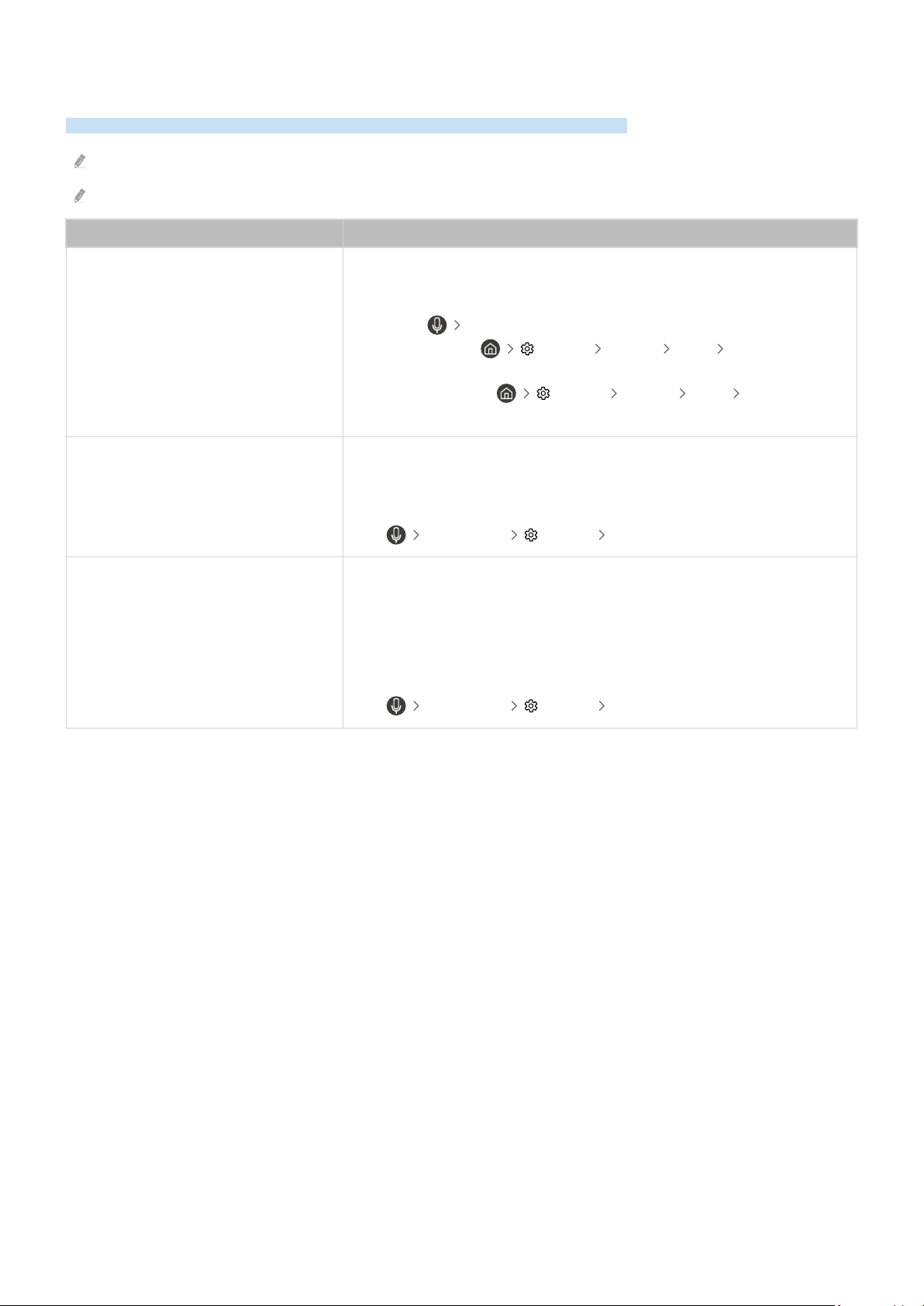
Voice Assistant Issues
When the Voice Assistant isn't working, these steps may help resolve the problem.
This function may not be supported depending on the model or geographical area.
The Voice Wake-up function may not be supported depending on the model, Voice Assistant or geographical area.
The problem Try this!
The voice commands do not work well.
Voice commands may differ depending on the Voice Assistant.
Refer to the command examples for each Voice Assistant.
• Bixby:
Explore Now
• Amazon Alexa: Settings General Voice Amazon Alexa
Settings
• Google Assistant:
Settings General Voice Google
Assistant Settings
Bixby or Alexa answers automatically.
The TV may recognise an ambient noise or everyday conversation as a call to
Voice Assistant.
Turn off the Voice Wake-up function or set the Wake-up Sensitivity to Low.
• Explore Now Settings Voice Wake-up
I spoke "Hi, Bixby" but Bixby does not
answer.
I spoke "Alexa" but Amazon Alexa does
not answer.
When the TV is far from you or the ambient noise is so loud, the TV may be
unable to recognise your voice.
• When the distance to the TV is within 3 to 4 m, optimal performance is
provided. Please look at your TV screen and speak.
Turn on the Voice Wake-up function.
• Explore Now Settings Voice Wake-up
- 198 -

The problem Try this!
Voice recognition does not work with
the Samsung Smart Remote unlike other
features.
There is no response even if the Voice
Assistant button is pressed.
The connection between the remote control and the TV may be lost. Try pairing
the remote control with the TV.
Point the Samsung Smart Remote at the front of the TV, and then press and
hold the and buttons simultaneously for 3 seconds or more.
Also, if the remote control does not work properly or its response is very slow,
the battery might be low or dead.
• Charge the remote control by using the solar cell or the USB port (C-type)
on the bottom.
– You can check remaining battery of Samsung Smart Remote with
solar cell in Settings General Power and Energy Saving
Available Remote Battery.
• If the remote control has batteries, replace them with new ones.
During voice recognition, the heavy load
message appears and the function does
not work.
Unplug and then plug the TV power cable and then try again after 1 minute and
30 seconds. It may take a while if the voice recognition server is being
inspected.
I want to see weather information of the
desired area.
Say with the area name included.
- 199 -

Other issues
Use these procedures to resolve other issues that may occur in relation to the product.
The problem Try this!
The TV is hot.
Watching TV for an extended period of time causes the panel to generate heat.
The heat from the panel is dissipated through internal vents running along the
top of the TV.
The bottom, however, may feel hot to the touch after extended use.
Children watching TV need constant adult supervision to prevent them from
touching the TV.
This heat, however, is not a defect and does not affect the TV's functionality.
The TV smells like plastic. This smell is normal and will dissipate over time.
The settings are lost after 5 minutes or
every time the TV is turned off.
If Usage Mode is set to Retail Mode, the TV's audio and video settings are
automatically reset every 5 minutes.
Change Usage Mode to Home Mode.
• Settings General System Manager Usage Mode
The TV is tilted to the side. Remove the base stand from the TV and reassemble it.
The stand is wobbly or crooked.
Refer to the Quick Setup Guide and make sure that the stand is assembled
correctly.
PIP is not available.
PIP is available only when an external device is connected with an HDMI or
Component cable.
Note that the function is unavailable when Smart Hub is active.
This function may not be supported depending on the model or
geographical area.
A POP (TV’s internal banner ad) appears
on the screen.
Change Usage Mode to Home Mode.
•
Settings General System Manager Usage Mode
The TV is making a popping noise.
The expansion and contraction of the TV's outer casing may cause a popping
noise.
This does not indicate a product malfunction.
The TV is safe to use.
- 200 -

Diagnosing TV operational issues
You can diagnose issues with your TV and Smart Hub and run reset functions.
Settings Support Device Care Self Diagnosis Try Now
You can use the Picture Test to help diagnose video issues and the Sound Test to diagnose sound issues. You can
also view signal strength information for over-the-air digital signals, test the Smart Hub Internet connection and
run the Smart Hub and TV factory reset functions.
• Video Test
• Picture Test
• Sound Test
• HDMI Troubleshooting
• Signal Information
• Smart Hub Connection Test
• Reset Smart Hub
The problem Try this!
Cannot select Signal Information in Self
Diagnosis.
Verify that the current channel is a digital channel.
Signal Information is only available for digital channels.
•
Settings Support Device Care Self Diagnosis Signal
Information
Reset Smart Hub
Resets all Smart Hub settings to their factory defaults and deletes all
information related to Samsung accounts, linked service accounts, Smart Hub
service agreements and Smart Hub applications.
• Settings Support Device Care Self Diagnosis Reset
Smart Hub
Reset picture
Resets current picture settings to the default settings.
•
Settings Picture Expert Settings Reset Picture
Reset sound
Resets current sound settings to the default settings.
•
Settings Sound Expert Settings Reset Sound
- 202 -

Getting Support
Get help directly from Samsung if you have a problem with your TV.
Getting support through Remote Management
Settings Support Remote Management Try Now
After consenting to our service agreement, you can use Remote Management to access Remote Support and have a
Samsung service technician diagnose your TV, correct problems and update your TV's software remotely via the
web. You can also turn Remote Management on and off.
You can also start this function by pressing and holding the button for 5 or more seconds.
This function requires an Internet connection.
Finding the contact information for service
Settings Support About This TV Try Now
You can view the address of the Samsung website, the call centre phone number, your TV's model number, your TV's
software version, Open Source License and other information you may need to get service support from a Samsung
call agent or the Samsung website.
You can also view information by scanning the QR code of your TV.
You can also start this function by pressing and holding the button for 5 or more seconds. For the Standard Remote
Control, press and hold the
(Play) button for 5 or more seconds. Continue holding the button until the customer
information pop-up window appears.
Requesting service
Settings Support Device Care Request Support Try Now
You can request service when you encounter a problem with the TV. Select the item matching the problem that you
encountered, enter the required item, move the focus to Next, and then press the Select button. Select Request
Now Send or Schedule Appointment Request Send. Your service request will be registered. The Samsung
Contact Centre will contact you to set up or conrm your service appointment.
You must agree to the terms and conditions for the service request.
This function may not be supported depending on the geographical area.
This function requires an Internet connection.
- 203 -
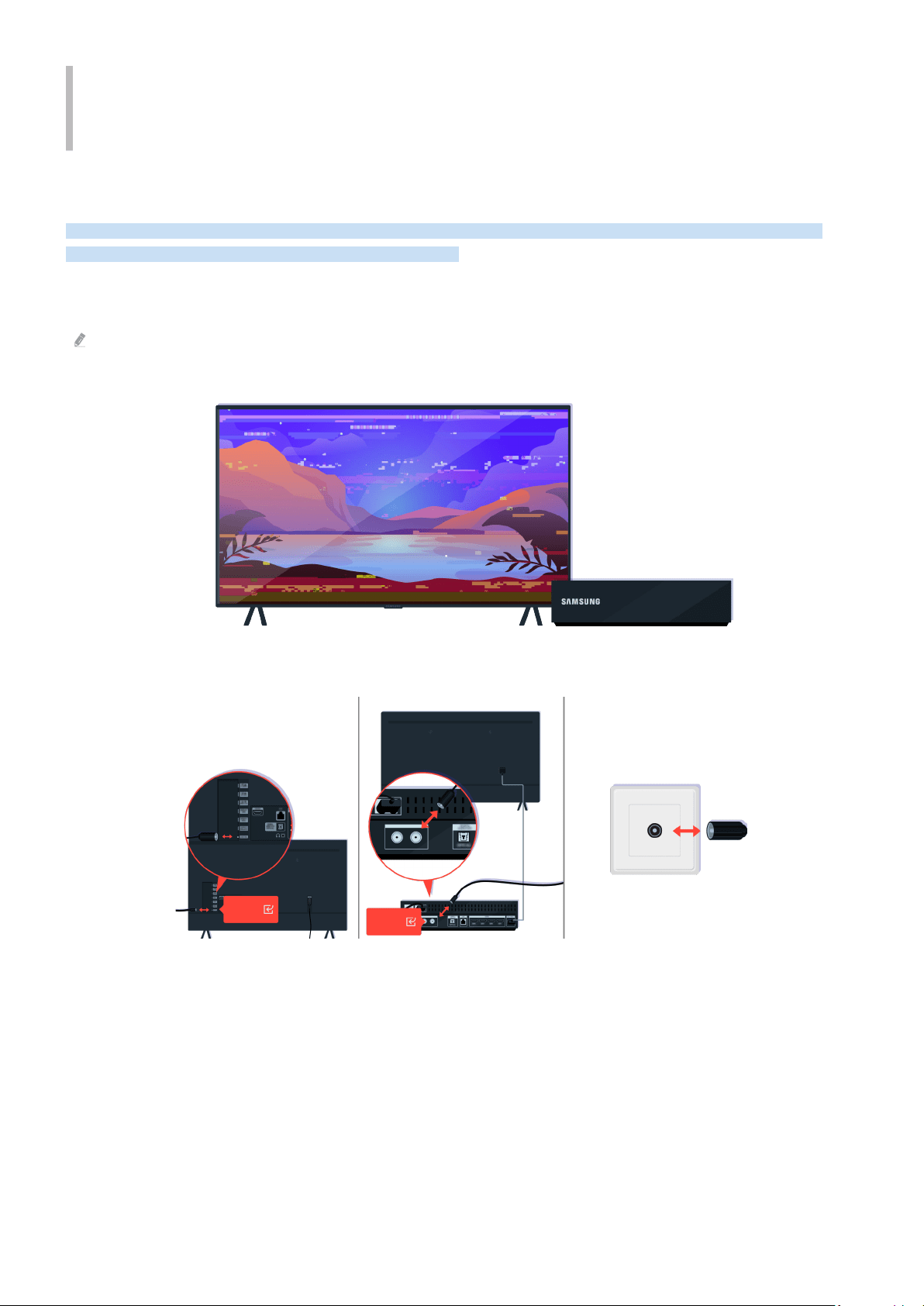
FAQ
In this section, you'll nd the answers to the e-Manual questions we get asked about most often.
The TV Screen does not Display Properly
When the TV screen is bad, let's nd out how to simply check whether the cause is caused by the product or the
external environment by broadcasting signals and cables.
When the TV screen does not display properly
The TV's colour, design, accessories (including the remote control) and features may differ depending on the model or
geographical area.
Check the antenna and input cable connections.
ANT
ANT
Check the antenna and input cable connections.
- 204 -

Picture Test
OK
When a message appears, select OK and follow the on-screen instructions to complete the test.
When a message appears, select OK and follow the on-screen instructions to complete the test.
Settings
If the problem disappears during the test, check your TV signal. On the remote control, press the button.
Select Settings Support Device Care Self Diagnosis Signal Information to check the signal
strength.
- 207 -

If the remote control sensor turns off when you press the power button, your TV is correctly connected to the power
supply.
If the TV screen is still blank, softly tap it with your finger. If the part of the screen you tapped on blinks, your TV is
correctly connected to the power supply.
On the remote control, press the button. When the Home Screen appears, the TV is turned on but the connected
external device does not work or is not connected correctly.
- 211 -

If it does not turn on, make sure the power cable is properly connected to the device and to the wall outlet.
HDMI
HDMI
HDMI
One Invisible
Connection/One
Connect Cable
One Invisible
Connection/One
Connect Cable
Check the connection of the HDMI cable to your TV or One Connect Box.
Also make sure that the correct source is selected on the Home Screen ( Source).
- 213 -

HDMI
HDMI
HDMI
If the same problem continues, try connecting another external device to the TV using an HDMI cable. If the display is
correct, your external device may be faulty.
- 214 -

Internet Access is not Available
When the TV has difculties connecting to the Internet, these steps may help resolve the problem.
When the TV can't connect to the Internet
The TV's colour, design, accessories (including the remote control) and features may differ depending on the model or
geographical area.
On the remote control, press the button and move to Settings using the directional button.
Settings
Select Settings General Network Network Status to check the network status.
- 219 -

General
General
Network
Select Settings General Network Network Status to check the network status.
General
Network
Reset Network
If the network isn't connected, a network reset may be required.
Make sure that your access point is working properly. Check the LED indicators on your access point to make sure it is
operating normally.
- 220 -

If you are using a wireless access point, check the access point location. If the access point is too far from the TV,
move it closer.
Try rebooting the access point by disconnecting and reconnecting the power connector. It may take 1 to 2 minutes
until the access point comes back online after a reboot.
Settings
If the same problem continues, select Settings General Network Network Status IP Settings to
change to a different DNS server. If a test occurs, cancel it and select IP Settings.
- 221 -

Support
Support
Device Care
To check sound output, select Settings Support Device Care Self Diagnosis Sound Test.
Update now
If the same problem continues, a software update or factory reset may be required.
If there is sound but it is not clear, run a diagnostic test. On the remote control, press the button.
- 226 -

Make sure the remote control works properly.
You can check whether the signal is being transmitted by pressing the power button and observing the front tip of
the remote control through the camera on your smartphone.
If you cannot see infrared signals, charge the remote control by using the solar cell or the USB port (C-type) on the
bottom. If the remote control has batteries, replace them with new ones.
Depending on the model you purchased, the remote control provided may vary.
- 231 -
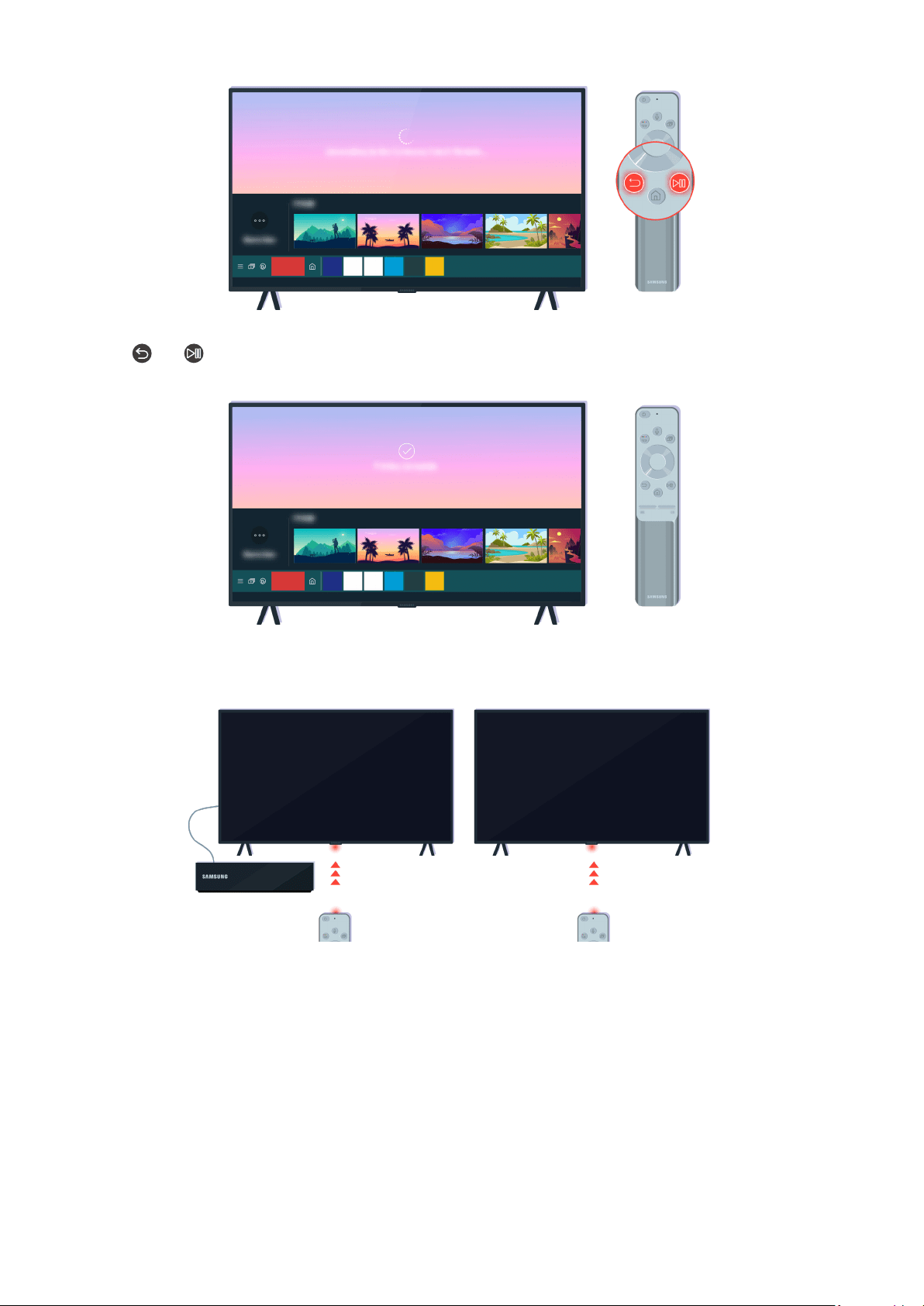
Press the and buttons simultaneously to display the pairing animation clip.
Follow the on-screen instructions to proceed with the pairing.
The remote control will work more effectively if you point it at the remote control sensor.
- 232 -
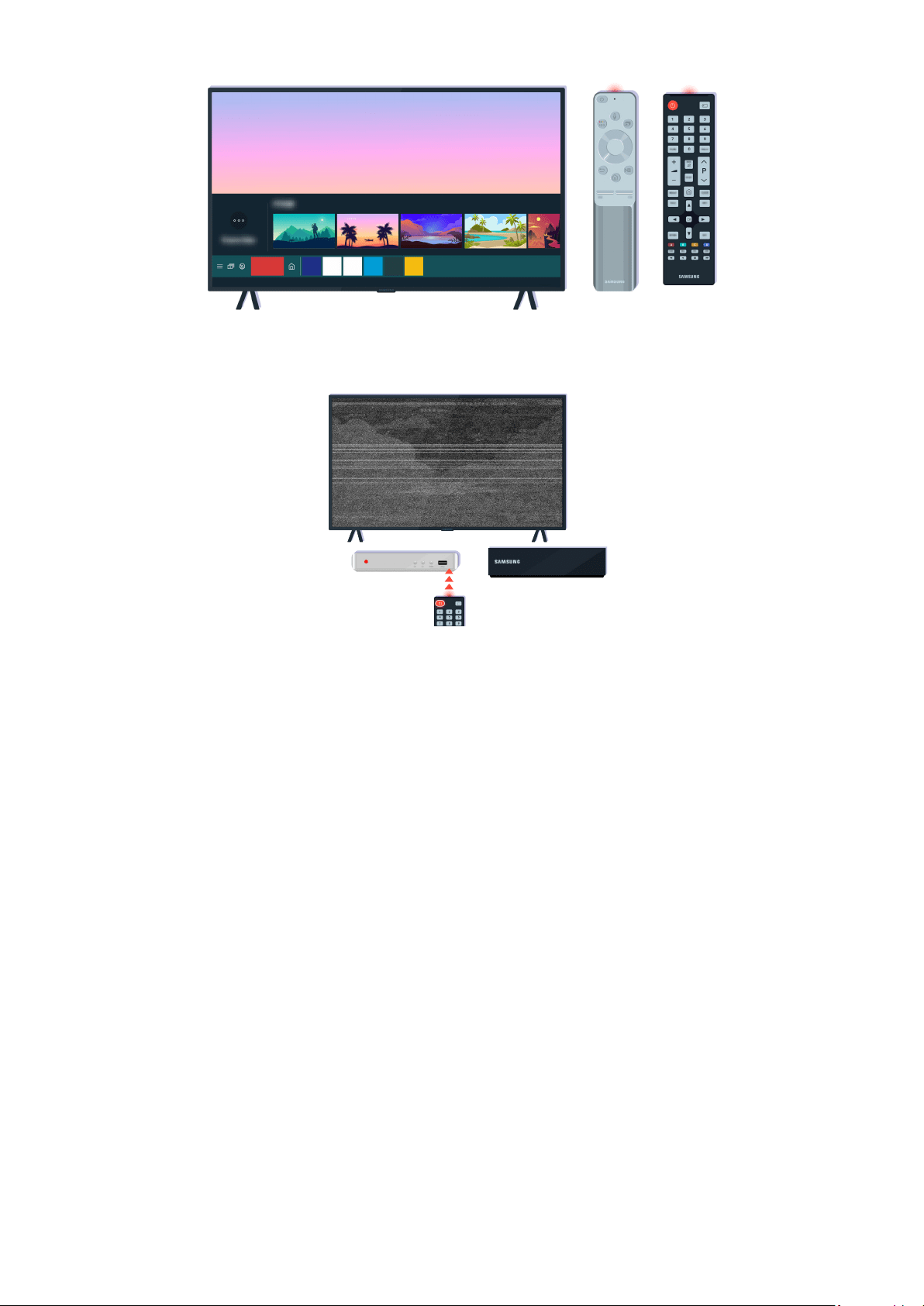
If the same problem continues, try using the appropriate SAMSUNG remote control for your TV model.
If you use an Multi-Brand Remote (MBR) or universal remote and your remote cannot operate an external device,
move the external device closer to the One Connect Box.
- 233 -

About This TV
Product Information
Model code:
Software version:
Select Settings Support About This TV and check the model code and software version.
Using a computer, connect to www.samsung.com.
Find your TV model and download the firmware file.
- 236 -

Accessibility Guidance
Provides a menu and a remote control guide that aid the visually impaired.
Menu Learning Screen
Learn the menus on the TV screen. Once enabled, your TV will tell you the structure and features of the menus you
select.
Using the Remote control
You can see the description of the buttons on the Samsung Smart Remote or Remote Control.
The Samsung Smart Remote or Remote Control may not be supported depending on the model or geographical area.
Orientation of the Samsung Smart Remote or Remote Control
Hold the remote control with the buttons facing towards you. The remote is slightly thinner towards the top and
thicker towards the bottom.
Description of the Samsung Smart Remote or Remote Control
The images, buttons and functions of the remote control may differ with the model or geographical area.
From top to bottom and left to right:
• The button is at the top left.
• There is a small LED(microphone) to the right of the button, but it cannot be felt by hand.
• For the Samsung Smart Remote, there is a round button below the LED, which is the
button.
• Of the 2 buttons below the button on the Samsung Smart Remote that comes with the QLED TV, The Frame,
or AU9 Series, the left one is the button and the right one is the button.
• Of the 2 buttons below the button on the Samsung Smart Remote that comes with AU8 Series, the left one is
the button and the right one is the button.
• Of the 2 buttons below the
button on the Remote Control that comes with AU7/BEA Series, the left one is the
button and the right one is the button.
- 240 -

• If you press the button twice and then press the Select button or press the button, while viewing a
programme, the Record, Timeshift, Stop (when Record or Timeshift is running), Info, red, green, yellow, blue and
Move to the top (or Move to the bottom) options appear.
Record and Timeshift may not be supported depending on the model or geographical area.
Select the Move to the top button to move the menu to the top.
This function may not be supported depending on the geographical area.
• Underneath these two buttons are a round button and a large outer circle button. The round button is the Select
button and the large outer circle button consists of 4 directional buttons (up / down / left / right).
• Underneath the directional button are three buttons, one on the left, one on the right and one in the centre. The
one on the left is the button and the one on the right is the button. The round button in the middle is the
button.
• If you press the button while watching a TV programme, the screen you are watching stops and a control bar
appears. You can select Rewind, Play, Pause, Fast Forward, Stop Timeshift, Record, Go to Live TV or Info. You can
press the up directional button to go to the playback screen and check the time that the actual broadcast
programme is running and the timeshift time.
You can use the Slow Rewind or Slow Forward functions when you select the Pause option.
To use Record or Timeshift, you must connect a USB device.
This function may not be supported depending on the model or geographical area.
• Underneath the button are two thin horizontal buttons. These buttons protrude higher above the surface
than the other buttons on the remote control. The one on the left is the volume button and the one on the right
is the channel button. Push up from beneath or down from above to use these as rocker buttons to change the
channel or volume.
– Briefly press the
(Volume) button to mute the sound.
– Press and hold the (Volume) button to open the Accessibility Shortcuts menu.
– Briefly press the (Channel) button to open the Guide.
– Press and hold the
(Channel) button to open the Channel List.
This function may not be supported depending on the model or geographical area.
- 241 -

5.
Use the directional buttons to go to the Accessibility menu, and then press the Select button to open this
menu.
6.
The menu will appear with Voice Guide Settings as the rst selection. Highlight Voice Guide Settings, and then
press the Select button.
7.
A menu appears with the options to change Voice Guide and Volume, Speed, Pitch, TV Background Volume.
8.
Select the menu using the directional buttons, and then press the Select button.
The menus are activated when Voice Guide is on.
Running the Accessibility menu functions using Bixby
This function is available only if Voice Assistant is set to Bixby. ( Settings General Voice Voice Assistant)
Bixby may not be supported depending on the model or geographical area.
To use Bixby, the TV must be set up and tuned and must be connected to the Internet. You can connect the TV to the
Internet during the initial setup or do it later through the settings menu.
There are many commands you can say to control the TV. These can be used together with Voice Guide to give you
voice input and voice output. You can use the Samsung Smart Remote but the TV must be connected to the Internet.
To speak a command, press and hold the button (located near the top of the Samsung Smart Remote, directly
below the small LED(microphone) and above the directional button) and say the command, and then release the
button. The TV will conrm the command.
For example you can:
• Turn Voice Guide on
Press the button on the Samsung Smart Remote, and then say "Voice Guide on".
• Turn Audio Description on
Press the
button on the Samsung Smart Remote, and then say "Audio Description on".
• Turn High Contrast on
Press the button on the Samsung Smart Remote, and then say "High Contrast on".
- 243 -

• Enlarge
You can enlarge important elements on the menu such as the names of programmes.
• Learn TV Remote
Learn the names and functions of the buttons on remote control. On this screen, pressing the power button (top
left button) will turn off the TV, but when any other button is pressed the TV will say the button name and briefly
tell what that button does. This teaching mode helps you to learn the location and operation of the buttons on
the remote without affecting normal TV operation. Press the
button twice to exit Learn TV Remote.
• Menu Learning Screen
Learn the menus on the TV screen. Once enabled, your TV will tell you the structure and features of the menus
you select.
• Subtitle Settings
You can view the subtitle in programmes that provide broadcast subtitles.
In programmes that provide broadcast subtitles, the Position function is activated so that you can change the subtitle
position.
When watching a channel on an external device such as a set-top box and cable box, turn on the subtitle function on the
device. For more information, contact your service provider.
• Multi-output Audio
You can turn on both the TV speaker and Bluetooth headphone designed for the hearing impaired at the same
time. The hearing impaired can then set the volume of their Bluetooth headphone higher than the volume of the
TV speaker without affecting the volume of the TV speaker, allowing both the hearing impaired and their
families to listen to the TV at comfortable sound levels.
This function may not be supported depending on the model or geographical area.
• Sign Language Zoom Settings
You can zoom in the sign language screen when the programme you are watching provides it.
• Remote Button Repeat Settings
You can configure the operation speed of the remote control buttons so that they slow down when you
continually press and hold them.
- 245 -

Using the TV with Voice Guide on
Turn on Voice Guide that describes the menu options aloud to aid the visually impaired.
Changing channel
You can change the channel in three of ways. Every time you change channels, the new channel details will be
announced. The ways to change the channel are below.
• Channel List (
Live TV Channel List)
Press the button. The Smart Hub home screen appears. Use the left or right directional buttons to move to
Live TV, press the up directional button to move to the top row, press the directional buttons to move to Channel
List, and then press the Select button. When Channel List is displayed, use the up or down directional buttons to
move to the desired channel, and then press the Select button.
• (Channel) button
Of the two buttons that protrude from the centre of the Samsung Smart Remote or Remote Control, the right
one is the (Channel) button. Push up or pull down the (Channel) button to change the channel. Press
the up or down of CH button on the Standard Remote Control to change the channel.
• Number button
Use the or button on the Samsung Smart Remote or Remote Control to open the virtual numeric pad,
enter a number, and then select Done. On the Standard Remote Control, press the numeric buttons to enter a
channel number.
Using on-screen number entry via the Samsung Smart Remote or Remote Control
Use the virtual numeric pad to enter numbers e.g. to enter a channel number or to enter a PIN.
Press the or button on the Samsung Smart Remote or Remote Control and the virtual numeric pad with 2
rows appears on screen. Voice Guide speaks “virtual numeric pad, 6” which indicates that the number strip is on
screen and the focus is on the number 6. This strip has the following buttons:
• The top row has one option, Done.
• On the bottom row: From the far left: Colour pad, TTX/MIX, More, 1, 2, 3, 4, 5, 6, 7, 8, 9, 0, Delete, Move to the top
(or Move to the bottom)
The menus may not appear depending on the model or geographical area.
The options that you can select in the virtual numeric pad may vary depending on the viewing mode.
- 246 -

Use the left and right directional buttons to move along the row, and then press the Select button to choose the
numeric pad. When you have nished selecting all the numbers you need (for example, 123), press the up directional
button to move to the Done option, and then press the Select button to nish.
When entering a channel number, you can enter the number, and then select the Done option on the top row or you
can enter the channel number and wait. After a short while, the channel will change and the virtual numeric pad
will disappear from the screen.
Changing volume
• Samsung Smart Remote / Remote Control
Use the (Volume) button on the left to change the volume. Every time you change the volume, the new
volume level will be announced.
Of the two buttons that protrude from the centre of the Samsung Smart Remote or Remote Control, the left one
is the (Volume) button. Push up or pull down the (Volume) button to change the volume.
• Standard Remote Control
Press the up or down of VOL button on the Standard Remote Control to adjust the volume.
Using programme information
When watching TV, press the Select button to view programme information which then appears at the top of the
screen. Voice Guide will say programme subtitles or audio descriptions if they are available. To view more detailed
programme information, press and hold the Select button. Voice Guide will say more details such as a synopsis of
the programme.
Press the left or right directional button to see what you can watch next on the same channel. Press the up or down
directional button to move to other channels and see which programmes are currently being broadcast on them.
Press
to go back or close the programme details.
This function may not be supported depending on the model or geographical area.
- 247 -

Other options in the guide
In the Guide, move to a broadcast scheduled programme, and then press the Select button. A pop-up menu listing
the functions below appears.
Use the up and down directional buttons to move within this menu, and then press the Select button to choose an
item. Press to close the menu and go back to the Guide.
For the programme you are currently watching, press and hold the Select button.
• Record
You can record the programme that you are currently watching or a programme on another channel.
This function may not be supported depending on the model or geographical area.
• Stop
You can stop the recording function that is currently running.
This function may not be supported depending on the model or geographical area.
- 250 -

Recording the programme you are watching
To display a menu for recording a programme or starting the Timeshift function, press the button twice or press
the button, and then press the Select button while watching the programme. You can select the following
functions on the menu:
• Record
Immediately starts to record the programme you are watching.
• Timeshift
Starts the Timeshift function.
• Stop
Stops the recording or the Timeshift function that is running.
• Info
Displays the details about the programme you ware watching.
Scheduling recording from the programme info window
Press the Select button while viewing a programme to display the programme info window. In the programme info
window, use the left and right directional buttons to select a broadcast scheduled programme, and then press the
Select button. To schedule a recording for the programme, select Schedule Recording.
Changing the recording time
When recording a live programme you can specify how long you want to record for.
Press the down directional button to display the control bar at the bottom. Press the left or right directional buttons
to move to Edit Recording Time, and then press the Select button. A slider scale appears and you will hear the
recording time currently set. Use the left and right directional buttons to change the time, and then press the Select
button. You will hear a menu that gives information about the recording time. To return to the programme you are
watching, press the
button on the remote.
The maximum recording time differs depending on the capacity of the USB device.
- 256 -

Viewing recorded programmes
Live TV Recordings Recordings
Open Smart Hub by pressing the button on the remote control. Use the left or right directional button to move
the focus to Live TV. Press the up directional button to move to the top row, and then use the left or right
directional button to move to Recordings.
To play a programme, use the up and down directional buttons to move between programme titles. Press the Select
button to play the programme or press the right directional button to move to a list of options. Use the up and down
directional buttons to move between the options in this list. You can play, remove or delete the programme or view
the programme details.
Select the Play option to play the programme. The programme will start. If you have watched part of this
programme before, you will get a pop-up menu on screen allowing you to Play (from start), Resume (from where
you left off) or Cancel. Use the left and right directional buttons to move to the required option, and then press the
Select button.
This function may not be supported depending on the model or geographical area.
Deleting a recorded programme
You can delete any recorded programme.
1.
Go to the list of Recordings to delete a recorded programme.
2.
Use the up and down directional buttons to move to the recording you want to delete.
3.
Press the right directional button to move to a list of 3 options.
4.
Press the down directional button to move to the Delete option, and then press the Select button.
You will be asked if you want to remove the selected item.
5.
Press the left directional button to move to the Delete button, and then press the Select button to delete the
programme title.
The programme will be deleted and you will be returned to the list of Recordings.
- 257 -

Using Smart Hub
Learn how to open Smart Hub to access apps, games, movies and more.
Smart Hub
After pressing the
button on your remote control, you can surf the web and download apps with Smart Hub.
Some Smart Hub services are for pay services.
To use Smart Hub, the TV must be connected to the Internet.
Some Smart Hub features may not be supported depending on the service provider, language or geographical area.
Smart Hub service outages can be caused by disruptions in your Internet service.
To use Smart Hub, you must agree to the Smart Hub service agreement and the collection and use of personal information.
Without giving consent, you cannot use the additional features and services. You can view the entire text of the Terms &
Privacy by navigating to Settings Terms & Privacy.
If you want to stop using Smart Hub, you can cancel the agreement. To cancel the Smart Hub service agreement, select
Reset Smart Hub ( Settings Support Device Care Self Diagnosis Reset Smart Hub).
Press the button on your remote. This will bring up a display with 2 rows. Try moving the focus to Live TV or
another item on the bottom row. The options on the top row change depending on the item selected in the bottom
row.
The buttons to the right of Live TV provide quick access to apps such as Netix and Prime Video.
Supported apps may vary depending on the model.
Use the left and right directional buttons to move between a menu or apps on a row and the up and down
directional buttons to move between rows. Press the Select button to access a menu or apps.
When the Smart Hub home screen appears, use the left or right directional button to move the focus to Live TV or
Samsung TV Plus. Press the up directional button to move to the top row. You will be on the Guide item. The items
in this row may include Guide, Channel List, Schedule Manager, Recordings and others.
Samsung TV Plus may not be supported depending on the model or geographical area.
- 258 -

Launching the e-Manual
Open the user manual embedded in your TV.
Press the
button to open Smart Hub, press the left directional button to move to Settings, and then press the
Select button.
Use the up and down directional buttons to move to Support, and then select Open e-Manual to open the e-Manual.
Settings Support Open e-Manual
You can view the embedded e-Manual containing information about your TV's key features.
Alternatively, you can download a copy of the e-Manual from Samsung's website (http://www.samsung.com).
Words in blue (e.g., Internet) indicate a menu item.
The e-Manual's Home screen contains 1 row of menu icons. Use the left and right directional buttons to move within
a row. Press the Select button to open the section you want to read.
You can use the directional buttons on the remote control to use the functions on the top such as Search, Site Map, and
Index.
The e-Manual contains a section called "Learn TV Remote" in "Accessibility Guidance". This is particularly useful for
people who cannot easily see the buttons on the control or who are not clear what each button does. When you are
viewing this section of the e-Manual, pressing the buttons on the remote control will not affect the TV.
- 262 -