Important Warranty Information Regarding
Television Format Viewing
Standard screen fbrmat televisions (4:3, the aspect ratio of the screen width to height) are
primarily &'signed to view standard ku_mat b:dl-motion video. The image's display_'d on them
shocdd primarily be in tM' standard 4:3 ratio format anti constantly moving. Displaying
stationary graphics and images on screen sl:u'h as the' dark top and bottom l_'tu'rbox bars
(\_7[dc sc'rccn pic'tt:trcs) shodd b_' litnitcd to no tnorc than 15% of the' total television viewing
per w_'ck.
%Vide screen [ormat televisions (16:9 the aspect ratio of the screen vddth to height) are
pm-narily &'signed to view wi&' screen format fl:dl-motion video. The mmg_,s displav>d on
them should pmnarily b_' in the' wide screen 16:9 ratio format, or _'xpan&'d to fill the' scrc_'n if
)_ot:tr model ofi_'rs this ieat_tre and c'onstantl) moving. Displa) ing stationar) graphics and
images on screen, sutch as tM' dark si&'-bars on non-expanded standaM k_rmat television vi&'o
and programming shoL:dd b_' limited to no more than 15% of the total television viewing per
\vt'ck.
Additionall}_ viewing other stationai T images and text st:tch as stock market reports, video
game' displays, station logos _vcb sites or compl:tu'r graphics and patu'ms, shocdd be limited as
(b'scribed abow, [or all televisions. Displaying any stationa W hnagas that exceed the abow"
guidelines can cause uneven aging qf picture tubes (CRZs) that leave subtle, but permanent
burned-in ghost images in the television pictur< To avoid this, vasty the programming and
images, and primarily disptay jidl screen moving images, not stationa_ W patterns or darh
bars. On television mo&'ls that olli:r pictctr_' siziclg f_'atutrvs, us_' these cocltrols to view the
diff_'r_'nt fortnats as a kdl sc'r_'cn pictutr<
Be caref:t:d in the selection and duration of television formats t:tsed lot viewing. Uneven CRT
aging as a rcs_dt of fommt scl_'c'tion anti use as well as oth< _butrnvd-in images is not cow, r_'d
by your SatnsL:mg [itnitcd warranty:
English - 2
CONTENT5
Chapter 1- Your New Digitam TV .................... 5
List ofFeat m_cs .......................................................................................... 5
Accessories ................................................................................................ 5
Familiarizing YoLtrself with _bltr New TV .................................................. 6
Control Bltttons .............................................................................. 6
Connection Jacks (Side or Front) .................................................... 7
(bnnection Jacks (R{'ar) .................................................................. 8
Remote Control .............................................................................. 9
Chapter 2: Installation .................................... 1t:)
Connvcting VHF and UHF Antvnnas ........................................................ 10
Antennas with 300-ohm Flat Twin Leads ........................................ 10
Antennas with 75-ohm Round Leads .............................................. 11
Separate VHF and UHF Antennas .................................................. 11
Connecting Cable TV ................................................................................ 12
Cable _vithoLtt a Cable Box .............................................................. 12
Cable with a Cable Box that Descrambles All Channels .................. 12
Connecting to a Cable Box that Descrambles some Channels ........ 13
Connecting a V(}R ...................................................................................... 14
Conm'cting a Second V(}R to Recont trom the TV .......................... 14
Connecting a D\qD Player .......................................................................... 15
Connecting to 2, PB PR .................................................................. 15
Conm'cting to RcgLdar AcLdio and Video Ja('ks ................................ 15
Connecting a lkgital TV Set-Top Box ........................................................ 16
Connecting to Y, PB, PR .................................................................. 16
Connecting a Camcorder ............................................................................ 16
Installing Batteries m the Remote Control .................................................. 17
Chapter 3: Operation ...................................... 18
Training the' TV On and Ofi. ....................................................................... 18
Pktg & Play Featare .................................................................................. 18
Viewing the Mencts and On-Screen [ksplays .............................................. 20
Viewing the Mencts .......................................................................... 20
Viewing the Display ........................................................................ 20
Selecting a Menu Langl:tage ........................................................................ 21
AdjLtsting the Scn'en Atttomatically (Self Foclts) ........................................ 22
Deactivating the Atttomatic Exectttion of the Self Foclts .................. 23
Removing the 'Self Foccts" Message fl*om the Display .................... 23
A_!]ttsting Convergence Mamtally .............................................................. 24
Memorizing the Channels .......................................................................... 26
Selecting the Video Signal Som_ce .................................................... 26
Storing Channels in Memory (AuLtomatR" Method) .......................... 27
Adding and Erasing (}hanncls .................................................................... 28
(_}hanging (}hanm'ls .................................................................................... 29
Using the Channel Btmons .............................................................. 29
[]sing the Nl:u-nber Bc[ttons .............................................................. 29
Using thv Prcviot:ts Channel ............................................................ 29
Selecting Yore_Favorite Chann4s .............................................................. "30
To Store Yoar Favorite Channels .................................................... "30
]b Viev,,' YoL[r Favorite Channels ...................................................... 30
Labeling the Channels ................................................................................ 31
English -3
CONTENT5
Chapter 3: Operation (_'0ntinned)............................ 32
Picturv Control .......................................................................................... 32
Cl:kstomizingthePictt:uv. ................................................................. 32
Using Atttomatic Pictttre Settings .................................................... 33
Socmd Control ............................................................................................ 34
Ad.jl:tsting the \\>h:tmv ...................................................................... 34
Using the MUTE Bt:ttton .................................................................. 34
Customizing the SoLmd .................................................................. 34
Using Acttomatic Soutnd Settings .................................................... 35
Setting the Clock ........................................................................................ 36
Option 1: Setting the Clock Mantmlly ............................................ 36
Option 2: Setting tM' Clock At:ttomatically ...................................... 37
Viewing an External Signal Soun'e ............................................................ 39
Setting the Signal Sottn'e .............................................................. 39
Assigning Names to External sottrces .............................................. 40
Chapter 4: Special Features ............................ 41
Fine Timing Channels ................................................................................ 41
Changing the' Screen Size .......................................................................... 42
Digital Noise Reduction ............................................................................ 43
Selecting the Color Tone ............................................................................ 43
Setting the Blue Screen Mode .................................................................... 44
Freezing the Picture .................................................................................. 44
Choosing a Mtdti-Channel Sottnd (MTS) track .......................................... 45
Actto Voh tnle .............................................................................................. 46
Setting The O_JOff Melody ........................................................................ 46
BBE ............................................................................................................ 47
Viewing Closed Caption Information ........................................................ 48
Setting the On/Off Tim_'r ............................................................................ 50
Setting the Sleep Timer .............................................................................. 51
Using the V-Chip ........................................................................................ 52
How to Change _\utr Password ...................................................... 52
How to EnaI)h'/Disal)h' the Rating Controls .................................... 53
How to Set tip Restrictions Using the 'TV Guidelines". ................... 54
How to Set tip Restrictions Using the 'MPAA Rating" . ................... 55
Important Notes Abottt Parental Locks ............................................ 56
How to Set tip Restrictions Using the 'Canadian English" .............. 57
How to Set tffl) Restrictions Using thv 'Canadian French .............. 58
Customizing Yot:tr Rctnote Control ............................................................ 59
Setting Up Yot:tr Rt'mote Control to Operate Your VCR
((fable box or D\'D player) .............................................................. 59
R_'mou' Control Co&'s .................................................................... 60
Chapter 5: Troubleshooting ............................ 81
Identflymg Problems .................................................................................. 61
Appendi× .......................................................... 62
Cleaning and Maintaining _our TV ............................................................ 62
Using Yot:[r TV in Anothvr Coumtr) ............................................................ 62
Spvcifications ............................................................................................ (>2
English - 4
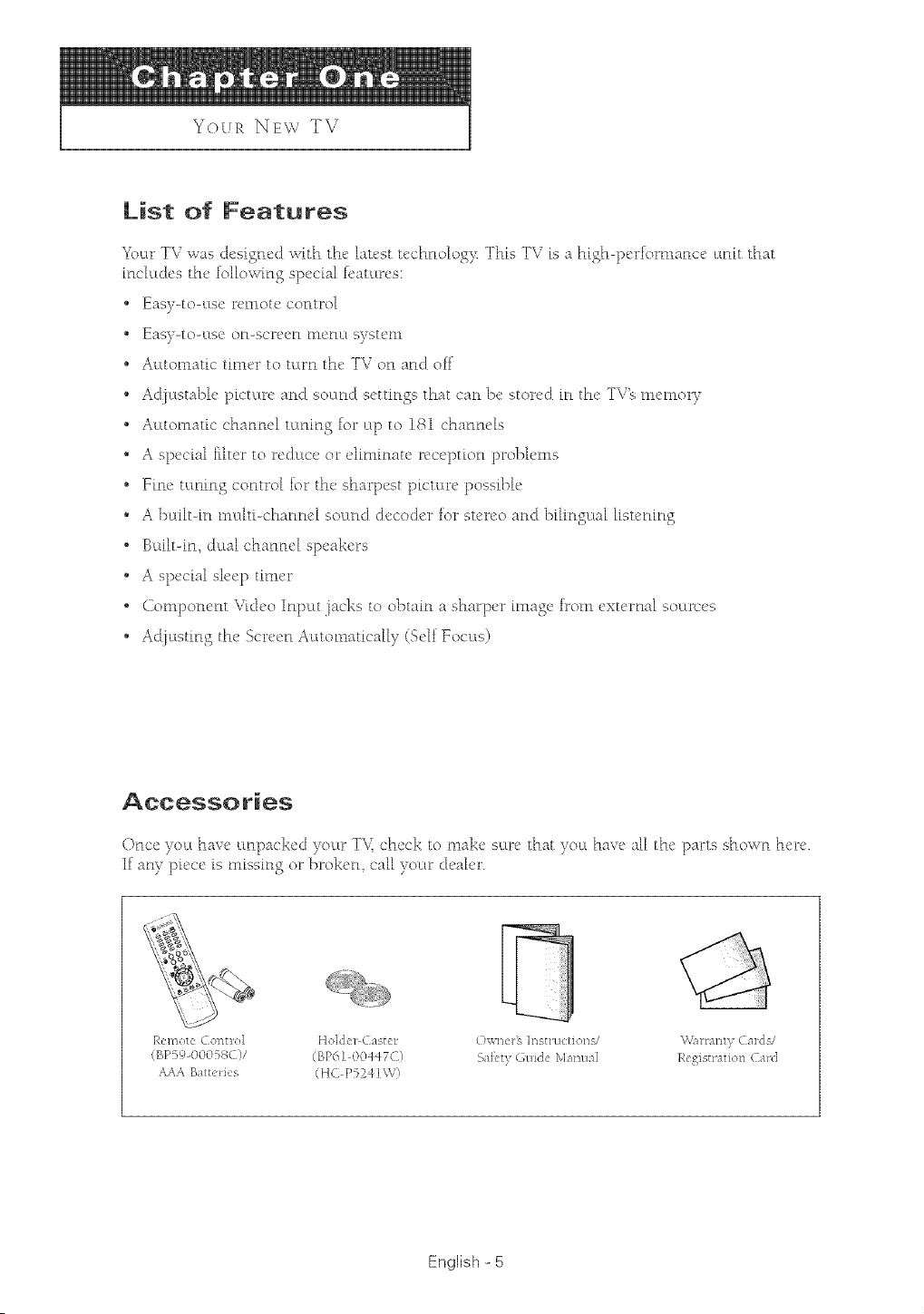
List of Features
_\mr TV was d_!sism!d with the' kin'st u'chnolo5): This TV is ;_hish-p_'rfbmmnc_' l:tnit thin
im'h:td_'s the' fbllov_r[nS sp_'d_J b_U:u_'s:
* Eas)-to-l:tsc remote control
_' _IS}-[O-t;tSc O[l-S('r('{'[l[Ii1'[i1]S) S[('[ll
, A_ttonmtic timtu _ to t_tm tht, TV on ;_nd off
Ad.]t:tstaIJ_' pk'tL:tr_"and soctnd s_'ttinss that can })_'stor_'d in the' TV% tin'too 0
" Al:ttomatR" channd t_tnin S fbl" ctp to 181 channds
o A sp_'cial fiht'r to r_'duct, or dimin;m' r_,ct'ption prol)h'ms
o Jim' u:min S control br tht, sh;upt,st picturt' possi])h'
o A ]x@t-in muhi-channd sound dt,co<br [or stt, rt'o and ])iIingual hsu'nin S
o Bt:lilt-in, d_Lal _'hannd sp_'ak_'rs
o A sp_'c'ial sb_'p tmmr
o Compon_'nt \'id_'o Inp_tt jacks to o])min a sharp_'r mmgc, kom _'xu'mal sour_'_'s
_, AdjL:tstin S tht, Scrt, cn AutomatR'aH/(Sdf Yocus)
R_.mou' ContHd Ho]clc'r C;@hu: O_.', n_:r% Insttuc:tion_/ %\4tl:t_tnty C_tKIs/
(BP59_00058()/ (BP6] 00n,_7G) S_R't £,uidc Mm_u_.I Registration ( _t_(]
AAA B_ttel:k's (HC P524] W)
English - 5
YOUR NEW TV
FamHiarizincj Yoursemf with Your New TV
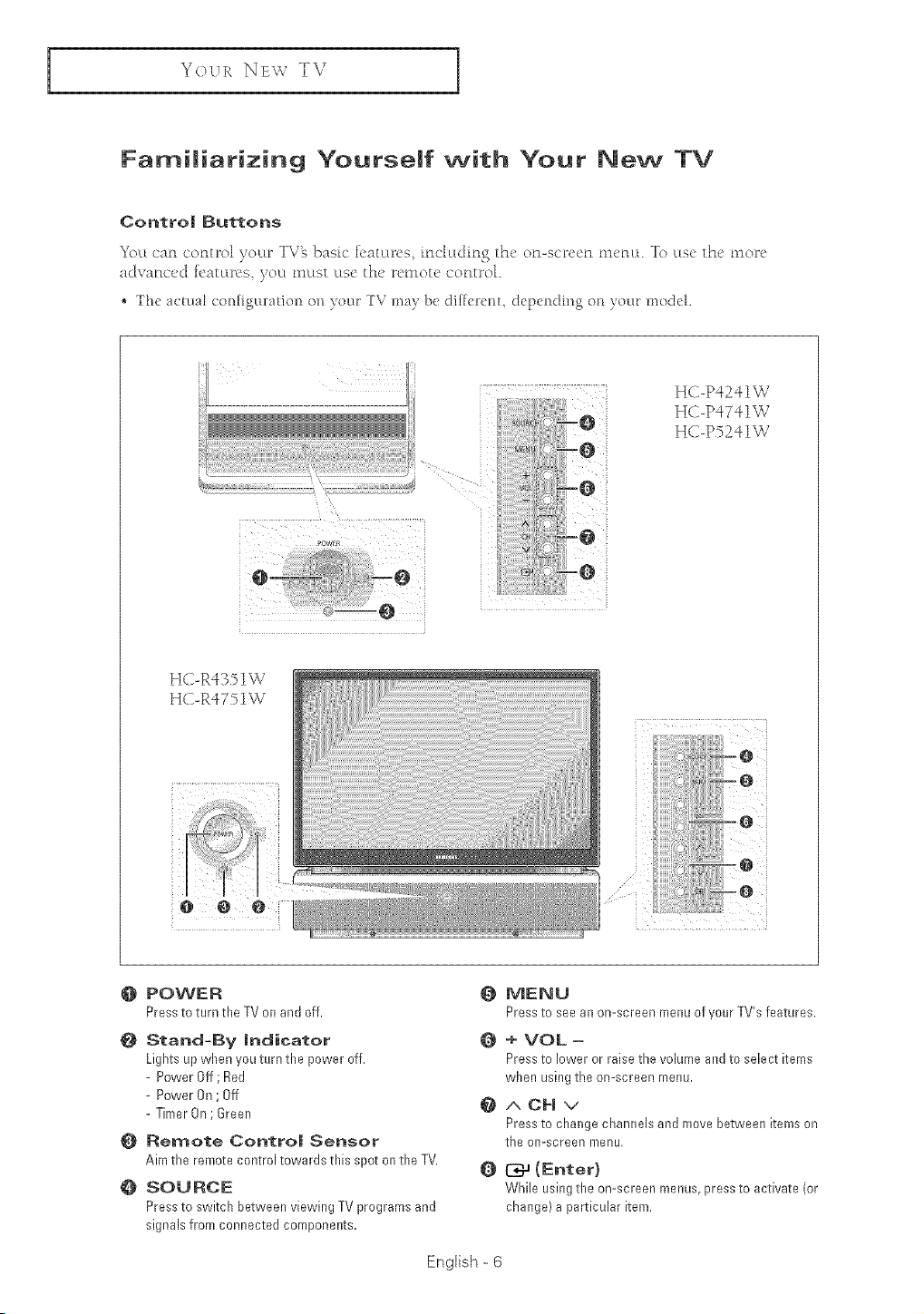
Contro| Buttons
7 3
_c LLc_m co_ltrol yoLu _ TV% basic _c_tlu>s k>'htdmg the o_>scrc_'_l tm'rm. To ltsc the tnor_'
advarlced fe_tLwes_ your tnutst ctse the remote corltrol.
,, The ac:tua_ cot_figtu:ation on _ou_ TV may be di[[el:enl, C[epelKIhlg on }out: modek
q
HC-P4241W
HC-Pq7qlW
HC-PF241W
HC-R4351W
HC-R4751W
O ROWER
Press to turn the TVon and off.
Stand-By |ndicator
Lights up when you turn the power off.
- Power Off ; Red
- Power On ; Off
- Timer On; Green
Remote Contro| Sensor
Aim the remote control towards this spot on the TV,
O SOURCE
Press to switch between viewing TV programs and
signals from connected components.
English - 6
0 MENU
Press to seean on-screen menu of your TV's features.
Q + VOL -
Press to lower or raise the volume and to select kems
when using the on-screen menu,
@ACHV
Press to change channels and move between items on
the on-screen menu,
_ {Enter}
While using the on-screen menus,press to activate (or
change} a particular item.
YOVR NEW TV
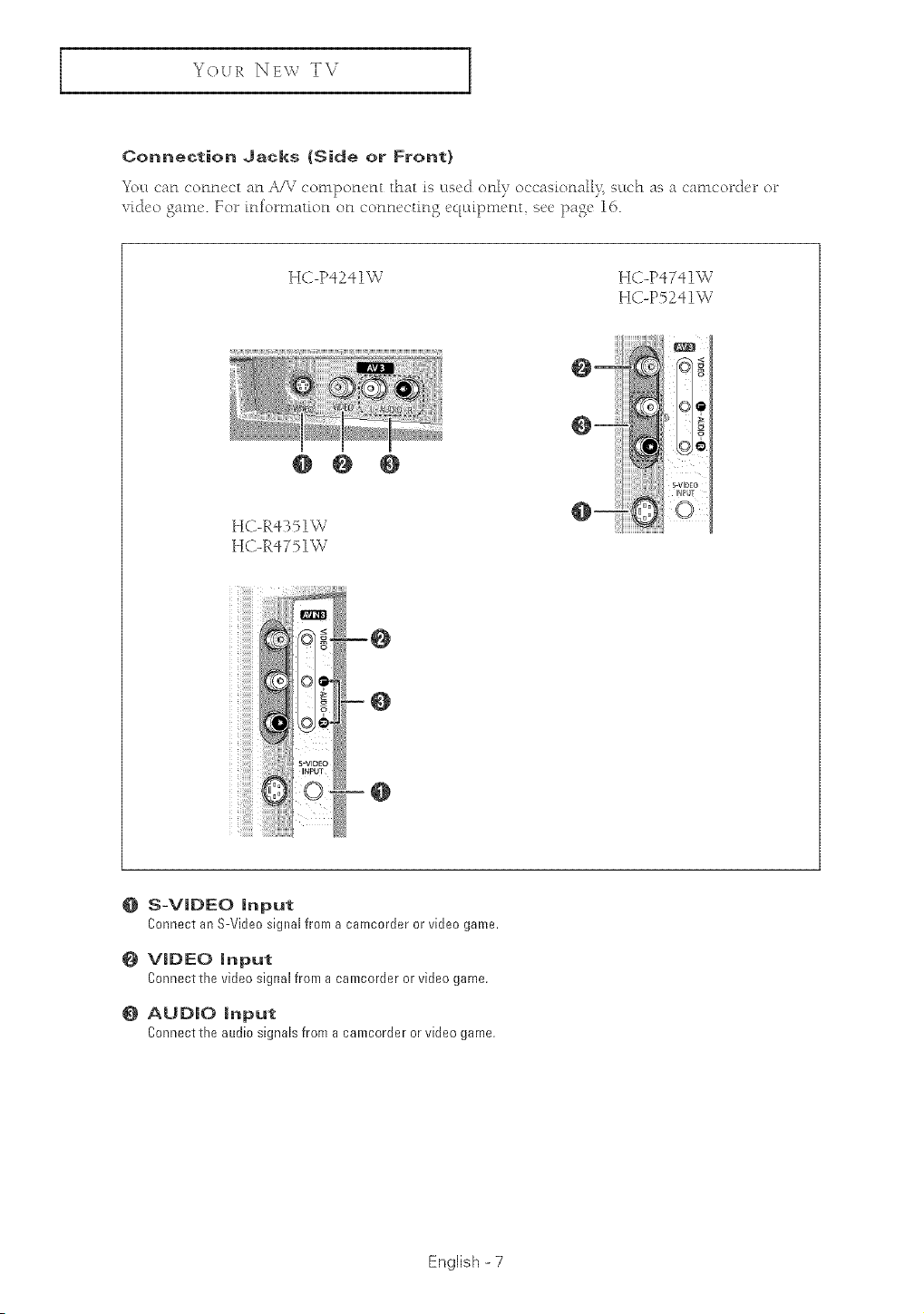
Connection Jacks (Side or Front}
YOLLca_l co_m_x't a_l _%" compom'Flt thatis lLscd o_i 7 occas[o_mll>_sLLchas a cwncordcr or
vkteo g{_[ne. Yor [[_for[na[io[_ o[_ co[_[_ec[mg eqldlxne[_t see page 16.
HC-P4241W HC-P4741W
HC-P5241W
O0 0
HC-R4351W
HC-R4751W
O S-VIDEO Input
ConnectanS-Videosignalfroma camcorderorvideogame.
VIDEO Input
Connectthe videosignalfroma camcorderorvideogame.
@ AUDIO Input
Connectthe audiosignalsfroma camcorderorvideo game.
English - 7
YOUR NB\ ,_ TV
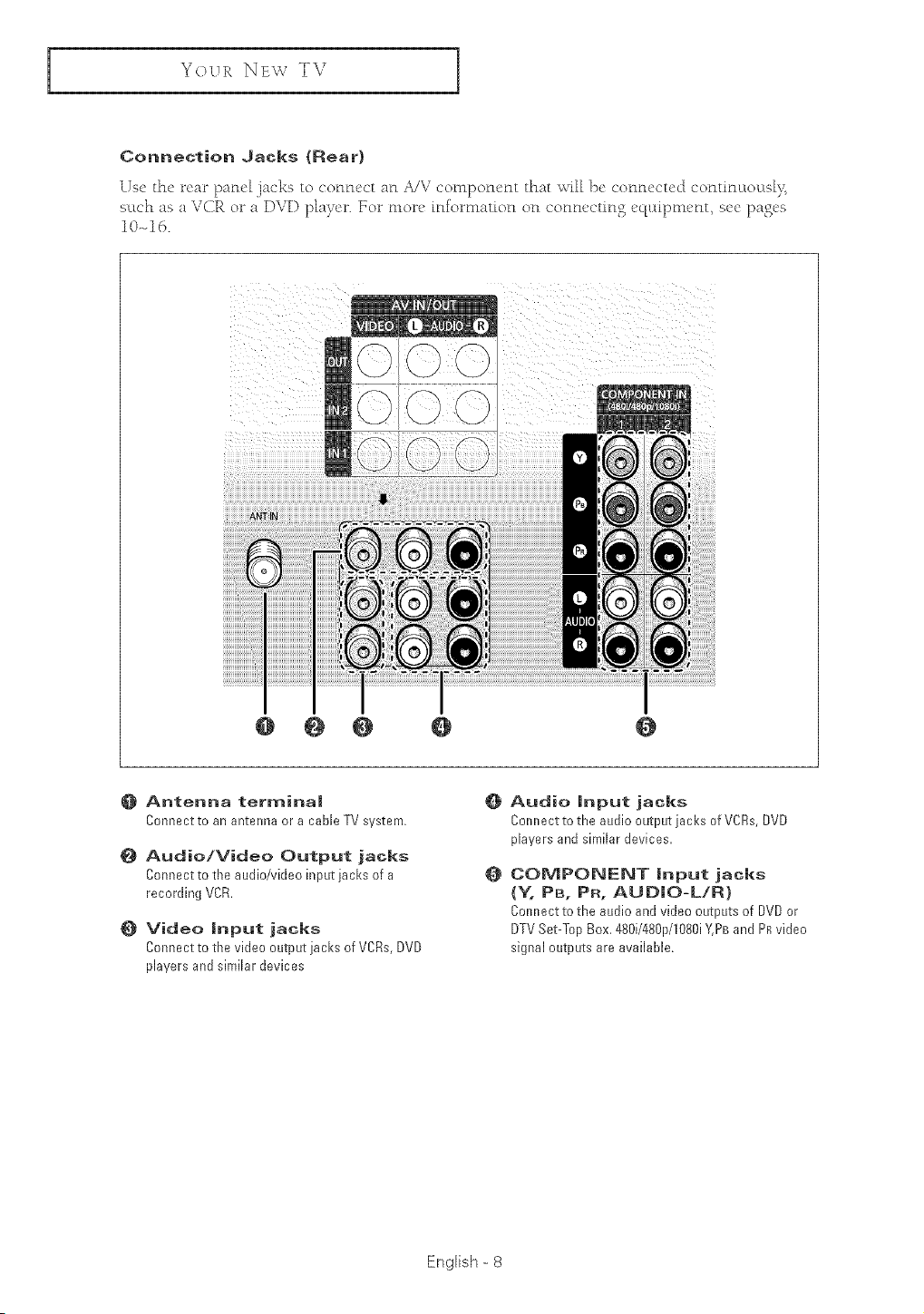
Connection Jacks (Rear}
Use the rear pane_ .jacks to cotmect at1 A/V conlponent that _,_,Tillbe connected continuLou@>_
such as a VCR or a DVD p_aTer. For tllore tntomlation on connecti% equtlxllent, see pases
10-d6.
Siii_Siiiiiiiiiiiiiiiiiiiiiiiiiiiii
@ @ O O @
Antenna terminal
Connect to an antenna or a cable TV system.
_} Audio/Video Output jacks
Connect to the audio/video input jacks of a
recording VCR.
Video input jacks
Connect to the video output jacks of VCRs,DVD
players and similar devices
O Audio input jacks
Colmect to the audio output jacks of V@s, DVD
players and similar devices.
COMPONENT input jacks
(Y, PB, PR, AUDIO-L/R}
Cmmect to the audio and video outputs of DVD or
DTV Set-Top Box, 480i/480p/1080iY,PBand PRvideo
signal outputs are available.
English = 8
YOUR NBv TV
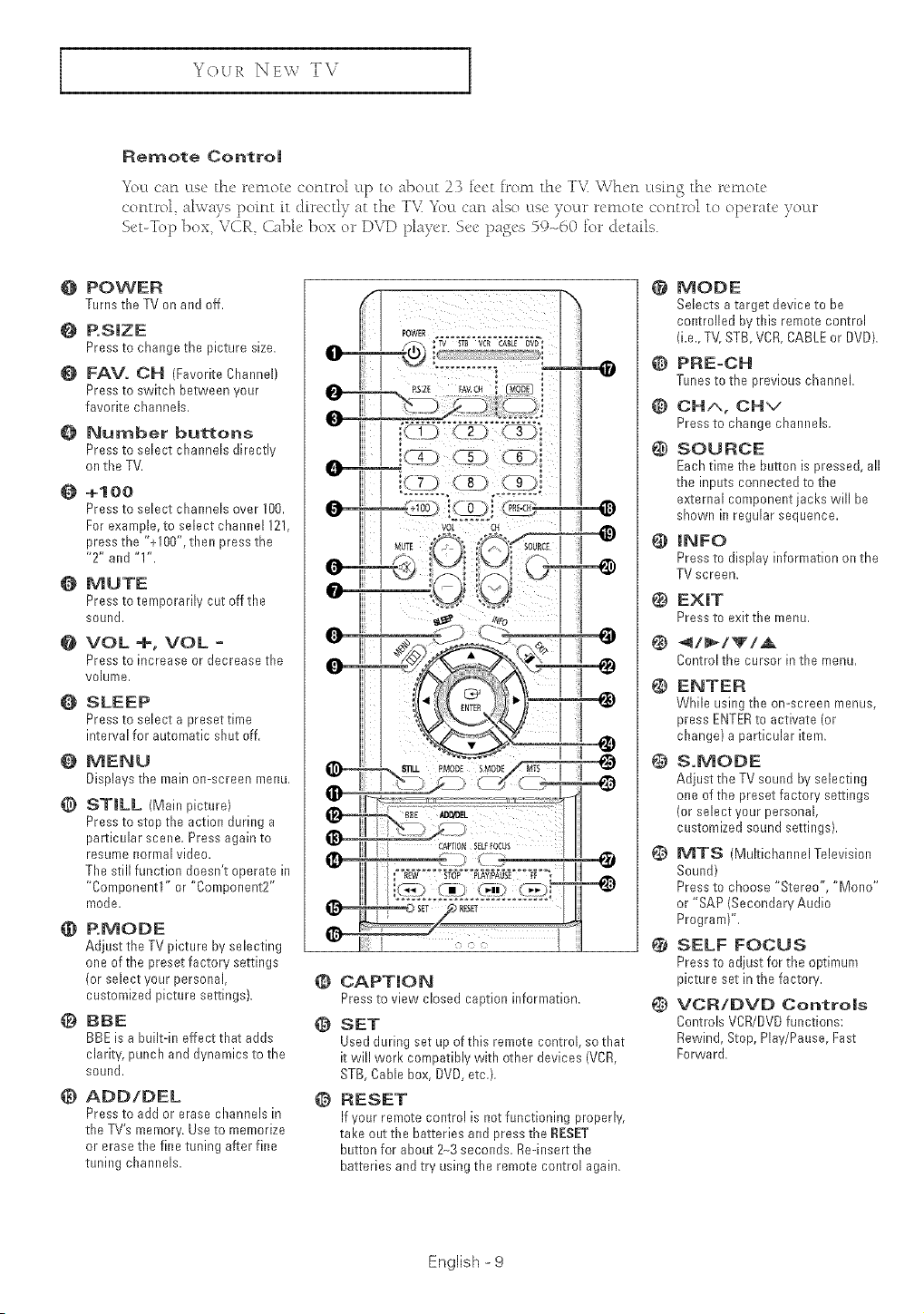
Remote Contro|
YocL ca£1 l:Lse the ra-llot£ co£ltrol ILI_ to a]}o@ 23 }d h_o_ll the T_\;'vVhe£1 v@£P,o the re_llote
co£ltr4 ahvays point it cJirectly at the "[_\i _\_vL c_£l also lLse your rer_lote control to operate yovLr
S_'t-To 1) }_ox, V(flR (ill, ]_ox or DVD li@'r. S_'_' lxg_'s 59-40 for &tails.
O POWER
TurnstheTV onandoff.
P.S|ZE
Press to change the picture size.
FAVo OH (Favorite Channel)
Press to switch between your
favorite channels.
O Number buttons
Press to select channels directly
on the TV.
+1OO
Press to select channels over 100.
For exam@e, to select channel !21,
press the "+100", then press the
"2" and 'T'.
O MUTE
Press totemporari[v cut off the
sound.
O VOL+,VOL °
Press to increase or decrease the
volume,
{) SLEEP
Press to select a preset time
interval for automatic shut off,
O MENU
Displaysthemain on-screenmenu.
@ ST|LL (Main picture}
Press to stop the action during a
particular scene. Press again to
resume normal video.
The still function doesn't operate in
"Component1" or "Component2"
mode.
_) P.MODE
Adjust the TV picture byselecting
one of the preset factory settings
(or select your persona[
customized picture settings},
@ BBE
BBE is a built-in effect that adds
clarity, punch and dynamics to the
sound.
@ ADD/DEL
Press to add or erase channels in
the TV's memory. Use to memorize
or erase the fine tuning after fine
tuning channel
@ CAPT|ON
Press to view dosed ca@on information,
@ SET
Used during set up of this remote control, so that
it will work compatibly with other devices (VCR,
STB, Cable box, DVD, etc.}.
@ RESET
If your remote control is not functioning properly,
take out the batteries and press the £ESET
button for about 24 seconds. Re-insert the
batteries and try using the remote control again.
@
MODE
Selects a target device to be
controlled by this remote control
(i.e., TV, STB, VCR,CABLE or DVD).
@ PRE-CH
Tunesto the previous channel.
@ CHA, CHV
Press to change channel
@ SOURCE
Each time the button is pressed, ail
the inputs connected to the
external componerlt iacks will be
shown in regular sequence.
|NFO
Press to display information on the
TV screen.
@ EXIT
Press to exit the menu,
Controithe cursor in the menu,
ENTER
While using the on-screen menus,
press ENTERto activate (or
change) a particular item.
@
@
@
@
S.MODE
Adjust the TV sound b,¢selecting
one of the preset factory settings
(or select your personal,
customized sound settings).
MTS (Multichannel Television
Sound)
Press to choose "Stereo", "Mono"
or "SAP (Secondary Audio
Program)",
SELF FOCUS
Press to adjust for the optimum
picture set in the factory.
VCR/DVD Contro|s
Controls VCR/DVDfunctions:
Rewind, Stop, Hay/Pause, Fast
Fro'ward.
EngBh - 9
INSTALLATION
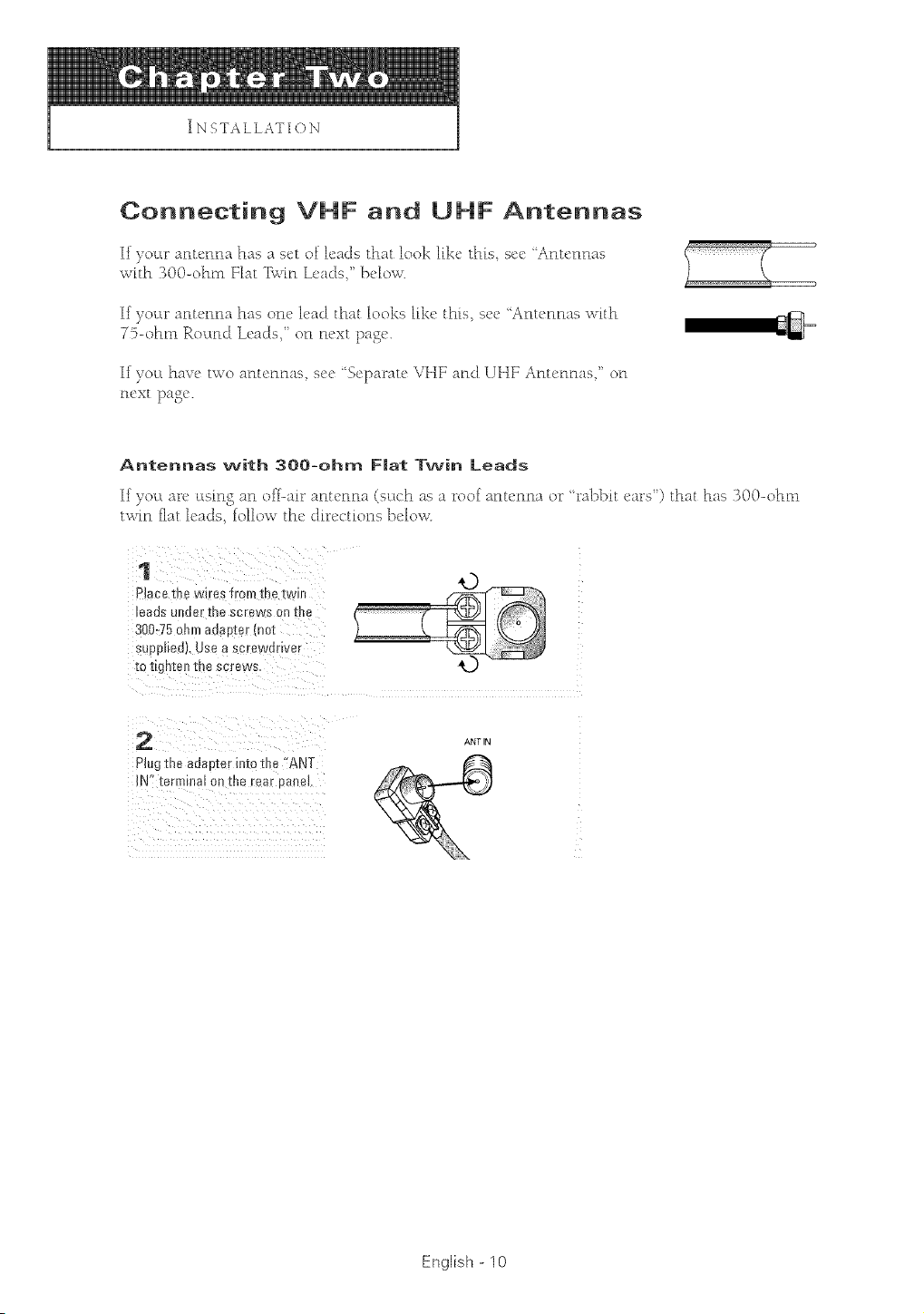
Connecting VHF and UHF Antennas
If )ocw antenna has a set of leads that look [[kc this scc 'Antennas
with "BOO-ohm Y[at Twin L_'adsi ]'x'[ow.
If your antenna has one [e;_c] that looks like this, see 'Antennas with
7%ohnl RocLnd Leads,' on next l)agc_.
If you have two antennas see 'Separate VHY and UHY Antennas' on
next page.
Antennas with 300-ohm F|at Tw(n Leads
If )ou arc using an off-air antenna (such as a l"oof antenna or "rabbit ears _) that has "_O0-ohtn
twin fiat leads, follow the di_'ections below
1
Placethe wires from me [w,
eaos uRae_ the screws oll Iflb
300_75 ohm aaaDi6 r mo[
SUOO_ledL use a Scl'ewof ve_
TO [l_a[e]_ [rre sc[ews
2
PJugtne adapzer m_c The ANT
IN" term[rmlon[ne rear 3anew.
ANT IN
English - I0
INSTALLATION
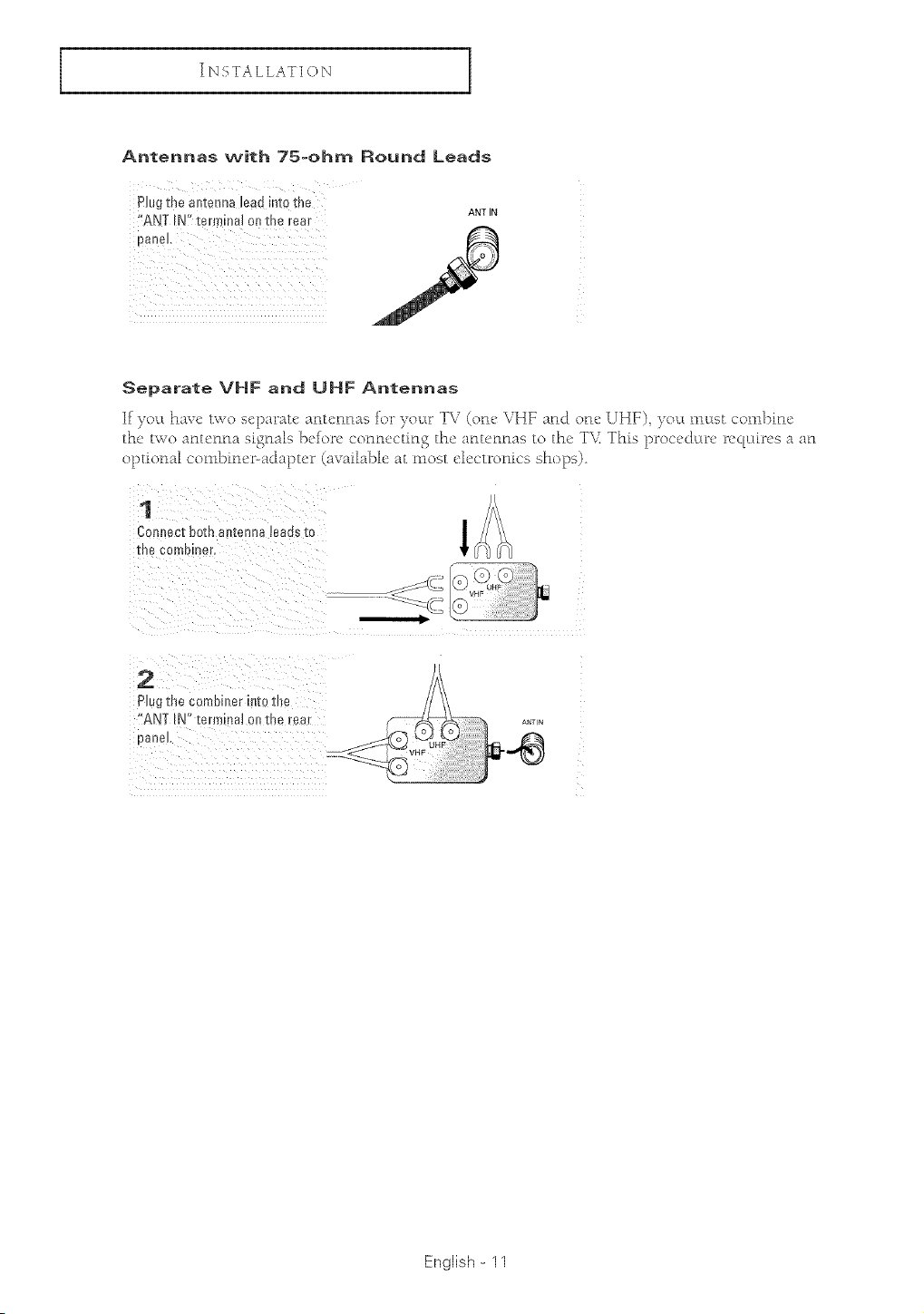
Antennas with 75oohm Round Leads
Plugthe antennadeadintothe ANTIN
:'ANTIN:'terminalot_therear
panel,
Separate VHF and UHF Antennas
If you have ts_o separate antenFu_s for }our TV (one VHF and otle UHF) you must combine
the two antenna signals before connecting the antennas to the T\( This procedure reqt:m_es a art
optional combiner-adapter (aw_fflable at most eh:ctronics shops)
1
Cornlecl: oo[n all[en le teegs [o
[ne con Uil/er.
2
Plug °[ne comDllser I!]][o tile
ANT IN" termi ]el on [ne tear
Panel.
English - 11
INSTALLAT[QN
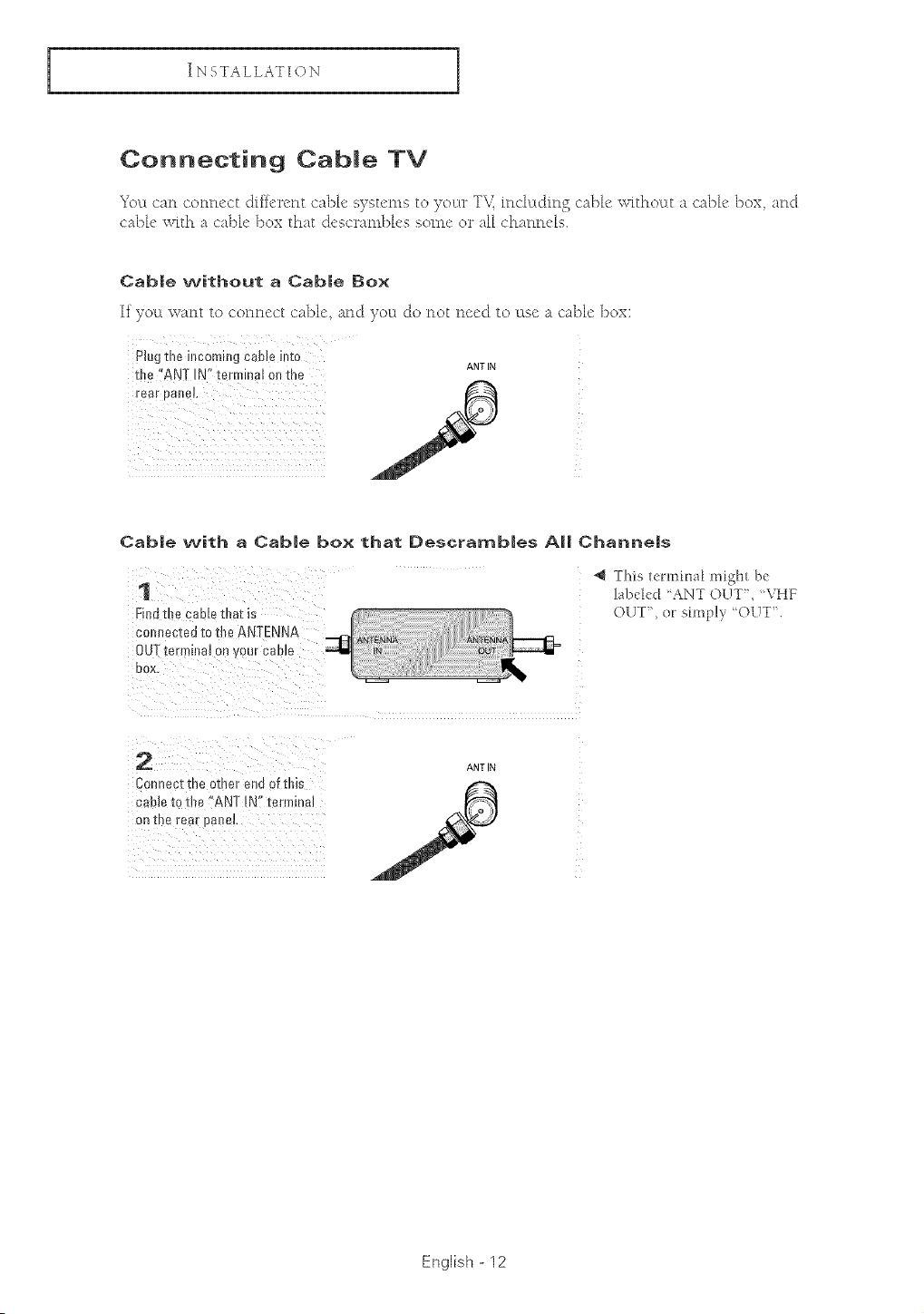
Connecting CabJe TV
7
_c LLcan connect d[ficn'nt cable s}stcms to } oL:tr T\_ in<'h:tdingcable \v[thoLtt a cable box and
cable with a cable box that descrambLes some or aH char__r_Ms.
CabJe without a CabJe Box
If }out want to connect cable, and youl do not need to use a cable box:
plug the incoming cable into
ANT IN
the "ANT IN" terminaJ 0n the
Cab|e with a CabJe box that OescrambJes AJ| ChanneJs
1
Findtl e caole, mar _s
This lermina_ might be
labded ANT OUT", _VHF
OUT', or: shnp!,_ 'OUT'L
DOX.
2
Connect the omer enu of this
sable _othe ANT IN" terminal
OF] II3e t@aF OSRet,
ANT IN
English - 12
INSTALLATI()N
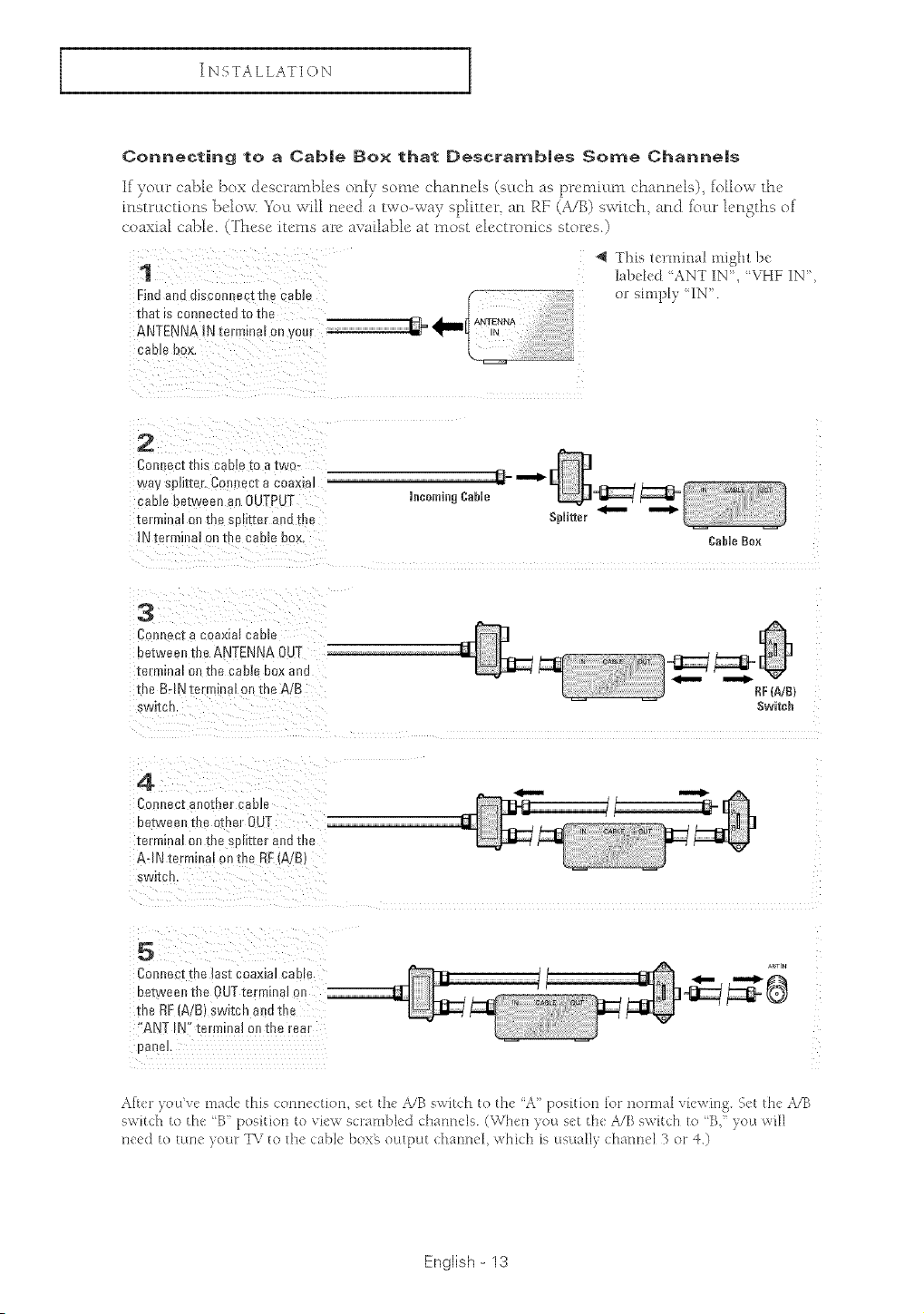
Connecting to a Cab|e Box that Descrarnb|es Some Channe|s
If your cable box descrambles only some channels (such as prenmun channels)_ toHow the
msmLctions below. _u will need a two-way splitter an EF (A/B) switch, and four lengths ot
coaxk_l cable. (These items are avaflal'4e at most dectronics stores.)
1
FindanddisconnectmecuDJe (
[i]al IS connecle[J I0 [he
NTENNA
ANTENNA IN terminal on ,our rll=
C_Dle OOX.
4 This lemfinal might be
tabe_ed ANT IN", 'VHF IN"
orstmpty_IN .
2
ColltecI Intocad e lEOal_WO-
waysplitter.Connecta COaXtdl
caD_eoe[weenanOUTF'JT
[ermlnal oll IRe SDht[e!" a_d the
iNterminalont _ecameoox
brooming CaMe
Splitter
3
Conrlec a coaxial cable
between th _ ANTENNA 0L '_
[e_mllla o]_ ire cable DOX arlo
the B-INter_malonme#'B
switc
OaNe Box
m
RF (A/B}
Switch
4
CoJ £ect aRotrie_ cable
between the other OUT
[errrllnal on 1EneSOlllIe_ a_]o [£_
A-INtermina on the RFA/B}
SWIICFL
5
CoJ nect the last coaxiaJ cable
uel _!een the OUT t_ _mma_ o
m_.RFIA/B' switchandthe
'*ANT N"terminalon the rea_
Da ]e_.
Aft<t you've made this conne<tk>tt, s<t tit<:A/B sv,,itc]_to the A" position [or t_ormal viewh'_g. Set the A/B
switd'l to the B" posMott to xiev,, scr_ Inbled channels. (When _ou set tit<>?JB switch to Bi' i?ou will
H('('d 10 [t[[](> }'(bUll TN z 10 lit(> <:able boxg output d_aHnel, whkh is usually (:ha[ltl¢l 3 o z} )
English - 13
INSTALLATION
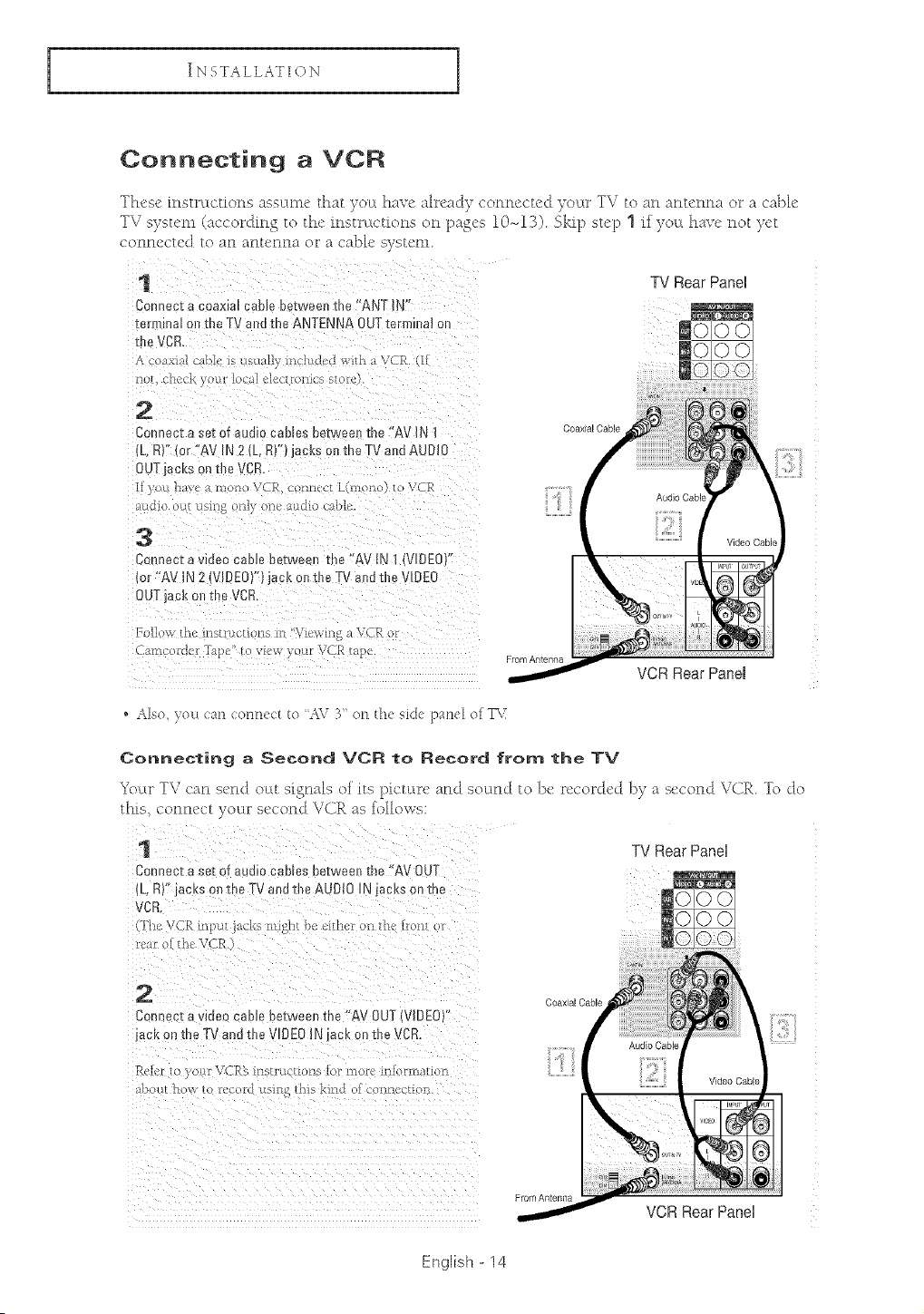
Connecting a VCR
These instructions assume that )ot:[ hase aDeacJ) connected rover, TV to an antenna or a cable
TV system (according to the instructions on pages 10-_13) Skip step 1 ff you have not yet
conncctec] to an antenna o__a cable system
Rear aoe,
Connect a coaxial cable between the :'ANT IN'f
terminal ot1the TV and the ANTENNA OUTtermina! on
the VCR.
A o07_xi_lc#t_lciS us_t_!ly inc!_dcj with a vcf_ (If
Connect a sat of audio cables betwee!_the 'AV IN I
(L, R)?{or/IAV IN 2 (L,R!") jaCkS0_ the TV al_dAUOI0
OUTjacks on the VCFL
[
Video Cable
OoDnect a vide° ca])Je betweell the ffAV 'N 1 (V'OEO)'( __ _ ,],u, _J_J
OUTjacl<olltha VCR,
I ;ii,o
. Also you <::_t_conn<ct to AV 3" on Ih< side paHe{ ol T_,_
Connecting a Second VCR to Record from the TV
Yo_u _TV _'an s_'nd o_Lt signals of its l>ict_wc and sound to }_e _ec<.u_ded by a second \r(iE, fo do
this, connect yo_u _second VCR as follows:
1 TV Rear Panel
Connec_a seeof audk -_r_es i_e_wee_the "AV OUT
(L, RY _cKson_ !e TV and _neAdOtO iN jack,s on me
VCR
luar oJ_hc VC_.
2
Connec_a waa_ cao_e_e_wee_me "AV OUTIVIDEO
Jack_nthe TV and the VIDEO iN aoKon theVCR.
P.chl ) }'ou; \;CEO's ir_stiuct;ons lot reel ' lflio[[_]a[[o_
Coaxial Cable
FromAntenna
VCR Rear Panel
English - 14
INSTALLATION
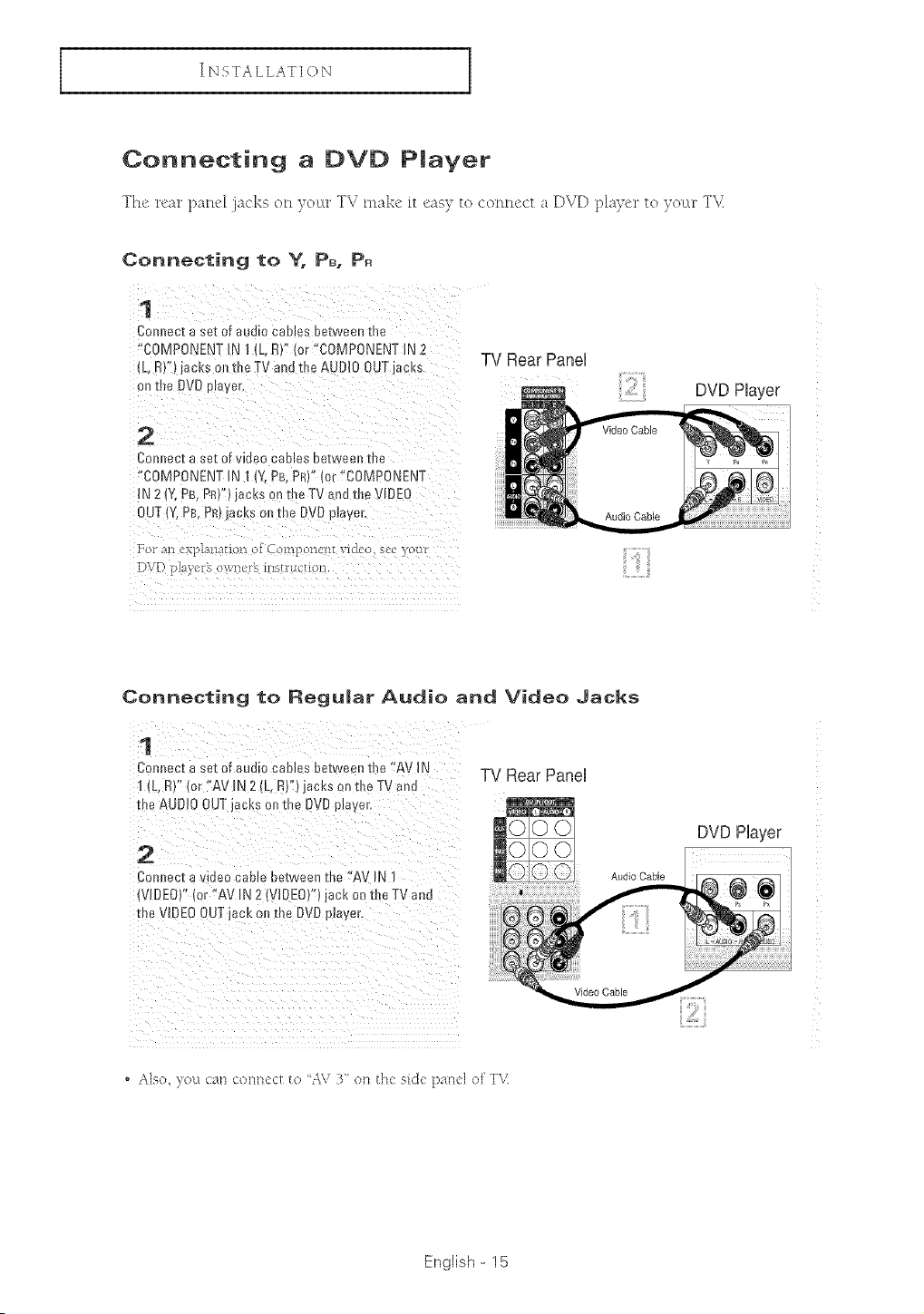
Connecting a DVD Pmayer
The n'ar paFu4 jacks o_l }o_u_TV make it eas} u_ connect a DVD player u_ yo_u _T\L
Connecting to Y. P_. P.
Comlect a Set of audio Cables between the
'!COMPONENTIN 1 (L,R)'! (or ,COMPONENT IN 2
(L,R),!)jacks0nd_eTVandt!_eAUDIO0UIiacks TV Rear Panel
DVD Player
Comsecta set of video canes between the
"COMPONENT iN 1 (Y,PB,PR)"(or !'COMPONENT
IN 21Y,pB, PRY')iacks on t!_e TV and tbe VIDEO
For an e piaz>_ten of ComponaQL yidco see }o_-Ir
D\D p!%e_ o_ net% t>s!_uqfiol!.
Connecting to Regu|ar Audio and Video Jacks
1
Cotmecza se[ of audio caNE s #e[ween the "AV IN
1 {b. RY"Ior "AV IN 2 {L.R)")jacks on the TV and
me AUDIO OUT JACKSo_]me DVOplayer.
TV Rear Panel
2
Cornec[ a v dee cable between the 'AV _\
V@EO}" or "AV IN 2 IVlDEOy')jack on tbe TV and
trm vIDEO OUTjack on the DVO prayer,
. Also, )ou cau coHnect to AV 3" on the sick FHN ol TV
English - 15
INSTALLATION
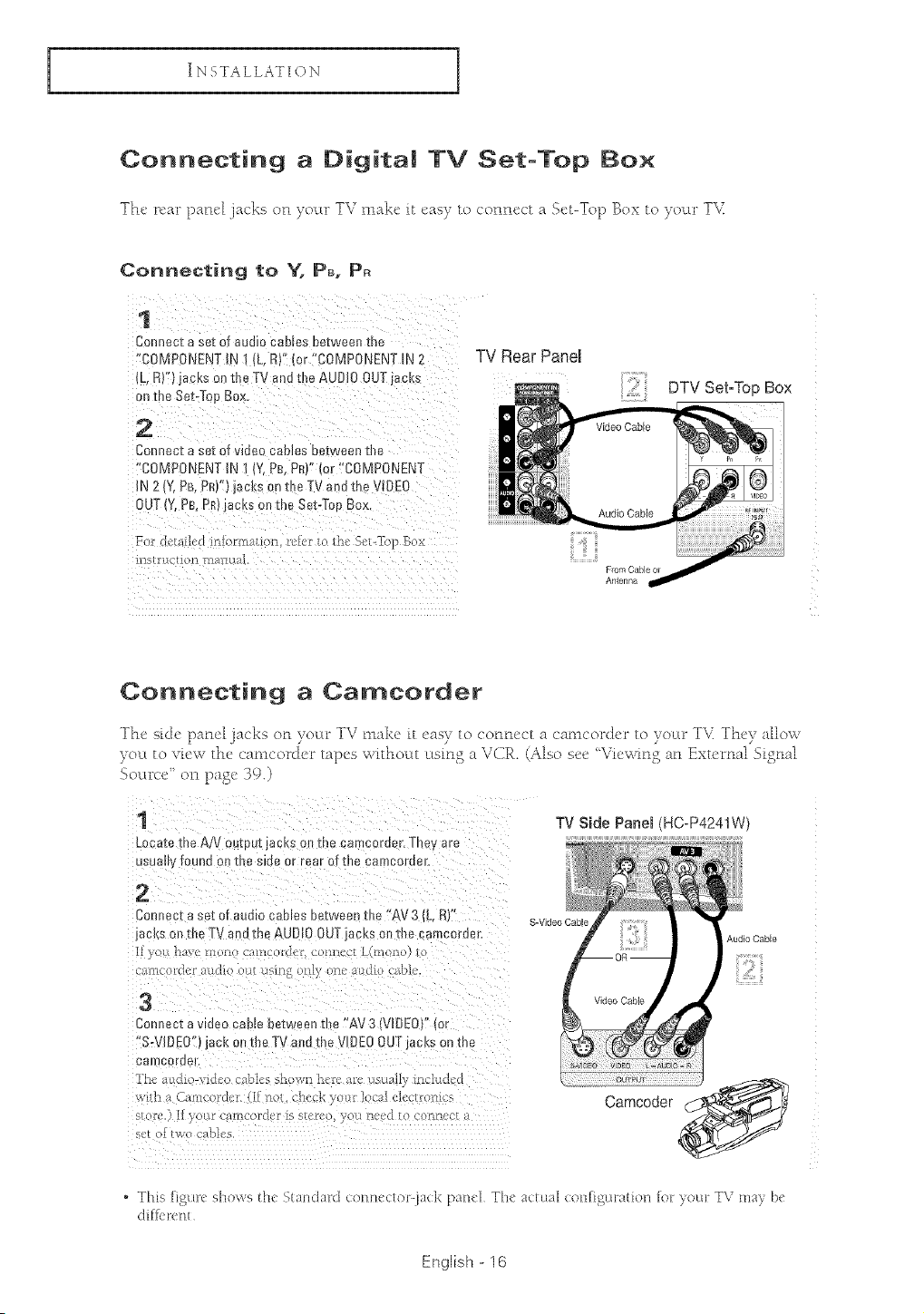
Connecting a Digita| TV Set-Top Box
The' n'ar patu4 ja_'k'_ or1 your TV nmk_" it easy to c'onne('t a Set-Top Box u_ yo_u _T\I
Connecting to Y. P_. P_
Connecta sat of audiocablesbetweenthe
f'COMPONENTIN ]/L, R):'(or "COMPONENTIN 2 TV Rear Panel
DTV Set-Top Box
Connect a set of videa Cables between the
"COMPONENT iN ] (Y,PB, P_)" lot 'COMPONENT
IN 2 {Y, PB,PR)':}jacks on the IV and the VIDEO
OUT(Y_PB, PR)jacks 0a the Set-Top Box
i['lSt FEtC[IO11 [!l_ll'lL/klL
FromCable or
Antenna
Connecting a Camcorder
The sk:]e pand jacks on youw TV nmke it eas} to connect a camcorc]er u_ }cow TY They aHo_
}col to view the camcorJer tapes _\ithow u_smg a VCE. (Able see %,'tawing an Emerald Signed
Souu_ce ' on page 39.)
1
LCca[e the A/_ ou[pu[ jacks on me cam ;order, They a
Jsua found on t]]_ S_O6 or re_r 01[ [ne eamoor(]a[,
2
Connac_a set of audio caoles De[wean the ' AV 3 IL, RY'
acks on the TV a _dthe AUDI[ OUTjacl_s on me ca lcoroer,
[_ VOU hsvc c_til / oi'(]ci" OllilCC[ L([lJOYio) 1
3
Conrm.cta video came oe[ween me 'AV 3 (VIDEO)" (or
"S-VIDEO"} jack on the Tv _no me V DE0 OUT ac_.son me
camel r E]el,
The aHdzo-v_do//cr_b_cs s[lovq [lc_'c ,_'l' usua]l _lud_'d
W_ alllCOldCi([__lotcheck}.iL[tlocalu[cc[_-o_l_c<
_[Ol'( ) [_ }OL/Z UO[llCOZF_UZ iS StC[P{_ 7OE_ llCd I { O)llZldC[ _1
TV Side Panel (HC-P4241W)
S-Video Cable
Audio Cable
Camcoder
, This [igure shows th( Stwl¢lrlFd c:onne(:tOFjuc:k panel The actual CoH[iguration lol: )our TV mrl_ he
cti1l_ren I
English - 16
INSTALLATION
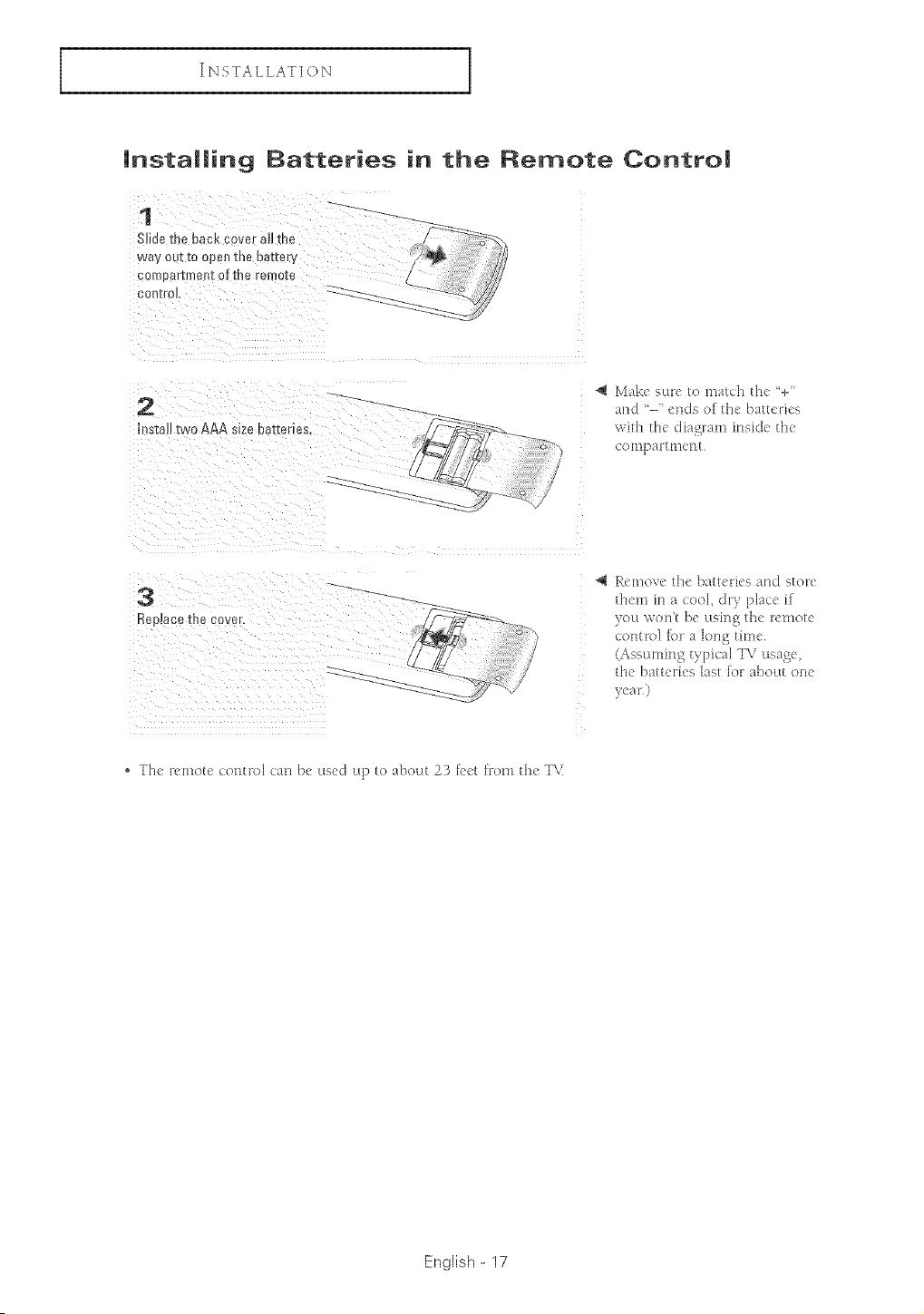
installing Batteries in the Remote Contro|
1
SiNeme oacl_,cover a_Jme
Way OUZI0 opell 1Re oa[[eP
cooEear[reen[ o[ [he _emo[e
eonIgoJ
2
Insta]!two AAA sizebat[enes.
@ Make sure to match th( '+"
and -"(Hds o[the baUeri(s
with flee diagram inside tb<
cotEEpattmerlt
Replacethe cover.
@ Remove the batteries and storE:
fl]em ire a cool, Ell*}plac< it
you wotft be usittg the t<EEEotE:
contt>l [or a long time
(Assuming typical TV usage
the batteries last for about one
. Th( remote control call be used up to about 23 feet from tlt( T\_
English - 17
OPERATION
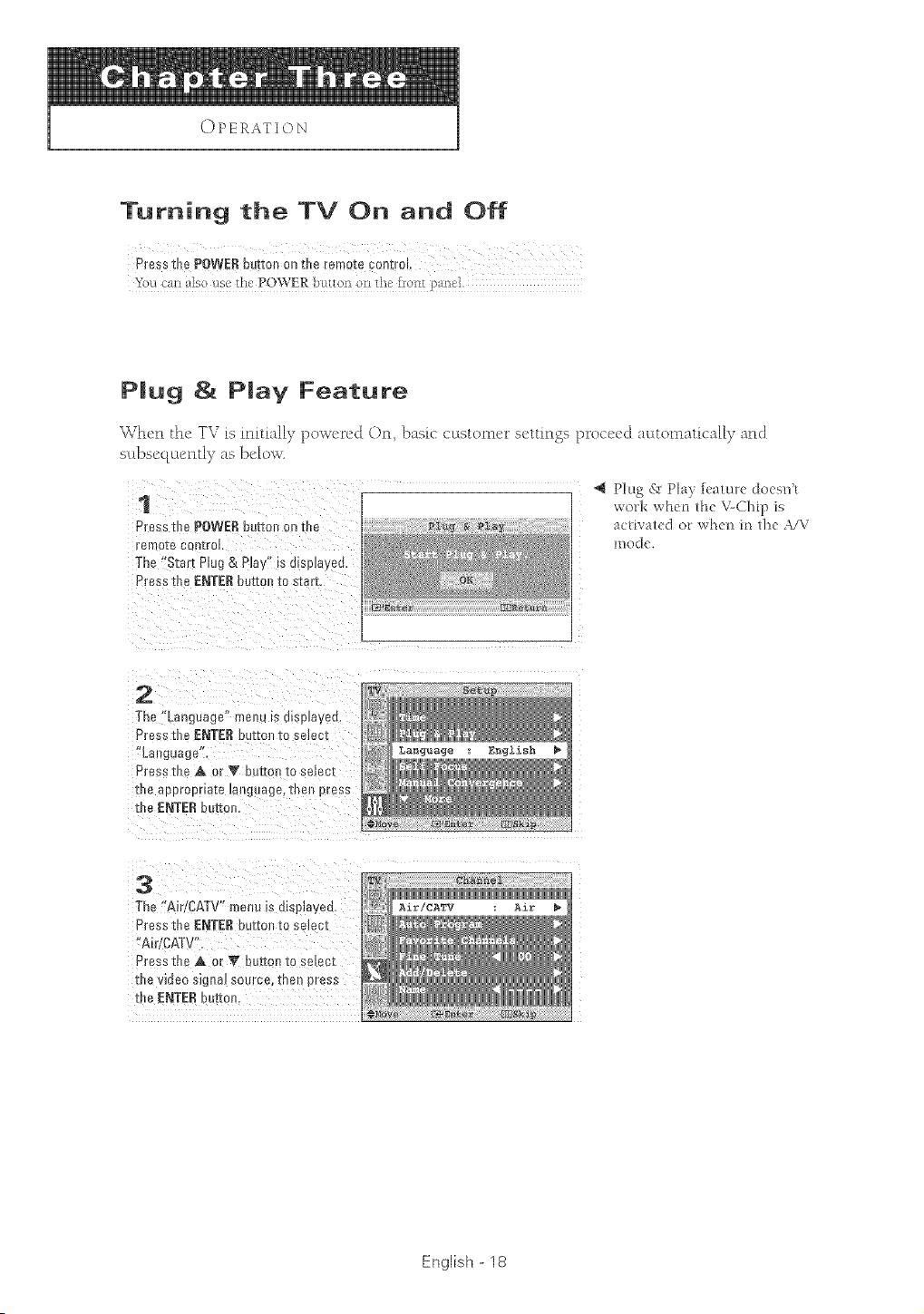
Turning the TV On and Off
Press the POWERbutton on the [smote controL
kou _an also use the' POWER bcttton on th< fror_t panel.
PJug & PJay Feature
When the TV is initially powered On, basic customer settings proceed mtto[lmticaH)_ and
scd)sequlentl) _ as belov,
1
Press the POWERDuz[onon [ne
ren o[e control
The "Start Plug & Play" _sd_splayec
Press the ENTERbutter _o sear[,
r_Ente_
Plug _" Play feature doesn't
work when the \cChip is
acti_ ated or whe/_ in the A/V
mode.
2
The Language" me_u [s d[spJayed.
Press the ENTERout[on xe ._mec[
Lat guag6"
Press Ell6 _ or "IV bu_oll Io selecl
the 8aoroorla][e la! [[u_e, [ee_] press
the ENTERour[on,
?
!_ Language : _nglish _
3
The "Air CATV" menu s o_sptayea
Press the ENTER button to seJecI
A r/CA-[ ""
Press tie A or V button _oselec_
the video sJgna_source, men press
the ENTER ourcon,
CATV Air
English - 18
OPERATION
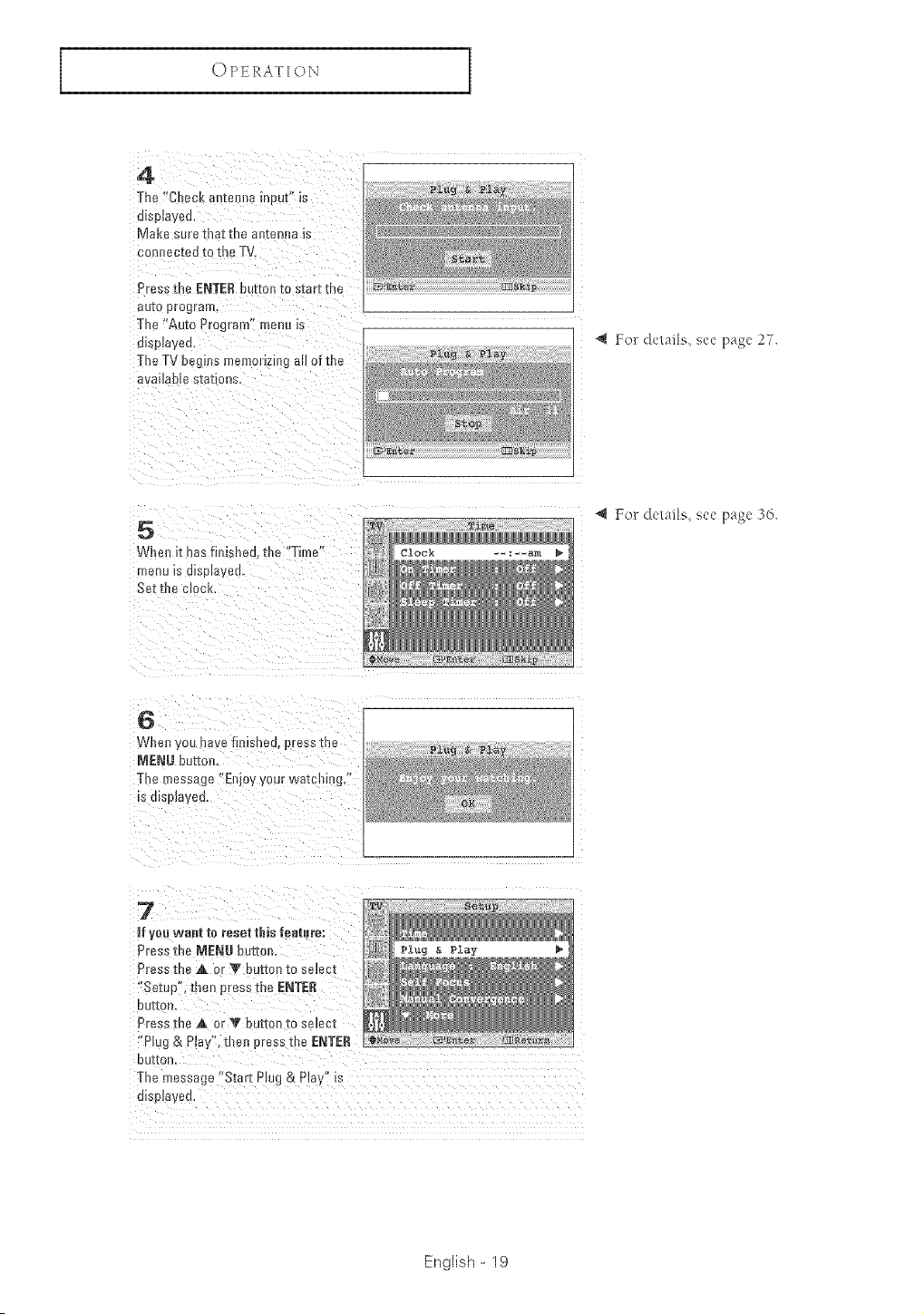
4
The "C/ecK anl _[Ina nu It" is
msp_ayeu,
Ma {e sur_. ma[ tne antenna _s
CO 1Dec[eo i[o the TV
Pree ; [ne ENTERbutton to star[ me
au[o prograu
The "Auto Program" menu is
e_spta f_o,
The TV begins memo[iz__gaHor me
ava _b B elations,
Plug & Play
# Ntar£
Plug & Play
S_Op
E_E_ez _k1_
For de/afle, see page 27.
5
Whe[I [t hasfinisheu, the "Thne"
menu _s dl ;plat!eu,
Settbe mocK,
Clock
@ For de/arts, see page 236.
6
Whe_ Vou nave finished, press[he
NENU butter
The message "Et joy your wa[cbing,"
,o ulap]ayeu
English - 19
OPERATION
Viewing the Menus and On-Screen Displays
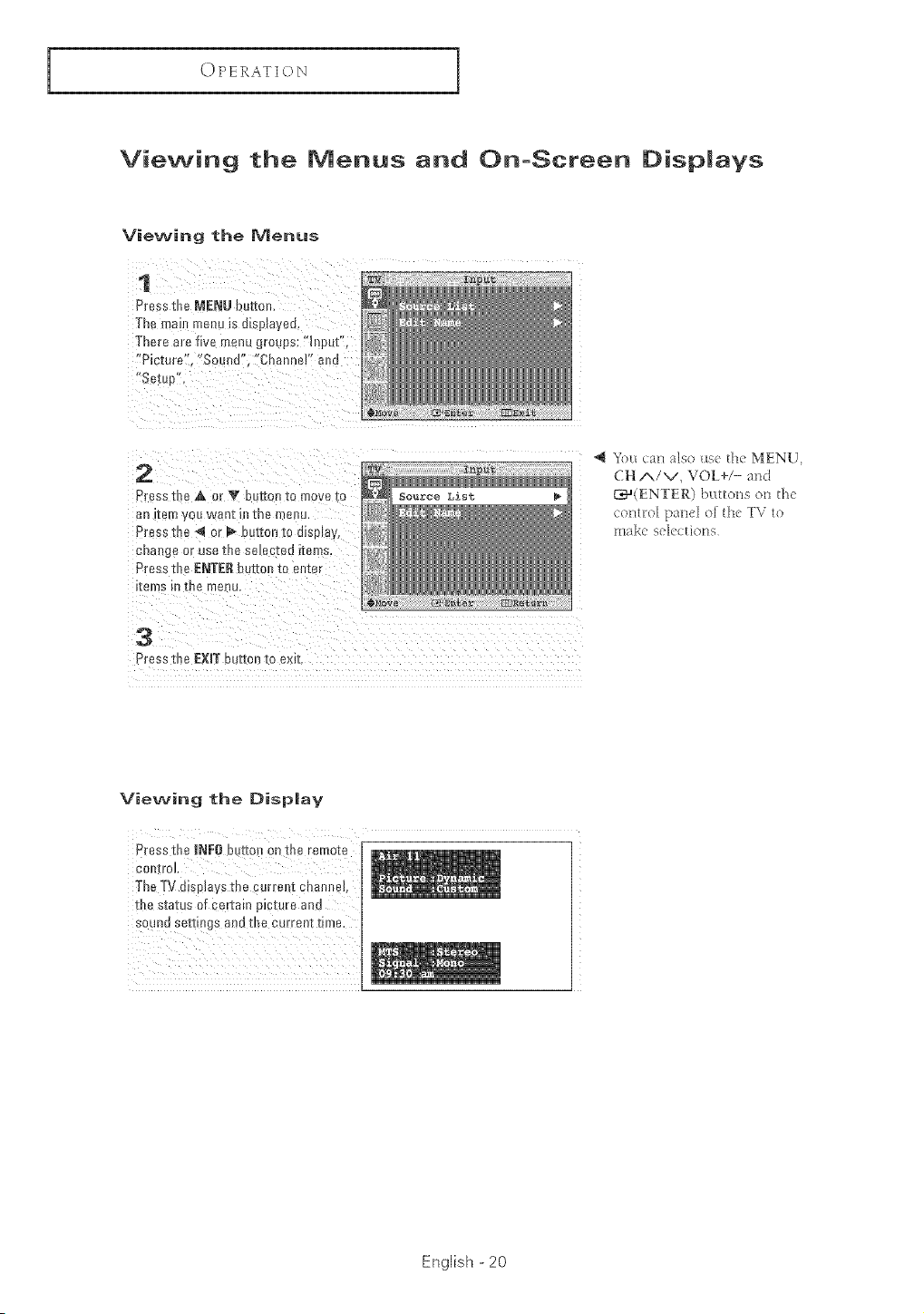
Viewing the Menus
1
Press the MENU burton,
The ma menu is dispmyeq
There are five menu groups: "input",
"Picture", "Sound' Channel" and
"S_ :u )
2
Press the ,_ or V button to m )re to
_u fferr Jou want m me menu.
Press the 4 or _" burton to dBma
uuo, ge or use the selected items.
Press th_ ENTERburton m enter
reins t [_le menu,
4{ You can also use the MENU,
CH A/V, VOL+/- attd
_='a(ENTER) buttons on tit<
control panel of the TV to
make sele( tio_ls
3
Press the EXIT button to exit
Viewing the Display
pressth# [NF0 button onthe Ferrl0!e
eo_)troL
The TV di@lays the gurrerlt chaund<
the status of certain picture and
sound settings and t]_e eurrentfime.
English - 20
OPERATION
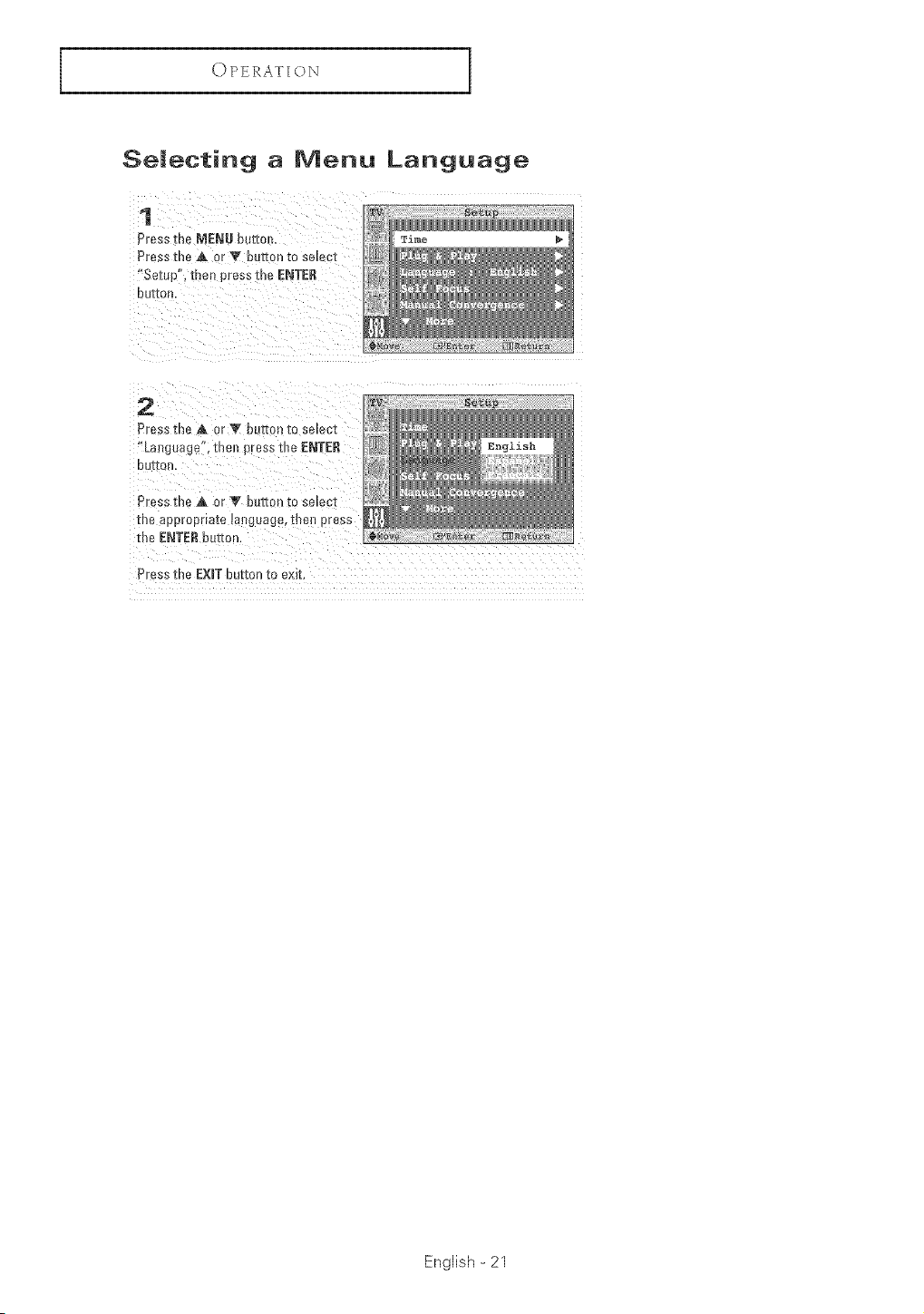
Seiectin 9 a Menu Language
1
Press the MENU butto
Press [ne A or Y ou_on [o se_ec[
"Setup", then press me ENTER
DUEOR
2
Press me A or Y button to se_ec[
"Language", t )en press the ENTER
OUI[O_)
Press [ne & or V button to se[ecz
[Re eDDroDrle[e t_ _£}ua(je I q[!_el_ Dress
[ne ENTERour[on.
Press the EXmTbutton to exit.
English - 21
OPERATION
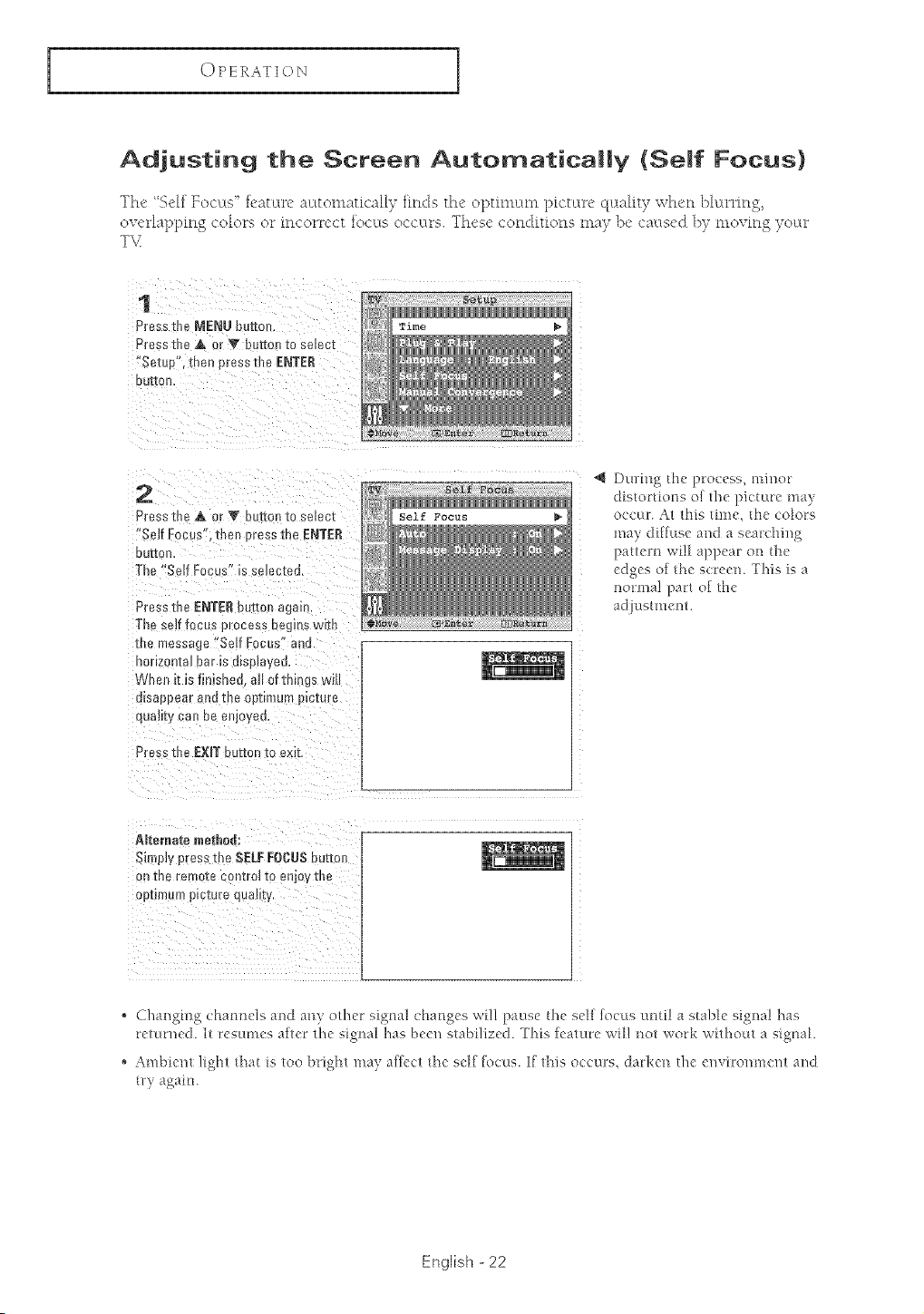
Adjusting the Screen Automatica||y {Se|f Focus}
The '5df Yoct:Ls'_fl'at_(re aLttonmtically finds the optinnlnl pictt:(re qLtality when bkLrring,
overlappin S colors or incorrect foc[[s occm's. These conditions may }x" caused ])) mov[n S yoctr
T\<
1
Press the MENU button.
Press the _& or V button to select
Setuo . _r en press the ENTER
DU[IOrL
Time
2
Pressme A orV buttonto selem
"Self Focus". then Dress the ENTER
OUI[OR,
The "Self Focus" is ._e_ec[eo.
Pressthe £NTE£ bur[o again
The self focus process Begins wlfll
me message 'Self Focus ana
lorlzonm_ oar m mspmye&
When [tis nmsned, all of things wE
olsaeeear aria me opzmmmolcfure
quanL can De e]lJoyed.
Press the EXmTbutton to exit
Self Focus
During the process, minor
distortions of the picture may
occm. At this time, the coLors
may diffuse and a searchh_g
pattern wi!l appear on t!le
edges of fl_e screen. This is a
norma!] part of t[_e
adjustment.
ABteruate metho&
Simply 3tess the SELF FOCUS butto_
]n me remo_e c _ _[ro_ [o en/oy m_
oetimum pmmre quauw
" Changing chaatleis and any o/her sigmd chaages will pause t!_e self focus umi! a stone signal has
remn_ed. It resumes after ll_e signa! has been stabilized. Thb feature will nol work wilhom a signal
'_ Ambient ligh/ _hat is too brigh/ inay affec/ _he sdf focus. If fl_is occurs, daH<en tile ell_irolmxem and
_r) again.
English - 22
OPERATION
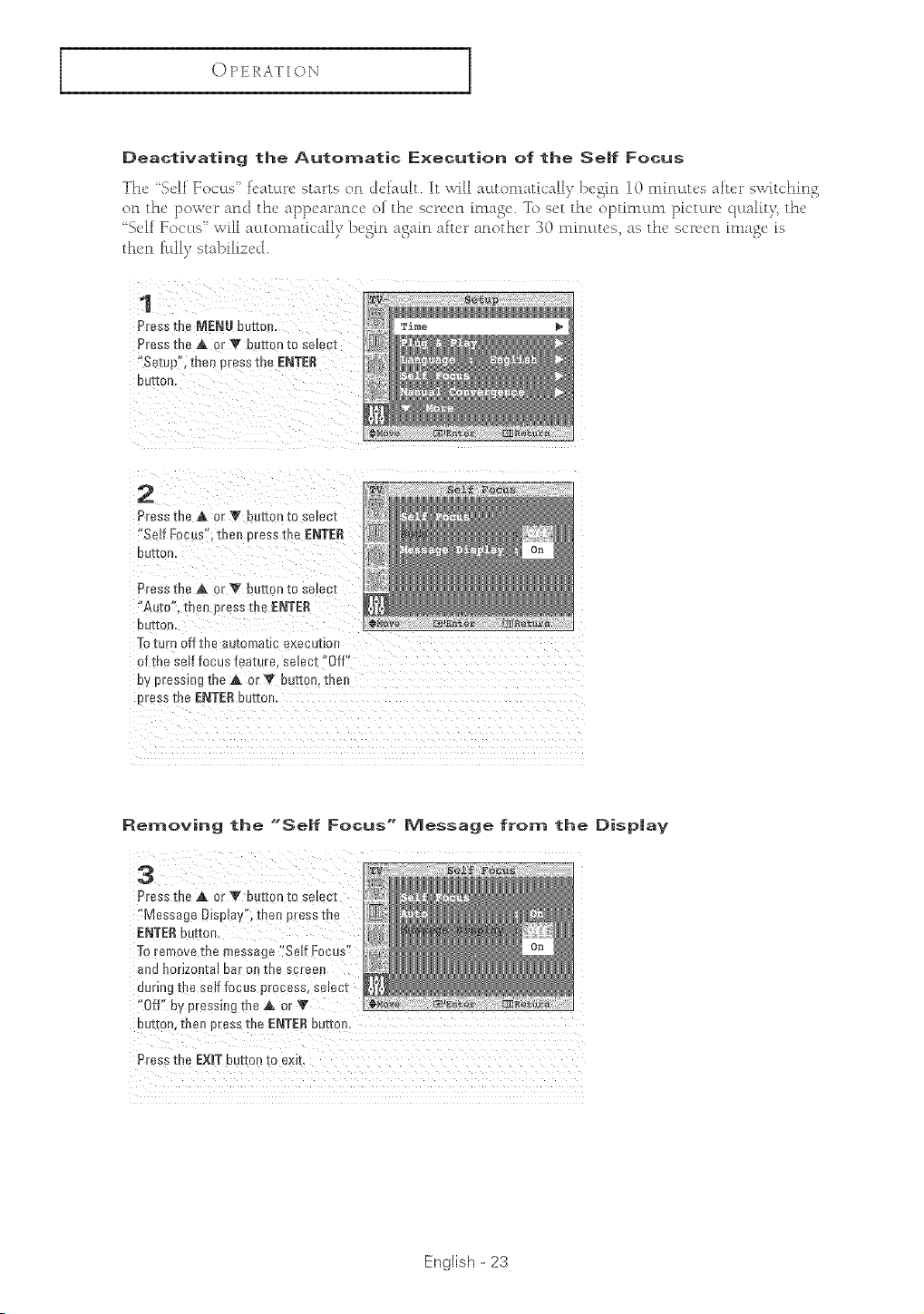
Deactivating the Automatic Execution of the SeJf Focus
The 'Self FocELs' f{'at_Lre starts on defadt. It ;all al:Lto_lmtically }resin 10 _llfnl:Lt{'safter s,4tchin S
on the' po_e,'_'ran<J the' appearance of the' screen i_llagc To set the' opti_ll_L_ll pi('tL:u_eql:Lalit)_ the
"Self FocL:Ls'__e.'illauLto_-llatically l)egin again after another 30 minLltes, as the sc're_'n mlasc, is
then fdl) _stabilized.
1
Press the MENU butte
Press the _k c r Y butte ) [o se_ecz
"Setup", then press the ENTER
DU'E[ON
2
Press tne A or V bzon [o se_ec[
"Self Focus H_euoress tl_e ENTER
DU'E[ON
Press-_neA or Y button [o select:
"A_[o . _ne_ _)reesthe ENTER
DUE'iOn
Toturn off the automa[_c execu[Ioe
orr/e ;dr focus rea[ure, seJec[ 'Off'
Bypressing the A or V ouzion tJ_e_
oress the ENTERouz[ol
Removing the "Se|f Focus" Message from the DispJay
'!Message DispJay';th_
ENTER button,
To remove the message ,/sdf [ocus,t
and hodzotltal bar onthe screeJs
during the Self focus process, Select
'!0ff" by pressiJ_gthe _ or_
button, the!-I p_essthe ENTERbuttott
English - 23
OPERATION
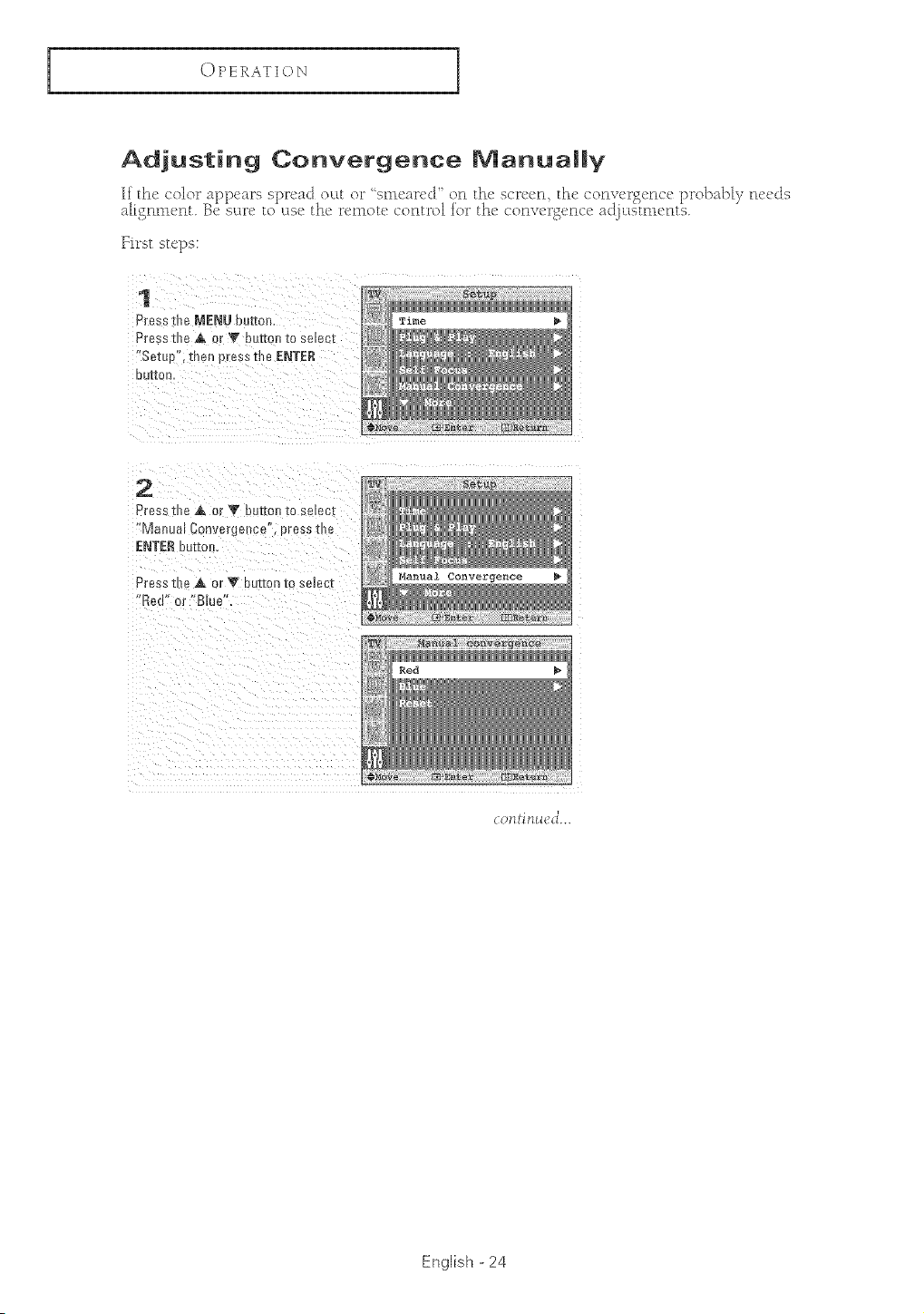
Adjusting Convergence Manually
If the color al)Dcars sm'ead Dirt or 'smcar{'cF on the scl_een the conwu_£encc I)i_o])al'Jvneeds
• • • _ < • J
alignment. Bc sul*e to us(:_ the l"emot{: contl"ol fol" the <:onvel*_cnce ad. ustr_lcnts.
Yi_*st stops:
1
Press the I_IENUbutto_
Press the A or _" button to selecl
"Setup", then press the ENTER
DUI[OR
2
Press the A or V button to se[ec
'*Manual C3nvergence'. Dress the
ENTERbuttor
Press the A or Y button to sele :[
"Red" or *'glue"
C011ti/1_,l(:_t'...
English - 24
OPERATION
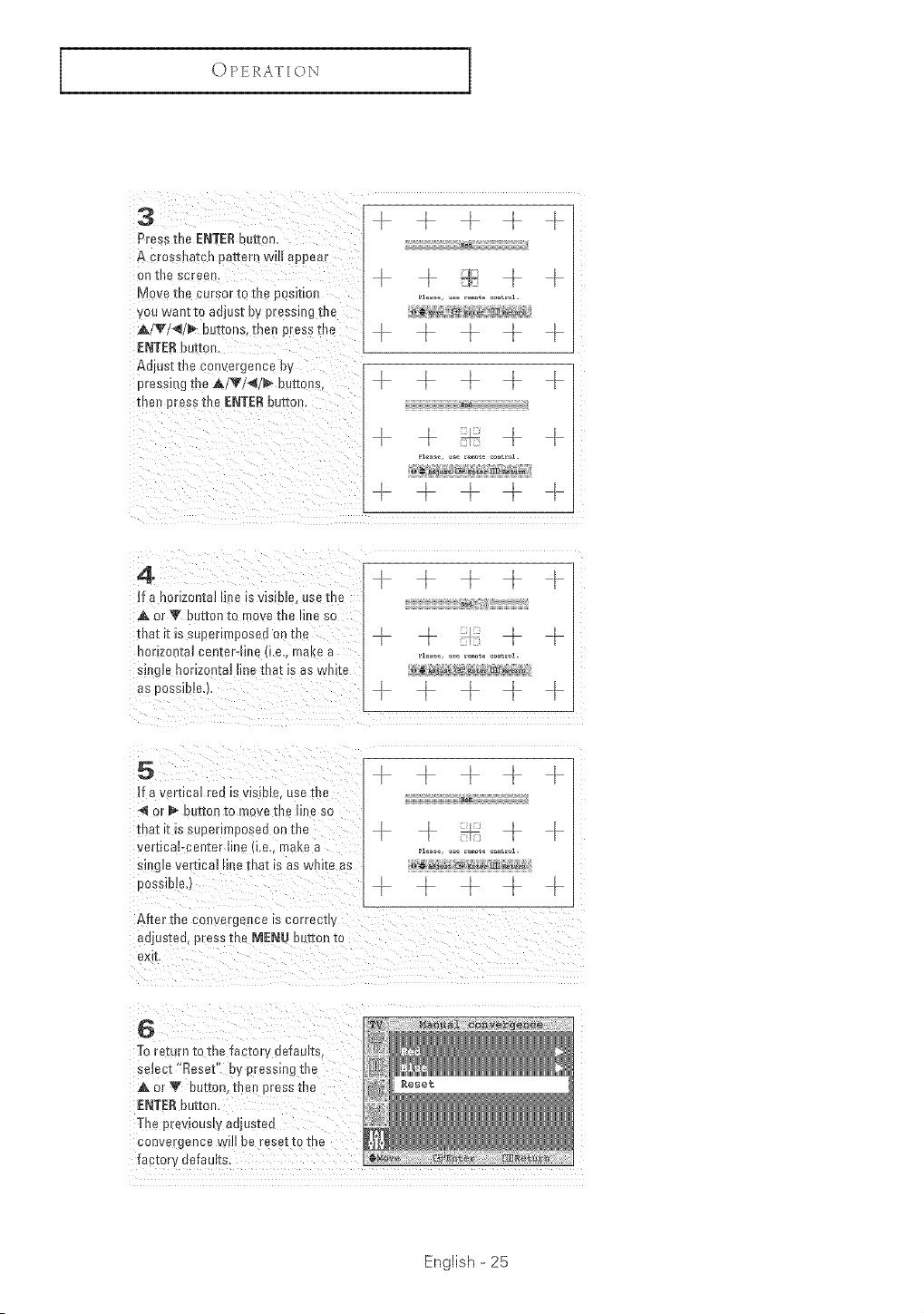
Presstbe ENTER button.
A cross!latch pattern will appear
on _ _JF
Move the cursor te the positron _1...................... ,.
':/0u we nt to adjust bY9[e ssing t he
A/V/_/_ buttons, then press the _ _
ENTERbutto_.
Adiust the c0n_ergence by
pressing the A/T/</_ buttons, _ _ _
the!_ Press the ENTE£ buttol_.
4
Ir a no[IzonieJ '_ille [s visible, ose me
A or V hoE[onto m }ve the hne sc
[nee It _s su_ enmposeo on me
nor :on[at cen[eHme i.e.. make a
smms horizontal line ms[ _sas willie
dS DOSS]D!B,L
5
ira vertical red [svis[Ne, use the
of _ OUT[on to move .oe Hlle SO
[nee It s s perlmposeQ OR tile
Verl[[cePceJlter line u,e,. make e
Stag e vertical li _e rna[ Is as wm[e 8s
DOSSIerS,
After me convergence s correc[_y
auius-red,press the MENU ourEonto
exk
G
Toreturn to the faczoq defaults
select"Reset' ny pressing the
or_' baleen [ne_ eressme
ENTER button.
The previously adjusteu
convergencewi De rese[to me
iac[or :_efaults
English - 25
OPERATION
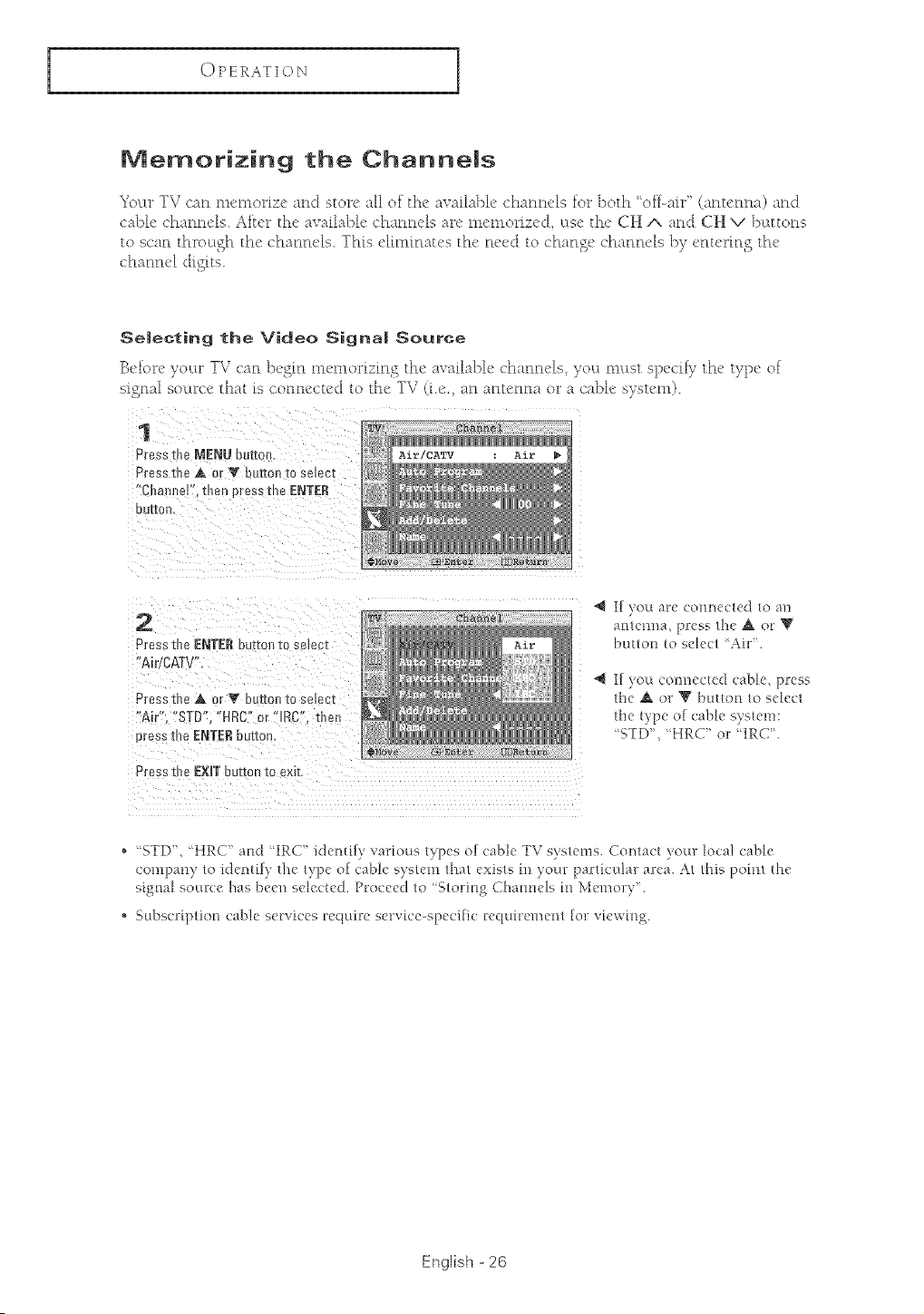
Memorizing the Channems
YoL:trTV can memorize and store all of the available channels for both ' ofLair" (antenna) and
cable channels. After the available channels arc m_'morizcd _tse the CH i and CH v bt:tttons
to scan thro_Lgh the' c'hannds. This diLninatvs the' need to c'hangc c'hannds b) _'nu'rin S the'
chann_4 digits.
Se|ecting the Video Signa| Source
Be[ore )'oLtr TV ca_'_ bcgm memorizing th(' available chamu'ls, )'ol( ml(sr spe('iiy the _yp(' of
_i_nal so_u_c_ that is conncctccI to th(" TV (i.e., an antenna o__a cable syst('m).
1
Press the MENU button,
Pre._s the A or _' button to select
Cham)e " then press tbe ENTER
OUI[On,
Air!CATV Air
2
Press the ENTER ou[-torl_o selec[
"Air CATV'
Press the A or V button 1ose_ec_
"A r" "STD', HRC" or "IRO". the_
oress the ENTERbutton.
Press t e EXiT button [o em[
_ If )ou are connecled _o an
amenna, press ltle _, or: Y
bu[/o_tose_ec/ Air'.
_ If you connected cable press
the A or T buuon to select
the type of cable system:
_5TD', 'HRC" o37qRC'.
'_ ST[)", 'HRC" and IRC" idemif) ,,alrious bpes of cable TV eyelems. Comact )'our _oca! cable
company lo identif)' t!_e t) pe of cable s)slem thai exists in )our partk:ular area. A1 /his poinl file
signa_ source has beell se_ectecl. Pt:oceed/o "S/o!-ing Channels in Ivielnor) '.
,_ SubscNplion came set:',ices t:ecluire set:vk:e-specffic t:ec[uit:elnen/ [ol7vte,a'h}g.
English - 26
OPERATION
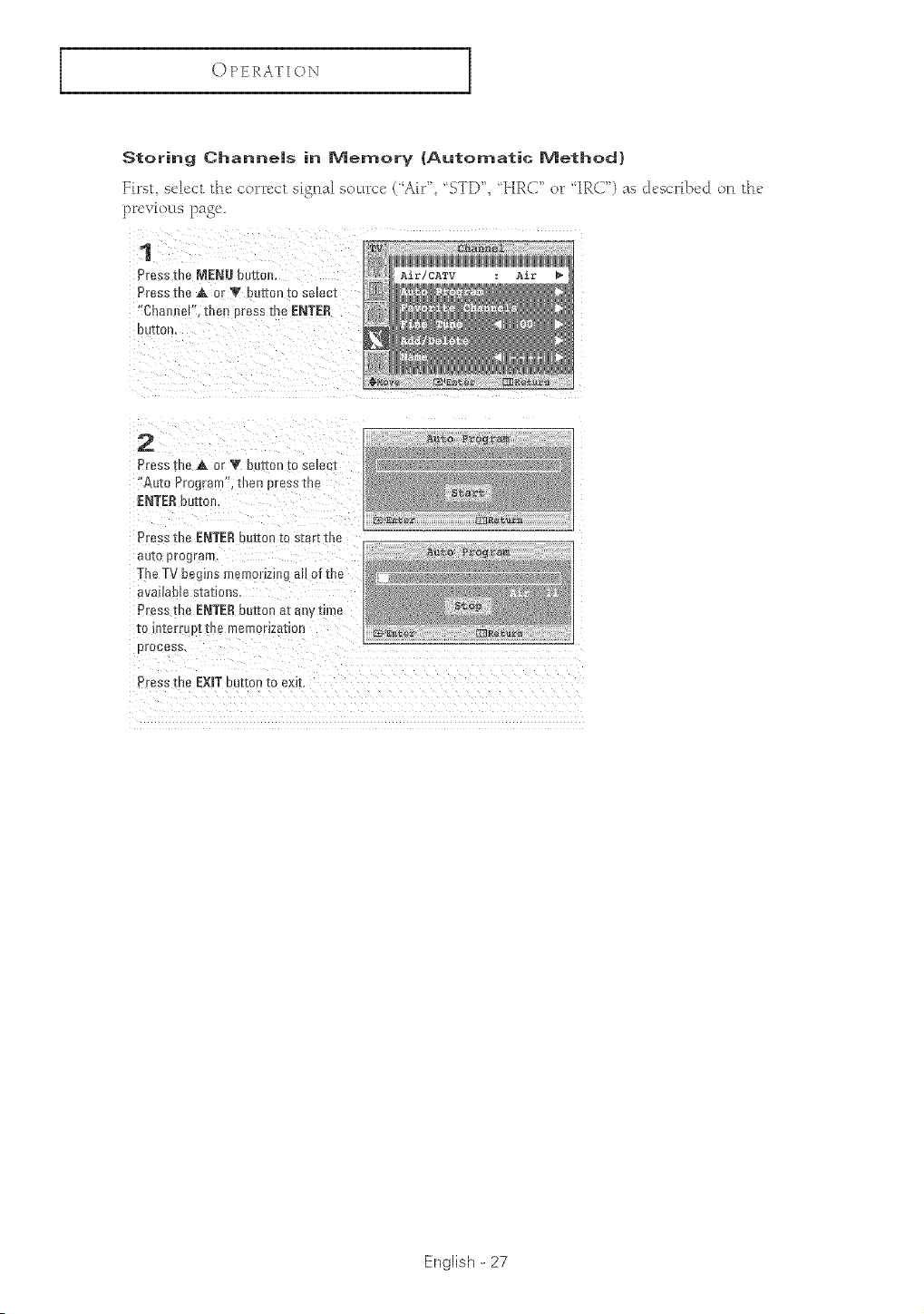
Storing Channe|s in Memory (Automatic Method}
First, select the cor_cct sigrlal souu_cc ("Air _,'STD', 'HR(}' o__"IR(T) as c]cscr_lx'd oF1 the
lx'eviouLs page
1
Press me MENU butter
Press the A _: V buuon [o se_ec][
"C _anl eF. then Ltess the ENTER
OUr[On
CATV
2
Press :he A or Y bur[on to se_ec[
"Auto Progra --" men t%essme
ENTERbutton,
Press the ENTERour[on re s[art me
au[o prograr
The TV begins mEmormmg a. oT[ts_
aw,,dhle stations
Press the ENTERbutton at anwirne
[o I1[errup[ me memorization
E "ocess,
Press "_eE×mTbutton to exit.
English - 27
OPERATION
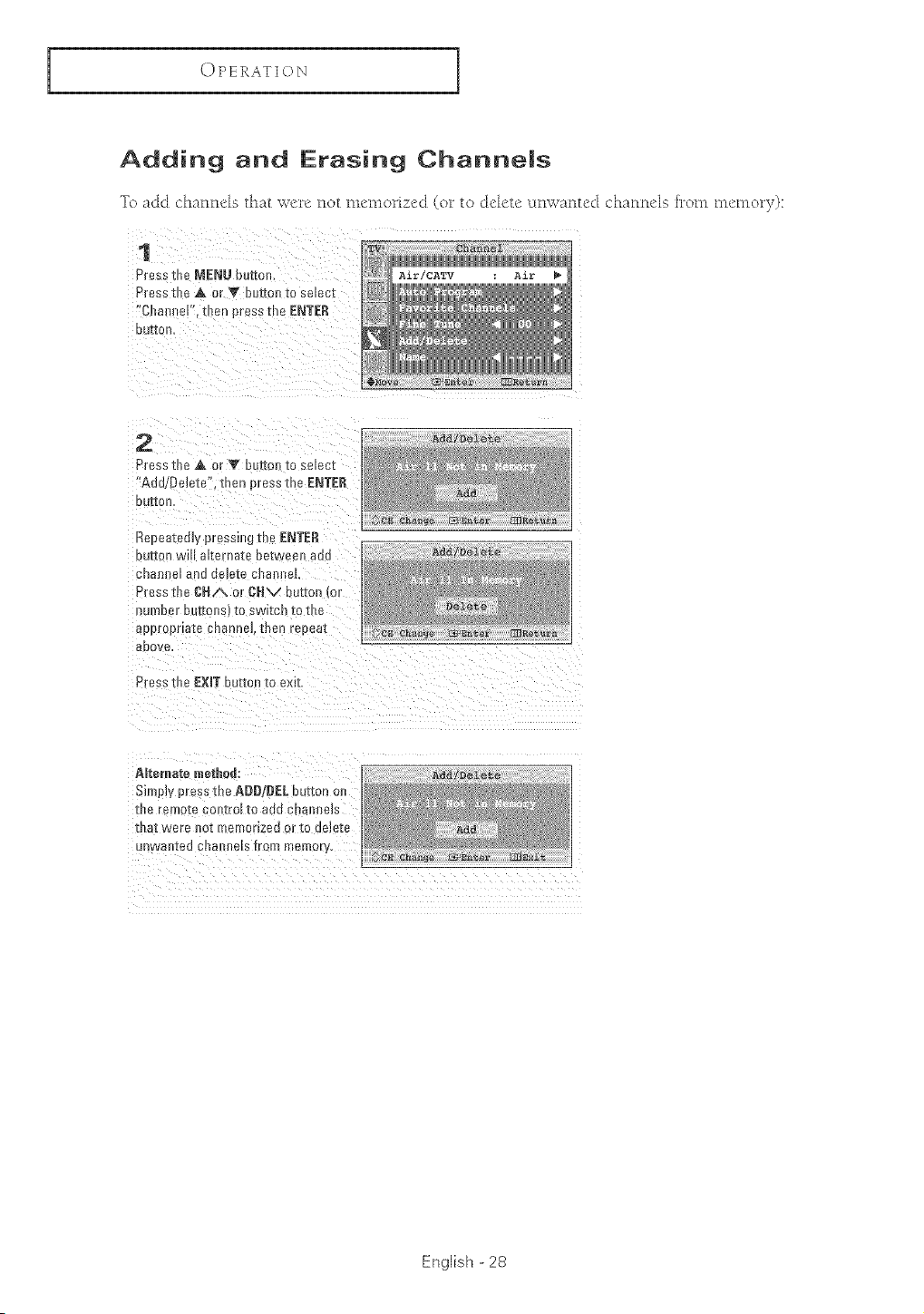
Adding and Erasing Channels
To add channels that _4"c not mcnlohzd (o__to ch!lctc unplanted chnnncls fl_om memo13,):
1
Press [t_ I_IENUbutton,
Press t] e A or V DUE[OIl IO smec[
"Charu eF. then press the ENTER
DuEleR,
CATV Air
2
Press the A or T but[on [o smec[
"Add/Delete", [hen press the ENTER
OUI/OR
Repeatedly pressing the ENTER
DUr/OH WI mterRe[e De[wee!1 add
enam el ana aem[e cnam_eL
Press the CNA or CNV button (or
RumDer mJ[[oes_ I0 SWIIC[] [O ilm
approprla[e CReRReLtt/eR reoem
_oove
Press the EXIT_Jmen [o exk
AIteraate method:
Simply press the ADD/eEL DuEleRm
li_e remo[£ 3m_[rolIo COG cRerme_s
that were not memorized or to [letete
Jnwe]lted cna Ile[s from memory,
English - 28
O PERAT[ ON
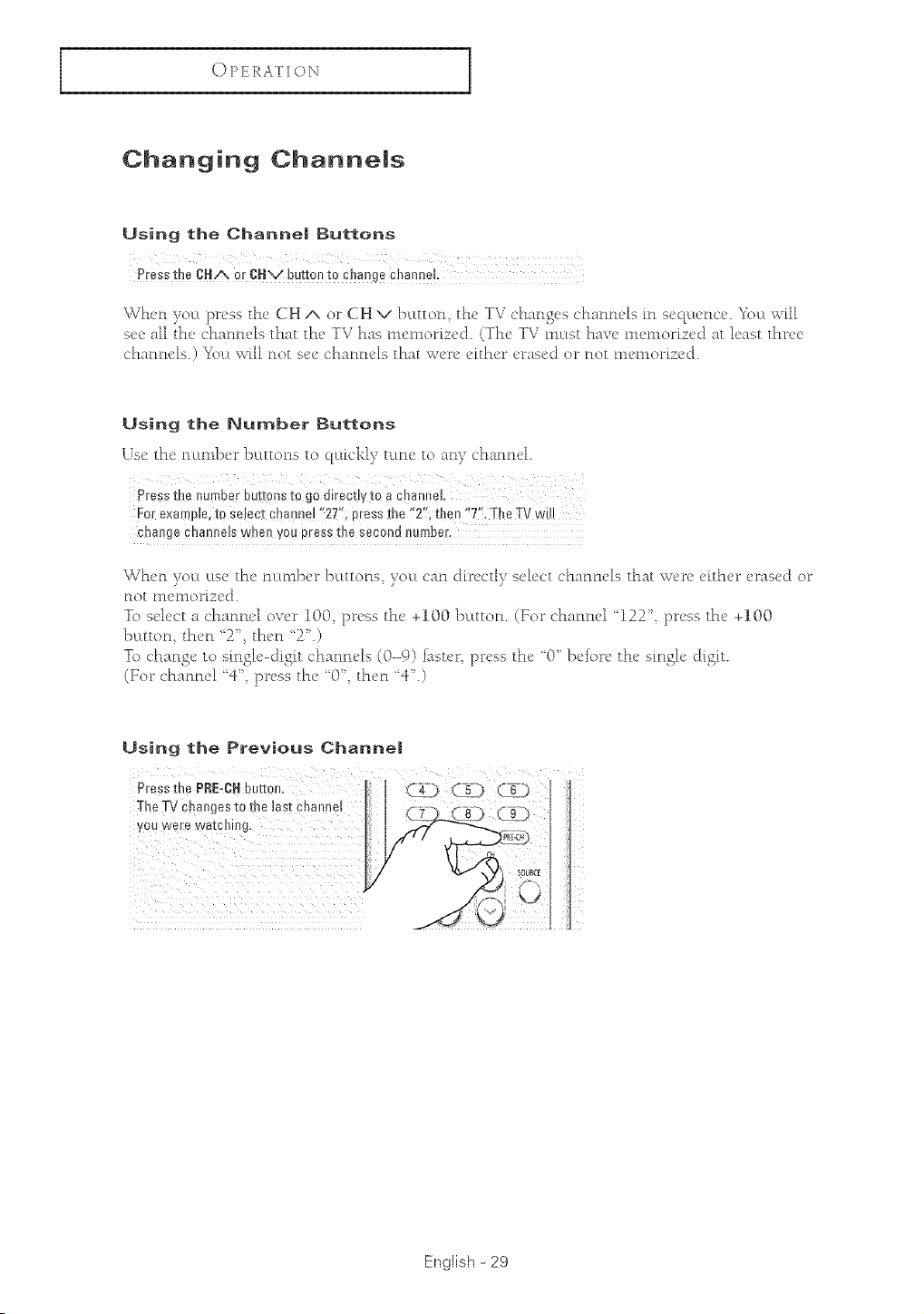
Changing Channems
Using the Channe| Buttons
Pressthe CtdA, or Ctdx/buttoJl to c]lange c]lanne L
When yogipress the CH A or CH v kLtton the TV chansc's channels in seciL:Lenc¢.2\_l:[will
e{:c all th{' (*hannds that the' TV has _lle_lloriz_'_l. (Th{' TV _llL:Lsthave' _ll_'_lloriz_'_l at [cast thr{'_'
chann4s.) Yot:[ _[U not s_'_"chann4s that w_'r_' _'fth_'r {'ras_'d or not Lll_'L_lorfz_'d.
Using the Number Buttons
Use the ntlrlJ<r ktttons to qLlicklv turns to arty channel
Forexample, t0 sdect channe! "27", press the ':2"; t]sen i!Tt The TV w!!J
cha!_ge ehanlse!s whe_xyou press t]_e second __umber.
When vol:[ urea the nl:tLJ_er kLttons voL:[can (Jfrectly select channels that were tither eras{'d or
not _ll{_tlorizcd.
To s&,ct a (*hannd over 100 pr_'se the' 400 kttton. (_or channd "122 '_ pr_'ee th{' 400
}x[tton th_'n "2', th_'n "2'.)
To change to single'-digit channds (0-9) i_et{'r pr_'es the' '0" b4or{' th{' etngl_' dfgit.
(For _'hannd "4' pr_'ss the' "0' th{'n "4'.)
Using the Previous Channe|
PressthePRE-CHbutton, _ "4) <5} (6_
]*heTVcha]ges[o me las(cnanne [ ( 9 }
youwerewa[c_lng.
/
English - 29
OPERATION
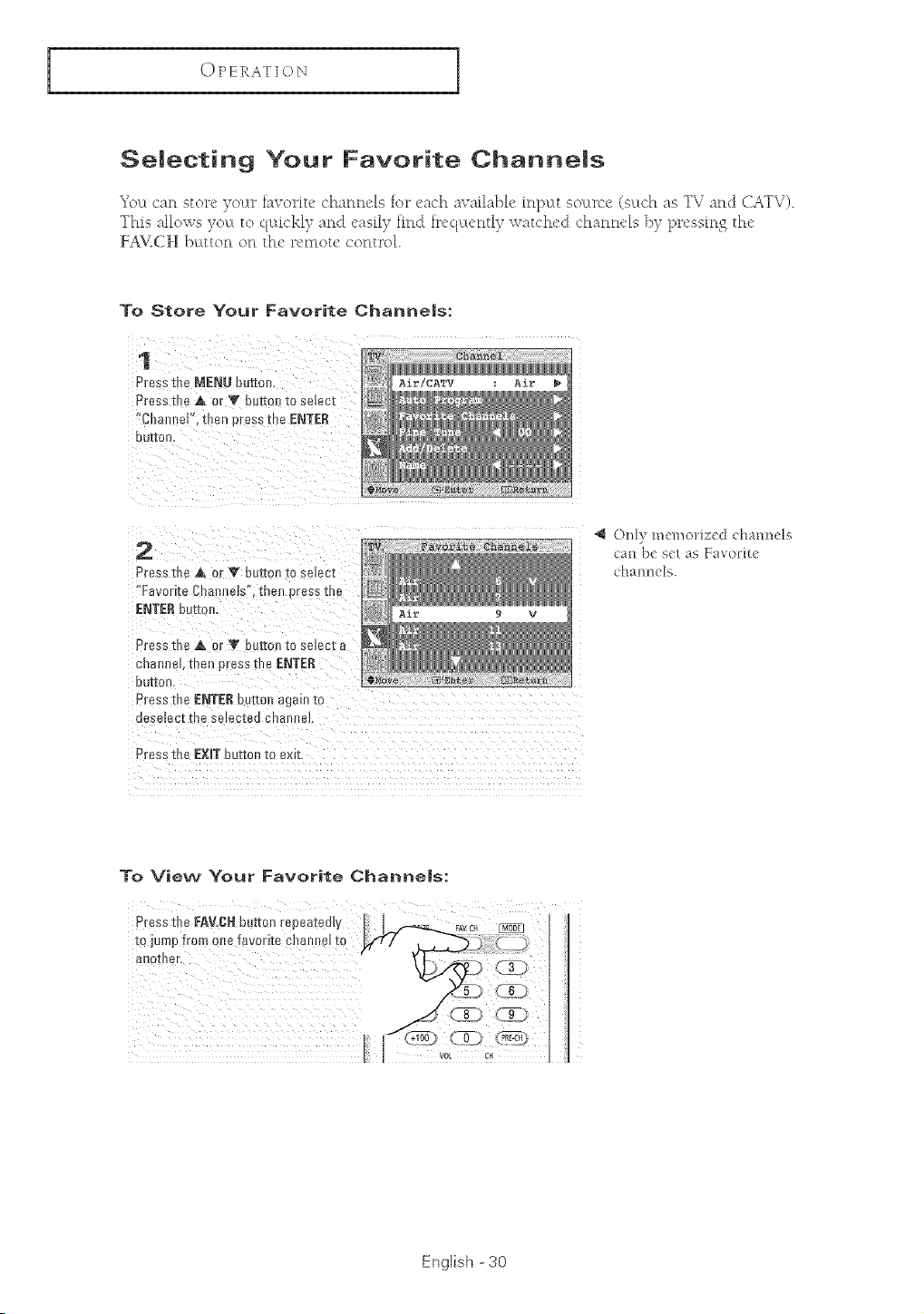
Semectin9 Your Favorite Channems
7 b
_c u can store )oLtr hivorit_' chantl_qs for c_lch availal)h' inputt soctrce (sLtch as TV and CATV).
This allows volt, to quickl) and _'asil) find h_'qvt_'ntly watched chantu'ls 1)) pr_'ss[ng the'
FA_/ICH b_ttton on the' r_'tllot_' control
To Store Your Favorite Channe|s:
1
Press th_ MENU button,
P[ess the _. or V ouItoJl 1:o selec[
"CIla_ el', then press the ENTER
OU[[Orl,
2
Press the A or V bottorl to se_ec_
•Favorite Chain e_s . 1:ren press 1:ne
ENTERbutzo,
Press tle ,A or T bUtTOn1:0selec1:a
sham eb1:henpress 1:heENTER
OUI[OO
_% Fav_ri£e _ha_ne_s
Press the ENTER button again 1:o
oese_ee[ !{ te se_ec[eo 6na_lrleL
9 V
Press tl e EXmTbutton to exit
@ ()1_) melnol:ized channels
can be eel as Favod{e
channels.
To View Your Favorite Channe|s:
English -30
OPERATION
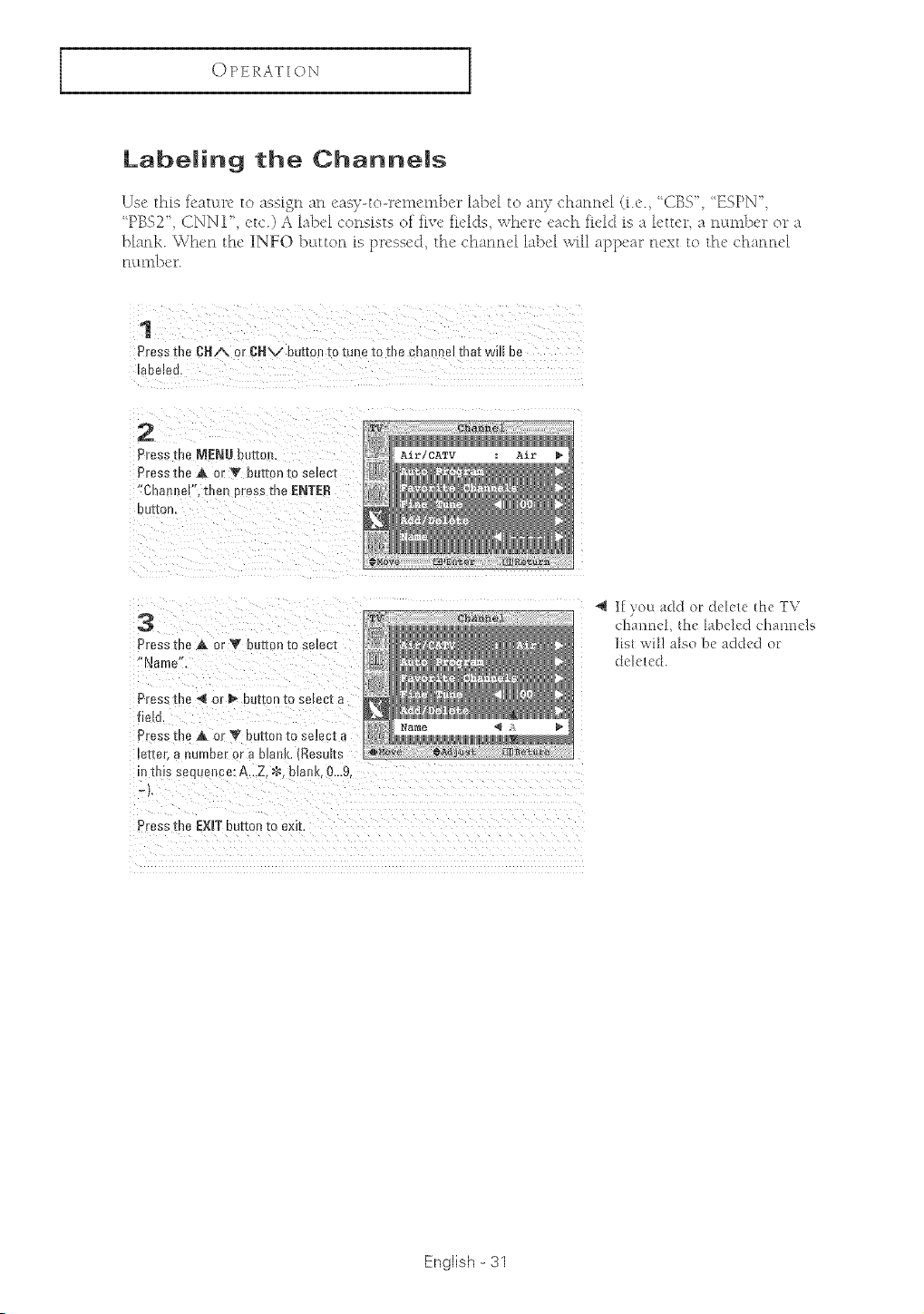
Labeming the Channems
Use this ieau:u_" to assign an easT-to-renlember label to an) channel (i.e. 'CBS '_ 'ESPN";
"PBS2' (2NNI' _'tc.) A label consists of fiw' fi_'lds; why're _'ach fi_'l<] is a l_'tter a n_tml_er or a
bhnk. When the INFO button is pressed, the channel label will appear next to the' chann_'[
nt2nl])c_.
1
Press the (;HA or CHV mJ[[on to tune to the channel that will be
maoel_u
2
Press the MENU butto
Press tne A or V button to select
:ha ,neF. th_-n eress the ENTER
OUr[OR
CATV Air
3
Presethe A or Y Dum_toselect
Name"
Press the _ or _ button toselect a
[lelo
Press the A or V put[onto smect a
letter, a numeer or a #Jail Results
tins seque_ce: A...Z. _. flank. 0,,,9
Press the EXiT button to exit.
@ I[ you ;_dd o_ dck_tc thc YV
ch;mncL t]_' h_bc]_"d chamMs
][st wi[] also bc _ddcd o_
deleted.
English-31
OPERATION
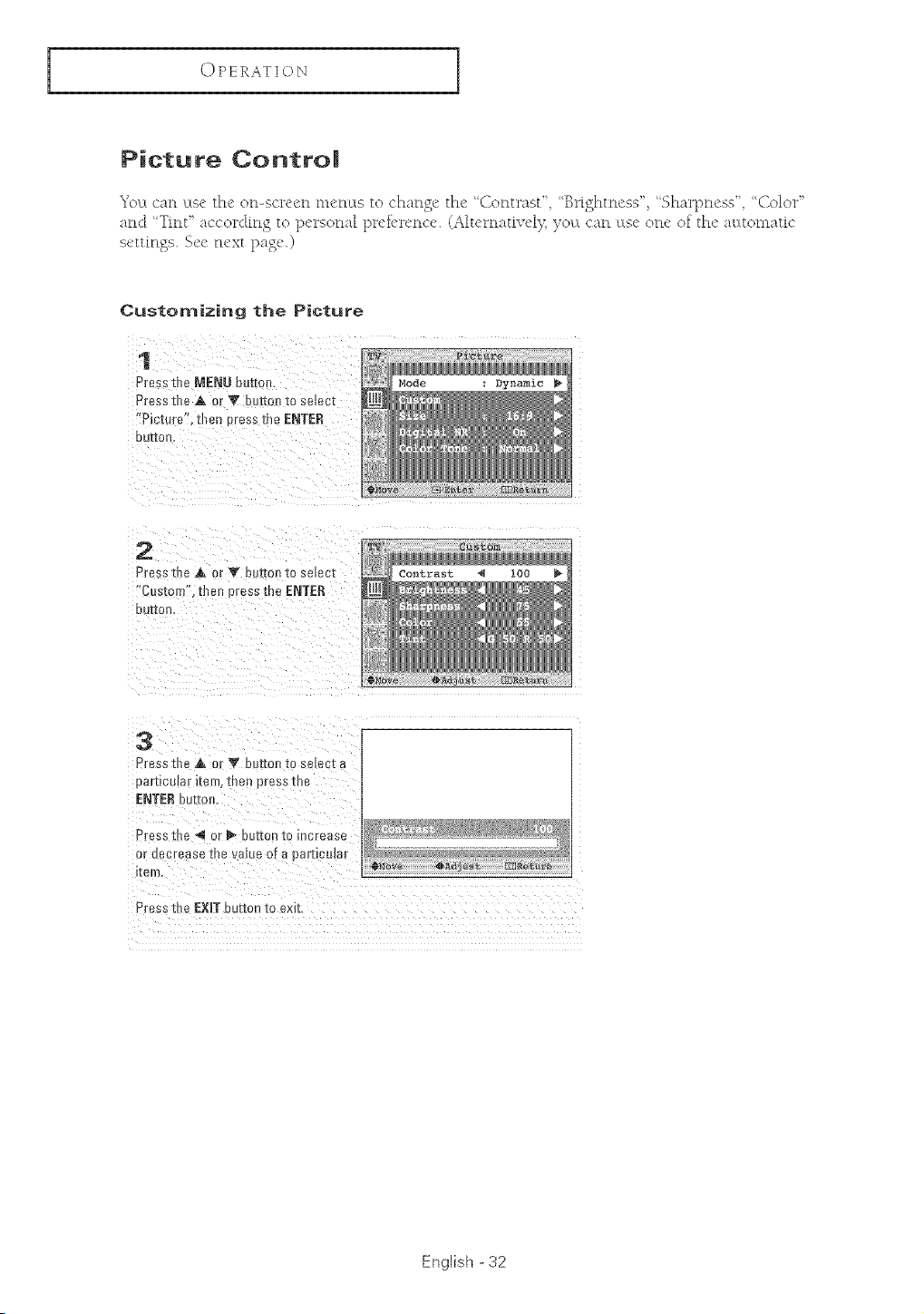
Picture Contro!
7 b
_c ct carl cts_" the on-screen tn_'ncts to chansc, the 'Contrast', 'Bri_htness'_ 'Sharpness' ' Color
and "Tint' accorclin S to personae 1)rcfi'rcnc_L (Altcrnativcl)_)_ot:L can lLsc one of the automatic
•scttinoe_.. Scc next paso.)
Customizing the Picture
1
Press the MENU be_o_
Press the A 0 _V butto!l to select
"Picture", then Dress the ENTER
OUI[OR
Mode
2
Press the A or V our[o___ose_ec;
"Costom".me 3ressthe ENTER
DE leon
Contrast i00
3
Press theA o" v be_on to s _ec[ s
oeriJce_er lien) [nee )ressin8
ENTERbut[or
Press the _ )r _ our[on _o Inc[ease
}r eecrease the value of a parucem_
teJ)%
_MOVe 4)_d_st [m_{e_ur_
Press the EXIT button to exit
English -32
OPERATION
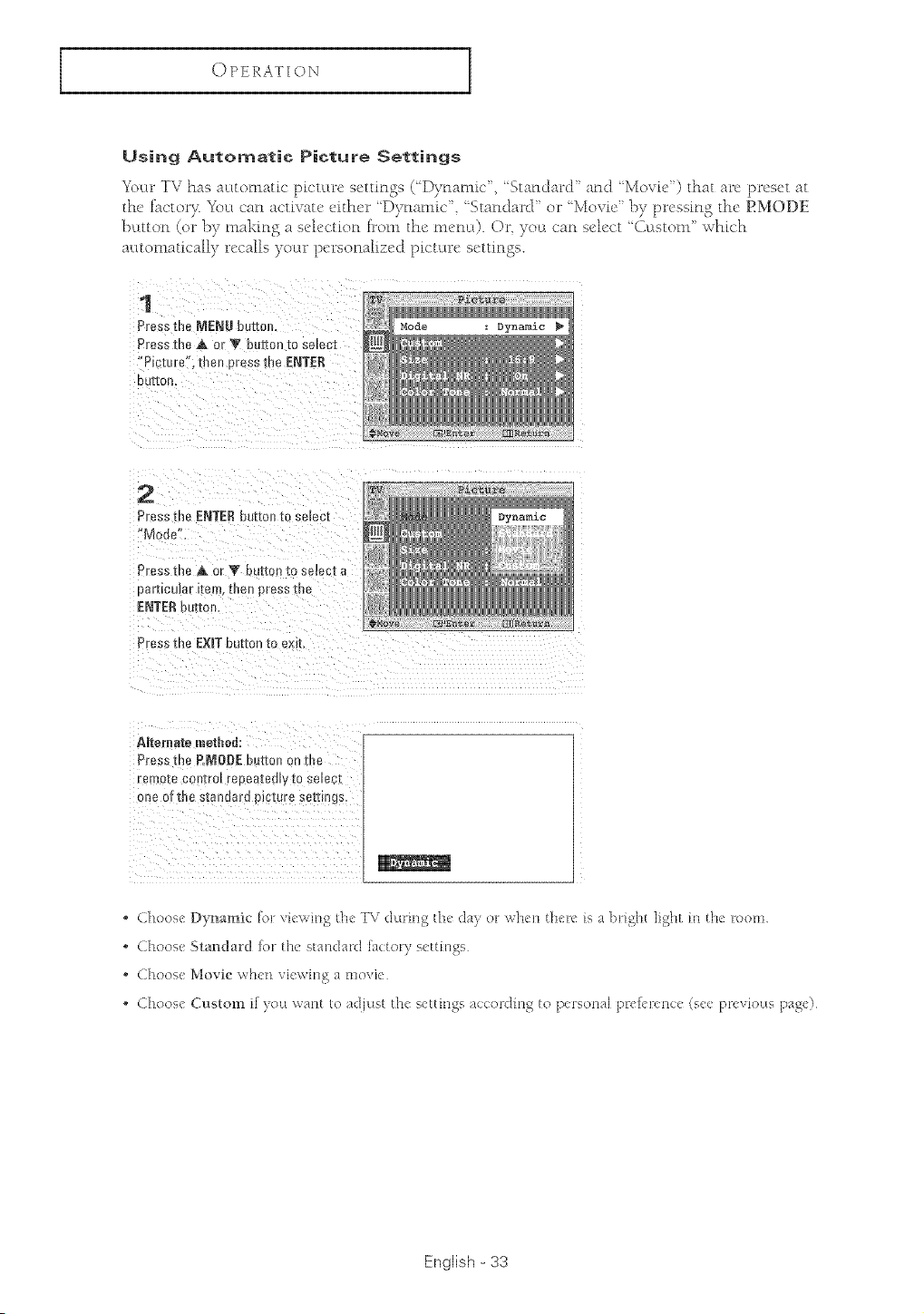
Using Automatic Picture Settings
Yol:w TV has al:Ltomatk" picu;trc settings (Dynamic', 'Standard' and 'Movie') that arc preset at
the f%_ctor> Ybu can activate either "D)_namk" "Standard' or "Movie' by pressin S the P.MODE
]>;ttton (or by making a sch'ction [rom the rncn_0. Or you can select "(ktstot_f whk'h
autonmticall)" _M!Callsyoct_ * p<t*sonalized picture settings.
1
Pres_the MENU buttor
PressErie A or V bDttoR m smecl
•,o cture', then #ross the ENTER
DUEOFt
Mode
Dynamic
2
Pressthe ENTERsuzmnto smecz
"Mode'
Press the A or T £ _[[on [o semc[e
uerocmar I[em. men press m_
ENTER DO[ran,
Press the EXmT button to emt
Dynamic
AReroate method:
Press the P.MODEhuE[on on me
remo[e contrm repea[emy m smec[
c_e of the standeru plc[ure serDngs.
, Choose Dynamic br viewing th( TV during the clay or when there is a bright light m the room
° Choose Standard ior the standard la(tory e<ttittgs
° Choose Movie when viewing a movie
, Choose Custom if you want to adjust the seumgs ac(:ordmg to personal pl-ekl-erlce (see previous page)
English - 33
OPERATION
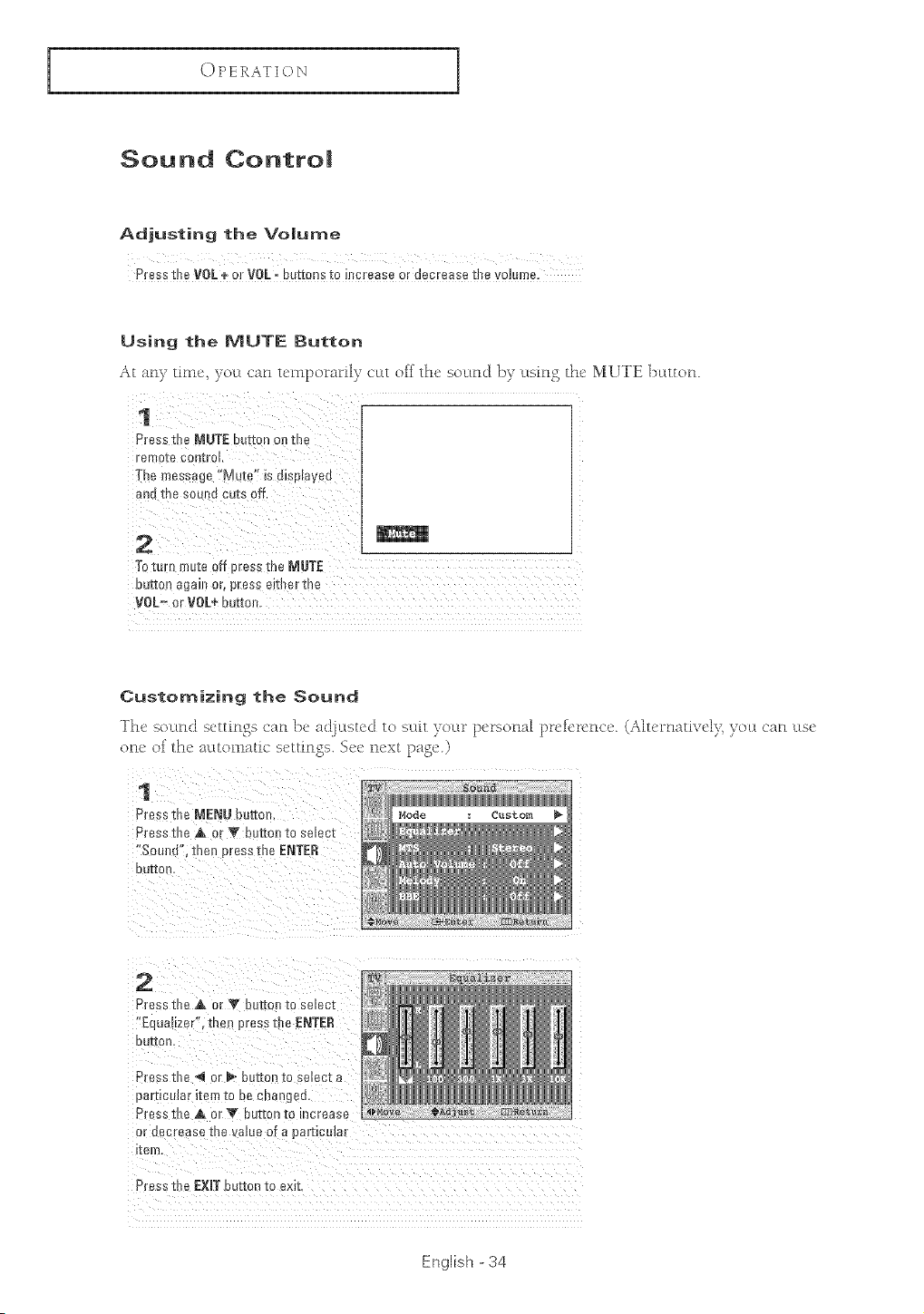
Sound Controm
Adjusting the Vo|ume
Pressthe VOL+ or VOL= buttons to increase or decrease the volume.
Using the MUTE Button
At any timc_ }ou can tcmporaril}T c_Lt off the socLnd by using the MUTE }xLtton.
Press the MUTE button onthe
ren
-[he mess#ge f:Mut0'! is dispJayed
and the sound cuts off.
-retom mute 0ff press the MUTE
button again or, press eitl_e[ the
V0[_ or V0[+ butteR.
Customizing the Sound
The socLt_d settings c;_t_ lx, adjvLstcd to el:Lit )oln" persorl_d lx_efel"erl<e. (Ah_,matiw'[)_ yeLL car_ _LS_'
one of the automatic _st!ttinos_>.S_!c next page.)
1
Press the MENtalourtoe,
Press the A or T bur[on [o selec_
_ou_ d" men pressme ENTER
OUI[Ol
Mode Custom
2
Press the A or "_ our[on [oseleel
'*Equa_tzer',then press the ENTER
DUI[OB
Press the *_ or _ button to se_ec[ a
3arz_colar _[em [o oe cna _gea.
Press the A or V button to increase
}r aeorease the value of a [ amoum_
[em.
Press the EXIT button to exit
English - 34
OPERATION
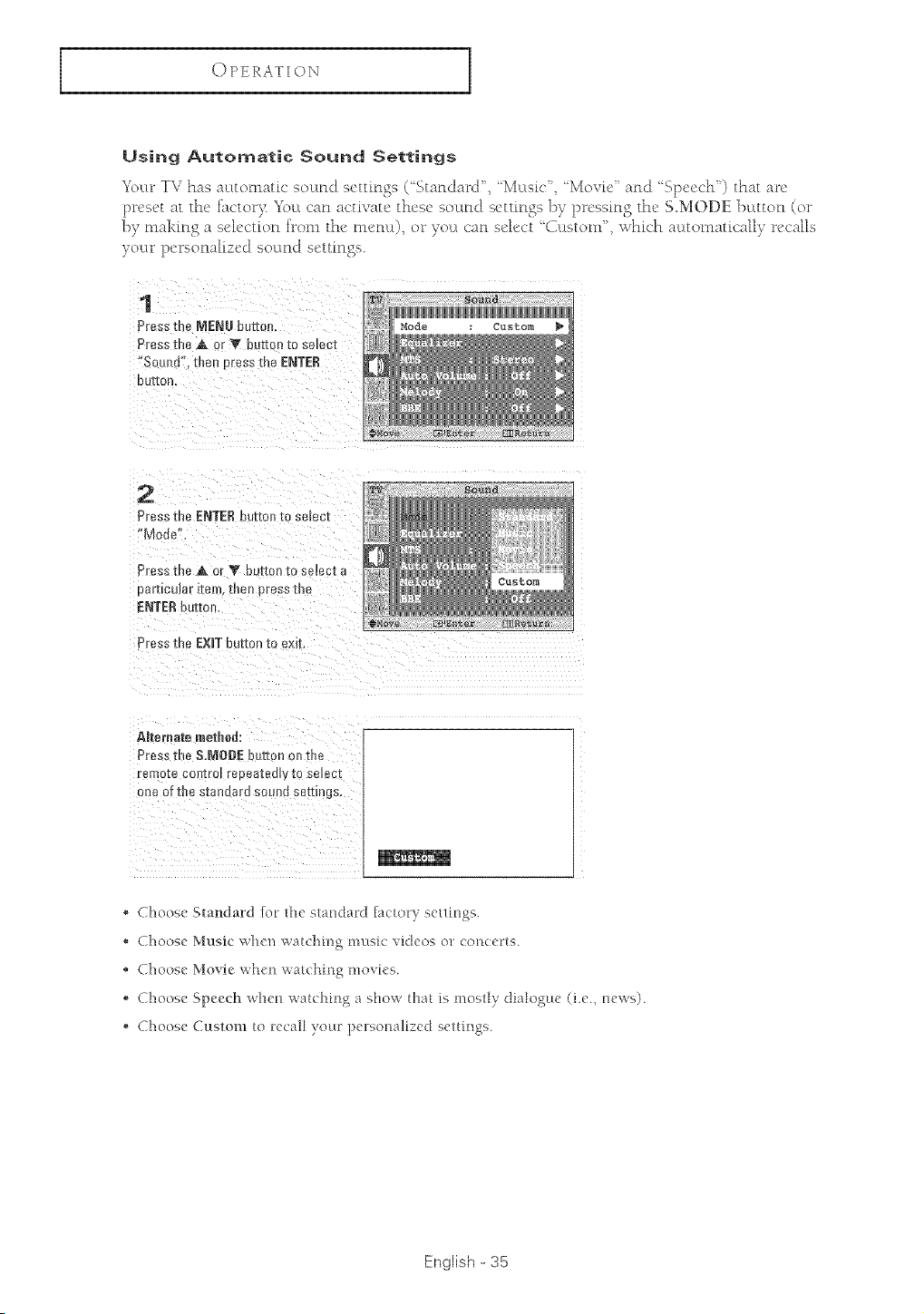
Using Automatic Sound Settings
YoL:trTV has al:Ltomatic sound settings ('Stan&_rd', 'M_Lsic' ; 'Movie' anti 'Speech') that are
preset at the f_ctol_)_ _\_u can activate these socmd settings b)" pressing the S.MODE button (el _
by making a selection item the menu), ok"you <'an select ' (}t;tstom", which automatically recalls
)ot_ _personalized sotmd settings.
1
PressD e MENU butte.
Press me A or T butte ) m se_ec[
"Sound". then Dress me ENTER
OUUOn
Mode Custom
2
Pressthe ENTERDUEOI_0 select
Mode",
Press the A c _# button m semc[ a
oemcumr i[en. [uen Dressme
ENTER butto_
Press me EXITburton to exit.
ARemate method:
Pres_the &MODE button on the
remo[_ con[ro_ repeatedly [o semcz
one of the stan_ara soun_ settings,
• Choose Standard [or the standard factory settings.
• Choose Music when watching music videos or concerts.
Choose Movie when watching movies.
• Choose Speech when watching a show {hat is mostly dialogue (i.e., news).
• Choose Custom {o recall your personalized settings.
English - 35
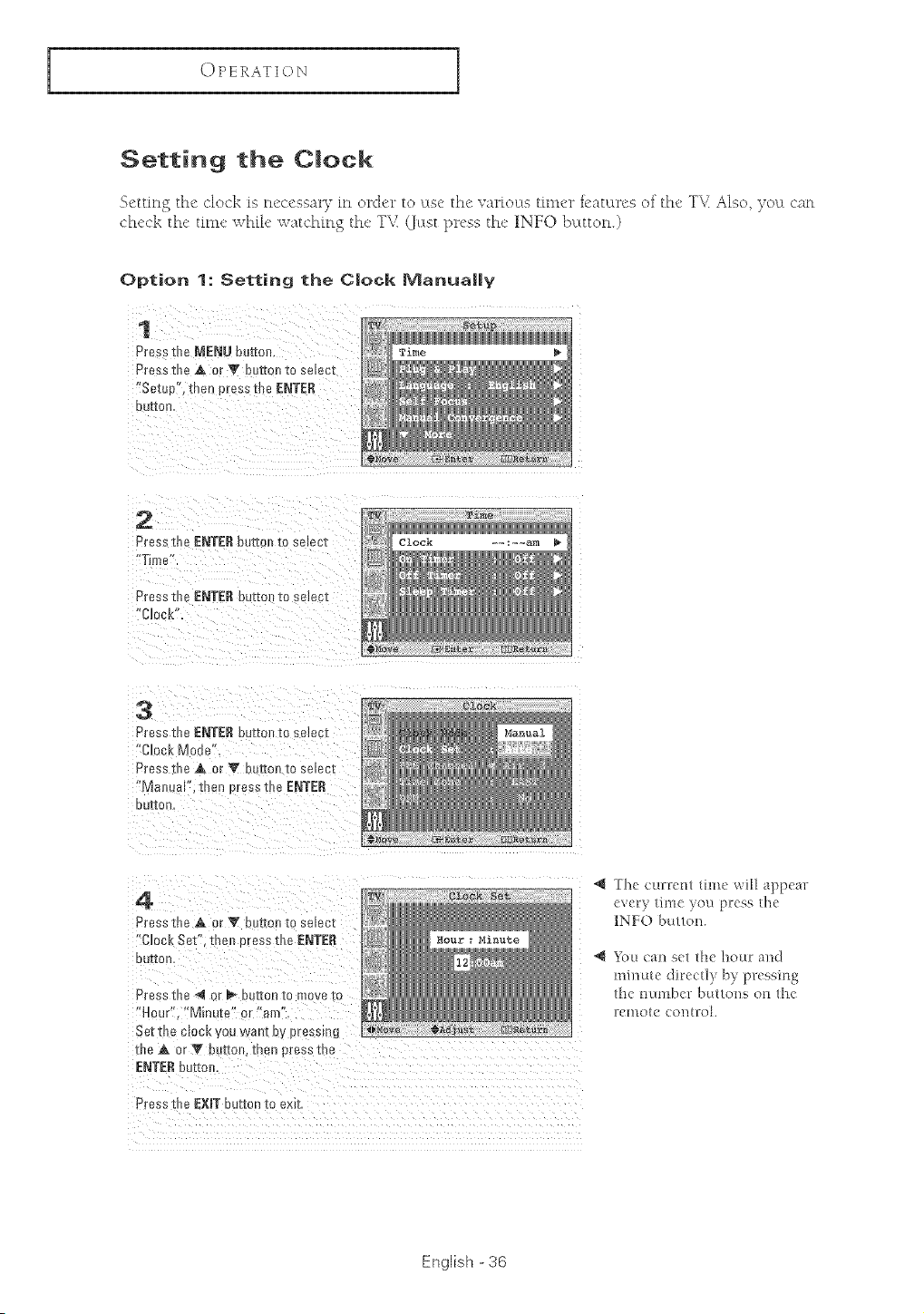
OPERATION
Setting the C|ock
qettmo the clock is ncccssai}T m order to ltsc the varioLts fitn_'r i_'atltres of the TV. Also, yo_t can
ch<k the' tim_' wh[F watching tM, TV @tst press tM, IN1FO button.)
Option 1: Setting the C|ock Wlanua||y
1
Press the MENU button.
Press the A or _ r_urEonto se_ec;
"Setup", then press the ENTER
DUI[OD
2
Pres_ the ENTER button to se_ee[
"Time'
Press th_ ENTERburtonre select
Clock".
3
Press the ENTER ou[mn zo se_ec[
"Clock Mode".
Press the ,& or V b_t_orl to se[eel
"blaouu_ .1:he, press me ENTER
DUI[OR
4
Pressthe A or Y bultc re selec_
Clocl, Set". inert Dressthe ENTER
OUI[On
Press the 4_ or _ b{ [rOB 1o move to
"Hour". "Minute" % "am"
Set the CROCKyOUwane Ov Dressing
the A or T but[ore men press me
ENTERbuzmr
Press [he EXIT button to ex_[
_1 The currem dine will appear
ever) time }ou pl:ess the
1N1FO bul/on.
Elm can set the hour and
minute direct!) b) preeshag
the number buttons on tl_e
remo{e comml.
English -36
OPERATION
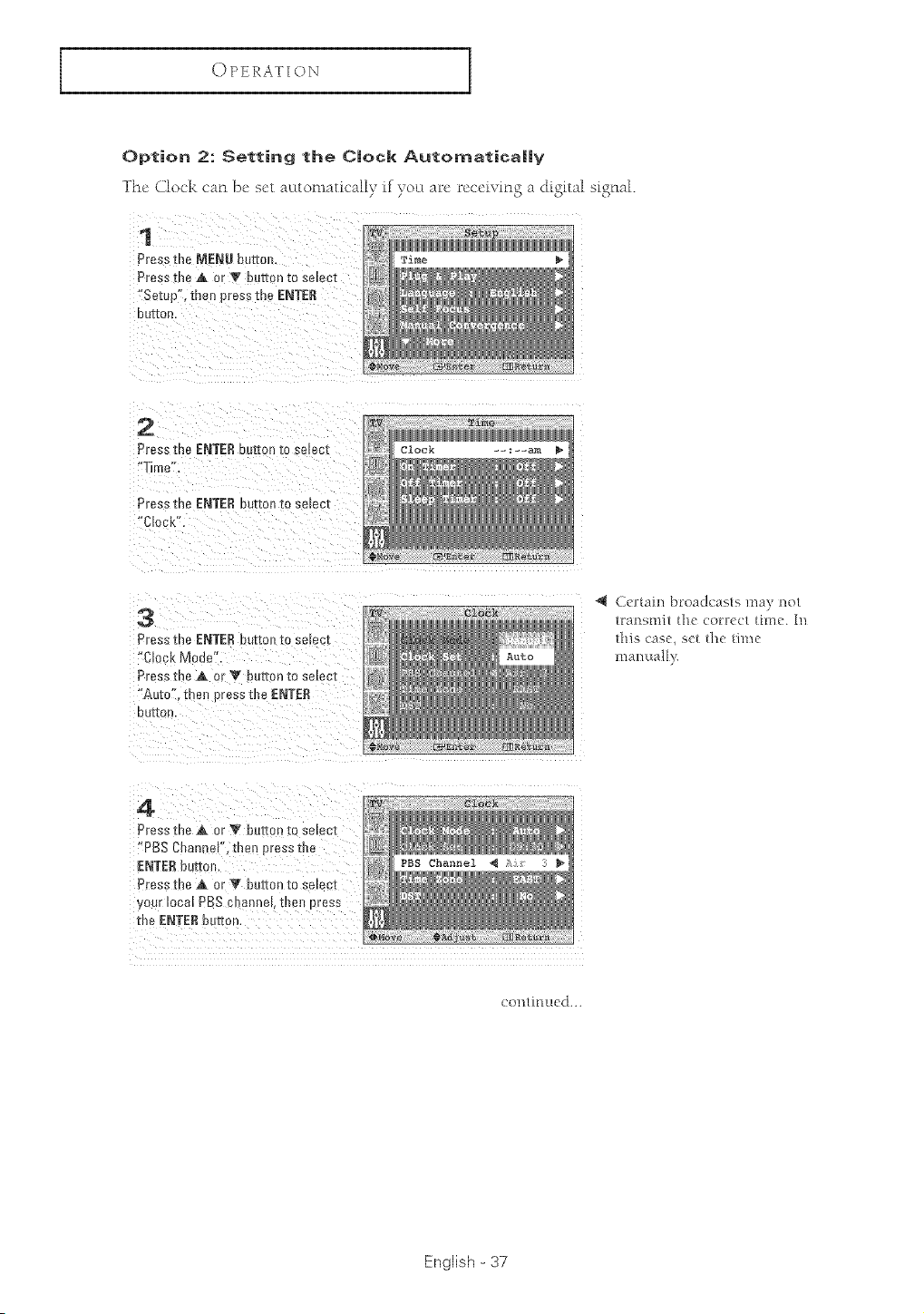
Option 2: Setting the C|ock Automatica||y
The Clock can bc set mttomatically if yot[ arc receiving a digital signal.
1
Press me MENU bettor
Press the A or Y burton to se_ec[
"Setl p", then press the ENTER
OUZ[Or,
2
Pressme ENTERbutton m selec_
Time".
Press me ENTER ..uzmrl m select
'*CLock"
3
Press the ENTERbuzmn _o selec_
"Ck ck Mode"
Press me A or Y button to sc ec[
"Auto [ne_ Dressme ENTER
OUgrOD
--;--am
Certain broadcasts may not
[ral]el'ilit tit(" (01IDCI [ht_c. [1]
this casc, s(t d_c _hnc
man ua;1,i.
4
Press the & or V button _o select
"PBS ChanleF'. the _press the
ENTERbutton.
Press the A or Y button to select
y_ur local PBS channehme_ Dress
me ENTERbutton.
con/ittued...
English - 37
OPERATION
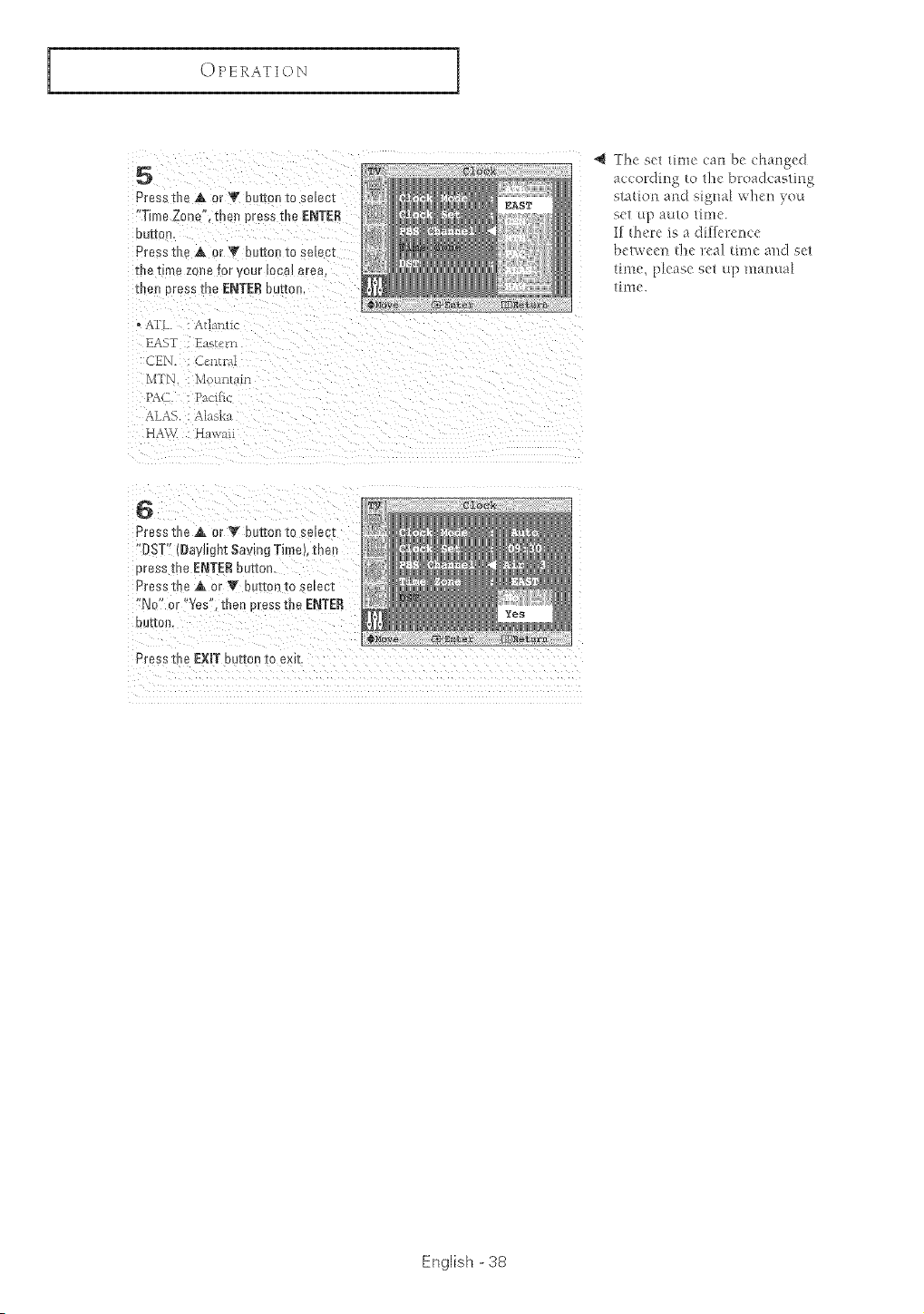
5
Press the A or Tot rton 1oselect
•Time Z_.e men press me ENTER
OUr[Oil
Press the A or T button to select
Ina t_me zoee tar ,our lOCal area
net tress the ENTERbutton
• X£L : Atuu]uc
EAST Ea_tcm
CFN. : C_d]_r_
MTN lt>ul_Eal_
PAd : P_cllk
ALAS. : Alask;
HAW. HawaU
The set time can be changed
according to the broadcasting
station and signal when you
set ttp auto time.
If fl_ere is a difference
belwee_l tlle real time and set
time, please set up manual
time.
6
Press the ,_ or _ outran _ose ect
"DST" {Daylight Saving Time), the
3ress the ENTERbutton
Press the A or V herren to semct
"No" or '*Yes , then tress the ENTER
OUI{OrL
Press t e EXiT button to exit
English - 38
OPERATION
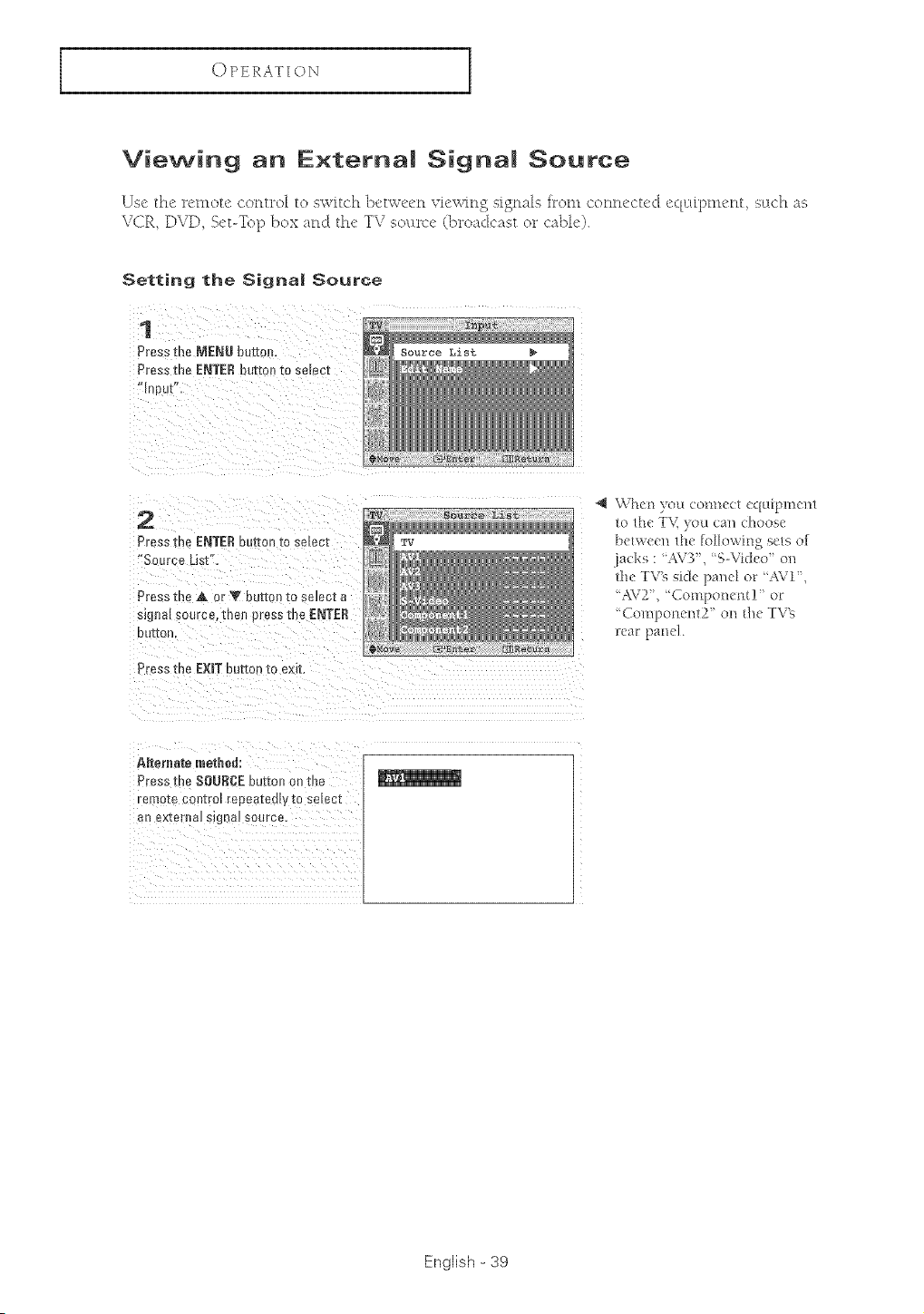
Viewing an E×ternaJ Signa| Source
Use the rcmou' coFltrol to switch ]>'twe{'n viewing signals irom ('onnecu'd equipment such as
V(iR DVD S_'t-Top box arid tM' TV sol:u_cv (broadcast or cable).
Setting the Signa| SourGe
1
Press the MENU but[ot
Pressme ENTERoutm_ to semcz
"In )ut"
2
Press me ENTERouEo1to semct
Source List"
Pressmen[ Vbut[or tosemcta
signal source, tne_ press the ENTER
OU[[0r
Press the EXiT but[o ] [o exm
\Vh_,n you connect equipment
to the T_,_you can choos_'
between the following sets of
}acks : AV3', R-Video on
the TV_ side pand or AVI',
"AV2', 'Componem! ' oF
"Compone]lt2' on {]_eTV%
]{'ar pand.
ARerflate metJmd:
Press me SOURCEbutton on the
remote contro_ repeateaPvre eemc[
an ex_erne_stgnaJsource,
English - 39
OPERATION
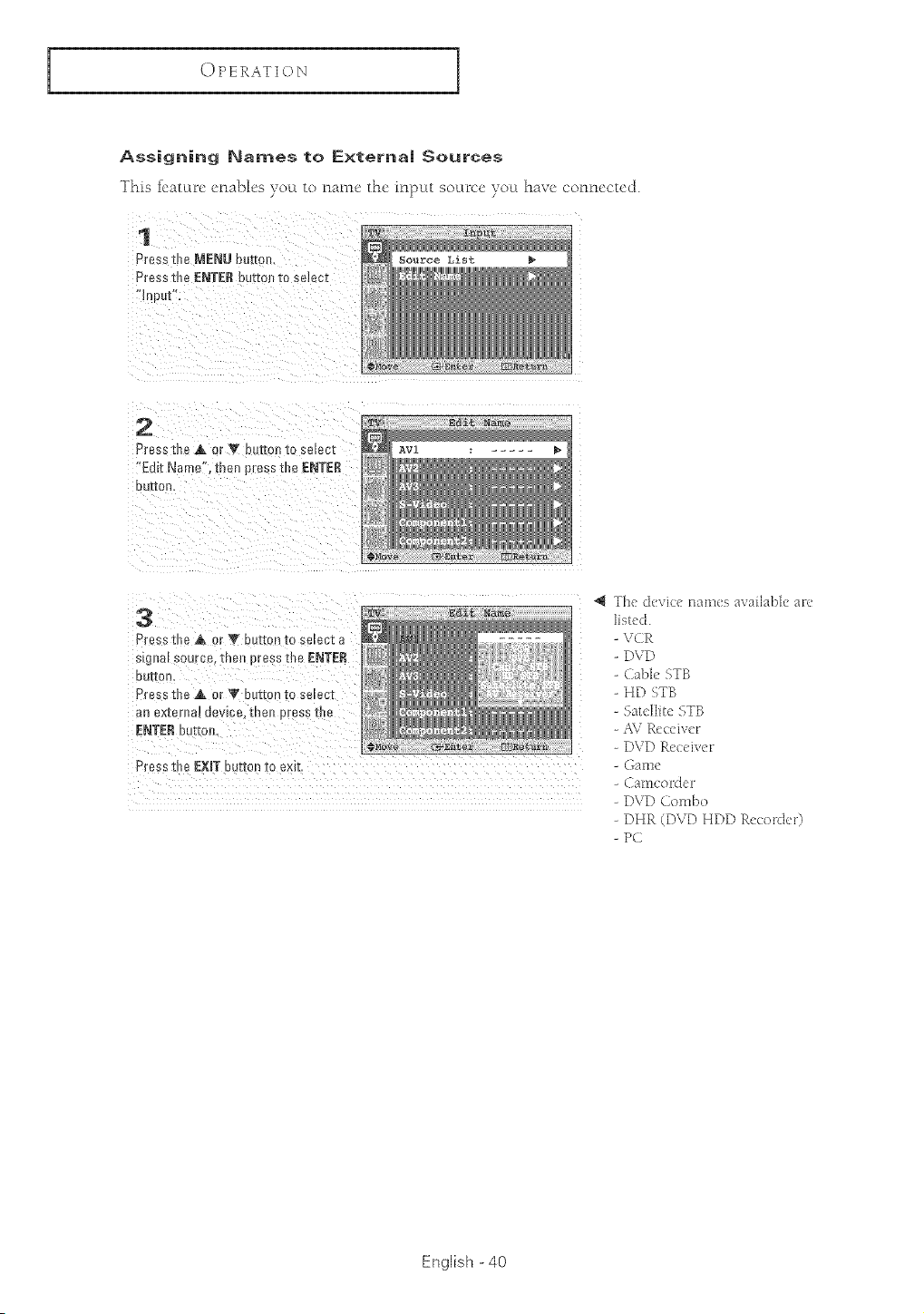
Assigning Names to External Sources
]"his icatuLre enables youL to name the input source you have connected.
1
Press the NENU tJurron,
Press th_ ENTERbutton to seJeet
IHD J[
2
Press the A or V button to se_ecl
"Edit Name' men pressthe ENTER
DUI[OR,
AV1
3
Press the A, or V buttort to select a
signal source, me_ Dress the ENTER
OUr[OR,
Press tile A or Y but[on To se_ec_
an ex[er]la_ u_v]ce. [nell prP.ss t_le
ENTERbu[[o_
Press t e EXiT button to exit
The device mlm(s available at('
listed.
VCR
DVD
Cable STB
HD STB
S:_tellit( 5,TB
AV R{,(:(ivm
DVD Rccci\'('_
(;ame
Camco_der
DVD Colnbo
DHR (DVD HDD R(mor(k'r)
PC
English - 40
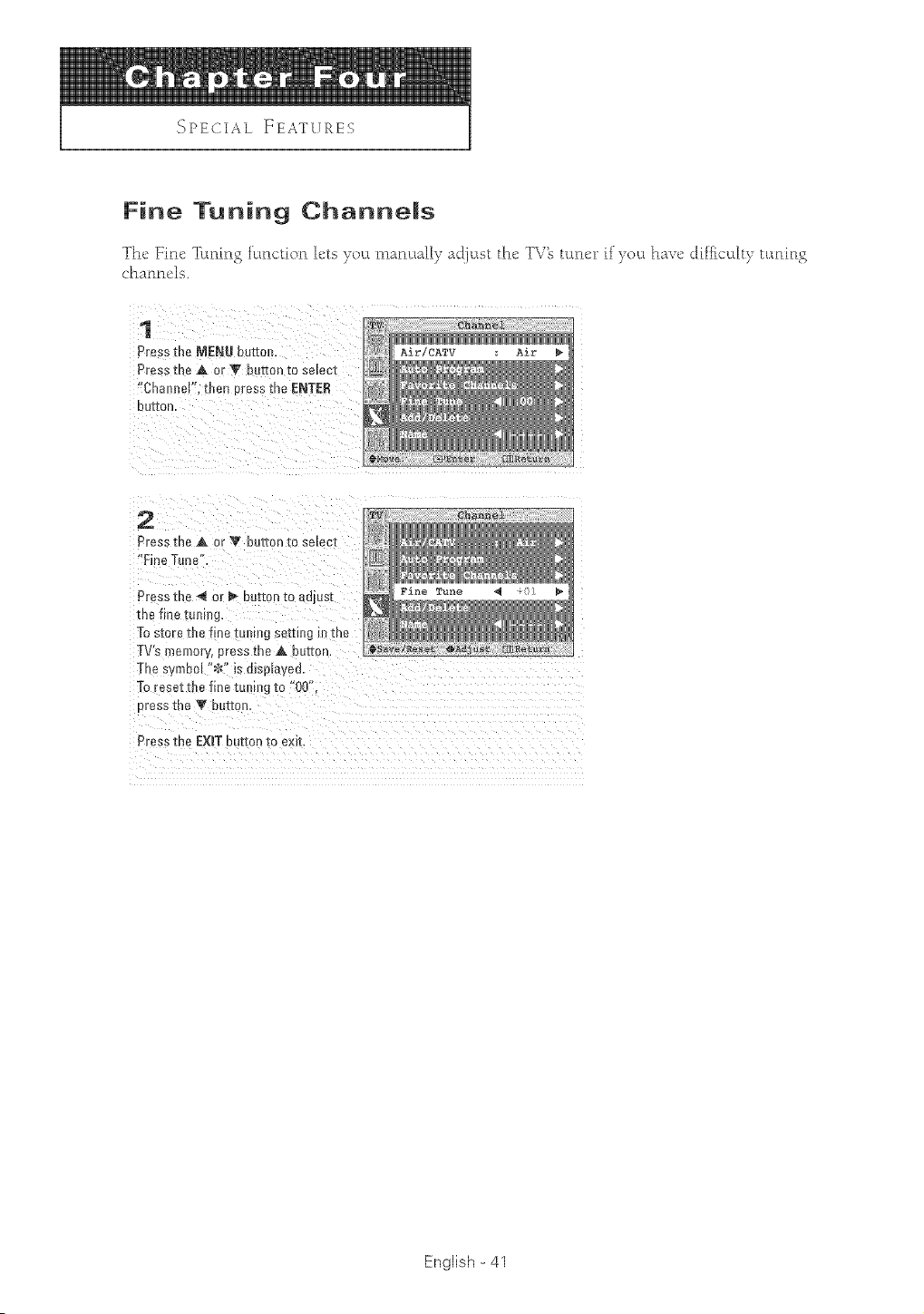
Fine Tuning Charmems
The' Fin_! Tunmo fhnctiorl lets you marlu_lly _<!just the TV_ turlcl" if)olL h_v_' ct[ff_ccdt) ULrdrP
channels.
1
Press the MENU buttor
Pressthe A or V Lutton [o semc[
"Cha neF. then eress the ENTER
eu[[on
CATV Air
2
Pressthe A or Y button m semcz
"Fine Ton_
Press the _ or _ De[ton [o aajus[
Eriefine tumng,
Tostere the f ne _ rang semng m [He
TV's memor,, eress the A ou[[on
The symbol ";_" is dispmyea
Toresetfne fine t[ m_gto "00"
Dressthe Y bur[on.
Press .ne EXITbutton to exJl
English - 41
SPE( [AL ]InEATU RE S
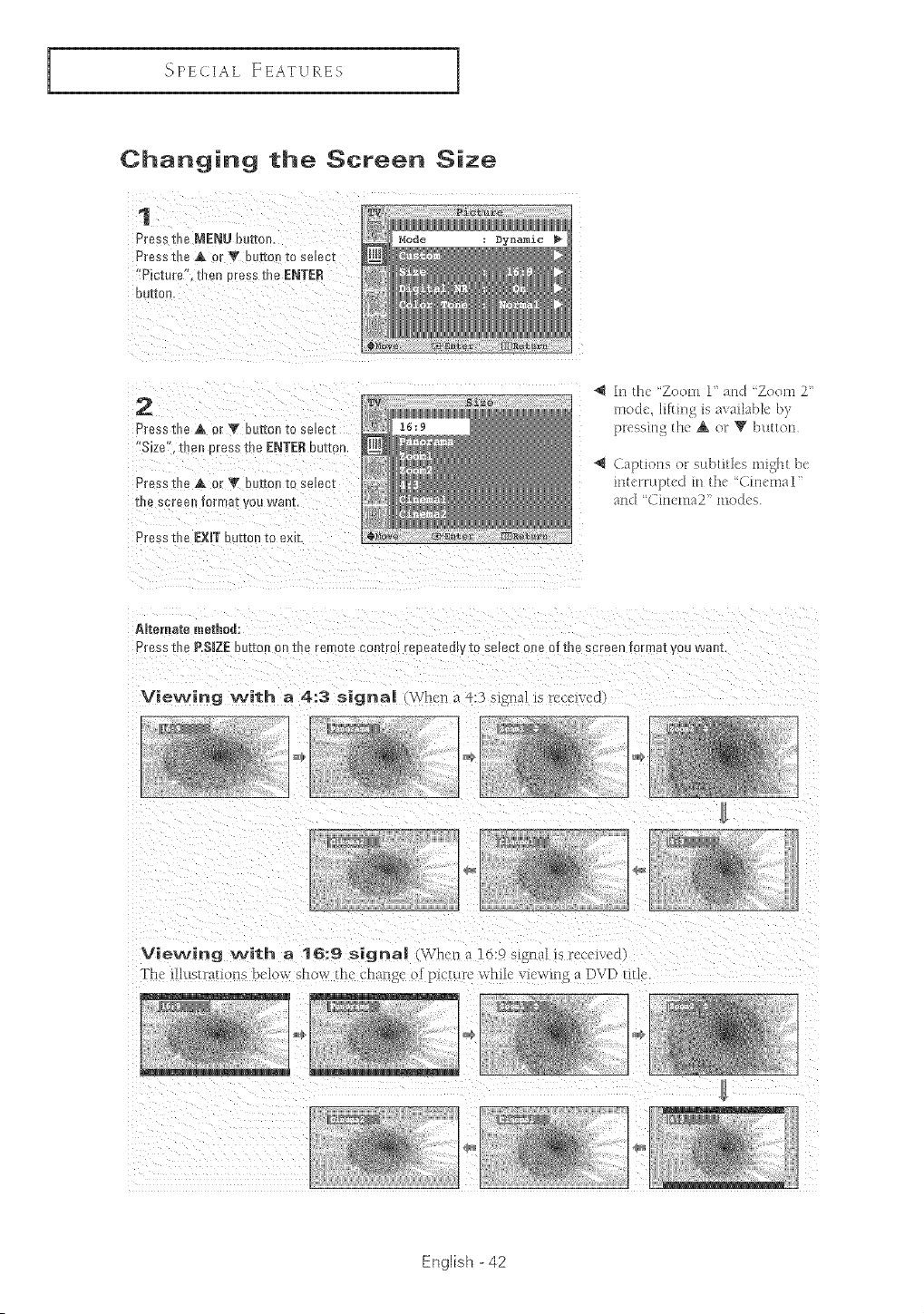
Changing the Screen Size
1
Press the MENU button,
Press the A or Y button [o selem
"Picture", men Dress the ENTER
BUT[0n
Mode
2
Press t e A or _ buttorl to selem
"Size". then Dr£ _s me ENTEB button
Press the A or _ bultonto seem
IRe screeR format you waN[,
Pre._s the £×IT button to ext.
41 hi [1 'Zool] ] arc "'Zool]l 2
o]oc _ IS a_ al[ab}c _-
l)1"¢Sqll1_-• thc _ )r _ 1Ol]
_ (a[XlOl]S oF SHDllilq< HH_
l[l/<'l[ )tC(t Ill |hc "(._l[]el_lal
:lnd "'Cinen[a2" modc_
Alteraate method:
Press the P.$1Z£ _)uz[o* on me remo[e cm trm reoea[et, V [o select one oT me screen format you want
Viewing with a 4:3 signal (When _ 4:3 _lf%nal is received
z
English -42
{_PECIAL FEATURES
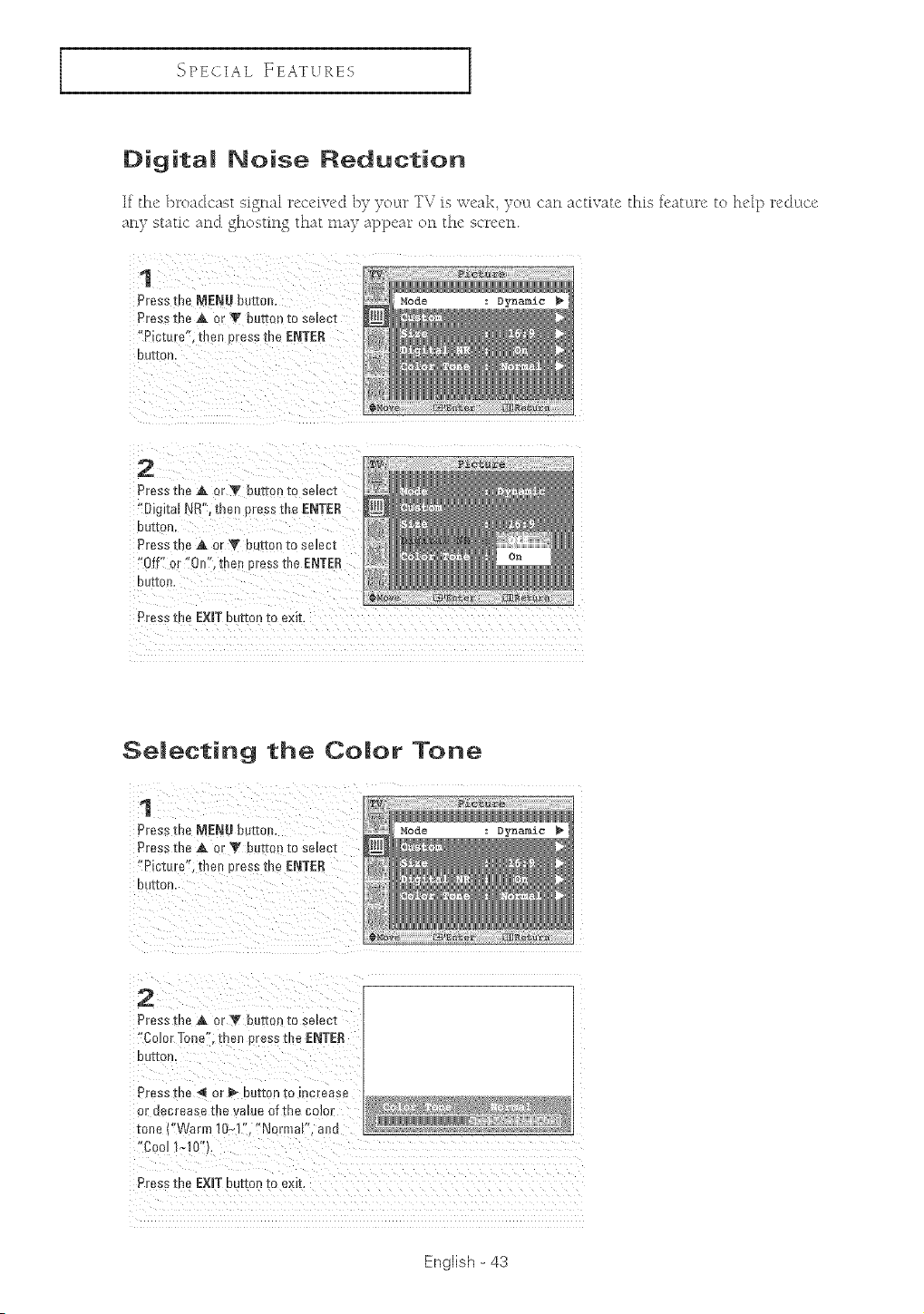
Digital Noise Reduction
If the broadcast signal received b) )our TV is v_eak )ou can _lctivate this fi'atLLre to help red uce
anv_ ....static"and o°h°stin_o theft.... slav_ app_!a_"on the screen.
Press the MENU bulton. Mode Dynamic
Press _he_ oi _ button to select
r Pictu(e", theD press the ENTER
Press the A or _' button tOsebct
"Digital Nit't/then pressthe ENTER
button,
Press the AorT
"Off" or "Oo',then [ .................
Selecting the Color Tone
1
Press me MENU butto
Press the A or Y button to selec[
"Picture ". thell Dress the ENTER
OUI[On
Mode
2
Pressm_AorYbutto [ose_ec[
"Color Tone' me n press the ENTER
DUg[On
Press the "_ or _ bur[on [oincrease
or uecrease _Devalue of the color
[one (°Warm lO,q" °NormaF. and
Cool 1_0"
Press the EXITbutton to exit,
English - 43
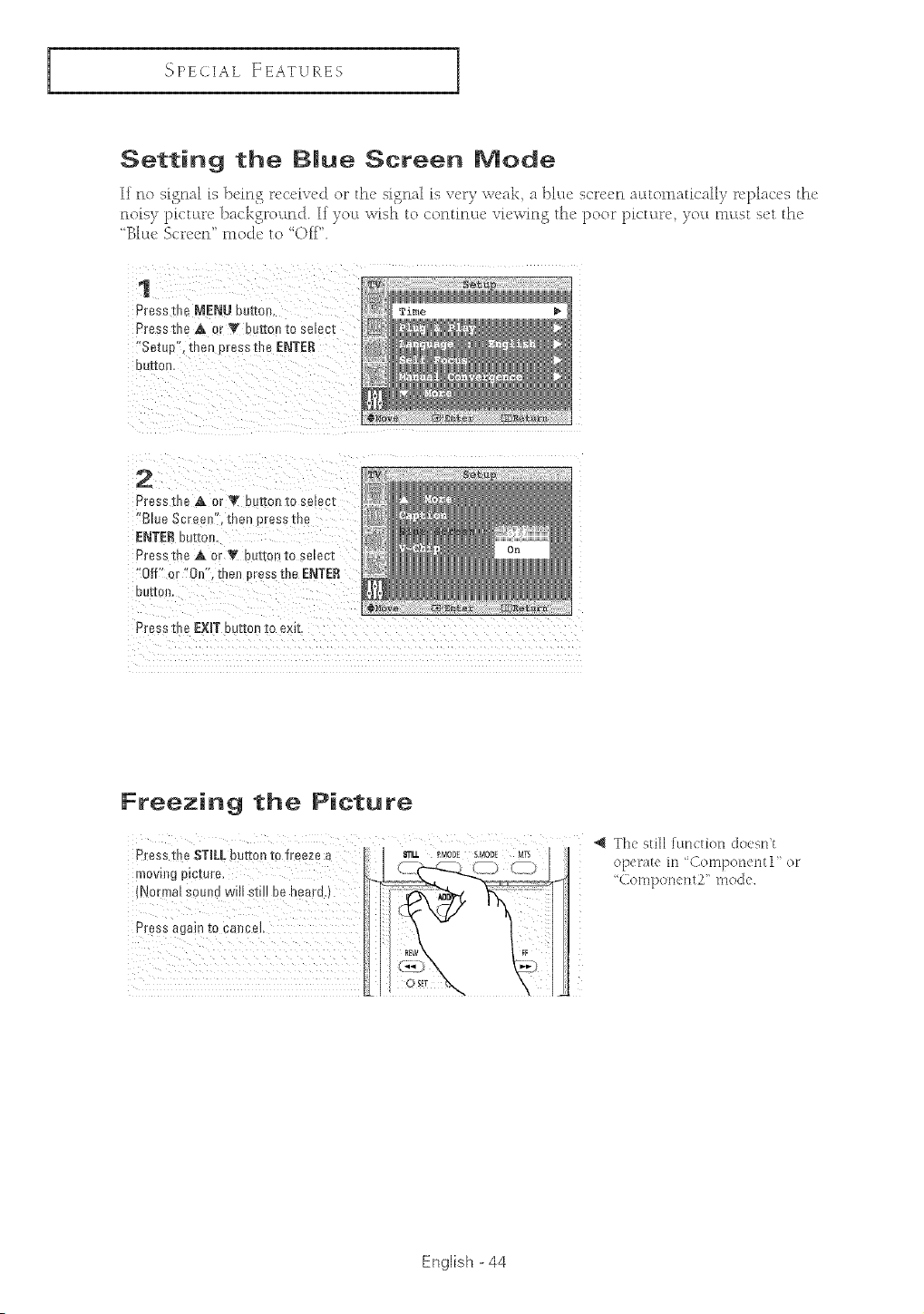
SPE( [AL FEATURES
Setting the Blue Screen Mode
If no signal is ]>eing recciv_'d or the si_nsl_ is very v\eslk a ]?hLc scre_'n automaticall)7 replaces the'
nois} pictm_e backgl_ound. If you wish to continue viewing8 the _)oor [)ictm_e }o[L must set the
'B_ule Sc_een _mode _o Ofi _
1
Press the MENU be:on,
Press the A or Y be[ion :o setec_
"Setup". then cress :heENTER
DLff[on
2
Press me A or T bt :[on :o select
Blue Screen' then pressthe
ENTERbutt:
Press the A or V nut:on :o serec:
"Off" or "On thee pressthe ENTER
DulleR.
Pr_.ss t e EXIT button to exit
Freezing the Picture
j
4J Th( stillful'_etior:doesl'it
operatei::Component i' or
Coral?orator2' rood(
English - 44
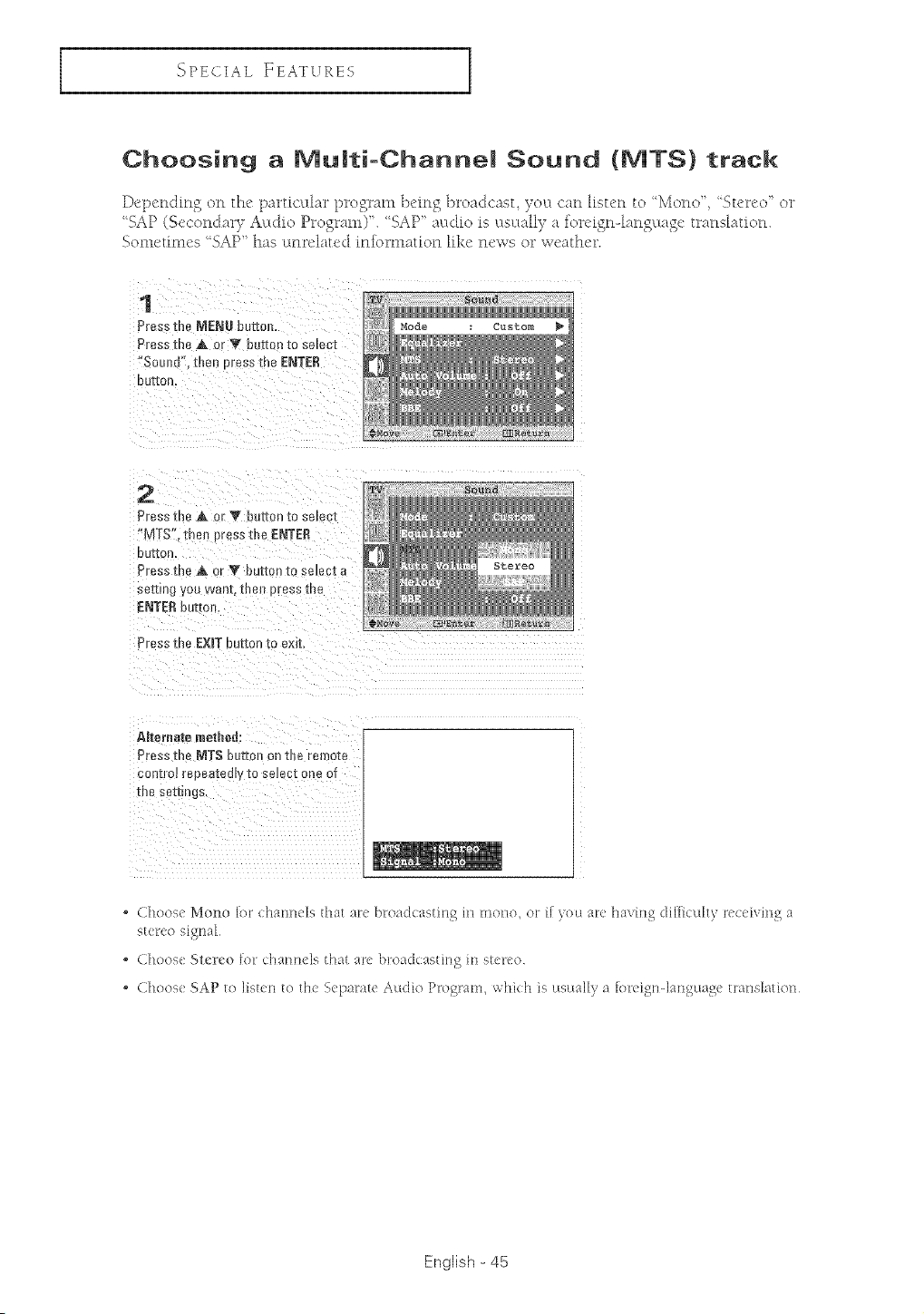
_'_PECIAL FEATVRES
Choosing a rV]uJti-ChanneJ Sound (MTS) track
Dependin S on the p_rticLdar program being broadc_st yeLLcan lisu'n to 'Mona" 'Stereo' or
"SAP (Sccondar) Al:tdio Program)'. "SAP' al:tdio is l:tsLtally a foreign-langLtagc trarlsIatior>
Sometimes "SAP" has unreh_tcd infbmmtion like news o__weathe>
1
Pressme MENUbutter
PresstheA or T buttonm se_ecz
"SouJlf'. then Dressthe ENTER
O UI:ZOB
Mode Custom
2
PresstheA { T buttonto select
MTS" the_ pressthe ENTER
DUE[On
PresstheA or Y ouIIon10semc[a
settingyouwant, then cressthe
ENTEROUTm
Press :he EXiT buEon to exm
AReraate raethad:
Press me MTS button on the remote
cu m'o_ repea[edly to seJec[ one of
[n8 sell n_s
, Choose Mona lot channels that are broadcasting in mona, or ffyou are having di[hculty receiving a
stereo signal
o Choose Stereo for (han_leIs that are broadcasting in stereo
* Choose SAP to listen to the Separate Audio Program, whidl is usually a foreigndanguage tra_lslation
English - 45
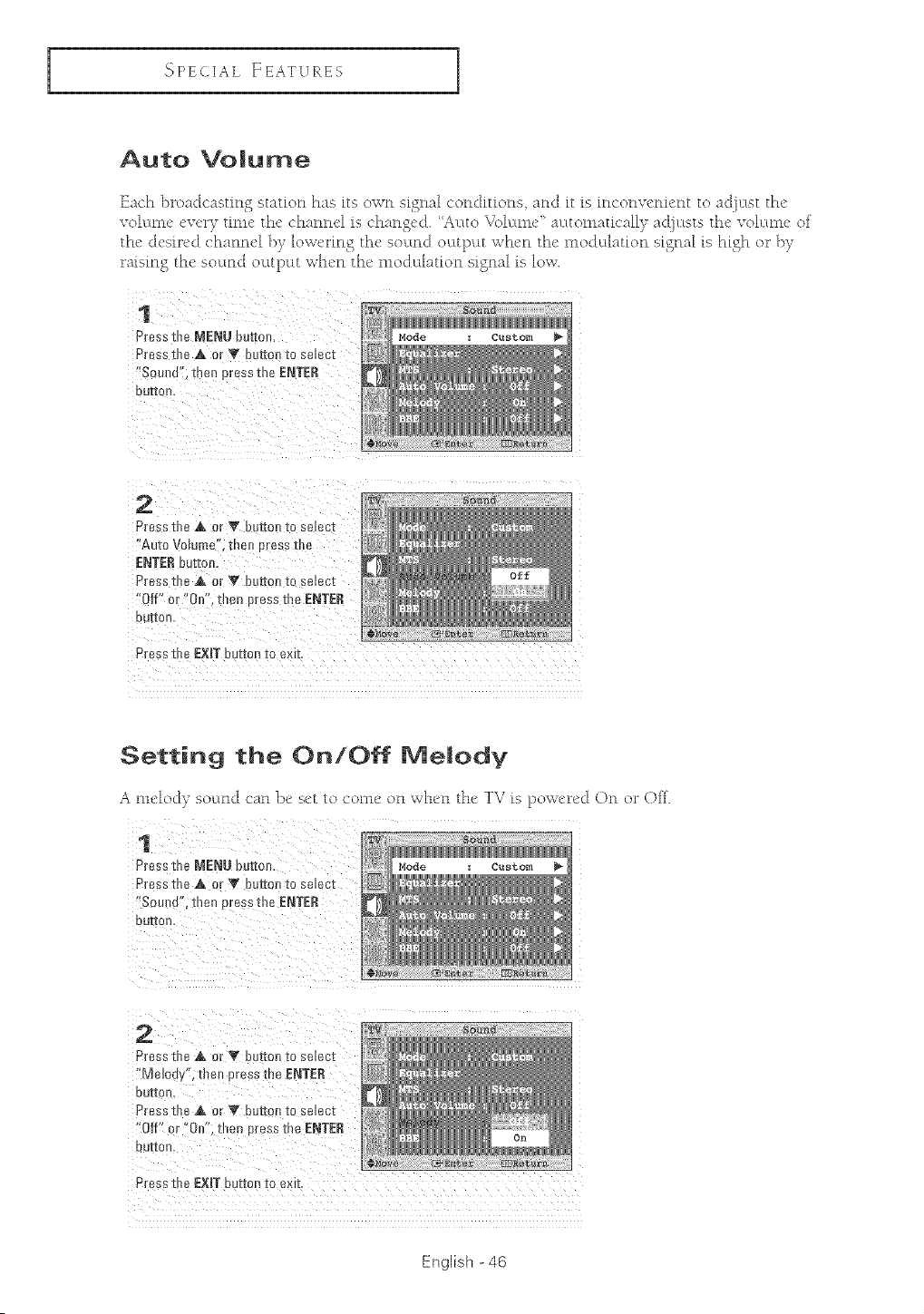
SPE( [AL ][::EATU RE S
Auto Volume
E_ch bro_dc_sting st_ttion h_s its o'e,rn sign_fl conditions _md it is inconvenient to _djt:Lst the
rob:trot, cvt,ry time the ch_mncl is ch_mg_'d. 'it:tto VolLtmc at:ttonmtic_ll) _,t([]tffStS the voh:tnlt' of
the desired ch_mm'l bv low_'rin g the sound ot:tt[)t:tt when the: modLtl_ltion sfgn_fl fs hfgh or bv
r_isin g the sound oLttl)Ltt when the rood uhtion signal is low.
Press the MENU button,
Press the A Or V buttoll to Select
*S0uod'!; then press the ENTER
button.
Press the A or Y button to so!oct
"Auto Volume"; then press tire
Press d?e A or _' button to select
"Off _or "0n i, d_en press the ENTER
Press the EXIT button to exit.
Setting the On/Off Melody
A me:lody sound c_*n be sd to come on '_:vhen the TV is powered On or Off.
1
Press the MENU buttm
Press the A o_ _' bu[ton [o selem
"Sound". then press the ENTER
Uu[[on,
Mode Custom
2
Press the A or V ou[ron [o selem
Melody", t _e_ 3ress the ENTER
Duller
Pressthe _ or _ but_o [o se_em
"Off or 0e".then oress the ENTER
DU[[0B
Press t e EXiT button to exit
English - 46
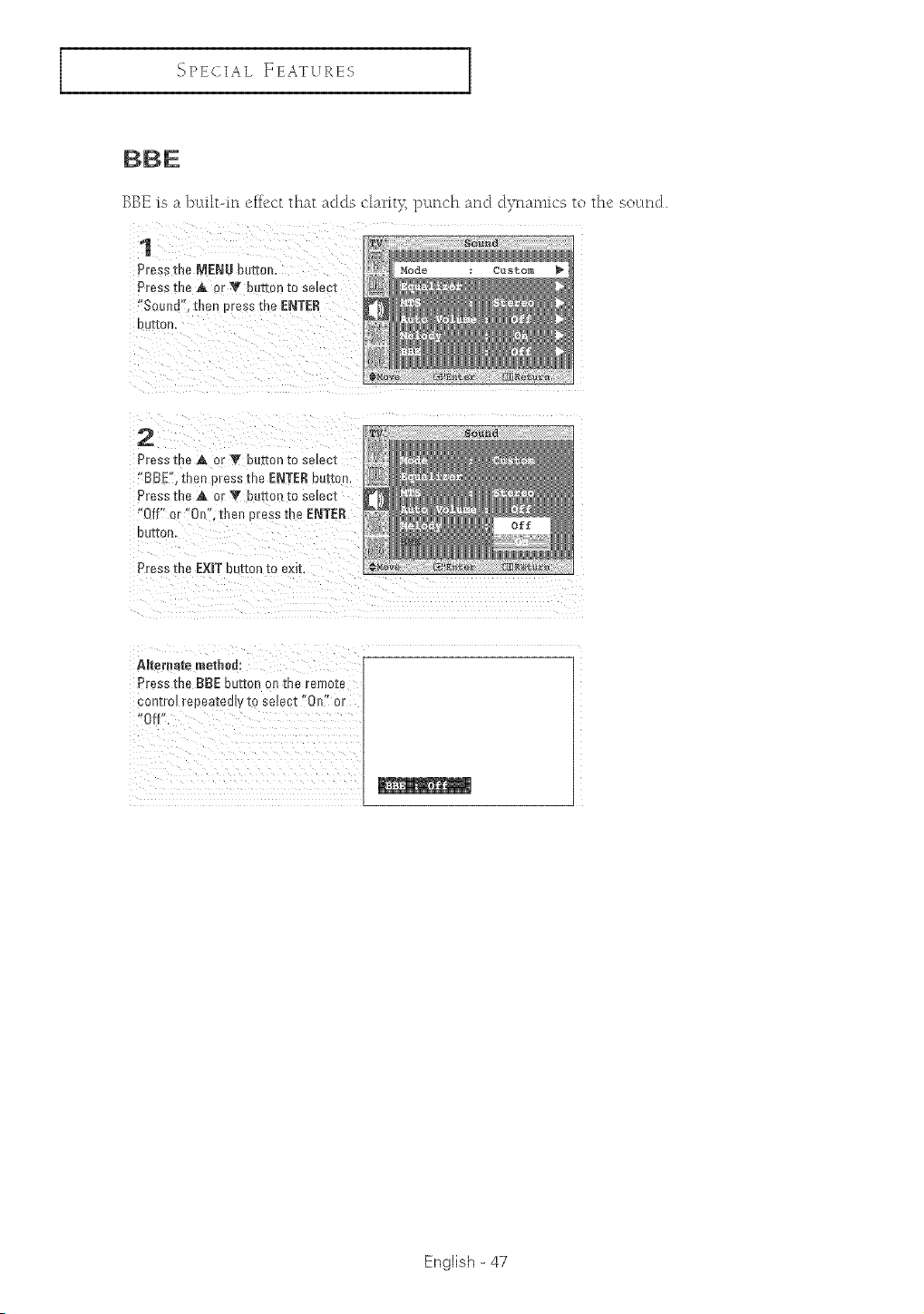
_'_PECIAL ]ZEATURES
BBK is a built-in effi!ct that acids clam)_ ptlnch and dynamics to the solmct.
1
Press the MENU eurcor
Press in8 A or Y out-ton [o se_ee][
"SouJ_d". thee cress the £NT£R
UU[IOn
Mode Custom
2
Press the A c V bun 3n [o se_ee[
"BE E'. then 3ress the £NT£R butt[ N.
Press tNe A or Y butte • [o se_ec[
"Off" or "0r_ , men Dress the ENT£R
OU[[On
Press the EXITLur[on to exit,
AJteraate method:
Press the BBE button oe the remote
control regeatedly te SeleCt ['Oll'_ or
English -47
SPE< [AL ][::EATU RE S
Viewing Closed Caption Information
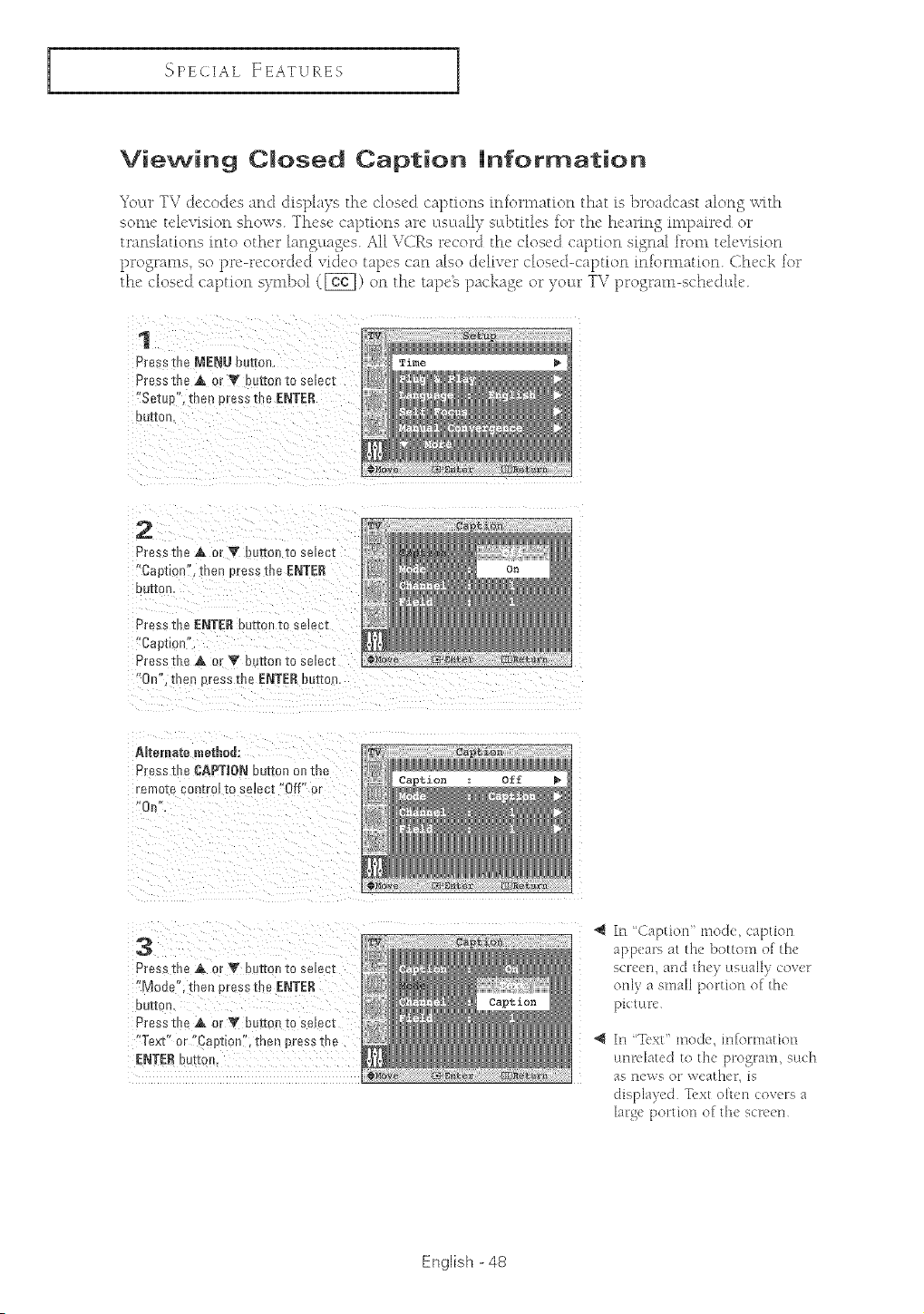
Your TV decodes and dispkws the closed captions iniommtion that is broadcast alon 5 with
som_' teh:vision shows. Thcsv captions are t:tsuall) subtitles for the hearing impnircd or
translations into oth_'r langt:tagcs. All V(iEs n'cord the' closed caption signal item teh'vision
programs so pre-rvcordcd video tapes can also deliver closed-caption iniormation. Check for
the closed cq)tion symbol ([_) on the rope% package or yo,r TV progmm-sched t:d<
1
Press the MENU button.
Press tlle A or _ DUITorl re so,eel
Setuff'. tnen press the ENTER
DU[[OB
2
Press the _&or Y b _rmn m selem
"Captmn', men press the ENTER
BUr[On
Press the ENTERbutton to se_ec[
"Capuo_
Press the A o_ _' bu[mn [o selem
"On", the _press the ENTERou_on,
On
ARemate method:
Press the I;APTION button on me
remote control to select "Off" or
"On",
3
Press the A or Y b iron re se_em
"Mode" then pressthe ENTER
eU[[On,
Press me A m _' button to select
Text" or "Caption', then press me
ENTERbutter
In '( aption" mock, caption
app_ar_at the bottom el th(
ecr{'crL and they usually covm:
only a small portion o17the
picture
@ In 'Text" meal<, itt[ormation
tumelated tO the pl:ograril, Sttd'l
aS rle'_vs Or weather, [s
lar_,e_o portioH el th< scre<n
English -48
_PE( IAL ][nEATV RE S
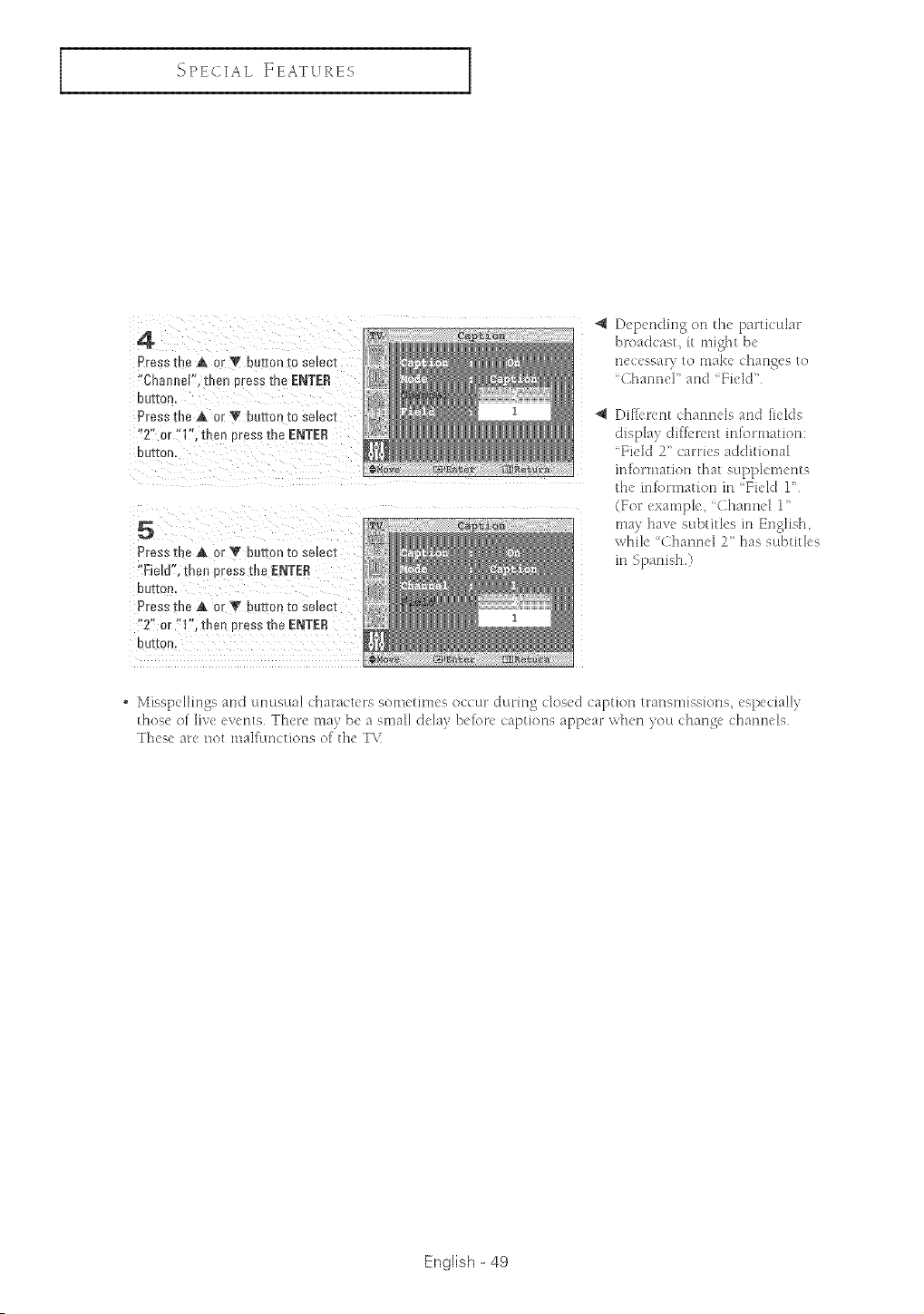
4
PresstheA or V out[on3oselec-t
"Chame[" men DresstheENTER
D U'E[OR
Press the A or V bu_l 3n [o se_ec[
2" or -1'. ther!OrDSSme ENTER
DUEOR
5
Pressthe A orV but1 )n [o se_ec_
"EieN'. me_ oresstheENTER
DUI[On
PresstheA c r Y bur[on[o select
"2" or "1".then Dressme ENTER
OUIIOr)
Depending oll the particular
broadcast, it might be
neccssar) to make chatw's to
"Channel" attd "Yield"
_ Differ<nt charm<Is attd li<Ide
Yi<ld 2" ca*ties additional
inJormation that supplem<nte
t[_e in[ormation in Yield 1"
(Yol: example, '( hatmel 1"
may have subtitles in English,
while "Channel 2" has subtitles
in Spanish)
• Misspellings and u,meDal characte*'s eometm_ee occur during closed caption tlrar_emiseior_e,especially
those of live everlts There may be a small &lay belore captions appear wh<n you chang< (hatmels
These are not mallunctions of the T\I
English - 49
SPE( [AL FEATURES
Setting the On/Off mer
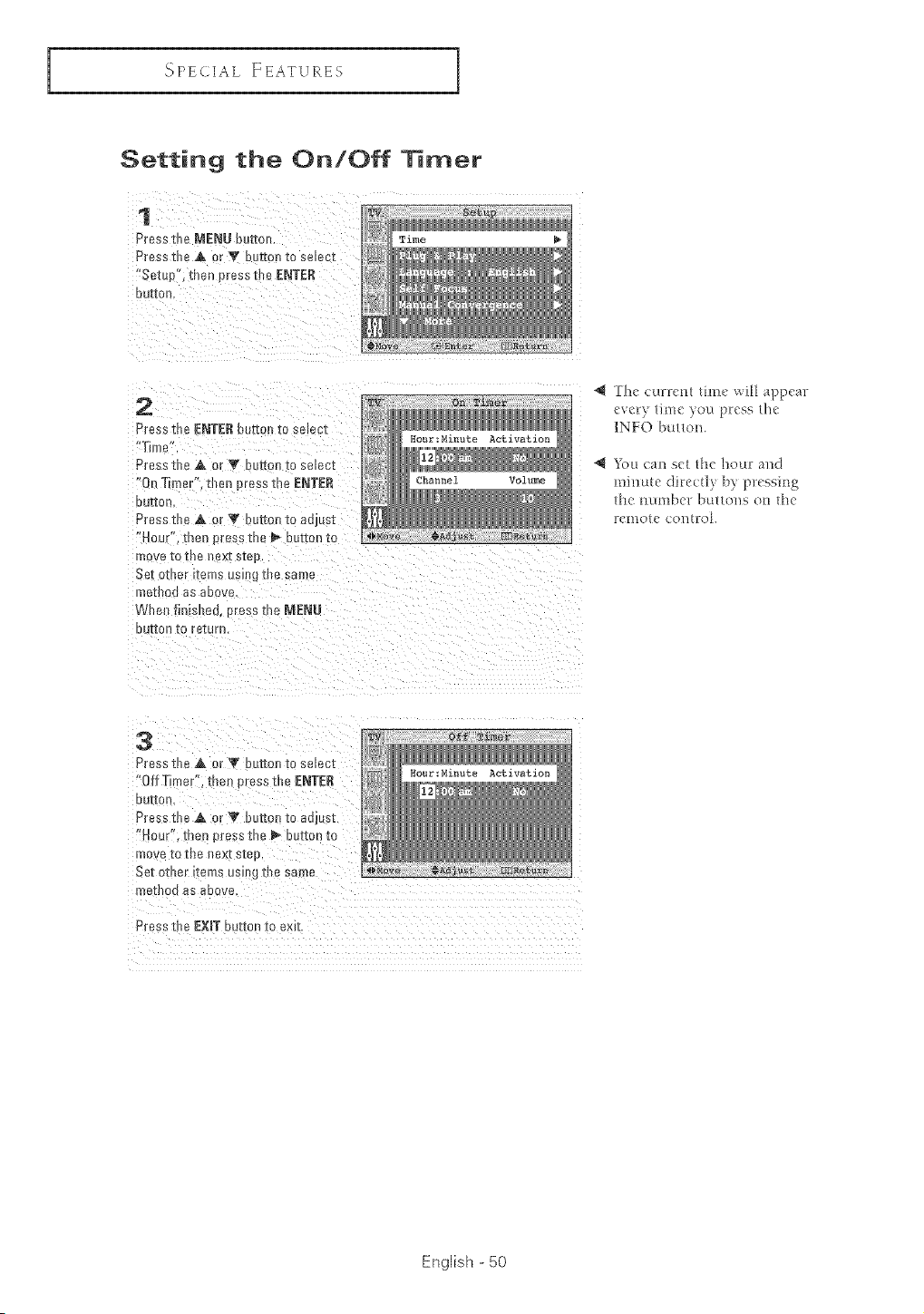
1
Press the MENU button.
Press the A e _V b _[on to selem
"SetuP", then press the ENTE_
Durkee
2
Presothe £NTER but[on to select
'Time'
Presstl e A ur Y butte to select
"On "[ me ". then uress the ENTER
BUrtOn
Press the A or T norton [o aajusl
"Hob "" men Dressthe _ button to
move to the _x[ steD.
Se_ o[ller Iten/s using [he same
Tle[llOCl as above
Wherl finisned, Dressme MENU
BUI[On tO return,
The currcm time will appear
eve G lime )ou pl:ess lhe
1NFO bullon.
You can set the hour and
minute direct]y by pressing
the numbel buttons on the
remote con n:oL
3
Press t! e A or Y butted to select
'*OffTimer". then Dressthe £NTER
DUI[OB
Press t_ e A DrY bettoll to adjure
• Hour*'. rue _)ress the _ button to
move [o me nex[ sIee.
Set other _remsuse g the same
tie[DO0 aS eDOge
Press t e £XIT button to exit
English - 50
_'_PECIAL ]ZEATURES
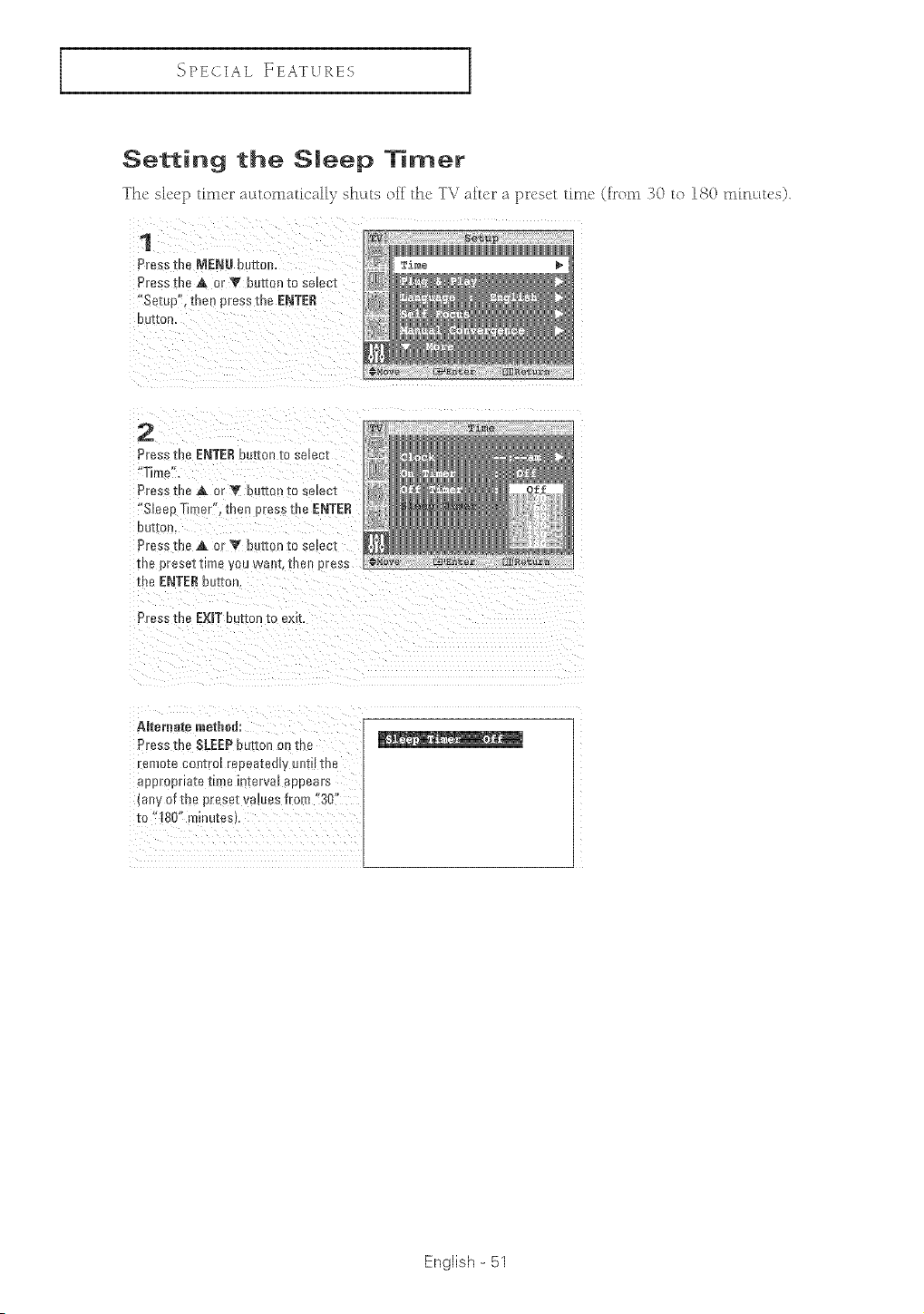
Setting the Smeep llmer
Th_ sl_:p tim_ _ automatically shuts off the: T\ / aft_:__ a p_:s_:t tim_! (irom "t0 to IS() mmuu, s).
1
Press the MENU botto
Press the A or V button re se_ec[
Setup", then press the ENTER
OU[Ior,
2
Press me ENTERDotED1[o se_ee[
"Time".
Press the A or V l)orron to selec[
Sleep Timer". then [ ress the ENTER
DUIIO/t
Press the A or V [ !ton [o select
ERe prese[[ime you wan[, reel Press
[heENTERbutton.
Press the E×BTbul[on [o exR
Alternate methed:
Press [n_. SLEEPbutton on the
remote control repeatedly until the
[_DorODrleTe [m)8 mzerva_ appears
[a y of the prese_values from "30"
[o "180" mmu[esL
English - 51
SPE( [AL FEATURES
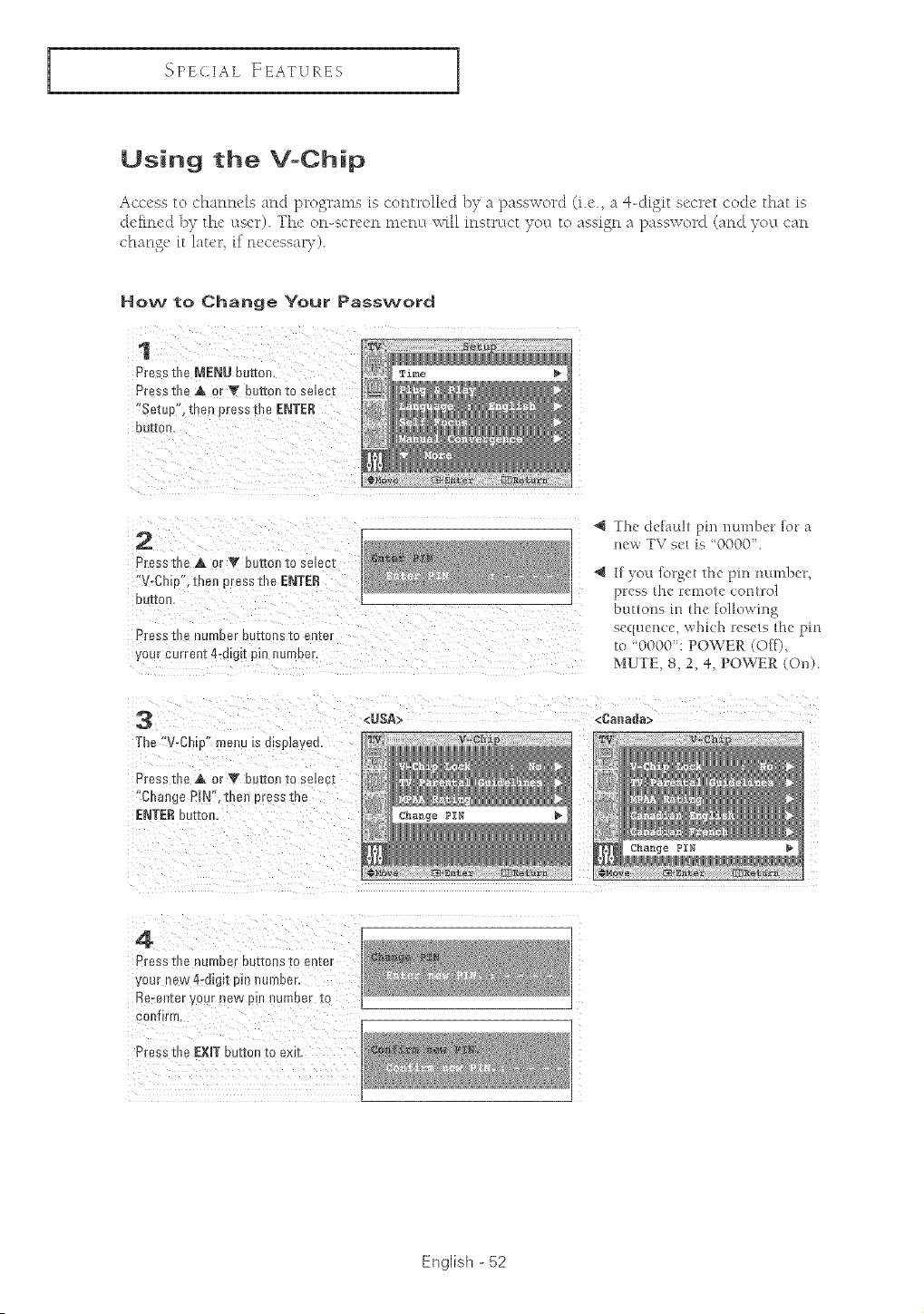
Using the V-Chip
Access to channels and programs is controlled b} a password (i.e. a 4-(:tigit secret cocle that is
deigned by the' l_scr). The' on-screen m_'tlLt wtH mstrttct yell to assign a password 0rod }eLL ca_l
change it later if necessar} ).
How to Change Your Password
1
Press the MENU butto_
Press the A _ •V bin-ran[e se_ec_
"Setue men oressm_ eNTER
Dulron,
2
Press the A or Y button to se_ec_
"V-Chie . men uress the eNTER
DU[[OH
Press the nu- _uer E u[[ons [o en[er
your current4-d_g[t pm u_mer.
3
The V-Ct " melsu Is msplayeo.
Press t le A or V bettOll [o se_ecl
"Change PIN", tnerl eress me
£NT£R bu[mr
<USA>
v_chip
4 Thc lclatd/ pm number for
ncw TV s is '0000".
1[ you lorgcl thc pin _mm!_c_
>rcss nc retook cent/o|
DHHO/IS tt} H} [o|_ov,'i/l_
sc( _l_q_cc.whk'h rcsc/s thc pin
t "0000": POWER (O[[),
MUTE 8 2, 4, POWER (On),
<Cane#a>
PIN
4
Press me nunmer De[ions _o en[er
your ne_ 4-digit Pn number,
Re-enzeryour new pm _JrnDe[ t0
confirm
Press me £XIT button to exk
English - 52
{_PECIAL ]ZEATVXES
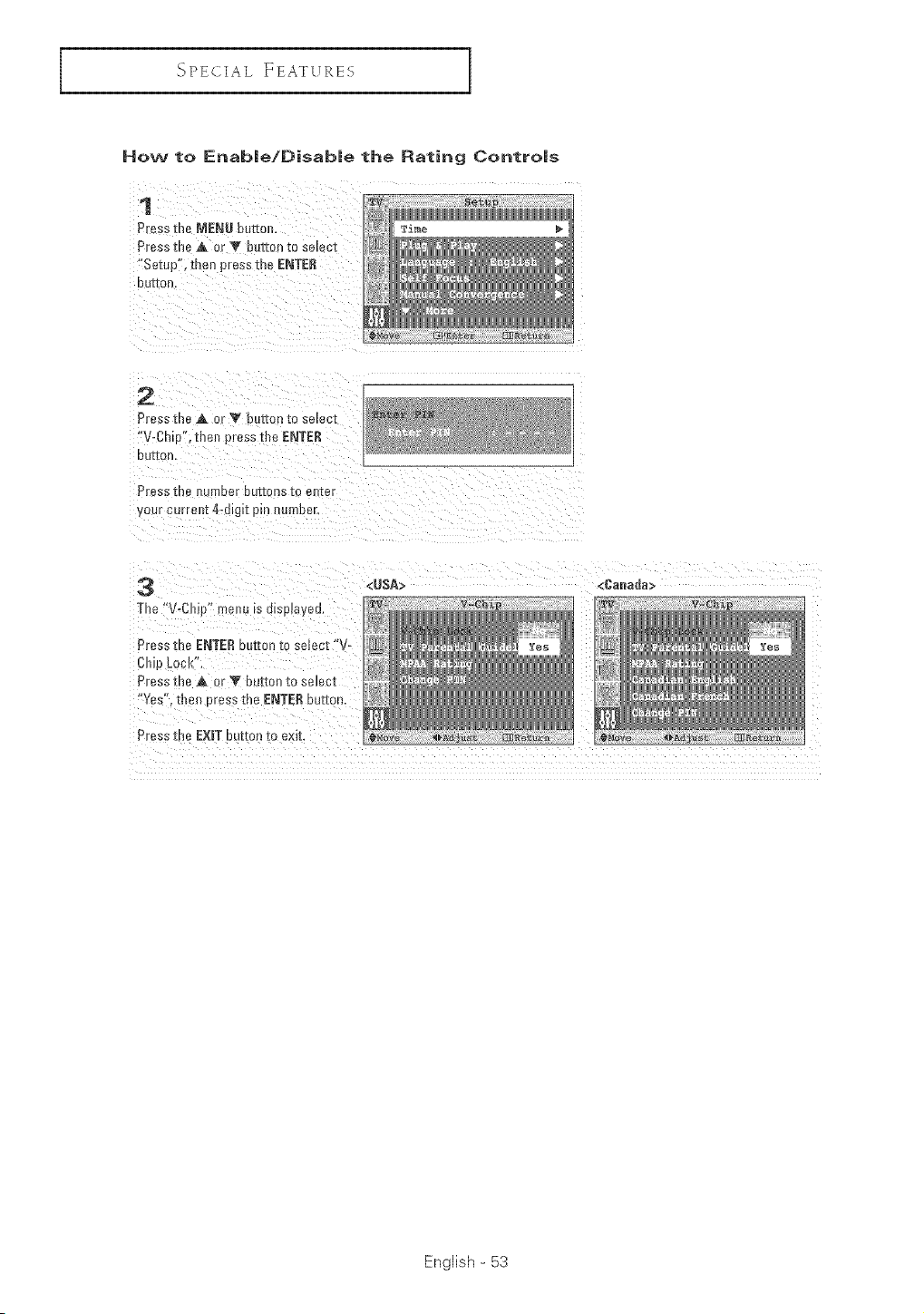
How to Enab|e/Disable the Rating Contro|s
1
P_essme MENU butter
P_esethe A t r Y button to selec[
"Setup", then press the ENTER
OU[IOr
2
Press the A c V bu[[on _oselecz
"V-Cl_o".theJ oress the ENTER
OUEOR
Press tne _umoer out[o lS-_o en[e
our current 4-algl[ pin _umber
3
The "V-CI_Jp" menu is displayeu.
Press me ENTE£ ou[[on [o select "v-
Chip LOCi{'
Press the ,& _ v eu[[on [o se_ec[
"Yes", then oress me ENT[R our[on
Press tne EXITbutton to exit.
<USA> <Cauada>
English - 53
SPE( [AL ]E:EATU RE S
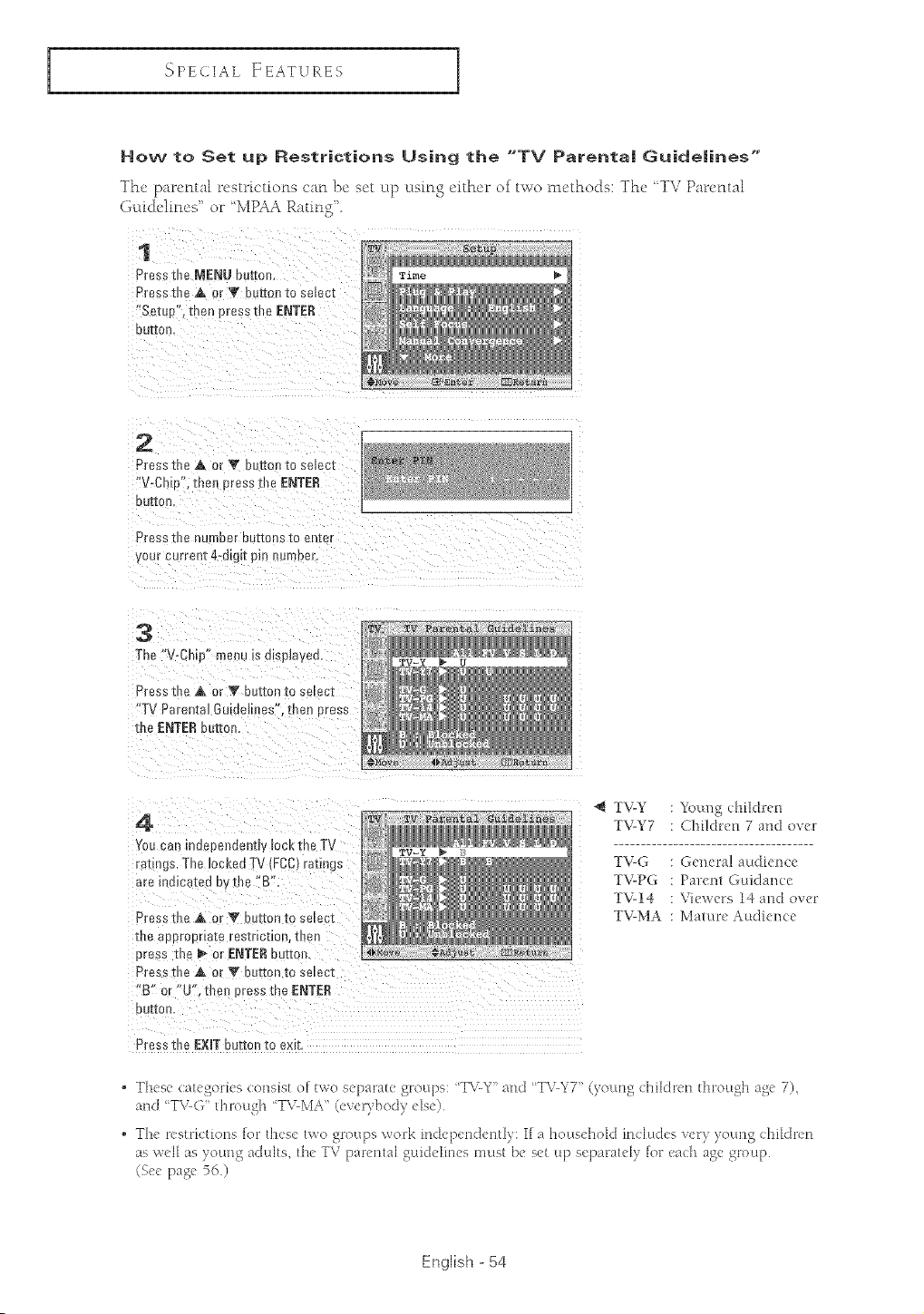
How to Set up Restrictions Using the "TV Parenta| GuideJines"
The paternal restrictions can be set up using either of two nlcthods: TM' "TV Parvata[
Gcddelmes' or 'MPAA Rating'
1
Press the NENU button.
Press the A or T butted so semci
"Setue'. men press fl_e ENTER
UUSSOH
2
Press the A Dr V _uEon re selec;
"V-Chie',tne oressme ENTER
OU[[0n
Press the n[ moor DeImos IO enter
year current 4-d[g[I pm umDer.
3
the "V-CI ,Y' menu is dmpmyea,
Press t t_ A or V button io select
"TV Parental 6ume _es ,men Dress
the ENTER our[on.
4
You can indepenaenoy lock the TV
ratings. The locked TV _rCC_resings
_re mmcateo Dy She "S',
Press t!_e A o _ button to select
the aonroona[a resmcuon, men
Dress me _ or ENTERouster
Press the A or T outrun to select
"B" or "U% men Dress Tne ENT££
BUttOn
T%Y
TV-G
T%PG
T%14
T%MA
q_N{
Young children
Children 7 and over
Genera! audience
Parent Guklance
Viewers 14 and over
Mature Audiem e
Press the EXiT button to exit
• These uat<goHes consist o[ two separate groups: T_vY" and T\_Y7 '' (vouH_,,> children through, ag<, 7_,,
attd 'TX,_(;"through T\_MA '' (<v( )boo y(so)
, The r<striutions [or these two groups work indeperld<ntly: I[a housd'lold includes xery young dtildren
as v,'eHas >ottng adults the TV parental ,gl-tkJelhlesmust be set up separately [or eadl age,,grou )
)a_,e 56
(See [ o ,
English - 54
_'_PECIAL FEATVRES
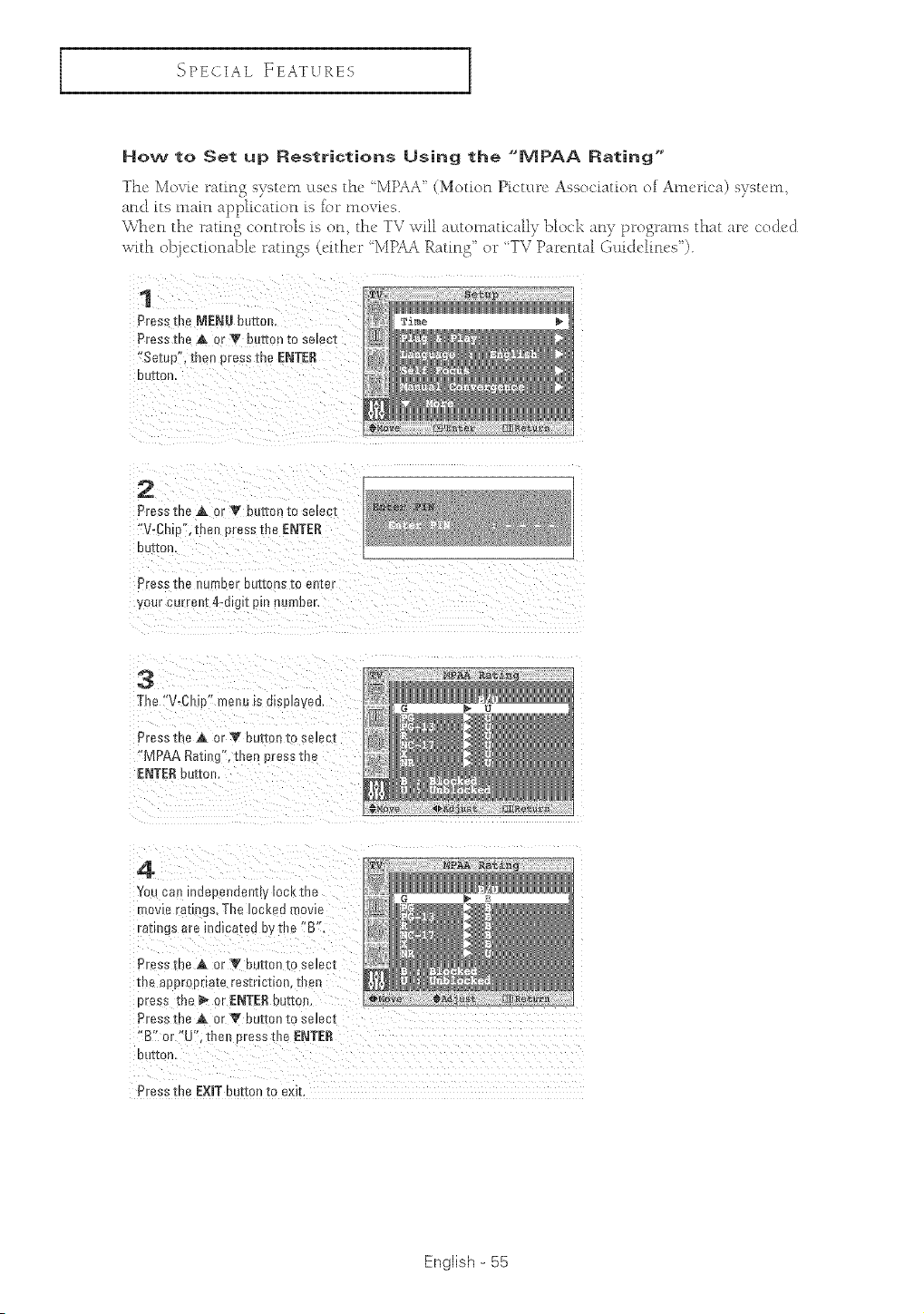
How to Set up Restrictions Using the "JVJPAA Rating"
The Movie rating system uses the ' MPAA" (Motion Picture Association of America) system,
and its main application is ior movi_,s.
'vk&_'n the' rating controls is on, tM' TV will a_ttomatically block any programs that ar_' c'od_'d
with objectionable ratings (eithe_ _"MPAA Rating" or "TV Parental (,uidelin_'s").
1
Press the MENU butter
Press the ,& _ ,e button to select
"Setup", then oress the ENTER
De[Ion
z
Pr__sthe A or V [4_t-[onto select
"V-gh p", then press the ENTER
DuEon
Press the _u _eer cations to enze[
your current 4-d_g_tpm number.
3
The "V-Oh p" menu [s d[splaved,
Press tl e ,_ or V but[on [o se]ec[ [_i_
"MPAA RatiJ g', then uress me !_i
ENTERbur[on.
You can ind_ peeoenW _OCKme
mowe ra[m _s.The locked mowe
ratings are indicated by the "B'.
Pr__sthe A or V onE[onto se_ec[
me aeero[ na[e resmc[ion, then
oress the 1_ or ENTERbutton.
Press me A or V button [o select
"B" or "U". then Brass the ENTER
uuI[on
Press the EXITbutton to exit.
English - 55
SPE( [AL FEATURES
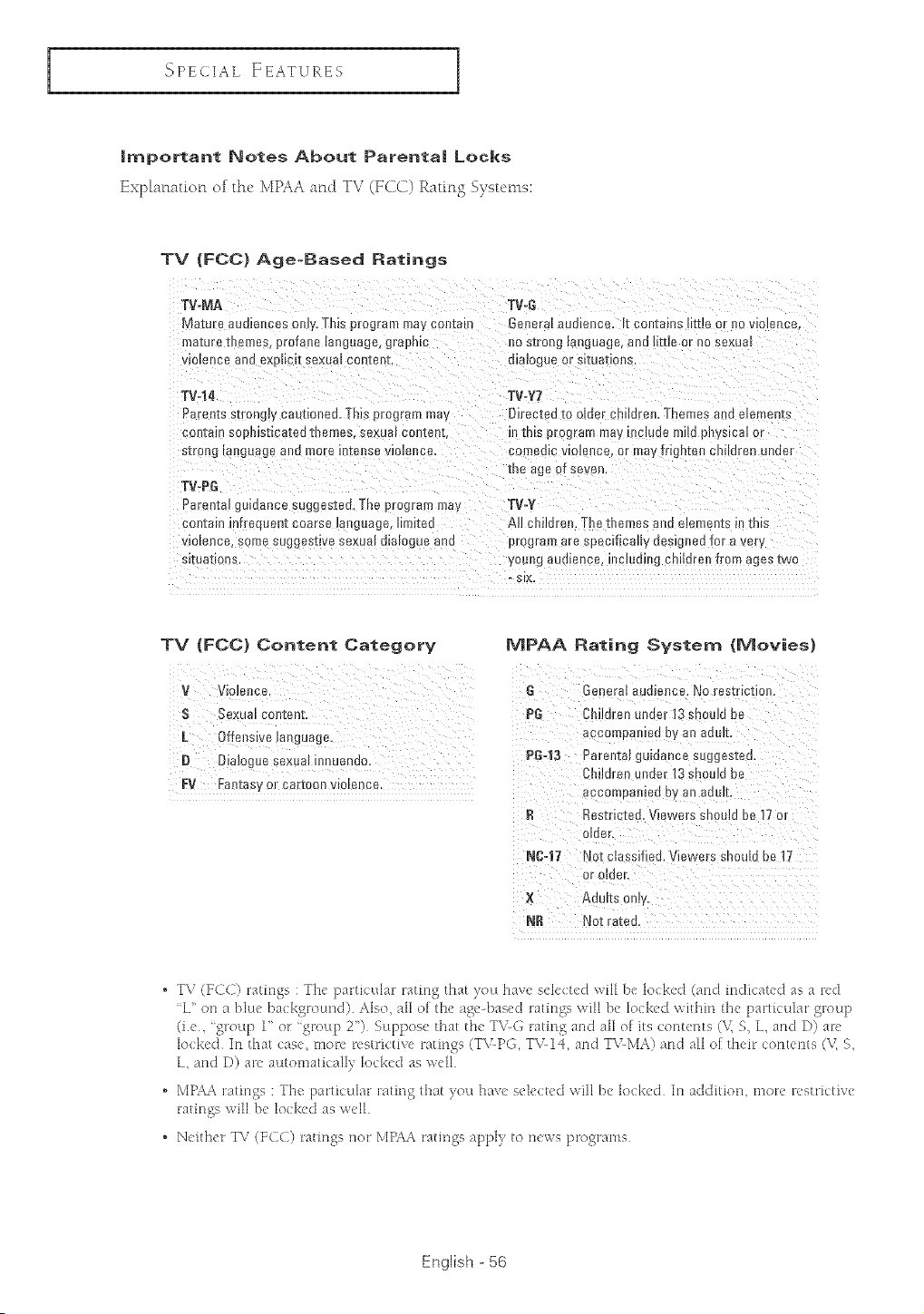
|rnportant Notes About Parenta| Locks
E×p[aFu_ti0F_ 0f the MPAA aF_dTV (FCC) Rating Systems:
TV (FCC) Age-Baaed Ratings
[V-MA TV°G
Mature _uolelleas ol y, TNs program may cootah) Ge oral aualence. [ contains HT[leor Rovloietlee.
maturememos profane language, graphic 3 s[rong _angoage,an_ mua or no sexua
_m_enceano oxalic [ eexum tORrent, matogue or slma_bns
TV44 TV-Y7
Paranzs strongq/cautioned. This program ma_ DJrec[edto o[aer cnearao. Themes a a ere-- _nzs
contain sooh]st_catedthemes, sexua carl[eat,
s[roRg i_eguaga art1 more mte.osa vIo_eRea.
TV-PG
Dsren[a! gumance suggested. The program may
contain "ffrecuant coarse mnguage Imlteo
_golenca,some suggestive sexua om{oc Ja anti
SltOa[ oe£.
o)ls program may mc_uae mile pl]yg_eal or
comemc VlOmtme, or may frighte_ cn dren under
line age of seven
TV-Y
All children. The thames ar u e_ tlen[s m m_s
program are specifically designee 1or a vary
you_[g aufl_ence, e]clao_ _g chiNren from ages two
SIX.
TV (FCC} Content Category
V Violence.
$ Sexual Corltent.
L 0ffensive language.
B Dialogue sexual innuendo.
FV %J]tasy or cartoon violence.
MPAA Rating System {Movies)
General audiarlca. No restriction.
P6 Children tuner 13 Should be
accompanied bv an adolt.
PG43 Parental guidance suggested.
Children under 13 should be
accompan!ad bv an adult:
R Restricted. Viewers should be 17 or
NR Not rated.
, TV (F(C) ratings : The particular ratm_ that you have selected will be locked (and indicated as a [_'d
L' on a bl_e backgrouHd). Also, all of th_ agcq>ased ratings will be locked within the particular group
(ic, group 1' or group 2") Suppose that th_ T\nG rating and all of its contents (V, S, L, and D) arc
locked In thclt case, moro restrictive ratings (TV-PG, T\L1J:, and T\LMA) and all of their contents (V, 5,
L, attd D) at(" atttomatically looked as well
. b'[P_& ratings :The particutlar r; ring that 17out}taxe selected will be h>oked Itt additioH, mol:e restrictbTe
ratings will be locked as well
. Neithel: TV (FC() ralmga Hot Iv[PA_ ralmga appl_ to H_w_.j)roqram_,
English - 56
_ PECIAL ]ZEATVXES
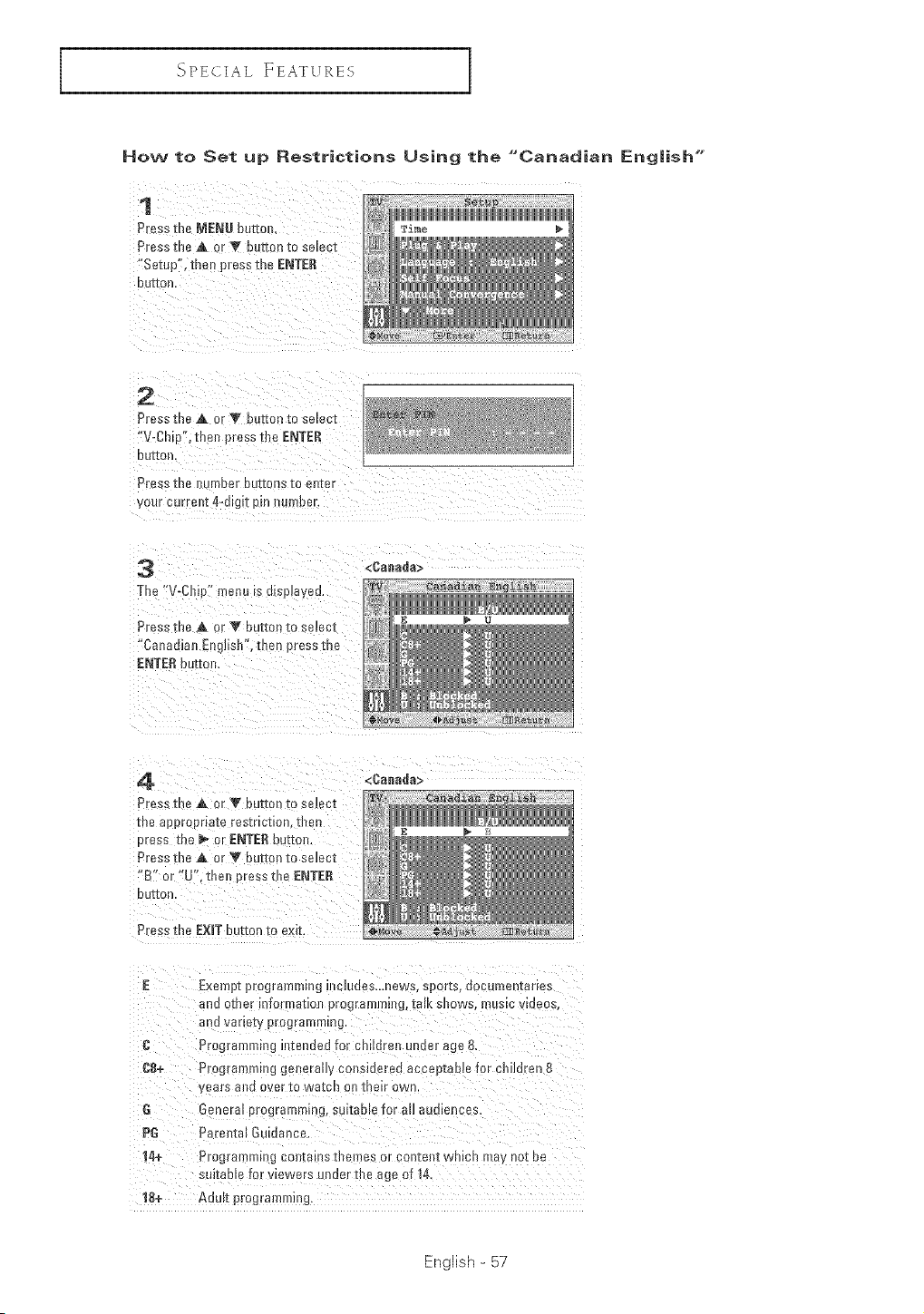
How to Set up Restrictions Using the "Canadian [ng|ish"
1
Press me MENU botto_-
Press the ,& or V ourron zoselect
"Setup", tneu press the ENTER
D U [[on
2
Press the A or V butte ) [o selecz
"V-Ch 0% then press tbe ENTER
DUE'Ion
Pressthe i- ruder DuE[ensueenzer
your current 4-dig_tpm number.
3
The "V_CbJp" menu is d[spJayeu.
Press the A or V button to select
"Canadian Eeg![sb', then press zne
ENTERoutzon.
<Canada>
4.
Press the A or Y button to sc_ec[
me aooroona[e resmcuon, me
oress the _ or ENTERbuEon.
Press the A or _r button to select
"B" or "U", men oress tbe ENTER
Belion
Pressme EXiT button [o exit.
<Canada>
E Exempt programming mn]naas_.news, spores, aocumen[anes
tE! 3ERe_ :'_for i_}.ion pro_rnmll!ttl_ [81K SHOWS,music v[oeos.
and var e_y programming.
R Programming eltended for children under age 8.
C8+ Pro jrammmg generauy conslnerea acceptable for cbildren 8
years ano over 1:0wa[cn onmew own
G General prograremmg suitable for aH audiences
PG _arenta[ G[ dance.
14+ Programming conznms xl_e!._es or con[ant wmcn ma' not De
solianle roe viewers uHaer Erie age of 14.
18+ Adult programming
English - 57
i _-_PE (2 [AL FEATURES
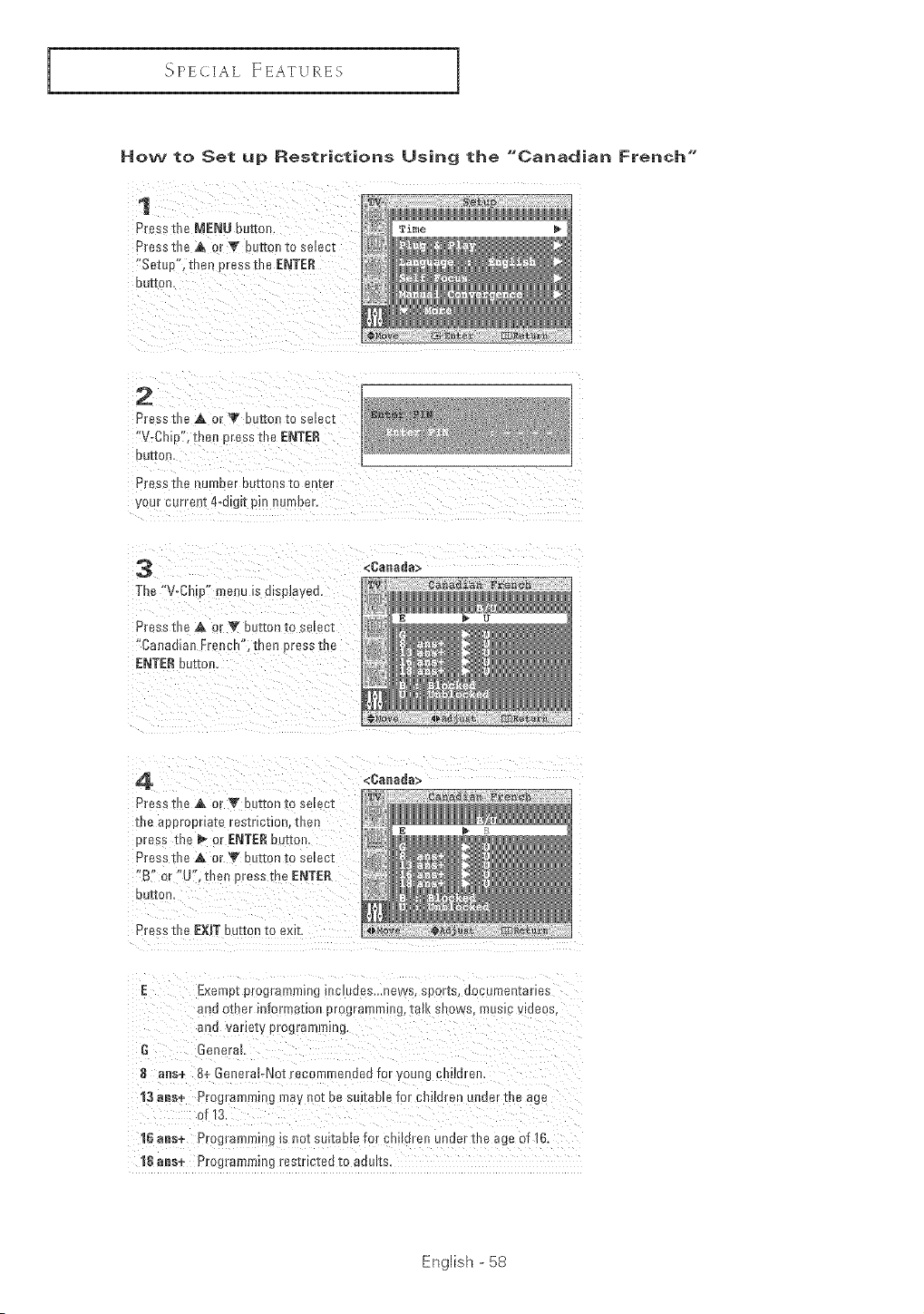
How to Set up RestriGtions Using the "Canadian French"
1
Press the MENU button.
Pressme A, _r V button to select
"Setue". [hen Dress the ENTER
[ LII[OFI,
2
ISressthe A 01 T butte izo selec_
"V-Oh 0'2 t _enDress the ENTER
OUI[O_t
Press _lleeurrlDer De[lees IO shier
you _ current 4-digit pin r_ue]uer,
3
The "V-C 1 p" menu is disuJaVeU
Prs _s []]e A or V bet[on [o select
"Carlad[an Fr_ mh". then _ ressme
ENTERi;uE_oe.
<OaBada>
E Exe pl[progralnlniHg i!leluaes...news, el}or[s, oocumentarles
ell[; Qther _nl[orme_toe ero_rammlll_ lie _ sllows, m[ SIC vioeos
end varle[_ _rograllllTnHg.
G 3enerak
B arts+ B+ BeneraloNot_ecommendecllo_/oun9 cl_i!dre
13 eas+ Programrrsng rnay not ne suitable for children u_uer the age
of 13
16 aas+ Programmi _g_s_ot seltaD e for el" dren under the age of/6.
']8 aI_e+ Pro _ramt'tl]n_ res[r[ctec 1:o aot}[l_S.
English - 58
_'_PE( IAL ]nEATVRES
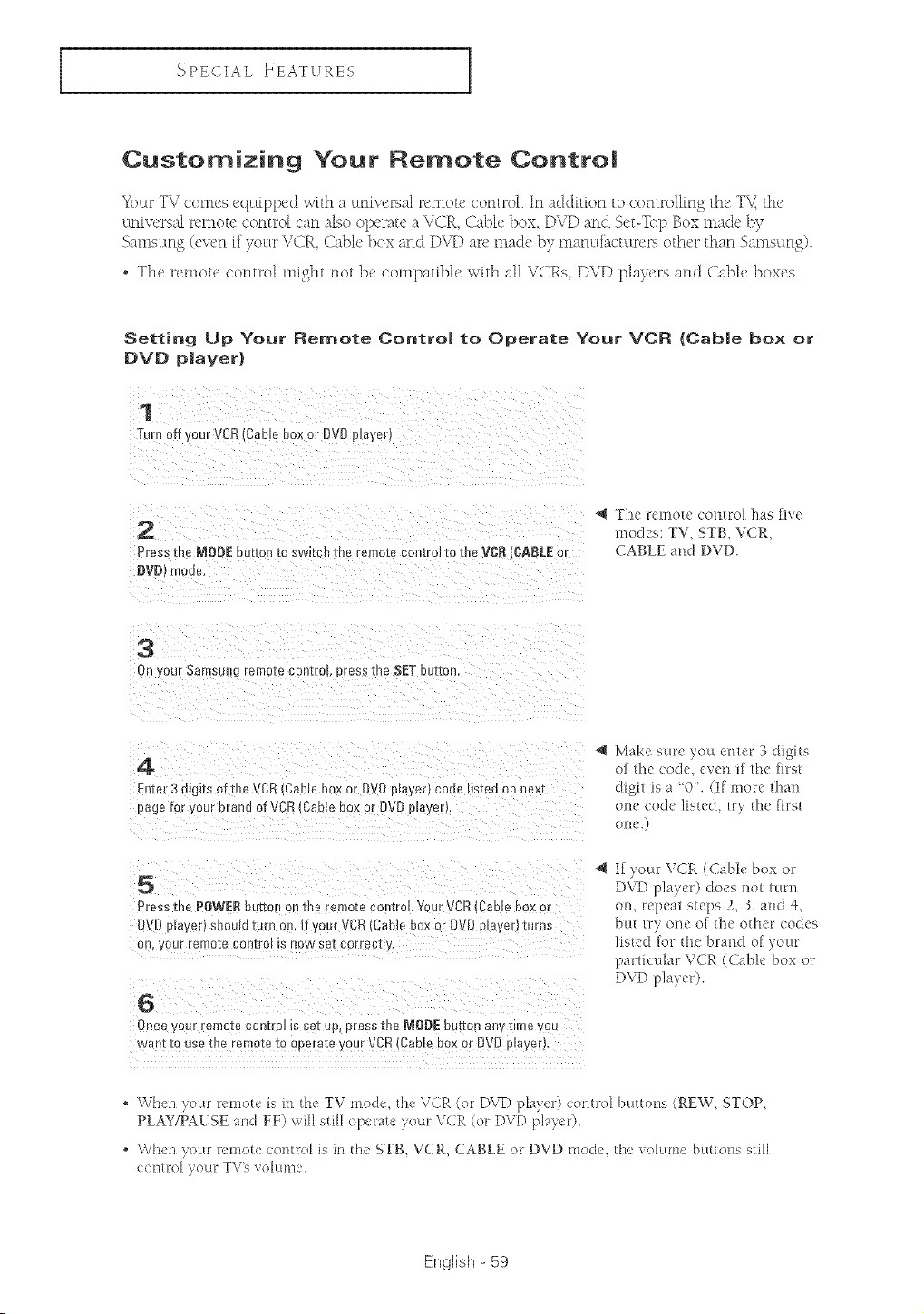
Customizing Your Remote Contro|
_\_ar TV comes eql:dpped with a umivep._alremote control. In addition to controIIin S the T\,_ the
ctniv<_sal remote control can also operate a V(iR, (ial_Iv bow DVD and Sot-Top Box nla&' by
Satllsttng (ever_ if yottr VCR Cable box and D\,qD arc made })y nmnttf_ctttrep, other than Samsttng).
• The remote control might not be compatible with aI[ VCRs DVD players and Cal)Ie boxes.
Setting Up Your [{emote Contro| to Operate Your VC[{ {Cable box or
OVO p|ayer}
1
Turnoff your VCR{Caole box or OVOplayer
2
Press the NODE button to sw_zc_me remote eon[roJto me VCR (gABLE or
#VD mode.
Tile remote eontro_ has five
modes: TV, STB, VCR,
CABLE and DVD.
•
On Jour Sarr sung remo-[econ[rm, dress the SET button
4
Enter 3 digits of the VCR Cable box or DVD nlayerl coee seed on nex_
uage for youl brand of VCR{Caole box or OVOumverl.
Make sure you enter 3 digits
of the (:ode, even if the first
digit is a '0'. (If more fi_an
one (:ode listed, try the first
O!le.)
5
Press tne POWERbutton on [be reraote control Your qCR(CaNe box or
DVD prayer1snoum mrn c If your VCRlOable box or DVD prove[ turns
on, your remo[_ con[ro_ m now set correcuv
6
Once your remote conu'oJ_sset up dress [be NODE buTtonany zm_eyc
want to usethe remote to operate your VCR (Cabl[ box or DVD pmyer_,
If your VCR (Cable box or
DVD player) does not turn
am repeat steps 2, 3, and 4,
but try one of the other codes
listed for the brand of your
particular VCR (Cable box or
DVD p]ayer).
• \Vhen_your remote is in the TV mode, the VCR (on DVD playet) (:onttol buttons (RE\V, STOP,
PLAY/PAUSE and FF) will still operate your VCR (or DVD playe_)
, \Vh<n your renlot< control is mth< STB, VCR, CABLE or DVD mode, the volume buttons still
English - 59

SPE(I [AL FEATURES
Remote Control Codes
VCR Codes
Admml 015,088
Aiwa 024
Akai 026,031,032
Audio Dynamics 022,025
Bell & Howell 011
Broksonic 019
Candle 016,018,022,054,055,06/
Canon 017,062
C tizen 016,018,022,054,055,06 I
Colortyme 023
Craig 016,021
Curtis Mathes 009,016,017,023,024,055,
062,073,076
Daewoo 003,004,005,006,007,008,
022,054,085
DB 023,025
Dimensia 009
Dynatech 024
Electrohome 036
Emerson 017,018,019,022,024,029,
032,036,043,050,051,056,
058,066,071,074,076,077,
079
Fisher 011,021,027,028,052,057,
067
024
009,016,017,041,062
016
023
Hitachi
InstantReplay
JC Penny
JCL
Kenwood
KLH
LG[Goldstar)
Lloyd
Logik
LXI
Magnavox
Marantz
MTC
Muhitech
NEC
Opflmus
Panasonic
Pentax
PenlexResearch+
Philco
Philips
Pioneel
Portland
PROSCAN
Quadz
Funai
General Elecluc
Go Video
Harmon Kardon
CabJe Box Codes
Magnuvo×
014,024,044,045
017
011,014,016,017,023,025,
039,044,060,062
01/,017,023,025,039,055
01J,023,025,039,055
082
001,002,007,018,023,055,
069
024
040
024
017,038,062,065
011,017,023,025,038,039,
055,070
016,024
016,024,040,041
011,023,025,039,055,070,
073
015
017,062,084,086
014,044
055
017,038,062,065
017,038
014,025,042,059
053,054,061
009
011
Quasar
Radio Shack
RCA
Realistic
Samsung
Sansui
Sanyo
Scoff
Sears
Sharp
Shintom
Signature
Sony
Sylvania
Symphonic
Tandy
Ta_n8
]ea¢
Technics
Teknika
TMK
Toshiba
roshiko
Po_evision
017,053
01/,015,0/7,018,021,024,
028,036,052,062
009,014,016,017,037,044,
046,063,078
011,015,017,018,021,024,
028,036,052,062
000,016,022,031,041,051
025
011,021
022,050,058,077
011,0/4,018,021,027,028,
044,052,057
015,036,048,054
026,035,040,064
024
026,035,047
017,024,038,062,065
024
01/,024
039
024,039,078
017
017,018,024,030
076
014,022,028,057,058
018
016,018
Anvision
Cable Star
baeHan
DeaRyun8
Donc_Kuk
Eagle
EasternInlernafional
General Instrumenl
GI
Hamlin
Hi_achi
Jerrold
/G(GoldstaE)
Macom
015,016
015,016
005
003
004
015,016
020
054
012,013,023,031,032,033,
038,044,075,076,077
011,012,020,021,042,056
045,051,054
012,013,023,031,032,033,
038,044,054,070,073
OO6
045,051
Nawoo
NSC
Oak
ask Sigma
Panason_c
Philips
Paneer
Randtek
RCA
Reqal
Re_qency
Saewoo
Sarnsung
015,016,027,029,034,036,
037,040,041,048,049
00_
017
024,046
024
011,035,047,069
015,016,027,029,034,036,
037,040,041,048,049
026,028,052
015,016
008,035,074
011,020,021
010,041
007
000,011,030,052,071,072
Signature
Sprucer
Starcom
Stargate2000
Sylvania
PaePyungYang
Toxscan
]acorn
Unika
Universal
Viewstar
Warner Amex
Zenith
054
035
054
066
019,067
002
019,067
025,029,057,058,063
039,040,049
059,060
015,016,027,029,034,036,
037,040,041,048,049
052
022,050,065,069
DVD Codes
Curtis Malhes
JVC
LG(Goldslar)
Panasonic
009
O03
001
006
Philips
PROSCAN
RCA
Samsun_
007
0O8
008
000
Sharp
Sony
Toshiba
005
004
O02
English - 60
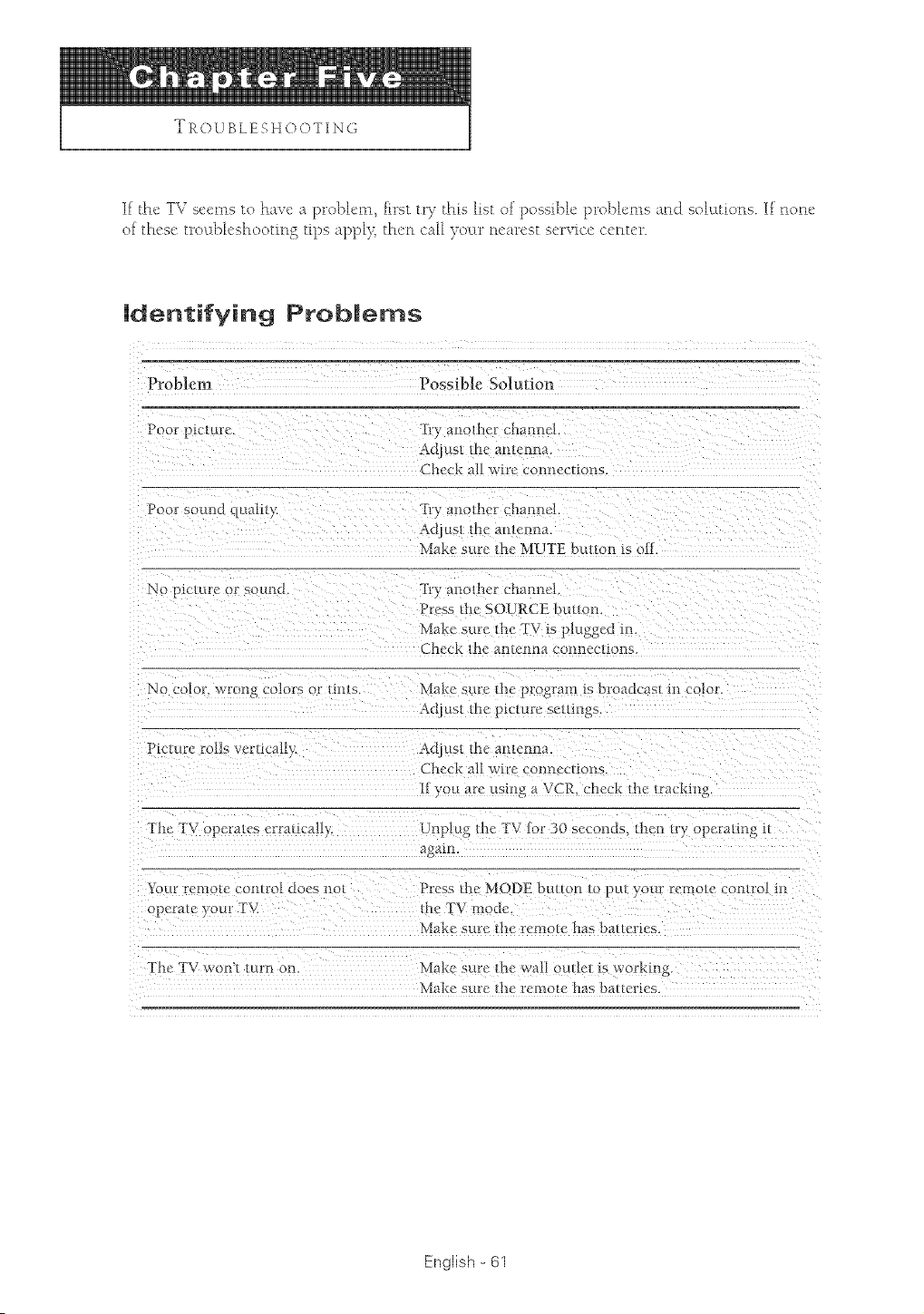
TROUBLESHOOTING
If the TV seems to have a pro])lem, first tO_ this list of possi]>h' problems and solutions. If none
of these troLd)h'shooting tips appl) then call )otw nearest service tenure
identifying Problems
lh-oblem
Poor ptcture.
Possible Solution
"I]b a_lo*her channel.
Adjust me antenna
Cheek all wire connec_tons.
Poor sound quali!),, IiT anothcr charad!!.
Ac[_us**he amenna
Make sure *he MUTE button is off.
No ptclure or s( un -t -fr) anmher channe!.
Press the SOURCE button
I_lake sate file TV is plugged in.
Cheek the antenna connecnons.
No color, wrong colors c r tints. 1_lake sure the program is broadcast in color.
Adjust 1he ptcmre semngs.
P dute ro!] _ vert_-al[}:
An'us* the antenna
Check all wire con,lee,tons.
II ) ou are using _. VCR. check *l_e*racking
-fhe TV of erases erratica!ty Unplug the TV lot 30 seconds, then _ry operaung it
agmm
Your remote comro[ does not Press the MODE button *c _ _t your remo/e control .-
operate ] our TV. me TV mode.
Make sure filmremote has batteries.
The TV won'_ turn om Make sure *l_ewall om[e* Asworkln z
Make sure the remote has ba_eries.
English - 61
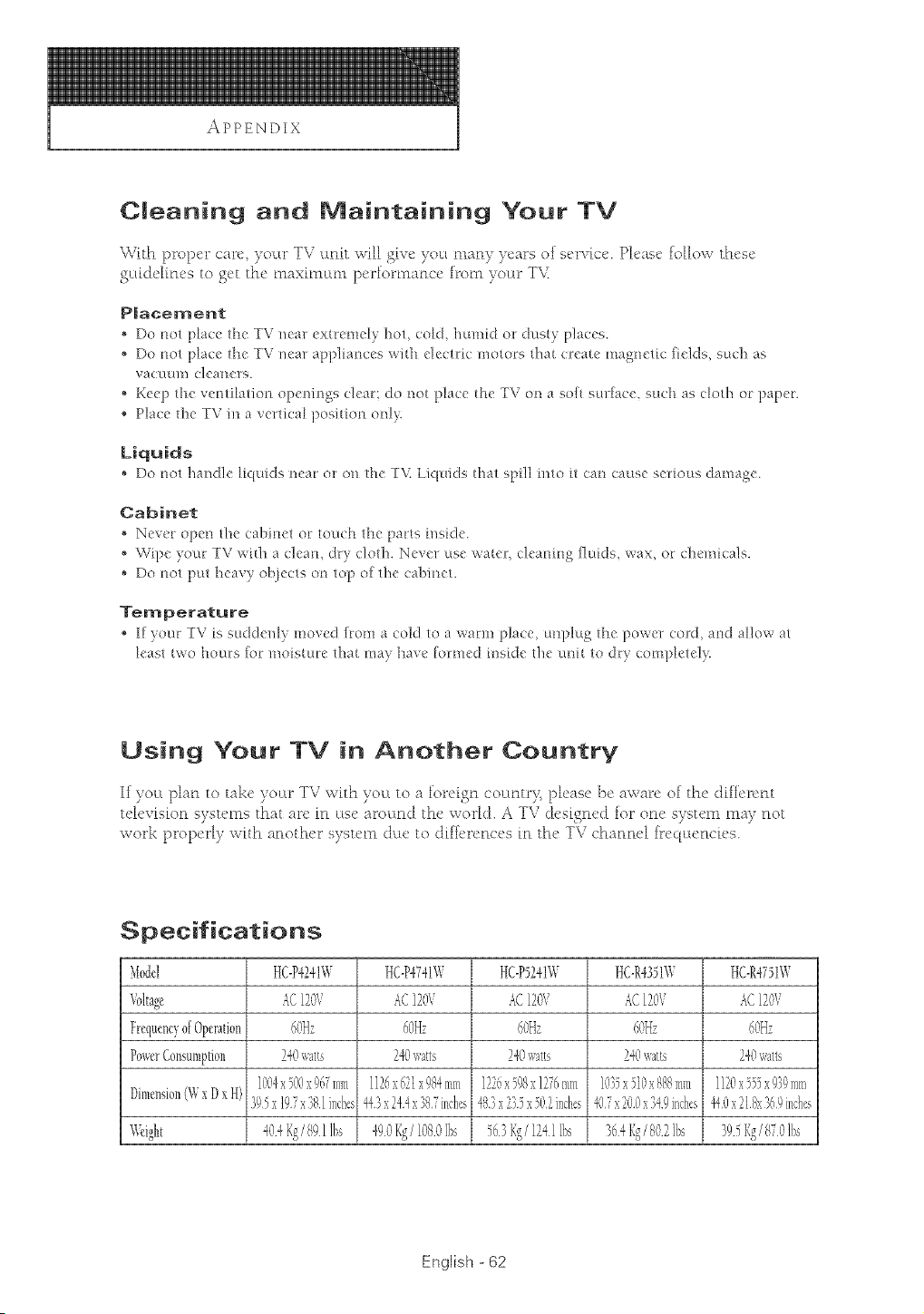
APPENDIX
Cleaning and Maintaining Your TV
With proper care )our TV lanit will giw! you nmn) )ears of sere-ice. Heasc follow these
gukJdku's to get the maximum p<%mmacv from )our TV.
Placement
Do not placc thc TV near cxUx'mclv hoL cold, humid or dusty places.
,_ Do not ltacc thc TV near appliances with dcctric motois that crcatc magactic [kqds, st_ch as
vacuum dcancrs.
•Kccp the vcn@ation openings dcar: do not place the TV on a soft smface, such as dod_ o* papc*.
Place thc TV in a vcHic:al position on]}.
Liquids
• Do t_ot handlc k[uids i_cat: or oa IlK"TV. Liquids thai spill into il c:at_causc scrious damagc.
Cabinet
•Ncvcr opcn thc cabinct or touch thc parts insidc.
,_ Wqx" }our IV with a clcam dr)' cloth. Nc'vcr usc watt% clcaning fluids, wax, oi c]lcmicals.
,_ Do not put hc'a_,) obiccts on to]9 of thc c:abinct.
Temperature
, If }our YV is suddclfly mon, d from a cold to a warm place, uaplug IlK"powt, r cord, a_€l allow a/
k'ast two hours for Ino[stmc that Inay have [olrmcd [I]sidc thc u@t to dr) c:om!)[e/c'ly:
Using Your TV in Another Country
If you plan to take yoar TV with yoa to a foreign countrss please be av, are of the different
television s) swms that arc m vtsc around the workl. A TV (:[_,s[gnvd for one system ma) aot
work property with another s) swm din' to ddicn'accs m the TV chaaa4 h_cqucach's.
Specifications
Model HC-P4241W HC-N741W HC-P5241W HC-R4351W HC-R4iS1W
Voltage _(2120V 4C120V _C120V 4C120V 4C120V
FrequencyofOperation 60Hz 60Hz 60Hz 60Hz 60Hz
PowerConsumption 240watts 24(?v:atts 240watts 240v,ntls 240was
1004x 500x967mm 1126x621x 984mm 122['x598x1276mm 1035x 510x888mm 1120x555x939mm
Dimension(WxDx H) 395x197x 381inches443x244x387inch5 483x235x 502inches407x 200x 349inches_0 x218x369inch5
?@ght 404Fg/ 891lbs 490l(g/ 1080lbs 563 I(g/ 124i ibs
English - 62