V1.0
2017.07
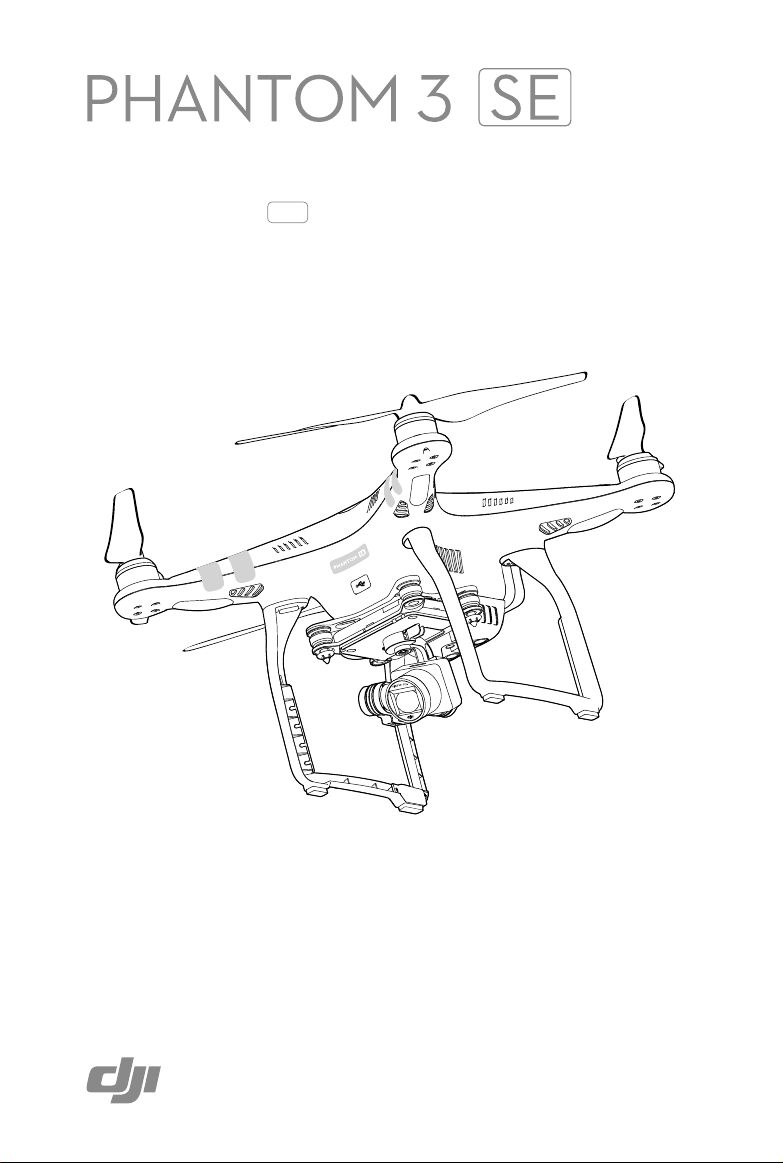
User Manual
2
©
2017 DJI All Rights Reserved.
Using this manual
Legends
Warning Important Hints and Tips Reference
Read Before the First Flight
Read the following documents before using the PHANTOM
TM
3 SE:
1. In the Box
2. Phantom 3 SE User Manual
3. Phantom 3 SE Quick Start Guide
4. Phantom 3 Disclaimer and Safety Guidelines
5. Phantom 3 Intelligent Flight Battery Safety Guidelines
We recommend that you read the Disclaimer before you y. Prepare for your rst ight by reviewing the
Phantom 3 SE Quick Start Guide and refer to the User Manual for more detailed information.
Download the DJI GO App
Be sure to use the DJI GO
TM
app or other apps compatible with DJI aircraft during ight.
Scan the QR code to the right to download the latest version.
The Android version of the DJI GO app is compatible with Android 4.4 or later.
The iOS version of the DJI GO app is compatible with iOS 8.0 or later.
Searching for Keywords
Search for keywords such as “battery” and “install” to nd a topic. If you are using Adobe Acrobat
Reader to read this document, press Ctrl+F on Windows or Command+F on Mac to begin a search.
Navigating to a Topic
View a complete list of topics in the table of contents. Click on a topic to navigate to that section.
Printing this Document
This document supports high resolution printing.
* For increased safety, the ight is restricted to a height of 30 m and distance of 50 m when not connected
or logged into the app during ight, including DJI GO and all apps compatible with DJI aircraft.

©
2017 DJI All Rights Reserved.
3
Contents
Using this manual
2
Legends
2
Read Before the First Flight
2
Download the DJI GO App
2
Product Prole
6
Introduction
6
Feature Highlights
6
Preparing the Aircraft
6
Aircraft Diagram
8
Remote Controller Diagram
8
Aircraft
11
Flight Controller
11
Flight Mode
11
Flight Status Indicator
11
Return-to-Home (RTH)
12
Smart RTH
12
Low Battery RTH
13
Failsafe RTH
14
Vision Positioning System
15
Flight Recorder
16
Attaching and Detaching the Propellers
16
DJI Intelligent Flight Battery
18
Remote Controller
23
Remote Controller Prole
23
Using the Remote Controller
23
Linking the Remote Controller
28
Remote Controller Compliance Version
28
Camera and Gimbal
30
Camera Prole
30
Gimbal
31

4
©
2017 DJI All Rights Reserved.
DJI GO App
34
Equipment
34
Editor
36
SkyPixel
36
Me
36
Flight
38
Flight Environment Requirements
38
Flight Limits and No-Fly Zones
38
Preight Checklist
40
Calibrating the Compass
40
Auto Takeoff and Auto Landing
41
Flight Test
42
Starting/Stopping the Motors
42
Appendix
45
Specications
45
Firmwares Update
47
Intelligent Flight Mode
47
After-Sales Information
47

©
2017 DJI All Rights Reserved.
5
Product Prole
This section introduces the Phantom 3 SE
and lists the components of the aircraft
and remote controller.
Product Profile
6
©
2017 DJI All Rights Reserved.
Product Prole
Introduction
The Phantom 3 SE represents the next generation of DJI quadcopters. It is capable of capturing 4K
video and transmitting an HD video signal out of the box. The built-in camera has an integrated gimbal to
maximize stability while minimizing both weight and size. Even when no GPS signal is available, the Vision
Positioning System allows the aircraft to hover accurately in place.
Feature Highlights
Camera and Gimbal:
With the Phantom 3 SE, you’re shooting 4K video at up to 30 frames per second and
capturing 12 megapixel photos that look crisper and cleaner than ever. An enhanced sensor gives you
greater clarity, lower noise, and better pictures than any previous ying camera.
Wi-Fi Video Downlink:
Live HD video is streamed from the camera to the DJI GO app over Wi-Fi as you
y. A Wi-Fi range extender is built into the remote controller.
DJI Intelligent Flight Battery:
The 4480 mAh DJI Intelligent Flight Battery features upgraded battery cells
and an advanced power management system.
Flight Controller:
The next-generation ight controller has been updated to provide a safer, more reliable
ight experience. A newly implemented ight recorder stores critical data from each ight and the Vision
Positioning System enhances hovering precision when ying indoors or in environments where GPS is
unavailable.
Preparing the Aircraft
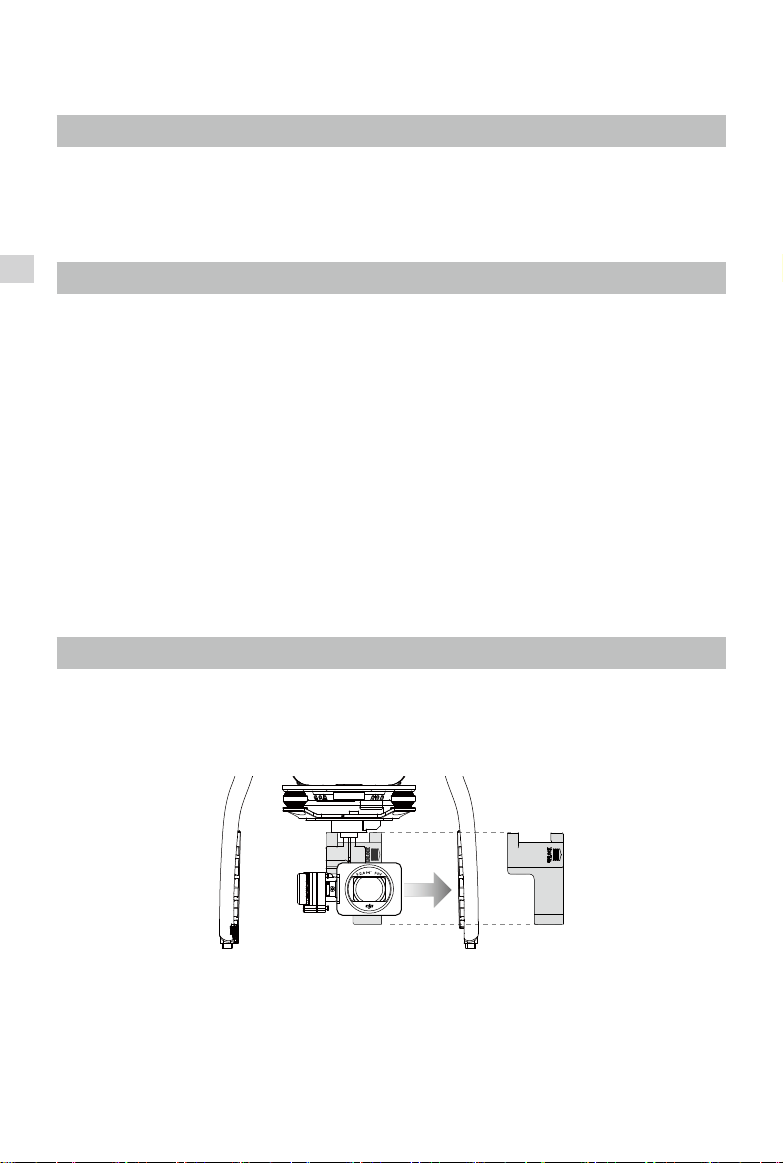
Removing Gimbal Clamp
Remove the gimbal clamp by sliding it to the right (when facing the nose of the aircraft), as shown below.
Product Profile
©
2017 DJI All Rights Reserved.
7
Phantom 3 SE User Manual
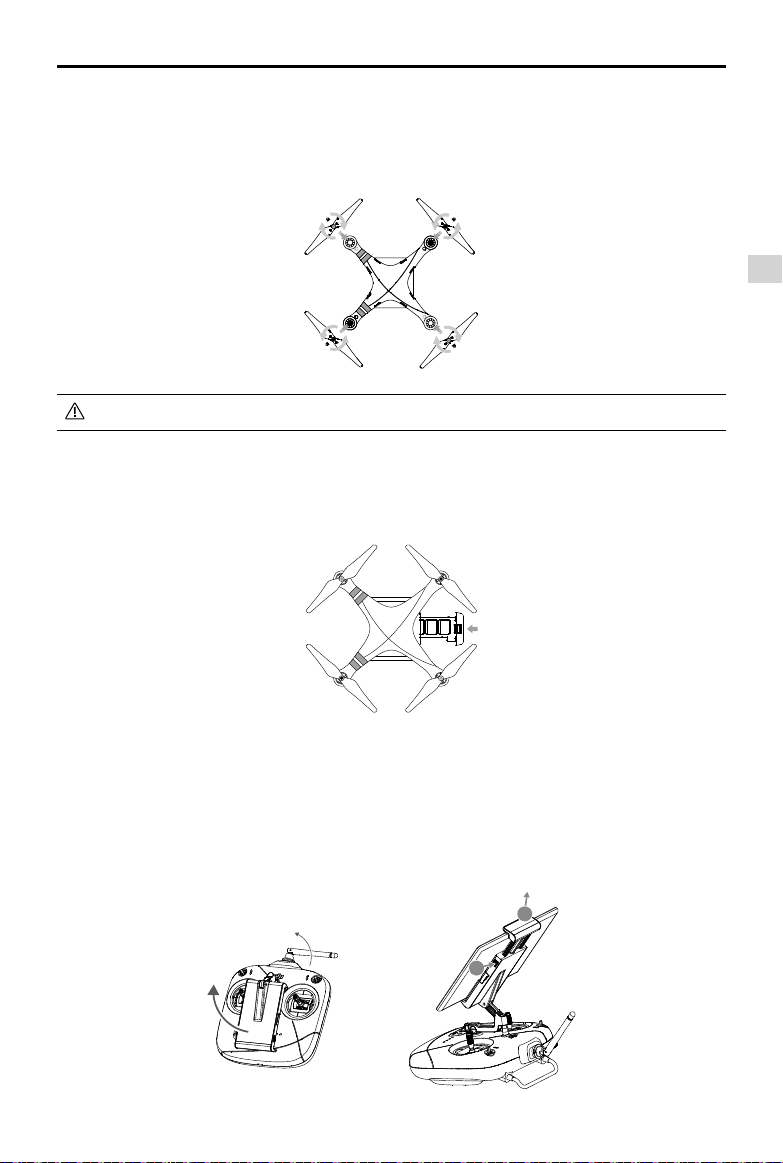
Attaching the Propellers
Mount the propellers with black nuts on to motors with black dots and spin counter-clockwise to secure.
Mount the propellers with sliver nuts on to motors without dots and spin clockwise to secure. Be sure all
propellers are securely in place.
Preparing the Remote Controller
The mobile device holder is designed for securing tablet or mobile device. Tilt the mobile device holder to
the desired position.
1. Press the button on the top right side of the mobile device holder to release the clamp, then adjust the
clamp to t the size of your mobile device.
2. Secure your mobile device in the clamp by pressing down.
Place all propellers onto the correct motors and tighten by hand to lock them in position.
Battery Installation
Slide battery into the battery compartment according to the arrow’s direction shown below. Make
sure that you hear a click sound indicates the battery is rmly installed. Failure to do so may affect
the ight safety of your aircraft.
2
1
Product Profile
8
©
2017 DJI All Rights Reserved.
Phantom 3 SE User Manual
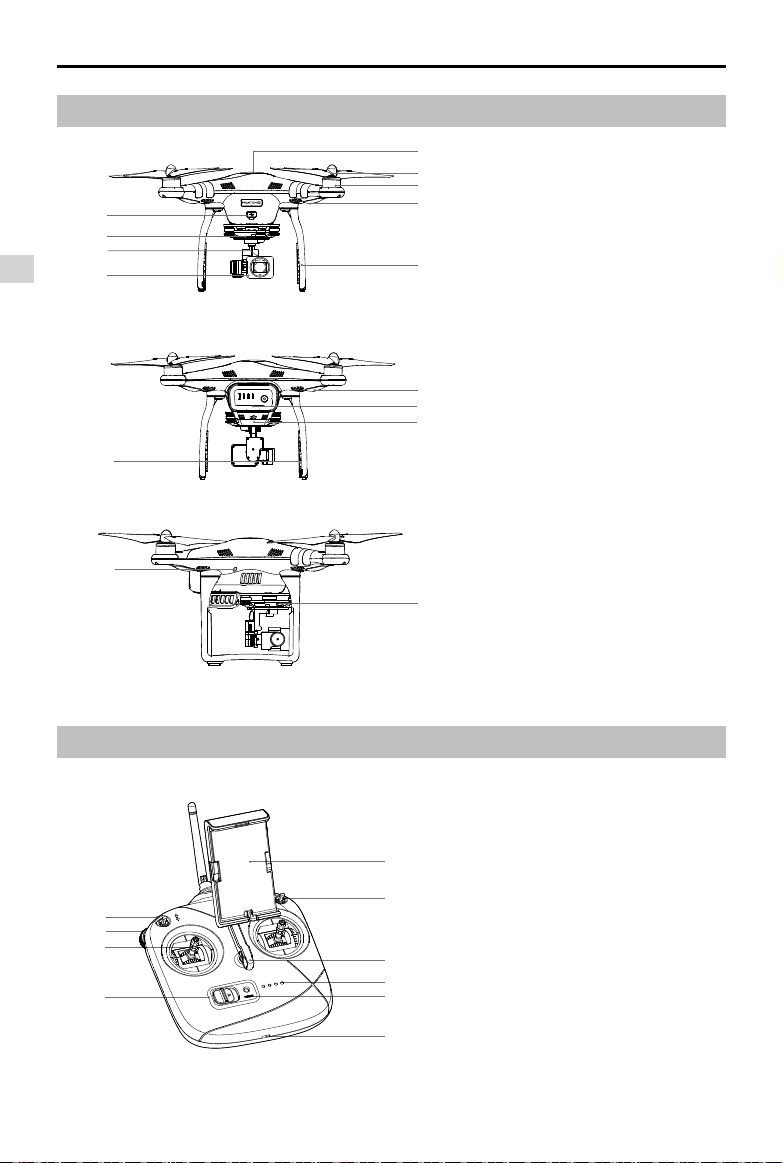
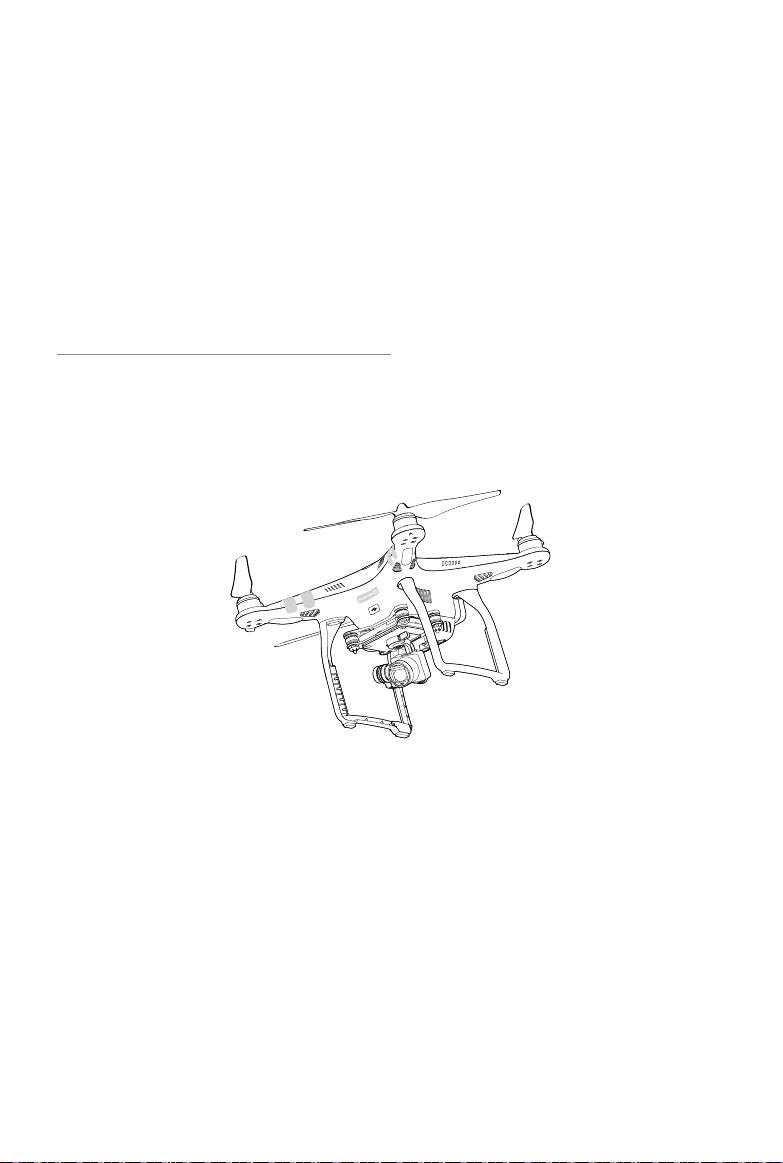
Aircraft Diagram
Remote Controller Diagram
[1] GPS
[2] Propeller
[3] Motor
[4] Front LED Indicator
[5] Landing Gear
[6] Gimbal and Camera
[7] Camera Micro SD Card Slot
[8] Camera Status Indicator
[9] Aircraft Micro USB Port
[10] Aircraft Status Indicator
[11] Intelligent Flight Battery
[12] Vision Positioning Sensors
[13] Antennas
[14] Camera Micro USB Port
[15] Link Button
[1] Mobile Device Holder
[2] Switch S1
[3] Lanyard Loop
[4] Battery Level LEDs
[5] Status LED
[6] Micro USB Port
[7] Power Switch
[8] Control Sticks
[9] Gimbal Dial
[10] Switch S2
[1]
[2]
[3]
[4]
[5]
[10]
[13]
[11]
[12]
[14]
[6]
[7]
[9]
[8]
[15]
[
1
]
[
2
]
[
3
]
[
4
]
[
5
]
[
6
]
[
10
]
[
9
]
[
8
]
[
7
]
Product Profile
©
2017 DJI All Rights Reserved.
9
Phantom 3 SE User Manual
[1
1
]
[1
2
]
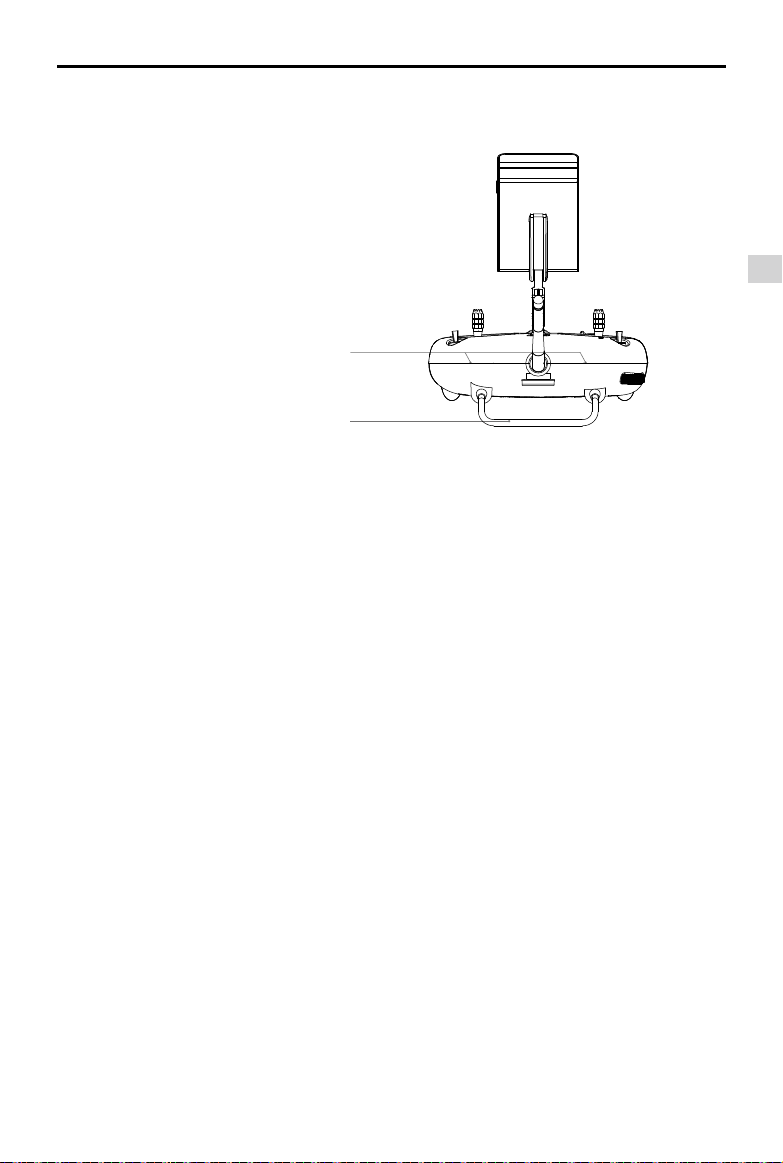
[11] Built-in Antennas
[12] Handle Bar
10
©
2017 DJI All Rights Reserved.
Aircraft
This section introduces the features of
the Flight Controller, Vision Positioning
System, and the Intelligent Flight Battery
Aircraft
©
2017 DJI All Rights Reserved.
11
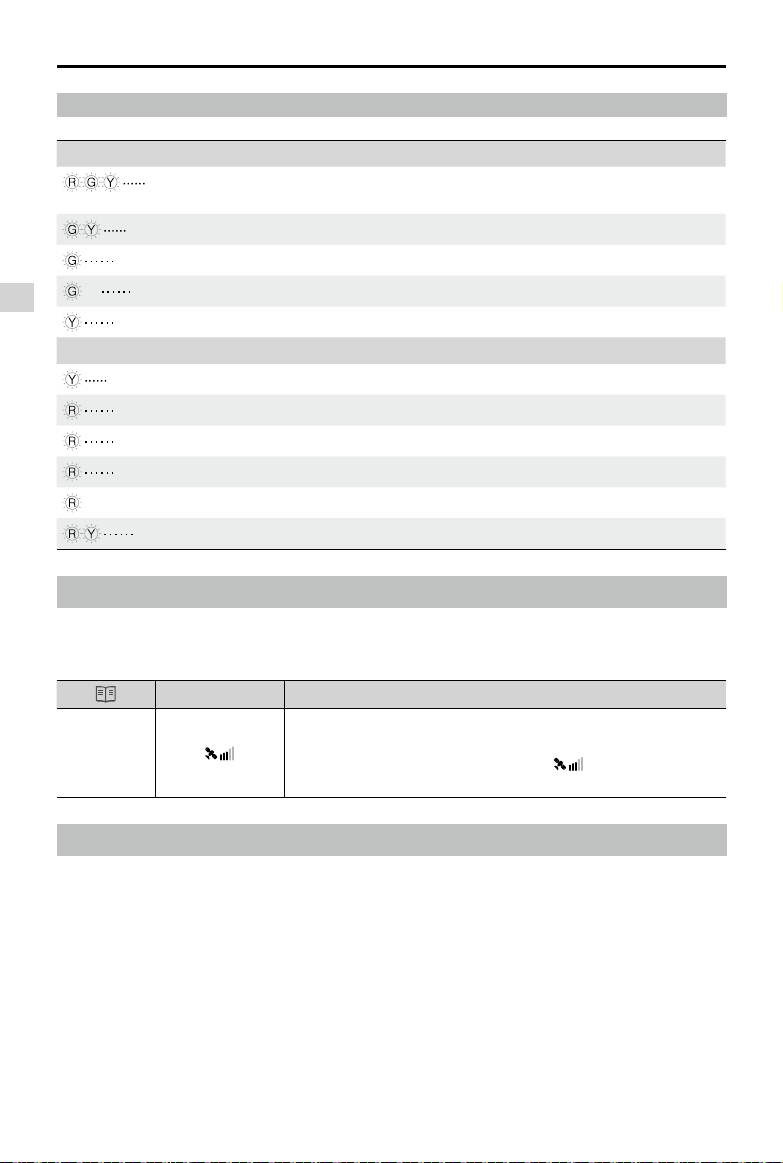
The Front LEDs show the orientation of the aircraft. The Front LEDs glow solid red when the aircraft is
turned on to indicate the front (or nose) of the aircraft. The Aircraft Status Indicators communicate the
system status of the ight controller. Refer to the table below for more information about the Aircraft Status
Indicators.
Aircraft
Flight Controller
The Phantom 3 SE’s ight controller features several important upgrades, including a new ight mode.
Safety modes include Failsafe and Return-to-Home. These features ensure the safe return of your aircraft
if the control signal is lost. The ight controller can also save critical ight data from each ight to the on-
board storage device. The new ight controller also provides increased stability and a new air braking
feature.
Flight Mode
Three ight modes are available. The details of each ight mode are found below:
P-mode (Positioning): P-mode works best when GPS signal is strong. There are three different states of
P-mode, which will be automatically selected by the Phantom 3 SE depending on
signal strength of GPS and Vision Positioning sensors :
P-GPS:
GPS and Vision Positioning both are available. The aircraft is using GPS
for positioning.
P-OPTI:
Vision Positioning is available but the GPS signal strength is not sufcient.
The aircraft is using only the Vision Positioning System for positioning.
P-ATTI:
Neither GPS nor Vision Positioning is available. The aircraft is using only its
barometer for positioning, so only altitude can be stabilized.
A-mode (Attitude): GPS and Vision Positioning System are not used for stabilization. The aircraft only
uses its barometer. The aircraft can still automatically return to the home point if the
control signal is lost and the Home Point was recorded successfully.
F-mode (Function): Intelligent Flight Mode is activated in this mode. Refer to the Appendix for more
information.
Use the S1 switch to change the ight mode of the aircraft. The Flight Mode is locked in P Mode
by default, regardless of switch position. To switch ight modes, go to Camera view in the DJI
GO app, tap and enable “Multiple Flight Modes”.
Flight Status Indicator
The Phantom 3 SE has Front LEDs and Aircraft Status Indicators. The positions of these LEDs are shown
in the gure below:
Front LED
Aircraft Status Indicator
Aircraft
12
©
2017 DJI All Rights Reserved.
Phantom 3 SE User Manual
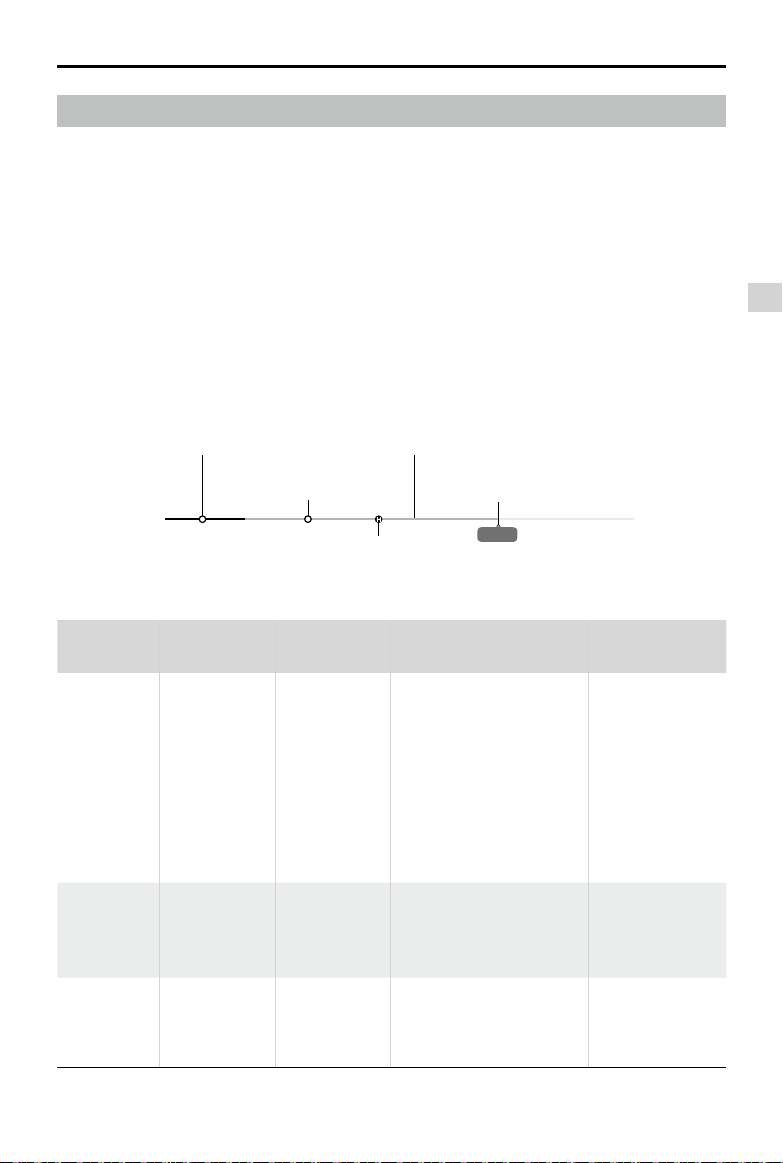
Aircraft Status Indicator Description
Normal
Red, Green and Yellow Flash
Alternatively
Turning On and Self Diagnostic Testing
Green and Yellow Flash Alternatively Warming Up
Green Flashes Slowly P-mode with GPS and Vision Positioning
X2 Green Flashes Twice P-mode with Vision Positioning but without GPS
Yellow Flashes Slowly A-mode but No GPS and Vision Positioning
Warning
Fast Yellow Flashing Remote Controller's Signal Lost
Slow Red Flashing Low Battery Warning
Fast Red Flashing Critical Low Battery Warning
Red Flashing Alternatively IMU Error
—
Solid Red Critical Error
Red and Yellow Flash Alternatively Compass Calibration Required
Return-to-Home (RTH)
The Return-to-Home (RTH) function brings the aircraft back to the last recorded Home Point. There are
three types of RTH procedures: Smart RTH, Low Battery RTH, and Failsafe RTH. This section describes
these three scenarios in detail.
GPS
Description
Home Point
If a strong GPS signal was acquired before takeoff, the Home Point
is the location from which the aircraft was launched. The GPS signal
strength is indicated by the GPS icon ( ). The aircraft status
indicator will blink rapidly when the home point is recorded.
Smart RTH
Tap in the DJI GO app or toggle the S2 switch on the remote controller back and forth at least twice
to initiate Smart RTH. The aircraft will rst ascend to the Return-to-Home altitude, then return to the last
recorded Home Point if a GPS signal is available. During the RTH procedure, you may use the remote
controller to guide the aircraft around obstacles.
Tap in the DJI GO app or toggle the S1 switch once to terminate Smart RTH and regain full control of the
aircraft.
Aircraft
©
2017 DJI All Rights Reserved.
13
Phantom 3 SE User Manual
Battery Level
Warning
Remark
Aircraft Status
Indicator
DJI GO app Flight Instructions
Low battery
level warning
The battery
power is low.
Please land the
aircraft.
Aircraft status
indicator blinks
RED slowly.
Tap “Go-home” to have the
aircraft return to the Home
point and land automatically,
or “Cancel” to resume normal
flight. If no action is taken,
the aircraft will automatically
go home and land after 10
seconds. Remote controller
will sound an alarm.
Fly the aircraft
back and land
it as soon as
possible, then
stop the motors
and replace the
battery.
Critical Low
battery level
warning
The aircraft
must land
immediately.
Aircraft status
indicator blinks
RED quickly.
The DJI GO app display will
ash red and the aircraft will
start to descend. The remote
controller will sound an alarm.
Allow the aircraft to
descend and land
automatically.
Estimated
remaining
ight time
Estimated
remaining ight
based on current
battery level.
N/A N/A N/A
Low Battery RTH
The low battery level failsafe is triggered when the DJI Intelligent Flight Battery is depleted to a point that
may affect the safe return of the aircraft. Users are advised to return home or land the aircraft immediately
when prompted. The DJI GO app will display a notice when a low battery warning is triggered. The
aircraft will automatically return to the Home Point if no action is taken after a ten-second countdown. The
user can cancel the RTH procedure. The thresholds for these warnings are automatically determined
based on the aircraft’s current altitude and distance from the Home Point.
The aircraft will land automatically if the current battery level can only support the aircraft long enough
to descend from its current altitude. The user can still use the remote controller to alter the aircraft’s
orientation during the landing process.
The Battery Level Indicator is displayed in the DJI GO app, and is described below:
Battery level Indicator
Critical Low battery level
warning (Red)
Low battery
level warning (Yellow)
Sufcient battery level
(Green)
Remaining ight time
Power requires to
Return-to-Home
12:29
Aircraft
14
©
2017 DJI All Rights Reserved.
Phantom 3 SE User Manual
Failsafe RTH
If the Home Point was successfully recorded and the compass is functioning normally, Failsafe RTH will
be automatically activated if the remote controller signal is lost for more than three seconds. The Return-
to-Home process may be interrupted and the operator may regain control of the aircraft if the remote
controller signal connection is re-established.
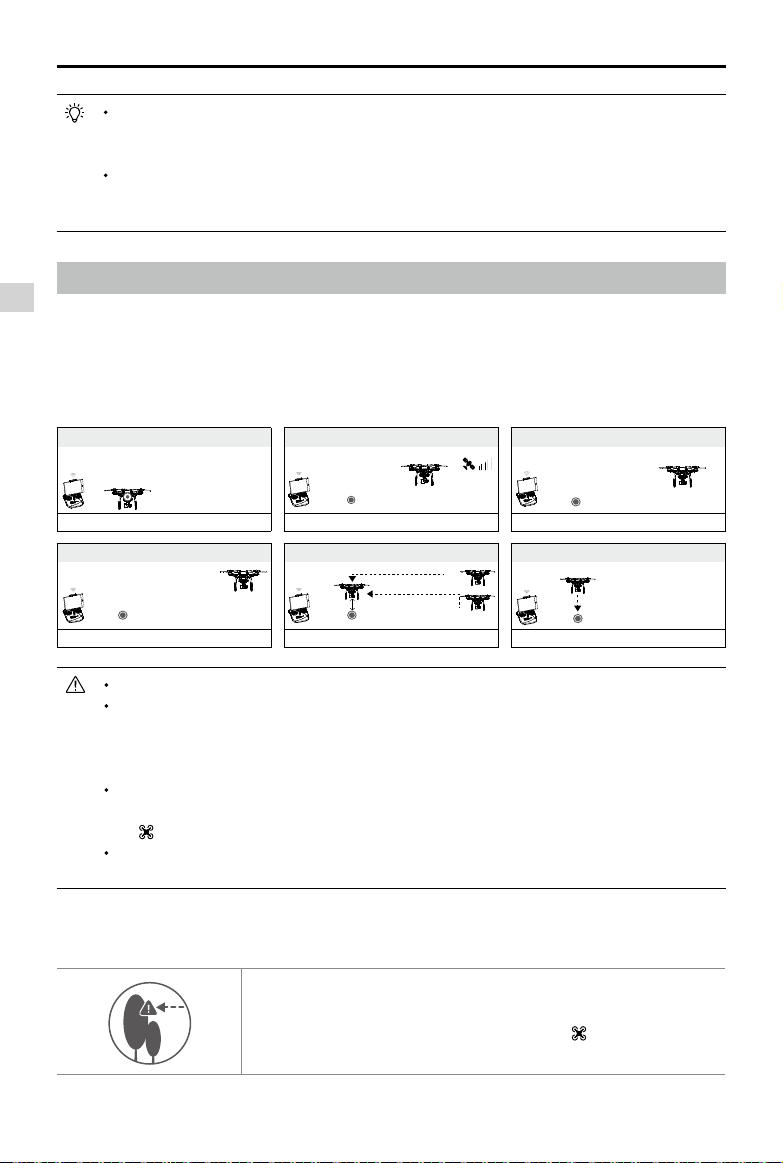
Failsafe Illustration
When Critical battery level warning is triggered and the aircraft begins to land automatically,
you may push the throttle upward to make the aircraft hover at its current altitude, giving you an
opportunity to navigate to a more appropriate landing location.
The colored zones and markers on the battery level indicator bar reflect the estimated
remaining ight time. They are automatically adjusted according to the aircraft’s current location
and status.
Height over HP<=20m
5
RTH (adjustable altitude)
Fast Blinking Yellow
1 Record Home Point
Blinking Green
3 Remote Controller Signal Lost
Fast Blinking Yellow
2 Conrming Home Point
Blinking Green
6 Landing (after hovering for 5 secs)
Fast Blinking Yellow
4
Signal Lost Lasts (after 3 sec.)
Fast Blinking Yellow
Height over HP>20m
Elevate to 20m
20m
>3S
Aircraft cannot return to the Home Point when GPS signal is weak or unavailable.
Aircraft automatically descends and lands if RTH is triggered when the aircraft ies within a 20
meters (65 feet) radius of the Home Point. Aircraft will stop ascending and immediately return to
the Home Point if you move the throttle stick if the aircraft reaches 20 meters (65 feet) altitudes
or beyond during Failsafe.
The aircraft cannot avoid obstruction during the Failsafe RTH, therefore, it is important to set an
suitable Failsafe altitude before each ight. Launch the DJI GO app and enter “Camera” and
tap to set the Failsafe altitude.
User cannot control the aircraft while the aircraft is ascending to its failsafe altitude. User can
toggle the S1 switch to exit ascending and regain control.
20米
20米
H
The aircraft cannot avoid obstruction during the Failsafe RTH, therefore, it
is important to set an suitable Failsafe altitude before each ight. Launch
the DJI GO app and enter “Camera” and tap to set the Failsafe
altitude.
Failsafe Safety Notices
×
× ×
×
Aircraft
©
2017 DJI All Rights Reserved.
15
Phantom 3 SE User Manual
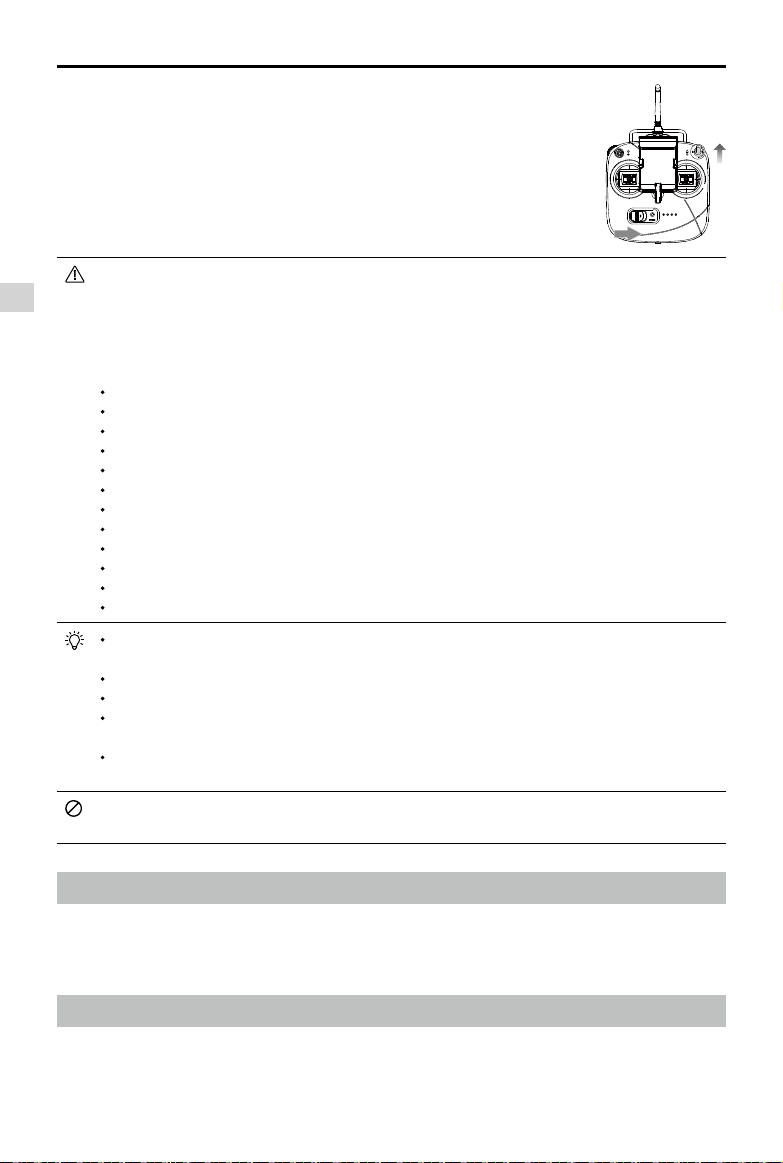
Vision Positioning System
The DJI Vision Positioning System uses ultrasound and image data to help the aircraft maintain its current
position. With the help of Vision Positioning, your Phantom 3 SE can hover in place more precisely and y
indoors or in other environments where a GPS signal is not available. The main components of the Vision
Positioning System are located on the bottom of your Phantom 3 SE; they include [1] one monocular
camera and [2] two ultrasonic sensors.
[1]
[2]
20 m
20 m
H
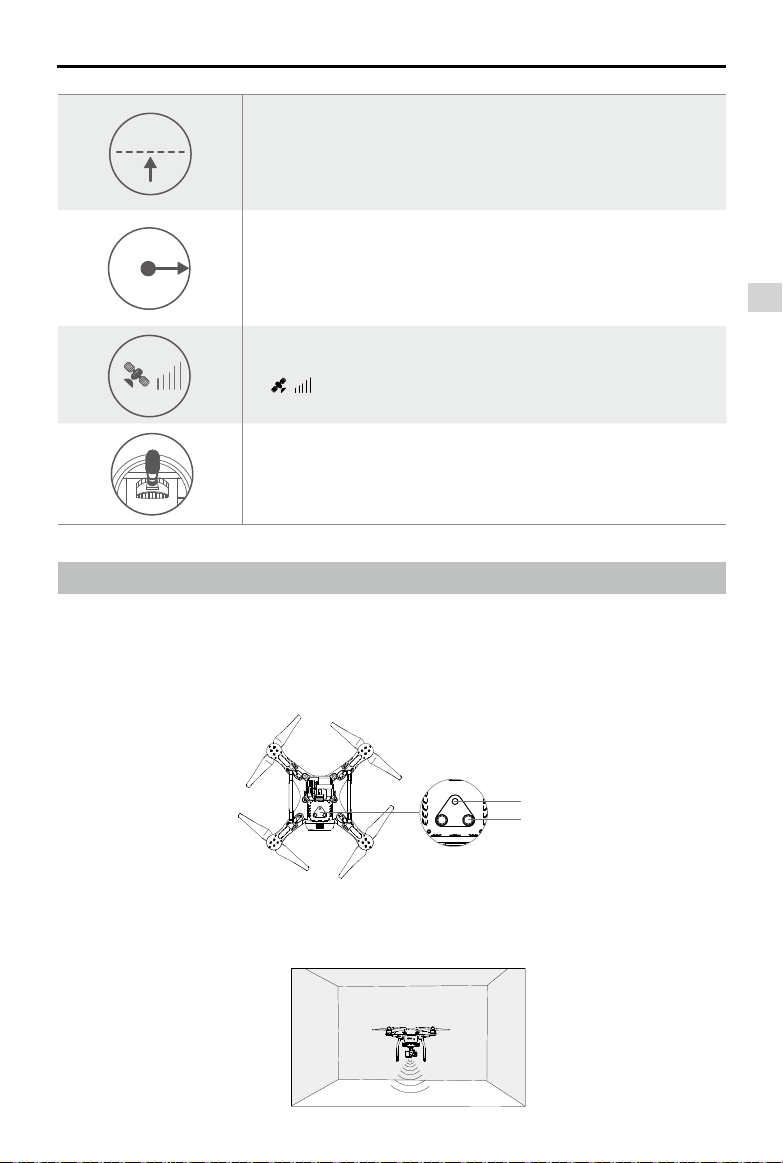
If the aircraft is ying under 20 meters (65 feet) and Failsafe (including
Smart RTH, Lower Battery RTH ) is triggered, the aircraft will first
automatically ascend to 20 meters (65 feet) from the current altitude. You
can only cancel the ascending by exiting the Failsafe.
20 m
20 m
H
Aircraft automatically descends and lands if RTH is triggered when the
aircraft ies within a 20 meters (65 feet) radius of the Home Point. Aircraft
will stop ascending and immediately return to the Home Point if you move
the throttle stick if the aircraft reaches 20 meters (65 feet) altitudes or
beyond during Failsafe.
20米
20米
H
Aircraft cannot return to the Home Point when GPS signal is weak
( [ ] displays grey) or unavailable.
20米
20米
H
If you move the throttle stick after the aircraft rises above 65 feet
(20m) but below the pre-set Failsafe RTH altitude, the aircraft will stop
ascending and immediately return to the Home Point.
Using Vision Positioning
Vision Positioning is activated automatically when the Phantom 3 SE is turned on. No further action
is required. Vision Positioning is typically used in indoor environments, where GPS is unavailable.
Aircraft
16
©
2017 DJI All Rights Reserved.
Phantom 3 SE User Manual
The performance of your Vision Positioning System is affected by the surface over which
it is ying. The ultrasonic sensors may not be able to accurately measure distances when
operating above sound-absorbing materials. In addition, the camera may not function
correctly in suboptimal environments. The aircraft will switch from P-mode to A-mode
automatically if neither GPS nor Vision Positioning System are available. Operate the aircraft
with great caution in the following situations:
Flying close to the ground (below 0.5 meters) at fast speeds.
Flying over monochrome surfaces (e.g. pure black, pure white, pure red, pure green).
Flying over a highly reective surfaces.
Flying at high speeds (over 8 m/s at 2 meters or over 4 m/s at 1 meter).
Flying over water or transparent surfaces.
Flying over moving surfaces or objects.
Flying in an area where the lighting changes frequently or drastically.
Flying over extremely dark (lux < 10) or bright (lux > 100,000) surfaces.
Flying over surfaces that can absorb sound waves (e.g. thick carpet).
Flying over surfaces without clear patterns or texture.
Flying over surfaces with identical repeating patterns or textures (e.g. tiles with the same design).
Flying over inclined surfaces that will deect sound waves away from the aircraft.
Keep the sensors clean at all times. Dirt or other debris may adversely affect the effectiveness
of the sensors.
Vision Positioning is only effective when the aircraft is at altitudes of 0.3 to 3 meters.
The Vision Positioning System may not function properly when the aircraft is ying over water.
The Vision Positioning System may not be able to recognize pattern on the ground in low light
conditions (less than 100 lux).
Do not use other ultrasonic devices with frequency of 40 KHz when Vision Positioning system is
in operation.
Keep the animals away from the aircraft when Vision Positioning system is activated. The sonar
sensor emits high frequency sounds that are only audible to some animals.
Flight Recorder
Flight data is automatically recorded to the internal storage of the aircraft. This includes flight
telemetry, aircraft status information, and other parameters. To access these data, connect the
aircraft to the PC through the Micro USB port and launch the DJI GO app.
Attaching and Detaching the Propellers
Use only DJI approved propellers with your Phantom 3 SE. The silver and black nuts on the
propeller indicate where they should be attached and in which direction whey should spin. To
attach the propellers properly, match the nut color with the motor dot color.
Follow the steps below to use Vision Positioning:
1. Toggle the S1 switch to the upper most position.
2. Place the aircraft on a at surface. Note that the Vision Positioning system can-
not work properly on surfaces without clear pattern variations.
3. Turn on the aircraft. The aircraft status indicator will flash green two times,
which indicates the Vision Positioning system is ready. Gently push the throttle
up to lift off and the aircraft will hover in place.
S1

Aircraft
©
2017 DJI All Rights Reserved.
17
Phantom 3 SE User Manual
Check that the propellers and motors are installed correctly and rmly before every ight.
ONLY use original DJI propellers for a better and safer ight experience.
ONLY using the propller with the same model.
Tighten the propellers with both hands before each ight.
Ensure that all propellers are in good condition before each ight. DO NOT use aged, chipped,
or broken propellers.
Stand clear of the motors and DO NOT touch the propellers when they are spinning.
Detaching the Propellers
Put the propeller removal clamp around the motor, and pinch both sides as shown below to hold the mo-
tor in place. Then rotate the propeller in the unlock direction to loosen it.
Attaching the Propellers
1. Be sure to remove the warning stickers from the motors before attaching the propellers.
2. Attach the propellers with silver nuts onto the motors without dots and spin the propellers clockwise to
secure them in place. Attach the propellers with black nuts onto the motors with black dots and spin
the propellers counter-clockwise to secure them in place. Be sure to tighten each propeller by hand
before ight.
Propellers Silver Nut Black Nut
Figure
Attach On Motors without dots Motors with black dots
Legends
Lock : Turn the propellers in the indicated direction to mount and tighten.
Unlock : Turn the propellers in the indicated direction to loosen and remove.
Aircraft
18
©
2017 DJI All Rights Reserved.
Phantom 3 SE User Manual
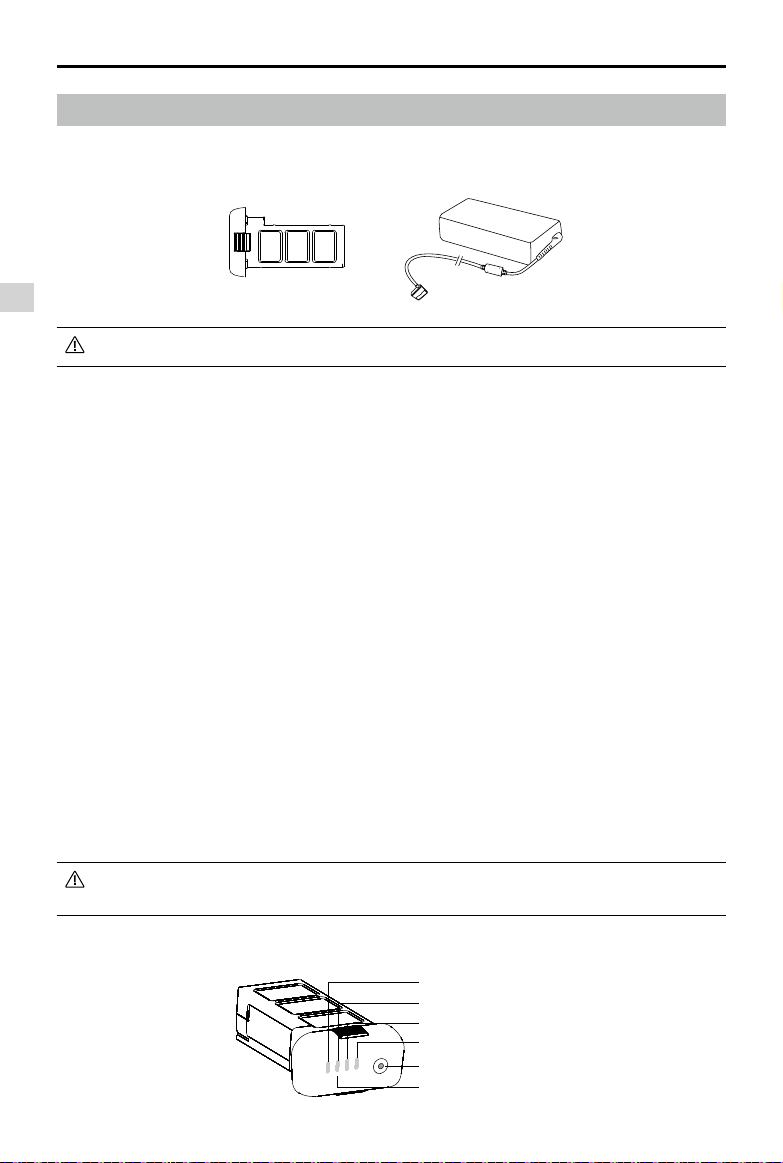
LED1
LED2
Battery Level Indicators
LED3
LED4
Power Button (Bulit-in LED)
The Intelligent Flight Battery must be fully charged before using it for the rst time.
DJI Intelligent Flight Battery Functions
1. Battery Level Display: the LED indicators display the current battery level.
2. Battery Life Display: the LEDs display the current battery power cycle.
3. Auto-Discharging Function: To prevent swelling, the battery automatically discharges to below 65% of
total power when it is idle for more than ten days. It takes around two days to discharge the battery to
65%. It is normal to feel moderate heat being emitted from the battery during the discharge process.
Discharge thresholds can be set in the DJI GO app.
4. Balanced Charging: Automatically balances the voltage of each battery cell when charging.
5. Overcharge Protection: Charging automatically stops when the battery is fully charged.
6. Temperature Detection: The battery will only charge when the temperature is between 5°C (41°F) and
40°C (104°F).
7. Over Current Protection: The battery stops charging when high amperage (more than 8 A) is detected.
8. Over Discharge Protection: To prevent over-discharge damage, discharging automatically stops when
the battery voltage reaches 12 V.
9. Short Circuit Protection: Automatically cuts the power supply when a short circuit is detected.
10. Battery Cell Damage Protection: The DJI GO app displays a warning message when a damaged
battery cell is detected.
11. Battery Error History: Browse the battery error history in the DJI GO app.
12. Sleep Mode: To save power, the battery enters sleep mode after 20 minutes of inactivity.
13. Communication: Information pertaining to the battery’s voltage, capacity, current, etc. is transmitted to
the aircraft’s main controller.
Refer to
Phantom 3 SE Intelligent Flight Battery Safety Guidelines
before use. Users take full
responsibility for all operations and usage.
Using the Battery
DJI Intelligent Flight Battery
The DJI Intelligent Flight Battery has a capacity of 4480 mAh, a voltage of 15.2 V, and a smart charge/
discharge functionality. It should only be charged using an appropriate charger that has been approved
by DJI.
Intelligent Flight Battery
Charger
Aircraft
©
2017 DJI All Rights Reserved.
19
Phantom 3 SE User Manual
Turning ON/OFF
Turning On:
Press the Power Button once, then press again and hold for 2 seconds to turn on. The
Power LED will turn red and the Battery Level Indicators will display the current battery level.
Turning
Off:
Press the Power Button once, then press again and hold for 2 seconds to turn off. The
battery power LED will ash when powering off the Phantom to allow automatically stopping
of a recording during the event recording wasn’t stopped.
Low Temperature Notice
1. Battery capacity is signicantly reduced when ying in low temperature (< 0°C) environments.
2. It is not recommended that the battery be used in extremely low temperature (< -10°C) environments.
Battery voltage should reach the appropriate level when operating environment with temperatures
between -10°C and 5°C.
3. End the ight as soon as the DJI GO app displays the “Low Battery Level Warning” in low temperature
environments.
4. Keep the battery indoors to warm it before ying in low temperature environments.
5. To ensure optimal performance of the battery, keep the battery temperature above 20°C.
6. The charger will stop charging the battery if the battery cell’s temperature is not within the operating
range (5°C ~ 40°C ).
In cold environments, insert the battery into the battery compartment and allow the aircraft for
approximately 1-2 minutes to warm up before taking off.
Checking the Battery Level
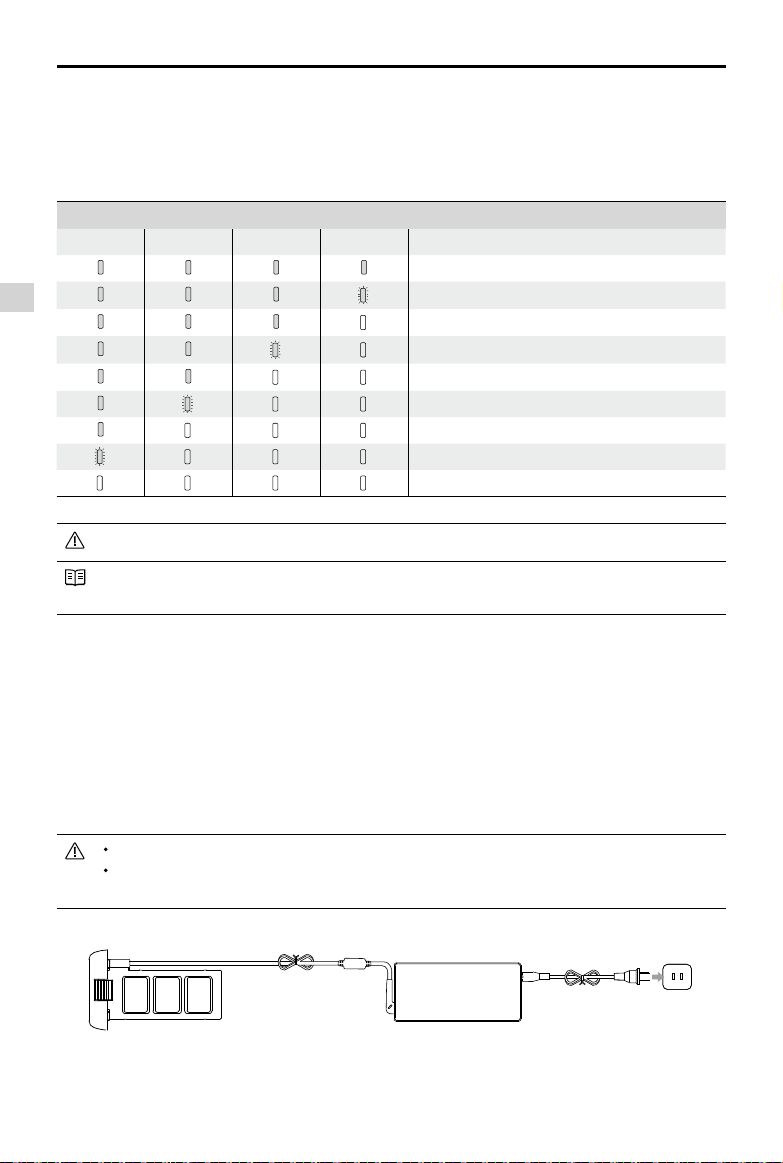
The Battery Level Indicators display how much power remains. When the battery is turned off, press
the Power Button once. The Battery Level Indicators will light up to display the current battery level. See
below for details.
The Battery Level Indicators will also show the current battery level during charging and
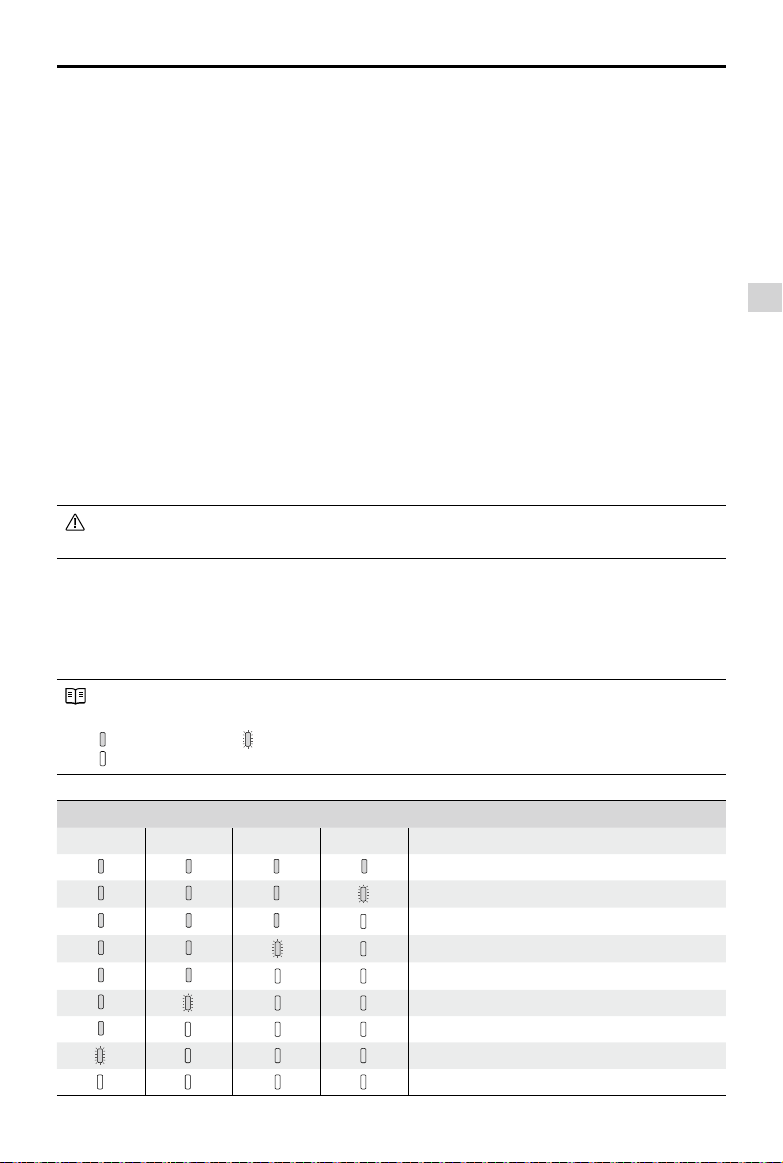
discharging. The indicators are dened below.
: LED is on. : LED is ashing.
: LED is off.
Battery Level Indicators
LED1 LED2 LED3 LED4 Battery Level
87.5%~100%
75%~87.5%
62.5%~75%
50%~62.5%
37.5%~50%
25%~37.5%
12.5%~25%
0%~12.5%
=0%
Aircraft
20
©
2017 DJI All Rights Reserved.
Phantom 3 SE User Manual
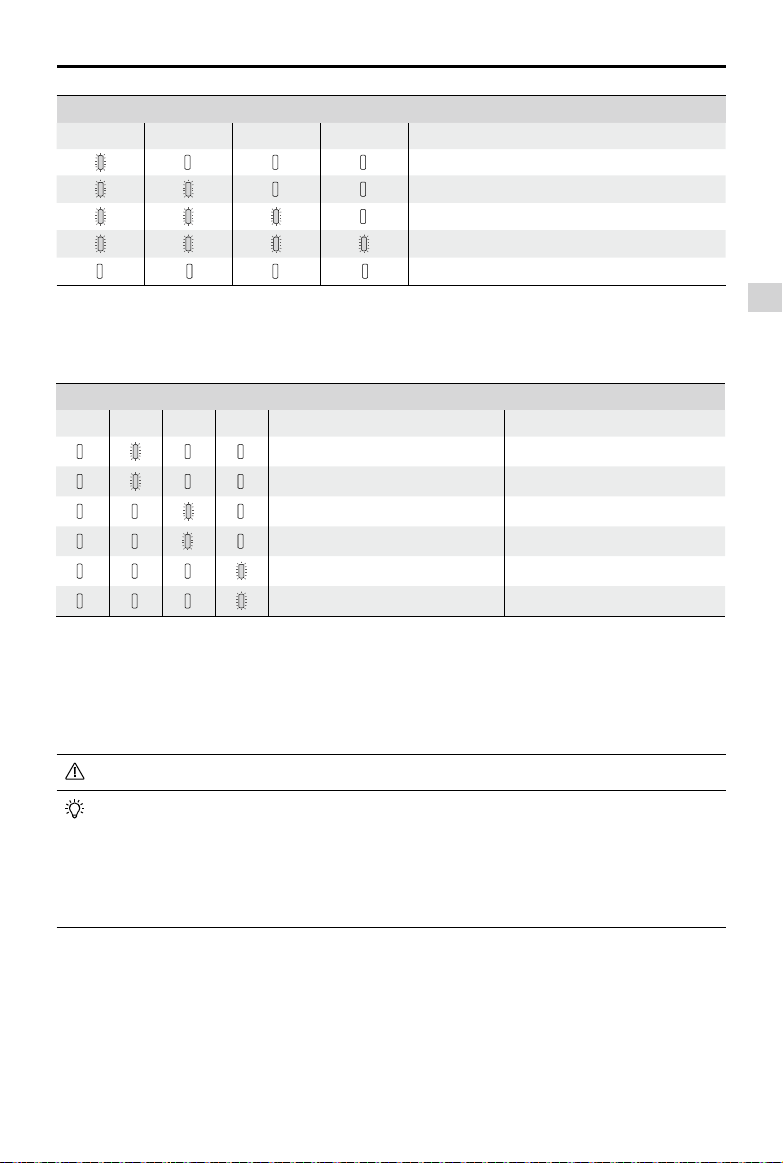
Charging the Intelligent Flight Battery
1. Connect the Battery Charger to a power source (100-240 V 50/60 Hz).
2. Open the Protection Cap and connect the Intelligent Flight Battery to the Battery Charger. If the battery
level is above 95%, turn on the battery before charging.
3. The Battery Level Indicator will display the current battery level as it is charging.
4. The Intelligent Flight Battery is fully charged when the Battery Level Indicators are all off.
5. Air-cool the Intelligent Flight Battery after each ight. Allow its temperature to drop to room temperature
before storing it for an extended period.
Only use the DJI approved charger.
Always turn off the battery before inserting it or removing it from the Phantom 3 SE. Never insert
or remove a battery when it is turned on.
Battery Level Indicators
LED1 LED2 LED3 LED4 Battery Life
90%~100%
80%~90%
70%~80%
60%~70%
50%~60%
40%~50%
30%~40%
20%~30%
below 20%
When battery life reaches 0%, it can no longer be used.
For more information about the battery, launch the DJI GO app and check the information that is listed
under the battery tab.
Battery life
Battery life refers to how many more times the battery can be discharged and recharged before it must
be replaced. When the battery is turned off, press and hold the Power Button for 5 seconds to check the
battery life. The Battery Level Indicators will light up and/or blink for two seconds, as shown below:
ChargerIntelligent Flight Battery Power Outlet
Aircraft
©
2017 DJI All Rights Reserved.
21
Phantom 3 SE User Manual
Battery Level Indicators While Charging
LED1 LED2 LED3 LED4 Battery Level
0%~25%
25%~50%
50%~75%
75%~100%
Fully Charged
Battery Protection LED Display
The table below shows battery protection mechanisms and corresponding LED patterns.
Battery Level Indicators while Charging
LED1 LED2 LED3 LED4 Blinking Pattern Battery Protection Item
LED2 blinks twice per second Over current detected
LED2 blinks three times per second Short circuit detected
LED3 blinks twice per second Over charge detected
LED3 blinks three times per second Over-voltage charger detected
LED4 blinks twice per second Charging temperature is too low
LED4 blinks three times per second Charging temperature is too high
After these issues are resolved, press the Power Button to turn off the Battery Level Indicator. Unplug the
Intelligent Flight Battery from the charger and plug it back in to resume charging. Note that you do not
need to unplug and plug in the charger in the event of a room temperature error; the charger will resume
charging when the temperature is within the allowable range.
DJI does not take any responsibility for damage caused by third-party chargers.
How to discharge your Intelligent Flight Battery:
Slow :
Place the Intelligent Flight Battery into the Phantom 3 SE’s Battery Compartment and turn
it on. Leave it on until there is less than 8% of power left, or until the battery can no longer be
turned on. Launch the DJI GO app to check battery levels.
Rapid :
Fly the Phantom 3 SE outdoors until there is less than 8% of power left, or until the
battery can no longer be turned on.
22
©
2017 DJI All Rights Reserved.
Remote Controller
This section describes the features
of the remote controller and includes
instructions for controlling the aircraft
and the camera.
Remote Controller
©
2017 DJI All Rights Reserved.
23
Remote Controller
Remote Controller Prole
The Phantom 3 SE remote controller is a multi-function wireless communication device that integrates the
video downlink system and aircraft remote control system. The video downlink and aircraft remote control
system operate at 2.4 GHz and 5.8 GHz. The battery level is displayed via LED indicators on the front
panel of the remote controller.
Compliance Version:
The remote controller is compliant with both CE and FCC regulations.
Operating Mode:
Control can be set to Mode 1, Mode 2 or Mode 3 or to a custom mode.
Mode 1:
The right stick serves as the throttle.
Mode 2:
The left stick serves as the throttle.
Using the Remote Controller
Turning the Remote Controller On and Off
The Phantom 3 SE remote controller is powered by a rechargeable battery that has a capacity of
2600 mAh. The battery level is indicated via the Battery Level LEDs on the front panel.
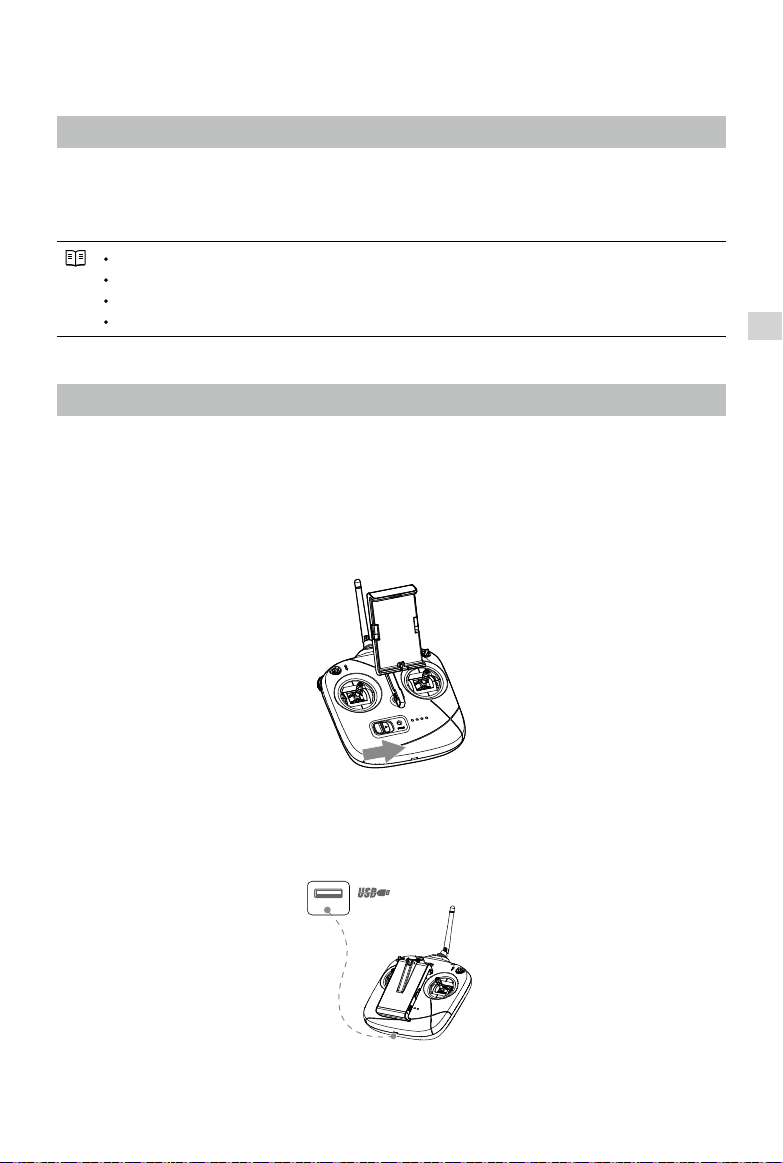
1. Slide the power switch to the right to turn on the remote controller.
2. The Status LED will light up solid green when the remote controller is connected to the aircraft. The
Battery Level Indicators will display the battery level of the remote controller.
Charging the Remote Controller
Charge the remote controller through the Micro USB port using the provided Micro USB cable.
标配充电器完全充满约需1.5小时
取出智能飞行电池
交流电源
100~240 V
USB充电器完全充满约需2.5小时
( 充电电流为 1.5A 时)
USB Adapter Charge Time:
~2.5 hours (when charging at 1.5 A)
Remote Controller
24
©
2017 DJI All Rights Reserved.
Phantom 3 SE User Manual
Controlling Aircraft
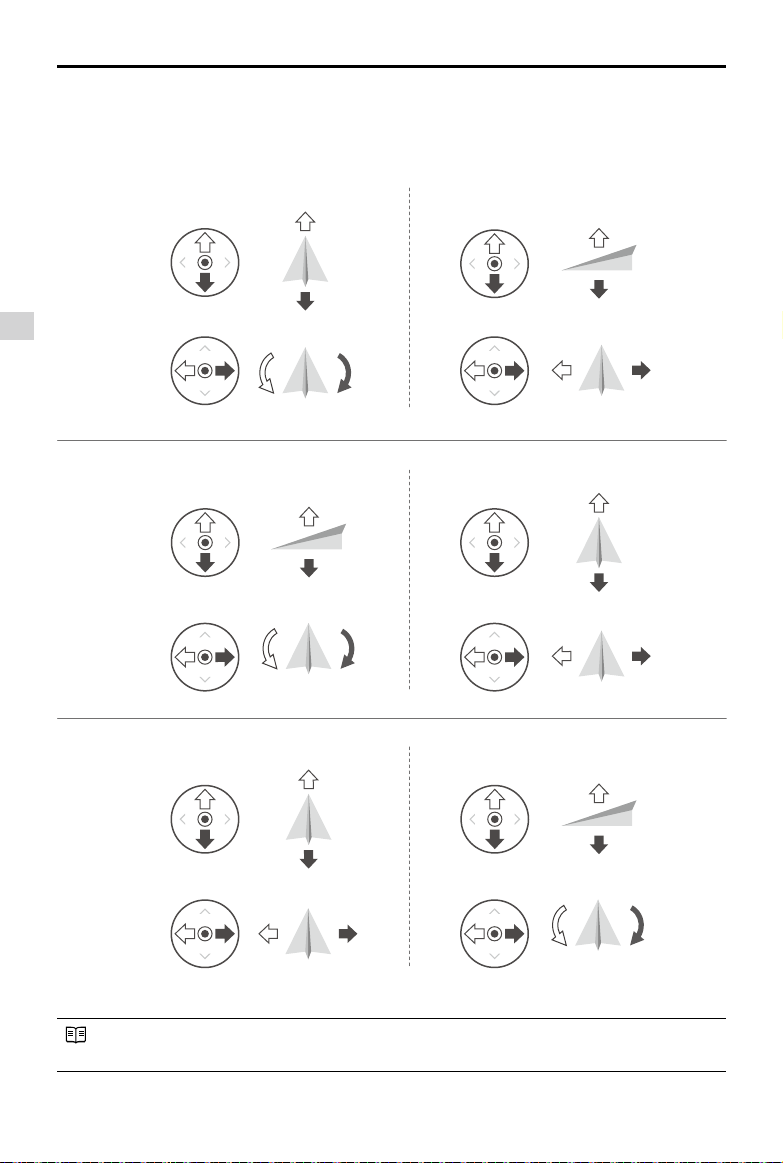
This section explains how to control the orientation of the aircraft through the remote controller. The
Remote Control is set to Mode 2 by default.
Right StickLeft Stick
Turn RightTurn Left
UP
Down
RightLeft
UP
Down
Turn RightTurn Left
RightLeft
Forward
Backward
Left Stick Right Stick
Forward
Backward
Right Stick
UP
Down
Forward
Backward
Left Stick
Turn RightTurn Left
RightLeft
Mode 1
Mode 2
Mode 3
Stick Neutral/Mid-Point: Control sticks are in the center position.
Moving the Control Stick: The control stick is pushed away from the center position.
Remote Controller
©
2017 DJI All Rights Reserved.
25
Phantom 3 SE User Manual
Remote Controller
(Mode 2)
Aircraft
(
Indicates Nose Direction)
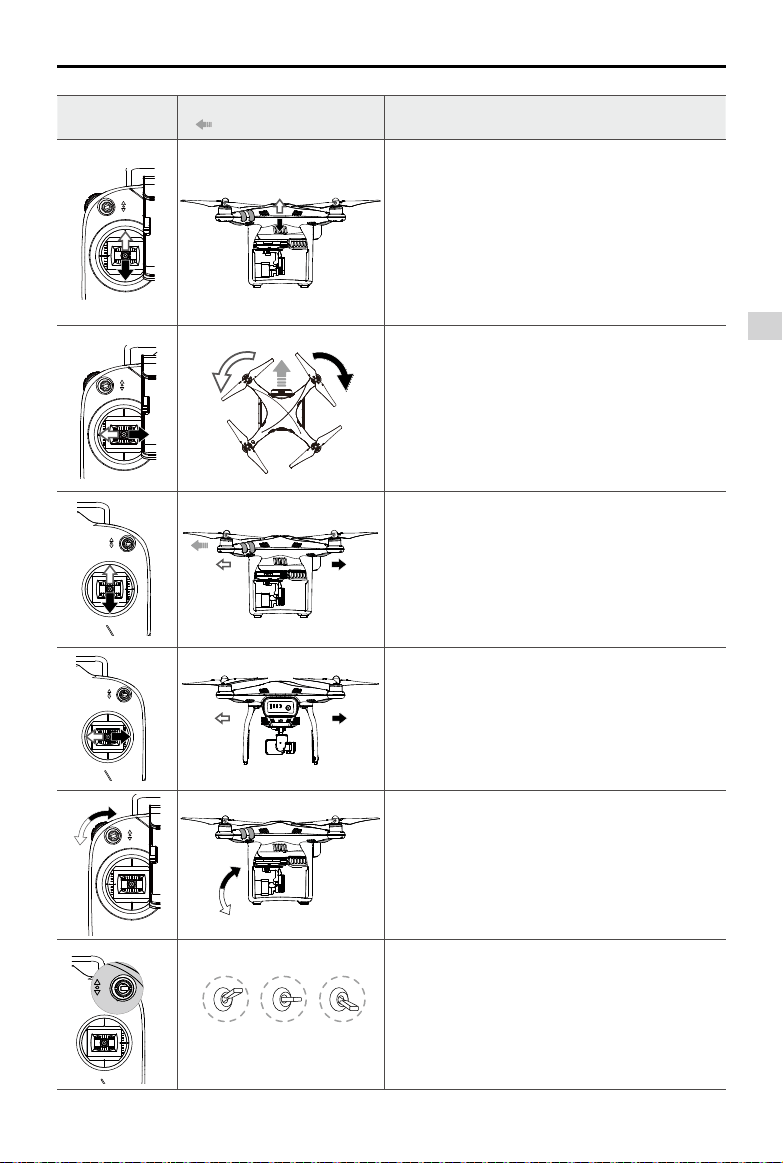
Remarks
Moving the left stick up and down changes the
aircraft’s elevation.
Push the stick up to ascend and down to descend.
When both sticks are centered, the Phantom 3 SE
will hover in place.
The more the stick is pushed away from the center
position, the faster the Phantom 3 SE will change
elevation. Always push the stick gently to prevent
sudden and unexpected elevation changes.
Moving the left stick to the left or right controls the
rudder and rotation of the aircraft.
Push the stick left to rotate the aircraft counter-
clockwise, push the stick right to rotate the aircraft
clockwise. If the stick is centered, the Phantom 3 SE
will maintain its current orientation.
The more the stick is pushed away from the center
position, the faster the Phantom 3 SE will rotate.
Moving the right stick up and down changes the
aircraft’s forward and backward pitch.
Push the stick up to fly forward and down to fly
backward.
Phantom 3 SE
will hover in place if the
stick is centered.
Push the stick further away from the center position for a
larger pitch angle (maximum 30˚) and faster ight.
Moving the right stick control left and right changes
the aircraft’s left and right pitch.
Push left to y left and right to y right. The Phantom
3 SE will hover in place if the stick is centered.
Gimbal Dial: Turn the dial to the right, and the
camera will shift to point upwards. Turn the
dial to the left, and the camera will shift to point
downwards. The camera will remain in its current
position when dial is static.
position-1/position-2/position-3
Toggle the S1 switch back and forth to regain the
control of the aircraft during Failsafe RTH.
Toggle the S1 switch back and forth for more than 3
times to calibrate the aircraft’s compass.
Toggle the S1 switch to position 1 to enable P-Mode,
to position 2 to enable A-Mode, and to position 3 to
enable F-Mode.
Remote Controller
26
©
2017 DJI All Rights Reserved.
Phantom 3 SE User Manual
Wi-Fi
Settings
Wi-Fi
CHOOSE A NETWORK...
PHANTOM3SE-XXXXXX
i
i
i
Other...
Ask to Join Networks...
Known networks will be joined automatically. If no
known networks are available, you will have to manually
select a network.
Enable Wi-Fi
Select
‘PHANTOM3SE-XXXXXX’
Resetting the Wi-Fi Video Downlink
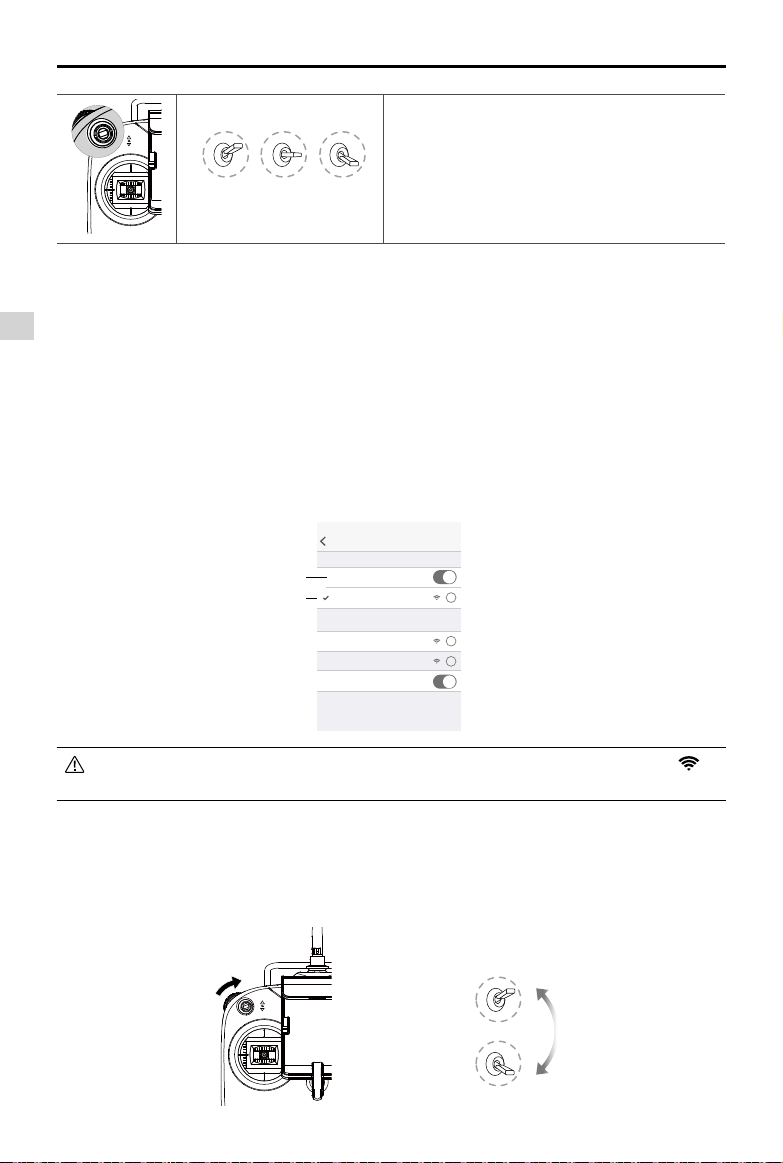
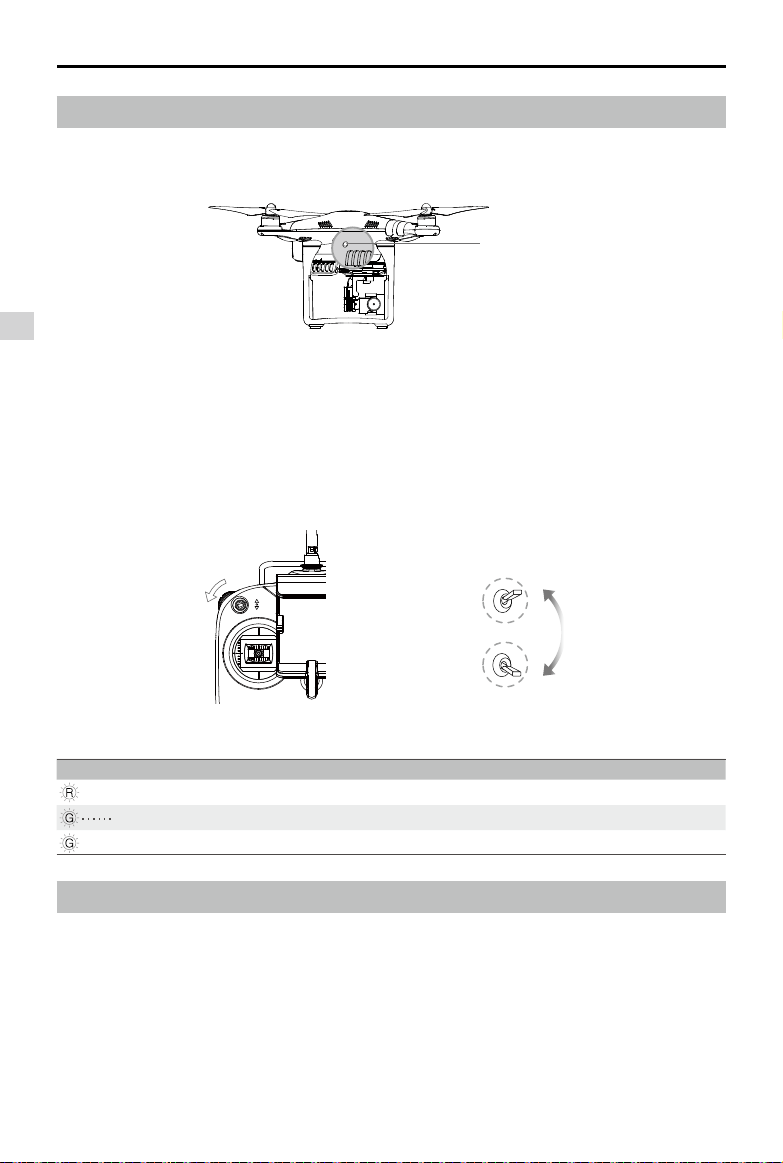
Switch on the remote controller, turn the gimbal dial to the far right, and toggle the S2 switch back and
forth for at least three times. The remote controller's status LED will blinks green and red alternatively
fast if the SSID and password for the Wi-Fi Video Downlink have been reset to their default values
successfully.
Once connected, you are advised to change the SSID and password by tapping in
Camera view.
position-1/position-2/position-3
Toggle the S2 switch back and forth once to initiate
Smart RTH. Use the S2 switch and the gimbal dial
to link with the aircraft and reset the Wi-Fi password.
Adjusting Controller Sticks
Hold and twist the controller sticks clockwise or counter clockwise to adjust the length of the controller
sticks. A proper length of controller sticks can improve the controlling accuracy.
Connecting to the Wi-Fi Video Downlink:
1. Switch on the remote controller.
2. Turn on the aircraft.
3. On your mobile device, select ‘PHANTOM3SE-XXXXXX’ from the Wi-Fi network list, and enter the
default password ‘12341234’.
4. Launch the DJI GO app and enter Camera View. A video signal from the aircraft’s camera indicates
that the aircraft has established a connection to the Wi-Fi video downlink successfully.
Position- 3
Position- 1
S2 Switch
Remote Controller
©
2017 DJI All Rights Reserved.
27
Phantom 3 SE User Manual
Optimal Transmission Range
Battery Level Indicator
The gure below illustrates the four battery levels that are displayed by the Battery Level Indicator on the
remote controller's front panel.
Battery Level Indicator
25
%
50
%
75
%
100
%
Always ensure the remote controller has an adequate battery level before each ight. If the
battery level is critically low, the remote controller will sound an alert and its Status LED will
blink red for 3 seconds before automatically powering off. If the remote controller powers
off during ight, the aircraft will enter Failsafe RTH.
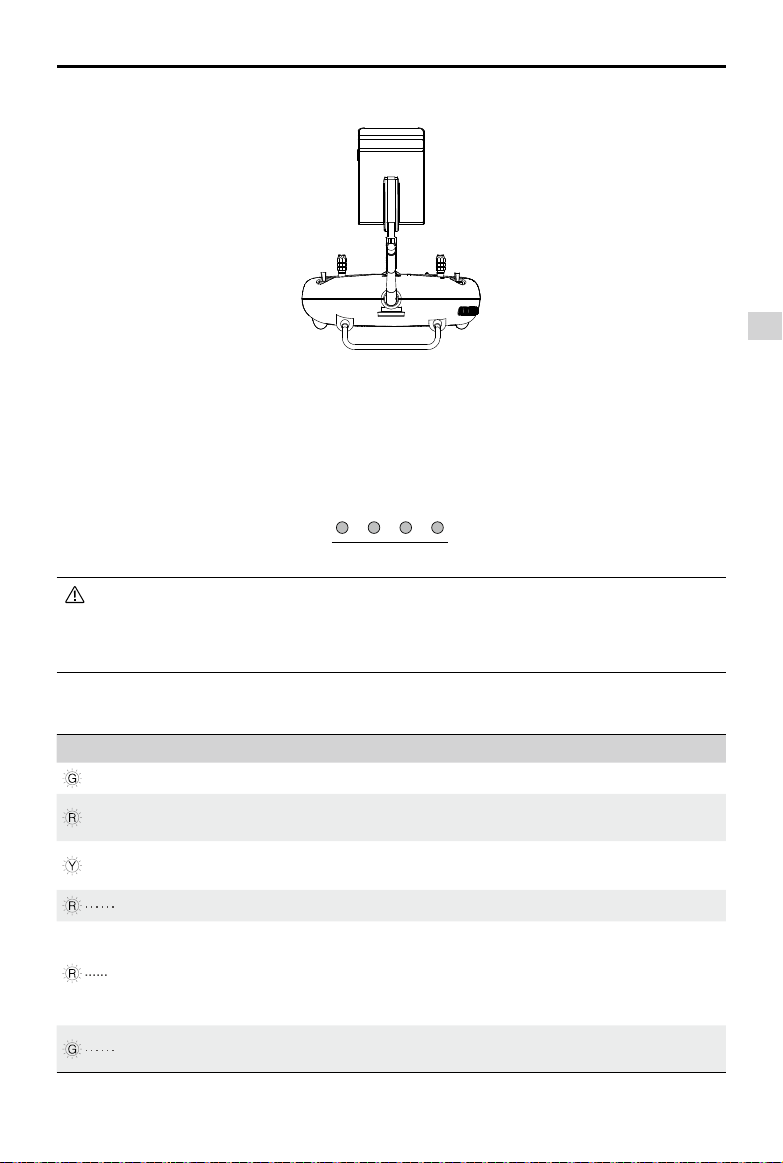
Remote Controller Status LED Description
Status LED Sound Remote Controller Status
— Solid green None Functioning normally and fully charged.
— Solid red None
Charging (remote controller is powered off).
Remote controller is not connected to the aircraft.
— Solid yellow
None
Control stick calibration error. Battery fully charged but
remote controller is not connected to the aircraft.
Blinks red slowly BB---BB---BB Low battery level. Recharge the remote controller.
Blinks red
quickly B-B-B...
Critically low battery level, the remote controller will
automatically power off after 3 seconds / The remote
controller is switched on with the control stick not in the
neutral position.
Blinks green slowly B--B--B...
Inactivity for over 6 minutes. Switch off the remote
controller if it is not in use.
Do not obstruct the built-in antenna.
Remote Controller
28
©
2017 DJI All Rights Reserved.
Phantom 3 SE User Manual
Linking the Remote Controller
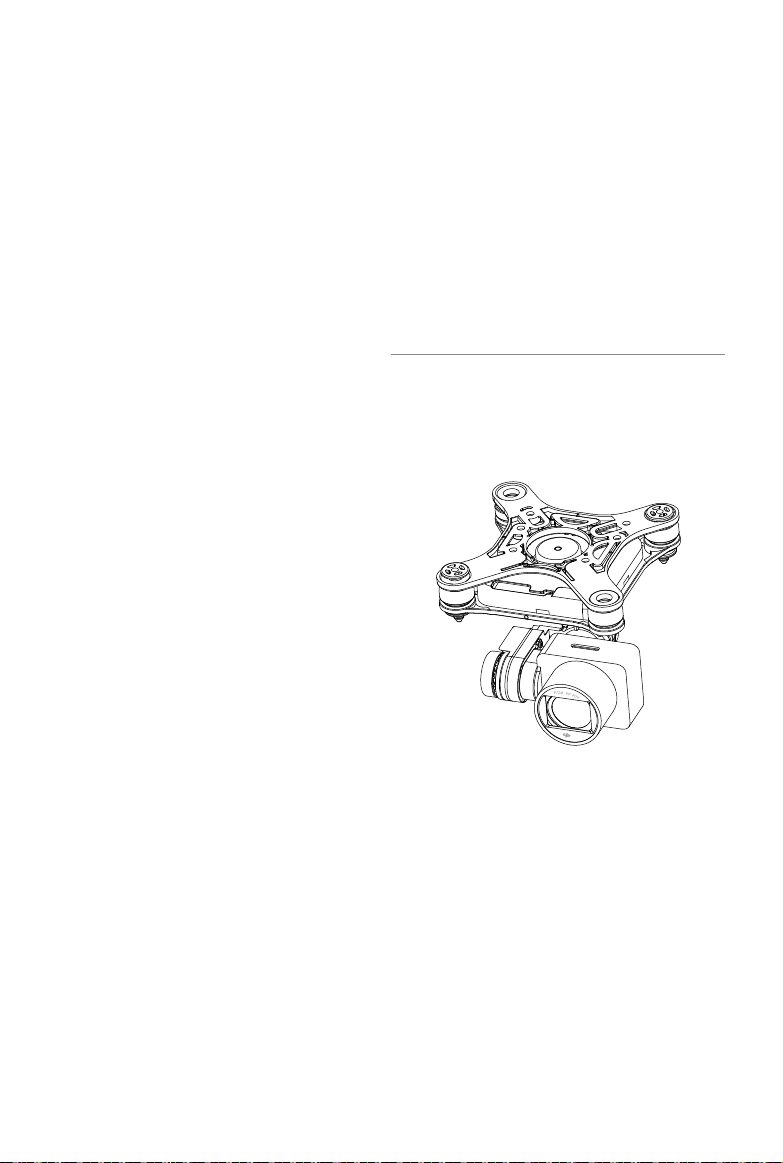
The Phantom 3 SE is linked to the remote controller by default, and re-linking is only necessary if the
remote controller is replaced with a new one. Refer to the gure below to locate the Link Button.
Link Button
Linking Procedures
1. Turn on the aircraft and press the Link Button. The button will blink red when the aircraft is ready to link.
2. Switch on the remote controller, turn the gimbal dial to the far left, and toggle the S2 switch back and
forth quickly for at least three times. You will hear a pulsating beep sound when the remote controller is
trying to link to the aircraft.
3. The remote controller will stop beeping and the Link Button on the aircraft will turn solid green if linking
is successful.
Linking Status
Link Button Description User Action
— Glows solid red No RC signal Switch on the RC or perform a linking procedure
Blinks red Ready to link Switch on the RC
— Glows solid green Linked to RC Linking successful
Remote Controller Compliance Version
The remote controller is compliant with FCC, SRRC and CE requirements.
Position 1
Position 3
Switch S2
©
2017 DJI All Rights Reserved.
29
Camera and Gimbal
This section provides the technical
specications of the camera and explains
the gimbal’s operation modes.
Gimbal Camera
30
©
2017 DJI All Rights Reserved.
Camera and Gimbal
Camera Prole
The on-board camera uses the 1/2.3 inch CMOS sensor to capture video (up to 4K at up to 30fps with
the Phantom 3 SE) and 12 megapixel stills. You may choose to record the video in either MOV or MP4
format. Available picture shooting modes include burst, continuous, and interval shot. A live preview of
what the camera sees can be monitored on the connected mobile device via the DJI GO app.
Camera Micro SD Card Slot
To store your photos and videos, insert the Micro SD card into the slot, as shown below, before
turning on the Phantom 3 SE. The Phantom 3 SE supports Micro-SD cards up to 64 GB. A UHS-1
Micro SD card is recommended due to their fast read and write speeds allowing you to save high-
resolution video data.
Do not remove the Micro SD card from the Phantom 3 SE when it is turned on.
Camera Data Port
Turn on the Phantom 3 SE and connect a USB cable to the Camera Data Port to download photos and
videos to your computer.
The aircraft must be turned on before attempting to access the les on the Micro SD card.
Gimbal Camera
©
2017 DJI All Rights Reserved.
31
Phantom 3 SE User Manual
Camera Status Indicator
Camera LED Indicator lights up after the Intelligent Flight Battery is powered on. It provides information on
the working status of the camera.
Camera Status Indicator Camera status
Fast green ashing System is warming up.
Green ashing once Taking a single picture.
Green ashing three times Taking 3 or 5 photos per shot.
Slow red ashing Recording.
Fast red ashing SD card error.
Two red ashing Overheated Camera
Solid red System error.
Alternating green and red Firmware Upgrading
Gimbal
Gimbal Prole
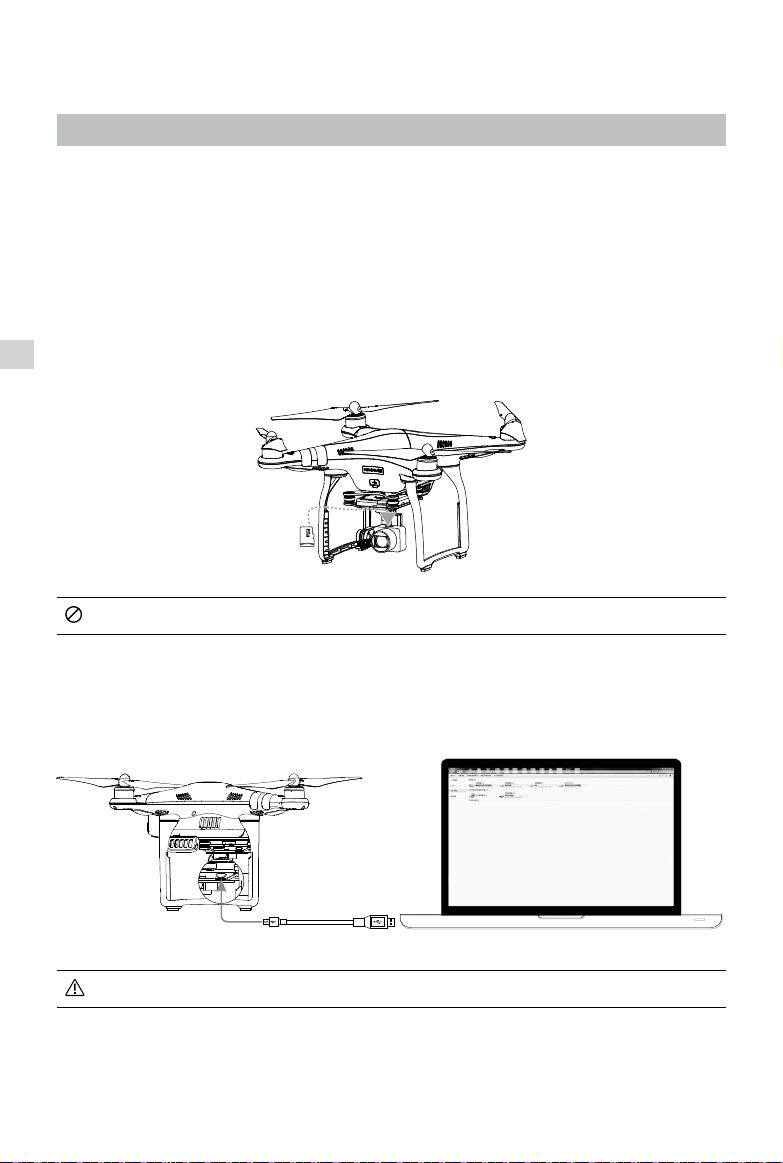
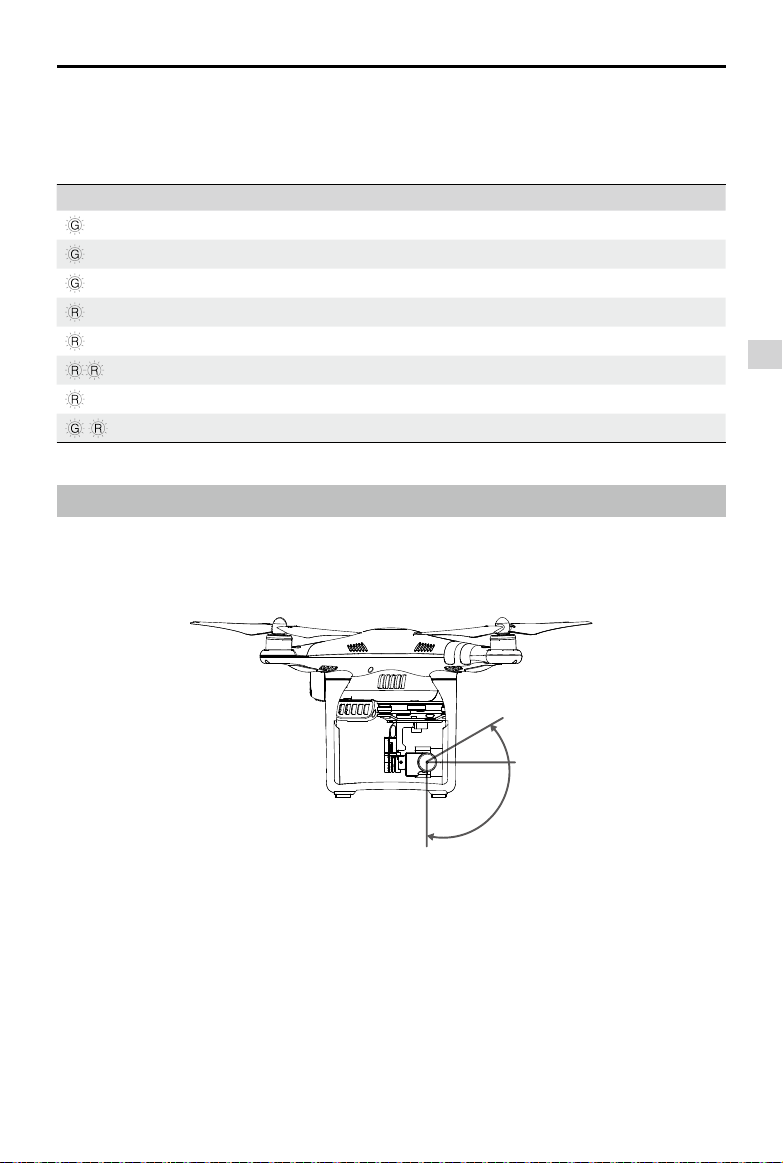
The 3-axis gimbal provides a steady platform for the attached camera, allowing you to capture clear,
stable images and video. The gimbal can tilt the camera within a 120˚ range.
Use the gimbal dial on the remote controller to control the tilt movement of the camera.
-90°
0°
30°
Gimbal Camera
32
©
2017 DJI All Rights Reserved.
Phantom 3 SE User Manual
Gimbal Operation Modes
Two gimbal operation modes are available. Switch between the different operation modes on the
camera settings page of the DJI GO app. Note that your mobile device must be connected to the remote
controller for changes to take effect. Refer to the table below for details:
Follow Mode
The angle between gimbal’s orientation and aircraft’s nose remains
constant at all times.
FPV Mode
The gimbal will synchronize with the movement of the aircraft to provide a
rst-person perspective ying experience.
Always remove the gimbal lock before powering on the aircraft.
A gimbal motor error may occur in these situations: (1) the aircraft is placed on uneven ground
or the gimbal’s motion is obstructed (2) the gimbal has been subjected to an excessive
external force, such as a collision. Please take off from at, open ground and protect the gimbal
at all times.
Flying in heavy fog or clouds may make the gimbal wet, leading to temporary failure. The
gimbal will recover full functionality after it dries.
Anti-Drop Kit
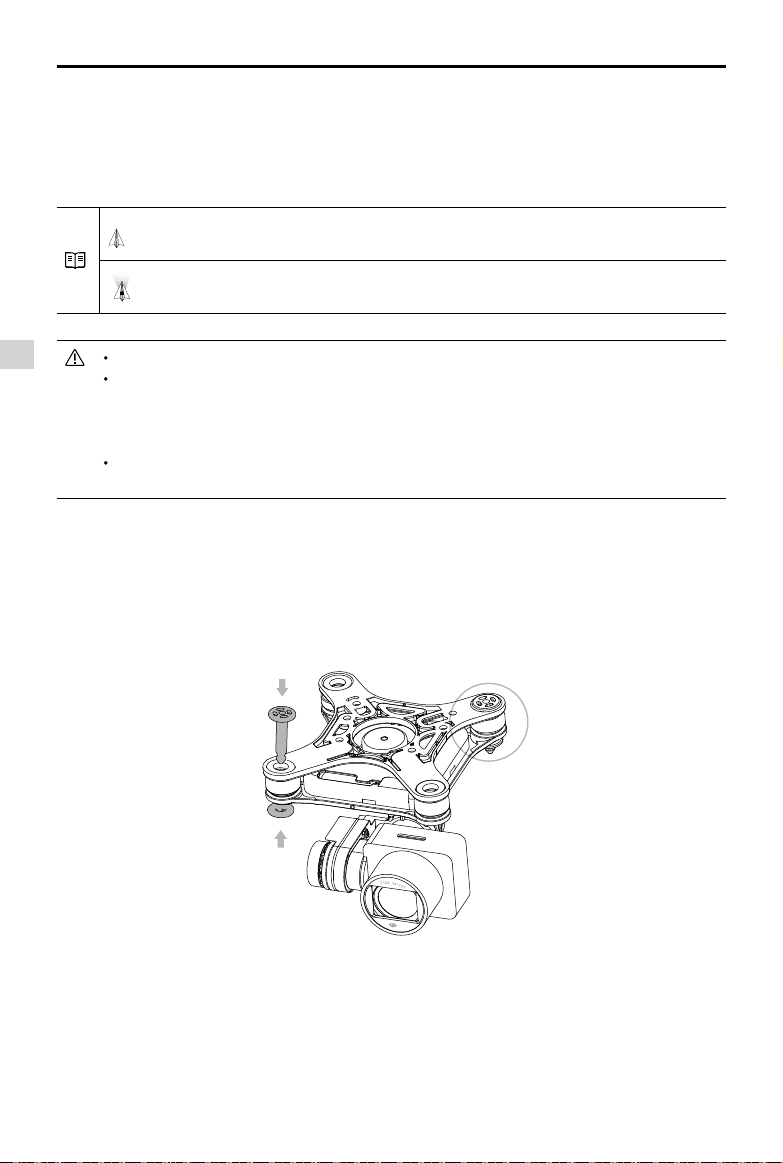
The anti-drop kit helps keep the gimbal and camera connected to the aircraft. Two pins have been
mounted prior to shipping. If new or additional pins are required, see the diagram below. Press Part
①
through the hole of the vibration absorber and into the center hole of Part
②
, then lock them together
as shown
③
. Mounting the anti-drop kit pins diagonally from each other is recommended.
①
②
③

©
2017 DJI All Rights Reserved.
33
DJI GO App
This section introduces the four main
functions of the DJI GO app.
DJI GO App
34
©
2017 DJI All Rights Reserved.
DJI GO App
Use this app to control the gimbal, camera, and other aircraft functions. The app features Equipment,
Editor, SkyPixel and Me sections, which are used for conguring your aircraft, editing and sharing your
photos and videos with others.
Equipment
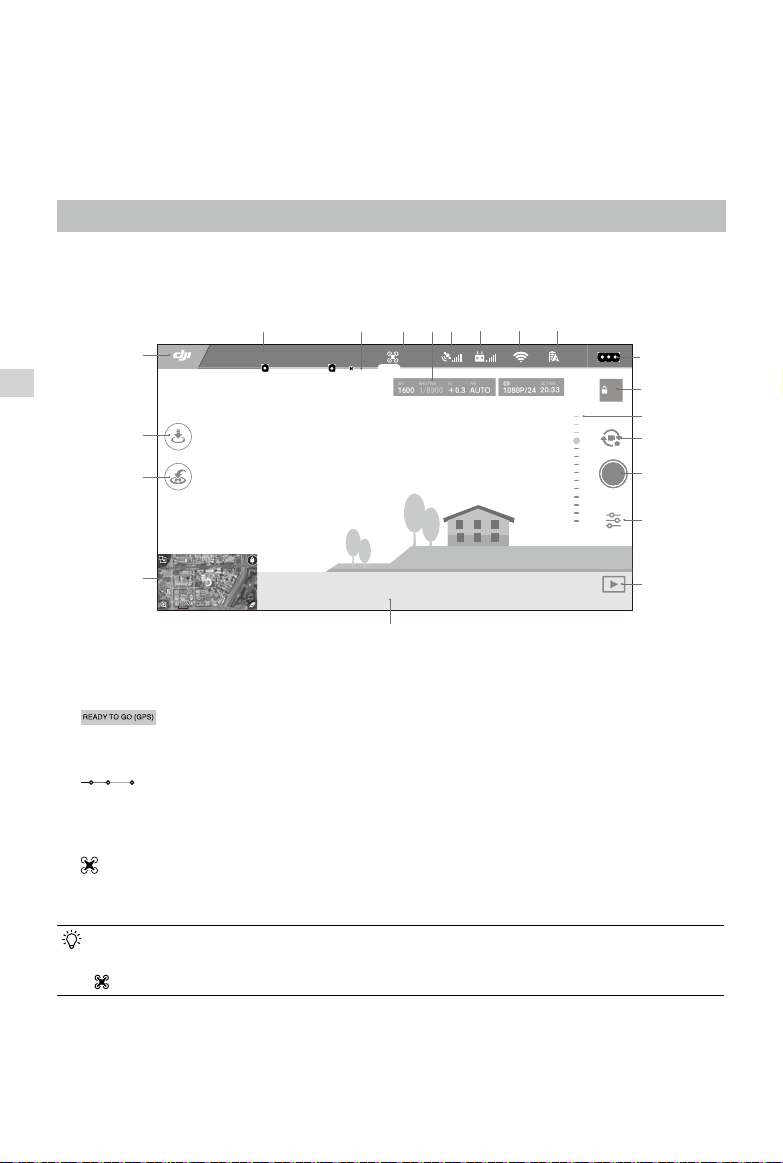
Enter Camera View by tapping Camera on the DJI GO welcome screen.
[1] System Status
: This icon indicates aircraft ight status and various warning messages.
[2] Battery Level Indicator
: The battery level indicator provides a dynamic display of the battery level. The colored
zones on the battery level indicator represent the power levels needed to carry out different functions.
[3] Flight Mode
: The text next to this icon indicates the current ight mode.
Tap to congure the MC (Main Controller) Settings. These settings allow you to modify ight limits and
set the gain values.
The aircraft is set to “Beginner Mode” by default. The aircraft cannot y 30 meters (98 feet)
higher and beyond the recorded Home Point under beginner mode. Disable this mode in the
setting page.
[4] Camera Parameters
Displays camera settings parameters and capacity of the Micro SD card.
Camera View
AE
09:29
61%
READY TO GO (GPS)
P-GPS
12
H 10.0MD 30M
VS 2.0M/S VPS 2.0MH.S 10.0 M/S
12
13
14
15
16
17
11
10
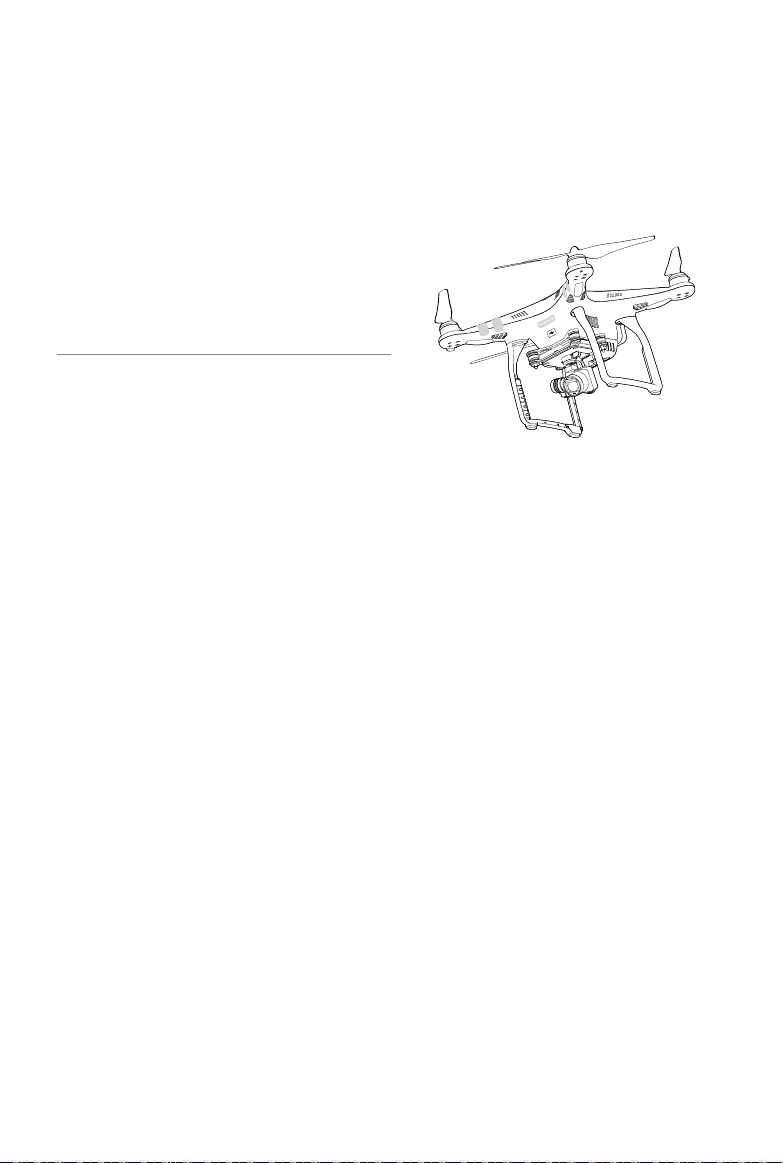
18
19
20
7 8654321
9
DJI GO App
©
2017 DJI All Rights Reserved.
35
Phantom 3 SE User Manual
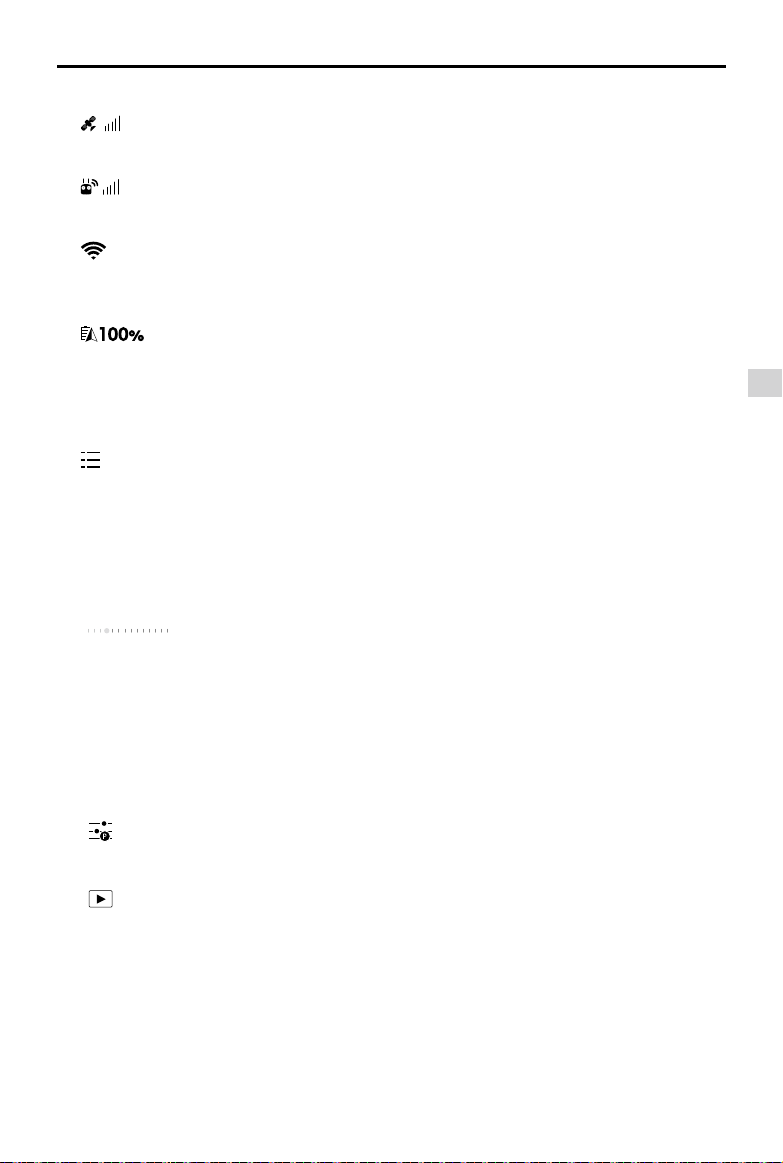
[5] GPS Signal Strength
: This icon shows the current strength of GPS signals.
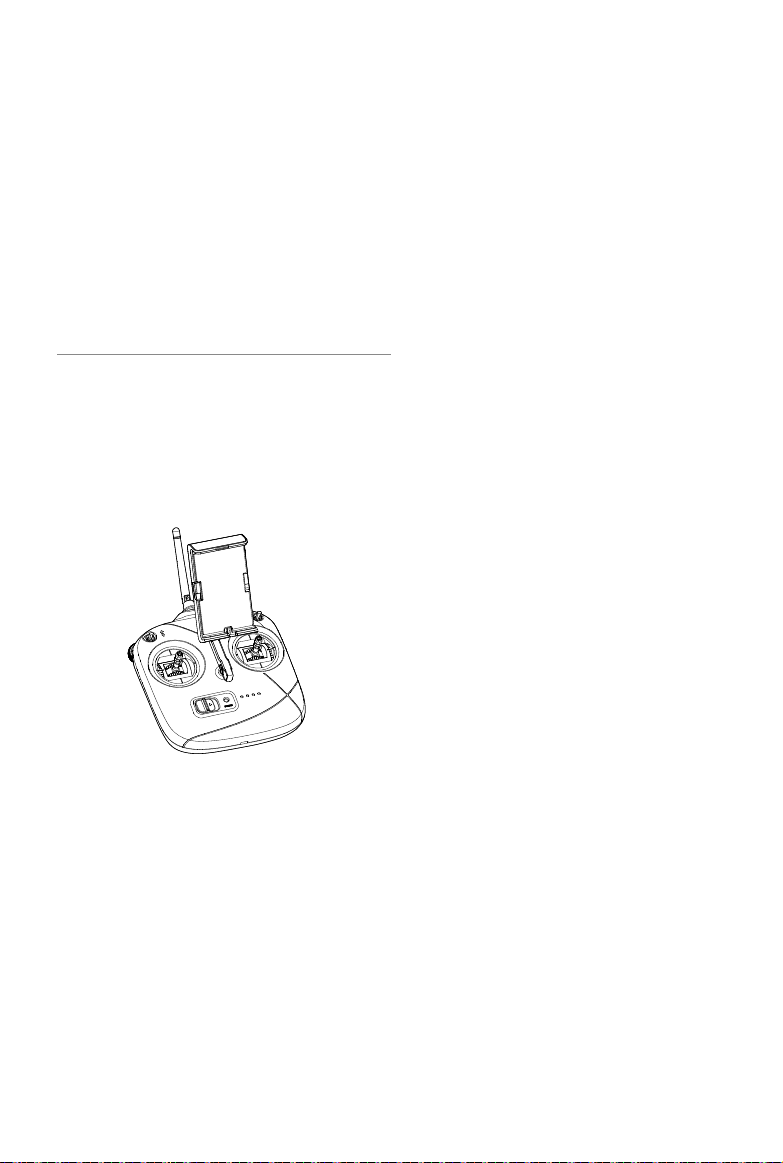
[6] Remote Controller Signal
: This icon shows the strength of remote controller’s signal.
[7] Video Downlink Signal
:
Shows the signal strength of the Wi-Fi Video Downlink between the aircraft and the remote con-
troller. Tap to set the SSID and connection password for the Wi-Fi connection.
[8] Battery Level
: This icon shows the current battery level.
Tap to view the battery information menu, set the various battery warning thresholds, and view the
battery warning history.
[9] General Settings
: Tap this icon to view the General Settings page. From this page, you can set ight parameters,
reset the camera, enable the quick view feature, adjust the gimbal roll value, and toggle the ight
route display.
[10] Auto Exposure Lock
AE
:
Tap to lock the exposure value.
[11] Gimbal Slider
:
Displays the pitch of the gimbal.
[12] Photo/Video Button
Tap to switch between photo and video recording modes.
[13] Shoot/Record Button
Tap to start shooting photos or recording video.
[14]
Camera Settings
: Tap to set ISO, shutter and auto exposure values of the camera.
[15]
Playback
: Tap to enter the playback page. You can preview photos and videos as soon as they are
captured.
[16] Flight Telemetry
D 30M
: Distance between the aircraft and the Home Point.
H 10.0M
: Height from the ground.
H.S 10.0 M/S
: Aircraft horizontal speed.
VS 2.0M/S
: Aircraft vertical speed.
DJI GO App
36
©
2017 DJI All Rights Reserved.
Phantom 3 SE User Manual
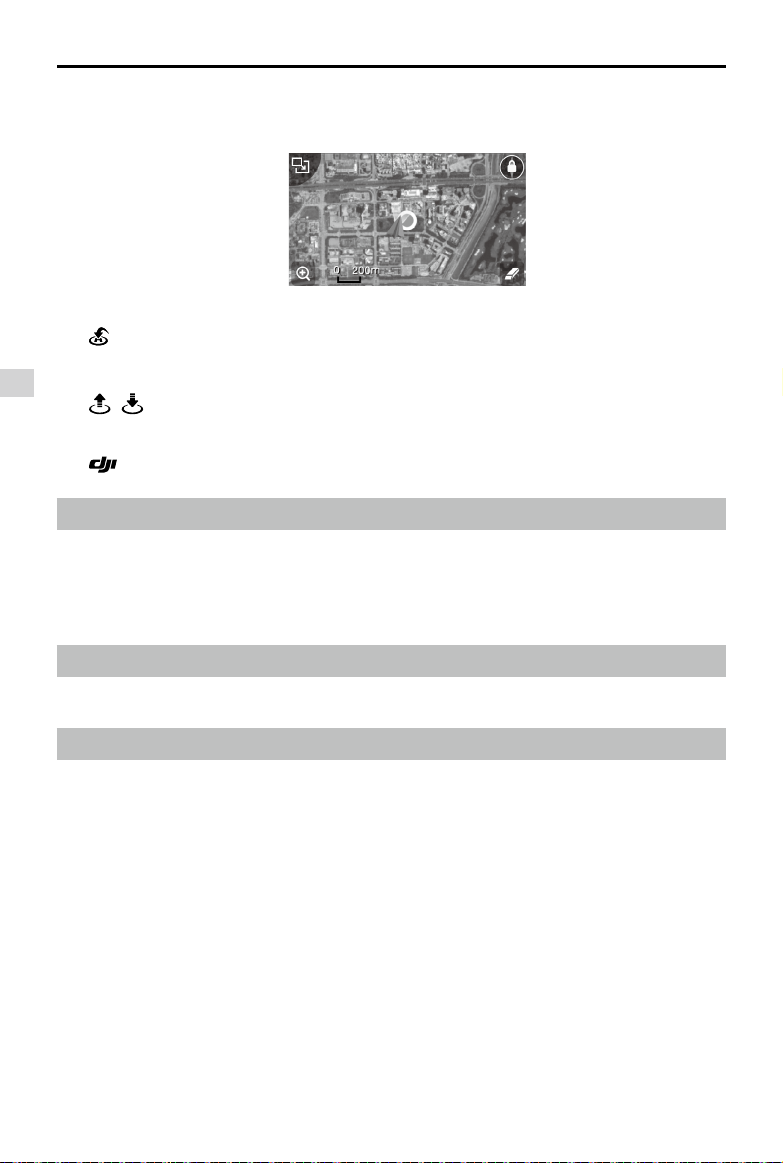
[17] Map
Display the ight path of the current ight. Tap to switch from the Camera GUI to the Map GUI.
[18] Return to Home (RTH)
: Initiate RTH home procedure. Tap to have the aircraft return to the last recorded home point.
[19] Auto Takeoff/Landing
/ : Tap to initiate auto takeoff or landing.
[20] Back
: Tap to return to the main GUI.
Editor
An intelligent video editor is built into the DJI GO app. After recording several video clips and download-
ing them to your mobile device, go to Editor on the home screen. You can then select a template and
a specied number of clips which are automatically combined to create a short lm that can be shared
immediately.
SkyPixel
View and share the photos and videos in the SkyPixel page.
Me
If you already have a DJI account, you will be able to participate in forum discussions, and share your
creation with the community.
©
2017 DJI All Rights Reserved.
37
Flight
This section describes safe ight
practices and ight restrictions.
Flight
38
©
2017 DJI All Rights Reserved.
Flight
Once pre-ight preparation is complete, it is recommended that you use the ight simulator in the DJI GO
app to hone your ight skills and practice ying safely. Ensure that all ights are carried out in an open
area.
Flight Environment Requirements
1. Do not use the aircraft in severe weather conditions. These include wind speeds exceeding 10 m/s ,
snow, rain and fog.
2. Only y in open areas. Tall structures and large metal structures may affect the accuracy of the on-
board compass and GPS system.
3. Avoid obstacles, crowds, high voltage power lines, trees, and bodies of water.
4. Minimize interference by avoiding areas with high levels of electromagnetism, including base stations
and radio transmission towers.
5. Aircraft and battery performance is subject to environmental factors such as air density and
temperature.Be very careful when ying at altitudes greater than 19, 685 feet (6000 meters) above sea
level, as the performance of the battery and aircraft may be affected.
6. The Phantom 3 SE cannot operate within the polar areas.
Flight Limits and No-Fly Zones
All unmanned aerial vehicle (UAV) operators should abide by all regulations set forth by government and
regulatory agencies including the ICAO and the FAA. For safety reasons, ights are limited by default,
which helps users operate this product safely and legally. Flight limitations include height limits, distance
limits, and No-Fly Zones.
When operating in P-mode, height limits, distance limits, and No-Fly Zones function concurrently to
manage flight safety. In A-mode, only height limits are in effect, which by default prevent the aircraft
altitude from exceeding 1640 feet (500 m) .
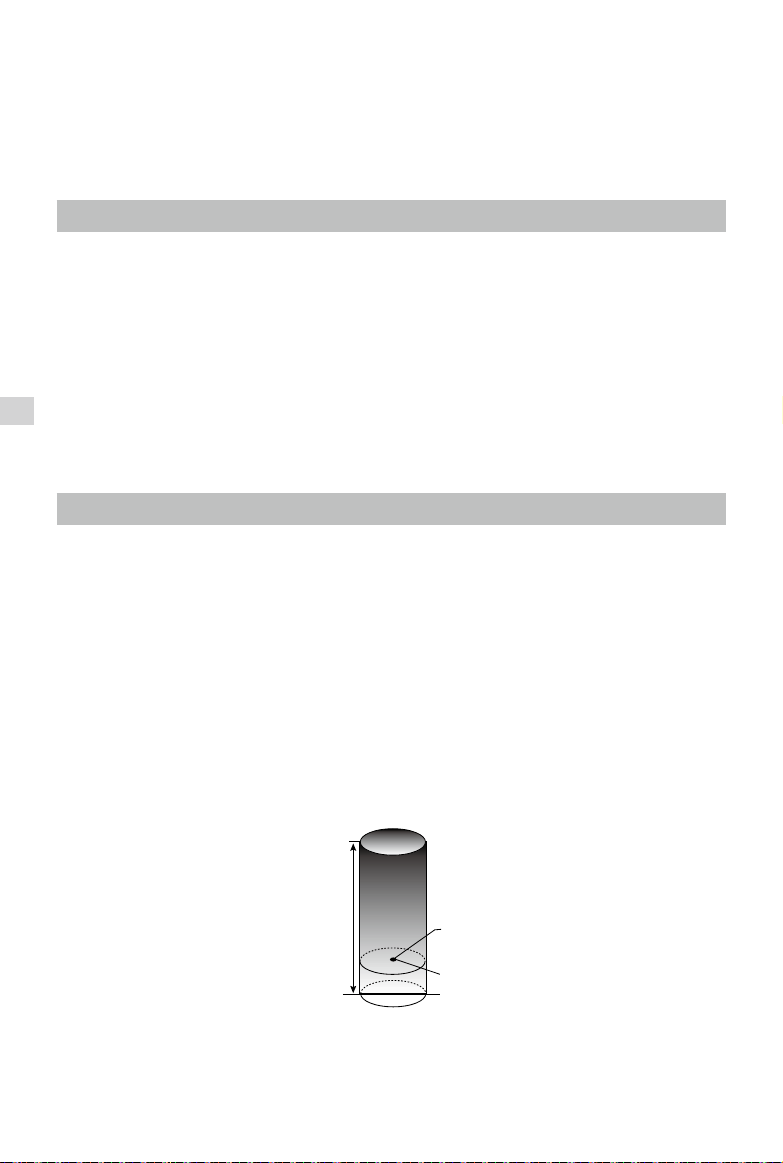
Maximum ight altitude & Radius Limits
Maximum ight altitude and radius limits may be changed in the DJI GO app. Be aware that the maximum
ight altitude cannot exceed 1640 feet (500 meters). In accordance with these settings, your Phantom 3
SE will y in a restricted cylinder, as shown below:
Maximum Flight Altitude
Max Radius
Home Point
Height of aircraft
when turned on
Flight
©
2017 DJI All Rights Reserved.
39
Phantom 3 SE User Manual
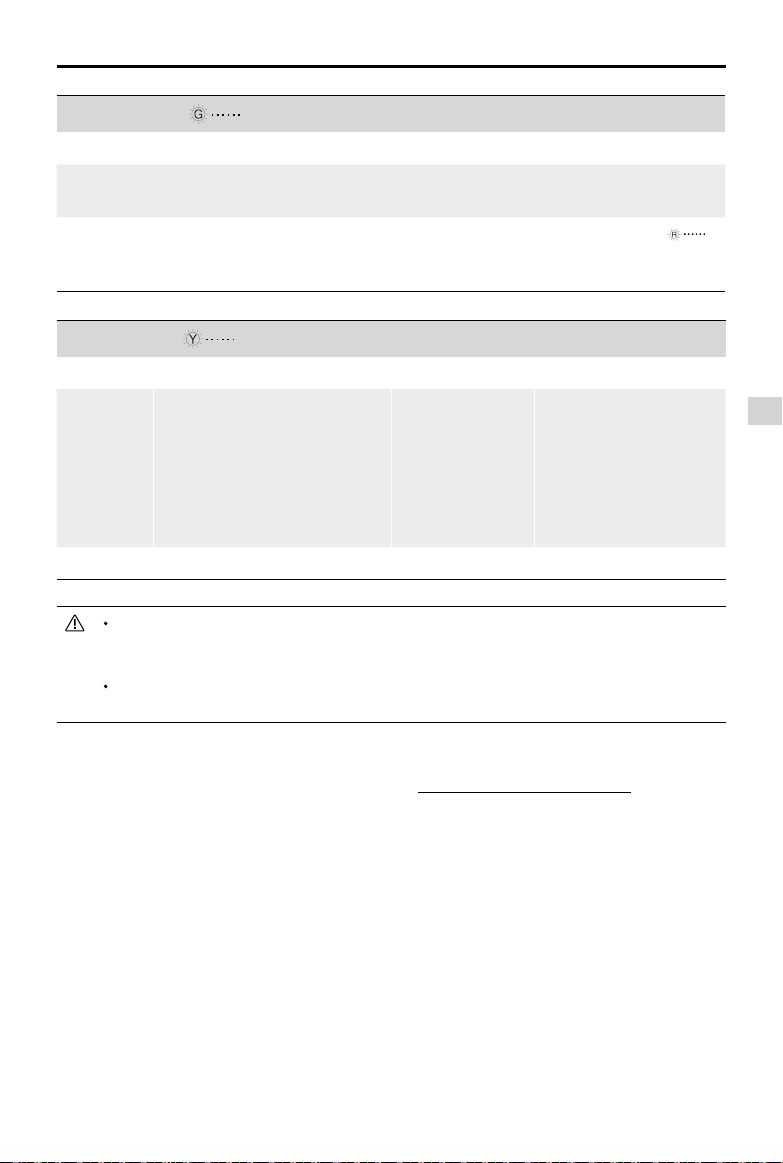
GPS Signal Weak Blinking Yellow
Flight Limits DJI GO app Aircraft Status Indicator
Maximum
Flight
Altitude
Height is restricted to 26 feet (8
meters) when the GPS signal is
weak and Vision Positioning is
activated. Height is restricted
to 164 feet (50meters) when the
GPS signal is weak and Vision
Positioning is inactivated.
Warning: Height
limit reached.
None.
Max Radius No limits
If you fly out of the limit, you can still control the aircraft, but cannot fly it any father. If the
aircraft ies out of the max radius in Ready to Fly (non-GPS) mode, it will y back within range
automatically.
If the aircraft ies out of the max radius in Ready to Fly (non-GPS) mode, it will y back within
range automatically.
No-Fly Zones
All No-Fly Zones are listed on the DJI ofcial website at http://www.dji.com/ysafe/no-y. No-Fly Zones
are divided into Airports and Restricted Areas. Airports include major airports and ying elds where
manned aircraft operate at low altitudes. Restricted Areas include border lines between countries or
sensitive institute. The details of the No-Fly Zones are explained as follow:
GPS Signal Strong Blinking Green
Flight Limits DJI GO app Aircraft Status Indicator
Maximum
Flight Altitude
Aircraft's altitude cannot
exceed the specied value.
Warning: Height
limit reached.
None.
Max Radius
Flight distance must be within
the max radius.
Warning: Distance
limit reached.
Rapid red ashing
when close to the max
radius limit.
Flight
40
©
2017 DJI All Rights Reserved.
Phantom 3 SE User Manual
Preight Checklist
1. Remote controller, Intelligent Flight Battery, and mobile device are fully charged.
2. Propellers are mounted correctly and rmly.
3. Micro SD card has been inserted, if necessary.
4. Gimbal is functioning normally.
5. Motors can start and are functioning normally.
6. The DJI GO app is successfully connected to the aircraft.
Calibrating the Compass
Only calibrate the compass when the DJI GO app or the status indicator prompt you to do so. Observe
the following rules when calibrating your compass:
DO NOT calibrate your compass where there is a chance of strong magnetic interference, such
as magnetite, parking structures, and steel reinforcements underground.
DO NOT carry ferromagnetic materials with you during calibration such as cellular phones.
The DJI GO app will prompt you to resolve the compass issue if the compass is affected by
strong interference after calibration is complete. Follow the prompted instructions to resolve the
compass issue.
Calibration Procedures
Choose an open area to carry out the following procedures.
1. Ensure that the compass is calibrated. If you did not calibrate the compass as part of your pre-ight
preparations, or if you have moved to a new location since the last calibration, tap the Aircraft Status
Bar in the app and select “Calibrate”, then follow the on-screen instructions.
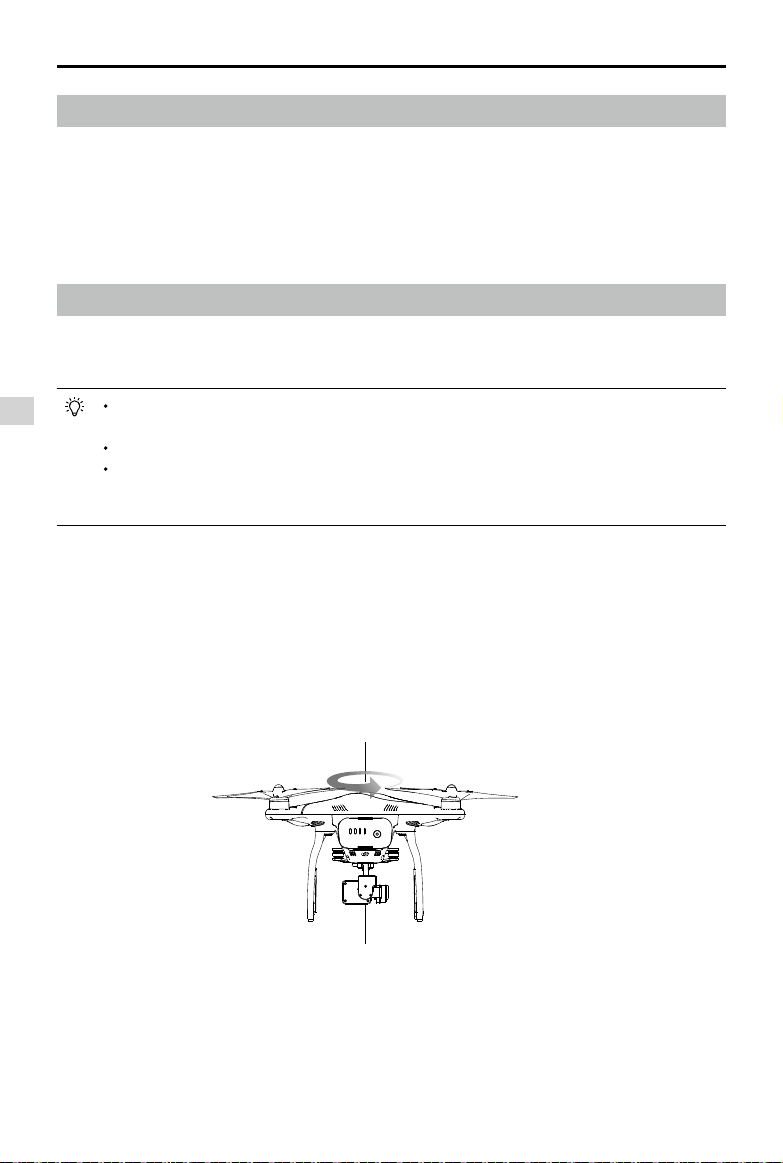
2. Hold the aircraft horizontally and rotate 360 degrees. The Aircraft Status Indicators will display a solid
green light.
Flight
©
2017 DJI All Rights Reserved.
41
Phantom 3 SE User Manual
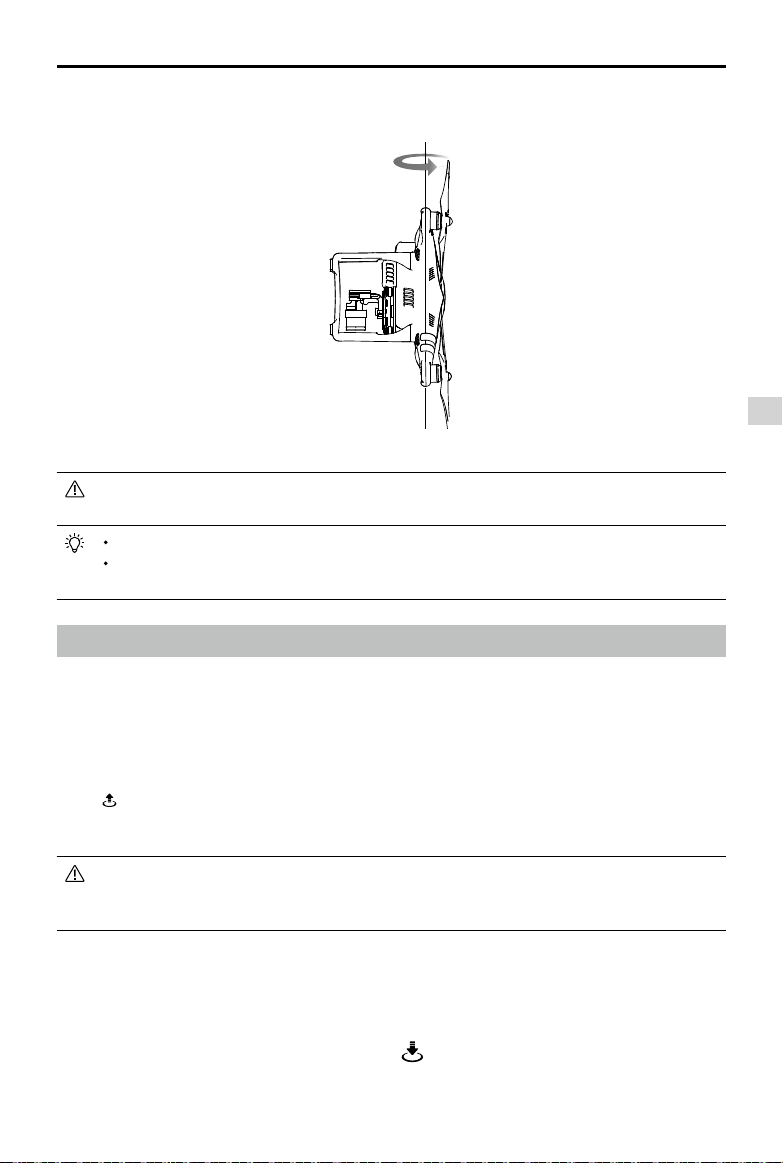
3. Hold the aircraft vertically, with nose pointing downward, and rotate it 360 degrees around the
center axis.
If the Aircraft Status Indicator blinks red and yellow after the calibration procedure, move your
aircraft to a different location and try again.
DO NOT calibrate the compass near metal objects such as a metal bridge, cars, scaffolding.
If the aircraft status indicator is blinking red and yellow alternately after placing the aircraft on
the ground, the compass has detected magnetic interference. Change your location.
Auto Takeoff and Auto Landing
Auto Takeoff
Use auto takeoff only if the Aircraft Status Indicators are blinking green. Follow the steps below to use the
auto takeoff feature:
1. Launch the DJI GO app, and enter “Camera” page.
2. Ensure the aircraft is in P- mode.
3. Complete all steps on the pre-ight checklist.
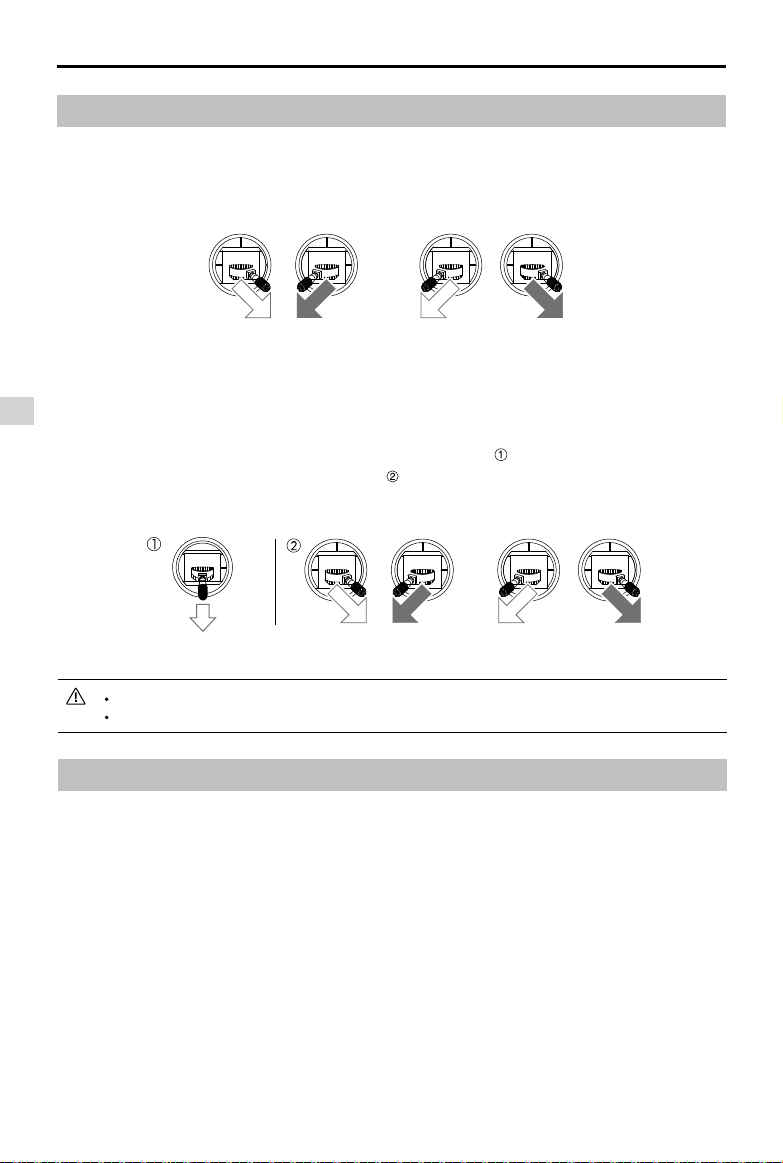
4. Tap“ ”, and conrm that conditions are safe for ight. Slide the icon to conrm and takeoff.
5. Aircraft takes off and hovers at (1.2 meters) above ground.
Aircraft Status Indicator blinks rapidly when it is using the Vision Position System for stabilization.
The aircraft will automatically hover below 3 meters. It is recommended to wait until there is
sufcient GPS lock before using the Auto Take-off feature.
Auto-Landing
Use auto-landing only if the Aircraft Status Indicators are blinking green. Follow the steps below to use the
auto-landing feature:
1. Ensure the aircraft is in P- mode.
2. Check the landing area condition before tapping “ ”, to begin landing. Then follow the on-screen
instructions.
4. Re-calibrate the aircraft if the aircraft status indicators blink red.
Flight
42
©
2017 DJI All Rights Reserved.
Phantom 3 SE User Manual
Stopping the Motors
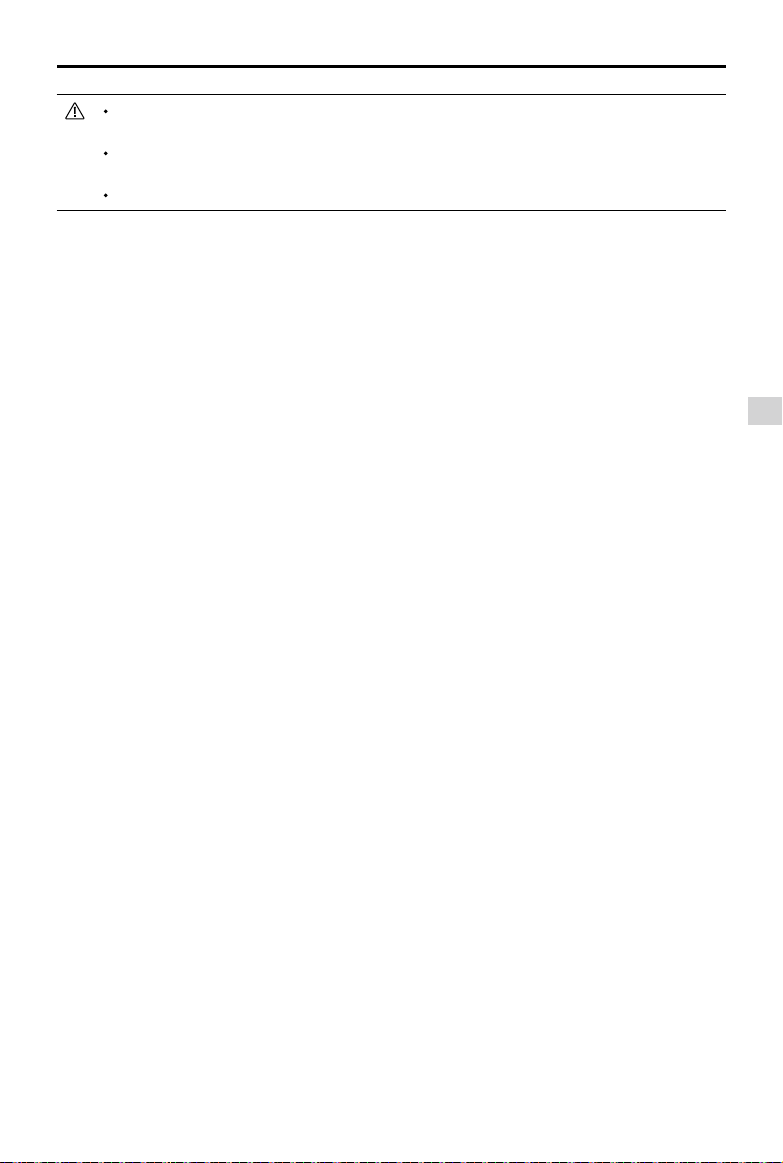
There are two methods to stop the motors.
Method 1: When the aircraft has landed, push and hold the throttle down. The motors will stop after three
seconds.
Method 2: When Phantom 3 SE has landed, push the throttle down , then conduct the same CSC that
was used to start the motors, as described above . Motors will stop immediately. Release both sticks
once motors stop.
Starting/Stopping the Motors
Starting the Motors
A Combination Stick Command (CSC) is used to start the motors. Push both sticks to the bottom
inner or outer corners to start the motors. Once the motors have started spinning, release both sticks
simultaneously.
OR
It is recommended to use method 1 to stop motors.
Do not perform a CSC when the aircraft is in midair, otherwise the motors will suddently stop.
Flight Test
Takeoff/Landing Procedures
1. Place the aircraft in an open, at area with the battery level indicators facing towards you.
2. Turn on the remote controller and your mobile device, then turn on the Intelligent Flight Battery.
3. Launch the DJI GO app and enter the Camera page.
4. Wait until the Aircraft Indicators blink green. This means the Home Point is recorded and it is now safe
to y. If they ash yellow, the Home Point has not been recorded.
5. Push the throttle up slowly to take off or use Auto Takeoff.
6. Shoot photos and videos using the DJI GO app.
7. To land, hover over a level surface and gently pull down on the throttle to descend.
8. After landing, hold the throttle at its lowest position until the motors stop.
9. Turn off the Intelligent Flight Battery rst, then the Remote Controller.
Method 1
Method 2
OR
Flight
©
2017 DJI All Rights Reserved.
43
Phantom 3 SE User Manual
When the Aircraft Status Indicators blink yellow rapidly during ight, the aircraft has entered Failsafe
mode.
A low battery level warning is indicated by the Aircraft Status Indicators blinking red slowly or
rapidly during ight.
Watch our video tutorials for more ight information.
Video Suggestions and Tips
1. Go through the full pre-ight checklist before each ight.
2. Select the desired gimbal operation mode in the DJI GO app.
3. Only shoot video when ying in P-mode.
4. Always y in good weather and avoid ying in rain or heavy wind.
5. Choose the camera settings that suit your needs. Settings include photo format and exposure compensation.
6. Perform ight tests to establish ight routes and preview scenes.
7. Push the control sticks gently to keep the aircraft’s movement smooth and stable.

44
©
2017 DJI All Rights Reserved.
Appendix

Appendix
©
2017 DJI All Rights Reserved.
45
Appendix
Specications
Aircraft
Weight (Battery & Propellers Included) 1236 g
Max. Ascent Speed 5 m/s
Max. Descent Speed 3 m/s
Max. Speed 16 m/s (ATTI mode, no wind)
Max Service Ceiling Above Sea Level 6000 m (Software altitude limit: 120 m above takeoff point)
Max. Flight Time Approximately 25 minutes
Operating Temperature 0°C to 40°C
GNSS GPS+GLONASS
Operating Frequency 2.400-2.4835 GHz; 5.725-5.850 GHz
Transmitter Power (EIRP)
2.4 GHz: ≤27 dBm (FCC); ≤20 dBm (SRRC); ≤20 dBm (CE)
5.8 GHz: ≤30 dBm (FCC); ≤26 dBm (SRRC); ≤14 dBm (CE)
Gimbal
Controllable Range Pitch: - 90° to + 30°
Vision Positioning
Velocity Range < 8 m/s (2 m above ground)
Altitude Range 30 cm-300 cm
Operating Range 50 cm-300 cm
Operating Environment Surface with clear pattern and adequate lighting (Lux > 15)
Camera
Sensor 1/2.3” CMOS Effective pixels:12 M
Lens FOV 94° 20mm (35mm format equivalent ) f/2.8 Focus at Innity
ISO Range 100-3200(video) 100-1600(photo)
Electronic Shutter Speed 8s -1/8000s
Image Max. Size 4000 × 3000
Still Photography Modes
Single shot
Burst shooting: 3/5/7 frames
Auto Exposure Bracketing (AEB): 3/5 bracketed frames at 0.7EV
Bias
Interval
Video Recording Modes
C4K: 4096×2160 24/25p
4K: 3840×2160 24/25/30p
2.7K: 2704×1520 24/25/30p
FHD: 1920×1080 24/25/30/48/50/60p
HD: 1280×720 24/25/30/48/50/60p
Max. Bitrate Of Video Storage 60 Mbps
Supported File Formats FAT32 (≤ 32 GB) ; exFAT (> 32 GB)
Photo Formats JPEG, DNG
Video Formats MP4/MOV (MPEG-4 AVC/H.264)
Supported SD Card Types Micro SD, Max. capacity: 64 GB. Class 10 or UHS-1 rating required

Appendix
46
©
2017 DJI All Rights Reserved.
Phantom 3 SE User Manual
Remote Controller
Operating Frequency 2.400-2.483 GHz; 5.725-5.85 GHz
Transmitter Power (EIRP)
2.4 GHz: ≤27 dBm (FCC); ≤20 dBm (SRRC); ≤20 dBm (CE)
5.8 GHz: ≤30 dBm (FCC); ≤26 dBm (SRRC); ≤14 dBm (CE)
Max Transmission Distance
(Unobstructed and free of interference)
2.4 GHz: 0.6 mi (1000 m, FCC); 0.3 mi (500 m, SRRC);
0.3 mi (500 m, CE)
5.8 GHz: 2.5 mi (4000 m, FCC); 1.9 mi (3000 m, SRRC);
0.2 mi (400 m, CE)
Operating Temperature Range 32° to 104° F (0° to 40° C)
Battery 2600 mAh LiPo 18650
Mobile Device Holder
Tablets and smartphones
Charger
Voltage 17.4 V
Rated Power 57 W
Intelligent Flight Battery ( PH3-4480 mAh-15.2 V )
Capacity 4480 mAh
Voltage 15.2 V
Battery Type LiPo 4S
Energy 68 Wh
Net Weight 365 g
Charging Temperature Range 5°C
-
40°C
Max. Charging Power 100 W
Appendix
©
2017 DJI All Rights Reserved.
47
Phantom 3 SE User Manual
Firmwares Update
Connect to the Internet, launch the DJI GO app. The DJI GO app will start checking for available
rmware updates automatically. Follow the on-screen instruction to update the latest rmware for
the aircraft, remote controller and intelligent ight battery.
Intelligent Flight Mode
Intelligent Flight mode includes Course Lock, Home Lock, Point of Interest (POI), Follow Me and
Waypoints features to assist users to create professional shoots during the ight. Course Lock and Home
Point lock helps to lock the orientation of aircraft so that the user can focus more on other operations.
Point of Interest, Follow Me and Waypoints mode enable aircraft to y automatically according to the
pre-set ight maneuvers.
Course Lock
Lock the current nose direction as the aircraft’s forward direction. The aircraft will
move in the locked directions regardless of its orientation (yaw angle).
Home Lock Pull the pitch stick backward to move the aircraft toward its recorderd Home Point.
Point of Interest
The aircraft will orbit around the subject automatically to allow the operator can be
more focus on framing their shoot on the subject in Point of Interest.
Follow Me
A virtual tether is created between the aircraft and the mobile device so that the
aircraft can track your movement as you move. Note that Follow Me performance is
subject to the GPS accuracy on the mobile device.
Waypoints
Record a ight path, then the aircraft will y along the same path repeatedly while
you control the camera and orientation. The ight path can be saved and re-apply
in the future.
Enable Multiple Flight Mode by launching the DJI GO app > Camera View > > Advanced Settings >
Mulitple Flight Mode before using the Intelligent Flight Mode for the rst time.
After-Sales Information
Visit the following pages to learn more about After-sales policy and warranty information:
1. After-sales Policy: http://www.dji.com/service
2. Refund Policy: http://www.dji.com/service/refund-return
3. Paid Repair Service: http://www.dji.com/service/repair-service
4. Warranty Service: http://www.dji.com/service/warranty-service

©
2017 DJI All Rights Reserved.
If you have any questions about this document, please contact DJI
by sending a message to
.