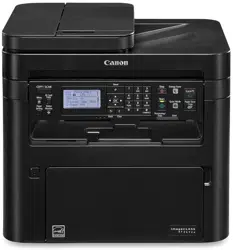

Windows
MF Scan Utility
User's Guide
USRMA-1480-01 2018-03 en Copyright CANON INC. 2018

Contents
Introduction ....................................................................................................................................................... 2
How to Use the Manual ............................................................................................................................................. 3
Notations Used in the Manual ................................................................................................................................ 4
Disclaimers ............................................................................................................................................................... 5
Copyright .................................................................................................................................................................. 6
Trademarks .............................................................................................................................................................. 7
What Is the MF Scan Utility? ................................................................................................................ 9
Before Use ......................................................................................................................................................... 11
Scanning Using MF Scan Utility ....................................................................................................... 13
Scanning a Document ............................................................................................................................................. 14
Scanning a Photograph ........................................................................................................................................... 15
Scanning with Customized Settings ......................................................................................................................... 16
Scanning Large Originals from the Platen ................................................................................................................ 17
Scanning with ScanGear MF ..................................................................................................................................... 19
Extracting Character Strings from Scanned Images .................................................................................................. 20
Attaching a Scanned Image to an E-mail .................................................................................................................. 21
Checking Scan Results before Saving ....................................................................................................................... 22
Coordinating with a Cloud App ................................................................................................................................ 23
Opening a Scanner Image with Adobe DC ................................................................................................................. 24
Conguring Settings When Scanning from the Control Panel .................................................................................... 25
Settings List ..................................................................................................................................................... 27
Main Screen ............................................................................................................................................................ 28
[Settings] Dialog Box ............................................................................................................................................... 29
[Image Stitch] Dialog Box ........................................................................................................................................ 33
[Save Settings] Dialog Box ....................................................................................................................................... 34
I

Introduction
Introduction .......................................................................................................................................................... 2
How to Use the Manual ......................................................................................................................................... 3
Notations Used in the Manual .......................................................................................................................... 4
Disclaimers ............................................................................................................................................................. 5
Copyright ............................................................................................................................................................... 6
Trademarks ............................................................................................................................................................ 7
Introduction
1



Notations Used in the Manual
This explains symbols and settings used in this manual.
Symbols Used in This Manual
In this manual, explanations of items and operations that must be followed while using the software are set
forth the symbols that indicate the following.
IMPORTANT
● Indicates operational requirements and restrictions. Be sure to read these items carefully to operate the
product correctly, and avoid damage to the product.
NOTE
● Indicates a clarication of an operation, or contains additional explanations for a procedure. Reading these
notes is highly recommended.
About Settings
In this manual, setting names displayed on the computer screen are represented as shown in the following
examples.
Example:
[Scan]
[OK]
Introduction
4

Disclaimers
The information in this document is subject to change without notice.
CANON INC. MAKES NO WARRANTY OF ANY KIND WITH REGARD TO THIS MATERIAL, EITHER EXPRESS OR
IMPLIED, EXCEPT AS PROVIDED HEREIN, INCLUDING WITHOUT LIMITATION, THEREOF, WARRANTIES AS TO
MARKETABILITY, MERCHANTABILITY, FITNESS FOR A PARTICULAR PURPOSE OF USE OR NON-INFRINGEMENT.
CANON INC. SHALL NOT BE LIABLE FOR ANY DIRECT, INCIDENTAL, OR CONSEQUENTIAL DAMAGES OF ANY
NATURE, OR LOSSES OR EXPENSES RESULTING FROM THE USE OF THIS MATERIAL.
Introduction
5

Copyright
Copyright CANON INC. 2018
No part of this publication may be reproduced, transmitted, transcribed, stored in a retrieval system, or
translated into any language or computer language in any form or by any means, electronic, mechanical,
magnetic, optical, chemical, manual, or otherwise, without the prior written permission of Canon Inc.
Introduction
6

Trademarks
Microsoft and Windows are either registered trademarks or trademarks of Microsoft Corporation in the United
States and/or other countries.
macOS is a trademark of Apple Inc.
Other product and company names herein may be the trademarks of their respective owners.
Introduction
7


What Is the MF Scan Utility?
The MF Scan Utility is software for conveniently scanning photographs, documents, etc.
Easy scanning according to your purpose
By simply clicking an icon button in the MF Scan Utility main screen, you can scan with settings that match
your purpose.
Automatic saving of scanned images
Originals are scanned and the scanned images are saved on your computer according to previously
congured settings.
By default, images are saved in the [Document]/[My Documents] folder.
Linking to applications
You can display scanned images, attach them to emails, extract characters from scanned images as text, and
otherwise utilize scanned images by coordinating with a desired application.
If Evernote or Dropbox is installed in your computer, you can upload scanned images to cloud storage.
Related Topics
Scanning a Document(P. 14)
Scanning a Photograph(P. 15)
Checking Scan Results before Saving(P. 22)
Coordinating with a Cloud App(P. 23)
What Is the MF Scan Utility?
9


Before Use
● The newest software is posted on the Canon web site. Please verify the operating environment etc. and
download the appropriate software as required.
Canon Global Site: http://www.canon.com/
● The functions that you can use may vary according to the following conditions.
- The device you are using and its settings
- The rmware version of the device
- The option structure
- The version of this software
- The computer environment you are using
● The screen content, procedures, etc. displayed and described in the manual may differ from those actually
displayed.
Before Use
11

Scanning Using MF Scan Utility
Scanning Using MF Scan Utility ............................................................................................................... 13
Scanning a Document ......................................................................................................................................... 14
Scanning a Photograph ....................................................................................................................................... 15
Scanning with Customized Settings ................................................................................................................... 16
Scanning Large Originals from the Platen ......................................................................................................... 17
Scanning with ScanGear MF ................................................................................................................................ 19
Extracting Character Strings from Scanned Images ......................................................................................... 20
Attaching a Scanned Image to an E-mail ........................................................................................................... 21
Checking Scan Results before Saving ................................................................................................................. 22
Coordinating with a Cloud App ........................................................................................................................... 23
Opening a Scanner Image with Adobe DC ......................................................................................................... 24
Conguring Settings When Scanning from the Control Panel ......................................................................... 25
Scanning Using MF Scan Utility
12

Scanning Using MF Scan Utility
Scanning a Document(P. 14)
Scanning a Photograph(P. 15)
Scanning with Customized Settings(P. 16)
Scanning Large Originals from the Platen(P. 17)
Scanning with ScanGear MF(P. 19)
Extracting Character Strings from Scanned Images(P. 20)
Attaching a Scanned Image to an E-mail(P. 21)
Checking Scan Results before Saving(P. 22)
Coordinating with a Cloud App(P. 23)
Opening a Scanner Image with Adobe DC(P. 24)
Conguring Settings When Scanning from the Control Panel(P. 25)
Scanning Using MF Scan Utility
13

Scanning a Document
You can scan with settings suitable for documents that include text and diagrams.
1
Set the original in the device.
2
In the main screen of the MF Scan Utility, select the device you are using from [Product
Name].
To set the device to use beforehand: set [Settings] > [General Settings] > [Product Name].
3
If necessary, click [Settings] and congure detailed settings.
Click [Document Scan] in the [ ] (Scanning from a computer) sheet → set the relevant items in [Scan
Options]/[Save Settings]/[Application Settings] → click [OK].
To set the save destination for images: set [Save Settings] > [Save in].
4
Click [Document Scan].
Scanning begins.
The scanned image is saved in the previously specied folder.
Related Topics
Main Screen(P. 28)
[Settings] Dialog Box(P. 29)
Scanning Using MF Scan Utility
14

Scanning a Photograph
You can scan with settings suitable for photographs.
1
Set the original in the device.
2
In the main screen of the MF Scan Utility, select the device you are using from [Product
Name].
To set the device to use beforehand: set [Settings] > [General Settings] > [Product Name].
3
If necessary, click [Settings] and congure detailed settings.
Click [Photo] in the [ ] (Scanning from a computer) sheet → set the relevant items in [Scan Options]/[Save
Settings]/[Application Settings] → click [OK].
To set the save destination for images: set [Save Settings] > [Save in].
4
Click [Photo Scan].
Scanning begins.
The scanned image is saved in the previously specied folder.
Related Topics
Main Screen(P. 28)
[Settings] Dialog Box(P. 29)
Scanning Using MF Scan Utility
15

Scanning with Customized Settings
You can register frequently used settings as a "Custom Scan."
1
In the main screen of the MF Scan Utility, click [Settings].
2
Click [Custom] in the [ ] (Scanning from a computer) sheet of the [Settings] dialog
box.
3
If necessary, set the relevant items in [Scan Options]/[Save Settings]/[Application
Settings] → click [OK].
The settings are registered in [Custom] in the main screen of the MF Scan Utility.
4
Set the original in the device.
5
In the main screen of the MF Scan Utility, select the device you are using from [Product
Name] → click [Custom].
To set the device to use beforehand: set [Settings] > [General Settings] > [Product Name].
Scanning begins.
The scanned image is saved according to the settings.
Related Topics
Main Screen(P. 28)
[Settings] Dialog Box(P. 29)
Scanning Using MF Scan Utility
16
Scanning Large Originals from the Platen
You can scan originals that are larger than the platen by scanning the right and left halves and combining them
into one image. Originals up to about twice the size of the platen are supported.
1
In the main screen of the MF Scan Utility, select the device you are using from [Product
Name].
To set the device to use beforehand: set [Settings] > [General Settings] > [Product Name].
2
If necessary, click [Settings] and congure detailed settings.
Click [Stitch] in the [ ] (Scanning from a computer) sheet → set the relevant items in [Scan Options]/[Save
Settings]/[Application Settings] → click [OK].
3
Click [Scan and Stitch].
4
In the [Image Stitch] dialog box, set [Select Output Size]/[Scan Direction].
5
Set the rst section of the original to be scanned in the device.
Set the left or right side of the original on the platen according to the direction you set for [Scan Direction] (the
direction displayed as "1" in the preview area).
6
Click [Start Scanning Image 1].
Scanned image 1 is displayed in the preview.
7
Set the next section of the original to be scanned in the device.
8
Click [Start Scanning Image 2].
Scanned image 2 is displayed in the preview.
9
If necessary, adjust the scanned images.
To adjust the area to save: select [Adjust cropping frames], then drag the cropping frame (the dotted-line
border) in the preview.
To adjust the layout: drag the image.
To rotate and enlarge/reduce the image: click [
] in the tool bar.
To re-scan: click [ ] in the tool bar.
10
Click [Save].
The combined image is saved.
Scanning Using MF Scan Utility
17


Scanning with ScanGear MF
You can display the ScanGear MF (scanner driver) screen, and congure more detailed scan settings. You can
also adjust the scan area and set image correction functions while viewing a preview.
1
Set the original in the device.
If you want to display a preview, set the original on the platen.
2
In the main screen of the MF Scan Utility, select the device you are using from [Product
Name].
To set the device to use beforehand: set [Settings] > [General Settings] > [Product Name].
3
If necessary, click [Settings] and congure detailed settings.
Click [ScanGear] in the [ ] (Scanning from a computer) sheet → set the relevant items in [Save Settings]/
[Application Settings] → click [OK].
NOTE
● You can only set the items in [Save Settings]/[Application Settings] from the [Settings] dialog box. You can
congure the scan settings in the ScanGear MF screen.
4
Click [ScanGear].
5
Set the items in the ScanGear MF screen where necessary.
For details about the how to congure the settings, refer to ScanGear MF Help.
6
Click [Scan].
Scanning begins.
The scanned image is saved according to the settings.
Related Topics
Main Screen(P. 28)
[Settings] Dialog Box(P. 29)
Scanning Using MF Scan Utility
19

Extracting Character Strings from Scanned Images
You can open a scanned image in a specied OCR application and extract character strings.
1
Set the original in the device.
2
In the main screen of the MF Scan Utility, select the device you are using from [Product
Name] → click [Settings].
To set the product name beforehand: set [Settings] > [General Settings] > [Product Name].
3
Click [OCR] in the [ ] (Scanning from a computer) sheet of the [Settings] dialog box.
4
Select an application in [OCR Application] of [Application Settings].
If you select [Output to Text], the extracted character strings are saved in a text le.
5
If necessary, set the relevant items in [Scan Options]/[Save Settings]/[Application
Settings] → click [OK].
6
In the main screen of the MF Scan Utility, click [OCR].
Scanning begins.
Start the specied OCR application to display the extracted character strings.
NOTE
● To extract character strings when scanning with [Document Scan]/[Custom Scan]/[ScanGear]: set [Settings] >
[Application Settings] > [Start OCR].
Related Topics
Main Screen(P. 28)
[Settings] Dialog Box(P. 29)
Scanning Using MF Scan Utility
20

Attaching a Scanned Image to an E-mail
You can attach a scanned image to a specied e-mail.
1
Set the original in the device.
2
In the main screen of the MF Scan Utility, select the device you are using from [Product
Name] → click [Settings].
To set the device to use beforehand: set [Settings] > [General Settings] > [Product Name].
3
Click [E-mail] in the [ ] (Scanning from a computer) sheet of the [Settings] dialog
box.
To limit the data size to attach: set [General Settings] > [E-mail Attachment Size].
To set the save destination for images: set [Save Settings] > [Save in].
4
Select a mail client in [E-mail Client] of [Application Settings].
You can add e-mail software by selecting [Add].
5
If necessary, set the relevant items in [Scan Options]/[Save Settings]/[Application
Settings] → click [OK].
6
In the main screen of the MF Scan Utility, click [E-mail].
Scanning begins.
The scanned image is saved in the previously specied folder.
Also, the specied e-mail software is started and the image is attached to a new e-mail.
NOTE
● To attach an image to an e-mail when scanning with [Document Scan]/[Photo Scan]/[Custom Scan]/
[ScanGear]: set [Settings] > [Application Settings] > [Attach to e-mail].
Related Topics
Main Screen(P. 28)
[Settings] Dialog Box(P. 29)
Scanning Using MF Scan Utility
21

Checking Scan Results before Saving
You can specify data format, order of images, save destination, etc. while checking thumbnail images of the
scan results.
1
Set the original in the device.
2
In the main screen of the MF Scan Utility, select the device you are using from [Product
Name] → click [Settings].
To set the device to use beforehand: set [Settings] > [General Settings] > [Product Name].
3
Click the icon button of an objective in the [ ] (Scanning from a computer) sheet of
the [Settings] dialog box.
Click one of [Document Scan]/[Photo Scan]/[Custom Scan]/[Scan and Stitch]/[ScanGear]/[OCR]/[E-mail].
4
Select [Check scan results] in [Save Settings] → click [OK].
5
In the main screen of the MF Scan Utility, click the icon button of an objective.
Scanning begins.
6
If necessary, change the settings in the [Save Settings] dialog box.
7
Click [OK].
The scanned image is saved according to the settings.
Related Topics
Main Screen(P. 28)
[Settings] Dialog Box(P. 29)
[Save Settings] Dialog Box(P. 34)
Scanning Using MF Scan Utility
22

Coordinating with a Cloud App
If Evernote or Dropbox is installed in your computer, you can upload scanned images to cloud storage.
1
Set the original in the device.
2
In the main screen of the MF Scan Utility, select the device you are using from [Product
Name] → click [Settings].
To set the device to use beforehand: set [Settings] > [General Settings] > [Product Name].
3
Click the icon button of an objective in the [ ] (Scanning from a computer) sheet of
the [Settings] dialog box.
Click one of [Document Scan]/[Photo Scan]/[Custom Scan]/[Scan and Stitch]/[ScanGear].
4
Specify the transmission destination in [Application Settings] → click [OK].
For Evernote: select [Send to an application] → [Evernote].
For Dropbox: select [Send to a folder] → [Dropbox].
5
In the main screen of the MF Scan Utility, click the icon button of an objective.
Scanning begins.
The scanned image is uploaded to the specied cloud storage.
Related Topics
Main Screen(P. 28)
[Settings] Dialog Box(P. 29)
Scanning Using MF Scan Utility
23

Opening a Scanner Image with Adobe DC
If Adobe Acrobat DC or Adobe Reader DC is installed in your computer, you can view scanned images as PDFs.
1
Set the original in the device.
2
In the main screen of the MF Scan Utility, select the device you are using from [Product
Name] → click [Settings].
To set the device to use beforehand: set [Settings] > [General Settings] > [Product Name].
3
Click the icon button of an objective in the [ ] (Scanning from a computer) sheet of
the [Settings] dialog box.
Click one of [Document Scan]/[Photo Scan]/[Custom Scan]/[Scan and Stitch]/[ScanGear].
4
Select [Send to an application] > [Adobe Acrobat DC / Reader DC] in [Application
Settings] → click [OK].
5
In the main screen of the MF Scan Utility, click the icon button of an objective.
Scanning begins.
The scanned image is displayed in PDF format in Adobe Acrobat DC or Adobe Reader DC. If necessary, you can
perform operations such as saving, editing, printing, etc. on the PDF le.
Related Topics
Main Screen(P. 28)
[Settings] Dialog Box(P. 29)
Scanning Using MF Scan Utility
24

Conguring Settings When Scanning from the Control
Panel
You can congure settings when scanning from the control panel of a device. By using the MF Scan Utility, you
can congure more detailed scan settings.
1
In the main screen of the MF Scan Utility, select the device you are using from [Product
Name] → click [Settings].
To set the device to use beforehand: set [Settings] > [General Settings] > [Product Name].
2
Click the icon button of an objective in the [ ] (Scanning from a device) sheet of the
[Settings] dialog box.
Click one of [Color Scan]/[B&W Scan]/[Custom 1]/[Custom 2].
3
If necessary, set the relevant items in [Scan Options]/[Save Settings]/[Application
Settings] → click [OK].
The settings are registered
NOTE
● For details about the scanning procedure from the control panel, refer to the manual of the device.
Related Topics
Main Screen(P. 28)
[Settings] Dialog Box(P. 29)
Scanning Using MF Scan Utility
25

Settings List
Settings List ......................................................................................................................................................... 27
Main Screen ......................................................................................................................................................... 28
[Settings] Dialog Box ........................................................................................................................................... 29
[Image Stitch] Dialog Box .................................................................................................................................... 33
[Save Settings] Dialog Box .................................................................................................................................. 34
Settings List
26


Main Screen
This section explains the main screen that is displayed rst when the MF Scan Utility is started.
[Product Name]
Species the device to be used for scanning.
[Document]
Scans with settings suitable for documents that include text and diagrams.
[Photo]
Scans with settings suitable for photographs.
[Custom]
Registers frequently used settings as a "prole."
[Stitch]
Combines multiple scans of an original that is too large to t on the platen into one image. You can scan
originals that are up to about twice the size of the platen.
[ScanGear]
Displays the ScanGear MF (scanner driver) screen for conguring scan settings.
[OCR]
Opens the scanned image in the specied OCR application to extract character strings.
[E-mail]
Attaches the scanned image in the specied e-mail software.
[Settings]
Sets details when scanning with the MF Scan Utility.
Related Topics
Scanning a Document(P. 14)
Scanning a Photograph(P. 15)
Scanning with Customized Settings(P. 16)
Scanning Large Originals from the Platen(P. 17)
Scanning with ScanGear MF(P. 19)
Extracting Character Strings from Scanned Images(P. 20)
Attaching a Scanned Image to an E-mail(P. 21)
[Settings] Dialog Box(P. 29)
Settings List
28

[Settings] Dialog Box
You can congure detailed scan settings before scanning.
Toolbar
[ ] (Scanning from a computer)
You can congure settings when scanning using the MF Scan Utility from a computer.
Click the icon button of an objective ([Document]/[Photo]/[Custom]/[Stitch]/[ScanGear]/[OCR]/[E-mail]), then
congure detailed scan settings. The settings are applied when you click the icon button for each objective and
scan in the main screen of the MF Scan Utility.
[
] (Scanning from a device)
You can congure settings when scanning from the control panel of a device.
Click the icon button of an objective ([Color Scan]/[B&W Scan]/[Custom 1]/[Custom 2]), then congure detailed
scan settings.
[ ] (General Settings)
You can congure basic settings such as the product name to use with the MF Scan Utility, mail attachment
data size, destination folder for saving temporary les, etc.
[Scan Options]
NOTE
● When you click [ScanGear] in the [ ] (Scanning from a computer) sheet, [Scan Options] is not displayed.
You can congure the scan settings in the ScanGear MF screen.
[Scanning Method]
Select where to set the original.
If you select [Auto Mode], the original will be scanned from the feeder if it is set in the feeder, and from the
platen if not.
[Color Mode]
Select colors when scanning.
[Black and White] scans in black and white. This is suitable for originals that have a lot of text and line
drawings.
[Grayscale] scans in 256 gradations of halftones from white to black. This is suitable for photographs etc.
[Paper Size]
Select the size of the original to be scanned.
If you select [Custom], you can set any desired original size.
Settings List
29

[Resolution]
Select a resolution when scanning.
[Document Scan Orientation Settings]
Set a scan direction for an original set in the feeder.
[Scan both sides when scanning from the feeder]
Select this when scanning both sides of an original set in the feeder.
[Image Processing Settings]
If you click [
], you can set the following items.
[Sharpen outline]
Emphasizes the contours of images to give them a sharp effect.
[Correct black text]
Claries the contours of black text.
[Reduce moire]
Reduces halftone moire and striping.
[Save Settings]
[File Name]
Enter the le name of an image to save. The date and a four-digit number similar to "_20XX0101_0001" are
added after the set le name.
[Save in]
Specify the save destination for the scanned image.
By default, images are saved in the [Document]/[My Documents] folder.
[Data Format]
Select the data format when saving an image.
[JPEG Image Quality]
If you select [JPEG/Exif] for [Data Format], select image quality.
[PDF Compression]
If you select [PDF (Divide into Single-Page Files)]/[PDF] for [Data Format], select a compression ratio.
[Create a PDF le that supports keyword search]
If you select [PDF (Divide into Single-Page Files)]/[PDF] for [Data Format], a PDF le is created in which
characters in the image are converted to text data, enabling keyword searches.
Settings List
30

[Save to a subfolder with current date]
A folder named after the scan date is created in the save destination specied in [Save in], and the image is
saved therein.
[Check scan results]
You can specify data format, order of images, save destination, etc. while checking thumbnail images of the
scan results.
[Application Settings]
NOTE
● If you select [Add] from the drop down list, you can add an application or folder.
[Open with an application]
If you want to process or correct a scanned image, specify the application to open the image in.
[Send to an application]
If you want to send a scanned image to an application that can browse or manage images, specify an
application to send to.
[Send to a folder]
If you want to save a scanned image in a folder other than that specied in [Settings] > [General Settings] >
[Save in], specify the save destination folder.
[Attach to e-mail]/[E-mail Client]
If you want to attach a scanned image to an e-mail, specify the mail software.
[Start OCR]/[OCR Application]
If you want to extract character strings from a scanned image, specify an OCR application.
If you select [Output to Text], the extracted character strings are saved in a text le.
[Do not start any application]
The scanned image is saved in the folder specied in [Settings] > [General Settings] > [Save in] without another
application being opened.
[General Settings]
[Product Name]
Select the device to use. If connected to a network, select a device whose product name is displayed with
"ser_<Mac address name>" at the end.
If you click [Select], you can select the device to scan with from the control panel.
[E-mail Attachment Size]
If you want to limit the data size of an image to be attached to an e-mail, select the size.
Settings List
31

[Document Language]
If you want to select a language when identifying character strings in an image, select the language.
[Folder for Temporary Files]
Click [Browse] and specify the folder where images will be temporarily saved.
[Display Language]
Enables you to change the language displayed in the MF Scan Utility. If you want to change the display
language, after selecting the language you want to use in [Display Language], close the MF Scan Utility screen
then reopen it.
Related Topics
Scanning with Customized Settings(P. 16)
Extracting Character Strings from Scanned Images(P. 20)
Attaching a Scanned Image to an E-mail(P. 21)
Checking Scan Results before Saving(P. 22)
Coordinating with a Cloud App(P. 23)
Opening a Scanner Image with Adobe DC(P. 24)
Conguring Settings When Scanning from the Control Panel(P. 25)
[Save Settings] Dialog Box(P. 34)
Settings List
32
[Image Stitch] Dialog Box
You can scan originals that are larger than the platen by scanning the right and left halves and combining them
into one image. Originals up to about twice the size of the platen are supported.
[ ] (Delete)
Deletes the selected image.
[ ] (Scaling)
Left-clicking the image in the preview enlarges the display, right-clicking it reduces the display.
[ ] (Rotate)
Rotates the image in the preview.
[Select Output Size]
Select an output size after combining the images.
[Scan Direction]
Select the direction in which the images will be combined.
[Start Scanning Image 1]
Scans the part of the original to be scanned rst (the part displayed as "1" in the preview area) and displays it
in a preview.
[Start Scanning Image 2]
Scans the part of the original to be scanned next (the part displayed as "2" in the preview area) and displays it
in a preview.
[Adjust cropping frames]
If you want to adjust the area to be saved, drag the cropping frame (the dotted-line border) displayed in the
preview area.
[Save]
Saves the combined image.
Related Topics
Scanning Large Originals from the Platen(P. 17)
Settings List
33

[Save Settings] Dialog Box
You can specify data format, order of images, save destination, etc. while checking thumbnail images of the
scan results.
Thumbnail Images
To change the save order: drag and drop the images.
To rotate an image: select an image, then click [ ]/[ ].
[File Name]
Enter the le name of an image to save. The date and a four-digit number similar to "_20XX0101_0001" are
added after the set le name.
[Save in]
Specify the save destination for the scanned image.
By default, images are saved in the [Document]/[My Documents] folder.
[Data Format]
Select the data format when saving an image.
[JPEG Image Quality]
If you select [JPEG/Exif] for [Data Format], select image quality.
[PDF Compression]
If you select [PDF (Divide into Single-Page Files)]/[PDF] for [Data Format], select a compression ratio.
[Create a PDF le that supports keyword search]
If you select [PDF (Divide into Single-Page Files)]/[PDF] for [Data Format], a PDF le is created in which
characters in the image are converted to text data, enabling keyword searches.
[Save to a subfolder with current date]
A folder named after the scan date is created in the save destination specied in [Save in], and the image is
saved therein.
Related Topics
Checking Scan Results before Saving(P. 22)
Settings List
34

This Font Software is licensed under the SIL Open Font License,
Version 1.1.
This license is copied below, and is also available with a FAQ at:
http://scripts.sil.org/OFL
-----------------------------------------------------------
SIL OPEN FONT LICENSE Version 1.1 - 26 February 2007
-----------------------------------------------------------
PREAMBLE
The goals of the Open Font License (OFL) are to stimulate worldwide
development of collaborative font projects, to support the font
creation efforts of academic and linguistic communities, and to
provide a free and open framework in which fonts may be shared and
improved in partnership with others.
The OFL allows the licensed fonts to be used, studied, modied and
redistributed freely as long as they are not sold by themselves. The
fonts, including any derivative works, can be bundled, embedded,
redistributed and/or sold with any software provided that any reserved
names are not used by derivative works. The fonts and derivatives,
however, cannot be released under any other type of license. The
requirement for fonts to remain under this license does not apply to
any document created using the fonts or their derivatives.
DEFINITIONS
"Font Software" refers to the set of les released by the Copyright
Holder(s) under this license and clearly marked as such. This may
include source les, build scripts and documentation.
"Reserved Font Name" refers to any names specied as such after the
copyright statement(s).
"Original Version" refers to the collection of Font Software
components as distributed by the Copyright Holder(s).
"Modied Version" refers to any derivative made by adding to,
deleting, or substituting -- in part or in whole -- any of the
components of the Original Version, by changing formats or by porting
the Font Software to a new environment.
"Author" refers to any designer, engineer, programmer, technical
writer or other person who contributed to the Font Software.
PERMISSION & CONDITIONS
Permission is hereby granted, free of charge, to any person obtaining
a copy of the Font Software, to use, study, copy, merge, embed,
modify, redistribute, and sell modied and unmodied copies of the
Font Software, subject to the following conditions:
SIL OPEN FONT LICENSE
35

1) Neither the Font Software nor any of its individual components, in
Original or Modied Versions, may be sold by itself.
2) Original or Modied Versions of the Font Software may be bundled,
redistributed and/or sold with any software, provided that each copy
contains the above copyright notice and this license. These can be
included either as stand-alone text les, human-readable headers or
in the appropriate machine-readable metadata elds within text or
binary les as long as those elds can be easily viewed by the user.
3) No Modied Version of the Font Software may use the Reserved Font
Name(s) unless explicit written permission is granted by the
corresponding Copyright Holder. This restriction only applies to the
primary font name as presented to the users.
4) The name(s) of the Copyright Holder(s) or the Author(s) of the Font
Software shall not be used to promote, endorse or advertise any
Modied Version, except to acknowledge the contribution(s) of the
Copyright Holder(s) and the Author(s) or with their explicit written
permission.
5) The Font Software, modied or unmodied, in part or in whole,
must be distributed entirely under this license, and must not be
distributed under any other license. The requirement for fonts to
remain under this license does not apply to any document created using
the Font Software.
TERMINATION
This license becomes null and void if any of the above conditions are
not met.
DISCLAIMER
THE FONT SOFTWARE IS PROVIDED "AS IS", WITHOUT WARRANTY OF ANY KIND,
EXPRESS OR IMPLIED, INCLUDING BUT NOT LIMITED TO ANY WARRANTIES OF
MERCHANTABILITY, FITNESS FOR A PARTICULAR PURPOSE AND NONINFRINGEMENT
OF COPYRIGHT, PATENT, TRADEMARK, OR OTHER RIGHT. IN NO EVENT SHALL THE
COPYRIGHT HOLDER BE LIABLE FOR ANY CLAIM, DAMAGES OR OTHER LIABILITY,
INCLUDING ANY GENERAL, SPECIAL, INDIRECT, INCIDENTAL, OR CONSEQUENTIAL
DAMAGES, WHETHER IN AN ACTION OF CONTRACT, TORT OR OTHERWISE, ARISING
FROM, OUT OF THE USE OR INABILITY TO USE THE FONT SOFTWARE OR FROM
OTHER DEALINGS IN THE FONT SOFTWARE.
SIL OPEN FONT LICENSE
36
