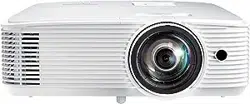
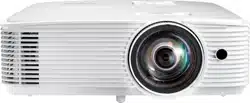
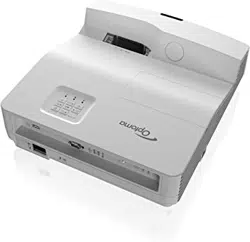
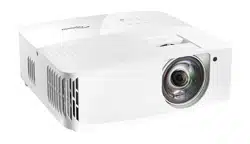
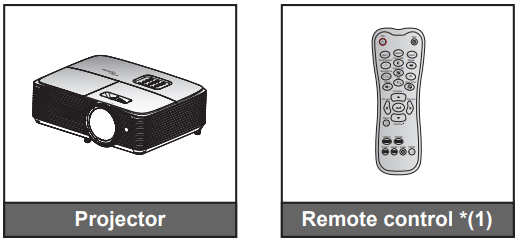
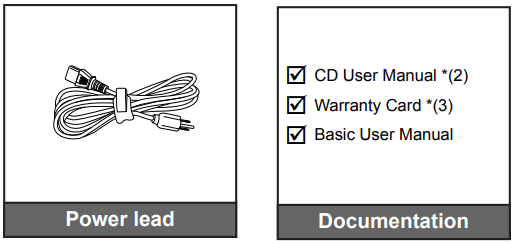
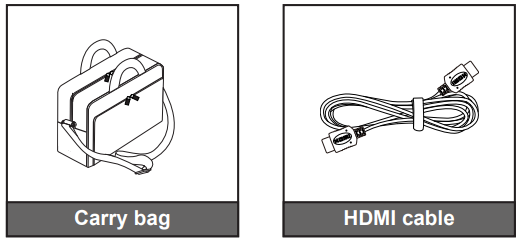
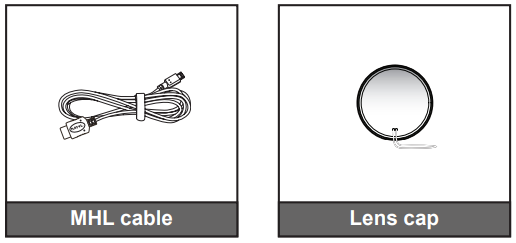
Carefully unpack and verify that you have the items listed below under standard accessories. Some of the items under optional accessories may not be available depending on the model, specification and your region of purchase. Please check with your place of purchase. Some accessories may vary from region to region.
The warranty card is only supplied in some specific regions. Please consult your dealer for detailed information.
Standard accessories
Note:
The remote control is shipped with the battery/batteries.
*(1) The actual remote control may vary depending on the region.
*(2) For European User Manual please visit www.optomaeurope.com.
*(3) For European warranty information please visit www.optomaeurope.com.
Optional accessories
Note: Optional accessories vary depending on model, specification and region.
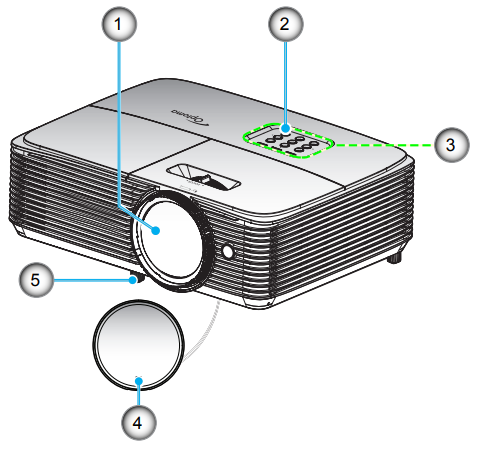
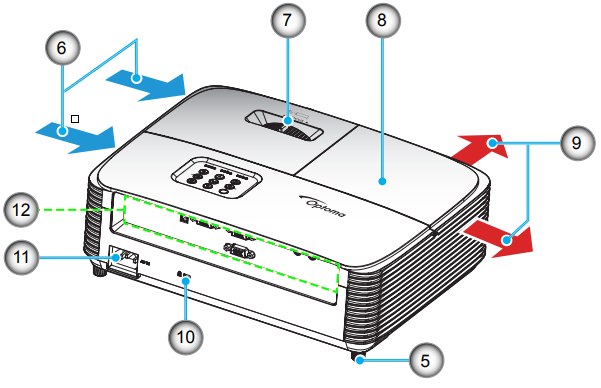
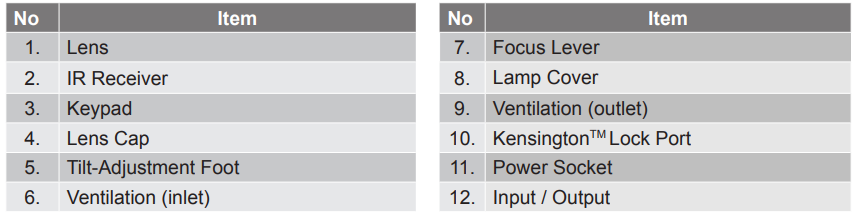
Product Overview
Note: Keep a minimum distance of 20 cm between the “inlet” and “outlet” labels.
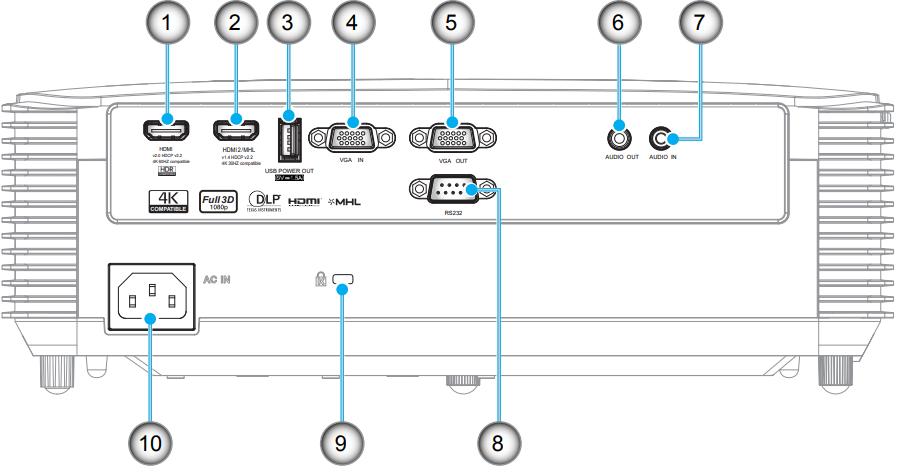
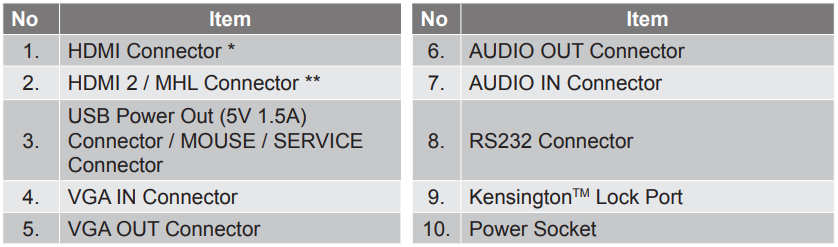
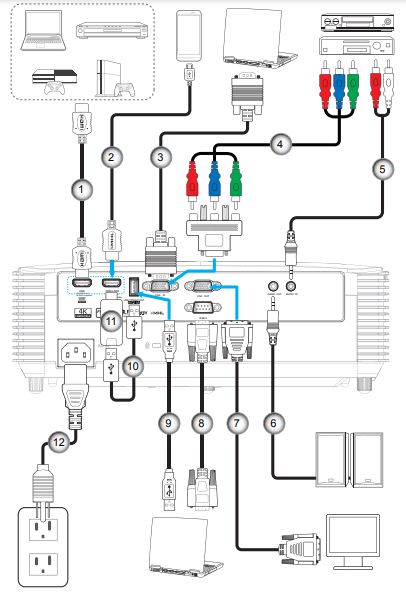
Connections
Note:
To ensure the best image quality and avoid connection errors, we recommend the use of High Speed or Premium Certified HDMI cables up to 5 meters.
Remote mouse requires special remote control.
* HDMI 1 supports 4K 60HZ and HDR.
** HDMI 2 supports 4K 30HZ, not support HDR.
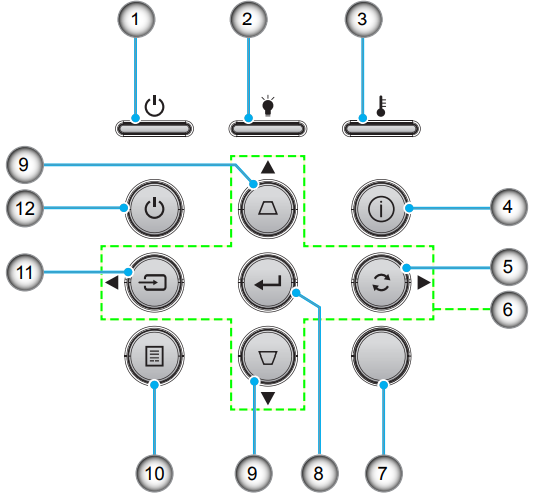
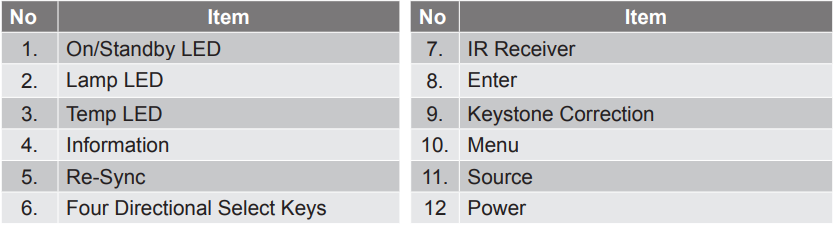
Keypad
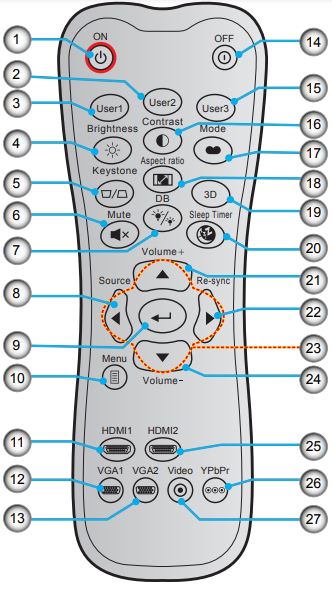
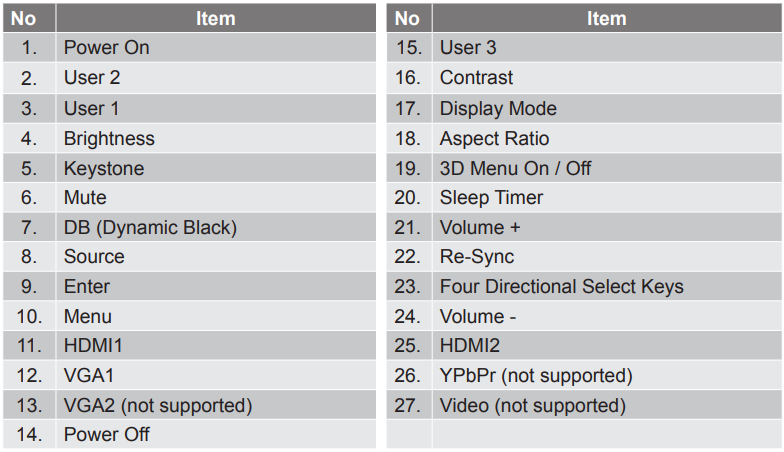
Remote control 1
Note:
The actual remote control may vary depending on the region.
Some keys may have no function for models that do not support these features.
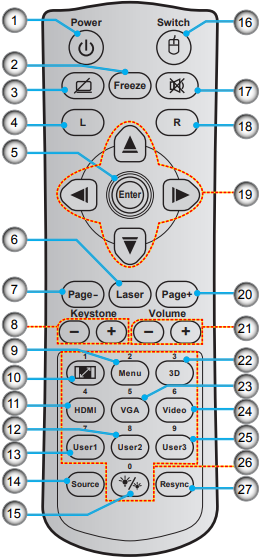
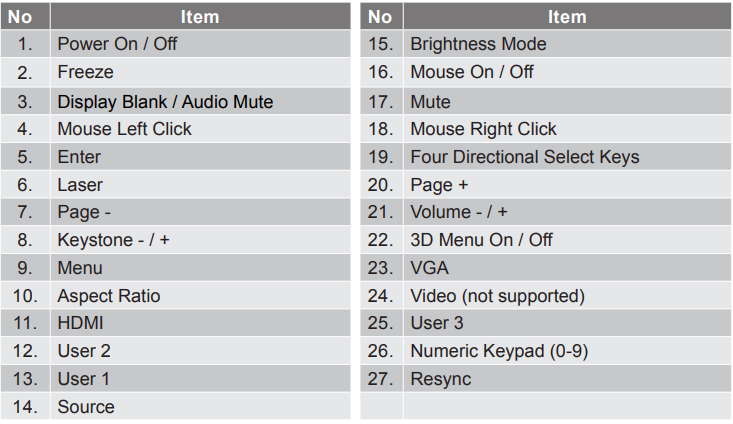
Remote control 2
Note:
The actual remote control may vary depending on the region.
Some keys may have no function for models that do not support these features.
SETUP AND INSTALLATION
Installing the projector
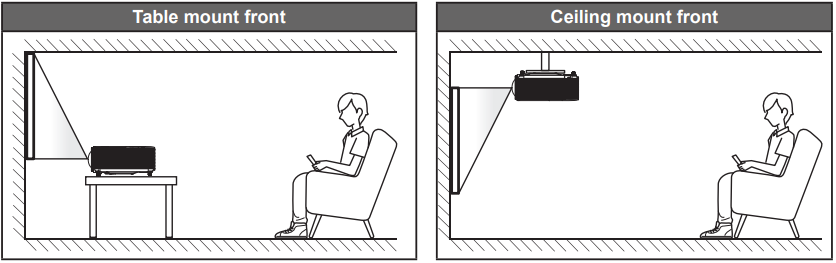
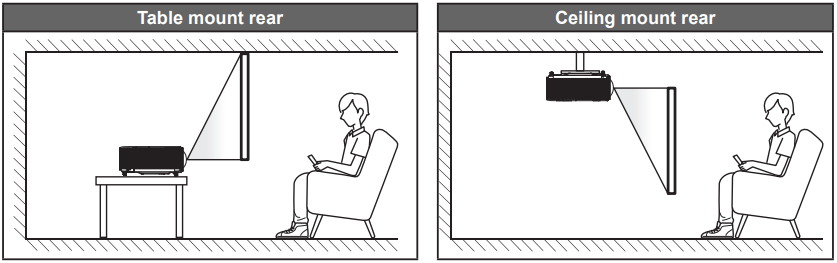
Your projector is designed to be installed in one of four possible positions.
Your room layout or personal preference will dictate which installation location you select. Take into consideration the size and position of your screen, the location of a suitable power outlet, as well as the location and distance between the projector and the rest of your equipment.
Projector should be placed flat on a surface and 90 degrees / perpendicular to the screen.
How to determine projector location for a given screen size, please refer to distance table on page 46.
How to determine screen size for a given distance, please refer to distance table on page 46.
Note: The further away the projector is placed from the screen the projected image size increases and vertical offset also increases proportionally.
IMPORTANT!
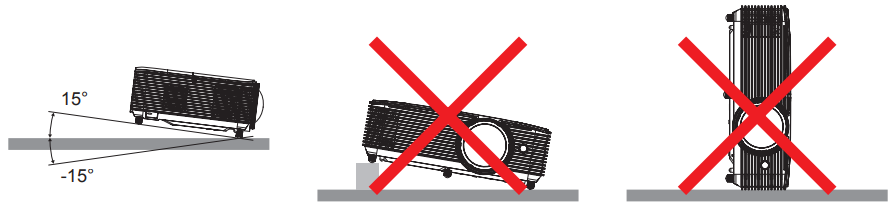
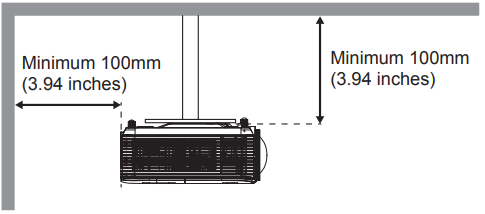
Do not operate the projector in any orientation other that table top or ceiling mount. The projector should be horizontal and not tilted either forwards/backwards or left/right. Any other orientation will invalidate the warranty and may shorten the lifetime of the projector lamp or the projector itself. For none standard installation advise please contact Optoma.
Projector installation notice
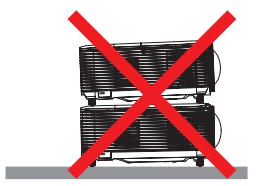
Place the projector in a horizontal position.
The tilt angle of the projector should not exceed 15 degrees, nor should the projector be installed in any way other than the desktop and ceiling mount, otherwise lamp life could decrease dramatically, and may lead to other unpredictable damages.
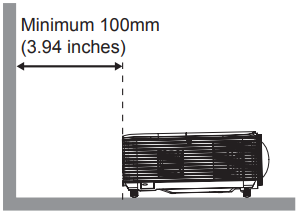
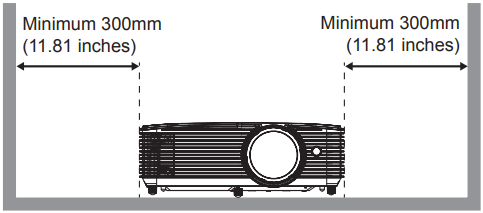
Allow at least 30 cm clearance around the exhaust vent.
Ensure that the intake vents do not recycle hot air from the exhaust vent.
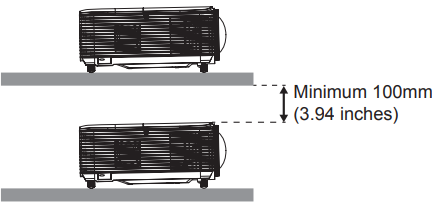
When operating the projector in an enclosed space, ensure that the surrounding air temperature within the enclosure does not exceed operation temperature while the projector is running, and the air intake and exhaust vents are unobstructed.
All enclosures should pass a certified thermal evaluation to ensure that the projector does not recycle exhaust air, as this may cause the device to shutdown even if the enclosure temperature is with the acceptable operation temperature range.
Connecting sources to the projector
Adjusting the projector image
Image height
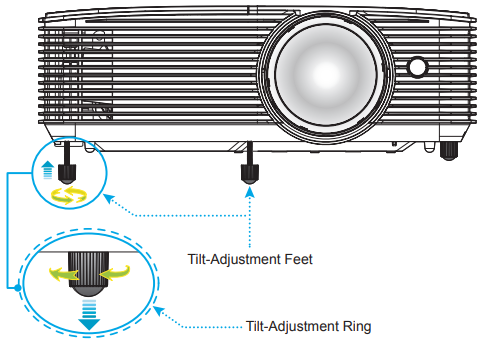
The projector is equipped with elevator feet for adjusting the image height.
Locate the adjustable foot you wish to adjust on the underside of the projector.
Rotate the adjustable foot clockwise or counterclockwise to raise or lower the projector.
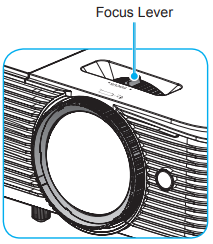
Focus
To adjust the focus, turn the focus lever clockwise or counterclockwise until the image is sharp and legible.
Note: The projector will focus at a distance of 1m to 10m.
Installing / replacing the batteries
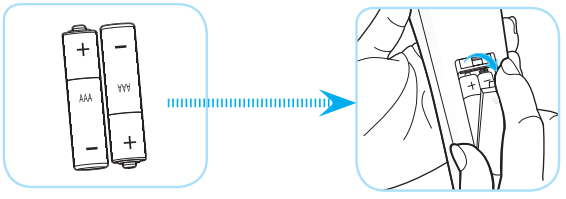
Two AAA size batteries are supplied for the remote control.
1. Remove the battery cover on the back of the remote control. 2. Insert AAA batteries in the battery compartment as illustrated. 3. Replace back cover on remote control.
Note: Replace only with the same or equivalent type batteries.
CAUTION
Improper use of batteries can result in chemical leakage or explosion. Be sure to follow the instructions below.
Do not mix batteries of different types. Different types of batteries have different characteristics.
Do not mix old and new batteries. Mixing old and new batteries can shorten the life of new batteries or cause chemical leakage in old batteries.
Remove batteries as soon as the are depleted. Chemicals that leak from batteries that come in contact with skin can cause a rash. If you find any chemical leakage, wipe thoroughly with a cloth.
The batteries supplied with this product may have a shorter life expectancy due to storage conditions.
If you will not be using the remote control for an extended period of time, remove the batteries.
When you dispose of the batteries, you must obey the law in the relative area or country
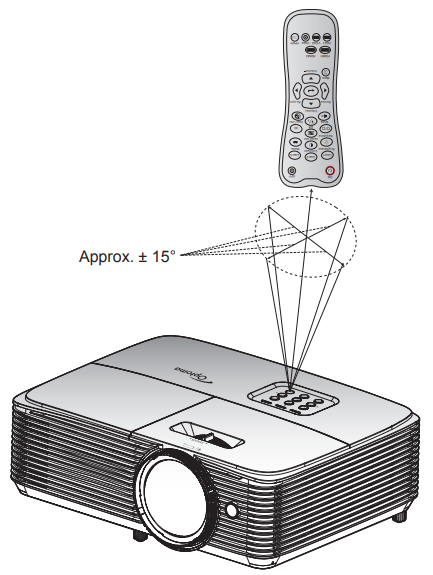
Effective range
Infra-Red (IR) remote control sensor is located on top of the projector. Ensure to hold the remote control at an angle within 30 degrees perpendicular to the projector’s top IR remote control sensor to function correctly. The distance between the remote control and the sensor should not be longer than 6 meters (~ 20 feet).
Note: When pointing the remote control directly (0 degrees angle) on the IR sensor, the distance between the remote control and the sensor should not be longer than 8 meters (~ 26 feet).
Make sure that there are no obstacles between the remote control and the IR sensor on the projector that might obstruct the infra-red beam.
Make sure the IR transmitter of the remote control is not being shined by sunlight or fluorescent lamps directly.
Please keep the remote controller away from fluorescent lamps for over 2 meters or the remote controller might become malfunction.
If the remote control is close to Inverter-Type fluorescent lamps, it might become ineffective from time to time.
If the remote control and the projector are within a very short distance, the remote control might become ineffective.
When you aim at the screen, the effective distance is less than 6 meters from the remote control to the screen and reflecting the IR beams back to the projector. However, the effective range might change according to screens.
Powering on / off the projector
Powering on
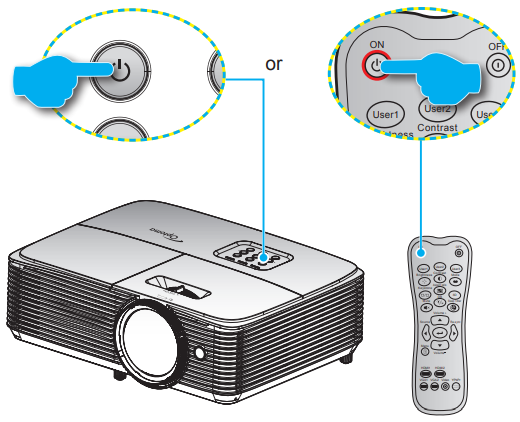
Securely connect the power lead and signal/source cable. When connected, the On/Standby LED will turn red.
Turn on the projector by pressing the either on the projector keypad or the remote control.
A start up screen will display in approximately 10 seconds and the On/Standby LED will be flashing green or flashing blue.
Note: The first time the projector is turned on, you will be prompted to select the preferred language, projection orientation, and other settings.
Powering off
Turn off the projector by pressing the either on the projector keypad or the remote control.
The following message will be displayed:
3. Press the again to confirm, otherwise the message will disappear after 15 seconds. When you press the button for the second time, the projector will shut down.
4. The cooling fans will continue to operate for about 10 seconds for the cooling cycle and the On/ Standby LED will flash green or flash blue. When the On/Standby LED turns solid red, this indicates the projector has entered standby mode. If you wish to turn the projector back on, you must wait until the cooling cycle has finished and the projector has entered standby mode. When the projector is in standby mode, simply press the button again to turn on the projector.
5. Disconnect the power lead from the electrical outlet and the projector.
Note: It is not recommended that the projector is turned on immediately, right after a power off procedure.
USING THE PROJECTOR
Selecting an input source
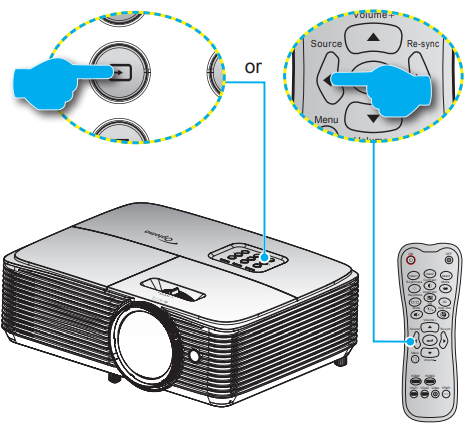
Turn on the connected source that you want to display on the screen, such as computer, notebook, video player, etc. The projector will automatically detect the source. If multiple sources are connected, push the source button on the projector keypad or the remote control to select the desired input.
Menu navigation and features The projector has multilingual on-screen display menus that allow you to make image adjustments and change a variety of settings. The projector will automatically detect the source.
1. To open the OSD menu, press on the remote control or the projector keyboard. 2. When OSD is displayed, use keys to select any item in the main menu. While making a selection on a particular page, press or ► key to enter sub menu. 3. Use ► keys to select the desired item in the sub menu and then press or ► key to view further settings. Adjust the settings by using ► keys. 4. Select the next item to be adjusted in the sub menu and adjust as described above. 5. Press the or ►to confirm, and the screen will return to the main menu. 6. To exit, press the or again. The OSD menu will close and the projector will automatically save the new settings.
OSD Menu tree
Main Menu
Sub Menu
Sub Menu 2
Sub Menu 3
Sub Menu 4
Values
Display
Image Settings
Display Mode
Cinema
Film
HDR
HDR SIM.
Vivid
Game
Reference
Bright
User
3D
ISF Day
ISF Night
ISF 3D
Wall Color
Off [Default]
Blackboard
Light Yellow
Light Green
Light Blue
Pink
Gray
Dynamic Range
HDR
Off
Auto [Default]
HDR Picture Mode
Bright
Standard [Default]
Film
Detail
Brightness
-50~50
Contrast
-50~50
Sharpness
1~15
Gamma
Film
Video
Graphics
Standard(2.2)
1.8
2.0
2.4
HDR
Color Settings
BrilliantColorTM
1~10
Color Temperature
Standard
Cool
Cool
Color Settings
Color Matching
Color
R [Default]
G
B
C
Y
M
W
Hue
-50~50 [Default: 0]
Saturation
-50~50 [Default: 0]
Gain
-50~50 [Default: 0]
Reset
Cancel [Default]
Yes
Exit
RGB Gain/Bias
Red Gain
-50~50
Green Gain
-50~50
Blue Gain
-50~50
Red Bias
-50~50
Green Bias
-50~50
Blue Bias
-50~50
Reset
Cancel [Default]
Yes
Exit
Color Space [Not HDMI Input]
Auto [Default]
RGB
YUV
Color Space [HDMI Input]
Auto [Default]
RGB(0~255)
RGB(16~235)
YUV
Signal
Automatic
Off
On [Default]
Frequency
-50 ~ 50 (depends on signal) [Default: 0]
Phase
0~31 (depends on signal) [Default: 0]
H. Position
-50 ~ 50 (depends on signal) [Default: 0]
V. Position
-50 ~ 50 (depends on signal) [Default: 0]
Exit
Enhanced Gaming
Off [Default]
On
Brightness Mode
Bright
Eco.
Dynamic
Eco+
Reset
3D
3D Mode
Off
On [Default]
3D Tech.
DLP-Link [Default]
3D Sync
3D → 2D
3D [Default]
L
R
3D Format
Auto [Default]
Side by Side
Top and Bottom
Frame Sequential
Frame Packing
3D Sync Invert
On
Off [Default]
Reset
Cancel [Default]
Yes
Aspect Ratio
4:3
16:9
LBX
Native
Auto
Edge Mask
0~10 [Default: 0]
Zoom
-5~25 [Default: 0]
Image Shift
-100~100 [Default: 0]
-100~100 [Default: 0]
Keystone
-40~ 40 [Default: 0]
Audio
Mute
Off [Default]
On
Volume
0-10 [Default: 5]
Audio Input
HDMI1
Audio 1
Audio 2
Default [Default]
HDMI2/MHL
Audio 1
Audio 2
Default [Default]
VGA
Audio 1
Audio 2
Setup
Projection
Front [Default]
Rear
Ceiling-top
Rear-top
Lamp Settings
Lamp Reminder
Off
On [Default]
Lamp Reset
Cancel [Default]
Yes
Filter Settings
Filter Usage Hours
(Read only)
Optional Filter Installed
Yes
No
Filter Reminder
Off
300hr
500hr [Default]
800hr
1000hr
Filter Reset
Cancel [Default]
Yes
Power Settings
Direct Power On
Off [Default]
On
Signal Power On
Off [Default]
On
Auto Power Off (min.)
0~180 (5 min increments) [Default: 20]
Sleep Timer (min.)
Sleep Timer (min.)
0~990 (30 min increments) [Default: 0]
Always On
No [Default]
Yes
Quick Resume
Off [Default]
On
Power Mode (Standby)
Active
Eco [Default]
USB Power
Off [Default]
On
Auto
Security
Off
On
Security
Security Timer
Month
Day
Hour
Change Password
HDMI Link Settings
HDMI Link
Off
On
Inclusive of TV
No
Yes
Power On Link
Mutual
PJ --> Device
Device --> PJ
Power Off Link
Off
On
Test Pattern
Green Grid
Magenta Grid
White Grid
White
Off
Remote Settings [depends on remote]
IR Function
On
Off
User1
HDMI 2
Test Pattern
Brightness
Contrast
Sleep Timer
Color Matching
Color Temp
Gamma
Projection
Lamp Settings
Zoom
Freeze
MHL
User2
HDMI 2
Test Pattern
Brightness
Contrast
Sleep Timer
Color Matching
Color Temp
Gamma
Projection
Lamp Settings
Zoom
Freeze
MHL
User3
HDMI 2
Test Pattern
Brightness
Contrast
Sleep Timer
Color Matching
Color Temp
Gamma
Projection
Lamp Settings
Zoom
Freeze
MHL
Projector ID
00~99
Options
Language
English [Default]
Deutsch
Français
Italiano
Español
Português
Polski
Nederlands
Svenska
Norsk/Dansk
Suomi
ελληνικά
繁體中文
简体中文
日本語
한국어
Русский
Magyar
Čeština
ไทย
Türkçe
Tiếng Việt
Bahasa Indonesia
Română
Slovenčina
Options
Menu Settings
Menu Location
Top left
Top right
Center [Default]
Bottom left
Bottom right
Menu Timer
Off
5sec
10sec [Default]
Auto Source
Off [Default]
On
Input Source
HDMI1
HDMI2/MHLt]
VGA
Input Name
HDMI1
Default [Default]
Custom
HDMI2/MHL
Default [Default]
Custom
VGA
Default [Default]
Custom
High Altitude
Off [Default]
On
Display Mode Lock
Off [Default]
On
Keypad Lock
Off [Default]
On
Information Hide
Off [Default]
On
Logo
Default [Default]
Neutral
User
Background Color
None [Default for Video]
Blue [Default for Data model/Pro-AV]
Red
Green
Gray
Logo
Reset
Reset OSD
Cancel [Default]
Yes
Reset to Default
Cancel [Default]
Yes
Info
Regulatory
Serial Number
Source
Resolution
00x00
Refresh Rate
xxHz
Display Mode
Power Mode (Standby)
Lamp Hours
Bright
0 hr
Eco
0 hr
Dynamic
0 hr
Eco+
0 hr
Total
Brightness Mode
FW Version
System
MCU
Display menu
Display image settings menu
Display Mode
There are many factory presets optimized for various types of images.
Cinema: Provides the best colors for watching movies.
Film: Select to display the purest color settings for home theatre.
HDR: Decodes and displays High Dynamic Range (HDR) content for the deepest blacks, brightest whites, and vivid cinematic color using REC.2020 color gamut. This mode will be automatically enabled if HDR is set to ON (and HDR Content is sent to projector – 4K UHD Blu-ray, 1080p/4K UHD HDR Games, 4K UHD Streaming Video). While HDR mode is active, other display modes (Cinema, Reference, etc.) cannot be selected as HDR delivers color that is highly accurate, exceeding the color performance of the other display modes.
HDR SIM.: Enhances non-HDR content with simulated High Dynamic Range (HDR). Choose this mode to enhance gamma, contrast, and color saturation for non-HDR content (720p and 1080p
Broadcast/Cable TV, 1080p Blu-ray, non-HDR Games, etc). This mode can ONLY be used with nonHDR content.
Vivid: In this mode, the color saturation and brightness are well-balanced. Choose this mode for playing games.
Game: Select this mode to increase the brightness and response time level for enjoying video games.
Reference: This mode is intended to reproduce as close as possible the image the way the movie director intended. Color, color temperature, brightness, contrast and gamma settings are all configured to standard reference levels. Select this mode to watch a video.
Bright: Maximum brightness from PC input.
User: Memorize user’s settings.
3D: To experience the 3D effect, you need to have 3D glasses. Make sure your PC/portable device has a 120 Hz signal output quad buffered graphics card and a 3D Player installed.
ISF Day: Optimize the image with the ISF Day mode to be perfectly calibrated and high picture quality.
ISF Night: Optimize the image with the ISF Night mode to be perfectly calibrated and high picture quality.
ISF 3D: Optimize the image with the ISF 3D mode to be perfectly calibrated and high picture quality.
Note: For access and calibration of ISF daytime and night viewing modes, please contact your local dealer.
Wall Color
Use this function to obtain an optimized screen image according to the wall color. Select between off, blackboard, light yellow, light green, light blue, pink, and gray.
Dynamic Range
Configure the High Dynamic Range (HDR) setting and its effect when displaying video from 4K Blu-ray players and streaming devices.
Note: HDMI2 and VGA do not support Dynamic Range.
►HDR
Off: Turn off HDR Processing. When set to Off, the projector will NOT decode HDR content.
Auto: Auto detect HDR signal.
►HDR Picture Mode
Bright: Choose this mode for brighter more saturated colors.
Standard: Choose this mode for natural looking colors with a balance of warm and cool tones.
Film: Choose this mode for improved detail and image sharpness.
Detail: The signal comes from OETF conversion to achieve the best color matching.
Brightness Adjust the brightness of the image.
Contrast The contrast controls the degree of difference between the lightest and darkest parts of the picture.
Sharpness Adjust the sharpness of the image.
Gamma
Set up gamma curve type. After the initial setup and fine tuning is completed, utilize the Gamma Adjustment steps to optimize your image output.
Film: For home theater.
Video: For video or TV source.
Graphics: For PC / Photo source.
Standard(2.2): For standardized setting.
1.8/ 2.0/ 2.4: For specific PC / Photo source.
Note: If the Display Mode setting is set to HDR, user can only select HDR for Gamma setting.
Color Settings
Configure the color settings.
BrilliantColorTM: This adjustable item utilizes a new color-processing algorithm and enhancements to enable higher brightness while providing true, more vibrant colors in picture.
Color Temperature: Select a color temperature from Standard, Cool, or Cold.
Color Matching: Select the following options:
Color: Adjust the red (R), green (G), black (B), cyan (C), yellow (Y), magenta (M), and white (W) level of the image.
Hue: Adjust the color balance of red and green.
Saturation: Adjust a video image from black and white to fully saturated color.
Gain: Adjust the image brightness.
Reset: Return the factory default settings for color matching.
Exit: Exit the “Color Matching” menu.
RGB Gain/Bias: This settings allows to configure the brightness (gain) and contrast (bias) of an image.
Reset: Return the factory default settings for RGB gain/bias.
Exit: Exit the “RGB Gain/Bias” menu.
Color Space (non-HDMI input only): Select an appropriate color matrix type from the following: AUTO, RGB, or YUV.
Color Space (HDMI input only): select an appropriate color matrix type from the following: Auto, RGB(0-255), RGB(16-235), and YUV.
Signal
Adjust the signal options.
Automatic: Configure automatically the signal (the frequency and phase items are grayed out). If automatic is disabled, the frequency and phase items will appear for tuning and saving the settings.
Frequency: Change the display data frequency to match the frequency of your computer’s graphic card. Use this function only if the image appears to flicker vertically.
Phase: Synchronize the signal timing of the display with the graphic card. If the image appears to be unstable or flickers, use this function to correct it.
H. Position: Adjust the horizontal positioning of the image.
V. Position: Adjust the vertical positioning of the image.
Exit: Exit the “Signal” menu.
Note: This menu is only available if the input source is RGB/Component.
Enhanced Gaming
Enable this feature to reduce response times (input latency) during gaming to 16ms and 8.4ms. Note: 16ms for 1080p 60Hz; 8.4ms for 1080p 120Hz.
Brightness Mode
Adjust the brightness mode settings for lamp-based projectors.
Bright: Choose “Bright” to increase the brightness.
Eco.: Choose “Eco.” to dim the projector lamp which will lower power consumption and extend the lamp life.
Dynamic: Choose “Dynamic” to dim the lamp power which will be based on brightness level of the content and adjust lamp power consumption between 100% and 30% dynamically. The lamp life will be extended.
Eco+: When Eco+ mode is activated, the brightness level of the content is automatically detected to significantly reduced lamp power consumption (up to 70%) during periods of inactivity.
Reset
Return the factory default settings for color settings.
Display 3D menu
3D Mode
Use this option to disable or enable the 3D function.
Off: Select “Off” to turn off 3D mode.
On: Select “On” to turn on 3D mode.
3D Tech.
Use this option to select 3D technology.
DLP-Link: Select to use optimized settings for DLP 3D Glasses.
3D Sync: Select to use optimized settings for IR, RF or polarized 3D Glasses. 34 English
3D → 2D
Use this option to specify how the 3D content should appear on the screen.
3D: Display 3D signal.
L (Left): Display the left frame of 3D content.
R (Right): Display the right frame of 3D content.
Note: When changing the input source from 3D to 2D, make sure the 3D Mode setting is set to Off. Otherwise, 2D input source will appear distorted (dual image).
3D Format
Use this option to select the appropriate 3D format content.
Auto: When a 3D identification signal is detected, the 3D format is selected automatically.
Side by Side: Display 3D signal in “Side-by-Side” format.
Top and Bottom: Display 3D signal in “Top and Bottom” format.
Frame Sequential: Display 3D signal in “Frame Sequential” format.
Frame Packing: Display 3D signal in “Frame Packing” format.
3D Sync Invert
Use this option to enable/disable the 3D sync invert function.
Reset
Return the factory default setting for 3D settings.
Cancel: Select to cancel Reset.
Yes: Select to return the factory default settings for 3D.
Display aspect ratio menu
Aspect Ratio
Select the aspect ratio of the displayed image between the following options:
4:3: This format is for 4:3 input sources.
16:9: This format is for 16:9 input sources, like HDTV and DVD enhanced for Wide screen TV.
LBX: This format is for non-16x9, letterbox source and if you use external 16x9 lens to display 2.35:1
aspect ratio in full resolution.
Native: This format displays the original image without any scaling.
Auto: Automatically selects the appropriate display format.
1080p scaling table
MAINTENANCE
Replacing the lamp
The projector automatically detects the lamp life. When the lamp life is nearing the end of use, a warning message will appear on the screen.
When you see this message, please contact your local reseller or service center to change the lamp as soon as possible. Make sure the projector has been cooled down for at least 30 minutes before changing the lamp.
Warning: If ceiling mounted, please use caution when opening the lamp access panel. It is recommended to wear safety glasses if changing the bulb when ceiling mounted. Caution must be used to prevent any loose parts from falling out of projector.
Warning: Lamp compartment is hot! Allow it to cool down before changing lamp!
Warning: To reduce the risk of personal injury, do not drop the lamp module or touch the lamp bulb. The bulb may shatter and cause injury if it is dropped.
Replacing the lamp (continued)
Procedure:
1. Switch off the power to the projector by pressing the " " button on the remote control or the projector keypad. 2. Allow the projector to cool down for at least 30 minutes. 3. Disconnect the power cord. 4. Unscrew the screw on the cover. 1 5. Remove the cover. 2 6. Unscrew the screw on the lamp module. 3 7. Lift up the lamp handle. 4 8. Remove the lamp cord. 5 9. Remove the lamp module carefully. 6 10. To replace the lamp module, reverse the previous steps. 11. Turn on the projector and reset the lamp timer. 12. Lamp Reset: (i) Press "Menu" →(ii) Select "Setup" →(iii) Select "Lamp Settings" →(iv) Select "Lamp Reset" →(v) Select "Yes".
Note:
The screw on the lamp cover and the lamp cannot be removed.
The projector cannot be turned on if the lamp cover has not been placed back on the projector.
Do not touch the glass area of the lamp. Hand oil can cause the lamp shatter. Use a dry cloth to clean the lamp module if it was accidentally touched.
Installing and cleaning the dust filter
Installing the dust filter
Note: Dust filters are only required/supplied in the selected regions with excessive dust.
Cleaning the dust filter
We recommend you to clean the dust filter every three months. Clean it more often if the projector is used in a dusty environment.
Procedure:
1. Switch off the power to the projector by pressing the button on the remote control or the projector keypad. 2. Disconnect the power cord. 3. Remove the dust filter carefully. 1 4. Clean or replace the dust filter. 2 5. To install the dust filter, reverse the previous steps.
REMOTE CONTROL
IR remote control 1 codes
IR remote control 2 codes
TROUBLESHOOTING
If you experience a problem with your projector, please refer to the following information. If a problem persists, please contact your local reseller or service center.
Image problems
♦ No image appears on-screen
Ensure all the cables and power connections are correctly and securely connected as described in the "Installation" section.
Ensure the pins of connectors are not crooked or broken.
Check if the projection lamp has been securely installed. Please refer to the "Replacing the Lamp" section.
Ensure that the "Mute" feature is not turned on.
♦ Image is out of focus
Adjust the focus by using the focus lever.
Make sure the projection screen is between the required distance from the projector. (Please refer to page 46).
♦ The image is stretched when displaying 16:9 DVD title
When you play anamorphic DVD or 16:9 DVD, the projector will show the best image in 16: 9 format on projector side.
If you play the LBX format DVD title, please change the format as LBX in projector OSD.
If you play 4:3 format DVD title, please change the format as 4:3 in projector OSD.
Please setup the display format as 16:9 (wide) aspect ratio type on your DVD player.
♦ Image is too small or too large
Adjust the image size by using the zoom lever (only for standard lens model).
Move the projector closer to or further from the screen.
Press "Menu" on the projector panel, go to "Display Aspect Ratio". Try the different settings.
♦ Image has slanted sides:
If possible, reposition the projector so that it is centered on the screen and below the bottom of the screen.
Use "Display → Keystone" from the OSD to make an adjustment.
♦ Image is reversed
Select "Setup → Projection" from the OSD and adjust the projection direction.
♦ Blurry double image
Press "3D" button and switch to "Auto" to avoid normal 2D image is blurry double image.
♦ Two images, side-by-side format
Press "3D" button and switch to "Side by Side" for input signal is HDMI 1.3 2D 1080i side-by-side.
♦ Image does not display in 3D
Check if the battery of 3D glasses is drained.
Check if the 3D glasses is turned on.
When the input signal is HDMI 1.3 2D (1080i side-by-side half), press "3D" button and switch to "Side by Side".
Other problems
♦ The projector stops responding to all controls
If possible, turn off the projector, then unplug the power cord and wait at least 20 seconds before reconnecting power.
♦ Lamp burns out or makes a popping sound
When the lamp reaches its end of life, it will burn out and may make a loud popping sound. If this happens, the projector will not turn on until the lamp module has been replaced. To replace the lamp, follow the procedures in the "Replacing the Lamp" section on pages 41-42.
Remote control problems
♦ If the remote control does not work
Check the operating angle of the remote control is pointed within ±15° to the IR receiver on the projector.
Make sure there are not any obstructions between the remote control and the projector. Move to within 6 m (20 ft) of the projector.
Make sure batteries are inserted correctly.
Replace batteries if they are exhausted.
Warning indicators
When the warning indicators (see below) light up or flash, the projector will automatically shutdown:
"LAMP" LED indicator is lit red and if "On/Standby" indicator flashes red.
"TEMP" LED indicator is lit red and if "On/Standby" indicator flashes red. This indicates the projector has overheated. Under normal conditions, the project can be switched back on.
"TEMP" LED indicator flashes red and if "On/Standby" indicator flashes red.
Unplug the power cord from the projector, wait for 30 seconds and try again. If the warning indicator light up or flash, please contact your nearest service center for assistance.
 either on the projector keypad or the remote control.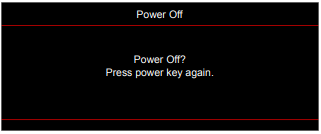
 on the remote control or the projector keyboard.
 keys to select any item in the main menu. While making a selection
 or ► key to enter sub menu.
 ► keys to select the desired item in the sub menu and then press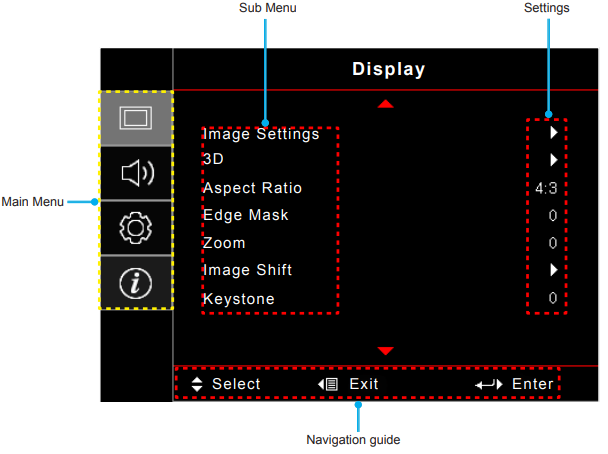


 [Default]


 [Default]