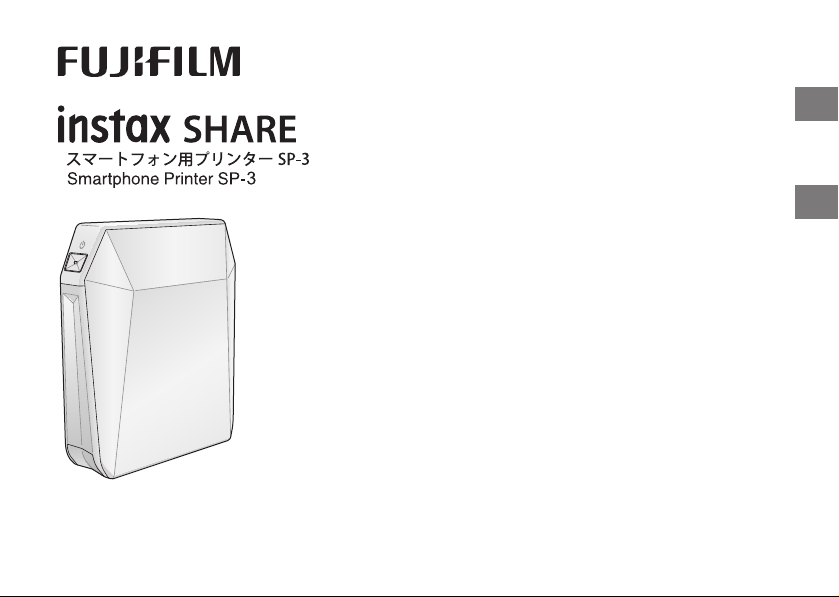
JP
EN
BOC703-100
使用説明書/困ったときには/安全にご使用いただくために
User’s Guide/Trouble shooting/Safety precautions

Independent JPEG Group (IJG) Licenses
This software is based in part on the work of the Independent JPEG Group.
© 2017 FUJIFILM Corporation. All rights reserved.
日本語:
ENGLISH:
See pages 29 to 55.
3
JP
目次
日本語
•
カメラを安全に使用するために、「安全にご使用
いただくために」 (19ページ)および「バッテリ
ーの取り扱いについて」 (25ページ)をお読み
ください。
•
この説明書はお読みになった後で、いつでも見
られるところに必ず保管してください。
4
JP
1
バッテリー残量LED
5
USBケーブル接続部カバー
9
電池蓋
2
フィルム残量LED
6
USBケーブル接続部
10
フィル ム パック蓋
3
プ リント 出 口
7
フィル ム パック蓋 ロック
4
電源ボタン
8
リプ リ ント ボ タ ン
各部の名称
8
3
1
9
7
10
4
5
6
2
5
JP
ご使用の前に
•プリンターをご使用になる前に、ご使用の端末にアプリケーションをインストールしてください。
•AndroidOSの端末をご使用の場合は、GooglePlayから「スマホdeチェキ」を検索し、インストールしてください。
*AndroidOSの端末の動作環境:AndroidVer4.0.3以上、かつGooglePlayがインストールされている
•iOSの端末をご使用の場合は、AppStoreから「スマホdeチェキ」を検索し、インストールしてください。
*iOSの端末の動作環境:iOSVer8.0以上
端末の機種によっては、アプリケーションをインストールし、上記の動作環境を満たしている場合でも、使用できな
い場合があります。
•工場出荷時にバッテリーはフル充電されていません。ご使用になる前に必ず充電してください。
動作環境の最新情報は、instax SHAREウェブサイトでご確認ください。
バッテリーを入れる/充電する
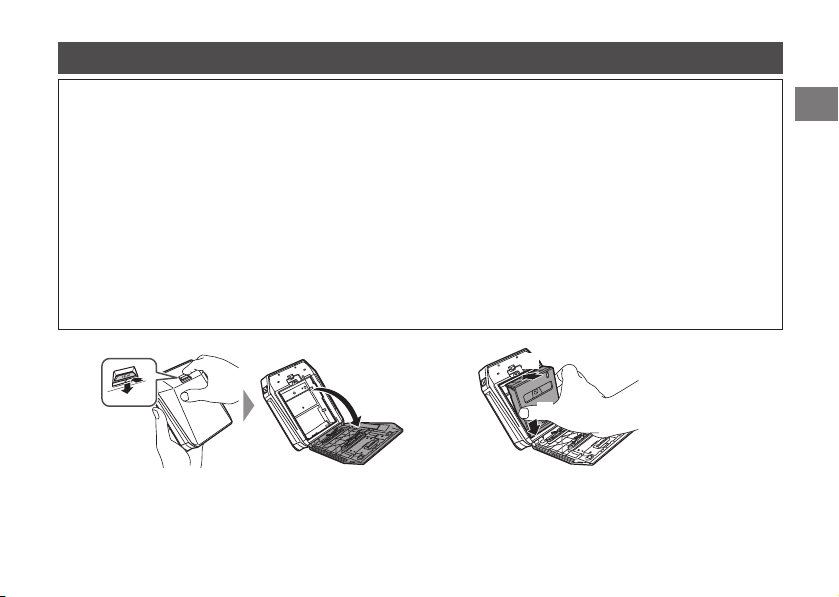
バッテリーを入れる
電池蓋のつまみを押し下げ、電池蓋
を開けます。
バッテリーの矢印に従ってバッテリ
ーを入れます。バッテリーの黄色い
線が、プリンターのマークと合って
いるかを確認してください。
電池蓋のツメを合わせて、電
池蓋のつまみがカチッと止ま
るまで押し込 んで閉じます。
~ Ÿ !
6
JP
バッテリーを入れる/充電する(続き)
バッテリーを充電する
プリンターとご使用のスマートフォンなどのACパワーア
ダプターを、付属のUSBケーブルで接続し、ACパワーア
ダプターを屋内のコンセントにつなぎます。
バッテリー残量LEDで、バッテリーの充電状態を確認す
ることができます。詳細は右の表を参照してください。
充電中のLED表示
表示
バッテリーの状態/対処
赤点灯(電源オン時)
赤点滅(電源オフ時)
充電中です。
オレンジ点灯(電源オン時)
オレンジ点滅(電源オフ時)
充電が半分完了してい
ます。
緑点灯(電源オン時)
緑点滅(電源オフ時)
充電がほぼ完了してい
ます。
緑点滅後、消灯(電源オフ時)
充電が完了しています。
緑色、赤色に交互に点滅ま
たは赤点滅後、消灯
エラーが発生しています。
充電を止めてください。
パソコンから充電するときは:
•USBハブやキーボードを経由せずに、直接プリンター
とパソコンを接続してください。
•充電中にパソコンが休止状態(スリープ状態)になる
と、充電が中止されます。充電を続ける場合は、パソコ
ンの休止状態(スリープ状態)を解除したあと、USB
ケーブルを接続しなおしてください。
•パソコンの仕様や設定、または状態によって、バッテリ
ーを充電できないことがあります。
•定格出力がDC5.0V、1000mAのACパワーアダ
プターを使用してください。
•バッテリーを充 電している間でも、プリントすること
ができます。
•充電時間は約3時間です。
USBケーブルの端子の向きに注意してください。端
子 の マ ー ク(
)が 上になるように接 続してください 。
7
JP
フィルムパックを入れる
~
Ÿ
注意
フィルムを使い切るまでは、フィルムパック蓋を開けないで下さい。途中で開けると、フィルムが感光し
て白くなり、写真が写りません。
•フィルムパックを入れるときは、フィルムパック背面の2カ所の長方形の穴は絶対に押さないでください。
•有効期限を過ぎたフィルムは絶対に使用しないでください(故障の原因となります)。
富士フイルム インスタントフィルム instax SQUAREをご使用ください。 instaxminiフィルムやinstaxWIDEフ
ィルムはご使用になれませんので、ご注意ください。
フィルムパックについて
•フィルムパックには1枚の黒色のフィルムカバーと10枚のフィルムが収納されています。
•フィルムパックはプリンターに入れる直前に内装袋から取り出してください。
•フィルム パック蓋 を閉 めると、フィル ムカ バ ー が自 動 的に排 出 されます 。
詳細は、富士フイルムインスタントフィルムinstaxSQUAREの取扱説明を参照してください。
次のページに続く
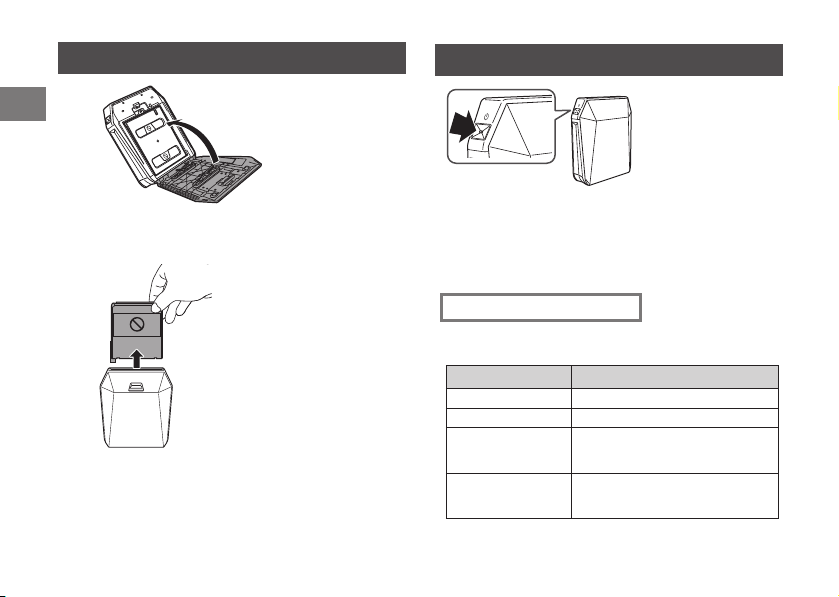
フィル ム パック蓋 ロックを押し下 げ て から 、フィル ム
パック蓋を開きます。
フィル ム パックの 左 右 を持 ち 、フィル ムパックの 下をフィル ム
室の下の溝に合わせてから(1)、まっすぐ押し込 むようにフィ
ル ム パ ッ ク を 入 れ ま す( 2)。
2
1
8
JP
フィルムパックを入れる(続き)
⁄
!
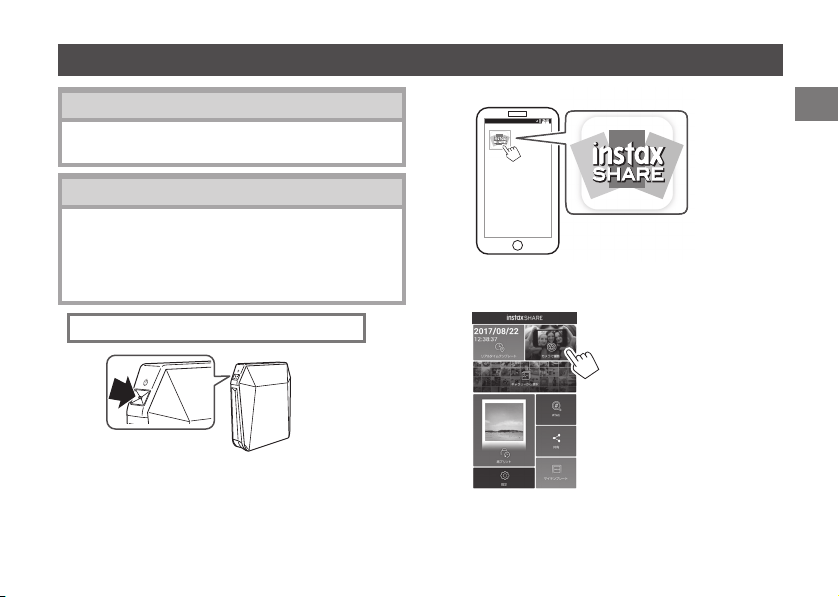
フィル ム パック蓋 ロックがカチッと 止 まるま で
押し込んで、フィルムパック蓋を閉めます。
フィルムパック蓋を閉めると、自
動的にフィルムカバー(黒色)が
排出されるので取り除きます。
電源を入れる/切る
電源ボタンを約1秒間長押しして、電源をオンまたはオ
フにします 。
電源をオンにすると、バッテリー残量LEDが点灯します。
一定時間操作を行わなかった場合、プリンターの電源が
自動的に切れます。
バッテリー残量の確認方法
電源をオンにしたときやプリント中に、バッテリー残量
LEDで確認できます。
表示 バッテリーの残量
緑色 十分です。
オレンジ色 半分になっています。
赤色
残 り わ ず か で す 。充 電 す る こ と を
おすすめします
(6ページ参照)
赤く点滅後、電源
オフ
バッテリー残量がありません。
充電してください。(6ページ参照)
9
JP
接続・プリントする
~
Ÿ
!
次のページに続く
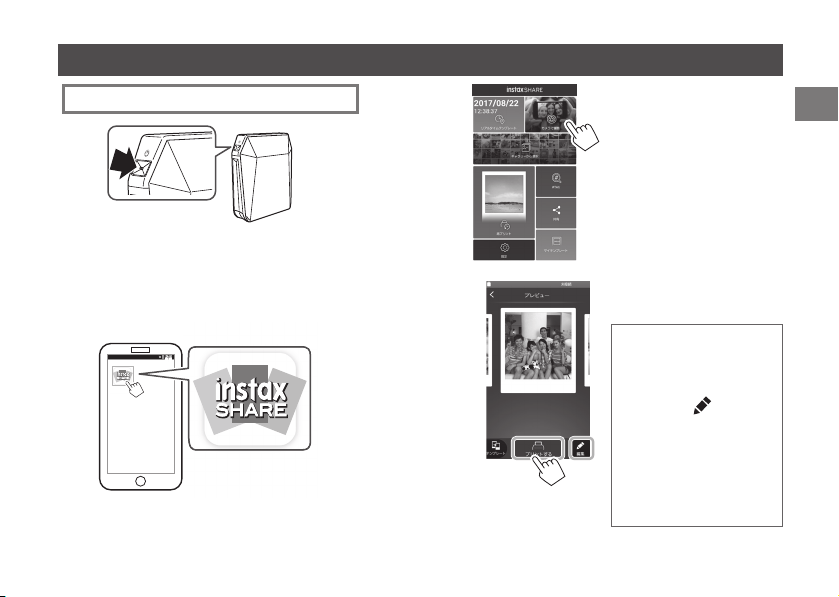
iOSの端末の無線LAN設定
iOSの端末をご使用の場合は、以下の手順で無線LAN
の設定を行ってください。
初めて端末とプリンターを接続する場合:
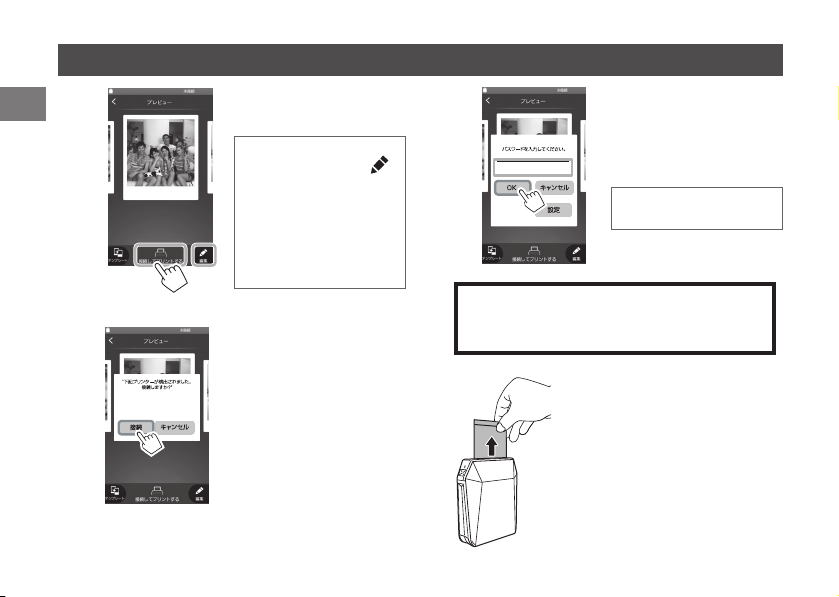
電源ボタンを約1秒間長押しして、電源をオンに
します。
バッテリー残量LEDが点灯します。
あら かじめ 端 末 に ダウン ロ ードした アプリケ ー ション
「スマホdeチェキ」を起動します。
プリントする写真を選択または撮影します。
プリント時のご注意
10
JP
⁄
接続・プリントする(続き)
@
「接続してプリントする」を
タップします 。
プリンターが検出されたら、
「接続」をタップします。
複数のプリンターが検出さ
れた場合は、接続したいプリ
ンターを一覧から選択して
ください 。
プリンターの識別名(SSID)
は、プリンターの底面に記載
されています。
#
工場出荷時のパスワード
「1111」または設定したパ
スワードを入力し、「OK」を
タップします 。
画 像 が プ リ ント さ れ ま す 。
パスワードを工場出荷時状態「1111」に戻す
場合は、電源オフの状態で、リプリントボタン
を押しながら電源ボタンを押してください。
フィルムを排出する音が止まってか
ら、送り出されたフィルムの先端を
持って取り出します 。
プリントが1枚終了するごとに、フィ
ルム残量LEDが1つ消灯します。
¤
「接続してプリントする」を
タップする前に右下の
を タ ッ プ す る と 、編 集 メ ニ ュ
ー が 表 示 さ れ 、テ ン プ レ ー
トの追加や画像の調整が
できます。
設定が終わったら、「完了」
をタップします 。
安定した机の上などに置い
て プ リ ントし て く だ さ い 。
INSTAX-1111
1111
11
JP
端末とプリンターが接続されている場合:
接続・プリントする
~
Ÿ
あら かじめ 端 末 に ダウン ロ ードした アプリケ ー ション
「スマホdeチェキ」を起動します。
!
次のページに続く
プリントする写真を選択
または撮影します。
「 プ リ ン ト 」を タ ッ プ し ま す 。
画 像 が プ リ ント さ れ ま す 。
⁄
•安定した机の上などに
置 い て プ リ ントし て く だ
さい。
•「 プ リ ン ト 」を タ ッ プ す る
前に右下の
をタップ す
ると、編集メニューが表
示 さ れ 、テ ン プ レ ー ト の
追加や画像の調整がで
きます。
設定が終わったら、「完了」
をタップします 。
電源ボタンを約1秒間長押しして、電源をオンに
します。
バッテリー残量LEDが点灯します。

12
JP
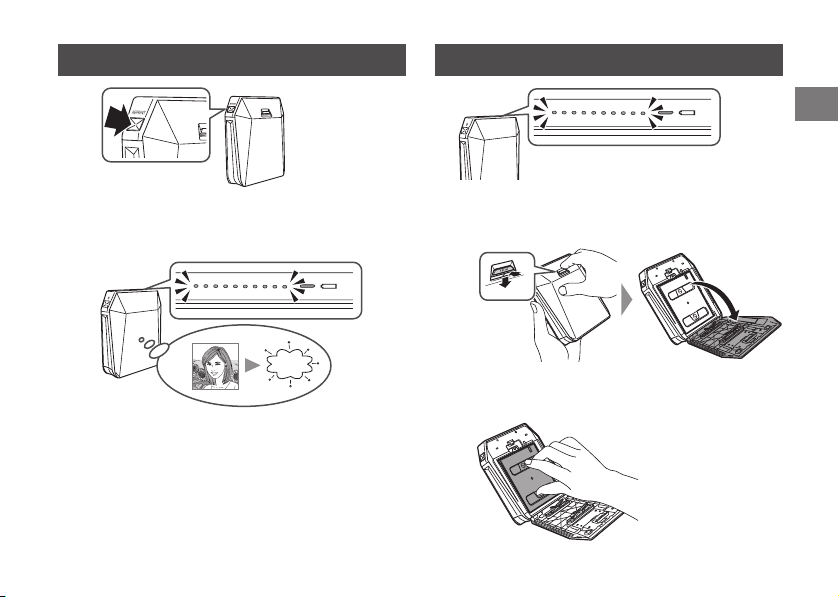
接続・プリントする(続き) もう1枚プリントする(リプリント)
フィルムを排出する音が止まってか
ら、送り出されたフィルムの先端を
持って取り出します 。
プリントが1枚終了するごとに、フィ
ルム残量LEDが1つ消灯します。
@
リプリントボタンを
1回押します。
リプリントボタンを押すたびに、直前にプリント
した画像がもう1枚プリントされます。
•電源をオフにしても、前回プリントした画像は記憶さ
れています。(「スマホdeチェキ」から画像を保存す
る/しないを設定できます。)
•新しく画像をプリントすると、記憶されている画像は
上書きされます。
•リアルタイムテンプレートをリプリントすることはで
きません。
•リプリントをくり返し行うと、色味が少し変わる場合
があります。
~
Ÿ
13
JP
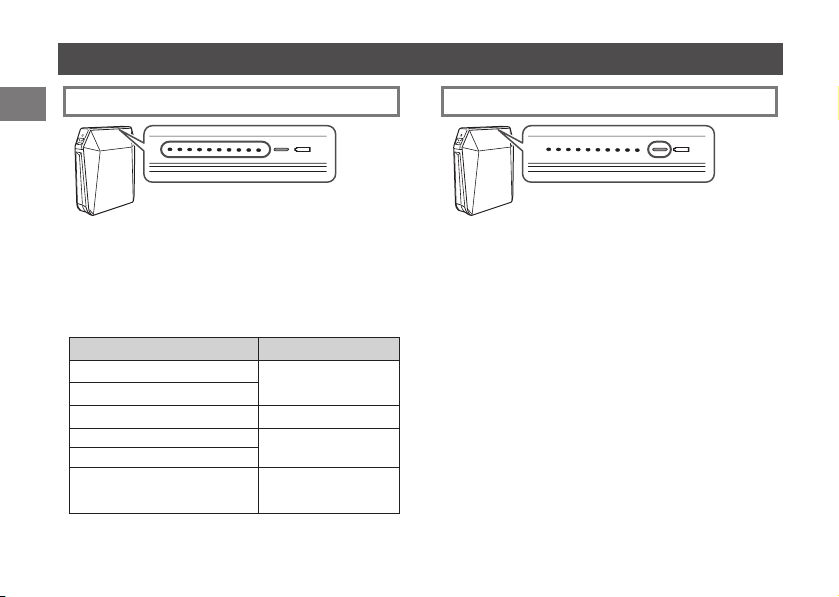
フィルムパックを取り出す画像を消去する
プリンターの電源がオンの状態で、リプリントボタン
を5秒以上長押しします。
フィルム残量LEDが1秒間点滅し、画像が消
去されます。
~
Ÿ
フィルムがなくなると、すべてのフィルム残量LEDが
ゆっくりと点滅します。フィルムパックを取り出してく
ださい。
~
Ÿ
フィル ム パック蓋 ロックを押し下 げ て から 、
フィルムパック蓋を開きます。
フィル ム パックの 長
方形の穴をつまみ、
フィル ム パックを 引
き出します。
14
JP
LEDの表示について
バッテリー残量LEDの表示フィルム残量LEDの表示
バッテリーを充電しているときのプリンターの状態と、
プリンターのバッテリー残量を表示します。
バッテリーを充電しているときの状態の表示について
は6ページを、ブリンターのバッテリー残量の表示につ
いては、8ページを参照してください。
フィルム残量、プリンターの動作やエラーの警告など
を表示します。
プリントが1枚終了するごとに、フィルム残量LEDが1
つ消灯し、フィルム残量がなくなると、ゆっくりと点滅
します。
その他の表示については、下の表を参照してください。
動作、状態 LEDの表示
リプリント画像を消去した。
1秒間高速で点滅
パスワードをリセットした。
リプリントする画像がない。 3秒間ゆっくりと点滅
フィルムパックが入っていない。
ゆっくりと 点 滅
フィルム残量がない。
展開エラーまたは通信エラー
が発生した。
高速で点滅

15
JP
仕様
instax SP-3
有機ELによる3色露光方式
富士フイルム インスタントフィルム instax SQUARE (別売)
10枚/パック
62mm × 62mm
800×800ドット
12.5ドット/mm(318dpi、80μmドットピッチ)
RGB各色 256階調
準拠規格:IEEE802.11b/g/n
使用周波数:2412MHz〜2462MHz(11ch)
JPEG、PNG
画像データ受信完了後、書き込みからフィルム排出まで約13秒
約160枚(当社試験条件による)
* 注意:使用条件により、プリント枚数は異なります。
充電式バッテリー NP-50(1個)
約3時間(バッテリーの残量によって異なります。)
3W
+5℃〜+40℃(結露のないこと)
116mm × 130.5mm × 44.4mm(突起部除く) 312g(バッテリー、フィルム別)
USBケーブル(BOB711、長さ1m)、フ ェ ラ イ ト コ ア
* 上記の仕様は、性能向上のため変更する場合があります。
16
JP
このようなときは…
このようなときは 考えられる原因 こうしてくだ さい
電源が入らない。 ①
バッテリー が 消 耗して い る( バッテリ
ー残量LEDが赤色に点滅している)。
②
バッテリーの入れ方が間違っている。
③電源ボタンを押す時間が短かった。
①バッテリーを充電してください。
②バッテリーを正しく入れてください。
③電源ボタンを長押し(約1秒)してください。
パスワードを入力して
もプリンターと接続 で
きない。
●パスワードが間違っている。 ●パスワードを工場出荷状態(1111)に戻すため
に、リプリントボタンを押しながらプリンターの電
源を入れてください。
リプリントボタンを押し
て も プ リント さ れ な い 。
①記憶している画像がない(フィルム
残量LEDが3秒点滅します)。
②
フィル ム の 枚 数 が 残って い な い(フィル
ム残量LEDがすべて点滅しています)。
③
フィル ム パックが 入って い ない( フィル
ム残量LEDがすべて点滅しています)。
①画像を送信してプリントしてください。
②
新しい フィル ムパックを 入 れてくだ さ い 。
③新しいフィルムパックを入れてください。
フィル ム パックが 入ら な
い、またはスムーズに入
らない。
①装着しようとしているフィルムパック
がこのプリンターに適合しない。
②
入 れ方 が正しくな い 。
①富士フイルムインスタントフィルムinstax
SQUAREを使用してください(他のフィルムは使
用できません)。
②
フィルムパックの黄色のマークとプリンターの位置
合わせマーク(黄色)を合わせて入れてください。
フィル ムカバ ー が 排 出
されない。
●フィルムパックが認識されない。 ●フィルムパックをいったん取り出し、入れ直してく
ださい。
17
JP
このようなときは 考えられる原因 こうしてくだ さい
フィルムが最後まで排
出されない。
●振動や落下などの衝撃で、フィルム
がずれた。
①フィルムの先端を持ち、少し強く引っ張ってくださ
い。
②もう一枚プリントしてください。次のフィルムが押
し出して排出されます。
フィル ム が排 出 され
ない。
①振動や落下などの衝撃で、フィルム
がずれている。
②フィルムが詰まった。
①新しいフィルムパックを入れてください。
②バッテリーを入れ直してください。それでも改善
されない場合は、詰まったフィルムを取り除いて
か ら 、新 し い フ ィ ル ム パ ッ ク を 入 れ て く だ さ い 。
このようなときは 考えられる原因 こうしてくだ さ い
フィルム残量LEDが高
速で点滅した後、勝手に
電源が切れた。
●プリンターの動作に異常が発生し
た。
●プリンターの電源を入れてください。
バッテリー残量LEDが
赤く点滅した後、勝手に
電源が切れた。
●バッテリーが消耗している。 ●バッテリーを充電してください。
バッテリー残量がごくわずかの場合は、プリンター
をUSBケーブルとACパワーアダプターでコンセ
ントに接続していても電源がオンになりません。
少し充電してから電源を入れてください。
通信の途中でフィルム
残量LEDが点滅し、プリ
ント さ れ な い 。
●何らかの原因で端末との通信が中
断された。
●プリンターの電源を入れ直し、端末のアプリケー
ションを再起動してください。
18
JP
このようなときは 考えられる原因 こうしてくだ さ い
充電中にバッテリー残
量LEDが赤く点滅した
後、消灯した。
●動作温度範囲外で充電している。 ●5℃から40℃の範囲内で充電してください。
バッテリー残量LEDが
高速で、緑と赤に交互に
点滅して いる
●バッテリーの寿命が過ぎている、ま
たはUSBケーブル、ACアダプタが
故障して いる。
●バッテリーやUSBケーブル、ACアダプタを新し
いものに交換してください。
このようなときは 考えられる原因 こうしてくだ さ い
出来上がった写真の一
部または全部が白くな
っている。
●フィルムが残っている途中で裏ぶた
を開けた。
●フィルムを使い切るまで、裏ぶたを開けないでく
ださい。フィルムが残っている状態で裏ぶたを開
けるとフィルムが感光して、感光した部分が白くな
ります。
画面にむらがある。 ①プリントされた直後に圧力がかかっ
た。
② プ リ ント が ス ム ー ズ に 送 り 出 さ れ な
かった。
① プ リ ン ト を 振 る 、曲 げ る 、折 る 、押 さ え る な ど し な い
でください 。
②プリント出口をふさがないでください。
プリントの下側に黒い
線が入る。
●振動や落下などの衝撃で、フィルム
がずれている。
●画像を再度送信してください。それでも解決しな
い場合は、新しいフィルムパックをセットしてくだ
さい。
プ リント に 縦 ス ジ が
入る。
●プリントヘッドが汚れている。 ●お買い上げ店またはサポートセンターにご相談く
ださい。
19
JP
安全にご使用いただくために
● この製品および付属品は、プリント以外の目的に使用しないでください。
● 製品の安全性には十分配慮しておりますが、下記の内容をよくお読みの上、正しくご使用ください。
● この説明書はお読みになった後で、いつでも見られるところに必ず保管してください。
警 告
注 意
警 告
プリンター(バッテリー)が熱くなる、煙が出る、焦げ臭いなどの異常を感じたときは、ただちにバッテリーを取り出
し、USBケーブルを抜いてください。発火ややけどの原因となります。(バッテリーを取り出す際やUSBケーブルを抜く
際、やけどには十分ご注意ください)
プリンターを水中に落としたり、内部に水または金属や異物などが入ったときは、ただちにバッテリーやUSBケーブル
を外してください。発熱・発火の原因となります。
引火性の高いガスが充満している場所や、ガソリン・ベンジン・シンナーなどの近くでプリンターを使用しないでくださ
い。爆発や発火・やけどの原因となります。
バッテリーの分解、加熱、火中への投入、充電、ショート、落としたり、衝撃を加えないでください。破裂の原因となります。
指定以外のバッテリーを使わないでください。発熱・発火の原因となります。
バッテリーは乳幼児の手の届かないところに置いてください。乳幼児が誤って飲み込む原因となります。万一飲み込ん
だ場合には、ただちに医師の診察を受けてください。
指定以外のバッテリーを使用しないでください。また、表示された電源電圧以外の電圧で使用しないでください。 発熱・
発火の原因となります。
20
JP
注 意
絶対に分解しないでください。けがの原因となることがあります。
故障した場合は、絶対に自分で修理しようとせずに、お買い上げ店にご相談ください。
落下などにより内部が露出したときは、絶対に触れないでください。けがの原因となることがあります。
フィルムパック蓋内部の部品、突起物には触れないで下さい。けがや故障の原因となることがあります。
プリンターをぬれた手で触らないでください。感電の原因となることがあります。
バッテリー の CDを誤って装てんしないようにご注意ください。バッテリーの破裂、液もれにより、発火、けがや周囲を
汚損する原因となることがあります。
旅行などで長期間、プリンターをご使用にならないときは、バッテリーやUSBケーブルを外してください。火災の原因
となることがあります。
USBケーブルを接続したままプリンターを移動しないでください。USBケーブルが傷つき、火災・感電の原因となる
ことが あります。
小さいお子様の手の届くところに置かないでください。けがの原因になることがあります。
本製品を布や布団でおおったりしないでください。熱がこもりケースが変形し、火災の原因になることがあります。
プリンターを使用するときは、必ずバッテリーカバーを閉じてください。バッテリーカバーが開いていると、けがの原因
となることがあります。
このマークは、安全性、衛生、環境及び消費者保護に関するEU(欧州連合)の要求事項を、製品が満足して
いることを証明するものです。(CEとはヨーロッパ認定(ConformitéEuropéenne)の略)
取扱上のお願い
プリンターの取り扱い
1プリンターは精密機械ですから、水にぬらしたり、落としたりしてショックを与えないでください。また、砂の掛かりやすい
ところには置かないでください。
2長期間お使いにならないときは、バッテリーを取り出して、湿気、熱、ほこりの影響の少ないところに保管してください。
3汚れをふき取るのにシンナー、アルコールなどの溶剤は使用しないでください。
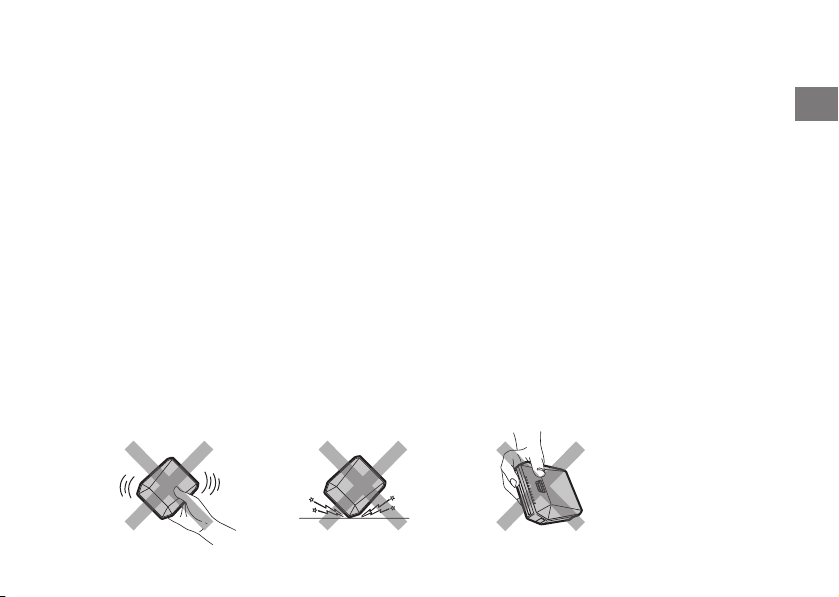
21
JP
4フィルム室に汚れやほこりがあると、プリントの仕上がりに影響します。フィルム室に汚れやほこりがつかないようにご注
意ください。
5閉めきった自動車の中や、高温の場所、湿気のある場所、海岸などに長時間放置しないでください。
6ナフタリンなど防虫剤のガスは、プリンターにもフィルムにも有害ですから、たんすなどへの収納は避けてください。
7このプリンターはマイクロコンピューターによって制御されているため、ごくまれにプリンターが誤作動する場合があり
ます。このようなときは、電池をいったん取り出し、しばらくしてから再度入れ直して下さい。
8このプリンターの使用温度範囲は+5℃から+40℃です。
9航空機内や病院の中でのプリンターのご使用はおやめください。航空機や病院の制御装置などの誤作動の原因となる
ことが あります。
0ラジオやテレビの受信障害となっている場合は、本機をラジオやテレビから離してください。
-プリントする際は、ご使用になる送信側の機器の使用説明書をお読みの上、使用環境条件などを守って正しくお使いく
ださい。
=プリントされる場合は、著作権、肖像権、プライバシーなどの他人の権利を侵害したり、公序良俗に反したりしないように
十分ご配慮ください。他人の権利を侵害する行為、公序良俗に反する行為や迷惑行為は、法令による処罰の対象や損害
賠償請求の対象となります。
~プリンターは縦置きでご使用ください。それ以外の置き方で使用された場合は、プリンターが設計上の性能を発揮でき
ない場合があります。
!このプリンターは一般のご家庭向けのものです。業務用の印刷など、大量にプリントする用途には適しておりません。
印刷中の注意事項
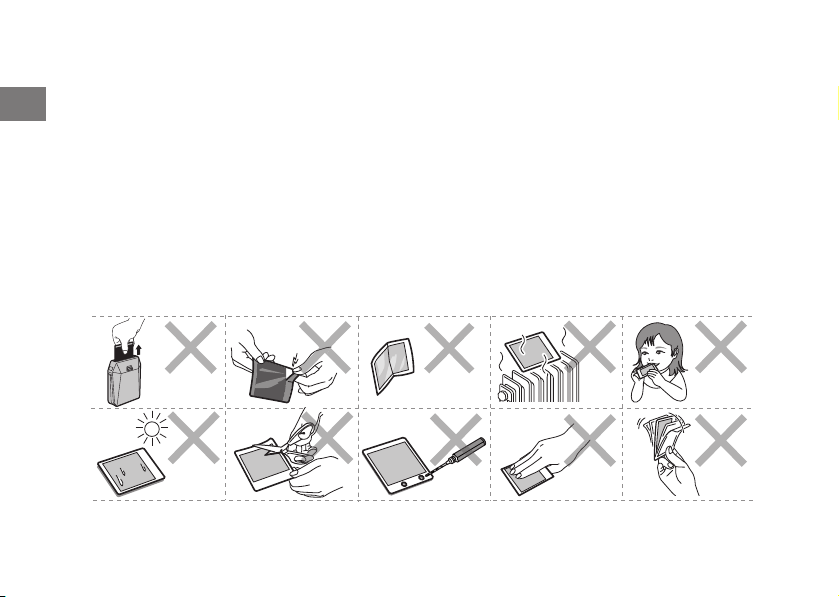
22
JP
フィルム、プリントの取り扱い
フィルム、写真の取り扱いかたについては、富士フイルムインスタントフィルムinstaxSQUAREの取扱説明書を参照し
てください 。
1フィルムは、涼しい乾燥した場所に保管してください。特に閉め切った自動車の中などの極端に高温の場所に長時間放
置しないでください。
2プリンターに入れたフィルムは、できるだけ早くプリントしてください。
3
フィルムを極端に温度の低い場所や高い場所に置いてしまった場合は、通常の温度になじんでからプリントしてください。
4フィルムは有効期限内にお使いください。
5空港の預け入れ荷物検査などでの強いX線照射を避けてください。未使用のフィルムにカブリなどの影響が出る場合が
あります。手荷物としての機内持ち込みをおすすめします(詳しくは各空港でご確認ください)。
6プリントは強い光を避け、涼しく乾燥した場所に保存してください。
7フィルムに穴をあけたり、破いたり、切ったりしないでください。フィルムが損傷した場合は、使用しないでください。
フィルムや出来上がった写真を取り扱うときの注意
詳細は、富士フイルムインスタントフィルムinstaxSQUAREの取扱説明書を参照してください。

23
JP
無線LAN 機器使用上の注意事項
重要! 本製品に搭載されている無線LANをご使用になる前に必ずお読みください。
■
本製品は無線LAN機器としてお使いください。
無線LAN機器以外として使用されたことにより損害が発生した場合、当社はいかなる責任も負いかねますので、あらか
じめご了承ください。医療機器や人命に直接的または間接的に関わるシステムなど、高い安全性が要求される用途には
使用しないでください。無線LAN機器よりも高い信頼性が要求される機器や電算機システムなどの用途に使用すると
きはご使用になるシステムの安全設計や故障に対する適切な処置を万全におこなってください。
■
無線LAN機能はお買い求め頂いた国での利用を前提としています。
本製品の無線LAN機能はお買い求め頂いた国の電波に関する法律に準拠しております。ご使用の際は、お使い頂く国
の法律を順守してください。お買い求め頂いた国以外でのご使用上のトラブル等については、弊社では一切の責任を負
いかねます。
■
電波によるデータの送受信は傍受される可能性があります。
電波によるデータ(画像)の送受信は傍受される可能性があります。あらかじめご了承ください。
■
磁場、静電気、電波障害が発生するところでは本製品を使用しないでください。
電子レンジ付近などの磁場、静電気、電波障害が発生するところでは本製品を使用しないでください(環境により電波が
届かないことがあります)。また、2.4GHz付近の電波を使用しているものの近くで使用すると双方の処理速度が落ち
る場合が あります。
■
使用周波数帯
本製品の、使用周波数は2.4GHz帯です。変調方式としてDSSS、OFDM変調方式を採用しています。
■
本製品の使用する無線チャンネルは、以下の機器や無線局と同じ周波数帯を使用します。
•産業・科学・医療用機器
•工場の製造ライン等で使用されている移動体識別用の無線局
(1)構内無線局(免許を要する無線局)
(2)特定小電力無線局(免許を要しない無線局)

24
JP
■
本製品を使用する場合は、前項の機器や無線局と電波干渉する恐れがあるため、以下の事項に注意してください。
無線局が運用されていないことを確認してください。
万一、本製品から移動体識別用の構内無線局に対して電波干渉の事例が発生した場合は、速やかに本製品の使用周波
数を変更して、電波干渉をしないようにしてください。
その他、本製品から移動体識別用の特定小電力無線局に対して電波干渉の事例が発生した場合など何かお困りのこと
が起きたときは、当社サービスセンターへお問い合わせください。
2.4DS/OF4
本製品が2.4GHz周波数帯を使用するDSSSとOFDM変調方式を採用した無線設備で、与干渉
距離が約40mであることを意味しています。
■
ラジオ、テレビなどへの電波障害についてのご注意
この装置は、クラスB情報技術装置です。この装置は、家庭環境で使用することを目的としていますが、この装置がラジ
オやテレビジョン受信機に近接して使用されると、受信障害を引き起こすことがあります。取扱説明書に従って正しい取
り扱いをして下さい。
本製品を飛行機や病院の中で使用しないでください。使用した場合、飛行機や病院の制御装置などの誤作動の原因に
なることが あります。
VCCI-B
■
本製品が取得している認証関連のマークは、フィルムパック室内に表示されています。
25
JP
バッテリーの取り扱いについて
● 製品の安全性には十分配慮しておりますが、下記の内容をよくお読みの上、正しくご使用ください。
警 告
注 意
警 告
禁止
指定外の方法でバッテリーを使用しない。
バ ッ テ リ ー は 極 性(
CD
)表示どおりに入れてください。
禁止
バッテリーを分解、加工、加熱しない。/バッテリーを落としたり、衝撃を加えない。/バッテリーをショートさせない。/
バッテリーを金属製品と一緒に保管しない。/バッテリーを指定以外の充電器で充電しない。/バッテリーを火気に近
づけたり火の中に入れたりしない。/バッテリーを水にぬらさない。
バッテリーの破裂・液漏れにより、火災・けがの原因になります。
禁止
表示された電源電圧以外の電圧で使用しない。
火災の原因になります。
禁止
バッテリーの液が漏れて、目に入ったり、皮膚や衣服に付着したときは、失明やけがの恐れがあるので、ただちにき
れいな水で洗い流し、すぐに医師の治療を受ける。
強制
バッテリーが正しく交換されていないと、爆発の危険があります。交換には指定されているバッテリーだけを使用し
てください。
強制
使用済みのバッテリーを廃棄する場合は、以下のようにする。
• 端子部にセロハンテープなどの絶縁テープをはってから廃棄してください。他の金属や電池と混じると発火、破
裂の原因になります。
26
JP
注 意
強制
お手入れの際や長時間使用しないときは、バッテリーを外す。
火災・感電の原因になることがあります。
強制
異常が起きたら電源を切り、バッテリーを外す。
煙が出ている、異臭がするなど異常状態のまま使用すると、火災・感電の原因になります。
• お買上げ店にご相談ください。
電源についてのご注意
バッテリーを上手に長くお使いいただくため、下記をお読みください。使い方を誤ると、バッテリーの寿命が短くなるばかり
か、液漏れ、発熱・発火の恐れがあります。
※バッテリーは出荷時にはフル充電されていません。お使いになる前に必ず充電してください。
※バッテリーを持ち運ぶときは、プリンターに取り付けるか、ソフトケースに入れてください。
■バッテリーの特性
• バッテリーは使わなくても、少しずつ放電しています。プリンターを使用する直前(1~2日前)に充電したバッテリーを
用意してください。
• バッテリーを長く持たせるには、できるだけこまめに電源を切ることをおすすめします。
•
寒冷地や低温時ではプリントできる枚数が少なくなります。充電済みの予備バッテリーをご用意ください。また、使用時間
を長くするために、バッテリーをポケットなどに入れて温かくしておき、
プリンターを使用する
直前にプリンターに取り付け
てください。カイロをお使いになる場合は、直接バッテリーに触れないようにご注意ください。
■充電について
• 付属のUSBケーブルを使用して充電できます。
- 充電は周囲の温度が+5℃~+40℃の範囲で可能です。この範囲外では充電できないことがあります。
- +10℃~+35℃の温度範囲外で充電する場合、バッテリーの性能を劣化させないために充電時間が長くなることが
あります。充電は+10℃~+35℃の温度範囲で行ってください。
• 充電式リチウムイオンバッテリーは充電の前に放電したり、使い切ったりする必要はありません。
• 充電が終わったあとや使用直後に、バッテリーが熱を持つことがありますが、異常ではありません。
• 充電が完了したバッテリーを再充電しないでください。

27
JP
■バッテリーの寿命について
常温で使用した場合、約300回繰り返して使えます。使用できる時間が著しく短くなったときは、バッテリーの寿命です。
新しいバッテリーをお買い求めください。
■保存上のご注意
• 充電された状態で長期間保存すると、特性が劣化することがあります。しばらく使わない場合は、使い切った状態で保存
してください 。
• 使用しないときは必ずバッテリーをプリンターから取り外してください。
•
涼しいところで保存してください。
-
周囲の温度が+15℃~+25℃くらいの乾燥したところをおすすめします。
- 暑いところや極端に寒いところは避けてください。
■使用上のご注意
• バッテリーにラベルなどをはらないでください。
プリンター
から取り出 せ なくなることがあります。
• 外装ラベルを破ったり、はがしたりしないでください。
• 端子は常にきれいにしておいてください。
•
長時間高温の場所に置かないでください。また、長時間使用していると、プリンター本体やバッテリーが熱を帯びますが、
故障ではありません。
■小形充電式電池のリサイクルについて
小形充電式電池(リチウムイオンバッテリーまたはニッケル水素電池など)はリサイクル可能な貴重な資源
です。ご使用済みの電池は、端子を絶縁するためにセロハンテープなどをはるか、個別にポリ袋に入れて最
寄りのリサイクル協力店にある充電式電池回収BOXに入れてください。詳細は、「一般社団法人JBRC」
のホームページをご参照ください。http://www.jbrc.com/


29
EN
Parts Name ........................................... 30
Before Use ............................................. 31
Inserting/Charging the Battery ..... 31
Inserting the Battery .....................................31
Charging the Battery ....................................32
Charging Indicator ........................................32
Loading the instax SQUARE Film Pack .... 33
Turning on/off the Printer ............... 34
Checking Remaining Battery Life.............34
Connecting and Printing ................. 35
When establishing connection for the
first time: ...........................................................35
When connection is already established: .....
37
Reprinting ............................................. 38
Deleting an Image ............................. 39
Unloading a Used instax SQUARE
Film Pack ............................................... 39
About the LED Indication................ 40
SPECIFICATIONS ................................. 41
TROUBLE SHOOTING ........................ 42
IMPORTANT SAFETY NOTICE ......... 46
Handling the Battery ........................ 53
Contents
ENGLISH
• Read“IMPORTANTSAFETYNOTICE”(Page
46)and“HandlingtheBattery”(Page53)for
safetyuse.
• AfterreadingthisUser’sGuide,keepitina
safe,easytofindplacewhereyoucanreferto
itifneeded.
30
EN
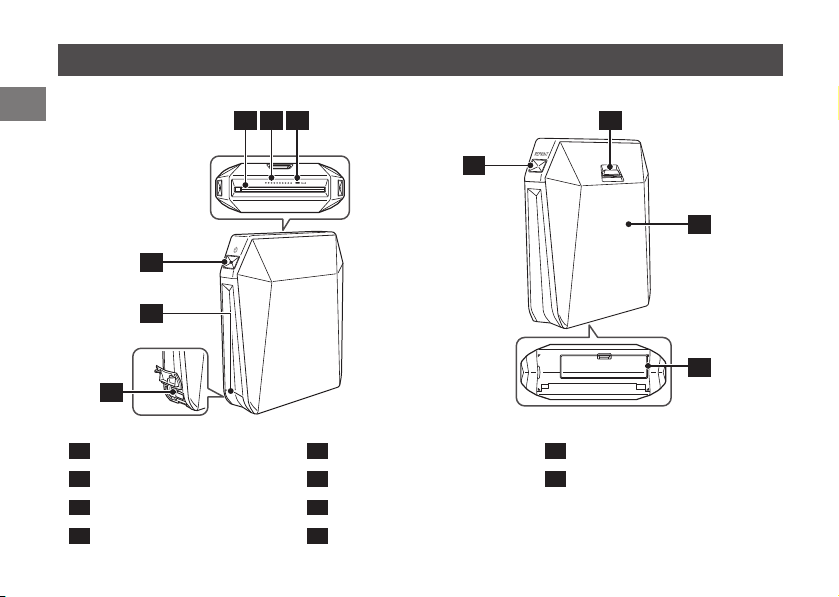
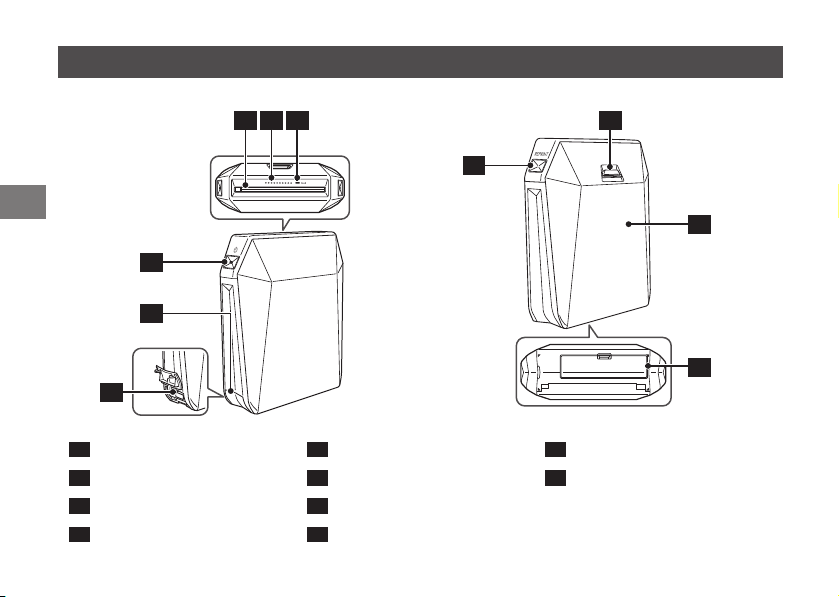
1
Battery remaining LED
5
USB connector cover
9
Battery cover
2
Film remaining LED
6
USB connector
10
Back cover
3
Print exit
7
Back cover lock
4
POWER button
8
REPRINT button
Parts Name
8
3
1
9
7
10
4
5
6
2

31
EN
Before Use
• Before using the printer, install the instax SHARE application on your device.
• When you are using an Android OS device, search for “instax SHARE” in the Google Play, then install the application.
* System requirements of an Android OS device: Android Ver 4.0.3 or later and Google Play are installed.
• When you are using an iOS device, search for “instax SHARE” in the App Store, then install the application.
* System requirements of an iOS device: iOS Ver 8.0 or later is installed.
You may not be able to print from some devices even if you have installed the instax SHARE application and your
device meets the requirements listed here.
• The battery is not charged fully at shipment. Be sure to charge it before using the printer.
Access instax SHARE website for the latest information on system requirements.
Inserting/Charging the Battery
InsertingtheBattery
Push the battery cover lock down
to open the battery cover.
Insert the battery according to the arrow on
it. Make sure the yellow line on the battery
aligns with the mark on the printer.
Align the tabs on the battery cover
and push the battery cover lock
until it clicks into place.
~ Ÿ !
32
EN
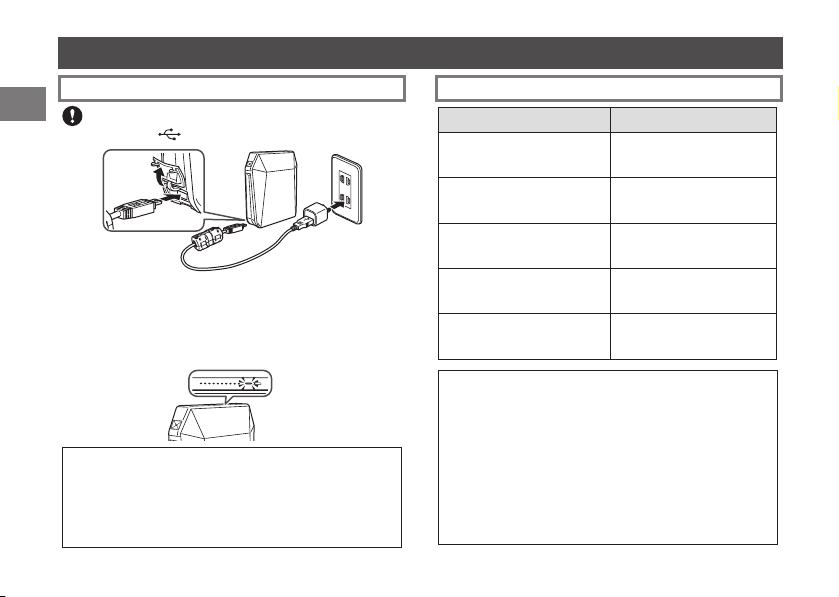
Inserting/Charging the Battery (Continued)
ChargingtheBattery ChargingIndicator
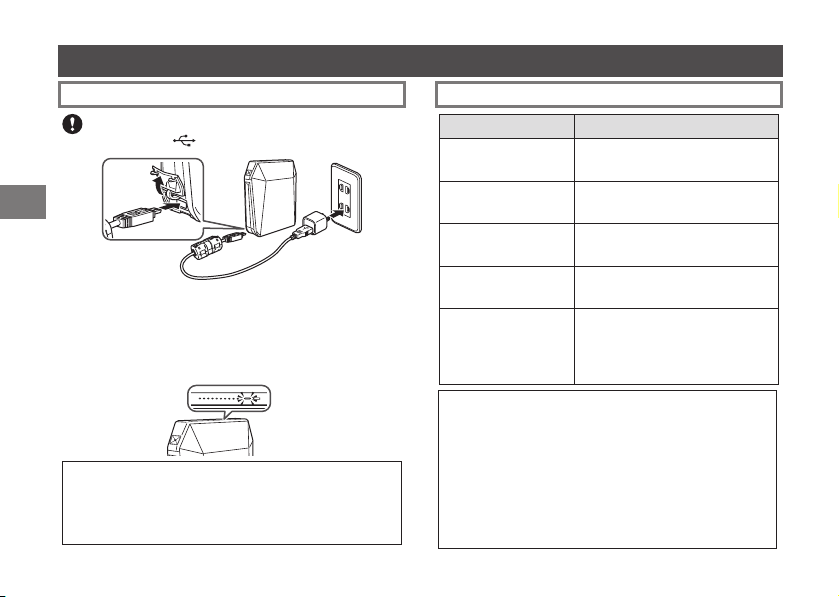
Indication Batterystatus/Action
Lights red (ON)
Flashes red (OFF)
Charging is in progress.
Lights orange (ON)
Flashes orange (OFF)
Charging is half completed.
Lights green (ON)
Flashes green (OFF)
Charging is almost completed.
Flashes green, then
goes off (OFF)
Charging is completed.
Flashes green and
red alternately, or
flashes red, then
goes off
An error is being occurred. Stop
charging.
ChargingfromaPC:
• Connect the printer and PC directly. Do not connect
them via a keyboard or USB hub.
• If the PC enters the sleep mode while charging is in
progress, charging will stop. If you continue charging,
resume the PC and reconnect the USB cable.
• You may not charge the printer from a PC depending
on your PC specifications, settings, or status.
Connect the printer and an AC power adapter supplied
with your smartphone using the supplied USB cable, then
connect the AC power adapter to an indoor power outlet.
The battery remaining LED indicates the battery charge
status. For details, see the table on the right column.
• Use an AC adapter to meet the rated output below:
DC 5.0 V/1000 mA
• You can print an image while charging is in progress.
• Charging time is approximately three hours.
Be careful of the orientation. Connect the USB cable
with the mark (
) on the terminal facing up.

33
EN
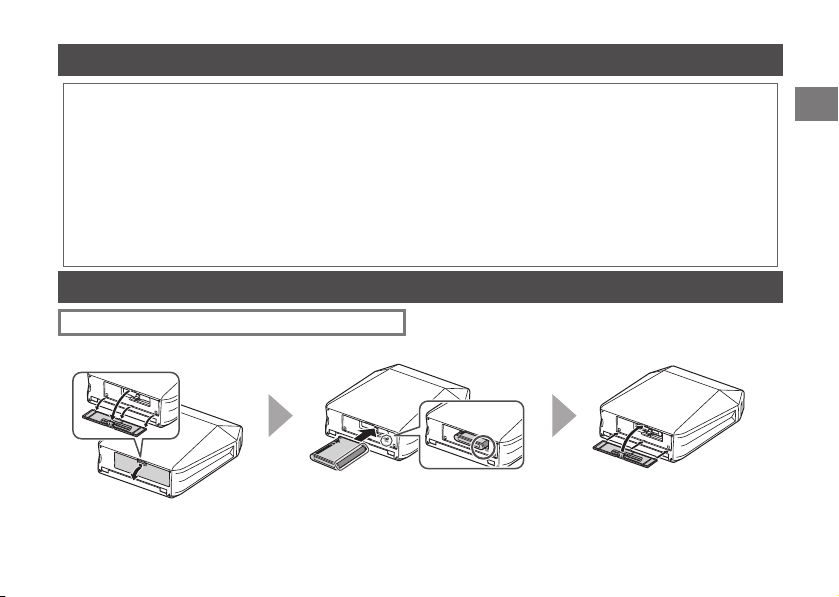
Loading the instax SQUARE Film Pack
~
Ÿ
Caution
Do not open the back cover until you have used up the film; otherwise, the rest of the film will
become exposed and turn white. The film can no longer be used.
• When you load the film pack, never press the two rectangular holes on the back of the film pack.
• Never use a film pack beyond its shelf life; otherwise, it may damage the printer.
Use FUJIFILM Instant Film “instax SQUARE” only. The instax mini film or instax WIDE film cannot be used.
Notes on the film pack
• Each FUJIFILM Instant Film “instax SQUARE” pack contains 1 black film protective cover and 10 film sheets.
• Do not remove the film pack from its inner bag before loading it into the printer.
• The film cover is ejected automatically when the back cover is closed.
For details, refer to the instructions and warnings on FUJIFILM Instant Film "instax SQUARE".
Continued on the next page
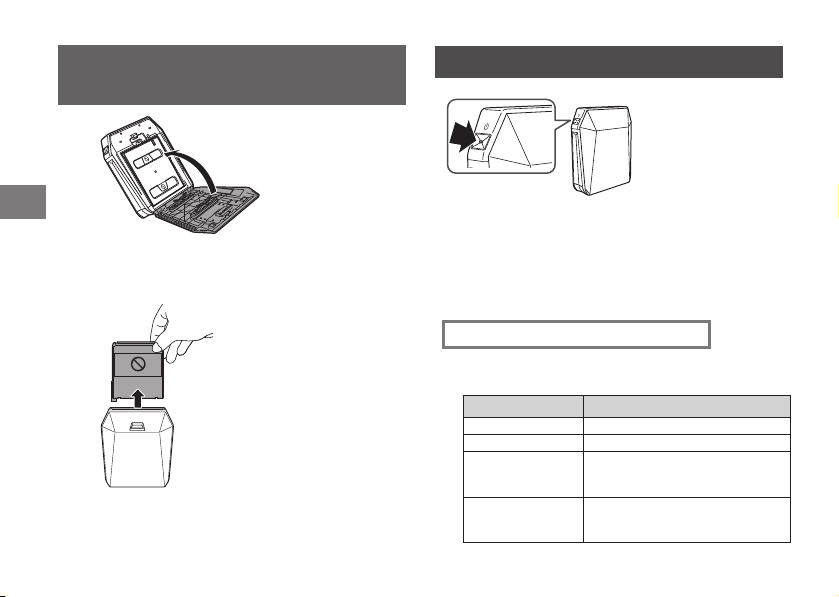
Press the back cover lock down to open the back
cover.
Hold both sides of the film pack, align the bottom of the
film pack on the groove of the film chamber (1), then insert
it straight (2).
2
1
34
EN
Loading the instax SQUARE Film Pack
(Contunued)
⁄
!
Close the back cover. Make sure the back cover
lock clicks into place.
The film cover (black) is ejected
automatically when the back
cover is closed. Remove the film
cover from the print exit.
Turning on/off the Printer
Press and hold the POWER button for approx. 1 second
to turn the printer on or off.
Turning the printer on lights up the battery remaining
LED.
If no operation occurs for a certain period of time, the
printer turns off automatically.
CheckingRemainingBatteryLife
Use the battery remaining LED to check when turning
the printer on or while printing is in progress.
Indication Remainingbatterylife
Green Sufficient
Orange At half capacity
Red
Low. Charging the battery is
recommended. (See page 32.)
Printer turns off
after flashing red.
No battery capacity remains.
Charge the battery. (See page 32.)
35
EN
Connecting and Printing
~
Ÿ
!
Continued on the next page
WirelessLANSetupforiOSDevices
When you are using an iOS device, follow the procedure
below to perform wireless LAN setup.
1. Select “ON” for “Wi-Fi” in the “Settings” menu of your device.
2. Tap the network name (printer name) under “Choose a Network”
.
Whenestablishingconnectionfor
thefirsttime:
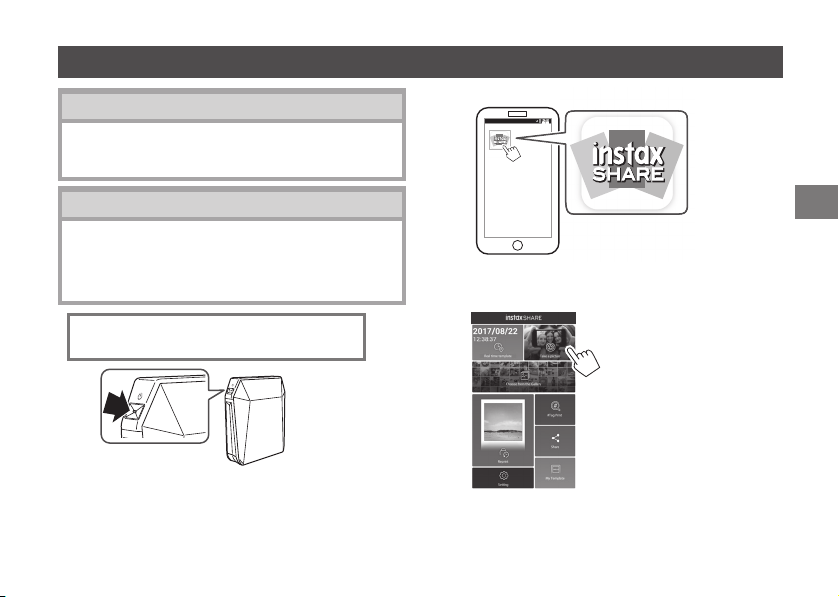
Press and hold the POWER button for approx.
1 second to turn the printer on.
The battery remaining LED lights up.
Start the downloaded application “instax SHARE”.
Select the picture to print or take a picture.
NotesonPrinting
1. Place the printer vertically.
2. When printing, put the printer on a steady surface
such as a desk.
36
EN
⁄
Connecting and Printing (Continued)
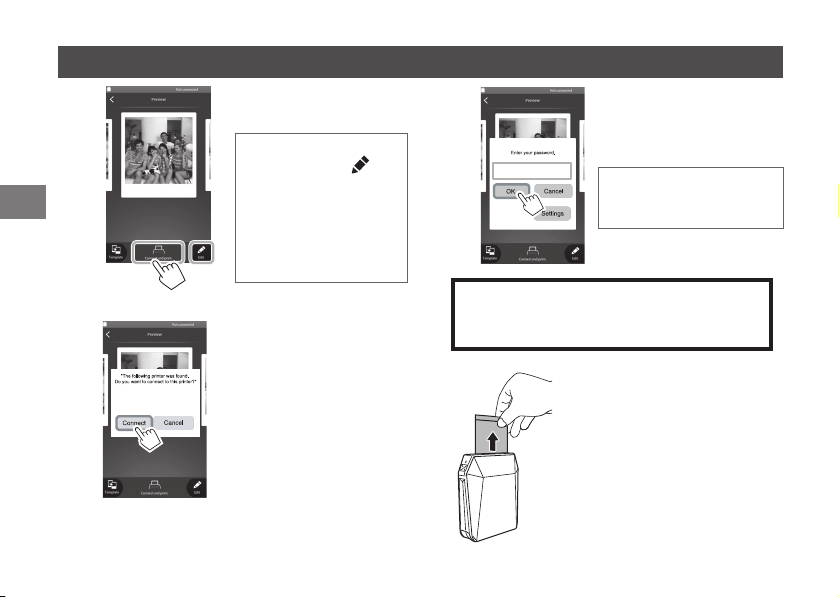
@
Tap “Connect and print”.
When a printer is detected,
tap “Connect”. If multiple
printers are detected, select
the printer to connect from
the list.
Printer's identifier (SSID) is
located on the bottom of the
printer.
#
Enter the factory default
password (1111) or the one you
specified, then tap “OK”.
The printer starts printing.
Toresetthepasswordtothefactorydefault
(1111),turntheprinteronwhileholdingthe
REPRINTbutton.
When the film has been ejected (the
printer stops making a sound), grasp
the edge of the film, then take it out.
1 film remaining LED turns off every
time you print an image.
¤
Before tapping “Connect
and print”, tapping
on
the lower right displays the
edit menu. You can add
a template or adjust an
image on this menu.
Tap “Done” to exit from the
menu.
When printing, put the
printer on a steady surface
such as a desk.
INSTAX-1111
1111
37
EN
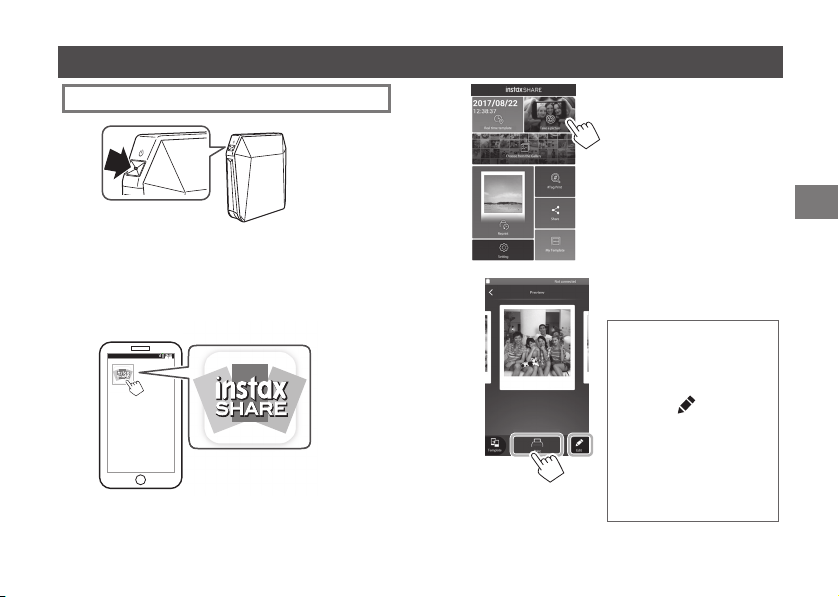
Whenconnectionisalreadyestablished:
Connecting and Printing
~
Ÿ
Start the downloaded application “instax SHARE”.
!
Continued on the next page
Select the picture to print or
take a picture.
Tap “Print”.
The printer starts printing.
⁄
• When printing, put
the printer on a steady
surface such as a desk.
• Before tapping “Print”,
tapping
on the lower
right displays the edit
menu. You can add a
template or adjust an
image on this menu.
Tap “Done” to exit from
the menu.
Press and hold the POWER button for approx.
1 second to turn the printer on.
The battery remaining LED lights up.
38
EN
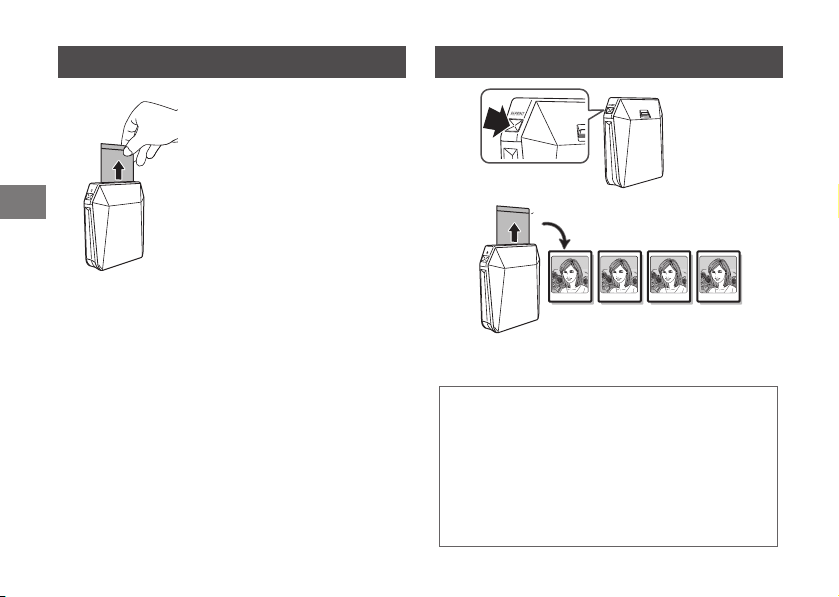
Connecting and Printing (Continued) Reprinting
When the film has been ejected (the
printer stops making a sound), grasp
the edge of the film, then take it out.
1 film remaining LED turns off every
time you print an image.
@
Press the REPRINT
button once.
Every time you press the REPRINT button, the
previous image is reprinted.
• The last printed image is stored even if you turn
the printer off. (You can select whether to store the
image on the instax SHARE application.)
• Transferring a new image overwrites the stored
image.
• You cannot reprint Real time templates.
• Color tones may change slightly in continuous
printing.
~
Ÿ
39
EN
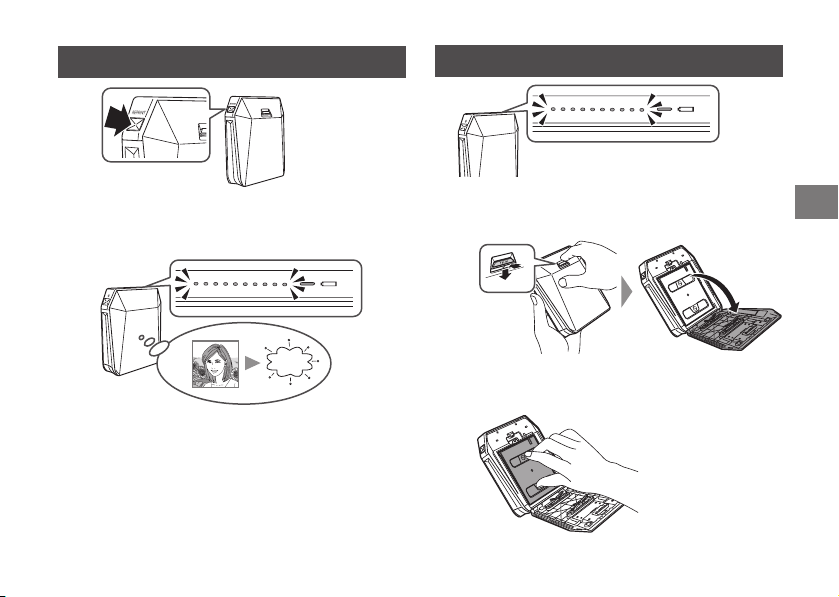
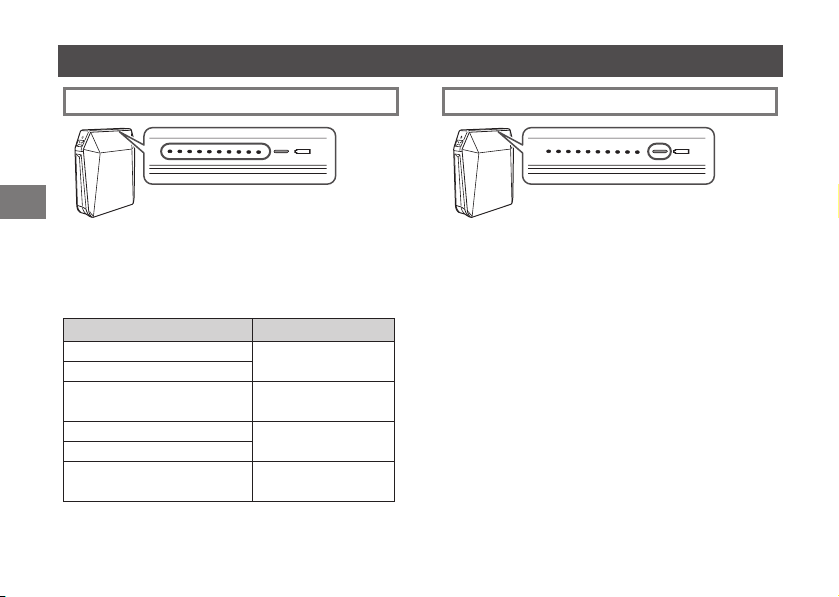
Unloading a Used instax SQUARE Film Pack
Deleting an Image
Press and hold the REPRINT button for more than 5
seconds with the printer on.
The film remaining LED flashes for 1 second
and the image is deleted.
~
Ÿ
When no film is left, all the film remaining LEDs flash
slowly. Unload the film pack.
~
Ÿ
Press the back cover lock down to open the
back cover.
Grasp the rectangular
holes on the film
pack, then pull it out.
40
EN
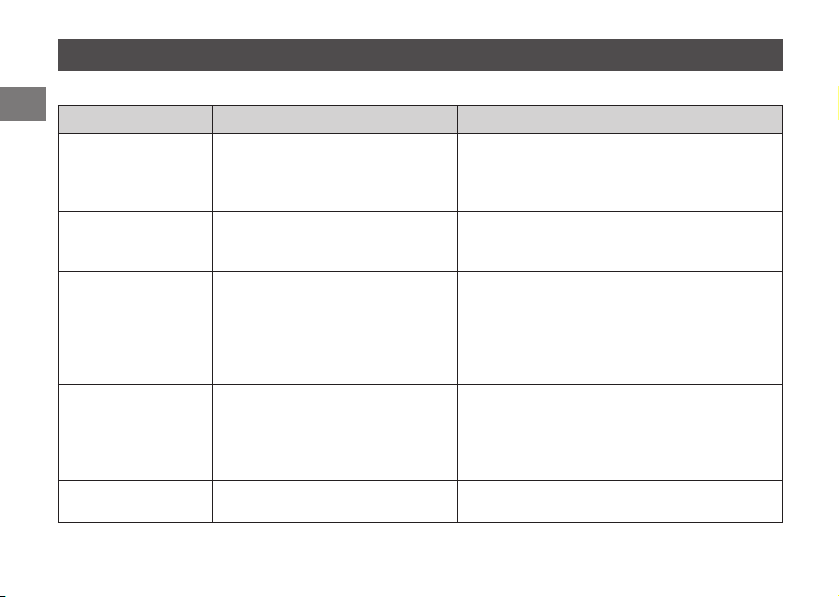
About the LED Indication
FilmremainingLEDindication BatteryremainingLEDindication
The film remaining LED indicates film remaining,
printer operation, or error warning.
1 film remaining LED turns off every time you print an
image, and flashes slowly to indicate no film remains.
See the table below for other indication patterns.
The battery remaining LED indicates the printer status
while charging the battery, or battery life of the printer.
See page 32 for indications while charging the battery.
See page 34 for battery life of the printer.
Operation/Status Indication
You deleted a reprint image.
Flashes rapidly for 1
second.
You reset the password.
No reprint image
Flashes slowly for 3
seconds.
No film pack
Flashes slowly.
No film remains.
Development or communication
error occurred.
Flashes rapidly.

41
EN
SPECIFICATIONS
instax SP-3
Recording method 3-color exposure with OLED
Film FUJIFILM Instant Film “instax SQUARE” (Purchased separately)
Photo capacity 10 prints/pack
Image size 62 mm×62 mm/2.4 in.×2.4 in.
Supported image size 800×800 dots
Printing resolution 12.5 dots/mm (318 dpi, 80 μm dot pitch)
Printing levels 256 levels per color (RGB)
Interface Standard compliance: IEEE802.11b/g/n
Operation frequency: 2412 MHz to 2462 MHz (11 ch)
Supported image format JPEG, PNG
Printing time Image recording - photo output (fed out): Approx. 13 sec.
Approximate printing
capacity
Approx. 160 prints (Based on our test conditions)
* Varies depending on the conditions of use.
Power supply NP-50 (1 piece)
Charging time Approx. 3 hours (Varies depending on battery remaining level)
Power consumption 3 W
Operating temperature
+5°C to +40°C/+41°F to +104°F (no condensation)
Dimensions/Weight 116 mm × 130.5 mm × 44.4 mm/4.6 in. × 5.1 in. × 1.7 in. (excluding projections)
312 g/11 oz. (without battery and film pack)
Supplied accessory USB cable
(BOB711, Length: 1 m/3.3 ft.), ferrite core
* Specifications above are subject to change for improvement.

42
EN
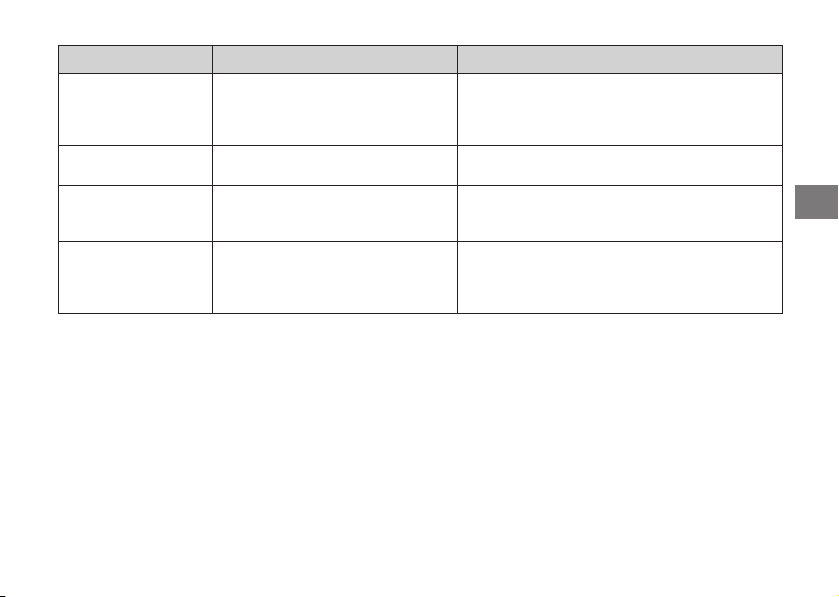
TROUBLE SHOOTING
During printing
Problems Possible Causes Solutions
The printer cannot be
turned on.
1 The battery power is low. (The
battery remaining LED is flashing
red.)
2 The battery is not inserted correctly.
3 You did not press the POWER
button for long enough.
1 Charge the battery fully.
2 Insert the battery correctly.
3Press and hold the POWER button for approx. 1
second
You entered the
password, but the device
cannot be connected to
the printer.
● The password is incorrect. ● Turn the printer on while holding the REPRINT
button to reset the password to the factory
default (1111).
You pressed the
REPRINT button, but
you cannot print.
1 No images are stored in the printer.
(The film remaining LED flashes for
3 seconds.)
2
No film remains in the printer. (All the
film remaining LED are flashing.)
3 The film pack is not loaded. (All the
film remaining LED are flashing.)
1 Transmit an image to print.
2 Load a new film pack.
3 Load a new film pack.
43
EN
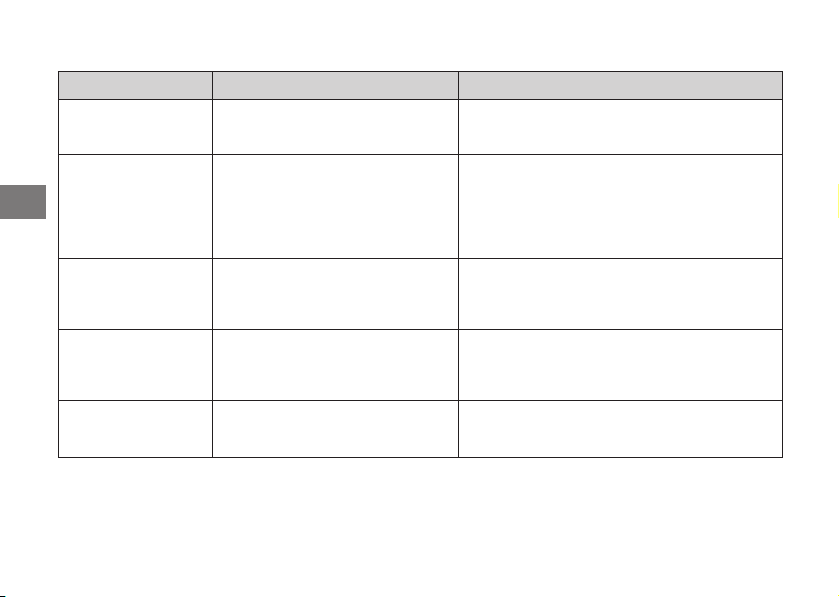
Problems Possible Causes Solutions
The film pack cannot
be loaded, or cannot be
loaded smoothly.
1 The film pack is not for your printer.
2
The film pack is not being loaded
correctly.
1 Use FUJIFILM Instant Film “instax SQUARE” only.
(No other films can be used.)
2
Match the yellow line on the film pack with the
yellow positioning mark in your printer.
The film cover cannot
be ejected.
● The printer cannot recognize the
film pack.
● Remove the film pack and load it again.
The film cannot be
ejected to the end.
● The printer shakes or has been
dropped and the film has become
misaligned.
1 Grasp the edge of the film and pull it out.
2 Performing another printing operation pushes
the jammed film out.
The film pack cannot be
ejected.
1 The printer shakes or has been
dropped and the film is misaligned.
2
The film has been jammed.
1 Load a new film pack.
2 Remove the battery and insert it again. If this does
not solve the problem, remove the jammed film
and load a new film pack.
44
EN
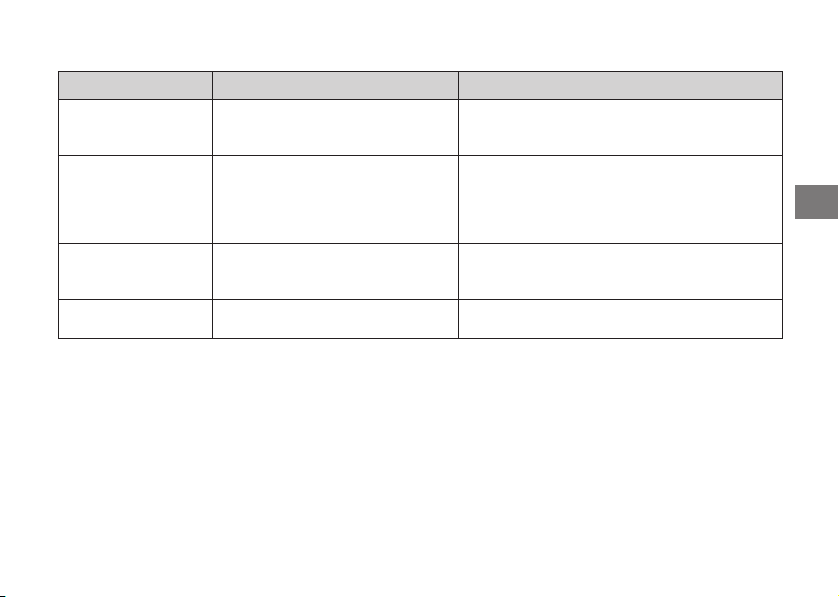
LED status
Problems Possible Causes Solutions
The film remaining LED
flashes rapidly, then the
printer turns itself off.
● A printer error has occurred. ● Turn the printer on.
The battery remaining
LED flashes red slowly,
then the printer turns
itself off.
● The battery power is low. ●Charge the battery fully.
When the remaining battery life is low, you
cannot turn the printer on even though the
printer is connected to the AC power outlet using
the USB cable. Turn the printer on after time has
elapsed since you started charging.
The film remaining
LED flashes during
communication and
printing does not start.
● Communication has been
interrupted for some reason.
● Turn the printer on, then restart the application
on your device.
The battery remaining
LED flashes red then
goes off while charging
is in progress.
● The battery is being charged
beyond the operation temperature.
● Charge the battery between +5°C and +40°C
(+41°F and +104°F).
The battery remaining
LED alternately flashes
green and red rapidly.
●
The battery life has expired or there
is a problem with the USB cable or AC
power adapter.
●
Replace the battery, USB cable, or AC power
adapter with a new one.
45
EN
Printed pictures
Problems Possible Causes Solutions
Part or whole finished
print is white.
● The back cover was opened before
you have used up the film.
● Do not open the back cover until you have used
up the film; otherwise, the rest of the film may be
exposed and ruined for use.
The picture is blurred.
1 Pressure was applied to the picture
immediately after it came out from
the printer.
2 The picture did not come out
smoothly.
1 Do not shake, bend, fold, or press the print.
2 Do not cover the film exit.
A black line is printed
on the bottom of the
finished print.
● The printer shakes or has been
dropped and the film has become
misaligned.
● Retransmit the image. If this does not solve the
problem, load a new film pack.
A vertical line is printed
across the finished print.
● The print head is dirty. ● Contact your FUJIFILM dealer or support center.
46
EN
IMPORTANT SAFETY NOTICE
This product has been designed with safety in mind, and to provide safe service when handled correctly and in accordance
with the User’s Guide and instructions. It is important that both the product and the INSTAX film are handled properly
and used only to print pictures as instructed in this User’s Guide and in the instax SQUARE film instructions. For your
ease and safety, please follow what is written in this User’s Guide. It is also a good idea to keep this User’s Guide in a
safe, easy to find place where you can refer to it if needed.
WARNING
This symbol indicates danger, which could result in injury or death. Please follow these instructions.
WARNING
If the printer (or batteries) becomes hot, emits smoke or a burnt smell or otherwise seems abnormal, immediately
remove the batteries. Faults of this nature could start a fire and cause burns. (Take particular care to avoid burns
when removing the batteries or pull out the USB cable.)
If the printer is dropped into water or if water or metal or other foreign objects get inside the printer,
immediately remove the batteries, disconnect the AC power adapter and unplug the AC power adapter from the
power outlet. Faults of this nature could cause the printer to overheat or catch fire.
Do not use this printer in places where there is flammable gas or near open gasoline, benzine, paint thinner or
other unstable substances which can give off dangerous vapors. Faults of this nature could cause the printer to
explode or catch fire and cause burns.
Never take apart the batteries. Do not subject them to heat, throw them into an open fire, attempt to recharge them,
short-circuit them, drop them, or apply impact to them. Doing so could cause the batteries to explode.
Use only the type of batteries specified in your printer’s User’s Guide. Faults of this nature could cause the printer
to overheat or catch fire.
Make sure batteries are stored in a safe, secure place and well out of the reach of any infants, young children or pets. The
batteries could be accidentally swallowed by young children or pets. If this occurs, immediately seek medical treatment.
Only use the specified battery designated for use with the printer. In addition, do not use the printer with a power
supply voltage other than that indicated. The use of other batteries could cause the printer to overheat or catch fire.
47
EN
WARNING
Never attempt to take this product apart. You may be injured.
If anything is wrong with the printer, never attempt to repair it by yourself. You may be injured.
If this product is dropped or damaged so that the inside is showing, do not touch it. Contact your FUJIFILM dealer.
Do not touch any parts or projecting parts inside the back cover. You may be injured.
Never get this product wet or handle it with wet hands. Doing so may result in an electric shock.
Do not mix new and old batteries or batteries of different types. Also make sure that the battery C and D
polarities are correct. A damaged battery or electrolyte leakage may cause a fire, injury, and contaminate the
environment.
If the printer will be left unused for a long period (because you are traveling, etc), remove the batteries,
disconnect the AC power adapter and unplug the USB cable. Failing to do so could cause a fire.
Do not move the printer while the USB cable is still connected to it. Doing so could damage the USB cable and
cause a fire or electric shock.
Keep out of the reach of small children. This product could cause injury in the hands of a child.
Do not cover or wrap the printer or the AC power adapter in a cloth or blanket. This can cause heat to build up
and distort the casing or cause a fire.
When using the printer, make sure that the battery cover is attached; otherwise, you may be injured.
The “CE” mark certifies that this product satisfies the requirements of the EU (European Union) regarding safety,
public health, environment and consumer protection.(“CE” is the abbreviation of Conformité Européenne.)
FCC/INDUSTRY CANADA NOTICE
This device complies with part 15 of FCC Rules and Industry Canada’s licence-exempt RSSs. Operation is subject to the
following two conditions: (1) this device may not cause harmful interference, and (2) this device must accept any interference
received, including interference that may cause undesired operation.
For more information, access the website below.
http://www.fujifilm.com/products/instant_photo/printers/instax_share_sp_3/
Note: This equipment has been tested and found to comply with the limits for a Class B digital device, pursuant to part 15
of the FCC Rules. These limits are designed to provide reasonable protection against harmful interference in a residential

48
EN
installation. This equipment generates, uses and can radiate radio frequency energy and, if not installed and used in
accordance with the instructions, may cause harmful interference to radio communications. However, there is no guarantee
that interference will not occur in a particular installation. If this equipment does cause harmful interference to radio or
television reception, which can be determined by turning the equipment off and on, the user is encouraged to try to correct
the interference by one or more of the following measures:
Reorient or relocate the receiving antenna.
Increase the separation between the equipment and receiver.
Connect the equipment into an outlet on a circuit different from that to which the receiver is connected.
Consult the dealer or an experienced radio/TV technician for help.
Note: This transmitter must not be co-located or operated in conjunction with any other antenna or transmitter.
Note: FCC/INDUSTRY CANADA Radiation Exposure Statement:
This equipment complies with FCC/IC radiation exposure limits set forth for an uncontrolled environment and meets the FCC
radio frequency (RF) Exposure Guidelines and RSS-102 of the IC radio frequency (RF) Exposure rules. This equipment should
be installed and operated keeping the radiator at least 20cm or more away from person’s body in normal use position.
FCC CAUTION
Changes or modifications not expressly approved by FUJIFILM responsible for compliance could void the user’s authority to
operate the equipment.
CAUTION: This Class B digital apparatus complies with Canadian ICES-003.
Properly shielded cables must be used for connection to computers or AC plug in order to meet FCC emission limits.
This symbol on the product, or in the manual and in the warranty, and/or on its packaging indicates that this product shall not be
treated as household waste.
Instead it should be taken to an applicable collection point for the recycling of electrical and electronic equipment.
By ensuring this product is disposed of correctly, you will help prevent potential negative consequences to the environment
and human health, which could otherwise be caused by inappropriate waste handling of this product.
Disposal of Electric and Electronic Equipment in Private Households
Disposal of used Electrical & Electronic Equipment
(Applicable in the European Union and other European countries with separate collection systems)

49
EN
If your equipment contains easy removable batteries or accumulators, please dispose these separately according to your
local requirements.
The recycling of materials will help to conserve natural resources. For more detailed information about recycling of this
product, please contact your local city office, your household waste disposal service or the shop where you have purchased
the product.
In Countries outside of EU: If you wish to discard this product, please contact your local authorities and ask for the correct
way of disposal.
COMMON SENSE PRINTER CARE
PRINTER CARE
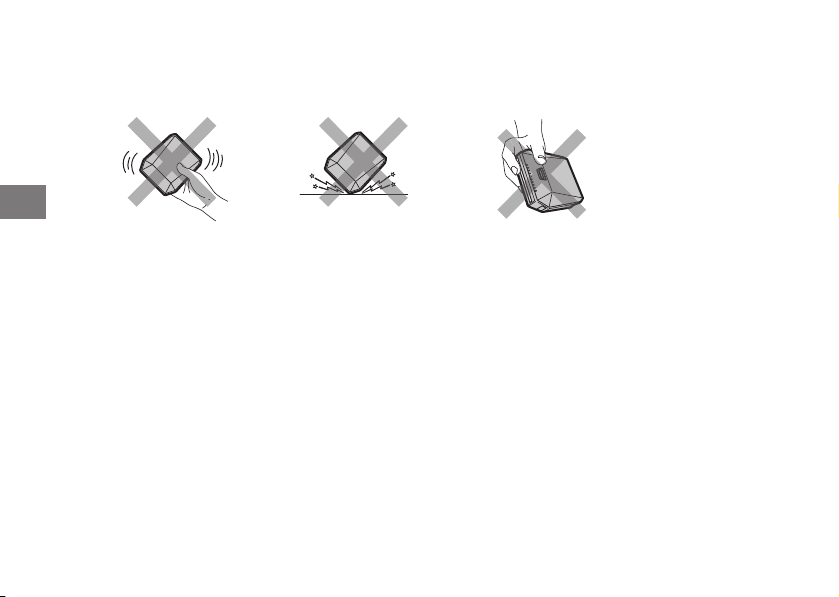
1 Your printer is a precision instrument. Do not get it wet or drop it. Also, do not expose to sand.
2 If you are not using your printer for a long period, unload the battery and keep it where it will be safe from heat, dust, and
moisture.
3 Do not use solvent such as thinner and alcohol to remove dirt.
4 Keep the film chamber and printer interior clean to avoid damaging films.
5 In hot weather, do not leave your printer in hot places such as in a car or on the beach. Do not leave it in damp places for
long periods.
6Moth repellent gas such as naphthalene may affect your printer and prints. Be careful to keep your printer or prints in a
chest or bureau.
7 Because your printer is software-controlled, there is the chance that on rare occasions malfunction. If you experience
incorrect operation, reset by removing the batteries and then reloading them after a while.
8 Note that the temperature range within which your printer can be used is +5°C to +40°C (+41°F to +104°F).
9 Do not use the printer in aircraft, hospitals or other locations where the use of mobile phones is prohibited.
0 If the printer causes problems with radio or TV reception, move the printer further away from the radio or TV.
- When printing images, carefully read the owner’s manual for the sending device being used and ensure that the device’s
operating requirements are met.
= Take great care to ensure that printed materials do not violate copyright, image rights, privacy or other personal rights
and do not offend public decency. Actions that violate the rights of others, are contrary to public decency or constitute a
nuisance may be punishable by law or otherwise legally actionable.
50
EN
~ Make sure the printer stands up vertically; otherwise, it may not deliver the designed performance fully.
! This printer is designed for household use. It is not suitable for commercial printing which requires a large amount of
printing.
Cautions during printing
INSTAX SQUARE FILM AND PRINT CARE
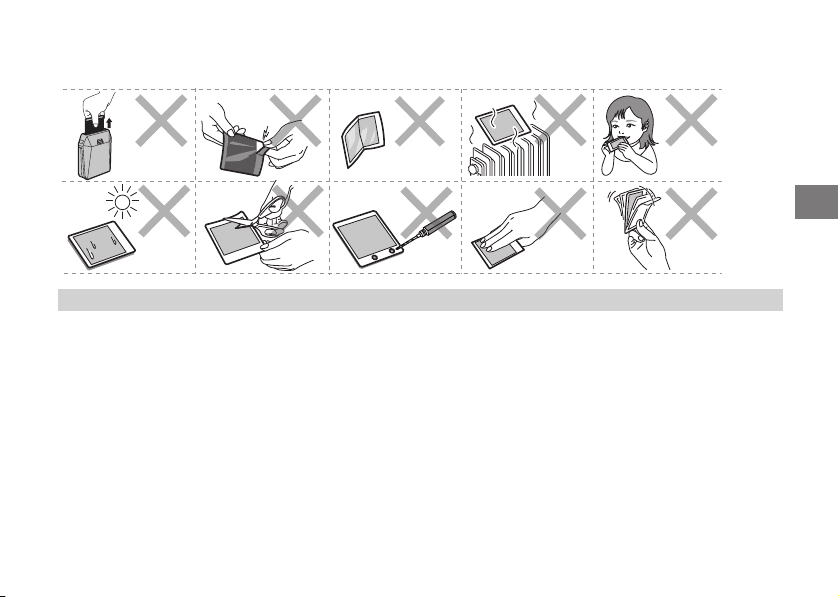
See FUJIFILM Instant Film “instax SQUARE” for film use instructions. Follow all instructions for safe and proper use.
1Keep the film in a cool and dry place. Do not leave the film in a place where the temperature is extremely high (e.g., in a
closed car) for many hours.
2When you load a film pack, use the film as soon as possible.
3If the film has been kept in a place where the temperature is extremely high or low, bring it to room temperature before
starting to print pictures.
4Be sure to use the film before the expiration or “Use Before” date.
5Avoid airport checked luggage inspection and other strong X-ray illumination. The effect of fogging, etc. may appear on
unused film. We recommend that you carry the printer and/or the film onto the aircraft as carry-on luggage. (Check with
each airport for more information.)
6Avoid strong light, and keep the developed prints in a cool and dry place.
7Do not puncture, tear, or cut INSTAX SQUARE film. If film becomes damaged, do not use.
51
EN
Cautions on handling the film and prints
For details, refer to the instructions and warnings on FUJIFILM Instant Film “instax SQUARE”.
Wireless Network Devices: Cautions
IMPORTANT: Read the following notices before using the printer’s built-in wireless transmitter.
■ Use only as part of a wireless network.
FUJIFILM does not accept liability for damages resulting from unauthorized use. Do not use in applications requiring a
high degree of reliability, for example in medical devices or other systems that may directly or indirectly impact human
life. When using the device in computer and other systems that demand a greater degree of reliability than wireless
networks, be sure to take all necessary precautions to ensure safety and prevent malfunction.
■ Use only in the country in which the device was purchased.
This device conforms to regulations governing wireless network devices in the country in which it was purchased.
Observe all location regulations when using the device. FUJIFILM does not accept liability for problems arising from use in
other jurisdictions.
■ Wireless data (images) may be intercepted by third parties.
The security of data transmitted over wireless networks is not guaranteed.
52
EN
■ Do not use the device in locations subject to magnetic fields, static electricity, or radio interference.
Do not use the transmitter in the vicinity of microwave ovens or in other locations subject to magnetic fields, static
electricity, or radio interference that may prevent reception of wireless signals. Mutual interference may occur when the
transmitter is used in the vicinity of other wireless devices operating in the 2.4 GHz band.
■ The wireless transmitter operates in the 2.4 GHz band using DSSS and OFDM modulation.
■ This device operates on the same frequency as commercial, educational, and medical devices and
wireless transmitters.
It also operates on the same frequency as licensed transmitters and special unlicensed low-voltage transmitters used in
RFID tracking systems for assembly lines and in other similar applications.
■ To prevent interference with the above devices, observe the following precautions.
Confirm that the RFID transmitter is not in operation before using this device. Should you observe that the device causes
interference in licensed transmitters used for RFID tracking, immediately choose a new operating frequency for this device
to prevent additional interference. If you notice that this device causes interference in low-voltage RFID tracing systems,
contact a FUJIFILM representative.
■ Certification marks acquired by the printer are located inside the film chamber.
InformationfortraceabilityinEurope
Manufacturer: FUJIFILM Corporation
Address, City: 7-3, Akasaka 9-Chome,
Minato-ku, Tokyo
Country: JAPAN
Authorized representative in Europe:
FUJIFILM EUROPE GMBH
Address, City: Dusseldorf Heesenstrasse 31,
40549
Country: Germany
InformationforFUJIFILMintheUnited
States
FUJIFILM North America Corp.
200 Summit Lake Drive
Valhalla, New York 10595, USA
InformationforFUJIFILMinCanada
FUJIFILM Canada Inc.
600 Suffolk Court, Mississauga, Ontario L5R
4G4
53
EN
Handling the Battery
• Make sure that you use your printer correctly. Read these safety notes and your User’s Guide carefully before use.
• After reading these safety notes, store them in a safe place.
WARNING
CAUTION
This symbol indicates danger, which could result in injury or
death. Please follow these instructions.
This symbol indicates possible damage, which could result in
injury to other people or damage to an object. Please follow
these instructions. Please handle the product properly.
WARNING
Prohibited
Do not use the battery except as specified. Load the battery as shown by the indicator.
Prohibited
Do not heat, change or take apart the battery. Do not drop or subject the battery to impacts. Do not short-
circuit the battery. Do not store the battery with metallic products. Do not charge the battery using a
charger other than a specified one. Any of these actions can cause the battery to burst or leak and cause
fire or injury as a result.
Prohibited
Do not use voltages other than the power supply voltage shown. The use of other power sources can cause
a fire.
Prohibited
If the battery leaks and fluid gets in contact with your eyes, skin or clothing, flush the affected area with
clean water and seek medical attention or call an emergency number right away.
Required
Risk of explosion if battery is replaced by an incorrect type. Dispose of used batteries according to the
instructions.
Required
Dispose of used batteries according to the instructions. When discarding, cover the battery terminals with
insulation tape. Contact with other metallic objects or batteries could cause the battery to ignite or burst.
54
EN
CAUTION
Required
When you are cleaning the printer or you do not plan to use the printer for an extended period, remove the
battery. Failure to do so can cause a fire or electric shock.
Required
If a problem arises, turn the printer off and remove the battery. Continued use of the printer when it
is emitting smoke, is emitting any unusual odor, or is in any other abnormal state can cause a fire or
electric shock. Contact your FUJIFILM dealer.
The Battery
The following describes the proper use of batteries and how to prolong their life. Incorrect use can shorten battery life or
cause leakage, overheating, fire, or explosion.
The battery is not charged at shipment. Charge the battery completely before use.
■ Notes on the Battery
The battery gradually loses its charge when not in use. Charge the battery one or two days before use.
Battery life can be extended by turning the printer off when not in use.
Battery capacity decreases at low temperatures; a depleted battery may not function at when cold. Keep a fully charged
spare battery in a warm place and exchange as necessary, or keep the battery in warm place and insert it in the printer only
when shooting. Do not place the battery in direct contact with hand warmers or other heating devices.
■ Charging the Battery
Charge the battery using the supplied USB cable. Charging times will increase at ambient temperatures below +10 °C (+50 °F)
or above +35 °C (+95 °F). Do not attempt to charge the battery at temperatures above 40 °C (+104 °F); at temperatures below
+5 °C (+41 °F), the battery will not charge.
Do not attempt to recharge a fully charged battery. The battery does not however need to be fully discharged before
charging.
The battery may be warm to the touch immediately after charging or use. This is normal.
■ Battery Life
At normal temperatures, the battery can be recharged about 300 times. A noticeable decrease in the length of time the battery
will hold a charge indicates that it has reached the end of its service life and should be replaced.
55
EN
■ Storage
Performance may be impaired if the battery is left unused for extended periods when fully charged. Deplete the battery fully
before storing it.
If the printer will not be used for an extended period, remove the battery and store it in a dry place with an ambient
temperature of from +15 °C to +25 °C (+59 °F to +77 °F). Do not store in locations exposed to extremes of temperature.
■ Cautions: Handling the Battery
• Do not affix stickers or other objects to the battery.
• Do not tear or peel off the external label.
• Keep the terminals clean.
• The battery and printer body may become warm to the touch after extended use. This is normal.
■ Disposal
Dispose of used batteries accord with local regulations.
A lithium ion battery that is recyclable
powers the product you have purchased.
Please call 1-800-8-BATTERY for
information on how to recycle this battery.
This Symbol on the batteries or accumulators
indicates that those batteries shall not be
treated as Household waste.
In Countries Outside the European Union,
Norway, Iceland and Liechtenstein:
If you wish to discard this product including the batteries
or accumulators, please contact your local authorities and
ask for the correct way of disposal.
If you have any inquiries about this product, please
contact a FUJIFILM authorized distributor, or access the
website below.
この製品に関するお問い合わせは、同封の保証書
に記載の窓口にご連絡いただくか、下記のウェブサイトに
アクセスしてください。
富士フイルムホームページ:http://fujifilm.jp/
jp
本製品のお問合せ/修理に関するお問い合わせ先
●富士フイルム フィルムカメラお客さま相談窓口
TEL 050-3786-1640/FAX 050-3786-2050
受付時間:月曜日~金曜日 9:30~17:30(土日祝日、年末年始を除く)
▶
各窓口の受付時間・サービス内容は、予告なく変更する場合があります。最新の情報は弊社ホームページでご確認ください。
▶
富士フイルムグループでは、お客さまからのお問い合わせ内容を正確に把握するために録音させていただくことがあります。
▶ FAXでの受け付けは24時間行っておりますが、返信応答は電話の受付時間と同じです。
▶ 修理品を持参または送付される場合は、下記サイトをご覧ください。
http://fujifilm.jp/support/filmandcamera/repairservice/index.html