
User Guide
(UG template version 15a)
SPT_SM-N915P_UG_Eng_052516_FINAL

Table of Contents
Get Started .................................................................................................................................................... 1
Your Phone at a Glance
........................................................................................................................ 1
Set Up Your Phone
............................................................................................................................... 1
Activate Your Phone
............................................................................................................................. 4
Complete the Setup
.............................................................................................................................. 5
Set Up Voicemail
................................................................................................................................... 6
Phone Basics
................................................................................................................................................ 1
Your Phone’s Layout
............................................................................................................................. 1
Turn Your Phone On and Off
................................................................................................................ 3
Turn Your Screen On and Off
............................................................................................................... 3
Touchscreen Navigation
....................................................................................................................... 4
Your Home Screen
................................................................................................................................ 8
Customize Your Home Screen
..................................................................................................... 8
Extended Home Screens
............................................................................................................ 10
Status Bar and Notification Panel
....................................................................................................... 11
Status Bar
................................................................................................................................... 11
Notification Panel
........................................................................................................................ 13
Edge Screen Features
........................................................................................................................ 14
Edge Screen Basics
.................................................................................................................... 14
Customize App Shortcuts
........................................................................................................... 14
Quick Tools
................................................................................................................................. 15
Edge Screen Options
.................................................................................................................. 15
S Pen
.................................................................................................................................................. 16
Air Command
.............................................................................................................................. 17
Action Memo
............................................................................................................................... 18
Smart Select
................................................................................................................................ 18
Screen Write
............................................................................................................................... 19
Open S Note
............................................................................................................................... 19
Add or Remove Air Command Shortcuts
.................................................................................... 20
S Pen Options
............................................................................................................................. 20
Screen View Options
........................................................................................................................... 21
Motions and Gestures
................................................................................................................. 21
TOC i

Multi Window............................................................................................................................... 21
Enter Text
............................................................................................................................................ 24
Text Input Methods
..................................................................................................................... 24
Google Voice Typing
................................................................................................................... 25
Samsung Keyboard
.................................................................................................................... 26
Swype
......................................................................................................................................... 26
Tips for Editing Text
.................................................................................................................... 27
Phone Calls
................................................................................................................................................. 28
Wi-Fi Calling
........................................................................................................................................ 28
Make Phone Calls
............................................................................................................................... 28
Call Using the Keypad
................................................................................................................ 28
Call from Logs
............................................................................................................................. 29
Call from Contacts
...................................................................................................................... 30
Call a Number in a Text Message
............................................................................................... 30
Call a Number in an Email Message
.......................................................................................... 30
Make an Emergency Call
............................................................................................................ 31
Receive Phone Calls
........................................................................................................................... 31
Multitasking While on a Call
........................................................................................................ 34
End a Call
............................................................................................................................................ 34
Phone Call Options
............................................................................................................................. 35
Dialing Options
............................................................................................................................ 35
Caller ID
...................................................................................................................................... 36
Call Waiting
................................................................................................................................. 36
Three-Way Calling
...................................................................................................................... 37
Call Forwarding
........................................................................................................................... 37
In-Call Options
............................................................................................................................ 38
Voicemail
............................................................................................................................................. 39
Voicemail Setup
.......................................................................................................................... 39
Retrieve Your Voicemail Messages
............................................................................................ 39
Voicemail Notification
.................................................................................................................. 40
Visual Voicemail
.................................................................................................................................. 40
Set Up Visual Voicemail
.............................................................................................................. 41
Review Visual Voicemail
............................................................................................................. 41
Visual Voicemail Options
............................................................................................................ 42
Configure Visual Voicemail Settings
........................................................................................... 43
TOC ii

Change Your Main Greeting ....................................................................................................... 43
Edit the Display Name
................................................................................................................ 43
Logs
.................................................................................................................................................... 44
Access Call Settings
........................................................................................................................... 46
Contacts
...................................................................................................................................................... 47
Get Started with Contacts
................................................................................................................... 47
Access Contacts
......................................................................................................................... 47
Find a Contact
............................................................................................................................. 47
Contacts Settings Options
.......................................................................................................... 48
Add a Contact
..................................................................................................................................... 48
Save a Phone Number
........................................................................................................................ 49
Edit a Contact
...................................................................................................................................... 49
Add or Edit Information for a Contact
......................................................................................... 49
Assign a Picture to a Contact
...................................................................................................... 50
Assign a Ringtone to a Contact
.................................................................................................. 50
Link Contacts
.............................................................................................................................. 50
Delete Contacts
.......................................................................................................................... 51
Move Contacts
.................................................................................................................................... 51
Speed Dials
......................................................................................................................................... 51
Favorites
............................................................................................................................................. 52
Groups
................................................................................................................................................ 53
Share Contacts
................................................................................................................................... 55
Import and Export Contacts
................................................................................................................ 56
Accounts and Messaging
............................................................................................................................ 57
Google Account
................................................................................................................................... 57
Create a Google Account
............................................................................................................ 57
Sign In to Your Google Account
.................................................................................................. 57
Access Gmail
.............................................................................................................................. 58
Send a Gmail Message
............................................................................................................... 58
Read and Reply to Gmail Messages
.......................................................................................... 58
Samsung Account
............................................................................................................................... 59
Email
................................................................................................................................................... 59
Add an Email Account
................................................................................................................. 59
Add a Microsoft Exchange ActiveSync Account
......................................................................... 60
Compose and Send Email
.......................................................................................................... 61
TOC iii

Reply To or Forward Email ......................................................................................................... 61
Manage Your Email Inbox
........................................................................................................... 62
Access Email Settings
................................................................................................................ 63
Delete an Email Account
............................................................................................................. 63
Text and Multimedia Messaging
......................................................................................................... 64
Send a Text Message (SMS)
...................................................................................................... 64
Send a Multimedia Message (MMS)
........................................................................................... 64
Save and Resume a Draft Message
........................................................................................... 65
New Messages Notification
......................................................................................................... 65
Managing Conversations
............................................................................................................ 65
Access Messages Settings ......................................................................................................... 67
Messenger .......................................................................................................................................... 67
Social Networking Accounts
............................................................................................................... 68
Facebook
.................................................................................................................................... 68
Google+
...................................................................................................................................... 68
Hangouts
..................................................................................................................................... 68
Instagram
.................................................................................................................................... 68
Pages Manager
........................................................................................................................... 69
Sprint FamilyWall
........................................................................................................................ 69
Sprint Fun & Games
................................................................................................................... 69
YouTube
...................................................................................................................................... 69
Apps and Entertainment
.............................................................................................................................. 70
Play Store
............................................................................................................................................ 70
Find and Install an App
............................................................................................................... 70
Open an Installed App
................................................................................................................ 71
Uninstall an App
.......................................................................................................................... 71
Galaxy Apps
........................................................................................................................................ 71
1Weather
............................................................................................................................................. 71
eBay
.................................................................................................................................................... 71
Music Apps
.......................................................................................................................................... 71
Music
........................................................................................................................................... 72
NextRadio
................................................................................................................................... 75
Play Music
................................................................................................................................... 75
Samsung Milk Music
................................................................................................................... 75
Spotify
......................................................................................................................................... 76
TOC iv

Sprint Music Plus ........................................................................................................................ 76
NASCAR Mobile
.................................................................................................................................. 77
NBA Game Time
................................................................................................................................. 77
PEN.UP
............................................................................................................................................... 77
Play Books
.......................................................................................................................................... 77
Play Games
......................................................................................................................................... 77
Play Movies & TV
................................................................................................................................ 78
Play Newsstand
.................................................................................................................................. 78
Sprint Zone
.......................................................................................................................................... 78
Sprint TV & Movies
............................................................................................................................. 78
Web and Data
............................................................................................................................................. 80
Wi-Fi
.................................................................................................................................................... 80
Turn Wi-Fi On or Off
................................................................................................................... 80
Turn Wi-Fi On and Connect to a Wireless Network
.................................................................... 80
Internet
................................................................................................................................................ 82
Chrome
............................................................................................................................................... 82
Data Services General Information (4G LTE and 3G Networks)
........................................................ 82
4G LTE
........................................................................................................................................ 82
Your User Name
......................................................................................................................... 83
Data Connection Status and Indicators
...................................................................................... 84
Hotspot
................................................................................................................................................ 84
Tethering
............................................................................................................................................. 85
Virtual Private Networks (VPN)
........................................................................................................... 85
Prepare Your Phone for VPN Connection
.................................................................................. 85
Add a VPN
.................................................................................................................................. 86
Connect to a VPN
....................................................................................................................... 86
Disconnect from a VPN
............................................................................................................... 87
Pictures and Video
...................................................................................................................................... 88
Camera
............................................................................................................................................... 88
Open the Camera
....................................................................................................................... 88
Take a Picture
............................................................................................................................. 89
Record Videos
............................................................................................................................ 89
Review Pictures and Videos from the Camera
........................................................................... 90
Configure the Camera
................................................................................................................. 91
Gallery
................................................................................................................................................. 94
TOC v

View Photos and Videos ............................................................................................................. 95
Work with Photos
........................................................................................................................ 97
Share Photos and Videos
........................................................................................................... 97
Video
................................................................................................................................................... 99
Tools and Calendar
................................................................................................................................... 100
Bluetooth
........................................................................................................................................... 100
Turn Bluetooth On or Off
........................................................................................................... 100
Connect a Bluetooth Headset or Car Kit
................................................................................... 100
Reconnect a Headset or Car Kit
............................................................................................... 101
Disconnect or Unpair from a Bluetooth Device
......................................................................... 101
Send Information Using Bluetooth
............................................................................................ 102
Receive Information Using Bluetooth
....................................................................................... 103
Calculator
.......................................................................................................................................... 103
Calendar
............................................................................................................................................ 104
Add an Event to the Calendar
................................................................................................... 104
Event Alerts
............................................................................................................................... 105
View Events
.............................................................................................................................. 106
Delete Events
............................................................................................................................ 107
Clock
................................................................................................................................................. 108
Drive
.................................................................................................................................................. 109
Dropbox
............................................................................................................................................. 109
Evernote
............................................................................................................................................ 109
Flipboard
........................................................................................................................................... 109
Flipboard Briefing
.............................................................................................................................. 110
Google Now
...................................................................................................................................... 111
Google Search
.................................................................................................................................. 111
Hancom
™
Office 2014 ....................................................................................................................... 111
Lookout Security
............................................................................................................................... 111
My Files
............................................................................................................................................. 111
Navigation
......................................................................................................................................... 112
Google Maps
............................................................................................................................. 112
Scout
......................................................................................................................................... 113
Peel Smart Remote
........................................................................................................................... 113
Samsung+
......................................................................................................................................... 113
S Health
............................................................................................................................................ 114
TOC vi

S Note ............................................................................................................................................... 116
S Voice
.............................................................................................................................................. 118
Scrapbook
......................................................................................................................................... 118
Using the Smart Select and Image Clip Tools
.......................................................................... 119
Smart Manager
................................................................................................................................. 120
Voice Recorder
................................................................................................................................. 120
Voice Search
..................................................................................................................................... 123
microSD Card
.................................................................................................................................... 124
Install a microSD Card
.............................................................................................................. 124
Remove a microSD Card
.......................................................................................................... 124
View microSD Card Memory
..................................................................................................... 125
Format a microSD Card
............................................................................................................ 125
Unmount a microSD Card
......................................................................................................... 125
Transfer Files Between Your Phone and a Computer
...................................................................... 126
Update Your Phone
........................................................................................................................... 126
Before Updating Your Firmware
............................................................................................... 127
Update Your Phone
.................................................................................................................. 127
Global Services
......................................................................................................................................... 128
Activate Sprint Worldwide Service on Your Account
........................................................................ 128
Your Phone’s SIM Card for International GSM Roaming
................................................................. 128
Enable Global Roaming Mode
.......................................................................................................... 129
Set the Communications Method for Global Use
.............................................................................. 129
Select a Carrier
................................................................................................................................. 130
Make and Receive Worldwide Calls
................................................................................................. 130
Sprint International Voicemail Service
.............................................................................................. 131
Set Up Your Voicemail Access Number for International Use
.................................................. 131
Access Your Voicemail Internationally
...................................................................................... 132
International Data Roaming
.............................................................................................................. 132
Access Email and Data Services Internationally
...................................................................... 133
Contact Sprint for Assistance with International Service
.................................................................. 133
Settings
..................................................................................................................................................... 135
Using Settings
................................................................................................................................... 135
Access Settings
........................................................................................................................ 135
Search Settings
......................................................................................................................... 135
Settings Options
........................................................................................................................ 135
TOC vii

Wi-Fi Calling Settings........................................................................................................................ 136
Wi-Fi Settings
.................................................................................................................................... 136
Configure Wi-Fi Settings
........................................................................................................... 136
Advanced Wi-Fi Settings
........................................................................................................... 137
Wi-Fi Direct Settings
................................................................................................................. 138
Bluetooth Settings
............................................................................................................................. 138
Hotspot and Tethering Settings
........................................................................................................ 139
Hotspot Settings
........................................................................................................................ 139
Tethering Settings
..................................................................................................................... 141
Airplane Mode
................................................................................................................................... 141
Data Usage Settings
......................................................................................................................... 142
Location Settings
............................................................................................................................... 143
NFC and Sharing Settings
................................................................................................................ 144
Turn NFC On or Off
.................................................................................................................. 144
Android Beam Settings
............................................................................................................. 144
S Beam Settings
....................................................................................................................... 144
Tap and Pay
.............................................................................................................................. 145
Nearby Devices Settings
........................................................................................................... 145
Printing Settings
........................................................................................................................ 146
Screen Mirroring Settings
......................................................................................................... 147
MirrorLink Settings
.................................................................................................................... 147
More Networks Settings
.................................................................................................................... 147
Nearby Device Scanning Settings
............................................................................................ 148
Mobile Networks Settings
......................................................................................................... 148
VPN Settings
............................................................................................................................. 149
Roaming Settings
...................................................................................................................... 149
Sounds and Notifications Settings
.................................................................................................... 150
Volume Settings
........................................................................................................................ 150
Sound Mode
.............................................................................................................................. 150
Vibration Intensity
..................................................................................................................... 151
Vibrate When Ringing
............................................................................................................... 151
Ringtones
.................................................................................................................................. 151
Vibrations
.................................................................................................................................. 152
Notification Ringtone
................................................................................................................. 152
Other Sounds
............................................................................................................................ 152
TOC viii

Sound Quality and Effects ........................................................................................................153
Do Not Disturb
.......................................................................................................................... 153
Notifications on Locked Screen
................................................................................................ 153
Application Notifications
............................................................................................................ 154
Notification Access
.................................................................................................................... 154
Display and Wallpaper Settings
........................................................................................................ 154
Brightness
................................................................................................................................. 154
Wallpaper Settings
.................................................................................................................... 155
Font
........................................................................................................................................... 155
One-Handed Operation Settings
.............................................................................................. 155
Screen Rotation
........................................................................................................................ 156
Smart Stay
................................................................................................................................ 156
Screen Timeout
......................................................................................................................... 156
Screen Mode
............................................................................................................................. 156
Auto Adjust Screen Tone
.......................................................................................................... 157
Daydream
.................................................................................................................................. 157
LED Indicator Settings
.............................................................................................................. 158
Touch Key Light Duration
......................................................................................................... 158
Increase Touch Sensitivity
........................................................................................................ 158
Lock Screen Settings
........................................................................................................................ 158
Screen Lock
.............................................................................................................................. 158
Set a Swipe Screen Lock
.......................................................................................................... 159
Set a Pattern Screen Lock
........................................................................................................ 160
Set a PIN Screen Lock
.............................................................................................................. 161
Set a Password Screen Lock
.................................................................................................... 162
Set a Fingerprint Screen Lock
.................................................................................................. 163
Multi Window Settings
....................................................................................................................... 164
Notification Panel Settings
................................................................................................................ 164
S Pen Settings
.................................................................................................................................. 165
Motions and Gestures Settings
......................................................................................................... 166
Edge Screen Settings
....................................................................................................................... 166
Accounts Settings
............................................................................................................................. 169
Cloud Settings
................................................................................................................................... 169
Backup and Reset Settings
............................................................................................................... 170
Easy Mode Settings
.......................................................................................................................... 171
TOC ix

Accessibility Settings......................................................................................................................... 171
Vision Accessibility Settings
...................................................................................................... 171
Hearing Accessibility Settings
................................................................................................... 172
Dexterity and Interaction Settings
............................................................................................. 173
Configure Other Accessibility Settings
...................................................................................... 174
Configure Accessibility Services
............................................................................................... 174
Private Mode Settings
....................................................................................................................... 175
Finger Scanner
.................................................................................................................................. 175
Language and Input Settings
............................................................................................................ 176
Choose a Default Language
..................................................................................................... 176
Set a Default Input Method
....................................................................................................... 176
Samsung Keyboard Settings
.................................................................................................... 177
Swype Settings
......................................................................................................................... 178
Google Voice Typing Settings
................................................................................................... 180
Handwriting Recognition
........................................................................................................... 180
Speech Settings
........................................................................................................................ 180
Mouse/Trackpad Settings
......................................................................................................... 181
Date and Time Settings
.................................................................................................................... 181
Safety Assistance
.............................................................................................................................. 182
Accessories Settings
......................................................................................................................... 183
Power Saving Settings
...................................................................................................................... 183
Storage Settings
................................................................................................................................ 184
Security Settings
............................................................................................................................... 184
Device Administration
............................................................................................................... 184
Encryption
................................................................................................................................. 185
Reactivation Lock
...................................................................................................................... 185
Passwords
................................................................................................................................. 186
Security Update Service
........................................................................................................... 186
Credential Storage
.................................................................................................................... 186
Advanced Settings
.................................................................................................................... 187
Help
................................................................................................................................................... 187
Activate This Device
.......................................................................................................................... 187
System Update Settings
................................................................................................................... 187
About Device Settings
....................................................................................................................... 188
Application Manager Settings
........................................................................................................... 189
TOC x

Default Applications Settings ............................................................................................................ 189
Calendar Settings
.............................................................................................................................. 190
Call Settings
...................................................................................................................................... 191
Call Rejection
............................................................................................................................ 191
Answering and Ending Calls
..................................................................................................... 192
Call-Related Status Pop-Ups
.................................................................................................... 192
Show Caller Information
............................................................................................................ 192
Call Alerts
.................................................................................................................................. 193
Call Accessories
....................................................................................................................... 193
More Settings
............................................................................................................................ 194
Ringtones and Keypad Tones
................................................................................................... 194
Personalize Call Sound
............................................................................................................. 195
Noise Reduction
........................................................................................................................ 195
US Dialing
................................................................................................................................. 195
International Dialing
.................................................................................................................. 195
DTMF Tones
............................................................................................................................. 196
Voicemail Settings
.................................................................................................................... 196
Contacts Settings
.............................................................................................................................. 196
Email Settings
................................................................................................................................... 197
Gallery Settings
................................................................................................................................. 201
Internet Settings
................................................................................................................................ 201
Messages Settings
............................................................................................................................ 202
S Voice Settings
................................................................................................................................ 204
Google Settings
................................................................................................................................. 205
For Assistance
.......................................................................................................................................... 206
Troubleshooting
................................................................................................................................ 206
Sprint Account Information and Help
................................................................................................ 207
Sprint Account Passwords
........................................................................................................ 207
Manage Your Account
.............................................................................................................. 208
Sprint Support Services
............................................................................................................ 209
Copyright Information
........................................................................................................................ 209
Intellectual Property
.................................................................................................................. 209
Open Source Software
........................................................................................................... 210
Disclaimer of Warranties; Exclusion of Liability
........................................................................ 210
Modification of Software
............................................................................................................ 210
TOC xi

Samsung KNOX........................................................................................................................ 210
Samsung Electronics America (SEA), Inc.
............................................................................... 210
Do you have questions about your Samsung Mobile Device?
................................................. 211
Legal Information
.............................................................................................................................. 211
Index
.......................................................................................................................................................... 212
TOC xii
Get Started
The following topics give you all the information you need to set up your phone and Sprint service the
first time.
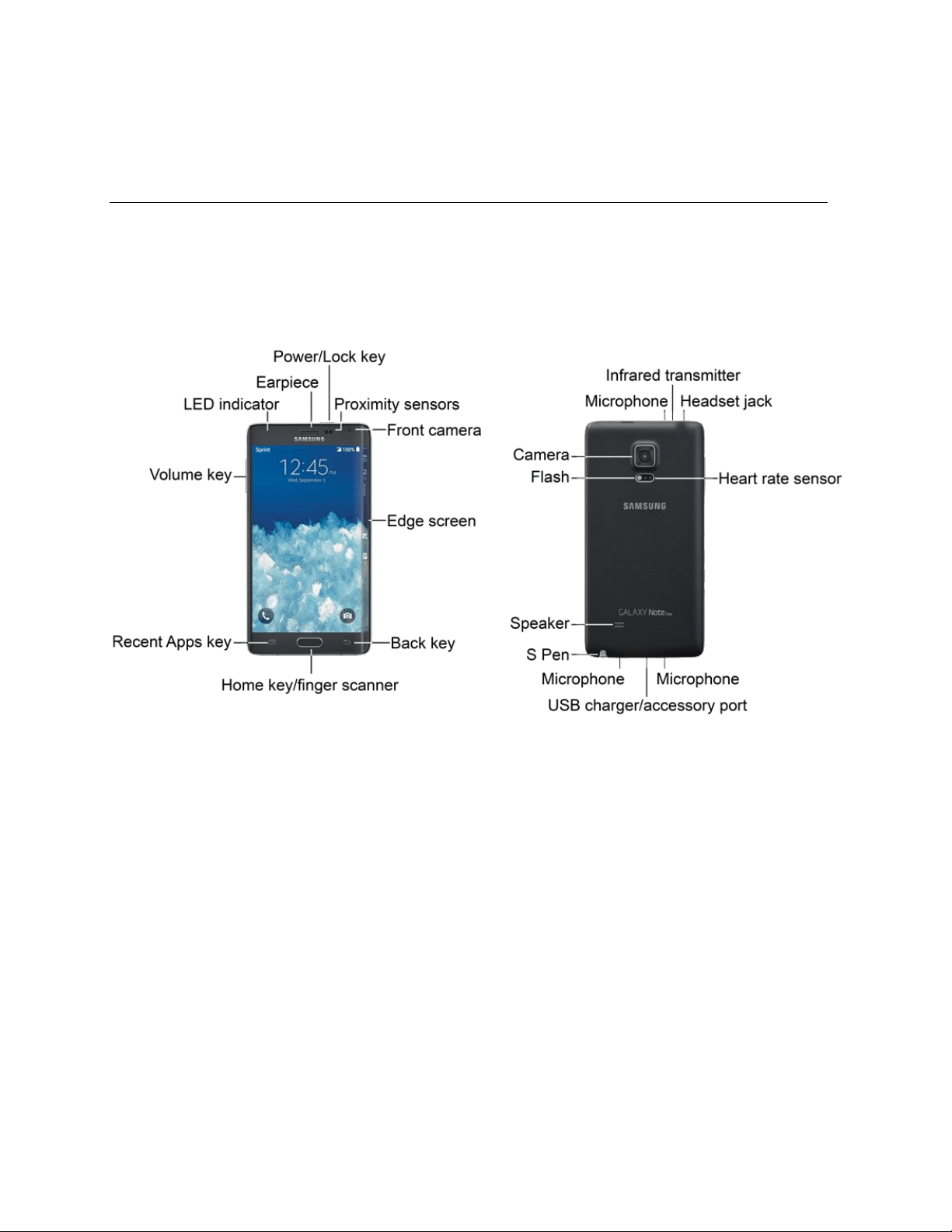
Your Phone at a Glance
The following illustration outlines your phone’s primary features.
Set Up Your Phone
Before using your new phone, you must install and charge the battery. You may also install an optional
memory card (not included).
Note: Your phone’s battery should have enough charge to turn the phone on and find a signal,
complete the setup wizard, set up voicemail, and make a call. You should fully charge the battery as
soon as possible.
Get Started 1
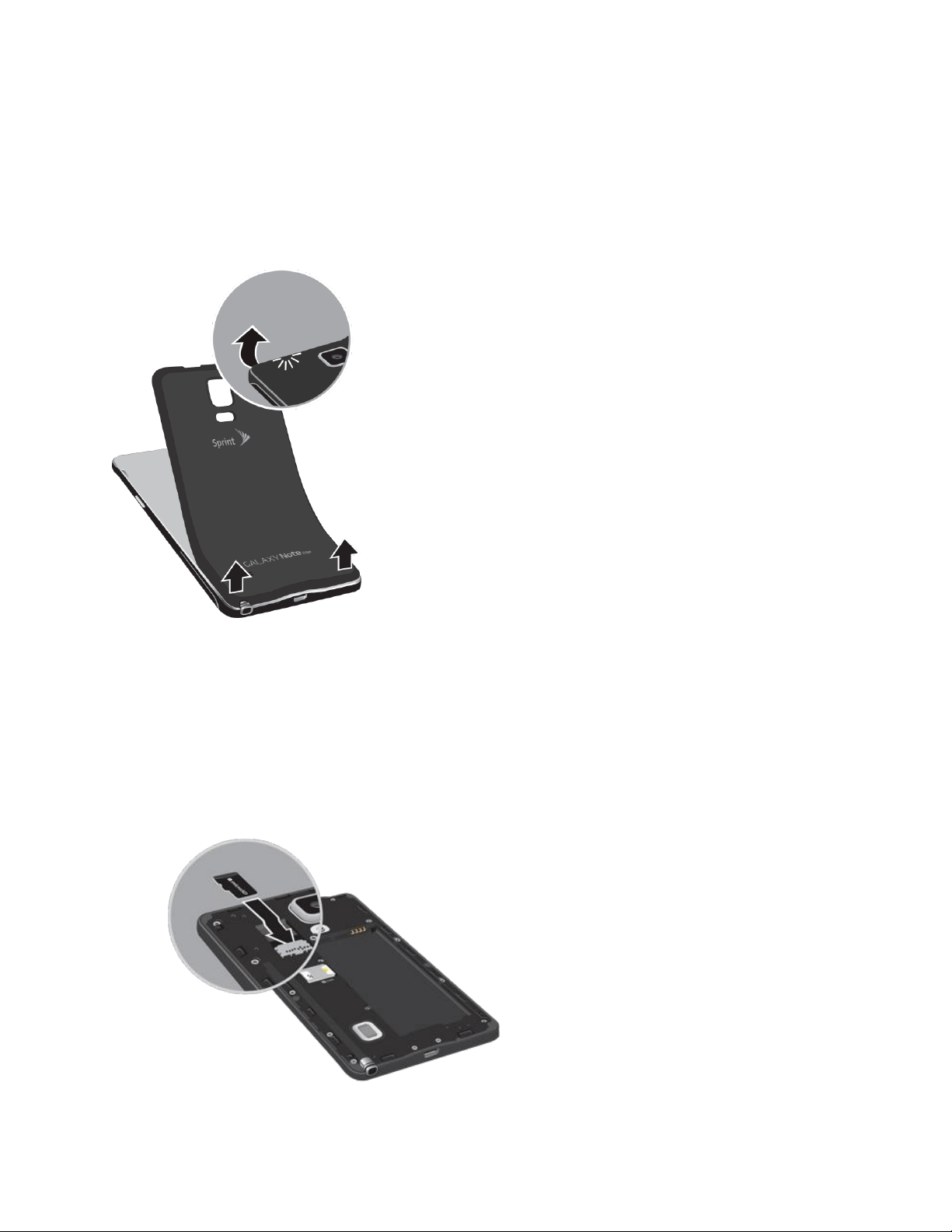
Remove the Back Cover
Remove the cover for access to the SIM card, optional memory card (not included), and the battery.
1. Remove the back cover using the slot on the top of your phone.
2. Carefully lift the cover.
Warning: Do not bend or twist the back cover excessively. Doing so may damage the cover.
Install a Memory Card (Optional)
You can use an optional microSD
™
or microSDHC
™
memory card (not included) to expand available
memory space.
■ Carefully slide the memory card into the memory card socket (as shown) until the card locks
into place. Make sure that the card’s gold contacts face into the phone and that the card is
positioned as shown.
Get Started 2
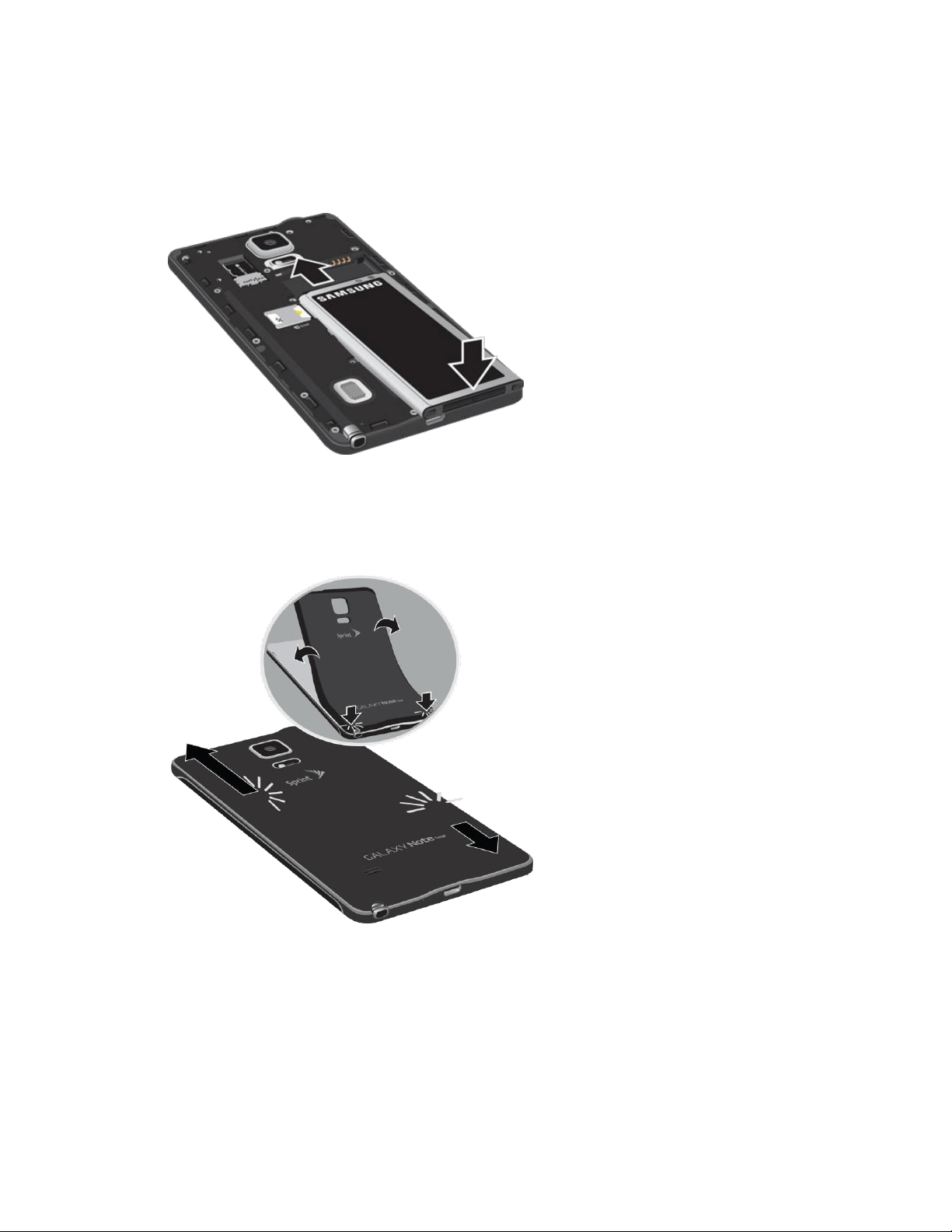
Install the Battery
■ Insert the battery, aligning the gold contacts on the battery with the gold contacts on the phone,
and gently press the battery into place.
Replace the Back Cover
■ Replace the battery compartment cover, making sure all the tabs are secure and there are no
gaps around the cover.
Get Started 3
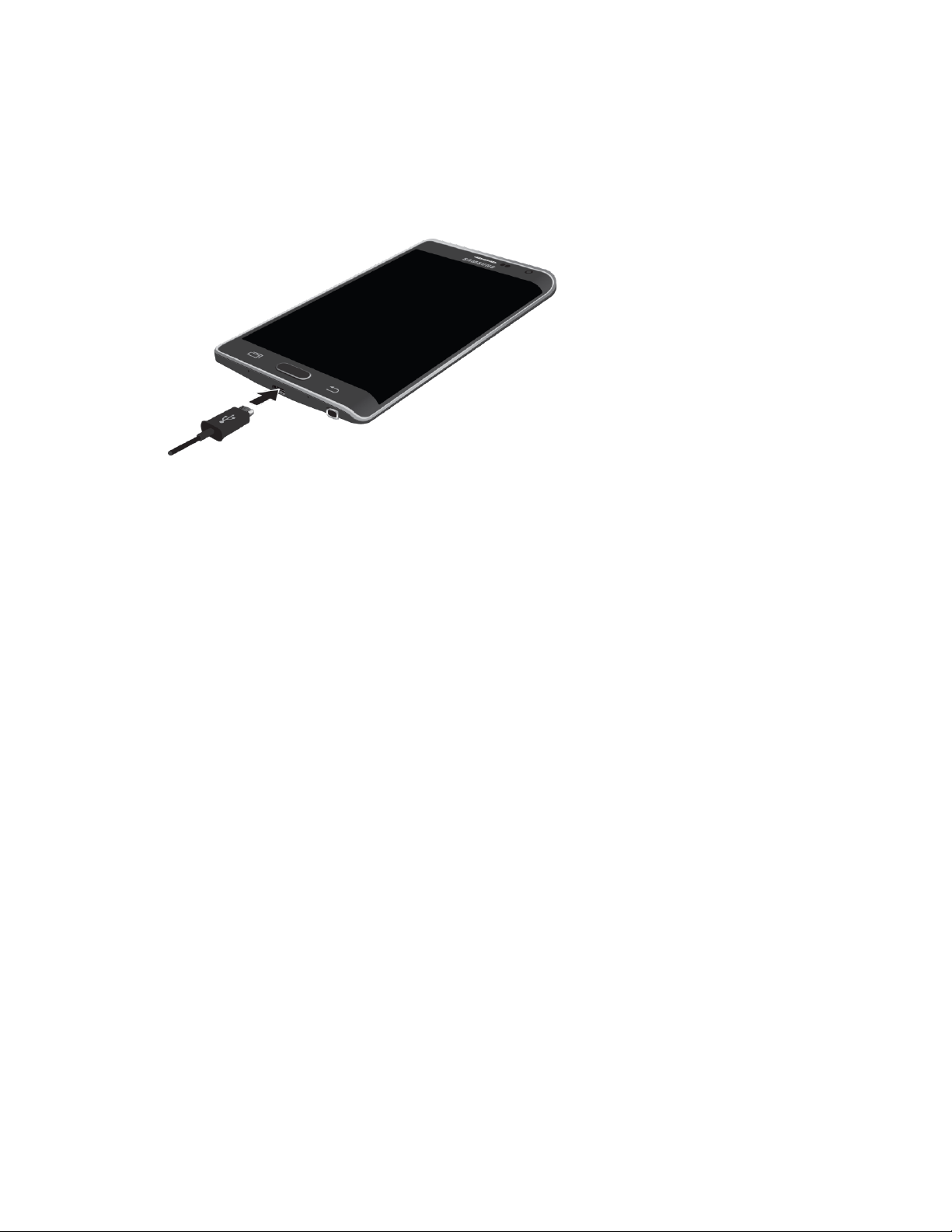
Charge the Battery
For fastest charging times, use the Samsung Adaptive Fast Charger that came with your phone. This
charger provides faster charging only when connected to devices that have Adaptive Fast Charging.
1. Plug the USB cable into the USB Charger/accessory port on the bottom of the phone.
2. Plug the other end of the USB cable into the Adaptive Fast Charging charger, and then plug the
Charging Head into an electrical outlet to charge your battery.
Caution: Use only Samsung-approved charging devices. Samsung accessories are designed for your
device to maximize battery life. Using other accessories may invalidate your warranty and may cause
damage.
Activate Your Phone
Follow the instructions below to activate your phone if it has not already been activated. Depending on
your account or how and where you purchased your phone, it may be ready to use or you may need to
activate it on your Sprint account.
● If you purchased your phone at a Sprint Store, it is probably activated and ready to use.
● If you received your phone in the mail and it is for a new Sprint account or a new line of service,
it is designed to activate automatically.
When you turn the phone on for the first time, you should see a Hands free activation
screen, which may be followed by a PRL update screen and a Firmware update screen.
Follow the prompts to continue.
● If you received your phone in the mail and you are activating a new phone for an existing
number on your account (you are swapping phones), you can activate on your computer online
or directly on your phone.
Activate on your computer:
• Go to sprint.com/activate and complete the online instructions to activate your phone.
Get Started 4

Activate on your phone:
• Turn on your new phone. (Make sure the old one is turned off.) Your phone will
automatically attempt Hands-Free Activation.
• Tap Activate to override auto-activation and start the manual activation wizard.
• Follow the prompts to complete the activation process.
To confirm activation, make a phone call. If your phone is still not activated, visit sprint.com/support for
assistance. If you do not have access to the Internet, call Sprint Customer Service at 1-888-211-4727
from another phone.
Tip: Do not press the Power/Lock key while the phone is being activated. Pressing the Power/Lock
key cancels the activation process.
Note: If you are having any difficulty with activation, visit sprint.com/support.
Complete the Setup
After you turn on your phone and activate it, your phone displays a Welcome screen. From the
Welcome screen follow the prompts to set up features and preferences on your phone.
Note: In some cases, you may be able to complete the setup process before your phone has been
activated on your Sprint account.
1. At the Welcome screen, select a language and tap Start.
2. Follow the instructions to configure your phone’s basic options, such Wi-Fi
®
connections, EULA
& Diagnostic Data, Tap & Go options, location settings, and more.
Google Account: M
any of your phone’s applications, such as Gmail
™
, Google Hangouts
™
,
and the Google Play
™
store, require a Google
™
Account. To use these applications, you
must set up your Google Account on your phone. Complete the steps to sign in to your
current Google Account, or sign up for a new Google Account.
Samsung Account: Your Samsung Account is used for access
to Samsung apps and
services. Complete the steps to sign in to your current Samsung Account, or sign up for a
new Samsung Account.
Reactivation Lock: Protect your device in case it is lost or stolen by stopping other people
from reactivating your device after it has been reset. You need a Samsung account to use
this service.
3. Tap Finish to complete setup.
You may see a series of informational or update screens. Follow the prompts to continue.
Get Started 5

Set Up Voicemail
Your phone automatically transfers all unanswered calls to voicemail, even if your phone is in use or
turned off. You should set up your Sprint Voicemail and personal greeting as soon as your phone is
activated. Always use a passcode to protect against unauthorized access.
Note: Voicemail Passcode – Sprint strongly recommends that you create a passcode when setting up
your voicemail to protect against unauthorized access. Without a passcode, anyone who has access to
your phone is able to access your voicemail messages.
1. From home, tap
Phone.
If your screen is locked, press the Power/Lock key to turn on the display and then swipe
your screen in any direction. See Turn Your Screen On and Off
.
2. Touch and hold (1) to dial your voicemail number.
3. Follow the system prompts to:
Create your passcode.
Record your name announcement.
Record your greeting.
Tip: You can also access and set up voicemail with the Visual Voicemail app. From home, tap
Apps > Voicemail, and then tap Personalize now.
Get Started 6
Phone Basics
Your phone is packed with features that simplify your life and expand your ability to stay connected to
the people and information that are important to you. The following topics will introduce the basic
functions and features of your phone.
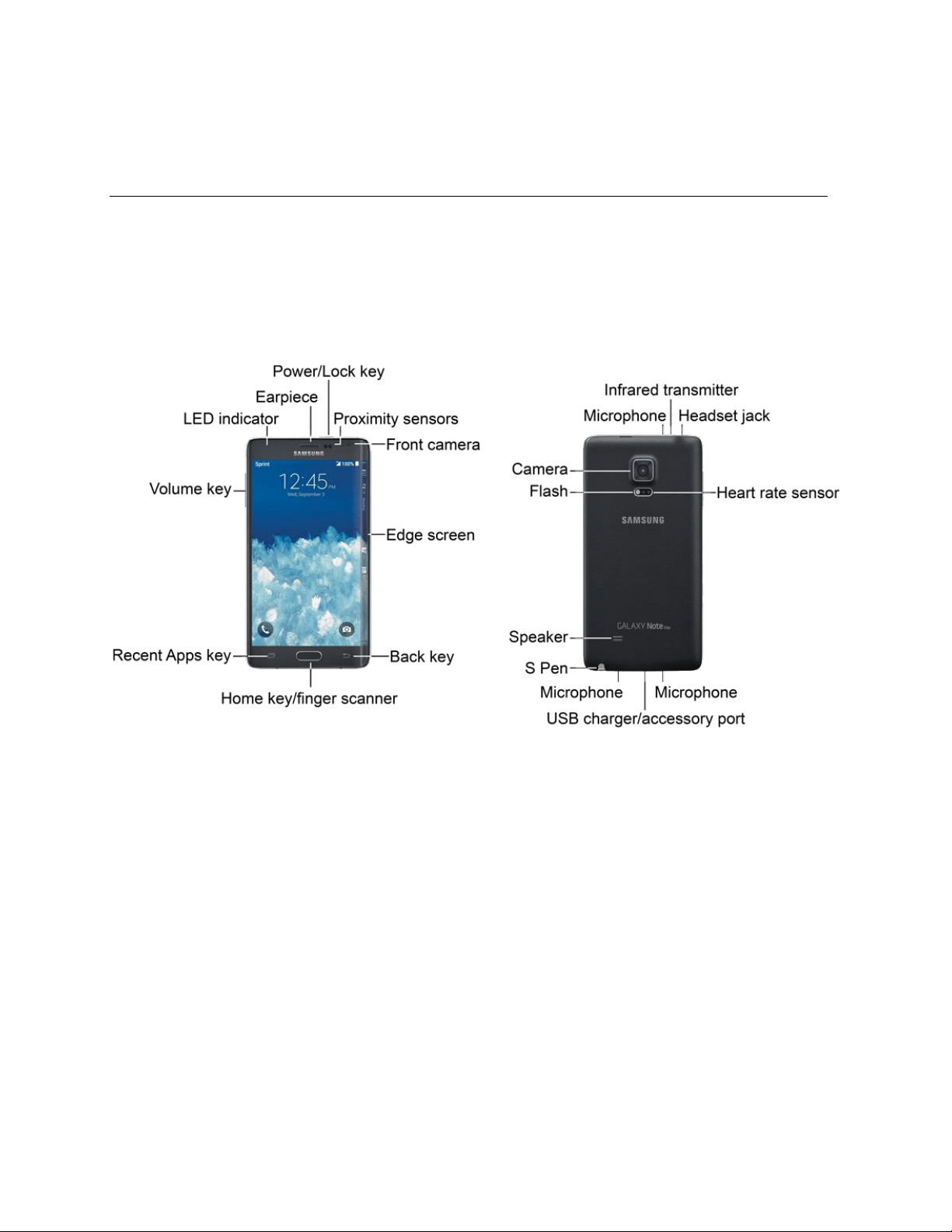
Your Phone’s Layout
This illustration outlines your phone’s basic layout.
The following list defines the features listed in the above illustrations.
Features
Front View
● Power/Lock key: Turn the phone or screen on or off, enable Airplane mode, or restart the
phone.
● Proximity sensors: Detect when objects are close to the screen. For example, when you hold
the phone to your ear while on a phone call, the sensors temporarily lock the screen to prevent
accidental screen touches.
● Front camera: Takes pictures and records videos while facing the screen, and allows you to
video conference.
● Edge screen: The Edge screen provides convenient access to shortcuts, widgets, and features
that are most useful to you. Select and customize panels to make the Edge screen work for
you.
Phone Basics 1

● Back key: Return you to the previous screen, or close a dialog box, options menu, the
notification panel, or the keyboard.
● Home key/finger scanner: Returns to the home screen. The Home key can also act as a
fingerprint scanner for security (unlock) and other applications.
● Recent Apps key: Access recently used apps.
● Volume key: Adjust the ringtone or media volume or adjust the voice volume during a call.
● LED indicator: Glows or blinks in different colors to show status when the screen is turned off.
The LED glows red when charging, and blinks red when the battery is low; blinks blue when
there is a new notification, or when you are recording voice with the screen turned off; and
glows green when the battery is fully charged and the phone is attached to a charger.
● Earpiece: Listen to calls and automated prompts when using the phone.
Back
View
● Microphone: Transmit your voice for phone calls or re
cord
your voice or ambient sounds for
voice recordings and videos. There are three microphones, one on the top and two on the
bottom.
● Infrared transmitter: Controls other devices, such as a TV.
● Headset jack: Plug in a headset for convenient, hands-free conversations.
● Heart rate sensor: Meas
ures your heart rate when you hold your finger over the sensor, for
use with apps like S Health
™
. For more information, see
S Health.
● USB charger/accessory port: Connects the charger/USB cable (included) and other optional
accessories (not included).
● S Pen: Storage location for the S Pen
™
stylus.
● Sp
eaker: Plays ringtones and sounds. The speaker also lets you hear the caller’s voice in
speakerphone mode.
● Flash: Helps illuminate subjects in low-light environments when the camera is focusing and
capturing a photo or video.
● Camera: Takes pictures and record videos.
Caution: Inserting an accessory into the incorrect jack may damage the phone.
Phone Basics 2

Turn Your Phone On and Off
Use the Power/Lock key to turn the phone on or off.
Turn the Phone On
■ Press and hold the Power/Lock key.
Turn the Phone Off
1. Press and hold the Power/Lock key to display the Device options menu.
2. Tap Power off > Power off to turn the phone off.
The screen remains blank while your phone is off. If the phone is off during charging, the screen
displays a charging animation.
Turn Your Screen On and Off
Your phone allows you to quickly turn the screen off when not in use and to turn it back on and unlock it
when you need it.
Turn the Screen Off When Not in Use
Save battery power by turning of the screen when not in use.
■ To quickly turn the screen off, press the Power/Lock key. Pressing the Power/Lock key again
will turn on the screen and display the lock screen.
To save battery power, the phone automatically turns off the screen (times out) after a certain period of
time when you leave it idle. You will still be able to receive messages and calls while the phone’s
screen is off.
Note: For information on how to adjust the time before the screen turns off, see Screen Timeout.
Turn the Screen On and Unlock It
1. To turn the screen on, press the Power/Lock key.
2. Unlock the screen:
If you are using the default screen lock, swipe the screen in any direction to unlock it.
If you have set up a screen lock, use your screen lock. See Screen Lock.
Phone Basics 3
Touchscreen Navigation
Your phone’s touchscreen lets you control actions through a variety of touch gestures.
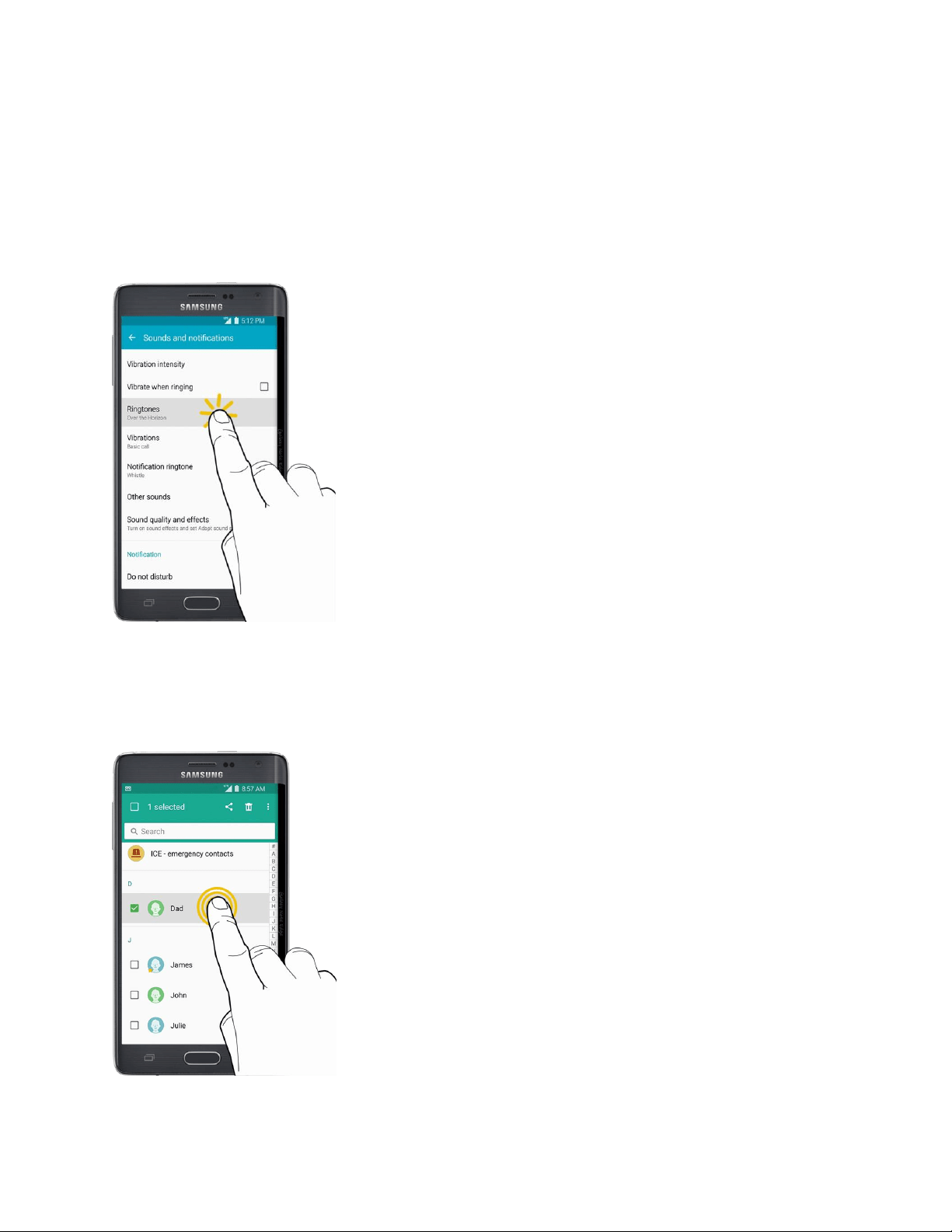
Tap
When you want to select items such as applications and settings icons, or type using the keys of the
onscreen keyboard, simply tap them with your finger.
Touch and Hold
To open the available options for an item (for example, a contact or link in a Web page), touch and hold
the item.
Phone Basics 4
Swipe or Slide
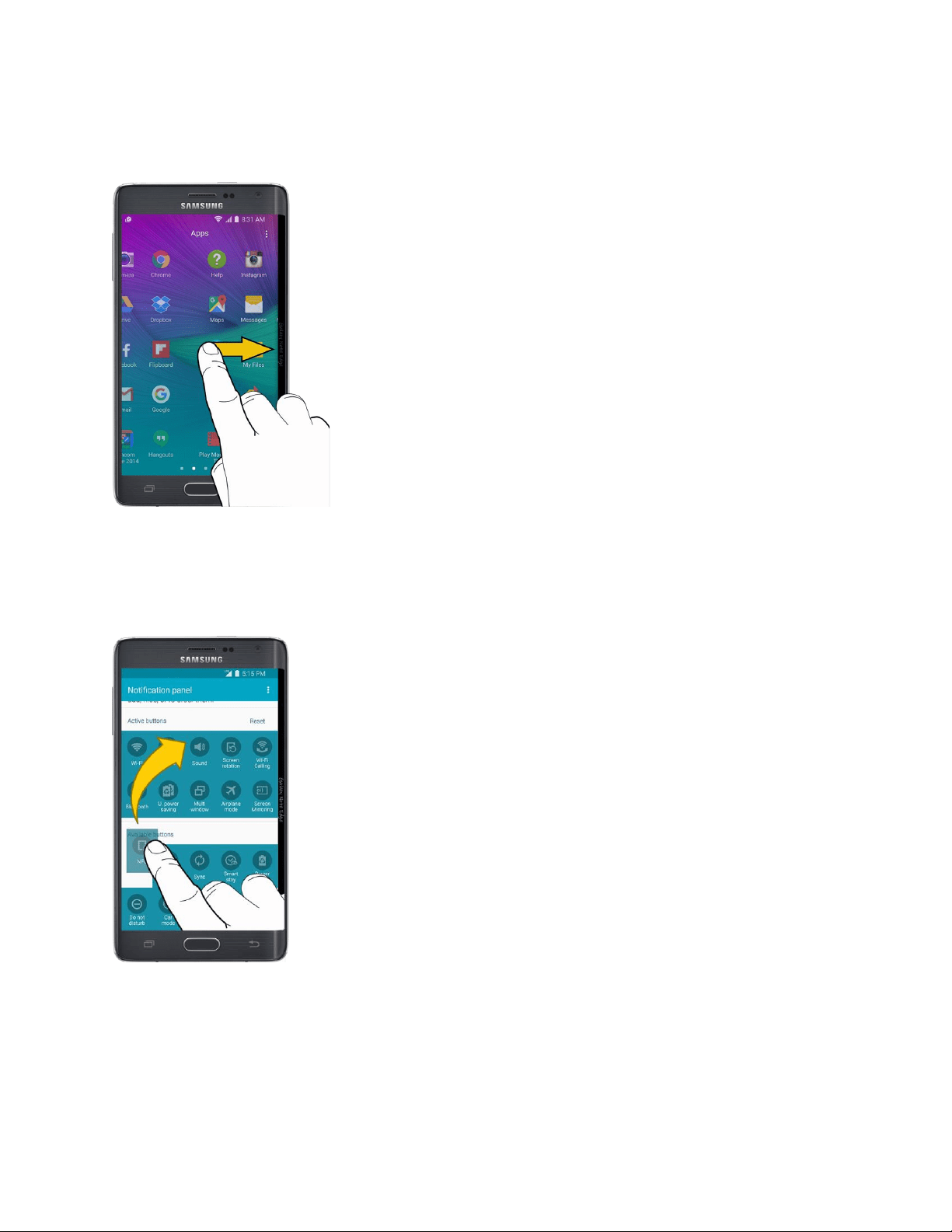
To swipe or slide means to quickly drag your finger vertically or horizontally across the screen.
Drag
To drag an item, touch and hold your finger with some pressure before you start to move your finger.
While dragging, do not release your finger until you have reached the target position.
Phone Basics 5
Flick
Flicking the screen is similar to swiping, except that you need to swipe your finger in light, quick strokes.
This finger gesture is always in a vertical direction, such as when flicking the contacts or message list.
Rotate
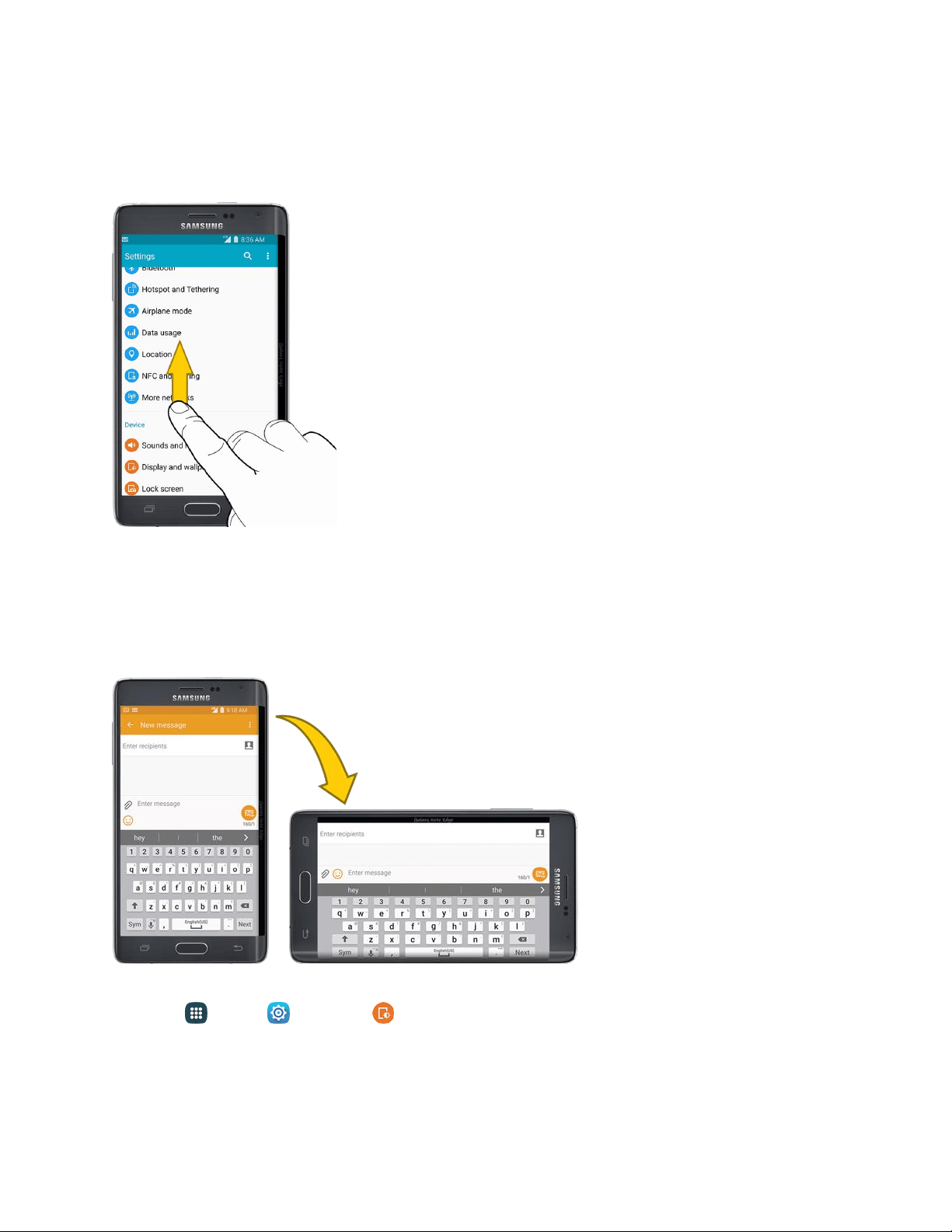
For most screens, you can automatically change the screen orientation from portrait to landscape by
turning the phone sideways. When entering text, you can turn the phone sideways to bring up a bigger
keyboard.
Note: You can control screen rotation with the Screen rotation setting. To make this selection, from
home, tap Apps > Settings > Display and wallpaper > Screen rotation. See
Screen
Rotation for more information.
Phone Basics 6
Pinch and Spread
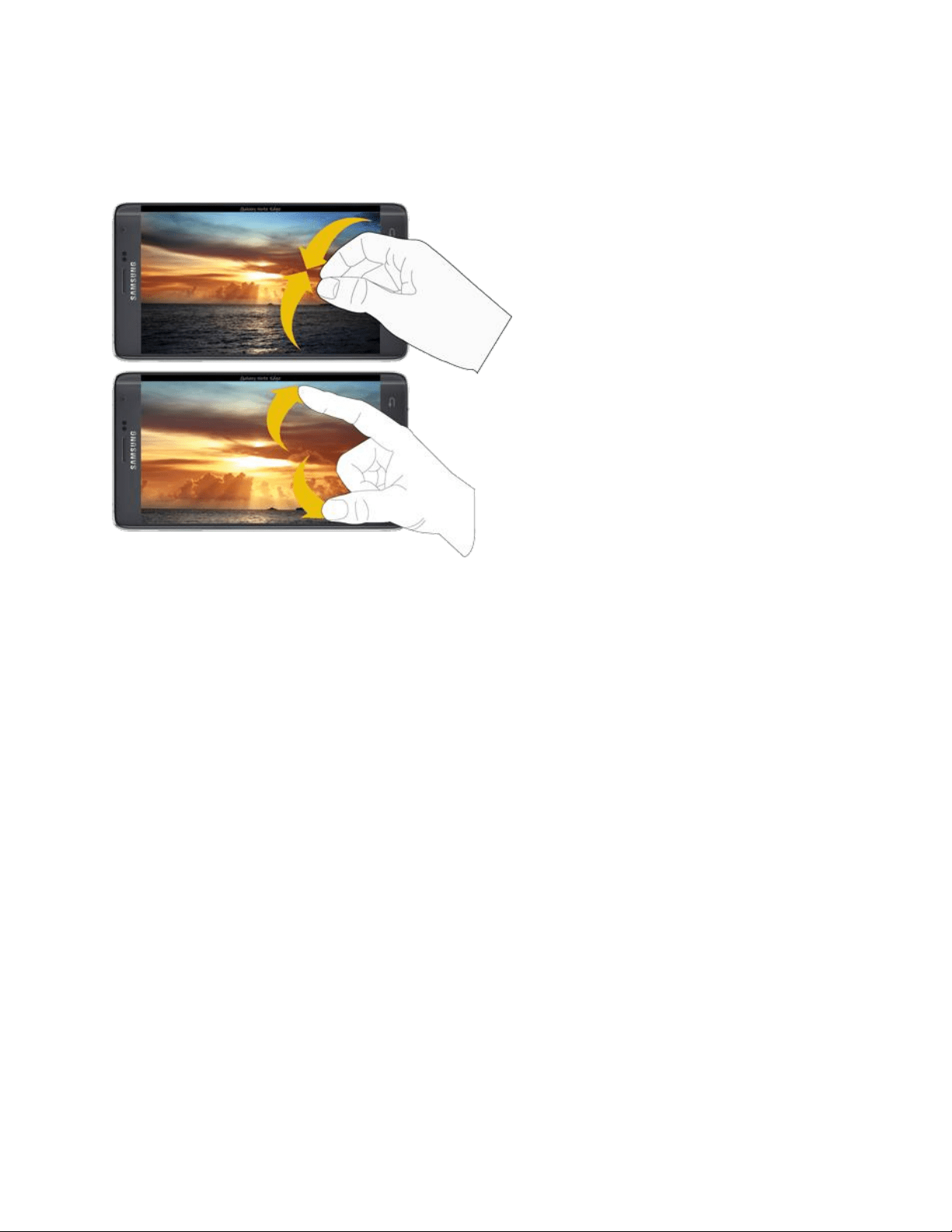
Pinch the screen using your thumb and forefinger to zoom out or spread the screen to zoom in when
viewing a picture or a Web page. (Move fingers inward to zoom out and outward to zoom in.)
Tip: Pinching any home screen will show you options to customize home screens, or tap a thumbnail to
go straight to another screen.
Phone Basics 7
Your Home Screen
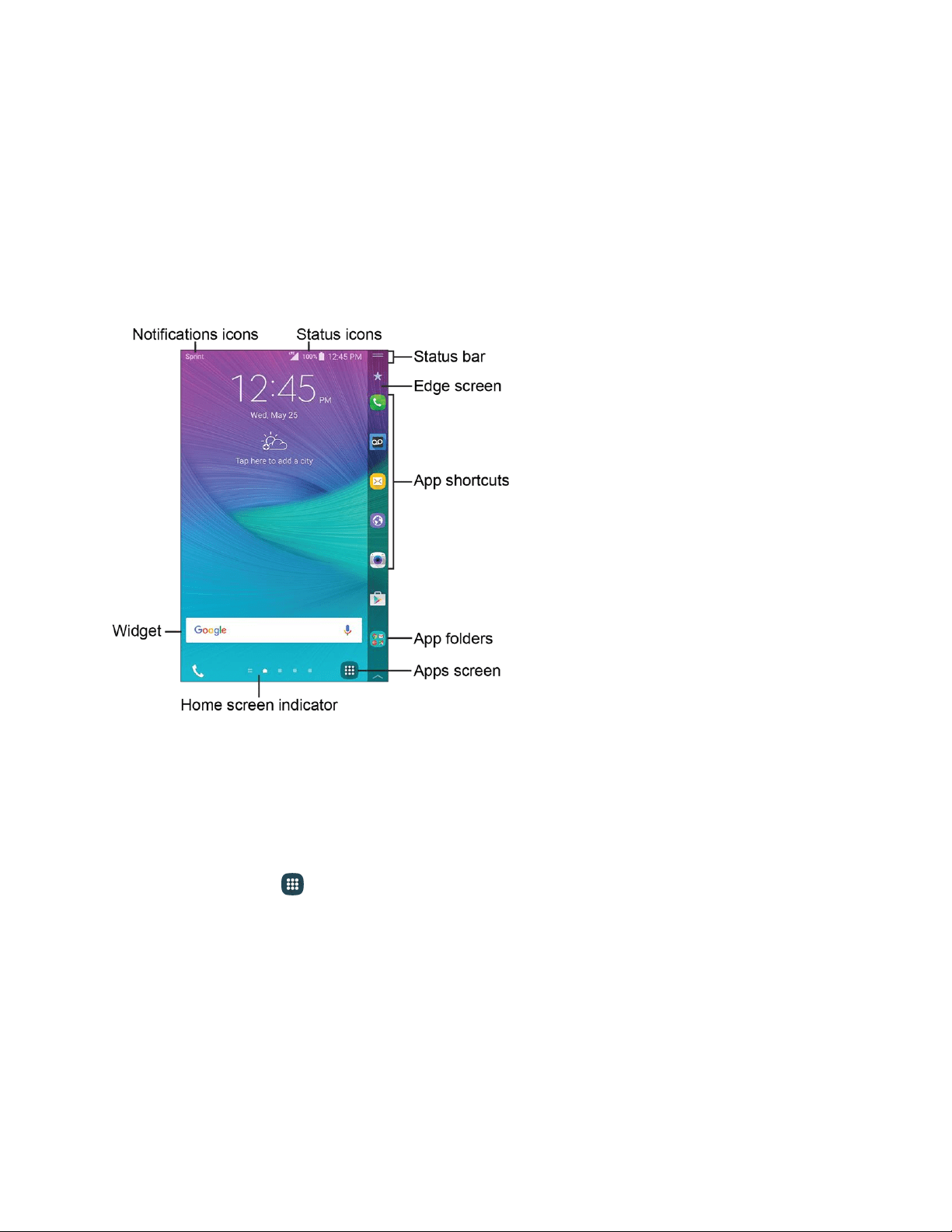
The home screen is the starting point for your phone’s applications, functions, and menus. You can
customize your home screen by adding application icons, shortcuts, folders, widgets, and more. The
home screen extends beyond the initial screen. Swipe the screen left or right to display additional
screens.
Note: The indicator near the bottom of the screen shows your current screen position.
Tip: Press the Home key to return to the main home screen from any other screen.
Customize Your Home Screen
You can customize your home screen by adding shortcuts, folders, widgets, and more.
Create a Shortcut
Use shortcuts to launch an app from the home screen.
1. From home, tap Apps.
2. Touch and hold an app icon, and then drag it to a home screen an
d release it.
Move a Shortcut
Move a shortcut to another home screen.
1. From home, touch and hold a shortcut to undock it.
2. Drag the icon to a different location, and then release it.
Phone Basics 8

Remove a Shortcut
Remove a shortcut from the home screen.
1. From home, touch and hold a shortcut to undock it.
2. Drag the icon to Remove and then release it.
Note: Removing a shortcut does not delete the app, it just removes the shortcut from the home screen.
Add a Widget
Widgets are self-contained apps that display on a home screen. Unlike a shortcut, the widget works like
as an onscreen application. There are all kinds of widgets, including links to a specific contact, Internet
bookmarks, Gmail and email accounts, and many others.
1. From home, pinch the screen.
– or –
Touch and hold an empty space on the screen.
2. Tap Widgets, and then scroll to find one.
3. Touch and hold the widget, and then drag it to a home screen and release it.
Remove a Widget
Remove a widget from the home screen.
1. From home, touch and hold on a widget to undock it.
2. Drag the widget to
Remove and release it.
Note: Removing a widget does not delete the widget; it j
ust removes the widget from the home screen.
Choose Wallpapers
Change the look of the home and lock screens with wallpaper. You can display a favorite picture, or
choose from preloaded wallpapers.
1. From home, pinch the screen.
– or –
Touch and hold an empty space on the screen.
2. Tap Wallpapers, and then choose Home screen, Lock screen, or Home and lock screen.
3. Tap a wallpaper to see a sample, and then tap Set as wallpaper.
Phone Basics 9

Configure Home Screen Settings
Choose options for the home screen.
1. From home, pinch the screen.
– or –
Touch and hold an empty space on the screen.
2. Tap Home screen settings, and then enable or disable these options:
Transition effect: When enabled, a page-turning effect displays as you scroll through the
home screens.
Flipboard Briefing: View all Flipboard Briefing updates on the home screen. When
enabled, Flipboard Briefing displays on the far-left screen. For more information, see
Flipboard
.
Note: If Flipboard Briefing is disabled, your home screen
s will “swipe through,” meaning you can swipe
in either direction from the main home screen and swipe through all the screens to return to the main
home screen.
Extended Home Screens
In addition to the main home screen, your phone has up to six extended home screens to provide more
space for adding shortcuts, widgets, and more.
Note: You can have up to seven screens, including the main home screen.
Add a Home Screen
You can have up to seven home screens.
1. From home, pinch the screen.
– or –
Touch and hold an empty space on the screen.
2. Swipe to the right, and then tap
Add on a screen to add it.
Phone Basics 10
Delete a Home Screen
You can delete home screens, except for the default screens.
1. From home, pinch the screen.
– or –
Touch and hold an empty space on the screen.
2. Scroll to the screen you want to delete. Touch and hold the screen, and then drag it to
Remove.
Status Bar and Notification Panel
The status bar at the top of the home screen provides phone and service status information on the right
side and notification alerts on the left. To view notifications, open the notification panel by touching and
holding the status bar and dragging it down.
Status Bar
The status bar displays icons to notify you of your phone’s status, as well as notifications.
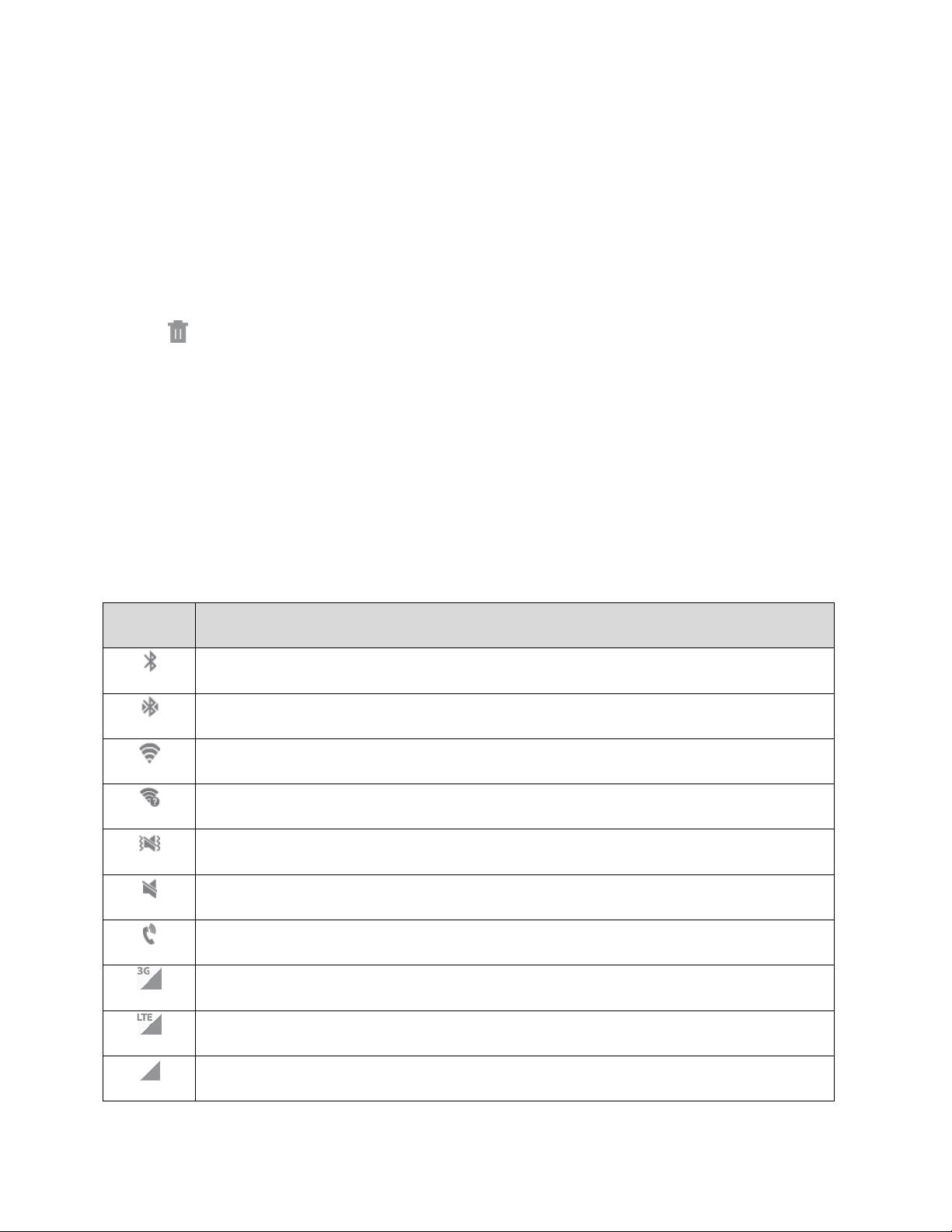
Status Icons
Icon
Description
Bluetooth: Bluetooth
®
is active.
Bluetooth connected: Bluetooth is on, and your phone is connected to another device.
Wi-Fi: Wi-Fi is active.
Wi-Fi available: Wi-Fi networks are available.
Vibrate mode: Vibrate mode is enabled.
Mute mode: Mute mode is enabled.
Speakerphone: Call is using speakerphone.
3G: The device is connected to a 3G wireless network.
4G LTE active: The device is connected to a 4G LTE wireless network.
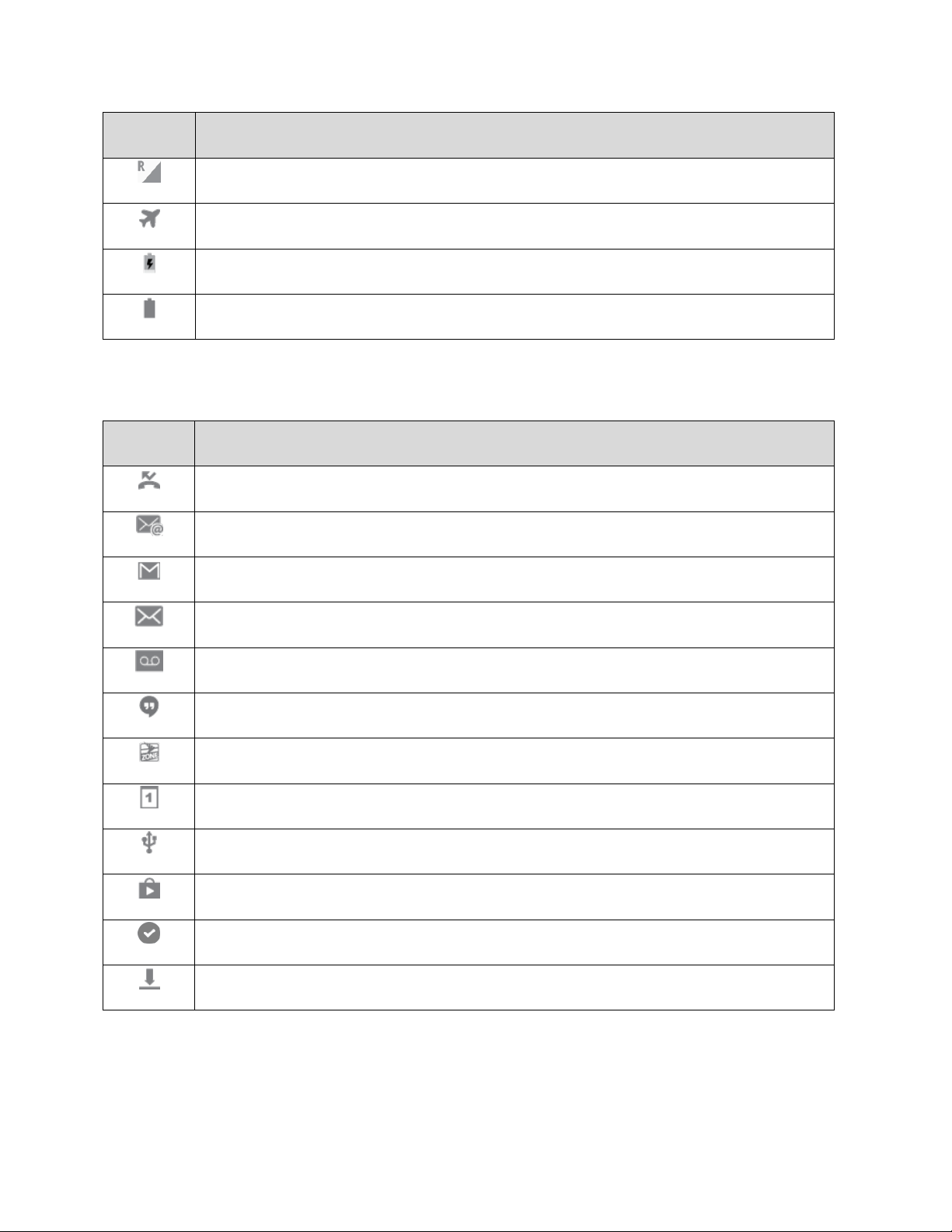
Signal strength: Cellular network signal strength is displayed.
Phone Basics 11
Icon
Description
Roaming signal strength: Roaming network signal strength is displayed.
Airplane mode: Airplane mode is active.
Battery charging: Battery is charging.
Battery full: Battery is fully charged.
Notification Icons
Icon
Description
Missed call: A call has been missed.
New email: New email has arrived.
New Gmail: New Gmail has arrived.
New message: New text or MMS message.
New voicemail: New voicemail message has been received.
New Hangouts message: New Hangouts message has arrived.
New Sprint Zone message: New Sprint Zone message has arrived.
Event: A calendar event is approaching.
USB: A USB connection is active.
Update available: An app update is available from the Google Play store.
Update successful: An app or software update was successful.
File download in progress: Download of a file or app is in progress.
Note: Additional notification icons may appear. All notifications may be accessed through the
notification panel.
Phone Basics 12

Notification Panel
The notification panel displays details about your phone’s status, and it provides easy access to
common settings and features.
1. Open the notification panel by sliding the status bar down from the top of the screen.
2. On the notification panel, you have these options:
Quick Settings: Quickly access popular settings. Tap a setting to turn the option on or off,
or touch and hold to display its settings. You can swipe your finger across the quick
settings, to see all available settings.
S Finder: Search for content on your phone, and find more on the Web. You can apply
filters to your results, and view your search history.
Quick connect: Search for nearby devices for sharing information.
Quick Settings
Use Quick settings from the notification panel to control popular settings.
1. Slide the status bar down from the top of the screen to display the notification panel.
2. Tap an option to turn it on or off, or touch and hold an option to display its settings. You can
swipe your finger across the quick settings, to see all available features. You also have these
options:
Tap
View all to view more Quick settings.
Tap Settings to access the full Settings menu.
Phone Basics 13
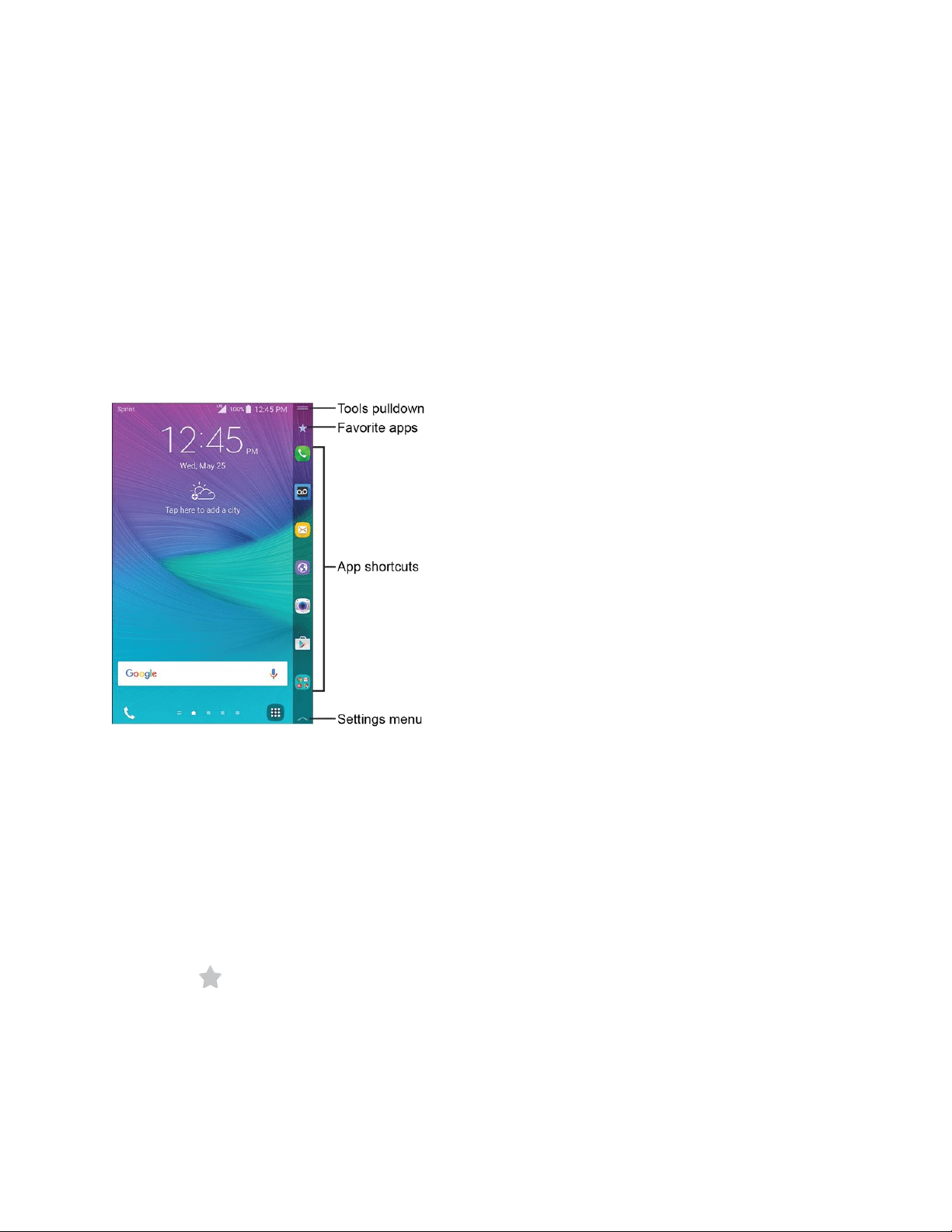
Edge Screen Features
The beautiful curved Edge screen delivers always-on access to incoming calls, email, Internet, apps,
notifications, news and more without interrupting the content on the main screen. Watch a movie,
browse the Internet or take a picture using controls on the curved Edge display. At bedtime, turn your
Edge display into a clock that stays on all night without draining your battery.
The Edge screen provides a variety of useful tools, shortcuts, and widgets. Panels for the Edge screen
can be added, removed, and customized to your preferences. The following sections describe basic
functionality.
Edge Screen Basics
The following illustration displays your phone’s default Edge screen layout and options.
Basic Gestures
The Edge screen responds to basic gestures as follows:
Swipe right or left to switch between panels.
Swipe down to view the Quick Tools.
Swipe up to access settings (only when the scr
een is unlocked).
Customize App Shortcuts
You can choose the apps you want to display in the Edge screen.
■ Tap Favorite apps to display the apps tray on the main screen to edit you
r Edge screen.
To remove an app from the Edge screen, drag it off of th
e tray.
To add an app to the Edge screen, drag it to the tray.
To relocate an app, drag it to a new location.
Phone Basics 14

Quick Tools
You can quickly use preset tools on your Edge screen without disrupting your activity on the main
screen.
1. Swipe down from the top of the Edge screen.
2. Select from the following tools:
Ruler: Use the Edge screen as a ruler. Tap the ruler, and then tap cm to change from
centimeters to inches or inch to change from inches to centimeters.
Stopwatch: Count down with the Edge screen. Tap Start to begin the countdown. Tap
Stop to end the time, Resume to continue the countdown, or Lap to keep the record and
immediately start a new record.
Timer: Use your Edge screen as a timer. Tap the plus and minus signs to set the
length of time. Tap Start to begin the timer, Stop to stop the timer, or Reset to reset the
timer.
Flashlight: Use the camera flash as a flashlight. Tap On to use the flashlight. Tap Off
when you are done.
Voice recorder: User your Edge screen as a voice recorder. Tap Record to begin
recording. Use the Stop, Pause, and Cancel options to edit your recording.
3. Swipe up from the bottom of the Edge screen to close the q
uick tools.
Edge Screen Options
Configure the Edge screen panels to provide convenient functions that are the most useful to you.
■ From home, tap Apps > Settings > Edge screen.
– or –
Swipe Expand upward from the bottom of the Edge screen, and then tap S
ettings.
See Edge Screen Settings for more information.
Phone Basics 15
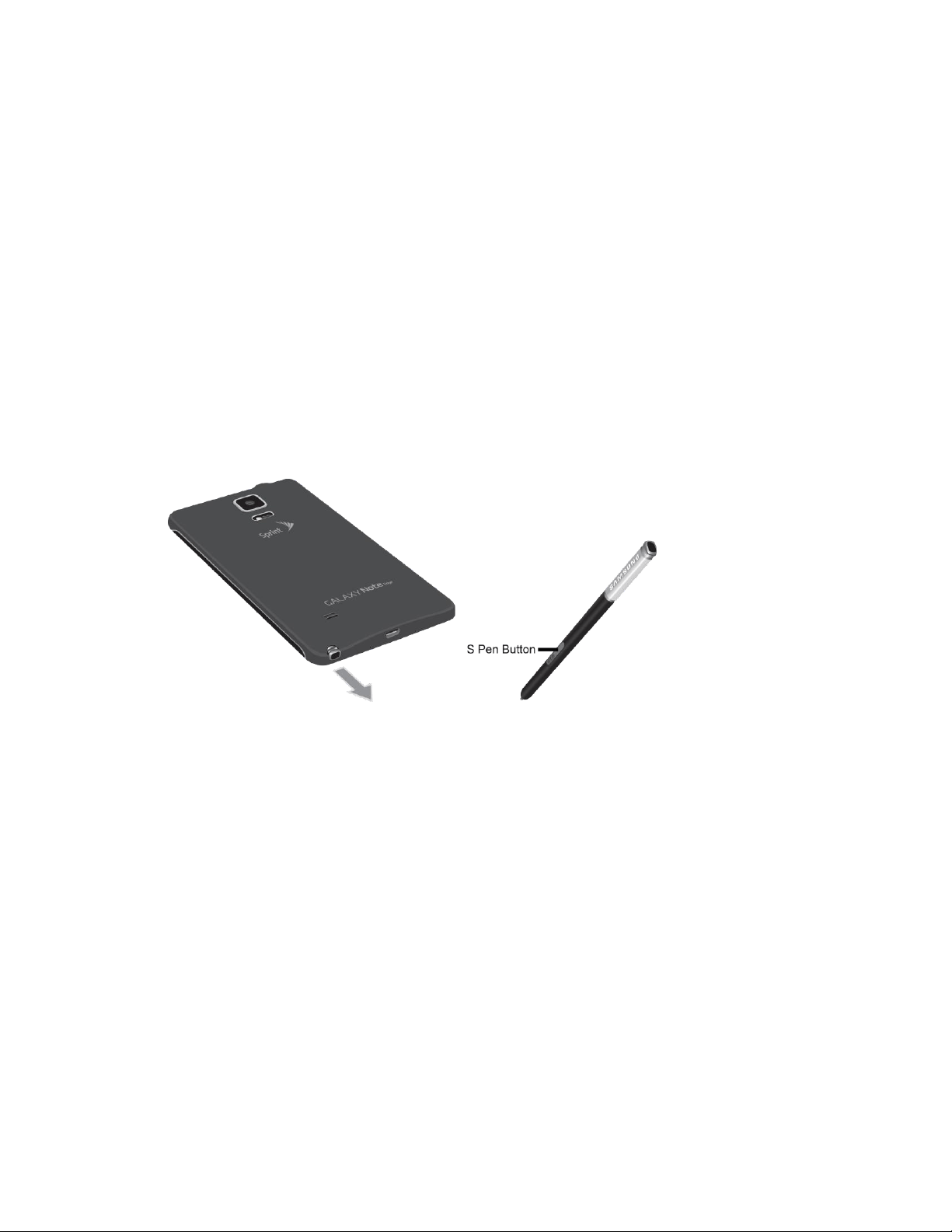
S Pen
Use S Pen and your phone to create and collaborate. With S Pen, you can:
● Write directly into a Gmail message.
● Write directly on the calendar.
● Annotate documents (Word, Excel
®
, PPT, or PDF).
● Quickly open S Note from any screen.
Removing S Pen from Your Phone
S Pen is stored in your phone to keep it protected and easy to locate.
■ Slide S Pen from your phone using the notch on the end of the S Pen.
Phone Basics 16
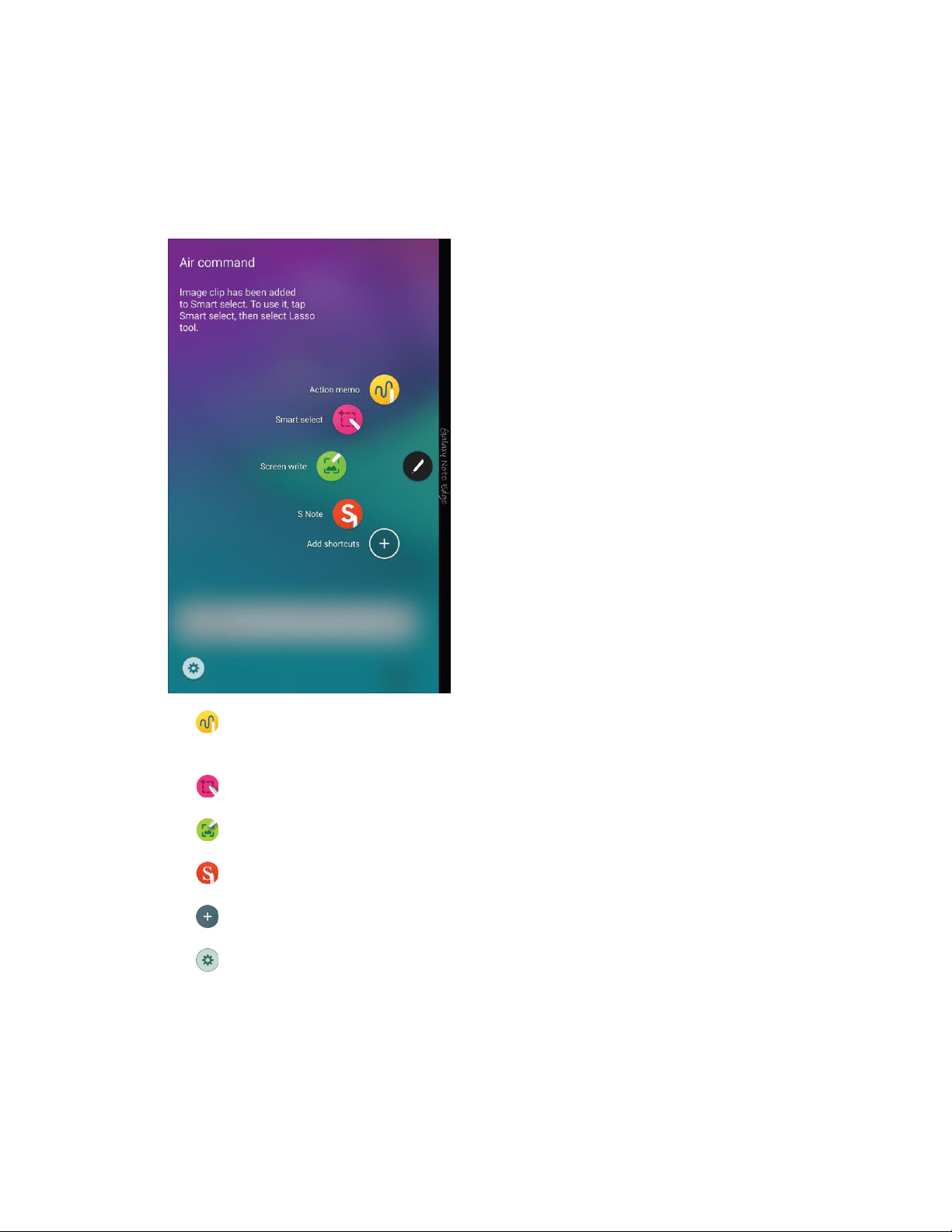
Air Command
Air command allows you to quickly activate frequently used applications or perform actions.
■ To launch the Air command menu, remove the S Pen from the S Pen slot, hold the S Pen near
the screen so that the pointer appears, and press the S Pen button once.
Action memo: Launch a memo and link it to actions. Action memos are saved in the
S Note app.
Smart select: Draw around an area of the screen to collect it for later use.
Screen write: Capture screenshots and write or draw on them.
S Note: Create or edit an S Note.
Add shortcuts: Add up to three apps and functions to the Air command menu.
Settings: Configure Air command.
Phone Basics 17

Action Memo
An Action memo is a special type of note that turns your written text into actions on your phone.
To open an Action memo:
■ Remove the S Pen from the S Pen slot, hold the S Pen near the screen so that the pointer
appears, and press the S Pen button once. Select Action memo.
– or –
Press and hold the S Pen butt
on and double-tap the screen with the pen.
Note: To view your Action memos, from home, tap Ap
ps > S Note. See
S Note for more
information.
Smart Select
Smart select provides a capture tool to select content on a screen and add it to your Scrapbook app or
share it with your contacts.
To use the Smart select tool:
1. Remove the S Pen from the S Pen slot, hold the S Pen near the screen so that the pointer
appears, and press the S Pen button once.
2. Select Smart select.
Tap the shape you want to use: Rectangle, Lasso, or Oval.
Draw ar
ound the content you want to select.
The selected clip is centered on the screen.
• Tap a selection shape to start over and select new content.
• Tap
Auto shape to automatically refine the selection based on the im
age. You can
manually add or subtract from the selection, as well as rotate the selection left or right.
3. Tap an option at the bottom of the window:
Write: Add notes
to the screen using the S Pen.
Share: Choose a sharing method to share your content.
Save in Scrapbook: Save the content in the Scrapbook app.
Save in Gallery: Save the content to the Gallery app.
Phone Basics 18

Screen Write
Screen write allows you to capture a screen shot and then write notes on the screen shot.
To use Screen write:
1. Remove the S Pen from the S Pen slot, hold the S Pen near the screen so that the pointer
appears, and press the S Pen button once.
2. Tap Screen write. The current screen is captured, and a pen tool appears.
The
following editing tools are provided:
Pen: Write or draw on the screen shot. Press the Draw icon
a second time to change the
pen tip, size, color, and to save presets.
Eraser: Erase the writing or drawings on the screen shot. Tap the Eraser icon a second
time to change the size of the eraser area and to see the Clear all option.
Undo: Undo the last action.
Redo: Redo the last action.
Share: Share the image through messaging, Bluetooth, Email, and more.
Save in Scrapbook: Save the content in the Scrapbook app.
Save in Gallery: Save the content to the Gallery app.
Open S Note
Create, edit, and manage all the notes on your phone with the S Note app.
To use S Note:
■ Remove the S Pen from the S Pen slot, hold the S Pen near the screen so that the pointer
appears, and press the S Pen button once.
Tap
S Note. The S Note app opens.
For more information, see S Note.
Phone Basics 19

Add or Remove Air Command Shortcuts
You can add or remove shortcuts to apps and functions to the Air Command menu.
Add Air Command Shortcuts
1. Remove the S Pen from the S Pen slot, hold the S Pen near the screen so that the pointer
appears, and press the S Pen button once.
2. Tap Add shortcuts.
3. Swipe across the screens, and tap the apps or functions
you would like to add to the Air
Command menu.
4. Tap the
Back key to save your selection.
Remove Air Command Shortcuts
You can remove any Air Command app shortcuts you have added.
1. Remove the S Pen from the S Pen slot, hold the S Pen near the screen so that the pointer
appears, and press the S Pen button once.
2. Tap
Settings > Shortcuts.
3. Tap Remove next to any shortcuts you want to remove.
To add a new s
hortcut, tap it from the app list.
4. Tap the Back key to save your settings.
S Pen Options
Configure S Pen settings, including options for gestures and sounds, and for tracking S Pen when it is
not stored in your phone.
■ To access S Pen Settings, tap Apps > Settings > S Pen.
Note: For more information about S Pen settings, see S Pen Settings.
Phone Basics 20

Screen View Options
Your Galaxy Note Edge lets you use additional motions and gestures, along with features such as Multi
window
™
, to maximize your productivity and enjoyment.
Motions and Gestures
Control your phone by making specific gestures with your hand above the phone’s screen.
● Direct call: Call the contact whose recent call log, message, or contact details are displayed by
lifting the phone to your ear.
● Smart alert: The phone vibrates to alert you to missed calls and messages that occurred since
the last time you picked up your phone.
● Mute: Mutes incoming calls, alerts, and media playback by turning the phone screen-side down
or by covering the screen with your hand.
● Palm swipe to capture: Creates a copy of the current screen by swiping the side of your hand
across the screen, from left to right or right to left. The screen shot is saved to the clipboard and
to the Screenshots folder in the Gallery application.
Enable Motions and Gestures
1. From home, tap Apps > Settings > Motions and gestures.
2. Tap an option to view its description, and then tap On/
Off to enable the feature.
Multi Window
Use two apps on the same screen, in separate, resizable windows.
Turn Multi Window On or Off
Turn Multi window on or off in Settings.
1. From home, tap Apps > Settings > Multi window.
2. Tap the On/Off switch to turn Multi window on or off.
Note: You can
also turn Multi window on and off from the notification panel. See Notification Panel for
more information.
Display Multi Window
After you turn Multi window, the Multi window panel displays on the left side of the screen. After a few
seconds, it automatically closes.
Phone Basics 21
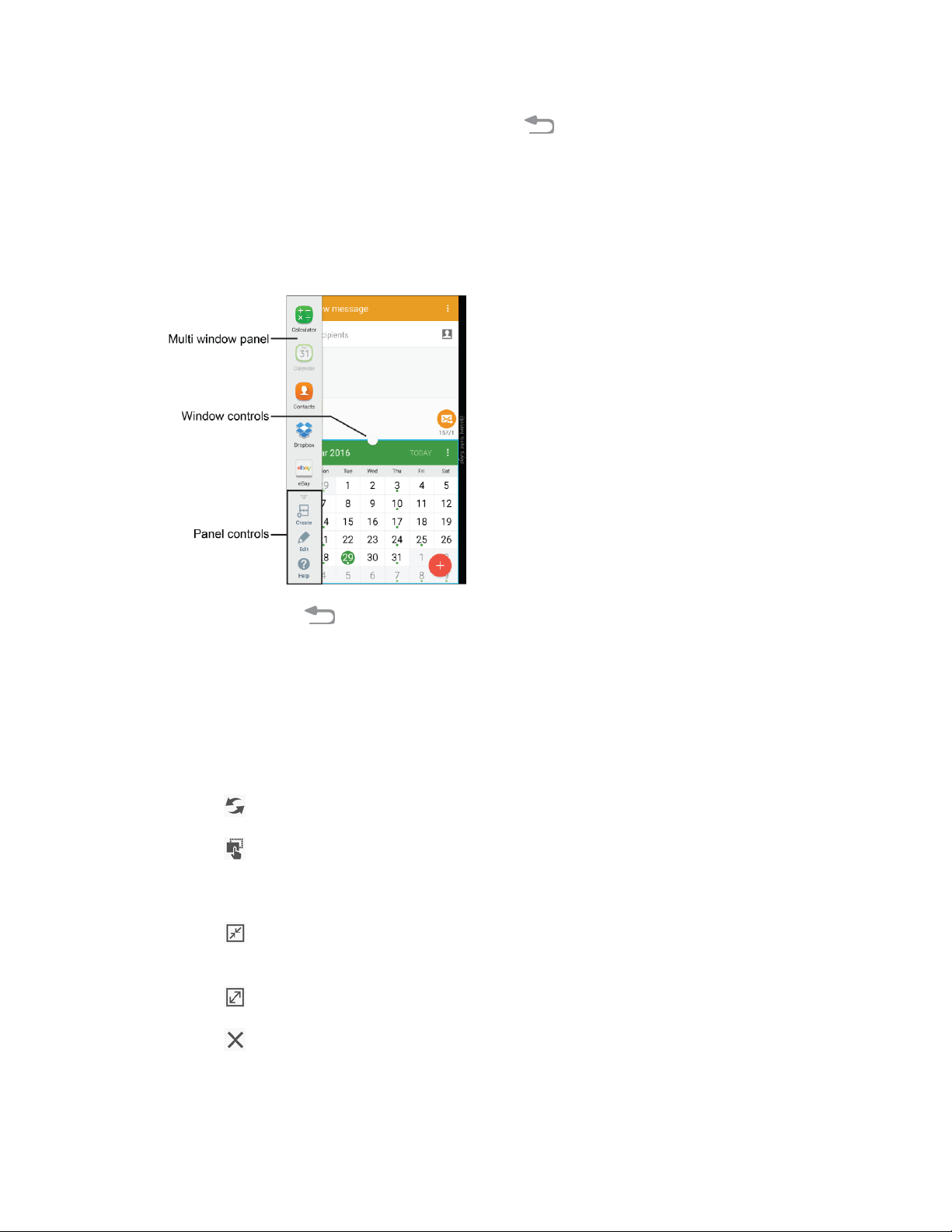
■ To display the Multi window tab, touch and hold the
Back key.
Work with Multi Window
After enabling Multi window, you can use it to run two apps at the same time. You can launch apps from
Multi window, or drag an app to the screen to run multiple apps at the same time.
The apps display together on a split screen. You can switch between the apps, adjust the size of their
display on the screen, and copy information from one app to the other.
1. Touch and hold the Back key to display the panel, and then drag apps to the windows.
2. You can also use these Multi window options:
Adju
st the size of apps in Multi window: Drag the border between the windows to a new
position.
Multi window panel: Tap the circle at the center of the border between the windows to
display the Multi window panel:
•
Switch windows: Switch the two apps’ locations.
• Drag and drop content: Enables drag and drop. In selected apps, you can you
can tap text in a window, or tap the window, and then drag to copy content to the app in
the other window.
•
Minimize window: Change the app into a floating icon you can drag anywhere on
the screen. Tap the icon to reopen the app.
•
Maximize window: Open the active app in full screen view.
•
Close application: Closes the active application.
Tip: In Multi window, the currently active application will have an outline around it.
Phone Basics 22
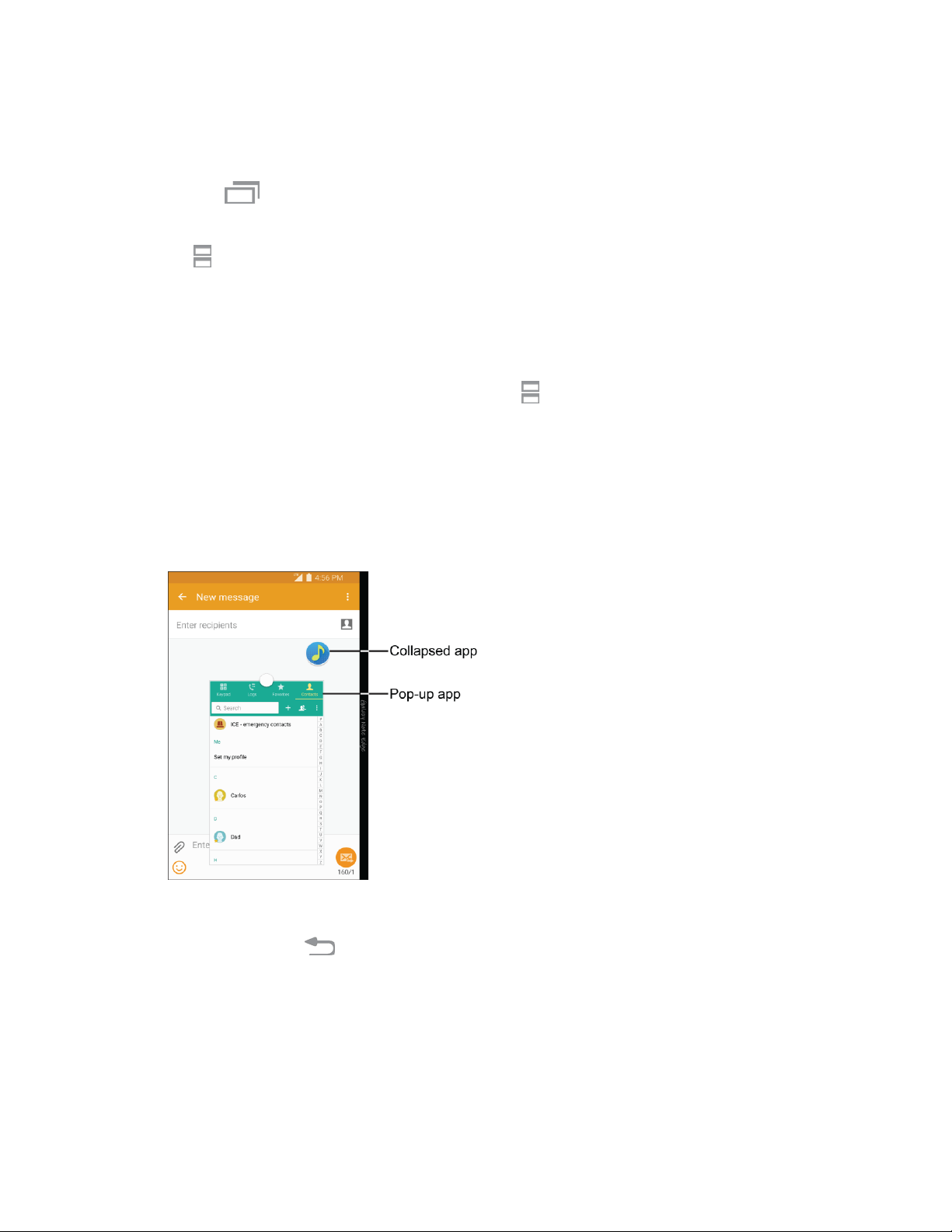
Split Screen View
You can also launch recently used apps directly into split screen view:
1. Tap the Recent Apps key.
2. Recently used apps that support split screen view have a
Multi window icon in the title bar. Tap
the Open in split screen view icon in the title bar to launch the application in Mul
ti window
view.
3. Other recently used apps that support Multi window a
ppear below the launched app.
4. Tap the app icon to add it to the split screen view.
Note: Only applications that support Multi window have the
Open in split screen view icon.
Pop-Up Apps
You can open Multi window apps as pop-up windows, which can float above other apps. You can also
collapse apps into floating icons, allowing you great access to apps below them. A pop-up view shortcut
can also be enabled to change apps to pop-up view (if supported).
Note: Certain apps, such as Contacts, can only be opened as pop-up apps.
To open an app as a pop-up app:
1. Touch and hold the Back key to display the Multi window panel.
2. Tap an app to open it as a pop-up app.
Phone Basics 23

To turn a standard Multi window app into a pop-up app:
1. Touch and hold the
Back key to display the panel, and then drag two apps off the Multi
window panel.
2. Tap the circle at the center of the border between the windo
ws to display the Multi window
controls.
3. Tap Minimize window to collapse the currently active application into a floating
icon.
Tip: In Multi window, the currently active application will have an outline around it.
Drag the icon to reposition it on the screen.
4. Tap the pop-up app to expand it into a floating window.
Drag the circle at top of the window to reposition it on the screen.
• Tap the circle at the top of the window for more options. See Work with Multi Window.
To remove a pop-up
app:
■ Touch and hold the app icon, and then drag it to Remove.
To ena
ble th
e pop-up
view
shortcut:
1. From home, tap
Apps > Settings > Multi window.
2. Tap Pop-up view shortcut to enable the feature.
3. To change an a
pp to pop-up view, tap the top corner of the screen opposite the Edge screen,
and then swipe diagonally towards the center of the screen.
Enter Text
You can type on your phone using the available touchscreen QWERTY keyboard, or by speaking your
inputs.
Text Input Methods
Your phone offers several text input methods.
● Samsung keyboard allows you to enter text by tapping keys on a virtual QWERTY keyboard.
Samsung keyboard includes optional predictive text, which matches your key touches to
common words so you can select a word to insert it into your text.
● Swype lets you enter words by swiping across the virtual QWERTY keyboard. Instead of
tapping each key, use your finger to trace over each letter of a word. You can also tap letters to
enter words.
● Google voice typing allows you to speak your entries.
Phone Basics 24

Select a Default Text Input Method
You can select a default text input method from Settings, or choose on at any time while entering text.
From Settings:
■ From home, tap Apps > Settings > Language and input > Default, and then
choose a default entry method.
While entering text:
1. From a screen where you can enter
text, drag down from the top of the screen to open the
notification panel.
2. Tap Select keyboard, and then choose a text entry method.
Google Voice Typing
This feature uses Google Voice
™
recognition to convert your spoken words into text.
Use Google Voice Typing to Enter Text
1. From a screen where you can enter text, drag down from the top of the screen to open the
notification panel, and then tap Select keyboard > Google voice typing.
– or –
Tap Options on the Samsung keyboard or Voice input on the Swype
™
keyboard.
2. Speak into the microphone and watch your text being entered ons
creen.
3. If the text is incorrect, tap Clear.
4. Once you have completed entering your text, tap Close. The keyboard will
reappear.
Note: Tap Settings to assign a new language through the Google vo
ice typing menu.
Configure Google Voice Typing
■ From home, tap Apps > Settings > Language and input > Google voice typing.
Phone Basics 25

Samsung Keyboard
With Samsung keyboard, it is easy to enter text, symbols, and numbers.
Use Samsung Keyboard to Enter Text
1. From a screen where you can enter text drag down from the top of the screen to open the
notification panel, and then tap Select keyboard > Samsung keyboard.
2. Tap keys to enter text. While entering text, use these options:
If you make a mistake, tap
Clear
to delete incorrect characters. Touch and
hold
Clear
to delete a whole wor
d or field.
Tap
Up
to change the case of the text
(the
arrow
will turn blue). Tap
Up
twice to
switch to all capitals
(the key
will turn blue).
Tap
Symbol
to switch to a symbols keyboard, to enter symbols. There are two symbol
keyboards.
Tap
Options
to switch to Google Voice typing to enter text by speaking.
Touch and hold
Options
to display
additional
options.
If
you have more than one language selected
in Samsung keyboard
settings, you can
swipe
your finger over
Space
to switch between
languages.
Configure Samsung Keyboard
■ From home, tap Apps > Settings > Language and input > Samsung keyboard.
Note: For more information about Samsung keyboard settings, see Sams
ung Keyboard Settings
.
Swype
Swype lets you enter words by tracing over the letters on the virtual QWERTY keyboard. Instead of
tapping each key, use your finger to trace over each letter of a word. You can also tap letters to enter
words.
Swype provides next-letter prediction and regional error correction, which can compensate for tapping
the wrong keys on the virtual QWERTY keyboards.
Use Swype to Enter Text
1. From a screen where you can enter text drag down from the top of the screen to open the
notification panel, and then tap Select keyboard > Swype.
2. Swipe your finger continuously over the letters to form a word. As you swipe over letters, words
matching your pattern display at the top of the Swype keyboard. To enter a word, lift your
finger, or tap a word at the top of the keyboard.
Phone Basics 26

3. While entering text, use these options:
If
you make a mis
take, tap
Clear
to delete a single character. Touch and
hold
Clear
to delete an entire word or field.
By
default, Swype starts
with a capital at the beginning
of text. Tap
Up
to start with a
capital
letter, or tap
Up
twice to enter all capitals.
Tap
Symbol
to switch to a symbols keyboard, and then tap keys to enter symbols.
Tap
Voice
input
to switch
to Google
voice typing to enter text by speaking.
See Google
Voice Typing
.
Configure Swype
■ From home, tap Apps > Settings > Language and input > Swype.
–
or –
From the Swype keyboard, touch and
hold
Swype.
Note: For more information about Swype settings, see Swype Set
tings
.
Tips for Editing Text
These tips allow you to cut or copy selected text and paste it into a separate selected area.
1. In a text entry field, double-tap the text, and then drag the sliders to select the text.
2. Tap an option from the Edit text toolbar. You can drag your finger along the toolbar to see all
the options:
Select all: Highlights all the text in the field.
Cut: Removes the selected text and saves it to the clipb
oard.
Copy: Copies the selected text to the clipboard.
Share: Select a sharing method to share the text.
Paste: Inserts the last copied or cut text into the current field.
Clipboard: Displays the clipboard to choose previously cut or copied text.
Dictionary: Accesses your personal dictionary.
Assist: Perform a Google search on the selected term.
Phone Basics 27

Phone Calls
With the Sprint National Network and your phone, you can enjoy clear calling across the country.
Wi-Fi Calling
Wi-Fi Calling uses Wi-Fi networks to help improve voice and data coverage. It sends and receives calls
and text messages over a Wi-Fi network and may offer better coverage in buildings and areas of poor
cellular reception.
1. From home, tap
Apps
>
Settings
>
Wi-Fi Calling.
2. Follow the prompts to set up Wi-Fi Calling.
Note: You can
set up multiple Wi-Fi networks to use Wi-Fi calling whenever and wherever your phone is
connected to a Wi-Fi network. For more information, see Wi-Fi Calling Settings
.
Make Phone Calls
There are several convenient ways to place calls from your phone.
Call Using the Keypad
The most “traditional” way to place a call is by using the phone’s keypad screen.
1. On the Edge screen, tap Phone. If the keypad is not shown, tap the Key
pad tab at the top of
the screen.
– or –
From home, tap
Phone. If the keypad is
not shown, tap the
Keypad
tab at the
top of the
screen.
Phone Calls 28
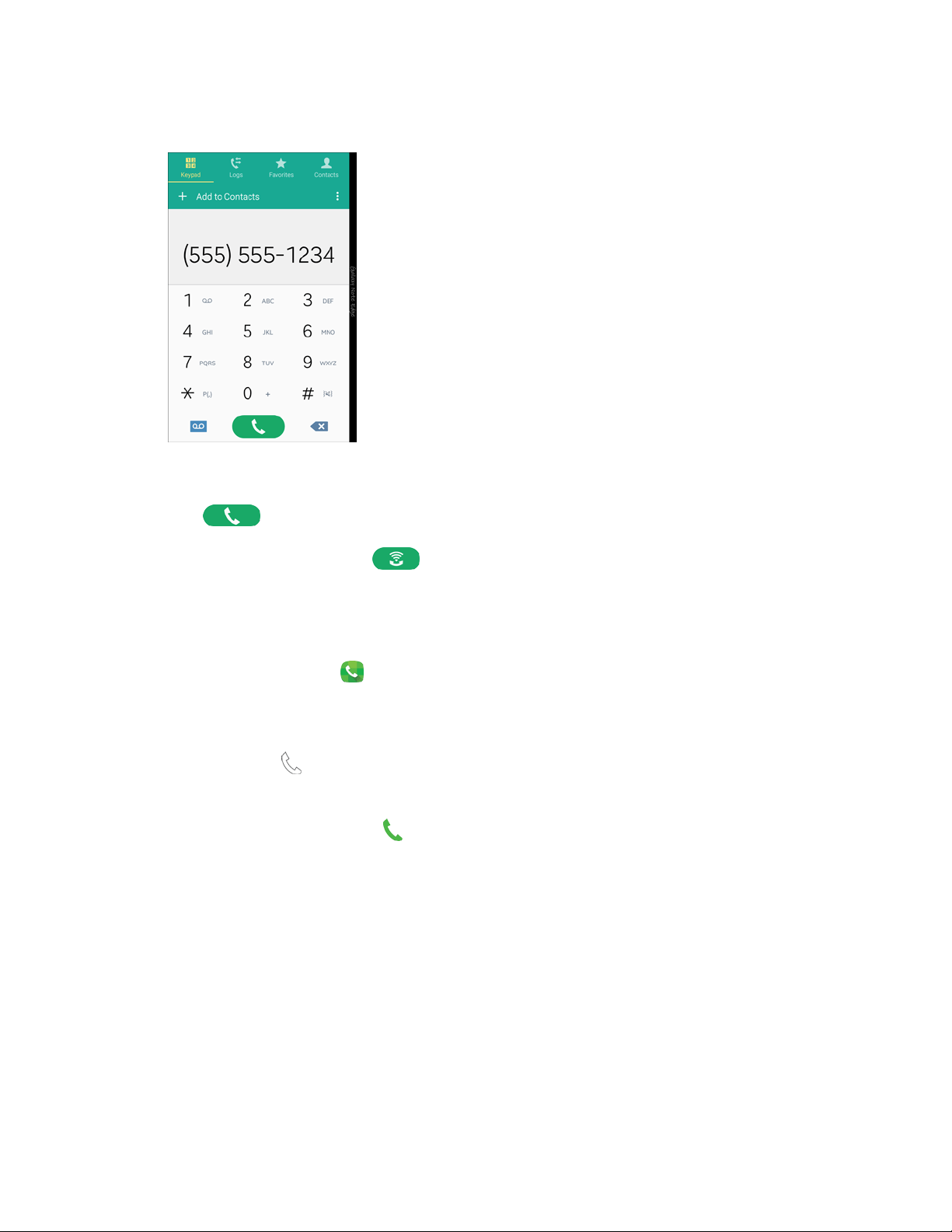
2. Tap the number keys to enter the phone number.
As you enter digits, matching numbers from recent calls or contacts display. If you see the
number you want, tap it to call it without having to enter the rest of the number.
3. Tap
Dial
t
o call the number.
If using
Wi-Fi Calling, tap
Wi-Fi Dial
to call the number.
Call from Logs
All incoming and outgoing calls are recorded in Logs. You can call a number from a recent call from Logs.
1. On the Edge screen, tap Phone.
– or –
From home, tap Phone.
2. Tap the Logs tab to display the recent calls list.
3. Tap a call rec
ord, and then tap
Call
to call the number.
Tip: You can also swipe across a recent call from left to right to c
all the number, or from right to left to
send a message.
Phone Calls 29
Call from Contacts
You can place calls directly from Contacts.
Note: You can access Contacts directly from the Phone app. Tap the Contacts tab at the top of the
screen.
1. From home, tap
Apps
>
Contacts.
2. Tap a
contact,
and then tap
Call.
–
or –
Tap
the contact’s
picture icon,
and
then tap
Call.
–
or –
Swipe
your finger across the contact
from
left to right.
Call a Number in a Text Message
While viewing a text message, you can place a call to a number that is in the body of the message. For
more information, see Text and Multimedia Messaging
.
1. From home, tap
Apps
>
Messages.
2. Open the message with the phone number and then tap the
phone number.
3. Tap
Dial
to dial
the
number.
Call a Number in an Email Message
While viewing an email or Gmail message, you can place a call to a number that is in the body of the
message.
1. From
home, tap
Apps > Email or Gmail.
2. Open the message that contains the phone number, and then
tap the phone number.
3. The Phone screen opens, with the phone number automatically entered and ready to be dialed.
To place t
he call, tap
Dial.
Phone Calls 30

Make an Emergency Call
You can place calls to 9-1-1 even if the phone’s screen is locked or your account is restricted.
Note: To call the 9-1-1 emergency number when the phone’s screen is locked, press the Power/Loc
k
key to turn the screen on, drag Phone up, and then tap Emergency call to display the emergency
dialer.
1. On the Edge screen, tap Phone. If the keypad is not shown, tap the Keypad tab at the top of
the screen.
– or –
From home, tap Phone. If the keypad is not shown, tap the Keypad tab at the top of the
screen.
2. Tap
(9 1 1)
> Dial.
Enhanced 9-1-1 (E 9-1-1) Information
This phone features GPS (Global Positioning System), which is used for E 9-1-1 emergency location
service, where available.
When you place a call to 9-1-1, the GPS feature of your phone provides information about your
approximate location. Depending on several variables, including availability and access to satellite
signals, it may take up to 30 seconds or more to determine and report your approximate location.
Important: Always report your location to the 9-1-1 operator when placing an emergency call. Some
designated emergency call takers, known as Public Safety Answering Points (PSAPs), may not be
equipped to receive GPS location information from your phone.
Receive Phone Calls
When you receive a call, you can accept the call, or reject the call to send it to voicemail. You can also
reject a call with a message, to send a text message to the caller.
Note: If your phone is turned off, all calls automatically go to voicemail.
Answer an Incoming Call
When you receive a phone call from a number stored in Contacts, the contact’s information displays on
the screen. When you receive a phone call from a number that is not stored in Contacts, the phone
number displays on the screen.
When you are actively using your phone, the incoming call displays on the Edge screen. When your
phone is inactive, the incoming call appears on the main screen.
Phone Calls 31
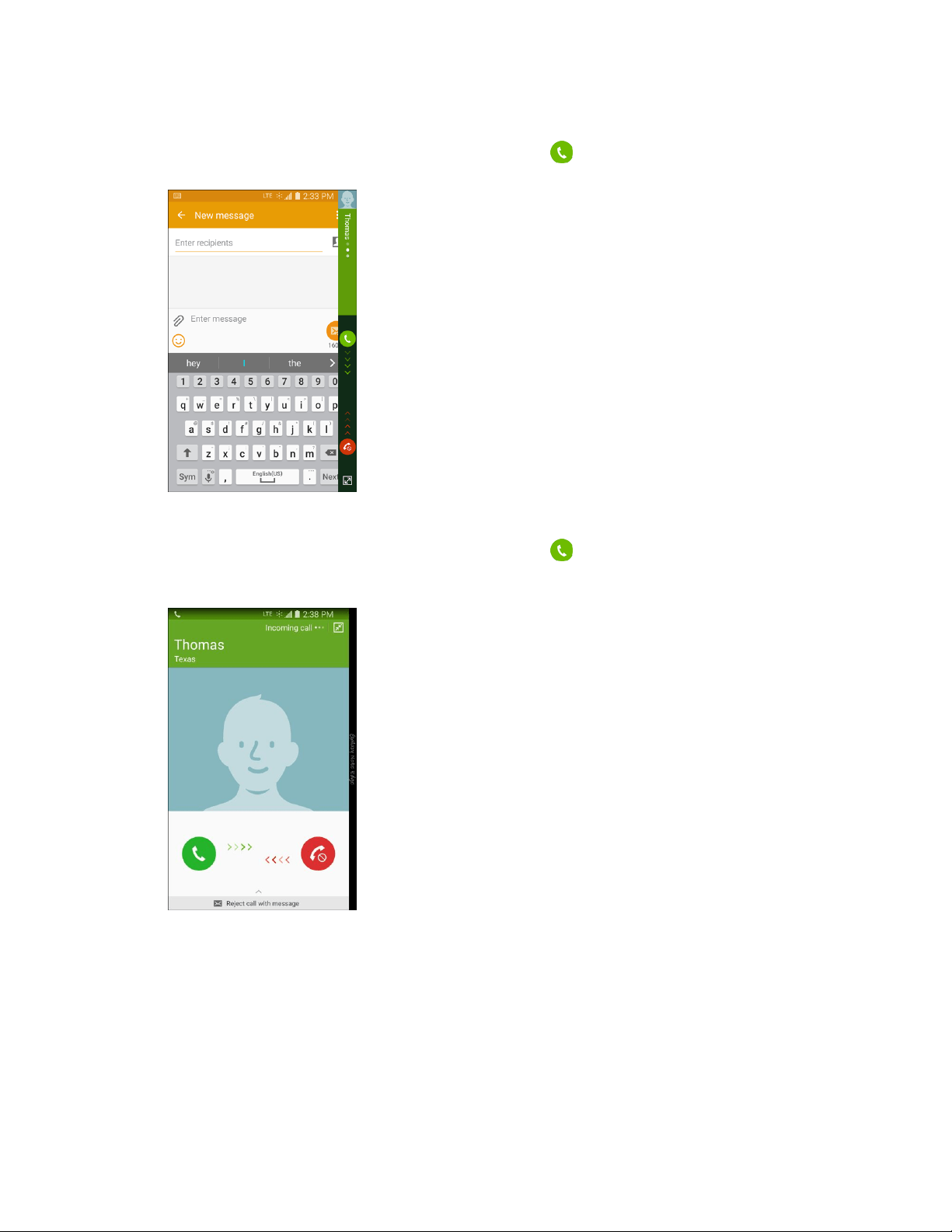
To answer a call from the Edge screen:
■ When
your phone notifies
you of an
incoming call, drag
Answer
down to answer the call.
To answer a call from the main screen:
■ When
your phone notifies
you of an
incoming call, drag
Answer
to the right to answer th
e
call.
Phone Calls 32

Mute the Ringing Sound
You can mute the ringtone without rejecting the call by doing one of the following.
● Press the Volume key down.
● Place the phone screen-down on a level surface. See Motions and Gestures Settings for options,
including the Mute/pause motion to mute incoming calls by turning over the phone.
● Cover the screen with your hand. See Motions and Gestures Settings for options, including the
Mute/pause motion to mute incoming calls by covering the screen with your hand.
Reject an Incoming Call
When you reject a call, the caller is sent to voicemail, where they can leave a voice message.
When you are actively using your phone, the incoming call displays on the Edge screen. When your
phone is inactive, the incoming call appears on the main screen.
To reject a call from the Edge screen:
■ When your phone notifies you of an incoming call, drag Reject up to reject the call.
To reject a call from the main screen:
■ When your phone notifies you of an i
ncoming call, drag
Reject
to the
left to reject the call.
Reject an Incoming Call with a Text Message
You can reject an incoming call by sending a text message to the caller.
When you are actively using your phone, the incoming call displays on the Edge screen. When your
phone is inactive, the incoming call appears on the main screen.
Note: You can only reject an incoming call with a text message from th
e main screen. If your incoming
call appears on the Edge screen, tap Switch to full screen to move the incoming call to the main
screen.
1. When your phone notifies you of an incoming call, drag Reject call with message toward
the top of the main screen.
2. Select an existing message.
–
or –
Tap
Compose new message
to create
a new text message.
Phone Calls 33
Multitasking While on a Call
If you want to continue with your current call and do something else, such as access the contacts list, you
can place the call on the Edge screen.
To move the call screen to the Edge screen:
■ Tap
Switch to Edge screen.
To move the call screen to the main screen:
■ Tap
Switch to full scree
n.
Phone Status Icon
If you want to continue with your current call and do something else, such as access the contacts list
without placing the call on the Edge screen, you can place the call in a Call status icon.
■ With the call on the main screen, press the Home key. This places the call in a floating
Call status icon.
Drag the icon to relocate it on the screen.
Tap the icon to return to the call screen.
End a Call
You can end a call from the call screen, the Edge screen, or the notification panel.
To end a call on the main call screen:
■ Tap
End
to end the call.
If using
Wi-Fi Calling, tap
Wi-Fi End
to end the call.
To end the call when the call is displayed on the Edge s
creen:
■ Drag
Reject up.
To end the call when the call is in a Call status icon:
■ S
wipe the status bar downward to reveal the notification panel, and then ta
p
End.
Phone Calls 34

Phone Call Options
The Phone app provides many useful features and options to help you make the most of your calling
experience.
Dialing Options
1. On the Edge screen, tap Phone. If the keypad is not shown, tap the Keypad tab at the top of
the screen.
– or –
From home, tap Phone. If the keypad is not shown, tap the Keypad tab at the top of the
screen.
2. While dialing a call, tap
More options
for
the following options:
Add 2-sec pause (,): Insert a 2-second pause into the number you are d
ialing. This can be
useful when storing numbers for automated phone menus.
Add wait (;): Insert a pause into the number you are dialing, to wait for input from you. This
can be useful when storing numbers for automated phone menus.
Add to Contacts: Save the number to a new contact, or update an existing contact. See
Add a Contact for more information.
Send message: Send a text message to the number you dialed.
Speed dial: View speed dials. For more information, see Speed Dials.
Wi-Fi Calling: Make calls using Wi-Fi to help improve Voice an
d Data coverage.
Settings: Configure call settings. For more information, see Call Settings
.
Help: Learn about using the Phone app.
Phone Calls 35
2. Tap (* 6 7).
Caller ID
Caller ID identifies a caller while the phone is ringing, by displaying the number of the incoming call.
Block Caller ID
You can block your Caller ID (visible to other when you make a call), before making a call. The blocking
only lasts for that call, and then returns to regular Caller ID.
Note: To permanently block your number, you must call Sprint Customer Service.
1. On the Edge screen, tap Phone. If the keypad is not shown, tap the Keypad tab at th
e top of
the screen.
–
or –
From
home, tap
Phone. If the keypad is
not shown, tap the
Keypad
tab at the
top of
the
screen.
3. Enter
a phone number, and then tap
Dial.
Call Waiting
When you are on a call, your phone notifies you by displaying the call information on the screen, and
vibrating, if you’ve set up vibration for incoming calls.
Respond to an Incoming Call While You Are On a Call
From the Edge screen:
■ Drag Answer down. This puts the first caller on hold and answers
the incoming call.
To switch between calls, tap Swap.
From the call scree
n:
■ Drag
Answer
to the right.
This puts the first caller on hold an
d answers the incoming call.
To switch between calls, tap Swap.
Phone Calls 36

Three-Way Calling
With Three-Way Calling, you can talk to two people at the same time. When using this feature, the normal
airtime rates will be charged for each of the two calls.
1. On the Edge screen, tap
Phone. If the keypad is not shown, tap the
Keypad
tab at the t
op of
the screen.
–
or –
From
home, tap
Phone. If the keypad is
not shown, tap the
Keypad
tab at the
top of the
screen.
2. Make the first call by entering
the phone number and pressing
Dial.
3. When the first call is established, tap Add call to put the f
irst call on hold, and then dial the
second number.
4. When the second call is established, tap Merge.
If one of the people you called hangs up during your call, you and the remaining caller stay
connected.
If you set up the call and are the first to end the call, all callers are disconnected.
Call Forwarding
Call Forwarding lets you forward all your incoming calls to another phone number (even when your phone
is turned off). You can continue to make calls from your phone when you have Call Forwarding is
activated.
Note: You are charged a higher rate for forwarded calls.
Activate Call Forwarding
1. On the Edge screen, tap Phone. If the keypad is not shown, tap the Keypad tab at the top of
the screen.
– or –
From home, tap Phone. If the keypad is not shown, tap the Keypad tab at the top of the
screen.
3. Tap
Dial. A
tone confirms
the
activation of Call Forwarding.
2. Tap
(* 7 2), and then enter the phone n umber to which you want your calls
forwarded.
Phone Calls 37
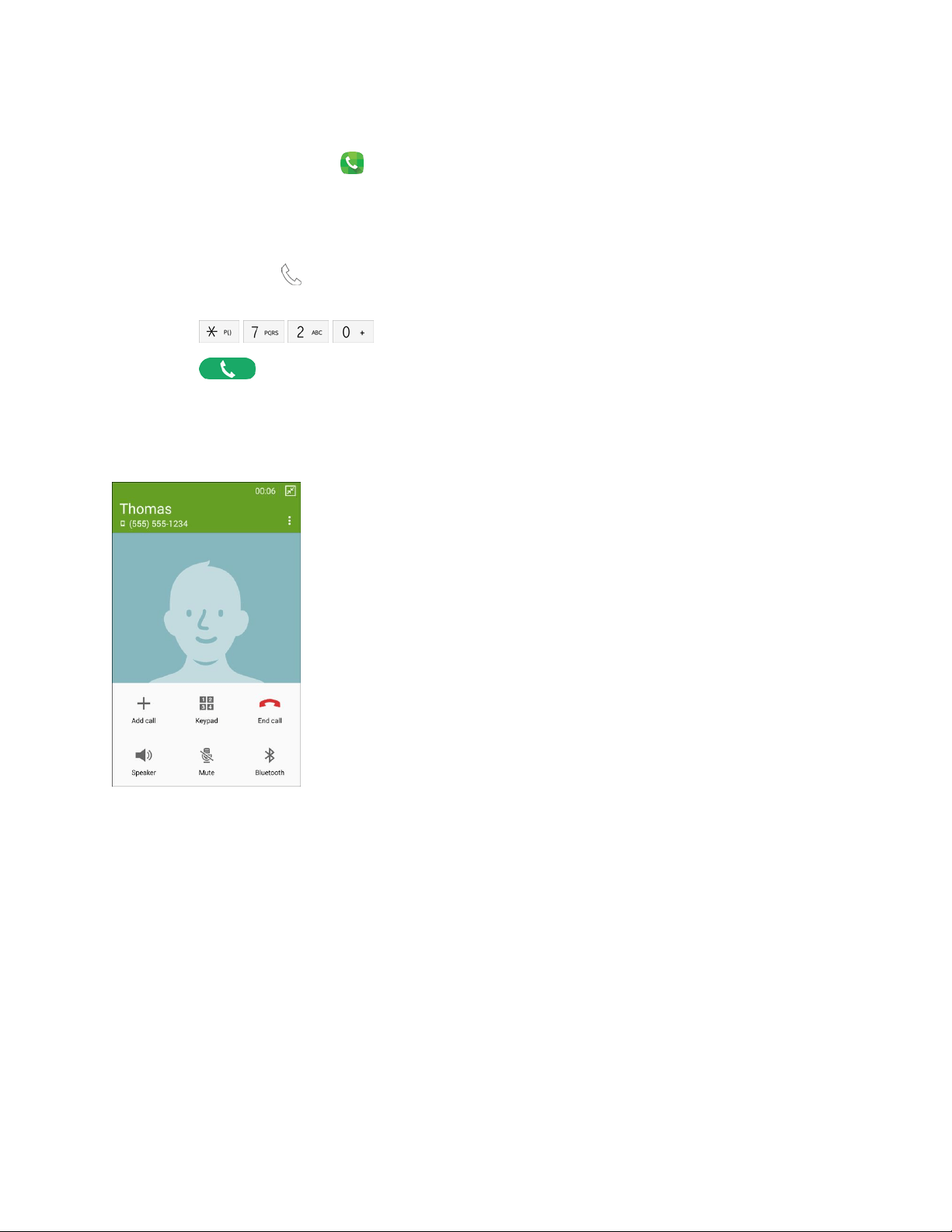
Deactivate Call Forwarding
1. On the Edge screen, tap Phone. If the keypad is not shown, tap the Keypad tab at the top of
the screen.
– or –
From home, tap Phone. If the keypad is not shown, tap the Keypad tab at the top of the
screen.
In-Call Options
While you are on a call, you can use options to find information or multitask during the call.
2. Tap
(* 7 2 0).
3. Tap
Dial. A
tone
plays to
confirm the deactivation of Call Forwarding.
● Add call: Display the Keypad to dial another call.
● Keypad: Display the Keypad, where you can enter numbers to use DTMF (Dual Tone Multi-
Frequency). This can be useful if you need to enter an access code or other information while on
a call.
● End call: Hang up the call.
● Speaker: Control whether the call audio plays through the speaker or the earpiece.
Warning: Because of higher volume levels, do not place the phone near your ear while using the
speaker.
● Mute: Control whether the other party can hear your side of the call.
● Bluetooth: Connect to a Bluetooth device, or disconnect from a device.
Phone Calls 38

● Tap
More options for the following options:
Contacts: Launch Contacts.
Action memo: Create an Action memo d
uring a call.
Messages: Launches Messages to create a new message.
Personal call sound: Adjust the call sound for better clarity.
Extra volume: Increase the call volume.
Settings: Launches Call Settings. For more information, see Call Settings
.
Note: When you use many of the in-call options, your call screen is reduced to a floating
Call status
icon. To return the full call screen, tap the icon.
Voicemail
The following topics outline your phone’s voicemail service.
Note: Your phone also supports the Visual Voicemail app. For information on setting up and using
Visual Voicemail, see Visual Voicemail
.
Voicemail Setup
You should set up your voicemail and personal greeting as soon as your phone is activated.
● To set up voicemail using your phone’s traditional voicemail, see Set Up Voicemail
.
● For information on using the Visual Voicemail app, see Vis
ual Voicemail
.
Retrieve Your Voicemail Messages
You can review your messages directly from your phone (using either traditional voicemail or Visual
Voicemail), or from any other touch-tone phone.
Use Traditional Voicemail to Access Your Messages
1. On the Edge screen, tap Phone. If the keypad is not shown, tap the Keypad tab at the top of
the screen.
– or –
From home, tap Phone. If the keypad is not shown, tap the Keypad tab at the top of the
screen.
2. Touch and hold
(1).
3. Follow the system prompts to enter your voicemail passcode
and manage voicemail.
Phone Calls 39

Use Visual Voicemail to Access Your Messages
1. From home, tap Apps > Voicemail.
2. Tap an entry to listen to the message.
Note: You are charged for ai
rtime minutes when you access voicemail from your wireless phone.
Use Another Phone to Access Messages
1. Dial your wireless phone number.
2. When your voicemail answers, press the Asterisk key on the phone (*).
3. Enter your passcode.
Voicemail Notification
There are several ways your phone alerts you to a new message.
● By sounding the notification ringtone.
● By displaying Voicemail in the Notifications area of the status bar when there is a new
voicemail message.
● By displaying the number of new voicemail message(s)
on the Voicemail app icon.
Note: When you are roaming off the network, you may not receive notification of new voicemail
messages. It
is recommended that you periodically check your voicemail by dialing 1 + area code + your
wireless phone number. When your voicemail answers, tap
Asterisk
and enter your
passcode.
Roaming rates apply
when you access voicemail
while roaming off the network.
Note: Your phone accepts messages even when it is turned of
f. However, your phone notifies you of new
messages only when it is turned on and you are in a network service area.
Visual Voicemail
Visual Voicemail gives you a quick and easy way to access your voicemail. Now you can find exactly the
message you are looking for without having to listen to every voicemail message first. This new feature
periodically goes out to your voicemail, and gathers the caller information from all of the current
voicemails. It then populates a list with the caller name and number, along with the length of time and
priority level of the voicemail message.
1. From home, tap
Apps
>
Voicemail.
2. Follow the prompts to set up an account and learn about using V
isual Voicemail.
Note:
You can
also access Visual
Voicemail from
the
Phone
keypad b
y
tapping
Voicemail.
Phone Calls 40

Set Up Visual Voicemail
Setting up Visual Voicemail follows many of the same procedures as setting up traditional voicemail. You
should set up your voicemail and personal greeting as soon as your phone is activated. Your phone
automatically transfers all unanswered calls to your voicemail, even if your phone is in use or turned off.
Note: To set up your traditional voicemail, see Set Up Voicemail
.
1. From home, tap Apps > Voicemail.
2. Tap Personalize now and follow the system prompts to:
Create a pa
sscode (part of standard voicemail).
Record your name announcement.
Record your greeting.
Tip: If you cleared the Personalize now option and now wish to personalize your Visual Voicemail, access
the Voicemail app, tap
More options > Settings > Preferences > Personalize voicemail.
Review Visual Voicemail
Visual Voicemail lets you easily access and select which messages you want to review.
1. From home, tap Apps > Voicemail.
2. Tap a message to review it.
Tip: There are icons at the bottom of
the review screen for maintenance, storage, mess
aging, and other
options. For an explanation of all your options, tap
More options
> Help.
Listen to Multiple Voicemail Messages
When you are done listening to a voicemail message you can easily access other voicemail messages
without returning to the main voicemail screen.
You can navigate through voicemail messages as frequently as you would like. You can even move to the
next or previous message before you are finished listening to the current one.
1. Listen to the current voicemail message.
2. Swipe your finger left or right to display the next or previous message. (It will begin playing
automatically.)
Note: Voicemails can also be played or listened to on the main Inbox screen by tapping the Play button
on the Contact image.
Phone Calls 41

Use Visual Voicemail to Delete Your Messages
1. From home, tap Apps > Voicemail.
2. Open a message and tap More options > Delete.
Tip: You can restore messages you have sent to the trash folde
r. tap Inbox > Trash, touch and hold the
message you want to restore to the inbox, and then tap More options > Restore to inbox.
Visual Voicemail Options
Your visual voicemail options appear as icons at the bottom of the voicemail review screen.
Note: Not all options are available for all messages.
1. From home, tap Apps > Voicemail.
2. The following options are available when vie
wing new voicemail messages:
More options: Access Search, Settings, and Help features.
• New Voice SMS: S
end a voice message to friends.
• New Avatar message: Send an animated voice message to friends.
• Search: Search your voice messages.
• Upgrade to Premium: Subscribe to the premium Voice-to-Text transcription service.
This service requires an additional monthly charge.
• Store: Access the Visual Voicemail store.
• Help: View help topics for Visual Voicemail.
• Settings: Customize your Visual Voicemail settings.
3. Tap a message to review it. The following options are available while listening to voicemail
messages:
Call: Dial the number the message came from.
Reply: Reply to the message through text or voice message.
Mor
e options: Access Archive, Settings, and Help features.
• Delete: Delete
selected messages.
• Share: Send the message through Wi-Fi Direct, social accounts, and so on.
• Archive message: Save this message.
• Upgrade to Premium: Subscribe to the premium Voice-to-Text transcription service.
This service requires an additional monthly charge.
• Help: View help topics for Visual Voicemail.
• Settings: Customize your Visual Voicemail settings.
Phone Calls 42

4. Touch and hold a message to manage your messages. The following opt
ions are available:
Delete: Delete selected messages.
More options: S
elect additional options.
• Archive: Save this message.
• Mar
k as Read: Mark this voicemail as being read.
• Mark as Unread: Mark this voicemail as not being read.
Configure Visual Voicemail Settings
The Visual Voicemail settings menu lets you access settings for notifications, pictures, greetings, and
more.
1. From home, tap
Apps
>
Voicemail.
2. Tap
More options
> Settings. Select an option to change its settings.
Note:
Voicemail settings can also be
accessed in Settings. From
home, tap
Apps
>
Settings
>
Application settings
> Call
> Voicemail settings.
Change Your Main Greeting
Your main greeting can be changed directly via the Visual Voicemail system. This direct access saves
you from having to navigate within the voicemail menu.
1. From home, tap
Apps
>
Voicemail.
2. Tap
More options
> Settings
> Preferences
> Personalize voicemail.
3. Tap OK to connect to the voicemail system. Follow the prompts to change y
our current greeting.
Edit the Display Name
From your Visual Voicemail menu, you can quickly change the name or number attached to your voice
messages. This name or number identifies you to recipients of your voicemail messages.
1. From home, tap
Apps
>
Voicemail.
2. Tap
More options
> Settings
> Display > Display name.
3. Tap the existing identification field and enter a new identi
fying name or number (used to identify
you to recipients of your voice messages).
4. Tap OK to save your information.
Phone Calls 43

Logs
The Logs tab of the Phone app lists all missed, dialed, received, and rejected calls.
View Logs
From Logs, you manage the list of recent calls.
1. On the Edge screen, tap Phone. Tap the Logs tab at the top of the screen.
– or –
From home, tap Phon
e. Tap the Logs tab at the top of the screen.
2. While viewing the list of calls, you can use these opti
ons:
Tap the drop-down menu to display All calls, Missed calls, Dialed calls, Received calls, or
Rejected calls.
Tap a call to display the call record, where you can tap
Call
to return the call, or
tap
Messa
ge
to send a message to the caller.
Touch and hold on a call record to select it. You can continue
selecting calls to view.
Make a Call from Logs
You can return a call from a recent call record.
1. On the Edge screen, tap Phone. Tap the Logs tab at the top of the screen.
– or –
From home, tap Phon
e. Tap the Logs tab at the top of the screen.
2. Tap a call record, and then tap
Call
to call
the number.
Tip: You can also swipe across a call record from left to righ
t to call the number.
Send a Message from Logs
You can send a message to a number from a recent call record.
1. On the Edge screen, tap Phone. Tap the Logs tab at the top of the screen.
– or –
From home, tap Phone. T
ap the Logs tab at the top of the screen.
2. Tap a call record, and then tap Message to create a message to the number.
Tip: You can also swipe across a call record from right to lef
t to create a message.
Phone Calls 44
Save a Number to Contacts from Logs
You can save a number from a recent call record to create a new contact, or update an existing contact.
1. On the Edge screen, tap Phone. Tap the Logs tab at the top of the screen.
– or –
From home, tap P
hone. Tap the Logs tab at the top of the screen.
2. Tap a call record, and then tap Create contact or Update existing.
Send a Number from Logs
You can send a number from a call record in a text message.
1. On the Edge screen, tap Phone. Tap the Logs tab at the top of the screen.
– or –
From home, tap
P
hone. Tap the
Logs
tab at the top of the screen.
2. Tap a call record, and then
tap
More options
> Send
number.
3. Enter recipients for the message, and then tap
Send.
Add Numbers to the Auto Reject List from Logs
You can save numbers from recent logs to the Auto reject list, to automatically reject incoming calls from
the number. For more information about rejecting calls automatically, see Call Rejection.
1. On the Edge screen, tap
Phone. Tap the Logs
tab
at the top of the screen.
–
or –
From
home, tap
Phone. Tap the Logs tab at the top of the screen.
2. Tap a call record, and then tap More options > Add to Auto reject list.
Phone Calls 45

Delete Logs
Follow these steps to clear the Logs list.
1. On the Edge screen, tap Phone. Tap the Logs tab at the top of the screen.
– or –
From home, tap Phone. T
ap the Logs tab at the top of the screen.
2. Tap More options > Select.
3. Tap records to delete, and then tap Delete > Delete.
Access Call Settings
You can access Call settings from either the Phone app or from Settings.
From the Phone app:
1. From the Edge screen, tap Phone. If the keypad is not shown, tap the Keypad tab at the top
of
the screen.
– or –
From home, tap Phone. If the keypad is not shown, tap the Keypad tab at the top of the
screen.
2. Tap More options > Settings > Call.
From Settings:
■ From
home, tap
Apps > Settings > Application sett
ings > Call.
For details about Call settings, see Call Settings.
Phone Calls 46

Contacts
The Contacts application lets you store and manage contacts from a variety of sources, including
contacts you enter and save directly in your phone as well as contacts synchronized with your Google
Account, compatible email programs (including Exchange Server), and your Facebook
™
friends.
Get Started with Contacts
When you set up an account on your phone, the contacts you have stored in the account are also
available on your phone. When you add contacts, you can choose to save the contacts to the phone, or to
one of the accounts you have set up on the phone.
● Google contacts are synchronized between your phone and a Google Account you set up on
your phone.
● Microsoft Exchange ActiveSync contacts are synchronized between your phone and an
Exchange Server or M
icrosoft
®
Outlook
®
account set up on your phone.
● Samsung account contacts are synchronized between your phone and you
r Samsung account,
if you have a Samsung account set up on your phone.
● Device contacts are stored locally on the phone.
Access Contacts
There are a couple of ways to access Contacts.
■ From home, tap Apps > Contacts.
–
or
–
From
home, tap
Phone
> Contacts
tab.
Find a Contact
You can search for a contact, or scroll the list to find one by name.
1. From home, tap Apps > Contacts.
2. Tap the Search field, and then enter characters to find contacts that match.
–
or –
Tap a letter on the side of the list to go
directly
to that letter in the alphabetical list.
Contacts 47

Contacts Settings Options
Choose options for contacts, including choosing how contacts display, importing and exporting contacts,
and more.
You can access Contacts settings in two ways:
● From the Contacts app: From home, tap
Contacts
>
More options
> Settings
>
Contacts.
● From Settings: From
home, tap
Apps
>
Settings
>
Application settings
>
Contacts.
For details about Contacts settings, see Contacts Settings.
Add a Contact
You can add contacts directly from the Contacts application. Enter details such as name, phone numbers,
email addresses, mailing addresses, and more.
1. From home, tap
Apps >
Contacts.
2. Tap
Create contact:
Select a storage account or location to save the
new contact. You can change the storage
location
later by
tapping
Menu. You can choose Device
to store the contact on the
phone, or choose an account (if
you are logged in).
Tap
Add photo
to assign
a picture to the
new contact:
• Image: Choose a picture from Gallery.
• Take picture: Take a new picture.
•
S Note: Choose an image from S Note.
Tap the Name
field to enter the full name. Tap
Expand
for additional
name fi
elds.
Tap the Phone number
field, and then
enter the
phone number. Tap
Add
to add another
Phone number. Tap
Menu
to choose a
label for the number. If
you add more than one
phone number, you
will
be
prompted to choose a
default phone number. The default phone
number is the one
your phone
will use in most cases.
Tap
Add
beside Email
to enter an email
address. If
you add more than one email
address, you will
be prompted to choose a default email
address. The default email
address
is the
one
your phone will use in most cases.
Tap Groups to assign the contact to a group.
Tap Ringtone to choose
a ringtone to play for calls from the contact.
Tap Add another field to add additional fields for the contact.
3. Tap Save to save the new contact.
Contacts 48

Save a Phone Number
You can save a phone number to Contacts directly from the phone keypad.
1. On the Edge screen, tap Phone. If the keypad is not shown, tap the Keypad tab at the top o
f
the screen.
– or –
From home, tap Phone. If the keypad is not shown, tap the Keypad tab at the top of the
screen.
2. Enter a phone number using the keypad.
3. Tap
Add to
Contact
s, and then tap
Create contact
or
Update existing.
If prompted, select an account for the new contact.
4. Continue adding i
nformation for the contact, as desired.
5. Tap Save to save the contact.
Note: If you have accounts set up on your phone, you can save the contact to an account.
Edit a Contact
Once you’ve added a contact, you can add or edit any of the information in the entry, assign a picture,
customize it with a unique ringtone, and more.
Add or Edit Information for a Contact
You can modify existing contact information to keep your information up-to-date.
1. From home, tap Apps > Contacts.
2. Tap a contact to display it, and then tap Edit.
3. Tap any field you want to change or add. See Add a Contact.
4. Add or edit the information, and then tap Save.
Contacts 49

Assign a Picture to a Contact
Adding a picture to a contact entry creates a more personal and easily recognized entry. For example,
when receiving a call from one of your contacts, the associated picture will display. You can assign a
picture from Gallery, or take a new picture with Camera.
1. From home, tap
Apps >
Contacts.
2. Tap a contact to display
it, and then tap Edit.
3. Tap
Add photo to assign a picture to the contact:
Image: Choose a picture from Gallery.
Take picture: Take a new picture.
S
Note: Add an image from S Note.
4. Follow the prompts to save the picture to the contact.
Assign a Ringtone to a Contact
You can assign a special ringtone to individual contacts for more personalization.
1. From home, tap Apps > Contacts.
2. Tap a contact to display it, and then tap
Edit.
3. Tap the Ringtone field.
4. Choose a ringtone preloaded on your p
hone, or tap Add to choose a song from Dropbox or
Music.
5. Tap OK or Done to assign the ringtone, and then tap Save to save the change.
Link Contacts
When you have contacts from various sources (Gmail, device, Facebook, etc.), you may have multiple
similar entries for a single contact. Your phone’s Contacts application lets you link multiple entries into a
single contact.
1. From home, tap
Apps >
Contacts.
2. Tap a contact to display
it, and then
tap
More options
>
Link contacts.
3. Tap another entry to link it to the original contact.
4. Tap Done to complete the link.
Note: You can link up to ten contacts in a single entry.
Tip: To unlink contacts, tap
More options
> Unlink contacts,
and then tap
Remove
next to the
elem
ent you want
to unlink.
Contacts 50

Delete Contacts
You can delete a single contact, or choose multiple contacts to delete.
Delete a Contact
1. From home, tap Apps > Contacts.
2. Tap a contact to display it, and then tap More options > Delete > Delete.
Delete Multiple Contacts
1. From home, tap Apps > Contacts.
2. Tap More options > Select.
3. Tap the checkboxes next to the contacts you want to delete, and then tap Delete > Delete.
Move Contacts
If you have accounts set up on your phone, you can move device contacts to an account’s contacts.
Device contacts are stored only in the phone’s memory, and could be lost if you lose your phone or reset
it to the factory defaults. Moving contacts to an account means the contacts are synced with an account
and stored there.
1. From home, tap
Apps >
Contacts.
2. Tap
More options
> Move device contacts to.
3. Choose an account, and then tap OK to complete the move.
Speed Dials
Speed dials are 1-to-3 digit shortcuts you can assign to contacts, to make dialing faster. Speed dial 1 is
reserved for Voicemail.
Assign Speed Dials
1. From home, tap Apps > Contacts.
2. Tap More options > Speed dial.
3. Tap an unused speed dial, and then select a contact to assign to t
he number.
Remove Speed Dials
1. From home, tap Apps > Contacts.
2. Tap More options > Speed dial, and then tap X beside the speed dials you want to remove.
Contacts 51

Make a Call with a Speed Dial
1. On the Edge screen, tap Phone. If the keypad is not shown, tap the Keypad tab at the top of
the screen.
– or –
From home, tap Phone. If the keypad is not shown, tap the Keypad tab at the top of the
screen.
2. Tap the speed dial digits, holding the last digit unt
il the number dials.
Favorites
The Favorites tab is a listing that can help you quickly access your most used or preferred Contacts
entries.
Mark Contacts as Favorites
1. From home, tap Apps > Contacts.
2. Tap a contact to display it, and then tap Favorites (turning the star bright).
Remove Contacts from Favorites
1. From home, tap Apps > Contacts.
2. Tap the Favorites tab, and then touch and hold on a contact to select it.
You can also tap other
contacts, or the checkbox at the top to select all contacts.
3. Tap
Remove from Favorites.
Make a Call from Favorites
1. From home, tap Apps > Contacts.
2. Tap the Favorites tab, and then tap a contact to dial the contact’s def
ault telephone number.
The default number is if you entered multiple phone numbers for a contact.
If no number has been assigned as default, tap a number to select it, and then tap Just once
to call the selected number without setting as default, or tap Mark as default to call the
number and set it as the contact’s default number.
Contacts 52

Create a Shortcut to a Favorite
You can create a shortcut to a favorite, to access their information directly from the home screen.
1. From home, tap Apps > Contacts.
2. Tap Favorites, and then touch and hold on a contact to selec
t it.
3. Tap
More options
> Add
shortcut to
Home screen.
The new shortcut
displays
in an empty
area of the
home screen.
Groups
You can use groups to organize your contacts. Your phone comes with preloaded groups, and you can
create your own. You might create a group for your family, for coworkers, or a team. Groups make it easy
to find contacts, and you can send messages to the members of a group.
Create a Group
1. From home, tap Apps > Contacts.
2. Tap Groups, and then tap Create group.
3. Tap fields to enter information about the group:
Tap Create grou
p in to choose where to save the group. You can save it to a specific
account, to the phone memory, or to all accounts.
Tap Group name to enter a name for the new group.
Tap Group ringtone to select a ringtone for notifications for incoming calls from group
members.
Tap Group message tone to select a ringtone for notifications for new messages from group
members.
Tap Group vibration pattern to select a vibration pattern for alerts to incoming calls or
messages from group members.
4. Tap Add member and select a member or members to add to the new group, and then tap
Done.
5. Tap Save to save the new group.
Contacts 53
Add Contacts to a Group
1. From home, tap Apps > Contacts.
2. Tap Groups, and then tap a group.
3. Tap Add, and then tap the contact(s) you want to add.
4. Tap Done.
Send a Message to a Group
You can send a message to members of a group, if the members have a telephone number stored in their
contact record.
A message to multiple recipients is treated as a group conversation.
1. From home, tap
Apps >
Contacts.
2. Tap
Groups, and then tap
a group.
3. Tap
More options
>
Send message
or email
> Message.
4. Tap contacts to select them or tap the checkbox at the top of the screen to select all contacts in
the group, and then tap Done.
5. Continue to enter your message and
tap
Send
to send it. For more information, see
Text and
Multimedia Messaging
.
Send an Email or Gmail to a Group
You can send an email or Gmail to members of a group, if the members have an email address stored in
their contact record.
1. From home, tap
Apps >
Contacts.
2. Tap
Groups, and then tap
a group.
3. Tap
More options
>
Send message or email
> Email.
4. Tap contacts to select them or tap the checkbox at the top of the screen to select all contacts in
the group, and then tap Done. Note that you will only see group members that have email
addresses in their contact records.
5. Continue to choose an email account or Gmail account, and then enter your message and
send it.
Contacts 54

Share Contacts
You can quickly share contacts through Bluetooth, Email, Gmail, Messages, or Wi-Fi Direct, or send them
to print.
Send Contact Information
You can copy a contact’s information into a text message and send it.
1. From home, tap Apps > Contacts.
2. Tap a contact to display it, and then tap
More options
> Send
contact information.
3. If prompted, choose information to send, and then tap Done.
4. Enter a recipient, and then continue with the text message. For more information on text
messaging, see Text and Multimedia Messaging
.
Share a Name Card
When you share a name card, the contact’s information is sent as a vCard file (.vcf). You can attach a
vCard to a message, or save it to a storage location.
1. From home, tap
Apps >
Contacts.
2. Tap a contact to display
it, and then
tap
More options
>
Share name card.
3. Choose a file type, and a sharing method:
Messages: Attach the c
ontact to a message (adding an attachment converts the message to
MMS). For more information on messaging, see Text and Multimedia Messaging
.
Bluetooth: Send the contact to another device through Bluet
ooth. See Bluetooth for
information on pairing and sending through Bluetooth.
Gmail: Attach the contact to a new Gmail message. See Send a Gmail Message for details.
Add to Evernote: Save the contact to Evernote.
Add to Dropbox: Save the contact to Dropbox.
Android Beam: Send the contact to another device using
Android
™
Beam.
Drive: Save the contact to
Google Drive
™
.
Email: Attach the contact to a new Email message. If prompted, select an
email account. See
Compose and Send Email for details on sending email.
Quick connect: Send the contact to another nearby phone using Quick Connect.
Wi-Fi Direct: Transfer the contact through a peer-to-peer Wi-Fi connection. For more
information, see Wi-Fi Direct Settings
.
Note: Available sharing methods vary depending on which apps or accounts you have set up on
your phone.
Contacts 55

Import and Export Contacts
You can import or export contacts from the phone’s memory (USB storage), or from an optional, installed
memory card (SD card, not included). You might have contacts stored in phone memory or on a memory
card if you are moving from an old device, or if you received them through Bluetooth from another device.
Contacts you export are saved as name cards (.vcf), which can be imported into other apps or devices
that support the name card format.
Import Contacts
1. From home, tap Apps > Contacts.
2. Tap More options > Settings > Contacts > Import/Export contacts.
3. Choose an option:
Import from device storage: Save cont
acts from the phone’s memory.
Import from SD card: Save contacts from an optional installed memory card.
4. Choose an account for the imported contacts, or choose Device to import the contacts to
the phone.
Export Contacts
1. From home, tap Apps > Contacts.
2. Tap More options > Settings > Contacts > Import/Export contacts.
3. Choose an option:
Export to device storage: Save the con
tacts to the phone’s memory.
Export to SD card: Save the contacts to an optional installed memory card.
4. Tap OK to complete the export.
Contacts 56

Accounts and Messaging
With Sprint service and your phone’s messaging capabilities, you have the opportunity to share
information through many different channels and accounts.
Google Account
Many of your phone’s applications, such as Gmail, Google Maps
™
, Google Hangouts, and the Google
Play store, require a free Google Account. To use these applications, you must set up your Google
Account on your phone. Setting up your account on your phone syncs your phone and your online Google
Account.
Create a Google Account
If you do not already have a Google Account, you can create one using your phone. The first time you
turn on your phone, the setup process prompts you to sign in to your Google Account, or you can sign in
anytime.
Although you need a Google Account to use certain features of your phone, such as Google Play, you do
not need to use Gmail as the default account for your phone.
1. From home, tap
Apps
>
Settings.
2. Tap
Accounts
> Add account
> Google.
3. Tap Or create a new account and follow the prompts to create your fr
ee account.
Sign In to Your Google Account
If you have a Google Account but have not yet signed in with your phone, follow these instructions to sign
in to your Google Account.
1. From home, tap
Apps
>
Settings.
2. Tap
Accounts
> Add account
> Google.
3. Tap Enter your email, enter the Gmail address for your account,
and then tap Next.
4. Follow the prompts to enter your password, and then choose options for your account
on your phone.
Accounts and Messaging 57

Access Gmail
After you set up your Google Account on your phone, you can access Gmail from your phone.
1. From home, tap Apps > Gmail.
2. Do any of the following:
Swipe your finger up the screen to
view more messages and conversations.
Tap a message or conversation to read it.
If you have more than one Google Account set up on your phone, tap the menu at the top of
the screen to choose an account to view.
Send a Gmail Message
Send and receive Gmail from your phone.
1. From home, tap Apps > Gmail.
2. From the Inbox, tap
Compose, and then enter the email address(s) in the To field. To send a
carbon copy (Cc) or a blind carbon copy (Bcc) of the email to other recipients, tap Expand to
reveal these additional fields.
3. Tap the Subject field and enter the email subject.
4. Tap the Compose
email field and compose your email. To add an att
achment, tap
Attachment > Attach file.
5. To send the message, tap
Send.
To save the current email
as a draft, tap
More options
> Save draft. To view
your draft
email messages, from the Inbox, tap
Inbox
and then tap
Drafts.
To delete the current email message, tap
More options
> Discard.
Read and Reply to Gmail Messages
Below are procedures for reading and replying to Gmail messages.
1. From home, tap Apps > Gmail.
2. Tap a message to display its contents.
3. Tap
Reply
to display the reply screen.
4. To reply to all recipients or to forward the message, tap Reply all or Forward.
5. To send the message, tap Send.
Tip: You can also access new messages from the notification
panel. When a new Gmail message arrives,
you will see the icon in the status bar. Touch and hold the bar and slide it down to display the notification
panel. Tap a message to display it.
Accounts and Messaging 58

Samsung Account
Create a Samsung account for access to Galaxy Apps and much more.
When you sign in to your Samsung account on your phone, you can access Samsung-specific content
and features.
1. From home, tap
Apps
>
Settings.
2. Tap
Accounts
> Add account
> Samsung account, and
then tap Create account with
Google ID, Create account,
or
Sign in.
3. Follow the prompts to sign into your account, or create a n
ew account.
Note: Tap Help for more information about Samsung accounts, or for help with your account.
Email
Use the Email application to send and receive email on your phone.
Add an Email Account
Email allows you to send and receive email using various email services. You can also receive text
message alerts when you receive an important email.
Note: If your phone does not recognize the type of account you want to set up, you may need to consult
the account administrator for some information, such as incoming and outgoing server settings, before
you set up the account.
1. From
home, tap
Apps > Email.
2. Enter your email address in the Email address fie
ld.
3. Enter your password in the Password field. To see your password as you enter it, tap
Show password.
4. Tap Next to start automatic email setup. If you need to configure custom settings, tap Manual
setup and then enter your settings. These may include mail type, user name, password, server,
security type, etc.
5. Follow the prompts to configure options for the account.
6. Tap Done to complete setup.
Accounts and Messaging 59

Add Additional Email Accounts
If you already have an email account set up on your phone, you can still add a new account from Email.
1. From home, tap Apps > Email.
2. Tap
More options
> Settings
> Manage accounts.
3. Tap
Add
account, and then follow the prompts to enter your log in credentials
and configure
options
for the account.
Note:
You can
also add email accounts from Settings. From
home, tap
Apps
>
Settings
>
Accounts
> Add account
>
Email.
Add a Microsoft Exchange ActiveSync Account
You can set up your Microsoft
®
Exchange ActiveSync account on your phone, to sync your email,
Contacts, and Task information between your phone a nd account.
Note: Before setting up a Microsoft Exchange ActiveSync Account, contact your company’s Exchange
Server administrator for information you will need while setting up the account.
1. From home, tap Apps > Settings > Accounts > Add account > Microsoft
Exchange Activ
eSync.
2. Enter your email address in the Email address field.
3. E
nter your password in the Password field. To see your password as you enter it, tap
Show password.
4. Tap Manual setup and then enter your settings. You may need to consult your network
administrator for this information:
Domain\username: Enter your network domain and username, separated by “\”.
Password: Enter your network access password (case-sensitive).
Exchange server: Enter your system’s Exchange server remote email address. Obtain this
information from your company network administrator.
Use secure connection (SSL): Tap to place a check mark in the box, if your system requires
SSL encryption.
Use client certificate: Tap to place a check mark in the box, if your system requires
certification.
5. Follow the prompts to configure options for the account.
6. Tap Done to complete setup.
Note: You can also add email accounts from the Email app.
Accounts and Messaging 60

Compose and Send Email
Compose and send email using any account you have set up on your phone. Increase your productivity
by attaching files such as pictures, videos, or documents to your email messages.
1. From home, tap
Apps
>
Email.
2. From the Inbox, tap
Compose.
3. Tap fields to compose your message:
Tap the To field and e
nter the recipient’s email address. You can add multiple message
recipients.
• To select recipients from
your Contacts, tap
Contacts, select desired recipients, and
tap Do
ne.
To send a carbon copy (Cc) or a blind carbon copy (Bcc) of the current email to other
recipients,
tap
Expand, and then tap Cc
or Bcc.
Tap the Subject field and enter the email subject.
Tap the text entry field and compose your email.
• To add an
attachment, tap
Attach
and select an attachment category.
• Tap
More options for additional
options.
4. To send the message, tap
Send.
Reply To or Forward Email
Reading and replying to email on your phone is as simple as on your computer.
1. From home, tap Apps > Email.
2. On the email account Inbox, tap a message to view it.
3. Choose an
option:
Reply: Send a message to the original sender.
Reply all: Send a reply to the original recipient list.
F
orward: Send the message to new recipient(s).
4. Enter a message (if desired) and then tap
Send.
Accounts and Messaging 61

Manage Your Email Inbox
The following procedures allow you to view, sync, sort, and delete your email messages.
View Your Email Inbox
1. From home, tap Apps > Email.
2. If you have multiple accounts set up on your phone, tap Menu at the top of the screen, and
then choose one from the menu. You can also choose Combined inbox to see items from all
your configured email accounts.
Synchronize an Email Account
Whatever your automatic synchronization settings are, you can also synchronize your sent and received
email messages manually at any time.
1. From home, tap
Apps
>
Email.
2. Select an email account.
If you are already in an email ac
count, tap the account name field (upper-left) to open the
complete email account list page.
Select an available email account , or s
elect Combined inbox.
3. Tap
S
ync.
Filter Email Messages
1. From home, tap Apps > Email.
2. On the email account Inbox, tap More options > Filter by.
3. Select an option.
Delete an Email Message
1. From home, tap Apps > Email.
2. Touch and hold the message you want to delete, and then tap Delete.
–
or –
Tap an email to display
it, and then tap
Delete.
Accounts and Messaging 62

Delete Multiple Email Messages
1. From home, tap Apps > Email.
2. Tap More options > Select, and tap the checkboxes beside messages you want to delete.
–
or –
Touch and hold on a message you want to delete, and then tap checkboxes for additional
messages to delete.
3. Tap
Delete.
Access Email Settings
You can edit general preferences, which apply to all email accounts, or configure settings for specific
email accounts, such as email address and password, name display and signature, frequency of retrieval,
and more.
You can access Email settings in two ways:
■ From the Email app: From home, tap
Apps
>
Email
>
More options
> Settings.
■ From Settings: From
home, tap
Apps
>
Settings
>
Application
Settings
> Email.
For details about Email settings, see Email Settings.
Delete an Email Account
If you no longer want an email account on your phone, you can remove it.
1. From home, tap Apps > Email.
2. Tap
More options
> Settings
> Manage accounts.
–
or –
Tap
Menu
> Manage accounts.
3. Touch and hold an account to select it.
4. Tap
Remove
> Remove
to delet
e the account.
Accounts and Messaging 63

Text and Multimedia Messaging
With Text Messaging (SMS), you can send and receive text messages between your phone and another
device that supports messaging.
Multimedia messages, (MMS), can contain text and pictures, recorded voice, audio or video files, picture
slideshows, contact name cards (vCard), or calendar events (vCalendar).
See your service plan for applicable charges for messaging.
Send a Text Message (SMS)
Quickly compose and sent text messages on your phone.
1. From the Edge screen, tap Messages.
2. Tap
Compose.
3. Tap Enter recipients, and then enter a contact name, a mobile p
hone number, or an email
address using the keyboard. As you enter letters, possible matches from your accounts and
contacts display on the screen. Tap a match to add it to the message.
4. Tap Enter message and enter your message.
5. Tap
Send.
Send a Multimedia Message (MMS)
When you need to add a little more to a text message, you can send a multimedia message (MMS) text
and pictures, recorded voice, audio or video files, picture slideshows, contact name cards (vCard), or
calendar events (vCalendar).
Composing MMS messages is the same as composing text messages, except that you attach a file to the
message.
1. From the Edge screen, tap
Messages.
2. Tap
Compose.
Tap Enter recipients, and then enter a contact name, a mobile pho
ne number, or an email
address using the keyboard. As you enter letters, possible matches from your accounts and
contacts display on the screen. Tap a match to add it to the message.
Tap Enter message and enter your message.
To add an
attachment, tap
Attach
and select a file to attach.
3. Review
your message and
tap
Send.
Accounts and Messaging 64

Save and Resume a Draft Message
A
New message icon also appears in the notifications area of the status bar to notify you of a new
text or multimedia message. The
Messages app
icon
also displays the
number of new messages.
If you tap the Back key while composing a text or multimedia message, or leave the Messages
screen, the message is automatically saved as a draft.
To resume composing a Draft message:
1. From the Edge screen,
tap
Messages.
2. On the Messages screen, tap the message marked as Draft.
3. Wh
en
you finish editing the message, tap
Send.
New Messages Notification
Depending on your notification settings, the phone will play a ringtone, vibrate, or display the message
briefly in the status bar when you receive a new text or multimedia message. To change the notification
for new text and multimedia messages, see Messages Settings for details.
■ To open the message, touch and hold the status bar, and then slide the status bar down to open
the notification panel. Tap the new message to open and read it. For information on reading and
replying to messages see Managing Conversations.
Managing Conversations
Text and multimedia messages that are sent to and received from a contact (or a number) are grouped
into conversations or message threads in the Messages screen. Threaded text or multimedia messages
let you see all the messages you exchange with a contact on the screen, similar to a chat program.
Read Text Messages
■ On the Messages screen, tap the text message or conversation to open and read it.
■ If you have a new message notification, slide the status bar down to open the notification panel.
Tap the new message to open and read it.
Note: To view the details of a particular message, in the conversation, touch and hold the message to
open the options menu, and then tap View message details.
Note: If a message contains a link to a Web page, tap the message and then tap the link to open it in the
Web browser.
Note: If a message contains a phone number, tap the message and then tap the phone number to dial
the number or add it to your contacts.
Accounts and Messaging 65

View Multimedia Message (MMS)
1. From the Edge screen, tap Messages.
2. From the message list, tap a message to display it.
3. W
hile the message is open, tap the play icon (on a video or audio file) to play back the file or tap
an image to view a picture.
Note: The file attachment on a MMS message can be saved to an optional installed memory card (not
included) or to your phone’s memory. Touch and hold the attachment, and then tap Save attachment.
Select the attachment checkbox and tap Save.
Reply to a Message
1. From the Edge screen, tap Messages.
2. From the message list, tap a message.
3. Tap the Enter me
ssage field and then type your reply message.
4. When the message is complete, tap
Send.
Protect a Message from Deletion
You can lock a message so that it will not be deleted even if you delete the other messages in the
conversation.
1. From the Edge screen, tap
Messages.
2. On the Messages screen, tap a conversation.
3. Touch and h
old the message that you want to lock.
4. Tap Lock on the options menu. A lock icon displays at the lower right hand side of the message.
Delete a Conversation
1. From the Edge screen, tap Messages.
2. Touch and hold the conversation you want to delete.
3. Tap
Delete > Delete.
Accounts and Messaging 66

Delete Multiple Conversations
1. From the Edge screen, tap Messages.
2. Tap More options > Select.
3. Select the conversations you want to delete, and then tap Delete > Delete.
Note: Locked messages will not be deleted, unless you s
elect the Include protected messages
checkbox before confirming the deletion.
Delete a Message
1. From the Edge screen, tap Messages.
2. While viewing a conversation, touch and hold the message that
you want to delete.
3. Tap Delete > Delete on the options menu.
Access Messages Settings
The messages settings menu lets you control options for your text and MMS messages including
message limits, size settings, and notifications.
You can access Message settings in two ways:
■ From the Messages app: From the Edge screen, tap
Messages
>
More options
>
Settings.
■ From Settings: From
home, tap
Apps
>
Settings
>
Application
Settings
>
Messages.
For details about Messages settings, see Messages Settings.
Note: If you choose a default messaging app other than Messages (for example, Google Hangouts or
Messaging Plus), you will not be able to use the Messages app unless you restore it as the default
messaging app. For details, see Default Applications Settings
.
Messenger
Send instant messages with all your friends using Facebook’s Messenger
™
app.
1. Fro
m home, tap Apps > Messenger.
2. Follow the prompts to enter your Facebook account details an
d complete the sign in.
Accounts and Messaging 67

Social Networking Accounts
Stay in touch on the go with all your social networking accounts. Post updates on FamilyWall for Sprint,
Facebook, and see what everyone is talking about on YouTube
™
, and more.
Facebook
Post updates, read what your friends are up to, upload pictures and check-ins, and more with on-the-go
Facebook access.
1. From home, tap
Apps
>
Facebook.
2. Follow the prompts to enter your Facebook account details and c
omplete the sign in.
Google+
Google+
™
makes messaging and sharing with your friends a lot easier. You can set up Circles of friends,
visit the Stream to get updates from your Circles, use Hangouts for fast messaging with everyone in your
Circles, or use Instant Upload to automatically upload videos and photos to your own private album on
Google+.
Visit google.com/mobile/+/ for more information.
Google+ is part of your Google Account, and uses your Google Account sign in. Before using Google+,
set up your Google Account on your phone. For more information, see Create a Google Account or Sign
In to Your Google Account.
1. From home, tap
Apps
>
Google+.
2. If you are signed into more than one Google Account, choos
e an account to use with Google+.
3. Follow the instructions to use Google+.
Hangouts
Hangouts is an application for instant messaging offered by Google.
1. From home, tap Apps > Hangouts.
2. Follow the prompts to begin using Google Hangouts.
Note: You can use Hang
outs as your phone’s default messaging app, or as a standalone IM app. If you
set Hangouts as the default messaging app, the Messages app will be disabled. For more information,
see Default Applications Settings
.
Instagram
Capture and share photos and videos with your friends. Customize what you capture, then share it on
your feed or post it directly to your friends.
1. From home, tap Apps > Instagram.
2. Follow the prompts to register or log in to Instagram
™
.
Accounts and Messaging 68

Pages Manager
The Pages Manager app lets you manage up to 50 Pages from your smartphone or tablet. You can check
Page activity, share with your audience and see insights.
1. From home, tap
Apps
>
Pages Manager.
2. Follow the prompts to enter your Facebook account de
tails and complete the sign in.
Sprint FamilyWall
Sprint FamilyWall is a private space to communicate, organize, share, remember and even locate friends
and family members. Users get all the benefits of social sharing in a totally private space.
1. From home, tap
Apps
>
FamilyWall for Sprint.
If prompted, tap Update and follow the instructions to update the app.
2. Tap Sign Up or Log In to get signed in.
Sprint Fun & Games
Download new apps and games from Sprint.
■ From home, tap Apps > Sprint Fun & Games.
YouTube
YouTube
™
is a video sharing website on which users can upload and share videos. The site is used to
display a wide variety of user-generated video content, including movie clips, TV clips, and music videos,
as well as video content such as video blogging, informational shorts, and other original videos.
Important: YouTube is a data-intensive feature. Sprint recommends that you upgrade to an unlimited
data plan to avoid unexpected data charges.
1. From home, tap
Apps
>
YouTube.
2. Tap
Search to enter keywords in the
Search field to search for specific videos, scroll down to
browse through the main page thumbnails, or scroll
to the bottom to explore additional options.
3. To view a video, tap an available preview
thumbnail or tap the title link.
Note:
It is
not necessary to sign
in to YouTube to view
content. However, if
you wish to sign in to access
additional options, tap
More options
> Sign in. Select an account (if available) or create a new
account. (Even
if
you sign
in to YouTube
through the
Web, you must separately
sign
in through
your
phone.)
Accounts and Messaging 69

Apps and Entertainment
All your phone’s features are accessible through the Applications list.
Note: Available apps and services are subject to change at any time.
Play Store
The Google Play store app is the place to go to find new Android
™
apps, games, movies, music, and
books for your phone. Choose from a wide variety of free and paid apps ranging from productivity apps to
games. When you find an app you want, you can easily download and install it on your phone.
To a
ccess the Google Play store app, you must first connect to the Internet using your phone’s Wi-Fi or
4G or 3G data connection and sign in to your Google Account. See Web and Data and Google Account
for details.
Important: Sprint’s policies often do not apply to third-party applications. Third-party applications may
access your personal information or require Sprint to disclose your customer information to the third-party
application provider. To find out how a third-party application will collect, access, use, or disclose your
personal information, check the application provider’s policies, which can usually be found on their
website. If you aren’t comfortable with the third-party application’s policies, don’t use the application.
Find and Install an App
When you install apps from the Google Play store app and use them on your phone, they may require
access to your personal information (such as your location, contact data, and more) or access to certain
functions or settings of your phone. Download and install only apps that you trust.
Note: If you have not already done so, you will need to set up a payment method to purchase paid apps
from Google Play.
1. From home, tap
Apps >
Play
Store.
2. Browse through the categories to find and learn ab
out apps.
3. Tap Install (for free applications) or the price (for paid applications).
4. Follow the prompts to learn about how the app uses your personal information, or access to
certain functions or settings of your phone. If you agree to the conditions, tap Accept (for free
apps) or Accept and then Buy (for paid apps) to begin downloading and installing the app.
If you have not already set up a payment method, tap Continue and follow the prompts to
arrange payment and complete the purchase.
Warning: Read the notification carefully. Be especially cautious with apps that have access to many
functions or a significant amount of your data. Once you agree to the download and installation on this
screen, you are responsible for the results of using this item on your phone.
Apps and Entertainment 70

Open an Installed App
After you install an app, it is available in the Apps panel.
■ From home, tap Apps, and then tap the app icon.
Uninstall an App
You can uninstall any app that you have downloaded and installed from Google Play.
1. From home, tap Apps > Settings > Application manager.
2. Tap the app you want to uninstall.
3. Tap Uninstall, and then f
ollow the prompts to remove the app from your phone.
Galaxy Apps
Discover apps designed exclusively for your Galaxy phone.
Note: You must sign in to a Samsung account in order to download Galaxy Apps.
■ From home, tap Apps > Galaxy Apps.
1Weather
Receive real-time local weather information at any location in the world. Access seven-day and hourly
weather forecasts for your area.
1. From home, tap
Apps
>
1Weather.
2. Follow the prompts to update the app in Play Store
, and then explore the app to customize your
views, add locations, and more.
eBay
The eBay app is packed full of features that make it easy to browse, buy, sell, and manage your eBay
experience whenever and wherever you are.
1. From home, tap
Apps
>
eBay.
2. Follow the prompts to update the app, and then s
ign in with your eBay account or register for a
new account to get started.
Music Apps
Your phone lets you discover, download, and listen to your favorite music through a variety of
applications.
Note: For information about loading music onto your phone, see Transfer Files Between Your Phone and
a Computer
.
Apps and Entertainment 71

Music
The Music app plays music files. Use Music to browse your music library, play songs, and create playlists.
You can also set songs as ringtones for incoming calls, or as alarm tones.
Note: For information about loading music onto your phone, see Transfer Files Between Your Phone and
a Computer.
When you close the Music screen, playback will continue in the background, so you can listen to music
while you use other features of your phone. When music is playing in the background, you can access
playback controls from the notification panel.
Play Music
1. From home, tap Apps > Music.
2. Tap the category tabs at the top of the screen. The defaul
t tabs are Playlists, Tracks, Albums,
Artists, Folders, and Devices. You may have to swipe your finger right or left along the tabs to
see all of them.
3. Scroll through the list and tap a song to begin. While playing music, use these controls:
Tap
Pause
to pause playback. To start playback again, tap
Pla
y.
Tap
Back
to move to the previous song. Tap
Forward
to move to the
next song.
Tap the repeat button to control
playback. Choose
Once
to play
all songs once. Choose
Repeat
all
to repeat all songs. Choose
Repeat
to repeat the current song.
Tap the shuffle button to control the
order songs are played. Choose
Shuffle off
to play
songs in the order they appear in the list. Choose
Shuffle
to play songs in random
order.
Tap
Favorite
to mark a song as a favorite. Whenever a song is a favorite, the star is
orange. Favorite songs are included in the Favorites playlist.
Tap
Volume
to set the
volume. You can
also set volume by pressing the
Volume
key
on
the side of the phone.
Tap
Share
to share music with nearby
devices.
Apps and Entertainment 72

Use Playlists
Create playlists to group songs, so you can listen to them together.
1. From home, tap Apps > Music.
2. Tap the Playlists tab, and then use these options:
Tap
an existing playlist to play its songs. While play
ing, tap
More options
for playlist
options.
Tap
Create playlist
to create a new playlist. Follow the prompts to name the playlist, and
then tap
Add
to select songs for the playlist.
Tap
More options
for other options, including
Edit title, to rename playlists.
Note: While playing music, you can touch and hold on a song to choose Add to playlist.
Set a Song as a Ringtone or Alarm Tone
You can set a song as a ringtone for all incoming calls, or for a contact. You can also set a song as an
alarm tone.
1. From home, tap
Apps
>
Music.
2. Scroll to find a song, and then touch and hold on t
he song.
3. Tap
More options
> Set as, and then
use these options:
Choose how to use the song:
• From the beginning: Plays th
e song from the beginning.
• Auto recommendations: Plays the best part of the song, as detected by the Music app.
Choose what to set the song as:
• Phone ringtone: Plays the song for all incoming calls.
• Caller ringtone: Plays the song for calls from a Contact.
• Alarm tone: Plays the song as the notification for alarms.
4. After choosing options, tap Done, and then follow the prompts to complete the setup.
Apps and Entertainment 73

Share Music
You can share music with other nearby devices.
Note: Your phone and the other device must be connected to the same Wi-Fi network, and the other
device must have its Nearby devices feature turned on. For more information, For more information, see
Nearby Devices Settings
.
1. From home, tap Apps > Music.
2. Tap the Devices tab, and then select the target devic
e from the list.
Music Options and Settings
1. From home, tap Apps > Music.
2. Tap More options. Available options depend on the tab:
Select: Choose items.
Create playlist: Depending on the tab
, you can add songs to a playlist, or create a new
playlist.
Listen via Bluetooth: Play music through a Bluetooth-compatible device that is paired with
your phone. For more information about using Bluetooth, see Bluetooth
.
View as: Choose a format for displaying items.
Music
square: Create a playlist based on mood.
Settings:
• Tabs: Choose tabs to display on the Music screen.
• Playlists: Choose default playlists. These default playlists will automatically update to
include songs you play.
• SoundAlive: Choose a setting to match the type of music you are playing.
• Adapt Sound: Customize sound output when you are listening with earphones. Only
available when earphones or a headset are inserted into the 3.5mm Headset Jack.
• Play speed: Touch and drag the slider to set the default speed for music playback.
• Music auto off: Choose a time period for music to play, after which Music will close.
• Lyrics: When enabled, lyrics display for songs as they play, if the lyric information is
stored in the music file.
• Smart volume: When enabled, Music automatically adjusts the volume of all songs to an
equal level.
Apps and Entertainment 74
NextRadio
NextRadio
®
is an FM tuner application that receives FM radio broadcasts in your local area. NextRadio
also provides a data service for radio broadcasters to share information about their station and their
broadcast content so that listeners can receive real-time updates as they listen.
■ From home, tap
Apps
>
NextRadio.
Note: To listen to radio from your phone, you must plug in ei
ther headphones or a speaker cable to the
headphone jack on top of the phone. To listen through the phone’s speaker (after plugging in
headphones), tap
More options > Output to Speaker.
Play Music
Google Play Music lets you browse, shop, and play back songs purchased from the Google Play store
app, as well as songs you have loaded from your own music library. The music you choose is
automatically stored in your Google Music
™
library and
instantly ready
to play
or download.
For more information about Google Play Music, visit play.google.com/store/music.
Note: For information about loading music onto your p
hone, see Transfer Files Between Your Phone and
a Computer
.
■ From home, tap
Apps
>
Play Music.
Samsung Milk Music
Exclusive to Galaxy owners, Samsung Milk Music
™
is a radio service that gives you more of the music
you love, curated by top DJs and industry pros and all for free. Samsung Milk Music lets you adjust what
songs play, based on factors like release date and popularity. You can also customize Milk by adding
preferred stations, or create your own station around your favorite artists or songs.
Note: You can listen to Samsung Milk Music and create personal stations on your phone without logging
in with your Samsung account. However, if you have multiple devices associated with the same Samsung
account, logging in to Samsung Milk Music allows you to sync your personal stations across your devices.
1. From home, tap
Apps
>
Samsung Milk
Music.
2. Read the Terms and Conditions and Privacy Policy, and then tap I agree to continue.
3. Rotate the dial to select a
music genre, and then tap
Play
to begin listening.
Tip: To stop listening
and exit Samsung Milk Music, drag down the status bar
to display the
notification
panel, and then tap
Cancel
next to the current song.
Apps and Entertainment 75

Spotify
Spotify gives you millions of songs at your fingertips. The artists you love, the latest hits, and new
discoveries just for you. Hit play to stream anything you like.
1. From home, tap
Apps
>
Spotify.
2. Follow the prompts to update the app and then log in to
your Spotify account or sign up for a new
account from your phone.
Sprint Music Plus
With Sprint Music Plus and the Music Store, Ringtone Store, and Ringback Tone Store, you can
purchase, download, and play music, ringtones, and ringback tones for your phone.
Access Sprint Music Plus
1. From home, tap Apps > Sprint Music Plus.
If prompted, tap Update and follow the instructions to update the app.
2.
The first time you launch the app, tap Accept to accept the Terms and Conditions.
3. Tap a store option from the main page (Ringbacks Store, Music Store, or Ringtones Store), or tap
More > Music (under Library) to access your music.
Tap the navigation tools to skip ahead or rewind. Tap More at any time to see additional
options.
For more information, tap
More options
> Settings
> About
or Help.
Note: If you have loaded music on to your phone from y
our computer (see Transfer Files Between Your
Phone and a Computer), you will need to sync your music to listen to it through Sprint Music Plus. From
the Sprint Music Plus app, tap More options > Settings > Synchronize your music library. Once
synced, yo
u will see your music in the library.
Purchase and Download Music from the Sprint Music Plus Store
From the Sprint Music Plus Store, you can shop for songs to purchase and download to your phone.
1. From home, tap Apps > Sprint Music Plus > Music Store.
2. Enter a song or artist in the search field or brow
se through options in the tabs in the center of the
screen.
3. Tap a song to select it. (The song information screen is displayed.)
4. Follow the instructions to preview or purchase the song. Tap
More
at any time to dis
play
the
Sprint Music Plus menu.
Tip: For ringtones or ringback tones, tap Ringtones S
tore or Ringbacks Store from the Sprint Music
Plus main menu.
Apps and Entertainment 76

NASCAR Mobile
NASCAR
™
Mobile is designed to bring you what you, the fans, want directly to your Android phone.
Follow NASCAR News, Video Highlights, and immerse yourself even further into the NASCAR experience
with driver informational stats, plus more.
1. F
rom home, tap
Apps > NASCAR Mobile.
2. Follow the prompts to update the app, and the
n customize your experience with your favorite
drivers, notification options, and more.
NBA Game Time
The award-winning NBA Game Time is the official app to follow the NBA wherever you are.
1. From home, tap Apps > NBA Game Time.
2. Follow the prompts to update the app and custom
ize your experience with favorite teams and
more.
PEN.UP
PEN.UP is an online community app that brings together anyone that uses the S Pen to draw, sketch,
scribble or paint. Share photos, comment on other creations, or just browse through the pages for
something to add to your personal collection.
1. From home, tap
Apps > PEN.UP.
2. Follow the prompts to sign up and sign in t
o the community.
Play Books
Discovering your favorite books and authors has never been easier. With Google Play Books, you can
shop the world’s largest selection of eBooks and read them anywhere you like.
■ From home, tap
Apps > Play Books.
Play Games
Google Play Games is the easiest way for you to discover new games, track achievements and scores,
and play with friends around the world. It brings all of your gaming on Google Play together in a unified
Android experience.
■ From home, tap Apps > Play Games.
Apps and Entertainment 77

Play Movies & TV
Google Play Movies & TV allows you to watch movies and TV shows purchased on Google Play. You can
stream instantly on your Android phone or download so you can watch from anywhere, even when you
are not connected. Also, get quick access to your personal video collection, including those taken on your
phone.
■ From home, tap
Apps
>
Play Movies & TV.
Play Newsstand
With Google Newsstand
™
, discover more of the news and magazines you care about all in one app on
your phone. Enjoy breaking news and in-depth articles featuring audio and video. From sports, business,
cooking, entertainment, fashion and more it is all in one place.
■ Fro
m home, tap Apps > Play Newsstand.
Sprint Zone
Access your Sprint account, get phone information and help, find recommended apps, and more.
1. From home, tap Apps > Sprint Zone.
2. Tap My Account to sign in to and manage your Sprint account, Support to get help with your
device or service, Sprint News to learn the latest Sprint information, or Network to see or test
your current data connectivity.
Note: Sprint Zone categories and options are subject to change. Check back frequently for new content
and updates.
Sprint TV & Movies
With Sprint TV & Movies, you can watch live TV and access movies and other on demand entertainment
on the go.
Note: Coverage not available everywhere. Content and lineup subject to change. Select channels also
available for casual usage.
Your Sprint TV Channel Options
The Sprint TV application offers a wide variety of accessible channels. Subscription options include
comprehensive basic packages as well as a full menu of “a la carte” channels.
Apps and Entertainment 78

Watch TV
1. From home, tap Apps > Sprint TV & Movies.
2. Follow the prompts to browse categories and find prog
rams.
Depending on your settings, your phone may prompt you to accept a data connection.
You may be prompted to update your app. Tap Update Now to update Sprint TV & Movies.
Browse through the category options to see what’s available.
Tap a clip or channel to view the program.
Note: The first time you access a channel that requires a subscription, you will be prompted to purchase
access. Tap Subscribe to purchase access, or tap Preview to see a preview of the selected channel.
Apps and Entertainment 79

Web and Data
The following topics address your phone’s data connections and the built-in Web browser. Additional
data-related features can be found in Accounts and Messaging, Apps and Entertainment, and Tools and
Calendar.
Your phone’s data capabilities let you wi
relessly access the Internet or your corporate network through a
variety of connections, including:
Wi-Fi
Wi-Fi provides wireless Internet access over distances of up to 300 feet. To use your phone’s Wi-Fi, you
need access to a wireless access point or “hotspot”.
The availability and range of the Wi-Fi signal depends on a number of factors, including infrastructure and
other objects through which the signal passes.
Turn Wi-Fi On or Off
When Wi-Fi is turned on, your phone will notify you of available Wi-Fi networks, and you can connect to
the Wi-Fi networks. Turn Wi-Fi off when not in use, to conserve battery power.
1. From home, tap
Apps
>
Settings.
2. Tap
Wi-Fi, and then tap
the On/Off
switch beside Wi-Fi
to turn
Wi-Fi on or off.
Note: You can also turn Wi-Fi on or off from
the notification panel. Drag down from the top of the screen,
and then tap Wi-Fi.
Turn Wi-Fi On and Connect to a Wireless Network
By default, your phone’s Wi-Fi feature is turned off. Turning Wi-Fi on makes your phone able to discover
and connect to compatible in-range Wi-Fi networks (or WAPs - wireless access points).
Turn Wi-Fi On
1. From home, tap Apps > Settings > Wi-Fi.
2. Tap the On/Off switch to turn Wi-Fi on.
Note: Wi-Fi netw
orks are self-discoverable, which means no additional steps are required for your phone
to connect to a Wi-Fi network. It may be necessary to provide a user name and password for certain
closed wireless networks.
Web and Data 80

Scan and Connect to a Wi-Fi Network
1. From home, tap Apps > Settings > Wi-Fi.
2. The network names and security settings (Open
network or Secured) of detected Wi-Fi networks
are displayed.
When you select an open network, you will be automatically connected to the network.
When you select a secured network, you will need to enter the wireless password to connect
to the network. Enter the password and tap Connect. You can use the Show password
option to display the password as you enter it.
Add a New Wi-Fi Network Manually
1. From home, tap Apps > Settings > Wi-Fi.
2. Tap Add Wi-Fi network.
3. Enter the Network SSID. This i
s the name of the Wi-Fi network.
4. Tap the Security field and select the security method used by the Wi-Fi network. If a password is
required, enter it in the Enter password field.
5. Tap Connect to store the new information and connect to the Wi-Fi network.
Note: The next time your phone connects to a previously accessed or secured wireless network, you
won’t be prompted to enter the wireless password again, unless you reset your phone back to its factory
default settings.
Connect to a Different Wi-Fi Network
The following information is designed to help you connect your phone to a different Wi-Fi network.
1. From home, tap Apps > Settings > Wi-Fi.
2. Detected Wi-Fi networks are displayed. To manually scan for available Wi-Fi networks, on the
Wi-Fi settings screen, tap
More options
>
Scan.
3. Tap another Wi-Fi network to connect to it.
Not
e: If the wireless network you want to connect to is not in the list of detected networks, scroll down the
screen, and tap Add Wi-Fi network. Enter the wireless network settings and tap Connect.
Web and Data 81

Internet
Your phone’s Internet browser gives you full access to both mobile and traditional websites on the go,
using your phone’s 3G or 4G mobile data or Wi-Fi connections.
■ From home, tap
Apps
>
Internet.
Note: The first time you launch Internet, you may
be prompted to enter your 10-digit wireless phone
number to access the Sprint home page.
Chrome
Use Chrome
™
for Mobile to browse fast and sign in to bring your Chrome experience from your computer,
anywhere you go.
For m
ore information, visit google.com/chrome/browser/mobile
.
■ From home, tap Apps > Chrome.
Data Services General Information (4G
LTE and 3G Networks)
The following topics will help you learn the basics of using your data services, including managing your
user name, launching a data connection, and navigating the Web with your phone.
Important: Certain data services requests may require additional time to process. While your phone is
loading the requested service, the touchscreen or QWERTY keyboard may appear unresponsive when in
fact they are functioning properly. Allow the phone some time to process your data usage request.
4G LTE
The Sprint 4G LTE network provides your phone with wireless Internet access over greater distances
than Wi-Fi and delivers data transfer rates of up to 60 Mbps. To connect your phone to the 4G LTE
network, you must be in an area covered by the 4G LTE network.
For more information about the availability of Sprint 4G LTE service in your location, visit
sprint.com/coverage
.
Note: The availability and range of the networ
k depends on a number of factors including your distance to
the base station, and infrastructure and other objects through which the signal passes.
Web and Data 82

Set Your Network Options
1. From home, tap Apps > Settings > More networks > Mobile networks > Network
mode.
2. Select CDMA, LTE / CDMA, GSM / UMTS, or Automatic.
The phone will scan for the best available Sprint network and will automatically connect to it.
When your phone is connected through 4G LTE,
LTE
appears above the s
ignal strength indicator in
the status bar.
Note: The Sprint networks are self-discoverable, which m
eans no additional steps are required for your
phone to connect to them.
Your User Name
When you buy your phone and sign up for service, you are automatically assigned a user name, which is
typically based on your name and a number, followed by “@sprintpcs.com.” (For example, the third John
Smith to sign up for Sprint data services might have
jsm[email protected] as his user name.)
When you use data services, your user name is
submitted to identify you to the network. Your user name
is automatically programmed into your phone. You do not have to enter it.
Find Your User Name
You can find your user name through your phone's device menu.
1. From home, tap Apps > Settings > About device.
2. Tap Status.
You will see your user name under the "Username" heading.
Update Your User Name
If you choose to change your user name and select a new one online, or make any changes to your
services, you must then update the profile on your phone.
1. From home, tap Apps > Settings > System update.
2. Tap Update Profile.
Your phone will download and install the profile update.
Web and Data 83
Data Connection Status and Indicators
Your phone displays the current status of your data connection through indicators at the top of the screen.
The following symbols are used:
Icon
Status
Network (full signal): The fullness of the triangle icon indicates the strength of the
signal. A fuller icon means a better signal.
4G LTE data service: Your phone is connected to a 4G LTE network.
3G (data service): Your phone is connected to a 3G network.
Hotspot
Use the Hotspot feature to share your phone’s data connection with other devices through Wi-Fi.
Important: Use of the Hotspot feature requires an additional subscription. Sign on to your account at
sprint.com/mysprint or access your account through Sprint Zone (tap
Apps > Sprint Zone) to
learn more.
Note: Turning on Hotspot on will disable
your phone’s connection to other Wi-Fi networks.
Caution: Using the Hotspot feature consumes battery power and uses data services.
Turn Hotspot On or Off
To conserve battery life, turn Hotspot on when you need it and turn it off when you are finished. You can
control Hotspot from Settings.
1. From
home, tap
Apps
>
Settings
>
Hotspot
and tethering.
2. Tap Hotspot, and then tap the On/Off switch to turn Hotspot on
or off.
Connect a Device to Your Phone’s Hotspot
When you connect a device to your phone’s Hotspot feature, the device can access your phone’s
connection to the mobile data network.
1. From home, tap
Apps
>
Settings
>
Hotspot and tethering.
2. Tap Hotspot, and then tap the On/Off switch to turn Hotspot on.
3. On the other device, scan for Wi-Fi hotspots, and then select your phone’s hotspot.
Your
phone’s Network SSID will
appear in the list of
available devices. To find
your phone’s
Network SSID, go
to
Settings >
Hotspot and Tethering
>
Hotspot. The network
SSID is displayed near the
top of the screen.
Web and Data 84

4. At the prompt, enter your phone’s password.
Your
phone
uses
WPA2 security, which requires a password.
T
o find
your phone’s password,
go to
Settings >
Hotspot and tethering
>
Hotspot, and look for the password in the
connection
instructions.
(The default password is
your
phone’s 10-digit phone number.)
Tethering
Share your phone’s Internet connection with a computer that connects to your phone using a USB cable
or through Bluetooth.
1. From home, tap
Apps
>
Settings.
2. Tap
Hotspot and tethering
and then choose a tethering method:
USB tethering: Connect the computer to the phone using the USB cable, and then tap
USB tethering to turn tethering on.
Bluetooth tethering: Pair your phone with the computer using Bluetooth. Tap Bluetooth
tethering to turn tethering on. For more information, see Bluetooth
.
Virtual Private Networks (VPN)
From your phone, you can add, set up, and manage virtual private networks (VPNs) that allow you to
connect and access resources inside a secured local network, such as your corporate network.
Prepare Your Phone for VPN Connection
Depending on the type of VPN, you may be required to enter your login credentials or install security
certificates before you can connect to your company’s local network. You can get this information from
your network administrator.
To connect to a VPN, you must have Mobile data enabled, or your phone must be connected to a Wi-Fi
network. For information about setting up and using these connections on your phone, see Data Usage
Settings and Turn Wi-Fi On and Connect to a Wireless Network.
Set a Screen Lock
Before setting up a VPN, you must set a screen lock to prevent access to your phone by unauthorized
users. A PIN, password, or fingerprint screen lock provides sufficient security to set up trusted credential
storage.
1. From
home, tap
Apps
>
Settings.
2. Tap
Lock screen
>
Screen lock.
3. Choose a screen lock: Pattern, PIN, Password, or Finger
print.
4. Follow the prompts to configure the screen lock. For more information, see Screen Lock
.
Web and Data 85

Add a VPN
Configure a connection to a VPN. You must have a PIN or Password screen lock set before adding a
VPN.
Tip: You may need to contact your network administrator for some of the information needed to set up a
VPN connection.
1. From home, tap Apps > Settings.
2. Tap
More networks
> VPN.
3. Tap
Add
to configure options:
Name: Enter the name of the VPN.
Type: Choose the typ
e of VPN.
Server address: Enter the address for the VPN server.
PPP Encryption (MPPE): Tap to enable, if applicable for the VPN.
Show advanced options:
• DNS search domains
• DNS servers
• Forwarding routes
4. Tap Save to save the VPN settings.
Connect to a VPN
Connect to a VPN that’s already set up on your phone.
1. From home, tap Apps > Settings.
2. Tap
More networks
> VPN.
3. In the VPNs section, tap a VPN.
4. Follow the
prompts to enter your login credentials, and connect. When you are connected, the
VPN connected icon appears in the notification area of the status bar.
Web and Data 86

Disconnect from a VPN
The following describes how to disconnect from a VPN connection.
1. Swipe down from the top of the screen to open the notification panel.
2. Tap the VPN connection to return to the VPN settings screen, and then tap the VPN connection
to disconnect from it.
When your phone has disconnected from the VPN, the VPN disconnected icon displays in the notification
area of the status bar.
Web and Data 87
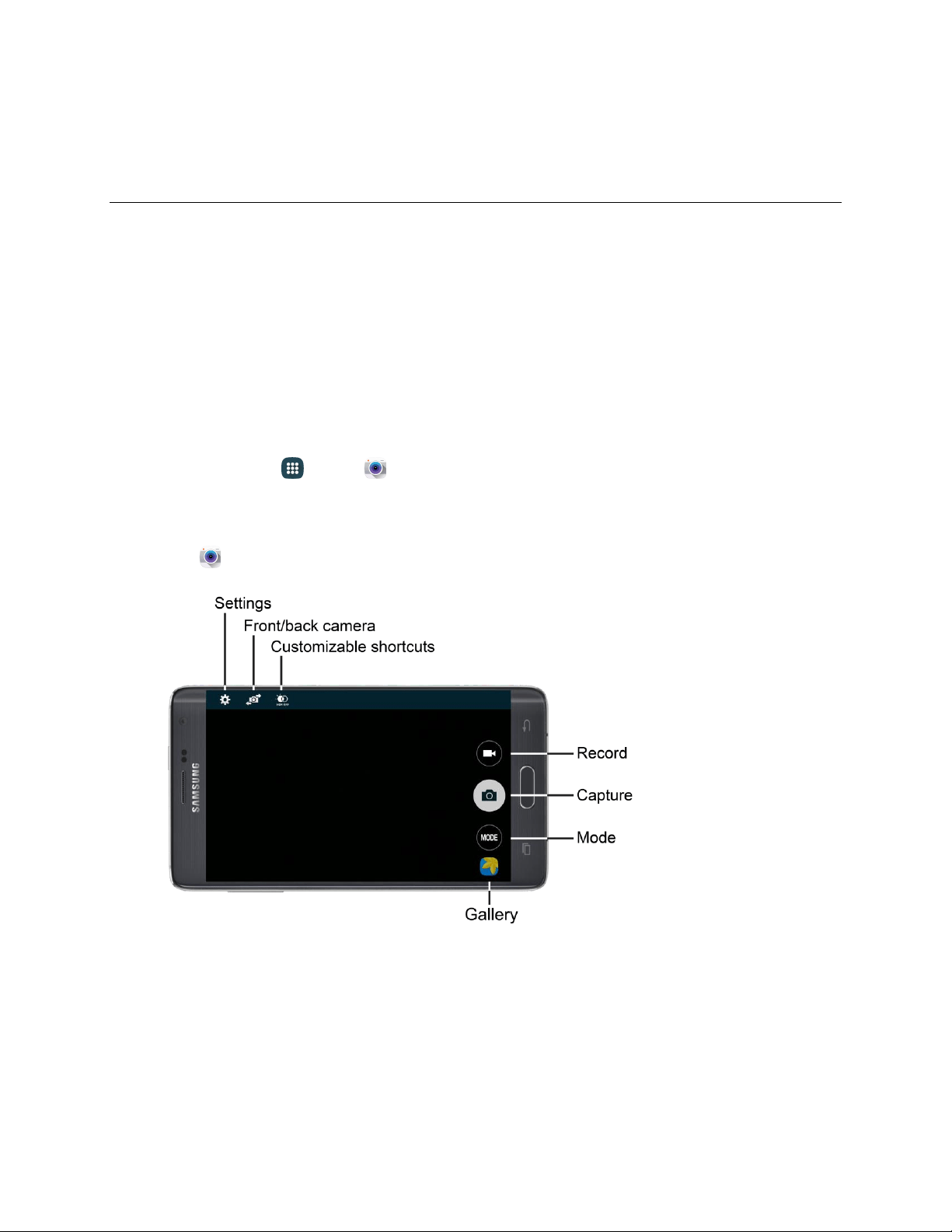
Pictures and Video
Camera
You can use the camera or camcorder to take and share pictures and videos. Make your selfies better
than ever with a class-leading 3.7 MP front-facing camera featuring Wide Angle Selfie Mode that gets
more friends and fun in frame. Capture special moments on a crisp, clear 16 MP camera and a full suite
of advanced editing functions. And say goodbye to blurry pictures and shaky videos thanks to optical
image stabilization (OIS).
Open the Camera
Follow the below procedure to access your phone’s camera.
■ From home, tap Apps > Camera.
– or –
Tap Camera on the Edge screen.
● Settings: Access camera settings.
● Front/Back Camera: Switch between the front and back cameras.
● Customizable shortcuts: Shortcuts to favorite settings, which you can customize. The shortcut
shown here is HDR (Rich tone).
● Record: Tap to start recording a video.
Pictures and Video 88

● Capture: Tap to take a picture.
● Mode: Tap to choose a shooting mode. The current mode displays on the camera screen.
Shooting modes allow you to choose modes for automatically adjusting settings to suit conditions,
or to access special features like panorama or other specialty shots.
● Gallery: View your pictures or video, and access picture sharing and editing options.
Take a Picture
You can take pictures with your phone’s front or back camera, or combine shots with Dual mode.
1. From home, tap Apps > Camera.
2. Using the phone’s screen as a vi
ewfinder, compose your shot by aiming the camera at the
subject. While composing your picture, use the options, or these gestures:
Touch the screen with two fingers and pinch or spread them on the screen to zoom in
and out.
Tap the screen to focus on the area you tapped.
3. Tap
Capture
to take the
picture.
Tip: If Voice Control is active, you can tak
e a picture by saying “Smile”, “Cheese”, “Capture”, or “Shoot.”
See Configure the Camera
.
Note: To include your location in pho
tos, turn on Location tags in Settings.
Record Videos
In addition to taking pictures, you can record, view, and send videos with your phone’s built-in video
camera.
1. From home, tap
Apps
>
Camera.
2. Using the phone’s screen as a vi
ewfinder, compose your shot by aiming the camera at the
subject. While composing your shot, use the options, or these gestures:
Touch the screen with two fingers and pinch or spread them on the screen to zoom in
and out.
Tap the screen to focus on the area you tapped.
3. Tap
Record
to begin recording.
While recording, you c
an
use these options:
Tap the screen to change the focus area to the ar
ea you tapped.
Tap
Capture
to take a still
picture while continuing recording.
Tap
Pause
to temporarily
stop recording.
Pictures and Video 89

Tap Resume to continue a paused recording.
Tap Stop to stop recording.
Tip: If Voice Control is active, you can begin recording by saying “Record Video.” See Configure the
Camera
.
Review Pictures and Videos from the Camera
After you take a picture or record a video, you can review and edit it right from the camera, using special
Studio options.
Review and Edit a Picture from the Camera
1. From home, tap Apps > Camera.
2. Take a picture, and then tap the Gallery thu
mbnail at the bottom right corner of the screen.
3. While reviewing a picture, you can use these options:
Change player: Choose a device to share your phone’s
screen using an AllShare Cast
dongle (not included).
Share: Choose a method for sharing the picture.
Edit: Edit the picture. Options include:
•
Adjustment: Rotate, crop, or resize the photo.
• Tone: Adjus
t the brightness, contrast, saturation, the red/green/blue color, the color
temperature, or the hue.
•
Effect: Add an effect to the picture.
• Portrait: Adjust pictures of faces. You can
remove redeye, brighten faces, airbrush,
or adjust the focus on faces in the picture.
•
Decoration: Add stickers, stamps, labels, frames, and
drawings to your picture.
Delete: Erase the current picture.
More options: Choose other options, including More inf
o, Write on image, Rotate left,
Rotate right, Crop, Rename, Slideshow, Add tag, Studio, Set as, Print, and Settings.
Review and Edit a Video from the Camera
1. From home, tap Apps > Camera.
2. Record video, and then tap the Gallery thu
mbnail at the bottom right corner of the screen.
Pictures and Video 90

3.
While reviewing a video, you can use these op
tions:
Share: Choose a method for sharing the video.
Video trimmer: Edit the length of the video. Drag
the trimmer from either end of the
video, to shorten the video.
Delete: Erase the current video.
More options: Choose other options, including More info, Rena
me, Slideshow, Studio, and
Settings.
Configure the Camera
Camera settings are special options that you can choose, right on the camera screen, to make taking
pictures or recording videos easy, and to make your pictures or videos special.
Customize Shortcuts
The Camera screen offers two customizable shortcuts, to give you the ability to choose favorite settings
on the fly.
1. From ho
me, tap
Apps
>
Camera.
2. Tap
Settings >
More
> Manage shortcuts, and then touch and drag settings to
or from
the two shortcuts spaces.
Choose a Shooting Mode
Your phone’s camera offers many shooting modes, to make your pictures or videos special.
1. From home, tap Apps > Camera.
2. On the Camera screen, tap
Mode
to choose a shooting mode. Scroll available modes, and
then tap
a mode to select it. Modes include:
Beauty face: Automatically enhances facial f
eatures.
Auto: Automatically adjusts the exposure to optimize the color and brightness of pictures. In
Auto mode, you can take single or burst shots (take burst shots by holding Capture to take
multiple shots until you lift your finger).
Selfie: Take a self-portrait using the front camera.
Wide selfie: Take wide-angle selfie shots using the front camera to fit more people into your
pictures.
Rear-cam selfie: Take a self-portrait using the rear camera.
Selective focus: Make objects stand out from the background by blurring items in the
distance.
Panorama: Take multiple pictures to merge into one expansive picture. You can create a
horizontal or vertical panorama picture.
Pictures and Video 91

Virtual tour: Create interactive virtual tours of your surroundings.
Slow motion: Record files at a high frame rate for viewing in slow motion.
Fast motion: Take multiple pictures at set intervals and combine them to create a fast
motion video.
Shot & more: Take a series of photos and then apply an effect right away or later in editing.
Dual camera: Take a picture or record a video using both cameras at once.
Manage modes: Select which shooting modes you wish to display when you tap MODE.
Download: Browse and download additional modes to use with Camera. Read and accept
the terms, and then browse for new modes.
Note: All modes may
not be shown
when you
tap
Mode, depending on your
phone’s setup and
which
camera is active (front or
back). Tap
Manage modes
to control
which modes are shown and
available
for
the current camera.
On the
Manage modes page, tap
Info
to see
all modes that are available for the
camera app.
Choose Camera Settings
Configure settings on your camera, such as flash settings, effects, exposure values, and more.
1. From home, tap Apps > Camera.
2. Tap Settings to configure options (listed in alphabetical order):
Note: Not all settings will be available at all times, depending on which camera is in use (front or back).
Some settings appear as shortcuts immediately after tapping
Settings. To see the rest of the settings,
tap
More.
Beauty face : Automatically
enhances facial features (Front camera only).
Effects : Add special
graphical
effects.
Exposure value : Change
the exposure value. This determines how much light the
camera’s sensor receives. For low
light situations, use
a higher exposure.
Flash : Activate or deactivate the flash. Toggle through flash options—on, auto, or off.
(Back camera only).
Grid lines : Display
viewfinder grid lines to help composition
when selecting subjects.
HDR (Rich tone) : Save the picture in HDR (rich tone) only (Back camera only).
Help : View help on
using the camera.
Interval shot : Take a series of pictures at
a set interval (Front camera only).
Pictures and Video 92

ISO : Select an ISO value. This controls camera light sensitivity. It is measured in film-
camera equivalents. Low values are for stationary or brightly-lit objects. Higher values are for
fast-moving or poorly-lit objects (Back camera only).
Location tags
: Attach a GPS
location tag to the
photo.
Manage shortcuts : Configure which settings appear on the main camera screen for
quick access.
Metering
modes : Select a metering method. This determi
nes how light values are
calculated. Center-weighted measures background light in the center of the scene. Spot
measures the light value at
a specific location. Matrix averages the entire scene (Back
camera only).
Picture s
ize : Select a resolution. Use higher resolutio
n for higher quality. Higher
resolution videos take up more memory.
Reset sett
ings
: Reset the camera settings.
Review pictures : Set to show photos or videos after taking them.
Save as flipped : Save the self-portrait or self-recording as a reversed (or ‘mirrored’)
image (Front camera only).
Storage location : Select the memory location for storage.
Tap to t
ake pics : Tap the
image on the preview screen t
o take photos.
The Vo
lume key : Use the
Volume key as the camera key, the record k
ey, or as a
zoom
key.
Timer
: Tak
e time-delayed pictures or vide
os.
Video size : Select a resolution. Use higher resolution for higher quality. Higher resolution
videos take up more memory (Back camera only).
Video stabilization : Activate anti-shake. Anti-shake helps to keep the focus steady
when
the camera is moving (Back
camera only).
Voice control : Set the camera to take photos
with voice commands.
White balance : Select an appropriate white balance, so images have a
true-to-life
color range. The settings are designed for specific lighting situations. These settings are
similar to the heat range for white-balance exposure in
professional cameras (Back
camera
only).
Pictures and Video 93

Gallery
Using the Gallery application, you can view pictures and watch videos that you’ve taken with your phone’s
camera, downloaded, or copied to an optional memory card (not included).
For pictures stored on an optional memory card, you can do basic editing such as rotating and cropping.
You can also set a picture as your contact picture or wallpaper and share pictures with your friends.
While viewing pictures in the Gallery, scroll up the screen to view more albums. Simply tap an album to
view the photos or videos in that album.
If you have pictures or videos stored on an optional memory card (not included), they will be display
folders they are stored in, and folders are treated as albums. The actual folder names will be used as the
album names. If you have downloaded any photos and videos, these will be placed in the All downloads
album.
Note: Tap
More options
> Help
to learn about Gallery.
1. From
home, tap
Apps
>
Gallery.
2. Select an album or tap a thumbnail to view the picture
or video.
3. From the main Gallery screen, you can use these options:
Tap a picture or video to display it in full screen view.
Touch and hold thumbnails to select them (indicated by a check mark).
Tap
Sort
by/Filter by
to choose a display styl
e. You
can view
by Time or Album, or Filter
to show
only
people,
scenery, food, etc.
Tap
Camera
to launch the
Camera to take pictures or record video.
Tap
Search
to enter keywords to search for items, or
choose a
view
or filter.
Tap
More options
for options. Available options depend on which Gallery screen
you are
viewing, and may
include:
• Select: Depending
on the
view, tap
albums or items to
select them. After selection, you
can tap
More options
again for options
you can
use with the selected item(s).
• Delete: Erase item(s).
• Create album: Create a
new album to group pictures (Album view only).
• Content to display: Choose whether to display all content, or only pictures stored on
your phone, or from Facebook or Google Photos (if you have those accounts set up on
your phone).
• Remove from Scenery/Documents: Remove a photo from the Scenery category or
Document category (Scenery or Document view only).
Pictures and Video 94

• Slideshow: Choose options to create a slidesho
w for viewing your pictures and videos.
• Studio: Edit the item using the Studio app.
• Settings: Configure Gallery settings. For more information, see Gallery Settings
.
• Help: Learn about Gallery.
View Photos and Videos
Tap a photo or video to view it in full screen.
View Photos
View, edit, and share photos.
1. From home, tap Apps > Gallery.
2. Tap a thumbnail to view the picture. While viewing a picture full-screen you can use these
options:
Change device: Choose a device to share your phone’s
screen using an AllShare Cast
dongle (not included).
Share: Choose a method for sharing the picture.
Delete: Erase the current picture.
Camera: Take a new
picture with the camera.
More options: Choose other options, includi
ng:
Edit: Edit the
picture. Options include:
•
Adjustment: Rotate, crop, or resize the photo.
• Tone: Adjus
t the brightness, contrast, saturation, the red/green/blue color, the color
temperature, or the hue.
•
Effect: Add an effect to the picture.
• Portrait: Adjust pictures of faces. You can
remove redeye, brighten faces, airbrush,
or adjust the focus on faces in the picture.
•
Decoration: Add stickers, stamps, labels, frames, and
drawings to your picture.
More info: View information about the picture.
Write on image: Use the S Pen to write or draw on the picture.
Rotate left: Rotate the picture to the left.
Rotate right: Rotate the picture to the right.
Pictures and Video 95

Crop: Adjust the size of the picture.
Rename: Change th
e name of the file.
Slideshow: Create a slideshow.
Add tag: Add a meta tag to the file.
Studio: Brings up the Studio app so you can enhance, or add special effects to your photos.
Set as: Set the picture as wallpaper on the lock or home screen.
Print: Print the picture to a compatible Wi-Fi printer (not included).
Settings: Configure Gallery settings.
View Videos
View, edit, and share videos.
Note: If no icons are displayed on the screen in addition to the picture, tap anywhere on the screen to
display them.
1. From home, tap
Apps
>
Gallery.
2. Tap a video to select it. When the vi
deo is displayed full-screen, you can use these options:
Share: Choose a method for sharing the video.
Video trimmer: Edit the length of the vide
o. Drag the left and right handles to trim the
video.
Delete: Erase the current video.
Tap
Play
to play the
video.
More options: Choose other options, including:
• More in
fo: View information about the video.
• Rename: Change the name of the video file.
• Slideshow: Create a slideshow.
• Studio: Edit the video using the Studio app.
• Settings: Configure Gallery settings.
Pictures and Video 96

Work with Photos
While viewing a photo, you can choose to delete the photo, rotate or crop it, and more.
Rotate and Save a Photo
To rotate or save your photo, follow the below procedures.
1. From home, tap Apps > Gallery.
2. Select a folder location (such as Camera) and t
ap an image to view your picture.
3. Tap
More options
> Rotate left
or Rotate right.
Crop a Photo
To crop your photos, follow the below procedures.
1. From home, tap Apps > Gallery.
2. Select a folder location (such as Camera) and t
ap an image to view your picture.
3. Tap
More options
> Crop.
4. To adjust the crop box size, touch and drag the edges of the box.
5. To move the crop box to the part of the photo that you want to crop, drag the center of the box to
the desired position.
6. Tap Save to apply the changes to the picture.
2. Tap
the album that contains the photos or vide
os you want to share.
3. Tap the photo or video you want to send.
The cropped picture is saved along with the
original copy
in
your default storage
location
.
Share Photos and Videos
You can share and send pictures and videos from your phone using several different methods, including
messaging, email, social media apps, Bluetooth, and more. To share photos and videos, follow these
procedures.
Send Photos or Videos by Email or Gmail
You can send photos, videos in an email or Gmail message. They are added as file attachments in your
email.
1. From
home, tap
Apps > Gallery.
To select multiple pictures to send, touch an
d hold a thumbnail to display the selection
screen, and then touch additional pictures.
Pictures and Video 97
4. Tap
the screen and then tap
Share via > Gmail or Email.
5. Address and compose your message and then tap
Send
or
Send.
Note: If you have multiple email or Gmail accou
nts, the default account will be used.
Send a Photo or Video by Multimedia Message
Although you can send several photos or videos in a multimedia message, it may be better to send one at
a time, especially if the files are large in size.
1. From home, tap
Apps
>
Gallery.
2. Tap the album that contains the photos or videos
you want to send.
3. Tap the photo or video you want to send.
4. Tap
the screen and then tap
Share via > Messages.
5. Address and compose your message and then tap Send.
Send Photos or Videos Using Bluetooth
You can select several photos, videos, or both and send them to someone’s device or your computer
using Bluetooth.
1. From home, tap
Apps
>
Gallery.
2. Tap the album that contains the photos or videos you want to send.
3. Select the photos or videos you want to send.
4. Tap
the screen and then tap
Share via > Bluetooth.
5. Follow the prompts to turn on Bluetooth on y
our phone and connect to the receiving device so the
files can be sent.
For more information, see Bluetooth
.
Send Photos or Videos through Additional Apps or Social Media
From Gallery, you can share your pictures and videos from a variety of apps and social media sites, such
as Facebook, Google+, Hangouts, Instagram, and more. Available apps will vary depending on what you
have installed on your phone.
1. From home, tap
Apps
>
Gallery.
2. Tap the album that contains the photos or videos
you want send.
3. Select the items you want to send.
4. Tap the screen, tap
Share via, and then tap the app you want to u
se.
5. Follow the prompts to complete the share.
Pictures and Video 98

Share Videos on YouTube
You can share your videos by uploading them to YouTube. Before you do this, you must create a
YouTube account and sign in to that account on your phone.
1. From home, tap
Apps
>
Gallery.
2. Tap the album that contains the videos
you want to share.
3. Select the video you want to share.
4. Tap
the screen and then tap
Share
via
> YouTube.
5. Enter the prompted information, such as descri
ption and tags, and select a privacy option.
6. Tap
Upload.
Video
Play videos stored on your phone, or from your other devices (you must sign in to your Samsung account
to play videos synced from your other devices).
1. From home, tap
Apps
>
Video.
2. Scroll through the videos stored on your
phone. After a few seconds, each video thumbnail
begins playing a preview of the clip.
3. Tap a video to view it.
Use Pop-Up Play
Multitask with Pop-up play by transforming your video player into a pop-up window floating on the screen.
The video will continue to play, and the pop-up window can be resized or moved anywhere on the screen.
1. From home, tap
Apps
>
Video.
2. Tap a video to view it.
3. Tap
Pop-u
p player
to continue playing the video
in a floating window. Drag the window
to
any
location on the screen, and use two fingers to pinch or spread to resize the floating window.
Pictures and Video 99

Tools and Calendar
Learn how to use many of your phone’s productivity-enhancing apps and features.
Bluetooth
Bluetooth is a short-range communications technology that allows you to connect wirelessly to a number
of Bluetooth phones, such as headsets and hands-free car kits, and Bluetooth-enabled handhelds,
computers, printers, and wireless phones. The Bluetooth communication range is usually approximately
30 feet.
Turn Bluetooth On or Off
When Bluetooth is on, you can scan and find other Bluetooth devices for share data. Turn Bluetooth off
when not in use to conserve battery power.
1. From home, tap
Apps
>
Settings
>
Bluetooth.
2. Tap the On/Off switch to turn Bluetooth on or off
.
Note: You can also turn Bluetooth on or off from the notification panel. Drag down from the top of the
screen, and then tap Bluetooth.
Note: For Bluetooth settings information see Bluetooth Settings
.
Connect a Bluetooth Headset or Car Kit
You can listen to music over a Bluetooth stereo headset (not included), or have hands-free conversations
using a compatible Bluetooth headset or car kit (not included). It is the same procedure to set up stereo
audio and hands-free devices.
1. From home, tap
Apps
>
Settings
>
Bluetooth.
2. Tap the On/Off switch to turn Bluetooth on.
3. Ma
ke sure that the target device is discoverable, so that your phone can find it. Refer to the
instructions that came with the device to find out how to set it to discoverable mode.
4. Tap Scan. Your phone will start to scan for Bluetooth devices within range.
5. When you see the name of the target device displayed in the Bluetooth devices section, tap the
name. Your phone then automatically tries to pair with the target device.
6. If automatic pairing fails, enter the passcode supplied with the target device.
Tools and Calendar 100

The pairing and connection status is displayed below the hands-free headset or car kit name in the
Bluetooth devices section. When the Bluetooth headset or car kit is connected to your phone,
Bluetooth connected displays in the status bar. Depending on the type of headset or car kit you have
connected, you can then start using the headset or car kit to listen to music or make and receive phone
calls.
Note: Due to different specifications and features of other Bluetooth-compatible devices, display and
operations may be different, and functions such as transfer or exchange may not be possible with all
Bluetooth-compatible devices.
Reconnect a Headset or Car Kit
When you have paired a Bluetooth headset (not included) with your phone, you should be able to
reconnect it automatically by turning on Bluetooth on your phone and then turning on the headset.
However, sometimes you will need to reconnect manually, for example if you have been using your
headset with another Bluetooth device.
1. From home, tap
Apps
>
Settings
>
Bluetooth.
2. Tap the On/Off switch to turn Bluetooth on.
3. Make sure tha
t the target device has Bluetooth turned on.
4. Tap the target device’s name in the Bluetooth devices section.
5. If prompted to enter a passcode, try 0000 or 1234, or consult the target device’s documentation to
find the passcode.
Tip: If you still cannot reconnect to the target device, follow the instructions in Disconnect or Unpair From
a Bluetooth Device, and then follow the instructions in Connect a Bluetooth Headset or Car Kit
.
Disconnect or Unpair from a Bluetooth Device
Follow these instructions to disconnect or unpair your phone from a Bluetooth device.
Disconnect from a Bluetooth Device
You can disconnect from a Bluetooth device without removing the pairing relationship between the
devices.
1. From home, tap
Apps
>
Settings
>
Bluetooth.
2. Tap the device name, and then tap OK.
Unpair from a Bluetooth Device
You can make your phone forget its pairing connection with another Bluetooth device. To connect to the
device again, you will need to pair with it again.
1. From home, tap
Apps
>
Settings
>
Bluetooth.
2. In the Bluetooth devices section, tap
Settings beside the device name, and then tap Unpair.
Tools and Calendar 101

Send Information Using Bluetooth
You can use Bluetooth to transfer information between your phone and another Bluetooth-enabled
device, such as notebook computer. The first time you transfer information between your phone and
another device, you need to enter or confirm a security passcode. After that, your phone and the other
device are paired, and you will not need to exchange passcodes to transfer information in the future.
You can send the following types of information, depending on the device you are sending to:
● Images and videos
● Calendar events
● Contacts
Audio files To send information from your phone to anothe
r device:
1. Set the receiving device to disc
overable mode. You may also need to set it to “Receive Beams”
or “Receive Files”. Refer to the device’s documentation for instructions on receiving information
over Bluetooth.
2. On the device, open the application that contains the information or file you want to send. Follow
the steps for the type of item you want to send:
Photo or video (in Camera): After capturing a photo, on the preview screen, tap
Share
via > Bluetooth.
Photos and videos
(in Gallery):
Tap a picture or video, and then tap
Share via
>
Bluetooth.
Tip:
If your
phone r
emembers Bluetooth
as a previous selection
within the
Camera or Gallery, you can
tap
Bluetooth
(to the right of the
Share via icon).
Calendar event: In
the
Calendar’s Day
view, Agenda view, or
Week view, tap the event, and
then tap
the
event name to view its summary. Tap
Share via, choose either
VCS file
or
Text, and then tap Bluetooth.
Music:
While playing
a song in the
Music
app, tap
More options
>
Listen
through
Bluetooth.
Voice recording:
On the main Voice Recorder screen, touch and hold a recording,
and then
tap
Share via
> Bluetooth.
3. If you are prompted to turn on Bluetooth, tap Turn on.
4. Tap the name of the receiving device.
5. If prompted, accept the connection on the receiving device, and enter the same passcode on both
your phone and the other device, or confirm the auto-generated passcode.
6. On the receiving device, accept the file.
Tools and Calendar 102

Receive Information Using Bluetooth
Your phone is capable of receiving a wide variety of file types with Bluetooth, including photos, music
tracks, and documents such as PDFs.
1. From home, tap
Apps
>
Settings
>
Bluetooth.
2. If Bluetooth is not on, tap the On/Off switch to turn it on.
3. Tap the checkbox beside your phone’s Bluetooth name to make it discoverable.
4. On the sending device, send one or more files to your phone. Refer to the device’s
documentation for instructions on sending information over Bluetooth.
If prompted, enter the same passcode on both your phone and the other device, or confirm
the auto-generated passcode. A Bluetooth authorization request is displayed on your phone.
5. When your phone receives a file transfer request notification, tap Accept.
When the file is transferred, a notification displays.
To open the file immediately, slide down the notification panel, and then tap the relevant
notification.
When you open a received file, what happens next depends on the file type:
● Media files and documents are usually opened directly in a compatible application. For example,
if you open a music track, it starts playing in the Music application.
● For a vCalendar file, select the calendar where you want to save the event, and then tap Import.
● The vCalendar is added to your Calendar events. For more information on using the Calendar,
see Calendar
.
● For a vCard contact file, if there are multiple vCard files on your storage card, you can choose to
import one, several, or all of those contacts to your contacts list.
Calculator
Use the Calculator app to perform mathematical calculations.
Note: Rotate the phone to switch to a scientific calculator with advanced calculator functions.
1. From home, tap Apps > Calculator.
2. Tap the keypad to enter your equation.
To clear the results:
■ Tap
Clear.
Tools and Calendar 103

To clear the calculator history:
■ Tap
Expand
> Clear
history.
To copy all or part of the calculation t
o the clipboard:
■ Touch and hold an entry in the display field.
Calendar
Use Calendar to create and manage events, meetings, and appointments. Your Calendar helps organize
your time and reminds you of important events.
Note: For information about Calendar options, see Calendar Settings
.
Add an Event to the Calendar
Add events to your Calendar to help you organize your time and remind you of important events.
Note: To synchronize calendar events among your Google and Corporate accounts, make sure they are
being managed by your phone. See Accounts and Messaging for more information.
1. From home, tap Apps > Calendar.
2. Tap Add new to open the Add event screen.
3. If you have accounts set up on your pho
ne, you can assign the new event to an account by
tapping the Calendar field and then selecting an account.
My calendar: Calendar entries that are stored locally on the phone and not part of an
account.
Samsung Calendar: Calendar entries that are synchronized between your phone and your
Samsung account.
Google/Gmail: Calendar entries that are synchronized between your phone and your Google
Account.
Microsoft Exchange ActiveSync: Calendar entries that are synchronized between your
phone and a Microsoft Exchange ActiveSync account.
4. Enter information about the event:
Tap the Title field and enter a title for the event.
Tap the Location field to enter a location for the event in the Location field or tap the icon to
select the location on the map.
Select a Start and End date and time for the event by tapping the corresponding fields, and
adjusting the month, day, and year. Tap the All day field to set this as an all-day event. If set
as an all-day event, the time fields are removed.
Select an alarm time by tapping the Reminder field.
Tools and Calendar 104

5. Tap Save, or tap View more options to enter more information about the event. Available
options depend on the type of event and the account it is synced with.
Enter participants in the Participants field.
Tap Show me as (or Status) to choose how the event shows on your calendar to other event
organizers.
Tap Privacy to select who is allowed to see this event. Private allows only the participants to
see the event. Public allows anyone with access to your calendar to see the event.
Select a recurrence cycle for the event by tapping the Repeat field.
Enter a description for the event in the Description field.
Tap a sticker to add it to the event.
Tap Time zone to adjust the time zone.
6. Tap Save to store the new event and synchronize it with your selected account.
Event Alerts
When your phone is turned on and you have an event alarm scheduled, your phone alerts you and
displays the event summary. There are several ways your phone alerts you to scheduled events:
● By playing the assigned ringtone.
● By showing the Alert screen.
Event Reminders
When your phone is turned on and you have an event alarm scheduled, there are several ways your
phone alerts you to scheduled events:
● By playing a short beep.
● By indicating an icon within the status bar.
To view additional options:
1. Tap the status bar, and then slide your
finger down the screen to open the notification panel.
2. Tap the upcoming event name from the list to display the event within the Calendar notifications
screen.
3. Tap an option.
Set snooze duration to set the length of time to allow before you are reminded of the event.
Choose from: 3 minutes, 5 minutes, 10 minutes, 15 minutes, or 30 minutes.
Snooze to be reminded of the event at a future time.
Dismiss to dismiss the reminder.
Tools and Calendar 105

View Events
The following procedure helps you view your calendar events.
1. From home, tap Apps > Calendar.
2. To view a Calendar event farther out, tap
Menu, and then tap a time period (Year, Month,
Month and agenda, Week, Day, or Agenda).
3. Tap the day for which you would like to v
iew events.
4. To display an event’s details, tap it from the Agenda screen (lower half of the screen).
Day View
Day view shows hours for that day.
While in Day view:
● Day view displays a lis
t of the
events of one day.
● The color bars on the left side of the events indicate the type of calendar that includes the event.
● When in Day view, slide left or right across the screen to view earlier or later days.
Agenda View
Agenda view shows a list of upcoming events in chronological order.
● Tap an event to view its details.
● Tap where indicated to view events before the currently selected date.
Month and Agenda View
Month and Agenda view shows the month, with a list of events for the month below.
While in Month and agenda view:
● You can touch and hold on a day to create a new event on that day.
● Tap an event to view its details.
● Slide left or right across the screen to view earlier or later months.
Tools and Calendar 106

Week, Month, and Year Views
Week view displays a chart of the events of one week. In Year or Month views, you will see markers on
days that have events.
When in Week view:
● You can touch and hold on a time slot to create a new event at that time.
● Tap an event to view its details.
● Slide left or right across the screen to view earlier or later weeks.
When in Year or Month views:
● Tap a day to view the events of that day.
● Touch and hold a day to create a new event on that day.
● Slide left or right to view earlier or later months or years.
Delete Events
The following procedures show you how to erase your calendar events.
1. From home, tap Apps > Calendar.
2. Open the calendar event details:
In A
genda, Day, and Week views, tap the calendar event you want to delete.
In Month view, tap the date where the calendar event occurs, and then tap the calendar
event.
In Year view, tap the month in which the event is located. Then, tap the date where the
calendar event occurs, and then tap the calendar event.
3. Tap the event, and then tap
Delete.
4. In the Delete confirmation box, tap Delete.
– or –
If the calendar event is recurring, select Only this event, This and future events, or All
events in series, and tap Delete.
Tools and Calendar 107

Clock
The Clock app offers features for keeping track of time and setting alarms.
1. From home, tap Apps > Clock.
2. Tap a tab to use a feature:
Alarm: This feature allows you to set an alarm to ring at a specific time.
World clock: Allows you to view the time of day or night in other parts of the world. World
Clock displays time in hundreds of different cities, within all 24 time zones around the world.
Stopwatch: You can use this option to measure intervals of time.
Timer: You can use this option to set a countdown timer. Use a timer to count down to an
event based on a preset time length (hours, minutes, and seconds).
Create an Alarm
Create an alarm event. You can set one-time or recurring alarms, and choose options for how to be
notified for the alarm.
1. From home, tap
Apps
>
Clock,
and then tap the
Alarm
tab.
2. Tap
Create alarm
to set up the alarm. Alarm options include:
Time: Choose a time for the alarm.
Repeat: Choose the days to repeat the alarm every week.
Alarm type: Choose whether the alarm will use sound, vibration, or vibration and sound to
alert you.
Alarm tone: If you have chosen an alarm type that includes sound, choose a sound to play
for the alarm.
• To choose an alarm tone, tap an option to hear a preview. Tap OK to save the selected
alarm.
• To add a new alarm tone, tap Add, select a song from your music list, and then tap
Done.
Volume: If you have chosen an alarm type that includes sound, drag the slider to set the
volume of the alarm.
Snooze: Allow snoozing and set Interval and Repeat values for the alarm while snoozing.
Smart alarm: When on, the alarm will start playing a tone at a low volume at an interval
before the alarm time, and slowly increase in volume. Choose a time interval and a tone to
use with smart alarm. Available when you have chosen an alarm type that includes sound.
Name: Enter a name for the alarm.
3. Tap Done.
Tools and Calendar 108
Turn an Alarm On or Off
Once you set and save an alarm, you can turn it on or off from the Clock menu without deleting the
settings.
1. From home, tap
Apps
>
Clock
> Alarm
tab.
2. Tap the alarm clock icon next to a sav
ed alarm. The icon is green when the alarm is turned on
(set), and gray when it is turned off.
Delete an Alarm
1. From home, tap Apps > Clock > Alarm tab.
2. Touch and hold an alarm, and then tap Delete.
Drive
With the Google Drive application, everything that you add to your Drive from work or home is also
available on your phone. You can create and edit documents on your phone and the changes are saved
everywhere.
For more information, visit drive.google.com.
Note: You will need to set up your G
oogle Account on your phone to use Drive.
■ From home, tap Apps > Drive.
Dropbox
Use this application to save and share files with others through the Dropbox cloud storage. When you
save files to Dropbox, your phone automatically syncs with the Web server and any other computers that
have Dropbox installed.
■ From home, tap
Apps >
Dropbox.
Evernote
Create, synchronize, and share multimedia notes. You can add tags to the notes, or sort the notes into a
notebook so that you can manage your ideas efficiently.
■ From home, tap Apps > Evernote.
Flipboard
Get the daily top news, according to your interests, all in one place.
■ From home, tap
Apps >
Flipboard.
Tools and Calendar 109

Flipboard Briefing
Get the daily top news, according to your interests, all in one place using Flipboard Briefing powered by
your Flipboard account.
Activate Flipboard Briefing
Flipboard must be activated before use.
1. From home, scroll to the left until Flipboard Briefing displays.
2. Tap Start reading to view articles for the first time.
Customize Flipboard Briefing
Flipboard Briefing will display stories according to your interests.
1. From home, scroll to the left until Flipboard Briefing displays.
Note: When accessing Flipboard Briefing for the first time, tap the Start reading button.
2. Tap More options and select categories you are interested in.
3. Tap either Sign Up or Sign In in order to save your preferenc
es to a Flipboard account.
Share Flipboard Briefing Articles
You can share articles from Flipboard Briefing using Messages, Email, Bluetooth, and more.
1. From home, scroll to the left until Flipboard Briefing displays.
2. Tap the article you want to share.
3. Tap Share and select a sharing method.
Flipboard Briefing Settings
Manage your Flipboard account settings.
1. From home, scroll to the left until Flipboard Briefing displays.
2. Tap
More options:
Tap either Sign Up or Sign In.
To sign up or sign in with a
Google or Samsung Account, tap either Sign up with Google or
Sign up with Samsung Account. To use a different email address, enter your email
address under the section or through email.
When finished, tap OK.
Note: To remove Flipboard Briefing from your home screens, pinch a home screen and tap Home screen
settings. Uncheck Flipboard Briefing. (Removing Flipboard Briefing allows you to scroll all your home
screens in a circular manner.)
Tools and Calendar 110
Google Now
Google Now
™
gets you just the right information at just the right time.
It tells you today’s weather before you s
tart your day, how much traffic to expect before you leave for
work, when the next train will arrive as you are standing on the platform, or your favorite team’s score
while they’re playing. And the best part? All of this happens automatically. Cards appear throughout the
day at the moment you need them.
For more information, visit google.com/now
.
1. Press and hold the Home key.
2. Follow the pr
ompts to learn about Google Now and set up your preferences.
Google Search
Use Google Search to search the Internet.
■ From home, tap Apps > Google.
Hancom
™
Office 2014
Hancom Office
™
2014 includes a word processor program (Hanword), a spreadsheet program (Hancell),
and a presentation program (Hanshow). In addition to opening, editing, and saving MS Office documents,
Hancom Office 2014 supports standard ODF files and quick and easy conversion to the PDF file format.
■ From home, tap
Apps
>
Hancom Office 2014.
Lookout Security
Lookout
®
Security provides mobile phone-specific security features that are coupled with a minimal
performance hit. Lookout Mobile Security provides key security options that are unique to the mobile
market. Along with the antivirus and anti-malware tech, there is a lost and stolen phone locator service,
an application privacy adviser, and a backup service.
■ From home, tap
Apps
>
Lookout.
My Files
My Files allows you to manage your sounds, images, videos, Bluetooth files, Android files, and other data
in one convenient location. This application allows you to launch a file if the associated application is
already on your phone.
1. From home, tap
Apps
>
My
Files.
2. Folders display, including:
Recent files: View recently saved files.
Images: View image files.
Tools and Calendar 111

Videos: View video files.
Audio: View audio files.
Documents: View document files.
Downloaded apps: View downloaded apps.
Download history: View all apps and files that have been downloaded to the phone.
Shortcuts: Contains shortcuts to files or folders that you have added. This option only
appears if you have added shortcuts to the My Files main screen.
Local storage: View folders and files in their storage locations.
• Device storage: View folders and files located on the phone.
• SD card: View folders and files located on the memory card (if installed).
Cloud storage: Contains shortcuts to FTP servers or other cloud storage locations that you
have added.
Note: Different folders may appear depending on how your phone is configured.
To view files in My Files:
1. From home, tap Apps > My Files.
2. Tap a category to view its files or fol
ders.
3. Tap a file or folder to open it.
Navigation
Your phone offers a number of location-based navigation programs to help you figure out where you are
and get you where you are going.
Google Maps
Use the Google Maps application to determine your current location with or without GPS, get driving and
transit directions, and find phone numbers and addresses for local businesses.
For more information about Google Maps, visit maps.google.com
.
Enable Location
To use Google Maps, enable your phone’s GPS location service and agree to share location information
with Google.
1. From home, tap
Apps
>
Settings
>
Location.
2. Tap the On/Off switch to turn the service on, and then tap Mode and select a locating method.
To launch the Google Maps application:
■ From
home, tap
Apps > Maps.
Tools and Calendar 112

Scout
Scout by Telenav is a daily personal navigator that helps you get where you are going. It lets you see and
hear turn-by-turn directions and it can provide important, personalized information about traffic and
alternate routes.
1. From home, tap
Apps >
Scout.
2. Follow the prompts to update the app and c
ustomize your experience by selecting routes, traffic
alerts, and more.
Peel Smart Remote
Use your phone to control your TV, Set-top box, DVR, Stereos, and other electronic devices.
Configure Peel Smart Remote
Choose your TV service and personalize your selections.
1. From home, tap Apps > Peel smart remote.
2. Follow the prompts to configure the service.
Use Your Peel Smart Remote to Control Your TV
After customizing Peel Smart Remote, you can use it to control your TV.
1. From home, tap Apps > Peel smart remote.
2. From the Smart Remote screen, tap
Universal Remote Control for options:
Easy remote: provides the most common
used control features.
For additional remote options, tap the arrow icon on the right side of the screen to display the
advanced remote:
• TV: Control functions for your TV.
• [Set top box]: Control your set-top box.
Samsung+
Get live help, discover new features, and unlock promotions for your Samsung device.
■ From home, tap Apps > Samsung+.
Tools and Calendar 113

S Health
S Health is a wellness application that can help you manage your health. Set fitness goals, check your
progress, and keep track of your overall health.
Caution: The information gathered from this device, S Health, or related software is not intended for use
in the diagnosis of disease or other conditions, or in the cure, mitigation, treatment or prevention of
disease.
The accuracy of the information and data provided by this device and its related software, including heart
rate readings, may be affected by factors such as environmental conditions, skin condition, specific
activity performed while using/wearing the device, settings of the device, user configuration/user-provided
information, placement of the sensor on the body, and other end-user interactions. For more information
on proper wear and use, see www.samsung.com/us/heartratesensor
.
1. From home, tap
Apps
>
S Health.
2. Follow the prompts to get started:
Read the introd
uction and tap Start.
Read and agree to the terms and conditions, and then tap Next.
Sign in to your Samsung account if you have not already done so. For more information, refer
to Samsung Account. You must sign in to a Samsung account to set and save goals, and use
other advanced S Health features.
Follow the instructions to enter information about yourself, and then tap Start.
3. Use S Health to track your health activities:
Pedometer: Count the number of steps you take. Tap Start to start counting. You can pause
counting and then tap Start to begin again. If you signed in to your Samsung account, you
can set goals, track your progress, and share your results.
Exercise: Set and manage exercise goals, and track your progress. You can track activities
by type, such as running, walking, cycling, and hiking. S Health also offers access to the
Music app, to work out to your favorite songs.
Food: Track your daily food intake, by entering your meals and snacks. You can keep track
of your favorite foods, and take pictures of your meals.
Water: Track your daily intake of water.
Caffeine: Track your daily intake of caffeine.
Weight: Track your weight and BMI (body mass index).
Sleep: Samsung wearable devices (not included) can record your sleep data and sync it with
Sleep in S Health.
Heart rate: Measure your heart rate, using the heart rate sensor on the back of your phone
(next to the Camera flash). Place your finger over the sensor, and then tap the screen to
start. Hold your finger on the sensor, and keep still until the sensor reports your heart rate.
Tools and Calendar 114

SpO2: Measure the concentration of oxygen in your blood (SpO2 or oxygen saturation).
Stress: Measure your stress level using your heart rate variable.
UV: Measure the UV intensity of your environment.
Blood glucose: Track your blood glucose levels.
Blood pressure: Track your blood pressure.
Coach: Coach by Cigna provides general information and features designed to help you to
manage your overall well-being.
Partner apps: Manage additional S health-compatible apps you install here.
Note: Tap More > Settings > Help for more detailed information.
Before You Start Exercising
This app can be used to monitor your exercise. While moderate physical activity, such as brisk walking, is
safe for most people, health experts suggest that you talk with your doctor before you start an exercise
program, particularly if you have any of the following conditions:
● Heart disease;
● Asthma or lung disease;
● Diabetes, or liver or kidney disease;
● Arthritis.
You should also check with your doctor if you have symptoms suggestive of heart, lung, or other serious
disease, such as:
● Pain or discomfort in your chest, neck, jaw, or arms during physical activity;
● Dizziness or loss of consciousness;
● Shortness of breath with mild exertion or at rest, or when lying down or going to bed;
● Ankle swelling, especially at night;
● A heart murmur or a rapid or pronounced heartbeat;
● Muscle pain when walking upstairs or up a hill that goes away when you rest.
Finally, the American College of Sports Medicine recommends that you see your doctor before engaging
in vigorous exercise if two or more of the following apply:
● You are a man older than age 45 or a woman older than age 55;
● You have a family history of heart disease before age 55;
● You smoke or quit smoking in the past six months;
● You have not exercised for three months or more;
● You are overweight or obese;
Tools and Calendar 115

● You have high blood pressure or high cholesterol;
● You have impaired glucose tolerance, also called prediabetes.
When in Doubt — Check It Out
If you are unsure of your health status, have several health problems, or are pregnant, you should speak
with your doctor before starting a new exercise program. Working with your doctor ahead of time is a
good way to plan an exercise program that is right and safe for you. Consider it the first step on your path
to physical fitness.
S Note
The S Note app helps you create, edit, and manage all the notes on your phone.
Sign in to your Samsung account to access your notes in S Note from any device.
Wi
th S Note, create content by typing, writing, drawing, and even recording voice, video, or taking
pictures. Templates are provided to make conten
t creation easy and help keep things organized.
■ When you start the S Note app for the first tim
e, follow the instructions to set up your preferences
and compatible accounts.
Create a Note
To create a note with S Note:
1. From home, tap Apps > S Note.
2. Tap the
Create new note icon.
Use the S Pen to create content.
To use a templ
ate, tap More > Background settings to add templates, change the
background color, and add images.
3. When finished, tap Save.
Edit a Note
When in the S Note app, you can edit notes as follows:
1. From home, tap Apps > S Note.
2. Tap a note to view it.
3. Tap Edit to edit the no
te.
Note: Action memos behave differently from other notes. They are edited as Action memos, not as
regular notes.
Tools and Calendar 116

Share a Note
When in the S Note app, you can share notes as follows:
3. From home, tap Apps > S Note.
4. Tap a note to view it.
5. Tap Share.
6. Select a f
ile type and follow the prompts to share the note.
Note Tools
When creating or editing a note in S Note, some helpful modes and tools are provided.
Note: The available tools are different for Action notes.
● Save: Save the S Note.
● Pen: Select different pens, line widths
, and line colors.
• Tap Favorite pens to save pen settings at the bottom o
f the screen.
● Eraser mode: Erase content from the note. Tap once
to select the eraser. Tap again to
change the Eraser settings.
● Text mode: Type text using the keyboard. Tap onc
e to select Text mode. Tap again to
change the Text settings.
● Undo: Undo the previous action.
● Redo: Redo the something that was undone.
● M
ore: The options include Insert, Add page, Manage pages, Background settings, and Tags.
Tools and Calendar 117

S Voice
S Voice
™
is a voice recognition application you can use to activate a wide variety of functions on your
phone.
This is a natural language recognition application. You can ask questions (Is it raining in Dallas?) or
speak commands (Show me where to find cheap gas).
1. From home, tap
Apps
>
S Voice.
2. Follow the prompts to learn about S Voi
ce, and to review and accept the terms and conditions.
3. Tap Tutorial to learn about S Voice, or tap Start to skip the tutorial and start using
S Voice.
4. Speak a command. Some examples are listed.
5. Tap the microphone icon if the phone does not hear you, or to give it a new command.
Configure S Voice
Configure options for interacting with your phone with S Voice.
You can access S Voice settings in two ways:
● F
rom S Voice: From home, tap Apps > S V
oice > More opt
ions > Settings.
● From Settings: From home, tap Apps > Settings > Application settings > S
Voice.
For details about S Voice settings, see S Vo
ice Settings
.
Scrapbook
The Scrapbook app provides a place for you to manage the multimedia content you capture with the S
Pen. Scrapbook provides storage and organization tools for content you capture while using your mobile
phone. Using the S Pen, you can capture articles, images, and even videos and music. You can then add
a title, text, a handwritten memo, or content tags. When you capture content online, the Web link is saved
with the content.
■ From home, tap
Apps
>
Scrapbook.
Tools and Calendar 118

Using the Smart Select and Image Clip Tools
Use the S Pen to select content on the screen and adding it to your Scrapbook.
To capture content with the S Pen:
1. Launch the Air command menu and select Smart select or Screen write.
2. Use the S Pen to draw around the content to captu
re.
3. Tap
Save in
Scrapbook
to copy the selected co
ntent to the Scrapbook.
Edit the Scrapbook
Content in the Scrapbook can be edited. You can edit both Categories and the content files within them.
1. From home, tap Apps > Scrapbook.
2. Tap
Menu
in the top left corner.
3. Tap the category that contains the file
.
4. Locate the file to edit and tap it to open.
5. Tap Edit.
6. Change the Title, Text, Drawing memo, or Tags as desired. When finished, tap Save.
Add a Category
You can add new categories to the Scrapbook.
1. From home, tap Apps > Scrapbook.
2. Tap
More options
> Manage categories.
3. Tap
Create category.
4. Enter a category name, select a layout op
tion, and then tap Save.
Rename a Category
Manage your categories.
1. From home, tap Apps > Scrapbook.
2. Tap
More options
> Manage categories.
3. Tap Edit, and tap the category.
4. Tap Rename, and t
ype a new name.
5. Tap Rename to save.
Tools and Calendar 119

Smart Manager
Smart manager provides an overview of the status of your device’s battery, storage, and RAM. You can
also automatically optimize your device’s system resources.
1. From home, tap Apps > Smart Manager.
2. To optimize your resources, tap Cle
an all.
Voice Recorder
The Voice recorder allows you to record an audio file up to one minute long and then immediately share
it. Recording time will vary based on the available memory within the phone.
Make a Voice Recording
1. From home, tap Apps > Voice Recorder.
2. Tap Select mode to choose the appropriate recording mode:
Normal: This recording mode picks up an
y sounds detected by the microphones.
Interview: The top and bottom microphones are used for two-directional recording. The top
and bottom of the device pick up equal amounts of sound. Microphones can be muted during
recording and playback.
Meeting: The microphones are sensitive to sound from all directions and can distinguish up
to eight sources of sound. Sound sources can be muted during recording and playback.
Voice memo: Voice input is converted to text on screen. The maximum recording time is five
minutes.
3. Use the Voice Recorder controls:
To start recording, tap
Record
and speak into the micropho
ne.
To pause recording, tap
Pause. To end the recording, tap
Stop.
To cancel
the recording, tap
Cancel.
Tap block incoming calls
while recording, tap
Block calls.
To mark a spot in the recording so you can find
it later, tap
Bookmark.
Tools and Calendar 120

Share a Voice Recording
1. From home, tap Apps > Voice Recorder.
2. Tap List, and then touch and hold on a recording to display options.
3. Tap Share via, and then follow the prompts to choose a method and share the file.
Modify a Voice Recording
1. From home, tap Apps > Voice Recorder.
2. Tap List, and then touch and hold on a recording to select it.
3. Tap More options to display options:
Change category: You can use categories to orga
nize voice recordings. Choose a category,
or tap Add category to create a new one.
Rename: Change the name of the voice recording.
Set as: Use the recording as the default Device ringtone, as a Caller ringtone, or as an Alarm
tone.
Write to Voice Label: You can save the voice recording to a Voice Label through NFC.
Details: View information about the voice recording.
Voice Recorder Options
1. From home, tap Apps > Voice Recorder.
2. Tap List to view a list of recordings. While viewing the list, you can use these options:
Search: Enter keywords to search for a recordin
g.
Close: Return to the recording screen.
Select mode: Choose a recording mode (Nor
mal, Interv
iew, Meeting, or Voice Memo) to
match the type of voice recording.
Tools and Calendar 121

3. Tap More options for options:
Select: Choose voice recording(s). After selec
tion, you can Share or Delete the selected
recordings, or use other options.
Sort by: Choose an order to display the list.
Filter by category: Choose a category, to display only voice recordings assigned to that
category.
Edit categories: Enter and manage a list of categories you can use to organize voice
recordings.
Settings: the following settings are available:
• Save to: If you have an optional memory card installed (not included), you can choose
whether your recordings will be saved to phone memory, or to the card.
• Recording quality: Set the recording quality to High or Normal.
• Recording volume: Choose the default volume for recordings.
• Contextual file name: Choose whether the phone automatically creates a file name that
includes location information, when the Location tags option is enabled (below).
• Default file name: Choose the name prefix for your recordings. For example, if your
Default name is Voice, your recordings would be named Voice 001, Voice 002, Voice
003, etc.
• Noise reduction: Choose whether the phone uses noise reduction during recording, to
improve recording quality.
• Location tags: When enabled, location information will be saved in recording files.
• Language: Choose a language.
Delete a Voice Recording
1. From home, tap Apps > Voice Recorder.
2. Tap List, and then touch and hold on a recording to select it.
3. Tap Delete > Delete.
Tools and Calendar 122

Voice Search
Use Google Voice Search
™
to search the Web by speaking commands.
1. From home, tap Apps > Voice Search.
2. When the Google Voice Search screen dis
plays, say “OK Google” or tap the microphone icon,
and then speak your command.
3. Scroll down the Voice Search screen to learn about using Voice Search and hear examples,
including:
Make phone calls
Get directions
Send messages
Set reminders
Ask questions
Schedule meetings
Play music and movies
Set alarms
Try more voice actions
Tools and Calendar 123
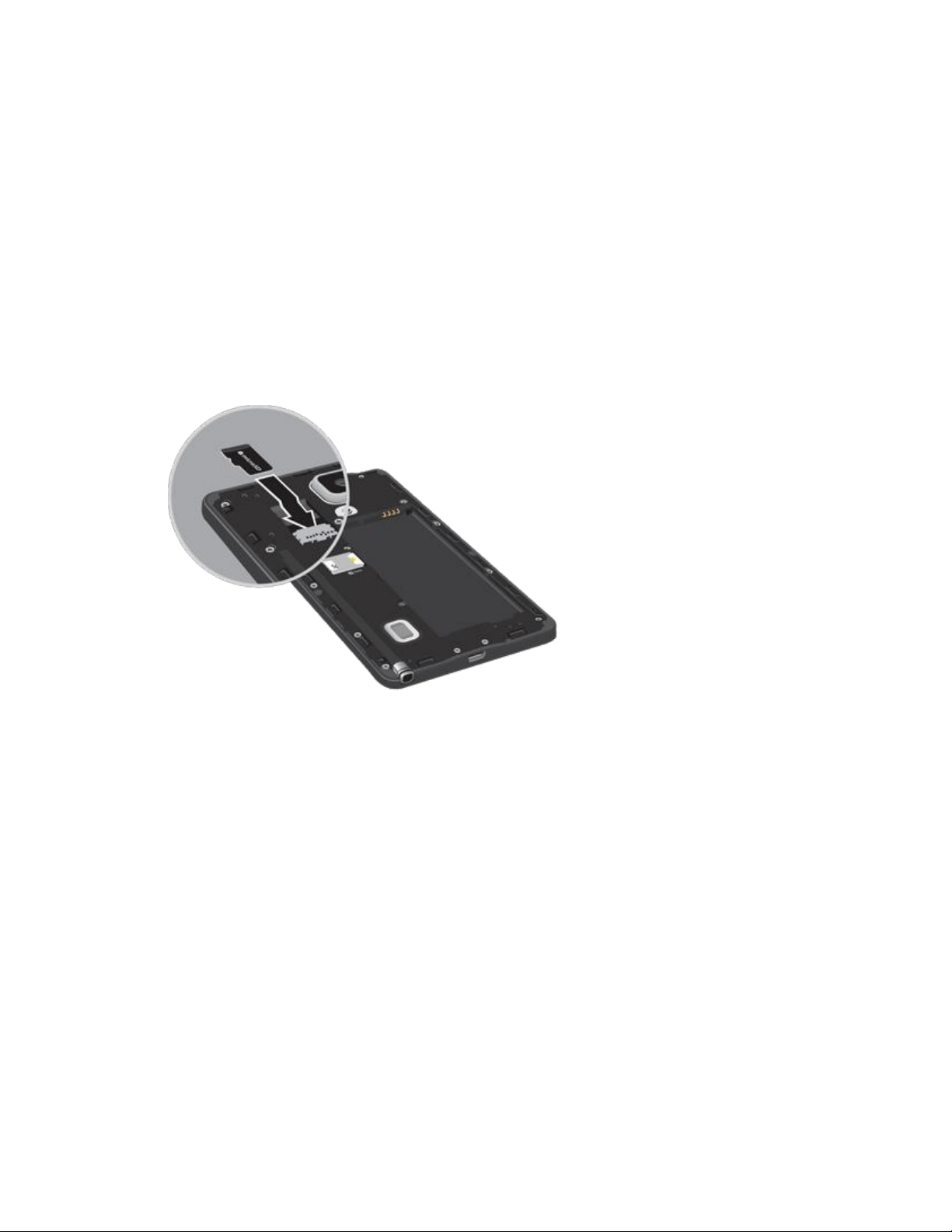
microSD Card
A microSD memory card is an optional accessory (not included) that allows you to store images, videos,
music, documents, and other data on your phone.
Important: You can damage a microSD card by improper installation. Please be careful when inserting,
removing, or handling it.
Install a microSD Card
Follow the instructions below to install an optional memory card (not included).
1. Using the slot provided, gently lift the cover off the phone.
2. With the gold contacts facing down, slide the card into the slot.
3. Replace the battery compartment cover, making sure all the tabs are secure and there are no
gaps around the cover.
Important: Ensure that the back cover and the USB charger/accessory port cover are closed tightly to
prevent water and dust entering the phone. Open or loose covers may allow water and dust to enter the
phone and cause damage.
Remove a microSD Card
Use the following procedure to remove an optional microSD card from your phone.
Important: Before removing an optional installed microSD card, you must first unmount the card to
prevent corrupting the data stored on it or damaging the card. For more information, see Unmount a
microSD Card
.
1. Using the slot provided, gently
lift the cover off the phone.
2. Carefully slide the card out of the slot.
3. Replace the battery compartment cover, making sure all the tabs are secure and there are no
gaps around the cover.
Tools and Calendar 124

View microSD Card Memory
Use the following procedure to view memory usage information for an optional installed microSD card
(not included).
■ From home, tap
Apps
>
Settings
>
Storage. The total
and
available memory space
will be displayed.
Format a microSD Card
Formatting a microSD card permanently removes all files stored on the card. See microSD Card for more
information.
1. From home, tap
Apps
>
Settings
>
Storage.
2. Scroll down the screen, tap Format SD card > Format SD card > Delete all.
Note: Formatting erases all the data on an installed microSD card, after which the files CANNOT be
retrieved. To prevent the loss of important data, please check the contents before you format the card.
Unmount a microSD Card
When you need to remove an optional installed microSD card, you must unmount the card first to prevent
corrupting the data stored on it or damaging the card.
1. From home, tap
Apps
>
Settings
>
Storage.
2. Tap Unmount SD card.
3. Remove the microSD card.
See Remove a microSD Card
.
Tools and Calendar 125

Transfer Files Between Your Phone and a
Computer
You can use the supplied USB cable to connect your phone directly to your computer and transfer music,
pictures, and other content files. For example, if you have a music album stored on your computer that
you want to listen to on your phone with the music player, Google Play Music, or Sprint Music Plus, just
attach your phone to the computer and copy the files to the Music folder.
1. Connect your phone to your computer using the supplied USB/charging cable. You may need to
remove the USB cable from the charging head.
Insert one end of the cable into the USB charger/accessory port at the bottom of the phone.
Insert the other end of the cable into an available USB port on your computer.
2. Your phone will automatically detect the connection. Continue to set up the connection:
Swipe your finger down from the status bar to open the notification panel. The notification
panel shows the type of connection.
To change the connection type, tap the connection notice in the notification panel, and then
choose an option:
• Transferring media files: Transfer files between your phone and PC such as pictures,
videos, and music.
• Transferring images: Transfer picture and video files between your phone and PC.
• Connecting MIDI devices: Connect to MIDI-compatible devices.
• Charging: Charge your device using a USB cable.
3. On your computer, navigate to view the contents of your phone (for example, using My
computer).
4. Select a folder (for example, Music for songs and albums) and copy files to it from your
computer.
5. When you are done, disconnect your phone from the computer.
Update Your Phone
From time to time, updates may become available for your phone. Use System update options to update
your phone’s internal software.
Tools and Calendar 126

Before Updating Your Firmware
Updating your phone firmware will erase all user data from your phone. You must back up all critical
information before updating your phone firmware.
Back Up Information to Your Google Account
1. From home, tap Apps > Settings > Backup and reset.
2. Tap Back up my data, and then tap On/Off to turn the f
eature on.
Tap Backup account to choose or sign in to a Google Account to use for backups.
Tap Automatic restore if you want information saved to the Google Account above to be
restored when you reinstall apps, such as after a firmware update, or when setting up a new
phone.
Back Up Account Information
1. From home, tap Apps > Settings.
2. Tap Accounts, and then tap an account.
3. Tap More options > Sync all.
Preserve Information on an Optional Installed Memory Card
As an added precaution, to preserve any data on an optional installed microSD card, please remove it
from your phone prior to starting the update process.
Update Your Phone
Use the System Update setting to update your phone’s software, firmware, Preferred Roaming List (PRL),
and other features.
1. From home, tap
Apps
>
Settings
>
System update.
2. Select an option:
Download updates manually:
Check for software updates, and install them, if desired.
Download updates automatically: Automatically check for updates and install them.
Scheduled software updates: Schedule the installations for a time of your choosing.
Update PRL: Download and the latest Preferred Roaming List (PRL), used by your phone to
access the network.
Update Profile: Update the user profile related to your wireless service account. If you
choose to change your user name online, use this option to update the user name on your
phone.
UICC Unlock: Unlock your phone’s Universal Integrated Circuit Card.
Tools and Calendar 127

Global Services
With your phone and global roaming service from Sprint Worldwide
SM
Wireless Service, you can make
phone calls and use wireless data services around the globe on compatible CDMA and GSM/UMTS
networks. For a country-specific travel guide, select your phone and destination from sprint.com/traveltips.
Activate Sprint Worldwide Service on Your
Account
Before using your phone in global roaming mode, you must activate Sprint Worldwide service.
To activate Sprint Worldwide service:
■ Chat with or email an international support rep by visiting sprint.com/swwsupport.
– or –
■ Call Sprint Worldwide Customer support at 1-888-226-7212.
Your Phone’s SIM Card for International
GSM Roaming
Your phone comes with a preinstalled SIM (Subscriber Identity Module) card to support roaming on
compatible GSM networks.
Note: Your SIM card should be preinstalled. If you need to reinstall your SIM card, follow the instructions
below.
Note: The SIM card included with your phone contains information specific to your phone and should be
retained for use on GSM networks.
Insert a SIM Card
Follow these instructions to insert a SIM card. Remember to power off your phone before inserting a SIM
card.
1. Remove the back cover.
2. Remove the battery.
3. Insert SIM card. Insert gently with gold IC chip facing downward.
4. Insert the battery. Align the contacts of the battery with the contacts in the phone.
5. Attach the back cover.
Make sure all the tabs are secure and there are no gaps around the cover.
Global Services 128

Caution: If the card is not inserted correctly, the device cannot detect the SIM card. Re-orient the card
and place it back into the slot if the SIM is not detected.
Enable Global Roaming Mode
Your phone is designed to enter global roaming mode automatically when you activate your Sprint
Worldwide service, meaning that it should automatically connect to an appropriate CDMA/LTE network or
GSM/UMTS network when you travel. You may set global roaming options through the settings menu.
You may also need to set your network mode options through the settings menu. See Set the
Communications Method for Global Use
.
To set your roaming options manua
lly:
1. From home, tap
Apps
>
Settings.
2. Tap
More networks
>
Roaming.
3. Tap Roaming network.
4. Tap Home only or Automatic.
The selected roaming method is set.
5. Tap Roaming guard.
6. Select roaming guard options for each category.
The selected options are set.
Set the Communications Method for
Global Use
Select a communications method for an overseas carrier as needed.
1. From home, tap Apps > Settings.
2. Tap More networks > Mobile networks.
3. Tap Network mode > CDMA / LTE/CDMA / GSM/UMTS / Auto
matic.
The communications method is set.
Note: At the time of purchase, your phone is set to the Automatic mode by default. This allows global
usage and normally will not need to be changed.
Global Services 129

Select a Carrier
You can select a specific local carrier to use when traveling internationally. At the time of purchase, your
phone is preset to connect automatically to an appropriate carrier in your current area.
1. From home, tap
Apps
>
Settings.
2. Tap
More networks > Mobile networks.
3. Tap Network operators.
4. Tap an available network.
The selected carrier is set.
To automatically select an appropriate carrier (default), tap Choose automatically.
To search for all available networks, tap Search networks.
Make and Receive Worldwide Calls
When traveling on international networks, you can place and answer calls as you would on the Sprint
network (see Make Phone Calls), although some additional instructions may be required to place a call.
Some features and services are not available in all countries. For more information on services that are
available while roaming, visit sprint.com/sww
.
Make Calls Using Plus (+) Code Dialing
Placing calls from one country to another country is simple with the Plus (+) Code Dialing feature. When
placing international calls, you can use Plus Code Dialing to enter the appropriate international access
code for your location (for example, 011 for international calls placed from the United States).
Note: Plus Code Dialing is only available when roaming internationally on GSM networks and on certain
CDMA networks in the United States, Canada, and the Caribbean.
Note: International access codes and dialing information are available online at sprint.com/sww
.
To use Plus Code Dialing to plac
e an international call:
1. From home, tap
Phone
> Keypad tab
to display
the
phone scree
n.
2. If
you are on
the GSM network, touch and
hold
0 to insert a “+” on the phone dial screen.
(The “+” symbol automatically inserts the international access code for the country from which
you are calling.)
3. If you are on the CDMA network outside Cana
da or the Caribbean, enter the international access
code for the country from which you are calling.
4. Tap
1
to insert the US country code, and then en
ter the area code
and number.
5. Tap
Dial
to place the call.
Global Services 130

Sprint International Voicemail Service
Your Sprint voicemail will follow you as you travel. All of your unanswered calls will be forwarded to your
Sprint voicemail. You will need to be sure your voicemail box is already set up and that you know your
voicemail passcode.
Note: Sprint voicemail may not be available on all networks; check sprint.com/sww for service
information.
International Voicemail Troubleshooting
There are a few tips to keep in mind when using Sprint voicemail while traveling.
● Some carriers may not support voicemail indicators. It may be necessary to call your voicemail to
see if you have any new messages.
● If you hear the message “Please enter the number of the subscriber you wish to call,” enter your
10-digit wireless phone number.
Set Up Your Voicemail Access Number for
International Use
To simplify accessing your Sprint Voicemail while traveling, you can set up your voicemail access number
as a Contacts entry. This will make it faster and easier to access your messages while roaming
internationally.
1. From home, tap
Apps
>
Contacts.
2. Tap
Add
to add a contact.
3. Type the contact information (for exampl
e, “My Voicemail”).
4. Touch and hold
0, and then tap
1,
+ 1, your area code, and you
r
wireless phone
number.
5. Tap Save.
Your
voicemail access number is saved
as a contact.
Global Services 131

Access Your Voicemail Internationally
You will need to call your voicemail number to access your voicemail while roaming internationally.
New Message Indicators
Your voicemail message indicators may be displayed differently when roaming internationally.
● A “Message Waiting” indicator icon or a text message is displayed when a voicemail message is
received.
● You may see “Missed Call” on your screen prior to receiving a message notification.
● You must call voicemail in order to retrieve messages. Follow the instructions on the previous
page to store your voicemail number for easy access.
Retrieve Voicemail Messages
The voicemail retrieval process while traveling is the same as on the Sprint Network; however, you will be
required to enter your voicemail passcode.
To retrieve your voicemail messages:
1. From home, tap
Apps
>
Contacts.
2. Tap the voicemail entry and then tap th
e number to call it.
Your phone dials your voicemail number.
3. When
your
voicemail answers, tap
Star, enter the p
asscode, and then tap
#
to
access
your voicemail.
Your voicemail box is accessed
.
International Data Roaming
Sprint Worldwide Wireless Service can also keep you connected through email and Web browsing when
traveling in countries in which Sprint offers data service.
Data services are available on both CDMA and GSM/UMTS networks. Check sprint.com/traveltips and
sprint.com/sww to determine the services available where you are traveling.
Note: Prior to using your Sprint Worldwide GSM/UMTS Data Services, you must establish and utilize your
CDMA data services domestically on the Sprint Network.
Get Started With Sprint Worldwide Data Services
To use Sprint Worldwide Data Services, you will need to have these services activated on your account.
■ To activate, call Sprint Worldwide Customer Support at 1-888-
226-7212. Representatives are
available 24 hours a day, 7 days a week to assist you.
Global Services 132

Access Email and Data Services Internationally
To access your email and browse the Web when traveling, you may need to manually select the carrier
that provides Sprint service in your location. You can find a list of carriers for each country where GSM
data service is offered at sprint.com/sww. Then, follow the instructions below to select the appropriate
carrier network on your phone.
Access International Data Services on GSM/UMTS Networks
To select a GSM data service carrier for a specific country:
1. From home, tap Apps > Settings.
2. Tap More networks > Roaming.
3. Tap Roaming settings.
4. Under International, tap Data.
Data roaming on GSM/UMTS networks is set.
Access Email and Data Services Internationally on CDMA Networks
If data service is available on an international CDMA network, then you only need to set the phone to
CDMA; you will not need to select the specific carrier. Selecting a specific carrier is only necessary for
providers on the GSM network. If your phone has automatically selected a GSM network while traveling,
then you will need to set the phone to CDMA to access CDMA data services. (See Enable Global
Roaming Mode.) Visit sprint.com/sww for a list of services available in each country.
Contact Sprint for Assistance with
International Service
If you experience any issues with voice or data services while outside of the United States, Sprint offers
customer support 24 hours a day. In the event that you do experience an issue, try the following actions:
● First try powering your phone off and then back on; this will force your phone to reregister with the
network.
● Try manually selecting another network. Information for selecting networks can be found in the
phone guide.
If neither of these actions resolves your issue, you will need to contact customer service (see below).
When calling to report an issue, the following information will be beneficial in trying to resolve your issue
as quickly as possible:
● Your wireless phone number.
● The city and country you are traveling in.
● Any error message that displays on your phone or that you heard when trying to place a call.
Global Services 133

● If the issue is with data, were you able to place voice calls?
● If the issue is with voice service, were you able to access data?
Please call the numbers below if you need assistance:
While in the United States: Call
1-888-226-7212.
While trav
eling outside the United States:
● In GSM mode: touch and hold
0
and then dial
1-817-698-4199.
●
In
CDMA mode: enter the country
code and then dial 1-817-698-4199.
There is no charge for this
call from
your
wireless ph
one.
From a landline phone when outside the United States:
Sprint Worldwide Customer Sup
port can be reached from a landline phone at 1-817-698-4199. Access or
connection fees may apply. The toll free numbers below can also be used to contact Sprint Worldwide
Customer Support in the following countries:
Country
From Landline Phone
Canada
1-866-805-9890
Caribbean (Anguilla, Barbados,
Cayman Islands, and Dominica)
1-888-226-7212
France
0800-903200
Germany
0800-180-0951
Italy
800-787-986
Mexico
001-877-294-9003
Trinidad and Tobago
1-800-201-7545
United Kingdom
0808-234-6616
Note: This toll free service is available on ordinary landline phones and some public pay phones. This
service does not cover any hotel access charges.
Global Services 134

Settings
Configure your phone to your preferences.
Using Settings
Use Settings to configure your phone to your preferences.
Access Settings
You can access Settings in a variety of ways.
■ From home, tap Apps > Settings.
–
or –
From
home,
touc
h and hold on the
status bar, and then drag down to display the notification
panel. Tap
Settings
to access Settings.
Search Settings
Enter key words to search for settings.
1. From home, tap Apps > Settings.
2. Tap
Search, and then enter key
words.
Settings Options
Configure options to make Settings easy for you to use.
1. From home, tap Apps > Settings.
2. Tap
More options
for these options:
Edit quick settings: You can set up to nine quick settings, which will appear in a grid at the
top of the list of Settings. Tap settings to select them for display as quick settings.
Help: Learn about Settings.
Settings 135

Wi-Fi Calling Settings
Wi-Fi Calling uses Wi-Fi networks to help improve voice and data coverage. It sends and receives calls
and text messages over a Wi-Fi network and may offer better coverage in buildings and areas of poor
cellular reception.
Enable Wi-Fi Calling
1. From home, tap Apps > Settings > Wi-Fi Calling.
2. Tap the On/Off switch and foll
ow the prompts to enable Wi-Fi Calling.
3. Tap a network in the Wi-Fi Calling Networks list to set up Wi-Fi Calling for the selected network.
Enter or confirm the location of the network.
Tap Save to confirm the address and to acknowledge your agreement of the 9-1-1 limitations
of Wi-Fi Calling.
Note: You can set up multiple Wi-Fi networks to use Wi-Fi calling whenever and wherever your phone is
connected to a Wi-Fi network.
Disable Wi-Fi Calling
1. From home, tap Apps > Settings > Wi-Fi Calling.
2. Tap the On/Off switch to turn
Wi-Fi Calling off.
Wi-Fi Settings
Use Wi-Fi settings to control your phone’s connections to Wi-Fi networks, and for using Wi-Fi Direct to
connect directly to other Wi-Fi Direct devices.
Configure Wi-Fi Settings
Set up and manage wireless access points.
1. From home, tap Apps > Settings.
2. Tap
Wi-Fi, and then tap
the On/Off
switch
beside
Wi-Fi
to turn
Wi-Fi
on.
Wi-Fi
must be on to
configure settings.
3. Configure settings:
Tap Add W
i-Fi network to connect to a new Wi-Fi network. For more information about
using Wi-Fi, see Wi-Fi
.
Tap
More options
for these options:
• Scan: Search for available W
i-Fi networks.
Settings 136

• Wi-Fi Direct: Connect to other Wi-Fi Direct devices. For more information, see Wi-Fi
Direct Settings.
• Advanced: Configure more settin
gs. For more information, see Advanced Wi-Fi Settings
.
• WPS push button: Set up a con
nection to a WPS (Wi-Fi Protected Setup) router or other
equipment.
• WPS PIN entry: View the PIN used by your phone to set up a PIN-secured connection to
a Wi-Fi router or other equipment.
• Share Wi-Fi profile: Share Wi-Fi profiles you’ve created with others.
• Help: Learn about setting up and using Wi-Fi networks, and other settings.
Advanced Wi-Fi Settings
Set up and manage wireless access points.
1. From home, tap Apps > Settings.
2. Tap
Wi-Fi, and then tap
the On/Off
switch
to turn Wi-Fi
on.
Wi-Fi must be on
to configure
settings.
3. Tap
More options
>
Advanced
to configure these settings:
Network notification: Send an alert to
you when a new Wi-Fi network is available.
Sort by: Choose a sorting order for Wi-Fi networks on the Wi-Fi screen.
Keep Wi-Fi on during sleep: Specify when to switch from Wi-Fi to mobile data for data
communications, when the phone goes to sleep (when the backlight goes out). This setting
can affect data usage, and the behavior of devices you connect to your phone, such as when
using it as a hotspot.
Smart network switch: Automatically switch between known Wi-Fi networks and mobile
networks. Known Wi-Fi networks are those you have already connected to.
Install certificates: If you have certificates stored on an installed optional memory card (not
included), you can use this option to install the certificates.
MAC address: (Not configurable) View your phone’s MAC address, needed for connecting to
some secured networks.
IP address: (Not configurable) View your phone’s IP address.
Settings 137

Wi-Fi Direct Settings
Wi-Fi Direct allows devices to connect to each other directly through Wi-Fi, without a Wi-Fi network or
hotspot, and without having to set up the connection. For example, your phone can use Wi-Fi Direct to
share photos, contacts and other content with other Wi-Fi Direct devices.
1. From home, tap
Apps
>
Settings.
2. Tap
Wi-Fi, and then tap
the On/Off
switch
beside
Wi-Fi
to turn
Wi-Fi
on. Wi-Fi
must be on
to
configure Wi-Fi Direct settings.
3. Tap
More options
>
Wi-Fi Direct. Your
phone
automatically scans for nearby
Wi-Fi Direct
devices, or
you can tap
Scan
to start scanning.
4. After scanning for devices,
select a device, and then follow the prompts to complete the
connection.
Note: Tap
More options > Rename device
to give
your phone
a new name (which other
devices see
when connecting to
your phone through
Wi-Fi Direct).
Bluetooth Settings
Bluetooth is a short-range wireless communications technology for exchanging information over a
distance of about 30 feet. You don’t need to line up the devices to send information with Bluetooth. If the
devices are in range, you can exchange information between them, even if they are in different rooms.
Your phone can use Bluetooth to share photos, contacts and other content with other Bluetooth devices.
Many of the apps on your phone prov
ide options for sharing through Bluetooth under More options, or
with the Share icon.
1. From home, tap Apps > Settings.
2. Tap Bluetooth, and then tap the On/Off switch to turn Bluetooth on. Bluetooth must be on to
configure settings.
3. From the Bluetooth screen,
configure these settings:
Tap your phone’s name to enable or disable visibility to other Bluetooth devices. When your
phone is visible, other devices can find your phone during a scan. Your phone remains visible
for the period of time set in the Visibility timeout setting.
Tap a paired device to connect to it, or tap
Settings
beside
a listed dev
ice to change its
settings.
Tap Scan to search for visible B
luetooth devices. After searching, tap a device to pair with it.
Settings 138

4. Tap
More options for more settings:
Visibility timeout: Set the lengt
h of time your phone is visible to other devices when you turn
on visibility.
Received files: View files transferred to your phone through Bluetooth.
Rename device: Change the name your phone uses to identify itself when you make your
phone visible to other Bluetooth devices.
Help: Learn about Bluetooth, and other settings.
Hotspot and Tethering Settings
Use the Hotspot feature to share your phone’s data connection with other devices through Wi-Fi. Use
Tethering to share your phone’s Internet connection with a computer that connects to your phone through
USB cable, or by Bluetooth.
Note: Using the Hotspot feature consumes battery power and uses data services.
Hotspot Settings
Use the Hotspot feature to share your phone’s data connection with other devices through Wi-Fi.
Turn Hotspot On or Off
To conserve battery life, turn Hotspot on when you need it and turn it off when you are finished. You can
control Hotspot from Settings.
1. From home, tap
Apps
>
Settings.
2. Tap
Hotspot
and tethering
>
Hotspot, and then tap the
On/Off
switch beside Hotspot
to
turn Hotspot on or
off.
Configure Hotspot
Set up Hotspot to your preferences.
1. From home, tap Apps > Settings.
2. Tap
Hotspot
and tethering
>
Hotspot
>
More options
to set these options:
Allowed devices: Configure which d
evices are allowed to connect to your hotspot. See
Allowed Devices
.
Configure hotspot:
• Network SSID: View and change the name of your mobile hotspot.
• Hide my device: When enabled, your mobile hotspot is not visible to other Wi-Fi devices
during a scan. Other devices can still connect to your mobile hotspot, but will have to set
up the connection manually with your Network SSID and Password.
Settings 139

• Security: Choose the security level for your Mobile Hotspot.
• Password: If you choose a security level that uses a password, set a password. By
default, the password is your mobile telephone number.
• Show password: When enabled, the contents of the Password field are visible.
• Show advanced options: When enabled, you can access advanced options, including
Broadcast channel, to specify the channel your phone uses for Hotspot, and you can set
the maximum number of connections to your Hotspot.
Timeout settings: Choose a time period, after which Hotspot will automatically turn off if
there is no activity.
LAN settings: View and configure settings related to using your Hotspot as a Local Area
Network.
• IP address: View the default IP address, or tap to enter a valid IPv4 address.
• Subnet mask: View the default subnet mask, or tap to enter a subnet mask.
• DHCP: Tap to enable or disable DHCP. When DHCP is enabled, your phone assigns
IP addresses to devices that connect to Hotspot.
• Starting IP: When DHCP is enabled, view the default starting IP address for assigning
IP addresses to connecting devices, or enter a enter a valid IPv4 address. When other
devices connect to your phone using DHCP, the IP address your phone assigns will be
between the Starting IP and Ending IP.
• Ending IP: When DHCP is enabled, view the default ending IP address for assigning
IP addresses to connecting devices, or enter a enter a valid IPv4 address. When other
devices connect to your phone using DHCP, the IP address your phone assigns will be
between the Starting IP and Ending IP.
• Lease time: When DHCP is enabled, set a length of time a connected device may use
an assigned IP address.
• Maximum DHCP users: When DHCP is enabled, set the maximum number of devices
allowed to connect to your Hotspot.
Allowed Devices
Control whether devices can connect to your Mobile Hotspot with the Allowed devices list. After you add
devices to the list, they can scan for your phone and connect using your phone’s Hotspot name and
password.
Note: Using the Hotspot feature consumes battery power and uses data services.
1. From
home, tap
Apps
>
Settings.
2. Tap
Hotspot
and tethering
> Hotspot
>
More options
> Allowed devices.
Settings 140

3. Tap
Add, and then enter the other d
evice’s Device name and MAC address. Consult the
other device’s settings to find these details.
4. Tap OK to add the device to the Al
lowed devices list.
Tethering Settings
Use Tethering to share your phone’s Internet connection with a computer that connects to your phone
through USB cable, or by Bluetooth.
Note: Using the tethering feature consumes battery power and uses data services.
1. From home, tap Apps > Settings.
2. Tap Hotspot and tethering.
3. Tap a tethering method:
USB tethering: Connect the computer to your phone through USB cable, and then tap USB
tethering to turn tethering on.
Bluetooth tethering: Pair your phone with the computer through Bluetooth. Consult the
computer’s documentation for more information about configuring your computer to pair
through Bluetooth. Tap Bluetooth tethering to turn tethering on.
Airplane Mode
When you turn on Airplane mode, your phone disconnects from all networks, meaning you cannot use
make calls, send or receive messages, or access the Internet. It also turns off other connectivity features,
such as Wi-Fi and Bluetooth.
While in airplane mode, you can use other features of your phone, such as playing music, watching
videos, or other applications.
To use Wi-Fi and Bluetooth after turning on Airplane mode, turn them on in Settings or on the notification
panel.
1. From home, tap
Apps
>
Settings.
2. Tap
Airplane mode, and then tap the
On/Off
switch to enable the option.
Note: You can also control A
irplane mode from the Device options menu (press and hold the
Power/Lock key, and then tap Airplane mode) or from the notification panel (slide the status bar down
and tap Airplane mode in the Quick Settings panel).
Settings 141

Data Usage Settings
Monitor data usage, and control your phone’s connection to mobile data service.
Note: Data is measured by your phone. Your service provider may account for data usage differently.
1. From home, tap Apps > Settings.
2. Tap Data usage to configure options:
Mobile data: Enable or disable yo
ur phone’s access to mobile data service. You can also
control mobile data at the notification panel.
Limit mobile data usage: When enabled, your mobile data connection will be disabled when
the specified limit is reached. After enabling the setting, drag the red limit line on the graph
below to set the data usage limit.
Alert me about data usage: When enabled, your phone will alert you when mobile data
usage reaches the warning limit you set. After enabling the setting, drag the orange warning
line on the graph below to set the data usage warning limit.
Data usage cycle: Tap the menu, and then choose a time period for data usage. Data usage
for the period displays on the graph, along with usage by application below.
3. Tap
More options
for
other options:
Restrict background data: Your phone is capable of connecting to the network in the
background for synchronization or other services. When enabled, background connections
will not occur.
Show Wi-Fi usage: When turned on, a separate tab displays data used while connected to
Wi-Fi.
Mobile hotspots: Select Wi-Fi networks that are mobile hotspots. You can restrict apps from
using these networks, and you can configure apps to warn you before using these networks
for large downloads.
Mobile networks: Configure your mobile networks. See Mobile Networks Settings
.
Help: Learn about data usage settings.
Settings 142

Location Settings
Control apps’ access to your location, and configure location sources. Some apps may require one or
more location services be turned on for full app functionality. When Location is turned on, you are
allowing Google’s location service to collect anonymous location data. Some data may be stored on your
phone, and collection may occur even when no apps are running.
GPS signals may be affected by your surroundings, including:
● Buildings
● Tunnels or underground structures
● Weather conditions
● High-voltage or electromagnetic fields
● Tinted windows
Note: E 9-1-1 location service is standard on all mobile phones, to allow sharing of GPS information with
emergency personnel when you make a call to emergency services, such as 9-1-1.
1. From home, tap Apps > Settings.
2. Tap
Location,
and then tap the
On/Off
switch to turn location services
on.
Location must be
turned
on
to configure settings. When you turn Location
on,
you are allowing Google’s location
service to collect anonymous location data. Some data may be stored on
your phone, and
collection may
occur even
when
no
apps are running.
3. After you turn Location on, yo
u can configure settings:
Mode: Choose the method your phone uses to determine your location.
• High accuracy: When enabled, your phone uses GPS information, Wi-Fi, and mobile
networks to estimate your location.
• Power saving: When enabled, your phone uses Wi-Fi and mobile networks to estimate
your location.
GPS only: When enabled, your phone uses only GPS information to estimate your location.
Improve accuracy: Use other connections for determining your location.
• Wi-Fi scanning: Allow apps and services to scan for Wi-Fi networks automatically, even
when Wi-Fi is turned off.
• Bluetooth scanning: Allow apps to scan for and connect to nearby devices
automatically through Bluetooth, even when Bluetooth is turned off.
Recent location requests: View services or apps that have recently accessed your location
information.
Location services: Select sources for reporting your location information to Google.
Location sources: Tap My places to save your favorite locations, to allow your phone to
provide relevant information by recognizing saved locations.
Settings 143

• Tap Home, Work, Car, School, or Gym and then follow the prompts to configure options
for identifying the location.
• Tap
Add
to set up a
new
location.
NFC and Sharing Settings
Share information between your other devices using NFC (Near Field Communication), Nearby devices
(file sharing), Printing, Screen Mirroring, and MirrorLink.
Turn NFC On or Off
Use NFC (Near Field Communication) to share information between your phone and another NFC-
capable device or NFC tag, by touching the devices together, typically back-to-back. For example, you
can beam Web pages from the browser, contacts from Contacts, and videos from YouTube. The app
determines what is beamed.
1. From home, tap
Apps
>
Settings.
2. Tap
NFC
and sharing
>
NFC, and then tap the On/Off
switch
to turn NFC on
or off.
Android Beam Settings
With Android beam, you can transmit app content through NFC to other NFC devices that support
Android Beam.
Android Beam uses NFC, so NFC must be turned on before you can turn on Android Beam.
Turn Android Beam On or Off
1. From home, tap Apps > Settings.
2. Tap NFC and sharing > NFC, and then tap the On/Off switch beside NFC to turn NFC on.
3. Tap Android Beam, and then tap On/Off to turn Android Beam on.
S Beam Settings
Share more and share it faster with S Beam. From photos to documents, large video files to maps, you
can share almost anything instantly with one tap, simply by placing your devices back-to-back.
S Beam uses your phone’s NFC (Near Field Communication) feature to send, or “beam,” content to other
NFC devices.
S Beam works in the background. Use the sharing options from your favorite apps to select content to
share through S Beam. For example, you can beam pictures or videos from Gallery, or songs from Music
player. Just bring the devices together (typically back to back), and then tap the screen.
Note: You must have both NFC and S Beam turned on to use S Beam to share information.
Settings 144

Turn S Beam On or Off
1. From home, tap Apps > Settings.
2. Tap NFC and sharing > NFC, and then tap the On/Off switch beside NFC to turn NFC on.
NFC must be turned on before you can turn S Beam on.
3. Tap S Beam, and then tap the On/Off swi
tch to turn S Beam on or off.
Tap and Pay
With your phone and a payment app, you can use your phone to pay for items by tapping it to an item at
the point-of-purchase. Google Wallet
™
is an example of a payment app. You must have the payment app
set up on your phone to use it with Tap and Pay.
Turn Tap and Pay On or Off
1. From home, tap Apps > Settings.
2. Tap NFC and sharing > NFC, and then tap the On/Off switch beside NFC to turn NFC on.
NFC must be on to use Tap and Pay.
3. Tap Tap and pay to access Tap and p
ay settings. Available settings depend on the payment
apps you have set up on your phone.
Nearby Devices Settings
Share files with devices over Wi-Fi, Wi-Fi Direct, or Mobile hotspot.
To use Nearby devices, you must connect to the same Wi-Fi network as the devices you wish to share
with. From an app, look for the Nearby devices sharing options.
Note: Use care when enabling file sharing. When enabled, other devices can access data on your phone.
Turn Sharing through Nearby Devices on or off
To use sharing with nearby devices, you must have the option turned on.
1. From home, tap Apps > Settings.
2. Tap
NFC and sharing
> Nearby devices
to configure these options:
Tap the On/Off switch beside Near
by devices to turn Nearby devices on. Nearby devices
must be turned on to configure options.
Configure options to control how content is shared from your phone:
• Content to share: Choose the type of content to share, from Videos, Photos, or Music.
• Allowed devices: View and manage a list of devices allowed to connect to your phone.
• Denied devices: View and manage a list of devices restricted from connecting to your
phone.
Settings 145

• Download to: Choose a location to save downloaded content, from USB storage (phone
memory) or optional installed SD card (not included).
• Receive files from other devices: Choose how to handle incoming files from other
devices.
Tap
More options
> Rename device
to rename your
phone for the Nearby devices
feature.
Printing Settings
You can print from your phone, through Wi-Fi, to an optional compatible printer (not included). Your
phone and the optional printer must be connected to the same Wi-Fi network.
Turn Print Services On or Off
Before you can print from your phone, a print service must be turned on. The print service communicates
with the printer when you select something to print.
1. From home, tap
Apps
>
Settings.
2. Tap
NFC and sharing
> Printing, and then choose a
print service from the list.
3. Tap the On/Off switch to turn the s
ervice on or off. The service must be on to configure settings
or print.
Note: To add more print service plugins, tap
Download plug-in
and select a
download method
and
plugin.
Add a Printer
Before you can print to a printer, you must set it up on your phone. You will need to know the IP address
of the printer; consult the printer’s documentation for this information.
1. From home, tap
Apps
>
Settings.
2. Tap
NFC and sharing
> Printing.
3. Choose a print service from the list, and then tap the On/Off switch to turn the service on. The
service must be on to add a printer.
4. Tap
More options
> Add
printer. Then tap
where indicated t
o add a
printer. (Methods differ by
printer plug-in.)
5. Enter a name and the IP address for the pri
nter.
Settings 146

Configure Print Settings
Choose options for printing from your phone.
Note: Below settings are examples only. Available settings will differ depending on the type of print
service and printer you are using.
1. From home, tap Apps > Settings.
2. Tap
NFC and sharing
> Printing.
3. Choose a print service from the
list, and then tap the On/Off switch to turn the service on. The
service must be on to add a printer.
4. Tap More options > Settings to configure option
s. Available options may vary depending on
the type of printer, and not all printers support all options.
Screen Mirroring Settings
With Screen mirroring, you can share your phone’s screen with another device, using an optional
AllShare Cast accessory (not included).
Turn Screen Mirroring On or Off
1. From home, tap Apps > Settings.
2. Tap NFC and sharing > Screen mirroring. Tap an available device and follow the prompts
to connect.
MirrorLink Settings
Mirror your phone’s display on your car’s entertainment and information screen using a USB connection.
To use this feature, your car system must support MirrorLink.
Turn MirrorLink On or Off
1. Connect your phone to your car’s system using the USB cable.
2. From home, tap Apps > Settings.
3. Tap NFC and sharing > MirrorLink, and then
tap Connect to vehicle via USB.
More Networks Settings
More networks settings provide additional options for configuring connections between your phone and
the network or to other devices.
Settings 147

Nearby Device Scanning Settings
Scan for and connect to nearby devices. You will receive notifications when there are available divides to
connect to.
1. From home, tap Apps > Settings.
2. Tap
More networks
> Nearby device scanning.
3. Tap On/Off to enable this feature.
Mobile Networks Settings
Set options for network selection and data service.
1. From home, tap Apps > Settings.
2. Tap More networks > Mobile networks.
3. Configure options:
Mobile dat
a: When enabled, your phone connects to the mobile data network, and can use
the network to access the Internet and transfer information.
Access Point Names: Configure access points (not common).
Network mode: Choose a preferred network mode. Available options depend on your
phone’s features, but will typically include: CDMA, LTE/CDMA, GSM/UMTS, and Automatic
(the recommended setting).
Connections optimizer: When enabled, Connections optimizer helps you manage and
enhance your data experience by finding and connecting to “remembered” Wi-Fi networks,
and, if applicable, the 4G LTE network. Remembered networks are those to which you have
already connected. Options include:
• Connections Optimizer: Automatically select the best network.
• Partner Wi-Fi: Automatically connect to Partner Wi-Fi Hotspots.
• Clear EULA acceptance data: Clear all saved captive portal EULA acceptance data
saved on the device.
Network operators: Configure network operators while using international GSM networks.
Settings 148

VPN Settings
Set up and manage Virtual Private Networks (VPN).
Note: VPN settings include storage of login credentials on your phone. You must configure a PIN,
password, or fingerprints screen lock before setting up a VPN.
1. From home, tap Apps > Settings.
2. Tap More networks > VPN. (If prompted, configure a PIN, password, or fingerprints screen
lock before continuing.)
3. Tap
Add
to add a
VPN, and then enter details for the VPN. Available options depend on the
type of VPN; consult your VPN’s administrator for more information. Options may include:
Name: Enter the name of the VPN.
Type
: Choose the type of VPN.
Server address: Enter the VPN server address.
PPP Encryption (MPPE): Tap to enable, if applicable for the VPN.
Show advanced options: Tap to set other options, depending on the type of VPN.
4. Tap Save to save the VPN.
Roaming Settings
When you are outside your home network area, your phone can still connect to other networks that your
provider supports through roaming. There may be additional costs for accessing networks while roaming,
so you may want to control your phone’s roaming behavior with Roaming settings.
1. From home, tap
Apps
>
Settings.
2. Tap
More networks
> Roaming.
3. Configure options:
Roaming netw
ork: Select a roaming default. Choose Home only, to only connect to the
Sprint network, or Automatic, to allow connections to Sprint’s partner networks, when
available.
Roaming guard: Choose options for displaying an roaming notice for certain functions.
Enable or disable roaming notices for Voice and Data for Domestic CDMA, Voice, Data and
Outgoing text message for International CDMA networks, and Voice, Data and Outgoing text
message for GSM networks (if supported by your phone).
Roaming Settings: Choose options for roaming, including Voice and Data for Domestic
CDMA and International CDMA networks, and Data for GSM networks.
Settings 149

Sounds and Notifications Settings
Configure the sounds, vibrations, and notifications for incoming calls, notifications, screen touches,
connections, and other events.
Volume Settings
Set the system volume level, and set default volume for call ringtones, notifications, and other media.
Note: You can also set System volume from the home screen by pressing the Volume key.
1. From home, tap Apps > Settings.
2. Tap Sounds and notifications and then drag the sliders to set the default volume for:
Ringtone
Media
Notifications
Sys
tem
Sound Mode
You can switch between sound modes, while preserving the individual sound settings you’ve made.
Note: Sound modes are also available from the Device options menu. Press and hold the Power/Lock
key, and then choose Mute, Vibrate, or Sound from the Device options.
1. From home, tap Apps > Settings.
2. Tap Sounds and notifications > Sound mode, and then choose a mode:
Sound: Your phone uses the s
ounds, vibrations, and volume levels you’ve chosen in Sound
settings for notifications and alerts.
Vibrate: Your phone vibrates for notifications and alerts. This uses the Vibration intensity you
choose in Sound settings.
Mute: Your phone plays no sounds or vibrations. Onscreen reminders will still occur.
Settings 150

Vibration Intensity
Set the level for vibration to accompany ringtones, notifications, and feedback for your screen touches,
also known as haptic feedback.
1. From home, tap
Apps
>
Settings.
2. Tap
Sounds and notifications
> Vibration intensity
to set vibrations. Drag the sliders to set
the
vibration
intensity for:
Incoming call
Notifications
Haptic f
eedback
3. Tap OK to save the settings.
Vibrate When Ringing
When Vibrate when ringing is enabled, a vibration plays for calls and notifications, along with the ringtone
or sound. You can use the Vibration intensity and Vibrations settings to customize the vibration. This
feature is disabled when the phone’s sound mode is set to Vibrate or Mute.
1. From home, tap
Apps
>
Settings.
2. Tap
Sounds and notifications, and then tap the checkbox beside
Vibrate when ringing
to
enable the
option.
Ringtones
Choose a default ringtone for incoming calls.
1. From home, tap Apps > Settings.
2. Tap
Sounds and notifications
> Ringtones
to choose a ringtone:
Tap a ringtone to select i
t. As you tap a ringtone, a sample plays.
Tap Add to choose another audio file on your phone.
3. Tap OK to save your selection.
Settings 151

Vibrations
Choose vibrations to play for notifications, such as for incoming calls, new messages, and event
reminders.
1. From home, tap
Apps
>
Settings.
2. Tap
Sounds and notifications
> Vibrations
to choose a vibration.
3. Tap a vibration to play a s
ample and select the vibration, or tap Create to create your own
pattern.
4. Tap OK to save the setting.
Notification Ringtone
Choose a sound for notifications, such as for new messages and event reminders.
1. From home, tap Apps > Settings.
2. Tap
Sounds and notifications
> Notification
ringtone, and then tap a sound to play
a
sample and select the sound.
3. Tap OK to save the setting.
Other Sounds
Set sound settings for other system functions, such as touching the keypad, haptic feedback, and so on.
1. From home, tap Apps > Settings.
2. Tap
Sounds and notifications
>
Other sounds
for options:
Dialing keypad tone: Play ton
es when you tap keys on the Phone keypad.
Screen lock sound: Play tones when you touch the screen to lock or unlock it.
Charging sound: Play a sound when a charger is connected.
Touch sounds: Play tones when you tap or touch the screen to make selections.
Haptic feedback: Set the phone to vibrate when you tap the Recent Apps key and Back
keys, and for certain screen touches.
Emergency tone: Play a tone or have your phone vibrate, periodically during an emergency
call.
Sound when tapped: Play a tone when tapping the Samsung keyboard.
Vibrate when tapped: Set the phone to vibrate when tapping the Samsung keyboard.
Settings 152

Sound Quality and Effects
Select options for sound quality while headphones or compatible Bluetooth headsets or speakers are
connected.
1. From home, tap Apps > Settings.
2. Tap
Sounds and notifications >
Sound quality
and
effects.
3. Tap Adapt sound and follow the prom
pts to customize your sound settings.
4. Tap On/Off to enable each option:
UHQ upscaler: Enhance the sound resolution of music and videos for a clearer listening
experience.
SoundAlive+: Recreate the effects of rich surround sound.
Tube Amp Pro: Simulate the soft timbre of a tube amplifier.
Do Not Disturb
Mute all calls and alerts, except for those that you choose to allow.
1. From home, tap Apps > Settings.
2. Tap
Sounds and notifications >
Do not disturb.
3. Tap Turn on now to enable the followin
g features:
Turn on as scheduled: Set the Days, Start time, and End time.
Allow exceptions:
• No exceptions: Allow no exceptions.
• Alarms only: Allow exceptions for alarms.
• Custom: Set your own exceptions.
Notifications on Locked Screen
Choose whether to display sensitive content and notifications when the screen is locked.
1. From home, tap Apps > Settings.
2. Tap
Sounds and notifications
> Notifications on lock screen
and set options.
Settings 153

Application Notifications
Set applications as priority, allowing them to interrupt with notifications.
1. From home, tap Apps > Settings.
2. Tap
Sounds and notifications
> Application notifications.
3. Tap an application to set notifi
cation options.
Notification Access
Applications cannot read notifications unless you give them access.
1. From home, tap Apps > Settings.
2. Tap
Sounds and notifications
> Notification access.
3. Tap an application to give it
access to notifications.
Display and Wallpaper Settings
Configure settings for your phone’s display and wallpaper.
Brightness
Adjust the screen brightness to suit your surroundings, or to your personal preference. You may also
want to adjust screen brightness to conserve battery power.
1. From home, tap
Apps
>
Settings.
2. Tap
Display and wallpaper
> Brightness
to configure options:
Tap Automatic brightness to al
low the phone to adjust brightness automatically.
To set a custom brightness level, clear the Automatic brightness check mark and then touch
and drag the Brightness level.
3. Tap OK to save the settings.
Settings 154

Wallpaper Settings
Customize the background of the home and Lock screens.
1. From home, tap Apps > Settings.
2. Tap Display and wallpaper > Wallpaper, and then choose a screen to customize, from
Home screen, Lock screen, or Home and lock screen.
3. Scroll the options to choose a
wallpaper, or choose another source.
4. Tap the image to select it, and then tap Set as wallpaper.
Font
You can set the font style and size for all text that displays on the screen.
1. From home, tap Apps > Settings.
2. Tap
Display
and wallpaper
> Font.
3. Tap Font style to select a different font.
Tip: Tap Download in the Font style menu to find new fonts from Google Play store.
4. Tap Font size to change the font size.
One-Handed Operation Settings
When One-handed operation is turned on, you can swipe the edge of all screens to adjust the scale and
position of the screen. This can be useful when using your phone with one hand – you can move the
screen closer to your hand.
1. From home, tap
Apps
>
Settings.
2. Tap
Display and wallpaper
> One-handed operation
for options:
Reduce screen size: Adjust the scree
n size and layout for easy controlling of your phone
with one hand.
One-handed input: Adjust the size and position of the dialing keypad, in-call buttons,
Samsung keyboard, Calculator, and unlock pattern.
Side key panel: Display the hard keys and other selected functions as buttons at the side of
the screen.
Settings 155

Screen Rotation
When Screen rotation is turned on, the screen automatically updates when you rotate the phone. See
Rotate for more information. You can also choose to enable Smart rotation, to have your phone use the
front camera to check the orientation of your face to the screen, and adjust the screen automatically.
1. From home, tap
Apps
>
Settings.
2. Tap
Display and wallpaper
> Screen rotation
to enable the option.
Smart Stay
When Smart stay is enabled, your phone uses the front camera to detect your face, and will not time out
as long as you are facing the screen.
1. From home, tap
Apps
>
Settings.
2. Tap
Display and wallpaper
> Smart stay
to enable the option.
Screen Timeout
Screen timeout lets you choose how long the display screen remains lit after you tap the screen or press
any key.
1. From home, tap
Apps
>
Settings.
2. Tap
Display and wallpaper
> Screen timeout, and then choose a time period.
Screen Mode
Choose a screen mode to match your type of viewing. You can choose to have the phone automatically
adapt the display depending on the type of image being displayed, and other criteria such as battery
level.
1. From home, tap
Apps
>
Settings.
2. Tap
Display and wallpaper
> Screen mode, and then
choose a mode:
To have your phone automatically optimize the display to match the type of image being
displayed and other criteria, such as battery level, enable Adaptive display.
To choose a specify type of display, enable AMOLED cinema, AMOLED photo, or Basic.
3. Tap Done.
Settings 156

Auto Adjust Screen Tone
When Auto adjust screen tone is enabled, your phone analyzes the images displayed on the screen and
automatically adjusts the brightness to conserve battery power.
1. From home, tap
Apps
>
Settings.
2. Tap
Display and wallpaper
> Auto adjust screen tone
to enable the
option.
Daydream
The Daydream
™
setting controls what the screen displays when the phone is docked or while it is
charging. You can choose to display colors, or display photos stored on your phone.
1. From home, tap
Apps
>
Settings.
2. Tap
Display and wallpaper
> Daydream,
and then tap the On/Off
switch to turn the option
on. Configure these options:
Colors: Display an ever-changing screen of colors.
Flipboard: Display
pictures from Flipboard. After enabling
the
option, tap
Settings
to
choose content
to display.
Photo Table: Display
of pictures in a photo table. After enabling
the
option, tap
Settings
to choose pictures to
display.
Photo frame: Display pictures in a
photo frame. After enabling the
option, tap
Settings
to
choose pictures to display.
Tap
More options
>
Preview
to see a demonstration
of Daydream.
Tap
More options
> Select when to daydream
to set your phone to Daydream when it is
docked or charging.
Note: Available opti
ons may be different depending on your phone’s configuration.
Settings 157

LED Indicator Settings
The LED indicator on the front of the phone displays when the phone is locked, to notify you of status
changes and events. Use LED indicator settings to configure how the LED functions.
Note: The LED indicator only displays when the screen is locked.
1. From home, tap Apps > Settings.
2. Tap Display and wallpaper > LED indicator to enable the option.
Touch Key Light Duration
Set the amount of time the Back key and Recent Apps key remain lit.
1. From home, tap Apps > Setting
s.
2. Tap Display and wallpaper > Touch key light duration, and then select a duration.
Increase Touch Sensitivity
When enabled, the sensitivity of the touchscreen is increased to improve results when wearing gloves.
1. From home, tap Apps > Settings.
2. Tap
Display and wallpaper
> Increase touch sensitivity
to enable the option.
Lock Screen Settings
Configure settings for locking the screen, to improve security.
Screen Lock
Choose a screen lock, to secure the screen. Depending on the Screen lock you choose, you can also
choose screen lock options to work along with the screen lock.
1. From home, tap
Apps
>
Settings.
2. Tap
Lock screen
> Screen lock, and then select a screen lock option.
Note: If you have alre
ady set a Pattern, PIN, Password, or Fingerprint lock, you will need to enter it before
accessing the Screen lock menu.
Settings 158

Set a Swipe Screen Lock
When a Swipe screen is set, you swipe your finger across the screen to unlock the phone.
This is the default screen lock on your phone, and offers no security, but you can set special lock screen
options.
1. From home, tap
Apps
>
Settings.
2. Tap
Lock screen
> Screen lock
>
Swipe.
3. When you have a Swip
e screen lock set, you can also configure these options:
Show information:
• Show clock and date: Display the clock and date on the lock screen.
• Dual clock: When turned on, Dual clock displays the time in your home city, and in your
current location, when your phone is roaming. Tap the On/Off switch to turn Dual clock
on or off, and then tap Set home city to choose your home time zone.
• Clock size: Choose the size of clock displayed on the lock screen.
• Weather: Display local weather information.
• Pedometer: Display the number of steps you take on the lock screen.
• Owner information: Display information about the phone’s owner on the lock screen.
• Help text: Display help text on the lock screen.
Phone shortcut: Display a shortcut to the Phone app on the lock screen. Drag the Phone
shortcut to make a call without unlocking the screen.
Camera shortcut: Display a shortcut to the Camera app on the lock screen. You can drag
the Camera shortcut to unlock the screen and launch the Camera in one step. Note that
Camera is the only app you can access with this method; you will need to enter your screen
unlock to unlock the screen.
Action memo on lock screen: Open an Action memo when you double tap the lock screen
while pressing the S pen button.
Unlock effect: You can choose an effect to display on the screen when you touch it without
swiping to unlock.
Settings 159

Set a Pattern Screen Lock
When a Pattern screen lock is set, you draw a pattern, which you create, on the screen to unlock the
phone. You will also set a PIN to use as a backup, in case you forget the pattern.
1. From home, tap
Apps
>
Settings.
2. Tap
Lock screen
> Screen lock
> Pattern, and
then follow the
prompts to create or change
your screen unlock pattern.
Draw a pattern without li
fting your finger, tap Continue, repeat the pattern, and then tap
Confirm.
You will also be prompted to enter and confirm a backup PIN to use in the event you forget
the pattern.
Select whether to show or hide sensitive notification content on the lock screen, and then tap
Done.
3. When you have a Pattern screen lock set, you can also configure these options:
Show information:
• Show clock and date: Display the clock and date on the lock screen.
• Dual clock: When turned on, Dual clock displays the time in your home city, and in your
current location, when your phone is roaming. Tap the On/Off switch to turn Dual clock
on or off, and then tap Set home city to choose your home time zone.
• Clock size: Choose the size of clock displayed on the lock screen.
• Weather: Display local weather information.
• Pedometer: Display the number of steps you take on the lock screen.
• Owner information: Display information about the phone’s owner on the lock screen.
Pattern type: Choose the type of pattern to display.
Camera shortcut: When enabled, a shortcut to Camera displays on the lock screen. You can
drag the Camera shortcut to unlock the screen and launch the Camera in one step. Note that
Camera is the only app you can access with this method; you will need to enter your screen
unlock to unlock the screen.
Action memo on lock screen: Open an Action memo when you double tap the lock screen
while pressing the S pen button.
Make pattern visible: When enabled, your pattern will display on the screen briefly as you
draw it.
Vibration feedback: When enabled, your phone will vibrate if you draw the incorrect pattern.
Lock automatically: Choose whether the screen will lock automatically immediately after the
screen turns off (dims), or choose a time interval to delay locking. During the time interval,
your phone will still be unlocked, but the screen will be dim.
Lock instantly with power key: When enabled, pressing the Power/Lock key locks the
screen instantly.
Settings 160

Tap
Lock screen
> Screen lock >
PIN, and the
n follow the
prompts to create or change
your
screen unlock PIN.
Set a PIN Screen Lock
With a PIN screen lock, you enter a Personal Identification Number, which you create, on the screen to
unlock the phone.
1. From home, tap
Apps
>
Settings.
2.
Enter a 4 to 16-digit numeric PIN, t
ap Continue, re-enter the PIN to confirm, and then tap
OK.
Select whether to show or hide sensitive notification content on the lock screen, and then tap
Done.
3. When you have a PIN screen lock set, you can also configure these options:
Show information:
• Show clock and date: Display the clock and date on the lock screen.
• Dual clock: When turned on, Dual clock displays the time in your home city, and in your
current location, when your phone is roaming. Tap the On/Off switch to turn Dual clock
on or off, and then tap Set home city to choose your home time zone.
• Clock size: Choose the size of clock displayed on the lock screen.
• Weather: Display local weather information.
• Pedometer: Display the number of steps you take on the lock screen.
• Owner information: Display information about the phone’s owner on the lock screen.
Camera shortcut: When enabled, a shortcut to Camera displays on the lock screen. You can
drag the Camera shortcut to unlock the screen and launch the Camera in one step. Note that
Camera is the only app you can access with this method; you will need to enter your screen
unlock to unlock the screen.
Action memo on lock screen: Open an Action memo when you double tap the lock screen
while pressing the S pen button.
Lock automatically: Choose whether the screen will lock automatically immediately after the
screen turns off (dims), or choose a time interval to delay locking. During the time interval,
your phone will still be unlocked, but the screen will be dim.
Lock instantly with power key: When enabled, pressing the Power/Lock key locks the
screen instantly.
Settings 161

Set a Password Screen Lock
With a Password screen lock, you enter an alphanumeric password, which you create, on the screen to
unlock the phone.
1. From home, tap
Apps
>
Settings.
2. Tap
Lock screen
> Screen lock
> Password, and then follow the prompts to create or
change
your screen unlock
password.
Enter a 4- to 16-character p
assword, tap Continue, re-enter the password to confirm, and
then tap OK.
Select whether to show or hide sensitive notification content on the lock screen, and then tap
Done.
3. When you have a PIN screen lock set, you can also configure these options:
Show information:
• Show clock and date: Display the clock and date on the lock screen.
• Dual clock: When turned on, Dual clock displays the time in your home city, and in your
current location, when your phone is roaming. Tap the On/Off switch to turn Dual clock
on or off, and then tap Set home city to choose your home time zone.
• Clock size: Choose the size of clock displayed on the lock screen.
• Weather: Display local weather information.
• Pedometer: Display the number of steps you take on the lock screen.
• Owner information: Display information about the phone’s owner on the lock screen.
Camera shortcut: When enabled, a shortcut to Camera displays on the lock screen. You can
drag the Camera shortcut to unlock the screen and launch the Camera in one step. Note that
Camera is the only app you can access with this method; you will need to enter your screen
unlock to unlock the screen.
Action memo on lock screen: Open an Action memo when you double tap the lock screen
while pressing the S pen button.
Lock automatically: Choose whether the screen will lock automatically immediately after the
screen turns off (dims), or choose a time interval to delay locking. During the time interval,
your phone will still be unlocked, but the screen will be dim.
Lock instantly with power key: When enabled, pressing the Power/Lock key locks the
screen instantly.
Settings 162

Set a Fingerprint Screen Lock
With a Fingerprint screen lock, swipe your finger over the Home key.
Note: Before using the Fingerprint screen lock option, you will need to register your fingerprint on your
phone. See Finger Scanner.
1. From home, tap App
s > Settings.
2. Tap Lock screen > Screen lock > Fingerprint, and then follow the prompts to set up your
fingerprint.
Select whether to show or hid
e sensitive notification content on the lock screen, and then tap
Done.
3. When you have a fingerprint screen lock set, you can also configure these options:
Show information:
• Show clock and date: Display the clock and date on the lock screen.
• Dual clock: When turned on, Dual clock displays the time in your home city, and in your
current location, when your phone is roaming. Tap the On/Off switch to turn Dual clock
on or off, and then tap Set home city to choose your home time zone.
• Clock size: Choose the size of clock displayed on the lock screen.
• Weather: Display local weather information.
• Pedometer: Display the number of steps you take on the lock screen.
• Owner information: Display information about the phone’s owner on the lock screen.
Camera shortcut: When enabled, a shortcut to Camera displays on the lock screen. You can
drag the Camera shortcut to unlock the screen and launch the Camera in one step. Note that
Camera is the only app you can access with this method; you will need to enter your screen
unlock to unlock the screen.
Action memo on lock screen: Open an Action memo when you double tap the lock screen
while pressing the S pen button.
Lock automatically: Choose whether the screen will lock automatically immediately after the
screen turns off (dims), or choose a time interval to delay locking. During the time interval,
your phone will still be unlocked, but the screen will be dim.
Lock instantly with power key: When enabled, pressing the Power/Lock key locks the
screen instantly.
Settings 163

Multi Window Settings
Multi window allows you to use two apps on the same screen, in separate, resizable windows. For more
information, see Multi Window.
After you turn on Multi window in Settings, you can control whether the Multi window tab displays on the
screen by touching and holding the Back key.
1. From
home, tap
Apps > Settings.
2. Tap Multi window, and then tap the On/Off switch beside Multi window to enable the
option.
Tap the checkbox besid
e Open in split screen to display content in split screen view
automatically when an app is open in full screen view. (This setting only applies to apps
which support Multi window.)
Tap the checkbox beside Pop-up view shortcut to allow you to swipe down diagonally from
the corner of a screen to change it to pop-up view.
Notification Panel Settings
Configure options for the notification panel, available when you swipe your finger down from status bar at
the top of the screen.
At the top of the notification panel, you can control settings with the Quick settings. Choose the quick
settings to display in notification panel settings.
1. From home, tap
Apps
>
Settings
>
Notificat
ion panel.
–
or –
Swipe down from
the status bar to display the notification
panel, and then tap
View all >
Edit.
2. Tap and drag buttons to arrange which quick setting buttons appear on the notification panel.
You will see two sets of buttons, Active buttons on top and Available buttons below.
• You can have nine or ten buttons available from the notification panel. These appear in
the Active Buttons list.
• There will also be nine or ten buttons shown in the Available Buttons list. These are not
currently active in the notification panel.
To add, remove, or move a button, touch and hold it and move it to the desired location.
To use the default layout, tap Reset.
Settings 164

Note: You can only move buttons from Active to Available or vice-versa if there is space in the destination
area. For example, if there are already ten Active buttons, you will need to move one to Available before
dragging a different Available button up to the Active area.
S Pen Settings
Configure options and settings for the S Pen.
1. From home, tap Apps > Settings > S Pen.
2. Configure any of the f
ollowing settings:
Air command: Turn Air command on.
Air view: Turn Air view on. Select options for Air view and customize.
Direct pen input: Turn the Direct pen input feature on. This feature allows you to switch from
the keyboard to the S Pen when filling in form fields.
Pointer: Turn the pointer on. The pointer appears on the screen when the tip of the S Pen
is hovering close enough. Holding the pointer over some features can reveal what an item
is or what it does.
Detachment options: Select an action for the phone to take when the S Pen is detached
from the phone.
Screen off memo: Create action memos by detaching the S Pen while the screen is off and
writing on the screen.
S Pen alerts: Set your phone to sound an alert and show a pop-up if you forget to attach the
S Pen and walk away from it with your phone.
S Pen power saver: Save battery power by turning off detection of the S Pen while it is
attached.
S Pen sound: Enable sounds when writing with the S Pen.
S Pen vibration: Activate vibration feedback when writing with the S Pen.
Settings 165

Motions and Gestures Settings
The Motion settings allow you to set up various Motion activation services.
1. From home, tap Apps > Settings.
2. Tap
Motions and gestures
to configure features. Tap the On/Off
switch to turn a feature on.
When a feature is
on, tap the feature name to configure options:
Direct call: Lift the phon
e to your ear while viewing a contact to call the contact. Tap the
On/Off switch to turn the feature on.
Smart alert: Lift the phone to receive notifications of missed calls and notifications that
occurred while the phone was stationary. Tap the On/Off switch to turn the feature on.
Mute: Mute incoming calls and alarms, and pause playback of media, by turning the phone
screen-side down. Tap the On/Off switch to turn the feature on, and then configure options:
• Placing palm on screen: Covering the screen with your hand will mute the ring of
incoming calls and alarms, and pause media playback.
• Turning device over: Turning the phone screen-down will mute the ring of incoming
calls, and pause music playback
Palm swipe to capture: When on, you can save a copy of the current screen to the clipboard
by swiping the side of your hand across the screen. Tap the On/Off switch to turn the feature
on.
Edge Screen Settings
Configure the Edge screen panels to provide convenient functions that are the most useful to you.
■ From home, tap Apps > Settings > E
dge screen.
–
or –
At the bottom of the Edge screen,
swipe up on
Expand
and tap
Settings.
Manage the Panels on Your Edge Screen
1. Swipe upward on the Edge screen and then tap Settings.
2. Tap Manage panels.
Tap the check
box above panels to add them to your Edge screen.
Uncheck the box above panels to remove them from your Edge screen.
To download additional panels, tap
Download.
To reorder the panels, tap
More options
> Reorder.
Settings 166

Add Wallpaper to Your Edge Screen
1. Swipe upward on the Edge screen and then tap Settings.
2. Tap Express me > Create new.
Tap Images to choose an im
age from the Gallery.
Tap Handwriting to use the S Pen and draw an image or message.
Tap Text to type a message on your wallpaper.
Tap Effect to add an effect to the wallpaper.
3. Tap Done to save your new wallpaper.
Information Stream
Display updates and missed notifications from news feeds.
1. Swipe upward on the Edge screen and then tap S
ettings > Information stream.
2. Tap the On/Off switch to
activate Information stream.
3. Tap each feed you want to show in your information stream.
4. Tap
Settings
next to
each information stream
for options (if available).
Note: Information Stream op
tions will only be available for panels that are already activated. To select
panels, go to Settings > Edge screen > Manage panels.
Night Clock
Night clock turns your device into a clock when the screen is turned off. To use this feature, set a daily
start and end time (up to 12 hours), and turn Night clock on.
1. Swipe upward on the Edge screen and then tap
S
ettings.
2. Tap Night clock.
3. Tap On/Off to
activate Night clock.
4. Tap and hold, then drag Start to set the daily start time.
5. Tap and hold, then drag End to set the daily end time.
Settings 167

Edge Screen Text
Edge screen text allows you to write a personal message that appears on the Edge screen.
1. Swipe upward on the Edge screen and then ta
p Settings.
2. Tap Edge screen tex
t.
3. Type a personal message to display on the Edge screen.
Edge Screen Timeout
Edge screen timeout is applied only when the Edge screen is on, unless the Night clock is currently
active.
1. Swipe upward on the Edge screen and then ta
p Settings.
2. Tap Edge screen timeo
ut.
3. Tap a time limit for the Edge screen to stay on.
Notifications
You can choose whether or not to have notifications appear on the Edge screen.
1. Swipe upward on the Edge screen and then ta
p Settings.
2. Tap Notifications to sho
w notifications on the Edge screen.
Use Edge Screen on Left
You can rotate the main screen 180° so that you can use the Edge screen on the left side of the display.
Screen rotation must be turned on to use this function.
Note: Some applications may not work properly when the device is rotated 180°.
1. Swipe upward on the Edge screen and then ta
p Settings.
2. Tap Use Edge screen on
left.
3. Tap the On/Off switch to move the Edge screen to the left.
Settings 168

Accounts Settings
When you set up accounts on your phone, such as your Google or Samsung accounts, and your email or
social networking accounts, you can synchronize account information between your phone and the
account. Types of information you can synchronize include contacts, pictures, videos, and other types of
files.
You can also set up options for backing up information from your phone to the cloud, and back up or reset
your phone.
Add an Account
Add an account to your phone to share information between your phone and the account.
1. From home, tap Apps > Settings.
2. Tap Accounts > Add account, and then choose a type of account.
3. Follow the prompts to enter your account credentials and complete the account set up.
Manage Existing Accounts
1. From home, tap Apps > Settings.
2. Tap Accounts, and then tap an existing account.
3. Select availabl
e settings from the account menu, or tap More options for additional options
.
Cloud Settings
Set up accounts on your phone to save information from your phone to the account.
1. From home, tap Apps > Settings.
2. Tap
Cloud, and
then configure options:
Add Samsung account:
Sign in to your Samsung account, or create a new Samsung
account. You can sync contacts, calendar events, memos, and Internet shortcuts. You can
back up Logs, SMS and MMS messages, and current wallpaper settings.
Link Dropbox account: Sign in to your Dropbox account, or create a new Dropbox account.
Note: Once set up, additional settings are available for each type of cloud account, including sync options
for various types of content.
Settings 169

Backup and Reset Settings
Set options for backing up your data to the Google servers.
Backup and Restore Settings
You can back up your data to a Google Account, and use the backed-up date to restore information when
you re-install an app, or when you get a new phone.
1. From home, tap Apps > Settings.
2. Tap Backup and Reset to configure backup features:
Back up my data: Tap the checkbox to turn on automatic backup to a Google Account, and
then set up an account for the backups.
Backup account: When Back up my data is turned on, set up a Google Account for backups.
You can set up a new Google Account, or sign in to an existing account.
Automatic restore: When Back up my data is turned on, you can also turn on Automatic
restore to automatically restore settings and other information from the backup when you
reinstall an app.
Reset Network Settings
You can reset Wi-Fi, Mobile data, and Bluetooth settings with Reset network settings.
1. From home, tap Apps > Settings > Backup and Reset.
2. Tap Reset network settin
gs.
3. Tap Reset settings, and confirm when prompted.
Factory Data Reset
When you perform a Factory data reset, all your personal information is erased from the phone, and all
settings are returned to the factory defaults. All data will be erased, and cannot be recovered. A factory
data reset also erases the key for decrypting files stored on an optional installed memory card, so files on
the card cannot be used after the reset.
1. From home, tap
Apps
>
Settings.
2. Tap
Backup and
Reset
> Factory data reset
> Reset device.
If you have set a PIN, p
assword, or fingerprint screen lock, enter the PIN or password (or
backup password, in the case of fingerprint), and tap Next.
Tap Format SD card to permanently erase all data from the memory card (not included)
when resetting the phone.
3. If you are certain you want to reset your phone and delete your personal information and
downloaded applications, tap Delete all.
Settings 170

Easy Mode Settings
Easy mode provides a simpler experience using your phone, with a simpler home screen layout and
simpler app interactions. If you are a first-time smartphone user, or just to want to simplify the operation of
your phone, you can turn on Easy mode at any time.
1. From home, tap
Apps
>
Settings.
2. Tap
Easy mode
to configure options:
Tap the button beside E
asy mode to enable the option. Easy mode must be enabled to set
other options.
Easy applications: Choose apps to apply Easy mode to their operation.
3. Tap Done to apply your Easy mode settings.
Tip: To disable Easy mode, tap the button beside Standard mode in the Easy mode settings screen.
Accessibility Settings
Your phone offers features to make using the phone easier for those with certain physical disabilities. Use
Accessibility settings to configure these features.
Vision Accessibility Settings
Your phone offers many features to assist users who are blind or low-vision.
1. From home, tap Apps > Settings.
2. Tap
Accessibility
> Vision
to configure options:
Switch Access: contr
ol your device using configurable key combinations. You can move
focus to clickable items and select them.
TalkBack: Enable or disable the TalkBack feature and configure options. When TalkBack is
on, your phone speaks descriptions of items you tap or activate on your phone, to help blind
and low-vision users. When TalkBack is turned on, you may need to use a double-tap to
select items, because a single tap is used to trigger TalkBack. Tap the On/Off switch beside
TalkBack to turn the feature on. When TalkBack is on, tap Settings to configure specific
options.
Dark screen: Keeps your phone’s screen turned off at all times. When Dark screen is
enabled, double-press the Power/Lock key to turn it on or off while using your phone.
Rapid key input: Release your finger to enter a selection, instead of double-tapping it. By
default, when you have TalkBack turned on, you must double-tap items on the screen to
select them. If you turn on Rapid key input, you can tap and release your finger to select and
item instead of double-tapping.
Settings 171

Speak passwords: The phone reads out characters entered in password fields. Use caution
with this feature, because others near you will be able to hear your passwords.
Font size: Choose the size of text for your phone’s screens.
High contrast fonts: Adjust the color and outline of fonts to increase the contrast with the
background.
Magnification gestures: Use special magnification gestures, including:
• Triple-tap on most screens to zoom in or out.
• While zoomed in, you can drag two or more fingers across the screen to pan (move
around the screen).
• While zoomed in, you can use pinch with two fingers to adjust the zoom level. Move your
fingers closer together to zoom in, or apart to zoom out.
• Triple-tap and hold to temporarily magnify what’s under your finger. You can then drag
your finger across the screen to explore the screen. Lift your finger to return to the
regular-size screen.
Hover zoom: Magnify content by hovering your finger or pen over it.
Negative colors: Screen colors are reversed.
Color adjustment: Adjusts the color of the screen if you have difficulty reading the screen
because of the color. Follow the prompts to fine-tune screen colors.
Accessibility shortcut: Quickly turns on accessibility features by performing a special
gesture:
• Press and hold the Power/Lock key until you hear a sound or feel a vibration, and then
press and hold with two fingers until you hear an audio confirmation.
Text-to-speech options: Configure options for converting text to speech. For more
information, see Text-to-Speech Options
.
Hearing Accessibility Settings
Your phone offers many features to assist users who are deaf or hearing-impaired.
1. From home, tap Apps > Settings.
2. Tap
Accessibility
> Hearing
to configure options:
Flash notification: Bli
nks the Camera flash for notifications.
Turn off all sounds: Sounds made by the phone during taps, selections, notifications, etc. is
muted.
Hearing aids: Automatically adjusts to attempt to improve the sound quality for use with
hearing aids.
Settings 172

S
amsung subtitles (CC): Dis
plays Samsung subtitles where available. Tap the On/Off
switch to turn the option on or off, and then tap Samsung subtitles to configure options.
Google subtitles (CC): Displays Google subtitles where available. Tap the On/Off switch to
turn the option on or off, and then tap Google subtitles to configure options like Language,
Text size, and Caption style.
Sound balance: Adjust the sound sent to the left and right when using earphones.
Mono audio: Enable or disable the compression of stereo audio into a single mono audio
stream for use with a single earphone.
Sound detectors: Vibrate when the phone detects a baby crying or doorbell ring.
Dexterity and Interaction Settings
Your phone offers many features to improve accessibility related to the way you interact with touch and
movement.
1. From home, tap
Apps
>
Settings.
2. Tap
Accessibility
> Dexterity and interaction
to configure options:
Assistant
menu: Assistant menu can improve phone
accessibility by providing
quick access
to important functions.
A
shortcut
appears on all
sc
reens to give you access to the Assistant menu.
Tap Assistant menu to conf
igure options:
• Tap the On/Off switch beside Assistant menu to turn the feature on. When you turn on
Assistant menu, Single tap mode is also enabled.
• Dominant hand: Choose whether the Assistant menu displays on the left or right side of
the screen
• Edit: Re-order or remove items from the Assistant menu.
• Assistant plus: When turned on, Assistant plus displays contextual menu options for
some apps in Assistant menu. Not all apps support this option. Tap Assistant plus, and
then tap the On/Off switch to turn the option on. After you turn on Assistant plus, enable
or disable apps to use with Assistant plus.
• Touchpad size: Choose a size for touchpads for use in your phone’s screens.
• Cursor size: Choose the size of cursors, to display on the screen.
• Cursor speed: Choose a speed for cursor blinks.
• Zoom percentage: Set the percentage of zooming in when using Assistant menu.
• Magnifier size: set the size of magnification when using Assistant Menu.
Settings 173

Air wake up: Move your hand over the screen to turn it on, if the phone is face up on a stable
surface. Tap the On/Off switch to turn the option on.
Press and hold delay: Choose how long your phone waits during a tap and hold gesture on
the screen, before continuing with the tap and hold action.
Interaction control: Control how your phone interprets motions and screen touches. To turn
Interaction control on or off at any time, press and hold the Home key and the down Volume
key at the same time. When Interaction control is on, you can use motions to control your
phone, and screen timeout is turned on. You can also block areas of the screen from touch
interaction. Automatic screen rotation and hard-key functions (Power/Lock key, Volume key,
for example) will be turned off, and app notifications will only be shown in the Notification
Panel and status bar.
Configure Other Accessibility Settings
Your phone offers many features to improve phone accessibility.
1. From home, tap Apps > Settings.
2. Tap
Accessibility
to configure options:
Direct access: When turned o
n, you can access common accessibility settings from any
screen by pressing the Home key rapidly 3 times in a row. Tap the On/Off switch to turn the
feature on, and then enable or disable options to display with direct access.
Notification reminder: Phone beeps at set intervals to remind you of unread notifications.
Answering and ending calls: Select options for answering and ending calls.
• Answer calls by: You can choose to answer calls by pressing the Home key or with
voice commands.
• End calls by: You can choose to end calls by pressing the Power/Lock key.
Single tap mode: When enabled, you can use a single tap to dismiss or snooze alarms,
notifications and alerts, and answer or reject calls.
Manage accessibility: Choose settings for exporting, updating, and sharing the accessibility
settings as a file.
Configure Accessibility Services
If you have installed any accessibility-related services on your phone, you can access their settings from
the main Accessibility settings menu.
1. From home, tap
Apps
>
Settings.
2. Tap
Accessibility.
Services you have i
nstalled display under the Services heading.
Settings 174

Private Mode Settings
Private mode secures your personal content and keeps it hidden on your phone. Private mode is
available for certain applications, including Gallery, Video, Music, Voice Recorder, and My Files.
When Private mode is enabled, you can select items you want to mark as private.
1. From home, tap
Apps
>
Settings.
2. Tap
Private mode. When you
access
Private mode
the first time, you
will
be
prompted to set
up a secure screen unlock, such
as Pattern, PIN,
Password,
or Fingerprint.
To turn off Private mod
e, you can use the On/Off switch in Settings, or turn it off on the
notification panel.
For more information about using Private mode, tap
More options
> Help.
Finger Scanner
Use fingerprint recognition as an alternative to entering passwords in certain apps. You can also use your
fingerprint to verify your identity when logging in to your Samsung account.
Note: Fingerprint recognition uses the unique characteristics of each fingerprint to enhance the security of
your device. The likelihood of the fingerprint sensor confusing even small areas of two different
fingerprints is very low. But, in rare cases the sensor may recognize a fingerprint that is similar to a
registered fingerprint.
Register a Fingerprint
You can register up to 3 fingerprints. A password will also set up as an alternative to your fingerprint.
1. From home, tap Apps > Settings.
2. Tap
Finger Scanner
> Fingerprint manager.
To add a fingerprint, tap
Add
and follow
the
instructions to register a fingerprint and
password.
To rename a fingerprint, touch and hold the fingerprint, and then touch
Edit.
To delete a fingerprint, touch and hold the fingerprint,
and then touch
Delete
> OK.
Set or Change Your Backup Password
1. From home, tap Apps > Settings.
2. Tap Finger Scanner > Change backup password.
3. Enter your fingerpri
nt or password.
4. Enter a password, tap Continue, re-enter the password to confirm, and then tap OK.
Settings 175

Additional Settings
1. From home, tap Apps > Settings.
2. Tap Finger Scanner for options.
Screen lock: Change yo
ur Screen lock and access Screen lock settings. For more
information, see Lock Screen Settings
.
Web sign-in: Sign-in to w
ebsites that can remember your password using your fingerprints.
Verify Samsung account: Verify your identity using your fingerprint when logging in to your
Samsung account.
Pay with PayPal: Make payments using through your PayPal account using your
fingerprints.
Language and Input Settings
Use Language and input settings to choose a default language for your phone’s operations, plus settings
for text entry and other inputs.
Choose a Default Language
Choose the language for operating your phone.
1. From home, tap Apps > Settings.
2. Tap
Language and input, and then tap Language
to select a
language.
Set a Default Input Method
The following procedure allows you to select and set the default method you will use when accessing the
keyboard.
1. From home, tap
Apps
>
Settings.
2. Tap
Language and input, and then tap Default
to select the default input method.
Settings 176

Samsung Keyboard Settings
The Samsung keyboard is an onscreen QWERTY keyboard, so you can enter text by “typing” on the
keyboard. Samsung keyboard is enabled by default, and you can choose options for using it.
1. From home, tap
Apps
>
Settings.
2. Tap
Language and input
>
Samsung keyboard
to configure these options:
English(US): Tap to se
lect the layout of the current keyboard.
Note: This first option displays the current language setting.
Select input languages: Choose language(s) for use with Samsung keyboard. When you
have more than one language enabled, you can slide your finger on the space bar while
entering text to switch languages.
Predictive text: Tap the On/Off switch to turn predictive text on. Predictive text suggests
words matching your text entries, and optionally, completes common words automatically.
Tap Predictive text to configure options:
• Live word update: When enabled, predictive text automatically updates with popular
new words.
• Emoji suggestions: Get suggested emoji based on the characters you have entered.
• Personalized data: When enabled, predictive text uses personal language data you
have entered to make better predictions. Samsung keyboard can collect all the text you
enter, including personal data and credit card numbers, in order to give better prediction
results.
• Learn from Messages: When Personalized data is enabled, you can allow your phone to
learn from your text and multimedia messages.
• Learn from Contacts: When Personalized data is enabled, you can allow your phone to
learn from your Contacts entries.
• Clear personal data: Remove all personalized data you have entered.
Auto replace: When turned on, predictive text will complete or replace the word you are
typing with the most probable word when you tap the Space bar or a punctuation mark.
My hot keys: Assign text shortcuts to number keys. This option is only available when using
QWERTY keyboards.
Auto capitalize: When enabled, predictive text automatically capitalizes words in your text
based on common usage, such as at the beginning of sentences.
Auto spacing: When enabled, predictive text automatically inserts spaces between words.
Auto punctuate: When enabled, a period and space are automatically entered to end a
sentence, when you tap the space bar twice.
Settings 177

Keyboard swipe: When enabled, you can enter text by sliding your finger across the keys on
the keyboard.
• None: When enabled, Samsung keyboard will not accept text entry by swiping.
• SwiftKey Flow: When enabled, you can enter text by swiping your finger across the
keyboard.
• Cursor control: When enabled, you can slide your finger across the keyboard to move
the cursor to begin entering text.
Key-tap feedback: Enable or disable options for sound or vibration feedback to your
onscreen keyboard touches.
• Sound: When enabled, a sound plays for your key touches.
• Vibration: When enabled, a vibration plays for your key touches.
• Character preview: When enabled, the character appears in a bubble as you tap keys.
More settings:
• Pen detection: Show the handwriting pad when the S Pen is detected.
• Reset settings: Return settings to the defaults.
Swype Settings
Swype is a new way to enter text on touchscreens. Instead of tapping each key individually, use your
finger to trace over the letters of a word. For each word, place your finger on the first letter and glide to
the subsequent letters, lifting on the last letter.
1. From home, tap
Apps
>
Settings.
2. Tap
Language and input
>
Swype
to configure these options:
Settings: Set Swype options:
• Vibrate on keypress: When enabled, the phone vibrates for your Swype touches.
• Sound on keypress: When enabled, the phone plays sounds for your Swype touches.
• Pop-up on keypress: When enabled, the characters display briefly as you tap keys.
• Long-press delay: Choose a period for the keyboard to wait before interpreting a touch
as a press and hold.
• Show complete trace: When enabled, Swype displays the trace of each word until you
start the next word.
• Auto-Capitalization: When enabled, Swype automatically capitalizes the first word of
sentences.
Settings 178

• Auto-spacing: When enabled, Swype automatically inserts spaces between words as
you complete them.
• Next Word Prediction: When enabled, Swype predicts the next word based on the
previous word.
• Show Voice Key: When enabled, a Voice input key displays on the Swype keyboard.
• Recognition speed: Set the handwriting recognition speed.
Themes: Configure options for the look and position of the keyboard.
• Keyboard height: Choose how tall the keyboard is, when the phone is in Portrait
(upright) and Landscape (on its side) position.
• Word choice list font size: Set the size of the text for the words Swype suggests as you
enter text.
• Bold font on keys: Enable or disable bold font for the letters and symbols on the keys of
the Swype keyboard.
My Words: Choose options for customizing Swype based on your text entries.
• Backup & Sync: Use Swype Connect to back up your words.
• Import recent contacts: Add recent contact names for use with Swype.
• Living Language: When enabled, Swype will automatically update with popular new
words.
• Personalization: Log into your favorite social networking sites to use your entries there
to update Swype.
• Edit my dictionary: Modify words added to Swype.
• Clear language data: Delete all the words you’ve added to the Swype dictionary.
• Contribute usage data: Allow Nuance to collect usage data to provide better text
prediction.
• Cellular data: When enabled, Swype can use your phone’s connection to the wireless
data network for updates, language downloads, and other Swype Connect features.
Languages: Choose the current language for Swype, and download new languages to use
with Swype.
Gestures: Learn about shortcuts you can use on the keyboard to quickly accomplish
common tasks.
Help: Learn about using Swype.
• How to Swype: Learn about using Swype.
• Show helpful tips: When enabled, tips display on the screen as you enter text.
• Version: Tap to see specific version information and Nuance Communications copyright.
Settings 179

Google Voice Typing Settings
Google voice typing allows you to speak your entries. When you enable Google voice typing, it is
available for use when you tap a field to enter text.
1. From home, tap
Apps
>
Sett
ings.
2. Tap
Language and input
>
Google voice typing
to configure these options:
Languages: Choose
language(s) for use with Google voice typing.
“Ok Google” detection: Configure settings for voice detection when you say “Ok Google.”
Hands-free: Allow Bluetooth and wired headset requests when the phone is locked.
Speech output: Set this feature to On or Hands-free only.
Offline speech recognition: Download and install speech recognition engines, to allow you
to use voice input while not connected to the network, such as during Airplane mode.
Block offensive words: Tap the checkbox to control whether Google displays words
generally recognized as offensive.
Bluetooth headset: Record audio through Bluetooth headset, if available.
Handwriting Recognition
Configure options for handwriting language.
1. From home, tap Apps > Sett
ings
2. Tap
Language and input, and then tap Language.
3. Tap the language you want use for handwriting.
Tip: To access additional languages, tap More languages and follow the prompts to configure additional
language options.
Speech Settings
Configure options for using your voice to control your phone.
Text-To-Speech Options
Text-To-Speech (TTS) provides audible readout of text, for example, the contents of text messages and
the Caller ID for incoming calls.
1. From home, tap
Apps
>
Sett
ings.
2. Tap
Language and input, and then tap Text-to-speech options:
Preferred TTS engine:
Select Samsung text-to-speech engine, or Google Text-to-speech
Engine. Tap
Settings
to configure options.
Settings 180

General:
• Speech rate: Choose a rate for text readouts.
• Listen to an example: Play an example of speech used for readouts.
• Default language status: View the status of language support for voice recognition.
Read Notifications Aloud
1. From home, tap Apps > Settings.
2. Tap Language and input > Read notifications aloud to configure options:
Calls from favorite contacts: When enabled, your phone will read out callers’ information
for incoming calls from contacts marked with a star in Contacts.
Messages from priority senders: When enabled, your phone will read out senders’
information for new messages from contacts marked with a star in Contacts.
Emails from priority senders: When enabled, your phone will read out senders’ information
for new emails from contacts marked with a star in Contacts.
Calendar event info: When enabled, your phone will read out event information for Calendar
event notifications.
Alarm info: When enabled, your phone will read out alarm information when an alarm rings.
Mouse/Trackpad Settings
This feature allows you to adjust the speed of a mouse or trackpad (not included).
1. From home, tap Apps > Sett
ings.
2. Tap
Language and input, and then tap Pointer speed
to set the pointer speed. Tap
OK
to
save your selection.
Date and Time Settings
By default, your phone receives date and time information from the wireless network. When you are
outside network coverage, you may want to set date and time information manually using the Date and
Time settings.
1. From home, tap
Apps
>
Sett
ings.
2. Tap
Date and time
to configure settings:
Automatic date a
nd time: When enabled, the phone takes date and time updates from the
wireless network.
Set date: Enter the current date (only available when Automatic date and time is disabled).
Settings 181

Set time: Enter the curren
t time (only available when the Automatic setting is disabled).
Automatic time zone: When enabled, the phone takes the time zone from the wireless
network.
Select time zone: Choose your local time zone (only available when the Automatic setting is
disabled).
Use 24-hour format: Set the format for time displays.
Safety Assistance
Safety assistance is intended to help users send a quick notice of their approximate location and visual
surroundings to the mobile phone of an emergency contact chosen in advance.
Important: This feature is only for your convenience and is not intended as, nor should it be treated as, a
substitute for emergency calls to the authorities.
1. From home, tap Apps > Setting
s.
2. Tap
S
afety
assistance
and follow the prompts to assign at least one primary contact.
3. Configure your S
afety assistance options:
Emergency mode: Save power during an emergency by using a minimal home screen
layout and limiting the number of usable apps. Tap the On/Off switch to turn the option on.
Geo News: Get news about extreme weather conditions that may affect you. Tap the On/Off
switch to turn the option on. You can enable or disable pop-ups notifications as well.
• To use Geo News, follow the prompts to download and install the Geo News app.
Send help messages: Send a quick notice of your approximate location and visual/auditory
surroundings to the mobile phone of the Emergency contact that you have created. Press the
Power/Lock key 3 times in a row to send an emergency message to your emergency
contact: You should still make an emergency call to the appropriate authorities if needed. Tap
the On/Off switch to turn the option on. The following additional options are available:
• Send pictures: Send pictures from the front and rear cameras to your emergency
contact when you press the Power/Lock key 3 times in a row.
• Send sound recording: Send a sound recording to your emergency contact when you
press the Power/Lock key 3 times in a row.
Manage primary contacts: Create and maintain emergency contact information. To use
Safety assistance, you must have at least one emergency contact saved in Contacts. Follow
the prompts to set up emergency contact(s) if you do not already have them.
Note:
Tap
More options
> Help
for more information
about using the safety
assistance feature.
Settings 182

Accessories Settings
Configure your phone’s behavior when it is connected to optional accessories (not included).
1. From home, tap Apps > Sett
ings.
2. Tap
Accessories
to configure settings:
Dock sound: Play
sounds when inserting and removing phone from a dock (not included).
Audio output: Choose Stereo or Surround mode when you connect to devices through an
HDMI cable (not included).
Power Saving Settings
Configure Power saving mode settings to conserve battery power. For fastest charging times, use the
Samsung Adaptive Fast Charger that came with your phone. This charger provides faster charging only
when connected to devices that have Adaptive Fast Charging.
1. From home, tap
Apps
>
Sett
ings.
2. Tap
Power saving, and then tap a mode to configure
settings:
Power saving mo
de: Tap the On/Off switch beside Power saving mode to turn the mode
on. Power saving mode must be turned on to configure settings.
• Restrict background data: When enabled, your phone blocks the transfer of data in the
background. This may affect the performance of some apps.
• Restrict performance: Tap the On/Off switch to turn the option on, and then choose the
types of performance to restrict. Features such as vibration, screen backlight, and key
backlights consume power.
• Grayscale mode: Tap the On/Off switch to switch from color screens to grayscale.
Ultra power saving mode: Tap the On/Off switch to turn the mode on. When on, your phone
will conserve power by changing to grayscale screen mode, limiting the number of usable
apps, turning off mobile data when the screen is off, and turning off connectivity features such
as Wi-Fi and Bluetooth.
• To turn off Ultra power saving mode, from home, tap
More options > Turn off Ult
ra
power saving mode.
Fast charging: Tap the checkbox beside Fast charging to speed up the charging of the
battery (when using the Adaptive Fast Charging charger).
Show battery percentage: Display the battery icon plus the percentage of remaining charge
on the status bar.
Settings 183
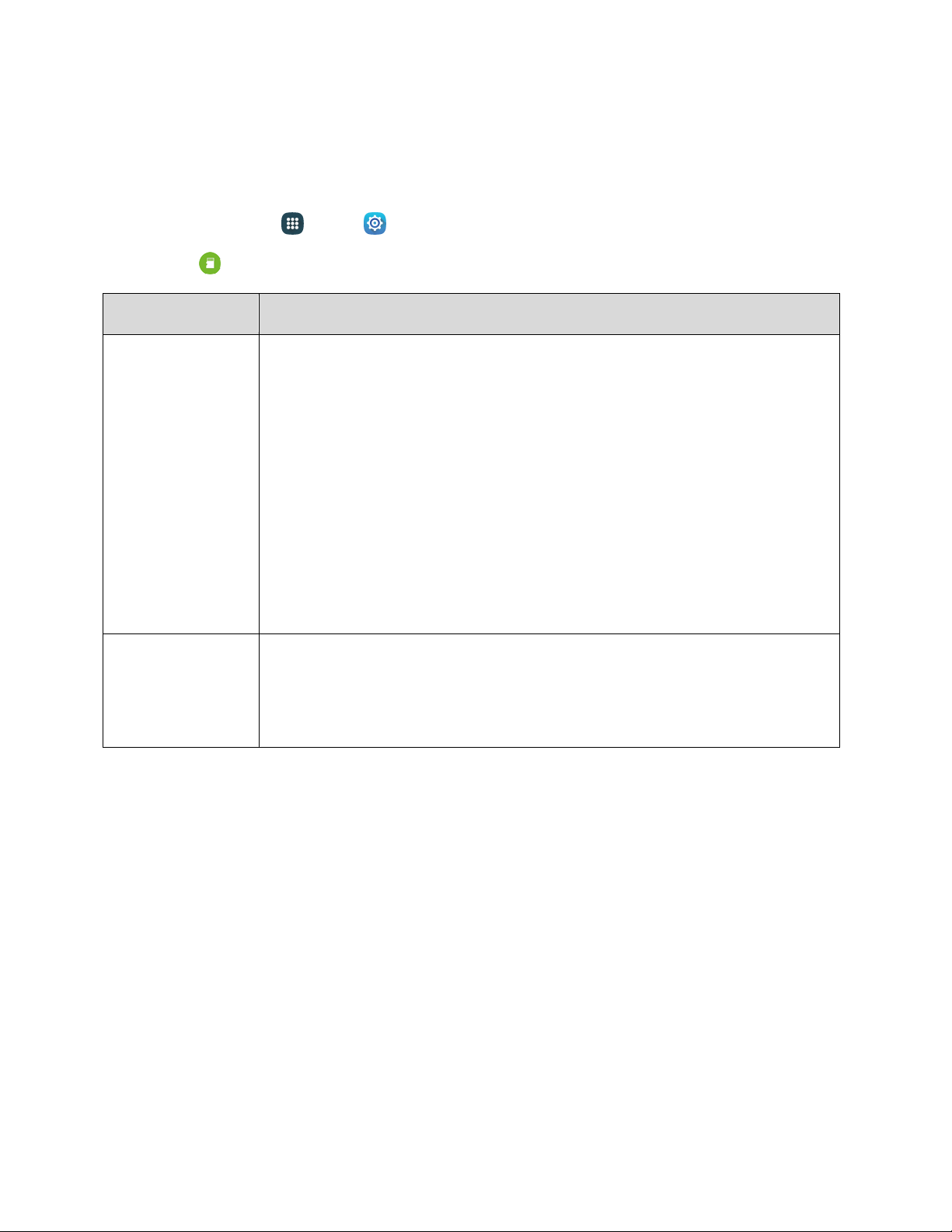
Storage Settings
Manage the use of memory resources in your phone’s Device memory, and on an optional installed
memory card (not included).
1. From home, tap
Apps
>
Settings.
2. Tap
Storage
to view information about memory usage, and tap an item
for more information.
Storage Device
Description
Internal storage
●
Total space: View the total space/free space in your phone’s memory.
●
Available space: The amount of storage space currently available.
●
System memory: The minimum amount of storage space required to run
the system.
●
Used space: The amount of storage space currently being used.
●
Other: e space used by app data, downloaded files, and Android system
files.
●
Cached data: The amount of data currently cached.
●
Explore: Launch My Files to view content stored on your device.
SD card
Note: This category is available only if an optional SD card is installed.
●
Unmount: Unmount the SD card to safely remove it.
●
Format: Delete all data on the SD card.
Security Settings
Configure options for securing information on your phone.
Device Administration
Some applications, such as Corporate email, may require you allow access to your phone by device
administrators in certain circumstances, such as if your phone is lost or stolen.
Some features a device administrator might control include:
● Setting the number of failed password attempts before the phone is restored to factory settings.
● Automatically locking the phone.
● Restoring factory settings on the phone.
Settings 184

Configure Device Administration Options
1. From home, tap Apps > Settings.
2. Tap Security, and then tap an option:
Device administrators: Tap
to view, enable, or disable device administrators.
• Android Device Manager: When enabled, Android Device Manager can lock or erase a
lost device.
Unknown sources: Tap the checkbox to enable or disable your device’s ability to install
apps from sources other than Google Play store.
Encryption
You can encrypt accounts, settings, downloaded apps and their data, media, and other files. After
encryption, you must enter the PIN or password you set each time you turn on your phone. You can also
encrypt information stored on an optional installed memory card (not included).
Encryption may take an hour or more to complete. Start with a charged battery, and keep the phone on
the charger until encryption is complete. Interrupting the encryption process may result in the loss of
some or all data.
1. From home, tap
Apps
>
Sett
ings.
2. Tap
Security, and then tap an option:
Protect encrypt
ed data: Tap Encrypt device to start, and then follow the prompts to encrypt
information your device’s data.
Encrypt external SD card: Tap Turn on to start, and then follow the prompts to encrypt
information on an optional installed memory card (not included).
Tip: To perform encryption, your battery must be charged to at least 80%. It is best to plug your phone in
and leave it charging during the encryption process.
Reactivation Lock
Use your Samsung account to stop anyone from reactivating your device without your permission.
1. From home, tap Apps > Sett
ings.
2. Tap
Security, and then tap the checkbox beside
Reactivation lock
to enable or
disable the
setting.
Tip: You must estab
lish and sign in to a Samsung account to use the Reactivation Lock feature. See
Samsung Account.
Settings 185

Passwords
Use the Make passwords visible setting to briefly display password characters as you enter them into
password fields.
1. From home, tap
Apps
>
Sett
ings.
2. Tap
Security, and then tap the
checkbox
beside
Make passwords visible
to enable or
disable the setting.
Security Update Service
Choose options for updating your phone’s security policy.
1. From home, tap Apps > Sett
ings.
2. Tap
Security, and then tap an option:
Security policy updates: When enabled, your phone will automatically check for changes to
the security policy and download any updates, to improve security and service.
• Tap the checkbox beside Automatic updates to enable or disable automatic updating of
the security policy when connected to preferred networks.
• Tap Preferred networks to select an option for downloading security updates.
• To manually check for updates, tap Check for updates.
Send security reports: When enabled, your phone will only send security reports to
Samsung when it is connected to a Wi-Fi network.
Credential Storage
You can install credentials from an optional installed memory card (not included), and use the Credential
storage settings to allow applications to access the security certificates and other credentials.
1. From home, tap
Apps
>
Sett
ings.
2. Tap
Security, and then tap an option:
Storage type:
Select a storage type to store data in key-value pairs, in phone memory, in a
private database, or your own network server.
Trusted credentials: Tap to view credentials you’ve installed.
Install from device storage: Tap to install encrypted certificates from an optional installed
memory card (not included).
Clear credentials: Tap to clear stored credentials and reset the password (only available
when credentials are installed).
Settings 186

Advanced Settings
Configure advanced security settings.
1. From home, tap Apps > Sett
ings.
2. Tap
Security, and then tap an option:
Trust agents: Se
t screen lock type to use.
Pin windows: Pin a specific app on your phone’s screen, preventing the use of other
features and apps on your phone.
Usage data access: View which applications can access your device’s usage data.
Smart Lock: Set screen type to use.
Do not disturb permission: View which apps have permission to change the Do not disturb
settings.
Help
Learn about using your phone.
1. From home, tap Apps > Sett
ings.
2. Tap
Help, and then tap
topics to display
information
Activate This Device
Connect to the network and activate your phone. If your phone is already activated, use this option to
view information about your plan and usage.
1. From home, tap
Apps
>
Sett
ings.
2. Tap
Activate this device, and then follow the prompts to activate your
phone
on the network.
System Update Settings
Use System update options to update your phone’s software.
1. From home, tap Apps > Sett
ings.
2. Tap
System
update
to use these options:
Download updates manuall
y: Tap to check for updates, and install manually.
Download updates automatically: Automatically install updates.
Scheduled software updates: Schedule when to install updates.
Settings 187

Update PRL: Download the latest Preferred Roaming List (PRL), used by your phone to
access the network.
Update Profile: Update the user profile related to your wireless service account. If you
choose to change your user name online, use this option to update the user name on your
phone.
UICC Unlock: Unlock your phone’s Universal Integrated Circuit Card.
About Device Settings
View information about your phone, including status, legal information, hardware and software versions,
and a tutorial.
1. From home, tap
Apps
>
Sett
ings.
2. Tap
About device, and then tap items
for more details:
Software ver
sion: View your phone’s software version.
Hardware version: View the hardware version of your phone.
Status: View information about your phone’s current status.
• Status information includes helpful information about battery status and level, network
information, service, roaming, addresses for IP, MAC, and Bluetooth, and more. It also
includes the phone number and username assigned to your phone.
Legal information: Display open source licenses, Google legal information, Samsung legal
information, and a Privacy alert.
Report diagnostic info: When enabled, your phone reports diagnostic and usage data to
Samsung, to improve the quality and performance of products.
Device name: View your phone’s name, and enter a new name if desired.
Model number: View your phone’s model number.
Android version: View the firmware version of your phone.
Android security patch level: Check the Android security patch level.
Baseband version: View the baseband version of your phone.
Kernel version: View the kernel version of your phone.
Build number: View the build number of your phone.
SE for Android status: View your phone’s SE for Android status.
Security software version: View your phone’s security software version.
KNOX version: View your phone’s KNOX version.
Settings 188

Application Manager Settings
You can download and install applications from the Google Play store or Samsung Apps, or create
applications using the Android SDK and install them on your phone. Use Application manager to manage
applications on your phone.
Warning: Because this phone can be configured with system software not provided by or supported by
Google or any other company, end-users operate these devices at their own risk.
1. From home, tap
Apps
>
Settings.
2. Tap
Application manager
to view app status. While in Application manager, you can use
these options:
If you have disabled apps, tap Downloaded, SD Card, Running, or All to view the status of
apps and services. Tap an app or service for more information, and for app options, such as
stopping and uninstalling.
Tap
More options
for othe
r options, including sorting
by
app size or name, or resetting app
preferences.
Default Applications Settings
If you have installed multiple apps that perform the same kind of task, for example more than one
messaging app, you can choose the app you want to use as the default.
1. From home, tap
Apps
>
Settings.
2. Tap
Default applications
to configure options:
Brower App: Choose a de
fault app for browsing.
Calling app: Choose a default app for calling.
Messaging app: Choose a default app for messaging.
Set as default: Manage your default apps.
Home: Choose a default home screen mode.
Device assistance app: Choose a default app for assistance.
Settings 189

Calendar Settings
Configure settings for your phone’s Calendar app.
1. From home, tap Apps > Setting
s.
2. Tap
Application Settings
> Calendar
to configure these options:
First day of week: Choos
e a day to start each calendar week.
Show week numbers: Display week numbers on the calendar.
Hide declined events: Events for which you declined the invitation are not shown on the
calendar.
Hide completed tasks: Tasks you’ve completed are no longer shown on the calendar.
7-day weather forecast: Weather information from
A
ccuWeather.com
displays on the
cal
endar.
Lock time zone: Event times will be locked to the time zone you select. This means that
times and dates will not change, even if you travel to another time zone.
Select time zone: When you enable Lock time zone, choose a time zone to lock events to
the time zone.
View today according to: Set today’s date and time to use a Fixed time zone or the local
time zone.
Set snooze duration: Set the interval between alerts when snoozing.
Select alert type: Choose the type of notifications for calendar events. You can choose to be
notified with a sound, or by an icon in the status bar, or choose no notifications.
Notification sound: Choose a sound for calendar event notifications.
Vibration: Enable vibration for calendar event notifications.
Quick responses: Manage text phrases, which you can use to send to event attendees.
Settings 190

Call Settings
Configure options for calling with your phone.
Tip: You can also acces
s Call settings from the Phone app. From home, tap Phone > More
options > Settings > Call, or on the Edge screen, tap
Phone
>
More options >
Call. If the
keypad is
not shown, tap
the Keypad
tab at the
top
of the screen.
Call Rejection
Create and manage a list of phone numbers, to have your phone automatically reject calls you receive
from those numbers.
1. From home, tap
Apps
>
Sett
ings.
2. Tap
Application
Settings
> Call
> Call rejection
to configure these options:
Auto reject mode: When All numbers is selected, calls from all numbers are rejected. When
Auto reject numbers is selected, calls from numbers on the Auto reject list are rejected.
Auto reject list: Enter telephone numbers, to reject calls from the numbers when Auto reject
mode is turned on.
• Tap
Add
to enter a telephone number, or select a number
from a contact. Tap Match
criteria to set options for using the reject number list.
• Tap the chec
kbox beside Unavailable to reject calls with numbers that display
“Unavailable” in Caller ID.
Rejection messages: Create and manage text messages to send to callers when rejecting
incoming calls. Messages you create here are available from the incoming call screen when
you use the Reject with message option
• To create new messages, tap
, and then follow the prompts.
• To modify an existing message, tap the message, and then edit the text.
Settings 191

Answering and Ending Calls
Manage settings for answering and ending calls.
1. From home, tap Apps > Setting
s.
2. Tap
Application Settings
> Call
> Answering
and ending calls
to configure these options:
Answer calls by:
• P
ressing the Home key: Answer incoming calls by pressing the Home key.
• Using voice commands: Answer or reject calls with the voice commands “Answer” and
“Reject”. When you answer a call with a voice command, the Speaker will automatically
turn on for hands-free calls. Voice control will not be available if you set call alerts to
vibration.
End calls by:
• Pressing the Power key: End calls by pressing the Power/Lock key. In this case,
pressing the power key during a call will not lock the screen.
Call-Related Status Pop-Ups
When enabled, notifications for incoming calls and call status display in pop-ups if an application is open
on the screen.
1. From home, tap
Apps
>
Setting
s.
2. Tap
Application Settings
> Call
> Call-related pop-ups
for options:
Show incoming calls
on Edge screen: Display notifications for incoming calls on the
Edge screen.
In-call status pop-ups: Display call status in pop-ups.
Show Caller Information
When enabled, information about the caller’s recent social network activity, and the history of your
communication with them, displays when you receive a call.
1. From home, tap
Apps
>
Setting
s.
2. Tap
Application Settings
> Call
> Show caller information
to enable the
option.
Settings 192

Call Alerts
Set options for sounds and vibrations to occur during calls.
1. From home, tap Apps > Settings.
2. Tap
Application Settings
> Call
> Call alerts
to configure settings:
Vibrate when answered: Wh
en enabled, your phone will vibrate when a call is answered.
Vibrate when call ends: When enabled, the phone vibrates when the other caller ends the
call.
Call connect tone: When enabled, the phone plays a tone when the other caller answers a
call.
Minute minder: When enabled, a tone plays once per minute during a call.
Call end tone: When enabled, the phone plays a tone when the other caller ends the call.
Notify during calls: When enabled, notifications for alarms and new messages play during
calls. When disabled, these notifications will be muted during a call.
Call Accessories
Configure options for using an optional headset for calling.
1. From home, tap Apps > Sett
ings.
2. Tap
Application Settings
> Call
> Call accessories
to configure settings:
Automatic answer
ing: When enabled, and you have a headset connected to the Headset
Jack, incoming calls are answered automatically after a delay, which you can set at
Automatic answering timer. Tap to enable or disable the setting.
Automatic answering timer: Choose a time period to delay before automatically answering
an incoming call when Automatic answering is enabled and a headset is connected to the
phone. Tap to choose 2 seconds, 5 seconds, or 10 seconds.
Outgoing call conditions: When the phone is paired with a Bluetooth headset, you can
choose to make calls even when the phone is locked. Tap to choose Even when device
locked, or Only when device unlocked.
Settings 193

More Settings
Settings for TTY and Hearing Aids are located in this option.
TTY Mode
A TTY (teletypewriter, also known as a TDD or Text Telephone) is a telecommunications device that
allows people who are deaf, hard of hearing, or who have speech or language disabilities, to
communicate by telephone.
Your phone is compatible with select TTY phones. Please check with the manufacturer of your TTY
device to ensure that it supports digital wireless transmission. Your phone and TTY device will connect
using a special cable that plugs into your phone’s headset jack. If this cable was not provided with your
TTY device, contact your TTY device manufacturer to purchase the connector cable.
1. From home, tap
Apps
>
Setting
s.
2. Tap
Application Settings
> Call
> More settings
> TTY mode
to choose a TTY
mode.
Hearing Aids
When enabled, your phone improves the sound quality for use with hearing aids.
1. From home, tap Apps > Setting
s.
2. Tap
Application Settings
> Call
> More settings
> Hearing
aids
to enable the
option.
Ringtones and Keypad Tones
Choose tones and vibrations to play for incoming calls and keypad taps.
1. From home, tap Apps > Setting
s.
2. Tap
Application Settings
> Call
> Ringtones
and keypad tones
to configure settings:
Tap Ringtones, and t
hen select a ringtone for incoming calls. Tap Done to save your
selection.
Tap Vibration pattern, and then select a vibration pattern to play for incoming calls when the
Vibrate when ringing option is enabled. You can tap Create to create a custom pattern. Tap
OK to save the settings.
Tap Vibrate while ringing to play a vibration for incoming calls. The vibration pattern is set
at the Vibrations setting.
Tap Dialing keypad tone to enable tones for keypad taps.
Settings 194

Personalize Call Sound
Choose options for call audio, in cases where you might need the sound softer or clearer, or optimized for
your right or left ear.
Note: This option is can only be configured during a call. For more details, see In-Call Options
.
1. From hom
e, tap Apps > Sett
ings.
2. Tap Application Settings > Call > Personalize call sound.
3. Tap a setting, a
nd then configure options:
Adapt sound: Tap Start, and then follow the prompts to find the best sound for you.
Soft sound: Use softer sounds during calls.
Clear sound: Use clearer sounds during calls.
Off: Use the default call sound settings.
Noise Reduction
When enabled, Noise reduction suppresses background noise from your environment during calls.
1. From home, tap Apps > Sett
ings.
2. Tap
Application Settings
> Call
> Noise reduction
to enable or
disable noise reduction.
US Dialing
When enabled, the US dialing option replaces “+” with the international access code for your location.
1. From home, tap Apps > Sett
ings.
2. Tap
Application Settings
> Call, and then tap
the checkbox
beside
US dialing
to enable or
disable the setting.
International Dialing
When US dialing is enabled, it uses the International dialing code to replace “+”. US dialing must be
disabled to access the International dialing code.
1. From home, tap
Apps
>
Sett
ings.
2. Tap
Application Settings
> Call, and then tap
the checkbox
beside
US dialing
to disable
the setting. U
S dialing must be disabled to
access the International dialing setting.
3. Tap International dialing, and then use the keypad to enter the international dialing code.
4. Tap OK to save the code.
Settings 195

DTMF Tones
Set the length of Dual-tone Multi-frequency (DTMF) tones, which play when you use the keypad during a
call, such as when navigating menus.
1. From home, tap
Apps
>
Settings.
2. Tap
Application Settings
> Call
> DTMF tones
to choose a
tone length.
Voicemail Settings
Set options for Visual Voicemail.
1. From home, tap Apps > Settings.
2. Tap
Application Settings
> Call
>
Voicemail
settings
to configure options for voicemail:
Avatar: Configure you Avatar options.
Display: Change your voicemail message theme and enter a name to identify yourself to
people when replying or forwarding messages.
Help: View help topics for using Visual Voicemail.
Preferences: Change your Visual Voicemail application preferences.
Sound: Change your sound/speakerphone options.
Updates: Check for updates.
About Voicemail: View information about the application.
Contacts Settings
Configure options for contacts stored on your phone.
Tip: You can also access Con
tacts Settings from the Contacts app. From home, tap Contacts >
More options > Settings.
1. From
home, tap
Apps
>
Settings.
2. Tap
Application Settings
> Contacts
to configure options:
Import/Export contacts: You can import contacts from your phone’s internal memory, from
the SIM card, or from an optional installed memory card. Tap to choose an import source,
and then follow the prompts to import contacts.
Contacts to display: Choose contacts to display in Contacts. You can choose only contacts
from your phone’s memory, or from an account, or choose other sources. You can also
create a customized list of contacts to display.
Settings 196

Swipe to call or message: Swipe your finger across a contact record to call or send a
message to the contact’s default number. Swipe right to call, or left to create a message
addressed to the contact.
Only contacts with phones: Only contacts with at least one phone number display in
Contacts. Other contacts will be hidden.
Sort by: Choose how contacts are sorted, by first or last name.
Display contacts by: Choose how contacts are displayed, by first or last name.
Send multiple name cards: You can choose how to transfer contacts, when sharing them
with other devices, such as through Bluetooth. Tap Export settings and choose one of the
following options:
• Send together: Multiple contacts are sent together. This method can be faster, but
depends on whether the target device can accept multiple name cards. If not, only one
contact will be sent.
• Send individually: Name cards are sent individually. This method may take longer,
because the other device must accept each name card individually, but it helps ensure
that no name cards are missed.
Accounts: Add or manage accounts. Many accounts include contacts, which are synced with
your phone when you set up the account on your phone.
Email Settings
Configure options for email accounts you set up on your phone.
Tip: You can also access E
mail settings from the Email app. From home, tap Apps > Email >
More options > Settings.
Edit General Email Preferences
Configure settings which affect all email accounts.
1. From home, tap Apps > Settings.
2. Tap Application Settings > Email to configure options. Available settings depend on the
type of email account, and may include:
Manage accounts: Configure options for specific accounts. Available settings depend on the
type of account.
Display: Choose how emails are shown in the email list, and when you open them.
• Auto fit content: When enabled, email content shrinks to fit the screen. You can still
view details by zooming in.
Settings 197

• Message preview line: Choose whether up to 3 lines display with the email subject in
the Inbox.
• Title line in list: Choose what displays as the title in the list of emails, the sender, or the
subject of the email.
• Hide checkboxes: Enable or disable the display of checkboxes beside each email.
When checkboxes are displayed, you can use them to select email(s). If you choose to
hide checkboxes, you can touch and hold on an email to temporarily display them, such
as when you want to select multiple emails.
Default display: Select what is displayed after you move or delete emails. You can choose
to move to the next email, or the previous email, or return to the list of emails in the inbox.
Priority sender settings: Choose options for handling emails from priority senders.
• Set as default folder: When enabled, the priority sender inbox displays when you open
the Email app.
• Email notifications: When enabled, notifications for new emails display in the status bar.
When disabled, you can control notifications for each of your email accounts individually
in the account’s settings.
• Notification sound: Choose a ringtone to use for notifications for new email from priority
senders.
• Vibrate: Enable or disable vibration, to play for notifications for new email from priority
senders.
Spam addresses: Create and maintain a list of email addresses and domains, to
automatically block emails from those senders.
Delay email sending: Choose options for delaying the sending of emails, so that they can be
cancelled if needed.
• Delay email sending: When enabled, the sending of emails is delayed, and a cancel
button is displayed, for a period of time you set below.
• Set length of delay: Choose a time period to delay sending of emails.
Split view mode: Turn on split view when the screen is in a landscape orientation.
Settings 198

Manage Email Account Settings
You can edit settings for your individual email accounts, such as email address and password, name
display and signature, frequency of retrieval, and more.
Note: Available settings depend on the type of email account. See your email service provider for details.
1. From home, tap App
s > Settings.
2. Tap Application Settings > Email > Manage accounts, and then tap an account to
configure settings. Some common email settings are:
Sync set
tings: Tap to configure options for synchronizing your phone with your account:
• Sync Email: When enabled, your phone maintains synchronization with your email
account. The last synchronization is displayed.
• Sync schedule: When Sync email is enabled, set options for synchronizing your phone
with your email account.
• Period to sync Email: Choose a time period to have your phone maintain
synchronization.
• Limit retrieval size: Choose a maximum size for emails for your phone to automatically
retrieve during synchronization. For larger emails, your phone will prompt you to
download the contents when you open them. You can set a separate retrieval limit to use
when roaming.
Signature: When on, a text signature is automatically added to emails you send. Tap the
ON/OFF switch to turn signatures on. After turning signatures on, tap Edit signature to edit
the default text signature.
Out of office settings: Configure options for automatically sending replies when you are out
of the office.
Default account: Assign an account as the default email account for outgoing messages.
When you launch an email from other apps, the email will automatically be from this account.
Password: Update your account password to match the password set on your account.
Email notifications: When enabled, an icon displays in the status bar when you receive new
emails.
Notification sound: Choose a ringtone to play for new email notifications.
Vibrate: When enabled, vibration plays for new email notifications.
More settings: Configure other options, including the account name, carbon copy and blind
carbon copy, synchronization, and security options.
• Account name: Enter a name to identify this email account.
• Your name: The personal name associated with this email account.
Settings 199

• Always Cc/Bcc myself: Choose options for sending a copy of emails you send to
yourself, as a copy (Cc) or blind copy (Bcc).
• Show images: Choose whether to automatically display embedded images in the body
of an email.
• Auto download attachments: Choose whether the phone automatically downloads
email attachments when you are connected to Wi-Fi. You might use this option to control
how and whether you use your plan’s data services to download attachments.
• Auto resend times: Choose the number of times the phone attempts to resend an email
after a delivery failure.
• Folder sync settings: Choose folders to synchronize between your phone and account.
• Period to sync Calendar: Choose the period for synchronizing calendar events between
your phone and account.
• Empty server trash: Delete the contents of the trash folder on the account server.
• In case of sync conflict: Choose whether information from the server or phone has
priority when there is a conflict.
• Security options: Configure advanced security options, including encryption.
• Sync Contacts: Choose whether contacts are synchronized between your phone and
the account.
• Sync Calendar: Choose whether calendar events are synchronized between your phone
and the account.
• Sync Task: Choose whether emails are synchronized between your phone and the
account.
• Sync text messages: Choose text messages to synchronize between your phone and
account.
• Exchange server settings: Configure the Domain\user name, Password, and other
Exchange server settings.
• Incoming setting: Configure the incoming mail service settings.
• Outgoing settings: Configure the outgoing mail service settings.
Settings 200

Gallery Settings
Configure options for the Gallery app.
Tip: You can also access Gal
lery settings from the Gallery app. From home, tap Apps >
Gallery >
More options
> Settings.
1. From
home, tap
Apps
>
Settings.
2. Tap
Application Settings
> Gallery
to configure options:
Accounts: Tap an accoun
t (if available) to enable or disable sync options for pictures and
videos in the Gallery.
Sync via Wi-Fi only: When enabled, Gallery will only sync pictures with your social
networking accounts when connected to Wi-Fi.
Filter by: Choose a filter to apply to pictures displayed in Gallery.
Face tag: When enabled, your phone identifies faces in the pictures you take, so you can tag
them in the picture.
Tap
More options
> Add
account
to add an
account for picture and
video storage.
Internet Settings
Configure Internet settings, to customize the browser to your preferences.
Basic Internet Settings
1. From home, tap Apps > Settings.
2. Tap Application Settings > Internet to configure options:
Homepage: Choose a homepage t
o display when you launch Internet.
Default search engine: Choose a default search engine.
Auto fill profile: Manage your Auto fill profile.
Manual zoom: Override website requests to control zoom level.
Privacy: Choose options related to privacy.
Advanced: Choose settings to control how the browser treats content, such as allowing
JavaScript, blocking pop-ups, and managing website data.
About Internet: View software information about this app.
Settings 201

Messages Settings
The messages settings menu lets you control options for your text and MMS messages including
message limits, size settings, and notifications.
Tip: You can also access
Message settings from the Messages app. From home, tap
Messages >
More options
> Settings.
1. From
home, tap
Apps
>
Settings.
2. Tap
Application Settings
> Messages to configure settings:
Enhanced messaging: Ch
at with other Enhanced messaging users using free one-to-one
and group chat messages.
• Image resize: Select an image size to reduce data charges.
• Send as SMS/MMS messages: Send your Enhanced messaging messages as text or
multimedia messages when Enhanced messaging is unavailable.
• Registered information: View your registered phone number.
Default messaging app: Choose an app to use by default.
Display:
• Bubble style: Choose how messages appear on the screen. Bubbles are the boxes that
surround each message.
• Background style: Choose the background of the message screen.
• Split view: Turn on split view on landscape screen.
• Change font size: When enabled, you can change the text size while reading a message
by pressing the Volume Key up or down.
Quick responses: Create and manage text phrases that you can add to messages.
Text messages:
• Auto combination: Choose whether long messages that are received in multiple parts
are automatically re-assembled to display as a single message.
Multimedia messages:
• Group conversation: Control how messages to multiple recipients are handled. When
enabled, a single message is sent to multiple recipients. When disabled, a separate
message is sent to each recipient.
• Auto retrieve: Choose whether message attachment(s) are automatically downloaded
when you display a multimedia message. If you disable this option, only the message
Settings 202

header displays in the message list, and you will be prompted to download the
attachment(s).
• Roaming auto retrieve: Choose whether message attachment(s) are automatically
downloaded when your phone is outside its home network.
• MMS alert: When enabled, your phone will alert you when you make a change to a
message that will convert the message to a multimedia message (MMS).
Delete old messages: When turned on, your phone will automatically delete the oldest
messages when the maximum number of messages is reached. Tap the ON/OFF switch to
turn the setting on, and then set the maximum number of messages with the Text message
limit and Multimedia message limit settings below.
• Text message limit: Set the maximum number of text messages per conversation.
• Multimedia message limit: Set the maximum number of multimedia messages per
conversation.
Priority senders: Receive alerts when receiving messages from priority senders.
Notifications: When turned on, notifications for new messages display in the status bar.
Tap Notifications to turn the setting on, and then configure options:
• Notification sound: Choose a sound to play for new message notifications.
• Vibrations: Choose whether vibration plays along with the sound for new message
notifications.
• Repeat message alert: Choose how often your phone notifies you of new message(s).
• Pop-up display: Choose whether a new message pops up on the display to notify you.
• Edge screen: Show previews of new messages on the Edge screen.
Emergency alerts: Configure emergency alert settings. You can enable or disable some
alerts: Extreme Alert, Severe Alert, Amber Alert, and Emergency alert test messages. You
cannot disable Presidential alerts.
• Emergency alerts: Choose types of messages to receive. You can enable or display any
of the message types, except for Presidential Alert. You can also choose to receive
emergency alert test messages.
Important: The Commercial Mobile Alert System (CMAS) system provides the government the ability to
send geographically targeted notifications of emergencies, such as threats to public safety, severe
weather events, a hazardous material spill or a missing child in the phone user’s area.
• Emergency notification preview: Play a sample emergency alert tone. Tap Stop to
cancel the playback.
• Vibrations: Select vibration options for emergency message notifications.
• Alert reminder Configure the reminder interval.
Settings 203

Signature: When turned on, a text signature is included in all messages you send. Tap the
On/Off switch to turn the setting on, and then edit the signature text to include.
• Edit signature: Enter a text signature, when Add signature is enabled.
Spam filter: When turned on, your phone block messages that may be spam, by filtering
based on criteria you set. Tap the On/Off switch to turn the setting on, and then configure
filters:
• Add to spam numbers: Enter telephone numbers, to automatically flag messages from
the numbers as spam, when Spam settings are enabled.
• Add to spam phrases: Enter text phrases, to automatically flag messages as spam
when they contain the phrase. Available when Spam settings are enabled.
Allow access to all links: Allow access to links embedded within your messages.
S Voice Settings
Configure options for using your voice to interact with your phone.
Tip: you can also acces
s S Voice settings from the S Voice app. From home, tap Apps >
S Voice >
More options
> Settings
1. From
home, tap
Apps
>
Settings.
2. Tap
Application Settings
> S Voice
to configure options:
Language: Choose a l
anguage to use for S Voice.
Hide offensive words: When enabled, potentially offensive words are replaced with
asterisks (*).
About S Voice: Learn about S Voice.
Open via the home key: When enabled, you can launch S Voice by pressing the Home key
twice quickly.
Voice wake-up: When turned on, you can launch S Voice by speaking a wake-up command.
Tap the On/Off switch beside Voice wake-up to turn the option on, and then tap Set wake-
up command to record a command.
Auto start speakerphone: When enabled, the speaker is automatically turned on when you
make a call with S Voice.
Check missed events: When enabled, you can check missed events when you open S
Voice through an optional headset.
Personal briefing: When enabled, S Voice will provide a briefing on your schedule when you
open S Voice.
Settings 204

Reset S Voice: Erase the S Voice data you have stored on the server and restore the default
S Voice settings.
Home address: Configure your home address.
Log in to Facebook: Log in to your Facebook account. If you have not already installed an
optional Facebook app, follow the prompts to do so before logging in.
Sign in to Twitter: Log in to your Twitter account. If you have not already installed an
optional Twitter app, follow the prompts to do so before logging in.
Google Settings
Configure options for using Google on your phone.
1. From home, tap Apps > S
ettings.
2. Tap
Application Settings
> Google
to configure options:
Sign-in & security: Configure how you sign in to your Google Account, device access
and notifications, and connected apps and sites.
Personal info & privacy: Manage your personal information, activity controls, ads settings,
account overview, and control your content.
Account preferences: Configure your Google account language, Google Drive storage,
accounts and services.
Ads: Configure your Google advertising profile.
Connected apps: Configure apps which use your Google account.
Data management: Configure your Google Drive app.
Google Fit: Configure Google Fit apps and devices (not included).
Location: Configure your Google location settings.
Nearby: Use your device’s sensors to connect with nearby devices.
Search & Now: Configure your Google search settings and Google Now settings.
Security: Configure the Android Device Manager and apps security settings.
Set up nearby device: Set up another device using Wi-Fi and Bluetooth.
Smart Lock for Passwords: Configure your saved Google passwords and auto sign-in
settings.
Settings 205

For Assistance
The following topics address areas of support for your phone, including troubleshooting, specifications,
account information, warranty information, and customer service contact information.
Troubleshooting
Check the questions and answers below for troubleshooting solutions for common phone issues.
Check Here First
Problem: Phone freezes/operation is unstable.
Solution: Turn the phone on again. If you are unable to turn the phone off, remove and replace the
Battery, and then turn the phone on again. Data that was being edited is erased after your phone is
powered on again.
Problem: Operation is unstable after a new application was installed.
Solution: The newly installed application may be the cause. Uninstall the application in Safe mode.
See Uninstall an App
. To tur
n the phone on in Safe mode:
Press an
d hold the Power/Lock key > touch and hold Power off, read the disclaimer for safe
mode, and then tap OK.
• After turning the phone on in Safe mode, "Safe Mode" appears at lower left.
• After restarting in Safe mode, your phone can be powered on as usual.
• Before turning the phone on in Safe mode, it is recommended that you back up important
data.
• By powering the phone on in Safe mode, added widgets may be deleted.
Problem: Cannot use phone, mail, or Internet.
Solution 1: Check whether you a
re where signal is weak or out of service area.
Solution 2: Power the phone on again.
Solut
ion 3: Is the phone in Airplane mode? To check that Airplane mode is canceled:
From
home, tap
Apps
>
Settings
>
Airplane mode.
Solution 4: Is data communication disabled? To check that data communication is enabled:
From home, tap
Apps
>
Sett
ings
>
Data usage
> Mobile data.
For Assistance 206

Solution 5: Is a disabled access point set? To reset to initial settings:
From home, tap
Apps
>
Setting
s >
More networks
> Mobile networks
>
Access
Point Names
>
More options
> Reset to default.
Problem: Battery level
goes down quickly.
Solution: Are yo
u where signal is
weak or have been out of service area for a long period? Calling
where signal
is
weak or being out of service area uses a lot of Battery.
Problem: Cannot install applications.
Solution: Appl
ications cannot be installed with only a little free space on the phone or SD card. To
check free space, see Storage Settings. Applications not supported by your phone cannot be
installed.
Problem: Cannot unl
ock screen.
Solution: Power the p
hone on again. If
you are unable to turn the phone
off, remove and replace the
Battery, and then power the phone on
again. Data that was being edited is
erased after the
phone
is
powered on again.
Sprint Account Information and Help
Find out about account passwords and information about managing your account and finding help.
Sprint Account Passwords
You will need to create passwords to protect access to your personal account information, your voicemail
account, and your data services account. As a Sprint customer, you enjoy unlimited access to all your
information.
Account User Name and Password
If you are the account owner, you will create an account user name and password when you sign on to
sprint.com/mysprint. (Click Register and follow the prompts to get started.) If you are not the account
owner (if someone else receives the bill for your Sprint service), you can get a sub-account password at
sprint.com/mysprint
.
Voicemail Passcode
You will create your voicemail passcode when you set up your voicemail. See Set Up Voicemail for more
information on your voicemail passcode.
Data Services Password
With your Sprint phone, you may elect to set up an optional data services password to control access and
authorize purchases.
For more information, or to change your passwords, sign on to sprint.com/mysprint
.
For Assistance 207

Manage Your Account
Manage your Sprint account from your computer, your Sprint phone, or any other phone.
Online: sprint.com/mysprint
● Access your account information.
● Check your minutes used (depending on your Sprint service plan).
● View and pay your bill.
● Enroll in Sprint online billing and automatic payment.
● Purchase accessories.
● Shop for the latest Sprint phones.
● View available Sprint service plans and options.
● Learn more about data services and other products like games, ringtones, screen savers, and
more.
From Your Sprint Phone
1. From home, tap
Phone
> Key
pad
tab.
2. Do any of the f
ollowing:
Tap
(* 2), and the
n tap
Dial
to access a summary of
your Sprint service
plan or get answers to other questions.
Tap
(* 3), and then tap
Dial
to access the “Pay
My
Bill” section
of Sprint
Zone to make a payment.
Tap
(* 4), and then tap
Dial
to check
minute usage and account
balance.
For Assistance 208

Sprint Support Services
Sprint 411 and Sprint Operator Services let you easily access information and calling assistance from
your Sprint phone.
Sprint 411
Sprint 411 gives you access to a variety of services and information, including residential, business, and
government listings; movie listings or show times; driving directions, restaurant reservations, and major
local event information. You can get up to three pieces of information per call, and the operator can
automatically connect your call at no additional charge.
There is a per-call charge to use Sprint 411, and you will be billed for airtime.
■ From home, tap
Phone > Keypad
tab, tap (4 1 1), and then tap
Dial.
Sprint Operator Services
Sprint Operator Services provides assistance when you place collect calls or when you place calls billed
to a local telephone calling card or third party.
■ From home, tap Phone > Keypad tab
, tap (0), and then tap Dial.
For more information or to s
ee the latest in products and services, visit us online at sprint.com/mysprint
.
Copyright Information
©2016 Sprint. Sprint and the logo are trademarks of Sprint. Other marks are trademarks of their
respective owners.
WARNING! This product contains chemicals known to the State of California to cause cancer, birth
defects, or other reproductive harm. For more information, please call 1-800-SAMSUNG (726-7864).
Intellectual Property
All Intellectual Property, as defined below, owned by or which is otherwise the property of Samsung or its
respective suppliers relating to the SAMSUNG Phone, including but not limited to, accessories, parts, or
software relating there to (the “Phone System”), is proprietary to Samsung and protected under federal
laws, state laws, and international treaty provisions. Intellectual Property includes, but is not limited to,
inventions (patentable or unpatentable), patents, trade secrets, copyrights, software, computer programs,
and related documentation and other works of authorship. You may not infringe or otherwise violate the
rights secured by the Intellectual Property. Moreover, you agree that you will not (and will not attempt to)
modify, prepare derivative works of, reverse engineer, decompile, disassemble, or otherwise attempt to
create source code from the software. No title to or ownership in the Intellectual Property is transferred to
you. All applicable rights of the Intellectual Property shall remain with SAMSUNG and its suppliers.
For Assistance 209

Open Source Software
Some software components of this product incorporate source code covered under GNU General Public
License (GPL), GNU Lesser General Public License (LGPL), OpenSSL License, BSD License and other
open source licenses. To obtain the source code covered under the open source licenses, please visit:
opensource.samsung.com
Disclaimer of Warranties; Exclusion of Liability
EXCEPT AS SET FORTH IN THE EXPRESS WARRANTY CONTAINED ON THE WARRANTY PAGE
ENCLOSED WITH THE PRODUCT, THE PURCHASER TAKES THE PRODUCT “AS IS”, AND
SAMSUNG MAKES NO EXPRESS OR IMPLIED WARRANTY OF ANY KIND WHATSOEVER WITH
RESPECT TO THE PRODUCT, INCLUDING BUT NOT LIMITED TO THE MERCHANTABILITY OF THE
PRODUCT OR ITS FITNESS FOR ANY PARTICULAR PURPOSE OR USE; THE DESIGN, CONDITION
OR QUALITY OF THE PRODUCT; THE PERFORMANCE OF THE PRODUCT; THE WORKMANSHIP
OF THE PRODUCT OR THE COMPONENTS CONTAINED THEREIN; OR COMPLIANCE OF THE
PRODUCT WITH THE REQUIREMENTS OF ANY LAW, RULE, SPECIFICATION OR CONTRACT
PERTAINING THERETO. NOTHING CONTAINED IN THE INSTRUCTION MANUAL SHALL BE
CONSTRUED TO CREATE AN EXPRESS OR IMPLIED WARRANTY OF ANY KIND WHATSOEVER
WITH RESPECT TO THE PRODUCT. IN ADDITION, SAMSUNG SHALL NOT BE LIABLE FOR ANY
DAMAGES OF ANY KIND RESULTING FROM THE PURCHASE OR USE OF THE PRODUCT OR
ARISING FROM THE BREACH OF THE EXPRESS WARRANTY, INCLUDING INCIDENTAL, SPECIAL
OR CONSEQUENTIAL DAMAGES, OR LOSS OF ANTICIPATED PROFITS OR BENEFITS.
Modification of Software
SAMSUNG IS NOT LIABLE FOR PERFORMANCE ISSUES OR INCOMPATIBILITIES CAUSED BY
YOUR EDITING OF REGISTRY SETTINGS, OR YOUR MODIFICATION OF OPERATING SYSTEM
SOFTWARE.
USING CUSTOM OPERATING SYSTEM SOFTWARE MAY CAUSE YOUR DEVICE AND
APPLICATIONS TO WORK IMPROPERLY. YOUR CARRIER MAY NOT PERMIT USERS TO
DOWNLOAD CERTAIN SOFTWARE, SUCH AS CUSTOM OS.
Samsung KNOX
Samsung KNOX
™
is Samsung’s security platform and is a mark for a Samsung device tested for security
with enterprise use in mind. Additional licensing fee may be required. For more information about Knox,
please refer to:
samsung.com/us/knox [041516]
Samsung Electronics America (SEA), Inc.
Address:
85 Challenger Road
Ridgefield Park,
New Jersey 07660
Phone:
1-800-SAMSUNG (726-7864)
For Assistance 210

Internet Address:
samsung.com
©2016 Samsung Electronics America, Inc. Samsung, Samsung Galaxy, Multi Window, S Pen, S Health,
S Voice, and Samsung Milk Music are all trademarks of Samsung Electronics Co., Ltd.
Other marks are the property of their respective owners.
Note: Screen images are simulated. Appearance of device may vary.
Do you have questions about your Samsung Mobile
Device?
For 24 hour information and assistance, we offer a new FAQ/ARS System (Automated Response
System) at: samsung.com/us/support
The actual available capacity of the internal memory is less than the specified capacity because the
operating system and default applications occupy part of the memory. The available capacity may change
when you upgrade the device.
Legal Information
Important legal information can be accessed in writing on the mobile device or at samsung.com
READ THIS INFORMATION BEFORE USING YOUR MOBILE DEVICE.
Samsung Limited Warranty - This product is covered under the applicable Samsung Limited Warranty
INCLUDING ITS DISPUTE RESOLUTION PROCEDURE and your right to opt out of arbitration
within 30 calendar days of the first consumer purchase. You may opt out by either sending an
email to optout@sea.samsung.com with the subject line “Arbitration Opt-Out” or by calling 1-800-
SAMSUNG (726-7864). For more detailed procedures, please refer to the “Dispute Resolution
Procedures and Arbitration and Opt-Out” section of the Limited Warranty.
Full written terms and detailed information about the warranty and obtaining service are available on the
device at: Settings > About device > Legal Information > Samsung legal or you may access the
online version of the Health/Safety and Warranty guide for your device at:
English
samsung.com/us/Legal/Phone-HSGuide
Spanish
samsung.com/us/Legal/Phone-HSGuide-SP
The online version of the End User License Agreement (EULA) for your device can be found online at:
samsung.com/us/Legal/SamsungLegal-EULA4
For Assistance 211

1Weather, 71
4G, 82
About Device Settings, 188
Accessibility Services, 174
Accessibility Settings, 171
Accessories Settings, 183
Accessory Port, 2
Accounts, 57
Email, 59
Gmail, 58
Google, 57
Samsung, 59
Social Network, 68
Accounts Settings, 169
Action Memo, 18
Activate This Device, 187
Activation, 4,
187
Airplane Mode, 141
Alarm & Timer, 108
Android Beam, 144
Application Manager
Settings, 189
Application Notifications
Setting, 154
Applications, 70
Back Key, 2
Backup and Reset Settings, 170
Battery
Charging, 4
Install, 3
Bluetooth, 98, 100
Connect to car kit, 100
Connect to
headset, 100
Disconnect or unpair, 101
Receive information, 103
Reconnect to car kit, 101
Reconnect to
headset, 101
Send information, 102
Turn on and off, 100
Bluetooth
Settings, 138
Brightness, 156
Browser, 82
Calculator, 103
Calendar, 104
Add
event, 104
Delete alerts, 107
Index
Event alerts, 105
Call
Calling
Settings, 190
View al
erts, 106
Settings, 191
Call Forwarding, 37
Call
Waiting, 36
Caller ID, 36
Block
your
number, 36
International Dialing, 195
US Dialing, 195
Camera, 2, 88
Configure, 91
Layout, 88
Record video, 89
Review
pictures and videos, 90
Settings, 92
Shooting modes, 91
Shortcuts, 91
Take picture, 89
Chrome, 82
Clock, 108
Cloud Settings, 169
Contacts, 47
Access,
47
Add, 48
Delete,
51
Edit, 49
Favorites, 52
Groups, 53
Import and export, 56
Individual ringtones, 50
Linking, 50
Make call from, 30
Merge, 51
Name cards, 55
Overview, 47
Save a Number, 49
Search, 47
Settings, 196
Share, 55
Speed dials, 51
Credential
Storage, 186
Index 212

Data, 80, 82
Data Services, 82
Password, 207
Status indicators, 84
User name,
83
Data Usage
, 142
Date
and Time Settings, 181
Day
dream, 157
Default Applications Settings, 189
Default Messaging App Settings, 148
Device
Activ
ation, 187
Device Administration, 184
Dexterity and Interaction Settings, 173
Dial
ing Keypad Tone Setting, 152
Display
Turn on and
off, 3
Display
and
Wal
lpaper
Settings, 154
Drag Gesture, 5
Driv
e (App), 109
Dropbox, 109
DTMF, 38
DTMF Tones, 196
Earpiece, 2
Easy Mode Settings, 171
eBay, 71
Edge Screen, 1
Basic
App shortcuts, 14
Basic gestures, 14
Basic Quick tools, 15
Features
, 14
Settings, 166
Editin
g Text, 27
Email, 59
Compose, 61
Corporate Accounts, 60
Delete,
62
Delete account, 63
Filter messages, 62
Inbox, 62
Reply, 61
Settings, 197
Synchronize, 62
Email
Message
Make call from, 30
Emergency
Numbers, 31
Safety Assistance, 182
Emergency Tone Setting, 152
Encryption, 185
Enhanced 9-1-1 (E9-1-1), 31
Enter Text, 24
Tips, 27
Entertainment, 70
Evernote, 109
Exten
ded Home Screen, 10
Face Tag, 201
Facebook, 68
Favorites, 52
Files
Trans
fer between phone and computer, 126
Finger Scanner, 175
Fingerprint Screen Lock, 163
Flash, 2
Flick Gesture, 6
Fli
pboard Briefing, 109, 110
Font
Displa
y, 155
Front Camera, 1
Galaxy Apps, 71
Gall
ery, 94
Edit ph
otos, 97
Face Tag, 201
Settings, 201
Share photos and videos, 97
Sharing photos and videos via apps and
social media, 98
View photos, 95, 96
Gestures, 4
Drag, 5
Flick, 6
Pinch, 7
Rotate, 6
Slide, 5
Spread, 7
Swipe, 5
Tap, 4
Touch and Hold, 4
Gestures and Motions, 21
Global Roaming Mode, 129
Gmai
l, 58
Google
Sign i
n, 57
Voice Typing, 24
Google Drive, 109
Google Maps, 112
Googl
e Now, 111
Google Play Books, 77
Index 213

Google Play Games, 77
Google Play
Movies
&
TV, 78
Google Play Music, 75
Google Play Newsstand, 78
Google Play Store, 70
Install an app, 70
Google Search, 111
Google Voice Typing, 25, 180
Google+, 68
Hancom Office 2014, 111
Handwriting Recognition, 180
Hangouts, 68
Haptic Feedback Setting, 152
Headset Jack, 2
Hearing Accessibility, 172
Hearing
Aids, 194
Heart Rate Sensor, 2
Help, 187
Home Key, 2
Home Screen, 8
Extended, 10
Settings, 10
Shortcuts, 8
Wallpaper, 9
Widgets, 9
Hotspot, 84
Connect a device, 84
Turn on and off, 84
Hotspot Settings, 139
Icons
Status Bar, 11
Infrared Transmitter, 2
Instagram, 68
International Data Roaming, 132
International Dialing, 195
Internet, 82
Settings, 201
Interruptions Setting, 153
Keyboard
Google Voice Typing, 180
Samsung, 177
Swype, 178
Keyboards, 24
Language and Input, 176
LED Indicator, 2, 158
Legal Information, 188
Location Settings, 143
Lock Screen Settings, 158
Logs, 44
Lookout Sec
urity, 111
Memory, 184
Memory Card, 124
Install, 2
Messages
Delete conversation, 66
Delete message, 67
Drafts, 65
Managing conversations, 65
New message notification, 65
Protect from deletion, 66
Read
a multimedia message, 66
Reply, 66
Send multimedia message, 64
Send text message, 64
Settings, 202
Messaging, 57, 64
Messenger, 67
Microphones, 2
Microsoft Exchange
ActiveSync, 60
MMS Messaging, 64
Mobile Hotspot,
84
Mobile Networks Settings, 148
More Networks Settings, 147
Motion
Settings, 166
Motions and Gestures, 21
Mouse Settings, 181
Multi Window, 21
Settings, 164
Music, 71
Google Play
Music, 75
Music (App), 72
NextRadio, 75
Samsung Milk Music, 75
Spotify, 76
Sprint Music Plus, 76
Music (App), 72
Play music, 72
My Files, 111
NASCAR Mobile, 77
Navigation, 112
Google Maps, 112
Scout, 113
NBA Game Time, 77
Nearby Devices Settings, 145
NextRadio, 75
NFC Settings, 144
Notification Access, 154
Index 214

Notification Icons, 12
Notification Panel, 13
Quick Settings, 13
Settings, 164
Notifications, 152
Notifications Settings, 150
One-Handed Operation Settings, 155
Other Sounds, 152
Pages Manager, 69
Passwords, 186
Peel Smart Remote, 113
PEN.UP, 77
Phone, 28
Features, 1
Layout, 1
Navigation, 4
Setting up, 1
Turn on and off, 3
Phone Calls
Call forwarding, 37
Call waiting, 36
Caller ID, 36
Dialing options, 35
Emergency numbers, 31
From email messages, 30
From text messages, 30
In-call options, 38
Logs, 44
Make calls, 28
Mute ringtone, 33
Receive, 31
Reject, 33
Reject with text message, 33
Speed dials, 51
Three-way calling, 37
Using contacts, 30
Using recent calls, 29
Using the keypad, 28
Pinch Gesture, 7
Play Store, 70
Plus (+) Code Dialing, 130
Power Saving Mode
Power saving settings, 183
Ultra power saving mode, 183
Power Saving Settings, 183
Power/Lock Key, 1
Printing Settings, 146
Private Mode Settings, 175
Proximity Sensor, 1
Quick Settings, 13
Recent Apps Key, 2
Recent Calls
Make call from, 29
Ringtones
Settings, 151
Roaming Settings, 149
Rotate Gesture, 6
S Beam, 144
S Health, 114
S Note, 116
Create a note, 116
Edit a note, 116
Share a note, 117
Tools, 117
S Pen
Action Memo, 18
Air Command, 17
Overview, 16
Removing, 16
S Note, 19
Screen Write,
19
Smart S
elect,
18
S Pen Setti
ngs, 165
S Voice, 118
Settings, 204, 205
Safety Assistance, 182
Samsung Account, 59
Samsung Keyboard, 26
Settings, 177
Samsung Milk Music, 75
Scout, 113
Scrapbook, 118
Screen Capture, 21
Screen Lock Sound Setting, 152
Screen Mirroring, 147
Screen Rotation, 156
Screen Timeout, 156
Screen Write, 19
SD Card, 124
Format, 125
Install, 124
Remove, 124
Unmount, 125
Security
Settings
Credential Storage, 186
Device Administration, 184
Encryption, 185
Passwords, 186
Index 215

Security Update Service, 186
Security
Settings, 184
Securit
y Update Service, 186
Settings, 135
Accessibility, 171
Language and Input, 176
Motion, 166
Wi-Fi, 136
Wi-Fi Calling, 136
SIM Card, 128
Slide Gesture, 5
Smart Select, 18
Smart Stay, 156
SMS
Messaging, 64
Social Network Accounts, 68
Sound When Tapped Setting, 152
Sounds Settings, 150
Speaker, 2
Speech Settings, 180
Speed Dials, 51
Spotify, 76
Spread Gesture, 7
Sprint 411, 209
Sprint Account
Management, 208
Passwords, 207
Sprint FamilyWall, 69
Sprint Fun & Games, 69
Sprint Music Plus, 76
Sprint Operator Services, 209
Sprint TV &
Movies, 78
Sprint Worldwide Wireless Service, 128
Sprint Zone, 78
Status Bar, 11
Icons, 11
Notification icons, 12
Storage
Settings, 184
Swipe Gesture, 5
Swype, 26
Swype Keyboard, 178
System Update Settings, 187
Tap and Pay, 145
Tap Gesture, 4
Text Editing, 27
Text Entry, 24
Input methods, 24
Text Messaging, 64
Make call from, 30
Text-To-S
peech, 180
Three-Way Calling, 37
Tools, 100
Touch a
nd Hold Gesture, 4
Touch Sounds Setting, 152
Touchscreen
Turn off, 3
Turn on, 3
Trackpad Settings, 181
TTY Mode, 194
Typing, 24
Ultra Power Saving
Mode, 183
Update
Firmware, 126
Update System, 187
US Dialing, 195
USB Charger/Accessory Port, 2
Vibrate
When Tapped Setting, 152
Vibration, 152
Intensity, 151
Video (App), 99
Pop-Up Play, 99
Videos
Record, 89
Vision Accessibility, 171
Visual
Voicemail, 40
Listen to multiple messages, 41
Options, 42
Voice Recorder, 120
Voice Search, 123
Voice Typing, 24
Using, 25
Voicemail, 39
Delete messages, 42
Display name, 43
Greeting, 43
International, 131
Notification, 40
Passcode, 207
Retrieving messages, 39
Review messages, 41
Setting up, 39, 41
Settings, 43, 196
Setup, 6
Visual voicemail, 40
Volume, 150
Volume Key, 2
VPN, 149
VPN (Virtual Private Networks), 85
Index 216

Wallpaper, 9 Settings, 136
Wallpaper Settings, 155 Turn on and off, 80
Web, 80 Wi-Fi Calling, 28
While Locked Sound Setting, 153 Settings, 136
Wi-Fi, 80 Wi-Fi Direct Settings, 138
Connect, 80 YouTube, 69, 99
Hotspot, 84 Zoom, 7
Index 217

