MODE D’EMPLOI
INSTRUCTION MANUAL
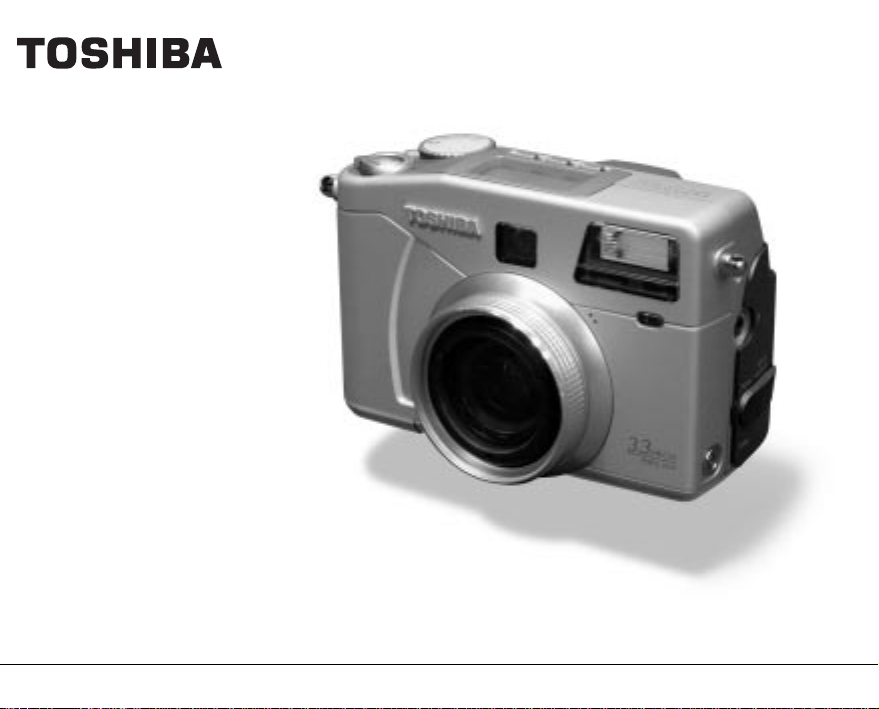
DIGITAL STILL CAMERA
PDR-M70
INSTRUCTION MANUAL
DIGITAL STILL CAMERA
To ensure that you use the Toshiba
PDR-M70 Digital Still Camera safely
and correctly, read this Instruction
Manual carefully before you start using
the camera. Once you have finished
reading this Instruction Manual, keep it
handy at all times.
PDR-M70
ENGLISH
In the space provided below, please record the model and Serial No. of your camera.
Model No. PDR-M70 Serial No.
Please retain this information for future reference.
- 1 -
Getting
Ready
Taking
Photographs
Playing
Back Images
Other
Applications
Additional
Information
Erasing
Images
Handy
Functions
For customers in the U.S.A.
DIGITAL STILL CAMERA PDR-M70
Tested To Comply
With FCC Standards
FOR HOME OR OFFICE USE
FCC Statement
This device complies with Part 15 of the FCC Rules. Operation is subject to the following two conditions:
(1) This device may not cause harmful interference, and
(2) this device must accept any interference received, including interference that may cause undesired operation.
NOTE
This equipment has been tested and found to comply with the limits for a Class B digital device, pursuant to Part 15
of the FCC Rules. These limits are designed to provide reasonable protection against harmful interference in a
residential installation.
This equipment generates, uses and can radiate radio frequency energy and, if not installed and used in
accordance with the instructions, may cause harmful interference to radio communications. However, there is no
guarantee that interference will not occur in a particular installation. If this equipment does cause harmful
interference to radio or television reception, which can be determined by turning the equipment off and on, the user
is encouraged to try to correct the interference by one or more of the following measures:
• Change the direction of the radio or TV antenna.
Move the equipment or the radio or TV. For example, if the equipment is to the right of the TV, move it to the left of
the TV.
Or, move the equipment farther away from the radio or TV.
• Plug the equipment into a different outlet. Don’t plug your radio or TV into the same circuit as your equipment.
• Ensure that all expansion slots (on the back or side of the equipment) are covered.
Also, ensure that all metal retaining brackets are tightly attached to the equipment.
• If these suggestions don’t help, consult your equipment dealer or experienced radio/TV technician for help.
Attention
- 2 -
Getting
Ready
Taking
Photographs
Playing
Back Images
Other
Applications
Additional
Information
Erasing
Images
Handy
Functions
CAUTION
If you modify the camera in any way, without getting approval from Toshiba Corporation, your camera may violate
FCC regulations. Violation of FCC regulations may cause the FCC to void your right to use the modified camera.
TOSHIBA AMERICA INFORMATION SYSTEMS, INC.
Imaging Systems Division
9740 Irvine Boulevard,
Irvine, California 92618-1697
Phone Number: (800)288-1354
For customers in Canada
CAUTION
This Class B digital apparatus complies with Canadian ICES-003.
Cet appareil numérique de la classe B est conforme à la norme NMB-003 du Canada.
Attention (continued)
- 3 -
Getting
Ready
Taking
Photographs
Playing
Back Images
Other
Applications
Additional
Information
Erasing
Images
Handy
Functions
Thank you for purchasing the Toshiba PDR-M70 Digital Still Camera.
To ensure that you use this camera safely and correctly, read this Instruction Manual carefully before you start using
the camera. Once you have finished reading this Instruction Manual, keep it handy at all times.
Trademark Information
• Macintosh and QuickTime are trademarks of Apple
Computer, Inc.
• MS-DOS and Windows are registered trademarks of
the Microsoft Corporation of the U.S. registered in the
USA and other countries.
Windows is an abbreviated term referring to the
Microsoft Windows Operating System.
• SmartMedia is a trademark of Toshiba Corporation.
• Other companies or product names are trademarks
or registered trademarks of the respective
companies.
Before Reading This Manual
IMPORTANT
• Indicates items or details that you should observe to
prevent loss of data, malfunction and impaired
performance. Also indicates information relating to
specifications and functions.
Memo
• Indicates extra useful information.
☞
Indicates another page to refer to for extra
information.
Conventions Used In This Manual

- 4 -
Getting
Ready
Taking
Photographs
Playing
Back Images
Other
Applications
Additional
Information
Erasing
Images
Handy
Functions
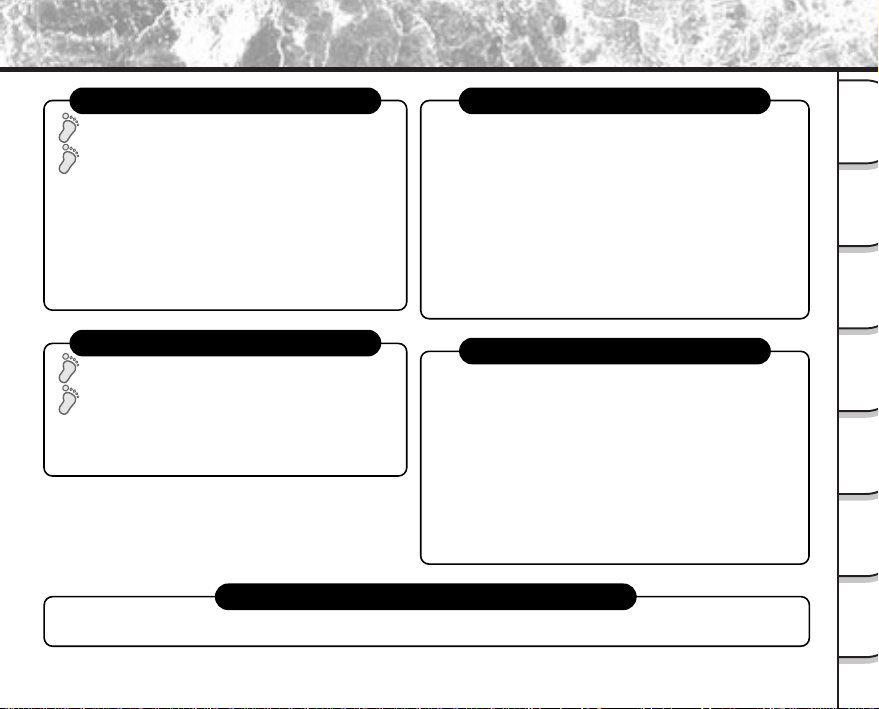
The Function Map
There are various ways you can take photographs on the PDR-M70, by using the settings provided by the camera
itself or by adjusting the settings to suit your particular photographic requirements.
In addition to photographic functions, the PDR-M70 is provided with other handy functions. We suggest that you
look at the function map below before you start using the PDR-M70.
STEP1 – Taking photographs. (P. 43)
STEP2 – Leaving camera settings up to your camera.
STEP3 – Utilizing the various photography modes.
STEP4 –
Setting the modes in more detail to make your
photographs turn out more as you intended.
Read these pages first.
Let’s learn about basic operation.
Taking photographs.
Let’s get ready to use the PDR-M70.
(P.19 to P. 39)
• Turning the Power ON (P. 39)
• Photography (P. 43)
•
Playing Back Photographed Images (P. 81)
• Erasing Images (P. 90)
• Leaving camera settings up to your camera
(Auto Select mode) (P. 48)
• Taking Portrait Shots (P. 49)
• Taking Landscape Shots (P. 50)
• Taking Shots of Moving Objects (P. 51)
• Taking Shots of Portraits at Night (P. 52)
• Taking Continuous Shots of Moving Objects (P. 53)
• Zoom Photography (P. 54)
• Close-up Photography (P. 56)
• Photography Using the Self-timer (P. 57)
• Making Movies (P. 64)
• Photography Using the Flash (P. 58)
• Taking Photography Continuously (P. 61)
• Long Exposure Photography (P. 68)
• Automatic Exposure Bracketing
(AEB Photography) (P. 71)
• Setting Image Size and Quality (P. 46)
•
Taking Shots with the Priority Given to Shutter Speed (P. 66)
•
Taking Shots with the Priority Given to Aperture (P. 65)
•
Setting White Balance, AF Position and Focus (P. 72)
• Compensating Exposure (P. 69)
- 5 -
Getting
Ready
Taking
Photographs
Playing
Back Images
Other
Applications
Additional
Information
Erasing
Images
Handy
Functions
Loading images on a personal computer
Loading Images on a Personal Computer (P. 123), separate “Personal Computer Interface User’s Manual”
STEP1 – Let’s play back some images. (P. 80)
STEP2 –
Selecting the various ways to play back images.
STEP1 – Erasing Images (P. 90)
STEP2 – Other ways to erase images
Playing back your photographed images
Erasing images
Setting the basic camera settings
You can also do this
• Setting the Date and Time (P. 115)
• Formatting SmartMedia™(P. 94)
• Adjusting the LCD Monitor Brightness (P. 119)
• Turning the LCD Monitor Display OFF (P. 79)
• Turning the Beep OFF (P. 115)
• Switching the Folder (P. 89)
•
Setting the Color of Images (Color/Black and White/Sepia) (P. 77)
• Changing the Power OFF Time (P. 114)
•
Changing the LCD Monitor Display Language (P. 116)
• Resetting the Frame No. (P. 116)
• Protecting Images (P. 107)
• Changing the size of Images (P. 95)
• Compressing Images (P. 97)
• Copying Images to another SmartMedia™(P. 99)
• Print Information (P. 103)
• Displaying Detailed Information of Images (P. 88)
•
Taking and Playing Back Photographs on a TV (P. 121)
• Recording and Playing Back Only Audio (P. 110)
• Using an External Flash (P. 75)
–The PDR-M70 also has lots of other features.–
• Playing Back Movies (P. 81)
• Enlarging Photographed Images (P. 85)
• Auto Playback (P. 86)
• Simple Movie Playback (P. 87)
• Displaying a List of Images (P. 84)
•
Displaying Detailed Information of Images (P. 88)
• Switching LCD Monitor Display (P. 88)
• Erasing All Images in a Folder (P. 92)
• Erasing All Still Image Folders (P. 92)
• Formatting SmartMedia™ (P. 94)
The Function Map (continued)
- 6 -
Getting
Ready
Taking
Photographs
Playing
Back Images
Other
Applications
Additional
Information
Erasing
Images
Handy
Functions
Preface
■ Attention............................................................................ 1
■ Before Reading This Manual ............................................ 3
■ The Function Map ............................................................. 4
■ Contents ........................................................................... 6
■ Safety Precautions............................................................ 8
Indication definitions ...........................................................8
Graphic symbol definitions ..................................................8
Exemption Clauses .............................................................8
■ Using Your Camera Correctly ......................................... 14
Notes On Handling Your Camera......................................14
Notes On Handling Batteries ............................................16
Notes On Handling the AC Adapter ..................................18
Getting Ready
■ Accessories .................................................................... 19
■ Names of Parts ............................................................... 20
■ Attaching the Shoulder Strap .......................................... 24
■ Preparing the Battery ...................................................... 26
Loading the Battery ...........................................................26
Removing the Battery .......................................................27
Charging the Battery .........................................................28
Battery Wear .....................................................................29
■ Using the Power Outlet ................................................... 30
■ About SmartMedia™ ...................................................... 31
Notes on SmartMedia™.................................................... 31
Loading SmartMedia™ .....................................................32
Removing SmartMedia™ ..................................................33
Write Protection ................................................................35
■ LCD Monitor Display (during photography) .................... 36
In [ ] mode ....................................................................36
In [
] and [ ] mode ..................................................37
In [
] mode ..................................................................38
■ Turning the Power ON/OFF ............................................ 39
Turning the Power ON ......................................................39
Turning the Power OFF ..................................................... 39
Taking Photographs
■ How to Hold Your Camera .............................................. 40
■ How to Press the Shutter Button .................................... 41
■ Photography ................................................................... 43
Using the Viewfinder .........................................................43
Using the LCD Monitor...................................................... 44
■ Setting the Image Size and Quality ................................ 46
■ Taking Photographs in [
] Mode (Auto Select mode) . 48
■ Taking Photographs in the [
] Mode ........................... 49
■ Taking Photographs in the [
] Mode........................... 50
■ Taking Photographs in the [
] Mode .......................... 51
■ Taking Photographs in the [
] Mode .......................... 52
■ Taking Photographs in the [
] Mode
(36-frame multi photography) .......................................... 53
■ Zoom Photography ......................................................... 54
■ Close-up Photography (Macro Photography).................. 56
■ Photography Using the Self-timer
(Self-timer Photography) ................................................. 57
■ Photography Using the Flash ......................................... 58
■ Taking Photographs Continuously .................................. 61
■ Making Movies ................................................................ 64
■ Photography in the Aperture-priority Mode ..................... 65
■ Photography in the Shutter speed-priority Mode ............ 66
■ Long Exposure Photography (Bulb Photography) .......... 68
■ Exposure Compensation ................................................ 69
■ Automatic Exposure Bracketing (AEB Photography) ...... 71
■ Other Manual Settings .................................................... 72
White Balance (W.B.) ........................................................74
AF/AE area (AREA) ..........................................................74
Focus (FOCUS) ................................................................75
Strobe (FLASH) ................................................................75
Contents
The name in parentheses ( ) is the function name on the PDR-M70.
- 7 -
Getting
Ready
Taking
Photographs
Playing
Back Images
Other
Applications
Additional
Information
Erasing
Images
Handy
Functions
■ Changing the Preset Conditions
(RECORDING MENU) .................................................... 76
PREVIEW .........................................................................77
COLOR .............................................................................77
ISO ....................................................................................78
SHARPNESS ....................................................................78
CONTRAST ......................................................................78
DIGITAL ZOOM.................................................................79
LCD DISPLAY ................................................................... 79
LCD
..............................................................................79
Playing Back Images
■ Playing Back Photographed Images (Single-Frame
Playback) ........................................................................ 80
■ Playing Back Movies....................................................... 81
■ Displaying a List of Images (Thumbnail Display) ............ 84
■ Enlarging Photographed Images (Zoom Playback) ........ 85
■ Auto Playback (Slideshow) ............................................. 86
■ Playback of Multi Image Pictures.................................... 87
■ Switching Displays/Displaying Image Information........... 88
■ About Folders ................................................................. 89
Erasing Images
■ Erasing Images (Erase Frame)....................................... 90
■ Erasing Folders (All Images in a Folder/
All Still Images) ............................................................... 92
■ Formatting the SmartMedia™......................................... 94
Handy Functions
■ Reducing the Image Size (Resize) ................................. 95
■ Compressing Images (Quality) ....................................... 97
■ Copying Images .............................................................. 99
■ Print Information ........................................................... 103
■ Protecting Images ......................................................... 107
Protecting an Image ........................................................107
Removing the Protection.................................................109
■ Recording/Playing Back Audio...................................... 110
Recording Audio.............................................................. 110
Playing Back Audio ......................................................... 111
Erasing Files ................................................................... 112
Other Applications
■ Basic Photographic Settings (SET-UP mode) ............... 113
AUTO POWER OFF........................................................ 114
SOUND ........................................................................... 115
TIME & DATE .................................................................. 115
OSD LANGUAGE ........................................................... 116
VIDEO OUT .................................................................... 116
FRAME NUMBER ...........................................................116
RESET ............................................................................118
■ Adjusting the LCD Monitor Brightness .......................... 119
■ About the Color of the Viewfinder LED ......................... 120
■ Taking and Playing Back photographs on a TV............. 121
■ Transferring Images to a PC ......................................... 123
■ Separately Sold Accessories ........................................ 124
■ Connecting to Other Devices ........................................ 125
Additional Information
■ Demo Mode .................................................................. 126
How to enter the Demo Mode .........................................126
How to return to the Normal Mode ..................................126
■ Specifications................................................................ 127
■ Warnings and Messages Displayed on LCD Monitor.... 132
■ Troubleshooting............................................................. 134
■ Glossary........................................................................ 137
The name in parentheses ( ) is the function name on the PDR-M70.
Contents (continued)
- 8 -
Getting
Ready
Taking
Photographs
Playing
Back Images
Other
Applications
Additional
Information
Erasing
Images
Handy
Functions
Safety Precautions
Indication definitions
Read these safety precautions carefully before using the PDR-M70. These instructions contain valuable information
on safe and proper use that will prevent harm and damage to the operator and other persons.
Make sure that you fully understand the following details (indications) before proceeding to the main descriptions in
this manual.
*1: “Bodily injury” means injuries, burns, and shock which
does not require hospitalization or prolonged treatment.
*2: “Physical damage” means extended harm to home,
household effects, domesticated animals, and pets.
Graphic symbol definitions
Indication Meaning
This indicates the existence of a
hazard that could result in death or
serious bodily injury, if the safety
instruction is not observed.
This indicates the existence of a
hazard that could result in bodily
injury, if the safety instruction is not
observed.
This indicates the existence of a
hazard that could result in bodily
injury
*1
or property damage
*2
.
Exemption Clauses
• Toshiba Corporation bears no responsibility in the case of
damages arising from earthquakes, fire not liable to
Toshiba Corporation, operating by third parties, other
accidents, or use under abnormal conditions including
erroneous or improper operation and other problems.
• Toshiba Corporation bears no responsibility for incidental
damages (lost profit, work interruption, corruption or loss
of the memory contents, etc.) arising from the use of or
the inability to use this unit.
• Toshiba Corporation accepts no liability whatsoever for
any damages arising from not having followed the
descriptions in this Instruction Manual.
• Toshiba Corporation accepts no liability whatsoever for
any damages arising from malfunctions arising from
combination with equipment or software that is not
related to Toshiba Corporation.
Graphic symbol Meaning
Indicates a prohibited action that must
not be carried out.
The actual prohibited action is
indicated in the symbol or nearby
graphically or described in text.
Indicates a necessary action that must
be carried out.
The actual necessary action is
indicated in the symbol or nearby
graphically or described in text.
DANGER
WARNING
CAUTION

- 9 -
Getting
Ready
Taking
Photographs
Playing
Back Images
Other
Applications
Additional
Information
Erasing
Images
Handy
Functions
Safety Precautions (continued)
Do not heat, disassemble or throw the
battery into fire or water.
Doing might cause it to rupture, ignite or heat up,
resulting in fire or major injury.
Do not strike the battery with a hammer, or
step on, drop or subject the battery to
strong impact.
Doing so might cause it to rupture, ignite or heat
up, resulting in fire or major injury.
Use only the optional, recommended
battery charger. Do not use any other
battery charger.
Charging the battery by any other battery
charger might cause it to rupture, ignite or heat
up, resulting in fire or major injury.
Use the battery only for its originally
intended purpose.
Using the battery for any other purpose might
cause it to rupture, ignite or heat up, resulting in
fire or major injury.
Do not carry the battery or store it together
with other metallic objects such as a ball-
point pen or necklace.
This might short-circuit the battery’s + and –
terminals. This might cause the battery to
rupture, ignite or heat up, resulting in fire or major
injury.
DANGER
DANGER
(continued)
- 10 -
Getting
Ready
Taking
Photographs
Playing
Back Images
Other
Applications
Additional
Information
Erasing
Images
Handy
Functions
Safety Precautions (continued)
Should you ever notice smoke, a strange
odor or excessive heat coming from the
camera, immediately turn OFF the power
and remove the battery and AC adapter.
Continued use in this state might cause fire,
electric shock or burns. For details on repair,
consult the store of purchase, or please contact
the technical support number.
If foreign objects or water have entered the
camera, immediately turn the power OFF
and remove the battery and AC adapter.
Continued use in this state might cause fire or
electric shock. For details on repair, consult the
store of purchase, or please contact the
technical support number.
If the camera has fallen or its case is
damaged, immediately turn the power OFF
and remove the battery and AC adapter.
Continued use in this state might cause fire or
electric shock. For details on repair, consult the
store of purchase, or please contact the
technical support number.
Do not place the camera on wobbly,
inclined or unstable surfaces.
This might cause the camera to fall or tilt over.
Do not use in areas near water.
This might cause fire or electric shock. Take
special care during rain, snow, on the beach or
near the shore.
Do not use the camera in the bath or
shower.
This might cause a fire or electric shock.
Do not allow metallic objects or other
flammable foreign matter inside the
camera.
This might cause a fire or electric shock. Do not
open the SmartMedia™ cover, and insert or allow
such objects to fall inside.
(continued)
WARNING
WARNING
- 11 -
Getting
Ready
Taking
Photographs
Playing
Back Images
Other
Applications
Additional
Information
Erasing
Images
Handy
Functions
Safety Precautions (continued)
Do not disassemble, change or repair the
camera.
This might cause fire or electric shock. For
details on repair and internal inspection, consult
the store of purchase, or please contact the
technical support number.
Do not touch power or TV antenna cords
during a thunderstorm.
This might cause electric shock.
Do not use the camera while you are
walking, driving or riding a motorcycle.
This might cause you to fall over or result in a
traffic accident.
Use only the specified batteries or the
specified AC adapter.
Use of a battery or AC adapter other than
specified, might cause fire, defects or
malfunctions.
Keep the batteries out of the reach of
children.
If a child swallows a battery, this might result in
poisoning. If a child swallows a battery,
immediately consult a physician.
If battery fluid enters the eyes, immediately
rinse with fresh water and consult with a
physician to receive treatment.
If left untreated, damage to the eye could be
permanent.
Use the AC adapter only with the indicated
power supply voltage (100 to 120V, 230V
AC)
Use with any other power supply voltage might
cause fire or electric shock.
(continued)
WARNING
(continued)
WARNING
- 12 -
Getting
Ready
Taking
Photographs
Playing
Back Images
Other
Applications
Additional
Information
Erasing
Images
Handy
Functions
Safety Precautions (continued)
If you want to use the camera on an
airplane, consult with the airline and follow
their instructions.
Use of this camera is sometimes restricted due
to potential radio interference.
Do not use the camera in humid, steamy,
smoky or dusty places.
This might cause fire or electric shock.
Do not leave the camera in places where
the temperature may rise significantly, such
as inside a car.
This might adversely affect the case or the parts
inside, resulting in fire.
Do not place or wrap the camera in cloth or
blankets.
This might cause heat to build up and deform the
case, resulting in fire. Use the camera in a well-
ventilated place.
Before you move the camera, disconnect
cords and cables.
Failure to do this might damage cords and
cables, resulting in fire or electric shock.
Do not drop or subject the camera to strong
impact.
This might cause fire, electric shock or
malfunctions.
Before you carry out maintenance on the
camera, remove the battery and AC
adapter.
Leaving these attached might cause electric
shock.
Remove the batteries and AC adapter if
you plan not to use the camera for a long
time.
This might cause fire.
Insert the battery paying careful attention to
the polarity (+ or –) of the terminals.
Inserting the battery with its polarities inverted
might cause fire and injury, or damage the
surrounding areas.
CAUTION CAUTION
(continued)
- 13 -
Getting
Ready
Taking
Photographs
Playing
Back Images
Other
Applications
Additional
Information
Erasing
Images
Handy
Functions
Safety Precautions (continued)
Do not look at the sun through the camera
viewfinder.
This may cause injury of the eyes.
Do not use the flash close to anyone’s
eyes.
This might cause temporary damage to the
person’s eyesight.
Do not walk around with the camera
swinging from the shoulder strap.
If you walk around with the camera hanging from
your hand through the shoulder strap, the
camera might bump into people or other objects,
damaging the camera or causing an injury.
Before you store or dispose of used
batteries insert them in their battery covers
or tape the plus (+) and (–) terminals with
insulating tape.
If stored or disposed of without doing this, the
batteries may make contact with metal objects,
resulting in fire or injury due to leaking of battery
fluid, overheating or bursting of the battery.
Do not subject the LCD monitor to impact.
If the status display is impacted, the glass on the
screen may be broken and internal fluid may
leak.
If the internal fluid enters your eyes or sticks to
your body or clothes, immediately rinse with
fresh water. If the internal fluid enters your eyes,
immediately consult a physician to receive
treatment.
Consult your dealer regarding the internal
cleaning of the camera once every two
years.
If dust is allowed to accumulate inside the
camera for a long time, this might result in fire or
defects. Consult your dealer regarding the
cleaning costs.
CAUTION
(continued)
CAUTION
(continued)
- 14 -
Getting
Ready
Taking
Photographs
Playing
Back Images
Other
Applications
Additional
Information
Erasing
Images
Handy
Functions
Using Your Camera Correctly
Notes On Handling Your Camera
When you use your camera, carefully read and strictly observe the Safety Precautions from page 8 onwards and
the notes described below.
● Avoid using or storing the camera in the following places:
• Places subject to humidity, dust and dirt
• Places subject to direct sunlight
• Places subject to high or low temperature
• Places filled with highly flammable gas
• Places near gasoline, benzene or paint thinner
• Places subject to strong vibrations
• Places subject to smoke or steam
• Places subject to strong magnetic fields (such as near motors, transformers or magnets)
• Places contacting chemicals such as pesticides or next to rubber or vinyl products for long periods
● Do not expose the camera to sand.
The PDR-M70 is particularly sensitive to sand. If the camera comes into contact with sand, not only will
the camera become damaged, it will also no longer be repairable.
Pay special attention when using the camera at the beach or where sand or sand dust is likely to be
present.
● Notes On Condensation
Due to a sudden change in temperature, such as when you move the camera from a cold location to a
warm one, water droplets (condensation) may form on the inside of the camera or on the lens. When this
occurs, switch the camera OFF, and wait an hour before using the camera. Condensation may also form
on the SmartMedia™ card. If this happens, remove the SmartMedia™, wipe off any water droplets and
wait a short time before using it again.
- 15 -
Getting
Ready
Taking
Photographs
Playing
Back Images
Other
Applications
Additional
Information
Erasing
Images
Handy
Functions
● Carrying Out Maintenance on Your Camera
• To prevent the lens, surface of the LCD monitor or viewfinder from being scratched, blow off any dust
on these parts with a blower brush and lightly wipe with a soft dry cloth.
• Clean the body of the camera with a soft dry cloth. Do not use volatile liquids such as paint thinner,
benzene or insecticide, as these may react with the camera body and cause deformation or remove
the coating.
Using Your Camera Correctly (continued)
- 16 -
Getting
Ready
Taking
Photographs
Playing
Back Images
Other
Applications
Additional
Information
Erasing
Images
Handy
Functions
Notes On Handling Batteries
The PDR-M70 camera uses a lithium-ion battery pack (PDR-BT2). (PDR-BT1 can also be used.) (This manual
simply refers to this battery pack as the “battery”.) Other batteries cannot be used.
When you use the battery, carefully read and strictly observe the Safety Precautions from page 8 onwards and the
notes described below.
* The battery is not fully charged when you buy your camera. Be sure to charge the battery before you use your
camera.
* Before you use a battery, be sure to remove the electrode cover.
About Battery Use
• The battery gradually discharges even when not used. Charge the battery one or two days before use.
• To maximize the battery life, switch the camera OFF as often as possible when it is not being used.
• In cold locations, the number of frames that can be taken decreases. Take along a spare fully charged
battery. You can also increase the amount of power produced by putting the battery in your pocket or
another warm place to heat it and then loading it into the camera just before you take a picture. If you
are using a heating pad, do not place the battery directly against the pad.
• Always keep the terminals in a clean state.
• If the battery is used for a long time, the camera body and the battery itself will become warm. This is
normal and not a malfunction.
• At normal temperatures, this battery can be recharged at least 300 times for use. If the battery runs out
quickly, this indicates that the battery has reached the end of its effective life and should be replaced.
When Not Using the Battery For A Long Time
• If the battery is not to be used for a while, store it after there is no power left. If the battery is stored for
a long time in a fully charged state, its performance may be impaired.
• When the battery is to be stored for a long time, fully charge the battery and then use the battery until
there is no power left once every year and then store it.
Using Your Camera Correctly (continued)

- 17 -
Getting
Ready
Taking
Photographs
Playing
Back Images
Other
Applications
Additional
Information
Erasing
Images
Handy
Functions
• When the battery is not in use, be sure to remove it from the camera body or battery charger (sold
separately). If the battery is left attached to the camera body or battery charger, a minute current will
flow even if the power is turned OFF. This will result in overdischarge and the battery may no longer be
useable.
• Store the battery in a cool place with the battery cover attached. We recommend a dry place with a
surrounding temperature of +15˚C (+59°F) to +25˚C (+77°F). Avoid storing the battery in extremely hot
or cold places.
Charging the Battery
• When you use the battery for the first time or when the battery has not been used for a long time, be
sure to charge the battery before use.
• The battery can be charged within this camera body using the AC adapter supplied with the PDR-M70
(
➲
page 28). The battery takes about five hours to charge.
• If you use the battery charger (sold separately), the battery (PDR-BT2) can be charged in about 70
minutes.
• This rechargeable battery does not need to be fully discharged or exhausted before being charged.
• The battery may feel warm after it has been charged or immediately after being used. This is normal
and not a malfunction.
• The battery can be charged at temperatures between 0°C (+32°F) and +40°C (+104°F), but should be
charged between +10°C (+50°F) and +30°C (+86°F) to obtain maximum battery performance.
• Do not recharge a fully charged battery.
Caution when disposing a battery
Batteries are included with this product. When they are no longer useable, you should
not throw them away. Instead, properly dispose of them as small chemical waste.
Using Your Camera Correctly (continued)
- 18 -
Getting
Ready
Taking
Photographs
Playing
Back Images
Other
Applications
Additional
Information
Erasing
Images
Handy
Functions
Using Your Camera Correctly (continued)
Notes On Handling the AC Adapter
Be sure to use only the AC adapter provided with your camera. Using a different AC adapter might cause the
camera to malfunction.
When you use the AC adapter, carefully read and strictly observe the Safety Precautions from page 8 onwards and
the notes described below.
• Be sure that you do not allow the AC adapter to contact any other metal object as this might cause a
short circuit.
• To connect the AC adapter, firmly insert the plug on the end of the cable into the DC IN 5V terminal. Do
not insert the plug into other terminals. This might cause the camera to malfunction.
• Before you disconnect the connector cable, turn the camera OFF and then disconnect the cable
holding it by its plug. Do not disconnect the connector cable by pulling the actual cable.
• Do not drop the AC adapter or subject it to strong impacts.
• Do not use the AC adapter in very hot and humid locations.
• Do not plug in the AC adapter while you are using the battery. Switch the camera OFF first.
• The AC adapter is for indoor use only.
• Use only the specified AC adapter. Do not use other AC adapters.
• The AC adapter may sometimes become warm during use. This is normal and not a malfunction.
• Buzzing or whirring noises may come from inside the camera. This is normal and not a malfunction.
• Do not use the AC adapter near a radio as it could interfere with radio signal reception.
• If you remove the battery or AC adapter while the camera is in operation, the date may be lost from
memory. If this happens, reset the date. (
➲
Page 115)
- 19 -
Getting
Ready
Taking
Photographs
Playing
Back Images
Other
Applications
Additional
Information
Erasing
Images
Handy
Functions
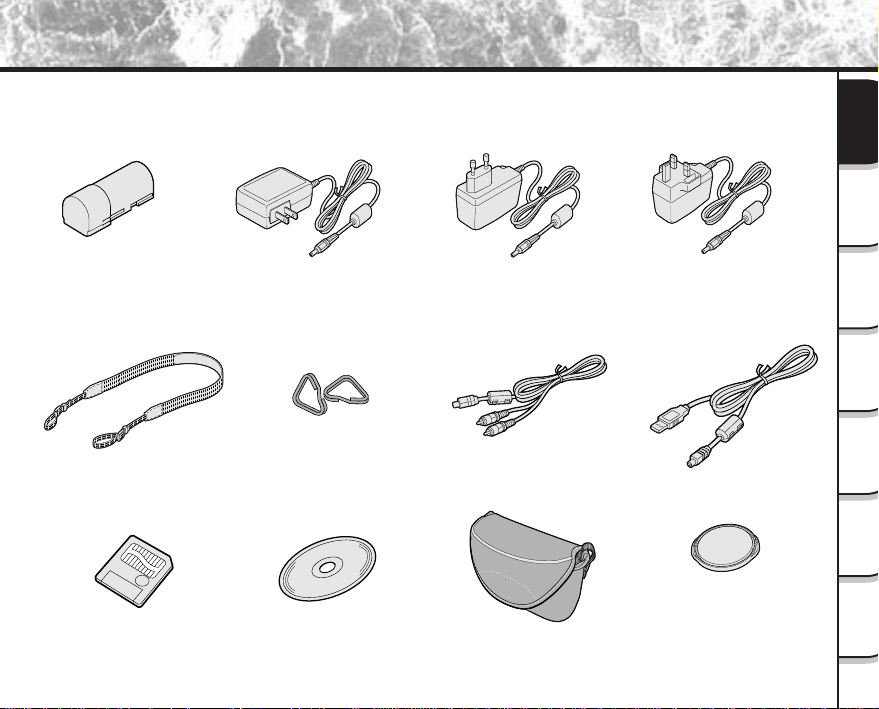
Accessories
Make sure that you have all of the items below before you start using your camera.
Lithium-ion battery pack (1)
SmartMedia™
(16MB, 3.3V) (1)
Shoulder strap (1)
USB cable (1)
Software application
(CD-ROM)
• Instruction Manual (this manual)
• Software Manual
• Anti-static case (1)
• Labels (2)
• Write-protect stickers (4)
AC adapter (1)
(PDR-AC10, PDR-AC10E or PDR-AC10U)
PDR-AC10E
(for European Continent)
PDR-AC10U
(for U.K.)
PDR-AC10
(for U.S.A. and Canada)
AV cable (1)Strap attachment fitting
Soft case
Lens cap
- 20 -
Getting
Ready
Taking
Photographs
Playing
Back Images
Other
Applications
Additional
Information
Erasing
Images
Handy
Functions
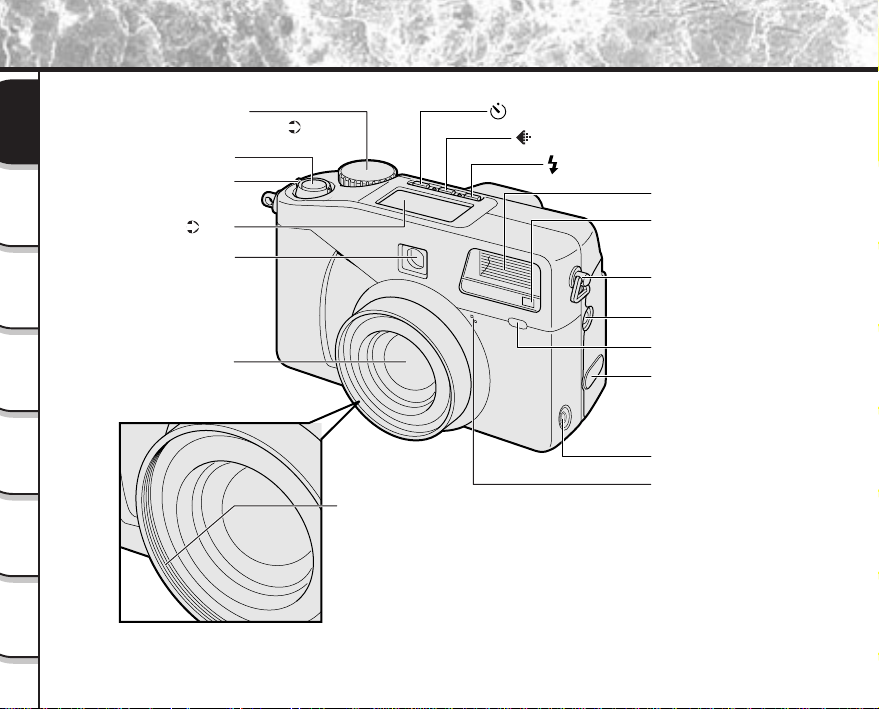
Mode dial
For enlarged view ( P. 22)
Shutter button
Flash control sensor
Lens
Viewfinder window
Flash
Shoulder strap attachment
Terminal cover
• PC/AV terminal
• DC IN 5V terminal
Adapter ring
attachment
Power switch
Earphone jack terminal
Self-timer lamp
Built-in microphone
SYNC terminal
Self-timer button
Flash button
Image Quality button
Status display
( P. 23)
Names of Parts
- 21 -
Getting
Ready
Taking
Photographs
Playing
Back Images
Other
Applications
Additional
Information
Erasing
Images
Handy
Functions
Names of Parts (continued)
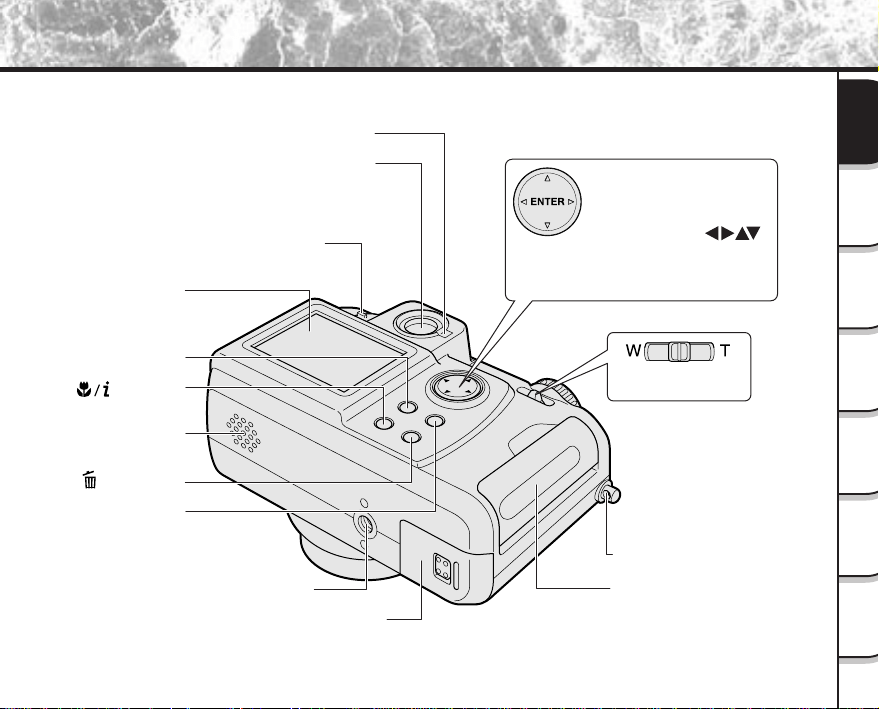
Function button
Viewfinder
Viewfinder LED
LCD monitor
MENU button
Tripod mount
Shoulder strap attachment
SmartMedia™ cover
macro/info
button
Erase button
Speaker
MODE button
Battery cover
Diopter adjustment knob
Zoom switch
Adjusts the zoom.
ENTER button
Press the center of the button.
(Use this button to fix a selection.)
Press the side of the ENTER
button with the proper
to select options or change
directions.
(Use these buttons to select an
item or an image.)
- 22 -
Getting
Ready
Taking
Photographs
Playing
Back Images
Other
Applications
Additional
Information
Erasing
Images
Handy
Functions
Names of Parts (continued)
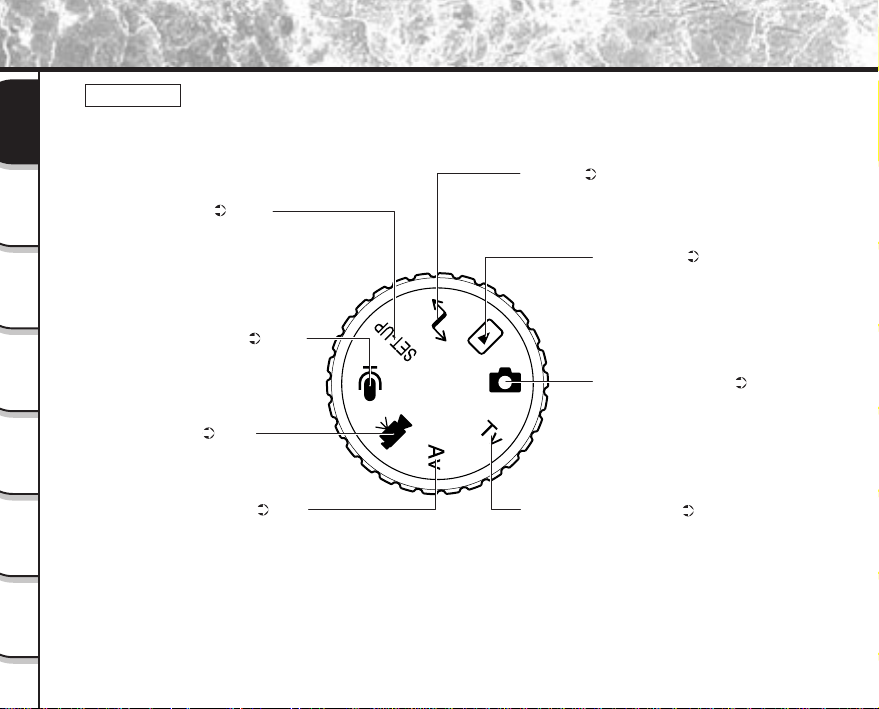
Mode dial
SET-UP mode ( P. 113)
Sets basic camera settings
(AUTO POWER OFF, SOUND,
TIME & DATE, OSD LANGUAGE,
VIDEO OUT, FRAME NUMBER,
RESET).
Voice recorder mode ( P. 110)
Records and plays back only
voice data. Photography is not
performed in this mode.
Movie mode ( P. 64)
Takes photographs as
movies.
Aperture-priority mode ( P. 65)
Takes photographs with the
priority given to aperture.
PC mode ( P. 123)
Transfers images to a PC.
For details, refer to the Manual
for the Software Application.
Shutter speed-priority mode ( P. 66)
Takes photographs with the priority
given to shutter speed.
Playback mode ( P. 80)
In this mode, you can select
image playback, copy, size
change, compression, protect
mode, and writing of
development (printing)
information.
Auto Photography mode ( P. 43, 48)
This mode enables automatic
photography according to the
photographic conditions.
In this mode, the exposure
(combination of shutter speed and
aperture) is automatically controlled to
facilitate photography.
- 23 -
Getting
Ready
Taking
Photographs
Playing
Back Images
Other
Applications
Additional
Information
Erasing
Images
Handy
Functions
Names of Parts (continued)
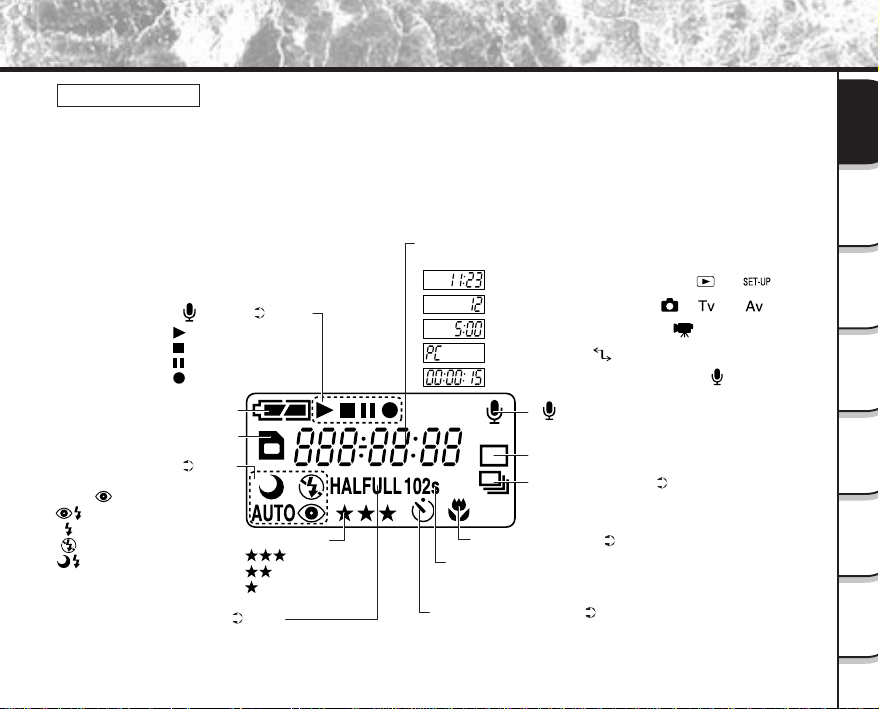
Status display
This display indicates the camera’s status. You can verify the camera’s status even if the LCD monitor is
not on.
The text, numbers and icons that are displayed in the status display vary according to the setting.
The status display backlight lights for about five seconds in the following instances:
• When the shutter button is pressed
• When one of the self-timer, image quality or flash buttons is pressed
Remaining battery power
Image size ( P. 46)
HALF: 1024 x 768 pixel (still image), 160 x 120 pixel (movie)
FULL: 2048 x 1536 pixel (still image), 320 x 240 pixel (movie)
Image quality
:FINE
:NORMAL
:BASIC
Macro photography ( P. 56)
SmartMedia™ loaded symbol
Flash photography ( P. 58)
AUTO : Auto
AUTO : Red-eye Auto
: Red-eye forced flash
: Forced flash
: Suppressed flash
: Slow synchro
[ ] mode
1-shot photography
Burst photography ( P. 61)
Self-timer time
10s : After 10 seconds
2s : After 2 seconds
Self-timer photography ( P. 57)
In [ ] mode ( P. 110)
: Playing back
: Stop
: Pause
: Recording
Example of counter display
(The display varies according to the mode dial setting.)
Time display: Power switch OFF, in [ ] or [ ] mode
Possible number of shots: In [ ], [ ] or [ ] mode
Possible photographic time: In [ ] mode
PC indication: In [ ] mode
Recording/playback elapsed time: In [ ] mode
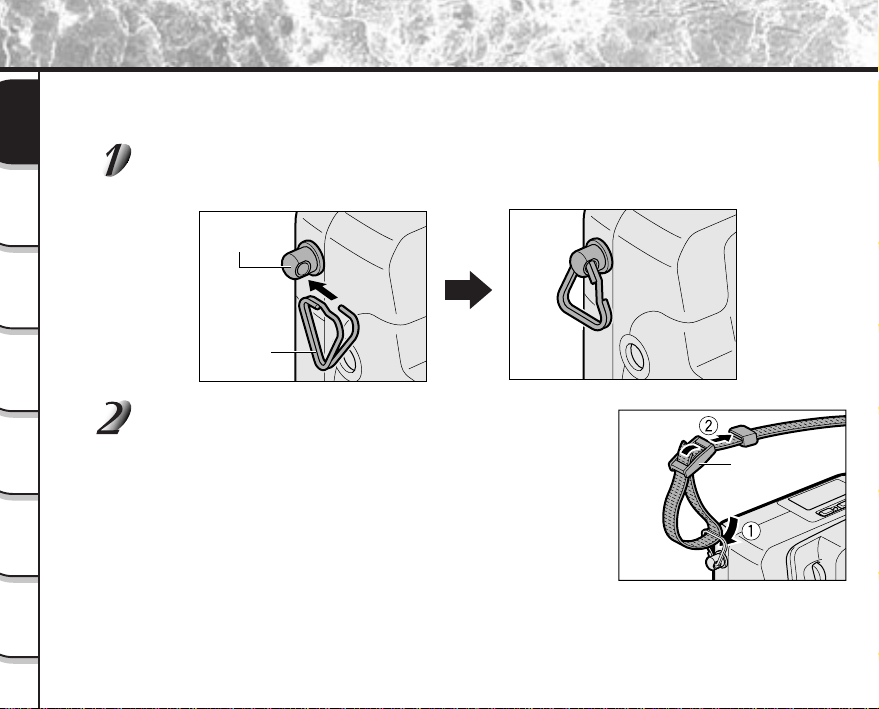
- 24 -
Getting
Ready
Taking
Photographs
Playing
Back Images
Other
Applications
Additional
Information
Erasing
Images
Handy
Functions
Attaching the Shoulder Strap
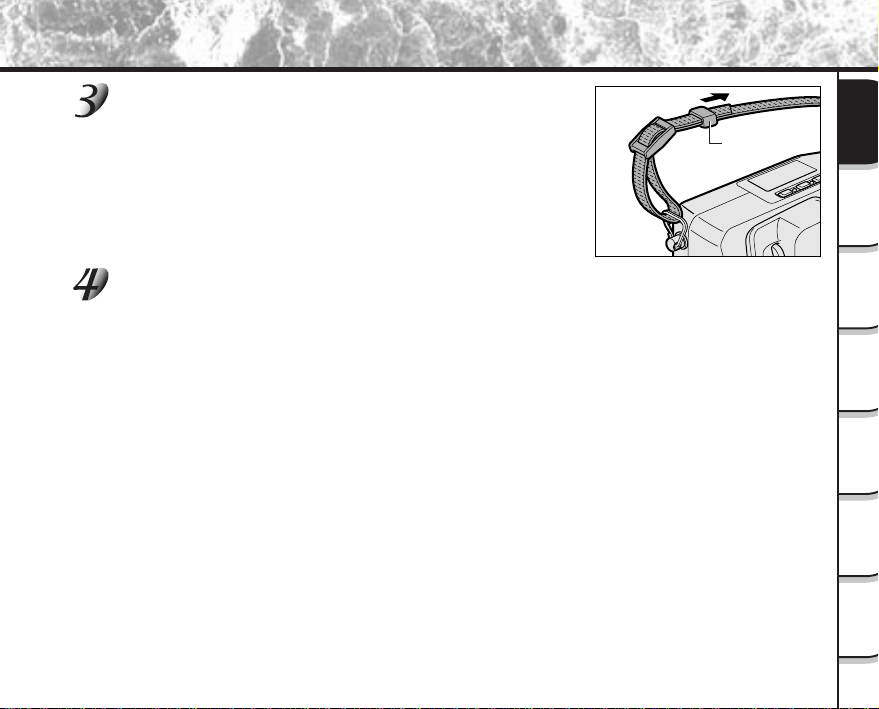
This shoulder strap is handy for carrying your camera around.
To prevent your camera from dropping during photography, hang the shoulder strap around your neck.
Attach the shoulder strap attachment fitting onto the shoulder strap attachment
on both ends.
Pass the leading end of the shoulder strap through
the shoulder strap attachment fitting
1
, and then
pass through both ends of the shoulder strap adjuster
2
.
Shoulder strap
adjuster
Shoulder strap
attachment
Shoulder strap
attachment
fitting
- 25 -
Getting
Ready
Taking
Photographs
Playing
Back Images
Other
Applications
Additional
Information
Erasing
Images
Handy
Functions
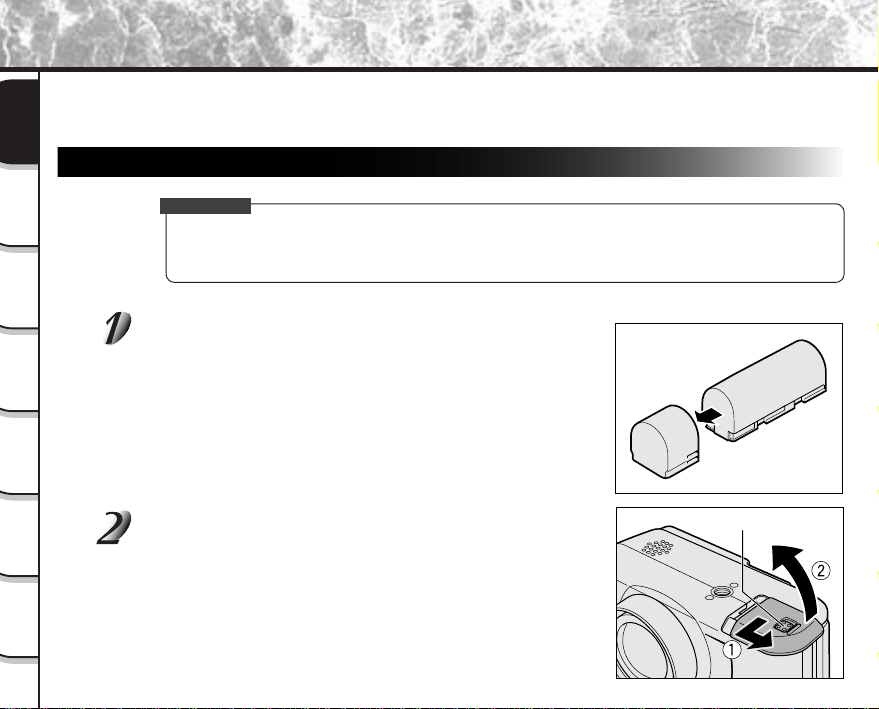
Fastener
Pass the leading end through the fastener and pull
tight.
Attach the shoulder strap in the same way on the shoulder strap attachment
fitting on the opposite side of the camera.
Attaching the Shoulder Strap (continued)
- 26 -
Getting
Ready
Taking
Photographs
Playing
Back Images
Other
Applications
Additional
Information
Erasing
Images
Handy
Functions
Preparing the Battery
This camera uses a lithium-ion battery pack (PDR-BT2). (PDR-BT1 can also be used.) Other batteries cannot be
used. For details on handling batteries, be sure to read page 16.
Loading the Battery
IMPORTANT
• Before you load or remove the battery, be sure to turn the camera OFF. If the battery is loaded or
removed with the power ON, the date setting may return to its default or the camera settings may be
reset (SET-UP
➲ Page 113, Manual Photography ➲ Page 72).
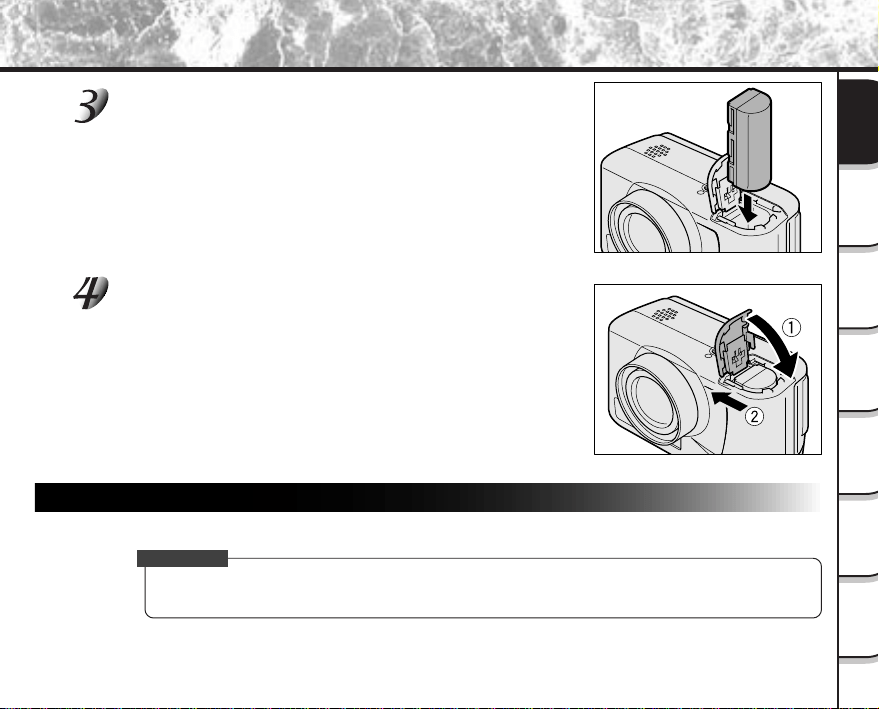
Remove the battery cover from the battery.
Store the battery cover in a safe place to prevent it from becoming
lost.
Slide the battery cover
1
while sliding the battery
cover latch, and open
2
.
Battery cover latch
- 27 -
Getting
Ready
Taking
Photographs
Playing
Back Images
Other
Applications
Additional
Information
Erasing
Images
Handy
Functions
Preparing the Battery (continued)
Load the battery in the battery compartment making
sure that it is loaded in the correct direction as shown
in the figure on the right.
Insert the terminal (metal-colored part) first when loading the battery.
Close the battery cover
1
, and slide the battery cover
2
.
Make sure that the battery cover is firmly closed.
Removing the Battery
Reverse the procedure for “Loading the Battery” and remove the battery.
IMPORTANT
• When removing the battery, take care not to drop it by mistake.
• Store batteries with the electrode cover attached.
- 28 -
Getting
Ready
Taking
Photographs
Playing
Back Images
Other
Applications
Additional
Information
Erasing
Images
Handy
Functions
Preparing the Battery (continued)
Charging the Battery
When you use the battery for the first time or when the battery has not been used for a long time, be sure to charge
the battery before use. The following describes how to charge the battery in the camera body.
Set the Power switch to [OFF].
☞
Turning the Power OFF
➲
Page 39
Connect the AC adapter to the camera and to the power outlet.
☞
Connecting the AC Adapter
➲
Page 30
While the battery is being charged, the viewfinder LED turns red. When the battery is fully charged, the
LED turns green.
Generally, it takes about four hours to fully charge the battery.
IMPORTANT
• If the viewfinder LED blinks red after eight hours have passed since charging started, the battery is
probably malfunctioning. Remove the battery from the camera body and stop charging. Replace the
battery with a new one.
- 29 -
Getting
Ready
Taking
Photographs
Playing
Back Images
Other
Applications
Additional
Information
Erasing
Images
Handy
Functions
Preparing the Battery (continued)
Memo
• When you use the camera for the first time or if you have left the camera for a long time without the
battery loaded, set the date (
➲
Page 115).
• The battery can be charged in about 70 mimutes if the battery charger (sold separately) is used.
• The following shows the approximate number of images that can be photographed continuously using
a fully charged battery (PDR-BT2) in room temperature with the flash used for half of the images. Note,
however, that these figures vary according to the operating temperature of the camera and the detail of
the image being photographed, or length of time viewing the images in play mode.
The number of photographs you can take is reduced when battery (PDR-BT1) is used.
With the LCD monitor on: Approx. 110 images
With the LCD monitor off: Approx. 165 images
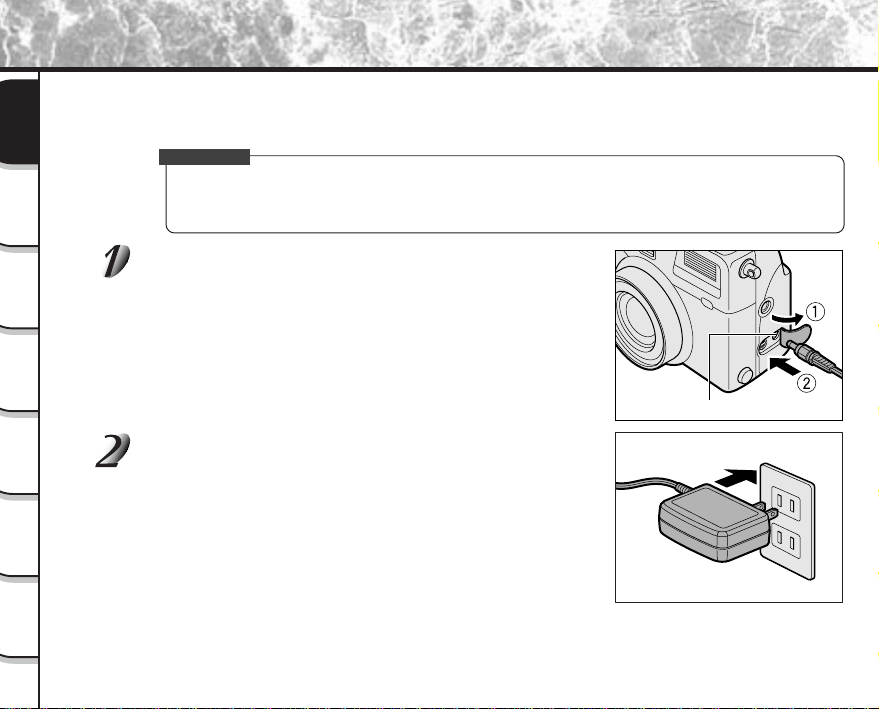
Remaining Battery Power
Sufficient battery power
Half battery power or less
Little battery power left (Power is cut.)
Either recharge, or replace with a new battery.
No battery power left (Power does not turn ON.)
Either charge, or replace with a new battery.
LCD Monitor
Status Display
Blinks twice
No indication
Battery Wear
When the power is ON, the remaining battery power is displayed on the LCD monitor and the status
display.
- 30 -
Getting
Ready
Taking
Photographs
Playing
Back Images
Other
Applications
Additional
Information
Erasing
Images
Handy
Functions
If you use the AC adapter provided with the camera in a room with a power outlet, you can take photographs for an
extended period of time. This also prevents failed photographs due to battery wear or failed transfer of data to a
PC. For details on handling the AC adapter, be sure to read page 18.
IMPORTANT
• Before you connect or disconnect the AC adapter, be sure to turn the camera OFF. If the AC adapter is
connected or disconnected with the power ON, camera settings may be reset (SET-UP
➲
Page 113,
Manual Photography
➲
Page 72) or the camera may malfunction.
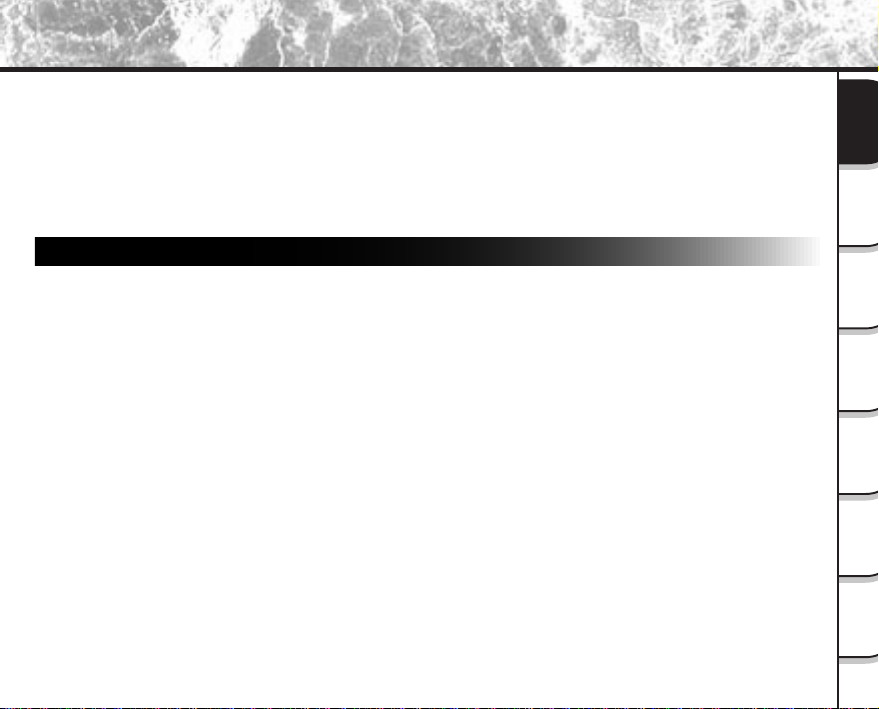
Open the terminal cover
1
, and insert the AC adapter
connector plug into the DC IN 5V terminal on the
camera
2
.
Insert the AC adapter power plug into the power
outlet. (The figure on the right for U.S.A. and Canada.)
When the camera’s power is OFF, the viewfinder LED turns red, and
battery charging starts automatically.
Using the Power Outlet
DC IN 5V terminal
- 31 -
Getting
Ready
Taking
Photographs
Playing
Back Images
Other
Applications
Additional
Information
Erasing
Images
Handy
Functions
About SmartMedia™
“SmartMedia™” is a storage medium for saving images that you have photographed. Even if the camera’s power is
turned OFF, the images saved on the SmartMedia™ are not erased. SmartMedia™ can be repeatedly read and
written.
SmartMedia™ having the following storage capacity can be used on your camera.
2MB /4MB/8MB/16MB (standard accessory)/32MB/64MB (all 3.3 V types)
You can also connect the PC card adapter and floppy disk adapter (
➲
Page 124) sold separately to transfer
images to a PC.
Notes on SmartMedia™
• Remove and insert SmartMedia™ with the camera’s power turned OFF.
• Recorded data may be erased (destroyed) in the situations listed below. Note that Toshiba Corporation
accepts no responsibility whatsoever for the loss (destruction) of recorded data in these situations:
- When the SmartMedia™ is used incorrectly by the user or a third party
- When the SmartMedia™ is exposed to static electricity or electrical noise
- When the SmartMedia™ is removed or the camera is then switched OFF during data recording,
data erasing, frame advance when images are being played back or during formatting of the
SmartMedia™.
• We recommend copying and saving important data onto another storage medium (floppy disk, hard
disk, MO disk, etc.).
• Never remove the SmartMedia™ or switch the camera OFF during data recording or during data
erasing (SmartMedia™ formatting). These actions might damage the SmartMedia™.
• Use only the SmartMedia™ specified for use with the PDR-M70. The use of other SmartMedia™ could
damage the camera.
• SmartMedia™ are precision electronic devices. Do not bend, drop, or subject SmartMedia™ to
excessive shocks. Also, do not carry SmartMedia™ in locations such as a trouser pocket. This might
subject the SmartMedia™ to excessive force when you sit down, damaging the SmartMedia™.
• Do not use or store SmartMedia™ in environments likely to be affected by strong static electricity or
electrical noise.
• Do not use or store SmartMedia™ in very hot, humid or corrosive environments.
- 32 -
Getting
Ready
Taking
Photographs
Playing
Back Images
Other
Applications
Additional
Information
Erasing
Images
Handy
Functions
• Take care not to touch the SmartMedia™’s electrodes (metal contacts) or allow the electrodes to
become soiled. Use a dry lint-free cloth to wipe away any dirt.
• To avoid damage caused by static electricity during transportation or storage, always use the special
static-free case provided.
• If you are not using the camera for a long period of time, remove the SmartMedia™ and store it in a
safe place.
• Inserting a SmartMedia™ that is charged with static electricity into your camera may cause it to
malfunction. If this occurs, switch the camera OFF and then ON again.
• The SmartMedia™ may feel warm when it is removed from the camera after the camera is used for a
long time. This is normal and not a malfunction.
• The SmartMedia™ has a limited service life. If images can no longer be written or erased, buy a new
SmartMedia™.
• Use the index labels provided with the camera. If you attach a commercially available label, it may
cause a malfunction when the SmartMedia™ is loaded or removed.
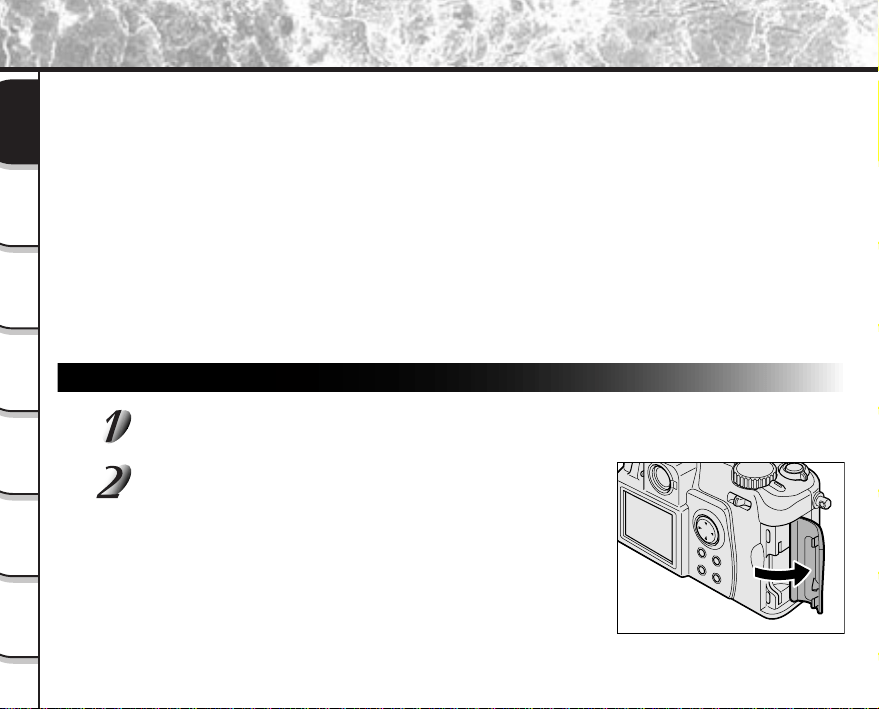
Loading SmartMedia™
Set the Power switch to [OFF].
☞
Turning the Power OFF
➲
Page 39
Open the SmartMedia™ cover.
About SmartMedia™ (continued)
- 33 -
Getting
Ready
Taking
Photographs
Playing
Back Images
Other
Applications
Additional
Information
Erasing
Images
Handy
Functions
About SmartMedia™ (continued)
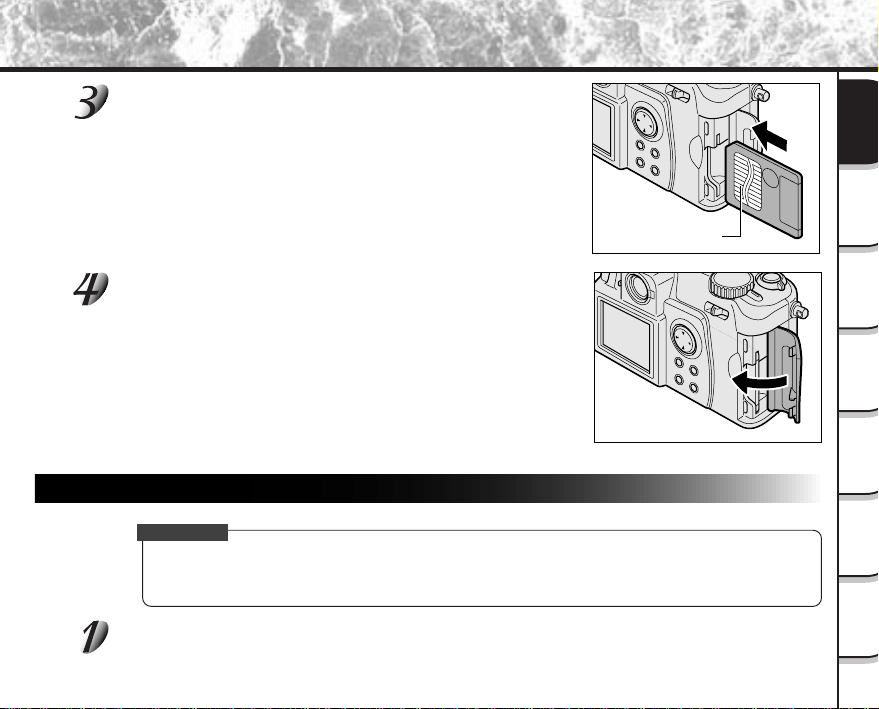
Gently insert the SmartMedia™ as far as it can go
with the SmartMedia™ electrodes (metal contacts)
facing the rear of the camera.
Close the SmartMedia™ cover.
Before you use a new SmartMedia™, be sure to format the
SmartMedia™ (
➲
Page 94).
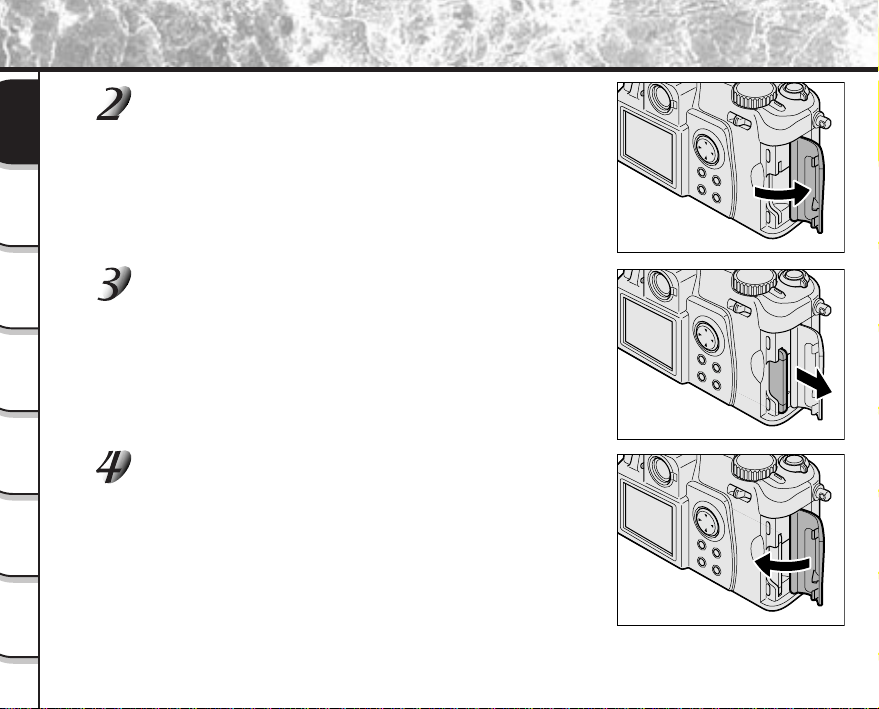
Removing SmartMedia™
IMPORTANT
• Never open the SmartMedia™ cover or remove the SmartMedia™ while data is being recorded to the
SmartMedia™ (viewfinder is lit red). This might damage the SmartMedia™ or corrupt the data on the
SmartMedia™.
Set the Power switch to [OFF].
☞
Turning the Power OFF
➲
Page 39
Electrodes
- 34 -
Getting
Ready
Taking
Photographs
Playing
Back Images
Other
Applications
Additional
Information
Erasing
Images
Handy
Functions
About SmartMedia™ (continued)
Open the SmartMedia™ cover.
Hold the SmartMedia™ firmly with your fingers and
pull the SmartMedia™ out of the camera.
Close the SmartMedia™ cover.
- 35 -
Getting
Ready
Taking
Photographs
Playing
Back Images
Other
Applications
Additional
Information
Erasing
Images
Handy
Functions
About SmartMedia™ (continued)
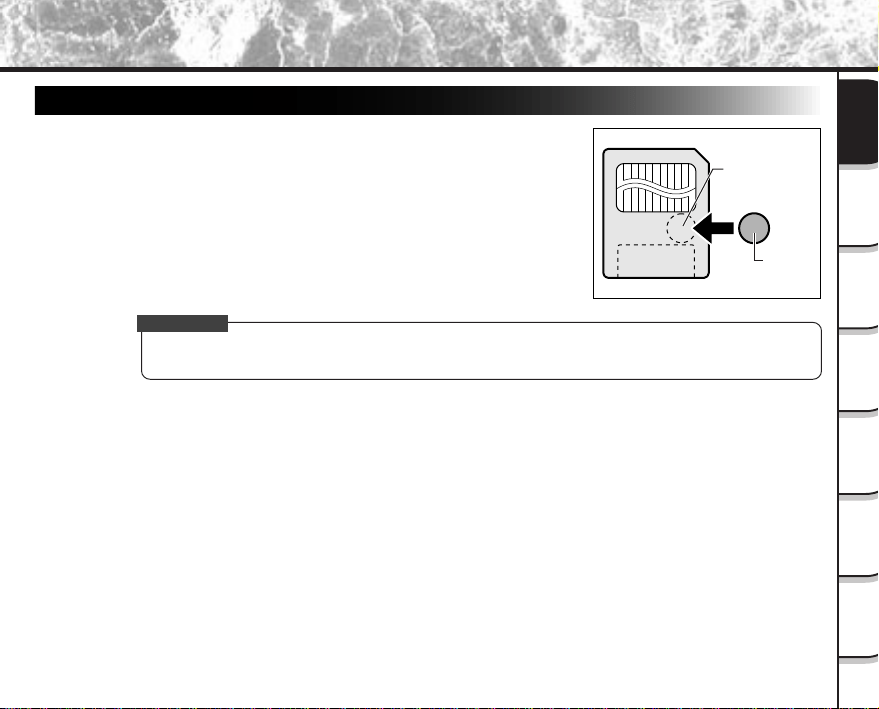
Write Protection
To prevent valuable data from being erased inadvertently, attach the
write-protect sticker at the write-protect area. Data can no longer be
recorded or erased from SmartMedia™. To write or erase data from
SmartMedia™, peel off the sticker.
IMPORTANT
• The write protection may not function if the write-protect sticker becomes dirty. Use a soft dry cloth to
wipe away any dirt. Once a sticker is peeled off it cannot be used again.
Write-protect
area
Sticker
- 36 -
Getting
Ready
Taking
Photographs
Playing
Back Images
Other
Applications
Additional
Information
Erasing
Images
Handy
Functions
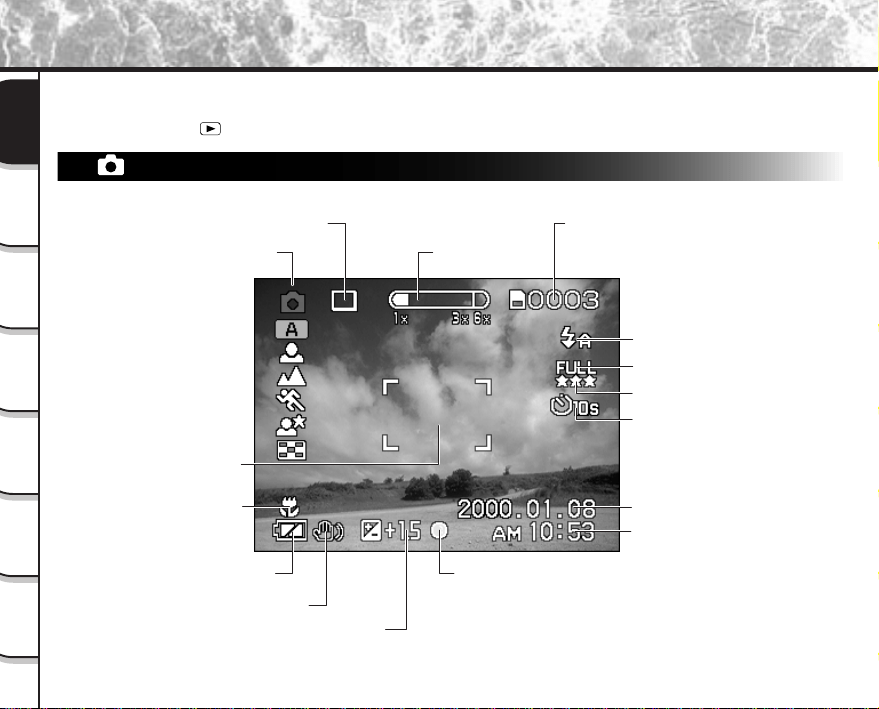
The text, numbers and icons that are displayed on the LCD monitor vary according to the current settings.
The LCD monitor automatically turns ON if necessary even if it is set to OFF.
For details on the [ ] playback mode, see page 88.
In [ ] mode
LCD Monitor Display (during photography)
Possible number of shots
(at currently preset size and quality)
Mode dial setting
Focus area
(when shutter button is
pressed down half way)
Macro photography
Remaining battery power
Slow shutter speed warning
Exposure compensation
When AE (automatic exposure setting) is aligned:
green
When AE is not aligned:
red
Photography mode
Zoom state
Flash state
Size
Quality
Self-timer photography
Date (year/month/day)
Time
- 37 -
Getting
Ready
Taking
Photographs
Playing
Back Images
Other
Applications
Additional
Information
Erasing
Images
Handy
Functions
In [ ] and [ ] mode
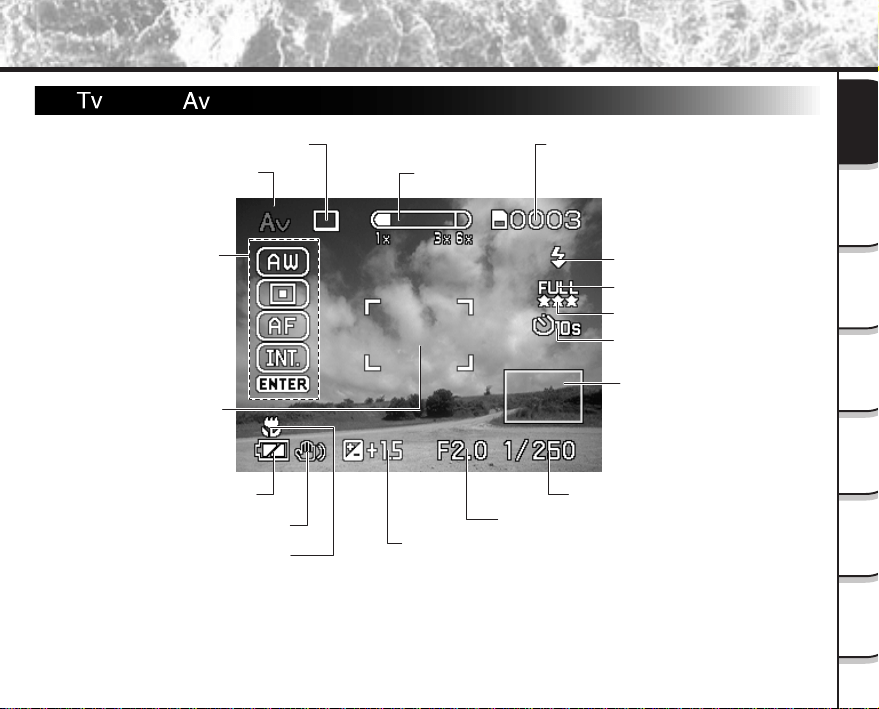
Manual photograpy
Shutter speed
Aperture
Histogram*
Possible number of shots
(at currently preset size and quality)
Mode dial setting
Focus area
(when shutter button is
pressed down half way)
Macro photography
Remaining battery power
Slow shutter speed warning
Exposure compensation
Photography mode
Zoom state
Flash state
Size
Quality
Self-timer photography
* Histogram
A histogram is a graphic representation of the tones of the subject. The horizontal axis of the histogram
shows the brightness (increasing brightness from left to right) and the vertical axis shows the number
of pixels at each brightness level.
LCD Monitor Display (during photography) (continued)
- 38 -
Getting
Ready
Taking
Photographs
Playing
Back Images
Other
Applications
Additional
Information
Erasing
Images
Handy
Functions
LCD Monitor Display (during photography) (continued)
In [ ] mode
Memo
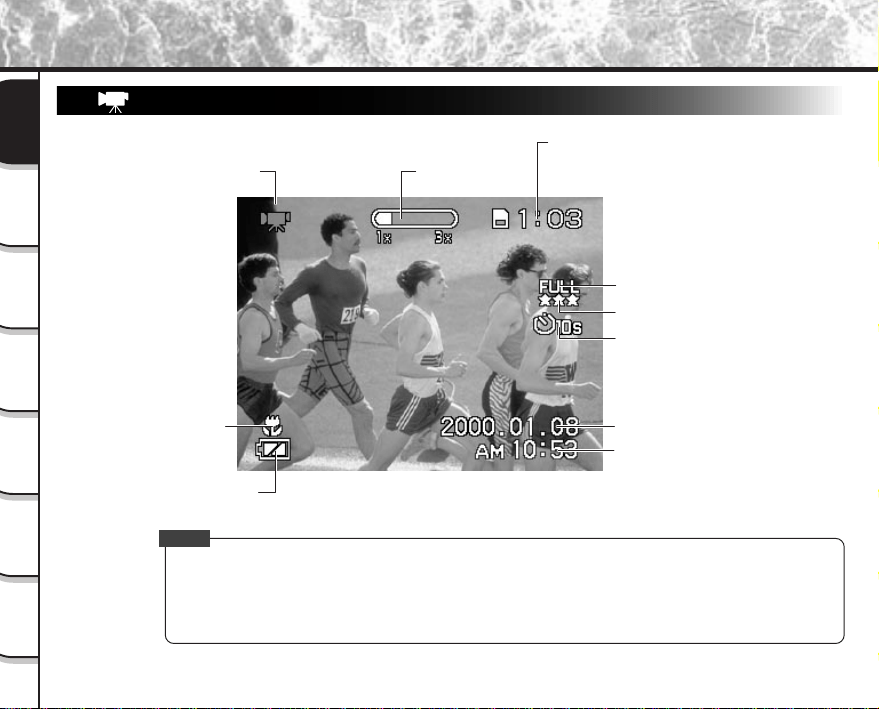
• The size of the data to be recorded varies according to the amount of detail in the subject image. So,
the number of images that can be photographed after an image is recorded sometimes doesn’t
decrease.
• The display is momentarily disrupted after recording an image or the mode is switched. This does not
affect photography.
Possible photographic time (seconds)
(at currently preset size and quality)
Mode dial setting
Macro photography
Remaining battery power
Zoom state
Size
Quality
Self-timer photography
Date (year/month/day)
Time
- 39 -
Getting
Ready
Taking
Photographs
Playing
Back Images
Other
Applications
Additional
Information
Erasing
Images
Handy
Functions
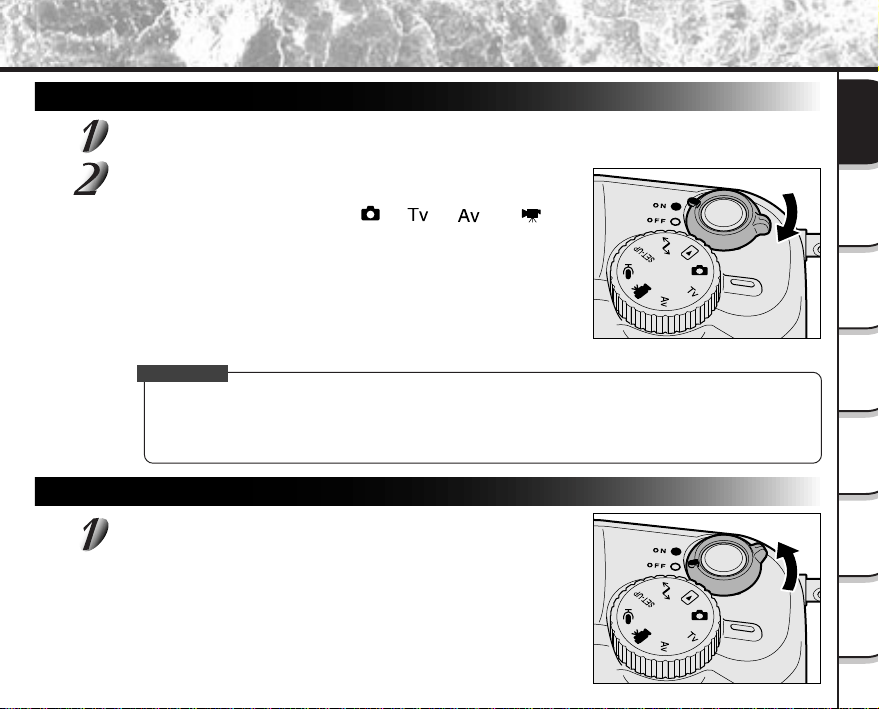
Turning the Power ON
Make sure that the SmartMedia™ is correctly loaded. (
➲
Page 32)
Set the Power switch to [ON].
When the camera is turned ON, set the mode dial to the desired
mode. In the photography modes ([
], [ ], [ ] or [ ]),
the lens extends from the camera body. Remove the lens cap during
photography. When the camera is turned ON, the Auto Power OFF
function starts to work.
The default setting for the language display for this camera is
English. To match the language in your Instruction Manual with the
language in the camera, change the language display in the LCD
monitor. (
➲
Page 113)
IMPORTANT
• If no operation is carried out for a fixed amount of time (default: about 1 minute), the power is turned
OFF to prevent battery wear. This is called “Auto Power OFF”. To return to the normal state, either
change the mode dial or press the shutter down half way (
➲
Page 41).
☞
About the Auto Power OFF Function
➲
Additional Information, “AUTO POWER OFF (page 114)”
Turning the Power OFF
Set the Power switch to [OFF].
This turns the power OFF.
Attach the lens cap when you are not using the camera.
Turning the Power ON/OFF
- 40 -
Getting
Ready
Taking
Photographs
Playing
Back Images
Other
Applications
Additional
Information
Erasing
Images
Handy
Functions
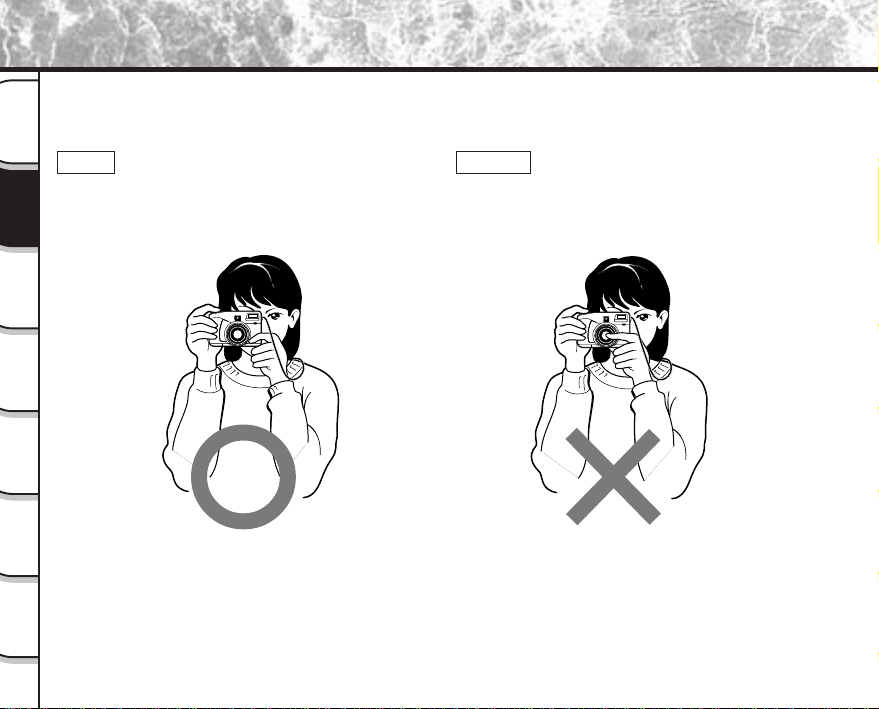
How to Hold Your Camera
When taking a photograph, hold the camera firmly and prevent your finger or shoulder strap from covering the lens,
flash or flash sensor.
Right
Camera held with both hands with your arms firmly held
against the sides of your chest
Wrong
Fingers held over the lens
- 41 -
Getting
Ready
Taking
Photographs
Playing
Back Images
Other
Applications
Additional
Information
Erasing
Images
Handy
Functions
Press down
half way.
Press down
fully.
How to Press the Shutter Button
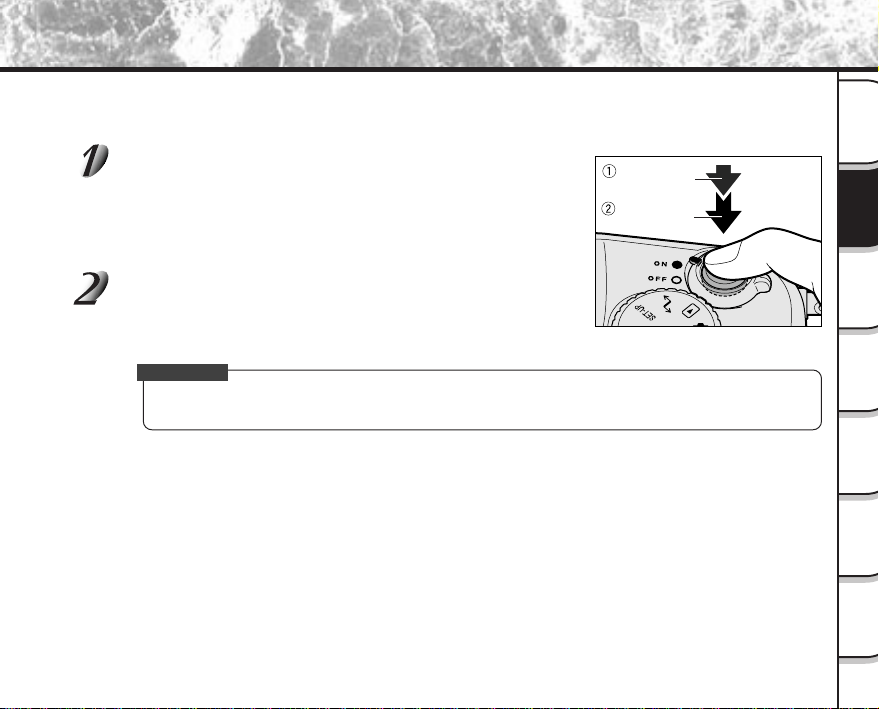
The shutter button can be pressed down in two stages: half way down and fully down. When pressed half way
down, AF (auto-focus) and AE (auto exposure) are carried out. When pressed fully down, the camera takes a
picture.
Press the shutter button down half way
1
.
AF (auto-focus) and AE (auto exposure) (
➲
Additional Information,
Glossary) start to function.
When AF or AE are locked, the beep tone (
➲
Page 115) sounds and
the viewfinder LED turns green.
Press the shutter button down fully
2
.
The camera takes a picture.
The viewfinder LED turns red while image data is being recorded
onto the SmartMedia™.
IMPORTANT
• Never open the SmartMedia™ cover or remove the SmartMedia™ while an image is being recorded.
This may corrupt the data on the SmartMedia™ or damage the SmartMedia™ itself.
- 42 -
Getting
Ready
Taking
Photographs
Playing
Back Images
Other
Applications
Additional
Information
Erasing
Images
Handy
Functions
How to Press the Shutter Button (continued)
Memo
• If the shutter button is pressed down fully and held, photographs cannot be taken until AF and AE are
locked.
• The image in the LCD monitor sometimes darkens from the time that the shutter button is pressed down
half way until the image becomes focused.
• To focus or expose a position outside the center of the screen frame, move the subject you are taking to
the center of the screen frame, and press down the shutter button half way. Now, with the shutter button
held down, return to the original picture that you composed and press the shutter button down fully.
• Moving the camera as you press the shutter button will result in a blurred image.
• The PDR-M70 uses an accurate auto focus mechanism. However, the PDR-M70 may have difficulty
focusing or not be able to focus at all for subjects and situations such as the following:
• If the image cannot be focused, the focus is automatically fixed to infinity. (When the flash is necessary
at this time, it is simultaneously fixed to illuminate objects 1.5 meters (five feet) away. During macro
photography, the flash is aligned with the wide position.)
- When the subject is distant and dark
- When there are objects in front of or behind the subject
(such as an animal in a cage or a person in front of a tree)
- Subjects with little reflection, such as hair or fur
- Subjects with no solidity, such as smoke or flames
- Subjects viewed through glass
- Subjects moving at high speed
- Very shiny subjects such as a mirror or car body
- Extremely low contrast subjects
- Subjects that have low contrast and merge into the
background (such as white walls or subjects dressed
in the same color as the background)
- 43 -
Getting
Ready
Taking
Photographs
Playing
Back Images
Other
Applications
Additional
Information
Erasing
Images
Handy
Functions
Photography (Auto Photography)
This is the most commonly used photography mode.
In this mode, exposure (combination of shutter speed and aperture) is automatically controlled to facilitate
photography. There are two ways of taking photographs in this mode: using the viewfinder and using the LCD
monitor.
Using the Viewfinder
Get ready to take the photograph.
Load the battery (
➲
Page 26) and the SmartMedia™ (
➲
Page 32) into the camera.
Set the Power switch to [ON].
☞
Turning the Power ON
➲
Page 39
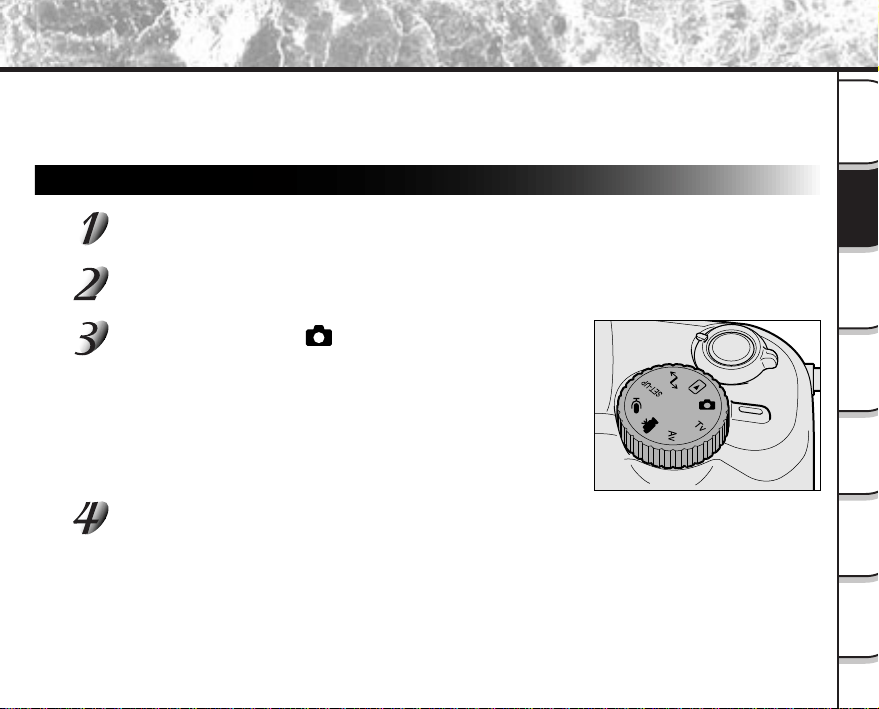
Set the mode dial to [ ].
Turn the LCD monitor OFF. (
➲
Page 79)
To reduce the amount of battery wear, we recommend turning the LCD monitor display OFF, and using
the viewfinder to take photographs.
- 44 -
Getting
Ready
Taking
Photographs
Playing
Back Images
Other
Applications
Additional
Information
Erasing
Images
Handy
Functions
Photography (Auto Photography) (continued)
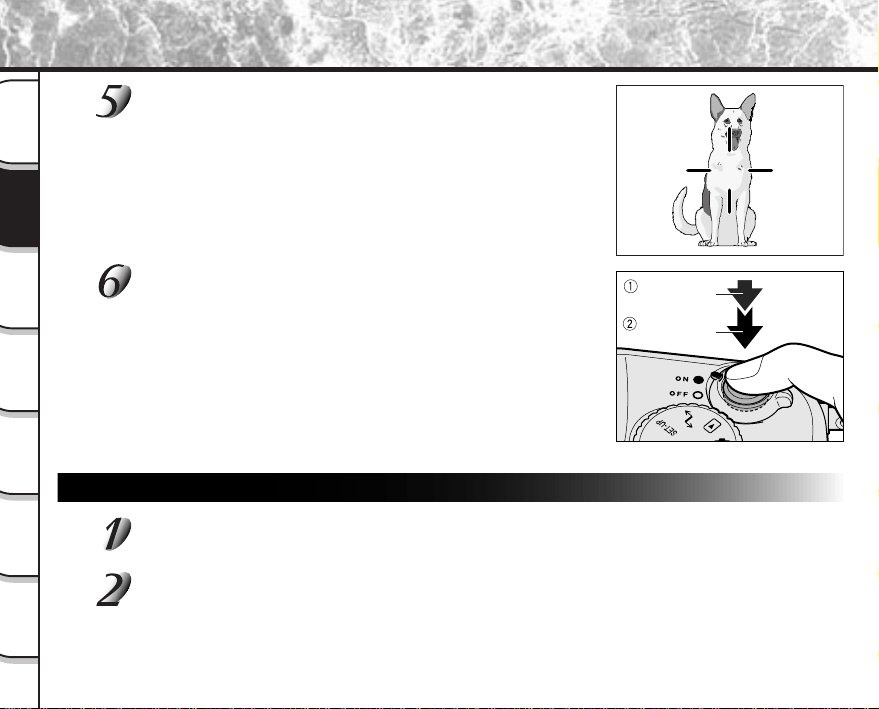
Look through the viewfinder to compose the picture.
Press the shutter button down half way
1
, and press
it down fully
2
.
• Pressing the shutter button down half way adjusts the exposure,
and pressing the shutter button down fully takes the shot.
• If you shoot a still picture, when preview is set to ON (
➲
Page 77),
a preview image is displayed on screen for about two seconds.
• The viewfinder LED turns red while image data is being recorded
onto the SmartMedia™.
Using the LCD Monitor
Get ready to take the photograph.
Load the battery (
➲
Page 26) and the SmartMedia™ (
➲
Page 32) into the camera.
Set the Power switch to [ON].
☞
Turning the Power ON
➲
Page 39
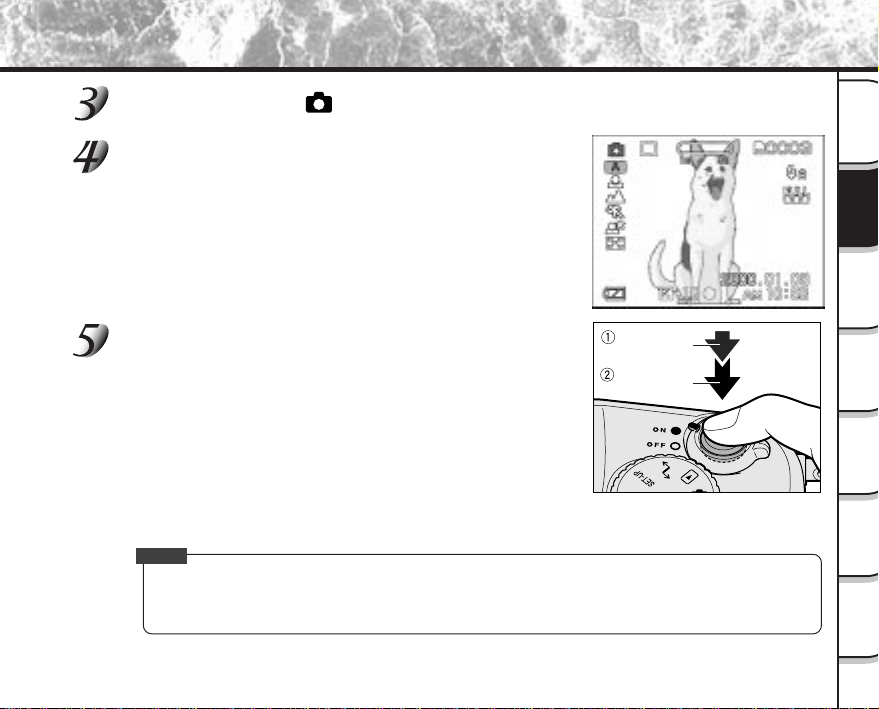
Press down
half way.
Press down
fully.
- 45 -
Getting
Ready
Taking
Photographs
Playing
Back Images
Other
Applications
Additional
Information
Erasing
Images
Handy
Functions
Photography (Auto Photography) (continued)
Press down
half way.
Press down
fully.
Set the mode dial to [ ].
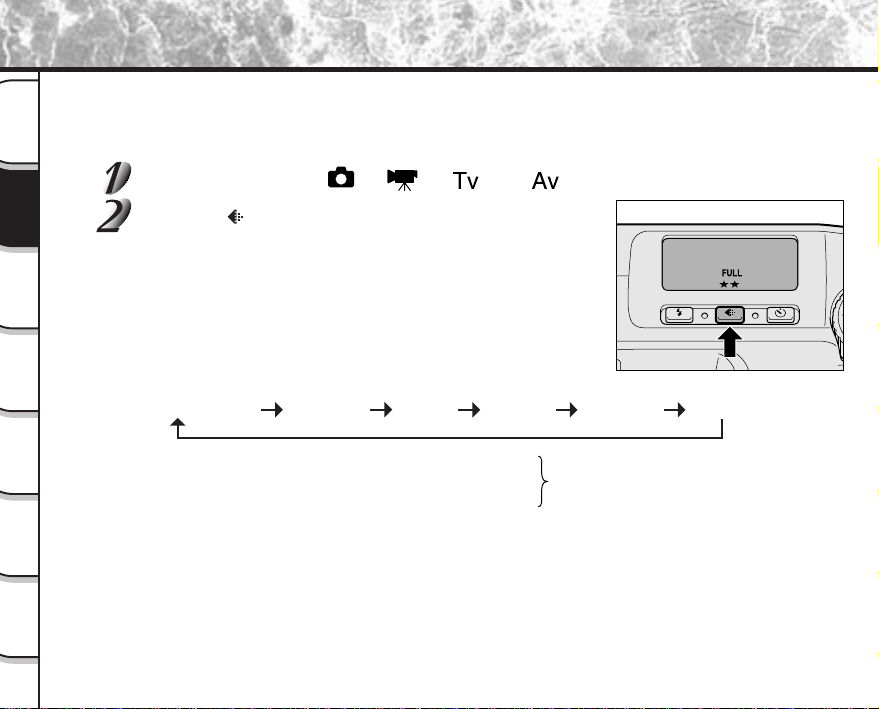
Look at the image on the LCD monitor to compose the
picture.
☞
To adjust the brightness of the LCD monitor
➲
Page 119
Press the shutter button down half way
1
, and press
it down fully
2
.
• Pressing the shutter button down half way adjusts the exposure,
and pressing the shutter button down fully takes the shot.
• When the focus and exposure are correctly adjusted, the
viewfinder lamp lights (green), and the AF icon turns green.
• If you shoot a still picture, when preview is set to ON (
➲
Page 77),
a preview image is displayed on screen for about two seconds.
• The viewfinder LED turns red while image data is being recorded
onto the SmartMedia™.
Memo
• The LCD monitor sometimes displays bright, dark or colored spots at all times. This is not a malfunction.
These spots do not appear in the photographed image.
• The image is not displayed on the LCD monitor while the shutter button is pressed down fully.
- 46 -
Getting
Ready
Taking
Photographs
Playing
Back Images
Other
Applications
Additional
Information
Erasing
Images
Handy
Functions
Setting the Image Size and Quality
Set the size (number of pixels) and quality (compression ratio) of the image to be photographed.
Change the setting according to how the image is to be used and the remaining amount of space in the
SmartMedia™.
Set the mode dial to [ ], [ ], [ ] or [ ].
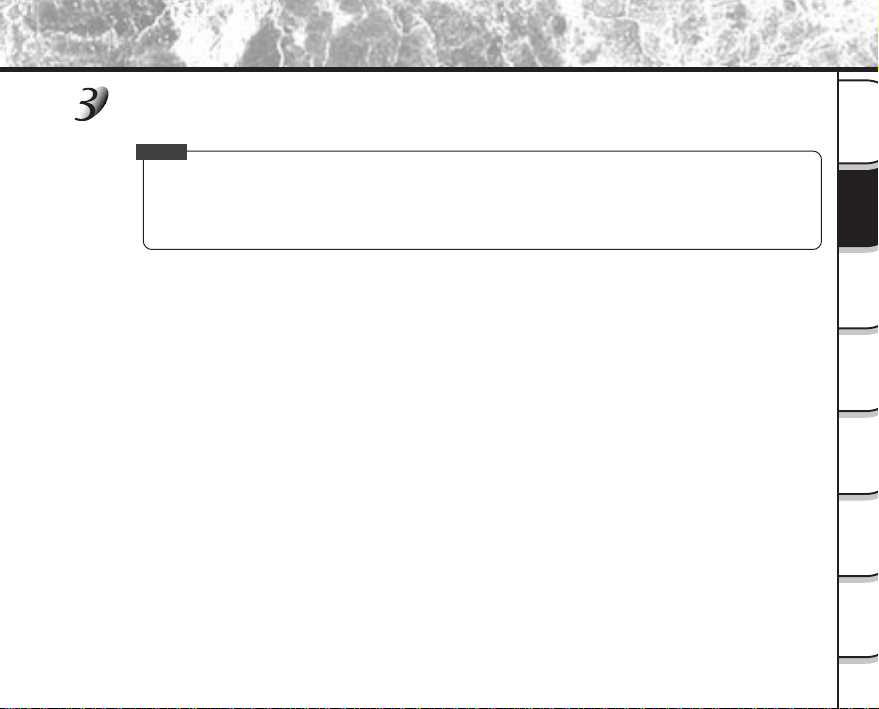
Press the image quality button to set the required
quality and size while viewing the image on the status
display.
Pressing the image quality button displays the available qualities and
sizes in order. Select from the available combinations of quality and
size.
<Quality> [★★★] FINE : 1/5 (JPEG) compression
[★★★] NORMAL : 1/7.5 (JPEG) compression (still image)
[★★★] BASIC : 1/15 (JPEG) compression
The more stars there are, the better image quality becomes. Higher quality images,
however, take up more memory space, reducing the number of images that can be taken or
the possible photographic time.
<Size> [FULL] 2048 x 1536 pixel (still image), 320 x 240 pixel (movie)
[HALF] 1024 x 768 pixel (still image), 160 x 120 pixel (movie)
The FULL setting improves the quality of the image. Higher quality images, however, take up
more space, reducing the number of images that can be taken or the possible photographic
time.
★★FULL (default) ★★★FULL ★FULL★★★HALF★★HALF★HALF
- 47 -
Getting
Ready
Taking
Photographs
Playing
Back Images
Other
Applications
Additional
Information
Erasing
Images
Handy
Functions
Setting the Image Size and Quality (continued)
Take the photograph.
☞
For details on how to take photographs
➲
Photograph
Memo
• To make the image smaller, it is more effective to reduce the size
1
and then reduce image quality
2
.
• After you have taken a photograph, you can change its size (
➲
Page 95) and quality (
➲
Page 97).
• The memory size of the image varies according to the subject.
• The compression ratio is given for reference only.
- 48 -
Getting
Ready
Taking
Photographs
Playing
Back Images
Other
Applications
Additional
Information
Erasing
Images
Handy
Functions
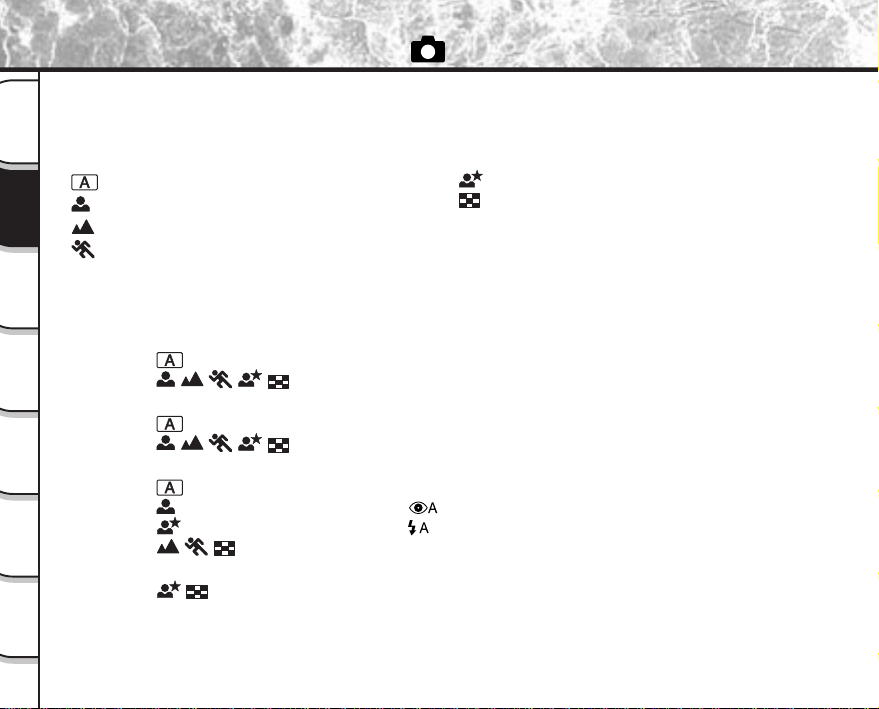
This mode enables automatic photography according to the photographic conditions. Photographs can be taken
easily in this mode as the camera automatically makes the setting suitable to the photographic conditions.
The Auto Select mode has the following options. Choose the option to suit the image you want to photograph.
For a detailed description of each option, refer to the following pages:
Taking Photographs in [ ] Mode (Auto Select mode)
In the Auto Select mode, there are some settings that cannot be changed as the camera makes the
settings automatically. These settings vary according to the mode.
● Macro photography
................................... Can be set.
.......... Cannot be set.
● Exposure compensation
................................... Can be set as required.
.......... Cannot be specified. (set automatically)
● About flash photography
................................... Can be set as required.
..................................... Fixed to [ ] red-eye auto
.................................... Fixed to [ ] auto
....................... Flash photography is not possible.
● About burst photography
.............................. Burst photography is not possible.
........ To take regular photographs (
➲
Page 43)
.......... To take portraits (
➲
Page 49)
......... To take landscape shots (
➲
Page 50)
......... To take photographs of fast-moving subjects
(
➲
Page 51)
........ To take portraits at night (
➲
Page 52)
......... To take continuous shots of moving subjects
(
➲
Page 53)
The 36 shots that you take in this mode are
saved as a single image.
- 49 -
Getting
Ready
Taking
Photographs
Playing
Back Images
Other
Applications
Additional
Information
Erasing
Images
Handy
Functions
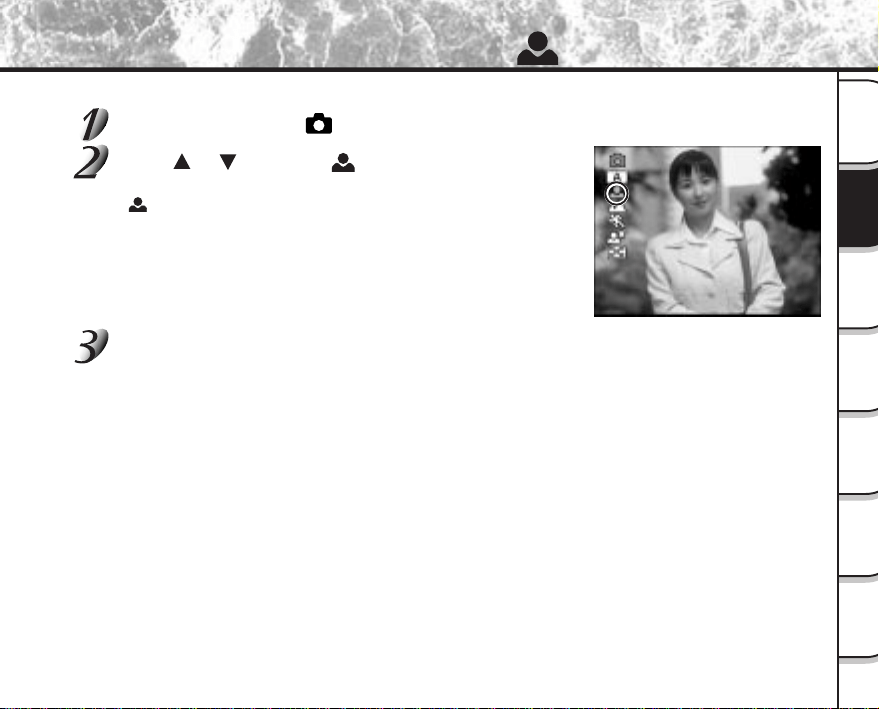
Taking Photographs in the [ ] Mode
Select this option to make people stand out with the background out-of-focus.
Set the mode dial to [ ].
Press or to select [ ] while viewing the LCD
monitor.
[ ] in the LCD monitor is displayed in green.
Compose the picture, press the shutter button down half way, and press it down
fully.
➲
Page 41

- 50 -
Getting
Ready
Taking
Photographs
Playing
Back Images
Other
Applications
Additional
Information
Erasing
Images
Handy
Functions
Select this option to take photographs of distant scenery or landscapes.
Set the mode dial to [ ].
Press or to select [ ] while viewing the LCD
monitor.
[ ] in the LCD monitor is displayed in green.
Compose the picture, press the shutter button down half way, and press it down
fully.
➲
Page 41
Taking Photographs in the [ ] Mode
- 51 -
Getting
Ready
Taking
Photographs
Playing
Back Images
Other
Applications
Additional
Information
Erasing
Images
Handy
Functions
Taking Photographs in the [ ] Mode
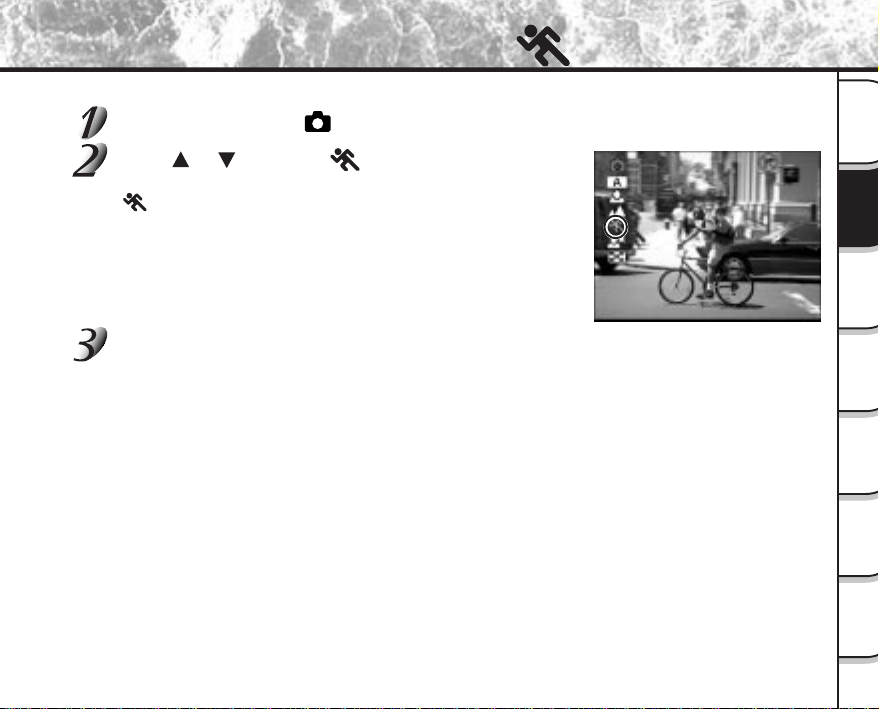
Select this option to take photographs of fast-moving subjects.
Set the mode dial to [ ].
Press or to select [ ] while viewing the LCD
monitor.
[ ] in the LCD monitor is displayed in green.
Compose the picture, press the shutter button down half way, and press it down
fully.
➲
Page 41
- 52 -
Getting
Ready
Taking
Photographs
Playing
Back Images
Other
Applications
Additional
Information
Erasing
Images
Handy
Functions
Taking Photographs in the [ ] Mode
Select this option to take photographs of people against a dusk or night-time background.
Set the mode dial to [ ].
Press or to select [ ] while viewing the LCD
monitor.
[ ] in the LCD monitor is displayed in green.
Compose the picture, press the shutter button down half way, and press it down
fully.
➲
Page 41

- 53 -
Getting
Ready
Taking
Photographs
Playing
Back Images
Other
Applications
Additional
Information
Erasing
Images
Handy
Functions
Taking Photographs in the [ ] Mode (36-frame multi photography)
This mode takes 36 shots continuously at 0.07 second intervals (15 frames/second). The 36 photographed images
are saved as one image (FULL size: 2048 x 1536 pixels).
This mode is effective for continuously photographing moving subjects.
Set the mode dial to [ ].
Press or to select [ ] while viewing the LCD
monitor.
[ ] in the LCD monitor is displayed in green.
Compose the picture, press the shutter button down half way, and press it down
fully.
➲
Page 41
The shutter is opened and closed 36 times.
Memo
• Though zoom playback is not possible, playback of multi image pictures (
➲
Page 87) is possible.
• Photographs cannot be taken at HALF size. When HALF size is set before you set multi photography,
the setting is automatically changed to FULL size. When multi photography is canceled, the setting
returns to HALF size.
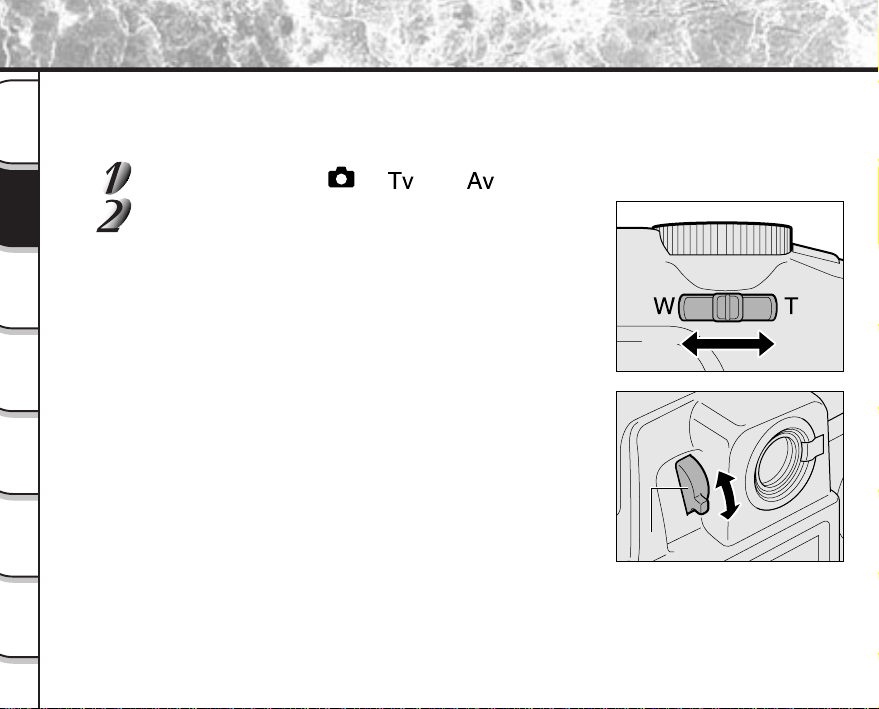
- 54 -
Getting
Ready
Taking
Photographs
Playing
Back Images
Other
Applications
Additional
Information
Erasing
Images
Handy
Functions
Zoom photography allows you to take zoom shots up to three times the size or wide-angle photography depending
on the distance up to the subject. You can also enlarge the center of the screen and take photographs in the digital
zoom mode with the focal distance apparently increased by a factor of two.
Set the mode dial to [ ], [ ] or [ ].
Compose the picture using the Zoom switch key.
• Pressing the Zoom switch towards the “T” zooms in on the subject,
and enlarges the subject on the LCD monitor.
• Pressing the Zoom switch towards the “W” provides a wider angle
picture.
• The lens position moves according to the Zoom switch setting.
• If the subject is not focused when you use the viewfinder, set the
lens to the maximum zoom position by pressing the Zoom switch to
the “T” mark until the lens stop, look through the viewfinder, and
move the Diopter adjustment knob so that the subject at a distance
of about three meters (10 ft) away from the camera is focused.
Zoom Photography
TeleTele
Wide
Wide
Diopter adjustment knobDiopter adjustment knobDiopter adjustment knob
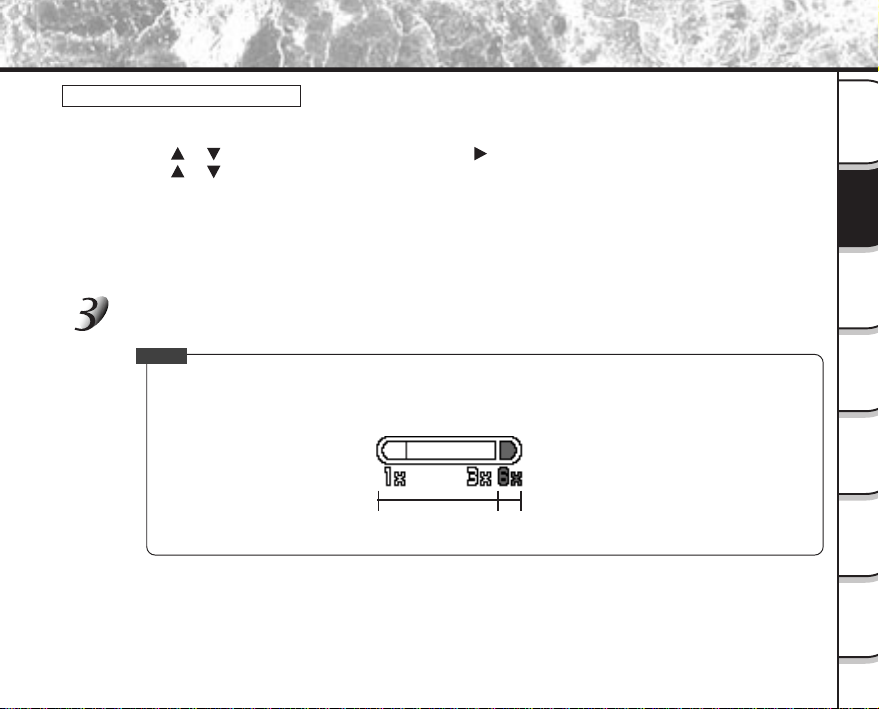
- 55 -
Getting
Ready
Taking
Photographs
Playing
Back Images
Other
Applications
Additional
Information
Erasing
Images
Handy
Functions
Zoom Photography (continued)
Digital Zoom Photography
Set digital zoom as follows.
1
Press the MENU button.
2
Use
or to select [DIGITAL ZOOM] and press .
3
Use
or to select [APPROVED] and press ENTER.
4
Press the MENU button.
5
Pressing the Zoom switch towards the “T” to set the zoom to maximum, and continue to hold down the
Zoom switch.
• The image size is fixed to 1024 x 768 pixels.
• The LCD monitor turns ON automatically. So, compose the picture while viewing the LCD monitor.
Press the shutter button down half way, and press it down fully.
➲
Page 41
Memo
• The Zoom switch setting is automatically canceled by either turning the camera OFF or by activation of
the Auto Power OFF function.
• You can check the zoom status in the LCD monitor.
Digital
zoom
Optical zoom
1x to 3x
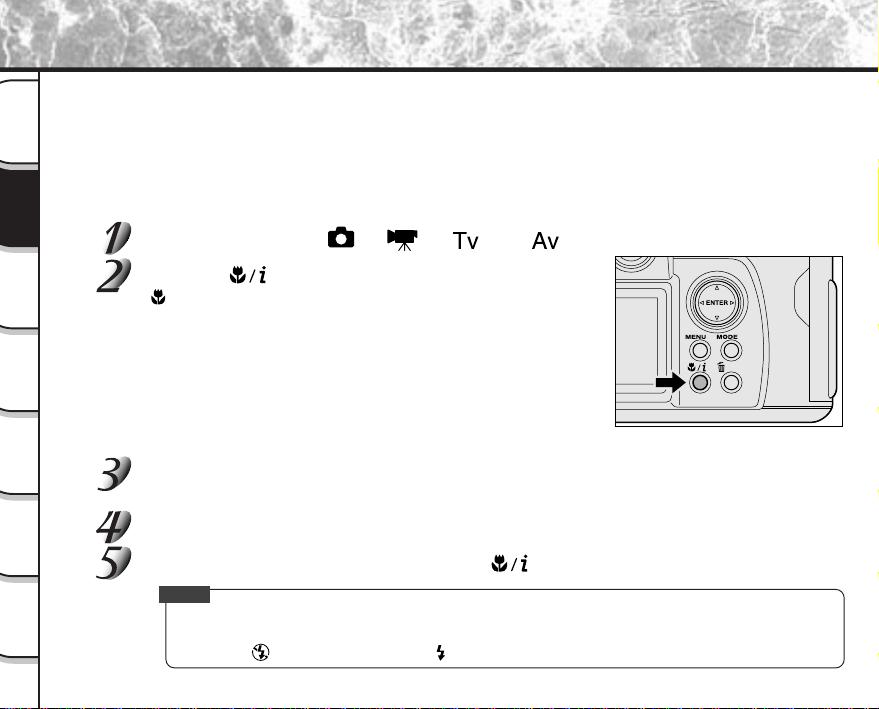
- 56 -
Getting
Ready
Taking
Photographs
Playing
Back Images
Other
Applications
Additional
Information
Erasing
Images
Handy
Functions
Close-up Photography (Macro Photography)
The macro photography mode is used when the distance to the subject is between 9 cm (0.3 ft) (WIDE side setting)
to 80 cm (2.6 ft).
This camera cannot focus on subjects within 9 cm (0.3 ft) (WIDE side setting) to 80 cm (2.6 ft) unless in the macro
photography mode. Though photographs can be taken even at a distance of about 80cm (2.6 ft) or more in the
macro photography mode, it may take time for the camera to focus.
In the macro photography mode, the LCD monitor automatically turns ON. Take the photograph while viewing the
LCD monitor.
Set the mode dial to [ ], [ ], [ ] or [ ].
Press the macro/info button.
[ ] is displayed on the LCD monitor and the status display.
Look at the image on the LCD monitor to compose the picture.
☞
Using the LCD Monitor
➲
Page 44
Press the shutter button down half way, and press it down fully.
➲
Page 41
To cancel macro photography, press the macro/info button again.
Memo
• Macro photography is not canceled even if the camera is turned OFF or the Auto Power OFF function is
activated.
• Only the [
] Suppressed Flash and [ ] Forced Flash modes can be set for flash photography.
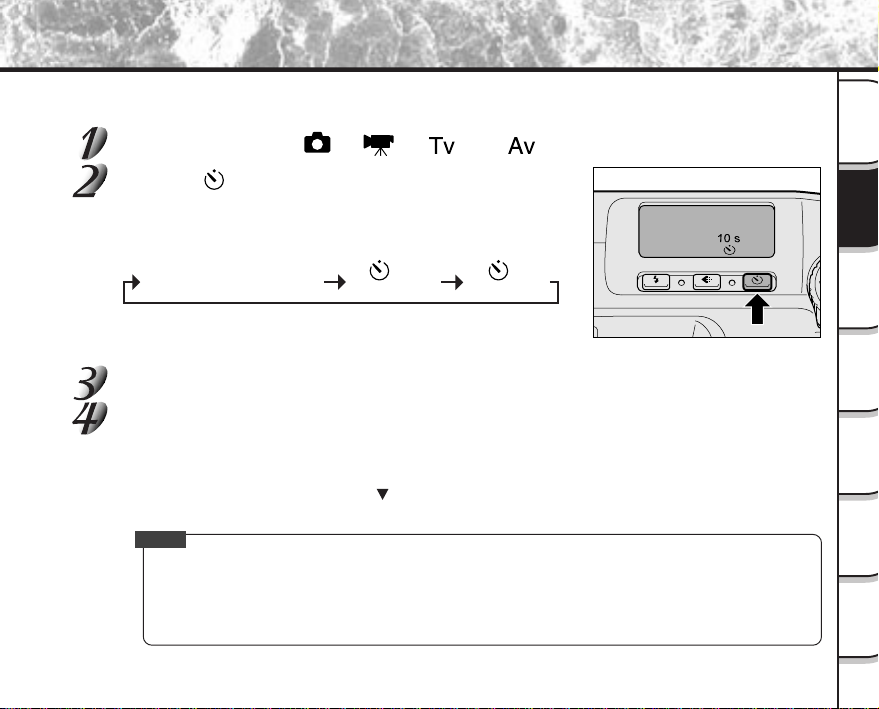
- 57 -
Getting
Ready
Taking
Photographs
Playing
Back Images
Other
Applications
Additional
Information
Erasing
Images
Handy
Functions
When the self-timer is used, the shutter automatically closes after the preset time (two or ten seconds).
Set the mode dial to [ ], [ ], [ ] or [ ].
Press the self-timer button while viewing the status
display area.
When you press the self-timer button, the following are displayed on
the LCD monitor and status display area in the following order:
Compose the picture.
Press the shutter button down half way, and press it down fully.
➲
Page 41
The self-timer LED lights red, and then flashes. The photograph is then taken after the preset time (two or
ten seconds).
When photographs are taken using the LCD monitor, the count down is displayed.
To cancel photography midway, press
.
Memo
• Burst photography is not possible.
• To stop making movies, press the shutter button down fully.
If this operation is not performed, photography is automatically stopped when the SmartMedia™ runs
out of free space or when the size of a single picture has reached the maximum recordable size of 16
MB.
Photography Using the Self-timer (Self-timer Photography)
[No display] setting OFF
[ 10s]
10 seconds
[ 2s]
2 seconds
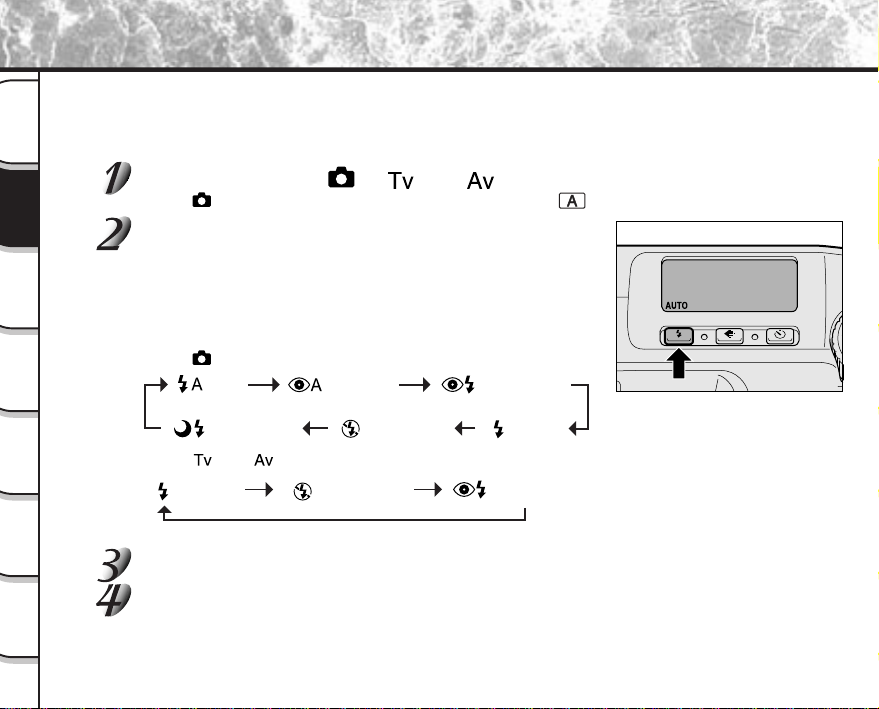
- 58 -
Getting
Ready
Taking
Photographs
Playing
Back Images
Other
Applications
Additional
Information
Erasing
Images
Handy
Functions
Photography Using the Flash
In the default setting, the flash will be automatically set to function in dark places. No special setting is needed to
set off the flash. The flash firing mode can be set to suit the conditions where the flash is to be fired.
The effective firing distance of the flash is approximately 0.8 m (2.62 ft) to 4.0 m (13.12 ft) (WIDE side setting).
Set the mode dial to [ ], [ ] or [ ].
In the [ ] mode, flash photography can be selected when [ ] is selected.
Press the flash button to set to the desired mode
while viewing the image on the LCD monitor or the
status display.
Pressing the flash button displays the available flash modes in order.
The icon for the mode that you selected is displayed in the LCD
monitor or the status display.
In the [
] mode:
In the [
] or [ ] mode:
Compose the picture.
Press the shutter button down half way, and press it down fully.
➲
Page 41
When you are using the flash, the flash icons on the LCD monitor are displayed in yellow when the
shutter button is pressed halfway down.
[ ] Auto
[ ]
[ ] [ ]
Red-eye
Auto
Red-eye
forced flash
Forced
flash
[ ][ ] Slow synchro
Suppressed
flash
[ ]
Red-eye
forced flash
[ ]
Forced
flash
[ ]
Suppressed
flash
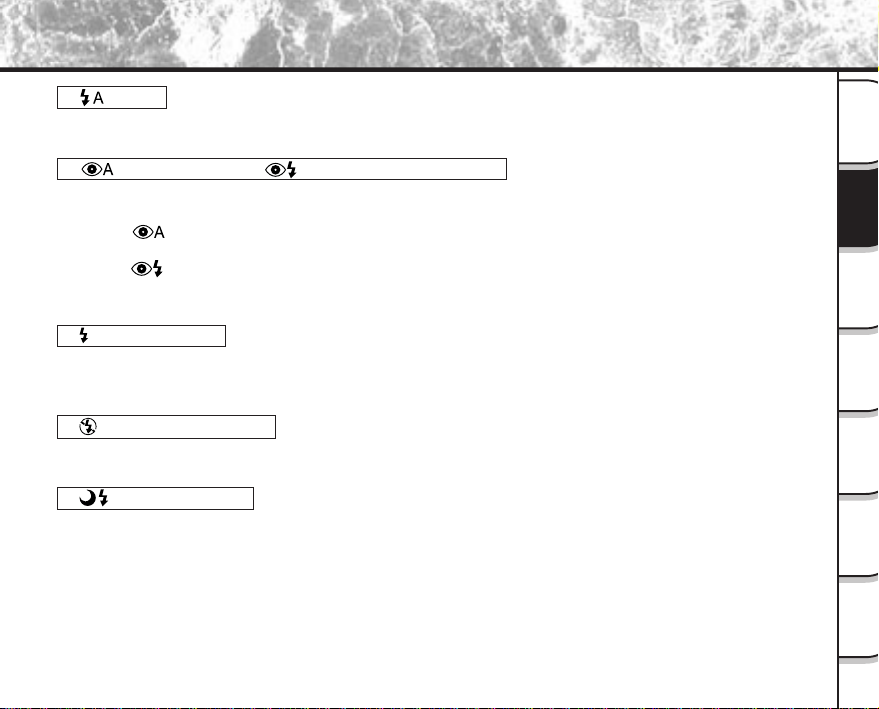
- 59 -
Getting
Ready
Taking
Photographs
Playing
Back Images
Other
Applications
Additional
Information
Erasing
Images
Handy
Functions
[ ] Auto
In this mode, the flash fires automatically according to the photography conditions. This mode is ideal for
general photography where you are not trying to achieve any particular effect.
[ ] Red-Eye Auto/[ ] Red-Eye Forced Flash
Use this mode to avoid the red-eye effect (
➲
Additional Information, Glossary) when photographing people in
low-light conditions.
In the [
] Red-Eye Auto mode, the flash fires according to the photographic conditions. When firing is set
to automatic, the flash fires twice.
In the [ ] Red-Eye Forced Flash mode, the flash always fires twice.
Red-eye is reduced more effectively if the subject looks directly towards the camera. Effectiveness is also
increased if the distance between the subject and camera is kept as short as possible.
[ ] Forced Flash
In this mode, the flash always fires. Use the Forced Flash mode when the subject is backlighted, or in artificial
light (fluorescent lighting, etc.).
The flash also fires during macro photography.
[ ] Suppressed Flash
Use the Suppressed Flash mode when you are taking pictures in indoor lighting at distances too great for the
flash to have any effect, such as theater performances or indoor sporting events.
[ ] Slow Synchro
The flash is fired at a slower shutter speed.
This flash mode is effective when shooting pictures so that not only the subject but also the background are
both clearly reproduced in artificial light (backlighting, fluorescent lighting, etc.) or with people against the
night as a background scene.
Photography Using the Flash (continued)
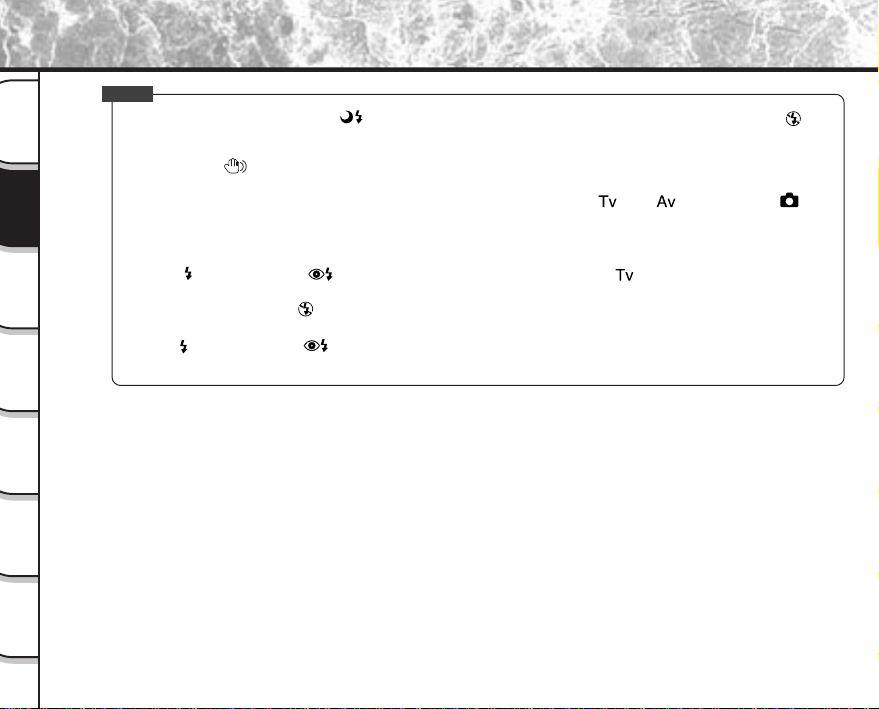
- 60 -
Getting
Ready
Taking
Photographs
Playing
Back Images
Other
Applications
Additional
Information
Erasing
Images
Handy
Functions
Photography Using the Flash (continued)
Memo
• If you take a photograph in the [ ] Slow Synchro mode at a place with a dark background or in the [ ]
Suppressed Flash mode at a dark place, the shutter speed slows down, and the slow shutter speed warning is
displayed. (When the shutter is pressed half way down, the viewfinder LED blinks green and the slow shutter
speed mark [
] is displayed in the LCD monitor.) We recommend using a tripod to keep the camera stable
and prevent distorted images.
• The flash setting is not canceled even if the camera is turned OFF in the [
] or [ ] modes. (The [ ]
mode always becomes the [AUTO] mode when the power is turned ON.)
• Using the flash during burst photography, multi photography, bulb photography and movie photography is not
possible.
• When [
] forced flash or [ ] red-eye forced flash modes are set in the [ ] mode, the shutter speed is
limited to between 1/2 second and 1/250 second.
• If a mode other than the [
] suppressed flash mode is set when the shutter speed is set to 1/350 sec. or
slower, the shutter speed is automatically changed to 1/250 sec.
• If the [ ] forced flash or [ ] red-eye forced flash modes are set when the shutter speed is set to a speed of
1 sec. or more, the shutter speed is automatically changed to 1/2 second.

- 61 -
Getting
Ready
Taking
Photographs
Playing
Back Images
Other
Applications
Additional
Information
Erasing
Images
Handy
Functions
Taking Photographs Continuously
In this mode, photographs are taken continuously at a maximum speed of 0.8 second intervals (five images per 4
seconds).
The maximum number of photographs that can be taken continuously is eight photographs.
Images are not recorded directly to SmartMedia™ but are stored temporarily within the buffer memory. After
photography is finished, check the images and record the selected ones to SmartMedia™.
Set the mode dial to [ ], [ ] or [ ].
Burst photography is not possible when [ ] or [ ] is selected in the [ ] mode.
Press the MODE button, and select burst
photography.
Each press of the MODE button switches the photography mode as
follows:
In the [ ] mode:
[ ] 1-shot [ ] burst
In the [ ] or [ ] mode:
[ ] 1-shot [ ] burst [AEB] AEB photography
( Page 71)
If burst photography is set when the shutter speed is set to a speed of 1 sec. or more in the [ ] mode,
the shutter speed is automatically changed to 1/2 second.
is displayed in the LCD monitor or the status display.
Compose the picture, press the shutter button down half way, and press it down
fully.
➲
Page 41
The shutter opens and closes up to a maximum of eight times.
If you release the shutter button before the camera captures eight images, the camera will stop taking
pictures at that point.
After photography is finished, the LCD monitor automatically turns ON.
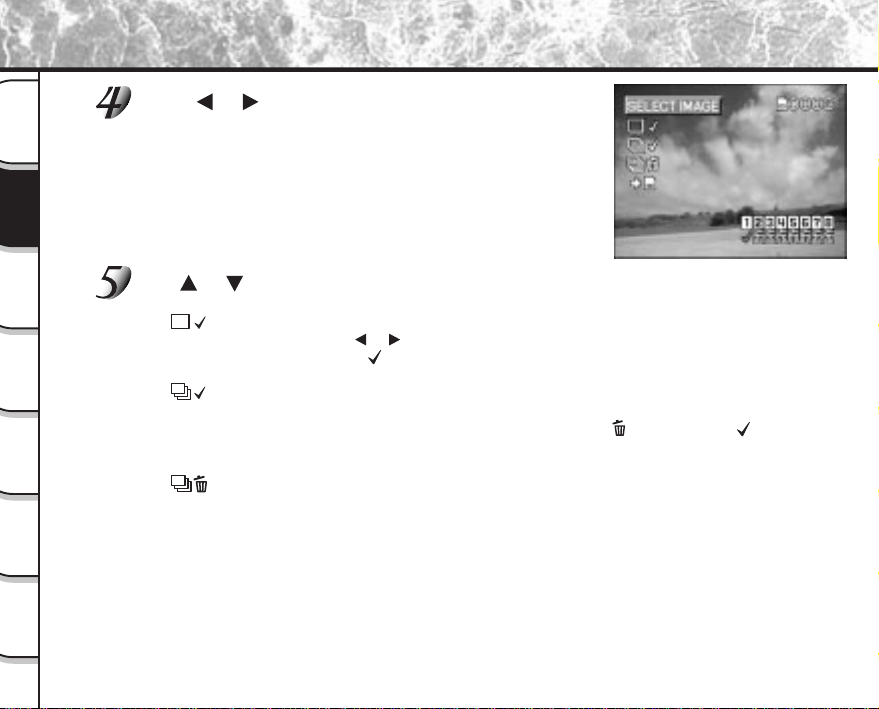
- 62 -
Getting
Ready
Taking
Photographs
Playing
Back Images
Other
Applications
Additional
Information
Erasing
Images
Handy
Functions
Taking Photographs Continuously (continued)
Press or to verify the image.
You will be allowed to choose which image to save before it is
recorded to the SmartMedia™.
The number of photographs stored in the memory is displayed at the
bottom right of the screen, and the number in green is the image
currently displayed.
The green indication also moves as you move the image to be
displayed.
Use or to select the recording method.
The camera is set to erase all images immediately after photography.
1
[
] : This setting is for saving and erasing the selected image.
Press
or to select the image, and press ENTER.
The red
mark appears under the selected image. To cancel selection of the
image, press ENTER again.
2
[ ] : This setting is for saving all images.
Press ENTER.
All images are selected, and all images with turns into a red .
This item cannot be selected if there is not enough space on the
SmartMedia™.
3
[
] : This setting is for erasing all images.
Press ENTER.
1
to
3
can be combined regardless of their order to set saving and erasing of images.
- 63 -
Getting
Ready
Taking
Photographs
Playing
Back Images
Other
Applications
Additional
Information
Erasing
Images
Handy
Functions
Taking Photographs Continuously (continued)
Use to select [ ] and press ENTER.
The image is saved or erased, and the camera is then ready to take photographs.
Memo
• You can also carry out steps 5 and 6 while verifying the image in step 4.
• Even if photography is terminated midway before capturing eight images by releasing the shutter
button, images already photographed can be saved and erased by the above method.
• The photography time varies according to the photographic conditions.
• Self-timer photography and flash photography are not possible.
• The burst photography setting is canceled by the power being turned OFF or the auto power OFF
function working, and the photography mode returns to the 1-shot photography mode.
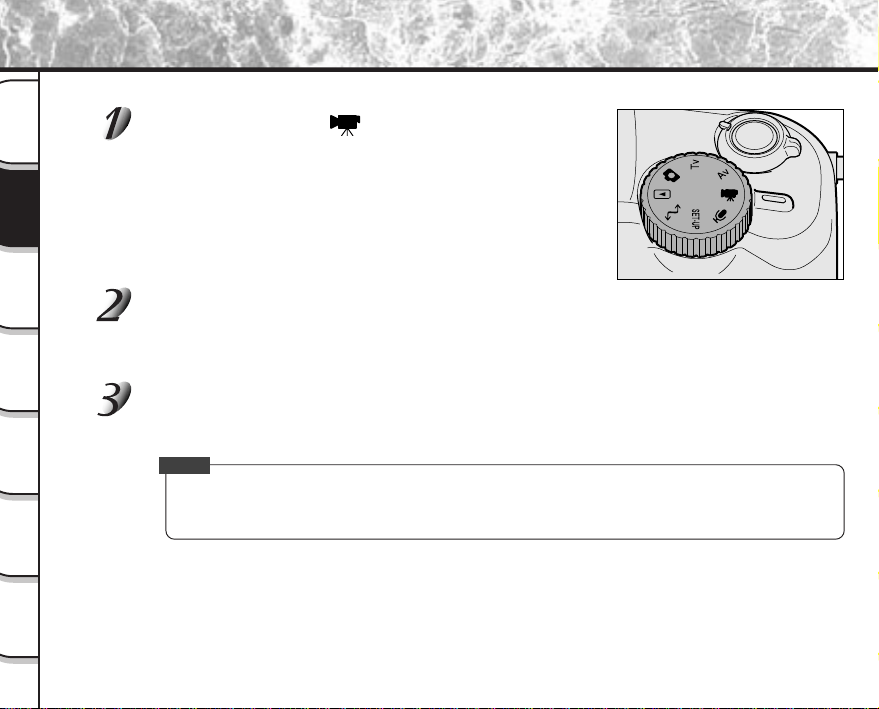
- 64 -
Getting
Ready
Taking
Photographs
Playing
Back Images
Other
Applications
Additional
Information
Erasing
Images
Handy
Functions
Make a movie of moving images. Audio can also be recorded.
Set the mode dial to [ ].
Compose the picture, press the shutter button down half way, and press it down
fully.
➲
Page 41
Photography begins.
The maximum photography time (seconds) appears on the LCD monitor and on the status display.
To stop making movies, press the shutter button down fully again.
If you do not do this, photography is automatically stopped when there is no more free space on the
SmartMedia™, or when the maximum size (16 Mbytes) that a single movie can be recorded is reached.
Memo
• Flash photography is not possible.
• The image size displayed on the LCD monitor becomes Full (320 x 240) or HALF (160 x 120). So, the
image is not displayed on the entire LCD monitor but in the center of the screen.
Making Movies
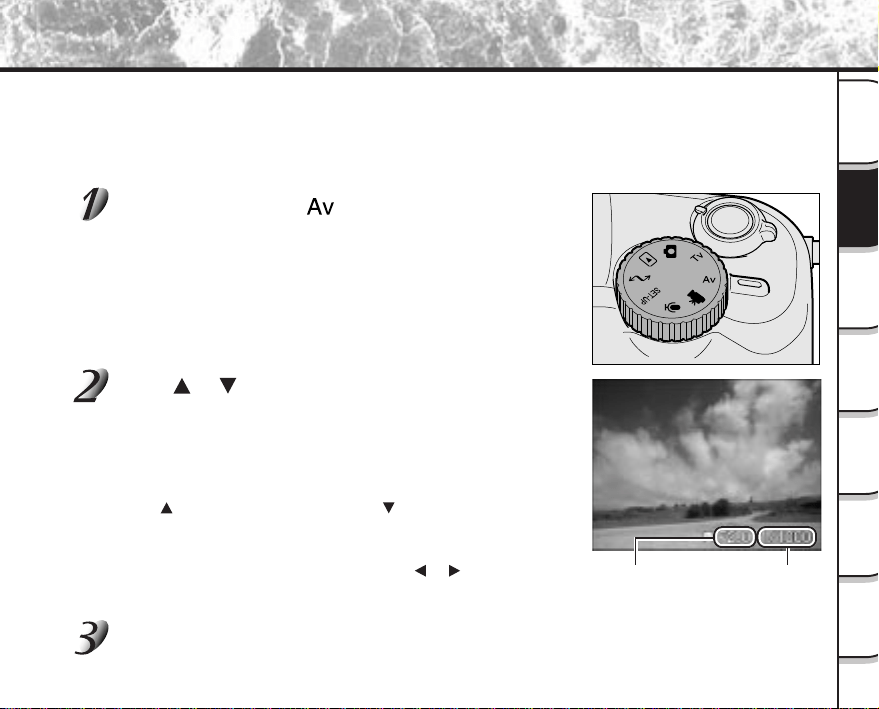
- 65 -
Getting
Ready
Taking
Photographs
Playing
Back Images
Other
Applications
Additional
Information
Erasing
Images
Handy
Functions
In this mode, photographs are taken with the priority given to aperture. The camera automatically sets the shutter
speed according to the aperture.
A small aperture value produces a portrait photo with an out-of-focus background. The smaller the aperture value,
the more out-of-focus the background becomes.
A large aperture value produces sharp images on both close objects and distant objects like landscapes. The
larger the aperture value, the larger the area for sharp images.
Set the mode dial to [ ].
Press or to adjust the aperture value.
The setting range is as follows: F8 / F5.6 / F4 / F2.8 / F2.3 / F2.0
The aperture value and the shutter speed corresponding to that
value are displayed on the LCD monitor. If the appropriate
combination cannot be set even if the shutter speed is adjusted to its
limit, the shutter speed is displayed in red. Photography, however, is
possible in this state.
Press
to reduce aperture size. Press to increase aperture size.
Note: The larger the F value, the smaller the aperture size become
and vice versa.
Exposure compensation (
➲
Page 69) using or , and manual
setting (
➲
Page 72) or film speed setting (
➲
Page 78) using ENTER
are also possible.
Compose the picture, press the shutter button down half way, and press it down
fully.
➲
Page 41
Photography in the Aperture-priority Mode
Aperture value
Shutter speed
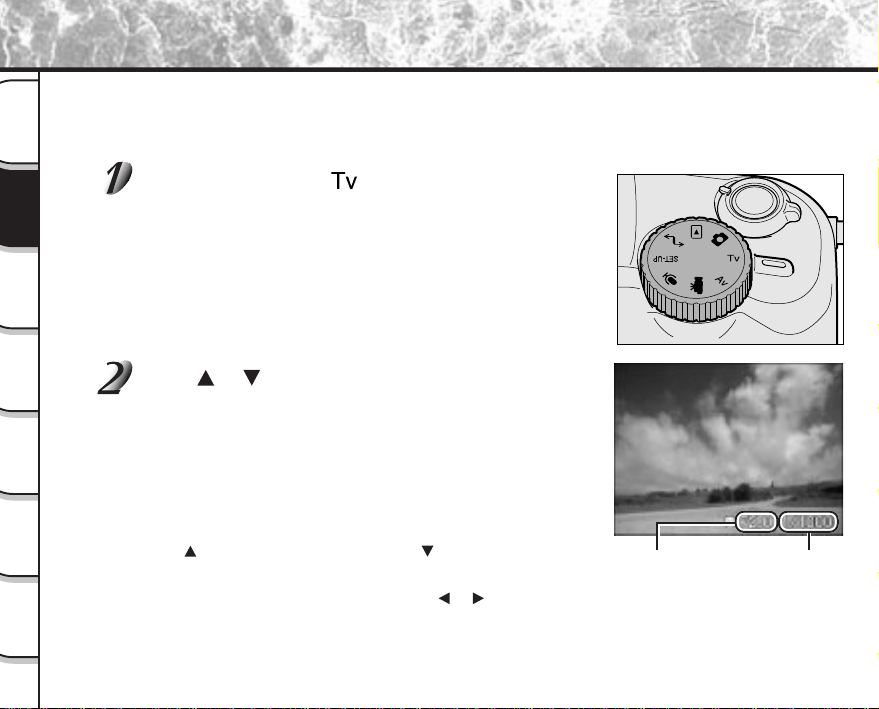
- 66 -
Getting
Ready
Taking
Photographs
Playing
Back Images
Other
Applications
Additional
Information
Erasing
Images
Handy
Functions
In this mode, photographs are taken with the priority given to shutter speed. The camera automatically sets the
aperture value according to the shutter speed.
A fast shutter speed produces a photograph that looks as if a moving subject is still.
A slow shutter speed produces as photograph that makes you feel that it is flowing.
Set the mode dial to [ ].
Press or to adjust the shutter speed.
The setting range is as follows: 1/1000, 1/750, 1/500, 1/350, 1/250,
1/180, 1/125, 1/90, 1/60, 1/45, 1/30, 1/20, 1/15, 1/10, 1/8, 1/6, 1/4,
1/3, 1/2, 1, 2, 4, 8
The shutter speed and the aperture value corresponding to the
shutter speed are displayed on the LCD monitor. If the appropriate
combination cannot be set even if the aperture is adjusted to its limit,
the aperture value is displayed in red. Photography, however, is
possible in this state.
Press to increase shutter speed. Press to decrease shutter
speed.
Exposure compensation (
➲
Page 69) using or , and manual
setting (
➲
Page 72) or film speed setting (
➲
Page 78) using ENTER
are also possible.
Photography in the Shutter speed-priority Mode
Aperture value
Shutter speed
- 67 -
Getting
Ready
Taking
Photographs
Playing
Back Images
Other
Applications
Additional
Information
Erasing
Images
Handy
Functions
Photography in the Shutter speed-priority Mode (continued)
Compose the picture, press the shutter button down half way, and press it down
fully.
➲
Page 41
Memo
• When the shutter speed is set to a speed of 1 sec. or slower, burst photography is not possible as
photographs are taken at a long exposure (
➲
Page 68).
• In AEB photography (
➲
Page 71), the shutter speed cannot be set at 1 second or longer.
• If a mode other than [ ] suppressed flash mode is set in flash photography, the shutter speed is
limited to between 1/2 second and 1/250 second.
• If the shutter speed is set to 1/350 second or less, the shutter speed is automatically changed to 1/250
second if the flash setting is changed to the [
] forced flash mode or [ ] red-eye forced flash
mode.
• If the [
] forced flash or [ ] red-eye forced flash mode is set in flash photography when the shutter
speed is set to a speed of 1 sec. or more, the shutter speed is automatically changed to 1/2 second.
- 68 -
Getting
Ready
Taking
Photographs
Playing
Back Images
Other
Applications
Additional
Information
Erasing
Images
Handy
Functions
This mode is used for taking subjects that require several seconds to photograph such as firework displays at
night. When using this mode, be sure to use a tripod to keep the camera stable and prevent distortion of images.
Set the mode dial to [ ].
Use or to display the shutter speed to [1sec] or more
[ ] is displayed on the LCD monitor.
Compose the picture, press the shutter button down half way, and press it down
fully.
➲
Page 41
The camera takes the picture at the set exposure time.
During the exposure, the viewfinder LED turns orange.
It takes about twice the set time to complete taking the photograph due to processing of the captured
image.
Memo
• Flash photography and burst photography are not possible.
Long Exposure Photography (Bulb Photography)
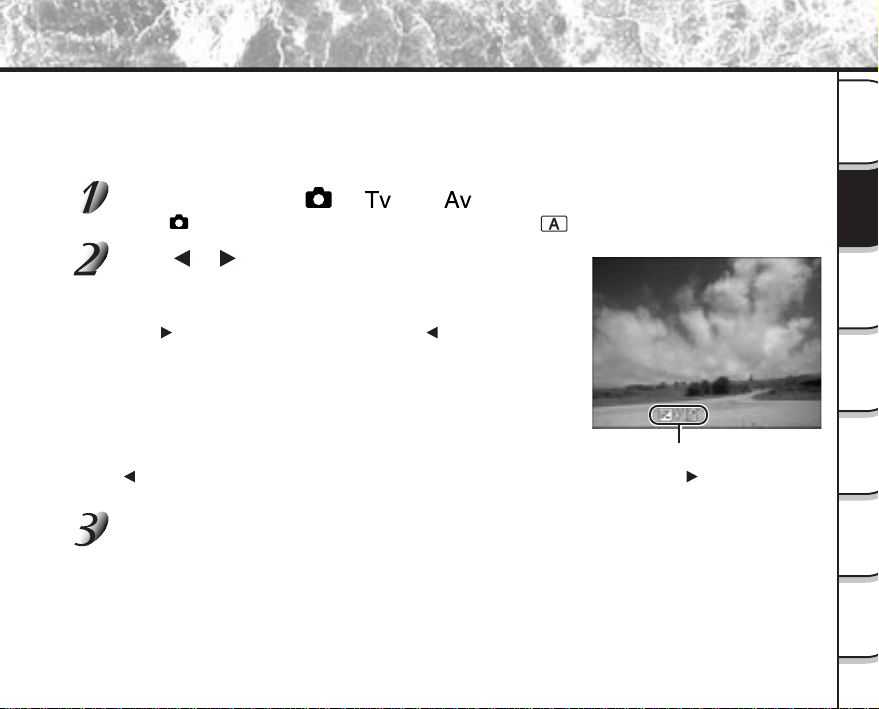
- 69 -
Getting
Ready
Taking
Photographs
Playing
Back Images
Other
Applications
Additional
Information
Erasing
Images
Handy
Functions
Exposure Compensation
Exposure Setting Value
This setting allows you to intentionally lighten or darken the entire image. Use this setting when the optimum
brightness (exposure) cannot be obtained, for example, when the brightness between the subject and the
background is not balanced or when the subject to photograph occupies only an extremely small part of the
screen.
Set the mode dial to [ ], [ ] or [ ].
In the [ ] mode, exposure compensation is possible at the [ ] setting.
Press or to adjust the exposure.
The setting range is as follows. A larger value lightens the exposure,
and a smaller value darkens the exposure.
The value that you set is displayed on the LCD monitor.
Press
to increase (brighten) exposure, and to decrease (darken)
exposure.
(to – side) (to + side)
–1.5 / –1.2 / –0.9 / –0.6 / –0.3 / 0 (default) / +0.3 / +0.6 / +0.9 / +1.2 / +1.5
Compose the picture, press the shutter button down half way, and press it down
fully. ➲ Page 41
The ideal brightness sometimes cannot be obtained even if a large exposure value is set in dark
photographic conditions.
In this case, press the shutter button, and check the brightness in the preview image (photographed still
image). (PREVIEW ➲ Page 77)
- 70 -
Getting
Ready
Taking
Photographs
Playing
Back Images
Other
Applications
Additional
Information
Erasing
Images
Handy
Functions
Exposure Compensation (continued)
Effective Subjects and Set Values
● Positive (+) Compensation
• Copying of printed text (black characters on white paper) (+1.5)
• Backlit portraits (+0.6 to +1.5)
• Very bright scenes (such as snowfields) and highly reflective subjects (+0.9)
• Shots made up predominantly of sky (+0.9)
● Negative (–) Compensation
• Spotlit subjects, particularly against dark backgrounds (–0.6)
• Copying of printed text (white characters on black paper) (–0.6)
• Scenes with low reflectivity, such as shots of green or dark foliage (–0.6)
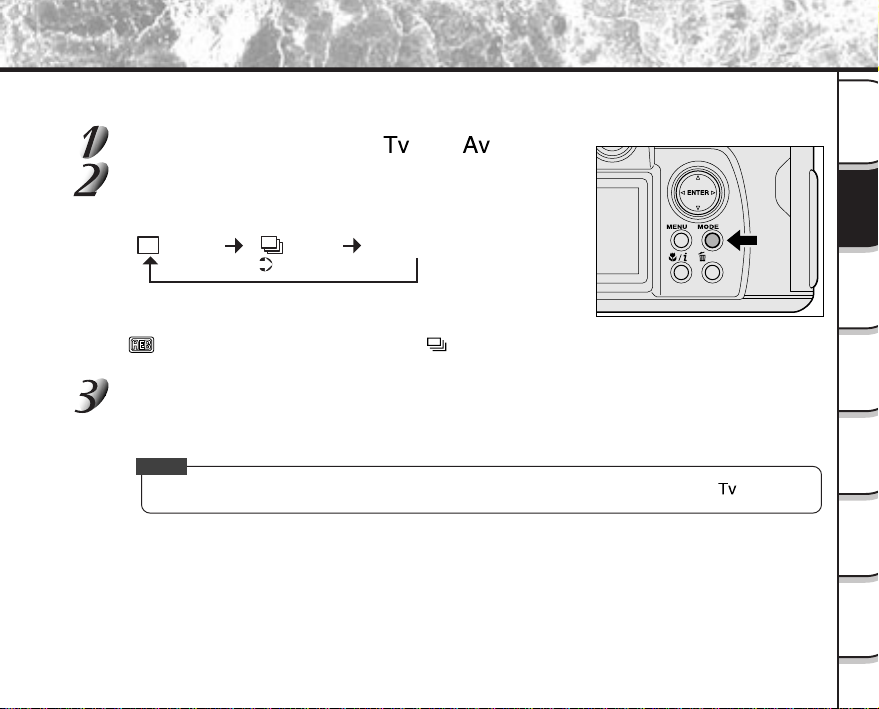
- 71 -
Getting
Ready
Taking
Photographs
Playing
Back Images
Other
Applications
Additional
Information
Erasing
Images
Handy
Functions
The exposure is automatically switched in three stages (–0.3/0/+0.3) when taking photographs.
Set the mode dial to either of [ ] or [ ].
Press the MODE button, and select AEB photography.
Each press of the MODE button switches the photography mode as
follows:
If AEB photography is selected when the shutter speed is set to a
speed of 1 sec. or more, the shutter speed becomes 1/2 sec.
[ ] is displayed on the LCD monitor and [ ] will flash on and
off on the status display.
Compose the picture, press the shutter button down half way, and press it down
fully.
➲
Page 41
The shutter operates three times, and one image is saved for each shutter operation.
Memo
• AEB photography is not possible when the shutter speed is set to 1 sec. or more in the [ ] mode.
Taking Shots With the Automatic Exposure Bracketing (AEB Photography)
[ ] 1-shot [ ] burst
( Page 61)
[AEB] AEB photography
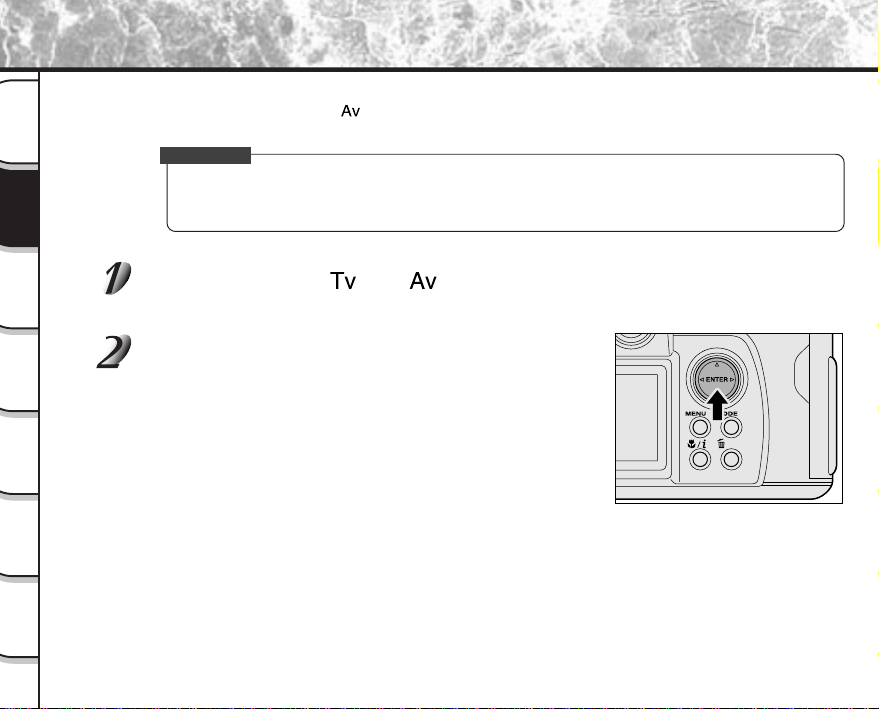
- 72 -
Getting
Ready
Taking
Photographs
Playing
Back Images
Other
Applications
Additional
Information
Erasing
Images
Handy
Functions
You can manually adjust settings such as white balance, AF/AE area (auto-focus/ exposure positions), focus (focal
distance) and external flash setting (in [
] mode only), and take photographs at these settings. Settings made in
this mode are saved even if the camera is turned OFF.
IMPORTANT
• Do not remove or insert the battery or disconnect or connect the AC adapter while the camera is ON.
This might return the manual settings to their defaults. If this happens, manually set the conditions
again.
Set the mode dial to [ ] or [ ].
The manual setting values are displayed on the left of the LCD monitor screen.
Press ENTER.
The manual setting items are displayed.
Other Manual Settings
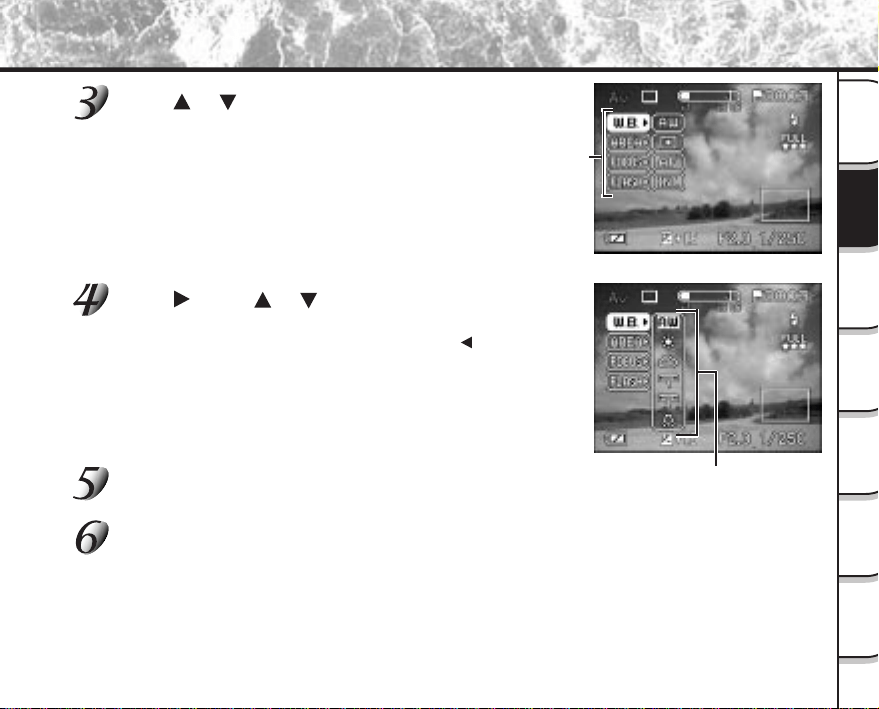
- 73 -
Getting
Ready
Taking
Photographs
Playing
Back Images
Other
Applications
Additional
Information
Erasing
Images
Handy
Functions
Other Manual Settings (continued)
Press or to select the setting item.
Press , press or to select options and press
ENTER.
Pressing ENTER fixes the setting. To cancel, press .
☞
[W.B.] White balance
➲
Page 74
[AREA] AF/AE area
➲
Page 74
[FOCUS] Focus
➲
Page 75
[FLASH] Strobe
➲
Page 75
Press ENTER.
The camera is ready to take photographs.
Compose the picture, press the shutter button down half way, and press it down
fully.
➲
Page 41
The camera takes the picture.
Setting items
Set values
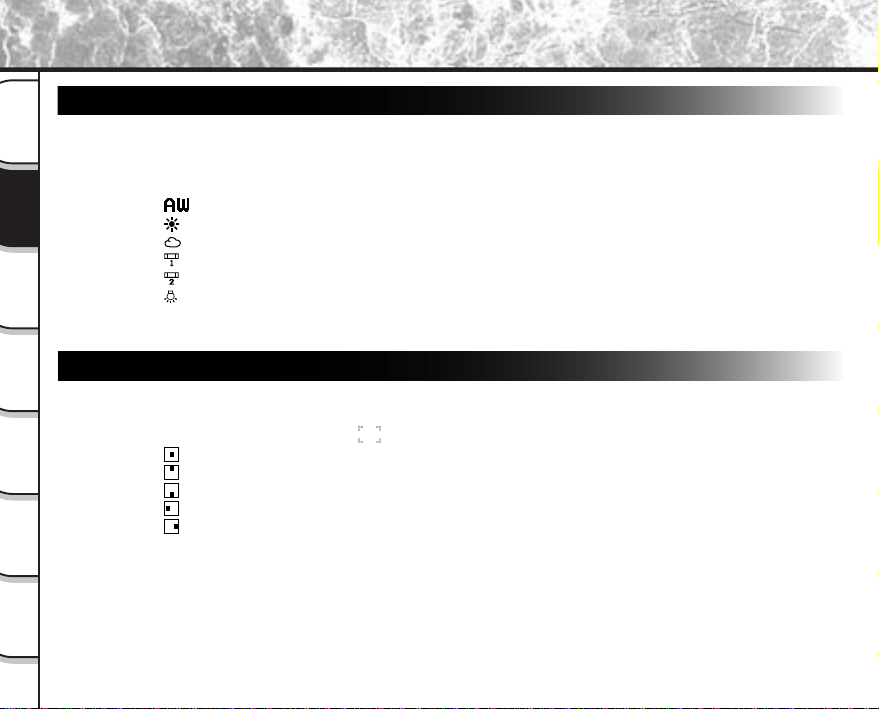
- 74 -
Getting
Ready
Taking
Photographs
Playing
Back Images
Other
Applications
Additional
Information
Erasing
Images
Handy
Functions
White Balance (W.B.)
☞
White Balance
➲
Additional Information, Glossary
The camera determines the white balance by averaging the various kinds of light that actually enters the
lens. This setting allows you to set in advance the white balance when taking photographs under
specific lighting conditions.
[ ] : Automatic adjustment (default)
[
] : Photography outdoors
[
] : Photography in cloudy conditions
[
] : Photography in bluish fluorescent light
[
] : Photography in reddish fluorescent light
[
] : Photography in incandescent light
AF/AE area (AREA)
This setting allows you to set which part of the screen to focus to when the shutter button is pressed half
way to activate AF and AE (
➲
Additional Information, Glossary).
The area set to the LCD monitor
is displayed when the shutter button is pressed down half way.
[
] : Center (default)
[
] : Up
[
] : Down
[
] : Left
[
] : Right
Other Manual Settings (continued)
- 75 -
Getting
Ready
Taking
Photographs
Playing
Back Images
Other
Applications
Additional
Information
Erasing
Images
Handy
Functions
Other Manual Settings (continued)
Focus (FOCUS)
Sets the focusing method.
[AF] : Automatically adjusts the focus. (default)
[
] : Fixes the focus at infinity.
Strobe (FLASH)
Change this setting when an external flash (sold separately) is to be used. This setting is displayed in the
[
] mode. When [EXT.] is set, the built-in flash does not fire.
When an external flash is used, the camera’s shutter speed is fixed to 1/125 sec.
Referring to the instruction manual for the external flash you are using, adjust the camera’s aperture and
take photographs with the distance up to the subject adjusted.
[INT.] : Built-in flash is used (default)
[EXT.] : External flash is used
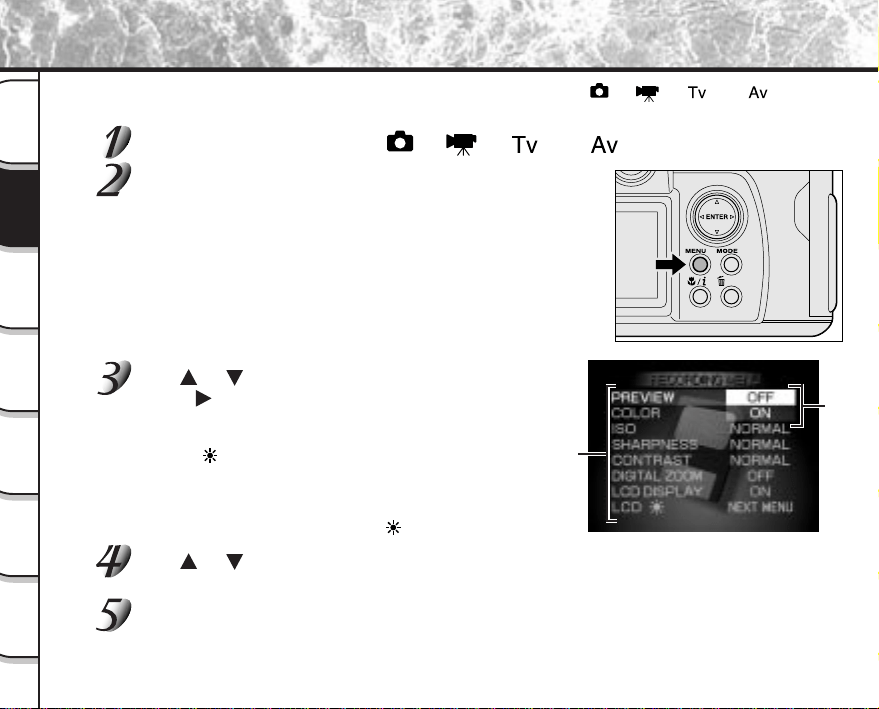
- 76 -
Getting
Ready
Taking
Photographs
Playing
Back Images
Other
Applications
Additional
Information
Erasing
Images
Handy
Functions
Changing the Preset Conditions (RECORDING MENU)
This menu is for setting the basic settings to be used for photography in the [ ], [ ], [ ] or [ ]
photography modes.
Set the mode dial to one of [ ], [ ], [ ] or [ ].
Press the MENU button.
The RECORDING MENU is displayed.
Use or to select the desired item
1
and
press
.
The options
2
are displayed.
Note: The image appearing through the lens will be displayed
for [LCD ].
☞
PREVIEW
➲
Page 77 COLOR
➲
Page 77
ISO
➲
Page 78 SHARPNESS
➲
Page 78
CONTRAST
➲
Page 78 DIGITAL ZOOM
➲
Page 79
LCD DISPLAY
➲
Page 79 LCD
➲
Page 79
Use or to select the desired setting from the tab menu
2
, and press ENTER.
This saves the settings, and returns the display to the RECORDING MENU.
To quit the RECORDING MENU, press the MENU button.
The camera is now ready to take photographs.
2
Options
1
Item
- 77 -
Getting
Ready
Taking
Photographs
Playing
Back Images
Other
Applications
Additional
Information
Erasing
Images
Handy
Functions
PREVIEW
This setting allows you to display a photographed image on the LCD monitor for two seconds
immediately after you have taken the shot.
This allows you to check the composition and brightness of the photographed image.
Note, however, that detailed areas are sometimes not sharp as the resolution of preview images is low. To
check detailed areas and focus, check it in the [ ] playback mode (
➲
Page 80).
To cancel preview, press the shutter button half way down again.
The three images that you took are displayed for about two seconds each in the AEB photography mode
(
➲
Page 71)
[OFF] : Do not display preview (default)
[ON] : Display preview
COLOR
Set the color of the image to be photographed.
[STANDARD] : Standard color (default)
[VIVID] : Vivid color
[MONOCHROME] : Black and white
[SEPIA] : Sepia
Changing the Preset Conditions (RECORDING MENU) (continued)
- 78 -
Getting
Ready
Taking
Photographs
Playing
Back Images
Other
Applications
Additional
Information
Erasing
Images
Handy
Functions
Changing the Preset Conditions (RECORDING MENU) (continued)
ISO
Sets the color mode and photographic sensitivity at which the image is to be recorded.
Warning: Noise increases when the ISO is changed to higher settings.
[NORMAL] : Equivalent to color ISO100 (default)
[2X] : High-sensitive photography equivalent to color ISO200
(
*
)
[4X] : High-sensitive photography equivalent to color ISO400
(
*
)
(
*
)
In the [ ] mode
The ISO setting will be automatic between ISO100 and ISO200. During [4X], ISO will be automatic
between ISO100 to ISO400.
SHARPNESS
Sets the sharpness at which the image is to be recorded.
[NORMAL] : Normal sharpness (default)
[SOFT] : Soft effect
[HARD] : Hard effect
CONTRAST
Sets the contrast of the image to be photographed.
[NORMAL] : Automatic (standard) setting (default)
[STRONG] : Strong contrast
[SOFT] : Soft contrast
- 79 -
Getting
Ready
Taking
Photographs
Playing
Back Images
Other
Applications
Additional
Information
Erasing
Images
Handy
Functions
Changing the Preset Conditions (RECORDING MENU) (continued)
DIGITAL ZOOM
Enlarges the center of the screen and takes photographs with apparent effect that the focal distance is
set to twice the distance.
☞
Zoom Photography
➲
Page 54
[ON] : Enables digital zoom photography.
[OFF] : Disables digital zoom photography. (default)
LCD DISPLAY
Sets whether or not to display images on the LCD monitor.
The LCD monitor automatically turns ON in macro photography, digital zoom photography and movie
photography.
[ON] : Display (default)
[OFF] : Do not display
LCD
Adjusts the brightness of the LCD monitor. This adjustment does not adjust the brightness of the image
to be recorded.
[–5] to [+5]
☞
To adjust the brightness of the LCD monitor
➲
Page 119
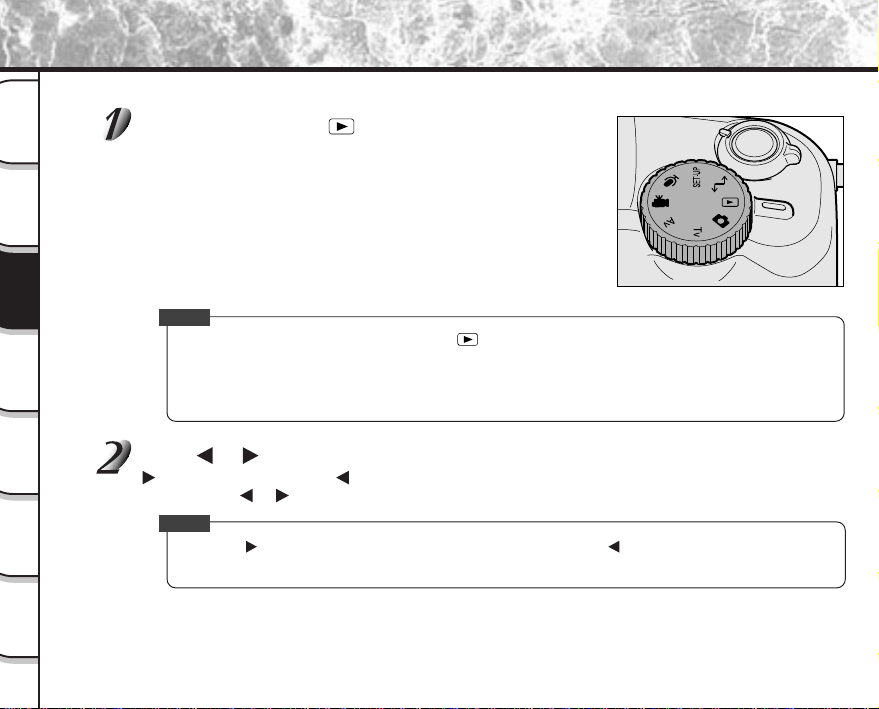
- 80 -
Getting
Ready
Taking
Photographs
Playing
Back Images
Other
Applications
Additional
Information
Erasing
Images
Handy
Functions
Playing Back Photographed Images (Single-Frame Playback)
Play back photographed still images one image at a time.
Set the mode dial to [ ].
The last recorded image appears on the LCD monitor.
☞
To adjust the brightness of the LCD monitor
➲
Page 119
Changing the LCD monitor display
➲
Page 88
Memo
• When the mode dial setting is changed to [ ] immediately after taking a moving image, press the
MODE button to change the selection of the folder to play back. If the image is played back without the
folder selection changed, the images of the movie folder are displayed. Each press of the MODE button
toggles the selection of the folder to play back between still image folder and movie folder.
☞
For details of folder to play back (
➲
Page 89)
Press or to move forward and reverse.
to advance to next frame/ to go back one frame
Holding down
or moves forward or reverse continuously.
Memo
• Pressing at the last image displays the first image, and pressing at the first image displays the last
image.
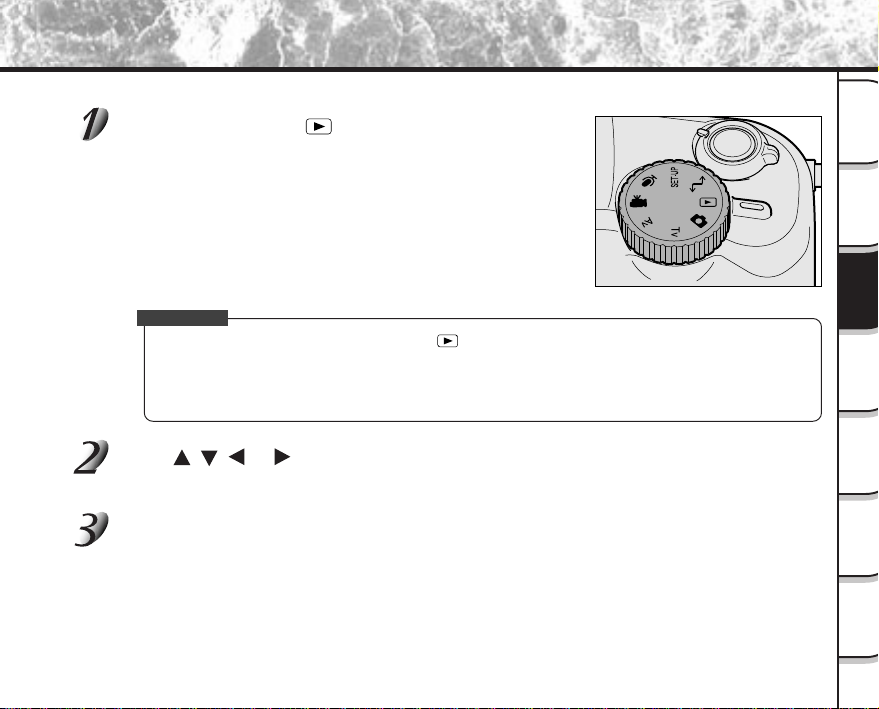
- 81 -
Getting
Ready
Taking
Photographs
Playing
Back Images
Other
Applications
Additional
Information
Erasing
Images
Handy
Functions
Playing Back Movies
Play back movies that you have recorded. Audio can also be played back.
Set the mode dial to [ ].
Movies are displayed as thumbnails on the LCD monitor. (
➲
Page 84)
☞
To adjust the brightness of the LCD monitor
➲
Page 119
IMPORTANT
• When the mode dial setting is changed to [ ] immediately after taking a still image, press the MODE
button to change the selection of the folder to play back. If the image is played back without the folder
selection changed, the images of the still image folder are displayed. Each press of the MODE button
toggles the selection of the folder to play back between still image folder and movie folder.
☞
For details of folder to play back (
➲
Page 89)
Press , , or to select the movie to play back.
The cursor is at the image surrounded by the green frame.
Pressing the buttons continuously moves the cursor continuously.
Press ENTER.
The selected moving image data is displayed.
☞
Changing the LCD monitor display
➲
Page 88
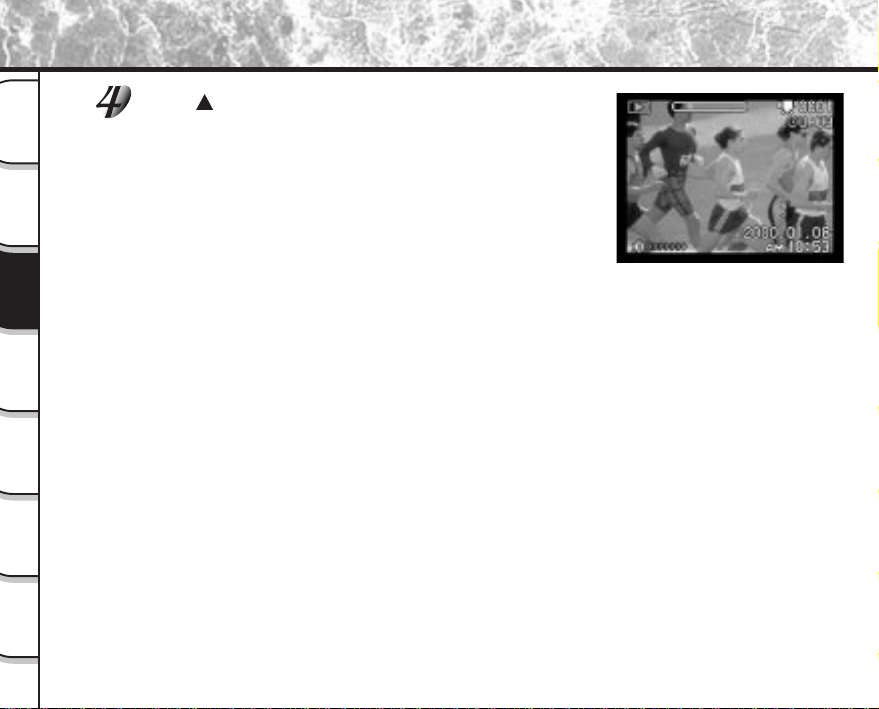
- 82 -
Getting
Ready
Taking
Photographs
Playing
Back Images
Other
Applications
Additional
Information
Erasing
Images
Handy
Functions
Playing Back Movies (continued)
Press .
Playback of the movie begins.
The user can control playback by pressing various buttons during
playback or during a pause.
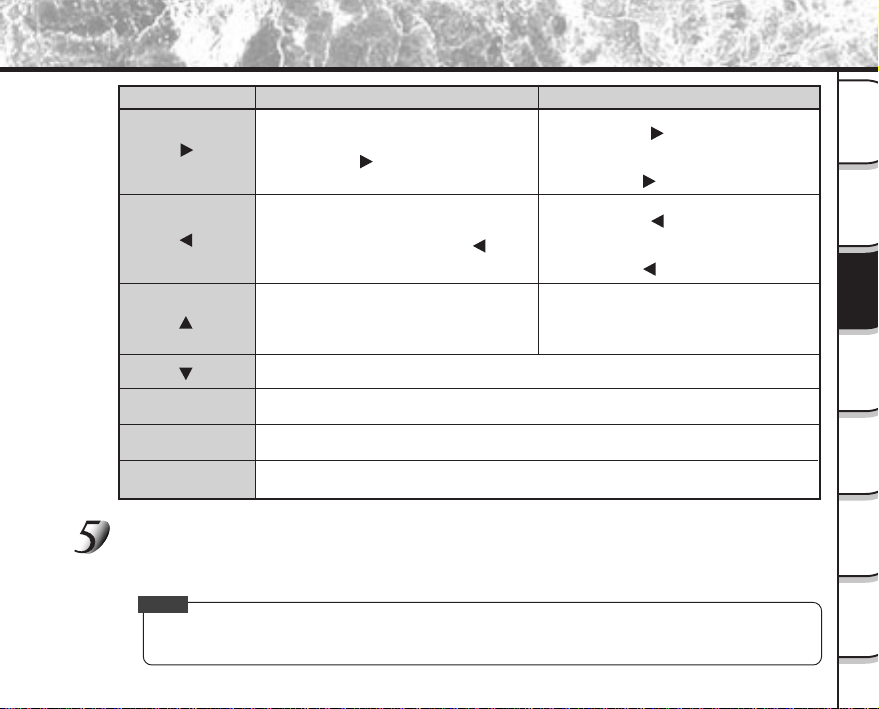
- 83 -
Getting
Ready
Taking
Photographs
Playing
Back Images
Other
Applications
Additional
Information
Erasing
Images
Handy
Functions
During playback
During pause
2x-speed playback
• 2x-speed playback is performed for the
duration that
is held down.
Canceling pause
• After pause is cancelled, playback
resumes at the last state that was
active before the pause.
Pause
• Playback is paused in any playback
state.
Stop
The display returns to thumbnail playback.
Reverse playback
• Playback becomes 2x-speed reverse
playback for the duration that
is held
down.
1-frame feed
• Each press of
feeds the image by
one frame.
• 1-frame feed is continued for the
duration that
is held down.
Reverse 1-frame feed
• Each press of feeds the image in
reverse by one frame.
• 1-frame feed is continued for the
duration that
is held down.
Stop
Playback returns to the start of the movie.
Increases the volume.
Decreases the volume.
ENTER
Pressing the Zoom
switch to “T”
To play back another movie, press ENTER.
The LCD monitor returns to the thumbnail display.
Memo
• The image size displayed on the LCD monitor becomes Full (320 x 240) or HALF (160 x 120). So, the
image is not displayed on the entire LCD monitor but in the center of the screen.
Playing Back Movies (continued)
Pressing the Zoom
switch to “W”
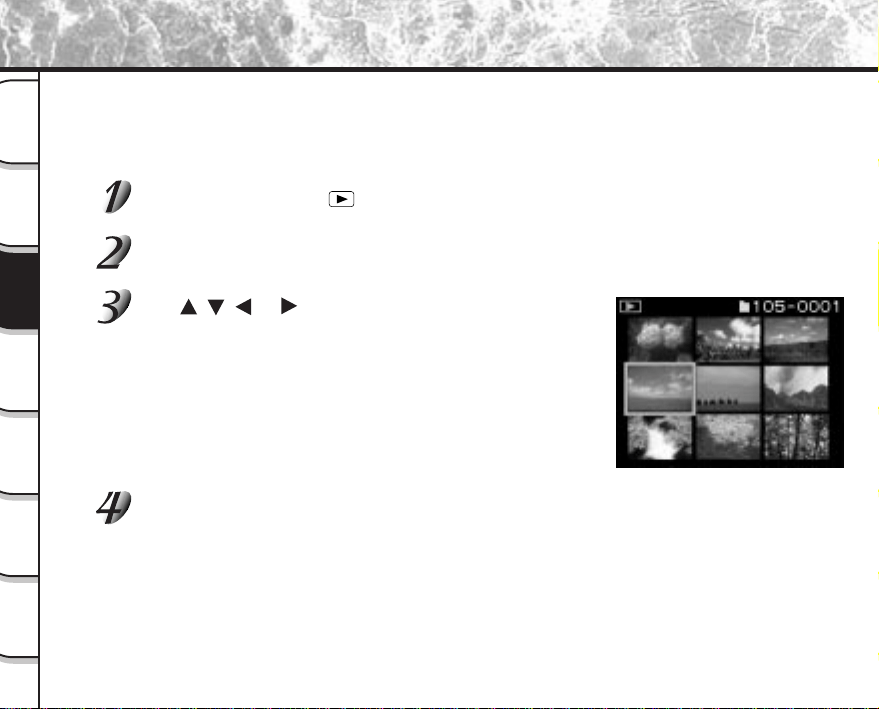
- 84 -
Getting
Ready
Taking
Photographs
Playing
Back Images
Other
Applications
Additional
Information
Erasing
Images
Handy
Functions
Displaying a List of Images (Thumbnail Display)
Nine reduced images are simultaneously displayed on the LCD monitor. This manual calls this display “thumbnail
display.”
This feature is useful, for example, when there are many images recorded in the SmartMedia™. After you have
displayed the thumbnail display, you can select the desired image and display it in the regular display.
In the movie playback mode, the thumbnail display is the standard display. (
➲
Page 81)
Set the mode dial to [ ].
The last image frame appears on the LCD monitor.
Press ENTER.
Nine images are displayed simultaneously.
Use , , or to move the cursor to select the
image to be displayed at regular size.
The cursor is at the image surrounded by the green frame.
Pressing the buttons continuously moves the cursor continuously.
Press ENTER.
The selected image is displayed at its regular size.
When the selected image is a movie, see “Playing Back Movies” (
➲
Page 81).
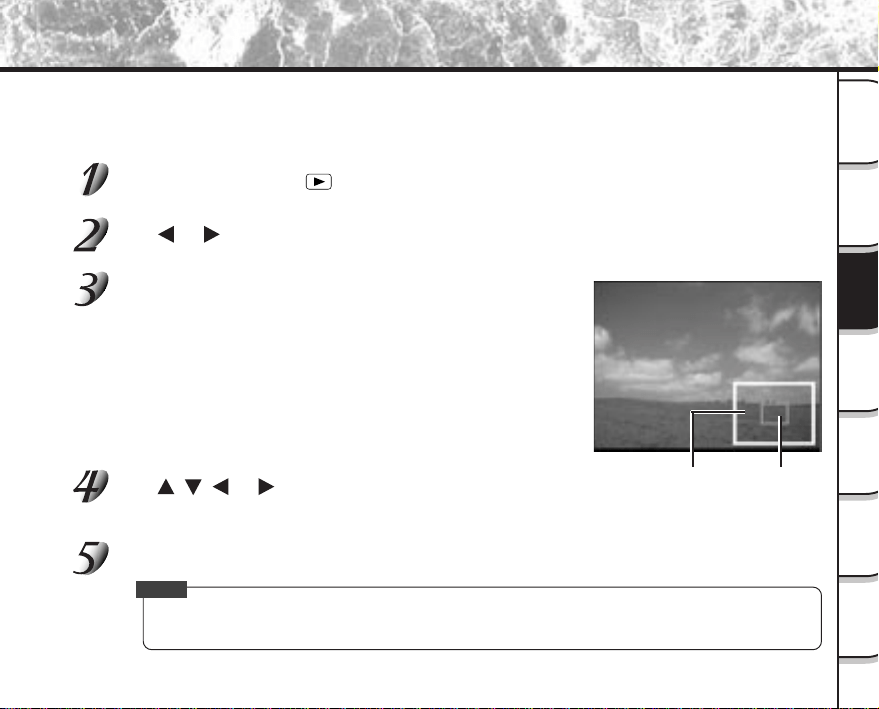
- 85 -
Getting
Ready
Taking
Photographs
Playing
Back Images
Other
Applications
Additional
Information
Erasing
Images
Handy
Functions
Enlarging Photographed Images (Zoom Playback)
Entire image Current
position of
enlargement
Enlarges selected portions of images being played back 1.6 times or 3.2 times actual size. Images can be
displayed enlarged when being played back one image at a time.
Movies and images photographed in the multi mode (
➲
Page 53) cannot be displayed using the zoom playback
feature.
Set the mode dial to [ ].
The last image frame appears on the LCD monitor.
Use or to select the frame you want to enlarge.
You can also select the image by the same operation as for thumbnail playback (
➲
Page 84).
Adjust the zoom ratio by the Zoom switch.
Pressing the Zoom switch to the “T” will enlargen the image initially to
1.6X and to 3.2X when pressed again.
To return to normal magnification, press the Zoom switch towards
“W”.
The image is displayed enlarged, and a white frame and green frame
are displayed on the LCD monitor.
The white frame indicates the entire image, while the green frame
shows the location of the currently enlarged area.
Use , , or to select the area to enlarge.
Adjust the display area to enlarge while viewing the white and green
frames.
To return to the regular display, press ENTER.
Memo
• The scale applied during zoom playback is the scale applied when the photograph is taken on this
camera. When you play back an image taken on another camera, the scale to be applied may vary.
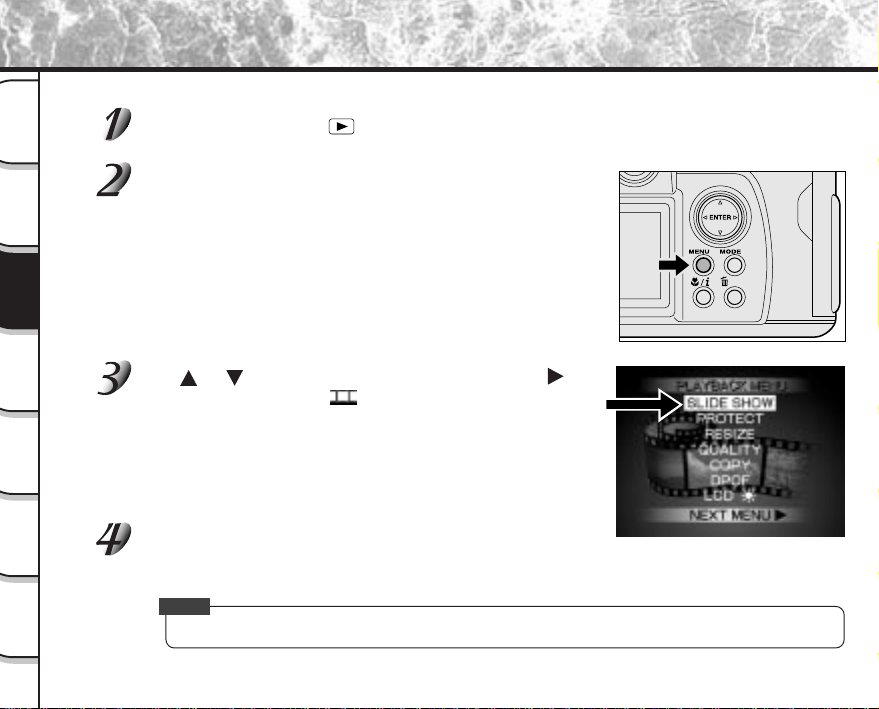
- 86 -
Getting
Ready
Taking
Photographs
Playing
Back Images
Other
Applications
Additional
Information
Erasing
Images
Handy
Functions
Auto Playback (Slideshow)
Automatically play back one image at a time in order. This feature is not supported in the movie mode.
Set the mode dial to [ ].
The last image frame appears on the LCD monitor.
Press the MENU button.
The PLAYBACK MENU is displayed.
Use or to select [SLIDE SHOW] and press .
The slideshow begins and [ ] is displayed on the LCD monitor.
The next image is displayed every three seconds.
When a movie folder is selected for playback, an error message is
displayed, and the screen returns to the PLAYBACK MENU.
☞
Selecting Folders (
➲
Page 89)
To quit the slideshow, press ENTER.
The LCD monitor displays the image when ENTER is pressed.
The slideshow is repeated until ENTER is pressed.
Memo
• The Auto Power OFF function does not operate during automatic playback.
- 87 -
Getting
Ready
Taking
Photographs
Playing
Back Images
Other
Applications
Additional
Information
Erasing
Images
Handy
Functions
Playback of Multi Image Pictures
Automatically plays back the 36 images photographed in the multi photography mode like an animation.
Set the mode dial to [ ].
The last image frame appears on the LCD monitor.
Use or to select the images photographed in the multi photography mode.
You can also select the image by the same operation as for thumbnail display (
➲
Page 84).
Press the Zoom switch towards “T” to begin playback.
Automatic playback begins.
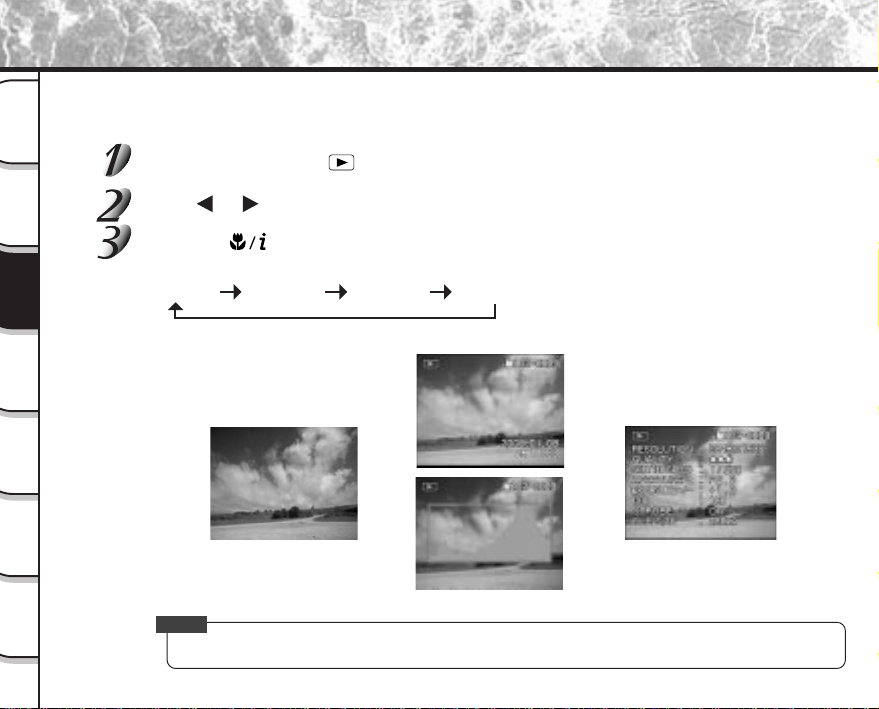
- 88 -
Getting
Ready
Taking
Photographs
Playing
Back Images
Other
Applications
Additional
Information
Erasing
Images
Handy
Functions
Switching Displays/Displaying Image Information
This item switches the display on the LCD monitor when playing back photographed images. You can switch the
display to show a list of detailed information (size, compression ratio, shutter speed, aperture, etc.) or you can
display histograms, etc.
Set the mode dial to [ ].
Press or to select the image.
Press the macro/info button.
Each press of the macro/info button switches the display format as follows:
Standard
Detailed
information
Image onlyHistogram
Memo
• When playing back movie images, switching is between standard and image only.
<Standard>
<Detailed information>
<Histogram>
<Image only>
➡
➡
➡
➡
- 89 -
Getting
Ready
Taking
Photographs
Playing
Back Images
Other
Applications
Additional
Information
Erasing
Images
Handy
Functions
Images photographed on this camera are recorded to the [100TOSHI] folder in the case of still images
and to the [
] folder in the case of moving images (movies). You cannot set which folder to store
images to as you like. The [100TOSHI] folder is created when you have photographed still images, and
the [ ] folder is created when you have photographed moving images.
When playing back images, the folder to play back changes according to whether the image is a still
image or a movie. When the [ ] mode is entered, a folder corresponding to the previous mode dial
setting is selected. To switch between still image and movies, press the MODE button in the [
]
mode.
In the case of still images, when the images number reaches the largest number (9999), a new folder
[101TOSHI] is created. When there are two or more [xxxTOSHI] folders, the playback folder default is the
folder assigned the largest “xxx” value.
When a SmartMedia™ that is formatted or contain images taken with another camera is used on this
camera, [xxxTOSHI] or [ ] is created, and the data of the photographed images is recorded to this
folder.
[xxxTOSHI]
Indicates the folder used by this camera.
The largest number is automatically assigned according to the status of the existing folders.
To view images photographed on this camera, select [xxxTOSHI] or [
].
Memo
• To play back images photographed by another camera, select the desired [xxxAAAA] folder.
The folder [xxxAAAA] is created for each camera.
• Images currently recorded to these folders can only be played back.
• Sometimes the size of the image prevents it from being played back.
• Images cannot be played back unless the file name and folder name are set correctly.
About Folders
Same as above
Varies according to
camera brand
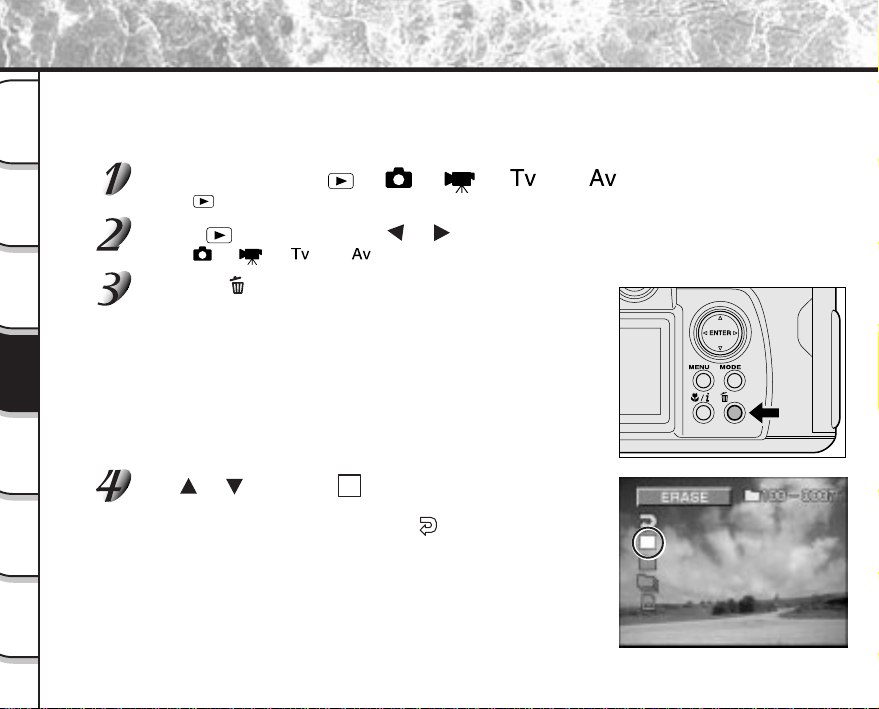
- 90 -
Getting
Ready
Taking
Photographs
Playing
Back Images
Other
Applications
Additional
Information
Erasing
Images
Handy
Functions
Erases images one image at a time.
Note: Images cannot be erased when they are protected (
➲
Page 107) or the SmartMedia™ is write-protected (
➲
Page 35).
Set the mode dial to [ ], [ ], [ ], [ ] or [ ].
When [ ] is selected, the last image frame or the thumbnail display appears on the LCD monitor.
When [ ] is selected, use or to select the image to be erased.
When [ ], [ ], [ ] or [ ] is selected, only the last recorded image can be erased.
Press the erase button.
The erase icon is displayed at the left of the screen.
Use or to select [ ], and press ENTER.
This erases the image and returns to the previous mode.
To cancel erasing of image data, select [
].
Erasing Images (Erase Frame)
- 91 -
Getting
Ready
Taking
Photographs
Playing
Back Images
Other
Applications
Additional
Information
Erasing
Images
Handy
Functions
Erasing Images (Erase Frame) (continued)
To continue erasing images, repeat the above procedure from step 2.
Memo
• When [PROTECTED] is displayed on the LCD monitor, cancel the protection (
➲
Page 109) or remove
DPOF write-protection (
➲
Page 103).
• If you take a photograph after erasing an image, a number continuing from the last photographed
image is assigned as the image number.
• Images can also be erased in the thumbnail mode. In this case, the camera enters the single frame
playback (frame playback) mode, and enters the thumbnail playback mode after the image is erased.
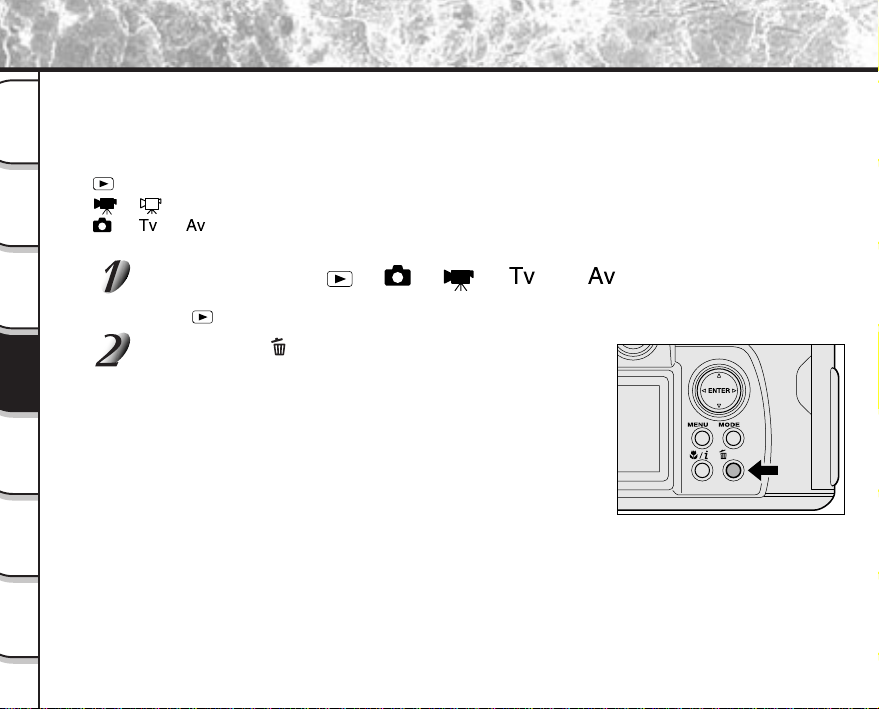
- 92 -
Getting
Ready
Taking
Photographs
Playing
Back Images
Other
Applications
Additional
Information
Erasing
Images
Handy
Functions
Erases images in image folders currently recorded to the SmartMedia™ loaded on your camera. There are two
ways of erasing images, by individual folders or by all folders (still images only).
Note: Images cannot be erased when they are protected (
➲
Page 107) or when the SmartMedia™ is write-
protected (
➲
Page 35).
The folder to be erased differs according to the position of the mode dial.
[ ] : Folder of images currently being played back
[ ] : folder
[ ], [ ], [ ] : Folder of images currently being photograph
☞
About Folders
➲
Page 89
Set the mode dial to [ ], [ ], [ ], [ ] or [ ].
Set the mode dial to the type of folder you want to erase.
When [
] is selected, the last image frame or the thumbnail display appears on the LCD monitor.
Hold down the erase button for two seconds.
The erase icon is displayed at the left of the screen.
Erasing Folders (All Images in a Folder/All Still Images)
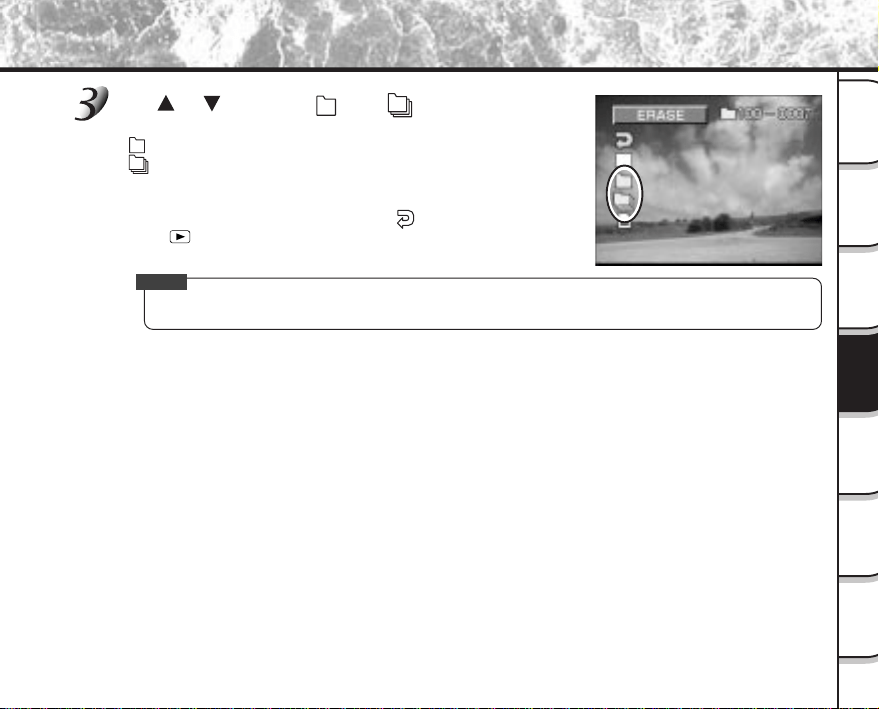
- 93 -
Getting
Ready
Taking
Photographs
Playing
Back Images
Other
Applications
Additional
Information
Erasing
Images
Handy
Functions
Use or to select [ ] or [ ] and press
ENTER.
[ ] : Erases images in the currently selected folder and folders.
[
] : Erases all still image folders.
The images or folders are erased, and the camera returns to the
respective mode.
To cancel erasing of image data, select [
].
When [
] is selected, [NO IMAGE] is displayed after the images are
erased (unless the SmartMedia™ contains protected images).
Memo
• When all images in a folder are erased, that folder also is erased.
Erasing Folders (All Images in a Folder/All Still Images) (continued)
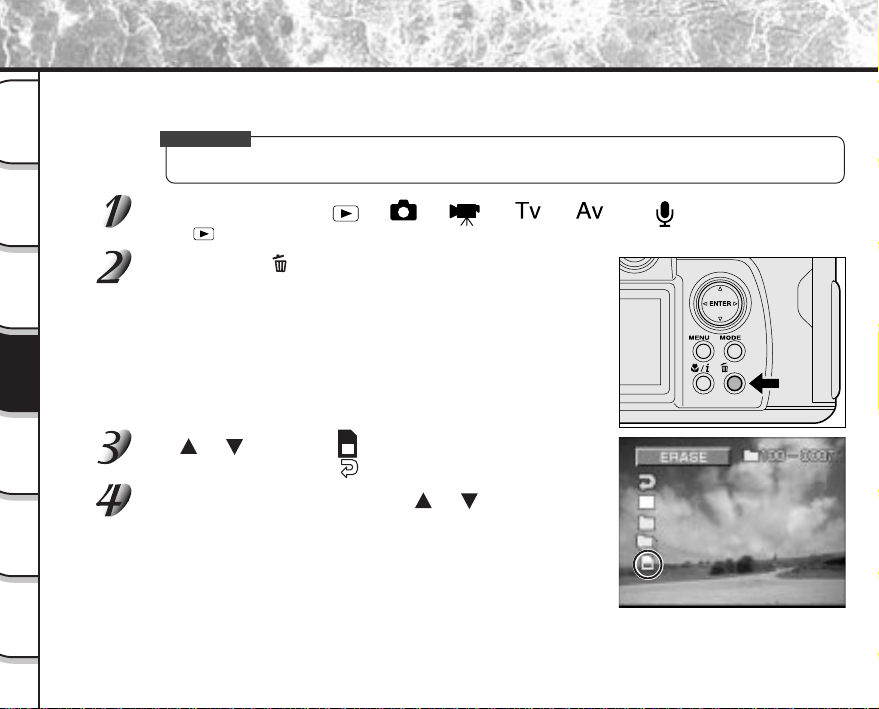
- 94 -
Getting
Ready
Taking
Photographs
Playing
Back Images
Other
Applications
Additional
Information
Erasing
Images
Handy
Functions
Formatting erases all images currently recorded on the SmartMedia™ loaded on your camera. Protected images
(
➲
Page 107) are also erased. SmartMedia™ cannot be formatted if it is write-protected (
➲
Page 35).
IMPORTANT
• The SmartMedia™ must be formatted on the camera before use.
Set the mode dial to [ ], [ ], [ ], [ ], [ ] or [ ].
When [ ] is selected, the last image frame or the thumbnail display appears on the LCD monitor.
Hold down the erase button for two seconds.
The erase icon is displayed at the left of the screen.
Use or to select [ ], and press ENTER.
To cancel formatting, select [ ].
To reset the image number, use or to select
[EXECUTE], and press ENTER.
To cancel resetting of image numbers, select [CANCEL].
Formatting the SmartMedia™
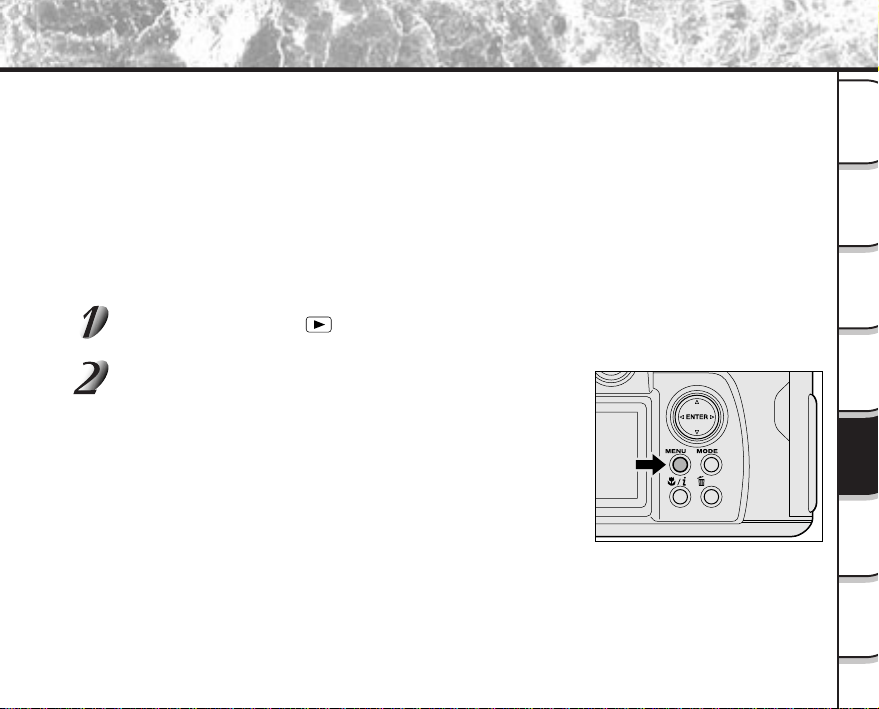
- 95 -
Getting
Ready
Taking
Photographs
Playing
Back Images
Other
Applications
Additional
Information
Erasing
Images
Handy
Functions
Reducing the Image Size (Resize)
Changes the size of FULL size (2048 x 1536 pixels) images to half the size (1024 x 768 pixels) in the horizontal and
vertical directions, and overwrites the old FULL size image with the new size image. This is called “resizing” in this
manual.
Resizing a previously saved image when the SmartMedia™ has run out of storage space during photography
increases space on SmartMedia™ so that you can continue taking photographs.
The following images cannot be resized:
• HALF size images
• Images taken with another camera
• Images taken in the multi photography mode
• Protected images (
➲
Page 107)
• Movies
• Images cannot also be resized when the SmartMedia™ is write-protected.
Set the mode dial to [ ].
The last image frame appears on the LCD monitor.
Press the MENU button.
The PLAYBACK MENU is displayed.
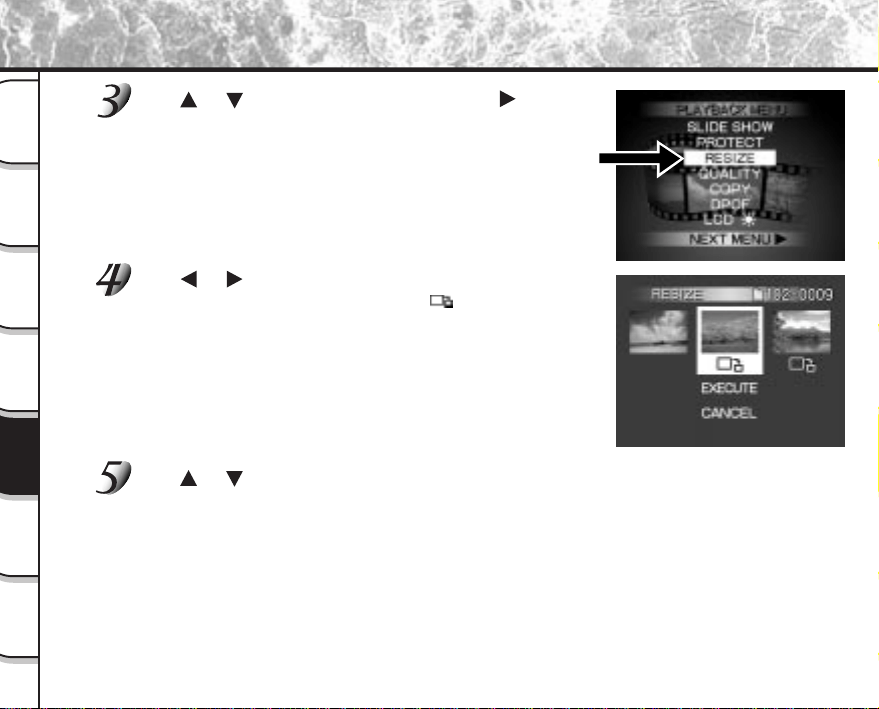
- 96 -
Getting
Ready
Taking
Photographs
Playing
Back Images
Other
Applications
Additional
Information
Erasing
Images
Handy
Functions
Reducing the Image Size (Resize) (continued)
Use or to select [RESIZE] and press .
The RESIZE menu is displayed.
If there are no images that can be resized, or if a movie folder is
selected, a message appears on screen and the screen returns to
the PLAYBACK MENU.
☞
Selecting Folders (
➲
Page 89)
Use or to select the image and press ENTER.
This fixes the image to be displayed, and [ ] is displayed under
the image.
To cancel the selection, press ENTER again.
If you want to resize two or more images, repeat the procedure for
the necessary number of images.
When the Zoom switch is pressed toward “T” during image selection,
the image is displayed to fit the entire screen. To redisplay the
original image, move the Zoom switch towards the “W”.
Use or to select [EXECUTE], and press ENTER.
The screen indicating that the image is being resized appears.
To quit resizing, select [CANCEL].
When resizing ends, the screen returns to the PLAYBACK MENU.
To quit the PLAYBACK MENU, press the MENU button.
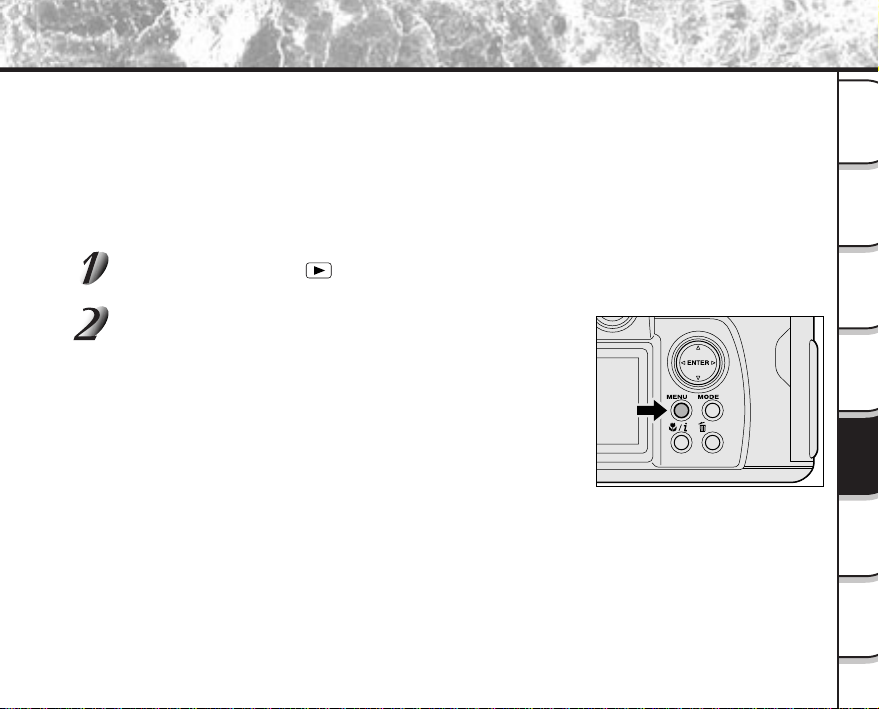
- 97 -
Getting
Ready
Taking
Photographs
Playing
Back Images
Other
Applications
Additional
Information
Erasing
Images
Handy
Functions
Compressing Images (Quality)
Compresses images to half their size, and overwrites the old size image with the new compressed image.
Compressing a previously saved image when the SmartMedia™ has run out of storage space during photography
increases space on SmartMedia™ so that you can continue taking photographs.
The following images cannot be compressed:
•[★] (BASIC) image quality images
• Images taken with another camera
• Protected images (
➲
Page 107)
• Movies
• Images cannot also be compressed when the SmartMedia™ is write-protected.
Set the mode dial to [ ].
The last image frame appears on the LCD monitor.
Press the MENU button.
The PLAYBACK MENU is displayed.
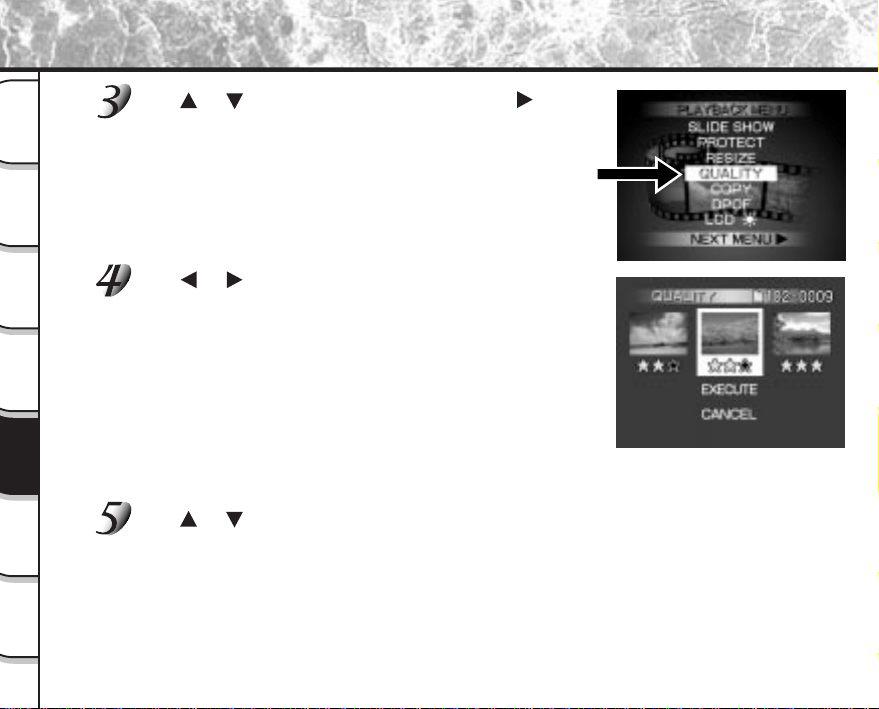
- 98 -
Getting
Ready
Taking
Photographs
Playing
Back Images
Other
Applications
Additional
Information
Erasing
Images
Handy
Functions
Compressing Images (Quality) (continued)
Use or to select [QUALITY], and press .
The SET-UP menu is displayed.
If there are no images that can be compressed, or if a movie
folder is selected, a message appears on screen and the
screen returns to the PLAYBACK MENU.
☞
Selecting Folders (
➲
Page 89)
Use or to select the image, and press ENTER to
set the compression ratio.
The current compression ratio (quality) is displayed under the image.
Each press of ENTER changes the number of stars as follows:
★★ [NORMAL]
★ [BASIC]
☞
Details of compression ratio
➲
Page 46
If you want to compress two or more images, repeat the procedure
for the necessary number of images.
When the Zoom switch is pressed toward “T” during image selection,
the image is displayed to fit the entire screen. To redisplay the
original image, move the Zoom switch towards the “W”.
Use or to select [EXECUTE], and press ENTER.
The screen indicating that the image is being compressed appears.
To quit compression, select [CANCEL].
When compression ends, the screen returns to the PLAYBACK MENU.
To quit the PLAYBACK MENU, press the MENU button.
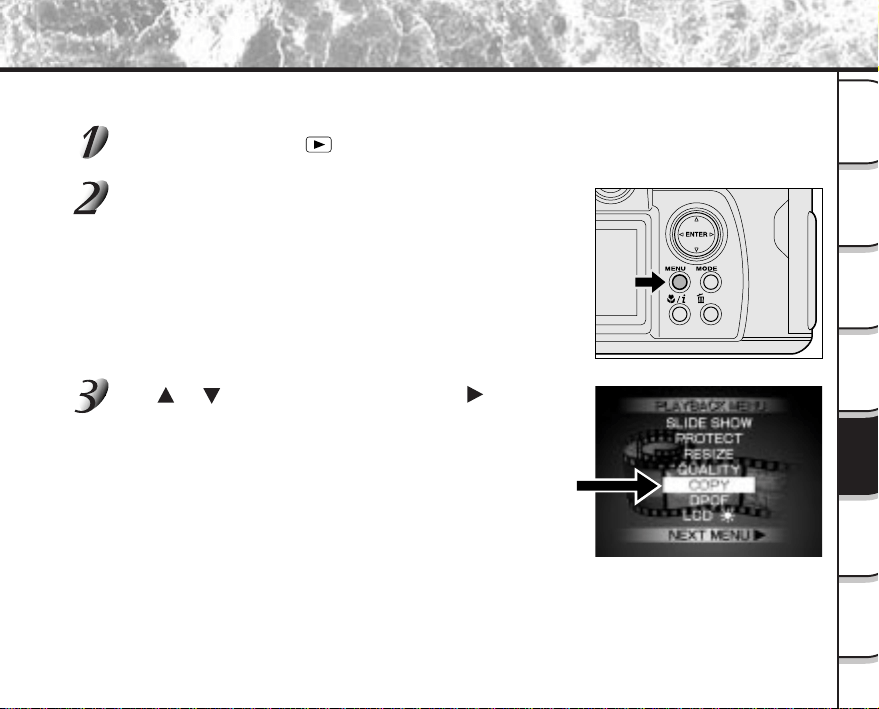
- 99 -
Getting
Ready
Taking
Photographs
Playing
Back Images
Other
Applications
Additional
Information
Erasing
Images
Handy
Functions
Copies images stored on the SmartMedia™. This feature is useful when you want to copy an image from one
SmartMedia™ to another.
Set the mode dial to [ ].
The last image frame appears on the LCD monitor.
Press the MENU button.
The PLAYBACK MENU is displayed.
Use or to select [COPY], and press .
The COPY menu is displayed.
Copying Images
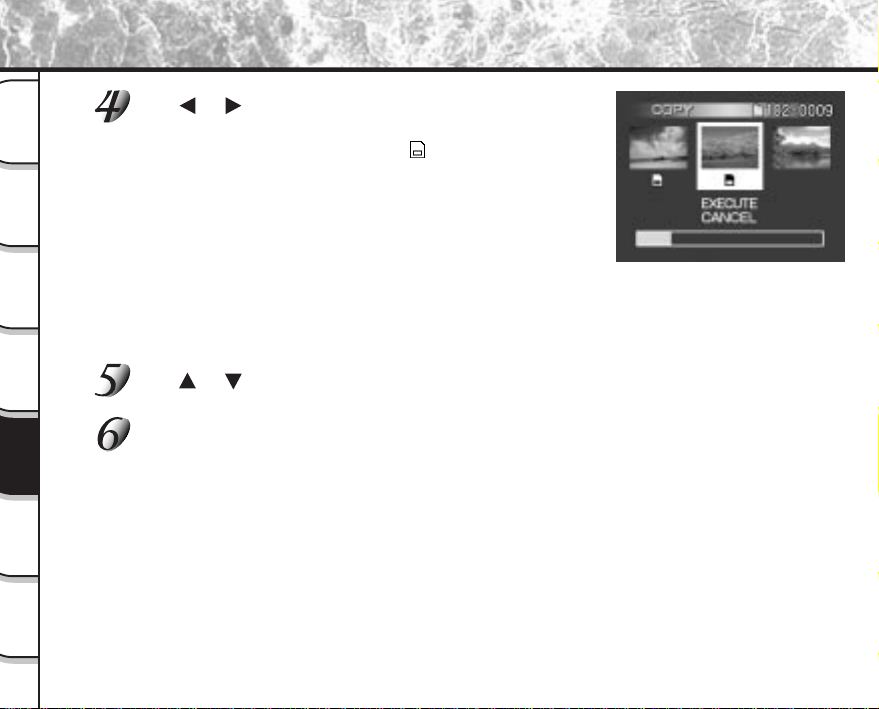
- 100 -
Getting
Ready
Taking
Photographs
Playing
Back Images
Other
Applications
Additional
Information
Erasing
Images
Handy
Functions
Use or to select the desired image, and press
ENTER.
This fixes the image to be copied, and [ ] is displayed under the
image.
To cancel a selection, press ENTER again.
If you want to copy two or more images, repeat the procedure for the
necessary number of images.
The bar at the bottom of the screen indicates the amount of buffer
memory used to store the date of the images which have been
selected, and the remaining memory space. The amount of memory
space consumed is indicated in green.
When the Zoom switch is pressed toward “T” during image selection,
the image is displayed to fit the entire screen. To redisplay the
original image, move the Zoom switch towards the “W”.
Use or to select [EXECUTE], and press ENTER.
The screen indicating that the image is being read appears.
Load the SmartMedia™ for copying the image to.
The message [EXCHANGE CARD] is displayed.
1
Remove the SmartMedia™.
2
Replace it with another SmartMedia™.
Copying Images (continued)
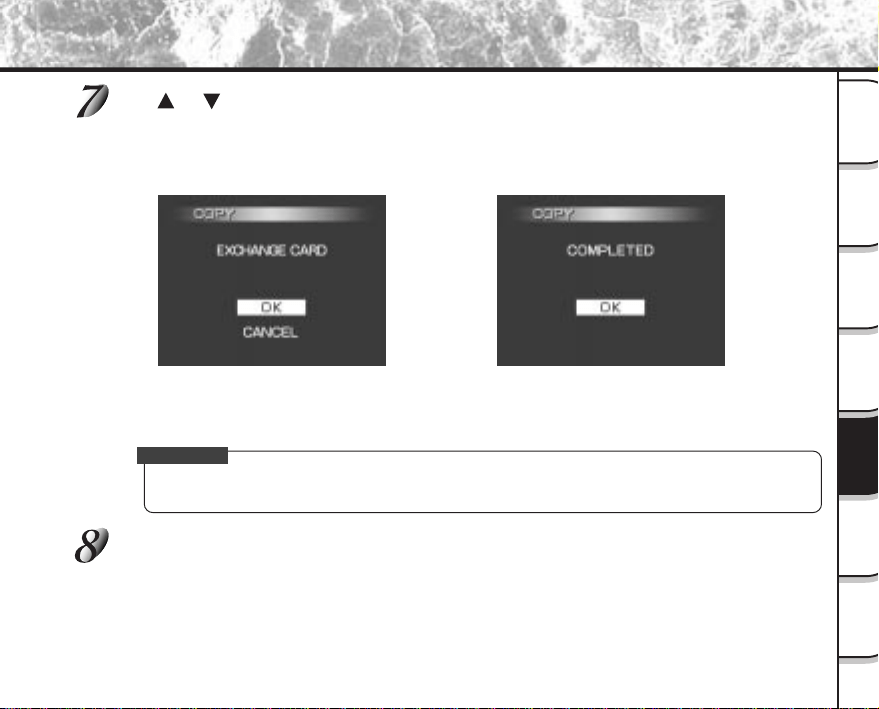
- 101 -
Getting
Ready
Taking
Photographs
Playing
Back Images
Other
Applications
Additional
Information
Erasing
Images
Handy
Functions
Use or to select [OK], and press ENTER.
The screen indicating that the image is being copied appears.
To quit copying, select [CANCEL].
If the SmartMedia™ has insufficient memory space, [CARD FULL] appears on the screen. Replace the
SmartMedia™ with another one.
When copying is completed, the above screen is displayed.
When this screen is displayed, you can swap the SmartMedia™ with the original SmartMedia™. The
camera need not be turned OFF for this operation.
IMPORTANT
• Do not remove the SmartMedia™ or turn the camera OFF while images are being copied. This might
damage the SmartMedia™.
Press ENTER.
The screen returns to the PLAYBACK MENU.
To quit the PLAYBACK MENU, press the MENU button.
Copying Images (continued)
➡
- 102 -
Getting
Ready
Taking
Photographs
Playing
Back Images
Other
Applications
Additional
Information
Erasing
Images
Handy
Functions
Copy Images (continued)
The image No. for copying
When images are copied, the frame No. is not copied. The frame No. becomes:
• Still images: When the SmartMedia™ at the copy destination contains the folder [xxxTOSHI], a
folder having the largest number of “xxx” incremented by 1 is created.
Example: When there are folders [101TOSHI] and [102TOSHI], the folder [103TOSHI]
is created.
When there is no [xxx TOSHI] folder, a new folder is created.
In each case, the frame No. is assigned from 0001.
• Moving images: When the copy destination SmartMedia™ contains a [
] folder, the image No. is
assigned to the image taking the number following the largest No. in the [
] folder.
When the SmartMedia™ does not contain a [
] folder, a new [ ] folder is
created, and the image No. is assigned to the image from 0001.
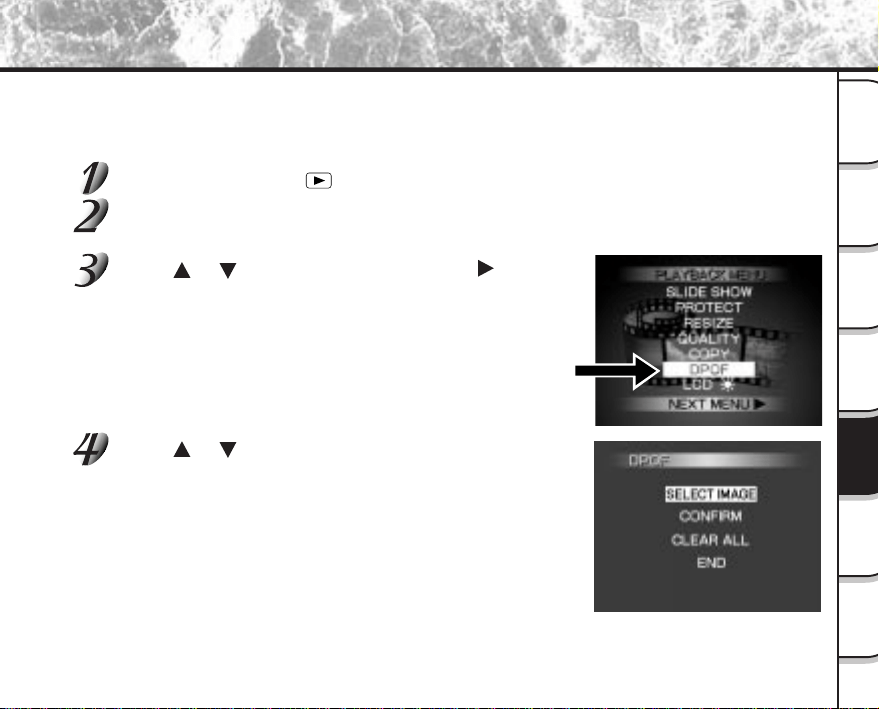
- 103 -
Getting
Ready
Taking
Photographs
Playing
Back Images
Other
Applications
Additional
Information
Erasing
Images
Handy
Functions
Print Information
The number of prints or the image date can be set in a DPOF (Digital Print Order Format) file for images to be
printed (developed). (
➲
Additional Information, Glossary.) This feature applies to still images only. Printing can be
done easily if you just take the SmartMedia™ containing the images and DPOF file to the photo lab.
Set the mode dial to [ ].
Press the MENU button.
The PLAYBACK MENU is displayed.
Press or to select [DPOF] and press .
Press or to select [SELECT IMAGE], and press
ENTER.

- 104 -
Getting
Ready
Taking
Photographs
Playing
Back Images
Other
Applications
Additional
Information
Erasing
Images
Handy
Functions
Print Information (continued)
Press or to select [SELECT] or [ALL], and press
ENTER.
[SELECT] : Sets one image at a time.
[ALL] : Sets all images at once.
Set the number of prints and date.
1
Press
or to select the image, and press or to
set the number of copies.
Up to 99 copies can be set for a single image.
When the Zoom switch is pressed toward “T” during image
selection, the image is displayed to fit the entire screen. To
redisplay the original image, move the Zoom switch towards
the “W”.
2
When you have finished this setting, press ENTER.
The DATE&TIME SETTING screen is displayed.
3
Press or to select [YES], and press ENTER.
If you do not want to set the date, select [NO].
The message “CREATE DPOF FILE?” is displayed.
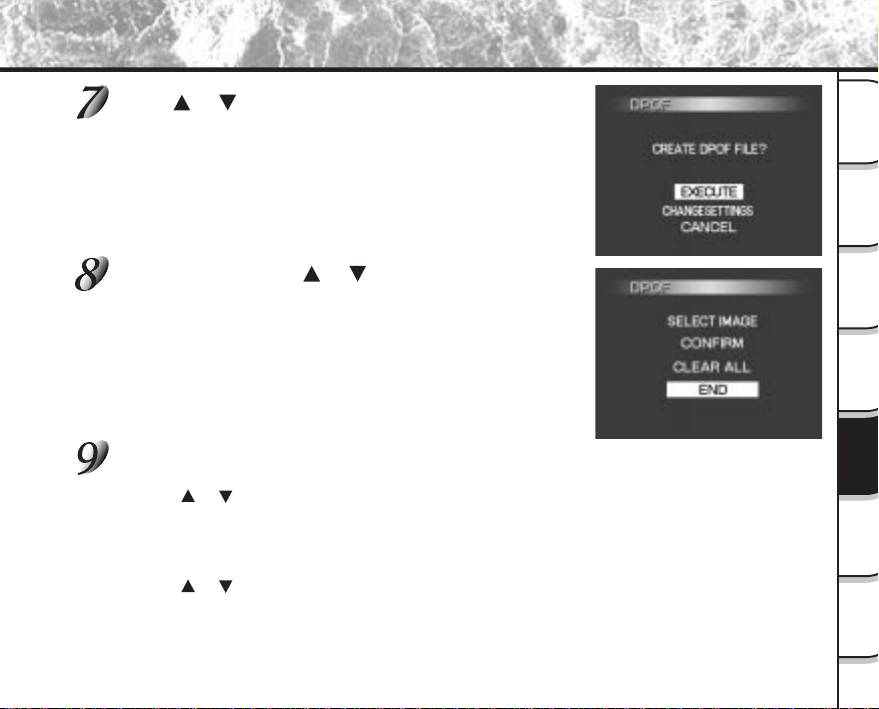
- 105 -
Getting
Ready
Taking
Photographs
Playing
Back Images
Other
Applications
Additional
Information
Erasing
Images
Handy
Functions
Press or to select [EXECUTE], and press ENTER.
To continue setting, select [CHANGE SETTINGS]. To quit setting
without creating a DPOF file, select [CANCEL].
The DPOF information file is created, and the screen returns to the
initial display when the operation ends.
To end setting, press or to select [END], and
press ENTER.
To cancel confirmation of settings, proceed to step 9.
Select the desired operation.
[CONFIRM]: Press this to confirm the settings.
1
Press
or to select [CONFIRM], and press ENTER.
2
After confirming the settings, press ENTER.
3
Select [END] and press ENTER.
[CLEAR ALL]: Press this button to clear all settings.
1
Press
or to select [CLEAR ALL], and press ENTER.
2
To clear all settings, select [EXECUTE] and press ENTER.
To cancel [CLEAR ALL], select [CANCEL].
3
To remove the write-protection, select [YES] and press ENTER.
4
Select [END] and press ENTER.
Print Information (continued)
- 106 -
Getting
Ready
Taking
Photographs
Playing
Back Images
Other
Applications
Additional
Information
Erasing
Images
Handy
Functions
Memo
• When the SmartMedia™ already contains a DPOF information file, the message “RECREATE DPOF
FILE?” is sometimes displayed. Note that if you select [YES], the file is overwritten, and the information
of the existing DPOF information file is erased. The same also applies when the DPOF information file is
overwritten on a personal computer and values not supported by this camera were set.
• Images set in the DPOF format are automatically protected. Write-protection cannot be removed by
regular methods (
➲
Page 109)
• You can specify up to 99 prints or up to 999 frames in a single SmartMedia™. The maximum number of
prints you can specify in a single SmartMedia™ is limited to 10000.
Print Information (continued)
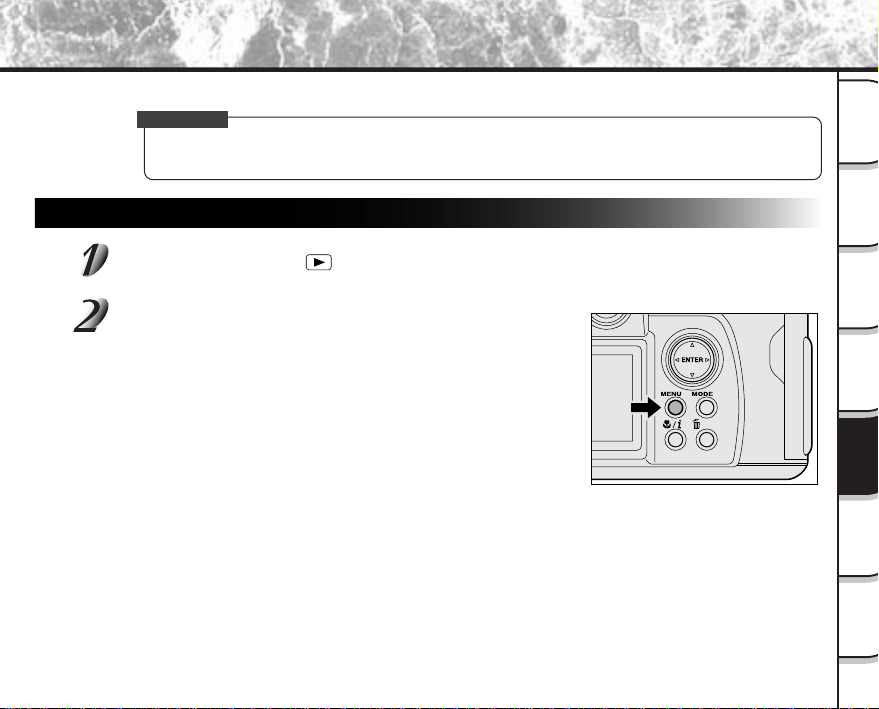
- 107 -
Getting
Ready
Taking
Photographs
Playing
Back Images
Other
Applications
Additional
Information
Erasing
Images
Handy
Functions
This feature prevents images from being erased.
IMPORTANT
• Formatting erases all the images on a SmartMedia™, regardless of whether they are protected or not.
• To protect the entire SmartMedia™, see “Write Protection” (
➲
Page 35).
Protecting an Image
Set the mode dial to [ ].
The last image frame or the thumbnail display appears on the LCD monitor.
Press the MENU button.
The PLAYBACK MENU is displayed.
Protecting Images

- 108 -
Getting
Ready
Taking
Photographs
Playing
Back Images
Other
Applications
Additional
Information
Erasing
Images
Handy
Functions
Use or to select [PROTECT] and press .
The PROTECT menu is displayed.
Use or to select the desired image to protect,
and press ENTER.
This fixes the image to be protected, and [ ] is displayed under
the image.
To cancel the selection, press ENTER again.
To write-protect two or more images, repeat this procedure for the
necessary number of images.
When the Zoom switch is pressed toward “T” during image selection,
the image is displayed to fit the entire screen. To redisplay the
original image, move the Zoom switch towards the “W”.
Use or to select [EXECUTE], and press ENTER.
To quit write-protection, select [CANCEL].
When write-protection ends, the screen returns to the PLAYBACK MENU.
To quit the PLAYBACK MENU, press the MENU button.
Memo
• When the PROTECT setup screen is displayed again, [ ] is displayed under protected images.
• To cancel write-protection for an image, write-protection is simultaneously canceled if set at step 4.
Protecting Images (continued)
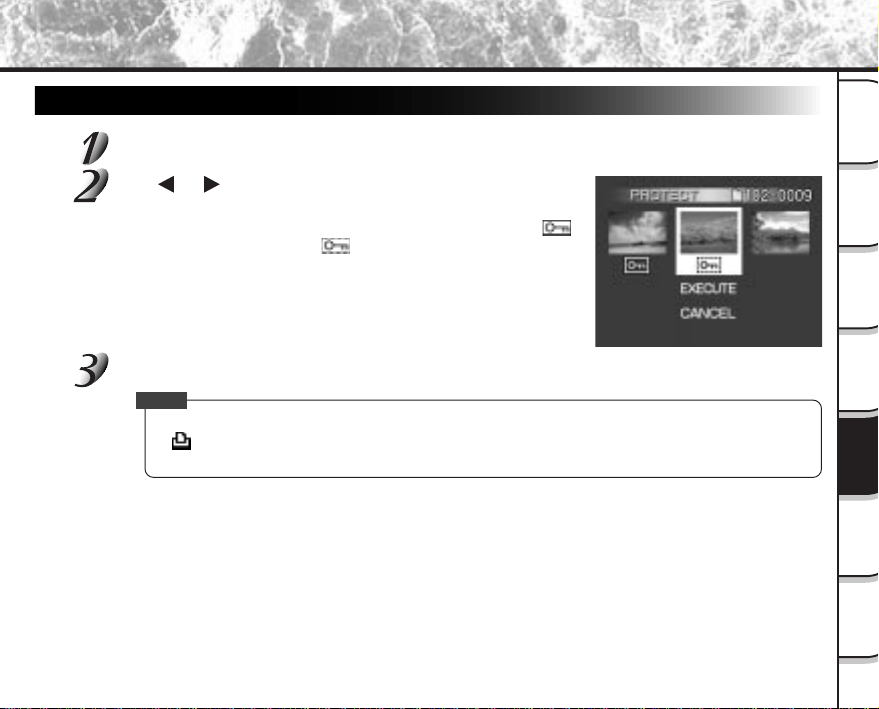
- 109 -
Getting
Ready
Taking
Photographs
Playing
Back Images
Other
Applications
Additional
Information
Erasing
Images
Handy
Functions
Protecting Images (continued)
Removing the Protection
Carry out steps 1 to 3 in “Protecting An Image”.
Use or to select the image to unprotect, and
press ENTER.
This fixes the images whose protection is to be removed, and [ ]
under the image changes to [
].
To unprotect an image, press ENTER again.
To remove the protection from two or more images, repeat this
procedure for the necessary number of images.
Carry out step 5 in “Protecting An Image”.
Memo
• To write-protect another image, write-protection can be simultaneously carried out if set at step 2.
•[
] is displayed for images that are specified in the DPOF format, and write-protection cannot be
removed. To remove write-protection, cancel the DPOF format setting.
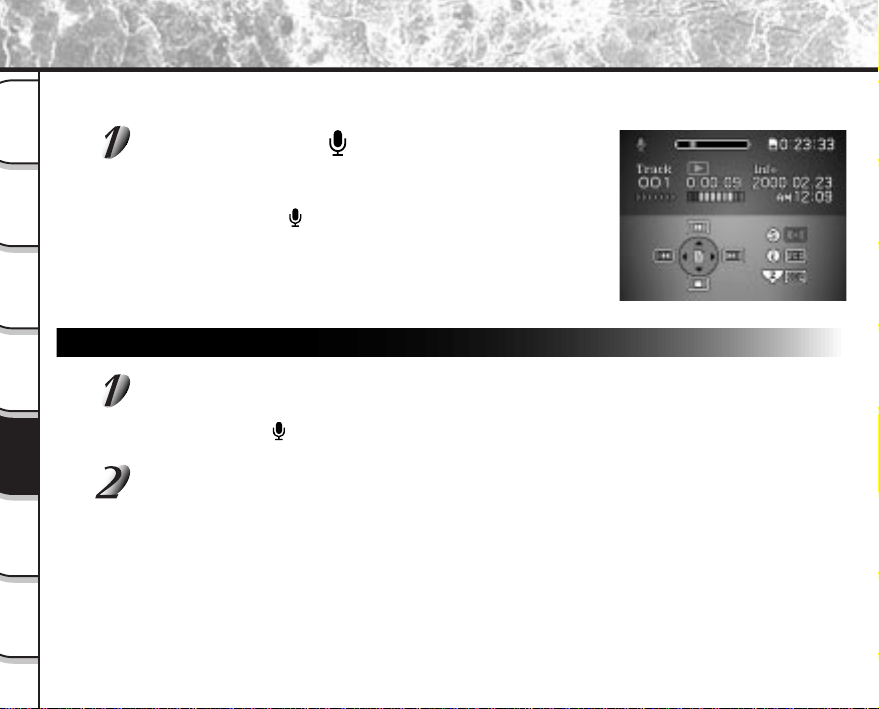
- 110 -
Getting
Ready
Taking
Photographs
Playing
Back Images
Other
Applications
Additional
Information
Erasing
Images
Handy
Functions
Recording/Playing Back Audio
This item is for recording or playing back audio only. This is a handy function, for example, to record messages
instead of noting them down.
Set the mode dial to [ ].
The file information of the largest track number is displayed on the
LCD monitor.
If there are no recorded files, the value “0” is displayed.
Set the mode dial to [
] and then perform the following procedures
as required.
Recording Audio
Press the shutter button down fully.
This starts recording.
During recording, [
], elapsed recording time and remaining recording time are displayed in the LCD
display area.
To stop recording, either press the shutter button down fully again, or press
ENTER.
If this operation is not performed, recording is automatically stopped when the SmartMedia™ runs out of
free space.
If recording is stopped when the LCD monitor is OFF, the LCD monitor automatically turns ON, and the
last recorded file can be played back.
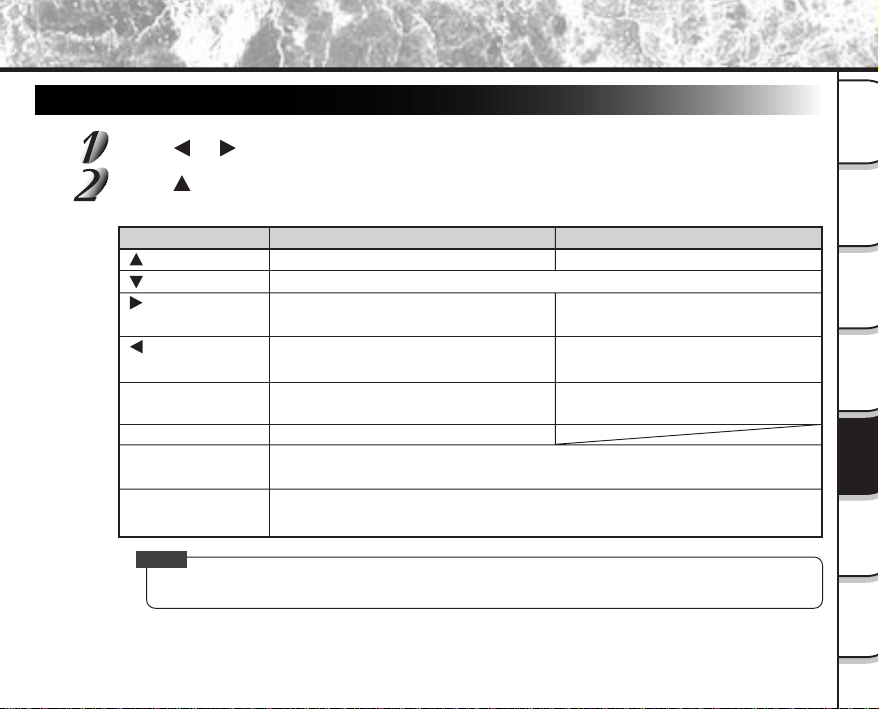
- 111 -
Getting
Ready
Taking
Photographs
Playing
Back Images
Other
Applications
Additional
Information
Erasing
Images
Handy
Functions
Recording/Playing Back Audio (continued)
Button
ENTER
macro/info button
Pressing the Zoom
switch to “T”
Pressing the Zoom
switch to “W”
During Playback
Pauses playback.
Fast forwards the playback file (for
duration that button is held down).
Rewinds the playback file (for duration
that button is held down).
A list of recorded files is displayed after
a stop.
Switches the LCD monitor ON and OFF.
Increases the volume.
Decreases the volume.
Playing Back Audio
Press or to select the file.
Press .
Playback starts. Buttons and keys function as follows when pressed.
Memo
• You can also listen to files on the earphone connected to the earphone jack terminal.
During Stop
Playback audio file.
Proceeds to the next file.
Goes back to the previous file.
A list of recorded files is displayed.
Stops playback (returns to the beginning of the playback file).

- 112 -
Getting
Ready
Taking
Photographs
Playing
Back Images
Other
Applications
Additional
Information
Erasing
Images
Handy
Functions
Erasing Files
Files can be erased in either of two ways, either one file at a time or all files at once in folder units.
To Erase One File At a Time
Press or to select the file to erase.
Press the erase button.
The erase icon is displayed on the left of the screen.
Press or to select [ ], and press ENTER.
The selected file is erased. To cancel this operation, select [ ].
To Erase All Files At Once
Hold down the erase button for about two seconds.
The erase icon is displayed on the left of the screen.
Press or to select [ ], and press ENTER.
All files in the entire folder are erased. To cancel this operation, select [ ].
Recording/Playing Back Audio (continued)
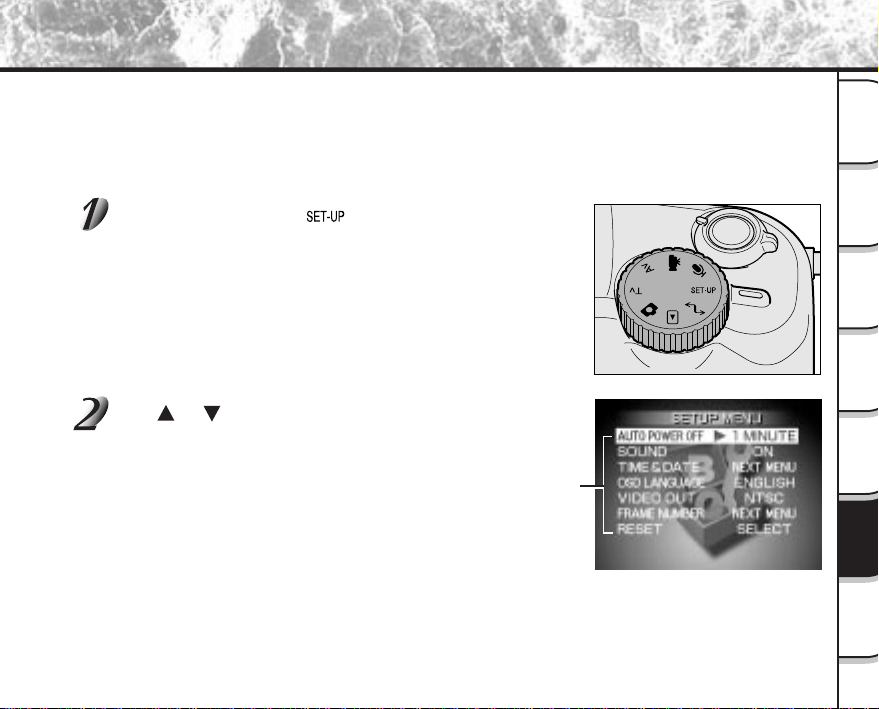
- 113 -
Getting
Ready
Taking
Photographs
Playing
Back Images
Other
Applications
Additional
Information
Erasing
Images
Handy
Functions
Basic Photographic Settings (SET-UP mode)
Setting item
This feature allows you to set up the environment for using your camera in addition to image-related settings. This is
called “setup”. The following items can be changed in the SET-UP mode:
AUTO POWER OFF/SOUND/TIME & DATE/OSD LANGUAGE/VIDEO OUT/FRAME NUMBER/RESET
The details set here are held in memory even if the camera is turned OFF.
Set the mode dial to [ ].
The SETUP MENU appears.
Use or to select the item you want to set.
☞
AUTO POWER OFF
➲
Selects the time for automatic
power off (P. 114)
SOUND
➲
Turns on and off the sound (P. 115)
TIME & DATE
➲
Setting the Time and Date (P. 115)
OSD LANGUAGE
➲
Selecting the Monitor Display
Language (P. 116)
VIDEO OUT
➲
Setting Video Output (P. 116)
FRAME NUMBER
➲
Resetting the Frame No. (P. 116)
RESET
➲
Returning Settings to the Defaults (P. 118)
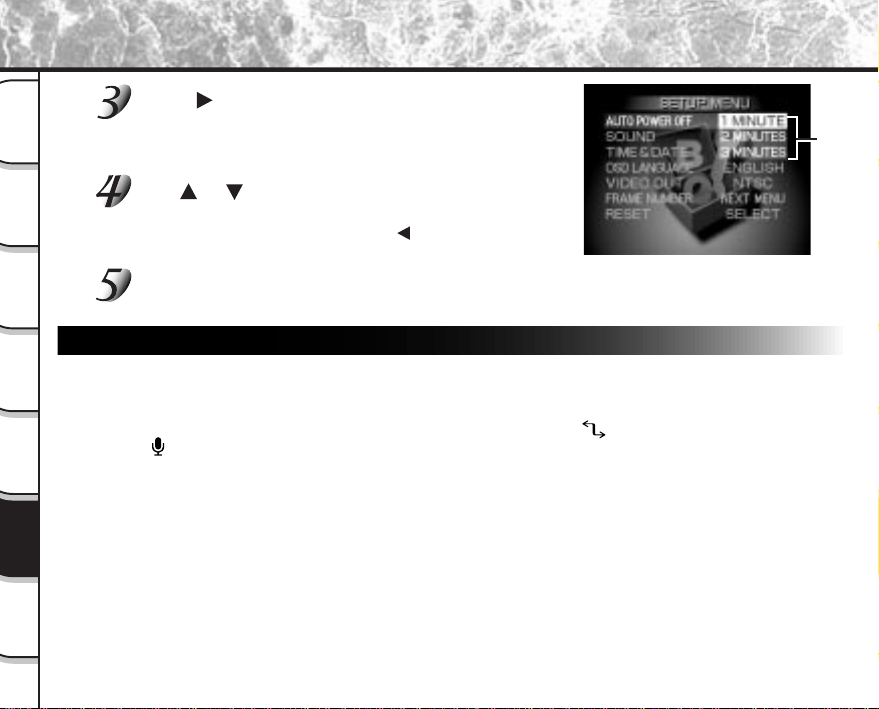
- 114 -
Getting
Ready
Taking
Photographs
Playing
Back Images
Other
Applications
Additional
Information
Erasing
Images
Handy
Functions
Basic Photographic Settings (SET-UP mode) (continued)
Press .
The tab menu is displayed.
☞
How to set the time (
➲
Page 115)
For details on how to reset the frame number (
➲
Page 116)
Use or to change the setting in the tab menu,
and press ENTER.
To cancel changing of settings, press .
To quit the SETUP MENU, change the mode dial setting.
AUTO POWER OFF
If no operation is carried out for a fixed amount of time (default: about one minute), power consumption
is set to its minimum state (power almost turned OFF) to prevent battery wear. This is called the Auto
Power OFF. This setting allows you to set the time when the camera turns off automatically. This function
is not activated during automatic playback (
➲
Page 86) or in the [ ] PC mode or
[
] voice record mode (recording/playing back). To return to the normal state after the Auto Power OFF
was executed, either change the mode dial or press the shutter down half way for at least two seconds
(
➲
Page 41).
[1 MINUTE] (default)
[2 MINUTES]
[3 MINUTES]
Tab menu
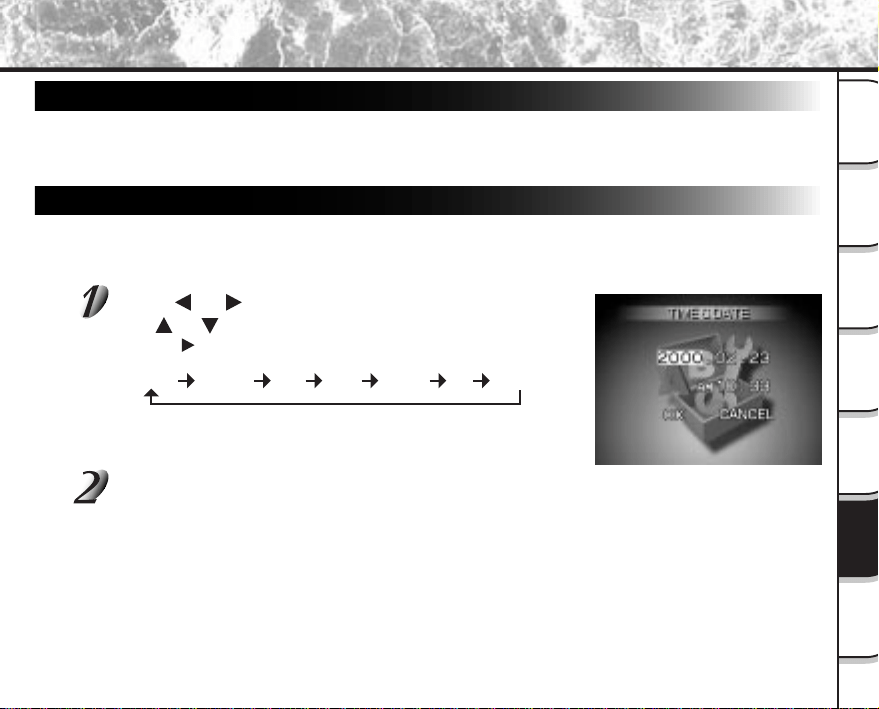
- 115 -
Getting
Ready
Taking
Photographs
Playing
Back Images
Other
Applications
Additional
Information
Erasing
Images
Handy
Functions
YEAR MONTH DAY
Hour Minute OK CANCEL
Basic Photographic Settings (SET-UP mode) (continued)
SOUND
Sets whether or not to sound the beep tone.
[ON] (default) : Sounds the beep tone according to the operating state or operation.
[OFF] : Does not sound the beep tone in any state.
TIME & DATE
Sets the date and time.
Seconds cannot be set.
Using or to select the item you want to set, and
use
or to set the value for each item.
Pressing advances the selection in the following order:
Select [OK] and press ENTER.
To quit setting, select the [CANCEL] button.
- 116 -
Getting
Ready
Taking
Photographs
Playing
Back Images
Other
Applications
Additional
Information
Erasing
Images
Handy
Functions
Basic Photographic Settings (SET-UP mode) (continued)
OSD LANGUAGE
Set the display language of menus displayed on the LCD monitor.
All descriptions in this Instruction Manual are for when the display language is set to [ENGLISH].
VIDEO OUT
Sets the video output system according to the country in which your camera is used.
[NTSC]: NTSC system (
➲
Additional Information, Glossary)
[PAL]: PAL system (
➲
Additional Information, Glossary)
FRAME NUMBER
Sets whether or not to reset the image number when you take photographs.
When the frame No. is selected, the message “RESET FRAME NUMBER” is displayed.
Press or to select [EXECUTE], and press ENTER.
Resetting of image numbers is supported only for the still image mode.
To reset movie image numbers, you must delete the entire folder (
➲
Page 92).
[CANCEL]: Does not reset the image number.
[RESET]: Reset the image number.
- 117 -
Getting
Ready
Taking
Photographs
Playing
Back Images
Other
Applications
Additional
Information
Erasing
Images
Handy
Functions
Basic Photographic Settings (SET-UP mode) (continued)
About Still Image Numbers and Folder Numbers
• When the image number is reset, a number starting from 0001 is assigned to an empty folder having
the smallest number of the SmartMedia™ that is inserted.
The folder number varies according to the state of the inserted SmartMedia™. To also reset the folder
number, format the SmartMedia™ first and reset the image number.
• A running number continuing from the last photographed image is assigned as the image number
regardless of whether or not only one image or all images were erased. A folder is assigned as a
running number in the same way.
• The largest image number is 9999. When this number is reached, a new folder is created, and the
image number is assigned starting from 0001.
☞
Selecting the FOLDER
➲
Page 89
• The largest folder number is 999. When the folder number reaches 999, format the SmartMedia™.
• When you use SmartMedia™ that was used for taking photographs on another camera, or swap
between two or more SmartMedia™, the data held by this camera is given priority as the image
number The folder number is assigned according to the state of your camera or the SmartMedia™.
About Image Numbers and Folders
• The image number assigned to the [ ] of the inserted SmartMedia™ starting from 0001.
• The image number is assigned as a continuous number from the next number following the largest
number in the [ ] folder.
• The largest image number is 9999. When this number is reached, format the SmartMedia™.
• All moving image data is recorded to the [ ] folder.
• When you use SmartMedia™ that was used for taking photographs on another camera, or swap
between two or more SmartMedia™, the image number is assigned according to the state of the
SmartMedia™.
- 118 -
Getting
Ready
Taking
Photographs
Playing
Back Images
Other
Applications
Additional
Information
Erasing
Images
Handy
Functions
Basic Photographic Settings (SET-UP mode) (continued)
RESET
Sets whether or not to return the settings in the SETUP MENU to their defaults.
The settings of TIME&DATE, OSD LANGUAGE and VIDEO OUT cannot be changed.
[CANCEL] : Does not return settings to their defaults.
[EXECUTE] : Returns settings to their defaults.
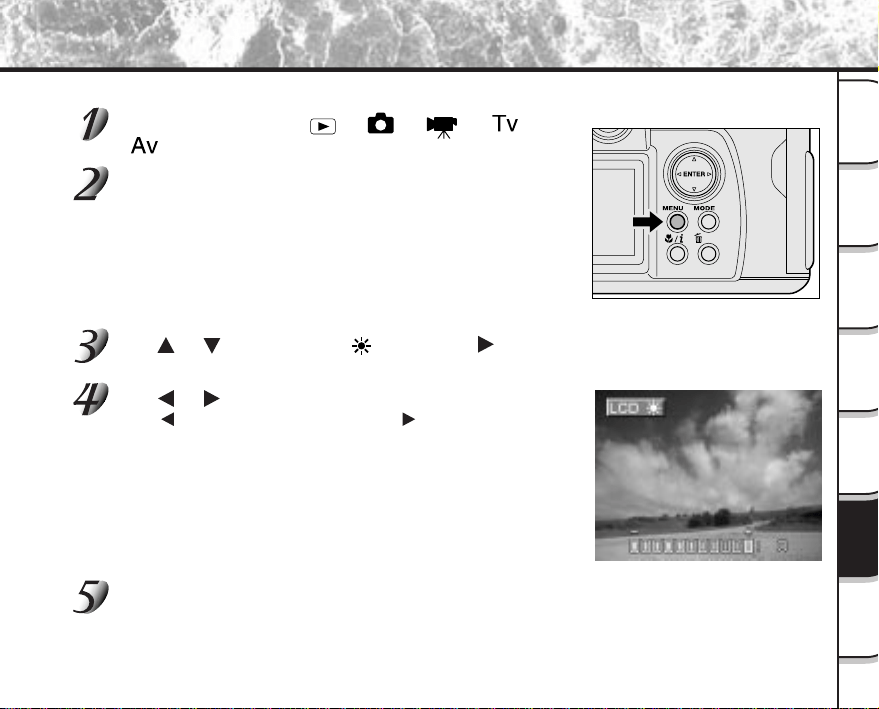
- 119 -
Getting
Ready
Taking
Photographs
Playing
Back Images
Other
Applications
Additional
Information
Erasing
Images
Handy
Functions
Adjusting the LCD Monitor Brightness
This adjustment adjusts the brightness of the LCD monitor and not the brightness of the recorded image.
Set the mode dial to [ ], [ ], [ ], [ ] or
[
].
Press the MENU button.
The RECORDING MENU or PLAYBACK MENU is displayed.
You can set the LCD monitor brightness in either of these menus.
Use or to select [LCD ] and press .
The image and the LCD menu are displayed.
Use or to adjust the brightness.
Press to darken (–) the LCD monitor, or to lighten (+) the LCD
monitor.
The LCD monitor can be adjusted within the range [–5] to [+5].
(Default is 0.)
Press ENTER.
This returns the camera to the previous mode.
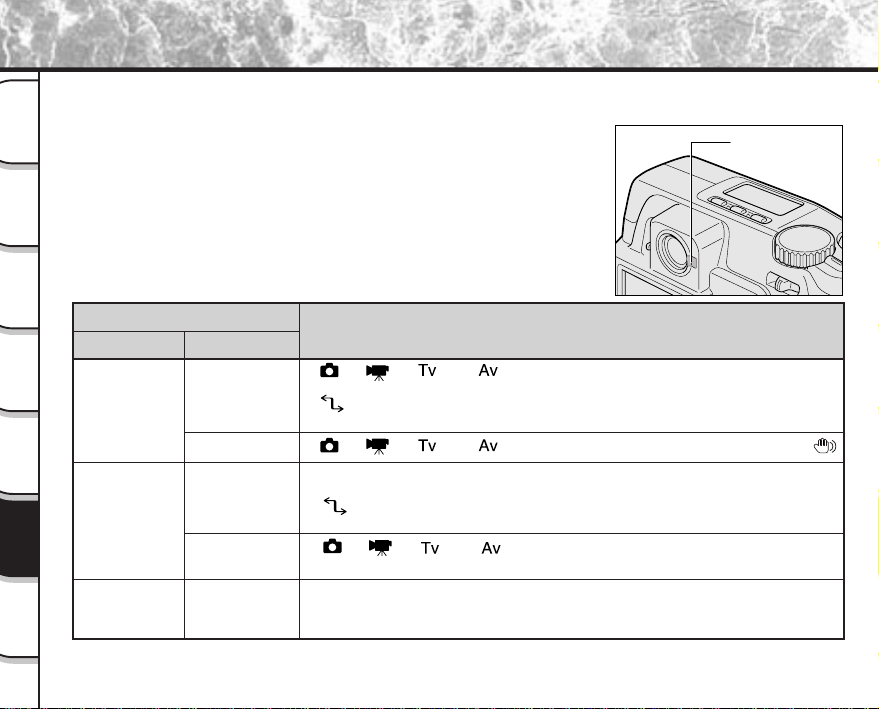
- 120 -
Getting
Ready
Taking
Photographs
Playing
Back Images
Other
Applications
Additional
Information
Erasing
Images
Handy
Functions
[ ], [ ], [ ] or [ ] AE or AF are locked with the shutter button held
half down.
[
] Standby mode
[Power OFF] Charging of battery is completed (with AC adapter connected).
[
], [ ], [ ] or [ ] Self-timer in operation at a handshake alarm .
[Power ON] Writing to SmartMedia™ in progress
Photographs can be taken, however, do not turn the power OFF.
[
] Accessing of SmartMedia™ in progress
[Power OFF] Charging of battery in progress (with AC Adapter connected)
[ ], [ ], [ ] or [ ] When the image is not in focus.
[Power OFF] Battery error
• Signal processing in progress after photography
• Charging of flash in progress
(Photography is not possible.)
About the Color of the Viewfinder LED
The color of the viewfinder LED indicates the state of the camera. The meaning of the LED color may differ
according to the mode dial setting.
Viewfinder LED
Color
State
Meaning
Green
ON
Flashing
Red
ON
Orange ON
Flashing
Viewfinder LED
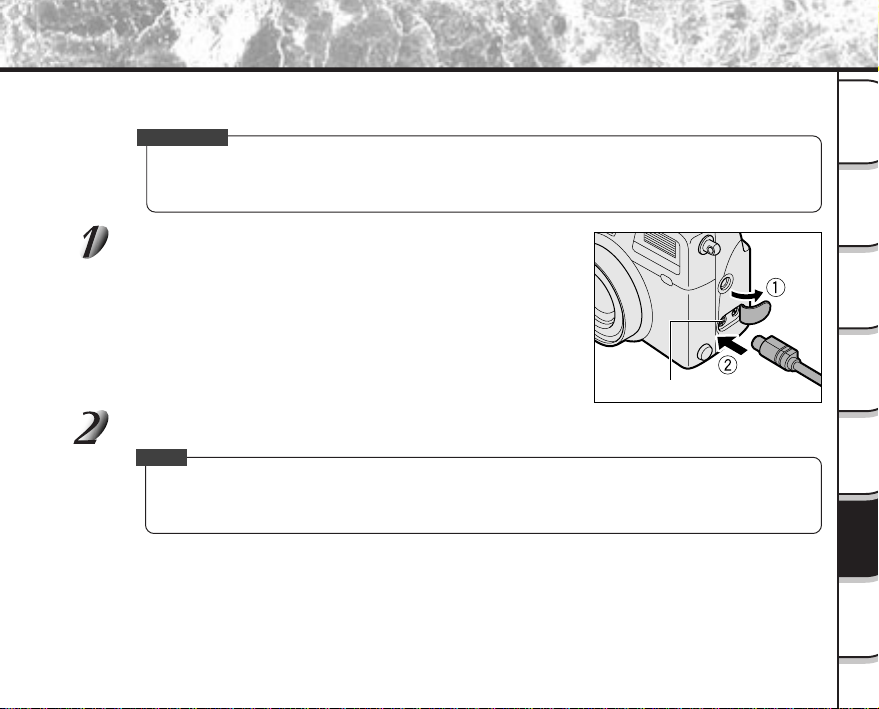
- 121 -
Getting
Ready
Taking
Photographs
Playing
Back Images
Other
Applications
Additional
Information
Erasing
Images
Handy
Functions
Taking and Playing Back Photographs on a TV
Television sets can be used to compose images for photography or playback. To do this, the camera must first be
connected to the TV. We recommend using the AC adapter on an indoor power outlet when available.
IMPORTANT
• Before you connect your camera to other equipment, be sure to turn all other connected equipment
OFF. If you connect your camera to other equipment with the power still ON, the screen may flicker or
the image may not be displayed normally.
Connect the plug of the AV cable (provided) to the PC/
AV terminal on the camera.
Connect the plug of the AV cable to the video input terminal on the TV.
Memo
• Switch to the video output system, NTSC or PAL, according to the TV or country in which your camera is
used.
☞ For details on how to switch the system
➲
Page 116
PC/AV terminal
- 122 -
Getting
Ready
Taking
Photographs
Playing
Back Images
Other
Applications
Additional
Information
Erasing
Images
Handy
Functions
Taking and Playing Back Photographs on a TV (continued)
Take photographs or play them back.
Details of operation are the same as taking photographs and playing them back on the LCD monitor.
☞
How to take photographs
➲
Page 43
How to play back images
➲
Page 80
Memo
• The image before the photograph is taken is slightly less clear than playback images. (This is because
they are displayed at a lower resolution.)
• The display unit varies according to the output system.
With the NTSC system, images can be displayed simultaneously on the LCD monitor and TV during
photography and playback.
With the PAL system, images cannot be displayed simultaneously. During photography, images are
displayed only on the LCD monitor, and during playback, images are displayed only on the TV.
- 123 -
Getting
Ready
Taking
Photographs
Playing
Back Images
Other
Applications
Additional
Information
Erasing
Images
Handy
Functions
Transferring Images to a PC
You can transfer images photographed on your camera to a PC using the packaged CD-ROM and USB cable.
Images recorded on SmartMedia™ can also be transferred to a PC using the PC card adapter (sold separately) or
floppy disk adapter (sold separately, PDR-FLP2). (
➲
Page 124)
To transfer images to a PC, software must be installed and special cables connected.
For details, refer to the User’s Guides for your PC and the Software Manual.
Using SmartMedia™ on a PC
• When you use SmartMedia™, do not change or erase folders or file names (image data) on the
SmartMedia™. Doing so might prevent the SmartMedia™ from being used on the camera.
• Format the SmartMedia™ only on your camera.
• To edit image data, copy the image data to hard disk on the PC, and edit the copied image data.
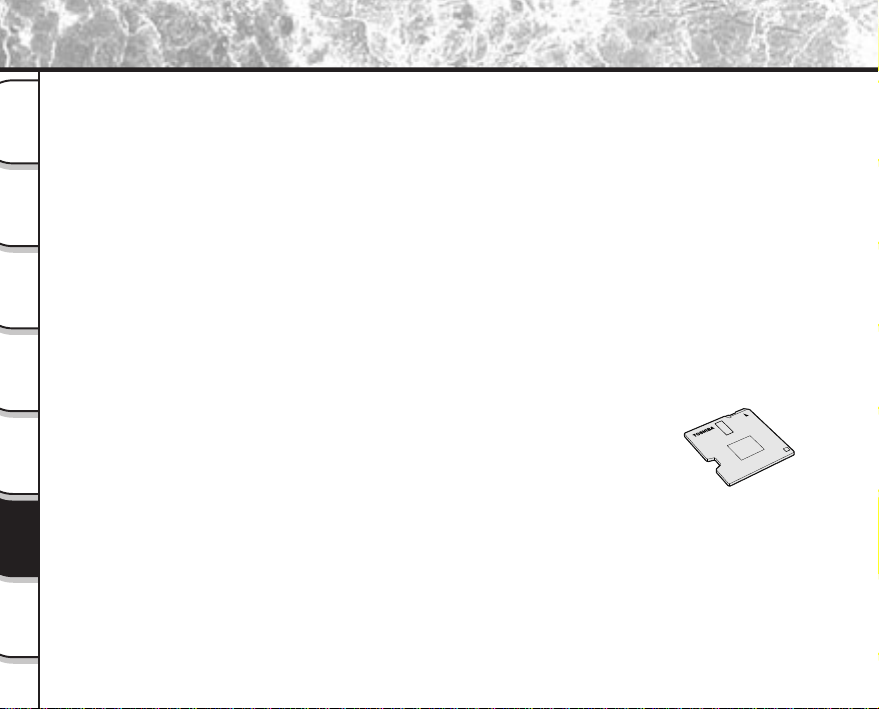
- 124 -
Getting
Ready
Taking
Photographs
Playing
Back Images
Other
Applications
Additional
Information
Erasing
Images
Handy
Functions
Separately Sold Accessories
The following items are also available as separately sold items.
☞
Relationship between your camera and accessories
➲
Connecting to Other Devices (page 125)
For details on these accessories, refer to the Instruction Manual for the accessory you are using. (information
current as of March 2000)
● SmartMedia™ (3.3 V)
8MB(PDR-NSM8)/16MB (PDR-SM16)/32MB (PDR-SM32)/64MB (PDR-SM64)
● Lithium-ion battery pack (PDR-BT2)
● Battery charger (PDR-CG1, PDR-CG1E, PDR-CG1U)
This charger is connected to a household power outlet and
charges the lithium-ion battery pack (PDR-BT2) in a short time
(approx. 70 minutes).
● Adapter ring (PDR-AR52)
This adapter is used to attach a commercially available standard
52 mm optical filter or lens to your camera.
● Floppy Disk Adapter PDR-FLP2 (FlashPath)
This adapter allows SmartMedia™ to be used as 3.5" floppy disk.
This adapter is inserted into the floppy disk drive on your PC, allowing
images recorded on the SmartMedia™ to be transferred to the PC.
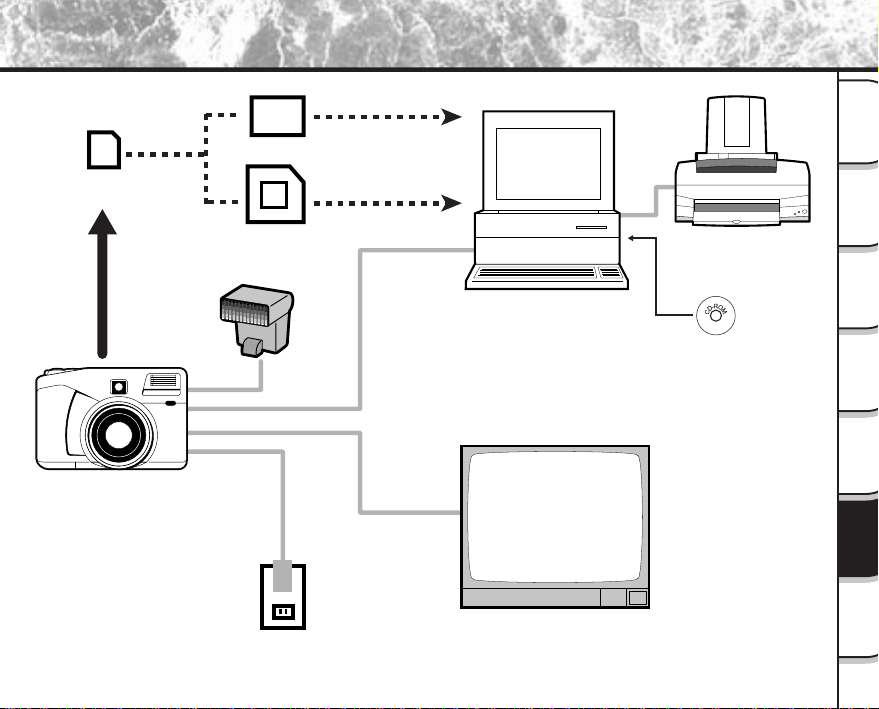
- 125 -
Getting
Ready
Taking
Photographs
Playing
Back Images
Other
Applications
Additional
Information
Erasing
Images
Handy
Functions
Connecting to Other Devices
SmartMedia™
Floppy disk adapter
PC card adapter
PC
Printer
Software application
(CD-ROM) (provided)
USB cable
(provided)
(PC/AV)
AV cable
(provided)
(SYNC)
(DC IN 5V)
External flash
AC adapter
(provided)
Plug socket
TV monitor
PDR-M70
- 126 -
Getting
Ready
Taking
Photographs
Playing
Back Images
Other
Applications
Additional
Information
Erasing
Images
Handy
Functions
Demo Mode
In the Demo Mode, you will have the ability to temporarily take/save a limited number of images without the
SmartMedia™ card in place. The playback and downloading functions will be operational the same as in the
normal mode.
How to enter the Demo Mode
Set the mode dial to “SET-UP”.
Return the settings in the SET-UP menu to their defaults. (RESET
➲
Page 118)
Press the button while pressing the shutter button.
The LCD monitor displays the message “Changed to Demo Mode”, and the power is automatically
turned OFF.
Power ON the camera again, and set the mode dial to the desired mode.
“DEMO” is displayed on the LCD monitor.
Images that you photograph in the Demo Mode are lost when you turn the power OFF.
How to return to the Normal Mode
Follow steps 1 to 3 in the above procedure again.
The LCD monitor displays the message “Changed to Normal Mode”, and the power is automatically
turned OFF.
Power ON the camera again.
Memo
• Images cannot be saved to the SmartMedia™, and will be erased from the camera’s memory when the
power is turned off.
• When taking photographs by Burst Photography in the Demo Mode, there is a limit to the number of
photographs you can take. You can take up to eight photographs in the Normal Mode.
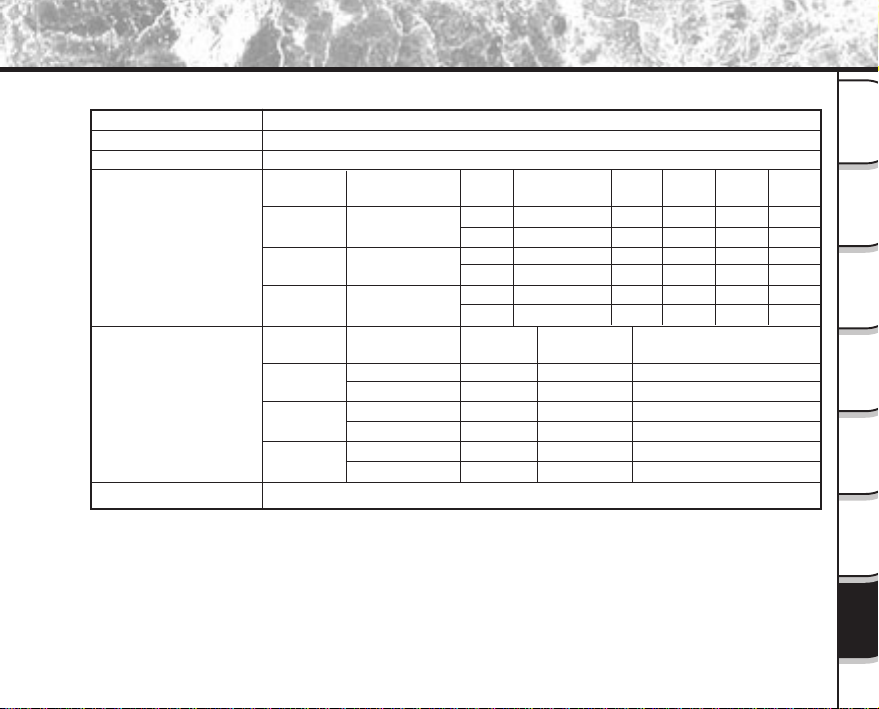
- 127 -
Getting
Ready
Taking
Photographs
Playing
Back Images
Other
Applications
Additional
Information
Erasing
Images
Handy
Functions
SmartMedia™ (3.3V) 2/4/8/16/32/64MB compatible
JPEG-compliant
Exif Ver.2.1-compliant
DCF Ver. 1.0-compliant
Quality
Mode
FINE
★★★
NORMAL
★★
BASIC
★
Quality
mode
FINE
★★★
NORMAL
★★
BASIC
★
Image
Size
FULL
HALF
FULL
HALF
FULL
HALF
Frame Size
16KB
6KB
11KB
4.5KB
8KB
3KB
Photography Time (secs)
16MB or more
60
150
90
200
120
300
Specifications
Camera Body
Recording medium
Compression system
Image file format
<Still Image Mode>
Number of frames
FULL size:
2048 x 1536 pixels
HALF size:
1024 x 768 pixels
<Movie Image Mode>
Standard movie
photography time
FULL size:
320 x 240 pixels
HALF size:
160 x 120 pixels
Conversion rules
File Size
Approx. 1.2MB
Approx. 300KB
Approx. 800KB
Approx. 200KB
Approx. 400KB
Approx. 100KB
8MB
6
27
9
41
19
82
16MB
13
55
19
82
39
165
32MB
26
110
39
166
79
332
Compression
Ratio
1/5
1/7.5
1/15
Image
Size
FULL
HALF
FULL
HALF
FULL
HALF
Compression
Ratio
1/10
1/7
1/14
1/10
1/19
1/4
64MB
53
221
79
332
159
665
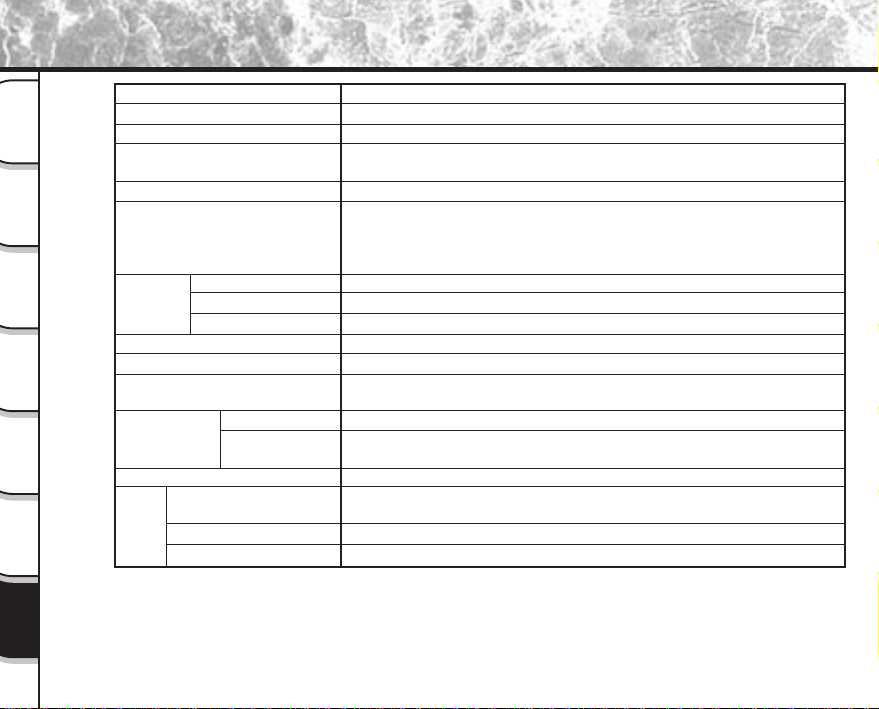
- 128 -
Getting
Ready
Taking
Photographs
Playing
Back Images
Other
Applications
Additional
Information
Erasing
Images
Handy
Functions
Pickup elements
Sensitivity
Lens
Focal length
Viewfinder
Auto-focus
Exposure
Control
Aperture
Shutter speed
White balance
Focal range
Standard
Macro
Self-Timer
Modes
Flash intensity control
Effective range
1/1.8” CCD sensor (total number of pixels: approx. 3.37 million)
Equivalent to ISO 100/200/400
3X optical zoom lens F2 – F2.5
f=7.0 mm – 21 mm (equivalent to 35 mm – 105 mm on a 35 mm
camera)
Real image type zoom finder
TTL system AF, focus adjusting range: approximately 0.09 m (0.3 ft) to
infinity (WIDE side setting)
Detection system: Contrast detection system (frame rate during
detection: 30 Hz)
Split metering
Program AE , aperture-priority AE, shutter-priority AE
–1.5 EV to +1.5 EV (in 0.3 EV increments)
F2.0 to F8 automatic selection, manual selection possible
1/2 to 1/1,000 sec. (electronic shutter and mechanical shutter)
Auto selected
Manual setting possible (5 modes)
Approx. 80 cm (31”) to infinity
Approx. 9 cm (4”) to infinity (WIDE side setting)
Approx. 20 cm (8”) to infinity (TELE side setting)
2 seconds/10 seconds selectable
Auto, Red-eye reduction forced flash, Red-Eye Auto, Forced Flash,
Suppressed Flash, Slow Synchro
Automatic
Approx. 0.8 m (2.6 ft) – 4.0 m (13 ft) (WIDE side setting)
Specifications (continued)
Metering system
Control system
Exposure compensation
Built-in
flash
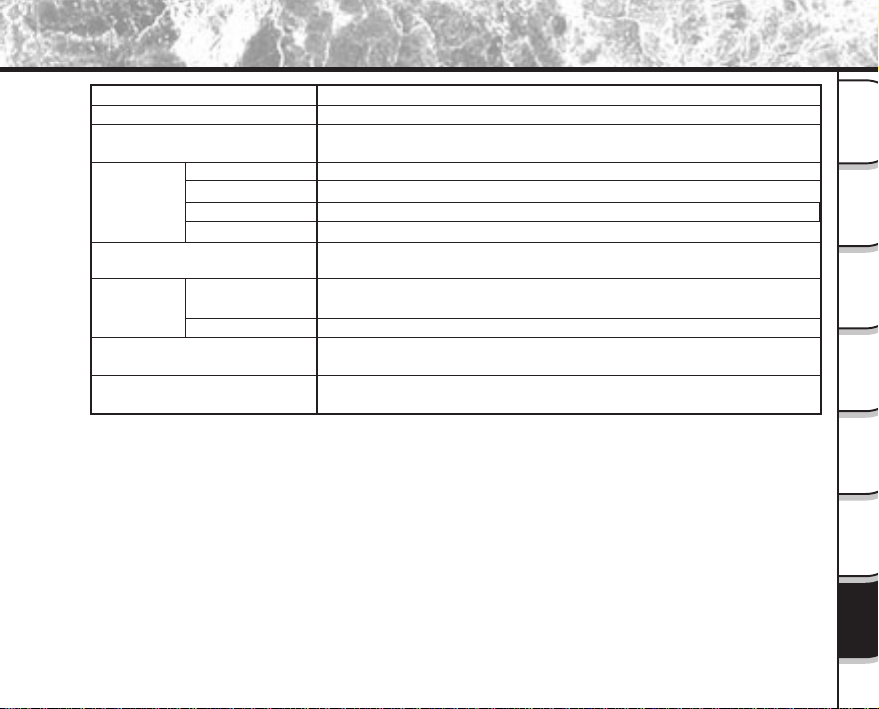
- 129 -
Getting
Ready
Taking
Photographs
Playing
Back Images
Other
Applications
Additional
Information
Erasing
Images
Handy
Functions
Date/Time
Automatic calendar function
LCD monitor (
*1
)
I/O terminal
Power supply
Operating
conditions
Camera dimensions
Weight
Specifications (continued)
Simultaneously recorded to image data (Exif file format)
Automatically adjusted until the year 2030
1.8" wide viewing angle, low-temperature polysilicon TFT
(113,578 pixels)
DC 5 V
Selectable Audio/Video cable or USB cable connections.
3.5 mm diameter monaural
Sync terminal for connection of external flash
Rechargeable Lithium-ion battery pack (PDR-BT1, PDR-BT2) or AC
adapter provided (PDR-AC10, PDR-AC10E or PDR-AC10U)
+5°C (+41°F) to +40°C (+104°F) (during operation)/–20°C (–4°F) to
+60°C (+140°F) (during storage)
30 to 80% (during operation) no condensation
116 mm (4.6”) (W) x 76 mm (3”) (H) x 62 mm (2.4”) (D)
(excluding protrusions)
Approx. 340 g (12 oz) (excluding accessories, battery and
SmartMedia™)
*1
The LCD monitor on your digital camera is manufactured using advanced high-precision technology.
Though fine spots may appear on the LCD monitor, this is not a malfunction. The LCD monitor can be used
as it is.
Temperature
Humidity
DC IN 5V terminal
PC/AV terminal
Earphone jack terminal
SYNC terminal
- 130 -
Getting
Ready
Taking
Photographs
Playing
Back Images
Other
Applications
Additional
Information
Erasing
Images
Handy
Functions
Specifications (continued)
Power supply AC230V 50Hz
Rated Input Capacity 170 mA
Rated Output DC5.0V 2A
Operating temperature 0°C (+32°F) ~ +40°C (+104°F)
Storage temperature –20°C (–4°F) ~ +70°C (+158°F)
Dimensions 36 mm (1.4”) (W) x 66.5 mm (2.6”) (H) x 75 mm (3.0”) (D)
Weight Approx. 140 g (4.9 oz)
Connector Cable Length Approx. 2 m (6.6 ft)
AC adapter (PDR-AC10E)
Power supply AC100V – 120V 50/60Hz
Rated Input Capacity 29VA
Rated Output DC5.0V 2A
Operating temperature 0°C (+32°F) ~ +40°C (+104°F)
Storage temperature –20°C (–4°F) ~ +70°C (+158°F)
Dimensions 70 mm (2.8”) (W) x 30 mm (1.2”) (H) x 50 mm (2”) (D)
Weight Approx. 120 g (4.2 oz)
Connector Cable Length Approx. 2 m (6.6 ft)
AC adapter (PDR-AC10)
Power supply AC230V 50Hz
Rated Input Capacity 170 mA
Rated Output DC5.0V 2A
Operating temperature 0°C (+32°F) ~ +40°C (+104°F)
Storage temperature –20°C (–4°F) ~ +70°C (+158°F)
Dimensions 49.9 mm (2.0”) (W) x 60.4 mm (2.4”) (H) x 75 mm (3.0”) (D)
Weight Approx. 150 g (5.3 oz)
Connector Cable Length Approx. 2 m (6.6 ft)
AC adapter (PDR-AC10U)
- 131 -
Getting
Ready
Taking
Photographs
Playing
Back Images
Other
Applications
Additional
Information
Erasing
Images
Handy
Functions
Type Image memory card for digital cameras (SmartMedia
TM
)
Type of memory NAND flash memory
Operating voltage 3.3V
Operating conditions Temperature 0°C (+32°F) ~ +40°C (+104°F)
Humidity 80% or less (no condensation)
Dimensions 37 mm (1-
4
/
9
”) (W) x 0.76 mm (
3
/
100
”) (H) x 45 mm (1-
7
/
9
”) (D)
Accessories Anti-static case (x1), index labels (x2), write-protect stickers
(x4)
SmartMedia™
These specifications are subject to change without notice.
Specifications (continued)
Nominal voltage 3.7V
Nominal capacity 1300mAh
Operating temperature 0°C (+32°F) ~ +40°C (+104°F)
Dimensions 19.8 mm (
7
/
9
”) (W) x 20.4 mm (
4
/
5
”) (H) x 55.5 mm (2-
1
/
6
”) (D)
Weight Approx. 40 g (1.4 oz)
High-speed charging Approx. 70 minutes
* Battery charger (PDR-CG1, PDR-CG1E or PDR-CG1U) used
Lithium-ion battery pack (PDR-BT2)
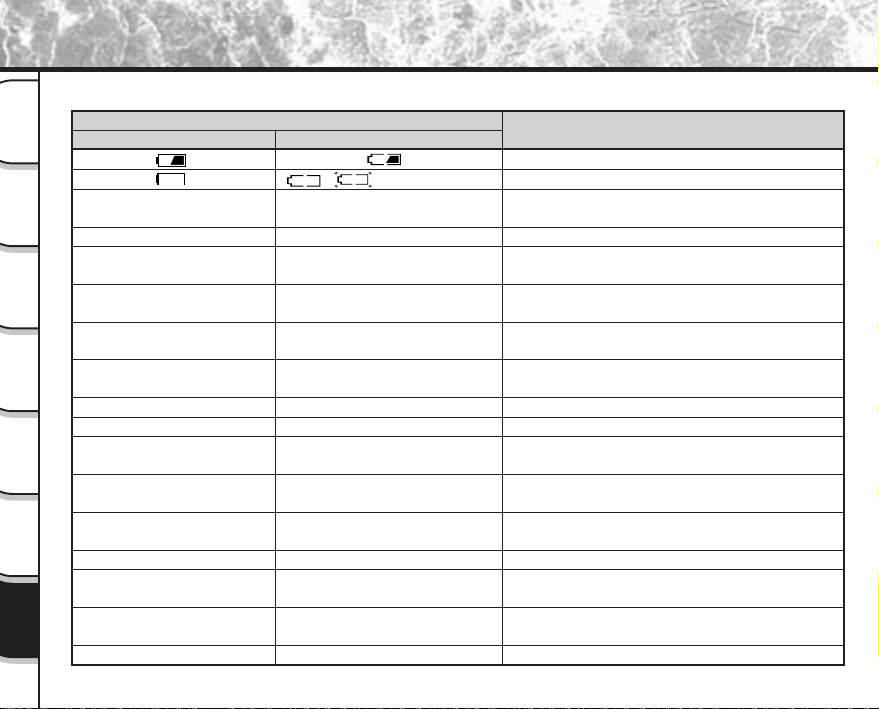
- 132 -
Getting
Ready
Taking
Photographs
Playing
Back Images
Other
Applications
Additional
Information
Erasing
Images
Handy
Functions
Warnings and Messages Displayed on LCD Monitor
The following warnings, messages and icons are displayed on the LCD monitor and the status display.
Meaning
Remaining battery power half or less
No battery power left
The SmartMedia™ is damaged.
An unsupported SmartMedia™ is loaded.
The SmartMedia™ cover is open.
No more space on the SmartMedia™.
Recording is not possible.
No SmartMedia™ is loaded
SmartMedia™ is loaded incorrectly
The SmartMedia™ is not initialized.
The SmartMedia™ format is incorrect.
The SmartMedia™ is not formatted (initialized).
The SmartMedia™ format is incorrect.
The frame number has reached 999-9999.
The image is write-protected.
The image to apply the resize, quality or other
function does not exist.
There is not enough space on the
SmartMedia™ to copy image data to.
The format of the SmartMedia™ to copy image
data to is incorrect.
The SmartMedia™ is write-protected.
There are no free folders on the SmartMedia™
to copy image data to.
There is a parameter that is not supported in
the DPOF setting file.
The SmartMedia™ cover must be closed.
Display
LCD monitor
CARD ERROR
CARD LID OPEN
CARD FULL
NO CARD
CARD ISN’T FORMATED
FORMAT CARD?
FRAME NUMBER FULL
PROTECTED
NO IMAGE
CARD FULL
FORMAT ERROR
CARD PROTECTED
FOLDER ERROR
RECREATE DPOF FILE?
CLOSE THE CARD LID
Status display
/ (Flashing)
Flashing
–––
Display 0
–––
–––
–––
–––
–––
–––
–––
–––
–––
–––
–––
–––
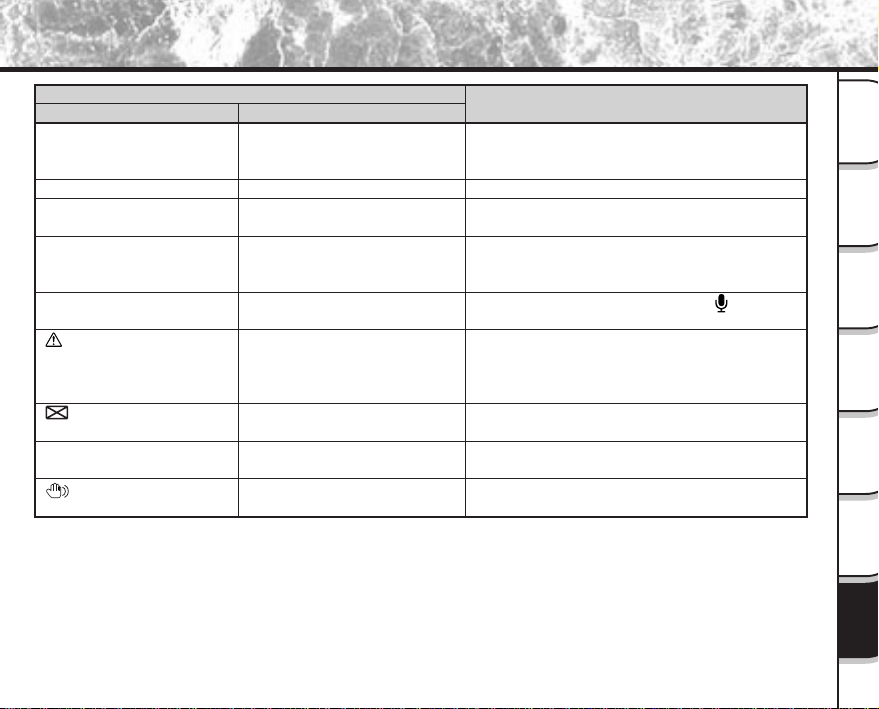
- 133 -
Getting
Ready
Taking
Photographs
Playing
Back Images
Other
Applications
Additional
Information
Erasing
Images
Handy
Functions
Warnings and Messages Displayed on LCD Monitor (continued)
Display
Meaning
The maximum number of images (999 frames)
that can be set is exceeded when setting DPOF
setting files.
No images are recorded to the SmartMedia™.
There is a parameter that is not supported in
the DPOF setting file.
This is a confirmation for checking whether or
not to remove DPOF write-protection when
clearing DPOF settings.
The data to be played back in the [ ] mode
does not exist.
The zoom lens cannot be correctly set up.
Is the lens cap still attached to the lens?
Check the lens cap, and turn the power ON
again.
You tried to play back an image not supported
on this camera.
A camera problem has occurred.
Contact a Support Center.
Poor lighting conditions. Image will be
vulnerable to vibrations.
LCD monitor
FRAME NUMBER FULL
NO IMAGE AVAILABLE
DPOF ERROR
DPOF PROTECT OFF
NO FILE AVAILABLE
ERROR***
Status display
–––
–––
–––
–––
–––
–––
–––
–––
–––
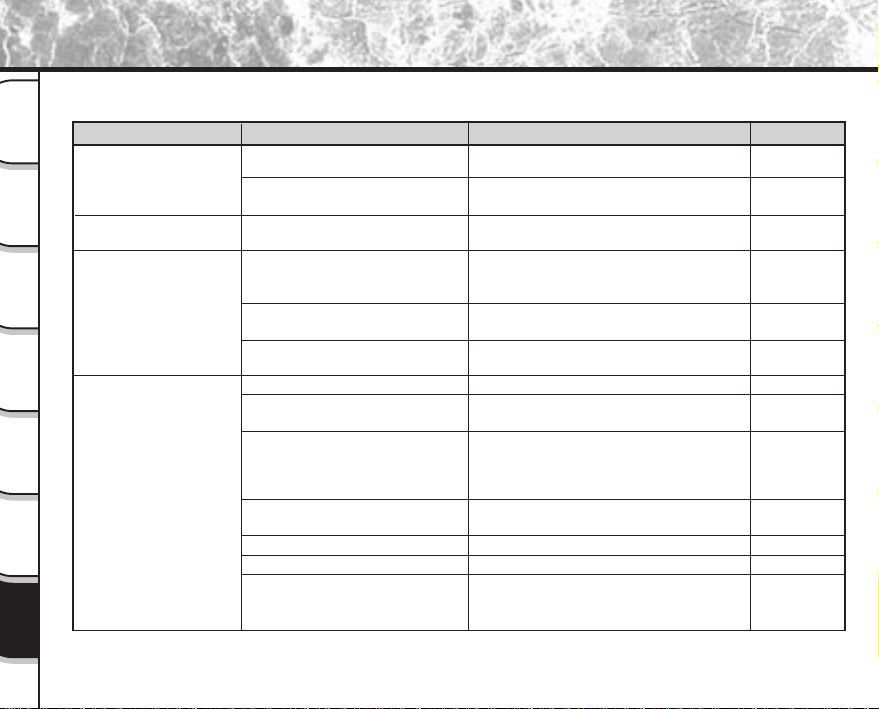
- 134 -
Getting
Ready
Taking
Photographs
Playing
Back Images
Other
Applications
Additional
Information
Erasing
Images
Handy
Functions
Troubleshooting
First check the warning displayed on the LCD monitor (
➲
Page 132) and the color of the viewfinder LED (
➲
Page
120). Then check the following items.
Remedy
• Charge the battery.
• Load a fully charged battery.
Plug the adapter back in.
• Charge the battery
• Load a fully charged battery.
Put the battery in your pocket or another
warm place to heat it and then load it into
the camera just before you take a picture.
Wipe the battery terminals with a clean, dry
cloth.
Load a fully charged battery.
Load a SmartMedia™.
Load the SmartMedia™ correctly.
• Load a new SmartMedia™.
• Erase photographed images or change
the size and quality to increase space on
the SmartMedia™.
Remove the write-protection or replace with
a new SmartMedia™.
Format the SmartMedia™.
Load a new SmartMedia™.
Either press the shutter button half way
down for at least two seconds, or change
the mode dial setting.
Causes
The battery is exhausted.
The AC adapter plug has come
out of the power outlet.
The battery is exhausted.
You are using the camera in
extremely cold conditions.
The terminals are dirty.
The battery has reached its
effective life.
No SmartMedia™ is loaded.
The SmartMedia™ is loaded
incorrectly.
Not enough space on the
SmartMedia™
The SmartMedia™ is write-
protected.
The SmartMedia™ is not formatted.
The SmartMedia™ is damaged.
The Auto Power OFF function is
activated.
Problem
No power supply
The camera turns OFF
during operation.
The battery runs out
quickly.
No photograph is taken
when the shutter button
is pressed.
See Page
P.26
P.30
P.26
P.16
–
P.26
P.32
P.33
P.32
P.95
P.97
P.35
P.94
P.32
P.114
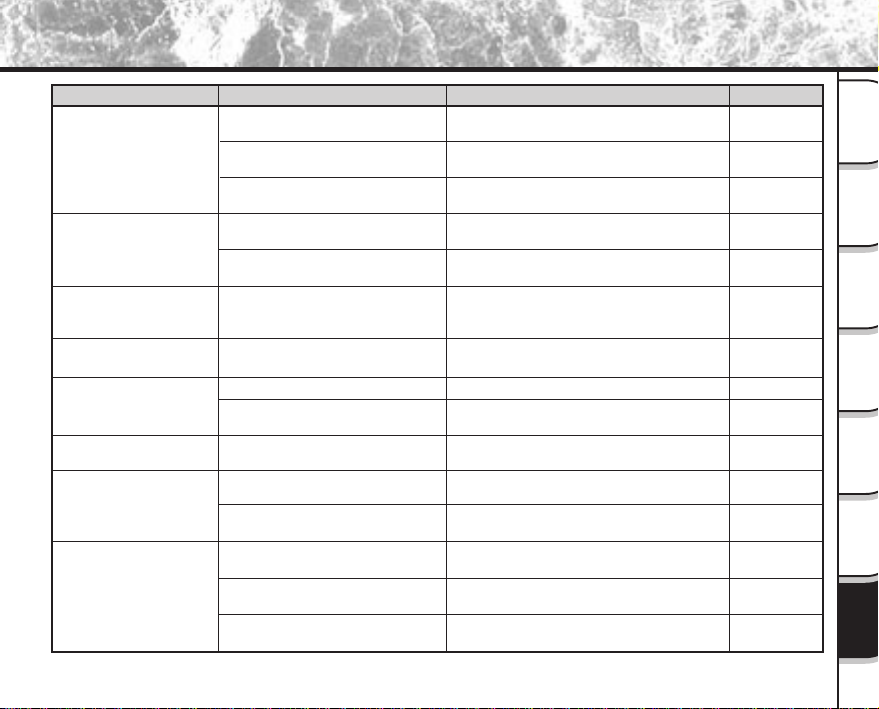
- 135 -
Getting
Ready
Taking
Photographs
Playing
Back Images
Other
Applications
Additional
Information
Erasing
Images
Handy
Functions
Troubleshooting (continued)
Causes
The mode dial has been changed
to another setting.
The flash is set to Suppressed
Flash mode.
You pressed the shutter button
while the flash was charging.
The camera is set to Suppressed
Flash mode.
The battery is exhausted.
The subject is too far away.
Wrong playback mode
The lens is not clean.
The image is out of focus.
The SmartMedia™ is
write-protected.
The frame is protected.
The SmartMedia™ is
write-protected
Camera malfunction.
The mode dial is not at the correct
position.
The camera is in the Auto Power
OFF mode.
See Page
–
P.58
P.120
P.58
P.26
P.58
P.89
–
P.56
P.35
P.109
P.103
P.35
–
–
P.114
Remedy
Set the mode dial to the correct setting.
Set the flash to Auto, Red-Eye Reduction or
Forced Flash mode.
Wait until charging is completed before
pressing the shutter button.
Set the flash to Auto, Red-Eye Reduction or
Forced Flash mode.
• Charge the battery.
• Load a fully charged battery.
Move closer to the subject.
(about 0.8 m (2.64 ft) ~ 4.0 m (13.12 ft)
(WIDE side setting))
Switch the folder to play back.
Clean the lens.
Set macro photography to ON or OFF
according to the distance up to the subject.
Remove the write-protection.
Remove the write-protection.
Cancel the DPOF setting.
Remove the write-protection.
Turn the power OFF and remove the
battery once, and try again.
Set the mode dial to the correct setting.
Either press the shutter button half way
down, or change the mode dial setting.
Problem
I cannot use the flash to
take pictures.
The flash will not charge.
The playback image is
too dark even though I
used the flash.
Still/moving images
cannot be played back.
The playback image is
blurred.
I cannot format the
SmartMedia™.
I cannot erase all the
frames.
Nothing happens when I
use the buttons and
switches.
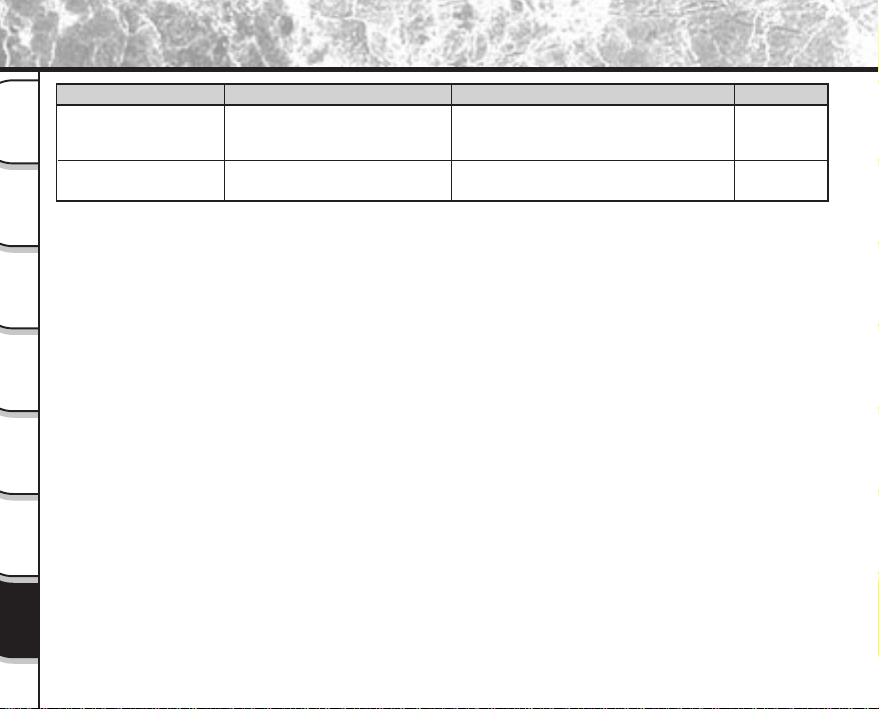
- 136 -
Getting
Ready
Taking
Photographs
Playing
Back Images
Other
Applications
Additional
Information
Erasing
Images
Handy
Functions
Troubleshooting (continued)
Causes
The camera is in the PC mode.
Both the battery and AC adapter are
removed with the power still ON.
Problem
Nothing is displayed
even through the LCD
monitor is set to ON.
The set date and time
disappears.
See Page
P.43
P.64~66
P.80
P.115
Remedy
Change the camera to the photography or
playback mode.
Set the date and time again.
- 137 -
Getting
Ready
Taking
Photographs
Playing
Back Images
Other
Applications
Additional
Information
Erasing
Images
Handy
Functions
Glossary
●AF/AE
AF (auto-focus) ··· A function for automatically
focusing your camera.
AE ··· A function for automatically setting your
camera’s exposure.
AF/AE lock ··· Locking of the focus and exposure
settings.
●DPOF (Digital Print Order Format)
A standard for directly writing print information to the
SmartMedia™. Files in this format can be printed
easily by printers or photo print service bureaus that
support this format.
●DCF (Design rule for Camera File System)
A file system standard defined by the JEIDA (Japan
Electronic Industry Development Association) that is
required for exchanging data between digital still
cameras or a digital camera and a printer. This
standard defines the hierarchy and file names used
when storing image files on memory cards or other
recording medium.
●Exif File Format (Exchangeable Image File Format)
A color still image format for digital still cameras
approved by the JEIDA (Japan Electronic Industry
Development Association). JPEG-compliant, this
format is compatible with TIFF and JPEG and can be
used in image processing software for most personal
computers.
●JPEG
A file format used for compressing and saving color
images. The compression ratio can be selected, but
the higher the compression ratio, the worse image
quality becomes. This format is widely used in the
paint software for PCs and on the Internet.
●NTSC (National Television System Committee)
Method of television transmission in use in Japan and
North America
●PAL (Phase Alternate Line)
Method of television transmission in use in the United
Kingdom, Germany and other western European
countries
●PC Card
A generic term for cards that meet the PC Card
Standard.
●Red-Eye Effect
The phenomenon where people’s eyes sometimes
appear red in the picture when you use a flash to
photograph them in low-light conditions. This is
caused by the light of the flash reflecting off the
inside of the eye.
●White Balance
When the brightness of the light changes, the human
eye adapts so that a white object still looks white. On
the other hand, devices such as digital still cameras
see a white subject as white by first adjusting the
balance to suit the color of the ambient light around
the subject. This adjustment process is referred to as
matching the white balance.
- 138 -
Getting
Ready
Taking
Photographs
Playing
Back Images
Other
Applications
Additional
Information
Erasing
Images
Handy
Functions
●SmartMedia™
Name of a recording medium defined by the SSFDC
Forum. This recording medium can be used over and
over again.
●Formatting
Transforming the contents of the SmartMedia™ to a
recordable state. (This is sometimes called
“initialization”.)
●Exposure Compensation
When the screen contains an extremely bright or dark
object, the camera automatically adjusts the
brightness, resulting in the subject being reproduced
darker or lighter. Exposure compensation adjusts for
this.
Glossary (continued)
website
www.toshiba.co.uk
www.toshiba.de/consumer
www.toshiba.it/
www.toshiba.fr/produits/video/index.htm
www.toshiba.ch/
www.cp.toshiba.com.sg
www.toshiba.com.hk
Contact Numbers
Country
United Kingdom
Germany
Italy
France
Switzerland
Singapore
Hong Kong
Company name
Toshiba (UK) Ltd.
Toshiba Europe Gmbh
Toshiba Consumer Products (Italia)
Toshiba Systems (France)
Toshiba Europe Gmbh Swiss Branch
Toshiba Singapore Pte
Toshiba Hong Kong Ltd
Phone number
for inquiry
(01932) 828828
(02131) 158 01
(039) 6099342
01 47 28 28 50
01-946 07 77
270-7776
2956-0222
e-mail address for inquiry
NA
NA
NA
Site Web
www.toshiba.co.uk
www.toshiba.de/consumer
www.toshiba.it/
www.toshiba.fr/produits/video/index.htm
www.toshiba.ch/
www.cp.toshiba.com.sg
www.toshiba.com.hk
Numéros à appeler
Pays
Royaume-Uni
Allemagne
Italie
France
Suisse
Singapour
Hong Kong
Nom de la compagnie
Toshiba (UK) Ltd.
Toshiba Europe Gmbh
Toshiba Consumer Products (Italia)
Toshiba Systems (France)
Toshiba Europe Gmbh Swiss Branch
Toshiba Singapore Pte
Toshiba Hong Kong Ltd
Numéro de
téléphone pour
toute demande
(01932) 828828
(02131) 158 01
(039) 6099342
01 47 28 28 50
01-946 07 77
270-7776
2956-0222
Addresse e-mail pour toute
demande
NA
NA
NA
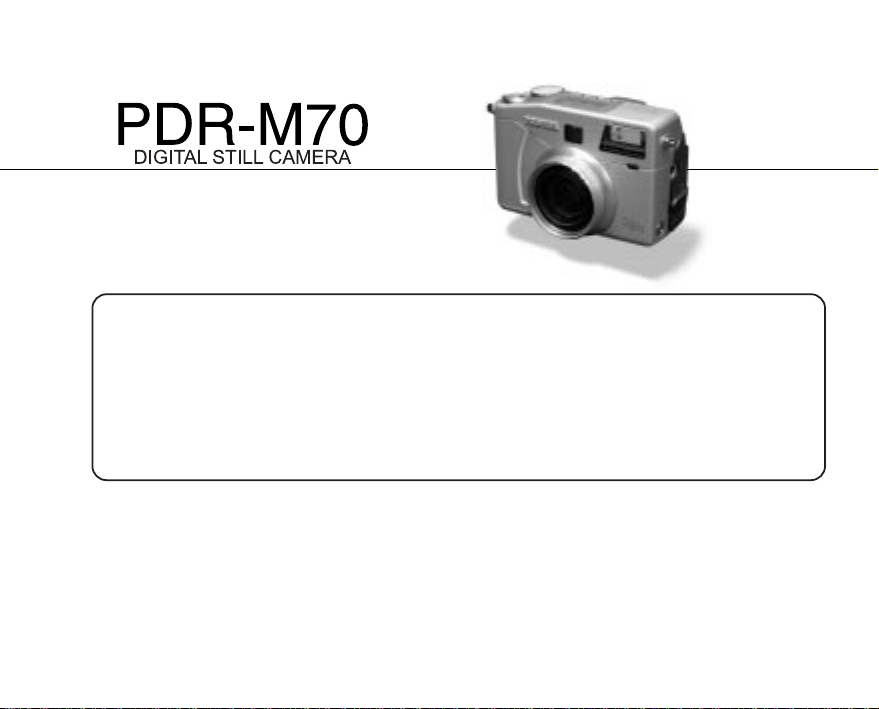
For technical support, please contact:
(800)829-8318
5:00 a.m. to 5:00 p.m. PST, Monday to Friday except holidays,
or e-mail us at: [email protected]
TOSHIBA DIGITAL STILL CAMERA
Toshiba America Information Systems, Inc.
Imaging Systems Division
9740 Irvine Boulevard, Irvine, Carifornia 92618-1697
* Address and telephone number are subject to change without notice.
235638
For customers in the U.S.A.