MODE D’EMPLOI
BEDIENUNGSANLEITUNG
INSTRUCTION MANUAL
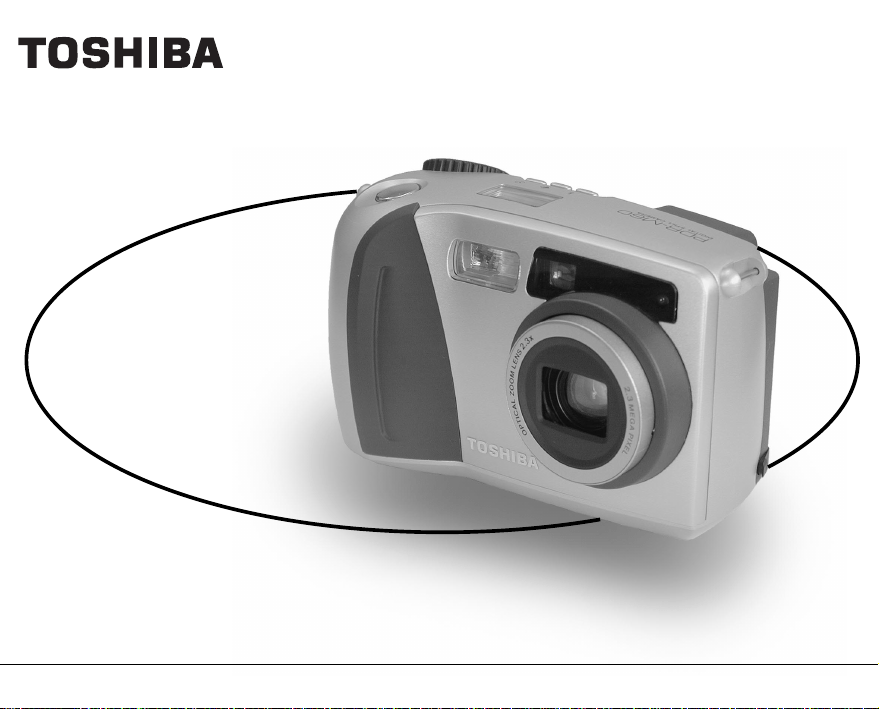
DIGITAL STILL CAMERA
PDR-M60
INSTRUCTION MANUAL
DIGITAL STILL CAMERA
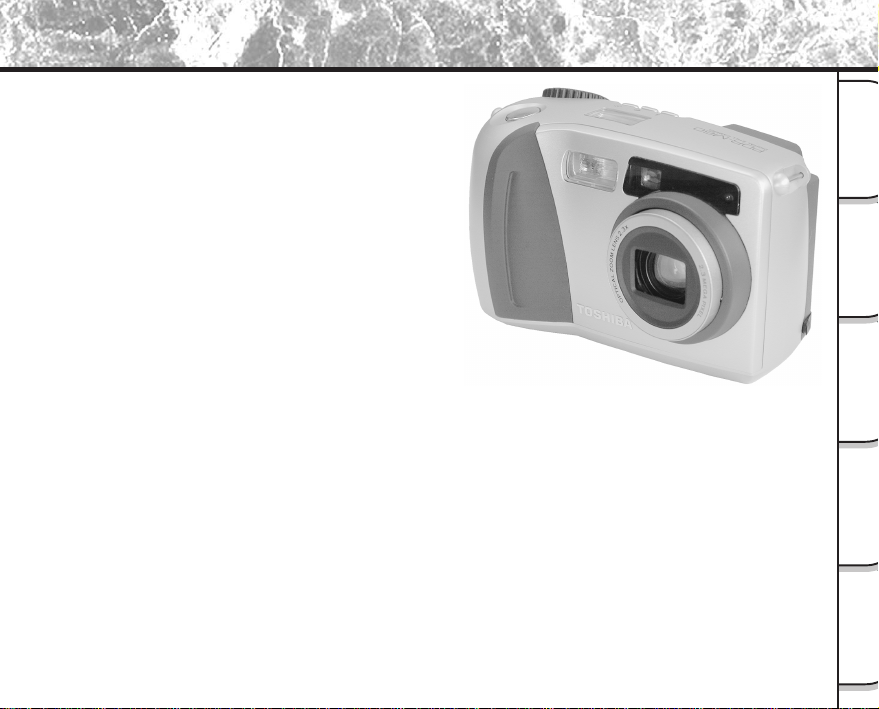
To ensure that you use the Toshiba
PDR-M60 Digital Still Camera safely
and correctly, read this Instruction
Manual carefully before you start using
the camera. Once you have finished
reading this Instruction Manual, keep it
handy at all times.
PDR-M60
ENGLISH
In the space provided below, please record the model and Serial No. of your camera.
Model No. PDR-M60 Serial No.
Please retain this information for future reference.
- 1 -
Basic
Photography
Playing Back/
Erasing Images
Other
Applications
Additional
Information
Getting Ready
For customers in the U.S.A.
DIGITAL STILL CAMERA PDR-M60
Tested To Comply
With FCC Standards
FOR HOME OR OFFICE USE
FCC Statement
This device complies with Part 15 of the FCC Rules. Operation is subject to the following two conditions:
(1) This device may not cause harmful interference, and
(2) this device must accept any interference received, including interference that may cause undesired operation.
NOTE
This equipment has been tested and found to comply with the limits for a Class B digital device, pursuant to Part 15
of the FCC Rules. These limits are designed to provide reasonable protection against harmful interference in a
residential installation.
This equipment generates, uses and can radiate radio frequency energy and, if not installed and used in
accordance with the instructions, may cause harmful interference to radio communications. However, there is no
guarantee that interference will not occur in a particular installation. If this equipment does cause harmful
interference to radio or television reception, which can be determined by turning the equipment off and on, the user
is encouraged to try to correct the interference by one or more of the following measures:
• Change the direction of the radio or TV antenna.
Move the equipment or the radio or TV. For example, if the equipment is to the right of the TV, move it to the left of
the TV.
Or, move the equipment farther away from the radio or TV.
• Plug the equipment into a different outlet. Don’t plug your radio or TV into the same circuit as your equipment.
• Ensure that all expansion slots (on the back or side of the equipment) are covered.
Also, ensure that all metal retaining brackets are tightly attached to the equipment.
• If these suggestions don’t help, consult your equipment dealer or experienced radio/TV technician for help.
Attention
- 2 -
Basic
Photography
Playing Back/
Erasing Images
Other
Applications
Additional
Information
Getting Ready
CAUTION
If you modify the camera in any way, without getting approval from Toshiba Corporation, your camera may violate
FCC regulations. Violation of FCC regulations may cause the FCC to void your right to use the modified camera.
TOSHIBA AMERICA INFORMATION SYSTEMS, INC.
Imaging Systems Division
9740 Irvine Boulevard,
Irvine, California 92618-1697
Phone Number: (800)288-1354
E-mail: [email protected]
For customers in Canada
CAUTION
This Class B digital apparatus complies with Canadian ICES-003.
Cet appareil numérique de la classe B est conforme à la norme NMB-003 du Canada.
Attention (continued)
- 3 -
Basic
Photography
Playing Back/
Erasing Images
Other
Applications
Additional
Information
Getting Ready
Thank you for purchasing the Toshiba PDR-M60 Digital Still Camera.
To ensure that you use this camera safely and correctly, read this Instruction Manual carefully before you start using
the camera. Once you have finished reading this Instruction Manual, keep it handy at all times.
Trademark Information
• MS-DOS, Windows, Windows 98, Windows 2000
are registered trademarks of the Microsoft
Corporation of the U.S. registered in the USA and
other countries.
Windows is an abbreviated term referring to the
Microsoft Windows Operating System.
• SmartMedia is a trademark of Toshiba Corporation.
• Other companies or product names are trademarks
or registered trademarks of the respective
companies.
Before Reading This Manual
IMPORTANT
• Indicates items or details that you should observe to
prevent loss of data, malfunction and impaired
performance. Also indicates information relating to
specifications and functions.
Memo
• Indicates extra useful information.
☞
Indicates another page to refer to for extra
information.
About OS Abbreviations
• Windows 98
This abbreviation stands for the Microsoft
®
Windows
®
98 operating system.
• Windows 2000
This abbreviation stands for the Microsoft
®
Windows
®
2000 operating system.
Conventions Used In This Manual
- 4 -
Basic
Photography
Playing Back/
Erasing Images
Other
Applications
Additional
Information
Getting Ready
Contents The name in parentheses ( ) is the function name on the PDR-M60.
Preface
■ Attention ................................................................1
■ Before Reading This Manual .................................3
■ Contents ................................................................4
■ Safety Precautions ................................................6
■ Using Your Camera Correctly ..............................12
■ Features...............................................................15
■ The Function Map................................................16
Getting Ready
■ Accessories .........................................................17
■ Names of Parts ....................................................18
■ Attaching the Strap ..............................................22
■ Installing the Batteries .........................................23
Loading the Batteries ...........................................23
Removing the Batteries ........................................25
■ Using the Power Outlet ........................................ 27
■ About SmartMedia™ ...........................................28
Notes on SmartMedia™ .......................................28
Loading SmartMedia™.........................................29
Removing SmartMedia™ .....................................30
Write Protection ....................................................32
■ Turning the Power ON/OFF ................................. 33
Turning the Power ON ..........................................33
Turning the Power OFF.........................................33
■ LCD Monitor Display............................................34
In Photography Mode ...........................................34
In Playback Mode .................................................35
Basic Photography
■ How to Hold Your Camera....................................36
■ How to Press the Shutter Button .........................37
■ About the Color of the Viewfinder LED ................39
■ Photography (Auto Photography) ........................ 40
Using the Viewfinder.............................................40
Using the LCD Monitor .........................................41
■ Setting the Image Size and Quality .....................43
■ Zoom Photography ..............................................45
■ Digital Zoom Photography ...................................46
■ Close-up Photography
(Macro Photography) ...........................................47
■ Photography Using the Self-timer
(Self-timer Photography)......................................48
■ Photography Using the Flash
(Flash Photography) ............................................49
■ Multi Image Photography
(Multi Photography) .............................................52
■ Long Exposure Photography
(Bulb Photography).............................................. 53
■ Taking Photographs Manually
(Manual Photography) .........................................54
W.B. (White Balance)............................................56
E.V. (Exposure Compensation).............................56
■ Changing the Preset Conditions
(REC MENU) .......................................................58
REC. MODE .........................................................59
PREVIEW .............................................................60
- 5 -
Basic
Photography
Playing Back/
Erasing Images
Other
Applications
Additional
Information
Getting Ready
Contents (continued)
ISO .......................................................................60
BULB ....................................................................61
SELF TIMER ........................................................61
LCD ......................................................................61
Playing Back/Erasing Images
■ Playing Back Photographed Images
(Single-Frame Playback) ..................................... 62
■ Enlarging Photographed Images
(Zoom Playback).................................................. 63
■ Displaying a List of Images
(Thumbnail Display).............................................64
■ Auto Playback (Slideshow) ..................................65
■ Reducing the Image Size (Resize) ......................66
■ Compressing Images (Quality) ............................68
■ Selecting the Folder to Play Back ........................70
■ Erasing Images (Erase Frame)............................ 72
■ Erasing All Images in a Folder (Erase All) ...........74
■ Formatting the SmartMedia™ ............................. 75
■ Protecting Images................................................76
Protecting an Image .............................................76
Removing the Protection ......................................78
Other Applications
■ Basic Photographic Settings
(SET-UP mode)....................................................79
LANGUAGE..........................................................80
SOUND ................................................................80
TIME .....................................................................81
AUTO-OFF ...........................................................81
TV .........................................................................82
IMAGE No.............................................................82
DEFAULT ..............................................................83
■ Adjusting the LCD Monitor Brightness.................84
■ DISP Button and LCD Monitor Display ................85
■ Taking and Playing Back
Photographs on a TV ........................................... 86
■ Transferring Images to a PC ................................88
■ Installing the USB driver ......................................89
■ Separately Sold Accessories............................... 92
■ Connecting to Other Devices...............................93
Additional Information
■ Specifications ......................................................94
■ Warnings and Messages Displayed
on LCD Monitor ...................................................98
■ Troubleshooting ...................................................99
■ Glossary ............................................................102
■ Contact Numbers...............................................103
The name in parentheses ( ) is the function name on the PDR-M60.
- 6 -
Basic
Photography
Playing Back/
Erasing Images
Other
Applications
Additional
Information
Getting Ready
Safety Precautions
Indication definitions
Read these safety precautions carefully before using the PDR-M60. These instructions contain valuable information
on safe and proper use that will prevent harm and damage to the operator and other persons.
Make sure that you fully understand the following details (indications) before proceeding to the main descriptions in
this manual.
*1: “Bodily injury” means injuries, burns, and shock which
does not require hospitalization or prolonged treatment.
*2: “Physical damage” means extended harm to home,
household effects, domesticated animals, and pets.
Graphic symbol definitions
Indication Meaning
This indicates the existence of a
hazard that could result in death or
serious bodily injury, if the safety
instruction is not observed.
This indicates the existence of a
hazard that could result in bodily
injury, if the safety instruction is not
observed.
This indicates the existence of a
hazard that could result in bodily
injury
*1
or property damage
*2
.
Graphic symbol Meaning
Indicates a prohibited action that must
not be carried out.
The actual prohibited action is
indicated in the symbol or nearby
graphically or described in text.
Indicates a necessary action that must
be carried out.
The actual necessary action is
indicated in the symbol or nearby
graphically or described in text.
DANGER
WARNING
CAUTION
- 7 -
Basic
Photography
Playing Back/
Erasing Images
Other
Applications
Additional
Information
Getting Ready
Exemption Clauses
• Toshiba Corporation bears no responsibility in the case of
damages arising from earthquakes, fire not liable to
Toshiba Corporation, operating by third parties, other
accidents, or use under abnormal conditions including
erroneous or improper operation and other problems.
• Toshiba Corporation bears no responsibility for incidental
damages (lost profit, work interruption, corruption or loss
of the memory contents, etc.) arising from the use of or
the inability to use this unit.
• Toshiba Corporation accepts no liability whatsoever for
any damages arising from not having followed the
descriptions in this Instruction Manual.
• Toshiba Corporation accepts no liability whatsoever for
any damages arising from malfunctions arising from
combination with equipment or software that is not
related to Toshiba Corporation.
Safety Precautions (continued)
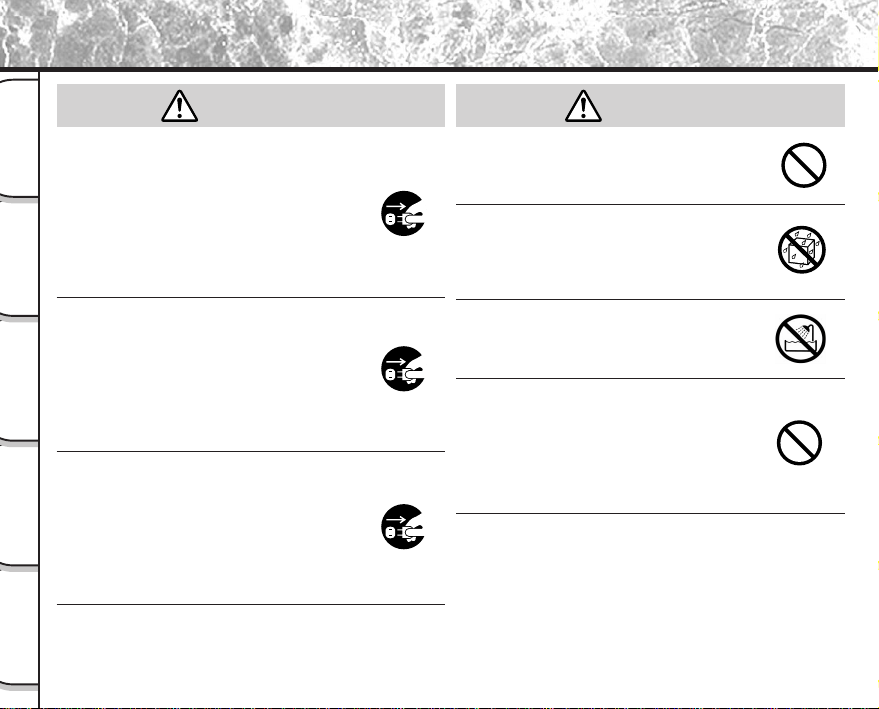
Do not heat, disassemble or throw the
batteries into fire or water.
Doing this might cause it to rupture, ignite or heat
up, resulting in fire or major injury.
Do not strike the batteries with a hammer,
or step on, drop, or subject the battery to
strong impact.
Doing so might cause it to rupture, ignite or heat
up, resulting in fire or major injury.
DANGER
- 8 -
Basic
Photography
Playing Back/
Erasing Images
Other
Applications
Additional
Information
Getting Ready
Safety Precautions (continued)
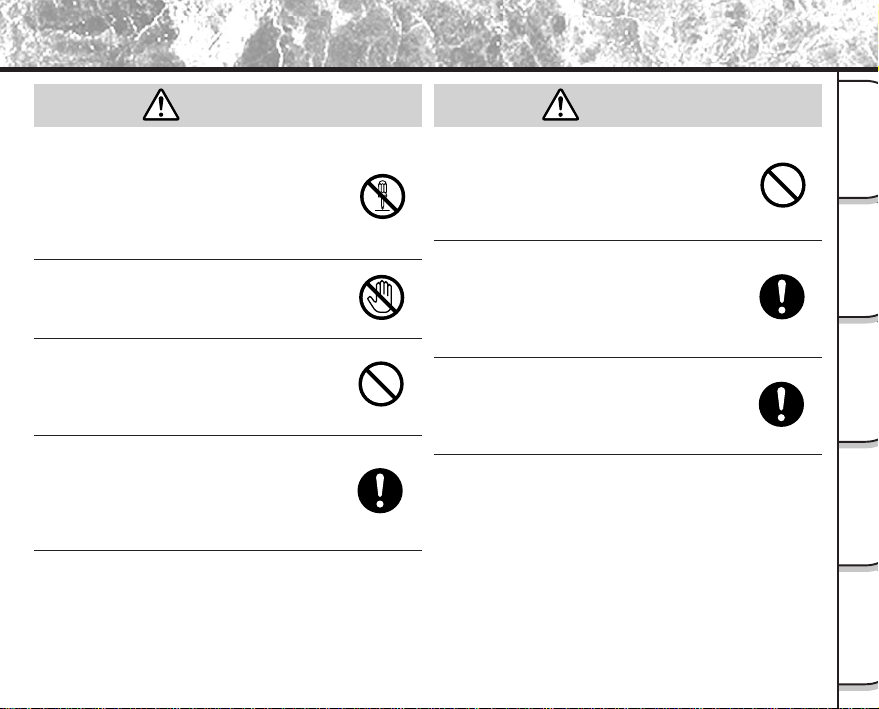
Should you ever notice smoke, a strange
odor or excessive heat coming from the
camera, immediately turn OFF the power
and remove the batteries and AC adapter.
Continued use in this state might cause fire,
electric shock or burns. For details on repair,
consult the store of purchase, or please contact
the technical support number.
If foreign objects or water have entered the
camera, immediately turn the power OFF
and remove the batteries and AC adapter.
Continued use in this state might cause fire or
electric shock. For details on repair, consult the
store of purchase, or please contact the
technical support number.
If the camera has fallen or its case is
damaged, immediately turn the power OFF
and remove the batteries and AC adapter.
Continued use in this state might cause fire or
electric shock. For details on repair, consult the
store of purchase, or please contact the
technical support number.
Do not place the camera on wobbly,
inclined or unstable surfaces.
This might cause the camera to fall or tilt over.
Do not use in areas near water.
This might cause fire or electric shock. Take
special care during rain, snow, on the beach or
near the shore.
Do not use the camera in the bath or
shower.
This might cause a fire or electric shock.
Do not allow metallic objects or other
flammable foreign matter inside the
camera.
This might cause a fire or electric shock. Do not
open the SmartMedia™ cover, and insert or allow
such objects to fall inside.
(continued)
WARNING
WARNING
- 9 -
Basic
Photography
Playing Back/
Erasing Images
Other
Applications
Additional
Information
Getting Ready
Safety Precautions (continued)
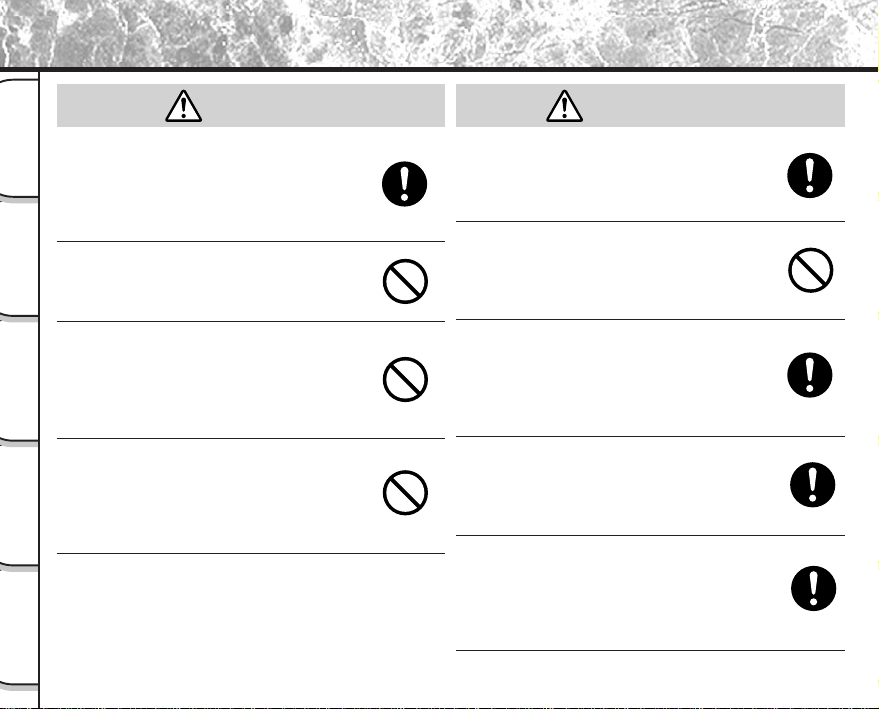
Do not disassemble, change or repair the
camera.
This might cause fire or electric shock. For
details on repair and internal inspection, consult
the store of purchase, or please contact the
technical support number.
Do not touch power or TV antenna cords
during a thunderstorm.
This might cause electric shock.
Do not use the camera while you are
walking, driving or riding a motorcycle.
This might cause you to fall over or result in a
traffic accident.
Use only the specified batteries or the
specified AC adapter.
Use of a battery or AC adapter other than
specified, might cause fire, defects or
malfunctions.
Keep the batteries out of the reach of
children.
If a child swallows a battery, this might result in
poisoning. If a child swallows a battery,
immediately consult a physician.
If battery fluid enters the eyes, immediately
rinse with fresh water and consult with a
physician to receive treatment.
If left untreated, damage to the eye could be
permanent.
Use the AC adapter only with the indicated
power supply voltage (120V AC).
Use with any other power supply voltage might
cause fire or electric shock.
(continued)
WARNING
(continued)
WARNING
- 10 -
Basic
Photography
Playing Back/
Erasing Images
Other
Applications
Additional
Information
Getting Ready
Safety Precautions (continued)
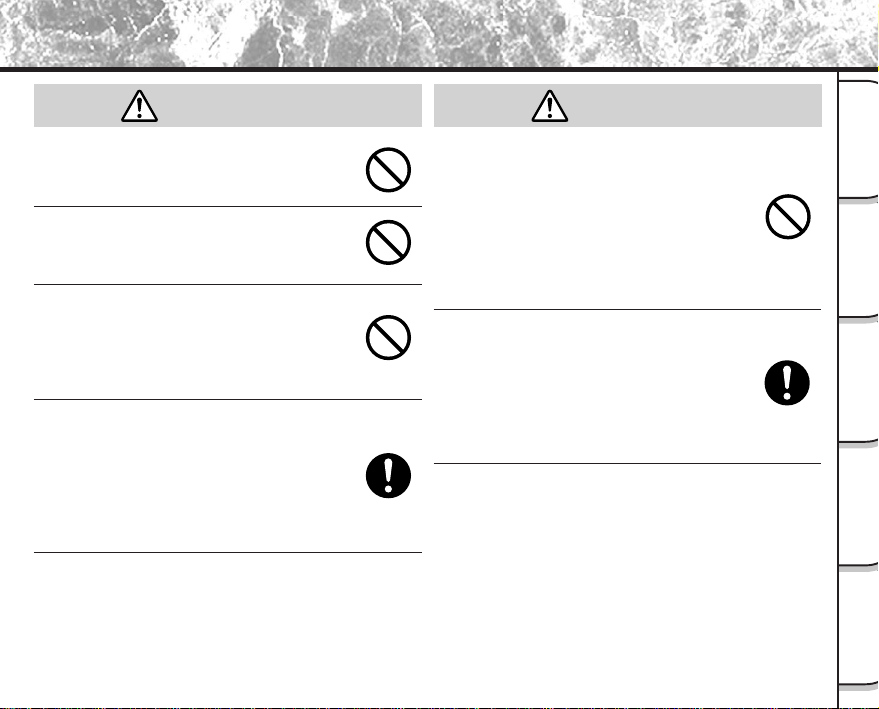
If you want to use the camera on an
airplane, consult with the airline and follow
their instructions.
Use of this camera is sometimes restricted due
to potential radio interference.
Do not use the camera in humid, steamy,
smoky or dusty places.
This might cause fire or electric shock.
Do not leave the camera in places where
the temperature may rise significantly, such
as inside a car.
This might adversely affect the case or the parts
inside, resulting in fire.
Do not place or wrap the camera in cloth or
blankets.
This might cause heat to build up and deform the
case, resulting in fire. Use the camera in a well-
ventilated place.
Before you move the camera, disconnect
cords and cables.
Failure to do this might damage cords and
cables, resulting in fire or electric shock.
Do not drop or subject the camera to strong
impact.
This might cause fire, electric shock or
malfunctions.
Before you carry out maintenance on the
camera, remove the batteries and AC
adapter.
Leaving these attached might cause electric
shock.
Remove the batteries and AC adapter if
you plan not to use the camera for a long
time.
This might cause fire.
Insert the batteries paying careful attention
to the polarity (+ or –) of the terminals.
Inserting the batteries with polarities inverted
might cause fire and injury, or damage the
surrounding areas.
CAUTION CAUTION
(continued)
- 11 -
Basic
Photography
Playing Back/
Erasing Images
Other
Applications
Additional
Information
Getting Ready
Safety Precautions (continued)
Do not look at the sun through the camera
viewfinder.
This may cause injury of the eyes.
Do not use the flash close to eyes.
This might cause temporary damage to the
eyesight.
Do not walk around with the camera
swinging from the strap.
This might subject the camera to shock as it
bumps into a person or an object, damaging the
camera or causing an injury.
Before you store or dispose of used
batteries tape the plus (+) and (–) terminals
with insulating tape.
If stored or disposed of without doing this, the
batteries may make contact with metal objects,
resulting in fire or injury due to leaking of battery
fluid, overheating or bursting of the battery.
Do not subject the status display to impact.
If the status display is impacted, the glass on the
screen may be broken and internal fluid may
leak.
If the internal fluid enters your eyes or sticks to
your body or clothes, immediately rinse with
fresh water. If the internal fluid enters your eyes,
immediately consult a physician to receive
treatment.
Consult your dealer regarding the internal
cleaning of the camera once every two
years.
If dust is allowed to accumulate inside the
camera for a long time, this might result in fire or
defects. Consult your dealer regarding the
cleaning costs.
CAUTION
(continued)
CAUTION
(continued)
- 12 -
Basic
Photography
Playing Back/
Erasing Images
Other
Applications
Additional
Information
Getting Ready
Using Your Camera Correctly
Notes On Handling Your Camera
When you use your camera, carefully read and strictly observe the Safety Precautions from page 6 onwards and
the notes described below.
● Avoid using or storing the camera in the following places:
• Places subject to humidity, dust and dirt
• Places subject to direct sunlight
• Places subject to high or low temperature
• Places filled with highly flammable gas
• Places near gasoline, benzene or paint thinner
• Places subject to strong vibrations
• Places subject to smoke or steam
• Places subject to strong magnetic fields (such as near motors, transformers or magnets)
• Places contacting chemicals such as pesticides or next to rubber or vinyl products for long periods
● Do not expose the camera to sand.
The PDR-M60 is particularly sensitive to sand. If the camera comes into contact with sand, not only will
the camera become damaged, it will also no longer be repairable.
Pay special attention when using the camera at the beach or where sand or sand dust is likely to be
present.
● Notes On Condensation
Due to a sudden change in temperature, such as when you move the camera from a cold location to a
warm one, water droplets (condensation) may form on the inside of the camera or on the lens. When this
occurs, switch the camera OFF, and wait an hour before using the camera. Condensation may also form
on the SmartMedia™ card. If this happens, remove the SmartMedia™, wipe off any water droplets and
wait a short time before using it again.
- 13 -
Basic
Photography
Playing Back/
Erasing Images
Other
Applications
Additional
Information
Getting Ready
● Carrying Out Maintenance on Your Camera
• To prevent the lens, surface of the status display or viewfinder from being scratched, blow off any dust
on these parts with a blower brush and lightly wipe with a soft dry cloth.
• Clean the body of the camera with a soft dry cloth. Do not use volatile liquids such as paint thinner,
benzene or insecticide, as these may react with the camera body and cause deformation or remove
the coating.
Using Your Camera Correctly (continued)
- 14 -
Basic
Photography
Playing Back/
Erasing Images
Other
Applications
Additional
Information
Getting Ready
Using Your Camera Correctly (continued)
Notes On Handling the AC Adapter
Be sure to use only the specified (optional) AC adapter. Using a different AC adapter might cause the camera to
malfunction.
When you use the AC adapter, carefully read and strictly observe the Safety Precautions from page 6 onwards and
the notes described below.
• The AC adapter is designed for use only in the U.S.A and Canada. It cannot be used overseas.
• Be sure that you do not allow the AC adapter to contact any other metal object as this might cause a
short circuit.
• To connect the AC adapter, firmly insert the plug on the end of the cable into the DC IN 5V terminal. Do
not insert the plug into other terminals. This might cause the camera to malfunction.
• Before you disconnect the connector cable, turn the camera OFF and then disconnect the cable
holding it by its plug. Do not disconnect the connector cable by pulling the actual cable.
• Do not drop the AC adapter or subject it to strong impacts.
• Do not use the AC adapter in very hot and humid locations.
• Do not plug in the AC adapter while you are using the battery. Switch the camera OFF first.
• The AC adapter is for indoor use only.
• Use only the specified AC adapter. Do not use other AC adapters.
• The AC adapter may sometimes become warm during use. This is normal and not a malfunction.
• Buzzing or whirring noises may come from inside the camera. This is normal and not a malfunction.
• Do not use the AC adapter near a radio as it could interfere with radio signal reception.
• If you remove the battery or AC adapter while the camera is in operation, the date may be lost from
memory. If this happens, reset the date.
- 15 -
Basic
Photography
Playing Back/
Erasing Images
Other
Applications
Additional
Information
Getting Ready
Features
● 2.3X zoom lens
● USB interface compatible
● High definition 2.3 million pixels
● Extensive photographic functions
• Auto/Flash/Macro/Self-timer
• Multi mode (16 continuous images in one frame)
• Bulb mode for night and creative photography
• Color/Black-and-white photography etc.
● Image size and quality easily selectable
• Size (still image:1792 x 1200 or 896 x 600 pixels)
• Quality (FINE/NORMAL/BASIC)
● Status display
• Settings can be verified even when LCD monitor is OFF.
● SmartMedia™
• Expandable up to 64MB
● Compatibility
• Image recording method compliant with DCF.
- 16 -
Basic
Photography
Playing Back/
Erasing Images
Other
Applications
Additional
Information
Getting Ready
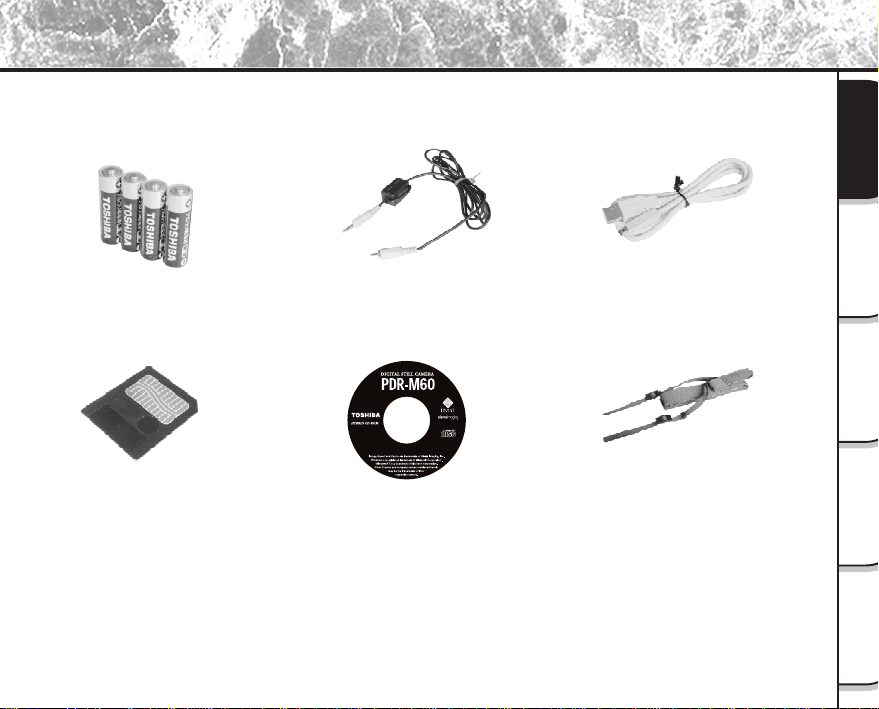
Read these pages first.
Let's get ready to use the PDR-M60.
(P.17 – 35)
Let's learn about basic operation.
First, let's learn about the basic way of using the
PDR-M60.
Photography (P.40)
Playing Back Photographed Images (P.62)
Erasing Images (P.72)
Zoom Photography (P.45)
Digital Zoom Photography (P.46)
Close-up Photography (P.47)
Photography Using the Self-timer (P.48)
Photography Using the Flash (P.49)
Multi Image Photography (Multi Photography) (P.52)
Long Exposure Photography (Bulb Photography) (P.53)
Utilizing the various photography modes.
You can choose various photography modes on the
PDR-M60.
Enlarging Photographed Images
(P.63)
Auto Playback
(P.65)
Playing back your photographed images
You can choose various ways of playing back images
on the LCD monitor.
Setting the Image Size and Quality
(P.43)
Manually setting the PDR-M60
(P.54)
Changing the Preset Conditions
(P.58)
Changing the photography settings.
You can change the settings for the image that you are
going to take according to your particular requirements,
location and other conditions.
You can also do this.
The PDR-M60 also has lots of other features.
Displaying a List of Images
(P.64)
Changing the size of Images
(P.66)
Compressing Images
(P.68)
Erasing All Images at once
(P.74)
Protecting Images
(P.76)
Changing PDR-M60 camera Settings
(P.79)
Taking and Playing Back Photographs on a TV
(P.86)
Transferring Images to a PC
(P.88)
The Function Map
It is suggested that you look at the function map, below before using the PDR-M60.
- 17 -
Basic
Photography
Playing Back/
Erasing Images
Other
Applications
Additional
Information
Getting Ready
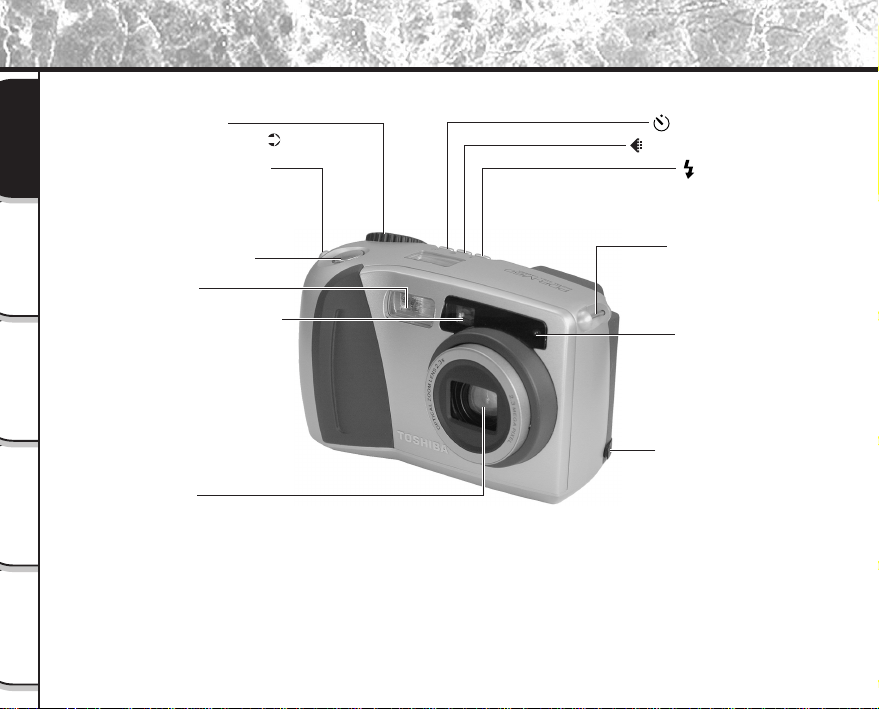
Accessories
Make sure that you have all of the items below before you start using your camera.
Option
AC adapter
• Instruction Manual (this manual)
• Warranty Card (for U.S.A. and Canada)
Batteries (4 size AA)
Alkaline
SmartMedia™
(4MB, 3.3V) (1)
• Anti-static case (1)
• Labels (2)
• Write-protect stickers (4)
USB cable
Neck strap (1)
Video cable (1)
Software application
(CD-ROM)
•ImageExpert
•USB driver
PDR-M60-01
- 18 -
Basic
Photography
Playing Back/
Erasing Images
Other
Applications
Additional
Information
Getting Ready
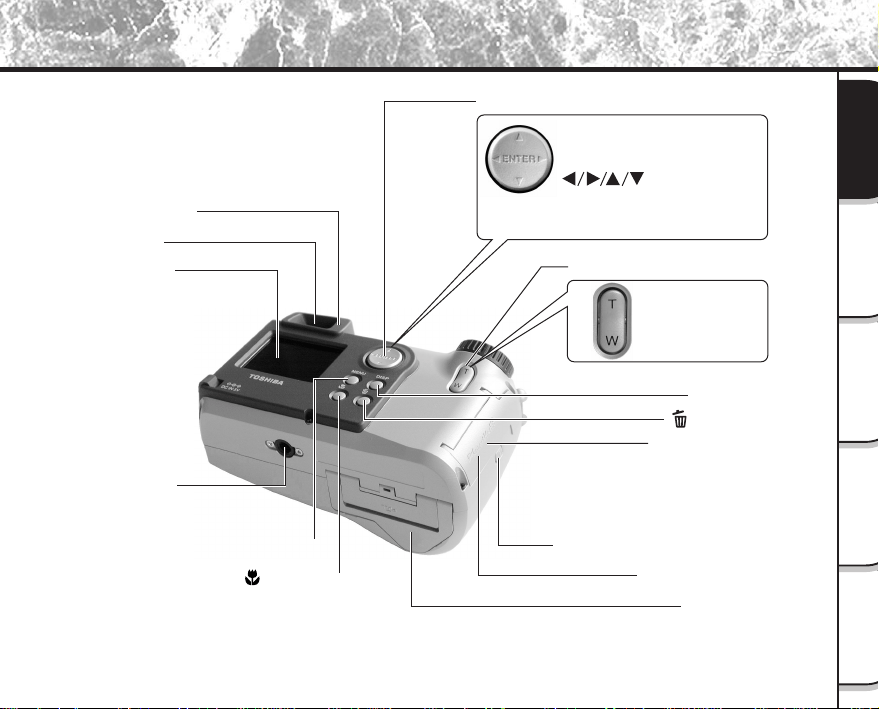
Names of Parts
Mode dial
For enlarged view ( P.20)
Self-timer lamp
Lens
Viewfinder window
Flash
Shutter button
Strap attachment
Strap attachment
Flash button
Self-timer button
Image Quality button
DC IN 5V terminal
- 19 -
Basic
Photography
Playing Back/
Erasing Images
Other
Applications
Additional
Information
Getting Ready
Names of Parts (continued)
Function button
Zoom key
SmartMedia™ cover
SmartMedia™ cover release knob
Battery cover
Tripod mount
DISP button
LCD monitor
Macro button
MENU button
Erase button
ENTER button
Press the center of the button.
(Use this button to fix a selection.)
(cross pad) button
Press the button on the required side.
(Use these buttons to select an item
or an image.)
Telephoto (zoom)
Press "T".
Wide
Press "W".
Viewfinder
Viewfinder LED
Terminal cover
• DIGITAL terminal
• VIDEO terminal
- 20 -
Basic
Photography
Playing Back/
Erasing Images
Other
Applications
Additional
Information
Getting Ready
Names of Parts (continued)
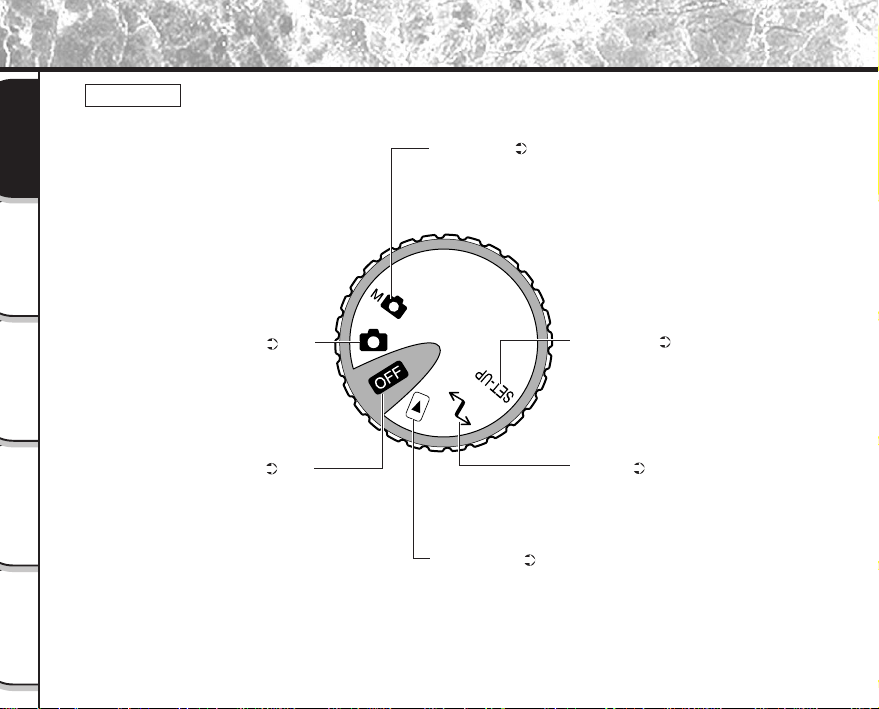
Mode dial
Power OFF ( P. 33)
Switches the power OFF.
Auto Photography mode ( P. 40)
This is the most commonly used
photography mode.
In this mode, exposure
(combination of shutter speed and
aperture) is automatically
controlled to facilitate
photography.
Manual mode ( P. 54)
Manually sets white balance, and
exposure.
SET-UP mode ( P. 79)
Sets basic camera settings
(power OFF time, sound, time,
display language, image number
and reset).
PC mode ( P. 88)
Transfers images to a PC.
For details, refer to the Manual
for the Software Application.
Playback mode ( P. 62)
Selects the image playback or
protect mode, resize,
compression and other settings.
- 21 -
Basic
Photography
Playing Back/
Erasing Images
Other
Applications
Additional
Information
Getting Ready
Names of Parts (continued)
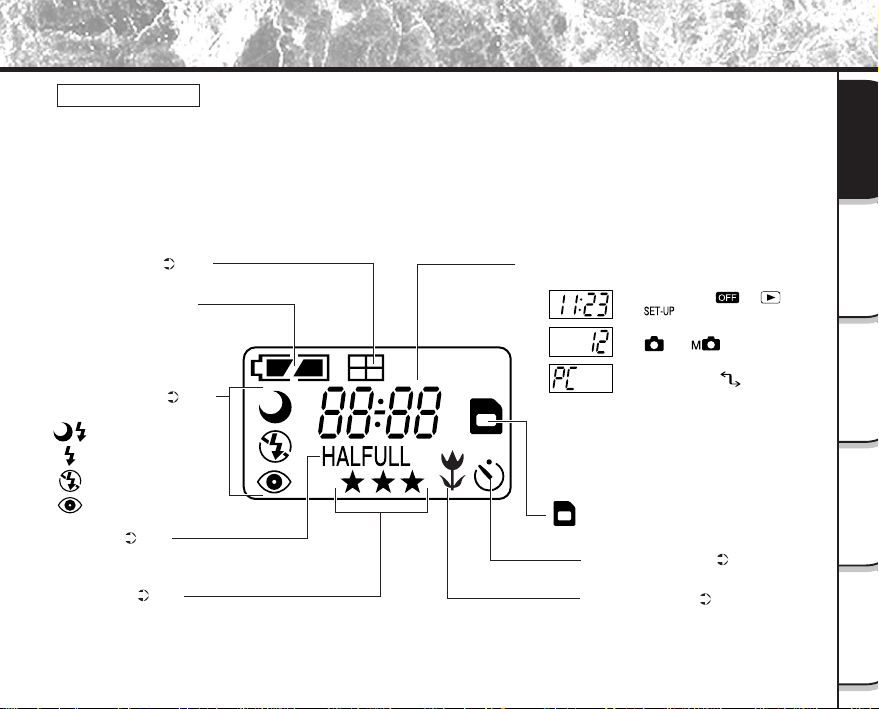
Status display
This display indicates the camera’s status. You can verify the camera’s status even if the LCD monitor is
not on.
The text, numbers and icons that are displayed in the status display vary according to the setting.
The status display backlight lights for about five seconds in the following instances:
• When the shutter button is pressed
• When one of the self-timer, image quality or flash buttons is pressed
: SmartMedia™ loaded symbol
Image size ( P. 43)
HALF: 896 x 600 pixel
FULL: 1792 x 1200 pixel
Image quality ( P. 43)
★★★: FINE
★★: NORMAL
★: BASIC
Self-timer photography ( P. 48)
Macro photography ( P. 47)
Remaining battery power
Multi photography ( P. 52)
Example of counter display
(The display varies according to the mode dial setting.)
Time display (in [ ], [ ]
or [ ] mode)
Possible number of shots
(in [ ] or [ ] mode: during
still image photography)
PC indication (in [ ] mode)
Flash photography ( P. 49)
No indication: Auto
: Slow synchro
: Red-eye reduction
: Suppressed flash
: Forced flash
- 22 -
Basic
Photography
Playing Back/
Erasing Images
Other
Applications
Additional
Information
Getting Ready
Attaching the Strap
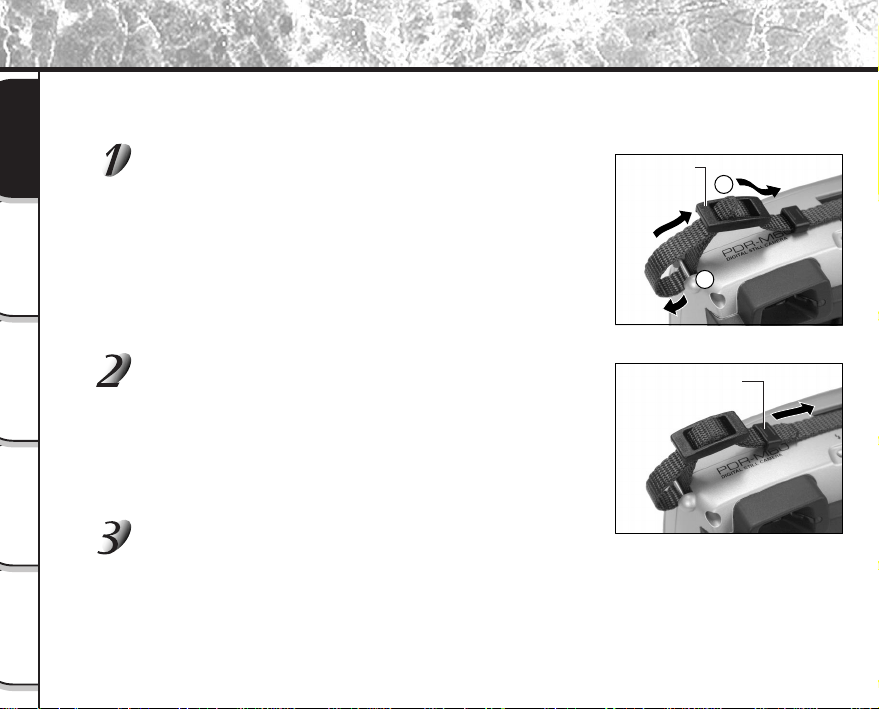
This strap is handy for carrying your camera around.
To prevent your camera from dropping during photography, hang the strap around your neck.
Pass the leading end of the strap through the strap
attachment 1, and then pass through both ends of
the strap adjuster 2.
Pass the leading end through the fastener and pull
tight.
Attach the strap in the same way on the strap
attachment on the opposite side of the camera.
Strap adjuster
2
1
Fastener
- 23 -
Basic
Photography
Playing Back/
Erasing Images
Other
Applications
Additional
Information
Getting Ready
Installing the Batteries
This camera uses four (4) size AA (alkaline) batteries.
Loading the Batteries
IMPORTANT
• Before you load or remove the batteries, be sure to turn the camera OFF. If the batteries are loaded or
removed with the power ON, the date setting may return to its default or the camera settings may be
reset.
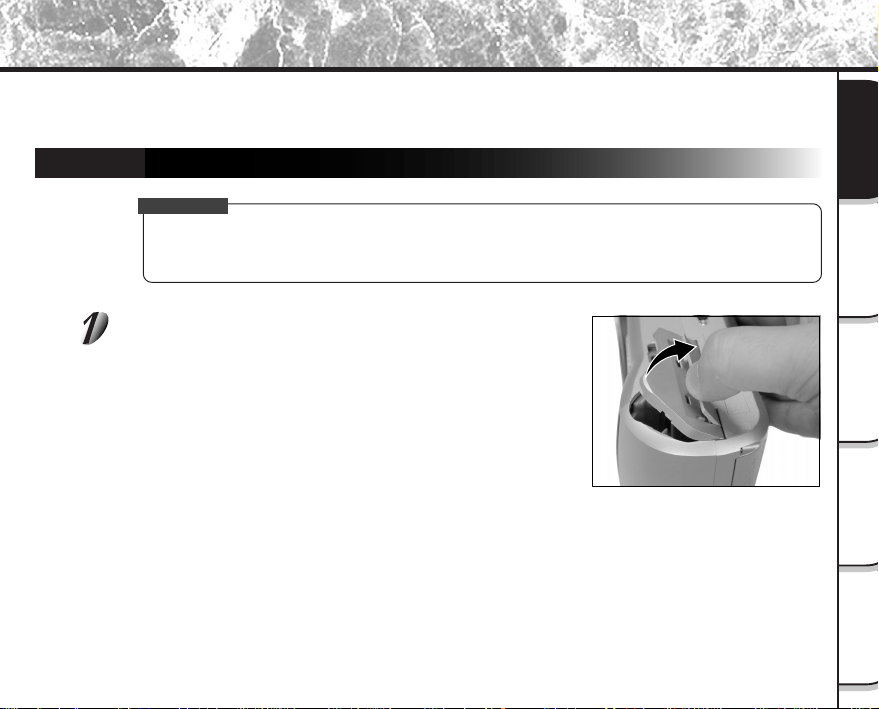
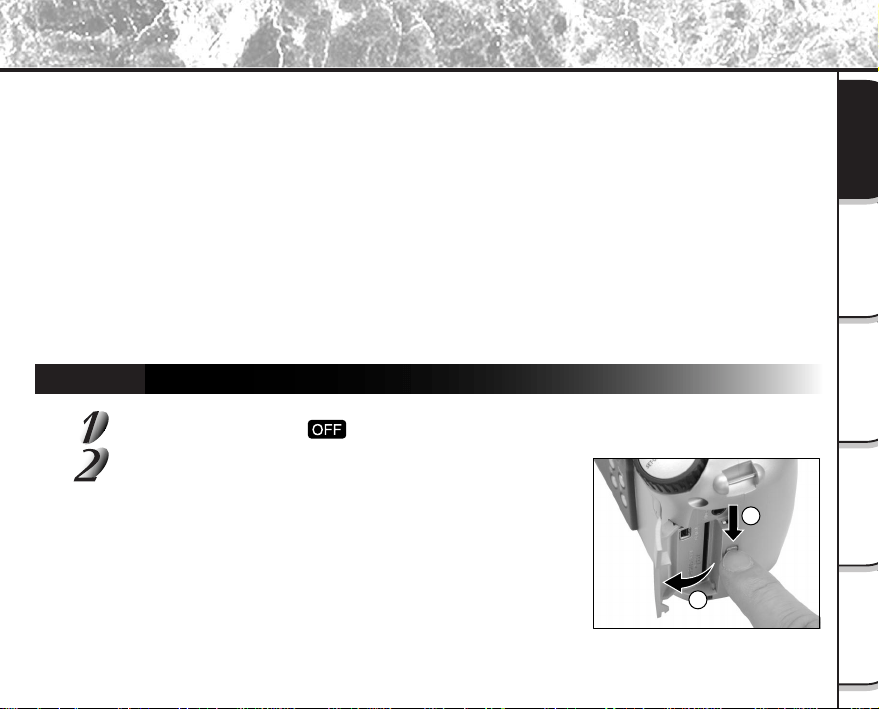
Pull open the battery door as shown.
- 24 -
Basic
Photography
Playing Back/
Erasing Images
Other
Applications
Additional
Information
Getting Ready
Installing the Batteries (continued)
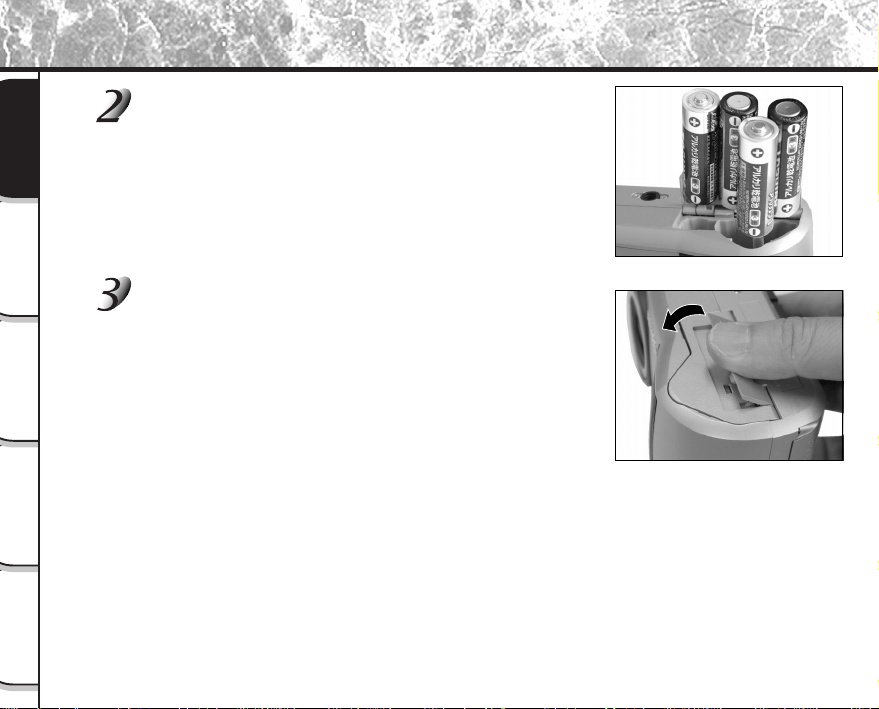
Load the batteries in the battery compartment making
sure they are loaded in their correct direction as
shown in the figure on the right.
Close the battery door.
Make sure that the battery door is firmly closed.
- 25 -
Basic
Photography
Playing Back/
Erasing Images
Other
Applications
Additional
Information
Getting Ready
Installing the Batteries (continued)
Removing the Batteries
Reverse the procedure for “Loading the Batteries” and remove the batteries.
IMPORTANT
• When removing the batteries, take care not to drop the camera by mistake.
- 26 -
Basic
Photography
Playing Back/
Erasing Images
Other
Applications
Additional
Information
Getting Ready
Installing the Batteries (continued)
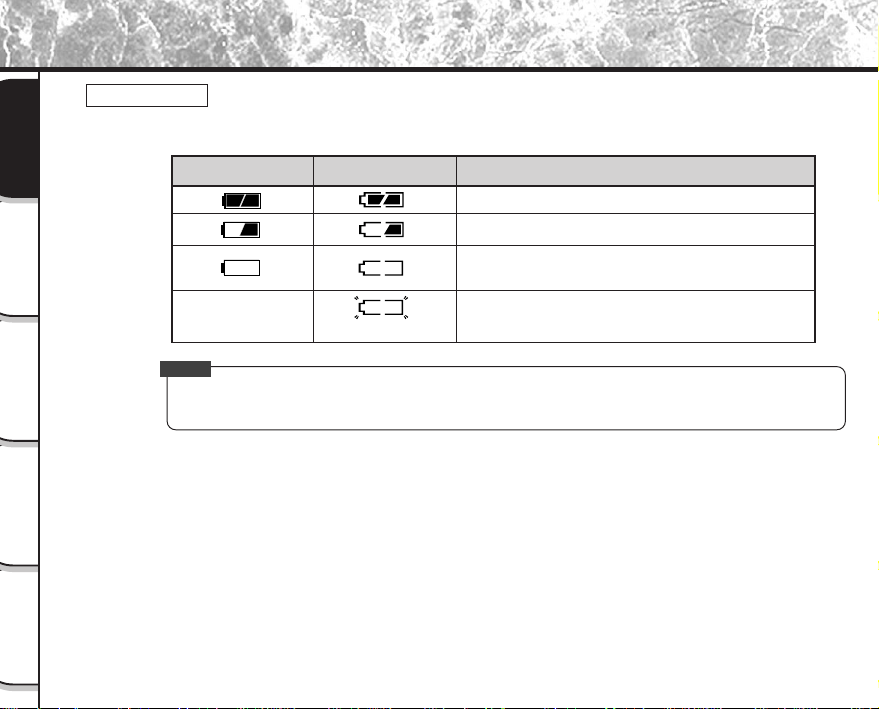
Battery Wear
When the power is ON, the remaining battery power is displayed on the LCD monitor and the status
display.
Memo
• When you use the camera for the first time or if you have left the camera for a long time without the
battery loaded, set the date (
➲
Page 81).
Remaining Battery Power
Sufficient battery power
Half battery power or less
Little battery power left (Power is cut.)
Replace with new batteries.
No battery power left (Power does not turn ON.)
Replace with new batteries.
LCD Monitor
Status Display
Blinks twice
No indication
- 27 -
Basic
Photography
Playing Back/
Erasing Images
Other
Applications
Additional
Information
Getting Ready
If you use the AC adapter in a room with a power outlet, you can take photographs for an extended period of time.
This also prevents failed photographs due to battery wear or failed transfer of data to a PC. For details on handling
the AC adapter, be sure to read page 14.
IMPORTANT
• Before you connect or disconnect the AC adapter, be sure to turn the camera OFF. If the AC adapter is
connected or disconnected with the power ON, camera settings may be reset (SET-UP
➲
Page 79,
Manual Photography
➲
Page 54) or the camera may malfunction.
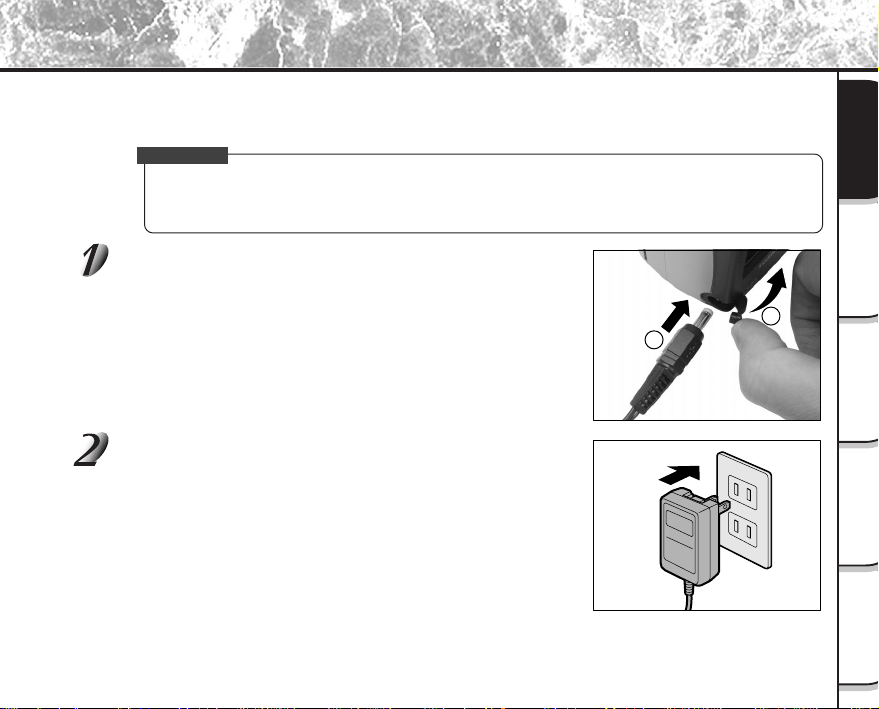
Open the terminal cover 1, and insert the AC adapter
connector plug into the DC IN 5V terminal on the
camera 2.
Insert the AC adapter power plug into the power
outlet.
Using the Power Outlet
2
1
- 28 -
Basic
Photography
Playing Back/
Erasing Images
Other
Applications
Additional
Information
Getting Ready
About SmartMedia™
“SmartMedia™” is a storage medium for saving images that you have photographed. Even if the camera’s power is
turned OFF, the images saved on the SmartMedia™ are not erased. SmartMedia™ can be repeatedly read and
written.
SmartMedia™ having the following storage capacity can be used on your camera.
2MB /4MB (standard accessory)/8MB/16MB/32MB/64MB (all 3.3 V types)
You can also connect the PC card adapter and floppy disk adapter (
➲
Page 93) sold separately to transfer images
to a PC.
Notes on SmartMedia™
• Recorded data may be erased (destroyed) in the situations listed below. Note that Toshiba Corporation
accepts no responsibility whatsoever for the loss (destruction) of recorded data in these situations:
- When the SmartMedia™ is used incorrectly by the user or a third party
- When the SmartMedia™ is exposed to static electricity or electrical noise
- When the SmartMedia™ is removed or the camera is then switched OFF during data recording,
data erasing, frame advance when images are being played back or during formatting of the
SmartMedia™.
• We recommend copying and saving important data onto another storage medium (floppy disk, hard
disk, MO disk, etc.).
• Never remove the SmartMedia™ or switch the camera OFF during data recording or during data
erasing (SmartMedia™ formatting). These actions might damage the SmartMedia™.
• Use only the SmartMedia™ specified for use with the PDR-M60. The use of other SmartMedia™ could
damage the camera.
• SmartMedia™ are precision electronic devices. Do not bend, drop, or subject SmartMedia™ to
excessive shocks. Also, do not carry SmartMedia™ in locations such as a trouser pocket. This might
subject the SmartMedia™ to excessive force when you sit down, damaging the SmartMedia™.
• Do not use or store SmartMedia™ in environments likely to be affected by strong static electricity or
electrical noise.
• Do not use or store SmartMedia™ in very hot, humid or corrosive environments.
- 29 -
Basic
Photography
Playing Back/
Erasing Images
Other
Applications
Additional
Information
Getting Ready
• Take care not to touch the SmartMedia™’s electrodes (metal contacts) or allow the electrodes to
become soiled. Use a dry lint-free cloth to wipe away any dirt.
• To avoid damage caused by static electricity during transportation or storage, always use the special
static-free case provided.
• If you are not using the camera for a long period of time, remove the SmartMedia™ and store it in a
safe place.
• Inserting a SmartMedia™ that is charged with static electricity into your camera may cause it to
malfunction. If this occurs, switch the camera OFF and then ON again.
• The SmartMedia™ may feel warm when it is removed from the camera after the camera is used for a
long time. This is normal and not a malfunction.
• The SmartMedia™ has a limited service life. If images can no longer be written or erased, buy a new
SmartMedia™.
• Use the index labels provided with the camera. If you attach a commercially available label, it may
cause a malfunction when the SmartMedia™ is loaded or removed.
Loading SmartMedia™
Set the mode dial to [ ].
Slide the SmartMedia™ cover release knob in the
direction of the arrow 1 to open the cover 2.
About SmartMedia™ (continued)
2
1
- 30 -
Basic
Photography
Playing Back/
Erasing Images
Other
Applications
Additional
Information
Getting Ready
About SmartMedia™ (continued)
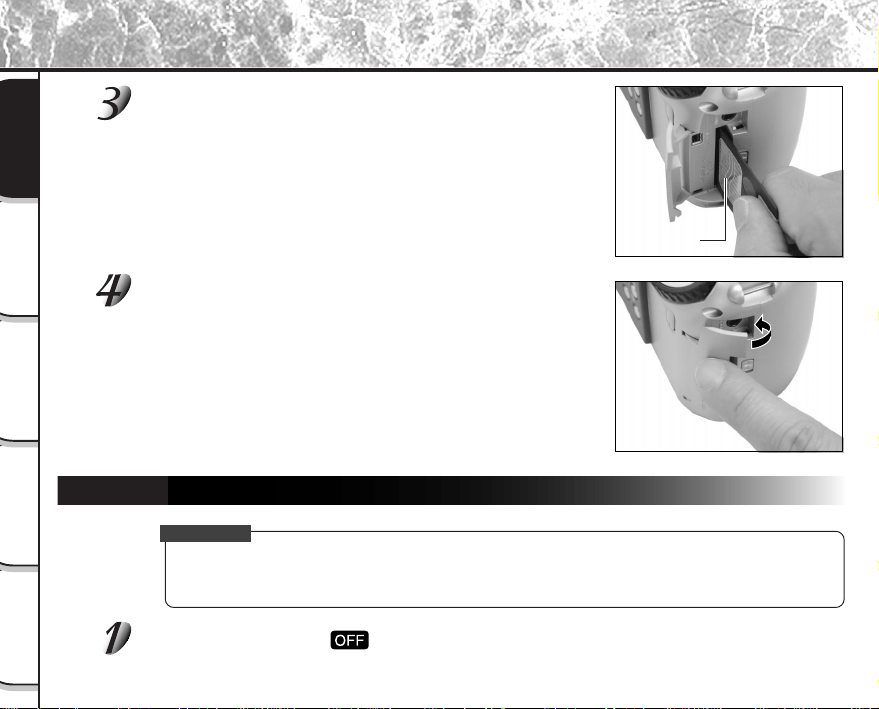
Gently insert the SmartMedia™ as far as it can go
with the SmartMedia™ electrodes (metal contacts)
facing the rear of the camera.
Close the SmartMedia™ cover.
Before you use a new SmartMedia™, be sure to format the
SmartMedia™ (
➲
Page 75).
Removing SmartMedia™
IMPORTANT
• Never open the SmartMedia™ cover or remove the SmartMedia™ while data is being recorded to the
SmartMedia™ (viewfinder is lit red). This might damage the SmartMedia™ or corrupt the data on the
SmartMedia™.
Set the mode dial to [ ].
Electrodes
- 31 -
Basic
Photography
Playing Back/
Erasing Images
Other
Applications
Additional
Information
Getting Ready
About SmartMedia™ (continued)
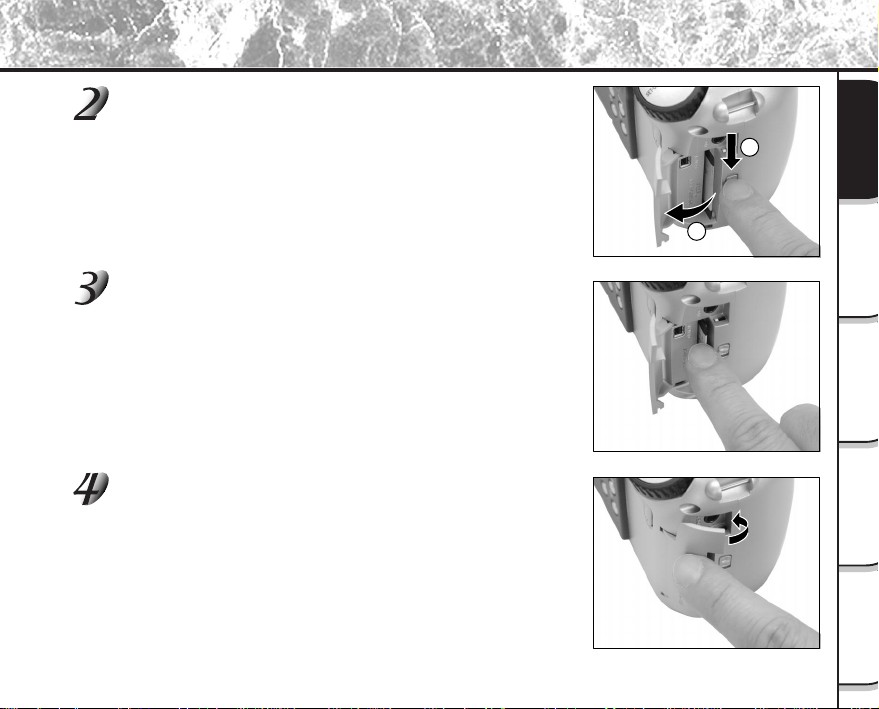
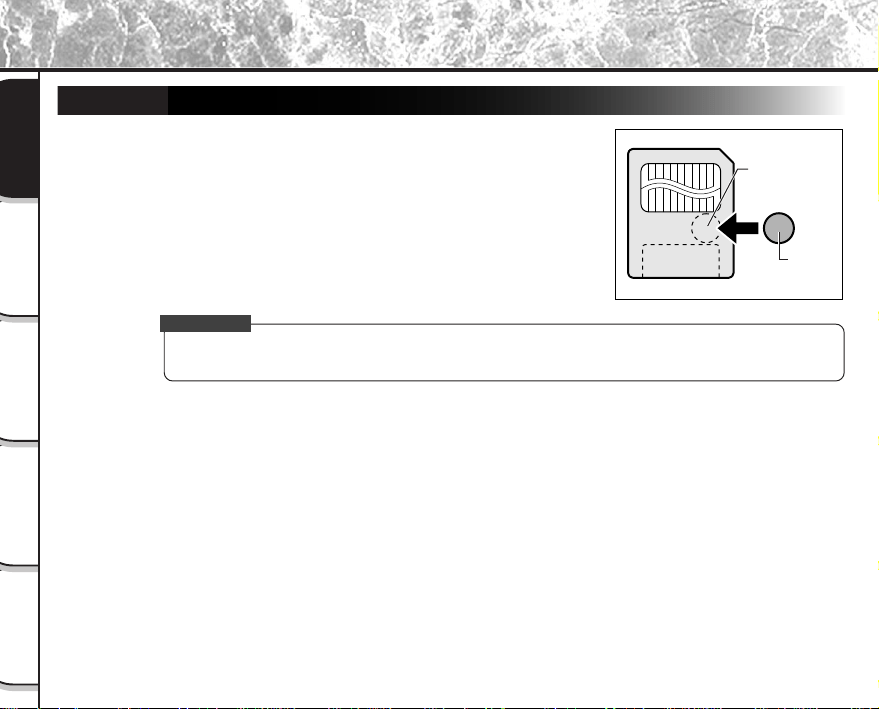
Slide the SmartMedia™ cover release knob in the
direction of the arrow 1 to open the cover 2.
Push the SmartMedia™ in as far as it can go, and pull
it out with your fingers.
If you push SmartMedia™ once in as far as it can go, it will protrude
slightly. Pull it out with your fingers.
Close the SmartMedia™ cover.
2
1
- 32 -
Basic
Photography
Playing Back/
Erasing Images
Other
Applications
Additional
Information
Getting Ready
About SmartMedia™ (continued)
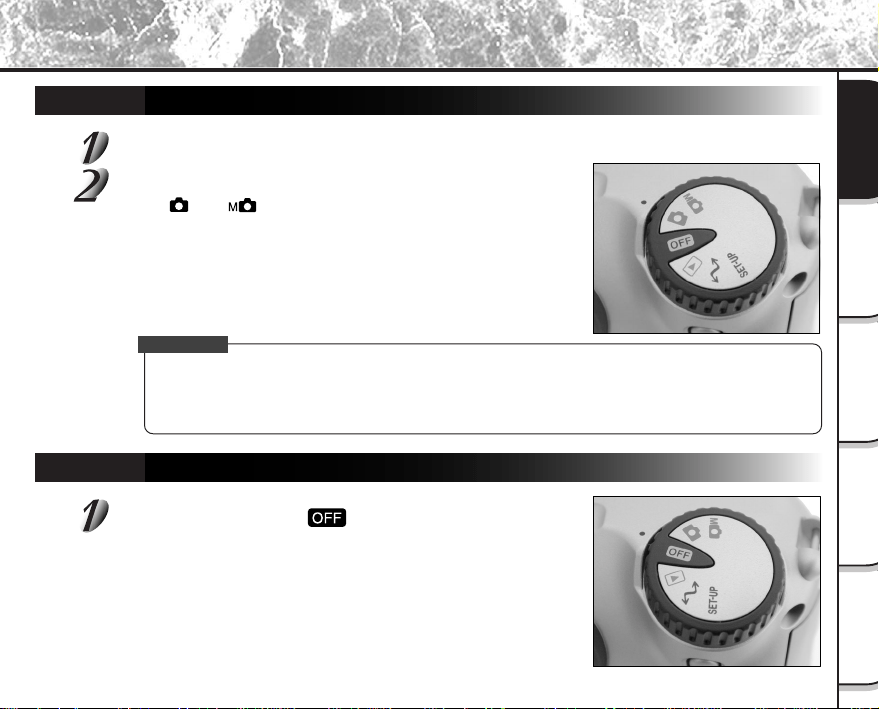
Write Protection
To prevent valuable data from being erased inadvertently, attach the
write-protect sticker at the write-protect area. Data can no longer be
recorded or erased from SmartMedia™. To write or erase data from
SmartMedia™, peel off the sticker.
IMPORTANT
• The write protection may not function if the write-protect sticker becomes dirty. Use a soft dry cloth to
wipe away any dirt. Once a sticker is peeled off it cannot be used again.
Write-protect
area
Sticker
- 33 -
Basic
Photography
Playing Back/
Erasing Images
Other
Applications
Additional
Information
Getting Ready
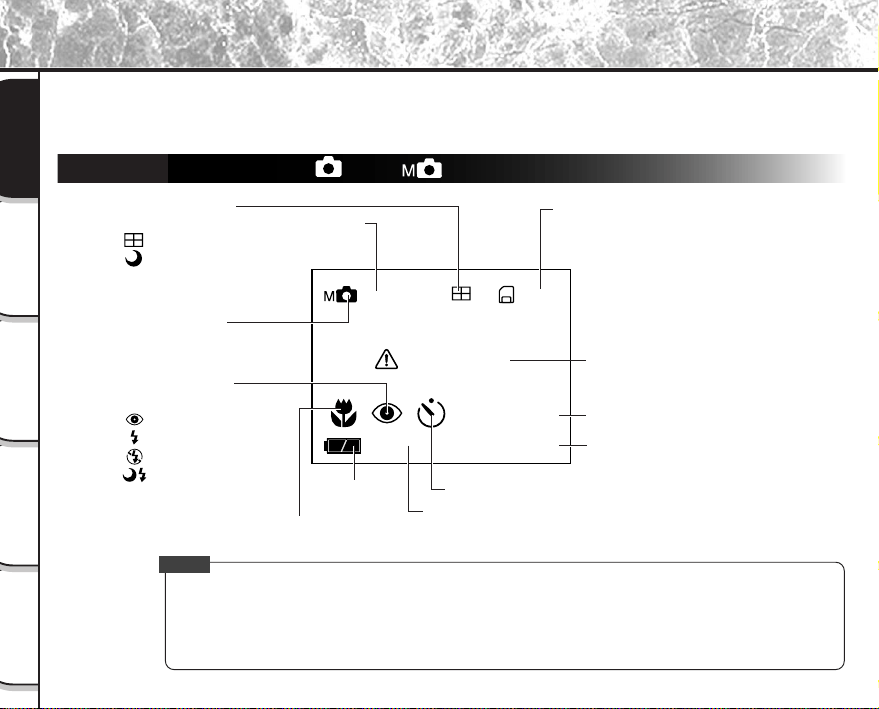
Turning the Power ON
Make sure that the SmartMedia™ is correctly loaded. (
➲
Page 29)
Set the mode dial to the desired mode.
In the [ ] or [ ] modes, the lens extends from the camera
body.
When the camera is turned ON, the Auto Power OFF function starts
to work.
IMPORTANT
• If no operation is carried out for a fixed amount of time (default: about 1 minute), the power is turned
OFF to prevent battery wear. This is called “Auto Power OFF”. To return to the normal state, either
change the mode dial or press the shutter down half way (
➲
Page 37).
☞
About the Auto Power OFF Function
➲
Additional Information, “AUTO-OFF (page 81)”
Turning the Power OFF
Set the mode dial to [ ].
The power is turned OFF, and the lens returns to its original position
in the body.
Turning the Power ON/OFF
- 34 -
Basic
Photography
Playing Back/
Erasing Images
Other
Applications
Additional
Information
Getting Ready
The text, numbers and icons that are displayed on the LCD monitor vary according to the current settings.
To erase text currently displayed on the LCD monitor, press the DISP button (
➲
Page 85).
The LCD monitor automatically turns ON if necessary even if it is set to OFF.
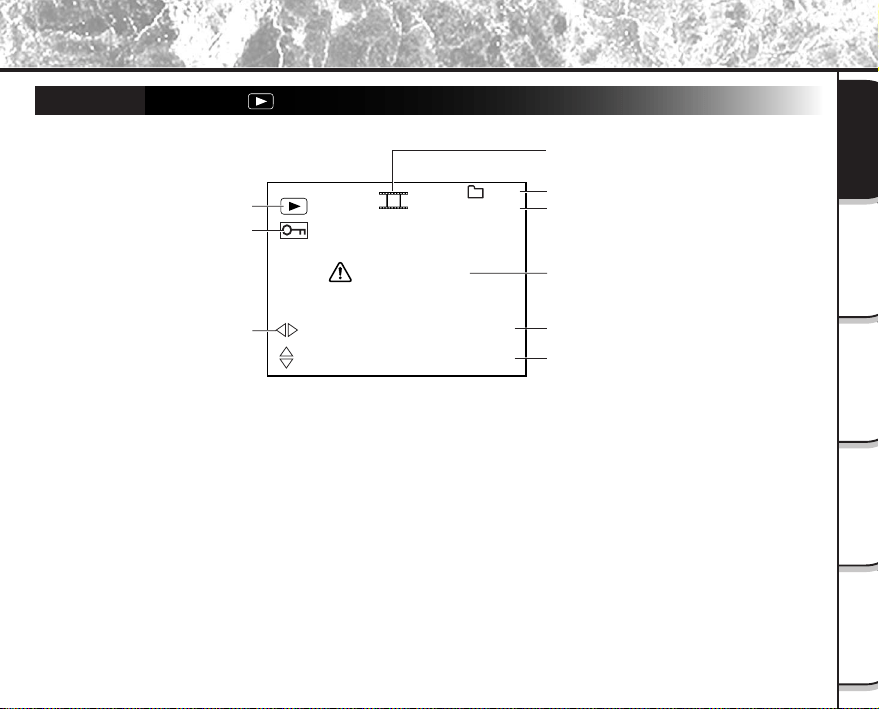
In Photography Mode ( [ ] or [ ] )
LCD Monitor Display
Memo
• The size of the data to be recorded varies according to the amount of detail in the subject image. So,
the number of images that can be photographed after an image is recorded decreases. Sometimes this
amount decreases by two images.
• The display is momentarily disrupted after recording an image or the mode is switched. This does not
affect photography.
0024
ISO
200
NO CARD
ZOOM
05.10.00
10:10
Possible number of shots
(at currently preset size and quality)
Date (month/day/year)
Time (24-hour-format)
Self-timer photography
Digital zoom photography
Remaining
battery power
Macro photography
Flash photography
Mode dial setting
Photography mode
Message (
➲
P. 98)
Photographic
sensitivity
No indication: 1 shot
: Multi Photography
: Bulb Photography
No indication: Auto
: Red-eye reduction
: Forced flash
: Suppressed flash
: Slow synchro
- 35 -
Basic
Photography
Playing Back/
Erasing Images
Other
Applications
Additional
Information
Getting Ready
In Playback Mode ([ ])
LCD Monitor Display (continued)
0003
100
NO IMAGE
05.10.00
10:10
Mode dial setting
Protected image
Image size
Date (month/day/year)
Message (
➲
P. 98)
Image number (still image)
Folder name
Time (24-hour-format)
1792
1200
Slideshow (
➲
P. 65)
- 36 -
Basic
Photography
Playing Back/
Erasing Images
Other
Applications
Additional
Information
Getting Ready
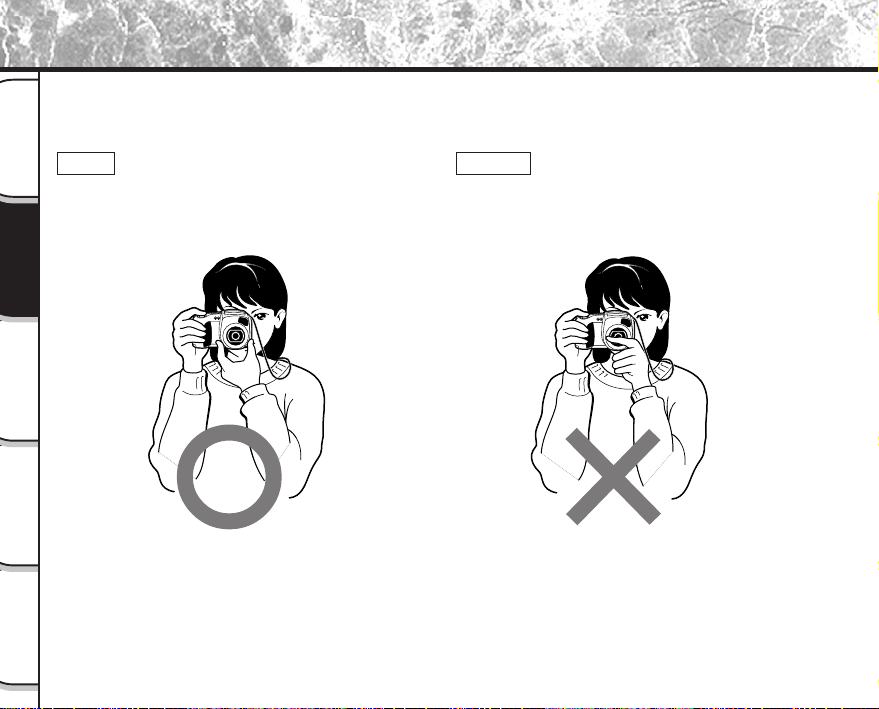
How to Hold Your Camera
When taking a photograph, hold the camera firmly and prevent your finger or neck strap from covering the lens,
flash or flash sensor.
Right
Camera held with both hands with your arms
firmly held against the sides of your chest
Wrong
Fingers held over the lens
- 37 -
Playing Back/
Erasing Images
Other
Applications
Additional
Information
Basic
Photography
Getting Ready
How to Press the Shutter Button
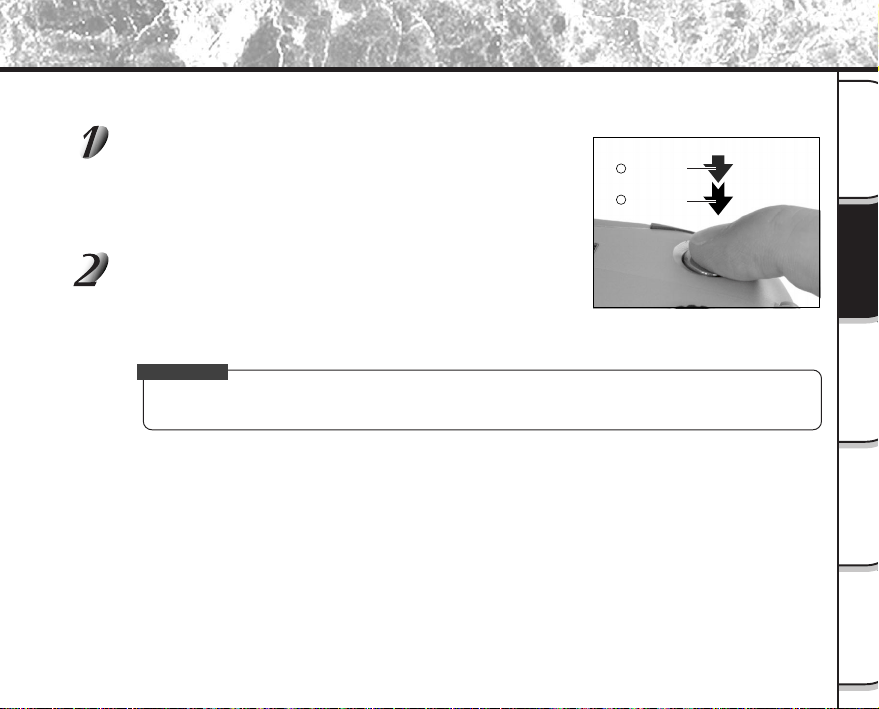
The shutter button can be pressed down in two stages: half way down and fully down. When pressed half way down,
AF (auto-focus) and AE (auto exposure) are carried out. When pressed fully down, the camera takes a picture.
Press the shutter button down half way 1.
AF (auto-focus) and AE (auto exposure) (
➲
Additional Information,
Glossary (Page 102)) start to function.
When AF or AE are locked, the beep tone (
➲
Page 81) sounds and
the viewfinder LED turns green.
Press and hold the shutter button down fully 2.
The camera takes a picture.
The viewfinder LED turns red while image data is being recorded
onto the SmartMedia™.
IMPORTANT
• Never open the SmartMedia™ cover or remove the SmartMedia™ while an image is being recorded.
This may corrupt the data on the SmartMedia™ or damage the SmartMedia™ itself.
Press down
half way.
Press down
fully.
1
2
- 38 -
Basic
Photography
Playing Back/
Erasing Images
Other
Applications
Additional
Information
Getting Ready
Memo
• If the shutter button is pressed all the way down, photographs cannot be taken until AF and AE are
locked.
• The image in the LCD monitor sometimes darkens from the time that the shutter button is pressed down
half way until the image becomes focused.
• To focus or expose a position outside the center of the screen frame, move the subject you are taking to
the center of the screen frame, and press down the shutter button half way and hold it until the camera
beeps. Now, with the shutter button held down, return to the original picture that you composed and
press the shutter button down fully. Moving the camera as you press the shutter button will result in a
blurred image.
• The PDR-M60 uses an accurate auto focus mechanism. However, the PDR-M60 may have difficulty
focusing or not be able to focus at all for subjects and situations such as the following:
• If the image cannot be focused, the focus is automatically fixed to infinity. When the flash is necessary
at this time, it is simultaneously fixed to illuminate objects five feet (1.5 meters) away.
- Subjects moving at high speed
- Very shiny subjects such as a mirror or car
body
- Extremely low contrast subjects
- Subjects that have low contrast and merge
into the background (such as white walls or
subjects dressed in the same color as the
background)
- When the subject is distant and dark
- When there are objects in front of or behind the
subject (such as an animal in a cage or a person
in front of a tree)
- Subjects with little reflection, such as a hair or fur
- Subjects with no solidity, such as smoke or flames
- Subjects viewed through glass
How to Press the Shutter Button (continued)
- 39 -
Playing Back/
Erasing Images
Other
Applications
Additional
Information
Basic
Photography
Getting Ready
About the Color of the Viewfinder LED
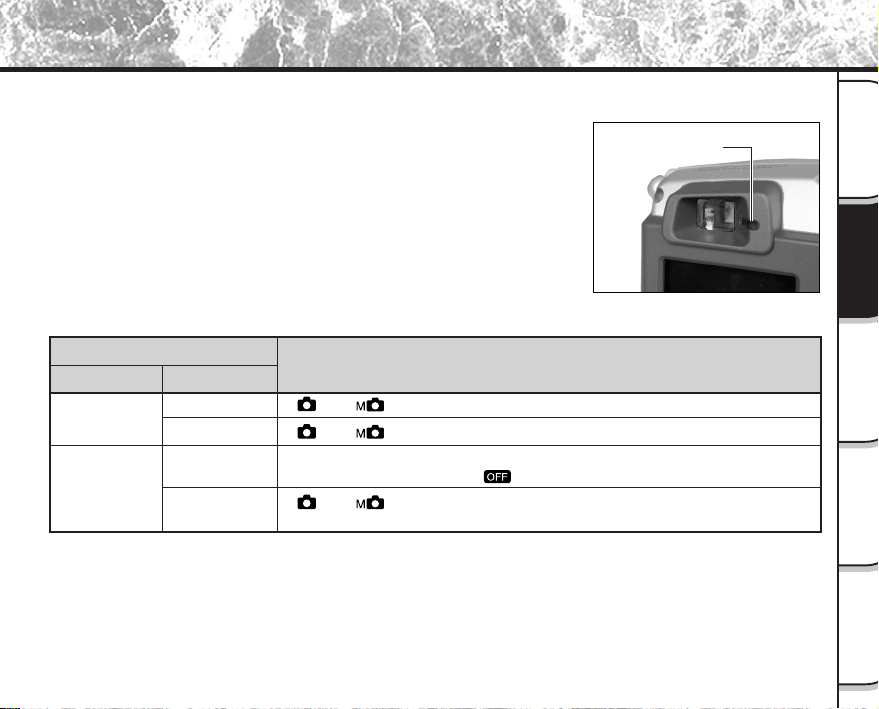
The color of the viewfinder LED indicates the state of the camera. The meaning of the LED color may differ
according to the mode dial setting.
Viewfinder LED
Color
State
Meaning
Green
ON
[ ] or [ ] AE or AF are locked with the shutter button held half down
[ ] or [ ] Self-timer in operation
[Power ON] Writing to SmartMedia™ in progress
Do not set the mode dial to [ ].
[ ] or [ ] Over- or under-exposure on preset aperture value
When the image is not in focus
Blinking
Red
ON
Viewfinder LED
Blinking
- 40 -
Basic
Photography
Playing Back/
Erasing Images
Other
Applications
Additional
Information
Getting Ready
Photography (Auto Photography)
This is the most commonly used photography mode.
In this mode, exposure (combination of shutter speed and aperture) is automatically controlled to facilitate
photography. There are two ways of taking photographs in this mode: using the viewfinder and using the LCD
monitor.
Using the Viewfinder
Get ready to take the photograph.
Load the batteries (
➲
Page 23) and the SmartMedia™ (
➲
Page 29) into the camera.
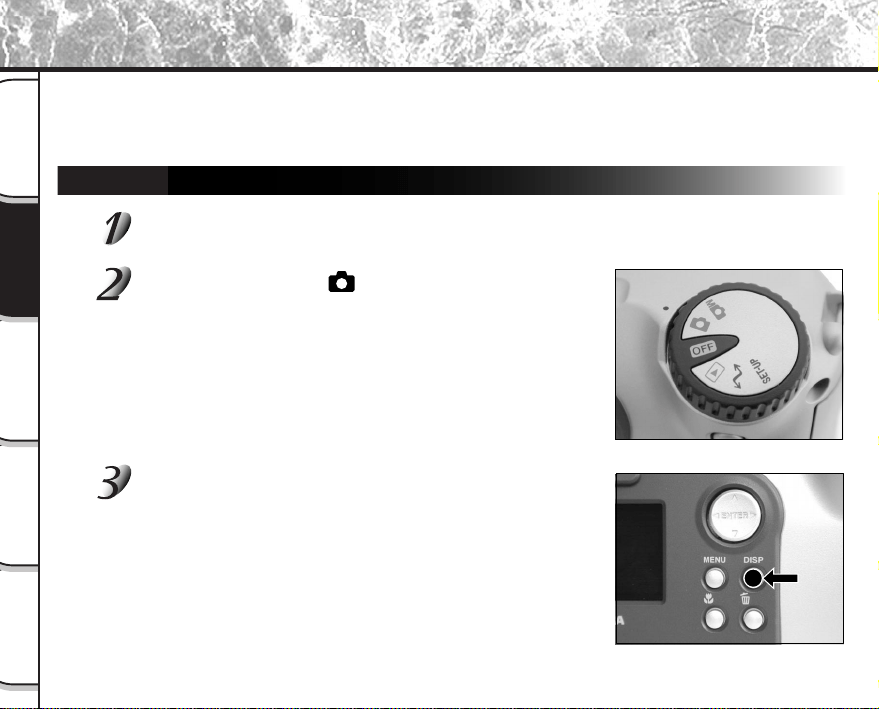
Set the mode dial to [ ].
Press the DISP button to turn the LCD monitor OFF.
To reduce the amount of battery wear, we recommend turning the
LCD monitor display OFF, and using the viewfinder to take
photographs.
- 41 -
Playing Back/
Erasing Images
Other
Applications
Additional
Information
Basic
Photography
Getting Ready
Photography (Auto Photography) (continued)
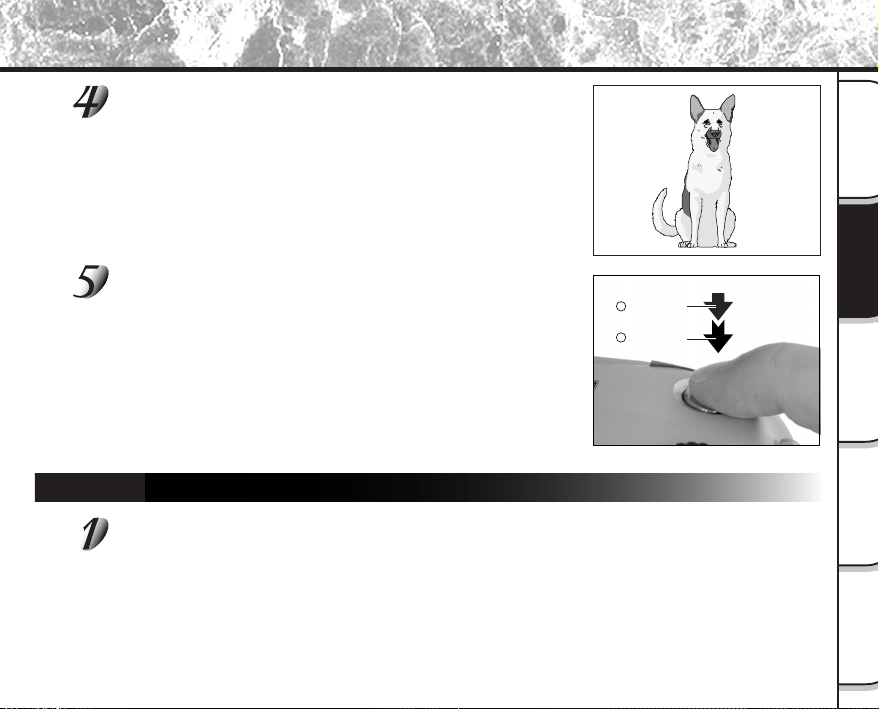
Look through the viewfinder to compose the picture.
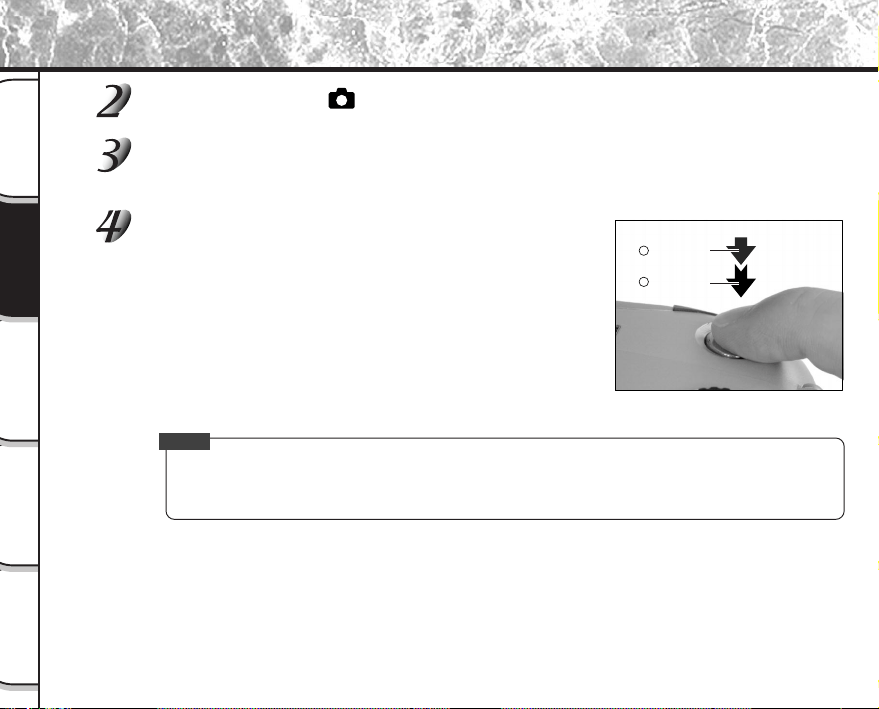
Press the shutter button down half way 1, and press
it down fully 2.
• Pressing the shutter button down half way adjusts the exposure,
and pressing the shutter button down fully takes the shot.
• If you shoot a still picture, when preview is set to ON (
➲
Page 60),
a preview image is displayed on screen for about two seconds.
• The viewfinder LED turns red while image data is being recorded
onto the SmartMedia™.
Using the LCD Monitor
Get ready to take the photograph.
Load the batteries (
➲
Page 23) and the SmartMedia™ (
➲
Page 29) into the camera.
Press down
half way.
Press down
fully.
1
2
- 42 -
Basic
Photography
Playing Back/
Erasing Images
Other
Applications
Additional
Information
Getting Ready
Photography (Auto Photography) (continued)
Set the mode dial to [ ].
Look at the image on the LCD monitor to compose the picture.
☞
To adjust the brightness of the LCD monitor
➲
Page 84
Press the shutter button down half way 1, and press
it down fully 2.
• Pressing the shutter button down half way adjusts the exposure,
and pressing the shutter button down fully takes the shot.
• When the focus and exposure are adjusted, the viewfinder lamp
turns green.
• If you shoot a still picture, when preview is set to ON (
➲
Page 60),
a preview image is displayed on screen for about two seconds.
• The viewfinder LED turns red while image data is being recorded
onto the SmartMedia™.
Memo
• The LCD monitor sometimes displays bright, dark or colored spots at all times. This is not a malfunction.
These spots do not appear in the photographed image.
• The image is not displayed on the LCD monitor while the shutter button is pressed down fully.
Press down
half way.
Press down
fully.
1
2
- 43 -
Playing Back/
Erasing Images
Other
Applications
Additional
Information
Basic
Photography
Getting Ready
Setting the Image Size and Quality
Set the size (number of pixels) and quality (compression ratio) of the image to be photographed.
Change the setting according to how the image is to be used and the remaining amount of space in the
SmartMedia™.
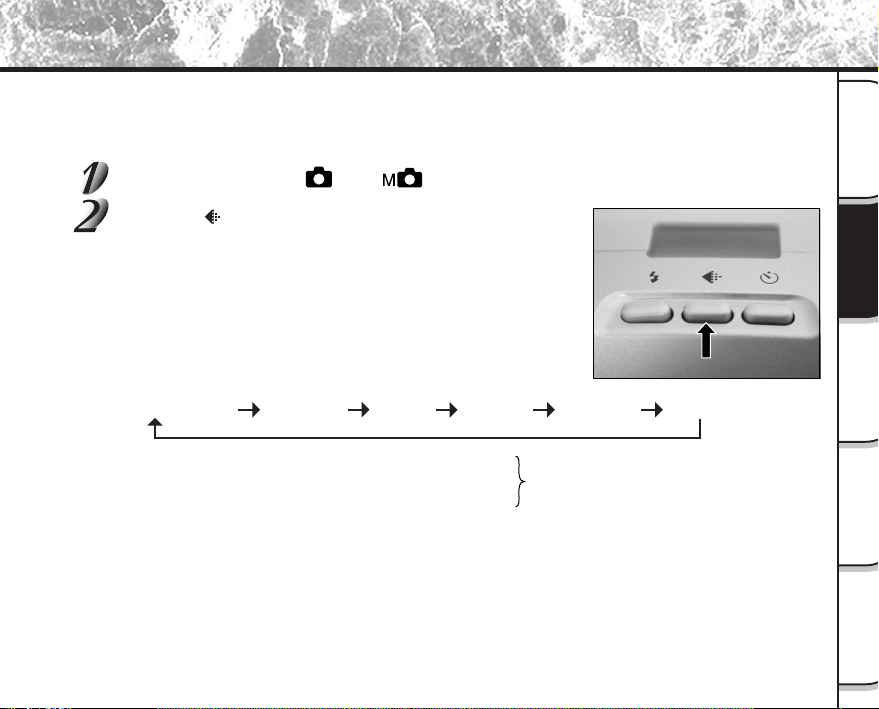
Set the mode dial to [ ] or [ ].
Press the image quality button to set the required
quality and size while viewing the image on the status
display.
Pressing the image quality button displays the available qualities and
sizes in order. Select from the available combinations of quality and
size.
<Quality> [★★★] FINE : 1/4 (JPEG) compression
[★★★] NORMAL : 1/8 (JPEG) compression (still image)
[★★★] BASIC : 1/16 (JPEG) compression
The more stars there are, the better image quality becomes. Higher quality images,
however, take up more memory space, reducing the number of images that can be taken.
<Size> [FULL] 1792 x 1200 pixel (still image).
[HALF] 896 x 600 pixel (still image).
The FULL setting improves the quality of the image. Higher quality images, however, take up
more space, reducing the number of images that can be taken.
★★FULL (default) ★★★FULL ★FULL★★★HALF★★HALF★HALF
- 44 -
Basic
Photography
Playing Back/
Erasing Images
Other
Applications
Additional
Information
Getting Ready
Setting the Image Size and Quality (continued)
Take the photograph.
☞
For details on how to take photographs
➲
Photograph (
➲
Page 40)
Memo
• To make the image smaller, it is more effective to reduce the size and then reduce image quality.
• After you have taken a photograph, you can change its size (
➲
Page 66) and quality (
➲
Page 68).
• The memory size of the image varies according to the subject.
• The compression ratio is given for reference only.
- 45 -
Playing Back/
Erasing Images
Other
Applications
Additional
Information
Basic
Photography
Getting Ready
Zoom photography allows you to take zoom shots and wide angle shots.
Set the mode dial to [ ] or [ ].
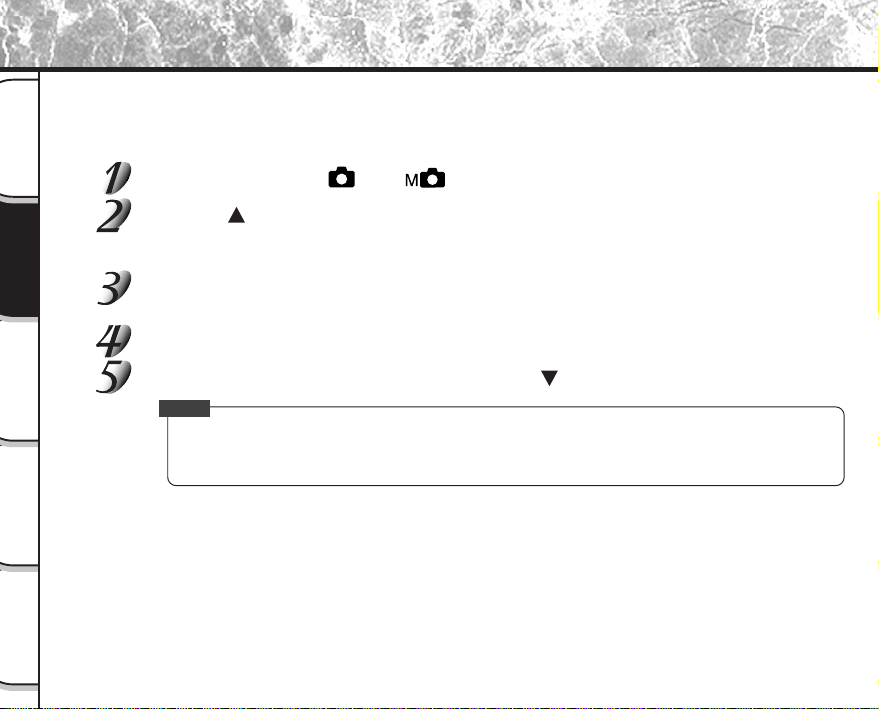
Compose the picture using the Zoom key.
• Pressing the Telephoto (zoom) key zooms in on the subject, and
enlarges the subject on the LCD monitor.
• Pressing the Wide key provides a wider angle picture.
• The lens position moves according to the Zoom key setting.
Press the shutter button down half way, and press it down fully.
➲
Page 37
Memo
• The Zoom key setting is automatically canceled by either turning the camera OFF or by activation of the
Auto Power OFF function.
Zoom Photography
Telephoto
(zoom) key
Wide key
- 46 -
Basic
Photography
Playing Back/
Erasing Images
Other
Applications
Additional
Information
Getting Ready
Digital Zoom Photography
This function enlarges the center of the image displayed on the screen so that it appears that the photographed
image is enlarged twice its size.
The LCD monitor automatically turns ON in this mode. Take pictures while viewing the image in the LCD monitor.
Set the mode dial to [ ] or [ ].
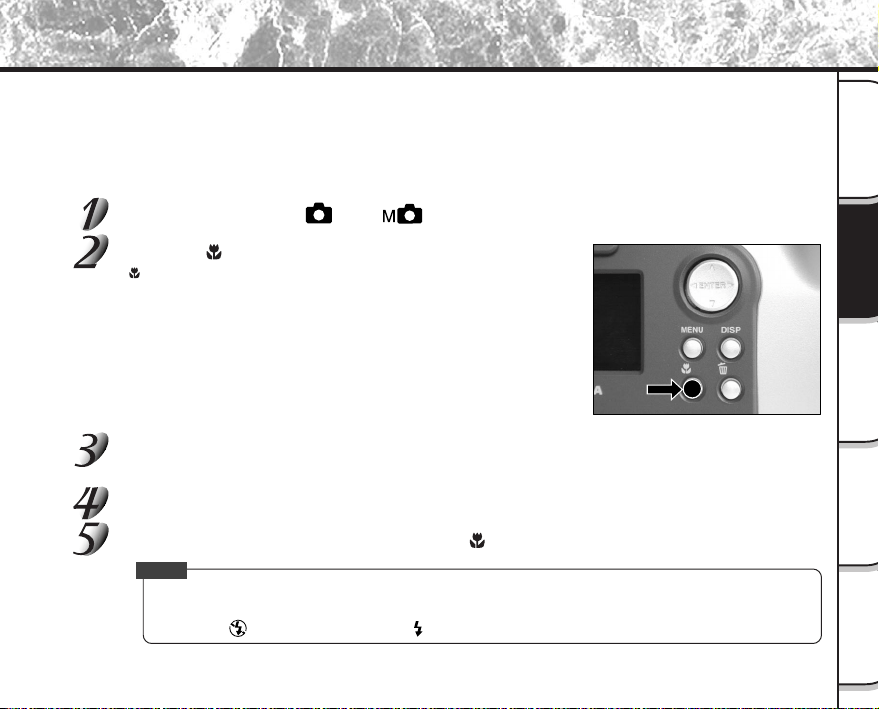
Press the button.
[ZOOM] is displayed in the LCD monitor and the center of the screen is enlarged at twice the original
size.
Look at the image on the LCD monitor to compose the picture.
☞
Using the LCD Monitor
➲
Page 34
Press the shutter button down half way, and press it down fully.
➲
Page 37
To cancel digital zoom photography, press the button.
Memo
• The image size is fixed to 896 x 600 pixel.
• Digital zoom photography is automatically canceled by either turning the camera OFF or by activation
of the Auto Power OFF function.
- 47 -
Playing Back/
Erasing Images
Other
Applications
Additional
Information
Basic
Photography
Getting Ready
Close-up Photography (Macro Photography)
The macro photography mode is used when the distance to the subject is between 2 in. (5 cm) to 20 in. (50 cm).
This camera cannot focus on subjects within 2 in. (5 cm) to 20 in. (50 cm) unless in the macro photography mode.
Do not use the macro photography mode for subjects outside of this range.
In the macro photography mode, the LCD monitor automatically turns ON. Take the photograph while viewing the
LCD monitor.
Set the mode dial to [ ] or [ ].
Press the macro button.
[ ] is displayed on the LCD monitor and the status display.
Look at the image on the LCD monitor to compose the picture.
☞
Using the LCD Monitor
➲
Page 34
Press the shutter button down half way, and press it down fully.
➲
Page 37
To cancel macro photography, press the macro button again.
Memo
• Macro photography is not canceled even if the camera is turned OFF or the Auto Power OFF function is
activated.
• Only the [
] Suppressed Flash and [ ] Forced Flash modes can be set for flash photography.
- 48 -
Basic
Photography
Playing Back/
Erasing Images
Other
Applications
Additional
Information
Getting Ready
When the self-timer is used, the shutter automatically closes after the preset time (two or ten seconds).
☞
Changing the set time until photography
➲
Page 61
Set the mode dial to [ ] or [ ].
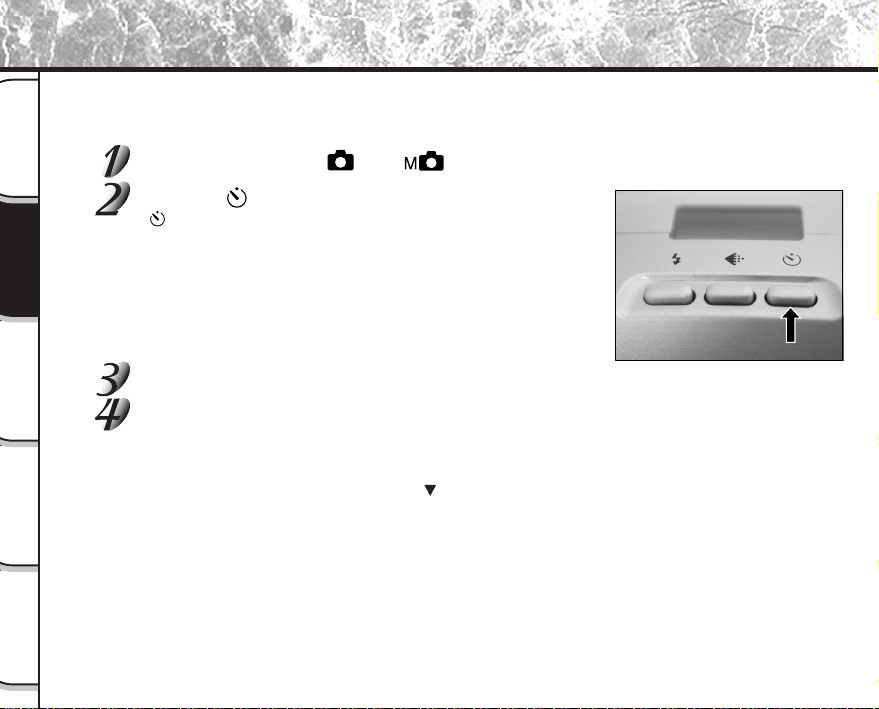
Press the self-timer button.
[ ] is displayed on the LCD monitor and the status display.
Compose the picture.
Press the shutter button down half way, and press it down fully.
➲
Page 37
The self-timer LED lights red, and then flashes. The photograph is then taken after the preset time (two or
ten seconds).
When photographs are taken using the LCD monitor, the count down is displayed.
To cancel photography midway, press the
button.
Photography Using the Self-timer (Self-timer Photography)
- 49 -
Playing Back/
Erasing Images
Other
Applications
Additional
Information
Basic
Photography
Getting Ready
Photography Using the Flash (Flash Photography)
➔
In the default setting, the flash will be automatically set to function in dark places. No special setting is needed to
set off the flash. The flash firing mode can be set to suit the conditions where the flash is to be fired.
The effective firing distance of the flash is approximately 1.65 ft (0.5 m) to 9.8 ft (3 m).
Set the mode dial to [ ] or [ ].
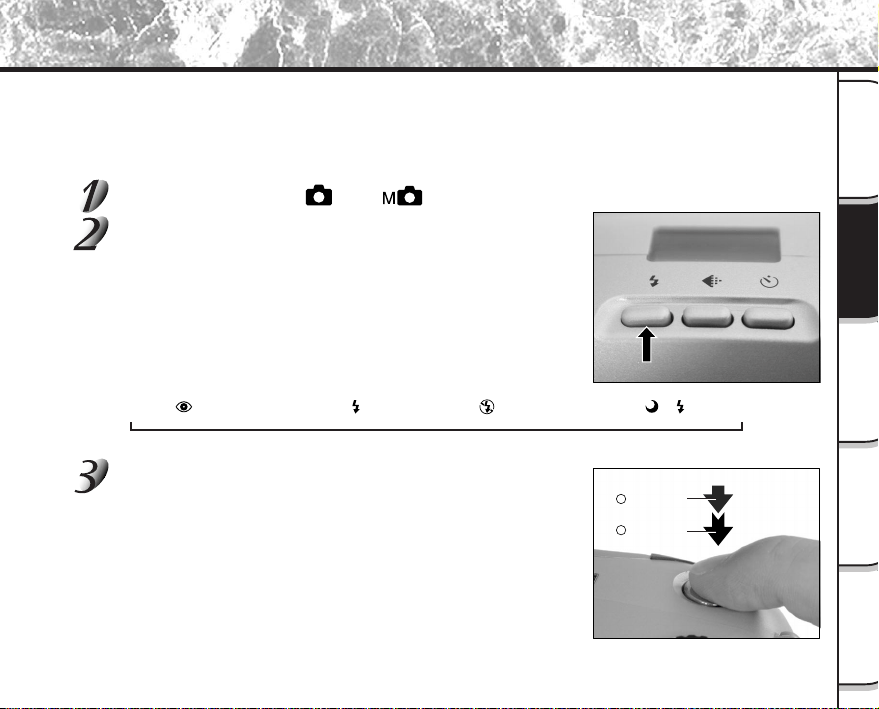
Press the flash button to set to the desired mode
while viewing the image on the LCD monitor or the
status display.
Pressing the flash button displays the available flash modes in order.
The icon for the mode that you selected is displayed in the LCD
monitor or the status display.
Auto ➔ [ ] Red-Eye Reduction ➔ [ ] Forced Flash ➔ [ ] Suppressed Flash ➔ [ ] [ ] Slow Synchro
Compose the picture. Press the shutter button down
half way 1, and press it down fully 2.
Press down
half way.
Press down
fully.
1
2
- 50 -
Basic
Photography
Playing Back/
Erasing Images
Other
Applications
Additional
Information
Getting Ready
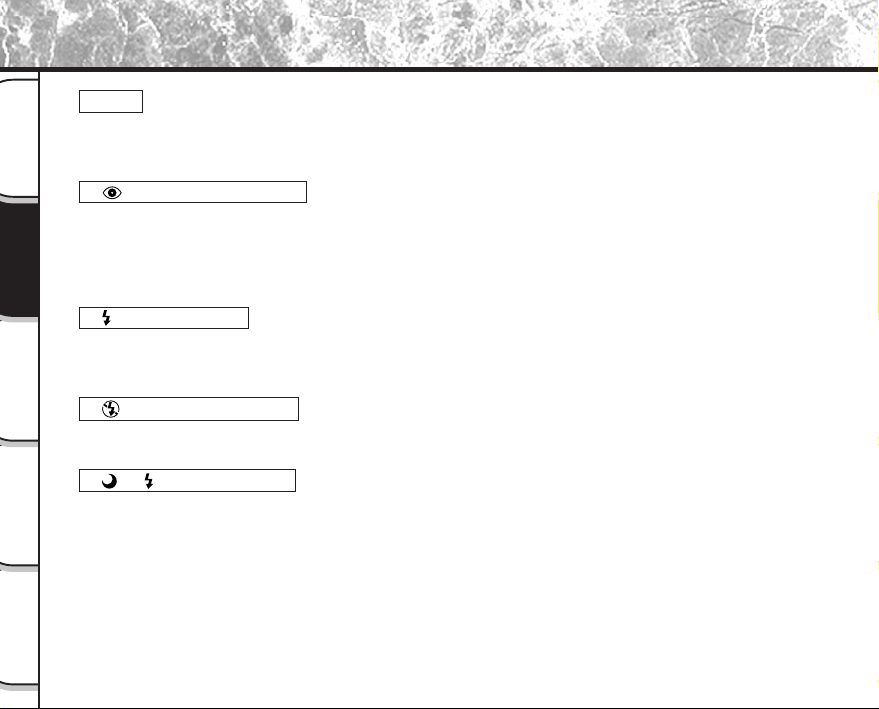
Auto
In this mode, the flash fires automatically according to the photography conditions. This mode is ideal for
general photography where you are not trying to achieve any particular effect (when using macro photography,
the flash does not fire).
[ ] Red-Eye Reduction
Use this mode to avoid the red-eye effect (
➲
Additional Information, Glossary (Page 102)) when
photographing people in low-light conditions.
The flash emits a pre-flash just before the picture is taken and then flashes again to take the actual picture.
Red-eye is reduced more effectively if the camera is pointed at the line of sight of the subject at as close a
distance as possible.
[ ] Forced Flash
In this mode, the flash always fires. Use the Forced Flash mode to shoot pictures in artificial light (backlighting,
fluorescent lighting, etc.).
The flash also fires during macro photography.
[ ] Suppressed Flash
Use the Suppressed Flash mode when you are taking pictures in indoor lighting at distances too great for the
flash to have any effect, such as theater performances or indoor sporting events.
[ ] [ ] Slow Synchro
The flash is fired at a slower shutter speed.
Photography Using the Flash (Flash photography) (continued)
- 51 -
Playing Back/
Erasing Images
Other
Applications
Additional
Information
Basic
Photography
Getting Ready
Photography Using the Flash (Flash photography) (continued)
Memo
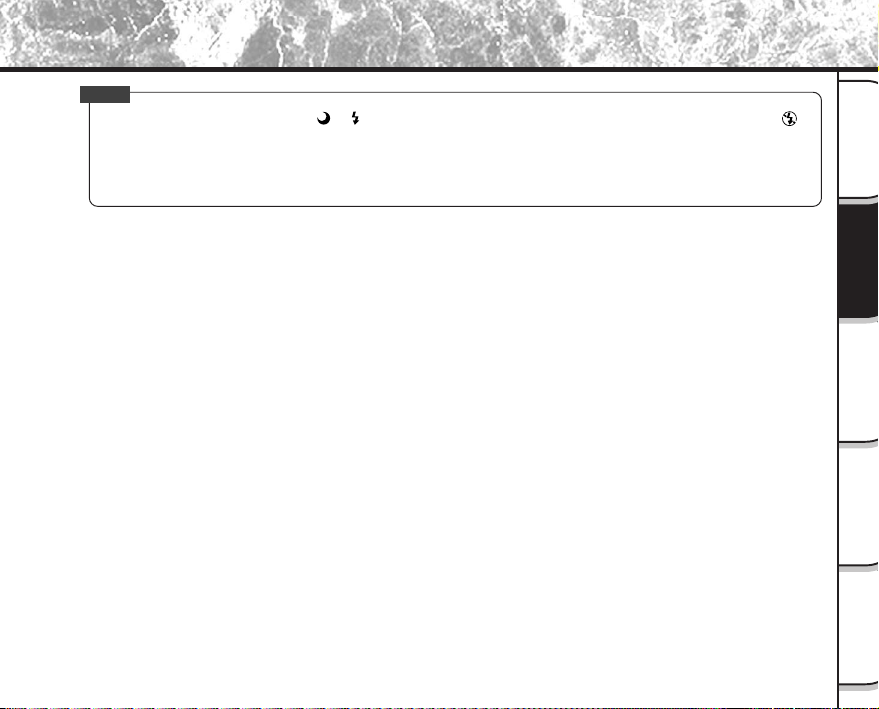
• If you take a photograph in the [ ] [ ] Slow Synchro mode at a place with a dark background or in the [ ]
Suppressed Flash mode at a dark place, the shutter speed slows down. We recommend using a tripod to
prevent blurred image caused by shaking.
• The flash setting is not canceled even if the camera is turned OFF.
• Using the flash during multi photography and bulb photography is not possible.
- 52 -
Basic
Photography
Playing Back/
Erasing Images
Other
Applications
Additional
Information
Getting Ready
This mode takes 16 shots continuously at 0.25 second intervals. The 16 photographed images are saved as one
image (FULL size: 1792 x 1200 pixels).
This mode is effective for continuously photographing moving subjects.
Set the mode dial to [ ] or [ ].
Set the photography mode to [MULTI].
1 Press the MENU button.
2 Use the
or buttons to select [REC.MODE] and press the button.
3 Use the
or buttons to select [MULTI] and press the ENTER button.
4 Press the MENU button.
☞
For details on the photography mode,
➲
Page 59.
is displayed in the LCD monitor or the status display.
Compose the picture, press the shutter button down half way, and press it down
fully.
➲
Page 37
The shutter is opened and closed 16 times.
Memo
• The photography interval changes according to the photographic conditions.
• Flash photography is not possible.
Multi Image Photography (Multi Photography)
- 53 -
Playing Back/
Erasing Images
Other
Applications
Additional
Information
Basic
Photography
Getting Ready
This mode is used for taking subjects that require several seconds to photograph such as firework displays at
night. When using this mode, be sure to use a tripod to keep the camera stable and prevent distorted images.
Set the mode dial to [ ] or [ ].
Set the photography mode to [BULB].
1 Press the MENU button.
2 Use the
or buttons to select [REC.MODE] and press the button.
3 Use the
or buttons to select [BULB] and press the ENTER button.
4 Press the MENU button.
☞
For details on the photography mode
➲
Page 59
[
] and [ ] are displayed in the LCD monitor or the status display.
Compose the picture, press the shutter button down half way, and press it down
fully.
➲
Page 37
The camera takes the picture at the set exposure time.
During the exposure, the viewfinder LED turns red.
It takes about twice the set time to complete taking the photograph due to processing of the captured
image.
☞
Changing the exposure time
➲
Page 61
Memo
• Flash photography is not possible.
Long Exposure Photography (Bulb Photography)

- 54 -
Basic
Photography
Playing Back/
Erasing Images
Other
Applications
Additional
Information
Getting Ready
You can manually adjust conditions such as white balance and exposure compensation, and take photographs at
these conditions. This is called “manual photography.” Settings made in this mode are saved even if the camera is
turned OFF.
IMPORTANT
• Do not remove or insert the batteries or disconnect or connect the AC adapter while the camera is ON.
This might return the manual photography settings to their defaults. If this happens, manually set the
conditions again.
Set the mode dial to [ ].
The manual setup screen is displayed.
Display or non-display of the manual setup screen is toggled at each
press of the ENTER button.
☞
If the LCD monitor is difficult to view
➲
Page 84
Press the or buttons to select the setting item
and the
or buttons to select the set value.
☞
[W.B.] White balance
➲
Page 56
[E.V.] Exposure compensation
➲
Page 56
Taking Photographs Manually (Manual Photography)
Setting items
Set values
W.B.
E.V.
+0.3
0.3
AUTO
0
- 55 -
Playing Back/
Erasing Images
Other
Applications
Additional
Information
Basic
Photography
Getting Ready
Taking Photographs Manually (Manual Photography) (continued)
Press the ENTER button.
This fixes the setting.
The camera is ready to take photographs.
Compose the picture, press the shutter button down half way, and press it down
fully.
➲
Page 37
The camera takes the picture.
Memo
• Photography is also possible with the manual setup screen displayed.
- 56 -
Basic
Photography
Playing Back/
Erasing Images
Other
Applications
Additional
Information
Getting Ready
W.B. (White Balance)
☞
White Balance
➲
Additional Information, Glossary (Page 102)
The camera determines the white balance by averaging the various kinds of light that enters the lens.
This setting allows you to set the white balance when taking photographs under specific lighting
conditions.
This setting does not function when the flash is used to take photographs.
[AUTO]
: Automatic adjustment (default)
[
] : Photography outdoors
[
] : Photography in standard fluorescent light
[
] : Photography in cool white fluorescent light
[
] : Photography in incandescent light
E.V. (Exposure Compensation)
☞
E.V. (Exposure Compensation)
➲
Additional Information, Glossary (Page 102)
This setting allows you to lighten or darken the entire screen. Use this setting when the optimum
brightness (exposure) cannot be obtained, for example, when there is a lot of contrast between the
subject and the background or when the subject to photograph occupies only an extremely small part of
the screen. Increasing E.V. lightens the screen, while decreasing E.V. darkens the screen.
[+1.5/+1.2/+0.9/+0.6/+0.3/0 (default)/–0.3/–0.6/–0.9/–1.2/–1.5]
The ideal brightness sometimes cannot be obtained even if a large E.V. value is set in dark photographic
conditions.
Also, the brightness of moving images before they are photographed sometimes does not change if the
subject itself is dark. In this case, press the shutter button, and check the brightness in the preview
image (photographed still image).
(preview photography
➲
Page 60)
Taking Photographs Manually (Manual Photography) (continued)
- 57 -
Playing Back/
Erasing Images
Other
Applications
Additional
Information
Basic
Photography
Getting Ready
Taking Photographs Manually (Manual Photography) (continued)
Effective Subjects and Set Values
● Positive (+) Compensation
• Copying of printed text (black characters on white paper) (+1.5)
• Backlit portraits (+0.6 to +1.5)
• Very bright scenes (such as snowfields) and highly reflective subjects (+0.9)
• Shots made up predominantly of sky (+0.9)
● Negative (–) Compensation
• Spotlit subjects, particularly against dark backgrounds (–0.6)
• Copying of printed text (white characters on black paper) (–0.6)
• Scenes with low reflectivity, such as shots of green or dark foliage (–0.6)
- 58 -
Basic
Photography
Playing Back/
Erasing Images
Other
Applications
Additional
Information
Getting Ready
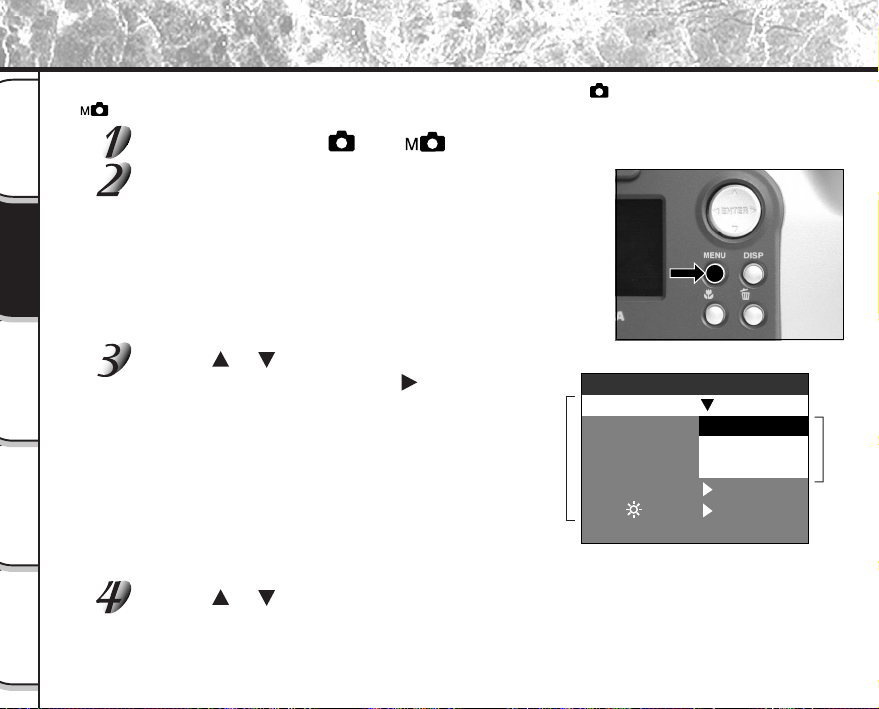
Changing the Preset Conditions (REC MENU)
This menu is for setting the basic settings to be used for photography in the [ ] automatic photography and
[
] manual photography mode.
Set the mode dial to [ ] or [ ].
Press the MENU button.
The REC MENU is displayed.
Use the or buttons to select the desired
setting item 1 and press the [
] button.
The tab menu 2 is displayed.
The image before the photograph is taken is displayed
on the LCD monitor.
☞
REC. MODE
➲
Page 59
PREVIEW
➲
Page 60
ISO
➲
Page 60
BULB
➲
Page 61
SELF TIMER
➲
Page 61
LCD
➲
Page 61
Use the or buttons to select the desired setting from the tab menu 2, and
press the ENTER button.
This saves the settings, and returns the display to the REC MENU.
2 Tab menu
1 Setting item
PREVIEW
ISO
LCD
BULB
SELF TIMER
10 SEC
SET
MULTI
BULB
1
SHOT
REC MENU
REC.
MODE
1
SHOT
- 59 -
Playing Back/
Erasing Images
Other
Applications
Additional
Information
Basic
Photography
Getting Ready
To quit the REC MENU, press the MENU button.
The camera is now ready to take photographs.
REC. MODE
Select from the following photography modes:
[1SHOT], [MULTI] and [BULB] are modes for photographing still images.
[1SHOT] :Regular photography, one shot at a time (default)
➲
“Taking Photographs (page 40)”
[MULTI] :Continuously taking 16 photographs as a single image
➲
“Multi Image Photography (page 52)”
[BULB] :Taking photographs at a longer exposure time
➲
“Long Exposure Photography (page 53)”
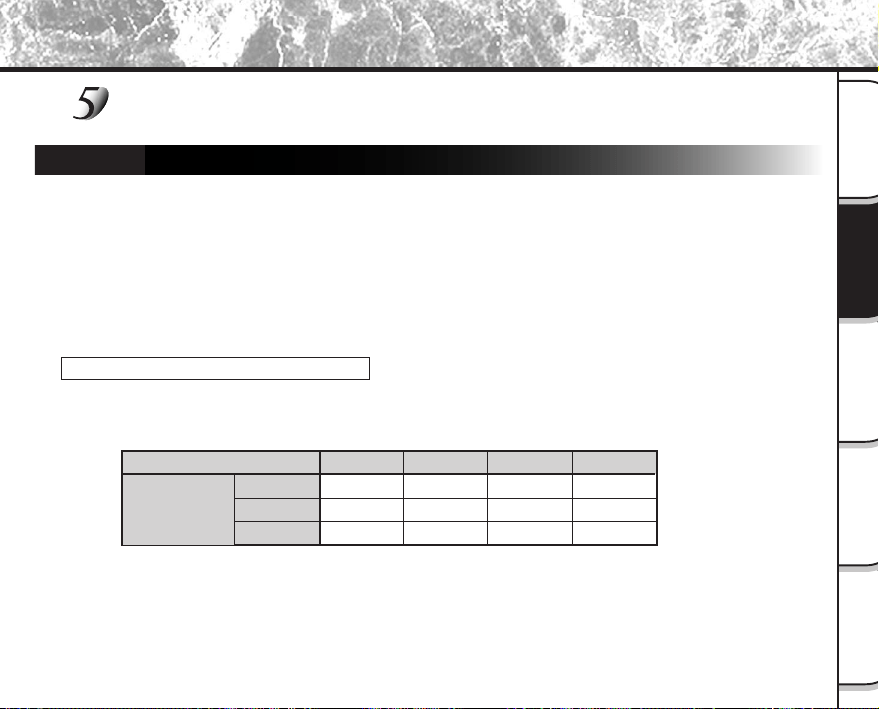
Photography Mode and Functions
You can combine photography modes and the various functions for extra flexibility.
The following table shows the possible combinations of photography mode functions:
Changing the Preset Conditions (REC MENU) (continued)
1SHOT
MULTI
BULB
O : Possible
X : Not possible
Macro
O
O
O
Self-timer
O
O
O
Digital zoom
O
O
O
Flash
O
X
X
Photography
Mode
- 60 -
Basic
Photography
Playing Back/
Erasing Images
Other
Applications
Additional
Information
Getting Ready
Changing the Preset Conditions (REC MENU) (continued)
PREVIEW
This setting allows you to display a photographed image on the LCD monitor for two seconds
immediately after you have taken the shot.
This allows you check the composition and brightness of the photographed image.
To cancel preview, press the shutter button half way down again.
[ON] : Display preview (default)
[OFF] : Do not display preview
ISO
Sets the color mode and photographic sensitivity at which the image is to be recorded.
Flash photography is not possible when the photographic sensitivity is set to [ISO200] [ISO400].
Warning: Noise increases when the ISO is changed to a higher setting.
[ISO100] : Equivalent to color ISO100 (default)
[ISO200] : High-sensitive photography equivalent to color ISO200
[ISO400] : High-sensitive photography equivalent to color ISO400
[B&W] : Black and white
- 61 -
Playing Back/
Erasing Images
Other
Applications
Additional
Information
Basic
Photography
Getting Ready
Changing the Preset Conditions (REC MENU) (continued)
BULB
Sets the exposure time when taking pictures in the bulb photography mode (
➲
Page 53).
[1
SEC] : Opens shutter for about 1 second (default)
[2
SEC] : Opens shutter for about 2 seconds
SELF TIMER
Sets the delay time for when the photograph is taken after the shutter button is pressed during self-timer
photography (
➲
Page 48).
[10
SEC] : Picture taken after a 10-second delay (default)
[2
SEC] : Picture taken after a 2-second delay
LCD
Adjusts the brightness of the LCD monitor. This adjustment does not adjust the brightness of the image
to be recorded.
[-5] to [+5]
☞
To adjust the brightness of the LCD monitor
➲
Page 84
- 62 -
Basic
Photography
Playing Back/
Erasing Images
Other
Applications
Additional
Information
Getting Ready
Playing Back Photographed Images (Single-Frame Playback)
Play back photographed still images one image at a time.
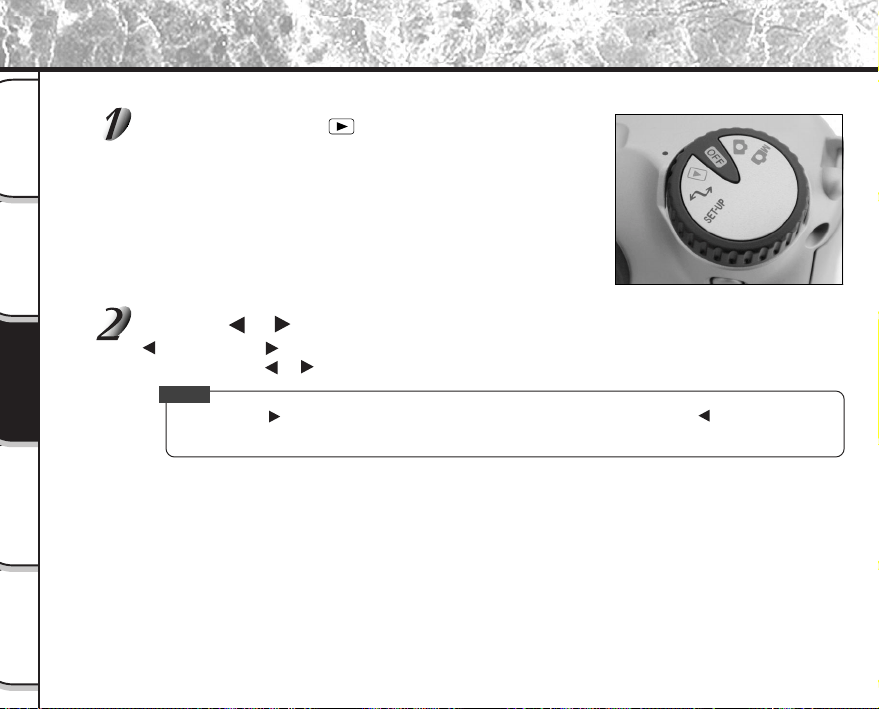
Set the mode dial to [ ].
The last image frame appears on the LCD monitor.
☞
To adjust the brightness of the LCD monitor
➲
Page 84
Changing the LCD monitor display
➲
Page 85
Press the or buttons to move forward and reverse.
Frame reverse/ Frame forward
Holding down the
or buttons moves forward or reverse continuously one frame at a time.
Memo
• Pressing the button at the last image displays the first image, and pressing the button at the first
image displays the last image.
- 63 -
Basic
Photography
Playing Back/
Erasing Images
Other
Applications
Additional
Information
Getting Ready
Enlarging Photographed Images (Zoom Playback)
Enlarges selected portions of images being played back 3 times actual size. Images can be displayed enlarged
when being played back one image at a time.
Set the mode dial to [ ].
The last image frame appears on the LCD monitor.
Use the or buttons to select the frame you want to enlarge.
You can also select the image by the same operation as for thumbnail playback (
➲
Page 64).
Enlarge the image by using the Zoom key.
Pressing the Telephoto (zoom) key zooms to 3X.
The image is displayed enlarged, and a white frame and green frame
are displayed on the LCD monitor.
The white frame indicates the entire image, while the green frame
shows the location of the currently enlarged area.
Use the , , or buttons to select the area to
enlarge.
Adjust the display area to enlarge while viewing the white and green
frames.
To return to the regular display, press the ENTER button.
Memo
• Not support Zoom Playback function on TV.
Entire image
Current
position of
enlargement
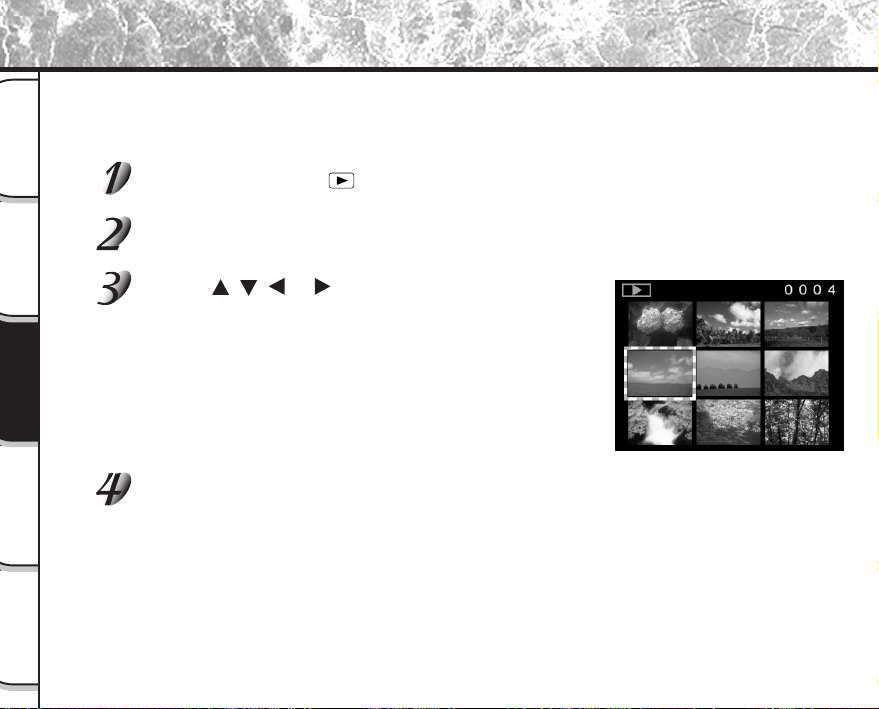
- 64 -
Basic
Photography
Playing Back/
Erasing Images
Other
Applications
Additional
Information
Getting Ready
Displaying a List of Images (Thumbnail Display)
Nine reduced images are simultaneously displayed on the LCD monitor. This manual calls this display “thumbnail
display.”
This feature is useful, for example, when there are many images. After you have displayed the thumbnail display,
you can select the desired image and display it in the regular display.
Set the mode dial to [ ].
The last image frame appears on the LCD monitor.
Press the ENTER button.
Nine images are displayed simultaneously.
Use the , , or buttons to move the cursor to
select the image to be displayed at regular size.
The cursor lies on top of the image surrounded by a frame.
Pressing the buttons continuously moves the cursor continuously.
Press the ENTER button.
The selected image is displayed at its regular size.
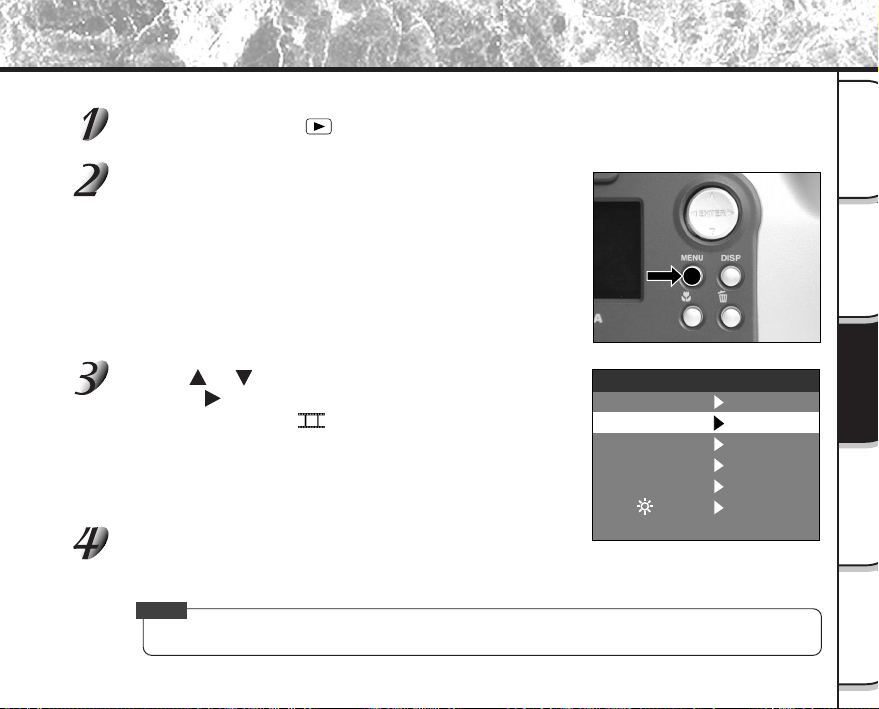
- 65 -
Basic
Photography
Playing Back/
Erasing Images
Other
Applications
Additional
Information
Getting Ready
Auto Playback (Slideshow)
Automatically play back one image at a time in order.
Set the mode dial to [ ].
The last image frame appears on the LCD monitor.
Press the MENU button.
The PLAY MENU is displayed.
Use the or buttons to select [SLIDE] and
press the
button.
The slideshow begins and [ ] is displayed on the LCD monitor.
The next image is displayed every three seconds.
To quit the slideshow, press the ENTER button.
The LCD monitor displays the image when the ENTER button is pressed.
The slideshow is repeated until the ENTER button is pressed.
Memo
• The Auto Power OFF function does not operate during automatic playback.
➡
SLIDE
PROTECT
LCD
RESIZE
QUALITY
SET
PLAY MENU
FOLDER
SET
SET
SET
SET
SET
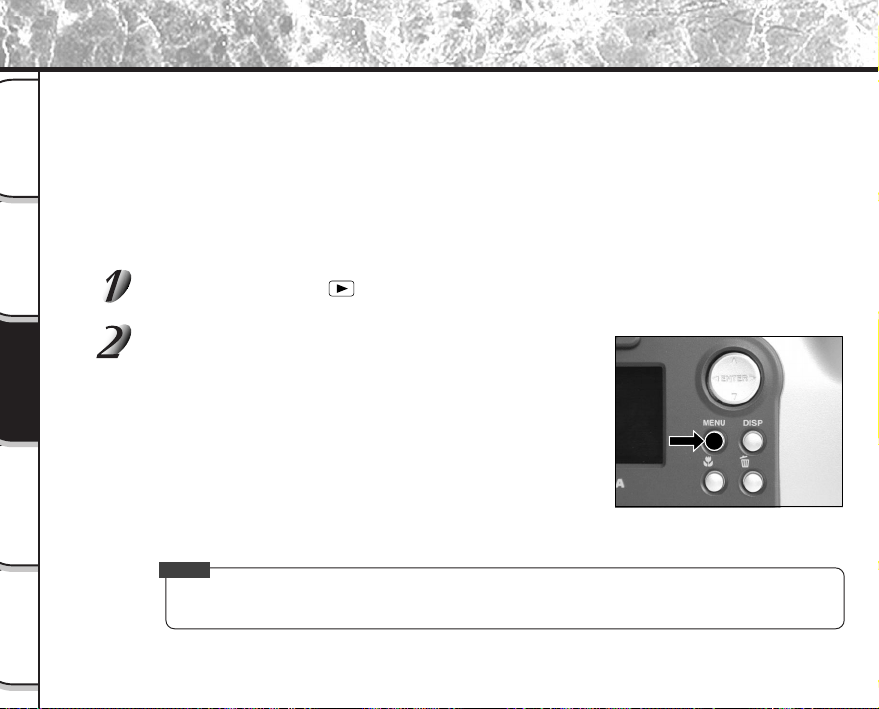
- 66 -
Basic
Photography
Playing Back/
Erasing Images
Other
Applications
Additional
Information
Getting Ready
Reducing the Image Size (Resize)
Changes the size of FULL size (1792 x 1200 pixels) images to half the size (896 x 600 pixels) in the horizontal and
vertical directions, and overwrites the old FULL size image with the new size image. This is called “resizing” in this
manual.
Resizing a previously saved image when the SmartMedia™ has run out of storage space during photography
increases space on SmartMedia™ so that you can continue taking photographs.
The following images cannot be resized:
• HALF size images
• Images taken with another camera
• Protected images (
➲
Page 76)
• Images cannot also be resized when the SmartMedia™ is write-protected.
Set the mode dial to [ ].
The last image frame appears on the LCD monitor.
Press the MENU button.
The PLAY MENU is displayed.
Memo
• Only FULL size (1792 x 1200 pixels) images can be reduced. Further reduction of HALF size (896 x 600
pixels) images is not possible.
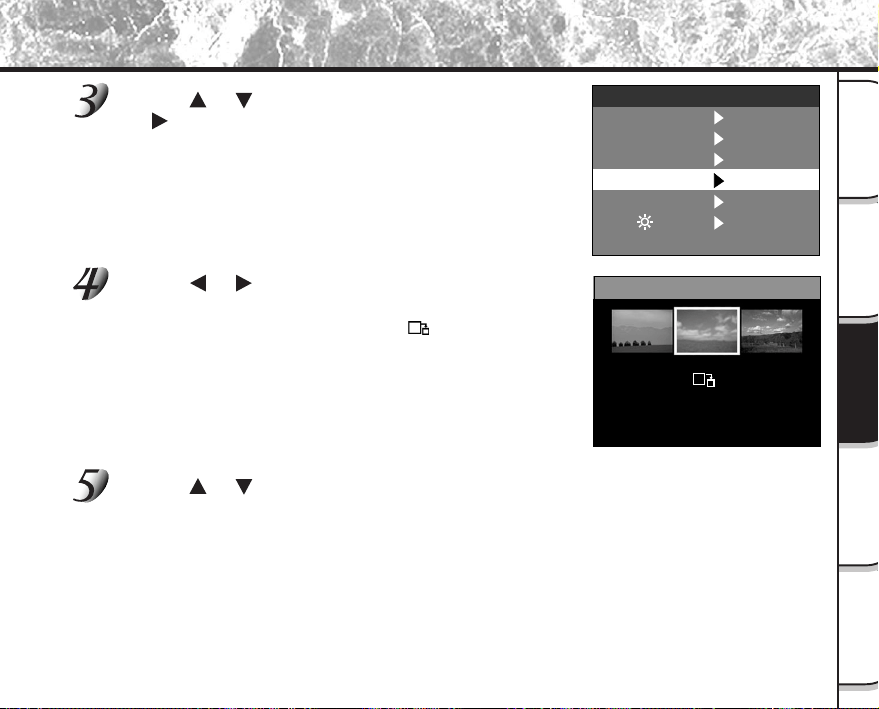
- 67 -
Basic
Photography
Playing Back/
Erasing Images
Other
Applications
Additional
Information
Getting Ready
Reducing the Image Size (Resize) (continued)
Use the or buttons to select [RESIZE] and press
the
button.
The RESIZE menu is displayed.
If there are no images that can be resized, a message
appears on screen and the screen returns to the PLAY MENU.
Use the or buttons to select the image and press
the ENTER button.
This fixes the image to be displayed, and [ ] is displayed under
the image.
To cancel the selection, press the ENTER button again.
If you want to resize two or more images, repeat the procedure for
each image.
Use the or buttons to select [EXEC], and press the ENTER button.
The screen indicating that the image is being resized appears.
To quit resizing, select [CANCEL].
When resizing ends, the screen returns to the PLAY MENU.
To quit the PLAY MENU, press the MENU button.
➡
RESIZE
CANCEL
EXEC
SLIDE
PROTECT
LCD
RESIZE
QUALITY
SET
PLAY MENU
FOLDER
SET
SET
SET
SET
SET
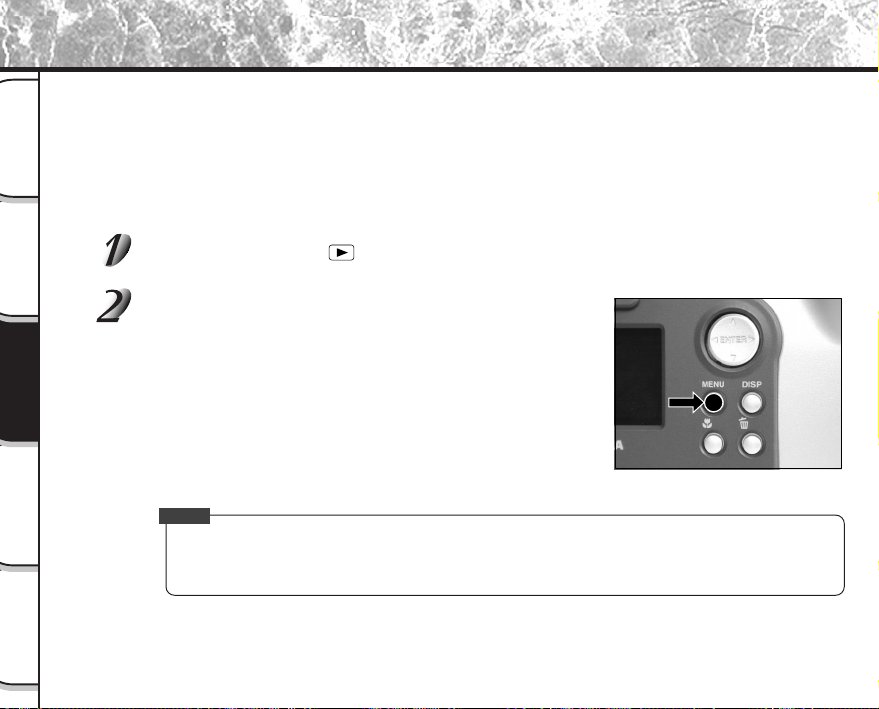
- 68 -
Basic
Photography
Playing Back/
Erasing Images
Other
Applications
Additional
Information
Getting Ready
Compressing Images (Quality)
Compresses images to half their size, and overwrites the old size image with the new compressed image.
Compressing a previously saved image when the SmartMedia™ has run out of storage space during photography
increases space on SmartMedia™ so that you can continue taking photographs.
The following images cannot be compressed:
•[★] (BASIC) image quality images
• Images taken with another camera
• Protected images (
➲
Page 76)
• Images cannot also be compressed when the SmartMedia™ is write-protected.
Set the mode dial to [ ].
The last image frame appears on the LCD monitor.
Press the MENU button.
The PLAY MENU is displayed.
Memo
• Compression of images can be accomplished only in the following order:
★★★(FINE) ➔ ★★(NORMAL) ➔ ★(BASIC).
The reverse is not possible.
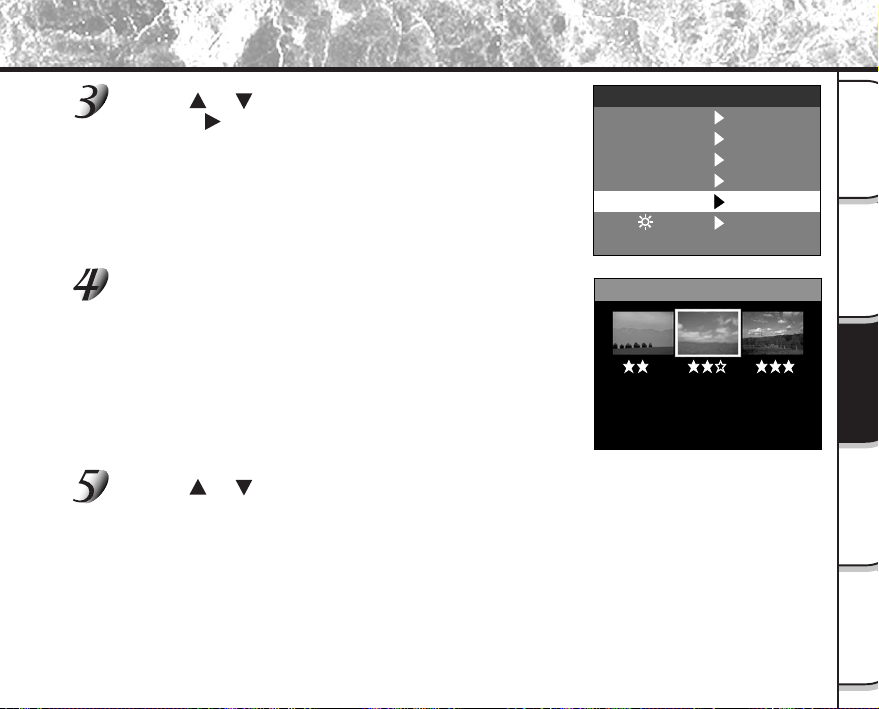
- 69 -
Basic
Photography
Playing Back/
Erasing Images
Other
Applications
Additional
Information
Getting Ready
Compressing Images (Quality) (continued)
Use the or buttons to select [QUALITY], and
press the
button.
The QUALITY menu is displayed.
If there are no images that can be compressed, a message
appears on screen and the screen returns to the PLAY MENU.
The current compression ratio (quality) is displayed
under the image.
Each press of the ENTER button changes the number of stars as
follows:
[★★] : NORMAL
[★] : BASIC
☞
Details of compression ratio
➲
Page 43
If you want to compress two or more images, repeat the procedure
for each image.
Use the or buttons to select [EXEC], and press
the ENTER button.
The screen indicating that the image is being compressed appears.
To quit compression, select [CANCEL].
When compression ends, the screen returns to the PLAY MENU.
To quit the PLAY MENU, press the MENU button.
➡
QUALITY
CANCEL
EXEC
SLIDE
PROTECT
LCD
RESIZE
QUALITY
SET
PLAY MENU
FOLDER
SET
SET
SET
SET
SET
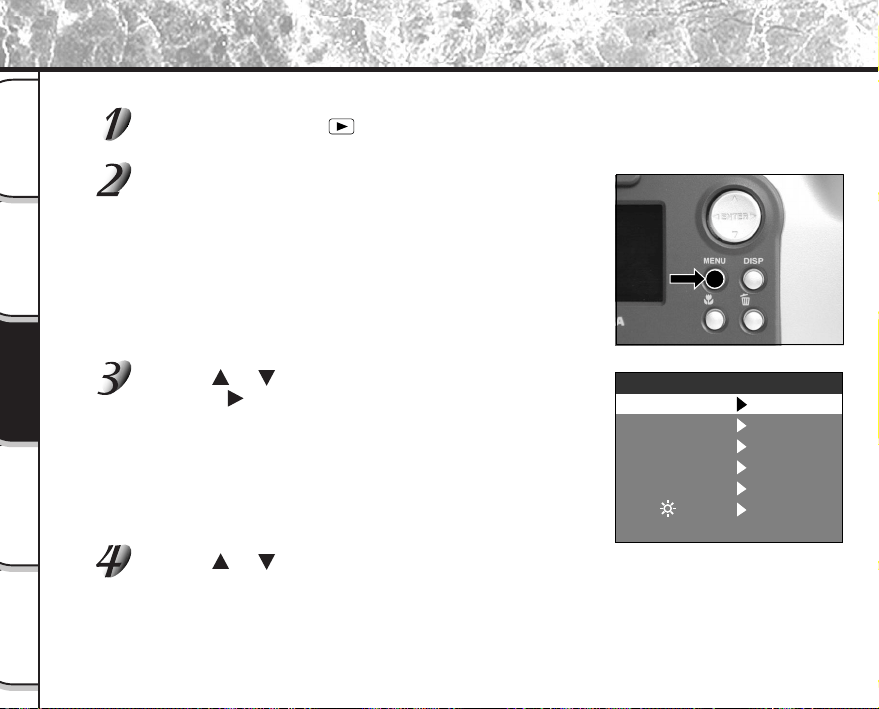
- 70 -
Basic
Photography
Playing Back/
Erasing Images
Other
Applications
Additional
Information
Getting Ready
Select the folder to play back when the currently loaded SmartMedia™ contains two or more folders.
Set the mode dial to [ ].
The last image frame or the thumbnail display appears on the LCD monitor.
Press the MENU button.
The PLAY MENU is displayed.
Use the or buttons to select [FOLDER], and
press the
button.
The names of the folders in the currently loaded SmartMedia™
are displayed.
Use the or buttons to select the folder to be displayed, and press the ENTER
button.
Selecting the Folder to Play Back
➡
SLIDE
PROTECT
LCD
RESIZE
QUALITY
SET
PLAY MENU
FOLDER
SET
SET
SET
SET
SET
- 71 -
Basic
Photography
Playing Back/
Erasing Images
Other
Applications
Additional
Information
Getting Ready
Selecting the Folder to Play Back (continued)
Memo
About Folder Names
Images photographed on this camera are recorded to a folder. You cannot choose in which folder to
store images. The [100] folder is created when you have photographed still images. When the number of
images reaches the largest number (9999), a new folder [101] is created.
When there are two or more [xxx] folders, the playback folder default is the folder assigned the largest
“xxx” value.
• When you use SmartMedia™ on your PC, a folder [xxxTOSHI] is created.
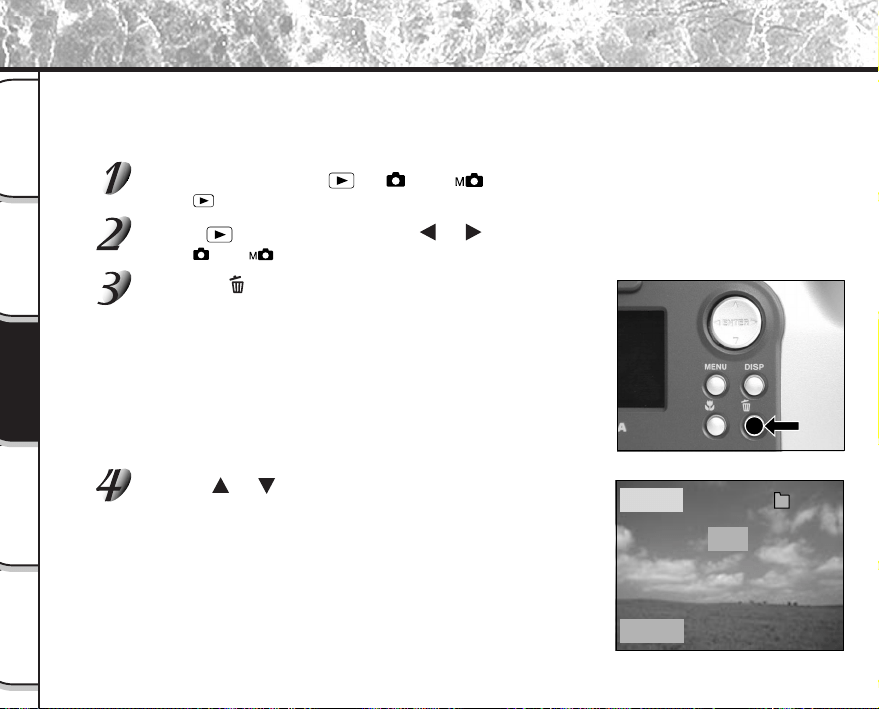
- 72 -
Basic
Photography
Playing Back/
Erasing Images
Other
Applications
Additional
Information
Getting Ready
Erases images one image at a time.
Note, however, that images cannot be erased when they are protected (
➲
Page 76) or the SmartMedia™ is write-
protected (
➲
Page 32).
Set the mode dial to [ ], [ ] or [ ].
When [ ] is selected, the last image frame appears on the LCD monitor.
When [ ] is selected, use the or buttons to select the image to be erased.
When [ ] or [ ] is selected, the last image is selected.
Press the erase button.
[FRAME] or [LAST] is displayed at the bottom left of the screen.
Use the or buttons to select [YES], and press the
ENTER button.
This erases the image and returns to the previous mode.
To cancel erasing of image data, select [NO], and press the ENTER
button.
Erasing Images (Erase Frame)
ERASE
FRAME
YES
100
0004
NO
- 73 -
Basic
Photography
Playing Back/
Erasing Images
Other
Applications
Additional
Information
Getting Ready
To continue erasing images, repeat the above procedure from step 2.
Memo
• When [ PROTECT!!!] is displayed on the LCD monitor, cancel the protection (
➲
Page 76).
• If you take a photograph after erasing an image, a number continuing from the last photographed
image is assigned as the image number.
Erasing Images (Erase Frame)
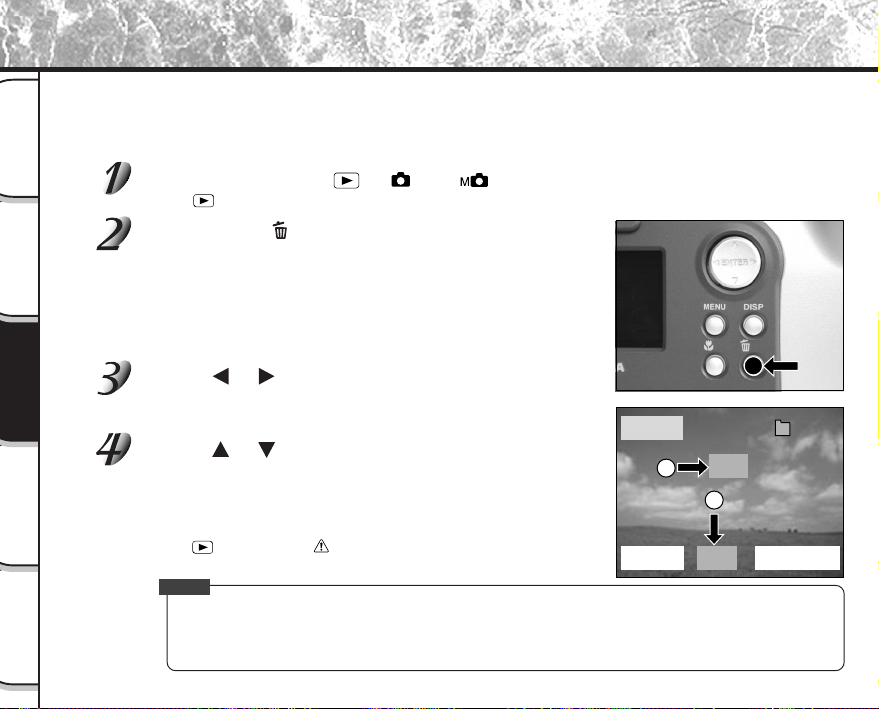
- 74 -
Basic
Photography
Playing Back/
Erasing Images
Other
Applications
Additional
Information
Getting Ready
Erases all images within the currently selected folder.
For details on folders, see “Selecting the Folder to Play Back”
➲
Page 70).
Note, however, that images cannot be erased when they are protected (
➲
Page 76) or when the SmartMedia™ is
write-protected (
➲
Page 32).
Set the mode dial to [ ], [ ] or [ ].
When [ ] is selected, the last image frame appears on the LCD monitor.
Hold down the erase button for two seconds.
The ERASE menu is displayed.
Use the or buttons to select [ALL] 1.
Make sure that [ALL] at the bottom center of the image is displayed
in yellow.
Use the or buttons to select [YES] 2, and press
the ENTER button.
This erases the images and returns to the previous mode.
To cancel erasing of image data, select [NO], and press the ENTER
button.
When [
] is selected, [ NO IMAGE] is displayed after the images
are erased (unless the SmartMedia™ contains protected images).
Memo
• When you execute ERASE ALL, the folder containing the image is also erased. To prevent this, erase
the image one by one.
• To erase the images in another folder, specify the folder by [FOLDER] and then erase the images.
(
➲
Page 70)
Erasing All Images in a Folder (Erase All)
ERASE
FRAME
ALL FORMAT
YES
100
0004
NO
2
1
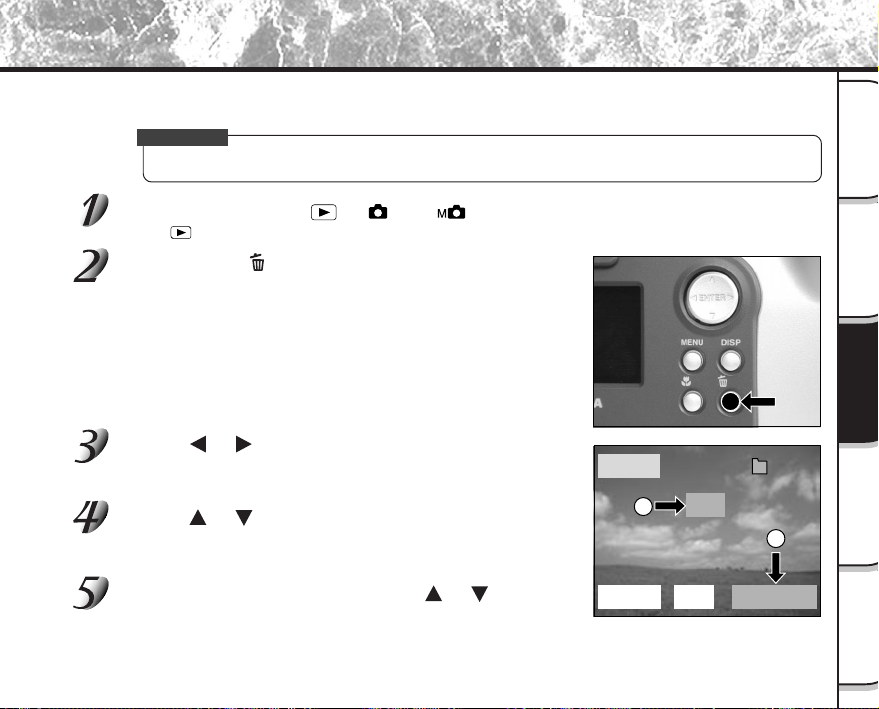
- 75 -
Basic
Photography
Playing Back/
Erasing Images
Other
Applications
Additional
Information
Getting Ready
Formatting erases all images currently recorded on the SmartMedia™ loaded on your camera. Protected images
(
➲
Page 76) are also erased. SmartMedia™ cannot be formatted if it is write-protected (
➲
Page 32).
IMPORTANT
• The SmartMedia™ must be formatted on the camera before use.
Set the mode dial to [ ], [ ] or [ ].
When [ ] is selected, the last image frame appears on the LCD monitor.
Hold down the erase button for two seconds.
The ERASE menu is displayed.
Use the or buttons to select [FORMAT] 1.
Make sure that [FORMAT] is displayed in yellow at the bottom right of
the screen.
Use the or buttons to select [YES] 2, and press
the ENTER button.
To cancel formatting, select [NO], and press the ENTER button.
To reset the image number, use the or buttons to
select [YES], and press the ENTER button.
To cancel resetting of image numbers, select [NO], and press the
ENTER button.
Formatting the SmartMedia™
ERASE
FRAME
ALL FORMAT
YES
100
0004
NO
2
1
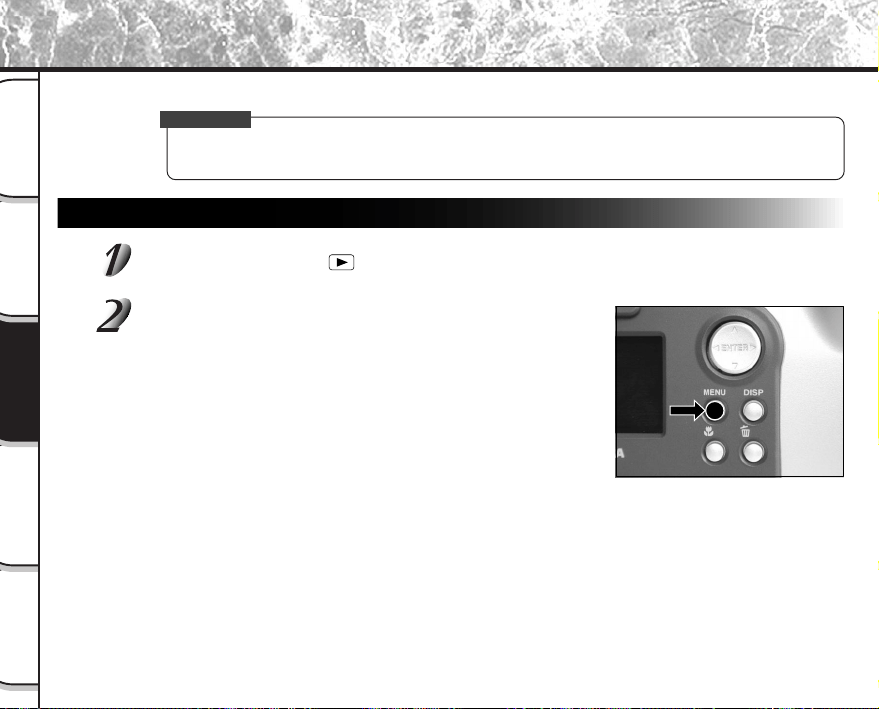
- 76 -
Basic
Photography
Playing Back/
Erasing Images
Other
Applications
Additional
Information
Getting Ready
This feature prevents images from being erased.
IMPORTANT
• Formatting erases all the images on a SmartMedia™, regardless of whether they are protected or not.
• To protect the entire SmartMedia™, see “Write Protection” (
➲
Page 32).
Protecting an Image
Set the mode dial to [ ].
The last image frame appears on the LCD monitor.
Press the MENU button.
The PLAY MENU is displayed.
Protecting Images
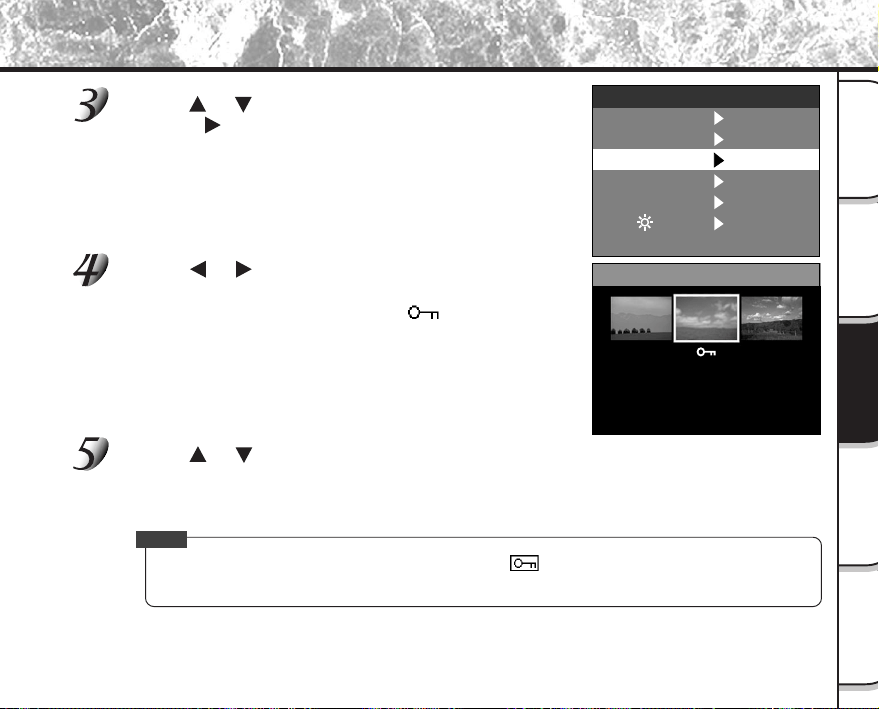
- 77 -
Basic
Photography
Playing Back/
Erasing Images
Other
Applications
Additional
Information
Getting Ready
Use the or buttons to select [PROTECT] and
press the
button.
The PROTECT menu is displayed.
Use the or buttons to select the desired image to
protect, and press the ENTER button.
This fixes the image to be protected, and [ ] is displayed under
the image.
To cancel the selection, press the ENTER button again.
To write-protect two or more images, repeat this procedure for each
image.
Use the or buttons to select [EXEC], and press the ENTER button.
To quit write-protection, select [CANCEL].
When write-protection ends, the screen returns to the PLAY MENU.
To quit the PLAY MENU, press the MENU button.
Memo
• When the PROTECT setup screen is displayed again, [ ] is displayed under protected images.
• To cancel write-protection for an image, write-protection is simultaneously canceled if set at step 4.
Protecting Images (continued)
PROTECT
CANCEL
EXEC
➡
SLIDE
PROTECT
LCD
RESIZE
QUALITY
SET
PLAY MENU
FOLDER
SET
SET
SET
SET
SET
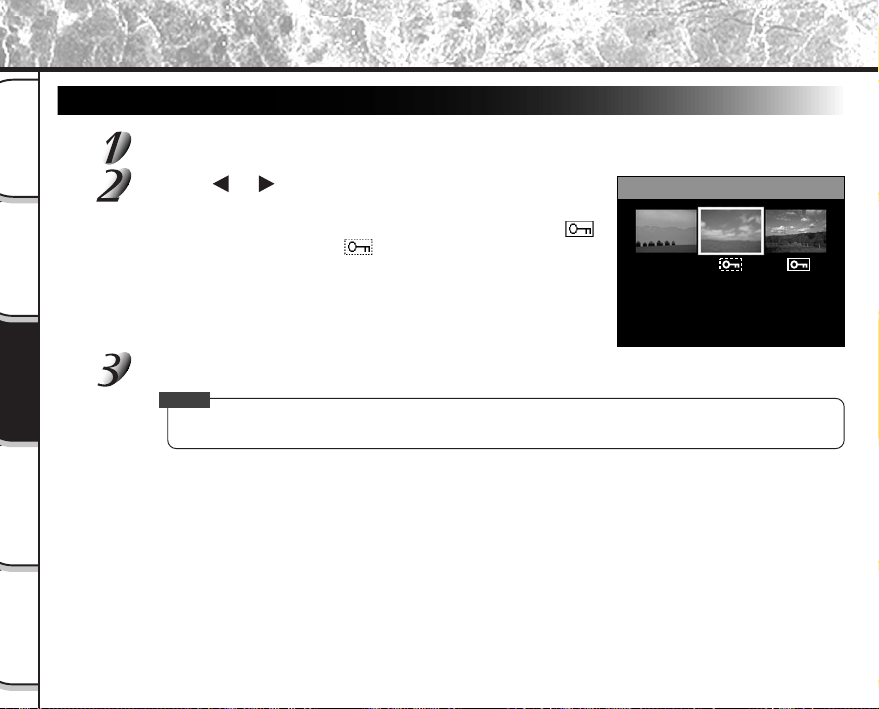
- 78 -
Basic
Photography
Playing Back/
Erasing Images
Other
Applications
Additional
Information
Getting Ready
Removing the Protection
Carry out steps 1 to 3 in “Protecting An Image”.
Use the or buttons to select the image to
unprotect, and press the ENTER button.
This fixes the images whose protection is to be removed, and [ ]
under the image changes to [
].
To unprotect an image, press the ENTER button again.
To remove the protection from two or more images, repeat this
procedure for the necessary number of images.
Carry out step 5 in “Protecting An Image”.
Memo
• To protect an image again, write-protection is simultaneously carried out if set at step 2.
Protecting Images (continued)
PROTECT
CANCEL
EXEC
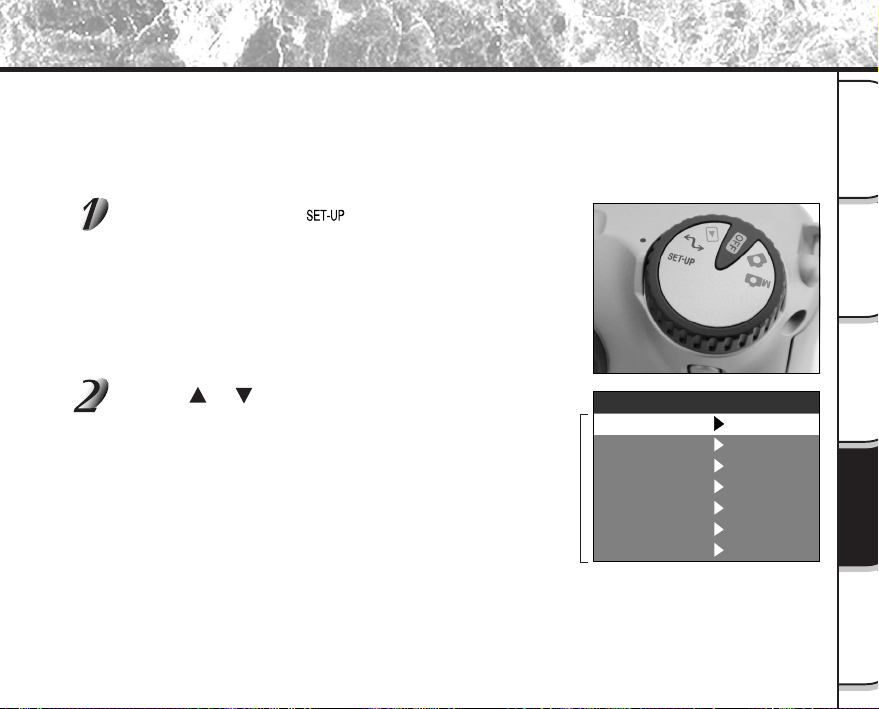
- 79 -
Basic
Photography
Playing Back/
Erasing Images
Other
Applications
Additional
Information
Getting Ready
Basic Photographic Settings (SET-UP mode)
This feature allows you to set up the environment for using your camera in addition to image-related settings. This is
called “setup”. The following items can be changed in the SET-UP mode:
LANGUAGE/SOUND/TIME/AUTO-OFF/TV/IMAGE No./DEFAULT
The details set here are held in memory even if the camera is turned OFF.
Set the mode dial to [ ].
The SET-UP menu appears.
Use the or buttons to select the item you want to
set.
☞
LANGUAGE
➲
Page 80
SOUND
➲
Page 80
TIME
➲
Page 81
AUTO-OFF
➲
Page 81
TV
➲
Page 82
IMAGE No.
➲
Page 82
DEFAULT
➲
Page 83
Setting item
SOUND
TIME
IMAGE No.
DEFAULT
AUTO-OFF
TV
NTSC
SET
SET-UP
LANGUAGE
ON
SET
SET
3
MIN
English
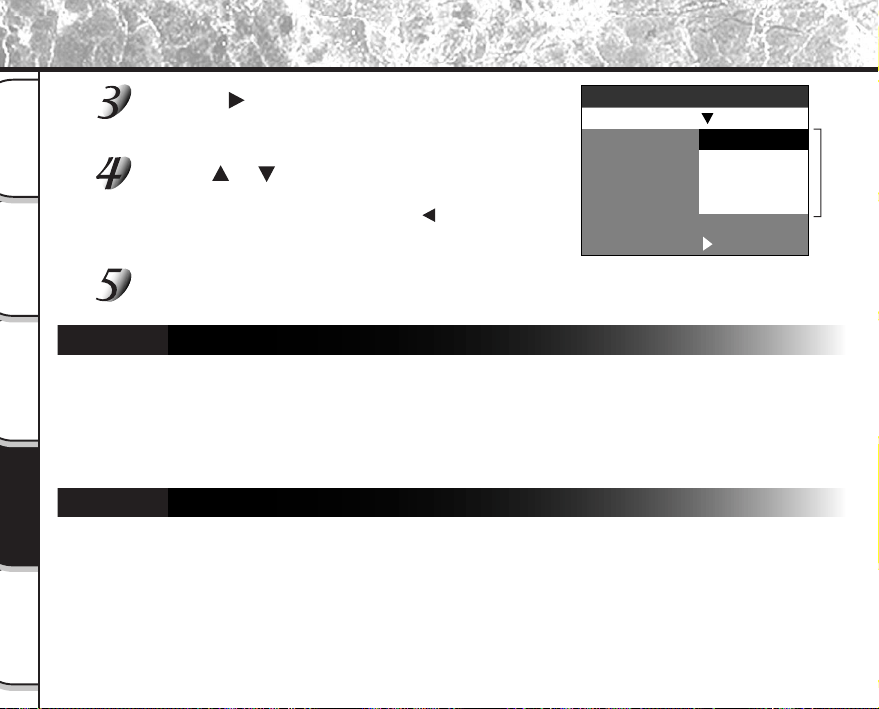
- 80 -
Basic
Photography
Playing Back/
Erasing Images
Other
Applications
Additional
Information
Getting Ready
Basic Photographic Settings (SET-UP mode) (continued)
Press the button.
The tab menu is displayed.
☞
How to set the time
➲
Page 81
Use the or buttons to change the setting in
the tab menu, and press the ENTER button.
To cancel changing of settings, press the button.
To quit the SET-UP menu, change the mode dial setting.
LANGUAGE
Sets the display language for menus displayed on the LCD monitor.
[English] (default) : English
[Deutsch] : German
[Français] : French
[Español] : Spanish
SOUND
Sets whether or not to sound the beep tone.
[ON] (default) : Sounds the beep tone according to the operating state or operation.
[OFF] : Does not sound the beep tone in any state.
Tab menu
SOUND
TIME
IMAGE No.
DEFAULT
AUTO-OFF
TV
Español
SET-UP
LANGUAGE
English
Deutsch
Français
English
SET
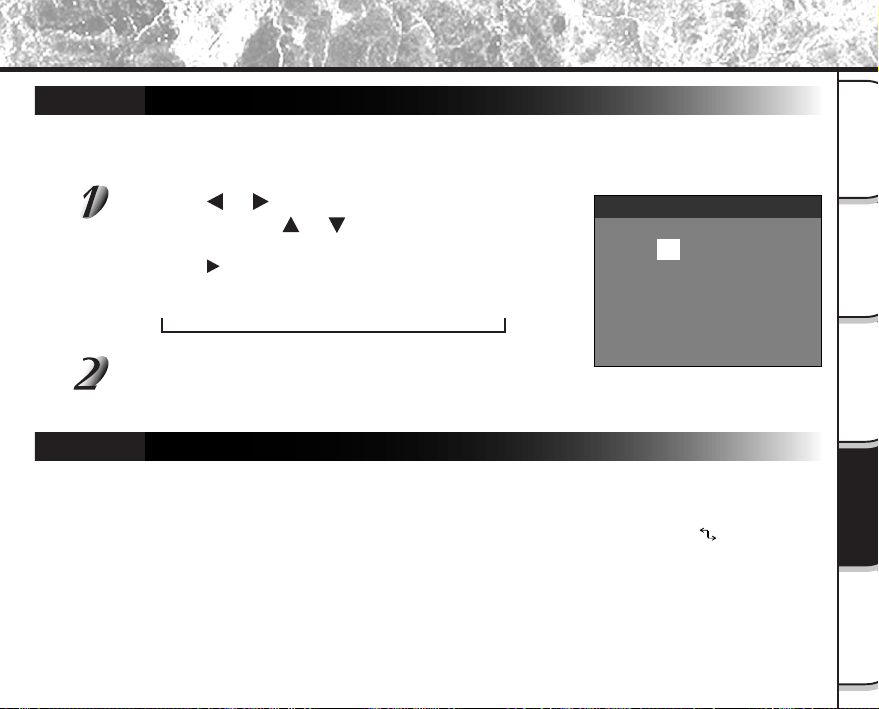
- 81 -
Basic
Photography
Playing Back/
Erasing Images
Other
Applications
Additional
Information
Getting Ready
Basic Photographic Settings (SET-UP mode) (continued)
01.01.2000
12:55:00
SET CANCEL
TIME
➔
TIME
Sets the date and time.
Seconds cannot be set.
Using the or buttons to select the item you want
to set, and use the
or buttons to set the value for
each item.
Pressing the button advances the selection in the following order:
Month ➔ Day ➔ Year ➔ Hour ➔ Minute ➔ SET ➔ CANCEL
Select [SET] and press the ENTER button.
To quit setting, select [CANCEL].
AUTO-OFF
If no operation is carried out for a fixed amount of time (default: about one minute), power consumption
is set to its minimum state (power almost turned OFF) to prevent battery wear. This is called the Auto
Power OFF mode. This setting allows you to set the time until the camera is set to the Auto Power OFF
mode. This function is not activated during automatic playback (
➲
Page 65) or in the [ ] PC mode. To
return to the normal state from the Auto Power OFF mode, either change the mode dial or press the
shutter down half way for at least two seconds (
➲
Page 37).
[1 MIN] (default)
[2 MIN]
[3 MIN]
- 82 -
Basic
Photography
Playing Back/
Erasing Images
Other
Applications
Additional
Information
Getting Ready
Basic Photographic Settings (SET-UP mode) (continued)
TV
Sets the video output format.
[NTSC] : NTSC video format (US, CANADA, JAPAN)
[PAL] : PAL video format (EUROPE)
IMAGE No.
Sets whether or not to reset the image number when you take photographs.
[CANCEL] : Does not reset the image number.
[RESET] : Reset the image number.
About Still Image Numbers and Folder Numbers
• When the image number is reset, a number starting from 0001 is assigned to an empty folder having
the smallest number of the SmartMedia™ that is inserted.
The folder number varies according to the state of the inserted SmartMedia™. To also reset the folder
number, format the SmartMedia™ first and reset the image number.
• A consecutive number continuing from the last photographed image is assigned as the image number
regardless of whether or not only one image or all images were erased. A folder is assigned as a
consecutive number in the same way.
• The largest image number is 9999. When this number is reached, a new folder is created, and the
image number is assigned starting from 0001.
☞
Selecting the FOLDER
➲
Page 70
• The largest folder number is 999. When the folder number reaches 999, format the SmartMedia™.
• When you use SmartMedia™ that was used for taking photographs on another camera, or swap
between two or more SmartMedia™, the data held by this camera is given priority as the image
number. The folder number is assigned according to the state of your camera or the SmartMedia™.
- 83 -
Basic
Photography
Playing Back/
Erasing Images
Other
Applications
Additional
Information
Getting Ready
Basic Photographic Settings (SET-UP mode) (continued)
DEFAULT
Sets whether or not to return the settings in the SET-UP menu to their defaults.
[CANCEL] : Does not return settings to their defaults.
[OK] : Returns settings to their defaults.
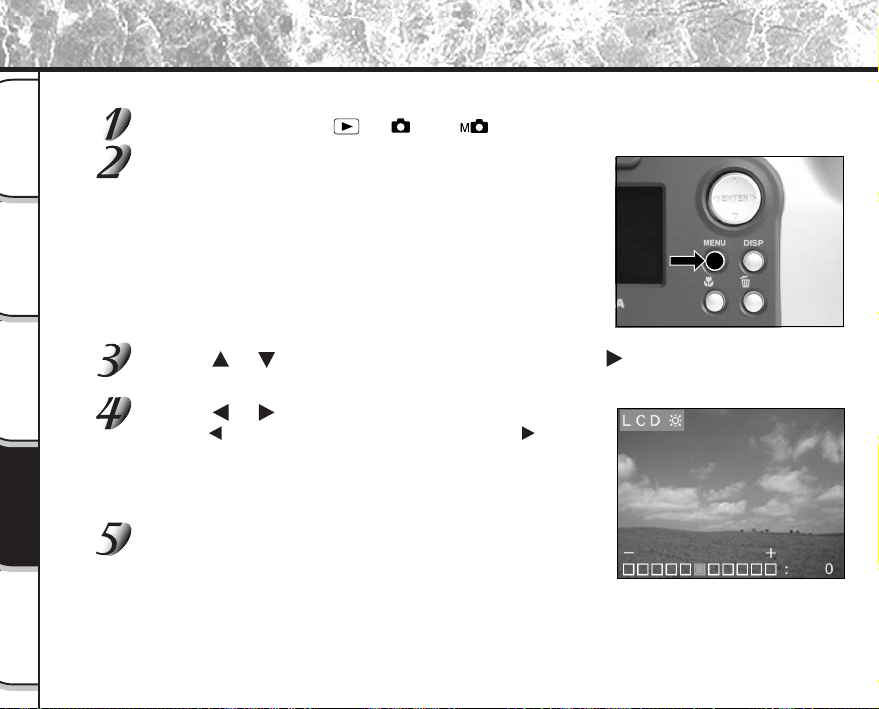
- 84 -
Basic
Photography
Playing Back/
Erasing Images
Other
Applications
Additional
Information
Getting Ready
Adjusting the LCD Monitor Brightness
This adjustment adjusts the brightness of the LCD monitor and not the brightness of the recorded image.
Set the mode dial to [ ], [ ] or [ ].
Press the MENU button.
The REC MENU or PLAY MENU is displayed.
You can set the LCD monitor brightness in either of these menus.
Use the or buttons to select [LCD] and press the button.
The image and the LCD menu are displayed.
Use the or buttons to adjust the brightness.
Press the button to darken (–) the LCD monitor, or the button to
lighten (+) the LCD monitor.
The LCD monitor can be adjusted within the range [–5] to [+5].
(Default is 0.)
Press the ENTER button.
This returns the camera to the previous mode.
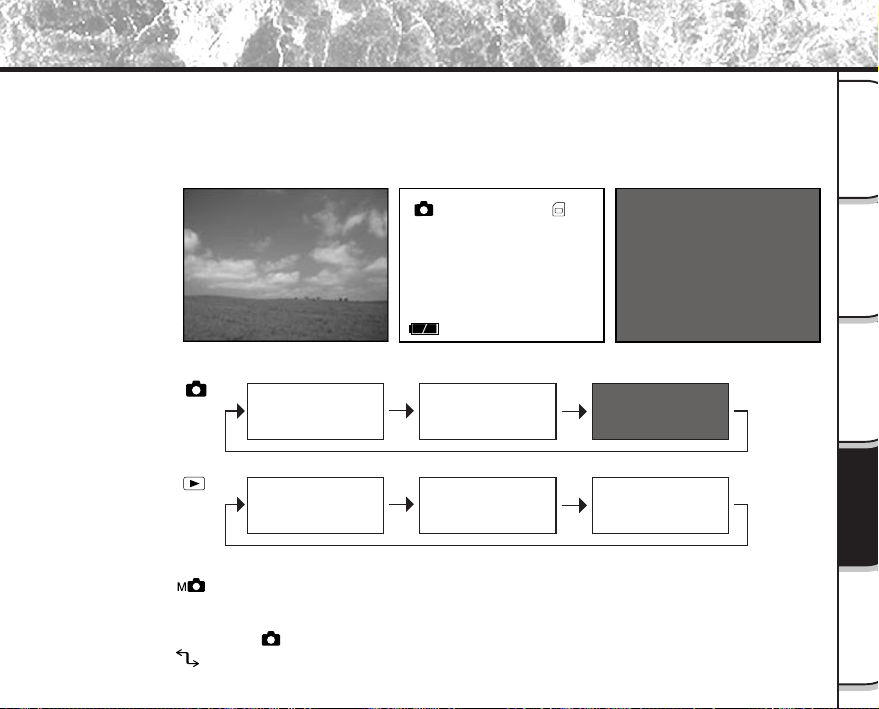
- 85 -
Basic
Photography
Playing Back/
Erasing Images
Other
Applications
Additional
Information
Getting Ready
DISP Button and LCD Monitor Display
By pressing the DISP button, the LCD monitor and the on-screen display can be turned on and off. (
☞
LCD monitor display
➲
Page 34)
Each press of the DISP button switches the display in the following order (* indicates default):
05.10.00
10:10
001
OFF
(monitor is blank)
Live image
(image before photography)
On-screen display/image details
(letters and icons are displayed)
[ ]
[ ]
*
*
Live image
+
On-screen display
Live image only
Playback image
+
Image details
Playback image
+
On-screen display
Playback image only
• With [ ], the manual setting screen is displayed (default). When this screen is displayed,
pressing the DISP button does not change the indication on the LCD monitor. Press the ENTER
button to set the manual setting screen to a non-display state. In this state, the display will change in
the same way as [
].
• With [
], the LCD monitor is blank.
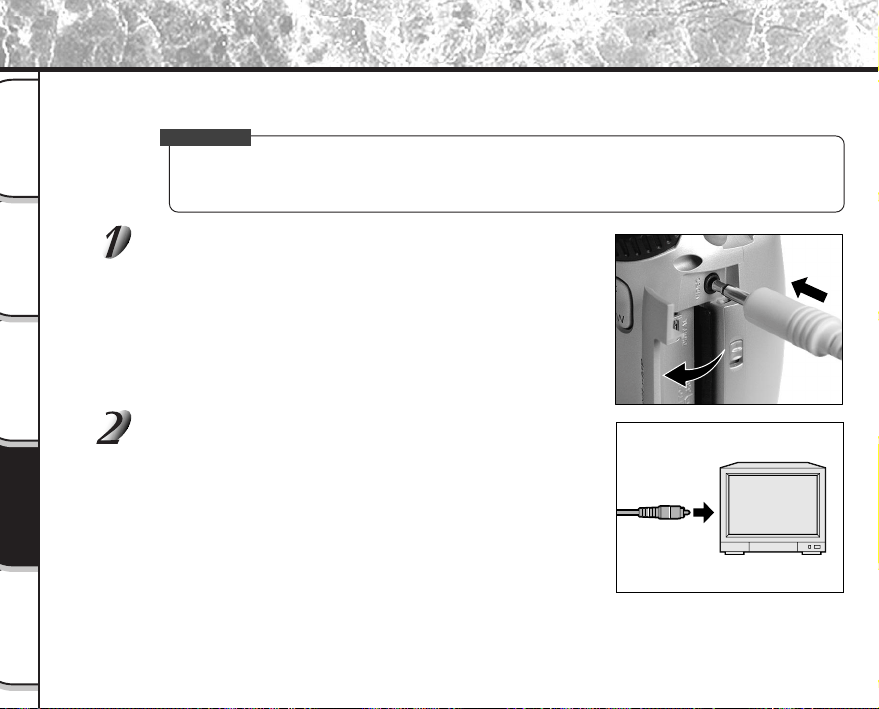
- 86 -
Basic
Photography
Playing Back/
Erasing Images
Other
Applications
Additional
Information
Getting Ready
Taking and Playing Back Photographs on a TV
Television sets can be used to compose images for photography or playback. To do this, the camera must first be
connected to the TV. We recommend using the AC adapter on an indoor power outlet when available.
IMPORTANT
• Before you connect your camera to other equipment, be sure to turn all other connected equipment
OFF. If you connect your camera to other equipment with the power still ON, the screen may flicker or
the image may not be displayed normally.
Connect the plug of the video cable (provided) to the
VIDEO terminal on the camera.
Connect the video cable plug to the VIDEO IN terminal
on the TV.
- 87 -
Basic
Photography
Playing Back/
Erasing Images
Other
Applications
Additional
Information
Getting Ready
Taking and Playing Back Photographs on a TV (continued)
Take photographs or play them back.
Details of operation are the same as taking photographs and playing them back on the LCD monitor.
☞
How to take photographs
➲
Page 40
How to play back images
➲
Page 62
Memo
• Nothing is displayed on the TV when the LCD monitor is set to OFF by the DISP button.
• Live images (moving image before photography) are less clear than playback images. (This is because
they are displayed at a lower resolution.)
- 88 -
Basic
Photography
Playing Back/
Erasing Images
Other
Applications
Additional
Information
Getting Ready
Transferring Images to a PC
You can transfer images photographed on your camera to a PC using the packaged CD-ROM and cable set.
Images recorded on SmartMedia™ can also be transferred to a PC using the PC card adapter (sold separately) or
floppy disk adapter (sold separately, PDR-FLP2). (
➲
Page 92)
To transfer images to a PC, software must be installed and special cables connected.
For details, refer to the User’s Guides for your PC.
Using SmartMedia™ on a PC
• Format the SmartMedia™ only on your camera.
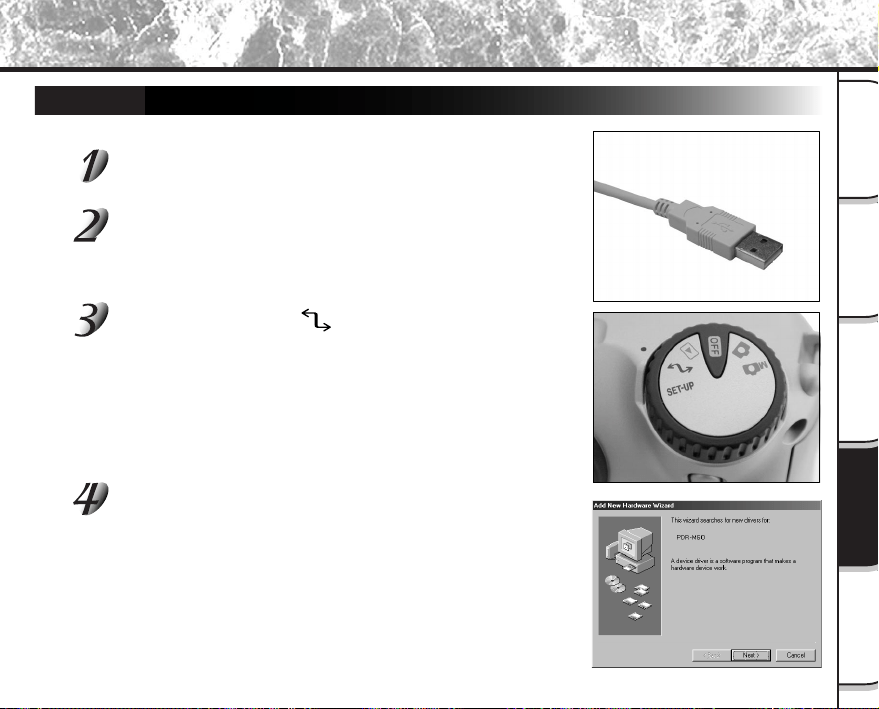
- 89 -
Basic
Photography
Playing Back/
Erasing Images
Other
Applications
Additional
Information
Getting Ready
For Windows 98 or Windows 2000
Install this driver when the USB cable is used.
Connect the small end of the USB cable to the
DIGITAL terminal on the PDR-M60.
Connect the large end of the USB cable to the USB
port on your personal computer.
Connect the USB cable with Windows already booted up.
Set the mode dial to [ ].
The Add New Hardware Wizard screen appears.
Click the Next button.
Installing the USB Driver
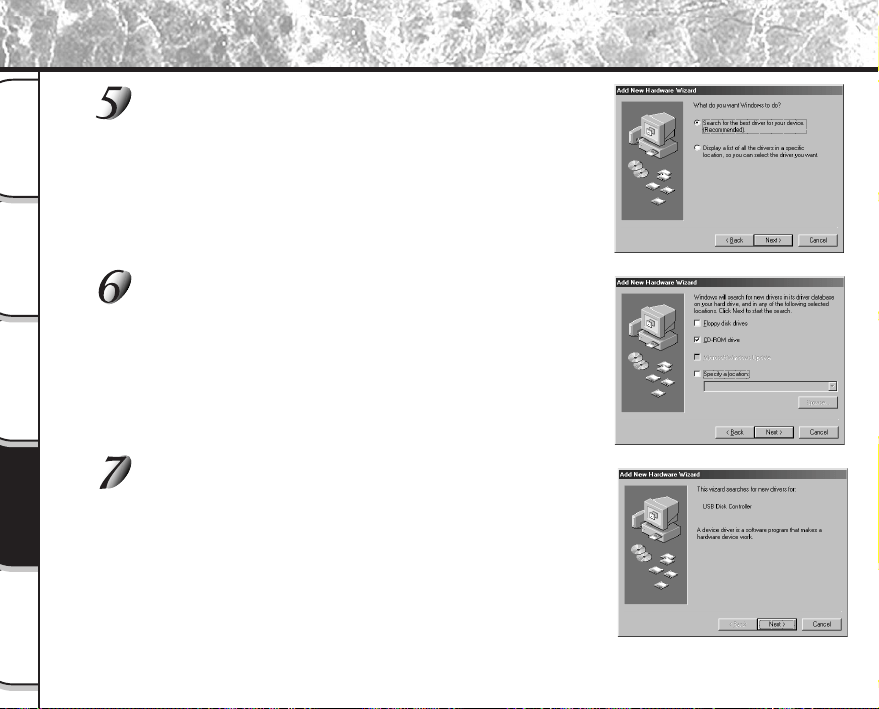
- 90 -
Basic
Photography
Playing Back/
Erasing Images
Other
Applications
Additional
Information
Getting Ready
Select “Search for the best driver for your device.
(Recommended)”, and click the Next button.
The next screen appears.
Insert the CD-ROM into the CD-ROM drive, check the
“CD-ROM drive” check box, and click the Next button.
Follow the on-screen instructions to install the driver.
When installation is completed, the Add New Hardware Wizard
screen appears again.
Click the Next button.
Installing the USB Driver (continued)
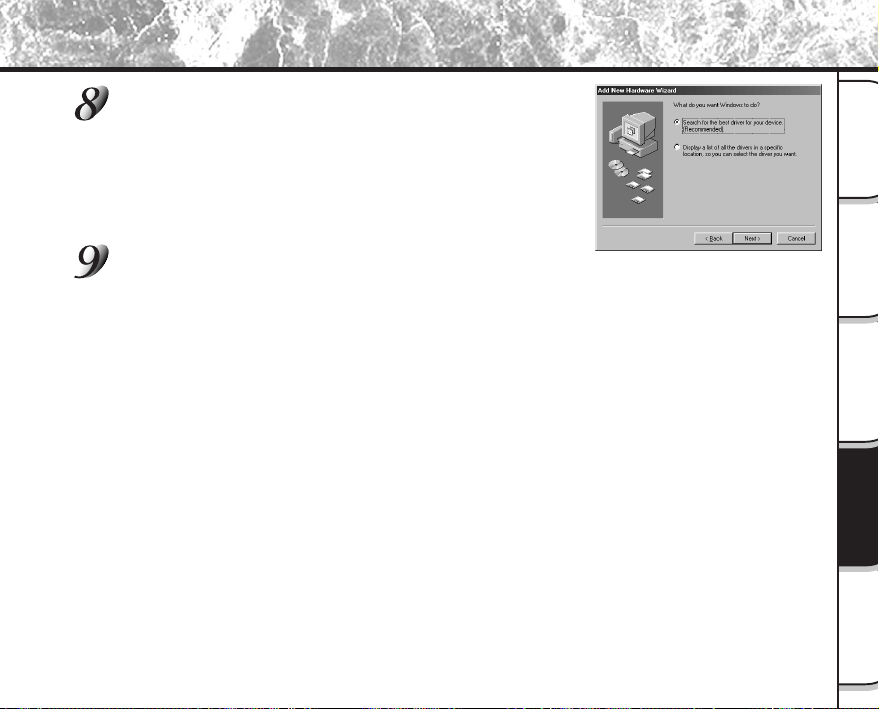
- 91 -
Basic
Photography
Playing Back/
Erasing Images
Other
Applications
Additional
Information
Getting Ready
Select “Search for the best driver for your device.
(Recommended)”, and click the Next button.
Check the “CD-ROM drive” check box, and click the Next button.
Follow the on-screen instructions to install the drivers.
This completes installation of the required drivers.
From here on, the PDR-M60 is automatically recognized simply by connecting the USB cable.
Installing the USB Driver (continued)

- 92 -
Basic
Photography
Playing Back/
Erasing Images
Other
Applications
Additional
Information
Getting Ready
Separately Sold Accessories
The following items are also available as separately sold items.
☞
Relationship between your camera and accessories
➲
“Connecting to Other Devices” (page 93)
For details on these accessories, refer to the Instruction Manual for the accessory you are using. (information
current as of June 2000)
To purchase above accessories within the United States, please visit our website at
http://www.toshiba.com/taisisd/dsc
● SmartMedia™ (3.3 V)
8MB(PDR-NSM8)/16MB (PDR-SM16)/32MB (PDR-SM32)/64MB (PDR-SM64)
● Soft case (PDR-CM1)
This case is for carrying and storing your camera.
● AC Adapter (Optional)
PDR-ACM1A (for U.S.A. and Canada)
PDR-ACM1E (for European Continent)
PDR-ACM1U (for U.K.)
● Floppy Disk Adapter PDR-FLP2 (FlashPath) (Optional)
This adapter allows SmartMedia™ to be used as 3.5" floppy disk.
This adapter is inserted into the floppy disk drive on your PC, allowing
images recorded on the SmartMedia™ to be transferred to the PC.
An OS (Windows 95/Windows 98/Windows NT 4.0/Windows 2000/IBM PC/AT
compatible machine) compatible with the floppy disk adapter PDR-FLP2 is
needed to use this adapter.
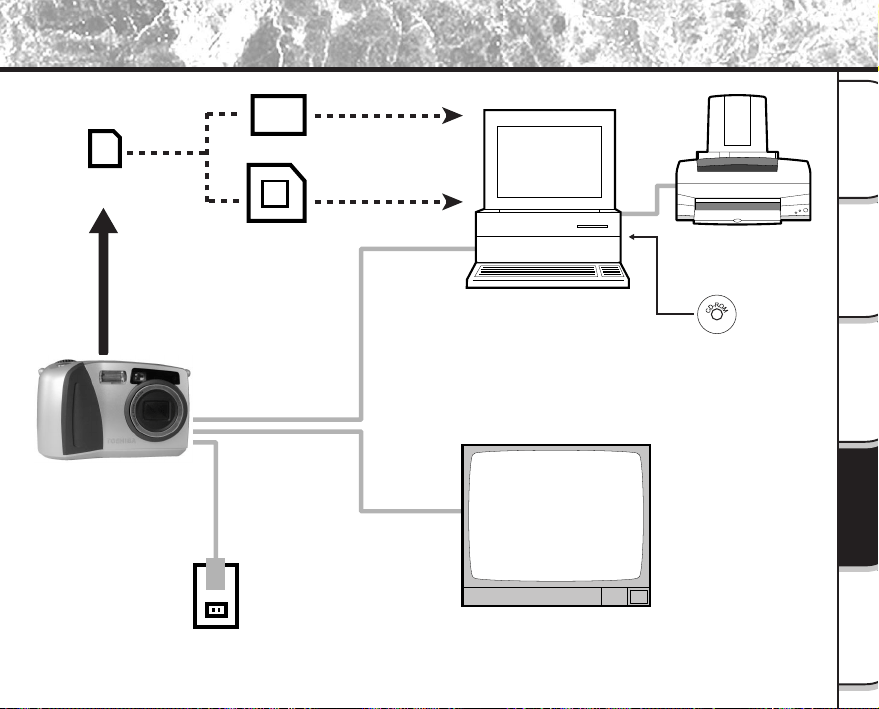
- 93 -
Basic
Photography
Playing Back/
Erasing Images
Other
Applications
Additional
Information
Getting Ready
Connecting to Other Devices
SmartMedia™
Floppy disk adapter (sold separately)
PC card adapter (sold separately)
PC
Printer
Software application
(CD-ROM) (provided)
Interface cable
(provided)
Video cable
(provided)
AC adapter (sold separately)
Plug socket
TV monitor
PDR-M60
- 94 -
Basic
Photography
Playing Back/
Erasing Images
Other
Applications
Additional
Information
Getting Ready
Toshiba Digital Still Camera PDR-M60
SmartMedia™ (3.3V) 2/4/8/16/32/64MB compatible
JPEG-compliant
Exif Ver.2.1-compliant
DCF Ver. 1.0-compliant
Quality
Mode
★★★
FINE
★★
NORMAL
★
BASIC
Specifications
Camera Body
Model
Recording medium
Compression system
Image file format
<Still Image Mode>
Number of frames
FULL size:
1792 x 1200 pixels
HALF size:
896 x 600 pixels
Conversion rules
File Size
Approx. 1.03MB
Approx. 263KB
Approx. 525KB
Approx. 131KB
Approx. 263KB
Approx. 66KB
4MB
3
15
7
29
15
55
8MB
7
30
15
58
30
110
16MB
15
58
30
110
58
199
32MB
30
117
60
222
117
399
Compression
Ratio
1/4
1/8
1/16
Image
Size
FULL
HALF
FULL
HALF
FULL
HALF
64MB
60
235
121
444
235
799
2MB
1
7
3
15
7
29
- 95 -
Playing Back/
Erasing Images
Other
Applications
Additional
Information
Getting Ready
Basic
Photography
1/2" CCD sensor (total number of pixels: approx. 2.3 million)
Equivalent to ISO 100/200/400
2.3X zoom lens F2.8 – F3.2
f=8.0 mm – 18.0 mm (equivalent to 38 mm – 86 mm on a 35 mm camera)
Real image type zoom finder
TTL system AF, focus adjusting range: approximately 2 in. (5 cm) to
infinity
Detection system: Contrast detection system
TTL metering by image capture system
Program AE (exposure compensation available in Manual mode)
1/2 to 1/1,000 sec. (electronic shutter and mechanical shutter)
Auto selected
Selectable in manual photography mode (outdoors, standard/cool white
fluorescent light, incandescent light)
Approx. 19.7 in. (50 cm) to infinity
Approx. 2 in. (5 cm) – 19.7 in. (50 cm)
2 seconds/10 seconds selectable
Auto, Red-Eye Reduction, Forced Flash, Suppressed Flash, Slow
Synchro
Automatic
Approx. 1.7 ft. (0.5 m) – 10 ft. (3.0 m)
Pickup elements
Sensitivity
Lens
Focal length
Viewfinder
Auto-focus
Metering system
Exposure control
Shutter
White balance
Focal range
Standard
Macro
Self-Timer
Modes
Flash
Flash intensity control
Effective range
Specifications (continued)
- 96 -
Basic
Photography
Playing Back/
Erasing Images
Other
Applications
Additional
Information
Getting Ready
Type Image memory card for digital cameras (SmartMedia
TM
)
Type of memory NAND flash memory
Operating voltage 3.3V
Operating conditions Temperature +32°F (0°C) to +104°F (+40°C)
Humidity 80% or less (no condensation)
Dimensions
1-
4
/
9
in. (37 mm) (W) x
3
/
100
in. (0.76 mm) (H) x 1-
7
/
9
in. (45 mm) (D)
Accessories Anti-static case (x1), index labels (x2), write-protect stickers
(x4)
SmartMedia™
Specifications (continued)
Simultaneously recorded to image data (Exif file format)
Automatically adjusted until the year 2038
1.8" amorphous silicon TFD (71,760 pixels)
DC 5 V
USB
NTSC or PAL system
4 x AA or AC adapter (optional)
+41°F (+5°C) to +104°F (+40°C) (during operation)/–4°F (–20°C) to
+140°F (+60°C) (during storage)
30 to 80% (during operation) no condensation
4.76
in. (121 mm) (W) x 2.95
in. ( 75 mm) (H) x 2.4
in. (61 mm) (D)
(excluding protrusions)
Approx. 10.2 oz (290 g) (excluding accessories, battery and SmartMedia™)
Date/Time
Automatic calendar function
LCD monitor (
*1
)
I/O terminal
DC IN terminal
DIGITAL terminal
VIDEO terminal
Power supply
Operating
conditions
Camera dimensions
Weight
*1
The LCD monitor on your digital camera is manufactured using advanced high-precision technology.
Though fine spots may appear on the LCD monitor, this is not a malfunction. The LCD monitor can be used
as it is.
Temperature
Humidity
- 97 -
Playing Back/
Erasing Images
Other
Applications
Additional
Information
Getting Ready
Basic
Photography
Specifications (continued)
AC adapter (PDR-ACM1A) (Optional)
Power supply AC120V 50/60Hz
Rated Input Capacity 18VA
Rated Output DC5V 1.5A
Operating temperature +32°F (0°C) ~ +104°F (+40°C)
Storage temperature +14°F (–10°C) ~ 158°F (+70°C)
Dimensions 1-
8
/
9
” (48 mm) (W) x 1-
1
/
4
” (26 mm) (H) x 2-
3
/
4
” (70 mm) (D)
Weight Approx. 3.5 oz (100 g)
Connector Cable Length Approx. 6.6 ft (2 m)
Power supply AC230V 50Hz
Rated Input Capacity 120 mA
Rated Output DC5.0V 1.5A
Operating temperature 0°C ~ +40°C
Storage temperature –10°C ~ +70°C
Dimensions 49.5 mm (1.9”) (W) x 60.5 mm (2.4”) (H) x 76 mm (3.0”) (D)
Weight Approx. 130 g (4.5 oz)
Connector Cable Length Approx. 2 m (6.6 ft)
AC adapter (PDR-ACM1U) (Optional)
Power supply AC230V 50Hz
Rated Input Capacity 120 mA
Rated Output DC5.0V 1.5A
Operating temperature 0°C ~ +40°C
Storage temperature –10°C ~ +70°C
Dimensions 49.5 mm (1.9”) (W) x 66.5 mm (2.6”) (H) x 76 mm (3.0”) (D)
Weight Approx. 130 g (4.5 oz)
Connector Cable Length Approx. 2 m (6.6 ft)
AC adapter (PDR-ACM1E) (Optional)
These specifications are subject to change without notice.
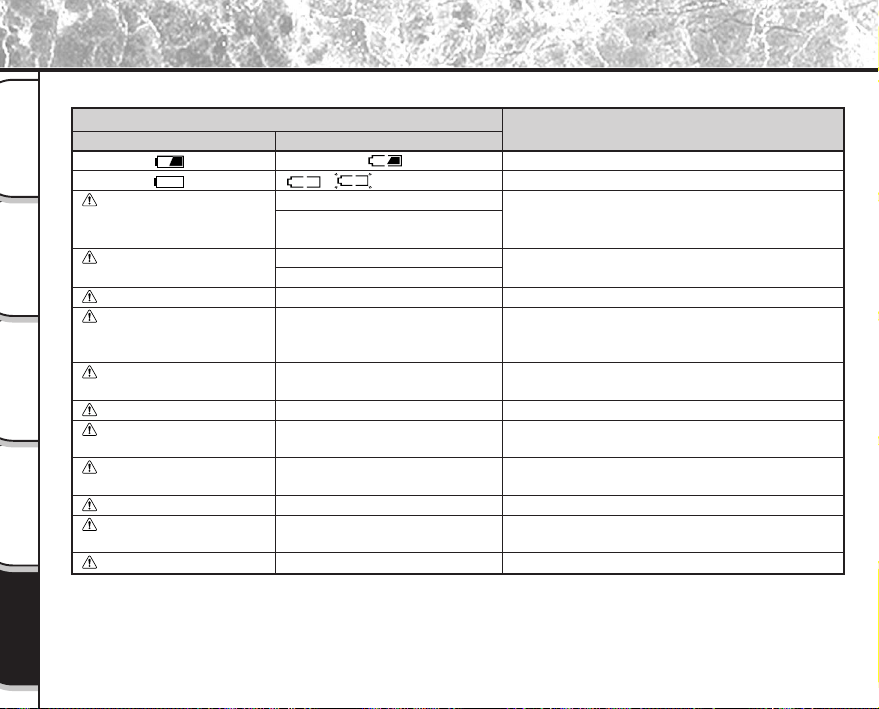
- 98 -
Basic
Photography
Playing Back/
Erasing Images
Other
Applications
Additional
Information
Getting Ready
Warnings and Messages Displayed on LCD Monitor
The following warnings, messages and icons are displayed on the LCD monitor and the status display.
LCD monitor
NO CARD
CARD FULL
NO IMAGE
CARD NOT FORMATED
CARD ERROR
PROTECTED CARD
FRAME ERROR
UNMATCHED DATA
FRAME NUMBER FULL
PROTECT!!!
AF
Meaning
Remaining battery power half or less
No battery power left
No SmartMedia™ is loaded
SmartMedia™ is loaded incorrectly
No more space on the SmartMedia™.
Recording is not possible.
Nothing is recorded to the SmartMedia™.
The SmartMedia™ is not formatted. (A
message prompting you to format the
SmartMedia™ is displayed.)
The SmartMedia™ is damaged.
The SmartMedia™ format is incorrect.
The SmartMedia™ is write-protected.
An attempt was made to playback incorrectly
recorded data.
An attempt was made to playback a frame not
recorded on this camera.
The frame number has reached 99-9999.
An attempt was made to erase a protected
image.
The AF (auto focus) cannot work effectively.
Status display
/ (Flashing)
Flashing (photography mode)
Nothing displayed (playback
mode)
Flashing (photography mode)
Number of image display 0
–––
–––
–––
–––
–––
–––
–––
–––
–––
Display
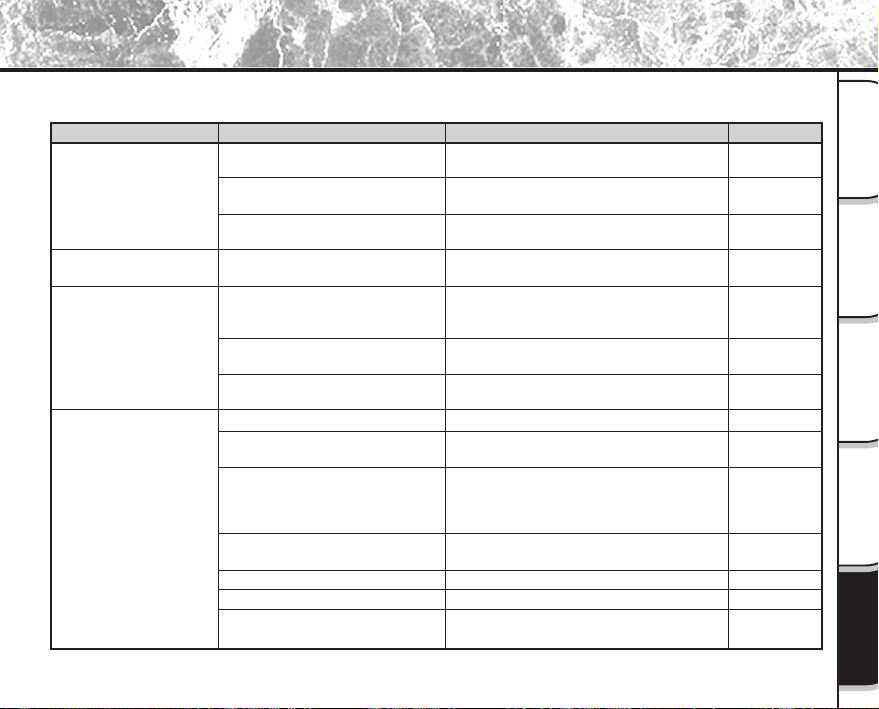
- 99 -
Playing Back/
Erasing Images
Other
Applications
Additional
Information
Getting Ready
Basic
Photography
Troubleshooting
First check the warning displayed on the LCD monitor (
➲
Page 98) and the color of the viewfinder LED (
➲
Page
39). Then check the following items.
Remedy
Replace with new batteries.
Plug the adapter back in.
Change the mode dial to the correct
setting.
Replace with new batteries.
Put the battery in your pocket or another
warm place to heat it and then load it into
the camera just before you take a picture.
Wipe the battery terminals with a clean, dry
cloth.
Replace with new batteries.
Load a SmartMedia™.
Load the SmartMedia™ correctly.
• Load a new SmartMedia™.
• Erase photographed images or change
the size and quality to increase space on
the SmartMedia™.
Remove the write-protection or replace with
a new SmartMedia™.
Format the SmartMedia™.
Load a new SmartMedia™.
Change the mode dial setting.
Causes
The batteries are exhausted.
The AC adapter plug has come
out of the power outlet.
The mode dial is set incorrectly.
The batteries are exhausted.
You are using the camera in
extremely cold conditions.
The terminals are dirty.
The battery has reached its
effective life.
No SmartMedia™ is loaded.
The SmartMedia™ is loaded
incorrectly.
Not enough space on the
SmartMedia™
The SmartMedia™ is write-
protected.
The SmartMedia™ is not formatted.
The SmartMedia™ is damaged.
The Auto Power OFF function is
activated.
Problem
No power supply
The camera turns OFF
during operation.
The battery runs out
quickly.
No photograph is taken
when the shutter button
is pressed.
See Page
P.23
P.27
P.33
P.23
–
–
P.23
P.29
P.29
P.29
P.67
P.69
P.32
P.75
P.29
P.80
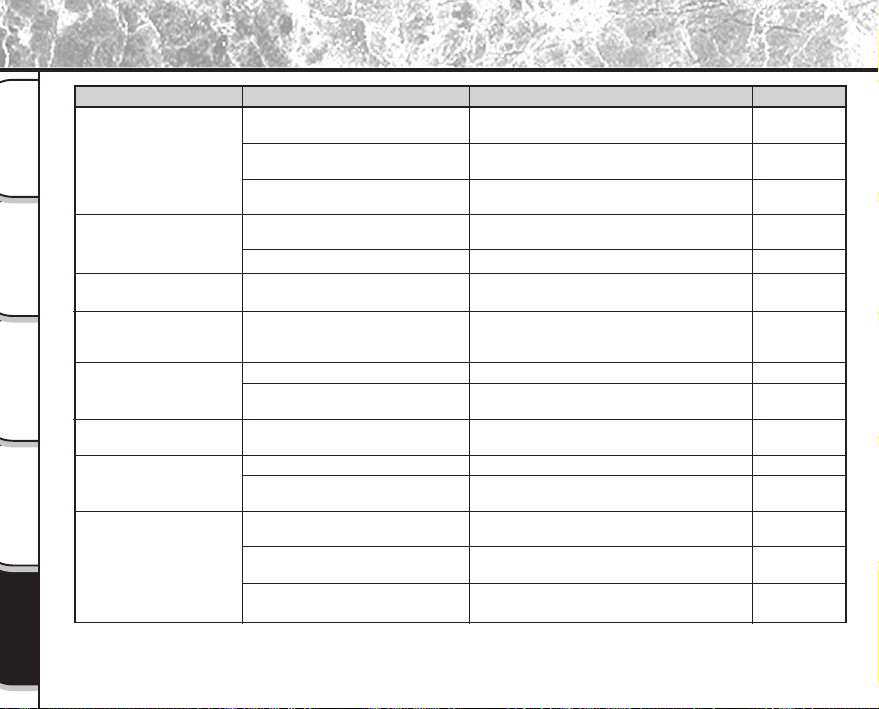
- 100 -
Basic
Photography
Playing Back/
Erasing Images
Other
Applications
Additional
Information
Getting Ready
Troubleshooting (continued)
Causes
The mode dial has been changed
to another setting.
The flash is set to Suppressed
Flash mode.
You pressed the shutter button
while the flash was charging.
The camera is set to Suppressed
Flash mode.
The batteries are exhausted.
No images in selected folder.
The subject is too far away.
The lens is not clean.
The image is out of focus.
The SmartMedia™ is
write-protected.
The frame is protected.
The SmartMedia™ is
write-protected
Camera malfunction.
The mode dial is not at the correct
position.
The camera is in the Auto Power
OFF mode.
See Page
–
P.49
P.39
P.49
P.23
P.70
P.49
–
P.45
P.32
P.78
P.32
–
–
P.37
P.80
Remedy
Set the mode dial to the correct setting.
Set the flash to Auto, Red-Eye Reduction or
Forced Flash mode.
Wait until charging is completed before
pressing the shutter button.
Set the flash to Auto, Red-Eye Reduction or
Forced Flash mode.
Replace with new batteries.
Select a different folder to play back.
Move closer to the subject.
(about 2.95 ft (0.9 m) ~ 8.2 ft (2.5 m))
Clean the lens.
Set macro photography to ON or OFF
according to the distance up to the subject.
Remove the write-protection.
Remove the write-protection.
Remove the write-protection.
Turn the power OFF and remove the
batteries once, and try again.
Set the mode dial to the correct setting.
Either press the shutter button half way
down, or change the mode dial setting.
Problem
I cannot use the flash to
take pictures.
The flash will not charge.
Still images cannot be
played back.
The playback image is
too dark even though I
used the flash.
The playback image is
blurred.
I cannot format the
SmartMedia™.
I cannot erase all the
frames.
Nothing happens when I
use the buttons and
switches.
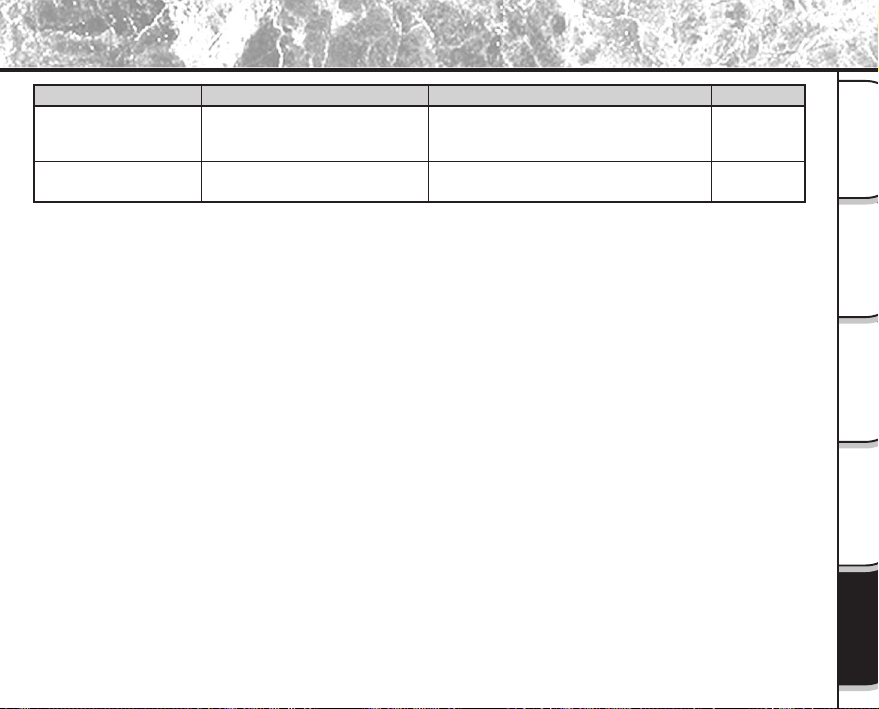
- 101 -
Playing Back/
Erasing Images
Other
Applications
Additional
Information
Getting Ready
Basic
Photography
Troubleshooting (continued)
Causes
The camera is in the PC mode.
Both the batteries and AC adapter
are removed with the power still ON.
Problem
Nothing is displayed
even through the LCD
monitor is set to ON.
The set date and time
disappears.
See Page
P.40
P.62
P.81
Remedy
Change the camera to the photography or
playback mode.
Set the date and time again.
- 102 -
Basic
Photography
Playing Back/
Erasing Images
Other
Applications
Additional
Information
Getting Ready
Glossary
●AF/AE
AF (auto-focus) ··· A function for automatically
focusing your camera.
AE ··· A function for automatically setting your
camera’s exposure.
AF/AE lock ··· Locking of the focus and exposure
settings.
●DCF (Design rule for Camera File System)
A file system standard defined by the JEIDA (Japan
Electronic Industry Development Association) that is
required for exchanging data between digital still
cameras or a digital camera and a printer. This
standard defines the hierarchy and file names used
when storing image files on memory cards or other
recording medium.
●Exif File Format (Exchangeable Image File Format)
A color still image format for digital still cameras
approved by the JEIDA (Japan Electronic Industry
Development Association). JPEG-compliant, this
format is compatible with TIFF and JPEG and can be
used in image processing software for most personal
computers.
●JPEG
A file format used for compressing and saving color
images. The compression ratio can be selected, but
the higher the compression ratio, the worse image
quality becomes. This format is widely used in the
paint software for PCs and on the Internet.
●PC Card
A generic term for cards that meet the PC Card
Standard.
●Red-Eye Effect
The phenomenon where people’s eyes sometimes
appear red in the picture when you use a flash to
photograph them in low-light conditions. This is
caused by the light of the flash reflecting off the
inside of the eye.
●White Balance
When the brightness of the light changes, the human
eye adapts so that a white object still looks white. On
the other hand, devices such as digital still cameras
see a white subject as white by first adjusting the
balance to suit the color of the ambient light around
the subject. This adjustment process is referred to as
matching the white balance.
●SmartMedia™
Name of a recording medium defined by the SSFDC
Forum. This recording medium can be used over and
over again.
●Formatting
Transforming the contents of the SmartMedia™ to a
recordable state. (This is sometimes called
“initialization”.)
●Exposure Compensation
When the screen contains an extremely bright or dark
object, the camera automatically adjusts the
brightness, resulting in the subject being reproduced
darker or lighter. Exposure compensation adjusts for
this.
- 103 -
Playing Back/
Erasing Images
Other
Applications
Additional
Information
Getting Ready
Basic
Photography
website
www.toshiba.co.uk
www.toshiba.de/consumer
www.toshiba.it/
www.toshiba.fr/produits/video/index.htm
www.toshiba.ch/
www.cp.toshiba.com.sg
www.toshiba.com.hk
For customers outside of the United States and Canada, please contact the nearest Toshiba company for assistance.
Country
United Kingdom
Germany
Italy
France
Switzerland
Singapore
Hong Kong
Company name
Toshiba (UK) Ltd.
Toshiba Europe Gmbh
Toshiba Consumer Products (Italia)
Toshiba Systems (France)
Toshiba Europe Gmbh Swiss Branch
Toshiba Singapore Pte
Toshiba Hong Kong Ltd
Phone number
for inquiry
(01932) 828828
(02131) 158 01
(039) 6099342
01 47 28 28 50
01-946 07 77
270-7776
2956-0222
e-mail address for inquiry
NA
NA
Contact Numbers
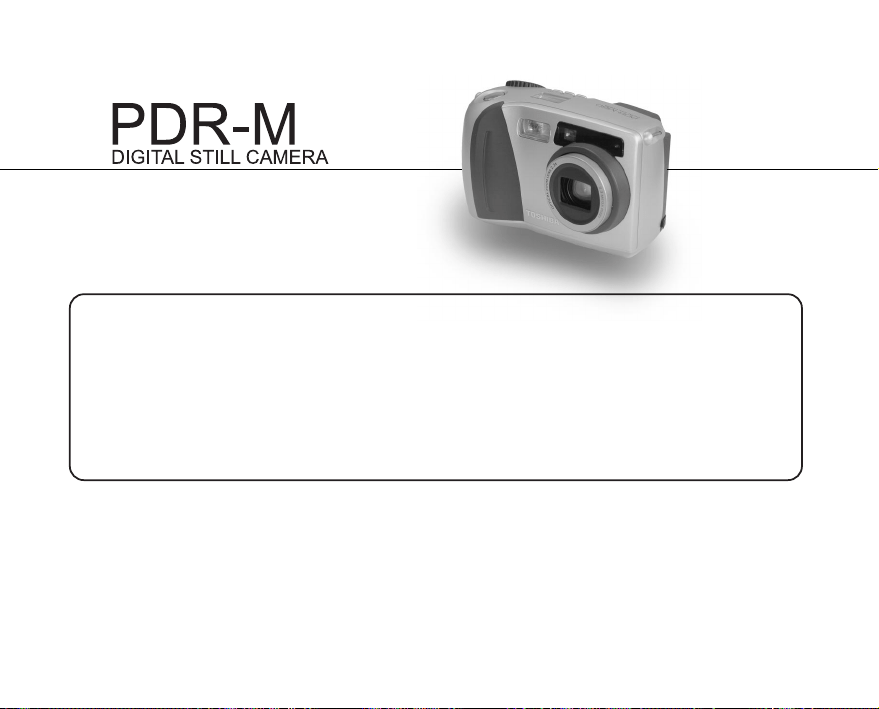
For technical support, please contact:
(800)288-1354
5:00 a.m. to 5:00 p.m. PST, Monday to Friday except holidays,
or e-mail us at: [email protected]
TOSHIBA DIGITAL STILL CAMERA
Toshiba America Information Systems, Inc.
Imaging Systems Division
9740 Irvine Boulevard, Irvine, California 92618-1697
* Address and telephone number are subject to change without notice.
23563841
60
PDR-M60
MODE D’EMPLOI
Pour vous assurer d’utiliser votre
appareil photo numérique Toshiba
PDR-M60 correctement et en toute
sécurité, veuillez d’abord lire
attentivement ce mode d’emploi. Une
fois votre lecture terminée, gardez ce
mode d’emploi à proximité pour vous y
reporter chaque fois que c’est
nécessaire.
APPAREIL PHOTO NUMÉRIQUE
Dans l’espace ci-dessous, veuillez inscrire le numéro du modèle et le numéro de série de votre appareil photo.
No. de modèle PDR-M60 No. de série
Veuillez conserver ces informations pour référence future.
FRANÇAIS
- 1 -
Photographie
de base
Lecture/effacement
des images
Autres
applications
Informations
supplémentaires
Préparation
Pour la clientèle aux États-Unis
Déclaration de la FCC
Cet appareil est conforme à l’article 15 de la réglementation de la FCC. Son utilisation est soumise aux deux
conditions suivantes:
(1) Cet appareil ne doit pas causer d’interférences nuisibles et
(2) cet appareil doit supporter des interférences, y compris des interférences pouvant provoquer des réactions
indésirables.
ATTENTION
Cet appareil a été testé et les résultats ont montré qu’il répondait aux tolérances d’un dispositif numérique de
classe B, conformément à la partie 15 du règlement de la FCC. Ces tolérances sont destinées à assurer un niveau
de protection raisonnable contre les interférences nuisibles dans une installation résidentielle.
Cet appareil génère, utilise et peut émettre de l’énergie sous forme de radiofréquences et, s’il n’est pas installé et
utilisé conformément aux instructions du fabricant, peut entraîner des interférences nuisibles aux
télécommunications radio. Il n’est toutefois pas garanti que des interférences ne se présenteront pas dans une
installation particulière. Si cet appareil devait causer des interférences sur la réception radio ou télévisée, ce qui
peut être vérifié en mettant l’appareil sous et hors tension, l’utilisateur est encouragé à essayer de les supprimer en
prenant une ou plusieurs des mesures suivantes:
• Réorienter l’antenne de réception radio ou TV.
Déplacer l’appareil ou la radio ou le téléviseur. Par exemple, si l’appareil est à droite du téléviseur, mettez-le à
gauche, ou éloignez l’appareil de la radio ou du téléviseur.
• Brancher l’appareil sur une prise secteur différente. Ne raccordez pas votre radio ou téléviseur sur le même
circuit que votre appareil.
Attention
DIGITAL STILL CAMERA PDR-M60
Tested To Comply
With FCC Standards
FOR HOME OR OFFICE USE
- 2 -
Photographie
de base
Lecture/effacement
des images
Autres
applications
Informations
supplémentaires
Préparation
Attention (suite)
• S’assurer que tous les logements d’extension (à l’arrière ou à côté de l’appareil) sont recouverts.
S’assurer aussi que toutes les attaches métalliques sont fermement attachées à l’appareil.
• Si ces suggestions n’ont pas d’effet positif, consultez un revendeur de matériel informatique ou un technicien de
radio/télévision expérimenté pour de plus amples renseignements.
Si vous modifiez l’appareil photo de quelque façon que ce soit, sans l’autorisation de Toshiba Corporation, votre
appareil photo risque d’aller à l’encontre du règlement de la FCC. Aller à l’encontre du règlement de la FCC pourra
conduire à l’interdiction par la FCC de l’utilisation de l’appareil photo modifié.
- 3 -
Photographie
de base
Lecture/effacement
des images
Autres
applications
Informations
supplémentaires
Préparation
Nous vous remercions de l’achat de l’appareil photo numérique Toshiba PDR-M60.
Avant la mise en service de cet appareil photo, veuillez lire attentivement le mode d’emploi pour utiliser l’appareil
photo correctement et en toute sécurité. Après avoir lu ce manuel, veuillez le conserver à portée de la main.
Informations sur les marques
• MS-DOS,Windows et Windows 98, Windows 2000
sont des marques déposées de Microsoft
Corporation, enregistrées aux États-Unis et dans
d’autres pays.
Windows est une abréviation désignant le système
d’exploitation (OS) Windows de Microsoft.
• SmartMedia est une marque déposée de Toshiba
Corporation.
• Tous les autres noms de compagnies ou de produits
sont des marques de fabrique ou des marques
déposées de leurs fabricants respectifs.
Avant de lire ce mode d’emploi
IMPORTANT
• Indique des points ou détails qui doivent être
observés pour éviter les pertes de données, les
dysfonctionnements et les baisses de performances.
Indique aussi des informations se rapportant aux
spécifications et fonctions.
Mémo
• Indique des informations pratiques supplémentaires.
☞
Indique une autre page à laquelle se reporter
pour des informations supplémentaires.
À propos des abréviations désignant
les systèmes d’exploitation
• Windows 98
Cette abréviation désigne le système d’exploitation
Microsoft
®
Windows
®
98.
• Windows 2000
Cette abréviation désigne le système d’exploitation
Microsoft
®
Windows
®
2000.
Conventions utilisées dans ce mode
d’emploi
- 4 -
Photographie
de base
Lecture/effacement
des images
Autres
applications
Informations
supplémentaires
Préparation
Table des matières
Le nom entre parenthèses ( ) est
le nom de la fonction du PDR-M60
Préface
■ Attention ....................................................... 1
■ Avant de lire ce mode d’emploi .................... 3
■ Table des matières ....................................... 4
■ Précautions de sécurité ............................... 6
■ Utilisation correcte de l’appareil photo ....... 12
■ Caractéristiques ......................................... 15
■ Diagramme des fonctions........................... 16
Préparation
■ Accessoires................................................ 17
■ Nomenclature............................................. 18
■ Mise en place de la courroie ...................... 22
■ Installation des accumulateurs................... 23
Mise en place des accumulateurs................... 23
Retrait des accumulateurs ..............................25
■ Utilisation d’une prise secteur .................... 27
■ À propos de la carte SmartMedia™........... 28
Remarques sur les cartes SmartMedia™ ....... 28
Mise en place de la carte SmartMedia™ ........ 29
Retrait de la carte SmartMedia™ ...................30
Protection contre l’écriture ..............................32
■ Mise sous/hors tension .............................. 33
Mise sous tension ........................................... 33
Mise hors tension ............................................33
■ Affichage du moniteur LCD ........................ 34
En mode de prise de vues ..............................34
En mode de lecture .........................................35
Photographie de base
■ Comment tenir l’appareil photo .................. 36
■ Comment appuyer sur le déclencheur ....... 37
■
À propos de la couleur du témoin du viseur ..
39
■
Prise de vues (Prise de vues automatique) ...
40
Utilisation du viseur .........................................40
Utilisation du moniteur LCD ............................ 41
■ Réglage de la taille et de la qualité
de l’image................................................... 43
■ Prise de vues avec zoom ........................... 45
■ Prise de vues avec zoom numérique ......... 46
■ Prise de vues rapprochée
(Prise de vues macro) ................................ 47
■ Prise de vues avec le retardateur .............. 48
■ Prise de vues au flash................................ 49
■ Prise de vues multiples .............................. 52
■ Prise de vues avec exposition lente
(Pause B) ................................................... 53
■ Prise de vues manuelle.............................. 54
B.B (Balance des blancs) ................................ 56
I.L. (Correction de l’exposition)........................ 56
■ Changement des préréglages
(MENU ENR).............................................. 58
MODE ENR.....................................................59
APERÇU .........................................................60
ISO ..................................................................60
EXPOSIT.........................................................61
RETARDAT ......................................................61
LCD .................................................................61
- 5 -
Photographie
de base
Lecture/effacement
des images
Autres
applications
Informations
supplémentaires
Préparation
Table des matières (suite)
Lecture/effacement des images
■ Lecture des images photographiées
(Lecture vue par vue) ................................. 62
■ Agrandissement d’images photographiées
(Lecture avec zoom)................................... 63
■ Affichage d’une liste d’images
(Affichage d’images réduites)..................... 64
■ Lecture automatique (Diaporama) ............. 65
■ Réduction de la taille de l’image
(Changement de taille)............................... 66
■ Compression des images (Qualité)............ 68
■ Choix du dossier à lire................................ 70
■ Effacement des images
(effacement d’une image) .......................... 72
■ Effacement de toutes les images
d’un dossier (tout effacer) .......................... 74
■ Formatage de la carte SmartMedia™........ 75
■ Protection des images................................ 76
Protection d’une image ................................... 76
Annulation de la protection.............................. 78
Autres applications
■ Réglages de prise de vue de base
(mode CONFIG)......................................... 79
LANGUE ......................................................... 80
SON ................................................................80
HEURE............................................................ 81
AUTO-ARR......................................................81
TV.................................................................... 82
Nb IMAGES..................................................... 82
DEFAUT ..........................................................83
■ Réglage de la luminosité
du moniteur LCD ........................................ 84
■ Touche DISP et affichage
du moniteur LCD ........................................ 85
■ Prise de vues et lecture sur un téléviseur .. 86
■ Transfert des images à un PC .................... 88
■ Installation du pilote USB ........................... 89
■ Accessoires vendus séparément ............... 92
■ Raccordement à d’autres appareils ........... 93
Informations supplémentaires
■ Fiche technique.......................................... 94
■ Avertissements et messages affichés
sur le moniteur LCD ................................... 98
■ Guide de dépannage.................................. 99
■ Glossaire .................................................. 102
■ Numéros à appeler................................... 103
Le nom entre parenthèses ( ) est
le nom de la fonction du PDR-M60
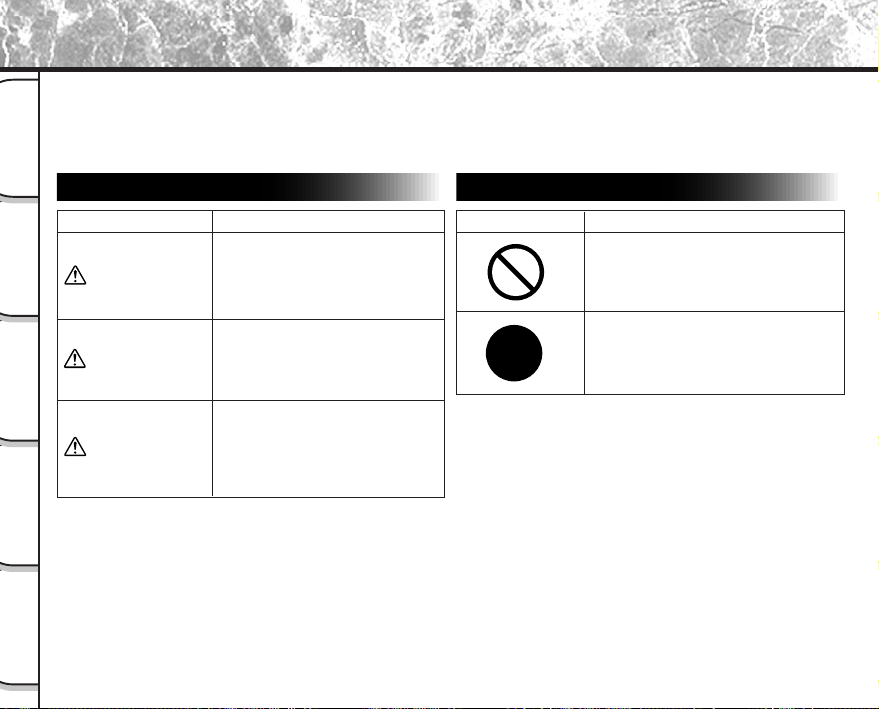
- 6 -
Photographie
de base
Lecture/effacement
des images
Autres
applications
Informations
supplémentaires
Préparation
Précautions de sécurité
Définition des affichages
Veuillez lire attentivement ces précautions de sécurité avant d’utiliser le PDR-M60. Ces instructions contiennent des
informations importantes sur l’utilisation sûre et correcte de l’appareil photo pour éviter les accidents dont
pourraient être victimes l’utilisateur et les autres personnes.
Lisez attentivement les informations suivantes (affichages) jusqu’à ce que vous les compreniez parfaitement avant
de procéder à la lecture des descriptions principales dans ce mode d’emploi.
*1: Blessure impliquant un traitement ne requérant pas
d’hospitalisation, de traitement prolongé pour blessures,
brûlures, ou choc.
*2: Dommages impliquant un tort prolongé au logement, aux
effets ménagers, et aux animaux apprivoisés et de
compagnie.
Définition des symboles graphiques
Affichage Signification
Cet affichage indique qu’une
utilisation incorrecte peut
entraîner la mort ou des blessures
graves.
Cet affichage indique qu’une
utilisation incorrecte peut
entraîner des blessures
corporelles.
Cet affichage indique qu’une
utilisation incorrecte peut
entraîner des blessures
corporelles
*1
ou des dommages à
la propriété
*2
.
Symbole graphique
Signification
Indique une interdiction.
Les détails sur ce qui est interdit sont
inscrits près du symbole dans
l’illustration ou le texte.
Indique une obligation.
Les détails sur ce qui est nécessaire
sont inscrits près du symbole dans
l’illustration ou le texte.
DANGER
AVERTISSEMENT
ATTENTION
- 7 -
Photographie
de base
Lecture/effacement
des images
Autres
applications
Informations
supplémentaires
Préparation
Limites de responsabilité
• Toshiba Corporation rejette toute responsabilité en cas
de dommages causés par un incendie, un tremblement
de terre, l’utilisation par un tiers, ou tout autre accident,
ou par un emploi anormal, erroné ou impropre.
• Toshiba Corporation rejette toute responsabilité en cas
de dommages secondaires (pertes de profits,
interruption de travail, altération ou perte de données,
etc.) survenus suite à l’utilisation ou l’impossibilité
d’utiliser cet appareil photo.
• Toshiba Corporation rejette toute responsabilité en cas
d’utilisation de cet appareil photo contraire aux
instructions de ce mode d’emploi.
• Toshiba Corporation rejette toute responsabilité en cas
de dommages résultant d’un dysfonctionnement lors de
la connexion à un périphérique ou l’utilisation d’un
logiciel sans relation avec Toshiba Corporation.
Précautions de sécurité (suite)
Ne pas chauffer ni démonter les
accumulateurs et ne pas les jeter au feu ou
dans l’eau.
Ils pourraient éclater, fuir ou chauffer et
provoquer un incendie ou des blessures.
Ne pas frapper les accumulateurs avec un
marteau, marcher dessus, les laisser
tomber ou les soumettre à des chocs
violents.
Ils pourraientt éclater, fuir ou chauffer et
provoquer un incendie ou des blessures.
DANGER
- 8 -
Photographie
de base
Lecture/effacement
des images
Autres
applications
Informations
supplémentaires
Préparation
Précautions de sécurité (suite)
Si l’appareil photo dégage une fumée, une odeur
étrange ou une chaleur excessive, éteignez-le
immédiatement, enlevez les accumulateurs et
débranchez l’adaptateur secteur.
L’utilisation de l’appareil photo dans ces conditions
peut provoquer un incendie, une électrocution ou des
brûlures. Pour toute réparation, adressez-vous à votre
revendeur, ou veuillez composer le numéro
d’assistance technique.
Si un objet ou de l’eau pénètre dans l’appareil
photo, éteignez-le immédiatement, enlevez les
accumulateurs et débranchez l’adaptateur
secteur.
L’utilisation de l’appareil photo dans ces conditions
peut provoquer un incendie ou une électrocution . Pour
toute réparation, adressez-vous à votre revendeur, ou
veuillez composer le numéro d’assistance technique.
Si l’appareil photo est tombé ou si son boîtier a
été endommagé, éteignez-le immédiatement,
enlevez les accumulateurs et débranchez
l’adaptateur secteur.
L’utilisation de l’appareil photo dans ces conditions
peut provoquer un incendie ou une électrocution. Pour
toute réparation, adressez-vous à votre revendeur, ou
veuillez composer le numéro d’assistance technique.
Ne pas poser l’appareil photo sur une surface
inégale, inclinée ou instable.
L’appareil photo pourrait tomber ou basculer.
Ne pas utiliser l’appareil photo près de l’eau.
Il y a risque d’incendie ou d’électrocution. Faites
particulièrement attention quand il pleut, quand il neige,
sur la plage ou au bord de la mer.
Ne pas utiliser l’appareil photo dans une salle de
bain ou une cabine de douche.
Il y a risque d’incendie ou d’électrocution.
Ne pas laisser d’objets métalliques ou tout autre
matériau inflammable pénétrer à l’intérieur de
l’appareil photo.
Il y a risque d’incendie ou d’électrocution. Ne pas ouvrir
le volet d’insertion de la carte SmartMedia™ et insérer
ou laisser tomber de tels objets à l’intérieur.
(suite)
AVERTISSEMENT
AVERTISSEMENT
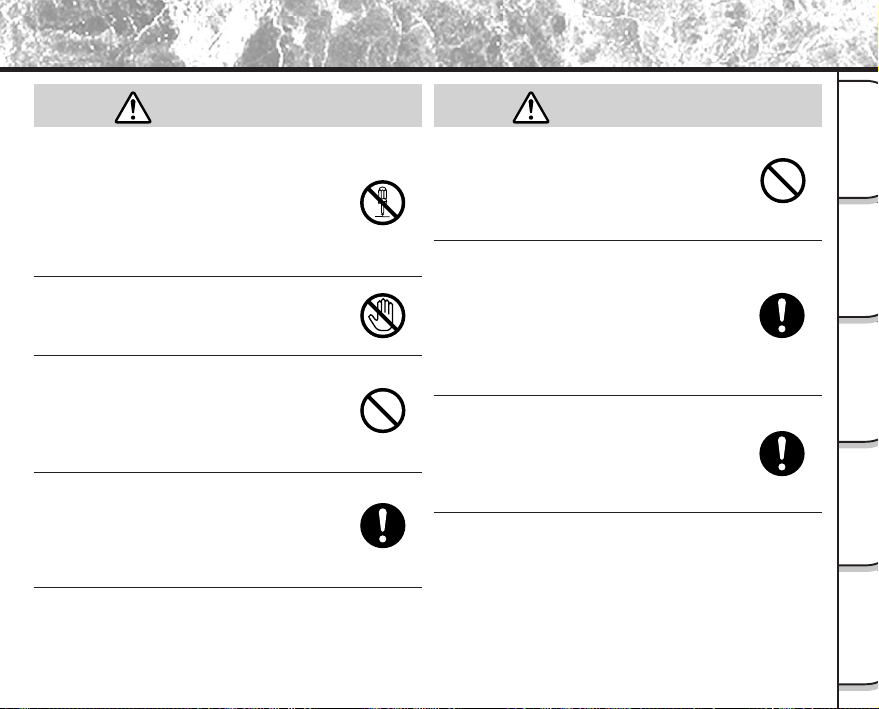
- 9 -
Photographie
de base
Lecture/effacement
des images
Autres
applications
Informations
supplémentaires
Préparation
Précautions de sécurité (suite)
Ne pas démonter, modifier ou réparer
l’appareil photo.
Il y a risque d’incendie ou d’électrocution. Pour
toute réparation ou inspection de l’intérieur de
l’appareil photo, adressez-vous à votre
revendeur, ou veuillez composer le numéro
d’assistance technique.
Ne pas toucher les cordons d’alimentation
ou les câbles d’antenne pendant un orage.
Il y a risque d’électrocution.
Ne pas utiliser l’appareil photo en
marchant, en conduisant ou sur une
motocyclette.
Vous pourriez tomber ou provoquer un accident
de la circulation.
Utilisez seulement les accumulateurs
spécifiés ou l’adaptateur secteur spécifié.
L’utilisation d’un autre accumulateur ou d’un
autre adaptateur peut provoquer un incendie,
des défauts ou un dysfonctionnement.
Rangez les accumulateurs hors de portée
des enfants.
En cas d’ingestion, il y a risque
d’empoisonnement. Si un accumulateur est
avalé, faites immédiatement appel à un médecin.
Si vos yeux sont éclaboussés par
l’électrolyte de l’accumulateur, rincez-les
immédiatement à l’eau courante et
consultez un médecin pour traitement.
Si vous laissez vos yeux sans traitement, ils
risquent d’être endommagés de façon
irréversible.
Utilisez l’adaptateur secteur seulement
avec la tension d’alimentation spécifiée
(CA 120 V).
Il y a risque d’incendie ou d’électrocution si vous
utilisez une tension différente.
(suite)
AVERTISSEMENT
(suite)
AVERTISSEMENT
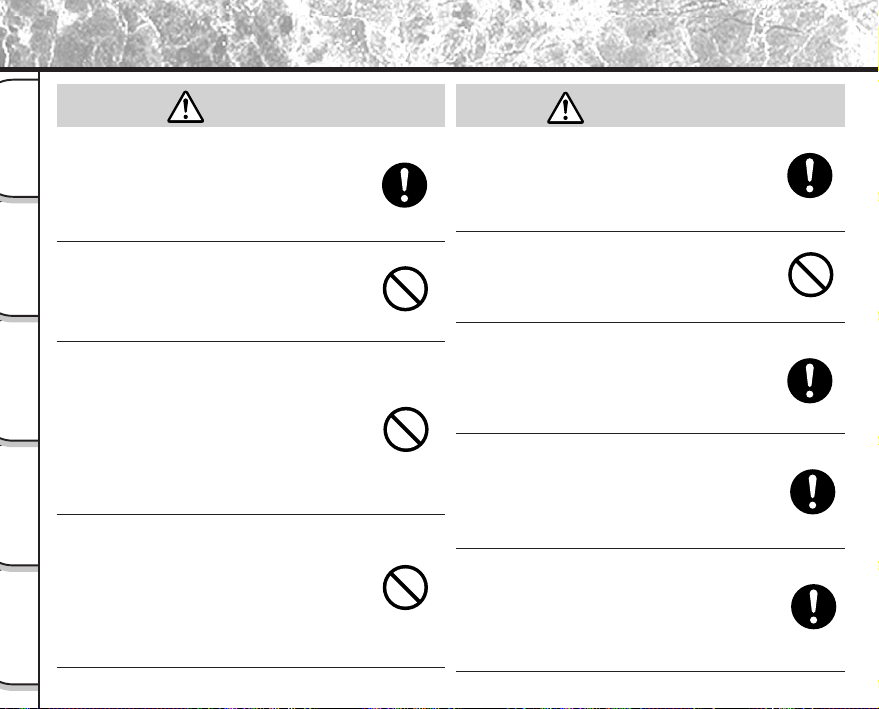
- 10 -
Photographie
de base
Lecture/effacement
des images
Autres
applications
Informations
supplémentaires
Préparation
Précautions de sécurité (suite)
Si vous voulez utiliser l’appareil photo dans
un avion, consultez au préalable la
compagnie aérienne.
En raison des risques d’interférences radio, il
existe parfois certaines restrictions d’utilisation.
Ne pas utiliser l’appareil photo dans des
endroits humides, remplis de vapeur d’eau
ou de fumée, ou poussiéreux.
Il y a risque d’incendie ou d’électrocution.
Ne pas laisser l’appareil photo dans un
endroit où la température peut
considérablement augmenter, comme dans
une voiture.
Une température excessive risque
d’endommager le boîtier ou les pièces
intérieures de l’appareil photo et provoquer un
incendie.
Ne pas poser ou envelopper l’appareil
photo dans des vêtements, une couverture,
etc.
Une surchauffe de l’appareil photo pourrait
déformer le boîtier et provoquer un incendie.
Utilisez l’appareil photo dans un endroit bien
ventilé.
Avant de déplacer l’appareil photo,
débranchez les cordons et les câbles.
Les cordons et les câbles pourraient être
endommagés, entraînant un risque d’incendie ou
d’électrocution.
Ne pas laisser l’appareil photo tomber ni le
soumettre à un choc violent.
Il y a risque d’incendie, d’électrocution ou de
dysfonctionnement.
Avant de nettoyer l’appareil photo, enlevez
les accumulateurs et débranchez
l’adaptateur secteur.
Il y a risque d’incendie si vous les laissez en
place.
Enlevez les accumulateurs et débranchez
l’adaptateur secteur si vous ne comptez
pas utiliser l’appareil photo pendant
longtemps.
Il y a risque d’incendie.
Insérez les accumulateurs en faisant
attention à la polarité (+ ou –) des bornes.
Si vous insérez les accumulateurs en inversant
les polarités, vous risquez de provoquer un
incendie ou des blessures, ou d’endommager
les parties adjacentes.
ATTENTION
ATTENTION
(suite)
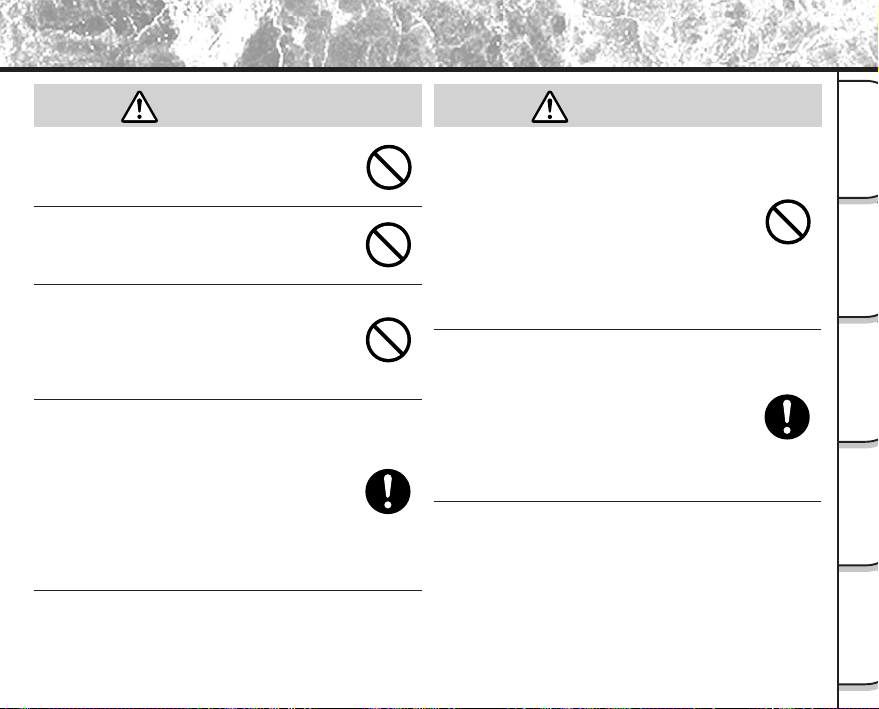
- 11 -
Photographie
de base
Lecture/effacement
des images
Autres
applications
Informations
supplémentaires
Préparation
Précautions de sécurité (suite)
Ne pas regarder le soleil à travers le viseur
de l’appareil photo.
Vous pourriez blesser votre oeil.
Ne pas utiliser le flash près des yeux.
Vous pourriez endommager la vue
temporairement.
Ne pas se promener en balançant
l’appareil photo au bout de sa courroie.
Il y a risque de panne ou de blessures, car
l’appareil photo pourrait heurter quelqu’un ou un
objet.
Collez du ruban adhésif sur les bornes plus
(+) et moins (-) des accumulateurs
déchargés quand vous les rangez ou les
mettez au rebut.
Sinon, ils pourraient entrer en contact avec des
objets métalliques, avec un risque d’incendie ou
de blessures résultant de la fuite de l’électrolyte
des piles, d’une surchauffe ou de l’explosion des
accumulateurs.
Ne pas soumettre l’afficheur de statut à un
choc.
Si l’afficheur de statut est soumis à un choc, le
verre de l’écran risque de se briser et le fluide à
l’intérieur de s’écouler.
Si le fluide pénètre dans vos yeux ou adhère à
votre corps ou à vos vêtements, rincez-les
immédiatement à l’eau courante. Si le fluide
entre dans vos yeux, consultez immédiatement
un médecin pour traitement.
Contactez votre revendeur pour un
nettoyage intérieur de l’appareil photo une
fois tous les deux ans.
Si la poussière s’accumule à l’intérieur de
l’appareil photo pendant longtemps, il y a risque
d’incendie ou de défauts. Contactez votre
revendeur pour toute question regardant les frais
de nettoyage.
ATTENTION
(suite)
ATTENTION
(suite)
- 12 -
Photographie
de base
Lecture/effacement
des images
Autres
applications
Informations
supplémentaires
Préparation
Utilisation correcte de l’appareil photo
Remarques sur le maniement de l’appareil photo
Quand vous utilisez votre appareil photo, lisez attentivement et observez strictement les Précautions de sécurité à
partir de la page 6 et les remarques indiquées ci-dessous.
● Éviter d’utiliser ou ranger l’appareil photo dans les endroits suivants:
• Endroits exposés à l’humidité, à la poussière ou à la saleté
• Endroits exposés au soleil
• Endroits exposés à des températures extrêmement basses ou élevées
• Endroits remplis de gaz inflammables
• À proximité d’essence, de benzène ou de diluant
• Endroits soumis à des vibrations importantes
• Endroits exposés à la fumée ou à la vapeur
• Endroits soumis à l’action de champs magnétiques importants (à proximité d’un moteur, d’un
transformateur ou d’un aimant, par exemple)
• Au contact de produits chimiques comme des insecticides ou à proximité de produits en caoutchouc
ou vinyle pendant longtemps.
● Ne pas exposer votre appareil photo au sable.
Le PDR-M60 est particulièrement sensible au sable qui peut l’endommager de manière irréversible.
Faites surtout attention quand vous utilisez l’appareil photo à la plage ou dans des lieux sablonneux où
le sable peut voler.
● Remarques sur la condensation
Du fait d’un changement soudain de température occasionné par le passage de l’appareil photo d’un
endroit froid à un endroit chaud, des gouttelettes d’eau (condensation) peuvent se former à l’intérieur de
l’appareil photo ou sur l’objectif. Dans ce cas, mettez l’appareil photo hors tension et attendez une heure
avant de l’utiliser. La condensation peut aussi se former sur la carte SmartMedia™. Dans ce cas, retirez
la carte SmartMedia™, essuyez toutes les gouttelettes présentes et attendez un moment avant de
l’utiliser de nouveau.
- 13 -
Photographie
de base
Lecture/effacement
des images
Autres
applications
Informations
supplémentaires
Préparation
● Nettoyage de votre appareil photo
• Pour éviter de rayer la surface de l’objectif, de l’afficheur de statut et du viseur, utilisez un pinceau
soufflant pour enlever la poussière et essuyez délicatement avec un chiffon doux et sec.
• Nettoyez le boîtier de l’appareil photo avec un chiffon doux et sec. N’utilisez pas de liquides volatils
tels que du diluant, du benzène ou un insecticide car ils pourraient réagir au contact du boîtier de
l’appareil photo et le déformer ou endommager sa finition.
Utilisation correcte de l’appareil photo (suite)
- 14 -
Photographie
de base
Lecture/effacement
des images
Autres
applications
Informations
supplémentaires
Préparation
Utilisation correcte de l’appareil photo (suite)
Remarques sur le maniement de l’adaptateur secteur
Utilisez seulement l’adaptateur secteur spécifié (optionnel). L’utilisation d’un autre adaptateur secteur pourrait
endommager l’appareil photo.
Quand vous utilisez l’adaptateur secteur, lisez attentivement et observez strictement les Précautions de sécurité à
partir de la page 6 et les remarques indiquées ci-dessous.
• L’adaptateur secteur est conçu pour une utilisation aux États-Unis et au Canada uniquement. Il ne
peut pas être utilisé à l’étranger.
• Ne laissez pas l’adaptateur secteur entrer en contact avec tout autre objet métallique car vous
pourriez provoquer un court-circuit.
• Pour raccorder l’adaptateur secteur, insérez fermement la fiche à l’extrémité du cordon dans la prise
DC IN 5V. N’insérez pas la fiche dans les autres prises car vous pourriez endommager l’appareil
photo.
• Avant de débrancher le cordon de liaison, mettez l’appareil photo hors tension, puis débranchez le
cordon en le tenant par sa fiche. Ne débranchez pas le cordon de liaison en tirant sur le cordon lui-
même.
• Ne laissez pas tomber l’adaptateur secteur et ne le soumettez pas à des chocs violents.
• N’utilisez pas l’adaptateur secteur dans des endroits très chauds et humides.
• Ne branchez pas l’adaptateur secteur quand vous utilisez un accumulateur. Mettez d’abord l’appareil
photo hors tension.
• L’adaptateur secteur doit être utilisé en intérieur seulement.
• Utilisez seulement l’adaptateur secteur spécifié. N’utilisez pas d’autres adaptateurs secteur.
• L’adaptateur secteur peut chauffer pendant son utilisation. C’est normal et non pas un signe de
dysfonctionnement.
• Des bourdonnements ou des ronronnements peuvent provenir de l’intérieur de l’appareil photo. C’est
normal et non pas un signe de dysfonctionnement.
• N’utilisez pas l’adaptateur secteur à proximité d’une radio car il pourrait interférer avec la réception
des signaux radio.
• Si vous enlevez les accumulateurs ou débranchez l’adaptateur secteur pendant le fonctionnement de
l’appareil photo, la date sera effacée de la mémoire. Dans ce cas, réglez de nouveau la date.
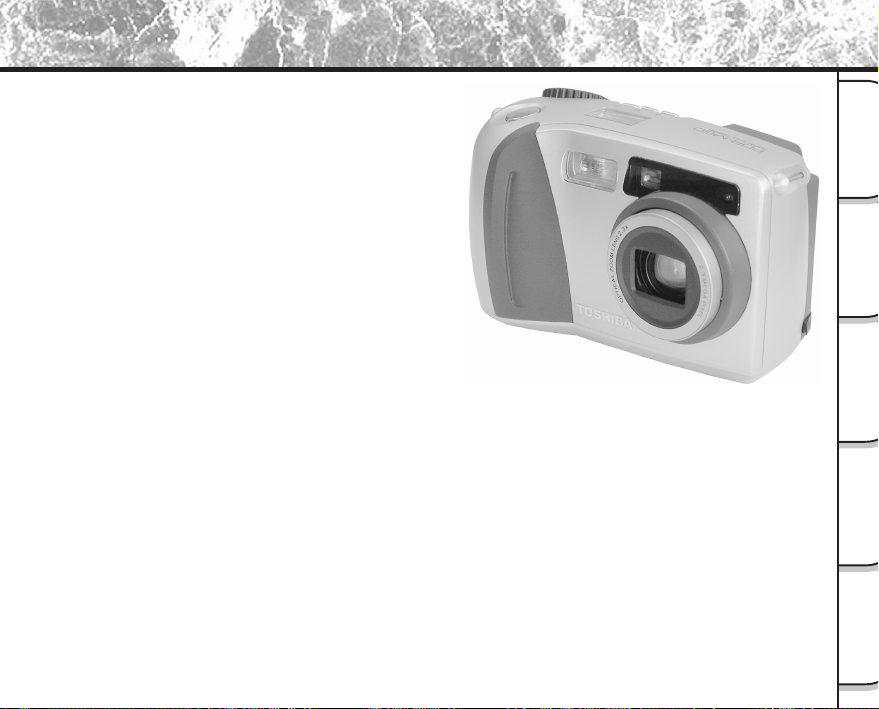
- 15 -
Photographie
de base
Lecture/effacement
des images
Autres
applications
Informations
supplémentaires
Préparation
Caractéristiques
● Objectif zoom 2,3X
● Compatible interface USB
● Haute définition 2,3 millions de pixels
● Fonctions photographiques étendues
•Automatique/Flash/Macro/Retardateur
•Lecture vue multiple (16 vues successives par
image)
•Pause B pour la prise de vues nocturne et
créative
•Photographie en couleur/noir et blanc, etc.
● Sélection facile de la taille et de la qualité de
l’image
•Taille (images fixes: 1792 x 1200/896 x 600 pixels)
•Qualité (FINE/NORMAL/BASIC (fine/normale/
basique))
● Afficheur de statut
•Les réglages peuvent être vérifiés même quand le
moniteur LCD est éteint.
● Carte SmartMedia™
•Jusqu’à 64 Mo utilisables
● Compatibilité
•Méthode d’enregistrement conforme à DCF
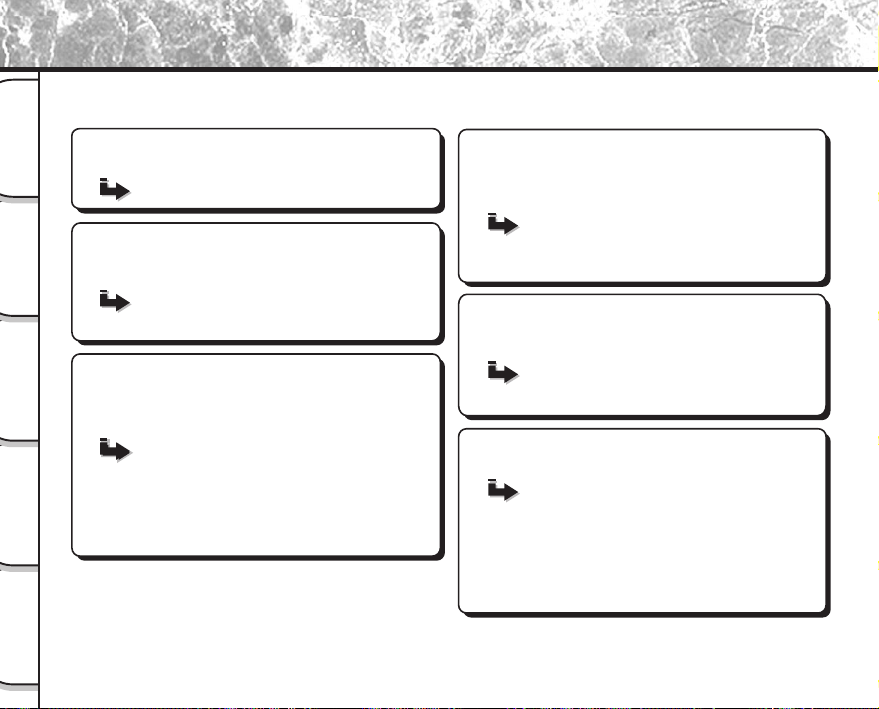
- 16 -
Photographie
de base
Lecture/effacement
des images
Autres
applications
Informations
supplémentaires
Préparation
Diagramme des fonctions
Lisez d’abord ces pages.
Préparez-vous à utiliser le PDR-M60.
(P.17 – 35)
Apprenez les opérations de base.
Commencez par apprendre la façon élémentaire
d’utiliser le PDR-M60.
Prise de vues (P.40)
Lecture des images photographiées (P.62)
Effacement des images (P.72)
Prise de vues avec zoom (P.45)
Prise de vues avec zoom numérique (P.46)
Prise de vues rapprochée (P.47)
Prise de vues avec le retardateur (P.48)
Prise de vues au flash (P.49)
Prise de vues multiples (P.52)
Prise de vues avec exposition lente (pause B) (P.53)
Utilisation des divers modes de prise
de vues.
Vous pouvez choisir divers modes de prise de vues
sur le PDR-M60.
Agrandissement d’images
photographiées
(P.63)
Lecture automatique
(P.65)
Reproduction de vos images photographiées.
Vous pouvez choisir plusieurs façons de reproduire les
images sur le moniteur LCD.
Réglage de la taille et de la qualité
de l’image
(P.43)
Réglage manuel du PDR-M60
(P.54)
Changement des préréglages
(P.58)
Changement des réglages photographiques.
Vous pouvez changer les réglages pour la photo que vous
allez prendre en fonction de vos besoins particuliers, du
lieu de prise de vues et d’autres conditions.
Vous pouvez aussi faire cela.
Le PDR-M60 a beaucoup d’autres caractéristiques.
Affichage d’une liste d’images
(P.64)
Changement de la taille des images
(P.66)
Compression des images
(P.68)
Effacement de toutes les images à la fois
(P.74)
Protection des images
(P.76)
Changement des réglages du PDR-M60
(P.79)
Prise de vues et lecture sur un téléviseur
(P.86)
Transfert d’images à un PC
(P.88)
Nous vous conseillons de consulter le diagramme des fonctions ci-dessous avant d’utiliser le PDR-M60.
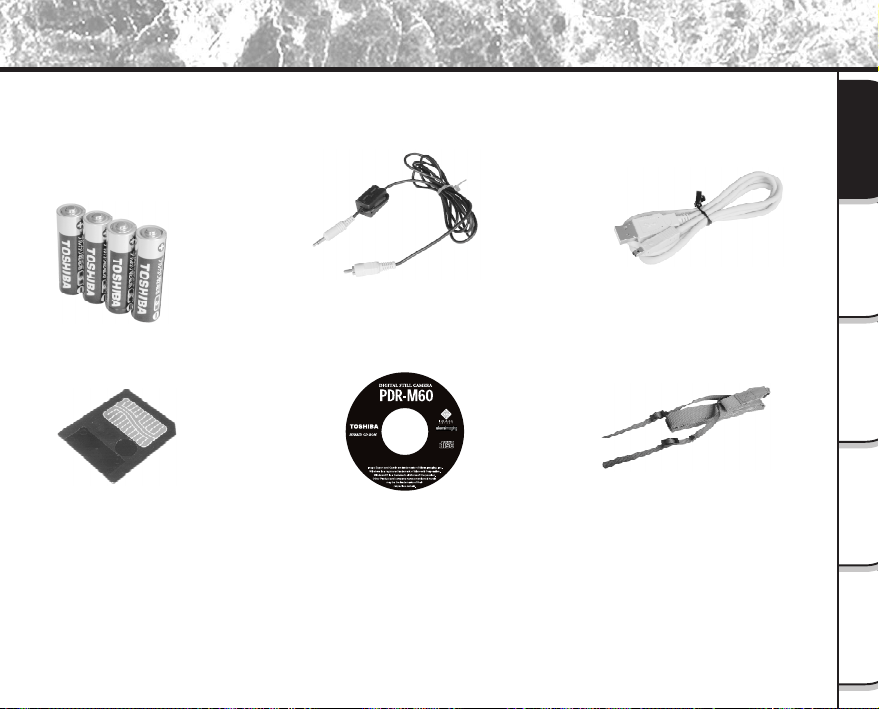
- 17 -
Photographie
de base
Lecture/effacement
des images
Autres
applications
Informations
supplémentaires
Préparation
Accessoires
Vérifiez si vous avez tous les accessoires suivants avant d’utiliser votre appareil photo.
Option
Adaptateur secteur
Câble vidéo (1)
Carte SmartMedia™
(4 Mo, 3,3 V) (1)
Courroie (1)
Câble USB
Logiciel (cédérom)
• Mode d’emploi (ce manuel)
• Carte de garantie (pour les États-
Unis d’Amérique et pour le
Canada)
• Étui antistatique (1)
• Étiquettes (2)
• Autocollants de protection
contre l’écriture (4)
Accumulateurs
(4 de format AA)
Alkaline
•ImageExpert
•USB driver
PDR-M60-01
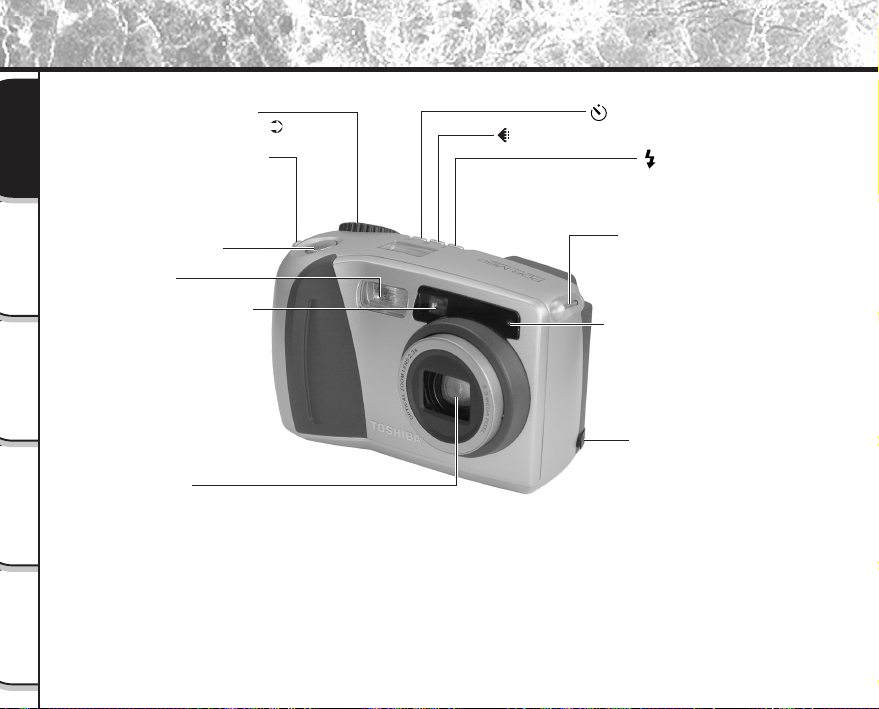
- 18 -
Photographie
de base
Lecture/effacement
des images
Autres
applications
Informations
supplémentaires
Préparation
Nomenclature
Objectif
Fenêtre du viseur
Flash
Déclencheur
Molette de modes
Pour une vue agrandie ( P.20)
Monture de courroie
Témoin de retardateur
Monture de courroie
Touche Flash
Touche du retardateur
Touche de réglage de qualité d'image
Borne DC IN 5V
(alimentation CC)
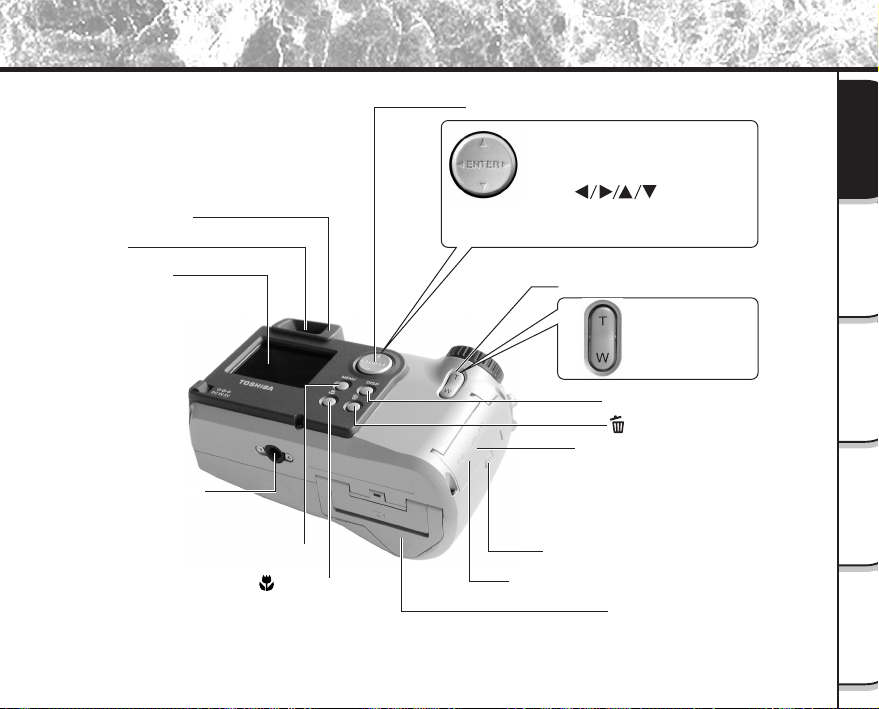
- 19 -
Photographie
de base
Lecture/effacement
des images
Autres
applications
Informations
supplémentaires
Préparation
Nomenclature (suite)
Touche de fonction
Touche de zoom
Volet d’insertion de carte SmartMedia™
Bouton de déverrouillage du volet
d’insertion de carte SmartMedia™
Couvercle du logement
des accumulateurs
Monture de trépied
Touche DISP (affichage)
Moniteur LCD
Touche macro
Touche MENU
Touche d’effacement
Touche ENTER
Appuyez au centre de cette touche.
(Utilisez cette touche pour valider une
sélection.)
Touche (multipression)
Appuyez sur le côté souhaité de la touche.
(Utilisez cette touche pour sélectionner
une option ou une image.)
Téléobjectif
(zoom)
Appuyez sur “T”.
Grand angle
Appuyez sur “W”.
Viseur
Témoin du viseur
Cache-bornes
• Borne DIGITAL (numérique)
• Borne VIDEO (vidéo)
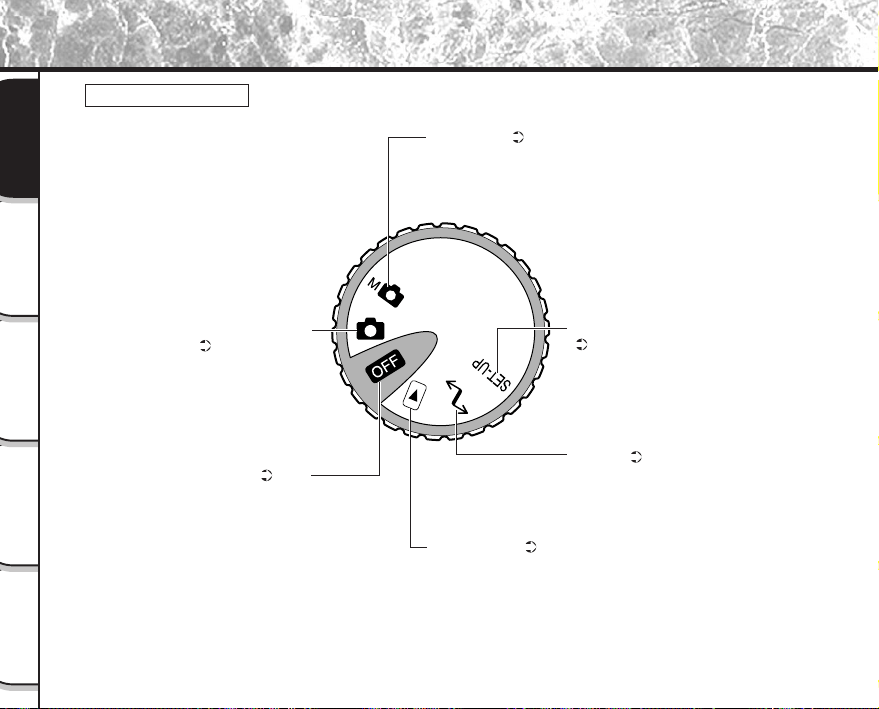
- 20 -
Photographie
de base
Lecture/effacement
des images
Autres
applications
Informations
supplémentaires
Préparation
Nomenclature (suite)
Molette de modes
Mise hors tension ( P. 33)
Pour mettre l’appareil photo hors tension.
Mode de prise de vues
automatique ( P. 40)
C’est le mode de prise de vues
utilisé le plus souvent. Dans ce
mode, l’exposition (combinaison
de la vitesse d’obturation et de
l’ouverture) est contrôlée
automatiquement pour faciliter la
prise de vues.
Mode manuel ( P. 54)
Pour régler manuellement la
balance des blancs et
l’exposition.
Mode SET-UP (configuration)
( P. 79)
Pour régler les paramètres de
base de l’appareil photo (temps
avant mise hors tension, son,
heure, langue d’affichage,
nombre d’images et
réinitialisation).
Mode PC ( P. 88)
Pour transférer les images à un
PC.
Pour les détails, reportez-vous
au mode d’emploi du logiciel.
Mode de lecture ( P. 62)
Pour sélectionner la lecture
d’images ou le mode de
protection, le changement de
taille, la compression et d’autres
paramètres.
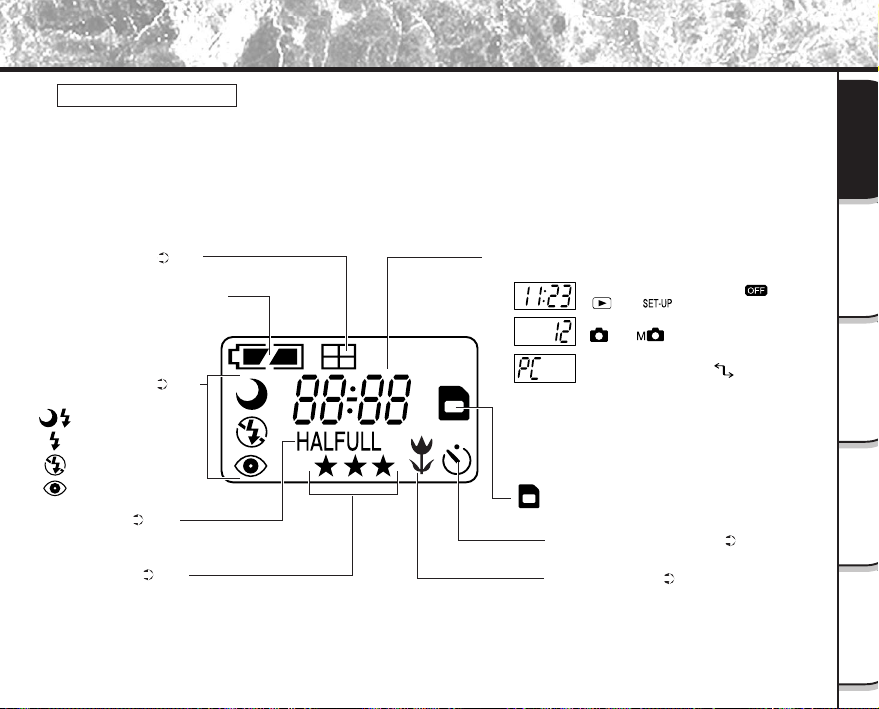
- 21 -
Photographie
de base
Lecture/effacement
des images
Autres
applications
Informations
supplémentaires
Préparation
Nomenclature (suite)
Afficheur de statut
Cet afficheur indique le statut de l’appareil photo. Vous pouvez vérifier le statut de l’appareil photo même
si le moniteur LCD n’est pas allumé.
Le texte, les nombres et les icônes affichés sur l’afficheur de statut varient en fonction du réglage.
Le rétroéclairage de l’afficheur de statut s’allume pendant environ cinq secondes dans les cas suivants:
• Vous appuyez sur le déclencheur
• Vous appuyez sur la touche de retardateur, de réglage de qualité d’image ou de flash.
Taille de l'image ( P. 43)
HALF: 896 x 600 pixel
FULL: 1792 x 1200 pixel
Qualité de l'image ( P. 43)
★★★: FINE (fine)
★★: NORMAL (normale)
★: BASIC (basique)
: Synchronisation lente
: Anti-yeux rouges
: Flash débrayé
: Flash forcé
Exemple d'affichage du compteur
(L'affichage varie en fonction du réglage de la molette de modes.)
Affichage de l'heure (en mode [ ],
[ ] ou [ ]
Nombre de vues disponibles (en mode
[ ] ou [ ]: pendant
l'enregistrement d'images fixes)
Indication PC (en mode [ ])
Capacité restante des accumulateurs
Prise de vues multiple ( P. 52)
Prise de vues au flash ( P. 49)
Pas d'indication: Automatique
Prise de vues avec le retardateur ( P. 48)
Prise de vues macro ( P. 47)
: Symbole de carte SmartMedia™ en place
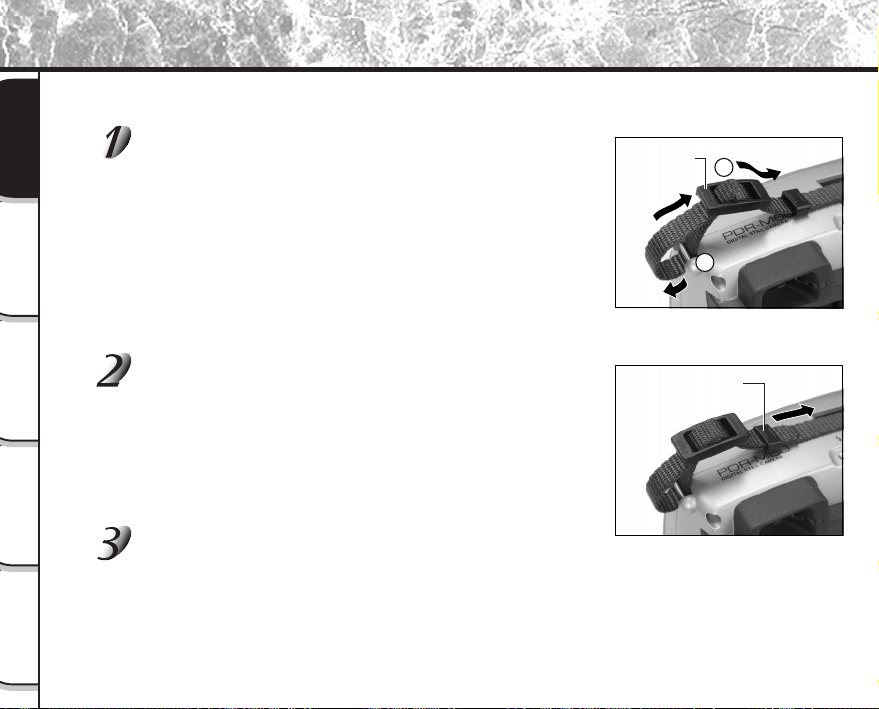
- 22 -
Photographie
de base
Lecture/effacement
des images
Autres
applications
Informations
supplémentaires
Préparation
Mise en place de la courroie
Cette courroie est pratique pour porter votre appareil photo quand vous vous déplacez.
Pour éviter de faire tomber l’appareil pendant la prise de vues, mettez la courroie autour du cou.
Faites passer l’extrémité de la courroie dans la
monture de courroie 1, puis faites-la passer dans les
deux extrémités de la boucle de réglage de la courroie
2.
Faites passer l’extrémité de la courroie dans la boucle
d’arrêt et tirez complètement.
Mettez la courroie en place de la même façon sur
l’attache de courroie de l’autre côté de l’appareil
photo.
Boucle de
réglage de la
courroie
2
1
Boucle d'arrêt
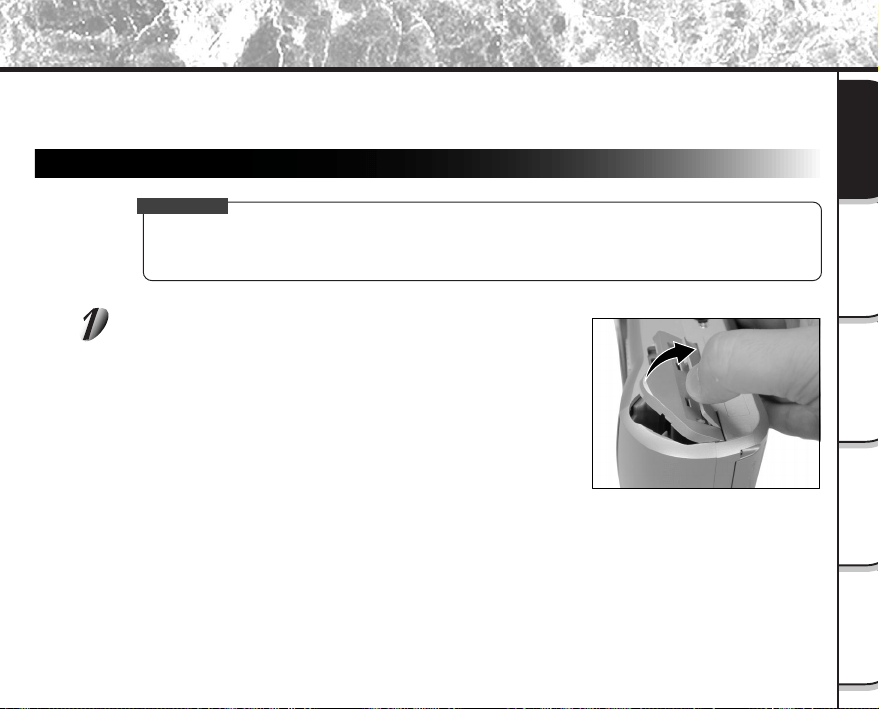
- 23 -
Photographie
de base
Lecture/effacement
des images
Autres
applications
Informations
supplémentaires
Préparation
Installation des accumulateurs
Cet appareil photo utilise quatre (4) accumulateurs format AA (alkaline).
Mise en place des accumulateurs
IMPORTANT
• Avant de mettre en place ou retirer les accumulateurs, veillez à mettre l’appareil photo hors tension. Si
vous mettez les accumulateurs en place ou les retirez quand l’appareil photo est sous tension, l’heure
reviendra à sa valeur par défaut ou les réglages de l’appareil photo seront réinitialisés.
Tirez pour ouvrir la porte du logement des
accumulateurs comme montré.
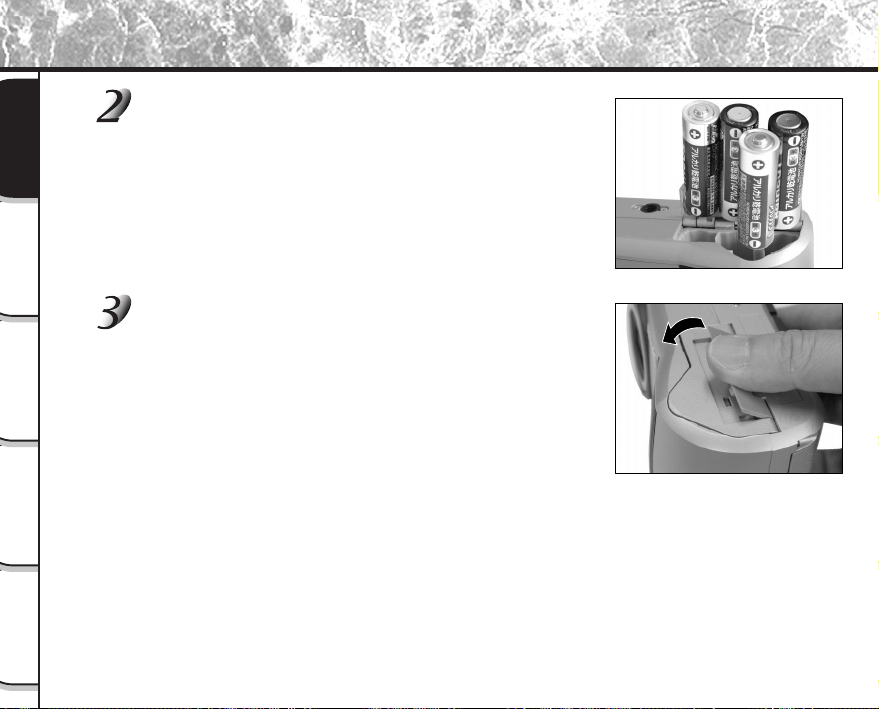
- 24 -
Photographie
de base
Lecture/effacement
des images
Autres
applications
Informations
supplémentaires
Préparation
Installation des accumulateurs (suite)
Insérez les accumulateurs dans le logement en
veillant à ce qu’ils soient dans le bon sens comme
indiqué sur l’illustration à droite.
Refermez la porte du logement des accumulateurs.
Assurez-vous que la porte est bien fermée.
- 25 -
Photographie
de base
Lecture/effacement
des images
Autres
applications
Informations
supplémentaires
Préparation
Installation des accumulateurs (suite)
Retrait des accumulateurs
Inversez la procédure de “Mise en place des accumulateurs” et enlevez les accumulateurs.
IMPORTANT
• Quand vous enlevez les accumulateurs, faites attention à ne pas laisser tomber l’appareil photo.
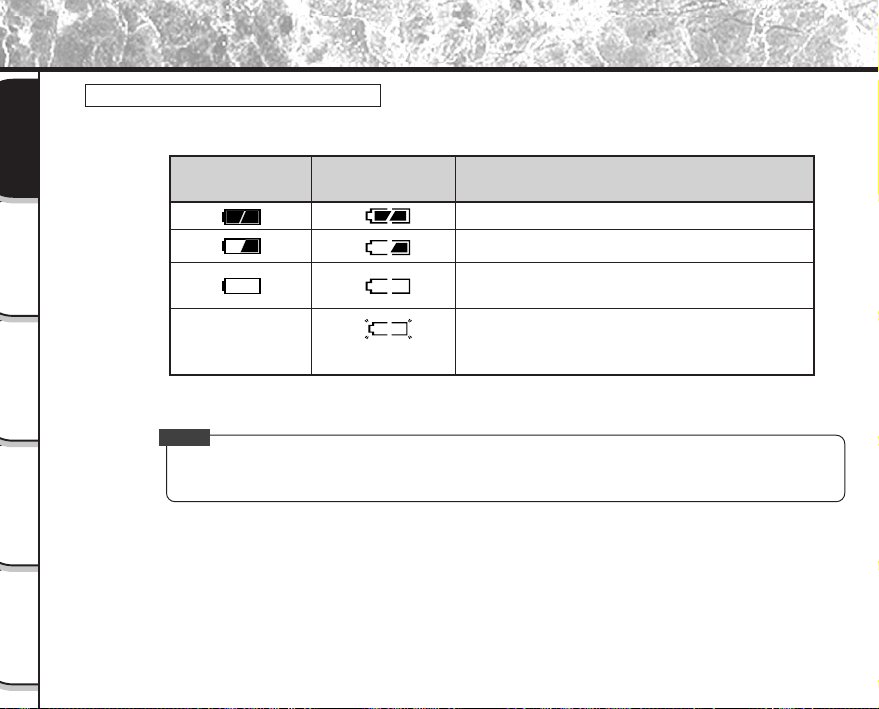
- 26 -
Photographie
de base
Lecture/effacement
des images
Autres
applications
Informations
supplémentaires
Préparation
Installation des accumulateurs (suite)
Déchargement de l’accumulateur
Quand l’appareil photo est sous tension, la capacité restante de l’accumulateur est indiquée sur le
moniteur LCD et l’afficheur de statut.
Mémo
• Quand vous utilisez l’appareil photo pour la première fois ou quand vous avez laissé l’appareil photo
pendant longtemps sans les accumulateurs, réglez la date (
➲
Page 81).
Capacité restante de l’accumulateur
Capacité suffisante
Moitié ou moins de la capacité
Capacité insuffisante (l’alimentation est coupée.)
Remplacez les accumulateurs par des neufs.
L’accumulateur est complètement déchargé (la
mise sous tension est impossible.)
Remplacez les accumulateurs par des neufs.
Moniteur LCD
Afficheur de statut
Clignote deux fois
Pas d’indication
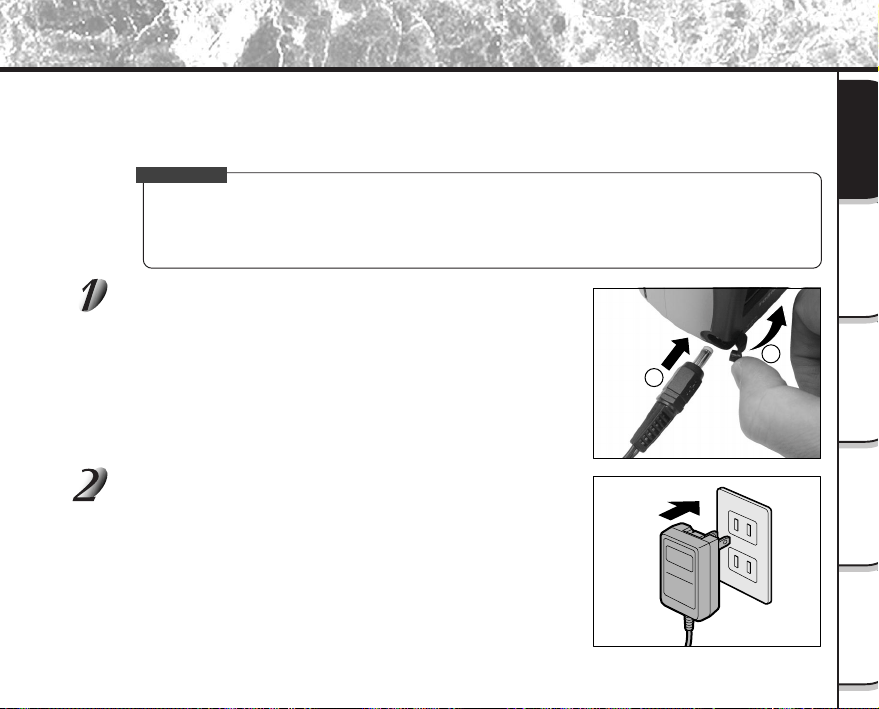
- 27 -
Photographie
de base
Lecture/effacement
des images
Autres
applications
Informations
supplémentaires
Préparation
Si vous utilisez l’adaptateur secteur dans une pièce avec une prise murale, vous pourrez prendre des photos
pendant longtemps. Vous éviterez par la même occasion de rater des prises de vues en raison de l’usure de
l’accumulateur ou d’un échec de transfert des données vers un PC. Pour des détails sur la manipulation de
l’adaptateur secteur, n’oubliez pas de lire la page 14.
IMPORTANT
• Avant de brancher ou débrancher l’adaptateur secteur, veillez à mettre l’appareil photo hors tension. Si
vous branchez ou débranchez l’adaptateur secteur quand l’appareil photo est sous tension, les
réglages de l’appareil photo seront réinitialisés (CONFIG
➲
Page 79, Prise de vues manuelle
➲
Page
54) ou l’appareil photo sera endommagé.
Ouvrez le cache-bornes 1 et insérez la fiche de
connexion de l’adaptateur secteur dans la prise DC IN
5V de l’appareil photo 2.
Branchez la fiche de l’adaptateur secteur sur une
prise murale.
Utilisation d’une prise secteur
2
1
- 28 -
Photographie
de base
Lecture/effacement
des images
Autres
applications
Informations
supplémentaires
Préparation
À propos de la carte SmartMedia™
La carte “SmartMedia™” est un support de stockage pour la sauvegarde des images que vous avez prises. Même
si l’appareil est mis hors tension, les images sauvegardées dans la carte SmartMedia™ ne seront pas effacées.
Une carte SmartMedia™ peut être lue et recevoir des images de façon répétée.
Les cartes SmartMedia™ dont les capacités de stockage sont les suivantes peuvent être utilisées avec cet
appareil.
2 Mo/4 Mo (accessoire standard)/8 Mo/16 Mo/32 Mo/64 Mo (toutes ces cartes de type 3,3 V).
Vous pouvez aussi raccorder l’adaptateur de carte PC et l’adaptateur de disquette (
➲
Page 93) vendus
séparément pour transférer les images à un PC.
Remarques sur les cartes SmartMedia™
• Les données enregistrées peuvent être effacées (détruites) dans les situations indiquées ci-dessous.
Notez que Toshiba Corporation rejette toute responsabilité quelle qu’elle soit pour la perte
(destruction) de données enregistrées dans ces situations :
- Quand la carte SmartMedia™ est utilisée de manière incorrecte par l’utilisateur ou un tiers
- Quand la carte SmartMedia™ est exposée à l’électricité statique ou à des parasites
- Quand la carte SmartMedia™ est enlevée de l’appareil photo ou quand l’appareil photo est mis
hors tension pendant l’enregistrement des données, l’effacement des données, l’avance d’une
image à l’autre au cours de la lecture ou pendant le formatage de la carte SmartMedia™.
• Il est fortement conseillé de copier et de sauvegarder les données importantes sur un autre support
(disquette, disque dur, disque optique MO, etc.).
• Ne jamais enlever la carte SmartMedia™ ou mettre l’appareil photo hors tension pendant
l’enregistrement des données ou pendant l’effacement des données (formatage de la carte
SmartMedia™). Ces actions peuvent endommager la carte SmartMedia™.
• Utilisez seulement une carte SmartMedia™ spécifiée pour l’utilisation avec le PDR-M60. L’utilisation
d’une autre carte SmartMedia™ peut endommager l’appareil photo.
• La carte SmartMedia™ est un dispositif électronique de haute précision. Ne pas la courber, la laisser
tomber ou lui faire subir des chocs. De même, ne transportez pas de carte SmartMedia™ dans un
endroit tel qu’une poche de pantalon. La carte SmartMedia™ risque d’être ainsi soumise à des forces
importantes lorsque vous vous asseyez et d’être endommagée.
• N’utilisez pas et ne rangez pas la carte SmartMedia™ dans un environnement où elle risque d’être
affectée par l’électricité statique ou des parasites.
• N’utilisez pas et ne rangez pas la carte SmartMedia™ dans un environnement très chaud, humide ou
corrosif.
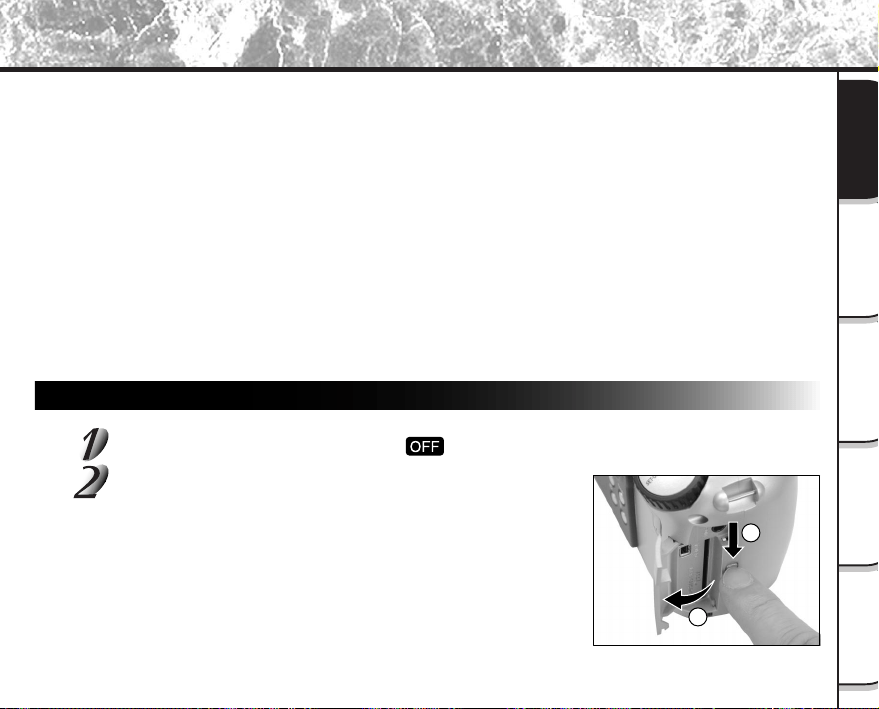
- 29 -
Photographie
de base
Lecture/effacement
des images
Autres
applications
Informations
supplémentaires
Préparation
• Faites attention à ne pas toucher les électrodes de la carte SmartMedia™ (contacts métalliques) ou
laisser les électrodes se salir. Utilisez un chiffon sec ne peluchant pas pour essuyer toute saleté.
• Pour ranger ou transporter la carte SmartMedia™ en évitant les dommages provoqués par l’électricité
statique, utilisez toujours l’étui spécial antistatique fourni.
• Si vous n’utilisez pas l’appareil photo pendant longtemps, enlevez la carte SmartMedia™ et rangez-la
en lieu sûr.
• L’insertion d’une carte SmartMedia™ chargée d’électricité statique dans l’appareil photo peut
provoquer un dysfonctionnement de ce dernier. Dans ce cas, éteignez puis rallumez l’appareil photo.
• La carte SmartMedia™ peut être tiède quand vous la retirez de l’appareil photo après une utilisation
prolongée. C’est normal et non pas un signe de dysfonctionnement.
• La durée de vie de la carte SmartMedia™ n’est pas illimitée. Si les images ne peuvent plus être
enregistrées ou effacées, achetez une nouvelle carte SmartMedia™.
• Utilisez les étiquettes d’index fournies avec l’appareil photo. Si vous collez une étiquette disponible
dans le commerce, elle peut provoquer un dysfonctionnement au moment de la mise en place ou du
retrait de la carte SmartMedia™.
Mise en place de la carte SmartMedia™
Réglez la molette de modes sur [ ].
Faites glisser le verrou du volet d’insertion de carte
SmartMedia™ dans le sens de la flèche 1 pour ouvrir
le volet 2.
À propos de la carte SmartMedia™ (suite)
2
1
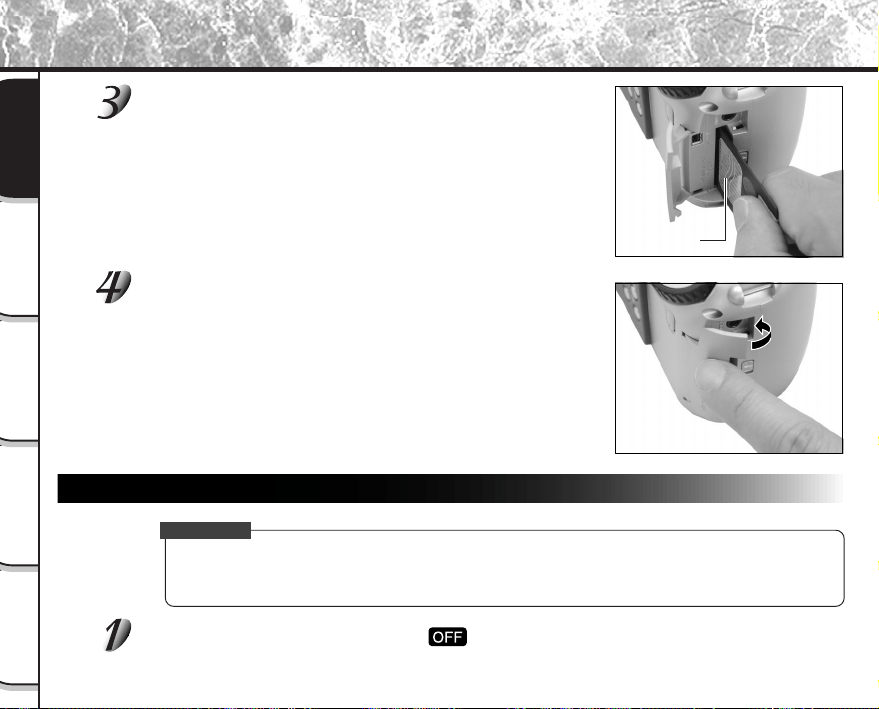
- 30 -
Photographie
de base
Lecture/effacement
des images
Autres
applications
Informations
supplémentaires
Préparation
À propos de la carte SmartMedia™ (suite)
Insérez délicatement la carte SmartMedia™ aussi
profondément que possible avec les électrodes de la
carte SmartMedia™ (contacts métalliques) face à
l’arrière de l’appareil photo.
Refermez le volet d’insertion de carte SmartMedia™.
Avant d’utiliser une nouvelle carte SmartMedia™, veillez à formater la
carte SmartMedia™ (
➲
Page 75).
Retrait de la carte SmartMedia™
IMPORTANT
• Ne jamais ouvrir le volet ou enlever la carte SmartMedia™ pendant l’enregistrement de données sur la
carte SmartMedia™ (le témoin du viseur est allumé en rouge). Vous pourriez endommager la carte
SmartMedia™ ou corrompre les données de la carte SmartMedia™.
Réglez la molette de modes sur [ ].
Électrodes
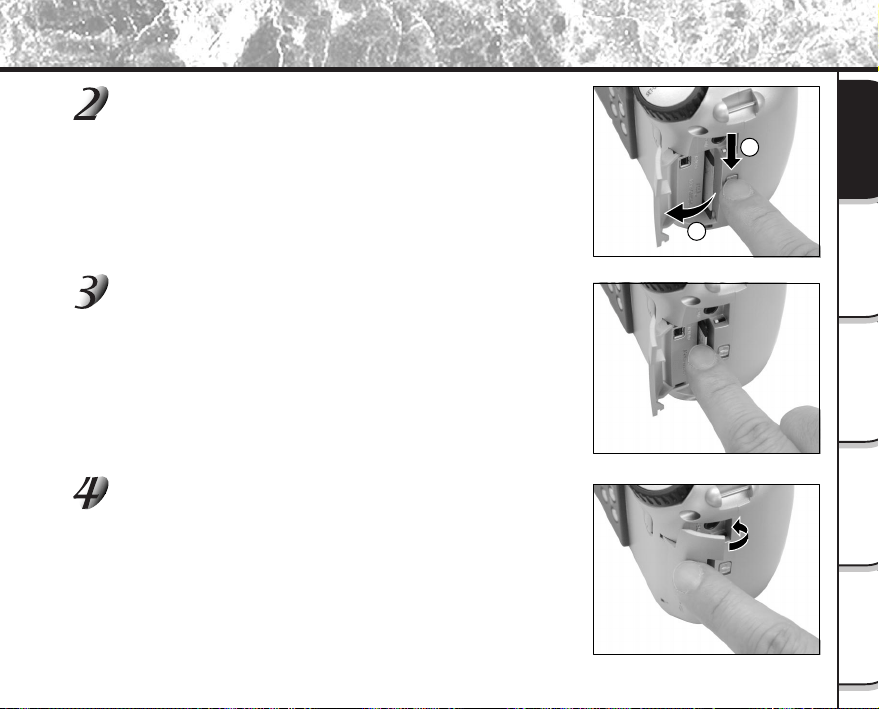
- 31 -
Photographie
de base
Lecture/effacement
des images
Autres
applications
Informations
supplémentaires
Préparation
À propos de la carte SmartMedia™ (suite)
Faites glisser le verrou du volet d’insertion de carte
SmartMedia™ dans le sens de la flèche 1 pour ouvrir
le volet 2.
Poussez la carte SmartMedia™ à fond, puis retirez-la
avec les doigts.
Si vous poussez la carte SmartMedia™ une fois aussi profondément
que possible, elle ressortira légèrement. Retirez-la avec les doigts.
Refermez le volet d’insertion de carte SmartMedia™.
2
1
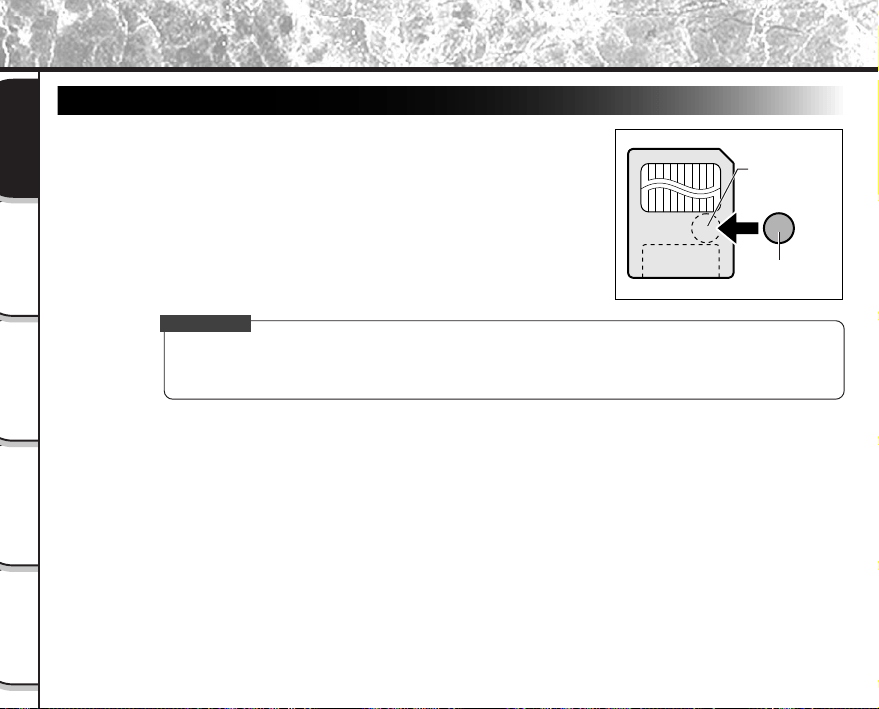
- 32 -
Photographie
de base
Lecture/effacement
des images
Autres
applications
Informations
supplémentaires
Préparation
À propos de la carte SmartMedia™ (suite)
Protection contre l’écriture
Pour éviter d’effacer par accident des données importantes,
attachez l’autocollant de protection contre l’écriture sur la zone de
protection contre l’écriture. Les données ne pourront plus être
enregistrées ou effacées de la carte SmartMedia™. Pour écrire ou
effacer des données de la carte SmartMedia™, décollez
l’autocollant.
IMPORTANT
• La zone de protection contre l’écriture peut ne pas fonctionner si l’autocollant de protection contre
l’écriture est sale. Utilisez un chiffon doux et sec pour essuyer toute saleté. Une fois que l’autocollant
est décollé, il ne peut plus être utilisé de nouveau.
Zone de
protection
contre l’écriture
Autocollant
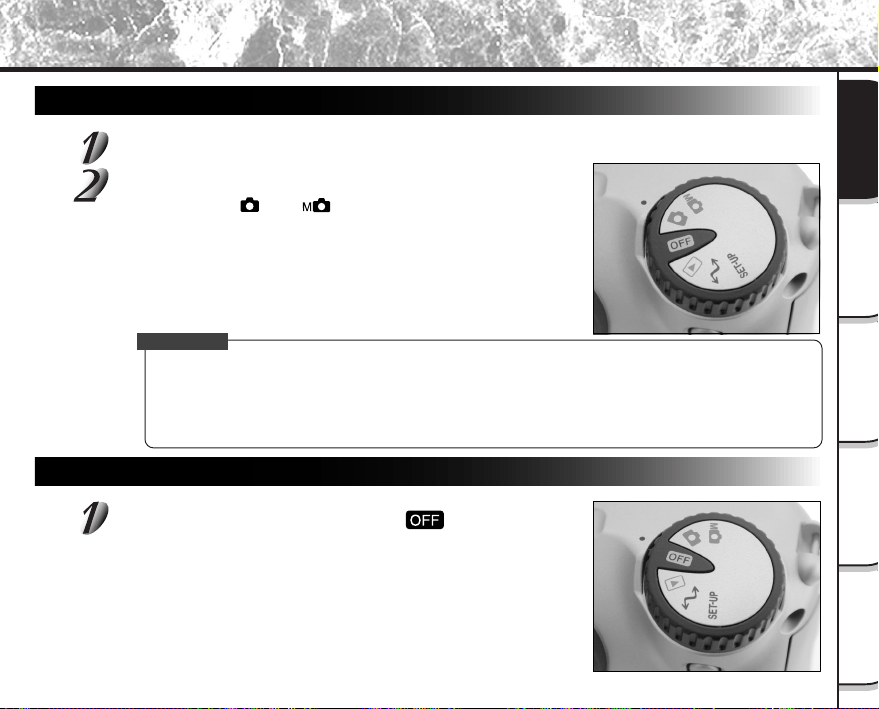
- 33 -
Photographie
de base
Lecture/effacement
des images
Autres
applications
Informations
supplémentaires
Préparation
Mise sous tension
Veillez à ce que la carte SmartMedia™ soit mise en place correctement. (
➲
Page 29)
Réglez la molette de modes sur le mode souhaité.
Dans les modes [ ] ou [ ], l’objectif sort du boîtier de
l’appareil photo.
Quand l’appareil photo est sous tension, le mode de veille est activé.
IMPORTANT
• Si vous n’effectuez aucune opération pendant un certain temps (par défaut: environ 1 minute),
l’appareil se mettra hors tension automatiquement pour éviter l’usure de l’accumulateur. Cet état est
appelé mode de veille. Pour revenir à l’état normal, changez la position de la molette de modes ou bien
appuyez sur le déclencheur à mi-course (
➲
Page 37).
☞
En ce qui concerne le mode de veille
➲
Informations supplémentaires, “AUTO-ARR” (page 81)
Mise sous/hors tension
Mise hors tension
Réglez la molette de modes sur [ ].
L’appareil s’éteint et l’objectif revient à sa position originale dans le
boîtier.
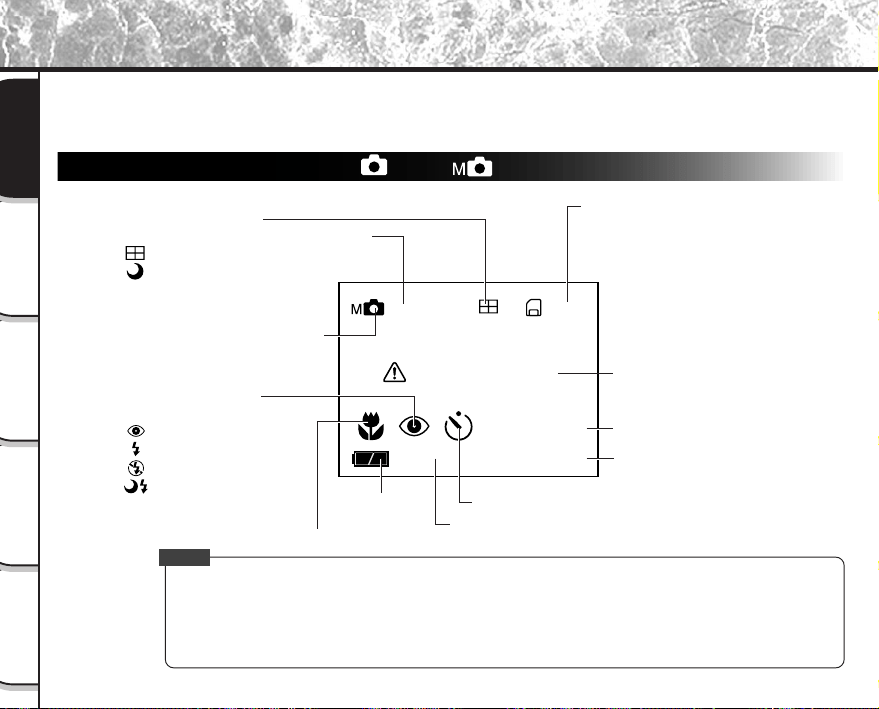
- 34 -
Photographie
de base
Lecture/effacement
des images
Autres
applications
Informations
supplémentaires
Préparation
Le texte, les nombres et les icônes affichés sur le moniteur LCD varient en fonction des réglages actuels.
Pour supprimer le texte affiché sur le moniteur LCD, appuyez sur la touche DISP (
➲
Page 85).
Le moniteur LCD s’allume automatiquement si nécessaire, même quand il est réglé sur OFF (éteint).
En mode de prise de vues ( [ ] ou [ ] )
Affichage du moniteur LCD
Mémo
• Le volume des données à enregistrer varie en fonction de la quantité de détails du sujet. Aussi, le
nombre d’images pouvant être prises après l’enregistrement d’une image décroît. Parfois, ce nombre
décroît de deux images.
• L’affichage est coupé momentanément après l’enregistrement d’une image ou quand le mode est
commuté. La prise de vues n’est pas affectée.
0024
ISO
200
PAS DE CARTE
ZOOM
05.10.00
10:10
Message (
➲
P. 98)
Réglage de la molette de modes
Mode de prise de vues
Pas d’indication : 1 image
: Prise de vues multiple
: Prise de vues avec
pause B
Prise de vues au flash
Pas d’indication : Automatique
: Anti-yeux rouges
: Flash forcé
: Flash débrayé
:
Synchronisation lente
Capacité restante
de l’accumulateur
Prise de vues macro
Prise de vues avec le retardateur
Prise de vues avec zoom numérique
Sensibilité
photographique
Nombre de vues disponibles
(aux taille et qualité d’image
actuellement sélectionnées)
Date (mois/jour/année)
Temps (format-24-heures)
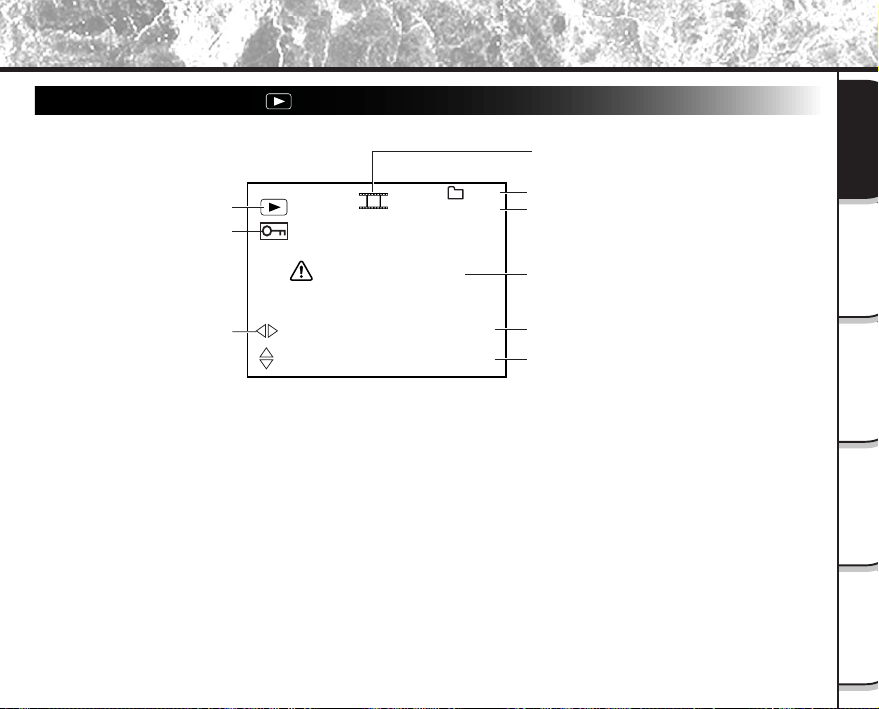
- 35 -
Photographie
de base
Lecture/effacement
des images
Autres
applications
Informations
supplémentaires
Préparation
En mode de lecture ([ ])
Affichage du moniteur LCD (suite)
0003
100
05.10.00
10:10
Message (
➲
P. 98)
1792
1200
PAS D’IMAGE
Réglage de la
molette de modes
Image protégée
Taille de l’image
Date (mois/jour/année)
Numéro d’image (image fixe)
Nom de dossier
Temps (format-24-heures)
Diaporama (
➲
P. 65)
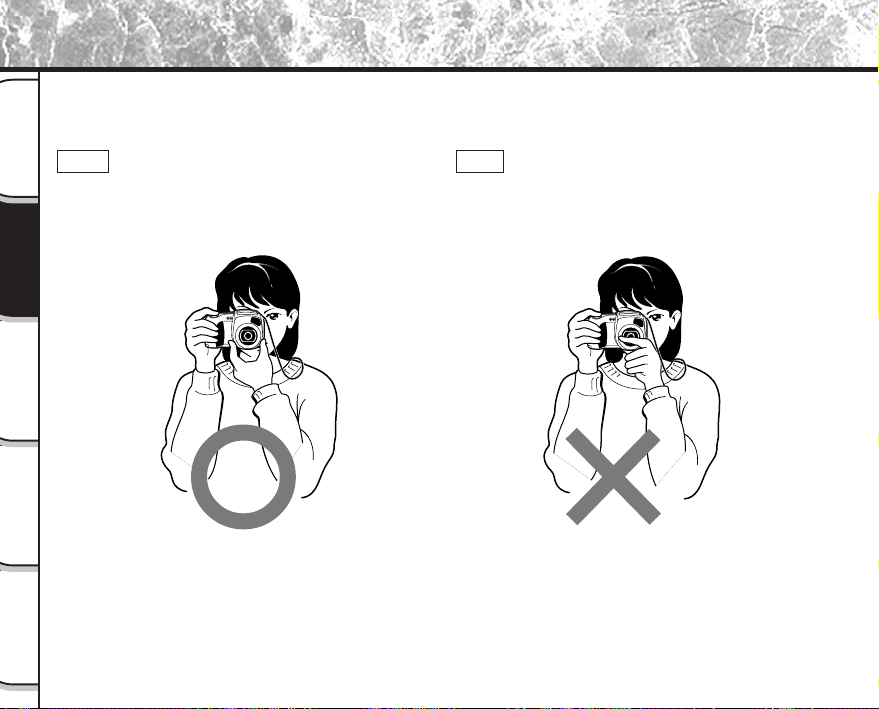
- 36 -
Photographie
de base
Lecture/effacement
des images
Autres
applications
Informations
supplémentaires
Préparation
Comment tenir l’appareil photo
Quand vous prenez une photo, tenez l’appareil photo fermement et faites attention à ce que votre doigt ou la
courroie ne recouvre pas l’objectif, le flash ou le capteur du flash.
Bien
L’appareil photo est tenu à deux mains avec les bras
serrés contre les flancs
Mal
Les doigts recouvrent l’objectif
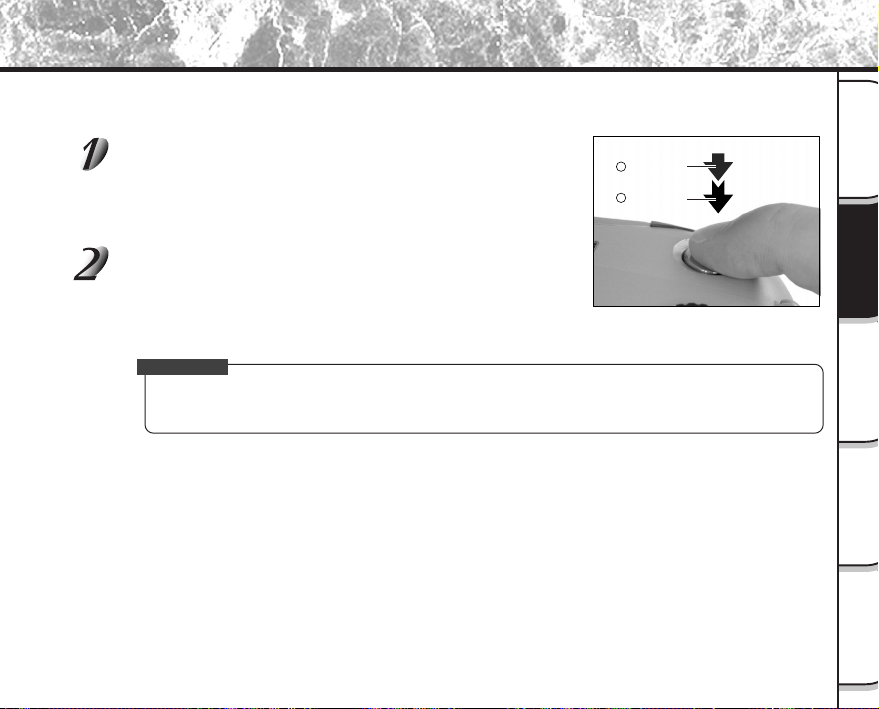
- 37 -
Photographie
de base
Lecture/effacement
des images
Autres
applications
Informations
supplémentaires
Préparation
Comment appuyer sur le déclencheur
Vous pouvez appuyer sur le déclencheur en deux étapes: à mi-course et complètement. Quand vous appuyez à
mi-course, l’autofocus (AF) et l’exposition automatique (AE) entrent en service. Quand vous appuyez à fond,
l’appareil photo prend une photo.
Appuyez sur le déclencheur à mi-course 1.
L’auto-focus (AF) et l’exposition automatique (AE) (
➲
Informations
supplémentaires, Glossaire (Page 102)) entrent en service.
Quand AF et AE sont verrouillés, un bip sonore (
➲
Page 81) retentit
et le témoin du viseur s’allume en vert.
Appuyez sur le déclencheur à fond 2 et maintenez-le
enfoncé.
L’appareil photo prend la photo.
Le témoin du viseur s’allume en rouge pendant l’enregistrement des
données d’image sur la carte SmartMedia™.
IMPORTANT
• Ne jamais ouvrir le volet d’insertion ou enlever la carte SmartMedia™ pendant l’enregistrement d’une
image. Vous pourriez corrompre les données de la carte SmartMedia™ ou endommager la carte
SmartMedia™ elle-même.
Appuyez à
mi-course.
Appuyez à
fond.
1
2
- 38 -
Photographie
de base
Lecture/effacement
des images
Autres
applications
Informations
supplémentaires
Préparation
Mémo
• Si vous appuyez à fond sur le déclencheur, les images ne pourront pas être prises tant que AF et AE ne
seront pas verrouillés.
• L’image du moniteur LCD peut parfois s’assombrir entre le moment où vous appuyez sur le
déclencheur à mi-course et le moment où l’image est nette.
• Pour faire la mise au point ou exposer une position à l’extérieur du centre du cadre de l’écran, déplacez
le sujet au centre de l’écran et appuyez sur le déclencheur à mi-course et maintenez-le enfoncé jusqu’à
ce que la caméra émette un bip sonore. À ce moment, le déclencheur étant toujours enfoncé, revenez
à votre composition précédente et appuyez à fond sur le déclencheur. Si vous déplacez l’appareil
photo tout en appuyant sur le déclencheur, vous obtiendrez une image floue.
• Le PDR-M60 utilise un mécanisme de mise au point automatique précis. Néanmoins, le PDR-M60 peut
avoir des difficultés à mettre au point ou ne pas pouvoir mettre au point du tout avec des sujets et des
situations comme suit :
- Sujets se déplaçant à grande vitesse
- Sujets très brillants tels qu’un miroir ou la
carrosserie d’une voiture
- Sujets à très faible contraste
- Sujets à faible contraste se fondant dans
l’arrière-plan (comme des murs blancs ou
des sujets habillés de la même couleur que
celle de l’arrière-plan)
- Quand le sujet est éloigné et sombre
- Quand il y a des objets devant ou derrière le
sujet (comme un animal dans une cage ou une
personne devant un arbre)
- Sujets avec une faible réflexion, tels que les
cheveux ou la fourrure
- Sujets manquant de consistance, tels que la
fumée ou les flammes
- Sujets derrière une vitre
• Si vous ne pouvez pas faire la mise au point sur le sujet, elle se fera sur l’infini. Quand le flash est
nécessaire à ce moment, il est réglé automatiquement pour éclairer des objets situés à une distance de
1,5 mètres (5 pieds).
Comment appuyer sur le déclencheur (suite)
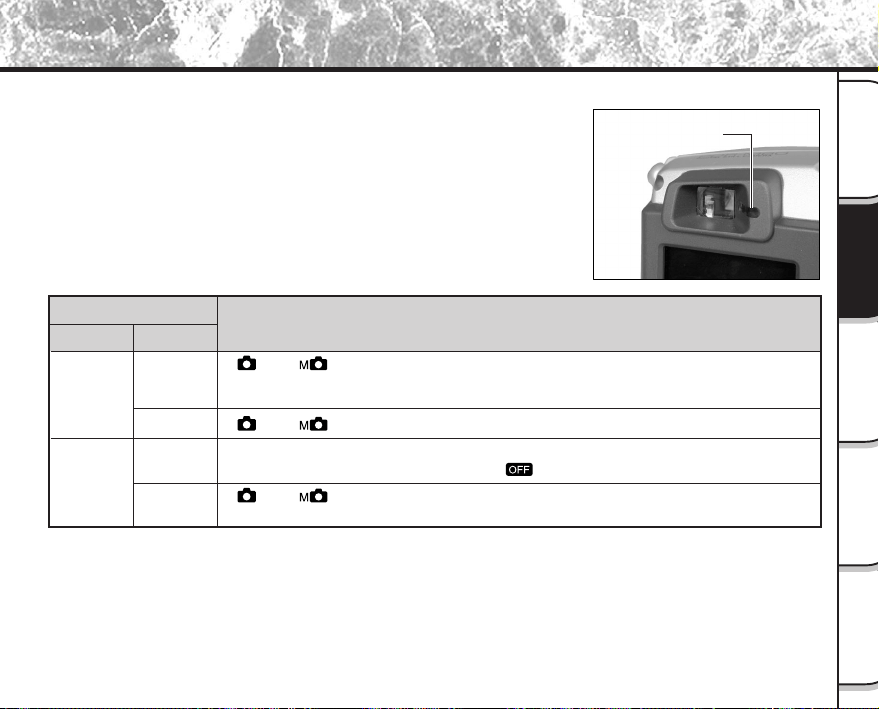
- 39 -
Photographie
de base
Lecture/effacement
des images
Autres
applications
Informations
supplémentaires
Préparation
À propos de la couleur du témoin du viseur
La couleur du témoin du viseur indique le statut de l’appareil photo. La signification de la couleur du témoin peut
varier en fonction du réglage de la molette de modes.
Témoin du viseur
Couleur
État
Signification
Vert
Activé
[
] ou [ ] AE ou AF sont verrouillés avec le déclencheur maintenu enfoncé à
mi-course.
[
] ou [ ] Retardateur en service.
[Power ON] Écriture sur la carte SmartMedia™ en cours.
Ne réglez pas la molette de modes sur [
].
[
] ou [ ] Sur- ou sous-exposition à la valeur d’ouverture sélectionnée
Quand l’image n’est pas nette
Clignotant
Rouge
Activé
Clignotant
Témoin du viseur
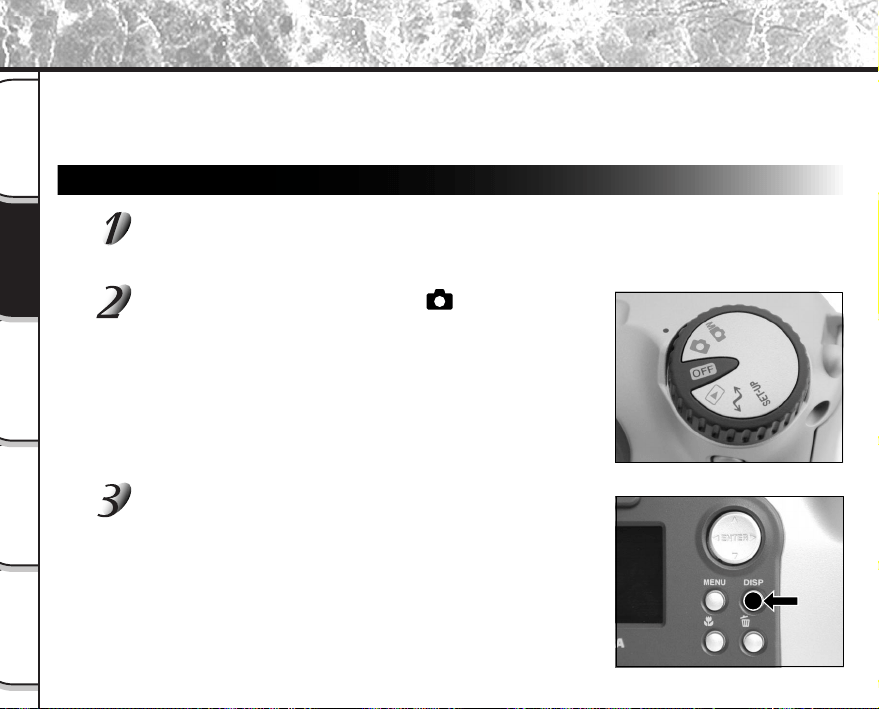
- 40 -
Photographie
de base
Lecture/effacement
des images
Autres
applications
Informations
supplémentaires
Préparation
Prise de vues (Prise de vues automatique)
C’est le mode de prise de vues le plus couramment utilisé.
Dans ce mode, l’exposition (combinaison de la vitesse d’obturation et de l’ouverture) est contrôlée
automatiquement pour faciliter la prise de vues. Il y a deux façons de prendre des photos dans ce mode: en
utilisant le viseur et en utilisant le moniteur LCD.
Utilisation du viseur
Préparez-vous à prendre la photo.
Mettez les accumulateurs (
➲
Page 23) et la carte SmartMedia™ (
➲
Page 29) en place dans l’appareil
photo.
Réglez la molette de modes sur [ ].
Appuyez sur la touche DISP pour éteindre le moniteur
LCD.
Pour réduire l’usure de l’accumulateur, nous vous conseillons
d’éteindre le moniteur LCD et d’utiliser le viseur pour prendre des
photos.
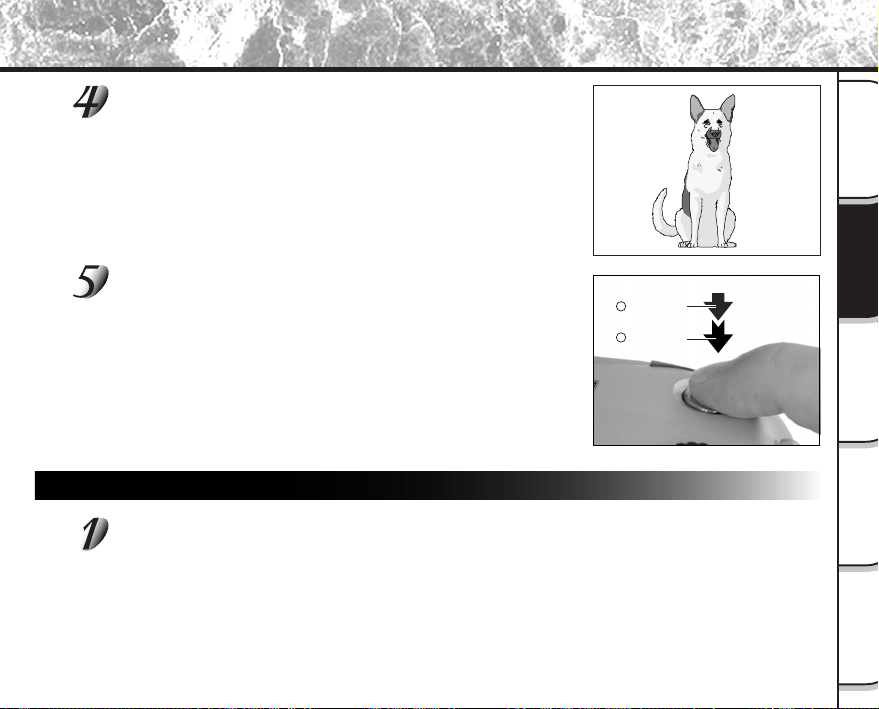
- 41 -
Photographie
de base
Lecture/effacement
des images
Autres
applications
Informations
supplémentaires
Préparation
Prise de vues (Prise de vues automatique) (suite)
Regardez dans le viseur pour cadrer votre vue.
Appuyez sur le déclencheur à mi-course 1, puis à
fond 2.
• Une pression à mi-course sur le déclencheur permet d’ajuster
l’exposition et une pression complète de prendre la photo.
• Si vous prenez une photo lorsque la prévisualisation est en service
(
➲
Page 60), une image prévisualisée sera affichée sur l’écran
pendant deux secondes environ.
• Le témoin du viseur s’allume en rouge pendant l’enregistrement
des données sur la carte SmartMedia™.
Utilisation du moniteur LCD
Préparez-vous à prendre une photo.
Mettez les accumulateurs (
➲
Page 23) et la carte SmartMedia™ (
➲
Page 29) en place dans l’appareil
photo.
Appuyez à
mi-course.
Appuyez à
fond.
1
2
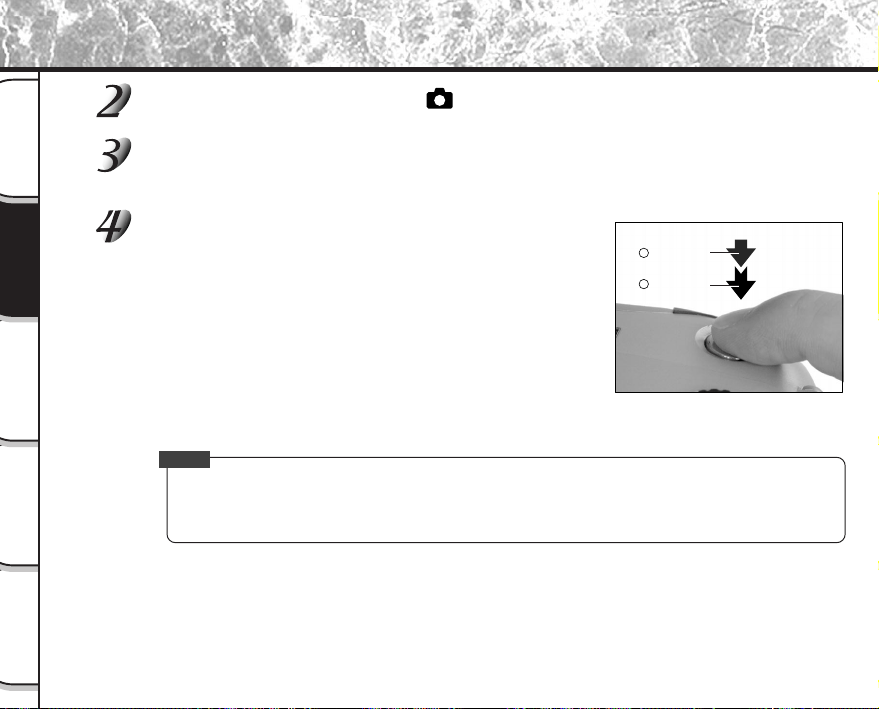
- 42 -
Photographie
de base
Lecture/effacement
des images
Autres
applications
Informations
supplémentaires
Préparation
Prise de vues (Prise de vues automatique) (suite)
Réglez la molette de modes sur [ ].
Regardez l’image sur le moniteur LCD pour cadrer.
☞
Pour ajuster la luminosité du moniteur LCD
➲
Page 84
Appuyez sur le déclencheur à mi-course 1, puis à
fond 2.
• Une pression à mi-course sur le déclencheur permet d’ajuster
l’exposition et une pression complète de prendre la photo.
• Quand la mise au point et l’exposition sont ajustées, le témoin du
viseur s’allume en vert.
• Si vous prenez une photo lorsque la prévisualisation est en service
(
➲
Page 60), une image prévisualisée sera affichée sur l’écran
pendant deux secondes environ.
• Le témoin du viseur s’allume en rouge pendant l’enregistrement
des données sur la carte SmartMedia™.
Mémo
• Le moniteur LCD affiche parfois des points brillants, sombres ou colorés. Ce n’est pas un signe de
dysfonctionnement. Ces points n’apparaissent pas sur l’image photographiée.
• L’image n’est pas affichée sur le moniteur LCD pendant que vous appuyez à fond sur le déclencheur.
Appuyez à
mi-course.
Appuyez à
fond.
1
2
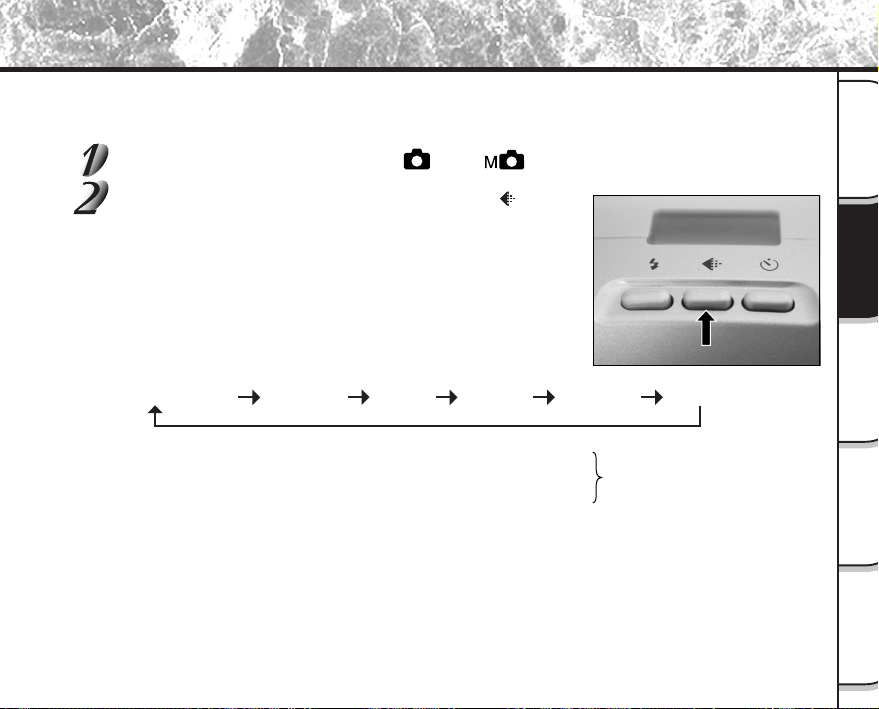
- 43 -
Photographie
de base
Lecture/effacement
des images
Autres
applications
Informations
supplémentaires
Préparation
Réglage de la taille et de la qualité de l’image
Réglez la taille (nombre de pixels) et la qualité (taux de compression) de l’image à photographier.
Changez le réglage en fonction de l’utilisation future de l’image et de l’espace restant dans la carte SmartMedia™.
Réglez la molette de modes sur [ ] ou [ ].
Appuyez sur la touche de réglage de qualité pour
régler la qualité et la taille nécessaires pendant que
vous regardez l’image sur l’afficheur de statut.
Une pression sur la touche de réglage de qualité affiche les qualités
et tailles disponibles dans l’ordre. Sélectionnez une des
combinaisons de qualité et de taille disponibles.
<Qualité> [★★★] FINE (fine) : Compression 1/4 (JPEG)
[★★★] NORMAL (normale) : Compression 1/8 (JPEG) (Image fixe)
[★★★] BASIC (basique) : Compression 1/16 (JPEG)
Plus le nombre d’étoiles augmente, meilleure est la qualité de l’image. Les images de haute
qualité, par contre, occupent plus d’espace dans la mémoire, réduisant ainsi le nombre de
photos pouvant être prises.
<Taille> [FULL] 1792 x 1200 pixels (images fixes).
[HALF] 896 x 600 pixels (images fixes).
Le réglage FULL améliore la qualité de l’image. Les images de haute qualité, par contre,
occupent plus d’espace dans la mémoire, réduisant ainsi le nombre de photos pouvant être
prises.
★★FULL (défaut) ★★★FULL ★FULL★★★HALF★★HALF★HALF
- 44 -
Photographie
de base
Lecture/effacement
des images
Autres
applications
Informations
supplémentaires
Préparation
Réglage de la taille et de la qualité de l’image (suite)
Prenez la photo.
☞
Pour des détails sur la façon de prendre des photos
➲
Prise de vues (
➲
Page 40).
Mémo
• Pour diminuer la taille de l’image, il est plus effectif de réduire la taille, puis de réduire la qualité de
l’image.
• Après avoir pris une photo, vous pouvez changer sa taille (
➲
Page 66) et sa qualité (
➲
Page 68).
• Le volume de données de l’image varie en fonction du sujet.
• Le taux de compression est donné pour référence seulement.
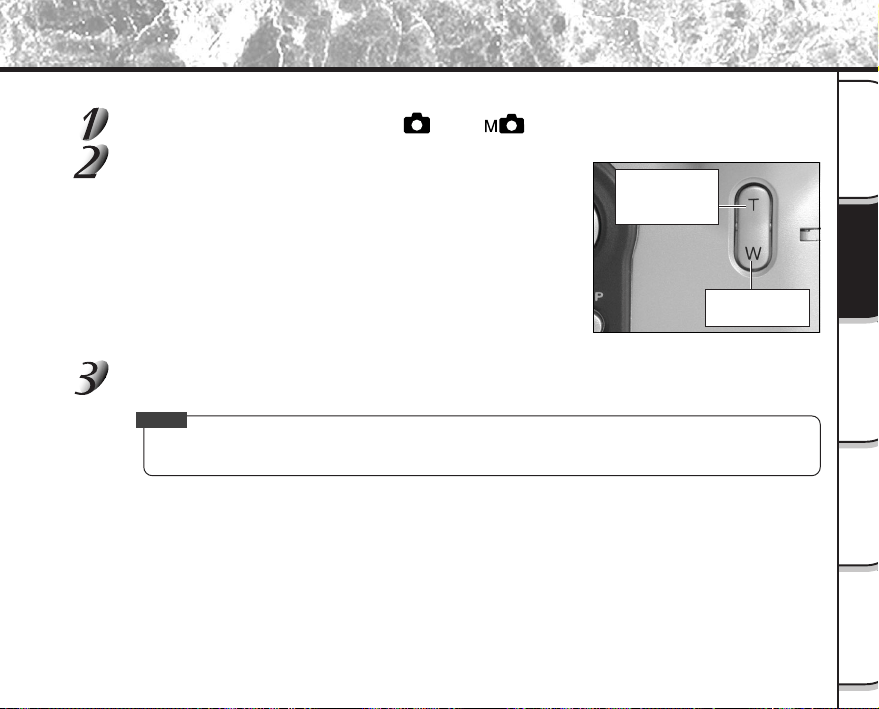
- 45 -
Photographie
de base
Lecture/effacement
des images
Autres
applications
Informations
supplémentaires
Préparation
La prise de vues avec zoom vous permet de prendre des photos au téléobjectif et grand angle.
Réglez la molette de modes sur [ ] ou [ ].
Cadrez à l’aide de la touche de zoom.
• Appuyez sur la touche de téléobjectif (zoom) pour faire un
zooming sur le sujet et l’agrandir sur le moniteur LCD.
• Appuyez sur le côté grand angle pour produire une image plus
large.
• L’objectif se déplace en fonction du réglage de la touche de zoom.
Appuyez sur le déclencheur à mi-course, puis à fond.
➲
Page 37
Mémo
• Le réglage de la touche de mode téléobjectif est annulé automatiquement quand vous mettez l’appareil
hors tension ou activez le mode de veille.
Prise de vues avec zoom
Touche de mode
téléobjectif
(zoom)
Touche de mode
grand angle
- 46 -
Photographie
de base
Lecture/effacement
des images
Autres
applications
Informations
supplémentaires
Préparation
Prise de vues avec zoom numérique
Cette fonction agrandit le centre de l’image affichée à l’écran de telle façon que l’image photographiée paraisse
deux fois plus grande.
Le moniteur LCD s’allume automatiquement dans ce mode. Prenez des photos tout en regardant l’image sur le
moniteur LCD.
Réglez la molette de modes sur [ ] ou [ ].
Appuyez sur la touche .
[ZOOM] est affiché sur le moniteur LCD et le centre de l’écran est agrandi au double de la taille initiale.
Regardez l’image sur le moniteur LCD pour cadrer.
☞
Utilisation du moniteur LCD
➲
Page 34
Appuyez sur le déclencheur à mi-course, puis à fond.
➲
Page 37
Pour annuler la prise de vues avec zoom numérique, appuyez sur la touche .
Mémo
• La taille de l’image est fixée à 896 x 600 pixels.
• La prise de vues avec zoom numérique est annulée automatiquement quand vous mettez l’appareil
hors tension ou activez le mode de veille.
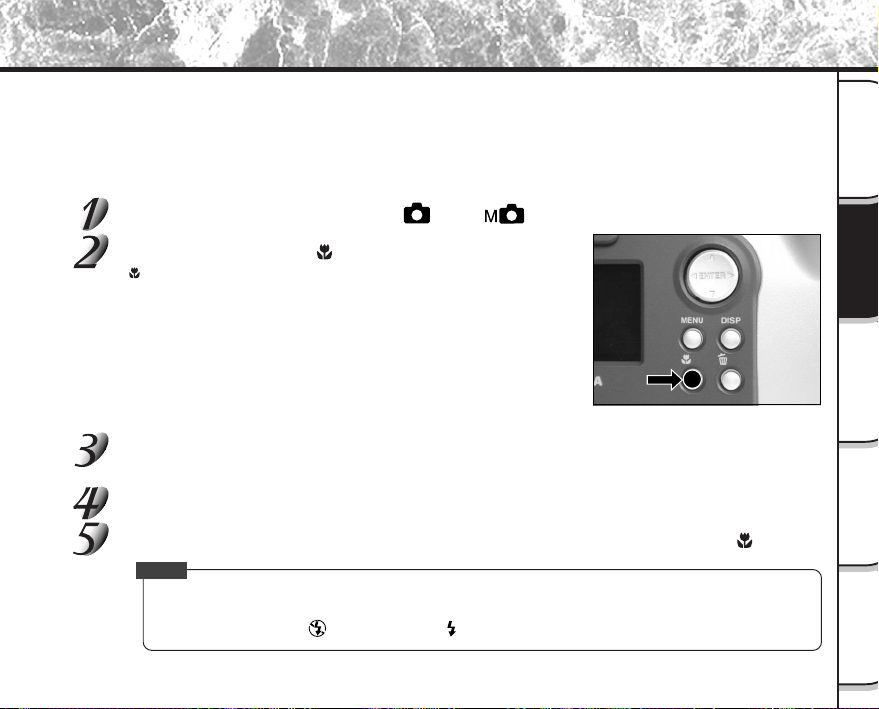
- 47 -
Photographie
de base
Lecture/effacement
des images
Autres
applications
Informations
supplémentaires
Préparation
Prise de vues rapprochée (Prise de vues macro)
Le mode de prise de vues macro est utilisé quand la distance au sujet est comprise entre 5 cm (2 pouces) et
50 cm (20 pouces).
Cet appareil photo ne peut pas faire la mise au point sur des sujets entre 5 cm (2 pouces) et 50 cm (20 pouces) s’il
n’est pas dans le mode de prise de vues macro. N’utilisez pas ce mode pour des sujets en dehors de ces limites.
Dans ce mode, le moniteur LCD s’allume automatiquement. Prenez la photo tout en regardant le moniteur LCD.
Réglez la molette de modes sur [ ] ou [ ].
Appuyez sur la touche .
[ ] est affiché sur le moniteur LCD et l’afficheur de statut.
Regardez l’image sur le moniteur LCD pour cadrer.
☞
Utilisation du moniteur LCD
➲
Page 34
Appuyez sur le déclencheur à mi-course, puis à fond.
➲
Page 37
Pour annuler la prise de vues macro, appuyez de nouveau sur la touche .
Mémo
• Le mode de prise de vues macro n’est pas annulé, même si vous mettez l’appareil photo hors tension
ou si vous activez le mode de veille.
• Seul le flash débrayé [
] et le flash forcé [ ] peuvent être choisis pour la photographie au flash.
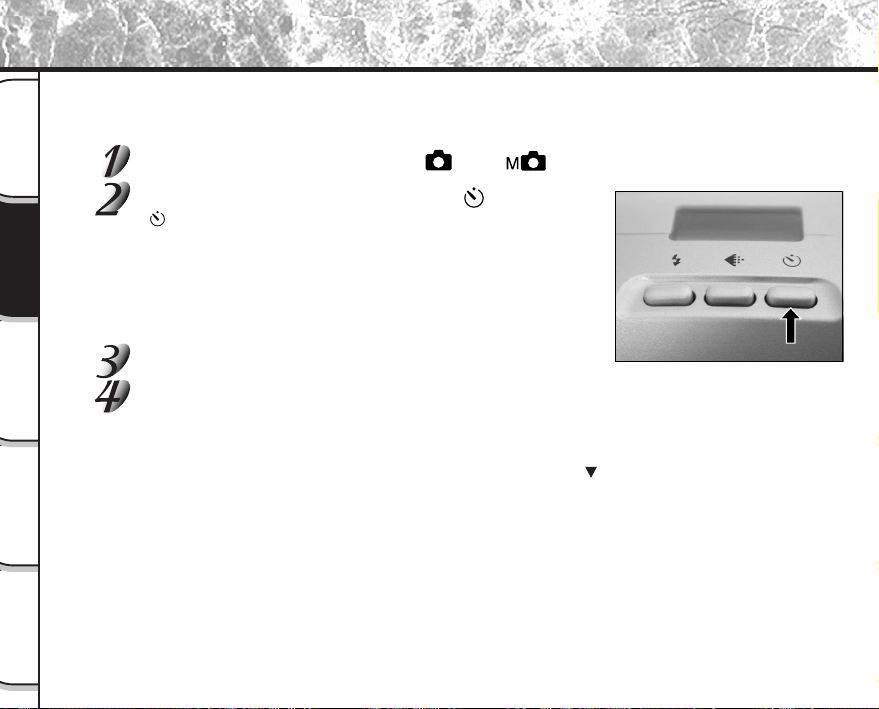
- 48 -
Photographie
de base
Lecture/effacement
des images
Autres
applications
Informations
supplémentaires
Préparation
Quand vous utilisez le retardateur, l’obturateur se ferme automatiquement après le temps préréglé (deux ou dix
secondes).
☞
Changement du temps préréglé avant la prise de vues
➲
Page 61
Réglez la molette de modes sur [ ] ou [ ].
Appuyez sur la touche de retardateur .
[ ] est affiché sur le moniteur LCD et l’afficheur de statut.
Cadrez.
Appuyez sur le déclencheur à mi-course, puis à fond.
➲
Page 37
Le témoin du retardateur s’allume en rouge, puis clignote. La photo est ensuite prise après le temps
préréglé (deux ou dix secondes).
Quand vous prenez des photos avec le moniteur LCD, le décompte est affiché.
Pour annuler la prise de vues à mi-chemin, appuyez sur la touche
.
Prise de vues avec le retardateur
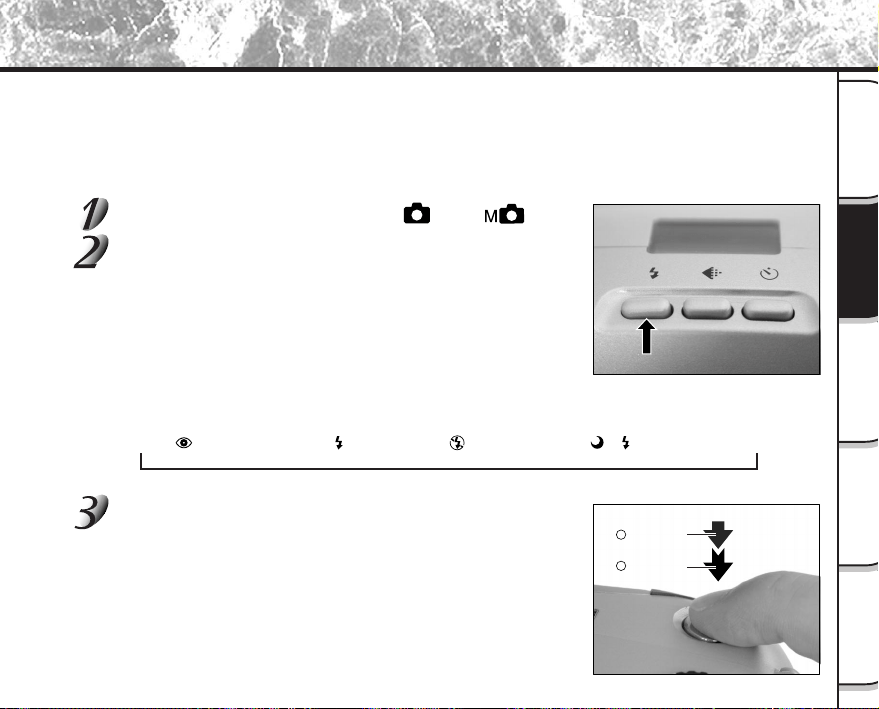
- 49 -
Photographie
de base
Lecture/effacement
des images
Autres
applications
Informations
supplémentaires
Préparation
Prise de vues au flash
➔
Dans le réglage par défaut, le flash sera réglé automatiquement pour fonctionner dans les endroits sombres.
Aucun réglage particulier n’est nécessaire pour déclencher le flash. Le mode de déclenchement du flash peut être
réglé en fonction des conditions de prise de vues.
La portée effective du flash est de 0,5 m (1,65 pieds) à 3 m (9,8 pieds) environ.
Réglez la molette de modes sur [ ] ou [ ].
Appuyez sur la touche de flash pour sélectionner le
mode souhaité tout en regardant l’image sur le
moniteur LCD ou l’afficheur de statut.
Une pression sur la touche de flash affiche les modes flash
disponibles dans l’ordre. L’icône correspondant au mode sélectionné
est affichée sur le moniteur LCD ou l’afficheur de statut.
Auto ➔ [
] Anti-yeux rouges ➔ [ ] Flash forcé ➔ [ ] Flash débrayé ➔ [ ] [ ] Synchronisation lente
Cadrez. Appuyez sur le déclencheur à mi-course 1,
puis à fond 2.
Appuyez à
mi-course.
Appuyez à
fond.
1
2

- 50 -
Photographie
de base
Lecture/effacement
des images
Autres
applications
Informations
supplémentaires
Préparation
Auto
Dans ce mode, le flash se déclenche automatiquement en fonction des conditions de prise de vues. Ce mode est
idéal pour la prise de vues normale quand vous n’essayez pas de créer un effet particulier (quand vous travaillez en
mode macro, le flash ne se déclenche pas).
[ ] Anti-yeux rouges
Utilisez ce mode pour éviter l’effet yeux rouges (
➲
Informations supplémentaires, Glossaire (Page 102)) quand vous
photographiez des personnes dans un endroit sombre.
Le flash émet un éclair préliminaire juste avant que la photo soit prise puis se déclenche de nouveau pour la prise de
vue actuelle.
Les yeux rouges sont réduits plus effectivement si l’appareil photo est dirigé directement vers les yeux du sujet, aussi
près que possible.
[ ] Flash forcé
Dans ce mode, le flash est toujours utilisé. Utilisez ce mode pour prendre des photos sous un éclairage artificiel
(éclairage à l’arrière-plan, éclairage fluorescent, etc.).
Le flash se déclenche aussi pendant la prise de vues en mode macro.
[ ] Flash débrayé
Utilisez ce mode quand vous prenez des photos sous un éclairage d’intérieur à des distances trop grandes pour que
le flash soit effectif, comme pendant un spectacle ou un événement sportif en salle.
[ ] [ ] Synchronisation lente
Le flash se déclenche à une vitesse d’obturation plus lente.
Prise de vues au flash (suite)
- 51 -
Photographie
de base
Lecture/effacement
des images
Autres
applications
Informations
supplémentaires
Préparation
Mémo
• Si vous prenez une photo dans le mode de synchronisation lente [ ] [ ] dans un endroit avec un arrière-plan
sombre ou dans le mode de flash débrayé [
] dans un endroit sombre, la vitesse d’obturation diminuera.
Nous vous conseillons d’utiliser un trépied pour éviter les images confuses occasionnées par les secousses.
• Le réglage du flash n’est pas annulé, même si l’appareil est mis hors tension.
• L’utilisation du flash pendant la prise de vues par rafale et la prise de vues avec la pause B n’est pas possible.
Prise de vues au flash (suite)
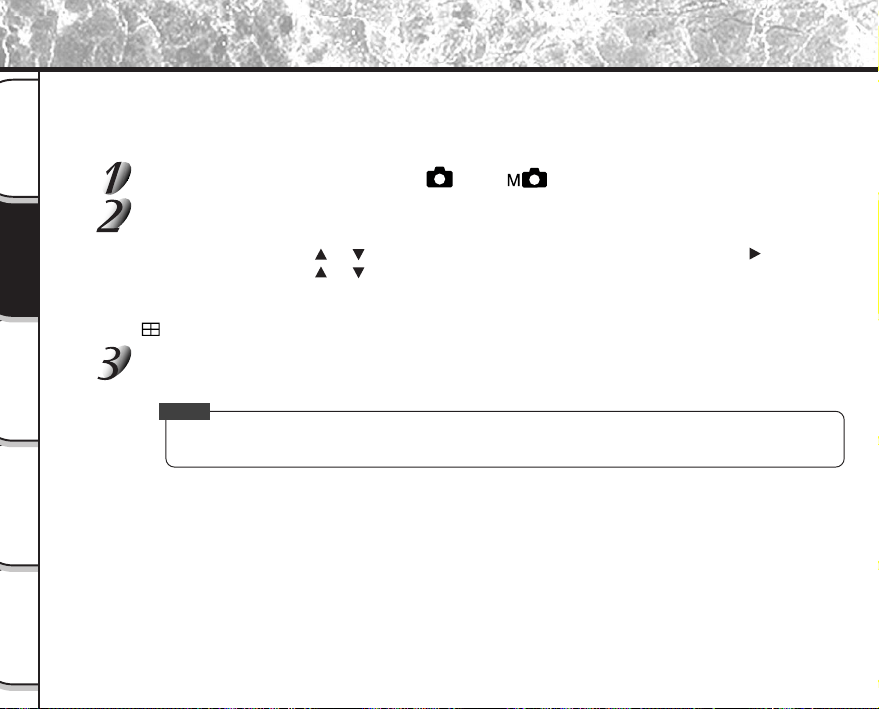
- 52 -
Photographie
de base
Lecture/effacement
des images
Autres
applications
Informations
supplémentaires
Préparation
Ce mode permet la prise de vues continue de 16 images à des intervalles de 0,25 secondes. Les 16 images
photographiées sont sauvegardées comme une seule image (taille FULL: 1792 x 1200 pixels).
Ce mode est effectif pour la prise de vues continue de sujets en mouvement.
Réglez la molette de modes sur [ ] ou [ ].
Réglez le mode de prise de vues sur [MULTI].
1 Appuyez sur la touche MENU.
2 Appuyez sur la touche
ou pour sélectionner [MODE ENR] et appuyez sur la touche .
3 Appuyez sur la touche
ou pour sélectionner [MULTI] et appuyez sur la touche ENTER.
4 Appuyez sur la touche MENU.
☞
Pour les détails sur le mode de prise de vues
➲
Page 59.
est affiché sur le moniteur LCD ou l’afficheur de statut.
Cadrez, appuyez sur le déclencheur à mi-course, puis à fond.
➲
Page 37
L’obturateur s’ouvre et se ferme 16 fois.
Mémo
• L’intervalle de prise de vues change en fonction des conditions de prise de vues.
• La prise de vues au flash n’est pas possible.
Prise de vues multiples

- 53 -
Photographie
de base
Lecture/effacement
des images
Autres
applications
Informations
supplémentaires
Préparation
Ce mode est utilisé pour prendre en photo des sujets nécessitant une longue exposition comme un feu d’artifice la
nuit. Quand vous utilisez ce mode, veillez à utiliser un trépied pour maintenir stable l’appareil photo et éviter les
images déformées.
Réglez la molette de modes sur [ ] ou [ ].
Réglez le mode de prise de vues sur [EXPOSIT].
1 Appuyez sur la touche MENU.
2 Appuyez sur la touche
ou pour sélectionner [MODE ENR] et appuyez sur la touche .
3 Appuyez sur la touche
ou pour sélectionner [EXPOSIT] et appuyez sur la touche ENTER.
4 Appuyez sur la touche MENU.
☞
Pour les détails sur le mode de prise de vues
➲
Page 59.
[
] et [ ] sont affichés sur le moniteur LCD ou l’afficheur de statut.
Cadrez, appuyez sur le déclencheur à mi-course, puis à fond.
➲
Page 37
L’appareil prend la photo au temps d’exposition préréglé.
Pendant l’exposition, le témoin du viseur s’allume en rouge.
Il faut compter environ deux fois le temps préréglé pour que la photo soit prise en raison du traitement
de l’image capturée.
☞
Changez le temps d’exposition
➲
Page 61
Mémo
• La prise de vues au flash est impossible.
Prise de vues avec exposition lente (Pause B)
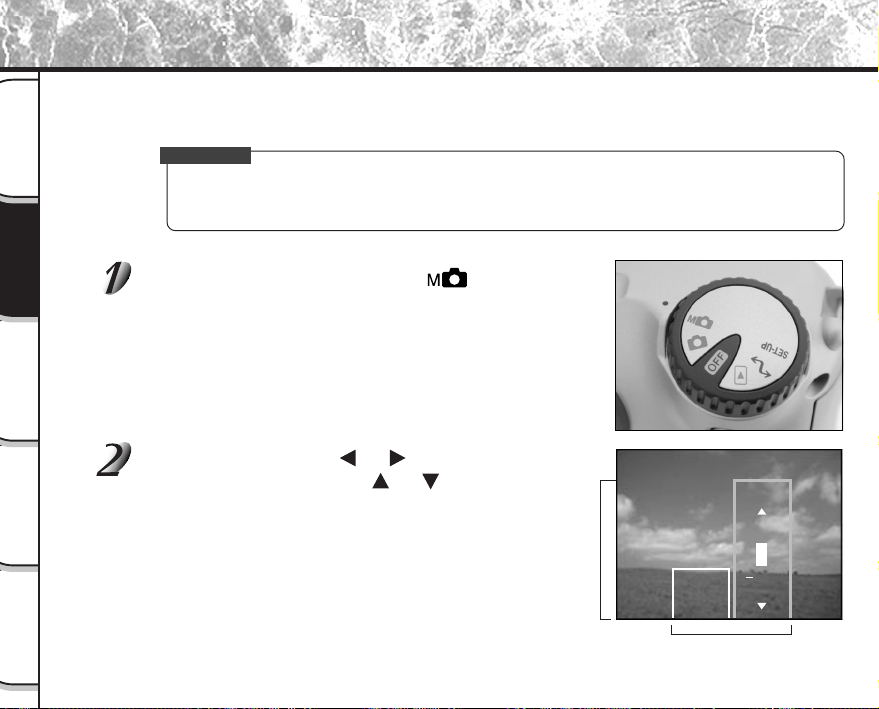
- 54 -
Photographie
de base
Lecture/effacement
des images
Autres
applications
Informations
supplémentaires
Préparation
Vous pouvez ajuster manuellement les paramètres tels que la balance des blancs et la correction d’exposition, et
prendre des photos avec ces réglages. La prise de vues dans ces conditions prend le nom de “prise de vues
manuelle”. Les réglages effectués dans ce mode sont sauvegardés même si l’appareil photo est mis hors tension.
IMPORTANT
• N’enlevez pas et n’insérez pas les accumulateurs, ne branchez pas et ne débranchez pas l’adaptateur
secteur quand l’appareil photo est sous tension. Les réglages de prise de vues manuelle pourraient
revenir à leurs valeurs par défaut. Dans ce cas, réglez de nouveau manuellement les paramètres.
Réglez la molette de modes sur [ ].
L’écran de réglage manuel est affiché.
L’affichage ou le non-affichage de l’écran de réglage manuel est
commuté à chaque pression sur la touche ENTER.
☞
Si le moniteur LCD est difficile à voir
➲
Page 84
Appuyez sur la touche ou pour sélectionner le
paramètre et sur la touche
ou pour
sélectionner la valeur de réglage.
☞
Balance des blancs [B.B.]
➲
Page 56
Correction de l’exposition [I.L.]
➲
Page 56
Prise de vues manuelle
Paramètres
Valeurs de réglage
B.B.
I.L.
+0.3
0.3
AUTO
0
- 55 -
Photographie
de base
Lecture/effacement
des images
Autres
applications
Informations
supplémentaires
Préparation
Prise de vues manuelle (suite)
Appuyez sur la touche ENTER.
Le réglage sera fixé.
L’appareil est prêt à prendre des photos.
Cadrez, appuyez sur le déclencheur à mi-course, puis à fond.
➲
Page 37
L’appareil prend la photo.
Mémo
• La prise de vues est aussi possible avec l’écran de réglage manuel affiché.
- 56 -
Photographie
de base
Lecture/effacement
des images
Autres
applications
Informations
supplémentaires
Préparation
B.B. (Balance des blancs)
☞
Balance des blancs
➲
Informations supplémentaires, Glossaire (Page 102)
L’appareil photo détermine la balance des blancs en pondérant les types de lumière variés pénétrant
dans l’objectif.
Ce paramètre vous permet de régler la balance des blancs tout en prenant des photos dans des
conditions d’éclairage spécifiques.
Ce paramètre est sans effet quand le flash est utilisé pour la prise de vues.
[AUTO] : Réglage automatique (défaut)
[
] : Prise de vue à l’extérieur
[
] : Prise de vue sous un éclairage fluorescent normal
[
] : Prise de vue sous un éclairage fluorescent blanc
[
] : Prise de vue sous un éclairage incandescent
I.L. (Correction de l’exposition)
☞
(I.L.) Correction de l’exposition
➲
Informations supplémentaires, Glossaire (Page 102)
Ce paramètre vous permet d’éclaircir ou d’assombrir l’écran tout entier. Utilisez ce paramètre quand la
luminosité optimale (exposition) ne peut pas être obtenue, par exemple, quand le contraste entre le sujet
et l’arrière-plan est très fort ou quand le sujet à photographier occupe une partie très petite de l’écran.
Augmenter la valeur d’exposition éclaircit l’écran, tandis que la diminuer assombrit l’écran.
[+1.5/+1.2/+0.9/+0.6/+0.3/0 (défaut)/–0.3/–0.6/–0.9/–1.2/–1.5]
La luminosité idéale ne peut parfois pas être obtenue même si une valeur d’exposition relativement
élevée est choisie lors d’une prise de vues dans un endroit sombre.
De même, la luminosité des images en mouvement avant qu’elles soient photographiées ne change
parfois pas si le sujet lui-même est sombre. Dans ce cas, appuyez sur le déclencheur et vérifiez la
luminosité de l’image prévisualisée (image photographiée fixe).
(Prise de vue prévisualisée
➲
Page 60)
Prise de vues manuelle (suite)
- 57 -
Photographie
de base
Lecture/effacement
des images
Autres
applications
Informations
supplémentaires
Préparation
Prise de vues manuelle (suite)
Sujets et valeurs de réglage effectifs
● Correction positive (+)
• Copie de texte imprimé (caractères noirs sur papier blanc) (+1.5)
• Portraits avec éclairage arrière (+0.6 à +1.5)
• Scènes très lumineuses (tels que des endroits enneigés) et sujets très réfléchissants (+0.9)
• Vues représentant principalement le ciel (+0.9)
● Correction négative (–)
• Sujets éclairés par un projecteur, tout particulièrement sur un fond sombre (–0.6)
• Copie de texte imprimé (caractères blancs sur papier noir) (–0.6)
• Scènes peu réfléchissantes, telles que des vues de verdure ou de feuillages sombres (–0.6)
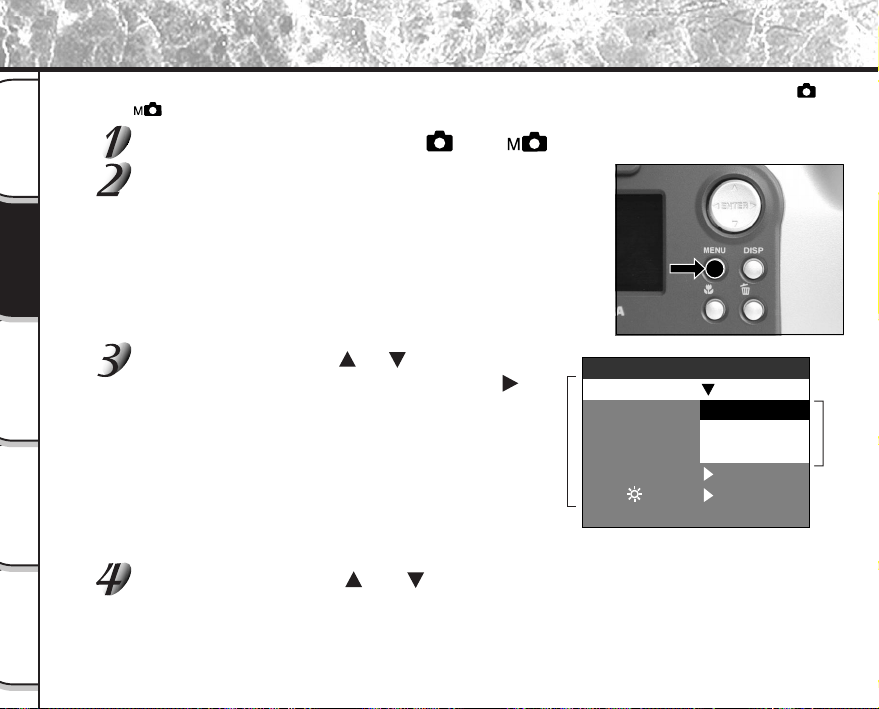
- 58 -
Photographie
de base
Lecture/effacement
des images
Autres
applications
Informations
supplémentaires
Préparation
Changement des préréglages (MENU ENR)
Ce menu est utilisé pour régler les paramètres de base pour la prise de vues dans les modes automatique [ ] et
manuel [
].
Réglez la molette de modes sur [ ] ou [ ].
Appuyez sur la touche MENU.
Le menu MENU ENR est affiché.
Appuyez sur la touche ou pour sélectionner
le paramètre souhaité 1 et sur la touche [
].
Le menu d’onglets 2 est affiché.
L’image avant la prise de vues est affichée sur le moniteur
LCD.
☞
MODE ENR
➲
Page 59
APERÇU
➲
Page 60
ISO
➲
Page 60
EXPOSIT
➲
Page 61
RETARDAT
➲
Page 61
LCD
➲
Page 61
Appuyez sur la touche [ ] ou [ ] pour sélectionner le réglage souhaité dans le
menu d’onglets 2 et appuyez sur la touche ENTER.
Les réglages seront validés et l’affichage reviendra au menu MENU ENR.
2 Menu d’onglets
1 Paramètre
APERÇU
ISO
LCD
EXPOSIT
RETARDAT
10 SEC
DEFINIR
MULTI
EXPOSIT
1
PRISE
MENU ENR
MODE ENR 1
PRISE
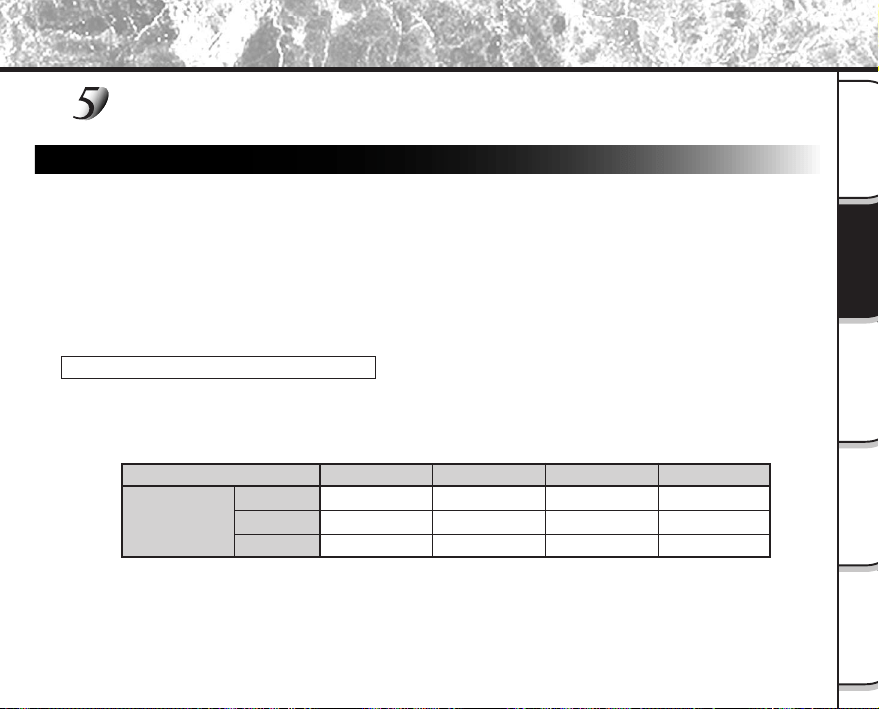
- 59 -
Photographie
de base
Lecture/effacement
des images
Autres
applications
Informations
supplémentaires
Préparation
Pour quitter MENU ENR, appuyez sur la touche MENU.
L’appareil est maintenant prêt à prendre des photos.
MODE ENR
Sélectionnez un des modes de prise de vues suivants:
[1PRISE], [MULTI] et [EXPOSIT] sont des modes pour l’enregistrement d’images fixes.
[1PRISE] :Prise de vues normale, une vue à la fois (défaut)
➲
“Prise de vues” (page 40)
[MULTI] :Prise de vues continue de 16 images comme une seule vue
➲
“Prise de vues multiples” (page 52)
[EXPOSIT] :Prise de vues avec un temps d’exposition plus long
➲
“Prise de vues avec exposition lente” (page 53)
Mode de prise de vues et fonctions
Vous pouvez combiner des modes de prise de vues et des fonctions variées pour plus de flexibilité.
Le tableau suivant indique les combinaisons possibles des fonctions des modes de prise de vues:
Changement des préréglages (MENU ENR) (suite)
1PRISE
MULTI
EXPOSIT
O : Possible
X : Impossible
Macro
O
O
O
Retardateur
O
O
O
Zoom numérique
O
O
O
Flash
O
X
X
Mode de prise
de vues
- 60 -
Photographie
de base
Lecture/effacement
des images
Autres
applications
Informations
supplémentaires
Préparation
Changement des préréglages (MENU ENR) (suite)
APERÇU (prévisualisation)
Ce réglage vous permet d’afficher une image photographiée sur le moniteur LCD pendant deux
secondes immédiatement après la prise de vues.
Vous pouvez ainsi vérifier la composition et la luminosité de l’image photographiée.
Pour annuler la prévisualisation, appuyez de nouveau sur le déclencheur à mi-course.
[ACTIVE] : Afficher la prévisualisation (défaut)
[DESACT] : Ne pas afficher la prévisualisation
ISO
Pour régler le mode de couleur et la sensibilité photographique pour l’enregistrement de l’image.
La prise de vues au flash n’est pas possible quand la sensibilité photographique est réglée sur [ISO200]
[ISO400].
Avertissement : Le bruit augmente quand l’ISO est réglé sur une valeur plus grande.
[ISO100] : Équivalente à 100 ISO couleur (défaut)
[ISO200] : Haute sensibilité photographique équivalente à 200 ISO couleur
[ISO400] : Haute sensibilité photographique équivalente à 400 ISO couleur
[N&B] : Noir et blanc
- 61 -
Photographie
de base
Lecture/effacement
des images
Autres
applications
Informations
supplémentaires
Préparation
Changement des préréglages (MENU ENR) (suite)
EXPOSIT (pause B)
Pour régler le temps d’exposition quand vous prenez des photos avec la pause B (
➲
Page 53).
[1
SEC] : Ouverture de l’obturateur pendant 1 seconde environ (défaut)
[2
SEC] : Ouverture de l’obturateur pendant 2 secondes environ
RETARDAT (retardateur)
Pour régler le délai lors de la prise de vues une fois que vous avez appuyé sur le déclencheur en mode
de prise de vues avec retardateur (
➲
Page 48).
[10
SEC] : Photo prise après un délai de 10 secondes (défaut)
[2
SEC] : Photo prise après un délai de 2 secondes
LCD
Pour régler la luminosité du moniteur LCD. Ce paramètre ne permet pas d’ajuster la luminosité de
l’image à enregistrer.
[–5] à [+5]
☞
Pour ajuster la luminosité du moniteur LCD
➲
Page 84

- 62 -
Photographie
de base
Lecture/effacement
des images
Autres
applications
Informations
supplémentaires
Préparation
Lecture des images photographiées (Lecture vue par vue)
Pour reproduire les images fixes photographiées une image à la fois.
Réglez la molette de modes sur [ ].
La dernière image apparaît sur le moniteur LCD.
☞
Pour ajuster la luminosité du moniteur LCD
➲
Page 84
Changement de l’affichage du moniteur LCD
➲
Page 85
Appuyez sur la touche ou pour vous déplacer vers l’avant ou l’arrière.
Retour en arrière /Avance
Appuyez en continu sur la touche ou pour vous déplacer vers l’avant ou vers l’arrière en continu,
une image à la fois.
Mémo
• Si vous appuyez sur la touche quand la dernière image est affichée, la première image apparaîtra et
si vous appuyez sur la touche
quand la première image est affichée, la dernière image apparaîtra.
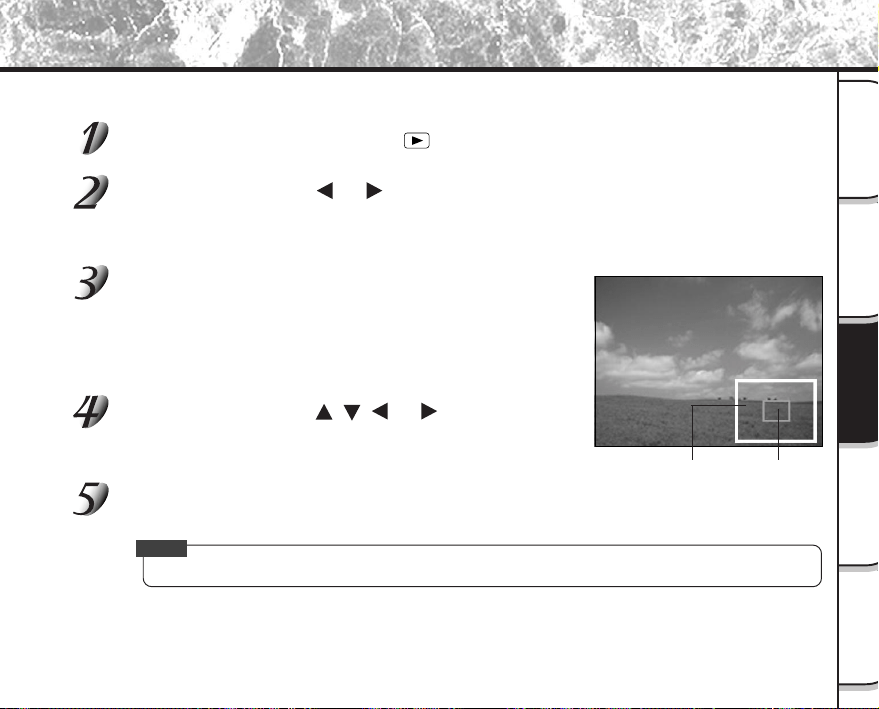
- 63 -
Photographie
de base
Lecture/effacement
des images
Autres
applications
Informations
supplémentaires
Préparation
Agrandissement d’images photographiées (Lecture avec zoom)
Agrandit des parties sélectionnées des images reproduites à 3 fois leur taille d’origine. Les images peuvent être
affichées agrandies quand vous les reproduisez une à la fois.
Réglez la molette de modes sur [ ].
La dernière image apparaît sur le moniteur LCD.
Appuyez sur la touche ou pour sélectionner la vue que vous souhaitez
agrandir.
Vous pouvez aussi sélectionner l’image en suivant la même procédure que pour la lecture d’images
réduites (
➲
Page 64).
Agrandissez l’image avec la touche de zoom.
Une pression sur la touche de téléobjectif (zoom) augmente le taux
d’agrandissement à 3X.
L’image est affichée agrandie avec un cadre blanc et un cadre vert
sur le moniteur LCD.
Le cadre blanc indique l’image toute entière, tandis que le cadre vert
indique l’emplacement de la zone agrandie.
Appuyez sur la touche , , ou pour
sélectionner la zone à agrandir.
Ajustez la zone d’affichage à agrandir tout en regardant les cadres
blanc et vert.
Pour revenir à l’affichage normal, appuyez sur la touche ENTER.
Mémo
• La fonction de lecture avec zoom ne peut pas être utilisée sur le téléviseur.
Image toute entière Position
actuelle de
la zone
agrandie
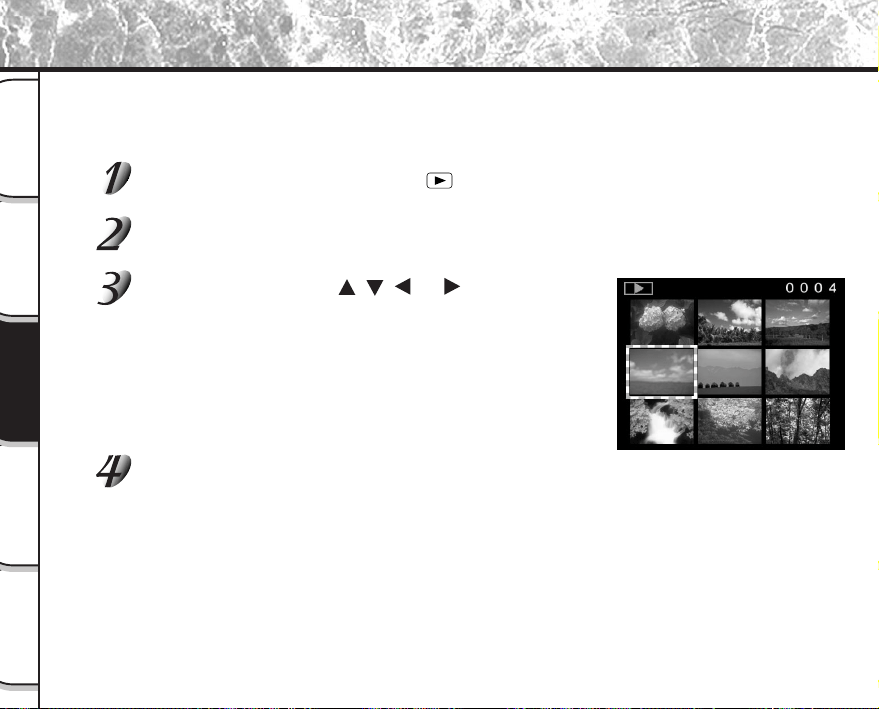
- 64 -
Photographie
de base
Lecture/effacement
des images
Autres
applications
Informations
supplémentaires
Préparation
Affichage d’une liste d’images (Affichage d’images réduites)
Cette fonction permet d’afficher en même temps neuf images réduites sur le moniteur LCD. Ce type d’affichage est
appelé “affichage d’images réduites” dans ce mode d’emploi.
Cette fonction est utile, par exemple, quand il y a de nombreuses images. Après avoir affiché les images réduites,
vous pouvez sélectionner l’image souhaitée et l’afficher normalement.
Réglez la molette de modes sur [ ].
La dernière image apparaît sur le moniteur LCD.
Appuyez sur la touche ENTER.
Neuf images sont affichées simultanément.
Appuyez sur la touche , , ou pour déplacer le
curseur sur l’image à afficher à la taille normale.
Le curseur s’arrête sur l’image entourée d’un cadre. Appuyez en
continu sur ces touches pour déplacer le curseur sans interruption.
Appuyez sur la touche ENTER.
L’image sélectionnée est affichée à la taille normale.
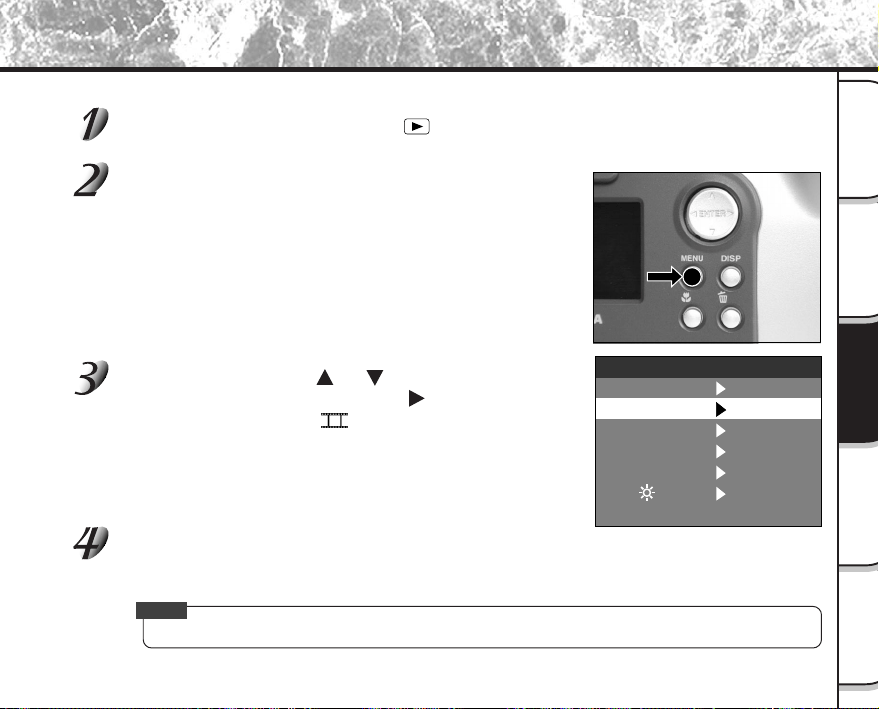
- 65 -
Photographie
de base
Lecture/effacement
des images
Autres
applications
Informations
supplémentaires
Préparation
Lecture automatique (Diaporama)
Cette fonction permet de lire les images automatiquement, une à la fois, dans un ordre donné.
Réglez la molette de modes sur [ ].
La dernière image apparaît sur le moniteur LCD.
Appuyez sur la touche MENU.
Le menu MENU LECT est affiché.
Appuyez sur la touche ou pour sélectionner
[DIAPO] et appuyez sur la touche
.
Le diaporama commence et [ ] est affiché sur le moniteur
LCD.
L’image suivante est affichée chaque trois secondes.
Pour quitter le diaporama, appuyez sur la touche ENTER.
Le moniteur LCD affiche l’image quand vous appuyez sur la touche ENTER.
Le diaporama recommence jusqu’à ce que vous appuyez sur la touche ENTER.
Mémo
• La fonction de veille ne peut pas être activée pendant la lecture automatique.
DIAPO
PROTEGER
LCD
TAILLE
QUALITE
DEFINIR
MENU LECT
DOSSIER
DEFINIR
DEFINIR
DEFINIR
DEFINIR
DEFINIR
➡
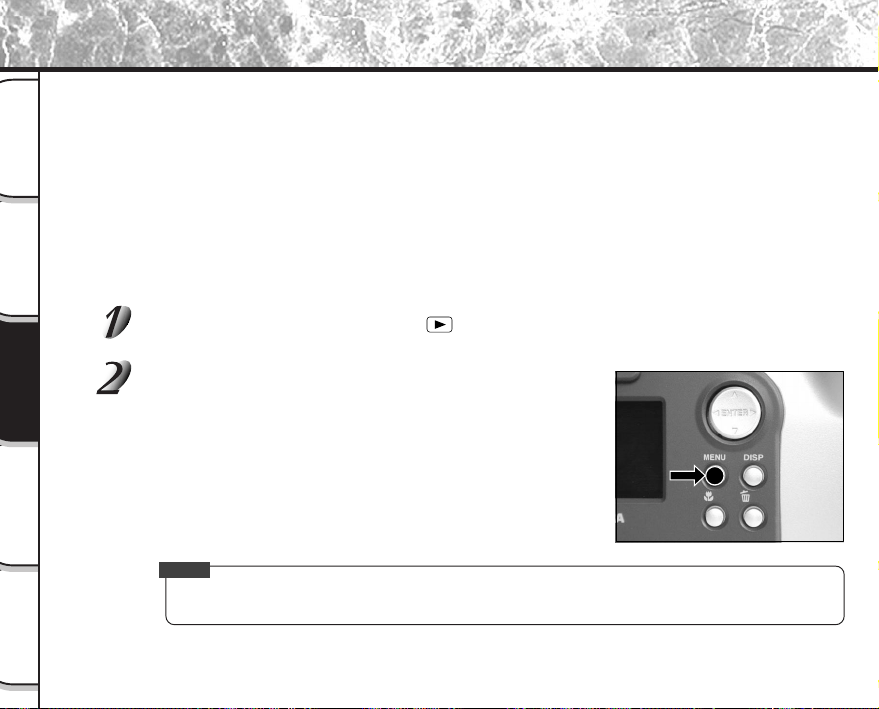
- 66 -
Photographie
de base
Lecture/effacement
des images
Autres
applications
Informations
supplémentaires
Préparation
Réduction de la taille de l’image (Changement de taille)
Cette fonction permet de réduire de moitié la taille des images de FULL (1792 x 1200 pixels) à HALF (896 x 600
pixels) dans le sens vertical et horizontal, et remplacer l’ancienne image à la taille FULL par l’image à la nouvelle
taille. Cette opération est appelée “changement de taille” dans le présent mode d’emploi.
Le changement de taille d’une image sauvegardée quand la carte SmartMedia™ est à court d’espace de stockage
pendant la prise de vues augmente l’espace disponible sur la carte SmartMedia™ de telle façon que vous puissiez
continuer à prendre des photos.
La taille des images suivantes ne peut pas être changée:
• Images de taille HALF
• Images enregistrées avec un autre appareil photo
• Images protégées (
➲
Page 76)
• La taille des images ne peut pas être changée non plus quand la carte SmartMedia™ est protégée
contre l’écriture.
Réglez la molette de modes sur [ ].
La dernière image apparaît sur le moniteur LCD.
Appuyez sur la touche MENU.
Le menu MENU LECT est affiché.
Mémo
• Seules les images à la taille FULL (1792 x 1200 pixels) peuvent être réduites. Une réduction des
images à partir de la taille HALF (896 x 600 pixels) est impossible.
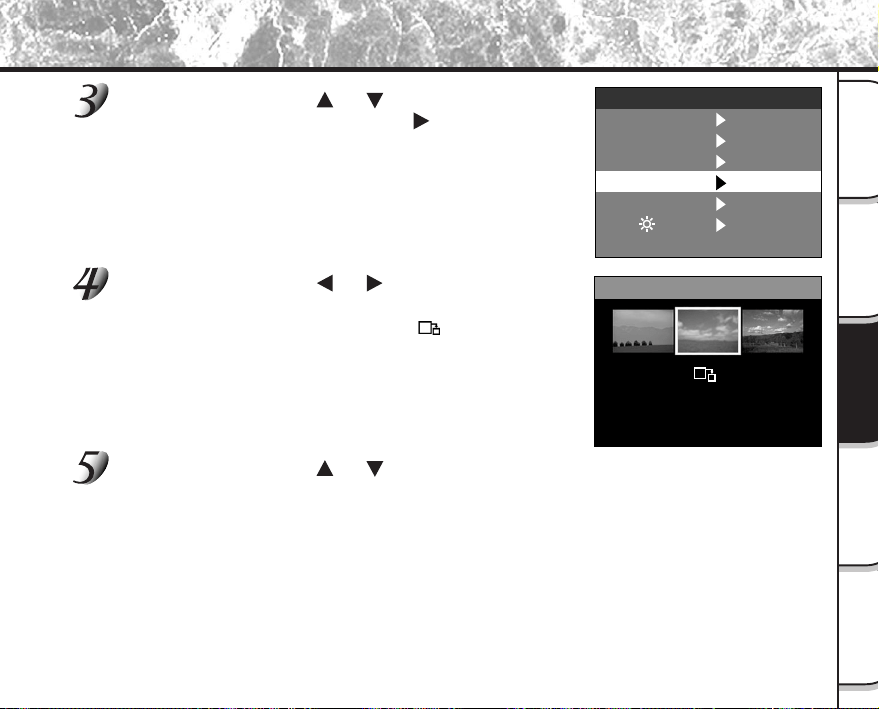
- 67 -
Photographie
de base
Lecture/effacement
des images
Autres
applications
Informations
supplémentaires
Préparation
Réduction de la taille de l’image (Changement de taille) (suite)
Appuyez sur la touche ou pour sélectionner
[TAILLE] et appuyez sur la touche
.
Le menu TAILLE est affiché.
Si aucune image ne peut être réduite, un message apparaîtra à
l’écran et l’écran reviendra au menu MENU LECT.
Appuyez sur la touche ou pour sélectionner
l’image et appuyez sur la touche ENTER.
Le choix de l’image à afficher est validé, et [ ] est affiché sous
l’image.
Pour annuler la sélection, appuyez de nouveau sur la touche ENTER.
Si vous souhaitez changer la taille de deux images ou plus, répétez
la procédure pour chaque image.
Appuyez sur la touche ou pour sélectionner
[EXECUT] et appuyez sur la touche ENTER.
L’écran indiquant que l’image est en train d’être réduite apparaît.
Pour annuler le changement de taille, sélectionnez [ANNUL].
Quand le changement de taille est terminé, l’écran revient au menu
MENU LECT.
Pour quitter MENU LECT, appuyez sur la touche MENU.
DIAPO
PROTEGER
LCD
TAILLE
QUALITE
DEFINIR
MENU LECT
DOSSIER
DEFINIR
DEFINIR
DEFINIR
DEFINIR
DEFINIR
➡
TAILLE
ANNUL
EXECUT
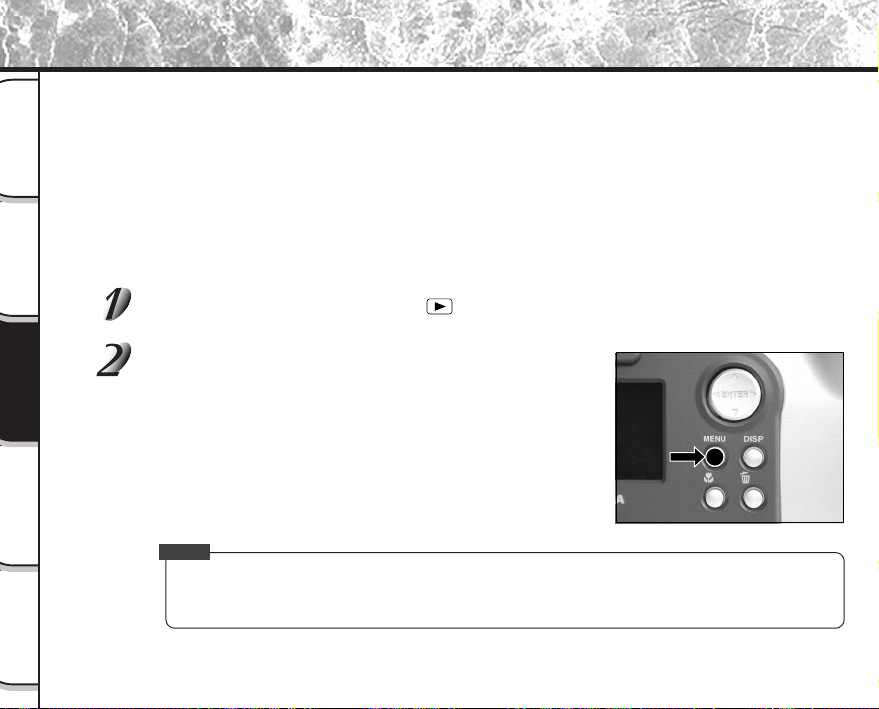
- 68 -
Photographie
de base
Lecture/effacement
des images
Autres
applications
Informations
supplémentaires
Préparation
Compression des images (Qualité)
Cette fonction permet de comprimer de moitié la taille des images et de remplacer l’image à la taille précédente
par une nouvelle image comprimée.
La compression d’une image sauvegardée quand la carte SmartMedia™ est à court d’espace de stockage
pendant la prise de vues augmente l’espace disponible sur la carte SmartMedia™ de telle façon que vous puissiez
continuer à prendre des photos.
Les images suivantes ne peuvent pas être comprimées :
• Images dont la qualité est [★] (BASIC (basique))
• Images enregistrées avec un autre appareil photo
• Images protégées (
➲
Page 76)
• Les images ne peuvent pas non plus être comprimées quand la carte SmartMedia™ est protégée
contre l’écriture.
Réglez la molette de modes sur [ ].
La dernière image apparaît sur le moniteur LCD.
Appuyez sur la touche MENU.
Le menu MENU LECT est affiché.
Mémo
• La compression des images peut être accomplie seulement dans l’ordre suivant :
★★★(FINE (fine)) ➔ ★★(NORMAL (normale)) ➔ ★(BASIC (basique)).
L’inverse n’est pas possible.
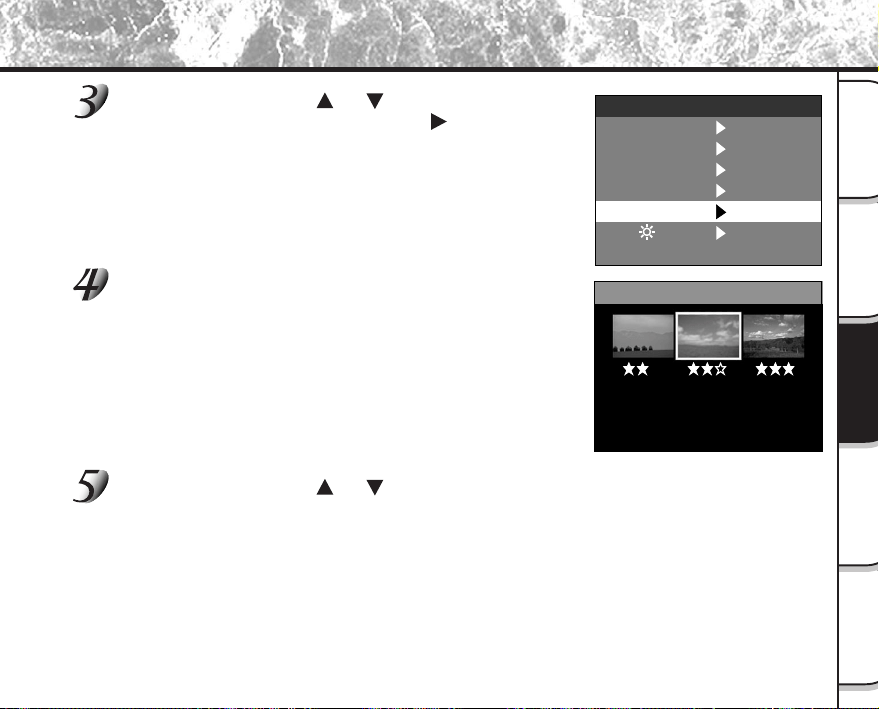
- 69 -
Photographie
de base
Lecture/effacement
des images
Autres
applications
Informations
supplémentaires
Préparation
Compression des images (Qualité) (suite)
Appuyez sur la touche ou pour sélectionner
[QUALITE] et appuyez sur la touche
.
Le menu QUALITE est affiché.
Si aucune image ne peut être comprimée, un message apparaît à
l’écran et l’écran revient au menu MENU LECT.
Le taux de compression actuel (qualité) est affiché
sous l’image.
À chaque pression sur la touche ENTER, le nombre d’étoiles change
de la façon suivante :
[★★] NORMAL (normale)
[★] BASIC (basique)
☞
Détails sur le taux de compression
➲
Page 43
Si vous souhaitez comprimer deux images ou plus, répétez la
procédure pour chaque image.
Appuyez sur la touche ou pour sélectionner
[EXECUT] et appuyez sur la touche ENTER.
L’écran indiquant que l’image est en train d’être comprimée apparaît.
Pour annuler la compression, sélectionnez [ANNUL].
Quand la compression est terminée, l’écran revient au menu MENU
LECT.
Pour quitter MENU LECT, appuyez sur la touche MENU.
DIAPO
PROTEGER
LCD
TAILLE
QUALITE
DEFINIR
MENU LECT
DOSSIER
DEFINIR
DEFINIR
DEFINIR
DEFINIR
DEFINIR
➡
QUALITE
ANNUL
EXECUT
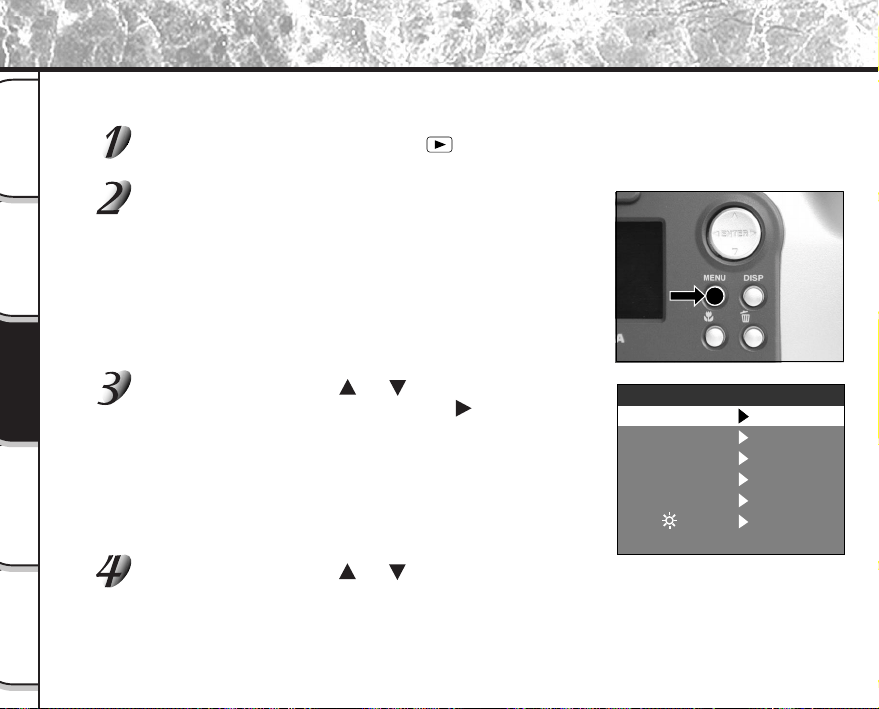
- 70 -
Photographie
de base
Lecture/effacement
des images
Autres
applications
Informations
supplémentaires
Préparation
Cette fonction permet de choisir le dossier à lire quand la carte SmartMedia™ en place contient deux dossiers ou
plus.
Réglez la molette de modes sur [ ].
La dernière image ou l’affichage d’images réduites apparaît sur le moniteur LCD.
Appuyez sur la touche MENU.
Le menu MENU LECT est affiché.
Appuyez sur la touche ou pour sélectionner
[DOSSIER] et appuyez sur la touche
.
Les noms des dossiers contenus dans la carte SmartMedia™ en
place dans l’appareil photo sont affichés.
Appuyez sur la touche ou pour sélectionner le dossier à afficher et appuyez
sur la touche ENTER.
Choix du dossier à lire
DIAPO
PROTEGER
LCD
TAILLE
QUALITE
DEFINIR
MENU LECT
DOSSIER
DEFINIR
DEFINIR
DEFINIR
DEFINIR
DEFINIR
➡
- 71 -
Photographie
de base
Lecture/effacement
des images
Autres
applications
Informations
supplémentaires
Préparation
À propos des noms de dossier
Les images photographiées sur cet appareil photo sont enregistrées dans un dossier. Vous ne pouvez
pas choisir le dossier dans lequel enregistrer les images comme vous le souhaitez. Le dossier [100] est
créé quand vous avez des images fixes. Quand le numéro d’images atteint le nombre maximal (9999),
un nouveau dossier [101] est créé automatiquement.
Quand il y a deux dossiers [xxx] ou plus, le dossier de lecture par défaut est le dossier portant la valeur
"xxx" la plus élevée.
Mémo
• Lors de l’utilisation de la carte SmartMedia™ dans votre ordinateur, apparaîtra un dossier [xxxTOSHI].
Choix du dossier à lire (suite)
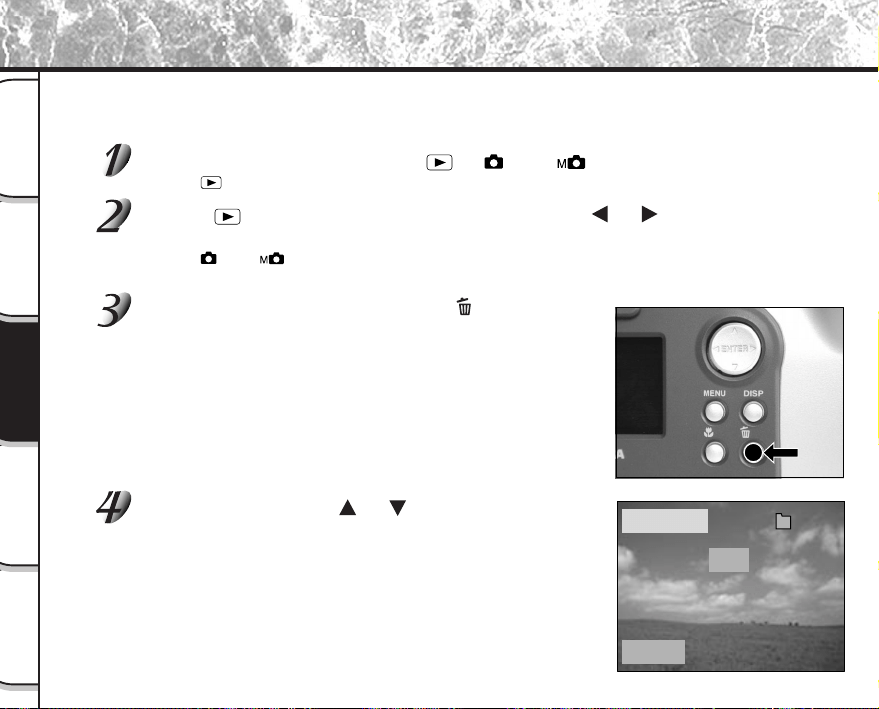
- 72 -
Photographie
de base
Lecture/effacement
des images
Autres
applications
Informations
supplémentaires
Préparation
Cette fonction permet d’effacer les images une par une.
Notez cependant que les images ne peuvent pas être effacées quand elles sont protégées (
➲
Page 76) ou quand
la carte SmartMedia™ est protégée contre l’écriture (
➲
Page 32).
Réglez la molette de modes sur [ ], [ ] ou [ ].
Quand [ ] est sélectionné, la dernière image apparaît sur le moniteur LCD.
Quand [ ] est sélectionné, appuyez sur la touche ou pour sélectionner
l’image à effacer.
Quand [ ] ou [ ] est sélectionné, la dernière image est
sélectionnée.
Appuyez sur la touche d’effacement .
[TRAME] ou [DERNIER] est affiché en bas et à gauche de l’écran.
Appuyez sur la touche ou pour sélectionner
[OUI] et appuyez sur la touche ENTER.
L’image est effacée et l’appareil photo revient au mode précédent.
Pour annuler l’effacement des données d’image, sélectionnez [NON]
et appuyez sur la touche ENTER.
Effacement des images (effacement d’une image)
EFFACER
TRAME
OUI
100
0004
NON
- 73 -
Photographie
de base
Lecture/effacement
des images
Autres
applications
Informations
supplémentaires
Préparation
Pour continuer à effacer des images, répétez la procédure ci-dessus à partir de
l’étape 2.
Mémo
• Quand [ PROTEGEE!!!] est affiché sur le moniteur LCD, annulez la protection (
➲
Page 76).
• Si vous prenez une photo après avoir effacé une image, le numéro suivant le numéro de la dernière
photo prise lui sera attribué comme numéro d’image.
Effacement des images (effacement d’une image) (suite)
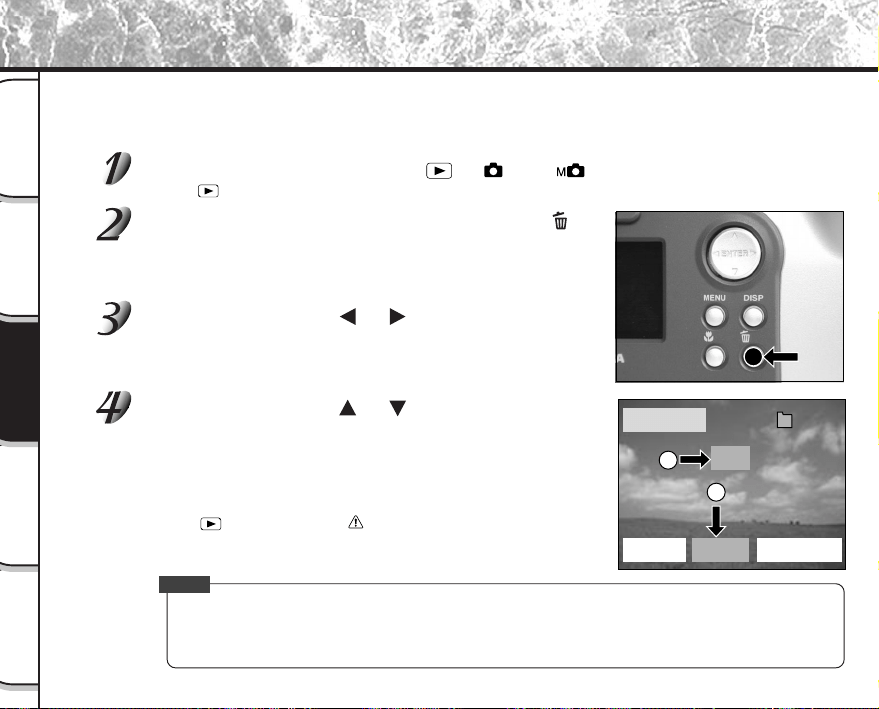
- 74 -
Photographie
de base
Lecture/effacement
des images
Autres
applications
Informations
supplémentaires
Préparation
Cette fonction permet d’effacer toutes les images du dossier sélectionné.
Pour des détails sur les dossiers, voir “Choix du dossier à lire”
➲
Page 70.
Notez cependant que les images ne peuvent pas être effacées quand elles sont protégées (
➲
Page 76) ou quand
la carte SmartMedia™ est protégée contre l’écriture (
➲
Page 32).
Réglez la molette de modes sur [ ], [ ] ou [ ].
Quand [ ] est sélectionné, la dernière image apparaît sur le moniteur LCD.
Appuyez en continu sur la touche d’effacement
pendant deux secondes.
Le menu EFFACER est affiché.
Appuyez sur la touche ou pour sélectionner
[TOUT] 1.
Assurez-vous que [TOUT] en bas et au centre de l’image est affiché
en jaune.
Appuyez sur la touche ou pour sélectionner
[OUI] 2 et appuyez sur la touche ENTER.
Les images sont effacées et l’appareil photo revient au mode
précédent.
Pour annuler l’effacement des données d’image, sélectionnez [NON]
et appuyez sur la touche ENTER.
Quand [
] est sélectionné, [ PAS D’IMAGE] est affiché après
l’effacement des images (à moins que la carte SmartMedia™
contienne des images protégées).
Mémo
• Si vous effectuez l’opération EFFACER TOUT, le dossier contenant les images est effacé aussi. Pour ne
pas effacer le dossier lui-même, effacer les images une à une.
• Pour effacer les images d’un autre dossier, spécifiez le dossier avec [DOSSIER] et effacez les images
(
➲
Page 70).
Effacement de toutes les images d’un dossier (tout effacer)
EFFACER
TRAME
TOUT FORMAT
OUI
100
0004
NON
2
1
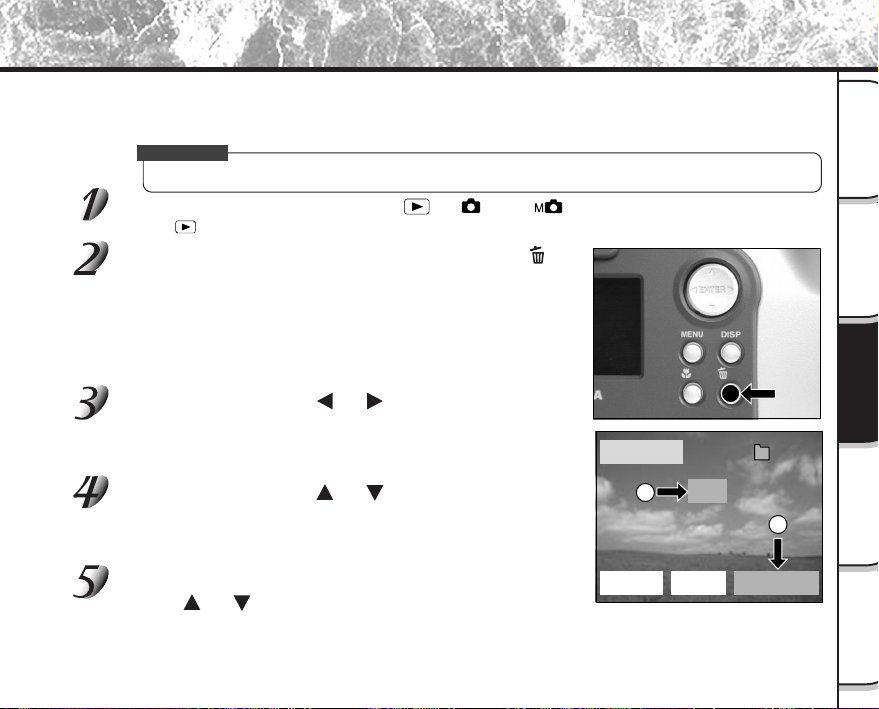
- 75 -
Photographie
de base
Lecture/effacement
des images
Autres
applications
Informations
supplémentaires
Préparation
Le formatage efface toutes les images actuellement enregistrées sur la carte SmartMedia™ en place dans
l’appareil photo. Les images protégées (
➲
Page 76) sont aussi effacées. La carte SmartMedia™ ne peut pas être
formatée si elle est protégée contre l’écriture (
➲
Page 32).
IMPORTANT
• La carte SmartMedia™ doit être formatée sur l’appareil photo avant d’être utilisée.
Réglez la molette de modes sur [ ], [ ] ou [ ].
Quand [ ] est sélectionné, la dernière image apparaît sur le moniteur LCD.
Appuyez en continu sur la touche d’effacement
pendant deux secondes.
Le menu EFFACER est affiché.
Appuyez sur la touche ou pour sélectionner
[FORMAT] 1.
Assurez-vous que [FORMAT] est affiché en jaune au bas et à droite
de l’écran.
Appuyez sur la touche ou pour sélectionner
[OUI] 2 et appuyez sur la touche ENTER.
Pour annuler le formatage, sélectionnez [NON] et appuyez sur la
touche ENTER.
Pour réinitialiser les numéros d’image, appuyez sur la
touche
ou pour sélectionner [OUI] et appuyez
sur la touche ENTER.
Pour annuler la réinitialisation des numéros d’image, sélectionnez
[NON] et appuyez sur la touche ENTER.
Formatage de la carte SmartMedia™
EFFACER
TRAME
TOUT FORMAT
OUI
100
0004
NON
2
1
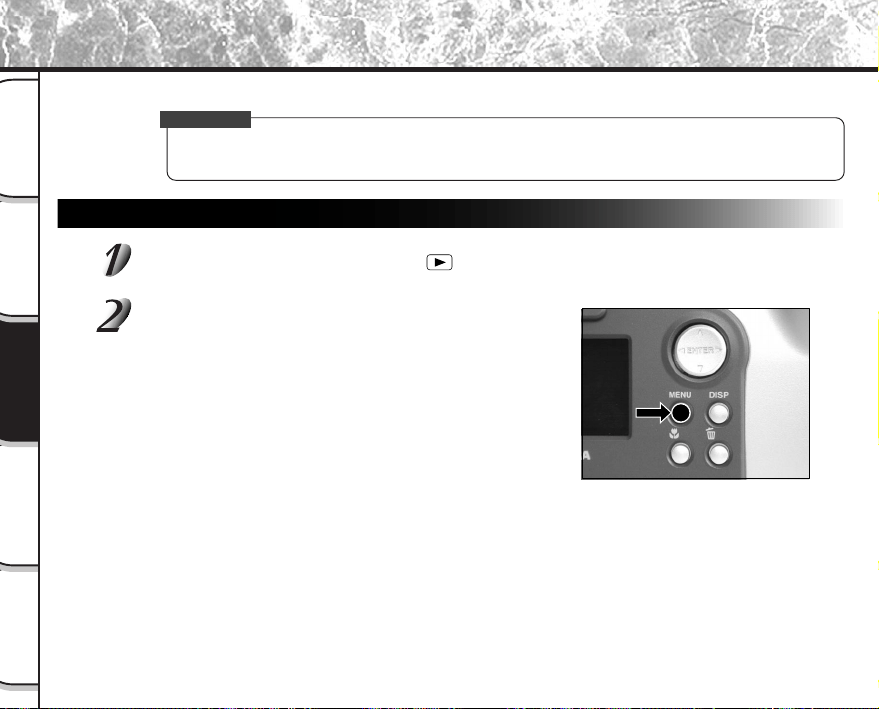
- 76 -
Photographie
de base
Lecture/effacement
des images
Autres
applications
Informations
supplémentaires
Préparation
Cette fonction protège les images contre l’effacement.
IMPORTANT
• Le formatage efface toutes les images d’une carte SmartMedia™, qu’elles soient protégées ou non.
• Pour protéger toute la carte SmartMedia™, voir “Protection contre l’écriture” (
➲
Page 32).
Protection d’une image
Réglez la molette de modes sur [ ].
La dernière image apparaît sur le moniteur LCD.
Appuyez sur la touche MENU.
Le menu MENU LECT est affiché.
Protection des images
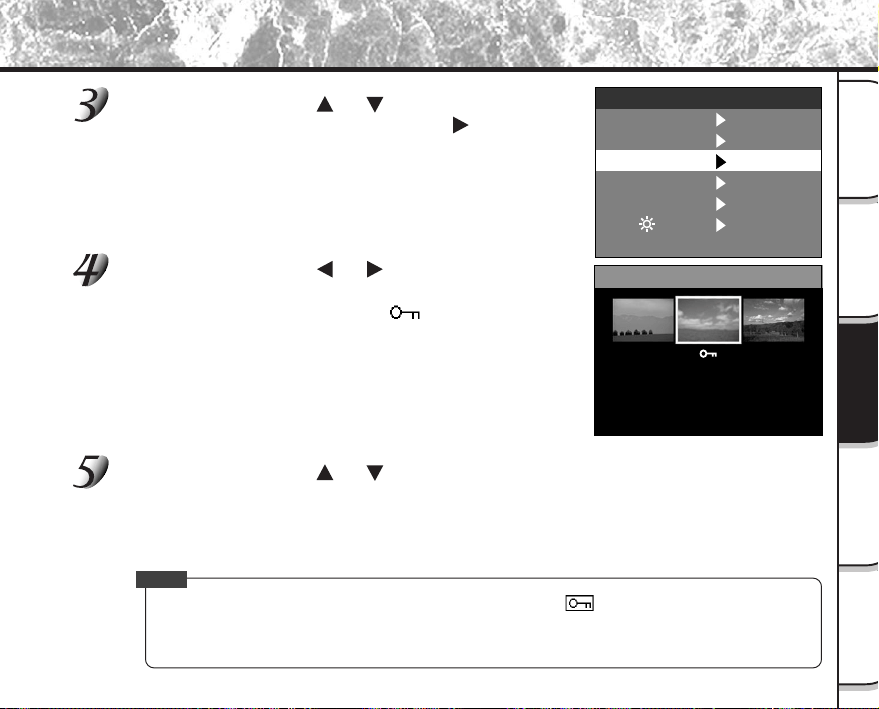
- 77 -
Photographie
de base
Lecture/effacement
des images
Autres
applications
Informations
supplémentaires
Préparation
Appuyez sur la touche ou pour sélectionner
[PROTEGER] et appuyez sur la touche
.
Le menu PROTEGER est affiché.
Appuyez sur la touche ou pour sélectionner
l’image à protéger et appuyez sur la touche ENTER.
L’image à protéger est sélectionnée et [ ] est affiché sous
l’image.
Pour annuler la sélection, appuyez de nouveau sur la touche ENTER.
Si vous souhaitez protéger contre l’écriture deux images ou plus,
répétez cette procédure pour chaque image.
Appuyez sur la touche ou pour sélectionner [EXECUT] et appuyez sur la
touche ENTER.
Pour annuler la protection contre l’écriture, sélectionnez [ANNUL].
Quand la protection contre l’écriture est terminée, l’écran revient au menu MENU LECT.
Pour quitter MENU LECT, appuyez sur la touche MENU.
Mémo
• Quand l’écran de réglage PROTEGER est affiché de nouveau, [ ] est affiché sous les images
protégées.
• Pour annuler la protection contre l’écriture pour une image, la protection contre l’écriture est annulée
simultanément si elle a été réglée à l’étape 4.
Protection des images (suite)
PROTEGER
ANNUL
EXECUT
DIAPO
PROTEGER
LCD
TAILLE
QUALITE
DEFINIR
MENU LECT
DOSSIER
DEFINIR
DEFINIR
DEFINIR
DEFINIR
DEFINIR
➡

- 78 -
Photographie
de base
Lecture/effacement
des images
Autres
applications
Informations
supplémentaires
Préparation
Annulation de la protection
Effectuez les étapes 1 à 3 de “Protection d’une image”.
Appuyez sur la touche ou pour sélectionner
l’image dont vous souhaitez annuler la protection et
appuyez sur la touche ENTER.
Les images dont la protection doit être annulée sont sélectionnées et
[
] sous l’image est remplacé par [ ].
Pour annuler la protection d’une image, appuyez de nouveau sur la
touche ENTER.
Pour annuler la protection de deux images ou plus, répétez cette
procédure pour le nombre d’images nécessaire.
Effectuez l’étape 5 de “Protection d’une image”.
Mémo
• Pour protéger de nouveau une image, la protection contre l’écriture est effectuée simultanément si elle
a été réglée à l’étape 2.
Protection des images (suite)
PROTEGER
ANNUL
EXECUT
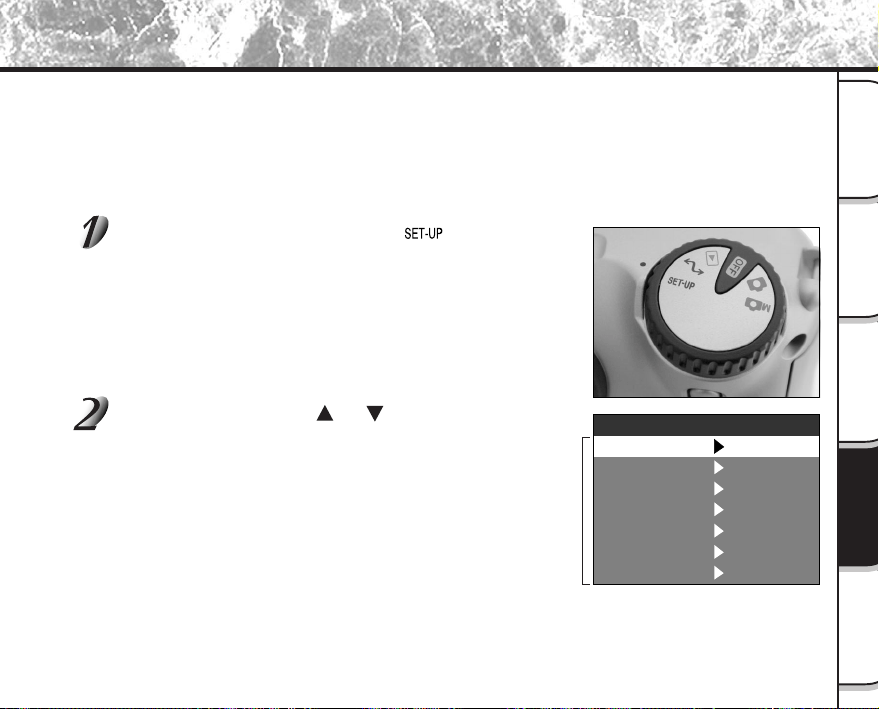
- 79 -
Photographie
de base
Lecture/effacement
des images
Autres
applications
Informations
supplémentaires
Préparation
Réglages de prise de vue de base (mode CONFIG)
Vous pouvez régler dans ce mode l’environnement d’utilisation de votre appareil photo pour compléter les réglages
en rapport avec l’image. Ce mode est appelé “configuration”. Les paramètres suivants peuvent être modifiés dans
le mode CONFIG:
LANGUE/SON/HEURE/AUTO-ARR/TV/Nb IMAGES/DEFAUT
Ces réglages sont maintenus en mémoire, même si l’appareil photo est mis hors tension.
Réglez la molette de modes sur [ ].
Le menu CONFIG apparaît.
Appuyez sur la touche ou pour sélectionner le
paramètre à régler.
☞
LANGUE
➲
Page 80
SON
➲
Page 80
HEURE
➲
Page 81
AUTO-ARR
➲
Page 81
TV
➲
Page 82
Nb IMAGES
➲
Page 82
DEFAUT
➲
Page 83
Paramètre
SON
HEURE
Nb IMAGES
DEFAUT
AUTO-ARR
TV
NTSC
DEFINIR
CONFIG
LANGUE
ACTIVE
DEFINIR
DEFINIR
3
MIN
Français
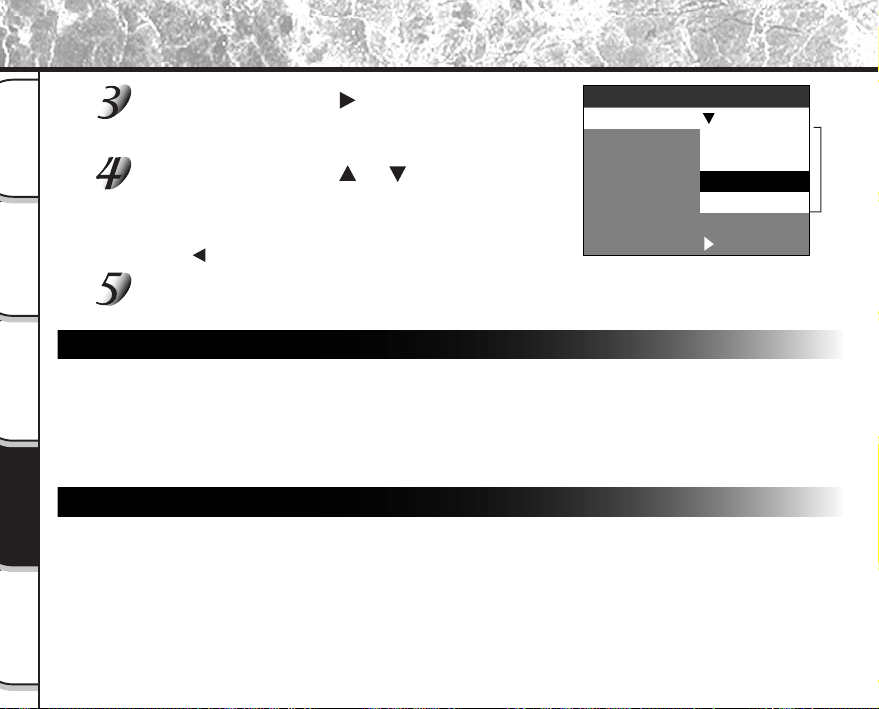
- 80 -
Photographie
de base
Lecture/effacement
des images
Autres
applications
Informations
supplémentaires
Préparation
Réglages de prise de vue de base (mode
CONFIG
) (suite)
Appuyez sur la touche .
Le menu d’onglets est affiché.
☞
Comment régler le temps
➲
Page 81
Appuyez sur la touche ou pour sélectionner
la valeur de réglage dans le menu d’onglets et
appuyez sur la touche ENTER.
Pour annuler le changement des réglages, appuyez sur la
touche
.
Pour quitter le menu CONFIG, changez le réglage de la molette de modes.
LANGUE
Permet de choisir la langue d’affichage des menus du moniteur LCD.
English (défaut) : Anglais
Deutsch : Allemand
Français : Français
Español : Espagnol
SON
Permet de décider si le bip sonore retentira ou non.
[ACTIVE] (défaut) : Le bip sonore retentit en fonction du statut de l’appareil photo ou de l’opération.
[DESACT] : Le bip sonore ne retentit pas, quel que soit le statut de l’appareil photo.
Menu d’onglets
SON
HEURE
Nb IMAGES
DEFAUT
AUTO-ARR
TV
Español
CONFIG
LANGUE
English
Deutsch
Français
Français
DEFINIR
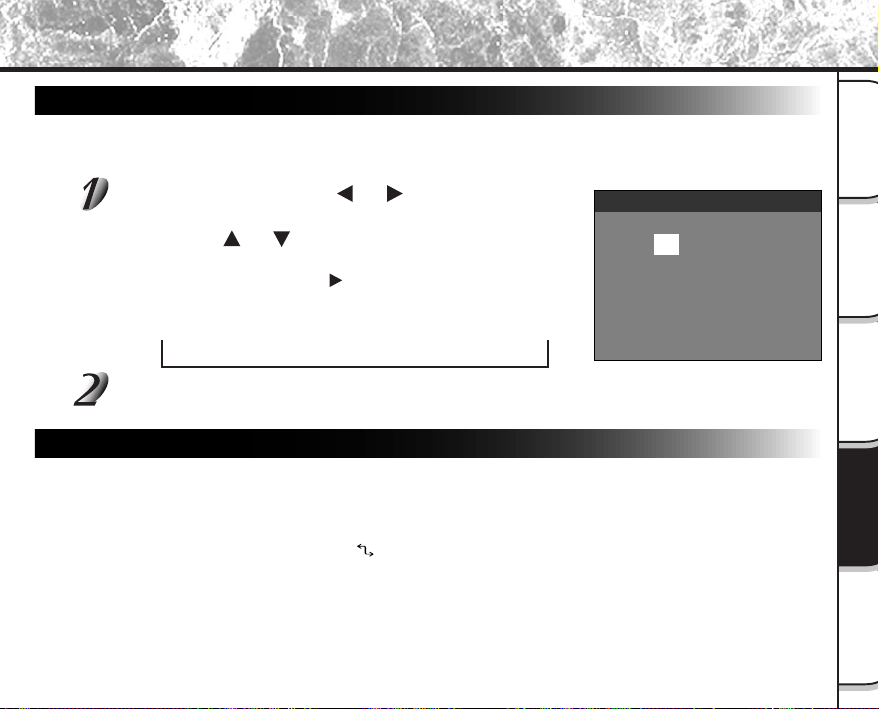
- 81 -
Photographie
de base
Lecture/effacement
des images
Autres
applications
Informations
supplémentaires
Préparation
➔
Réglages de prise de vue de base (mode
CONFIG
) (suite)
HEURE
Permet de régler la date et l’heure.
Les secondes ne peuvent pas être réglées.
Appuyez sur les touches ou pour sélectionner le
paramètre que vous souhaitez régler et appuyez sur
les touches
ou pour régler la valeur de chaque
paramètre.
Chaque pression sur la touche fait avancer le paramètre dans
l’ordre suivant :
Mois ➔ Jour ➔ Année ➔ Heure ➔ Minute ➔ DEFINIR ➔ ANNUL
Sélectionnez [DEFINIR] et appuyez sur la touche ENTER.
Pour quitter le réglage, sélectionner [ANNUL].
AUTO-ARR
Si aucune opération n’a été effectuée pendant une durée fixée (défaut: environ une minute), la
consommation d’électricité est réglée au minimum (alimentation presque coupée) pour éviter l’usure de
l’accumulateur. Cet état est appelé mode de veille. Ce paramètre vous permet aussi de régler le temps
avant le passage en mode de veille. Le mode de veille n’est pas activé pendant la lecture automatique
(
➲
Page 65) ou dans le mode PC [ ]. Pour revenir à l’état normal à partir du mode de veille, changez
la position de la molette de modes ou appuyez sur le déclencheur à mi-course pendant au moins deux
secondes (
➲
Page 37).
[1 MIN] (défaut)
[2 MIN]
[3 MIN]
01.01.2000
12:55:00
DEFINIR ANNUL
HEURE
- 82 -
Photographie
de base
Lecture/effacement
des images
Autres
applications
Informations
supplémentaires
Préparation
Réglages de prise de vue de base (mode
CONFIG
) (suite)
TV
Permet de régler le format de sortie vidéo.
Les secondes ne peuvent pas être réglées.
[NTSC] : Format vidéo NTSC (ÉTATS-UNIS, CANADA, JAPON)
[PAL] : Format vidéo PAL (EUROPE)
Nb IMAGES
Permet de décider si les numéros d’image seront réinitialisés ou non au moment de la prise de vues.
[ANNUL] : Pas de réinitialisation du numéro d’image.
[REINIT] : Réinitialisation du numéro d’image.
À propos des numéros d’image fixe et de dossier
• Quand le numéro d’image est réinitialisé, un numéro commençant à partir de 0001 est attribué à un
dossier vide portant le numéro le plus faible dans la carte SmartMedia™ insérée.
Le numéro de dossier varie en fonction du statut de la carte SmartMedia™ insérée. Pour réinitialiser
aussi le numéro de dossier, formatez d’abord la carte SmartMedia™, puis réinitialisez le numéro
d’image.
• Le numéro suivant le numéro de la dernière photo prise est attribué comme numéro d’image, qu’une
image seulement ou toutes les images aient été effacées ou non. Un dossier est attribué comme
numéro consécutif de la même manière.
• Le numéro d’image le plus grand est 9999. Quand ce numéro est atteint, un nouveau dossier est créé
et le numéro d’image est attribué à partir de 0001.
☞
Choix du dossier à lire
➲
Page 70
• Le numéro de dossier le plus grand est 999. Quand ce numéro est atteint, formatez la carte
SmartMedia™.
• Quand vous utilisez une carte SmartMedia™ qui a été utilisée pour prendre des photos sur un autre
appareil photo, ou passez d’une carte SmartMedia™ à l’autre, les données contenues dans l’appareil
photo recevront la priorité en ce qui concerne les numéros d’image. Le numéro de dossier est attribué
en fonction du statut de votre appareil photo ou de la carte SmartMedia™.
- 83 -
Photographie
de base
Lecture/effacement
des images
Autres
applications
Informations
supplémentaires
Préparation
Réglages de prise de vue de base (mode
CONFIG
) (suite)
DEFAUT
Permet de décider si les réglages du menu CONFIG seront réinitialisés ou non à leurs valeurs par
défaut.
[ANNUL] : Pas de réinitialisation aux valeurs par défaut.
[OK] : Les paramètres sont réinitialisés à leur valeurs par défaut.
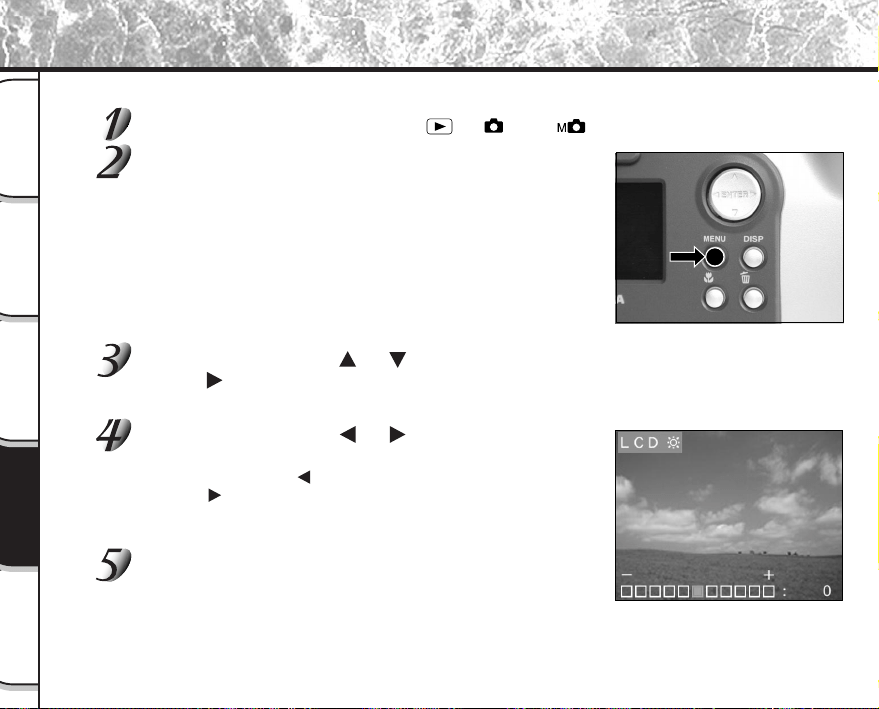
- 84 -
Photographie
de base
Lecture/effacement
des images
Autres
applications
Informations
supplémentaires
Préparation
Réglage de la luminosité du moniteur LCD
Vous pouvez régler la luminosité du moniteur LCD sans modifier la luminosité de l’image enregistrée.
Réglez la molette de modes sur [ ], [ ] ou [ ].
Appuyez sur la touche MENU.
Le menu MENU ENR ou MENU LECT est affiché.
Vous pouvez régler la luminosité du moniteur LCD dans un de ces
menus au choix.
Appuyez sur la touche ou pour sélectionner [LCD] et appuyez sur la
touche
.
L’image et le menu LCD sont affichés.
Appuyez sur la touche ou pour ajuster la
luminosité.
Appuyez sur la touche pour assombrir (–) le moniteur LCD ou sur
la touche
pour éclaircir (+) le moniteur LCD.
Le moniteur LCD peut être réglé dans une plage allant de [–5] à
[+5]. (Le réglage par défaut est 0.)
Appuyez sur la touche ENTER.
L’appareil photo revient au mode précédent.
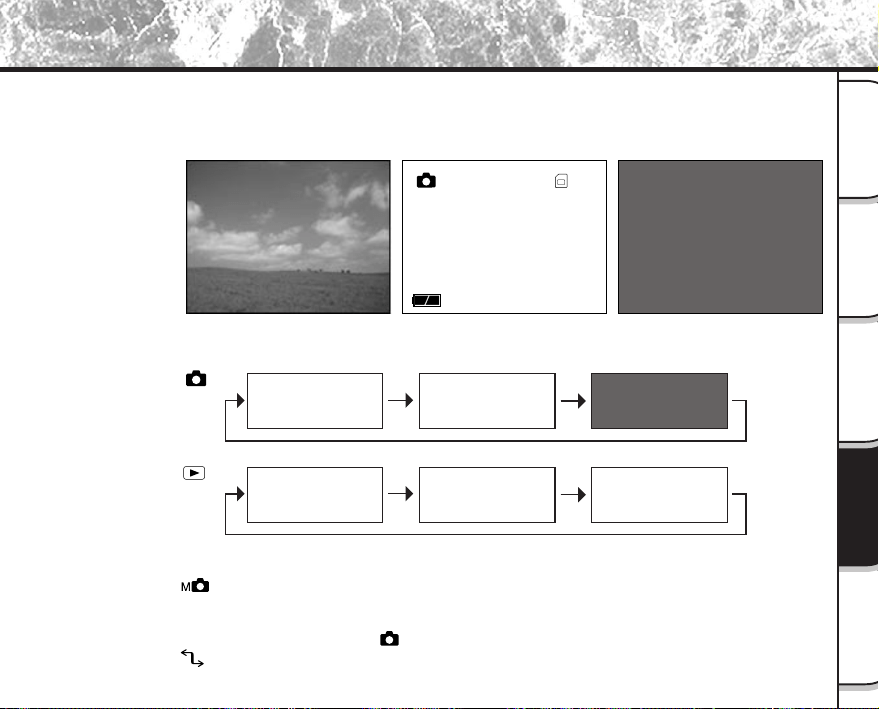
- 85 -
Photographie
de base
Lecture/effacement
des images
Autres
applications
Informations
supplémentaires
Préparation
Touche DISP et affichage du moniteur LCD
En appuyant sur la touche DISP, vous pouvez allumer ou éteindre le moniteur LCD et l’affichage à
l’écran. (
☞
Affichage du moniteur LCD
➲
Page 34)
Chaque pression sur la touche DISP commute l’affichage dans l’ordre suivant. (* indique le réglage par
défaut) :
05.10.00
10:10
001
Éteint
(rien n’est affiché)
Image directe
(image avant la prise de vue)
Affichage à l’écran/détails de l’image
(les lettres et les icônes sont affichées)
[ ]
[ ]
*
*
Image directe
+
Affichage à l’écran
Image directe seulement
Image de lecture
+
Détails de l’image
Image de lecture
+
Affichage à l’écran
Image de lecture seulement
• Avec [ ], l’écran de réglage manuel est affiché (défaut). Quand cet écran est affiché, une
pression sur la touche DISP ne change pas l’indication sur le moniteur LCD. Appuyez sur la touche
ENTER pour régler l’écran de réglage manuel sur l’état de non-affichage. Dans cet état, l’affichage
change de la même façon qu’avec [
].
• Avec [
], le moniteur LCD est vide.
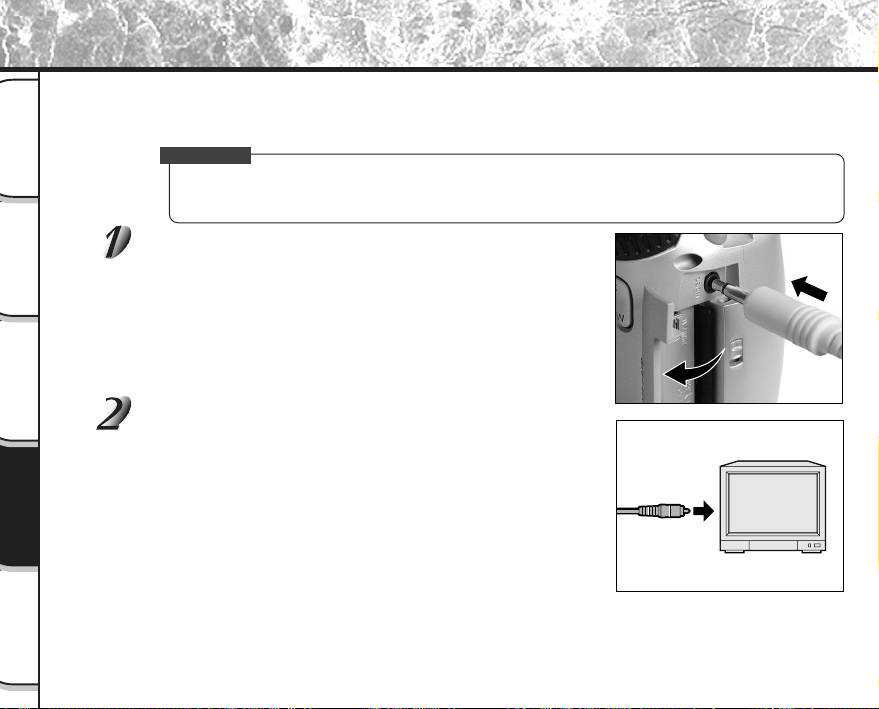
- 86 -
Photographie
de base
Lecture/effacement
des images
Autres
applications
Informations
supplémentaires
Préparation
Prise de vues et lecture sur un téléviseur
Les téléviseurs ne peuvent pas être utilisés pour composer des images pour la prise de vues ou la lecture. Pour ce
faire, l’appareil photo doit être raccordé au téléviseur. Nous vous conseillons d’utiliser l’adaptateur secteur avec
une prise secteur si possible.
IMPORTANT
• Avant de brancher votre appareil photo sur d’autres appareils, veillez à mettre tous les autres appareils
raccordés hors tension. Si vous raccordez votre appareil photo à d’autres appareils alors qu’il est sous
tension, l’écran peut trembloter ou l’image ne pas être affichée normalement.
Branchez la fiche du câble vidéo (fourni) sur la prise
VIDEO de l’appareil photo.
Branchez la fiche du câble vidéo sur la prise VIDEO IN
du téléviseur.
- 87 -
Photographie
de base
Lecture/effacement
des images
Autres
applications
Informations
supplémentaires
Préparation
Prise de vues et lecture sur un téléviseur (suite)
Prenez des photos ou reproduisez-les.
Les détails de l’opération sont les mêmes que pour la prise de vues et la reproduction d’images sur le
moniteur LCD.
☞
Comment prendre des photos
➲
Page 40
Comment reproduire des images
➲
Page 62
Mémo
• Rien n’est affiché sur le téléviseur quand le moniteur LCD est éteint à l’aide de la touche DISP.
• Les images directes (avant la prise de vues) sont moins claires que les images de lecture (parce
qu’elles sont affichées à une résolution plus faible).
- 88 -
Photographie
de base
Lecture/effacement
des images
Autres
applications
Informations
supplémentaires
Préparation
Transfert des images à un PC
Vous pouvez transférer des images photographiées de votre appareil photo à un PC en utilisant le cédérom et le
câble l’accompagnant.
Les images enregistrées sur une carte SmartMedia™ peuvent aussi être transférées à un PC en utilisant
l’adaptateur de carte PC (vendu séparément) ou un adaptateur de disquette (PDR-FLP2, vendu séparément). (
➲
Page 92)
Pour transférer les images à un PC, vous devez installer un logiciel et raccorder des câbles spéciaux.
Pour les détails, reportez-vous au mode d’emploi de votre PC.
Utilisation de la carte SmartMedia™ sur un PC
• Formatez la carte SmartMedia™ seulement sur votre appareil photo.
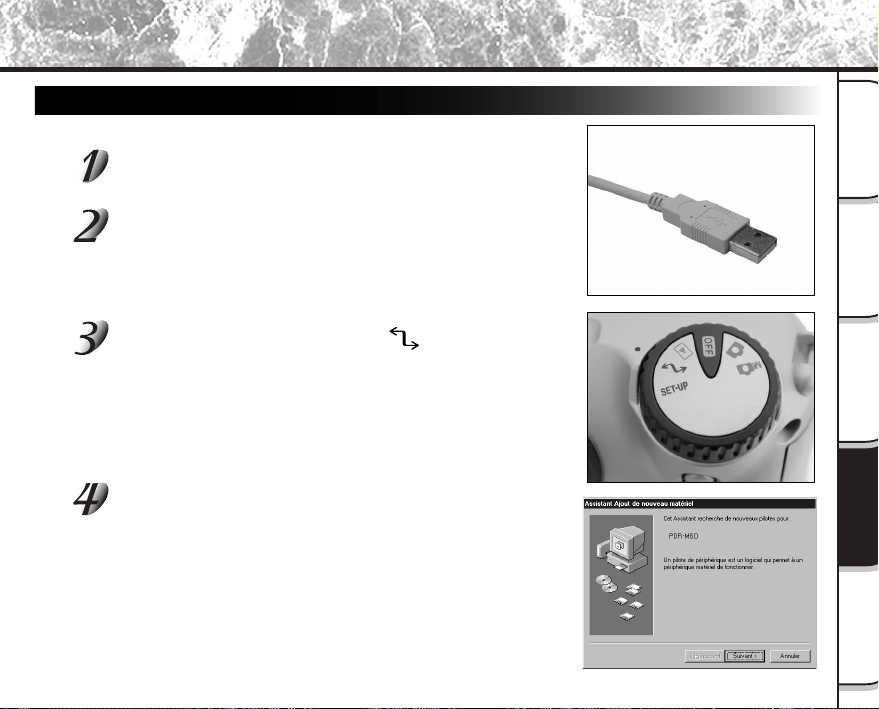
- 89 -
Photographie
de base
Lecture/effacement
des images
Autres
applications
Informations
supplémentaires
Préparation
Pour Windows 98 ou Windows 2000
Installez ce pilote avant d’utiliser un câble USB.
Raccordez l’extrémité petite du câble USB à la prise
DIGITAL du PDR-M60.
Raccordez l’extrémité grande du câble USB au port
USB de votre ordinateur.
Raccordez le câble USB après avoir démarré Windows.
Réglez la molette de mode sur [ ].
L’écran Assistant Ajout de nouveau matériel apparaît.
Cliquez sur le bouton Suivant.
Installation du pilote USB
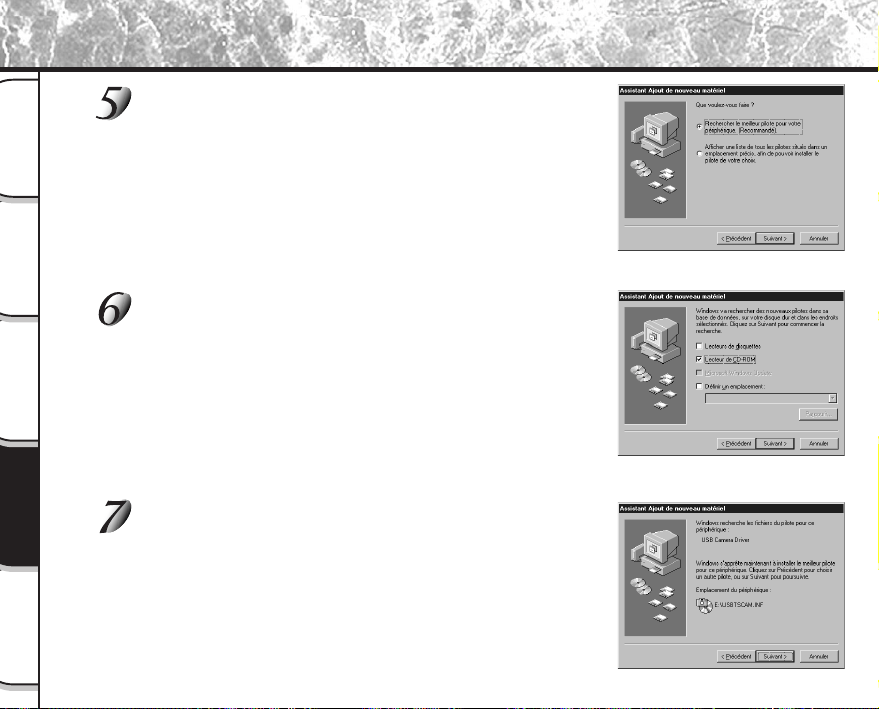
- 90 -
Photographie
de base
Lecture/effacement
des images
Autres
applications
Informations
supplémentaires
Préparation
Sélectionnez “Rechercher le meilleur pilote pour votre
périphérique. (Recommandé)” et cliquez sur le bouton
Suivant.
L’écran suivant apparaît.
Insérez le CD-ROM dans le lecteur de CD-ROM,
cochez la case “Lecteur de CD-ROM” et cliquez sur le
bouton Suivant.
Suivez les instructions qui apparaissent à l’écran pour installer le
pilote.
Lorsque l’installation est terminée, l’écran Assistant Ajout de nouveau
matériel apparaît une nouvelle fois.
Cliquez sur le bouton Suivant.
Installation du pilote USB (suite)
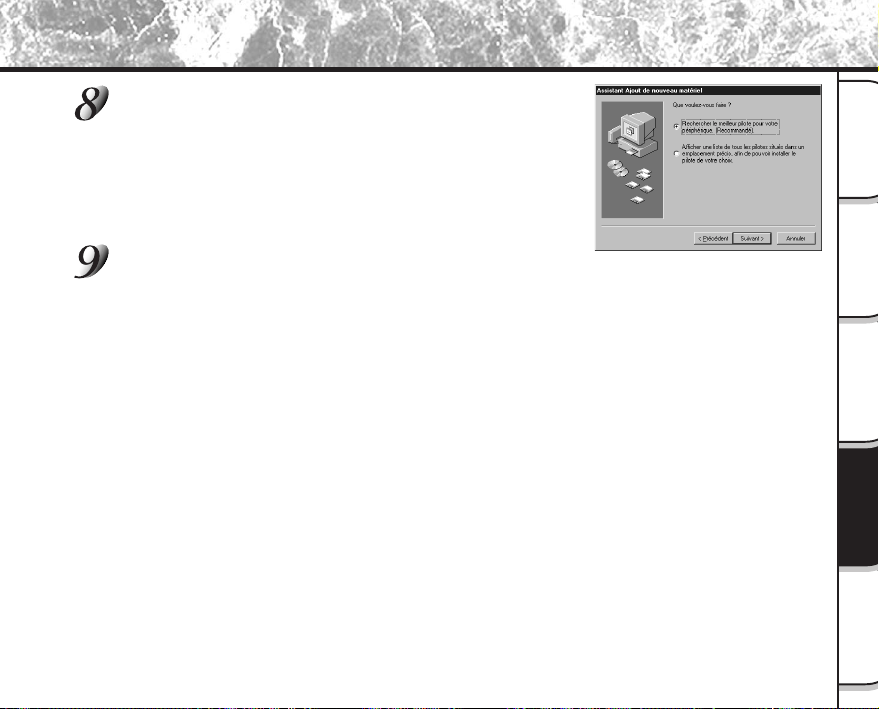
- 91 -
Photographie
de base
Lecture/effacement
des images
Autres
applications
Informations
supplémentaires
Préparation
Sélectionnez “Rechercher le meilleur pilote pour votre
périphérique. (Recommandé)” et cliquez sur le bouton
Suivant.
Cochez la case “Lecteur de CD-ROM” et cliquez sur le bouton Suivant.
Suivez les instructions qui apparaissent à l’écran pour installer les pilotes.
L’installation des pilotes requis est terminée.
À partir de maintenant, le PDR-M60 sera automatiquement reconnu simplement par le branchement du
câble USB.
Installation du pilote USB (suite)
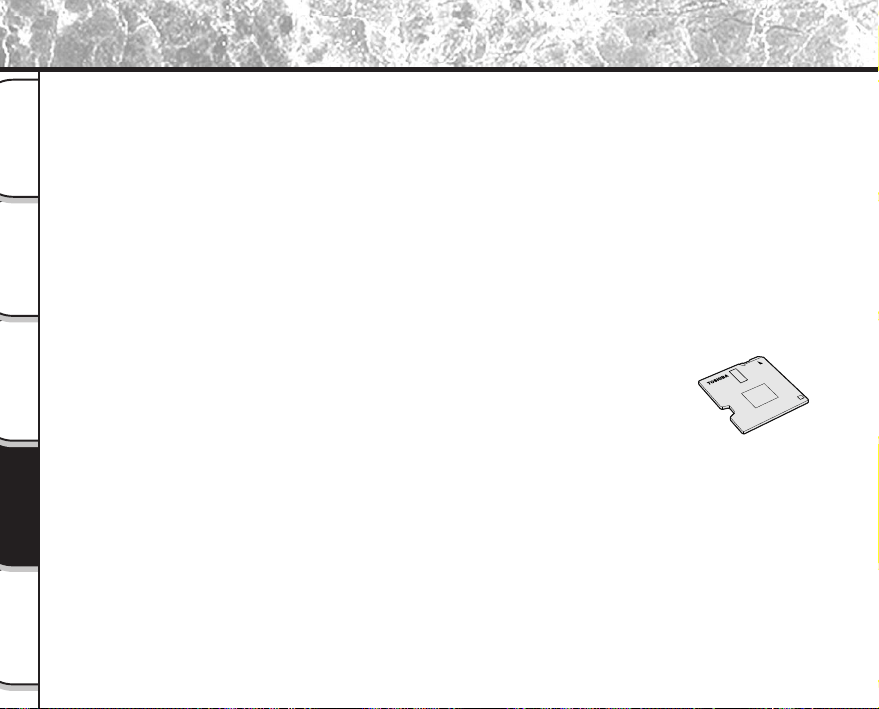
- 92 -
Photographie
de base
Lecture/effacement
des images
Autres
applications
Informations
supplémentaires
Préparation
Accessoires vendus séparément
Les articles suivants sont aussi commercialisés séparément.
☞
Relation entre votre appareil photo et ses accessoires
➲
“Raccordement à d’autres appareils” (page 93)
Pour les détails sur ces accessoires, reportez-vous au mode d’emploi de l’accessoire utilisé. (Informations à jour en
juin 2000)
Pour acheter les accessoires ci-dessus aux États-Unis, veuillez visiter notre site Web à
http://www.toshiba.com/taisisd/dsc
● Carte SmartMedia™ (3,3 V)
8 Mo (PDR-NSM8)/16 Mo (PDR-SM16)/32 Mo (PDR-SM32)/64 Mo (PDR-SM64)
● Étui souple (PDR-CM1)
Cet étui est conçu pour transporter et ranger votre appareil photo.
● Adaptateur secteur (optionnel)
PDR-ACM1A (pour les E.E.U.U. et le Canada)
PDR-ACM1E (pour l’Europe continentale)
PDR-ACM1U (pour le Royaume-Uni)
● Adaptateur de disquette PDR-FLP2 (FlashPath) (optionnel)
Cet adaptateur permet à la carte SmartMedia™ d’être utilisée comme une
disquette 3,5 pouces.
Cet adaptateur est inséré dans le lecteur de disquette de votre PC,
permettant ainsi aux images enregistrées dans la carte SmartMedia™ d’être
transférées à un PC.
Un système d’exploitation (Windows 95/Windows 98/Windows NT4.0/
Windows 2000 machine compatible IBM PC/AT) compatible avec
l’adaptateur de disquette PDR-FLP2 est nécessaire pour l’utilisation de cet
adaptateur.
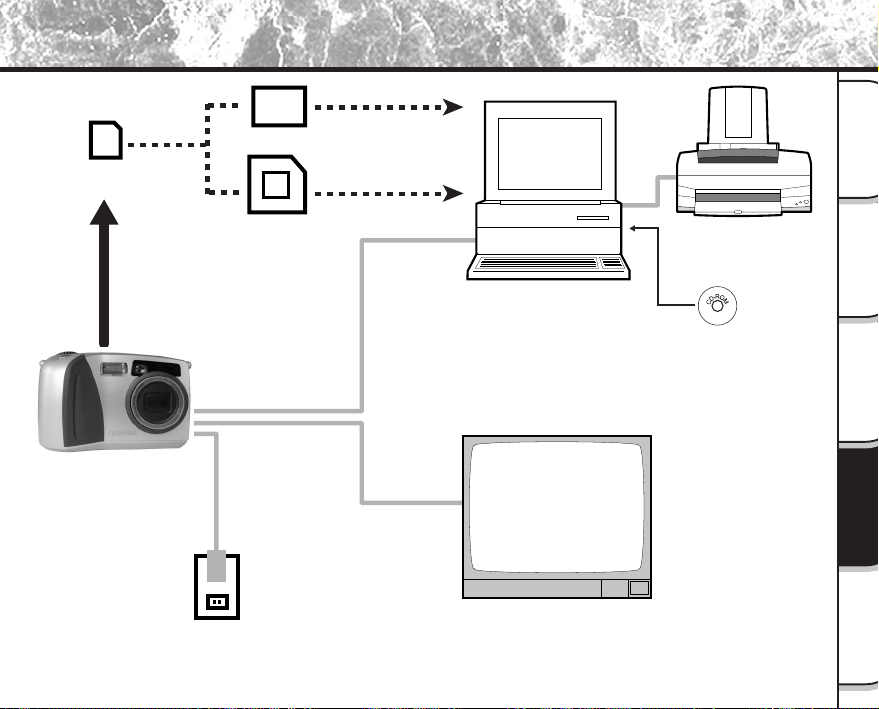
- 93 -
Photographie
de base
Lecture/effacement
des images
Autres
applications
Informations
supplémentaires
Préparation
Raccordement à d’autres appareils
Carte SmartMedia™
Adaptateur de disquette
(vendu séparément)
Adaptateur de carte PC
(vendu séparément)
PC
Imprimante
Logiciel
(Cédérom) (fourni)
Câble d'interface
(fourni)
Câble vidéo
(fourni)
Adaptateur secteur
(vendu séparément)
Prise secteur
Moniteur TV
PDR-M60
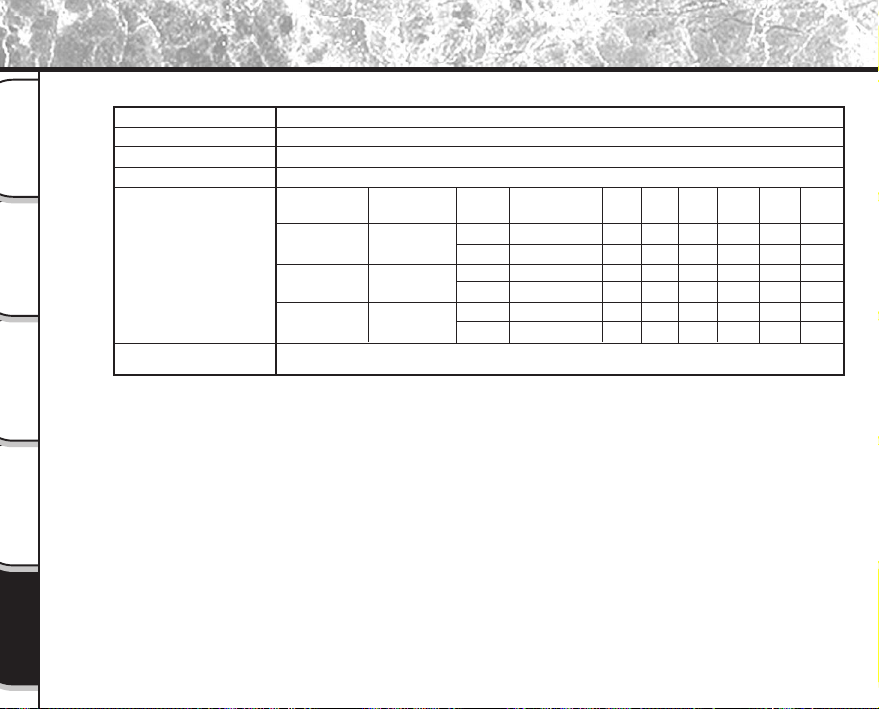
- 94 -
Photographie
de base
Lecture/effacement
des images
Autres
applications
Informations
supplémentaires
Préparation
Fiche technique
Boîtier de l’appareil photo
Appareil photographique numérique Toshiba PDR-M60
Carte SmartMedia™ (3,3 V) compatible 2/4/8/16/32/64 Mo
Conforme JPEG
Conforme Exif Ver.2.1
Conformes DCF Ver.1.0
Mode de
qualité
★★★
FINE
★★
NORMAL
★
BASIC
Modèle
Support d’enregistrement
Système de compression
Format de fichier d’image
<Mode d’enregistrement
d’image fixe>
Nombre d’images
Taille FULL:
1792 x 1200 pixels
Taille HALF:
896 x 600 pixels
Règles de conversion
Taille du
fichier
Env. 1,03Mo
Env. 263Ko
Env. 525Ko
Env. 131Ko
Env. 263Ko
Env. 66Ko
4Mo
3
15
7
29
15
55
8Mo
7
30
15
58
30
110
16Mo
15
58
30
110
58
199
32Mo
30
117
60
222
117
399
Taux de
compression
1/4
1/8
1/16
Taille
d’image
FULL
HALF
FULL
HALF
FULL
HALF
64Mo
60
235
121
444
235
799
2Mo
1
7
3
15
7
29
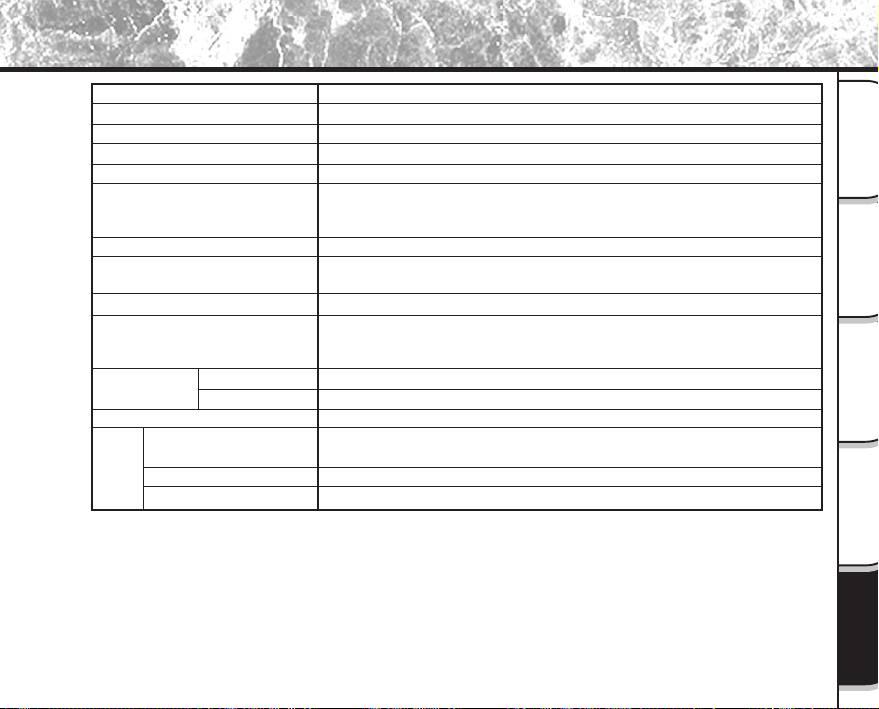
- 95 -
Photographie
de base
Lecture/effacement
des images
Autres
applications
Informations
supplémentaires
Préparation
Fiche technique (suite)
Capteur CCD 1/2 pouce (nombre total de pixels : env. 2,3 millions)
Équivalente à 100/200/400 ISO
Objectif zoom 2,3X F2,8 – F3,2
f=8,0 mm – 18,0 mm (équivalent à 38 mm – 86 mm sur un appareil 35 mm)
Viseur zoom à image réelle
Système autofocus TTL, plage de réglage de la mise au point:
Approx. 5 cm (2 po.) à l’infini
Système de détection : Détection par contraste
Mesure TTL par système de capture d’image
Programme d’exposition automatique (correction d’exposition
disponible en mode manuel)
1/2 à 1/1000e de seconde (obturateurs électronique et mécanique)
Sélection automatique
Sélection manuelle en mode de prise de vues manuel (extérieur, lampe
fluorescente normale/blanche, lampe incandescente)
Approx. 50 cm (19,7 po.) à l’infini
Approx. 5 cm (2 po.) – 50 cm (19,7 po.)
2 s/10 s commutables
Automatique, anti-yeux rouges, flash forcé, flash débrayé,
synchronisation lente
Automatique
Approx. 0,5 m (1,7 pied) – 3,0 m (10 pieds)
Éléments photosensibles
Sensibilité
Objectif
Longueur focale
Viseur
Autofocus
Système de mesure
Commande d‘exposition
Vitesse d’obturation
Balance des blancs
Plage de Normale
focale Macro
Retardateur
Modes
Flash
Contrôle de l’intensité du flash
Portée effective
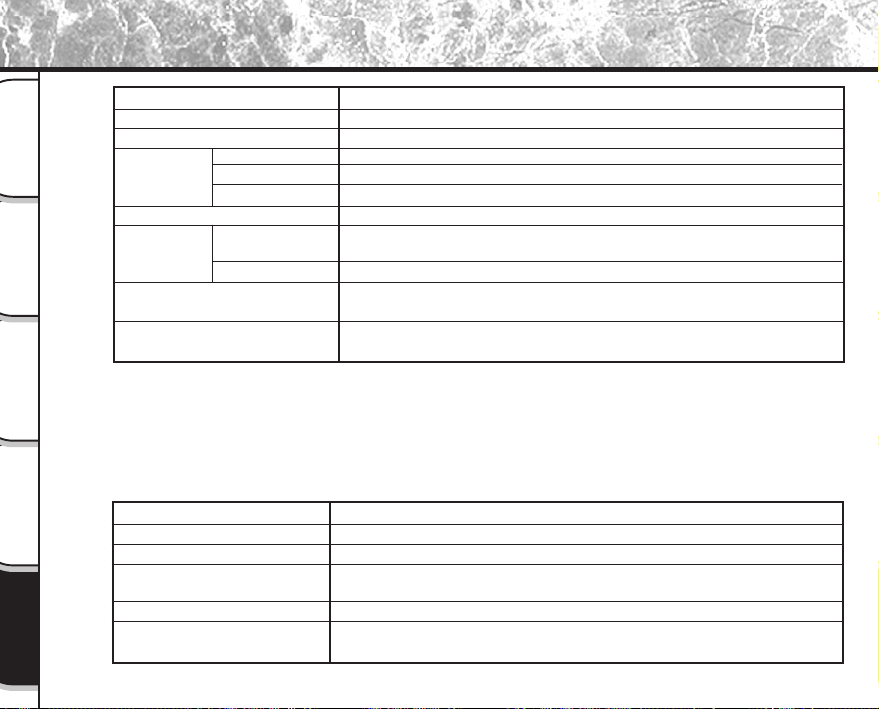
- 96 -
Photographie
de base
Lecture/effacement
des images
Autres
applications
Informations
supplémentaires
Préparation
Fiche technique (suite)
Enregistrées simultanément dans les données d’image (format de fichier Exif)
Ajusté automatiquement jusqu’en 2038
1,8 pouce, TFD silicone amorphe (71 760 pixels)
CC 5 V
USB
Système NTSC ou PAL
4 x AA ou adaptateur secteur (optionnel)
+5 °C (+41 °F) à +40 °C (+104 °F) (pour le fonctionnement)/
–20 °C (–4 °F) à +60 °C (+140 °F) (pour le stockage)
30 à 80% (pour le fonctionnement) sans condensation
121 mm (4,76 po.) x 75 mm (2,95 po.) x 61 mm (2,4 po.) (L x H x P) (sans
les saillies)
Env. 290 gr. (10,2 on.) (sans les accessoires, l’accumulateur et la carte
SmartMedia™)
Date/heure
Fonction de calendrier automatique
Moniteur LCD (
*1
)
Prise DC IN
Entrées/sorties
Prise DIGITAL
Prise VIDEO
Alimentation
Conditions
de service
Dimensions de l’appareil
photo
Poids
Température
Humidité
*1
Le moniteur LCD de votre appareil photo est fabriqué en utilisant une technologie avancée de haute
précision.
Bien que des lignes fines puissent faire leur apparition sur le moniteur LCD, ce n’est pas un signe de
dysfonctionnement. Le moniteur LCD peut être utilisé comme tel.
Type
Carte à mémoire d’image pour appareils photo numériques (SmartMedia
TM
)
Type de mémoire Mémoire flash NAND
Tension de fonctionnement 3,3 V
Conditions de fonctionnement Température 0 °C (+32 °F) à + 40 °C (+104 °F)
Humidité 80% ou moins (sans condensation)
Dimensions 37 mm (1
4
/
9
po.) x 0,76 mm (
3
/
100
po.) x 45 mm (1
7
/
9
po.) (L x H x P)
Accessoires Étui antistatique (x1), étiquettes d’index (x2), autocollants de protection
contre l’écriture (x4)
Carte SmartMedia™
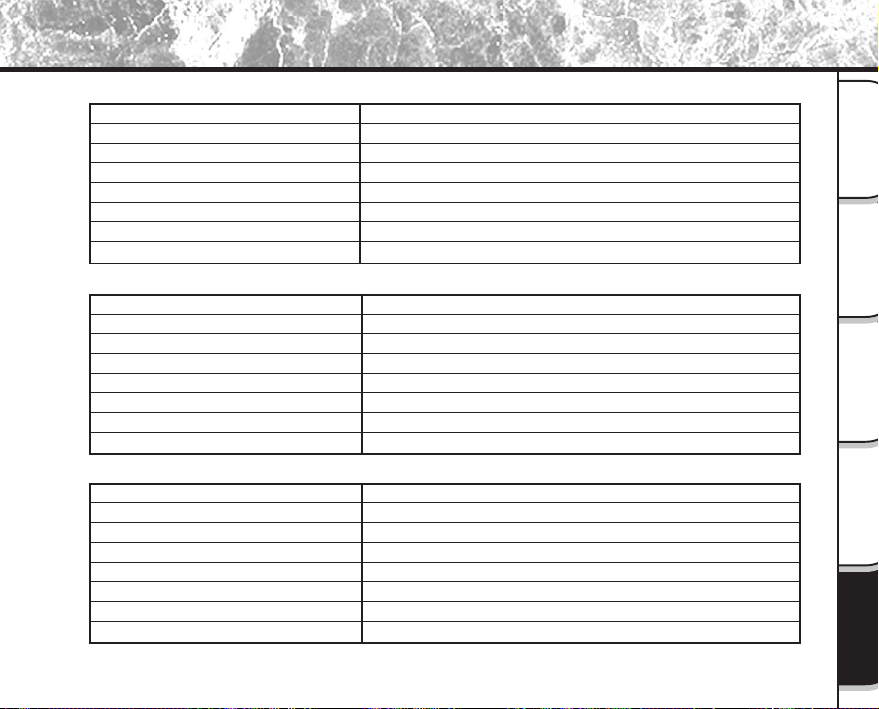
- 97 -
Photographie
de base
Lecture/effacement
des images
Autres
applications
Informations
supplémentaires
Préparation
Fiche technique (suite)
Alimentation Secteur 120 V 50/60 Hz
Capacité d’entrée nominale 18 VA
Sortie nominale CC 5,0 V 1,5 A
Température de fonctionnement 0 °C (+32 °F) à + 40 °C (+104 °F)
Température de stockage –10 °C (+14 °F) à +70 °C (+158 °F)
Dimensions 48mm (1
8
/
9
po.) x 26 mm (1
1
/
4
po.) x 70 mm (2
3
/
4
po.) (L x H x P)
Poids Env. 100 g (3,5 oz.)
Longueur du cordon d’alimentation Env. 2 m (6,6 pieds)
Adaptateur secteur (PDR-ACM1A) (Optionnel)
Alimentation Secteur 230 V 50 Hz
Capacité d’entrée nominale 120 mA
Sortie nominale CC 5,0 V 1,5 A
Température de fonctionnement 0 °C à + 40 °C
Température de stockage –10 °C à +70 °C
Dimensions 49,5mm (1,9 po.) x 66,5 mm (2,6 po.) x 76 mm (3,0 po.) (L x H x P)
Poids Env. 130 g (4,5 oz.)
Longueur du cordon d’alimentation Env. 2 m (6,6 pieds)
Adaptateur secteur (PDR-ACM1E) (Optionnel)
Alimentation Secteur 230 V 50 Hz
Capacité d’entrée nominale 120 mA
Sortie nominale CC 5,0 V 1,5 A
Température de fonctionnement 0 °C à + 40 °C
Température de stockage –10 °C à +70 °C
Dimensions 49,5mm (1,9 po.) x 60,5 mm (2,4 po.) x 76 mm (3,0 po.) (L x H x P)
Poids Env. 130 g (4,5 oz.)
Longueur du cordon d’alimentation Env. 2 m (6,6 pieds)
Adaptateur secteur (PDR-ACM1U) (Optionnel)
Ces spécifications sont susceptibles d’être modifiées sans préavis.
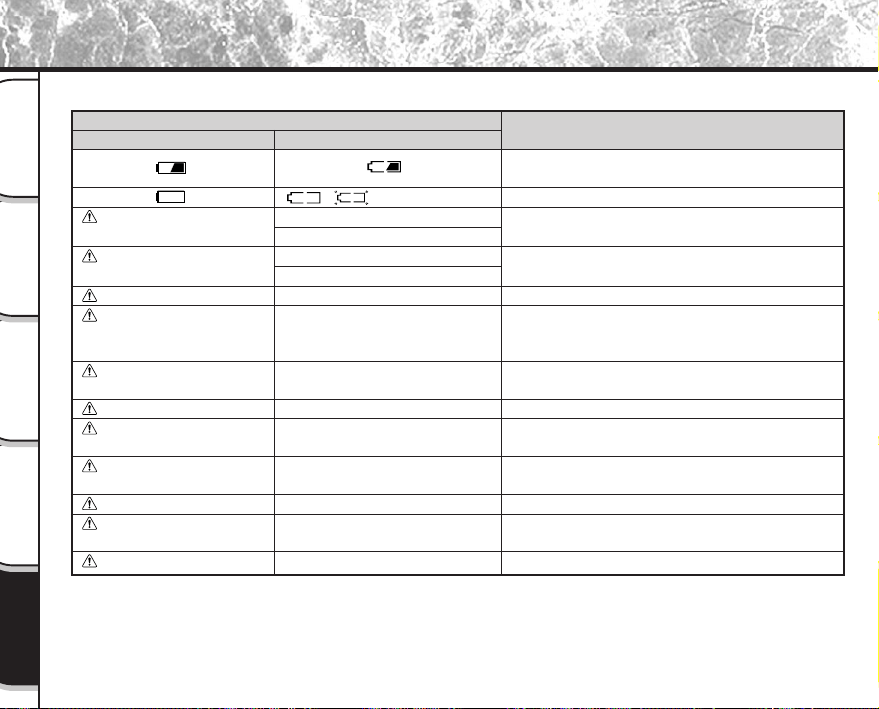
- 98 -
Photographie
de base
Lecture/effacement
des images
Autres
applications
Informations
supplémentaires
Préparation
Avertissements et messages affichés sur le moniteur LCD
Les avertissements, messages et icônes suivants sont affichés sur le moniteur LCD et l’afficheur de statut.
Moniteur LCD
PAS DE CARTE
CARTE PLEINE
PAS D’IMAGE
CARTE NON FORMATEE
ERREUR CARTE
CARTE PROTEGEE
ERREUR DE TRAME
DONNEES NON AJUSTEES
N° TRAME PLEINE
PROTEGEE!!!
AF
Signification
La capacité de l’accumulateur est inférieure à
la moitié.
L’accumulateur est complètement déchargé.
Pas de carte SmartMedia™ en place.
La carte SmartMedia™ n’est pas insérée correctement.
Plus d’espace disponible sur la carte SmartMedia™.
Enregistrement impossible.
Rien n’est enregistré dans la carte SmartMedia™.
La carte SmartMedia™ n’est pas formatée. (Un
message vous demandant de formater la carte
SmartMedia™ est affiché.)
La carte SmartMedia™ est endommagée.
Le format de la carte SmartMedia™ est incorrect.
La carte SmartMedia™ est protégée contre l’écriture.
Une tentative a été faite pour lire des données
enregistrées de façon incorrecte.
Une tentative a été faite pour lire une image qui
n’a pas été enregistrée sur cet appareil photo.
Le nombre de vues a atteint 99-9999.
Une tentative a été faite pour effacer une image
protégée.
L’autofocus ne peut pas fonctionner efficacement.
Afficheur de statut
/ (clignotement)
Clignotement (mode de prise de vues)
Aucun affichage (mode de lecture)
Clignotement (mode de prise de vues)
Affichage du nombre d’images: 0
–––
–––
–––
–––
–––
–––
–––
–––
–––
Afficheur
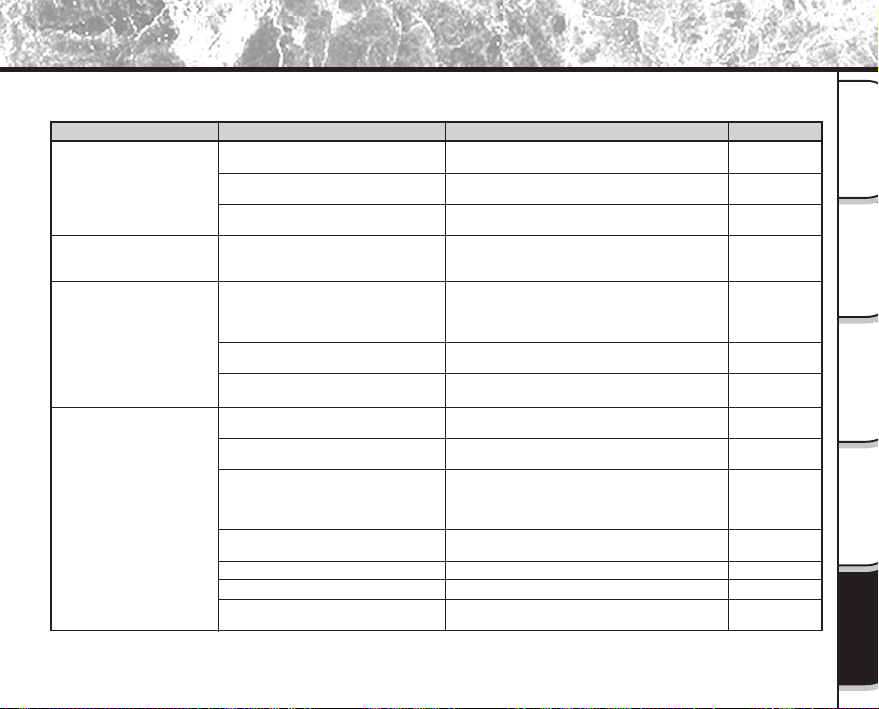
- 99 -
Photographie
de base
Lecture/effacement
des images
Autres
applications
Informations
supplémentaires
Préparation
Guide de dépannage
Commencez par vérifier l’avertissement affiché sur le moniteur LCD (
➲
Page 98) et la couleur du témoin du viseur
(
➲
Page 39). Puis, vérifiez les points suivants.
Solutions
Mettez des accumulateurs complètement chargés
en place.
Rebranchez l’adaptateur secteur.
Réglez la molette de modes sur la position
correcte.
Mettez des accumulateurs complètement chargés
en place.
Mettez l’accumulateur dans votre poche ou dans un
autre endroit chaud pour le réchauffer, puis
remettez-le en place dans l’appareil photo juste
avant de prendre une photo.
Essuyez les bornes de l’accumulateur avec un
chiffon sec et propre.
Mettez des accumulateurs neufs en place.
Mettez une carte SmartMedia™ en place.
Mettez la carte SmartMedia™ en place
correctement.
• Mettez une carte SmartMedia™ neuve en place.
• Effacez des images photographiées ou changez
la taille et la qualité pour augmenter l’espace
disponible sur la carte SmartMedia™.
Retirez la protection contre l’écriture ou remplacez
par une SmartMedia™ neuve.
Formatez la carte SmartMedia™.
Mettez une carte SmartMedia™ neuve en place.
Changez le réglage de la molette de modes.
Causes
Les accumulateurs sont déchargés.
La fiche de l’adaptateur secteur s’est
débranchée de la prise murale.
La molette de modes n’est pas réglée
correctement.
Les accumulateurs sont déchargés.
Vous utilisez l’appareil photo par grand
froid.
Les bornes sont sales.
Les accumulateurs ont atteint sa fin de
vie.
Il n’y a pas de carte SmartMedia™ dans
l’appareil photo.
La carte SmartMedia™ n’est pas insérée
correctement.
L’espace disponible sur la carte
SmartMedia™ est insuffisant.
La carte SmartMedia™ est protégée
contre l’écriture.
La carte SmartMedia™ n’est pas formatée.
La carte SmartMedia™ est endommagée.
Le mode de veille a été activé.
Problème
Pas d’alimentation.
L’appareil photo se met hors
tension pendant le
fonctionnement.
L’accumulateur se décharge
rapidement.
Quand vous appuyez sur le
déclencheur, aucune photo
n’est prise.
Voir page
P.23
P.27
P.33
P.23
–
–
P.23
P.29
P.29
P.29
P.67
P.69
P.32
P.75
P.29
P.80
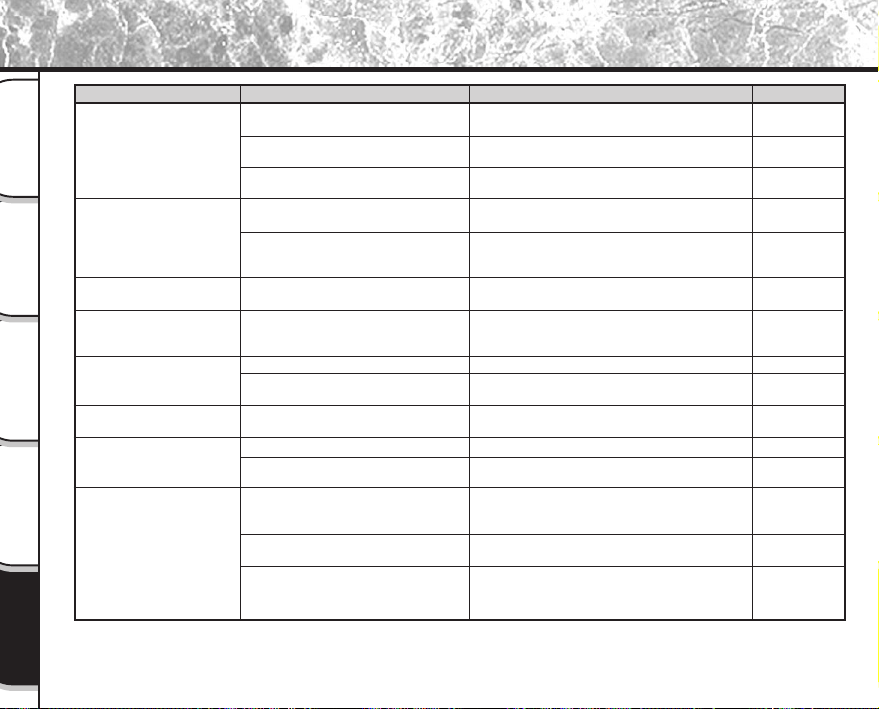
- 100 -
Photographie
de base
Lecture/effacement
des images
Autres
applications
Informations
supplémentaires
Préparation
Guide de dépannage (suite)
Causes
Le réglage de la molette de modes a été
changé.
L’appareil photo est en mode de flash
débrayé.
Vous avez appuyé sur le déclencheur
pendant le recyclage du flash.
L’appareil photo est en mode de flash
débrayé.
L’accumulateur est déchargé.
Il n’y a pas d’images dans le dossier.
Le sujet est trop éloigné.
L’objectif est sale.
La mise au point n’est pas correcte.
La carte SmartMedia™ est protégée
contre l’écriture.
Les vues sont protégées.
La carte SmartMedia™ est protégée
contre l’écriture.
Dysfonctionnement de l’appareil photo.
La molette de modes n’est pas dans la
position correcte.
L’appareil photo est en mode de veille.
Problème
Impossible d’utiliser le flash
pour prendre des photos.
Le flash ne se recycle pas.
Les images fixes ne peuvent
pas être reproduites.
L’image de lecture est trop
sombre, malgré l’utilisation du
flash.
L’image de lecture est floue.
Impossible de formater la
carte SmartMedia™.
Impossible d’effacer toutes
les vues.
Rien ne se passe quand les
touches et les commutateurs
sont enclenchés.
Voir page
–
P.49
P.39
P.49
P.23
P.70
P.49
–
P.45
P.32
P.78
P.32
–
–
P.37
P.80
Solutions
Réglez la molette de modes sur la position
correcte.
Réglez l’appareil sur le mode de flash automatique,
anti-yeux rouges ou forcé.
Attendez que le recyclage du flash soit terminé
avant d’appuyer sur le déclencheur.
Réglez l’appareil sur le mode de flash automatique,
anti-yeux rouges ou forcé.
• Chargez l’accumulateur.
• Mettez un accumulateur complètement chargé en
place.
Sélectionnez un autre dossier à reproduire.
Rapprochez-vous du sujet.
(environ 0,9 m (2,95 pieds) à 2,5 m (8,2 pieds))
Nettoyez l’objectif.
Activez ou désactivez le mode de prise de vues
macro en fonction de la distance au sujet.
Retirez la protection contre l’écriture.
Retirez la protection contre l’écriture.
Retirez la protection contre l’écriture.
Mettez l’appareil photo hors tension, retirez les
accumulateurs une fois, puis faites une nouvelle
tentative.
Réglez la molette de modes sur la position
correcte.
Appuyez sur le déclencheur à mi-course, ou
changez le réglage de la molette de modes.
- 101 -
Photographie
de base
Lecture/effacement
des images
Autres
applications
Informations
supplémentaires
Préparation
Guide de dépannage (suite)
Causes
L’appareil photo est en mode PC.
Les accumulateurs sont retirés de
l’appareil photo et l’adaptateur secteur
est débranché alors que l’appareil est
encore sous tension.
Problème
Aucune n’image n’est
affichée, même quand le
moniteur LCD est allumé.
La date et l’heure réglées
disparaissent.
Voir page
P.40
P.62
P.81
Solutions
Changez le réglage de l’appareil photo sur le mode
de prise de vues ou de lecture.
Réglez de nouveau la date et l’heure.
- 102 -
Photographie
de base
Lecture/effacement
des images
Autres
applications
Informations
supplémentaires
Préparation
Glossaire
● AF/AE
AF (autofocus)...Une fonction permettant la mise au point
automatique de l’appareil photo.
AE...Une fonction permettant le réglage automatique de
l’exposition.
Verrouillage AF/AE...Verrouillage des réglages de mise
au point et d’exposition.
● DCF (Design rule for Camera File System)
Un système de fichier normalisé défini par la JEIDA
(Japan Electronic Industry Development Association)
nécessaire pour l’échange de données entre des
appareils photo numériques ou entre un appareil photo
numérique et une imprimante. Cette norme définit la
hiérarchie et les noms de fichier utilisés lors du stockage
des fichiers d’image dans des cartes mémoire ou
d’autres supports d’enregistrement.
● Format de fichier Exif (Exchangeable Image File Format)
Un système d’images fixes en couleur normalisé pour les
appareil photo numériques approuvé par la JEIDA
(Japan Electronic Industry Development Association).
Conforme aux normes du JPEG, ce format est
compatible avec TIFF et JPEG et peut être utilisé avec
les logiciels de traitement d’image pour la plupart des
ordinateurs personnels.
● JPEG
Un format de fichier utilisé pour la compression et la
sauvegarde des images couleur. Le taux de compression
peut être sélectionné, mais plus le taux est élevé, plus la
qualité de l’image se détériore. Ce format est largement
utilisé dans les logiciels de peinture pour PC et sur
Internet.
● Carte PC
Terme générique désignant les cartes conformes à la
norme PC Card.
● Effet yeux rouges
Phénomène par lequel les yeux des gens apparaissent
parfois rouges sur les photos prises au flash dans des
conditions d’éclairage faibles. Ce phénomène résulte de
la réflexion de la lumière du flash à l’intérieur de l’œil.
● Balance des blancs
Quand la luminosité de la lumière change, l’œil humain
s’adapte afin qu’un objet blanc soit toujours blanc.
D’autre part, les dispositifs tels que les appareils photo
numériques considèrent un sujet blanc comme étant
blanc seulement après le réglage de la balance en
fonction de la couleur de la lumière ambiante environnant
le sujet. Ce processus de réglage corrige la balance des
blancs.
● Carte SmartMedia™
SmartMedia™, nom du format de support de mémoire
établi lors du forum SSFDC. Ce support d’enregistrement
peut être réutilisé à volonté.
● Formatage
Transformation du contenu de la carte SmartMedia™
pour permettre l’enregistrement. (Processus appelé
parfois “initialisation”.)
● Correction de l’exposition
Quand l’écran contient un objet extrêmement brillant ou
sombre, l’appareil photo ajuste automatiquement la
luminosité pour que le sujet reproduit soit plus sombre ou
plus clair. La correction de l’exposition permet de
compenser ce réglage.
- 103 -
Photographie
de base
Lecture/effacement
des images
Autres
applications
Informations
supplémentaires
Préparation
Site Web
www.toshiba.co.uk
www.toshiba.de/consumer
www.toshiba.it/
www.toshiba.fr/produits/video/index.htm
www.toshiba.ch/
www.cp.toshiba.com.sg
www.toshiba.com.hk
Pour la clièntele en dehors des États-Unis et du Canada, veuillez contacter la compagnie Toshiba la plus proche
pour assistance.
Pays
Royaume-Uni
Allemagne
Italie
France
Suisse
Singapour
Hong Kong
Nom de la compagnie
Toshiba (UK) Ltd.
Toshiba Europe Gmbh
Toshiba Consumer Products (Italia)
Toshiba Systems (France)
Toshiba Europe Gmbh Swiss Branch
Toshiba Singapore Pte
Toshiba Hong Kong Ltd
Numéro de téléphone
pour toute demande
(01932) 828828
(02131) 158 01
(039) 6099342
01 47 28 28 50
01-946 07 77
270-7776
2956-0222
Addresse e-mail pour toute
demande
NA
NA
Numéros à appeler
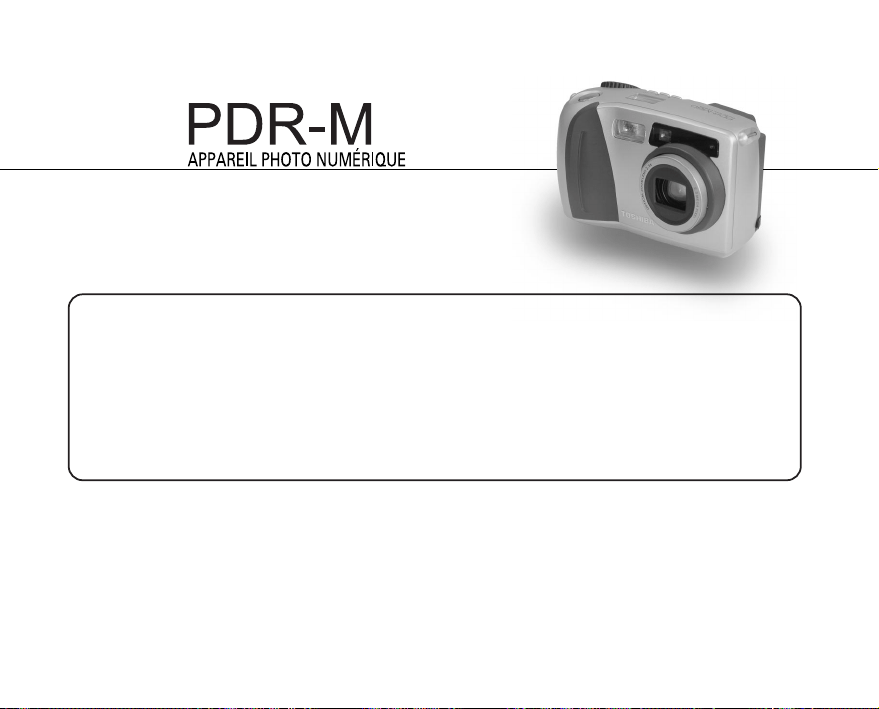
Pour l’assistance technique, veuillez contacter :
(800) 288-1354
5:00 du matin à 5:00 du soir. Du lundi au vendredi sauf jours fériés,
ou envoyer E-mail au : [email protected]
APPAREIL PHOTO NUMÉRIQUE TOSHIBA
Toshiba America Information Systems, Inc.
Imaging Systems Division
9740 Irvine Boulevard, Irvine, California 92618-1697
* L’adresse et le numéro de téléphone peuvent être modifiés sans avis préalable.
23563841
60
BEDIENUNGSANLEITUNG
DIGITAL STILL CAMERA
Bevor Sie die Toshiba PDR-M60
Digitalkamera verwenden, bitte
unbedingt die vorliegende
Bedienungsanleitung aufmerksam
durchlesen, um eine richtige
Verwendung der Kamera
sicherzustellen. Nachdem Sie die
Bedienungsanleitung durchgelesen
haben, bewahren Sie diese bitte für
spätere Bezugnahme auf.
PDR-M60
DEUTSCH
In dem Feld unten tragen Sie bitte das Modell und die Seriennummer Ihrer Kamera ein.
Modell-Nr. PDR-M60 Serien-Nr.
Bitte diese Information zur späteren Bezugnahme aufbewahren.
- 1 -
Grundlegende
Fotografie
Wiedergabe/
Löschen
Andere
Anwendungen
Zusätzliche
Information
Vorbereitung
Für Kunden in den U.S.A.
DIGITAL STILL CAMERA PDR-M60
Tested To Comply
With FCC Standards
FOR HOME OR OFFICE USE
FCC-Hinweis
Dieser Apparat entspricht Teil 15 der FCC-Bestimmungen. Der Betrieb unterliegt den folgenden beiden Bedingun-
gen:
(1) Dieser Apparat darf keine schädlichen Störungen verursachen, und
(2) dieser Apparat muß jegliche empfangenen Störungen vertragen, einschließlich Störungen, die einen uner
wünschten Betrieb verursachen.
ANMERKUNG
Dieses Gerät wurde getestet und gemäß den Beschränkungen für ein Digitalgerät, Klasse B, in Übereinstimmung
mit Teil 15 der FCC-Bestimmungen (Federal Communications Commission, US-amerikanische Bundesbehörde für
das Fernmeldewesen) für zulässig befunden. Diese Beschränkungen sind dazu vorgesehen, bei der Installation in
einer Wohnanlage einen angemessenen Schutz gegen schädliche Störungen zu gewährleisten.
Dieses Gerät erzeugt, nutzt und kann Hochfrequenzenergie ausstrahlen und kann, wenn nicht vorschriftsmäßig
installiert und benutzt, schädliche Störungen des Radioempfangs verursachen. Es kann jedoch nicht ausgeschlos-
sen werden, daß bei einer bestimmten Installation nicht doch Störungen entstehen können. Falls dieses Gerät
schädliche Störungen des Radio- und Fernsehempfangs verursachen sollte, was durch Ein- und Ausschalten des
Geräts festgestellt werden kann, wird der Benutzer aufgefordert, diese Störungen durch eine oder mehrere der
folgenden Maßnahmen zu beheben:
• Richten Sie die Radio- oder Fernsehantenne neu aus.
Stellen Sie den Computer bzw. das Radio oder Fernsehgerät um. Wenn der Computer beispielsweise rechts vom
Fernsehgerät steht, stellen Sie ihn auf die linke Seite. Oder stellen Sie den Computer weiter entfernt von Radio
oder Fernsehgerät auf.
Or, move the equipment farther away from the radio or TV.
Aufmerksamkeit
- 2 -
Grundlegende
Fotografie
Wiedergabe/
Löschen
Andere
Anwendungen
Zusätzliche
Information
Vorbereitung
• Schließen Sie den Computer an eine andere Steckdose an, so daß Ihr Radio bzw. Fernsehgerät und Ihr
Computer an verschiedene Stromkreise angeschlossen sind.
• Stellen Sie sicher, daß alle Erweiterungssteckplätze (auf der Rückseite des Computers) abgedeckt sind. Sorgen
Sie außerdem dafür, daß alle metallenen Halteklammern sicher am Computer befestigt sind.
• Um zusätzliche Hilfe zu erhalten, wenden Sie sich an Ihren Computer-Händler oder einen erfahrenen Radio-/
Fernsehtechniker.
VORSICHT
Durch jede Modifikation Ihrer Kamera ohne die Genehmigung der Toshiba Corporation könnte Ihre Kamera die
FCC-Bestimmungen verletzen. Die Verletzung der FCC-Bestimmungen könnte die FCC dazu veranlassen, Ihre
Berechtigung, die modifizierte Kamera zu benutzen, nichtig zu machen.
TOSHIBA AMERICA INFORMATION SYSTEMS, INC.
Imaging Systems Division
9740 Irvine Boulevard,
Irvine, California 92618-1697
Telefonnummer: (800)288-1354
Für Kunden in Kanada
VORSICHT
Dieses Digitalgerät der Klasse B entspricht der kanadischen Bestimmung „Canadian ICES-003“.
Cet appareil numérique de la classe B est conforme à la norme NMB-003 du Canada.
Aufmerksamkeit (Fortsetzung)
- 3 -
Grundlegende
Fotografie
Wiedergabe/
Löschen
Andere
Anwendungen
Zusätzliche
Information
Vorbereitung
Herzlichen Glückwunsch zum Kauf der Digitalkamera PDR-M60 von Toshiba.
Bitte lesen Sie diese Anleitung zur richtigen Verwendung der Kamera sorgfältig durch. Bewahren Sie die Anleitung
nach dem Lesen zum Nachschlagen auf.
Warenzeichen
• MS-DOS, Windows, Windows 98, Windows 2000
sind eingetragene Warenzeichen der Microsoft
Corporation in den USA und in anderen Ländern.
Windows ist eine abgekürzte Bezeichnung für das
Microsoft-Windows-Betriebssystem.
• SmartMedia ist ein Warenzeichen der Toshiba
Corporation.
• Etwaige bestehende Warenzeichen oder sonstige
gewerbliche Schutzrechte an den in diesem
Handbuch zitierten Bezeichnungen erkennen wir an.
Bevor Sie diese Anleitung lesen
WICHTIG
• Weist auf Beschreibungen oder Einzelheiten hin, die
beachtet werden müssen, um Datenverlust,
Fehlfunktionen oder Leistungsverlust zu vermeiden.
Weist außerdem auf Informationen hin, die sich auf
technische Daten und Funktionen beziehen.
Zur Beachtung
• Weist auf zusätzliche nützliche Informationen hin.
☞
Weist auf eine andere Seite hin, auf der sich
zusätzliche Information befindet.
Über die Betriebssystem-Abkürzungen
• Windows 98
Diese Abkürzung steht für das Betriebssystem
Microsoft
®
Windows
®
98.
• Windows 2000
Diese Abkürzung steht für das Betriebssystem
Microsoft
®
Windows
®
2000.
Konventionen in dieser Anleitung
- 4 -
Grundlegende
Fotografie
Wiedergabe/
Löschen
Andere
Anwendungen
Zusätzliche
Information
Vorbereitung
Inhalt Der Name in Klammern ( ) ist der Funktionsname an der PDR-M60.
Vorwort
■ Aufmerksamkeit ........................................... 1
■ Bevor Sie diese Anleitung lesen................... 3
■ Inhalt ............................................................ 4
■ Sicherheitsmaßregeln .................................. 6
■ Richtige Verwendung der Kamera.............. 12
■ Leistungsmerkmale .................................... 15
■ Zusammenfassung der Funktionen............ 16
Vorbereitung
■ Zubehör...................................................... 17
■ Bezeichnung der Teile ................................ 18
■ Befestigung des Tragegurts........................ 22
■ Vorbereiten der Batterien ........................... 23
Einlegen der Batterien .................................... 23
Entfernen der Batterien ...................................25
■ Betrieb mit Netzstrom ................................ 27
■ Über SmartMedia™ ................................... 28
Hinweise zu SmartMedia™............................. 28
Einsetzen von SmartMedia™..........................29
Entfernen von SmartMedia™.......................... 30
Schreibschutz.................................................. 32
■ Ein- und Ausschalten ................................. 33
Einschalten...................................................... 33
Ausschalten.....................................................33
■ LCD-Monitordisplay.................................... 34
Im Fotografie-Modus .......................................34
Im Wiedergabemodus ..................................... 35
Grundlegende Fotografie
■ Halten der Kamera ..................................... 36
■ Drücken des Auslösers .............................. 37
■ Über die Farbe der Sucher-LED................. 39
■ Fotografieren (Auto-Fotomodus) ................ 40
Verwendung des Suchers ............................... 40
Verwendung des LCD-Monitors ...................... 41
■ Einstellen von Bildformat und Qualität ....... 43
■ Zoom-Fotografie......................................... 45
■ Digital-Zoomfotografie ................................ 46
■ Nahaufnahme (Makrofotografie) ................ 47
■ Aufnahmen mit Selbstauslöser .................. 48
■ Aufnahmen mit Blitz ................................... 49
■ Multibild-Aufnahmen .................................. 52
■ Langzeitbelichtung
(Fotografieren im B-Modus) ....................... 53
■ Manuelles Fotografieren............................. 54
[W.A.] (Weißabgleich)......................................56
[B.W.] (Belichtungskompensation) ..................56
■ Ändern der Voreinstellungen
(AUFN.) ...................................................... 58
AUFN MOD (Aufnahmemodus)....................... 59
VORANS. (Vorschau) ......................................60
ISO ..................................................................60
BELICHT. (Belichtung) ....................................61
VERÖG. (Selbstauslöser) ............................... 61
LCD ................................................................. 61
- 5 -
Grundlegende
Fotografie
Wiedergabe/
Löschen
Andere
Anwendungen
Zusätzliche
Information
Vorbereitung
Inhalt (Fortsetzung)
Der Name in Klammern ( ) ist der Funktionsname an der PDR-M60.
Wiedergabe/Löschen
■ Wiedergabe aufgenommener Bilder .......... 62
■ Vergrößern von Aufnahmen
(Zoom-Wiedergabe) ................................... 63
■ Abrufen der Bilderliste
(Miniaturbildanzeige).................................. 64
■ Automatische Wiedergabe (Diashow) ........ 65
■ Verringern der Bildgröße
(Bildformat ändern) .................................... 66
■ Bilder komprimieren (Qualität) ................... 68
■ Ordner zur Wiedergabe wählen ................. 70
■ Löschen von Bildern
(Einzelbild-Löschung)................................. 72
■ Löschen aller Bilder in einem Ordner
(Alle löschen) ............................................. 74
■ Formatieren von SmartMedia™ ................. 75
■ Bilder vor Löschen schützen ...................... 76
Schützen eines Bildes.....................................76
Aufheben des Schreibschutzes.......................78
Andere Anwendungen
■ Grundlegende Kameraeinstellungen
(Setup-Modus) ........................................... 79
SPRACHE .......................................................80
TON.................................................................80
ZEIT ................................................................81
AUTO-AUS (Automatisches Ausschalten).......81
TV.................................................................... 82
BILDNR. ..........................................................82
STANDARD (Vorgabe) ....................................83
■ Einstellung der LCD-Monitor-Helligkeit ...... 84
■ DISP-Taste und LCD-Monitordisplay ......... 85
■ Aufnehmen und Wiedergeben von Bildern
auf einem Fernsehgerät ............................. 86
■ Übertragen von Bildern zu einem PC ........ 88
■ Installation des USB-Treibers..................... 89
■ Sonderzubehör........................................... 92
■ Anschluß an andere Geräte ....................... 93
Zusätzliche Information
■ Technische Daten....................................... 94
■ Warnungen und Meldungen im
LCD-Monitor............................................... 98
■ Fehlersuche ............................................... 99
■ Glossar..................................................... 102
■ Wie Sie uns erreichen können ................. 103
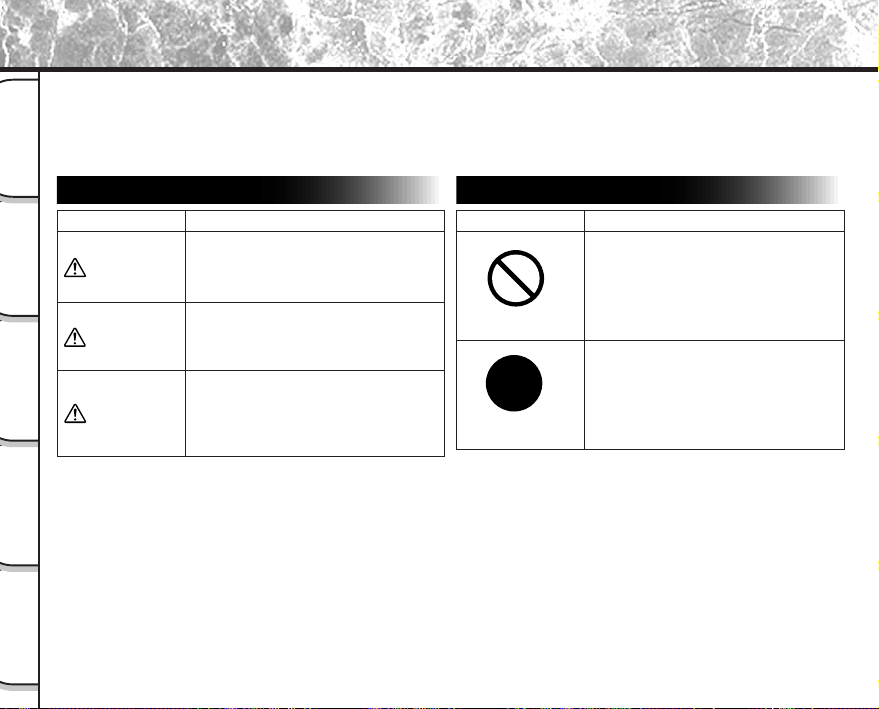
- 6 -
Grundlegende
Fotografie
Wiedergabe/
Löschen
Andere
Anwendungen
Zusätzliche
Information
Vorbereitung
Sicherheitsmaßregeln
Anzeigedefinitionen
Lesen Sie bitte diese Sicherheitsmaßregeln vor dem Gebrauch der PDR-M60 gründlich durch. Sie geben wichtige
Informationen zum sicheren und sachgemäßen Betrieb, um Unfälle mit Sachschäden oder Verletzungen zu
vermeiden.
Machen Sie sich mit den folgenden Kennzeichnungen (Anzeigen und Symbolen) vertraut, bevor Sie den Hauptteil der
Anleitung lesen.
*1: “Körperverletzung” bedeutet Verletzungen, Verbrennun-
gen und Schocks, bei denen keine stationäre Behand-
lung oder eine längere Therapie erforderlich ist.
*2: “Schäden” bezieht sich auf umfangreiche Sachschä-
den, die Wohnung, Haushaltsgegenstände, Nutztiere
oder Haustiere betreffen.
Symboldefinitionen
Anzeige Bedeutung
Weist darauf hin, daß bei Nichtbeach-
tung und/oder Fehlbedienung die
Gefahr von Unfällen mit Verletzungen
oder sogar Todesfolge besteht.
Weist darauf hin, daß bei Nichtbeach-
tung und/oder Fehlbedienung die
Gefahr von Unfällen mit Verletzungen
besteht.
Weist darauf hin, daß bei Nichtbeach-
tung und/oder Fehlbedienung die
Gefahr von Unfällen mit Verletzun-
gen*1 oder Schäden*2 am Gerät
besteht.
Symbol Bedeutung
Zeigt ein Verbot an, der entsprechende
Vorgang darf nicht ausgeführt werden.
Der eigentliche verbotene Vorgang
wird im Symbol selbst oder daneben
grafisch dargestellt oder im Text
beschrieben.
Zeigt einen Vorgang an, der ausgeführt
werden muss.
Der eigentliche auszuführende
Vorgang wird im Symbol selbst oder
daneben grafisch dargestellt oder im
Text beschrieben.
GEFAHR
WARNUNG
VORSICHT
- 7 -
Grundlegende
Fotografie
Wiedergabe/
Löschen
Andere
Anwendungen
Zusätzliche
Information
Vorbereitung
Haftungsausschluß
• Toshiba Corporation übernimmt keine Verantwortung
für Schäden, die durch Erdbeben, oder außerhalb
des Haftbarkeitsbereichs fallende Brände verursacht
wurden, oder durch Drittpersonen, sonstige Unfälle,
zweckfremde Verwendung, einschließlich unsachge-
mäße Bedienung und ähnliche Umstände, entstan-
den sind.
• Toshiba Corporation kann keine Verantwortung für
Folgeverluste oder -schäden (Gewinneinbußen,
Geschäftsausfälle, Änderungen oder Verluste von
Speicherinhalten etc.) aufgrund von Verwendung
oder Ausfall dieses Produktes übernehmen.
• Toshiba Corporation kann keine Verantwortung für
Folgeverluste oder -schäden übernehmen, die
aufgrund von Verwendung dieses Produktes
entgegen den Anweisungen in der Bedienungsanlei-
tung übernehmen.
• Toshiba Corporation kann keine Verantwortung für
Folgeverluste oder -schäden übernehmen, die
aufgrund von Fehlbedienung entstehen, wie etwa
durch fehlerhaften Anschluß an andere Geräte.
Sicherheitsmaßregeln (Fortsetzung)
Die Batterien nicht erhitzen, zerlegen oder
in Feuer oder Wasser werfen.
Dadurch könnte es bewirkt werden, daß sie
bersten, sich entzünden oder stark erhitzen, was
zu Bränden oder Verletzungen führen können.
Niemals mit einem Hammer auf die
Batterien schlagen, darauf treten, fallenlas-
sen oder sonstigen starken Stößen
aussetzen.
Die Batterien können hierdurch platzen, sich
entzünden oder heiß werden und dadurch
Brände und ernsthafte Verletzungen verursa-
chen.
GEFAHR
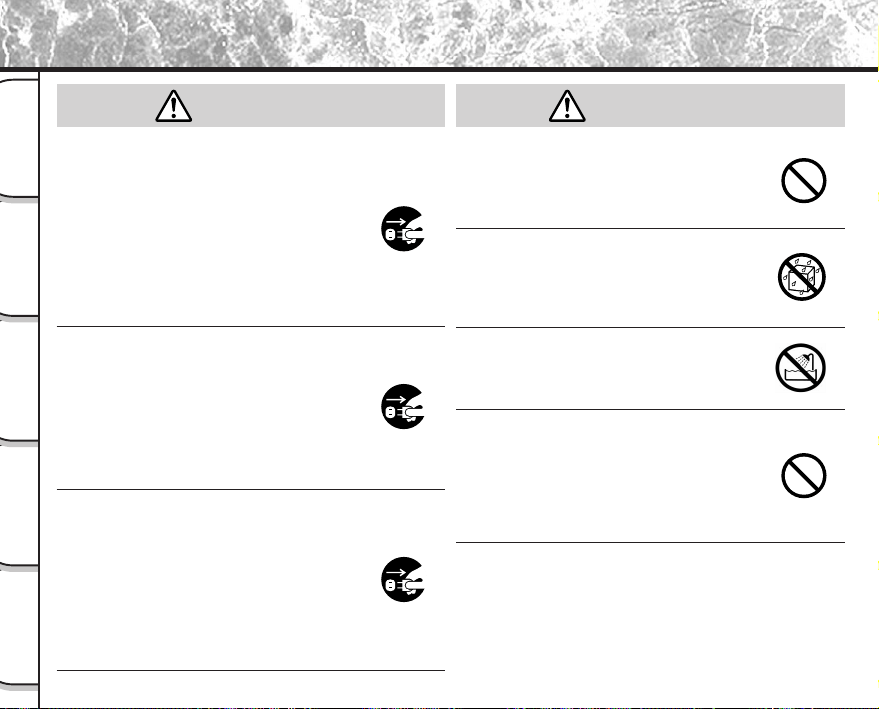
- 8 -
Grundlegende
Fotografie
Wiedergabe/
Löschen
Andere
Anwendungen
Zusätzliche
Information
Vorbereitung
Sicherheitsmaßregeln (Fortsetzung)
Bei Rauchentwicklung, fremden Gerüchen
oder starkem Erhitzen der Kamera, die
Kamera sofort ausschalten (OFF), die
Batterie herausnehmen und das Netzteil
trennen.
Fortgesetzte Verwendung in diesem Zustand
führt zur Gefahr von Bränden, elektrischen
Schlägen oder Verbrennungen. Wenden Sie sich
für notwendige Reparaturen bitte an den
Fachhandel, bei dem die Kamera gekauft wurde,
oder an eine Kundendienststelle.
Falls Fremdgegenstände oder Wasser in
die Kamera gelangt sind, sofort den Betrieb
beenden und Batterien sowie Netzteil entfernen.
Fortgesetzte Verwendung in diesem Zustand
führt zur Gefahr von Bränden, elektrischen
Schlägen oder Verbrennungen. Wenden Sie sich
für notwendige Reparaturen bitte an den
Fachhandel, bei dem die Kamera gekauft wurde,
oder an eine Kundendienststelle.
Falls die Kamera fallengelassen oder
starken Erschütterungen ausgesetzt wurde,
sofort den Betrieb beenden und Batterien
sowie Netzteil entfernen.
Fortgesetzte Verwendung in diesem Zustand
führt zur Gefahr von Bränden, elektrischen
Schlägen oder Verbrennungen. Wenden Sie sich
für notwendige Reparaturen bitte an den
Fachhandel, bei dem die Kamera gekauft wurde,
oder an eine Kundendienststelle.
Die Kamera nicht auf einer unebenen,
geneigten oder wackeligen Oberfläche
aufstellen.
Dadurch könnte die Kamera herunterfallen oder
umkippen.
Nicht in der Nähe von Wasser verwenden.
Dabei besteht die Gefahr von Bränden und
elektrischen Schlägen. Besonders bei Regen,
Schnee, am Strand oder in der Nähe des Ufers
vorsichtig sein.
Die Kamera nicht im Badezimmer oder in
einer Dusche verwenden.
Dabei besteht die Gefahr von Bränden und
elektrischen Schlägen.
Nicht metallische Gegenstände oder
brennbare Fremdkörper in die Kamera
geraten lassen.
Dabei besteht die Gefahr von Bränden und
elektrischen Schlägen. Nicht die Abdeckung der
SmartMedia™-Karte öffnen oder derartige
Fremdkörper hereinfallen lassen.
(Fortsetzung)
WARNUNGWARNUNG
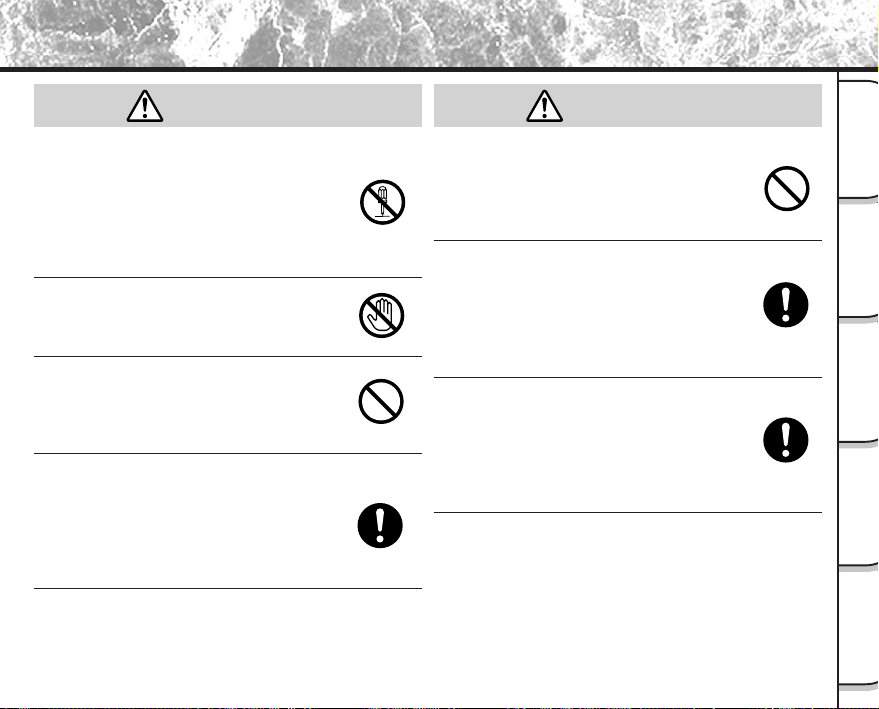
- 9 -
Grundlegende
Fotografie
Wiedergabe/
Löschen
Andere
Anwendungen
Zusätzliche
Information
Vorbereitung
Sicherheitsmaßregeln (Fortsetzung)
Nicht versuchen, die Kamera zu zerlegen
oder zu modifizieren.
Dies kann zu Bränden oder elektrischen
Schlägen führen. Wenden Sie sich für Reparatu-
ren oder eine Überprüfung bitte an den
Fachhandel, bei dem die Kamera gekauft wurde,
oder an eine Kundendienststelle.
Nicht Netz- oder Antennenleitungen bei
Gewittern berühren.
Dabei besteht die Gefahr elektrischer Schläge.
Nicht die Kamera beim Gehen, Fahren
oder Motorradfahren verwenden.
Dabei besteht die Gefahr von Stürzen oder
Verkehrsunfällen.
Immer nur die vorgeschriebenen Batterien
bzw. das vorgeschriebene Netzteil
verwenden.
Bei Verwendung anderer als der vorgeschriebe-
nen Stromquellen besteht die Gefahr von
Bränden, Geräteschäden oder Fehlfunktionen.
Die Batterien immer außer Reichweite von
Kindern halten.
Verschluckte Batterien können zu gefährlichen
Vergiftungen führen. Wenn eine Batterie
verschluckt wird, sofort einen Arzt rufen.
Falls Batterieflüssigkeit in die Augen
gelangt, die Augen unverzüglich mit
Wasser ausspülen und danach einen Arzt
aufsuchen.
Falls die Augen nicht behandelt werden, kann es
zu permanenten Sehschäden kommen.
Immer nur geeignete Batterien und das
vorgesehene Netzteil (120 VAC) zum
Betrieb dieses Geräts verwenden.
Bei Verwendung von anderen als vorgeschriebe-
nen Teilen können Brände oder elektrische
Schläge verursacht werden.
(Fortsetzung)
WARNUNG
(Fortsetzung)
WARNUNG
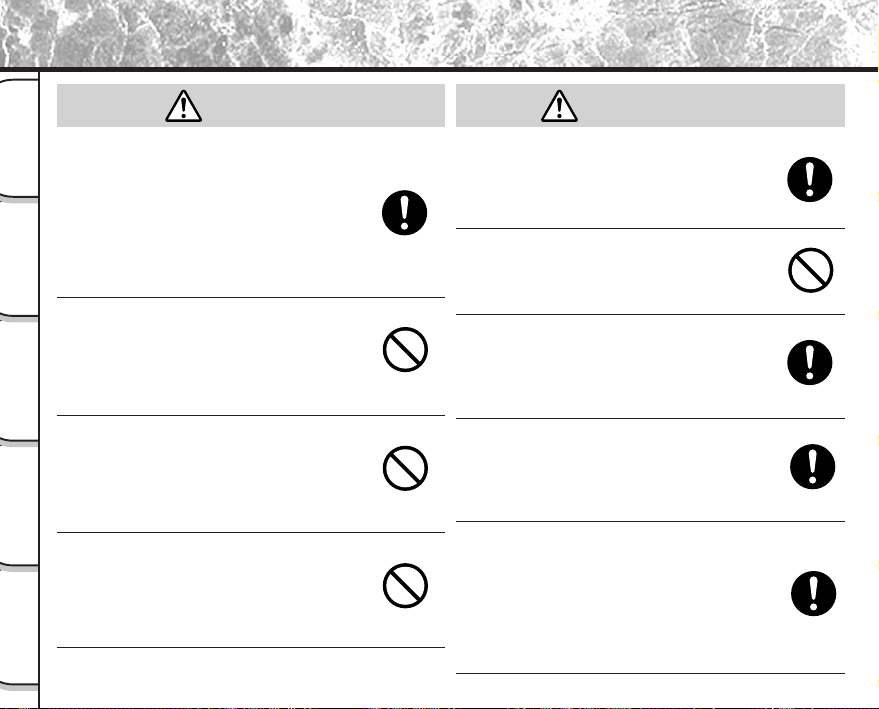
- 10 -
Grundlegende
Fotografie
Wiedergabe/
Löschen
Andere
Anwendungen
Zusätzliche
Information
Vorbereitung
Sicherheitsmaßregeln (Fortsetzung)
Wenn Sie die Kamera in einem Flugzeug
verwenden wollen, fragen Sie das Flugper-
sonal um Erlaubnis und befolgen die
gegebenen Anweisungen.
Die Verwendung der Kamera kann wegen
möglicher elektromagnetischer Störungen der
Bordelektronik in bestimmten Situationen
verboten sein.
Die Kamera nicht an Orten mit starker
Luftfeuchtigkeit, Dampf, Rauch oder Staub
verwenden.
Dies könnte zu Bränden und elektrischen
Schlägen führen.
Nicht die Kamera an Orten ablegen, wie
die Temperatur stark ansteigen kann, wie
etwa in einem geschlossenen Automobil.
Dies könnte zu Beschädigung der gespeicherten
Daten führen.
Die Kamera nicht in Kleider, Decken usw.
einwickeln.
Dies kann zu Hitzestau und dadurch zu einer
Deformierung des Gehäuses führen. Kamera an
einem gut belüfteten Ort benutzen.
Vor dem Bewegen der Kamera alle
Verbindungskabel abtrennen.
Wenn dies nicht geschieht, können Kabel
beschädigt werden. Dies könnte zu Bränden und
elektrischen Schlägen führen.
Die Kamera nicht fallenlassen oder starken
Erschütterungen aussetzen.
Dies könnte zu Bränden elektrischen Schlägen
oder Fehlfunktionen führen.
Vor Wartungsarbeiten an der Kamera
immer die Batterien und das Netzteil
entfernen.
Wenn diese Teile angebracht belassen werden,
besteht die Gefahr elektrischer Schläge.
Bei längerem Nichtgebrauch der Kamera
immer die Batterien und das Netzteil
entfernen.
Wenn diese Teile angebracht belassen werden,
besteht die Gefahr von Bränden.
Sicherstellen, daß die Batterien mit
richtiger Polung, also richtiger Ausrichtung
von Pluspol (+) und Minuspol (–) entspre-
chend der Abbildung eingesetzt werden.
Wenn die Batterien mit verkehrter Polung
eingesetzt werden, besteht die Gefahr von
Bränden oder Verletzungen oder Schäden an
benachbarten Bereichen.
VORSICHT
VORSICHT
(Fortsetzung)
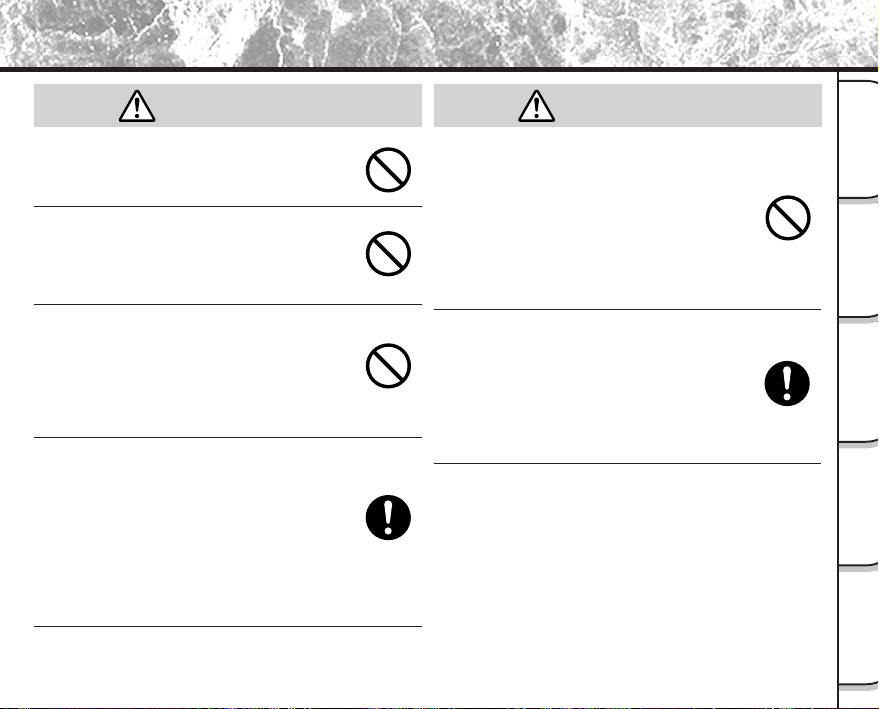
- 11 -
Grundlegende
Fotografie
Wiedergabe/
Löschen
Andere
Anwendungen
Zusätzliche
Information
Vorbereitung
Sicherheitsmaßregeln (Fortsetzung)
Niemals durch den Kamerasucher in die
Sonne blicken.
Dies kann zu Sehschäden führen.
Den Blitz nicht auf Personen in der Nähe
richten.
Dadurch kann die Sehfähigkeit kurzzeitig
beeinträchtigt werden.
Beim Tragen der Kamera darauf achten,
daß diese nicht am Körper herumschwenkt.
Dadurch kann die Kamera Stößen ausgesetzt
werden, wenn sie gegen Personen oder
Gegenstände schlägt, was zu Schäden an der
Kamera oder Verletzungen führen kann.
Beim Lagern oder Entsorgen gebrauchter
Batterien immer den Pluspol (+) und
Minuspol (–) mit Klebeband abdecken.
Wenn die Batterien ohne diese Vorsichtsmaßre-
gel gelagert werden, könnten Batteriepole in
Berührung mit Metallgegenständen kommen und
zu Bränden oder Verletzungen durch austreten-
den Batteriesäure, Überhitzung oder Bersten der
Batterie führen.
Das Betriebsdisplay vor Stößen schützen.
Wenn das Betriebsdisplay Stößen ausgesetzt
wird, kann das Displayglas brechen und
Displayflüssigkeit austreten.
Falls Displayflüssigkeit auf Haut oder Kleidung
gerät, sofort mit viel Wasser abspülen.
Falls Displayflüssigkeit in die Augen gelangt, die
Augen unverzüglich mit Wasser ausspülen und
danach einen Arzt aufsuchen.
Der Händler, bei dem das Gerät gekauft
wurde, sollte alle 2 Jahre einmal zur
Reinigung kontaktiert werden.
Wenn dieses Gerät längere Zeit verwendet wird,
kann sich Staub ansammeln und zu Bränden oder
Schäden führen. Einzelheiten über Kosten der
Reinigung erfahren Sie bei Ihrem Fachhändler.
VORSICHT
(Fortsetzung)
VORSICHT
(Fortsetzung)
- 12 -
Grundlegende
Fotografie
Wiedergabe/
Löschen
Andere
Anwendungen
Zusätzliche
Information
Vorbereitung
Richtige Verwendung der Kamera
Hinweise zum Umgang mit der Kamera
Bei der Verwendung der Kamera müssen immer die ab Seite 6 aufgeführten Sicherheitsmaßregeln sowie die
folgenden Hinweise befolgt werden.
● Vermeiden Sie die Verwendung der Kamera an den folgenden Orten:
• An Orten mit hoher Luftfeuchtigkeit, Staub oder Schmutz
• An Orten mit direkter Sonnenbestrahlung
• An Orten mit extrem hohen oder niedrigen Temperaturen
• An Orten mit leicht entflammbaren Gasen
• An Orten in der Nähe von Benzin, Benzol, Terpentin o.ä
• An Orten mit starken Stößen oder Vibrationen
• An Orten mit Staub oder Rauch
• An Orten mit starken Magnetfeldern (wie in der Nähe von Elektromotoren, Trafos oder Magneten)
• Längere Zeit an Orten in der Nähe von Chemikalien wie etwa Pestizide oder neben Gummi- oder PVC-
Produkten.
● Die Kamera vor Sand schützen.
Die PDR-M60 ist besonders gegen Sand empfindlich. Wenn die Kamera in Kontakt mit Sand kommt,
kann sie irreparabel beschädigt werden.
Dies muß besonders bei Verwendung der Kamera am Strand oder an Orten mit Staub oder Sand
beachtet werden.
● Hinweise zur Kondensation
Bei plötzlichen Temperaturschwankungen, z.B. wenn die Kamera von einem kalten an einen warmen Ort
gebracht wird, können sich Wassertröpfchen (Kondensation) im Inneren der Kamera oder auf dem
Objektiv bilden. In diesem Fall die Kamera ausschalten und vor dem erneuten Einschalten eine Stunde
warten. Kondensation kann sich auch auf der SmartMedia™-Karte bilden. In diesem Fall die
SmartMedia™-Karte entfernen, vorhandene Wassertröpfchen abwischen, und vor dem erneuten
Einsetzen kurz warten.
- 13 -
Grundlegende
Fotografie
Wiedergabe/
Löschen
Andere
Anwendungen
Zusätzliche
Information
Vorbereitung
● Pflege der Kamera
• Um Kratzer an Objektiv, Oberfläche des Betriebsdisplays oder Sucher zu vermeiden, immer jeglichen
Staub, der sich auf diesen Teilen angesammelt hat, mit einem Blaspinsel abblasen und mit einem
weichen Lappen sanft abwischen.
• Das Gehäuse der Kamera mit einem weichen, trockenen Tuch reinigen. Keine flüchtigen organischen
Lösungsmittel wie Terpentin, Benzol oder Insektizide verwenden, da diese mit dem Kameragehäuse
chemisch reagieren und Deformation oder Oberflächenschäden bewirken können.
Richtige Verwendung der Kamera (Fortsetzung)
- 14 -
Grundlegende
Fotografie
Wiedergabe/
Löschen
Andere
Anwendungen
Zusätzliche
Information
Vorbereitung
Richtige Verwendung der Kamera (Fortsetzung)
Hinweise zum Umgang mit dem Netzteil
Immer nur das vorgeschriebene Netzteil (getrennt erhältlich) verwenden. Bei Verwendung eines anderen Netzteils
besteht die Gefahr von Funktionsstörungen.
Wenn das unten beschriebene Netzteil verwendet wird, immer die ab Seite 6 aufgeführten Sicherheitsmaßregeln
sowie die folgenden Hinweise befolgen.
• Achten Sie immer darauf, das Netzteil nicht mit Metallgegenständen in Berührung kommen zu lassen,
da sonst die Gefahr von Kurzschlüssen besteht.
• Beim Anschluß des Netzteils den Stecker am Kabelende fest in die Buchse DC IN 5V einstecken.
Nicht in andere Buchsen einstecken; dabei besteht die Gefahr von Fehlfunktion.
• Vor dem Abtrennen des Netzteilkabels die Kamera ausschalten und dann das Kabel am Stecker
abziehen. Beim Abziehen immer am Stecker und nicht am Kabel ziehen.
• Das Netzteil nicht fallenlassen und vor starken Erschütterungen schützen.
• Das Netzteil nicht an sehr heißen und feuchten Orten verwenden.
• Das Netzteil nicht einstecken, während die Batterien verwendet werden. Zuerst die Kamera ausschalten.
• Das Netzteil ist nur zur Verwendung in Räumen gedacht.
• Immer nur das vorgeschriebene Netzteil verwenden. Keine anderen Netzteile verwenden.
• Das Netzteil kann sich beim Betrieb erwärmen. Das ist normal und keine Fehlfunktion.
• Summ- oder Schwirrgeräusche können von der Kamera hörbar werden. Das ist normal und keine
Fehlfunktion.
• Nicht das Netzteil in der Nähe von Radios verwenden, da es den Rundfunkempfang stören könnte.
• Wenn die Batterien oder das Netzteil entfernt werden, während die Kamera in Betrieb ist, kann das
Datum aus dem Speicher verlorengehen. In diesem Fall muß das Datum neu eingestellt werden.
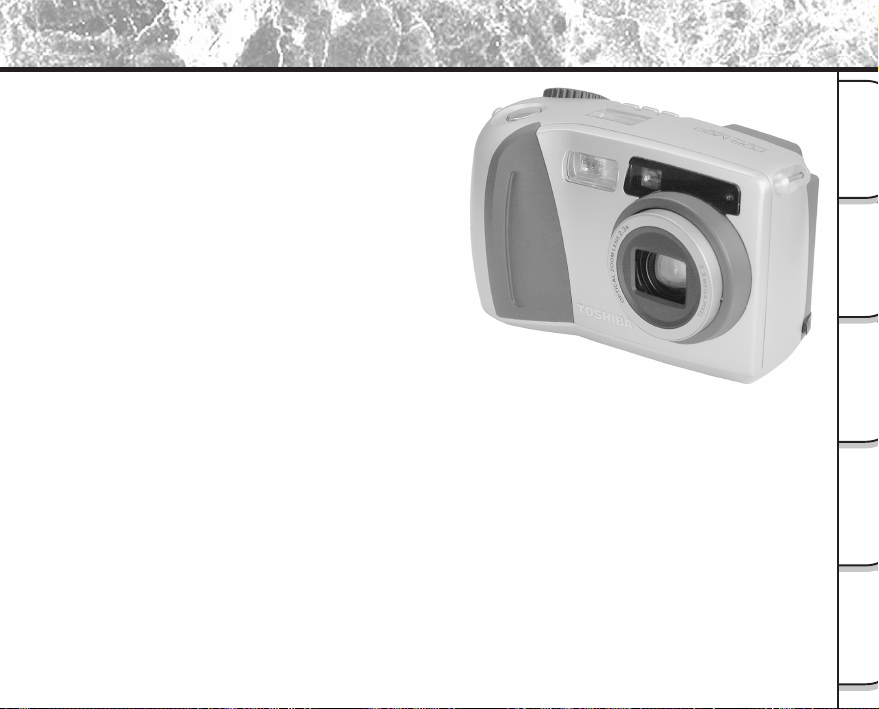
- 15 -
Grundlegende
Fotografie
Wiedergabe/
Löschen
Andere
Anwendungen
Zusätzliche
Information
Vorbereitung
Leistungsmerkmale
● 2,3X Zoomobjektiv
● Mit USB-Schnittstelle ausgestattet
● Hohe Auflösung von 2,3 Millionen Pixel
● Umfassende Fotofunktionen
•Auto/Blitz/Makro/Selbstauslöser
•Multibild-Aufnahmemodus
(16 aufeinanderfolgende Teilbilder in einem Bild)
•B-Modus für Nachtaufnahmen und kreative Fotografie
•Farb-/Schwarzweißfotografie usw.
● Leichte Wahl von Bildformat und Qualität
• Größe (Standbild : 1792 x 1200/896 x 600 Pixel)
• Qualität (FINE (schön)/NORMAL (normal)/BASIC (elementar))
● Statusanzeige
•Einstellungen können auch bei ausgeschaltetem LCD-Monitor geändert werden.
● SmartMedia™
• Erweiterbar bis 64 MB
● Kompatibilität
• Bildaufnahmemethode entsprechend DCF
- 16 -
Grundlegende
Fotografie
Wiedergabe/
Löschen
Andere
Anwendungen
Zusätzliche
Information
Vorbereitung
Zusammenfassung der Funktionen
Probieren Sie den Einsatz der PDR-M60 unter Beachtung der folgenden Zusammenfassung der Funktionen.
Lesen Sie diese Seiten zuerst.
Vorbereitung zur Verwendung der PDR-M60.
(S.17 – 35)
Kennenlernen der grundlegenden
Funktionen.
Machen Sie sich zuerst mit den grundlegenden
Funktionen der PDR-M60 vertraut.
Fotografieren (S.40)
Wiedergabe aufgenommener Bilder (S.62)
Löschen von Bildern (S.72)
Zoom-Fotografie (S. 45)
Digitalzoom-Fotografie (S. 46)
Nahaufnahmen (S. 47)
Aufnahmen mit Selbstauslöser (S. 48)
Aufnahmen mit Blitz (S. 49)
Multibild-Aufnahmen (S. 52)
Aufnehmen mit Langzeitbelichtung
(Fotografieren im B-Modus) (S. 53)
Verwendung der verschiedenen
Fotografie-Betriebsarten.
Sie können zwischen verschiedenen Fotobetriebsarten
für die PDR-M60 wählen.
Vergrößern aufgenommener Bilder (S. 63)
Automatische Wiedergabe (S. 65)
Wiedergabe der aufgenommenen Bilder.
Sie können verschiedene Möglichkeiten zur
Wiedergabe auf dem LCD-Monitor wählen.
Einstellen von Bildformat und Qualität (S. 43)
Manuelle Einstellung der PDR-M60 (S. 54)
Ändern der Voreinstellungen (S. 58)
Ändern der Aufnahmeeinstellungen.
Sie können die Einstellung für die Aufnahme nach
Wunsch oder Situation ändern.
Weitere Möglichkeiten ausprobieren.
Die PDR-M60 bietet zahlreiche weitere Merkmale.
Abrufen einer Aufnahmeliste (S. 64)
Bildformat ändern (S. 66)
Bilder komprimieren (S. 68)
Gleichzeitiges Löschen aller Bilder (S. 74)
Bilder vor Löschen schützen (S. 76)
Ändern der PDR-M60 Kameraeinstellungen (S. 79)
Aufnehmen und Wiedergeben von Bildern auf
einem Fernsehgerät (S. 86)
Übertragen von Bildern zu einem PC (S. 88)
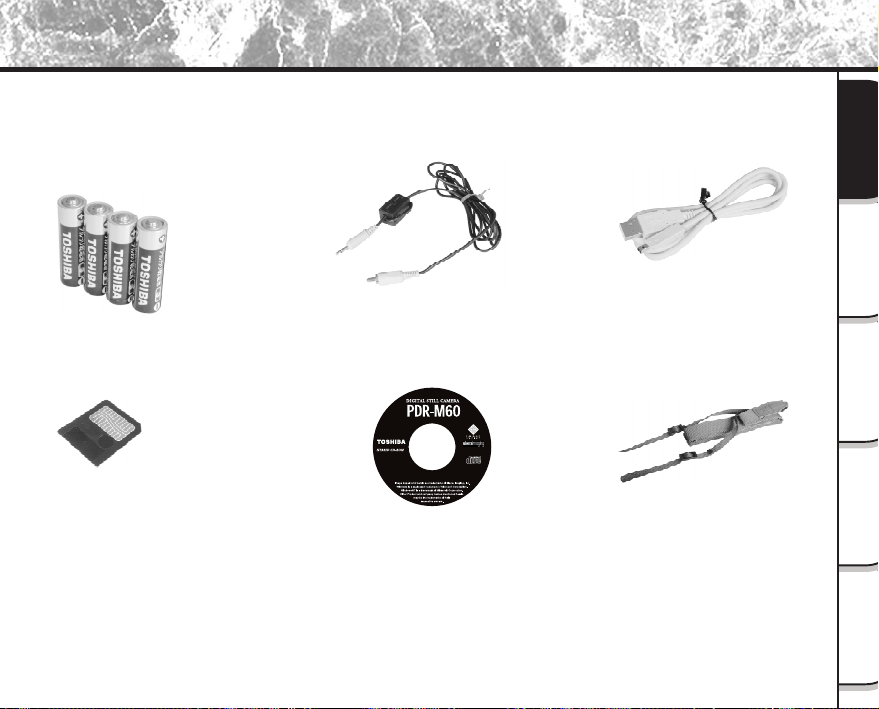
- 17 -
Grundlegende
Fotografie
Wiedergabe/
Löschen
Andere
Anwendungen
Zusätzliche
Information
Vorbereitung
Zubehör
Überprüfen Sie bitte vor Inbetriebnahme der Kamera, daß die folgenden Teile vorhanden sind.
Batterien
(4, Größe AA)
Alkalische
Videokabel (1)
SmartMedia™
(4 MB, 3,3 V) (1)
Tragegurt (1)
USB-Kabel
Software (CD-ROM)
• Antistatik-Schutzhülle (1)
• Etiketten (2)
• Schreibschutzaufkleber (4)
•ImageExpert
•USB driver
PDR-M60-01
• Bedienungsanleitung (diese Anweisung)
• Garantiekarte (für die USA und Kanada)
Getrennt erhältlich
Netzteil
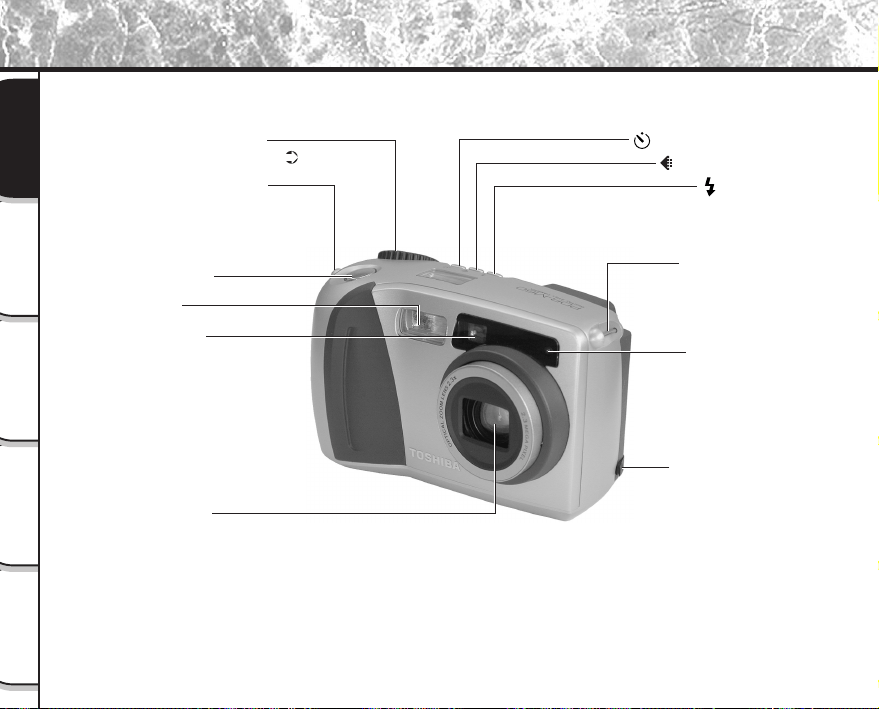
- 18 -
Grundlegende
Fotografie
Wiedergabe/
Löschen
Andere
Anwendungen
Zusätzliche
Information
Vorbereitung
Modus-Wählrad
Vergrößerte Abbildung ( P.20)
Selbstauslöser-
Anzeigelämpchen
Objektiv
Sucher
Blitz
Auslöser
Gurtaufhängung
Gurtaufhängung
Blitz-Taste
Selbstauslöser-Taste
Bildqualität-Taste
DC IN 5V-Buchse
Bezeichnung der Teile
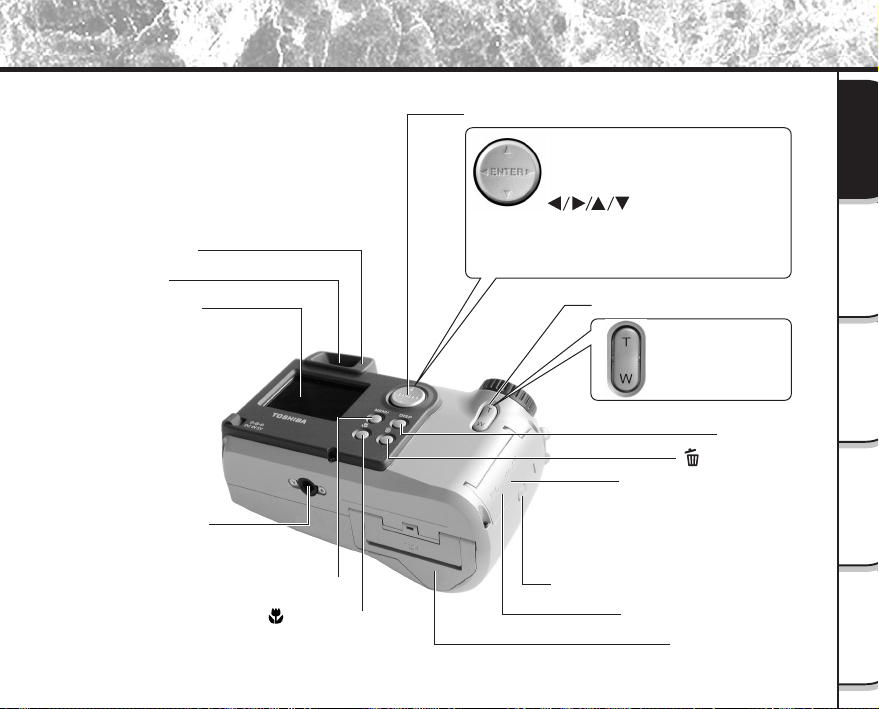
- 19 -
Grundlegende
Fotografie
Wiedergabe/
Löschen
Andere
Anwendungen
Zusätzliche
Information
Vorbereitung
Functionstaste
Zoom-Taste
SmartMedia™-Abdeckung
Freigabehebel für SmartMedia™-Abdeckung
Batteriefachdeckel
Stativgewinde
DISP-Taste
LCD-Monitor
Macro-Taste
MENU-Taste
Löschen-Taste
ENTER-Taste (Eingabe)
Die Mitte dieser Taste drücken.
(Diese Taste wird zur Best tigung einer
Eingabe verwendet.)
(Eingabekreuz)-Taste
Diese Taste zur gewünschten Richtung
drücken.
(Diese Tasten zum W hlen eines
Einstellgegenstands oder Bildes bet tigen.)
Telestellung (zoom)
"T" drücken.
Weitwinkel
"W" drücken.
Sucher
Sucher-LED
Anschlußleistenabdeckung
• DIGITAL-Anschluß
• VIDEO-Anschluß
Bezeichnung der Teile (Fortsetzung)
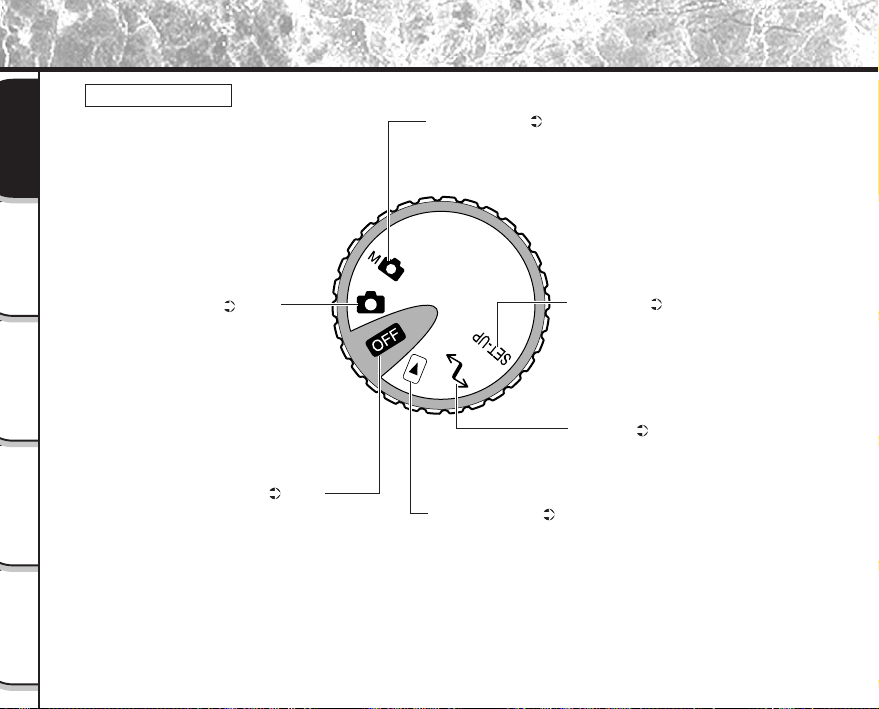
- 20 -
Grundlegende
Fotografie
Wiedergabe/
Löschen
Andere
Anwendungen
Zusätzliche
Information
Vorbereitung
Aus-Zustand ( S. 33)
Schaltet die Kamera aus.
Auto-Fotomodus ( S. 40)
Dies ist eine einfache, praktische
Fotografierbetriebsart, in der die
Kamera automatisch entspre-
chend den Aufnahmebedingun-
gen die Belichtung (eine Kombin-
ation von Verschlußzeit- und Blen-
deneinstellung) eingestellt. Diese
Betriebsart ist ideal für das allge-
meine Fotografieren, wo keine be-
sonderen Effekte erzielt werden
sollen.
Manueller Modus ( S. 54)
Zum manuellen Einstellen von
Weißabgleich und Belichtung
Setup-Modus ( S. 79)
In dieser Betriebsart werden
grundlegende Kameraeinstellun-
gen (Ausschaltzeit, Ton, Zeit, Dis-
playsprache, Bildnummer und
Reset) eingestellt.
PC-Modus ( S. 88)
Im PC-Modus können die Bilder
auf einen PC übertragen wer-
den. Einzelheiten siehe Soft-
ware-Dokumentation.
Wiedergabe-Modus ( S. 62)
Neben der normalen Einzelbild-
Wiedergabe sind auch Schutz-
Modus, Formatänderung, Kom-
pression und andere Einstellun-
gen möglich.
Bezeichnung der Teile (Fortsetzung)
Modus-Wählrad
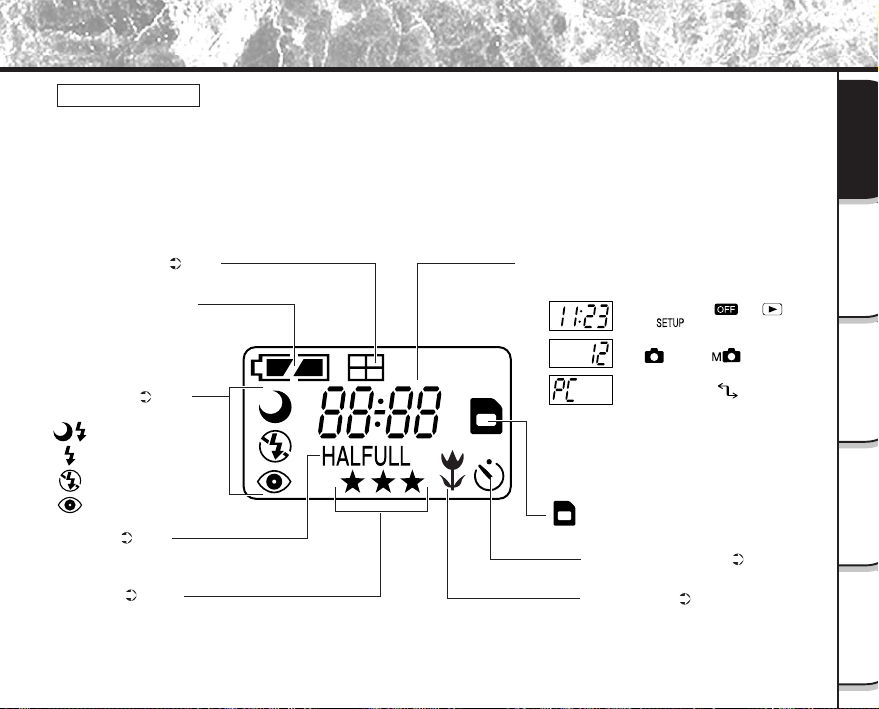
- 21 -
Grundlegende
Fotografie
Wiedergabe/
Löschen
Andere
Anwendungen
Zusätzliche
Information
Vorbereitung
: SmartMedia™-Eingelegt-Symbol
Bildformat ( S. 43)
HALF: 896 x 600 Pixel
FULL: 1792 x 1200 Pixel
Bildqualität ( S. 43)
★★★: FINE (schön)
★★: NORMAL (normal)
★: BASIC (elementar)
Selbstauslöser-Fotografie ( S. 48)
Makrofotografie ( S. 47)
Restliche Batteriestärke
Multibild-Aufbamen ( S. 52)
Beispiel der Zähleranzeige
(Die Anzeige unterscheidet sich je nach Einstellung des
Wählrads.)
Zeitanzeige (im [ ]-, [ ]-
oder [ ]-Modus)
Mögliche Anzahl an Aufnahmen
(im [ ]- oder [ ]-Modus:
bei der Standbildaufnahme)
PC-Anzeige (im [ ]-Modus)
Blitzfotografie ( S. 49)
Keine Anzeige: Auto
:
Langsame Synchronisation
:
Rote-Augen-Effekt-Verringerung
: Unterdrückter Blitz
: Gezwungener Blitz
Bezeichnung der Teile (Fortsetzung)
Statusanzeige
Diese Anzeige zeigt den Betriebszustand der Kamera an. Sie können den Kamerastatus überprüfen,
auch wenn der LCD-Monitor nicht eingeschaltet ist.
Text, Zahlen und Symbole in der Statusanzeige unterscheiden sich je nach Einstellung.
Die Rückbeleuchtung der Statusanzeige wird in den folgenden Fällen etwa fünf Sekunden lang aktiviert:
• Wenn der Auslöser gedrückt wird
• Wenn die Selbstauslöser-, Bildqualität- oder Blitztaste gedrückt wird.
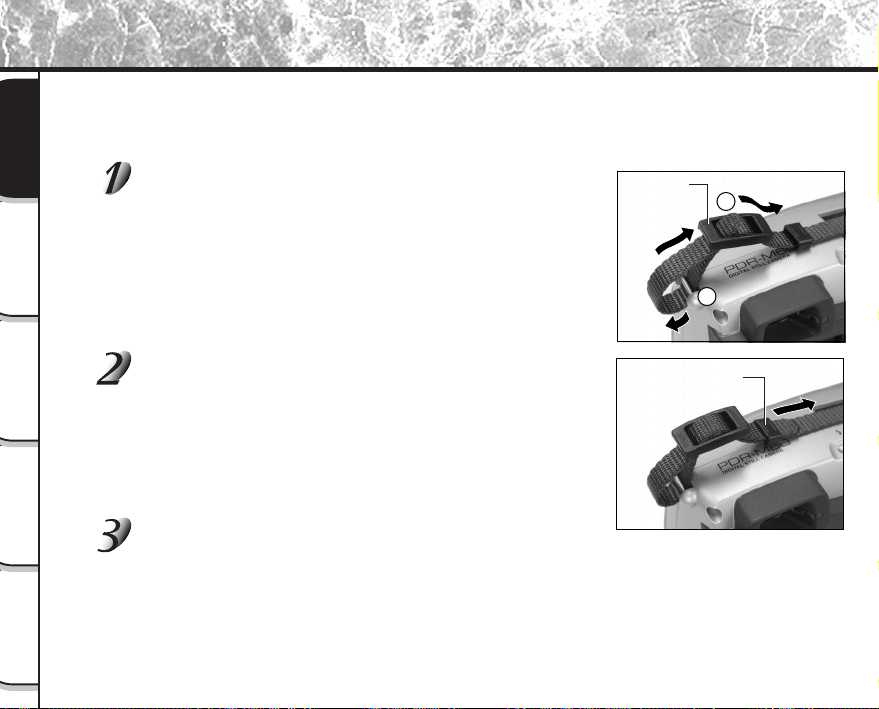
- 22 -
Grundlegende
Fotografie
Wiedergabe/
Löschen
Andere
Anwendungen
Zusätzliche
Information
Vorbereitung
Befestigung des Tragegurts
Der Tragegurt ist nützlich, um die Kamera unterwegs mitzunehmen.
Hängen Sie sich den Tragegurt um den Hals, um ein Fallenlassen der Kamera zu vermeiden.
Das Gurtende zuerst durch die Gurtaufhängung 1
und danach durch beide Enden des Gurtlängenvers-
tellers 2 führen.
Das Gurtende durch den Bund führen und straff
ziehen.
Das andere Ende des Tragegurts auf die gleiche
Weise an der gegenüberliegenden Seite der Kamera
befestigen.
Gurtlängen-
versteller
2
1
Bund
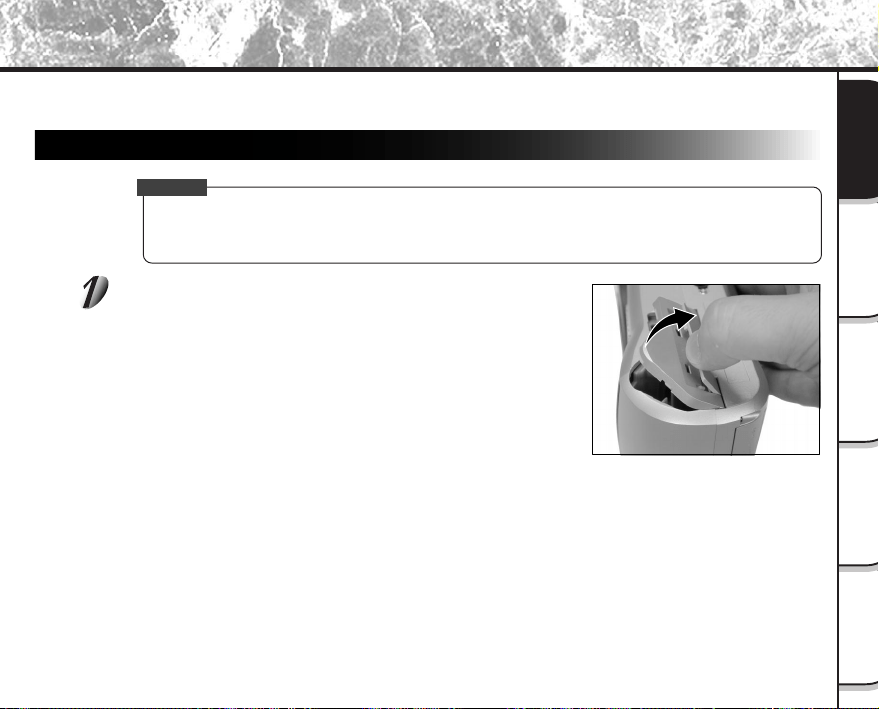
- 23 -
Grundlegende
Fotografie
Wiedergabe/
Löschen
Andere
Anwendungen
Zusätzliche
Information
Vorbereitung
Vorbereiten der Batterien
Diese Kamera arbeitet mit vier (4) Größe AA (alkalische) Batterien.
Einlegen der Batterien
WICHTIG
• Vor dem Einlegen oder Entfernen der Batterien muß die Kamera ausgeschaltet sein. Wenn die Batterien
eingelegt oder entfernt werden, während die Kamera eingeschaltet ist, kann die Datumseinstellung
verlorengehen oder andere Einstellungen können auf Vorgabewerte zurückgesetzt werden.
Den Batteriefachdeckel wie gezeigt ziehen und öffnen.
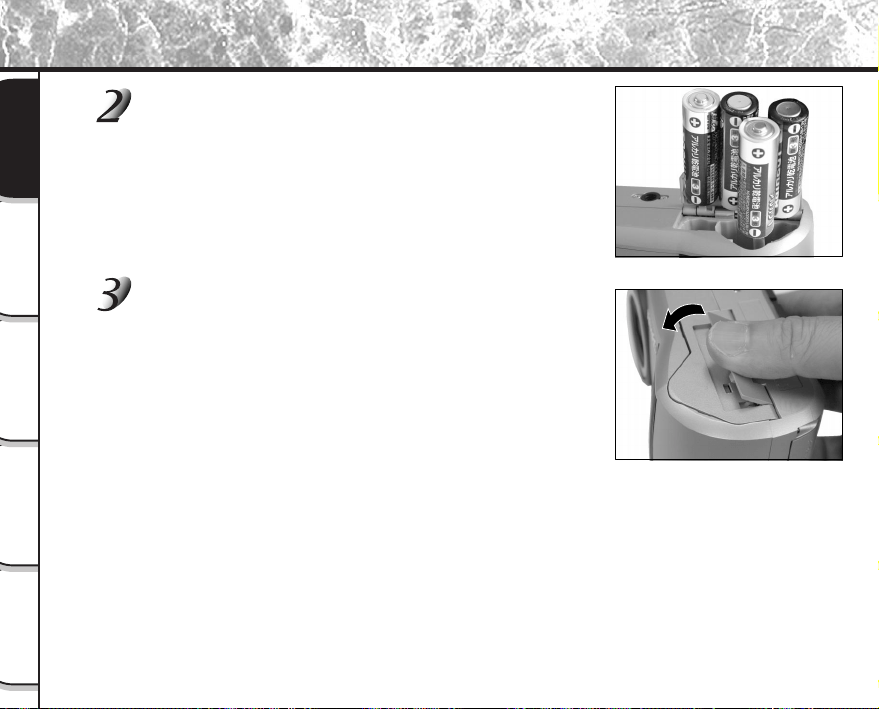
- 24 -
Grundlegende
Fotografie
Wiedergabe/
Löschen
Andere
Anwendungen
Zusätzliche
Information
Vorbereitung
Vorbereiten der Batterien (Fortsetzung)
Die Batterien in das Batteriefach einlegen und sicher-
stellen, daß die Polung richtig ist, wie in der Abbil-
dung rechts gezeigt.
Den Batteriefachdeckel schließen.
Sicherstellen, daß der Batteriefachdeckel fest geschlossen ist.
- 25 -
Grundlegende
Fotografie
Wiedergabe/
Löschen
Andere
Anwendungen
Zusätzliche
Information
Vorbereitung
Vorbereiten der Batterien (Fortsetzung)
Entfernen der Batterien
Zum Herausnehmen der Batterien die unter “Einlegen der Batterien” beschriebenen Schritte in umgekehrter
Reihenfolge ausführen.
WICHTIG
• Beim Entfernen der Batterien darauf achten, die Kamera nicht versehentlich fallenzulassen.
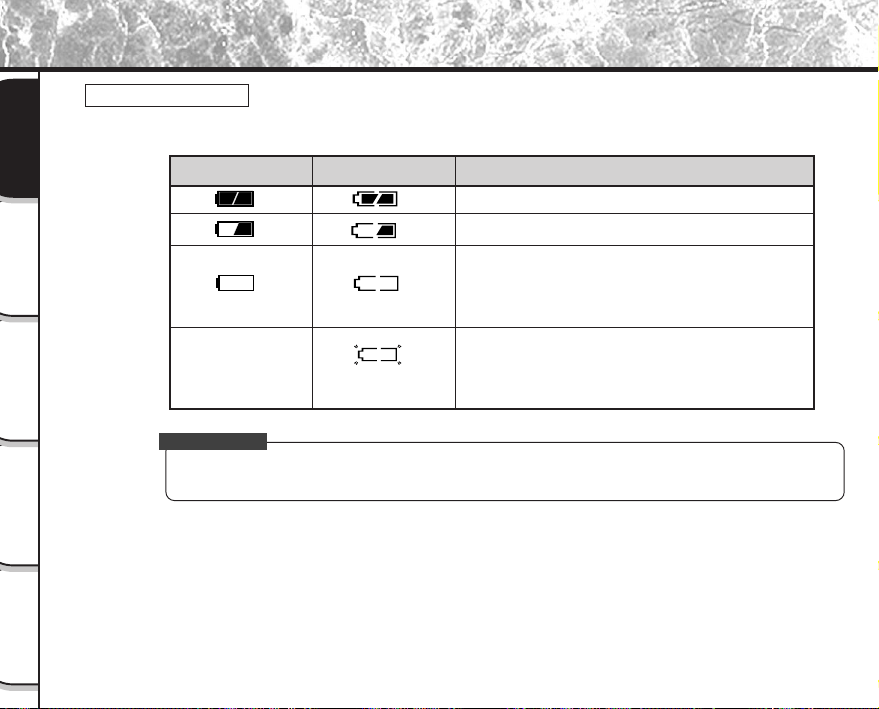
- 26 -
Grundlegende
Fotografie
Wiedergabe/
Löschen
Andere
Anwendungen
Zusätzliche
Information
Vorbereitung
Vorbereiten der Batterien (Fortsetzung)
Batterieverbrauch
In eingeschaltetem Zustand wird die restliche Batteriestärke auf dem LCD-Monitor und in der Statusan-
zeige gezeigt.
Zur Beachtung
• Wenn Sie die Kamera zum ersten Mal verwenden oder die Kamera längere Zeit ohne Nachladen
abgelegt wurde, stellen Sie das Datum ein (
➲
S. 81).
Restliche Batteriestärke
Ausreichende Batteriestärke
Halbe Batteriestärke oder weniger
Wenig Batteriestärke übrig (Strom wird unterbro-
chen.)
Durch neue Batterien ersetzen.
Keine Batteriestärke übrig (Strom schaltet nicht
ein).
Durch neue Batterien ersetzen.
LCD-Monitor
Statusanzeige
Blinkt zweimal
Keine Anzeige
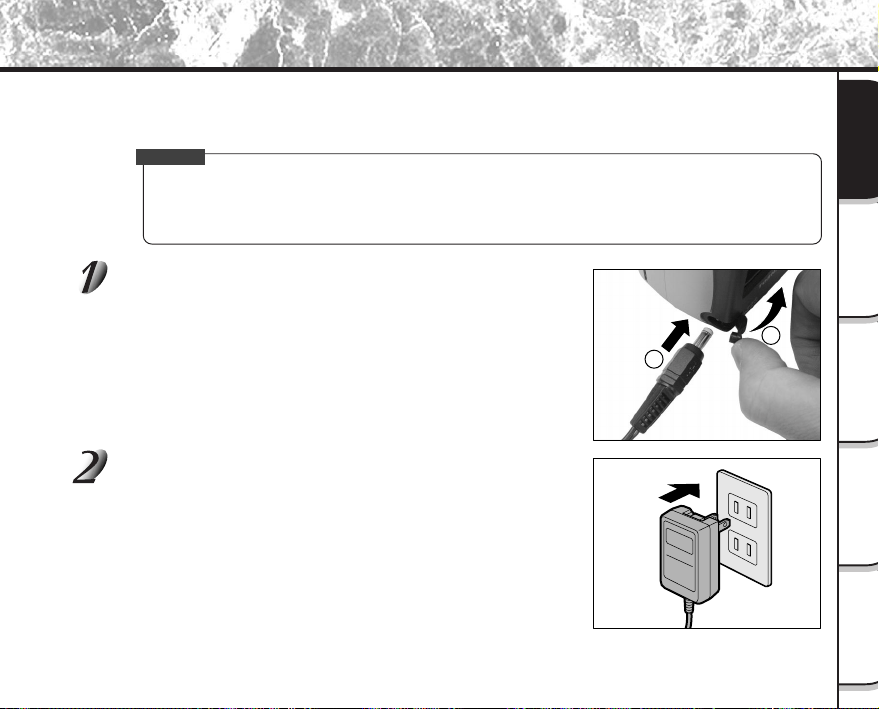
- 27 -
Grundlegende
Fotografie
Wiedergabe/
Löschen
Andere
Anwendungen
Zusätzliche
Information
Vorbereitung
Wenn Sie das Netzteil mit der Kamera mitgeliefert in einem Raum mit Steckdose verwenden, können Sie über
längere Zeit hinweg Fotos aufnehmen. Dadurch werden auch verdorbene Fotos aufgrund von Batterieschwäche
oder fehlerhafter Datenübertragung zu einem PC vermieden. Einzelheiten zum Netzteil siehe Seite 14.
WICHTIG
• Vor dem Anschließen oder Abtrennen des Netzteils immer die Kamera ausschalten. Wenn das Netzteil
angeschlossen oder abgetrennt wird, während die Kamera eingeschaltet ist, können die Einstellungen
auf Vorgabewerte zurückgesetzt werden (SETUP
➲
S. 79, Manuelle Fotografie
➲
S. 54), oder die
Kamera kann nicht richtig funktionieren.
Die Anschlußabdeckung 1 öffnen und den Netzteil-
stecker in die Buchse DC IN 5V an der Kamera stek-
ken 2.
Das Netzteil in die Steckdose einstecken.
Betrieb mit Netzstrom
2
1
- 28 -
Grundlegende
Fotografie
Wiedergabe/
Löschen
Andere
Anwendungen
Zusätzliche
Information
Vorbereitung
Über SmartMedia™
“SmartMedia™” ist ein Datenträger zum Speichern Ihrer Aufnahmen. Auch wenn die Kamera ausgeschaltet wird,
bleiben die Bilddaten auf SmartMedia™ gespeichert und werden nicht gelöscht. SmartMedia™ kann wiederholt
beschrieben und abgelesen werden. SmartMedia™ mit der folgenden Speicherkapazität kann in Ihrer Kamera
verwendet werden.
2MB / 4MB (Standardzubehör) / 8MB / 16MB / 32MB / 64MB (alle 3,3V-Typen)
Sie können auch den getrennt erhältlichen PC-Kartenadapter und den Diskettenadapter (
➲
S. 93) zur Übertragung
von Bilddaten zu einem PC verwenden.
Hinweise zu SmartMedia™
• In den folgenden Situationen können Daten gelöscht (zerstört) werden. Beachten Sie, daß die Toshiba
Corporation keine Verantwortung jeglicher Art für den Verlust (die Zerstörung) von aufgezeichneten
Daten in diesen Situationen übernimmt:
- Wenn SmartMedia™ vom Anwender oder einer dritten Partei unsachgemäß verwendet wird
- Wenn SmartMedia™ statischer Elektrizität oder elektrischem Rauschen ausgesetzt wird
- Wenn SmartMedia™ aus der Kamera entfernt wird oder die Kamera ausgeschaltet wird, während
Datenaufzeichnung, Datenlöschung, Einzelbildweiterschaltung, Wiedergabe oder Formatierung
ausgeführt wird.
• Wir empfehlen, wichtige Daten zur Sicherung auch auf einen anderen Datenträger (Diskette, Festplat-
te, MO usw.) zu kopieren.
• Niemals SmartMedia™ entfernen oder die Kamera ausschalten, während Datenaufzeichnung oder
Datenlöschung (SmartMedia™-Formatierung) ausgeführt wird. Sonst könnte SmartMedia™ beschädigt
werden.
• Verwenden Sie nur SmartMedia™, die für PDR-M60 formatiert sind. Verwendung anderer
SmartMedia™ kann die Kamera beschädigen.
• SmartMedia™ sind elektronische Präzisionsteile. Nicht biegen, fallenlassen oder starken Erschütterun-
gen aussetzen. SmartMedia™ nicht an Stellen wie in Hosentaschen tragen. Dadurch könnte
SmartMedia™ z.B. beim Hinsetzen zu starkem Druck ausgesetzt und beschädigt werden.
• Nicht SmartMedia™ an Orten mit starker statischer Elektrizität oder starken elektromagnetischen
Feldern verwenden.
• Nicht SmartMedia™ in sehr heißer, feuchter oder korrodierender Umgebung verwenden oder lagern.
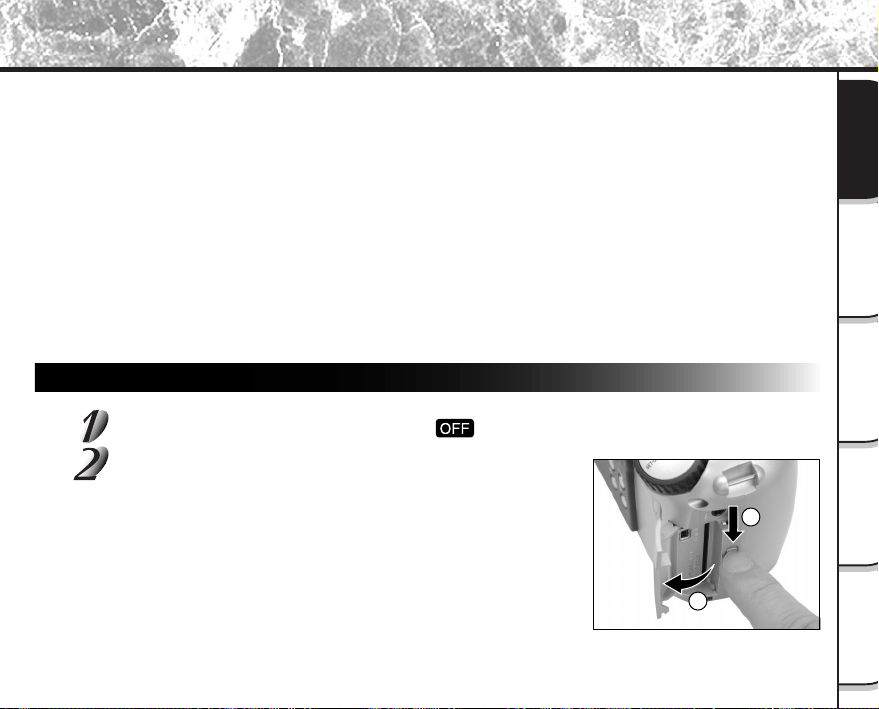
- 29 -
Grundlegende
Fotografie
Wiedergabe/
Löschen
Andere
Anwendungen
Zusätzliche
Information
Vorbereitung
• Keine metallischen Gegenstände in Berührung mit den Kontakten (Anschlußoberfläche) von
SmartMedia™ kommen lassen. Zum Abwischen nur ein fusselfreies Tuch verwenden.
• Um Schäden durch statische Elektrizität bei Transport oder Lagerung zu vermeiden, immer die
mitgelieferte spezielle Antistatik-Schutzhülle verwenden.
• Wenn die Kamera längere Zeit nicht verwendet werden soll, SmartMedia™ entfernen und an sicherer
Stelle aufbewahren.
• Wenn statisch geladene SmartMedia™ eingesetzt werden, können Fehlfunktionen verursacht werden.
In diesem Fall die Kamera aus- und dann wieder einschalten.
• SmartMedia™ kann sich nach dem Entnehmen aus der Kamera nach längerer Verwendung der
Kamera warm anfühlen. Das ist normal und keine Fehlfunktion.
• SmartMedia™ hat eine begrenzte Lebensdauer. Wenn Schreiben oder Löschen von Bildern nicht mehr
möglich ist, neue SmartMedia™ kaufen.
• Die mit der Kamera mitgelieferten Index-Aufkleber verwenden. Wenn handelsübliche allgemeine
Aufkleber verwendet werden, können Fehlfunktionen beim Einsetzen oder Entfernen von
SmartMedia™ verursacht werden.
Einsetzen von SmartMedia™
Stellen Sie das Modus-Wählrad auf [ ].
Den Freigabehebel für SmartMedia™-Abdeckung in
Pfeilrichtung 1 schieben, um die Abdeckung
2
zu
öffnen.
Über SmartMedia™ (Fortsetzung)
2
1
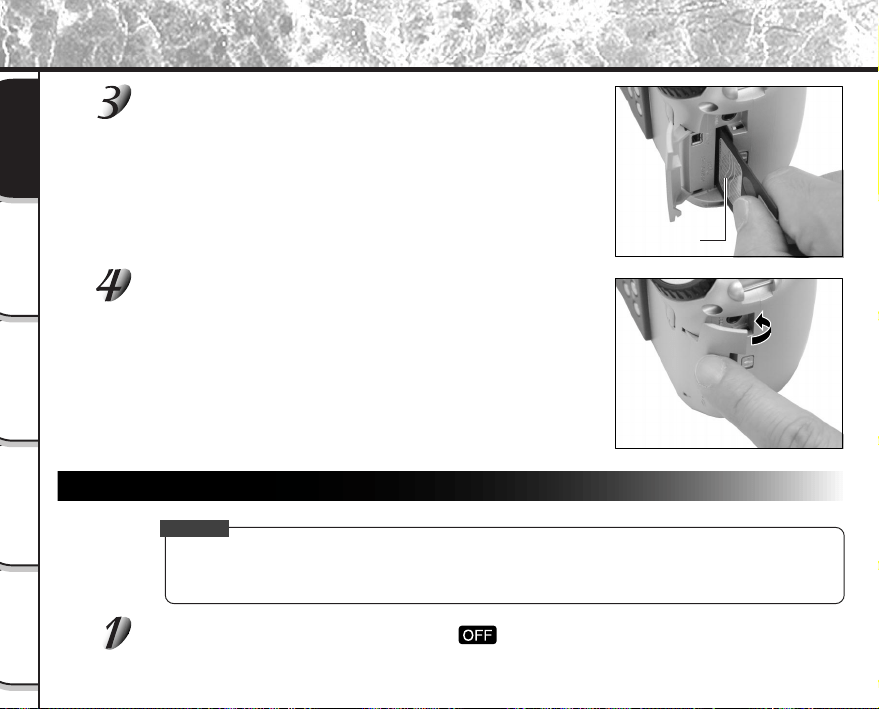
- 30 -
Grundlegende
Fotografie
Wiedergabe/
Löschen
Andere
Anwendungen
Zusätzliche
Information
Vorbereitung
Über SmartMedia™ (Fortsetzung)
Vorsichtig SmartMedia™ so weit wie möglich einset-
zen, wobei die SmartMedia™ Elektroden (Metall-
kontakte) zur Rückseite der Kamera weisen sollen.
Die SmartMedia™-Abdeckung schließen.
Vor der Verwendung neuer SmartMedia™ immer SmartMedia™
formatieren (
➲
S. 75).
Entfernen von SmartMedia™
WICHTIG
• Niemals die SmartMedia™-Abdeckung öffnen oder entfernen, während Daten auf SmartMedia™
geschrieben werden (der Sucher leuchtet). Dadurch könnte SmartMedia™ beschädigt werden, oder
die Daten auf SmartMedia™ könnten beeinträchtigt werden.
Stellen Sie das Modus-Wählrad auf [ ].
Electroden
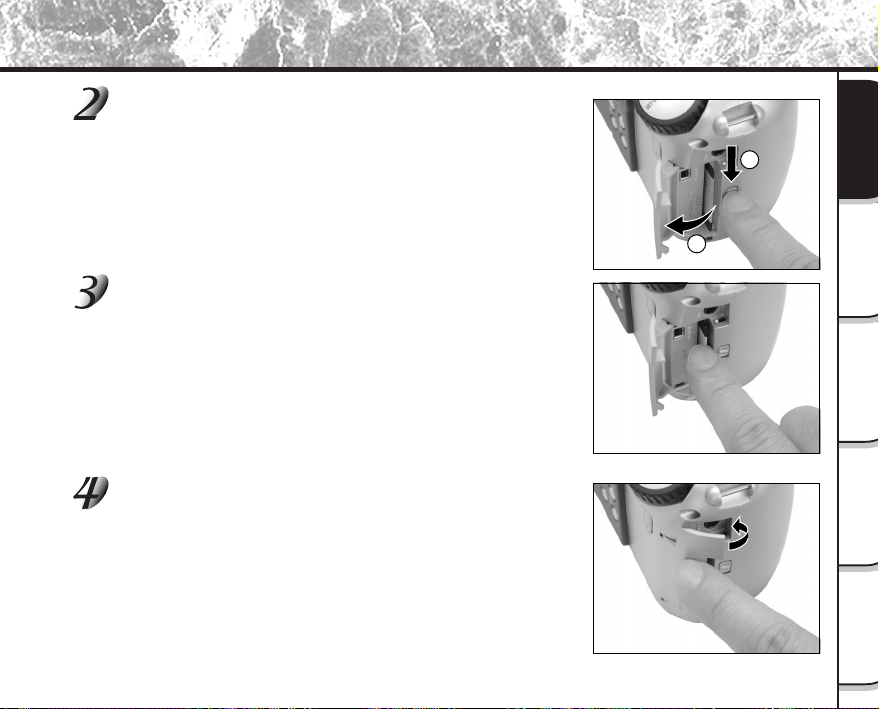
- 31 -
Grundlegende
Fotografie
Wiedergabe/
Löschen
Andere
Anwendungen
Zusätzliche
Information
Vorbereitung
Über SmartMedia™ (Fortsetzung)
Den Freigabehebel für SmartMedia™-Abdeckung in
Pfeilrichtung 1 schieben, um die Abdeckung 2 zu
öffnen.
SmartMedia™ so weit wie möglich hineindrücken,
und mit den Fingern herausziehen.
Wenn Sie SmartMedia™ einmal so weit wie möglich einschieben,
steht es leicht heraus. Dann mit den Fingern herausziehen.
Die SmartMedia™-Abdeckung schließen.
2
1
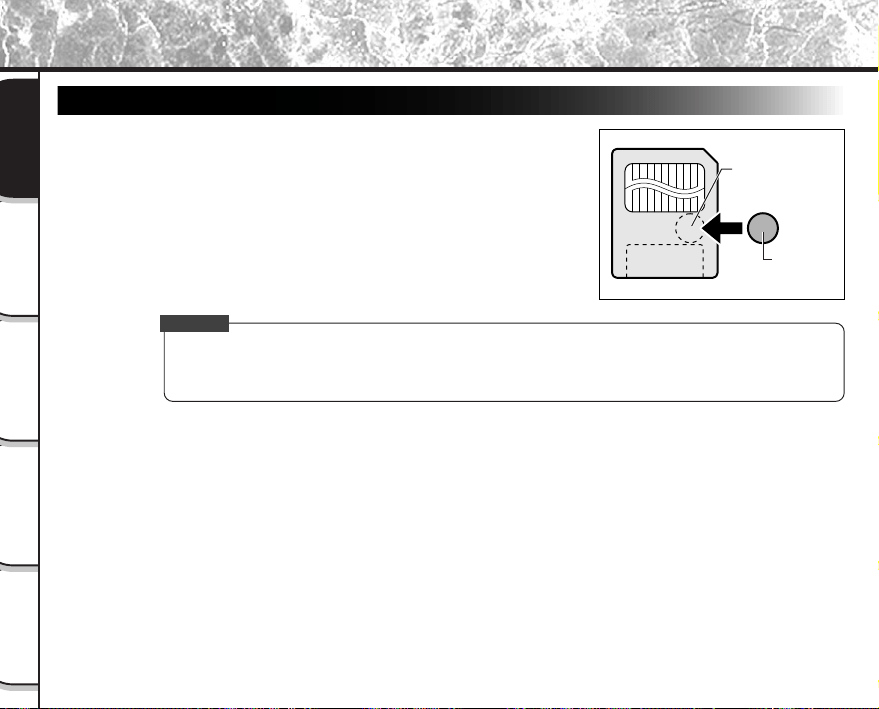
- 32 -
Grundlegende
Fotografie
Wiedergabe/
Löschen
Andere
Anwendungen
Zusätzliche
Information
Vorbereitung
Über SmartMedia™ (Fortsetzung)
Schreibschutz
Um zu vermeiden, daß wertvolle Daten versehentlich überschrie-
ben werden, den Schreibschutzaufkleber an der Schreibschutz-
stelle anbringen. Daten können dann nicht länger auf
SmartMedia™ aufgezeichnet oder gelöscht werden. Zum
erneuten Lesen oder Löschen von Daten von SmartMedia™ den
Schreibschutzaufkleber entfernen.
WICHTIG
• Der Schreibschutz kann nicht wirksam sein, wenn der Schreibschutzaufkleber verschmutzt wird. In
diesem Fall vorhandenen Schmutz mit einem weichen, trockenen Lappen abwischen. Wenn ein
Schreibschutzaufkleber abgezogen ist, kann er nicht erneut angebracht werden.
Schreibshutzbereich
Aufkleber
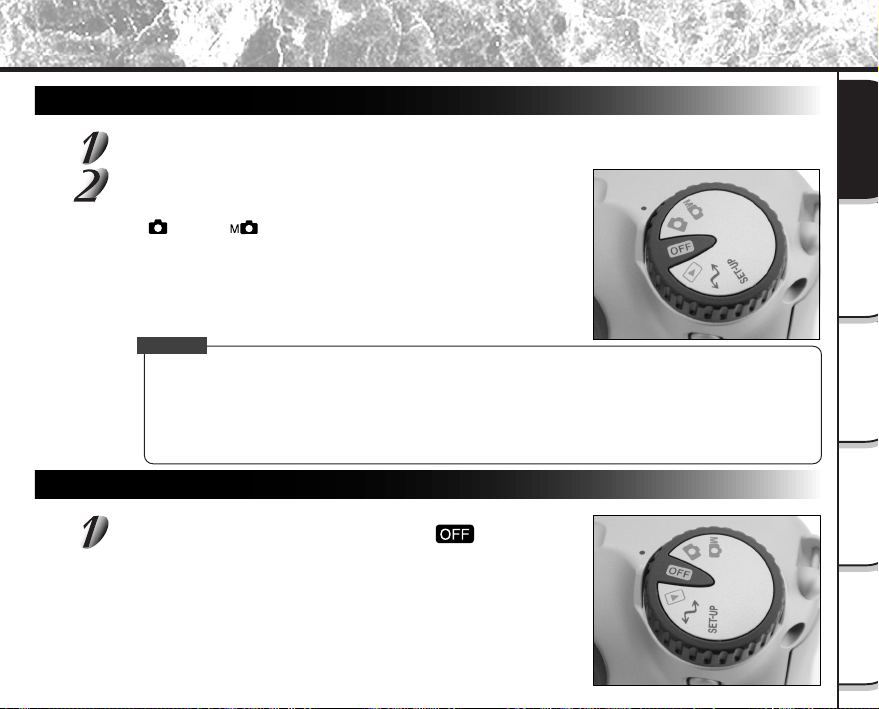
- 33 -
Grundlegende
Fotografie
Wiedergabe/
Löschen
Andere
Anwendungen
Zusätzliche
Information
Vorbereitung
Einschalten
Sicherstellen, daß SmartMedia™ korrekt eingesetzt ist. (
➲
S. 29)
Das Modus-Wählrad auf die gewünschte Betriebsart
stellen.
Im [ ]- oder [ ]-Modus schiebt sich das Objektiv aus dem
Kameragehäuse heraus.
Wenn die Kamera eingeschaltet wird, beginnt die automatische
Ausschaltfunktion zu arbeiten.
WICHTIG
• Wenn eine bestimmte Zeit lang (Vorgabe: ca. 1 Minute) keine Bedienung ausgeführt wird, schaltet das
Gerät aus, um Batterieverbrauch zu vermeiden. Dies ist die “Automatische Ausschaltfunktion”. Zum
Zurückschalten auf normalen Betrieb entweder das Modus-Wählrad in eine andere Stellung stellen oder
den Auslöser halb eindrücken (
➲
S. 37).
☞ Einzelheiten zur automatischen Ausschaltfunktion
➲
siehe “AUTO-AUS (Automatisches Ausschal-
ten)” (Seite 81)”.
Ausschalten
Stellen Sie das Modus-Wählrad auf [ ].
Die Kamera wird ausgeschaltet (OFF), und das Objektiv kehrt wieder
in die Ausgangsstellung im Kameragehäuse zurück.
Ein- und Ausschalten
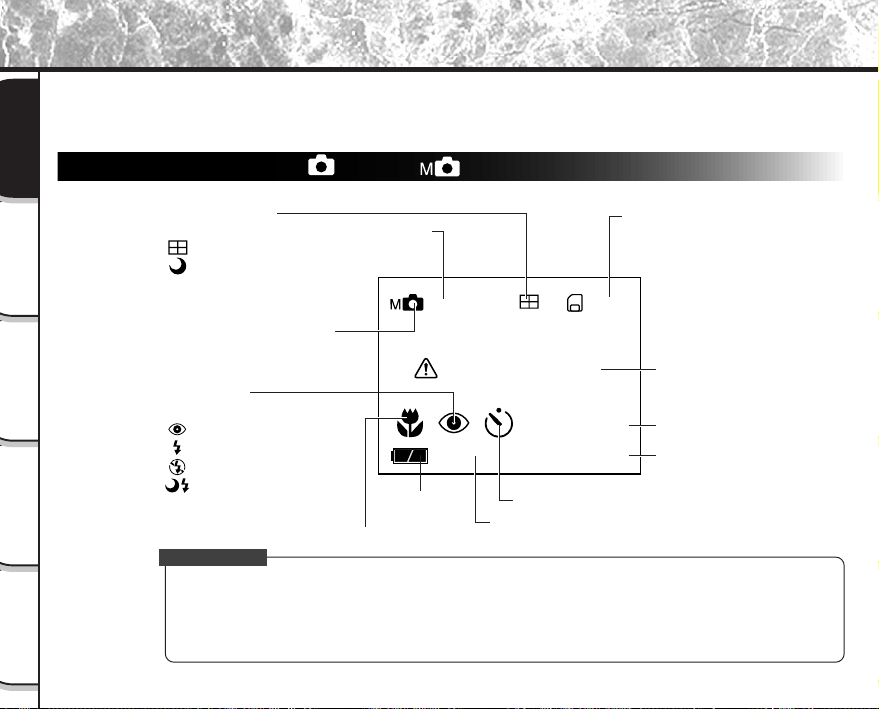
- 34 -
Grundlegende
Fotografie
Wiedergabe/
Löschen
Andere
Anwendungen
Zusätzliche
Information
Vorbereitung
0024
ISO
200
KEINE KARTE
ZOOM
05.10.00
10:10
Anzahl der möglichen Aufnahmen
(bei momentan eingestellter
Größe und Qualität)
Datum (Monat/Tag/Jahr)
Zeit (24-Stunde-Format)
Selbstauslöser-Fotografie
Digital-Zoomfotografie
Restliche
Batteriestärke
Makrofotografie
Blitzfotografie
Modus-Wählrad-Einstellung
Fotografie-Modus
Meldung (
➲
S. 98)
Aufnahme-
empfindlichkeit
Keine Anzeige: 1 Aufnahme
: Multi-Modus
: Birnenmodus
Keine Anzeige: Auto
:
Rote-Augen-Effekt-Verringerung
: Gezwungener Blitz
: Unterdrückter Blitz
: Langsam-Synchronisation
Die im LCD-Monitor erscheinenden Texte, Zahlen und Symbole sind je nach vorhandener Einstellung unterschied-
lich. Zum Löschen von momentan im LCD-Monitor erscheinendem Text die DISP-Taste drücken (
➲
S. 85). Der
LCD-Monitor schaltet automatisch ein, wenn erforderlich, auch wenn momentan ausgeschaltet.
Im Fotografie-Modus ( [ ] oder [ ] )
LCD-Monitordisplay
Zur Beachtung
• Die Größe von aufzuzeichnenden Daten unterscheidet sich je nach der Menge von Details im Motivbild.
Deshalb kann die Anzahl von Aufnahmen, die nach der Aufzeichnung eines Bildes noch gemacht
werden können, abnehmen. Manchmal kann eine Aufnahme die restliche Bildzahl um zwei verringern.
• Das Display ist momentan unterbrochen, nachdem ein Bild aufgezeichnet oder die Betriebsart
umgestellt wurde. Dies ist normal und keine Fehlfunktion.
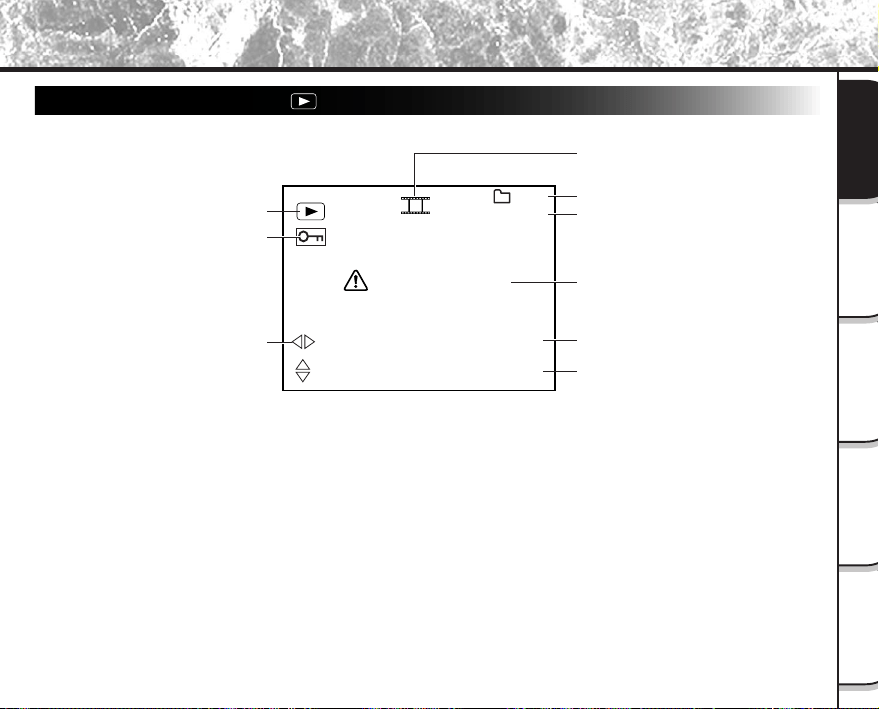
- 35 -
Grundlegende
Fotografie
Wiedergabe/
Löschen
Andere
Anwendungen
Zusätzliche
Information
Vorbereitung
0003
100
KEIN BILD
05.10.00
10:10
Modus-Wählrad-Einstellung
Geschütztes Bild
Bildgröße
Datum (Monat/Tag/Jahr)
Meldung (
➲
S. 98)
Bildnummer (Standbild)
Ordnernummer
Zeit (24-Stunden-Format)
1792
1200
Diashow (
➲
S. 65)
Im Wiedergabemodus ([ ])
LCD-Monitordisplay (Fortsetzung)
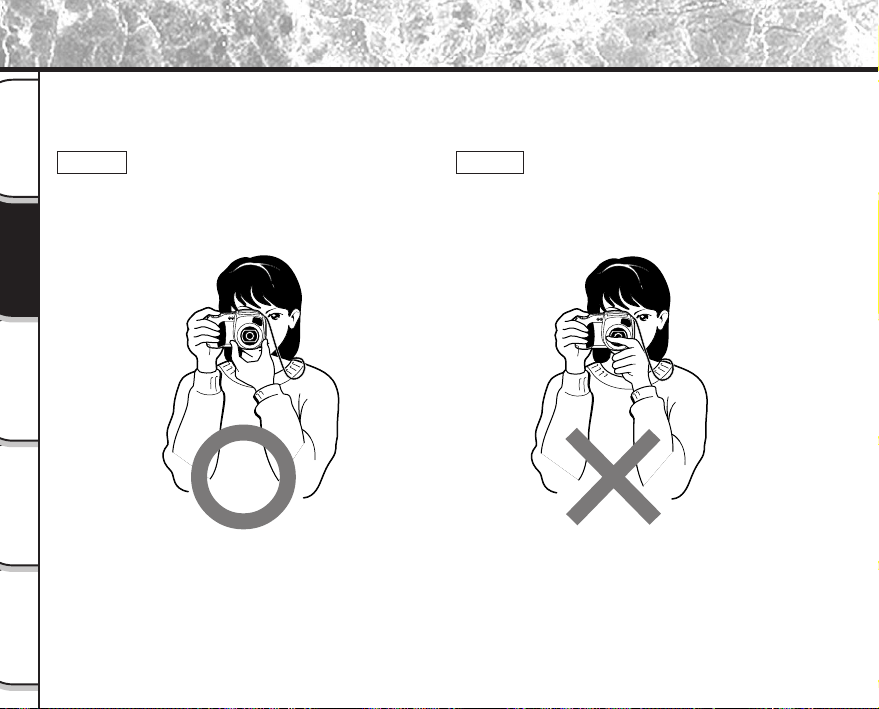
- 36 -
Grundlegende
Fotografie
Wiedergabe/
Löschen
Andere
Anwendungen
Zusätzliche
Information
Vorbereitung
Halten der Kamera
Die Kamera beim Fotografieren sicher festhalten und darauf achten, das Objektiv, den Blitz oder Blitzsensor nicht
mit den Fingern zu verdecken.
Richtig
Die Kamera wird mit beiden Händen gehalten, und
die Arme werden am Oberkörper abgestützt.
Falsch
Die Finger verdecken das Objektiv.

- 37 -
Grundlegende
Fotografie
Wiedergabe/
Löschen
Andere
Anwendungen
Zusätzliche
Information
Vorbereitung
Drücken des Auslösers
Der Auslöser kann in zwei Stufen gedrückt werden: Halb gedrückt und voll gedrückt. Wenn er halb gedrückt ist,
werden AF (Autofokus) und AE (Belichtungsautomatik) ausgeführt. Wenn er ganz gedrückt ist, wird die Aufnahme
gemacht.
Drücken Sie den Auslöser halb ein 1.
AF (Autofokus) und AE (Belichtungsautomatik) (
➲
weitere Informati-
on siehe Glossar, S. 102) beginnen zu arbeiten.
Wenn AF oder AE gesperrt sind, ertönt das Tonsignal (
➲
S. 81), und
die Sucher-LED leuchtet grün.
Den Auslöser voll drücken und halten 2.
Die Kamera macht eine Aufnahme.
Die Sucher-LED leuchtet rot, während die Bilddaten auf
SmartMedia™ aufgezeichnet werden.
WICHTIG
• Niemals die SmartMedia™-Abdeckung öffnen oder entfernen, während Daten auf SmartMedia™
geschrieben werden. Dadurch könnte SmartMedia™ beschädigt werden, oder die Daten auf
SmartMedia™ könnten beeinträchtigt werden.
Halb drücken.
Voll drücken.
1
2
- 38 -
Grundlegende
Fotografie
Wiedergabe/
Löschen
Andere
Anwendungen
Zusätzliche
Information
Vorbereitung
Drücken des Auslösers (Fortsetzung)
Zur Beachtung
• Wenn der Auslöser voll gedrückt wird, können keine Fotos gemacht werden, bevor AF und AE gesperrt
sind.
• In der kurzen Zeitspanne vom halben Durchdrücken des Auslösers bis zum Scharfstellen des Motivs
verdunkelt sich mitunter das Motiv auf dem LCD-Monitor.
• Zum Scharfstellen oder Belichten einer Bildstelle, die nicht in der Bildmitte liegt, zuerst das betreffende
Motiv in die Bildmitte bringen, und dann den Auslöser halb drücken und halten bis zum Ertönen aus der
Kamera. Bei halb gedrücktem Auslöser jetzt die Kamera so ausrichten, daß die gewünschte Bild-
komposition erzielt wird, und dann den Auslöser voll drücken.
Wenn die Kamera beim Drücken des Auslösers noch bewegt wird, wird das Bild verwackelt.
• Die PDR-M60 hat einen präzisen Autofokusmechanismus. Es kann aber schwierig sein, bestimmte
Motive in bestimmten Situationen scharfzustellen, wie z.B. die folgenden:
- Motive, die sich schnell bewegen
- Stark glänzende Motive, wie Spiegel oder
Autokarosserien
- Motive mit sehr niedrigem Kontrast
- Motive mit niedrigem Kontrast, die sich nur
schwach vom Hintergrund abheben (wie
weiße Wände oder Personen, die Kleidung
mit der gleichen Farbe wie der Hintergrund
tragen)
- Weit entfernte und dunkle Motive
- Motive, die sich vor oder hinter anderen
Gegenständen befinden (wie etwa ein Tier in
einem Käfig oder eine Person vor einem Baum)
- Motive mit geringer Reflexion, wie ein Haar oder
Pelz
- Motive ohne feste Konsistenz, wie Rauch oder
Flammen
- Motive hinter Glasscheiben
• Falls sich das Motiv nicht scharfstellen läßt, fokussiert das Objektiv automatisch den Unendlichkeits-
bereich an. Wenn zu diesem Zeitpunkt der Blitz benötigt wird, stellt dieser dabei gleichzeitig auf eine
Blitzreichweite von 1,5 Meter.
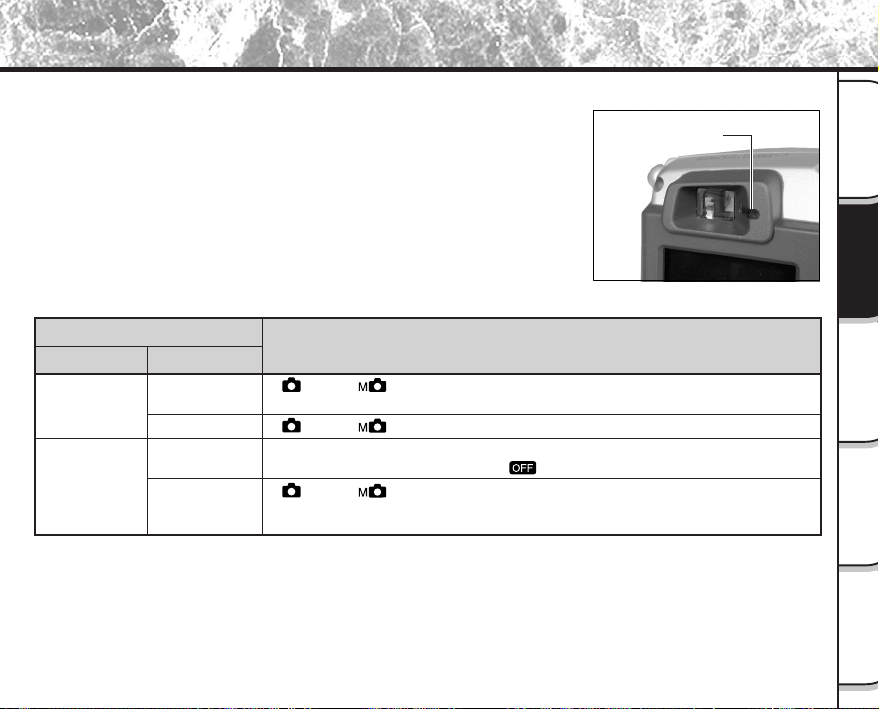
- 39 -
Grundlegende
Fotografie
Wiedergabe/
Löschen
Andere
Anwendungen
Zusätzliche
Information
Vorbereitung
Sucher-LED
Über die Farbe der Sucher-LED
Die Farbe der Sucher-LED zeigt den Status der Kamera an. Die Bedeutung der LED-Farbe kann je nach Einstellung
des Modus-Wählrads unterschiedlich sein.
Sucher-LED
Farbe
Zustand
Bedeutung
Grün
Ein
[ ] oder [ ] AE oder AF sind gesperrt, während der Auslöser gedrückt
gehalten wird.
[
] oder [ ] Selbstauslöser in Betrieb
[Power ON] Schreiben auf SmartMedia™ läuft ab
Das Modus-Wählrad soll nicht auf[
] gestellt werden.
[ ] oder [ ] Über- oder Unterbelichtung mit dem voreingestellten
Blendenwert.
Wenn das Motiv unscharf ist
Rot
Ein
Blinkt
Blinkt
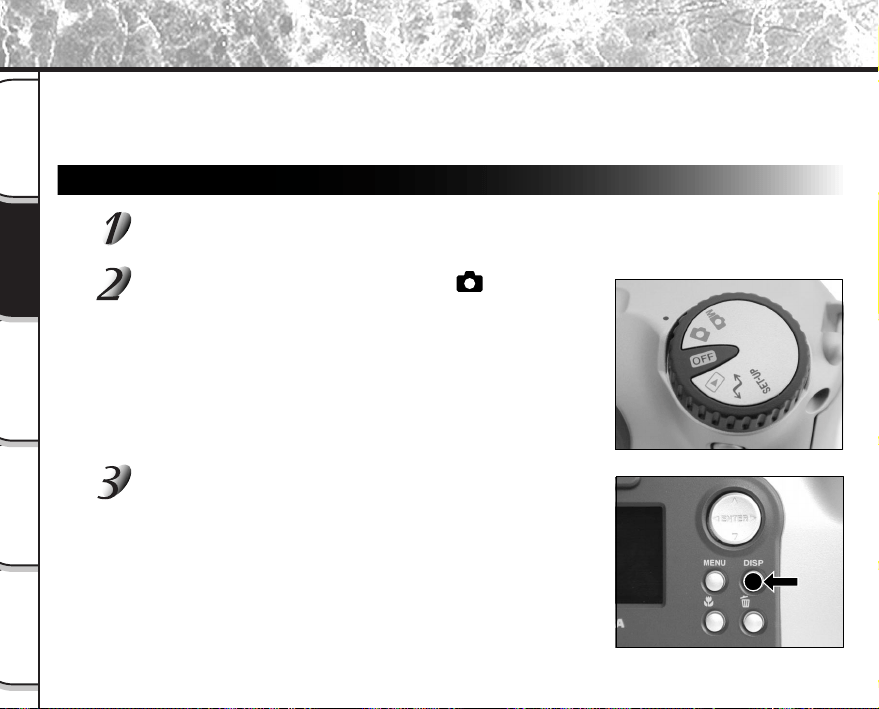
- 40 -
Grundlegende
Fotografie
Wiedergabe/
Löschen
Andere
Anwendungen
Zusätzliche
Information
Vorbereitung
Fotografieren (Auto-Fotomodus)
Dies ist die am häufigsten verwendete Betriebsart zum Fotografieren.
In dieser Betriebsart wird die Belichtung (Kombination von Verschluß und Blende) automatisch eingestellt. In dieser
Betriebsart kann auf zwei Weisen fotografiert werden: mit Sucher und mit LCD-Monitor.
Verwendung des Suchers
Bereiten Sie die Aufnahme vor.
Legen Sie die Batterien (
➲
S. 23) und die SmartMedia™ (
➲
S. 29) in die Kamera ein.
Stellen Sie das Modus-Wählrad auf [ ].
Drücken Sie die DISP-Taste, um den LCD-Monitor
auszuschalten.
Um den Batterieverbrauch zu verringern, empfehlen wir, den LCD-
Monitor auszuschalten und den Sucher für Aufnahmen zu verwen-
den.
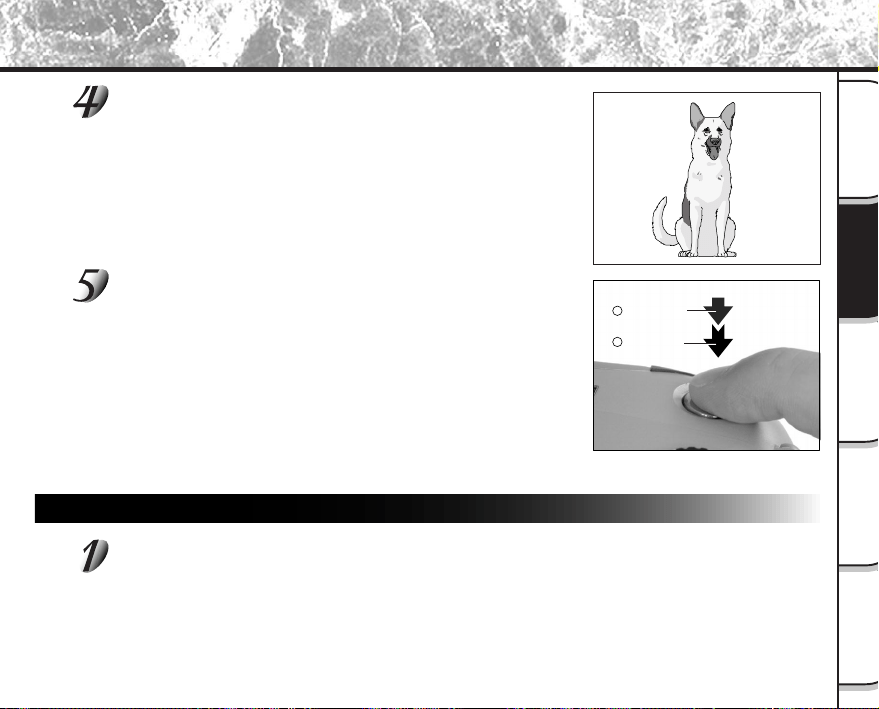
- 41 -
Grundlegende
Fotografie
Wiedergabe/
Löschen
Andere
Anwendungen
Zusätzliche
Information
Vorbereitung
Fotografieren (Auto-Fotomodus) (Fortsetzung)
Blicken Sie durch den Sucher, um den Bildausschnitt
zu wählen.
Drücken Sie den Auslöser halb 1 und anschließend
ganz 2 ein.
• Wenn der Auslöser halb gedrückt wird, wird die Belichtung
eingestellt, und wenn er voll gedrückt wird, wird die Aufnahme
gemacht.
• Wenn Vorschau (
➲
S. 60) beim Aufnehmen eines Standbilds
eingeschaltet ist, wird etwa 2 Sekunden lang ein Vorschaubild
angezeigt.
• Die Sucher-LED leuchtet rot, während Bilddaten auf SmartMedia™
aufgezeichnet werden.
Verwendung des LCD-Monitors
Bereiten Sie die Aufnahme vor.
Legen Sie die Batterien (
➲
S. 23) und die SmartMedia™ (
➲
S. 29) in die Kamera ein.
Halb drücken.
Voll drücken.
1
2
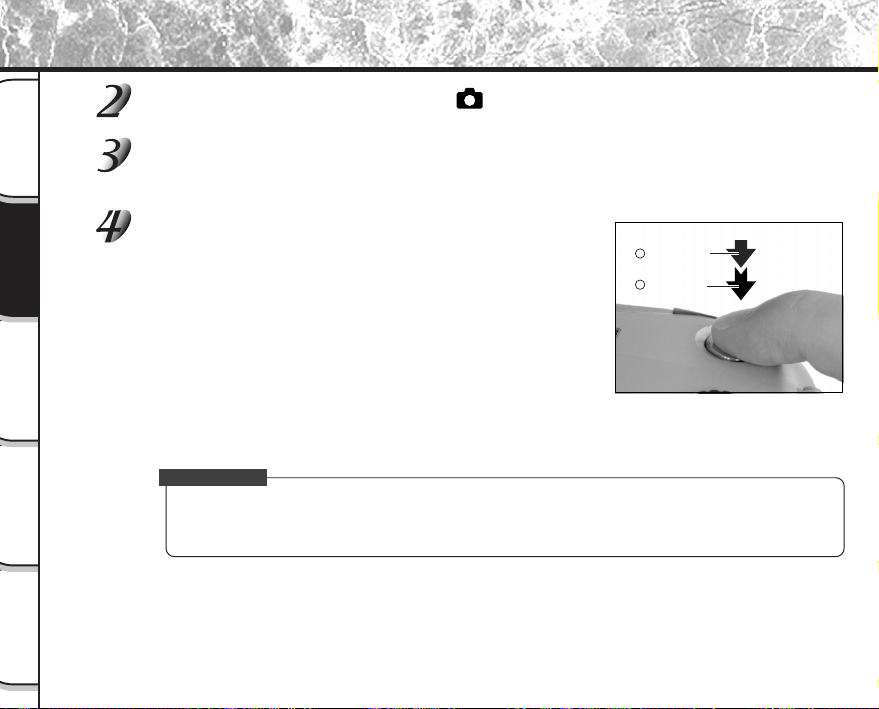
- 42 -
Grundlegende
Fotografie
Wiedergabe/
Löschen
Andere
Anwendungen
Zusätzliche
Information
Vorbereitung
Fotografieren (Auto-Fotomodus) (Fortsetzung)
Stellen Sie das Modus-Wählrad auf [ ].
Betrachten Sie das Bild im LCD-Monitor, um den Bildausschnitt zu wählen.
☞
Zum Einstellen der Helligkeit des LCD-Monitors
➲
S. 84.
Drücken Sie den Auslöser halb 1 und anschließend
ganz 2 ein.
• Wenn der Auslöser halb gedrückt wird, wird die Belichtung
eingestellt, und wenn er voll gedrückt wird, wird die Aufnahme
gemacht.
• Wenn Fokus und Belichtung eingestellt sind, leuchtet das
Sucherlämpchen grün.
• Wenn Vorschau (
➲
S. 60) beim Aufnehmen eines Standbilds
eingeschaltet ist, wird etwa 2 Sekunden lang ein Vorschaubild
angezeigt.
• Die Sucher-LED leuchtet rot, während Bilddaten auf SmartMedia™
aufgezeichnet werden.
Zur Beachtung
• Der LCD-Monitor an Ihrer Digitalkamera zeigt manchmal einzelne Bildpunkte, die hell, dunkel oder
farbig sind. Dies ist keine Fehlfunktion. Diese Punkte erscheinen nicht im Aufnahmebild.
• Das Bild erscheint nicht im LCD-Monitor, wenn der Auslöser voll gedrückt wird.
Halb drücken.
Voll drücken.
1
2
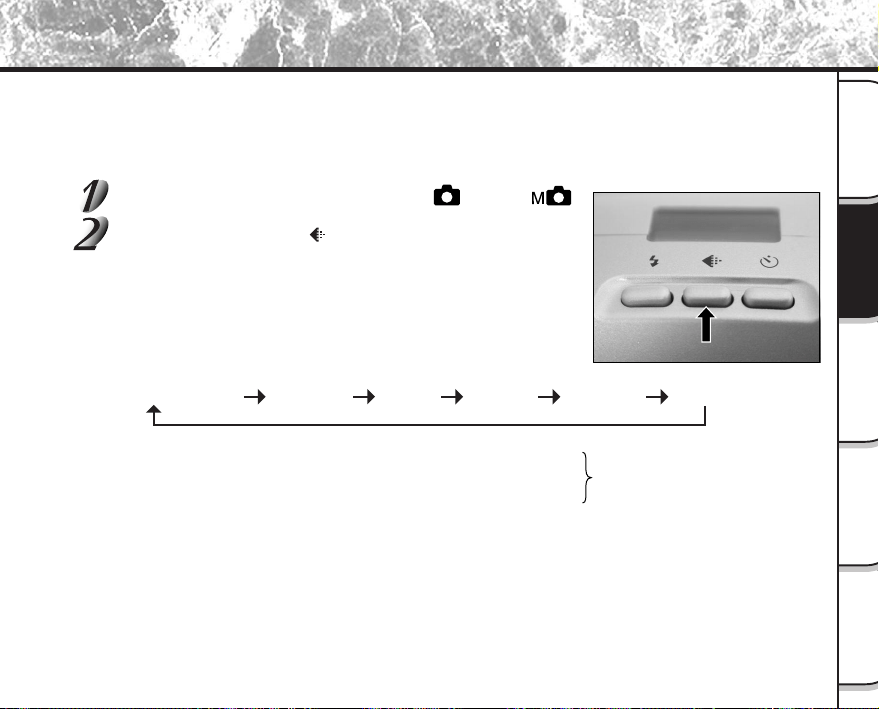
- 43 -
Grundlegende
Fotografie
Wiedergabe/
Löschen
Andere
Anwendungen
Zusätzliche
Information
Vorbereitung
★★FULL (Vorgabe) ★★★FULL ★FULL★★★HALF★★HALF★HALF
Einstellen von Bildformat und Qualität
Stellt die Größe (Anzahl der Bildpunkte) und die Qualität (Kompressionsverhältnis) des aufzunehmenden Bildes
ein.
Ändern Sie die Einstellung entsprechend der geplanten Verwendung des Bildes und dem restlichen Platz auf
SmartMedia™.
Stellen Sie das Modus-Wählrad auf [ ] oder [ ].
Drücken Sie die Taste , um die erforderliche Qualität
und Größe einzustellen, während das Bild im Status-
display betrachtet wird.
Durch Drücken der Bildqualität-Taste werden die verfügbaren
Qualitäten und Größen der Reihe nach gezeigt. Wählen Sie aus den
vorhandenen Kombinationen.
<Qualität> ★★★ [FINE] (schön) : 1/4 (JPEG) Kompression
★★★ [NORMAL] (normal) : 1/8 (JPEG) Kompression
★★★ [BASIC] (elementar) : 1/16 (JPEG) Kompression
Je mehr Sterne angezeigt sind, um so besser ist die Bildqualität. Hochqualitative Bilder
benötigen jedoch mehr Speicherplatz und reduzieren damit die Anzahl der möglichen
Aufnahmen.
<Größe> [FULL] 1792 x 1200 Pixel (Standbild)
[HALF] 896 x 600 Pixel (Standbild)
Die Einstellung FULL erhöht die Bildqualität. Hochqualitative Bilder benötigen jedoch mehr
Speicherplatz und reduzieren damit die Anzahl der möglichen Aufnahmen.
(Standbild)

- 44 -
Grundlegende
Fotografie
Wiedergabe/
Löschen
Andere
Anwendungen
Zusätzliche
Information
Vorbereitung
Einstellen von Bildformat und Qualität (Fortsetzung)
Machen Sie die Aufnahme.
☞
Einzelheiten zum Fotografieren
➲
Fotografieren (
➲
S. 40).
Zur Beachtung
• Um ein Bild kleiner zu machen, ist es effektiver, die Größe zu verringern als die Bildqualität.
• Nach dem Aufnehmen ist es möglich die Größe (
➲
S. 66) und Qualität (
➲
S. 68) zu ändern.
• Die Speichergröße des Bildes ist je nach Motiv unterschiedlich.
• Das Kompressionsverhältnis wird nur zum Bezug gegeben.
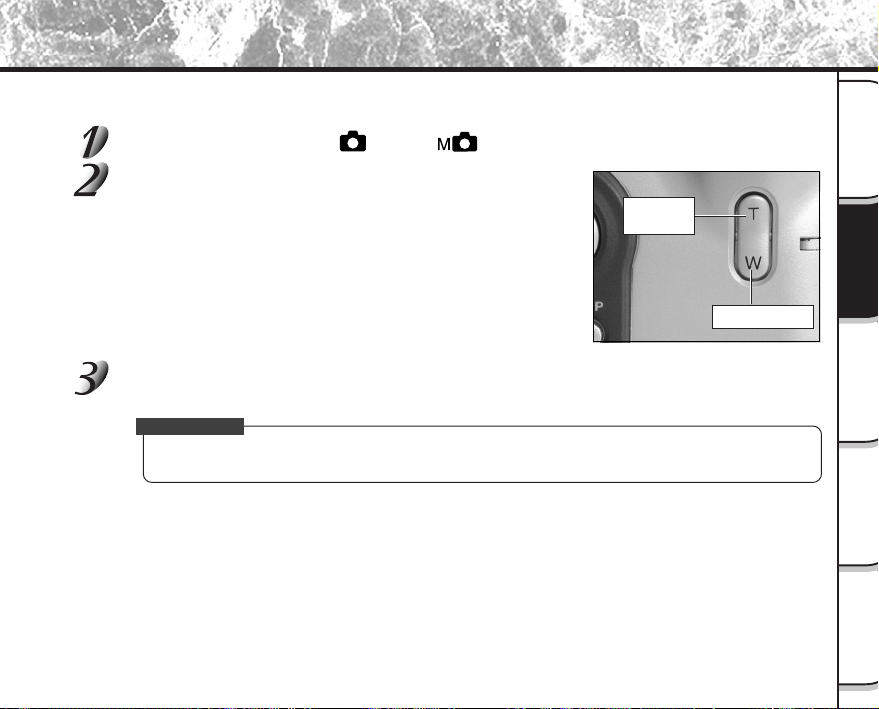
- 45 -
Grundlegende
Fotografie
Wiedergabe/
Löschen
Andere
Anwendungen
Zusätzliche
Information
Vorbereitung
Die Zoom-Fotografie ermöglicht Zoom-Aufnahmen mit Weitwinkel.
Das Modus-Wählrad auf [ ] oder [ ] stellen.
Das Bild mit der Zoom-Taste zusammenstellen.
• Durch Drücken der Teletaste (Zoom) wird das Motiv herangeholt
und auf dem LCD-Monitor vergrößert.
• Durch Drücken der Weitwinkeltaste wird der Bildwinkel erweitert.
• Das Objektiv bewegt sich entsprechend der Zoom-Einstellung.
Den Auslöser zunächst halb durchdrücken und dann ganz durchdrücken.
➲
S. 37
Zur Beachtung
• Die Zoom-Tasteneinstellung wird durch Ausschalten der Kamera oder durch Aktivieren der Ausschalt-
automatik (OFF) automatisch aufgehoben.
Zoom-Fotografie
Teletaste
(zoom)
Weitwinkeltaste
- 46 -
Grundlegende
Fotografie
Wiedergabe/
Löschen
Andere
Anwendungen
Zusätzliche
Information
Vorbereitung
Digital-Zoomfotografie
Diese Funktion vergrößert die Mitte des Bildes auf dem Bildschirm so, daß das fotografierte Bild doppelt so groß
wird.
Der LCD-Monitor schaltet in dieser Betriebsart automatisch ein. Fotografieren Sie mit Hilfe des LCD-Monitors.
Stellen Sie das Modus-Wählrad auf [ ] oder [ ].
Drücken Sie die Taste .
[ZOOM] erscheint im LCD-Monitor, und die Mitte des Bildschirms wird doppelt vergrößert.
Halten Sie das Bild auf dem LCD-Monitor fest, um den Bildausschnitt zu wählen.
☞
Verwendung des LCD-Monitors
➲
S. 34.
Drücken Sie den Auslöser halb und anschließend voll.
➲
S. 37
Zum Ausschalten der Digital-Zoomfotografie-Funktion die Taste drücken.
Zur Beachtung
• Die Bildgröße ist hier fest auf 896 x 600 Pixel gestellt.
• Die Digital-Zoomfotografie-Funktion wird durch Ausschalten der Kamera oder durch Aktivieren der
Ausschaltautomatik (OFF) automatisch ausgeschaltet.
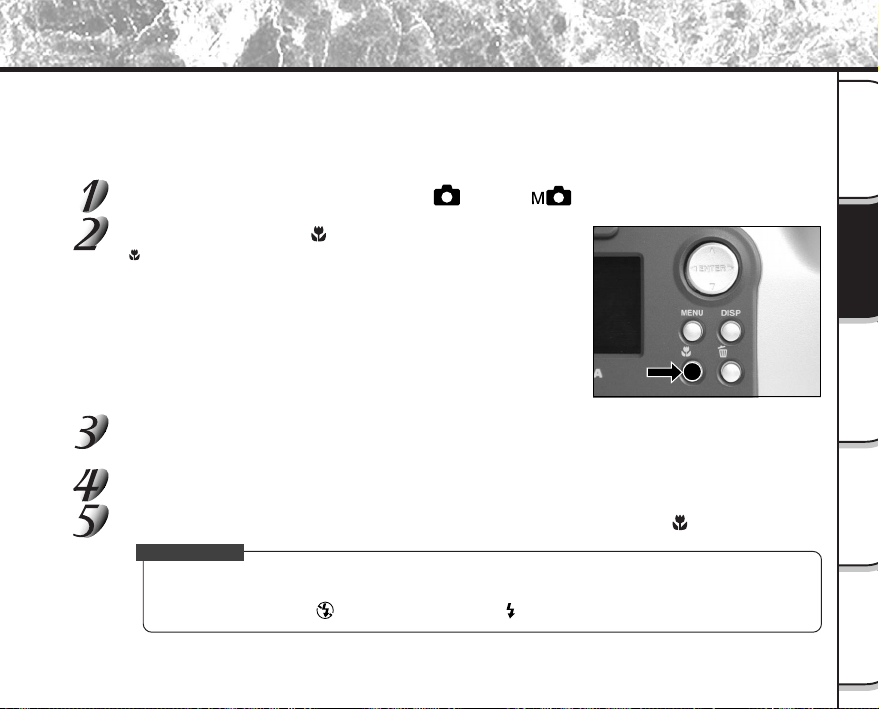
- 47 -
Grundlegende
Fotografie
Wiedergabe/
Löschen
Andere
Anwendungen
Zusätzliche
Information
Vorbereitung
Nahaufnahme (Makrofotografie)
Makrofotografie wird eingesetzt, wenn der Abstand zum Motiv zwischen 5 cm und 50 cm beträgt.
Diese Kamera kann nicht auf Motive scharfstellen, die innerhalb von 5 cm bis 50 cm entfernt sind, wenn nicht auf
Makromodus gestellt ist.
Der LCD-Monitor schaltet in der Makro-Betriebsart automatisch ein. Fotografieren Sie mit Hilfe des LCD-Monitors.
Stellen Sie das Modus-Wählrad auf [ ] oder [ ].
Drücken Sie die Taste .
[ ] erscheint im LCD-Monitor und im Statusdisplay.
Halten Sie das Bild auf dem LCD-Monitor fest, um den Bildausschnitt zu wählen.
☞
Verwendung des LCD-Monitors
➲
S. 34.
Drücken Sie den Auslöser halb und anschließend voll.
➲
S. 37
Zum Aufheben der Makrofotografie drücken Sie die Makro-Taste erneut.
Zur Beachtung
• Makrofotografie wird nicht aufgehoben, auch wenn die Kamera ausgeschaltet oder die Ausschalt-
automatik aktiviert wird.
• Als Blitzmodi kann nur [ ] unterdrückter Blitz oder [ ] gezwungener Blitz verwendet werden.
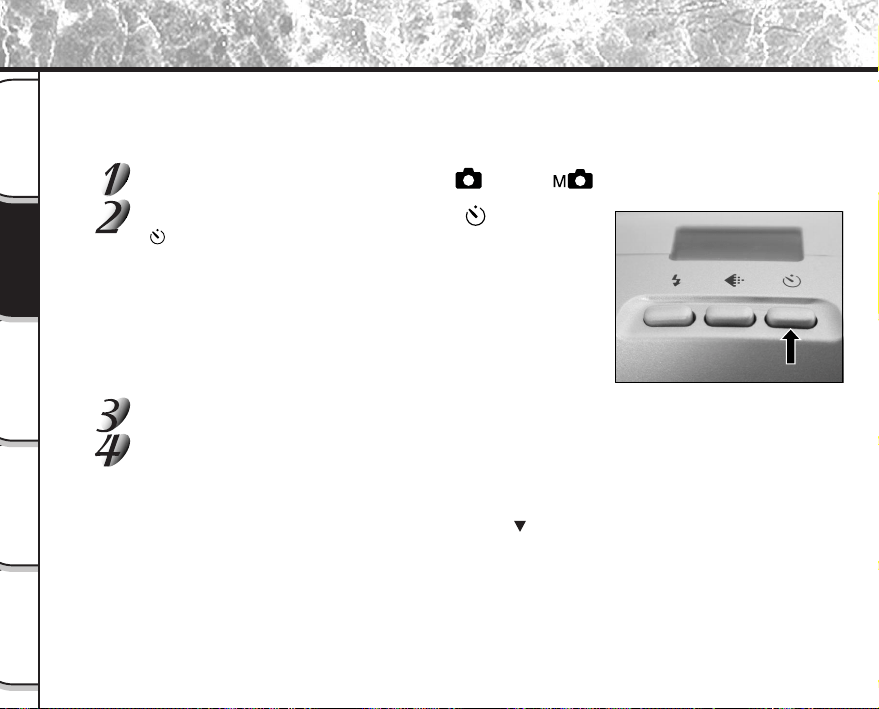
- 48 -
Grundlegende
Fotografie
Wiedergabe/
Löschen
Andere
Anwendungen
Zusätzliche
Information
Vorbereitung
Wenn der Selbstauslöser verwendet wird, wird der Verschluß automatisch nach Ablauf einer bestimmten Zeit (zwei
oder zehn Sekunden) ausgelöst.
☞
Ändern der Vorlaufzeit
➲
S. 61
Stellen Sie das Modus-Wählrad auf [ ] oder [ ].
Drücken Sie die Selbstauslöser-Taste .
[ ] erscheint im LCD-Monitor und im Statusdisplay.
Wählen Sie den Bildausschnitt.
Drücken Sie den Auslöser halb und anschließend voll. ➲ S. 37
Die Selbstauslöser-LED leuchtet in rot und blinkt. Das Foto wird nach Ablauf der Vorlaufzeit gemacht
(zwei oder zehn Sekunden).
Wenn mit LCD-Monitor fotografiert wird, erscheint der Count-Down.
Zum Abbrechen des Fotoablaufs drücken Sie die Taste
.
Aufnahmen mit Selbstauslöser
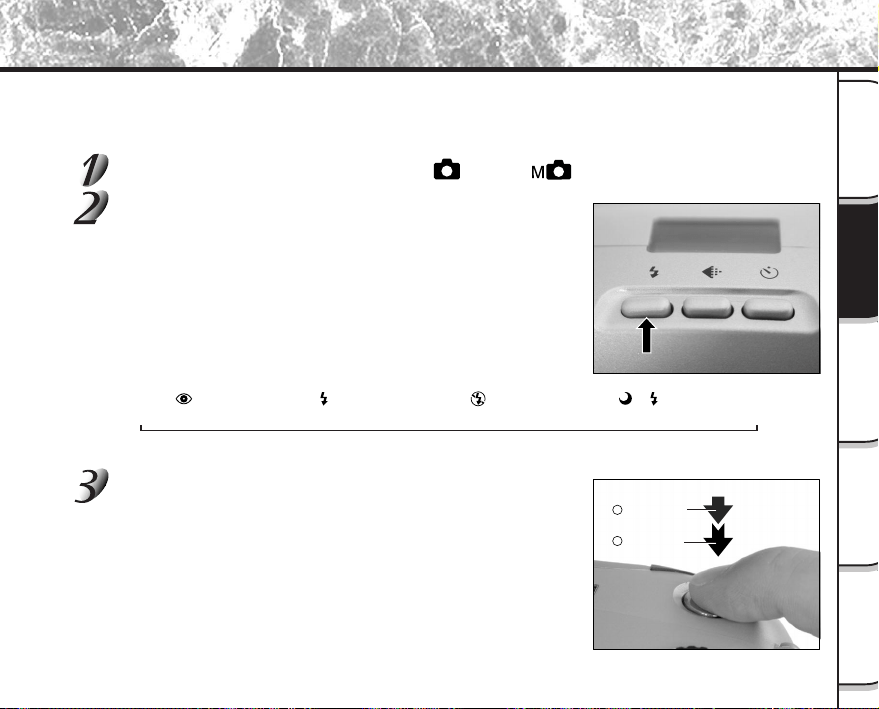
- 49 -
Grundlegende
Fotografie
Wiedergabe/
Löschen
Andere
Anwendungen
Zusätzliche
Information
Vorbereitung
Aufnahmen mit Blitz
➔
Die Kamera ist werksseitig so voreingestellt, daß der Blitz in dunkler Umgebung automatisch zugeschaltet wird.
Zum Auslösen des Blitzlichts ist keine besondere Einstellung notwendig. Der Blitzauslösemodus kann der jeweili-
gen Aufnahmesituation entsprechend eingestellt werden. Die effektive Blitzreichweite beträgt 0,5 m bis 3 m.
Stellen Sie das Modus-Wählrad auf [ ] oder [ ].
Drücken Sie die Blitz-Taste, um den gewünschten
Modus einzustellen, während das Bild im LCD-Monitor
oder Statusdisplay geprüft wird.
Durch Drücken der Blitztaste werden die verfügbaren Blitz-
betriebsarten der Reihe nach gezeigt.
Das Symbol für den gewählten Modus erscheint im LCD-Monitor
oder Statusdisplay.
Auto ➔ [
] ➔ [ ] ➔ [ ] ➔ [ ] [ ]
Wählen Sie den Bildausschnitt. Drücken Sie den
Auslöser halb 1 und anschließend voll 2.
Rote-Augen-
Verringerung
Langsam-
Synchronisation
Gezwungener
Blitz
Unterdrückter
Blitz
Halb drücken.
Voll drücken.
1
2

- 50 -
Grundlegende
Fotografie
Wiedergabe/
Löschen
Andere
Anwendungen
Zusätzliche
Information
Vorbereitung
Auto
In dieser Betriebsart wird der Blitz automatisch entsprechend Fotosituation ausgelöst. Diese Betriebsart ist ideal
für normale Fotos geeignet, wo kein besonderer Effekt gewünscht wird (in Makro-Betriebsart wird der Blitz nicht
ausgelöst).
[ ] Rote-Augen-Verringerung
Verwenden Sie diesen Modus, um den Rote-Augen-Effekt zu vermeiden (
➲
Zusätzliche Information, Glossar,
S. 102),wenn Personen bei schwachem Licht fotografiert werden.
Dabei wird kurz vor dem eigentlichen Blitz ein Vorblitz ausgelöst, der bewirkt, daß sich die Pupillen zusammen-
ziehen. Der Rote-Augen-Effekt wird am wirksamsten verringert, wenn die Kamera direkt auf die Gesichter der
Personen gerichtet ist.
[ ] Gezwungener Blitz
In diesem Modus wird der Blitz immer ausgelöst. Verwenden Sie diesen Modus, um bei künstlichem Licht
(Rückbeleuchtung, Leuchtstofflampenlicht, etc.) zu fotografieren.
Der Blitz wird auch bei Makrofotografie ausgelöst.
[ ] Unterdrückter Blitz
Verwenden Sie den Modus unterdrückter Blitz, wenn Bilder bei Raumbeleuchtung bei Entfernungen aufgenom-
men werden, die zu groß für den Blitz sind, wie z.B. bei Aufnahmen im Theater oder im Sportstadion.
[ ] [ ] Langsam-Synchronisation
Der Blitz wird bei einer niedrigeren Verschlußzeit ausgelöst.
Aufnahmen mit Blitz (Fortsetzung)
- 51 -
Grundlegende
Fotografie
Wiedergabe/
Löschen
Andere
Anwendungen
Zusätzliche
Information
Vorbereitung
Aufnahmen mit Blitz (Fortsetzung)
Zur Beachtung
• Beim Fotografieren im [ ] [ ] Langsam-Synchronisation-Modus mit dunklem Hintergrund oder im
[
] Unterdrückter Blitz-Modus in dunkler Umgebung stellt die Kamera eine niedrigere Verschlußzeit
ein. Es empfiehlt sich die Verwendung eines Stativs, um ein Verwackeln der Aufnahme zu vermeiden.
• Die Blitzeinstellung wird nicht aufgehoben, auch wenn die Kamera ausgeschaltet wird.
• Bei der Serienbildaufnahme, Multibild-Fotografie, beim Fotografieren im B-Modus und der Film-
aufnahme kann der Blitz nicht verwendet werden.
- 52 -
Grundlegende
Fotografie
Wiedergabe/
Löschen
Andere
Anwendungen
Zusätzliche
Information
Vorbereitung
Dieser Modus macht 16 Fotos kontinuierlich mit von 0,25 Sekunden Intervallen. Die 16 Fotos werden als ein
einziges Bild gespeichert (FULL-Format: 1792 x 1200 Pixel).
Dieser Modus ist nützlich, um eine Folge von Fotos von schnell bewegenden Motiven zu machen.
Stellen Sie das Modus-Wählrad auf [ ] oder [ ].
Stellen Sie den Fotomodus auf [MULTI].
1 Drücken Sie die MENU-Taste.
2 Verwenden Sie die Taste
oder , um [AUFN MOD] zu wählen und drücken Sie dann die Taste .
3 Verwenden Sie die Taste
oder , um [MULTI] zu wählen, und drücken Sie die ENTER-Taste.
4 Drücken Sie die MENU-Taste.
☞
Einzelheiten zum Fotomodus
➲
S. 59.
erscheint im LCD-Monitor oder Statusdisplay.
Wählen Sie den Bildausschnitt, drücken Sie den Auslöser zuerst halb und dann
voll.
➲
S. 37
Der Verschluß öffnet und schließt sich 16 Mal.
Zur Beachtung
• Der Foto-Intervall ändert sich entsprechend den Fotobedingungen.
• Blitzaufnahmen sind nicht möglich.
Multibild-Aufnahmen
- 53 -
Grundlegende
Fotografie
Wiedergabe/
Löschen
Andere
Anwendungen
Zusätzliche
Information
Vorbereitung
Dieser Modus wird für Motive verwendet, die mehrere Sekunden für die Aufnahme erfordern, wie etwa Feuerwerke
in der Nacht. Bei diesem Modus sollte ein Stativ verwendet werden, um die Kamera stabil zu haltan und Verwak-
keln zu vermeiden.
Stellen Sie das Modus-Wählrad auf [ ] oder [ ].
Stellen Sie den Fotomodus auf [BELICHT.].
1 Drücken Sie die MENU-Taste.
2 Verwenden Sie die Taste
oder , um [AUFN MOD] zu wählen und drücken Sie dann die Taste .
3 Verwenden Sie die Taste
oder , um [BELICHT.] zu wählen, und drücken Sie die ENTER-Taste.
4 Drücken Sie die MENU-Taste.
☞
Einzelheiten zum Fotomodus
➲
S. 59.
[
] und [ ] erscheinen im LCD-Monitor oder Statusdisplay.
Wählen Sie den Bildausschnitt, drücken Sie den Auslöser zuerst halb und dann
voll.
➲
S. 37
Der Verschluß bleibt für die eingestellte Dauer offen.
Während der Aufnahme wechselt die Sucher-LED auf rot um.
Das Aufnehmen des Bildes dauert aufgrund der Signalverarbeitung etwa doppelt so lange wie die
eingestellte Zeit.
☞
Ändern der Belichtungszeit
➲
S. 61
Zur Beachtung
• Blitzfotografie ist nicht möglich.
Langzeitbelichtung (Fotografieren im B-Modus)
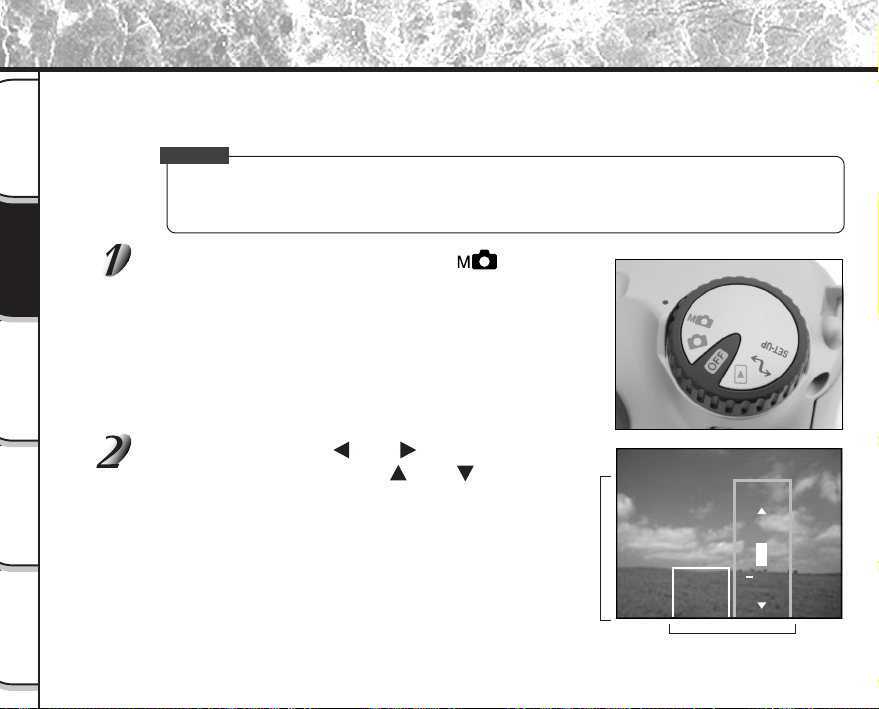
- 54 -
Grundlegende
Fotografie
Wiedergabe/
Löschen
Andere
Anwendungen
Zusätzliche
Information
Vorbereitung
Einstellpunkte
Einstellwerte
W.A.
B.W.
+0.3
0.3
AUTO
0
Aufnahmebedingungen wie Weißabgleich und Belichtungsausgleich können manuell eingestellt werden, um
anschließend Bilder mit diesen Einstellungen aufzunehmen. Dies nennt sich “manuelle Fotografie”. In diesem
Modus gemachte Einstellungen werden gespeichert, auch wenn die Kamera ausgeschaltet ist.
WICHTIG
• Nicht die Batterien einsetzen oder entfernen oder das Netzteil anschließen oder abtrennen, während
die Kamera eingeschaltet ist. Dadurch werden die manuellen Einstellungen auf Vorgabewerte
zurückgesetzt. In diesem Fall müssen die Einstellungen erneut vorgenommen werden.
Stellen Sie das Modus-Wählrad auf [ ].
Die manuellen Einstellungen werden im Display angezeigt.
Bei jedem Drücken des Kippschalters ENTER werden die manuellen
Einstellungen im Display angezeigt und wieder entfernt.
☞
Bei schlechter Sichtbarkeit des LCD-Miniaturbildes
➲
S. 84.
Drücken Sie die Taste oder zum Wählen des
Einstellpunkts und die Taste
oder zum Wählen
des Werts.
☞
[W.A.] Weißabgleich
➲
S. 56
[B.W.] Belichtungskompensation
➲
S. 56
Manuelles Fotografieren
- 55 -
Grundlegende
Fotografie
Wiedergabe/
Löschen
Andere
Anwendungen
Zusätzliche
Information
Vorbereitung
Manuelles Fotografieren (Fortsetzung)
Die Taste ENTER drücken.
Hierdurch wird die Einstellung fixiert.
Die Kamera ist jetzt aufnahmebereit.
Wählen Sie den Bildausschnitt, drücken Sie den Auslöser zuerst halb und dann
voll.
➲
S. 37
Die Aufnahme wird gemacht.
Zur Beachtung
• Fotografie ist auch bei angezeigtem manuellem Setup-Bildschirm möglich.
- 56 -
Grundlegende
Fotografie
Wiedergabe/
Löschen
Andere
Anwendungen
Zusätzliche
Information
Vorbereitung
[W.A.] (Weißabgleich)
☞
Weißabgleich
➲
Zusätzliche Information, Glossar (S.102)
Die Kamera bestimmt den Weißabgleich durch Errechnen eines Durchschnittswerts aus den verschiede-
nen Lichtarten, die in das Objektiv eintreten. Mit Hilfe der folgenden Einstellung kann der Weißabgleich
beim Fotografieren unter verschiedenen Beleuchtungsverhältnissen im voraus festgelegt werden.
Diese Einstellung arbeitet nicht, wenn mit Blitz fotografiert wird.
[AUTO] : Automatische Einstellung (Vorgabe)
[ ] : Fotografie im Freien
[
] : Fotografie in gebräuchlichem Leuchtstofflicht
[
] : Fotografie in kühlweißem Leuchtstofflicht
[
] : Fotografie in Glühlampenlicht
[B.W.] (Belichtungskompensation)
☞
Belichtungskompensation
➲
Zusätzliche Information, Glossar (S.102)
Diese Einstellung erlaubt es, das gesamte Bild heller oder dunkler zu stellen. Verwenden Sie diese
Einstellung, wenn die optimale Helligkeit (Belichtung) nicht erhalten werden kann, z.B. wenn ein hoher
Kontrast zwischen dem Motiv und dem Hintergrund besteht oder wenn das Motiv nur einen sehr kleinen
Teil des Bildes einnimmt. Höherstellen von B.W. macht das Bild heller, Niedrigerstellen dunkler.
[+1.5/+1.2/+0.9/+0.6/+0.3/0 (Vorgabe)/–0.3/–0.6/–0.9/–1.2/–1.5]
Die ideale Helligkeit kann manchmal nicht erhalten werden, auch wenn ein großer B.W. Wert bei dunklen
Bedingungen eingestellt wird.
Außerdem ändert sich die Helligkeit von bewegten Objekten vor dem Fotografieren manchmal nicht,
wenn das Motiv selber dunkel ist. In diesem Fall den Auslöser drücken und die Helligkeit im Vorschau-
modus prüfen (Fotografiertes Standbild).
(Vorschau-Fotografie
➲
S. 60)
Manuelles Fotografieren (Fortsetzung)
- 57 -
Grundlegende
Fotografie
Wiedergabe/
Löschen
Andere
Anwendungen
Zusätzliche
Information
Vorbereitung
Manuelles Fotografieren (Fortsetzung)
Effektive Motive und Einstellwerte
● Positive (+) Kompensation
• Kopieren von gedrucktem Text (schwarze Zeichen auf weißem Papier) (+1.5)
• Gegenlicht-Portraits (+0.6 bis +1.5)
• Sehr helle Szenen (wie Schneefelder) und stark reflektierende Objekte (+0.9)
• Aufnahmen, die hauptsächlich aus Himmel bestehen (+0.9)
● Negative (–) Kompensation
• Spotbeleuchtete Motive, besonders vor dunklen Hintergründen (–0.6)
• Kopieren von gedrucktem Text (weiße Zeichen auf schwarzem Papier) (–0.6)
• Szenen mit niedriger Reflexion, wie grünes oder braunes Laub (–0.6)
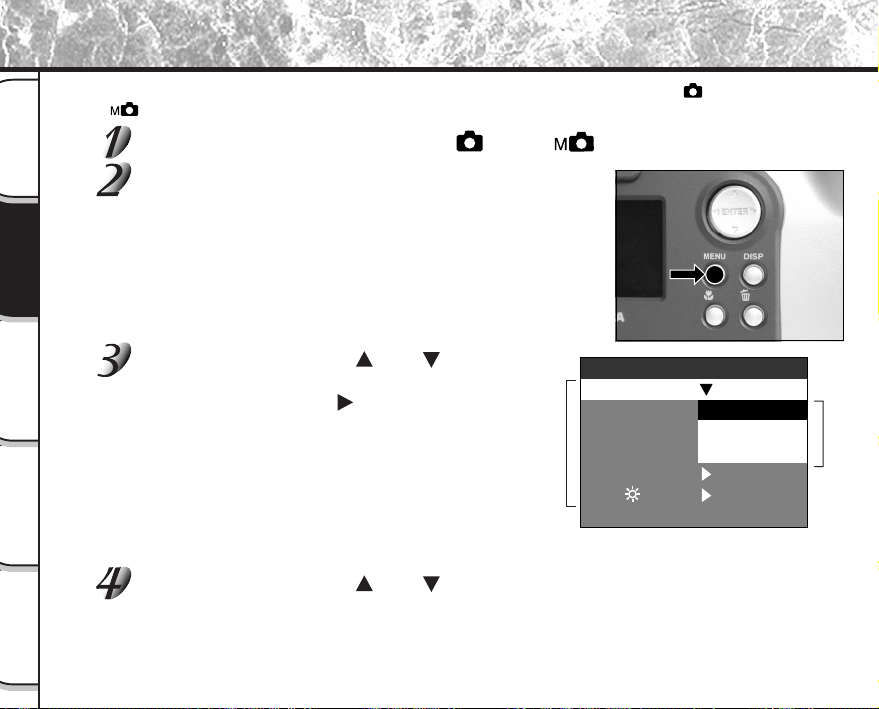
- 58 -
Grundlegende
Fotografie
Wiedergabe/
Löschen
Andere
Anwendungen
Zusätzliche
Information
Vorbereitung
Ändern der Voreinstellungen (AUFN.)
Dieses Menü dient zum Einstellen der grundlegenden Einstellungen zum Fotografieren im [ ] Automatikbetrieb
und [
] Manuellbetrieb.
Stellen Sie das Modus-Wählrad auf [ ] oder [ ].
Drücken Sie die MENU-Taste.
Das AUFN. erscheint.
Verwenden Sie die Taste oder , um den ge-
wünschten Einstellpunkt 1 zu wählen, und
drücken Sie die Taste [
].
Das Tab-Menü 2 erscheint.
Das vorher aufgenommene Bild erscheint im LCD-Monitor.
☞
AUFN MOD
➲
S. 59
VORANS.
➲
S. 60
ISO
➲
S. 60
BELICHT.
➲
S. 61
VERÖG.
➲
S. 61
LCD
➲
S. 61
Verwenden Sie die Taste oder , um die gewünschte Einstellung vom Tab-
Menü 2 zu wählen und drücken Sie die ENTER-Taste.
Damit werden die Einstellungen gespeichert, und das Display kehrt zum AUFN. zurück.
2 Tab-Menü
1 Einstellpunkt
VORANS.
ISO
LCD
BELICHT.
VERÖG.
10 SEK
FEST
MULTI
BELICHT.
1
AUFN
AUFN.
AUFN MOD 1
AUFN
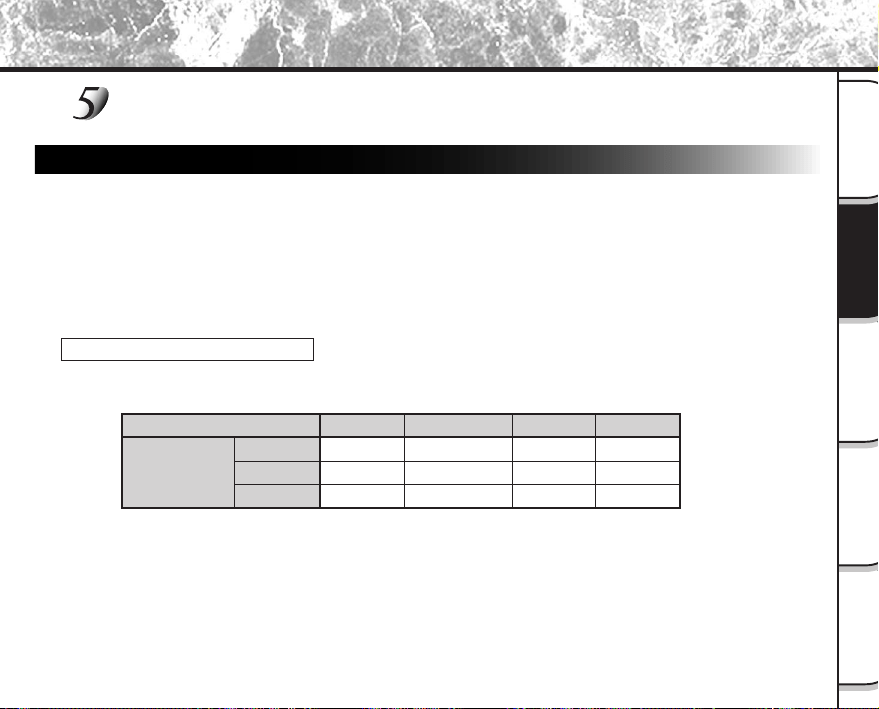
- 59 -
Grundlegende
Fotografie
Wiedergabe/
Löschen
Andere
Anwendungen
Zusätzliche
Information
Vorbereitung
Zum Beenden von AUFN. drücken Sie die MENU-Taste.
Die Kamera ist jetzt zum Fotografieren bereit.
AUFN MOD (Aufnahmemodus)
Wählen Sie unter den folgenden Fotomodi:
[1AUFN], [MULTI] und [BELICHT.] sind Funktionen zum Aufnehmen von Standbildern.
[1AUFN] :Normale Fotografie, ein Foto zur Zeit (Vorgabe).
➲
“Fotografieren” (S. 40)
[MULTI] :Serienaufnahme von 16 Fotos in einem einzigen Bild
➲
“Multibild-Aufnahmen” (S. 52)
[BELICHT.] :Aufnahmen mit längerer Belichtungszeit
➲
“Langzeitbelichtung” (S. 53)
Fotomodus und Funktionen
Sie können Fotomodi und verschiedene Funktionen für besondere Wirkungen kombinieren. Die folgende
Tabelle zeigt mögliche Kombinationen von Fotomodi und Funktionen:
Ändern der Voreinstellungen (AUFN.) (Fortsetzung)
1AUFN
MULTI
BELICHT.
O : Möglich
X : Nicht möglich
Makro
O
O
O
Selbstauslöser
O
O
O
Digitalzoom
O
O
O
Blitz
O
X
X
Fotomodus
- 60 -
Grundlegende
Fotografie
Wiedergabe/
Löschen
Andere
Anwendungen
Zusätzliche
Information
Vorbereitung
Ändern der Voreinstellungen (AUFN.) (Fortsetzung)
VORANS. (Vorschau)
Diese Einstellung erlaubt es, ein Foto zwei Sekunden lang sofort nach der Aufnahme im LCD-Monitor zu
sehen.
Dadurch können Sie den Bildaufbau und die Helligkeit des Fotos prüfen.
Zum Aufheben des Vorschaumodus drücken Sie den Auslöser erneut halb ein.
[EIN] : Vorschau zeigen (Vorgabe)
[AUS] : Nicht Vorschau zeigen
ISO
Diese Einstellung dient zur Bestimmung des Farbmodus und der Aufnahmeempfindlichkeit, mit der das
Bild aufgezeichnet werden soll.
Blitzaufnahmen sind nicht möglich, wenn die Aufnahmeempfindlichkeit auf [ISO200] [ISO400] gestellt ist.
Warnung: Das Einstellen eines höheren ISO-Werts erzeugt verstärkten Untergrund.
[ISO100] : Äquivalent zu Farbe ISO100 (Voreinstellung)
[ISO200] : Hohe Aufnahmeempfindlichkeit äquivalent zu Farbe ISO200
[ISO400] : Hohe Aufnahmeempfindlichkeit äquivalent zu Farbe ISO400
[S&W] : Schwarzweiß
- 61 -
Grundlegende
Fotografie
Wiedergabe/
Löschen
Andere
Anwendungen
Zusätzliche
Information
Vorbereitung
Ändern der Voreinstellungen (AUFN.) (Fortsetzung)
BELICHT. (Belichtung)
Stellt die Belichtungszeit ein, in dem das Bild im Birne-Fotomodus belichtet wird (
➲
S. 53)
[1
SEK] : Öffnet der Verschluß für ca. 1 Sekunde (Vorgabe)
[2
SEK] : Öffnet der Verschluß für ca. 2 Sekunden
VERÖG. (Selbstauslöser)
Stellt die Vorlaufzeit für den Selbstauslöser ein. (
➲
S. 48)
[10
SEK] : Auslösung nach 10 Sekunden Vorlaufzeit (Vorgabe)
[2
SEK] : Auslösung nach 2 Sekunden Vorlaufzeit
LCD
Stellt die Helligkeit des LCD-Monitors ein. Diese Einstellung hat keine Auswirkung auf die Helligkeit des
aufzunehmenden Bildes.
[–5] bis [+5]
☞
Zum Einstellen der Helligkeit des LCD-Monitors
➲
S. 84
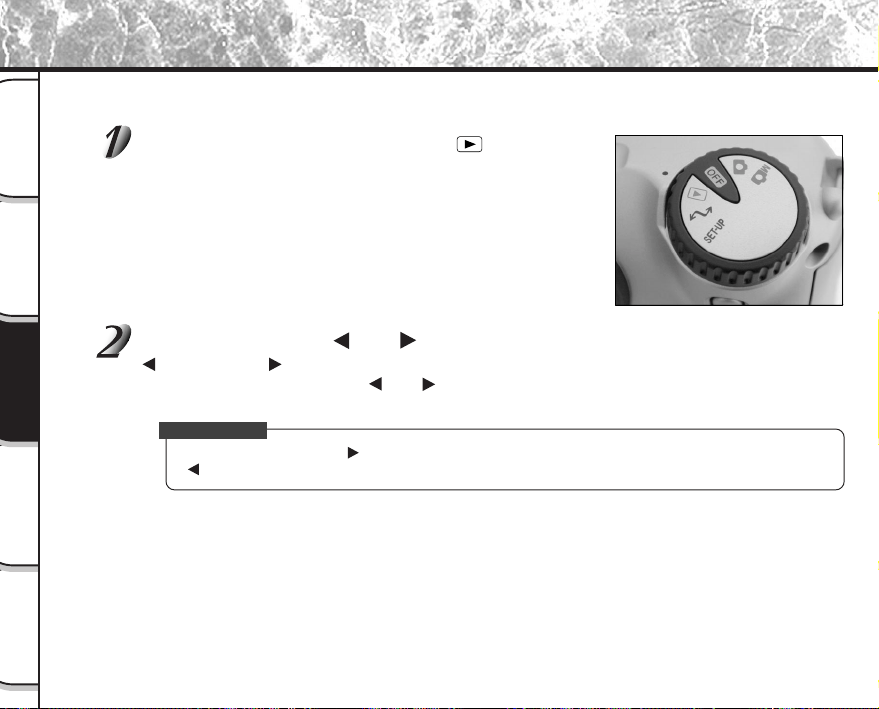
- 62 -
Grundlegende
Fotografie
Wiedergabe/
Löschen
Andere
Anwendungen
Zusätzliche
Information
Vorbereitung
Wiedergabe aufgenommener Bilder
Der folgende Text beschreibt die Wiedergabe einzelner Bilder.
Stellen Sie das Modus-Wählrad auf [ ].
Die letzte Bildmarkierung erscheint im LCD-Monitor.
☞
Zum Einstellen der Helligkeit des LCD-Monitors
➲
S. 84
Ändern der LCD-Monitor-Anzeige
➲
S. 85
Drücken Sie die Taste oder , um vorwärts oder rückwärts zu schalten.
Bild rückwärts / Bild vorwärts
Durch Gedrückthalten der Tasten
oder wird kontinuierlich um ein Bild vorwärts oder rückwärts
geschaltet.
Zur Beachtung
• Durch Drücken der Taste beim letzten Bild wird das erste Bild gezeigt, und durch Drücken der Taste
beim ersten Bild das letzte Bild.
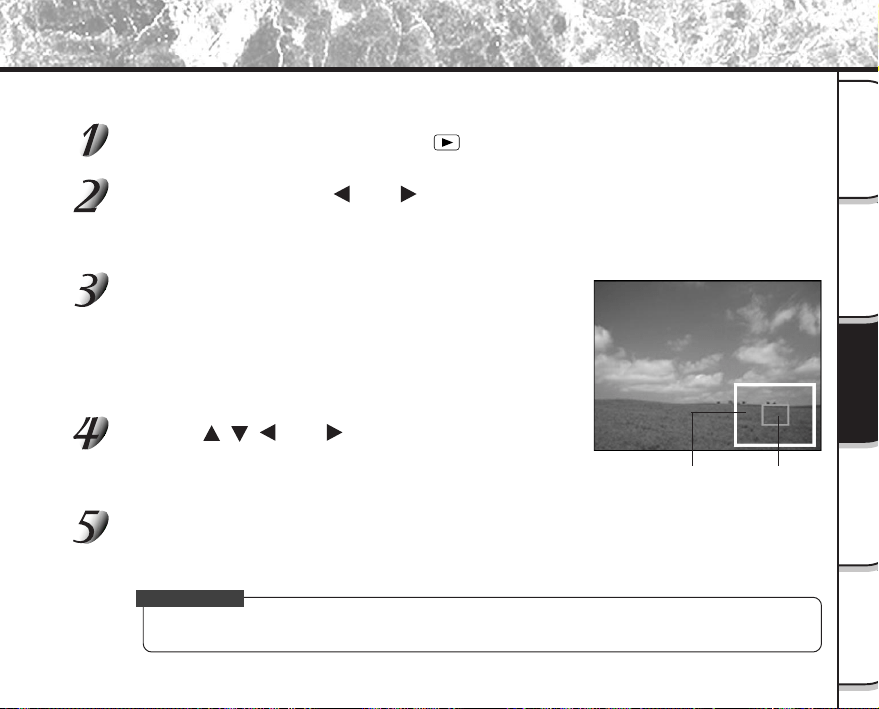
- 63 -
Grundlegende
Fotografie
Wiedergabe/
Löschen
Andere
Anwendungen
Zusätzliche
Information
Vorbereitung
Vergrößern von Aufnahmen (Zoom-Wiedergabe)
Diese Funktion vergrößert die Bilder auf das 3 fache der tatsächlichen Größe. Bei der Bildwiedergabe können die
vergrößerten Bilder einzeln nacheinander abgerufen werden.
Stellen Sie das Modus-Wählrad auf [ ].
Das letzte Bild erscheint auf dem LCD-Monitor.
Verwenden Sie die Taste oder , um die gewünschte Bildmarkierung zu
wählen.
Ebenso können Bilder auch auf die gleiche Weise wie bei der Miniaturbild-Wiedergabe (
➲
S. 64)
gewählt werden.
Das Bild mit der Zoom-Taste vergrößern.
Durch wiederholtes Drücken der Teletaste (Zoom) wird der Zoom-
maßstab auf 3fach vergrößert.
Das Bild wird vergrößert angezeigt, und auf dem LCD-Monitor
erscheint ein weißer und ein grüner Rahmen.
Die weiße Bildmarkierung zeigt das gesamte Bild an, und die grüne
die Lage des aktuell vergrößerten Bereichs.
Die Taste , , oder verwenden, um den zu
vergrößernden Bereich zu wählen.
Stellen Sie den Displaybereich zur Vergrößerung ein, während die
weißen und grünen Bildmarkierungen beachtet werden.
Zum Umschalten auf den normalen Anzeigeninhalt die
Taste ENTER drücken.
Zur Beachtung
•
Zoom-Wiedergabe auf dem Fernsehen nicht schtützen.
Gesamtes
Bild
Momentane
Position der
Vergrößerung
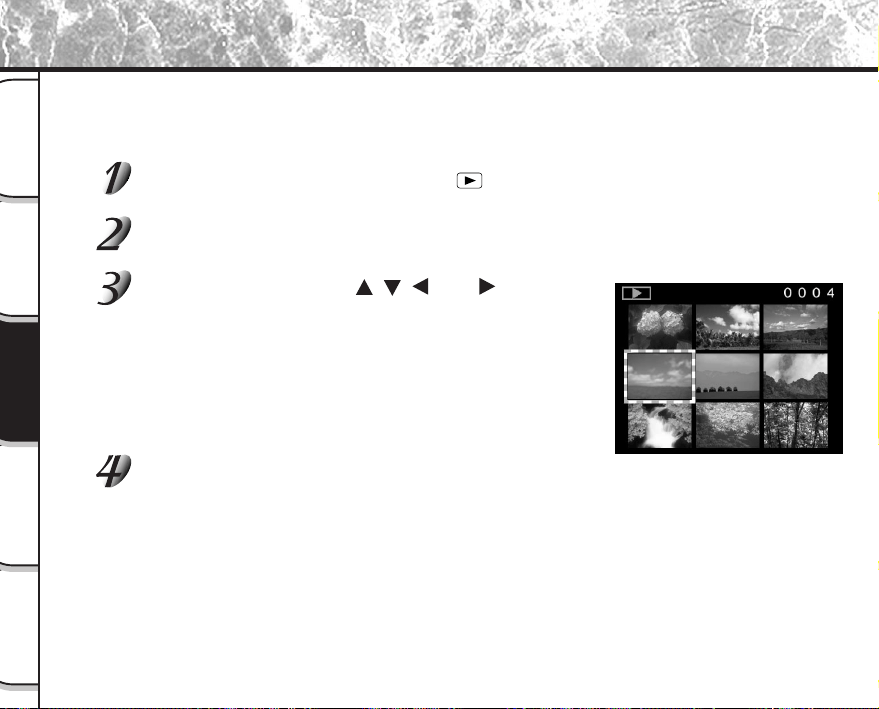
- 64 -
Grundlegende
Fotografie
Wiedergabe/
Löschen
Andere
Anwendungen
Zusätzliche
Information
Vorbereitung
Abrufen der Bilderliste (Miniaturbildanzeige)
Mit dieser Funktion werden neun verkleinerte Bilder gleichzeitig auf dem LCD-Monitor angezeigt — im weiteren
Text “Miniaturbildanzeige” genannt.
Diese Funktion ist zum Beispiel nützlich, wenn viele Bildern vorhanden sind. Durch Abrufen der Miniaturbilder
können gewünschte Bilder ausgewählt und danach in normaler Größe gezeigt werden.
Stellen Sie das Modus-Wählrad auf [ ].
Das letzte Bild erscheint auf dem LCD-Monitor.
Drücken Sie die ENTER-Taste.
Neun Bilder erscheinen gleichzeitig.
Verwenden Sie die Taste , , oder , um den
Cursor zu dem gewünschten Bild zu bewegen.
Der Cursor liegt oben auf dem Bild, umgeben von einem Rahmen.
Durch Drücken der Tasten wird der Cursor kontinuierlich bewegt.
Drücken Sie die ENTER-Taste.
Das gewählte Bild erscheint in normaler Größe.
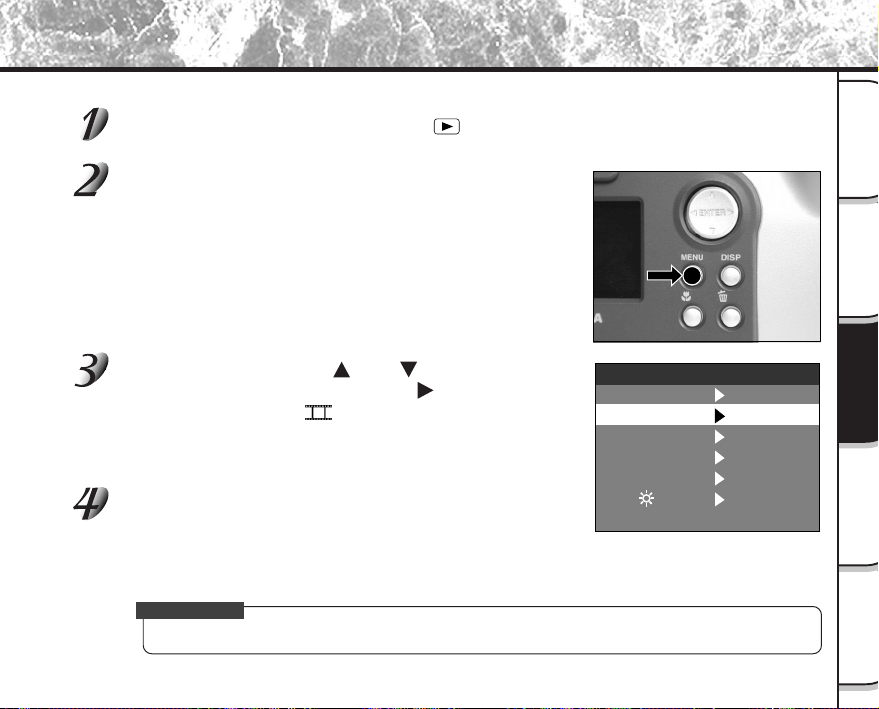
- 65 -
Grundlegende
Fotografie
Wiedergabe/
Löschen
Andere
Anwendungen
Zusätzliche
Information
Vorbereitung
Automatische Wiedergabe (Diashow)
Zeigt automatisch ein Bild nach dem anderen der Reihe nach.
Stellen Sie das Modus-Wählrad auf [ ].
Das letzte Bild erscheint auf dem LCD-Monitor.
Drücken Sie die MENU-Taste.
Das Menü WIEDERG. erscheint.
Verwenden Sie die Taste oder , um [DIA] zu
wählen, und drücken Sie die Taste
.
Die Diashow beginnt, und [ ] erscheint im LCD-Monitor.
Nach jeweils 3 Sekunden erscheint das nächste Bild.
Zum Beenden der Diashow drücken Sie die ENTER-
Taste.
Der LCD-Monitor zeigt das beim Drücken der ENTER-Taste gewählte
Bild.
Die Diashow wird wiederholt, bis die ENTER-Taste gedrückt wird.
Zur Beachtung
• Die Ausschaltautomatik arbeitet bei automatischer Wiedergabe nicht.
DIA
SCHUTZ
LCD
GRÖSSE
QUALITÄT
FEST
WIEDERG.
ORDNER
FEST
FEST
FEST
FEST
FEST
➡
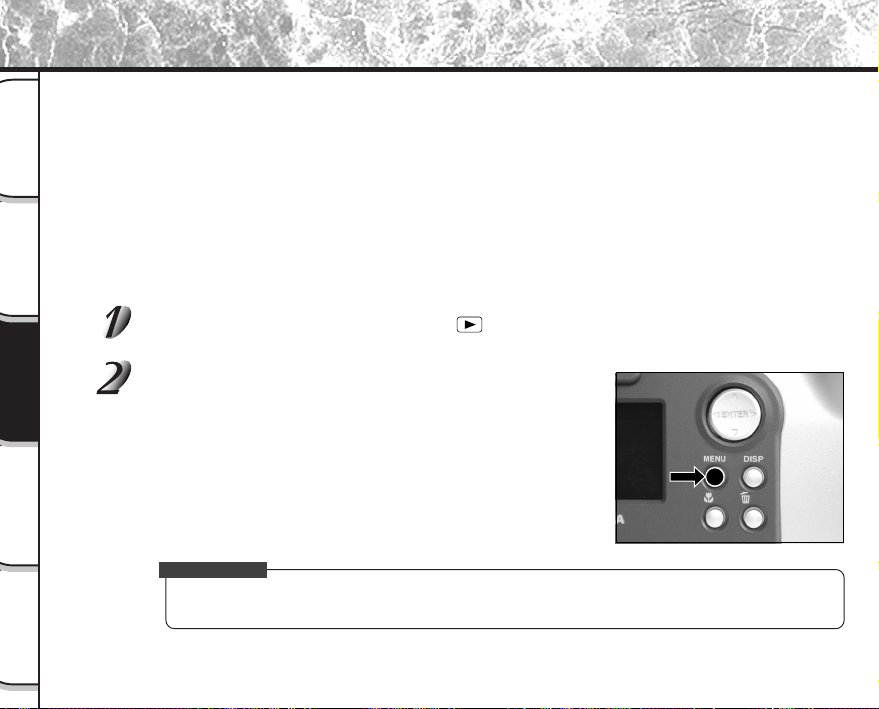
- 66 -
Grundlegende
Fotografie
Wiedergabe/
Löschen
Andere
Anwendungen
Zusätzliche
Information
Vorbereitung
Verringern der Bildgröße (Bildformat ändern)
Erlaubt Ändern der Bildgröße von FULL(ganz)-Format (1792 x 1200 Pixel) auf HALF(halb)-Format (896 x 600 Pixel)
in horizontaler und vertikaler Richtung und überschreibt das alte Bild mit dem neuen komprimierten Bild. Dies wird
“Bildformat ändern” genannt.
Wenn die maximale Speicherkapazität der SmartMedia™ beim Fotografieren erreicht ist, kann durch die Größen-
änderung eines zuvor gespeicherten Bildes zusätzlicher Speicherplatz auf der SmartMedia™ geschaffen werden,
so daß anschließend weiter fotografiert werden kann.
Die folgenden Typen von Bildern können nicht im Format geändert werden:
• Bilder im HALF(halb)-Format
• Mit einer anderen Kamera aufgenommene Bilder
• Geschützte Bilder (
➲
S. 76)
• Bilder können außerdem nicht umformatiert werden, wenn SmartMedia™ schreibgeschützt ist.
Stellen Sie das Modus-Wählrad auf [ ].
Das letzte Bild erscheint auf dem LCD-Monitor.
Drücken Sie die MENU-Taste.
Das Menü WIEDERG. erscheint.
Zur Beachtung
• Das Bildformat kann nur geändert werden, wenn es sich um FULL(ganz)-Format-Bilder (1792 x 1200
Pixel) handelt. Weitere Verringerung auf HALF(halb)-Format (896 x 600 Pixel) ist nicht möglich.
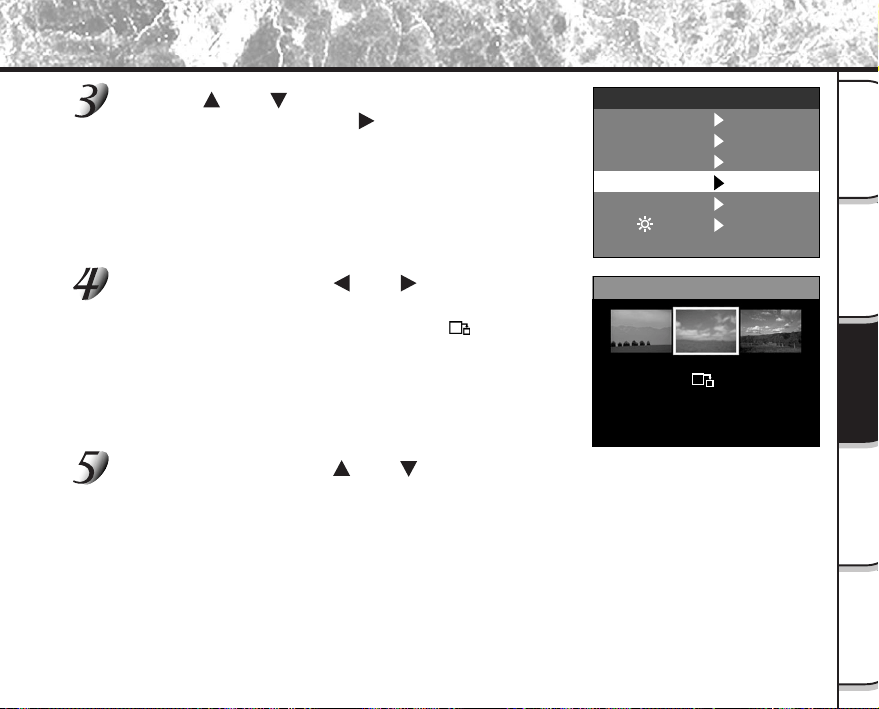
- 67 -
Grundlegende
Fotografie
Wiedergabe/
Löschen
Andere
Anwendungen
Zusätzliche
Information
Vorbereitung
Verringern der Bildgröße (Bildformat ändern) (Fortsetzung)
Die Taste oder verwenden, um [GRÖSSE] zu
wählen, und dann die Taste
drücken.
Das GRÖSSE-Menü erscheint.
Wenn keine umformatierbaren Bilder vorhanden sind, erscheint
eine Meldung auf dem Bildschirm, und der Bildschirm kehrt zum
Menü WIEDERG. zurück.
Verwenden Sie die Taste oder zum Wählen des
Bildes, und drücken Sie die ENTER-Taste.
Dadurch wird das gezeigte Bild festgelegt, und [ ] erscheint unter
dem Bild.
Zum Aufheben der Wahl drücken Sie die ENTER-Taste erneut.
Wenn Sie zwei oder mehr Bilder umformatieren wollen, wiederholen
Sie das Verfahren für jedes Bild.
Verwenden Sie die Taste oder , um [AUSF.] zu wählen, und drücken Sie die
ENTER-Taste.
Der Bildschirm erscheint, der anzeigt, daß das Bild umformatiert wird.
Zum Beenden der Umformatierung wählen Sie [ABBR.].
Wenn die Umformatierung endet, kehrt der Bildschirm zum Menü WIEDERG. zurück.
Zum Beenden des Menüs WIEDERG. drücken Sie die MENU-Taste.
DIA
SCHUTZ
LCD
GRÖSSE
QUALITÄT
SET
WIEDERG.
ORDNER
FEST
FEST
FEST
FEST
FEST
➡
GRÖSSE
ABBR.
AUSF.
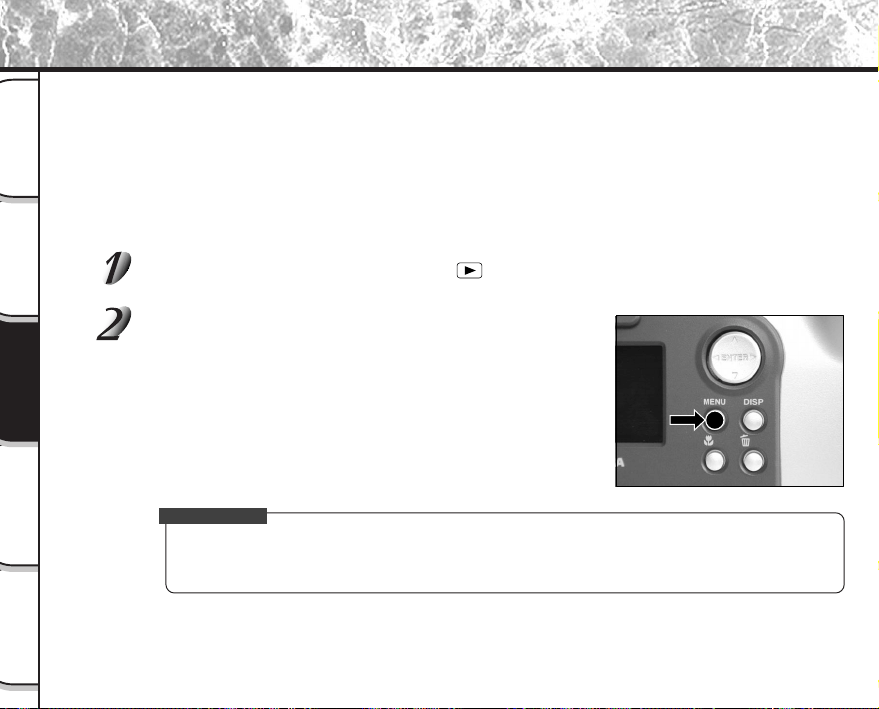
- 68 -
Grundlegende
Fotografie
Wiedergabe/
Löschen
Andere
Anwendungen
Zusätzliche
Information
Vorbereitung
Bilder komprimieren (Qualität)
Erlaubt Komprimieren der Bilder auf HALF-Format und überschreibt das alte Bild mit dem neuen komprimierten
Bild.
Das Komprimieren der Daten eines zuvor gespeicherten Bildes schafft zusätzlichen Speicherplatz auf der
SmartMedia™, so daß anschließend weiter fotografiert werden kann.
Die folgenden Typen von Bildern können nicht komprimiert werden:
•[★] (BASIC) (elementar) Bildqualität Bilder
• Mit einer anderen Kamera aufgenommene Bilder.
• Geschützte Bilder (
➲
S. 76)
• Bilder können außerdem nicht komprimiert werden, wenn SmartMedia™ schreibgeschützt ist.
Stellen Sie das Modus-Wählrad auf [ ].
Das letzte Bild erscheint auf dem LCD-Monitor.
Drücken Sie die MENU-Taste.
Das Menü WIEDERG. erscheint.
Zur Beachtung
• Komprimierung von Bildern kann in der folgenden Reihenfolge erzielt werden:
★★★(FINE) (schön) ➔ ★★(NORMAL) (normal) ➔ ★(BASIC) (elementar).
Die umgekehrte Reihenfolge ist nicht möglich.
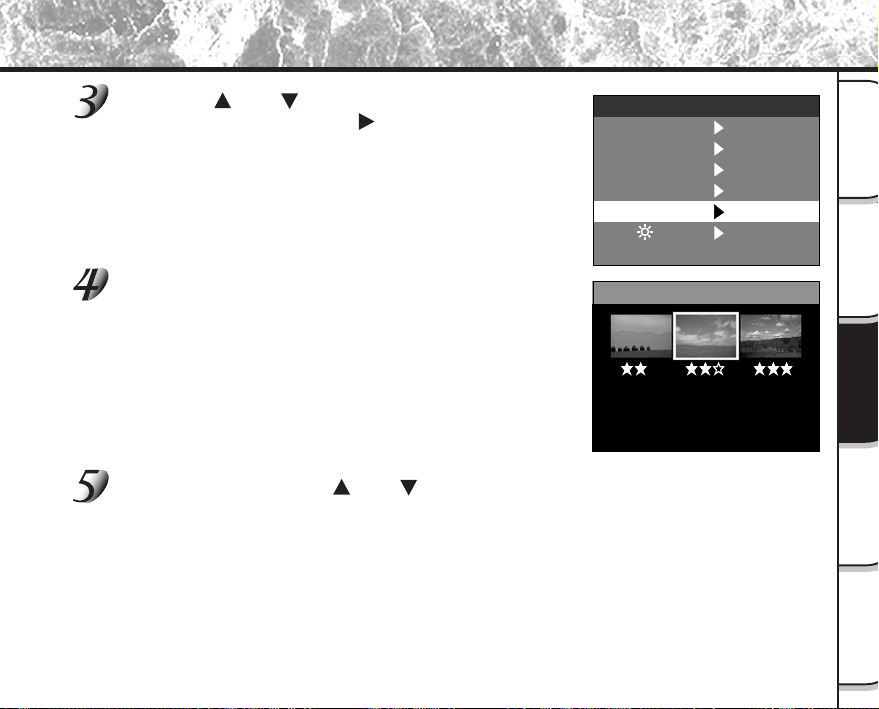
- 69 -
Grundlegende
Fotografie
Wiedergabe/
Löschen
Andere
Anwendungen
Zusätzliche
Information
Vorbereitung
Bilder komprimieren (Qualität) (Fortsetzung)
Die Tasten oder verwenden, um [QUALITÄT] zu
wählen, und dann die Taste
drücken.
Das QUALITÄT-Menü erscheint.
Wenn keine komprimierbaren Bilder vorhanden sind, erscheint
eine Meldung auf dem Bildschirm, und der Bildschirm kehrt zum
Menü WIEDERG. zurück.
Das aktuelle Kompressionsverhältnis (Qualität)
erscheint unter dem Bild.
Bei jedem Drücken der ENTER-Taste wird die Anzahl der Sternchen
wie folgt geändert:
★★ [NORMAL] (normal)
★ [BASIC] (elementar)
☞
Einzelheiten des Kompressionsverhältnisses
➲
S. 43
Wenn Sie zwei oder mehr Bilder komprimieren wollen, wiederholen
Sie das Verfahren für jedes Bild.
Verwenden Sie die Taste oder zum Wählen von
[AUSF.], und drücken Sie die ENTER-Taste.
Der Bildschirm erscheint, der anzeigt, daß das Bild komprimiert wird.
Zum Beenden der Kompression wählen Sie [ABBR.].
Wenn die Kompression endet, kehrt der Bildschirm zu WIEDERG.
zurück.
Zum Beenden des Menüs WIEDERG. drücken Sie die MENU-Taste.
DIA
SCHUTZ
LCD
GRÖSSE
QUALITÄT
FEST
WIEDERG.
ORDNER
FEST
FEST
FEST
FEST
FEST
➡
QUALITÄT
ABBR.
AUSF.

- 70 -
Grundlegende
Fotografie
Wiedergabe/
Löschen
Andere
Anwendungen
Zusätzliche
Information
Vorbereitung
Wählen Sie den Ordner zur Wiedergabe, wenn das momentan eingelegte SmartMedia™ zwei oder mehr Ordner
enthält.
Stellen Sie das Modus-Wählrad auf [ ].
Das letzte Bild oder die Miniaturbilder erscheinen auf dem LCD-Monitor.
Drücken Sie die MENU-Taste.
Das Menü WIEDERG. erscheint.
Verwenden Sie die Taste oder , um [ORDNER]
zu wählen, und drücken Sie die Taste
.
Die Namen der Ordner im momentan eingelegten SmartMedia™
erscheinen.
Verwenden Sie die Taste oder , um den zu zeigenden Ordner zu wählen, und
drücken Sie die ENTER-Taste.
Ordner zur Wiedergabe wählen
DIA
SCHUTZ
LCD
GRÖSSE
QUALITÄT
FEST
WIEDERG.
ORDNER
FEST
FEST
FEST
FEST
FEST
➡
- 71 -
Grundlegende
Fotografie
Wiedergabe/
Löschen
Andere
Anwendungen
Zusätzliche
Information
Vorbereitung
Über Ordner-Namen
Mit dieser Kamera aufgenommene Standbilder werden im Ordner abgelegt. In welchem Ordner
bestimmte Bilder gespeichert werden, ist nicht einstellbar. Der Ordner [100] wird angelegt, wenn
Standbilder aufgenommen wurden.
Wenn die Anzahl der Bilder im Standbildmodus die höchstmögliche Zahl (9999) erreicht hat, wird ein
neuer Ordner [101] angelegt.
Wenn zwei oder mehr [xxx] Ordner vorhanden sind, ist der Wiedergabeordner als Vorgabe der Ordner
mit dem größten “xxx” Wert.
Zur Beachtung
• Wenn die SmartMedia
TM
verwendet wird, wird ein Ordner [xxxTOSHI] angelegt.
Ordner zur Wiedergabe wählen (Fortsetzung)
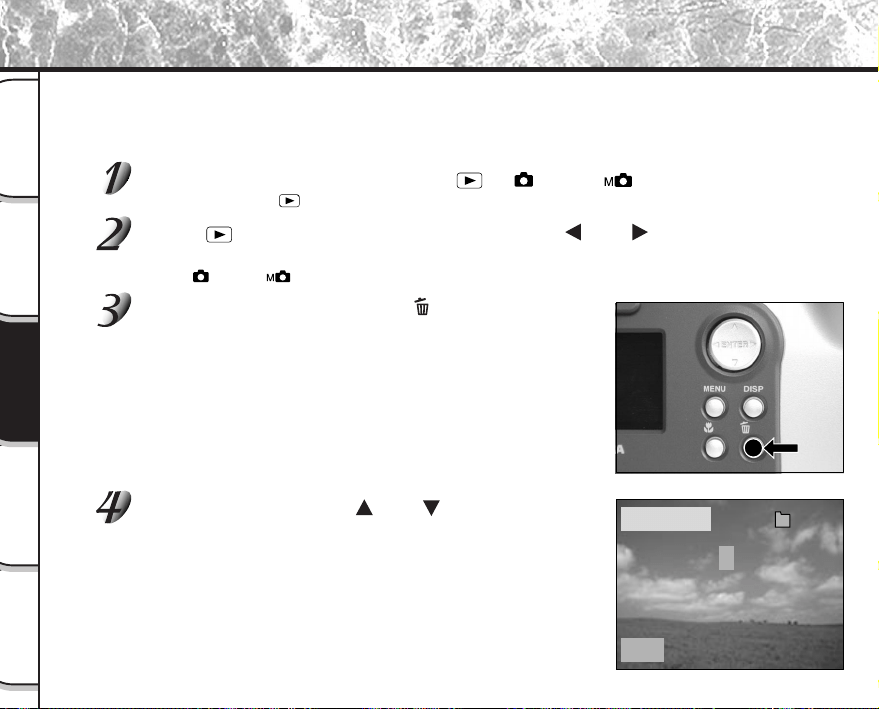
- 72 -
Grundlegende
Fotografie
Wiedergabe/
Löschen
Andere
Anwendungen
Zusätzliche
Information
Vorbereitung
Bilder können einzeln gelöscht werden.
Beachten Sie aber, daß Bilder nicht gelöscht werden können, wenn sie geschützt sind (
➲
S. 76) oder
SmartMedia™ schreibgeschützt sind (
➲
S. 32).
Stellen Sie das Modus-Wählrad auf [ ], [ ] oder [ ].
Bei Einstellung auf [ ] erscheint das letzte Bild auf dem LCD-Monitor.
Wenn [ ] gewählt ist, verwenden Sie die Taste oder , um das zu löschende
Bild zu wählen.
Wenn [ ] oder [ ] gewählt ist, wird das letzte Bild gewählt.
Drücken Sie die Löschen-Taste .
[BILD] oder [LETZTES] erscheint unten links im Bildschirm.
Verwenden Sie die Taste oder , um [J] zu wählen,
und drücken Sie die ENTER-Taste.
Dadurch wird das Bild gelöscht und die Kamera kehrt zum vorheri-
gen Modus zurück.
Zum Aufheben des Löschens von Bilddaten wählen Sie [N], und
drücken Sie die ENTER-Taste.
Löschen von Bildern (Einzelbild-Löschung)
LÖSCHEN
BILD
J
100
0004
N
- 73 -
Grundlegende
Fotografie
Wiedergabe/
Löschen
Andere
Anwendungen
Zusätzliche
Information
Vorbereitung
Zum Fortsetzen des Löschens von Bildern, wiederholen Sie das obige Verfahren
ab Schritt 2.
Zur Beachtung
• Wenn [ GESCHÜTZT!!!] im LCD-Monitor erscheint, heben Sie den Schutz auf (
➲
S. 76).
• Wenn Sie nach dem Löschen eines Bildes eine Aufnahme machen, wird die jeweils der letzten
Bildnummer folgende Nummer zugewiesen.
Löschen von Bildern (Einzelbild-Löschung) (Fortsetzung)
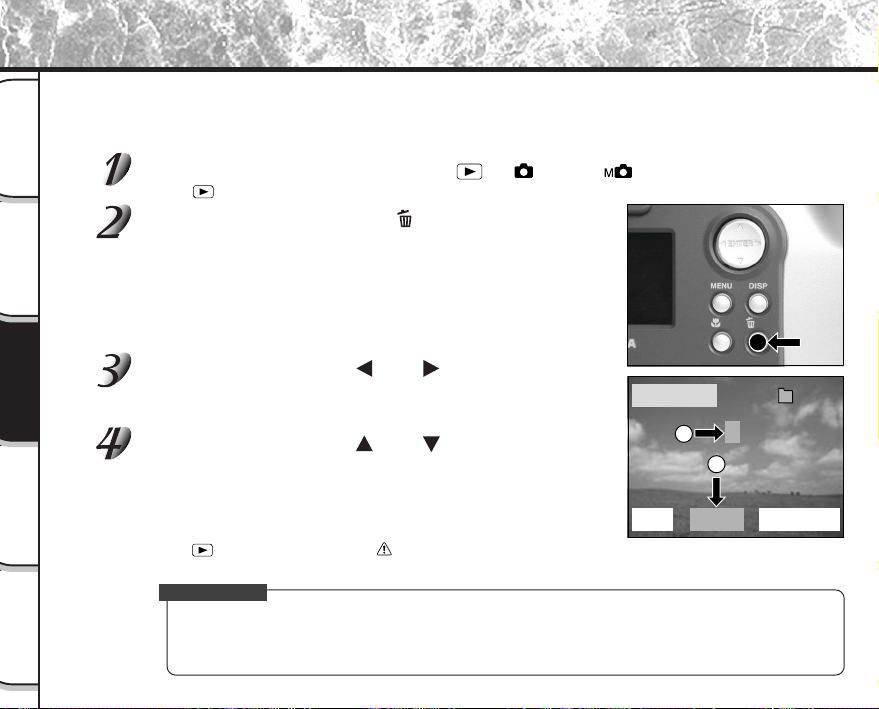
- 74 -
Grundlegende
Fotografie
Wiedergabe/
Löschen
Andere
Anwendungen
Zusätzliche
Information
Vorbereitung
Löscht alle Bilder innerhalb des momentan gewählten Ordners.
Einzelheiten über Ordner siehe “Ordner zur Wiedergabe wählen” (
➲
S. 70).
Beachten Sie aber, daß Bilder nicht gelöscht werden können, wenn sie geschützt sind (
➲
S. 76) oder
SmartMedia™ schreibgeschützt sind (
➲
S. 32).
Stellen Sie das Modus-Wählrad auf [ ], [ ] oder [ ].
Wenn [ ] gewählt ist, erscheint das letzte Bild im LCD-Monitor.
Halten Sie die Löschen-Taste zwei Sekunden lang
gedrückt.
Das LÖSCHEN-Menü erscheint.
Verwenden Sie die Taste oder , um [ALLE] 1 zu
wählen.
Stellen Sie sicher, daß [ALLE] unten in der Bildmitte in gelb erscheint.
Verwenden Sie die Taste oder , um [J] 2 zu
wählen, und drücken Sie die ENTER-Taste.
Dadurch werden die Bilder gelöscht und die Kamera kehrt zum
vorherigen Modus zurück.
Zum Beenden des Löschens von Bilddaten wählen Sie [N], und
drücken Sie die ENTER-Taste.
Wenn [
] gewählt ist, erscheint [ KEIN BILD] nach dem Löschen
der Bilder (wenn SmartMedia™ nicht geschützte Bilder enthält).
Zur Beachtung
• Wenn Sie ALLE LÖSCHEN ausführen, wird der Bilder enthaltende Ordner auch gelöscht. Um dies zu
vermeiden, löschen Sie die Bilder einzeln.
• Zum Löschen der Bilder in einem anderen Ordner geben Sie den Ordner mit [ORDNER] an und
löschen dann die Bilder (
➲
S. 70).
Löschen aller Bilder in einem Ordner (Alle löschen)
LÖSCHEN
BILD
ALLE FORMAT
J
100
0004
N
2
1
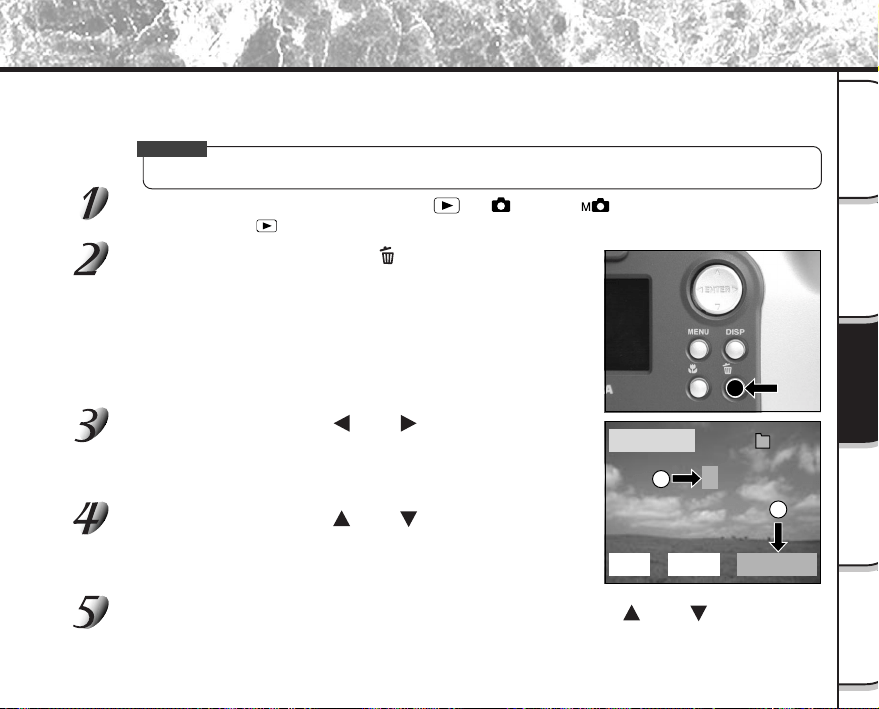
- 75 -
Grundlegende
Fotografie
Wiedergabe/
Löschen
Andere
Anwendungen
Zusätzliche
Information
Vorbereitung
Durch Formatieren werden alle momentan im in der Kamera eingesetzten SmartMedia™ gelöscht. Geschützte
Bilder (
➲
S. 76) werden dabei ebenfalls gelöscht. SmartMedia™ kann nicht formatiert werden, wenn es schreib-
geschützt ist. (
➲
S. 32)
WICHTIG
• SmartMedia™ muß formatiert sein, bevor es in der Kamera verwendet werden kann.
Stellen Sie das Modus-Wählrad auf [ ], [ ] oder [ ].
Bei Einstellung auf [ ] erscheint das letzte Bild auf dem LCD-Monitor.
Halten Sie die Löschen -Taste zwei Sekunden lang
gedrückt.
Das LÖSCHEN-Menü erscheint.
Verwenden Sie die Taste oder , um [FORMAT] 1
zu wählen.
Stellen Sie sicher, daß [FORMAT] unten rechts im Bildschirm in gelb
erscheint.
Verwenden Sie die Taste oder , um [J] 2 zu
wählen, und drücken Sie die ENTER-Taste.
Zum Beenden des Formatierens wählen Sie [N], und drücken Sie die
ENTER-Taste.
Zum Rücksetzen der Bildnummer verwenden Sie die Taste oder , um [J] zu
wählen, und drücken Sie die ENTER-Taste.
Zum Beenden des Rücksetzens von Bildnummern wählen Sie [N], und drücken Sie die ENTER-Taste.
Formatieren von SmartMedia™
LÖSCHEN
BILD
ALLE FORMAT
J
100
0004
N
2
1
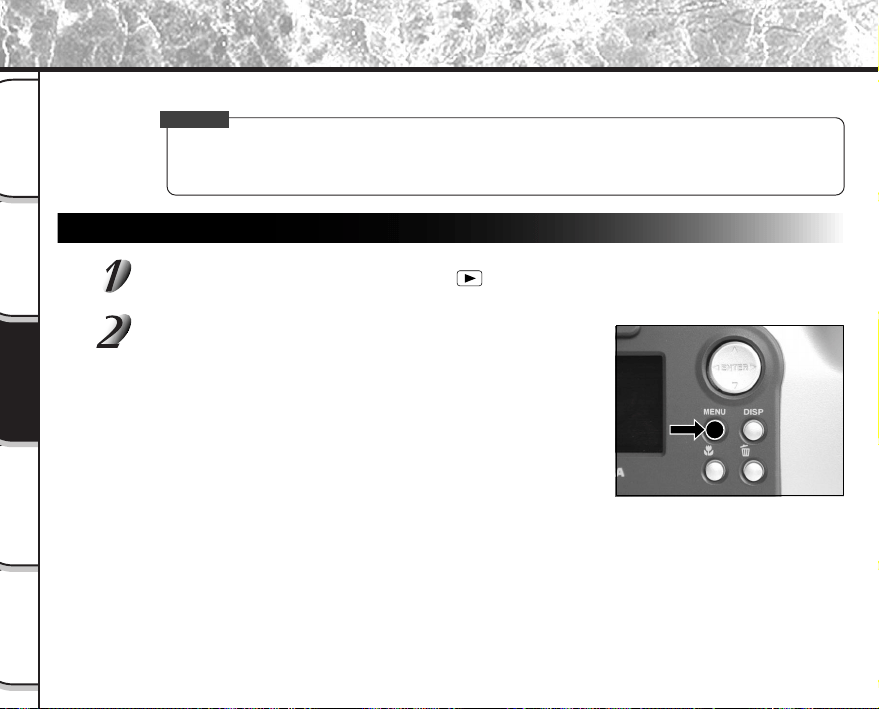
- 76 -
Grundlegende
Fotografie
Wiedergabe/
Löschen
Andere
Anwendungen
Zusätzliche
Information
Vorbereitung
Dieses Merkmal schützt Bilder vor Löschen.
WICHTIG
• Das Formatieren löscht alle Bilder auf einem SmartMedia™, ungeachtet ob sie schreibgeschützt sind
oder nicht.
• Zum Schützen des gesamten SmartMedia™ siehe “Schreibschutz” (
➲
S. 32).
Schützen eines Bildes
Stellen Sie das Modus-Wählrad auf [ ].
Die letzte Bildmarkierung erscheint im LCD-Monitor.
Drücken Sie die MENU-Taste.
Das Menü WIEDERG. erscheint.
Bilder vor Löschen schützen
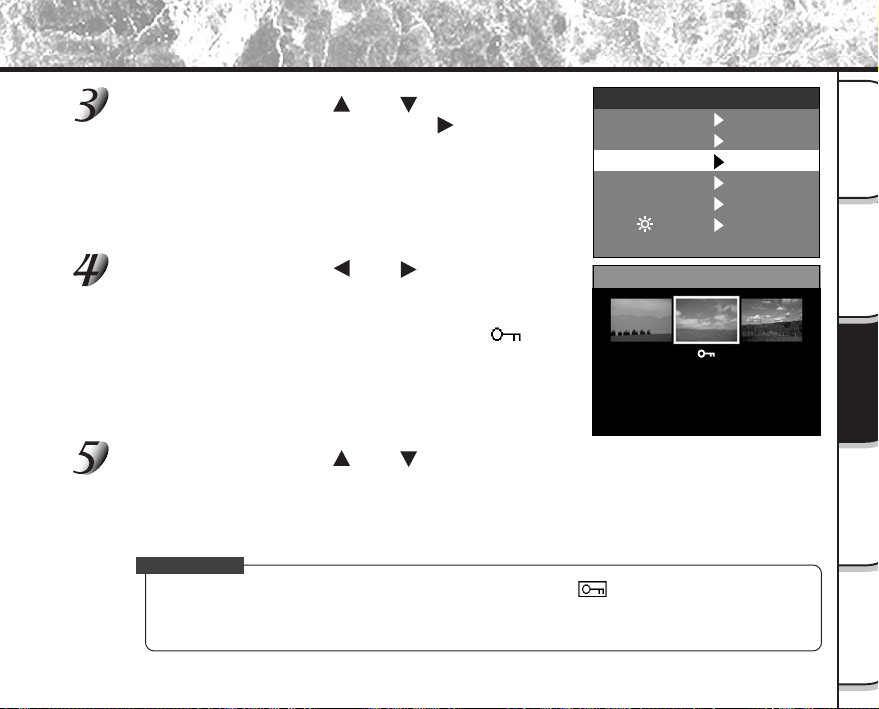
- 77 -
Grundlegende
Fotografie
Wiedergabe/
Löschen
Andere
Anwendungen
Zusätzliche
Information
Vorbereitung
Verwenden Sie die Taste oder , um [SCHUTZ]
zu wählen und drücken Sie die Taste
.
Das SCHUTZ-Menü erscheint.
Verwenden Sie die Taste oder , um das zu schüt-
zen gewünschte Bild zu wählen, und drücken Sie die
ENTER-Taste.
Dadurch wird das zu schützende Bild festgelegt, und [ ]
erscheint unter dem Bild.
Zum Aufheben der Wahl drücken Sie die ENTER-Taste erneut.
Zum Schreibschützen von zwei oder mehr Bildern wiederholen Sie
dieses Verfahren für jedes Bild.
Verwenden Sie die Taste oder , um [AUSF.] zu wählen, und drücken Sie die
ENTER-Taste.
Um den Schreibschutz aufzuheben, wählen Sie [ABBR.].
Wenn der Schreibschutz beendet wird, kehrt der Bildschirm zum Menü WIEDERG. zurück.
Zum Beenden des Menüs WIEDERG. drücken Sie die MENU-Taste.
Zur Beachtung
• Wenn der SCHUTZ Setup-Bildschirm erneut erscheint, erscheint [ ] unter den geschützten Bildern.
• Zum Aufheben des Schreibschutzes für ein Bild wird Schreibschutz simultan aufgehoben, wenn bei
Schritt 4 eingestellt.
Bilder vor Löschen schützen (Fortsetzung)
SCHUTZ
ABBR.
AUSF.
DIA
SCHUTZ
LCD
GRÖSSE
QUALITÄT
FEST
WIEDERG.
ORDNER
FEST
FEST
FEST
FEST
FEST
➡
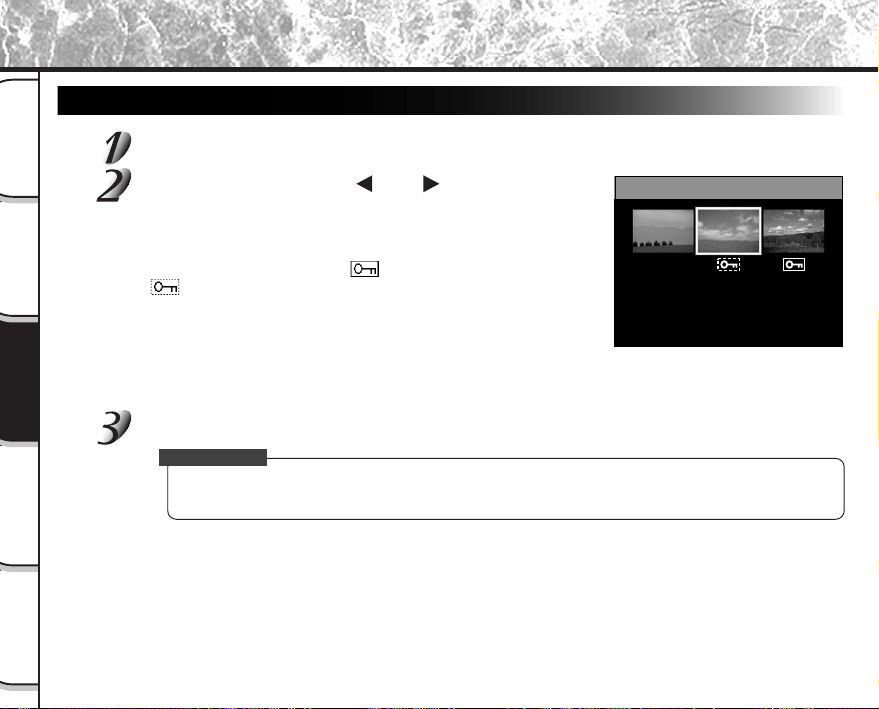
- 78 -
Grundlegende
Fotografie
Wiedergabe/
Löschen
Andere
Anwendungen
Zusätzliche
Information
Vorbereitung
Aufheben des Schreibschutzes
Führen Sie Schritte 1 bis 3 in “Schützen eines Bildes” aus.
Verwenden Sie die Taste oder , um das freizuge-
bende Bild zu wählen, und drücken Sie die ENTER-
Taste.
Dadurch werden die Bilder festgelegt, deren Schreibschutz
aufgehoben werden soll, und [
] unter dem Bild wechselt zu
[
] um.
Zum Freigeben eines Bildes drücken Sie die ENTER-Taste erneut.
Zum Aufheben des Schreibschutzes von zwei oder mehr Bildern,
wiederholen Sie dieses Verfahren für die erforderliche Anzahl von
Bildern.
Führen Sie Schritt 5 in “Schützen eines Bildes” aus.
Zur Beachtung
• Zum erneuten Schützen eines Bildes wird der Schreibschutz simultan ausgeführt, wenn in Schritt 2
eingestellt.
Bilder vor Löschen schützen (Fortsetzung)
SCHUTZ
ABBR.
AUSF.
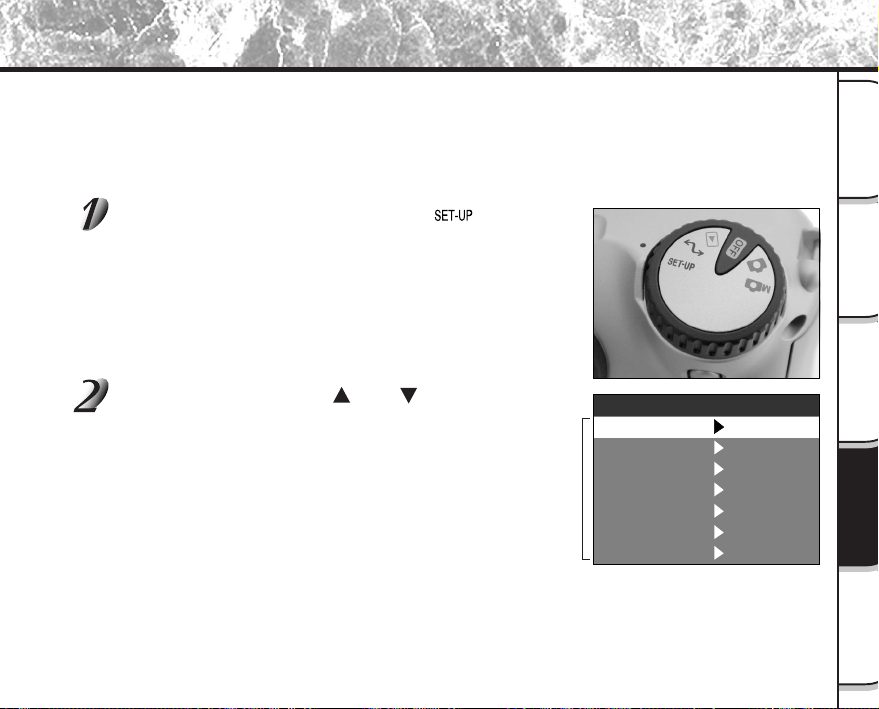
- 79 -
Grundlegende
Fotografie
Wiedergabe/
Löschen
Andere
Anwendungen
Zusätzliche
Information
Vorbereitung
Grundlegende Kameraeinstellungen (Setup-Modus)
Dieses Merkmal erlaubt es, die Umgebung zur Verwendung der Kamera neben den bildbezogenen Einstellungen
einzustellen. Dies wird “Setup” genannt. Die folgenden Punkte können im Setup-Modus eingestellt werden:
SPRACHE/TON/ZEIT/AUTO-AUS/TV/BILDNR./STANDARD
Die hier eingestellten Einzelheiten werden auch nach dem Ausschalten der Kamera im Speicher bewahrt.
Stellen Sie das Modus-Wählrad auf [ ].
Das SETUP-Menü erscheint.
Verwenden Sie die Taste oder , um den einzustel-
lenden Punkt zu wählen.
☞
SPRACHE
➲
Seite 80
TON
➲
Seite 80
ZEIT
➲
Seite 81
AUTO-AUS
➲
Seite 81
TV
➲
Seite 82
BILDNR.
➲
Seite 82
STANDARD
➲
Seite 83
Einstellpunkt
TON
ZEIT
BILDNR.
STANDARD
AUTO-AUS
TV
NTSC
FEST
SETUP
SPRACHE
EIN
FEST
FEST
3
MIN
Deutsch
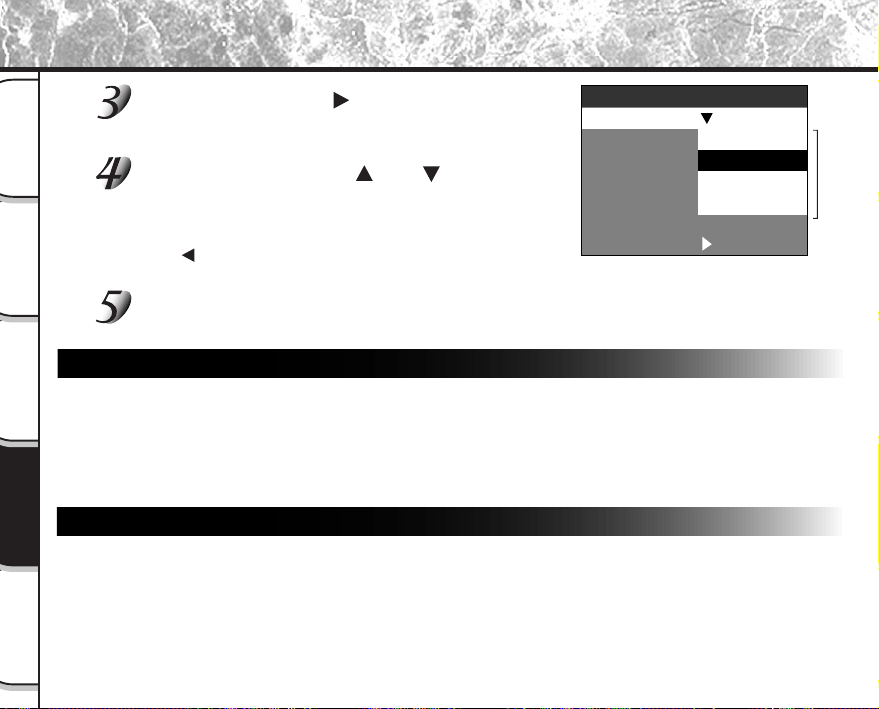
- 80 -
Grundlegende
Fotografie
Wiedergabe/
Löschen
Andere
Anwendungen
Zusätzliche
Information
Vorbereitung
Grundlegende Kameraeinstellungen (Setup-Modus) (Fortsetzung)
Drücken Sie die Taste .
Das Tab-Menü erscheint.
☞
Einstellen der Zeit
➲
Seite 81
Verwenden Sie die Taste oder , um die
Einstellung im Tab-Menü zu ändern, und drücken
Sie die ENTER-Taste.
Zum Aufheben der Änderung von Einstellungen drücken Sie die
Taste
.
Zum Beenden des Menüs SETUP ändern Sie die Modus-Wählrad-Einstellung.
SPRACHE
Stellt die Displaysprache für Menüs im LCD-Monitor ein.
[English] (Vorgabe) : Englisch
[Deutsch] : Deutsch
[Français] : Französisch
[Español] : Spanisch
TON
Stellt ein, ob der Piepton ausgegeben werden soll oder nicht.
[EIN] (Vorgabe) : Der Piepton wird je nach Betriebszustand oder Bedienung ausgegeben.
[AUS] : Kein Piepton, egal welcher Zustand.
Tab-Menü
TON
ZEIT
BILDNR.
STANDARD
AUTO-AUS
TV
Español
SETUP
SPRACHE
English
Deutsch
Français
Deutsch
FEST
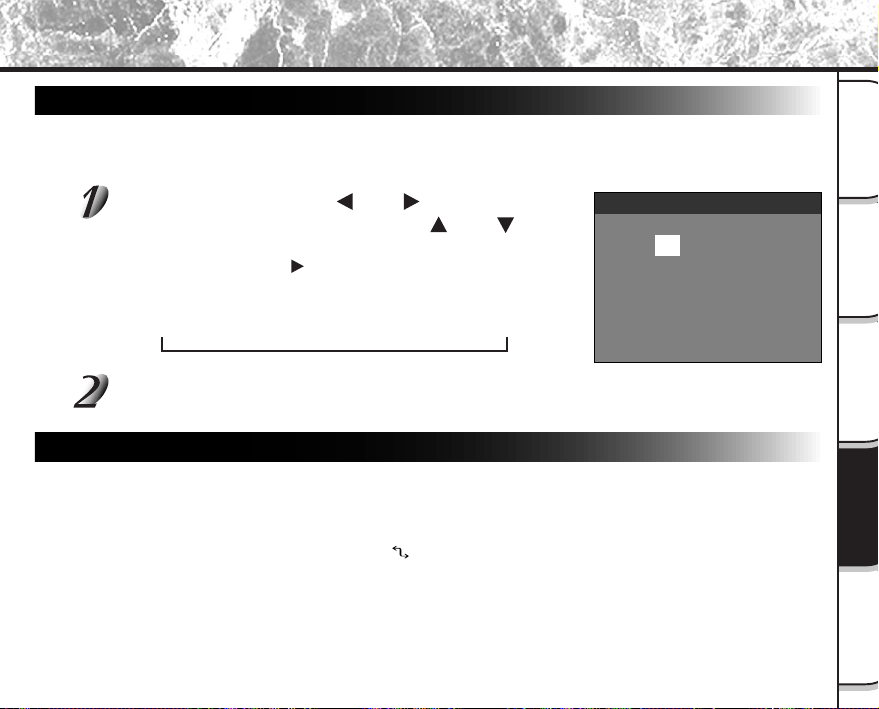
- 81 -
Grundlegende
Fotografie
Wiedergabe/
Löschen
Andere
Anwendungen
Zusätzliche
Information
Vorbereitung
Grundlegende Kameraeinstellungen (Setup-Modus) (Fortsetzung)
ZEIT
Stellt Datum und Zeit ein.
Sekunden können nicht eingestellt werden.
Wählen Sie mit der Taste oder den gewünschten
Punkt, und verwenden Sie die Taste
oder , um
den Wert für jeden Punkt einzustellen.
Durch Drücken der Taste wird die Wahl in der folgenden Reihen-
folge umgestellt:
Monat ➔ Tag ➔ Jahr ➔ Uhr ➔ Minute ➔ FEST ➔ ABBR.
Wählen Sie [FEST] und drücken Sie die ENTER-Taste.
Zum Beenden der Einstellung wählen Sie die Taste [ABBR.].
AUTO-AUS (Automatisches Ausschalten)
Wenn eine festgelegte Zeit lang (Vorgabe: ca. eine Minute) kein Bedienverfahren ausgeführt wird, wird
die Leistungsaufnahme auf Minimum reduziert (fast ausgeschaltet), um Batterieverbrauch zu reduzieren.
Dieses Merkmal wird Automatisches Ausschalten genannt. Diese Einstellung erlaubt es, die Zeit bis zum
Einsetzen der Automatikausschaltung einzustellen. Diese Funktion wird nicht bei automatischer
Wiedergabe aktiviert (
➲
S. 65) oder im [ ] PC-Modus. Zum Zurückstellen auf Normalzustand aus dem
Automatikausschalt-Betrieb entweder das Modus-Wählrad anders einstellen oder den Auslöser
mindestens zwei Sekunden lang halb drücken. (
➲
S. 37)
[1 MIN] (Vorgabe)
[2 MIN]
[3 MIN]
➔
01.01.2000
12:55:00
FEST ABBR.
ZEIT
- 82 -
Grundlegende
Fotografie
Wiedergabe/
Löschen
Andere
Anwendungen
Zusätzliche
Information
Vorbereitung
Grundlegende Kameraeinstellungen (Setup-Modus) (Fortsetzung)
TV
Das Video-Ausgangssystem einstellen.
[NTSC] : NTSC-System (U.S.A, KANADA, JAPAN)
[PAL] : PAL-System (EUROPA)
BILDNR.
Stellt ein, ob die Bildnummer beim Fotografieren zurückgestellt wird oder nicht.
[ABBR.] : Bildnummer wird nicht zurückgestellt.
[ZURÜCK] : Bildnummer wird zurückgestellt.
Bildnummern und Ordnernummern
• Wenn die Bildnummer zurückgestellt wird, wird eine Nummer ab 0001 einem leeren Ordner zugewie-
sen, mit der kleinsten Nummer auf dem eingesetzten SmartMedia™.
Die Ordnernummer unterscheidet sich je nach Zustand des eingesetzten SmartMedia™. Um auch die
Ordnernummer zurückzustellen, formatieren Sie zuerst SmartMedia™ und setzen dann die Bild-
nummer zurück.
• Eine vortlaufende Nummer fortgesetzt vom letzten fotografierten Bild wird als Bildnummer zugewiesen,
ungeachtet ob nur ein Bild oder alle Bilder gelöscht wurden. Einem Ordner wird eine vortlaufende
Nummer auf gleiche Weise zugewiesen.
• Die größte Bildnummer ist 9999. Wenn diese Nummer erreicht ist, wird ein neuer Ordner erstellt, und
die Bildnummer beginnt ab 0001.
☞
Wählen von ORDNER
➲
Seite 70.
• Die größte Ordnernummer ist 999. Wenn die Ordnernummer 999 erreicht, formatieren Sie
SmartMedia™.
• Wenn Sie SmartMedia™ verwenden, welches auf einer anderen Kamera für Fotos verwendet wurde
oder zwischen zwei oder mehr SmartMedia™ umwechseln, erhalten die von dieser Kamera gegebe-
nen Daten Priorität als Bildnummer. Die Ordnernummer wird entsprechend dem Zustand der Kamera
oder SmartMedia™ zugewiesen.
- 83 -
Grundlegende
Fotografie
Wiedergabe/
Löschen
Andere
Anwendungen
Zusätzliche
Information
Vorbereitung
Grundlegende Kameraeinstellungen (Setup-Modus) (Fortsetzung)
STANDARD (Vorgabe)
Einstellen, ob die Einstellung im Menü SETUP auf Vorgabewerte zurückgestellt wird oder nicht.
[ABBR.] : Einstellung nicht auf Vorgabewerte zurückstellen.
[OK] : Einstellung auf Vorgabewerte zurückstellen.

- 84 -
Grundlegende
Fotografie
Wiedergabe/
Löschen
Andere
Anwendungen
Zusätzliche
Information
Vorbereitung
Einstellung der LCD-Monitor-Helligkeit
Diese Einstellung justiert die Helligkeit des LCD-Monitors und nicht die Helligkeit des aufgenommenen Bildes.
Stellen Sie das Modus-Wählrad auf [ ], [ ] oder [ ].
Drücken Sie die MENU-Taste.
Das Menü AUFN. oder WIEDERG. erscheint.
Sie können die LCD-Monitor-Helligkeit in einem dieser beiden Menüs
einstellen.
Verwenden Sie die Taste oder , um [LCD] zu wählen und drücken Sie die
Taste
.
Das Bild und das LCD-Menü erscheinen.
Verwenden Sie die Taste oder , um die Helligkeit
einzustellen.
Drücken Sie die Taste , um den LCD-Monitor dunkler (–) einzustel-
len, oder die Taste
, um ihn heller (+) einzustellen.
Der LCD-Monitor kann in einem Bereich von [–5] bis [+5] eingestellt
werden. (Vorgabe ist 0.)
Drücken Sie die ENTER-Taste.
Damit wird die Kamera zum vorherigen Modus zurückgestellt.
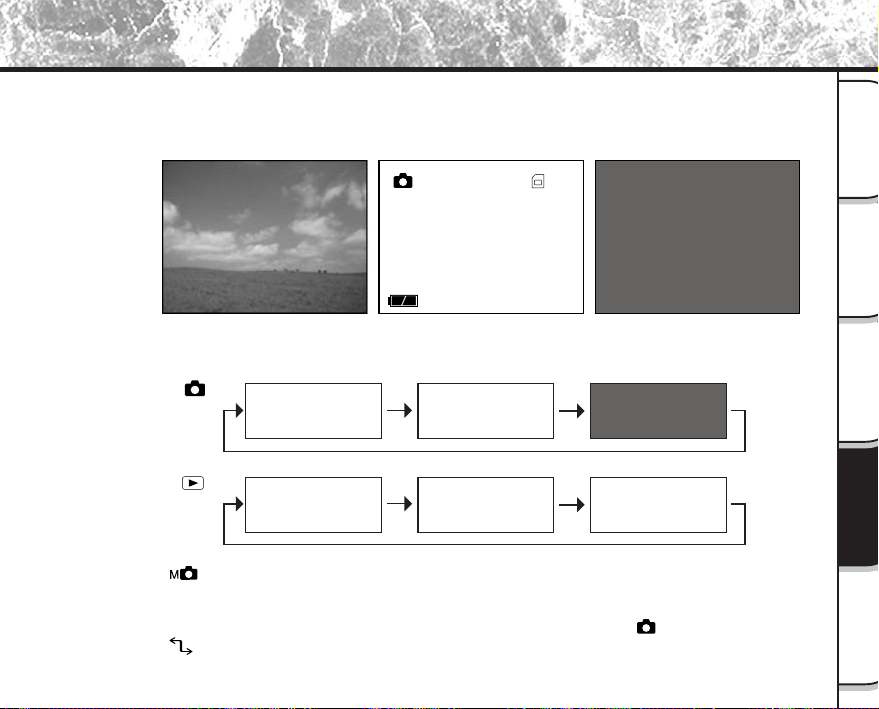
- 85 -
Grundlegende
Fotografie
Wiedergabe/
Löschen
Andere
Anwendungen
Zusätzliche
Information
Vorbereitung
[ ]
[ ]
*
*
Live-Bild
+
Bildschirmanzeige
Nur Live-Bild
Wiedergabe-Bild
+
Bilddetails
Wiedergabe-Bild
+
Bildschirmanzeige
Nur Wiedergabe-Bild
DISP-Taste und LCD-Monitordisplay
Durch Drücken der DISP-Taste können LCD-Monitor und Bildschirmanzeige ein- und ausgeschaltet
werden.) (
☞
LCD-Monitor
➲
S. 34)
Bei jedem Druck der DISP-Taste wird das Display in der folgenden Reihenfolge umgeschaltet (* zeigt
Vorgabe):
05.10.00
10:10
001
Aus
(Monitor ist leer)
Live-Bild
(Bild vor der Fotografie)
Bildschirmanzeige / Bilddetails
(Buchstaben und Symbole werden gezeigt)
• Auf [ ] gestellt, wird das manuelle Einstellbild angezeigt (Voreinstellung). Während der Anzeige
dieses Bildes wechselt Bildinhalt im LCD-Monitor durch Drücken der DISP-Taste nicht. Die Taste
ENTER drücken, um den Status des manuellen Einstellbildes als ein nicht angezeigtes Bild zu
registrieren. In diesem Einstellstatus wechselt der Bildinhalt genau wie im [
]-Modus.
• Auf [
] gestellt, ist der LCD-Monitor leer.
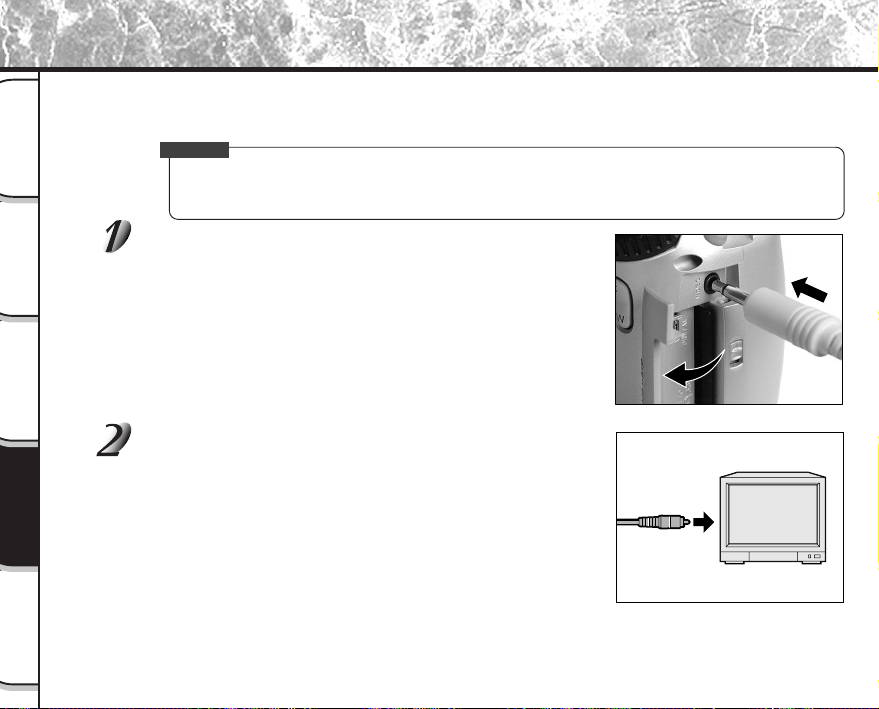
- 86 -
Grundlegende
Fotografie
Wiedergabe/
Löschen
Andere
Anwendungen
Zusätzliche
Information
Vorbereitung
Aufnehmen und Wiedergeben von Bildern auf einem Fernsehgerät
Fernsehgeräte können zum Komponieren von Bildern zur Fotografie oder Wiedergabe verwendet werden. Dazu
muß die Kamera zuerst am Fernsehgerät angeschlossen werden. Wir empfehlen bei dieser Konfiguration den
Betrieb über Netzstrom.
WICHTIG
• Vor dem Anschließen der Kamera an das andere Gerät immer sicherstellen, daß alle Geräte ausge-
schaltet sind. Wenn die Kamera in eingeschaltetem Zustand mit einem anderen verbunden wird, kann
der Bildschirm flackern oder das Bild verzerrt erscheinen.
Den Stecker des Videokabels (mitgeliefert) an die
VIDEO-Buchse der Kamera anschließen.
Den Videokabel-Stecker an die Buchse VIDEO IN am
Fernsehgerät anschließen.
- 87 -
Grundlegende
Fotografie
Wiedergabe/
Löschen
Andere
Anwendungen
Zusätzliche
Information
Vorbereitung
Aufnehmen und Wiedergeben von Bildern auf einem Fernsehgerät (Fortsetzung)
Bilder aufnehmen und wiedergeben.
Das Bedienungsverfahren entspricht dem Aufnehmen und Wiedergeben auf dem LCD-Monitor.
☞
Fotografieren
➲
S. 40
Wiedergabe aufgenommener Bilder
➲
S. 62
Zur Beachtung
• Nichts erscheint auf dem Fernsehgerät-Bildschirm, wenn der LCD-Monitor mit der DISP-Taste
ausgeschaltet ist.
• Live-Bilder (vor der Aufnahme sich bewegende Bilder) sind weniger scharf als Wiedergabe-Bilder. (Das
liegt daran, daß sie mit geringerer Auflösung gezeigt werden.)
- 88 -
Grundlegende
Fotografie
Wiedergabe/
Löschen
Andere
Anwendungen
Zusätzliche
Information
Vorbereitung
Übertragen von Bildern zu einem PC
Sie können mit der Kamera aufgenommene Bilder mit Hilfe der mitgelieferten CD-ROM und dem Kabelsatz zu
einem PC übertragen.
Auf SmartMedia™ aufgezeichnete Bilder können auch mit dem PC-Kartenadapter (getrennt erhältlich) oder
Diskettenadapter (getrennt erhältlich, PDR-FLP2) zu einem PC übertragen werden. (
➲
S. 92).
Zum Übertragen von Bildern zu einem PC muß die entsprechende Software installiert und die erforderliche
Kabelverbindung hergestellt sein.
Einzelheiten siehe PC-Bedienungsanleitung.
Verwendung von SmartMedia™ in einem PC
• SmartMedia™ nur in der Kamera formatieren.
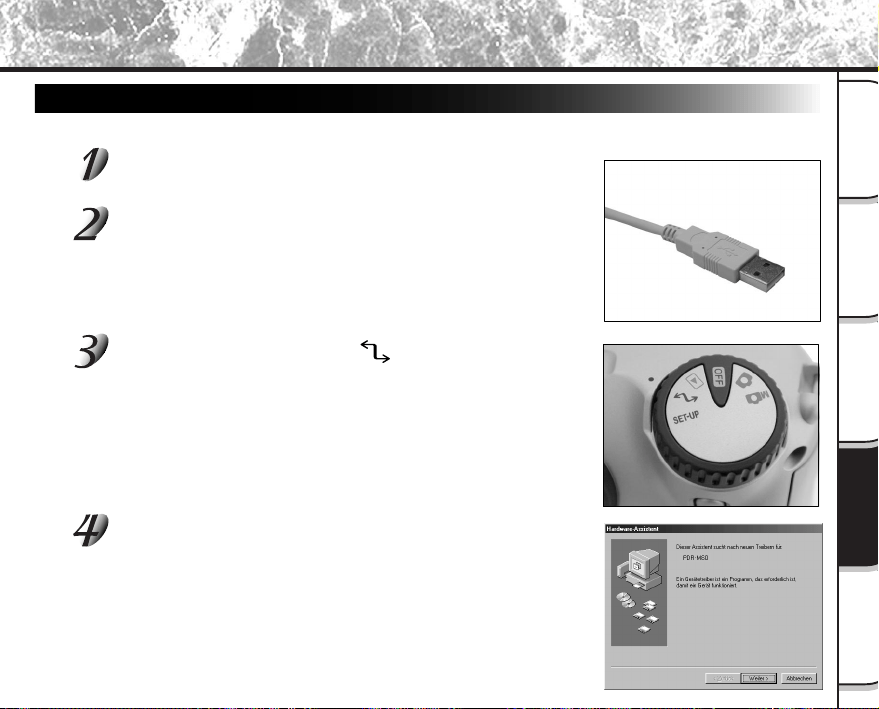
- 89 -
Grundlegende
Fotografie
Wiedergabe/
Löschen
Andere
Anwendungen
Zusätzliche
Information
Vorbereitung
Für Windows 98 oder Windows 2000
Diesen Treiber installieren, wenn das USB-Kabel verwendet wird.
Das kleine Ende des USB-Kabels an die DIGITAL-
Buchse an der Digitalkamera PDR-M60 anschließen.
Das große Ende des USB-Kabels an die USB-Buchse
an Ihrem PC anschließen.
Vor dem Anschließen des USB-Kabels Windows booten.
Die Moduswahlscheibe auf [ ] stellen.
Das Bild “Hardware-Assistent“ erscheint.
Die Schaltfläche [Weiter] anklicken.
Installation des USB-Treibers
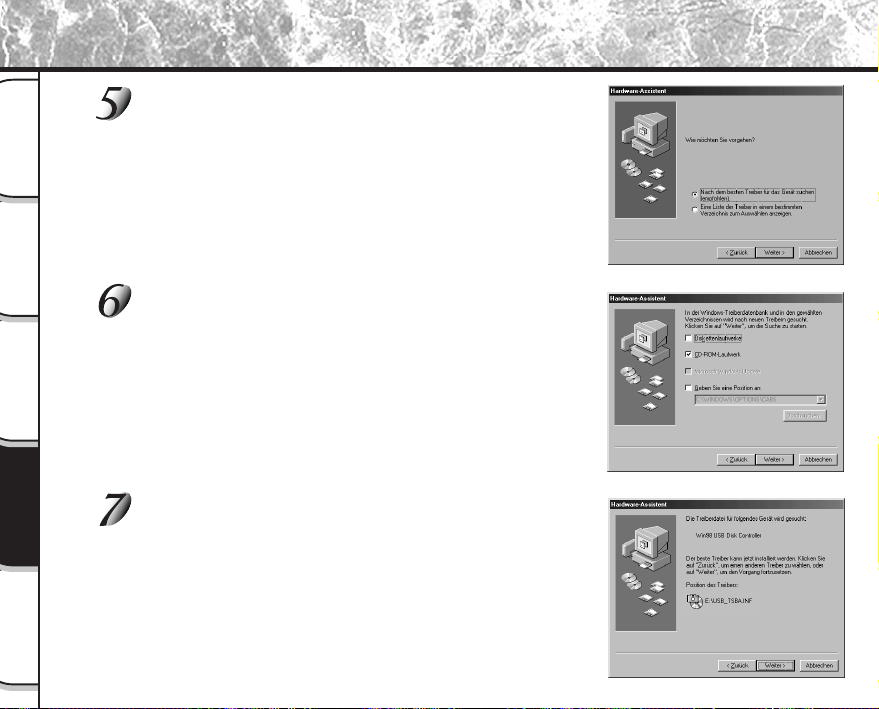
- 90 -
Grundlegende
Fotografie
Wiedergabe/
Löschen
Andere
Anwendungen
Zusätzliche
Information
Vorbereitung
Installation des USB-Treibers (Fortsetzung)
Die Option “Nach dem besten Treiber für das
Gerät suchen. (empfohlen)” wählen und die
Schaltfläche [Weiter] anklicken.
Das nächste Bild erscheint.
Die CD-ROM in das CD-ROM-Laufwerk
einschieben, das Kästchen “CD-ROM-
Laufwerk” markieren und die Schaltfläche
[Weiter] anklicken.
Zum Installieren des Treibers anschließend den
Anweisungen auf dem Bildschirm folgen. Nach der
Installation erscheint wieder das Bild “Hardware-
Assistent”.
Die Schaltfläche [Weiter] anklicken.
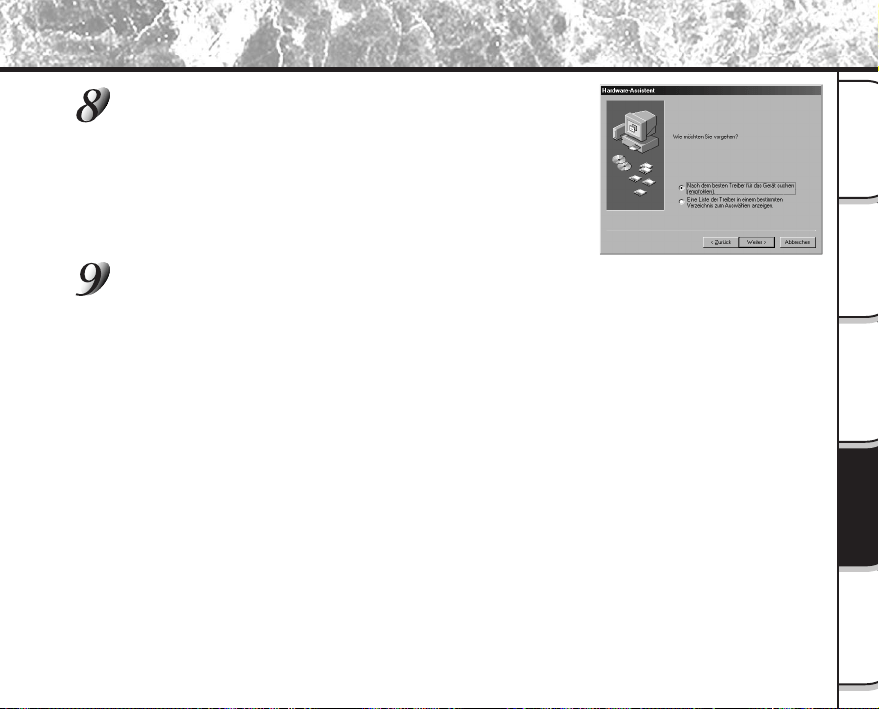
- 91 -
Grundlegende
Fotografie
Wiedergabe/
Löschen
Andere
Anwendungen
Zusätzliche
Information
Vorbereitung
Installation des USB-Treibers (Fortsetzung)
Die Option “Nach dem besten Treiber für das
Gerät suchen. (empfohlen)” wählen und die
Schaltfläche [Weiter] anklicken.
Das Kästchen “CD-ROM drive” markieren und die Schaltfläche [Weiter] anklicken.
Zum Installieren des Treibers anschließend den Anweisungen auf dem Bildschirm folgen.
Die Installation der benötigten Treiber ist damit beendet.
Die Digitalkamera PDR-M60 wird hiernach durch einfaches Anschließen des USB-Kabels automatisch erkannt.
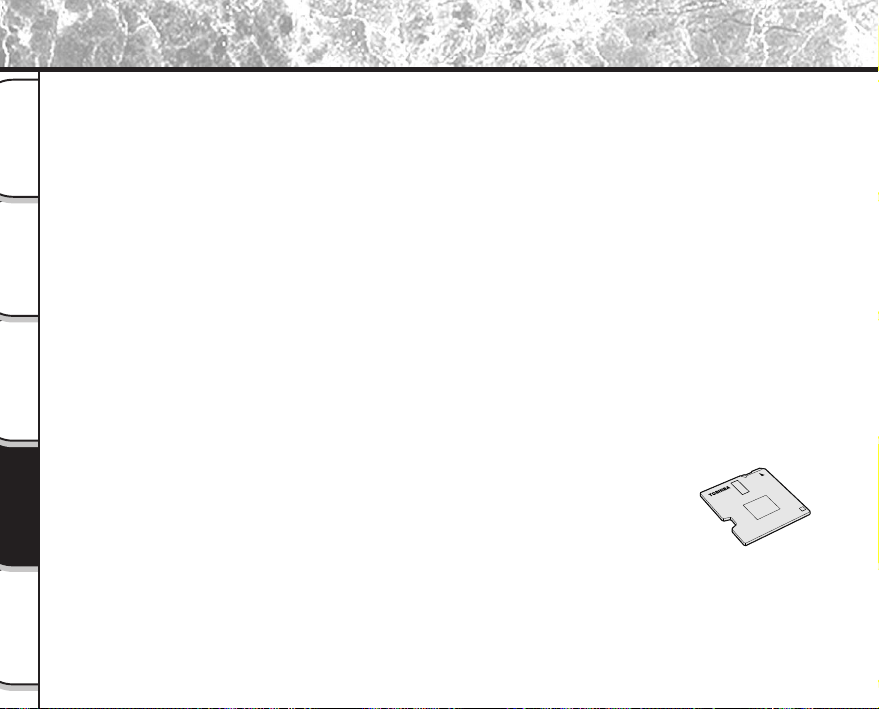
- 92 -
Grundlegende
Fotografie
Wiedergabe/
Löschen
Andere
Anwendungen
Zusätzliche
Information
Vorbereitung
Sonderzubehör
Die folgenden Artikel sind als Sonderzubehör erhältlich.
☞
Die Beziehung zwischen Ihrer Kamera und dem Zubehör ist unter
➲
“Anschluß an andere Geräte” (S. 93)
beschrieben.
Einzelheiten über diese Zubehörteile siehe Bedienungsanleitung für die betreffenden Zubehörteile. (Stand der
Information Juni 2000)
Wenn Sie die obenen Zubehörteile innerhalb von den U.S.A kaufen möchten, besuchen Sie bitte unsere Website
bei
http://www.toshiba.com/taisisd/dsc
● SmartMedia™ (3,3 V)
8MB (PDR-NSM8)/16MB (PDR-SM16)/32MB (PDR-SM32)/64MB (PDR-SM64)
● Weichetui (PDR-CM1)
Dieses Etui dient zum Tragen und Lagern der Kamera.
● Netzteil (getrennt erhältlich)
PDR-ACM1A (für U.S.A und Kanada)
PDR-ACM1E (für Europa)
PDR-ACM1U (für Vereinigtes Königreich)
● Diskettenadapter PDR-FLP2 (FlashPath) (getrennt erhältlich)
Dieser Adapter erlaubt es, SmartMedia™ als 3,5-Zoll-Diskette zu verwenden.
Der Adapter wird in das Diskettenlaufwerk am PC eingesetzt und erlaubt
Übertragung der auf SmartMedia™ aufgezeichneten Bilddaten zum PC.
Der Adapter kann nur mit einem dafür geeigneten Betriebssystem (Windows
95/Windows 98/Windows NT 4.0/Windows 2000 auf IBM PC/AT-kompatiblem
Gerät) verwendet werden.
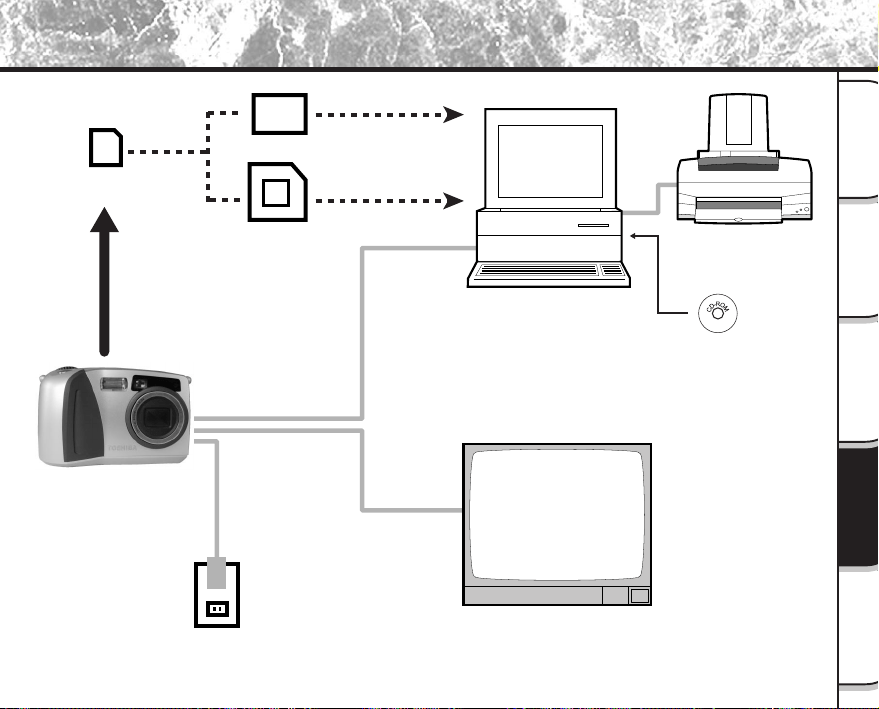
- 93 -
Grundlegende
Fotografie
Wiedergabe/
Löschen
Andere
Anwendungen
Zusätzliche
Information
Vorbereitung
SmartMedia™
Diskettenadapter
(getrennt erhältlich)
PC-Kartenadapter (getrennt
erhältlich)
PC
Drucker
Software-Applikation
(CD-ROM) (mitgeliefert)
Schnittstellenkabel
(mitgeliefert)
Videokabel
(mitgeliefert)
Netzteil (getrennt erhältlich)
Netzstecker
Fernsehmonitor
PDR-M60
Anschluß an andere Geräte
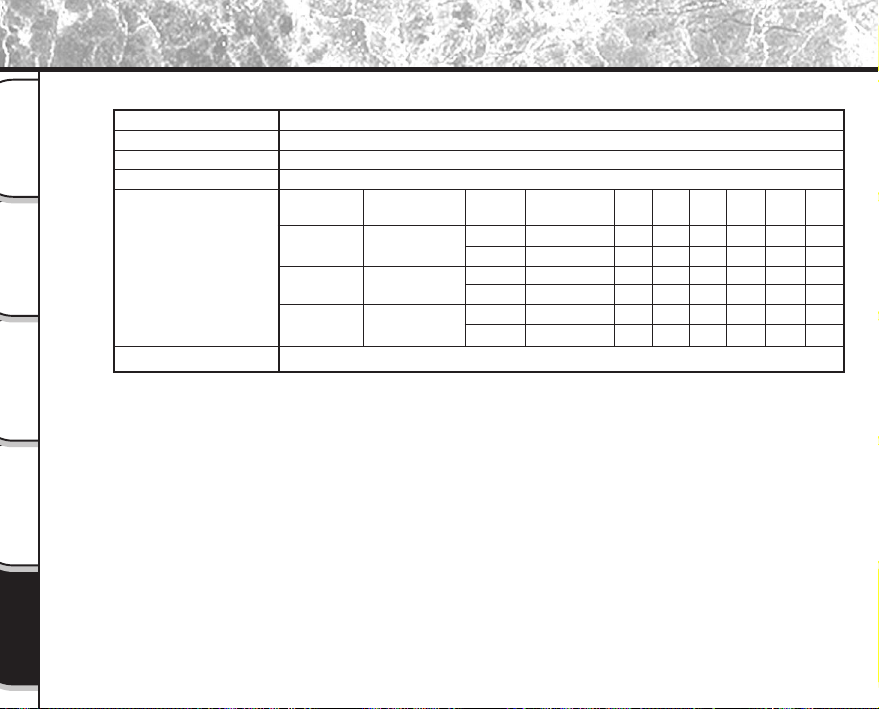
- 94 -
Grundlegende
Fotografie
Wiedergabe/
Löschen
Andere
Anwendungen
Zusätzliche
Information
Vorbereitung
Technische Daten
Kamera
Toshiba Digital Still Camera PDR-M60
SmartMedia™ (3.3V) 2/4/8/16/32/64 MB-kompatibel
Entsprechend JPEG
Entsprechend Exif Ver.2.1
Entsprechend DCF Ver. 1.0
Qualitäts-
modus
★★★
FINE (schön)
★★
NORMAL (normal)
★
BASIC (elementar)
Modell
Datenträger
Kompressionssystem
Bilddateiformat
<Standbildmodus>
Bildanzahl
Ganzbild (FULL):
1792 x 1200 Pixel
Halbbild (HALF):
896 x 600 Pixel
Umwandlungsregeln
Dateigröße
Ca. 1,03MB
Ca. 263KB
Ca. 525KB
Ca. 131KB
Ca. 263KB
Ca. 66KB
4MB
3
15
7
29
15
55
8MB
7
30
15
58
30
110
16MB
15
58
30
110
58
199
32MB
30
117
60
222
117
399
Kompressions-
verhältnis
1/4
1/8
1/16
Bildgröße
FULL
HALF
FULL
HALF
FULL
HALF
64MB
60
235
121
444
235
799
2MB
1
7
3
15
7
29
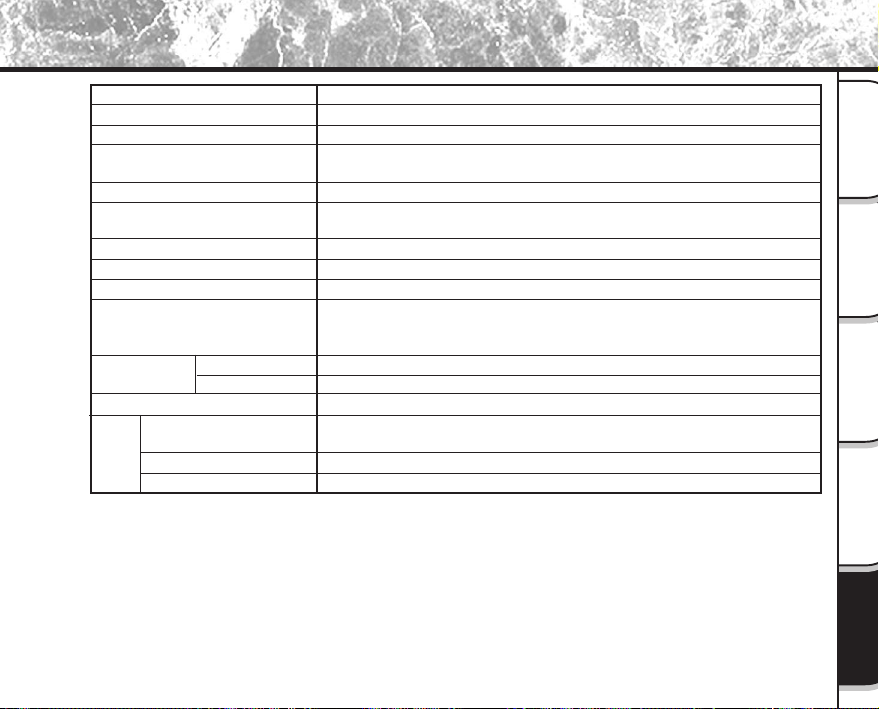
- 95 -
Grundlegende
Fotografie
Wiedergabe/
Löschen
Andere
Anwendungen
Zusätzliche
Information
Vorbereitung
Technische Daten (Fortsetzung)
1/2-Zoll CCD-Sensor (Pixel gesamt: ca. 2,3 Millionen)
Entsprechend ISO100/200/400
2,3X Zoomobjektiv F2,8 – F3,2
f=8,0 mm – 18,0 mm (Äquivalent zu 38 mm – 86 mm an einer 35 mm-
Kamera)
Echtbild-Zoomsucher
Autofokus mit TTL, Fokuseinstellbereich: 5 cm bis Unendlich
Erkennungssystem: Kontrasterkennung
TTL-Messung mit Bildeinfangsystem
Programmautomatik (Belichtungskompensation im Manuell-Modus verfügbar)
1/2 bis 1/1000 s (elektronischer Verschluß und mechanischer Verschluß)
Automatisch,
wählbar bei Manuell-Modus
(im Freien, gebräuchlichen/kühlweißen Leuchtstofflicht, Glühlampenlicht)
Ca. 50 cm – Unendlich
Ca. 5 cm – 50 cm
2 Sekunden/10 Sekunden wählbar
Auto, Rote-Augen-Effekt-Verringerung, gezwunger Blitz, unterdrückter
Blitz, langsame Synchronisation
Automatisch
Ca. 0,5 m – 3,0 m
Aufnahmeelement
Empfindlichkeit
Objektiv
Brennweite
Sucher
Autofokus
Meßsystem
Belichtungssteuerung
Verschlußzeit
Weißabgleich
Fokusbereich
Standard
Makro
Selbstauslöser
Funktionen
Blitz
Blitzstärke-Steuerung
Reichweite
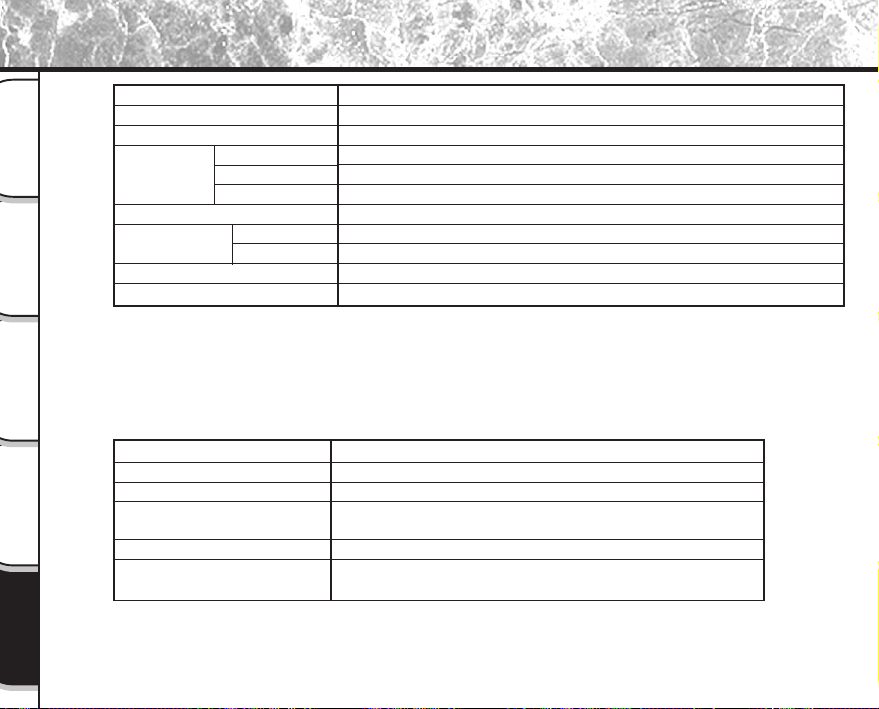
- 96 -
Grundlegende
Fotografie
Wiedergabe/
Löschen
Andere
Anwendungen
Zusätzliche
Information
Vorbereitung
Technische Daten (Fortsetzung)
*1
Der LCD-Monitor an Ihrer Digitalkamera ist mit modernster Hochpräzisionstechnik hergestellt. Bei der
großen Pixelzahl ist es aber unvermeidlich, daß vereinzelte Bildpunkte nicht richtig arbeiten und schwarz
bleiben. Dies ist normal und keine Fehlfunktion. Der LCD-Monitor kann in diesem Zustand normal
betrieben werden.
Simultane Aufzeichnung in Bilddaten (Exif-Datei)
Automatisch korrigiert bis 2038
1,8 Zoll Amorph-Silikon TFD (71.760 Pixel)
Gleichstrom 5 V
USB
NTSC-oder PAL-System
4 x AA Batteries oder Netzteil (getrennt erhältlich)
+5°C bis +40°C (beim Betrieb) / –20°C bis +60°C (bei Lagerung)
30 bis 80% (bei Betrieb), keine Kondensation
121 mm x 75 mm x 61 mm (B/H/T) (ohne vorstehende Teile)
Ca. 290g (ohne Zubehör, Batterie und SmartMedia™)
Datum/Zeit
Automatische Kalenderfunktion
LCD-Monitor (
*1
)
E/A-Anschluß
DC-IN-Anschluß
DIGITAL-Anschluß
VIDEO-Anschluß
Betriebsstrom
Betriebsbedingungen
Temperatur
Luftfeuchtigkeit
Abmessungen
Gewicht
Typ Bildspeicherkarte für Digitalkameras (SmartMedia™)
Speichertyp NAND Flash Memory
Betriebsspannung 3,3 V
Betriebsbedingungen Temperatur 0°C bis +40°C
Luftfeuchtigkeit 80% oder weniger (keine Kondensation)
Abmessungen 37 mm x 0,76 mm x 45 mm (B/H/T)
Zubehör Antistatik-Schutzhülle (1), Index-Aufkleber (2), Schreibschutz-
Aufkleber (4)
SmartMedia™
- 97 -
Grundlegende
Fotografie
Wiedergabe/
Löschen
Andere
Anwendungen
Zusätzliche
Information
Vorbereitung
Technische Daten (Fortsetzung)
Betriebsstrom Wechselstrom 120V, 50/ 60 Hz
Nenn-Eingangskapazität 18 VA
Nenn-Ausgang Gleichstrom 5,0 V, 1,5 A
Betriebstemperatur 0°C bis +40°C
Lagertemperatur –20°C bis +70°C
Abmessungen 48 mm x 26 mm x 70 mm (B/H/T)
Gewicht Ca. 100 g
Verbindungskabellänge Ca. 2 m
Netzteil (PDR-ACM1A) (getrennt erhältlich)
Änderungen bei technischen Daten bleiben ohne vorherige Ankündigung vorbehalten.
Betriebsstrom Wechselstrom 230 V, 50 Hz
Nenn-Eingangskapazität 120 mA
Nenn-Ausgang Gleichstrom 5,0 V, 1,5 A
Betriebstemperatur 0°C bis +40°C
Lagertemperatur –10°C bis +70°C
Abmessungen 49,5 mm x 66,5 mm x 76 mm (B/H/T)
Gewicht Ca. 130 g
Verbindungskabellänge Ca. 2 m
Netzteil (PDR-ACM1E) (getrennt erhältlich)
Betriebsstrom Wechselstrom 230 V, 50 Hz
Nenn-Eingangskapazität 120 mA
Nenn-Ausgang Gleichstrom 5,0 V, 1,5 A
Betriebstemperatur 0°C bis +40°C
Lagertemperatur –10°C bis +70°C
Abmessungen 49,5 mm x 60,5 mm x 76 mm (B/H/T)
Gewicht Ca. 130 g
Verbindungskabellänge Ca. 2 m
Netzteil (PDR-ACM1U) (getrennt erhältlich)
- 98 -
Grundlegende
Fotografie
Wiedergabe/
Löschen
Andere
Anwendungen
Zusätzliche
Information
Vorbereitung
Warnungen und Meldungen im LCD-Monitor
Die folgenden Warnungen, Meldungen und Symbole erscheinen im LCD-Monitor und der Statusanzeige.
LCD-Monitor
KEINE KARTE
KARTE IST VOLL
KEIN BILD
KARTE IST NICHT
FORMATIERT
KARTENFEHLER
KARTE GESCHÜTZT
BILDFEHLER
UNPASSENDES DATUM
RAHMEN-NR. VOLL
GESCHÜTZT!!!
AF
Bedeutung
Batterie auf Hälfte oder weniger abgesunken
Batterie völlig verbraucht
SmartMedia™ nicht eingelegt
SmartMedia™ falsch eingelegt
Kein weiterer Platz auf SmartMedia™.
Aufnahme nicht möglich.
Keine Aufzeichnung auf SmartMedia™.
SmartMedia™ ist nicht formatiert.
(Eine Meldung zur Formatierung von
SmartMedia™ erscheint.)
SmartMedia™ ist beschädigt.
SmartMedia™ ist nicht richtig formatiert.
SmartMedia™ ist schreibgeschützt.
Es wurde versucht, falsch aufgezeichnete
Daten wiederzugeben.
Es wurde versucht, einen Bilddatensatz
wiederzugeben, der nicht auf dieser Kamera
aufgezeichnet wurde.
Die Bildnummer hat 99-9999 erreicht.
Es wurde versucht, ein schreibgeschütztes Bild
zu löschen.
Die AF-Funktion (Autofokus) kann nicht effektiv
arbeiten.
Statusanzeige
/ (Blinkt)
Blinkt (Fotomodus)
Keine Anzeige (Wiedergabemodus)
Blinkt (Fotomodus)
Bildnummer-Anzeige 0
—
—
—
—
—
—
—
—
—
Display
- 99 -
Grundlegende
Fotografie
Wiedergabe/
Löschen
Andere
Anwendungen
Zusätzliche
Information
Vorbereitung
Fehlersuche
Wenn Sie glauben, daß eine Betriebsstörung vorliegt, prüfen Sie zunächst die Warnung am LCD-Monitor (
➲
S. 98)
und die Farbe der Sucher-LED (
➲
S. 39). Danach prüfen Sie zunächst die folgenden Punkte.
Abhilfe
Durch neue Batteruen ersetzen.
Den Netzteilstecker wieder einstecken.
Das Modus-Wählrad richtig einstellen.
Durch neue Batteruen ersetzen.
Die Batterie zum Aufwärmen in die Tasche
oder an einen anderen warmen Ort stecken
und dann kurz vor der Aufnahme in die
Kamera einsetzen.
Die Batteriekontakte mit einem sauberen,
trockenen Tuch abwischen.
Durch neue Batteruen ersetzen.
SmartMedia™ einlegen.
SmartMedia™ richtig einlegen.
• Ein neues SmartMedia™ einlegen.
• Bilder löschen oder die Größe und Qualität
ändern, um mehr Platz auf SmartMedia™
zu schaffen.
Den Schreibschutz entfernen oder eine neue
SmartMedia™ einschieben.
SmartMedia™ formatieren.
Ein neues SmartMedia™ einsetzen.
Die Einstellung des Modus-Wählrads ändern.
Mögliche Ursache
Die Batterie ist verbraucht.
Der Netzteilstecker hat sich
gelöst.
Das Modus-Wählrad ist falsch
eingestellt.
Die Batterie ist verbraucht.
Sie verwenden die Kamera bei
extrem kalten Bedingungen.
Die Kontakte sind verschmutzt.
Die Batterie hat das Ende ihrer
Lebensdauer erreicht.
SmartMedia™ ist nicht eingelegt.
SmartMedia™ ist falsch eingelegt.
Nicht ausreichend Speicherplatz
auf SmartMedia™.
SmartMedia™ ist schreibgeschützt.
SmartMedia™ ist nicht formatiert.
SmartMedia™ ist beschädigt.
Das automatische Ausschalten ist
aktiviert.
Problem
Gerät schaltet nicht ein.
Die Kamera schaltet
beim Betrieb aus.
Die Batterie wird schnell
verbraucht.
Bei Drücken des
Auslösers wird keine
Aufnahme gemacht.
Siehe Seite
S.23
S.27
S.33
S.23
–
–
S.23
S.29
S.29
S.29
S.67
S.69
S.32
S.75
S.29
S.80
- 100 -
Grundlegende
Fotografie
Wiedergabe/
Löschen
Andere
Anwendungen
Zusätzliche
Information
Vorbereitung
Fehlersuche (Fortsetzung)
Mögliche Ursache
Modus-Wählrad wurde auf eine
andere Einstellung gestellt.
Der Blitzmodus ist auf unterdrückt
gestellt
Sie haben den Auslöser gedrückt,
während der Blitz geladen wurde.
Die Kamera ist auf unterdrückten
Blitzmodus gestellt.
Die Batterie ist verbraucht.
Falscher Wiedergabemodus
Das Motiv ist zu weit entfernt.
Das Objektiv ist nicht sauber.
Das Bild ist nicht scharfgestellt.
SmartMedia™ ist schreibgeschützt.
Der Bilddatensatz ist schreibgeschützt.
SmartMedia™ ist schreibgeschützt.
Kamera-Fehlfunktion.
Modus-Wählrad wurde auf eine
andere Einstellung gestellt.
Die Kamera ist auf das
automatische Ausschalten gestellt.
Problem
Blitz läßt sich nicht zur
Aufnahme verwenden.
Der Blitz wird nicht
geladen.
Die Wiedergave von
Standbildern/
beweglichen Bildern ist
nicht möglich.
Das Wiedergabebild ist
zu dunkel, obwohl Blitz
verwendet wurde.
Das Wiedergabebild ist
verschwommen.
SmartMedia™ kann nicht
formatiert werden.
Es lassen sich nicht alle
Bilder löschen.
Tasten und Schalter sind
wirkungslos.
Siehe Seite
–
S. 49
S. 39
S. 49
S. 23
S. 70
S. 49
–
S. 45
S. 32
S. 78
S. 32
–
–
S. 37
S. 80
Abhilfe
Das Modus-Wählrad auf korrekte
Einstellung zurückstellen.
Den Blitzmodus auf Auto, Rote-Augen-
Verringerung oder gezwungen stellen.
Warten, bis der Ladevorgang beendet ist,
bevor der Auslöser gedrückt wird.
Den Blitzmodus auf Auto, Rote-Augen-
Verringerung oder gezwungen stellen.
Durch neue Batteruen ersetzen.
Den wiederzugebenden Ordner wählen
Näher an das Motiv herangehen.
(etwa 0,9 m bis 2,5 m)
Das Objektiv säubern.
Den Makromodus je nach Entfernung ein-
oder ausschalten.
Den Schreibschutz aufheben.
Den Schreibschutz aufheben.
Den Schreibschutz aufheben.
Die Kamera einmal ausschalten, die Batterie
entfernen und erneut einlegen, und erneut probieren.
Das Modus-Wählrad auf korrekte
Einstellung zurückstellen.
Entweder den Auslöser halb drücken, oder
die Einstellung des Modus-Wählrads ändern.
- 101 -
Grundlegende
Fotografie
Wiedergabe/
Löschen
Andere
Anwendungen
Zusätzliche
Information
Vorbereitung
Mögliche Ursache
Die Kamera ist im PC-Modus.
Sowohl Batterien als auch Netzteil
wurden bei eingeschaltetem
Gerät entfernt.
Problem
Keine Anzeige, obwohl
der LCD-Monitor
eingeschaltet ist.
Die Eingaben für Datum
und Uhrzeit
verschwinden.
Abhilfe
Die Kamera auf Foto- oder
Wiedergabemodus zurückstellen.
Datum und Uhrzeit neu einstellen.
Fehlersuche (Fortsetzung)
Siehe Seite
S.40
S.62
S.81
- 102 -
Grundlegende
Fotografie
Wiedergabe/
Löschen
Andere
Anwendungen
Zusätzliche
Information
Vorbereitung
Glossar
●AF/AE
AF (Autofokus) ... Eine Funktion, die die Kamera
automatisch scharfstellt.
AE (Automatikbelichtung) ... Eine Funktion, die die
Belichtung automatisch richtig einstellt.
AF/AE-Sperre ... Festhalten der Fokus- und
Belichtungseinstellungen.
●DCF (Design rule for Camera File System = Design-
Regel für Kamera-Dateisystem)
Ein Dateisystem-Standard, definiert von JEIDA
(Japan Electronic Industry Development Association),
der zum Austausch von Daten zwischen
Digitalkameras und Drucker erforderlich ist. Dieser
Standard definiert die Hierarchie und Dateinamen für
Speicherung von Bilddateien auf Speicherkarten und
anderen Datenträgern.
●Exif-Dateiformat (Exchangeable Image File Format)
Ein Farbbild-Dateiformat für Digitalkameras,
anerkannt von JEIDA (Japan Electronic Industry
Development Association). Dieses Format entspricht
JPEG und ist mit TIFF und JPEG kompatibel, so daß
es in Bildverarbeitungssoftware für die meisten PCs
verwendet werden kann.
●JPEG
Ein Dateiformat, das für Kompression und
Speicherung von Farbbildern verwendet wird. Das
Kompressionsverhältnis kann gewählt werden, aber
je höher die Kompression desto schlechter die
Bildqualität. Dieses Format wird häufig in
Grafiksoftware für PCs und für Dateien im Internet
verwendet.
●PC-Karte
Ein Oberbegriff für Karten, die der PC-Kartennorm
entsprechen.
●Rote-Augen-Effekt
Wenn man Menschen bei dunklen Lichtverhältnissen
mit Blitz fotografiert, erscheinen ihre Augen bisweilen
rot auf dem Foto. Dieses als Rote-Augen-Effekt
bezeichnete Phänomen entsteht dadurch, daß der
Blitz von den Augen reflektiert wird.
●Weißabgleich
Das menschliche Auge paßt sich Änderungen der
Lichthelligkeit so an, daß ein weißes Objekt immer
weiß aussieht. Geräte wie Digitalkameras dagegen
sehen ein weißes Objekt als weiß, indem sie zuerst
die Balance entsprechend der Farbe des
Umgebungslichts des Objekts einstellen. Dieser
Vorgang wird als Weißabgleich bezeichnet.
●SmartMedia™
Namen des vom SSFDC Forum definierten
Datenträgers. Dieser Datenträger kann wiederholt
verwendet werden.
●Formatieren
Vorbereitung von SmartMedia™ zur Aufzeichnung
von Daten. (Wird auch als “Initialisierung”
bezeichnet.)
●Belichtungskompensation
Wenn der Bildschirm ein besonders helles oder
dunkles Objekt enthält, stellt die Kamera automatisch
die Helligkeit nach, wodurch das betreffende Objekt
heller oder dunkler erscheint.
Belichtungskompensation gleicht diesen Effekt aus.
- 103 -
Grundlegende
Fotografie
Wiedergabe/
Löschen
Andere
Anwendungen
Zusätzliche
Information
Vorbereitung
Website
www.toshiba.co.uk
www.toshiba.de/consumer
www.toshiba.it/
www.toshiba.fr/produits/video/index.htm
www.toshiba.ch/
www.cp.toshiba.com.sg
www.toshiba.com.hk
Für Kunden außerhalb von den U.S.A und Kanada, bitte erreichen Sie uns bei der nächsten Toshiba Corporation.
Land
Vereinigtes Königreich
Deutschland
Italien
Frankreich
Schweiz
Singapur
Hongkong
Firmenname
Toshiba (UK) Ltd.
Toshiba Europe Gmbh
Toshiba Consumer Products (Italia)
Toshiba Systems (France)
Toshiba Europe Gmbh Swiss Branch
Toshiba Singapore Pte
Toshiba Hong Kong Ltd
Telefonnummer
für Anfragen
(01932) 828828
(02131) 158 01
(039) 6099342
01 47 28 28 50
01-946 07 77
270-7776
2956-0222
E-mail Anschrift Anfragen
NA
NA
Wie Sie uns erreichen können