Accessories
5
Inserting the batteries
6
Operating range of the remote control unit
6
Features
7
Part names and functions
8
Front panel
8
Rear panel
11
Remote control unit
13
Connections
Connecting speakers
17
Connecting the speaker cables
17
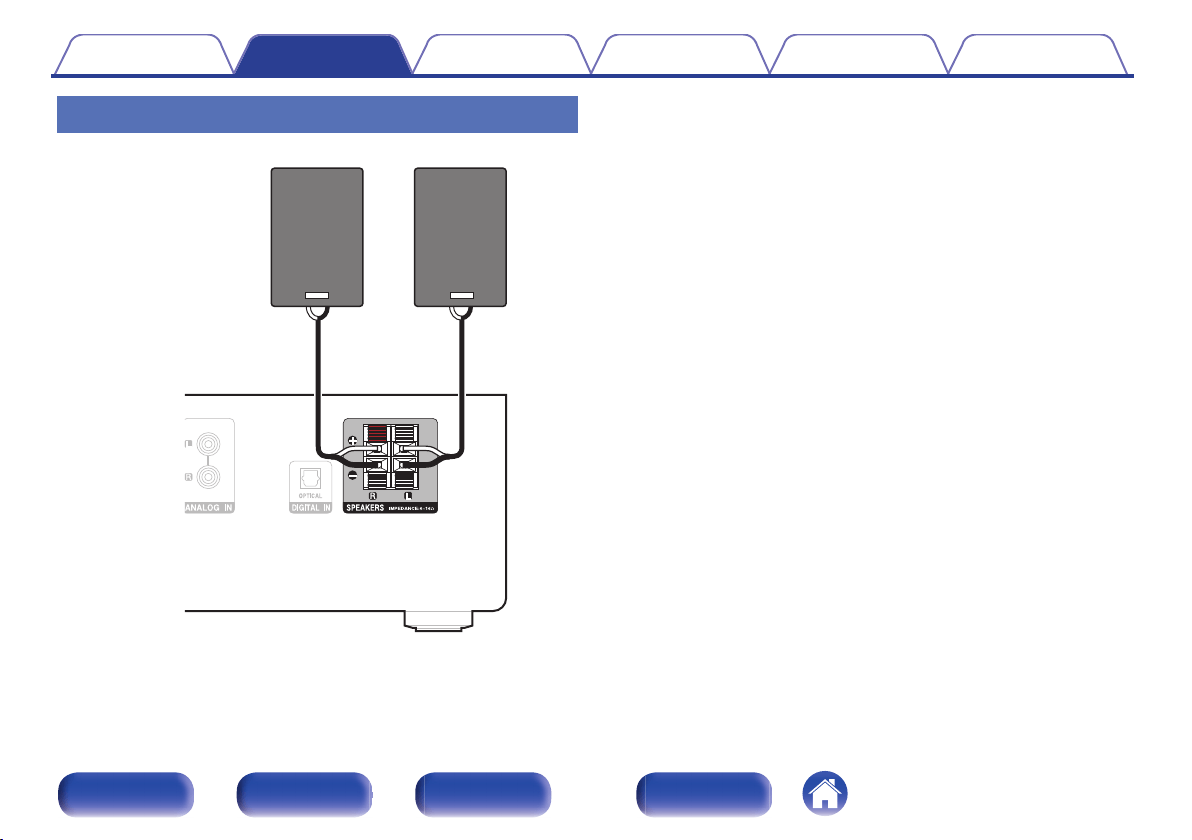
Connecting speakers
18
Connecting an analog device
19
Connecting a digital device
19
Connecting an FM/AM antenna
20
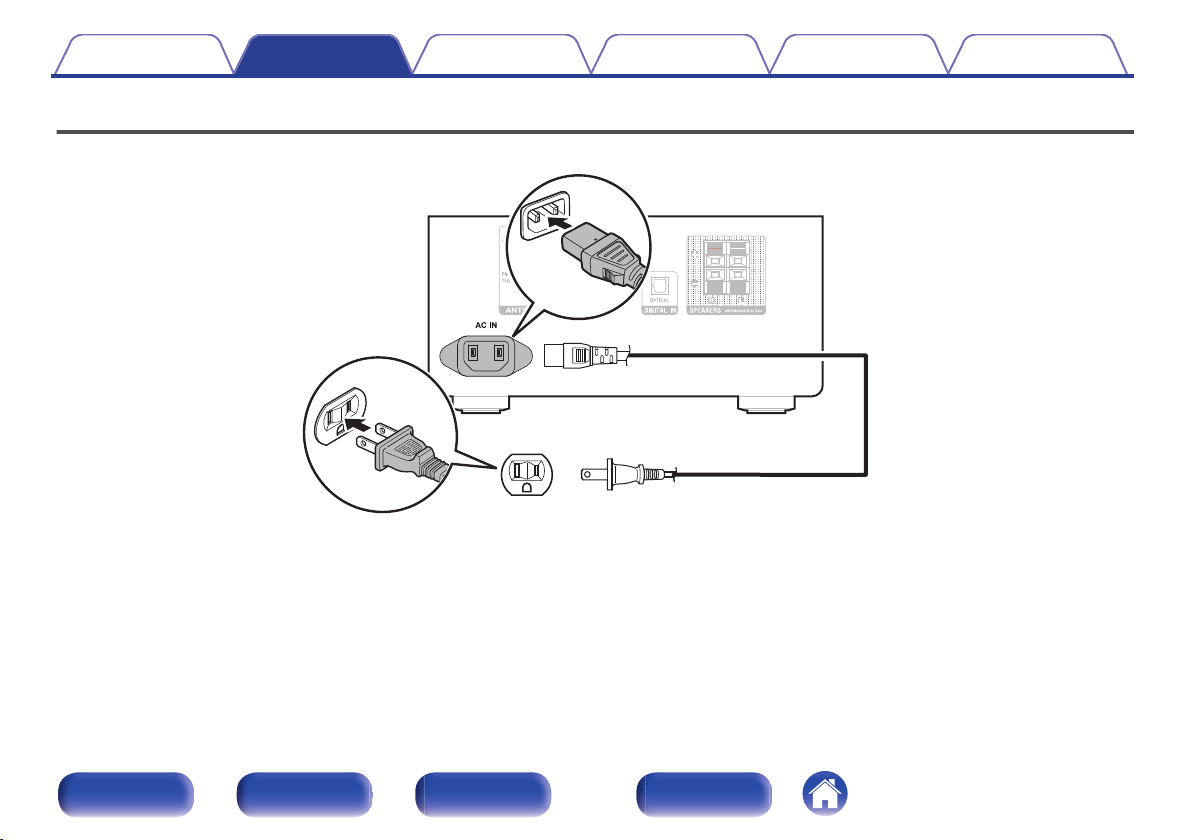
Connecting the power cord
22
Contents Connections Playback Settings Tips Appendix
2
Front panel Rear panel
Remote control
unit
Index
Playback
Basic operation
24
Turning the power on
24
Switching the power to standby
24
Selecting the input source
25
Adjusting the volume
25
Turning off the sound temporarily (Muting)
25
Playing CDs
26
Playing CDs
26
Playing tracks in a specific order (Program playback)
27
Playing DATA CDs
28
Playing files
29
Listening to FM/AM broadcasts
30
Listening to FM/AM broadcasts
30
Presetting FM/AM stations
31
Listening to preset stations
31
Setting the preset channels and changing the received frequency
on the main unit
32
Listening to music on a Bluetooth device
33
Listening to music on a Bluetooth device
34
Pairing with other Bluetooth devices
35
Disconnecting from Bluetooth
36
Setting the Bluetooth standby mode
36
Reconnecting to this unit from a Bluetooth device
37
Playing digital input
38
Playing analog input
39
Convenience functions
40
Adjusting the tone
41
Switching the display’s brightness
42
Contents Connections Playback Settings Tips Appendix
3
Front panel Rear panel
Remote control
unit
Index
Settings
Setting the clock, timer playback and sleep timer
44
Setting the current time
44
Displaying the clock constantly
45
Setting the timer playback
46
Setting the timer playback mode
47
Sleep timer function
47
Setting the Auto Standby mode
48
Turning Auto Standby mode on
48
Turning Auto Standby mode off
48
Tips
Tips
50
Troubleshooting
51
Resetting factory settings
59
Appendix
Playing back DATA CDs
60
DIGITAL IN
61
Playing back Bluetooth devices
61
About Discs
62
Last function memory
64
Explanation of terms
65
Trademark information
66
Specifications
67
Index
71
Contents Connections Playback Settings Tips Appendix
4
Front panel Rear panel
Remote control
unit
Index
Thank you for purchasing this Denon product.
To ensure proper operation, please read this owner’s manual carefully before using the product.
After reading this manual, be sure to keep it for future reference.
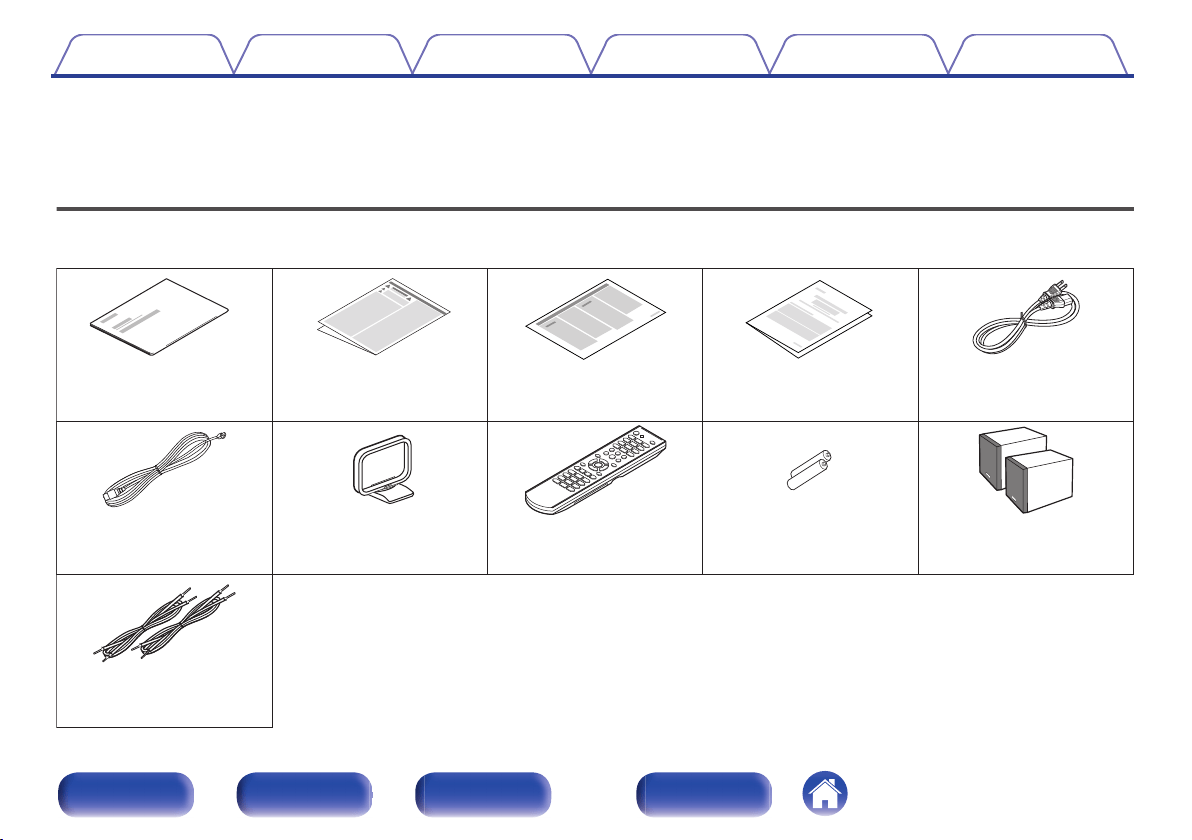
Accessories
Check that the following parts are supplied with the product.
.
Quick Start Guide
Safety Instructions
Notes on radio
Warranty
(for North America
model only)
Power cord
Speakers
LR03/AAA batteries
Remote control unit
(RC-1229)
AM loop antenna
FM indoor antenna
Speaker cables
Contents Connections Playback Settings Tips Appendix
5
Front panel Rear panel
Remote control
unit
Index
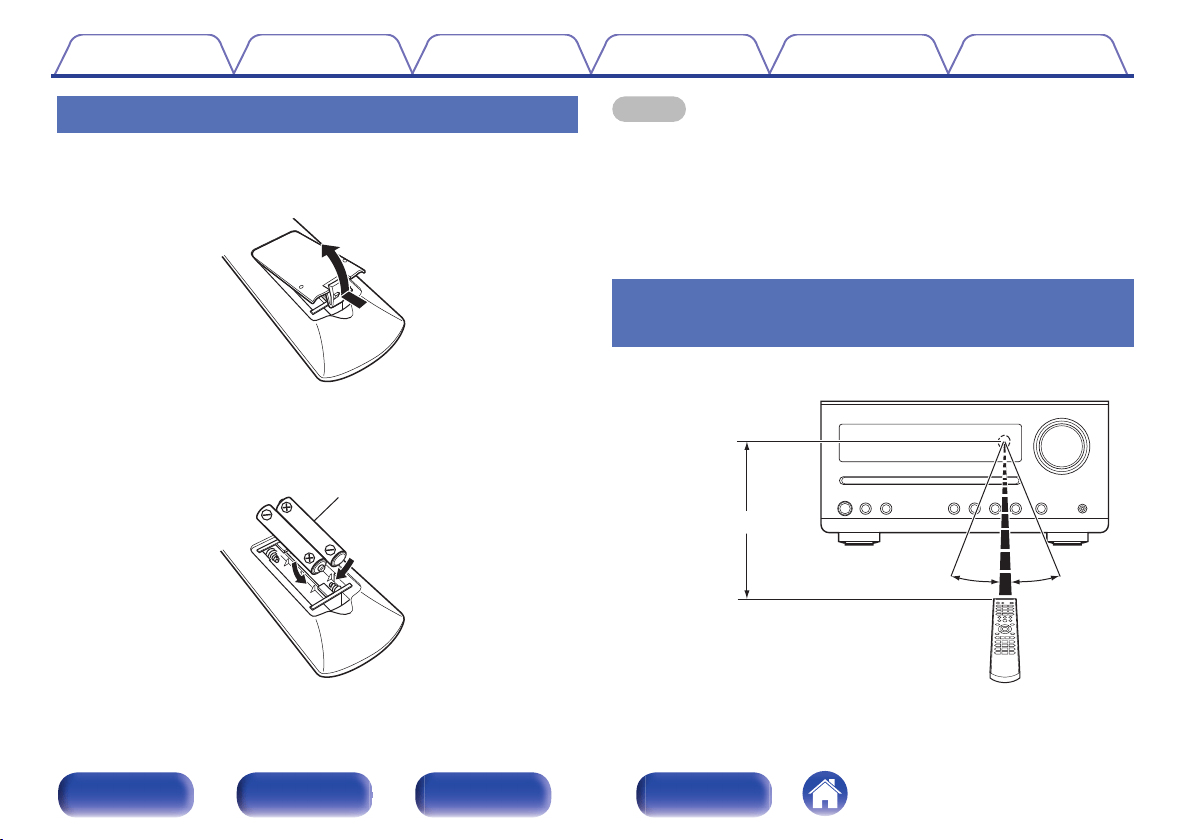
Inserting the batteries
1
Remove the rear lid in the direction of the arrow and
remove it.
.
2
Insert two batteries correctly into the battery
compartment as indicated.
.
Batteries
3
Put the rear cover back on.
NOTE
0
To prevent damage or leakage of battery fluid:
0
Do not use a new battery together with an old one.
0
Do not use two different types of batteries.
0
Remove the batteries from the remote control unit if it will not be in use for long
periods.
0
If the battery fluid should leak, carefully wipe the fluid off the inside of the battery
compartment and insert new batteries.
Operating range of the remote control
unit
Point the remote control unit at the remote sensor when operating it.
.
30°
Approx. 23 ft/7 m
30°
Contents
Connections Playback Settings Tips Appendix
6
Front panel Rear panel
Remote control
unit
Index
Features
0
High quality amplifier stressing sound quality
Equipped with a 15 W + 15 W (6 Ω/ohms) high-quality amplifier circuits.
0
Simple & Straight circuit design for sound purity and free of
coloration
Gives you high sound quality based on the simple and straight concept.
Circuitry is uncomplicated, signal paths are short, and all adverse
influences on sound quality have been minimized.
0
Auto standby mode
This unit also provides the Auto standby mode, where it goes into the
standby state when there is no operation for 15 minutes.
0
Low standby power consumption
Designed with the environment in mind, the unit consumes just 0.3 W
while in standby mode.
0
Remote control unit
This unit is shipped with a remote control unit. The button layout is
designed so that the buttons are easy to press for greater operability.
0
Equipped with optical digital audio input, enabling connection
with TV or digital devices
You can connect audio from a TV or a media player digitally to enjoy
impressive, high-quality sound.
0
Wireless connection with Bluetooth enabled devices
(v
p. 33)
You can connect Bluetooth enabled devices such as smartphones and
tablets with this unit to listen to music while browsing email and Web
sites in the Internet away from this unit. In addition, this unit supports
high quality audio codecs, AAC, to enjoy music and games with a
powerful sound.
0
Compact speakers with high sound quality
The speakers have a high-resonance soft dome tweeter and responsive
12cm-wide paper cone wafers. Along with the bass reflex duct on the
back, these balance a substantial volume with sharp sound for high
sound quality.
Contents
Connections Playback Settings Tips Appendix
7
Front panel Rear panel
Remote control
unit
Index
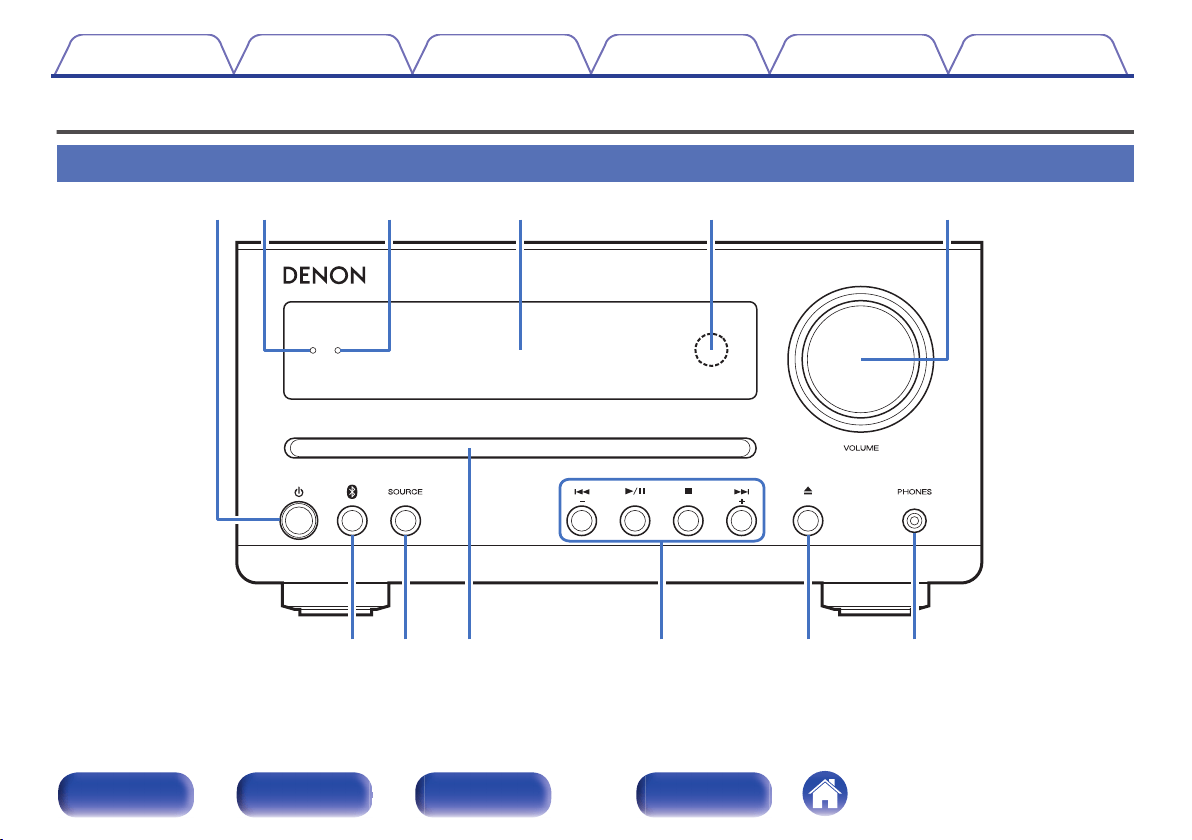
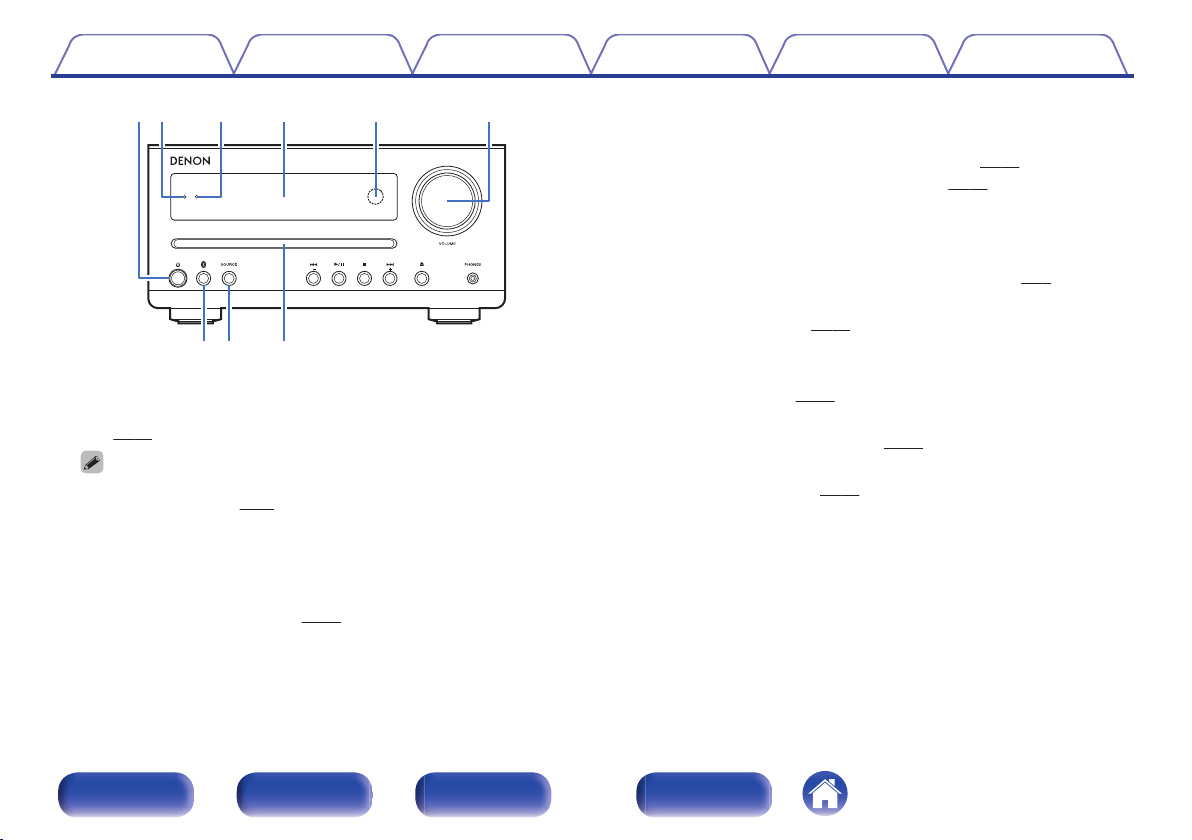
.
qewrty
oiu
A
Power operation button (X)
Turns power to this unit on and off (standby).
(v
p. 24)
0
When “CLK MODE” is turned on, this button switches between normal mode
and Clock mode. (v
p. 45)
B
Power indicator
This is lit as follows according to the power status:
0
Power on : Green
0
Normal standby : Off
0
Alarm standby : Orange (v
p. 46)
C
Bluetooth indicator
This lamp is lit or blinks depending on the Bluetooth connection status.
0
“Listening to music on a Bluetooth device” (v p. 34)
0
“Setting the Bluetooth standby mode” (v p. 36)
D
Display
This displays various pieces of information.
E
Remote control sensor
This receives signals from the remote control unit. (v p. 6)
F
VOLUME knob
Adjusts the volume. (v
p. 25)
G
Bluetooth button (V)
This switches the input to Bluetooth. This is also pressed during the
pairing operation. (v
p. 33)
H
SOURCE button
These select the input source. (v p. 25)
I
Disc slot
Used to insert a disc. (v
p. 26)
Contents
Connections Playback Settings Tips Appendix
9
Front panel Rear panel
Remote control
unit
Index
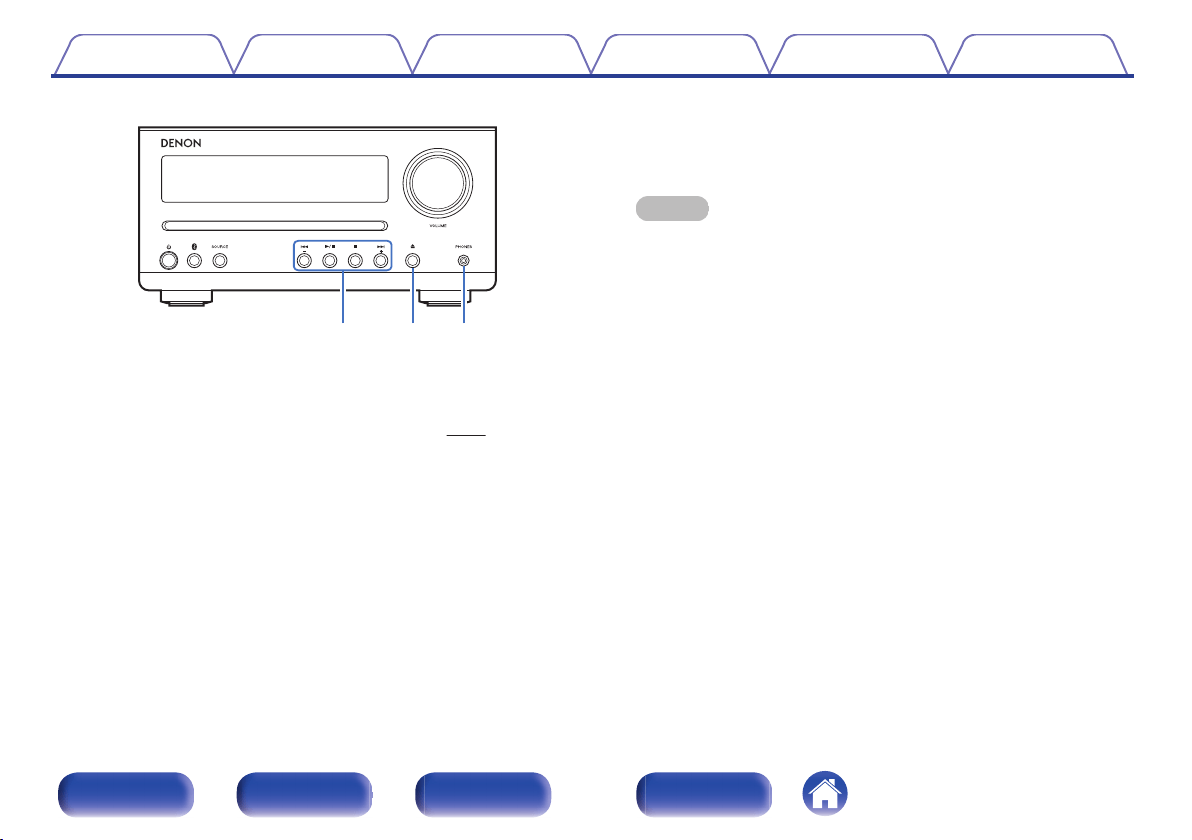
.
Q1Q0 Q2
J
System buttons
These perform playback related operations.
Preset/Tuning buttons (–, +)
These select FM broadcast and AM broadcast. (v
p. 30)
K
Disc eject button (5)
Ejects the disc.
L
Headphones jack (PHONES)
Used to connect headphones.
When the headphones are plugged into this jack, audio will no longer
be output from the connected speakers.
NOTE
0
To prevent hearing loss, do not raise the volume level excessively when using
headphones.
Contents Connections Playback Settings Tips Appendix
10
Front panel Rear panel
Remote control
unit
Index
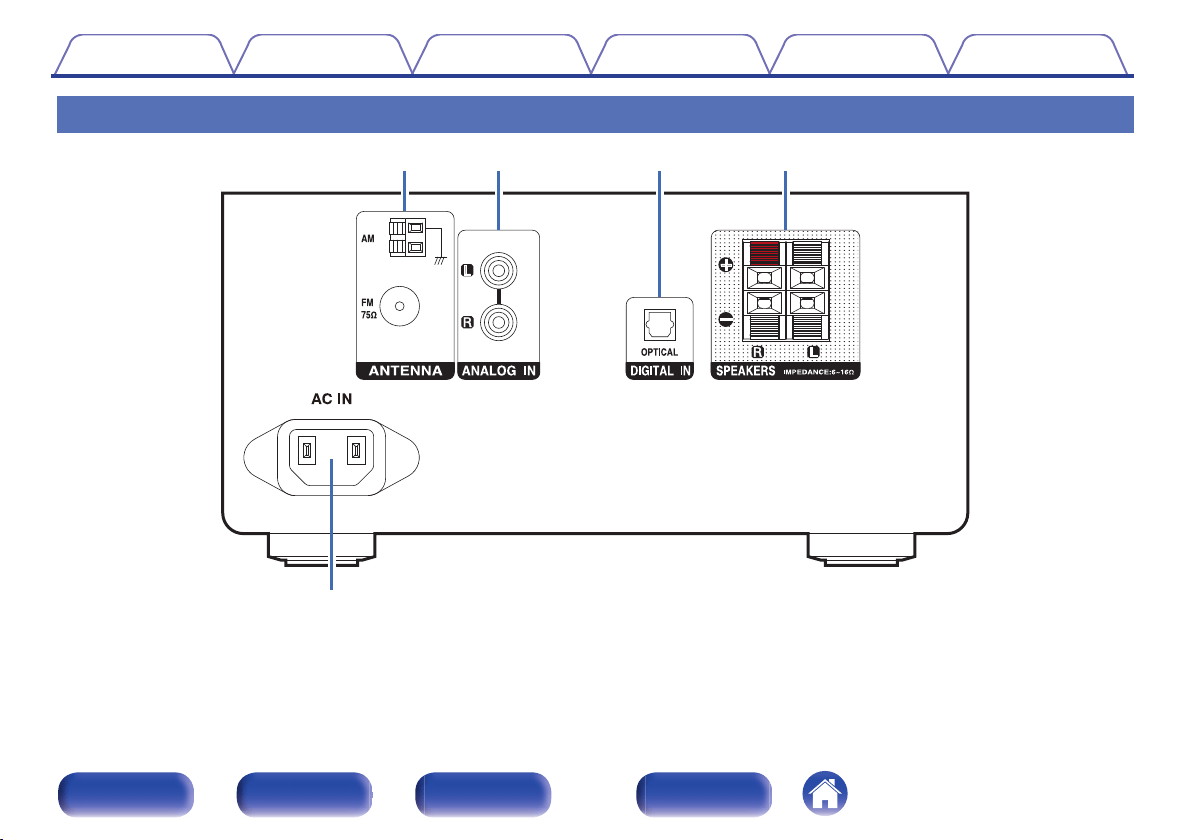
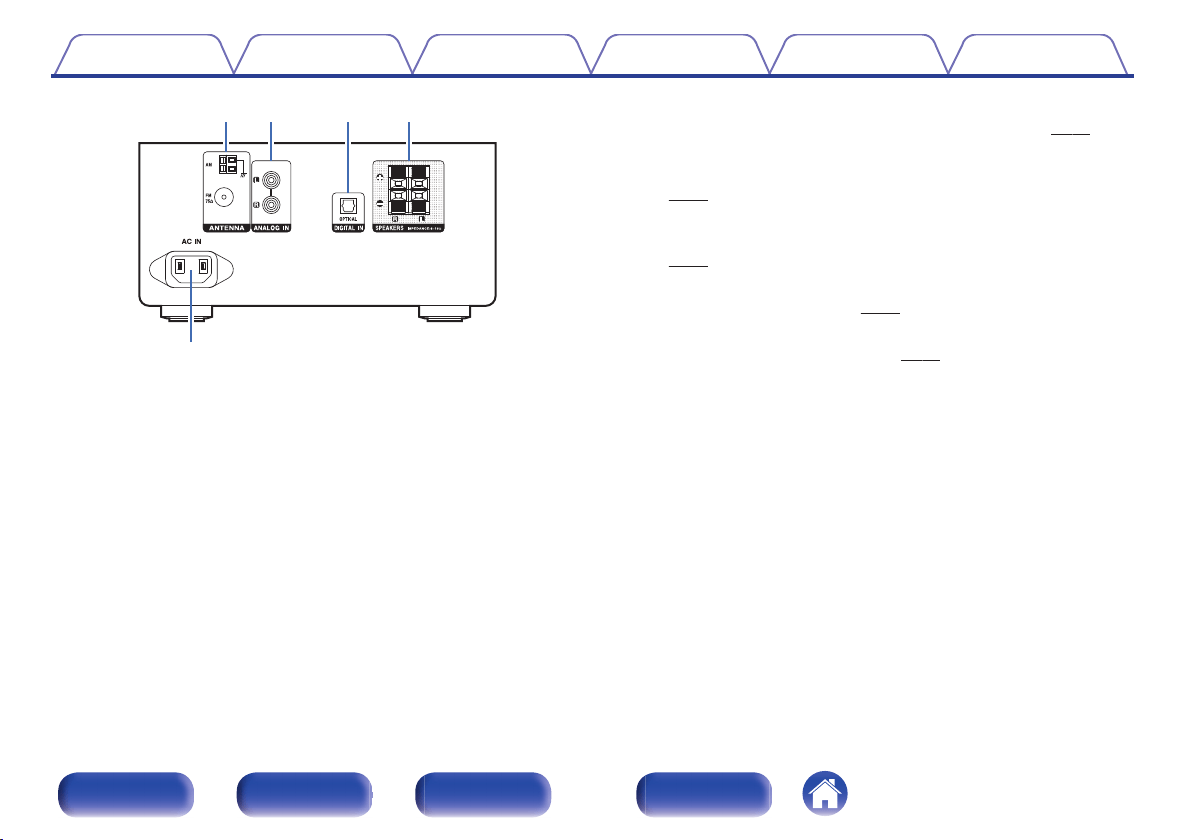
.
t
qw er
A
Antenna terminals (ANTENNA)
Used to connect FM antennas and AM loop antennas. (v
p. 20)
B
ANALOG IN connectors
Connecting to a device with analog audio output connectors.
(v
p. 19)
C
DIGITAL IN connector
Connecting to a device with digital audio output connectors.
(v
p. 19)
D
Speaker terminals (SPEAKERS)
Used to connect speakers. (v
p. 17)
E
AC inlet (AC IN)
Used to connect the power cord. (v p. 22)
Contents Connections Playback Settings Tips Appendix
12
Front panel Rear panel
Remote control
unit
Index
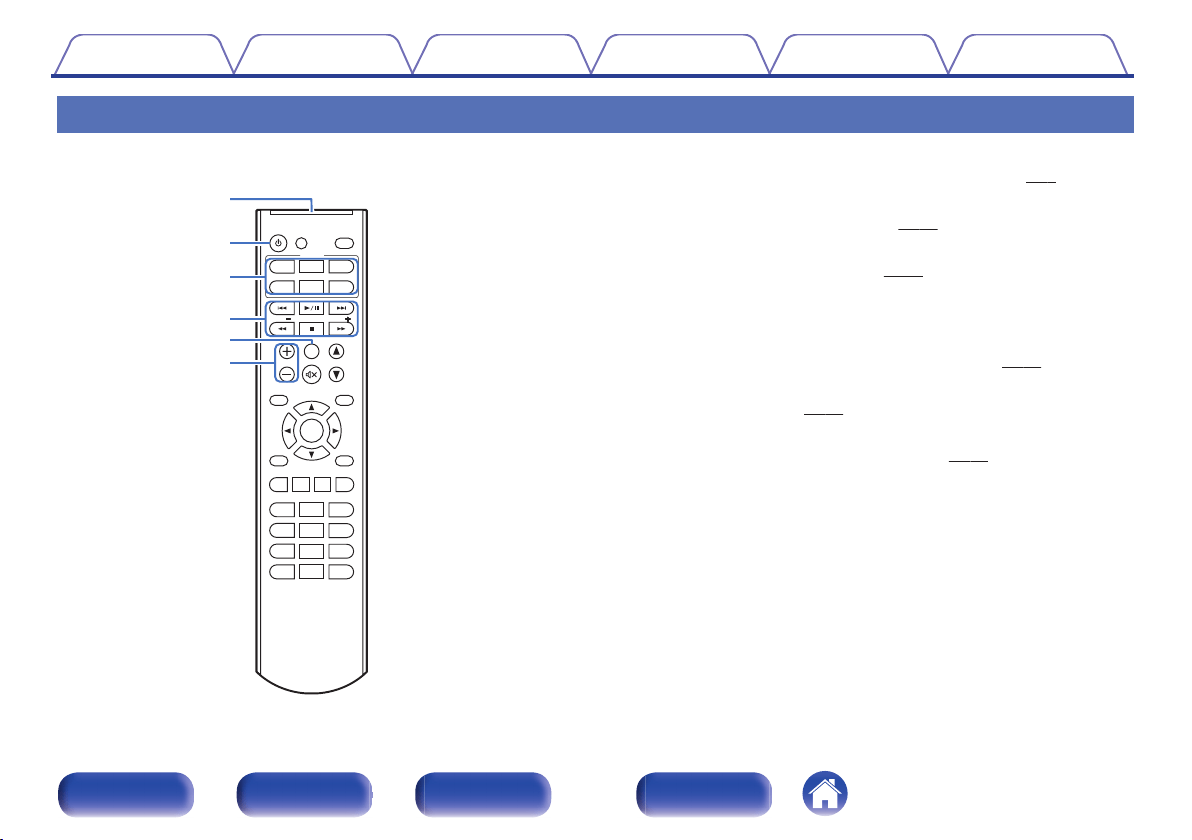
Remote control unit
SHUFFLE
SHUFFLE
PROGRAM
PROGRAM
REP
REPE
AT
AT
CD
CD
Bluetooth
Bluetooth
ANALOG
ANALOG
IN
IN
CLOCK
CLOCK
SLEEP
SLEEP
ENTER
ENTER
PRESET
PRESET
DIMMER
DIMMER
BACK
BACK
VOLUME
VOLUME
SOURCE
SOURCE
POWER
POWER
TUNE
TUNE
TONE
TONE
OPTICAL
OPTICAL
IN
IN
MODE
MODE
AM
AM
FM
FM
TUNE
TUNE
INFO
INFO
TIMER MENU
TIMER MENU
4 5 6
7 8 9
CLEAR
CLEAR
+1
+10 0
1 2 3
w
q
e
r
y
t
A
Remote control signal transmitter
This transmits signals from the remote control unit. (v
p. 6)
B
POWER button (X)
This turns the power on/standby. (v p. 24)
C
Input source select buttons
These select the input source. (v
p. 25)
D
System buttons
These perform playback related operations.
Tuning buttons (TUNE +, –)
These select FM broadcast and AM broadcast. (v
p. 30)
E
TONE button
Adjusting the tone. (v p. 41)
F
Preset buttons (PRESET +, –)
These select preset broadcast stations. (v p. 31)
Contents
Connections Playback Settings Tips Appendix
13
Front panel Rear panel
Remote control
unit
Index
SHUFFLE
SHUFFLE
PROGRAM
PROGRAM
REP
REPE
AT
AT
CD
CD
Bluetooth
Bluetooth
ANALOG
ANALOG
IN
IN
CLOCK
CLOCK
SLEEP
SLEEP
ENTER
ENTER
PRESET
PRESET
DIMMER
DIMMER
BACK
BACK
VOLUME
VOLUME
SOURCE
SOURCE
POWER
POWER
TUNE
TUNE
TONE
TONE
OPTICAL
OPTICAL
IN
IN
MODE
MODE
AM
AM
FM
FM
TUNE
TUNE
INFO
INFO
TIMER MENU
TIMER MENU
4 5 6
7 8 9
CLEAR
CLEAR
+1
+10 0
1 2 3
i
u
Q0
Q1
Q3
o
Q2
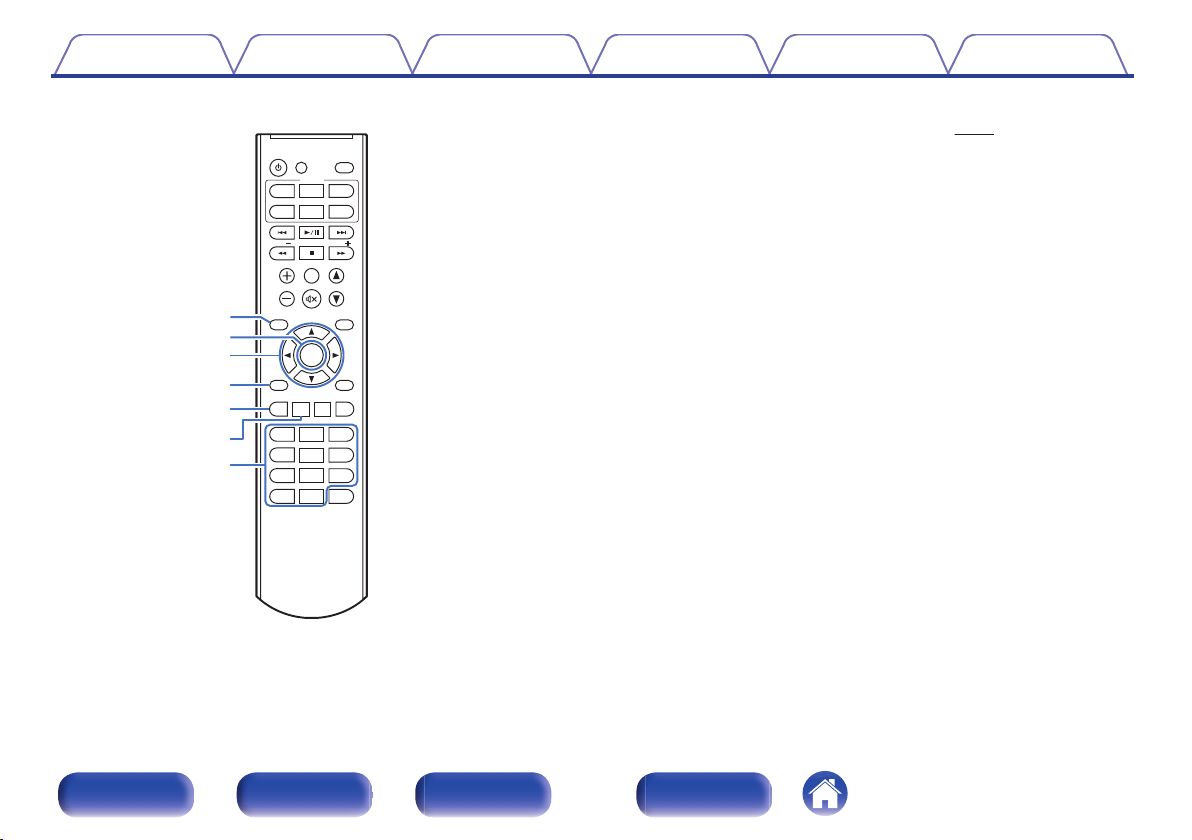
G
DIMMER button
Adjust the display brightness of this unit. (v
p. 42)
H
ENTER button
This determines the selection.
I
Cursor buttons (uio p)
These select items.
J
BACK button
Returns to the previous item.
K
SHUFFLE button
Shuffle the tracks.
L
REPEAT button
Switches to the repeat playback.
M
Number buttons (0 – 9, +10)
These enter numbers into the unit.
Contents
Connections Playback Settings Tips Appendix
14
Front panel Rear panel
Remote control
unit
Index
SHUFFLE
SHUFFLE
PROGRAM
PROGRAM
REP
REPE
AT
AT
CD
CD
Bluetooth
Bluetooth
ANALOG
ANALOG
IN
IN
CLOCK
CLOCK
SLEEP
SLEEP
ENTER
ENTER
PRESET
PRESET
DIMMER
DIMMER
BACK
BACK
VOLUME
VOLUME
SOURCE
SOURCE
POWER
POWER
TUNE
TUNE
TONE
TONE
OPTICAL
OPTICAL
IN
IN
MODE
MODE
AM
AM
FM
FM
TUNE
TUNE
INFO
INFO
TIMER MENU
TIMER MENU
4 5 6
7 8 9
CLEAR
CLEAR
+1
+10 0
1 2 3
Q6
Q5
Q8
Q9
W0
W2
W1
Q7
Q4
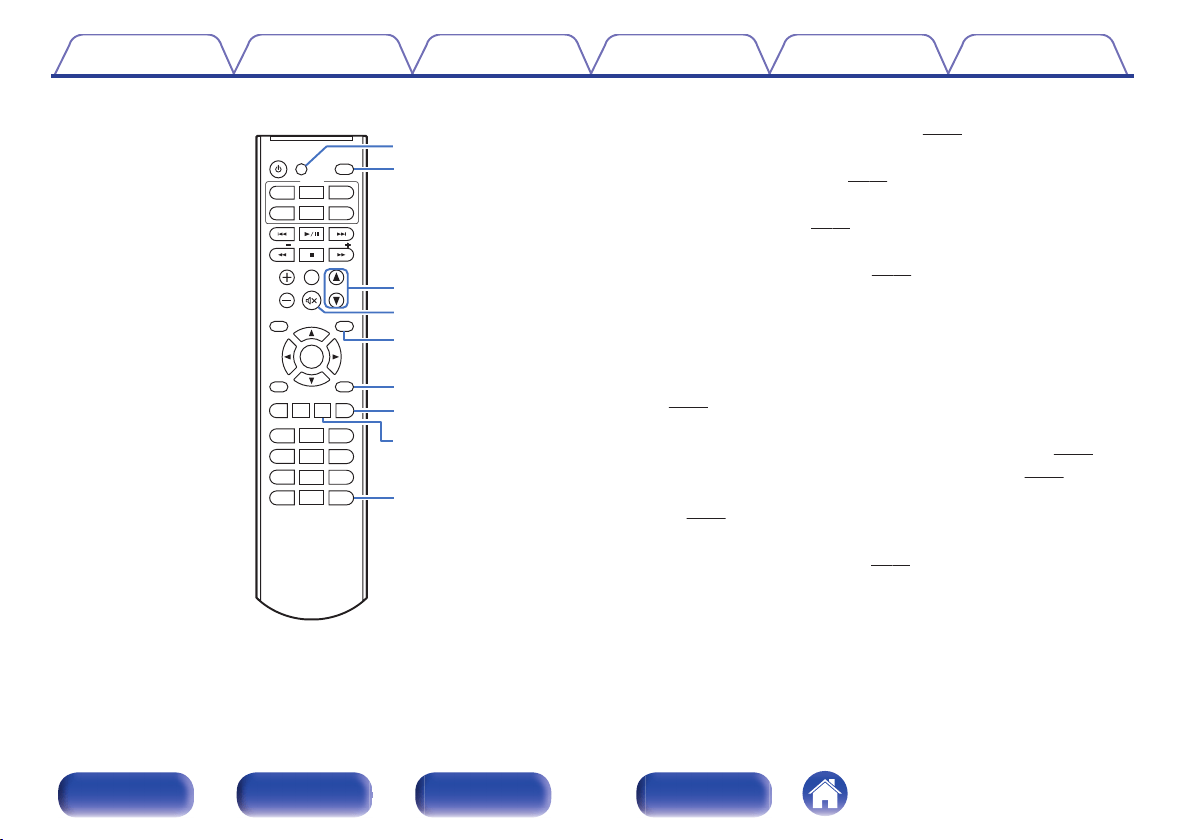
N
CLOCK button
The current time appear on the unit. (v
p. 44)
O
SLEEP button
This sets the sleep timer. (v p. 47)
P
VOLUME buttons (df)
Adjusts the volume. (v
p. 25)
Q
Mute button (:)
This mutes the output audio. (v
p. 25)
R
Information button (INFO)
This switches the track information shown in the display during
playback.
S
TIMER MENU button
The timer setting menu is displayed on the display of the unit.
(v p. 44)
T
MODE button
0
This switches the operation mode for the FM tuning. (v
p. 30)
0
This switches the playback range on a data CD. (v
p. 29)
0
Use this to connect, disconnect and pair with Bluetooth devices.
(v p. 33)
U
PROGRAM button
This sets program playback. (v p. 27)
V
CLEAR button
This cancels the settings.
Contents
Connections Playback Settings Tips Appendix
15
Front panel Rear panel
Remote control
unit
Index
o
Contents
Connecting speakers 17
Connecting an analog device 19
Connecting a digital device 19
Connecting an FM/AM antenna 20
Connecting the power cord 22
NOTE
0
Do not plug in the power cord until all connections have been completed.
0
Do not bundle power cords with connection cables. Doing so can result in noise.
o
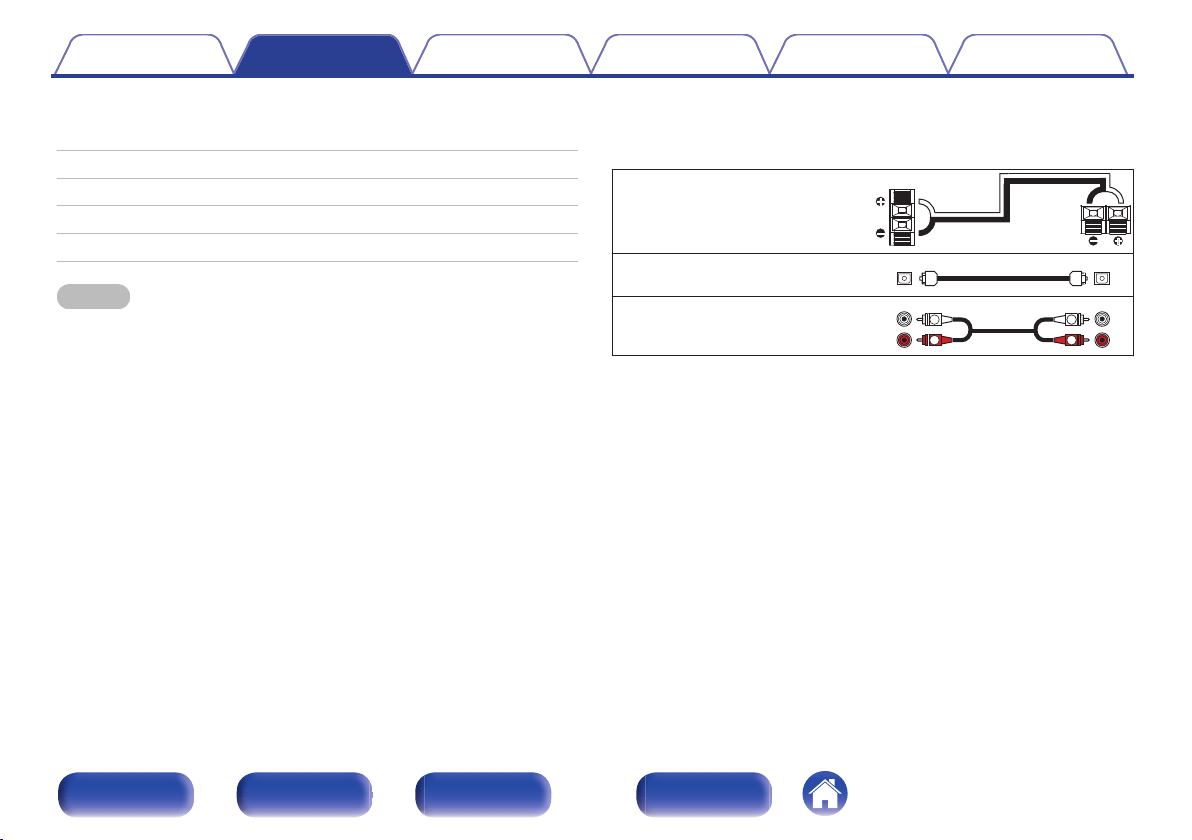
Cables used for connections
Provide necessary cables according to the devices you want to
connect.
Speaker cable (supplied)
.
Optical cable (Sold separately)
.
Audio cable (Sold separately)
.
R
L
R
L
Contents Connections Playback Settings Tips Appendix
16
Front panel Rear panel
Remote control
unit
Index
Connecting speakers
Here we connect the speakers in the room to this unit.
This section explains how to connect them using typical examples.
NOTE
0
Disconnect this unit’s power plug from the power outlet before connecting the
speakers.
0
Connect so that the speaker cable core wires do not protrude from the speaker
terminal. The protection circuit may be activated if the core wires touch the rear
panel or if the + and - sides touch each other. “Protection circuit” (v p. 66)
0
Never touch the speaker terminals while the power cord is connected. Doing so
could result in electric shock.
0
Use speakers with an impedance of 6 – 16 Ω/ohms.
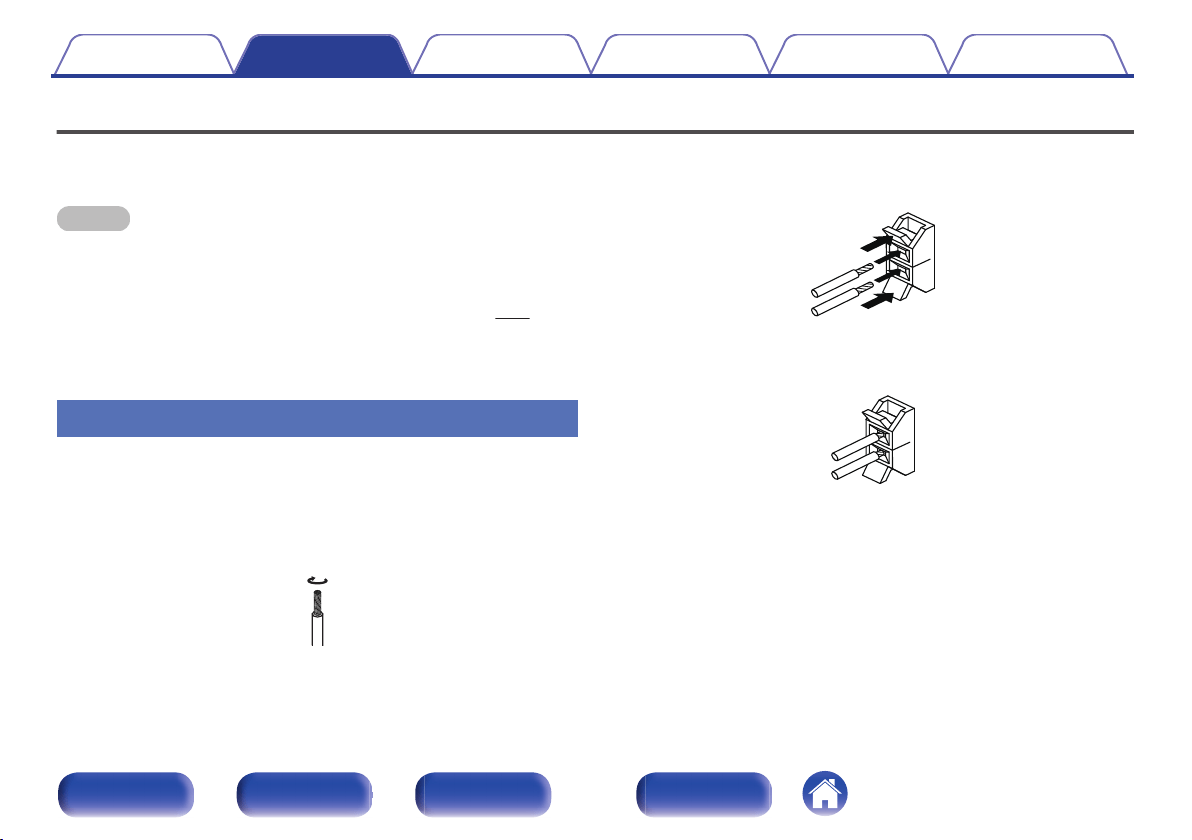
Connecting the speaker cables
Carefully check the left (L) and right (R) channels and + and – polarities on
the speakers being connected to this unit, and be sure to connect the
channels and polarities correctly.
1
Peel off about 3/8 inch (10 mm) of sheathing from the
tip of the speaker cable, then twist the core wire tightly.
.
2
Push the lever of the speaker terminal and insert the
speaker cable into the cable insertion slot.
.
3
Release your finger from the speaker terminal lever to
fix the speaker cable.
.
Contents
Connections Playback Settings Tips Appendix
17
Front panel Rear panel
Remote control
unit
Index
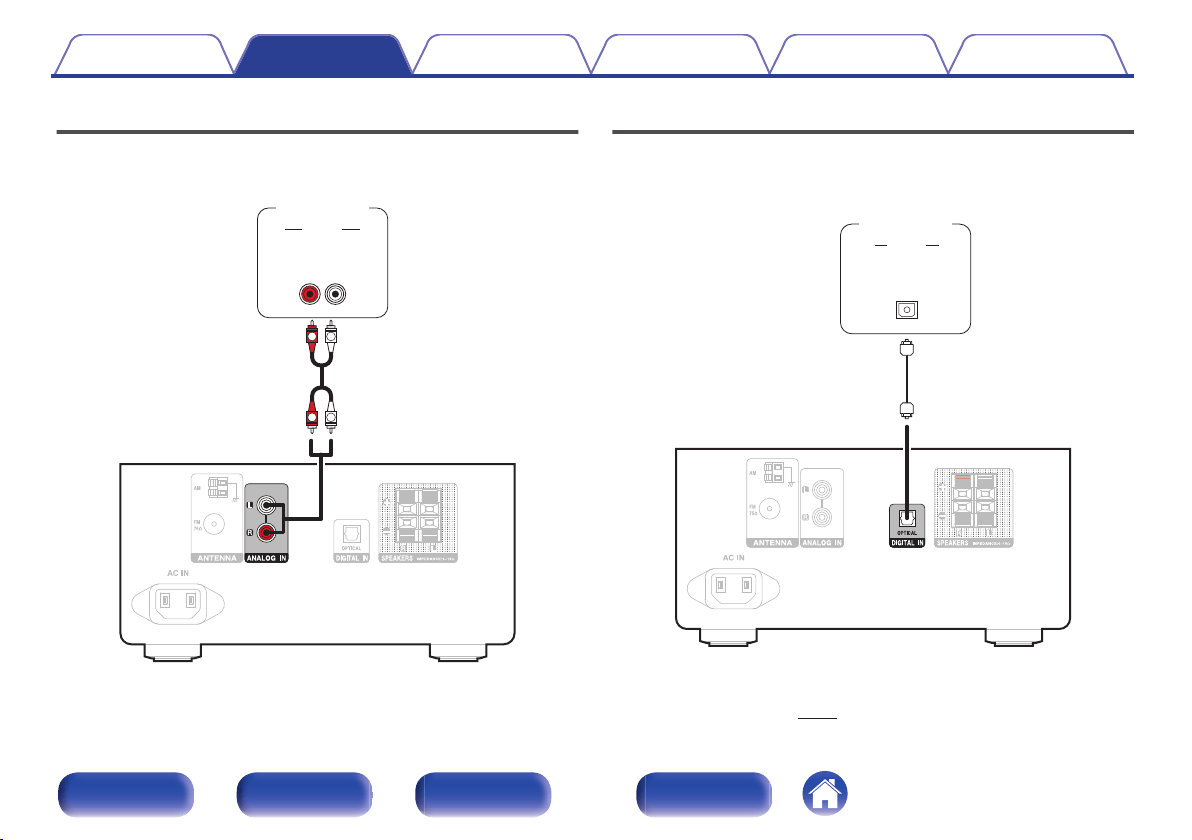
Connecting an analog device
You can connect this unit to various devices with analog audio output.
.
AUDIO
LR
OUT
L
R
L
R
AUDIO
Analog
device
Connecting a digital device
You can connect this unit to devices with digital audio output (TV, digital
gear, etc.).
.
AUDIO
OPTICAL
OUT
Digital
device
o
Specifications of supported audio formats
See “DIGITAL IN” (v p. 61).
Contents
Connections Playback Settings Tips Appendix
19
Front panel Rear panel
Remote control
unit
Index
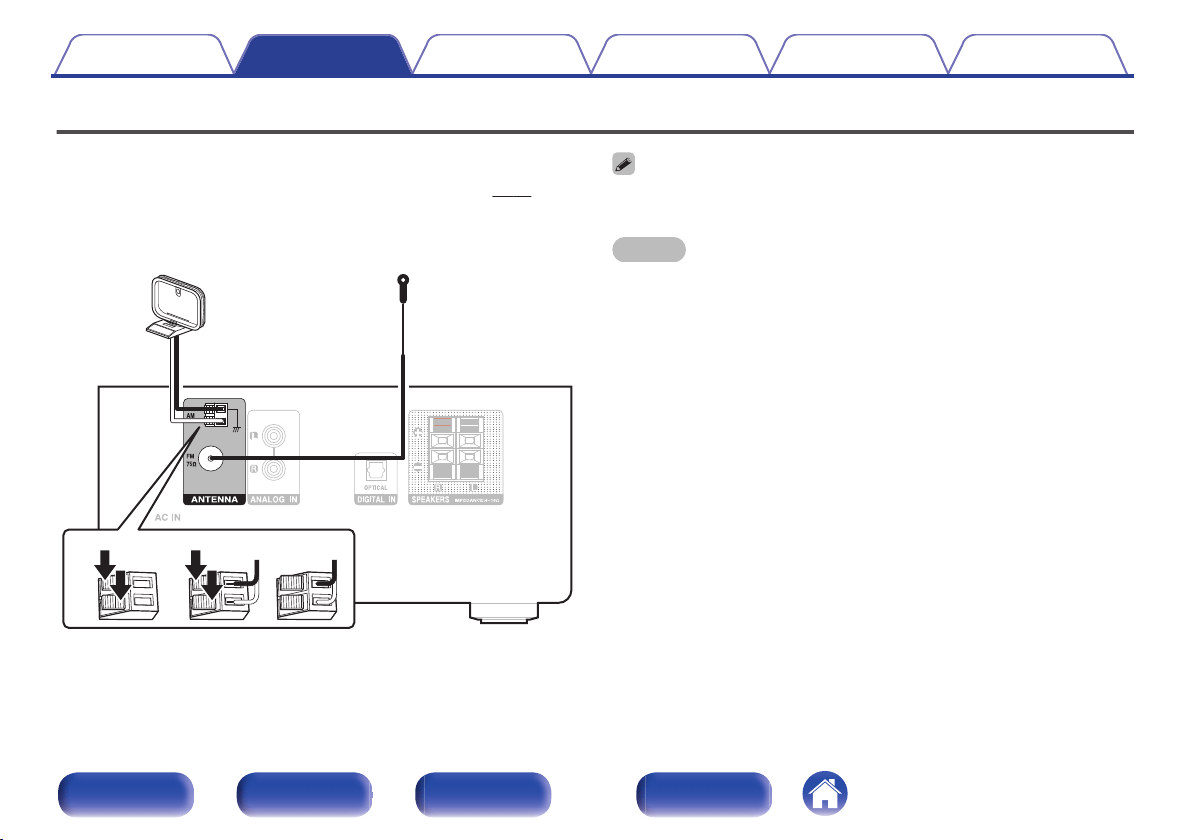
Connecting an FM/AM antenna
Connect the antenna, tune in to a broadcast and then move the antenna to
the location where there is least noise. Then use tape, etc. to fix the
antenna in this location. “Listening to FM/AM broadcasts” (v p. 30)
.
wq e
AM loop antenna
(supplied)
FM indoor antenna
(supplied)
Black
White
0
If you are unable to receive a good broadcast signal, we recommend installing an
outdoor antenna. For details, inquire at the retail store where you purchased the
unit.
NOTE
0
Make sure the AM loop antenna lead terminals do not touch metal parts of the
panel.
Contents Connections Playback Settings Tips Appendix
20
Front panel Rear panel
Remote control
unit
Index
o
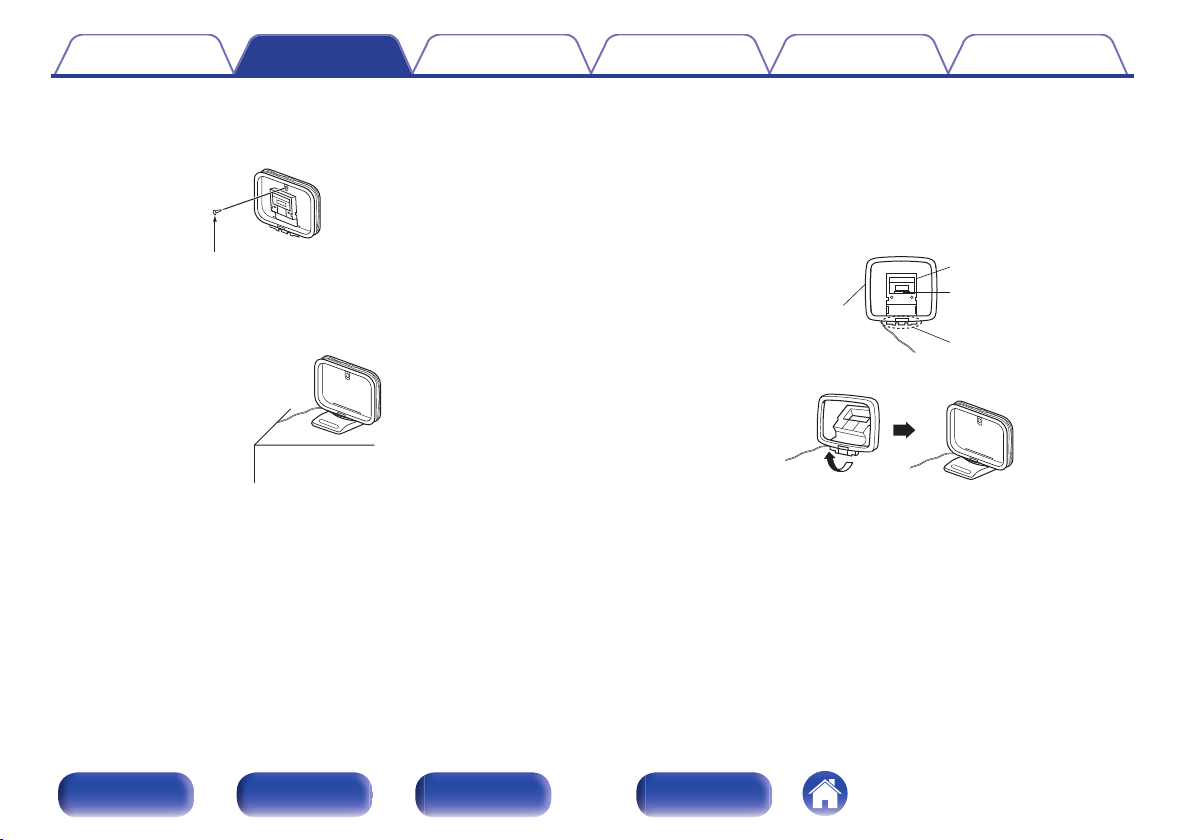
Using the AM loop antenna
Suspending on a wall
Suspend directly on a wall without assembling.
.
Nail, tack, etc.
Standing alone
Use the procedure shown above to assemble.
When assembling, refer to “AM loop antenna assembly”.
.
o
AM loop antenna assembly
1
Put the stand section through the bottom of the loop
antenna from the rear and bend it forward.
2
Insert the projecting part into the square hole in the
stand.
.
Projecting part
Square hole
Stand
Loop antenna
Contents
Connections Playback Settings Tips Appendix
21
Front panel Rear panel
Remote control
unit
Index
o
Contents
Basic operation
Turning the power on 24
Switching the power to standby 24
Selecting the input source 25
Adjusting the volume 25
Turning off the sound temporarily (Muting) 25
Playback a device
Playing CDs 26
Playing DATA CDs 28
Listening to FM/AM broadcasts 30
Listening to music on a Bluetooth device 33
Playing digital input 38
Playing analog input 39
Other functions
Convenience functions 40
Contents Connections Playback Settings Tips Appendix
23
Front panel Rear panel
Remote control
unit
Index
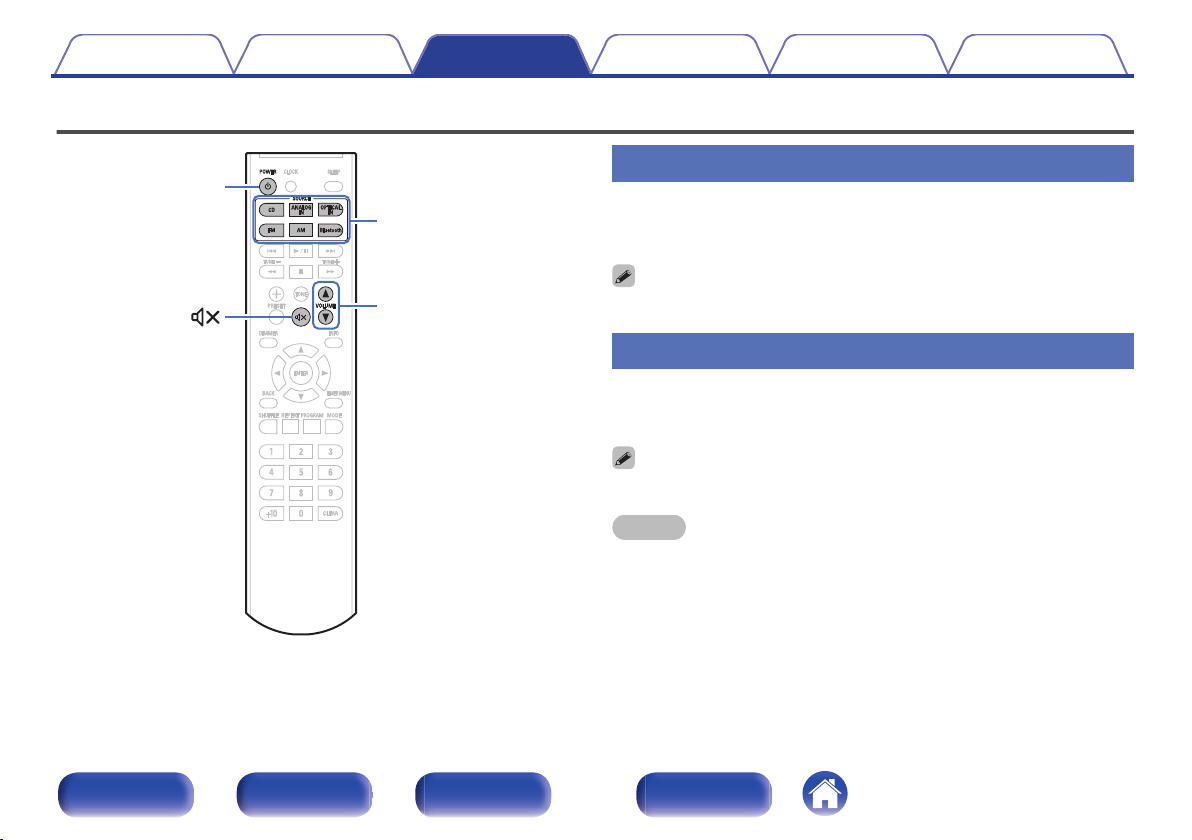
Basic operation
.
POWER
X
VOLUME
df
Input source
select buttons
Turning the power on
1
Press POWER X to turn on power to the unit.
The power indicator lights green.
0
You can also press X on the main unit to turn on power from standby mode.
Switching the power to standby
1
Press POWER X.
The unit switches to standby mode.
0
You can also switch the power to standby by pressing X on the main unit.
NOTE
0
Power continues to be supplied to some of the circuitry even when the power is in
the standby mode. When leaving home for long periods of time or when going on
vacation, unplug the power cord from the power outlet.
Contents Connections Playback Settings Tips Appendix
24
Front panel Rear panel
Remote control
unit
Index
Selecting the input source
1
Press the input source select button to be played back.
The selected input source appears on the display.
0
You can also select the input source by pressing SOURCE on the main unit.
Adjusting the volume
1
Use VOLUME df to adjust the volume.
The volume level appears on the display.
0
You can also adjust the volume by turning VOLUME on the main unit.
Turning off the sound temporarily
(Muting)
1
Press :.
“MUTE” is displayed on the display.
0
To cancel mute, either adjust the sound volume or press : again.
Contents Connections Playback Settings Tips Appendix
25
Front panel Rear panel
Remote control
unit
Index
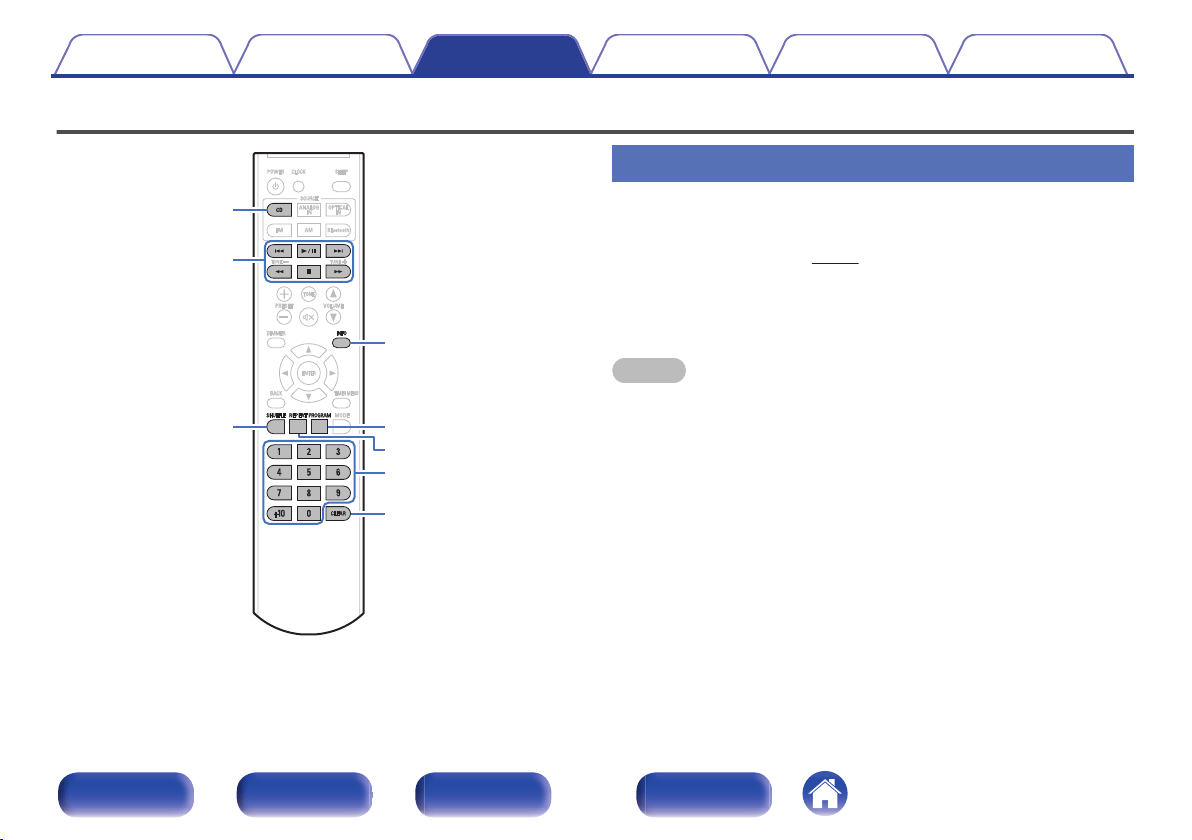
Playing CDs
.
INFO
0 – 9, +10
2
1
/
3
6
7
8
9
CLEAR
PROGRAM
REPEAT
CD
SHUFFLE
Playing CDs
1
Press CD to switch the input source to “CD”.
2
Insert a disc. (v p. 62)
3
Press 1/3.
Playback starts.
NOTE
0
3 inch/8 cm discs cannot be used on this unit. Do not insert 3 inch/8 cm discs into
the disc slot.
0
Do not put anything other than a CD to disc slot. Doing so could result in damage.
Contents
Connections Playback Settings Tips Appendix
26
Front panel Rear panel
Remote control
unit
Index
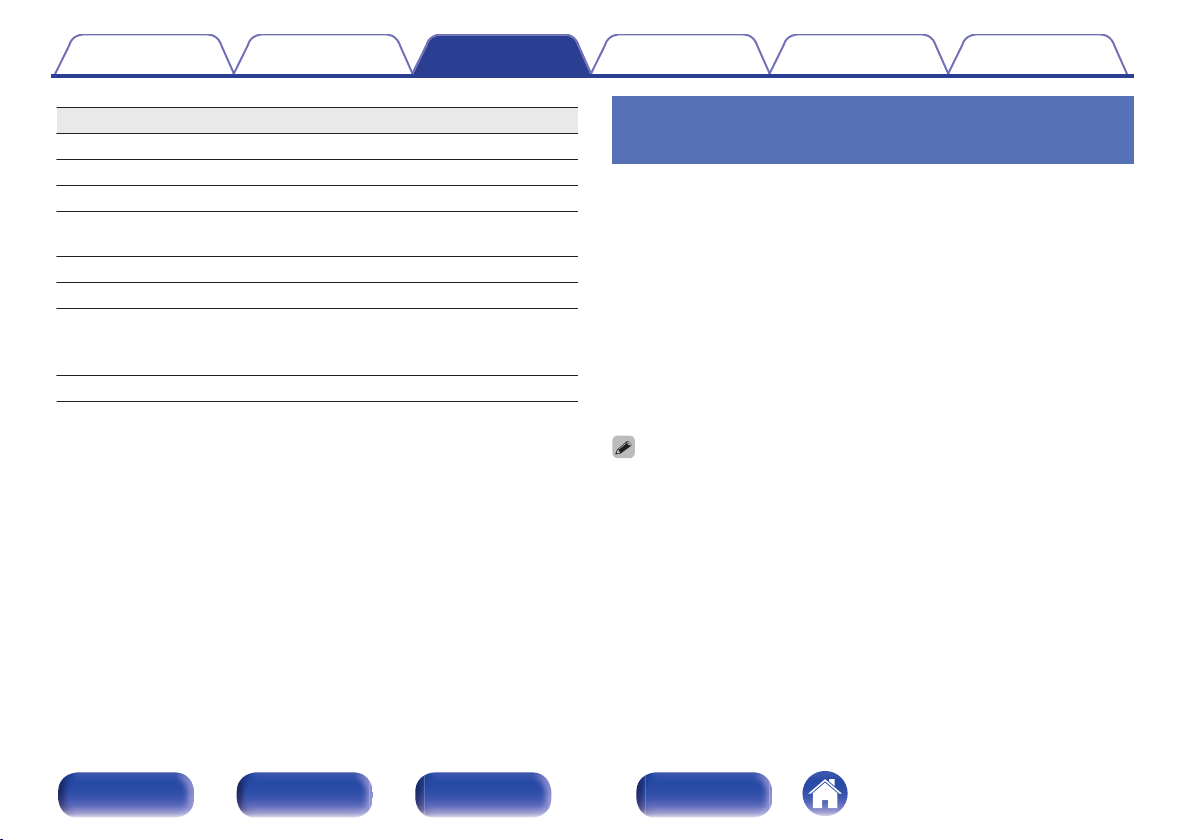
Operation buttons Function
1/3
Playback / Pause
2
Stop
8 9
Skip to previous track / Skip to next track
6 7
(Press and hold)
Fast-reverse / Fast-forward
0 – 9, +10 Select the track
SHUFFLE Shuffle playback
REPEAT
Repeat playback
0
Switching between Single-track repeat
and All-track repeat.
INFO Switching the elapsed time display
o
Eject CDs
1
Press 5 on the main unit while playback is stopped.
Playing tracks in a specific order
(Program playback)
Up to 64 tracks can be programmed.
1
In the stop mode, press PROGRAM.
“PROGRAM” is displayed on the display.
2
Use 0 – 9, +10 to select the tracks.
GExampleH
To program tracks 3, 12 to play in that order: Press 3, +10 and 2 one
after the other.
3
Press 1/3.
Playback starts in the programmed order.
0
The program is cleared when the disc is ejected or the power is turned off.
0
In the stop mode, press CLEAR, the last track programmed is cleared.
Contents Connections Playback Settings Tips Appendix
27
Front panel Rear panel
Remote control
unit
Index
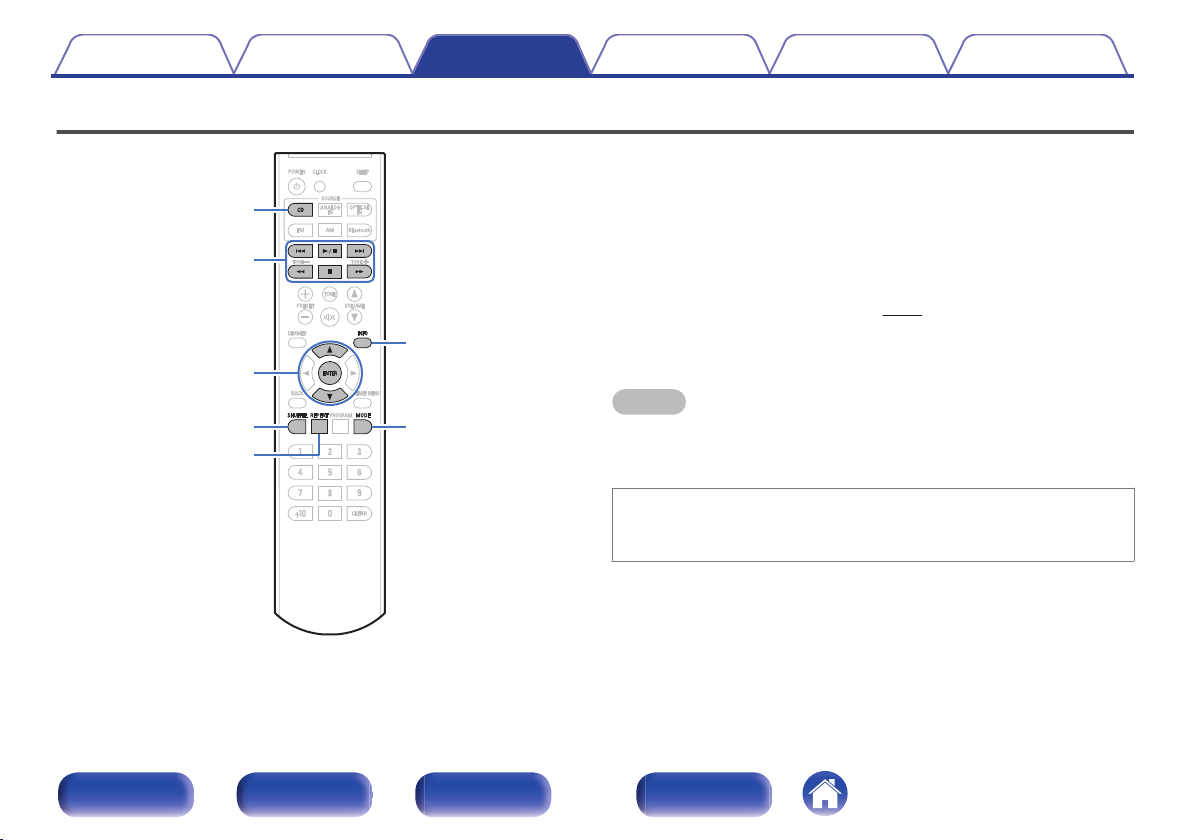
Playing DATA CDs
.
ui
ENTER
INFO
2
1
/
3
6
7
8
9
MODE
CD
SHUFFLE
REPEAT
0
This section explains how to playback music files that are recorded onto
a CD-R or CD-RW.
0
There are many music distribution sites on the Internet allowing you to
download music files in MP3 or WMA (Windows Media
®
Audio) format.
The music (files) downloaded from such sites can be stored on CD-R or
CD-RW discs and played on this unit.
0
The audio format types and specifications supported by this unit for
playback are as follows.
See “Playable files” for details. (v p. 60)
0
MP3
0
WMA
NOTE
0
Copyright-protected files cannot be played.
0
Note that depending on the software used for burning and other conditions, some
files may not play or display correctly.
“Windows Media” and “Windows” are the trademarks or
registered trademarks of “Microsoft Corporation” in the United
States and other countries.
Contents Connections Playback Settings Tips Appendix
28
Front panel Rear panel
Remote control
unit
Index
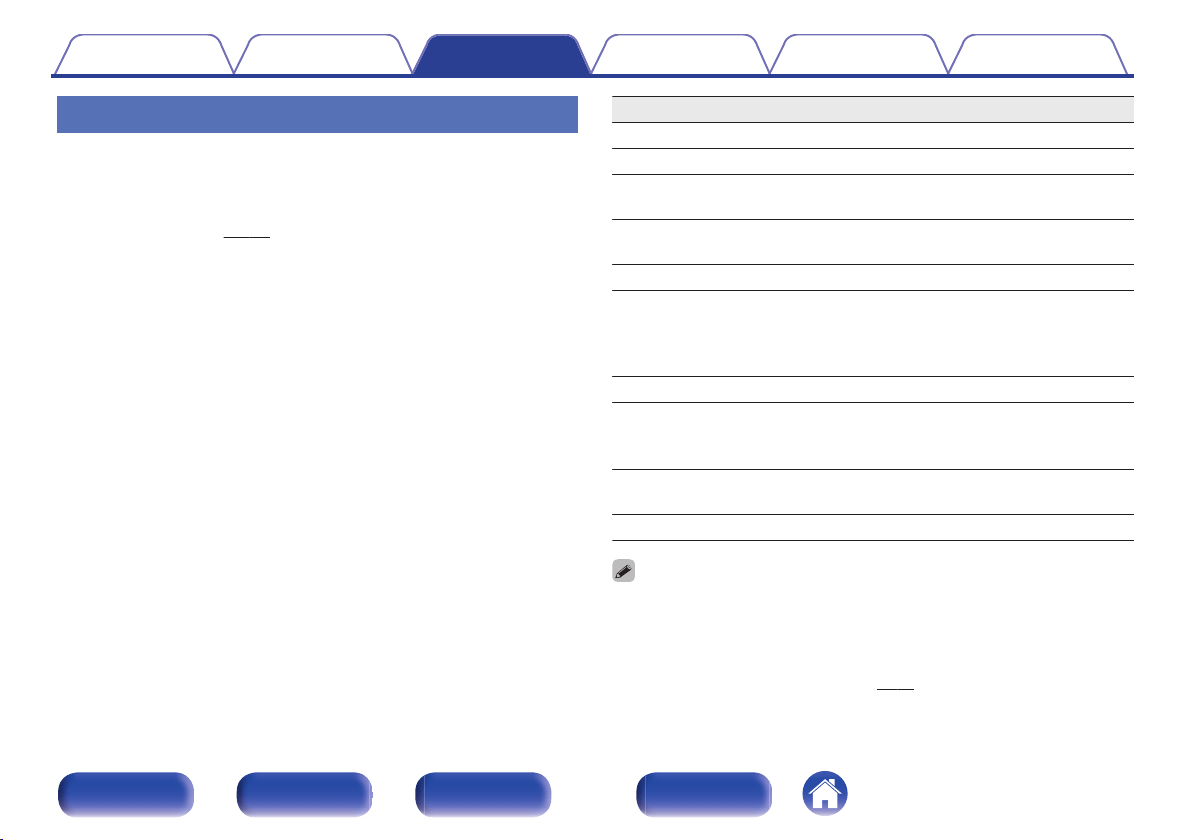
Playing files
1
Press CD to switch the input source to “CD”.
2
Insert a CD-R or CD-RW containing music files into the
disc slot. (v p. 62)
3
Use ui to select the folder to be played, then press
ENTER.
4
Use 8 9 to select the file to be played, then press
ENTER.
Playback starts.
Operation buttons Function
1/3
Playback / Pause
2
Stop
8 9
File select, Skip to previous track / Skip to
next track
6 7
(Press and hold) Fast-reverse / Fast-
forward
u i
Folder select
MODE
Switch playback mode
0
Switching between playing back all files
within the selected folder or all tracks on
the disc.
SHUFFLE Shuffle playback
REPEAT
Repeat playback
0
Switching between Single-track repeat
and All-track repeat.
INFO
Switching the Title name, Artist name,
Album name, elapsed time display
ENTER Enter the selected item
0
English letters, numbers and certain symbols are displayed. Incompatible characters
are displayed as “_”.
o
Files that can be played back
See “Playing back DATA CDs” (v p. 60).
Contents Connections Playback Settings Tips Appendix
29
Front panel Rear panel
Remote control
unit
Index
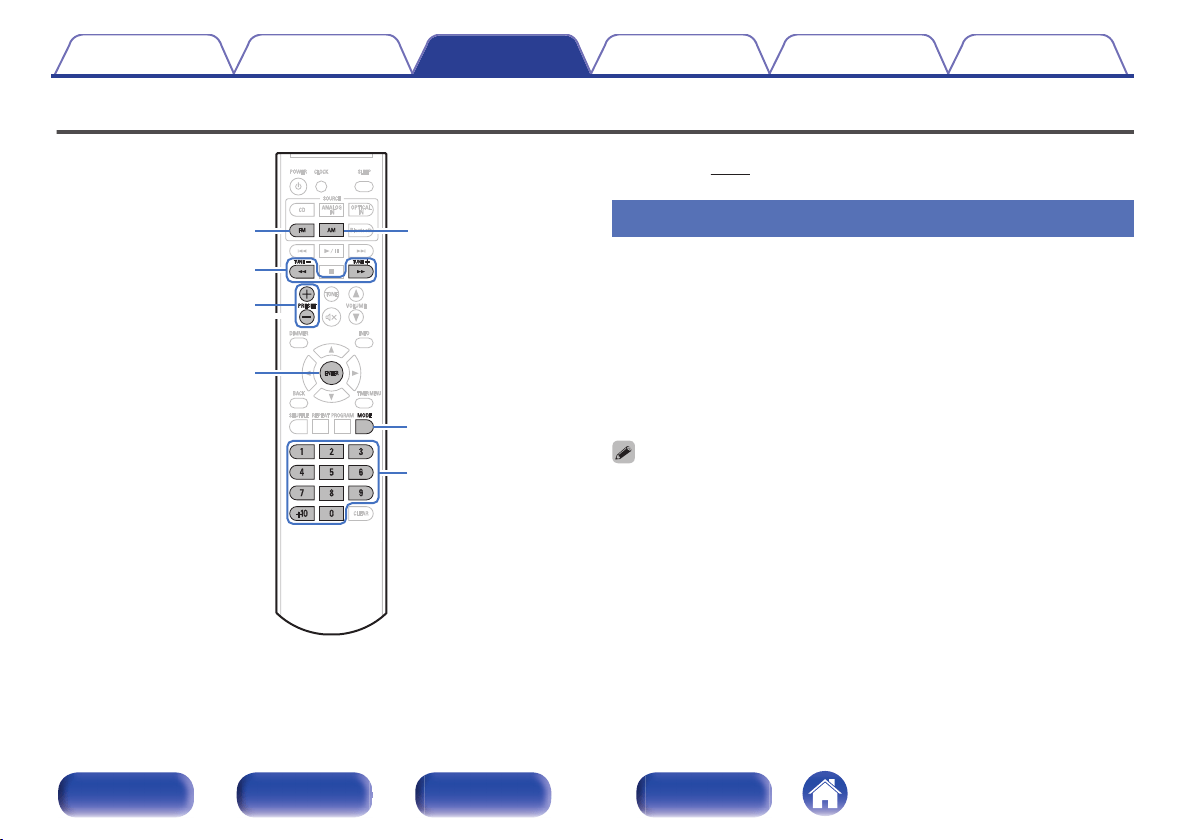
Listening to FM/AM broadcasts
.
TUNE +, –
PRESET +, –
0 – 9, +10
MODE
ENTER
FM AM
For details about how to connect the antenna, see “Connecting an FM/AM
antenna” (v p. 20).
Listening to FM/AM broadcasts
1
Press FM or AM to select the reception band.
2
Press and hold TUNE + or TUNE – to select the station
you want listen to.
Scanning is performed until it finds an available radio station. When
it finds a radio station, it stops the scan automatically and tunes in.
0
Press and release TUNE + or TUNE - button to change the
frequency one step at a time.
0
Press MODE repeatedly while receiving an FM station to switch the FM reception
mode between stereo reception mode (STEREO) and monaural reception mode
(MONO). If the signal is weak and stable stereo reception is not possible, set
“MONO”. “STEREO” Is set at the time of purchase.
Contents Connections Playback Settings Tips Appendix
30
Front panel Rear panel
Remote control
unit
Index
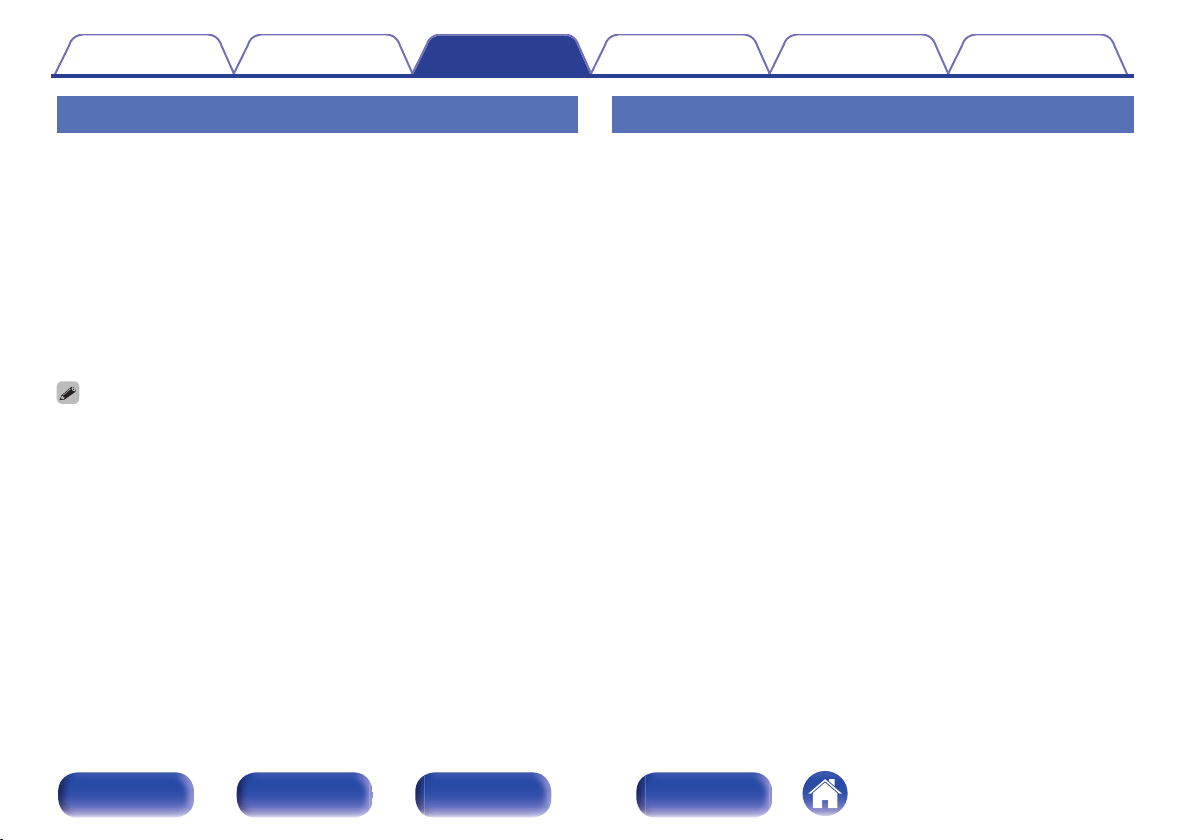
Presetting FM/AM stations
This unit can be preset with a total of 40 broadcast stations (30 FM
stations and 10 AM stations).
1
Tune in the station you want to preset.
2
Press ENTER.
The preset number flashes.
3
Use 0 – 9, +10 or PRESET +, – to select the number to
be preset, then press ENTER.
The reception frequency and reception mode are preset.
0
Select a number preset in step 3 to overwrite that number with the station currently
being received.
Listening to preset stations
1
Use 0 – 9, +10 or PRESET +, – to select the preset
number.
Contents Connections Playback Settings Tips Appendix
31
Front panel Rear panel
Remote control
unit
Index
Setting the preset channels and
changing the received frequency on
the main unit
Preset/Tuning buttons (–, +) on the main unit can be used both for
switching the preset channel and for tuning. The button functions can be
changed by setting the unit to “PRESET” mode or “MANUAL” mode.
Follow the steps below to set as desired.
1
Press 2 on the main unit during reception of a station.
The current setting appears on the display.
2
While the current setting is shown on the display, press
2 on the main unit again.
The setting changes each time the button is pressed.
“PRESET” mode:
Use Preset/Tuning buttons (–, +) on the
main unit to switch preset channels.
0
This is the same operation as
PRESET – or PRESET + on the
remote control unit.
“MANUAL” mode:
Use Preset/Tuning buttons (–, +) on the
main unit to change the received
frequency.
0
This is the same operation as TUNE
– or TUNE + on the remote control
unit.
Contents Connections Playback Settings Tips Appendix
32
Front panel Rear panel
Remote control
unit
Index
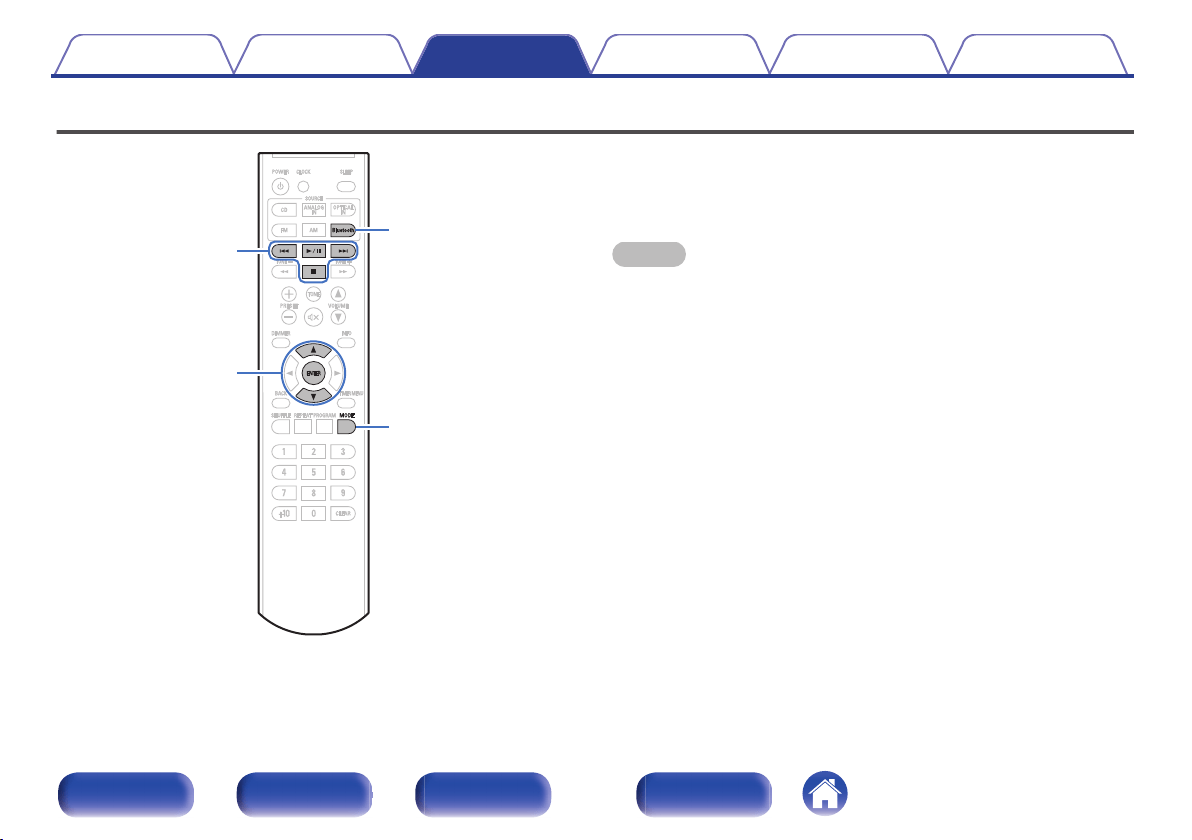
Listening to music on a Bluetooth device
.
2
1
/
3
8
9
Bluetooth
MODE
ui
ENTER
Music files stored on Bluetooth devices such as smartphones, digital
music players, etc. can be enjoyed on this unit by pairing and connecting
this unit with the Bluetooth device.
Communication is possible up to a range of about 32.8 ft/10 m.
NOTE
0
To play back music from a Bluetooth device, the Bluetooth device needs to
support the A2DP profile.
Contents Connections Playback Settings Tips Appendix
33
Front panel Rear panel
Remote control
unit
Index
Listening to music on a Bluetooth
device
In order to enjoy music from a Bluetooth device on this unit, the Bluetooth
device must first be paired with this unit.
Once the Bluetooth device has been paired, it does not need to be paired
again.
1
Press Bluetooth to switch the input source to “BT
AUDIO”.
When using for the first time, the unit will go into the pairing mode
automatically and “PAIRING” will appear on the display of the unit.
2
Activate the Bluetooth settings on your mobile device.
3
Select this unit when its name appears in the list of
devices displayed on the screen of the Bluetooth
device.
The Bluetooth indicator lights when pairing is complete.
0
Connect to the Bluetooth device while “PAIRING” is being
displayed on the display of the unit. Perform the connection with
the Bluetooth device close to the unit (about 3.3 ft/1 m).
4
Play music using any app on your Bluetooth device.
0
The Bluetooth device can also be operated with the remote
control of this unit.
0
The next time the input source is switched to “BT AUDIO”, this
unit automatically connects to the last Bluetooth device that was
connected.
0
When this unit’s name is not displayed in the screen on the Bluetooth device,
search for devices on the Bluetooth device.
0
Enter “0000” when the password is requested on the screen of the Bluetooth
device.
NOTE
0
The pairing mode on this unit lasts for approx. 5 minutes. When the pairing mode
on this unit is canceled before the pairing is completed, retry from step 1.
0
This unit cannot perform pairing against a Bluetooth device with a pass key other
than “0000”.
Contents
Connections Playback Settings Tips Appendix
34
Front panel Rear panel
Remote control
unit
Index
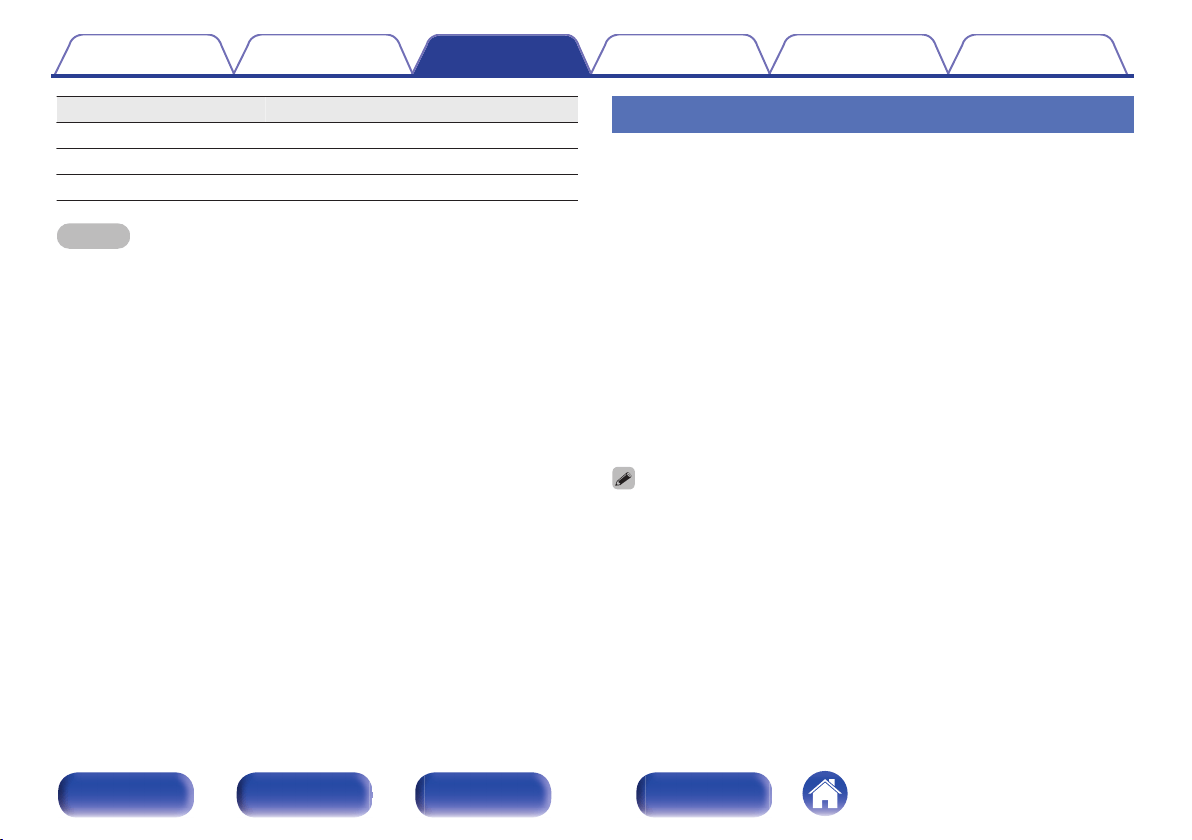
Operation buttons Function
1/3
Playback / Pause
2
Stop
8 9
Skip to previous track / Skip to next track
NOTE
0
To operate the Bluetooth device with the remote control of this unit, the Bluetooth
device needs to support the AVRCP profile.
0
The remote control of this unit is not guaranteed to work with all Bluetooth devices.
0
Depending on the type of Bluetooth device, this unit outputs audio that is coupled
to the volume setting on the Bluetooth device.
Pairing with other Bluetooth devices
Pair a Bluetooth device with this unit.
1
Activate the Bluetooth settings on your mobile device.
2
Press MODE.
The Bluetooth menu is displayed on the display.
3
Use ui to select “PAIRING”, then press ENTER.
The Bluetooth indicator blinks and the device will go into the pairing
mode.
4
Select this unit when its name appears in the list of
devices displayed on the screen of the Bluetooth
device.
The Bluetooth indicator lights when pairing is complete.
0
This unit can be paired with a maximum of 8 Bluetooth devices. When a 9th
Bluetooth device is paired, it will be registered in place of the oldest registered
device.
0
Enter “0000” when the password is requested on the screen of the Bluetooth
device.
Contents
Connections Playback Settings Tips Appendix
35
Front panel Rear panel
Remote control
unit
Index
Disconnecting from Bluetooth
1
Press MODE while connected to Bluetooth.
The Bluetooth menu is displayed on the display.
2
Use ui to select “DISCONNECT”, then press ENTER.
Disconnect the Bluetooth connection with the connected device.
Setting the Bluetooth standby mode
When Bluetooth standby mode is turned on, the power of this unit
automatically turns on when a Bluetooth device connects to this unit while
the power of this unit is on standby, enabling you to listen to music via
Bluetooth.
1
Press Bluetooth to switch the input source to “BT
AUDIO”.
2
Press MODE.
The Bluetooth menu is displayed on the display.
3
Use ui to select “BT STBY”, then press ENTER.
The Bluetooth standby settings menu is displayed on the display.
4
Use ui to select the “ON” or “OFF”, then press
ENTER.
0
Set “BT STBY” to “ON” and then set this unit to standby. The Bluetooth indicator
blinks.
0
The Bluetooth standby function cannot be used if there is no pairing information in
this unit. To use this function, connect this unit to a paired Bluetooth device.
Contents
Connections Playback Settings Tips Appendix
36
Front panel Rear panel
Remote control
unit
Index
Reconnecting to this unit from a
Bluetooth device
After pairing is completed, the Bluetooth device can be connected without
performing any operations on this unit.
This operation also needs to be performed when switching the Bluetooth
device for playback.
1
If a Bluetooth device is currently connected, deactivate
the Bluetooth setting of that device to disconnect it.
2
Activate the Bluetooth setting of the Bluetooth device
to be connected.
3
Select this unit from the Bluetooth device list on your
Bluetooth device.
4
Play music using any app on your Bluetooth device.
0
When a Bluetooth device is connected with the unit in the Bluetooth standby state
(the Bluetooth indicator blinks), the power of the unit will be turned on
automatically.
Contents Connections Playback Settings Tips Appendix
37
Front panel Rear panel
Remote control
unit
Index
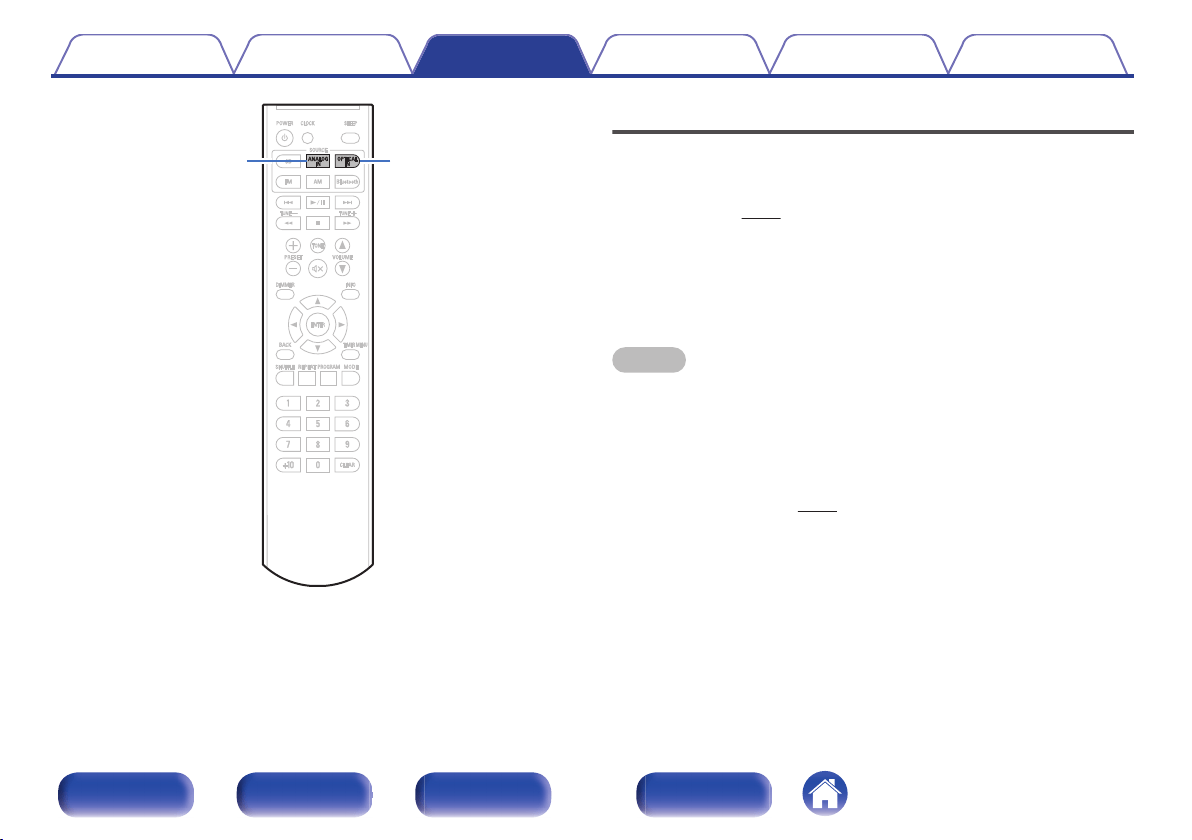
.
ANALOG IN
OPTICAL IN
Playing digital input
1
Prepare for playback.
Check the connection, then turn on this units. “Connecting a digital
device” (v p. 19)
2
Press OPTICAL IN to switch the input source to
“OPTICAL”.
3
Play the component connected to this unit.
NOTE
0
Do not input non-PCM signals, such as Dolby Digital and DTS. This causes noise
and could damage the speakers.
0
“UNLOCK” is displayed when audio signals that are not supported by this unit are
input, or the sampling frequency cannot be detected.
o
Specifications of supported audio formats
See “DIGITAL IN” (v p. 61).
Contents
Connections Playback Settings Tips Appendix
38
Front panel Rear panel
Remote control
unit
Index
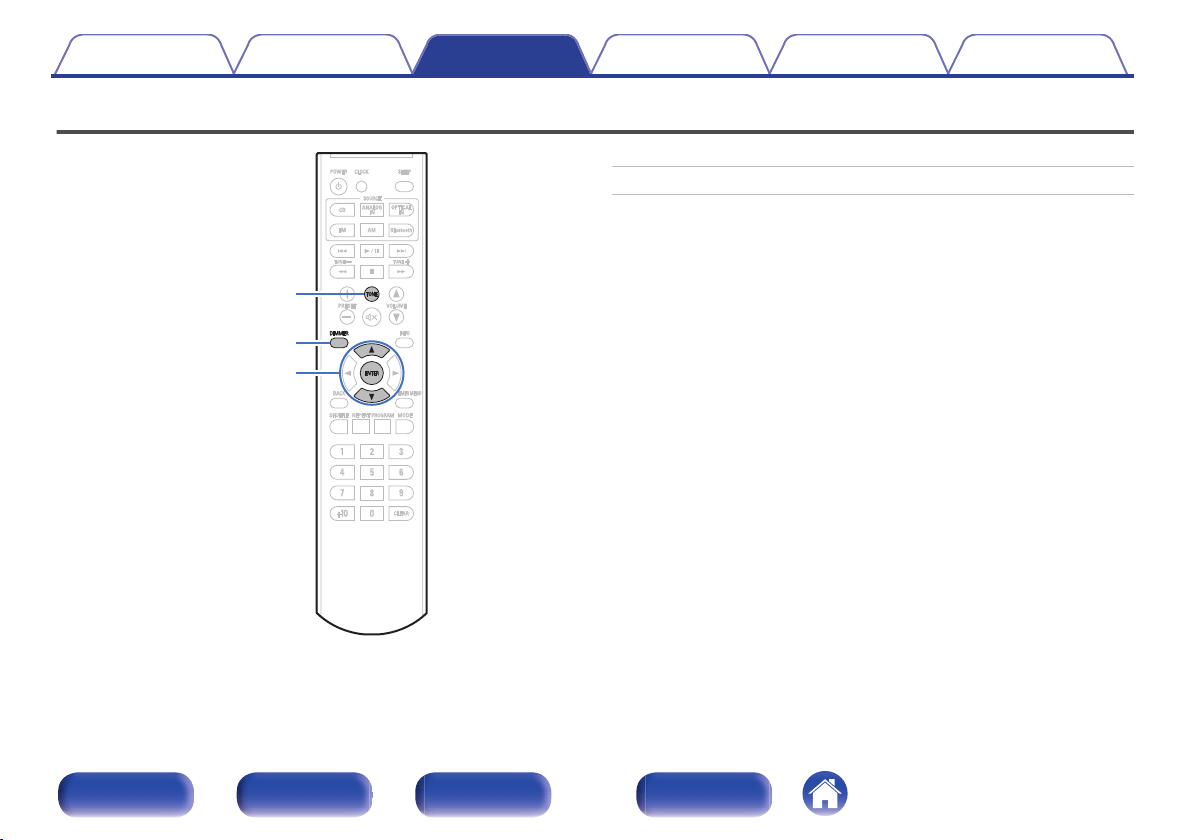
Adjusting the tone
1
Press TONE.
This displays the sound quality adjustment menu.
2
Use ui to select the tone parameter to be adjusted.
3
Use ui to adjust the “BASS”, “TREBLE”, “BALANCE”
or “S-DIRECT”.
4
Press ENTER.
n
BASS
Adjusts the bass sound.
-10 – +10 (Default : 0)
n
TREBLE
Adjusts the treble sound.
-10 – +10 (Default : 0)
n
BALANCE
Adjust the left/right volume balance.
L1 – L6, CENTER, R1 – R6(Default : CENTER)
0
“BALANCE” settings are not reflected when using headphones.
n
S-DIRECT (Source Direct)
ON:
Playback sound is closer to the source
sound.
OFF
(Default):
Disable S-DIRECT (Source Direct)
function.
0
Set “S-DIRECT” to “ON” to restore “BASS”, “TREBLE” and “BALANCE” to the
factory settings.
Contents Connections Playback Settings Tips Appendix
41
Front panel Rear panel
Remote control
unit
Index
Switching the display’s brightness
The brightness of the display can be adjusted to one of three levels.
1
Press DIMMER.
0
The brightness of the display switches each time the button is
pressed.
0
The display brightness is set to most brightly by default.
Contents Connections Playback Settings Tips Appendix
42
Front panel Rear panel
Remote control
unit
Index
o
Contents
Setting the clock, timer playback and
sleep timer
Setting the current time 44
Displaying the clock constantly 45
Setting the timer playback 46
Setting the timer playback mode 47
Sleep timer function 47
Setting the Auto Standby mode
Turning Auto Standby mode on 48
Turning Auto Standby mode off 48
Contents Connections Playback Settings Tips Appendix
43
Front panel Rear panel
Remote control
unit
Index
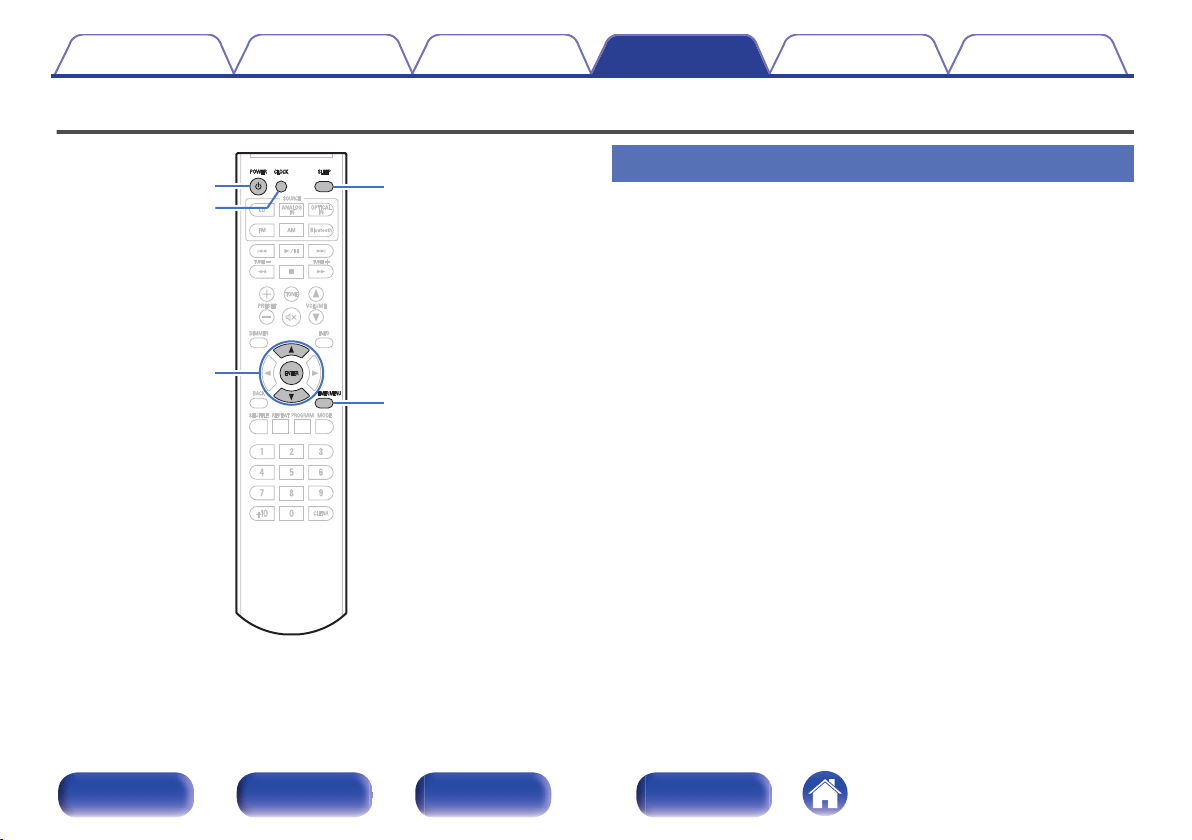
Setting the clock, timer playback and sleep timer
.
SLEEP
CLOCK
TIMER MENU
ui
ENTER
POWER
X
Setting the current time
1
Press TIMER MENU.
The timer setting menu is displayed.
2
Use ui to select “CLOCK”, then press ENTER.
The clock setting menu is displayed.
3
Use ui to set the “hours”.
4
Press ENTER.
The “minutes” display flashes.
5
Use ui to set the “minutes”.
6
Press ENTER.
The current time is set, and the menu display disappears.
Contents
Connections Playback Settings Tips Appendix
44
Front panel Rear panel
Remote control
unit
Index
n
Checking the current time when the power is on
Press CLOCK.
Press CLOCK once more and the display returns to its original
condition.
n
Checking the current time when the power is set to
standby
Press CLOCK.
The current time is displayed for 10 seconds.
0
The time cannot be set when in the standby mode. Turn on the power first.
0
When the “CLK MODE” of the timer setting menu is “ON”, the current time is
continually displayed even when the power is set to standby.
Displaying the clock constantly
Set the clock mode to constantly show the clock in the display even when
this unit is on standby.
1
Press TIMER MENU.
The timer setting menu is displayed.
2
Use ui to select “CLK MODE”, then press ENTER.
The clock mode setting menu is displayed.
3
Use ui to select the “ON” or “OFF”, then press
ENTER.
0
When “CLK MODE” is set to “ON”, this unit consumes the same amount of power
as when it is turned on.
Contents Connections Playback Settings Tips Appendix
45
Front panel Rear panel
Remote control
unit
Index
Setting the timer playback
Audio from the set input source can be played back at a specified time.
Audio can also be played at the same time every day.
1
Press TIMER MENU.
The timer setting menu is displayed.
2
Use ui to select “ALARM”, then press ENTER.
The timer playback setting menu is displayed.
3
Use ui to change to desired setting, then press
ENTER to enter the setting.
A
ON TIME
Use ui to select “hours” for the alarm start time, then press
ENTER.
Use ui to select “minutes” for the alarm start time, then press
ENTER.
B
OFF TIME
Use ui to select “hours” for the alarm stop time, then press
ENTER.
Use ui to select “minutes” for the alarm stop time, then press
ENTER.
C
SOURCE SELECT
Use ui to select the source, then press ENTER.
CD / FM / AM
D
MODE SELECT
Use ui to select the alarm mode, then press ENTER.
ONCE:
Playback starts and stops (the power
turns off) once only at the set times.
EVERY:
Playback starts and stops (the power
turns off) at the set times each day.
4
Press POWER X to set the power to standby.
Alarm standby mode is set, and the power indicator lights orange.
Contents
Connections Playback Settings Tips Appendix
46
Front panel Rear panel
Remote control
unit
Index
Setting the timer playback mode
Turn the timer playback set in “ALARM” in the timer settings menu on
(once or daily) or off.
1
Press TIMER MENU.
The timer setting menu is displayed.
2
Use ui to select “ON/OFF”, then press ENTER.
The timer playback mode setting menu is displayed.
3
Use ui to select the “ONCE”, “EVERY” or “OFF”, then
press ENTER.
0
When set to “OFF”, time operation is disabled, but the alarm
settings remain unchanged.
Sleep timer function
You can have the power automatically switched to standby once a set time
has elapsed. This is convenient for listening while going to sleep.
1
Press SLEEP during playback and select the setting
time.
0
You can set the sleep timer in the range from 10 to 90 minutes in
steps of 10 minutes.
o
To cancel the sleep timer
Press SLEEP to set “OFF”.
0
The sleep timer setting is canceled when the unit switches to standby mode.
0
To check the time remaining until the sleep timer is activated, press SLEEP.
Contents Connections Playback Settings Tips Appendix
47
Front panel Rear panel
Remote control
unit
Index

Setting the Auto Standby mode
When Auto standby mode is set to On, if there is no input signal and
operation for 15 minutes, this unit automatically enters standby mode.
At time of purchase, this mode is set to Off.
.
POWER
X
Turning Auto Standby mode on
1
Press and hold POWER X for more than 3 seconds to
turn the Auto Standby mode on.
“AUTO STANDBY ON” is displayed on the display.
0
The Auto standby function does not operate when the input source is “FM” or
“AM”.
Turning Auto Standby mode off
1
Press and hold POWER X for more than 3 seconds to
turn the Auto Standby mode off.
“AUTO STANDBY OFF” is displayed on the display.
Contents Connections Playback Settings Tips Appendix
48
Front panel Rear panel
Remote control
unit
Index
o
Contents
Tips
I want to turn on power to this unit from a Bluetooth device 50
I want to adjust the tone myself 50
I want sound playback that is faithful to the original sound 50
I want to display the clock constantly 50
Troubleshooting
Power does not turn on / Power is turned off 51
LED is flashing 52
Operations cannot be performed through the remote control unit 53
No sound comes out 54
Desired sound does not come out 55
Audio from digital devices cannot be played back (Optical) 55
Sound is interrupted or noise occurs 56
Cannot playback Discs 57
Bluetooth cannot be played back 58
Contents Connections Playback Settings Tips Appendix
49
Front panel Rear panel
Remote control
unit
Index
Tips
I want to turn on power to this unit from a Bluetooth device
0
Once you perform pairing between this unit and a Bluetooth device, you can turn on power to this unit by operating the Bluetooth device. When
Bluetooth standby mode is turned on, the power of this unit turns on when this unit is selected in the device list of a Bluetooth device.
I want to adjust the tone myself
0
Press the TONE button and set “BASS”, “TREBLE” and “BALANCE”. (v p. 41)
I want sound playback that is faithful to the original sound
0
Press the TONE button and set “S-DIRECT” to “ON”. (v p. 41)
I want to display the clock constantly
0
The clock can be constantly displayed by pressing the TIMER MENU button and setting “CLK MODE” to “ON”. (v
p. 45)
Contents Connections Playback Settings Tips Appendix
50
Front panel Rear panel
Remote control
unit
Index
Troubleshooting
If a problem should arise, first check the following.
1. Are the connections correct?
2. Is the set being operated as described in the owner’s manual?
3. Are the other devices operating properly?
If this unit does not operate properly, check the items listed in the table below.
Should the problem persist, there may be a malfunction. In this case, disconnect the power immediately and contact your store of purchase.
o
Power does not turn on / Power is turned off
Symptom Cause / Solution Page
Power does not turn on.
0
Check whether the power plug is correctly inserted into the power outlet. 22
0
This unit is in standby mode. Press X on the unit or POWER X on the remote control.
24
Power automatically turns
off.
0
The sleep timer is set. Turn on the power again. 47
0
The unit is set to Auto standby mode. The Auto standby mode automatically switches the unit to standby
if there is no signal and no operations are performed for more than 15 minutes. To disable Auto standby
mode, press and hold the POWER X button on the remote control for more than 3 seconds when the
Auto standby mode is enabled.
48
Contents Connections Playback Settings Tips Appendix
51
Front panel Rear panel
Remote control
unit
Index
o
LED is flashing
Symptom Cause / Solution Page
The lamp blinks in red in
0.25-second intervals and
“PROTECT” appears in the
display.
0
Protection circuit activated due to a rise in internal temperature. Turn off the power, wait for the set to fully
cool down, then turn the power back on. If the issue is not resolved after trying this solution, disconnect
the power of this unit and contact the repair center.
66
0
Core wires of two speakers are touching each other or a core wire is sticking out of the terminal and
touching the set’s rear panel, activating the protection circuit. First unplug the power cord, then twist the
core wires tightly or terminate the speaker cables, then reconnect. If the issue is not resolved after trying
this solution, disconnect the power of this unit and contact the repair center.
66
Contents Connections Playback Settings Tips Appendix
52
Front panel Rear panel
Remote control
unit
Index
o
Operations cannot be performed through the remote control unit
Symptom Cause / Solution Page
Operations cannot be
performed through the
remote control unit.
0
Batteries are worn out. Replace with new batteries. 6
0
Operate the remote control unit within a distance of about 23 ft/7 m from this unit and at an angle of within
30°.
6
0
Remove any obstacle between this unit and the remote control unit. -
0
Insert the batteries in the proper direction, checking the q and w marks.
6
0
The set’s remote control sensor is exposed to strong light (direct sunlight, inverter type fluorescent bulb
light, etc.). Move the set to a place in which the remote control sensor will not be exposed to strong light.
-
0
When using a 3D video device, the remote control unit of this unit may not function due to effects of
infrared communications between units (such as TV and glasses for 3D viewing). In this case, adjust the
direction of units with the 3D communications function and their distance to ensure they do not affect
operations from the remote control unit of this unit.
-
Contents Connections Playback Settings Tips Appendix
53
Front panel Rear panel
Remote control
unit
Index
o
No sound comes out
Symptom Cause / Solution Page
No sound comes out of
speakers.
0
Check the connections for all devices. 16
0
Insert connection cables all the way in. -
0
Check that input connectors and output connectors are not reversely connected. -
0
Check cables for damage. -
0
Check that speaker cables are properly connected. Check that cable core wires come in contact with the
metal part on speaker terminals.
17
0
Securely tighten the speaker terminals. Check speaker terminals for looseness. 17
0
Check that a proper input source is selected. 25
0
Adjust the volume. 25
0
Cancel the mute mode. 25
0
Check the digital audio output setting on the connected device. The initial settings may be off depending
on the device.
-
0
Do not input non-PCM signals, such as Dolby Digital and DTS. This causes noise and could damage the
speakers.
38
0
No sound is output from the speakers when headphones are connected. 10
0
To playback via a Bluetooth connection, perform pairing between this unit and the Bluetooth device. 34
Contents Connections Playback Settings Tips Appendix
54
Front panel Rear panel
Remote control
unit
Index
o
Desired sound does not come out
Symptom Cause / Solution Page
Left/right volume balance is
unbalanced.
0
Press the TONE button on the remote control to adjust the “BALANCE”. 41
Set values are not reflected
in “BASS” and “TREBLE”.
0
Press the TONE button and set “S-DIRECT” to “OFF”. 41
Set values are not reflected
in “BALANCE”.
0
“BALANCE” settings are not reflected when using headphones. 41
o
Audio from digital devices cannot be played back (Optical)
Symptom Cause / Solution Page
“UNLOCK” is displayed.
0
When digital audio signals cannot be detected properly, “UNLOCK” is displayed. 38
0
“UNLOCK” is displayed when audio signals that are not supported by this unit are input. Check the audio
output signal format from your digital device.
38
Contents Connections Playback Settings Tips Appendix
55
Front panel Rear panel
Remote control
unit
Index
o
Sound is interrupted or noise occurs
Symptom Cause / Solution Page
When making a call on
iPhone, noise occurs in
audio output on this unit.
0
When making a call, keep a distance of 7 7/8 inch/20 cm or longer between iPhone and this unit. -
Noise often occurs in
FM/AM broadcasting.
0
Change the antenna orientation or position. 20
0
Use an outdoor antenna. 20
0
Separate the antenna from other connection cables. 20
During playback from the
CD-R/CD-RW, sound is
occasionally interrupted.
0
This may be caused by poor recording conditions, or the disc itself may be of poor quality. Use a correctly
recorded disc.
-
Contents Connections Playback Settings Tips Appendix
56
Front panel Rear panel
Remote control
unit
Index
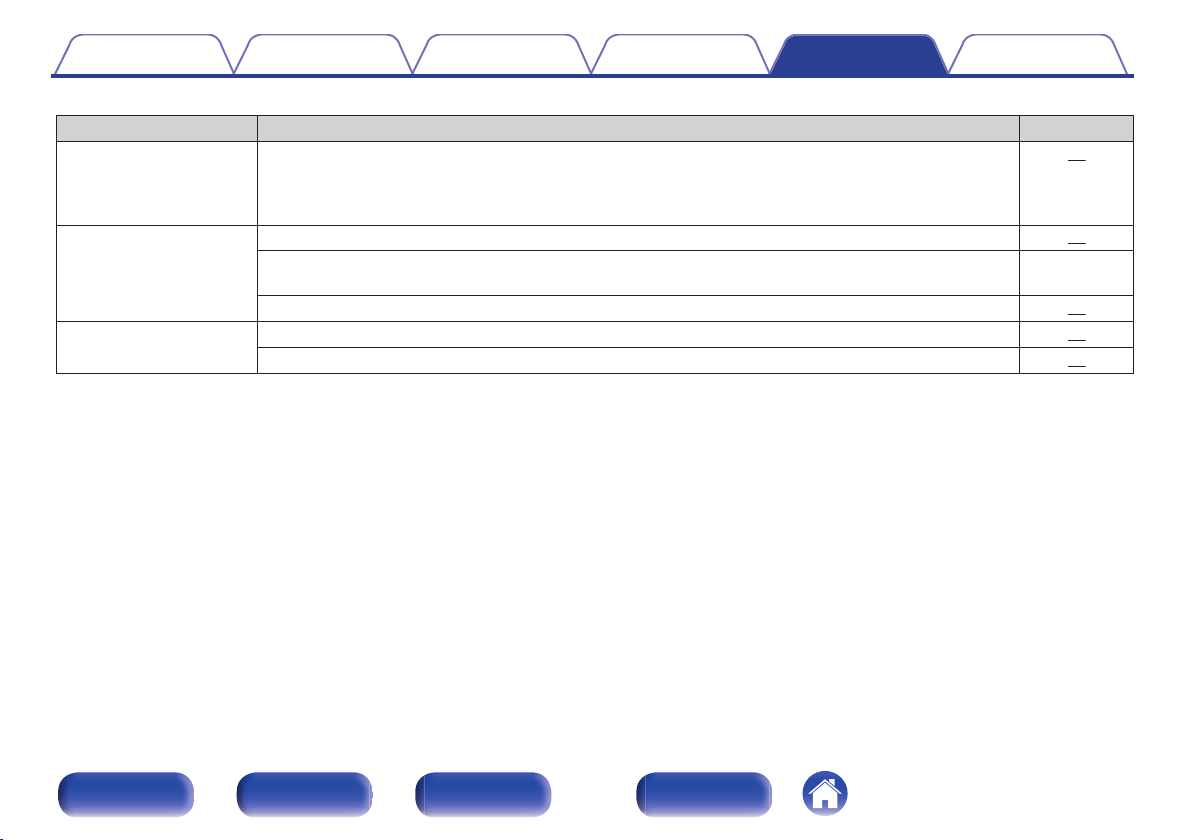
o
Cannot playback Discs
Symptom Cause / Solution Page
Cannot playback when the
1/3 button is pressed, or
cannot correctly play back
a specific part of the disc.
0
The disc is dirty or scratched. Either clean the disc, or insert a different disc. 62
Cannot playback CD-
R/CD-RW.
0
CDs cannot be played back unless they have been finalized. Use a finalized disc. 62
0
This may be caused by poor recording conditions, or the disc itself may be of poor quality. Use a correctly
recorded disc.
-
0
The DATA CD playback function of this unit only supports playback of MP3 and WMA files. 60
“DISC ERR” is displayed.
0
“DISC ERR” is displayed if a disc that cannot be played is loaded. 62
0
“DISC ERR” is displayed if the disc is loaded upside-down or if no disc is loaded. 62
Contents Connections Playback Settings Tips Appendix
57
Front panel Rear panel
Remote control
unit
Index
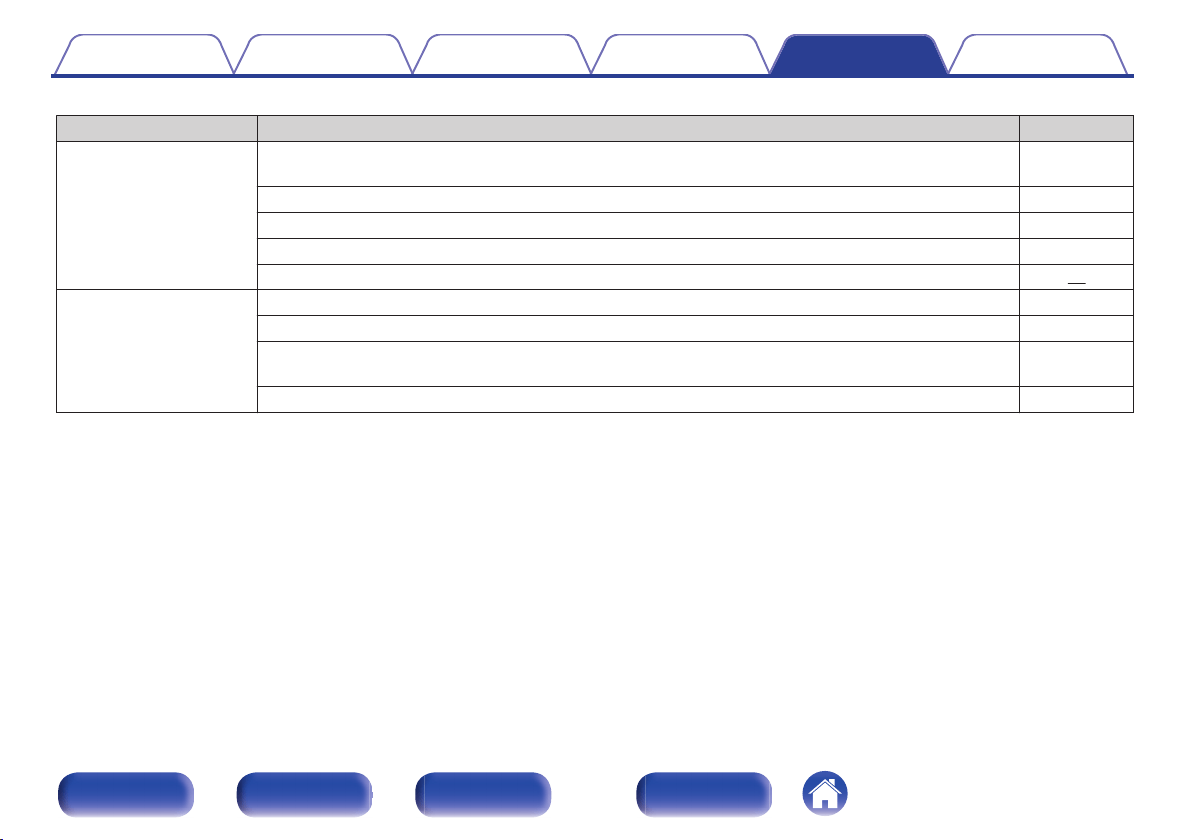
o
Bluetooth cannot be played back
Symptom Cause / Solution Page
Bluetooth devices cannot
be connected to this unit.
0
The Bluetooth function in the Bluetooth device has not been enabled. See the Owner’s Manual of the
Bluetooth device to enable the Bluetooth function.
-
0
Bring the Bluetooth device near to this unit. -
0
The Bluetooth device cannot connect with this unit if it is not compatible with the A2DP profile. -
0
Turn the power of the Bluetooth device off and on again, and then try again. -
0
The Bluetooth function is off. Press Bluetooth button, activate the Bluetooth function and connect again. 37
The sound is cut off.
0
Bring the Bluetooth device near to this unit. -
0
Remove obstructions between the Bluetooth device and this unit. -
0
To prevent electromagnetic interference, locate this unit away from microwave ovens, wireless LAN
devices and other Bluetooth devices.
-
0
Reconnect the Bluetooth device. -
Contents Connections Playback Settings Tips Appendix
58
Front panel Rear panel
Remote control
unit
Index
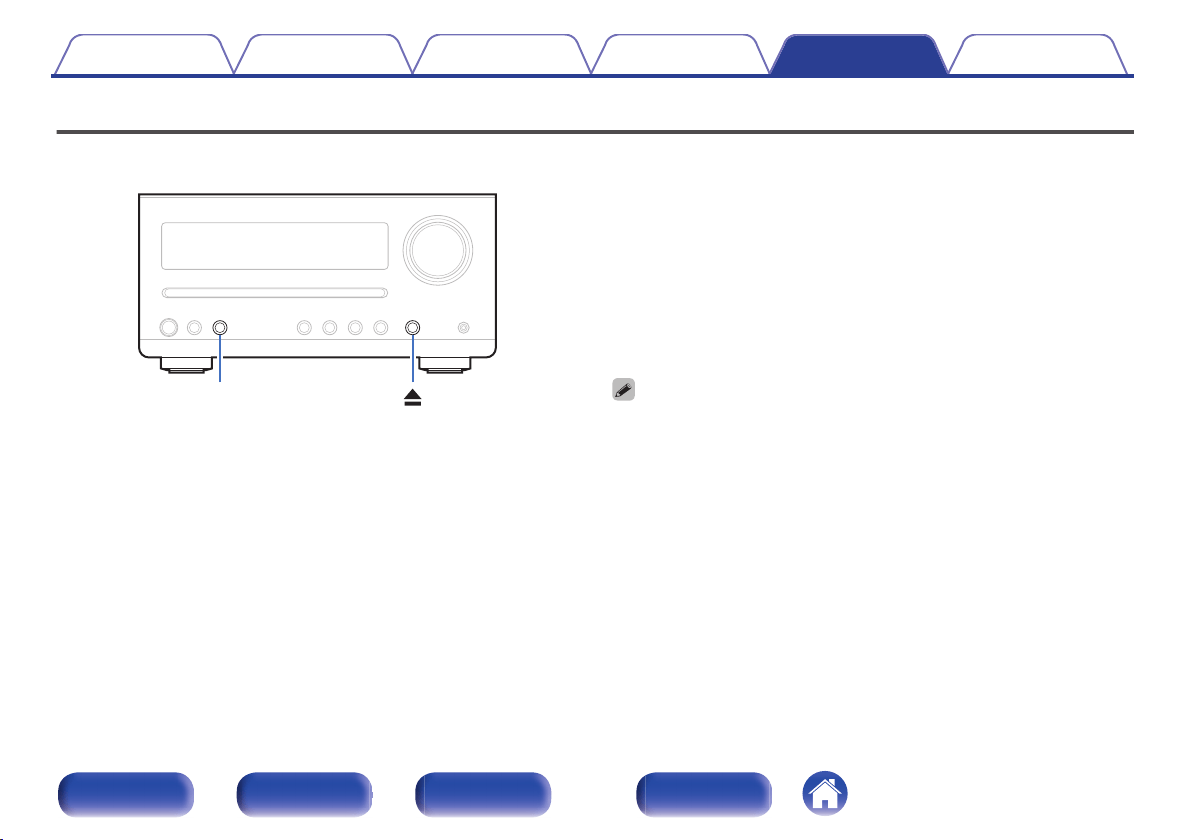
Resetting factory settings
Perform this procedure if the display is abnormal or if operations cannot be performed.
Various settings are reset to the factory default values. Make settings again.
.
SOURCE
1
Press CD on the remote control unit to switch the input
source to “CD”.
2
Press 5 to eject a disc.
3
While pressing and holding 5, press and hold SOURCE
for 5 seconds.
The “RESET” is displayed.
0
Repeat this process if “RESET” is not displayed.
Contents Connections Playback Settings Tips Appendix
59
Front panel Rear panel
Remote control
unit
Index
Playing back DATA CDs
o
DATA CDs formats
CD-R and CD-RW discs created in the format described below can be
played.
Writing software format
ISO9660 level 1
When written in other formats, it may not be possible to play the disc
properly.
Maximum number of playable files and folders
Number of files : 999
Maximum number of folders : 255
File format
MPEG-1 Audio Layer-3
WMA (Windows Media Audio)
Tag data
ID3-Tag (Ver. 1.x and 2.x)
META-Tag (Compatible with title, artist and album names)
o
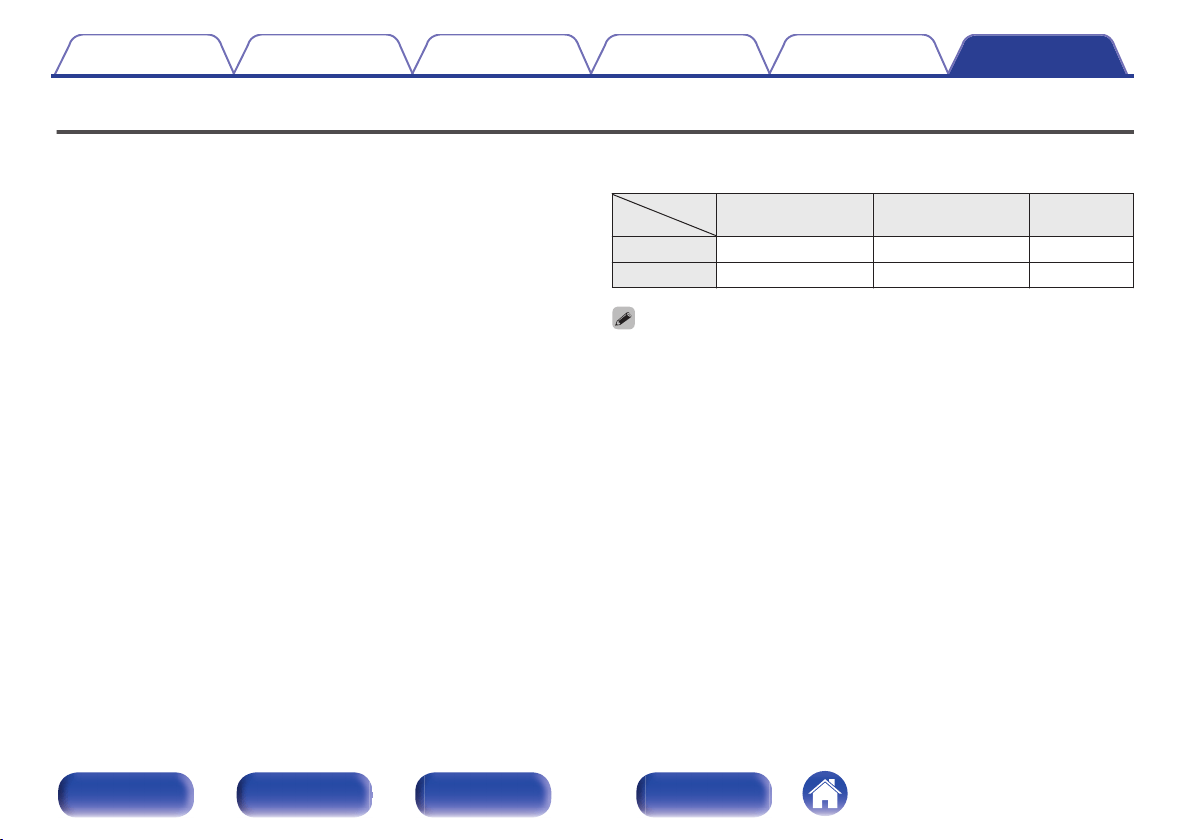
Playable files
Sampling
frequency
Bit rate Extension
MP3 32/44.1/48 kHz 32 – 320 kbps .mp3
WMA 32/44.1/48 kHz 32 – 480 kbps .wma
0
Be sure to give files the extension “.MP3” or “.WMA”. Files with any other
extensions or files with no extensions cannot be played.
0
Mac OS X files assigned with filenames that begin with “._” are not music data and
cannot be played back.
0
In accordance with copyright laws, recordings you have made should only be used
for your personal enjoyment and may not be used in other ways without
permission of the copyright holder.
Contents Connections Playback Settings Tips Appendix
60
Front panel Rear panel
Remote control
unit
Index
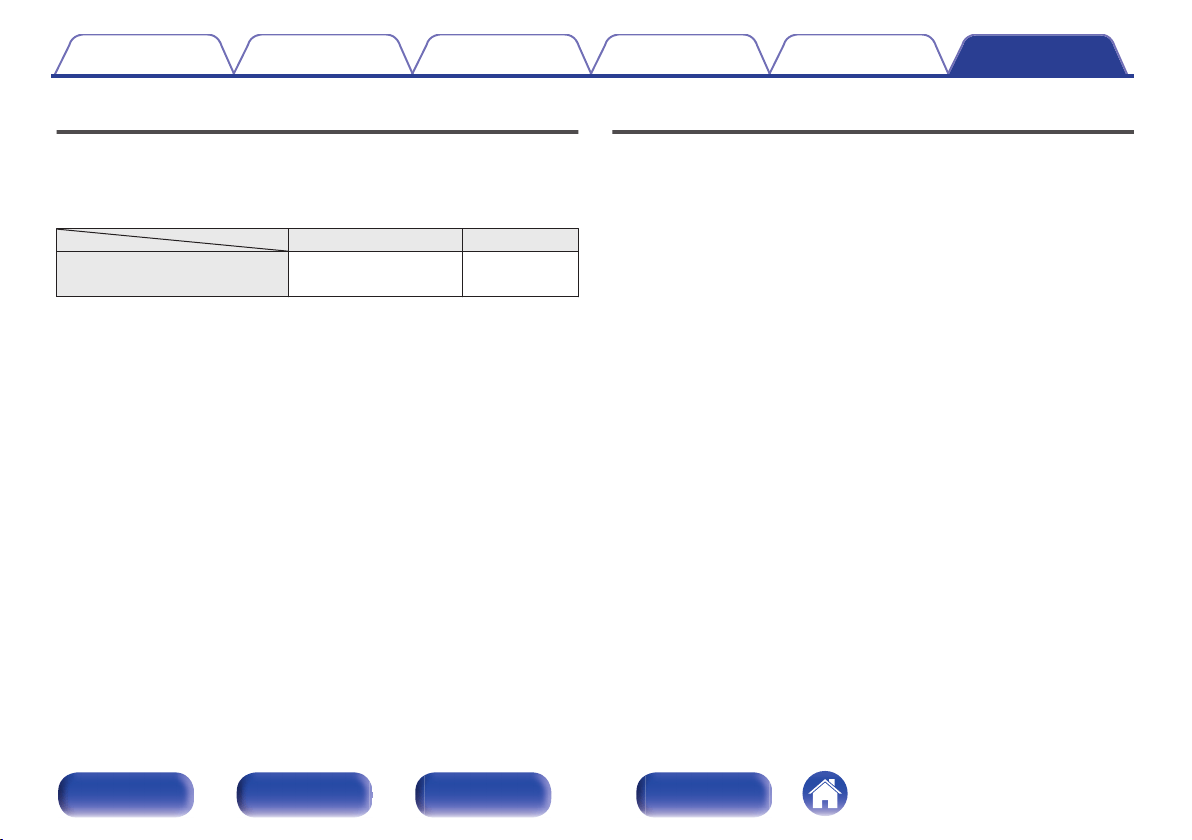
DIGITAL IN
o
Specifications of supported audio formats
n
Optical
Sampling frequency Bit length
Linear PCM
(2-channel)
32/44.1/48/88.2/96 kHz 16/24 bits
Playing back Bluetooth devices
This unit supports the following Bluetooth profiles.
0
A2DP (Advanced Audio Distribution Profile) :
When a Bluetooth device that supports this standard is connected,
monaural and stereo sound data can be streamed at a high quality.
0
AVRCP (Audio/Video Remote Control Profile) :
When a Bluetooth device that supports this standard is connected, the
Bluetooth device can be operated from this unit.
o
About Bluetooth communications
Radio waves broadcast from this unit may interfere with the operation
of medical devices. Make sure you turn off the power of this unit and
Bluetooth device in the following locations as radio wave interference
may cause malfunctions.
0
Hospitals, trains, aircraft, petrol kiosks and places where flammable
gases are generated
0
Near automatic doors and fire alarms
Contents
Connections Playback Settings Tips Appendix
61
Front panel Rear panel
Remote control
unit
Index
About Discs
o
Discs playable on this unit
A
Music CDs
Discs marked with the logo below can be played in
this unit.
r
B
CD-R/CD-RW
NOTE
0
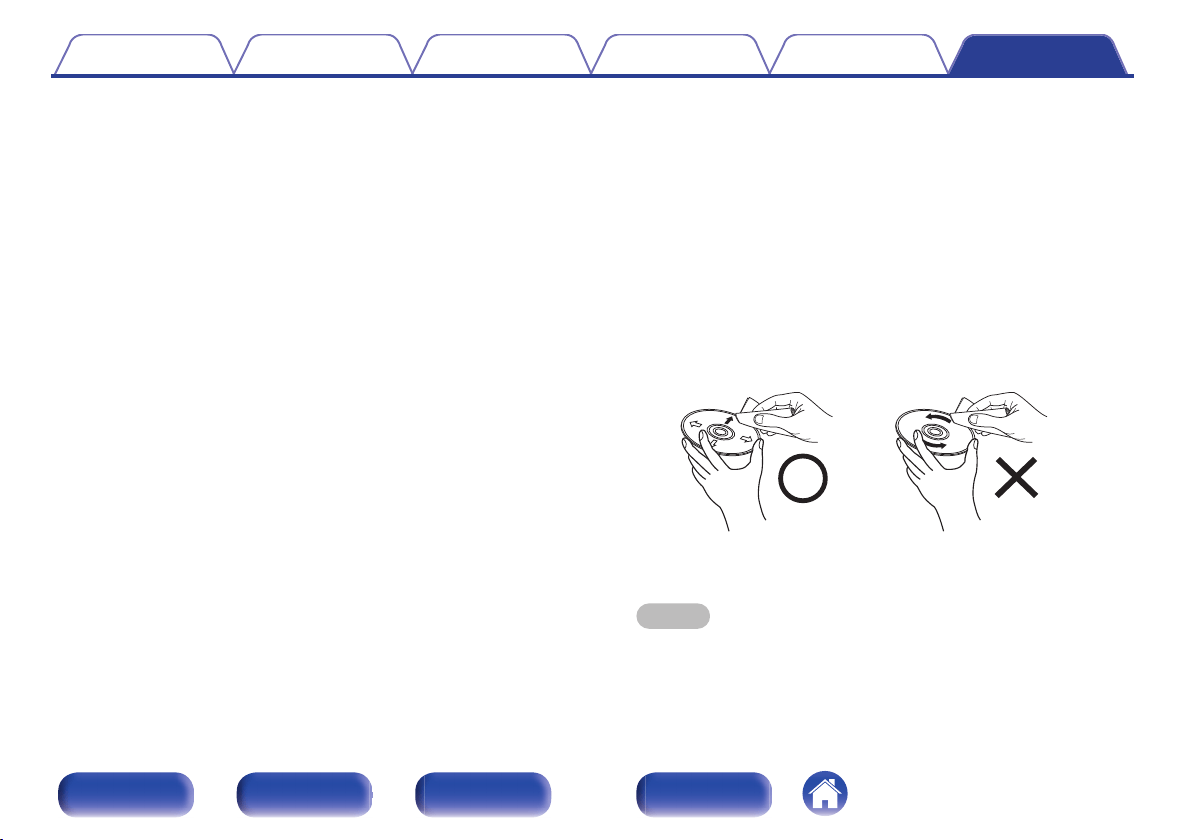
Discs in special shapes (heart-shaped discs, octagonal discs, etc.) cannot be
played. Do not attempt to play them, as doing so can damage the unit.
0
Some discs and some recording formats cannot be played.
0
Non-finalized discs cannot be played.
0
If the unit is left in a room full of smoke from cigarettes, etc., for long periods of
time, the surface of the optical pickup may get dirty, preventing it from receiving
signals properly.
.
o
Loading discs
0
Place the disc in the tray, label side up.
0
Insert the disc into the disc slot slowly. Release your hand once the
disc is drawn in.
0
“DISC ERR” is displayed if a disc that cannot be played is loaded.
0
“DISC ERR” is displayed if the disc is loaded upside-down or if no disc is
loaded.
NOTE
0
Do not place any foreign objects in the disc slot. Doing so could result in
damage.
0
If the unit is left in a room full of smoke from cigarettes, etc., for long periods of
time, the surface of the optical pickup may get dirty, preventing it from
receiving signals properly.
Contents Connections Playback Settings Tips Appendix
62
Front panel Rear panel
Remote control
unit
Index
o
Cautions on loading discs
0
3 inch/8 cm discs cannot be used on this unit. Do not insert 3 inch/8
cm discs into the disc slot.
0
Do not use an 3 inch/8 cm disc adapter.
0
Only load one disc at a time. Loading two or more discs can
damage the unit or scratch the discs.
0
Do not use cracked or warped discs or discs that have been
repaired with adhesive, etc.
0
Do not use discs on which the sticky part of cellophane tape or
labels is exposed or on which there are traces of where labels have
been removed. Such discs can get caught inside the player and
damage it.
o
Cautions on handling
0
Do not get fingerprints, oil or dirt on discs.
0
Take special care not to scratch discs when removing them from
their cases.
0
Do not bend or heat discs.
0
Do not enlarge the hole in the center.
0
Do not write on the labeled (printed) surface with ball-point pens,
pencils, etc., or stick new labels on discs.
0
Water droplets may form on discs if they are moved suddenly from a
cold place (outdoors for example) to a warm place, but do not try to
dry them off using a hairdryer, etc.
o
Cautions on storing discs
0
Be sure to remove discs after using them.
0
Be sure to store discs in their cases to protect them from dust,
scratches, warping, etc.
0
Do not store discs in the following places:
1. Places exposed to direct sunlight for long periods of time
2. Dusty or humid places
3. Places exposed to heat from heaters, etc.
o
Cleaning discs
0
If there are fingerprints or dirt on a disc, wipe them off before using
the disc. Fingerprints and dirt can impair sound quality and cause
interruptions in playback.
0
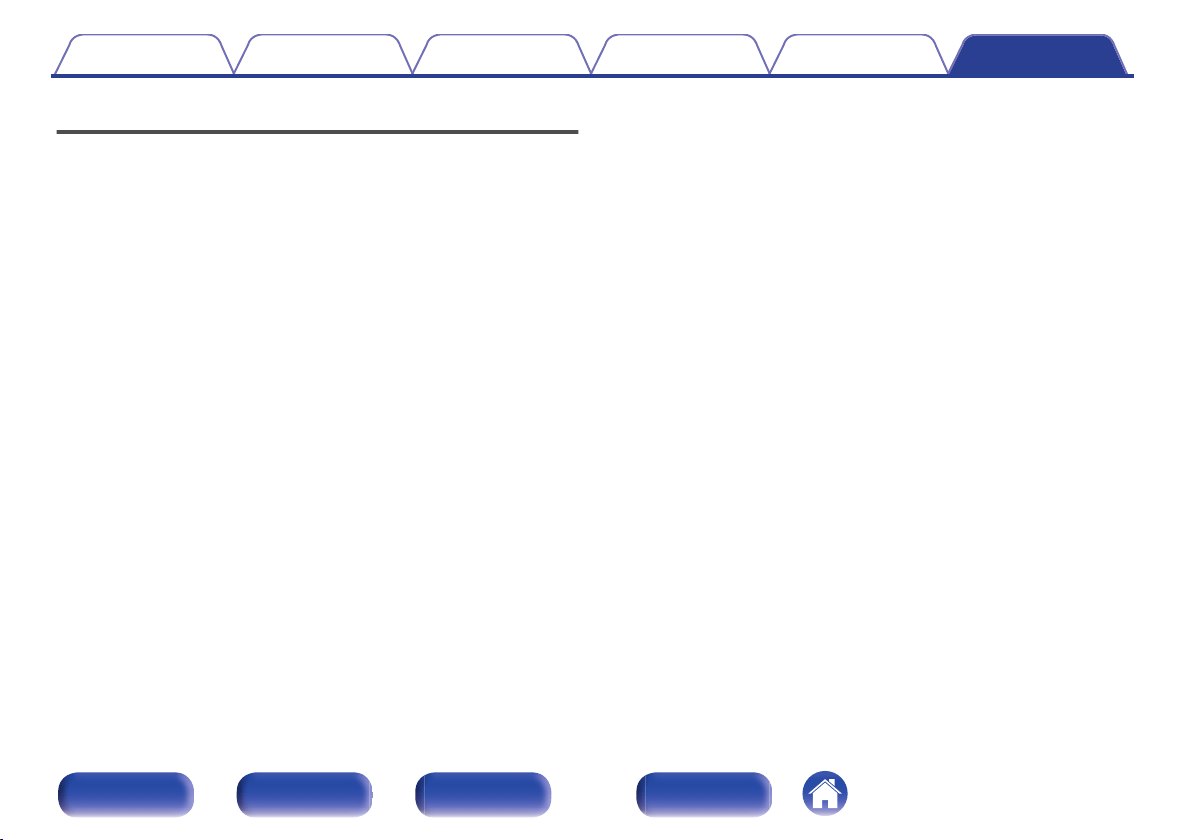
Use a commercially available disc cleaning set or a soft cloth to
clean discs.
.
Gently wipe the disc from the
inside towards the outside.
Do not wipe with a circular
motion.
NOTE
0
Do not use record spray, antistatic agents, benzene, thinner or other solvents.
Contents Connections Playback Settings Tips Appendix
63
Front panel Rear panel
Remote control
unit
Index
Last function memory
This stores the settings as they were immediately before going into the
standby mode.
When the power is turned back on, the settings are restored to as they
were immediately before going into the standby mode.
Contents Connections Playback Settings Tips Appendix
64
Front panel Rear panel
Remote control
unit
Index
Explanation of terms
o
Audio
MP3 (MPEG Audio Layer-3)
This is an internationally standardized audio data compression scheme,
using the “MPEG-1” video compression standard. It compresses the data
volume to about one eleventh its original size while maintaining sound
quality equivalent to a music CD.
WMA (Windows Media Audio)
This is audio compression technology developed by Microsoft
Corporation.
WMA data can be encoded using Windows Media
®
Player. To encode
WMA files, only use applications authorized by Microsoft Corporation. If
you use an unauthorized application, the file may not work properly.
Sampling frequency
Sampling involves taking a reading of a sound wave (analog signal) at
regular intervals and expressing the height of the wave at each reading in
digitized format (producing a digital signal).
The number of readings taken in one second is called the “sampling
frequency”. The larger the value, the closer the reproduced sound is to the
original.
Speaker impedance
This is an AC resistance value, indicated in Ω (ohms). Greater power can
be obtained when this value is smaller.
Bit rate
This expresses the read amount per 1 second of video/audio data
recorded. A larger number means higher sound quality, but also means a
larger file size.
Contents
Connections Playback Settings Tips Appendix
65
Front panel Rear panel
Remote control
unit
Index
o
Others
Finalizing
Finalization is the process that makes recorded CD-R/CD-RW discs
playable on compatible players.
Pairing
Pairing (registration) is an operation that is required in order to connect a
Bluetooth device to this unit using Bluetooth. When paired, the devices
authenticate each other and can connect without mistaken connections
occurring.
When using Bluetooth connection for the first time, you need to pair this
unit and the Bluetooth device to be connected.
Protection circuit
This is a function to prevent damage to devices within the power supply
when an abnormality such as an overload, excess voltage occurs or over
temperature for any reason.
Trademark information
.
The Bluetooth
®
word mark and logos are registered trademarks owned
by Bluetooth SIG, Inc. and any use of such marks by D&M Holdings Inc.
is under license. Other trademarks and trade names are those of their
respective owners.
Contents Connections Playback Settings Tips Appendix
66
Front panel Rear panel
Remote control
unit
Index
Specifications
o
Audio amplifier
0
CD player
Playable frequency response: 2 Hz - 20 kHz
Wow & flutter: Below measurable limits (± 0.001 %)
Sampling frequency: 44.1 kHz
0
Audio amplifier
Rated output: 2-channel
15 W + 15 W (6 Ω/ohms, 1 kHz, T.H.D. 10 %)
o
Tuner section
[FM] [AM]
Receiving Range: 87.5 MHz – 107.9 MHz 520 kHz – 1710 kHz
Effective sensitivity: 2.5 μV / 75 Ω/ohms 20 μV
FM STEREO separation: 30 dB (1 kHz)
FM S/N ratio: Monaural : 65 dB
Stereo : 60 dB
FM THD+N (1 kHz): Monaural : 0.2 %
Stereo : 0.5 %
Contents Connections Playback Settings Tips Appendix
67
Front panel Rear panel
Remote control
unit
Index
o
Bluetooth section
Communications system: Bluetooth Version 4.0
Transmission power: Power Class 2
Maximum communication range:
Approx. 32.8 ft/10 m in line of sight
z
Frequency band: 2.4 GHz band
Modulation scheme: FHSS (Frequency-Hopping Spread Spectrum)
Supported profiles: A2DP (Advanced Audio Distribution Profile) 1.2
AVRCP (Audio Video Remote Control Profile) 1.4
Corresponding codec: SBC, AAC
Transmission range (A2DP): 20 Hz – 20,000 Hz
z
The actual communication range varies depending on the influence of such factors as obstructions between devices, electromagnetic waves from
microwave ovens, static electricity, cordless phones, reception sensitivity, antenna performance, operating system, application software etc.
Contents
Connections Playback Settings Tips Appendix
68
Front panel Rear panel
Remote control
unit
Index
o
Clock/Alarm/Sleep
Clock type: Crystal oscillator (Within 1 – 2 minutes per month)
Alarm: Once alarm/Everyday alarm: One system each
Sleep: Sleep timer: Max. 90 minutes
o
General
Operating temperature: +5 ℃ - +35 ℃
Power supply: AC 120 V, 60 Hz
Power consumption: 30 W
Power consumption in clock mode : 7 W
Power consumption in standby mode : 0.3 W
0
For purposes of improvement, specifications and design are subject to change without notice.
Contents
Connections Playback Settings Tips Appendix
69
Front panel Rear panel
Remote control
unit
Index
o
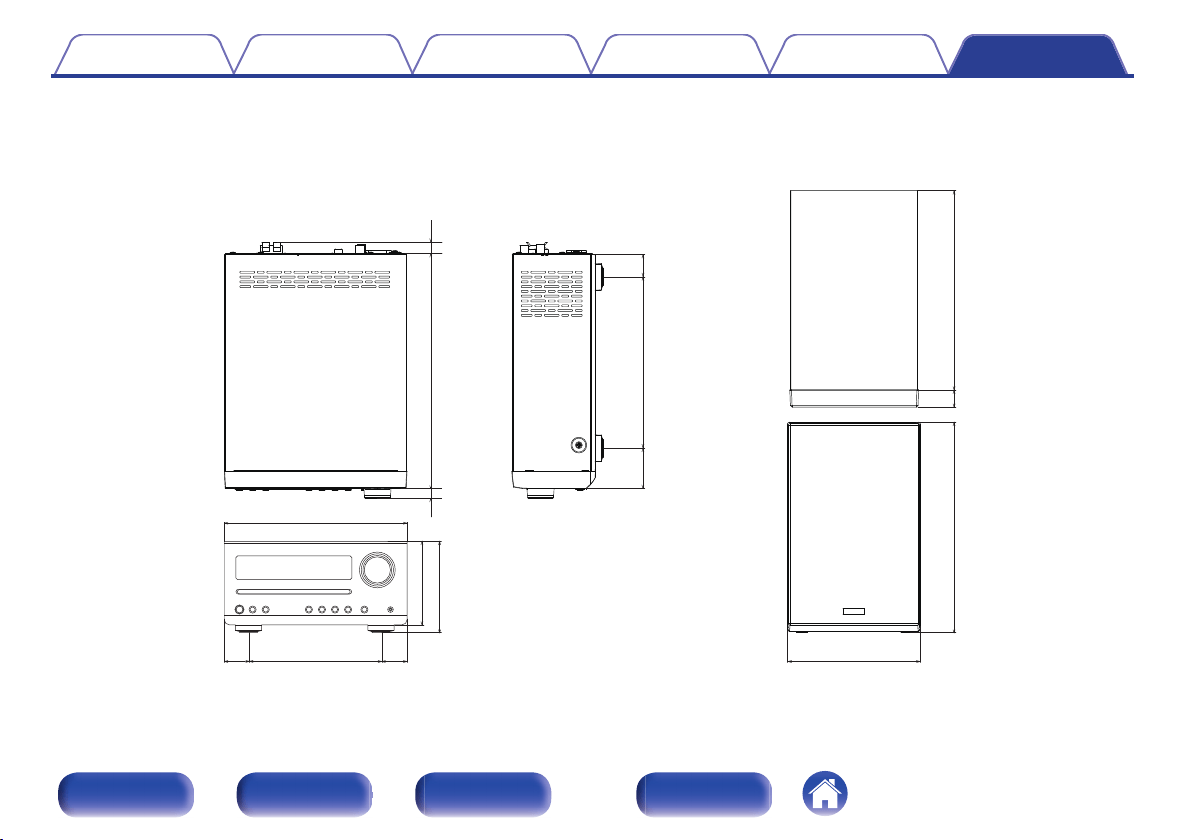
Dimensions
Unit : in. (mm)
.
6 (152)
1 1/4
(29)
1 1/4
(29)
8 3/8 (210)
3 3/4 (95)
4 1/4 (105)
10 3/4 (270)
5/8
(14)
1/2
(12)
7 7/8 (197)
1 1/8
(27)
1 7/8
(46)
6 (152)
9 5/8 (242)
7/8
(20)
9 3/8 (235)
GMain unitHGSpeakerH
o
Weight
Main unit: 6 lbs 3 oz (2.8 kg)
Speaker (single unit): 7 lbs 8 oz (3.4 kg)
Contents
Connections Playback Settings Tips Appendix
70
Front panel Rear panel
Remote control
unit
Index
Index
v A
Adjusting the tone .......................................... 41
Alarm .............................................................. 46
Auto Standby ................................................. 48
v B
Bluetooth device ............................................ 33
v C
CD .................................................................. 26
v D
DATA CD ....................................................... 28
Display’s brightness ....................................... 42
v F
FM/AM antenna ........................................ 20, 30
FM/AM broadcasts ................................... 20, 30
Front panel ....................................................... 8
v M
Muting ............................................................ 25
v R
Rear panel ...................................................... 11
Remote control unit ........................................ 13
Resetting factory settings ............................... 59
v S
Sleep timer ..................................................... 47
Speakers ........................................................ 17
v T
Tips ................................................................ 50
Troubleshooting ............................................. 51
v V
Volume ........................................................... 25
Contents
Connections Playback Settings Tips Appendix
71
Front panel Rear panel
Remote control
unit
Index
.
www.denon.com
3520 10643 00AD
Copyright ©2018 D&M Holdings Inc. All Rights Reserved.
72
