
IMPORTANT: please read this operation manual before starting operating the equipment.
IMPORTANTE: Lea este manual de operación antes de comenzar a operar el equipo.
LC-26D43U
LC-26D42U-W
LIQUID CRYSTAL TELEVISION
TÉLÉVISEUR ACL
TELEVISOR CON PANTALLA
DE CRISTAL LÍQUIDO
ENGLISH
OPERATION MANUAL
MODE D'EMPLOI
MANUAL DE OPERACIÓN
LC-26D43U/LC-26D42U-W
OPERATION MANUAL MODE D'EMPLOI
MANUAL DE OPERACIÓN
FRANÇAISESPAÑOL
1
LC-26D43U
LC-26D42U-W
OPERATION MANUAL
• The illustrations and on-screen displays in this operation
manual are for explanation purposes and may vary slightly from
the actual operations.
• Menu items that are not selectable are grayed out.
• The examples used throughout this manual are based on the
LC-26D43U model.
IMPORTANT:
To aid reporting in case of loss or theft, please record the
TV's model and serial numbers in the space provided. The
numbers are located at the rear of the TV.
Model No.:
Serial No.:
LIQUID CRYSTAL TELEVISION
ENGLISH
IMPORTANT INFORMATION
ENGLISH
2
• Manufactured under license from Dolby Laboratories. “Dolby” and the double-D symbol are trademarks of Dolby
Laboratories.
• “HDMI, the HDMI logo and High-Denition Multimedia Interface are trademarks or registered trademarks of HDMI
Licensing LLC.”
IMPORTANT INFORMATION
SHARP LIQUID CRYSTAL TELEVISION, MODEL LC-26D43U/LC-26D42U-W
Trademarks
• Products that have earned the ENERGY STAR
®
are designed to protect the environment through superior energy
efciency.
3
DEAR SHARP CUSTOMER
Thank you for your purchase of the Sharp Liquid Crystal Television. To ensure safety and many years
of trouble-free operation of your product, please read the Important Safety Instructions carefully before
using this product.
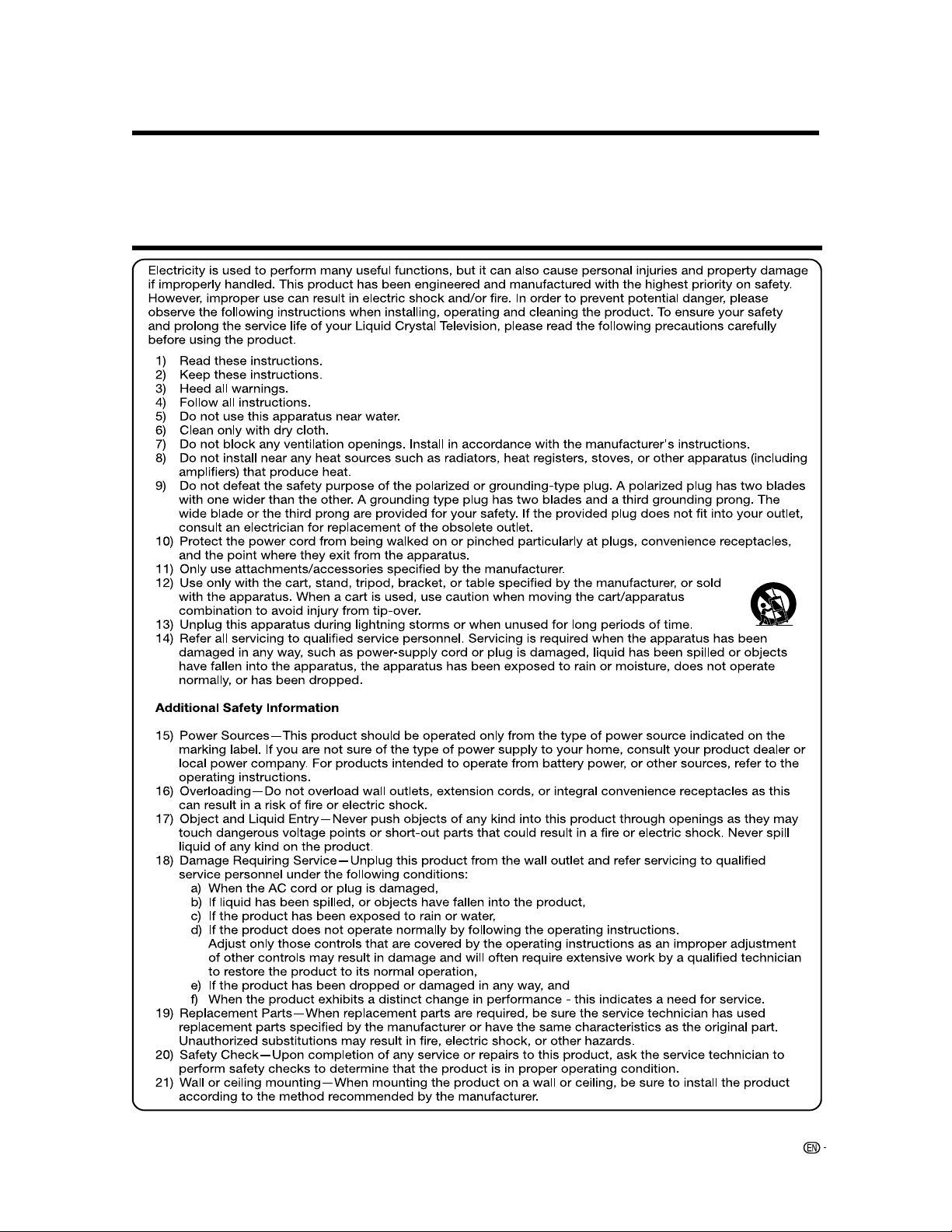
IMPORTANT SAFETY INSTRUCTIONS
IMPORTANT SAFETY INSTRUCTIONS
4
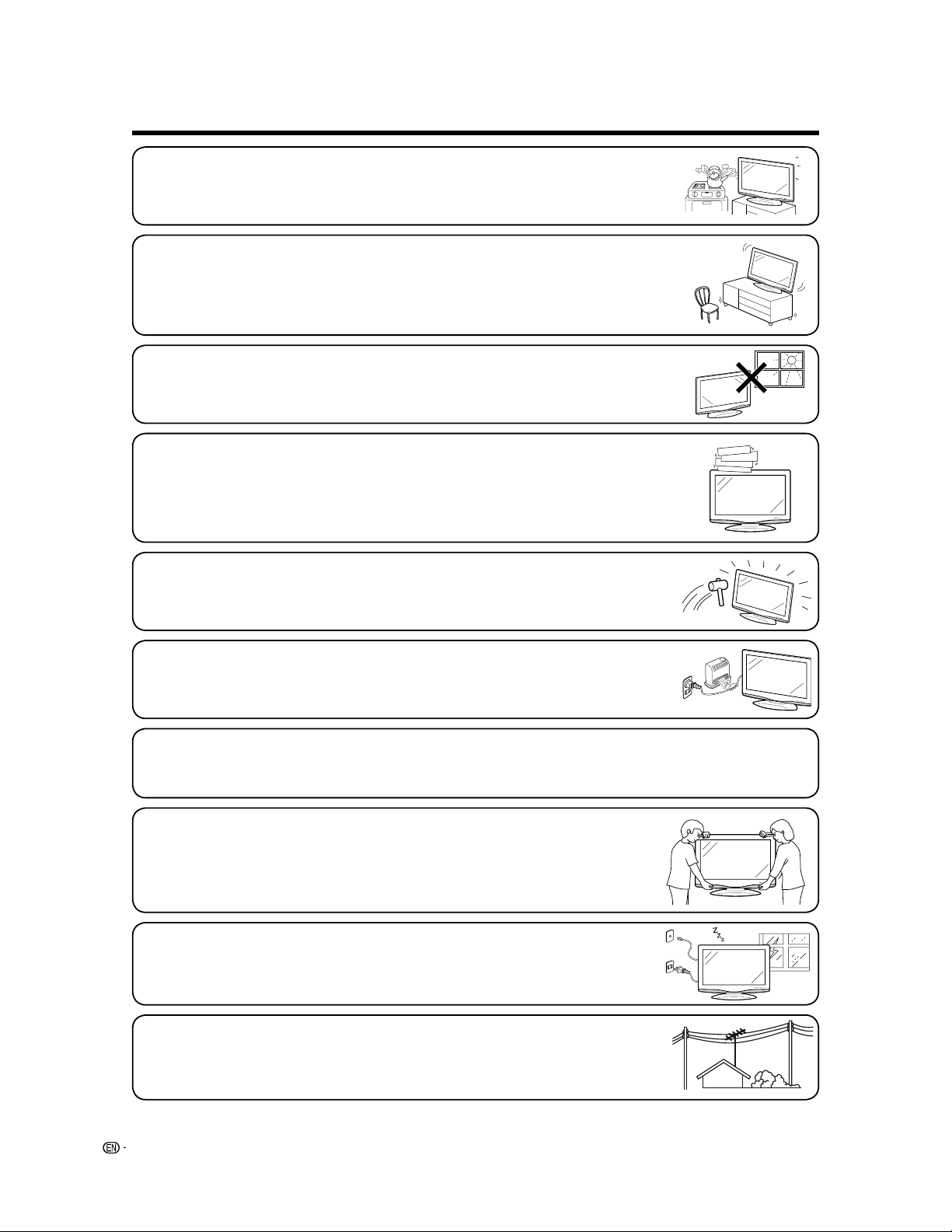
• Water and Moisture — Do not use this product near water - for example, near a bath tub, wash
bowl, kitchen sink, or laundry tub; in a wet basement; or near a swimming pool; and the like.
• Stand — Do not place the product on an unstable cart, stand, tripod or table. Placing the
product on an unstable base can cause the product to fall, resulting in serious personal injuries
as well as damage to the product. Use only a cart, stand, tripod, bracket or table recommended
by the manufacturer or sold with the product. When mounting the product on a wall, be sure to
follow the manufacturer's instructions. Use only the mounting hardware recommended by the
manufacturer.
• Ventilation — The vents and other openings in the cabinet are designed for ventilation. Do not
cover or block these vents and openings since insufficient ventilation can cause overheating
and/or shorten the life of the product. Do not place the product on a bed, sofa, rug or other
similar surface, since they can block ventilation openings. This product is not designed for built-
in installation; do not place the product in an enclosed place such as a bookcase or rack, unless
proper ventilation is provided or the manufacturer's instructions are followed.
• Heat — The product should be situated away from heat sources such as radiators, heat
registers, stoves, or other products (including amplifiers) that produce heat.
• The Liquid Crystal panel is a very high technology product with 3,147,264 thin film transistors, giving you fine picture details.
Occasionally, a few non-active pixels may appear on the screen as a fixed point of blue, green or red. Please note that this
does not affect the performance of your product.
Precautions when transporting the TV
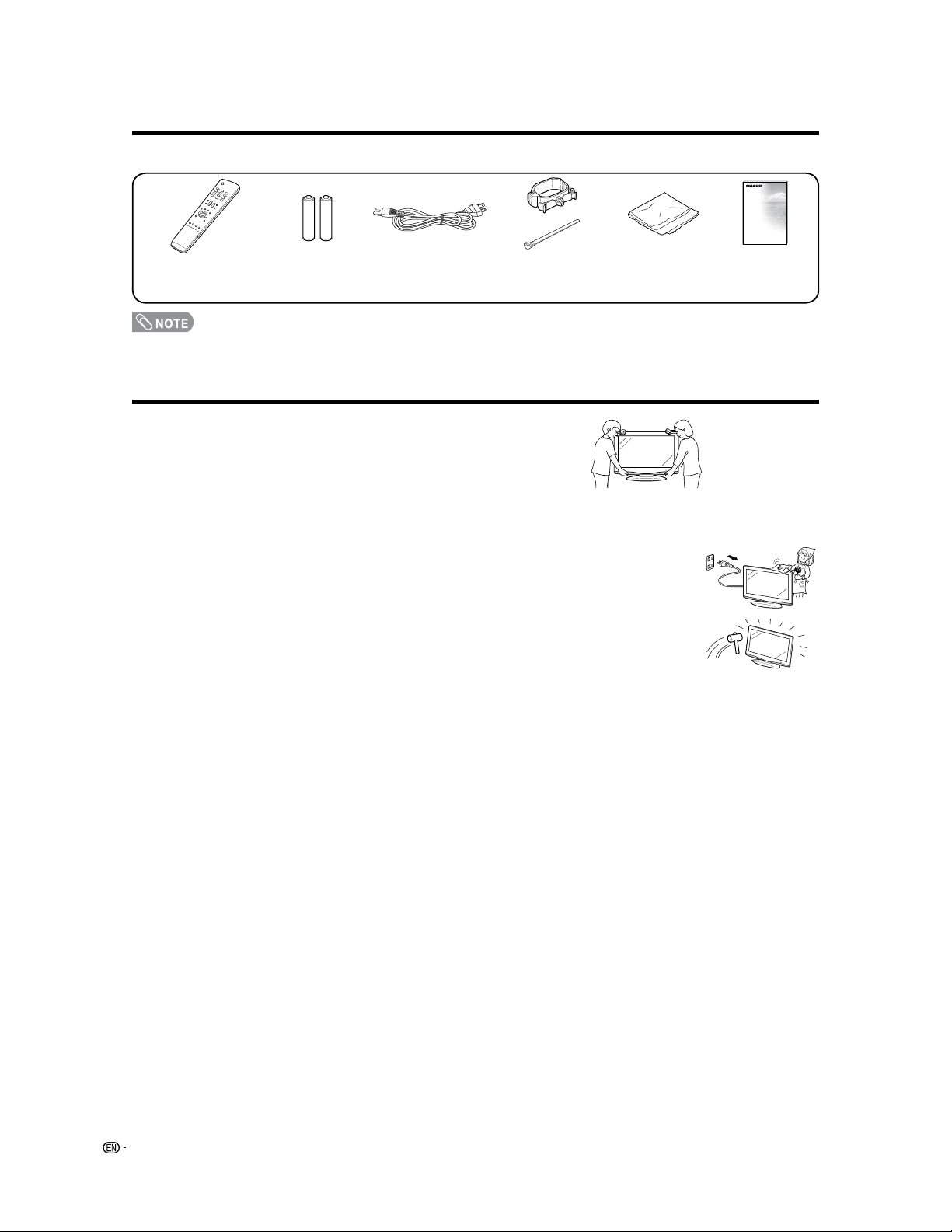
• Be sure to always carry the TV by two people holding it with two hands — one hand on
each side of the TV.
• The Liquid Crystal panel used in this product is made of glass. Therefore, it can break when the
product is dropped or applied with impact. Be careful not to be injured by broken glass pieces in
case the panel breaks.
• Lightning — For added protection for this television equipment during a lightning storm, or
when it is left unattended and unused for long periods of time, unplug it from the wall outlet
and disconnect the antenna. This will prevent damage to the equipment due to lightning and
power-line surges.
• Power Lines — An outside antenna system should not be located in the vicinity of overhead
power lines or other electric light or power circuits, or where it can fall into such power lines
or circuits. When installing an outside antenna system, extreme care should be taken to keep
from touching such power lines or circuits as contact with them might be fatal.
• Selecting the location — Select a place with no direct sunlight and good ventilation.
5
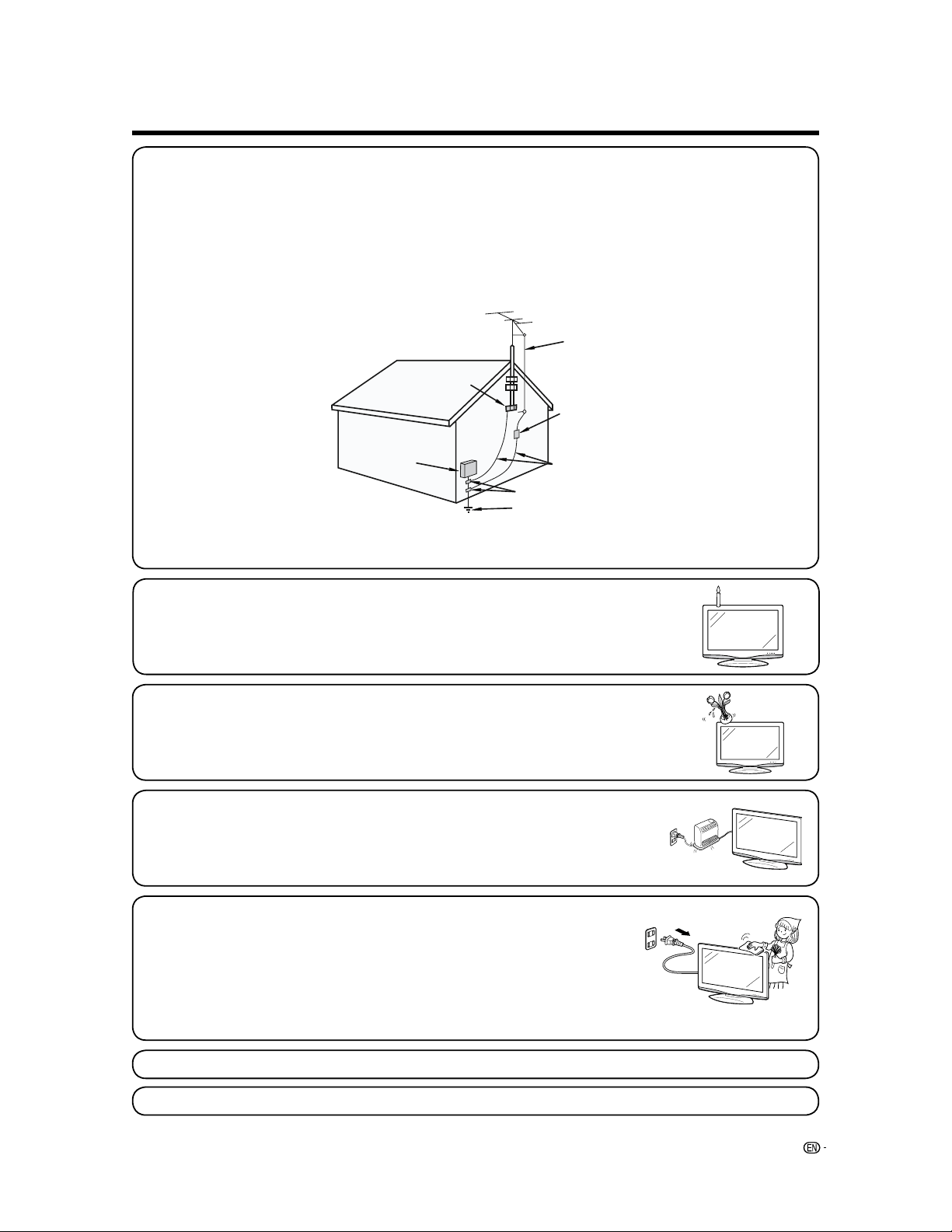
• Outdoor Antenna Grounding — If an outside antenna is connected to the television equipment, be sure the antenna
system is grounded so as to provide some protection against voltage surges and built-up static charges.
Article 810 of the National Electrical Code, ANSI/NFPA 70, provides information with regard to proper grounding of the mast
and supporting structure, grounding of the lead-in wire to an antenna discharge unit, size of grounding conductors, location
of antenna-discharge unit, connection to grounding electrodes, and requirements for the grounding electrode.
EXAMPLE OF ANTENNA GROUNDING AS PER
NATIONAL ELECTRICAL CODE, ANSI/NFPA 70
ANTENNA
LEAD IN WIRE
GROUND
CLAMP
NEC — NATIONAL ELECTRICAL CODE
• To prevent fire, never place any type of candle or flames on the top or near the TV set.
• To prevent fire or shock hazard, do not expose this product to dripping or splashing.
No objects filled with liquids, such as vases, should be placed on the product.
• To prevent fire or shock hazard, do not place the AC cord under the TV set or other heavy
items.
• Turn off the main power and unplug the AC cord from the wall outlet before handling.
• Use a soft cloth and gently wipe the surface of the display panel. Using a hard cloth may
scratch the panel surface.
• Use a soft damp cloth to gently wipe the panel when it is really dirty.
(It may scratch the panel surface when wiped strongly.)
• If the panel is dusty, use an anti-static brush, which is commercially available, to clean it.
• To protect the panel, do not use a dirty cloth, liquid cleaners or chemical cloth to clean it,
such materials may damage the panel surface.
• To clean the outer cabinet, use the same method. Do not use liquid or aerosol cleaners.
GROUNDING CONDUCTORS
(NEC SECTION 810-21)
GROUND CLAMPS
POWER SERVICE GROUNDING ELECTRODE
SYSTEM
(NEC ART 250, PART H)
ELECTRIC
SERVICE
EQUIPMENT
ANTENNA
DISCHARGE UNIT
(NEC SECTION 810-20)
• Do not display a still picture for a long time, as this could cause an afterimage to remain.
IMPORTANT SAFETY INSTRUCTIONS
• When cleaning the TV or the stand, use the cloth supplied with the TV.
Supplied accessories
QUICK REFERENCE
6
Ventilation & Cleaning Tips
Keep your AQUOS television in a well ventilated area and make sure not to place it by a heat source or use near
water. The AQUOS television is designed for AC use only and should be used with supplied AC cord.
Clean the screen by spraying a soft lint free cloth with water to lightly moisten. Gently wipe and
avoid pressing on the screen. To clean the outer cabinet, use the same method. Do not use
liquid or aerosol cleaners.
The screen is glass and can be scratched or broken when dropped or impacted.
STOP! To safely remove the AQUOS television from the box
• It's best to use 2 people to remove the AQUOS television for stability.
• Lift onto installation location as the diagram illustrates.
• Always use the AC cord supplied with the TV.
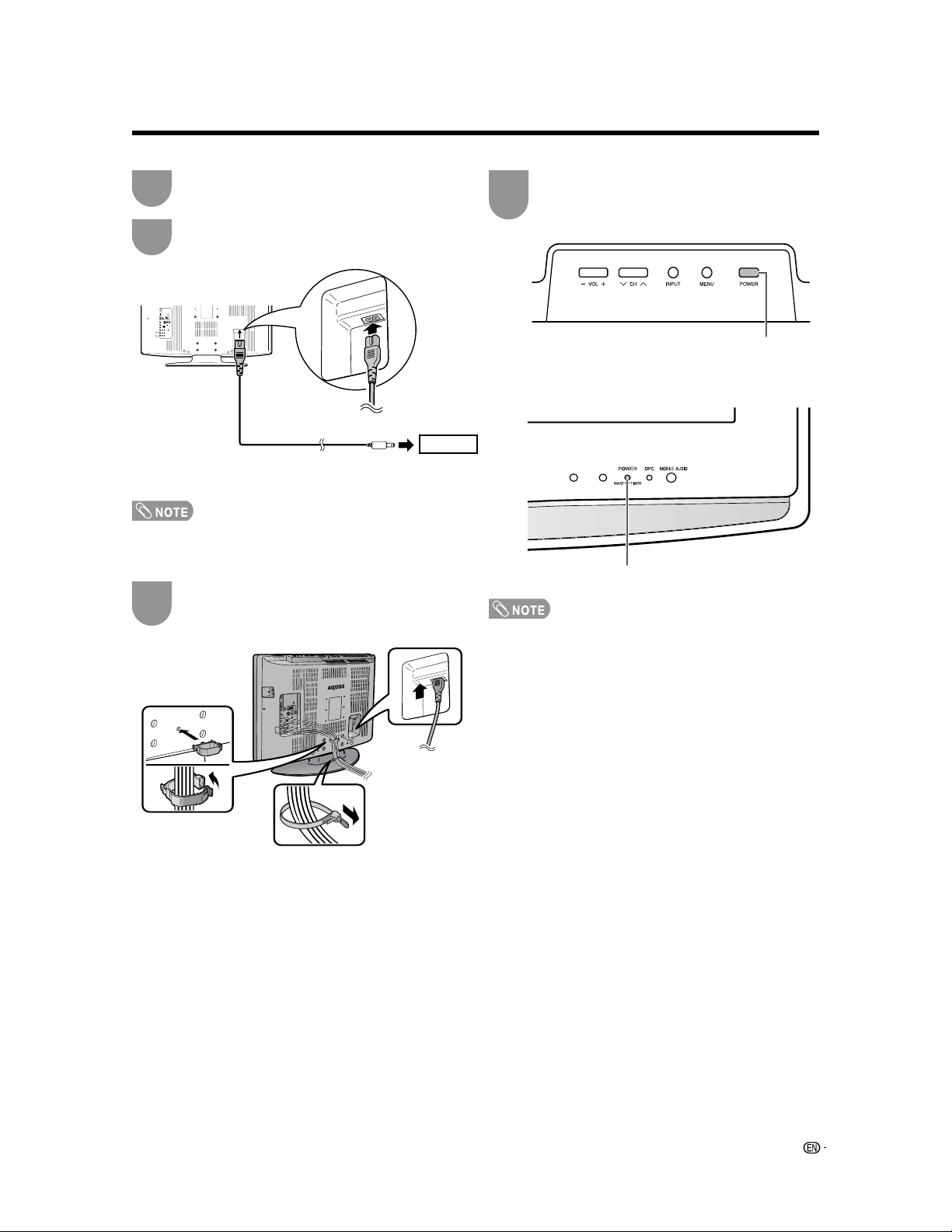
Make sure the following accessories are provided with the product.
Remote control unit
(
g
1)
Page 8
“AAA” size battery
(
g
2)
Page 8
AC cord
(
g
1)
Page 7
Operation manual
(
g
1)
Cable Clamp (
g
1)
Cable tie (g1)
Page 7
Cleaning cloth
(
g
1)
Page 5
7
QUICK INSTALLATION TIPS
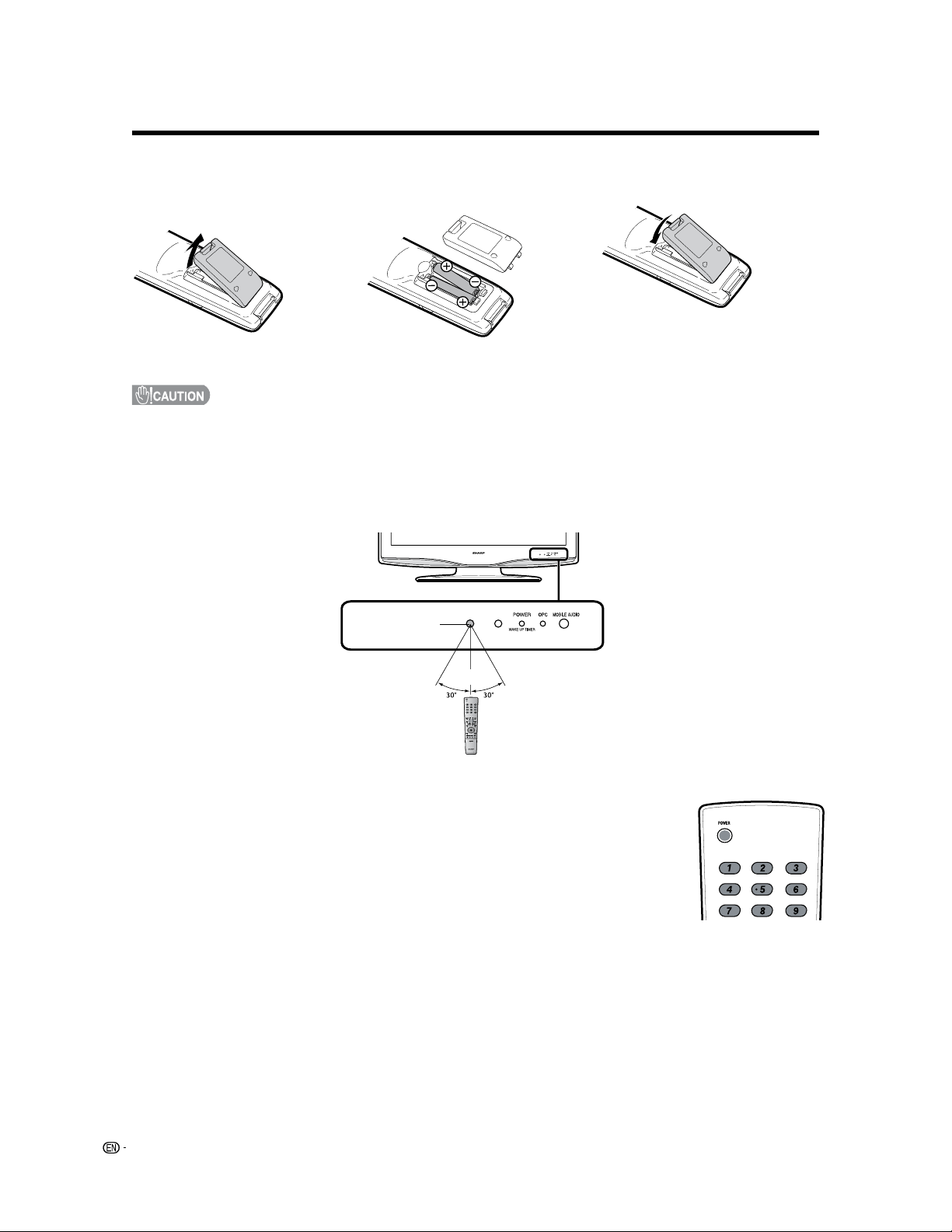
Attach your antenna to the back of the AQUOS
television. (See page 12.)
Bundle the cords properly with cable clamps
and a cable tie.
How to turn on the AQUOS television for the
first time.
A) Press
POWER on AQUOS television.
POWER
POWER indicator
Connect the AC plug for the AQUOS television
into the AC outlet.
B) POWER indicator on the front of the
AQUOS television lights GREEN.
• Speakers cannot be detached from the TV.
• TV angle cannot be adjusted.
AC outlet
• Place the TV close to the AC outlet, and keep the power
plug within reach.
• TO PREVENT RISK OF ELECTRIC SHOCK, DO NOT
TOUCH UN-INSULATED PARTS OF ANY CABLES
WITH THE AC CORD CONNECTED.
1
2
3
4
QUICK REFERENCE
8
QUICK REFERENCE
If the remote control fails to operate TV functions, replace the batteries in the remote control unit.
Improper use of batteries can result in chemical leakage or explosion. Be sure to follow the instructions below.
• Do not mix batteries of different types. Different types of batteries have different characteristics.
• Do not mix old and new batteries. Mixing old and new batteries can shorten the life of new batteries or cause chemical
leakage in old batteries.
• Remove batteries as soon as they are worn out. Chemicals that leak from batteries that come in contact with skin can cause a
rash. If you find any chemical leakage, wipe thoroughly with a cloth.
• The batteries supplied with this product may have a shorter life expectancy due to storage conditions.
• If you will not be using the remote control unit for an extended period of time, remove batteries from it.
1 Open the battery cover.
• Place the batteries with their terminals
corresponding to the (
e
) and (
f
)
indications in the battery compartment.
2 Insert two “AAA” size batteries
(supplied with the product).
3 Close the battery cover.
IMPORTANT:
The POWER indicator on the AQUOS television should light GREEN indicating you have power to the AQUOS
television.
If the POWER indicator on the AQUOS television still does not light up, press
POWER on the
remote control to turn the power on.
IMPORTANT:
IF THE UNIT DOES NOT POWER ON - UNPLUG THE AQUOS TELEVISION FROM THE OUTLET AND REPEAT
THE INSTALLATION STEPS.
IF YOU STILL ENCOUNTER NO POWER, PLEASE CONTACT US AT 1-800-BE-SHARP.
Please refer to the BASIC ADJUSTMENT SETTINGS SECTION for EZ Setup and basic channel setup functions
and USING EXTERNAL EQUIPMENT SECTION for other device connections (DVD, VCR, AUDIO, etc.) in your
AQUOS operation manual.
Remote control
sensor
17
n
(5 m)

9
IMPORTANT INFORMATION ................................. 1
Trademarks............................................................. 2
DEAR SHARP CUSTOMER .................................... 3
IMPORTANT SAFETY INSTRUCTIONS................. 3
Supplied accessories............................................. 6
QUICK REFERENCE............................................... 6
Contents.................................................................. 9
Part names.............................................................10
TV (Front)...........................................................
10
TV (Top/Rear) ....................................................
10
Remote control unit ...........................................11
Preparation ............................................................12
Using the remote control unit.............................
12
Cautions regarding the remote control
unit .............................................................12
Antennas ...........................................................12
Connecting a Blu-ray disc player, HD-DVD player,
DVD player or a Digital TV STB (Air or Cable) ...
13
Connecting a VCR, game console
or camcorder...................................................
13
Using Digital Audio Output.................................
13
Connecting HDMI equipment.............................
14
Connecting a PC ...............................................
14
PC compatibility chart........................................
14
Connecting with portability audio produots ........
15
Watching TV...........................................................16
Turning on the power.........................................
16
Turning off the power.........................................
16
Initial setup ........................................................
17
Simple button operations for
changing channels .........................................
18
Displaying the receiving channel information ......
18
Simple button operations for
changing volume/sound .................................
19
Setting MTS/SAP stereo mode ..........................
20
Setting Digital broadcasting audio mode............
20
Setting the Clock...................................................21
DST Setting .......................................................
21
Time Ajustment................................................. 21
Time Display ......................................................
22
Basic adjustment settings................................... 23
Menu operation buttons.................................... 23
On-Screen Display............................................ 23
Menu items for TV/INPUT 1/2/3........................ 24
Menu items for HDMI/PC-IN ............................. 24
EZ Setup .......................................................... 25
Channel Setup.................................................. 25
Antenna Setup-DIGITAL ................................... 26
Favorite channel setting .................................... 27
Picture adjustments .......................................... 28
OPC setting ................................................. 28
Advanced picture adjustments ..................... 29
Color Temperature ....................................... 29
Black............................................................ 29
I/P Setting .....................................................
29
Film Mode (3:2 pull-down) ............................ 29
3D-Y/C ........................................................ 29
Monochrome ............................................... 29
Range of OPC.............................................. 29
Sound adjustment ............................................ 30
Surround .......................................................... 30
Power Control .................................................. 31
Digital Setup ..................................................... 31
Audio Setup ................................................. 31
Using external equipment.................................... 32
Displaying an external equipment image ........... 32
Input Select ...................................................... 32
Displaying an image from HDMI equipment
....... 33
Input Skip ......................................................... 33
Useful adjustment settings.................................. 34
Auto Sync. Adjustment
(for Analog PC input mode only) ..................... 34
Fine Sync. Adjustment ...................................... 34
Music Player Input Setting .................................
35
Language setting .............................................. 36
Image position .................................................. 36
Reset................................................................ 36
Input Label........................................................ 37
Sleep Timer ...................................................... 37
Wake-up Timer Setup........................................
38
View Mode for 4:3 Programs ............................ 39
View Mode for HD Programs ............................ 39
View Mode (for PC input mode) ........................ 40
Advanced Option settings................................. 41
Audio Only ...................................................
41
Digital Noise Reduction ................................
41
Output Select...............................................
41
Color System ...............................................
41
Program Title Display ...................................
41
AV MODE ......................................................... 42
Input Signal (for Analog PC input mode only) .... 42
Closed Captions and Digital Closed
Captions......................................................... 43
Caption Setup .................................................. 44
Secret number setting for parental control ........ 45
Parental control (setting V-CHIP level) ............... 47
How to temporarily release
the V-CHIP BLOCK ........................................ 50
Reactivating the temporarily released
V-CHIP BLOCK .............................................. 50
Other viewing options.......................................... 51
Freezing images................................................ 51
Appendix ............................................................... 52
Removing the stand.......................................... 52
Setting the TV on the wall ................................. 52
Troubleshooting................................................ 53
Troubleshooting-Digital broadcasting................ 53
Specifications .................................................. 54
Optional accessory ............................................
55
Information on the software license for this
product ...........................................................56
Calling for Service ................................................ 57
LIMITED WARRANTY ........................................... 57
Dimensional drawings
• The dimensional drawings for the LCD TV set are shown on
the inside back cover.
Contents
10
Part names
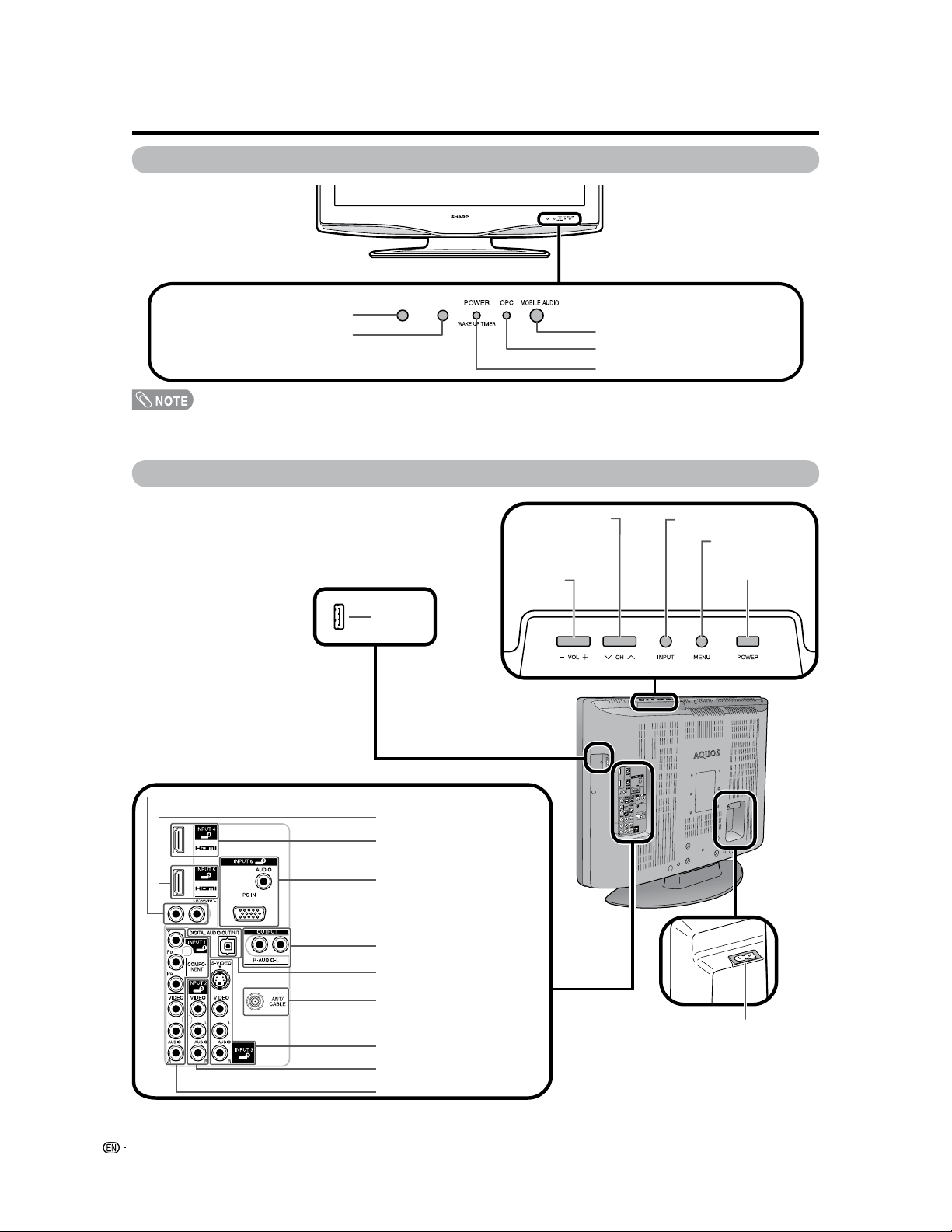
POWER button
TV (Front)
Channel buttons
(CH
s
/
r
)
Volume
buttons
(VOL
l
/
k
)
INPUT button
MOBILE AUDIO jack
POWER indicator**
OPC sensor*
Remote control sensor
*OPC: Optical Picture Control (See page 28.)
**See page 16 for TV status indicator.
OPC indicator**
TV (Top/Rear)
HDMI terminal (INPUT 4)
INPUT 3 terminals
INPUT 1 terminals
HDMI terminal (INPUT 5)
DIGITAL AUDIO OUTPUT
terminal
Antenna/Cable in
AC INPUT terminal
INPUT 2 terminals
PC IN terminals (INPUT 6)
MENU button
USB
terminal
• SOFT UPDATE
The ordinary user never
uses it.
AUDIO OUTPUT terminals
AUDIO
terminals (INPUT 5)
11
Part names
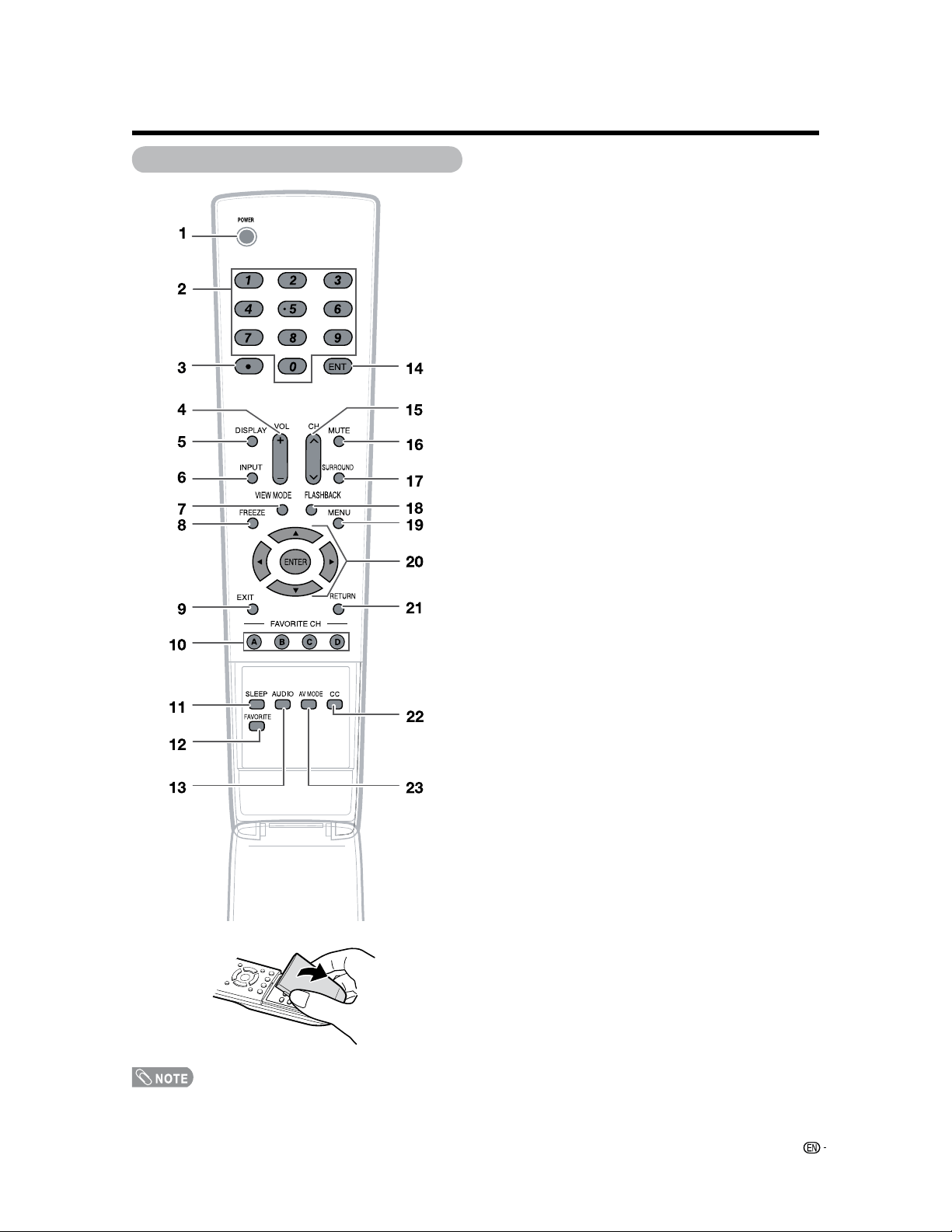
1 POWER: Switch the TV power on or enters standby.
(See page 16.)
2 0 – 9: Set the channel. (See page 18.)
3 • (DOT): (See pages 18.)
4 VOL k/l: Set the volume. (See page 19.)
5 DISPLAY: Display the channel and the clock
information (See page 18, 22).
6 INPUT: Select a TV input source. (TV, INPUT 1,
INPUT 2, INPUT 3, INPUT 4, INPUT 5, INPUT 6) (See
pages 32 and 33.)
7 VIEW MODE: Select the screen size. (See pages 39
and 40.)
8 FREEZE: Set the still image. Press again to return to
normal screen. (See page 51.)
9 EXIT: Turn off the menu screen.
10
FAVORITE CH
A, B, C, D: Select 4 preset favorite channels in 4
different categories. (See page 27 for details.)
While watching, you can toggle the selected channels
by pressing A, B, C and D.
11 SLEEP: Set the sleep timer. (See page 37.)
12
FAVORITE: Set the favorite channels. (See page 27.)
13
AUDIO: Selects the MTS/SAP or the audio mode
during multi-channel audio broadcasts. (See page 20.)
14
ENT: Jumps to a channel after selecting with the 0–9
buttons.
15 CHr/s: Select the channel. (See page 18.)
16
MUTE: Mute the sound. (See page 19.)
17 SURROUND: Select Surround settings. (See page
19.)
18 FLASHBACK: Return to the previous channel or
external input mode. (See page 18.)
19 MENU: Display the menu screen.
20
a
/
b
/
c
/
d
/ENTER: Select a desired item on the
screen.
21
RETURN: Return to the previous menu screen.
22 CC: Display captions from a closed-caption source.
(See page 43.)
23 AV MODE: Select an audio or video setting.
(When the input source is TV, INPUT 1, 2 or 3:
STANDARD, MOVIE, GAME, USER, DYNAMIC (Fixed),
DYNAMIC. When the input source is INPUT 4, 5 or 6:
STANDARD, MOVIE, GAME, PC, USER, DYNAMIC
(Fixed), DYNAMIC) (See page 42.)
Remote control unit
• When using the remote control unit, point it at the TV.
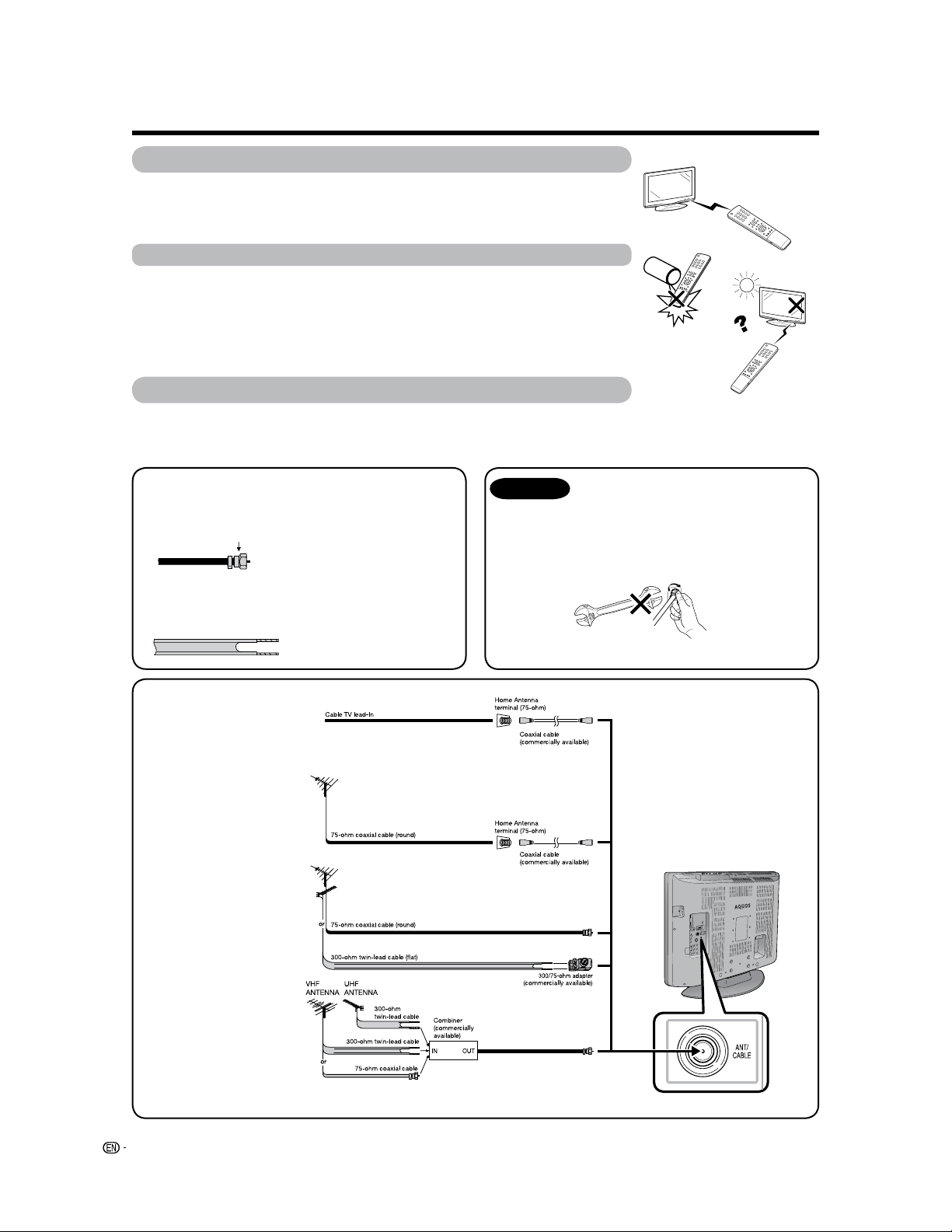
Antennas
To enjoy a clearer picture, use an outdoor antenna. The following is a brief explanation of the types of connections
that are used for a coaxial cable. If your outdoor antenna uses a 75-ohm coaxial cable with an F-type connector,
plug it into the antenna terminal at the rear of the TV set.
1. A 75-ohm system is generally a round cable with F-type
connector that can easily be attached to a terminal
without tools (Commercially available).
F-type connector
300-ohm twin-lead cable (flat)
F-type connector
75-ohm coaxial cable (round)
75-ohm coaxial cable
NOTICE
2. A 300-ohm system is a flat “twin-lead” cable that can be
attached to a 75-ohm terminal through a 300/75-ohm
adapter (Commercially available).
F-type connector should be finger-
tightened only.
When connecting the RF cable to the TV set, do not
tighten F-type connector with tools.
If tools are used, it may cause damage to your TV
set. (The breaking of internal circuit, etc.)
12
Preparation
Using the remote control unit
Use the remote control unit by pointing it towards the remote control sensor on the
TV. Objects between the remote control unit and the remote control sensor may
prevent proper operation.
Cautions regarding the remote control unit
• Do not expose the remote control unit to shock. In addition, do not expose the remote
control unit to liquids, and do not place in an area with high humidity.
• Do not install or place the remote control unit under direct sunlight. The heat may cause
deformation of the remote control unit.
• The remote control unit may not work properly if the remote control sensor on the TV is
under direct sunlight or strong lighting. In such cases, change the angle of the lighting or
the TV, or operate the remote control unit closer to the remote control sensor.
Connecting Antenna Cable
1
Cable without a CATV
converter
3
Combination VHF/
UHF antenna
4
Separate VHF/UHF
antenna
To TV antenna
terminal
2
VHF/UHF antenna
• Connect the antenna cable
to the TV using one of the
methods in the illustration
as shown (
1
,
2
,
3
or
4
).
13
Preparation
Connecting a Blu-ray disc player,
HD-DVD player, DVD player or a
Digital TV STB (Air or Cable)
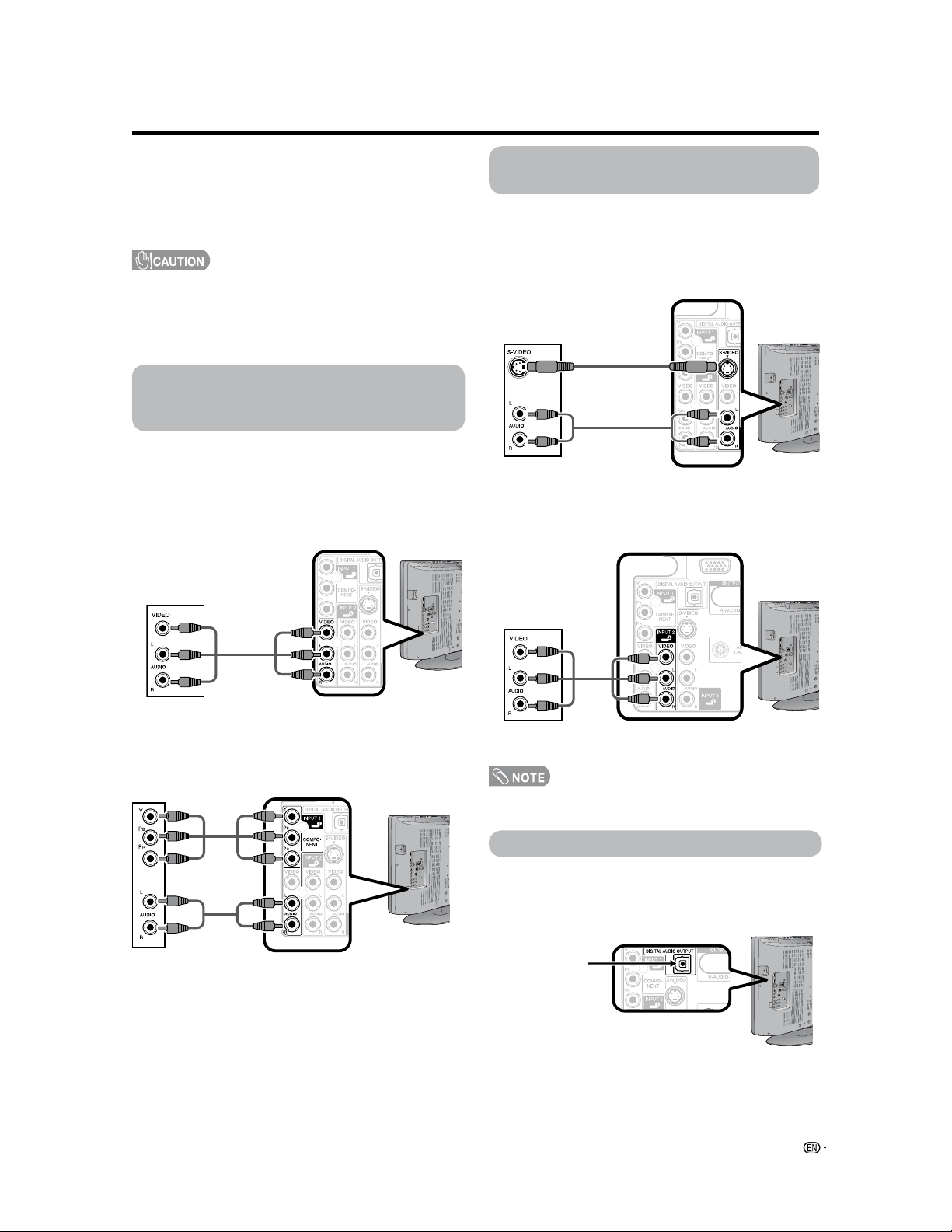
You can use the INPUT 1, INPUT 2 or INPUT 3
terminals when connecting to a Blu-ray disc player,
HD-DVD player, DVD player, a Digital TV STB (Air or
Cable) and other audiovisual equipment.
Connecting a VCR, game console
or camcorder
A VCR, game console, camcorder and other
audiovisual equipment can be conveniently connected
using the INPUT 1 to 3 terminals.
When using composite cable (commercially
available). (INPUT 1 or 2 or 3)
You can connect many types of external equipment to
your TV like a Blu-ray disc player, HD-DVD player, DVD
player, VCR, Digital TV tuner, HDMI equipment, game
console or camcorder. To view external source images,
select the input source from
INPUT on the remote control
unit or on the TV. (See pages 32 and 33.)
• To protect equipment, always turn off the TV before
connecting any external equipment.
• Please read the relevant operation manual (Blu-ray disc
player, etc.) carefully before making connections.
• If your Blu-ray disc player offers a choice of output formats,
please select 720p for use with this TV.
When using S-VIDEO cable (commercially
available).
VCR/Game console/
Camcorder
When using component cable. (INPUT 1)
Using Digital Audio Output
It is possible to output audio through the DIGITAL
AUDIO OUTPUT terminal. (See page 31 for details.)
PCM audio outputs from the terminal.
Blu-ray disc player/HD-
DVD player/ DVD player/
Digital TV STB
• The S-VIDEO terminal takes priority over the video
terminals. (INPUT 3 only)
VCR/Game console/
Camcorder
When using composite cable (commercially
available).
Blu-ray disc player/HD-DVD player/
DVD player/Digital TV STB
Component
video cable
(commercially
available)
Audio cable
(commercially
available)
To optical
digital input of
external audio
devices
Optical fiber cable (commercially
available)
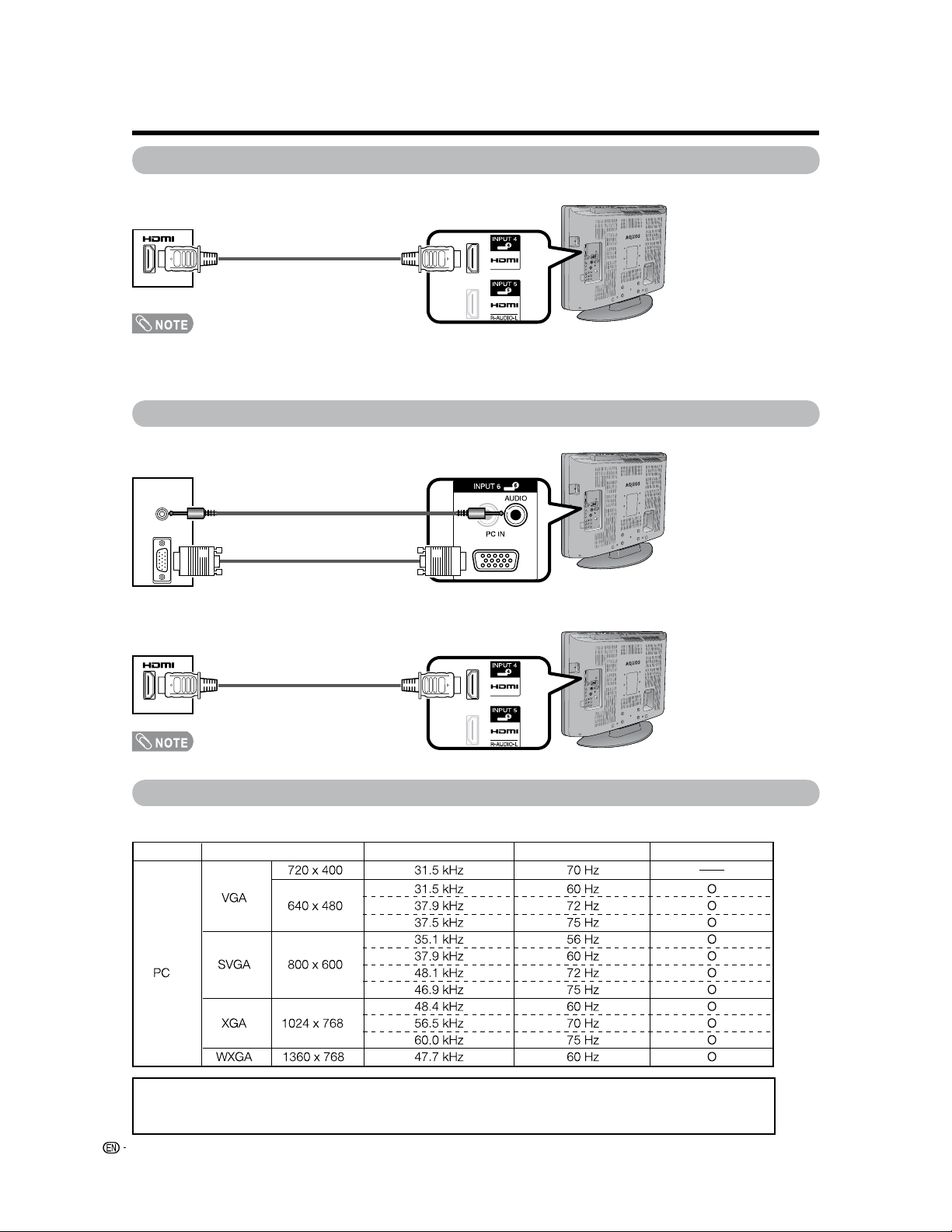
HDMI cable
(commercially available)
14
Preparation
PC
HDMI equipment
PC compatibility chart
It is necessary to set the PC correctly to display XGA and WXGA signal. Refer to page 40 to set PC input signals.
DDC is a registered trademark of Video Electronics Standards Association.
Power Management is a registered trademark of Sun Microsystems, Inc.
VGA and XGA are registered trademarks of International Business Machines Co., Inc.
PC Horizontal Frequency VESA StandardResolution Vertical Frequency
Connecting a PC
When connecting to a PC with an analog RGB terminal. (INPUT 6)
RGB cable
(commercially available)
• When using an HDMI-DVI conversion cable, input the audio signal to AUDIO terminal of INPUT 5.
• When receiving an incompatible signal, such as 1080p, the message below appears without the image on the screen.
For an incompatible video signal: “An incompatible video signal has been received. Check the output device settings.”
For an incompatible audio signal: “An incompatible audio signal has been received. Check the output device settings.”
HDMI cable
(commercially available)
Connecting HDMI equipment
You can use the INPUT 4 or INPUT 5 terminal when connecting HDMI equipment.
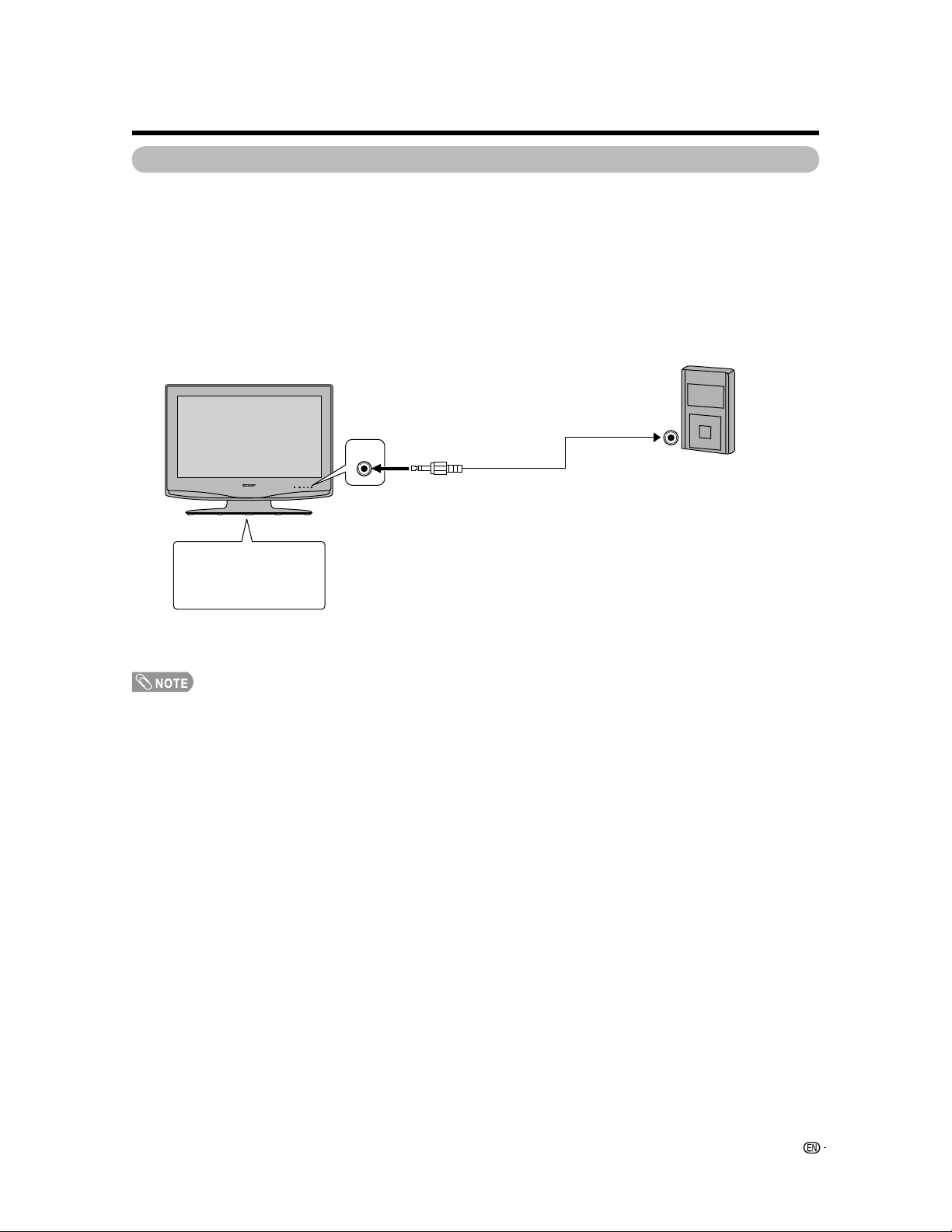
Ø 3.5 mm stereo minijack cable
(commercially available)
When connecting to a PC with an HDMI terminal. (INPUT 4 or 5)
PC
• The HDMI terminals only support digital signal.
15
Connecting with portability audio products
Connected with portability audio products on market, enjoy the music of the portability audio products
from this set speaker.
Before connecting
• When connected with portability audio products, no video output, only audio output from speaker.
• Enjoy the portability audio products music and video display at same time, please see same item on page 35.
• When connected with portability audio products line output terminal, repeat steps 1 to 5 and select “Line-Out Jack” in “Jack
Function” menu, see page 35, when ship out setting to [headphone Jack].
Connecting Guide
Preparation
• Mobile audio setting
terminal changed
according to actual
connected terminal
Mobile Audio
Stereo plug
Audio cable (commercially
available)
* select compatible type
Headphone terminal
or line output
terminal
portability audio products
* connecting follow operation
menu
Front view
• Check and confirm terminal and plug is actually connected.
16
Simple operations for watching a TV program
POWER
indicator
POWER (On/Standby)
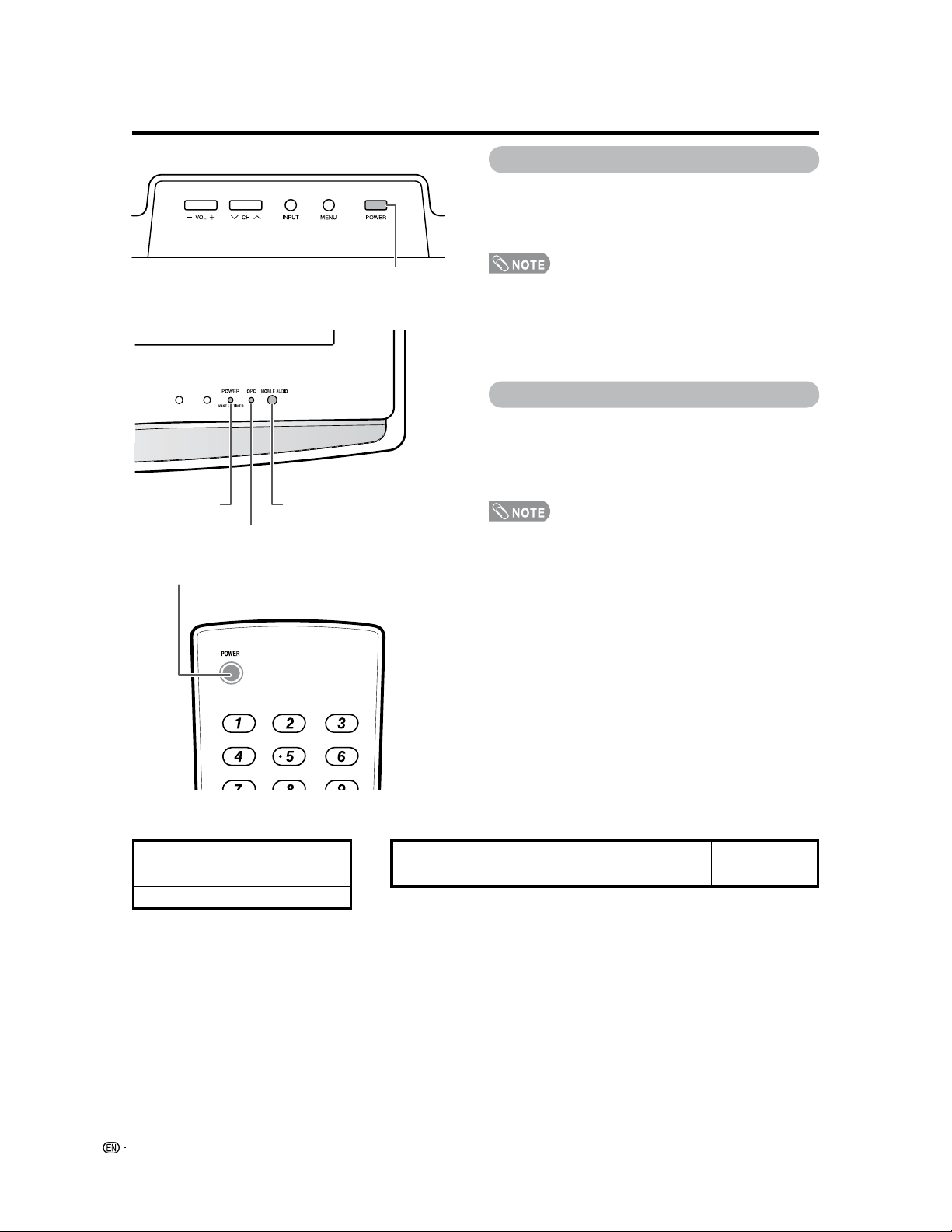
Turning on the power
Press POWER on the TV, or POWER on the remote
control unit.
• POWER indicator (Green): The TV is on. (After a few
seconds, a window appears with sound.)
• The initial setup starts when the TV powers on for the first
time. If the TV has been turned on before, the EZ Setup will
not be invoked. See page 25 for performing EZ Setup from
the Setup menu.
Turning off the power
Press POWER on the TV, or POWER on the remote
control unit.
• The TV enters standby and the image on the screen
disappears.
• The POWER indicator on the TV turns off.
• If you are not going to use this TV for a long period of time,
be sure to remove the AC cord from the AC outlet.
• Weak electric power is still consumed even when POWER
is turned off.
Watching TV
POWER
TV status indicator (POWER)
ON Lighting (Green)
Lights off
Standby
“Off” is selected in OPC setting
“On” or “On: Display” is selected in OPC setting
Lights off
Lighting (Green)
TV status indicator (OPC)
• See page 28 for details.
MOBILE AUDIO jack
OPC indicator
Lighting (Orange)WAKE UP TIMER
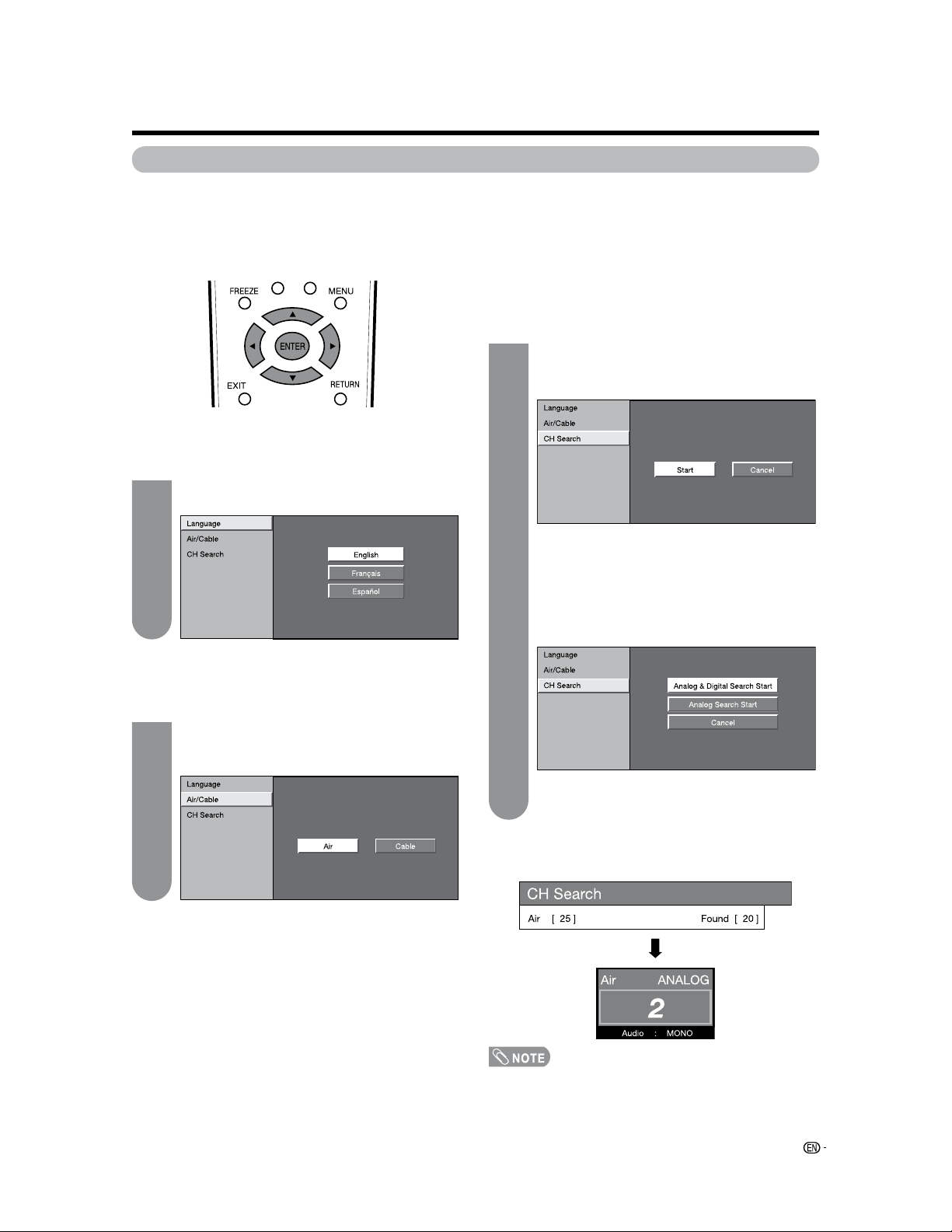
When “Cable” is selected in Antenna
setting:
Press
a
/
b
to select “Analog & Digital Search
Start” to search both analog and digital
broadcasts or “Analog Search Start” to search
only analog broadcasts, and then press
ENTER.
• The Channel search will start automatically.
• To exit the Channel search screen, select “Cancel”,
and then press ENTER.
17
Initial setup
When you turn on the TV for the first time, it will automatically memorize the broadcasting channels where you live.
Perform the following steps before you press
POWER on the remote control unit.
1. Insert the batteries into the remote control unit. (See page 8.)
2. Connect the antenna cable to the TV. (See page 12.)
3. Plug in the AC cord to the AC outlet. (See page 7.)
Language setting
Select from among 3 languages: English, French and
Spanish.
Press
a
/
b
to select the desired language
listed on the screen, and then press
ENTER.
Channel search
Channel auto search makes the TV look for all
channels viewable in the set area.
When “Air” is selected in Antenna setting:
Press
c
/
d
to select “Start”, and then press
ENTER.
Example
Antenna setting
Make sure what kind of connection is made with your
TV when selecting “Air” or “Cable”.
Press
c
/
d
to select “Air” or “Cable”.
Press
ENTER to enter the setting.
Example
Watching TV
1
2
3
• If no channel is found, confirm the type of connection made
with your TV and try EZ Setup again. (See page 25.)

18
Simple button operations for
changing channels
You can change channels in several ways.
• When selecting a 1-digit channel number, it is not
necessary to press 0 before the number.
• When you enter 0-9 only, channel selection will be made if
there is no operation within a few seconds.
To select a 3-digit channel number
(e. g., Channel 115):
Press 1
s
1
s
5
s
ENT
To select a 4-digit channel number
(e. g., Channel 22.1):
Press 2
s
2
s
• (DOT)
s
1
s
ENT
• When you enter 0–9 only, channel selection will be made if
there is no operation within a few seconds.
• If you push “0” by itself, nothing will happen.
• Complete the above steps within a few seconds.
• When you enter 0–9 and • (DOT), channel selection will be
made if there is no operation within a few seconds.
Method 1
Using
CH
r
/
s
on the remote control unit or on the
TV.
Method 2
1
Press
FLASHBACK to switch to the previously
tuned channel.
2
Press FLASHBACK again to switch back to the
currently tuned channel.
• FLASHBACK will not work if no channel has been
changed after the TV is turned on.
Method 3
Using remote control buttons 0-9, • (DOT) to select
channels for VHF/UHF/CATV/DIGITAL.
To select a 1 or 2-digit channel number
(e. g., Channel 5):
Press 5
s
ENT
Watching TV
Displaying the receiving channel
information
Press DISPLAY once. The display appears
as shown on below. If the viewing channel is
a digital channel, the information of channel
number, audio service type, broadcast station,
program information and V-Chip rating will
appear.
Press
DISPLAY again to return to normal
screen.
1
2
• The channel information will disappear if there is no
operation within a few seconds.
Audio: STEREO
CC:(Off)
Ratings:NONE
98.3
Cable
DIGITAL
Audio:MONO
CC:--
Ratings:NONE
7
Cable
ANALOG
(While viewing digital
channel)
(While viewing analog
channel)
19
Simple button operations for
changing volume/sound
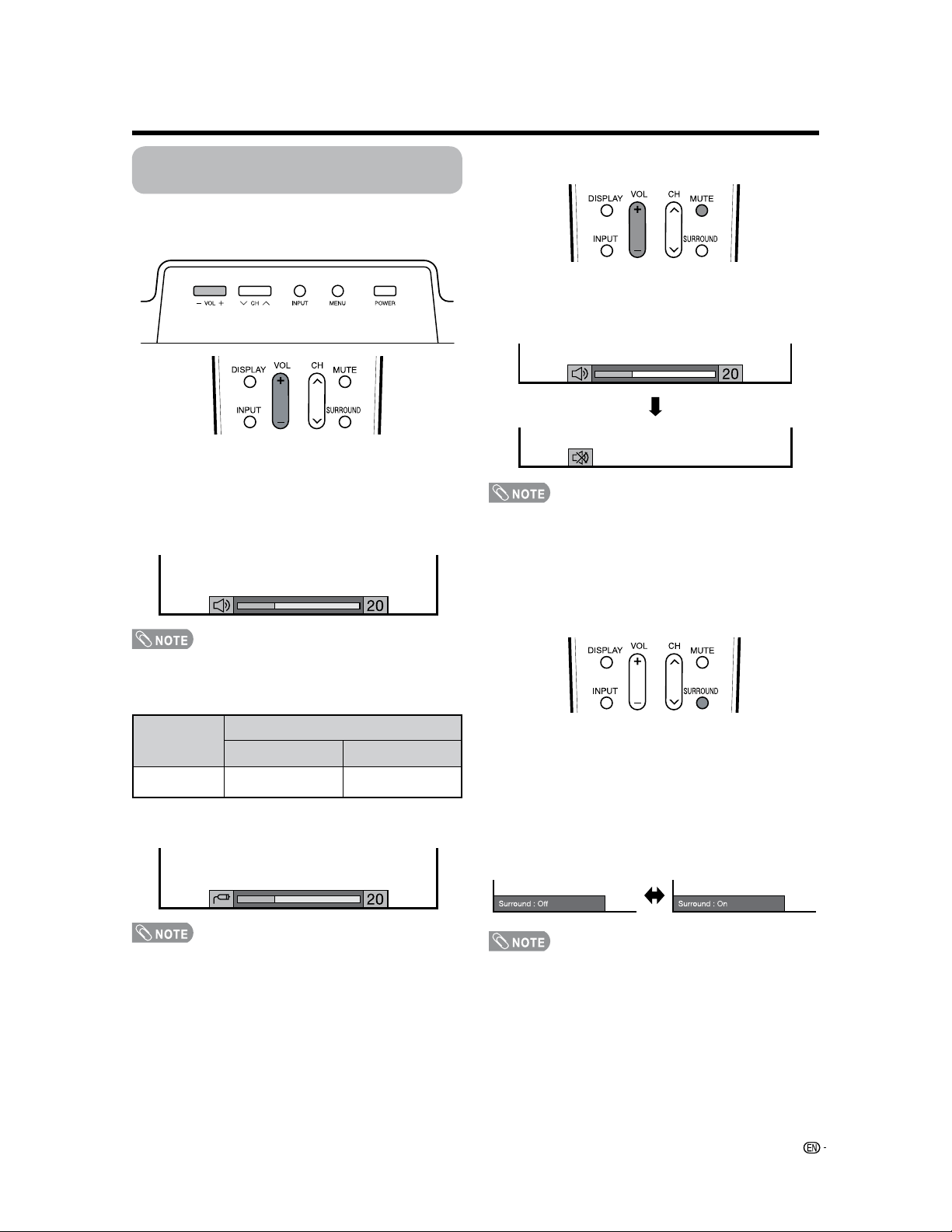
O Changing the volume
You can change the volume on the TV or on the
remote control unit.
• VOL
l
/
k
on the TV operates the same as VOL
k
/
l
on
the remote control unit.
O Using VOL
k
/
l
• To increase the volume, press
VOL
k
.
• To decrease the volume, press VOL
l
.
Audio status
Volume adjustment
* When “Output Select” is set to “Variable”, the indicator on
the screen changes as shown below.
• See page 41 for details on the Output Select function.
• You can have the same settings by choosing “Surround”
on the menu items. (See page 30.)
SURROUND produces Surround effect from the
speakers. Each time you press
SURROUND, the
mode changes between On and Off.
Surround sound options
On: Makes it possible to enjoy natural, realistic
surround sound.
Off: Outputs the normal sound.
O Using MUTE on the remote control unit
Mutes the current sound output.
• Within 30 minutes of pressing MUTE, mute can be
canceled by using one of the methods below.
— Mute will cancel if you press VOL
k
/
l
or MUTE.
• Mute will be canceled after 30 minutes have passed.
However, the TV will not suddenly output a loud sound as
the volume level is set to 0 automatically.
Mute
Press MUTE.
•
M
will be displayed on the screen for 30 minutes, and the
sound is silenced.
Watching TV
O Using SURROUND on the remote control unit
Output Select
Output device
Fixed
Variable
Variable sound
Mute
Speaker
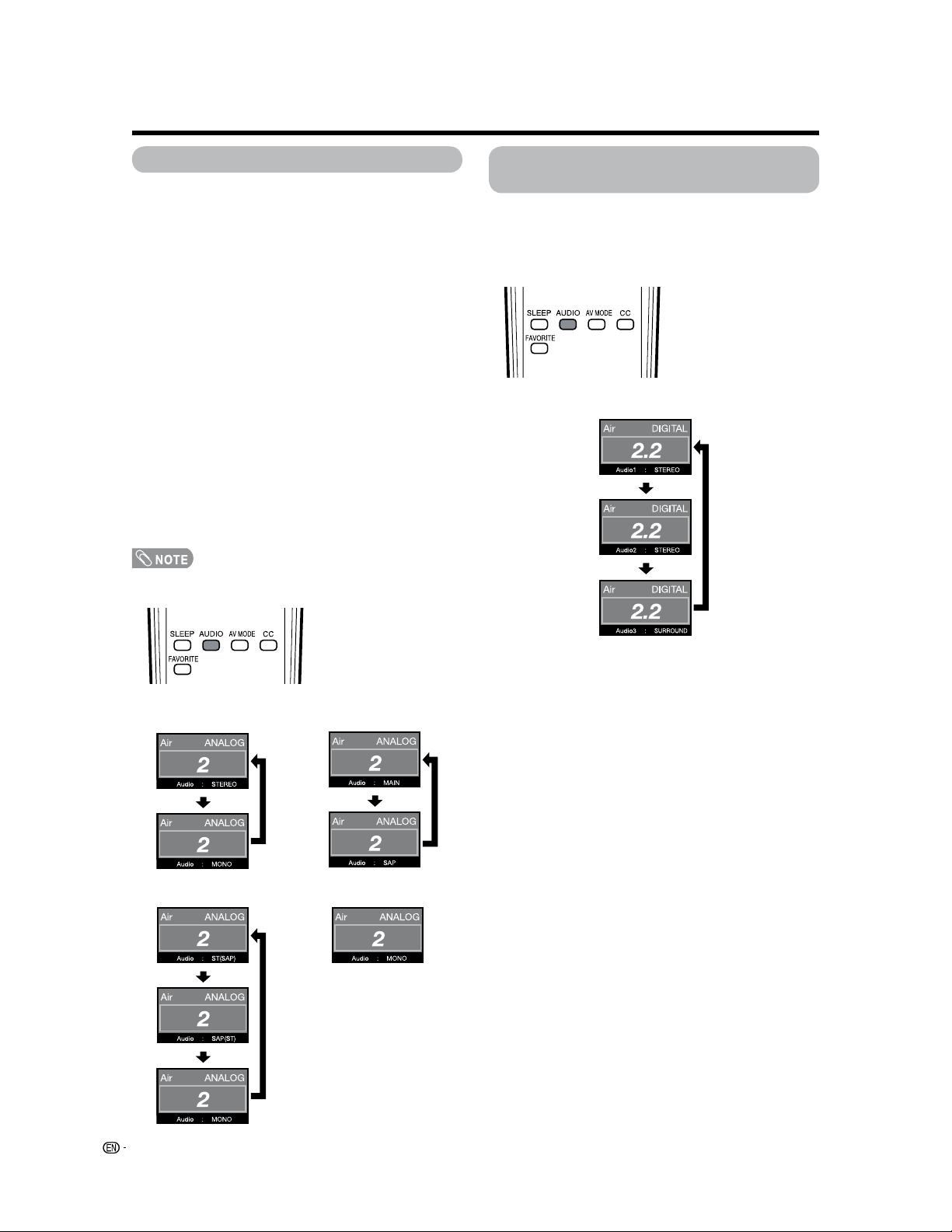
20
Setting MTS/SAP stereo mode
The TV has a feature that allows reception of sound
other than the main audio for the program. This feature
is called Multi-channel Television Sound (MTS). The TV
with MTS can receive mono sound, stereo sound and
Secondary Audio Programs (SAP). The SAP feature
allows a TV station to broadcast other information,
which could be audio in another language or something
completely different like weather information.
You can enjoy Hi-Fi stereo sound or SAP
broadcasts where available.
• Stereo broadcasts
View programs like live sporting events, shows and
concerts in dynamic stereo sound.
• SAP broadcasts
Receive TV broadcasts in either MAIN or SAP sound.
MAIN sound: The normal program soundtrack (either in
mono or stereo).
SAP sound: Listen to a second language, supplementary
commentary or other information. (SAP is mono sound.)
If stereo sound is difficult to hear.
• Obtain a clearer sound by manually switching to
fixed mono-sound mode.
• MTS only operates while in TV mode.
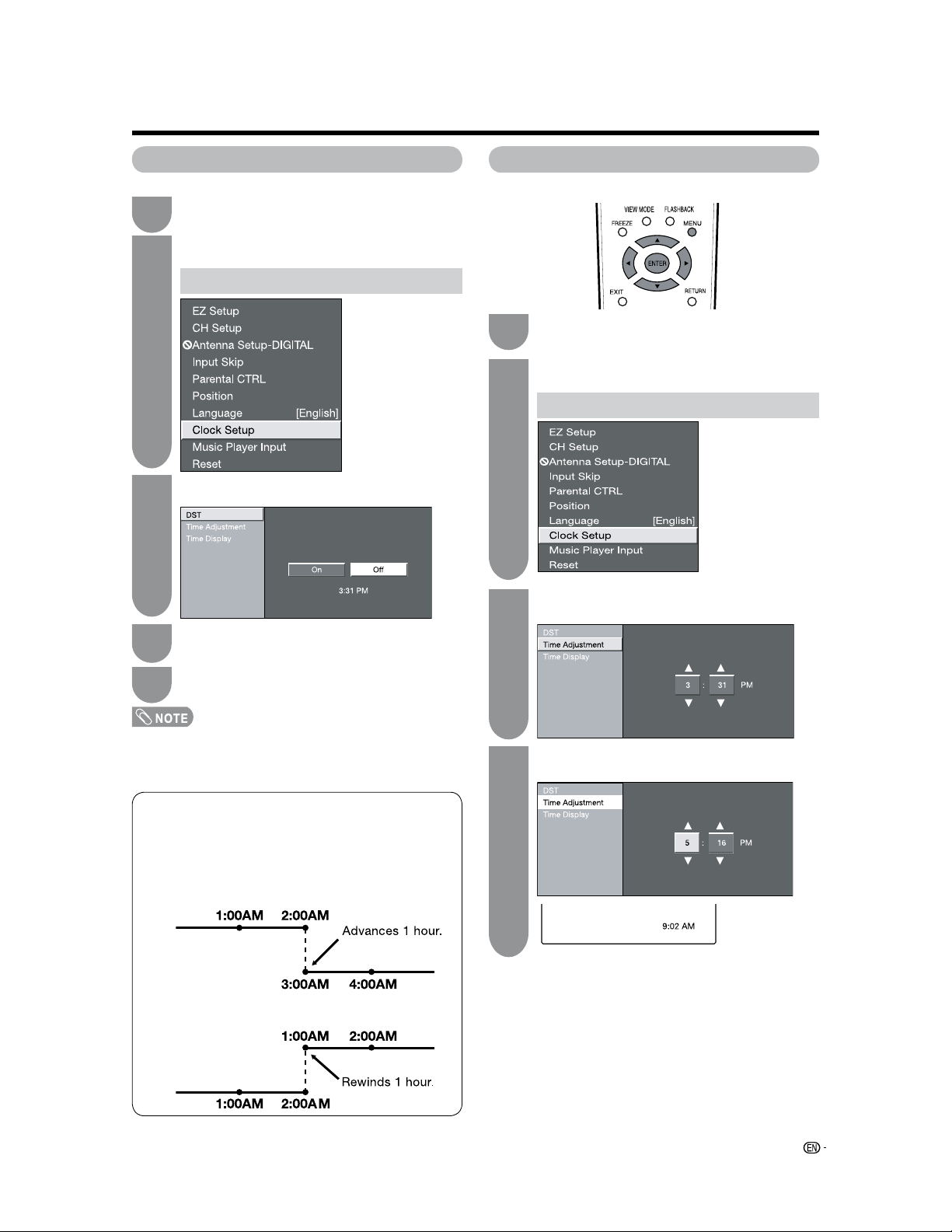
You can change MTS as
shown below to match the
television broadcast signal.
Press
AUDIO to toggle
between audio modes.
Examples: when receiving MTS and SAP
STEREO mode MAIN
k
SAP mode
Example: when receiving Digital broadcasting
Setting Digital broadcasting audio
mode
The types of audio transmitted in a digital broadcast
include SURROUND as well as MONO and STEREO.
In addition, it is possible for multiple audio tracks to
accompany a single video track.
Press AUDIO to toggle
between audio modes.
Watching TV
STEREO
k
SAP mode MONO mode
21
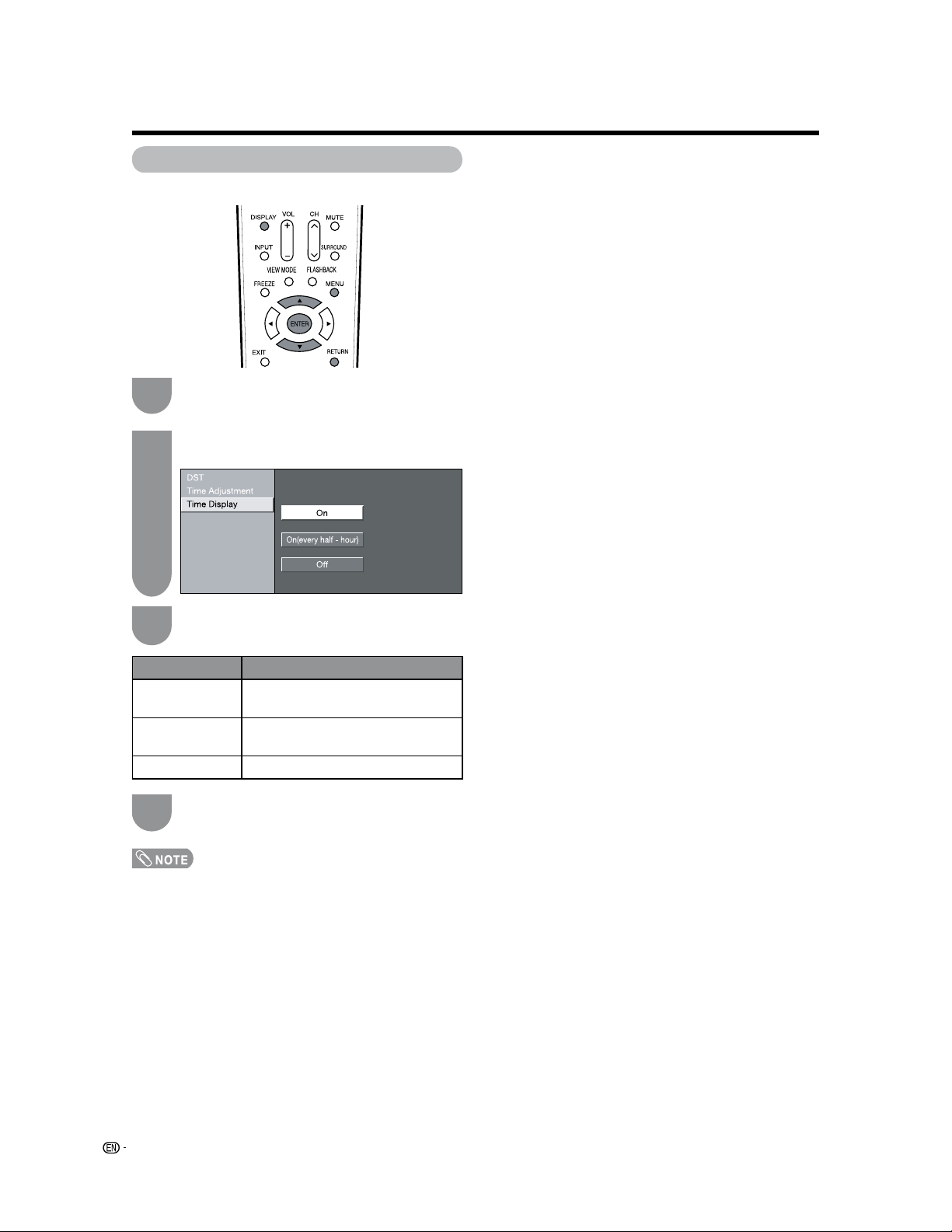
Press MENU to display the Menu screen, and
then press
c
/
d
to select “Setup”.
DST Setting
1
Setting the Clock
Press
a
/
b
to select “Clock Setup”, and then
press
ENTER.
2
Press
a
/
b
to select “Time Adjustment”, and
press
ENTER.
3
Press
a
/
b
and
c
/
d
to set the time and
press
ENTER.
4
O Backup
The clock function is maintained for about 5 minutes
even when the AC cord has been shut off due to a
power outage or when moving the LCD TV set. (Since
about 30 minutes are required to charge the backup
power supply, it may not be possible to maintain the
clock function if the charging time is excessively short.) If
the clock setting has been reset, repeat the procedures
on this page.
Time Adjustment
Press MENU to display the Menu screen, and
then press
c/d to select “Setup”.
Press
a
/
b
to select “DST”, and then press
ENTER.
1
3
Press
c
/
d
to select “On” or “Off”.
4
Press MENU to exit.
5
• When “DST” is set to “On”, the time entered is forwarded
by 1 hour.
• Please be sure to set “DST” before setting “Time
Adjustment”.
Daylight Saving Time (DST) Adjustment
Daylight Saving Time (DST) Adjustment
The Daylight Saving-Time changes as shown below.
Set the DST to “On” to forward the clock by 1 hour.
To rewind the clock by 1 hour, set the DST to “Off”.
(Spring)
On the first Sunday in April DST starts.
(Autumn)
On the last Sunday in October DST finishes.
Press
a
/
b
to select “Clock Setup”, and then
press
ENTER.
2
Current time Adjustment
Setup
Option
Setup
Option
22
Setting the Clock
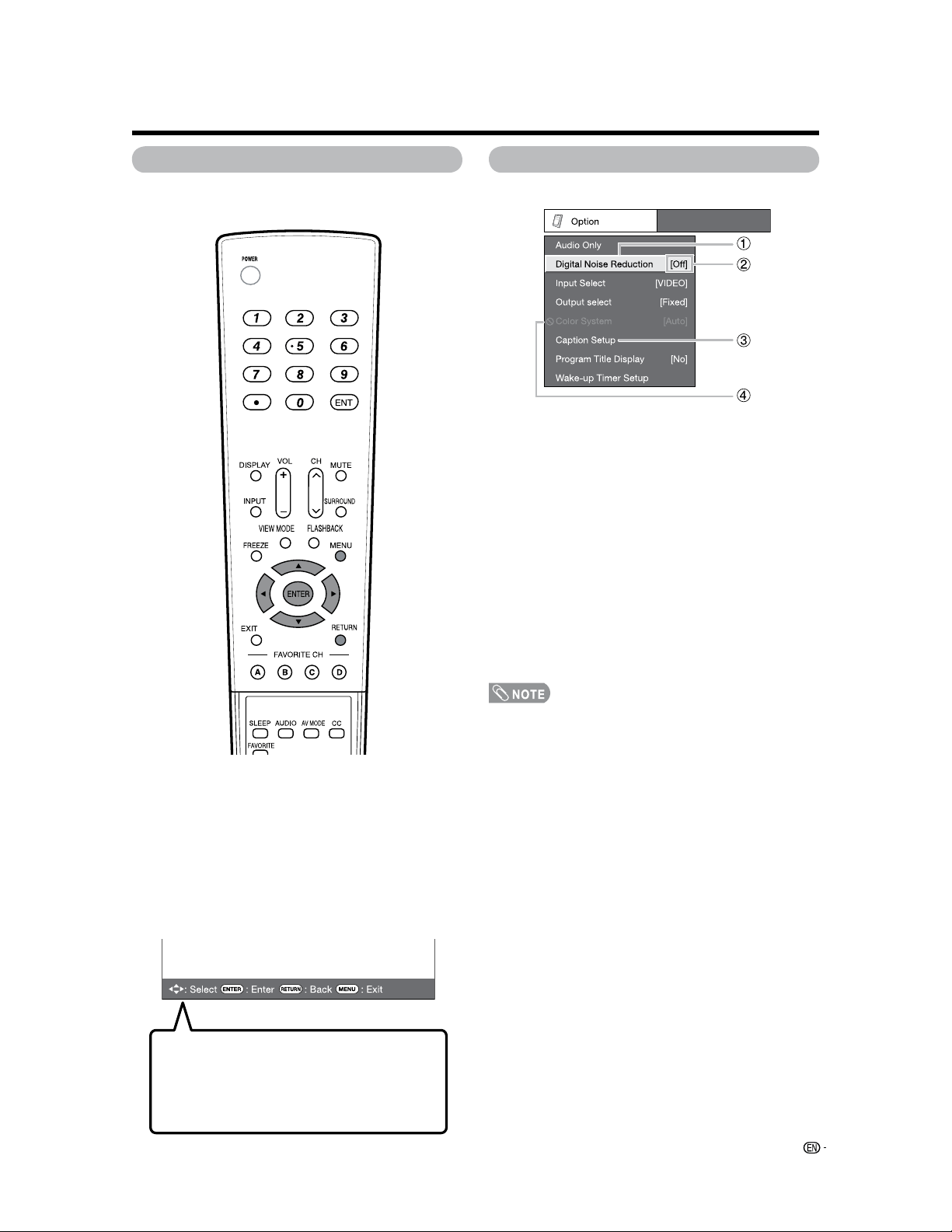
• When you press DISPLAY, the current time is displayed in
sync with channel information.
Selected item Description
On Displays the current time on the
screen.
On (every half-
hour)
Display the current time (every
half-hour)
Off No display
Press MENU to display the MENU Screen,
and then press
c/d to select “Setup”.
Press
a/b to select “Time Display”, and then
press
ENTER.
Time Display
You can display the current time on the screen.
1
2
Press a/b to select “On”, “On (every half-
hour)” or “off”, and press
ENTER.
3
Press EXIT to exit.
4
23
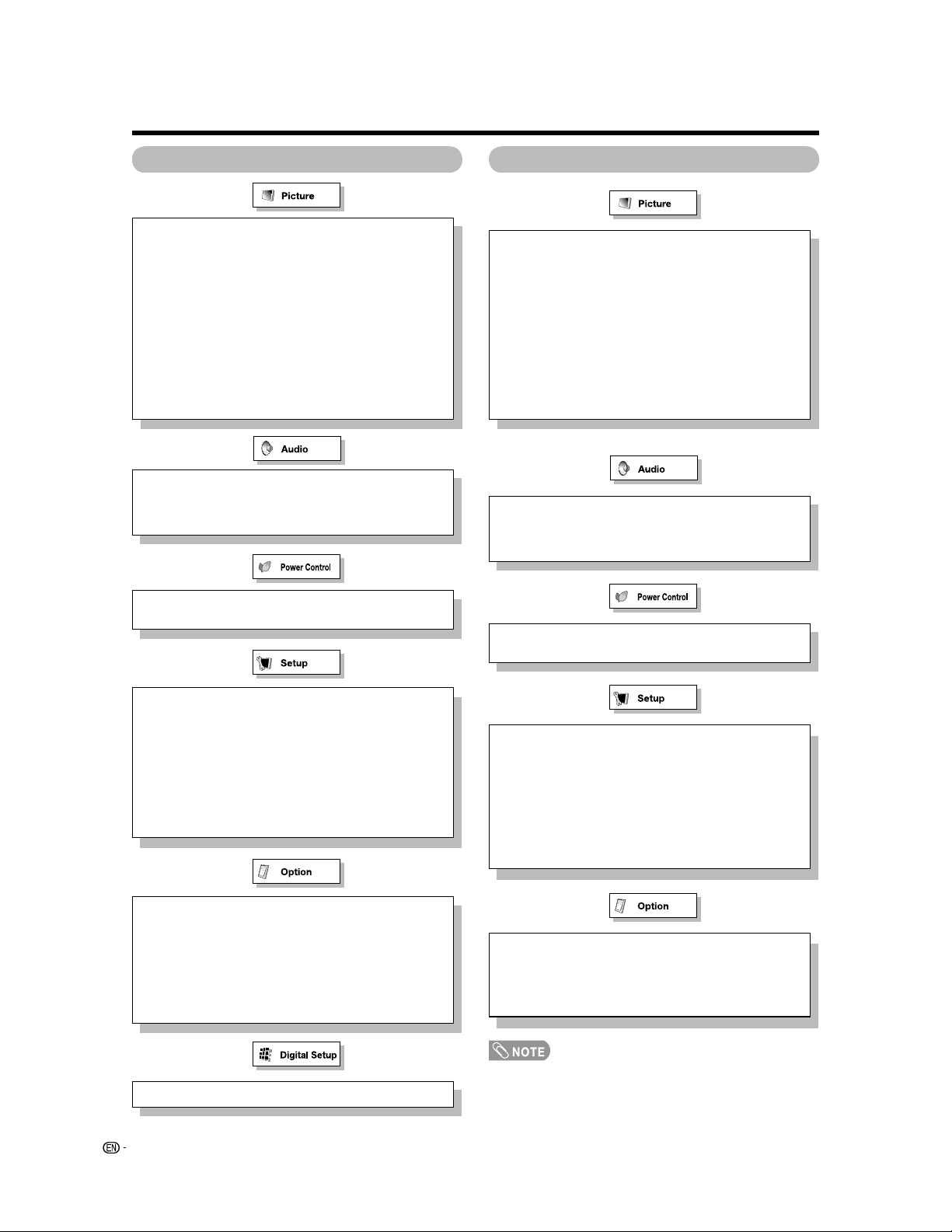
On-Screen Display
1
Item displayed in yellow
• This indicates the item currently selected.
• Press ENTER to go to the adjustment screen for this
item.
2
Item in brackets
• This indicates the current setting for the item.
3
Item displayed in white
• This indicates an item can be selected.
4
Item displayed in gray
• This indicates that the item cannot be selected.
There are various reasons why items cannot be
selected, but the main reasons are as follows:
— Nothing is connected to the selected input terminal.
— The function is not compatible with the current input
signal.
• Menu options differ in the selected input modes, but the
operating procedures are the same.
• The screens in the operation manual are for explanation
purposes (some are enlarged, others cropped) and may
vary slightly from the actual screens.
Basic adjustment settings
Menu operation buttons
Use the following buttons on the remote control to
operate the menu.
MENU: Press to open or close the menu screen.
a
/
b
/
c
/
d
: Press to select a desired item on the
screen or adjust a selected item.
ENTER: Press to go to the next step or complete
the setting.
RETURN: Press to return to the previous step.
The bar above is an operational guide for
the remote control. The bar will change in
accordance with each menu setting screen.
Example
24
Basic adjustment settings
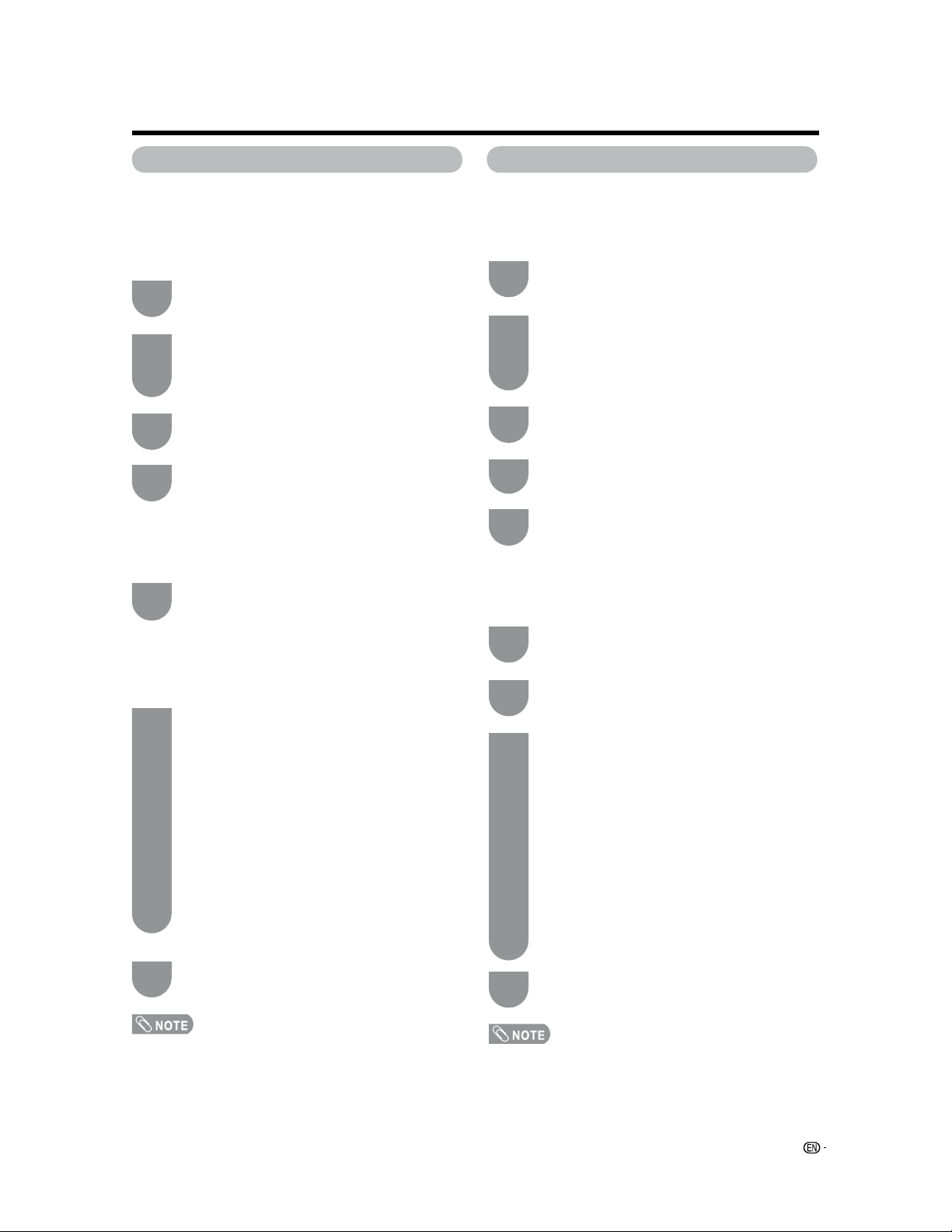
Menu items for TV/INPUT 1/2/3 Menu items for HDMI/PC-IN
Treble .......................................................................... Page 30
Bass ............................................................................. Page 30
Balance........................................................................ Page 30
Surround...................................................................... Page 30
• Some menu items may not be displayed depending on the
selected input source.
OPC.............................................................................. Page 28
Backlight ..................................................................... Page 28
Contrast ...................................................................... Page 28
Brightness .................................................................. Page 28
Color ........................................................................... Page 28
Tint .............................................................................. Page 28
Sharpness .................................................................. Page 28
Advanced
Color Temp. .................................................... Page 29
Black ............................................................... Page 29
I/P Setting........................................................ Page 29
Film Mode ....................................................... Page 29
3D-Y/C ............................................................ Page 29
Monochrome................................................... Page 29
Range of OPC ................................................. Page 29
Treble .......................................................................... Page 30
Bass ............................................................................. Page 30
Balance........................................................................ Page 30
Surround...................................................................... Page 30
OPC.............................................................................. Page 28
Backlight ..................................................................... Page 28
Contrast ...................................................................... Page 28
Brightness .................................................................. Page 28
Color ........................................................................... Page 28
Tint .............................................................................. Page 28
Sharpness .................................................................. Page 28
Advanced
Color Temp. .................................................... Page 29
Black ............................................................... Page 29
I/P Setting........................................................ Page 29
Film Mode ....................................................... Page 29
Monochrome................................................... Page 29
Range of OPC ................................................. Page 29
No Signal Off............................................................... Page 31
No Operation Off ........................................................ Page 31
No Signal Off............................................................... Page 31
No Operation Off ........................................................ Page 31
EZ Setup...................................................................... Page 25
CH Setup ..................................................................... Page 25
Antenna Setup-DIGITAL............................................. Page 26
Input Skip .................................................................... Page 33
Input Label ................................................................. Page 37
Parental CTRL......................................................Pages 45-50
Position........................................................................ Page 36
Language..................................................................... Page 36
Clock Setup..........................................................Pages 21-22
Music Player Input...................................................... Page 35
Reset............................................................................ Page 36
Input Skip .................................................................... Page 33
Input Signal ................................................................. Page 42
Auto Sync. ................................................................... Page 34
Input Label ................................................................. Page 37
Fine Sync..................................................................... Page 34
Position........................................................................ Page 36
Language..................................................................... Page 36
Clock Setup..........................................................Pages 21-22
Music Player Input...................................................... Page 35
Reset............................................................................ Page 36
Audio Only................................................................... Page 41
Digital Noise Reduction ............................................. Page 41
HDMI Setup................................................................. Page 33
Output Select.............................................................. Page 41
Wake-up Timer Setup ................................................ Page 38
Audio Only................................................................... Page 41
Digital Noise Reduction ............................................. Page 41
Input Select................................................................. Page 32
Output Select.............................................................. Page 41
Color System .............................................................. Page 41
Caption Setup ............................................................. Page 44
Program Title Display ................................................ Page 41
Favorite CH ................................................................. Page 27
Wake-up Timer Setup ................................................ Page 38
Audio Setup................................................................. Page 31
Basic adjustment settings
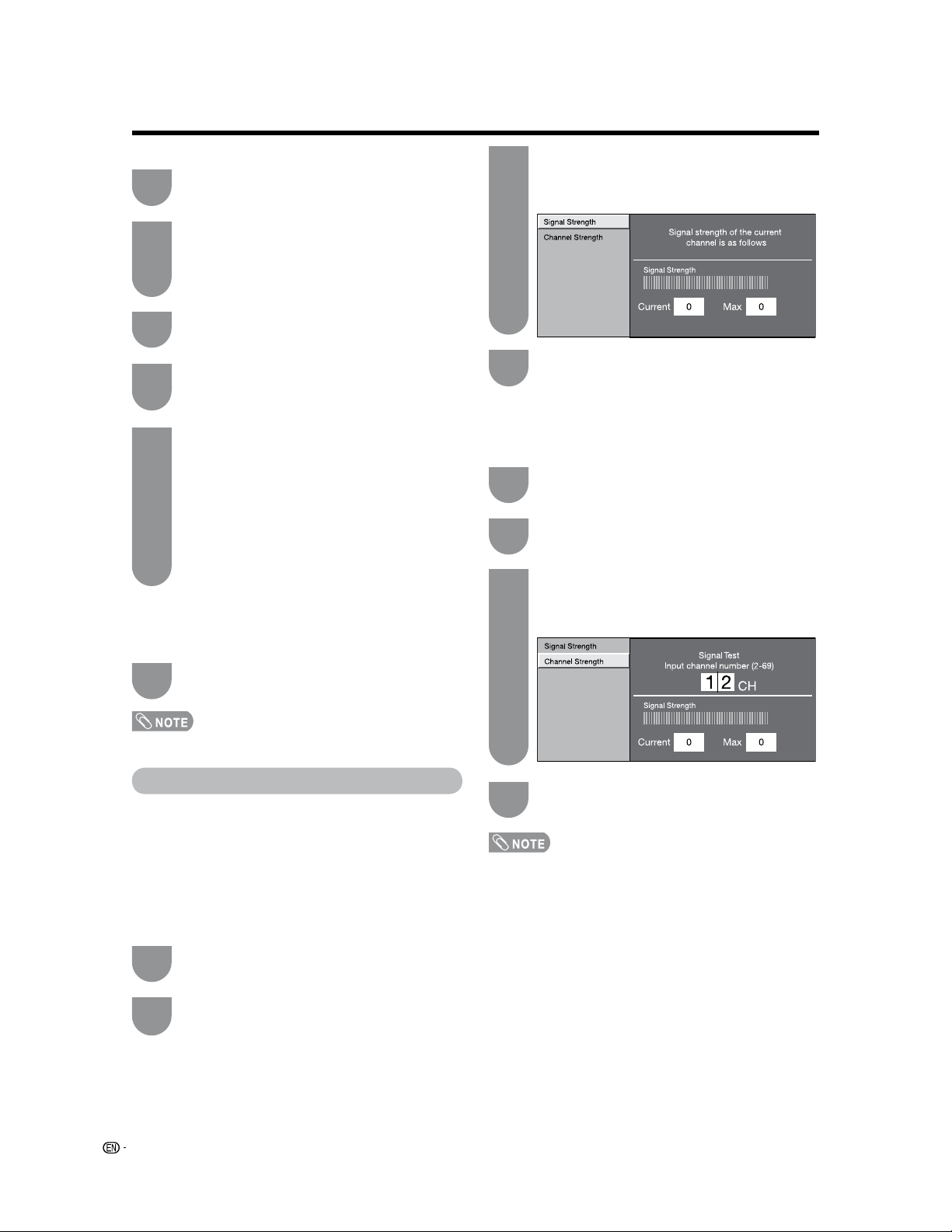
Press MENU to display the MENU screen, and
then press
c/d to select “Setup”.
Press
a/b to select “EZ Setup”, and then
press
ENTER.
• If you already set the Secret No., go to step 3. If
not, skip to step 4.
Input the 4-digit secret number by using 0–9.
Press a/b to select the desired language
listed on the screen, and then press
ENTER.
Press c/d to select “Air” or “Cable”.
Press
ENTER to enter the setting.
Antenna setting
Make sure what kind of connection is made with your
TV when selecting “Air” or “Cable”.
Channel search
Channel auto search makes the TV look for all channels
viewable in the set area.
• If no channel is found, confirm the type of connection made
with your TV and try EZ Setup again.
• If you select “Analog Search Start” and initiate the channel
search, the CH Memory for Cable Digital will be deleted.
EZ Setup
You can run EZ Setup again, even after setting up the
preset channels.
Language setting
Select from among 3 languages: English, French and
Spanish.
Channel Setup
If initial setup does not memorize all the channels in
your region, follow the instructions below to manually
memorize the channels.
Antenna setting
Press
MENU to display the MENU screen, and
then press
c/d to select “Setup”.
Press
a/b to select “CH Setup”, and then
press
ENTER.
• If you already set the Secret No., input the 4-digit
secret number here. See page 45 for setting a
secret number.
Press c/d to select “Air” or “Cable”.
Press
ENTER to enter the setting.
Press
a/b to select “Air/Cable”, and then
press
ENTER.
Channel search
Channel auto search makes the TV look for all channels
viewable in the set area.
Repeat steps 1 and 2 in Antenna setting in
Channel Setup.
Press
a/b to select “CH Search”, and then
press
ENTER.
• If no channel is found, confirm the type of connection made
with your TV and try channel search again.
• If you select “Analog Search Start” and initiate the channel
search, the CH Memory for Cable Digital will be deleted.
1
2
3
4
5
6
1
2
3
4
1
2
When “Air” is selected in Antenna setting:
Press
c/d to select “Start”, and then press
ENTER.
When “Cable” is selected in Antenna
setting:
Press a/b to select “Analog & Digital Search
Start” to search both analog and digital
broadcasts or “Analog Search Start” to search
only analog broadcasts, and then press
ENTER.
• The Channel search will start automatically.
• To exit the Channel search screen, select “Cancel”,
and then press ENTER.
When “Air” is selected in Antenna setting:
Press c/d to select “Start”, and then press
ENTER.
When “Cable” is selected in Antenna
setting:
Press
a/b to select “Analog & Digital Search
Start” to search both analog and digital
broadcasts or “Analog Search Start” to search
only analog broadcasts, and then press
ENTER.
• The Channel search will start automatically.
• To exit the Channel search screen, select “Cancel”,
and then press ENTER.
3
Press MENU to exit.
7
Press MENU to exit.
4
Press MENU to exit.
5
25
26
Basic adjustment settings
Antenna Setup - DIGITAL
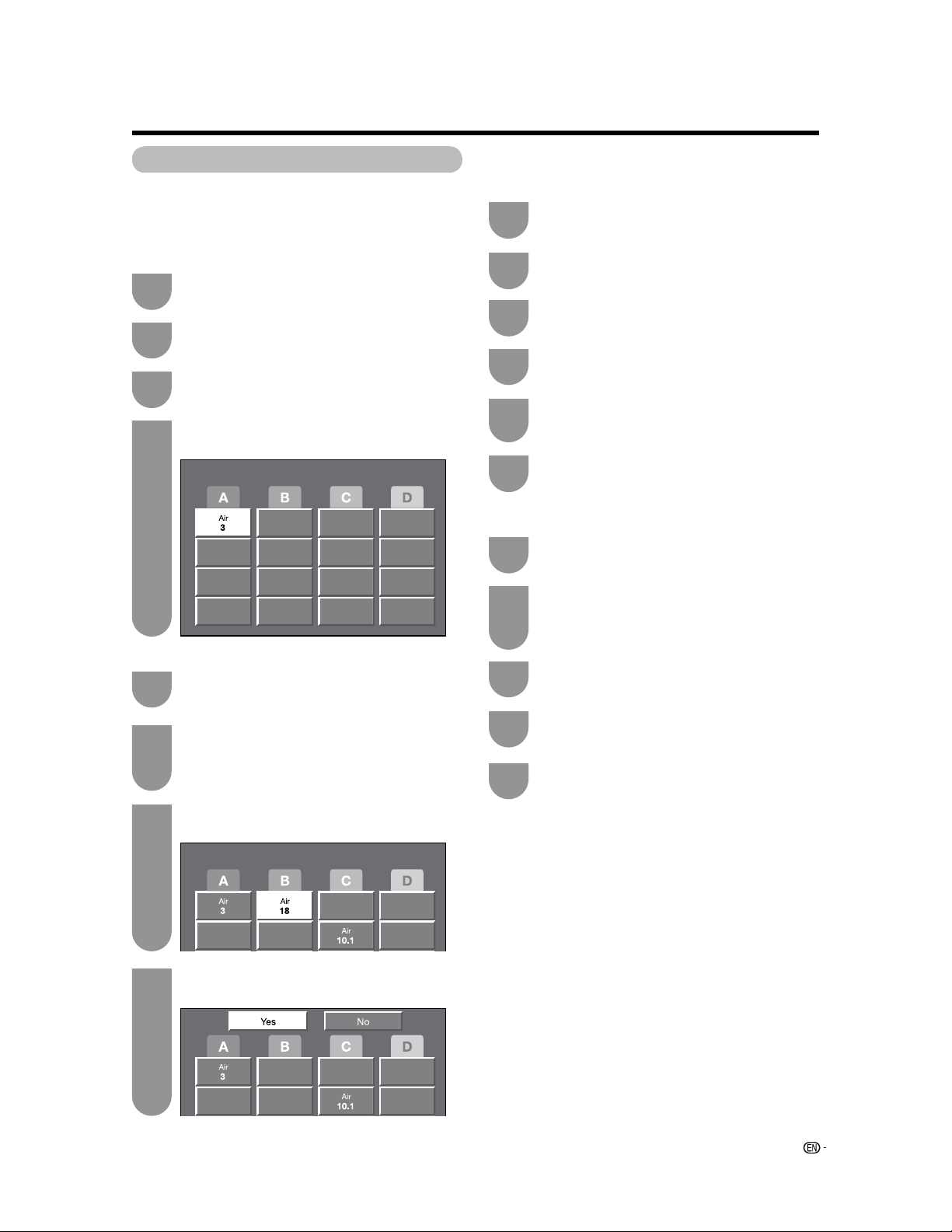
In order to receive digital air broadcasts, you need
a digital broadcast antenna. You can confirm the
antenna configuration through the “Antenna Setup -
DIGITAL” screen.
If necessary, adjust the direction of the antenna to
obtain the maximum signal strength.
Signal Strength
• On: Skips channels. (Channel selection disabled using CH
r
/
s
.)
• Off: Does not skip channels. (Channel selection enabled
using CH
r
/
s
.)
Press
a
/
b
to select ANALOG (Air), ANALOG
(Cable), DIGITAL (Air) or DIGITAL (Cable), and
then press
ENTER.
When viewing ANALOG broadcasts:
1
Press
c
/
d
to select the channel to skip,
and then press
b
to move down.
2
Press
c
/
d
to select “On”, and then press
ENTER.
When viewing DIGITAL broadcasts:
1
Press
a
/
b
to select the channel to skip,
and then press
c
/
d
to select “On”.
Press MENU to display the MENU screen, and
then press
c
/
d
to select “Setup”.
Press
a
/
b
to select “CH Setup”, and then
press
ENTER.
• If you already set the Secret No., input the 4-digit
secret number here. See page 45 for setting a
secret number.
Press
a
/
b
to select “CH Memory”, and then
press
ENTER.
Channel memory setting
Press
MENU to display the MENU screen, and
then press
c
/
d
to select “Setup”.
Press
a
/
b
to select “Antenna Setup -
DIGITAL”, and then press
ENTER.
Channel Strength
The channel signal strength can also be checked
separately.
Repeat steps 1 and 2 in Signal Strength in
Antenna Setup - DIGITAL
Input the 2-digit channel number to check the
signal strength of the selected channel.
• Make sure the signal is strong enough for each
channel.
Press
a
/
b
to select “Channel Strength”, and
then press
ENTER.
Press
a
/
b
to select “Signal Strength”.
• The signal strength of DIGITAL channel is
displayed. The signal information is based on the
current channel.
• This function is available for DIGITAL (Air) only.
1
2
3
4
5
1
2
3
1
2
3
• Make sure what kind of connection is made with your TV.
Press MENU to exit.
6
Press MENU to exit.
4
Press MENU to exit.
4
27
Basic adjustment settings
Favorite channel setting
This function allows you to program 4 favorite
channels, in 4 different categories. By setting the
favorite channels in advance, you can select your
favorite channels easily.
Press
a
/
b
/
c
/
d
to select the position in the
category, and then press
ENTER to register.
Select the channel you want to register as a
favorite channel.
Press FAVORITE.
Press
a
/
b
to select “Register”, and then
press
ENTER.
Deleting a favorite channel
Press
FAVORITE and the favorite channel
screen displays.
Press
a
/
b
to select “1 Data Clear”, and then
press
ENTER.
• To delete all the favorite channels, select “All Data
Clear”, and then skip to step 4.
Press
a
/
b
/
c
/
d
to select the channel you
want to delete, and then press
ENTER.
Press
c
/
d
to select “Yes”, and then press
ENTER.
1
2
4
3
1
2
4
3
Using FAVORITE CH on the remote control unit
Using Favorite CH on the menu screen
You can also set your favorite channels in “Option” on
the MENU screen.
Select the channel you want to register as a
favorite channel.
1
Press MENU to display the MENU screen, and
then press
c
/
d
to select “Option”.
Press
a
/
b
to select “Favorite CH”, and then
press
ENTER.
2
3
Press
a
/
b
to select “Register”, and then
press
ENTER.
4
Press
a
/
b
/
c
/
d
to select the position in the
category, and then press
ENTER to register.
5
Deleting a favorite channel
Repeat steps 2 and 3 in Using Favorite CH
on the menu screen.
1
Press
a
/
b
to select “1 Data Clear”, and then
press
ENTER.
• To delete all the favorite channels, select “All Data
Clear”, and then skip to step 4.
2
Press
a
/
b
/
c
/
d
to select the channel you
want to delete, and then press
ENTER.
3
Press
c
/
d
to select “Yes”, and then press
ENTER.
4
Press MENU to exit.
6
Press MENU to exit.
5
28
Basic adjustment settings
Picture adjustments
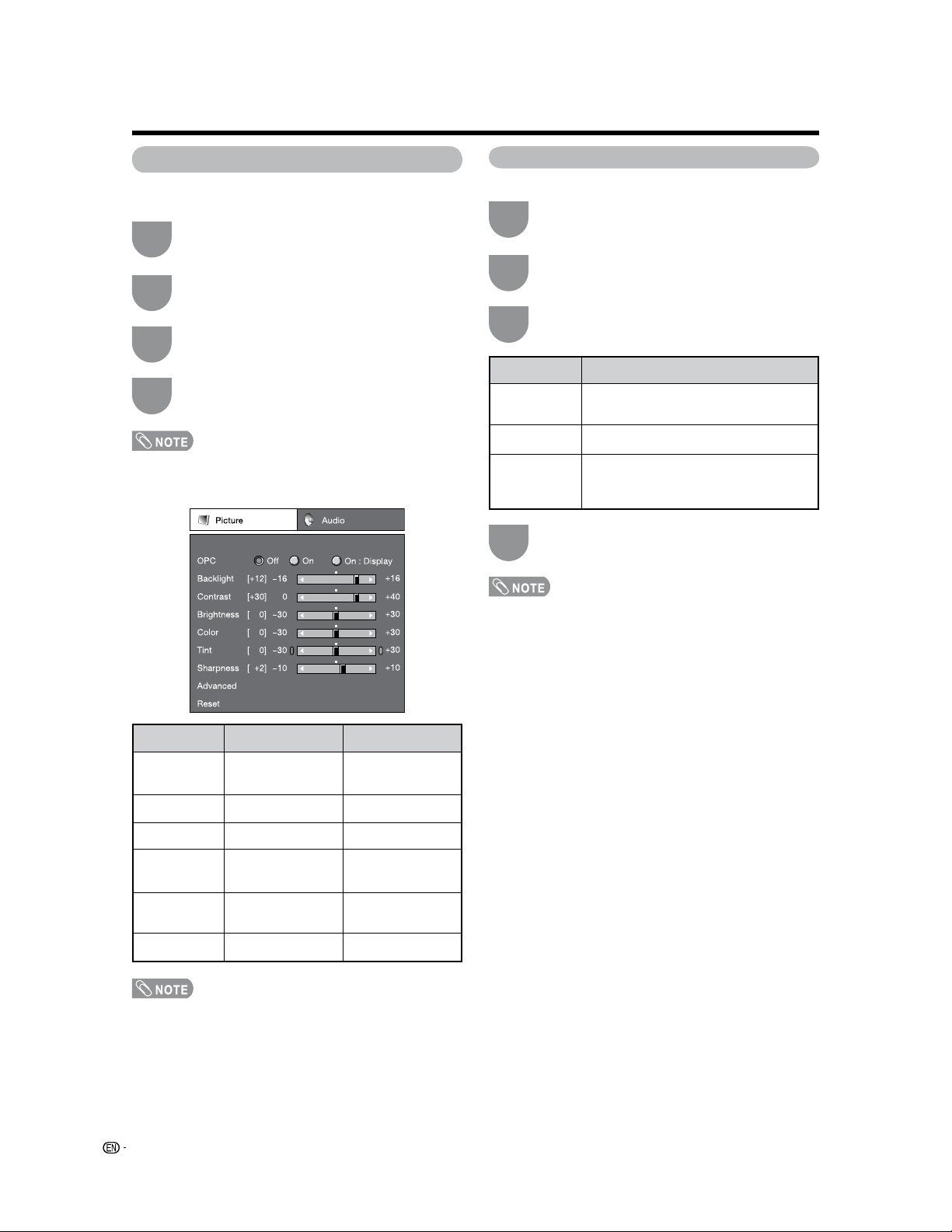
Adjusts the picture to your preference with the
following picture settings.
• For resetting all Picture adjustment items to the factory
preset values, press
a
/
b
to select “Reset”, press ENTER,
press
c
/
d
to select “Yes”, and then press ENTER.
• Select “Advanced” and then press ENTER to set “Color
Temp.”, “Black”, “I/P Setting”, “Film Mode”, “3D-Y/C”,
“Monochrome” or “Range of OPC”. See page 29.
OPC setting
Automatically adjusts the brightness of the screen.
• When set to “On”, the OPC senses the surrounding light
and automatically adjusts the backlight brightness. Make
sure nothing obstructs the OPC sensor, which could affect
its ability to sense surrounding light.
• When set to “On: Display”, OPC effect displays on the
screen while the OPC adjusts the screen brightness.
Press
a
/
b
to select a specific adjustment
item.
Press
c
/
d
to adjust the item to the desired
level.
Press
MENU to display the MENU screen, and
then press
c
/
d
to select “Picture”.
Press
MENU to display the MENU screen, and
then press
c
/
d
to select “Picture”.
Press
a
/
b
to select “OPC”.
Press
c
/
d
to select “On” or “On: Display”.
1
3
2
1
3
2
Press MENU to exit.
4
Press MENU to exit.
4
Selected item
Backlight
Contrast
Brightness
Color
Tint
Sharpness
c
button
The screen dims
For less contrast
For less brightness
For less color
intensity
Skin tones become
purplish
For less sharpness
d
button
The screen
brightens
For more contrast
For more brightness
For more color
intensity
Skin tones become
greenish
For more sharpness
Selected item
Off
On
On: Display
Description
The brightness is fixed at the value set in
“Backlight”.
Automatically adjusts
Displays the OPC effect on the screen
while adjusting the brightness of the
screen.
29
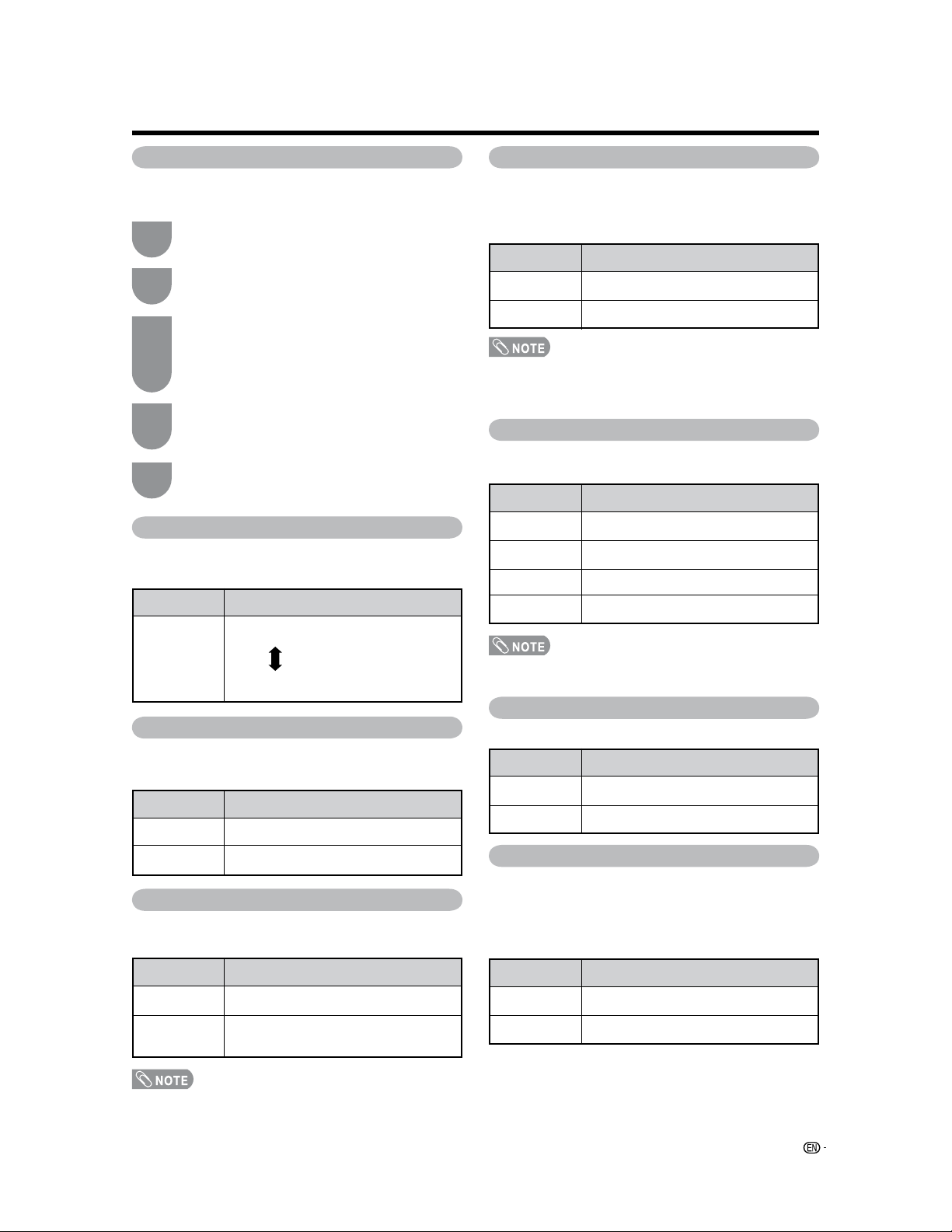
Advanced picture adjustments
This TV provides various advanced functions for
optimizing the picture quality.
Black
Changes the viewing depth by automatically adjusting
the dark portion of an image for easier viewing.
3D-Y/C
Provides high quality images with minimal dot crawl
and cross color noise.
Press
MENU to display the MENU screen, and
then press
c
/
d
to select “Picture”.
Press
a
/
b
to select “Advanced”, and then
press
ENTER.
Press
a
/
b
to select a specific adjustment
item, and then press
ENTER.
• You can select “Color Temp.”, “Black”, “I/P
Setting”, “Film Mode”, “3D-Y/C”, “Monochrome”,
or “Range of OPC”.
Press
a
/
b
(or
c
/
d
) to select the desired
parameter.
• See the table for the selectable parameters.
Color Temperature
For a better white balance, use color temperature
correction.
• 3D-Y/C is available for input signal from Composite Video
and analog broadcasts (air and cable).
Monochrome
For viewing a video in monochrome.
Film Mode (3:2 pull-down)
Automatically detects a film-based source (originally
encoded at 24 frames/second), analyzes it then
recreates each still film frame for high-definition picture
quality.
Basic adjustment settings
1
3
2
4
Range of OPC
The brightness level range of the OPC sensor's
automatic adjustments can be set according to your
preferences. The adjustment range of the OPC sensor
can be set to a maximum of
e
16 and a minimum of
f
16.
Press MENU to exit.
5
Selected item
High
Mid-High
Middle
Mid-Low
Low
Description
White with Bluish tone
White with Reddish tone
Selected item
On
Off
Description
For high detail in black portions
No adjustment
Selected item
Slow
Standard
Fast
Off (2D)
Description
For still images
Normal adjustment
For moving images
For Game Mode
Selected item
On
Off
Description
For viewing in monochrome
Normal color
Selected item
On
Off
Description
Detects, analyzes, converts film source
Normal viewing mode
Selected item
Max.
Min.
Description
f
15 through
e
16
f
16 through
e
15
I/P Setting
Converts input signals depending on the type of
images.
• “I/P Setting” is not selectable when channel display shows
an input resolution of 480P, 720P, or 1080I.
Selected item
Fast
Slow
Description
Suitable for fast-moving images
Suitable for smooth images with low
amounts of flickers
• “Film Mode” does not function when you set:
f the “AV Mode” to “Game” or
f the
“I/P Setting” to “Fast”.
30
Sound adjustment
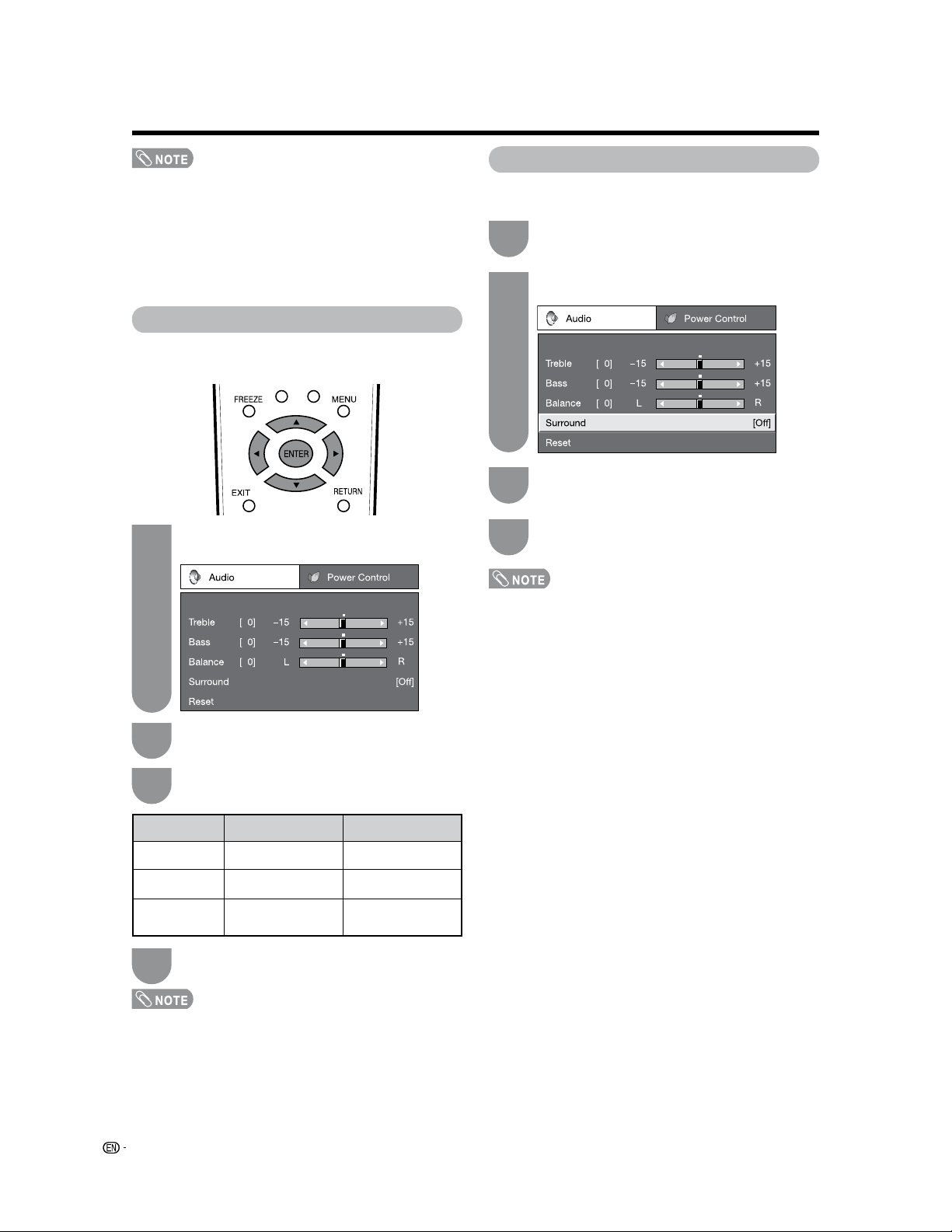
You can adjust the sound quality to your preference
with the following settings.
Basic adjustment settings
Surround
Surround function allows you to enjoy realistic “live”
sound.
Press
c
/
d
to adjust the item to the desired
level.
• Audio menu is grayed out when Output Select is set to
“Variable”.
• For resetting all Audio adjustment items to the factory
preset values, press
a
/
b
to select “Reset”, press ENTER,
press
c
/
d
to select “Yes”, and then press ENTER.
• You can choose Surround by pressing SURROUND on
the remote control unit.
• Audio menu is grayed out when Output Select is set to
“Variable”.
• For some discs, setup may be required on your DVD
player. In this case, please refer to the operation manual of
your DVD player.
Press MENU to display the MENU screen, and
then press
c
/
d
to select “Audio”.
Press
a
/
b
to select a specific adjustment
item.
Press
MENU to display the MENU screen, and
then press
c
/
d
to select “Audio”.
Press
a
/
b
to select “Surround”, and then
press
ENTER.
Press
c
/
d
to select “On”, and then press
ENTER.
1
2
3
1
2
3
Press MENU to exit.
4
Press MENU to exit.
4
• The range of OPC settings are active only when the OPC is
set to On.
• The maximum setting cannot be set to a smaller number
than the minimum setting.
• The minimum setting cannot be set to a bigger number
than the maximum setting.
• Depending on the brightness of the surrounding light, the
OPC sensor might not operate if the adjustment range is
small.
Selected item
Treble
Bass
Balance
c
button
For weaker treble
For weaker bass
Decrease audio from
the right speaker
d
button
For stronger treble
For stronger bass
Decrease audio from
the left speaker
4
31
Power Control
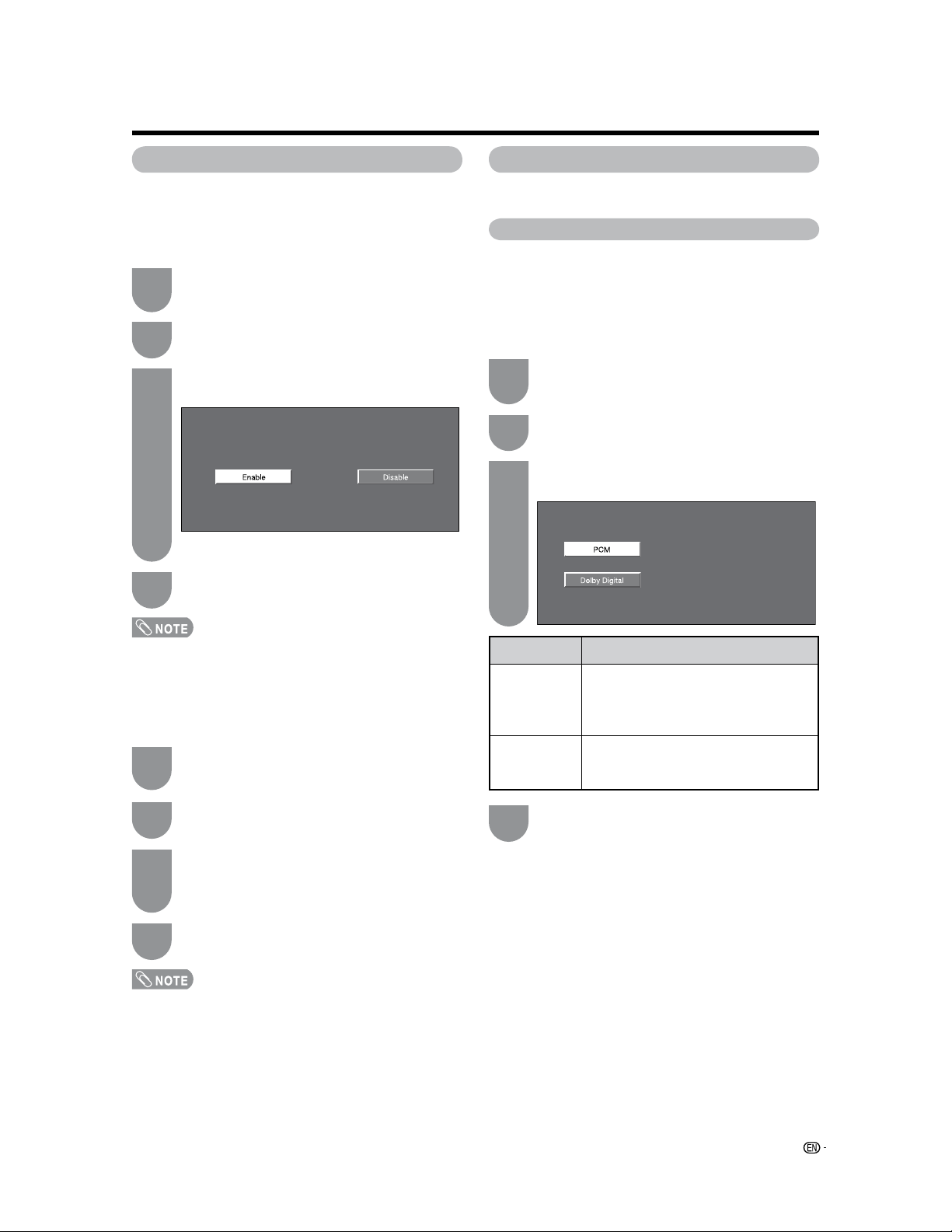
Power control setting allows you to save energy.
No signal off
When set to “Enable”, the power will automatically shut
down if there is no signal for 15 minutes.
Audio Setup
You can output digital audio to an AV amplifier or
similar device whose DIGITAL AUDIO INPUT terminal
is connected to the DIGITAL AUDIO OUTPUT terminal
on the TV. Please select an audio output format
compatible with the audio format of the program you
are watching and the equipment connected.
• “Disable” is the factory preset value.
• When a TV program finishes, this function may not operate.
• “Disable” is the factory preset value.
Press
a
/
b
to select “PCM” or “Dolby Digital”,
and then press
ENTER.
No operation off
When set to “Enable”, the power will automatically shut
down if there is no operation for 3 hours.
Press
MENU to display the MENU screen, and
then press
c
/
d
to select “Power Control”.
Press
a
/
b
to select “No Operation Off”, and
then press
ENTER.
Press
c
/
d
to select “Enable”, and then press
ENTER.
• Five minutes before the power shuts down, the
remaining time displays every minute.
Digital Setup
This setting allows you to optimize the settings of
Digital broadcasting.
Press MENU to display the MENU screen, and
then press
c
/
d
to select “Digital Setup”.
Press
a
/
b
to select “Audio Setup”, and then
press
ENTER.
Basic adjustment settings
1
3
2
1
2
3
1
3
2
Press MENU to exit.
4
Press MENU to exit.
4
Press MENU to exit.
Press MENU to display the MENU screen, and
then press
c
/
d
to select “Power Control”.
Press
a
/
b
to select “No Signal Off”, and then
press
ENTER.
Press
c
/
d
to select “Enable”, and then press
ENTER.
• Five minutes before the power shuts down, the
remaining time displays every minute.
Selected item
PCM
Dolby Digital
Description
The optical output terminal outputs audio
signal in PCM form. If your digital audio
system does not support Dolby Digital,
select “PCM”.
The optical output terminal outputs audio
signal in Dolby Digital form. It reproduces
sound from surround program of digital.
32
Using external equipment
Displaying an external equipment
image
To view external source images, select the input
source from
INPUT on the remote control unit or on
the TV.
Input Select
If the image does not come in clearly from the external
equipment connected to INPUT 1, you may need
to change the input signal type setting on the “Input
Select” menu.
Press
a
/
b
to select the signal type you want
to set, and then press ENTER.
• If the selected signal type is incorrect, images are
not displayed or displayed without any color.
Press MENU to display the MENU screen, and
then press
c
/
d
to select “Option”.
Press
a
/
b
to select “Input Select”, and then
press
ENTER.
• Refer to your external equipment operation manual for the
signal type.
• If you set INPUT 1 to Auto, the TV will automatically select
the input signal.
• Setting INPUT 1 signal selection to “Auto” when other
equipment is connected will result in the following
connection priority.
INPUT 1:
1
COMPONENT VIDEO
2
VIDEO
Press MENU to exit.
• The setting is stored and can be selected on the
“INPUT SOURCE” menu.
• See pages 13 and 14 for external equipment connection.
Press INPUT.
• A list of selectable sources appears.
Press INPUT again to select the input source.
• An image from the selected source automatically
displays.
• Each time INPUT is pressed, the input source
toggles.
• You can also select the input source by pressing
a
/
b
.
• If the corresponding input is not plugged in, you
cannot change the input. Be sure to connect the
equipment beforehand.
1
2
1
3
2
4
33
Displaying an image from HDMI
equipment
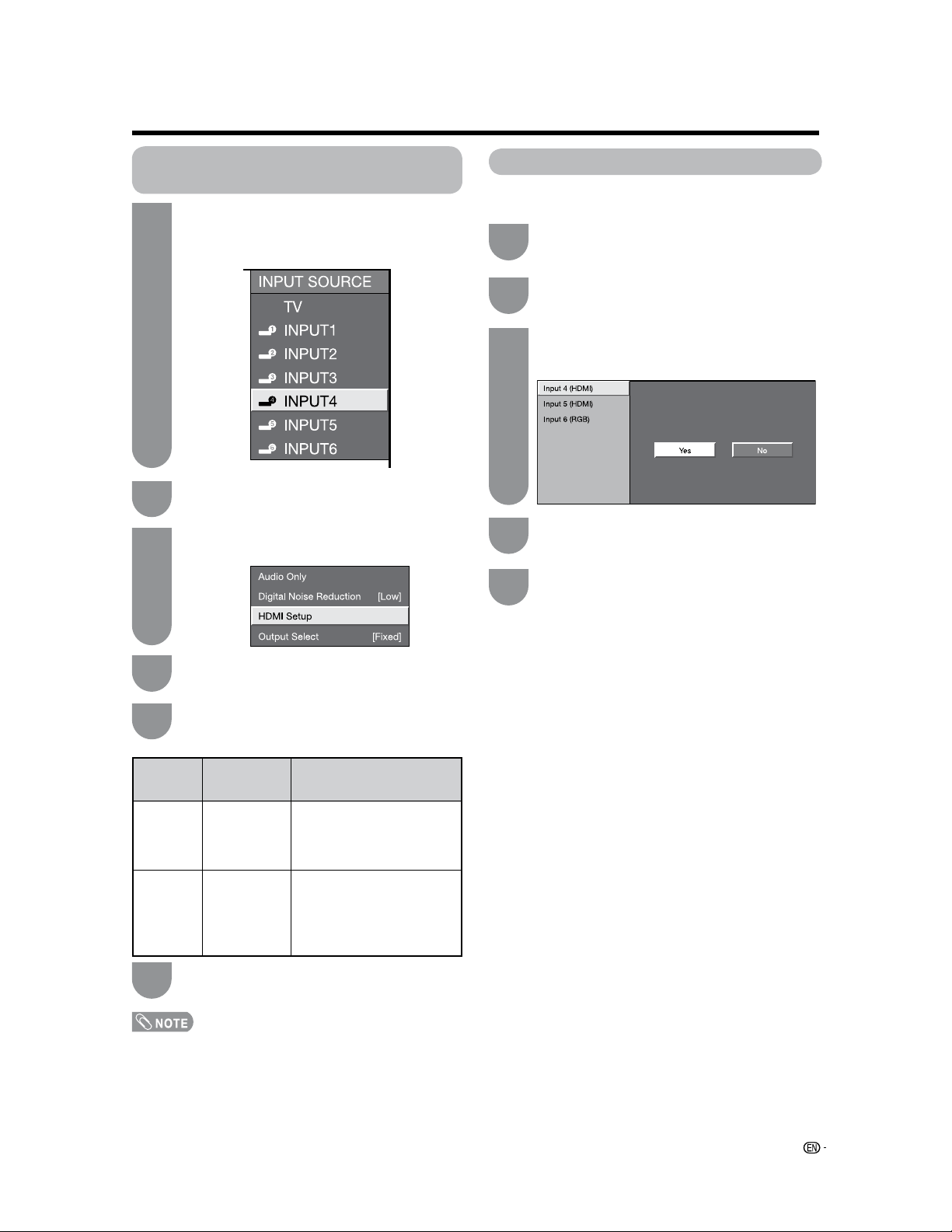
To watch an HDMI/PC-IN equipment image,
select “INPUT4
or INPUT5” from “INPUT
SOURCE” menu using
INPUT on the remote
control unit or on the TV.
Press
MENU to display the MENU screen, and
then press
c
/
d
to select “Option”.
Press
a
/
b
to select “HDMI Setup”, and then
press
ENTER.
1
2
3
Press
a
/
b
to select the desired item and
press
ENTER.
4
Input Skip
This setting allows you to skip the HDMI/PC-IN Input
on the Input Selection operation.
Press
a
/
b
to select “Input Skip”, and then
press
ENTER.
Press MENU to display the MENU screen, and
then press
c
/
d
to select “Setup”.
1
2
Press MENU to exit.
Press
a
/
b
to select the Input (INPUT 4,
INPUT 5 or INPUT 6) you wish to skip, and
then press
ENTER.
Press
c
/
d
to select “Yes”, and then press
ENTER.
3
4
5
6
Press MENU to exit.
• Refer to your external equipment operation manual for the
signal type.
• “Audio Select” is only available for INPUT 5.
• When connecting an HDMI-DVI conversion adapter/cable
to the HDMI terminal, the image may not come in clearly.
Press
a
/
b
/
c
/
d
to select the desired setting
and press
ENTER.
5
Enable
Disable
Digital
Analog
Set whether or not to use
View Mode based on signal
recognition, including an HDMI
signal.
Select “Digital” for an audio
signal via the HDMI terminal.
Select “Analog” for an audio
signal via the R-AUDIO -L
terminal.
Auto View
Audio
Select
HDMI
Setup
items
Selectable
items
Description
Using external equipment
Auto Sync. adjustment (for Analog
PC input mode only)
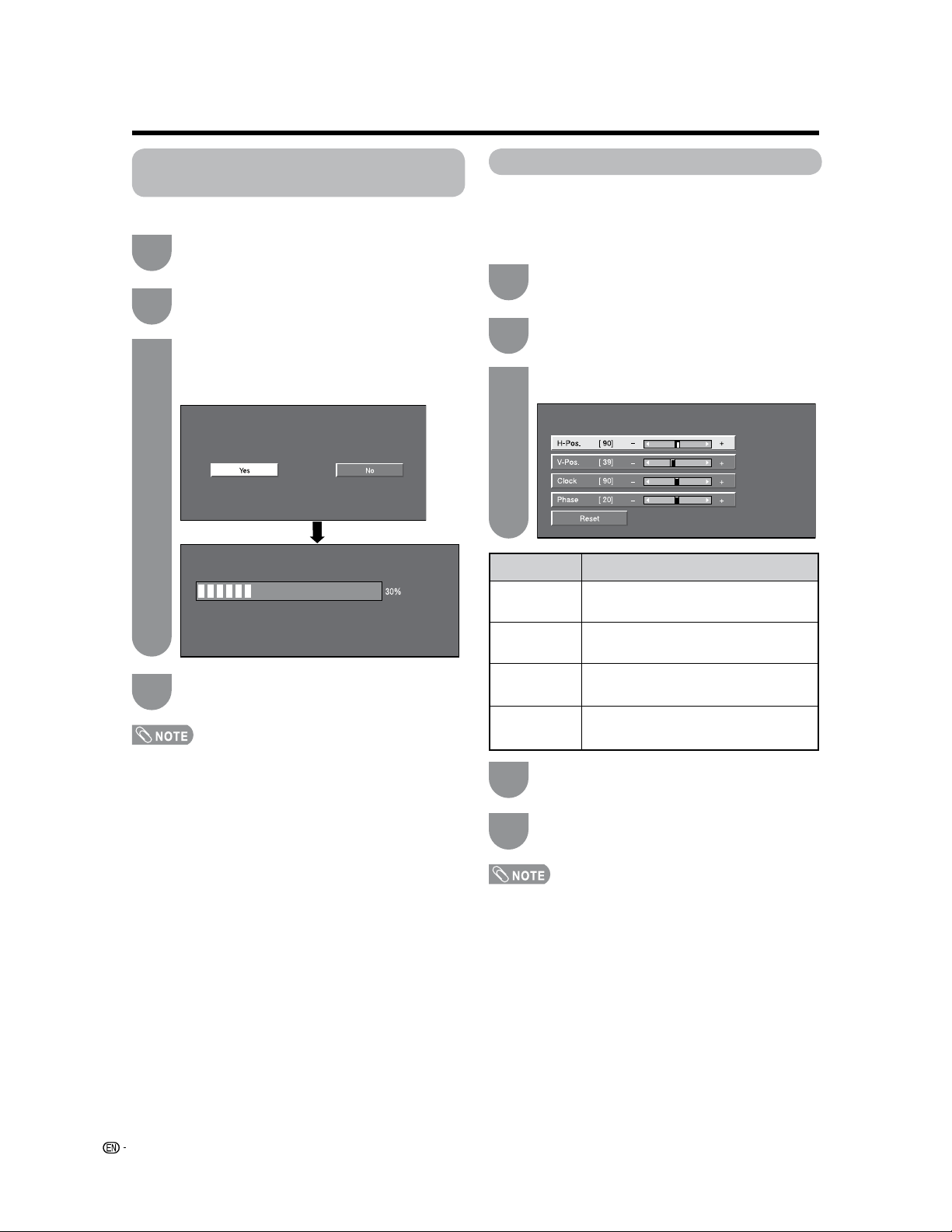
For automatically adjusting the PC image.
Press
a
/
b
to select “Auto Sync.”, and then
press
ENTER.
Press
MENU to display the MENU screen, and
then press
c
/
d
to select “Setup”.
1
2
Press
c
/
d
to select “Yes”, and then press
ENTER.
• Auto Sync. starts and “Now adjusting the image.”
displays.
Press MENU to exit.
3
4
Useful adjustment settings
Fine Sync. adjustment
Ordinarily you can easily adjust the picture as
necessary to change image position using Auto Sync.
In some cases, however, manual adjustment is needed
to optimize the image.
Press
a
/
b
to select “Fine Sync.”, and then
press
ENTER.
Press MENU to display the MENU screen, and
then press
c
/
d
to select “Setup”.
1
2
Press MENU to exit.
Press
a
/
b
to select the specific adjustment
item.
Press
c
/
d
to adjust the item to your desired
position.
3
4
5
Selected item
H-Pos.
V-Pos.
Clock
Phase
Description
Centers the image by moving it to the left
or right.
Centers the image by moving it up or
down.
Adjust when the image flickers with vertical
stripes.
Adjust when characters have low contrast
or when the image flickers.
34
• When Auto Sync. is successful, “Completed” displays. If
not, Auto Sync. failed.
• Auto Sync. may fail even if “Completed” displays.
• Auto Sync. may fail if the computer image has low
resolution, has unclear (black) edges, or is moved while
executing Auto Sync.
• Be sure to connect the PC to the TV and switch it on
before starting Auto Sync.
• For resetting all Fine Sync. adjustment items to the factory
preset values, press
a
/
b
to select “Reset”, and then
press
ENTER.
• It is not necessary to adjust the “Clock” or “Phase” when a
digital signal is being input, so it cannot be selected.
Useful adjustment settings
Music Player Input Setting
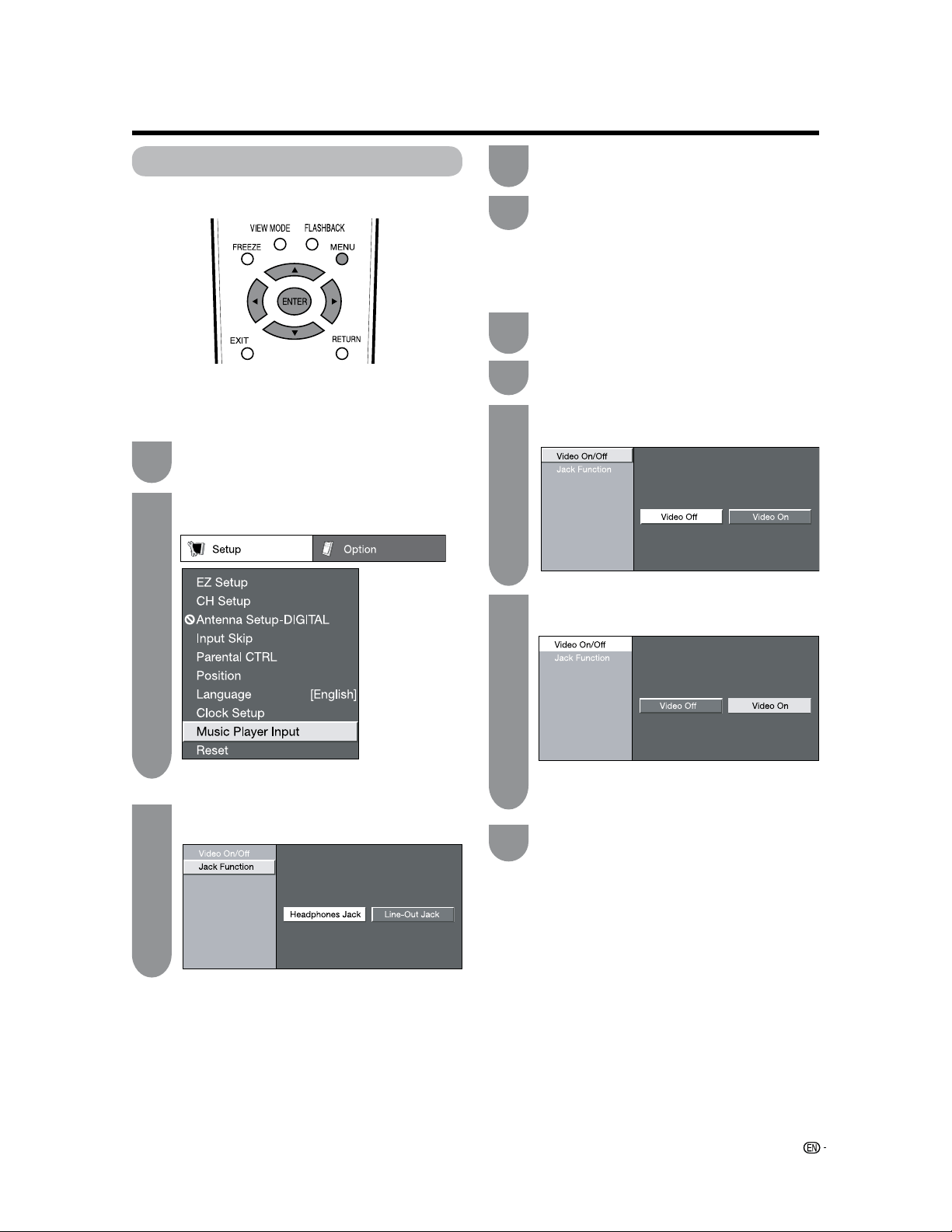
The TV speakers can be used to enjoy music, when a
portable Music Player is connected.
Press MENU to display the MENU screen, and
then press
c/d to select “Setup”.
Press
a/b to select “Music Player Input”, and
then press
ENTER.
Press
a/b to select “Jack Function”, and then
press
ENTER.
1
2
3
Press c/d to select “Headphones Jack”, or
“Line-Out Jack”, and the press
ENTER.
4
O Jack Function
Select the terminal to which the Music Player is
connected.
Press MENU to exit.
5
O Video On/Off
When enjoying music from the Music Player, you can
watch the TV.
Press MENU to display the MENU screen, and
then press
c/d to select “Setup”.
1
Press a/b to select “Music Player Input”, and
then press
ENTER.
2
Press a/b to select “Video On/Off”, and then
press
ENTER.
3
• Only Power On/Off, volume and mute can be
operated when setting to Video off.
Press c/d to Select “Video On”, and then
press
ENTER.
4
Press MENU to exit.
5
35

36
Useful adjustment settings
Reset
If complex adjustments are made and the settings
cannot be restored to normal, you can reset the
settings to the factory preset values.
Press
c
/
d
to select “Yes”, and then press
ENTER.
• “Now, TV will restart automatically. OK?” displays
on the screen.
Press MENU to display the MENU screen, and
then press
c
/
d
to select “Setup”.
Press
a
/
b
to select “Reset”, and then press
ENTER.
• If you already set the Secret No., input the 4-digit
secret number here. See page 45 for setting a
secret number.
• “Return to the factory preset values” displays on
the screen.
1
3
2
Press
c
/
d
to select “Yes”, and then press
ENTER.
• “Now initializing...” displays on the screen and
blinks.
• After the reset has completed, the power shuts
off and then comes back on. The screen will have
returned to its original settings.
4
• The Channel Setup settings will not be changed.
• The Language settings will not be changed.
• The Secret number settings will not be changed.
Press
a
/
b
to select the desired language
listed on the screen, and then press
ENTER.
Press
MENU to display the MENU screen, and
then press
c
/
d
to select “Setup”.
Press
a
/
b
to select “Language”, and then
press
ENTER.
1
3
2
Press MENU to exit.
4
Press
a
/
b
to select “H-Pos.” or “V-Pos.”.
Press
c
/
d
to adjust the item to the desired
position.
• For resetting adjustments to the factory preset values,
press
a
/
b
to select “Reset”, and then press ENTER.
• When connecting a PC to the HDMI terminal, the image
position will be automatically adjusted. It cannot be
manually adjusted.
• Adjustments are stored separately according to input
source.
Image position
For adjusting a picture's horizontal and vertical
position.
Press
a
/
b
to select “Position”, and then
press
ENTER.
Press MENU to display the MENU screen, and
then press
c
/
d
to select “Setup”.
1
3
2
4
Press MENU to exit.
5
Example
Language setting
You can also select a language from the Setup menu.
Select from among 3 languages: English, French and
Spanish.
Selected item
H-Pos.
V-Pos.
Description
Centers the image by moving it to the left
or right.
Centers the image by moving it up or
down.
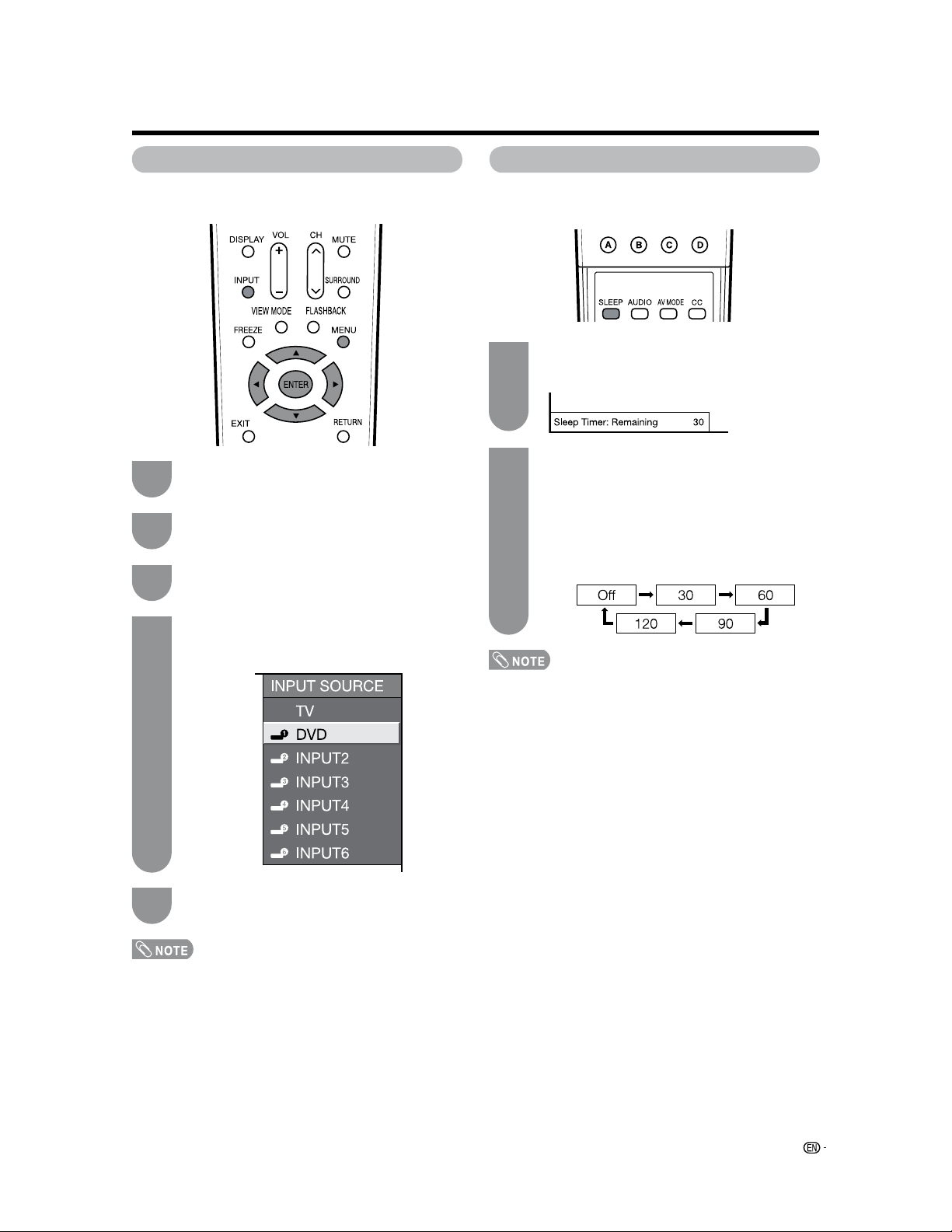
37
Input Label
Lets you set the input terminal displayed when using
the INPUT SOURCE menu or channel display.
Useful adjustment settings
Press
a
/
b
/
c
/
d
to select the new name for
the input mode, and then press
ENTER.
Example
• You cannot change labels if the INPUT SOURCE is TV.
Press INPUT to select the desired input
source.
Press
MENU to display the MENU screen, and
then press
c
/
d
to select “Setup”.
Press
a
/
b
to select “Input Label”, and then
press
ENTER.
1
2
3
4
Press MENU to exit.
5
Sleep Timer
Allows you to set a time when the TV automatically
switches to standby.
1
2
Press SLEEP.
• The remaining time displays when the sleep timer
has been set.
Each time you press SLEEP, the remaining
time switches as shown below.
• When set, the time automatically starts counting
down.
• If you want to adjust the sleep timer, you can
press SLEEP twice then change the time setting.
• Five minutes before the time expires, the
remaining time displays every minute.
• Select “Off” by pressing SLEEP to cancel the sleep timer.
• The TV will enter the standby mode when the remaining
time reaches zero.
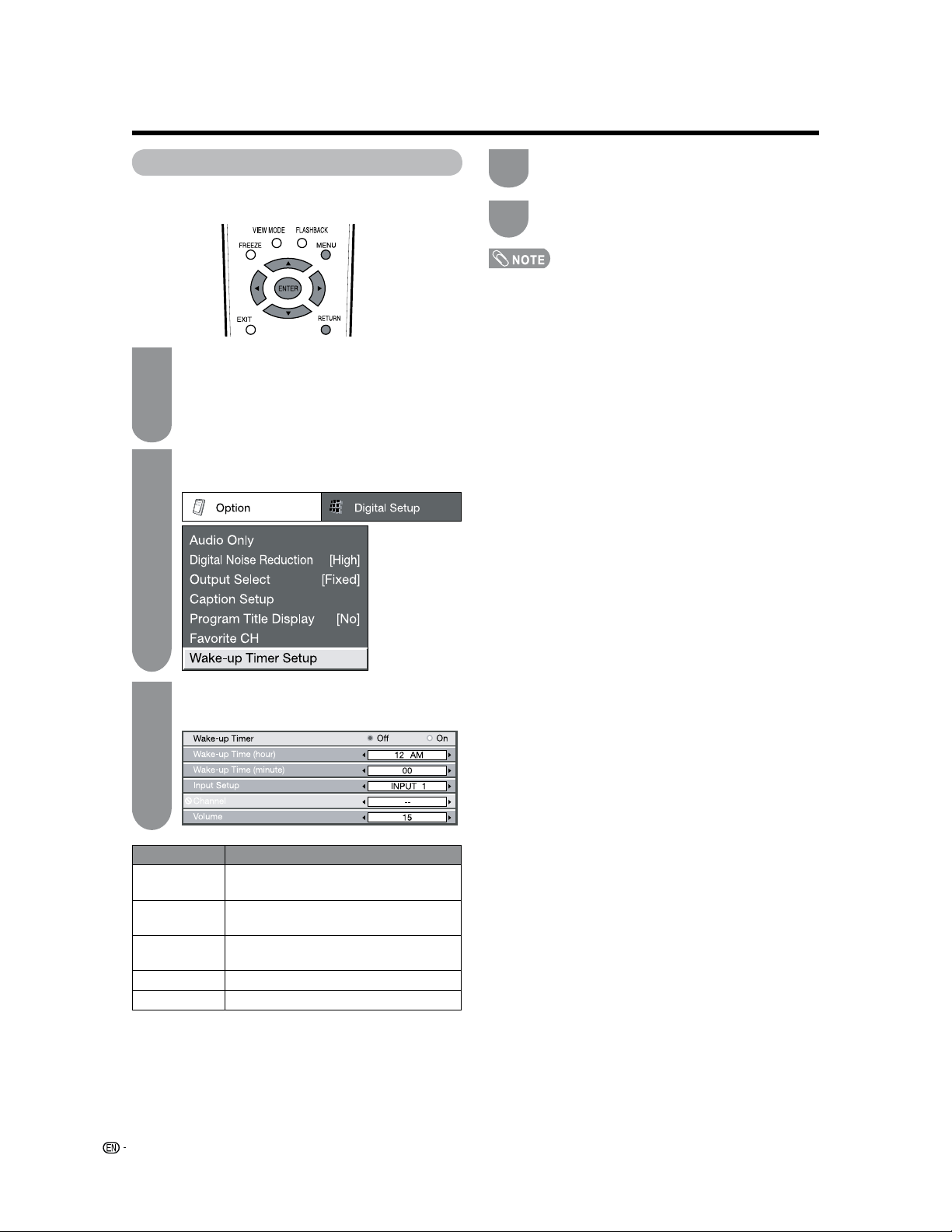
38
Useful adjustment settings
Press
a
/
b
to select “Wake-up Timer Setup”,
and then press
ENTER.
Wake-up Timer Setup
Press MENU to display the MENU screen, and
then Press
c
/
d
to select “Option”.
• If the clock is not set, make sure to use “Clock
Setup” in “Setup” before setting “Sleep Timer” or
“Wake-up Timer Setup”.
1
2
You can set the Wake-up Timer Setup to automatically
turn on the TV.
Press
a
/
b
to select the items, and press
c
/
d
to adjust them.
3
Selected item Description
Wake-up Timer To activate the Wake up Timer Setup, set this
item to “On”.
Wake-up Timer
(hour)/(minute)
Set the time at which you want to turn on the
TV.
Input Setup Set the input mode when the TV
is turned on.
Channel Set the channel when the TV is turned on.
Volume Set the volume when the TV is turned on.
Make sure to turn off the LCD TV set with the
remote control.
Press
MENU to exit.
4
5
• When you set “Wake-up Timer Setup”, the POWER/WAKE
UP TIMER indicator lights up orange while in the standby
mode.
• Be sure to adjust the clock with “Clock Setup” in “Setup”
before setting “Wake-up Timer Setup”.
• You can output the picture and sound of the external
device with the Wake-up Timer Setup function. Make sure
that the external device turns on at the time you specified.
• The Input Setup setting for “Wake-up Timer Setup”
changes in the following order: INPUT1sINPUT2sINPUT3
sINPUT4sINPUT5sINPUT6sTV (AIR or CABLE)*
* The skipped channels cannot be selected.
• When not using LCD TV set for a long period of time, either
turn the main power off or set “Wake-up Timer Setup” to
“Off”.
• When “Wake-up Timer Setup” has been set to “On”, the TV
is turned on at the set time every day until it is set to “Off”.
• After the TV has been turned “On” by “Wake-up Timer
Setup”, “No Operation off” is automatically set to 120
minutes for safety reason.
• The channel setting can select only the current TV network
(Air or Cable).
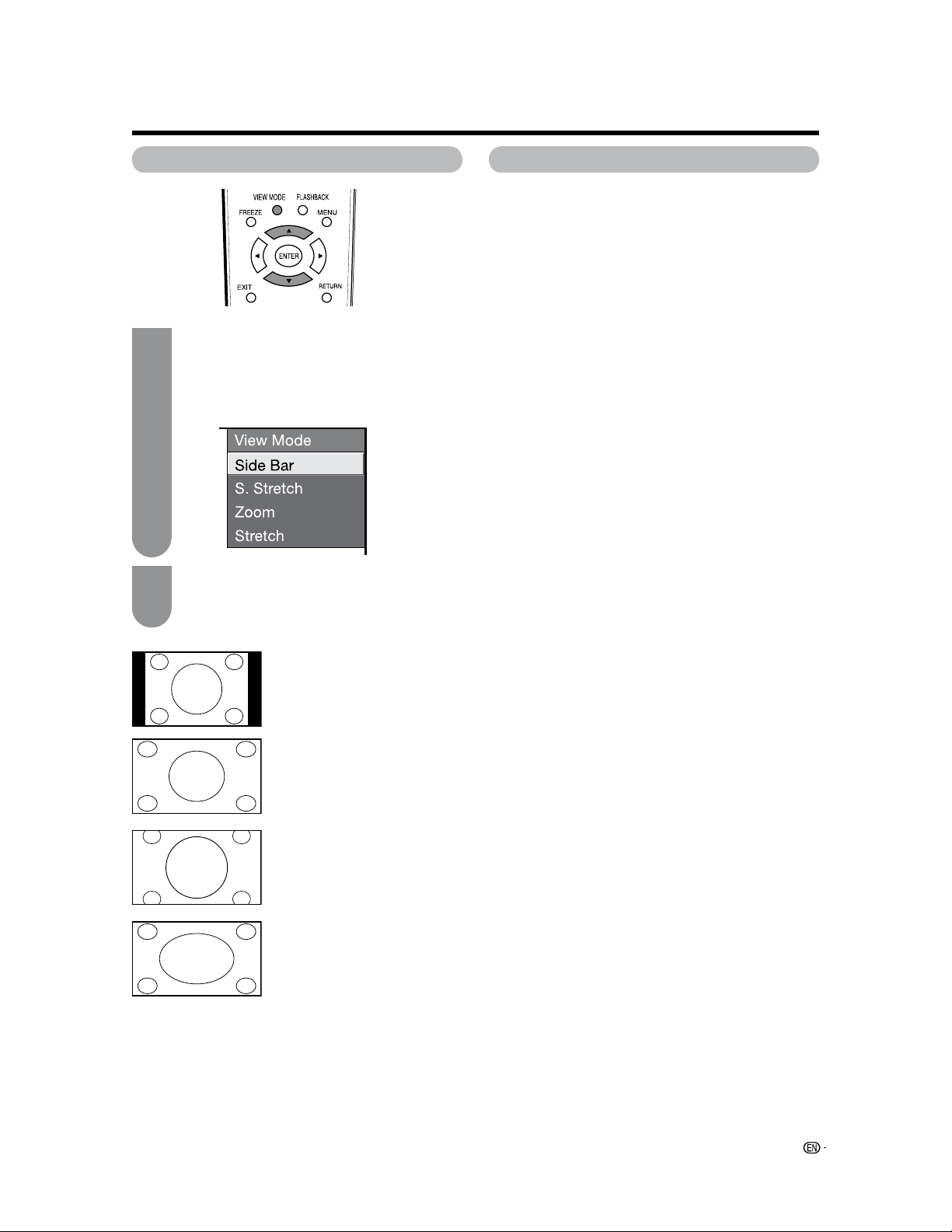
39
Useful adjustment settings
Press VIEW MODE or
a
/
b
while the View
Mode menu is displayed to select a desired
item on the menu.
• You can sequentially select a View Mode that has
its own aspect ratio.
View Mode for 4:3 Programs
Stretch:
This mode is useful for 1.78:1
DVDs.
When viewing 1.85:1 DVDs, stretch
mode will still show very thin black
bands at the top and bottom of the
screen.
Press VIEW MODE.
• The View Mode menu displays.
• The menu lists the View Mode options selectable
for the type of video signal currently being
received.
Side Bar:
Suitable for viewing conventional
4:3 programs in their normal
format.
S.Stretch (Smart stretch):
Suitable for stretching 4:3
programs to fill the screen.
Zoom:
Suitable for viewing wide-screen
2.35:1 anamorphic DVDs in full
screen.
1
2
View Mode for HD Programs
Stretch mode is available for HD programs.
Suitable for viewing wide-screen 1.78:1 aspect-ratio
programs. When viewing 1.85:1 programs, the stretch
mode will still show very thin black bands at the top
and bottom of the screen.
Example
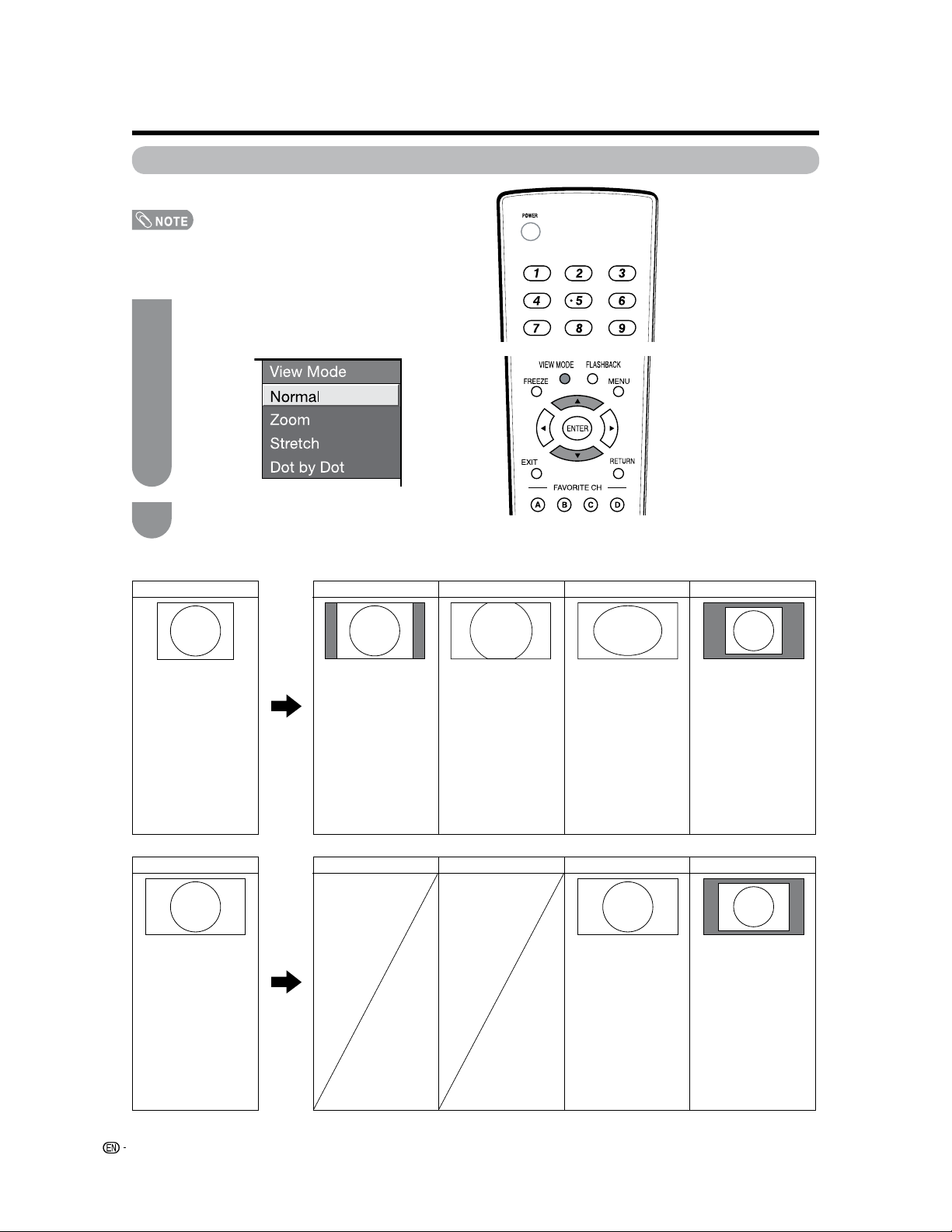
40
View Mode (for PC input mode)
You can select the screen size.
• Connect the PC before making adjustments. (See page
14.)
• Selectable screen size may vary with input signal type.
1
2
Press VIEW MODE.
• The View Mode menu displays.
Press VIEW MODE or
a
/
b
while the View
Mode menu is displayed to select a desired
item on the menu.
Example
Example: Screen size images
Input signal Normal Zoom Dot by DotStretch
Keeps the original
aspect ratio in a full
screen display.
For viewing wide-
screen programs. The
top and bottom of the
image is cropped.
Detects the resolution
of the signal and
displays an image
with the same
number of pixels on
the screen.
An image fully fills the
screen.
4:3
Detects the resolution
of the signal and
displays an image
with the same
number of pixels on
the screen.
An image fully fills the
screen.
16:9
Input signal Dot by DotStretch
Useful adjustment settings
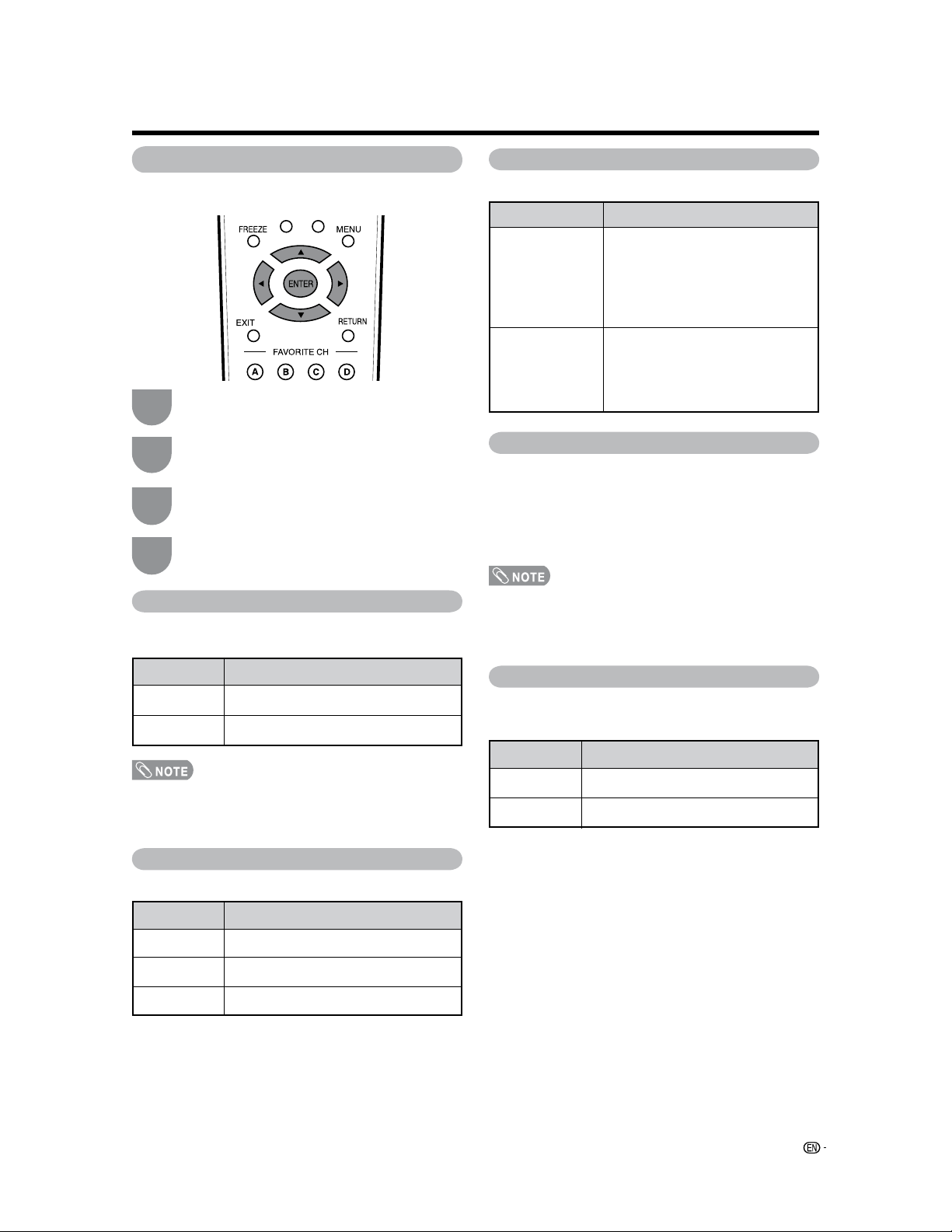
41
Useful adjustment settings
Output Select
Allows you to select what controls the audio output.
Color System
Select the video signal system compatible with your
equipment from the list below;
— Auto
— NTSC
— PAL-M
— PAL-N
• “Color System” can only be set for the INPUT 1 VIDEO,
INPUT 2 and INPUT 3.
• If you already set the Secret No., input the 4-digit secret
number here. See page 45 for setting a secret number.
Digital Noise Reduction
Produces a clearer video image.
Audio Only
When listening to music from a music program, you
can set the screen off and enjoy audio only.
• The screen image will return to normal when a button
(except those for audio adjustment, such as VOL, MUTE,
SURROUND, AUDIO) is pressed.
Program Title Display
Select the CH display when changing channels for
digital broadcasting.
Advanced Option settings
Perform the following steps to set the Option menu
items on this page.
1
3
2
4
Press
a
/
b
(or
c
/
d
) to select the desired
setting, and then press
ENTER.
Press
MENU to display the MENU screen, and
then press
c
/
d
to select “Option”.
Press
a
/
b
to select a specific adjustment
item, and then press
ENTER.
Press
MENU to exit.
• Skip this step for “Audio Only”.
Selected item
Off
High
Low
Description
No adjustment
For enhanced Digital Noise Reduction
For moderate Digital Noise Reduction
Selected item
On
Off
Description
Audio is output without screen image.
Both screen images and audio are output.
Selected item
Fixed
Variable
Description
• Sound via speaker is adjusted with
VOL
k
/
l
on the remote control
unit or VOL
l
/
k
on the TV.
• Sound via the AUDIO OUTPUT
terminal is not adjustable and
outputs at a consistent level.
• Sound via the AUDIO OUTPUT
terminal is adjusted with VOL
k
/
l
on the remote control unit or VOL
l
/
k
on the TV.
• Sound via speaker is muted.
Selected item
Yes
No
Description
“Program Info.” displays
“Program Info.” does not display
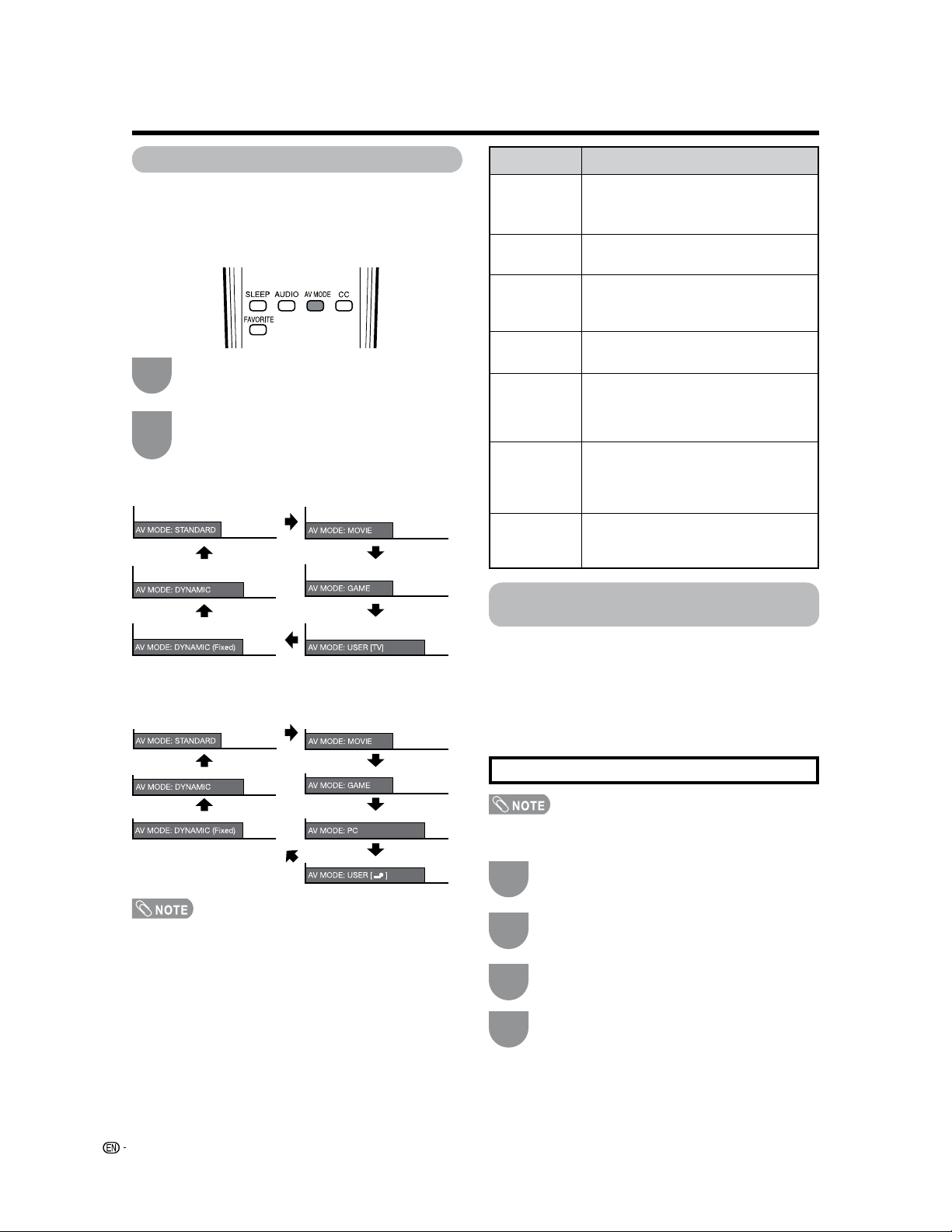
42
Useful adjustment settings
Press MENU to exit.
4
When the input source is TV, INPUT 1, 2 or 3 terminals
(Example)
When the input source is INPUT 4, 5 or 6 terminals
(Example)
Input Signal (for Analog PC input
mode only)
Some input signals may have to be registered manually
to display properly.
The pair of input signals (resolutions) in the list below
are not distinguishable when received. In such case,
you have to set the correct signal manually. After
setting once, it will display when the same signal
(resolution) is input again.
• You can only select the “Input Signal” on the Setup menu
when receiving one of the 2 input signals listed above.
Press
a
/
b
to select “Input Signal”, and then
press
ENTER.
Press
a
/
b
to select the desired input signal
on the display.
Press
MENU to display the MENU screen, and
then press
c
/
d
to select “Setup”.
1
3
2
AV MODE
AV MODE gives you 7 viewing options to choose from
to best match the surrounding environment of the TV,
which can vary due to factors like room brightness,
type of program watched or the type of image input
from external equipment.
Press
AV MODE again before the mode
displayed on the screen disappears.
• The mode changes as shown below.
Press AV MODE.
• Current AV MODE displays.
1
2
• You can select a different AV MODE item for each input
mode. (For example, select STANDARD for TV input and
DYNAMIC for INPUT 1.)
• “Enhanced Picture Contrast” technology detects the source
video characteristics and smoothly adjusts the screen
brightness accordingly to realize deeper black levels.
Selected item
STANDARD
MOVIE
GAME
PC
USER
DYNAMIC
(Fixed)
DYNAMIC
Description
For a highly defined image in a normal
lighting
[Enhanced Picture Contrast: on]
For a movie
[Enhanced Picture Contrast: off]
Lowers image brightness for easier viewing
[Enhanced Picture Contrast: off]
For PC
[Enhanced Picture Contrast: off]
Allows the user to customize settings as
desired. You can set the mode for each
input source.
[Enhanced Picture Contrast: off]
Changes the image and sound settings to
the factory preset values. No adjustments
are allowed.
[Enhanced Picture Contrast: on]
For a clear-cut image emphasizing high
contrast, useful for sports viewing
[Enhanced Picture Contrast: on]
1024
g
768 1360
g
768
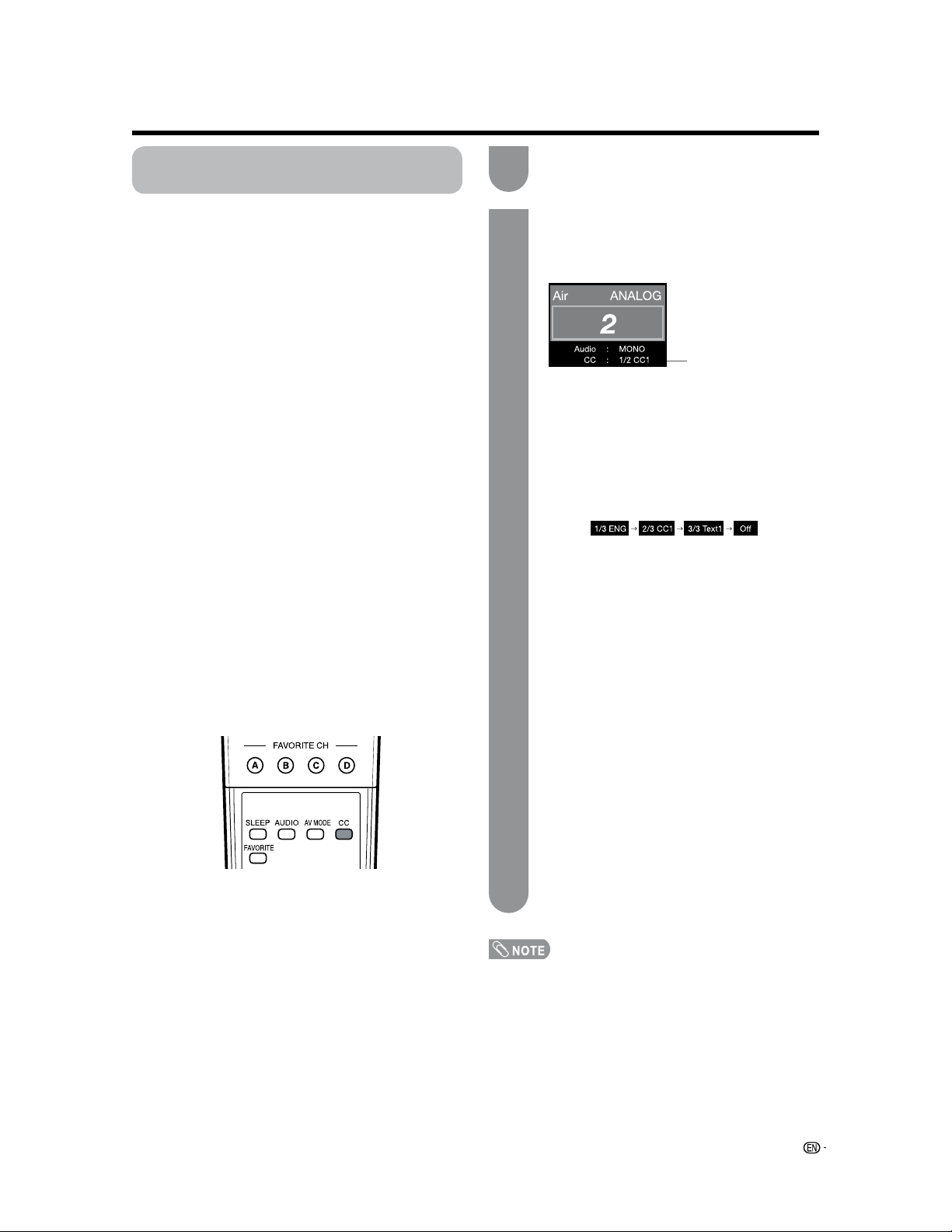
43
Closed Captions and Digital Closed
Captions
Your TV is equipped with an internal Closed Caption
decoder. It allows you to view conversations, narration
and sound effects as subtitles on your TV. Closed
Captions are available on some TV programs and on
some VHS home video tapes at the discretion of the
program provider.
Digital Closed Caption service is a new caption service
available only on digital TV programs (also at the
discretion of the service provider). It is a more flexible
system than the original Closed Caption system,
because it allows for a variety of caption sizes and font
styles. When the Digital Closed Caption service is in
use, it will be indicated by the appearance of a 3-letter
abbreviation that also indicates the language of the
Digital Closed Captions: ENG (English), SPA (Spanish),
FRA (French) or other language codes.
Not all programs and VHS videotapes offer closed
captions. Please look for the “
N
” symbol to ensure
that captions will be shown.
In the Closed Caption system, there can be more than
one caption service provided. Each is identified by its
own number. The “CC1” and “CC2” services display
subtitles of TV programs superimposed over the
program's picture.
In the Closed Caption system, the “Text1” or “Text2”
services display text that is unrelated to the program
being viewed (e.g., weather or news). These services
are also superimposed over the program currently
being viewed.
• Depending on the number of caption services in
the signal being received, you will see information
such as 1/2 or 1/4 displayed.
1/2 means “the first of two services”.
Example:
If a program has three services (Digital CC(ENG),
CC1 and Text1), the closed caption display will
toggle in this sequence:
• The CC button keeps a record of the last service
selected in its memory.
If the last closed caption mode (e.g. 1/3ENG) you
selected is not available for the next program, or
on another channel, the closed caption service
that is available is automatically selected, and this
service appears in parentheses, e.g. “1/3(CC1)”.
Closed Caption services that appear in
parentheses will not be stored in the CC button's
memory as your last selected service. Only
services that you have selected with the CC
button are stored.
Examples:
In a case where there are two closed caption
services provided, (for instance, Digital
CC(ENG) and CC1), and Digital CC(ENG)
is displayed as your current selection, if
Digital CC(ENG) is not broadcast for the next
program, the other closed caption service,
CC1, will be displayed in parentheses.
A closed caption service appears in
parentheses because the service you selected
is not available and a different service is
displayed on your screen. “1/1(CC1)” is
displayed instead of “1/2/ENG”.
Press
CC.
• This will present the Closed Caption information
display.
Press CC while the Closed Caption information
is still on the screen.
• Press repeatedly until you select the desired
closed caption service.
Closed Caption
information
• See page 44 for detailed closed caption settings.
• When the program contains no closed caption, “--”
displays in the closed caption information.
• If the language code, e.g. “ENG”, is not found on Digital TV
programs, “--” will be shown.
• Four kinds of closed caption service (CC1, CC2, Text1,
Text2) are potentially available, but a broadcast may contain
none or only some of these services at the discretion of the
program provider.
Useful adjustment settings
1
2
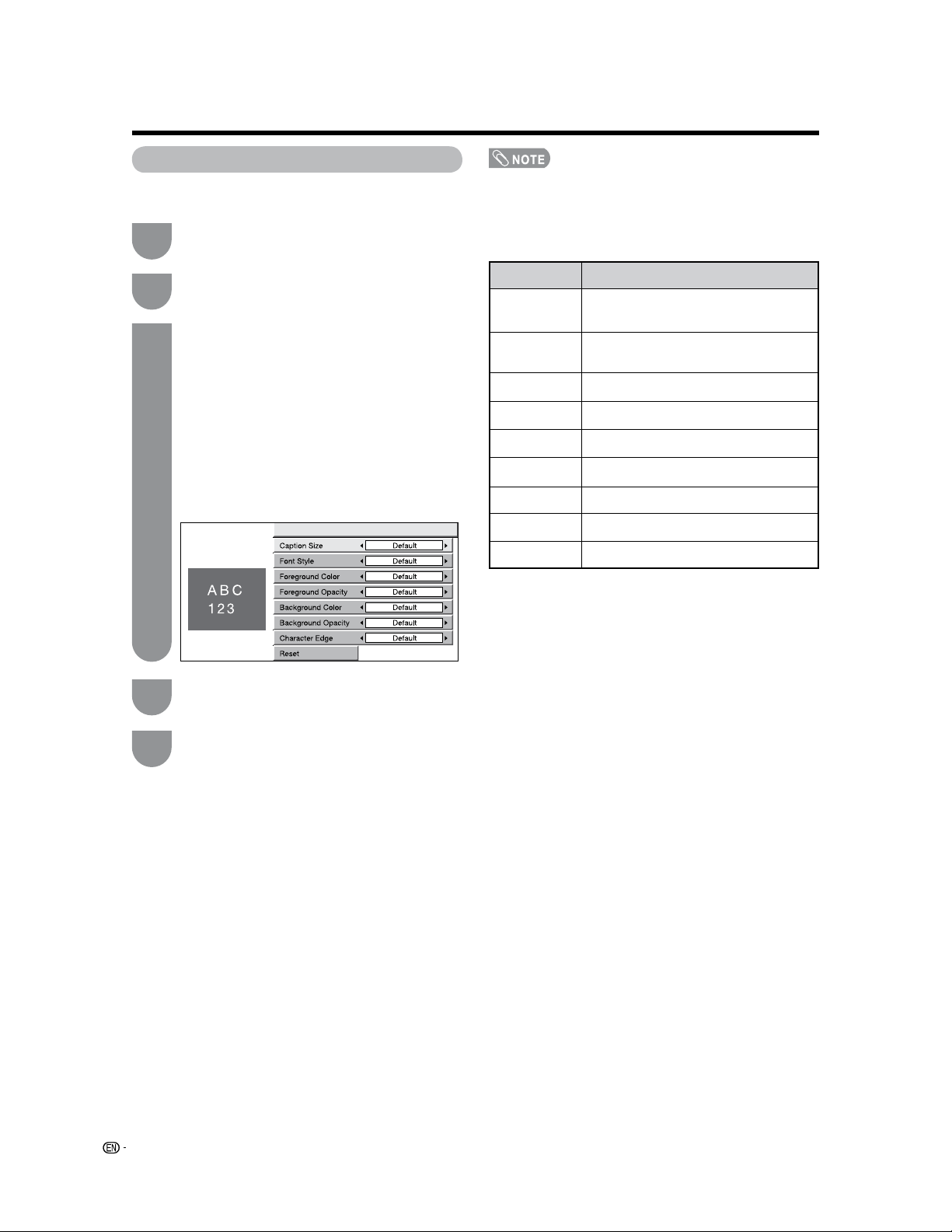
44
Caption Setup
This function allows you to adjust the closed caption
screen appearance to suit your preference.
Press
a
/
b
to select a specific adjustment
item.
• You can adjust 7 items here; they are,
1
“Caption Size”,
2
“Font Style”,
3
“Foreground Color”,
4
“Foreground Opacity”,
5
“Background Color”,
6
“Background Opacity” and
7
“Character Edge”.
Press
c
/
d
to select the desired parameter.
• For resetting adjustments to the factory preset values,
press
a
/
b
to select “Reset”, and then press
ENTER.
• The default value depends on the broadcasting station.
Selectable items available for “Font Style”.
Press MENU to display the MENU screen, and
then press
c
/
d
to select “Option”.
Press
a
/
b
to select “Caption Setup”, and
then press
ENTER.
Useful adjustment settings
1
3
4
2
Press MENU to exit.
5
Selected item
Default
Type 0
Type 1
Type 2
Type 3
Type 4
Type 5
Type 6
Type 7
Description
The font specified by broadcasting station
or default font.
Proportional font used in the MENU
screen.
Monospaced with serifs.
Proportionally spaced with serifs.
Monospaced without serifs.
Proportionally spaced without serifs.
Casual font type.
Cursive font type.
Small capitals.
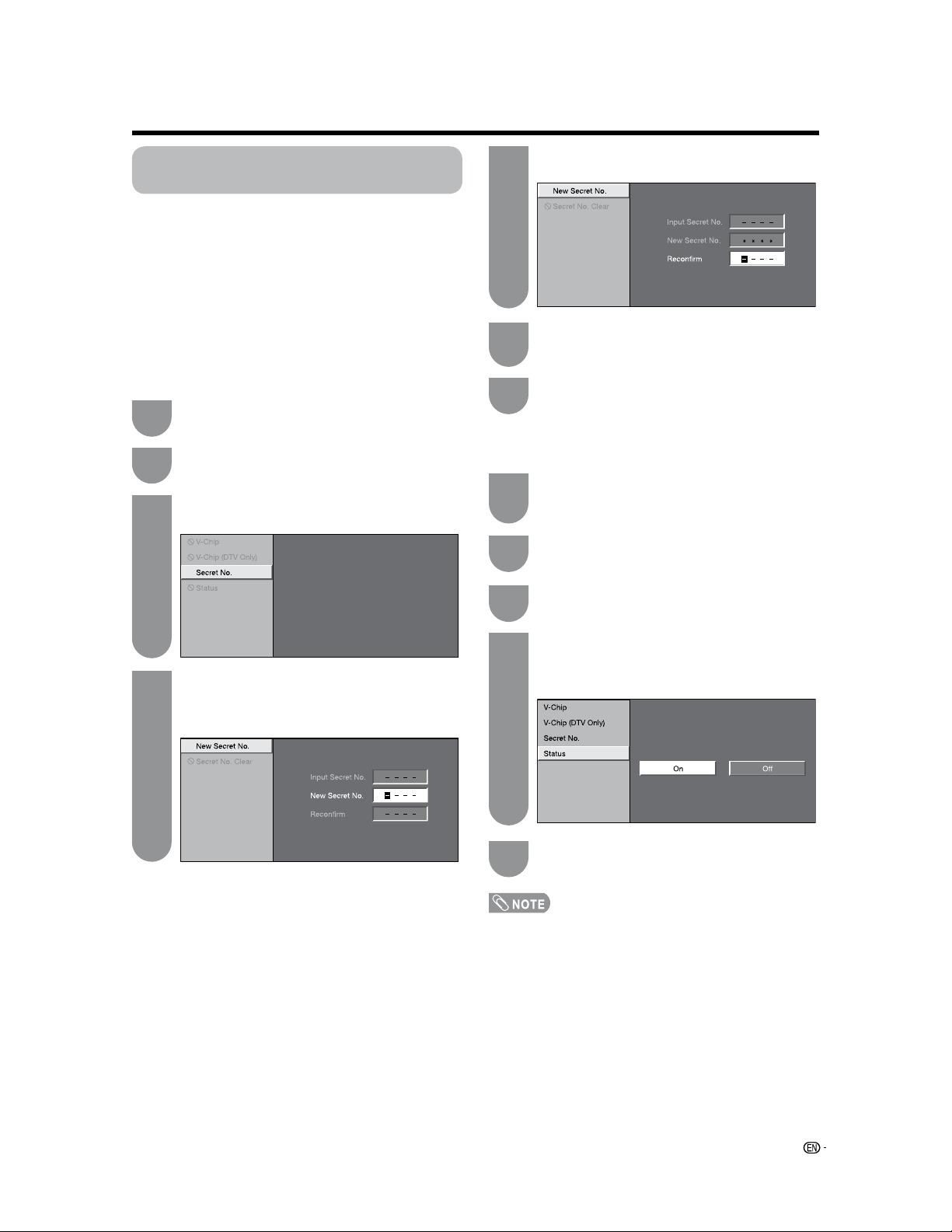
45
Secret number setting for parental
control
Allows you to use a secret number to protect certain
settings from being accidentally changed.
IMPORTANT:
Three conditions must be met to enable the V-Chip (see
pages 47 to 50):
1
Secret No. is registered.
2
V-Chip/V-Chip (DTV Only) settings have been
made.
3
“Status” is set to “On”.
Setting a secret number
Press
a
/
b
to select “Parental CTRL”, and
then press
ENTER.
Press
MENU to display the MENU screen,
and then press
c
/
d
to select “Setup”.
Press
a
/
b
to select “Secret No.”, and then
press
ENTER.
Select “New Secret No.”, and then press
ENTER.
Input the new 4-digit secret number by using
0
–9.
Press
RETURN to start configuring the V-Chip
settings. (See pages 47 and 50 for details.)
Press
a
/
b
to select “Status”, and then press
ENTER.
Repeat steps 1 and 2 in
Setting a secret
number.
• The secret number setting menu displays.
Input the 4-digit secret number by using 0–9.
Setting parental control status
Used to enable or disable the parental control function.
Press
c
/
d
to select “On” or “Off”, and then
press
ENTER.
• Select “On” to enable and “Off” to disable Parental
CTRL.
• You can skip steps 1 and 2 above while in the Parental
CTRL screen.
• The “V-Chip (DTV Only)” will only be selectable when a new
rating system can be downloaded via digital broadcasting
in the U.S.
Useful adjustment settings
1
3
4
2
6
Input the same 4-digit number on the
“Reconfirm” screen as in step 4 to confirm.
5
1
2
4
3
Press MENU to exit.
7
Press MENU to exit.
5
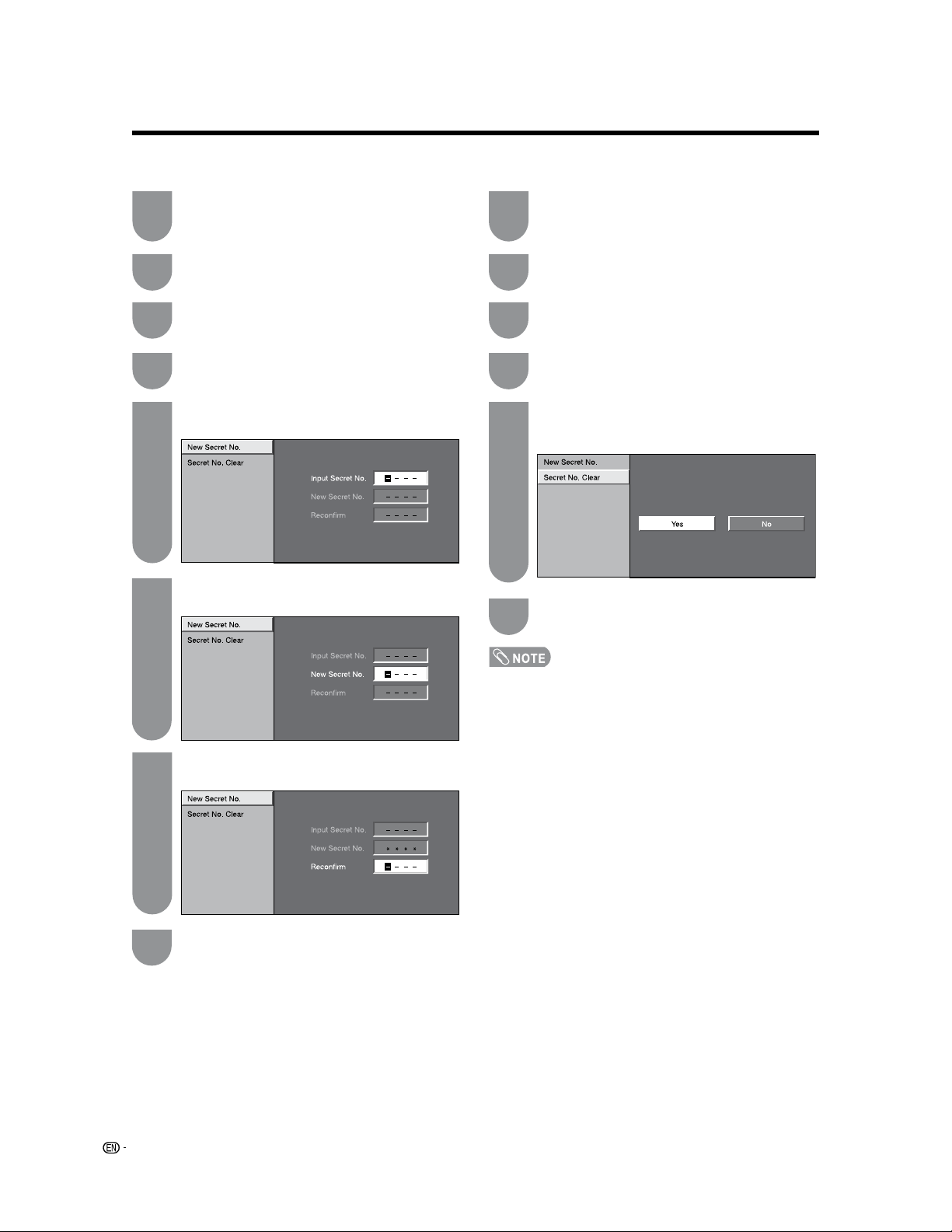
46
• See page 45 for re-registering a new secret number after
being cleared.
• As a precautionary measure, make a note of your
secret number and keep it in a familiar place.
• If the secret number is cleared, the Status setting
automatically sets to “Off”. “V-Chip” and “Status” will not
be selectable from the menu.
Press
a
/
b
to select “Secret No.”, and then
press
ENTER.
Press
a
/
b
to select “New Secret No.”, and
then press
ENTER.
Input the old 4-digit secret number by using
0–9.
Press
c
/
d
to select “Yes”, and then press
ENTER.
• Your secret number is cleared.
Press
a
/
b
to select “Secret No. Clear”, and
then press
ENTER.
Repeat steps 1 and 2 in
Setting a secret
number.
• The secret number setting menu displays.
Changing the secret number
Allows you to change your current secret number.
Input the 4-digit secret number by using 0–9.
Clearing the secret number
Allows you to clear your secret number.
Repeat steps 1 to 2 in
Setting a secret
number.
• The secret number setting menu displays.
Input the 4-digit secret number by using 0–9.
Press
a
/
b
to select “Secret No.”, and then
press
ENTER.
Useful adjustment settings
1
2
5
3
4
Input the new 4-digit secret number by using
0–9.
6
Input the same 4-digit number on the
“Reconfirm” screen as in step 6 to confirm.
7
1
2
5
3
4
Press MENU to exit.
8
Press MENU to exit.
6
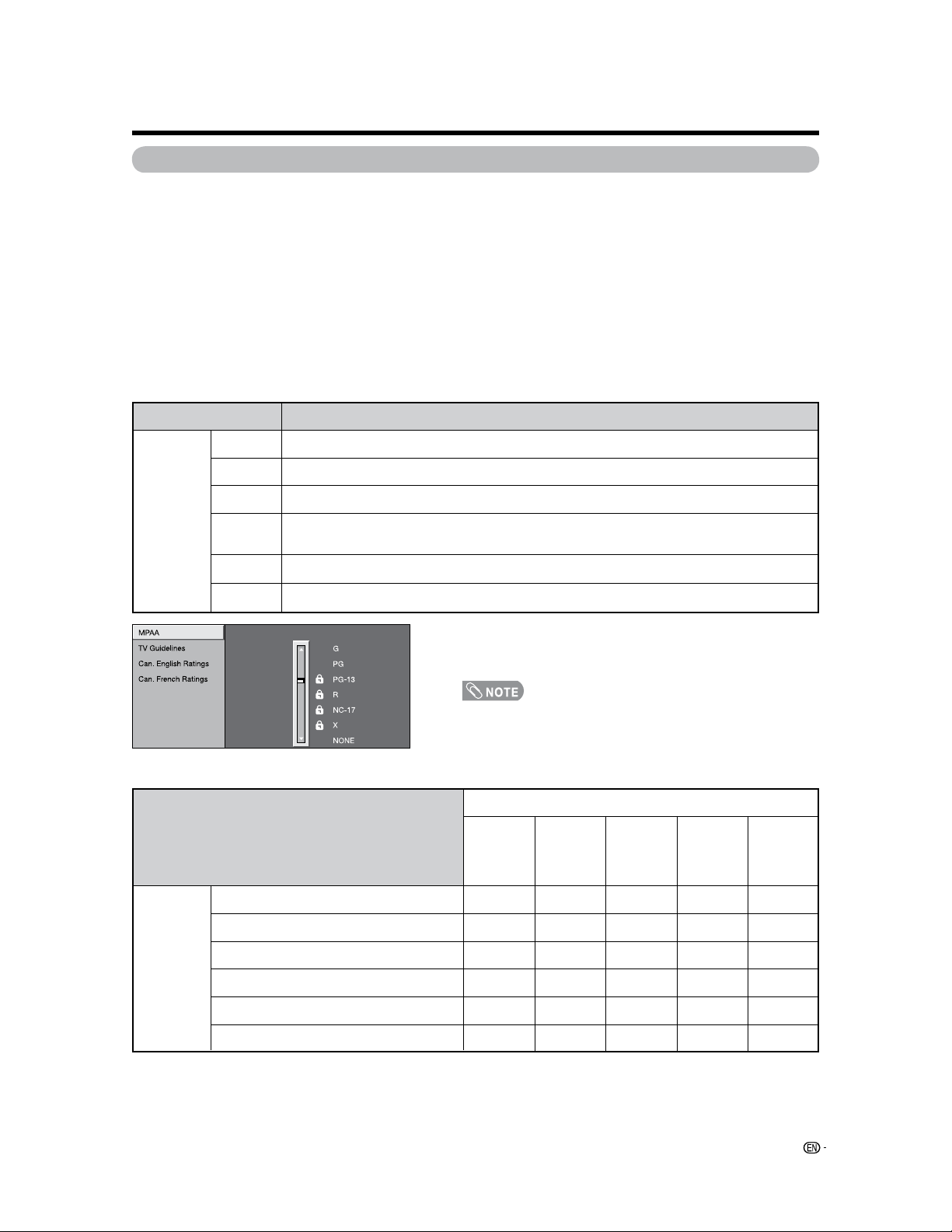
47
Parental control (setting V-CHIP level)
V-CHIP is an electronic filtering device built into your TV. This tool gives parents a great degree of control over
broadcasts accessed by their children. It allows parents to select programs judged suitable for child viewing while
blocking ones judged not suitable. It does so automatically once you activate the V-CHIP feature in your TV.
“V-Chip” and “Status” will not be selectable from the menu if you do not first configure your secret
number. (See page 41 for Secret number setting for parental control.)
• The U.S. has two rating systems for viewing content: TV Parental Guidelines and movie ratings.
• The TV Parental Guidelines work in conjunction with the V-CHIP to help parents screen out inappropriate
television shows from their children.
• Movie ratings are used for original movies rated by the Motion Picture Association of America (MPAA) as
watched on cable TV and not edited for television. The V-CHIP can also be set to block MPAA-rated movies.
Voluntary movie rating system (MPAA)
TV Parental Guidelines
• If you select “PG-13”, this will automatically block the higher
ratings “R”, “NC-17” and “X”.
• Voluntary movie rating system only uses an age-based rating.
Useful adjustment settings
Rating Description
G
PG
PG-13
R
NC-17
X
Age
General audiences. All ages admitted.
Parental guidance suggested. Some material may not be suitable for children.
Parents strongly cautioned. Some material may be inappropriate for children under 13.
Restricted. Under 17 requires accompanying parent or adult guardian (age varies in some
jurisdictions).
No one 17 and under admitted.
X is an older rating that is unified with NC-17 but may be encoded in the data of older movies.
z
: The content rating can be set, but this rating is not normally broadcast by TV stations.
g
: Content rating can be set.
Rating
TV-Y (All children)
TV-Y7 (Directed to older children)
TV-G (General audience)
TV-PG (Parental Guidance suggested)
TV-14 (Parents strongly cautioned)
TV-MA (Mature audience only)
Suggested
age
Content
D
(Sexually
suggestive
dialog)
L
(Adult
language)
S
(Sexual
situation)
V
(Violence)
FV
(Fantasy
violence)
z
g
z
z
z
g
g
g
z
z
z
g
g
z
z
z
g
g
g
z
z
z
g
g
g
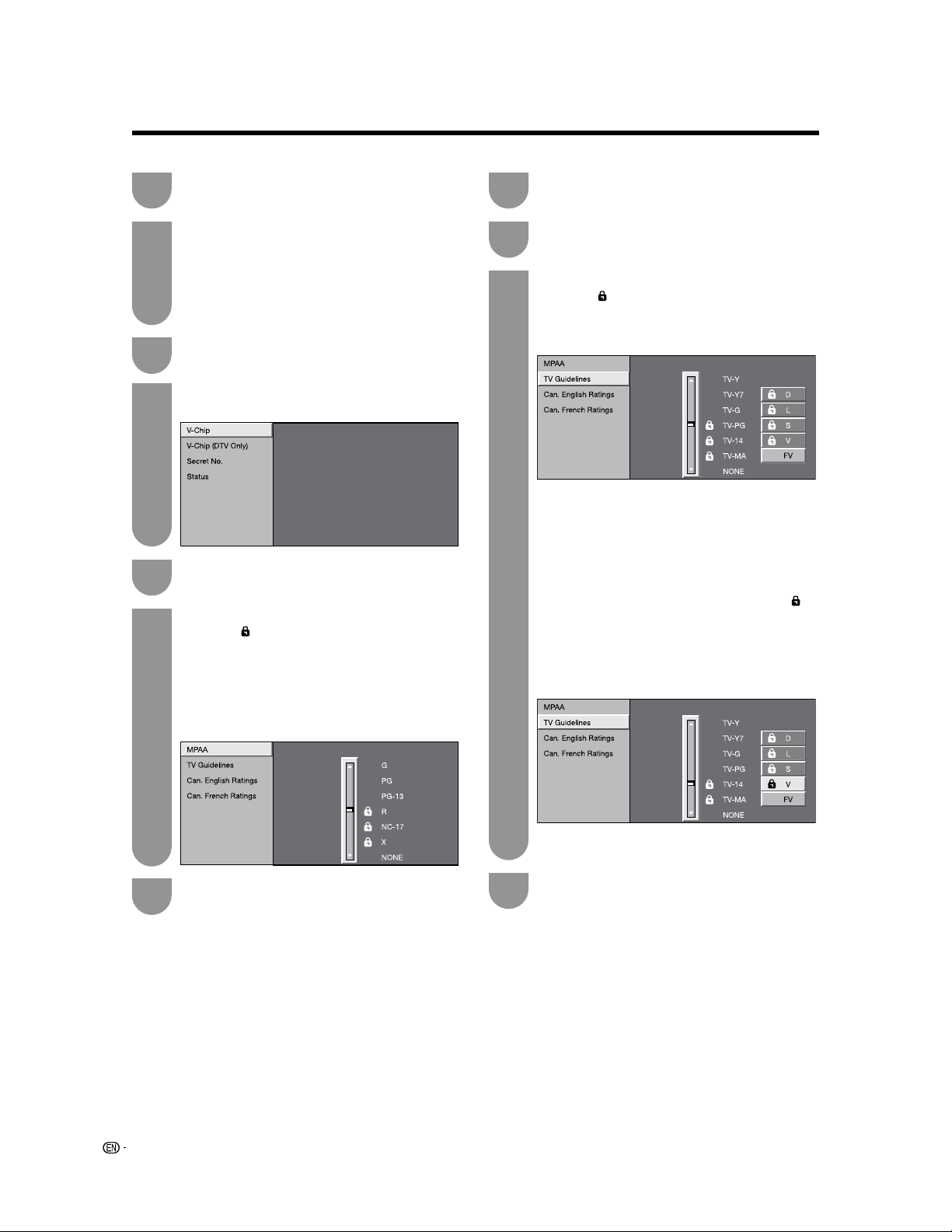
48
Example
• If Status is not set to “On” the configuration
settings will not work. (See page 45.)
Input the 4-digit secret number by using 0–9.
Press
a
/
b
to adjust the item to your desired
position. “
” indicates the item is blocked.
Press
RETURN.
• The setting automatically enters “Block” for any
ratings below your selection.
• If Status is not set to “On”, the configuration
settings will not work. (See page 45.)
Press
a
/
b
to select “Parental CTRL”, and
then press
ENTER.
• The secret number setting menu displays only
when “Secret No.” is set. (See page 45.)
• “V-Chip” and “Status” will not be selectable from
the menu if you do not first configure your secret
number. (See page 45.)
Press
a
/
b
to select “V-Chip”, and then press
ENTER.
Press
a
/
b
to select “MPAA”, and then press
ENTER.
When setting an individual content-based
rating item, do as follows:
1
Press
d
or ENTER to access blocked
content items from the currently selected
age-based rating item.
2
Press
a
/
b
to select an individual item,
and then press
ENTER to unblock it (“
”
is removed). Repeat the same steps for the
other items.
3
Press
c
or RETURN to register after all
individual content rating items are set.
TV Parental Guidelines (TV Guidelines)
Repeat steps 1 to 4 in
Voluntary movie
rating system (MPAA).
Press
a
/
b
to select “TV Guidelines”, and
then press
ENTER.
Press
a
/
b
to adjust the item to your desired
position. “
” indicates the item is blocked.
• The setting automatically enters “Block” for any
ratings below your selection.
Voluntary movie rating system (MPAA)
Press
MENU to display the MENU screen, and
then press
c
/
d
to select “Setup”.
Useful adjustment settings
Example
1
2
3
4
5
6
1
2
3
Press MENU to exit.
7
Press MENU to exit.
4
Example
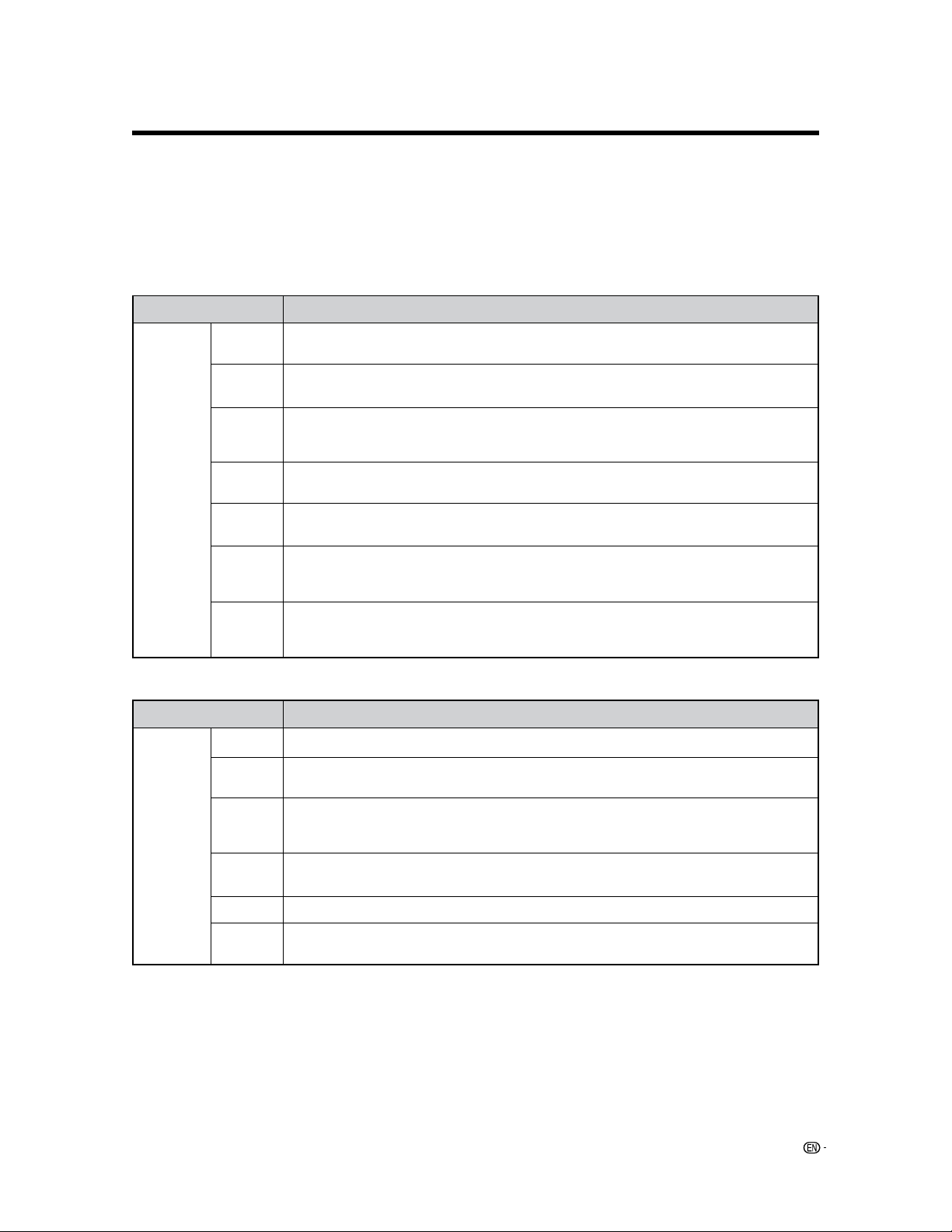
49
Canadian Rating Systems
• The TV rating systems in Canada are based on the Canadian Radio-Television and Telecommunications
Commission (CRTC) policy on violence in television programming.
• While violence is the most important content element to be rated, the structure developed takes into
consideration other program content like language, nudity, sexuality and mature themes.
• When setting the V-CHIP on the Canadian system you can choose either the Canadian English ratings or the
Canadian French ratings.
Useful adjustment settings
Canadian French ratings
Canadian English ratings
Rating Description
E
C
C8
e
G
PG
14
e
18
e
Age
Exempt: Includes news, sports, documentaries and other information programming; talk shows,
music videos, and variety programming.
Children: Intended for younger children under the age of 8 years. Pays careful attention to themes
that could threaten their sense of security and well-being.
Children over 8 years old: Contains no portrayal of violence as the preferred, acceptable, or only
way to resolve conflict; nor encourage children to imitate dangerous acts which they may see on
the screen.
General: Considered acceptable for all age groups. Appropriate viewing for the entire family,
contains very little violence, physical, verbal or emotional.
Parental Guidance: Intended for a general audience, but may not be suitable for younger children
(under the age of 8) because it could contain controversial themes or issues.
Over 14 Years: Could contain themes where violence is one of the dominant elements of the
storyline, but it must be integral to the development of plot or character. Language usage could
be profane and nudity present within the context of the theme.
Adults: Intended for viewers 18 years and older and might contain depictions of violence, which
while related to the development of plot, character or themes, are intended for adult viewing.
Could contain graphic language and portrayals of sex and nudity.
Rating Description
E
G
8ans
e
13ans
e
16ans
e
18ans
e
Age
Exempt programming.
General: All ages and children, contains minimal direct violence, but may be integrated into the
plot in a humorous or unrealistic manner.
General but inadvisable for young children: May be viewed by a wide public audience, but could
contain scenes disturbing to children under 8 who cannot distinguish between imaginary and real
situations. Recommended for viewing with parent.
Over 13 years: Could contain scenes of frequent violent scenes and therefore recommended for
viewing with parent.
Over 16 years: Could contain frequent violent scenes and intense violence.
Over 18 years: Only for adult viewing. Could contain frequent violent scenes and extreme violence.
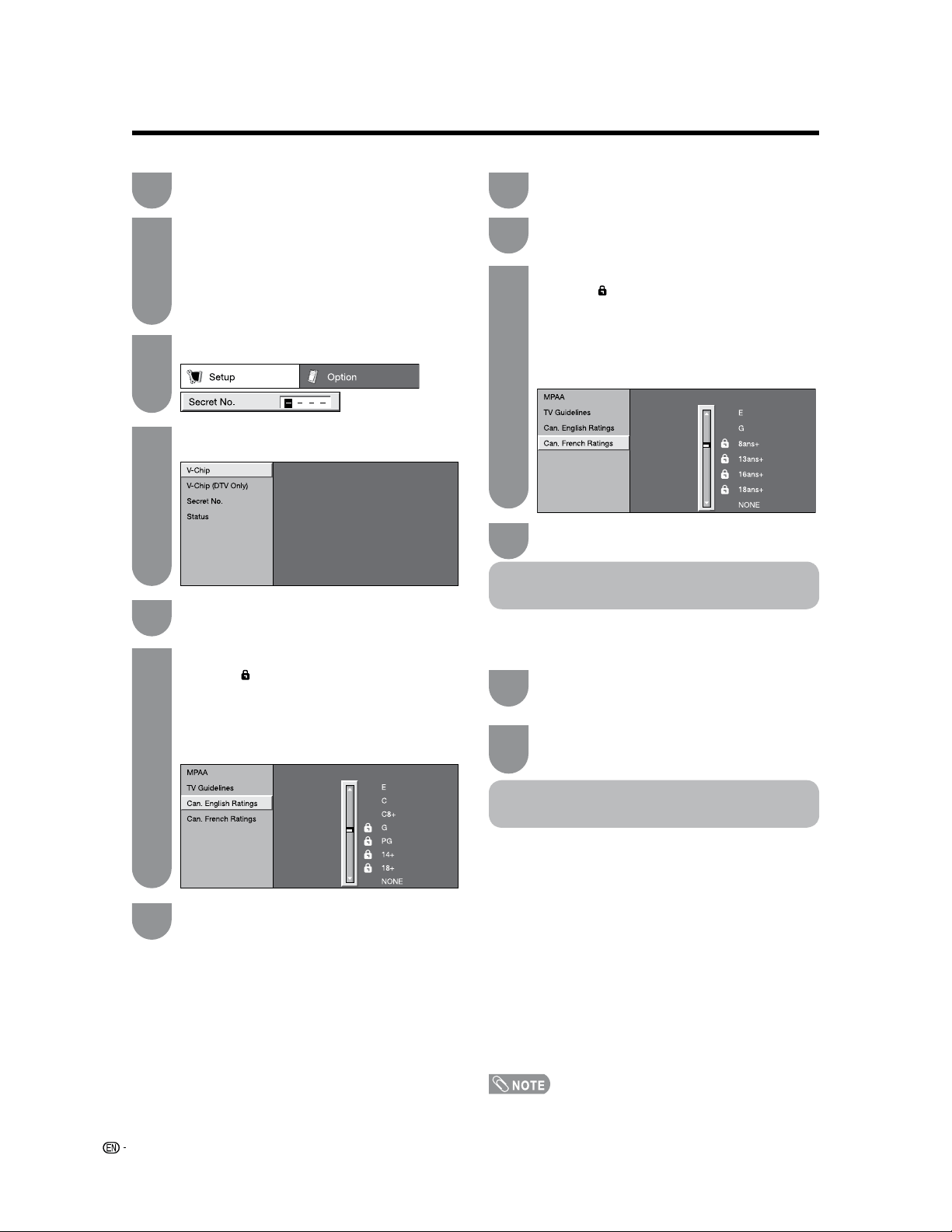
50
Canadian English ratings
Example
Repeat steps 1 to 4 in Canadian English
ratings.
Press
a
/
b
to select “Can. French Ratings”,
and then press
ENTER.
Press
a
/
b
to adjust the item to your desired
position. “
” indicates the item is blocked.
• The setting automatically enters “Block” for any
ratings below your selection.
• If Status is not set to “On” the configuration
settings will not work. (See page 45.)
Example
How to temporarily release the
V-CHIP BLOCK
When the V-CHIP BLOCK is working and censors a
broadcast, “V-CHIP HAS BEEN ACTIVATED.” displays.
Reactivating the temporarily
released V-CHIP BLOCK
You can reactivate the temporarily released V-CHIP
BLOCK as shown below.
Method 1:
Select “Status” setting from the Parental CTRL menu
to reactivate BLOCK. (See page 45.)
Method 2:
Select “V-Chip” setting (“MPAA”, “TV Guidelines”,
“Can. English Ratings” or “Can. French Ratings”)
from the Parental CTRL to reactivate BLOCK. (See
pages 47 and 50.)
Method 3:
Switch off the TV power.
• Performing any of the three above will activate the V-CHIP
BLOCK.
Useful adjustment settings
Canadian French ratings
Input the 4-digit secret number by using 0–9.
Press
a
/
b
to select “Parental CTRL”, and
then press
ENTER.
• Secret number setting menu displays only when
“Secret No.” is set. (See page 45.)
• “V-Chip” and “Status” will not be selectable from
the menu if you do not first configure your secret
number. (See page 45.)
Press
a
/
b
to select “V-Chip”, and then press
ENTER.
Press
MENU to display the MENU screen, and
then press
c
/
d
to select “Setup”.
Press
a
/
b
to adjust the item to your desired
position. “
” indicates the item is blocked.
• The setting automatically enters “Block” for any
ratings below your selection.
• If Status is not set to “On” the configuration
settings will not work. (See page 45.)
Press
a
/
b
to select “Can. English Ratings”,
and then press
ENTER.
Press
ENTER while the V-CHIP is working,
and then the secret number setting menu
displays.
Input the 4-digit secret number by using
0–9. At this time V-CHIP BLOCK temporarily
releases.
1
2
3
4
6
1
2
3
2
Press MENU to exit.
7
Press MENU to exit.
4
5
1
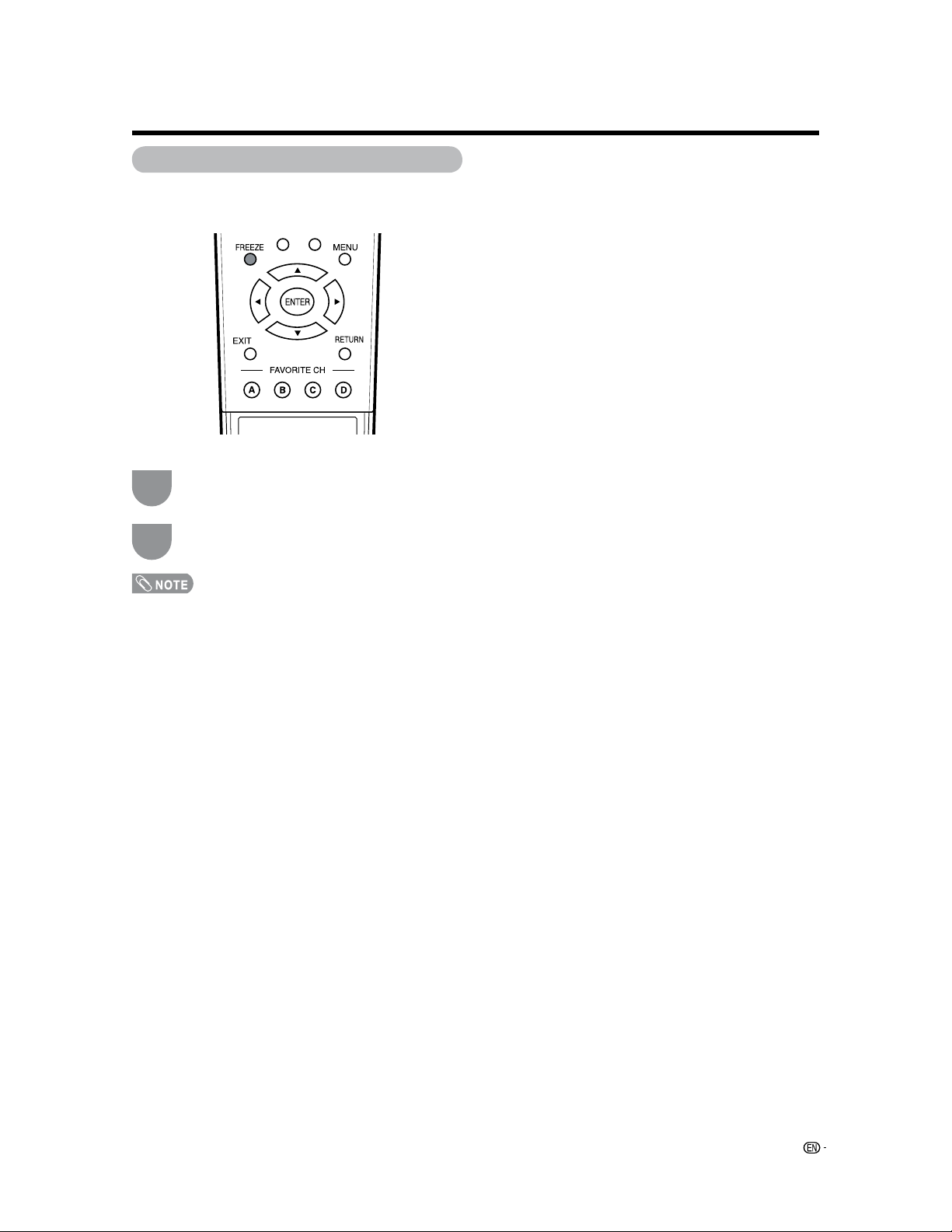
51
• When this function is not available, “No displaying still
image available.” will display.
• The still image automatically goes out after 30 minutes.
• If you are using the freeze function and a broadcast
activates the V-CHIP BLOCK, the freeze function will be
cancelled and a V-CHIP BLOCK message will appear.
Press FREEZE again to cancel the function.
Other viewing options
Freezing images
Allows you to capture and freeze a moving image that
you are watching.
Press
FREEZE.
• A moving image is captured.
1
2

52
Removing the stand
Before detaching (or attaching) stand, unplug the AC cord from the AC INPUT terminal.
• Do not remove the stand from the TV unless using an optional wall mount bracket to mount it.
Before attaching/detaching stand
• Before performing work make sure to turn off the TV.
• Before performing work spread cushioning over the base area to lay the TV on. This will prevent it from being
damaged.
Setting the TV on the wall
• This TV should be mounted on the wall only with the ANLCGWF (SHARP) wall mount bracket. The use of other
wall mount brackets may result in an unstable installation and may cause serious injuries.
• Installing the TV requires special skill that should only be performed by qualified service personnel. Customers
should not attempt to do the work themselves. SHARP bears no responsibility for improper mounting or mounting
that results in accident or injury.
Using an optional bracket to mount the TV
•
You can ask a qualified service professional about using an optional ANLCGWF bracket to mount the TV to the wall.
• Carefully read the instructions that come with the bracket before beginning work.
Hanging on the wall
ANLCGWF wall mount bracket.
(See the bracket instructions for details.)
Vertical mounting
Unfasten the four screws used to secure the stand in
place.
Detach the stand from the TV. (Hold the stand so it
will not drop from the edge of the base area.)
Appendix
• To attach the stand, perform the above steps in reverse order.
12
Plus key
• Detach the cable clamps on the rear of the TV when using the optional mount bracket.
• Due to the terminal configuration on this TV, when you wall-mount this model, make sure there is enough space between the
wall and the TV for the cables.
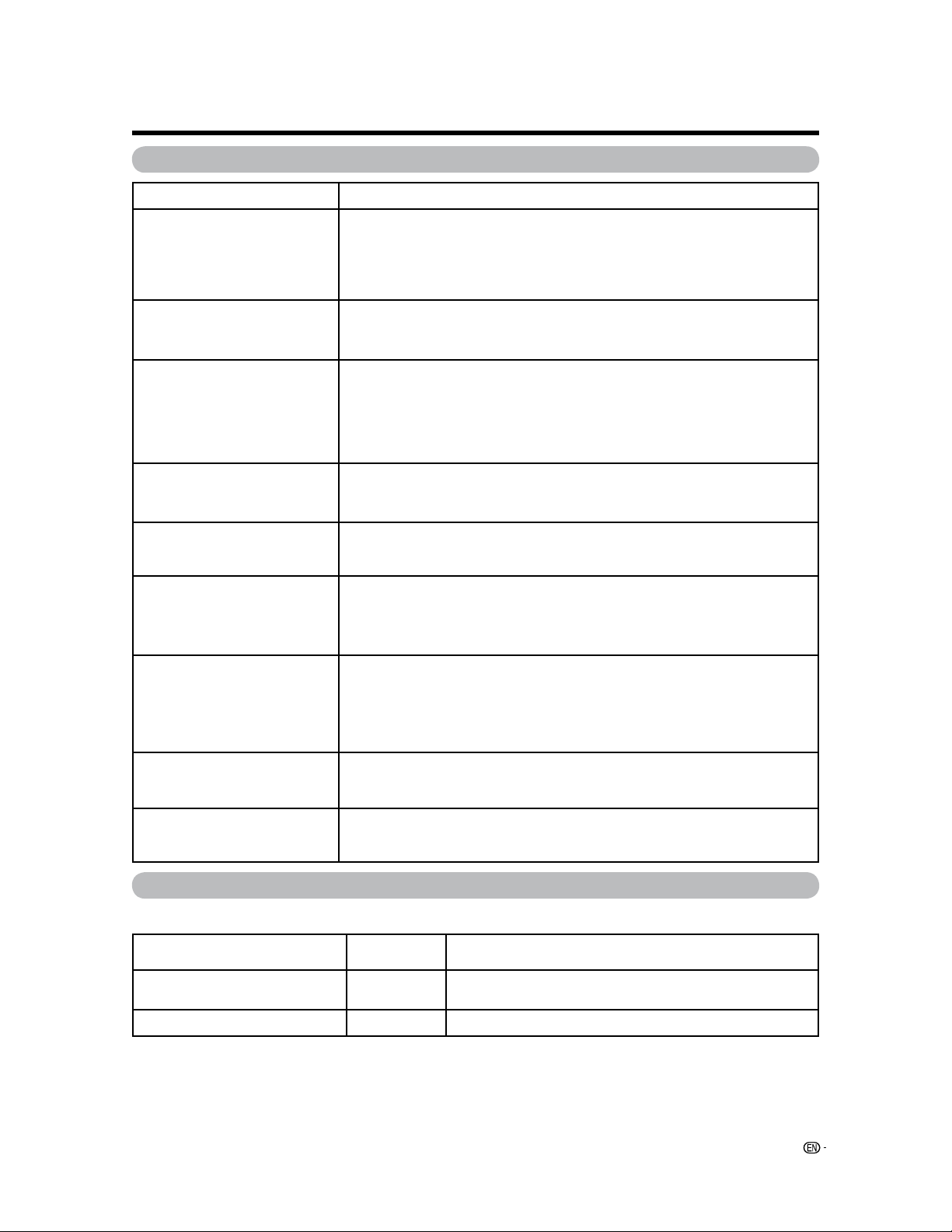
53
Troubleshooting
Possible Solution
• Is the volume too low? (See page 19.)
• Is “Variable” selected in “Output Select”? (See page 41.)
• Have you pressed
MUTE on the remote control unit? (See page 19.)
Appendix
Problem
• No power
• Unit cannot be operated.
• Remote control unit does not
operate.
• Picture is cut off/with sidebar
screen.
• Strange color, light color, or color
misalignment
• Power is suddenly turned off.
• No picture
• No sound
• Check if you pressed POWER on the remote control unit. (See page 8.) If the
indicator on the TV does not light up, press POWER on the TV.
• Is the AC cord disconnected? (See page 7.)
• Has the power been turned on? (See page 16.)
• External influences such as lightning, static electricity, may cause improper operation.
In this case, operate the unit after first turning on the power of the TV or unplugging
the AC cord and replugging it in after 1 or 2 minutes.
• Are batteries inserted with polarity (
e
,
f
) aligned? (See page 8.)
• Are batteries worn out? (Replace with new batteries.)
• Are you using it under strong or fluorescent lighting?
• Is a fluorescent light illuminated near the remote control sensor?
• Is the image position correct? (See page 36.)
• Are screen mode adjustments such as picture size made correctly? (See pages 39
and 40.)
• Adjust the picture tone. (See pages 28 to 29.)
• Is the room too bright? The picture may look dark in a room that is too bright.
• Check the input signal setting. (See page 42.)
• Is the sleep timer set? (See page 37.)
• Check the power control settings. (See page 31.)
• The unit's internal temperature has increased. Remove any objects blocking vent or
clean.
• Is connection to other components correct? (See pages 13 and 14.)
• Is correct input signal source selected after connection? (See page 32.)
• Is the correct input selected? (See page 32.)
• Is picture adjustment correct? (See pages 28 to 29.)
• Is “On” selected in “Audio Only”? (See page 41.)
• Is a non-compatible signal being input? (See page 14.)
Troubleshooting-Digital broadcasting
The error message about reception of broadcast
• Failed to receive broadcast.
E203 • Check the broadcast time in the program guide.
The example of an error message
displayed on a screen
• No broadcast now.
Error code
E202
Possible Solution
• Check the antenna cable. Check that the antenna is correctly
setup.
• The TV sometimes makes a
cracking sound.
• This is not a malfunction. This happens when the cabinet slightly expands and
contracts according to change in temperature. This does not affect the TV’s
performance.
54
Specifications
*1
Emergency alert messages via Cable are unreceivable.
*2
The dimensional drawings are shown on the inside back cover.
• As part of policy of continuous improvement, SHARP reserves the right to make design and specification changes for product
improvement without prior notice. The performance specification figures indicated are nominal values of production units.
There may be some deviations from these values in individual units.
Appendix
LCD panel
Item
Model: LC-26D43U/LC-26D42U-W
26
o
Advanced Super View & BLACK TFT LCD
(Actual screen size 25
1
/
2
o
measured diagonally
)
10W
g
2
INPUT 6 15 pin mini D-sub, PC Audio in (Ø 3.5 mm jack)
Number of dots
TV
Function
TV-standard (CCIR)
Receiving
Channel
VHF/UHF
CATV
Digital Terrestrial
Broadcast (8VSB)
Audio multiplex
Backlight
Audio out
Terminals
Rear
INPUT 1
INPUT 2
INPUT 3
INPUT 4
INPUT 5
ANTENNA
DIGITAL AUDIO OUTPUT
MOBILE AUDIO
OSD language
Power Requirement
Power Consumption
Weight
Dimension
*2
(W
g
H
g
D)
Operating temperature
3,147,264 dots (1366
g
768
g
3 dots)
American TV Standard ATSC/NTSC System
VHF 2-13ch, UHF 14-69ch
1-135ch (non-scrambled channel only)
2-69ch
BTSC System
60,000 hours (at Backlight Standard position)
AV in, COMPONENT in
AV in
AV in, S-VIDEO in
HDMI in with HDCP
HDMI Analog Audio in, HDMI in with HDCP
75
q
Unbalance, F Type
g
1 for Analog (VHF/UHF/CATV) and Digital (AIR/CABLE)
Optical Digital audio output
g
1 (PCM/Dolby Digital)
Mobile Audio in
English/French/Spanish
AC 120 V, 60 Hz
e
32°F to
e
104°F (0°C to
e
40°C)
TV only
TV + stand
TV + stand
TV only
Digital cable
*1
(64/256 QAM)
1-135ch (non-scrambled channel only)
120 W (0.3 W Standby with AC 120V)
32.0 lbs./14.5 kg
26.5 lbs./12.0 kg
26
1
/
16
g
17
63
/
64
g
3
31
/
32
inch
26
1
/
16
g
20
9
/
32
g
9
9
/
16
inch
Side
USB SOFT UPDATE (When service man and products USB is used only by update of
program. The ordinary user never uses it. )
OUTPUT Audio out
Front
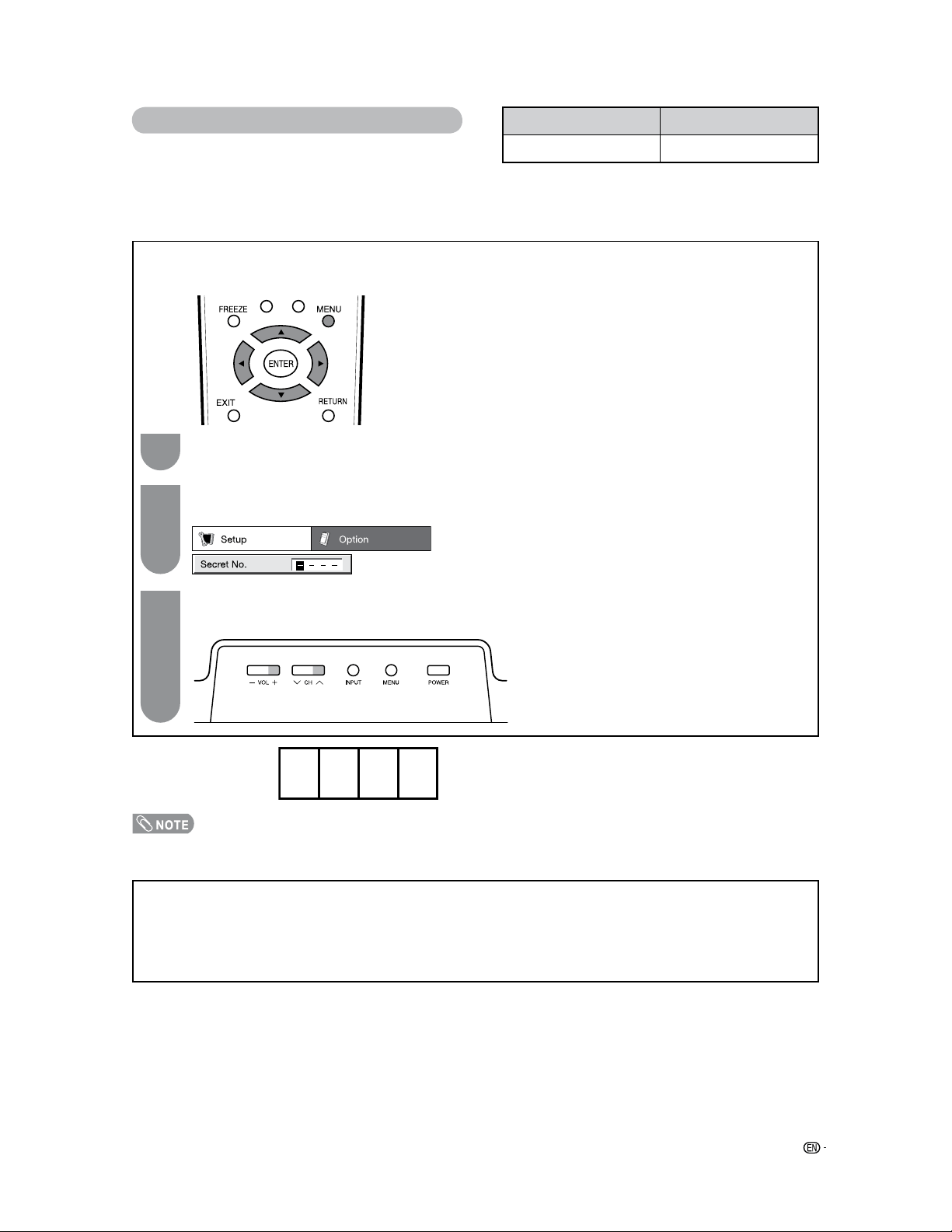
55
Optional accessory
The listed optional accessory is available for the Liquid
Crystal Television. Please purchase it at your nearest shop.
• Additional optional accessories may be available in the near
future. When purchasing, please read the newest catalogue for
compatibility and check the availability.
Model number
ANLCGWF
Part name
Wall mount bracket
• As a precautionary measure, make a note of your secret number above, cut it from this manual, and keep it in a safe place.
CLEARING THE SECRET NUMBER
If you forget the secret number, clear the secret number using the following procedure.
Press and hold both CH
r
and VOL
k
on the TV simultaneously until the “The secret number
cleared.” appears on the screen.
Press
MENU to display the MENU screen, and then press
c
/
d
to select “Setup”.
Press
a
/
b
to select “EZ Setup”, “CH Setup”, “Parental CTRL” or “Reset”, and the Secret number
input screen displays.
1
3
2
The secret number is
.
Cautions regarding use in high and low temperature environments
• When the unit is used in a low temperature space (e.g. room, office), the picture may leave trails or appear slightly delayed.
This is not a malfunction, and the unit will recover when the temperature returns to normal.
• Do not leave the unit in a hot or cold location. Also, do not leave the unit in a location exposed to direct sunlight or near a
heater, as this may cause the cabinet to deform and the Liquid Crystal panel to malfunction.
Storage temperature: f4°F to e140°F (f20°C to e60°C)

56
Information on the software license for this product
Software composition
The software included in this product is comprised of various software components whose individual copyrights
are held by SHARP or by third parties.
Software developed by SHARP and open source software
The copyrights for the software components and various relevant documents included with this product that
were developed or written by SHARP are owned by SHARP and are protected by the Copyright Act, international
treaties, and other relevant laws. This product also makes use of freely distributed software and software
components whose copyrights are held by third parties. These include software components covered by a GNU
General Public License (hereafter GPL), a GNU Lesser General Public License (hereafter LGPL) or other license
agreement.
Obtaining source code
Some of the open source software licensors require the distributor to provide the source code with the executable
software components. GPL and LGPL include similar requirements. For information on obtaining the source code
for the open source software and for obtaining the GPL, LGPL, and other license agreement information, visit the
following website:
http://www.sharpusa.com/gpl
We are unable to answer any questions about the source code for the open source software. The source code for
the software components whose copyrights are held by SHARP is not distributed.
Acknowledgements
The following open source software components are included in this product:
• linux kernel
• busybox
• uClibc
• zlib
• libpng
• libjpeg
Appendix
57
For location of the nearest Sharp Authorized Service, or to obtain product literature, accessories, supplies, or
customer assistance, please call 1-800-BE-SHARP.
Calling for Service
LIMITED WARRANTY
LC-26D43U/LC-26D42U-W LCD Color Television
58
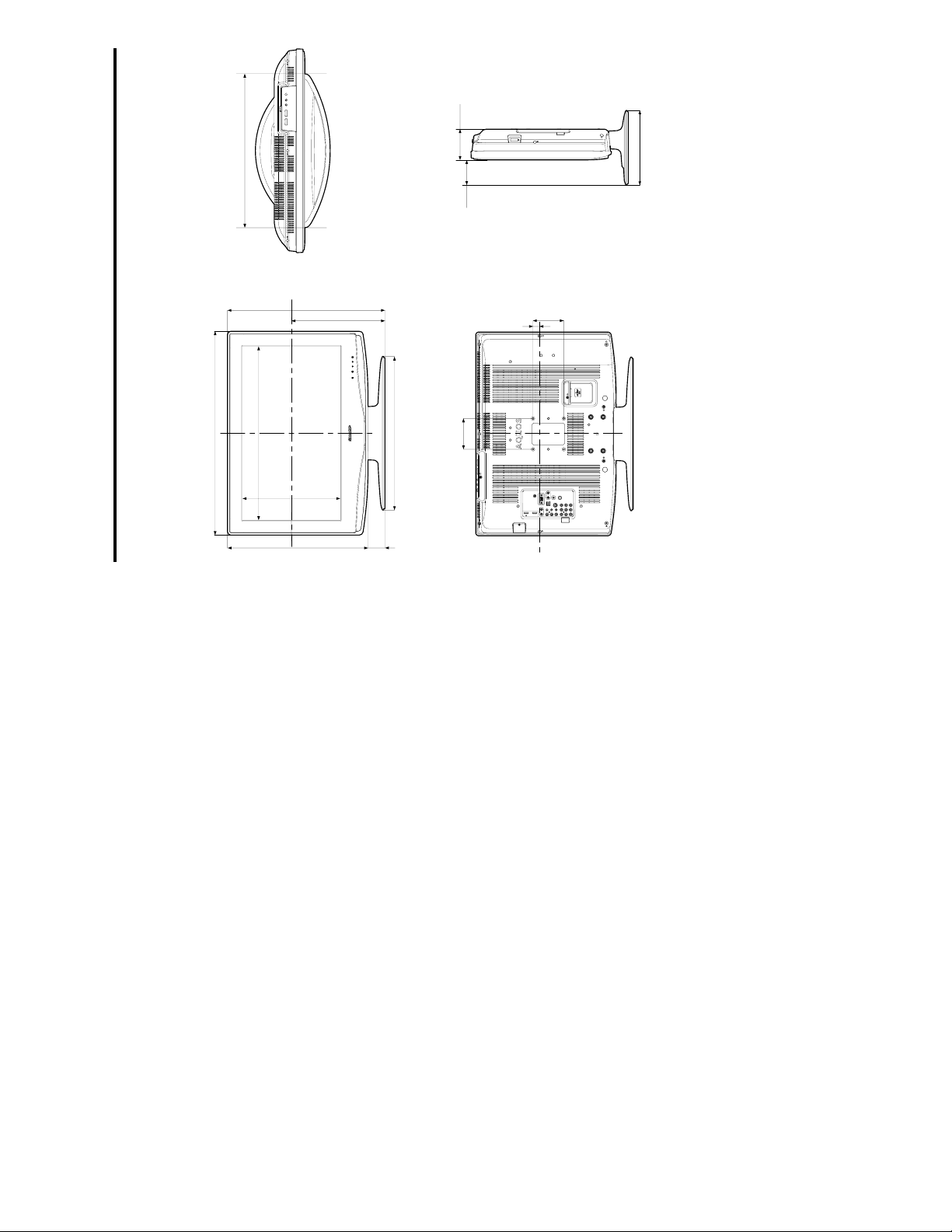
Unit: inch/(mm)
LC-26D43U/LC-26D42U-W
Dimensional drawings