
OPERATION MANUAL
FACSIMILE
MODEL
UX-5000
1. INSTALLATION
2. INITIAL SETTINGS
3. BASIC OPERATIONS
4. SPECIAL FUNCTIONS
5. OPTIONAL SETTINGS
6. PRINTING OUT REPORTS AND LISTS
7. MAINTENANCE
8. TROUBLESHOOTING
SPECIFICATIONS
QUICK REFERENCE GUIDE
INDEX

UX5000U-FCC-2
WARNING FCC Regulations state that any unauthorized changes or modifications to this equipment
not expressly approved by the manufacturer could void the user’s authority to operate this equipment.
Note: This equipment has been tested and found to comply with the limits for a Class A digital device,
pursuant to Part 15 of the FCC Rules.
These limits are designed to provide reasonable protection against harmful interference when the
equipment is operated in a commercial environment.
This equipment generates, uses, and can radiate radio frequency energy and, if not installed and used
in accordance with the instruction manual, may cause harmful interference to radio communications.
Operation of this equipment in a residential area is likely to cause harmful interference in which case
the user will be required to correct the interference at his own expense.
NOTE The laser component of the UX-5000 is rated Class 1 and complies with 21 CFR 1040.10 and
1040.11 of the CDRH standards. This means that the machine does not produce hazardous laser
radiation.
ABOUT THE TELEPHONE CONSUMER PROTECTION ACT OF 1991
"The Telephone Consumer Protection Act of 1991 makes it unlawful for any person to use a computer
or other electronic device to send any message via a telephone facsimile machine unless such
message clearly contains in a margin at the top or bottom of each transmitted page or on the first page
of the transmission the following information:
(1) The date and time of transmission.
(2) Identification of either the business, business entity or individual sending the message.
(3) Telephone number of either the sending machine, business, business entity or individual.
In order to program this information into your facsimile machine, please refer to the appropriate
instructions in the operation manual."
FOR YOUR RECORDS
Please record the model number and serial number below, for easy reference, in
case of loss or theft. These numbers are located on the rear side of the unit.
Space is also provided for other relevant information.
Model Number ____________________________________________________
Serial Number_____________________________________________________
Date of Purchase __________________________________________________
Place of Purchase__________________________________________________
As an ENERGY STAR
SM
partner, SHARP has determined that this
product meets the
ENERGY STAR
SM
guidelines for energy efficiency.

UX5000U-INBU
<P=001>
INTRODUCTION
Welcome to the UX-5000 and thank you for choosing Sharp! In addition to providing
you with the ease and convenience of plain-paper printing, the UX-5000 features a
variety of special functions designed to increase the range and power of your
communications.
This manual gives you easy-to-follow instructions for installing and using the UX-5000.
The Table of Contents will show you where instructions for using each feature are
located.
If you have any questions or problems which cannot be solved by reading this manual,
please contact Sharp’s Customer Assistance Center at 1-800-BE SHARP.
Important:
••
This facsimile machine is not designed for use on a line which has call waiting, call
forwarding, or certain special services offered by your telephone company. If you attempt to
use the fax machine in conjunction with any of these services, you may experience errors
during transmission and reception of facsimile messages.
••
This machine is not compatible with digital telephone systems.
Important safety information
• If your facsimile equipment is not operating properly, you should immediately remove
it from your telephone line, as it may cause harm to the telephone network.
• Never install telephone wiring during a lightning storm.
• Never install telephone jacks in wet locations unless the jack is specifically designed
for wet locations.
• Never touch bare telephone wires or terminals unless the telephone line has been
disconnected at the network interface.
• Use caution when installing or modifying telephone lines.
• Avoid using a telephone (other than a cordless type) during an electrical storm. There
may be a remote risk of electric shock from lightning.
• Do not use a telephone to report a gas leak in the vicinity of the leak.
• Do not install or use the machine near water, or when you are wet. Take care not to
spill any liquids on the machine.
Caution!!
• Use of controls or adjustments or performance of procedures other than those specified
herein may result in hazardous radiation exposure.
i

UX5000U-TCTC
YF <P=001>
TABLE OF CONTENTS
1. INSTALLATION 1-1
Unpacking Checklist . . . . . . . . . . . . . . . . . . . . . . . . . . . . . . . . . . 1-1
Installing the Printer Cartridges . . . . . . . . . . . . . . . . . . . . . . . . . . . . 1-2
Assembly and Connections . . . . . . . . . . . . . . . . . . . . . . . . . . . . . . 1-5
Loading Printing Paper . . . . . . . . . . . . . . . . . . . . . . . . . . . . . . . . 1-7
2. INITIAL SETTINGS 2-1
A Look at the Operation Panel . . . . . . . . . . . . . . . . . . . . . . . . . . . . . 2-1
Entering Your Name and Fax Number . . . . . . . . . . . . . . . . . . . . . . . . . 2-4
Entering Letters for Names . . . . . . . . . . . . . . . . . . . . . . . . . . . . . . 2-5
Setting the Date and Time . . . . . . . . . . . . . . . . . . . . . . . . . . . . . . . 2-6
Storing Numbers for Automatic Dialing . . . . . . . . . . . . . . . . . . . . . . . . 2-7
Volume Adjustment . . . . . . . . . . . . . . . . . . . . . . . . . . . . . . . . . 2-11
3. BASIC OPERATIONS 3-1
Sending Documents . . . . . . . . . . . . . . . . . . . . . . . . . . . . . . . . . . 3-1
Receiving Documents . . . . . . . . . . . . . . . . . . . . . . . . . . . . . . . . 3-14
Making Copies . . . . . . . . . . . . . . . . . . . . . . . . . . . . . . . . . . . . 3-17
Making Telephone Calls . . . . . . . . . . . . . . . . . . . . . . . . . . . . . . . 3-19
4. SPECIAL FUNCTIONS 4-1
Broadcasting . . . . . . . . . . . . . . . . . . . . . . . . . . . . . . . . . . . . . . 4-1
Confidential Operations . . . . . . . . . . . . . . . . . . . . . . . . . . . . . . . . 4-3
Relay Request . . . . . . . . . . . . . . . . . . . . . . . . . . . . . . . . . . . . . 4-7
Polling . . . . . . . . . . . . . . . . . . . . . . . . . . . . . . . . . . . . . . . . 4-12
Timer Operations . . . . . . . . . . . . . . . . . . . . . . . . . . . . . . . . . . 4-17
Batch Transmission . . . . . . . . . . . . . . . . . . . . . . . . . . . . . . . . . 4-23
Entering and Using Programs . . . . . . . . . . . . . . . . . . . . . . . . . . . . 4-25
Department Control . . . . . . . . . . . . . . . . . . . . . . . . . . . . . . . . . 4-33
Anti Junk Fax . . . . . . . . . . . . . . . . . . . . . . . . . . . . . . . . . . . . 4-35
Distinctive Ring . . . . . . . . . . . . . . . . . . . . . . . . . . . . . . . . . . . 4-36
5. OPTIONAL SETTINGS 5-1
6. PRINTING OUT REPORTS AND LISTS 6-1
7. MAINTENANCE 7-1
8. TROUBLESHOOTING 8-1
Problems and Solutions . . . . . . . . . . . . . . . . . . . . . . . . . . . . . . . . 8-1
Messages and Signals . . . . . . . . . . . . . . . . . . . . . . . . . . . . . . . . . 8-3
Clearing Paper Jams . . . . . . . . . . . . . . . . . . . . . . . . . . . . . . . . . 8-5
SPECIFICATIONS Spec-i
QUICK REFERENCE GUIDE Quick-i
INDEX Index-i
ii

UX5000U-ISUN
YF <P=001>
1 INSTALLATION
UNPACKING CHECKLIST
After unpacking your fax, make sure you have all the items shown below. If any are
missing, contact your dealer.
Handset
Handset cord
Telephone line
cord
Rapid key labels
Operation
manual
Original document
OUT tray
Received
document tray
Letter and legal
cassette labels
Toner cartridge
Drum cartridge
Precautions before setting up
♦ The printing unit in the fax generates a small amount of ozone during operation.
The amount is not large enough to be harmful; however, the fax should only be in-
stalled in a ventilated room.
♦ The fax must be installed on a level surface.
♦ Keep the fax away from air conditioners, heaters, direct sunlight, and dust.
♦ If your area experiences a high incidence of lightning or power surges, we recom-
mend that you install surge protectors for the power and telephone lines. Surge pro-
tectors can be purchased at most telephone specialty stores.
♦ If the fax is moved from a cold to a warm place, it is possible that condensation may
form on the reading glass, preventing proper scanning of documents for transmis-
sion. To remove the condensation, turn on the power and wait approximately two
hours before using the fax.
INSTALLATION 1-1

UX5000U-ISPC
YF <P=001>
INSTALLING THE PRINTER CARTRIDGES
The laser printer in your fax creates printed text and images by applying toner to the
page with a photoconductive drum. Follow the steps below to install or replace the
toner cartridge and the drum cartridge.
1 Press the button on the side of the
printer compartment, and open the
printer cover.
•• Caution! The ribs on the bottom of the
inside of the printer cover become very
hot during printing. Be careful not to
touch them.
•• If you are installing the cartridges for
the first time, go to Step 4.
2 If you are replacing the cartridges,
grasp the handle on the toner
cartridge, and pull the toner cartridge
out of the compartment.
•• If you are only replacing the drum car-
tridge, place the toner cartridge on a
piece of paper on a horizontal surface.
•• If you are only replacing the toner car-
tridge, go to Step 6.
3 Pull the old drum cartridge out of the
compartment.
4 Remove the new drum cartridge from
its packaging.
1-2 INSTALLATION

<P=002>
5 Align the arrowhead on the right side
of the drum cartridge (the right side is
marked "R") with the arrowhead
pointing down which is marked on the
right side of the compartment, and
insert the cartridge into the
compartment so that the ends of the
cartridge move along the guides on
the sides of the compartment. Make
sure the cartridge is set firmly in
place.
•• Place the old drum cartridge (if you re-
moved one) in the empty drum car-
tridge bag, seal the bag, and dispose
of it in a way that conforms to any local
regulations that may exist in your area.
•• If you are not replacing the toner car-
tridge, go to Step 7.
6 Remove the new toner cartridge from
its packaging, and shake several
times as shown.
•• This ensures that the toner is well dis-
tributed inside the cartridge.
Left
L
R1
Right
7 Hold the handle of the toner cartridge
so that the "2" marked on the
cartridge is to the right, and insert the
cartridge into the compartment so
that the two knobs on each side of the
cartridge move along the two guides
on each side of the compartment.
Press the handle down so that the
cartridge sets into place.
•• Place the old toner cartridge (if you re-
moved one) in the empty toner car-
tridge bag, seal the bag, and dispose
of it in a way that conforms to any local
regulations that may exist in your area.
2
Left
Right
INSTALLING THE PRINTER CARTRIDGES
INSTALLATION 1-3

<P=003>
8 Close the printer cover.
9 If you replaced the toner cartridge,
reset the toner counter by pressing
the LIFE key (flip up the Rapid Key
overlay if necessary), the "2" key, and
the START key.
10 If you replaced the drum cartridge,
reset the drum counter by pressing
the LIFE key (flip up the Rapid Key
overlay if necessary), the "3" key, and
the START key.
Note:
If you ever need to move or ship the fax, remove the toner cartridge and drum cartridge
from the fax first.
LIFE
V
2
START
LIFE
V
3
START
Replacing the cartridges
The laser printer in your fax uses the following toner cartridge and drum cartridge.
These can be obtained at your office supply store.
UX-50ND TONER CARTRIDGE
UX-50DR DRUM CARTRIDGE
The sample toner cartridge provided with your fax is capable of printing approximately
3700 pages if letter size paper is used and 4% of each page is covered with toner. The
UX-50ND toner cartridge is capable of printing approximately 5600 pages.
When the toner cartridge nears empty (about 100 pages can still be printed), the
&
indicator on the operation panel will begin to blink. When the cartridge is empty, the
indicator light will remain on and REPLACE TONER will appear in the display.
Replace the toner cartridge as described above.
The drum cartridge is capable of printing approximately 20,000 pages. When the drum
cartridge nears the end of its life, the
%
indicator on the operation panel will begin to
blink. The indicator will continue to blink until the cartridge life is over, at which point
the indicator will remain on and DRUM LIFE OVER will appear in the display. Replace
the drum cartridge as described above.
INSTALLING THE PRINTER CARTRIDGES
1-4 INSTALLATION
UX5000U-ISAC
DD <P=001>
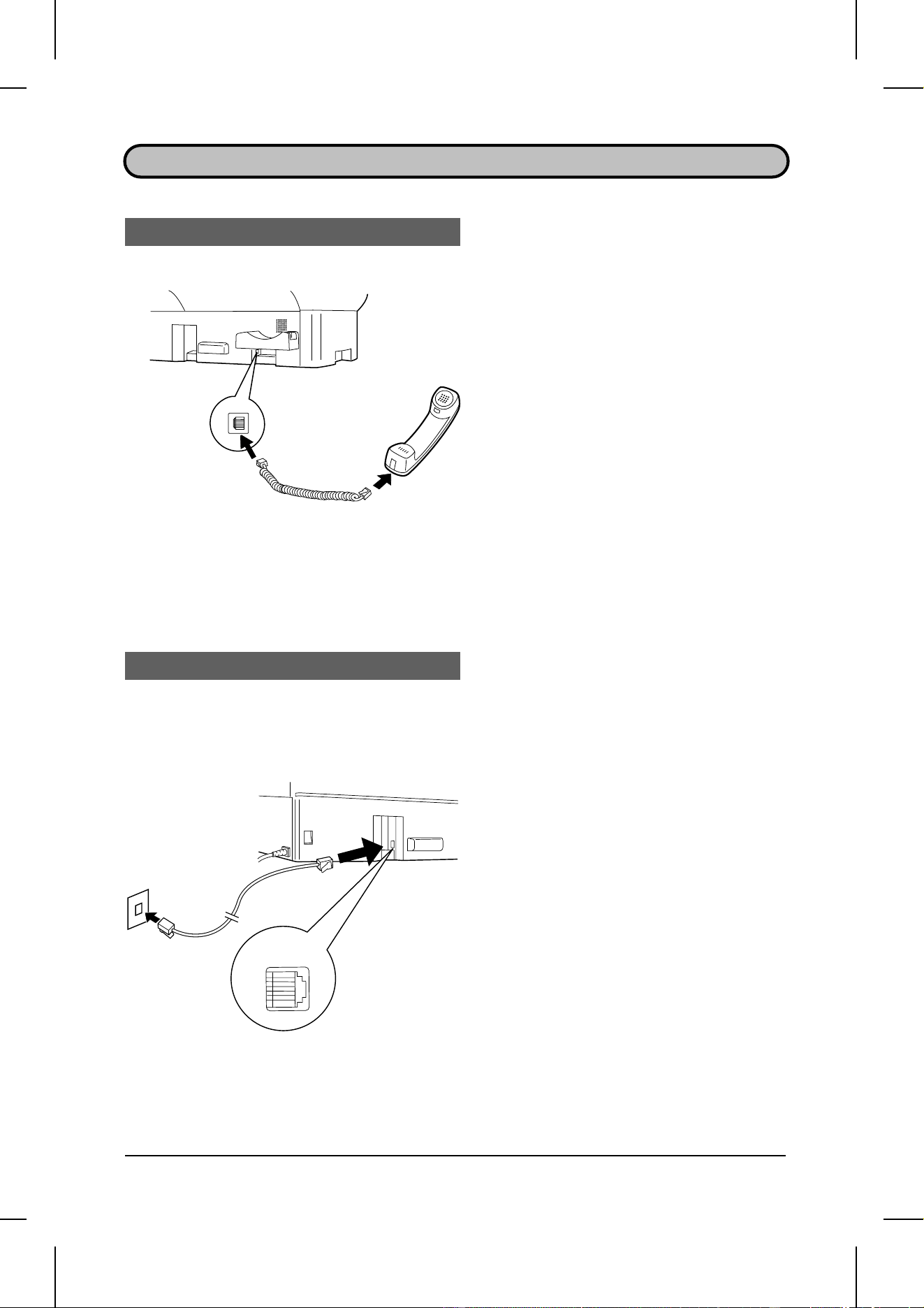
ATTACHMENTS AND CONNECTIONS
Handset
Connect the handset cord to the
handset and the fax as shown.
•• The ends of the handset cord are iden-
tical, so they will go into either jack.
Place the handset on the handset rest.
Use the handset to make ordinary
phone calls, or to transmit and
receive documents manually.
Telephone line cord
Plug one end of the telephone line
cord into the jack on the fax marked
"LINE". Plug the other end into a
standard single-line telephone wall
jack.
TEL.
LINE
INSTALLATION 1-5

<P=002>
Power lead
Plug the power lead into a 120 V,
60 Hz, grounded (3-prong) AC outlet.
Press the power switch to turn on the
power.
Trays
OFF 0
ON |
Attach the original document OUT
tray by inserting the tabs into the
holes in the fax as shown.
Attach the received document tray by
inserting the tabs into the holes in the
fax as shown.
ASSEMBLY AND CONNECTIONS
1-6 INSTALLATION

UX5000U-ISLP
YF <P=001>
LOADING PRINTING PAPER
The paper cassette and the paper tray hold the paper on which received documents
are printed.
The paper cassette can hold 500 sheets of legal- or letter-size paper. The paper tray
can hold 150 sheets of legal- or letter-size paper.
♦ Your fax has been set at the factory to automatically select the source from which it
draws paper according to the size of the document received or copied. If desired,
you can change this setting to give priority to the tray or the cassette by setting Op-
tion Setting 16 (see Chapter 5, "Optional Settings").
♦ When paper runs out in the currently used source (cassette or tray), your fax will
automatically start drawing from the other source. NO PAPER will appear in the dis-
play, followed by the empty source in parenthesis. If desired, you can stop change-
over to the other source by changing Option Setting 17. In this case, received
documents will be stored in memory.
Caution!
••
Do not use paper which has already been printed on one side by a laser printer or copier.
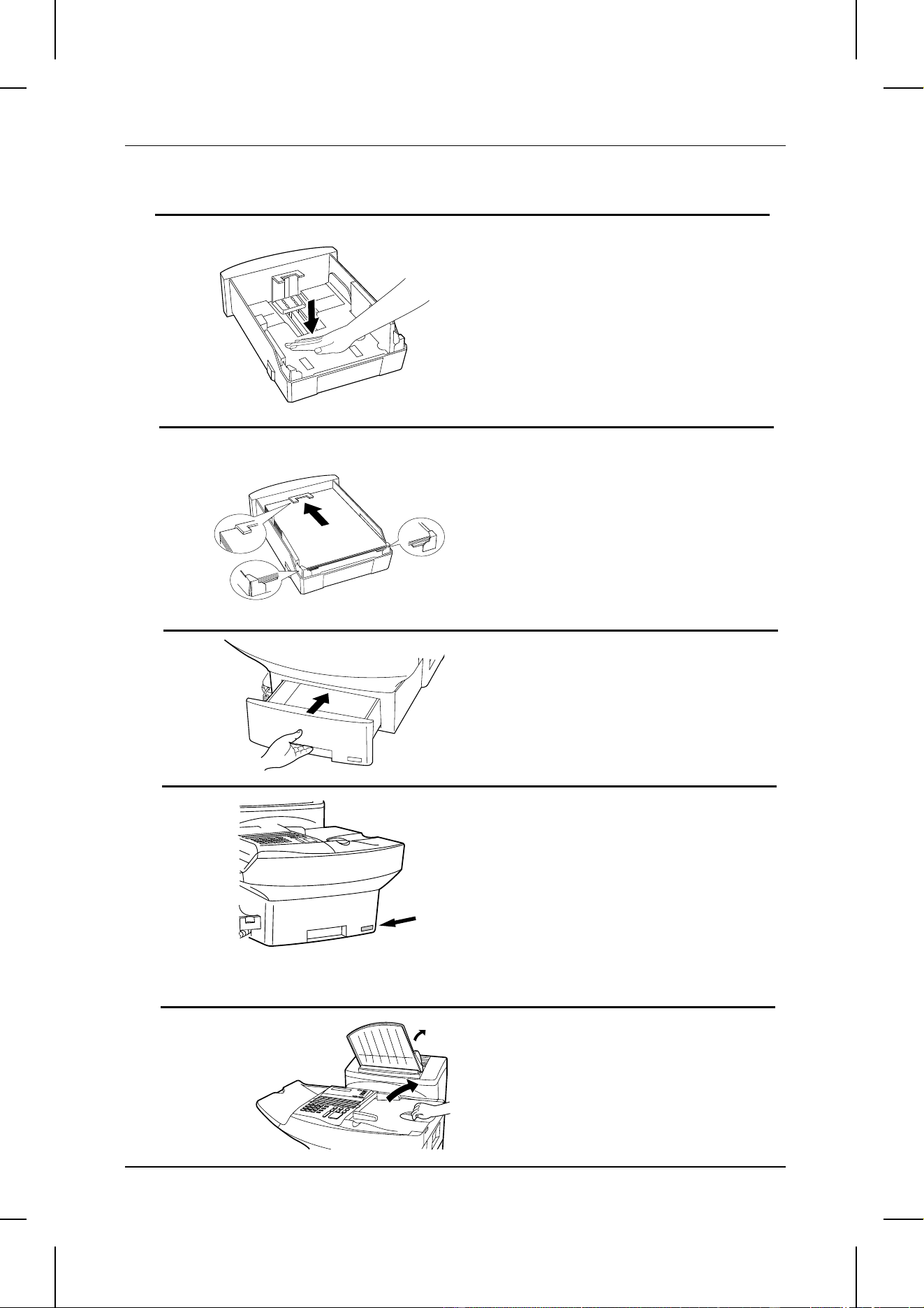
Loading the paper cassette
1 Grasp the hand hold on the cassette
as shown, lift the cassette slightly,
and then pull it out until it stops.
Press down on the levers on each
side of the cassette to release it, and
then pull it completely out of the fax
using both hands.
2
Pinch the ends of the paper guide
together, and move the guide to the
appropriate position depending on
whether you are loading letter or legal
size paper.
INSTALLATION 1-7
<P=002>
3 Push the pressure plate down until it
locks into position.
4 Place a stack of paper in the cassette,
print side up. Make sure the two far
corners of the paper go under the
paper holders as shown.
•• Make sure the stack of paper is not
higher than the tabs at the top of the
paper guide. If it is, remove some of
the paper.
5 Put the cassette back in the fax.
6 If desired, attach a letter or legal
sticker as appropriate to the cassette.
Loading the paper tray
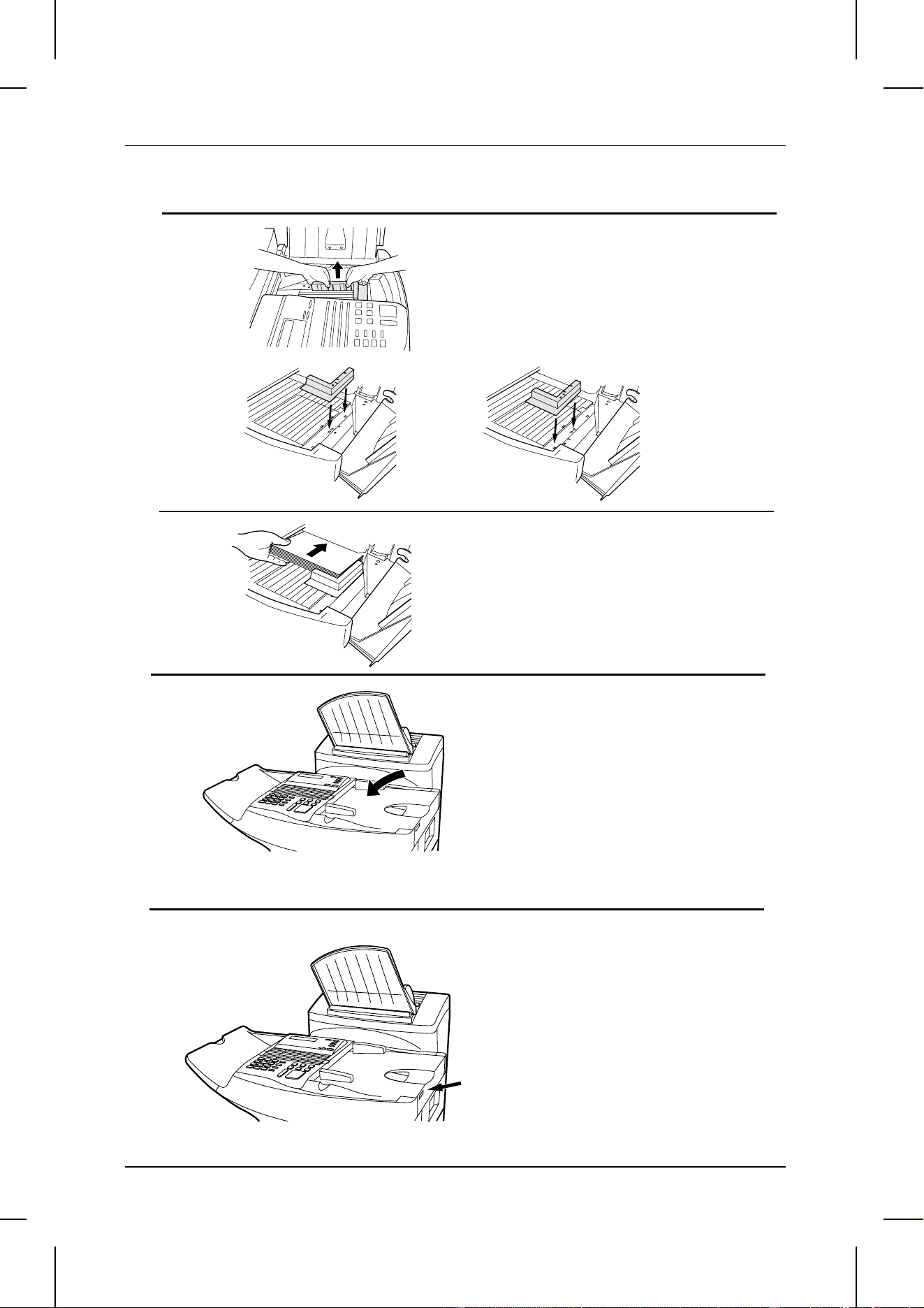
1 Rotate the received document tray
back. Grasp the hand hold on the
original document IN tray as shown,
and open it.
LOADING PAPER
1-8 INSTALLATION
<P=003>
LTR
Letter
LGL
Legal
2 Move the paper guide to the
appropriate position depending on
whether you are loading letter or legal
paper.
•• To remove the paper guide, press its in-
ner side at the arrow marks and lift.
3 Place the paper in the tray.
4 Close the original document IN tray.
5 If desired, attach a letter or legal
sticker as appropriate to the fax.
LOADING PAPER
INSTALLATION 1-9

Notes
LOADING PAPER
1-10 INSTALLATION

UX5000U-IPOP
AY <P=001>
CHANGEOVER
LINE-STATUS RESOLUTION
IN USE STANDARD
FINE
SUPER FINE
HALF TONE
2 INITIAL SETTINGS
A LOOK AT THE OPERATION PANEL
Before you can begin using your fax machine, there is some information that must be
set using the keys on the operation panel. First take a moment to familiarize yourself
with the operation panel, and then set the information as explained on the following
pages.
Paper out indicator
This blinks when one of the
paper sources (cassette or
tray) is out of paper, and lights
steadily when all sources are
out of paper.
Toner cartridge indicator
This blinks when toner nears
empty, and lights steadily
when the toner/developer
cartridge needs replacement.
Drum cartridge indicator
This blinks when the drum
cartridge nears the end of its
life, and lights steadily when the
drum cartridge needs
replacement.
Service indicator
This lights when a
problem occurs which
must be fixed by a
service engineer.
Display
This displays various
messages during operation
and programming.
LINE STATUS light
This lights when the fax
machine is using the
telephone line.
CHANGEOVER key
Two types of information appear in the
display: prompts related to operations
you are performing, and information
about how the fax is using the telephone
line (transmitting, receiving, etc.). Press
this key to switch between the two types
of information.
RESOLUTION key
Press this key to adjust
the resolution before
sending or copying a
document.
INITIAL SETTINGS 2-1

<P=002>
CLEARSPSHIFTSPACE
A
I
Q
Y
B
J
R
Z
C
K
S
D
L
T
E
M
U
F
N
V
G
O
W
H
P
X
01
09
17
25
02
10
18
26
03
11
19
04
12
20
05
13
21
06
14
22
07
15
23
08
16
24
27 28 29 30 31 32
CLEARSPSHIFTSPACE
A
I
Q
Y
B
J
R
Z
C
K
S
D
L
T
E
M
U
F
N
V
G
O
W
H
P
X
33
41
CONTRAST
SEARCH DIAL
34
42
PAGE COUNTER
35
43
CONFIDENTIAL
36
44
TIMER
37
45
RELAY
38
46
39
47
MEM.STATUS
40
48
LIFE
DOWN UP
Rapid Dial keys
Press one of these keys to dial a fax
or voice number automatically (these
keys also serve as letter entry keys
when storing a name).
CONTRAST key
Press this key to adjust the
contrast before sending or
copying a document.
PAGE COUNTER key
Press this key to have a slash and
the total number of pages added
after each page number on the
pages of a transmitted document.
CONFIDENTIAL key
Press this key to send or
print out a confidential
document.
TIMER key
Press this key to set an
operation to be performed
automatically at a later time.
RELAY key
Press this key to send a
document to another fax machine
and have that machine in turn
send the document to a number
of end receiving machines.
LIFE key
Press this key, followed
by the "1" key, to check
the total number of
pages printed by the fax
machine.
MEM. STATUS key
Press this key to see
what documents
have been scanned
into memory for
transmission.
SEARCH DIAL key
Press this key to
search by name for
a number stored
for automatic
dialing.
UP and DOWN keys
Press these keys to adjust
the volume of the handset
when the handset is lifted,
the volume of the speaker
when the SPEAKER key
has been pressed, or the
volume of the ringer at all
other times.
SPACE key
Press this key to enter a
space when storing a name.
→ key, ← key
Press these keys to move
the cursor forward and
backward when storing
names and numbers.
CLEAR key
Press this key to
clear mistakes
when storing
names and
numbers.
SP key
Press this key to enter
symbols when storing
a name.
SHIFT key
Press this key to switch
between upper and
lower case when storing
a name.
(Flip up the
Rapid Key
overlay)
A LOOK AT THE OPERATION PANEL
2-2 INITIAL SETTINGS

<P=003>
Telephone dial keypad
(numeric keys)
Use these keys to dial
and program numbers.
FUNCTION key
Press this key to select
various special functions.
COPY key
Press this key to make
a copy of a document.
REPORT key
Press this key to print out
a report on the transaction
just completed.
DOCUMENT key
Press this key to
transmit a
document without
reading it into
memory.
COVER SHEET key
Press this key to include
a cover sheet with a
transmitted document.
PRIORITY key
Press this key when
you want to transmit
a document ahead of
other documents
which are waiting in
memory for
transmission.
BROADCAST key
Press this key to send a
document to a group of
receiving fax machines.
SPEED DIAL key
Press this key to dial a
Speed Dial number.
SPEAKER key
Press this key to dial a
number without picking
up the handset.
REDIAL key
Press this key to automatically
redial the last number dialed.
STOP key
Press this key to stop
operations before they
are completed.
START key
Press this key to send or
receive a document.
123
456
789
0
OPER
ABC
GHI
DEF
FUNCTION
COPY REPORT DOCUMENT
BROADCAST
STOP START
PRIORITY
SPEED DIAL
REDIAL
SPEAKER
JKL MNO
PRS
TUV WXY
COVER SHEET
A LOOK AT THE OPERATION PANEL
INITIAL SETTINGS 2-3

UX5000U-IPSN
RT <P=001>
ENTERING YOUR NAME AND FAX NUMBER
To have your name and fax/telephone number (called the "Sender’s name" and
"Sender’s number") printed at the top of every page you transmit, program them by
pressing the panel keys as shown below.
♦ You must program your name and fax number in order to comply with the
Consumer Protection Act of 1991 (see inside of front cover).
♦ If you enter an incorrect number or letter, flip the Rapid Key overlay up (if it is
down), press the "←" key to move the cursor back to the mistake, and then enter
the correct number or letter. (To move the cursor forward, press the "→" key.)
Note:
The fax will not respond if you press the
FUNCTION
key while the display shows the
telephone line status. Before performing any operations requiring the
FUNCTION
key,
make sure the display shows the date and time (press the
CHANGEOVER
key to
switch between the telephone line status and the date and time).
Step Press these keys: Comments
1
"ENTRY MODE" will appear in the display.
2
"OWN PASSCODE SET" will appear in the
display. Note that instead of pressing "3", you
can press "#" or "
*
" to scroll through the
settings in ENTRY MODE until "OWN
PASSCODE SET" appears, and then press the
START key to select it.
3
(Example)
Enter your fax number (max. of 20 digits) by
pressing the numeric keys. (To insert a space
between digits, press the "#" key. To insert a "+",
press the "
*
" key.)
4
5
(Example: "SHARP")
Flip the Rapid Key overlay down (if it is up), and
enter your name by pressing the appropriate
keys as shown on the following page.
(Maximum of 24 characters.)
6
7
Press the STOP key twice to return to the date
and time display.
FUNCTION
5
3
1
5
4
3
2
3
3
START
START
S
P
R
A
H
STOP STOP
2-4 INITIAL SETTINGS

UX5000U-IPEL
YF
<P=001>
CLEARSPSHIFTSPACE
A
I
Q
Y
B
J
R
Z
C
K
S
D
L
T
E
M
U
F
N
V
G
O
W
H
P
X
ENTERING LETTERS FOR NAMES
Names are programmed by pressing the letter entry keys (if the Rapid Key overlay is
up, first flip it down). To enter a letter, press the key on which the letter is marked. The
letter will appear in the display.
Shift
Press this key once to
change case (press it
again to change back).
Symbols
Press this key repeatedly
until the desired symbol
appears (see the symbol
list below).
Letters
To enter a letter, press the
key on which the letter is
marked.
Space
Press this key to enter
a space.
Cursor right
Press this key to move the
cursor to the right.
Cursor left
Press this key to move the
cursor to the left.
Delete
Press this key to delete the letter
highlighted by the cursor (if the
cursor is to the right of the last
letter entered, it will backspace
and delete the last letter).
Comments:
••
To change one individual letter to another, move the cursor to that letter and enter the
desired letter. The new letter will simply replace the old one.
••
To enter a number as part of a name, press the appropriate numeric key on the telephone
dial keypad.
Symbol list
To enter a symbol from the list below, press the "SP" key repeatedly until the
desired symbol appears. (Note: To enter two symbols in a row, press the
)
key
after you enter the first symbol.)
! " # $ % & ’ ( )
+
+ , - / : ; < = > ? [ ¥ ] ^ _
p
{ | }
)
(
@ .
INITIAL SETTINGS 2-5

UX5000U-IPSD
YF <P=001>
SETTING THE DATE AND TIME
The date and time appear in the display, on reports, at the top of each page you
transmit, and are also used for timer operations. Set the date and time by pressing the
keys on the operation panel as shown below.
♦ To correct a mistake, press the STOP key to move the cursor back to the mistake,
and then enter the correct number.
Step Press these keys: Comments
1
ENTRY MODE will appear in the display.
2
DATE & TIME SET MODE will appear in the
display.
3
(Example: January)
Enter the month (2 digits: "01" for January, "02"
for February, "12" for December, etc.).
4
(Example: the 5th)
Enter the day of the month (2 digits: "01" to "31").
5
(Example: 1999)
Enter the last two digits of the year.
6
(Example: 10:25)
Enter a 2-digit number for the hour ("01" to "12")
and a 2-digit number for the minute ("00" to "59").
7
or
Press "
*
" to select A.M., or "#" to select P.M.
8
The clock will now start.
FUNCTION
3
START
4
0
1
0
5
1
0
2
5
9 9
2-6 INITIAL SETTINGS

UX5000U-IPAD
YF <P=001>
STORING NUMBERS FOR AUTOMATIC DIALING
Automatic dialing is a quick and convenient way of dialing which is done by either
pressing a Rapid Key (Rapid Key Dialing), or pressing the SPEED DIAL key and
entering a 1-, 2-, or 3-digit number (Speed Dialing). Automatic dialing can be used for
both fax transmissions and voice calls.
To use Automatic Dialing, you must first store the full number in your fax. You can
choose whether to store it in a Rapid Key or assign it to a Speed Dial number. It is
usually convenient to store your most frequently dialed numbers in Rapid Keys.
♦ Rapid Key Dialing: You assign a full fax number to a Rapid Key. You can also
store a name, and a back-up fax number which is automatically dialed if the first fax
number is busy. 48 Rapid Keys are available.
♦ Speed Dialling: You assign a full fax or voice number to a 3-digit Speed Dial num-
ber. You can also store a name. 100 Speed Dial numbers are available.
Chain Dialing for area and access codes
You can also store an area code or access code as an automatic dialing number.
Store the code as a Rapid Key or Speed Dial number as described on the following
page, and press "1" in Step 9 to specify it as a Chain Dialing number.
When you dial that number (the area or access code), the fax will wait for you to dial
the remainder of the number (you can dial the remainder of the number by pressing a
Rapid Key, by pressing the Speed Dial key and entering a Speed Dial number, or by
pressing numeric keys). Note that the remainder of the number should not be
specified as a Chain Dialing number if you store it for Rapid Key or Speed Dialing.
♦ The maximum number of digits which can be dialed at one time by Chain Dialing is
50.
Storing numbers
Comments:
••
You may need to add a pause between certain digits in the number to allow time for
connection. For example, if you are on a PBX telephone system that requires an access
number to be dialed (such as "9") to access an outside line, you will need to enter a pause
between the access number and the telephone/fax number of the other party.
••
Pauses are entered by pressing the
REDIAL
key, and several can be entered in a row if
necessary. The first pause entered gives a time delay of 4 seconds, and subsequent pauses
give delays of 2 seconds each.
••
To enter letters for names or correct a mistake, see "Entering letters for names" in this
chapter.
INITIAL SETTINGS 2-7

…
…
<P=002>
Step Press these keys: Comments
1
"ENTRY MODE" will appear in the display.
2
"FAX/TEL # MODE" will appear in the display.
3
Select SET.
4
(Example)
To store a Rapid Key number, press a Rapid
Key (to select Rapid Keys 33 through 48, flip the
Rapid Key overlay up).
To store a Speed Dial number, press SPEED
DIAL and then press up to 3 numeric keys ("1"
to "100"). (If you press less than 3 numeric keys,
press START to complete the entry.)
5
(Example)
Enter the fax number (max. of 34 digits including
pauses) using the numeric keys.
6
7
(Example)
Enter the name of the location or party by
pressing the letter entry keys as described in
"Entering Letters for Names" in this chapter
(max. of 20 characters). If you don’t want to
enter a name, skip this step.
8
9
or
Press "1" if you want to specify the number as a
Chain Dialing number (see the beginning of this
section). Otherwise, press "2" or START.
If you pressed "1" or are storing a Speed Dial
number, go to Step 14. (Note: If you specify a
Rapid Key number as a Chain Dial number, you
cannot enter a back-up fax number.)
10
(Example)
Enter a full back-up fax number.
If you don’t want to enter a back-up number, go
to Step 13.
11
START
5
4
5
4
S
H
…
P
START
FUNCTION
5
4
0
3
1
1
A
1
1
2
START
STORING NUMBERS FOR AUTOMATIC DIALING
2-8 INITIAL SETTINGS

<P=003>
12
(Example)
Enter a name for the back-up number (max. of
20 letters).
If you don’t want to enter a name, skip this step.
13
14
Step 4 or
Return to Step 4 to store another number, or
press STOP to exit. If the number is a Rapid Key
number, you can write the name on the label
above the appropriate Rapid Key.
Clearing numbers
Note:
You cannot clear a number if it is used in a program or timer operation, if it is used to
specify the relay fax machine in a relay group, or if it is included in a Group Key. First
clear the number from the operation or group, then perform the following clearing
procedure. To check where the number is used, print out the Program/Group List, the
Timer List, and/or the Relay Group List as described in Chapter 6.
Step Press these keys: Comments
1
"FAX/TEL. # MODE" will appear in the display.
2
Select CLEAR.
3
(Example)
To clear a Rapid Key number, press the
appropriate Rapid Key.
To clear a Speed Dial number, press SPEED
DIAL and then enter the number with the
numeric keys. (If you enter less than 3 digits,
press START to complete the entry.)
4
5
Step 3 or
Return to Step 3 to clear another number, or
press STOP to exit.
Making changes
To make changes in a number previously stored, repeat the storing procedure. Select
the code number for which you want to make changes in Step 4, and then change the
number(s) and/or name(s) when they appear in the display (Steps 5, 7, 10 and 12).
Changes are made as described in "Entering Letters For Names" in this chapter.
STOP
FUNCTION
START
3
1
2
A
1
STOP
START
S
H
…
P
STORING NUMBERS FOR AUTOMATIC DIALING
INITIAL SETTINGS 2-9

<P=004>
Storing Numbers in Group Keys
Group Keys allow you to dial a group of fax numbers automatically by simply pressing
the appropriate Group Key once. Group Keys are convenient for the Broadcasting and
Serial Polling functions, which are used to transmit to or receive from a group of other
fax machines.
Any Rapid Key which is not already programmed as a Rapid Key or Program Key can
be used as a Group Key. To program or clear a Group Key, follow the steps below.
♦ Up to 147 fax numbers can be stored in one Group Key.
♦ Only Rapid Keys and Speed Dial numbers (excluding numbers specified as Chain
Dialling numbers) can be stored in a Group Key. No full numbers can be stored.
Step Press these keys: Comments
1
"PROGRAM/GROUP MODE" will appear in the
display.
2
"GROUP ENTRY MODE" will appear in the
display.
3
or
Press "1" (SET) to program a Group Key, or "2"
(CLEAR) to clear a Group Key.
4
(Example)
Press any Rapid Key not already being used to
select it as a Group Key.
If you are clearing a Group Key, press it and go
to Step 6.
5
(Example)
Enter fax numbers using one or both of the
following methods:
• Press one or more Rapid Keys.
• Enter one or more Speed Dial numbers with
the numeric keys, pressing SPEED DIAL
before each number (if you enter less than
3 digits for a number, press START to
complete the entry).
6
7
Step 4 or
Return to Step 4 to enter another number, or
press STOP one or more times until you return
to the date and time display.
1
2
START
B
2
A
1
B
2
……
C
3
FUNCTION
7
SPEED DIAL
1
2
STOP
START
STORING NUMBERS FOR AUTOMATIC DIALING
2-10 INITIAL SETTINGS

UX5000U-IPVA
DD <P=001>
VOLUME ADJUSTMENT
You can adjust the volume of the speaker, handset, and ringer using the UP and
DOWN keys on the operation panel (flip up the Rapid Key overlay to access the keys).
Speaker
The speaker has three volume levels: HIGH, MIDDLE, and LOW. To adjust the
volume of the speaker, press the SPEAKER key and then press the UP or DOWN key
until the desired level appears in the display. Press the STOP key again to turn the
speaker off.
Handset
The handset receiver has three volume levels: HIGH, MIDDLE, and LOW. To adjust
the volume of the handset receiver, lift the handset and then press the UP or DOWN
key until the desired level appears in the display.
Ringer
The ringer has four volume levels: HIGH, MIDDLE, LOW, and OFF. To adjust the
volume of the ringer, press the UP or DOWN key until the desired level appears in the
display (make sure the SPEAKER has not been pressed and the handset is not lifted).
The fax will ring at the new volume level each time you change the level. If you select
OFF, press the START key to confirm your selection.
INITIAL SETTINGS 2-11

Notes
VOLUME ADJUSTMENT
2-12 INITIAL SETTINGS

UX5000U-BOPS
AY <P=001>
5.8"
(
148 mm)
11.0"
(280 mm)
14 lbs. 36 lbs.
3 BASIC OPERATIONS
SENDING DOCUMENTS
Transmittable documents
Your fax can transmit most standard office documents. Specific guidelines are as
follows:
Size and weight
The size and weight of documents which you can load in the document feeder depend
on whether you load one sheet at a time or several sheets at once.
One sheet at a time:
Several sheets at once:
Note:
The area of the document which is scanned by the fax is slightly smaller than the actual
document size. Any letters or graphics outside this area cannot be transmitted.
Scanning width: 8.5" (216 mm) for documents up to 8.9" (226 mm) wide.
Maximum of 10.1" (256 mm) for documents 8.9" (226 mm)
to 11" (280 mm) wide when reduced automatically (see
following note).
Scanning length: The length of the sheet minus 0.16" (4 mm) from both the
top and bottom edges.
Note:
When sending a document wider than 8.9" (226 mm), your fax will automatically reduce
the width of the image transmitted to 8.0" (203 mm). If the document contains fine print
or graphics, the copy which the receiving party obtains may be difficult to read due to
the size reduction. This function is automatically disabled if the printing width of the
receiving machine is greater than or equal to the width of the document.
5.0"
(128 mm)
17.0"
(432 mm)
(52 g/m
2
) (157 g/m
2
)
5.8"
(
148 mm)
11"
(280 mm)
5.0"
(128 mm)
14.3"
(364 mm)
(80 g/m
2
)
14 lbs. 20 lbs.
(52 g/m
2
)
BASIC OPERATIONS 3-1

<P=002>
Other restrictions
♦ Documents written in yellow, greenish yellow, or light blue ink cannot be transmit-
ted, as the scanner does not recognize these colors.
♦ Ink, glue, and correcting fluid on documents must be dry before they pass through
the document feeder.
♦ All clips, staples, and pins must be removed from documents before transmission. If
these are not removed, they may damage the fax.
♦ Patched or taped documents should be copied on a copy machine, and the copy
used for transmission.
Dual access
The UX-5000 features full dual access, which means that you can load a document
and dial even when the fax is occupied with another operation. After you dial (when
you use automatic dialing), your document will be immediately scanned into memory
and then transmitted once all previously set operations have been completed.
If more than one document has been scanned into memory for transmission, the
documents will be transmitted in the order in which they were scanned. If you have an
urgent transmission and do not want to wait until previously scanned documents are
transmitted, you can press the PRIORITY key after loading your document. Your
document will be transmitted immediately after the current document has completed
transmission.
If you don’t want the document to be transmitted from memory, you can press the
DOCUMENT key after loading the document. In this case, the document will not be
scanned until the fax completes all previously set operations and the connection to the
receiving party is made. (To transmit the document ahead of any documents waiting in
memory for transmission, press the PRIORITY key.)
The UX-5000 can hold approximately 50 pages of average content in memory. Less
pages can be held if any were scanned using fine or halftone resolution.
♦ The amount of memory currently occupied appears as a percentage ("M:00%") in
the display.
SENDING DOCUMENTS
3-2 BASIC OPERATIONS

<P=003>
If the memory becomes full...
If the memory becomes full while the document is being scanned, MEMORY FULL will
appear in the display. If Option Setting 24 (Quick on-line) is set to YES, the
transmission will be canceled and you will need to retransmit all pages of the
document. (If a page remains in the scanner, open the operation panel by squeezing
the release marked "PULL OPEN" and remove it.) If Option Setting 24 is set to NO,
press the START or STOP key as follows:
♦ Press the START key if you want to transmit the pages which have been stored up
to that point in memory. The remaining pages will be ejected from the feeder. After
transmission, the memory will be cleared and you can transmit the remaining
pages. You will also need to transmit the page which was being scanned when the
memory filled up.
♦ Press the STOP key if you want to cancel the entire transmission.
If you do not press the START key or the STOP key within one minute, the
transmission will be canceled and the pages already scanned cleared from memory.
You will need to retransmit all pages of the document.
Memory Retransmission
If a line error or power failure occurs during any type of memory transmission, your fax
will automatically redial the number and attempt to complete the transmission.
Retransmission will begin from the page which was being transmitted when the error
occurred.
Your fax has been set at the factory to make 10 attempts at retransmission, with each
attempt made immediately after the previous attempt. If desired, you can change the
number of attempts by changing Option Setting 18, and have the fax wait a selected
number of minutes between each attempt by changing Option Setting 19. See Chapter
5, "Optional Settings".
♦ To stop retransmission, press the STOP key.
♦ The numbering of pages retransmitted will begin from "1" again.
♦ If the error or power failure occurs during transmission of a cover sheet, retransmis-
sion will not take place.
SENDING DOCUMENTS
BASIC OPERATIONS 3-3
<P=004>
Checking documents in memory
To display information on the documents that are waiting in memory for transmission,
follow the steps below. You can also cancel a transmission with this procedure.
Step Press these keys: Comments
1
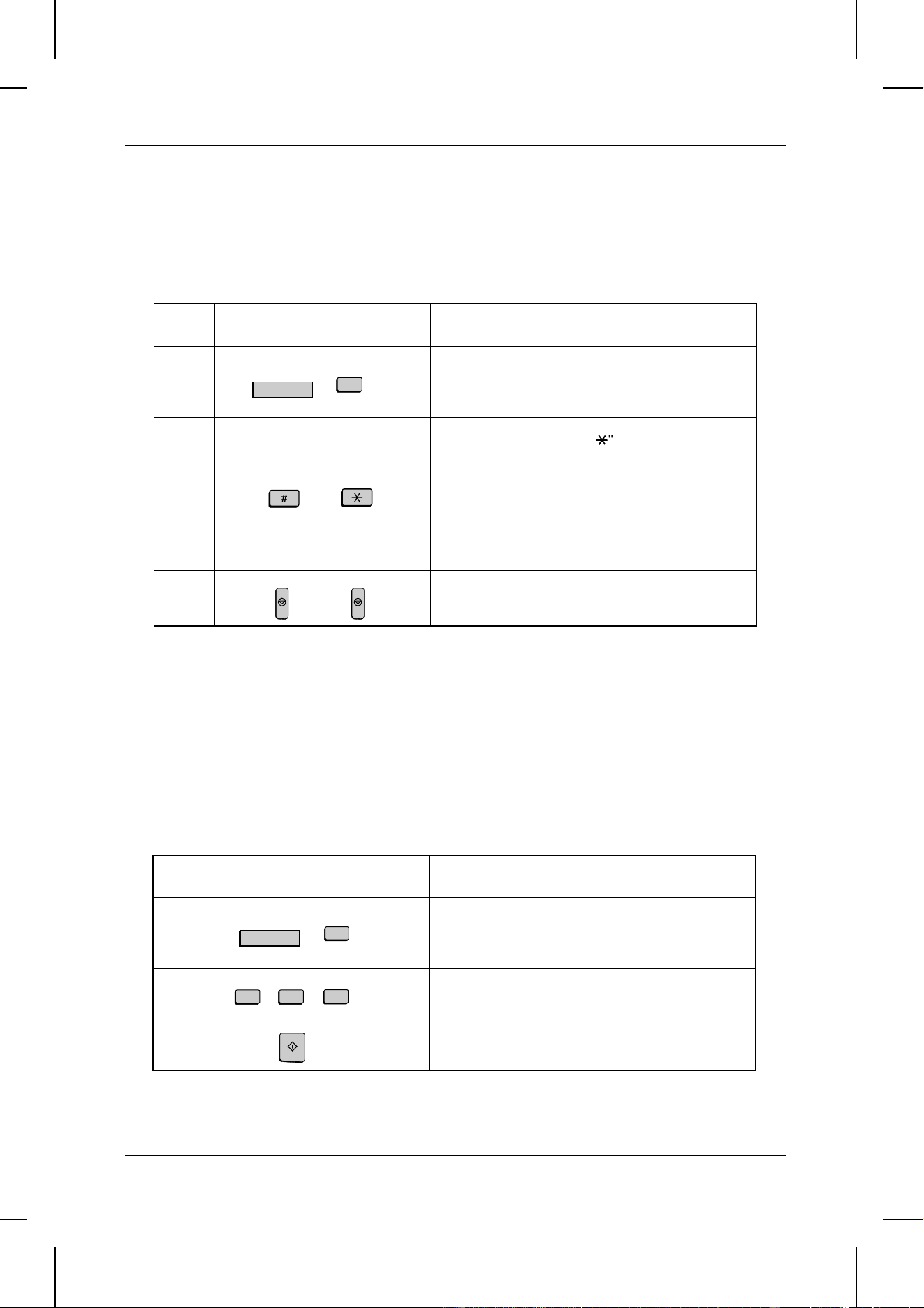
Press the MEM. STATUS key (flip up the Rapid
Key overlay if necessary) and the "2" key. "TX
STATUS" will appear in the display.
2
or
Press the "#" key or the "
*
" key to scroll through
the list of transmissions. The name (or number)
of each receiving party will appear in the display,
together with the 3-digit memory number
assigned to the transmission. To cancel a
transmission, press the CLEAR key and then
the START key while the transmission appears
in the display.
3
When you have finished checking the list, press
the STOP key twice to exit.
STOP
W
MEM.STATUS
2
STOP
If desired, you can also print out a list of the documents waiting in memory for
tranmission. To do so, press the MEM. STATUS key and then the "5" key.
To cancel a memory transmission
If you know the memory number assigned to a memory transmission, you can cancel
it with the following procedure. (If you don’t know the memory number, use the
procedure above.)
Step Press these keys: Comments
1
Press the MEM. STATUS key (flip up the Rapid
Key overlay if necessary) and the "4" key.
"MESSAGE CLEAR" will appear in the display.
2
(Example)
Enter the 3-digit memory number assigned to
the transmission you want to cancel.
3
Press the START key to cancel the transmission.
W
MEM.STATUS
4
1
00
START
SENDING DOCUMENTS
3-4 BASIC OPERATIONS

<P=005>
Loading the document
Up to 50 pages can be placed in the feeder at one time. The pages will be
automatically fed into the fax starting from the page on the bottom.
♦ If you need to send or copy more than 50 pages, place the additional pages gently
and carefully in the feeder just before the last page is scanned. Do not try to force
them in, as this may cause double-feeding or jamming.
♦ If your document consists of several large or thick pages which must be loaded one
at a time, insert each page into the feeder as the previous page is being scanned.
Insert gently to prevent double-feeding.
1 Adjust the document guides to the
width of your document.
2 Place the document face down on the
document feeder and push it gently
into the machine. The top edge of the
document should enter first.
•• SEND READY will appear in the dis-
play.
•• If desired, press the PRIORITY key to
send the document ahead of other
documents waiting in memory for trans-
mission, and/or the DOCUMENT key
to send the document without reading
it into memory.
3 You can now either make optional
transmission settings as described on
the following page, or dial the other
party as described in the following
section, "Dialing and transmission".
SENDING DOCUMENTS
BASIC OPERATIONS 3-5

<P=006>
Optional transmission settings
If desired, there are several transmission settings which you can make before dialing
and transmitting the document.
Note:
To make the settings, the document must first be loaded in the feeder.
Resolution
Your fax has 4 resolution settings:
STANDARD: Use STANDARD for ordinary documents. This setting
gives you the fastest and most economical transmission.
FINE: Use FINE for improved reproduction, especially with docu-
ments containing small letters or fine drawings.
SUPER FINE: Use SUPER FINE when you need the highest quality of
reproduction.
HALF TONE: Use HALF TONE for photographs and illustrations. The
original will be reproduced in 64 shades of gray.
If you do not make a setting, the machine will automatically send the document in
STANDARD.
♦ In order to transmit with FINE or SUPER FINE resolution, the receiving fax machine
must also have that resolution. If it doesn’t, the next best available setting will be
used.
To change the setting, press the
RESOLUTION key one or more times
until the indicator light next to the
desired setting comes on.
CHANGEOVER
LINE-STATUS RESOLUTION
IN USE STANDARD
FINE
SUPER FINE
HALF TONE
SENDING DOCUMENTS
3-6 BASIC OPERATIONS

<P=007>
Contrast
The contrast is normally set to AUTO, which means that the machine automatically
controls the contrast. However, for very light documents you can change the setting to
DARK, and for documents with a dark background you can change the setting to
LIGHT.
Flip up the Rapid Key overlay if
necessary and press the CONTRAST
key one or more times until the
desired setting appears in the display.
•• The contrast setting appears in paren-
theses after the resolution setting.
Cover Sheet
You can have your fax generate a cover sheet and send it as the last page of the
transmission. The cover sheet includes the date and time, the sender’s name and
number, and the receiver’s name and number if an automatic dialing number is used.
The total number of pages sent is indicated on the bottom.
♦ Your name and number must be programmed in order for them to appear on the
cover sheet. (See "Entering Your Name and Fax Number" in Chapter 2.)
♦ Cover Sheet cannot be selected when you use the Relay Request function.
CLEARSPSHIFTSPACE
A
I
Y
B
J
R
Z
C
K
S
D
L
T
E
M
U
F
N
V
G
O
W
H
P
X
33
41
34
42
35
43
36
44
37
45
38
46
39
47
40
48
DOWN UP
Q
CONTRAST
TIMER RELAY
LIFE
PAGE COUNTER CONFIDENTIAL
SEARCH DIAL
MEM.STATUS
To send a cover sheet, press the
COVER SHEET key.
If desired, you can set your fax to automatically send a cover sheet with every
transmission (you do not have to press the COVER SHEET key each time). This is
done by setting Option Setting 10 to YES as described in Chapter 5.
COPY REPORT DOCUMENT
PRIORITY
FUNCTION
STOP START
SPEED DIAL
REDIAL
SPEAKER
BROADCAST
COVER SHEET
SENDING DOCUMENTS
BASIC OPERATIONS 3-7

<P=008>
Example
Batch Page Numbering
This setting is used to change the page numbering of the transmitted document from
simple numbering ("P.1", "P.2", etc.) to batch numbering, which means that a slash
and the total number of pages being sent are added after each page number (for
example, "P. 1/5", "P.2/5", etc.). This allows the receiver to check for any missing
pages.
♦ If you are sending a cover sheet, do not include the cover sheet in the total number
of pages. Your fax will adjust the number to include the cover sheet automatically.
♦ If you need to cancel a batch number entry, remove the document from the feeder
or press the STOP key.
♦ If transmission does not take place within one minute after entering the batch num-
ber, the setting will be canceled.
♦ If the number of pages actually transmitted does not coincide with the batch number
entered, the alarm will sound and PAGE COUNT ERROR will appear in the display.
"PAGE E" will also appear in the "NOTE" column of the Transaction Report if it has
been set to print out.
Step Press these keys: Comments
1
"ENTER # OF PAGE(S)" will appear in the
display.
2
(Example)
Enter the total number of pages (2 digits - "01" to
"99") by pressing the numeric keys.
R
PAGE COUNTER
3
1
Note: For the recipient’s
name to appear, you must
dial using a Rapid Key or
Speed Dial number that has
the name programmed.
SENDING DOCUMENTS
3-8 BASIC OPERATIONS

UX5000U-BOSD
YF <P=001>
Dialing and transmission
Once you have loaded the document and made any desired transmission settings,
you are ready to dial the number of the receiving fax machine and transmit the
document. There are several ways of dialing, and you can select the one which best
suits your needs.
Normal Dialing
With Normal Dialing, you pick up the handset (or press the SPEAKER key) and dial
as you would to make a telephone call. If the receiving machine is set to receive faxes
manually (this means that the receiving party answers your call by picking up the
handset and speaking, and then presses their Start key to begin fax reception), you
can talk with them before sending the fax.
♦ When using Normal Dialing, you do not have to load the document before dialing.
You can also load the document and make transmission settings after completing
Step 2 below.
1 Pick up the handset or press the
SPEAKER key. Listen for the dial tone.
2 Dial the number of the receiving
machine by pressing the number keys.
•• If Option Setting 27 has been set to
"YES" and BILLING CODE DIAL has
been set to "AFTER", press the
REDIAL key after dialing.
123
456
789
0
OPER
ABC
GHI
DEF
JKL MNO
PRS
TUV WXY
SPEAKER
or
3 Wait for the connection. Depending
on the setting of the receiving
machine, you will either hear a
facsimile reception tone or the other
person will answer.
•• If the other party answers, ask them to
press their Start key (if you pressed the
SPEAKER key, pick up the handset to
speak with them). This causes the re-
ceiving machine to issue a reception
tone.
Beep
SENDING DOCUMENTS
BASIC OPERATIONS 3-9

<P=002>
4 When you hear the reception tone,
press the START key. Replace the
handset if you used it.
•• When transmission is completed, the
fax will beep.
Direct Keypad Dialing
If you do not need to talk with the other party before sending the fax, you can just dial;
it isn’t necessary to pick up the handset or press the SPEAKER key.
♦ Direct Keypad Dialing is a form of automatic dialing, so if you need to insert a pause
between any digits of the number, press the REDIAL key. (For more information on
pauses, see "Storing Numbers for Automatic Dialing" in Chapter 2.)
♦ When using Direct Keypad Dialing, you do not have to load the document before di-
aling. You can load the document after completing Step 1 below.
1 Enter the number of the receiving
machine by pressing the number keys.
2 Check the display. If the number of
the receiving machine shown is
correct, press the START key.
•• If it is not correct, press the STOP key
to backspace and clear one digit at a
time, and then re-enter the correct
digit(s).
123
456
789
0
OPER
ABC
GHI
DEF
JKL MNO
PRS
TUV WXY
START
START
Rapid Key Dialing
If the number you want to dial has been stored as a Rapid Key number (see "Storing
Numbers for Automatic Dialing" in Chapter 2), you can dial it by pressing the
appropriate Rapid Key.
Press the appropriate Rapid Key.
•• The name of the receiving party will ap-
pear in the display. If no name was
stored, the fax number will appear. (If
the name or number is incorrect, press
the STOP key.)
•• The document will be automatically
transmitted once the connection is
made.
CLEARSPSHIFTSPACE
A
I
Q
Y
B
J
R
Z
C
K
S
D
L
T
E
M
U
F
N
V
G
O
W
H
P
X
01
09
17
25
02
10
18
26
03
11
19
04
12
20
05
13
21
06
14
22
07
15
23
08
16
24
27 28 29 30 31 32
SENDING DOCUMENTS
3-10 BASIC OPERATIONS

<P=003>
Speed Dialing
If the number you want to dial has been stored as a Speed Dial number, you can dial
it by pressing the SPEED DIAL key and then entering the Speed Dial number (see
"Storing Numbers for Automatic Dialing" in Chapter 2).
1 Press the SPEED DIAL key and then
enter the Speed Dial number by
pressing the numeric keys.
•• If you enter less than 3 digits for the
Speed Dial number, press the START
key to complete the entry.
2 Check the display. If the name or
number shown is correct, press the
START key. (If not, press the STOP
key and then repeat Step 1.)
START
SPEED DIAL
123
456
789
0
OPER
ABC
GHI
DEF
JKL MNO
PRS
TUV WXY
Chain Dialing
An automatic dialing number set for Chain Dialing (see "Storing Numbers for
Automatic Dialing" in Chapter 2) can be combined with another automatic dialing
number or digits entered manually with the numeric keys to dial one phone number up
to 50 digits long. The following are some examples of how this can be done:
♦ Press appropriate Rapid Keys in the proper order. For example, press Rapid Key
01, then Rapid Key 02.
♦ Press a Rapid Key and then manually enter a number by pressing appropriate nu-
meric keys. Press the START key after the final numeric key to begin transmission.
(Use this method, for example, when you have stored a long distance access code
into a Rapid Key, and want to dial this in combination with a number which hasn’t
been stored as an automatic dialing number.)
SENDING DOCUMENTS
BASIC OPERATIONS 3-11
<P=004>
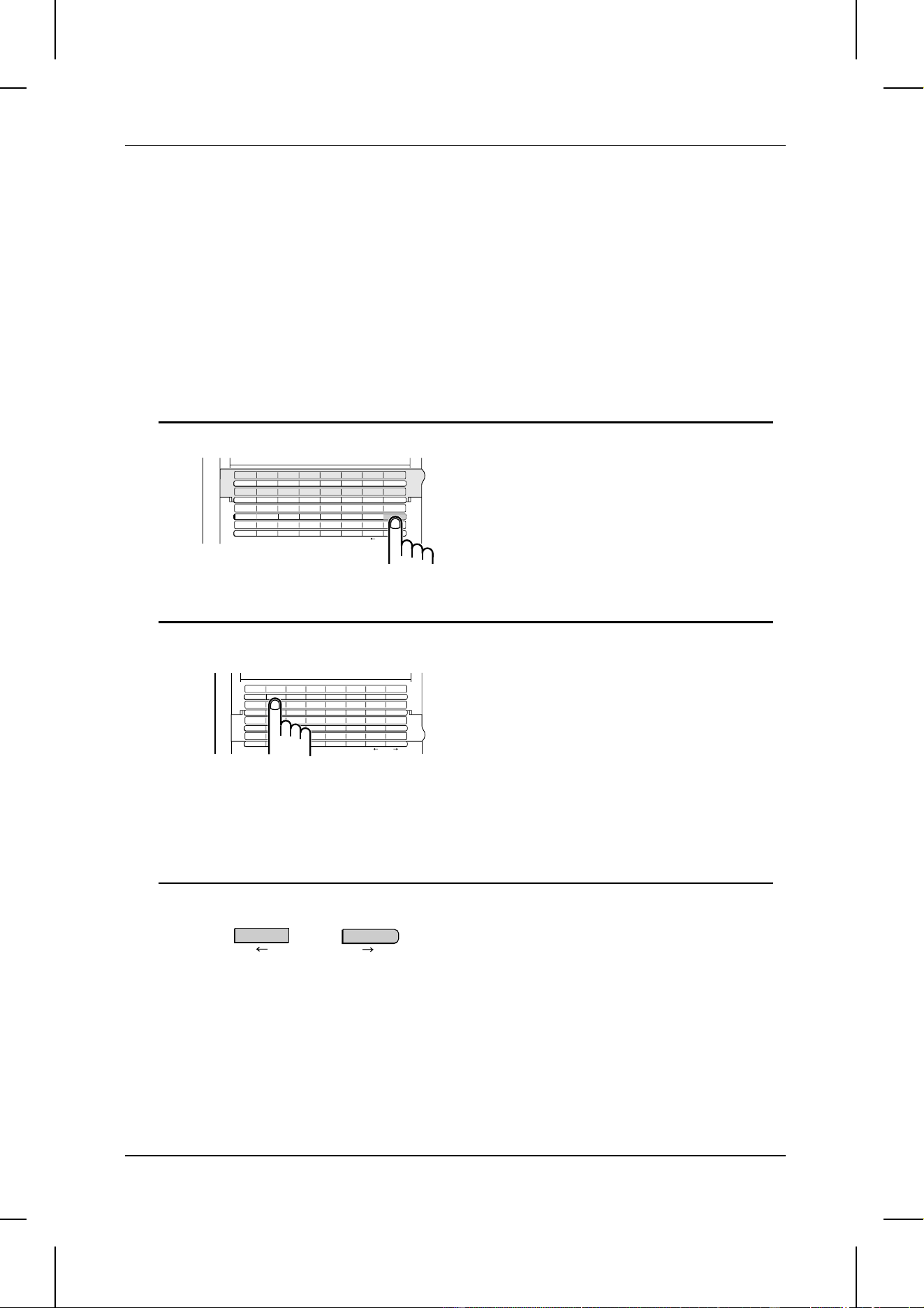
Using the SEARCH DIAL key
If you don’t remember the Rapid Key or Speed Dial number in which you have stored
a particular fax number, you can search for the number by following the steps below.
Once you have found the number, you can dial it and transmit the loaded document
by simply pressing the START key.
Note:
Only names programmed for automatic dialing numbers will appear when you search;
the full numbers themselves will not appear. You cannot search for a number if a name
has not been associated with it.
1 Press the SEARCH DIAL key.
2 Enter the first letter of the stored
name by pressing the appropriate
letter entry key.
•• If you don’t remember the first letter,
go to Step 3 (you will scroll through the
list from the beginning).
CLEARSPSHIFTSPACE
A
I
Y
B
J
R
Z
C
K
S
D
L
T
E
M
U
F
N
V
G
O
W
H
P
X
33
41
34
42
35
43
36
44
37
45
38
46
39
47
40
48
UPDOWN
Q
CONTRAST
SEARCH DIAL
PAGE COUNTER
CONFIDENTIAL
TIMER RELAY
MEM.STATUS
LIFE
CLEARSPSHIFTSPACE
A
I
Q
Y
J
R
Z
C
K
S
D
L
T
E
M
U
F
N
V
G
O
W
H
P
X
1
9
17
25
2
10
18
26
3
11
19
4
12
20
5
13
21
6
14
22
7
15
23
8
16
24
27 28 29 30 31 32
B
3
Press the → or the ← key to scroll
through the names. Stop when the
desired name appears in the display.
•• If no numbers have been stored under
the entered letter or you have reached
the end of the list, NOT FOUND will ap-
pear.
or
(Example: "B")
SENDING DOCUMENTS
3-12 BASIC OPERATIONS

<P=005>
4 Press the START key. The document
will be automatically transmitted once
the connection is made.
Note:
The
SEARCH DIAL
key can be used to access the first number in a Chain Dialing
sequence, but not subsequent numbers.
Checking the telephone line status
The display normally shows the date and time and prompts related to operations you
are performing. To check and see what number the fax is currently calling or
transmitting to, or what number the fax is currently receiving a document from (if this
information is available), press the CHANGEOVER key. Information on the current
call will appear in the display. To switch back to the date and time display, press the
CHANGEOVER key again.
To cancel a fax transmission or reception
To cancel a fax transmission or reception which is currently in progress, press the
CHANGEOVER key so that the status of the transmission or reception appears in the
display, and then press the STOP key.
START
Redialing
Automatic redialing
If you use automatic dialing (including Direct Keypad Dialing) and the line is busy,
your fax will automatically redial the number. Your fax was set at the factory to make 2
redialing attempts at intervals of 5 minutes.
To stop automatic redialing, press the CHANGEOVER key to show the telephone line
status in the display (make sure that RECALL MODE appears on the top line of the
display and the number of the receiving party appears on the bottom line to the right),
and then press the STOP key.
♦ If desired, you can change the number of times the fax redials with Option Setting
6, and the interval at which redialing is done with Option Setting 7. See Chapter 5,
"Optional Settings".
Using the REDIAL key
You can press the REDIAL key to redial the last number dialed. To send a document,
proceed from Step 3 of Normal Dialing. Note that the speaker will be automatically
activated, so you do not need to pick up the handset immediately.
SENDING DOCUMENTS
BASIC OPERATIONS 3-13

UX5000U-BORD
YF <P=001>
RECEIVING DOCUMENTS
Your fax has two modes of reception: AUTO and MANUAL. With MANUAL reception,
you must first pick up the handset and then press the START key to receive a
document. With AUTO reception, your fax automatically answers each call and
receives the incoming document.
♦ AUTO reception is most useful when you want to use your line as a dedicated fax
line (you will only be receiving faxes on it).
♦ MANUAL reception is most useful when you will be receiving both voice calls and
fax messages on the same line.
Setting the mode of reception
The reception mode has been set to AUTO at the factory. If you want to change the
setting, follow the steps below.
Step Press these keys: Comments
1
RECEIVE MODE will appear in the display.
2
or
Press "1" to select AUTO, or "2" to select
MANUAL.
AUTO reception
In AUTO reception mode, the fax automatically answers all calls after 1 ring and
receives the incoming documents.
♦ You can change the number of rings on which the fax answers incoming calls by
changing Option Setting 2 (see Chapter 5, "Optional Settings"). Any number from
"0" to "9" can be selected. (Select "0" to have your fax answer calls without ringing.)
♦ If you pick up the handset before your fax answers, you can talk to the other party
and/or receive a document as described below in "MANUAL reception".
Note:
If Option Setting 2 is set to a high number of rings, your fax may not be able to receive
documents sent by automatic dialing. If you have difficulty receiving documents, change
the setting of Option Setting 2 to a lower number.
Note:
If you are using distinctive ringing, your fax will answer incoming calls after two rings
regardless of the setting of Option Setting 2.
FUNCTION
1
2
1
3-14 BASIC OPERATIONS
<P=002>
MANUAL reception
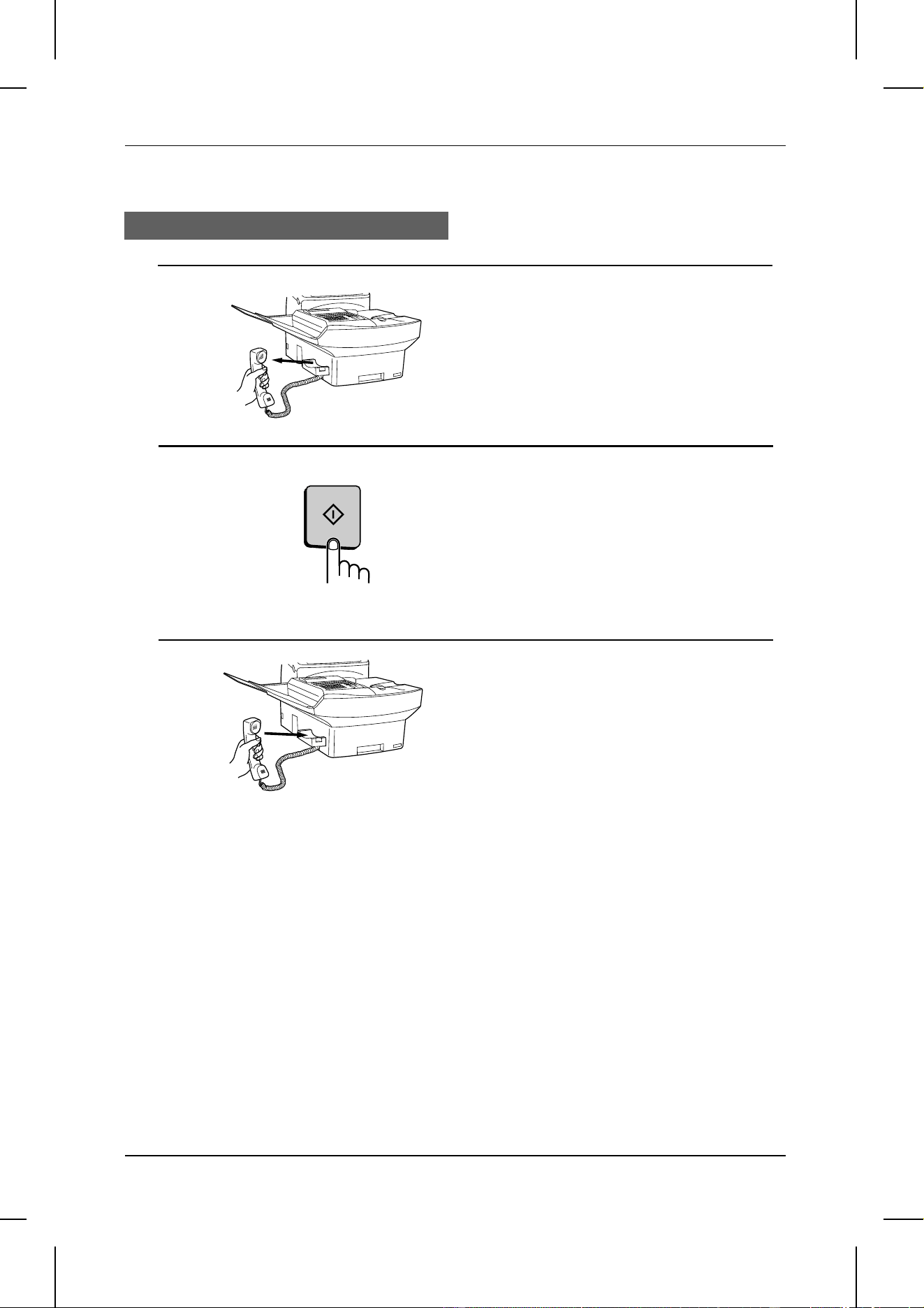
1 When your fax rings, pick up the
handset.
2 You will either hear a fax tone or the
other party will speak to you.
•• If you hear a fax tone, press the
START key.
•• If the other party first speaks with you
and then wants to send a document,
press the START key after speaking.
3 Hang up when RECEIVING appears in
the display.
Note:
As a back-up feature of MANUAL mode, you can set the fax to automatically answer
calls and receive documents on any number of rings from 1 to 9. This is useful if you
are occasionally unable to respond to an incoming call personally. The setting is made
with Option Setting 3. See Chapter 5, "Optional Settings".
START
RECEIVING DOCUMENTS
BASIC OPERATIONS 3-15
<P=003>
Substitute reception
If your fax runs out of paper, toner, or the paper jams, incoming documents will be
automatically stored in memory.
When you have received a document in memory, FAX RCVD IN MEMORY will appear
in the display, together with NO PAPER, REPLACE TONER, or PAPER JAM. When
you add paper, replace the toner cartridge, or clear the jam, the stored documents will
automatically print out.
You can display information on the documents received to memory by following these
steps:
Step Press these keys: Comments
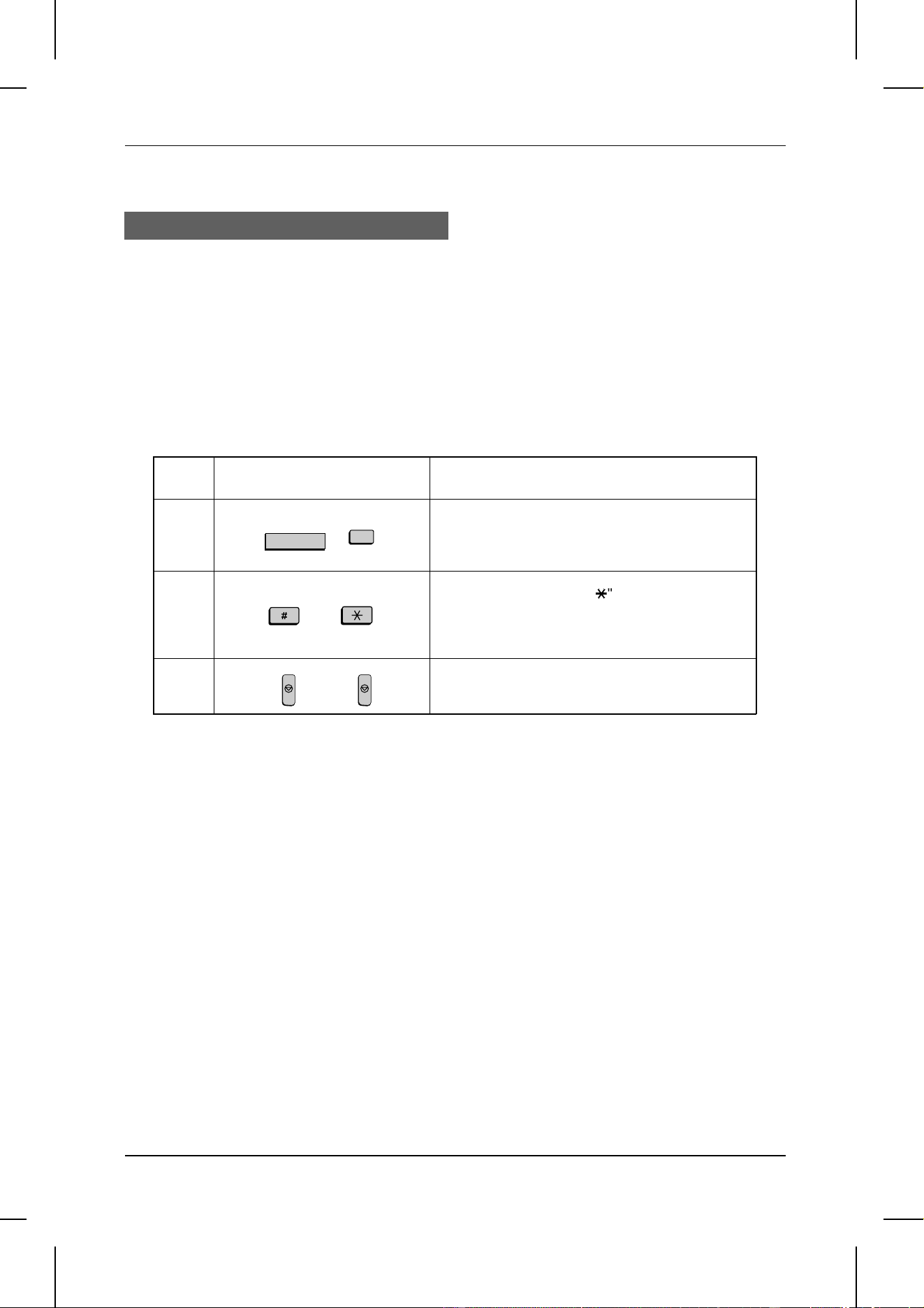
1
Press the MEM. STATUS key (flip up the Rapid
Key overlay if necessary) and the "3" key. "RX
STATUS" will appear in the display.
2
or
Press the "#" key or the "
*
" key to scroll through
the list of received documents. The name (or
number) from which each document was
received will successively appear in the display.
3
When you have finished checking the list, press
the STOP key twice to exit.
STOP
W
MEM.STATUS
3
STOP
RECEIVING DOCUMENTS
3-16 BASIC OPERATIONS
UX5000U-BOCY
YF <P=001>
MAKING COPIES
Your fax can also be used to make copies. Single and multiple copies (up to 99 per
original) can be made, enabling your fax to double as an office copier.
♦ You can perform all steps of a copy operation even when the fax is busy printing
other copy jobs, or when it is printing a received document after the line has been
disconnected. Your copy job will be automatically stored in memory and then
printed when all previous printing jobs are completed.
♦ The default resolution for copying is FINE.
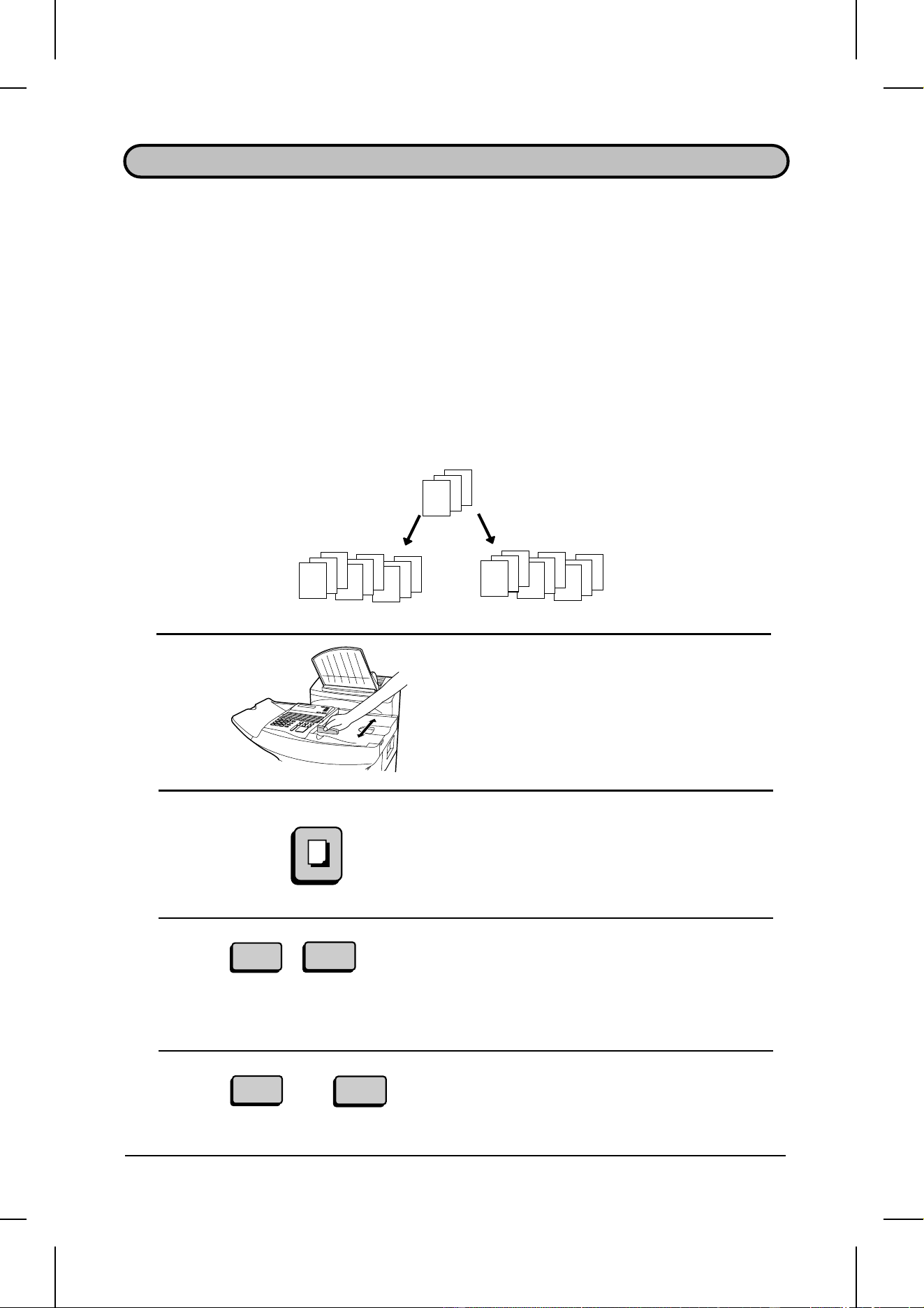
♦ If you are making multiple copies of more than one original, you can choose
whether to have the copies sorted (SORT COPY) or not sorted (MULTI COPY). The
following example shows how the copies are ordered in each case when 3 copies
each of 3 originals are made.
1 Load the document(s) face down.
•• If desired, adjust the resolution and
contrast with the RESOLUTION and
CONTRAST keys.
2 Press the COPY key.
•• If you are only making a single copy of
the original (or of each original), press
the START key. Copying will begin.
3 Enter the desired number of copies
with the number keys.
•• If the desired number of copies is from
1 to 9, enter "0" first.
(Example)
COPY
2
1
4 Press "1" to select MULTI COPY, or
"2" to select SORT COPY.
or
1
2
A
B
C
A
B
C
A
B
C
A
B
C
C
C
C
B
B
B
A
A
A
Originals
SORT COPY
MULTI COPY
BASIC OPERATIONS 3-17
<P=002>
Checking copy operations in memory
You can display the status of copy jobs in memory by following the steps below. You
can also cancel copy jobs with this procedure.
Step Press these keys: Comments
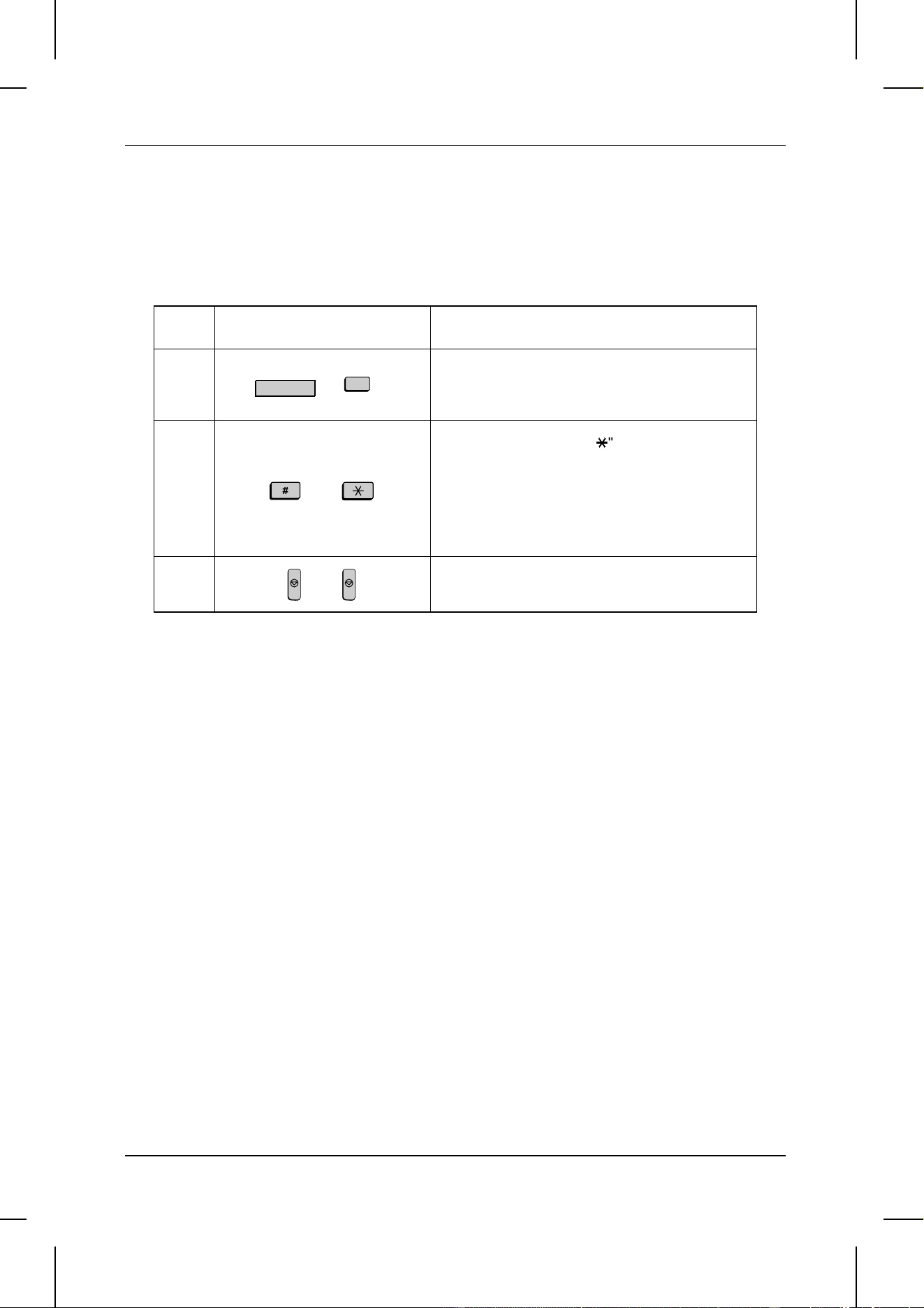
1
Press the MEM. STATUS key (flip up the Rapid
Key overlay if necessary) and the "1" key.
"COPY STATUS" will appear in the display.
2
or
Press the "#" key or the "
*
" key to scroll through
the list of copy jobs. The time the original was
scanned into memory will appear in the display,
together with the 3-digit memory number
assigned to the job. To cancel a copy job, press
the CLEAR key and then the START key while
the copy job appears in the display.
3
When you have finished checking the list, press
the STOP key twice to exit.
STOP
W
MEM.STATUS
1
STOP
MAKING COPIES
3-18 BASIC OPERATIONS
UX5000U-BOVC
YF <P=001>
MAKING TELEPHONE CALLS
Your fax can be used like a regular telephone to make and receive voice calls.
♦ To make or receive a phone call, the power must be on.
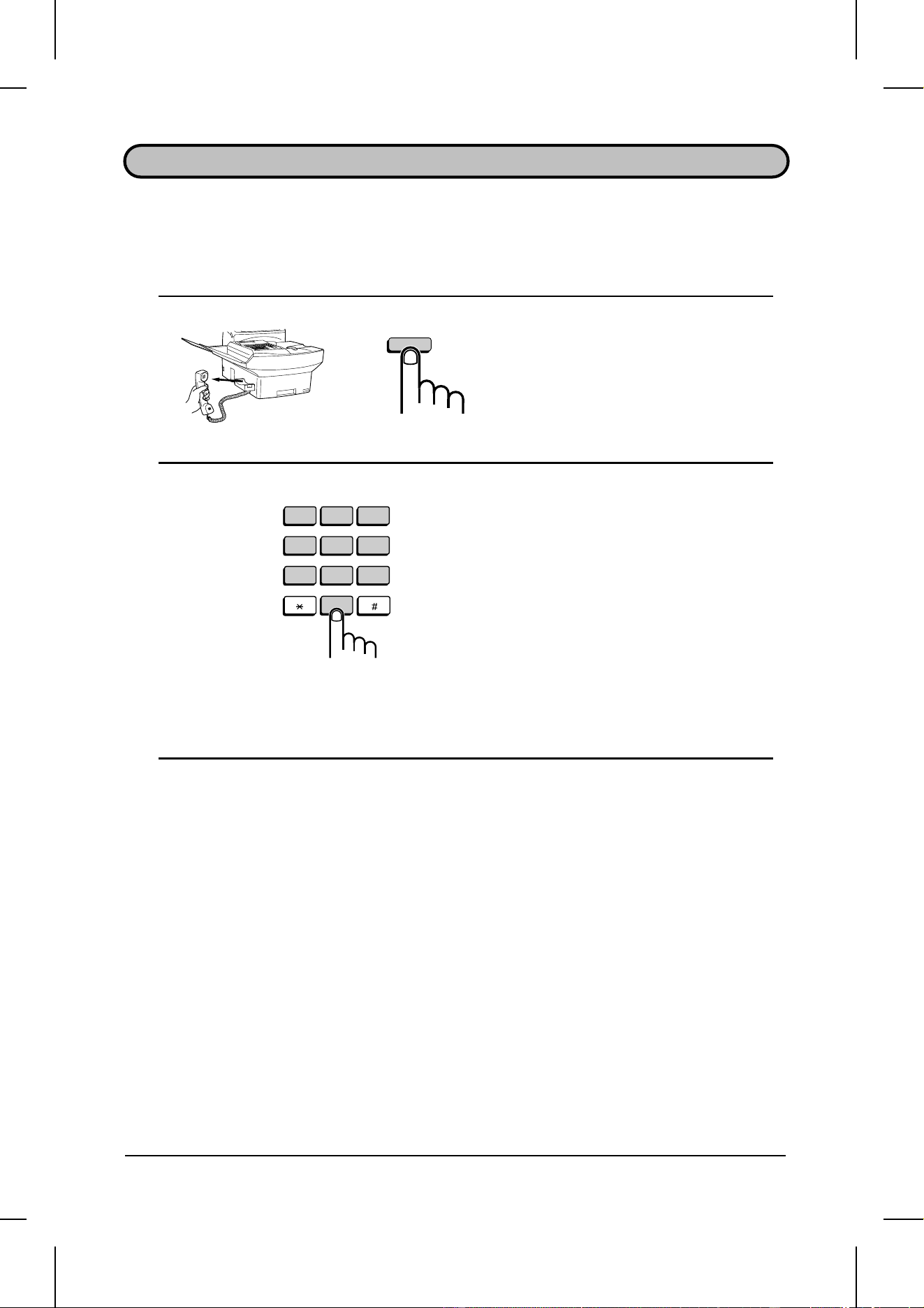
1 Pick up the handset or press the
SPEAKER key. Listen for the dial tone.
•• To use Rapid Key Dialing, you must
press the SPEAKER key.
2 Dial the number using one of the
following methods:
•• Normal Dialing: Enter the full tele-
phone number with the numeric keys.
•• Rapid Key Dialing: Press the appropri-
ate Rapid Key. (The voice number will
be dialed.)
•• Speed Dialing: Press the SPEED
DIAL key, and enter the Speed Dial
number with the numeric keys (if you
enter less than 3 digits, press the
START key to complete the entry).
3 Speak with the other party when they
answer.
•• If you pressed the SPEAKER key, pick
up the handset to talk.
Redial
The last number called can be redialed by pressing the REDIAL key (it is not
necessary to pick up the handset or press the SPEAKER key). When the other party
answers, pick up the handset to talk.
123
456
789
0
OPER
ABC
GHI
DEF
JKL MNO
PRS
TUV WXY
SPEAKER
or
BASIC OPERATIONS 3-19

Notes
MAKING TELEPHONE CALLS
3-20 BASIC OPERATIONS

UX5000U-SFBR
YF <P=001>
4 SPECIAL FUNCTIONS
BROADCASTING
This function allows you to send the same document to many different locations with
just one operation. First load the document, then enter the numbers of the receiving
machines. The document will be automatically transmitted to each location.
1 Load the document(s).
2 Press the BROADCAST key.
•• "BROADCAST MODE" will appear in
the display.
3 Dial the receiving units using one or
more of the following methods:
•• Press one or more Rapid Keys.
•• Enter one or more Speed Dial num-
bers, pressing the SPEED DIAL key
before each number. (If you enter less
than 3 digits for a number, press the
START key to complete the entry.)
•• Enter one or more full fax numbers
(max. of 20) with the numeric keys,
pressing the START key after each full
number.
•• Press one or more Group Keys.
COPY REPORT DOCUMENT
BROADCAST
PRIORITY
COVER SHEET
FUNCTION
STOP START
SPEED DIAL
REDIAL
SPEAKER
(Example)
A
1
B
2
C
3
……
4 Press the START key.
•• Set the resolution and/or contrast if de-
sired.
START
SPECIAL FUNCTIONS 4-1

<P=002>
5 Press the START key twice.
Transmission will begin.
•• A Transaction Report is automatically
printed out after Broadcasting is com-
pleted. Check the "Note" column of the
report to see if any of the locations are
marked "Busy" or have a communica-
tion error code. If so, send the docu-
ment to those locations again.
Broadcasting using a Group Key
If the fax machines to which you want to broadcast have all been programmed into
one Group Key, you can perform the broadcasting operation using the following
simplified procedure:
1 Load the document(s).
•• Make any desired transmission set-
tings (resolution, contrast, etc.).
CLEARSPSHIFTSPACE
A
I
Q
Y
B
J
R
Z
C
K
S
D
L
T
E
M
U
F
N
V
G
O
W
H
P
X
01
09
17
25
02
10
18
26
03
11
19
04
12
20
05
13
21
06
14
22
07
15
23
08
16
24
27 28 29 30 31 32
(Example)
2 Press the appropriate Group Key.
Transmission will begin.
START
START
BROADCASTING
4-2 SPECIAL FUNCTIONS

UX5000U-SFCO
YF <P=001>
CONFIDENTIAL OPERATIONS
The Confidential function can be used to transmit and receive confidential documents.
Confidential transmission
When you send a document using the Confidential function, the receiving machine
stores it in memory instead of immediately printing it out. When the receiving party
enters the correct passcode, the document will be printed out.
♦ Confidential transmission is only possible when the receiving machine is a Sharp
model with confidential reception capability.
1 Load the document(s).
•• Make any desired transmission set-
tings (resolution, contrast, etc.).
2 Press the CONFIDENTIAL key and
then the 1 key.
•• CONF.TX will appear in the display.
3 If the receiving machine has multiple
mailboxes, enter the appropriate
mailbox number with the numeric
keys (if not, skip this step).
CLEARSPSHIFTSPACE
A
I
Y
B
J
R
Z
C
K
S
D
L
T
E
M
U
F
N
V
G
O
W
H
P
X
33
41
34
42
35
43
36
44
37
45
38
46
39
47
40
48
UPDOWN
Q
CONTRAST
SEARCH DIAL
PAGE COUNTER
CONFIDENTIAL
TIMER RELAY
MEM.STATUS
LIFE
START
4 Press the START key.
1
(Example)
0
1
SPECIAL FUNCTIONS 4-3

<P=002>
5 Dial the receiving unit using one of
the following methods:
•• Press a Rapid Key.
•• Press the SPEED DIAL key and enter
a Speed Dial number. (If you enter less
than 3 digits, press the START key to
complete the entry.) Press the START
key.
•• Enter a full telephone number with the
numeric keys, and press the START
key.
Transmission will take place once the
connection is made.
Confidential reception
When the transmitting machine sends you a document by confidential transmission,
your fax stores it in memory instead of immediately printing it out. The document
cannot be printed out until you enter the correct passcode.
Your fax has 10 "mailboxes" in which confidential documents can be received. Each
mailbox has its own passcode, allowing up to 10 different people or groups to each
receive their own confidential documents. The mailboxes are identified by 2-digit
numbers.
1
(Example)
0
SPEED DIAL
START
CONFIDENTIAL OPERATIONS
4-4 SPECIAL FUNCTIONS

<P=003>
Programming the confidential passcode
To receive a confidential document, you must first program a 2-digit mailbox number
and a 4-digit passcode.
Step Press these keys: Comments
1
"CONF. FUNCTION" will appear in the display.
2
"CONF. CODE SET" will appear in the display.
3
(Example)
Enter a 2-digit number ("00" to "99") by pressing
the numeric keys. This number identifies the
mailbox.
4
(Example)
Enter the 4-digit passcode with the numeric keys.
5
6
(Example)
Enter a name for the mailbox by pressing the
letter entry keys as described in "Entering
Letters for Names" in Chapter 2.
7
Note:
After entering the passcode, your fax will print it out for your records. If you forget the
passcode and have kept no record, contact your Sharp dealer.
S
CONFIDENTIAL
1
2
3
4
3
1
3
START
Clearing the passcode
Step Press these keys: Comments
1
"CONF. FUNCTION" will appear in the display.
2
"CONF. CODE CLEAR" will appear in the
display.
S
CONFIDENTIAL
4
S
H
…
P
START
CONFIDENTIAL OPERATIONS
SPECIAL FUNCTIONS 4-5

<P=004>
3
(Example)
Enter the 2-digit number identifying the mailbox
you want to clear.
4
(Example)
Enter the 4-digit passcode with the numeric keys.
5
1
START
2
3
4
1
3
Printing out received documents
When you have received a confidential document, RCVD CONF. FAX will appear in
the display. Print out the Confidential Reception List as described in Chapter 6 to see
which mailbox has received the document, and then follow the steps below to print out
the document.
Step Press these keys: Comments
1
"CONF. FUNCTION" will appear in the display.
2
"CONF. DATA PRINT" will appear in the display.
3
(Example)
Enter your mailbox number.
4
(Example)
Enter your confidential passcode.
5
Printing begins. After print-out the document(s)
will be erased from memory.
S
CONFIDENTIAL
2
1
START
2
3
4
0
1
CONFIDENTIAL OPERATIONS
4-6 SPECIAL FUNCTIONS

UX5000U-SFRR
YF <P=001>
RELAY REQUEST
Relay Request allows you to send a document to another fax machine and have that
fax broadcast the document to a number of other fax machines. This function is useful
when the relay fax machine is closer to the end fax machines than your fax, as it
reduces telephone line costs.
Important:
••
Relay Request can only be used if the intermediate relay machine is a Sharp machine having
the Relay Broadcast function.
Storing a relay group
To make a relay request, you must first store a relay group. This consists of the fax
number of the intermediate relay machine and the fax numbers of the end receiving
machines. Up to 10 different relay groups can be stored.
♦ Fax numbers of the end receiving machines can be entered as Rapid Key numbers,
Speed Dial numbers, and/or Group Key numbers if they have been stored as such
in the
relay
machine (not in your fax machine). Check with the operator of the relay
machine for these numbers.
♦ The total number of end receiving machines which can be entered varies with the
model used as the intermediate relay machine. Check with the operator of the relay
machine to find out how many receiving machines can be entered.
♦ A maximum of 400 digit spaces are available in memory for storing the numbers of
end receiving machines. The number of spaces occupied by each number depends
on what kind of number it is:
Rapid Key number: 4 spaces
Speed Dial number: 2 spaces
Group Key number: 4 spaces (for one group)
Full number: Number of digits in number (max. of 30 per number)
♦ If the UX-5000 acts as a relay machine and receives a relay request, only Speed
Dial numbers of end receiving machines from "00" to "99" can be entered in the re-
lay group. To allow Speed Dial numbers above "99" to be included in the relay
group, store them in a Group Key on the UX-5000.
SPECIAL FUNCTIONS 4-7

<P=002>
Step Press these keys: Comments
1
RELAY FUNCTION will appear in the display.
2
RELAY GROUP SET will appear in the display.
3
(Example)
Enter a 2-digit relay group number ("01" to "10").
This number identifies the relay group.
4
5
(Example)
Enter the fax number of the relay machine using
one of the following methods:
• Press a Rapid Key.
• Press SPEED DIAL and enter a Speed Dial
number. (If you enter less than 3 digits, press
START to complete the entry.)
• Enter a full fax number.
6
7
(Example)
Enter the relay machine’s Rapid Key numbers of
the end receiving machines by pressing numeric
keys (not Rapid Keys). (Skip this step if you
don’t want to enter Rapid Key numbers.)
8
9
(Example)
Enter the relay machine’s Speed Dial numbers
of the end receiving machines (2 digits per
Speed Dial number) by pressing numeric keys.
(Skip this step if you don’t want to enter Speed
Dial numbers.)
10
11
(Example)
Enter numbers of Group Keys for end machines
by pressing numeric keys. (Skip this step if you
don’t want to enter Group Key numbers.)
12
0
2
0
1
START
START
SPEED DIAL
0
1
U
RELAY
2
0
1
START
START
START
START
1
0
RELAY REQUEST
4-8 SPECIAL FUNCTIONS

<P=003>
13
(Example)
Enter a full fax number (skip this step if you don’t
want to enter full numbers). Include the area
code (for example "201") if the number is outside
of the calling area of the relay unit, and "1" for a
long distance call. Also include the dial prefix
(such as "9") for an outside line if you are on a
PBX.
14
Press START and go back to Step 13 if you
want to enter another full number.
15
16
Step 3 or
Return to Step 3 to enter another relay group, or
press STOP one or more times until you return
to the date and time display.
Clearing a relay group
To clear a relay group, you need to know the 2-digit number which identifies it. You
can check this by printing out the Relay Group List as described in Chapter 6.
Step Press these keys: Comments
1
RELAY FUNCTION will appear in the display.
2
RELAY GROUP CLEAR will appear in the
display.
3
(Example)
Enter the 2-digit number identifying the group
you want to clear.
4
5
Step 3 or
Return to Step 3 to clear another relay group, or
press STOP one or more times until you return
to the date and time display.
U
RELAY
START
3
1
START
START
0
0
STOP
STOP
1
2
3
4
5
RELAY REQUEST
SPECIAL FUNCTIONS 4-9
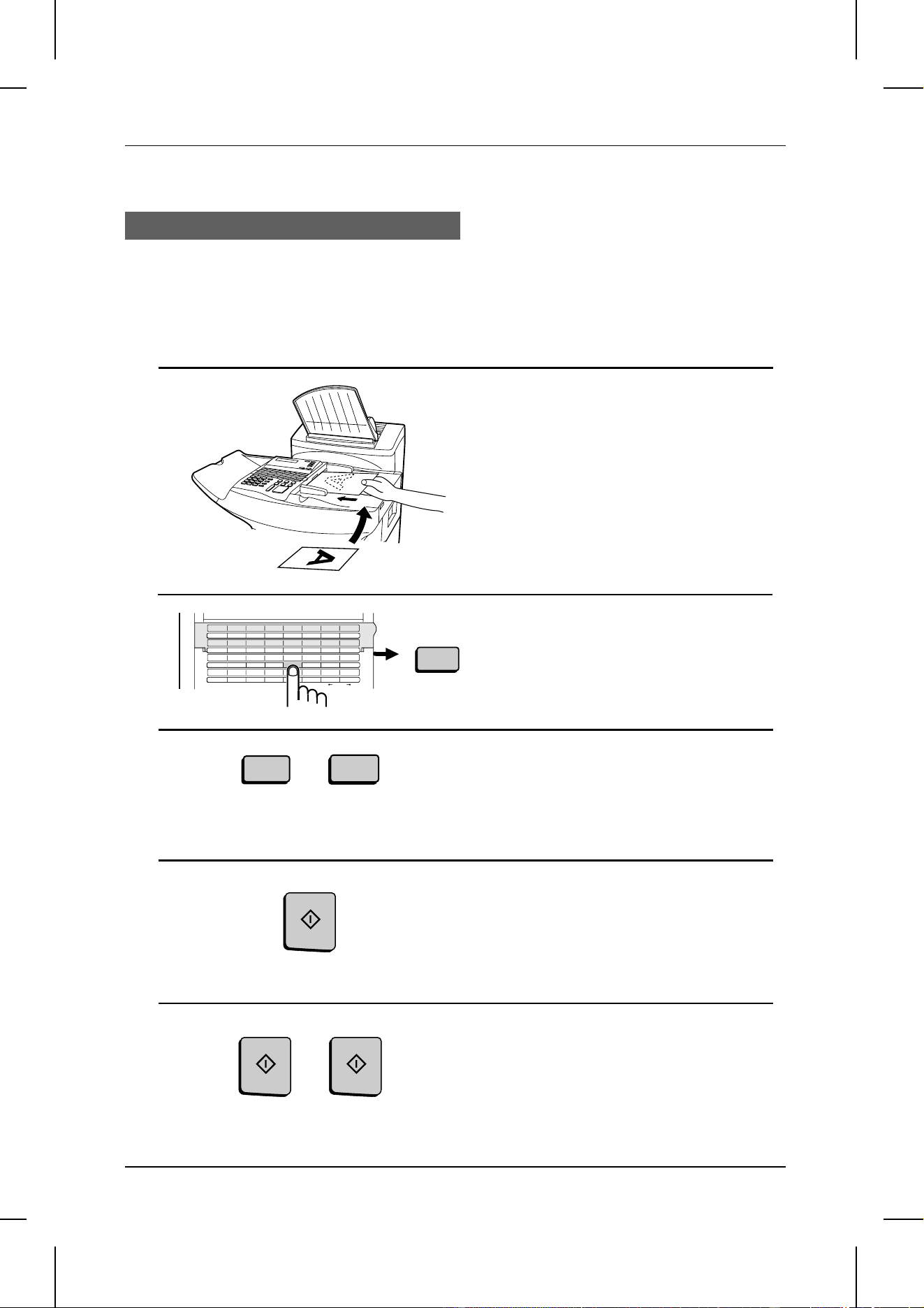
<P=004>
Making a relay request
Important:
••
To make a relay request, your fax number must be entered into the Relay Passcode List of
the relay fax machine by the operator of that fax. (Your number must also be entered in your
fax as described in "Entering Your Name and Fax Number" in Chapter 2.)
1 Load the document.
2 Press the RELAY key and then the "1"
key.
CLEARSPSHIFTSPACE
A
I
Y
B
J
R
Z
C
K
S
D
L
T
E
M
U
F
N
V
G
O
W
H
P
X
33
41
CONTRAST
34
42
35
43
36
44
TIMER
37
45
RELAY
38
46
39
47
40
48
UPDOWN
Q
SEARCH DIAL
PAGE COUNTER
CONFIDENTIAL
MEM.STATUS
LIFE
1
3 Enter the number of the appropriate
relay group (2 digits) by pressing the
numeric keys.
4 Press the START key.
•• Set the resolution and/or contrast if de-
sired.
0
1
5 Press the START key twice.
START
STARTSTART
RELAY REQUEST
4-10 SPECIAL FUNCTIONS
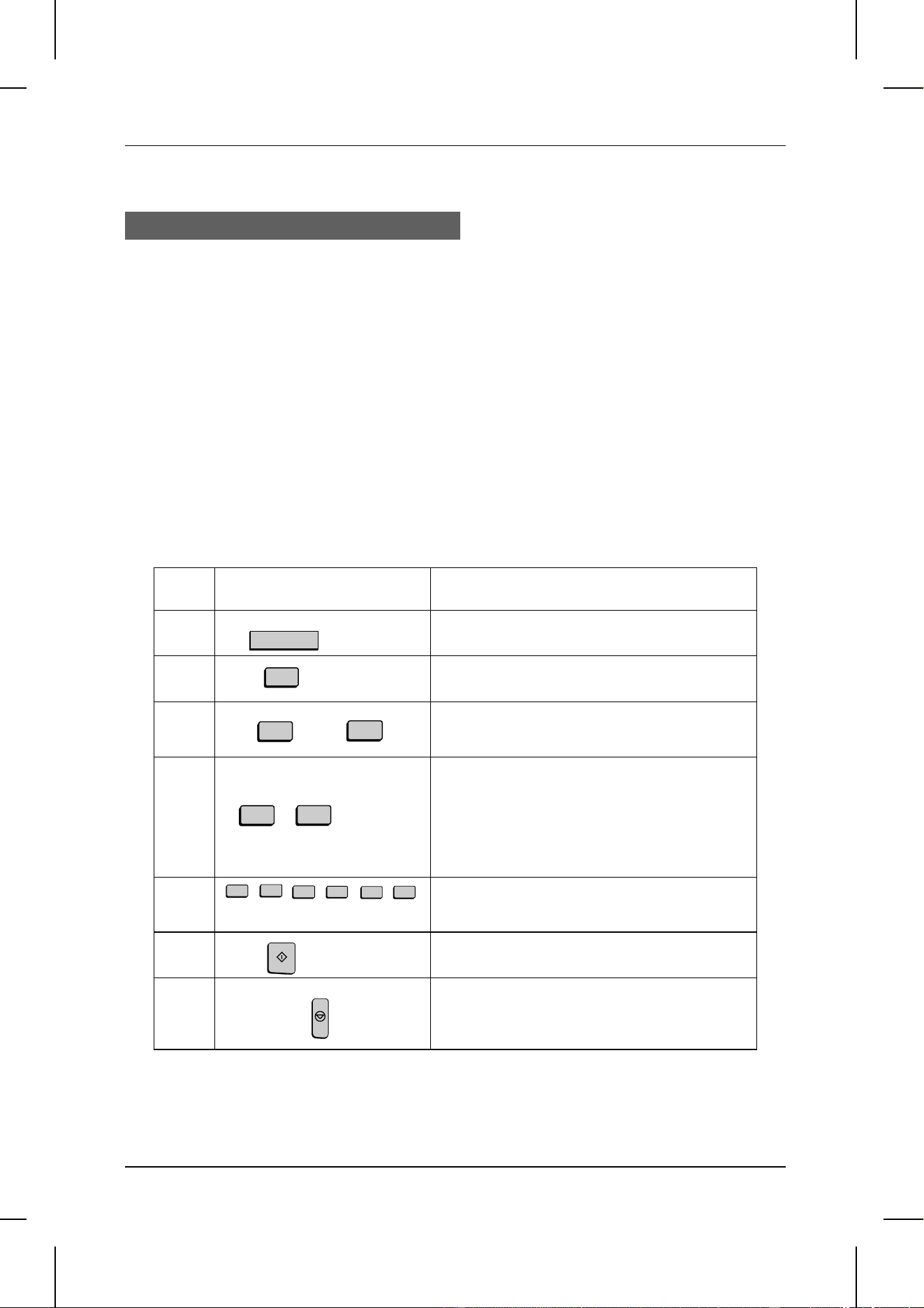
<P=005>
Relay Broadcast
Your fax can also act as a relay station. It will receive a document from a fax machine
making a relay request, and automatically broadcast it to the stations which the
requesting machine specifies.
In order for a fax machine to make a relay request, you must first give it permission by
storing its fax number in the Relay Passcode List. Follow the steps below to store or
clear a fax number.
♦ When your fax receives a relay request from another fax machine, RCVD RELAY
REQUEST will appear in the display.
♦ If the telephone billing function is turned on, the fax cannot act as a relay station.
♦ To clear a fax number from the Relay Passcode List, you need to know the 2-digit
number which identifies it. You can check this by printing out the Passcode List
(see Chapter 6).
Step Press these keys: Comments
1
RELAY FUNCTION will appear in the display.
2
RELAY PASSCODE will appear in the display.
3
or
Press "1" to store a number, or "2" to clear a
number.
4
(Example)
Storing: Enter a 2-digit number ("01" to "10").
This identifies the fax number you will enter in
the next step.
Clearing: Enter the 2-digit number which
identifies the fax number you want to clear, and
go to Step 6.
5
(Example)
Enter the fax number of the machine to be
stored in the list (max. 20 digits).
6
7
Step 4 or
Return to Step 4 to enter another number, or
press STOP one or more times until you return
to the date and time display.
U
RELAY
START
4
0
1
1
STOP
2
0
1
2
3
4
5
RELAY REQUEST
SPECIAL FUNCTIONS 4-11
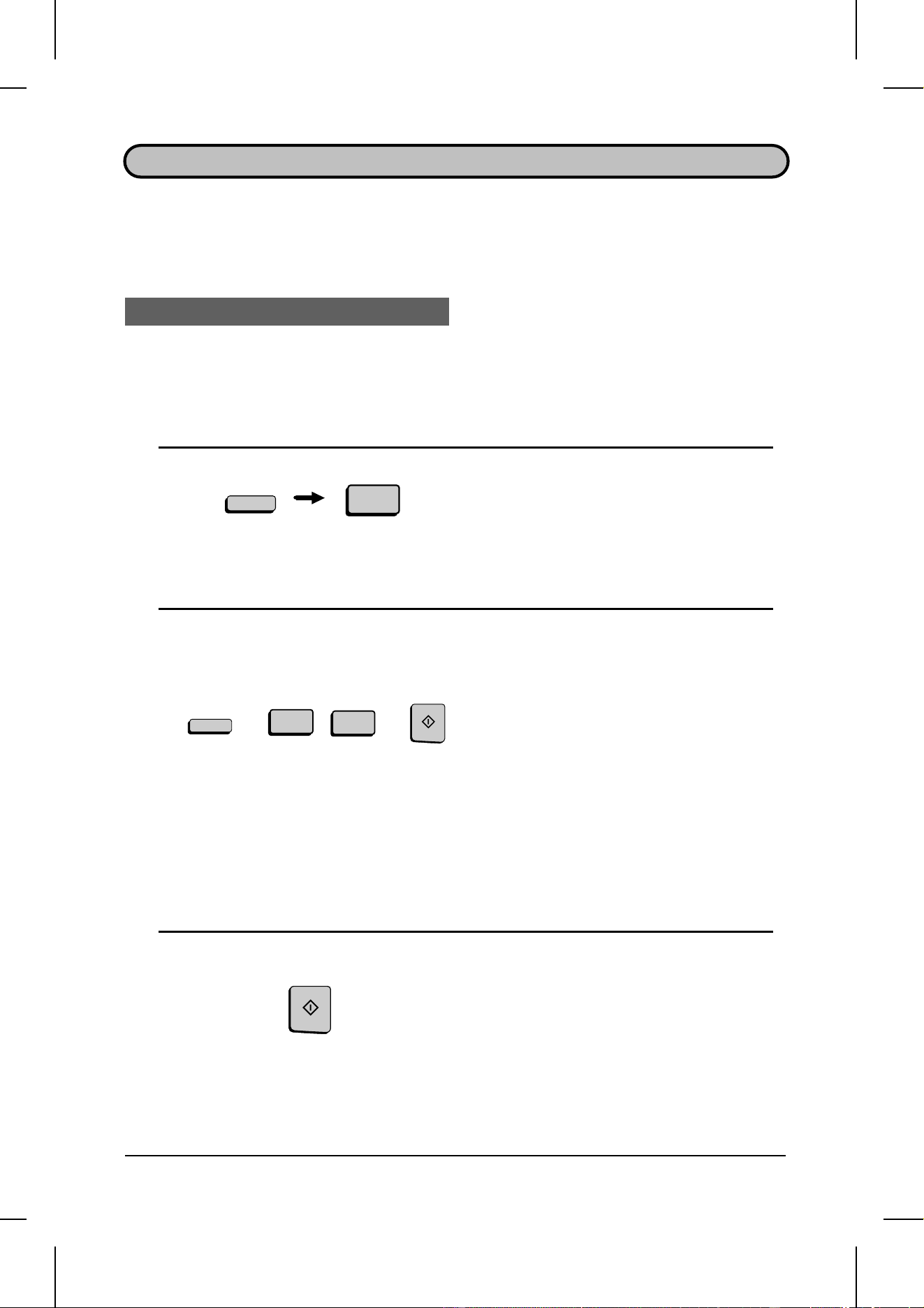
UX5000U-SFPO
YF <P=001>
POLLING
Polling allows you to request another fax machine to send a document to your fax
machine. In other words, the receiving fax machine, not the transmitting fax machine,
initiates the transmission. You can use your fax to both poll and be polled by others.
Polling others
To poll another fax machine, follow the steps below.
♦ If desired, you can dial more than one fax number to receive documents
consecutively from a group of fax machines (this is called "Serial Polling").
1 Press the FUNCTION key and the "8"
key.
•• SERIAL POLL. MODE will appear in
the display.
2 Dial the number(s) of the fax
machine(s) you want to poll using one
(or more) of the following methods:
•• Press one or more Rapid Keys.
•• Enter one or more Speed Dial num-
bers, pressing the SPEED DIAL key
before each number. (If you enter less
than 3 digits, press the START key to
complete the entry.)
•• Enter one or more full fax numbers
with the numeric keys, pressing the
START key after each full number.
•• Press one or more Group Keys.
(Example)
3 Press the START key. Reception will
begin.
8
FUNCTION
START
1
0
SPEED DIAL
START
4-12 SPECIAL FUNCTIONS
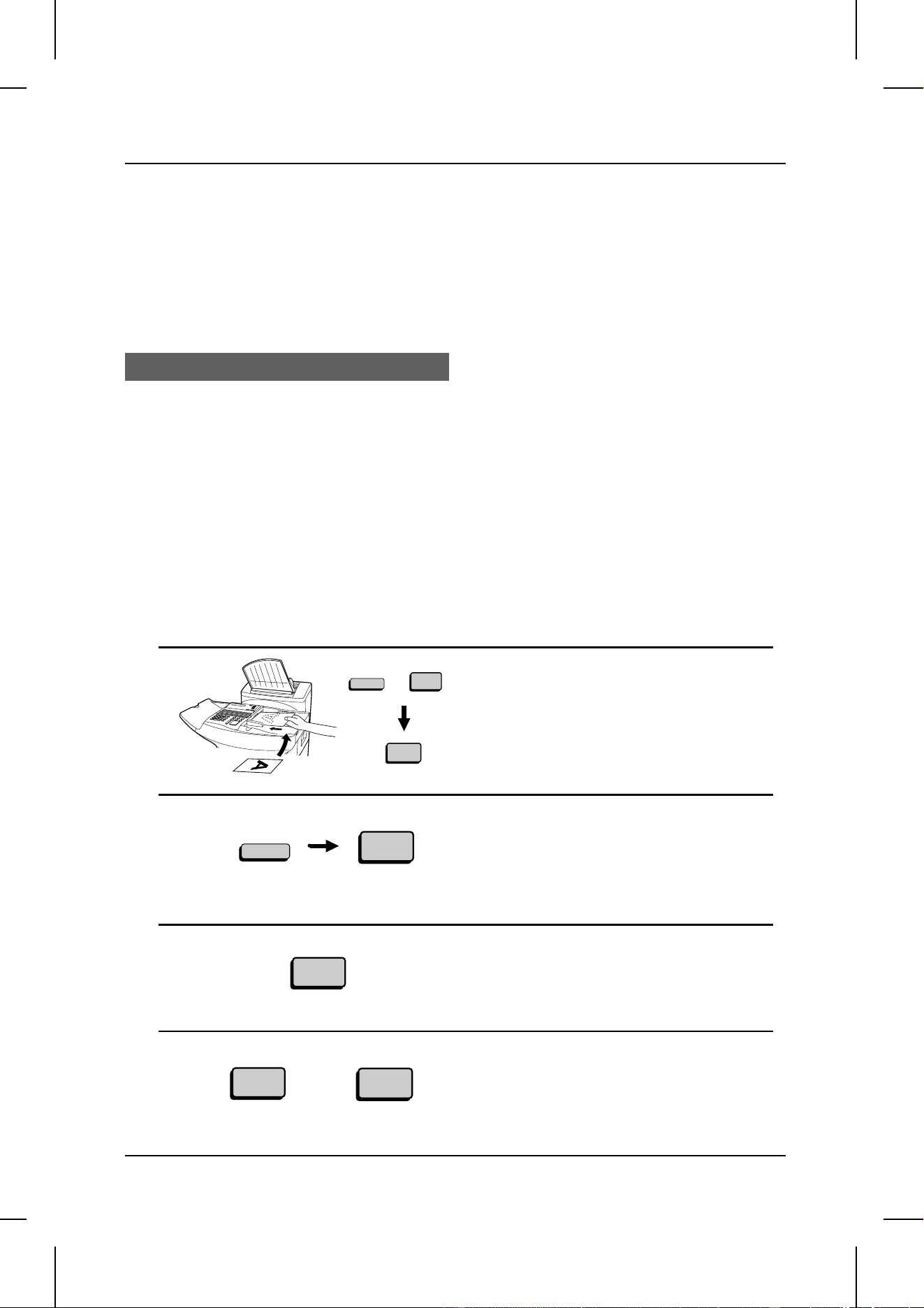
or
<P=002>
Serial Polling using a Group Key
If the fax machines you want to poll have all been programmed into one Group Key,
you can poll them by simply pressing that Group Key.
♦ Make sure no documents are in the feeder before you press the Group Key.
Being polled (Memory polling)
To let another fax machine poll your fax, you must first store the document in memory
as shown in the procedure below. Transmission will take place when the other fax
calls your fax and activates polling. You can choose whether to allow polling only
once, or an unlimited number of times. In the latter case, your fax can be used as an
electronic "bulletin board".
♦ Only one document can be stored at a time for memory polling.
♦ If you allow polling only once, the document will be automatically cleared from
memory after polling. If you allow polling an unlimited number of times, the
document will remain in memory until you clear it using the procedure described in
"Clearing a document" which follows.
1 Load the document and set the
reception mode to AUTO (press
FUNCTION, "1", and "1").
•• Set the resolution and/or contrast if de-
sired.
2 Press the FUNCTION key and the "9"
key.
•• MEMORY POLL MODE will appear in
the display.
3 Press "1" to select SET.
4 Press "1" to allow polling to be done
only once, or "2" to allow polling to be
done an unlimited number of times.
9
FUNCTION
1
1
2
FUNCTION
1
1
POLLING
SPECIAL FUNCTIONS 4-13
<P=003>
5 Press the START key twice.
•• The document will be scanned into
memory, and your fax will go on polling
standby.
To clear a document
Step Press these keys: Comments
1
MEMORY POLL MODE will appear in the
display.
2
Select CLEAR.
3
The document will be cleared.
Polling Security
Polling Security allows you to prevent unauthorized polling of your fax. When this
function is activated, polling will only take place when one of the following conditions
is met:
♦ The fax number of the polling fax machine has been stored in your fax’s list of
permitted fax numbers (called "passcode numbers"). The polling fax must also have
its fax number programmed in itself, as described in "Entering your name and fax
number" in Chapter 2.
♦ A System number has been programmed in the polling fax machine which matches
your fax’s System number or one of your ID numbers.
♦ An ID number has been programmed in the polling fax machine which matches
your fax’s System number.
System and ID numbers are 4-digit numbers which provide you with an alternate
means of giving and receiving polling permission when you don’t want to use fax
numbers. The steps for programming these numbers are described in the following
pages.
Note:
System and ID numbers can only be used if the other fax machine is also a Sharp
machine.
Turning Polling Security on and off
Polling Security is turned on or off with Option Setting 8. The procedure is described in
Chapter 5, "Optional Settings".
FUNCTION
9
2
START
START START
POLLING
4-14 SPECIAL FUNCTIONS
<P=004>
Storing and clearing fax numbers for polling permission
You can store up to 10 fax numbers in your fax’s list of permitted numbers.
Step Press these keys: Comments
1
ENTRY MODE will appear in the display.
2
PASSCODE # MODE will appear in the display.
3
or
Press "1" to set a number, or "2" to clear a
number.
4
(Example)
Storing: Enter a 2-digit number (from 01 to 10).
This number identifies the fax number you will
enter in the next step.
Clearing: Enter the 2-digit number which
identifies the fax number you want to clear, and
go to Step 6.
5
(Example)
Enter the fax number (max. 20 digits).
6
7
Step 4 or
Return to Step 4 to enter another number, or
press STOP one or more times until you return
to the date and time display.
Programming and clearing a System number
One 4-digit System number can be programmed in your fax for giving and receiving
polling permission. Polling will take place if your System number matches the other
fax’s System number or one of its ID numbers.
Step Press these keys: Comments
1
ENTRY MODE will appear in the display.
2
SYSTEM # MODE will appear in the display.
3
or
Press "1" to program the System number, or "2"
to clear it.
If you pressed "2", go to Step 5.
FUNCTION
2
1
3
4
1
0
START
3
5
5
5
1
2
STOP
1
FUNCTION
3
6
2
2
POLLING
SPECIAL FUNCTIONS 4-15
<P=005>
4
(Example)
Enter the number (4 digits) with the numeric
keys.
5
6
Press STOP one or more times until you return
to the date and time display.
Storing and clearing ID numbers for polling permission
Up to five 4-digit ID numbers can be programmed in your fax for giving and receiving
polling permission. Polling will take place if one of your ID numbers matches the other
fax’s System number.
Step Press these keys: Comments
1
ENTRY MODE will appear in the display.
2
ID # MODE will appear in the display.
3
or
Press "1" to program an ID number, or "2" to
clear an ID number.
4
(Example)
Storing: Enter a number from 1 to 5. This
number identifies the ID number you will enter in
the next step.
Clearing: Enter the number which identifies the
ID number you want to clear, and go to Step 6.
5
(Example)
Enter the ID number (4 digits) with the numeric
keys.
6
7
Step 4 or
Return to Step 4 to enter another number, or
press STOP one or more times until you return
to the date and time display.
1
FUNCTION
3
5
1
START
1
START
2
STOP
2
3
4
1
2
3
4
STOP
POLLING
4-16 SPECIAL FUNCTIONS

UX5000U-SFTI
YF <P=001>
TIMER OPERATIONS
The Timer function allows you to set an operation to be performed automatically at a
time you specify. Up to 48 operations can be set at any one time, and the time of each
can be set up to a week in advance.
You can use this function to take advantage of lower nighttime rates without having to
be there when the operation is performed.
Note:
The
DOCUMENT
key cannot be used for a timer transmission.
Initial procedure
To set a timer operation, first perform the following procedure. After you have
completed it, go to the procedure for the specific operation you want to set (see the
following pages).
♦ Code numbers are used to specify days of the week. Refer to the table below when
making time settings which include a specified day:
Day SUN MON TUE WED THU FRI SAT
Code 0123456
Step Press these keys: Comments
1
TIMER MODE will appear in the display.
2
Select SET.
3
Press the appropriate key one or more times as
shown below to select the type of operation.
• Transmission
• Confidential transmission
• Polling
• Serial Polling
• Broadcasting
• Relay Request
4
T
TIMER
1
START
SPECIAL FUNCTIONS 4-17

<P=002>
5
(Example)
Enter the hour (2 digits - "01" to "12").
6
(Example)
Enter the minute (2 digits - "00" to "59").
7
or
Press "
*
" to select A.M., or "#" to select P.M.
8
(Example: Thursday)
Enter the day of the week by entering the
appropriate code number (see above table).
(Skip this step if the operation will be done within
the next 24 hours.)
9
Continue with the specific procedure for your
operation (see the following pages).
Transmission
(Continued from "Initial procedure".)
10
(Example)
Enter the fax number of the receiving machine
using one of the following methods:
• Press a Rapid Key.
• Press SPEED DIAL and enter a Speed
number. (If you enter less than 3 digits,
press START to complete the
entry.)
• Enter a full number.
11
12
Adjust the resolution and contrast if desired
(otherwise skip this step).
13
14
Load the document
15
The document will be scanned into memory.
RESOLUTION
START
START
START
SPEED DIAL
1
Q
CONTRAST
START
0 0
4
START
1
0
TIMER OPERATIONS
4-18 SPECIAL FUNCTIONS

<P=003>
Confidential transmission
(Continued from "Initial procedure".)
10
Enter the mailbox number (2 digits). (Skip this
step if the receiving machine does not have
mailboxes.)
11
12
(Example)
Enter the fax number of the receiving machine
using one of the following methods:
• Press a Rapid Key.
• Press SPEED DIAL and enter a Speed
number. (If you enter less than 3 digits,
press START to complete the
entry.)
• Enter a full number.
13
14
Adjust the resolution and contrast if desired
(otherwise skip this step).
15
16
Load the document
17
The document will be scanned into memory.
RESOLUTION
START
START
START
START
0
1
Q
CONTRAST
SPEED DIAL
1
START
TIMER OPERATIONS
SPECIAL FUNCTIONS 4-19

<P=004>
Polling
(Continued from "Initial procedure".)
10
(Example)
Enter the fax number of the machine to be polled
using one of the following methods:
• Press a Rapid Key.
• Press SPEED DIAL and enter a Speed
number. (If you enter less than 3 digits,
press START to complete the
entry.)
• Enter a full number.
11
Serial Polling
(Continued from "Initial procedure".)
10
(Example)
Enter the fax numbers of the machines to be
polled using one or more of the following
methods:
• Press one or more Rapid Keys.
• Enter one or more Speed Dial numbers,
pressing SPEED DIAL before each
number. (If you enter less than 3 digits for
a number, press START to
complete the entry.)
• Enter one or more full numbers, pressing
START after each full number.
• Press one or more Group Keys.
11
START
START
SPEED DIAL
1
2
SPEED DIAL
SPEED DIAL
1
START
START
START
TIMER OPERATIONS
4-20 SPECIAL FUNCTIONS

<P=005>
Broadcasting
(Continued from "Initial procedure".)
10
(Example)
Enter the numbers of the receiving machines
using one or more of the following methods:
• Press one or more Rapid Keys.
• Enter one or more Speed Dial numbers,
pressing SPEED DIAL before each
number. (If you enter less than 3 digits for
a number, press START to
complete the entry.)
• Enter one or more full numbers, pressing
START after each full number.
• Press one or more Group Keys.
11
12
Adjust the resolution and contrast if desired
(otherwise skip this step).
13
14
Load the document
15
The document will be scanned into memory.
START
RESOLUTION
START
START
SPEED DIAL
SPEED DIAL
Q
CONTRAST
Relay Request
(Continued from "Initial procedure".)
Step Press these keys: Comments
10
(Example)
Enter the appropriate relay group number.
11
12
Adjust the resolution and contrast if desired
(otherwise skip this step).
START
0
1
RESOLUTION
Q
CONTRAST
1
2
START
START
TIMER OPERATIONS
SPECIAL FUNCTIONS 4-21

<P=006>
13
14
Load the document
15
The document will be scanned into memory.
START
START
Canceling a timer operation
If you need to cancel a timer operation before it is performed, use the procedure
shown below.
♦ You need to know the number assigned to the operation in order to cancel it. If you
don’t remember the number (it appears in the display when you set the operation),
print out the Timer List (see Chapter 6, "Printing Out Reports and Lists").
Step Press these keys: Comments
1
TIMER MODE will appear in the display.
2
Select CLEAR.
3
(Example)
Enter the 2-digit number assigned to the
operation.
4
5
Press STOP one or more times until you return
to the date and time display.
T
TIMER
2
0
1
START
STOP
TIMER OPERATIONS
4-22 SPECIAL FUNCTIONS

UX5000U-SFBT
YF <P=001>
BATCH TRANSMISSION
Batch transmission allows you to store a number of documents in memory at different
times for automatic transmission to one location at a set time. If you often send
documents to a particular location, this function helps reduce telephone line costs by
allowing you to conveniently send multiple documents on one connection.
♦ If the telephone billing function is turned on, the batch transmission function cannot
be used.
Entering a batch program
To perform a batch transmission, you must first program the number of the receiving
machine and the time of transmission into a Batch Key. Any Rapid Key which has not
already been programmed can be used as a Batch Key.
♦ If you specify a day-of-the-week in your program, the transmission will be per-
formed every week on that day. If you do not specify a day-of-the-week, the trans-
mission will be performed every day.
To program a Batch Key, follow the procedure for entering programs described in
"Entering and Using Programs" in this chapter. In Step 12 of the initial prodedure,
select "Batch transmission".
Clearing a Batch Key
To clear a Batch Key, follow the procedure described in "Clearing a Program Key" in
"Entering and using programs" in this chapter.
Storing documents for transmission
Up to 50 documents can be held in memory for batch transmissions at any one time,
regardless of the number of Batch Keys used. When you store a document, it is given
a message number to distinguish it from other documents sent in the same batch.
♦ If no documents have been stored under a Batch Key when the time for transmis-
sion arrives, no transmission will take place.
1 Load the document.
SPECIAL FUNCTIONS 4-23

<P=002>
2 Press the appropriate Batch Key.
•• After scanning, the message number
assigned to your document will appear
in the display.
3 Press the STOP key.
•• The document will be transmitted along
with any other documents stored under
the same key at the designated time.
After transmission, all documents in
the batch will be cleared from memory.
Clearing a document stored for batch transmission
If necessary, you can clear a document stored for a batch transmission before
transmission takes place. To do so, you need to know the message number assigned
to the document.
♦ If you don’t remember the message number, print out the Batch Transmission List
(see "Batch Transmission List" in Chapter 6).
1 Press the Batch Key in which the
document you want to clear has been
stored.
•• Make sure no documents are in the
feeder.
2 Enter the 3-digit message number
assigned to the document.
3 Press the START key.
STOP
CLEARSPSHIFTSPACE
A
I
Q
Y
B
J
R
Z
C
K
S
D
L
T
E
M
U
F
N
V
G
O
W
H
P
X
01
09
17
25
02
10
18
26
03
11
19
04
12
20
05
13
21
06
14
22
07
15
23
08
16
24
27 28 29 30 31 32
0
2
1
START
(Example)
(Example)
CLEARSPSHIFTSPACE
A
I
Q
Y
B
J
R
Z
C
K
S
D
L
T
E
M
U
F
N
V
G
O
W
H
P
X
01
09
17
25
02
10
18
26
03
11
19
04
12
20
05
13
21
06
14
22
07
15
23
08
16
24
27 28 29 30 31 32
(Example)
BATCH TRANSMISSION
4-24 SPECIAL FUNCTIONS
UX5000U-SFEP
YF <P=001>
ENTERING AND USING PROGRAMS
If you frequently perform the same operation involving the same party, you can
program all the steps of the operation into one Program Key. This allows you to
perform the operation by simply pressing that key.
Any Rapid Key which is not already programmed as a Rapid Key or a Group Key can
be used as a Program Key.
♦ You can also include a timer setting in the program to have the operation performed
automatically at a selected time.
♦ To clear a mistake, press the
STOP
key.
Initial procedure
To program an operation, first perform the following procedure. After you have
completed it, go to the procedure for the specific operation you want to program.
♦ Code numbers are used to set days of the week. Refer to the table below when
making time settings which include a specified day:
Day SUN MON TUE WED THU FRI SAT
Code 0123456
Step Press these keys: Comments
1
"PROGRAM/GROUP MODE" will appear in the
display.
2
"PROGRAM ENTRY MODE" will appear in the
display.
3
Select SET.
4
(Example)
Select a Program Key by pressing the
appropriate Rapid Key.
5
(Example)
Enter a name for the program (max. of 20
letters). (See "Entering Letters for Names" in
Chapter 2.)
Skip this step if you don’t want to enter a name.
6
7
(Example)
Enter the hour (2 digits: "01" to "12"). If you don’t
want to make a timer setting, go to Step 11.
FUNCTION
S
H
……
P
1
7
A
1
1
START
1
0
SPECIAL FUNCTIONS 4-25

<P=002>
8
(Example)
Enter the minute (2 digits - "00" to "59").
9
or
Press "
*
" to select A.M., or "#" to select P.M.
10
(Example)
Enter the day of the week by entering the
appropriate code number (see above table).
(Skip this step if the operation will be done within
24 hours of pressing the Program Key.)
11
12
Press the "#" key or "
*
" key until the desired
operation appears in the display. The operations
will appear in the following order:
• Transmission
• Confidential transmission
• Polling
• Serial Polling
• Broadcasting
• Relay Request
• Batch transmission (this will only appear
if a timer setting was made)
• Memory Polling (this will not appear
if a timer setting was made)
13
Continue with the specific procedure for your
operation (see the following pages).
START
1
5
4
START
Transmission
(Continued from "Initial procedure".)
14
(Example)
Enter the fax number of the receiving machine
using one of the following methods:
• Press a Rapid Key.
• Press SPEED DIAL and enter a Speed
number. (If you enter less than 3 digits,
press START to complete the
entry.)
• Enter a full number.
15
16
Adjust the resolution and contrast if desired
(otherwise skip this step).
START
RESOLUTION
Q
CONTRAST
A
1
ENTERING AND USING PROGRAMS
4-26 SPECIAL FUNCTIONS

<P=003>
17
18
or
If you want the document to be sent from
memory, press START.
If you want the document to be sent from the
feeder, press DOCUMENT. (This is not possible
if you made a timer setting.)
19
Press STOP one or more times until you return
to the date and time display.
START
DOCUMENT
STOP
Confidential transmission
(Continued from "Initial procedure".)
14
(Example)
Enter the mailbox number (2 digits). (Skip this
step if the receiving machine does not have
mailboxes.)
15
16
(Example)
Enter the fax number of the receiving machine
using one of the following methods:
• Press a Rapid Key.
• Press SPEED DIAL and enter a Speed
number. (If you enter less than 3 digits,
press START to complete the
entry.)
• Enter a full number.
17
18
Adjust the resolution and contrast if desired
(otherwise skip this step).
19
20
or
If you want the document to be sent from
memory, press START.
If you want the document to be sent from the
feeder, press DOCUMENT. (This is not possible
if you made a timer setting.)
21
Press STOP one or more times until you return
to the date and time display.
0
1
START
START
RESOLUTION
START
DOCUMENT
START
STOP
SPEED DIAL
1
Q
CONTRAST
START
START
ENTERING AND USING PROGRAMS
SPECIAL FUNCTIONS 4-27
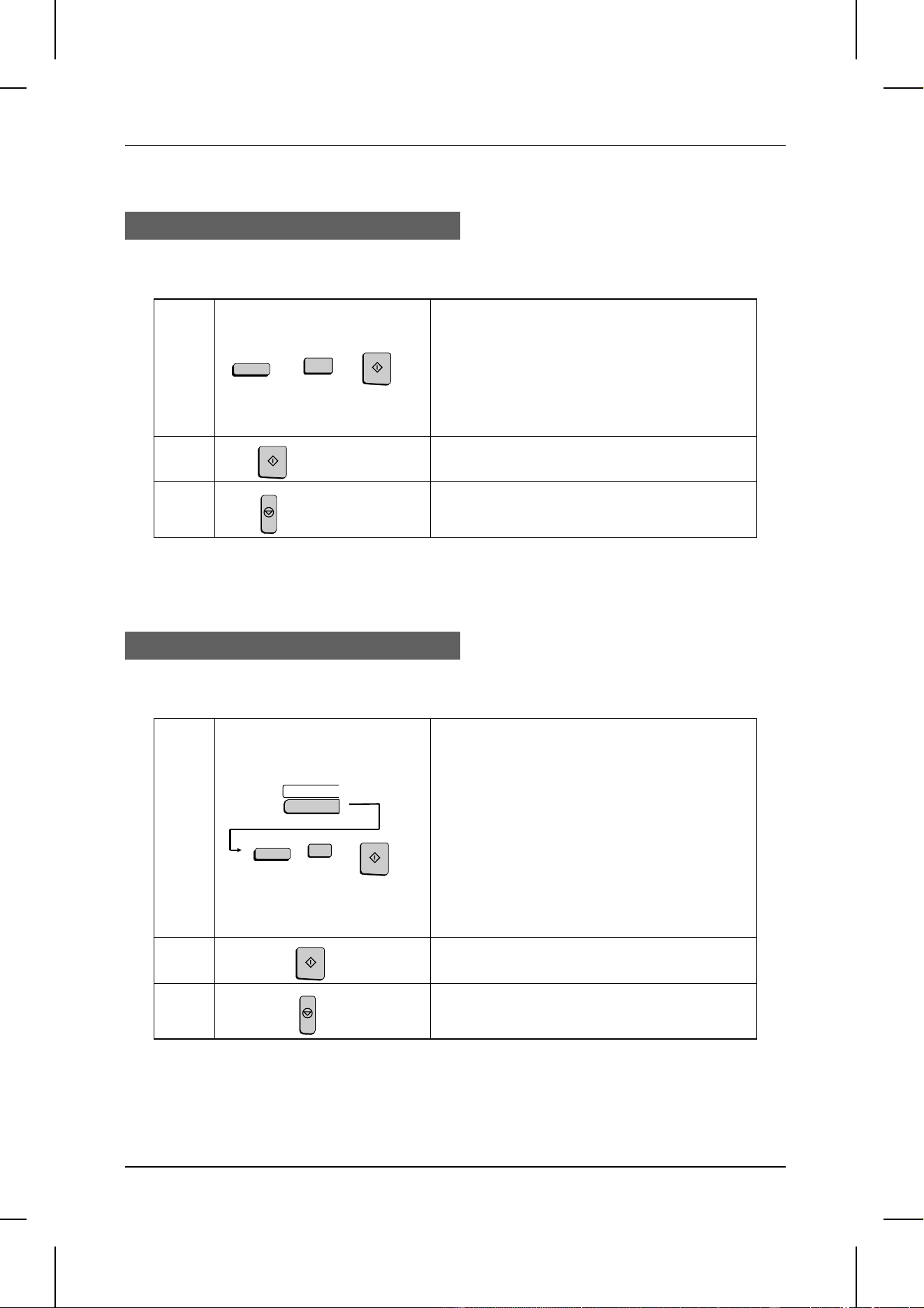
<P=004>
Polling
(Continued from "Initial procedure".)
14
(Example)
Enter the fax number of the machine to be polled
using one of the following methods:
• Press a Rapid Key.
• Press SPEED DIAL and enter a Speed
number. (If you enter less than 3 digits,
press START to complete the entry.)
• Enter a full number.
15
16
Press STOP one or more times until you return
to the date and time display.
START
Serial Polling
(Continued from "Initial procedure".)
14
(Example)
Enter the fax numbers of the machines to be
polled using one or more of the following
methods:
• Press one or more Rapid Keys.
• Enter one or more Speed Dial numbers,
pressing SPEED DIAL before each
number. (If you enter less than 3 digits for
a number, press START to
complete the entry.)
• Enter one or more full numbers, pressing
START after each full number.
• Press one or more Group Keys.
15
16
Press STOP one or more times until you return
to the date and time display.
START
4
SPEED DIAL
SPEED DIAL
1
START
START
A
1
STOP
STOP
ENTERING AND USING PROGRAMS
4-28 SPECIAL FUNCTIONS

<P=005>
Broadcasting
(Continued from "Initial procedure".)
14
(Example)
Enter the numbers of the receiving machines
using one or more of the following methods:
• Press one or more Rapid Keys.
• Enter one or more Speed Dial numbers,
pressing SPEED DIAL before each
number. (If you enter less than 3 digits for
a number, press START to
complete the entry.)
• Enter one or more full numbers, pressing
START after each full number.
• Press one or more Group Keys.
15
16
Adjust the resolution and contrast if desired
(otherwise skip this step).
17
18
19
Press STOP one or more times until you return
to the date and time display.
START
START
START
RESOLUTION
Q
CONTRAST
Relay Request
(Continued from "Initial procedure".)
14
(Example)
Enter the appropriate relay group number.
15
16
Adjust the resolution and contrast if desired
(otherwise skip this step).
17
START
RESOLUTION
Q
CONTRAST
START
0
1
1
SPEED DIAL
START
B
2
STOP
ENTERING AND USING PROGRAMS
SPECIAL FUNCTIONS 4-29

<P=006>
18
or
If you want the document to be sent from
memory, press START.
If you want the document to be sent from the
feeder, press DOCUMENT. (This is not possible
if you made a timer setting.)
19
Press STOP one or more times until you return
to the date and time display.
START
DOCUMENT
Batch transmission
(Continued from "Initial procedure".)
14
(Example)
Enter the fax number of the receiving machine
using one of the following methods:
• Press a Rapid Key.
• Press SPEED DIAL and enter a Speed
number. (If you enter less than 3 digits,
press START to complete the
entry.)
• Enter a full number.
15
16
Adjust the resolution and contrast if desired
(otherwise skip this step).
17
18
19
Press STOP one or more times until you return
to the date and time display.
START
START
START
RESOLUTION
Q
CONTRAST
SPEED DIAL
1
START
STOP
STOP
ENTERING AND USING PROGRAMS
4-30 SPECIAL FUNCTIONS

<P=007>
Being polled (Memory polling)
(Continued from "Initial procedure".)
14
or
Press "1" to allow polling to be done only once,
or "2" to allow it to be done repeatedly.
15
16
Adjust the resolution and contrast if desired
(otherwise skip this step).
17
18
19
Press STOP one or more times until you return
to the date and time display.
1
2
START
START
RESOLUTION
Q
CONTRAST
START
Clearing a Program Key
To clear a Program key, follow these steps:
Step Press these keys: Comments
1
Enter PROGRAM/GROUP MODE mode.
2
PROGRAM ENTRY MODE will appear in the
display.
3
Select CLEAR.
4
(Example)
Press the Program Key you want to clear.
5
6
Press STOP one or more times until you return
to the date and time display.
FUNCTION
START
7
2
B
2
1
STOP
STOP
ENTERING AND USING PROGRAMS
SPECIAL FUNCTIONS 4-31
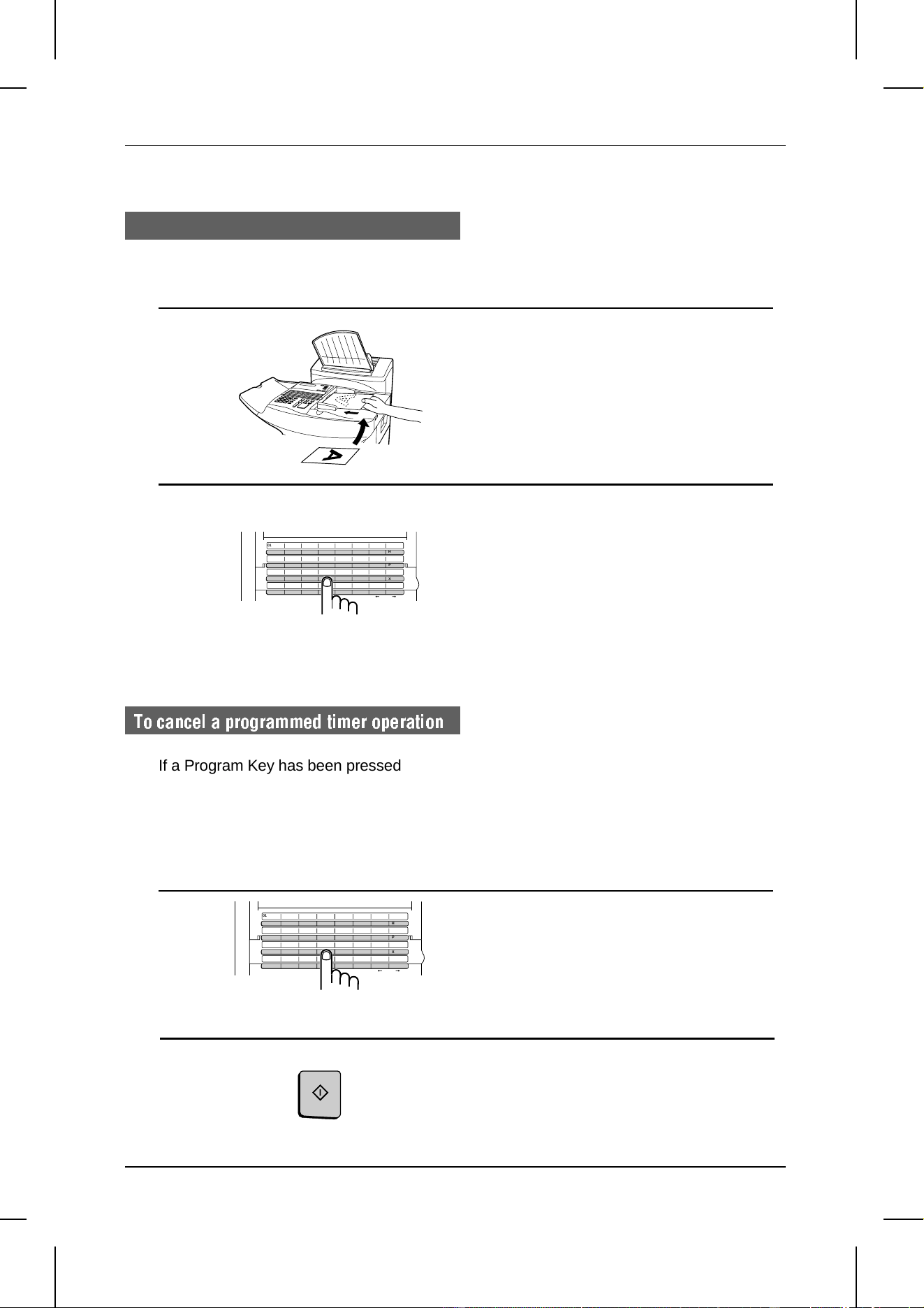
<P=008>
Using a Program Key
A programmed operation is performed as follows:
1 Load the document.
•• Skip this step if the operation is a poll-
ing operation.
2 Press the appropriate Program Key.
To cancel a pr ogramm ed timer operation
If a Program Key has been pressed for a timer operation and you need to cancel the
operation before it is performed, follow these steps:
Note:
This procedure will not work for a batch program. To cancel a batch transmission
operation, see "Clearing a document stored for batch transmission" in "Batch
Transmission" in this chapter.
1 Press the Program Key.
START
CLEARSPSHIFTSPACE
A
I
Q
Y
B
J
R
Z
C
K
S
D
L
T
E
M
U
F
N
V
G
O
W
H
P
X
01
09
17
25
02
10
18
26
03
11
19
04
12
20
05
13
21
06
14
22
07
15
23
08
16
24
27 28 29 30 31 32
(Example)
2 Press the START key.
CLEARSPSHIFTSPACE
A
I
Q
Y
B
J
R
Z
C
K
S
D
L
T
E
M
U
F
N
V
G
O
W
H
P
X
01
09
17
25
02
10
18
26
03
11
19
04
12
20
05
13
21
06
14
22
07
15
23
08
16
24
27 28 29 30 31 32
(Example)
ENTERING AND USING PROGRAMS
4-32 SPECIAL FUNCTIONS

UX5000U-SFDC
YF <P=001>
DEPARTMENT CONTROL
Department Control is used to limit the use of the fax to authorized personnel. When it
is activated, a department code must be entered before an operation can be
performed with the fax.
Department Control can only be activated by Sharp dealer service. If you want to use
this function, contact your dealer.
♦ Department Control allows you to track the number of pages transmitted as well as
the transmission time for each authorized department or person. See "Department
Usage List" in Chapter 6.
Entering Department Codes
Up to 30 different Department Codes can be entered to allow access to the machine.
Transmitted pages and transmission time will be kept track of separately for each
code. After you enter a code, inform the appropriate group or individual.
♦ A name must be entered for each code. Only the name, not the code, will appear
on the Department Usage List.
♦ Be sure to keep a record of each code and name. If you misplace the record, con-
tact your dealer.
Step Press these keys: Comments
1
"ENTRY MODE" will appear in the display.
2
"DEPT. CODE MODE" will appear in the display.
3
or
Press "1" to set a Department Code, or "2" to
clear a Department Code.
4
(Example)
Entering: Enter a 2-digit number with the
numeric keys. This number identifies the
Department Code you will enter in the next step.
Clearing: Enter the 2-digit number which
identifies the Department Code you want to clear.
5
(Example)
Entering: Enter a Department Code (4 digits or
the number of digits set by Option Setting 28).
Clearing: Enter the Department Code you want
to clear, and go to Step 8.
6
FUNCTION
3
1
1
1
0
1
0
8
START
0
2
SPECIAL FUNCTIONS 4-33

<P=002>
7
(Example)
Enter a name for the Department Code (max. of
20 letters). (See "Entering letters for names" in
Chapter 2.)
8
9
Step 4 or
Return to Step 4 to enter (or clear) another
Department Code, or press STOP one or more
times until you return to the date and time
display.
Accessing the machine
When Department Control is activated, you must enter your Department Code before
performing an operation.
Note:
You do not have to enter a Department Code to receive faxes manually (by picking up
the handset and pressing the
START
key).
Enter your Department Code by
pressing the numeric keys, and then
perform the desired operation.
•• If you do not begin the operation within
one minute after entering the code, the
fax will return to controlled access
mode.
STOP
START
4
(Example)
3
2
1
S
H
…
P
Telephone billing
If you are using the Department Control function, you can use Department Codes for
billing on a PBX. When this feature is turned on, the fax machine will send the
Department Code to the PBX each time a member of an authorized department dials
to make a telephone call, send a fax, or initiate polling. The PBX can then use the
code to bill the call to that department. To turn this feature on, set Option Setting 27 as
explained in Chapter 5, "Optional Settings".
DEPARTMENT CONTROL
4-34 SPECIAL FUNCTIONS
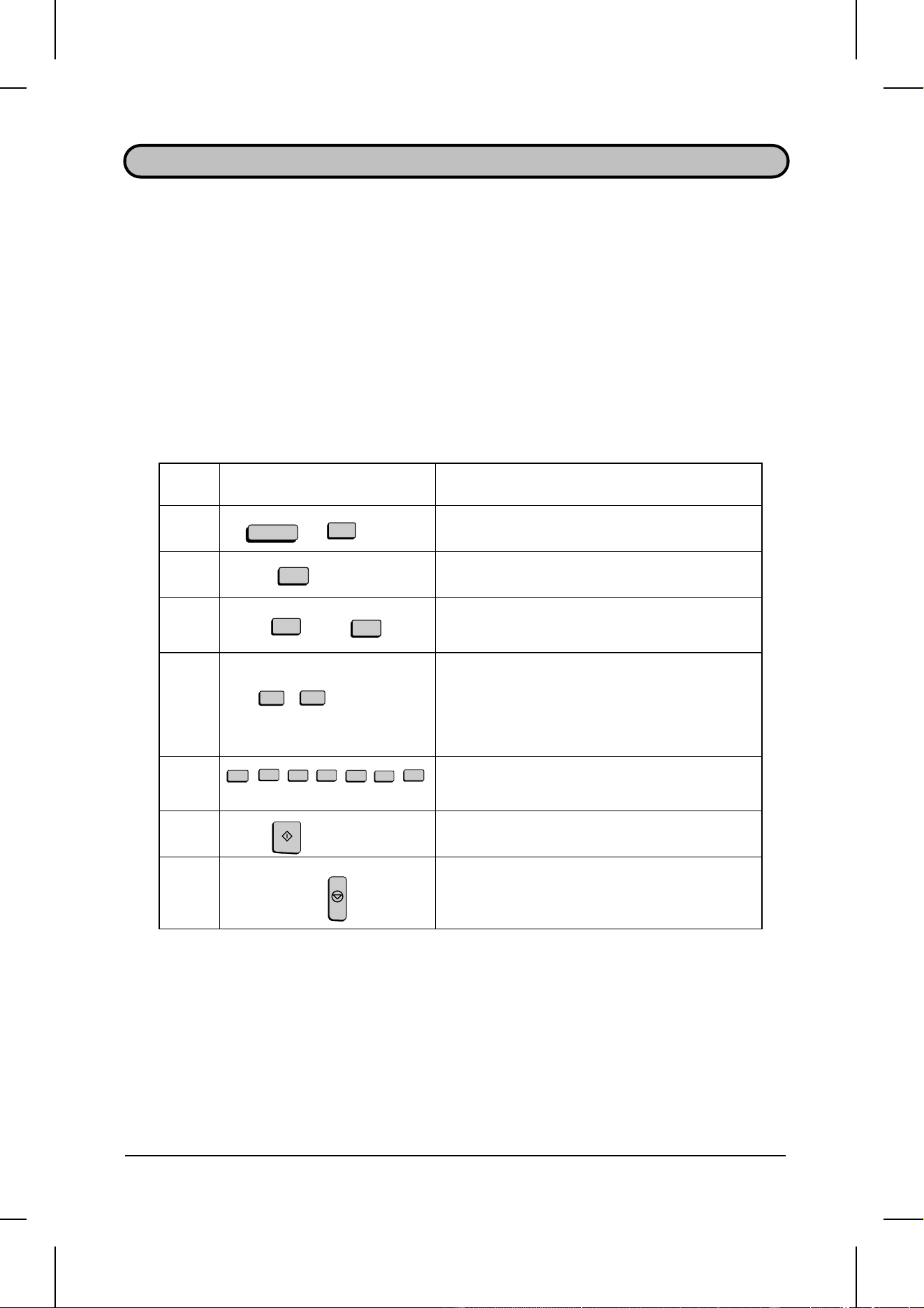
UX5000U-SFAJ
YF <P=001>
ANTI JUNK FAX
The Anti Junk Fax function allows you to block reception of faxes from parties which
you specify. This saves paper by not printing out unwanted "junk" faxes.
To use this function, first turn it on by setting Option Setting 21 to YES as described in
Chapter 5, and then enter the fax numbers from which you do not want to receive
faxes as shown below.
Comments:
••
Up to 50 numbers can be entered in the Anti Junk Number List.
••
To clear a number from the Anti Junk Number List, you need to know the 2-digit number
which identifies it. If you have forgotten this number, print out the Anti Junk Number List as
described in Chapter 6.
Step Press these keys: Comments
1
ENTRY MODE will appear in the display.
2
STORE JUNK FAX # will appear in the display.
3
or
Press "1" to store a fax number in the Anti Junk
Fax List, or "2" to clear a fax number from the list.
4
(Example)
Storing: Enter a number from "01" to "50". This
number identifies the fax number you will store
in the next step.
Clearing: Enter the number which identifies the
fax number you want to clear, and go to Step 6.
5
(Example)
Enter the fax number (max. of 20 digits).
6
7
Step 4 or
Return to Step 4 to enter (or clear) another
number, or press STOP one or more times until
you return to the date and time display.
5
5
5
4
3
2
1
START
7
FUNCTION
3
1
2
1
0
STOP
SPECIAL FUNCTIONS 4-35

UX5000U-IPDR
DD <P=001>
DISTINCTIVE RING
Distinctive ring is a service offered by some local telephone companies which allows
you to use up to four different telephone numbers, each with a different ring pattern,
on your regular single line. If you subscribe to a distinctive ring service you can set
your fax to automatically answer when it detects one of those ring patterns, thereby
allowing you to use the number corresponding to that pattern as an exclusive fax
number.
Important:
••
To use distinctive ring, you must subscribe to a distinctive ring service from your local phone
company. Do not make this setting if you do not subscribe to a distinctive ring service.
••
Your fax may not be compatible with some distinctive ring services.
If this feature is turned on, your fax will automatically answer and begin reception after
one ring when your designated fax number is dialed. Note that other devices on the
same line will also ring until your fax answers. If one of your other numbers is dialed,
the fax will ring; however, it will not answer.
To use distinctive ring, you must set Option Setting 29 to the desired ring pattern for
your fax. The procedure for accessing Option Setting 29 is described in Chapter 5,
"Optional Settings". When you have accessed Option Setting 29, set the desired
pattern by entering a number from "1" to "5" as shown below.
1. RING PATTERN 1:
Two short rings.
2. RING PATTERN 2:
One short, one long, and one short ring.
3. RING PATTERN 3:
Two short rings and one long ring.
4. STANDARD RING:
Your standard (normal) ring pattern.
5. OFF SETTING:
Answer all ring patterns (this turns distinctive ring off).
Your fax has been set to "5" at the factory.
4-36 SPECIAL FUNCTIONS

UX5000U-OSOS
YF <P=001>
5 OPTIONAL SETTINGS
A variety of optional settings are available which you can use to customize your fax to
better suit your needs. The settings are made by pressing the panel keys, and each
setting is described in the list below.
Accessing the settings
Step Press these keys: Comments
1
OPTIONAL SETTING will appear in the display.
2
or
Move through the list of settings by pressing "#"
to move forward, or "
*
" to move backward. The
settings will appear in the order listed below.
Press START when the desired setting appears.
Or, you can also go directly to a setting by
entering the number of the setting (do not press
START in this case). If the number is less then
10, enter "0" first.
3
(Example)
When the desired setting appears in the display,
change it appropriately as described below.
4
Press STOP to return to the date and time
display.
FUNCTION
2
4
STOP
START
Settings
Setting 1: FINE RESOLUTION PRIORITY
This sets the default resolution (the resolution used if a setting is not made with the
RESOLUTION key) for transmitting documents. Press "1" (YES) to set it to FINE, or "2" (NO) to
set it to STANDARD.
•
Factory setting: "2"
Setting 2: NUMBER OF RINGS AUTO RECEPTION
This sets the number of rings your fax allows before answering an incoming call in AUTO
receive mode. Enter a number from "0" to "9" (if "0" is entered your fax will answer without
ringing).
•
Factory setting: "1"
Setting 3: NUMBER OF RINGS MANUAL RECEPTION
This sets your fax to automatically answer a call after a certain number of rings when it is in
manual reception mode. Any number from "0" to "9" can be entered (enter "0" if you don’t want
your fax to answer automatically).
•
Factory setting: "0"
STOP
OPTION SETTINGS 5-1

<P=002>
Setting 4: ACTIVITY REPORT AUTO PRINT OUT
Press "1" (YES) to have your fax automatically print an Activity Report once every 30
send/receive operations. (The report can still be printed on demand at any time.) Press "2" (NO)
to turn automatic print-out off.
•
Factory setting: "2"
Setting 5: TRANSACTION REPORT PRINT SELECT
This sets the condition for printing out a Transaction Report. Enter a number from "1" to "5" as
follows:
"1" (ERROR/TIMER/
MEMORY):
A report will be printed after an error, timer operation, or
memory operation.
"
2" (SEND ONLY):
A report will be printed only after a transmission.
"
3" (ALWAYS PRINTS):
A report will be printed after each transmission, reception,
or error.
"
4" (NEVER PRINTS):
A report will never be printed.
"
5" (ERROR ONLY):
A report will be printed only after an error occurs.
•
Factory setting: "5"
Setting 6: RECALL TIMES
This sets the maximum number of times your fax will automatically redial if the line is busy.
Enter any number from "00" to "14".
•
Factory setting: "02"
Setting 7: RECALL INTERVAL
This sets the amount of time your fax will wait between automatic redials when the line is busy.
Enter "01" for 1 minute, "02" for 2 minutes, etc., up to a maximum of 15 minutes.
•
Factory setting: "05"
Setting 8: SECURITY SELECTION
Press "1" (ON) to turn polling security on, or "2" (OFF) to turn it off.
•
Factory setting: "1"
Setting 9: ERROR CORRECTION MODE (ECM)
Press "1" (YES) to have any distortions in a transmission due to noise on the telephone line be
corrected before the document is printed out. This is only effective when the other machine has
ECM as well. Press "2" (NO) to turn the function off.
•
Factory setting: "1"
Setting 10: AUTO COVER SHEET
Press "1" (YES) to have the fax automatically generate a cover sheet and send it as the last
page of each transmission. Press "2" (NO) to turn the function off.
•
Factory setting: "2"
OPTIONAL SETTINGS
5-2 OPTION SETTINGS

<P=003>
Setting 11: MEMORY SCANNING
Press "2" (REDUCE) to have the fax reduce the size of documents wider than 8.9" (226 mm)
when it scans them into memory for transmission operations. If "1" (1:1) is pressed, the
document will be stored at actual size, and if the receiving machine only uses 8.3" (210 mm)
paper, the parts outside of that width will not be printed.
•
Factory setting: "2"
Setting 12: COPY SCANNING
This sets the amount by which copies are reduced before printing to ensure that data on the
edges is not cut off. Enter a number from "1" to "5" as follows:
"1":
Automatic reduction depending on the size of the original
and the printing paper.
"
2":
No reduction.
"
3":
Slight reduction of letter originals. (Letter originals are
reduced slightly to ensure that data on the edges is not cut
off.)
"
4":
Reduction of A4 size originals to letter size.
"
5":
Reduction of legal size originals to letter size.
•
Factory setting: "2"
Setting 13: COPY CUT-OFF
Press "1" (CONTINUE) to have documents longer than the printing paper be continued on a
second page when copied. Press "2" (CUT-OFF) to have the part outside that length not printed.
•
Factory setting: "2"
Setting 14: RECEIVE REDUCE
This sets the amount by which received documents are reduced before printing to ensure that
data on the edges is not cut off. Enter a number from "1" to "5" as follows:
"
1":
Automatic reduction depending on the size of the original
and the printing paper.
"
2":
No reduction.
"
3":
Slight reduction of letter originals. (Letter originals are
reduced slightly to ensure that data on the edges is not cut
off.)
"
4":
Reduction of A4 size originals to letter size.
"
5":
Reduction of legal size originals to letter size.
•
Factory setting: "1"
Setting 15: IMAGE MEMORY PRINT
Press "1" (YES) to have part of the first page transmitted printed when a Transaction Report is
printed out. Press "2" (NO) to turn the function off. This is only effective when transmitting from
memory.
•
Factory setting: "1"
OPTIONAL SETTINGS
OPTION SETTINGS 5-3

<P=004>
Setting 16: CASSETTE SELECTION
Press "1" if you want the fax to automatically select the source from which it draws paper for
printing according to the size of the document received or copied. Press "2" if you want to give
priority to the paper cassette (paper will be drawn from the cassette regardless of the size of the
received document), or press "3" if you want to give priority to the paper tray.
•
Factory setting: "1"
Setting 17: CASSETTE CHANGEOVER
Press "1" to have the fax start drawing paper from the other paper source if the currently used
source runs out of paper. Press "2" to stop changeover to the other source (in this case,
received documents will be stored in memory).
•
Factory setting: "1"
Setting 18: RETRANSMISSION TIMES
This sets the number of times the fax will reattempt a memory transmission which has been
interrupted by a line error or power failure. Enter any number from "00" to "14" ("00" disables the
function).
•
Factory setting: "10"
Setting 19: RETRANSMISSION INTERVAL
If desired, you can have the fax wait a certain number of minutes between each memory
retransmission attempt. Enter "01" for 1 minute, "02" for 2 minutes, etc., up to a maximum of 15
minutes. If you do not want the fax to wait between attempts, enter "00".
•
Factory setting: "00"
Setting 20: HEATER MODE
To conserve electricity, you can turn off the laser printer heater in your fax. When this is done, it
will turn on automatically when you receive a document (there will be a slight delay before
printing while it warms up) and turn off once printing is completed. You can also set the heater
to automatically turn on and off at two selected times each day. Enter a number from "1" to "3"
as follows:
"
1" (ALWAYS ON):
The heater will remain on constantly.
"
2" (ALWAYS OFF):
The heater will turn on only to print documents.
"
3" (SLEEP MODE TIMER):
The heater will turn on and off at two selected times each
day. After you press "
3", enter the time you want the heater
to turn on, and then the time you want it to turn off. For each
time, enter 2 digits for the hour, 2 digits for the minute, and
then "
*
" for A.M., or "
#" for P.M.
•
Factory setting: "2"
OPTIONAL SETTINGS
5-4 OPTION SETTINGS

<P=005>
Setting 21: JUNK FAX NUMBER CHECK
Press "1" to prevent reception from fax numbers entered in the Anti Junk Fax List. Press "2" to
allow reception from all numbers.
•
Factory setting: "2"
Setting 22: ALARM VOLUME
This sets the volume of the beep sound which alerts you to error conditions and informs you
that operations have been completed. Press "1" for high, "2" for middle, "3" for low, or "4" to turn
the alarm off.
•
Factory setting: "3"
Setting 23: DIAL MODE
This sets the mode of dialing. Press "1" if you are on a touch-tone line, or "2" if you are on a
pulse dial line. (If you don’t know which type of line you have, try making phone calls with both
settings and see which one works.)
•
Factory setting: "1"
Setting 24: QUICK ON LINE
When you transmit a multi-page document, this setting determines whether your fax will dial the
receiving party and begin transmitting while scanning is still in progress, or wait until all pages
have been scanned before dialing. Press "1" to have the fax dial and begin transmission while
scanning is still in progress, or "2" to have it wait until all pages have been scanned.
•
Factory setting: "1"
Setting 25: MULTI TTI
If you are using Department Control, you can press "1" to have the department name (the name
corresponding to the department code entered by the operator) appear at the top of each
transmitted document. This will appear in place of the name entered in "Entering Your Name
and Fax Number" in Chapter 2. Press "2" to turn Multi TTI off (the sender’s name entered in
Chapter 2 will be used).
•
Factory setting: "2"
Setting 26: BEEP LENGTH
This sets the duration of the beep which signals the end of transmission, reception, or copying.
Press "1" for 3 seconds, "2" for 1 second, or "3" for no beep.
•
Factory setting: "1"
Setting 27: TELEPHONE BILLING CODE
If you are using the Department Control function, this setting will allow you to use Department
Codes for telephone billing on a PBX. Press "1" to turn telephone billing on, or "2" to turn it off.
•
Factory setting: "2"
If you pressed "1", the BILLING CODE DIAL selection will subsequently appear. Press "1" if
your PBX must receive the billing code before dialing a telephone number, or "2" if it must
receive the billing code after dialling a telephone number. (Refer to your PBX manual or consult
your PBX adminstrator for this information.)
Note:
If you select "AFTER" for the BILLING CODE DIAL selection, you must press the
REDIAL
key after dialing if you use the handset or the
SPEAKER
key to dial.
OPTIONAL SETTINGS
OPTION SETTINGS 5-5

<P=006>
Setting 28: DEPARTMENT CODE DIGITS
Use this setting if you are using Telephone Billing and need to change the number of digits used
for Department Codes to accord with your PBX’s telephone billing system. Enter any number
from "3" to "9".
•
Factory setting: "4"
Setting 29: DISTINCTIVE RING
This sets the ring pattern to which your fax will answer if you subscribe to a distinctive ring
service. Enter a number from "1" to 5" to select a pattern. See "Distinctive Ring" in Chapter 2 for
more details.
•
Factory setting: "5"
OPTIONAL SETTINGS
5-6 OPTION SETTINGS

UX5000U-PRPR
YF
<P=001>
6 PRINTING OUT REPORTS AND LISTS
You can print a variety of lists showing settings and information entered in the fax.
You can also print out reports on recent activity and reports on individual transactions
after they are made. Each list and report is described below.
Printing out a list
Step Press these keys: Comments
1
"LISTING MODE" will appear in the display.
2
or
Move through the lists by pressing "#" or "
*
".
Stop when the desired list appears in the display.
3
Print out the list.
Activity Report
This report shows information on your most recently performed send and receive
operations (a combined maximum of 30 operations can appear). The report is divided
into two parts: the SEND REPORT, which shows information on transmissions, and
the RECEIVE REPORT, which shows information on receptions.
♦ If Option Setting 4 is set to "YES", a report will be automatically printed out when-
ever information on 30 operations has accumulated. (A report can still be printed on
demand at any time.)
♦ All information is erased after a report is printed out. If automatic print-out is turned
off and print-out has not been done manually for 30 operations, the information on
the oldest operation will be overwritten each time a new operation is performed.
Explanation of headings
SENDER/
RECEIVER
The name or fax number of the other machine involved in the transaction. If that machine
does not have an ID function, the communication mode will appear (for example, "G3").
START The time at which transmission/reception started.
TX/RX TIME Total time taken for transmission/reception.
PAGES Number of pages transmitted/received.
TYPE CONF. TX - A confidential operation was performed.
RELAY TX - A relay operation was performed.
(T) - A timer operation was performed.
(D) - The document was sent directly from the feeder, not from memory.
NOTE OK - Transmission/reception was normal.
P.FAIL - A power failure occurred.
JAM - A problem with the printing paper or document occurred.
FUNCTION
2
START
PRINTING OUT REPORTS AND LISTS 6-1
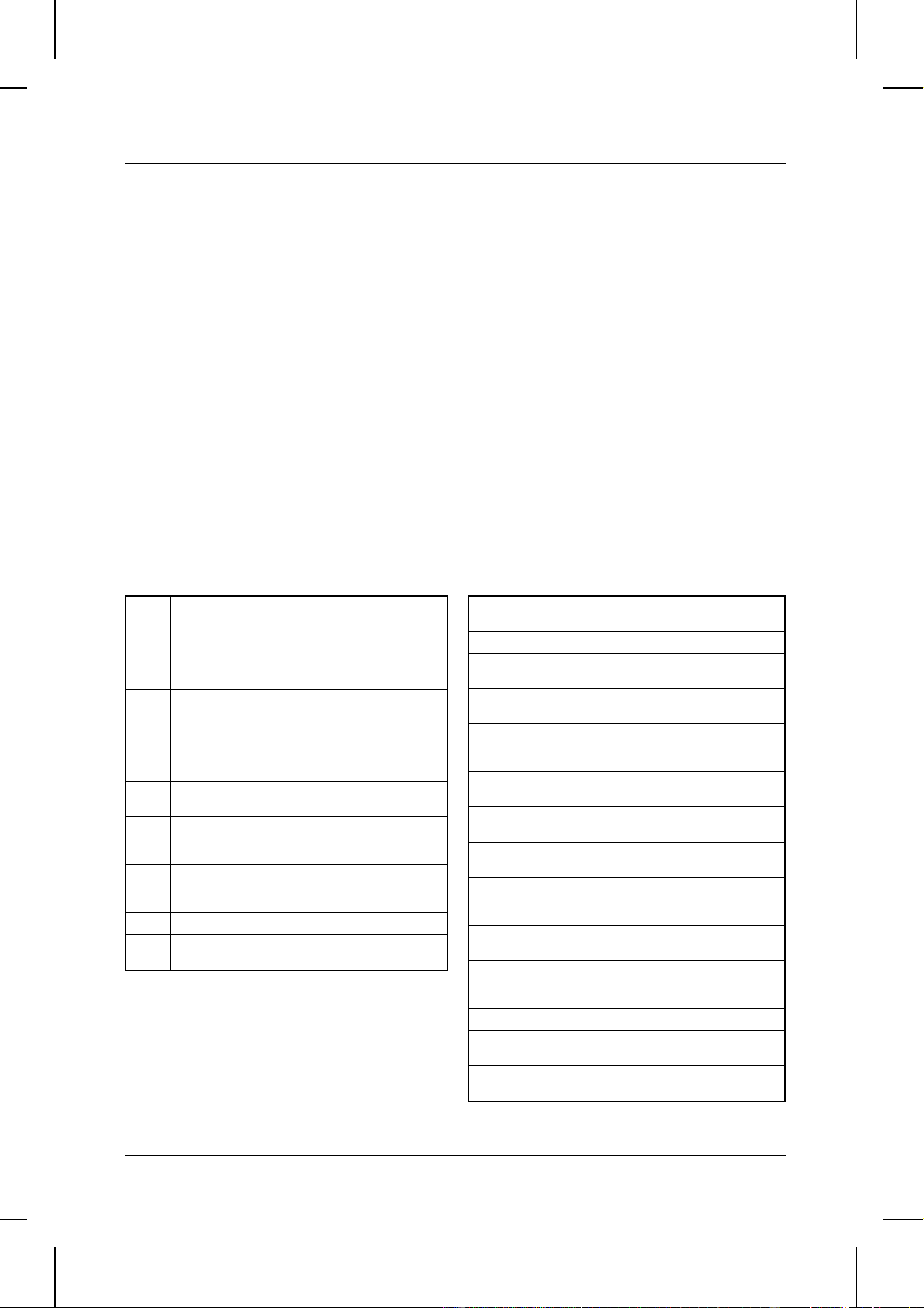
<
P
=
002
>
BUSY - The line was busy.
COM.E-0 to COM.E-14 - A telephone line error prevented the transaction. Explanations
of the error numbers are given in the following tables, however, these are primarily for
use by service engineers. In general, you will want to simply try the transaction again. If
necessary, check with the other party to make sure their machine is functioning properly.
CANCEL - Transmission was cancelled because the STOP key was pressed, no
document was in the feeder, or the other machine requested transmission using a
function which your fax does not have.
CANCEL 3 - Confidential transmission was cancelled because the receiving machine
does not have a confidential function, a confidential passcode is not programmed in it,
its memory is full, or it is not a Sharp model.
CANCEL 4 - Confidential transmission was cancelled because an incorrect mailbox
number was entered for a fax machine with confidential mailboxes.
CANCEL 5 - A relay request was not successful because the machine to which the
request was made has no relay function, it is not a Sharp model, or its memory was full.
CANCEL 6 - A relay request was not successful because your machine’s fax number
has not been entered into the relay machine’s list of permitted numbers, an automatic
dialing number not stored in the relay machine was specified, or your fax number has
not been entered in your machine as described in Chapter 2.
Transmission errors
E-0
Able to recognize handshake signal, but it has
errors.
E-1
Cannot recognize the handshake signal from
the receiver side.
E-2 Line disconnected during transmission.
E-3
Line disconnected after modem speed fall-back.
E-4
Line disconnected during multi-page
transmission.
E-6
Cannot recognize the handshake signal for
next page at receiver side.
E-7
No response from receiver side or "disconnect
signal" is received at transmitter side.
E-8
Error was not corrected after the predetermined
number of retries because of an error in a part
of a page.
E-11
Error occurred after or while reception by the
remote (receiving) machine was revealed to be
impossible.
E-12 Error occurred just after fall-back.
E-13
Error occurred after a response to a
retransmission end command was received.
Reception errors
E-0
Able to recognize handshake signal, but it has
errors.
E-1 Line disconnected during reception.
E-2
Cannot recognize the handshake signal from
the transmitter side.
E-3
Cannot recognize the last handshake signal
from the transmitter side.
E-4
Cannot recognize the handshake signal for
next page from the transmitter side in the case
of mode change.
E-5
Cannot recognize the handshake signal for
next page from transmitter side.
E-7
No response from transmitter or "disconnect
signal" is received at receiver side.
E-8
Error occurred upon completion of reception of
all pages.
E-9
Error occurred when mode was changed or
transmission/reception switching was
performed.
E-10
Error occurred during partial page or physical
page reception.
E-11
Error occurred after or during inquiry from the
remote (transmitting) machine as to whether
reception was possible or not.
E-12
Error occurred during or just after fallback.
E-13
Error occurred after retransmission end
command was received.
E-14
Error occurred after voice communication
command was received.
PRINTING OUT REPORTS AND LISTS
6-2 PRINTING OUT REPORTS AND LISTS

<
P
=
003
>
Timer list
This list shows the timer operations which are currently set.
Telephone Number List
This list shows the fax and voice numbers which have been stored for automatic
dialing.
Relay Group List
This list shows the relay groups which have been stored.
PRINTING OUT REPORTS AND LISTS
PRINTING OUT REPORTS AND LISTS 6-3

<
P
=
004
>
Passcode List
This list shows settings made for polling security, your name and fax number as
entered in the fax machine, a sample of the header printed at the top of every page
you transmit (HEADER PRINT), and the numbers entered in the relay passcode list.
Optional Setting List
This list shows the current status of the optional settings.
Program and Group List
The top part of this list shows the programs which have been entered. The bottom part
shows the fax numbers which have been stored in each Group Key.
PRINTING OUT REPORTS AND LISTS
6-4 PRINTING OUT REPORTS AND LISTS

<
P
=
005
>
Batch Transmission List
To check the documents which have been stored for batch transmission, you can print
out the Batch Transmission List.
Department Usage List
This list shows total transmission time and pages transmitted (including polling time
and pages polled) for each department during the period indicated on the list. The
information is only available if Department Control has been activated. The bottom
part of the list shows information about relay broadcast operations performed on the
request of other fax machines.
♦ Each time you print out the report, the data is cleared and a new period begins.
Confidential Reception List
This list shows which mailboxes have received confidential documents and the total
number of pages received. Print this out whenever RCVD CONFIDENTIAL RX
appears in the display.
PRINTING OUT REPORTS AND LISTS
PRINTING OUT REPORTS AND LISTS 6-5
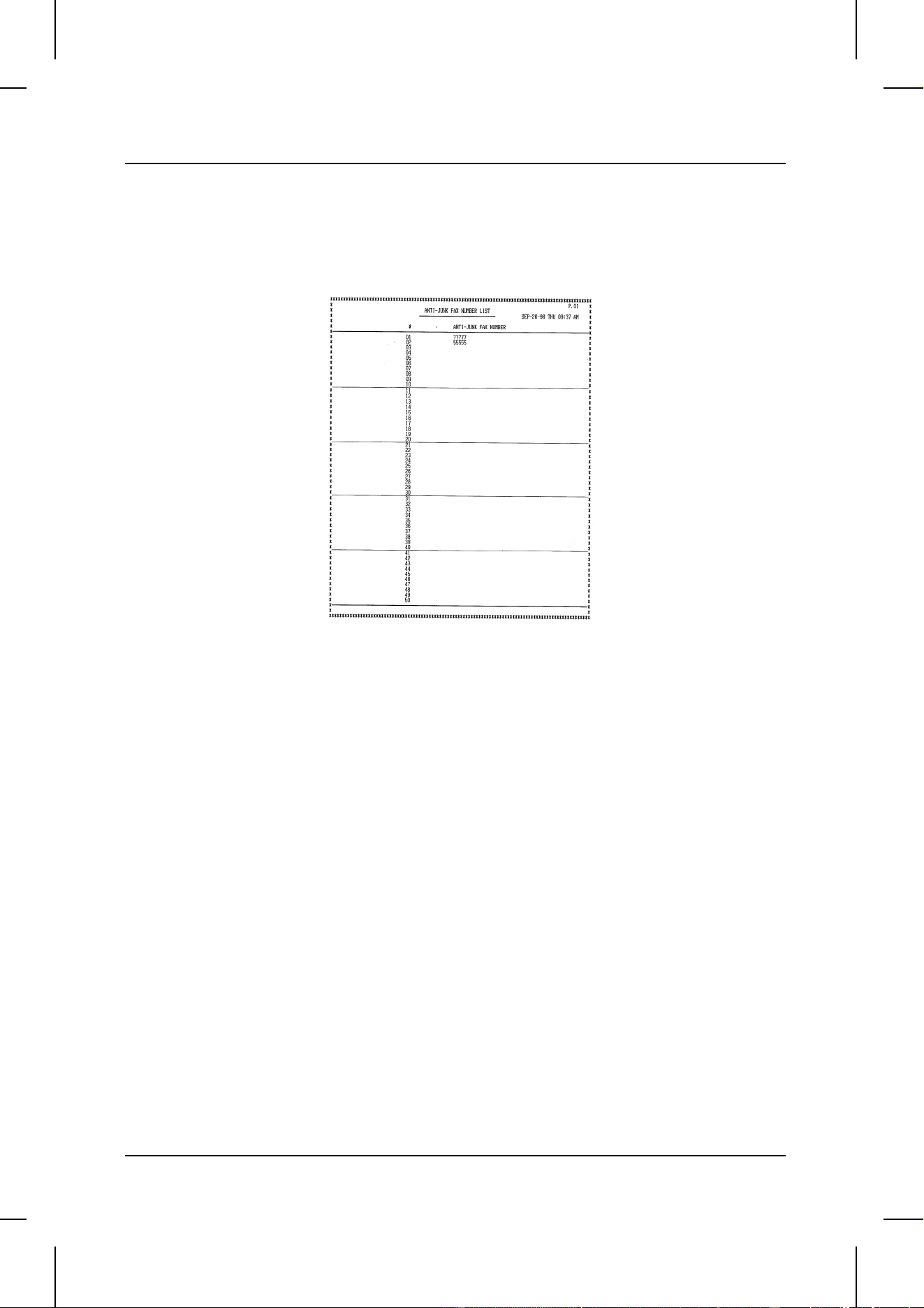
<
P
=
006
>
Anti Junk Number List
This list shows the fax numbers from which reception is not allowed.
Transaction Report
This report is printed out automatically after an operation is completed to allow you to
check the result. Your fax is set at the factory to print out the report only when an error
occurs, but you can change the setting to have it printed out after every operation,
only after certain types of operations, or not at all. This is done by changing Option
Setting 5 as described in Chapter 5.
♦ You can also print out the Transaction Report manually by pressing the REPORT
key after the operation is completed.
♦ The same headings appear in the Transaction Report as in the Activity Report. See
"Activity Report" in this chapter for an explanation of the headings.
♦ The top part of the first page of the document will also appear below the report if the
document was sent from memory. If confidentiality is required, you can prevent
printing of the top part of the document by changing Option Setting 15.
PRINTING OUT REPORTS AND LISTS
6-6 PRINTING OUT REPORTS AND LISTS

UX5000U-MAMA
RT <P=001>
7 MAINTENANCE
Reading glass and rollers
Clean the reading glass and rollers frequently to ensure the quality of transmitted
images and copies. Rotate the received document tray back, open the operation panel
by squeezing the operation panel release on the right side of the operation panel
(marked "PULL OPEN"), and clean the parts as shown below.
Wipe the reading glass, white
backplate, and rollers with a soft cloth.
•• Make sure that all dirt and stains (such
as correcting fluid) are removed, as
these will cause vertical lines on trans-
mitted images and copies.
White backplate
Document
rollers
Reading glass
The housing
Wipe the external parts and surface of the machine with a dry cloth.
Caution!
••
Do not use benzene or thinner. These solvents may damage or discolor the machine.
MAINTENANCE 7-1

Notes
MAINTENANCE
7-2 MAINTENANCE
UX5000U-TSPS
RT <P=001>
8 TROUBLESHOOTING
PROBLEMS AND SOLUTIONS
Problem Check and remedy
Nothing appears in the display.
•• Make sure the power cord is properly plugged into a power
outlet.
•• Make sure the power switch has been switched to the "ON"
position.
•• Connect another electrical appliance to the outlet to see if it
has power.
The fax does not respond when you
press any of its keys.
•• If a beep sound is not made when you press the keys, turn
off the power and then turn it back on several seconds later.
Automatic document feeding does
not work for transmission or copying.
•• Check the size and weight of the document (see
"Transmittable documents" in Chapter 3).
Dialing is not possible.
•• Make sure the power is on.
•• Make sure that the telephone line is properly connected to
both the TEL. LINE jack and the wall jack.
•• Make sure that the fax is set to the correct dialing mode for
your telephone line. See Option Setting 23 in Chapter 5.
Nothing is printed at the receiving
end.
•• Make sure that the document for transmission is placed face
down in the feeder.
•• Make sure that the printing paper is properly loaded in the
receiving machine.
The power is on, but no
transmission takes place.
•• Make sure that the receiving machine has printing paper.
•• If the receiving machine is in manual mode with no
attendant, reception will not be possible.
•• If the receiving machine is not a Sharp model, make sure it is
G3 compatible.
•• Check the display for error messages.
•• Pick up the handset and check for a dial tone.
A distorted image is received at the
other end.
•• Noise on the telephone line may cause distortion. Try
sending the document again.
•• Make a copy of the document on your fax. If the copy is also
distorted, your fax may have a problem.
TROUBLESHOOTING 8-1

<P=002>
The printing paper does not come
out.
•• The printing paper may be jammed. See "Clearing Jammed
Printing Paper" in this chapter.
•• Make sure that the printing paper is properly loaded in your
machine.
•• Make sure the power is on.
The printing paper comes out blank
when you try to receive a document.
•• Make sure that the document is loaded properly in the
feeder of the transmitting machine. Make a copy to confirm
the printing ability of your machine.
The received document is faint.
•• Ask the other party to send higher contrast documents. If the
contrast is still too low, your fax may have a problem. Make
a copy to check it.
•• The toner cartridge may need replacement.
Received images are distorted.
•• Noise on the telephone line may cause distortion. Have the
other party try sending the document again.
•• If the other fax machine also has ECM, make sure this
feature is enabled in both faxes (see Option Setting 9 in
Chapter 5).
•• Make a copy of another document on your fax. If the copy is
also distorted, your fax may have a problem.
•• The photoconductor drum may be damaged. Try a new
drum cartridge.
Dots appear at regular intervals on
received documents and copies.
•• The photoconductor drum may be damaged. Replace the
drum cartridge.
No confidential transmission or
relay broadcast occurs.
•• Check the message in the display. See the next section,
"Display Messages".
PROBLEMS AND SOLUTIONS
8-2 TROUBLESHOOTING
UX5000U-TSDM
DD <P=001>
MESSAGES AND SIGNALS
Display messages
CHECK XXXX (paper source)
Either or both of the paper sources (the cassette or tray) will
appear in place of "XXXX". This indicates that the paper
source is not properly installed in the machine, or a paper jam
has occurred in that source.
CONF REFUSED
A confidential transmission has been denied because you
entered an incorrect mailbox number for a machine with
mailboxes.
CONF. RX ERROR
Confidential reception was cancelled because the mailbox
number specified by the transmitting machine is not
programmed in your fax.
COVER OPEN The operation panel is open. Close it.
DRUM LIFE OVER The drum cartridge must be replaced.
FAX RCVD IN MEMORY
A fax has been received in memory because the toner
cartridge needs replacement, you have run out of printing
paper, or the paper is jammed. The fax will automatically print
out when the problem is fixed.
FUNCTION MODE The FUNCTION key has been pressed.
LINE ERROR
Transmission or reception was not successful. Press STOP to
clear the message, and then try again.
MEMORY FULL
The memory is full. See "Dual access" in "Sending
Documents" in Chapter 3.
NO CONF. FUNC
Confidential transmission was cancelled because the receiving
machine does not have a confidential function, a confidential
passcode is not programmed in it, its memory is full, or it is not
a Sharp model.
NO PAPER
This message will be followed by one of the paper sources in
parentheses, and informs you that the paper source is out of
paper. If no paper source is indicated, both paper sources are
out of paper.
NO RELAY FUNC
A relay request has been denied because the other machine
does not have a relay broadcast function, its memory is full, or
it is not a Sharp machine.
TROUBLESHOOTING 8-3

<P=002>
OFF HOOK DIAL MODE
The handset has been lifted and the fax is waiting for you to
dial.
ON HOOK DIAL MODE
The SPEAKER key has been pressed and the fax is waiting
for you to dial.
PAPER JAM
The printing paper is jammed. See the following section,
"Clearing Paper Jams".
RCVD CONF. FAX
A confidential fax has been received in memory. Print it out as
explained in "Confidential Operations" in Chapter 4.
RCVD RELAY REQUEST
Your fax machine has received a Relay Broadcast request and
is transmitting the requested document to the end receiving
machines. See "Relay Broadcast" in "Relay Request" in
Chapter 4.
RELAY REFUSED
A relay request has been denied because your fax number
has not been entered in the relay machine’s list of permitted
numbers, an automatic dialing number not stored in the relay
machine was specified, or your fax number has not been
entered in your machine.
REMOVE ORIGINAL(S)
The original document is jammed. See the following section,
"Clearing Paper Jams".
SIZE ERROR
This message will be followed by one of the paper sources in
parentheses, and informs you that the paper loaded in that
source is not all the same size.
REPLACE TONER The toner cartridge must be replaced.
Audible signals
Continuous tone 3 seconds
Indicates the end of transmission, reception, or
copying.
Intermittent tone
(3 beeps)
5 seconds
(1 second on,
1 second off)
Indicates incomplete transmission, reception, or
copying.
Rapid intermittent tone
35 seconds
(0.7 seconds on,
0.3 seconds off)
Indicates that the handset is off hook.
DISPLAY MESSAGES
8-4 TROUBLESHOOTING

UX5000U-TSCP
RT <P=001>
CLEARING PAPER JAMS
Clearing a jammed document
If a document doesn’t feed through the scanner properly during transmission or
copying, or DOCUMENT JAM appears in the display, first try pressing the START
key. If the document doesn’t come out of the feeder, open the operation panel by
squeezing the operation panel release on the right side of the operation panel
(marked "PULL OPEN"), and gently pull out document.
Clearing jammed printing paper
If the printing paper jams, PAPER JAM will appear in the display. Follow the steps
below to clear the jam.
1 If the leading edge of the document is
protruding from the printer
compartment outlet, try pulling it out.
•• If you are unable to clear the paper jam
in this way, continue with the following
steps.
2 Open the printer cover and remove
the toner cartridge and drum
cartridge.
•• Caution! The ribs on the bottom of the
inside of the printer cover become very
hot during printing. Be careful not to
touch them.
TROUBLESHOOTING 8-5

<P=002>
3 Gently pull the paper out of the
compartment.
•• If the leading edge of the paper has en-
tered the fusing unit, first pull the lead-
ing edge out of the fusing unit, then
pull the paper out of the compartment.
•• Be sure to remove any torn pieces of
paper.
4 Replace the drum cartridge, and then
the toner cartridge.
•• For detailed instructions, see Steps 5
and 7 in "Installing the Printer Car-
tridges" in Chapter 1.
Left
L
R1
Right
5 Close the printer cover.
6 If you didn’t find any paper in the
printer compartment, or if PAPER
JAM still appears in the display after
you close the printer cover, check the
paper cassette and paper tray.
•• To check the paper tray, grasp the
hand hold on the original document IN
tray and rotate the tray up.
7 Gently pull out any jammed paper you
find, and then replace the cassette or
close the original document IN tray.
2
Left
Right
CLEARING PAPER JAMS
8-6 TROUBLESHOOTING

UX5000U-SPSP
YF <P=001>
SPECIFICATIONS
Applicable telephone line: Public switched telephone network
Compatibility: ITU-T (CCITT) G3 mode
Configuration: Half-duplex, desktop transceiver
Compression scheme: MH, MR, MMR and Sharp special mode
Memory size*: 1MB (approx. 50 average pages)
Scanning method: Flat-bed, solid-state CCD
Resolution: Horizontal:
203 lines/inch (8 lines/mm)
Vertical:
Standard 98 lines/inch (3.85 lines/mm)
Fine /Halftone 196 lines/inch (7.7 lines/mm)
Super fine 391 lines/inch (15.4 lines/mm)
Printing density: Horizontal
406 lines/inch (16 lines/mm)
Vertical
391 lines/inch (15.4 lines/mm)
Reception modes: Auto/Manual switching
Modem speed: 14400 bps with automatic fallback to 12000, 9600, 7200, 4800, or 2400
bps
Transmission time*: Approx. 6 seconds (Sharp special mode)
Input document size: Automatic feeding:
Width 5.8 to 11" (148 to 280 mm)
Length 5.0 to 14.3" (128 to 364 mm)
Manual feeding:
Width 5.8 to 11.0" (148 to 280 mm)
Length 5.0 to 17.0" (128 to 432 mm)
Paper size: Width 8.5" (216 mm)
Length 11-14" (280-356 mm)
Paper capacity: 650 sheets
Automatic document feeder: 50 documents max.
Effective scanning width: 10.1" (256 mm)
Effective recording width: 8.0" (203 mm)
Copy function: Single/Multi-copy/Sort-copy (99 copies/page)
Telephone function: Standard (cannot be used if power fails)
Halftone (gray scale): 64 levels
Power requirements: 120 V AC, 60 Hz
Operating environment: 50 - 86°F (10 - 30°C), 20 to 85% RH
Power consumption: Stand-by: 10 W
Maximum: 400 W
Dimensions: Width: 13.8" (351 mm)
Depth: 22.9" (582 mm)
Height: 13.7" (349 mm)
Weight: Approx. 40.8 lbs. (18.5 kg)
* Based on ITU-T Test Chart #1 at standard resolution in Sharp special mode, excluding time for protocol signals
(i.e., ITU-T phase C time only).
As a part of our policy of continuous improvement, SHARP reserves the right to make design and specification
changes for product improvement without prior notice. The performance specification figures indicated are nominal
values of production units. There may be some deviations from these values in individual units.
SPECIFICATIONS Spec-i

UX5000U-FCC68UX
FCC REGULATORY INFORMATION
This equipment complies with FCC rules, Part 68. On this equipment is a label that
contains, among other information, the FCC Registration Number and Ringer
Equivalence Number (REN) for this equipment. If requested, this information must be
provided to your telephone company.
An FCC compliant telephone cord and modular plug is provided with this equipment.
This equipment is designed to be connected to the telephone network or premises
wiring using a compatible modular jack which is Part 68 compliant. This equipment
connects to the telephone network through a standard USOC RJ-11C network
interface jack.
The REN is used to determine the quantity of devices which may be connected to
your telephone line and still have all of those devices ring when your number is called.
Too many devices on one line may result in the devices not ringing in response to an
incoming call. In most, but not all, areas as the sum of the RENs of all devices should
not exceed five (5.0). To be certain of the number of devices that may be connected to
your line, as determined by the total RENs, contact your local telephone company.
If this equipment causes harm to the telephone network, your telephone company
may disconnect your service temporarily. If possible, they will notify you in advance. If
advance notice is not practical, you will be notified as soon as possible. You will also
be advised of your right to file a complaint with the FCC.
Your telephone company may make changes in its facilities, equipment, operations, or
procedures that could affect the operation of your equipment. If this happens, the
telephone company will provide advance notice in order for you to make necessary
modifications to maintain uninterrupted service.
If you have any questions or problems which cannot be solved by reading this manual,
please contact Sharp’s Customer Information Center. The number is 1-800-BE
SHARP. If the equipment is causing harm to the telephone network, your telephone
company may ask you to disconnect the equipment until the problem resolved.
This equipment may not be used on coin service provided by the telephone company.
Connection to party lines is subject to state tariffs. Contact your state’s public utility
commission, public service commission, or corporation commission for more
information.
This equipment is hearing-aid compatible.
When programming and/or making test calls to emergency numbers:
• Remain on the line and briefly explain to the dispatcher the reason for the call.
• Perform such activities in the off-peak hours, such as early morning or late evening.
i

UX5000U MSDS
SHARP Date Issued: 1996. 8. 1
MATERIAL SAFETY DATA SHEET MSDS No. B-1008
Section 1. Product Identification
Product Code: FO-50ND Toner Cartridge
Section 2. Supplier’s Name and Address
Sharp Corporation
22-22 Nagaike-cho, Abeno-ku, Osaka, Japan
Local suppliers are listed below. Please contact the nearest supplier for additional information.
(Country) (Name and Telephone Number)
U.S.A. Sharp Electronics Corporation
Telephone number for information : 201-529-8200
Emergency telephone number : 1-800-255-3924
Canada Sharp Electronics of Canada Ltd.
Telephone number for information : 416-890-2100
Emergency telephone number : 1-800-424-9300
United Kingdom Sharp Electronics(U.K.)Ltd.
Telephone number for information : 01923-474013
Section 3. Ingredients
Ingredients
CAS No. Proportion OSHA PEL ACGIH TLV Other Limits
Polyester resin 361615-5042-P >85 %
Carbon black 1333-86-4 1-5 % 3.5mg/m
3
3.5mg/m
3
Polypropylene 9003-07-0 1-5 %
Organic pigment 361615-5025-P 1-5 %
Section 4. Hazardous Identification (Emergency Overview)
Toner is a fine, black powder prossessing no immediate hazard. There are no anticipated carcinogenic effects from exposure based on animal tests performed using toner. When used as intended according to
instructions, syudies do not indicate any symptoms of fibrosis will occur.
Section 5. Health Hazard Data
Route(s) of Entry: Eye contact, inhalation, ingestion
Health Hazards: No data available
Carcinogenicity: In 1996 the IARC reevaluated carbon black as a Group 28 carcinogen (possible human carcinogen). This classification is given to chemicals for which there is
inadequate human evidence, but sufficient animal evidence on which to base an opinion of carcinogenicity. The classification is based upon the development of lung
tumors in rats receiving chronic inhalation exposures to free carbon black at levels that induce particle overload of the lung. Studies performed in animal models other
than rats did not show any association between carbon black and lung tumors. Moreover, a two-year cancer bioassay using a typical toner preparation containing carbon
black demonstrated no association between toner exposure and tumor development in rats.
Signs and Symptoms of Exposure: No symptoms expected under intended use.
Medical Conditions Generally Aggravated by Exposure: None
Choronic effect: In a study in rats of chronic inhalation exposure to a typical toner, a mild to moderate degree of lung fibrosis was observed in 92% of the rats in the high concentration
(16mg/m
3
) exposure group, and a minimal to mild degree of fibrosis was noted in 22% of the animals in the middle (4mg/m
3
) exposure group, but no pulmonaly change
was reported in the lowest (1mg/m
3
) exposure group, the most relevant level to potential human exposures.
Emergency and First Aid Porcedures:
Inhalation: If symptoms are experienced, remove source of contaimination or move victim to fresh air and obtain medical advice.
Eye Contact: Do not allow victim to rub eye(s). Flush with gently flowing water (lukewarm preferable) for 15 minutes or untill particle is removed. Have victim look right and left,
and, then up and down. If irritation does occur, obtain medical attention. DO NOT attempt to manually remove anything stuck to the eye(s).
Ingestion: If irritation or discomfort occur, obtain medical attention immediately.
Section 6. Physical Chemical Characteristics
Boiling/Melthing Point: N.AP. Specific Gravity: 1.2
Vapor Pressure: N.AP. Solubility In Waster: Negligible
Vapor Density: N.AP. PH: N.AP.
Evaporation Rate: N.AP. Viscosity: N.AP.
Appearance: powder Color: Black
Odor: oder
Section 7. Fire and Explosion Data
Flash Point (Method Used): N.AP.
Ignition Temperature: 450°C
Flammable Limits: (LEL); N.AP. (UEL); N.AP.
Extinguishing Media: CO
2
, water spray, foam and dry chemical
Special Fire Fighting Procedure: None
Unusual Fire and Explosion Hazard: If dispersed in air, like most finely divided organic powders, may form an explosive mixture.
Sensitivity to Mechanical Impact: None
Sensitivity to Static Charge: None
Section 8. Reactivity Data
Stability: Stable
Incompatibility (Materials to Avoid): Oxidizing materials
Hazardous Decomposition: CO, CO
2
Hazardous Polymerization: None
Section 9. Precautions for Safe Handling and Use
Personal Protection Information (Respiratory, Eye Protection and Protective Glove):
Use of a dust mask is recommended when handling a large quantity of toner or during long term exposure, as with any non-toxic dust.
Engineering Control/Ventilation: None required under intended use.
Work/Hygienic Practice: Inhalation should be minimized as with any non-toxic dust.
Steps to be taken in case of Spill or Leak:
Wipe off with paper or cloth. DO NOT use vacuum cleaner when released a large amount. It, like most finely divided organic powders, may create a dust explosion.
Waste Disposal Method: Preparation (community provisions): Waste may be disposed or incinerated under conditions which meet all federal, state and local environmental regulations.
Contaiminated Packaging: Waste may be disposed or incinerated under conditions which meet all federal, state and local environmental regulations.
Section 10. Regulatory Information
NFPA Rating (U.S.A.): Health = 1 Flammability = 1 Reactivity = 0
WHMIS Legislation (Canada): None
Transport Information: None
UN No.: None listed.
Section 11. Other Information
Reference: IARC (1996)
IARC Monographs on the Evaluation of the Carcinogenic Risk of Chemicals to Humans, Vol. 65, Printing Process and Printing inks, Carbon Black and Some Nitro
Compounds, Lyon, pp-149-261
H. Muhle, B. Bellmann, O. Creutzenberg, C. Dasenbrock, H. Ernst, R. Kilpper, J. C. Mackenzie, P. Morrow, U. Mohr, S. Takenaka, and R. Mermelstein (1991) Pulmonary
Response to Toner upon Chronic Inhalation Exposure in Rats.
Fundamental and Applied Toxicology 17, pp. 280-299

UX5000U-QRQR
YF
<P=001>
QUICK REFERENCE GUIDE
Note:
Steps which are optional are enclosed in a dotted frame:
Transmitting documents
Normal Dialing (1)
Normal Dialing (2)
Direct Keypad
Dialing
Rapid Key Dialing
Speed Dialing
Redialing
RESOLUTION
RESOLUTION
SPEED DIAL
RESOLUTION
RESOLUTION
RESOLUTION
REDIAL
START
START
START
START
→
→
→
→
→
→
→
→
→
→
→
→
→
→
→
→
→
→
→
RESOLUTION
RESOLUTION
START
→
→
→
→
→
→
Load
document
Lift handset
or
press
SPEAKER
Dial (press
numeric keys)
Wait for
reception tone
Hang up
Lift handset
or
press
SPEAKER
Dial (press
numeric keys)
Load
document
Wait for
reception tone
Hang up
Load
document
Dial (press
numeric keys)
Load
document
Press Rapid
Key
Load
document
Enter Speed Dial number
(press numeric keys, - if less
than 3 digits, press
START
to complete entry)
Load
document
Wait for
reception tone
Quick-i QUICK REFERENCE GUIDE
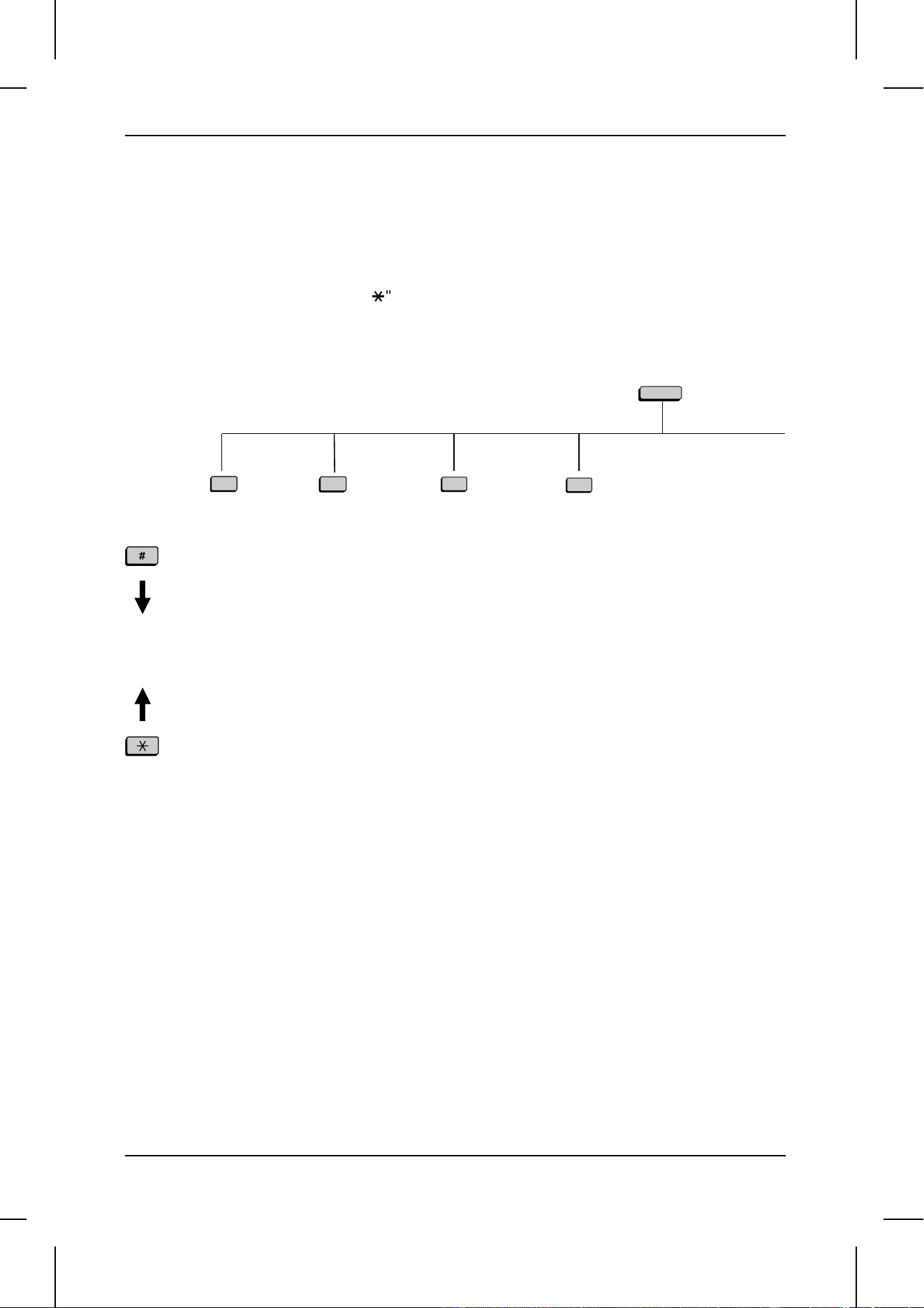
<P=002>
FUNCTION key menu
The following chart shows the layout of the functions and settings accessed by
pressing the FUNCTION key. First press the FUNCTION key, the appropriate numeric
key as shown, and then "#" or "
*
" until the desired setting appears.
Instructions for making each setting appear in the display. If you have any difficulty,
refer to the detailed instructions on the page shown below the setting.
FUNCTION
2
3
4
1
Reception
Mode
(3-14)
Listing Mode
Activity Report
(6-1)
Timer List (6-3)
Telephone
Number List (6-3)
Relay Group List
(6-3)
Passcode List
(6-4)
Option Setting
List (6-4)
Program/Group
List (6-4)
Batch
Transmission List
(6-5)
Department
Usage List (6-5)
Confidential
Reception List
(6-5)
Anti Junk Fax
Number List
(6-6)
Entry Mode
Fax/Tel
Numbers for
Auto Dialing (2-7)
Passcode
Number (4-19)
Own Number
and Name Set
(2-3)
Date and Time
Set (2-5)
ID Number (4-20)
System Number
(4-19)
Store Junk Fax
Number (4-35)
Department
Code Mode
(4-33)
Optional Settings
Fine Resolution
Priority (5-1)
Number of Rings
in Auto Answer
Mode (5-1)
Number of Rings
to Manual Answer
(5-1)
Auto Listing (5-2)
Transaction Report
Print Select (5-2)
Recall Times (5-2)
Recall Wait
Interval (5-2)
Security Selection
(5-2)
ECM (5-2)
Auto Cover Sheet
(5-2)
Memory Scanning
(5-3)
Copy Reduce (5-3)
Copy Cut-off (5-3)
Receive Reduce
(5-3)
Image Memory
Print (5-3)
Cassette Selection
(5-4)
Cassette
Changeover (5-4)
Retransmission
Times (5-4)
Retransmission
Interval (5-4)
Heater Mode (5-4)
Junk Fax Check (5-5)
Alarm Buzzer
(5-5)
Dial Mode (5-5)
Quick on Line
(5-5)
Multi TTI (5-4)
Beep Length (5-5)
Tel. Billing Code
(5-5)
Department Code
Mode (5-6)
Distinctive Ringing
(5-6)
QUICK REFERENCE GUIDE
QUICK REFERENCE GUIDE Quick-ii
7
8
9
<P=003>
Program/Group
Mode
Program Entry
Mode (4-25)
Group Entry
Mode (2-10)
Serial Polling
Mode
(4-12)
Memory
Polling
Mode
Memory Polling Set
(4-13)
Memory Polling
Clear (4-14)
QUICK REFERENCE GUIDE
Quick-iii QUICK REFERENCE GUIDE

UX5000U-ESQR
YF <P=001>
GUIA DE CONSULTA RAPIDA
Nota:
El marco punteado significa que el procedimiento puede ser opcional:
Transmisión de documentos
Marcación normal (1)
Marcación normal (2)
Marcación directa
con el teclado
Marcación con
Teclas Rápidas
Marcación Veloz
Remarcación
RESOLUTION
RESOLUTION
SPEED DIAL
RESOLUTION
RESOLUTION
RESOLUTION
REDIAL
START
START
START
START
→
→
→
→
→
→
→
→
→
→
→
→
→
→
→
→
→
→
→
Colocar el
documento
Descuelgue el auricular
o
pulse SPEAKER
Marque (pulse
teclas numéricas)
Espere el tono
recepción
Cuelgue
RESOLUTION
RESOLUTION
START
→
→
→
→
→
→
Descuelgue el
auricular
o
pulse SPEAKER
Marque (pulse
teclas numéricas)
Colocar el
documento
Espere el tono
recepción
Cuelgue
Colocar el
documento
Marque (pulse
teclas
numéricas)
Colocar el
documento
Pulse la Tecla
Rápida
Colocar el
documento
Introduzca el número de discado r pido
(presione las teclas numéricas, si
fueran menos de 3 digitos, para
completar el procedimiento presione
START.)
Colocar el
documento
Espere el tono
recepción
Spanish
GUIA DE CONSULTA RAPIDA Rapida-i

<P=002>
Menú de la FUNCTION
La tabla siguiente muestra una vista general de las funciones y ajustes obtenibles al
pulsar la tecla FUNCTION. Pulse primero la tecla FUNCTION, la tecla numérica
respectiva, tal como se indica, y luego "#" o "
*
" hasta visualizar el ajuste deseado.
En el visualizador se presentan las instrucciones para hacer cada ajuste. Si encuentra
problemas, remítase a las instrucciones detalladas contenidas en la página indicada
debajo del ajuste.
FUNCTION
2
3
4
1
Modo
recepción
(3-14)
Modo listado
Informe
Actividades (6-1)
Listado
Operaciones con
Temporizador
(6-3)
Listado de
números de
teléfono (6-3)
Lista de grupos
de retransmisión
(6-3)
Lista de código
secreto
(6-4)
Listado de
ajustes
opcionales (6-4)
Listado
Programas/
Grupos (6-4)
Lista de
transmisión en
grupo (6-5)
Lista de uso de
departamentos
(6-5)
Lista de
recepción
confidencial
(6-5)
Lista de
números
protegidos
contra fax de
terceros (6-6)
Modo de entrada
Números de
fax/teléfono
para
automarcación
(2-7)
Número de
código secreto
(4-19)
Registrar
número y
nombre de la
compañía o de
la persona (2-3)
Registrar la
fecha y la hora
(2-5)
Número de
identificación
(4-20)
Número de
sistema
(4-19)
Almacenar
número de fax
protegido
contra terceros
(4-38)
Dígitos de
código de
departamento
(4-37)
Ajustes opcionales
Prioridad de
resolución fina (5-1)
Número Timbres en
Modo Respuesta
Automática (5-1)
Número de timbres
en modo de
respuesta manual
(5-1)
Listado Automático
(5-2)
Elegir impresión de
informe de
transacciones (5-2)
Número de veces
que redisca (5-2)
Intervalo de espera
para rediscado (5-2)
Selección de
segridad (5-2)
MCE (5-2)
P gina de portada
autom tica (5-2)
Exploración de
memoria (5-3)
Reducir Copia (5-3)
Copia Cortada (5-3)
Reducir Recibidos
(5-3)
Impresión de
memoria de imagen
(5-3)
Selección de casete
(5-4)
Cambio de casete
(5-4)
Número de veces
que retransmite
(5-4)
Intervalo de
retransmisión (5-4)
Modo Calentador
(5-4)
Comprobar fax de
terceros (5-5)
Zumbador de
alarma (5-5)
Modo marcar (5-5)
Línea de conexión
inmediata (5-5)
Multi TTI (5-5)
Largo del tono
agudo(5-5)
Dígitos de código de
departamento
(5-6)
Timbre de
identificación (5-6)
GUIA DE CONSULTA RAPIDA
Rapida-ii GUIA DE CONSULTA RAPIDA
7
8
9
<P=003>
Modo
Programas/
Grupos
Modo Entrada
Programa
(4-25)
Modo Entrada
Grupo (2-10)
Modo polling en
serie
(4-12)
Modo de
memoria de
polling
Ajuste de memoria
de Polling (4-13)
Borrado de memoria
de Polling (4-14)
Spanish
GUIA DE CONSULTA RAPIDA
GUIA DE CONSULTA RAPIDA Rapida-iii

Notes
GUIA DE CONSULTA RAPIDA
Rapida-iv GUIA DE CONSULTA RAPIDA

UX5000U-ININ
INDEX
A
Activity Report . . . . . . . . . . . . . 6-1 - 6-2
Alarm Buzzer . . . . . . . . . . . . . . . . . 5-5
Anti Junk Fax . . . . . . . . . . . . . . 4-35, 5-5
Audible signals . . . . . . . . . . . . . . . . 8-4
Auto Cover Sheet . . . . . . . . . . . . . . . 5-2
AUTO reception mode . . . . . . . . . . . 3-14
Auto Listing . . . . . . . . . . . . . . . . . . 5-2
Automatic dialing, storing numbers . . . 2-7 - 2-9
B
Batch page numbering . . . . . . . . . . . . 3-8
Batch transmission . . . . . . . . . . 4-23 - 4-24
Batch Transmission List . . . . . . . . . . . 6-5
Beep length . . . . . . . . . . . . . . . . . . 5-5
Broadcasting . . . . . . . . . . . . . . 4-1 - 4-2
Broadcast key . . . . . . . . . . . . . . 2-3, 4-1
C
Cassette Changeover . . . . . . . . . . . . 5-4
Cassette Selection . . . . . . . . . . . . . . 5-4
Chain Dialing . . . . . . . . . . . . . . 2-7, 3-11
Changeover key . . . . . . . . . . . . . . . 2-1
Cleaning . . . . . . . . . . . . . . . . . . . 7-1
Clear key . . . . . . . . . . . . . . . . . 2-2, 2-5
Computer, connecting to . . . . . . . . . . . 1-7
Confidential key . . . . . . . . . . 2-2, 4-3 - 4-6
Confidential operations . . . . . . . . . 4-3 - 4-6
Confidential Reception List . . . . . . . . . . 6-5
Connections . . . . . . . . . . . . . . 1-5 - 1-7
Contrast . . . . . . . . . . . . . . . . . . . . 3-6
Contrast key . . . . . . . . . . . . . . . 2-2, 3-6
Copies . . . . . . . . . . . . . . . . . . . 3-17
Copy Cut-off . . . . . . . . . . . . . . . . . 5-3
Copy key . . . . . . . . . . . . . . . . 2-3, 3-17
Copy Reduce . . . . . . . . . . . . . . . . . 5-3
Cover sheet . . . . . . . . . . . . . . . . 3-7, 5-2
Cover sheet key . . . . . . . . . . . . . 2-3, 3-7
D
Date, setting . . . . . . . . . . . . . . . . . 2-6
Department Control . . . . . . . . . . 4-33 - 4-34
Department Usage List . . . . . . . . . . . . 6-5
Dial mode . . . . . . . . . . . . . . . . . . . 5-5
Dialing
Chain . . . . . . . . . . . . . . 2-8, 3-11
Direct Keypad . . . . . . . . . . . . 3-10
Normal . . . . . . . . . . . . . . 3-9, 3-19
Rapid Key . . . . . . . . . . . 3-10, 3-19
Search Dialing . . . . . . . . . 3-12 - 3-13
Speed . . . . . . . . . . . . . 3-11, 3-19
Direct Keypad Dialing . . . . . . . . . . . 3-10
Display . . . . . . . . . . . . . . . . . . . . 2-1
Display messages . . . . . . . . . . . . . . 8-3
Distinctive ring . . . . . . . . . . . . . 4-36, 5-6
Document carrier . . . . . . . . . . . . . . . 3-2
Document feeder . . . . . . . . . . . . . . . 3-5
Document guides . . . . . . . . . . . . . . . 3-5
Document key . . . . . . . . . . . 2-3, 3-3, 3-5
Document restrictions . . . . . . . . . . . . 3-1
Document rollers . . . . . . . . . . . . . . . 7-1
Document sizes . . . . . . . . . . . . . . . 3-1
Document, readable length and width . . . . 3-1
Down key . . . . . . . . . . . . . . . . 2-2, 2-11
Drum cartridge . . . . . . . . . . . . . 1-2 - 1-4
Drum cartridge indicator . . . . . . . . 1-4, 2-1
E
Electrical outlet . . . . . . . . . . . . . . . . 1-6
Error Correction Mode . . . . . . . . . . . . 5-2
F
Fine Resolution Priority . . . . . . . . . . . . 5-1
Function key . . . . . . . . . . . . 2-3, Quick-ii
G
Group Keys . . . . . . . . . . . . . . . . . . 2-10
H
Halftone . . . . . . . . . . . . . . . . . . . . 3-6
Handset . . . . . . . . . . . . . . . . . . . . 1-5
Heater . . . . . . . . . . . . . . . . . . . . 5-4
Housing, cleaning . . . . . . . . . . . . . . 7-1
I
Image Memory Print . . . . . . . . . . . . . 5-3
J
Junk fax number check . . . . . . . . . 4-38, 5-5
Jams, clearing . . . . . . . . . . . . . 8-5 - 8-6
L
Letters, entering . . . . . . . . . . . . . . . 2-5
Letter entry keys . . . . . . . . . . . . . . . 2-5
Life key . . . . . . . . . . . . . . . . . . 1-4, 2-2
LINE jack . . . . . . . . . . . . . . . . . . . 1-5
Line status light . . . . . . . . . . . . . . . . 2-1
Loading the document . . . . . . . . . . . . 3-5
M
MANUAL reception mode . . . . . . 3-14, 3-15
Memory
Transmission . . . . . . . . . . 3-2 - 3-4
Reception . . . . . . . . . . . . . . . 3-16
Index-i

Memory retransmission . . . . . . . . . 3-3, 5-4
Memory Scanning . . . . . . . . . . . . . . 5-3
Memory Status key . . . . . . 2-2, 3-4, 3-16, 3-18
Multi TTI . . . . . . . . . . . . . . . . . . . 5-5
N
Normal Dialing . . . . . . . . . . . . . . . . 3-9
Number of rings in auto reception . . . . . . 5-1
Number of rings in manual reception . . . . 5-1
Numeric keys . . . . . . . . . . . . . . . . . 2-3
O
Optional Settings List . . . . . . . . . . . . 6-4
Original document OUT tray . . . . . . . . . 1-6
P
Page counter key . . . . . . . . . . . . 2-2, 3-8
Paper cassettes . . . . . . . . . . . . . 1-7 - 1-8
Paper, loading . . . . . . . . . . . . . . 1-7 - 1-9
Paper jams, clearing . . . . . . . . . . . 8-5 - 8-6
Paper out indicator . . . . . . . . . . . . . . 2-1
Paper tray . . . . . . . . . . . . . . . . 1-8 - 1-9
Passcode List . . . . . . . . . . . . . . . . 6-4
Pauses in automatic dialing numbers . . . . 2-7
Polling . . . . . . . . . . . . . . . . 4-12 - 4-16
Power cord . . . . . . . . . . . . . . . . . . 1-6
Power switch . . . . . . . . . . . . . . . . . 1-6
Priority key . . . . . . . . . . . 2-3, 3-2 - 3-3, 3-5
Program and Group List . . . . . . . . . . . 6-4
Programs . . . . . . . . . . . . . . . 4-25 - 4-32
Q
Quick on line . . . . . . . . . . . . . . . . . 5-5
R
Rapid Key Dialing . . . . . . . . . . . . . . 3-10
Rapid Dial Keys . . . . . . . . . . . . . . . 2-2
Reading glass, cleaning . . . . . . . . . . . 7-1
Recall Wait Interval . . . . . . . . . . . . . 5-2
Recall Times . . . . . . . . . . . . . . . . . 5-2
Receive Reduce . . . . . . . . . . . . . . . 5-3
Reception mode . . . . . . . . . . . . . . . 3-14
Setting . . . . . . . . . . . . . . . . . 3-14
AUTO mode . . . . . . . . . . . . . . 3-14
MANUAL mode . . . . . . . . . . . . 3-15
Redial key . . . . . . . . . . . . 2-3, 3-13, 3-19
Redialing . . . . . . . . . . . . . . . . 3-13, 3-19
Relay Broadcast . . . . . . . . . . . . . . . 4-11
Relay Group List . . . . . . . . . . . . . . . 6-3
Relay key . . . . . . . . . . . . . 2-2, 4-8 - 4-11
Relay Request . . . . . . . . . . . . . 4-7 - 4-10
Report key . . . . . . . . . . . . . . . . 2-3, 6-6
Resolution . . . . . . . . . . . . . . . . . . 3-6
Resolution key . . . . . . . . . . . . . . 2-1, 3-6
Retransmission Interval . . . . . . . . . . . 5-4
Retransmission Times . . . . . . . . . . . . 5-4
Ringing volume . . . . . . . . . . . . . . . . 2-11
Rollers, cleaning . . . . . . . . . . . . . . . 7-1
S
Search Dial Key . . . . . . . . . 2-2, 3-12 - 3-13
Search Dialing . . . . . . . . . . . . 3-12 - 3-13
Sender’s name and number, entering . . . . 2-4
Service indicator . . . . . . . . . . . . . . . 2-1
Shift key . . . . . . . . . . . . . . . . . 2-2, 2-5
SP key . . . . . . . . . . . . . . . . . . 2-2, 2-5
Space key . . . . . . . . . . . . . . . . 2-2, 2-5
Speaker key . . . . . . . . . . . . 2-3, 3-9, 3-19
Speaker volume . . . . . . . . . . . . . . . 2-11
Speed Dial key . . . . . . . . . . 2-3, 3-11, 3-19
Speed Dialing . . . . . . . . . . . . 3-11, 3-19
Start key . . . . . . . . . . . . . . . . . . . 2-3
Stop key . . . . . . . . . . . . . . . . . . . 2-3
Storing numbers for automatic dialing . 2-7 - 2-9
T
Telephone, using as . . . . . . . . . . . . . 3-19
Telephone billing code . . . . . . . . . . . . 5-5
Telephone line cord . . . . . . . . . . . . . 1-5
Telephone Number List . . . . . . . . . . . 6-3
Time, setting . . . . . . . . . . . . . . . . . 2-6
Timer key . . . . . . . . . . . . . 2-2, 4-17, 4-22
Timer List . . . . . . . . . . . . . . . . . . . 6-3
Timer operations . . . . . . . . . . . 4-17 - 4-22
Toner cartridge . . . . . . . . . . . . . 1-2 - 1-4
Toner cartridge indicator . . . . . . . . . 1-4, 2-1
Transaction Report . . . . . . . . . . . . . . 6-6
Transaction Report Print Select . . . . . . . 5-2
U
Up key . . . . . . . . . . . . . . . . . 2-2. 2-11
INDEX
Index-ii

UX5000U-WARRANTY
LIMITED WARRANTY
SHARP ELECTRONICS CORPORATION warrants to the first end user purchaser that this Sharp brand product (the
"Product"), when shipped in its original container, will be free from defective workmanship and materials, and agrees that
it will, at its option, either repair the defect or replace the defective Product or part thereof with a new or remanufactured
equivalent at no charge to the purchaser for parts or labor for the period(s) set forth below.
This warranty does not apply to any appearance items of the Product nor to the additional excluded item(s) set forth below
nor to any product the exterior of which has been damaged or defaced, which has been subjected to misuse, abnormal
service or handling, or which has been altered or modified in design or construction.
In order to enforce the rights under this limited warranty, the purchaser should follow the steps set forth below and provided
proof of purchase to the servicer.
To the extent permitted by applicable state law, the warranties set forth herein are in lieu of, and exclusive of, all other
warranties, express or implied. Specifically, ALL OTHER WARRANTIES OTHER THAN THOSE SET FORTH ABOVE ARE
EXCLUDED. ALL EXPRESS AND IMPLIED WARRANTIES INCLUDING THE WARRANTIES OF MERCHANTABILITY,
FITNESS FOR USE, AND FITNESS FOR A PARTICULAR PURPOSE ARE SPECIFICALLY EXCLUDED. If, under
applicable state law, implied warranties may not validly be disclaimed or excluded, the duration of such implied warranties
is limited to the period(s) from the date of purchase set forth below.
Neither the sales personnel of the seller nor any other person is authorized to make any warranties other than those
described above, or to extend the duration of any warranties beyond the time period described above on behalf of Sharp.
The warranties described herein shall be the sole and exclusive warranties granted by Sharp and shall be the sole and
exclusive remedy available to the purchaser. Correction of defects, in the manner and for the period of time described
herein, shall constitute complete fulfillment of all liabilities and responsibilities of Sharp to the purchaser with respect to the
Product, and shall constitute full satisfaction of all claims, whether based on contact, negligence, strict liability or otherwise.
In no event shall Sharp be liable, or in any way responsible, for any damages or defects in the Product which were caused
by repairs or attempted repairs performed by anyone other than an authorized servicer. Nor shall Sharp be liable or in any
way responsible for any incidental or consequential economic or property damage. Some states do not allow limits on
warranties or on remedies for breach in certain transactions; in such state the limits herein may not apply.
Your Product:
Personal Facsimile
Warranty Period for this Product:
Ninety (90) days parts and labor from date of purchase.
Additional items excluded
from warranty coverage:
Any consumable items such as paper supplied with the Product.
Where to obtain service:
At a Sharp Authorized Servicer located in the United States. To find out
the location of the nearest Sharp Authorized Servicer, call Sharp toll
free at 1-800-BE-SHARP.
What to do to obtain service:
Ship (prepaid) or carry in your Product to a Sharp Authorized Servicer.
Be sure to have proof of purchase available. If you ship or mail the
Product, be sure it is packaged carefully.
For product information or customer assistance, please visit http://www.sharp-usa.com on
the World Wide Web or call 1-800-BE SHARP.
SHARP ELECTRONICS CORPORATION
Sharp Plaza,
Mahwah, New Jersey 07430-2135

UX5000U-BACK
SHARP ELECTRONICS CORPORATION
Sharp Plaza, Mahwah, New Jersey 07430-2135
SHARP CORPORATION
PRINTED IN JAPAN
(TINSE3951SCZZ)