Interactive
Remote
Commander
4-239-564-12(1)
RM-TP1
© 2002 Sony Corporation
Owner’s Record
The model and serial numbers are located on the rear of the unit. Record the serial
number in the space provided below. Refer to them whenever you call upon your Sony
dealer regarding this product.
Model No. Serial No.
Operating Instructions
Mode d’emploi
GB
FR
2
GB
WARNING
For customers in Europe
To prevent fire, do not Cover the ventilation of the
apparatus with news papers, table-cloths, curtains,
etc. And don’t place lighted candles on the apparatus.
To prevent fire or shock hazard, do not place objects
filled with liquids, such as vases, on the apparatus.
Don’t throw away the battery with
general house waste, dispose of it
correctly as chemical waste.
For customers in the Unites States
This symbol is intended to alert the user to
the presence of uninsulated “dangerous
voltage” within the product’s enclosure that
may be of sufficient magnitude to constitute
a risk of electric shock to persons.
This symbol is intended to alert the user to
the presence of important operating and
maintenance (servicing) instructions in the
literature accompanying the appliance.
To prevent fire or shock hazard, do not
expose the unit to rain or moisture.
WARNING
This equipment has been tested and found to comply
with the limits for a Class B digital device, pursuant
to Part 15 of the FCC Rules.
These limits are designed to provide reasonable
protection against harmful interference in a residential
installation. This equipment generates, uses, and can
radiate radio frequency energy and, if not installed
and used in accordance with the instructions, may
cause harmful interference to radio communications.
However, there is no guarantee that interference will
not occur in a particular installation. If this
equipment does cause harmful interference to radio or
television reception, which can be determined by
turning the equipment off and on, the user is
encouraged to try to correct the interference by one or
more of the following measures:
– Reorient or relocate the receiving antenna.
– Increase the separation between the equipment and
control amplifier.
– Connect the equipment into an outlet on a circuit
different from that to which the control amplifier is
connected.
– Consult the dealer or an experienced radio/TV
technician for help.
CAUTION
You are cautioned that any changes or modifications
not expressly approved in this manual could void
your authority to operate this equipment.
If you have any questions about this product, you may
call; Sony Customer Information Center 1-800-488-7669.
The Number below is for the FCC related matters only.
Regulatory Information
Declaration of Conformity
Trade name: SONY
Model No.: RM-TP1
Responsible Party: Sony Electronics Inc.
Address: 680 Kinderkamack Road, Oradell,
NJ. 07649 USA
Telephone No.: 201-930-6972
This device complies with Part 15 of the FCC
Rules. Operation is subject to the following two
conditions:
(1) This device may not cause harmful
interference, and (2) this device must accept any
interference received, including interference that
may cause undesired operation.
For customers in Canada
This Class B digital apparatus complies with
Canadian ICES-003.
CAUTION
TO PREVENT ELECTRIC SHOCK, DO NOT USE
THIS POLARIZED AC PLUG WITH AN
EXTENSION CORD, RECEPTACLE OR OTHER
OUTLET UNLESS THE BLADES CAN BE FULLY
INSERTED TO PREVENT BLADE EXPOSURE.
3
GB
Features ................................................. 4
Preparations
Compatible components and functions .....
5
Preparing the commander...................... 5
Screen hierarchy .................................... 7
Location of Parts and
Controls
Front panel............................................. 8
Rear panel.............................................. 9
Basic Operations
Registering the components ................10
Operating the components...................11
Operations for Sony
Amplifiers/Receivers
Operating the amplifier/receiver ......... 18
2 Way Remote Operations
Operating the amplifier/receiver ......... 20
Operating the tuner .............................. 21
Operating the CD player or MD deck ....
21
Table of Contents
Advanced Operations
Performing several commands in
sequence automatically
(Macro Play).................................. 22
Learning the commands of other remote
commanders .................................. 25
Switching the function on the amplifier/
receiver automatically
(AMP LINK) ................................. 28
Changing the name of the remote
(component) .................................. 28
Adjusting the commander’s operating
environment .................................. 29
Additional Information
Safety regulations ................................ 31
Precautions .......................................... 33
Troubleshooting................................... 34
Specifications ...................................... 35
Maker compatibility list ...................... 36
GB
4
GB
Features
The RM-TP1 Interactive Remote Commander provides centralized control of all your AV
components from a single remote commander and saves you the trouble of operating different AV
components with different remote control devices. Its main features are as follows:
Centralized control of Sony AV components with this one remote
commander
This Commander is preset to operate Sony brand components, so you can use it right out of the
box as a control center for your Sony AV components. This Commander also incorporates a
variety of operations especially for Sony amplifiers/receivers (page 18).
2 way remote operations
This Commander is of a 2 way remote system. You can operate Sony 2 way components (with
Control A1/A1
control system) with this Commander (page 19).
Preset remote control signals for non-Sony components
This Commander also contains presets for most other major component manufacturers. You can
remote control your components by registering them (page 10).
Macro Play Function for one-touch operation of several commands
You can program the Commander to execute a series of operations (up to 24 steps) from a single
key (page 22). You can program up to 16 Macro Plays.
Learning Function for programming additional remote control signals
This Commander has a Learning Function, to learn the signals from other remotes and operate
non-preset components or functions (page 25). The Learning Function can be used with preset
operation keys and USER RESERVE KEYS.
Easy-to-operate touch sensitive LCD and the jog dial
This Commander has a touch sensitive LCD that displays operation keys according to the selected
component. You can operate components by touching the displayed keys or turning the jog dial.
The display backlight allows operation even in the dark.
Name Editing Function for remote (component) names and MACRO names
You can edit the remotes (components) names and the Macro Play names (pages 23 and 28). This
function is useful for distinguishing each component or Macro Play.
Frequently used amplifier/receiver and TV control buttons are on the front
panel
The frequently used amplifier/receiver and TV control buttons are located on the front panel, so
that you can easily operate the amplifier/receiver and TV while operating other AV components.
5
GB
Preparations
This chapter describes how to prepare the
remote commander for operation. Be sure to
read this section before operating.
Compatible components
and functions
This unit is a remote control system that
utilizes infrared rays to control amplifiers/
receivers and AV components.
Compatible Components
This unit can be used to operate Sony AV
components as well as AV components made
by other manufacturers. Setup is necessary in
order to operate components made by other
manufacturers (page 10).
Note
Depending on the component, control may not be
possible using this unit.
Functions
This commander operates under the 1 way and
the 2 way remote system. As a 2 way remote
commander, you can operate the Sony
components compatible with the 2 way remote
system. Under the 2 way remote system, not
only does it transmit infrared rays for operation
of the amplifier/receiver, it also receives
infrared rays emitted by the amplifier/receiver
to display characters and other information
from components connected to the amplifier/
receiver with a CONTROL A1/A1
cord. This
commander can also exchange data directly
with 2 way CD players (page 19).
In addition, this commander is equipped with 2
remote code transmitter/receiver sections in
order to provide a greater operating range.
Preparations
Preparing the commander
Charging the battery
Before you use the commander, charge the
battery. The exclusive rechargeable battery is
built-in.
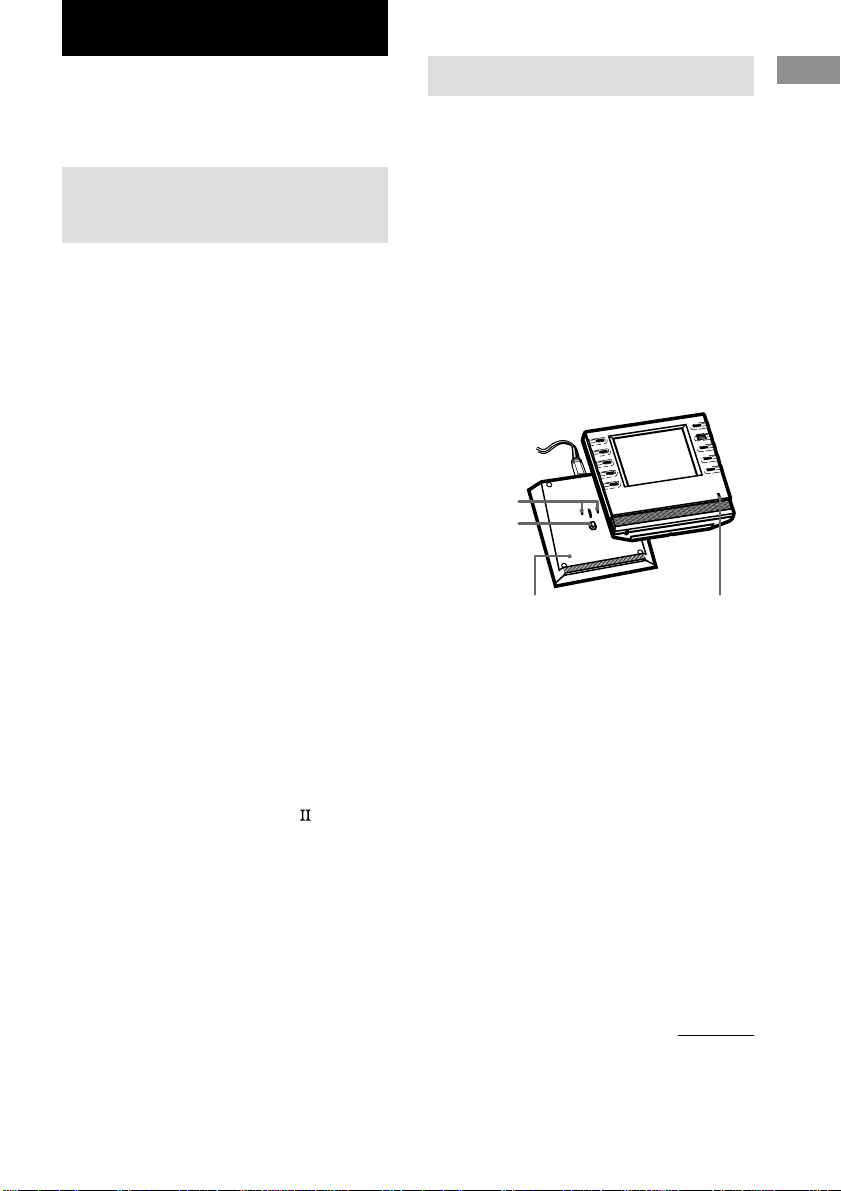
1 Connect the AC adapter to the battery
charger.
2 Place the commander on the battery
charger.
The indicator lights in red while charging.
Charging is finished when the lights turns to
green. It takes about 6 hours to fully charge
the battery.
Notes
• The contrast and the touch panel is adjusted
correctly when shipped. If the LCD shifts from the
normal operating position, or the LCD is too bright
or dark to see, use RM SETUP screen to adjust
them (page 29).
• The LCD turns on when touched. The LCD also
turns on when the BACK LIGHT button is pressed.
• ?/1/SYSTEM STANDBY, MASTER VOL +/–,
MUTING, SLEEP, TV INPUT, TV CH +/–, and
TV VOL +/– buttons can be used even when the
LCD is not lit.
• Pressing the BACK LIGHT button turns the
backlight on or off. Holding it down for about 2
seconds turns the LCD off.
• If the commander is not used for 60 seconds, the
LCD turns off automatically (Auto Off function).
The Auto Off function can be changed between 10
and 90 seconds under “Setting the LCD turn off
time” in the RM SETUP screen (page 30).
Indicator
continued
Battery charger
Charge switch
Charger terminals
6
GB
When to recharge the battery
When the battery become weak, E appears.
Recharge the battery.
Tip
Under normal conditions, the battery should last
approximately 5 days per charge*. However,
depending on how the commander is used and the
initial voltage of the battery, the actual period of use
per charge may be shorter or longer than that
mentioned above.
*
This value is based on 60 key operations a day with the
backlight on. If the backlight is turned off, the battery
should last much longer. In order to extend the life of the
battery, it is recommended to keep the backlight off when
operating the commander in a well lit area.
Caution
If E appears, recharge the battery as soon as possible.
If you leave the commander uncharged for more than
2 months, the adjusted settings may be cleared.
Notes
• When E appears, the backlight turns off
automatically.
• If the operatione period after recharging becomes
extremely short, the battery should be replaced. On
replacing the battery, please consult your nearest
Sony dealer.
RECYCLING NICKEL METAL HYDRIDE
BATTERIES
(For customers in the United States and
Canada)
Nickel Metal Hydride batteries
are recyclable.
You can help preserve our
environment by returning your
used rechargeable batteries to
the collection and recycling
location nearest you.
For more information regarding recycling of
rechargeable batteries, call toll free
1-800-822-8837, or visit http://www.rbrc.org/
Caution: Do not handle damaged or leaking Nickel
Metal Hydride batteries.
Preparing the commander (continued)
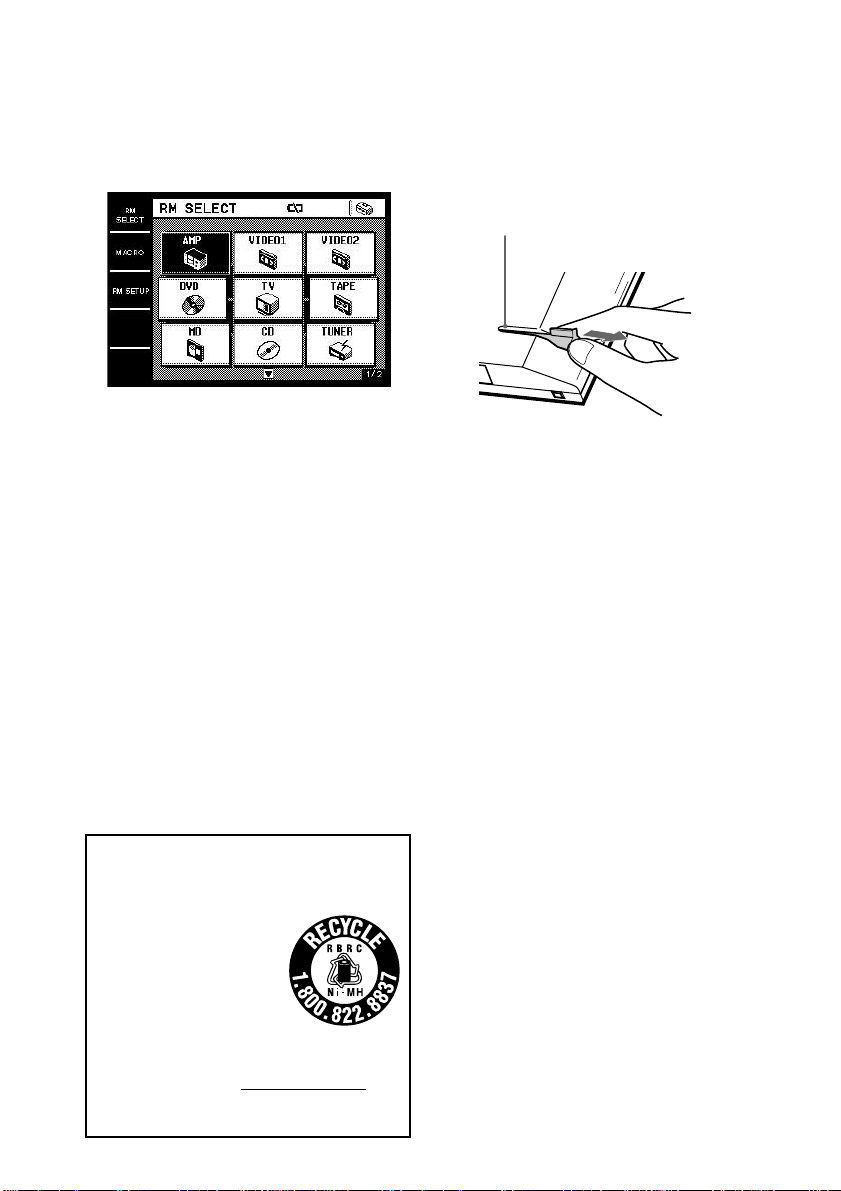
Touch pen holder
Using the touch pen
The commander’s panel is touch sensitive and
can be operated simply by touching it.
Remove the touch pen.
When returning the touch pen, always slide it
in tip first.
Caution
Use only the touch pen provided with this unit or the
soft tip of your finger to operate the touch panel.
Using a commercially available writing utensil may
damage the panel and make correct operation
impossible. If the tip of the touch pen is damaged, or
the touch pen is lost, please consult your nearest Sony
dealer.
Remove by
sliding out.
7
GB
Preparations
Screen hierarchy
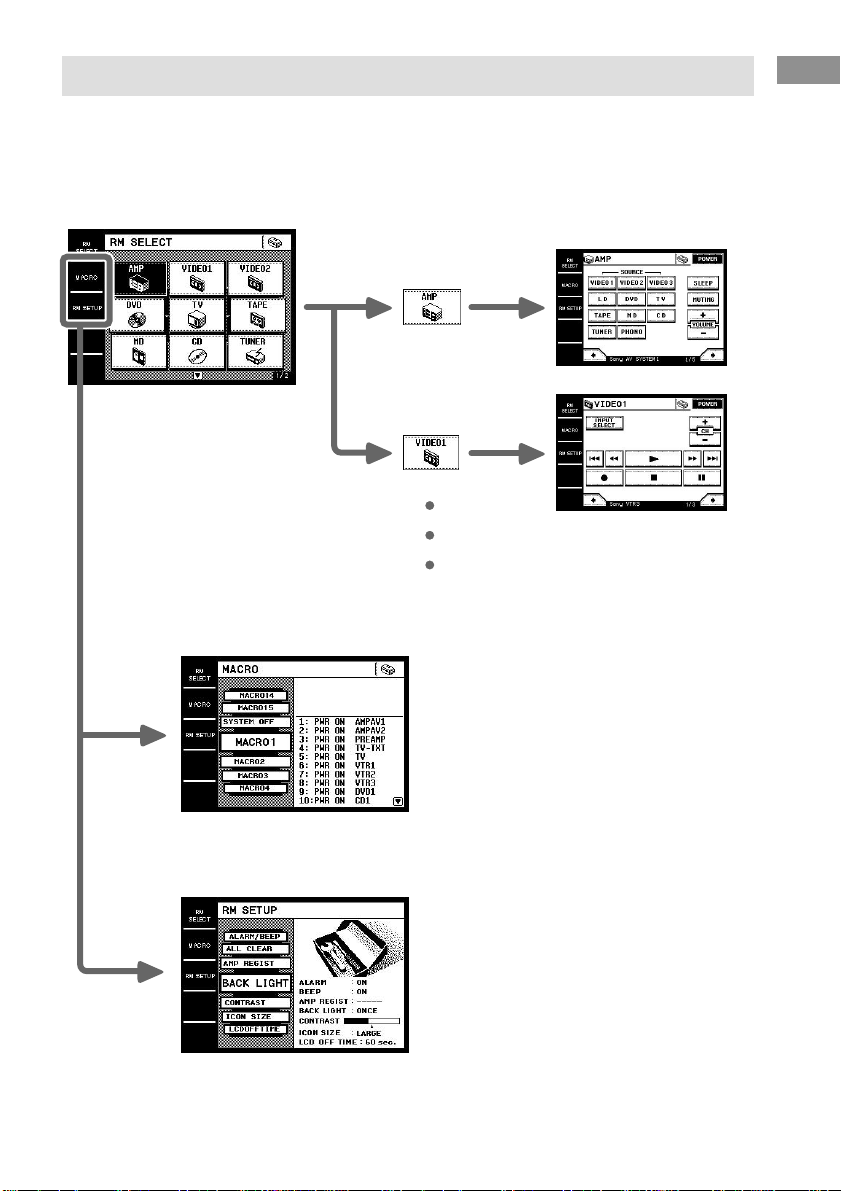
The following diagram shows the basic composition of this unit’s screen hierarchy.
RM SELECT screen
Appears when RM SELECT is touched.
When you select the remote (component), the component operation screen appears.
MACRO screen
Appears when MACRO is touched. This screen is for performing several commands in
sequence automatically (page 22).
RM SETUP screen
Appears when RM SETUP is touched. This screen is for setting up the operation environment
(page 29).
8
GB
This chapter provides information on the
location of buttons and how to use them to
perform basic operations.
However, some functions explained in this
section may not operate depending on the
component you are controlling.
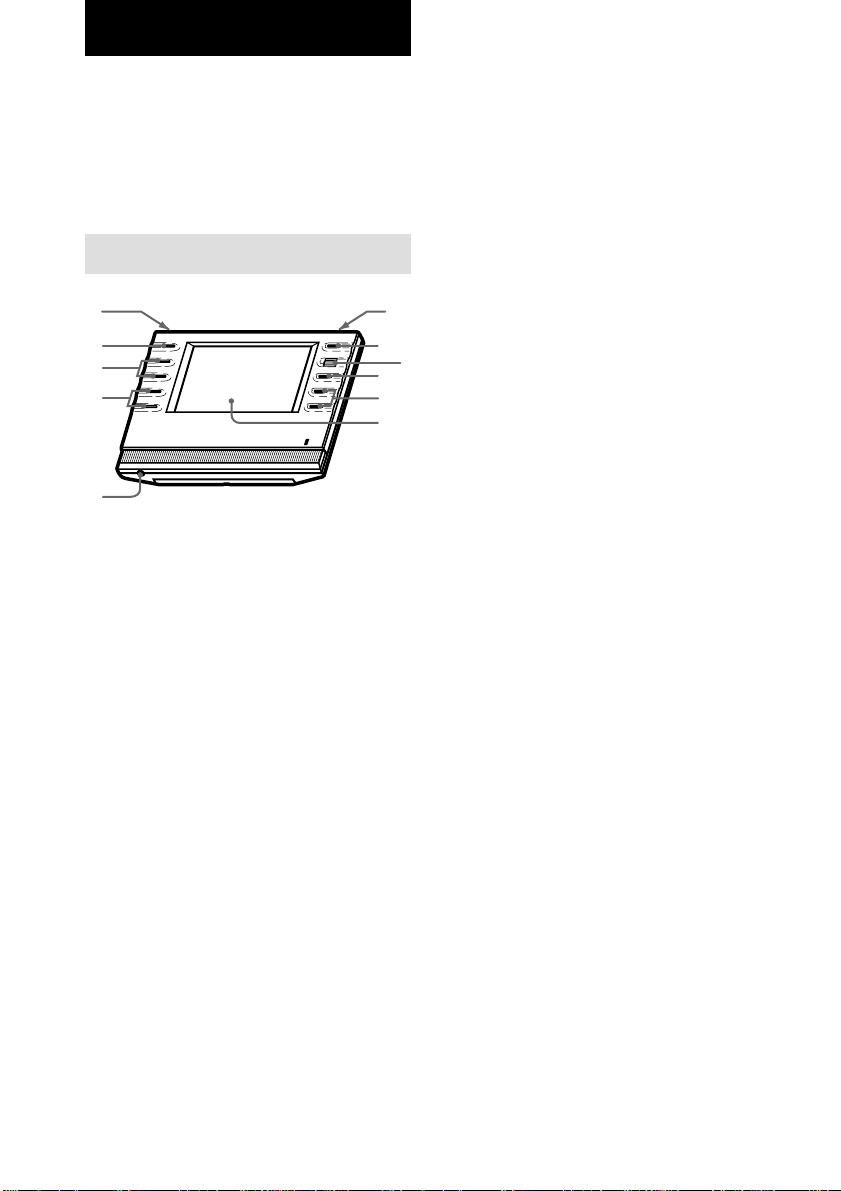
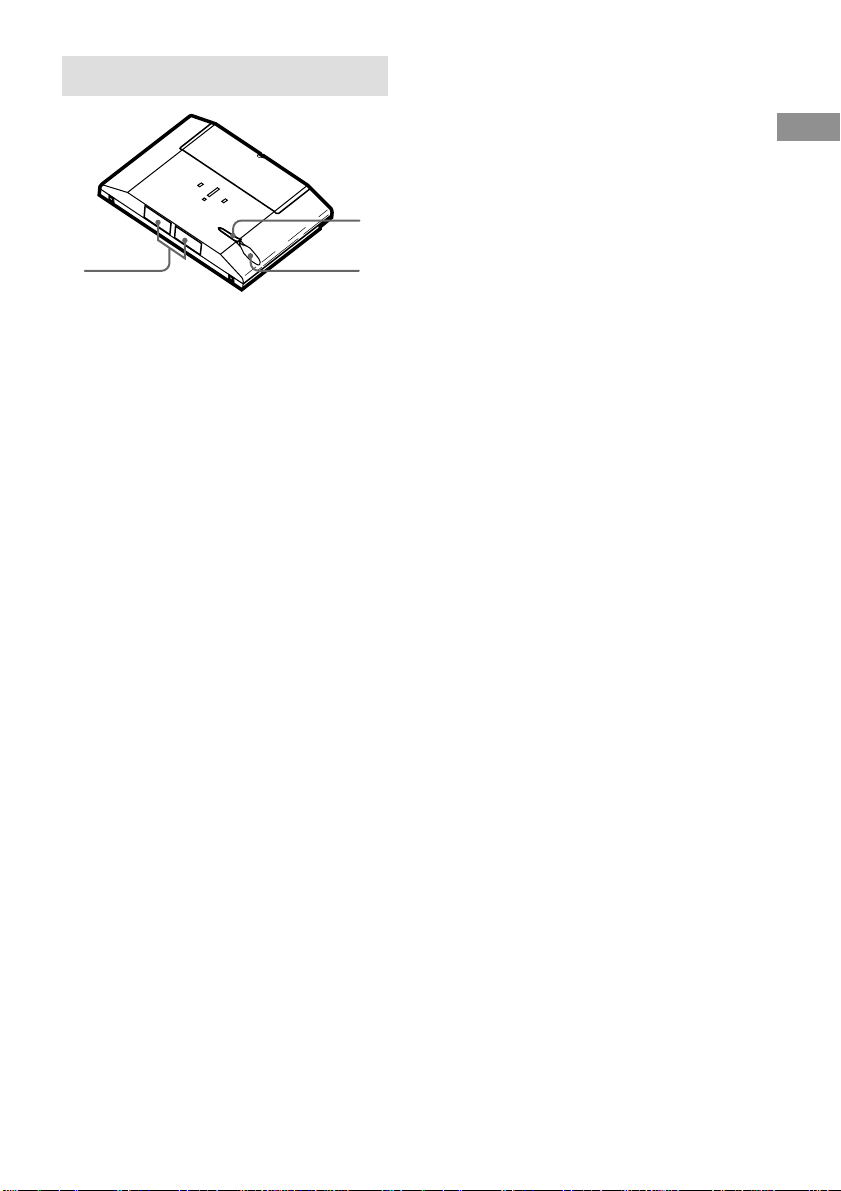
Front panel
1 BACK LIGHT button
Press to turn the backlight on or off. Hold
down for about 2 seconds to turn the LCD
off. When the LCD is off, press to turn on
the LCD and backlight.
• To prolong use of the battery, the LCD
automatically turns off if there is no command
entered in the touch panel for 60 seconds.
• To view the LCD display without turning on the
backlight, touch the touch panel when both the
backlight and LCD are off.
2 ?/1/SYSTEM STANDBY button*
Normally used to turn the amplifier/receiver
on or off.
When pressed more than 2 seconds, it turns
off all Sony components (SYSTEM
STANDBY) by executing the Macro Play
function SYSTEM OFF program (page 22).
3 Jog dial
Rotate to scroll through items in a list (etc.).
Push to select the highlighted item.
Location of Parts and Controls
4 MUTING button*
Use to mute the sound of the amplifier/
receiver.
5 MASTER VOL +/– buttons*
Use to adjust the volume of the amplifier/
receiver.
6 Touch panel
Touch to operate. The commander turns on
automatically.
7 Stereo mini jack
Use to upgrade the firmware in the future.
8 TV VOL +/– buttons*
Use to adjust the volume of the TV.
9 TV CH +/– buttons*
Use to select the channel of the TV.
0 TV INPUT button*
Use to select the input of the TV.
qa SLEEP button*
Use to operate the amplifier/receiver’s sleep
timer function. The sleep timer settings
appear in the amplifier/receiver’s display,
not the commander’s LCD.
* The commander emits the remote code for
operating the AMP (amplifier/receiver) or TV that
is registered to this commander using the IR
SETUP function (page 10).
If you register two or more AMPs or TVs, the
commander emits the remote code for the
component (icon) that appears first (on the left top
side) in the RM SELECT screen.
1
2
4
6
7
8
9
0
qa
3
5
9
GB
Location of Parts and Controls
Rear panel
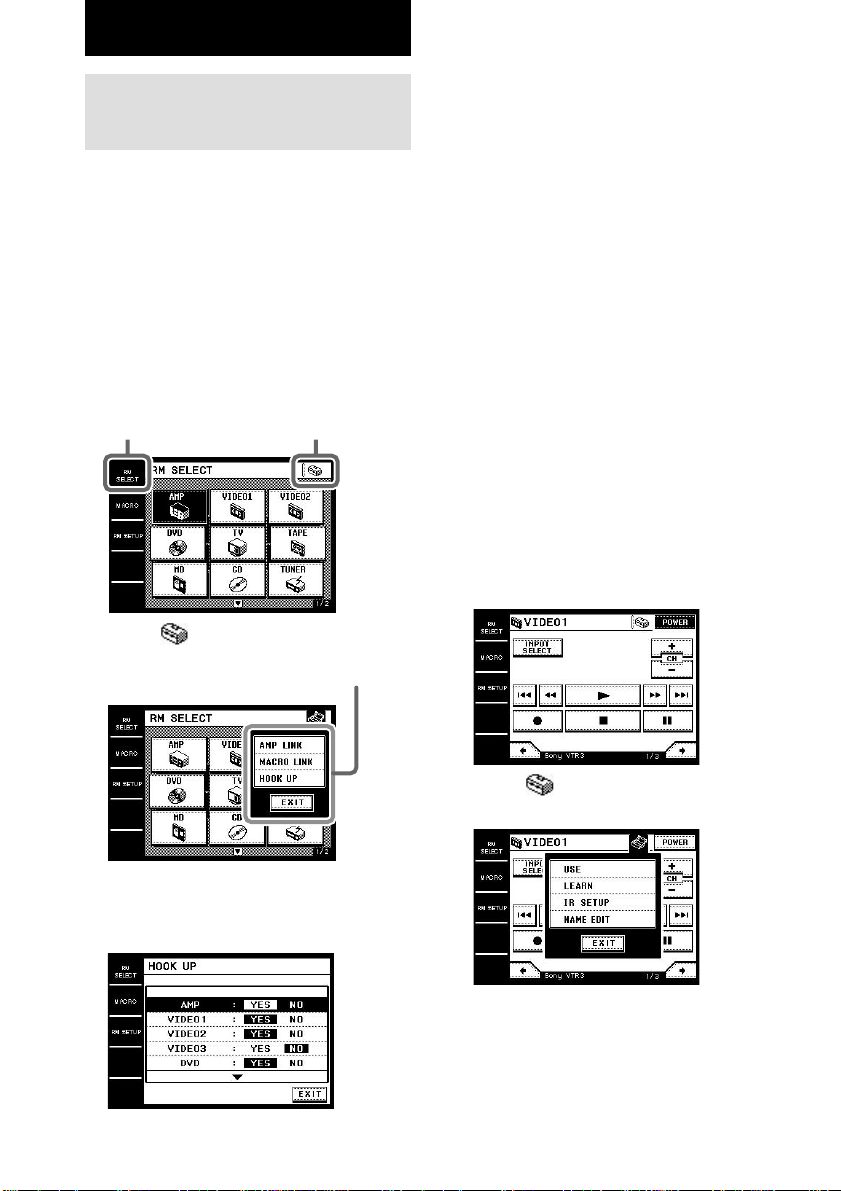
1 Touch pen
2 Touch pen holder
Keep the touch pen here when not in use.
3 Transmitter/receiver section
Remote code receiver section
Transmits and receives infrared signals to
and from the component.
When using the Learning function, this
section receives the remote codes from
other remote controls.
23
1
10
GB
Registering the
components
The following procedure lets you set up the
commander to operate the components.
RM SELECT screen setup
(HOOK UP)
You can set the RM SELECT screen not to
display the remotes (components) you do not
use.
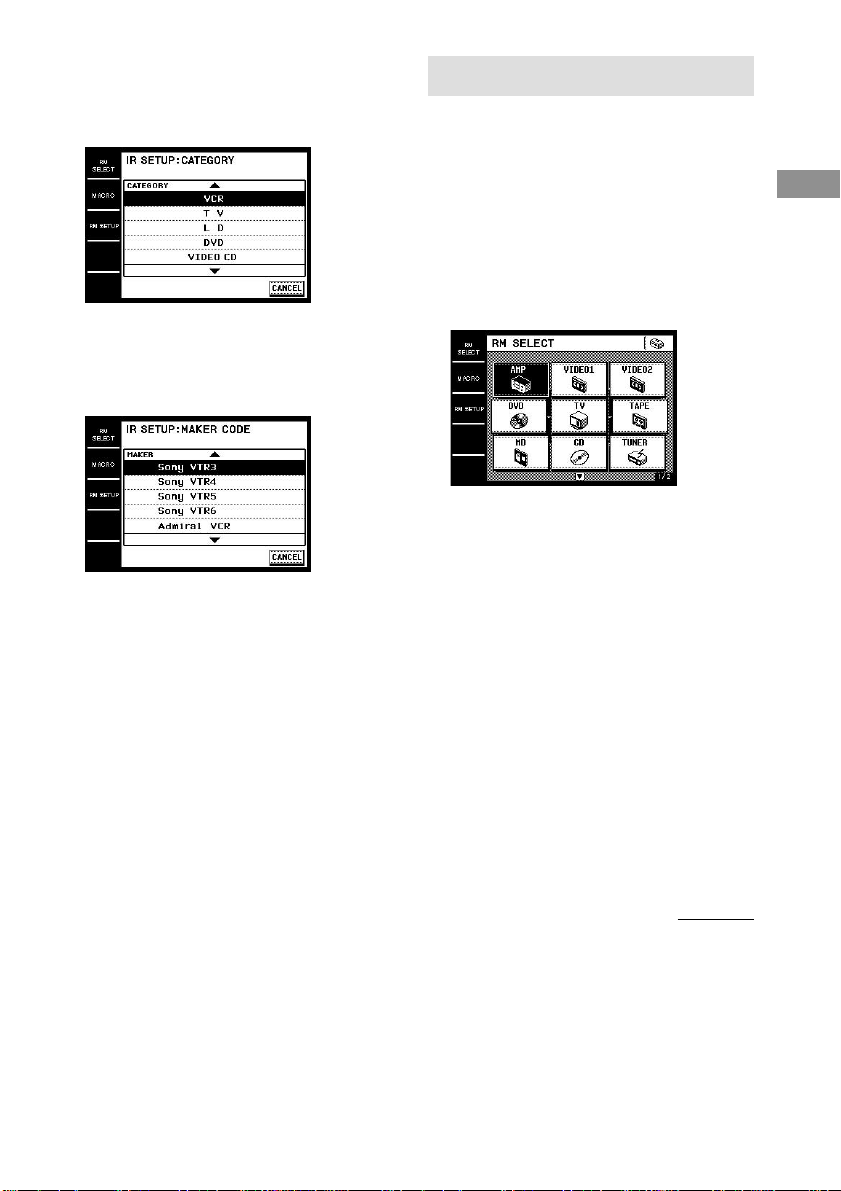
1 Touch RM SELECT.
The RM SELECT screen appears.
2 Touch .
The pull-down menu appears.
3 Touch HOOK UP in the pull-down
menu.
The HOOK UP screen appears.
Basic Operations
4 Select the component not to be
displayed and touch NO.
To display other items, use the jog dial, or
touch v or V to scroll through the list.
To display the components in the RM
SELECT screen
Touch YES instead of NO in step 4.
Tip
Components that have been registered (see below) are
set to “YES” automatically.
Registering the components
(IR SETUP)
1 Touch RM SELECT.
The RM SELECT screen appears.
2 Touch the remote (component) you
want to register (“VIDEO1” for
example).
Or, turn the jog dial to select the remote
(component), then press the jog dial to enter
the selection. The screen for operating the
component appears.
To display other items, use the jog dial, or
touch v or V to scroll through the list.
3 Touch .
The pull-down menu appears.
Touch here to display the
pull-down menu.
RM SELECT
Pull-down menu
11
GB
Basic Operations
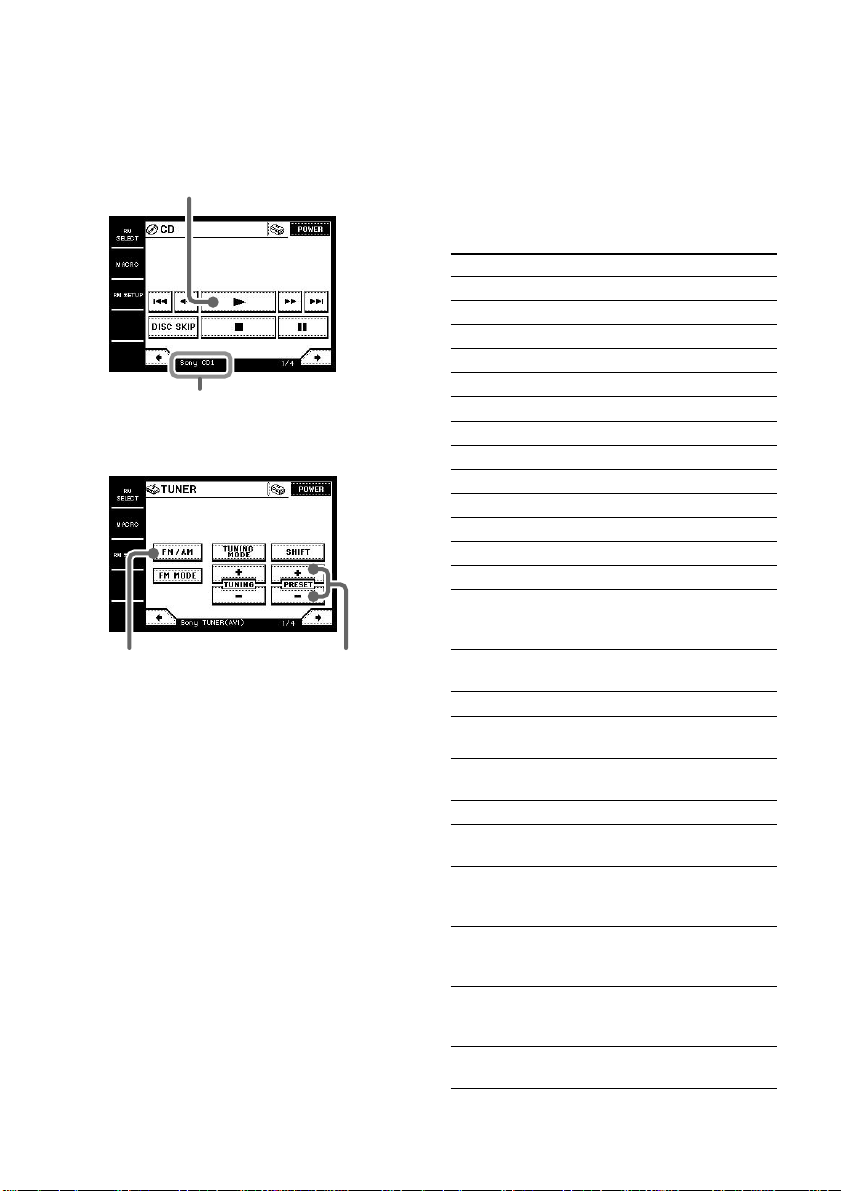
4 Touch IR SETUP in the pull-down
menu.
The IR SETUP: CATEGORY screen
appears.
5 Select the component category (“VCR”
for example).
To display other items, use the jog dial, or
touch v or V to scroll through the list. The
IR SETUP: MAKER CODE screen appears.
6 Select the maker and the command
mode for the component (“Sony VTR1”
for example).
See “Maker compatibility list” on page 36.
The component selected in steps 5 and 6
will be registered at the remote (component)
selected in step 2, and the screen for the
selected category appears. The IR setting is
displayed at the bottom of the screen.
A long beep sound is emitted to indicate
that registration was successful. Operation
is now possible from the RM SELECT
screen.
To stop registration at any time
Touch EXIT or CANCEL during any step.
Notes
• Depending on the maker, certain remote codes may
not exist and cannot be operated with the keys
(icons) on the screen. These keys are dimmed.
• When registering components made by certain
manufacturers, some commands may not function
even though they are displayed.
• Depending on the model or the model year, you
cannot operate the component even it is listed in the
“Maker compatibility list”. In this case, you can use
the Learning function to program the commands of
the remote supplied with the component (page 25).
Operating the components
Selecting the remote
(component)
To operate the registered components, first
display the RM SELECT screen, then select the
remote (component) you want to operate (CD,
MD, etc.).
1 Touch RM SELECT.
The RM SELECT screen appears.
2 Touch the remote (component) you
want to operate.
Or, turn the jog dial to select the remote
(component), then press the jog dial to enter
the selection. The screen for operating the
component appears. Touch B or b to
display other screens. See the tables on
pages 12–17 for information on the
displayed keys.
To display other items, use the jog dial, or
touch v or V to scroll through the list.
Tips
• You can change the name of remotes (components)
(page 28).
• On the last screen for each remote (component),
there are 8 keys specially for use with the Learning
function (USER RESERVE KEYS). You can use
these keys for programming additional remote
codes (page 27).
continued
12
GB
Operation examples
Operating a CD player
Operating a tuner
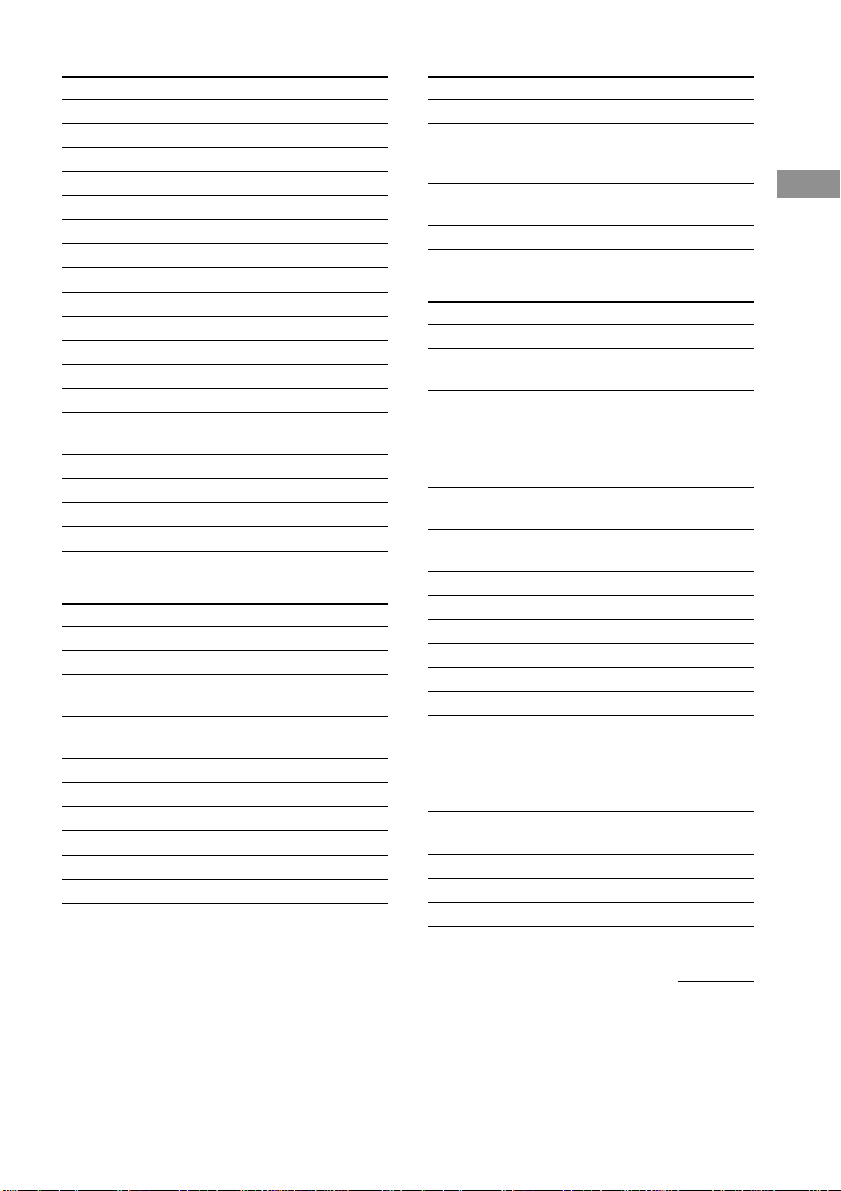
Tables of preset functions
Notes
• Depending on the registered component, certain
keys (icons) may not function. These keys are
dimmed.
• These tables explain the major functions of the
keys. Depending on the registered component, the
keys may operate differently.
AMP
Key Function
POWER
1)
To turn the power on/off.
VIDEO 1 To select the input source: VIDEO 1
VIDEO 2 To select the input source: VIDEO 2
VIDEO 3 To select the input source: VIDEO 3
LD To select the input source: LD
DVD To select the input source: DVD
TV To select the input source: TV
TAPE To select the input source: TAPE
MD To select the input source: MD
CD To select the input source: CD
TUNER To select the input source: TUNER
PHONO To select the input source: PHONO
SLEEP
2)
To activate the sleep timer.
MUTING
1)
To mute the volume on the amplifier/
receiver. Press again to cancel the
muting function.
VOLUME To raise or lower the volume.
+/–
1)
A.F.D.
2)
Auto Format Decoding.
2ch
2)
To turn off the sound field or select
2CH mode.
SOURCE To select the analog audio source.
DIRECT
2)
MODE </>
2)
To select a sound field.
LEVEL To adjust the level of the surround
SURR +/–
2)
speakers.
LEVEL
To adjust the level of the center
CENTER
speaker.
+/–
2)
LEVEL SUB
To adjust the level of the sub woofer.
WOOFER
+/–
2)
BALANCE To adjust the balance between front left
FRONT and right speakers.
L/R
2)
BALANCE To adjust the balance between surround
SURR L/R
2)
left and right speakers.
Operating the components
(continued)
Touch to start playback.
Touch to scan the
radio stations.
Touch to select the
FM or AM band.
Selected maker and category
(page 10)

13
GB
Basic Operations
Key Function
EQ
2)
To turn the equalizer on/off.
TEST
To output the test tone.
TONE
2)
ON To activate the on-screen display.
SCREEN
2)
v/V/b/B
2)
To select a menu item.
MENU
2)
To select the menu.
ENTER
2)
To enter the selection.
DISPLAY
2)
To select the displayed information.
DIMMER
2)
To adjust the brightness of the display.
INPUT </>
2)
To select the audio input.
AUDIO To assign the audio input for each
SPLIT
2)
function.
INPUT To select the input mode for your
MODE
2)
digital components.
1)
You can use the buttons on the front panel.
2)
Sony amplifier/receiver only. For details, see page
18.
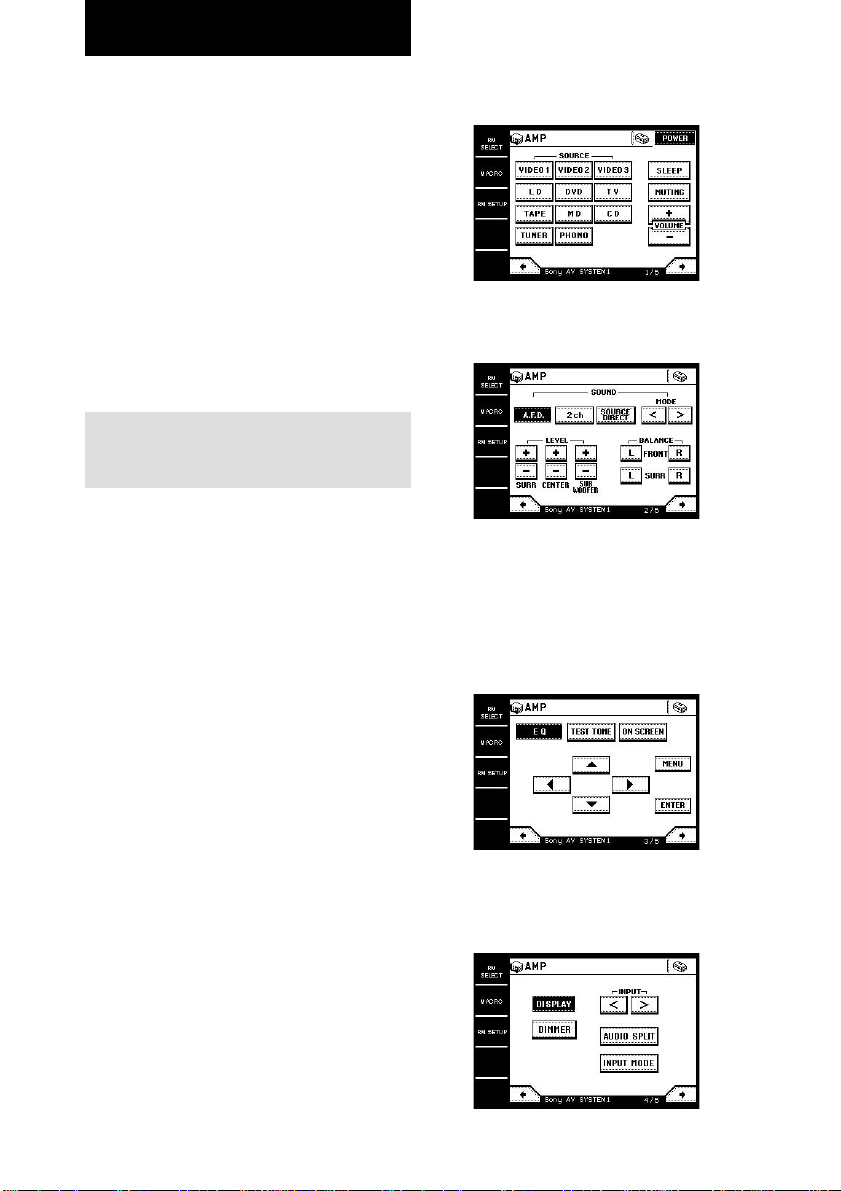
VIDEO
Key Function
POWER To turn the power on/off.
INPUT To change the input mode of the VCR.
SELECT
CH +/– To select a channel.
. To proceed to the previous location.
m To rewind.
N To play.
M To fast-forward.
> To proceed to the next location.
z To record.
x To stop.
X To pause.
DISPLAY To select information displayed on the
TV screen.
ANT To switch the antenna output.
TV/VTR
SP/LP To select the playback speed.
1–9, 0 To select the channel.
Pressing 0 selects channel 10.
-/-- Press before selecting channel 11 or
higher. (After pressing -/--, use the
numeric buttons to select the channel,
then press ENTER.)
Or, press to select channel 11 directly.
ENTER To enter the selection.
Or, press to select channel 12 directly.
Key Function
MENU To call the MENU display.
V/v/B/b To move the cursor.
EXECUTE To enter selections in the MENU
display.
DVD
Key Function
POWER To turn the power on/off.
AUDIO To change the sound.
ANGLE To switch angle.
SUB TITLE To switch the subtitle.
SHUFFLE To select Shuffle Play.
PROGRAM
To select Program Play.
REPEAT To select Repeat Play.
DISC SKIP To select next/previous disc.
+/–
. To proceed to the previous location or
song.
m To rewind.
N To play.
M To fast-forward.
> To proceed to the next location or song.
x To stop.
X To pause.
DISPLAY To select information displayed on the
TV screen.
TOP MENU To call up the MENU display.
1–9, 0 Number buttons: To set items selected
from the screen.
CLEAR To clear the selected characters from
the screen.
SEARCH To change the search mode.
RETURN To return to the last previous screen.
MENU To display the DVD menu.
V/v/B/b To move the cursor.
ENTER To enter a setting or to set items
selected from the screen.
continued

14
GB
TV
Key Function
POWER To turn the power on/off.
MUTING To mute the volume on the TV. Press
again to cancel muting function.
INPUT
3)
To change the input mode of the TV.
DISPLAY To select information displayed on the
TV screen.
JUMP To toggle between the previous and
current channels.
1–9, 0 To select the channel.
Pressing 0 selects channel 10.
-/-- Press before selecting channel 11 or
higher. (After pressing -/--, use the
numeric buttons to select the channel,
then press ENTER.)
ENTER To enter the selection.
Or, press to select channel 12 directly.
CH +/–
3)
To select a channel.
VOLUME To raise or lower the volume.
+/–
3)
P in P To activate the picture-in picture
function.
4)
POSITION To change the position of the small
picture.
4)
SWAP To swap the small and large pictures.
4)
WIDE To select the wide-picture mode.
5)
SUB CH +/– To select preset channels for the small
picture.
4)
3)
You can use the buttons on the front panel.
4)
Only with Sony TVs with the picture-in-picture
function.
5)
Only with Sony TVs that supports the wide-picture
mode.
TAPE
Key Function
SIDE A/B To select the tape deck : Deck A or B
(dual cassette deck only).
. To proceed to the previous song.
m To rewind.
n To reverse.
N To play.
M To fast-forward.
> To proceed to the next song.
z To record.
x To stop.
X To pause.
MD
Key Function
POWER To turn the power on/off.
. To select the previous track.
m To rewind.
N To play.
M To fast-forward.
> To select the next track.
z To pause for recording.
x To stop.
X To pause.
CONTINUE
To select Continuous Play.
SHUFFLE To select Shuffle Play.
PROGRAM
To select Program Play.
REPEAT To select Repeat Play.
1–9, 0 To select the track number (0 selects
track 10).
>10 To select numbers 10 and above.
DISPLAY To change the information on the
display.
MENU/NO To select editing operation or cancel
editing.
YES To perform editing operation.
Operating the components
(continued)
15
GB
Basic Operations
CD
Key Function
POWER To turn the power on/off.
. To select the previous track.
m To rewind.
N To play.
M To fast-forward.
> To select the next track.
DISC SKIP
To select a disc.
x To stop.
X To pause.
CONTINUE
To select continuous play mode.
SHUFFLE To play in random order.
PROGRAM
To use for program play.
REPEAT To select repeat play mode.
1–9, 0 To select the track number (0 selects
track 10).
>10 To select numbers 10 and above.
ENTER To enter the setting.
DISC To select the disc.
TRACK To select the track.
TUNER
Key Function
POWER To turn the power on/off.
FM/AM To select the FM or AM band.
FM MODE To select stereo or monaural reception
of FM stations.
TUNING To select the tuning mode.
MODE
SHIFT To shift bands or preset select.
TUNING +/– To scan the radio stations.
PRESET +/– To scan the preset radio stations.
DIRECT Enters Direct Tuning mode.
1–9, 0 Number buttons.
MEMORY To store the preset stations.
CABLE
Key Function
POWER To turn the power on/off.
1–9, 0, To change the channel. For example, to
ENTER change to channel 5, press 0 and 5 (or,
press 5 and ENTER).
JUMP To toggle between the previous and
current channels.
CH +/– To select a channel.
SATELLITE
Key Function
POWER To turn the power on/off.
1–9, 0 To select the channel.
Pressing 0 selects channel 10.
-/-- Press before selecting channel 11 or
higher. (After pressing -/--, use the
numeric buttons to select the channel,
then press ENTER.)
Or, press to select channel 11 directly.
ENTER To enter the selection.
Or, press to select channel 12 directly.
JUMP To toggle between the previous and
current channels.
FAVORITE To display the Favorite Station Guides.
CATEGORY
To display the Guide Category list.
GUIDE To display the SAT guide.
INDEX To bring up the Station Index
MENU To call up the MENU display.
EXIT To exit the mode.
TV/SAT To switch the output of the SAT
receiver to the TV (When you connect
a TV cable or antenna to the amplifier/
receiver, the output switches between a
TV and SAT program).
DISPLAY To select information displayed on the
TV screen.
v/V/b/B To move the cursor.
+ To enter the setting.
CH/PAGE +/– To select the channel or the menu page.
continued

16
GB
PROJECTOR
Key Function
POWER ON To turn the power on.
POWER To turn the power off.
OFF
INPUT To switch to the input from
SELECT VIDEO jacks.
VIDEO
INPUT To switch to the input from VIDEO IN
SELECT or S VIDEO IN jacks.
SELECT
INPUT To switch to the input from INPUT A
SELECT or INPUT B jacks.
A/B
v/V/b/B To move the cursor.
ENTER To enter the setting.
MENU To call up the MENU display.
MEMORY To store the adjusted data in memory.
ZOOM +/– To adjust the zoom of the picture.
SHIFT +/– To adjust the lens shift of the picture.
FOCUS +/– To adjust the focus of the picture.
BRIGHT +/– To adjust the brightness.
CONTRAST To adjust the contrast.
+/–
LD
Key Function
POWER To turn the power on/off.
SIDE A/B To select disc side A or B.
. To proceed to the previous location or
song.
m To rewind.
N To play.
M To fast-forward.
> To proceed to the next location or song.
x To stop.
X To pause.
DISPLAY To select information displayed on the
TV screen.
PROGRAM
To program the tracks.
REPEAT To repeat current track or programmed
tracks.
1–9, 0 To select the track number (0 selects
track 10).
+10 To select numbers 10 and above.
SEARCH To change the search mode.
FRAME/ To change the frame or time
TIME information.
Operating the components
(continued)

17
GB
Basic Operations
VIDEO CD
Key Function
POWER To turn the power on/off.
INDEX To return to the previous menu.
PREVIOUS
INDEX To go to the next menu.
NEXT
. To proceed to the previous location or
song.
m To rewind.
N To play.
M To fast-forward.
> To proceed to the next location or song.
x To stop.
X To pause.
1–9, 0 To select the track number (0 selects
track 10).
>10 To select numbers 10 and above.
RETURN To return to the last previous screen.
TIME To change the time information.
SELECT To select the menu.
DAT
Key Function
POWER To turn the power on/off.
. To select the previous track.
m To rewind.
N To play.
M To fast-forward.
> To select the next track.
z To record.
x To stop.
X To pause.
REPEAT To select Repeat Play.
1–9, 0 To select the track number (0 selects
track 10).
ENTER To enter the setting.
CLEAR To clear the setting.
18
GB
When using Sony amplifiers/receivers, you can
operate various functions. Before operating,
register the Sony amplifier/receiver (page 10).
When selecting Sony amplifier/receiver from
the IR SETUP: MAKER CODE list, be sure to
select the appropriate command mode.
About the command mode (IR type)
If the amplifier/receiver’s command mode (IR type)
and the commander’s command mode (IR type) do
not match, you cannot use the commander to operate
the amplifier/receiver.
Tip
To use the multi room function of the amplifier/
receiver, select SONY MULTI ROOM1 (or 2) from
the IR SETUP: MAKER CODE list.
Operating the amplifier/
receiver
1 Touch RM SELECT.
The RM SELECT screen appears.
2 Touch AMP.
The screen for operating the amplifier/
receiver appears.
3 Touch B or b to select the screen.
For details on each screen, see below.
Notes
• Depending on the amplifier/receiver, some
commands may not function.
• For details about the operations, refer to the
operating instructions supplied with the amplifier/
receiver.
Operations for Sony Amplifiers/Receivers
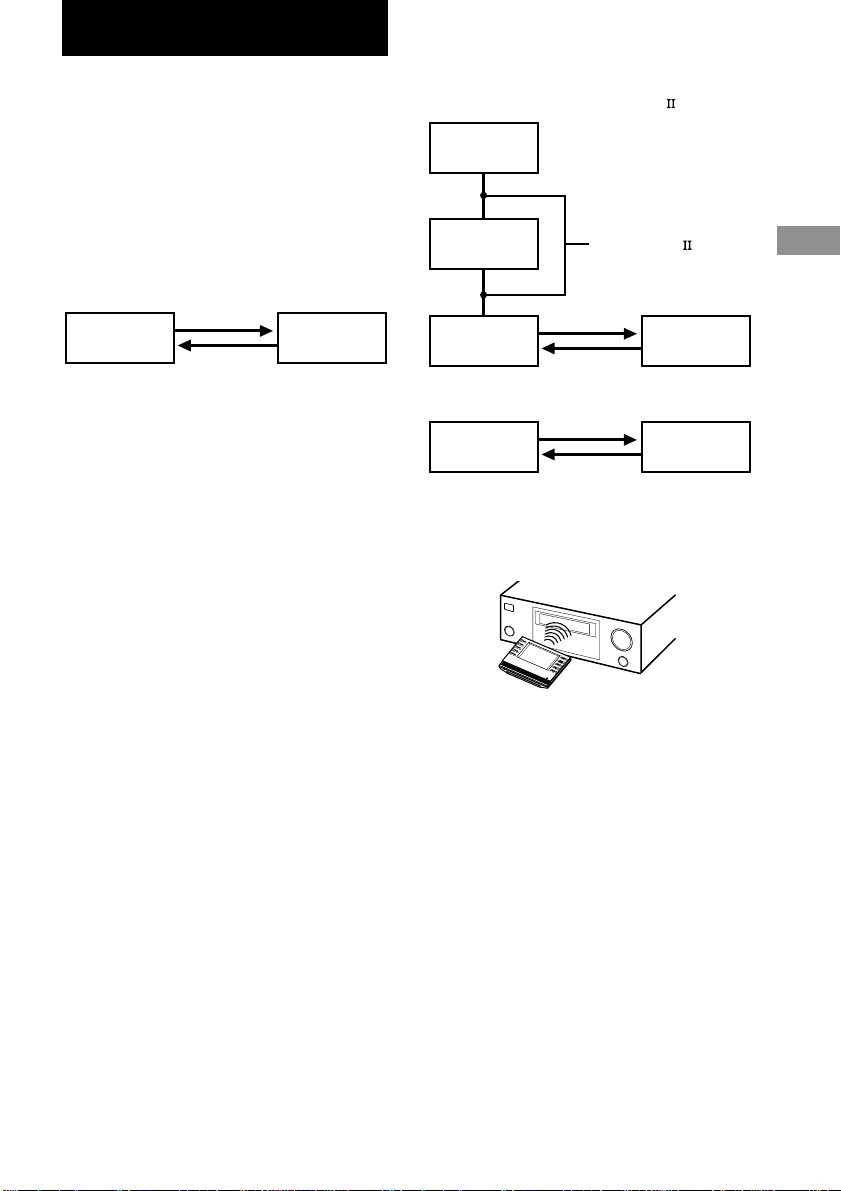
Screen 1/5
This screen is mainly for switching the input
and adjusting the volume.
Screen 2/5
This screen is mainly for enjoying surround
sound, adjusting the level and balance.
Screen 3/5
This screen is mainly for adjusting the
equalizer and outputting the test tone. You can
also adjust various settings using the MENU
key, cursor keys, and ENTER key. When the
amplifier/receiver has ON SCREEN function, it
is recommended to adjust the settings using the
TV screen.
Screen 4/5
This screen is mainly for setting the display on
the amplifier/receiver and selecting the audio
input.
19
GB
Operations for Sony Amplifiers/Receivers / 2 Way Remote Operations
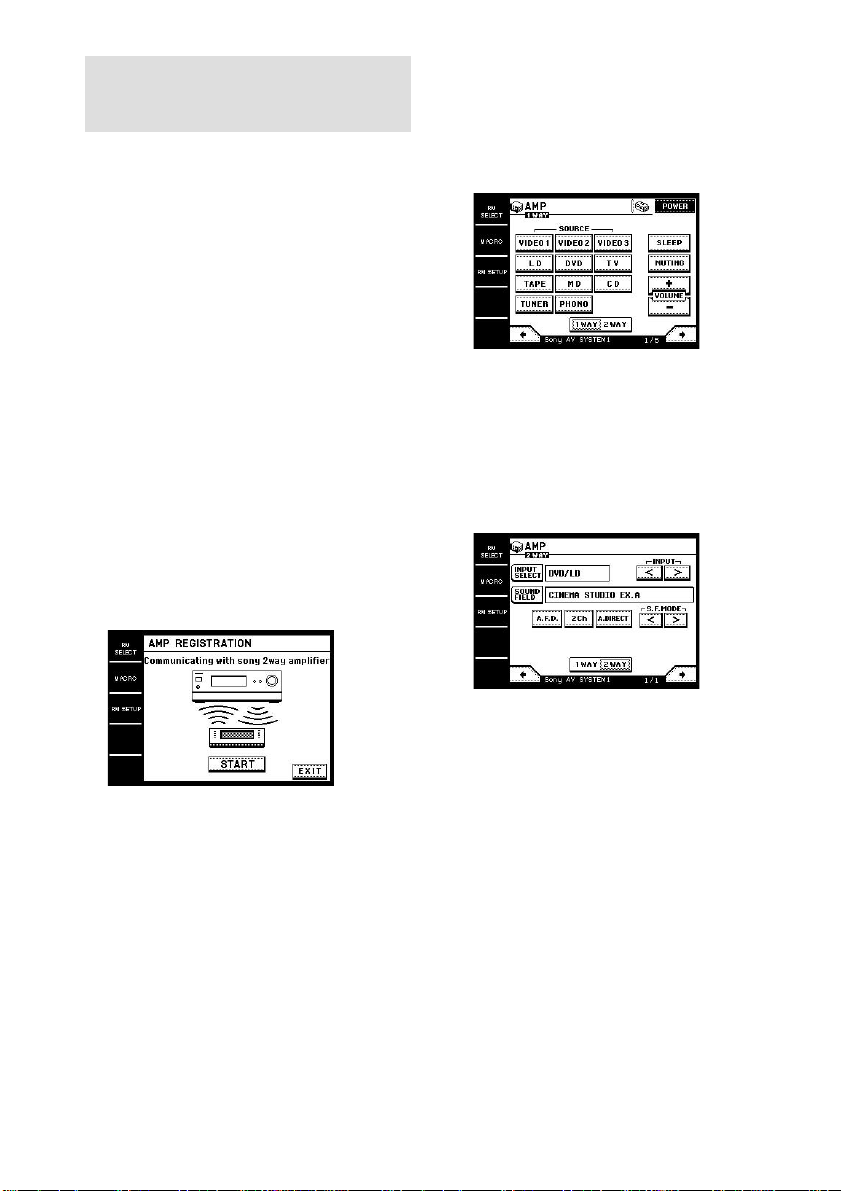
Understanding the 2 way remote
system
This commander operates under a 2 way
remote system. With the 2 way remote system,
the component responds to signals sent from
the commander by sending additional signals
(information about the status of the component,
text data, etc.) back to the commander. Thus,
operations are performed as a result of
communication between the commander and
the component.
When using a home entertainment system
comprised of several components compatible
with the 2 way remote system, please restrict 2
way remote system operation to a single
component. Generally, the 2 way remote
system is turned off on all components except
for the amplifier/receiver.
If you would like to turn off the amplifier/
receiver’s 2 way remote system, refer to
“Setting up the 2 way remote” in the operating
instructions supplied with the amplifier/
receiver.
Component
Commander
2 Way Remote Operations
Operation example
When a 2 way component is connected to the
amplifier/receiver with a Control A1/A1
cord
When operating the 2 way CD changer directly
Notes for the 2 way remote operation
• To ensure good communication conditions, carry
out the 2 way remote operation from directly in
front of, and close to the component.
• Do not move the component during the 2 way
remote operation.
• The commander receives and displays data
transmitted from the component. Communication
errors may occur if the commander’s transmitter/
receiver section is not directed properly toward the
component’s IR receptor. Be sure to point the
commander’s transmitter/receiver section towards
the component’s IR receptor.
MD deck
CD player
Amplifier/
Receiver
Commander
CD changer
Commander
Control A1/A1
cord
1m – 2m
20
GB
Operating the amplifier/
receiver
You can operate a Sony 2 way amplifier/
receiver. You can also download the names of
components (functions). Before operating,
register the Sony amplifier/receiver using the
IR SETUP function (page 10).
When performing the following procedure,
be sure to turn on the amplifier/receiver
and point the commander towards the IR
receptor on the amplifier/receiver.
To register a 2 way amplifier/
receiver
Use the RM SETUP screen.
Note
You cannot register the amplifier/receiver if it is not
set to use the 2 way remote system. Refer to “Setting
up the 2 way remote” in the operating instructions
supplied with the amplifier/receiver.
1 Touch RM SETUP.
2 Touch AMP REGIST.
3 Touch START.
The communication starts and the amplifier/
receiver is registered to the commander.
The registered amplifier/receiver name
appears in the screen. The amplifier/receiver
name also appears in the RM SETUP screen
as the current setting.
Note
If the amplifier/receiver name appears as “model
others”, the amplifier/receiver is not registered
correctly. In this case, some 2 way operations may
not be possible.
To operate the amplifier/
receiver
1 Select the Sony amplifier/receiver in the
RM SELECT screen.
“1WAY 2WAY” appears.
Tip
When you can select several Sony amplifiers/
receivers in the RM SELECT screen, touch the
AMP icon that appears first.
2 Touch 2WAY.
The screen for the 2 way operation appears
and you can operate the amplifier/receiver
registered in the RM SETUP screen.
To download the names of components
(functions), touch INPUT SELECT, then
touch INPUT NAME DOWNLOAD.
To download the names of sound fields,
touch SOUND FIELD, then touch S.F.
NAME DOWNLOAD.
Notes
• 2 way operations may not be possible immediately
after turning on the amplifier/receiver.
• You cannot use the jog dial when using the 2WAY
screen.
• You cannot use the Learning function for the keys
in the 2WAY screen.
21
GB
Operations for Sony Amplifiers/Receivers / 2 Way Remote Operations
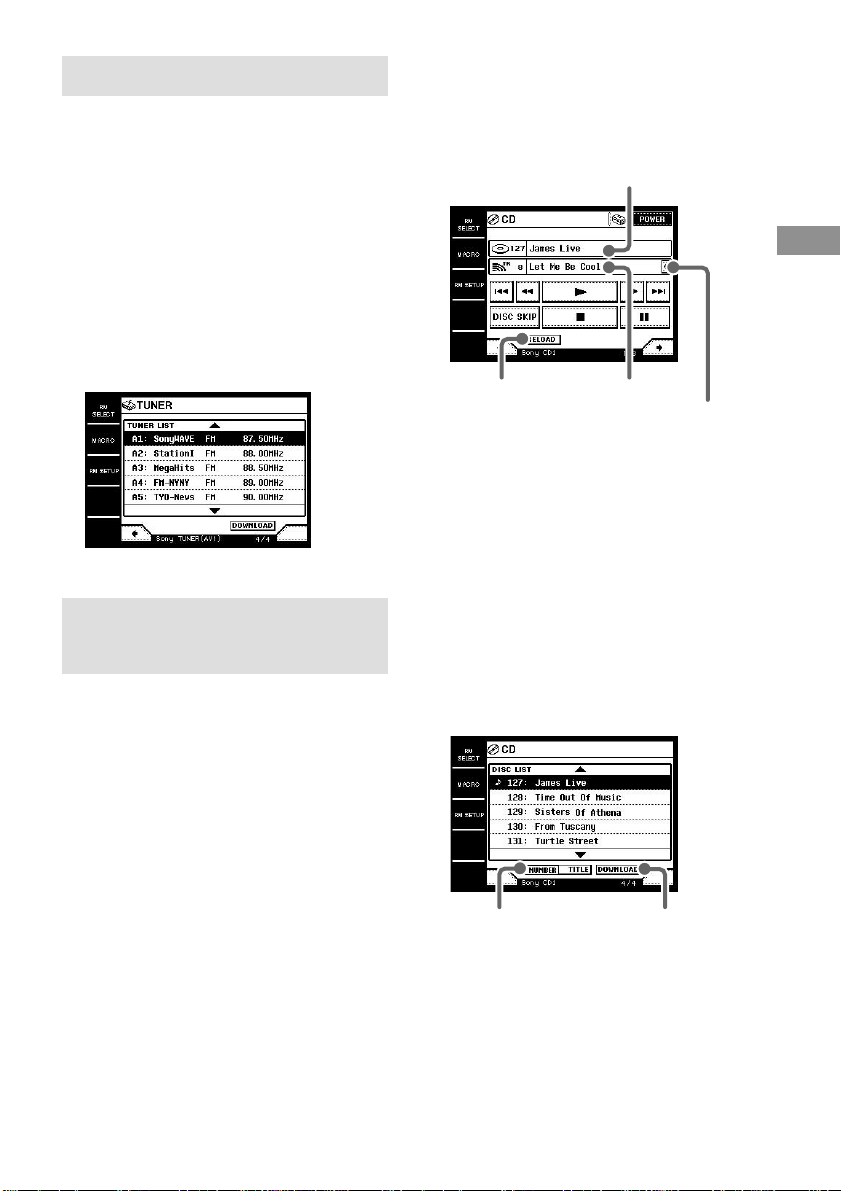
Operating the tuner
You can operate the built-in tuner of 2 way
receiver. You can also download the station
names registered on the receiver. Before
operating, register Sony tuner using the IR
SETUP function (page 10).
1 Select the tuner in the RM SELECT
screen.
The communication starts.
2 To download the station names, touch
b to select the following screen (screen
4/4), then touch DOWNLOAD.
The commander starts to download the data.
Operating the CD player or
MD deck
You can download the information (disc titles,
etc.) from Sony 2 way CD player* or MD deck.
Before operating, register Sony CD player or
MD deck using the IR SETUP function (page
10).
* Compatible with Sony CD changers (5/50/200/300/
400 CD).
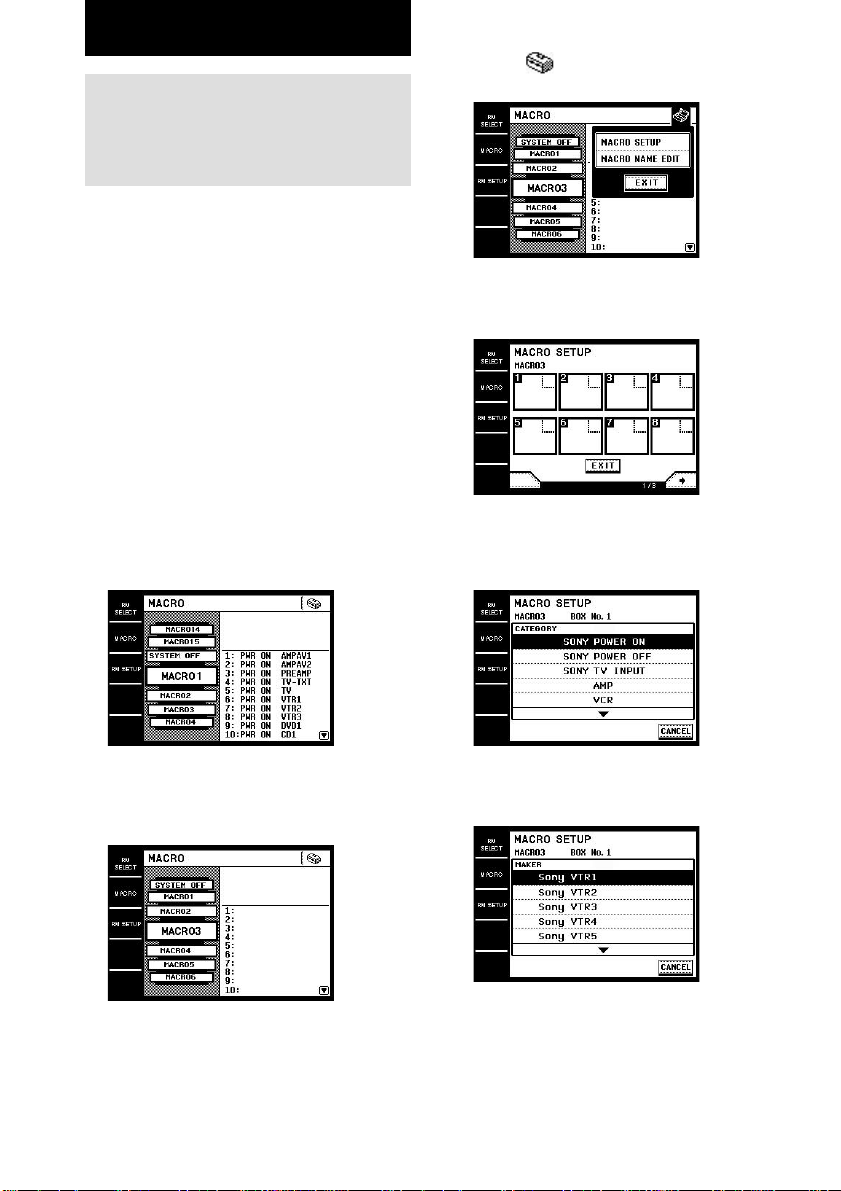
Select the CD player or MD deck in the RM
SELECT screen.
The communication starts, and the information
such as disc titles and song names are
displayed.
Tip
When the song number or song title is not displayed
correctly, touch RELOAD.
To download the data from
CD changer
You can download the data from CD changer.
1 Select CD player in the RM SELECT
screen.
2 Touch b to select the following screen
(screen 4/4), then touch DOWNLOAD.
The commander starts to download the data.
Tip
You can change the order of the disc list. Touch
NUMBER to sort by the disc number, or touch
TITLE to sort by the disc names.
Disc title
Song title
Touch here to scroll
the long titles
RELOAD
DOWNLOAD
NUMBER/TITLE
22
GB
Performing several
commands in sequence
automatically (Macro Play)
The Macro Play function lets you link several
IR codes in sequential order as a single
command. The commander provides 16 macro
lists. You can specify up to 24 IR codes for
each macro list.
Tips
• MACRO 1 has been factory set to turn on Sony AV
components.
• SYSTEM OFF has been factory set to turn off all
Sony AV components. The same program is also
executed when the ?/1/SYSTEM STANDBY
button on the front panel is pressed more than 2
seconds.
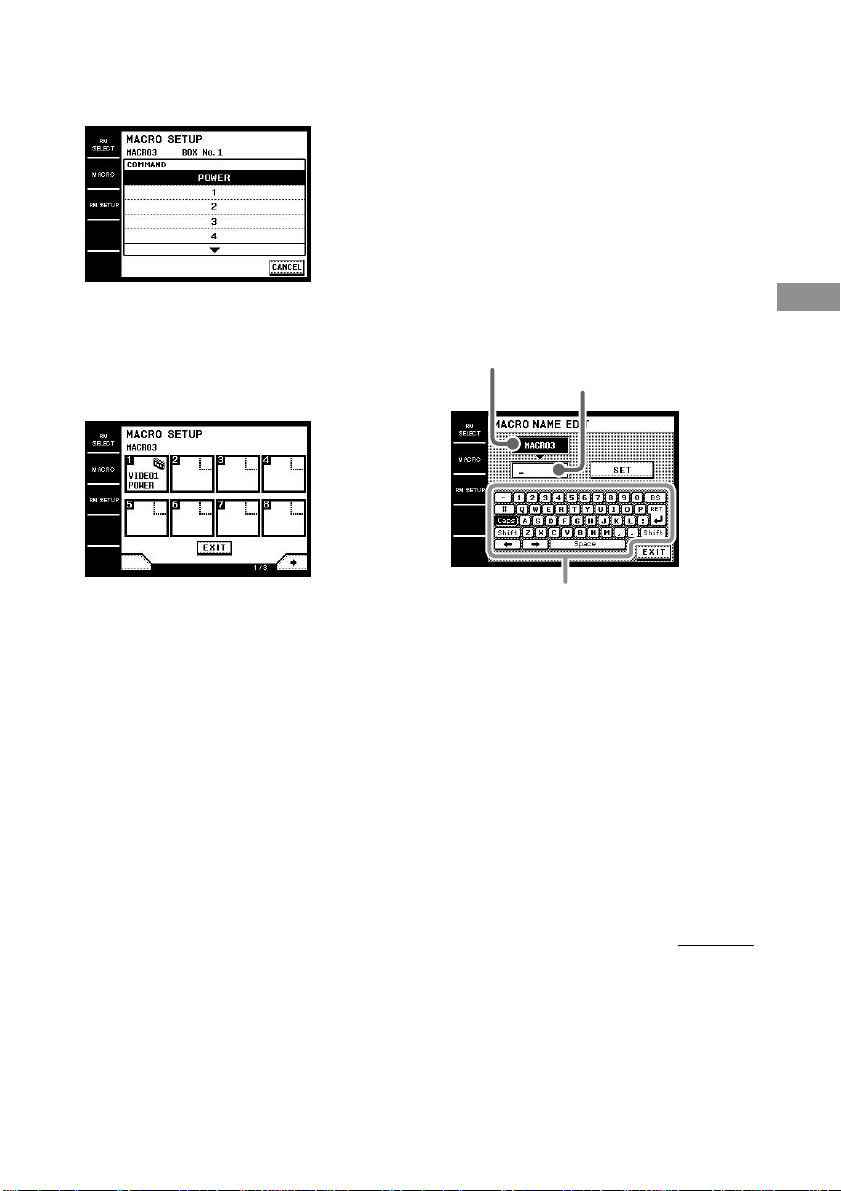
Setting the sequence of IR
codes
1 Touch MACRO.
The MACRO screen appears.
2 Turn the jog dial so that the Macro Play
number you want to program
(“MACRO3” for example) comes to the
middle box.
Advanced Operations
3 Touch .
The pull-down menu appears.
4 Touch MACRO SETUP in the pull-down
menu.
The macro step number (BOX) list appears.
5 Touch the macro step number for the
command you want to register (“1” for
example).
The CATEGORY list appears.
6 Select the category (“VCR” for
example).
The MAKER list appears.
23
GB
Advanced Operations
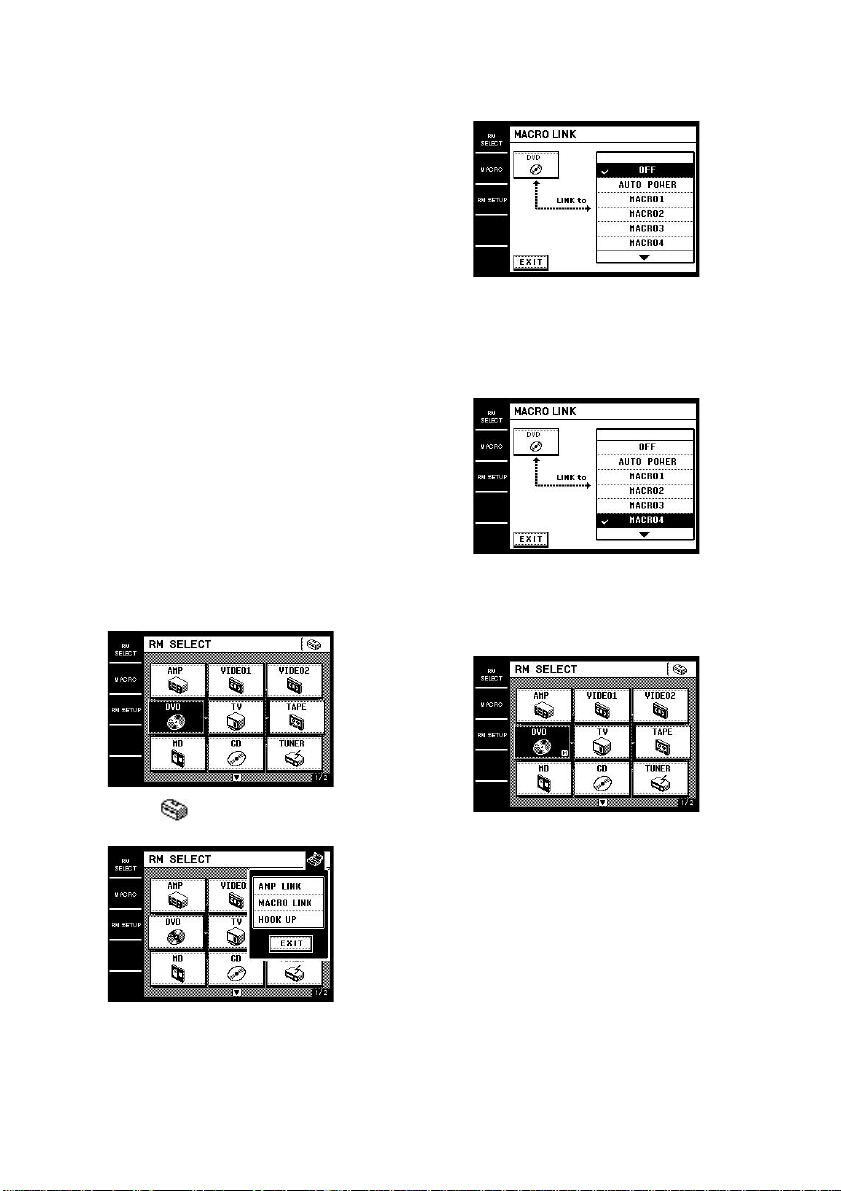
7 Select the maker (“Sony VTR1” for
example).
The COMMAND list appears.
8 Select the command (“POWER” for
example).
The items selected in steps 6 to 8 are
registered in the box selected in step 5.
The macro step number (BOX) list
reappears. You can program up to 24 steps.
To operate Sony components
When selecting the category in step 6, you can
select the operation such as turning on/off Sony
components or switching the input of Sony TVs.
To delay the output of an IR code
Select “WAIT TIME” from the CATEGORY
list. The wait time list (“1sec” to “60sec” (1 to
60 seconds)) appears. Select the time you want
to wait.
To use learned codes under the
Macro Play function
Select “RESERVE KEYS” from the
CATEGORY list. Then, select the button for
the learned IR code.
To cancel programming
Touch EXIT or CANCEL during any step.
To clear the programmed IR code
Select the macro step number (BOX) you want
to clear the IR code, then select “MACRO
CLEAR” from the CATEGORY list.
To change the name of the Macro
Play
In step 4, touch MACRO NAME EDIT. Touch
the name input buttons to enter the name (up to
10 characters), then touch SET. Touch EXIT to
return to the MACRO screen.
To start Macro Play
1 Touch MACRO.
The MACRO screen appears.
2 Turn the jog dial to select the Macro
Play, then press the jog dial to enter the
selection.
To cancel the Macro Play during operation,
press the jog dial again.
Note
If the Macro Play function does not work properly,
try setting a “WAIT TIME” between each command.
Name input buttons
Current name display
Name input display
continued
24
GB
To start Macro Play
automatically (MACRO LINK)
You can link the remote (component) to
operate the Macro Play automatically when the
remote (component) is selected.
The following procedure uses an example to
execute MACRO4 when “DVD” is selected in
the RM SELECT screen.
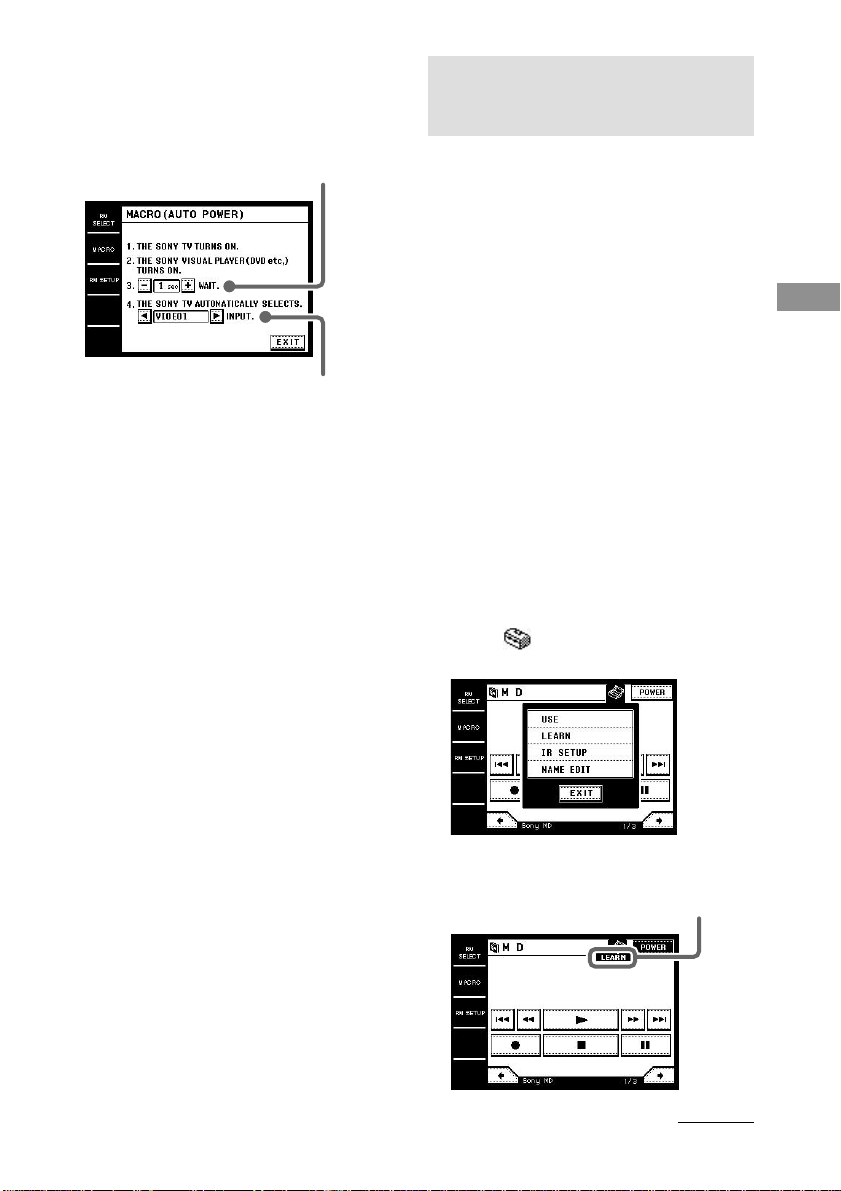
AUTO POWER function
When Sony components are registered and the remote
(component) is selected, this function enables you to
turn on the component automatically. Besides, when
Sony video components (VCR, DVD, etc.) are
registered and the remote (component) is selected,
this function enables you to turn on both TV and the
component, and switch the input of the TV
automatically.
1 Touch RM SELECT.
The RM SELECT screen appears.
2 Turn the jog dial to select the remote
(component) you want to link to the
Macro Play (“DVD” for example).
When you touch the remote (component),
touch B to display the RM SELECT screen.
3 Touch .
The pull-down menu appears.
4 Touch MACRO LINK in the pull-down
menu.
The MACRO LINK screen appears.
5 Select the Macro Play (“MACRO4” for
example) you want to link to the remote
(component).
A check (✔) appears in front of the selected
Macro Play.
6 Touch EXIT.
The RM SELECT screen reappears.
M appears in the box of the remote
(component) selected in step 2.
Performing several commands in sequence
automatically (Macro Play) (continued)
25
GB
Advanced Operations
Select the wait time.
Select the input of the TV.
Using the Auto Power function
In step 5, link the remote (component) to
“AUTO POWER”. For the video components,
the following display appears. Select the wait
time and the input of the TV.
Notes
• The TV input may not switch automatically on all
Sony TVs. This is because some TVs cannot
receive remote control codes immediately after
being turned on. In this case, set the wait time.
• When you select “TV” as the video input, the TV
input does not switch.
To cancel MACRO LINK
Select “OFF” in the MACRO LINK screen.
Learning the commands of
other remote commanders
Setting remote control codes
that are not stored in the
commander
When a remote control code is not one of the
presets stored in the commander, it is possible
for the commander to learn the code using the
Learning function.
Learning Function can be used for each preset
operation keys and USER RESERVE KEYS.
To program an IR code to the preset
operation keys
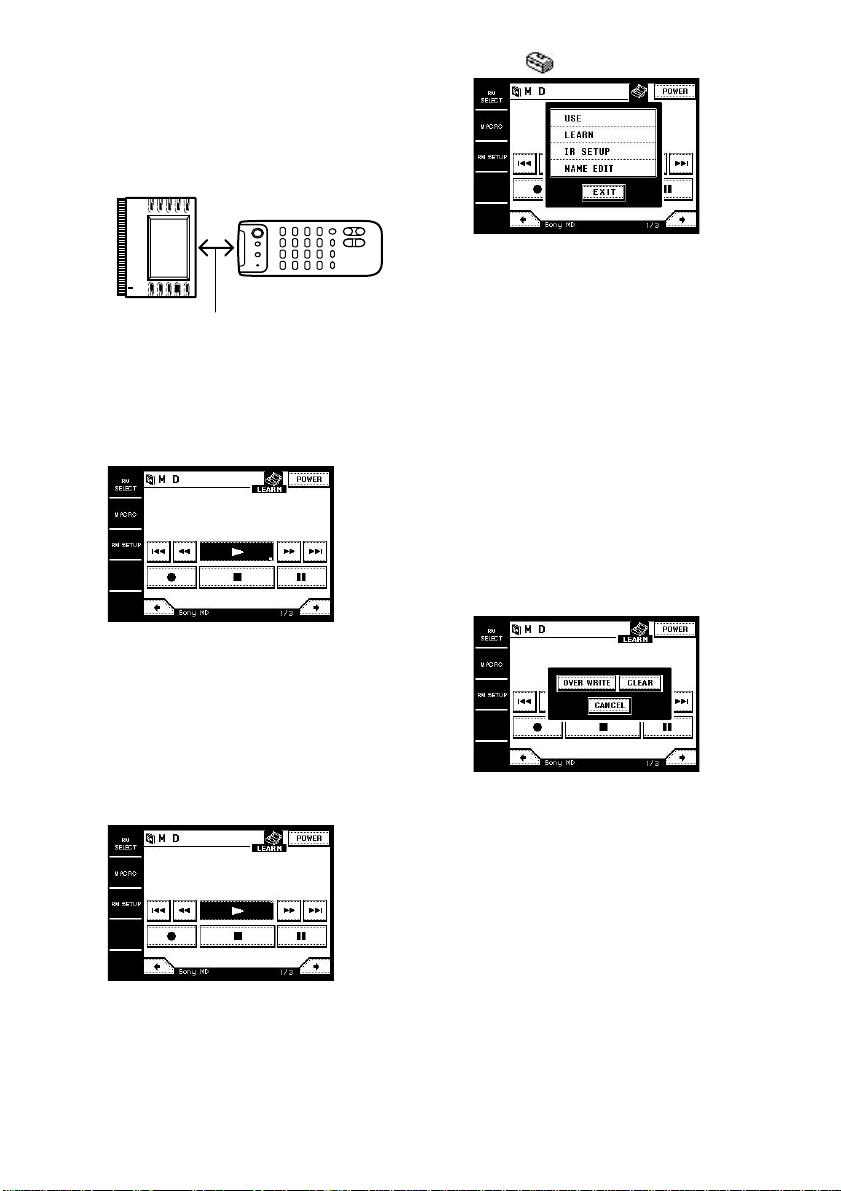
1 Touch RM SELECT.
The RM SELECT screen appears.
2 Touch the remote (component) (“MD”
for example).
Or, turn the jog dial to select the remote
(component), then press the jog dial to enter
the selection. The screen for operating the
component appears.
3 Touch .
The pull-down menu appears.
4 Touch LEARN in the pull-down menu.
The commander enters the learning mode.
“LEARN” appears.
continued
26
GB
8 Touch .
9 Touch USE in the pull-down menu.
The commander returns to the operation
mode.
To use the Learning function for the
buttons on the front panel
Use the Learning function for the same named
keys in the operation screen for AMP or TV.
Example: When you use the Learning function
for the MUTING key in the operation screen
for AMP, the MUTING button on the front
panel is also registered with the same code.
To clear the learned code
Perform steps 1 to 4 above, and touch the key
you want to clear the learned code. The
following display appears. Touch CLEAR to
clear the learned code.
To overwrite the learned code
Perform steps 1 to 5 above, and touch the key
you want to overwrite the learned code. The
same display as “To clear the learned code”
appears. Touch OVER WRITE. A mark (s)
blinks in the bottom right corner of the key.
Then follow steps 7 to 9.
About 5 cm – 15 cm
5 Point the remote code receiver section
of this commander toward the receiver/
transmitter on the remote control to be
learned.
6 Touch the key on this commander you
want to use the Learning function
(“N” for example).
A mark (s) blinks in the bottom right
corner of the key. Perform step 7 within 30
seconds after the mark starts blinking.
7 Press the appropriate button on the
remote control to send the remote
control code.
Press the button more than 1 second. When
this commander receives the remote control
code and the learning is successful, the
mark (s) in the bottom right corner stops
blinking, and another mark (x) appears in
the upper right corner of the key.
Learning the commands of other
remote commanders (continued)
27
GB
Advanced Operations
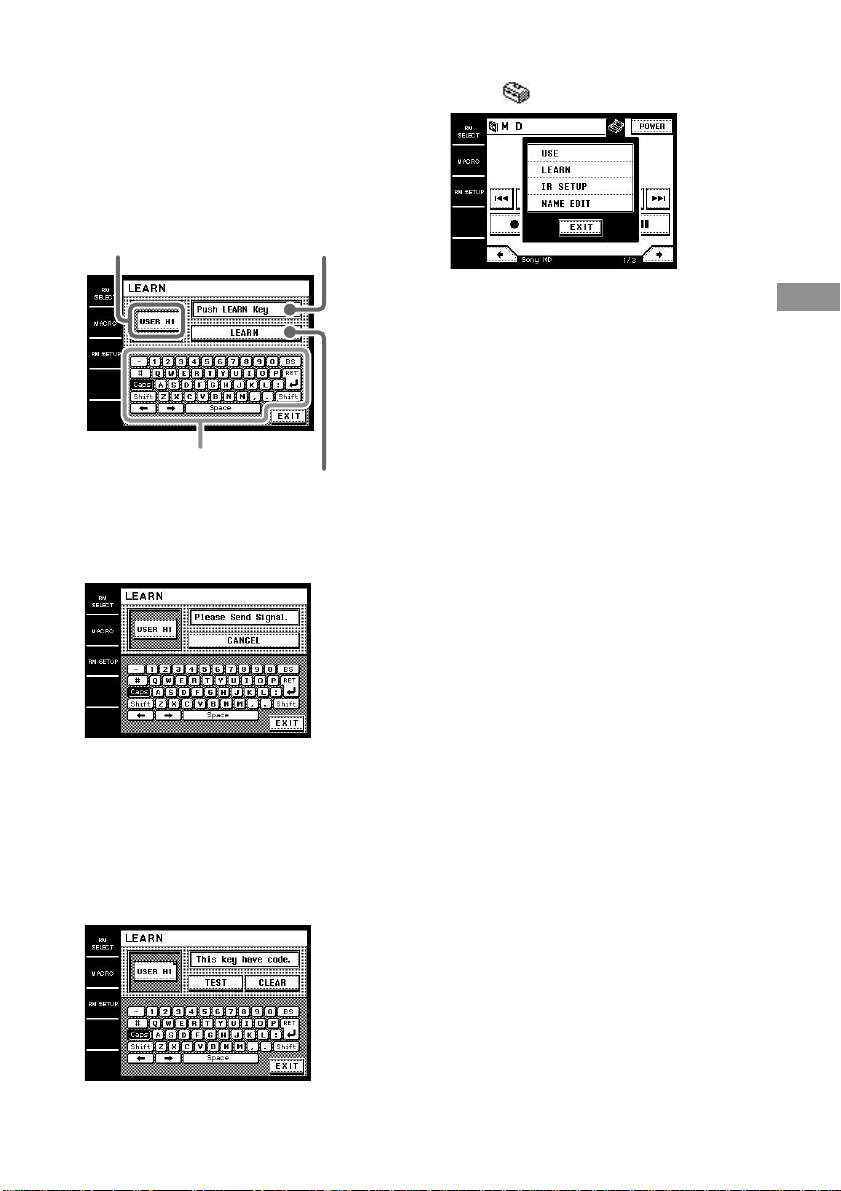
To program the IR code to the USER
RESERVE KEYS
1 Perform steps 1 to 5 of “To program an
IR code to the preset operation keys”,
then in step 6, select one of the USER
RESERVE KEYS you want to program
the IR code.
The LEARN screen appears.
2 Touch LEARN.
“Please Send Signal.” appears. Perform step
3 within 30 seconds after the mark starts
blinking.
3 Press the appropriate button on the
remote control to send the remote
control code.
Press the button more than 1 second. When
this commander receives the remote control
code and the learning is successful, “This
key have code.” appears, and a mark (x)
appears in the upper right corner of the key.
Selected key
Message window
Command key
Name input buttons
4 Touch EXIT.
5 Touch .
6 Touch USE in the pull-down menu.
The commander returns to the operation
mode.
To cancel learning
Touch CANCEL in step 2.
To clear the learned code
After step 3, touch CLEAR. “Clear?” appears.
Then, touch “YES”. The learned code is
cleared.
Tip
• You can test the USER RESERVE KEYS. Touch
“TEST” after “This key have code.” appears in step
3. The learned code is sent from the commander,
and if correct, the corresponding operation is
performed.
• You can make a name of up to 14 characters for the
USER RESERVE KEYS. Touch the name input
buttons as displayed to enter the name.
• To ensure the proper learning, we recommend using
new batteries in the remote to be learned.
Notes
• Normally, each remote (component) has 8 USER
RESERVE KEYS. However, depending on the
signals of the codes being learned, it may not be
possible for the commander to store codes for all
USER RESERVE KEYS.
• Some remote control codes cannot be learned.
Using a command that has
been learned
Select the key which has learned the command.
28
GB
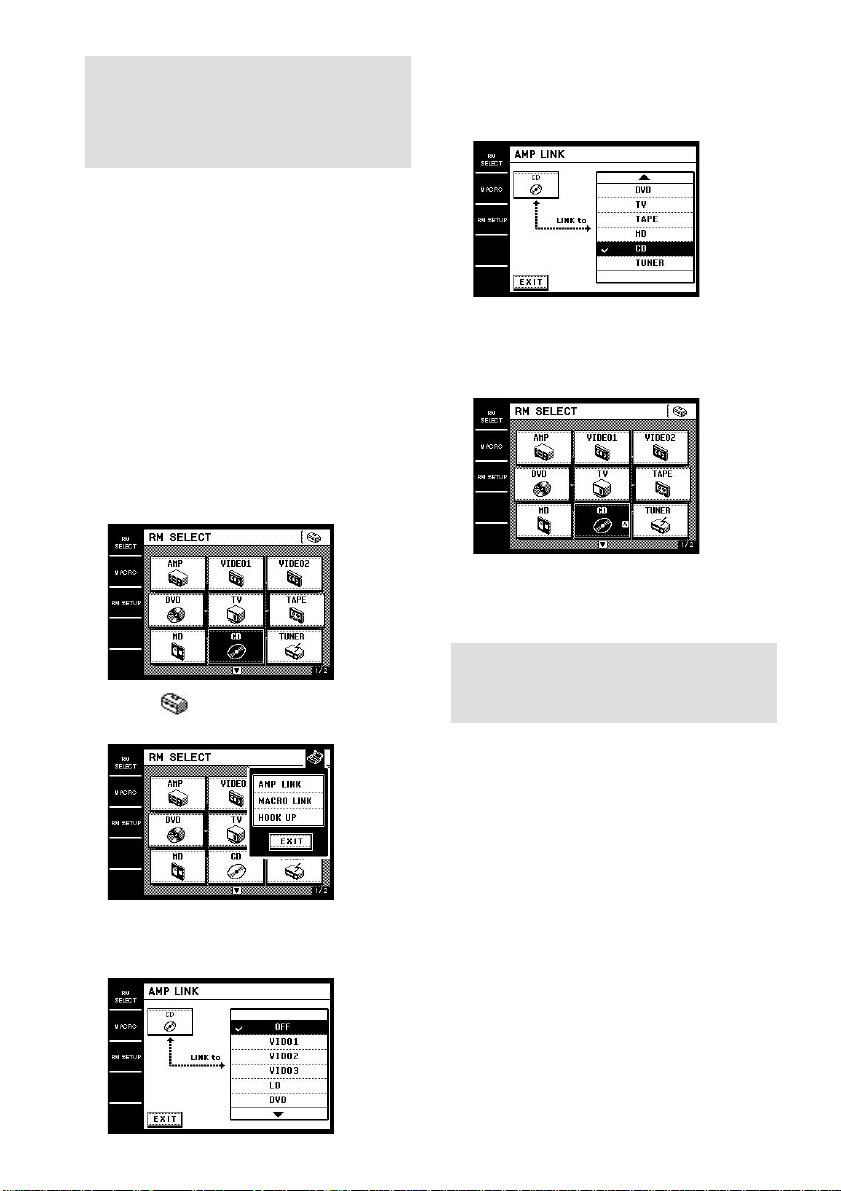
5 Select the function you want to switch
the function to (“CD” for example).
A check (✔) appears in front of the selected
function.
6 Touch EXIT.
The RM SELECT screen reappears.
A appears in the box of the remote
(component) selected in step 2.
To cancel AMP LINK
Select “OFF” in the AMP LINK screen.
Changing the name of the
remote (component)
You can change the name of the remote
(component) that appears in the RM SELECT
screen (up to 10 characters).
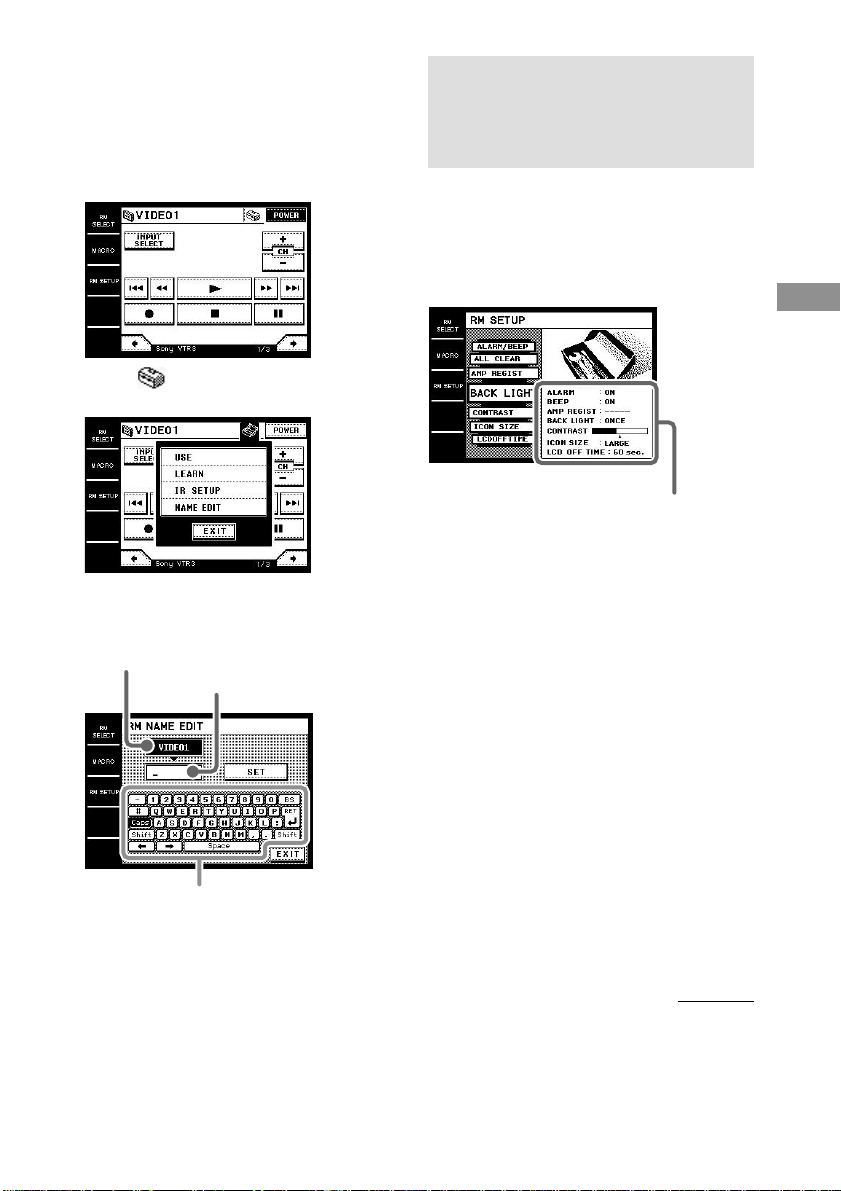
1 Touch RM SELECT.
The RM SELECT screen appears.
Switching the function on
the amplifier/receiver
automatically (AMP LINK)
You can set the commander to switch the
function on the amplifier/receiver to the
component selected in the RM SELECT screen
automatically.
The following procedure uses an example to
switch the function on the amplifier/receiver to
CD when “CD” is selected in the RM SELECT
screen.
1 Touch RM SELECT.
The RM SELECT screen appears.
2 Turn the jog dial to select the remote
(component) you want to use with the
AMP LINK function (“CD” for example).
When you touch the remote (component),
touch B to display the RM SELECT screen.
3 Touch .
The pull-down menu appears.
4 Touch AMP LINK in the pull-down
menu.
The AMP LINK screen appears.
29
GB
Advanced Operations
Current name display
Name input display
Name input buttons
2 Touch the remote (component) you
want to change the name (“VIDEO1” for
example).
Or, turn the jog dial to select the remote
(component), then press the jog dial to enter
the selection. The screen for operating the
component appears.
3 Touch .
The pull down menu appears.
4 Touch NAME EDIT in the pull-down
menu.
The RM NAME EDIT screen appears.
5 Enter the name you want.
6 Touch SET.
The new name is set in the commander.
7 Touch EXIT.
Adjusting the
commander’s operating
environment
The RM SETUP screen allow you to adjust
various settings and customize the
commander’s operating environment.
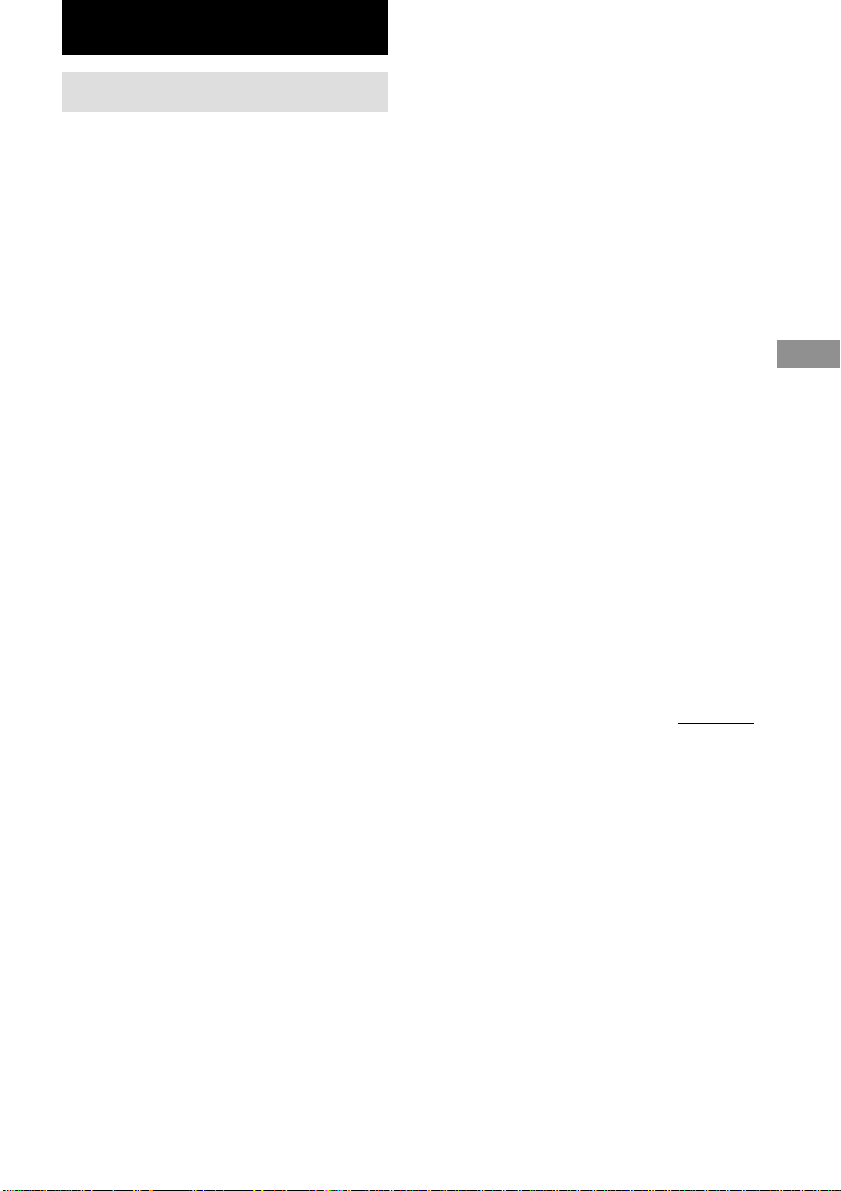
1 Touch RM SETUP.
The RM SETUP screen appears.
2 Touch the menu you want to adjust.
See below for details about each menu.
3 Touch EXIT to return to the RM SETUP
screen.
x Adjusting the contrast of the display
(CONTRAST)
You can adjust the contrast of the display.
Touch + or – to adjust the contrast.
Tips
• Depending on the brightness of the room and the
angle at which the commander is viewed, the LCD
may be difficult to see. When this occurs, changing
the angle of the commander or adjusting the
contrast of the LCD may make the LCD easier to
see. When fingerprints (etc.) get on the LCD, wipe
the LCD with a soft, dry cloth. It is recommended
to use the touch pen supplied with the commander.
• The contrast lightens a little when the temperature
lowers, and darkens a little when the temperature
rises.
Current setting
continued

30
GB
x Selecting the icon size (ICON SIZE)
You can select the icon size of the RM
SELECT screen. Touch SMALL to use small
icons (12 icons are displayed at a time) or
touch LARGE to use large icons (9 icons are
displayed at a time).
x Setting the LCD turn off time
(LCDOFFTIME)
The turn off time can be set between 10 and 90
seconds in 1 second intervals. Touch + or – to
adjust the turn off time.
Tip
The turn off time is factory set to 60 seconds. To
preserve battery life, set to a shorter time.
x Adjusting the position of the touch
panel (TOUCHPANEL)
Adjust the position of the LCD when it shifts
from the normal operating position.
Touch the center of each of the 4 dots.
“Adjusted” appears in a short while and long
beep is emitted.
x Setting the warning alarm and the
operating beep sound (ALARM/BEEP)
You can set the warning alarm and the
operating beep sound on or off. Touch ON to
output the sound. Touch OFF to turn off the
sound.
x Returning settings to their factory
preset settings (ALL CLEAR)
Touch YES to erase all memorized settings and
return them to their factory presets. A long
beep is emitted and all settings return to the
factory settings.
Please note that once erased, settings cannot be
returned.
Adjusting the commander’s operating
environment (continued)
x Registering the 2 way amplifier/receiver
(AMP REGIST)*
When using Sony 2 way amplifier/receiver,
touch START to download the amplifier/
receiver information. For details, see page 20.
x Setting the backlight (BACK LIGHT)
You can choose to turn the backlight on
manually or to have the commander remember
your previous setting.
Set to ONCE (factory setting) if you prefer to
turn the backlight on manually as needed. Set
to KEEP if you want the commander to
remember the previous backlight setting. For
example, if the backlight was on the last time
the LCD was on, the backlight will
automatically come on again the next time the
LCD comes on. Likewise, if the backlight was
off, it will stay off the next time too.
* When carrying out this operation, make sure that
the amplifier/receiver’s power is on, and be sure to
point the commander’s transmitter/receiver section
toward the display on the amplifier/receiver. Also,
operate the commander at a distance of about 1–2
meters from the amplifier/receiver.
Additional Information
31
GB
Safety regulations
On safety of the main unit
(For the customers in Europe)
• Do not use an AC adapter other than that
provided with the unit. Otherwise, a fire or
electric shock may result.
• Do not use the unit for an extended period of
time. Extended use of the unit may cause aches
and pains in your arms and wrists. Whenever
you feel an ache in a part of your body during
the use of the unit, immediately stop using it
and take a rest. Should the aches and pains
persist after the rest, please consult your doctor.
• Do not install the unit where it will be exposed
to oil soot, steam, moisture and excessive dust.
Installing the unit in such a place as described
above may result in a malfunction. Also note
that using the unit in an environment other than
the operating environment specified in the
operating instructions may lead to malfunction.
• Do not allow water or a foreign object to enter
the inside of the unit. Penetration of water or a
foreign object may lead to malfunction.
• Do not attempt to disassemble the unit. The unit
contains high-voltage parts inside. Careless
opening of the case or front cover or
modification of the unit may lead to
malfunction. Refer internal check and servicing
to your nearest Sony dealer.
• Do not touch the AC adapter with a wet hand. If
you plug or unplug the AC adapter with a wet
hand, electric shock may result.
• Do not wrap the AC adapter cord around the
AC adapter body. Otherwise, wire
disconnection or malfunction may result.
• Do not cover the main unit and/or AC adapter
with a cloth or cushion. Otherwise, heat build-
up may cause deformation of the case or a fire
hazard.
• Install the unit on a stable surface. Do not
install the unit on an unstable bench or tilted
surface. Also do not install it sideways or
upside down. Otherwise, the unit may fall or
topple down, causing human injuries.
Additional Information
• Do not place a heavy object on the unit.
Otherwise, damage to the unit or an injury to a
person may result.
• Unplug the AC adapter before maintenance.
Otherwise, malfunction may result.
• Unplug the AC adapter when the unit is not to
be used for an extended period. When you will
not use the unit for an extended period, unplug
the AC adapter from the power outlet for safety.
• Do not install or store the unit in a place
exposed to direct sunlight or near a heater.
Otherwise, the internal heat build-up may cause
malfunction.
• Do not apply shock or impact to the LCD. The
screen (display panel) is made of glass. It may
crack and cause injuries if it is twisted or
dropped, if you rest your elbow on it or a heavy
object is placed on it.
• Be careful not to touch or hit the LCD with a
hard object. Otherwise, the LCD may break,
causing malfunction or human injury.
• Do not apply a strong shock or impact to the
main unit. Otherwise, malfunction may result.
• When thunder begins, do not touch the AC
adapter. Otherwise, there is a risk of electric
shock.
• Do not place the AC adapter near water. Water
on the inside or the outside of the adapter, or
use in a bathroom may result in fire or electric
shock hazard.
continued

32
GB
On the safety of rechargeable
battery
• Do not remove the battery cover. Removing the
screws will expose dangerous high-voltage
parts inside the battery. Refer servicing to your
nearest Sony dealer.
• Use only the supplied battery charger to
recharge the battery. If it is recharged with a
different charger or under different conditions,
the following may result; recharging at an
excessive current level, fluid leaks, heat
generation, cracking, or fire ignition of the
battery.
• Do not throw the unit in fire or heat it.
Otherwise, fluid leaks, cracking, or fire ignition
of the battery may occur due to melting of the
insulating materials of the inner cells, damage
to the safety valves and mechanisms, or ignition
of the produced hydrogen.
• If recharging does not complete in the specified
time, stop recharging the battery. If recharging
is continued in such a case, excessive
recharging may cause fluid leak or heat
generation from the battery.
• Do not use the unit which is discolored,
deformed or otherwise altered. Otherwise, heat
generation, cracking, or fire ignition of the
battery may result.
• The rechargeable battery contains alkaline fluid
inside, and contact of the battery fluid with
human skin or clothes may damage the skin.
Should an accedental contact occur,
immediately wash the skin or clothes with clean
water including tap water. Also, penetration of
the battery fluid may cause loss of eyesight.
Should this happen, immediately rise the eye
with clean water such as tap water and consult
your doctor.
Safety regulations (continued)
• Do not immerse the unit in either fresh or sea
water or moisten it with water. This may cause
heat generation from the battery as well as
corrosion of the battery terminals.
• The ambient temperatures during the battery
recharging should be as specified below. If
recharging is performed outside the specified
temperature range, fluid leak or heat generation
from the battery may occur as well as drop in
the performance and service life of the battery.
Recharging: 5 °C to 35 °C
• Do not use or leave the unit under direct strong
sunlight, in a closed automobile under the sun
or near a heater. Otherwise, fluid leak or heat
generation from the battery may occur as well
as drop in the performance and service life of
the battery.
• If you notice the unit generating very high heat
or some other abnormality during the first use
of the unit after purchase, do not use it but bring
or forward it to your dealer.
• When the unit is used for the first time after
purchase or when it has not been used for a
long period, the battery may not be charged
fully. Recharge the battery in such cases.
• When the unit has not been used for an
extended period, the battery may become
unable to be recharged fully or at all. To
prevent such a trouble, it is recommended to
recharge it every other month even during the
period in which it is not used.
Additional Information
33
GB
On the safety of AC adapter
and battery charger
• To prevent electric shock, fire or malfunction,
do not attempt to open or modify the units.
• To prevent electric shock, smoke generation or
fire hazard, do not use a damaged AC adapter
cord.
• Do not moisten the AC adapter and battery
charger. If a liquid such as water or a pet’s
urine enters the unit, heat generation, electric
shock or malfunction may result. Take care in
the place and method of their handling.
• Should a liquid such as water penetrate the
battery charger, immediately unplug its AC
plug from the power outlet.
• To prevent electric shock, do not touch the AC
adapter, battery charger, AC adapter cord or AC
plug with wet hands.
• Do not short-circuit the charger terminals while
the battery charger is plugged to a power outlet.
Also do not touch the charger terminals with
your hand or finger. Otherwise, a fire,
malfunction or electric shock may result.
• Never use the AC adapter or battery charger
under high humidity, for example in a
bathroom. Otherwise, electric shock may result.
• Remove dust from the AC plug, for it may
cause a fire hazard.
• To prevent an electric shock or fire hazard, do
not place a heavy object on the AC adapter.
• When unplugging the AC plug from the power
outlet, be sure to grasp the AC adapter body,
not the cord. If the cord is pulled, it may be
damaged, causing an electric shock or fire
hazard.
• Do not place the AC adapter and battery
charger on an unstable surface during
recharging. Also do not cover or wrap them
with a cloth or cushion. Otherwise, heat build-
up may cause a fire hazard.
• Replace the AC adaptor with one of the same
type if replacement is necessary. Please ask the
nearby Sony dealer of a model name.
Precautions
On power sources
(For customers in Europe)
The unit is not disconnected from the AC
power source (mains) as long as it is connected
to the wall outlet, even if the commander itself
has been turned off.
On the touch pen
Use only the touch pen provided with this unit
or the soft tip of your finger to operate the
touch panel. Using a commercially available
writing utensil may damage the panel and make
correct operation impossible. If the tip of the
touch pen is damaged, or the touch pen is lost,
please consult your nearest Sony dealer.
On battery life per charge
When the backlight is not necessary, do not
press BACK LIGHT to turn on the LCD.
Touch the touch panel to turn on just the LCD.
The life of the battery charge will be
prolonged. The life of the battery charge may
be shortened depending on the conditions in
which the commander is used.
On cleaning
Clean the cabinet, panel and controls with a
soft cloth slightly moistened with a mild
detergent solution. Do not use solvent such as
thinner, benzine, or alcohol as these will
damage the surface of the commander.
On nameplate
(For customers in Europe)
The nameplate is located on the bottom
exterior.
If you have any question or problem
concerning your commander, please consult
your nearest Sony dealer.
34
GB
Troubleshooting
If you experience any of the following
difficulties while using the commander, use
this troubleshooting guide to help you remedy
the problem. Should any problem persist,
consult your nearest Sony dealer.
Operation can not be done with the commander.
• When using the commander as a 2-way remote,
check that the amplifier/receiver and components
are connected correctly (page 19).
• The commander and component are too far apart.
• Make sure that there are no objects between the
commander and component.
• Make sure that the component’s power is turned
on.
• The commander’s transmitter/receiver section is
not pointed at the component.
• The commander’s battery is exhausted. Recharge
the battery (page 5).
• There is an invertor system florescent light near
the commander or component. Please place away
from the florescent light.
• Make sure you have selected the correct remote
(component) on the commander.
• When you operate a non-Sony component, the
remote (component) may not function properly
depending on the maker and model of the
component.
When using the Sony amplifier/receiver, the
amplifier/receiver’s functions and modes do not
correlate with the displays on the commander.
• The information of the amplifier/receiver is not
downloaded. Download the information (page
20).
The LCD does not appear.
• The LCD is not turned on. Touch the touch
panel.
• Contrast is too light or too dark. Adjust the
contrast (page 29).
The LCD shifts from the normal operating
position.
• Adjusting the position of the touch panel (page
30).
When a component is connected to the
amplifier/receiver with Control A1/A1
cord,
Auto Function does not work properly.
• Download the amplifier/receiver data (page 20).
Commands of components made by
manufacturers other than Sony do not function.
• When registering components made by certain
manufacturers, some commands may not
function. These keys are dimmed.
When using 2-way Sony amplifier/receiver, the
commander and the amplifier/receiver cannot
communicate.
• If the amplifier/receiver’s command mode (IR
type) and the commander’s command mode (IR
type) do not match, transmission is not possible
between the commander and the amplifier/
receiver.
appears in the screen.
• 2 way communication error occured.
• When using the commander as a 2-way remote,
check that the amplifier/receiver and components
are connected correctly (page 19).
• The commander and component are too far apart.
• Make sure that there are no objects between the
commander and component.
• Make sure that the component’s power is turned
on.
• The commander’s transmitter/receiver section is
not pointed at the component.
• The commander’s battery is exhausted. Recharge
the battery (page 5).
• There is an invertor system florescent light near
the commander or component. Please place away
from the florescent light.
• Make sure you have selected the correct remote
(component) on the commander.
E appears in the screen.
• The battery is running out. Recharge the battery.
Additional Information
35
GB
Specifications
Operating system Liquid crystal touch panel
Liquid crystal size 3.8 inches
(256 x 200 dots)
Liquid crystal type Reflection system
(Monochrome type)
Touch panel Resistant membrane
system
Analog type
Power requirements Rechargeable
(Ni-MH) battery
Maximum external dimensions
(width × height × depth, including projecting parts
and controls) 166 × 25 × 126 mm
Mass 392 g (Main unit only
including the rechargeable
battery)
Supplied accessories
Battery charger (1)
AC adapter (1)
Design and specifications are subject to change
without notice.

36
GB
AMP
SONY-AV1
SONY-AV2
SONY-AV3
SONY AMP
SONY PRE AMP
SONY AV MASTER
SONY MULTI ROOM1
SONY MULTI ROOM2
DENON
JVC
Kenwood
Onkyo
Pioneer
Technics
YAMAHA
VIDEO
SONY
Admiral
Aiwa
Akai
Alba
Audio Dynamic
Bell&Howell
Blaupunkt
Brocsonic
Bush
Canon
CGM
Citizen
Clatronic
Craig
Curtis Mathis
Daewoo
DBX
Dimensia
Emerson
Fisher
Funai
GE
GoldStar
Goodmans
Grundig
Hitachi
Instant Replay
Itt/Nokia
JC Penny
JVC
Kendo
Kenwood
Loewe
Luxor
LXI
Magnavox
Marantz
Marta
Matsui
Memorex
Minolta
Mitsubishi
Multitech
NEC
Nokia
Nokia Oceanic
Nordmende
Okano
Olympic
Orion
Panasonic
Pentax
Philco
Philips
Phonola
Pioneer
Quasar
RCA/PROSCAN
Realistic
SABA
Maker compatibility list

Additional Information
37
GB
Samsung
Sunsui
Sanyo
Schneider
Scott
SEG
Seleco
Sharp
Siemens
Signature 2000
Sylvania
Symphonic
Tandberg
Tashiro
Tatung
Teac
Technics
Telefunken
Thorn
Toshiba
Universum
Wards
W.Whouse
YAMAHA
Zenith
DVD
SONY
DENON
JVC
Panasonic
Pioneer
RCA
Samsung
Toshiba
YAMAHA
TV
SONY
Admiral
Aiwa
Akai
Alba
AOC
Bell&Howell
Bestar
Blaupunkt
Bulesky
Brandt
Brocsonic
Brush
Clatronic
Craig
Croslex
Curtis Mathis
Daewoo
Daytron
Dual
Emerson
Ferguson
First line
Fisher
Fraba
Funai
GE
GoldStar
Goodmans
Grundig
Hitachi
ICE
Irradio
Itt/Nokia
JC Penny
JVC
Kendo
KTV
Loewe
LXI
Magnavox
Mark
continued

38
GB
Maker compatibility list (continued)
Matsui
Medion
Mitsubishi
Mivar
NEC
Nokia
Nokia Ocean
Nordmende
Okano
Onwa
Panasonic
Philco
Phonola
Pioneer
Portland
Quasar
Redio
Rediola
Redio Shack
RCA/PROSCAN
SABA
Samsung
Sanyo
Schneider
Scott
Sharp
Siemens
Signature
Sylvania
Symphonic
Tatung
Telefunken
Thomson
Thoron
Toshiba
Universum
Videch
Wards
Watson
W.W.House
YAMAHA
Zenith
TAPE
SONY
DENON
Fisher
JVC
Kenwood
Nakamichi
Onkyo
Panasonic
Philips
Pioneer
Teac
Technics
YAMAHA
MD
SONY
Denon
JVC
Kenwood
Pioneer
Sharp
YAMAHA
CD
SONY
DENON
Fisher
JVC
Kenwood
Magnavox
Onkyo
Panasonic
Philips
Pioneer
RCA
Sanyo
Sharp
Teac
Technics
YAMAHA
Additional Information
39
GB
TUNER
SONY
Admiral
Aiwa
DENON
Fisher
Harman
Jensen
Kenwood
Magnavox
Marantz
Nakamichi
Onkyo
Panasonic
Philips
Pioneer
RCA
Sansui
Sharp
Teac
Technics
YAMAHA
CABLE
Hamlin/Regal
Jerrold/G.I.
Oak
Panasonic
Pioneer
Scientific
Tocom
Zenith
SATELLITE
SONY-DSS
SONY-BS DIGITAL
SONY-CS DIGITAL
Blaupunkt
Goldstar
Grunding
HNS/HUGHES
Itt/Nokia
NEC
Philips
RCA
Samsung
Siemens
PROJECTER
SONY
LD
SONY
DENON
Kenwood
Magnavox
Panasonic
Philips
Pioneer
YAMAHA
VIDEO CD
SONY
DAT
SONY
2
FR
AVERTISSEMENT
Pour la clientèle européenne
Pour éviter tout risque de feu, ne pas couvrir les
fentes de ventilation de l’appareil avec du papier
journal, une nappe, des rideaux etc. Et ne pas placer
de bougies allumées sur l’appareil.
Pour éviter tout risque d’incendie ou d’électrocution,
ne pas placer d’objet rempli de liquide, tel que vase,
sur l’appareil.
Ne pas jeter les piles avec les
ordures ménagères. Elles doivent
être remises au dépôt d’ordures
chimiques.
A l’attention de la clientéle canadienne
Cet appareil numérique de la classe B est conforme à
la norme NMB-003 du Canada.
ATTENTION
POUR PREVENIR LES CHOCS ELECTRIQUES,
NE PAS UTILISER CETTE FICHE POLARISEE
AVEC UN PROLONGATEUR, UNE PRISE DE
COURANT OU UNE AUTRE SORTIE DE
COURANT, SAUF SI LES LAMES PEUVENT
ETRE INSEREES A FOND SANS EN LAISSER
AUCUNE PARTIE A DECOUVERT.
3
FR
Caractéristiques ..................................... 4
Préparatifs
Appareils et fonctions compatibles ....... 5
Préparation de la télécommande............ 5
Arborescence des écrans ....................... 7
Emplacement des éléments
et des commandes
Panneau avant........................................8
Panneau arrière ...................................... 9
Opérations de base
Programmation des appareils .............. 10
Commande des appareils..................... 11
Commande d’amplificateurs/
amplis-tuners Sony
Fonctionnement de l’amplificateur/
ampli-tuner .................................... 18
Fonctionnement de la
commande bidirectionnelle
Commande de l’amplificateur/ampli-
tuner .............................................. 20
Pour commander le tuner .................... 21
Pour commander un lecteur CD ou une
platine MD .................................... 21
Table des matières
Opérations avancées
Exécution automatique de plusieurs
commandes dans l’ordre
(Macro).......................................... 22
Apprentissage des commandes d’autres
télécommandes .............................. 25
Sélection automatique d’une fonction
sur l’amplificateur/ampli-tuner
(AMP LINK) ................................. 28
Changement du nom d’une
commande (appareils) ................... 28
Réglage des conditions de
fonctionnement de la
télécommande ............................... 29
Autres informations
Consignes de sécurité .......................... 31
Précautions .......................................... 33
En cas de problème.............................. 34
Spécifications ...................................... 35
Liste des marques compatibles ............ 36
FR
4
FR
Caractéristiques
La télécommande interactive RM-TP1 permet de centraliser la commande de tous vos appareils
audio/vidéo sur une seule télécommande et élimine les inconvénients liés à l’emploi de plusieurs
télécommandes. Les principales caractéristiques de cette télécommande sont les suivantes.
Commande centralisée d’appareils AV Sony
Cette télécommande a été programmée en usine pour la commande des appareils AV Sony.
Elle peut donc être utilisée immédiatement après l’achat, sans aucun réglage. Elle intègre, en
particulier, diverses fonctions caractéristiques des amplificateurs/amplis-tuners Sony (page 18).
Télécommande bidirectionnelle
Cette télécommande est bidirectionnelle. Elle peut être utilisée avec les appareils à commande
bidirectionnelle Sony (système de commande A1/A1
) (page 19).
Des signaux de commande sont aussi programmés pour les appareils
d’autres marques
Cette télécommande est aussi programmée pour la commande des appareils de la plupart des
grandes marques. Il suffit pour cela d’enregistrer l’appareil (page 10).
La fonction Macro sert à activer toute une série de commandes par
pression d’une seule touche
La télécommande peut être programmée pour exécuter toute une série de commandes (24 étapes
au maximum) par pression d’une seule touche (page 22). En tout 16 macros peuvent être
programmées.
Fonction d’apprentissage pour la programmation des codes d’autres
télécommandes
Cette télécommande est capable d’apprendre les codes d’autres télécommandes et d’activer les
appareils ou les fonctions qui ne sont pas préprogrammés (page 25). La fonction d’apprentissage
peut être utilisée pour les touches préprogrammées ou les touches personnalisables (USER
RESERVE KEYS).
Panneau tactile et molette d’utilisation simple
Cette télécommande est munie d’un panneau tactile sur lequel des touches de commande
apparaissent selon l’appareil sélectionné. Il suffit de toucher les touches sur l’écran ou de tourner
la molette pour faire fonctionner les appareils. Grâce au rétroéclairage, la télécommande peut être
utilisée même dans l’obscurité.
Edition des noms des commandes (appareils) et des macros
Les noms des commandes (appareils) et des macros (pages 23 et 28) peuvent être changés. Ceci
est utile pour distinguer des appareils similaires ou les macros.
Touches de commande de téléviseur et d’amplificateur/ampli-tuner souvent
utiliseés sur le panneau avant
Les touches de téléviseur et d’amplificateur/ampli-tuner, qui sont souvent utilisées, se trouvent
sur le panneau avant, si bien que vous pouvez faire fonctionner le téléviseur en même temps que
d’autres appareils AV.
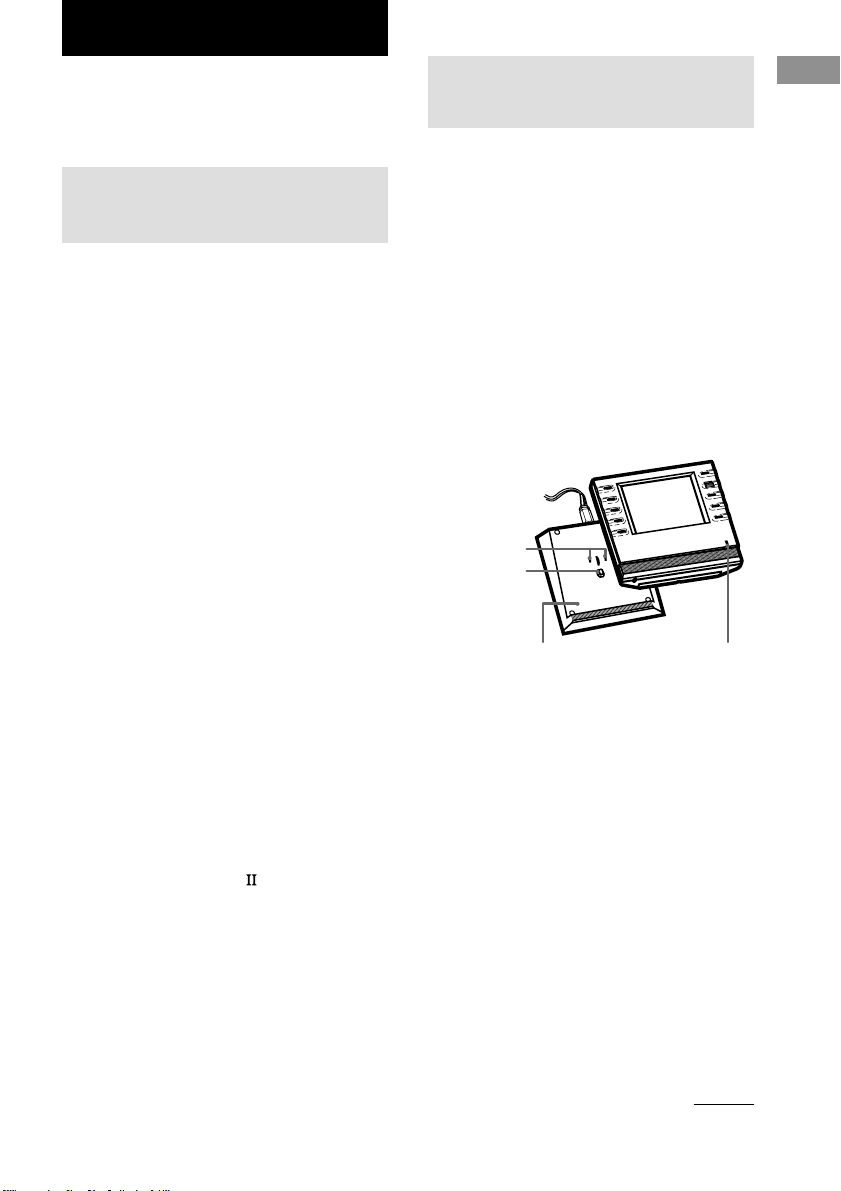
5
FR
Préparatifs
Ce chapitre décrit les préparatifs de la
télécommande. Veuillez le lire attentivement
avant d’utiliser la télécommande.
Appareils et fonctions
compatibles
Cette télécommande emploie des rayons
infrarouges pour contrôler amplificateurs,
amplis-tuners et appareils AV.
Appareils compatibles
Cette télécommande peut être utilisée avec les
appareils AV Sony et les appareils AV d’autres
marques. Il est nécessaire d’effectuer certains
réglages pour la commande des appareils
d’autres marques (voir page 10).
Remarque
Avec certains appareils, la commande à distance peut
être impossible.
Fonctions
Cette télécommande fonctionne de façon
unidirectionnelle ou bidirectionnelle. En tant
que télécommande bidirectionnelle, elle peut
faire fonctionner les appareils Sony
compatibles avec le système de commande
bidirectionnelle. Le système de commande
bidirectionnelle permet non seulement de
transmettre des signaux infrarouges pour la
commande à distance de l’amplificateur ou de
l’ampli-tuner, mais aussi de recevoir des rayons
infrarouges de l’amplificateur ou de l’ampli-
tuner pour afficher des caractères et certaines
informations des appareils raccordés à
l’amplificateur ou à l’ampli-tuner avec un
cordon CONTROL A1/A1
. Cette
télécommande peut aussi échanger des données
directement avec les lecteurs CD à commande
bidirectionnelle (page 19).
En outre, cette télécommande est munie de 2
sections pour la transmission et la réception des
codes de commande, ce qui permet d’accroître
plage d’action de la télécommande.
Préparatifs
Préparation de la
télécommande
Recharge de la pile
Avant d’utiliser la télécommande, rechargez la
pile. La pile rechargeable est insérée dans la
télécommande.
1 Raccordez l’adaptateur secteur au
chargeur de pile.
2 Posez la télécommande sur le chargeur
de pile.
Le témoin s’allume en rouge pendant la
recharge. La recharge est terminée lorsque
le témoin devient vert. Il faut environ 6
heures pour recharger la pile.
Remarques
• Le panneau tactile et le contraste ont été ajustés en
usine. Si l’écran semble être décalé par rapport à sa
position normale, ou s’il est trop lumineux ou trop
sombre, utilisez l’écran RM SETUP pour le régler
(page 29).
• L’écran s’allume lorsque vous le touchez ou
appuyez sur la touche BACK LIGHT.
• Les touches ?/1/SYSTEM STANDBY, MASTER
VOL +/–, MUTING, SLEEP, TV INPUT, TV CH
+/– et TV VOL +/– peuvent être utilisées même
lorsque l’écran est éteint.
• La touche BACK LIGHT allume et éteint le
rétroéclairage. Si vous la maintenez enfoncée
pendant 2 secondes environ, l’écran s’éteint.
• Si vous n’utilisez pas la télécommande pendant 60
secondes environ, l’écran s’éteint automatiquement
(extinction automatique). Le délai d’extinction peut
être réglé de 10 à 90 secondes dans “Réglage du
délai d’extinction de l’écran” sur l’écran RM
SETUP (voir page 30).
Témoin
à suivre
Chargeur de pile
Bouton de recharge
Plots de charge
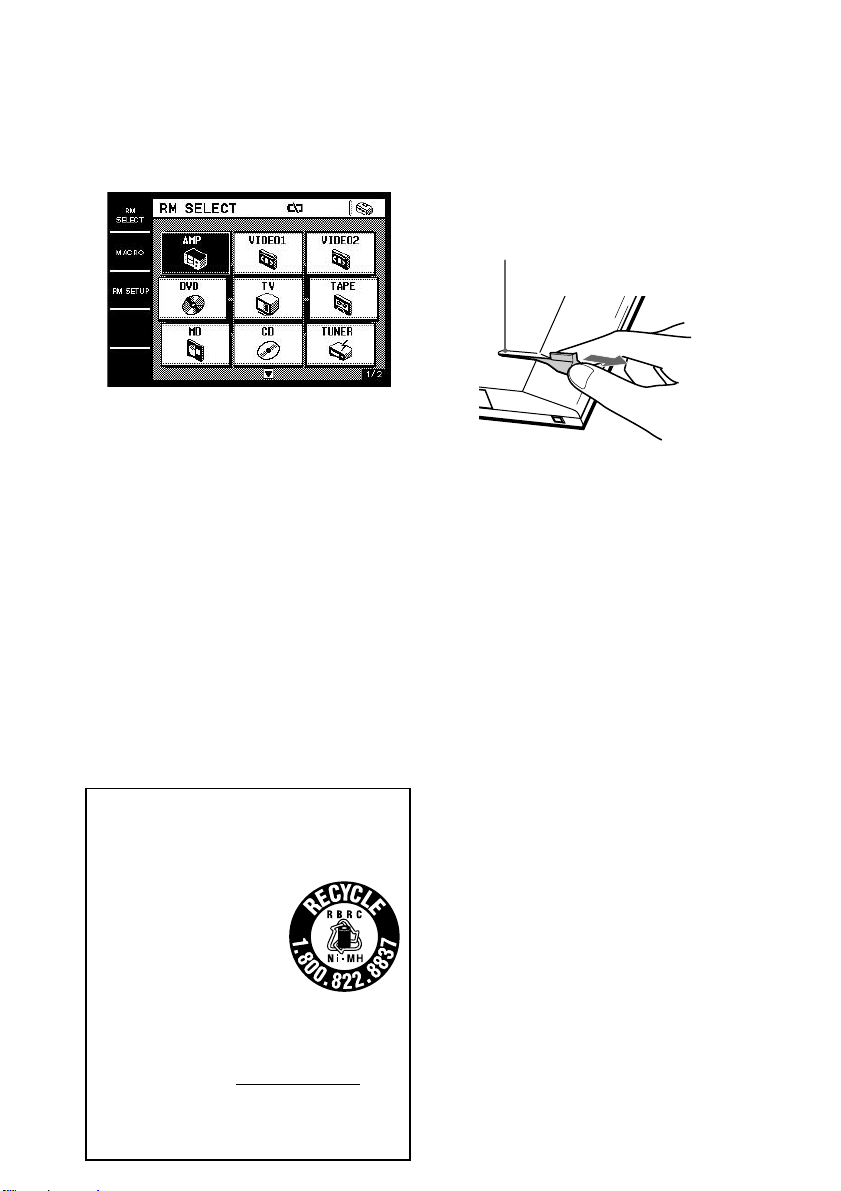
6
FR
Recharge de la pile
Lorsque la pile est faible, E apparaît.
La pile doit alors être rechargée.
Conseil
Normalement la pile dure environ 5 jours par
recharge*. Cependant, selon la fréquence d’utilisation
de la télécommande et la tension initiale de la pile,
l’autonomie peut être plus courte ou plus longue.
*
En raison de 60 opérations de touches par jour avec le
rétroéclairage. Si le rétroéclairage est désactivé, la pile
dure bien plus longtemps. Pour allonger l’autonomie
de la pile, il est conseillé de laisser le rétroéclairage
désactivé lorsque la lumière ambiante est suffisante.
Attention
Si E apparaît, rechargez la pile dès que possible.
Si vous laissez plus de deux mois la télécommande
déchargée, les réglages effectués seront effacés.
Remarques
• Lorsque E apparaît, le rétroéclairage s’éteint
automatiquement.
•
Si l’autonomie de la pile après une recharge est
extrêmement courte, la pile doit être remplacée. Pour le
remplacement de la pile, contactez votre revendeur Sony.
RECYCLAGE DES ACCUMULATEURS À
HYDRURE MÉTALLIQUE DE NICKEL
(Pour la clientèle aux Etats-Unis et
au Canada)
Les accumulateurs à hydrure
métallique de nickel sont
recyclables.
Vous pouvez contribuer à
préserver l’environnement en
rapportant les piles usées dans
un point de collection et
recyclage le plus proche.
Pour plus d’informations sur le recyclage des
accumulateurs, téléphonez le numéro gratuit
1-800-822-8837 (Etats-Units et Canada
uniquement), ou visitez http://www.rbrc.org/
Avertissement: Ne pas utiliser des accumulateurs à
hidrure métallique de nickel qui sont endommagées
ou qui fuient.
Préparation de la télécommande
(suite)
Utilisation du crayon tactile
Le panneau de la télécommande est de type
tactile et la commande s’effectue par simple
toucher.
Retrait du crayon tactile
Lorsque vous rangez le crayon, insérez-le
toujours par son extrémité.
Attention
Touchez le panneau tactile avec le crayon tactile
fourni ou un doigt. N’utilisez pas de stylos, ou autres,
pour ne pas endommager le panneau. La
télécommande risque aussi de ne pas réagir
correctement. Si l’extrémité du crayon devait être
endommagée, ou si vous perdiez le crayon, consultez
votre revendeur Sony.
Tirez pour
enlever.
Logement du crayon tactile
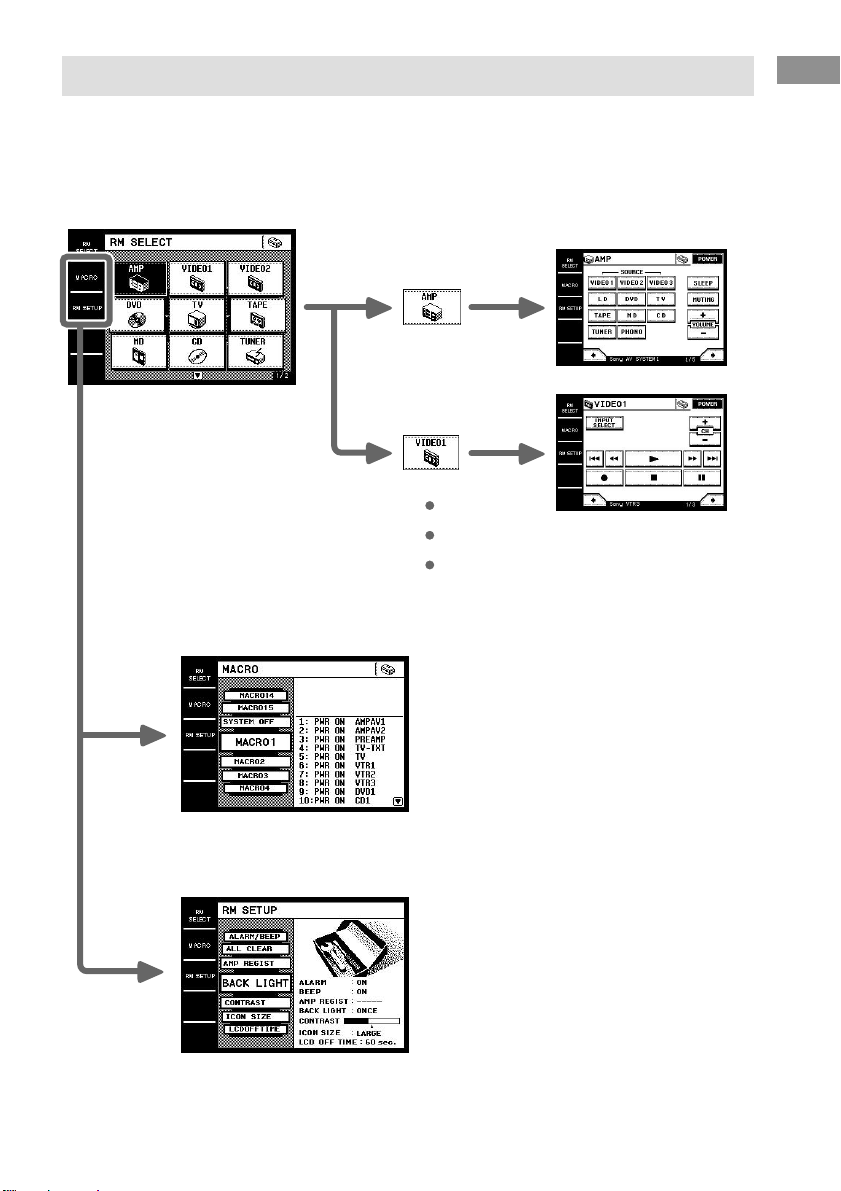
7
FR
Préparatifs
Arborescence des écrans
Le schéma suivant montre l’arborescence des écrans de base de la télécommande.
Ecran RM SELECT
Apparaît lorsque vous touchez RM SELECT.
Lorsque vous sélectionnez une commande (appareil), l’écran de commande de l’appareil correspondant apparaît.
Ecran MACRO
Apparaît lorsque vous touchez MACRO. Cet écran sert à exécuter automatiquement plusieurs
commandes dans un ordre précis (page 22).
Ecran RM SETUP
Apparaît lorsque vous touchez RM SETUP. Cet écran sert à configurer les conditions de
fonctionnement de la télécommande (page 29).
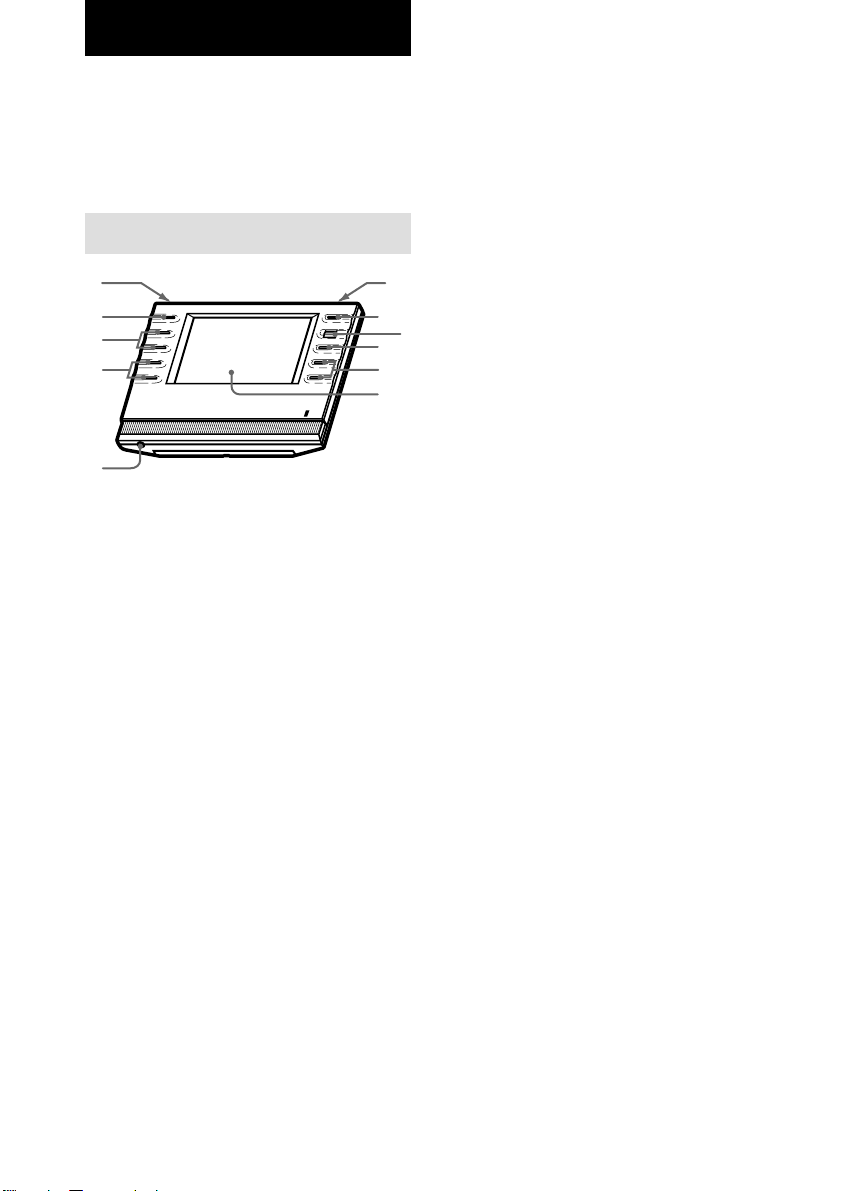
8
FR
Vous trouverez dans ce chapitre une
description des différentes touches de la
télécommande et de leurs fonctions de base.
Toutefois, certaines fonctions décrites ici
peuvent ne pas agir avec certains appareils.
Panneau avant
1 Touche BACK LIGHT
Pour activer ou désactiver le rétroéclairage.
Appuyez environ 2 secondes sur cette
touche pour éteindre l’écran. Lorsque
l’écran est éteint, appuyez sur cette touche
pour activer l’écran et le rétroéclairage.
• Pour allonger l’autonomie de la pile, l’écran
s’éteint automatiquement si aucune commande
n’est activée sur le panneau tactile durant 60
secondes.
• Pour voir l’écran sans activer le rétroéclairage,
touchez le panneau tactile lorsque le
rétroéclairage et l’écran sont éteints.
2 Touche ?/1/SYSTEM STANDBY*
Normalement pour allumer et éteindre
l’amplificateur/ampli-tuner.
Si vous appuyez plus de 2 secondes sur
cette touche, tous les appareils Sony seront
éteints (SYSTEM STANBY (mis en veille))
par le programme SYSTEM OFF (macro
d’extinction de la chaîne) (page 22).
3 Molette
Tournez la molette pour faire défiler les
options d’une liste (etc.). Appuyez dessus
pour sélectionner l’option éclairée.
Emplacement des éléments et des
commandes
4 Touche MUTING*
Pour couper le son de l’amplificateur/ampli-
tuner.
5 Touches MASTER VOL +/–*
Pour régler le volume de l’amplificateur/
ampli-tuner.
6 Panneau tactile
Pour la commande à distance. La
télécommande s’allume automatiquement
quand vous touchez le panneau.
7 Minijack stéréo
Pour une utilisation future.
8 Touches TV VOL +/–*
Pour régler le volume du téléviseur.
9 Touches TV CH +/–*
Pour sélectionner les chaînes de télévision.
0 Touche TV INPUT*
Pour sélectionner l’entrée du téléviseur.
qa Touche SLEEP*
Pour activer le temporisateur de
l’amplificateur/ampli-tuner. Les réglages du
temporisateur apparaissent sur l’afficheur de
l’amplificateur/ampli-tuner, pas sur l’écran
de la télécommande.
* La télécommande émet le code de commande AMP
(l’amplificateur/ampli-tuner) ou TV (téléviseur)
programmé par la fonction IR SETUP (page 10).
Si vous programmez plusieurs amplificateurs ou
téléviseurs, la télécommande émet le code de
commande de l’appareil (icône) apparaissant en
premier (coin supérieur gauche) sur l’écran RM
SELECT.
1
2
4
6
7
8
9
0
qa
3
5
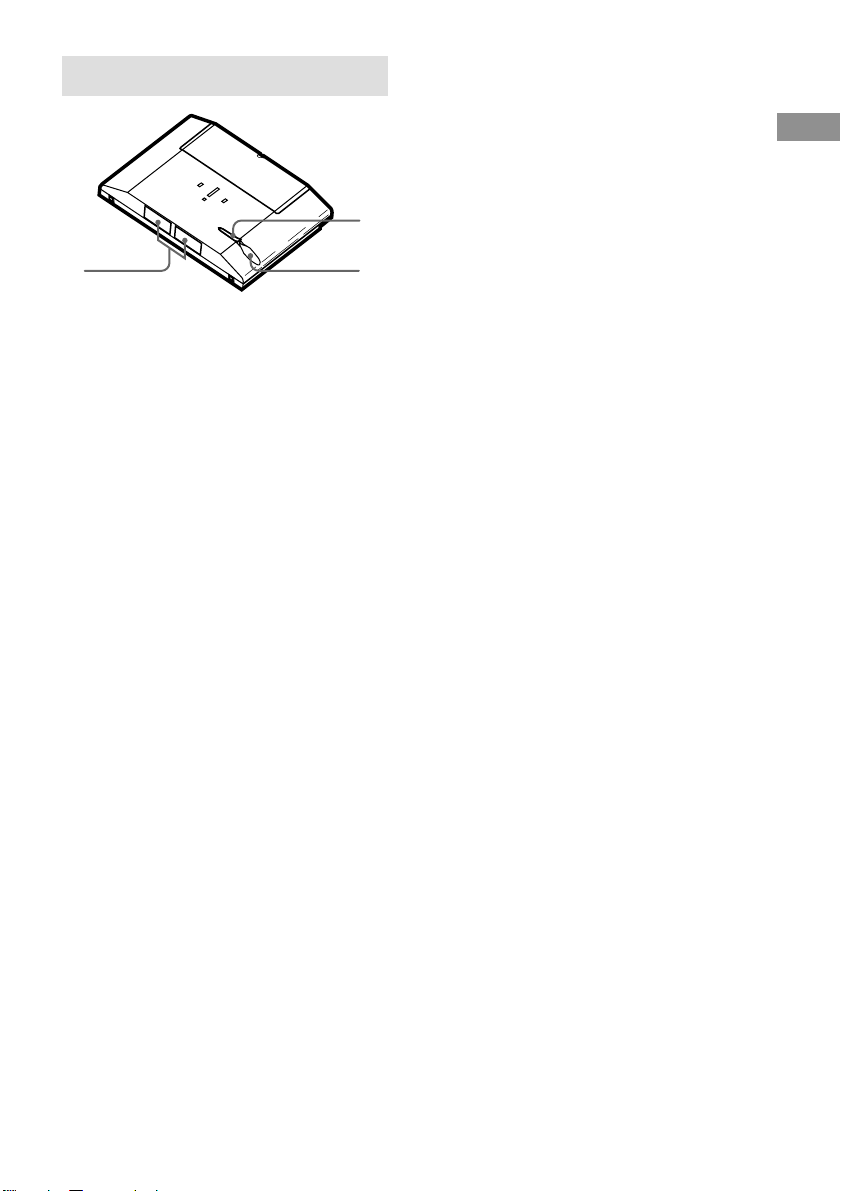
9
FR
Emplacement des
éléments et des commandes
Panneau arrière
1 Crayon tactile
2 Logement du crayon tactile
Laissez le crayon tactile dans son logement
lorsque vous ne l’utilisez pas.
3 Section émettrice/réceptrice
Section de réception des codes de
télécommande
Transmet et reçoit les signaux infrarouges à/
de l’appareil.
Lorsque vous utilisez la fonction
d’apprentissage, cette section reçoit les
codes d’autres télécommandes.
23
1
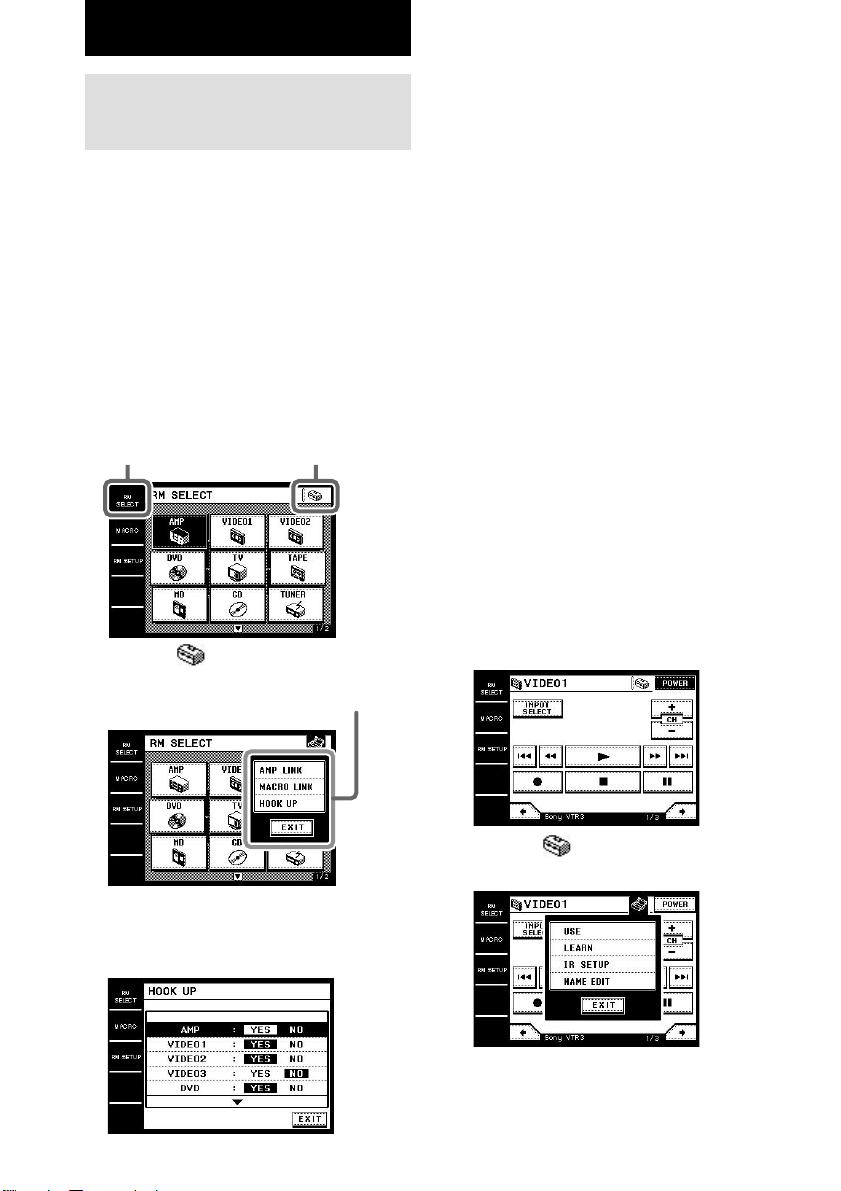
10
FR
Programmation des
appareils
Procédez de la façon suivante pour programmer
les différents appareils qui seront utilisés avec
la télécommande.
Configuration de l’écran RM
SELECT (HOOK UP)
Vous pouvez configurer l’écran RM SELECT
de manière à ne pas faire apparaître les
commandes (appareils) que vous n’utilisez pas.
1 Touchez RM SELECT.
L’écran RM SELECT apparaît.
2 Touchez .
Le menu déroulant apparaît.
3 Touchez HOOK UP dans le menu
déroulant.
L’écran HOOK UP apparaît.
Opérations de base
4 Sélectionnez l’appareil qui ne doit pas
apparaître et touchez NO.
Pour afficher d’autres options, utilisez la
molette ou touchez v ou V pour faire
défiler les options de la liste.
Pour afficher les appareils sur
l’écran RM SELECT
Touchez YES au lieu de NO à l’étape 4.
Conseil
Les appareils qui sont programmés (voir ci-dessous)
sont automatiquement réglés sur “YES”.
Programmation des appareils
(IR SETUP)
1 Touchez RM SELECT.
L’écran RM SELECT apparaît.
2 Touchez la commande (appareil) que
vous voulez enregistrer (par exemple
“VIDEO1”).
Ou bien, tournez la molette pour
sélectionner la commande (appareil), puis
appuyez dessus pour valider la sélection.
L’écran de commande de l’appareil
apparaît.
Pour afficher d’autres options, utilisez la
molette ou touchez v ou V pour faire
défiler les options de la liste.
3 Touchez .
Le menu déroulant apparaît.
Touchez ici pour afficher
le menu déroulant.
RM SELECT
Menu déroulant
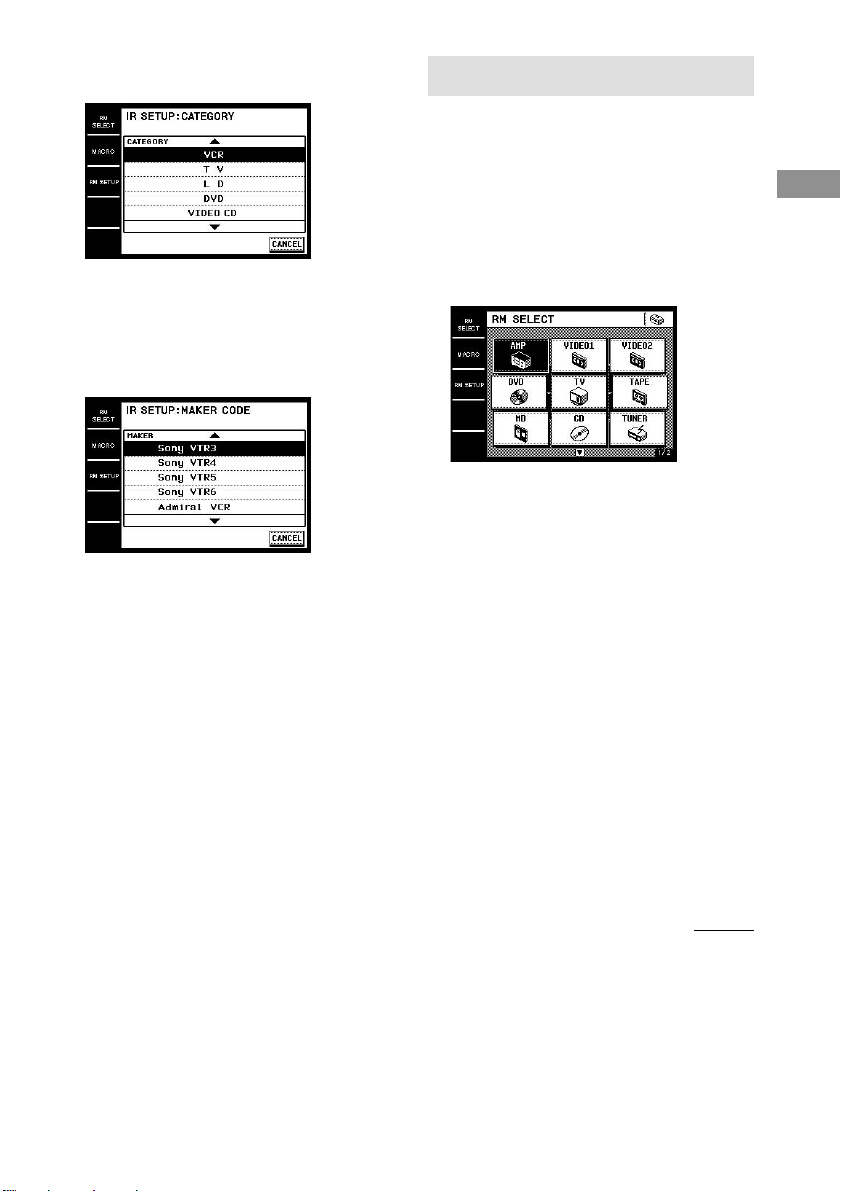
11
FR
Opérations de base
4
Touchez IR SETUP dans le menu déroulant.
L’écran IR SETUP: CATEGORY apparaît.
5 Sélectionnez la catégorie (d’appareils)
(par exemple “VCR”).
Pour afficher d’autres options, utilisez la
molette ou touchez v ou V pour faire
défiler les options de la liste. L’écran IR
SETUP: MAKER CODE apparaît.
6 Sélectionnez le fabricant et le mode de
commande de l’appareil (par exemple
“Sony VTR1”).
Voir “Liste des marques compatibles” à la page
36. L’appareil sélectionné aux étapes
5 et 6 est programmé pour la commande
(appareil) sélectionnée à l’étape 2 et l’écran de la
catégorie sélectionnée apparaît. Le réglage IR
apparaît au bas de l’écran.
Un long bip indique que la programmation est
terminée. Vous pouvez maintenant utiliser l’écran
RM SELECT pour la commande à distance.
Pour arrêter la programmation en cours
Touchez EXIT ou CANCEL au cours des
étapes précédentes.
Remarques
• Les appareils de certains fabricants n’ont pas
certains codes de commande et les touches (icônes)
de l’écran ne peuvent pas être activées. Dans ce cas,
les touches sont sombres.
•
Lorsque vous programmez des appareils de certaines
marques, certaines commandes peuvent ne pas
fonctionner bien qu’elles apparaissent sur l’écran.
•
Selon le modèle ou l’année de fabrication, certains
appareils ne pourront pas être pilotés par la
télécommande bien qu’ils figurent dans la “Liste des
appareils compatibles”. Dans ce cas, vous pouvez
utiliser la fonction d’apprentissage pour programmer
les commandes de la télécommande fournie avec ces
appareils.
Commande des appareils
Sélection de la commande
Pour pouvoir utiliser un appareil, sélectionnez
d’abord l’écran RM SELECT, puis la
commande (appareil) que vous voulez utiliser
(par exemple, lecteur CD, MD, etc.).
1 Touchez RM SELECT.
L’écran RM SELECT apparaît.
2 Touchez la commande (appareil) que
vous voulez utiliser.
Vous pouvez aussi tourner la molette pour
sélectionner la commande (appareil), puis
appuyer dessus pour valider la sélection.
L’écran de commande de l’appareil
apparaît. Touchez B ou b pour afficher
d’autres écrans. Voir les tableaux des pages
12–17 pour le détail sur les touches qui
apparaissent.
Pour afficher d’autres options, utilisez la
molette ou touchez v ou V pour faire
défiler les options de la liste.
Conseils
• Vous pouvez changer le nom des commandes
(appareils) (page 28).
• Sur le dernier écran de chaque commande
(appareil), il y a 8 touches personnalisables (USER
RESERVE KEYS). Vous pouvez les utiliser pour
programmer les codes de commande souhaités
(page 27).
à suivre
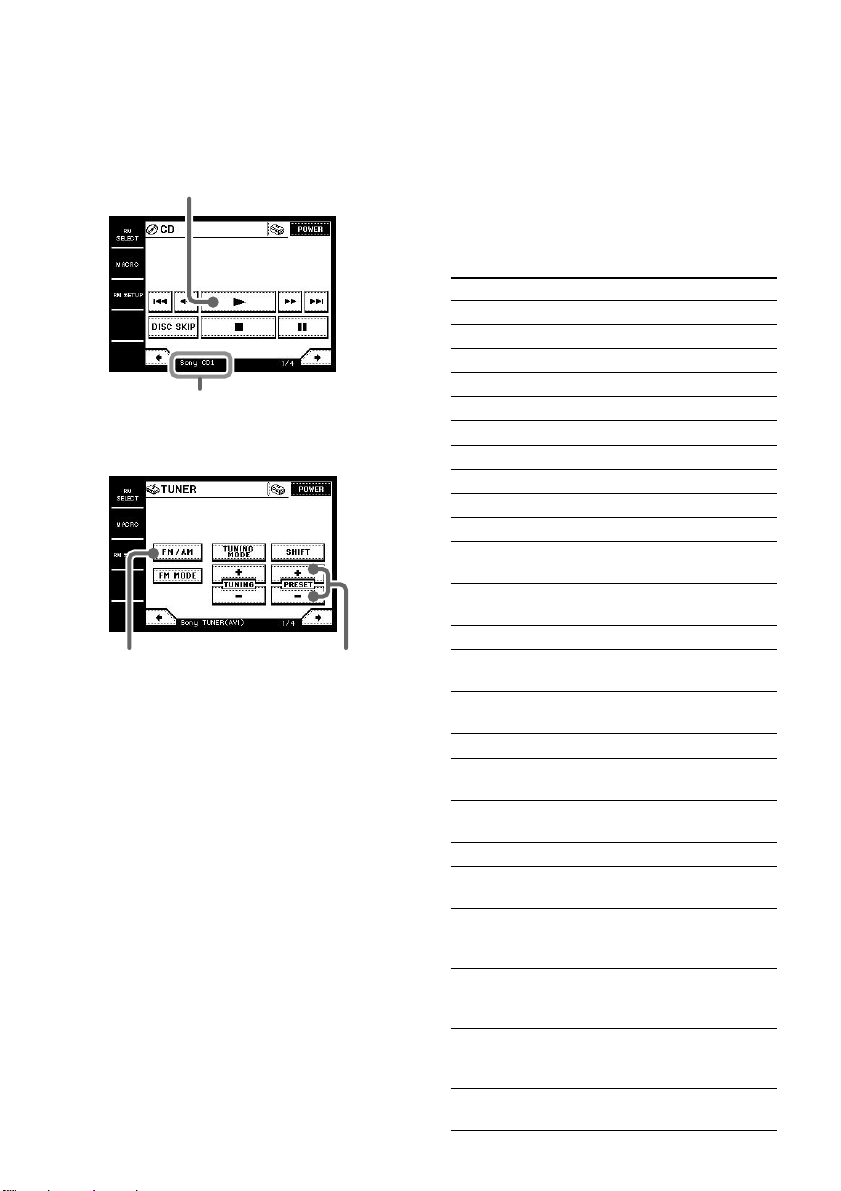
12
FR
Exemples de commandes
Commande d’un lecteur CD
Commande d’un tuner
Tableaux des fonctions
programmées
Remarques
• Selon l’appareil enregistré, certaines touches
(icônes) peuvent ne pas fonctionner. Dans ce cas,
elles sont sombres.
• Les tableaux suivants expliquent les principales
fonctions des touches. Selon l’appareil enregistré,
les touches peuvent fonctionner différemment.
AMP
Touche Fonction
POWER
1)
Mise sous et hors tension
VIDEO 1
Sélection de la source d’entrée : VIDEO 1
VIDEO 2
Sélection de la source d’entrée : VIDEO 2
VIDEO 3
Sélection de la source d’entrée : VIDEO 3
LD Sélection de la source d’entrée: LD
DVD Sélection de la source d’entrée : DVD
TV Sélection de la source d’entrée: TV
TAPE Sélection de la source d’entrée : TAPE
MD Sélection de la source d’entrée: MD
CD Sélection de la source d’entrée: CD
TUNER Sélection de la source d’entrée:
TUNER
PHONO Sélection de la source d’entrée:
PHONO
SLEEP
2)
Activation du temporisateur
MUTING
1)
Coupure du son de l’amplificateur/
ampli-tuner ou rétablissement du son
VOLUME Augmentation ou réduction du volume
+/–
1)
A.F.D.
2)
Décodage automatique du format
2ch
2)
Désactivation du champ sonore ou
sélection du mode 2CH
SOURCE
Sélection de la source audio analogique
DIRECT
2)
MODE </>
2)
Sélection d’un champ sonore
LEVEL
Réglage du niveau des enceintes surround
SURR +/–
2)
LEVEL
Réglage du niveau de l’enceinte centrale
CENTER
+/–
2)
LEVEL SUB
Réglage du niveau du caisson de grave
WOOFER
+/–
2)
BALANCE Réglage de la balance entre les
FRONT enceintes avant gauche et droite
L/R
2)
BALANCE Réglage de la balance entre les
SURR L/R
2)
enceintes surround gauche et droite
Commande des appareils (suite)
Touchez ici pour activer la lecture.
Touchez ici pour
parcourir les
stations radio.
Touchez ici pour
sélectionner la
gamme FM ou AM.
Fabricant et catégorie sélectionnés
(page 10)
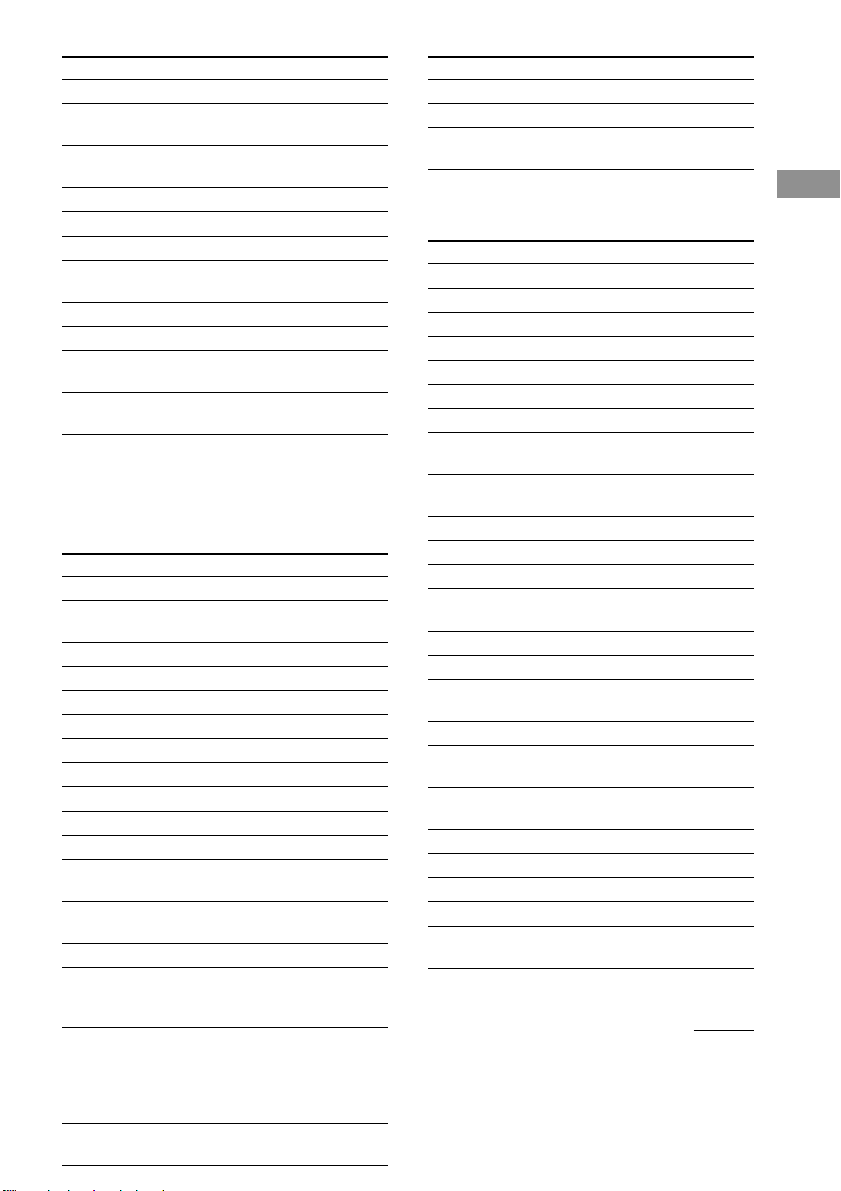
13
FR
Opérations de base
Touche Fonction
EQ
2)
Activation/désactivation de l’égaliseur
TEST
Activation du signal de test
TONE
2)
ON
Affichage d’informations à l’écran
SCREEN
2)
v/V/b/B
2)
Sélection d’une option du menu
MENU
2)
Sélection du menu
ENTER
2)
Validation de la sélection
DISPLAY
2)
Sélection des informations à afficher à
l’écran
DIMMER
2)
Réglage de la luminosité de l’écran
INPUT </>
2)
Sélection de l’entrée audio
AUDIO Affectation de l’entrée audio de chaque
SPLIT
2)
fonction
INPUT Sélection du mode d’entrée des
MODE
2)
appareils numériques
1)
Vous pouvez utiliser les touches du panneau avant.
2)
Amplificateur/ampli-tuner Sony seulement. Pour le
détail, voir page 18.
VIDEO
Touche Fonction
POWER Mise sous et hors tension
INPUT Changement du mode d’entrée du
SELECT magnétoscope
CH +/– Sélection d’une chaîne
. Localisation du passage précédent
m Retour arrière
N Lecture
M Avance rapide
> Localisation du passage suivant
z Enregistrement
x Arrêt
X Pause
DISPLAY Sélection des informations à afficher
sur l’écran de télévision
ANT Commutation de la sortie d’antenne
TV/VTR
SP/LP Sélection de la vitesse de lecture
1–9, 0, Sélection de la chaîne
Pour sélectionner la chaîne 10,
appuyez sur 0.
-/--
Sélection des chaînes 11 et suivantes
(Appuyez sur -/--, utilisez les touches
numériques pour sélectionner la chaîne et
appuyez sur ENTER.)
Ou bien, sélection directe de la chaîne 11.
ENTER
Validation de la sélection
Ou bien, sélection directe de la chaîne 12.
Touche Fonction
MENU Affichage du menu
V/v/B/b Déplacement du curseur
EXECUTE Validation de la sélection d’une option
du menu
DVD
Touche Fonction
POWER Mise sous et hors tension
AUDIO Changement de son
ANGLE Commutation d’angle
SUB TITLE Commutation du sous-titrage
SHUFFLE Sélection de la lecture aléatoire
PROGRAM
Sélection de la lecture programmée
REPEAT Sélection de la lecture répétée
DISC SKIP Sélection du disque précédent/suivant
+/–
. Localisation du passage ou du morceau
précédent
m Retour arrière
N Lecture
M Avance rapide
> Localisation du passage ou du morceau
suivant
x Arrêt
X Pause
DISPLAY Sélection des informations à afficher
sur l’écran de télévision
TOP MENU Affichage du menu
1–9, 0 Touches numériques: Pour spécifier les
options sélectionnées à l’écran
CLEAR Annulation des caractères sélectionnés
à l’écran
SEARCH Changement du mode de recherche
RETURN Retour à l’écran antérieur
MENU Affichage du menu du DVD
V/v/B/b Déplacement du curseur
ENTER Validation d’un réglage ou des options
sélectionnées à l’écran
à suivre

14
FR
TV
Touche Fonction
POWER Mise sous et hors tension
MUTING Coupure du son du téléviseur ou
rétablissement du son
INPUT
3)
Changement du mode d’entrée du
téléviseur
DISPLAY Sélection des informations à afficher
sur l’écran de télévision
JUMP Commutation entre chaîne précédente
et chaîne actuelle
1–9, 0, Sélection de la chaîne
Pour sélectionner la chaîne 10,
appuyez sur 0.
-/--
Sélection des chaînes 11 et suivantes
(Appuyez sur -/--, utilisez les touches
numériques pour sélectionner la chaîne et
appuyez sur ENTER.)
ENTER
Validation de la sélection
Ou bien, sélection directe de la chaîne 12.
CH +/–
3)
Sélection d’une chaîne
VOLUME Augmentation ou réduction du volume
+/–
3)
P in P Affichage d’une image dans l’image
4)
POSITION Changement de position de l’image
incrustée
4)
SWAP Commutation entre image incrustée et
image de fond
4)
WIDE Sélection du mode grand écran
5)
SUB CH +/– Sélection des chaînes présélectionnées
pour l’image incrustée
4)
3)
Les touches du panneau avant peuvent être utilisées
4)
Seulement avec un téléviseur Sony offrant la
fonction “image dans l’image”
5)
Seulement avec un téléviseur Sony supportant le
mode grand écran
TAPE
Touche Fonction
SIDE A/B Sélection de la platine à cassette :
Platine A ou B (double platine
seulement)
. Localisation du passage ou du morceau
précédent
m Retour arrière
n Inversion
N Lecture
M Avance rapide
> Localisation du passage ou du morceau
suivant
z Enregistrement
x Arrêt
X Pause
MD
Touche Fonction
POWER Mise sous ou hors tension
. Localisation de la plage précédente
m Retour arrière
N Lecture
M Avance rapide
> Localisation de la plage suivante
z Pause de l’enregistrement
x Arrêt
X Pause
CONTINUE
Sélection de la lecture continue
SHUFFLE Sélection de la lecture aléatoire
PROGRAM
Sélection de la lecture programmée
REPEAT Sélection de la lecture répétée
1–9, 0 Sélection du numéro de plage (la plage
10 se sélectionne avec 0)
>10 Sélection de numéros à partir de 10
DISPLAY Sélection des informations à afficher
MENU/NO Sélection ou annulation d’une opération
de montage
YES Validation de l’opération de montage
Commande des appareils (suite)
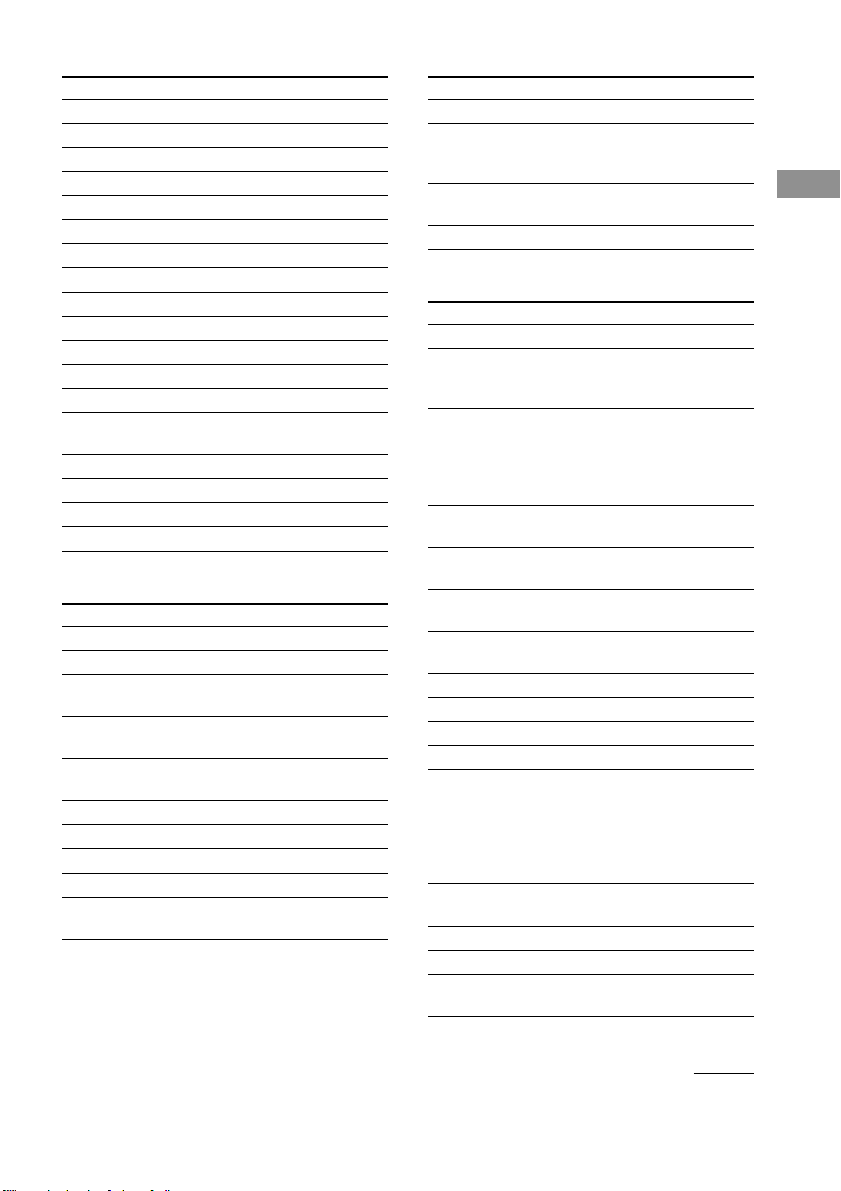
15
FR
Opérations de base
CD
Touche Fonction
POWER Mise sous et hors tension
. Localisation de la plage précédente
m Retour arrière
N Lecture
M Avance rapide
> Localisation de la plage suivante
DISC SKIP
Sélection d’un disque
x Arrêt
X Pause
CONTINUE
Sélection de la lecture continue
SHUFFLE Sélection de la lecture aléatoire
PROGRAM
Sélection de la lecture programmée
REPEAT Sélection de la lecture répétée
1–9, 0 Sélection du numéro de plage (la plage
10 se sélectionne avec 0)
>10 Sélection de numéros à partir de 10
ENTER Validation d’un réglage
DISC Sélection d’un disque
TRACK Sélection d’une plage
TUNER
Touche Fonction
POWER Mise sous et hors tension
FM/AM Sélection de la gamme FM ou AM
FM MODE Sélection de la réception d’une station
FM en stéréo ou mono
TUNING Sélection du mode d’accord
MODE
SHIFT Changement de gamme ou de
présélection
TUNING +/– Parcours de stations radio
PRESET +/– Parcours des stations présélectionnées
DIRECT Accès au mode d’accord direct
1–9, 0 Touches numériques
MEMORY Mémorisation des stations
présélectionnées
CABLE
Touche Fonction
POWER Mise sous et hors tension
1–9, 0, Changement de chaîne. Par exemple,
ENTER pour passer à la chaîne 5, appuyez sur 0
et 5 (ou appuyez sur 5 et ENTER)
JUMP Commutation entre la chaîne antérieure
et la chaîne actuelle
CH +/– Sélection d’une chaîne
SATELLITE
Touche Fonction
POWER Mise sous et hors tension
1–9, 0, Sélection de la chaîne
Pour sélectionner la chaîne 10,
appuyez sur 0.
-/--
Sélection des chaînes 11 et suivantes
(Appuyez sur -/--, utilisez les touches
numériques pour sélectionner la chaîne et
appuyez sur ENTER.)
Ou bien, sélection directe de la chaîne 11.
ENTER
Validation de la sélection
Ou bien, sélection directe de la chaîne 12.
JUMP Commutation entre la chaîne
précédente et la chaîne actuelle
FAVORITE Affichage des guides des stations
favorites
CATEGORY
Affichage de la liste des catégories de
guides
GUIDE Affichage du guide SAT
INDEX Affichage de l’index des stations
MENU Affichage du menu
EXIT Sortie du mode
TV/SAT Commutation de la sortie du récepteur
SAT sur le téléviseur (lorsqu’un câble
de télévision ou une antenne est
raccordé à l’ampli-tuner/ampli-tuner, la
sortie se règle sur le programme TV ou
SAT)
DISPLAY Sélection des informations à afficher
sur l’écran de télévision
v/V/b/B Déplacement du curseur
+ Validation d’un réglage
CH/PAGE +/–
Sélection de la chaîne ou de la page de
menu
à suivre
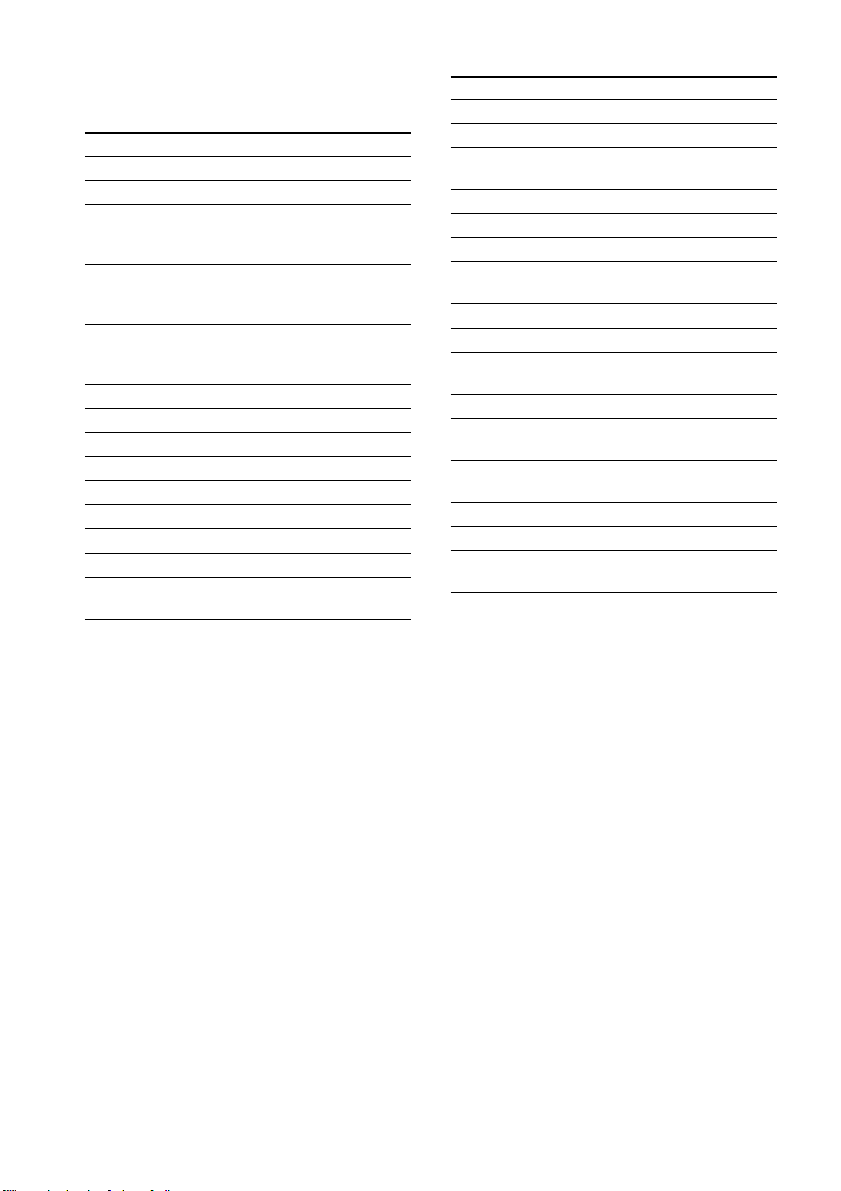
16
FR
PROJECTOR
Touche Fonction
POWER ON Mise sous tension
POWER OFF
Mise hors tension
INPUT Commutation sur l’entrée des prises
SELECT VIDEO
VIDEO
INPUT Commutation sur l’entrée des prises
SELECT VIDEO IN ou S VIDEO IN
SELECT
INPUT Commutation sur l’entrée des prises
SELECT INPUT A ou INPUT B
A/B
v/V/b/B Déplacement du curseur
ENTER Validation d’un réglage
MENU Affichage du menu
MEMORY Mémorisation des réglages
ZOOM +/– Réglage du zoom de l’image
SHIFT +/– Décalage de l’image
FOCUS +/– Mise au point de l’image
BRIGHT +/– Réglage de la luminosité
CONTRAST Réglage du contraste
+/–
LD
Touche Fonction
POWER Mise sous et hors tension
SIDE A/B Sélection de la face A ou B du disque
. Localisation du passage ou du morceau
précédent
m Retour arrière
N Lecture
M Avance rapide
> Localisation du passage ou du morceau
suivant
x Arrêt
X Pause
DISPLAY Sélection des informations à afficher
sur l’écran du téléviseur
PROGRAM
Programmation de plages
REPEAT Répétition de la plage actuelle ou des
plages programmées
1–9, 0 Sélection du numéro de plage (la plage
10 se sélectionne avec 0)
+10 Sélection de numéros à partir de 10
SEARCH Changement du mode de recherche
FRAME/ Commutation entre les informations
TIME concernant les images ou les temps
Commande des appareils (suite)
17
FR
Opérations de base
VIDEO CD
Touche Fonction
POWER Mise sous et hors tension
INDEX Retour au menu antérieur
PREVIOUS
INDEX Affichage du menu suivant
NEXT
. Localisation du passage ou du morceau
précédent
m Retour arrière
N Lecture
M Avance rapide
> Localisation du passage ou du morceau
suivant
x Arrêt
X Pause
1–9, 0 Sélection du numéro de plage (la plage
10 se sélectionne avec 0)
>10 Sélection de numéros à partir de 10
RETURN Retour à l’écran précédent
TIME Affichage des informations temporelles
SELECT Sélection du menu
DAT
Touche Fonction
POWER Mise sous et hors tension
. Localisation de la plage précédente
m Retour arrière
N Lecture
M Avance rapide
> Localisation de la plage suivante
z Enregistrement
x Arrêt
X Pause
REPEAT Sélection de la lecture répétée
1–9, 0 Sélection du numéro de plage (la plage
10 se sélectionne avec 0)
ENTER Validation d’un réglage
CLEAR Annulation du réglage
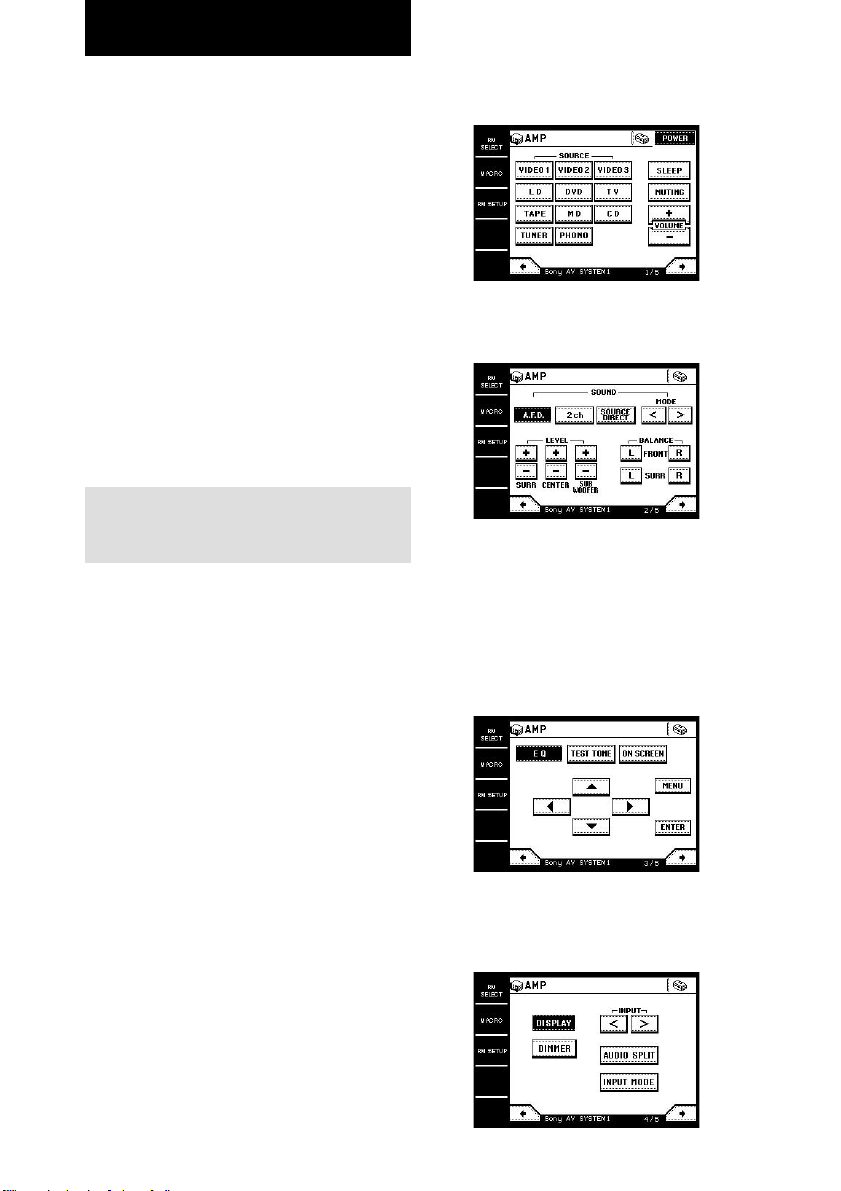
18
FR
Si vous utilisez des amplificateurs/amplis-
tuners Sony, un certain nombre de fonctions
sont disponibles. Mais avant de commencer,
programmez votre amplificateur/ampli-tuner
Sony (page 10).
Pour sélectionner un amplificateur/ampli-tuner
Sony dans la liste IR SETUP: MAKER CODE,
spécifiez le mode de commande approprié.
Mode de commande (type IR)
Si le mode de commande (type IR) de l’amplificateur/
ampli-tuner et celui de la télécommande ne sont pas
identiques, vous ne pourrez pas utiliser la
télécommande pour faire fonctionner l’amplificateur/
ampli-tuner.
Conseil
Pour utiliser la fonction multipièces de
l’amplificateur/ampli-tuner, sélectionnez SONY
MULTI ROOM1 (ou 2) dans la liste IR SETUP:
MAKER CODE.
Fonctionnement de
l’amplificateur/ampli-tuner
1 Touchez RM SELECT.
L’écran RM SELECT apparaît.
2 Touchez AMP.
L’écran de commande de l’amplificateur/
ampli-tuner apparaît.
3 Touchez B ou b pour sélectionner
l’écran suivant.
Pour le détail sur chaque écran, voir
ci-dessous.
Remarques
• Certaines commandes de certains amplificateurs/
amplis-tuners peuvent ne pas fonctionner.
• Pour le détail sur les fonctions, voir le mode
d’emploi fourni avec l’amplificateur/tuner.
Commande d’amplificateurs/amplis-
tuners Sony
Ecran 1/5
Cet écran sert principalement à sélectionner les
entrées et à régler le volume.
Ecran 2/5
Cet écran sert principalement à spécifier le son
surround et à régler le niveau et la balance.
Ecran 3/5
Cet écran sert principalement à régler
l’égaliseur et à activer le signal de test. Vous
pouvez aussi effectuer d’autres réglages avec la
touche MENU, les touches de curseur et la
touche ENTER. Si l’amplificateur/ampli-tuner
a une fonction d’affichage sur l’écran (d’un
téléviseur), il est conseillé d’effectuer les
réglages en utilisant l’écran de télévision.
Ecran 4/5
Cet écran sert principalement à régler
l’afficheur de l’amplificateur/ampli-tuner et à
sélectionner l’entrée audio.
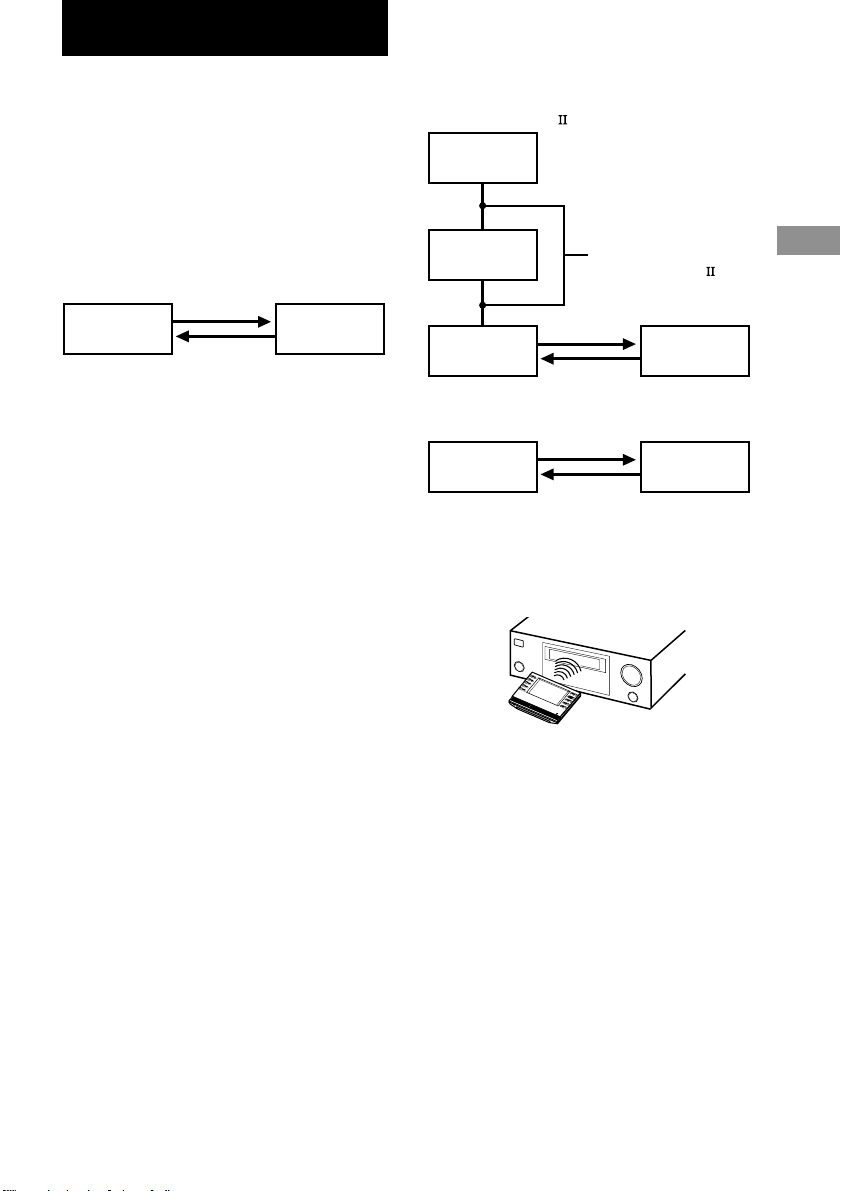
19
FR
Commande d
’amplificateurs/amplis-tuners Sony /
Fonctionnement de la commande bidirectionnelle
Description du système de
commande bidirectionnelle
Cette télécommande fonctionne dans les 2 sens.
Avec un système de commande bidirection-
nelle, l’appareil répond aux signaux envoyés
par la télécommande en lui renvoyant d’autres
signaux (informations sur l’état de l’appareil,
informations alphanumériques, etc.). La
commande résulte donc de la communication
entre la télécommande et l’appareil.
Lorsque vous utilisez un système de cinéma
domestique comprenant plusieurs appareils
compatibles avec le système de commande
bidirectionnelle, limitez la commande
bidirectionnelle à un seul appareil. En général,
le système de commande bidirectionnelle est
désactivé pour tous les appareils sauf pour
l’amplificateur/ampli-tuner.
Si vous voulez désactiver le système de
commande bidirectionnelle de l’amplificateur/
ampli-tuner, reportez-vous au paragraphe
“Réglage de la commande bidirectionnelle”
dans le mode d’emploi de l’amplificateur/
ampli-tuner.
AppareilTélécommande
Fonctionnement de la commande
bidirectionnelle
Exemple de commande
Lorsqu’un appareil à commande bidirectionnelle est
raccordé à l’amplificateur/ampli-tuner par un cordon
de commande A1/A1
Commande bidirectionnelle directe d’un lecteur CD
Platine MD
Lecteur CD
Amplificateur/
Ampli-tuner
Télécommande
Changeur CD
Télécommande
Cordon de
commande A1/A1
Remarques sur la commande
bidirectionnelle
• La communication sera optimale si vous tenez la
télécommande tout près et directement devant
l’appareil pour exécuter une commande
bidirectionnelle.
• Ne bougez pas la télécommande pendant la
communication.
• La télécommande reçoit et affiche les données
provenant de l’appareil. Des erreurs de
communication peuvent se produire si la section
émettrice/réceptrice de la télécommande n’est pas
dirigée correctement vers le récepteur IR de
l’appareil. Veillez à bien diriger la section
émettrice/réceptrice de la télécommande vers le
récepteur IR de l’appareil.
1m – 2m
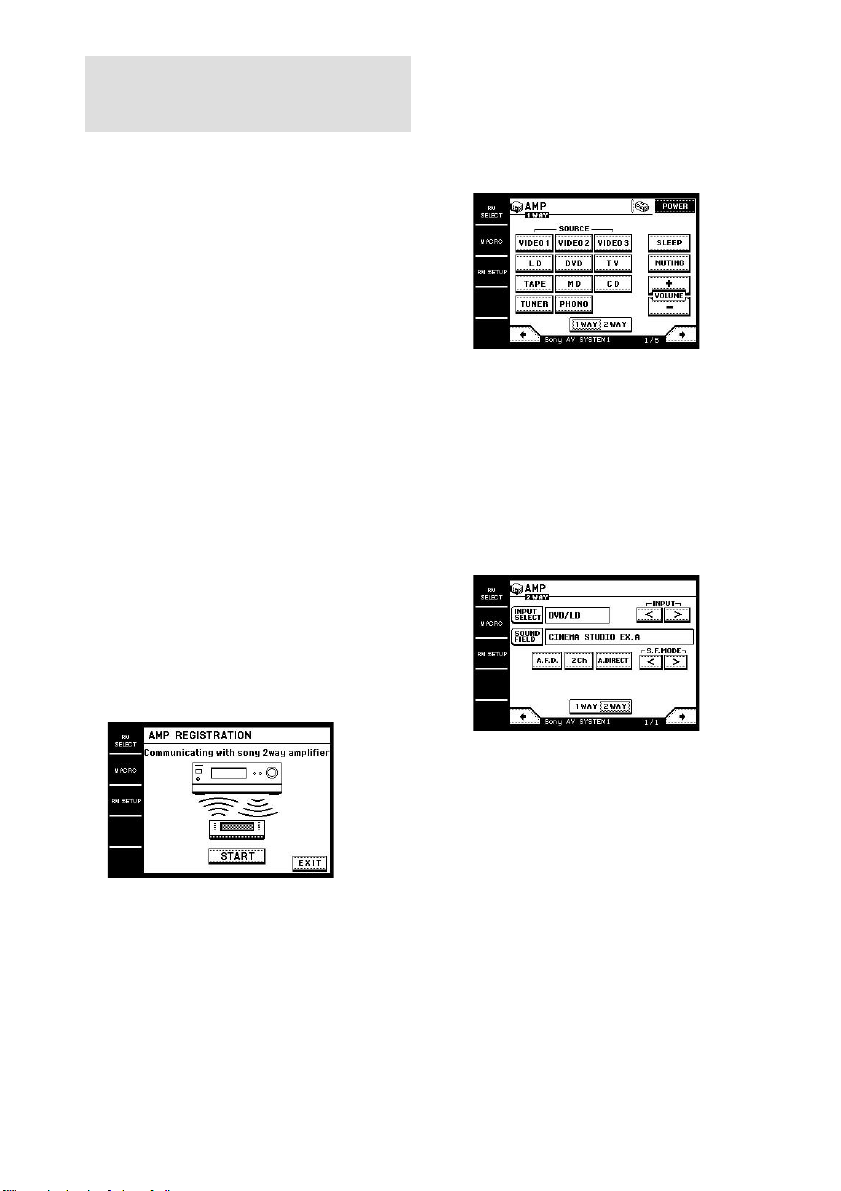
20
FR
Commande de
l’amplificateur/ampli-tuner
La télécommande peut contrôler un
amplificateur/ampli-tuner Sony á commande
bidirectionnelle. Les noms des appareils
(fonctions) peuvent être importés sur la
télécommande. Avant d’utiliser la
télécommande, programmez l’amplificateur/
ampli-tuner Sony avec la fonction IR SETUP
(page 10).
Avant d’effectuer les opérations suivantes
n’oubliez pas d’allumer l’amplificateur/ampli-
tuner et dirigez bien la télécommande vers le
récepteur IR de l’amplificateur/ampli-tuner.
Pour programmer un
amplificateur/ampli-tuner
bidirectionnel
Utilisez l’écran RM SETUP.
Remarque
Vous ne pouvez pas programmer l’amplificateur/
ampli-tuner s’ils ne sont pas réglés pour la commande
bidirectionnelle. Reportez-vous à “Réglage de la
commande bidirectionnelle” dans le mode d’emploi
de l’amplificateur/ampli-tuner.
1 Touchez RM SETUP.
2 Touchez AMP REGIST.
3 Touchez START.
La communication commence et
l’amplificateur/ampli-tuner est programmé
sur la télécommande. Le nom de
l’amplificateur/ampli-tuner apparaît à
l’écran. Il apparaît aussi sur l’écran RM
SETUP comme réglage actuel.
Remarque
Si le nom de l’amplificateur/ampli-tuner apparaît sous
“model others”, l’amplificateur/ampli-tuner n’est pas
enregistré correctement. Dans ce cas, certains
opérations bidirectionnelles ne sont pas possibles.
Pour commander
l’amplificateur/ampli-tuner
1 Sélectionnez l’amplificateur/ampli-tuner
Sony sur l’écran RM SELECT.
“1WAY 2WAY” apparaît.
Conseil
Si vous pouvez sélectionner plusieurs
amplificateurs/amplis-tuners Sony sur l’écran
RM SELECT, touchez l’icône AMP qui apparaît
d’abord.
2 Touchez 2WAY.
L’écran de commande bidirectionnelle
apparaît et vous pouvez maintenant faire
fonctionner l’amplificateur/ampli-tuner
programmé sur l’écran RM SETUP.
Pour importer les noms des appareils
(fonctions), touchez INPUT SELECT, puis
touchez INPUT NAME DOWNLOAD.
Pour importer les noms des champs sonores,
touchez SOUND FIELD, puis touchez S.F.
NAME DOWNLOAD.
Remarques
• La commande bidirectionnelle peut être impossible
immédiatement après la mise sous tension de
l’amplificateur/ampli-tuner.
• Vous ne pouvez pas utiliser la molette avec l’écran
2WAY.
• Vous ne pouvez pas utiliser la fonction
d’apprentissage avec les touches de l’écran 2WAY.
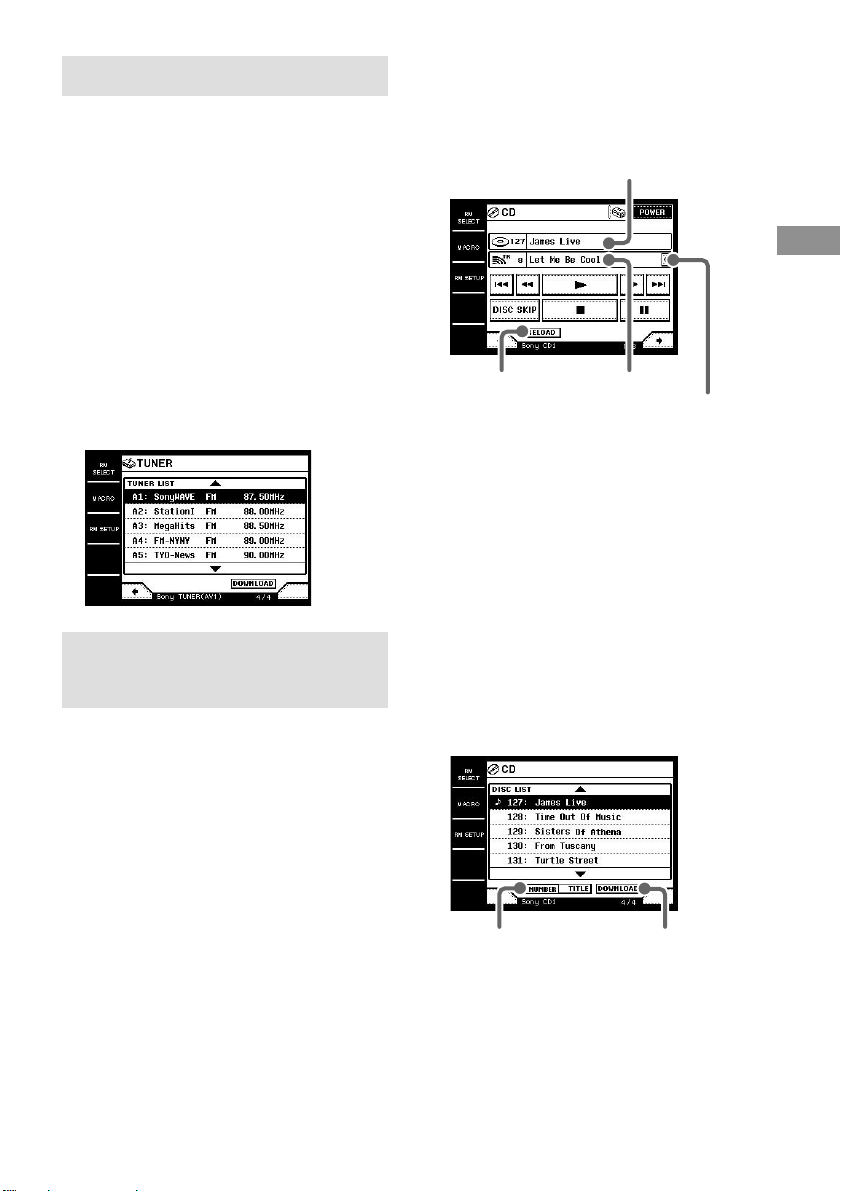
21
FR
Commande d’amplificateurs/amplis-tuners Sony /
Fonctionnement de la commande bidirectionnelle
Pour commander le tuner
Vous pouvez utiliser la télécommande pour
commander un tuner à commande
bidirectionnelle. Vous pouvez aussi importer
les noms de stations enregistrés sur l’ampli-
tuner. Avant de commencer, programmez votre
tuner Sony avec la fonction IR SETUP (page
10).
1 Sélectionnez le tuner sur l’écran RM
SELECT.
La communication commence.
2 Pour télécharger les noms de station,
touchez b pour sélectionner l’écran
suivant (écran 4/4) puis touchez
DOWNLOAD.
L’importation de données commence.
Pour commander un lecteur
CD ou une platine MD
Vous pouvez importer certaines informations
(titres de disques, etc.) d’un lecteur CD* ou
d’une platine MD Sony à commande
bidirectionnelle. Avant de commencer,
programmez le lecteur CD ou la platine MD
Sony avec la fonction IR SETUP (page 10).
* Compatible avec les changeurs CD Sony (5/50/200/
300/400 CD)
Sélectionnez le lecteur CD ou la platine
MD sur l’écran RM SELECT.
La communication commence et les
informations telles que les titres des disques ou
les noms des morceaux apparaissent.
Conseil
Lorsque le numéro de morceau et le titre de morceau
n’est pas affiché correctement, touchez RELOAD.
Pour importer les données
d’un changeur CD
Vous pouvez importer les données d’un
changeur CD.
1 Sélectionnez le lecteur CD sur l’écran
RM SELECT.
2 Touchez b pour sélectionner l’écran
suivant (écran 4/4), puis touchez
DOWNLOAD.
L’importation de données commence.
Conseil
Vous pouvez changer l’ordre des disques dans la liste.
Touchez NUMBER pour classer les disques selon
leur numéro ou TITLE pour les classer selon leur
nom.
Titre du disque
Nom du morceau
Touchez ici pour faire défiler les titres trop longs
RELOAD
DOWNLOAD
NUMBER/TITLE
Fonctionnement de la commande bidirectionnelle
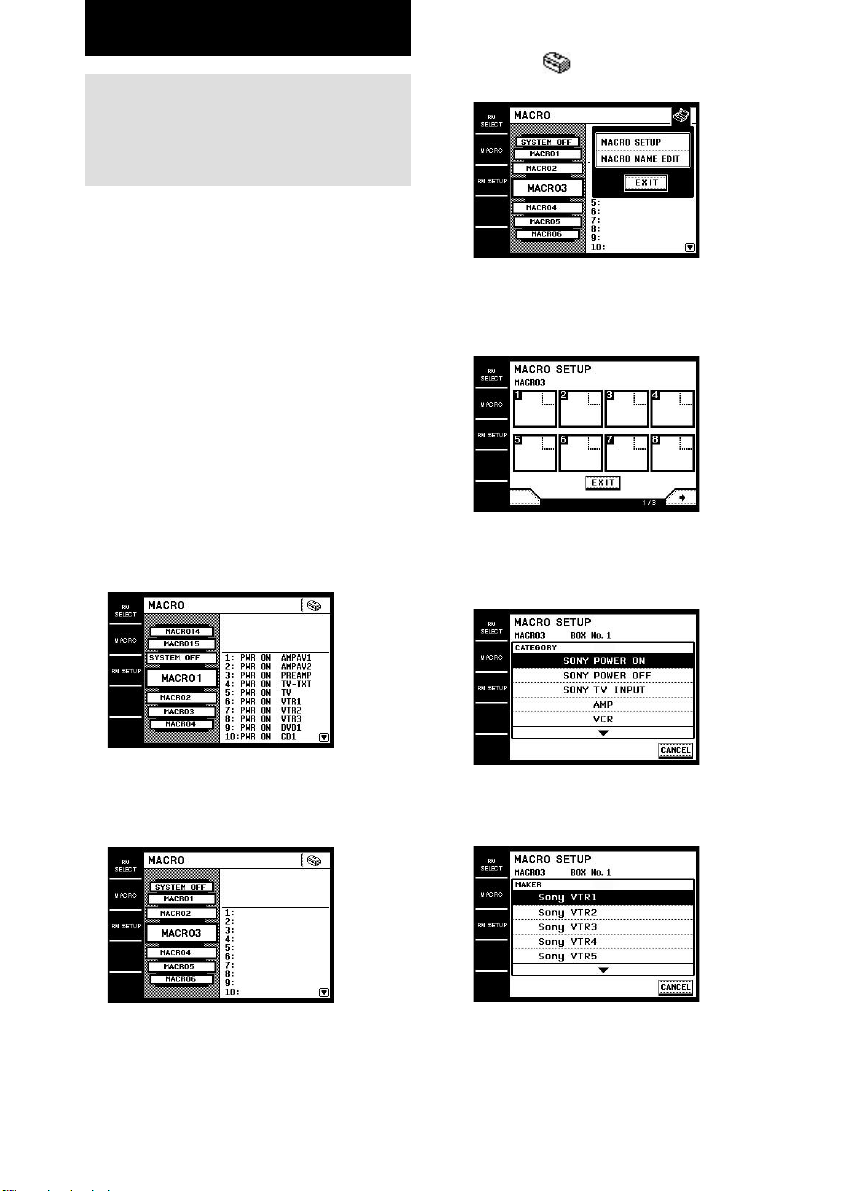
22
FR
Exécution automatique de
plusieurs commandes
dans l’ordre (Macro)
La fonction Macro permet de relier plusieurs
codes IR dans un ordre précis sous une seule
commande. La télécommande peut contenir 16
listes de macros. Dans chacune de ces listes
vous pouvez spécifier jusqu’à 24 codes IR.
Conseils
• MACRO 1 a été programmé en usine pour les
appareils audio/vidéo Sony.
• La fonction SYSTEM OFF a été activée en usine
pour que tous les appareils AV Sony s’éteignent en
même temps. Ce programme est aussi exécuté si
vous appuyez plus de 2 secondes sur la touche
?/1/SYSTEM STANDBY du panneau avant.
Spécification de l’ordre des
codes IR
1 Touchez MACRO.
L’écran MACRO apparaît.
2 Tournez la molette de sorte que le
numéro de macro que vous voulez
programmer (par exemple “MACRO 3”)
apparaisse dans la fenêtre centrale.
Opérations avancées
3 Touchez .
Le menu déroulant apparaît.
4 Touchez MACRO SETUP dans le menu
déroulant.
La liste d’étapes de la macro (BOX (cases))
apparaît.
5 Touchez le numéro d’étape de la macro
où vous voulez programmer la
commande (par exemple “1”).
La liste CATEGORY apparaît.
6 Sélectionnez la catégorie (par exemple
“VCR”).
La liste MAKER apparaît.
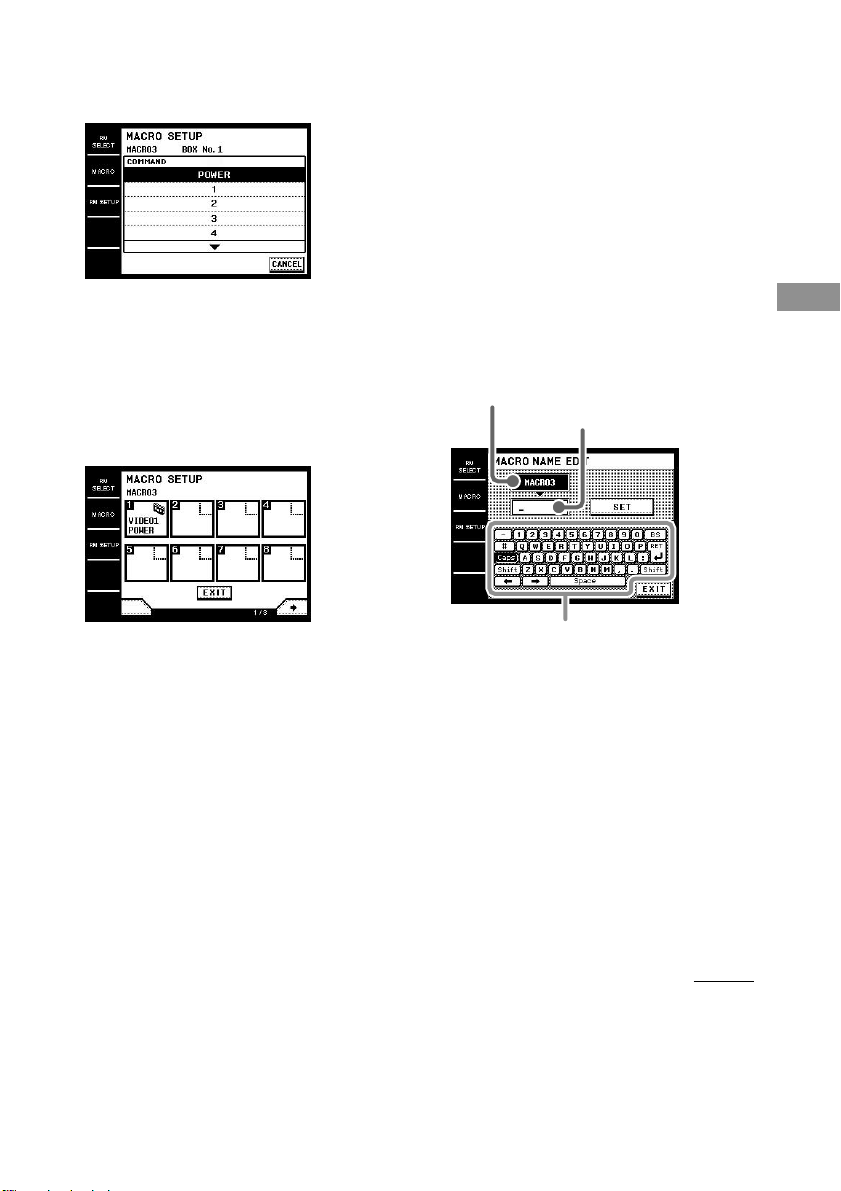
23
FR
Opérations avanc
ées
7 Sélectionnez le fabricant (par exemple
“Sony VTR1”).
La liste COMMAND apparaît.
8 Sélectionnez la commande (par
exemple “POWER”).
Les options sélectionnées aux étapes 6 à 8
sont progammées dans la case sélectionnée
à l’étape 5.
La liste d’étapes de la macro (BOX (case))
réapparaît. Vous pouvez programmer
jusqu’à 24 étapes.
Pour commander des appareils Sony
Lorsque vous sélectionnez la catégorie à
l’étape 6, vous pouvez sélectionner
l’opération, par exemple la mise sous ou hors
tension d’un appareil Sony ou la commutation
de l’entrée d’un téléviseur Sony.
Pour retarder l’exécution d’un code IR
Sélectionnez “WAIT TIME” dans la liste
CATEGORY. La liste de délais d’attente
(“1sec” à “60sec” (1 à 60 secondes)) apparaît.
Sélectionnez le délai souhaité.
Pour utiliser des codes appris dans
la macro
Sélectionnez “RESERVE KEYS” dans la liste
CATEGORY, puis sélectionnez la touche où le
code IR a été enregistré.
Pour annuler la programmation
Touchez EXIT ou CANCEL pendant la
programmation.
Pour supprimer le code IR programmé
Sélectionnez le numéro d’étape (BOX (case))
souhaité pour supprimer le code IR, puis
sélectionnez “MACRO CLEAR” dans la liste
CATEGORY.
Pour changer le nom d’une macro
A l’étape 4, touchez MACRO NAME EDIT.
Touchez les touches de saisie de nom pour
saisir le nom (10 caractères au maximum), puis
touchez SET. Touchez EXIT pour revenir à
l’écran MACRO.
Pour exécuter une macro
1 Touchez MACRO.
L’écran MACRO apparaît.
2 Tournez la molette pour sélectionner la
macro souhaitée, puis appuyez sur la
molette pour valider la sélection.
Pour annuler l’exécution d’une macro,
appuyez de nouveau sur la molette.
Remarque
Lorsque la macro ne fonctionne pas correctement,
réglez “WAIT TIME” entre chaque commande.
Touches de saisie du nom
Nom actuel
Nom saisi
à suivre
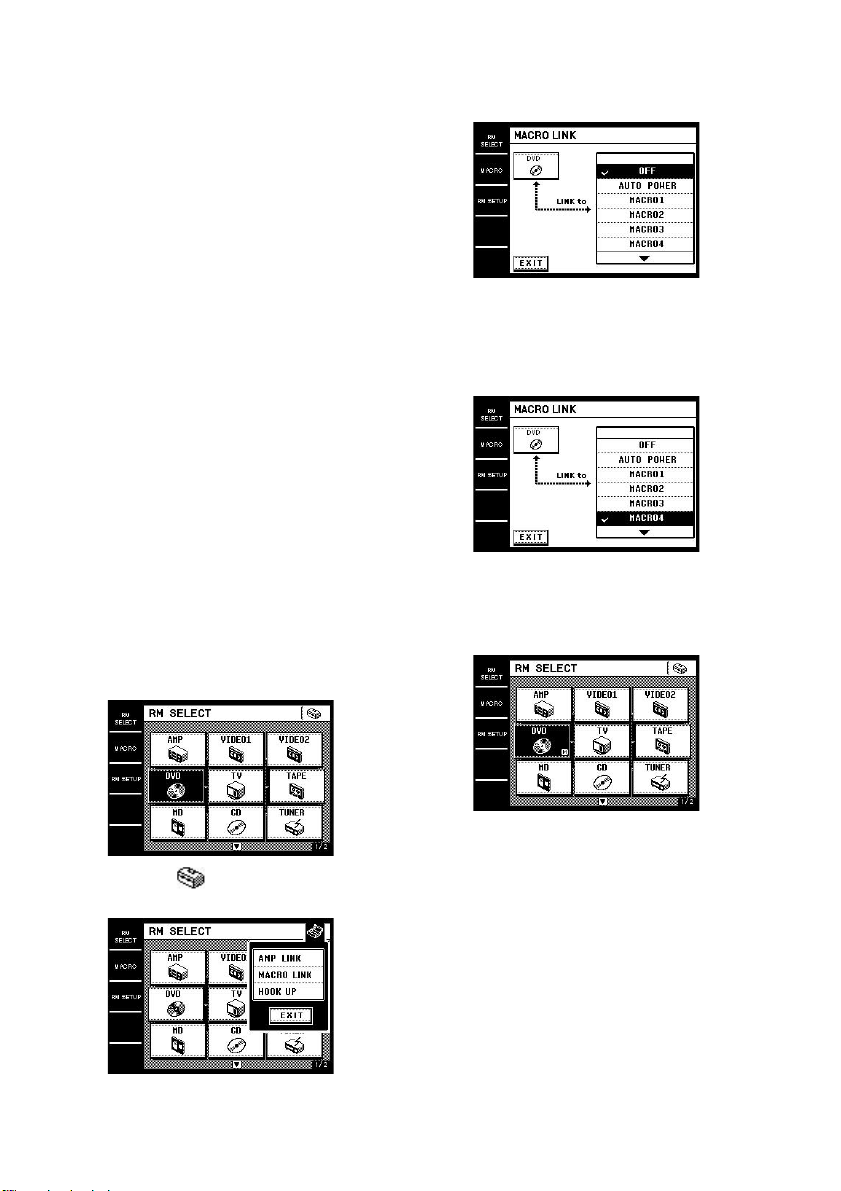
24
FR
Pour activer automatique-
ment une macro (MACRO
LINK)
Vous pouvez relier une commande (appareil) à
une macro pour que la macro s’exécute
automatiquement lorsque cette commande est
sélectionnée.
Par exemple, la MACRO4 peut être exécutée
lorsque “DVD” est sélectionné sur l’écran RM
SELECT, comme indiqué
ci-dessous.
Mise sous tension automatique
Si des appareils Sony sont programmés et que la
commande d’un de ces appareils est sélectionnée,
l’appareil s’allume automatiquement. En outre, si des
appareils vidéo Sony (Magnétoscope, DVD, etc.) sont
programmés et la commande d’un de ces appareils est
sélectionnée, le téléviseur et l’appareil s’allument et
l’entrée TV se règle automatiquement.
1 Touchez RM SELECT.
L’écran RM SELECT apparaît.
2 Tournez la molette pour sélectionner la
commande (appareil) que vous voulez
relier à la macro (par exemple “DVD”).
Lorsque vous touchez la commande
(appareil), touchez B pour afficher l’écran
RM SELECT.
3 Touchez .
Le menu déroulant apparaît.
4 Touchez MACRO LINK dans le menu
déroulant.
L’écran MACRO LINK apparaît.
5 Sélectionnez la macro (par exemple
“MACRO4”) qui doit être reliée à la
commande (appareil).
Une coche (✔) apparaît devant la macro
sélectionnée.
6 Touchez EXIT.
L’écran RM SELECT réapparaît.
M apparaît dans la case de la commande
(apprareil) sélectionnée à l’étape 2.
Exécution automatique de plusieurs
commandes dans l’ordre (Macro) (suite)
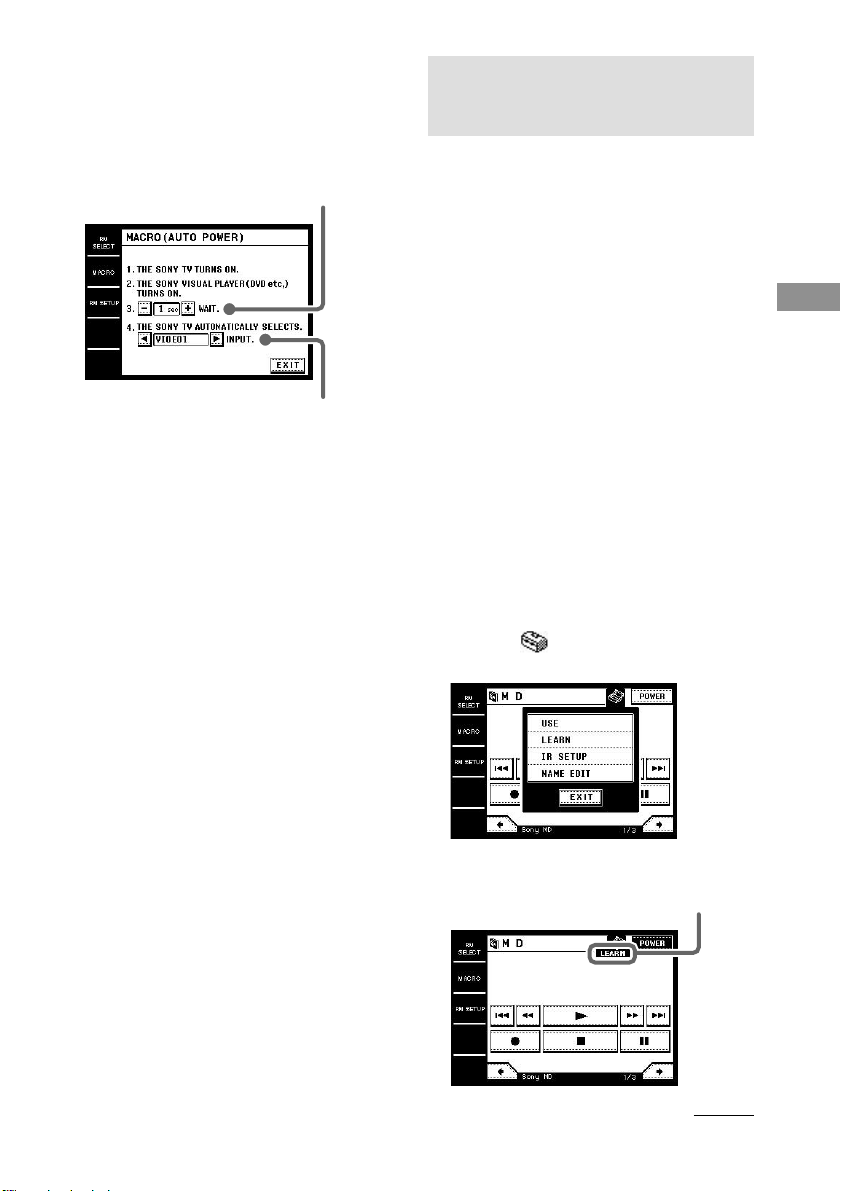
25
FR
Opérations avanc
ées
Sélectionnez le délai d’attente.
Sélectionnez l’entrée du téléviseur.
Activation de la mise sous tension
automatique
A l’étape 5, reliez la commande (appareil) à
“AUTO POWER”. Pour les appareils vidéo,
l’affichage suivant apparaît. Sélectionnez le
délai d’attente et l’entrée du téléviseur.
Remarques
• Avec certains téléviseurs Sony l’entrée ne se règle
pas automatiquement. Ceci est dû au fait que ces
téléviseurs ne peuvent pas recevoir les codes de
commande immédiatement après leur mise sous
tension. Dans ce cas, réglez le délai d’attente.
• Lorsque vous sélectionnez “TV” comme entrée
vidéo, l’entrée TV n’est pas commutée.
Pour annuler MACRO LINK
Sélectionnez “OFF” sur l’écran MACRO
LINK.
Apprentissage des commandes
d’autres télécommandes
Programmation des codes de
commande absents sur la
télécommande
Si un code de commande n’est pas programmé
sur la télécommande, il peut être programmé
par la fonction d’apprentissage.
La fonction d’apprentissage peut être utilisée
pour chaque touche de commande programmée
et pour les touches personnalisables (USER
RESERVE KEYS).
Pour programmer le code IR sur des
touches de commande programmées
1 Touchez RM SELECT.
L’écran RM SELECT apparaît.
2 Touchez la commande (appareil)
(par exemple “MD”).
Ou bien, tournez la molette pour sélectionner
la commande (appareil), puis appuyez sur la
molette pour valider la sélection. L’écran de
commande de l’appareil apparaît.
3 Touchez .
Le menu déroulant apparaît.
4
Touchez LEARN dans le menu déroulant.
La commande se met en mode d’apprentissage.
“LEARN” apparaît.
à suivre
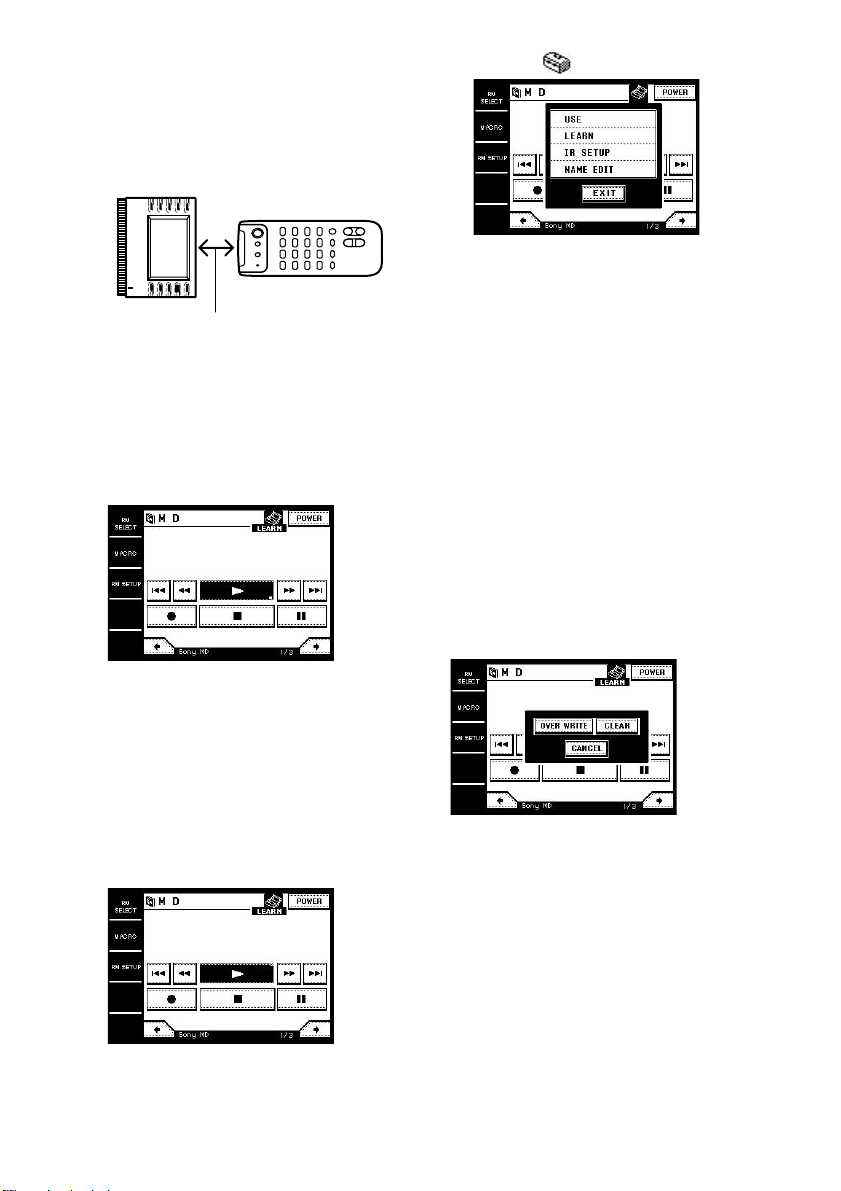
26
FR
5 Dirigez la section réceptrice de cette
télécommande vers le récepteur/
émetteur de la télécommande dont le
code doit être appris.
6 Sur cette télécommande, touchez la
touche pour laquelle vous voulez
utiliser la fonction d’apprentissage (par
exemple “N”).
La marque (s) clignote dans le coin
inférieur droit de la touche. Effectuez
l’étape 7 dans les 30 secondes où la marque
clignote.
7 Appuyez sur la touche appropriée de la
télécommande pour envoyer le code de
commande.
Appuyez plus d’une seconde sur la touche.
Lorsque cette télécommande reçoit le code
de commande et que celui-ci a été
enregistré, la marque (s) dans le coin
inférieur droit cesse de clignoter et une
autre marque (x) apparaît dans le coin
supérieur droit de la touche.
Environ 5 cm à 15 cm
Apprentissage des commandes
d’autres télécommandes (suite)
8 Touchez .
9 Touchez USE dans le menu déroulant.
La télécommande revient au mode de
commande.
Pour utiliser la fonction
d’apprentissage pour les touches du
panneau avant
Utilisez la fonction d’apprentissage pour les
touches désignées de la même façon sur l’écran
AMP ou TV.
Exemple: Si vous utilisez la fonction
d’apprentissage pour la touche MUTING sur
l’écran AMP, la touche MUTING du panneau
avant sera enregistrée avec le même code.
Pour supprimer un code appris
Effectuez les étapes 1 à 4 ci-dessus et touchez
la touche dont vous voulez supprimer le code
appris. L’écran suivant apparaît. Touchez
CLEAR pour supprimer le code appris.
Pour remplacer un code appris
Effectuez les étapes 1 à 5 ci-dessus et touchez
la touche dont le code appris doit être
remplacé. Le même affichage que dans “Pour
supprimer un code appris” apparaît. Touchez
OVER WRITE. Une marque (s) clignote dans
le coin inférieur droit de la touche. Suivez
ensuite les étapes 7 à 9.
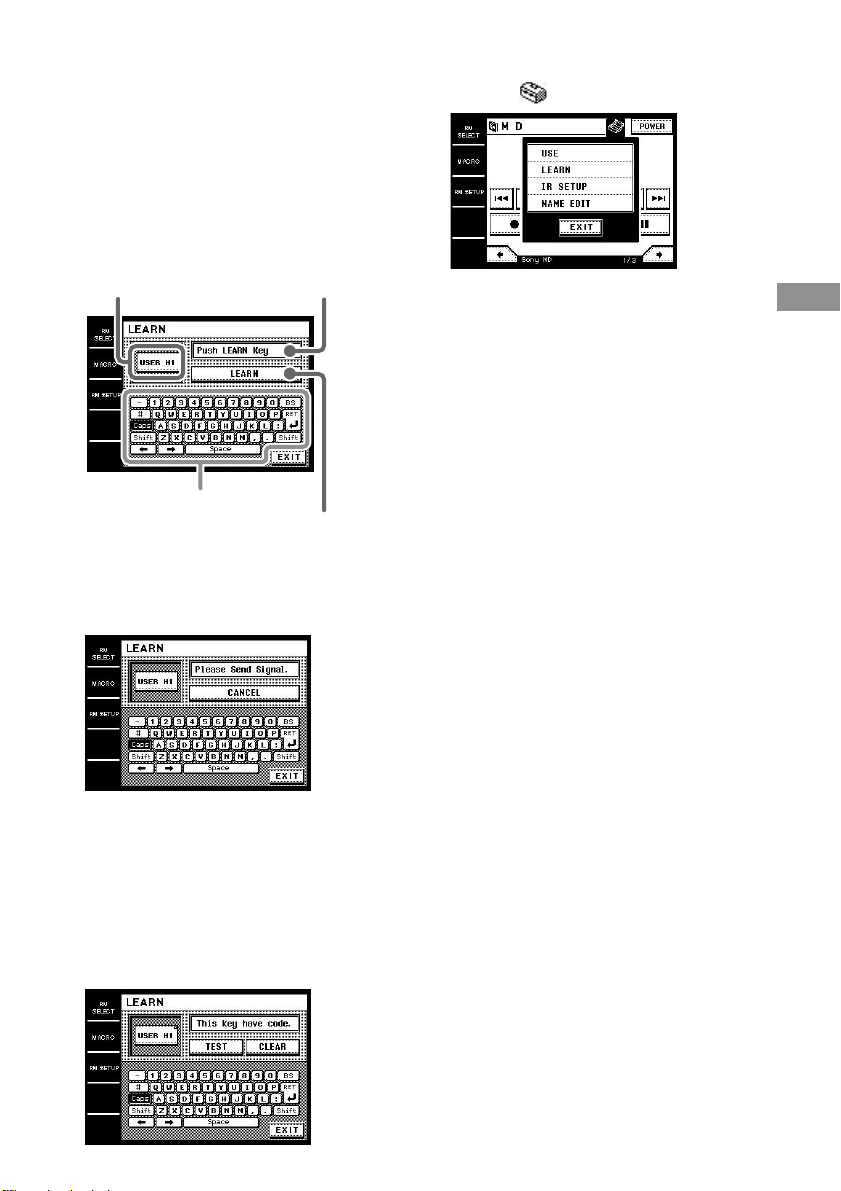
27
FR
Opérations avanc
ées
Pour programmer un code IR sur les
touches personnalisables (USER
RESERVE KEYS)
1
Effectuez les étapes 1 à 5 de “Pour
programmer le code IR sur des touches de
commande programmées” puis, à l’étape
6, sélectionnez la touche personnalisable
(USER RESERVE KEYS) sur laquelle vous
voulez programmer le code IR.
L’écran LEARN apparaît.
2 Touchez LEARN.
“Please Send Signal.” apparaît. Effectuez
l’étape 3 dans les 30 secondes où la marque
clignote.
3 Appuyez sur la touche appropriée de la
télécommande pour envoyer le code de
commande à distance.
Appuyez plus d’une seconde sur la touche.
Lorsque la télécommande reçoit le code de
télécommande et que celui-ci a été appris,
“This key have code.” s’affiche, et la
marque (x) apparaît dans le coin supérieur
droit de la touche.
4 Touchez EXIT.
5 Touchez .
6 Touchez USE dans le menu déroulant.
La télécommande revient au mode de
commande.
Pour annuler l’apprentissage
Touchez CANCEL à l’étape 2.
Pour supprimer le code appris
Après l’étape 3, touchez CLEAR. “Clear?”
apparaît. Touchez “YES”. Le code appris est
supprimé.
Conseil
• Vous pouvez vérifier les touches personnalisables
(USER RESERVE KEYS). Touchez “TEST” après
l’apparition de “This key have code.” à l’étape 3.
Le code appris est envoyé par la télécommande et,
s’il est correct, l’opération correspondante est
effectuée.
• Vous pouvez désigner les touches personnalisables
(USER RESERVE KEYS) par un nom de 14
caractères au maximum. Touchez les touches de
saisie de nom pour spécifier le nom.
• Pour que l’apprentissage s’effectue sans problème,
il est conseillé d’utiliser une pile neuve sur la
télécommande qui doit apprendre les codes.
Remarques
• Normalement, chaque commande (appareil) a huit
touches personnalisables (USER RESERVE
KEYS), mais selon les signaux des codes appris,
il peut être impossible de stocker des codes sur
toutes les touches personnalisables.
• Certains codes de commande ne peuvent pas être
appris.
Utilisation d’une commande
apprise
Sélectionnez la touche programmée pour cette
commande.
Touche sélectionnée
Fenêtre de message
Touche de commande
Touches de saisie de nom
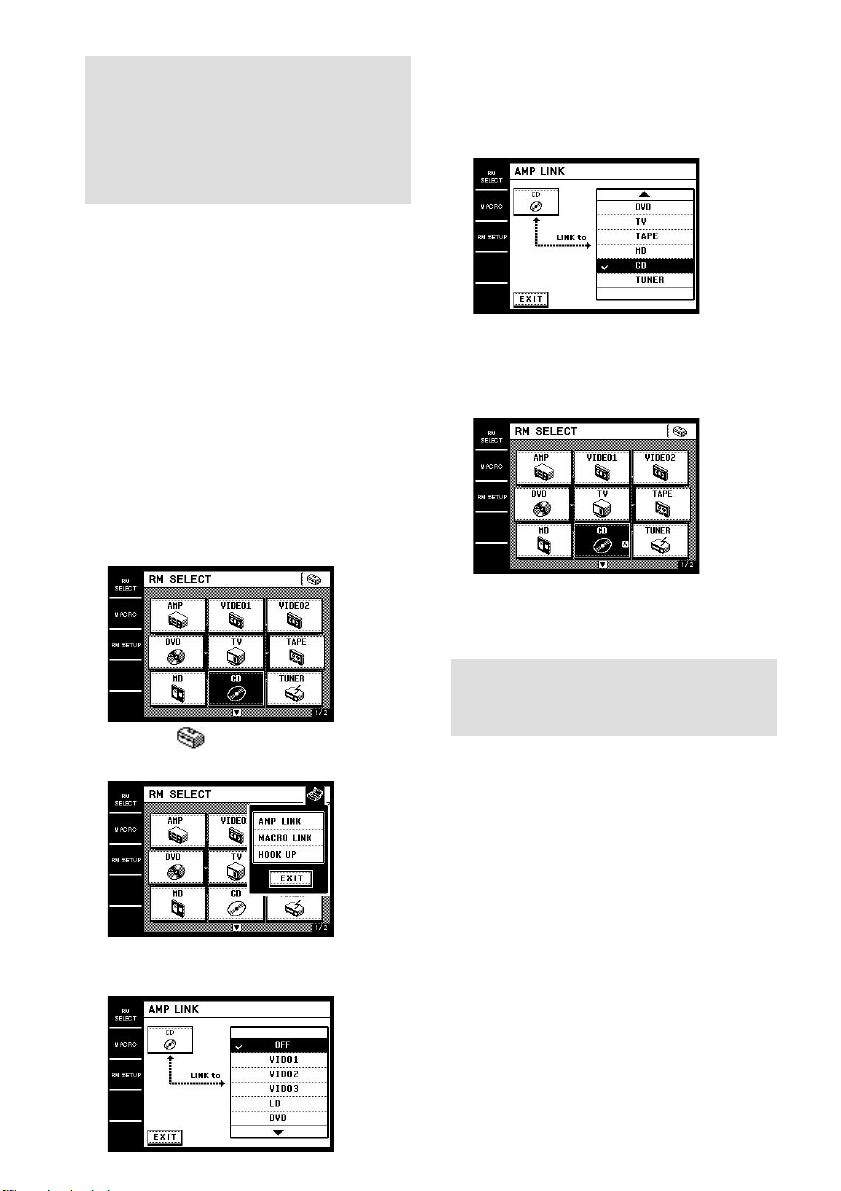
28
FR
5 Sélectionnez la fonction qui doit être
sélectionnée automatiquement (par
exemple “CD”).
Une coche (✔) apparaît devant la fonction
sélectionnée.
6 Touchez EXIT.
L’écran RM SELECT réapparaît.
A apparaît dans la case de la commande
(appareil) sélectionnée à l’étape 2.
Pour annuler AMP LINK
Sélectionnez “OFF” sur l’écran AMP LINK.
Changement du nom d’une
commande (appareils)
Vous pouvez changer le nom des commandes
(appareils) qui apparaissent sur l’écran RM
SELECT (jusqu’à 10 caractères).
1 Touchez RM SELECT.
L’écran RM SELECT apparaît.
Sélection automatique
d’une fonction sur
l’amplificateur/ampli-
tuner (AMP LINK)
Vous pouvez régler la télécommande pour que
la fonction de l’amplificateur/l’ampli-tuner se
règle automatiquement sur l’appareil spécifié
sur l’écran RM SELECT.
L’exemple suivant indique comment sélectionner
le lecteur CD sur l’amplificateur/ampli-tuner en
sélectionnant “CD” sur l’écran RM SELECT.
1 Touchez RM SELECT.
L’écran RM SELECT apparaît.
2 Tournez la molette pour sélectionner la
commande (appareil) pour laquelle
vous voulez utiliser la fonction AMP
LINK (par exemple “CD”).
Lorsque vous touchez la commande (appareil),
touchez
B
pour afficher l’écran RM SELECT.
3 Touchez .
Le menu déroulant apparaît.
4
Touchez AMP LINK dans le menu déroulant.
L’écran AMP LINK apparaît.
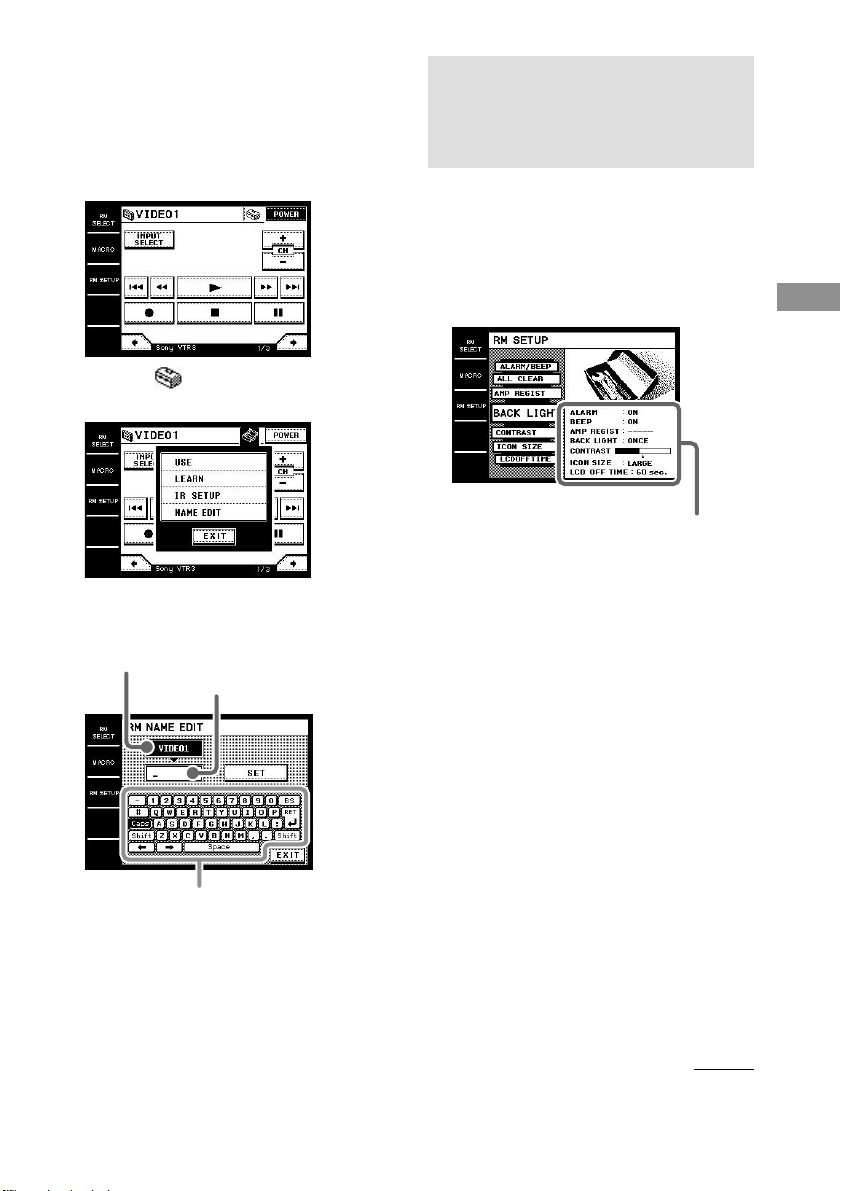
29
FR
Opérations avanc
ées
2
Touchez la commande (appareil) dont
vous voulez changer le nom (par
exemple “VIDEO1”).
Ou bien tournez la molette pour sélectionner
la commande (appareil), puis appuyez sur la
molette pour valider la sélection. L’écran de
commande de l’appareil apparaît.
3 Touchez .
Le menu déroulant apparaît.
4 Touchez NAME EDIT sur le menu
déroulant.
L’écran RM NAME EDIT apparaît.
5 Saisissez le nom souhaité.
6 Touchez SET.
Le nouveau nom est enregistré dans la
télécommande.
7 Touchez EXIT.
Nom actuel
Nom saisi
Touches de saisie du nom
Réglage des conditions
de fonctionnement de la
télécommande
L’écran RM SETUP permet d’effectuer
différents réglages et de personnaliser les
conditions de fonctionnement de la
télécommande.
1 Touchez RM SETUP.
L’écran RM SETUP apparaît.
2 Touchez l’option que vous voulez
régler.
Voir ci-dessous pour le détail sur chaque
option du menu.
3 Touchez EXIT pour revenir à l’écran RM
SETUP.
x Réglage du contraste de l’écran
(CONTRAST)
Vous pouvez régler le contraste de l’écran.
Pour ce faire, touchez + ou –.
Conseils
• Selon la luminosité de la pièce et l’angle de vue de
la télécommande, il peut être parfois difficile de
voir l’affichage. Dans ce cas, changez l’angle de
vue ou ajustez le contraste de l’écran. Si l’écran est
sale (traces de doigts, etc.), essuyez l’écran avec un
chiffon doux et sec. Il est conseillé d’utiliser le
crayon tactile fourni avec la télécommande pour ne
pas salir l’écran.
• Le contraste est un peu plus clair quand la
température est basse et un peu plus sombre quand
la température est élevée.
Réglage actuel
à suivre

30
FR
x Sélection de la taille des icônes
(ICON SIZE)
Vous pouvez sélectionner la taille des icônes
sur l’écran RM SELECT. Touchez SMALL
pour utiliser de petites icônes (12 icônes
affichées simultanément) ou touchez LARGE
pour utiliser de grandes icônes (9 icônes
affichées simultanément).
x Réglage du délai d’extinction de l’écran
(LCDOFFTIME)
Le délai d’extinction de l’écran peut être réglé
de 10 à 90 secondes par paliers de 1 seconde.
Touchez + ou – pour choisir le temps souhaité.
Conseil
Le délai d’extinction a été réglé sur 60 secondes en
usine. Pour préserver l’autonomie de la pile, il est
préférable de choisir un délai plus court.
x Réglage de la position du panneau
tactile (TOUCHPANEL)
Réglez la position du panneau tactile lorsqu’il
est décalé par rapport à sa position normale.
Touchez le centre des 4 points. “Adjusted”
apparaît rapidement et un long bip est émis.
x Réglage de l’avertisseur et du bip de
fonctionnement (ALARM/BEEP)
Vous pouvez régler l’avertisseur et le bip pour
qu’ils retentissent ou non. Touchez ON pour les
activer. Touchez OFF pour les désactiver.
x Rétablissement des réglages par défaut
(ALL CLEAR)
Touchez YES pour supprimer tous les réglages
mémorisés et rétablir les réglages usine. Un
long bip est émis et tous les réglages usine sont
rétablis.
Notez qu’une fois effacés, les réglages
mémorisés ne peuvent pas être restaurés.
x
Programmation d’un amplificateur/ampli-
tuner bidirectionnel (AMP REGIST)*
Si vous utilisez un amplificateur/ampli-tuner
Sony à commande bidirectionnelle, touchez
START pour importer les informations de
l’amplificateur/ampli-tuner sur la
télécommande. Pour le détail, voir page 20.
x Réglage du rétroéclairage
(BACK LIGHT)
Vous avez le choix entre l’activation manuelle
du rétroéclairage et la mémorisation du dernier
réglage du rétroéclairage.
Spécifiez ONCE (réglage usine) si vous voulez
que le rétroéclairage s’allume manuellement,
seulement lorsque vous en avez besoin.
Spécifiez KEEP si vous voulez que la
télécommande se souvienne du dernier réglage
de rétroéclairage. Par exemple, si le
rétroéclairage était éclairé avant l’extinction de
l’écran, il s’allumera automatiquement la
prochaine fois que vous toucherez l’écran.
Inversement, s’il était éteint, il restera éteint
lorsque vous toucherez l’écran.
* Lorsque vous effectuez cette opération, assurez-
vous que l’amplificateur/ampli-tuner est allumé et
dirigez bien la section émettrice/réceptrice de la
télécommande vers l’afficheur de l’amplificateur/
ampli-tuner. Utilisez la télécommande à environ
1 ou 2 mètres de l’amplificateur/ampli-tuner.
Réglage des conditions de fonctionnement
de la télécommande (suite)
Autres informations
31
FR
Autres informations
Consignes de sécurité
Sécurité de l’appareil
(pour la clientèle européenne)
• Pour éviter tout risque d’incendie ou
d’électrocution, n’utiliser que l’adaptateur
secteur fourni à l’exclusion de tout autre.
• Un emploi prolongé de la télécommande peut
provoquer des douleurs dans les bras et les
poignets. En cas de douleurs, cesser d’utiliser la
télécommande et se reposer un moment. Si les
douleurs persistent, consulter un médecin.
• Ne pas exposer la télécommande à des matières
grasses, à l’humidité ou à une poussière
excessive. Elle risque d’être endommagée.
L’emploi de la télécommande dans un
environnement autre que celui spécifié dans le
mode d’emploi peut entraîner des
dysfonctionnements.
• Ne pas laisser pénétrer d’eau ou de matières
étrangères dans la télécommande. Ceci peut
entraîner des dysfonctionnements.
• Ne pas essayer d’ouvrir la télécommande.
Celle-ci contient des pièces sous haute tension.
L’ouverture sans précaution du boîtier, du
couvercle ou toute modification de la
télécommande peuvent entraîner des
dysfonctionnements. Pour toute vérification et
réparation, faire appel à son revendeur Sony.
• Ne pas toucher l’adaptateur secteur avec des
mains mouillées. Pour éviter tout risque
d’électrocution, ne pas débrancher non plus
l’adaptateur secteur avec des mains mouillés.
• Ne pas enrouler le cordon autour de
l’adaptateur secteur. Les fils peuvent se couper
ou d’autres problèmes peuvent apparaître.
• Ne pas couvrir la télécommande et/ou
l’adaptateur secteur d’un chiffon ou d’un
coussin. Une surchauffe interne peut déformer
le boîtier ou provoquer un incendie.
• Poser la télécommande sur une surface stable.
Ne pas la poser sur une surface instable ou
inclinée. Elle risque de blesser quelqu’un en
tombant.
• Ne pas poser d’objets lourds sur la
télécommande. La télécommande peut être
endommagée ou une personne blessée.
• Débrancher l’adaptateur secteur avant tout
entretien. Il risque sinon d’être endommagé.
• Pour des raisons de sécurité, débrancher
l’adaptateur secteur de la prise secteur si la
télécommande n’est pas utilisée pendant
longtemps.
• Ne pas poser ni ranger la télécommande à un
endroit exposé à la lumière directe du soleil ou
près d’un appareil de chauffage. Une surchauffe
interne peut causer des dommages.
• Ne pas cogner l’écran LCD ni appuyer
fortement dessus. Il est en verre et peut se briser
et causer des blessures. Ne pas le tordre,
le laisser tomber ni poser le coude ou un objet
lourd dessus.
• Ne pas toucher l’écran LCD avec un objet
pointu. L’écran peut se briser et causer des
dommages ou des blessures.
• Ne pas cogner ni exercer de force sur la
télécommande. Ceci peut provoquer des
dommages.
• En cas de foudre, ne pas toucher l’adaptateur
secteur. Ceci peut provoquer une électrocution.
• Ne pas poser l’adaptateur secteur près de l’eau.
L’eau sur ou à l’intérieur de l’adaptateur secteur
peut provoquer un incendie ou une
électrocution.
à suivre

32
FR
Sécurité de la pile
rechargeable
• Ne pas dévisser et retirer le couvercle de la pile.
Les pièces sous haute tension à l’intérieur de la
pile sont dangereuses. Pour toute réparation,
faire appel à son revendeur Sony.
• Utiliser le chargeur de pile fourni pour
recharger la pile. L’emploi d’un autre type de
chargeur ou l’emploi de ce chargeur dans
d’autres conditions peut causer les problèmes
suivants : courant de recharge trop élevé, une
fuite du liquide de la pile, un développement de
chaleur, une fissure, une inflammation de la
pile.
• Ne pas jeter la pile au feu ni la chauffer.
L’isolation des cellules internes risque de
fondre, les valves et mécanismes de sécurité
d’être endommagés ou l’hydrogène produite de
s’enflammer, provoquant ainsi une fuite du
liquide, une fissure ou une inflammation de la
pile.
• Si la recharge ne s’effectue pas dans le temps
spécifié, l’arrêter immédiatement. Sinon, le
liquide de la pile peut fuir ou la pile peut
devenir très chaude.
• Ne pas utiliser la pile si elle est décolorée,
déformée, etc. Ceci peut entraîner un
dégagement de chaleur, une fissure ou une
inflammation de la pile.
• La pile rechargeable contient de l’alcali, et tout
contact de ce liquide avec la peau ou des
vêtements peut causer des dommages.
Le cas échéant, se laver immédiatement la peau
ou les vêtements à l’eau courante. La
pénétration de l’alcali dans les yeux peut
entraîner la cécité. Se laver immédiatement les
yeux à l’eau courante si le cas se présente et
consulter un médecin.
Consignes de sécurité (suite)
• Ne pas mettre la pile dans de l’eau douce ou de
l’eau de mer, ni même la mouiller. Ceci peut
entraîner un dégagement de chaleur et une
corrosion des pôles.
• La température ambiante pour la recharge de la
pile est spécifiée ci-dessous. Hors de cette plage
de température, le liquide peut fuir ou un
dégagement de chaleur peut se produire.
La capacité et l’autonomie de la pile peuvent
aussi être réduites.
Température de recharge : 5 °C à 35 °C
• Ne pas utiliser ni laisser la pile à la lumière
directe du soleil, dans une voiture garée en
plein soleil, toutes vitres closes, ni près d’un
appareil de chauffage. Le liquide peut fuir ou
un dégagement de chaleur peut se produire. La
capacité et l’autonomie de la pile peuvent aussi
être réduites.
• Si la pile produit une chaleur excessive ou
présente toute autre anomalie la première fois
qu’elle est utilisée, après l’achat, la rapporter
immédiatement au revendeur. Ne pas l’utiliser.
• La première fois que la pile est chargée, ou si
elle n’a pas été utilisée pendant longtemps, elle
ne se recharge pas complètement. La charger
plusieurs fois de suite.
• Si la télécommande n’a pas été utilisée pendant
longtemps, la pile risque de ne pas se recharger
complètement ou pas du tout. Pour éviter ces
problèmes, il est conseillé de recharger
régulièrement la pile même si la télécommande
n’est pas utilisée.
Autres informations
33
FR
Précautions
Sources d’alimentation
(Pour la clientèle européenne)
L’appareil n’est pas isolé de la source
d’alimentation (secteur) tant qu’il est raccordé
à la prise secteur, même si la commande a été
désactivée.
Crayon tactile
Utilisez le crayon tactile fourni avec cet
appareil ou un doigt pour activer les
commandes du panneau tactile. N’utilisez pas
de stylos, ou autres, pour ne pas endommager
le panneau. La télécommande risque aussi de
ne pas réagir correctement. Si l’extrémité du
crayon devait être endommagée, ou si vous le
perdiez, consultez votre revendeur Sony.
Autonomie de la pile par recharge
Si le rétroéclairage n’est pas absolument
indispensable, n’appuyez pas sur BACK
LIGHT pour allumer l’écran. Touchez le
panneau tactile pour l’activer. L’autonomie de
la pile sera plus longue. L’autonomie de la pile
est plus ou moins longue selon les conditions et
la fréquence d’utilisation de la télécommande.
Nettoyage de la télécommande
Nettoyez le boîtier, l’écran et les touches avec
un chiffon doux légèrement mouillé d’une
solution détergente. Ne pas utiliser de solvant
comme un diluant, de la benzine ou de l’alcool
car la surface de la télécommande pourrait être
endommagée.
Plaque signalétique
(Pour la clientèle européenne)
La plaque signalétique se trouve sous la
télécommande.
Pour toute question ou difficulté concernant
cette télécommande, veuillez consulter le
revendeur Sony le plus proche.
Sécurité de l’adaptateur
secteur et du chargeur de pile
• Pour éviter tout risque d’électrocution,
d’inflammation ou de dysfonctionnement,
ne pas essayer d’ouvrir ou de modifier ces
appareils.
• Pour éviter toute risque d’électrocution,
de dégagement de fumée ou d’inflammation,
ne pas utiliser de cordon d’adaptateur secteur
endommagé.
• Ne pas mouiller l’adaptateur secteur ni le
chargeur de pile. Une infiltration de liquide,
eau ou urine d’un animal domestique, peut
provoquer un dégagement de chaleur, une
électrocution ou un dysfonctionnement.
Faire attention à l’endroit où ces appareils sont
posés ou utilisés.
• Si du liquide, eau ou autre, pénètre à l’intérieur
du chargeur de pile, le débrancher
immédiatement de la prise secteur.
• Pour éviter tout choc électrique, ne pas toucher
l’adaptateur secteur, le chargeur de pile,
le cordon d’alimentation secteur ou la fiche
secteur avec des mains mouillées.
• Ne pas court-circuiter les bornes du chargeur
lorsque celui-ci est branché sur une prise
secteur. Ceci peut provoquer un incendie,
un dysfonctionnement ou une électrocution.
• Ne jamais utiliser l’adaptateur secteur ou le
chargeur de pile dans un endroit humide,
par exemple dans une salle de bains. Ceci peut
provoquer une électrocution.
• Enlever la poussière accumulée autour de la
fiche secteur, car elle peut s’enflammer et
provoquer un incendie.
• Pour éviter tout risque d’électrocution ou
d’incendie, ne pas poser d’objets lourds sur
l’adaptateur secteur.
• Pour débrancher la prise de l’adaptateur secteur,
saisir l’adaptateur secteur proprement dit.
Ne pas tirer sur le cordon, car il risque d’être
endommagé, entraînant ainsi une électrocution
ou un incendie.
• Ne pas poser l’adaptateur secteur ni le chargeur
de pile sur une surface instable pendant la
recharge. Ne pas les couvrir ni envelopper avec
un chiffon ou un coussin. Tout dégagement de
chaleur peur entraîner un incendie.
34
FR
Lorsqu’un appareil est raccordé à
l’amplificateur/ampli-tuner avec un cordon de
commande A1/A1
, la mise sous tension
automatique ne fonctionne pas correctement.
• Importez les données de l’amplificateur/ampli-
tuner (page 20).
Les commandes d’un appareil d’une autre
marque que Sony ne fonctionnent pas.
• Lorsque vous programmez les appareils de
certains fabricants, certaines commandes
n’agissent pas. Dans ce cas, les touches sont
sombres.
Lorsque vous utilisez un amplificateur/ampli-
tuner Sony bidirectionnel, la télécommande et
l’amplificateur/ampli-tuner ne parviennent pas à
communiquer.
• Si le mode de commande (type IR) de
l’amplificateur/ampli-tuner et celui de la
télécommande ne sont pas identiques, la
transmission ne sera pas possible entre la
télécommande et l’amplificateur/ampli-tuner.
apparaît à l’écran.
• Erreur de communication bidirectionnelle.
• Si vous utilisez la commande bidirectionnelle,
vérifiez si l’amplificateur/ampli-tuner et les
appareils sont raccordés correctement (page 19).
• La télécommande et l’appareil sont trop éloignés.
• Assurez-vous qu’il n’y a aucun objet entre la
télécommande et les appareils.
• Assurez-vous que l’appareil est sous tension.
• La section émettrice/réceptrice de la
télécommande n’est pas dirigée vers l’appareil.
• La pile de la télécommande est épuisée.
Rechargez la pile (page 5).
• Une lampe à fluorescence est près de la
télécommande ou de l’appareil. Eloignez-vous de
la lampe.
• Assurez-vous que la commande (appareil)
correcte a été sélectionnée sur la télécommande.
E apparaît à l’écran.
• La pile est vide. Rechargez-la.
En cas de problème
En cas de problème, reportez-vous à ce guide
pour essayer de trouver une solution. Si le
problème persiste, consultez votre revendeur
Sony.
Impossible de faire fonctionner les appareils
avec la télécommande.
• Si vous utilisez la commande bidirectionnelle,
vérifiez si l’amplificateur/ampli-tuner et les
appareils sont raccordés correctement (page 19).
• La télécommande et l’appareil sont trop éloignés.
• Assurez-vous qu’il n’y a aucun objet entre la
télécommande et les appareils.
• Assurez-vous que l’appareil est sous tension.
• La section émettrice/réceptrice de la
télécommande n’est pas dirigée vers l’appareil.
• La pile de la télécommande est épuisée.
Rechargez la pile (page 5).
• Une lampe à fluorescence est près de la
télécommande ou de l’appareil. Eloignez-vous de
la lampe.
• Assurez-vous que la commande (appareil)
correcte a été sélectionnée sur la télécommande.
• Si vous faites fonctionner un appareil d’une autre
marque que Sony, la commande (appareil) peut
ne pas fonctionner correctement. Cela dépend du
fabricant et du modèle.
Lorsque vous utilisez un amplificateur/ampli-
tuner Sony, les fonctions et les modes ne
correspondent pas aux indications de la
télécommande.
• Les informations de l’amplificateur/ampli-tuner
n’ont pas été importées. Importez-les (page 20).
L’affichage n’apparaît pas.
• L’écran n’a pas été activé. Touchez l’écran pour
l’activer.
• Le contraste est trop clair ou trop sombre. Réglez
le contraste (page 29).
L’écran est décalé par rapport à sa position
normale.
• Réglez la position du panneau tactile (page 30).
Autres informations
35
FR
Spécifications
Système de commande
Panneau tactile à cristaux
liquides
Taille de l’écran à 3,8 pouces
cristaux liquides (256 x 200 points)
Type d’écran Système à réflexion
(monochrome)
Panneau tactile Système à membrane
résistante
Type analogique
Alimentation Pile rechargeable (Ni-MH)
Dimensions externes maximales
(largeur × hauteur × profondeur, saillies et
commandes comprises) 166 × 25 × 126 mm
Poids 392 g (télécommande
et pile)
Accessoires fournis
Chargeur de pile (1)
Adaptateur secteur (1)
La conception et les spécifications peuvent être
modifiées sans avis préalable.

36
FR
AMP
SONY-AV1
SONY-AV2
SONY-AV3
SONY AMP
SONY PRE AMP
SONY AV MASTER
SONY MULTI ROOM1
SONY MULTI ROOM2
DENON
JVC
Kenwood
Onkyo
Pioneer
Technics
YAMAHA
VIDEO
SONY
Admiral
Aiwa
Akai
Alba
Audio Dynamic
Bell&Howell
Blaupunkt
Brocsonic
Bush
Canon
CGM
Citizen
Clatronic
Craig
Curtis Mathis
Daewoo
DBX
Dimensia
Emerson
Fisher
Funai
GE
GoldStar
Goodmans
Grundig
Hitachi
Instant Replay
Itt/Nokia
JC Penny
JVC
Kendo
Kenwood
Loewe
Luxor
LXI
Magnavox
Marantz
Marta
Matsui
Memorex
Minolta
Mitsubishi
Multitech
NEC
Nokia
Nokia Oceanic
Nordmende
Okano
Olympic
Orion
Panasonic
Pentax
Philco
Philips
Phonola
Pioneer
Quasar
RCA/PROSCAN
Realistic
SABA
Liste des marques compatibles

Autres informations
37
FR
Samsung
Sunsui
Sanyo
Schneider
Scott
SEG
Seleco
Sharp
Siemens
Signature 2000
Sylvania
Symphonic
Tandberg
Tashiro
Tatung
Teac
Technics
Telefunken
Thorn
Toshiba
Universum
Wards
W.Whouse
YAMAHA
Zenith
DVD
SONY
DENON
JVC
Panasonic
Pioneer
RCA
Samsung
Toshiba
YAMAHA
TV
SONY
Admiral
Aiwa
Akai
Alba
AOC
Bell&Howell
Bestar
Blaupunkt
Bulesky
Brandt
Brocsonic
Brush
Clatronic
Craig
Croslex
Curtis Mathis
Daewoo
Daytron
Dual
Emerson
Ferguson
First line
Fisher
Fraba
Funai
GE
GoldStar
Goodmans
Grundig
Hitachi
ICE
Irradio
Itt/Nokia
JC Penny
JVC
Kendo
KTV
Loewe
LXI
Magnavox
Mark
à suivre

38
FR
Liste des marques compatibles
(suite)
Matsui
Medion
Mitsubishi
Mivar
NEC
Nokia
Nokia Ocean
Nordmende
Okano
Onwa
Panasonic
Philco
Phonola
Pioneer
Portland
Quasar
Redio
Rediola
Redio Shack
RCA/PROSCAN
SABA
Samsung
Sanyo
Schneider
Scott
Sharp
Siemens
Signature
Sylvania
Symphonic
Tatung
Telefunken
Thomson
Thoron
Toshiba
Universum
Videch
Wards
Watson
W.W.House
YAMAHA
Zenith
TAPE
SONY
DENON
Fisher
JVC
Kenwood
Nakamichi
Onkyo
Panasonic
Philips
Pioneer
Teac
Technics
YAMAHA
MD
SONY
Denon
JVC
Kenwood
Pioneer
Sharp
YAMAHA
CD
SONY
DENON
Fisher
JVC
Kenwood
Magnavox
Onkyo
Panasonic
Philips
Pioneer
RCA
Sanyo
Sharp
Teac
Technics
YAMAHA
Autres informations
39
FR
TUNER
SONY
Admiral
Aiwa
DENON
Fisher
Harman
Jensen
Kenwood
Magnavox
Marantz
Nakamichi
Onkyo
Panasonic
Philips
Pioneer
RCA
Sansui
Sharp
Teac
Technics
YAMAHA
CABLE
Hamlin/Regal
Jerrold/G.I.
Oak
Panasonic
Pioneer
Scientific
Tocom
Zenith
SATELLITE
SONY-DSS
SONY-BS DIGITAL
SONY-CS DIGITAL
Blaupunkt
Goldstar
Grunding
HNS/HUGHES
Itt/Nokia
NEC
Philips
RCA
Samsung
Siemens
PROJECTER
SONY
LD
SONY
DENON
Kenwood
Magnavox
Panasonic
Philips
Pioneer
YAMAHA
VIDEO CD
SONY
DAT
SONY

40
FR

Autres informations
41
FR
42
FR
Sony Corporation Printed in Japan