USER
MANUAL
ENG This user manual includes detailed usage instructions
for your camera. Please read this manual thoroughly.
1
Copyright information
•
Camera specications or contents of this manual may be changed
without prior notice due to upgrade of camera functions.
•
You are not allowed to reuse or distribute any part of this manual
without prior permission.
•
We recommend using your camera within the country where you
purchase it.
•
Use this camera responsibly and adhere to all laws and regulations
concerning its use.
•
Microsoft Windows and the Windows logo are registered trademarks of
the Microsoft Corporation.
•
Mac and Apple App Store are registered trademarks of the Apple
Corporation.
•
Google Play Store is a registered trademark of Google, Inc.
•
SD™, SDHC™, and SDXC™ are registered trademarks of the SD
Association.
•
HDMI, the HDMI logo, and the term “High
Denition Multimedia Interface“ are
trademarks or registered trademarks of HDMI
Licensing LLC.
•
Bluetooth® is a registered trademark of Bluetooth SIG, Inc. worldwide.
•
Wi-Fi®, the Wi-Fi CERTIFIED logo, and the Wi-Fi logo are registered
trademarks of the Wi-Fi Alliance.
•
Trademarks and trade names used in this manual are the property of
their respective owners.
2
Health and safety information
Prevent damage to subjects’ eyesight.
Do not use the ash in close proximity (closer than 1 m/3 ft) to people or
animals. If you use the ash too close to your subject’s eyes, this can cause
temporary or permanent eyesight damage.
Keep your camera away from small children and pets.
Keep your camera and all accessories out of the reach of small children
and animals. Small parts may cause choking or serious injury if swallowed.
Moving parts and accessories may present physical dangers as well.
Do not expose the camera to direct sunlight or high
temperatures for an extended period of time.
Prolonged exposure to sunlight or extreme temperatures can cause
permanent damage to your camera’s internal components.
Avoid covering the camera or charger with blankets or clothes.
The camera may overheat, which may distort the camera or cause a re.
Do not handle the power supply cord or the charger during a
thunderstorm.
This may result in an electric shock.
Always comply with the following precautions and usage tips to avoid
dangerous situations and ensure peak performance of your camera.
Warning—situations that could cause injury to yourself
or others
Do not disassemble or attempt to repair your camera.
You can damage the camera and expose yourself to the risk of an electric
shock.
Do not use your camera near ammable or explosive gases
and liquids.
This may cause a re or explosion.
Do not insert ammable materials into the camera or store
these materials near the camera.
This may cause a re or electric shock.
Do not handle your camera with wet hands.
This may result in an electric shock.
3
Health and safety information
If liquid or foreign objects enter your camera, immediately
disconnect all power sources, such as the battery or charger,
and then contact a Samsung service center.
Comply with any regulations that restrict the use of a camera
in a certain area.
•
Avoid interference with other electronic devices.
•
Turn o the camera when in an aircraft. Your camera can cause
interference with aircraft equipment. Follow all airline regulations and
turn o your camera when directed by airline personnel.
•
Turn o the camera near medical equipment. Your camera can interfere
with medical equipment in hospitals or health care facilities. Follow all
regulations, posted warnings, and directions from medical personnel.
Avoid interference with pacemakers.
Maintain a safe distance between this camera and all pacemakers to
avoid potential interference, as recommended by the manufacturer and
research groups. If you have any reason to suspect that your camera is
interfering with a pacemaker or other medical device, turn o the camera
immediately and contact the manufacturer of the pacemaker or medical
device for guidance.
Caution—situations that could cause damage to your
camera or other equipment
Remove the batteries from your camera when storing it for an
extended period of time.
Installed batteries may leak or corrode over time and cause serious
damage to your camera.
Use only authentic, manufacturer-recommended, Lithium-ion
replacement batteries. Do not damage or heat the battery.
Inauthentic, damaged, or heated batteries may cause a re or personal
injury.
Use only Samsung-approved batteries, chargers, cables, and
accessories.
•
Using unauthorized batteries, chargers, cables, or accessories can cause
batteries to explode, damage your camera, or cause injury.
•
Samsung is not responsible for damage or injuries caused by
unapproved batteries, chargers, cables, or accessories.
Use the battery only for its intended purpose.
Misusing the battery may cause a re or electric shock.

4
Health and safety information
Do not touch the ash while it res.
The ash is very hot when red and may burn your skin.
When you use the AC charger, turn o the camera before you
disconnect the power to the AC charger.
Failing to do so may result in re or electric shock.
Disconnect the charger from the wall socket when not in use.
Failing to do so may result in re or electric shock.
Do not use a damaged power supply cord, plug, or loose outlet
when you charge batteries.
This may cause a re or electric shock.
Do not allow the AC charger to come in contact with the +/-
terminals on the battery.
This may cause a re or electric shock.
Do not drop or subject the camera to strong impacts.
Doing so may damage the screen or external or internal components.
Exercise caution when you connect cables and install batteries
and memory cards.
If you force the connectors, improperly connect cables, or improperly
install batteries and memory cards, you can damage ports, connectors,
and accessories.
Keep cards with magnetic strips away from the camera case.
Information stored on the card may be damaged or erased.
Never use a damaged battery or memory card.
This may result in electric shock or camera malfunction or cause a re.
Do not place the camera in or near magnetic elds.
Doing so may cause the camera to malfunction.
Do not use the camera if the screen is damaged.
If the glass or acrylic parts are broken, visit a Samsung service center to
have the camera repaired.
Check that the camera is operating properly before use.
The manufacturer takes no responsibility for any loss of les or damage
that may result from camera malfunction or improper use.

5
Health and safety information
You must plug the small end of the USB cable into your
camera.
If the cable is reversed, it may damage your les. The manufacturer is not
responsible for any loss of data.
Do not expose the lens to direct sunlight.
This may discolor the image sensor or cause it to malfunction.
If the camera overheats, remove the battery and allow it to
cool down.
•
Prolonged usage of the camera may overheat the battery and raise
the internal temperature of the camera. If the camera stops operating,
remove the battery and allow it to cool down.
•
High internal temperatures may result in noise in your photos. This is
normal and does not aect your camera’s overall performance.
Avoid interference with other electronic devices.
Your camera emits radio frequency (RF) signals that may interfere
with unshielded or improperly shielded electronic equipment, such as
pacemakers, hearing aids, medical devices, and other electronic devices in
homes or vehicles. Consult the manufacturers of your electronic devices
to solve any interference problems you experience. To prevent unwanted
interference, use only Samsung-approved devices or accessories.
Use your camera in the normal position.
Avoid contact with your camera’s internal antenna.
Data transference and your responsibilities
•
Data transferred via WLAN can be stolen, so avoid transferring sensitive
data in public areas or on open networks.
•
The camera manufacturer is not liable for any data transfers that infringe
on copyrights, trademarks, intellectual property laws, or public decency
ordinances.
Bluetooth precautions
•
The manufacturer is not responsible for the loss, interception, or misuse
of data sent or received via the Bluetooth feature.
•
Always ensure that you share and receive data with devices that are
trusted and properly secured. If there are obstacles between the devices,
the operating distance may be reduced.
•
Some devices, especially those that are not tested or approved by the
Bluetooth SIG, may be incompatible with your device.
•
Do not use the Bluetooth feature for illegal purposes (for example,
pirating copies of les or illegally tapping communications for
commercial purposes). The manufacturer is not responsible for the
repercussion of illegal use of the Bluetooth feature.
•
Do not connect to Bluetooth speakers, headphones, or other
accessories.
6
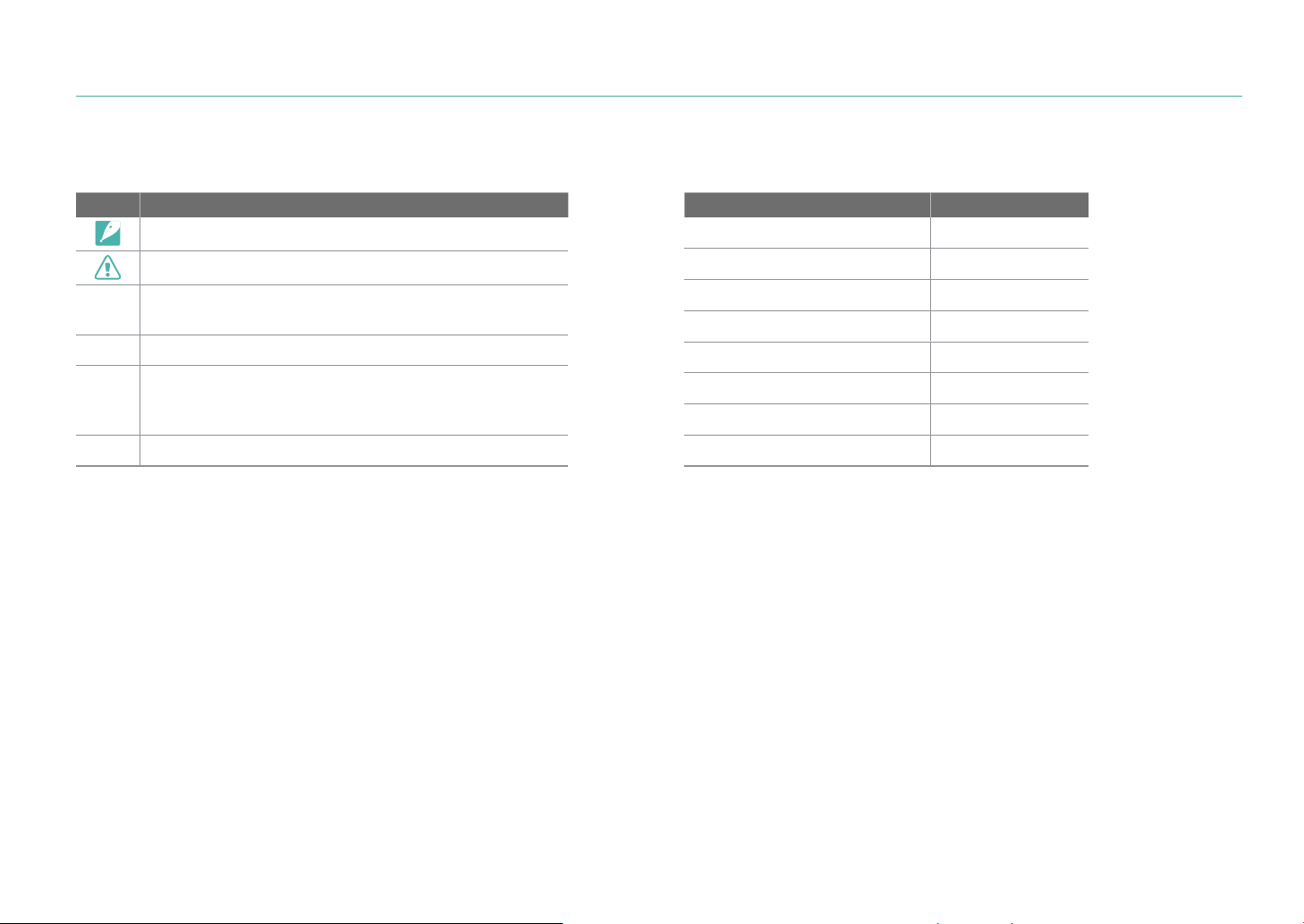
Indications used in this manual
Mode indications
Mode Indication
Auto
t
Program
P
Aperture Priority
A
Shutter Priority
S
Manual
M
Custom
T
Samsung Auto Shot
i
Smart
s
Icons used in this manual
Icon Function
Additional information
Safety warnings and precautions
[ ]
Camera buttons. For example, [Shutter] represents the
shutter button.
( )
Page number of related information
ĺ
The order of options or menus you must select to perform
a step; for example: Select b
ĺ Quality (represents
select b, and then Quality).
*
Annotation

7
Contents
Chapter 1
My Camera
Getting started ............................................................................................ 29
Unpacking.................................................................................................................... 29
Camera layout .............................................................................................. 30
Using the display ....................................................................................................... 33
Using the Self Shot mode ......................................................................................... 33
Inserting the battery and memory card ................................................. 34
Removing the battery and memory card ......................................................... 34
Using the memory card adapter .......................................................................... 35
Charging the battery and turning on your camera .............................. 36
Charging the battery................................................................................................ 36
Turning on your camera ......................................................................................... 36
Performing the initial setup ...................................................................... 37
Selecting functions (options) ................................................................... 39
Using buttons and dials .......................................................................................... 39
Using custom buttons and dials ............................................................................ 39
Selecting by touch .................................................................................................... 40
Using m ................................................................................................................. 40
E.g. Selecting the photo size in P mode.............................................................. 40
Using the smart panel ............................................................................................. 42
E.g. Adjust the exposure value in P mode .......................................................... 42
Using iFn ....................................................................................................................... 43
Using the iFn standard function ............................................................................. 43
Using the iFn plus function ...................................................................................... 45
Tips
Concepts in Photography
Shooting postures....................................................................................... 13
Holding the camera ..................................................................................................... 13
Standing photography ............................................................................................... 13
Crouching photography ............................................................................................ 14
Using the display .......................................................................................................... 14
Low-angle shot .............................................................................................................. 15
High-angle shot ............................................................................................................. 15
Aperture ........................................................................................................ 16
Aperture value and the depth of eld .................................................................. 17
Shutter speed ............................................................................................... 18
ISO sensitivity .............................................................................................. 19
How the aperture setting, shutter speed, and ISO sensitivity control
exposure ....................................................................................................... 20
Correlation between focal length, angle, and perspective ................ 21
Depth of eld ............................................................................................... 22
What controls out-of-focus eects? ....................................................................... 22
DOF preview ................................................................................................................... 24
Composition ................................................................................................. 24
Rule of Thirds .................................................................................................................. 24
Photos with two subjects .......................................................................................... 25
Flash ............................................................................................................... 26
Flash guide number ..................................................................................................... 26
Bounce Photography .................................................................................................. 27

8
Contents
Display icons ................................................................................................ 46
In Shooting mode ..................................................................................................... 46
Capturing photos ........................................................................................................ 46
Recording videos ......................................................................................................... 48
About the level gauge ............................................................................................... 49
In Playback mode ...................................................................................................... 50
Viewing photos ............................................................................................................ 50
Playing videos ............................................................................................................... 50
Changing the information displayed ................................................................. 51
Viewing the notication panel ............................................................................. 52
Lenses ............................................................................................................ 53
Lens layout ................................................................................................................... 53
Locking or unlocking the lens ................................................................................. 54
Using the Custom Focus Range Limiter Function ............................................ 56
Lens markings ............................................................................................................ 57
Accessories ................................................................................................... 58
External ash layout ................................................................................................. 58
Connecting the external ash ................................................................................. 59
Shooting modes .......................................................................................... 60
t Auto mode ...................................................................................................... 60
P Program mode ....................................................................................................... 62
Program Shift ................................................................................................................ 63
Minimum shutter speed ............................................................................................ 63
A Aperture Priority mode...................................................................................... 64
S Shutter Priority mode .......................................................................................... 65
M Manual mode........................................................................................................ 66
Using the Bulb function ............................................................................................ 66
T Custom mode ........................................................................................................ 67
Saving custom modes ................................................................................................ 67
Downloading custom modes .................................................................................. 68
Selecting custom modes .......................................................................................... 68
Deleting custom modes ............................................................................................ 68
i Samsung Auto Shot mode .......................................................................... 69
s Smart mode .......................................................................................................... 71
Capturing panoramic photos .................................................................................. 72
Recording a video ..................................................................................................... 73
3D mode ....................................................................................................................... 75
Available functions by shooting mode ............................................................. 76
Chapter 2
Shooting Functions
Size and Resolution .................................................................................... 78
Photo size ..................................................................................................................... 78
Quality ........................................................................................................................... 79
ISO sensitivity .............................................................................................. 80
Customizing ISO settings .......................................................................................... 81
OLED Color ................................................................................................... 82
White Balance .............................................................................................. 83
Customizing preset White Balance options ....................................................... 84
Picture Wizard (photo styles) .................................................................... 85
Smart Filter ................................................................................................... 86
AF mode ........................................................................................................ 87
Single AF ....................................................................................................................... 88
Continuous AF ............................................................................................................ 88
Active AF....................................................................................................................... 89
Manual focus ............................................................................................................... 89

9
Contents
AF area ........................................................................................................... 90
Selection AF ................................................................................................................ 90
Saving Selection AF position ................................................................................... 90
Zone AF ......................................................................................................................... 91
Multi AF ......................................................................................................................... 91
Face Detection ............................................................................................. 92
Normal........................................................................................................................... 92
Smile Shot .................................................................................................................... 93
Wink Shot ..................................................................................................................... 93
Touch AF ........................................................................................................ 94
Touch AF ....................................................................................................................... 94
AF Point ......................................................................................................................... 94
Tracking AF .................................................................................................................. 94
One Touch Shot .......................................................................................................... 95
Focus assist ................................................................................................... 96
MF Assist ....................................................................................................................... 96
DMF (Direct Manual Focus) ................................................................................... 97
Setting MF & DMF responsiveness ........................................................................ 97
AF Release Priority .................................................................................................... 97
Focus Peaking ............................................................................................................. 98
Optical Image Stabilization (OIS) ............................................................. 99
Drive (shooting method) ......................................................................... 100
Single .......................................................................................................................... 100
Continuous ............................................................................................................... 101
Burst ............................................................................................................................ 101
Timer ........................................................................................................................... 102
Auto Exposure Bracketing (AE Bracket) .......................................................... 102
White Balance Bracketing (WB Bracket) ......................................................... 103
Picture Wizard Bracketing (P Wiz Bracket) ..................................................... 103
Depth Bracketing ................................................................................................... 104
Bracketing settings ................................................................................................... 104
Interval Capture ......................................................................................... 105
Flash ............................................................................................................. 106
Reducing the red-eye eect ............................................................................... 107
Adjusting the ash intensity .............................................................................. 107
Flash settings ........................................................................................................... 108
Setting external ash ............................................................................................... 108
Setting wireless sync for external ash .............................................................. 109
Locking the ash intensity .................................................................................. 110
Metering ...................................................................................................... 111
Multi ............................................................................................................................ 111
Center-weighted .................................................................................................... 112
Spot ............................................................................................................................. 112
Measuring the exposure value of the focus area ......................................... 113
Dynamic Range ......................................................................................... 114
Exposure compensation .......................................................................... 115
Using Framing Mode ................................................................................................ 115
Using the brightness adjustment guide ........................................................... 116
Viewing the overexposure guide ......................................................................... 116
Exposure/Focus lock ................................................................................. 117
Exposure/Focus separation ..................................................................... 118
Video functions ......................................................................................... 119
Movie size.................................................................................................................. 119
When Video Out is set to NTSC ............................................................................. 119
When Video Out is set to PAL ................................................................................ 120
Movie quality ........................................................................................................... 120
Bit rates for movie sizes ........................................................................................... 121
Fast/Slow Movie ...................................................................................................... 122
AF Responsiveness ................................................................................................ 122
AF Shift Speed ......................................................................................................... 123
Fader ........................................................................................................................... 123

10
Contents
Voice ............................................................................................................................ 124
Wind Cut .................................................................................................................... 124
Mic Level .................................................................................................................... 124
Smart Range+ .......................................................................................................... 124
Chapter 3
Playback/Editing
Searching and managing les ................................................................ 126
Viewing photos ....................................................................................................... 126
Viewing image thumbnails ................................................................................. 126
Viewing les by category .................................................................................... 127
Viewing continuous and burst shots .............................................................. 128
Protecting les ........................................................................................................ 129
Lock/Unlock all les .................................................................................................. 129
Deleting les ............................................................................................................ 130
Deleting a single le ................................................................................................. 130
Deleting multiple les .............................................................................................. 130
Deleting all les .......................................................................................................... 130
Viewing photos .......................................................................................... 131
Enlarging a photo .................................................................................................. 131
Viewing a slide show ............................................................................................. 132
Viewing the overexposure guide ..................................................................... 133
Viewing interval shots .......................................................................................... 133
Sorting les............................................................................................................... 133
Auto rotating ........................................................................................................... 133
Converting to JPEG ................................................................................................ 133
Playing videos ............................................................................................ 134
Scanning backward or forward ......................................................................... 134
Adjusting the brightness of a video ................................................................ 135
Adjusting the volume of a video ...................................................................... 135
Trimming a video during playback .................................................................. 136
Capturing an image during playback ............................................................. 136
Editing photos ........................................................................................... 137
Cropping a photo ................................................................................................... 137
Rotating a photo .................................................................................................... 138
Resizing photos....................................................................................................... 138
Adjusting your photos .......................................................................................... 139
Retouching faces .................................................................................................... 139
Applying Smart Filter eects .............................................................................. 140
Chapter 4
Connecting & Transferring
Connecting to a smart phone ................................................................. 142
Using the NFC Feature .......................................................................................... 142
Using NFC features in Shooting mode ............................................................... 142
Using NFC features in Playback mode (Photo Beam) ................................... 143
Using the GPS Geo Tagging Feature................................................................ 143
Sending les to a smart phone ......................................................................... 144
Controlling the camera remotely with a smart phone ............................. 146
Using a smart phone as a remote shutter release ...................................... 148
Saving les to a smart phone automatically ................................................ 149
Downloading custom modes via a smart phone ....................................... 151

11
Contents
Chapter 5
Camera settings menu
User settings ............................................................................................... 171
Manage Custom Mode ......................................................................................... 171
RAW Compression .................................................................................................. 171
Noise Reduction ..................................................................................................... 171
Color Space ............................................................................................................... 172
Distortion Correct .................................................................................................. 173
User Display .............................................................................................................. 173
Grid Line .................................................................................................................... 173
Center Marker .......................................................................................................... 174
Key Mapping ............................................................................................................ 174
Custom .......................................................................................................................... 174
AEL .................................................................................................................................. 175
EV ..................................................................................................................................... 176
Command Dial ............................................................................................................ 177
iFn Setting ................................................................................................................. 177
Lens Button Speed Settings ............................................................................... 178
Touch Operation ..................................................................................................... 178
Auto Self Shot .......................................................................................................... 178
AF Lamp ..................................................................................................................... 178
E-Shutter .................................................................................................................... 179
MobileLink/NFC Image Size ............................................................................... 179
Setting ......................................................................................................... 180
Sending photos via email ........................................................................ 153
Connecting to a WLAN ......................................................................................... 153
Setting network options ......................................................................................... 154
Manually setting the IP address ........................................................................... 154
Network connection tips ..................................................................................... 155
Entering text ............................................................................................................ 156
Sending photos via email .................................................................................... 157
Storing a sender’s information.............................................................................. 158
Setting an email password ..................................................................................... 159
Changing the email password .............................................................................. 160
Viewing photos or videos on a TV ......................................................... 161
Connecting wirelessly .......................................................................................... 161
Connecting via cable ............................................................................................ 163
Viewing les on a TV ................................................................................................. 163
Viewing les on a 3D TV .......................................................................................... 164
Connecting to a computer ...................................................................... 165
Using Auto Backup for photos or videos ....................................................... 165
Installing the program for Auto Backup on your PC ..................................... 165
Using the Auto Backup feature ............................................................................. 165
Connecting the camera as a removable disk ............................................... 167
Transferring les to your Windows OS computer .......................................... 167
Disconnecting the camera (for Windows 7) ..................................................... 168
Transferring les to your Mac OS ......................................................................... 168

12
Contents
Using programs on a PC........................................................................... 198
Installing i-Launcher ............................................................................................. 198
Using i-Launcher .................................................................................................... 200
Opening i-Launcher .................................................................................................. 200
Available programs ................................................................................................... 200
Requirements .............................................................................................................. 201
Installing Samsung RAW Converter ................................................................. 202
Using Samsung RAW Converter ........................................................................ 202
Updating the rmware ............................................................................. 203
Connecting via USB cable ................................................................................... 203
Connecting via Wi-Fi ............................................................................................. 204
Before contacting a service center ........................................................ 205
Camera specications .............................................................................. 208
Glossary ....................................................................................................... 211
Optional accessories ................................................................................. 217
Index ............................................................................................................ 218
Chapter 6
Appendix
Error messages .......................................................................................... 186
Maintaining the camera........................................................................... 187
Cleaning the camera ............................................................................................. 187
Camera lens and display ......................................................................................... 187
Image sensor ............................................................................................................... 187
Camera body ............................................................................................................... 187
Using or storing the camera ............................................................................... 188
Inappropriate places to use or store the camera ........................................... 188
Using on beaches or shores ................................................................................... 188
Storing for an extended period of time ............................................................. 188
Using the camera with caution in the humid environments ..................... 189
Other precautions ..................................................................................................... 189
About memory cards ............................................................................................ 190
Supported memory cards ...................................................................................... 190
Memory card capacity ............................................................................................. 191
Cautions when using memory cards .................................................................. 193
About the battery .................................................................................................. 194
Battery specications ............................................................................................... 194
Battery life .................................................................................................................... 195
Low battery message ............................................................................................... 195
Notes about using the battery .............................................................................. 195
Battery precautions ................................................................................................... 196
Notes about charging the battery ....................................................................... 196
Notes about charging with a computer connected...................................... 197
Handle and dispose of batteries and chargers with care ............................ 197
13
Concepts in Photography
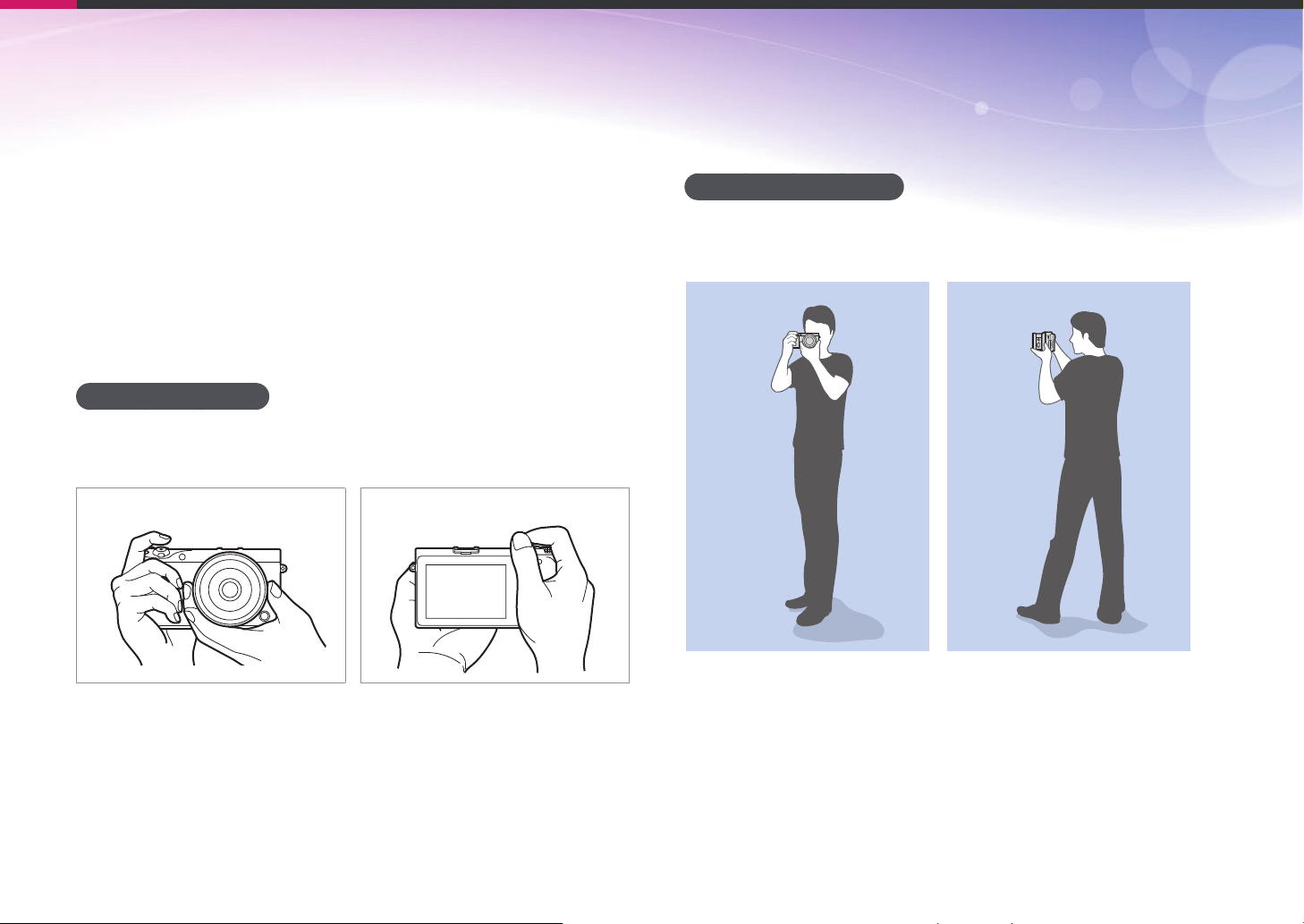
Standing photography
Compose your shot, stand up straight with your feet shoulder-length
apart, and keep your elbows pointed down.
Shooting postures
A correct posture for stabilizing the camera is necessary for taking a good
photo. Even if you hold a camera correctly, the wrong posture can cause
the camera to shake. Stand up straight and remain still to maintain a
steady base for your camera. When shooting with a slow shutter speed,
hold your breath to minimize body movement.
Holding the camera
Hold the camera with your right hand and place your right index nger on
the shutter button. Place your left hand under the lens for support.
14
Concepts in Photography
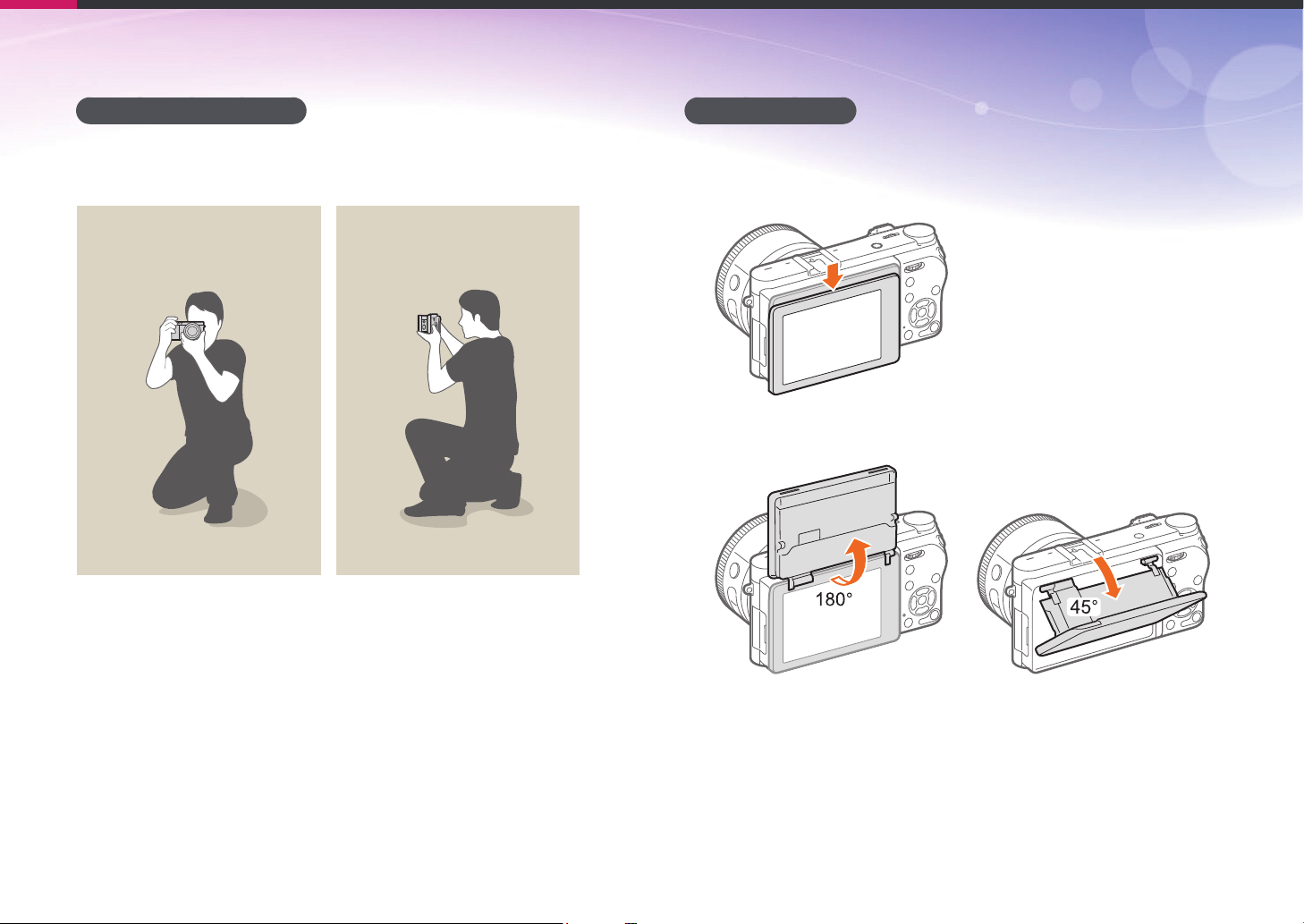
Crouching photography
Compose your shot, crouch with one knee touching the ground, and keep
a straight posture.
Using the display
To take photos at high or low angles, tilt the display up or down.
1
Slide the display downwards carefully.
2
Tilt the display from 180˚ upwards to 45˚ downwards.
15
Concepts in Photography
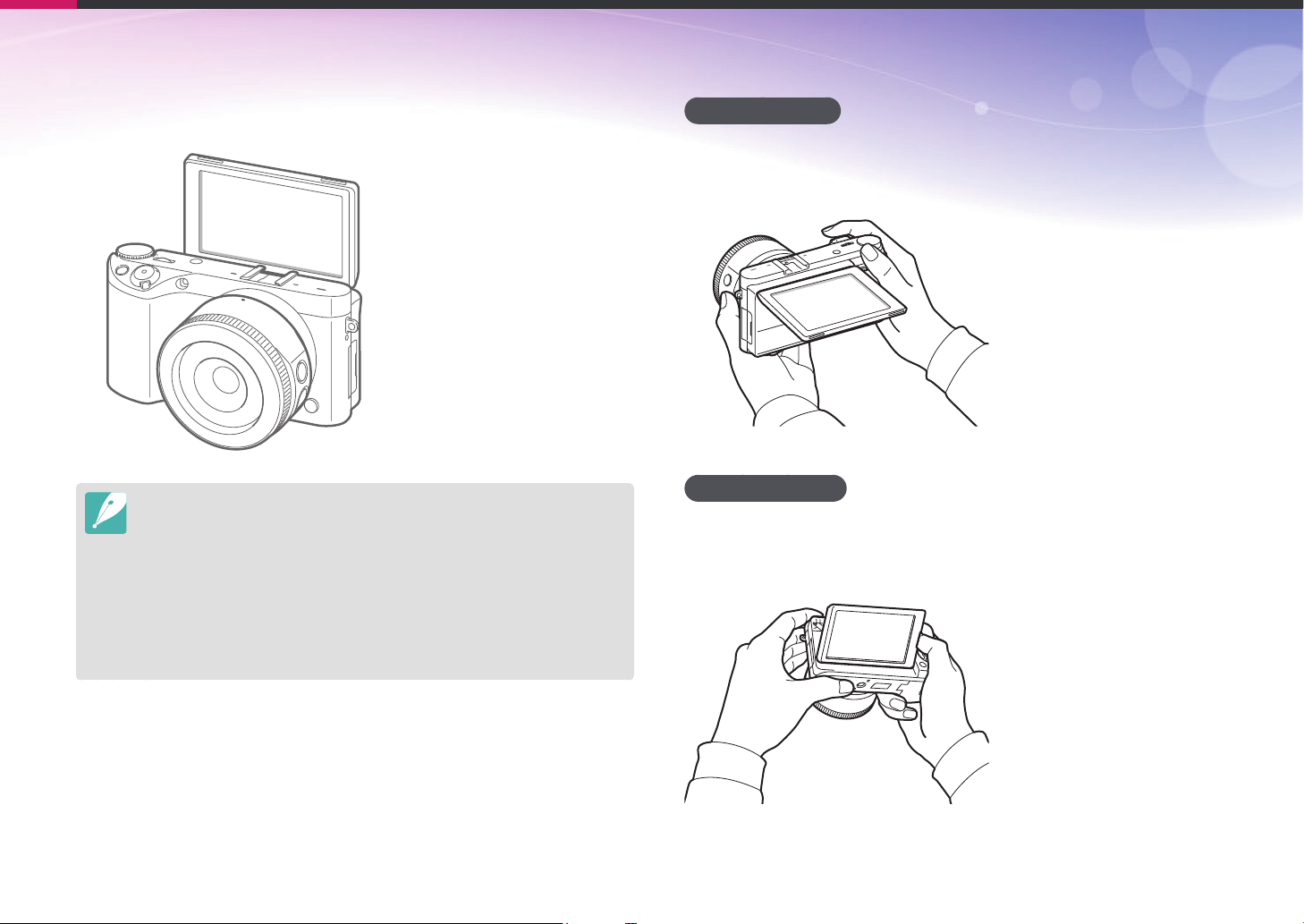
•
To capture a self-portrait, set Auto Self Shot to On, ip the display
180° upwards and touch the subject on the display. (p. 33)
•
Keep the display closed when the camera is not in use.
•
Tilt the display only within the angle allowed. Failing to do so may damage
your camera.
•
Be careful not to damage the display when tilting it.
•
If you have ipped the display upwards and you are not holding the camera
by hand, do not rest the camera on a table, fence, etc. to steady it. Instead,
use a tripod. Otherwise, you can damage your camera.
•
Do not ip the display up when an external ash is mounted on the camera.
Otherwise, you may damage your camera.
Low-angle shot
A low-angle shot is a shot from a camera positioned below your eyeline,
looking up the subject.
High-angle shot
A high-angle shot is a shot from a camera positioned above your eyeline,
looking down on the subject.
16
Concepts in Photography
Aperture
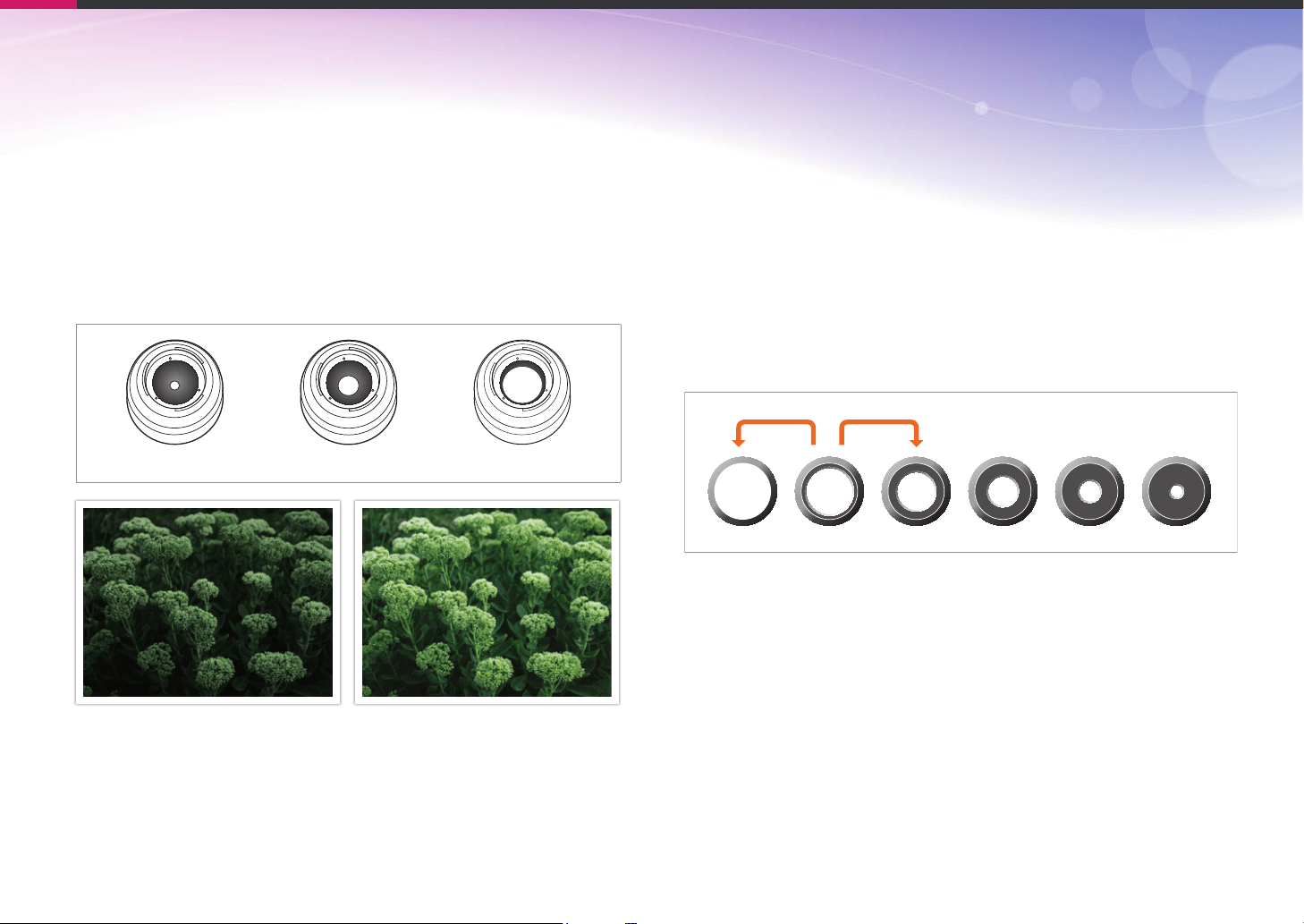
The aperture is one of the three factors that determine the exposure. The
aperture housing contains thin, metal plates that open and close to let
light through the aperture and into the camera. The size of the aperture
is related to the amount of light: a larger aperture allows more light and a
smaller aperture allows less light.
Aperture sizes
Minimum aperture Medium aperture Maximum aperture
Aperture opened slightly Aperture opened wide
The size of the aperture is indicated by a value known as the “F-number“.
The f-number represents the focal length divided by the diameter of the
lens. For example, if a lens with a 50 mm focal length has an f-number of
F2, the diameter of the aperture is 25 mm. (50 mm/25 mm = F2)
The smaller the f-number, the greater the size of the aperture.
The relative size of the opening in the aperture is indicated by the
Exposure Value (EV). Increasing the Exposure Value (+1 EV) means the
amount of light doubles. Decreasing the Exposure Value (-1 EV) means
the amount of light halves. You can also use the exposure compensation
feature to ne-tune the amount of light by subdividing exposure values
into 1/2, 1/3 EV, and so on.
+1 EV
F1.4 F2 F2.8 F4 F5.6 F8
-1 EV
Exposure Value Steps
17
Concepts in Photography
Aperture value and the depth of eld
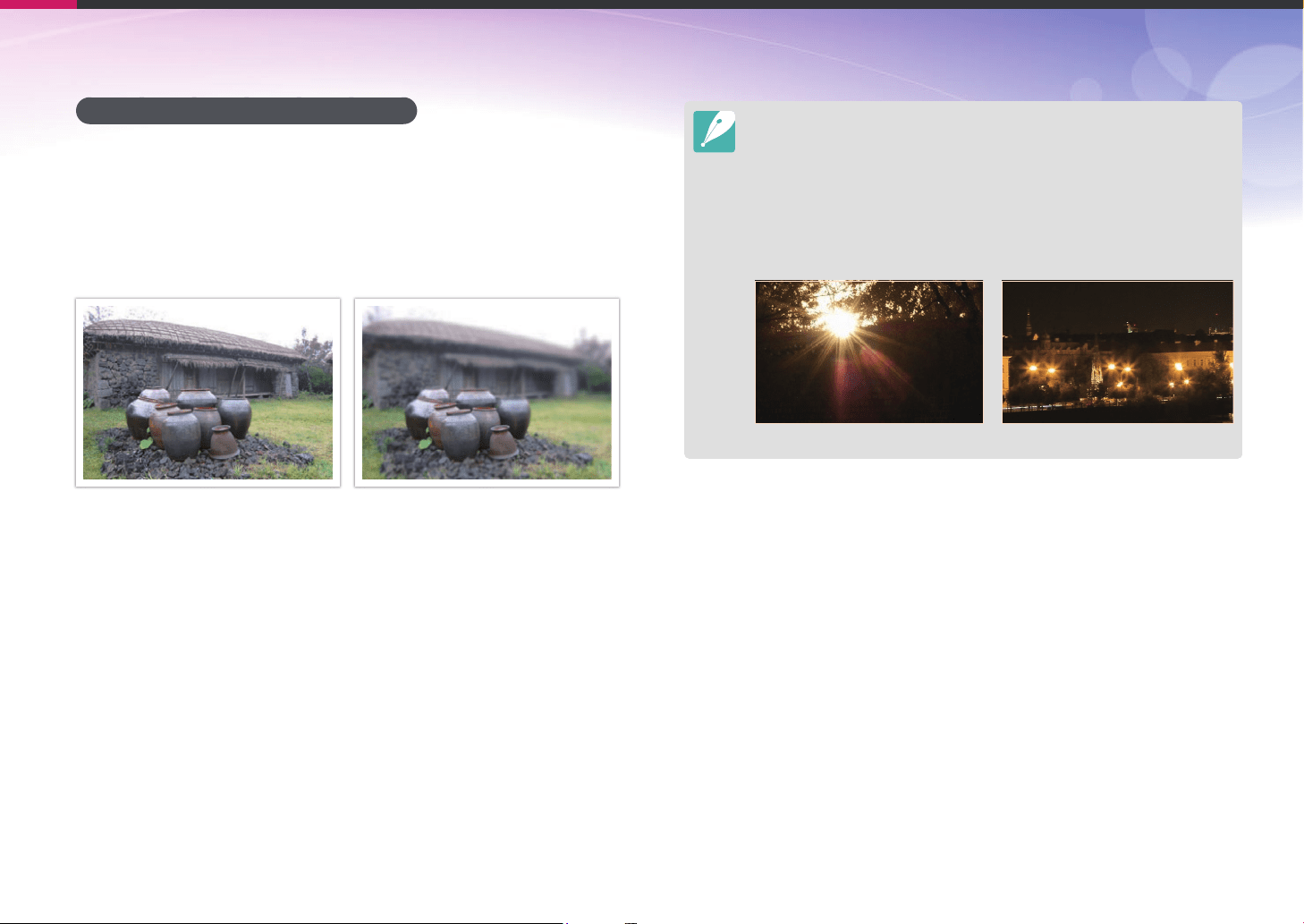
You can blur or sharpen the background of a photo by changing the size
of the aperture. A large aperture gives your photos a shallow depth of
eld (DOF). Objects immediately in front of or behind your subject will
be blurred, while the subject will be in focus. A small aperture gives your
photos a deep depth of eld. Objects far in front or far behind your subject
and your subject will be in focus.
A photo with a deep DOF A photo with a shallow DOF
The aperture housing contains several blades. These blades move together and
control the amount of light passing through the center of the aperture. The
number of blades also aects the shape of light when shooting night scenes. If
an aperture has an even number of blades, light divides into an equal number
of sections. If the number of blades is odd, the number of sections is double the
number of blades.
For example, an aperture with 8 blades divides light into 8 sections and an
aperture with 7 blades into 14 sections.
7 blades 8 blades
18
Concepts in Photography
Shutter speed
Shutter speed refers to the amount of time it takes to open and close the
shutter. It controls the amount of light which passes through the aperture
before it reaches the image sensor.
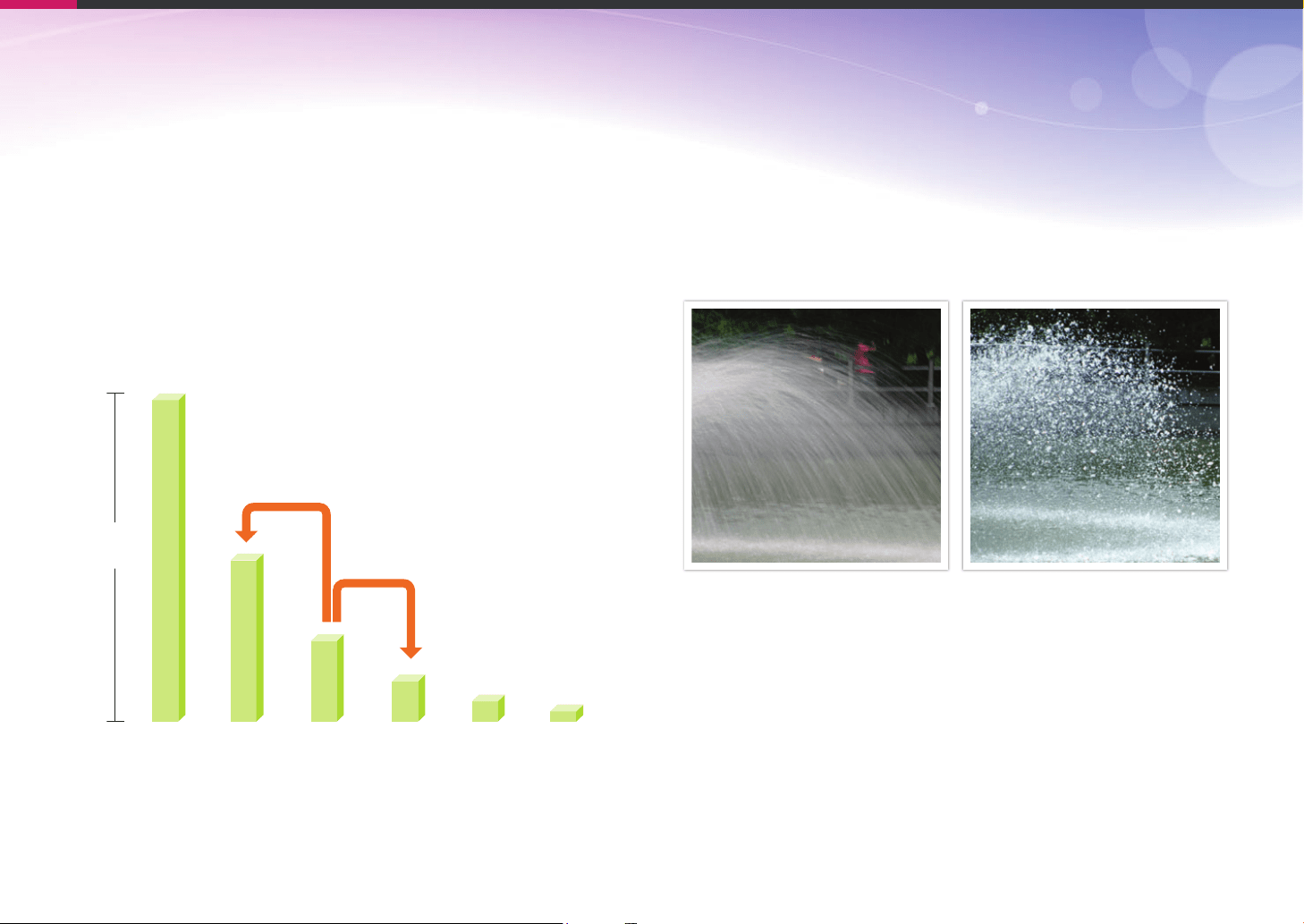
Shutter speeds are measured in seconds and parts of a second. On
many cameras, the shutter speeds are approximately halved with each
succeeding setting - 1 s, 1/2 s, 1/4 s, 1/8 s, 1/15 s, etc. Like successive
aperture settings, each successive shutter speed setting lets in about half
the amount of light. Consequently, each successive shutter speed setting
equals an EV (Exposure Value) change of about 1 EV.
Exposure
+1 EV
-1 EV
1 s 1/2 s 1/4 s 1/8 s 1/15 s 1/30 s
Shutter speed
Therefore, the faster the shutter speed, the less light will be let in. Likewise,
the slower the shutter speed, the more light will be let in.
A slow shutter speed allows more light into the camera, making photos
brighter. However, because the shutter is open longer, moving subjects
appear blurred. A fast shutter speed allows less light in, making photos
darker. However, because the shutter is open for a shorter time, moving
subjects look sharper and more focused.
1 s 1/250 s
19
Concepts in Photography
ISO sensitivity
The exposure of an image is determined by the sensitivity of the camera to
light. This sensitivity is measured by a set of international lm standards,
known as ISO standards. On digital cameras, this sensitivity rating is used
to indicate the light sensitivity of the digital sensor that captures the
image.
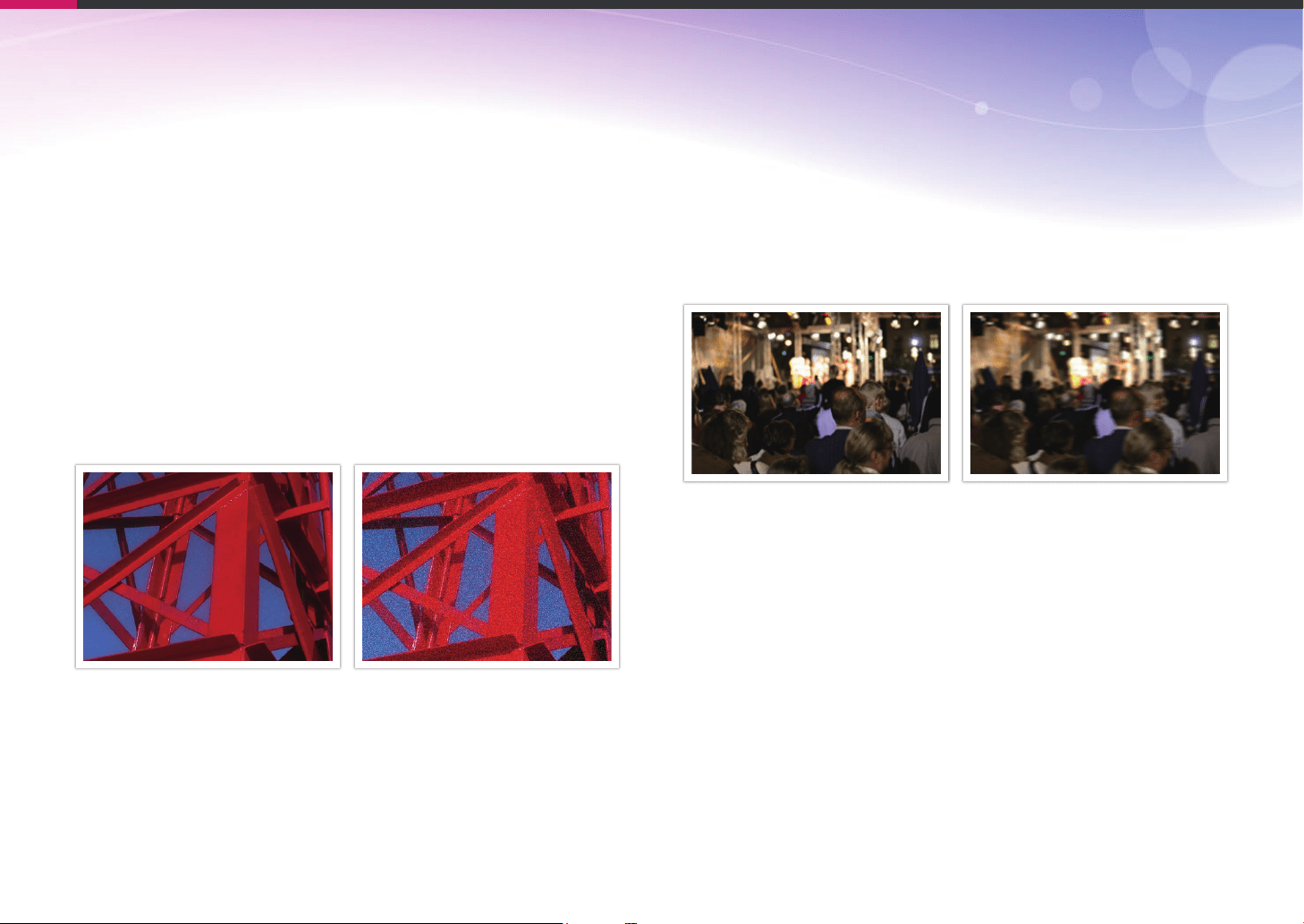
ISO sensitivity doubles as the ISO number doubles. For example, an ISO
200 setting is capable of capturing images at twice the speed of an ISO
100 setting. However, higher ISO settings can result in “noise“—small
specks, spots, and other phenomena in a photo that give the shot a noisy
or dirty appearance. As a general rule, it is best to use a low ISO setting
to prevent noise in your photos, unless you are shooting in darkened
environments or at night.
A photo captured with a low ISO setting.
The photo is clear.
The same shot captured with a high ISO
setting. The photo is grainy.
Because a low ISO setting means the camera will be less sensitive to light,
you need more light to have an optimal exposure. When using a low ISO
setting, open the aperture more or reduce the shutter speed to allow
more light to enter the camera. For example, on a sunny day when light
is abundant, a low ISO setting does not require a slow shutter speed.
However, in a dark place or at night, a low ISO setting will result in a blurry
photo. To compensate for the lower light level, you should increase the ISO
setting by a moderate amount.
A photo captured with a tripod and a high
ISO setting.
A blurred photo captured by a camera.
20
Concepts in Photography
How the aperture setting, shutter speed,
and ISO sensitivity control exposure
The aperture setting, shutter speed, and ISO sensitivity are closely
interconnected in photography. The aperture setting controls the opening
that regulates the light that enters the camera, while the shutter speed
determines the length of time that light is allowed to enter. ISO sensitivity
determines the speed at which the lm or digital image sensor reacts
to light. Together, these three aspects are described as the triangle of
exposure.
A change in shutter speed, aperture value, or ISO sensitivity can be oset
by adjustments to the others to maintain the amount of light. The results,
however, change according to the settings. For example, shutter speed is
useful in expressing movement, aperture can control the depth of eld,
and ISO sensitivity can control the graininess of a photo.
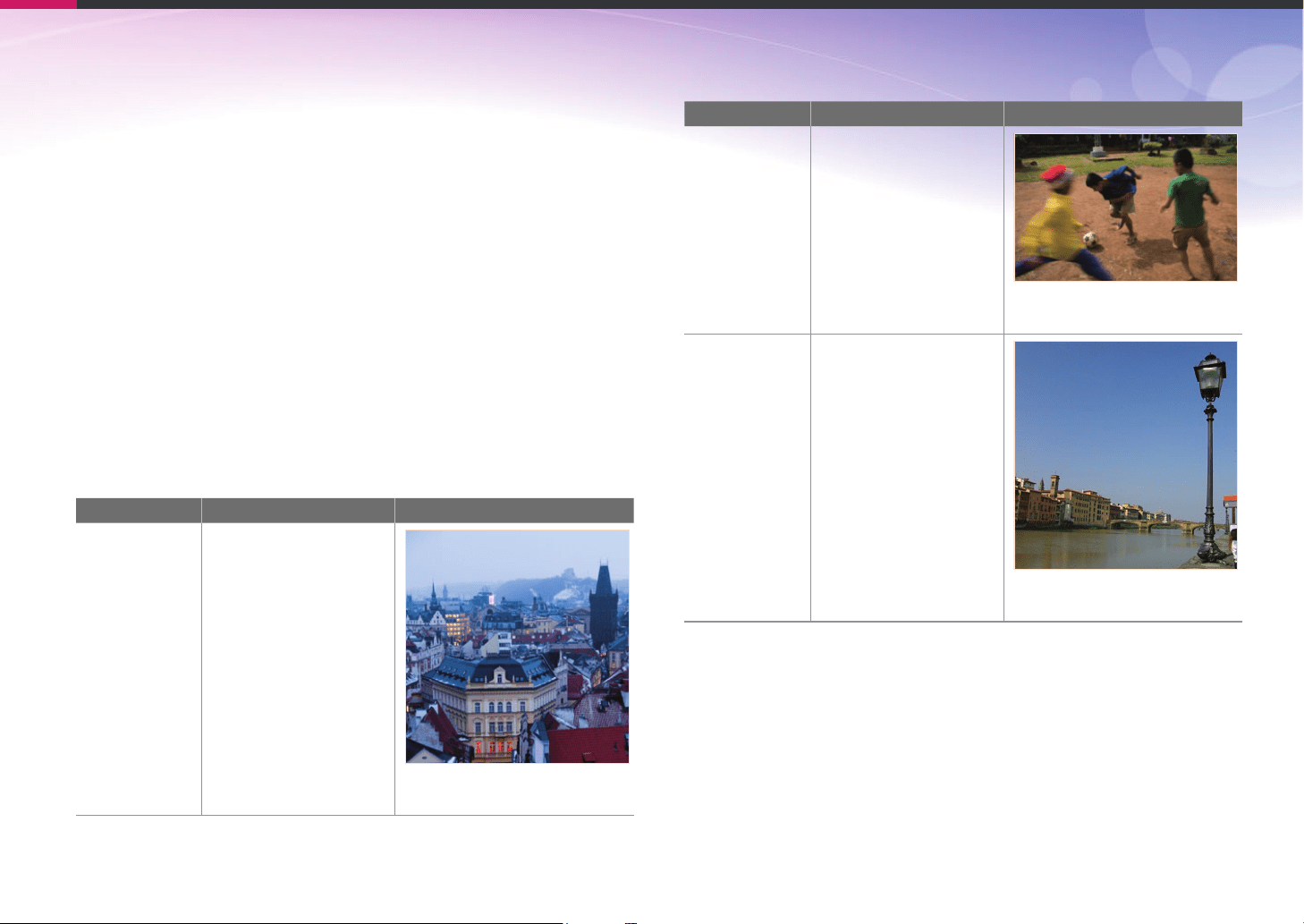
Settings Results
Aperture
value
Wide aperture
= more light
Narrow aperture
= less light
Wide = shallow depth of eld
Narrow = deep depth of eld
Settings Results
Shutter speed
Fast speed
= less light
Slow speed
= more light
Fast = still
Slow = blurry
ISO sensitivity
High sensitivity
= more sensitive to light
Low sensitivity
= less sensitive to light
High = more grainy
Low = less grainy
21
Concepts in Photography
Correlation between focal length, angle,
and perspective
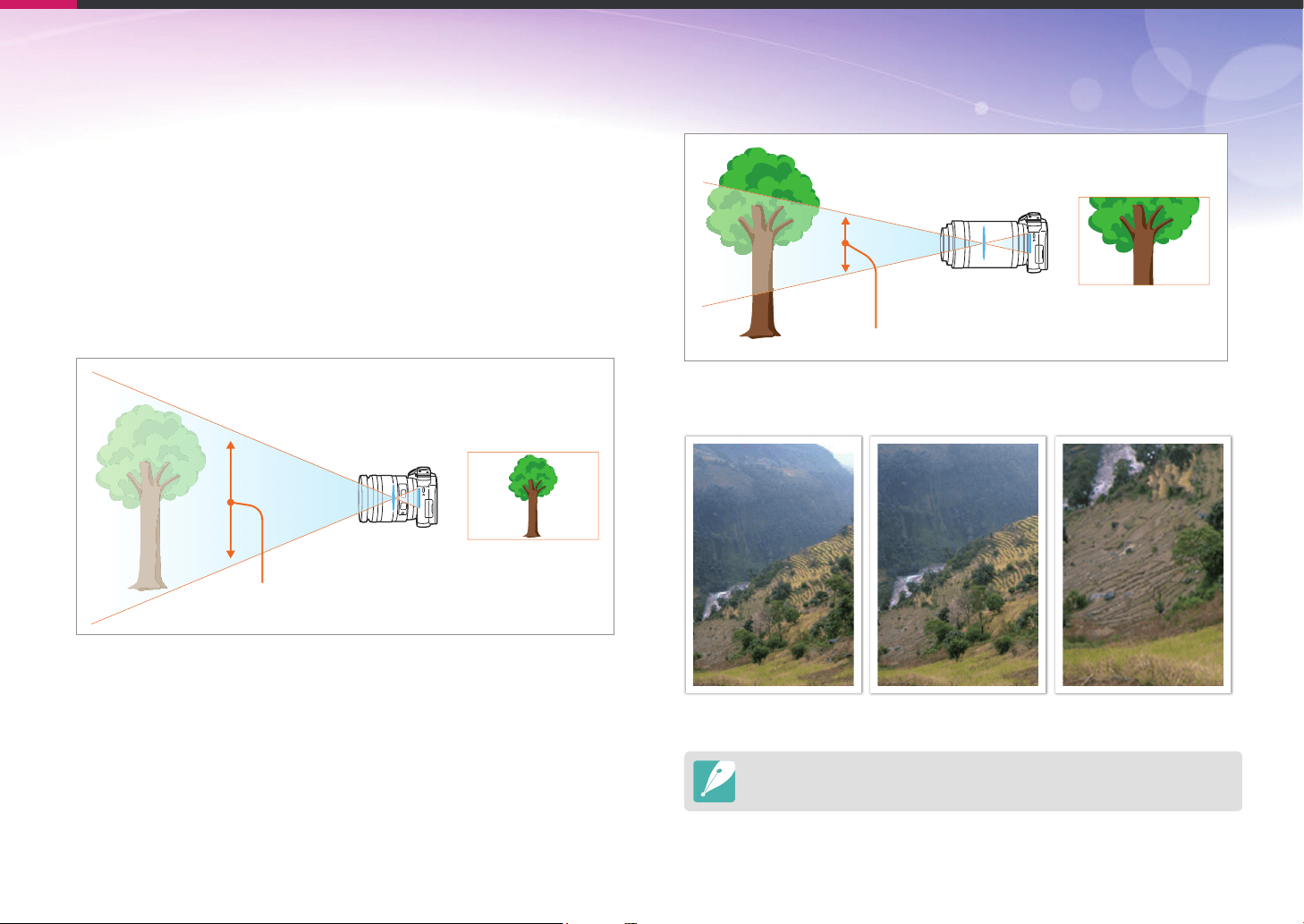
Focal length, which is measured in millimeters, is the distance between
the middle of the lens to its focal point. It aects the angle and perspective
of captured images. A short focal length translates into a wide angle,
which allows you to capture a wide shot. A long focal length translates
into a narrow angle, which allows you to capture telephoto shots.
Short focal length
wide shot
wide angle
wide-angle lens
Long focal length
telephoto shot
narrow angle
telephoto lens
Look at these photos below and compare the changes.
16 mm angle 50 mm angle 200 mm angle
Normally, a lens with a wide angle is suitable for shooting landscapes and a lens
with a narrow angle is recommended for shooting sports events or portraits.
22
Concepts in Photography
Depth of eld
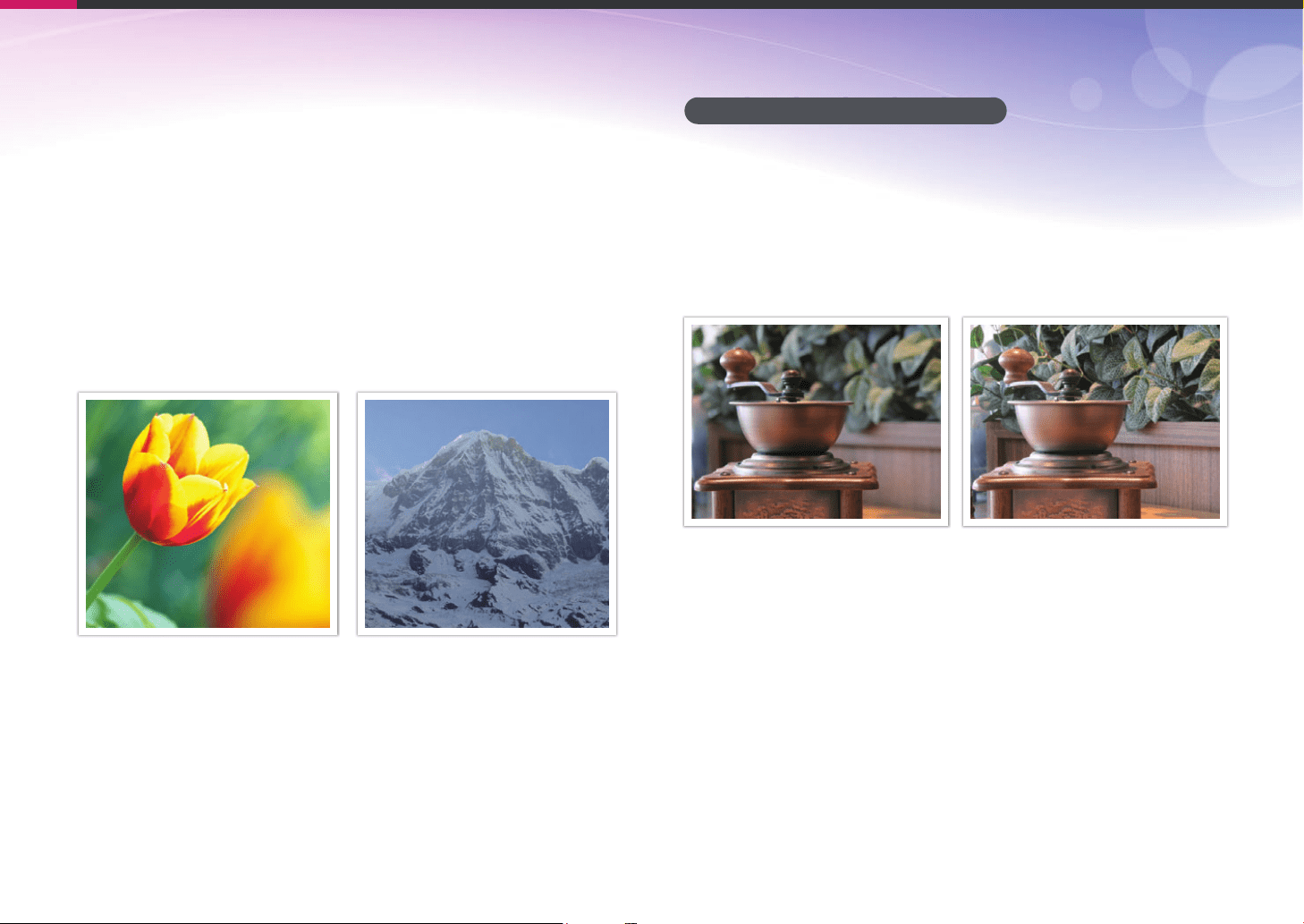
The depth of eld (DOF) is the focused area around the subject.
In general, the DOF can be shallow or deep. In photos with a shallow DOF,
the subject is sharply focused, the background is blurred and the subject
stands out. In contrast, photos with a deep DOF have all the elements of
the photo in sharp focus.
You can create a photo with a shallow DOF by using a telescopic lens or by
selecting a low aperture value. You can create a photo with a deep DOF by
using a wide angle lens or by selecting a high aperture value.
Shallow Depth of Field Deep Depth of Field
What controls out-of-focus eects?
DOF depends on the aperture value
A low aperture value indicates that the aperture has a wide opening. The
wider the aperture, the shallower the DOF becomes. Conversely, a high
aperture value indicates that the aperture has a narrow opening. The
narrower the aperture, the deeper the DOF becomes.
50 mm F5.7 50 mm F22

23
Concepts in Photography
DOF depends on focal length
The longer the focal length, the shallower the DOF. A telescopic lens with
a longer focal length will capture a photo with a shallow DOF better than a
lens with a shorter focal length.
A photo captured with an 16 mm wide-angle lens
A photo captured with a 100 mm telescope lens
DOF depends on the distance between the subject and the
camera
The shorter the distance between the subject and the camera, the
shallower the DOF is. Therefore, taking a photo close to a subject generally
results in a photo with a shallow DOF.
A photo captured with a 100 mm telescope lens
A photo captured close to the subject
24
Concepts in Photography
DOF preview
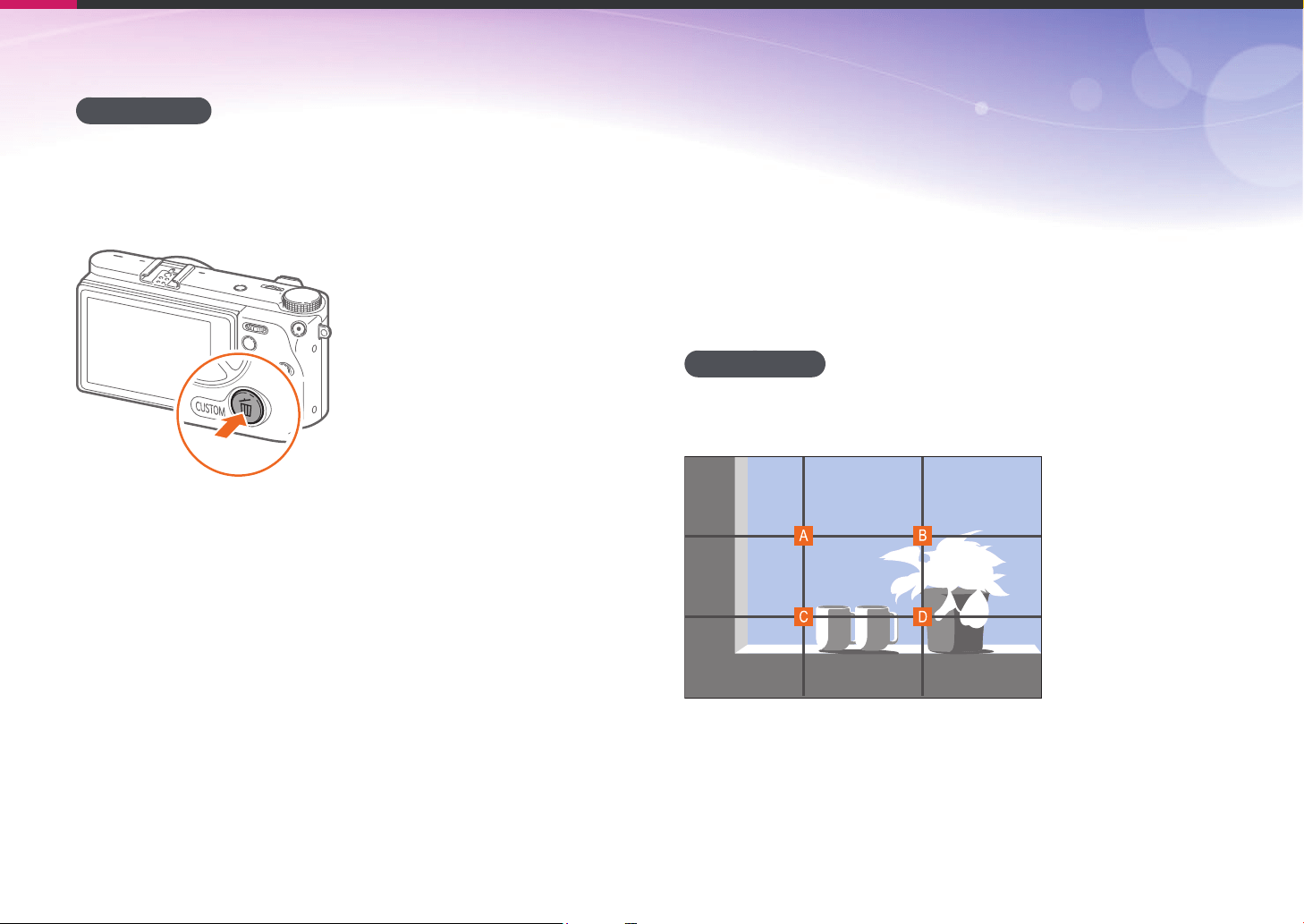
You can press the Custom button to get an idea of what your shot will look
like before shooting. The camera adjusts the aperture to the predened
settings and shows the results on the screen. Set the function of the
Custom button to Optical Preview. (p. 174)
Composition
The way that objects are arranged in a photo is referred to as its
composition. A good composition emphasizes the photo’s subjects
by drawing attention to them and by balancing them with the other
elements in the photo.
Following the rule of thirds is one method that usually results in good
compositions.
Rule of Thirds
To use the rule of thirds, divide the image into a 3x3 pattern of equal
rectangles.
To compose photos that best emphasize the subject, make sure the
subject is located at one of the corners of the center rectangle.
25
Concepts in Photography
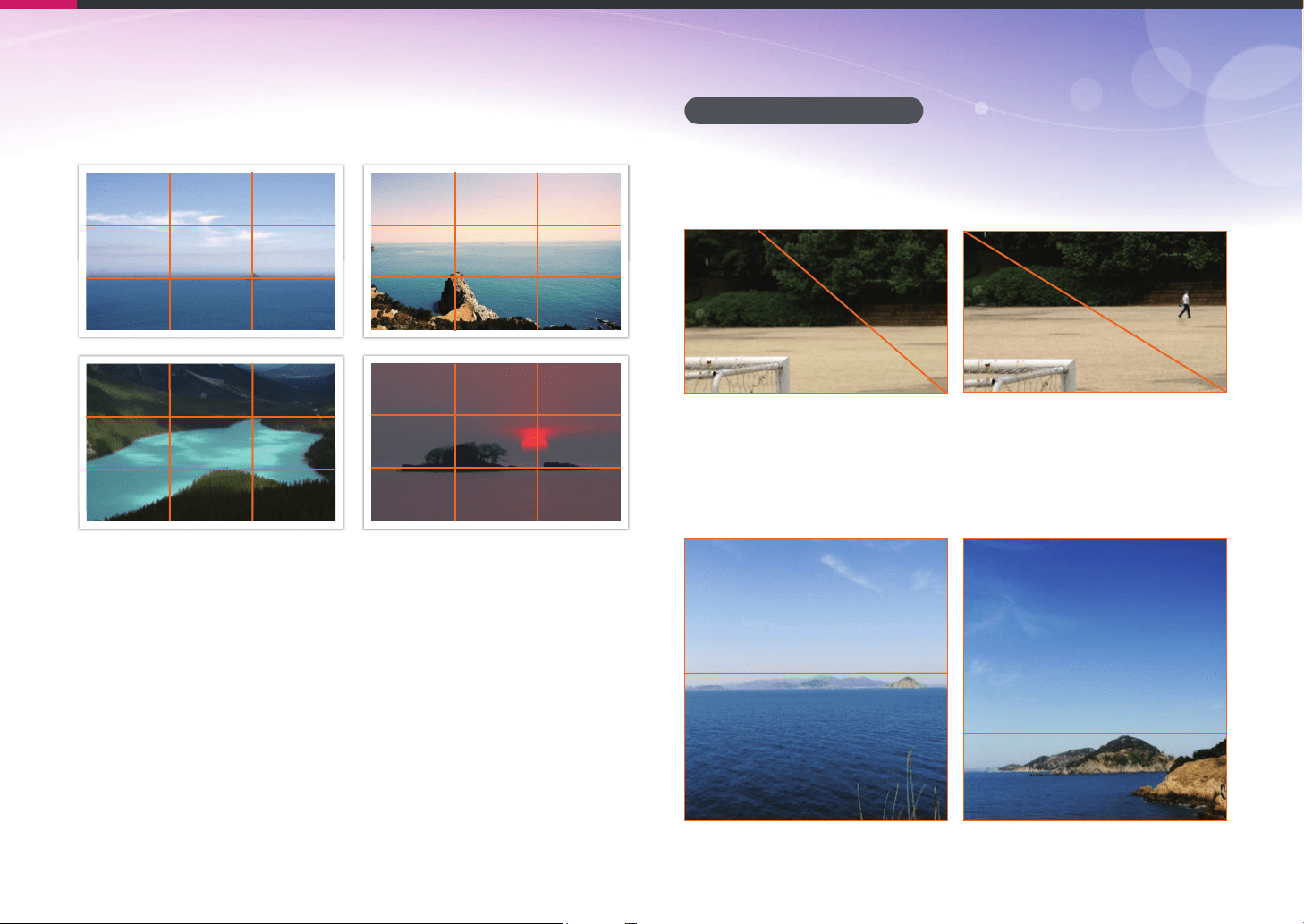
Using the rule of thirds will create photos with stable and compelling
compositions. Below are a few examples.
Photos with two subjects
If your subject is in one corner of the photo, it creates an unbalanced
composition. You can stabilize the photo by capturing a second subject in
the opposite corner to balance the weight of the photo.
Subject 1
Subject 2
Subject 1
Subject 2
Unstable Stable
When taking landscape photos, centering the horizon will create an
unbalanced eect. Give more weight to the photo by moving the horizon
up or down.
Subject 1
Subject 2
Subject 1
Subject 2
Unstable Stable
26
Concepts in Photography
Flash
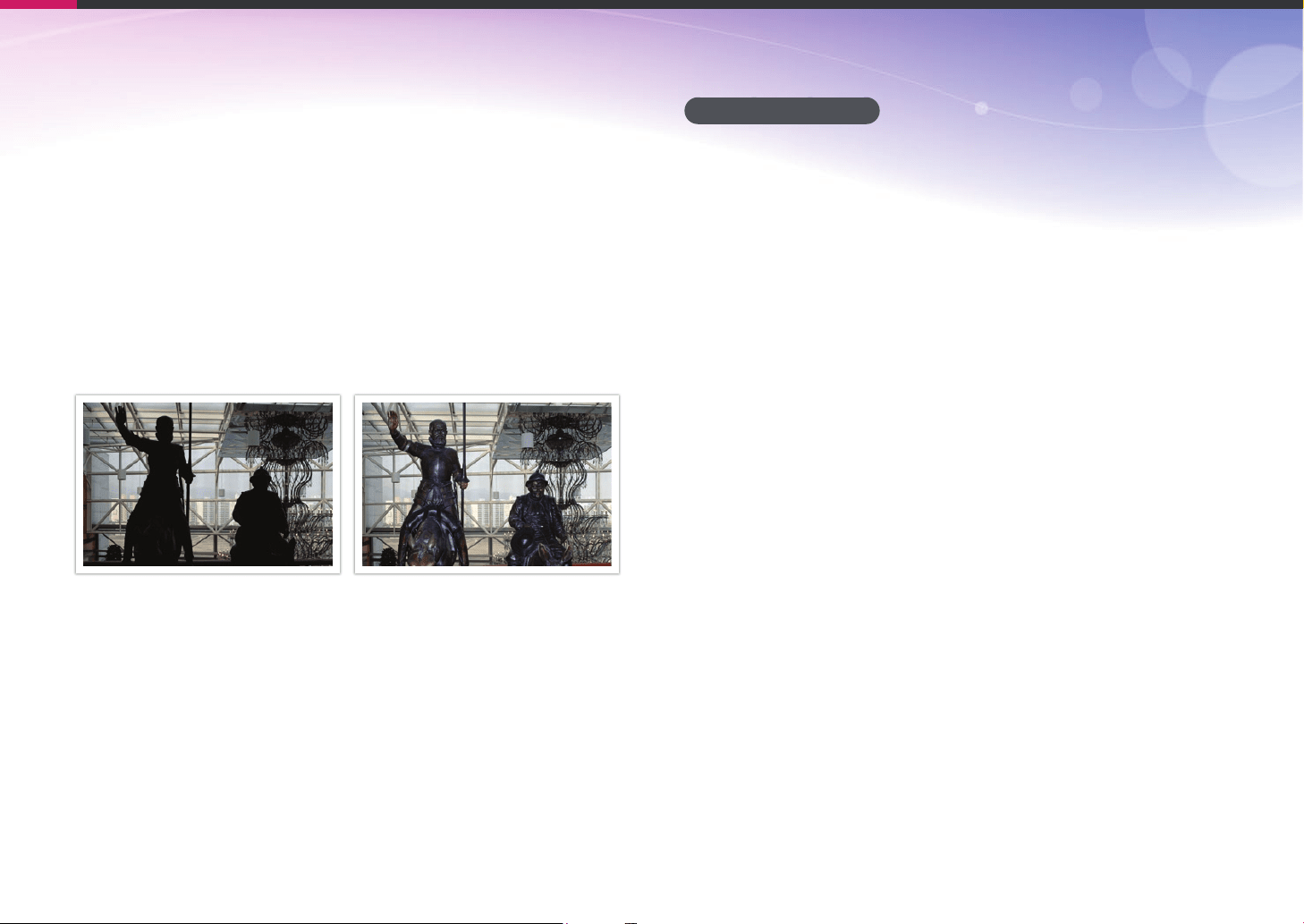
Light is one of the most important components in photography. However,
you will not always have enough of light in all situations. Making use of a
ash allows you to compensate for the lack of light and create a variety of
eects.
The ash, also known as a strobe or speed light, provides adequate
exposure in low-light conditions. It is also useful in light-abundant
situations. For example, you can use the ash to provide light when a
subject is in shadow or use it to capture clearly both the subject and the
background under backlit conditions.
Back lit subjects without ash Back lit subjects with ash
Flash guide number
The model number of a ash refers to the ash’s power, and the maximum
amount of light created is indicated by a value known as the “guide
number“. A ash with a higher guide number emits a larger amount
of light than a ash with a lower guide number. The guide number is
calculated by multiplying the distance from the ash to the subject by the
aperture value when the ISO sensitivity is set to 100.
Guide number = Flash to Subject Distance X Aperture value
Aperture value = Guide number/Flash to Subject Distance
Flash to Subject Distance = Guide number/Aperture value
If you know the ash’s guide number, you can estimate an appropriate
ash-to-subject distance when setting the ash manually. For example, if a
ash has a guide number of GN 20 and is 4 meters away from the subject,
the optimal aperture value is F5.0.

27
Concepts in Photography
Bounce Photography
Bounce photography refers to the method of bouncing light o of the
ceiling or walls so that the light spreads evenly over the subject. Normally,
photos captured with the ash may appear unnatural and cast shadows.
Subjects in photos captured with bounce photography cast no shadows
and look smooth due to evenly spread light.

Chapter 1
My Camera
Learn about your camera’s layout, display icons, lens, optional accessories, and basic functions.
My Camera
29
Getting started
Unpacking
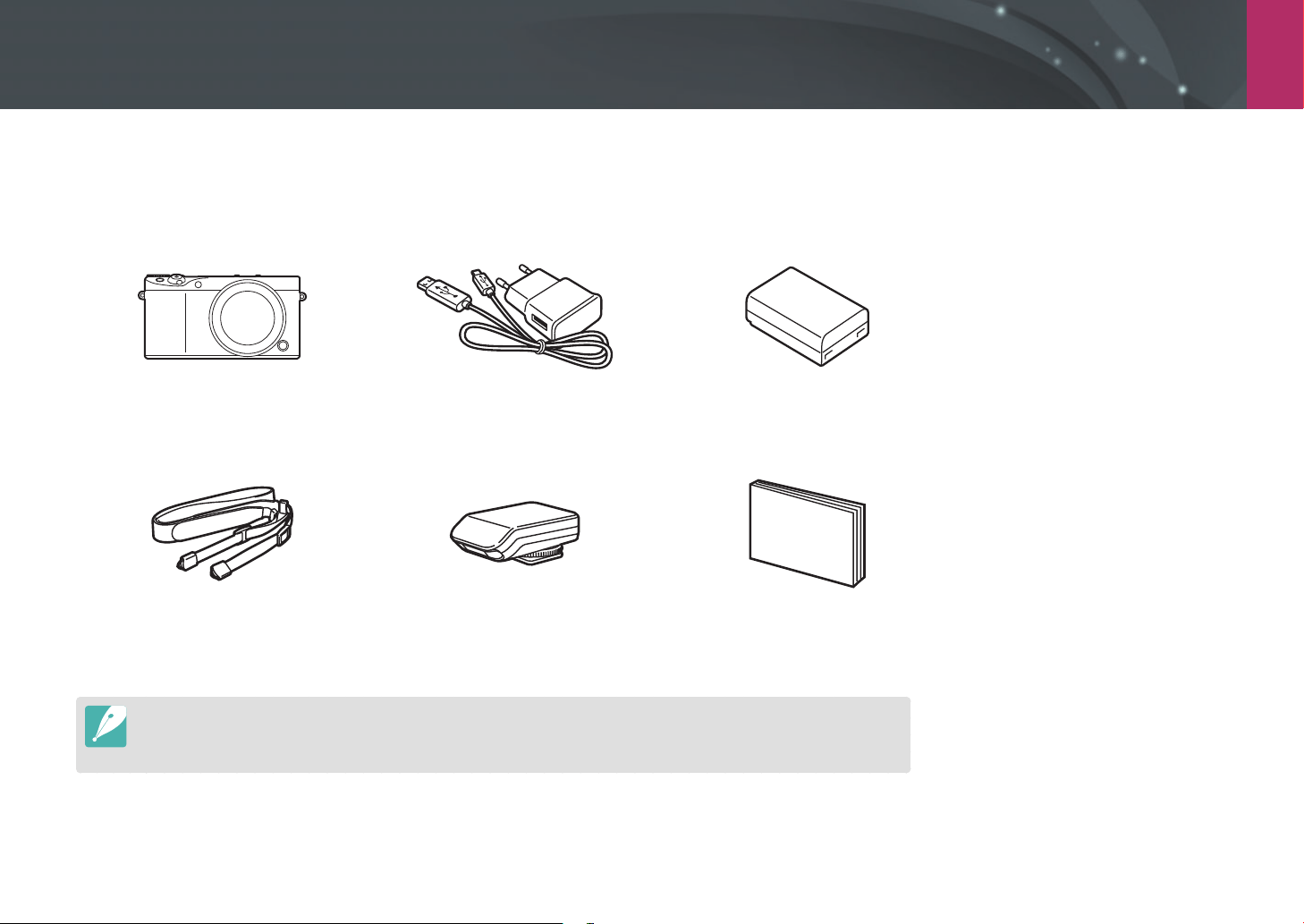
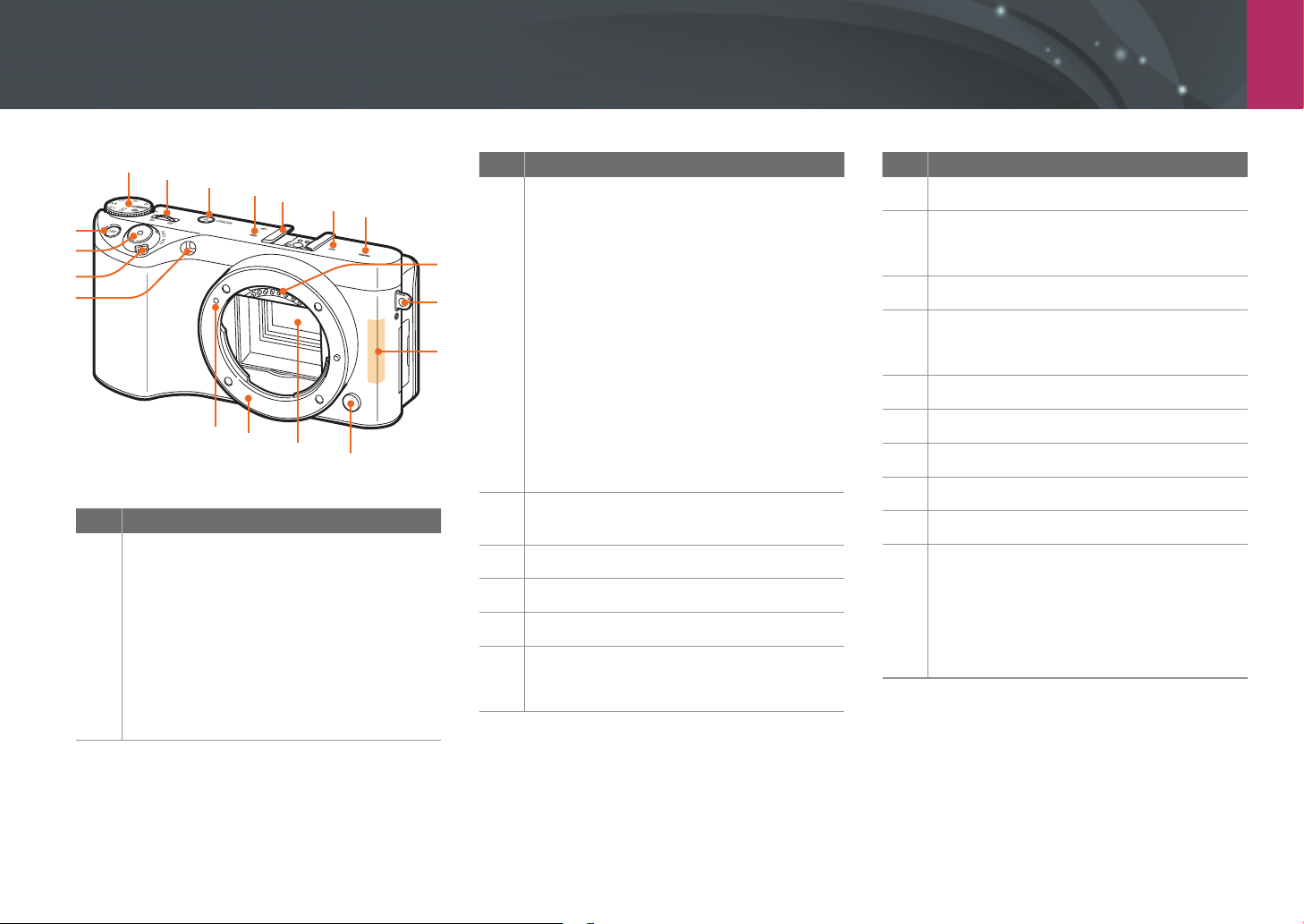
Check your product box for the following items.
Camera
(including the body cap)
AC adapter/USB cable Rechargeable battery
Strap External ash Quick Start Guide
•
The illustrations may dier from your actual items.
•
You can purchase optional accessories at a retailer or a Samsung service center. Samsung is not responsible for any
problems caused by using unauthorized accessories. For information about accessories, refer to page 217.
My Camera
30
Camera layout
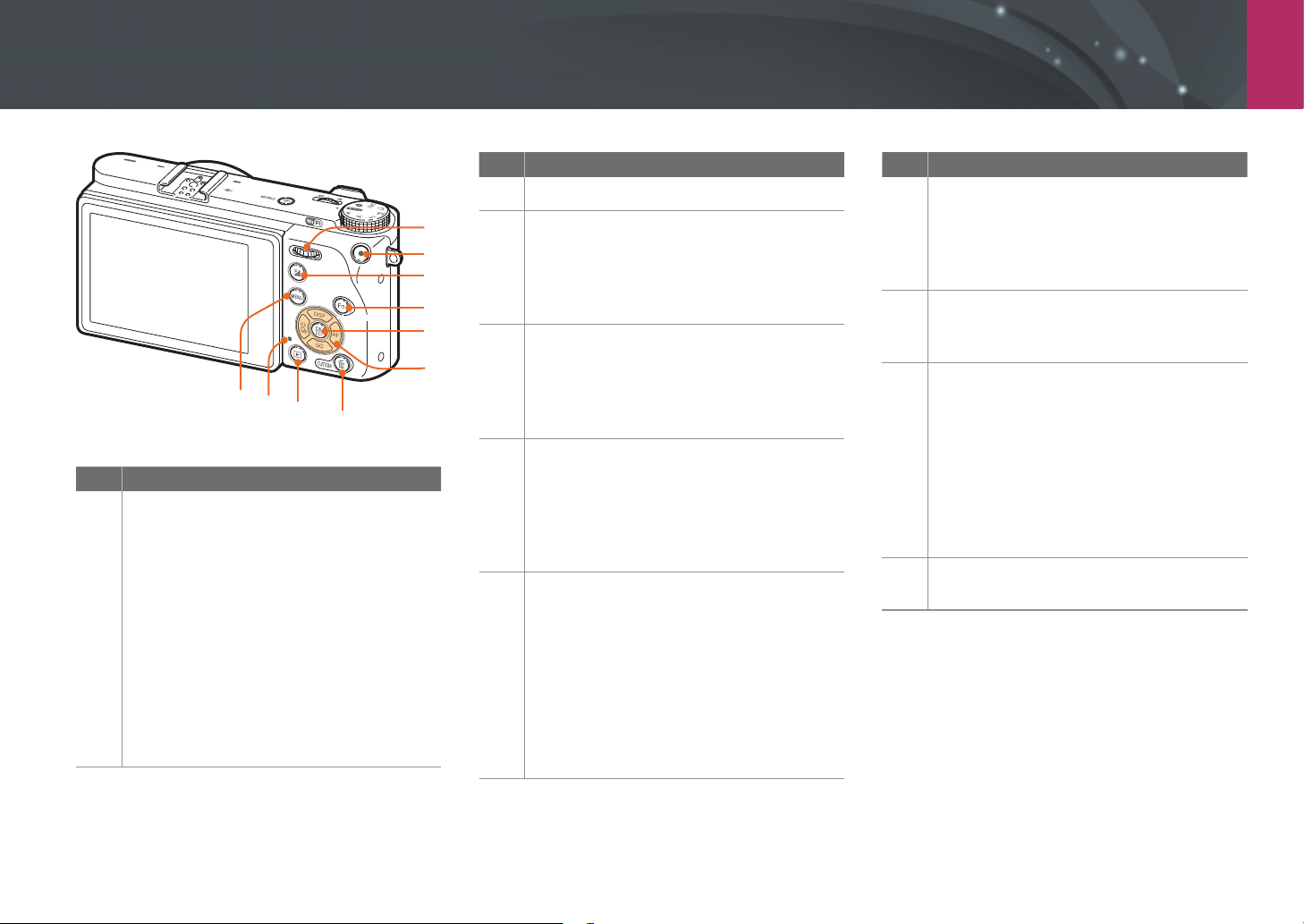
No. Name
2
Command dial 1
• In the Menu screen: Move to a desired
menu item.
• In the Smart panel: Adjust a selected
option.
• In Shooting mode: Adjust shutter
speed, aperture value, Program
Shift settings, exposure value, or ISO
sensitivity in some shooting modes or
change the size of a focus area. (p. 177)
• In Playback mode: View thumbnails
or enlarge or reduce a photo. Open or
close a photo bundle in Playback mode.
Scan backward or forward through a
video.
3
MOBILE button
Select a Wi-Fi function.
4
Microphone
5
Hot-shoe
6
Speaker
7
Lens contacts
* Avoid contact with or prevent damage to the
lens contacts.
No. Name
1
Mode dial
• t: Auto mode (p. 60)
• P: Program mode (p. 62)
• A: Aperture Priority mode (p. 64)
• S: Shutter Priority mode (p. 65)
• M: Manual mode (p. 66)
• T: Custom mode (p. 67)
• i: Samsung Auto Shot mode (p. 69)
• s: Smart mode (p. 71)
No. Name
8
Eyelet for camera strap
9
Internal antenna
* Avoid contact with the internal antenna while
using a wireless network.
10
Lens release button
11
Image sensor
* Avoid contact with or prevent damage to the
image sensor.
12
Lens mount
13
Lens mount index
14
AF-assist light/Timer lamp
15
Power switch
16
Shutter button
17
AEL button (p. 117)
• In Shooting mode: Lock the adjusted
exposure value or focus or perform the
assigned function.
• In Playback mode: Protect the selected
le.
1
2
3
4
5
10
12
13
11
14
6
4
15
17
16
8
7
9
My Camera > Camera layout
31
No. Name
2
Video recording button
3
EV button
• Press and hold the button, and then
scroll command dial 1 to adjust the
exposure value. (p. 115)
• Perform the assigned function. (p. 176)
4
f button
• When capturing a photo: Access the
Smart panel to ne-tune settings.
• When recording a video: Switch
between AF and MF.
5
o button
• In the Menu screen: Save the selected
options.
• In Shooting mode: Allows you to select
a focus area manually in some shooting
modes.
6
Navigation button
• In Shooting mode
- D: Change the information on the
display.
- I: Select an ISO value.
- C: Select a shooting method or set the
timer.
- F: Select an AF mode.
• In other situations
Move up, down, left, right, respectively.
No. Name
1
Command dial 2
• In the Menu screen: Move to a desired
menu item.
• In the Smart panel: Move to a desired
option.
• In Shooting mode: Adjust shutter
speed, aperture value, Program
Shift settings, exposure value, or ISO
sensitivity in some shooting modes or
move the focus area. (p. 177)
• In Playback mode: View the previous
or next le. Scan backward or forward
through a video.
No. Name
7
Delete/Custom button
• In Shooting mode: Switch to Video
recording standby mode or perform the
assigned function. (p. 174)
• In Playback mode: Delete les.
8
Playback button
Enter Playback mode to view pictures or
videos.
9
Status lamp
Indicates the status of the camera.
• Blinking: When saving a photo,
shooting a video, sending data to a
computer, connecting to WLAN, or
sending a photo.
• Steady: When there is no data transfer,
when data transfer to a computer is
complete, or charging the battery.
10
m button
Access options or menus.
6
7
2
1
3
4
8
9
10
5

My Camera > Camera layout
32
No. Name
1
Battery chamber/Memory card cover
2
Tripod mount
3
NFC tag
4
USB and shutter release port
Connect the camera to a computer or shutter release. Use a shutter release cable with a tripod
to minimize camera movement.
5
HDMI port
6
Touch screen
• To take photos at high or low angles, tilt the display up or down. (p. 14, 33)
• Touch the screen to select a menu or an option. (p. 40)
4
5
6
1
2
3

My Camera > Camera layout
33
Using the display
You can take a self-portrait while looking at yourself in the display by
ipping the display up.
Using the Self Shot mode
When you enable the Auto Self Shot option (p. 178), ipping the display
upward activates Auto Self Shot mode.
In Self Shot mode, the timer (2 seconds), one-touch shot, face detection,
and beauty face functions are automatically activated.
1
In Shooting mode, press [m]
ĺ
d
ĺ
Auto Self Shot
ĺ
On.
2
Flip the display upward.
3
Touch .
4
Drag the slider or touch the +/- icons to adjust Face Retouch.
5
Press [o] or touch Set.
6
Touch the frame area on the display or press [Shutter].
•
After 2 seconds, the camera automatically releases the shutter.
•
If you ip the display to capture a self-portrait, the captured image will be
ipped horizontally. Press [m]
ĺ
b
ĺ
Save as Flipped
ĺ
On to
activate or deactivate the function.
•
To deactivate Self Shot mode, touch . The camera can switch Self Shot
mode to the previous mode (ipping down).
•
The camera will automatically set the ISO sensitivity.
•
You cannot adjust the desired shutter speed and aperture value.
•
Keep the display closed when the camera is not in use.
•
Tilt the display only within the angle allowed. Failing to do so may damage
your camera.
•
Be careful not to damage the display when tilting it.
•
If you have ipped the display upwards and you are not holding the camera by
hand, do not rest the camera on a table, fence, etc. to steady it. Instead, use a
tripod. Otherwise, you can damage your camera.
•
Do not ip the display up when an external ash is mounted on the camera.
Otherwise, you may damage your camera.
My Camera
34
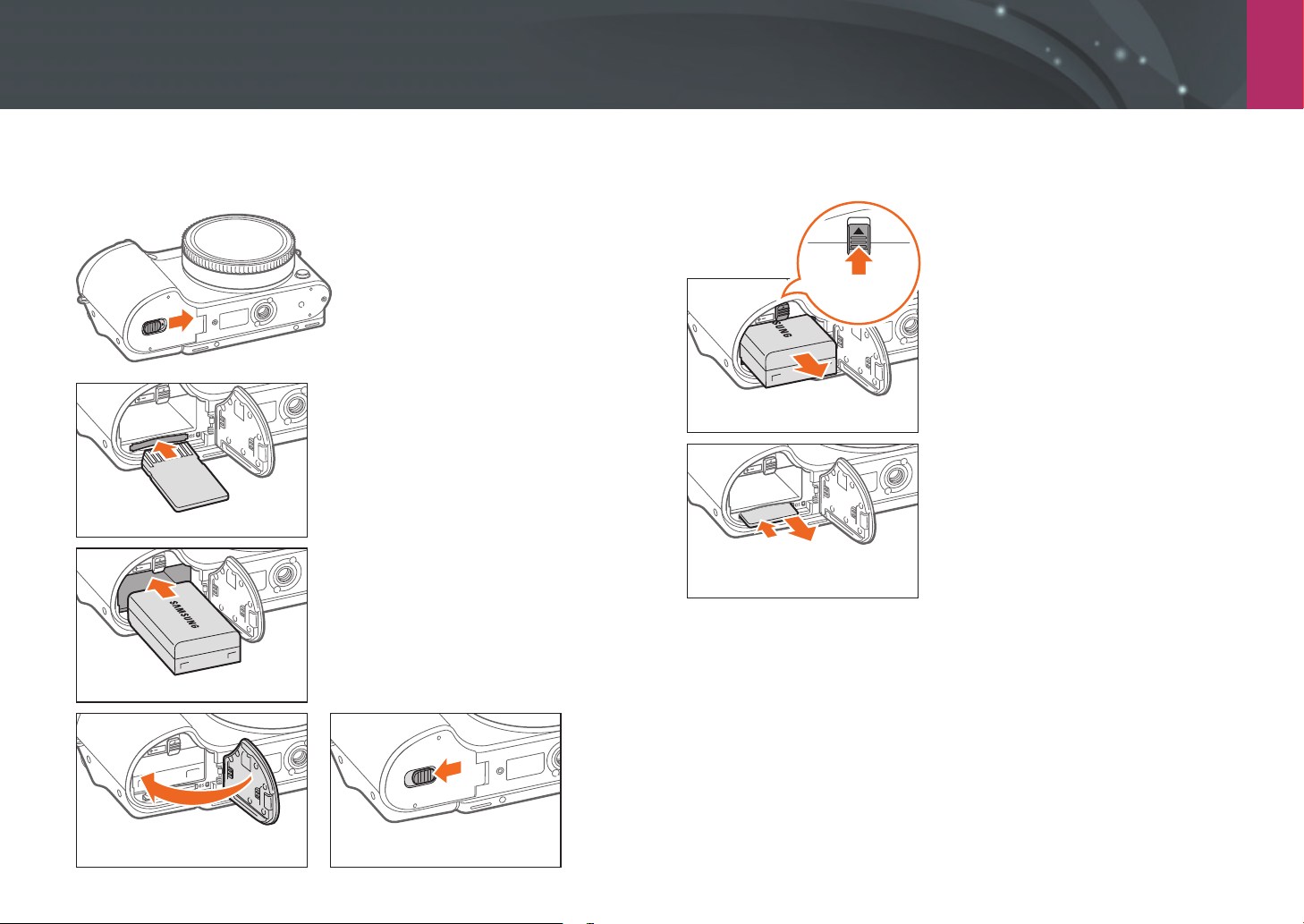
Inserting the battery and memory card
Learn how to insert the battery and an optional memory card into the
camera.
Memory card
Insert the memory card with the gold-
colored contacts facing up.
Rechargeable battery
Insert the battery with the Samsung logo
facing up.
Removing the battery and memory card
Rechargeable battery
Battery lock
Slide the lock up to release the battery.
Memory card
Push the card gently until it disengages
from the camera, and then pull it out of
the slot.
My Camera > Inserting the battery and memory card
35
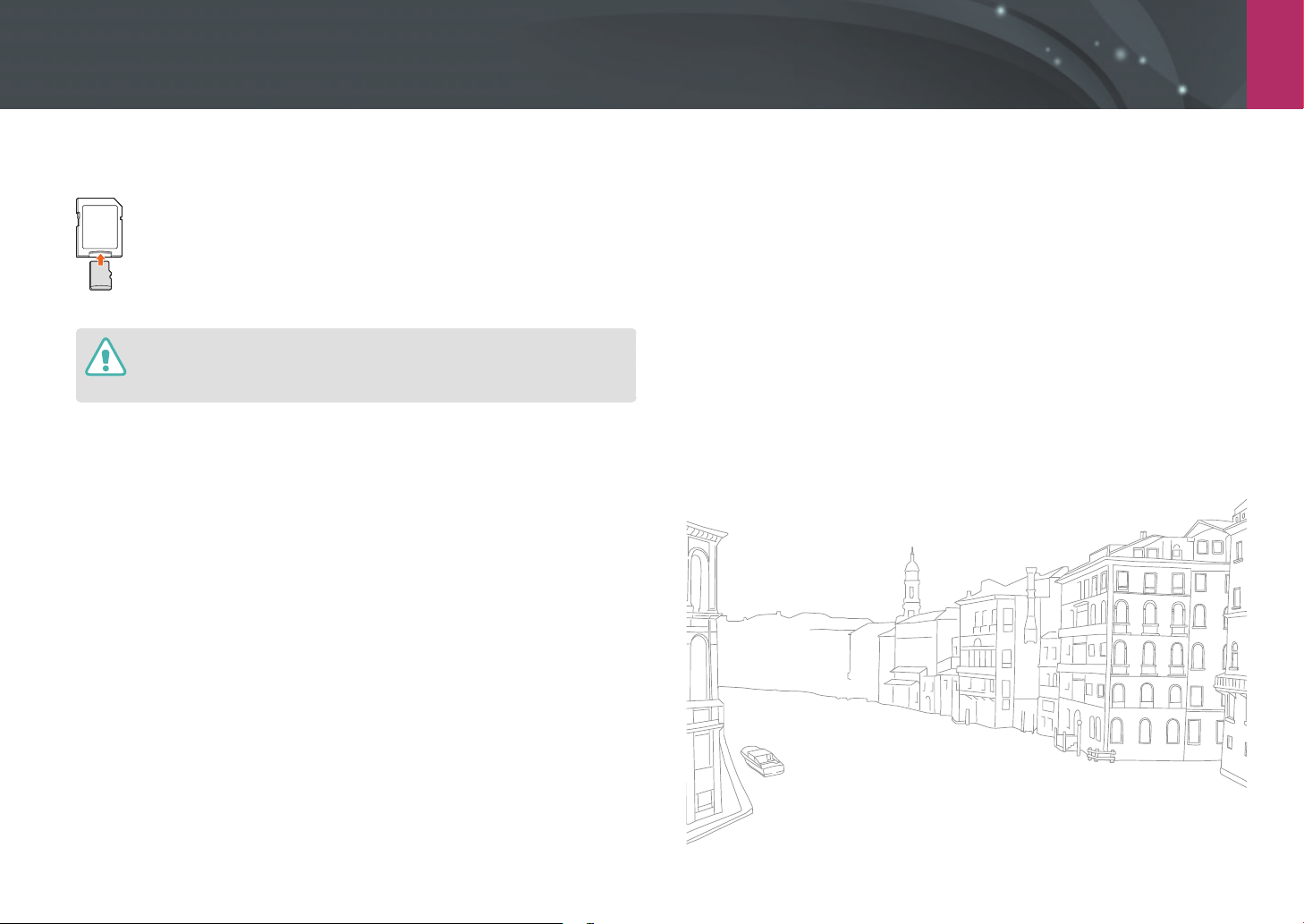
Using the memory card adapter
To use micro memory cards with this camera, a PC, or a memory card
reader, insert the card into an adapter.
While the status lamp of the camera is blinking, do not remove the memory card
or battery. Doing so may damage the data stored on the memory card or your
camera.
My Camera
36
Charging the battery and turning on your camera
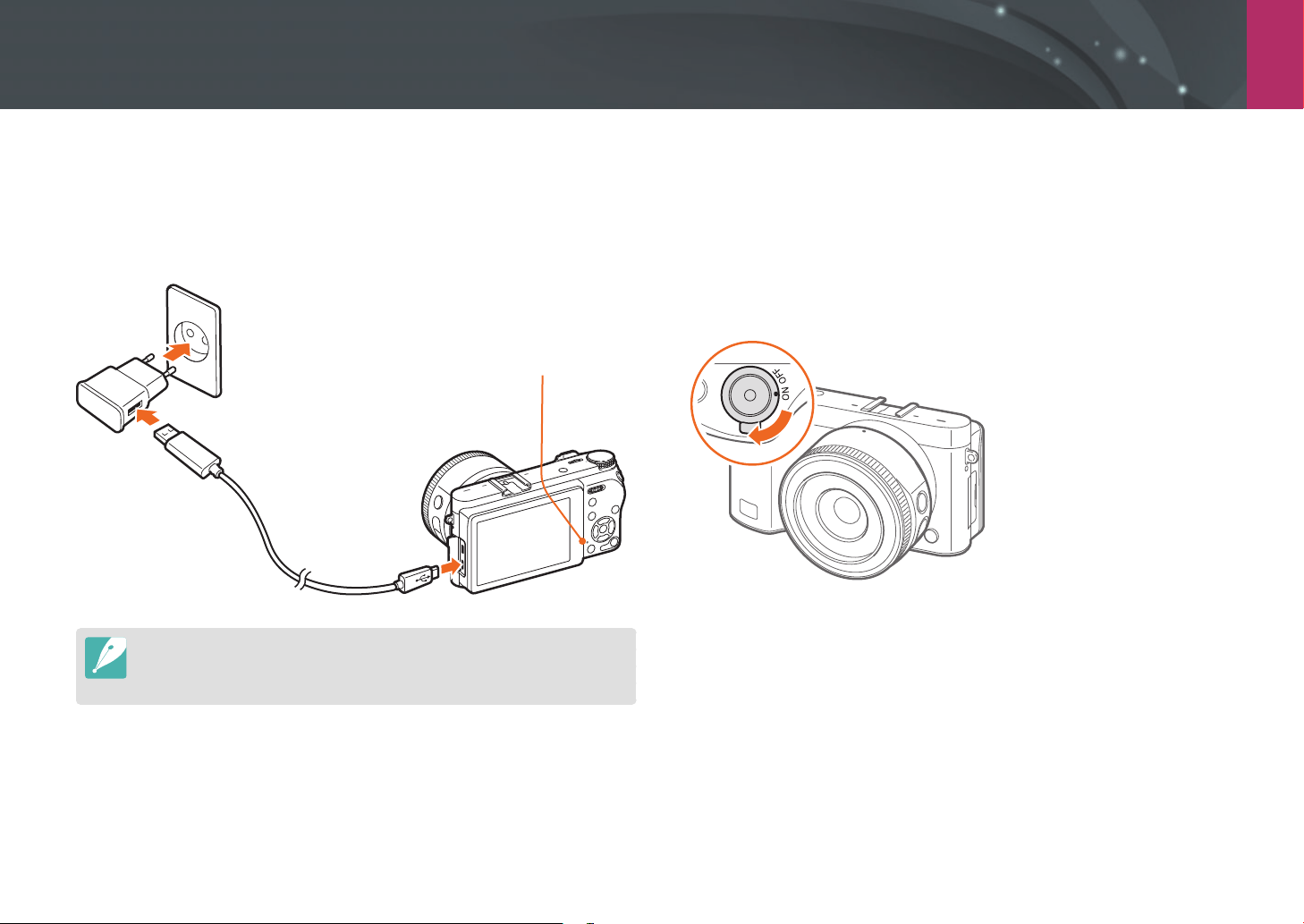
Charging the battery
Before you use the camera for the rst time, you must charge the battery.
Plug the small end of the USB cable into your camera, and then plug the
other end of the USB cable into the AC adapter.
Status lamp
• Red light on: Charging
• Green light on: Fully charged
• Red light blinking: Charging error
•
Charge the battery while the camera is turned o.
•
Use only the AC adapter and USB cable supplied with your camera. If you use
another AC adapter, the camera battery may not charge or work properly.
Turning on your camera
Set the Power switch to ON.
•
To turn your camera o, set the Power switch to OFF.
•
The initial setup screen appears when you turn on the camera for the
rst time. (p. 37)
My Camera
37
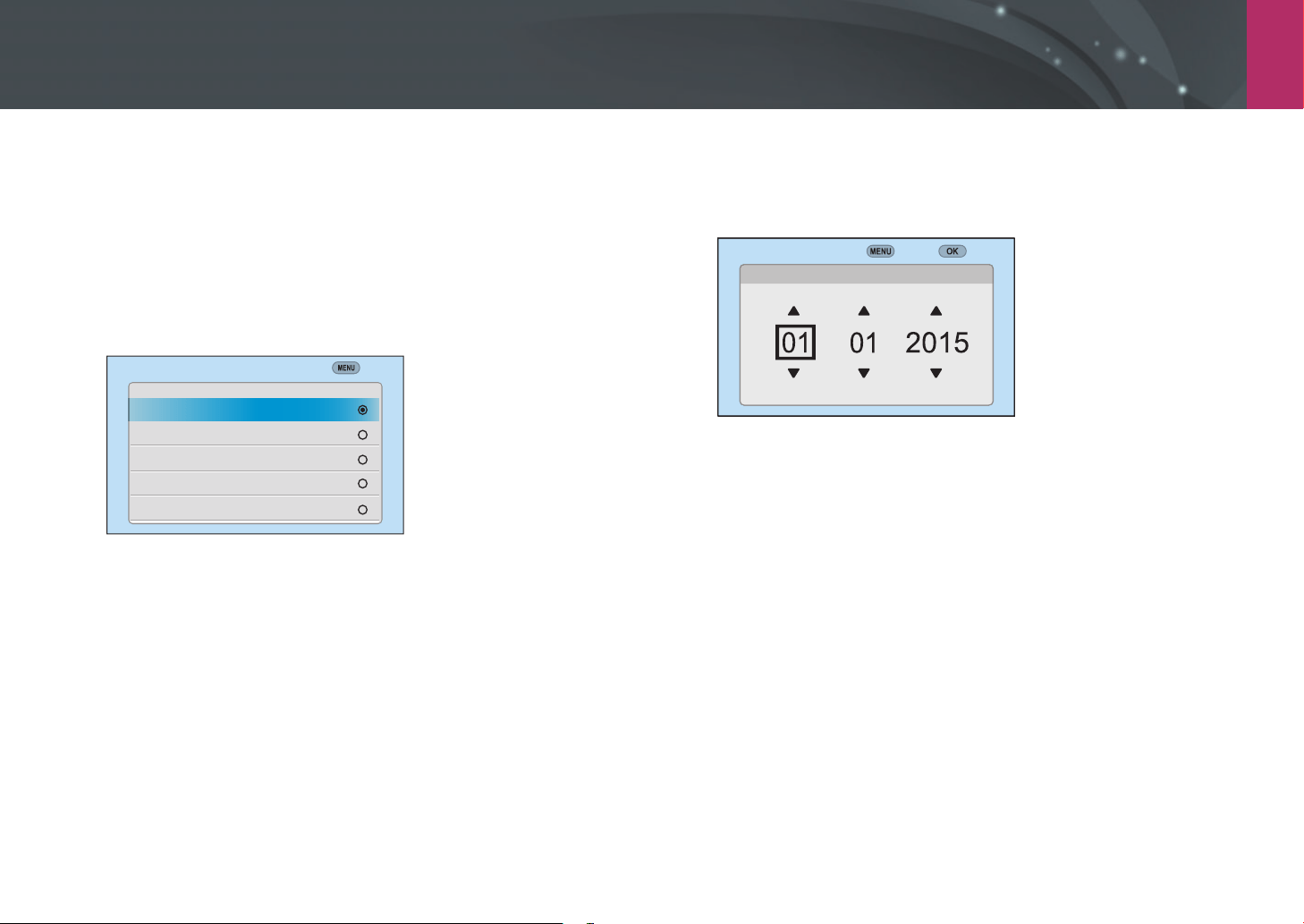
Performing the initial setup
When you turn on your camera for the rst time, the initial setup screen
appears. The language is preset for the country or region where the
camera is sold. You can change the language as desired. You can also select
an item by touching it on the screen.
1
Press [I] to select Time Zone, and then press [o].
2
Press [D/I] to select a time zone, and then press [o].
Back
Time Zone
[GMT +00:00] London
[GMT -01:00] Cape Verde
[GMT -02:00] Mid-Atlantic
[GMT -03:00] Buenos Aires, Sao Paulo
[GMT -03:30] Newfoundland
3
Press [I] to select Date Settings, and then press [o].
4
Press [C/F] to select an item (Year/Month/Day).
5
Press [D/I] to set the option, and then press [o].
Back Set
Year
Month
Day
Date Settings
•
The screen may dier depending on the language you selected.
6
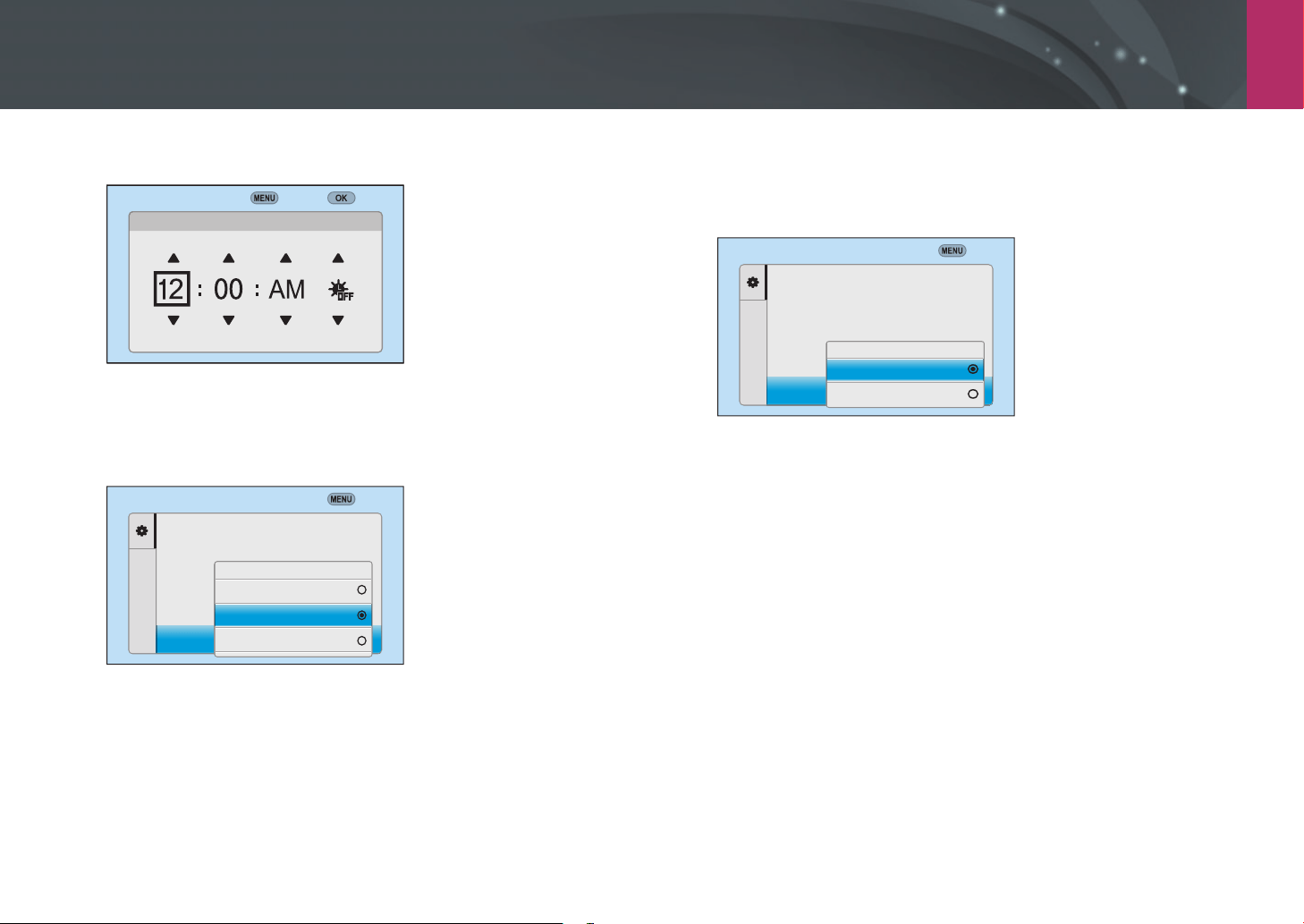
Press [I] to select Time Settings, and then press [o].
7
Press [C/F] to select an item (Hour/Minute/Summer time).
My Camera > Performing the initial setup
38
8
Press [D/I] to set the option, and then press [o].
Time Settings
Back Set
DSTHour Min
9
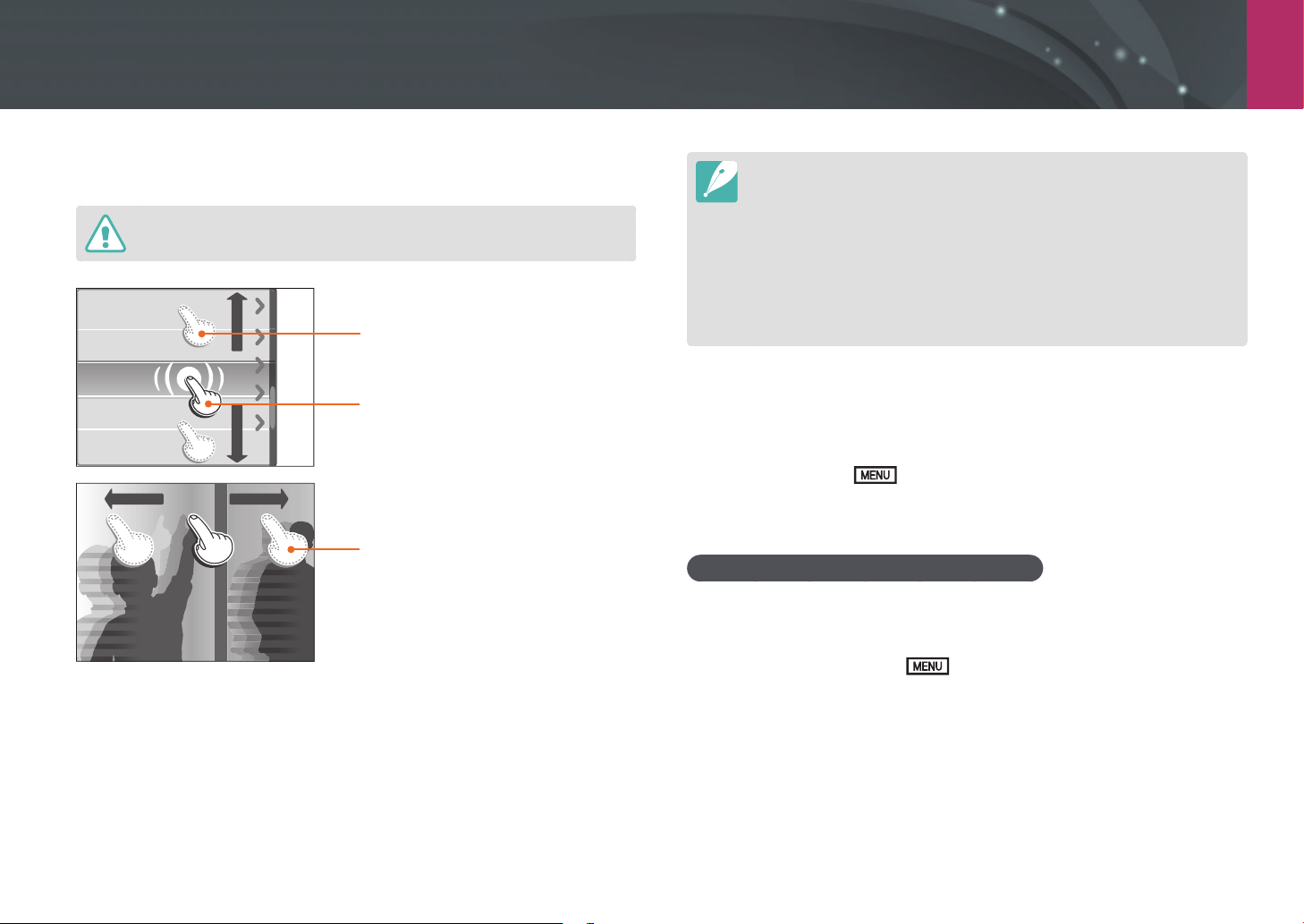
Press [I] to select Date Type, and then press [o].
10
Press [D/I] to select a date type, and then press [o].
Back
Language
Time Zone
Date Settingss
Time Settingss
Date Type
Date Type
YYYY/MM/DD
MM/DD/YYYY
DD/MM/YYYY
London
English
11
Press [I] to select Time Type, and then press [o].
12
Press [D/I] to select a time type, and then press [o].
Back
London
01/01/2015
10:00 AM
Time Zone
Date Settings
Time Settings
Date Type
Time Type
Time Type
12H
24H
13
Press [m] to nish the initial setup.

My Camera
39
Selecting functions (options)
Using buttons and dials
Use one of the following methods to select an option:
•
Scroll command dial 1, and then press [o].
•
Scroll command dial 2, and then press [o].
•
Press [D/I/C/F], and then press [o].
Using custom buttons and dials
Assign various buttons and dials to launch your favorite functions.
Functions can be assigned to the following buttons and dials: Custom
button, AEL button, EV button, and command dials 1 and 2.
1
In Shooting mode, press [m]
ĺ
d
ĺ
Key Mapping.
2
Select a button from the list.
3
Select a function.
•
You can change the assigned functions of each button to a desired
function.
4
Press [m] to move to the previous screen.
5
Set shooting options by using the custom buttons, and then
capture a photo.
My Camera > Selecting functions (options)
40
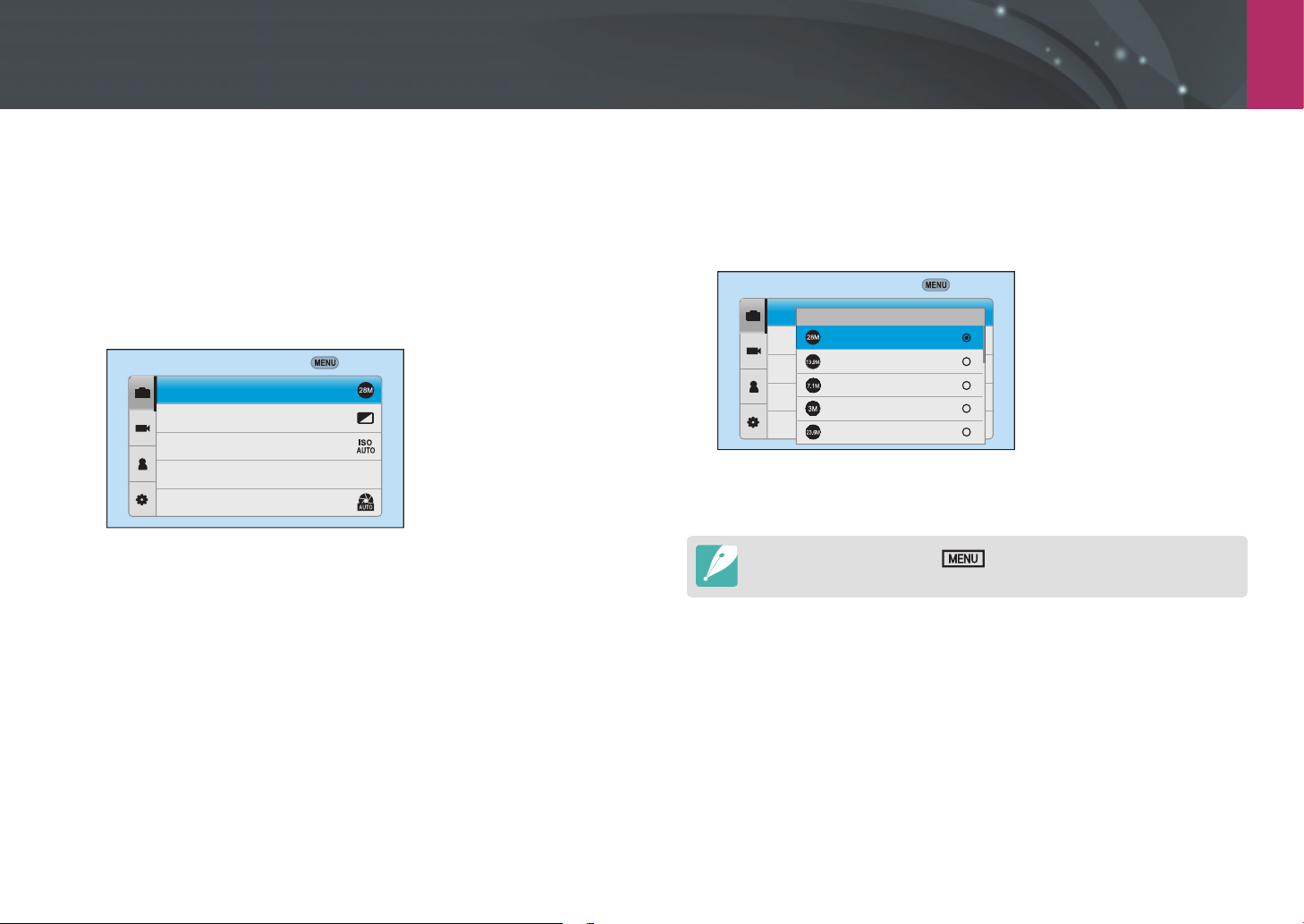
Selecting by touch
Do not use sharp objects, such as pens or pencils, to touch the screen. You can
damage the screen.
Dragging: Touch and hold an area on
the screen, and then drag your nger.
Touching: Touch an icon to select a
menu or an option.
Flicking: Gently ick your nger
across the screen.
•
When you touch or drag the screen, discolorations may occur. This is not a
malfunction, but a characteristic of the touch screen. Touch or drag lightly to
minimize the discolorations.
•
The touch screen may not work properly if you use the camera in extremely
humid environments.
•
The touch screen may not work properly if you apply screen protection lm
or other accessories to the screen.
•
Depending on the viewing angle, the screen may appear dim. Adjust the
brightness or viewing angle to improve the resolution.
Using m
Press [m] or touch on the screen, and then change shooting
options or settings.
E.g. Selecting the photo size in P mode
1
Rotate the mode dial to P.
2
Press [m] or touch .
My Camera > Selecting functions (options)
41
3
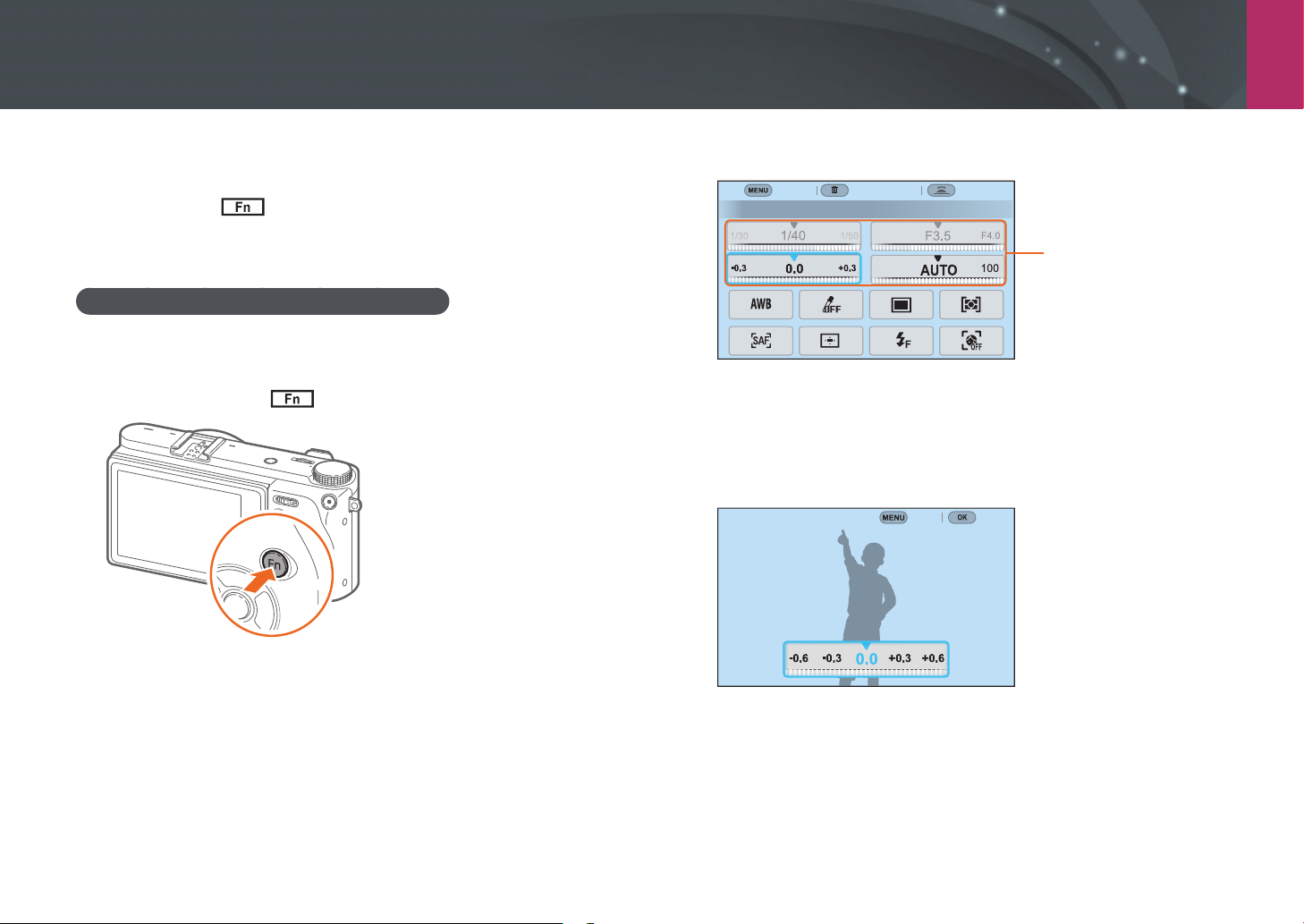
Scroll command dial 1 or press [D/I] to move to b, and
then press [o].
•
You can also touch b on the screen.
4
Scroll command dial 2 or press [D/I] to move to Photo
Size, and then press [o].
•
You can also drag the option list, and then touch an option.
Back
Photo Size
Quality
ISO
ISO Customizing
Minimum Shutter Speed
5
Scroll command dial 2 or press [D/I] to move to an
option, and then press [o].
•
You can also drag the option list, and then touch an option.
•
Press [m] or touch Back to go back to the previous menu.
Back
Photo Size
Quality
ISO
ISO Customizing
Minimum Shutter Speed
(3:2) (6480 X 4320)
(3:2) (4560 X 3040)
(3:2) (3264 X 2176)
(3:2) (2112 X 1408)
(16:9) (6480 X 3648)
Photo Size
6
Press [m] or touch Back to switch to Shooting mode.
You can press [m] or touch on the screen to change shooting options
even in Video recording standby mode.
My Camera > Selecting functions (options)
42
Using the smart panel
Press [f] or touch on the screen to access some functions such as
Exposure, ISO, and White Balance.
E.g. Adjust the exposure value in P mode
1
Rotate the mode dial to P.
2
Press [f] or touch .
3
Scroll command dial 2 or press [D/I/C/F] to move to
EV, and then press [o].
•
You can directly select an option by scrolling command dial 1
without having to press [o].
•
You can also select an option by touching it.
EV : 0.0
Adjust
Key MappingBack
You can adjust some options by
dragging them.
4
Scroll command dial 1 or command dial 2 or press [C/F] to
adjust the exposure value, and then press [o].
•
You can also drag the dial on the screen, and then touch Set to
adjust the option.
EV
Back
Set
My Camera > Selecting functions (options)
43
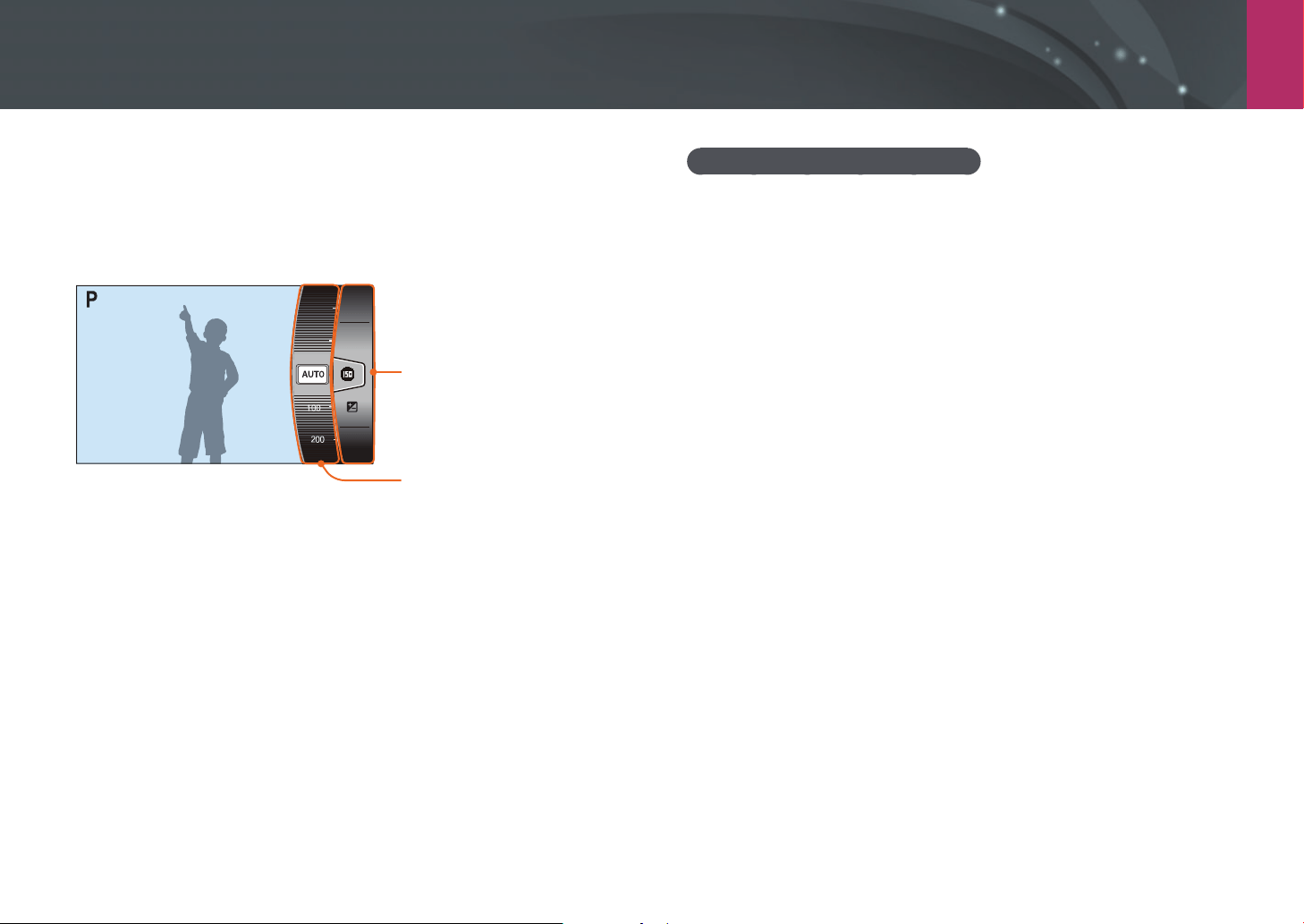
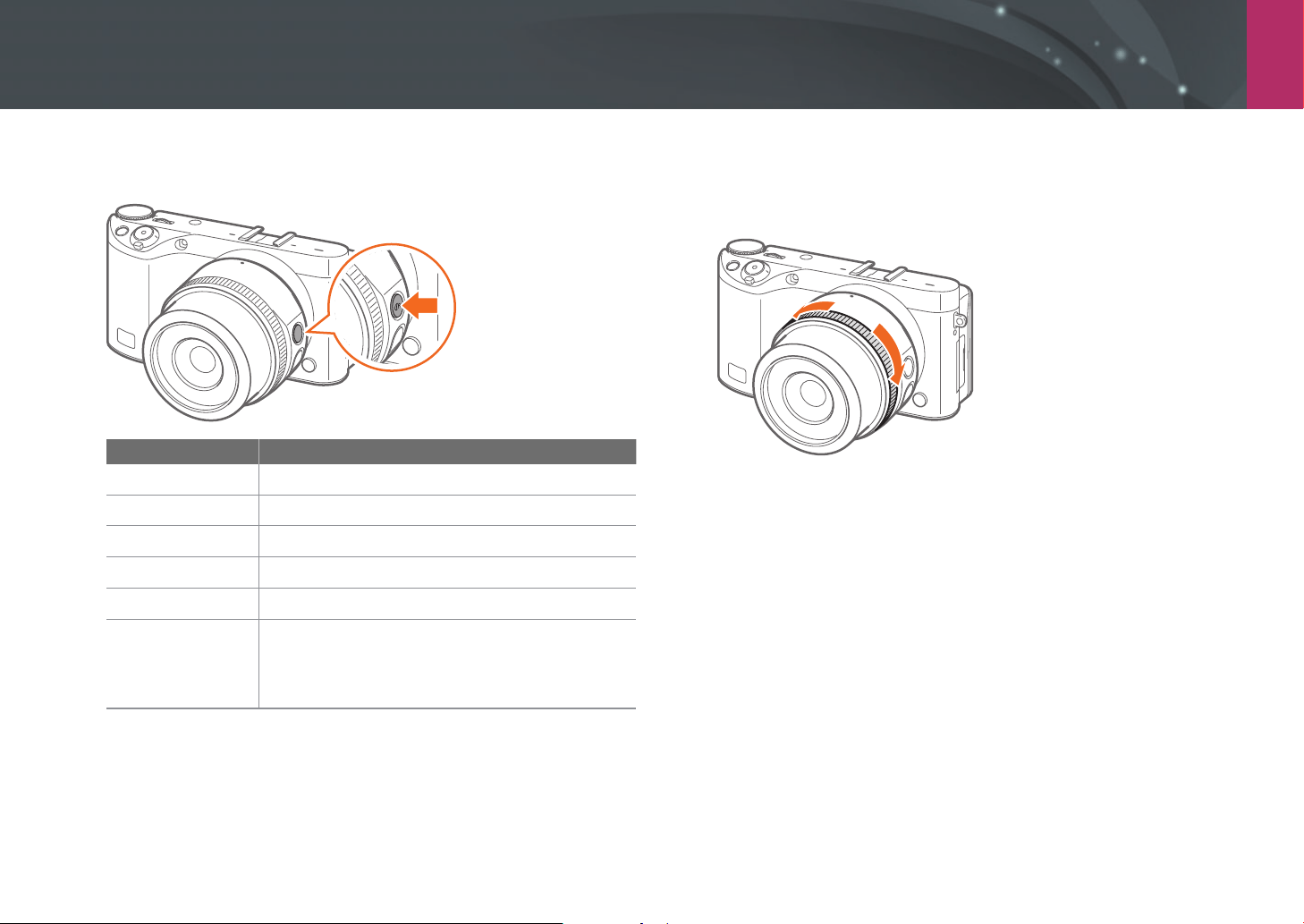
Using iFn
Press [i-Function] on an i-Function lens to manually select and adjust
shutter speed, aperture value, exposure value, ISO sensitivity, and White
Balance on the lens.
0.0
AWB
Select an option.
Adjust an option value.
Using the iFn standard function
When you use [i-Function] on an i-Function lens, you can manually select
and adjust shutter speed, aperture value, exposure value, ISO sensitivity,
and White Balance on the lens. You can also use the intelli-Zoom function.
1
Rotate the mode dial to P, A, S, or M.
2
Press [m]
ĺ
d
ĺ
iFn Setting
ĺ
iFn Standard.
3
Press [m] to return to Shooting mode.
4
Press [i-Function] on the lens to select a setting.
•
To select items to appear, press [m]
ĺ
d
ĺ
iFn Setting
ĺ
touch iFn Standard
ĺ
select an item.
My Camera > Selecting functions (options)
44
•
You can also press [i-Function], and then press [D/I] or drag
the screen to select a setting.
Option Description
Aperture
Adjust the aperture value.
Shutter Speed
Adjust the shutter speed.
EV
Adjust the exposure value.
ISO
Adjust the ISO sensitivity.
White Balance
Select a White Balance option.
intelli-Zoom
Zoom in on a subject with less degradation of
photo quality than the Digital zoom. However, the
photo resolution or size may change compared to
when you zoom in by rotating the zoom ring.
5
Adjust the focus ring to select an option.
•
You can also scroll command dial 2 or drag the screen to select an
option.
6
Half-press [Shutter] to focus, and then press [Shutter] to
capture the photo.
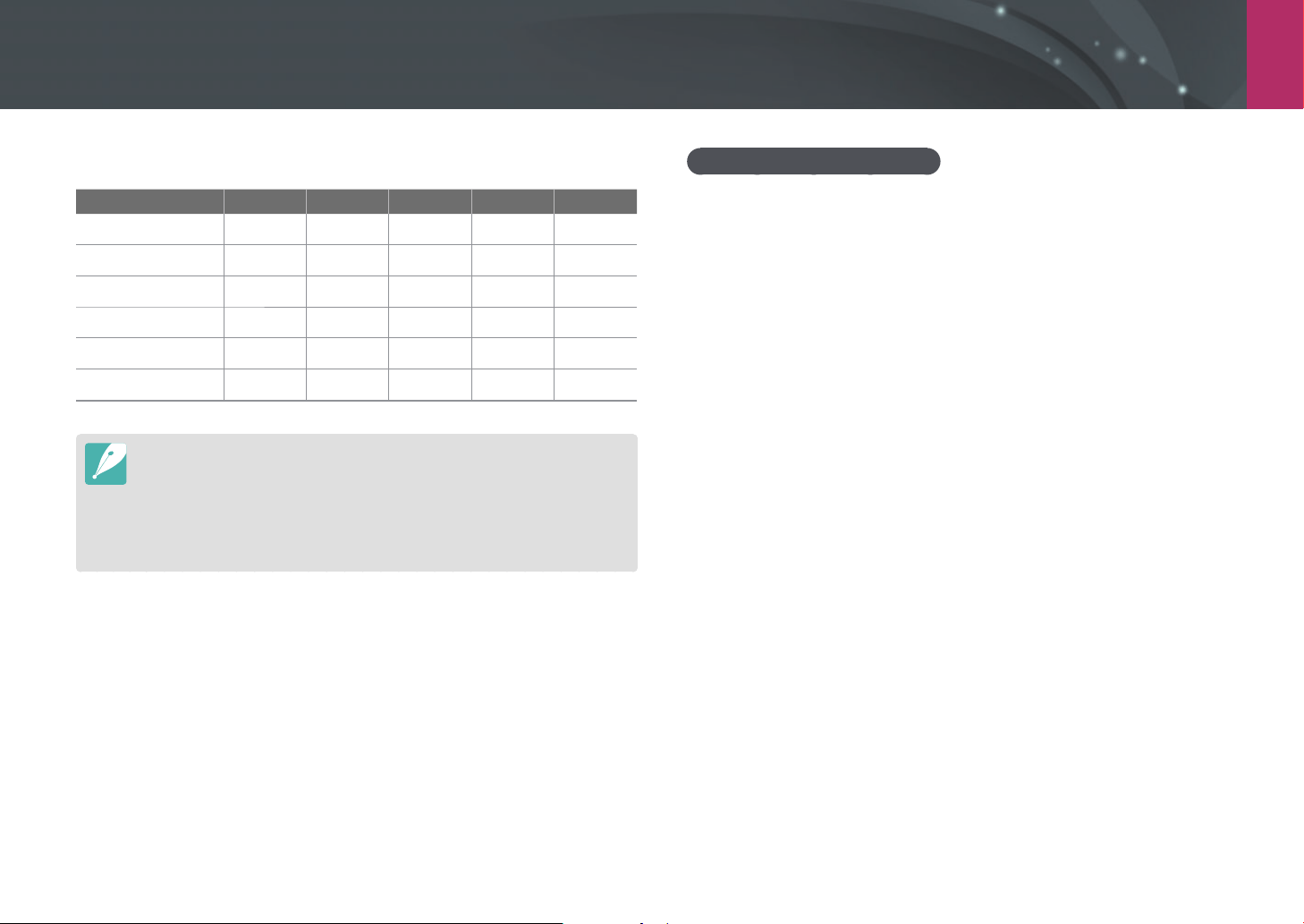
My Camera > Selecting functions (options)
45
Using the iFn plus function
On an i-Function lens, press [i-Function], and then press [a] or [B]
on the camera. You can assign functions to selected buttons or open the
i-Functions settings menu.
E.g. Assigning the photo quality function to the AEL button
1
Rotate the mode dial to P, A, S, or M.
2
Press [m]
ĺ
d
ĺ
iFn Setting.
3
Touch iFn Plus, and then select AEL
ĺ
Quality.
4
Press [m] to return to Shooting mode.
5
Press [i-Function] on an i-Function lens, and then press [a]
on the camera.
6
Select a photo quality option.
7
Half-press [Shutter] to focus, and then press [Shutter] to
capture the photo.
Available options
Shooting mode PASM3D
Aperture
-O-O-
Shutter Speed
--OO-
EV
OOO - O
ISO
OOOO -
White Balance
OOOOO
intelli-Zoom
OOOO -
•
This function is not available when you attach a 3D lens and set 3D Auto
mode in 3D mode.
•
intelli-Zoom is not available when you capture photos in the RAW le format.
•
intelli-Zoom is deactivated when you capture photos continuously.
•
intelli-Zoom is deactivated when you record videos by pressing the video
recording button.
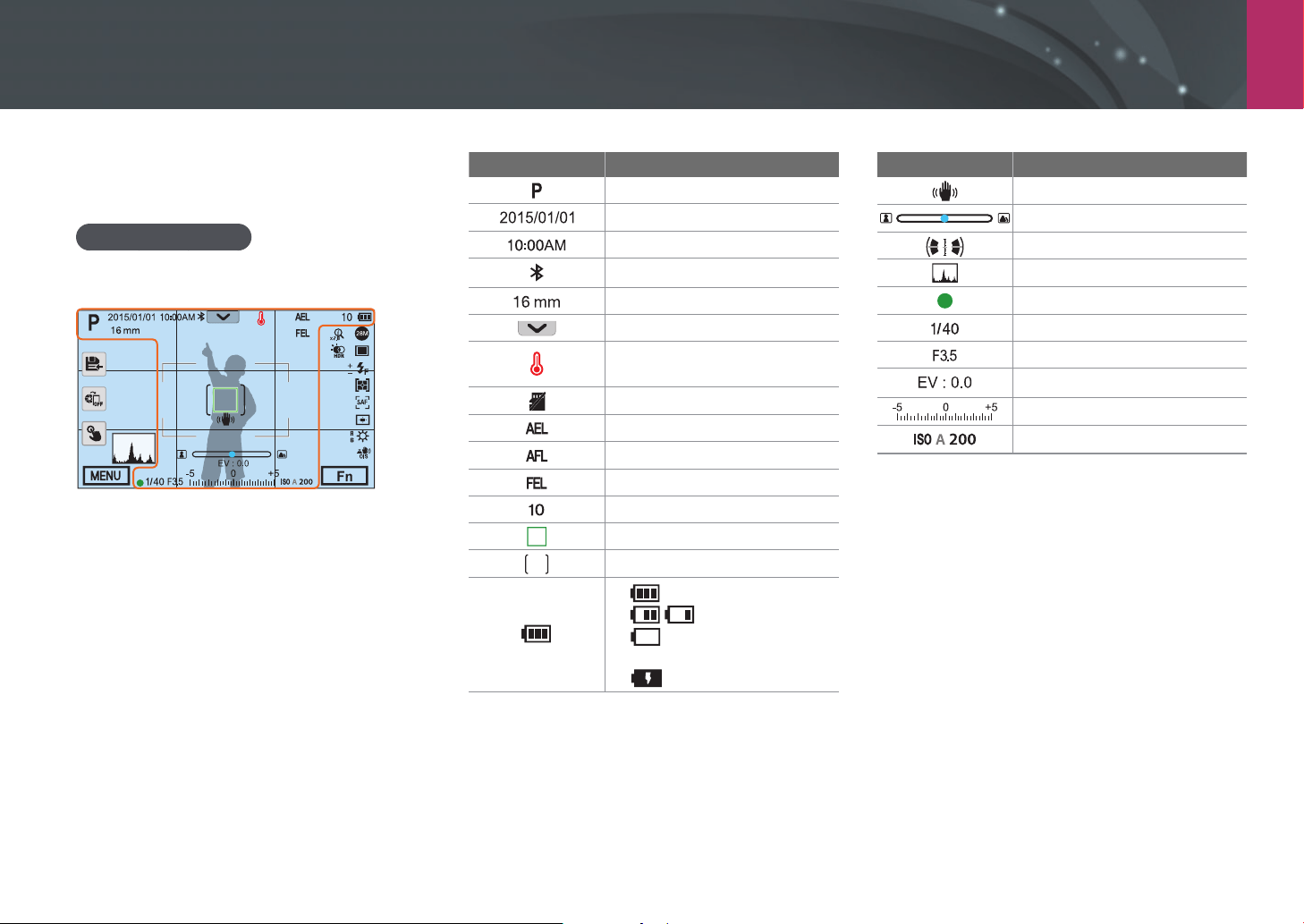
My Camera
46
Display icons
Icon Description
Shooting mode
Current date
Current time
Bluetooth on
Focal length*
Notication panel bar (Touch)
Overheating warning
indicator
Memory card not inserted**
Auto exposure lock (p. 117)
Auto focus lock (p. 117)
Flash intensity lock (p. 110)
Available number of photos
Auto focus frame
Spot metering area
• : Fully charged
• : Partially charged
• (Red): Empty (recharge
the battery)
• : Charging
Icon Description
Camera shake
Manual focus scale
Level gauge (p. 49)
Histogram (p. 116)
Focus
Shutter speed
Aperture value
Exposure adjustment value
Exposure level display
ISO sensitivity (p. 80)
* This icon appears when you attach the Power Zoom lens.
** Photos that were captured without inserting a memory
card cannot be transferred to a memory card or a computer.
In Shooting mode
Capturing photos
1. Shooting information
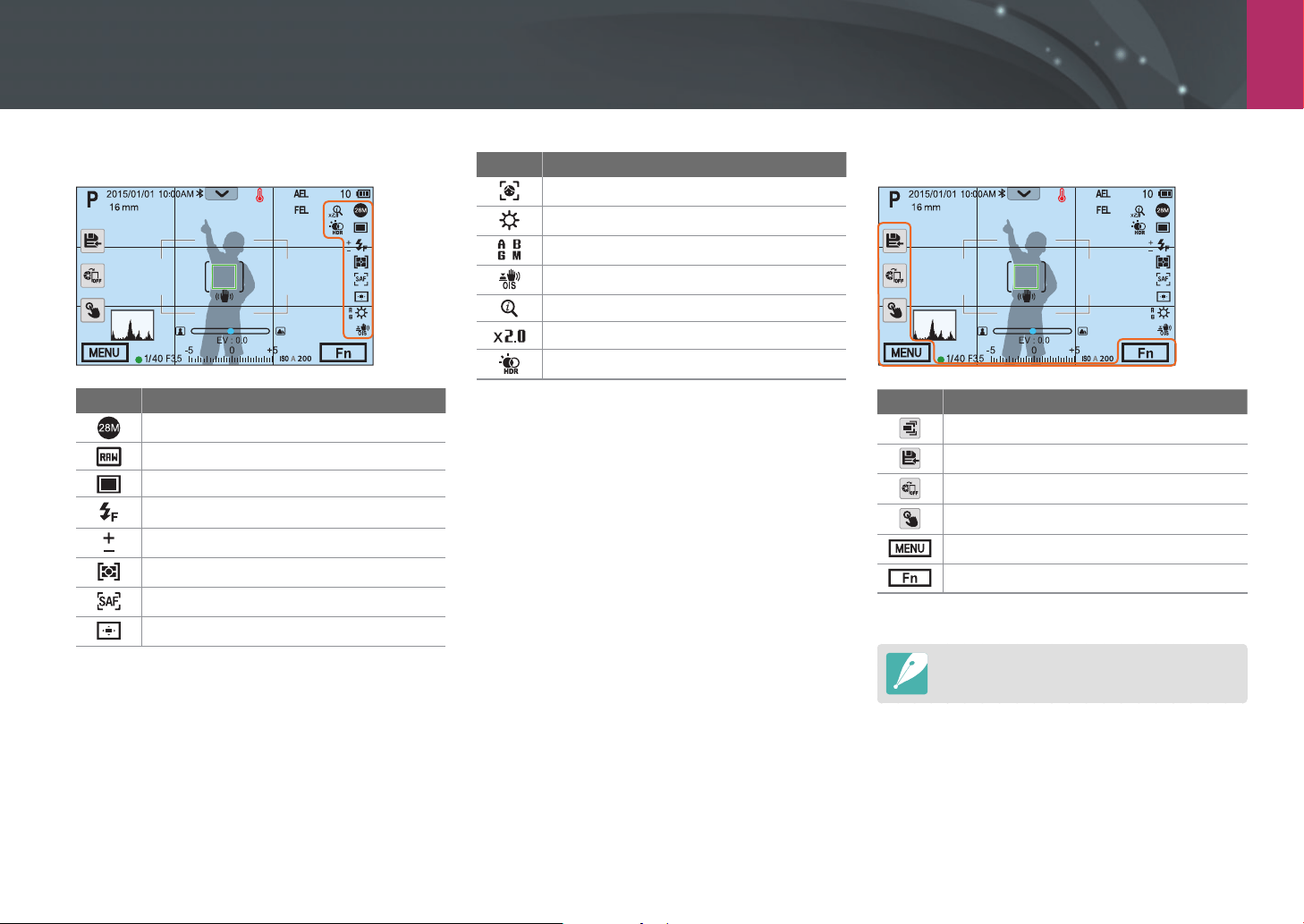
My Camera > Display icons
47
Icon Description
Face detection
White Balance (p. 83)
White Balance micro adjustment
Optical Image Stabilization (OIS) (p. 99)
intelli-zoom on
intelli-zoom ratio
Dynamic Range (p. 114)
3. Shooting options (Touch)
Icon Description
Change Smart mode*
Save a custom mode
Quick Transfer (p. 149)
Touch AF options
Shooting options
Smart panel
* This icon appears only when you select Smart mode.
The icons displayed will change according to the
mode you select or the options you set.
2. Shooting options
Icon Description
Photo size
RAW le
Drive mode
Flash (p. 106)
Flash intensity adjustment
Metering (p. 111)
AF mode (p. 87)
Focus area
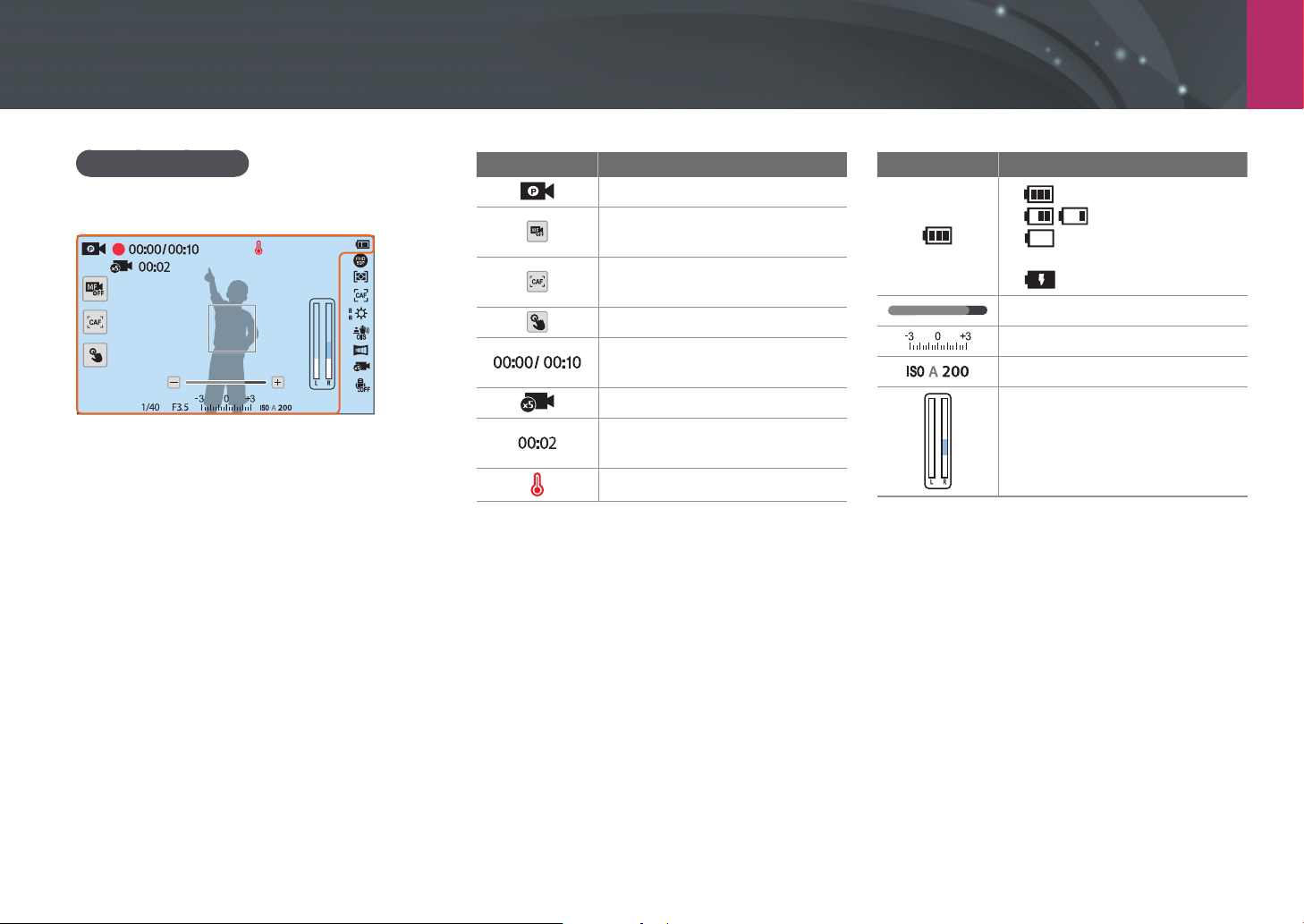
My Camera > Display icons
48
Icon Description
Shooting mode
Switch between AF and MF.
(Touch)
Switch between Single AF and
Continuous AF. (Touch)
Touch AF option (Touch)
Current recording time/
Available recording time
Fast/Slow Movie (p. 122)
Playback time after applying the
Fast/Slow Movie feature
Overheating warning indicator
Icon Description
• : Fully charged
• : Partially charged
• (Red): Empty (recharge
the battery)
• : Charging
Zoom indicator*
Exposure value
ISO sensitivity (p. 80)
Video sound level
* This icon appears when you attach the Power Zoom lens.
Recording videos
1. Shooting information
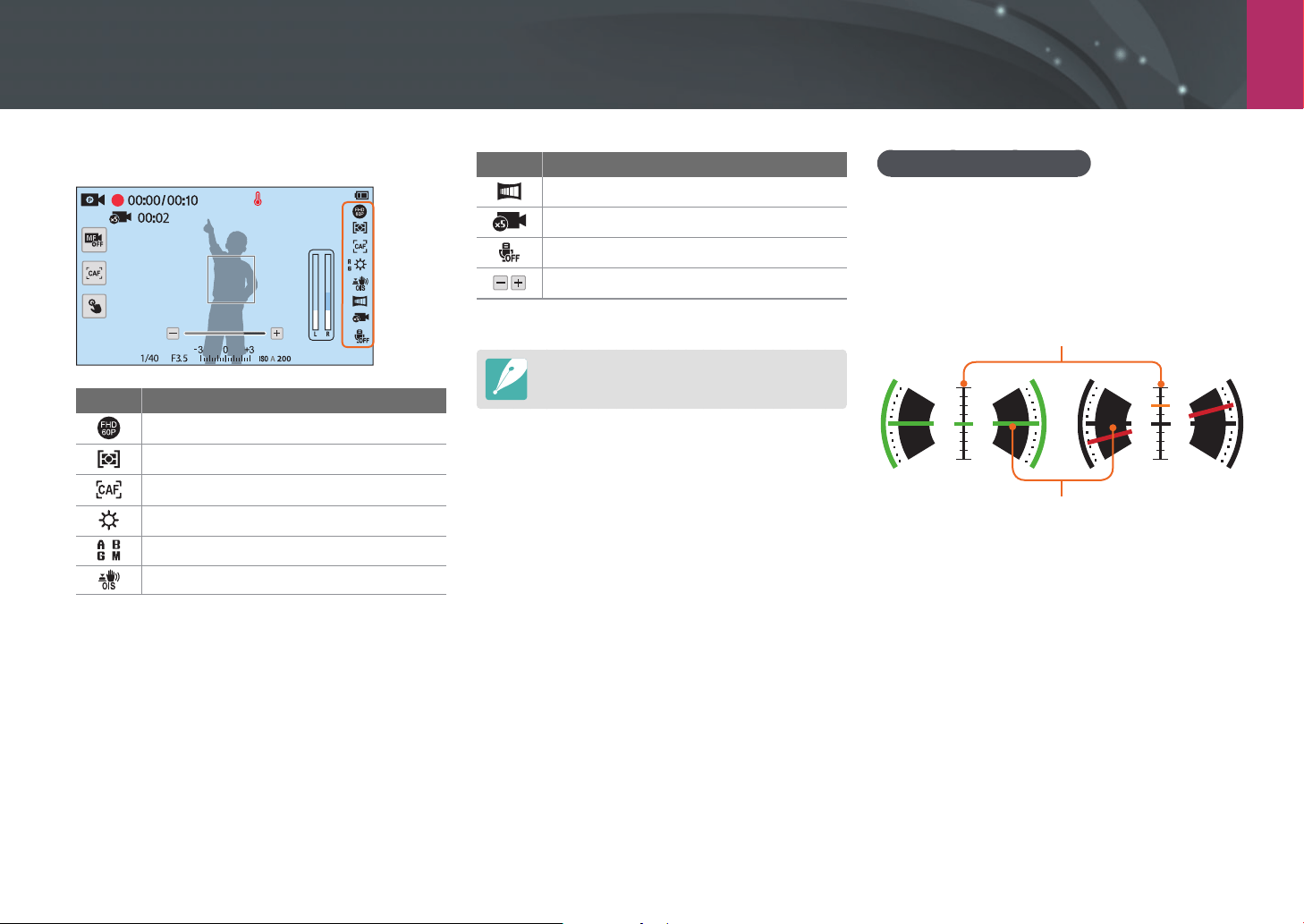
My Camera > Display icons
49
Icon Description
Fader (p. 123)
Fast/Slow Movie (p. 122)
Voice recording o (p. 124)
Zoom button*
* This icon appears when you attach the Power Zoom lens.
The icons displayed will change according to the
mode you select or the options you set.
About the level gauge
The level gauge helps you align the camera with
the horizontal and vertical lines on the display.
If the level gauge is not level, calibrate the level
gauge using the Horizontal Calibration function.
(p. 180)
Vertical
Horizontal
Ÿ
Level
Ÿ
Not level
2. Shooting options
Icon Description
Video size
Metering (p. 111)
AF mode (p. 87)
White Balance (p. 83)
White Balance micro adjustment
Optical Image Stabilization (OIS) (p. 99)
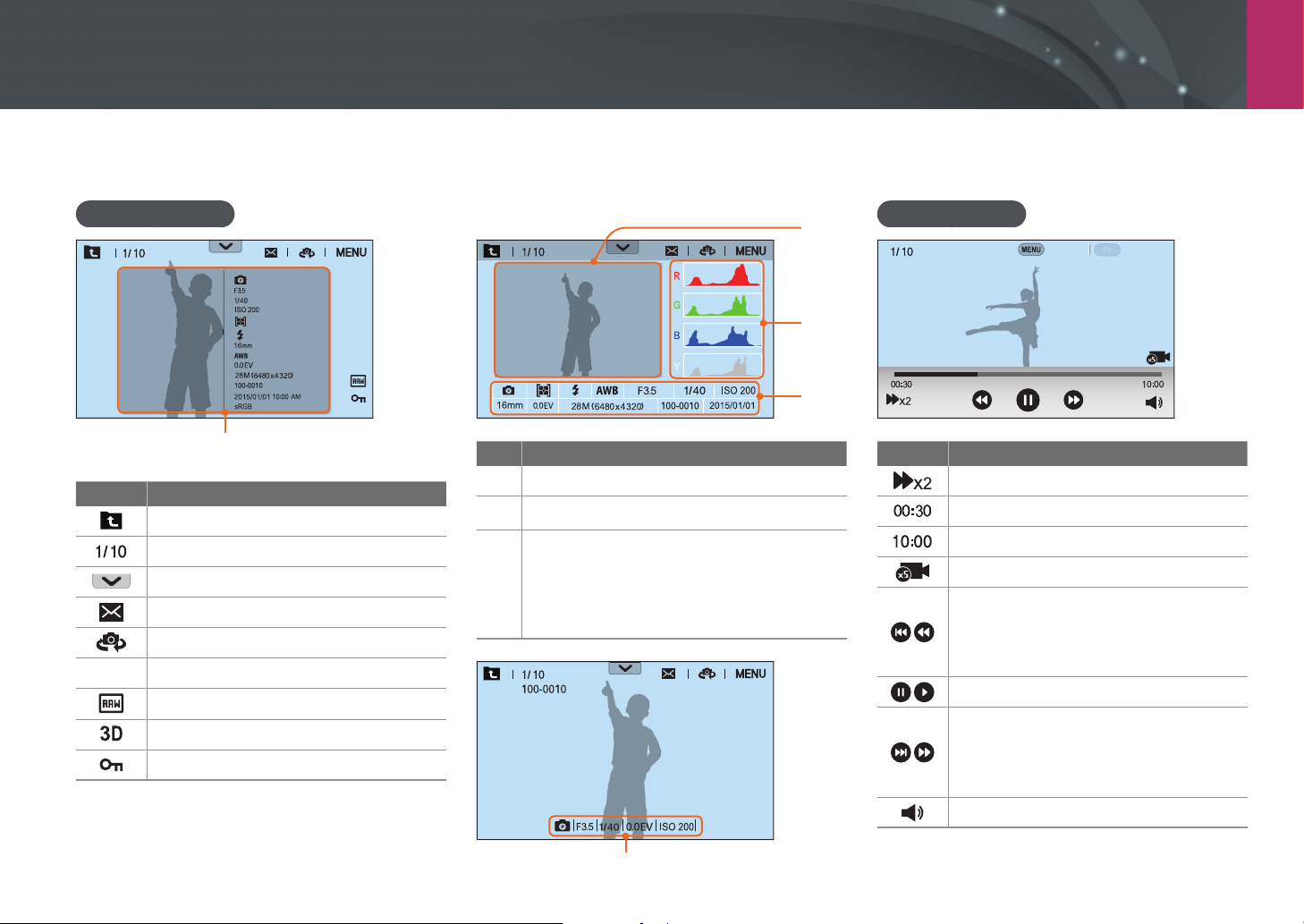
My Camera > Display icons
50
In Playback mode
Viewing photos
Information
Mode
F No
Shutter
ISO
Metering
Flash
Focal Length
White Balance
EV
Photo Size
Folder number-File number
Date and Time
Color Space
Icon Description
View image thumbnails. (Touch)
Current le/The total number of les
Notication panel bar (Touch)
Send photos via email. (Touch)
Share les with other devices. (Touch)
m
Playback/Editing/Setting menu (Touch)
RAW le
3D le
Protected le
1
2
3
No. Description
1
Captured photo
2
RGB histogram (p. 116)
3
Shooting mode, Metering, Flash,
White Balance, Aperture value,
Shutter speed, ISO, Focal length,
Exposure value, Photo size,
Folder number-File number, Date
Basic Exif information
Playing videos
Stop Capture
Icon Description
Playback speed
Current playback time
Video length
Fast/Slow Movie
View previous le/Scan backward.
(Each time you touch the scan
backward icon, you change the scan
speed in this order: 2X, 4X, 8X.)
Pause or resume playback.
View next le/Scan forward. (Each time
you touch the scan forward icon, you
change the scan speed in this order:
2X, 4X, 8X.)
Adjust the volume or mute the sound.
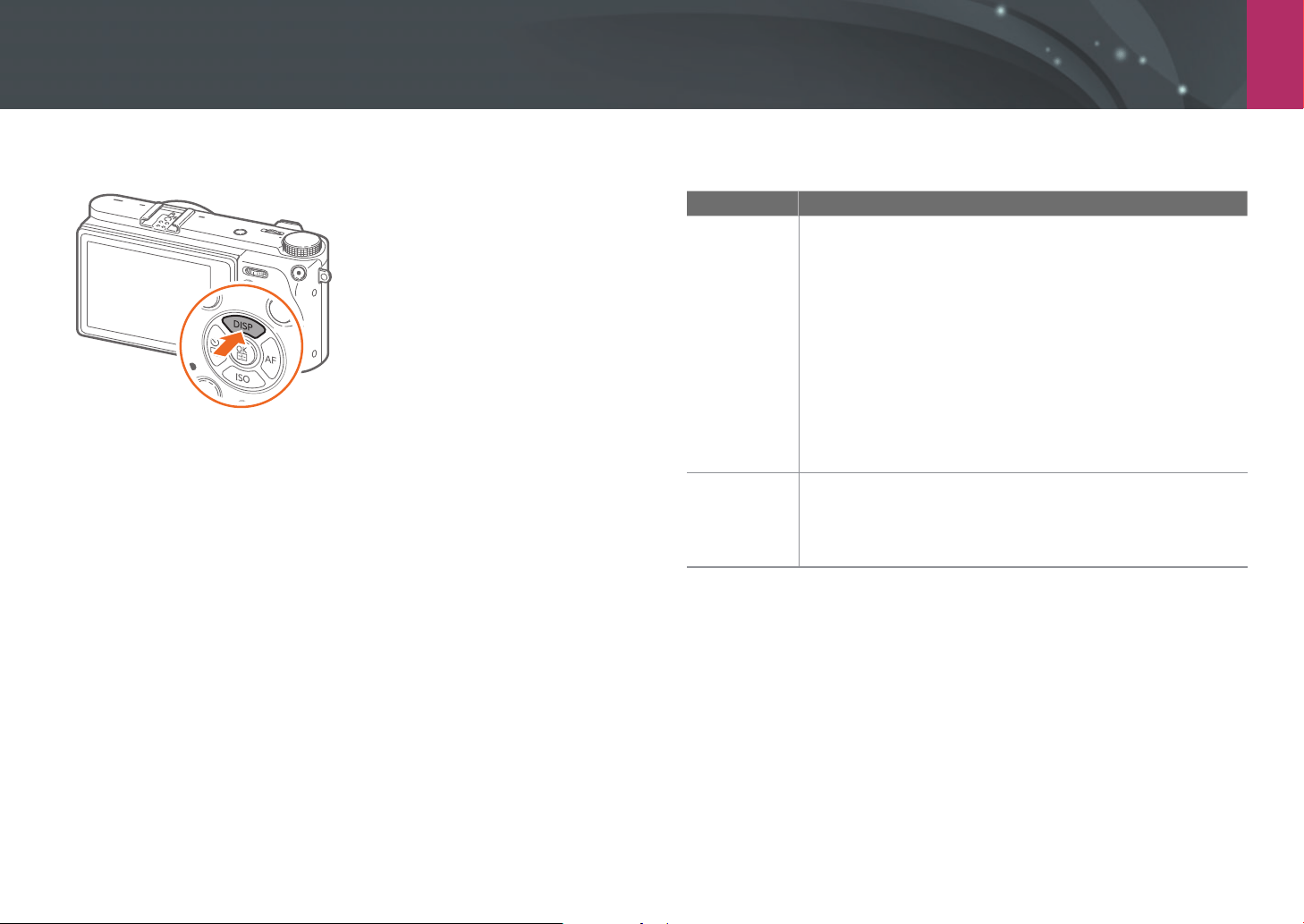
My Camera > Display icons
51
Changing the information displayed
Press [D] repeatedly to change the display type.
Mode Display type
Shooting
• Basic shooting information + Shooting option buttons +
Current shooting options information
• Basic shooting information (Shooting mode, Shutter
speed, Aperture value, Exposure value, ISO sensitivity, etc.)
• Basic shooting information + Shooting option buttons
(MENU, Fn, Quick Transfer, Touch AF, Custom mode save)
+ Current shooting options information (Photo size, Drive
mode, Flash, Metering, AF mode, etc.) + Histogram
• Basic shooting information + Shooting option buttons +
Current shooting options information + Level gauge
• No information (when connected to an HDMI-supported
TV or monitor)
Playback
• Basic information
• Display all information about the current le.
• Display all information about the current le including
RGB histogram.
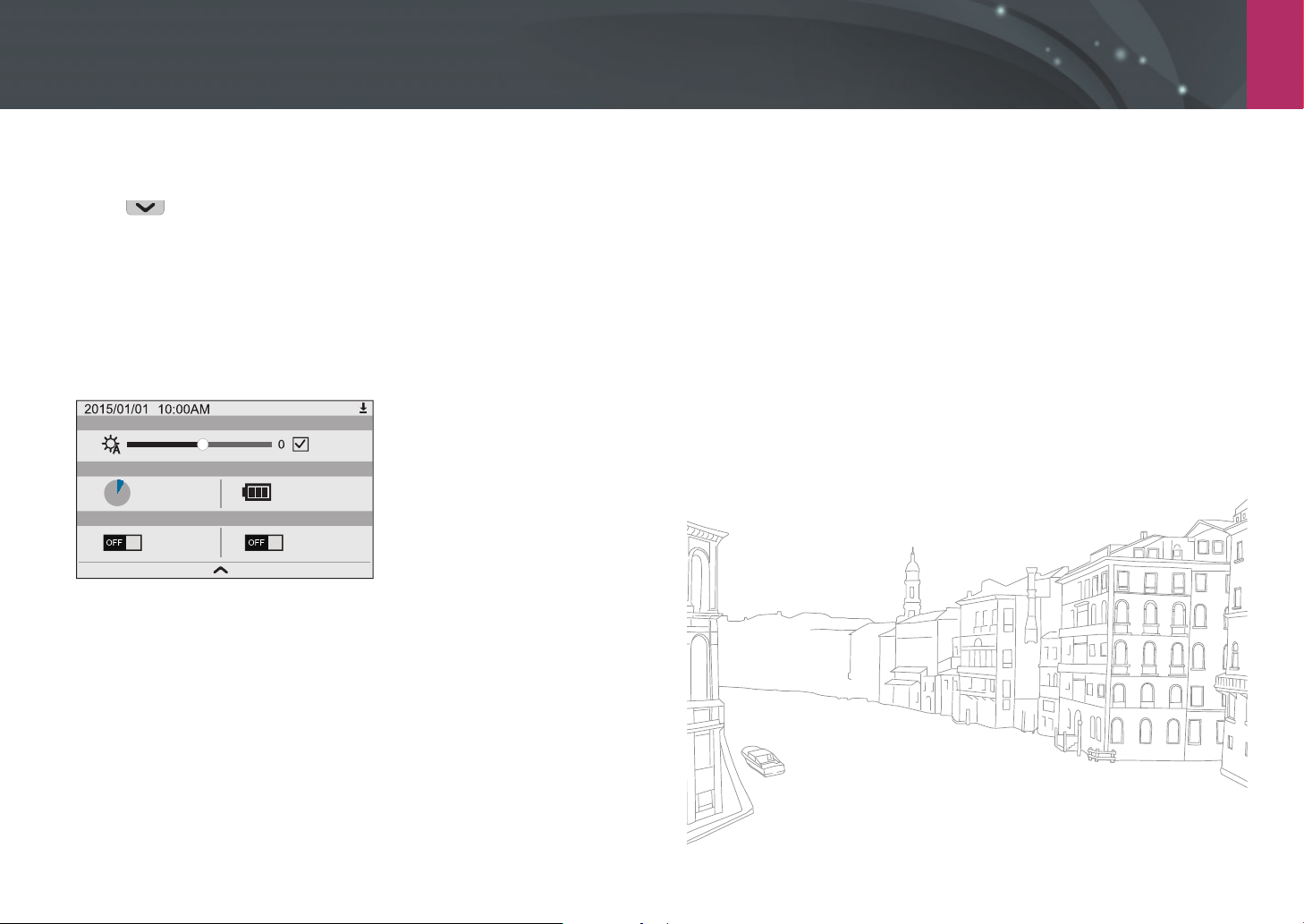
My Camera > Display icons
52
Viewing the notication panel
Touch at the top of the display to open the notication panel. You
can adjust the display brightness or view the current date and time,
battery life, and data storage information. You can also view the status of
a Bluetooth or Wi-Fi connection and enable or disable it. If a new version
of the camera’s rmware is available, when the camera is connected to a
Wi-Fi network, the notication panel bar blinks and a notication appears
at the upper right corner of the notication panel. Touch the bottom of the
notication panel or press [m] or [f] to close it.
Auto
Storage
10 shot(s)
Battery Level
Bluetooth
Wi-Fi Network
Connection Status
Storage & Battery Level
Display Brightness
New Firmware

My Camera
53
Lenses
You can purchase optional lenses made exclusively for your NX series
camera.
Learn about the functions of each lens and select one that suits your needs
and preferences.
Lens layout
SAMSUNG 16-50mm F3.5-5.6 Power Zoom ED OIS lens (example)
6
1
2
3
4
5
No. Description
1
i-Function button (p. 43)
2
Lens mount index
3
Focus ring (p. 96)
• Rotate the focus ring to adjust the zoom setting when using the
auto focus function.
4
Lens
5
Zoom button
• Press the zoom button to adjust the zoom ratio.
6
Lens contacts*
* Avoid contact with or prevent damage to the lens contacts.
When not using the lens, attach the lens cap and lens mount cover to protect
the lens from dust and scratches.
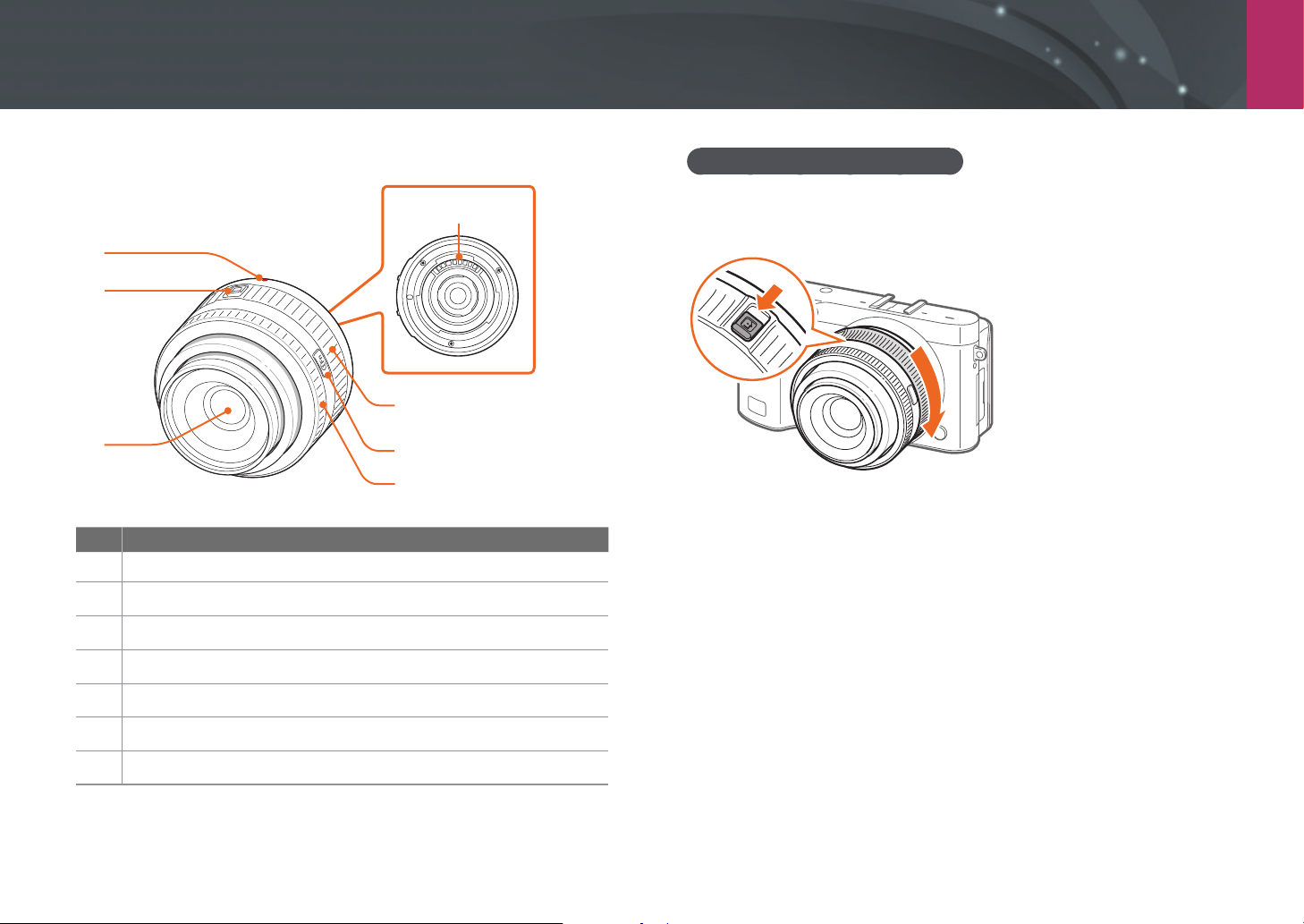
My Camera > Lenses
54
SAMSUNG 20-50mm F3.5-5.6 ED II lens (example)
7
1
2
3
5
6
4
No. Description
1
Lens mount index
2
Zoom lock switch
3
Lens
4
Focus ring (p. 96)
5
i-Function button (p. 43)
6
Zoom ring
7
Lens contacts*
* Avoid contact with or prevent damage to the lens contacts.
Locking or unlocking the lens
To lock the lens, slide the zoom lock switch away from the camera body,
hold it in place, and then rotate the zoom ring as shown in the illustration.
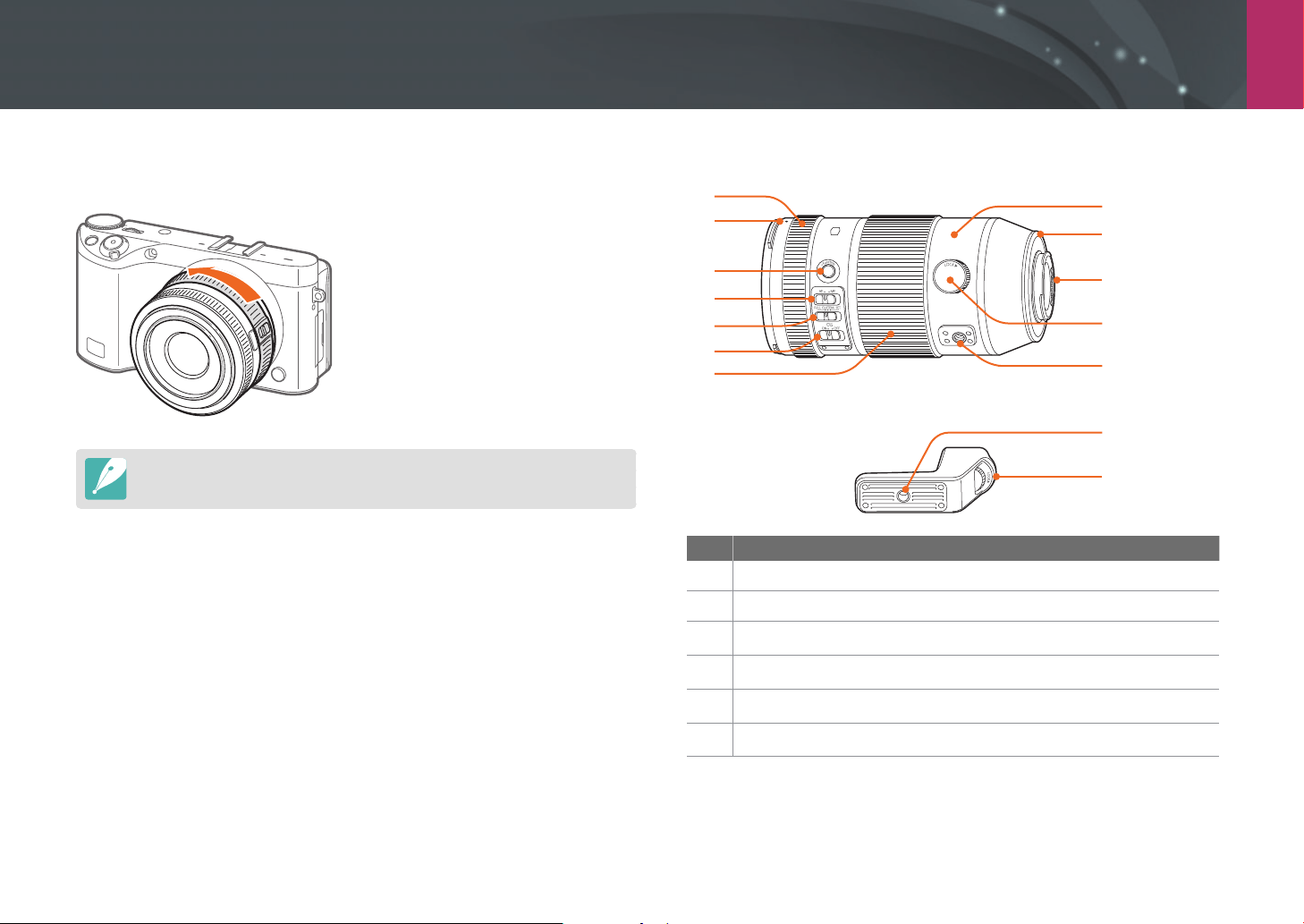
My Camera > Lenses
55
To unlock the lens, rotate the zoom ring as shown in the illustration until
you hear the click.
You cannot capture a photo when the lens is locked.
NX 50-150mm F2.8 S ED OIS lens (example)
2
4
5
6
7
3
1
12
10
14
13
9
8
11
No. Description
1
Focus ring (p. 96)
2
Lens hood mount index
3
i-Function button (p. 43)
4
AF/MF switch
5
Custom Focus Range Limiter switch
6
OIS switch
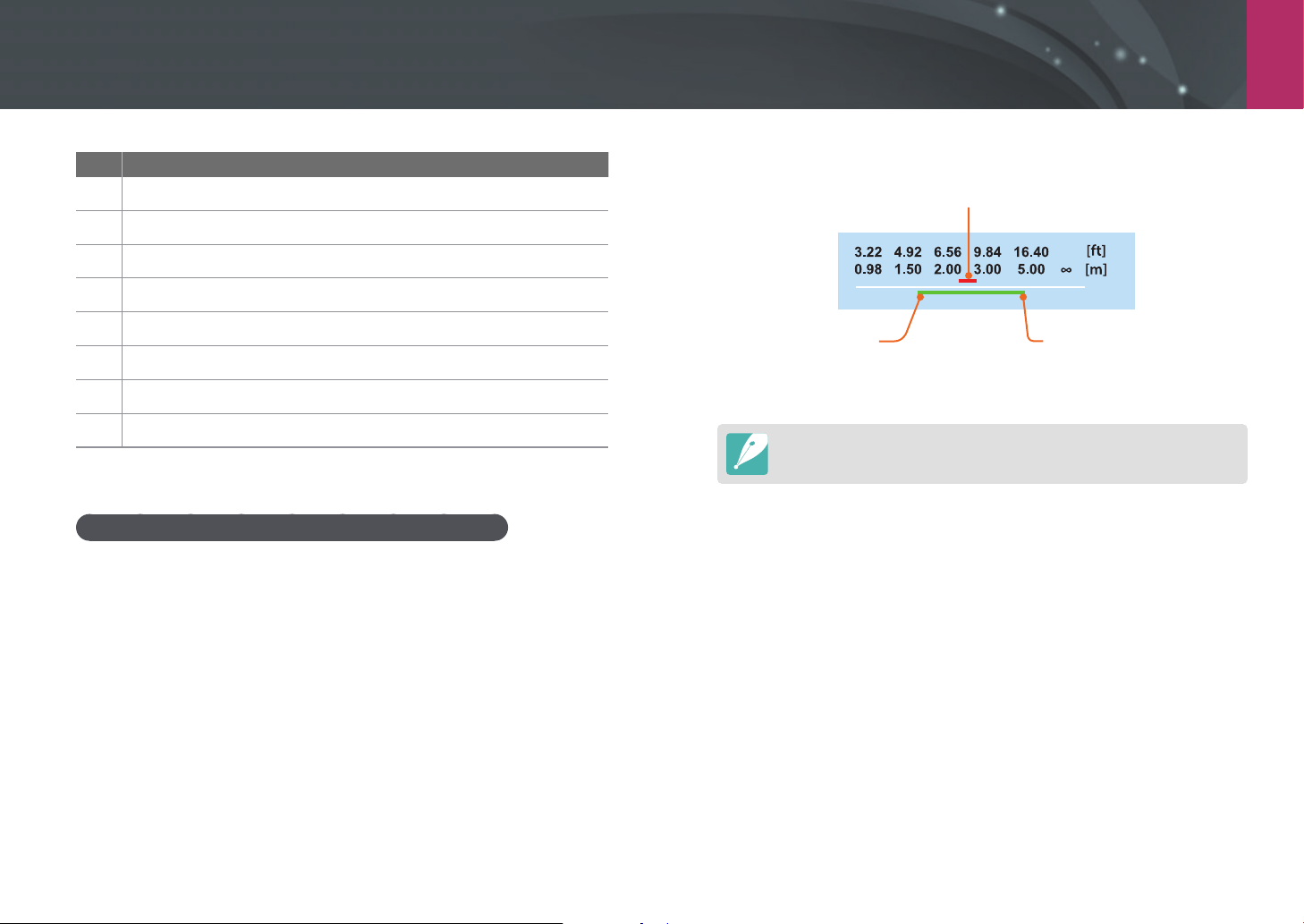
My Camera > Lenses
56
No. Description
7
Zoom ring
8
Tripod ring
9
Lens mount index
10
Lens contacts*
11
Tripod ring locking dial
12
Tripod collar connection
13
Tripod connection
14
Tripod mount collar lock dial
* Avoid contact with or prevent damage to the lens contacts.
Using the Custom Focus Range Limiter Function
You can adjust the focus quickly and precisely by setting the range for the
focus distance.
1
Set the Custom Focus Range Limiter switch to SET.
2
Set a focus range.
Current focus distance
Maximum focus distance
Scroll command dial 1 to adjust
the focus range.
Minimum focus distance
Scroll command dial 2 to adjust
the focus range.
The illustration above may dier from the actual screen on your camera.
3
Set the Custom Focus Range Limiter switch to CUSTOM and
capture a photo.

My Camera > Lenses
57
Lens markings
Find out what the numbers on the lens signify.
SAMSUNG 18-200mm F3.5-6.3 ED OIS lens (example)
1
2345
No. Description
1
Aperture value
A range of supported aperture values. For example, 1:3.5–6.3 means
the aperture range is 3.5 to 6.3.
2
Focal length
The distance from the middle of the lens to its focal point (in
millimeters). This gure is expressed in a range: the minimum focal
length to the maximum focal length of the lens.
Longer focal lengths result in narrower angles of view and the subject
is magnied. Shorter focal lengths result in wider angles of view.
3
ED
ED stands for Extra-low Dispersion. Extra-low dispersion glass is
eective in minimizing chromatic aberration (a distortion that occurs
when a lens fails to focus all colors to the same convergence point).
4
OIS (Anti-Shake) (p. 99)
Optical Image Stabilization. Lenses with this feature can detect
camera shake and eectively cancel out the movement inside the
camera.
5
Ø
The lens diameter. When you attach a lter to the lens, make sure that
the diameters of the lens and the lter are the same.
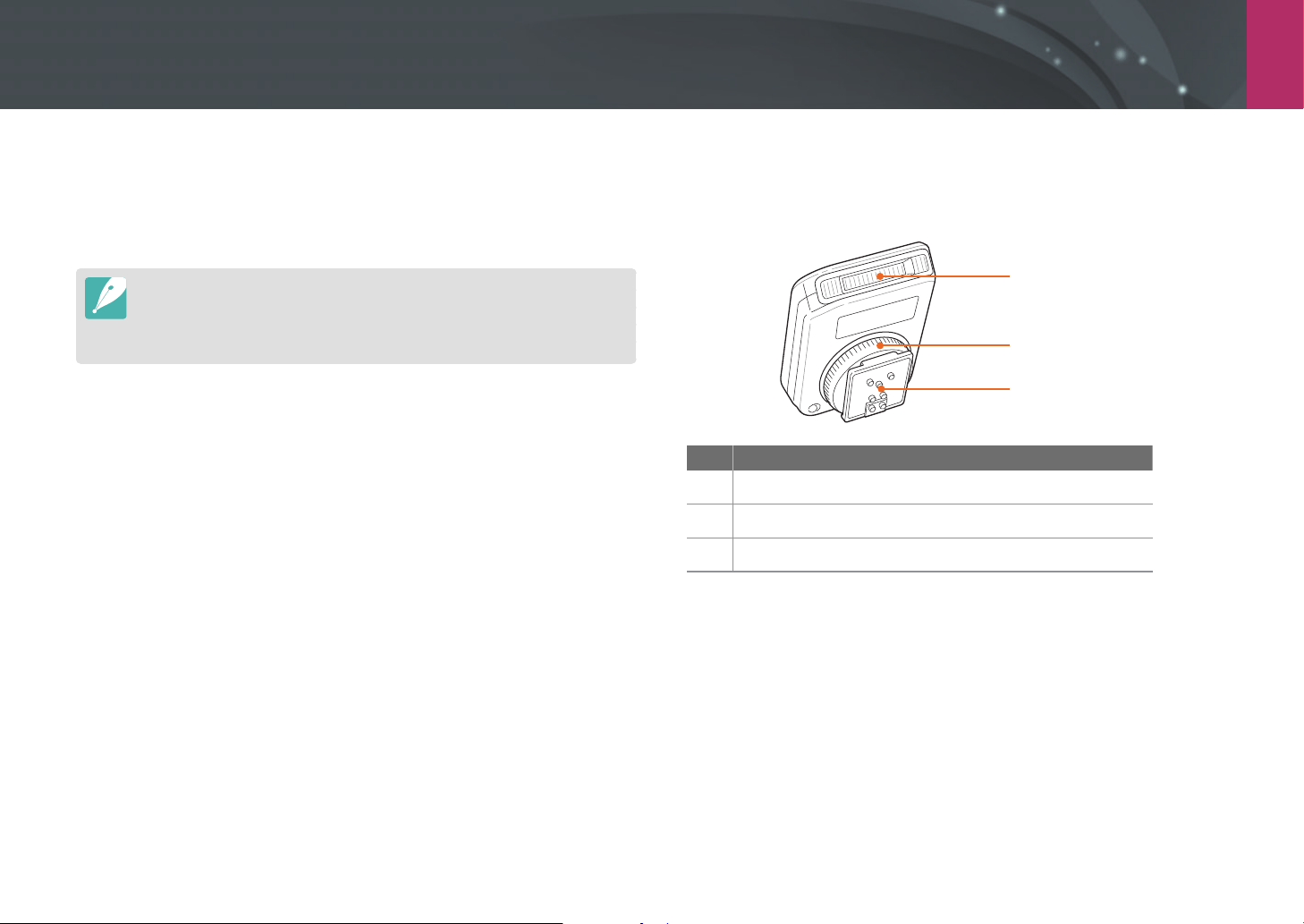
My Camera
58
Accessories
You can use an external ash that can help you capture better photos.
For more information about optional accessories, refer to the manual for
each accessory.
•
The illustrations may dier from the actual items.
•
You can purchase Samsung-approved accessories at a retailer or a Samsung
service center. Samsung is not responsible for damage caused by using
another manufacturer’s accessories.
External ash layout
SEF8A (example)
1
2
3
No. Description
1
AF-assist light
2
Hot-shoe fastening dial
3
Hot-shoe connection
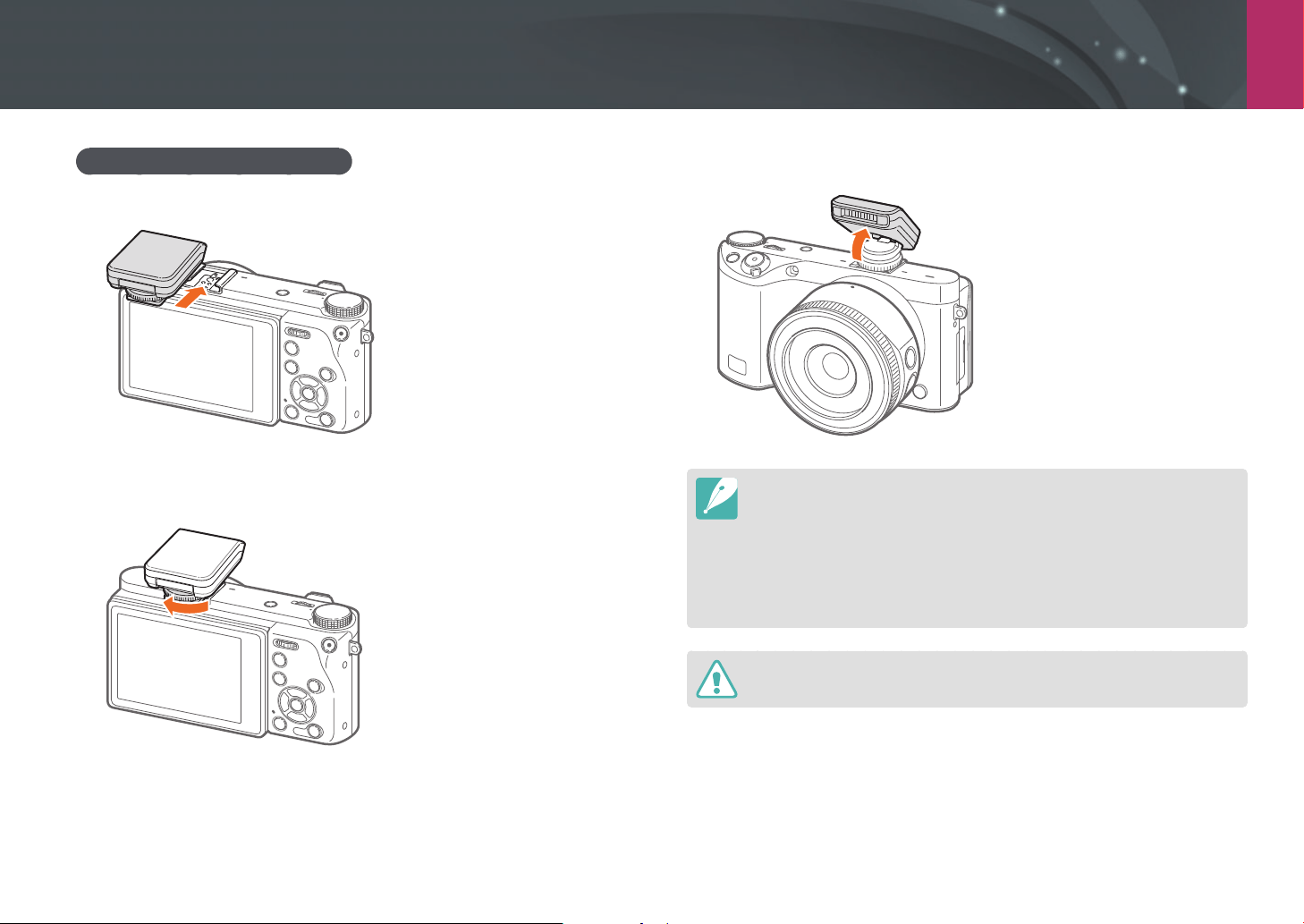
My Camera > Accessories
59
Connecting the external ash
1
Mount the ash by sliding it into the hot-shoe.
2
Lock the ash into place by turning the hot-shoe fastening dial
clockwise.
3
Lift up the ash for use.
•
You can capture a photo with a ash that is not fully charged, but it is
recommended to use a fully charged ash.
•
The available options may dier depending on the shooting mode.
•
When you use Red-eye correction, there is an interval between two bursts of
the ash. Do not move until the ash res a second time.
•
SEF8A may not be compatible with other NX series cameras.
•
For more details about optional ashes, refer to the user manual for the ash.
Use only Samsung-approved ashes. Using incompatible ashes may damage
your camera.

My Camera
60
Shooting modes
Two simple shooting modes—Auto and Smart mode—help you capture
photos with numerous automatic settings. Additional modes allow for
greater customization of settings.
Icon Description
t
Auto mode (p. 60)
P
Program mode (p. 62)
A
Aperture Priority mode (p. 64)
S
Shutter Priority mode (p. 65)
M
Manual mode (p. 66)
T
Custom mode (p. 67)
i
Samsung Auto Shot mode (p. 69)
s
Smart mode (p. 71)
t Auto mode
In Auto mode, the camera recognizes surrounding conditions and
automatically adjusts factors that contribute to exposure, including
shutter speed, aperture value, metering, White Balance, and exposure
compensation. As the camera controls most of the functions, some
shooting functions are limited. This mode is useful for capturing quick
snapshots with the least amount of adjustment.
1
Rotate the mode dial to t.
2
Align your subject in the frame.
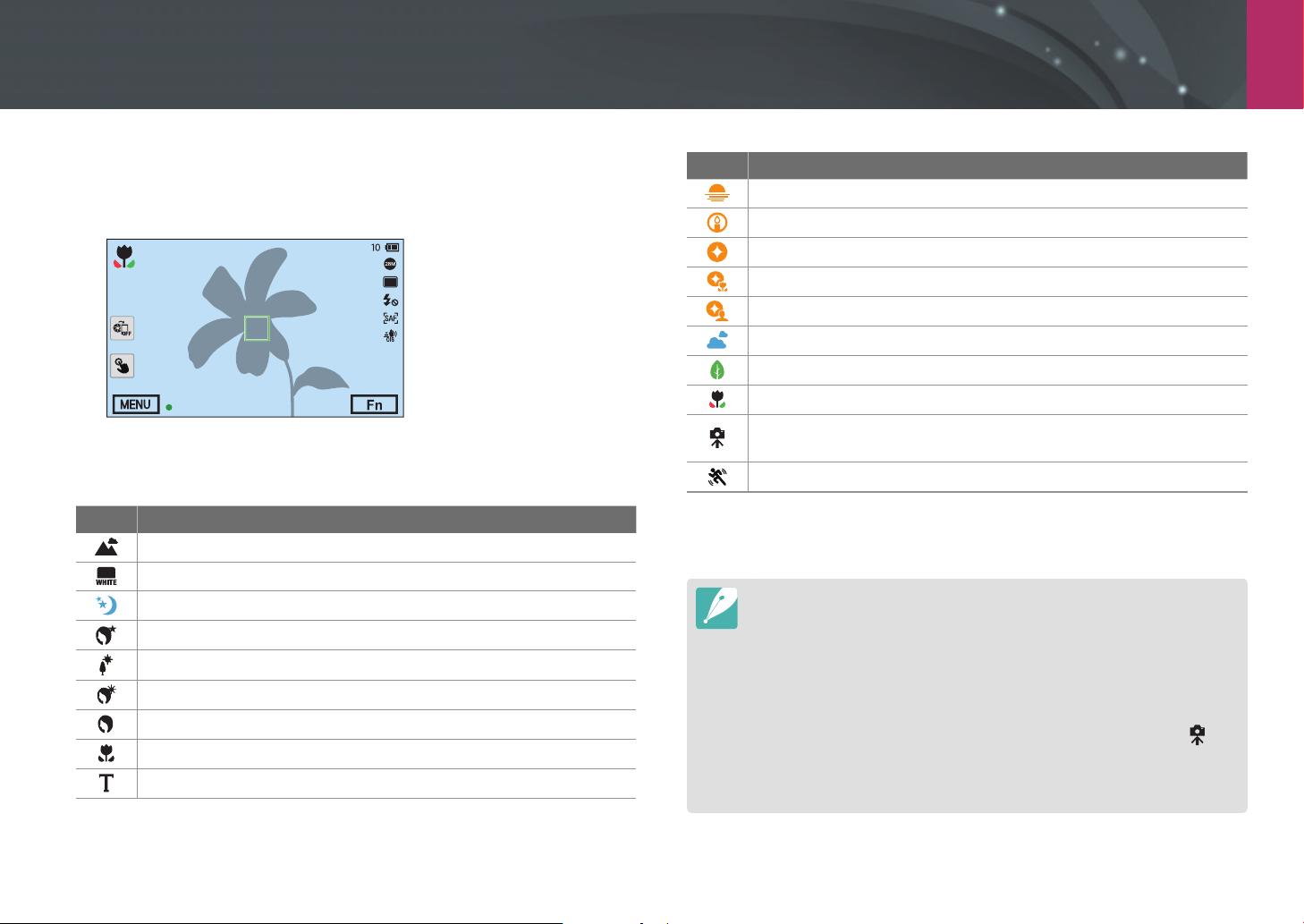
My Camera > Shooting modes
61
3
Half-press [Shutter] to focus.
•
The camera selects a scene. An appropriate scene icon appears on
the screen.
Recognizable scenes
Icon Description
Landscapes
Scenes with bright white backgrounds
Landscapes at night
Portraits at night
Landscapes with backlighting
Portraits with backlighting
Portraits
Close-up photos of objects
Close-up photos of text
Icon Description
Sunsets
Indoors, dark
Partially lit
Close-up with spot lighting
Portraits with spot lighting
Blue skies
Forested areas typically consist of green-colored subjects
Close-up photos of colorful subjects
Shooting in the dark when the camera is stabilized on a tripod and
the subject does not move for a period of time.
Actively moving subjects
4
Press [Shutter] to capture the photo.
•
The camera may select dierent scenes and adjust settings dierently, even
when you aim at the same subject. Scene selection depends on external
factors, such as camera shake, lighting, and distance to the subject.
•
If the camera does not recognize an appropriate scene mode, it uses the
default settings for the Auto mode.
•
Even if it detects a face, the camera may not select a portrait mode
depending on the subject’s position or lighting.
•
Even if you use a tripod, the camera may not detect the tripod mode ( ) if
the subject is moving.
•
The camera consumes more battery power, because it changes settings often
to select appropriate scenes.
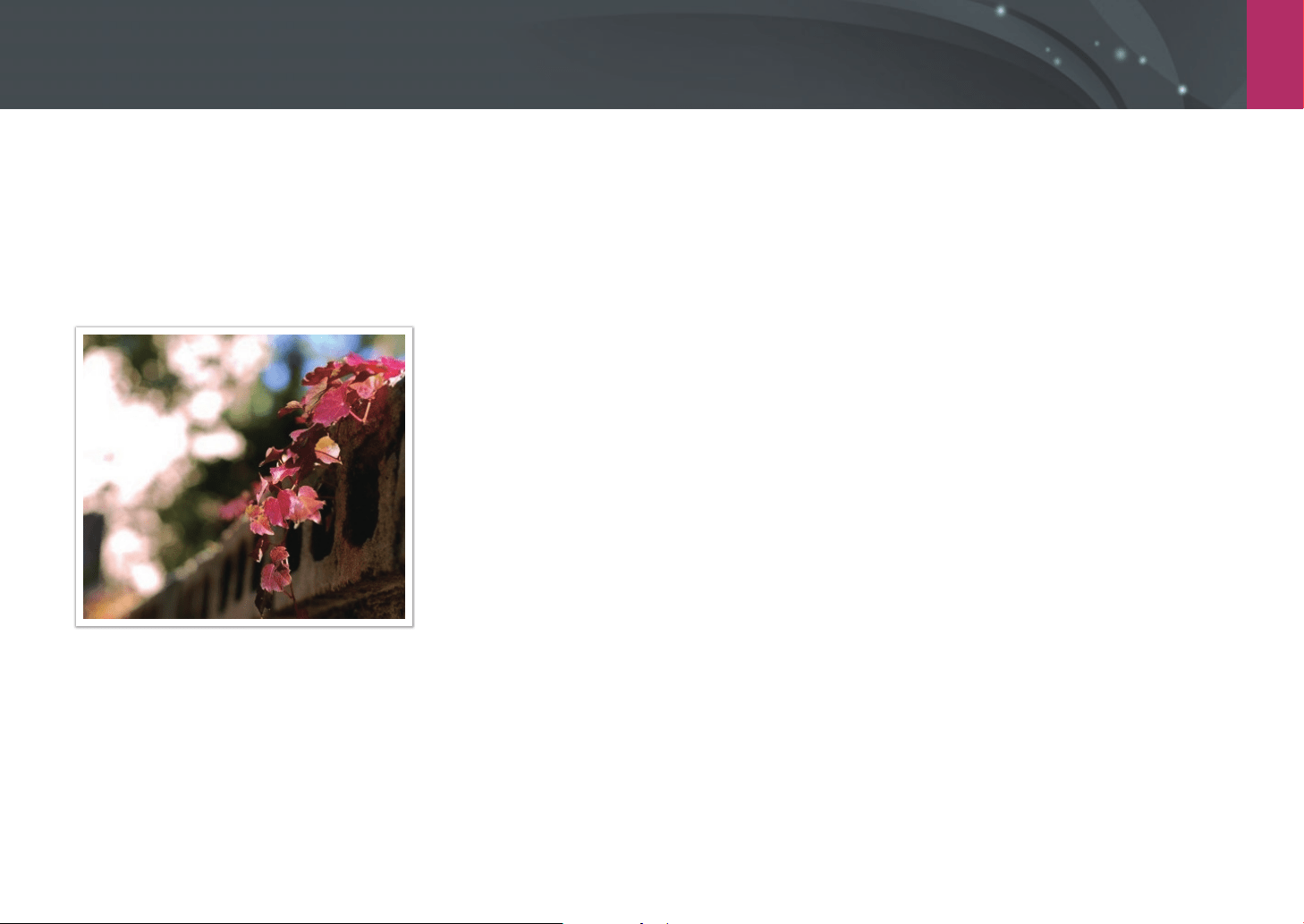
My Camera > Shooting modes
62
P Program mode
The camera automatically adjusts shutter speed and aperture value so that
an optimal exposure value can be achieved.
This mode is useful when you want to capture shots of constant exposure
while being able to adjust other settings.
1
Rotate the mode dial to P.
2
Set the desired options.
3
Half-press [Shutter] to focus, and then press [Shutter] to
capture the photo.

My Camera > Shooting modes
63
Program Shift
The Program Shift function lets you adjust the shutter speed and aperture
value while the camera maintains the same exposure. When you scroll
command dial 1 or command dial 2 to the left, the shutter speed decreases
and the aperture value increases. When you scroll command dial 1 or
command dial 2 to the right, the shutter speed increases and the aperture
value decreases.
Direction Adjustable item
Shutter speed decreases and aperture value increases.
Shutter speed increases and aperture value decreases.
You can also assign other functions to command dials 1 and 2. (p. 177)
Minimum shutter speed
Set a minimum shutter speed. However, if the camera cannot achieve an
optimal exposure value because the Auto ISO Range function cannot set a
higher ISO sensitivity value, then the camera will use a lower shutter speed
than the minimum shutter speed you selected.
To set the minimum
shutter speed,
In Shooting mode, press [m]
ĺ
b
ĺ
Minimum Shutter
Speed
ĺ
an option.
•
If you select Auto (link to focal length), the camera will automatically set a
minimum shutter speed based on the lens’ focal length. Scroll to Auto (link
to focal length), and then press [F] to decrease or increase the minimum
shutter speed.
•
This feature is available only when ISO sensitivity is set to Auto.
•
This feature is available only in Program or Aperture Priority mode.
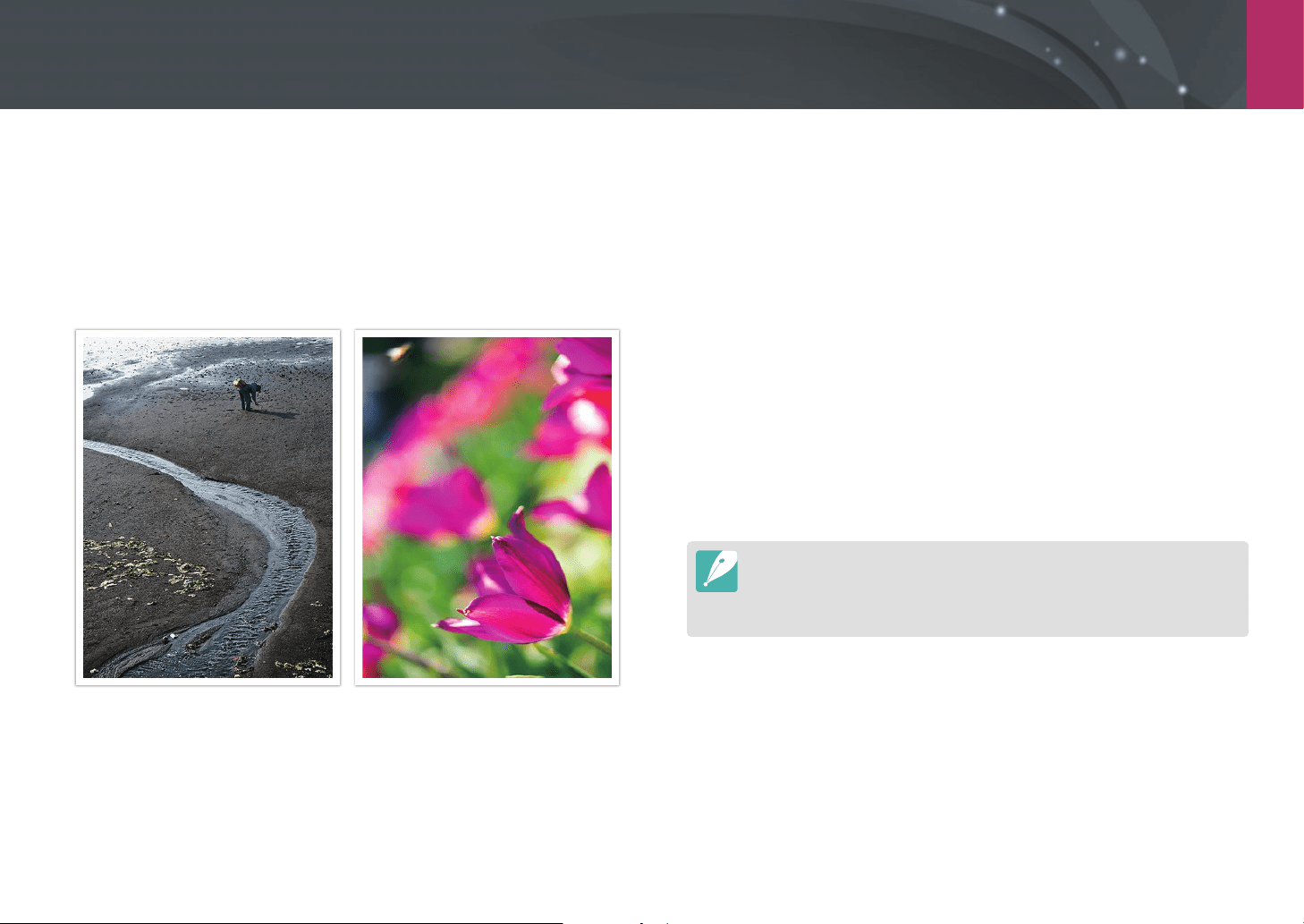
My Camera > Shooting modes
64
A Aperture Priority mode
In Aperture Priority mode, the camera automatically calculates shutter
speed according to the aperture value you choose.
You can adjust the depth of eld (DOF) by changing the aperture value.
This mode is useful for taking portraits, owers, or landscape shots.
Large Depth of Field Small Depth of Field
1
Rotate the mode dial to A.
2
Scroll command dial 1 or command dial 2 to adjust the
aperture value.
•
You can also assign other functions to command dials 1 and 2.
(p. 177)
•
You can also adjust the aperture value by pressing [f], moving to
the aperture value, and then scrolling command dial 1 or dragging
your nger on the screen.
3
Set the desired options.
4
Half-press [Shutter] to focus, and then press [Shutter] to
capture the photo.
•
In low-light settings, you may need to increase the ISO sensitivity to prevent
blurred photos.
•
To set the minimum shutter speed, in Shooting mode, press [m]
ĺ
b
ĺ
Minimum Shutter Speed
ĺ
an option.

My Camera > Shooting modes
65
S Shutter Priority mode
In Shutter Priority mode, the camera automatically adjusts the aperture
value according to the shutter speed you choose. This mode is useful for
capturing photos of fast-moving subjects or for creating tracer eects in a
photo.
For example, set the shutter speed to over 1/500 s to freeze the subject. To
make the subject appear blurred set the shutter speed to below 1/30 s.
Slow shutter speed Fast shutter speed
1
Rotate the mode dial to S.
2
Scroll command dial 1 or command dial 2 to adjust the shutter
speed.
•
You can also assign other functions to command dials 1 and 2.
(p. 177)
•
You can also adjust the shutter speed by pressing [f], moving to
the shutter speed, and then scrolling command dial 1 or dragging
your nger on the screen.
3
Set the desired options.
4
Half-press [Shutter] to focus, and then press [Shutter] to
capture the photo.
To compensate for the reduced amount of light allowed by fast shutter speeds,
open the aperture and let in more light. If your photos are still too dark, increase
the ISO value.
My Camera > Shooting modes
66
M Manual mode
Manual mode lets you adjust the shutter speed and aperture value
manually. In this mode, you can fully control the exposure of your photos.
This mode is useful in controlled shooting environments, such as a studio,
or when it is necessary to ne-tune camera settings. The Manual mode is
also recommended for shooting night scenes or reworks.
1
Rotate the mode dial to M.
2
Scroll command dials 1 and 2 to adjust the shutter speed and
aperture value, respectively.
•
You can also assign other functions to command dials 1 and 2.
(p. 177)
•
You can also adjust the shutter speed or the aperture value by
pressing [f], moving to the shutter speed or the aperture value,
and then scrolling command dial 1 or dragging your nger on the
screen.
3
Set the desired options.
4
Half-press [Shutter] to focus, and then press [Shutter] to
capture the photo.
Using the Bulb function
Use the Bulb function to shoot night scenes or the night sky. While you
press and hold [Shutter], the shutter remains open so you can create
moving light eects. To close the shutter, release [Shutter].
To use the Bulb
function,
Completely scroll command dial 1 to the left to Bulb
ĺ
press
and hold [Shutter] for the desired time.
•
If you set a high ISO value or open the shutter for a long time, image noise
may increase.
•
Drive options, ash, and One Touch Shot cannot be used with the Bulb
function.
•
The Bulb function is available only in Manual mode.
•
Use a tripod and shutter release to prevent your camera from shaking.
•
The longer you open the shutter, the longer it takes to save a photo. Do not
turn the camera o while the camera saves a photo.
•
To use this function for an extended period, make sure the battery is fully
charged.
My Camera > Shooting modes
67
T Custom mode
Custom mode lets you create your own shooting modes by customizing
options and saving them. Save frequently used option settings as a named
Custom Mode, and then use it as your own shooting mode customized for
the shooting environment. Use custom mode when you capture photos
in various environments, you have preferred shooting settings, or you
frequently use preset options in certain conditions.
Saving custom modes
1
Rotate the mode dial to P, A, S, M, or T.
2
Set shooting options.
3
Press [m], and then select d
ĺ
Manage Custom Mode
ĺ
Save.
•
You can also save a custom mode by touching or
ĺ
Save on
the screen.
4
Verify the shooting options, and then select Save or Save as.
5
Use the on-screen keyboard to enter a name for the mode.
(p. 156)
6
Press [o] to save the mode name.
7
Capture a representative photo for the mode to save.
8
Select Save.
You can save up to 40 custom modes.
My Camera > Shooting modes
68
Downloading custom modes
You can download various shooting settings (lm) to a smart phone and
share them with the camera. (p. 151)
1
Connect the camera and a smart phone via Bluetooth.
2
On the smart phone, turn on Samsung Camera Manager.
3
Select Pro Suggest Market.
4
Download a desired lm.
•
Downloaded lms are saved to the camera as custom modes.
•
The custom mode saved on the camera is automatically shared to a smart
phone when the camera and a smart phone are connected.
•
Some of the shooting settings (lm) may not be supported on the camera.
Selecting custom modes
1
Rotate the mode dial to T.
2
On a pop-up window, select Ye s
ĺ
a mode.
•
You can also press [m], and then select d
ĺ
Manage Custom
Mode
ĺ
Open
ĺ
a mode.
•
You can also touch on the screen and select Open
ĺ
a mode.
•
If there are no custom modes saved, you can select a shooting
mode from a pop-up window on the camera, set shooting options,
and then save new custom modes.
3
Verify the shooting options, and then select OK.
Deleting custom modes
1
Rotate the mode dial to P, A, S, M, or T.
2
Press [m], and then select d
ĺ
Manage Custom Mode
ĺ
Delete
ĺ
Multiple Delete.
•
To delete all the saved custom modes, select Delete All, and then
select Ye s when the pop-up message appears.
3
Select a mode to delete, and then press [n].
My Camera > Shooting modes
69
i Samsung Auto Shot mode
In Samsung Auto Shot, you can capture action photos, such as someone
hitting a baseball, making a jumpshot, or passing a preset point.
1
Rotate the mode dial to i.
2
Touch , , or , and then select Baseball, Jump Shot, or
Trap Shot.
3
Press [Shutter] to capture a photo.
•
The camera takes photos continuously when it detects the subject‘s
movement.
•
Press [m] to stop capturing.
•
Use a tripod to prevent your camera from shaking.
•
In dark environments, the camera may not capture the movements of
subjects properly.
•
You can only select a 3:2 photo size.
When Jump Shot is selected
Focus on the subject and start capturing. The camera automatically takes
the photo when it detects the jumping subject at its highest point. You can
also select and focus on an area that you touch on the screen.
•
The camera may take the photo using the person jumping highest as a
reference when many people are jumping.
•
The camera may not take the photo properly under the following conditions:
-
The height of the subject is less than 50 % of the angle of view from the
vertical reference.
-
The jumping action is not suciently distinct to be recognized by the
camera.
My Camera > Shooting modes
70
When Baseball is selected
The camera automatically takes the photo when it detects a ball at the
estimated hitting point that you set by positioning a vertical line on the
screen.
To position the hitting point, drag the vertical line on the screen, scroll
command dial 1 or 2.
To change the location of the batter and the ball, tap and drag the vertical
line to the batter‘s location facing the pitcher. You cannot drag the line into
the opaque area on the screen.
•
The camera may not take the photo properly under the following conditions:
-
When shooting outside of a ± 20° angle of view from a batter‘s side (in the
direction of a ball’s path).
-
When the estimated hitting point is outside of the selectable area.
-
If there is a net or fence between you and the subject.
•
The camera may take a photo even when it does not detect a ball, such as
when the subject is backlit, when you take photos indoors, or when you take
photos without using a tripod.
When Trap Shot is selected
The camera takes photos continuously when it detects the subject moving
in the direction of the arrow at the vertical line that you set on the screen.
To position the vertical line on the screen, drag the arrow icon on the
vertical line to the desired point, scroll command dial 1 or 2.
You can also touch the area on the screen where the subject is expected to
pass through or manually adjust the focus by rotating the focus ring after
half-pressing [Shutter].
•
When you select Trap Shot, the Direct Manual Focus (DMF) function is
automatically set.
•
When you select Trap Shot, the AF mode is set to Single AF and the AF area is
set to Selection AF.
•
The area where the subject is expected to pass through must be in focus.
•
You cannot drag the line into the opaque area of the screen.
•
Subjects that are moving in the same direction may not be detected properly
depending on the angle of view or the size of the subjects.
•
The camera may not take the photo properly under the following conditions:
-
When the size of the subject is too small.
-
When the subject is moving too quickly.
-
When there are moving objects in the background.
-
When you take photos in dark, indoor areas, such as an indoors sports
complex.
My Camera > Shooting modes
71
Option Description
Beauty Face
Capture a portrait with options to hide facial
imperfections.
Landscape
Capture still-life scenes and landscapes.
Action Freeze
Capture subjects moving at high speed.
Rich Tones
Capture a photo with vibrant colors.
Panorama
Capture a wide panoramic scene in a single photo.
Waterfall
Capture scenes with waterfalls.
Multi Exposure
Capture multiple photos and overlap them to
create one photo.
Silhouette
Capture subjects as dark shapes against a light
background.
Sunset
Capture scenes at sunset, with natural-looking
reds and yellows.
Night
Capture a photo with less blurring and visual
noise.
Fireworks
Capture scenes with reworks.
Light Trace
Capture scenes with the light trailing in low-light
conditions.
3
Half-press [Shutter] to focus, and then press [Shutter] to
capture.
s Smart mode
In Smart mode, you can capture photos with preset parameters when
shooting specic scenes, conditions, or eects.
1
Rotate the mode dial to s.
2
Select a scene.
Drag to navigate options.
Switch to the grid view.
Beauty Face
Switch to the list view.
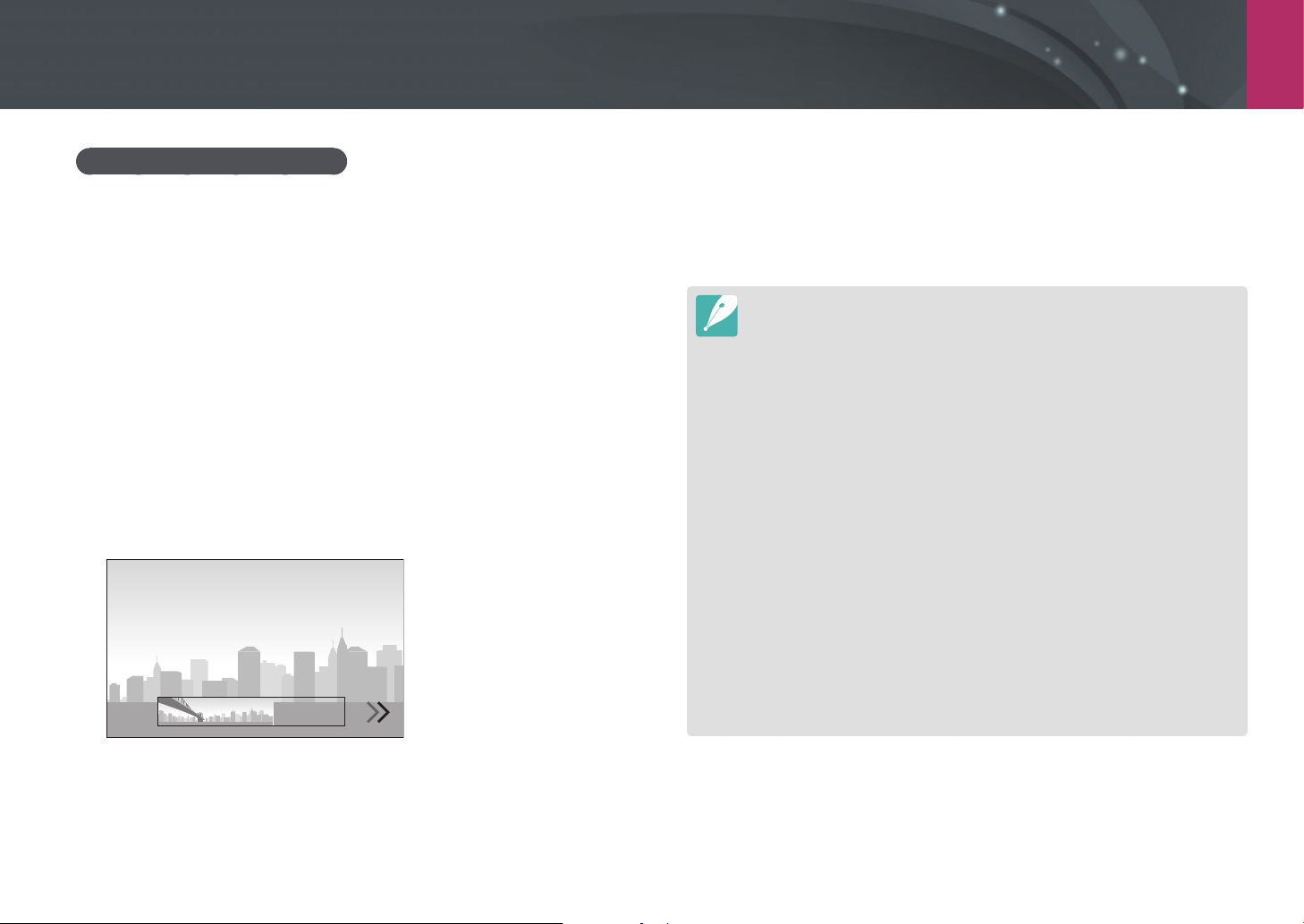
My Camera > Shooting modes
72
Capturing panoramic photos
In Panorama mode, you can capture a wide panoramic scene in a single
photo. Panorama mode captures and combines a series of photos to create
a panoramic image.
1
Rotate the mode dial to s, and then select Panorama.
2
Press and hold [Shutter] to start shooting.
3
With [Shutter] pressed, slowly move the camera in the
direction you selected.
•
An arrow pointing in the direction of motion is displayed, and the
entire shooting image is displayed in the preview box.
•
When the scenes are aligned, the camera captures the next photo
automatically.
4
When you are nished, release [Shutter].
•
The camera will automatically save the shots into one photo.
•
If you release [Shutter] while shooting, the panoramic shooting
stops and photos that have been captured are saved.
•
The resolution varies depending on the panoramic photo you captured.
•
In Panorama mode, some shooting options are not available.
•
The camera may stop shooting due to the shooting composition or the
subject’s movement.
•
In Panorama mode, the camera may not capture the entire scene if you
stop moving the camera when the end of the scene appears in the camera’s
screen. To capture the entire scene, move your camera slightly beyond the
point where you want the scene to end.
•
For best results when capturing panoramic photos, avoid the following:
-
moving the camera too quickly or too slowly
-
moving the camera too little to capture the next image
-
moving the camera at irregular speeds
-
shaking the camera
-
shooting in dark places
-
capturing moving subjects nearby
-
shooting conditions where the brightness or color of light is changing
•
Photos taken are automatically saved, and shooting is stopped under the
following conditions:
-
If you change the shooting direction while shooting.
-
If you move the camera too rapidly.
-
If you do not move the camera.
My Camera > Shooting modes
73
1
Set the desired options.
•
If [U] is set to Movie STBY, press [U] to enter the Video
recording standby mode.
•
In the Video recording standby mode, the video function stays on
after recording has nished. To return to Shooting mode, press
[Shutter].
2
Press (Video recording) to start recording.
•
Video recording may not be supported depending on the selected
shooting options.
3
Press (Video recording) again to stop.
•
High-eciency Video Coding (HEVC) is the latest video encoding format
established in 2013 collaboratively by ISO-IEC and ITU-T. Because this format
uses a high compression rate, more data can be saved in less memory space.
Depending on your computer‘s specications and interface, les may not
play at full resolution due to the high compression rate on some computers.
To view the le in HEVC format, you need a device or program with installed
HEVC codecs.
•
When recording 4K or UHD video, the angle of view becomes narrower.
(Eective angle of view: approx. 4K 1.68 times, UHD 1.77 times the focal
length)
•
If you have the image stabilizer option on when shooting a movie, the
camera may record the sound of the image stabilizer working.
•
When recording a video, the camera may record the sounds of the zoom or
other lens adjustments.
•
When using an optional video lens, the autofocus noise is not recorded.
•
If you remove the camera lens while recording a movie, the recording will be
interrupted. Do not change the lens while recording.
Recording a video
In Shooting mode, you can record 4K videos (up to 4096X2160) by
pressing
(Video recording). (p. 192) The camera saves video in HEVC
format. When you record a video at 640X480 (MJPEG), the video will
be saved in AVI format. To view HEVC les, you must have a device or
program with HEVC codecs installed. Sound is recorded via the camera’s
microphone.
You can set the exposure by adjusting the aperture value and shutter
speed for the mode you selected. When you use a lens that does not have
an AF/MF switch while recording a video, press [F] to select a desired
AF mode. If the lens has an AF/MF switch, set the switch according to the
selected focus mode. Set the switch to AF when you select Single AF or
Continuous AF. Set the switch to MF when you select Manual Focus.
Press [f] to switch between AF and MF while recording a video. Press
the AEL button to use the focus lock function (when the AFL function is
assigned to the AEL button).
Select Fader to fade a scene in or out. You can also select Voice, Wind Cut,
or other options. (p. 123)
While recording a video, touch
to select a touch AF option. If you select
Touch AF, you can hold the camera‘s focus on a subject by touching the
subject on the screen. If you select Tracking AF, the focus tracks and
automatically focuses on your subject, even when the subject is moving or
when you change the picture composition.
My Camera > Shooting modes
74
•
You can set the ISO sensitivity up to ISO 6400 when recording a video.
•
If you change the shooting angle of the camera suddenly while shooting a
movie, the camera may not be able to record images accurately. Use a tripod
to minimize camera shake.
•
When formatting a memory card, always format using the camera. When
you format a memory card with a capacity of 32 GB or less on the camera,
the le system is changed to FAT32. When you format a memory card with a
capacity of 64 GB or more, the le system is changed to exFAT. If you format
on another camera or a PC, you can lose les on the card or cause a change in
the capacity of the card.
•
When using a memory card formatted as FAT32, the camera will automatically
stop recording when the size of a video exceeds 4 GB, even if the maximum
recording time has not been reached. Using a memory card formatted
as exFAT allows you to record a video for the maximum recording time,
regardless of the video‘s le size. The maximum recording time is 29 minutes
and 59 seconds.
(When you select 1920X1080 (60p/50p), the maximum recording time is 25
minutes. When you select 4096X2160, 3840X2160, or 640X480 (MJPEG), the
maximum recording time is 15 minutes.)
•
If you use a slow writing memory card, the recording of your movie can
be interrupted because the card cannot process data at the rate the video
is being shot. If this occurs, replace the card with a faster memory card or
reduce the video size (for example, from 1280X720 to 640X480).
•
When recording a UHD video, we recommend you use a memory card with a
write speed greater than 30 MB/sec.
•
When you press the video recording button, intelli-zoom turns o.
•
Videos can be darker than photos recorded at the same ISO sensitivity. If the
videos appear darker, adjust the ISO sensitivity.
•
When you record a video in P, A, or S mode, ISO is automatically set to Auto.
•
Touching the screen to select a focus area while recording with Continuous
AF switches the AF mode to Single AF.
•
The Focus Peaking function is not available when you select a resolution of
4096X2160 or 3840X2160.
•
If the camera overheats while recording, the overheating warning icon will
display on the screen. The camera will automatically save the video and stop
recording. Cool down the camera to continue recording.
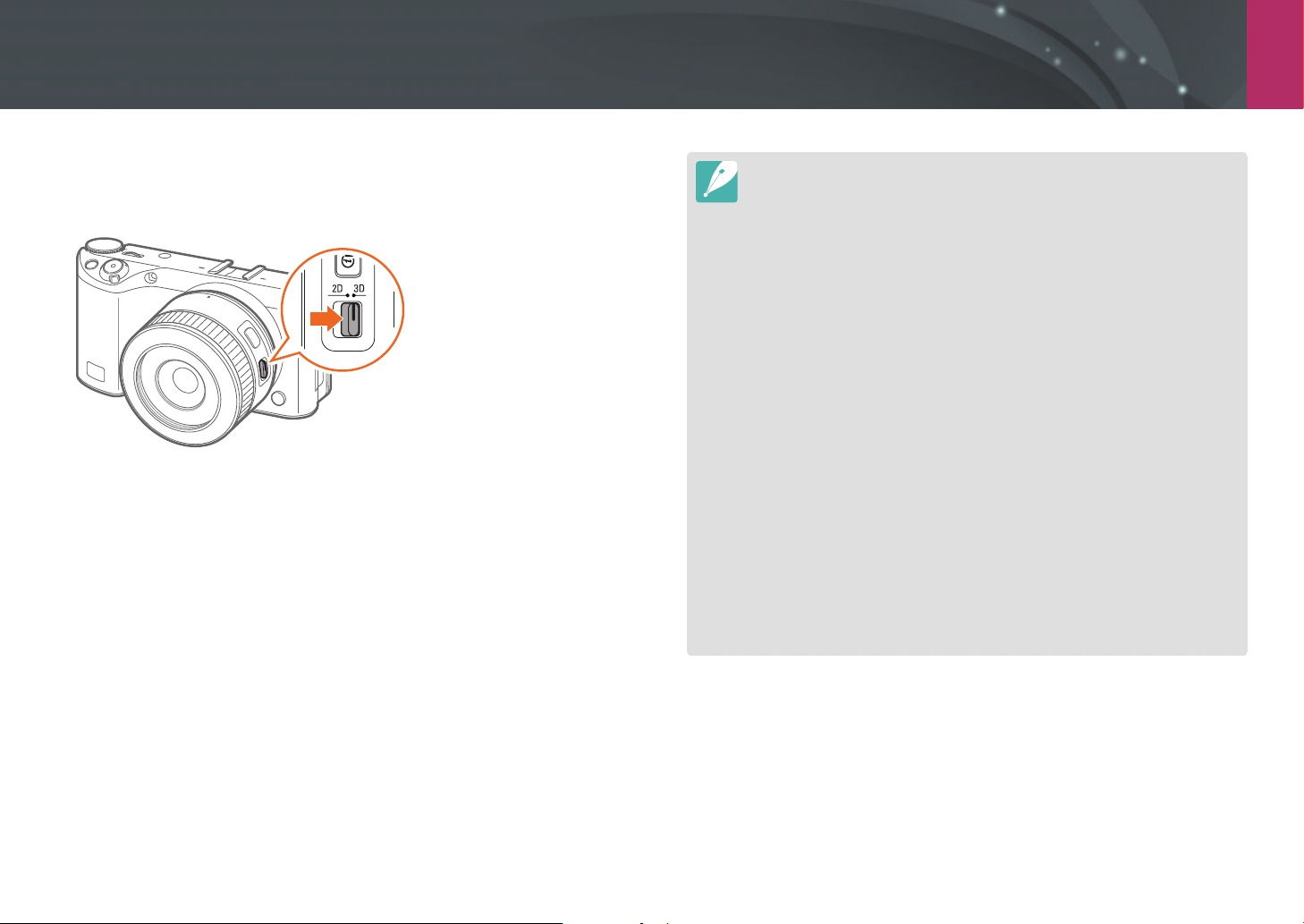
My Camera > Shooting modes
75
3D mode
You can capture 3D photos or videos with an optional 3D lens.
SAMSUNG 45mm F1.8 [T6] 2D/3D lens (example)
Set the 2D/3D switch on the lens to 3D, and then capture a photo or video
5 to 16.25 ft. (1.5–5 m) away from the subject.
•
3D mode is always on, regardless of the mode dial of the camera.
•
To use auto 3D options that enable the camera to set shooting options
automatically depending on shooting conditions in 3D mode, press
[m]
ĺ
b
ĺ
3D Auto mode
ĺ
On.
•
Available shooting options dier compared to other shooting modes.
•
You can select either the 5.9M (3232X1824) or 2.1M (1920X1080) photo size.
•
The video resolution is set to 1920X1080.
•
Videos recorded in 3D may be dark or playback may be jittery.
•
Shooting in low temperatures may result in color distortion in images and
may consume more battery power.
•
You may not be able to shoot properly in conditions below 8.5 LV/900 lux. For
best results, capture photos in places with sucient light.
•
When you photograph objects that contain polarizing material, such as
a display, sunglasses, or a polarizing lter, or use polarizing material with
your lens, the images may appear dark or the 3D eect may not be applied
properly.
•
Use a tripod to prevent your camera from shaking.
•
If you rotate or tilt the camera vertically while shooting, the 3D eect may not
be applied properly. Capture images with the camera in the normal position.
•
If you shoot in uorescent lighting or capture images displayed by projectors
or TVs, the images may appear black due to the icker eect.
•
In 3D mode, the Enlarge x8 option of MF Assist may not be available.
•
The camera’s display shows 3D videos only in 2D.
•
Photos captured with the 3D function are saved in JPEG (2D) and MPO (3D)
formats. On your camera’s display, you can view only JPEG les.
•
To view 3D les, connect your camera to a 3D TV or 3D monitor with an
optional HDMI cable. While viewing, wear proper 3D glasses.
•
You cannot use the ash in 3D mode.
My Camera > Shooting modes
76
Available functions by shooting mode
For details about shooting functions, see Chapter 2.
You can press shortcut buttons to access selected functions as noted.
Function Available in Shortcut
Framing Mode (p. 115)
P/A/S/M -
Photo Size (p. 78)
P/A/S/M/s*/t*/3D* -
Quality (p. 79)
P/A/S/M/s*-
ISO (p. 80)
P/A/S/Mf/I
OLED Color (p. 82)
P/A/S/M/s/t/3D -
White Balance (p. 83)
P/A/S/Mf
Picture Wizard (p. 85)
P/A/S/Mf
Smart Filter (p. 86)
P/A/S/M -
AF Mode (p. 87)
P/A/S/M/s*/t/3D* f/F
AF Area (p. 90)
P/A/S/M/s* f
Touch AF (p. 94)
P/A/S/M/s*/t*/3D*-
MF Assist (p. 96)
P/A/S/M/s/t/3D*-
Function Available in Shortcut
Focus Peaking (p. 98)
P/A/S/M/s/t -
OIS (Anti-Shake) (p. 99)
P/A/S/M/s*/t -
Drive (Single/Continuous/
Burst/Timer/Bracketing)
(p. 100)
P/A/S/M/s*/t*/3D* f/C
Interval Capture (p. 105)
P/A/S/M -
Flash (p. 106)
P*/A*/S*/M*/s*/t* f
Metering (p. 111)
P/A/S/Mf
Link AE to AF Point (p. 113)
P/A/S/M -
Dynamic Range (p. 114)
P/A/S/M -
Exposure compensation
(p. 115)
P/A/S/M/s* f
Exposure/Focus lock (p. 117)
P/A/Sa
* Some functions are limited in these modes.

Chapter 2
Shooting Functions
Learn about the functions you can set in Shooting mode.
You can enjoy more customized photos and videos by using the shooting functions.

Shooting Functions
7878
S
h
ooting Function
s
Shooting Functions
Photo size
As you increase the resolution, your photo or video will include more
pixels, so it can be printed on larger paper or displayed on a larger screen.
When you use a high resolution, the le size will also increase. Select a low
resolution for photos that will be displayed in a digital picture frame or
uploaded to the web.
To set the size,
In Shooting mode, press [m]
ĺ
b
ĺ
Photo Size
ĺ
an option.
* Default
Icon Size Recommended for
(3:2) 6480X4320* Printing on A0 paper.
(3:2) 4560X3040 Printing on A2 paper.
(3:2) 3264X2176 Printing on A3 paper.
(3:2) 2112X1408 Printing on A5 paper.
(16:9) 6480X3648
Printing on A0 paper or viewing on an
HDTV.
(16:9) 4608X2592
Printing on A2 paper or viewing on an
HDTV.
(16:9) 3328X1872
Printing on A4 paper or viewing on an
HDTV.
(16:9) 2048X1152
Printing on A5 paper or viewing on an
HDTV.
(1:1) 4320X4320 Printing a square photo on A2 paper.
(1:1) 3088X3088 Printing a square photo on A3 paper.
(1:1) 2160X2160 Printing a square photo on A4 paper.
(1:1) 1408X1408 Printing a square photo on A5 paper.
Available options may dier depending on shooting conditions.
Size and Resolution
79
Shooting Functions > Size and Resolution
Quality
The camera saves photos in either the JPEG or RAW format.
Photos captured by a camera are often converted to the JPEG format and
stored in the memory according to the settings of the camera at the time
of shooting. RAW les are not converted to the JPEG format and are stored
in the memory without any changes.
RAW les have the le extension “SRW“. To adjust and calibrate exposures,
White Balances, tones, contrasts, and colors of the RAW les, or to convert
them into JPEG or TIFF format, use the supplied Samsung RAW Converter
program.
As RAW les are very large, ensure there is enough space on the memory
card to save them in this format.
To set the quality,
In Shooting mode, press [m]
ĺ
b
ĺ
Quality
ĺ
an option.
* Default
Icon Format Description
JPEG
Super Fine*:
• Compressed for the best quality.
• Recommended for printing in large sizes.
* Default
Icon Format Description
JPEG
Fine:
• Compressed for better quality.
• Recommended for printing in normal sizes.
JPEG
Normal:
• Compressed for normal quality.
• Recommended for printing in small sizes or for
uploading to the web.
RAW
RAW:
• Save an unprocessed version of the photo.
• Recommended for editing after shooting.
RAW+JPEG
RAW + S.Fine: Save a photo in both the JPEG
(S.Fine quality) and RAW format.
RAW+JPEG
RAW + Fine: Save a photo in both the JPEG (Fine
quality) and RAW format.
RAW+JPEG
RAW + Normal: Save a photo in both the JPEG
(Normal quality) and RAW format.
Available options may dier depending on shooting conditions.
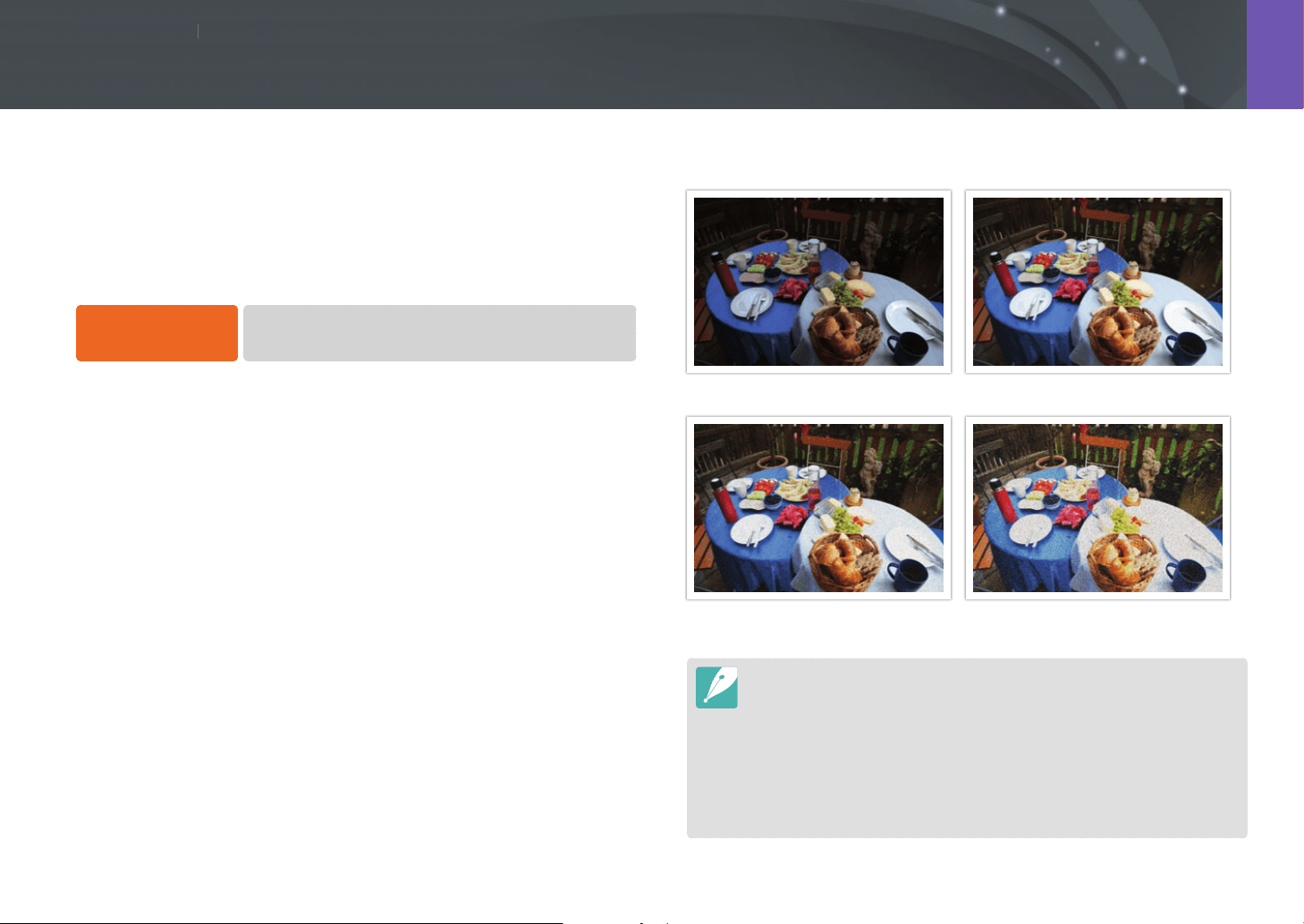
Shooting Functions
8080
S
h
ooting Function
s
Shooting Functions
The ISO sensitivity value represents the sensitivity of a camera to light.
The larger the ISO value, the more sensitive the camera is to light.
Consequently, by selecting a higher ISO sensitivity value, you can capture
photos in dim or dark places at faster shutter speeds. However, this may
increase electronic noise and result in a grainy photo.
To set ISO sensitivity,
In Shooting mode, press [I]
ĺ
an option.
Examples
ISO 100 ISO 400
ISO 800 ISO 3200
•
You can also set the option by pressing [m]
ĺ
b
ĺ
ISO
ĺ
an option in
Shooting mode.
•
Increase the ISO value in places where ash use is prohibited. You can capture
a clear photo by setting a high ISO value without having to secure more light.
•
Use the Noise Reduction function to reduce the visual noise that can appear
on photos taken at high ISO values. (p. 171)
•
Available options may dier depending on the shooting conditions.
•
You can set the ISO sensitivity up to ISO 6400 when recording a video.
ISO sensitivity
81
Shooting Functions > ISO sensitivity
Customizing ISO settings
Set to adjust ISO Step, Auto ISO Range, or ISO Expansion.
To customize ISO
settings,
In Shooting mode, press [m]
ĺ
b
ĺ
ISO Customizing
ĺ
an option.
Option Description
ISO Step
You can set the size of ISO sensitivity adjustments to
either 1/3 step or 1 step.
Auto ISO Range
You can set the maximum ISO value the camera will
use to set each EV step when you set the ISO to Auto.
ISO Expansion
You can select ISO 51200.
You can select up to ISO 25600 when using Continuous Normal or up to
ISO 6400 when using Continuous High.
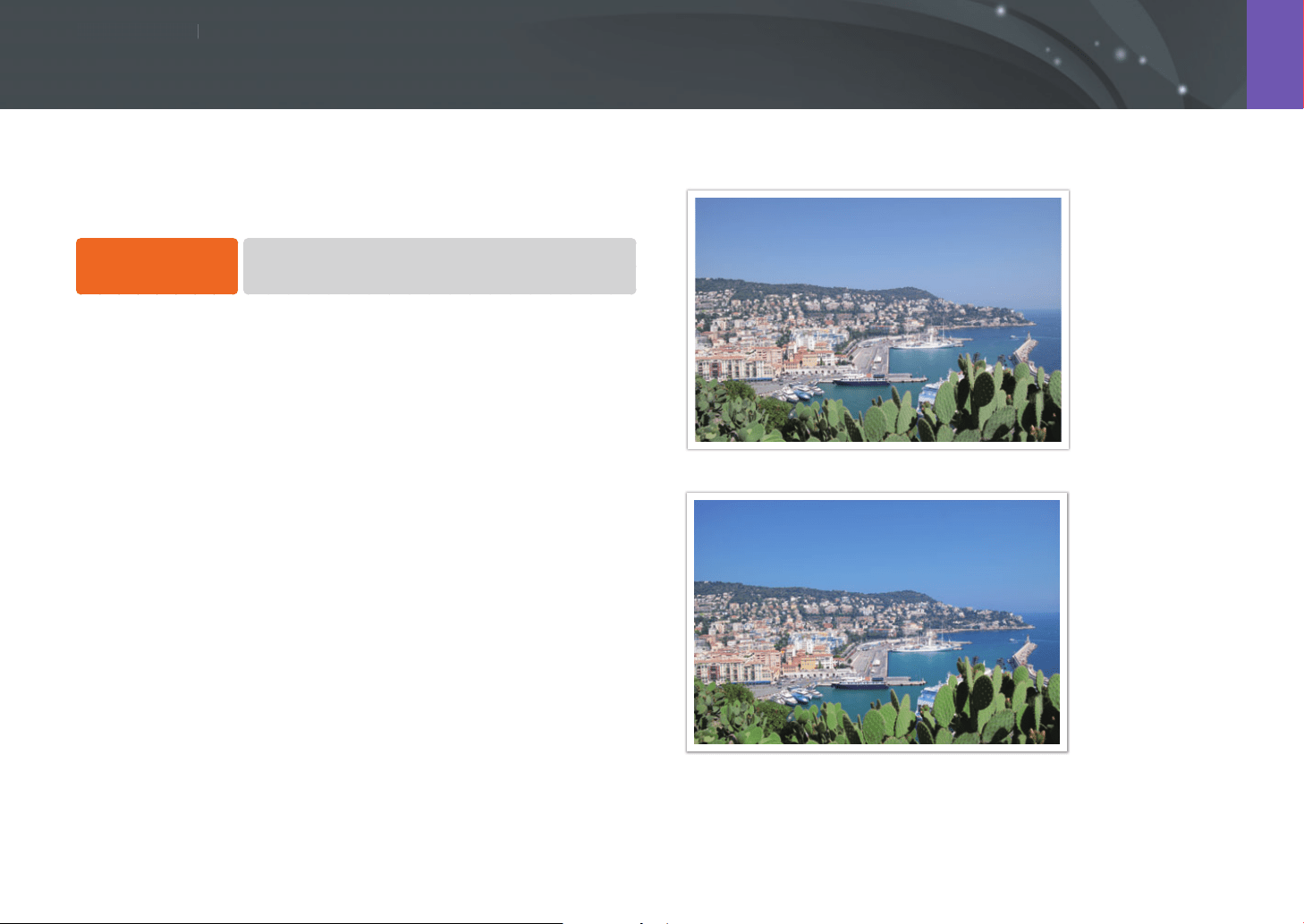
Shooting Functions
8282
S
h
ooting Function
s
Shooting Functions
Set the camera to optimize colors for playback on OLED displays. An OLED
display has a wider color reproduction range than a liquid crystal display
and produces brighter, natural colors.
To set OLED Color,
In Shooting mode, press [m]
ĺ
b
ĺ
OLED Color
ĺ
an option.
Examples
Without OLED Color eect
With OLED Color eect
OLED Color
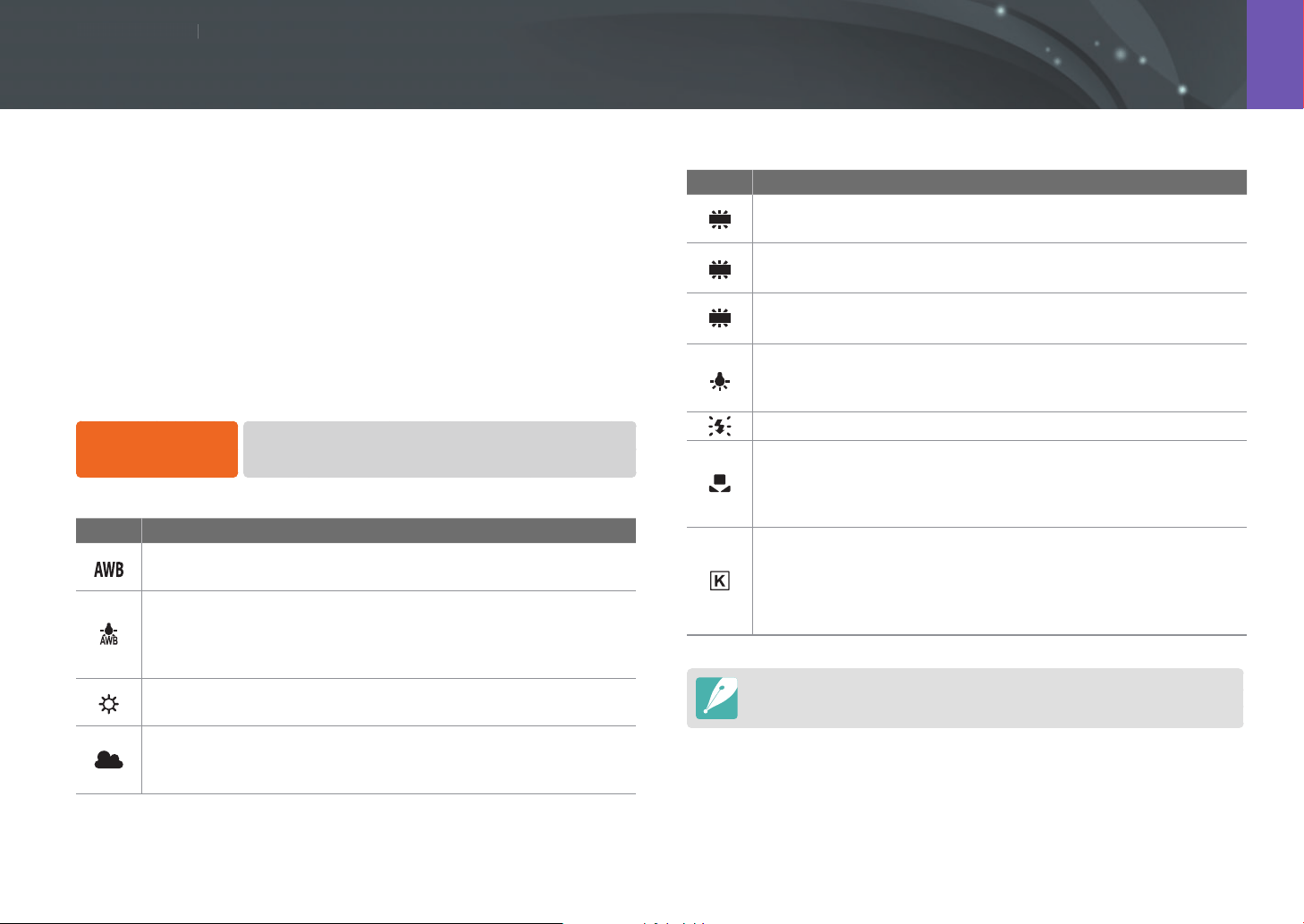
Shooting Functions
8383
S
h
ooting Function
s
Shooting Functions
The White Balance function adjusts the color in photos to give them a
more natural appearance. You can use this function if color is aected by
the type and quality of the light source. For example, uorescent lamps
can give colors in a photo a bluish hue. To oset this eect, select a White
Balance option that adjusts the camera‘s settings for the light source. You
can also adjust the White Balance by manually adjusting the camera‘s
Color Temperature setting.
In addition, you can also customize the preset White Balance options so
that the colors of the photo match the actual scene under mixed lighting
conditions.
To set the White
Balance,
In Shooting mode, press [m]
ĺ
b
ĺ
White Balance
ĺ
an option.
* Default
Icon Description
Auto WB*: Automatically adjust the white balance settings for the
light source.
Auto WB+Tungsten: Automatically adjust the white balance
settings for the light source except when shooting under
incandescent or halogen lamps. This option does not oset the
reddish hue of incandescent or tungsten bulbs.
Daylight: Select when taking outdoor photos on a sunny day. This
option results in photos closest to the natural colors of the scene.
Cloudy: Select when taking outdoor photos on a cloudy day or in
shadows. Photos captured on cloudy days tend to be more bluish
than on sunny days. This option osets that eect.
* Default
Icon Description
W
Fluorescent White: Select when shooting under a daylight
uorescent lamp with a white hue.
N
Fluorescent NW: Select when shooting under a daylight
uorescent lamp with a very white hue.
D
Fluorescent Daylight: Select when shooting under a daylight
uorescent lamp with a slightly bluish hue.
Tungsten: Select when taking indoor photos under incandescent
bulbs or halogen lamps. Incandescent tungsten bulbs tend to have
a reddish hue. This option osets that eect.
Flash WB: Select when using a ash.
Custom Set: Use your pre-dened settings. You can manually set
the White Balance by pressing [D], and then shooting a white
sheet of paper. Fill the spot metering circle with the paper and set
the White Balance.
Color Temperature: Manually adjust the color temperature of
the light source. Color temperature is a measurement in degrees
Kelvin that indicates the specic type of light source. You can get a
warmer photo with a higher value, and a cooler photo with a lower
value. Press [D], and then adjust the color temperature.
Available options may dier depending on shooting conditions.
White Balance
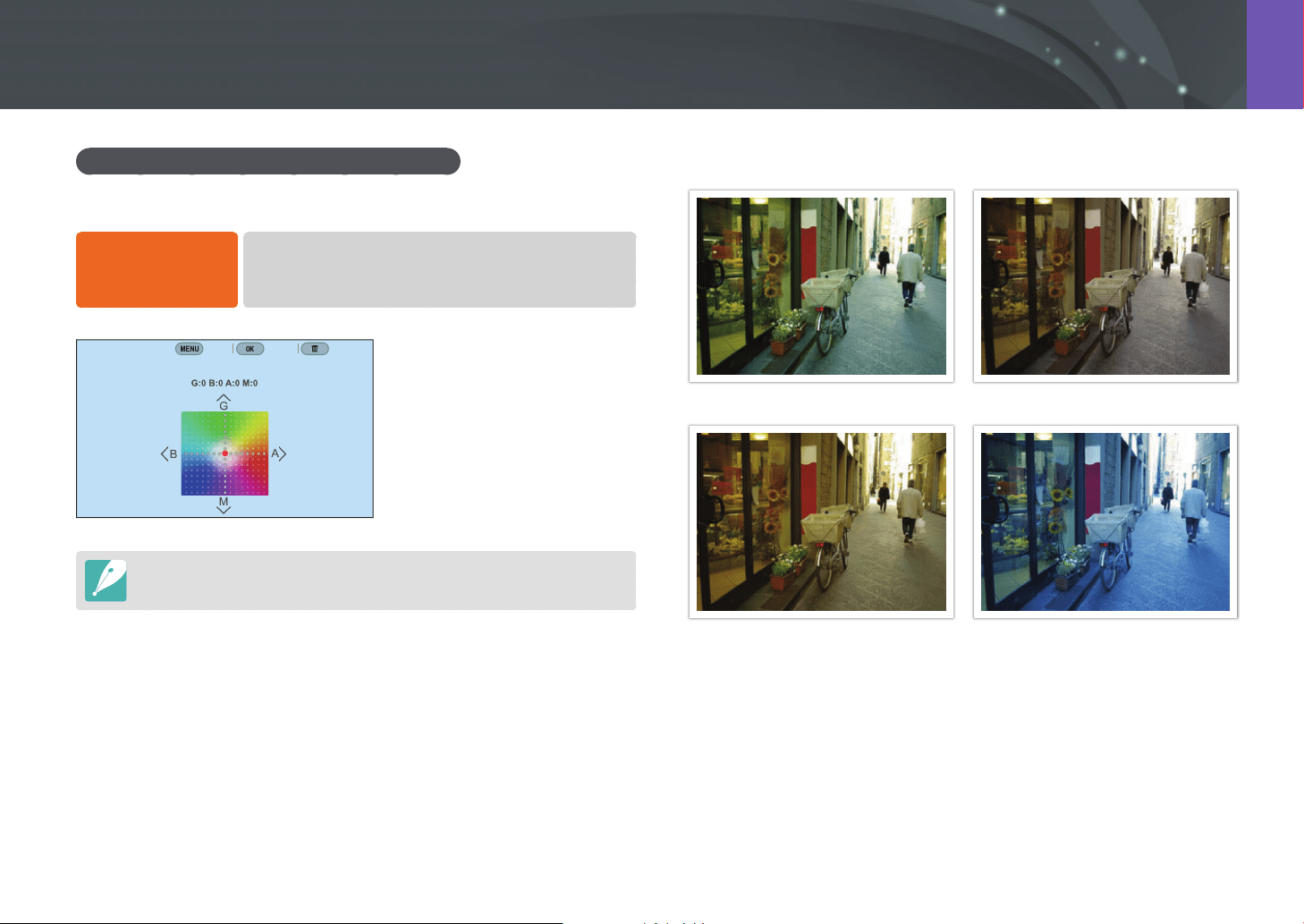
84
Shooting Functions > White Balance
Customizing preset White Balance options
You can also customize preset White Balance options.
To customize preset
options,
In Shooting mode, press [m]
ĺ
b
ĺ
White Balance
ĺ
an option
ĺ
[D]
ĺ
scroll command dials 1 or 2 or press
[D/I/C/F].
White Balance : Daylight
Back Set Reset
You can also touch an area on the screen.
Examples
Auto WB Daylight
Fluorescent Daylight Tungsten
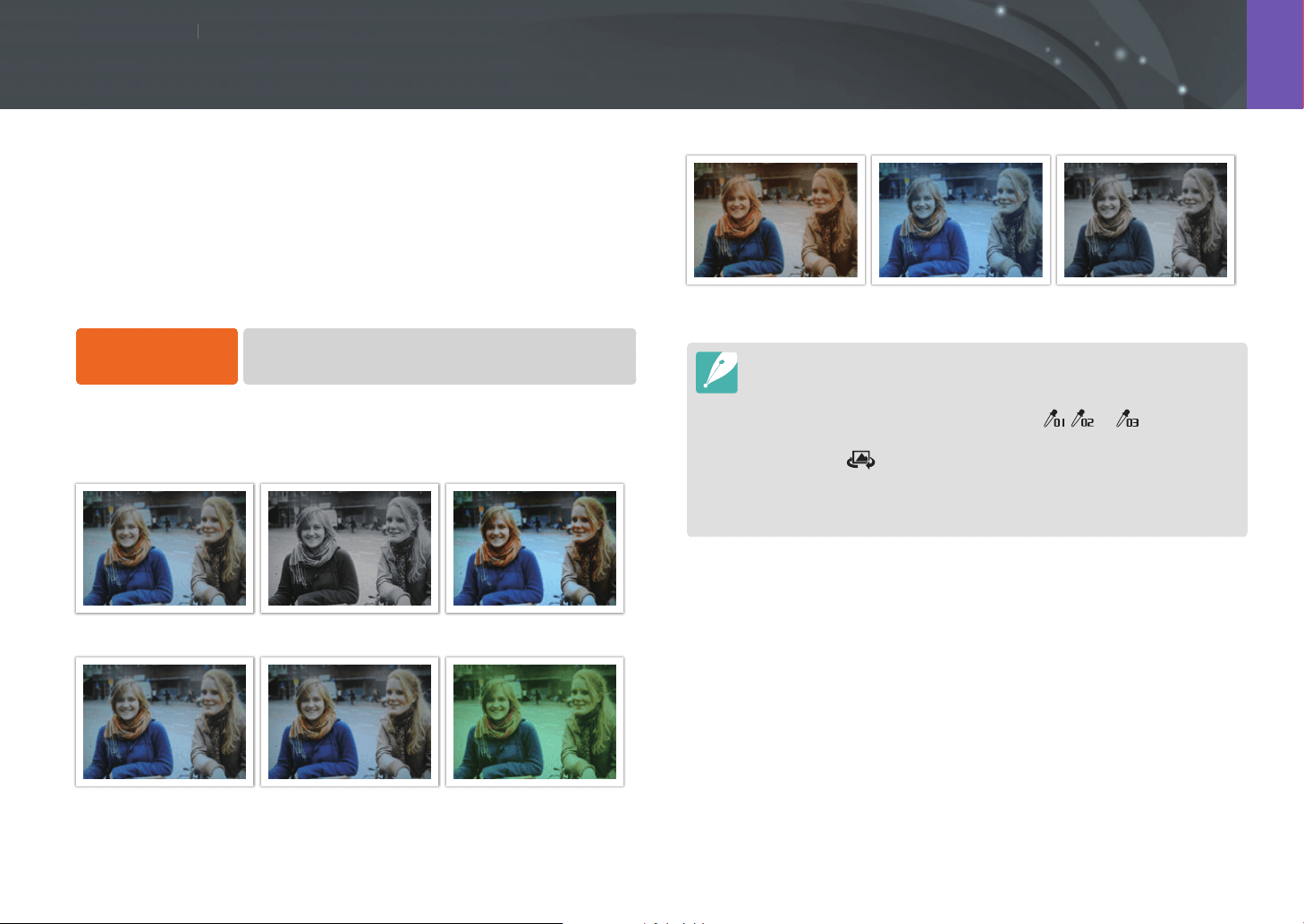
Shooting Functions
8585
S
h
ooting Function
s
Shooting Functions
Picture Wizard lets you apply dierent photo styles to your photo to create
various looks and emotional moods. You can also create and save your
own photo styles by adjusting color, saturation, sharpness, contrast, and
hue for each style.
There is no rule that determines which style is suitable in which conditions.
Experiment with dierent styles and nd your own settings.
To set a photo style,
In Shooting mode, press [m]
ĺ
b
ĺ
Picture Wizard
ĺ
an option.
Examples
Standard Classic Vivid
Portrait Landscape Forest
Retro Cool Calm
•
You can also adjust the value of the preset style settings. Select a Picture
Wizard option, press [D], and then adjust color, saturation, sharpness,
contrast, or hue.
•
To customize your own picture wizard, select , , or , and then
adjust the color, saturation, sharpness, and contrast.
•
You can use (Custom Pro) in T mode after you download the shooting
settings (lm) via a smart phone. (p. 68)
•
Picture Wizard options cannot be set with Smart Filter options at the same
time.
Picture Wizard (photo styles)
Shooting Functions
8686
S
h
ooting Function
s
Shooting Functions
Smart Filter lets you apply special eects to your photos. You can select
various lter options to create special eects that are dicult to achieve
with normal lenses.
To set Smart Filter
options,
In Shooting mode, press [m]
ĺ
b
ĺ
Smart Filter
ĺ
an option.
* Default
Option Description
O*
No eect
Vignetting
Apply the retro-looking colors, high contrast, and strong
vignette eect of Lomo cameras.
Miniature (H)
Apply a tilt-shift eect to make the subject appear in
miniature. The top and bottom of the photo will be
blurred.
Miniature (V)
Apply a tilt-shift eect to make the subject appear in
miniature. The left and right of the photo will be blurred.
Watercolor
Apply a watercolor painting eect.
Red
Desaturate all colors but red.
* Default
Option Description
Green
Desaturate all colors but green.
Blue
Desaturate all colors but blue.
Yellow
Desaturate all colors but yellow.
•
You cannot set Smart Filter options and Picture Wizard options at the same
time.
•
Available options may dier depending on the shooting conditions.
Smart Filter
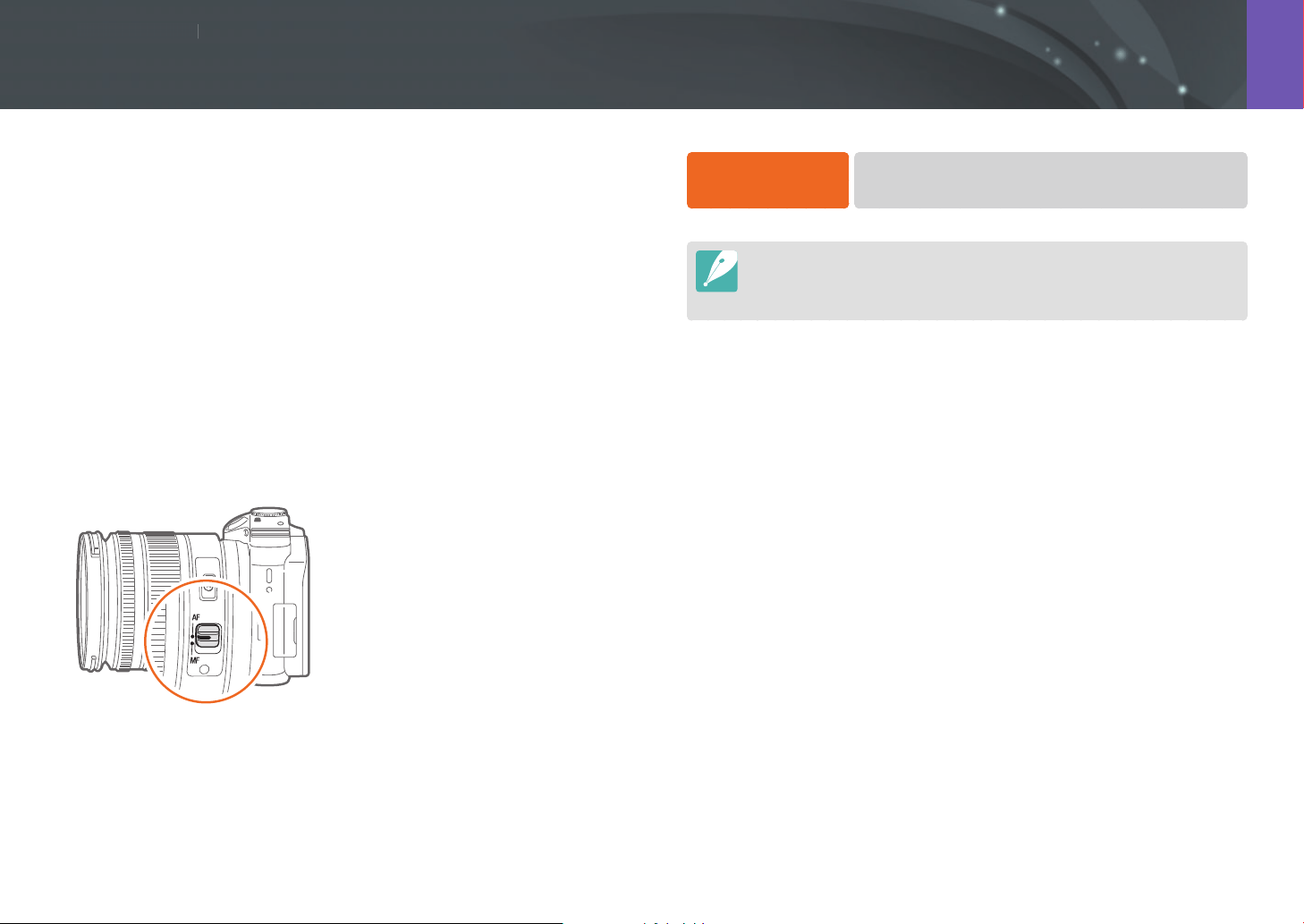
Shooting Functions
8787
S
h
ooting Function
s
Shooting Functions
AF mode
Learn how to adjust the camera’s focus according to the subjects.
You can select the appropriate focus mode for the subject: Single Auto
Focus, Continuous Auto Focus, Active Auto Focus, or Manual Focus. The AF
function is activated when you press [Shutter] halfway. In the MF mode,
you have to rotate the focus ring on the lens to focus manually.
In most cases, you can make the camera focus by selecting Single AF.
Fast moving subjects or subjects with small shading dierences in the
background are dicult to focus. Select an appropriate focusing mode for
such instances.
If your lens has an AF/MF switch, you must set the switch according to the
selected mode. Set the switch to AF when you select Single AF, Continuous
AF, or Active AF. Set the switch to MF when you select Manual Focus.
When your lens has no AF/MF switch, press [F] to select a desired AF
mode.
To set the auto focus
mode,
In Shooting mode, press [F]
ĺ
an option.
•
You can also set the option in Shooting mode by pressing [m]
ĺ
b
ĺ
AF Mode
ĺ
an option.
•
The available options may dier depending on the lens in use.
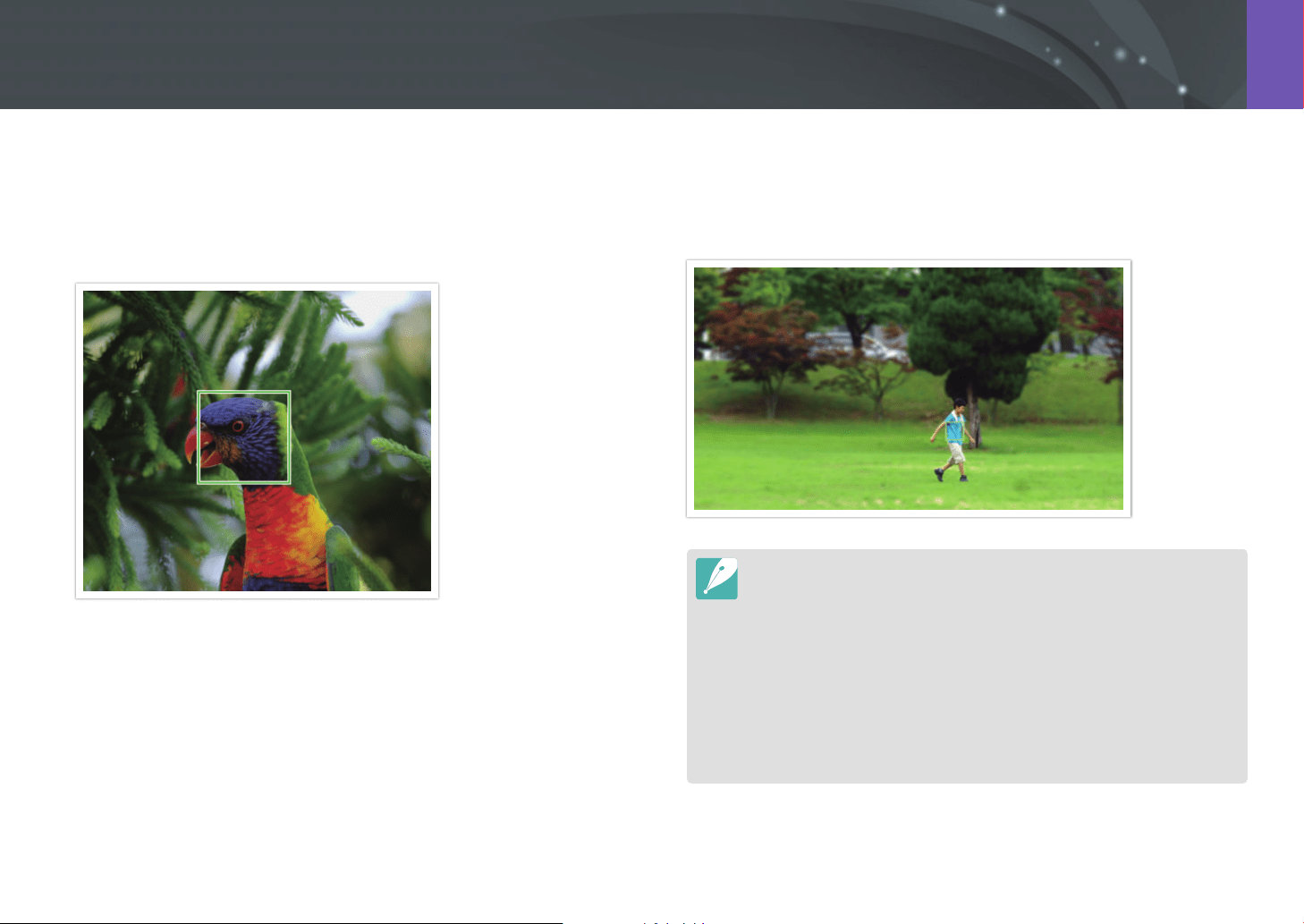
88
Shooting Functions > AF mode
Single AF
Single AF is appropriate for shooting a still subject. When you press
[Shutter] halfway, the focus xes in the focus area. The area turns green
when the focus is achieved.
Continuous AF
While you press [Shutter] halfway, the camera continues to focus
automatically. This mode is recommended for shooting action.
•
Depending on the type of lens, auto focus results may dier when you
capture photos continuously using Continuous AF. Use an optional lens for
smooth auto focus operation. Select an optional lenses from the following:
-
SAMSUNG 16-50mm F2-2.8 S ED OIS
-
SAMSUNG 16-50mm F3.5-5.6 Power Zoom ED OIS
-
NX 50-150mm F2.8 S ED OIS
•
When using Continuous AF and Multi AF, press [o] to resize or move the
focus area while shooting. Use command dial 2 to move the focus area. Scroll
command dial 1 to resize the focus area. When you press [Shutter] halfway,
the camera focuses only on the set focus area. The focus area moves with the
subject after the focus is set correctly.
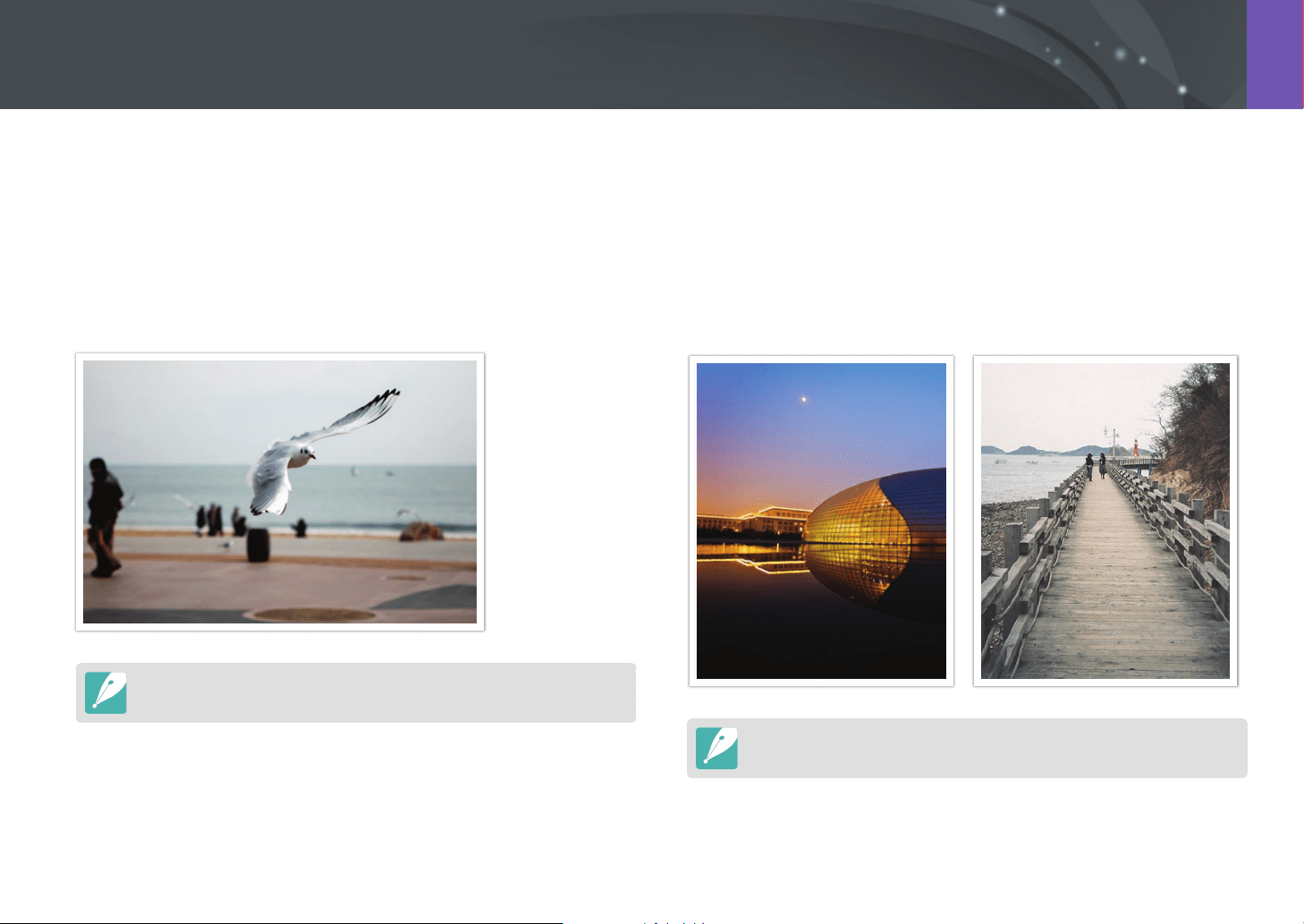
89
Shooting Functions > AF mode
Active AF
While you press [Shutter] halfway, the camera automatically detects the
subject‘s movements and switches between Single AF and Continuous
AF. It xes the focus on the subject when the subject gets far from the
camera (Single AF). It continues to focus automatically when the subject
gets closer to the camera (Continuous AF). This mode is recommended for
shooting subjects that are moving unpredictably.
This option is not available when the camera is recording a video.
Manual focus
You can manually focus on a subject by rotating the focus ring on the lens.
The MF Assist function lets you easily bring a subject into focus. While you
are rotating the focus ring, the focus area is magnied. When you use the
Focus Peaking function, the color you selected appears on the focused
subject. This mode is recommended for shooting a subject similar in color
to the background, a night scene, or reworks.
If you use this function, you cannot set Touch AF, AF Area, Face Detection, and
Link AE to AF Point options.
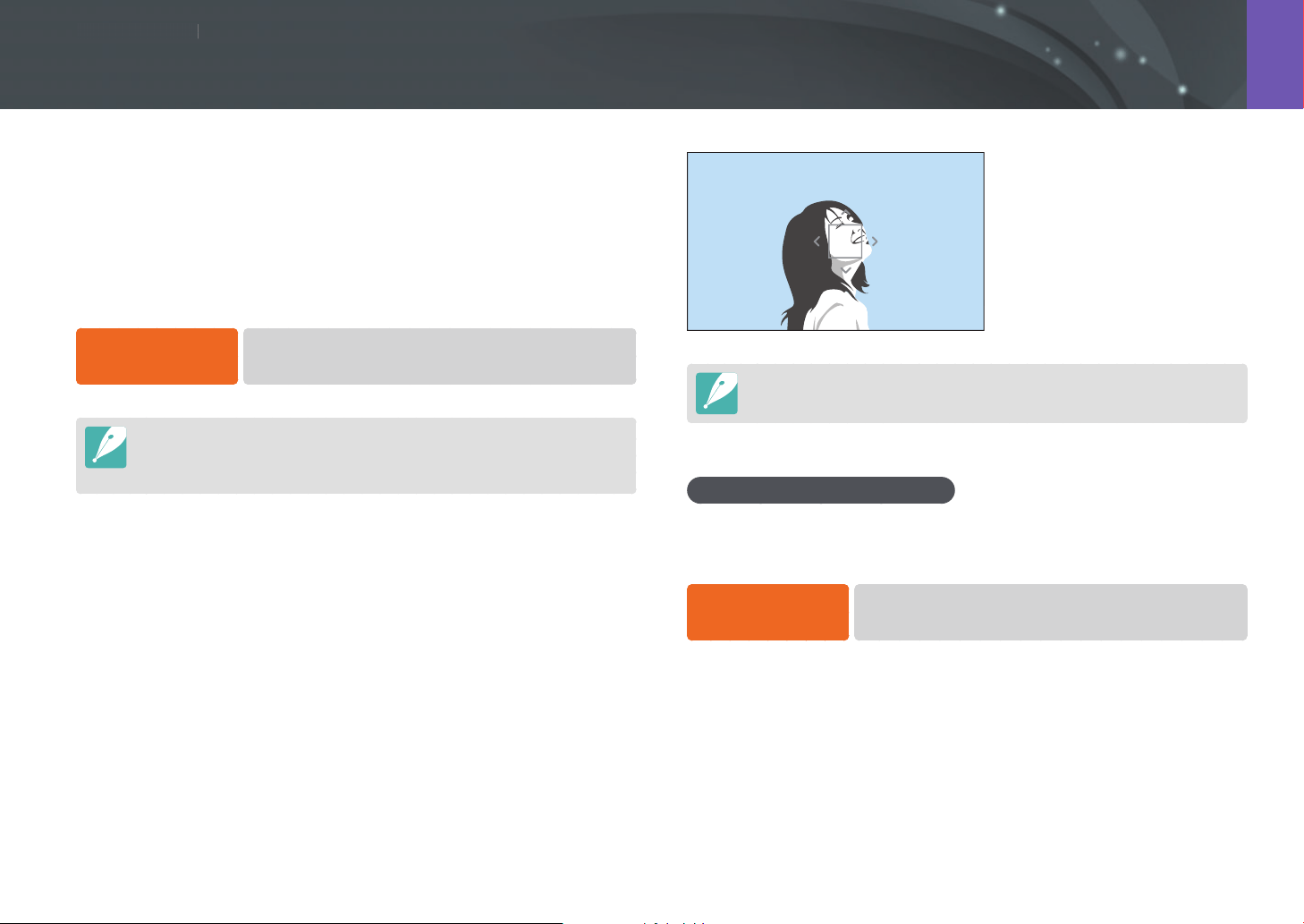
Shooting Functions
9090
S
h
ooting Function
s
Shooting Functions
The AF area function changes the positions of the focus area.
Generally, cameras focus on the nearest subject. When there are multiple
subjects, however, unwanted subjects can be in focus. To prevent
unwanted subjects from being in focus, change the focus area so that
a desired subject is in focus. You can get a clearer and sharper photo by
selecting an appropriate focus area.
To set the auto focus
area,
In Shooting mode, press [m]
ĺ
b
ĺ
AF Area
ĺ
an option.
•
Available options may dier depending on shooting conditions.
•
When the AF/MF switch is set to MF, you cannot change the AF area from the
shooting menu.
Selection AF
You can set the focus on an area you want. Apply an out-of-focus eect to
make the subject more distinguishable.
The focus on the photo below was repositioned and resized so that it ts
the subject’s face.
To resize or move the focus area, in Shooting mode, press [o]. Use command
dial 2 to move the focus area. Scroll command dial 1 to resize the focus area.
Saving Selection AF position
You can set the camera to remember the most recent AF position used by
Selection AF and Touch AF before turning the camera o.
To set this function,
In Shooting mode, press [m]
ĺ
b
ĺ
Save Selection AF
Position
ĺ
an option.
AF area
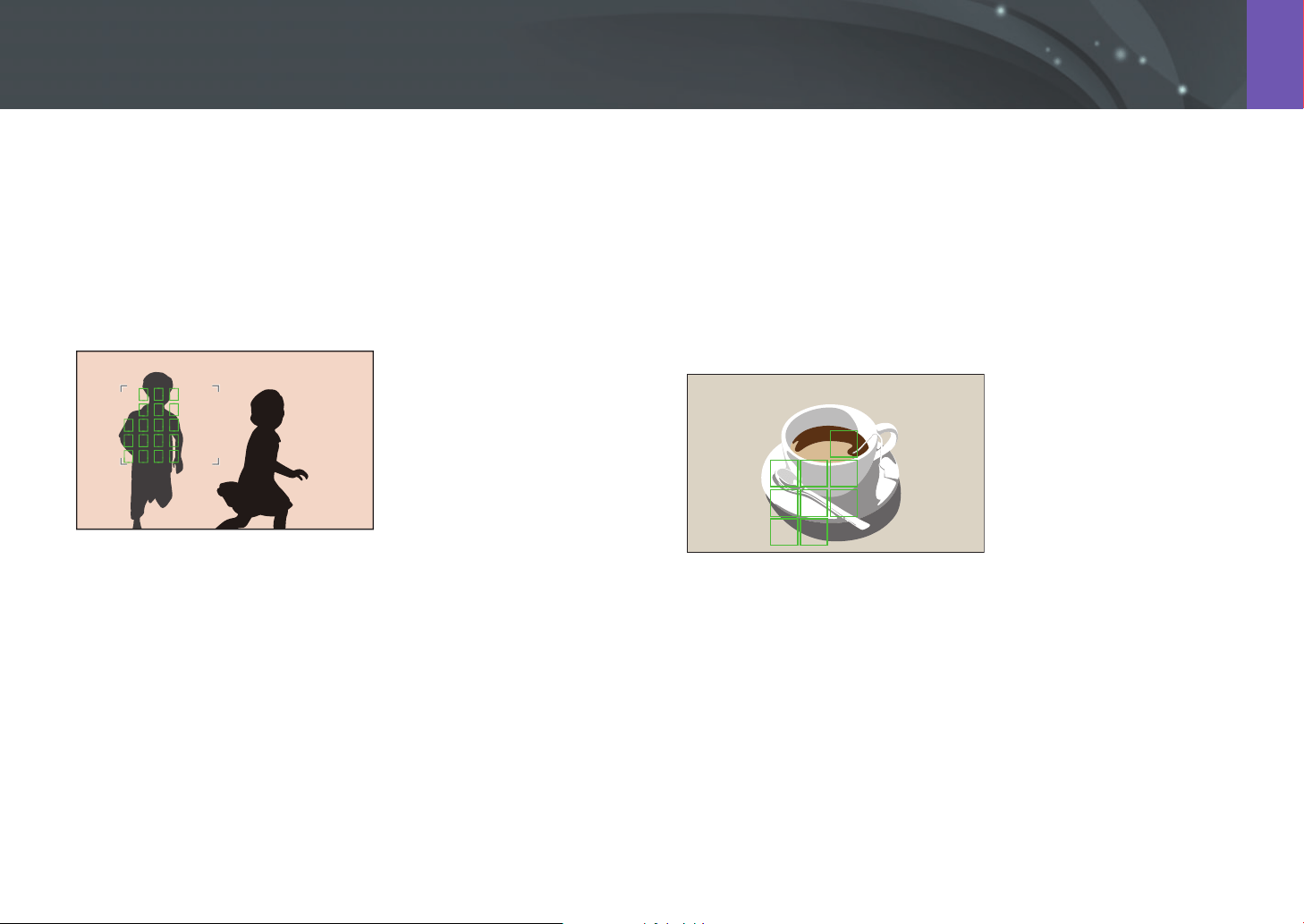
91
Shooting Functions > AF area
Zone AF
The camera focuses only on the area that you set. The focus area remains
locked on the set area even when the subject leaves the focus area. This
mode is recommended for when you want to x the focus on the specic
area.
To resize or move the focus area, in Shooting mode, press [o].
Multi AF
The camera displays a green rectangle in places where the focus is set
correctly. The photo is divided into two or more areas, and the camera
obtains focus points in each area. This mode is recommended for taking
photos of scenery.
When you press [Shutter] halfway, the camera displays the focus areas as
shown in the photo below.
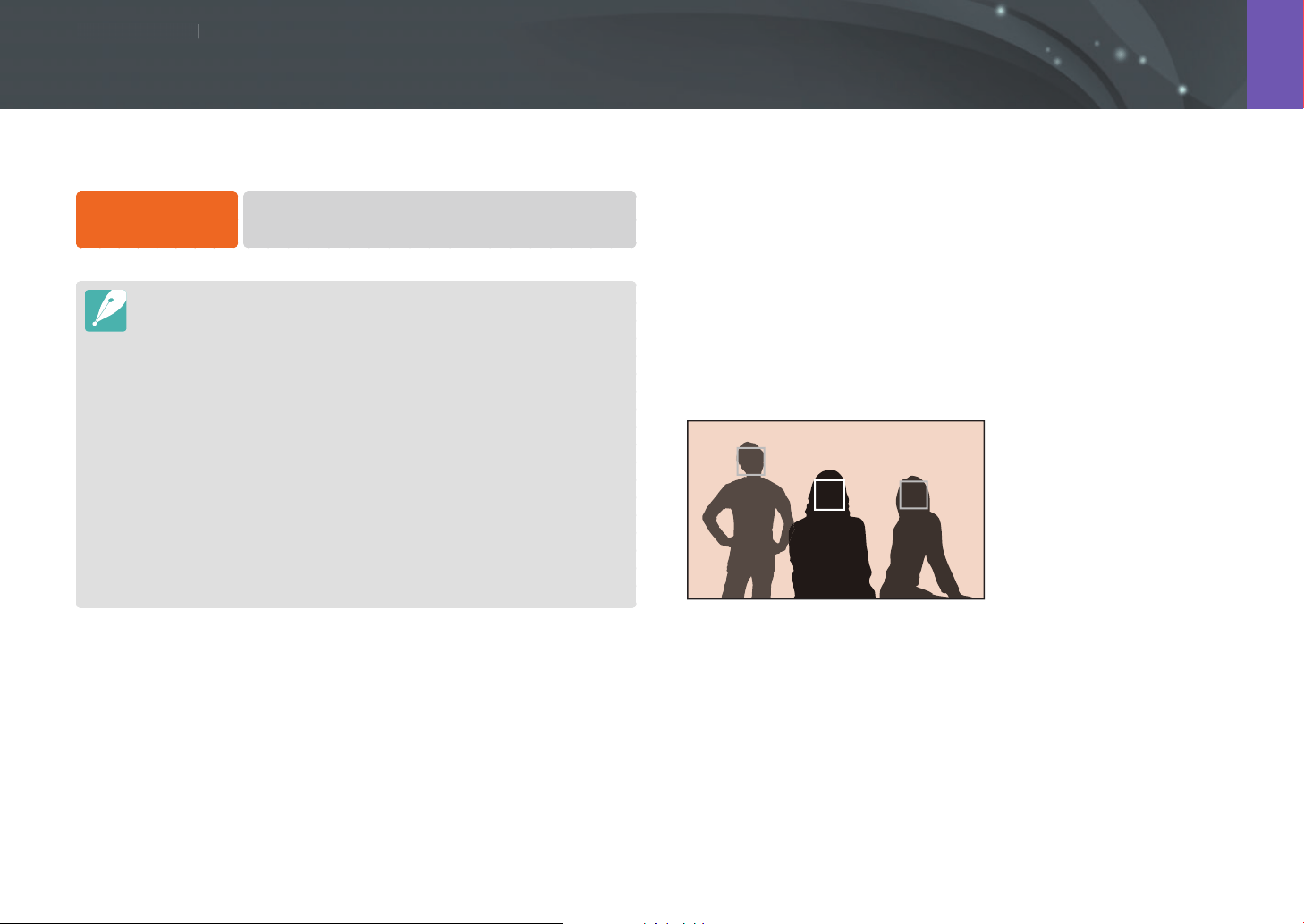
Shooting Functions
9292
S
h
ooting Function
s
Shooting Functions
Normal
The camera focuses on human faces preferentially and can detect the faces
of up to 10 people. This setting is recommended for shooting a group of
people.
When you press [Shutter] halfway, the camera focuses on faces as shown
in the photo below. When you photograph a group of people, the camera
displays the white focus square on the nearest person’s face or on the face
of the person in the center of the screen. It displays gray squares on the
rest of the faces.
Use Face Detection options to capture a self portrait or a smiling face.
To use the face
detection function,
In Shooting mode, press [m]
ĺ
b
ĺ
Face Detection
ĺ
an option.
•
When your camera detects a face, it tracks the detected face automatically.
•
Depending on the Picture Wizard options, Face Detection may not be
eective.
•
When you set manual focus, Face Detection may not be available.
•
Face Detection may fail if:
-
the subject is too close or too far from the camera
-
it is too bright or too dark
-
the subject is not facing the camera
-
the subject is wearing sunglasses or a mask
-
the subject’s facial expression changes drastically
-
the subject is backlit or the lighting conditions are unstable
•
When you set Face Detection options, the AF area is automatically set to Multi
AF.
•
Depending on the Face Detection options you selected, some shooting
options may not be available.
Face Detection

93
Shooting Functions > Face Detection
Smile Shot
The camera automatically releases the shutter when it detects a smiling
face.
When your subject smiles broadly, your camera can detect the smile more easily.
Wink Shot
The camera automatically releases the shutter 2 seconds after it detects a
winking face.
•
Wink for more than 1 second for better detection.
•
Wink detection may fail if:
-
the camera is below eye level
-
the subject appears dark due to backlighting
-
the subject is wearing glasses
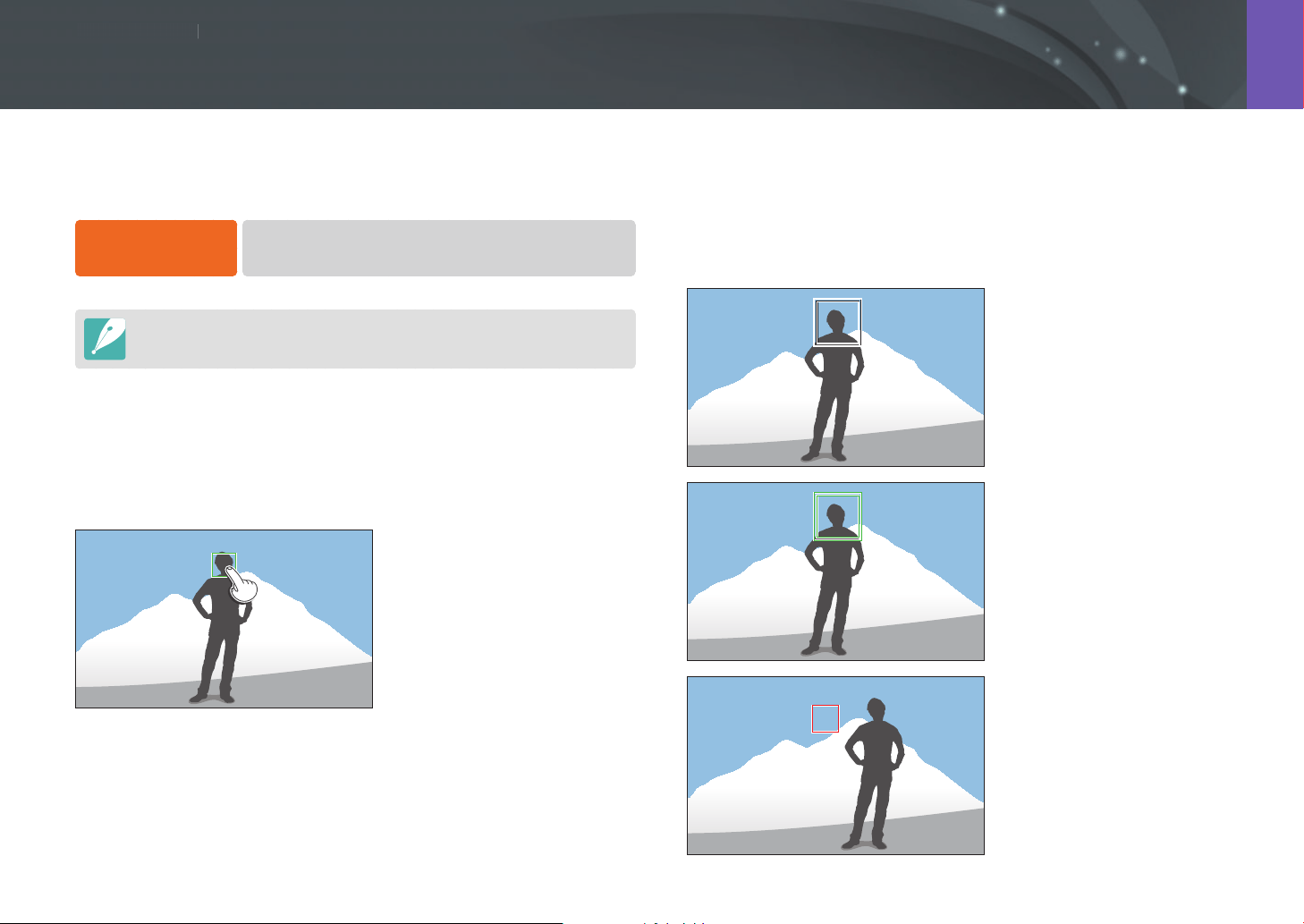
Shooting Functions
9494
S
h
ooting Function
s
Shooting Functions
Tracking AF
Tracking AF allows you to track and automatically focus on your subject,
even when the subject is moving or when you change the shooting
composition.
White frame: Your camera is
tracking the subject.
Green frame: Your subject is
in focus when you half-press
[Shutter].
Red frame: Your camera failed to
focus.
Select or focus on an area that you touch on the screen. Additionally, focus
on the subject and capture a photo by touching the screen.
To set Touch AF,
In Shooting mode, press [m]
ĺ
b
ĺ
Touch AF
ĺ
an option.
Available options may dier depending on the shooting conditions.
Touch AF
Touch AF allows you to select and focus on the focus area that you touch
on the screen.
AF Point
The focus area will correspond to the area you touch on the screen and the
focus will not be achieved.
Touch AF
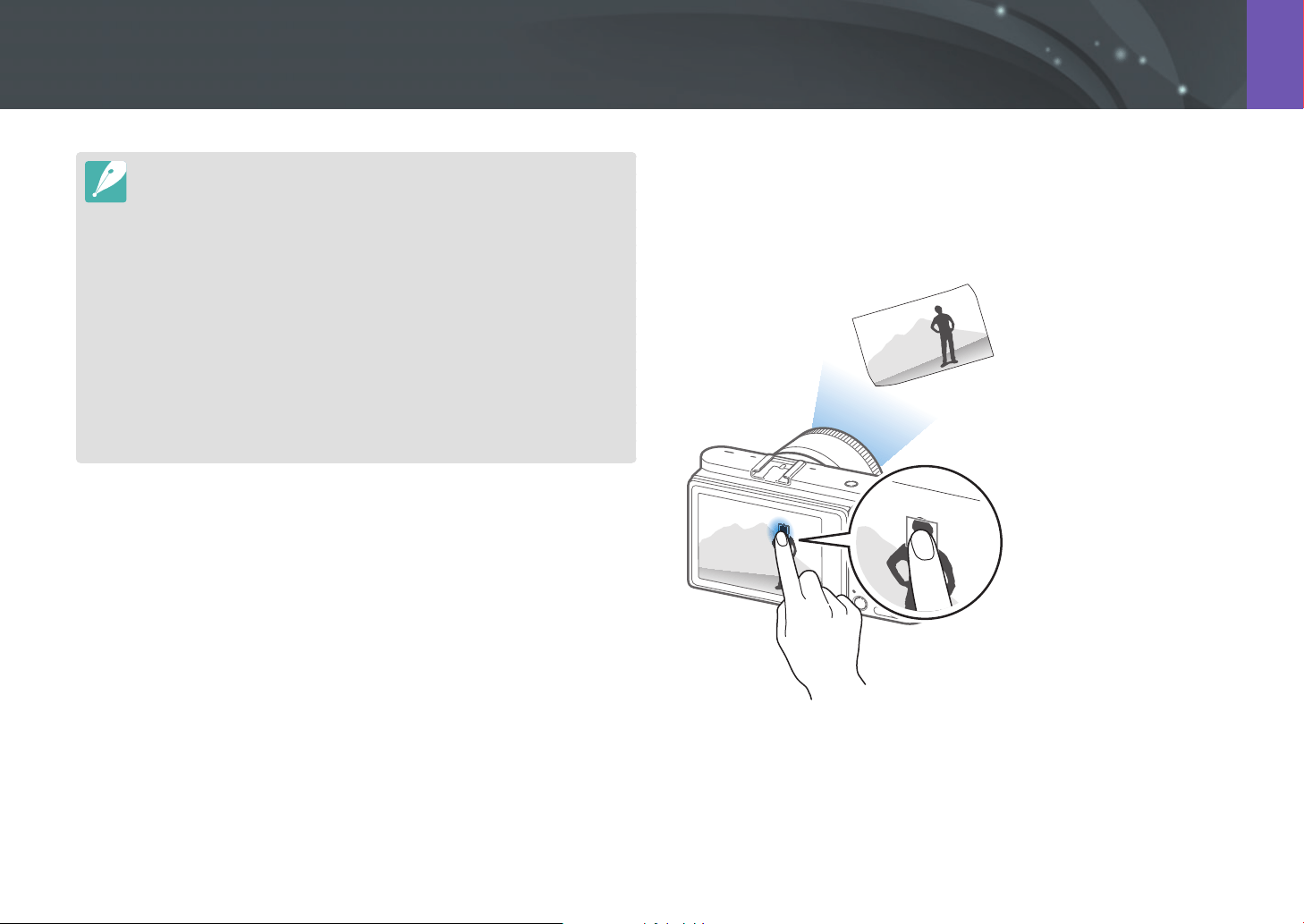
95
Shooting Functions > Touch AF
One Touch Shot
You can capture a photo with the touch of your nger. As you touch a
subject, the camera focuses on the subject automatically and captures a
photo.
•
If you do not select a focus area, the Auto Focus function does not work.
•
Tracking a subject may fail if:
-
The subject is too small.
-
The subject moves irregularly.
-
The subject is backlit or you are shooting in a dark place.
-
Colors or patterns on the subject and the background are the same.
-
The subject includes horizontal patterns, such as blinds.
-
The camera shakes excessively.
-
You capture photos continuously.
•
When tracking fails, the feature will be reset.
•
If the camera fails to track the subject, the focus area will be reset.
•
If the camera fails to focus, the focus frame will change to red and the focus
will be reset.
•
When you select Tracking AF, the AF mode is set to Continuous AF.
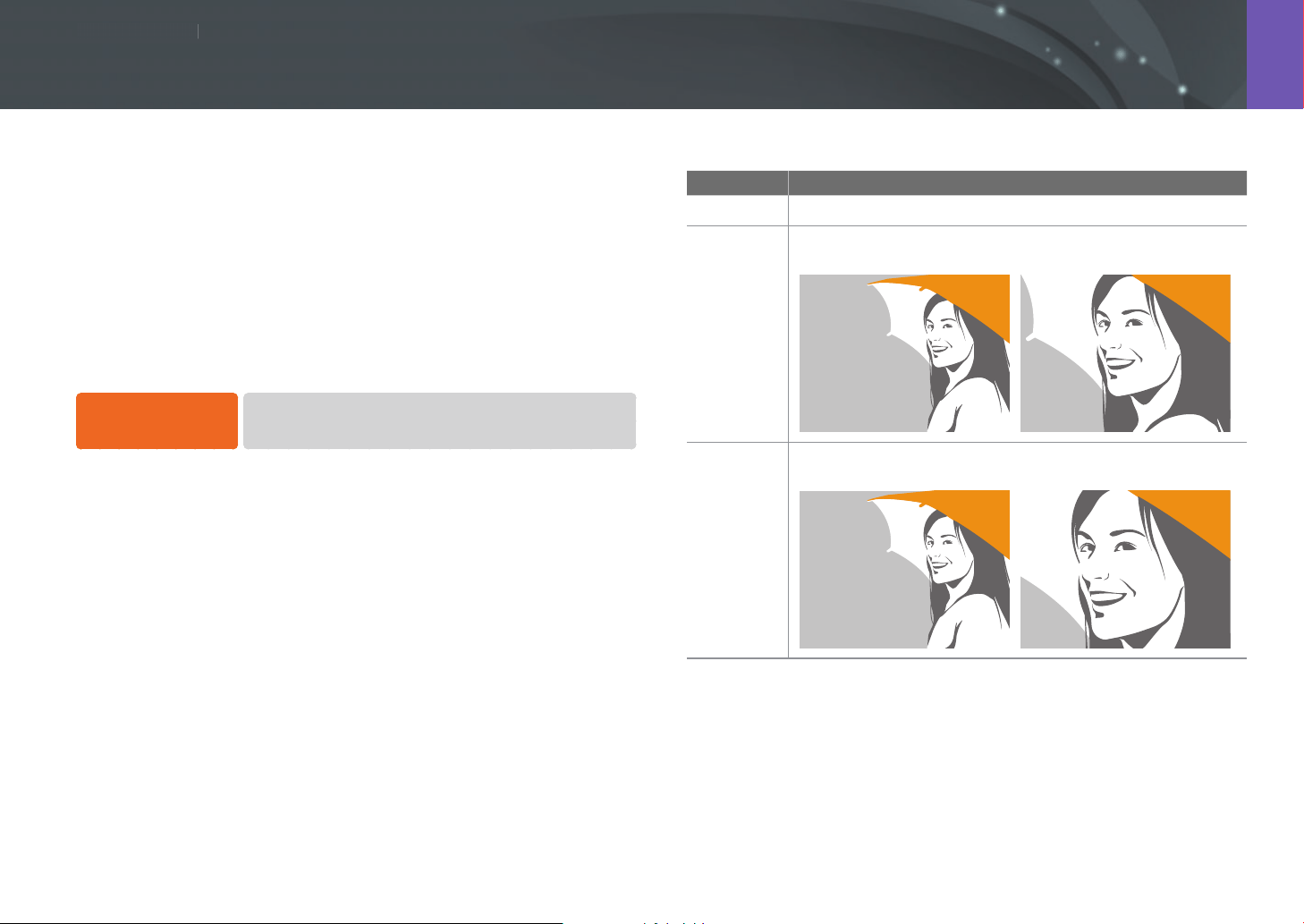
Shooting Functions
9696
S
hooting Function
s
Shooting Functions
Use various focus assist functions while focusing the camera automatically
or manually. Manual focus assist functions are available only with lenses
that support manual focus.
MF Assist
In the manual focus mode, you can enlarge the scene and easily adjust the
focus while rotating the focus ring.
To set the manual
focus assist,
In Shooting mode, press [m]
ĺ
b
ĺ
MF Assist
ĺ
an option.
* Default
Option Description
O
Do not use the MF Assist function.
Enlarge x5*
The focus area is magnied by 5 times when you rotate the
focus ring.
Enlarge x8
The focus area is magnied by 8 times when you rotate the
focus ring.
Focus assist
97
Shooting Functions > Focus assist
DMF (Direct Manual Focus)
You can adjust the focus manually by rotating the focus ring after
achieving focus by half-pressing [Shutter].
To set the DMF
function,
In Shooting mode, press [m]
ĺ
b
ĺ
DMF
ĺ
an option.
Setting MF & DMF responsiveness
Set the focus ring’s response when you use manual focus or the DMF
function. If you select High, slight rotations of the focus ring will adjust the
focus. If you select Low, longer rotations of the focus ring will adjust the
focus.
To set MF
Responsiveness
options,
In Shooting mode, press [m]
ĺ
b
ĺ
MF
Responsiveness
ĺ
an option.
AF Release Priority
Set to capture a photo when focus is achieved, or to select accuracy
priority or shooting speed priority.
To set AF Release
Priority options,
In Shooting mode, press [m]
ĺ
b
ĺ
AF Release
Priority
ĺ
an option.
* Default
Option Description
Focus*
Capture a photo only when the focus is achieved.
You can set the priority either on focus accuracy or
shooting speed.
• Auto*: The camera automatically selects Accuracy
priority or Shooting speed priority.
• Accuracy priority: Sets accurate focus as the
priority. When you select the Continuous High
or Burst shooting method, the Accuracy priority
setting is applied only on the rst shot.
• Shooting speed priority: Sets the shooting speed
as the priority.
Release
Capture a photo when you press [Shutter] even when
focus is not achieved.
98
Shooting Functions > Focus assist
Focus Peaking
In the manual focus mode, the color you selected appears on the focused
subject to help you focus while rotating the focus ring.
To set Focus Peaking
options,
In Shooting mode, press [m]
ĺ
b
ĺ
Focus Peaking
ĺ
an option.
* Default
Option Description
Level
Set a sensitivity for detecting the focused subject.
(O, High, Normal*, Low)
Color
Set a color to appear on the focused subject.
(White*, Red, Green)
The Focus Peaking function is not available when you select a resolution of
4096X2160 or 3840X2160.

Shooting Functions
9999
S
h
ooting Function
s
Shooting Functions
Use the Optical Image Stabilization (OIS) function to minimize camera
shake. OIS may not be available with some lenses.
Camera shake tends to occur in dark locations or when shooting indoors.
Under these conditions, the camera uses slower shutter speeds to increase
the amount of light it takes in, which can result in a blurry photo. You can
prevent this by using the OIS function.
If your lens has an OIS switch, you must set the switch to ON to use the OIS
function.
To set OIS options,
In Shooting mode, press [m]
ĺ
b
ĺ
OIS (Anti-Shake)
ĺ
an option.
* Default
Icon Description
O: The OIS function is o.
Mode 1*: The OIS function is applied only when you full or half
press [Shutter].
Mode 2: The OIS function is on.
Optical Image Stabilization (OIS)
Without OIS correction With OIS correction
•
OIS may not function properly when:
-
You move your camera to follow a moving subject.
-
There is too much camera shake.
-
The shutter speed is slow (for example, when you select Night in
s mode).
-
The battery is low.
-
You capture a close-up shot.
•
If you use the OIS function with a tripod, your images may be blurred by
the vibration of the OIS sensor. Deactivate the OIS function when you use a
tripod.
•
If the camera is hit or dropped, the display will be blurry. If this occurs, turn o
the camera, and then turn it on again.
•
Use the OIS function only when needed because the function consumes
more battery power.
•
To set an OIS option on the menu, set the OIS switch on your lens to ON.
•
This option may not be available with some lenses.
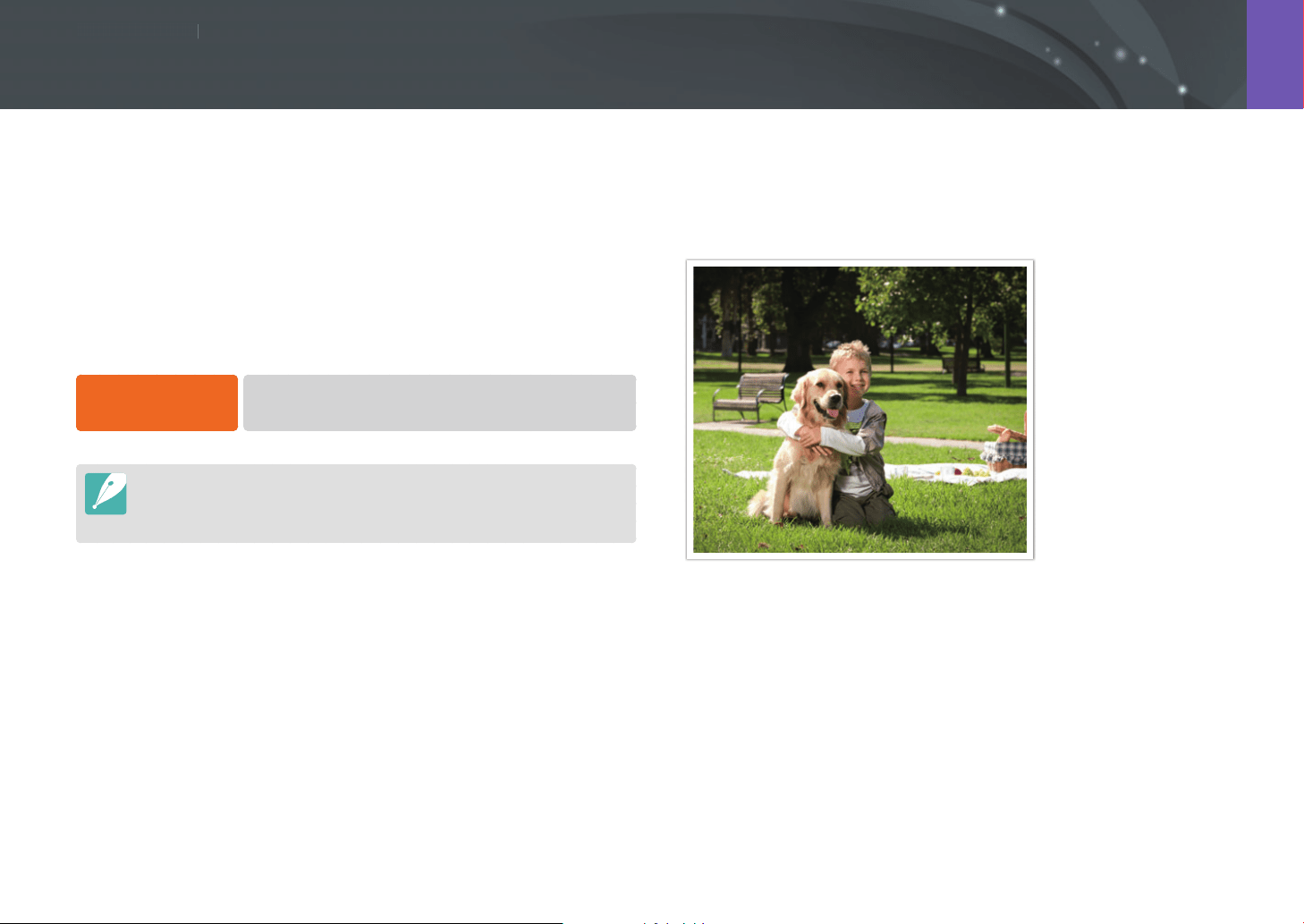
Shooting Functions
100100
S
h
ooting Function
s
Shooting Functions
You can set the shooting method, such as Continuous, Burst, Timer, or
Bracketing.
Select Single to capture one photo at a time. Select Continuous Normal,
Continuous High, or Burst to shoot fast moving subjects.
Select AE Bracket, WB Bracket, P Wiz Bracket, or Depth Bracket to adjust
exposure, White Balance, apply Picture Wizard eects, or capture photos
with dierent depths of eld. You can also select Timer to capture a photo
automatically after a specied time.
To change the
shooting method,
In Shooting mode, press [C]
ĺ
an option.
•
You can also set the option by pressing [m]
ĺ
b
ĺ
Drive
ĺ
a shooting method in Shooting mode.
•
Available options may dier depending on shooting conditions.
Single
Capture one photo whenever you press [Shutter]. Recommended for
general conditions.
Drive (shooting method)
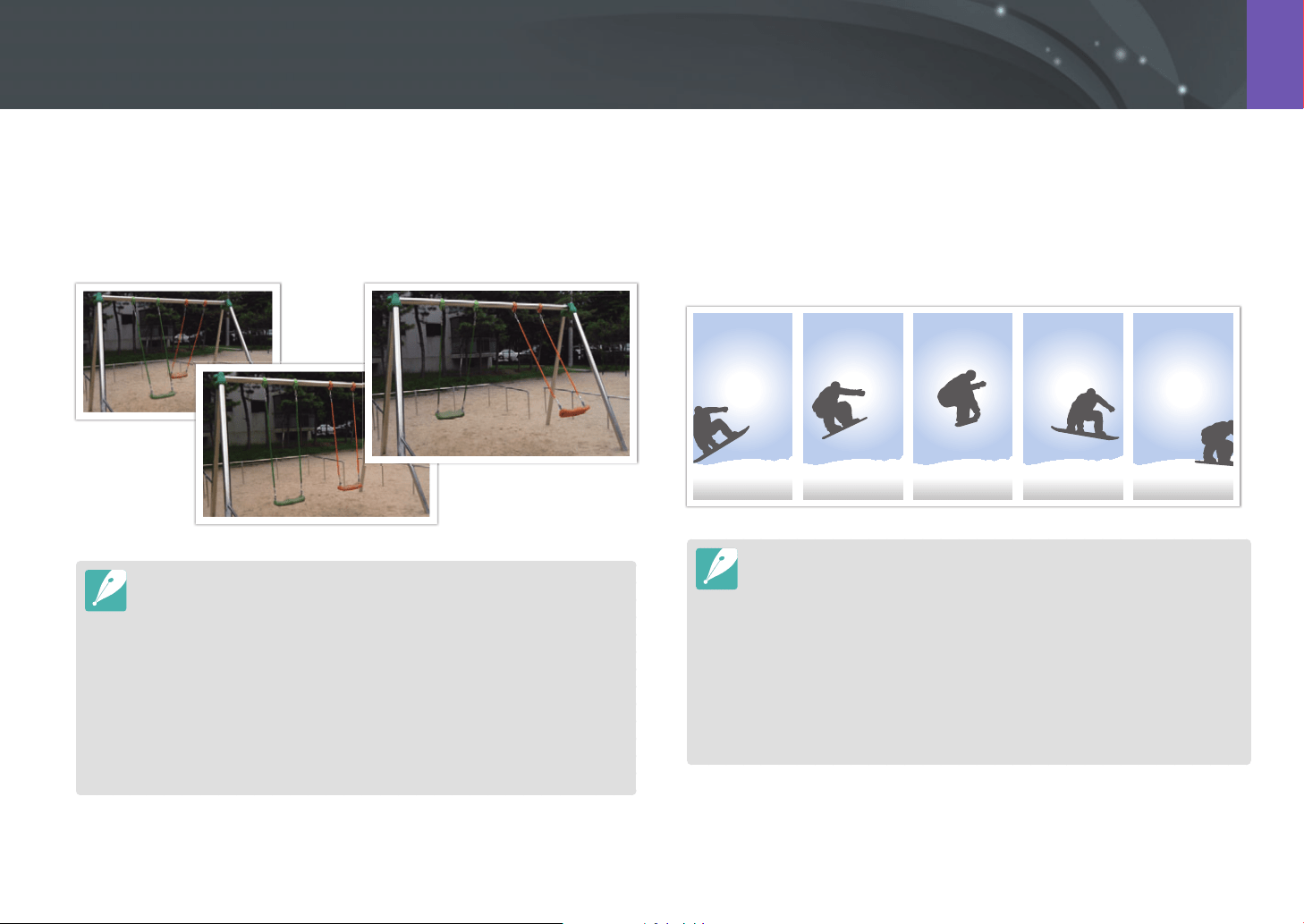
101
Shooting Functions > Drive (shooting method)
Continuous
Continuously capture photos while you are pressing [Shutter]. You can
capture up to 4 photos (Continuous Normal) or 9 photos (Continuous
High) per second.
•
The noise reduction function is not available when Continuous High is
selected.
•
The Tracking AF function is available with this option.
•
You can select up to ISO 25600 when using Continuous Normal or up to
ISO 6400 when using Continuous High.
•
When you continuously capture photos, for best results set the shutter speed
at 1/250 s or higher. If you set the shooting speed at 9 fps in Continuous
High, set the shutter speed at 1/500 s or higher.
•
Maximum shooting speed is 9 frames per second. It will slow down after
approx. JPEG 40 shots, RAW 5 shots. (Based on UHS-I SD Card. May vary
depending on the spec of memory card.)
Burst
Consecutively capture up to 10 shots per second (3 seconds), 15 shots per
second (2 seconds), or 30 shots per second (1 second) when you press
[Shutter] once. Recommended for shooting the rapid motion of fast
moving subjects such as racing cars.
•
To set the shooting speed, in Shooting mode, press [C]
ĺ
Burst, and then
press [D].
•
The photo size is set to 7M.
•
It may take longer to save a photo.
•
You cannot use the ash with this option.
•
Shutter speed must be faster than 1/30 second.
•
Photos captured with this option may be slightly enlarged when saved.
•
You cannot set an ISO option higher than ISO 6400.
•
This option cannot be used with the RAW le format. Selecting this option
will change the photo quality from RAW to JPEG.
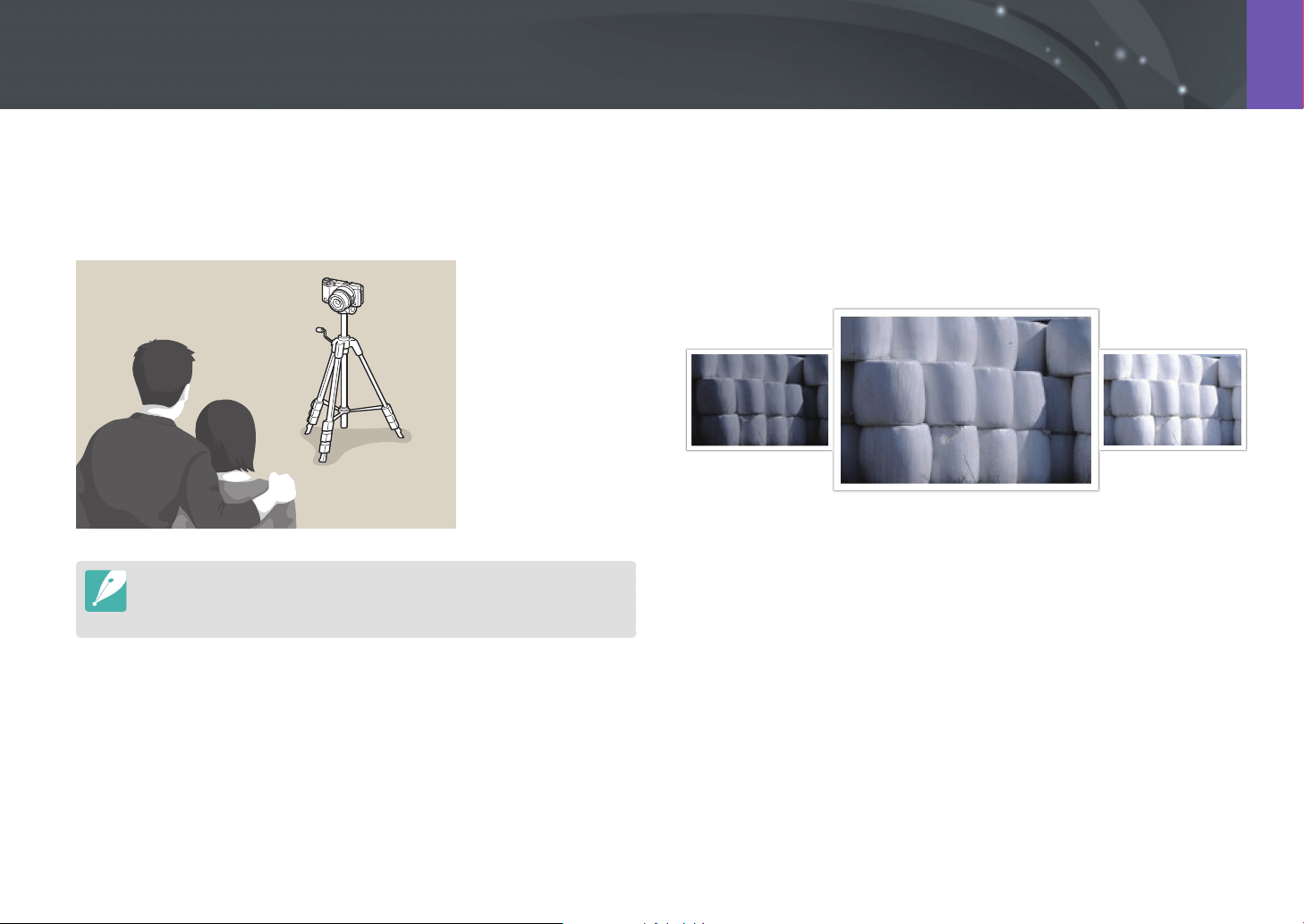
102
Shooting Functions > Drive (shooting method)
Timer
Capture a photo after a specied time. You can also set the shooting
interval, number of shots, and shooting time.
•
Press [Shutter] to stop capturing.
•
To set the timer details, press [C]
ĺ
Timer
ĺ
[D]
ĺ
set the shooting
interval, number of shots, and shooting time.
Auto Exposure Bracketing (AE Bracket)
When you press [Shutter], the camera captures 3 consecutive photos: the
original and two more with dierent exposure settings. Use a tripod to
prevent blurry photos as the camera captures three photos continuously.
You can adjust the settings in the Bracket Settings menu.
Exposure -2
Original
Exposure +2
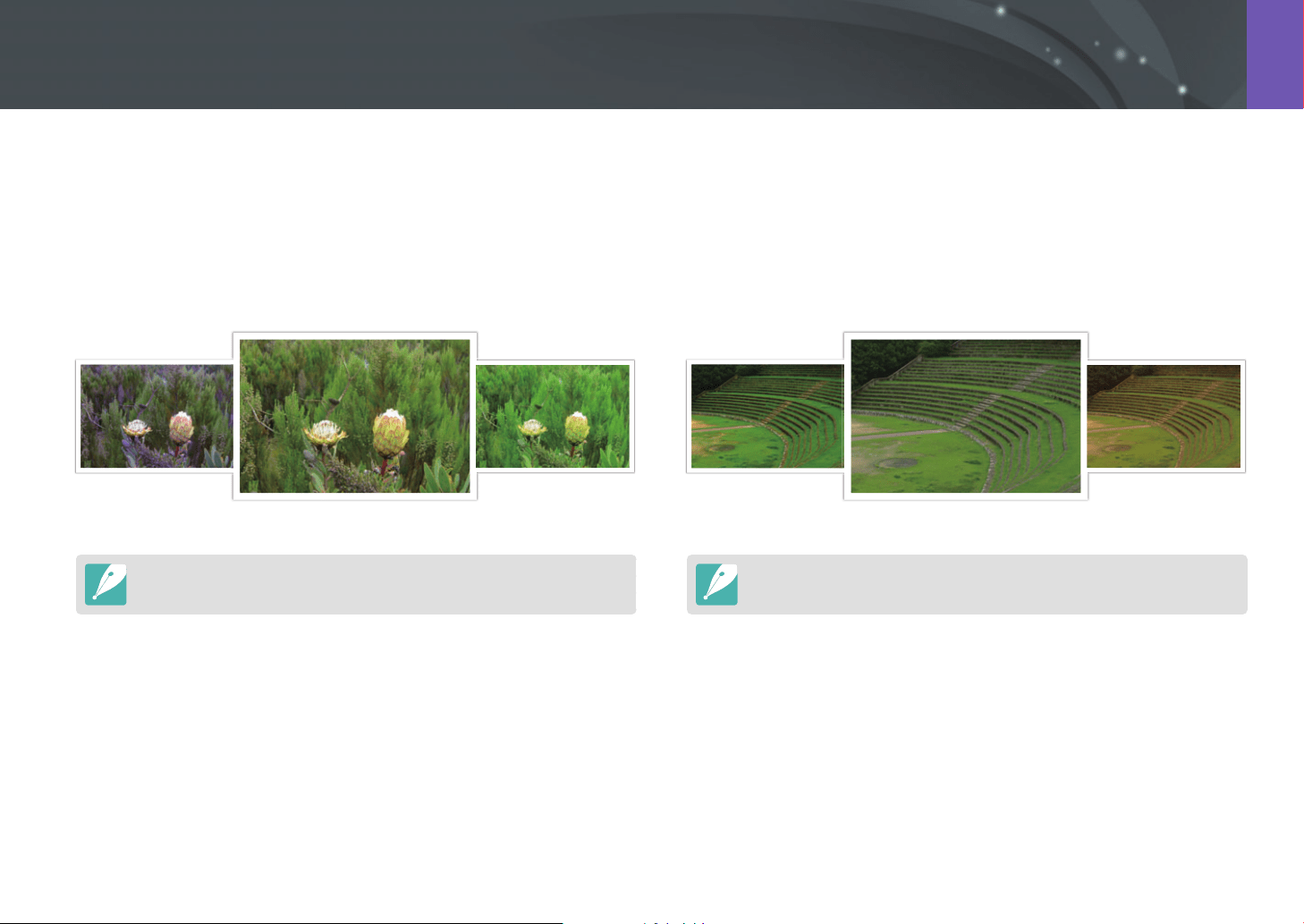
103
Shooting Functions > Drive (shooting method)
White Balance Bracketing (WB Bracket)
When you press [Shutter], the camera captures 3 consecutive photos:
the original and two more with dierent White Balance settings. The
original photo is captured when you press [Shutter]. The other two are
automatically adjusted according to the White Balance you have set. You
can adjust the settings in the Bracket Settings menu.
MG-2
Original
MG+2
This option cannot be used with the RAW le format. Selecting this option will
change the photo quality from RAW to JPEG.
Picture Wizard Bracketing (P Wiz Bracket)
When you press [Shutter], the camera captures 3 consecutive photos,
each with a dierent Picture Wizard setting. The camera captures a photo
and applies the three Picture Wizard options you have set to the image
captured. You can select three dierent settings in the Bracket Settings
menu.
Vivid
Standard
Retro
This option cannot be used with the RAW le format. Selecting this option will
change the photo quality from RAW to JPEG.
104
Shooting Functions > Drive (shooting method)
Depth Bracketing
When you press [Shutter], the camera captures 3 consecutive photos,
each with a dierent depth of eld by adjusting the aperture value. Use
a tripod to prevent blurry photos as the camera captures three photos
continuously. You can adjust the settings in the Bracket Settings menu.
This feature is available only in Program or Aperture priority mode.
Bracketing settings
You can set up the options for each bracket function.
To set a bracketing
option,
In Shooting mode, press [m]
ĺ
b
ĺ
Drive
ĺ
select a
bracketing option, and then press [F]
ĺ
set up the options
for each bracketing.
* Default
Option Description
AE Bracket
Set the exposure interval. (-/+ 0.3 EV*, -/+ 0.7 EV,
-/+ 1.0 EV, -/+ 1.3 EV, -/+ 1.7 EV, -/+ 2.0 EV,
-/+ 2.3 EV, -/+ 2.7 EV, -/+ 3.0 EV)
WB Bracket
Adjust the White Balance interval range of the
3 bracketed photos. (AB -/+1, AB -/+2, AB -/+3*,
MG -/+1, MG -/+2, MG -/+3)
For example, AB -/+3 adjusts the Amber value plus
or minus three steps. MG -/+3 adjusts the Magenta
value the same amount.
P Wiz Bracket
Select the 3 Picture Wizard settings the camera will
use to capture the 3 bracketed photos.
Depth Bracket
Set the depth interval. Use command dials 1 or 2
to select an option. You can also drag the slider or
touch the arrows to select an option.
(-/+ 0.3, -/+ 0.7, -/+ 1.0*, -/+ 1.3, -/+ 1.7, -/+ 2.0,
-/+ 2.3, -/+ 2.7, -/+ 3.0)
Shooting Functions
105105
S
h
ooting Function
s
Shooting Functions
Set the shooting interval, the number of shots, and shooting start time.
Use this function to capture photos at regular intervals during an event,
such as a lunar eclipse or a sunrise.
To capture an
interval shot,
In Shooting mode, press [m]
ĺ
b
ĺ
Interval Capture
ĺ
set a shooting interval, the number of shots, and shooting
start time
ĺ
Start Interval Capture
ĺ
wait for shooting to
begin at the time you set. (If you did not set a shooting start
time, press [Shutter] to capture the photo.)
•
To save interval shots as a video, select Time Lapse
ĺ
On. The camera
records a UHD video up to 60 seconds long at a rate of 10 fps. When using the
Time Lapse function, you can set the count to less than 600 shots.
•
If you set the interval count to more than 600 shots or there is not enough
space on the memory card after the Time Lapse function has been set, the
interval count will change automatically to allow you to use the Time Lapse
function.
•
Touch to pause while capturing photos.
•
Touch to resume.
•
Touch or press [m] to stop capturing.
•
Use a shutter release cable with a tripod to minimize camera movement
when capturing interval shots.
•
Connect the power cable if the shooting interval is long or the number of
shots to be taken is high.
•
If the shooting interval is set to between one minute and 10 minutes, the
camera will enter Display save mode after it starts to capture a photo. If a
shooting interval exceeds 10 minutes, the camera will enter Power save mode
and turn on and capture a photo automatically at the next interval. Press
[Shutter] to cancel Power save mode.
•
If the battery or memory card is removed while capturing photos, shooting
will stop. Before removing the battery or memory card, interval shooting
must be paused and the camera must be turned o.
Interval Capture
Shooting Functions
106106
S
h
ooting Function
s
Shooting Functions
To capture a realistic photo of a subject, the amount of light should be
constant. When the light source varies, you can use a ash and supply a
constant amount of light. Select appropriate settings according to a light
source and a subject.
To set ash options,
In Shooting mode, press [m]
ĺ
b
ĺ
Flash
ĺ
an option.
Icon Description
O: The ash is o.
Smart Flash: The camera automatically adjusts the brightness
of the ash according to the amount of light in the surrounding
environment.
Auto: The ash automatically res in dark locations.
Auto Red-eye: The ash automatically res and reduces red-eye.
Fill-in: The ash res whenever you capture a photo. (Brightness is
automatically adjusted.)
Fill-in Red: The ash res whenever you capture a photo and
reduces red-eye.
1st Curtain: The ash res
immediately after the shutter opens.
The camera captures a photo of a
subject earlier in an action sequence
clearly.
Direction of ball’s motion
Icon Description
2nd Curtain: The ash res just
before the shutter closes. The
camera captures a photo of a
subject later in an action sequence
clearly.
Direction of ball’s motion
Hi-speed: If the shutter speed is faster than the camera’s sync
speed (the shortest time taken to open and close the shutter), the
ash will re multiple times at high speed. The ash starts to re
while the shutter opens. This option can be set only when you
attach a compatible, optional external ash. (SEF-580A)
•
The available options may dier depending on shooting conditions.
•
When you use Red-eye correction, there is an interval between two bursts of
the ash. Do not move until the ash res a second time.
•
If you select O, the ash does not re even when an external ash is
attached. If you adjust the ash intensity manually, the ash will re once
without a pre-ash.
Use only Samsung-approved ashes. Using incompatible ashes may damage
your camera.
Flash
107
Shooting Functions > Flash
Reducing the red-eye eect
When you capture a photo of a person in the dark using the ash, a red
glow may appear in their eyes. To reduce this red-eye eect, select Auto
Red-eye or Fill-in Red.
Without red-eye reduction With red-eye reduction
When the red-eye reduction function is used, there are two separate ashes. The
subject should not move until after the second ash. If the subject is too far from
the camera or moves after the rst ash res, red-eye may not be reduced.
Adjusting the ash intensity
When the ash is on, adjust the ash intensity +/-2 levels.
To set the ash
intensity,
In Shooting mode, select [m]
ĺ
b
ĺ
Flash
ĺ
an
option
ĺ
[D]
ĺ
scroll command dial 1 or 2 or press
[C/F] to adjust the ash intensity.
Back Set Reset
Flash : Fill-in

108
Shooting Functions > Flash
•
You can also drag the slider or touch / to adjust the intensity.
•
Adjusting the flash intensity may not be eective when:
-
The subject is too close to the camera.
-
You set a high ISO sensitivity.
-
The exposure value is too big or too small.
-
It is too bright or too dark.
•
In some shooting modes, you cannot use this function.
•
If you attach an intensity-adjustable external ash to the camera, the intensity
settings of the ash will be applied.
•
If the subject is too close when you use the ash, some light may be blocked,
resulting in a dark photo. Ensure that the subject is within the recommended
range, which varies by lens.
•
When a lens hood is attached, the light from the ash can be blocked by the
hood. Remove the hood to use the ash.
Flash settings
Set the ash mode, exposure value, ash brightness, or multi ash when
you attach an external ash to the camera. You can also set wireless sync to
control the external ash. The ash settings are supported only when you
attach a compatible, optional external ash (SEF-580A).
Setting external ash
To set external ash,
In Shooting mode, press [m]
ĺ
b
ĺ
External Flash
Settings
ĺ
an option.
109
Shooting Functions > Flash
Option Description
Flash Mode
• A-TTL: In the A-TTL (Advanced Through The Lens) mode,
the camera measures the light reected by the subject
through the lens. Then, it calculates the optimum
exposure based on the exposure value and shutter
speed.
• Manual Flash: The ash emits the full amount of light or
the ash intensity can be adjusted manually.
• Multi Flash: When you press [Shutter], the ash res
multiple times based on the number you have set.
Flash EV
Set the exposure of the ash when the ash mode is
A-TTL.
Flash Output
Set the brightness of the ash when the ash mode is
Manual Flash.
Multi Flash
Settings
Set the count, brightness, or frequency of the ash when
the ash mode is Multi Flash.
If data can be exchanged between the camera and the ash, the settings for the
external ash can be adjusted on the camera or the ash. Your previous options
will be applied.
Setting wireless sync for external ash
Set wireless sync to control internal and external ash units remotely
via wireless signals. The remote system consists of a master ash that is
mounted on the camera and one or more slave ash units. A slave ash is
assigned to one of three groups: A, B, or C.
To set wireless sync,
In Shooting mode, press [m]
ĺ
b
ĺ
External Wireless
Flash
ĺ
an option.
110
Shooting Functions > Flash
* Default
Option Description
Use Wireless
Flash
Set to use wireless sync. (O*, On)
Channel
Select channels for wireless sync. There are four remote
channels available to allow multiple remote systems to
operate at the same time. Master and slave ash units, in
the same remote system, must be set to the same channel.
(Ch. 1, Ch. 2, Ch. 3, Ch. 4)
Group Flash
Mode
Set the ash mode for group A, B, or C. Changes to the
ash mode must be made on the master ash. The
changes are then applied to slave group A, B, or C, and
the slave groups operate as a remote system of the ash
mode (TTL or manual) according to the settings for the
master ash.
• A-TTL: Set the exposure of the ash when the ash
mode is A-TTL.
• Manual Flash: Set the brightness of the ash when the
ash mode is Manual Flash.
• O: Do not re the ash.
•
You cannot select External Flash Settings when you use the External
Wireless Flash function.
•
For information about using the wireless sync feature with an external ash,
refer to the optional external ash’s (SEF-580A) user manual.
Locking the ash intensity
When the ash mode is set to A-TTL, the camera automatically calculates
the optimum exposure through pre-ash. If the exposure is not calculated
correctly, use the FEL function. The pre-ash res on the area that you set
and the ash intensity is locked.
To lock the ash
intensity,
Set the function of [a] to FEL
ĺ
focus on the exposure
area
ĺ
press [a].
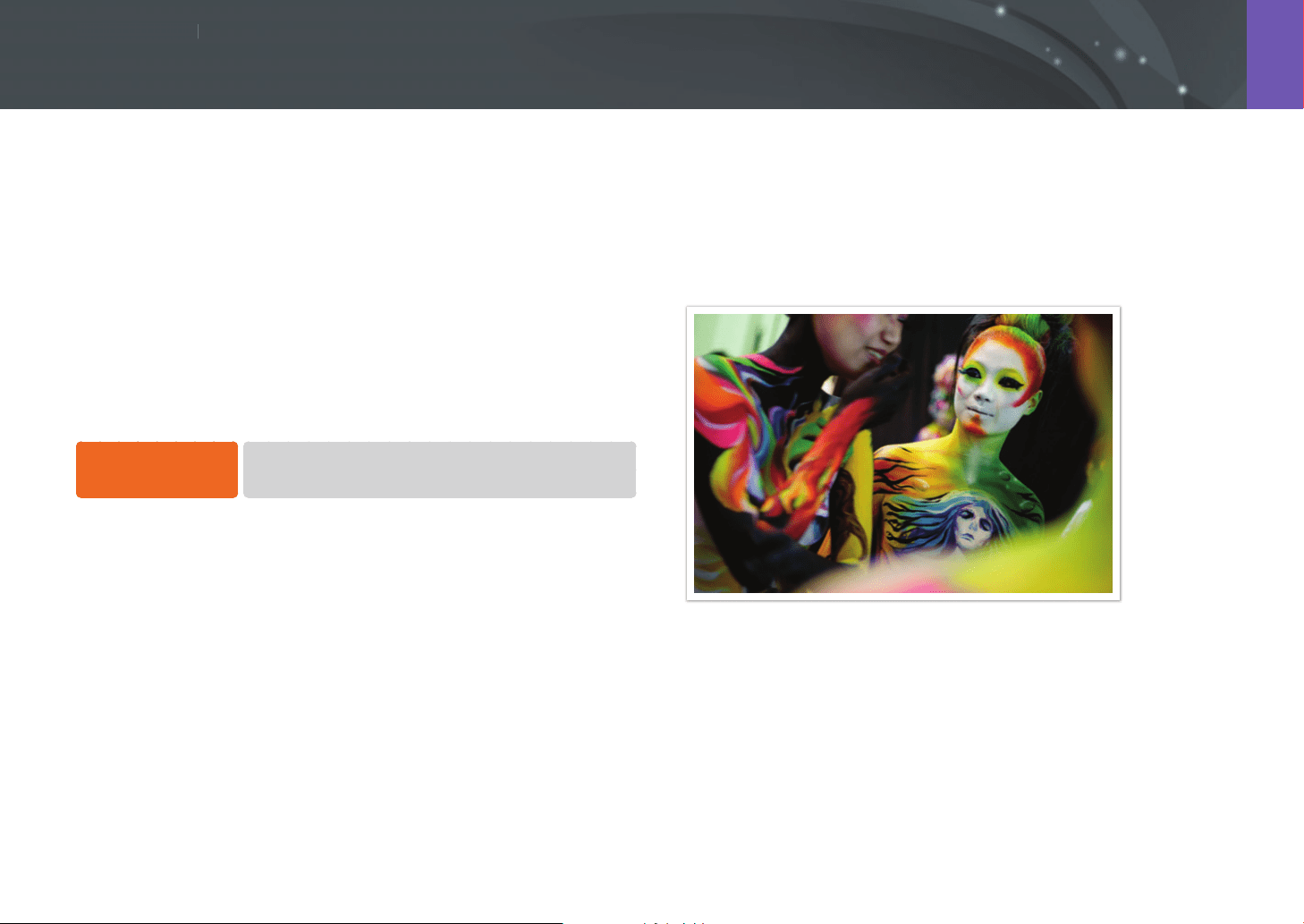
Shooting Functions
111111
S
h
ooting Function
s
Shooting Functions
The metering mode refers to the way in which a camera measures the
quantity of light.
The camera measures the amount of light in a scene, and in many of its
modes, uses the measurement to adjust various settings. For example,
if a subject looks darker than its actual color, the camera captures an
overexposed photo of it. If a subject looks lighter than its actual color, the
camera captures an underexposed photo of it.
The brightness and overall mood of the photo can also be aected by how
the camera measures the amount of light. Select an appropriate setting for
the shooting condition.
To set a metering
option,
In Shooting mode, press [m]
ĺ
b
ĺ
Metering
ĺ
an
option.
Multi
The Multi mode calculates the amount of light in multiple areas. When
light is sucient or insucient, the camera adjusts the exposure by
averaging the overall brightness of the scene. This mode is suitable for
general photos.
Metering
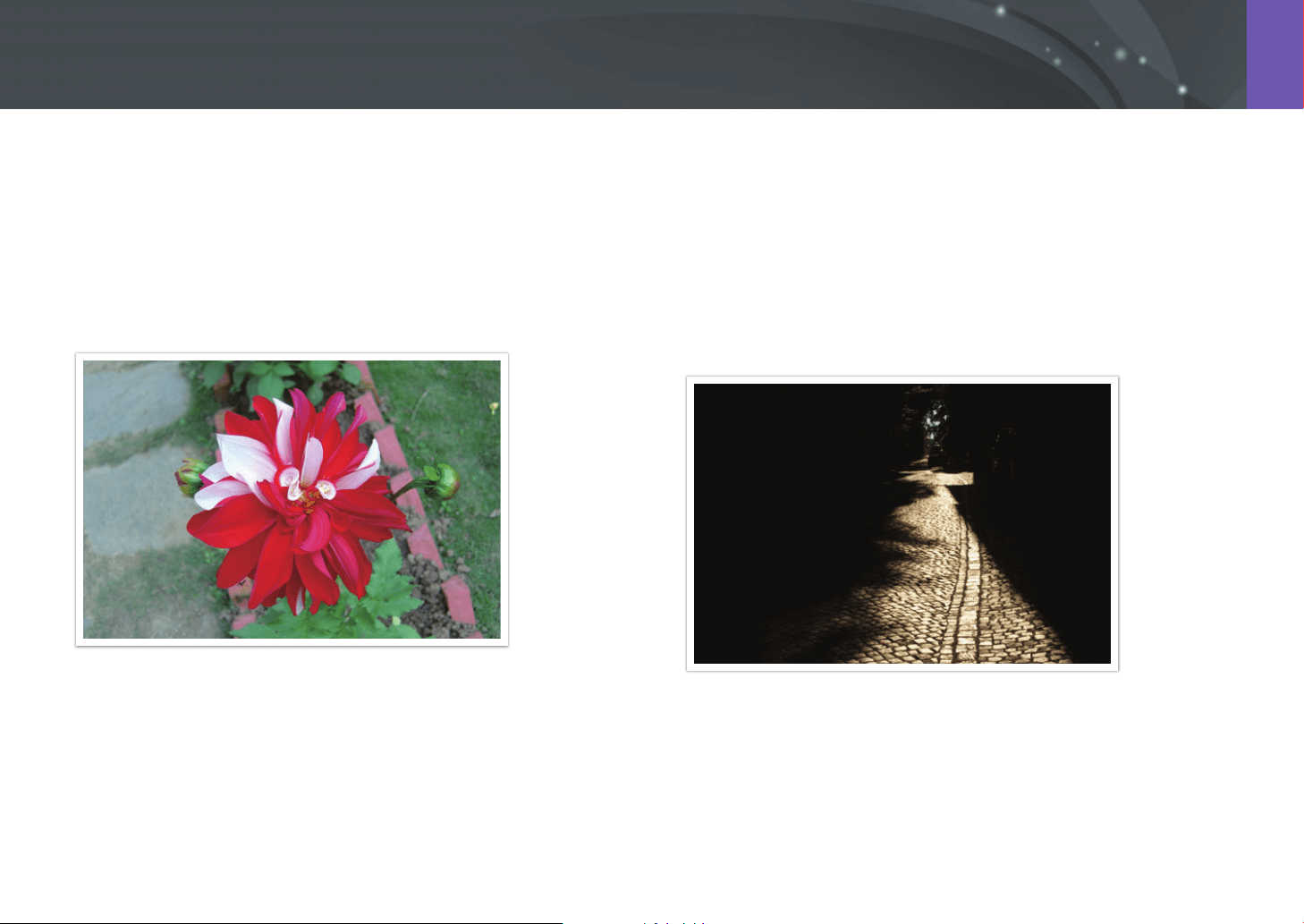
112
Shooting Functions > Metering
Center-weighted
The Center-weighted mode calculates a broader area than the Spot mode
does. It sums up the amount of light in the center portion of the shot
(60–80 %) and that of the rest of the shot (20–40 %). It is recommended
for situations where there is a slight dierence in brightness between a
subject and its background or where the area around a subject is large
compared to the overall composition of the photo.
Spot
The Spot mode calculates the amount of light in the center. When you
capture a photo in conditions where there is a strong backlight behind a
subject, the camera adjusts the exposure to shoot the subject correctly. For
example, when you select the Multi mode in a strong backlight condition,
the camera calculates that the overall amount of light is abundant, which
results in a darker photo. The Spot mode can prevent this situation as it
calculates the amount of light in a designated area.
As the photo illustrates, the subject is in a bright area while the
background is dark. The Spot mode is recommended for a situation like
this where there is a large dierence in the exposure values between the
subject and the background.
113
Shooting Functions > Metering
Measuring the exposure value of the focus area
When this function is turned on, the camera automatically sets an optimal
exposure by calculating the brightness of the focus area. This function
is only available when you select Spot metering or Multi metering, and
Selection AF.
To set this function,
In Shooting mode, press [m]
ĺ
b
ĺ
Link AE to AF
Point
ĺ
an option.
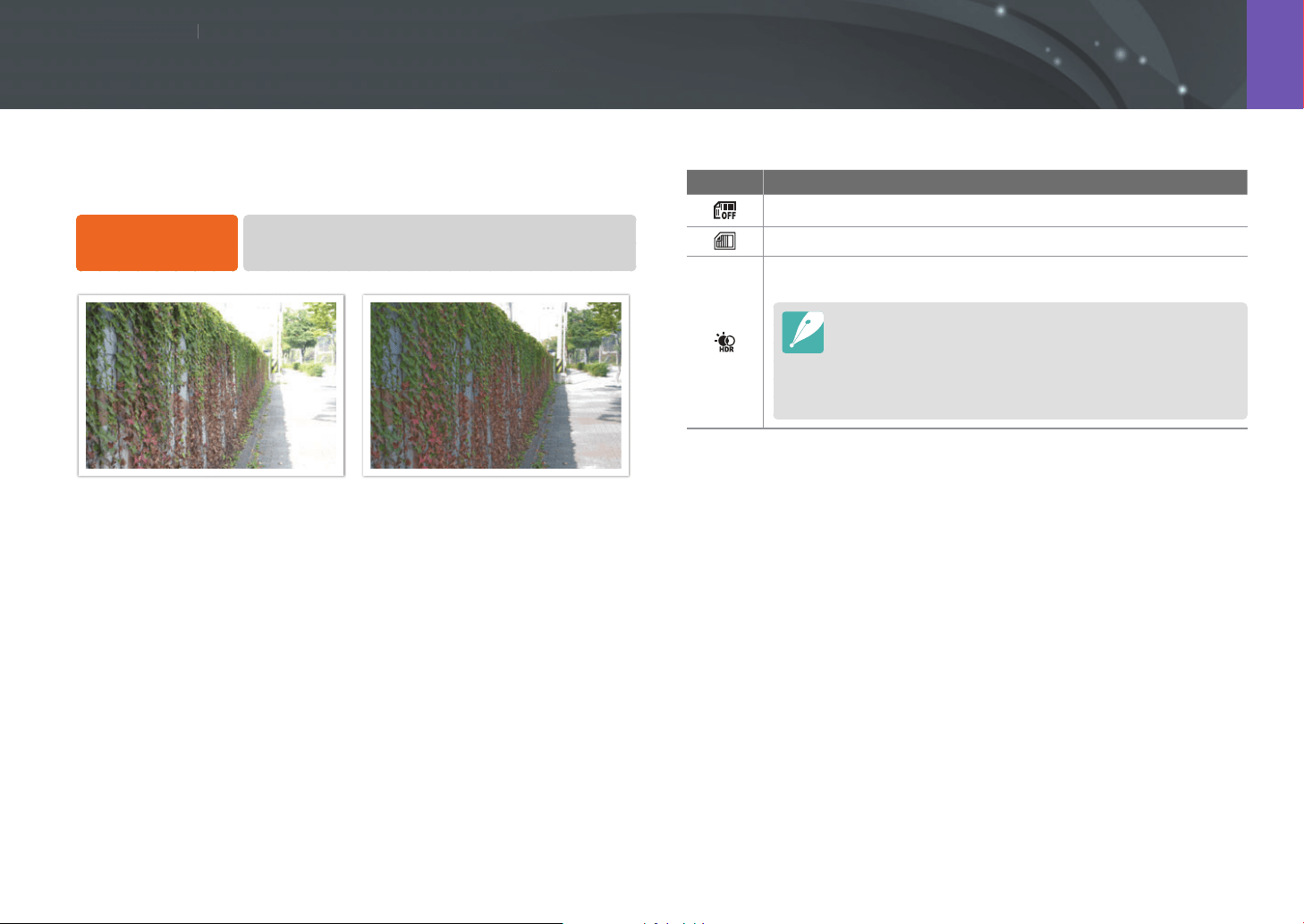
Shooting Functions
114114
S
h
ooting Function
s
Shooting Functions
This function automatically corrects for the loss of bright or dark detail that
can occur due to shading dierences in the photo.
To set Dynamic
Range options,
In Shooting mode, press [m]
ĺ
b
ĺ
Dynamic Range
ĺ
an option.
Without Dynamic Range eect With Dynamic Range eect
* Default
Icon Description
O*: Dynamic Range is o.
Smart Range+: Corrects for the loss of bright or dark detail.
HDR: Capture several photos with dierent exposures, and then
combine them to automatically create a single image.
•
To set the exposure adjustment value, press [F], and then
select Low, Medium, or High.
•
You cannot set an ISO option higher than ISO 6400.
•
Dynamic Range options and Picture Wizard options cannot be
set at the same time.
Dynamic Range
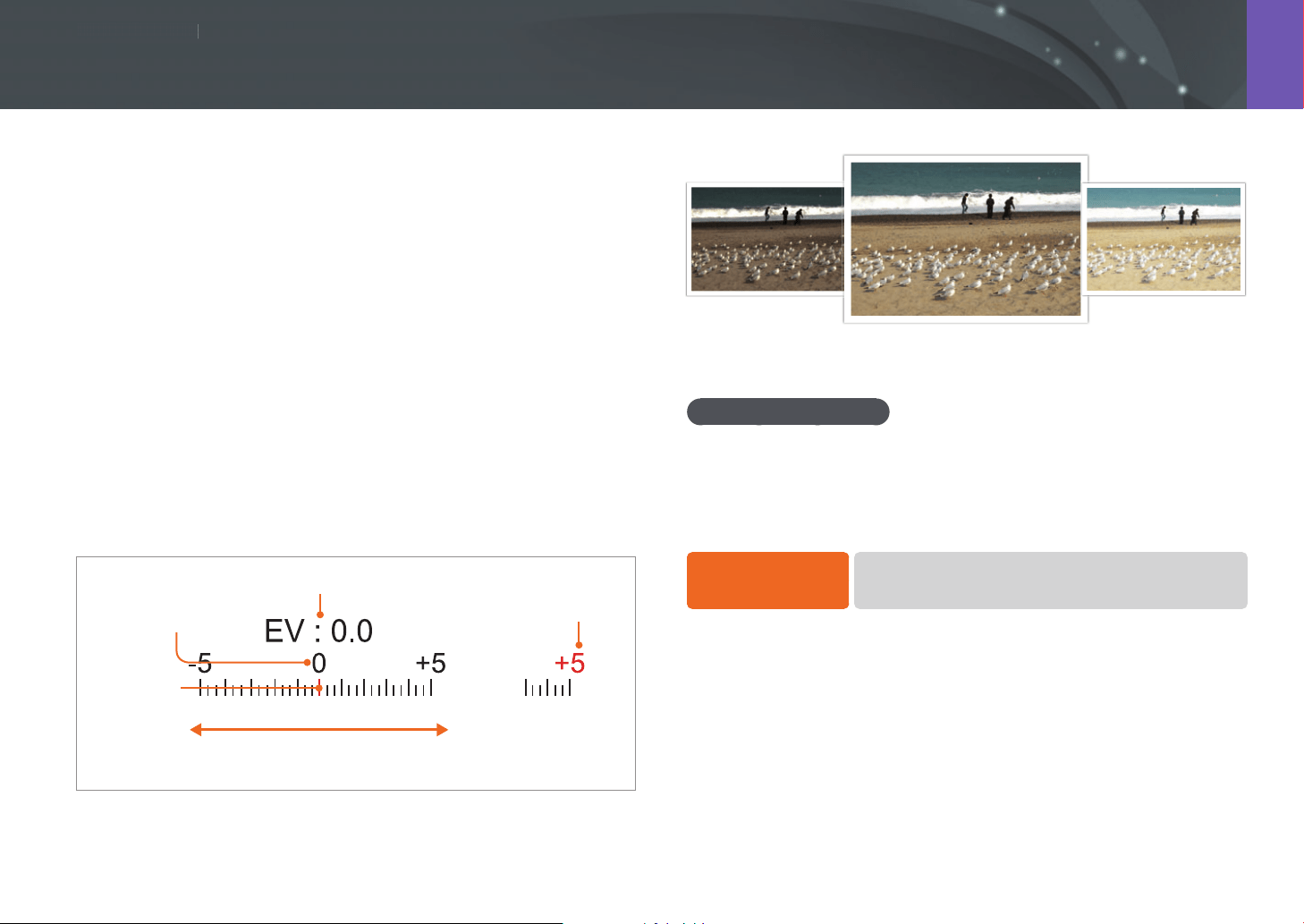
Shooting Functions
115115
S
h
ooting Function
s
Shooting Functions
The camera automatically sets the exposure by measuring the levels of
light from the photo’s composition and the position of a subject. If the
exposure set by the camera is higher or lower than you expected, you can
adjust the exposure value manually. The exposure value is adjustable in
±5 increments. The camera displays the exposure warning in red for each
step beyond ±5 range. When recording a video, the exposure value is
adjustable in ±3 increments.
To adjust the exposure value, hold down [B], and then scroll command
dial 1. You can also adjust the exposure value by pressing [f], and then
selecting EV.
When you adjust the exposure value in Manual mode, the current shutter
speed and aperture value do not change. When you adjust the exposure
value by rotating command dial 1 while holding down [B] with ISO
sensitivity set to Auto, the camera adjusts the exposure value by changing
the ISO sensitivity.
Exposure level
indicator
Standard exposure index
Increased exposure
(brighter)
Decreased exposure
(darker)
Exposure warning
Exposure adjustment value
-2
Original
+2
Using Framing Mode
When you adjust the aperture value or shutter speed, the exposure
changes, so the display may darken. With this function on, the brightness
of the display is constant regardless of the settings, so you can better
frame your shot.
To use Framing
Mode,
In Shooting mode, press [m]
ĺ
b
ĺ
Framing Mode
ĺ
an option.
Exposure compensation
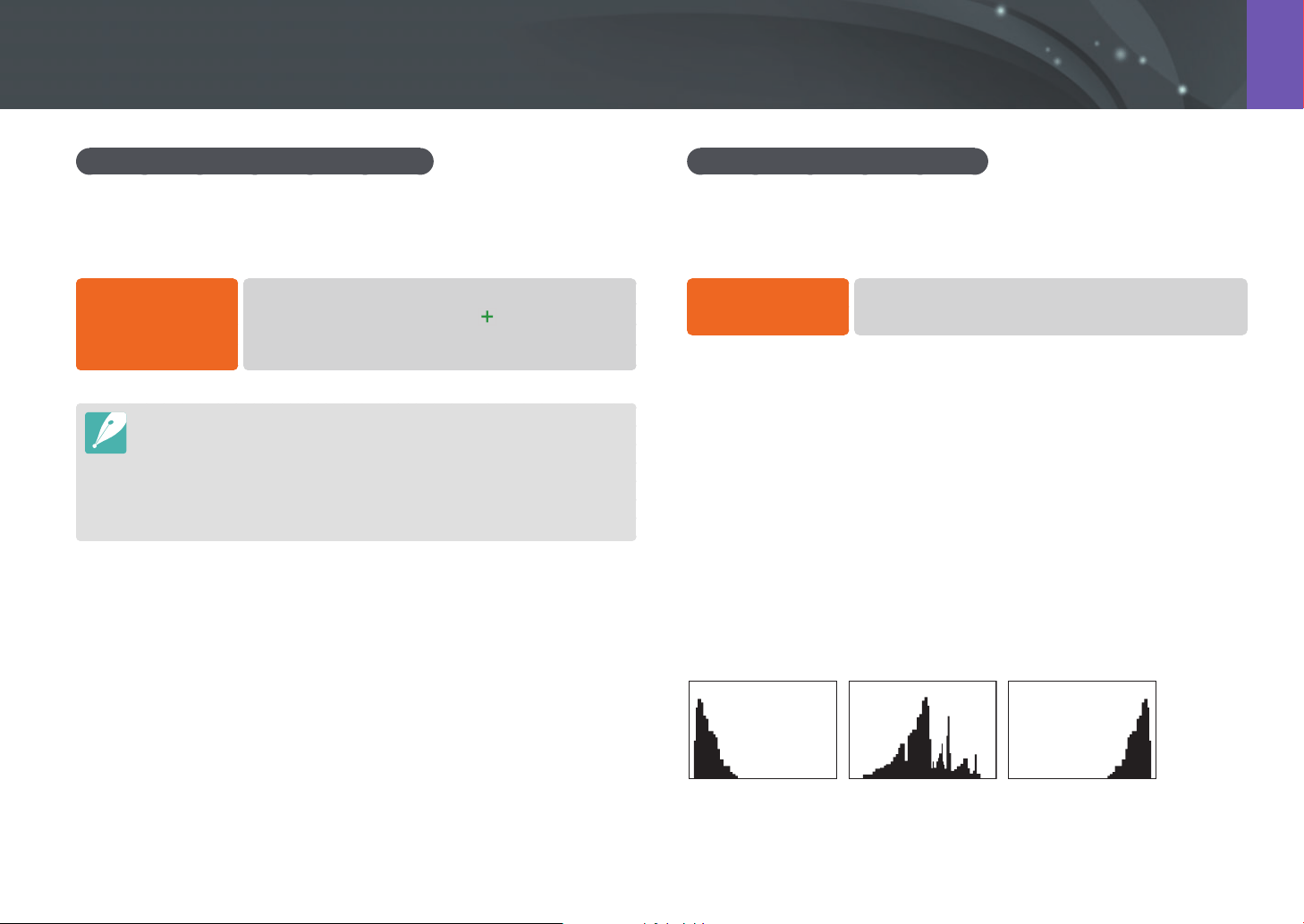
116
Shooting Functions > Exposure compensation
Using the brightness adjustment guide
Adjust the brightness using the selected area as a reference. The
brightness of the selected area is displayed as a value to help you to
conveniently adjust the brightness.
To adjust the
brightness,
In Shooting mode, press [m]
ĺ
b
ĺ
Brightness
Adjustment Guide
ĺ
On
ĺ
locate on the screen in the
reference area
ĺ
press [a]
ĺ
use command dials 1 and 2,
or [C/F], or drag the slider to adjust the brightness.
•
This feature is available only in Program, Aperture Priority, or Shutter Priority
mode.
•
This feature and the overexposure guide cannot be set at the same time.
•
This feature and the Dynamic Range HDR option cannot be set at the same
time.
•
This feature and the ash options cannot be set at the same time.
Viewing the overexposure guide
View overexposed areas on a photo in Shooting mode before capturing a
photo. Setting this feature will cause the overexposed areas of a photo to
blink.
To view the
overexposure guide,
In Shooting mode, press [m]
ĺ
b
ĺ
Overexposure
Guide
ĺ
an option.
Histogram
Set the histogram on the display on or o.
About histogram
A histogram is a graph that shows the brightness distribution of a photo.
A histogram inclined to the left indicates a dark photo. A histogram
inclined to the right indicates a bright photo. The height of the graph is
related to color information. The graph gets higher if a specic color is
more common.
Insucient exposure Balanced exposure Excessive exposure
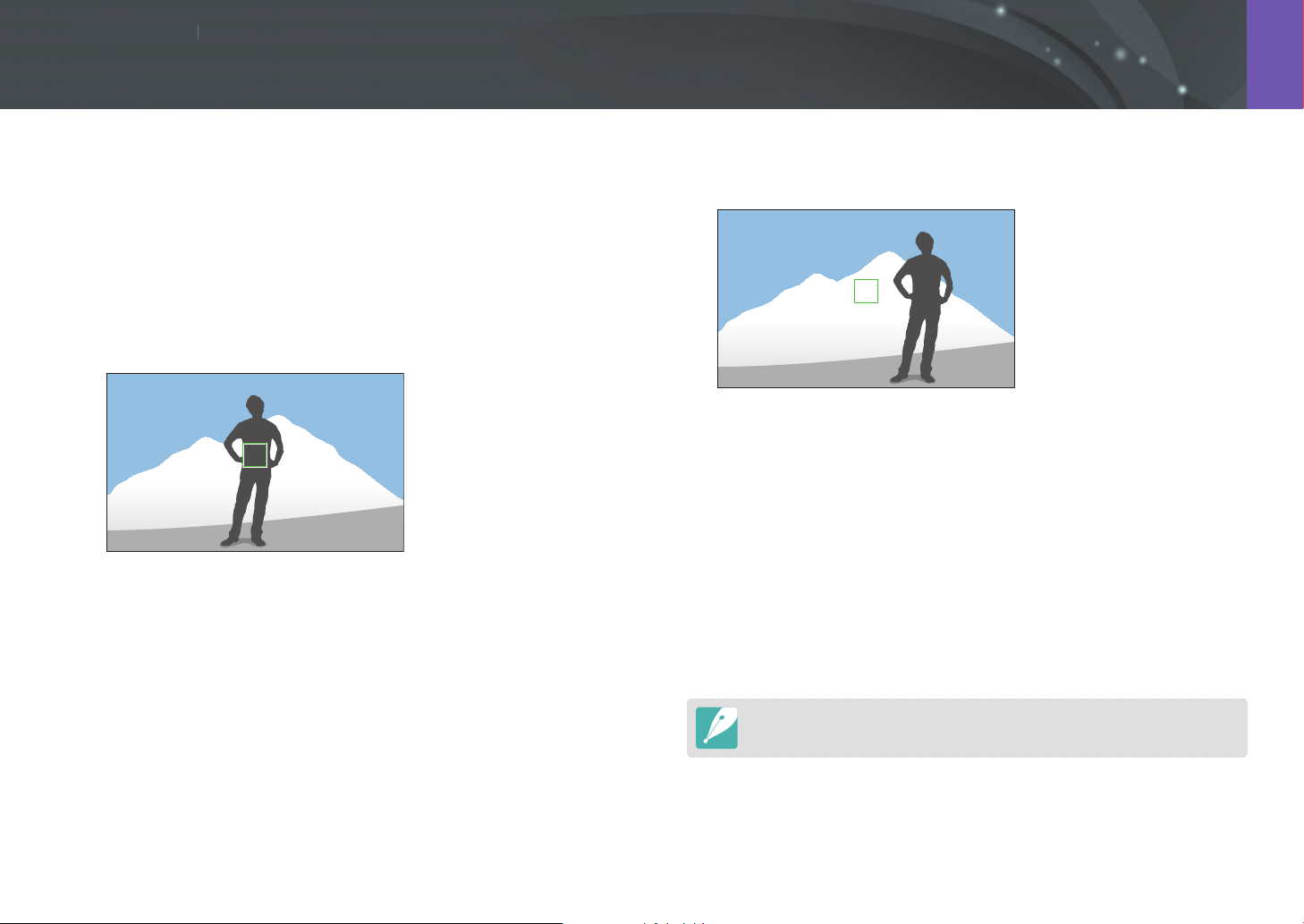
Shooting Functions
117117
S
h
ooting Function
s
Shooting Functions
If you cannot achieve an appropriate exposure because of a strong light/
dark contrast between the subject and the background, or you want to
capture a photo in which the subject is out of the auto focus area, lock the
focus or exposure and then capture a photo.
When the exposure lock function is assigned to [a] (example)
1
Set the focus frame and half-press [Shutter] to measure the
exposure.
2
Press [a] to lock the exposure.
3
Make changes to the composition after the exposure is locked.
4
Half-press [Shutter] to achieve focus, and then press [Shutter]
to take a photo.
When the focus lock function is assigned to [a] (example)
1
Set the focus frame and half-press [Shutter] to achieve focus.
2
Press [a] to lock the focus.
3
Make changes to the composition after the focus is locked.
4
Half-press [Shutter] to measure the exposure, and then press
[Shutter] to take a photo.
You can change the function assigned to [a] to focus lock, exposure lock, or
both. (p. 175)
Exposure/Focus lock
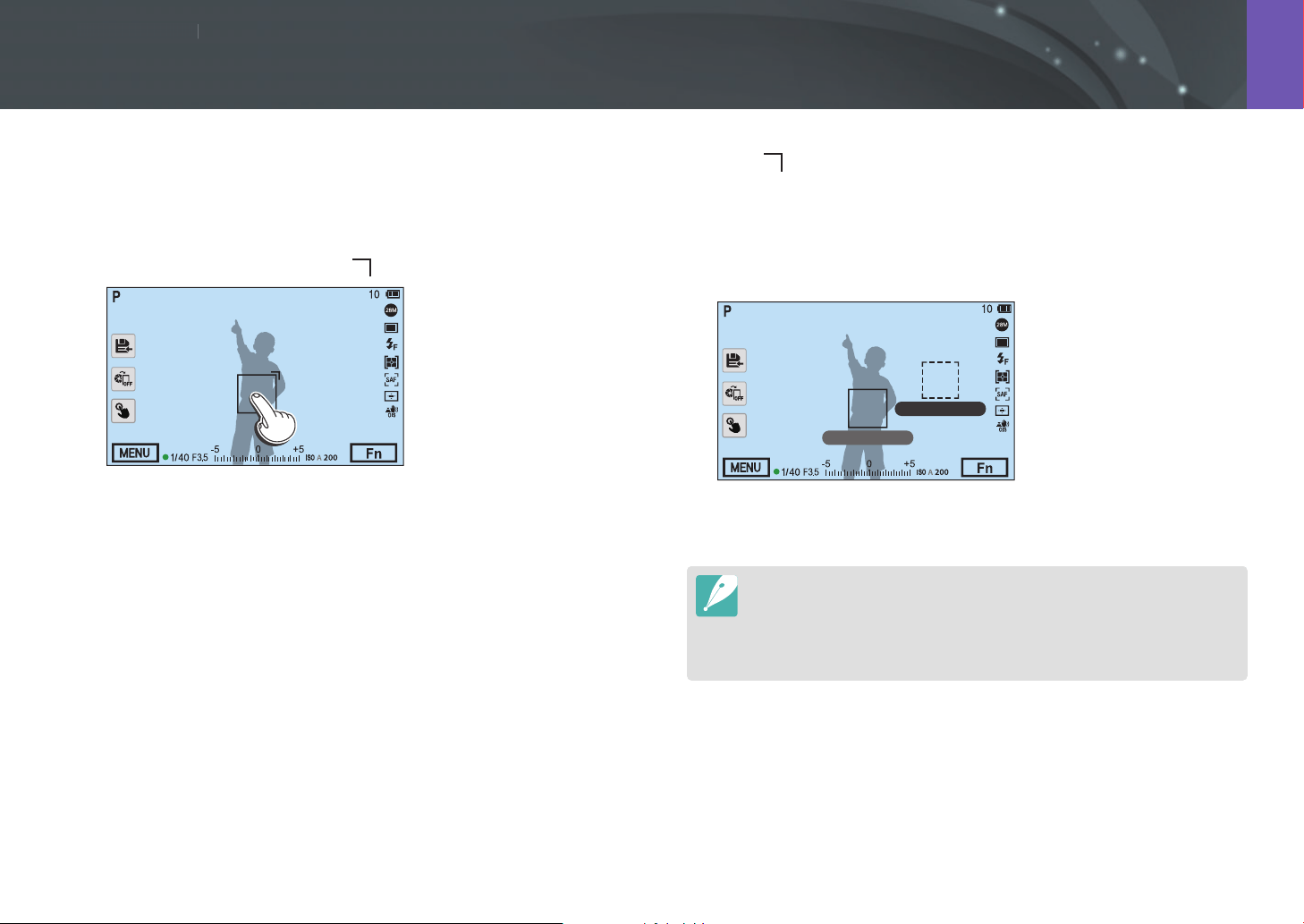
Shooting Functions
118118
S
h
ooting Function
s
Shooting Functions
Separate the exposure area and the focus area or merge them again. This
feature is available only when Touch AF is set to Touch AF.
1
On the screen, touch an area to focus on it.
•
The exposure separation icon will appear on the focus frame.
2
Drag to the exposure area.
•
The focus area and the exposure area will be separated.
•
Touch and hold each area to lock the focus or exposure setting.
•
Drag the areas together to merge the focus area and the exposure
area.
Exposure
Focus
3
Press [Shutter] to capture the photo.
•
If you press [a] while its function is set to AEL Hold, the exposure/focus
will not be separated.
•
You can set the Exposure/Focus Separation function On or O by pressing
[m]
ĺ
b
ĺ
Exposure/Focus Separation
ĺ
On or O in Shooting
mode.
Exposure/Focus separation
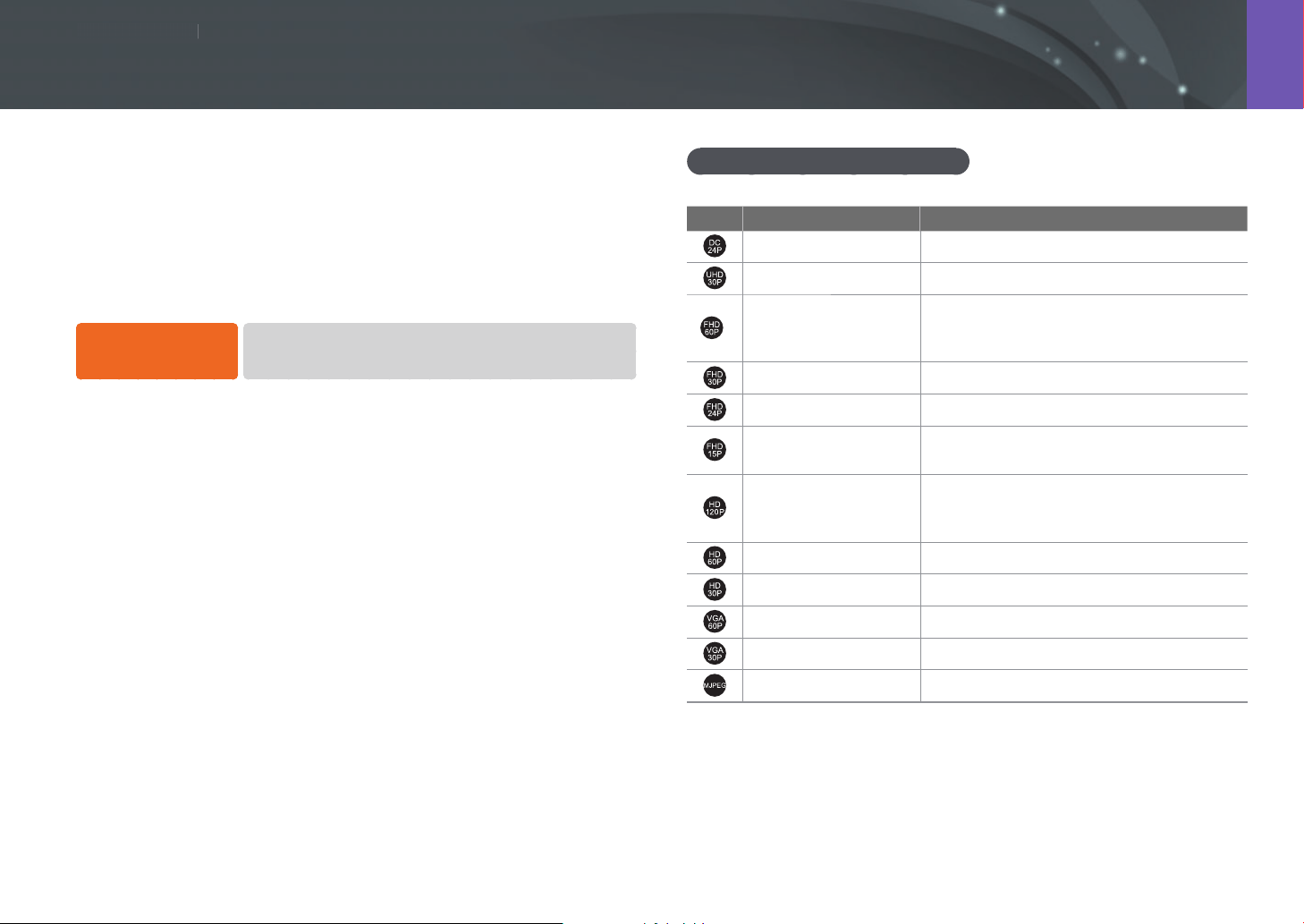
Shooting Functions
119119
S
h
ooting Function
s
Shooting Functions
The functions available for video are explained starting below.
Movie size
Set the movie size.
To set movie size
options,
In Shooting mode, press [m]
ĺ
g
ĺ
Movie Size
ĺ
an option.
When Video Out is set to NTSC
* Default
Icon Size Recommended for
4096X2160 (24p) View on a 4K UHDTV.
3840X2160 (30p) View on a 4K UHDTV.
*
1920X1080 (60p)
View on a Full HDTV. (Videos recorded with
this option may not play on some HDTVs or
smart phones that do not support 60p.)
1920X1080 (30p) View on a Full HDTV.
1920X1080 (24p) View on a Full HDTV.
1920X1080 (15p)
View on a Full HDTV. (Available only with
some Smart Filter options.)
1280X720 (120p)
View on an HDTV. (Videos recorded with
this option may not play on some HDTVs or
smart phones that do not support 120p.)
1280X720 (60p) View on an HDTV.
1280X720 (30p) View on an HDTV.
640X480 (60p) View on a TV.
640X480 (30p) View on a TV.
640X480 (MJPEG) View on a TV.
Video functions
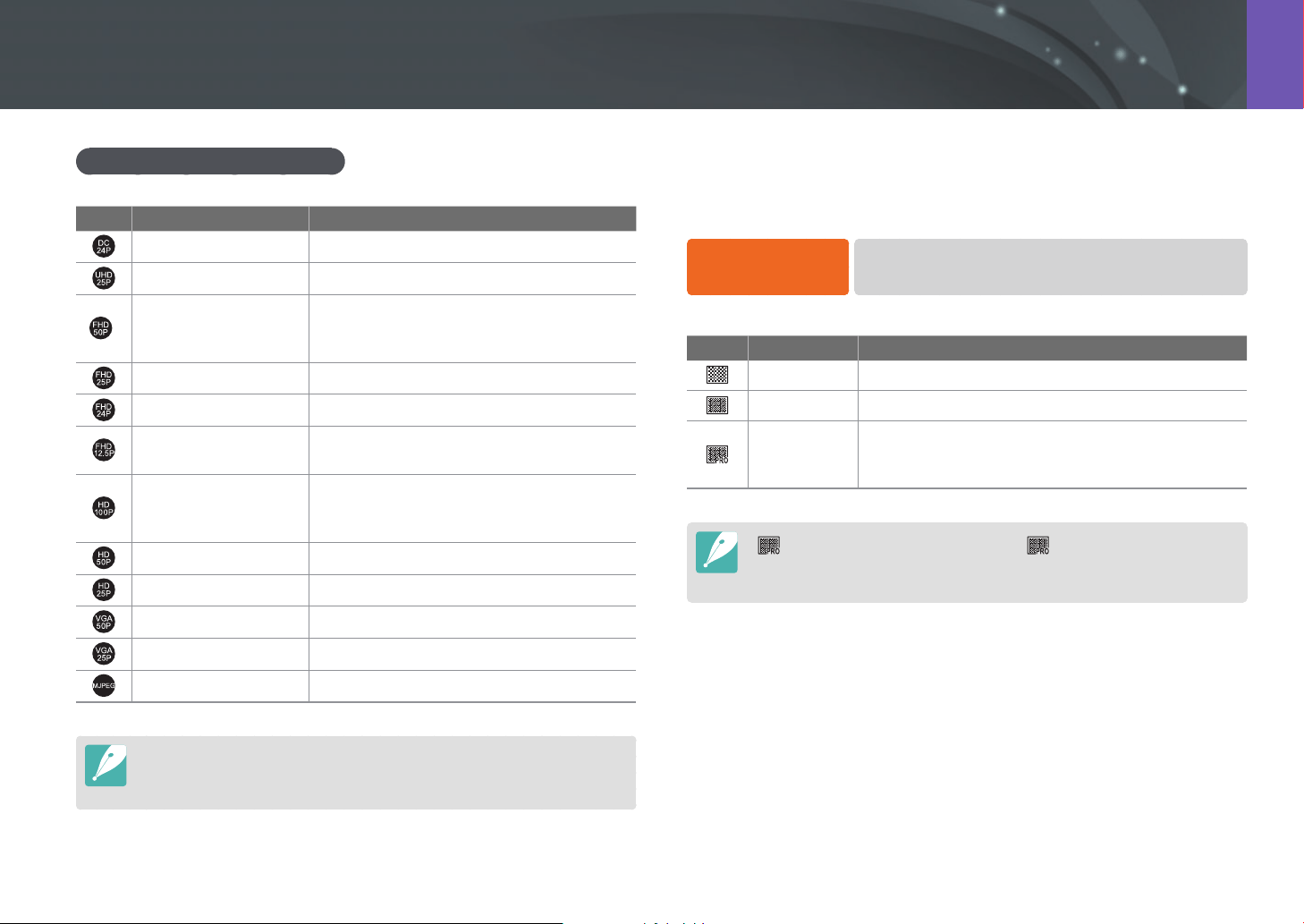
120
Shooting Functions > Video functions
When Video Out is set to PAL
* Default
Icon Size Recommended for
4096X2160 (24p) View on a 4K UHDTV.
3840X2160 (25p) View on a 4K UHDTV.
*
1920X1080 (50p)
View on a Full HDTV. (Videos recorded with
this option may not play on some HDTVs or
smart phones that do not support 50p.)
1920X1080 (25p) View on a Full HDTV.
1920X1080 (24p) View on a Full HDTV.
1920X1080 (12.5p)
View on a Full HDTV. (Available only with
some Smart Filter options.)
1280X720 (100p)
View on an HDTV. (Videos recorded with
this option may not play on some HDTVs or
smart phones that do not support 100p.)
1280X720 (50p) View on an HDTV.
1280X720 (25p) View on an HDTV.
640X480 (50p) View on a TV.
640X480 (25p) View on a TV.
640X480 (MJPEG) View on a TV.
If you select a video size of 4096X2160 or 3840X2160 and connect the camera to
an HDMI-supported TV via an HDMI cable, the video size is automatically set to
1920X1080 (30p).
Movie quality
Set the Movie quality.
To set movie quality
options,
In Shooting mode, press [m]
ĺ
g
ĺ
Movie Quality
ĺ
an option.
* Default
Icon Extension Description
HEVC, MP4 Normal: Record videos in normal quality.
HEVC, MP4 HQ*: Record videos in high quality.
HEVC, MP4
Pro: Record videos in ultra high quality. Available
only when the movie size is set to 1920X1080 or
higher.
is a format provided for editing. Video in may not play smoothly
depending on your computer‘s specications. We recommend you connect the
camera to a UHD TV with an HDMI cable to ensure the video plays smoothly.
121
Shooting Functions > Video functions
Bit rates for movie sizes
File format Movie Size Bit rate (Pro) Mbit/s Bit rate (HQ) Mbit/s Bit rate (Normal) Mbit/s Frame rate Sensor output
MP4
4K 4096X2160 70 40 32 24p 24p
UHD 3840X2160
70 40 32 30p 29.97p
70 40 32 25p 25.00p
FHD 1920X1080
70 37 19 60p 59.94p
70 37 19 50p 50.00p
60 25 13 30p 29.97p
60 25 13 25p 25.00p
60 25 13 24p 24.00p
HD 1280X720
- 30 15 120p 119.88p
- 30 15 100p 100p
- 19 9 60p 59.94p
- 19 9 50p 50.00p
- 13 6 30p 29.97p
- 13 6 25p 25.00p
VGA 640X480
- 7 3 60p 59.94p
- 7 3 50p 50.00p
- 4 2 30p 29.97p
- 4 2 25p 25.00p
AVI
VGA 640X480
- 13.8 11.1 30p 29.97p
- 11.5 9.2 25p 25.00p
* The bit rates above may vary depending on the shooting conditions.
* The bit rates above are based on HEVC codec.
122
Shooting Functions > Video functions
Fast/Slow Movie
Set the playing speed of a video.
To set playing speed
options,
In Shooting mode, press [m]
ĺ
g
ĺ
Fast/Slow Movie
ĺ
an option.
* Default
Icon Description
x0.25: Record a video to view it at 1/4 normal speed during
playback. Available only with 1280X720 (30p/25p), 640X480
(30p/25p).
x0.5: Record a video to view it at 1/2 normal speed during
playback. Available only with 1920X1080 (30p/25p), 1280X720
(60p/50p/30p/25p), 640X480 (60p/50p/30p/25p).
x1*: Record a video to view it at normal speed during playback.
x5: Record a video to view it at 5X normal speed during playback.
x10: Record a video to view it at 10X normal speed during
playback.
x20: Record a video to view it at 20X normal speed during
playback.
•
If you select an option other than x1, the sound recording function and the
Distortion Correct function will not be supported.
•
The available options may dier depending on shooting conditions.
AF Responsiveness
Set the delay time for the focus to automatically change during video
recording. When a new subject enters the frame, the camera shifts the
focus slowly if the responsiveness is set to low. If the responsiveness is set
to high, the camera shifts the focus quickly.
To adjust the AF
Responsiveness,
In Shooting mode, press [m]
ĺ
g
ĺ
AF
Responsiveness
ĺ
an option.
•
This function is available only when Fast/Slow Movie is set to x1.
•
This function is not available with the following lenses:
-
SAMSUNG 16mm F2.4
-
SAMSUNG 20mm F2.8
-
SAMSUNG 30mm F2
-
SAMSUNG 60mm F2.8 Macro ED OIS SSA
-
SAMSUNG 85mm F1.4 ED SSA
-
SAMSUNG 20-50mm F3.5-5.6 ED II
123
Shooting Functions > Video functions
Fader
Add dramatic eects to your videos. Set the fade in option to gradually
fade the video in at the start of a scene. Set the fade out option to
gradually fade the video out at the end of a scene.
To set fader options,
In Shooting mode, press [m]
ĺ
g
ĺ
Fader
ĺ
an option.
* Default
Icon Description
O*: The fader function is o.
In: Scene gradually fades in.
Out: Scene gradually fades out.
In-out: The fader function is applied at the start and end of the
scene.
When you use the fader function, it may take longer to save a le.
AF Shift Speed
Set how fast the auto focus function operates during video recording.
A fast shift speed is useful for capturing action shots, such as sporting
events. A slow shift speed enables smooth changes of focus depending on
the subject.
To adjust the AF Shift
Speed,
In Shooting mode, press [m]
ĺ
g
ĺ
AF Shift Speed
ĺ
an option.
•
This function is available only when Fast/Slow Movie is set to x1.
•
This function is not available with the following lenses:
-
SAMSUNG 16mm F2.4
-
SAMSUNG 20mm F2.8
-
SAMSUNG 30mm F2
-
SAMSUNG 60mm F2.8 Macro ED OIS SSA
-
SAMSUNG 85mm F1.4 ED SSA
-
SAMSUNG 20-50mm F3.5-5.6 ED II
124
Shooting Functions > Video functions
Voice
Sometimes, a muted video is more appealing than one with sound. Turn
Voice o to record a muted video.
To set voice options,
In Shooting mode, press [m]
ĺ
g
ĺ
Voice
ĺ
an option.
Wind Cut
When you record videos in noisy environments, unintended sounds can
be recorded in videos. In particular, severe wind noise can prevent you
from enjoying your videos. Use the Wind Cut function to remove some
surrounding noise in addition to wind noise.
To reduce wind
sound,
In Shooting mode, press [m]
ĺ
g
ĺ
Wind Cut
ĺ
an option.
Mic Level
Set a mic level appropriate for the shooting conditions.
To set the mic level,
In Shooting mode, press [m]
ĺ
g
ĺ
Mic Level
ĺ
scroll command dials 1 and 2 or press [C/F] to adjust the
mic level
ĺ
touch Set.
Smart Range+
Correct for the loss of bright or dark detail.
To set Smart Range+
options,
In Shooting mode, press [m]
ĺ
g
ĺ
Smart Range+
ĺ
an option.

Chapter 3
Playback/Editing
Learn about how to play back and edit photos and videos.
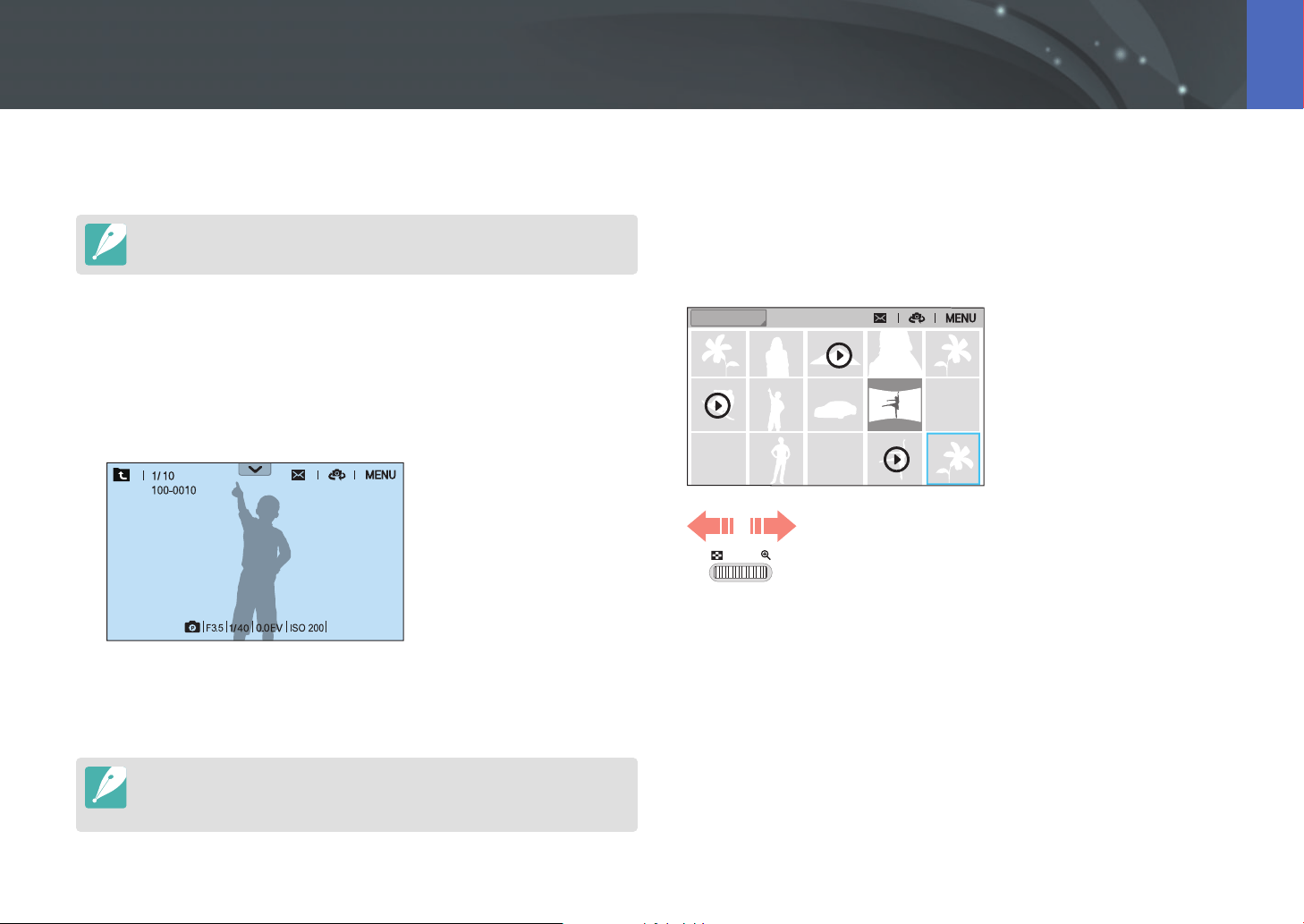
126
Playback/Editing
Learn how to view photo and video thumbnails and how to protect or
delete les.
If you perform no operations for a while, information and icons on the screen
disappear. When you press a button or touch the screen, they will reappear.
Viewing photos
1
Press [y].
•
The most recent le you captured will be displayed.
2
Scroll command dial 2 or press [C/F] to scroll through les.
•
You can also drag the image left or right to move to another le.
You will not be able to edit or play back les that were captured with other
cameras if the le format sizes or codecs are not supported by your NX500. Use a
computer or another device to edit or play back these les.
Viewing image thumbnails
To search for photos and videos, change to the thumbnail view. The
thumbnail view displays multiple images at a time so that you can easily
look for items you want to nd. You can also classify and display les by
category, such as date or le type.
All
Scroll command dial 1 to the left to select the thumbnail
view mode.
(Scroll command dial 1 to the right to return to the previous
mode.)
Searching and managing files
127
Playback/Editing > Searching and managing les
Viewing les by category
1
In the thumbnail view, press [m]
ĺ
z
ĺ
Filter
ĺ
a category.
•
You can also touch the current category name to open the option
list.
* Default
Option Description
All*
View les normally.
Date
View les by the date they were saved.
Type
View les by the le type.
2
Select a list to open it.
3
Select a le to view it.
4
Touch to return to the previous view.
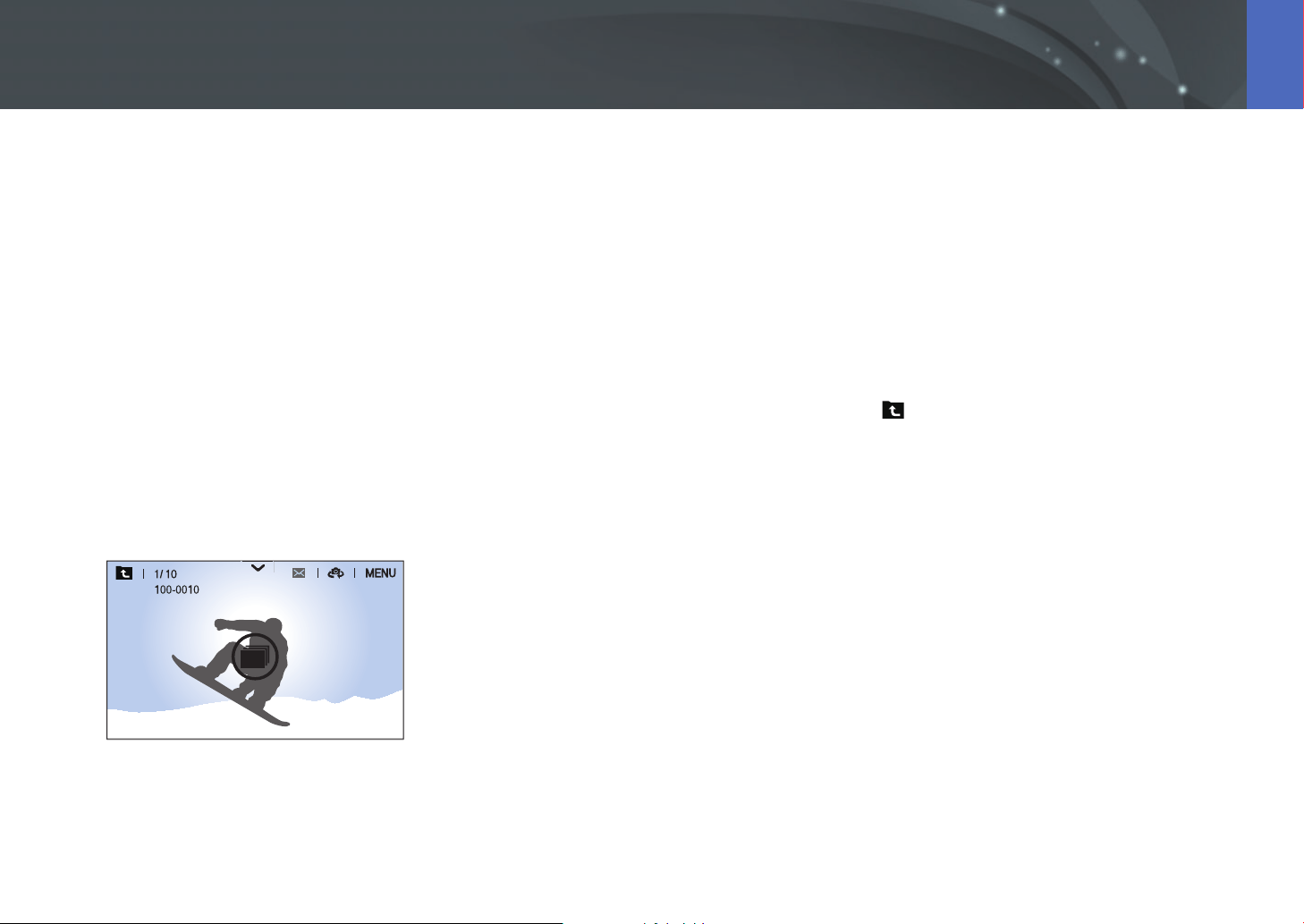
128
Playback/Editing > Searching and managing les
Viewing continuous and burst shots
View continuous and burst shots from a photo bundle. Select a photo
bundle to play back all photos in the bundle automatically. If you delete a
photo bundle, all photos in the photo bundle will be deleted. The photos
in a photo bundle are saved as an individual photo le on the memory
card; a separate folder is not created. You can choose to view continuous
shots as a bundle or view them separately.
1
In Playback mode, scroll command dial 2 or press [C/F] to
move to a desired photo bundle.
•
You can also drag the image left or right to move to a desired folder.
•
The camera will automatically play back photos in the photo
bundle.
•
Press [m]
ĺ
z
ĺ
View Continuous Shots
ĺ
Unfold to view
continuous shots separately.
2
Scroll command dial 1 to the right to open the photo bundle.
•
You can also touch the photo bundle on the screen or press [o] to
open the photo bundle.
3
Scroll command dial 2 or press [C/F] to scroll through les.
•
You can also drag the image left or right to move to another le.
4
Scroll command dial 1 to the left or press [o] to return to
Playback mode.
•
You can also touch to return to Playback mode.
129
Playback/Editing > Searching and managing les
Protecting les
Protect your les from accidental deletion.
1
In Playback mode, press [m]
ĺ
z
ĺ
Protect
ĺ
Multiple
Protect.
2
Scroll command dial 2 or press [C/F] to move to a le, and
then select the le by pressing [o].
3
Press [a].
•
You cannot delete or rotate a protected le.
•
You can directly protect a le in Playback mode by selecting a le, and then
pressing [a]. To unprotect the le, press [a] again.
•
Press [a] while a photo bundle is selected to protect all continuous shots
in the bundle.
Lock/Unlock all les
Lock or unlock all les.
1
In Playback mode, press [m]
ĺ
z
ĺ
Protect
ĺ
Protect All.
2
Select an option.
Option Description
Cancel
Return to the previous menu.
Unlock
Unlock all les.
Lock
Lock all les.

130
Playback/Editing > Searching and managing les
Deleting les
Delete les in Playback mode and secure more space on your memory
card. Protected les can be deleted once the protection is removed.
Deleting a single le
You can select a single le and delete it.
1
In Playback mode, select a le, and then press [n].
2
When the pop-up message appears, select Ye s .
Deleting multiple les
You can select multiple les and delete them.
1
In Playback mode, press [m]
ĺ
z
ĺ
Delete
ĺ
Multiple
Delete.
•
In thumbnail view, press [m]
ĺ
z
ĺ
Select Item.
•
Alternatively, in thumbnail view, press [n], and then select les to
delete.
2
Scroll command dial 2 or press [C/F] to move to a le, and
then select the le by pressing [o].
•
Press [o] again to cancel your selection.
3
Press [n].
4
When the pop-up message appears, select Ye s .
Deleting all les
You can delete all les on the memory card at once.
1
In Playback mode, press [m].
2
Select z
ĺ
Delete
ĺ
Delete All.
3
When the pop-up message appears, select Ye s .
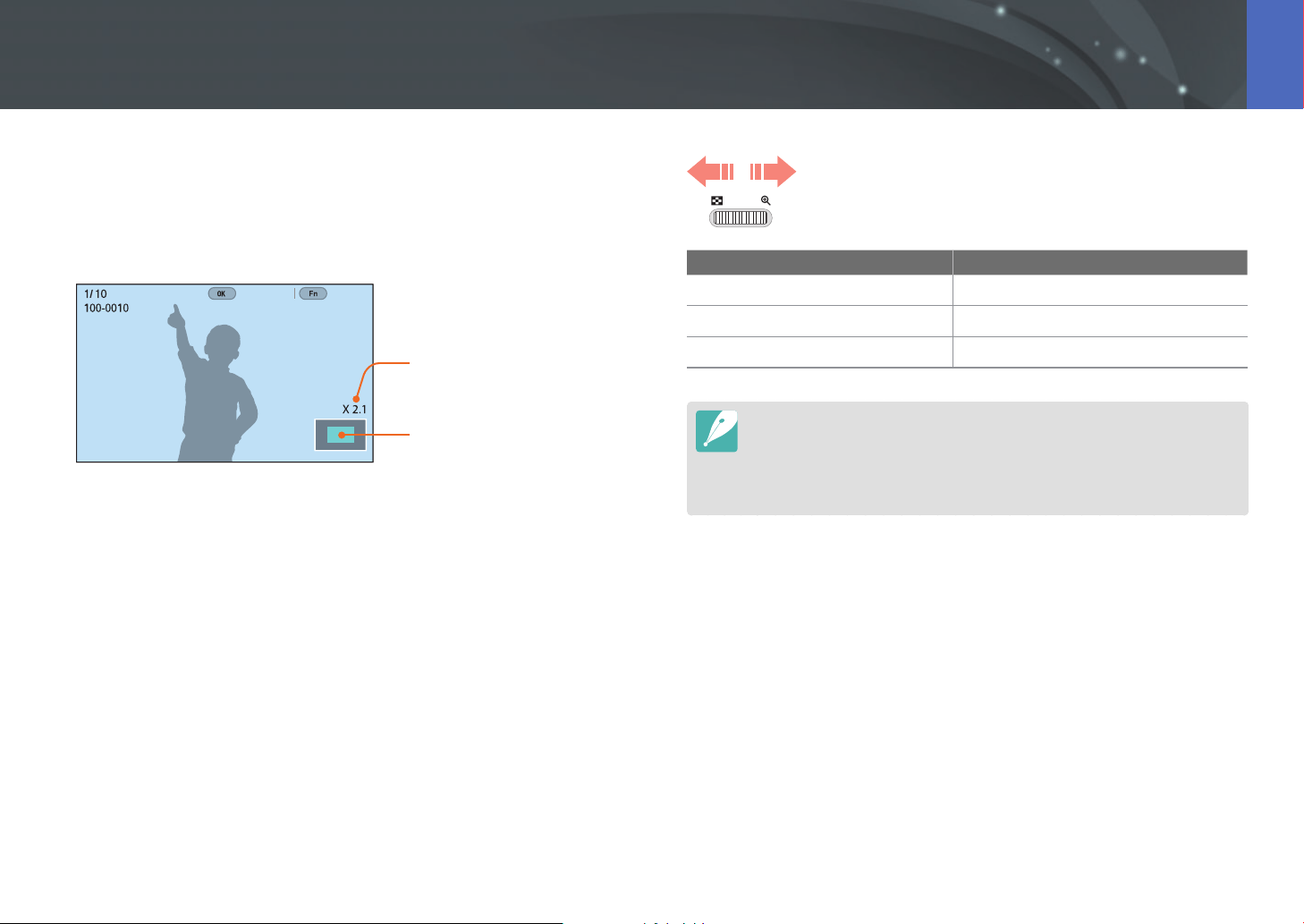
131
Playback/Editing
Enlarging a photo
You can enlarge photos when viewing them in Playback mode. You can
also use the Trim function to extract the portion of the image displayed on
the screen and save it as a new le.
Magnied area
Magnication (The maximum
magnication may dier by
resolution.)
Full Image
Crop
Scroll command dial 1 to the right to enlarge a photo.
(Scroll command dial 1 to the left to reduce a photo.)
To Do this
Move magnied area
Press [D/I/C/F].
Crop the enlarged image
Press [f]. (saved as a new le)
Return to the original image
Press [o].
•
You can also pinch your ngers together or spread them apart on the screen
to reduce or enlarge a photo. You can also double-tap an area to enlarge it
quickly.
•
You can scroll through les by scrolling command dial 2, even when a photo
is enlarged.
Viewing photos
132
Playback/Editing > Viewing photos
Viewing a slide show
You can view photos in a slide show and apply various eects.
1
In Playback mode, press [m].
2
Select z
ĺ
Slide Show Options.
3
Select a slide show eect option.
•
Skip to step 4 to start a slide show with no eects.
* Default
Option Description
Play Mode
Set to play a slide show once or repeatedly.
(One Play*, Repeat)
Interval
Set the interval between photos.
(1 sec*, 3 sec, 5 sec, 10 sec)
Eect
• Set a scene change eect between photos.
• Select O to cancel eects.
4
Press [m].
5
Select Start Slide Show.
6
View the slide show.
•
Press [o] to pause.
•
Press [o] again to resume.
•
Press [m] to stop the slide show and return to Playback mode.
133
Playback/Editing > Viewing photos
Viewing the overexposure guide
Make the overexposed areas in a photo blink.
To view the
overexposure guide,
In Playback mode, press [m]
ĺ
z
ĺ
Overexposure
Guide
ĺ
an option.
Viewing interval shots
View photos that are captured with the Interval Capture function.
To view interval
shots,
In Playback mode, press [m]
ĺ
z
ĺ
Play Interval
Shots.
Sorting les
Sort les by most recent or by oldest.
To set a sorting
option,
In Playback mode, press [m]
ĺ
z
ĺ
Sort by
ĺ
an option.
Auto rotating
With Auto Rotate on, the camera automatically rotates photos you have
captured vertically so they t the screen horizontally.
To set auto rotate
options,
In Playback mode, press [m]
ĺ
z
ĺ
Auto Rotate
ĺ
an option.
Converting to JPEG
Convert RAW les to JPG les.
To convert les,
In Playback mode, press [m]
ĺ
z
ĺ
Convert to JPG.
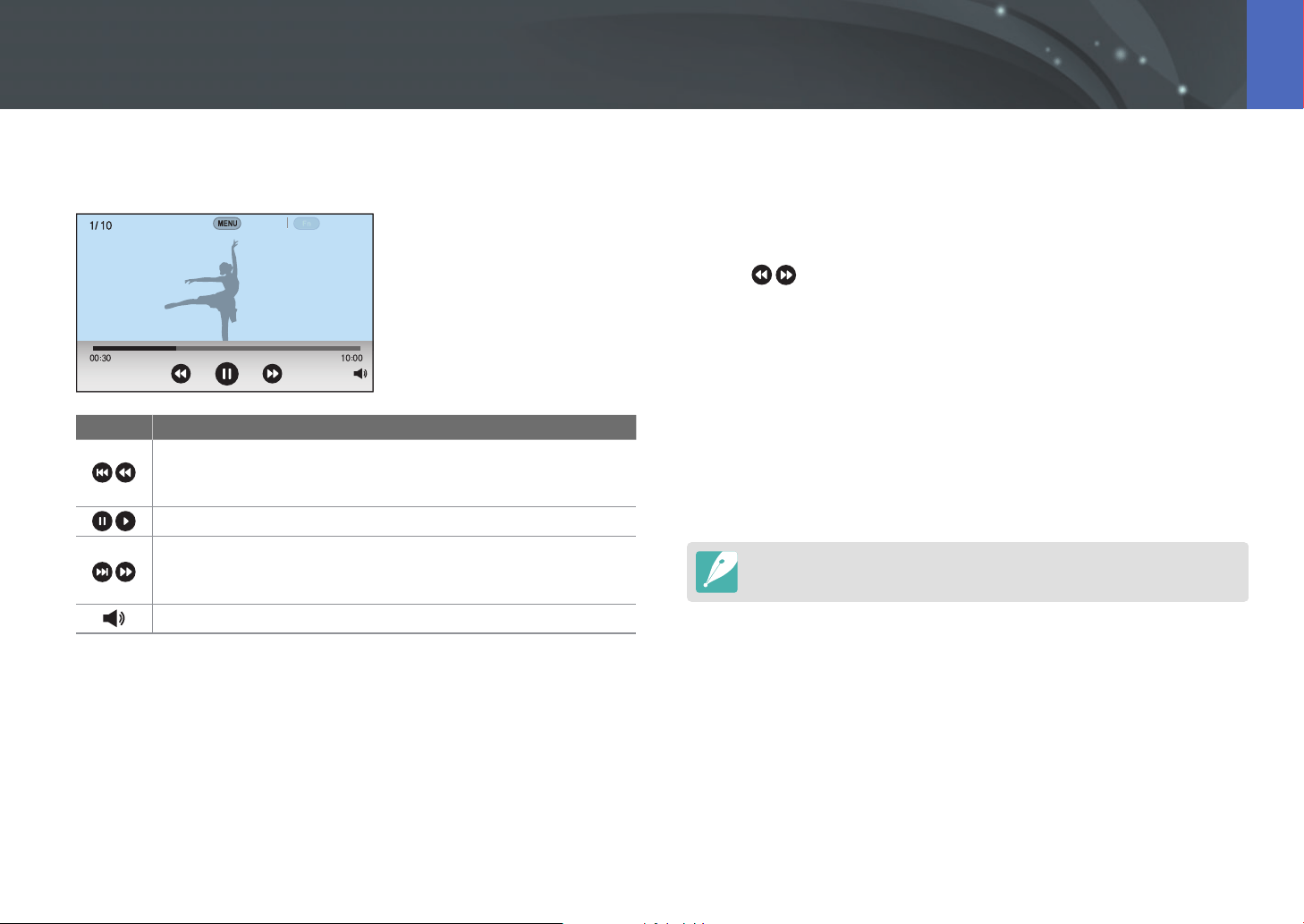
134
Playback/Editing
In Playback mode, you can play a video, capture an image from a video, or
crop a video to save as another le.
Stop
Capture
Icon Description
View previous le/Scan backward. (Each time you touch the icon
while playing a video, you change the scan speed in this order:
2X, 4X, 8X.)
Pause or resume playback.
View next le/Scan forward. (Each time you touch the icon while
playing a video, you change the scan speed in this order: 2X, 4X,
8X.)
Adjust the volume or mute the sound.
Scanning backward or forward
To scan backward or forward through a video le while it is playing, use
one of the following methods.
•
Touch . Each time you touch the icon, you change the scan speed
in this order: 2X, 4X, 8X.
•
Press [C/F]. Each time you press the button, you change the scan
speed in this order: 2X, 4X, 8X.
•
Scroll command dials 1 or 2 to the left or right. Each time you scroll
command dials 1 or 2, you change the scan speed in this order:
2X, 4X, 8X.
•
Drag the handles that appear on the progress bar to the left or right. You
can change the playback position in the video.
You can pause a video and scroll command dial 2 to scan back or forward in
single frame increments.
Playing videos
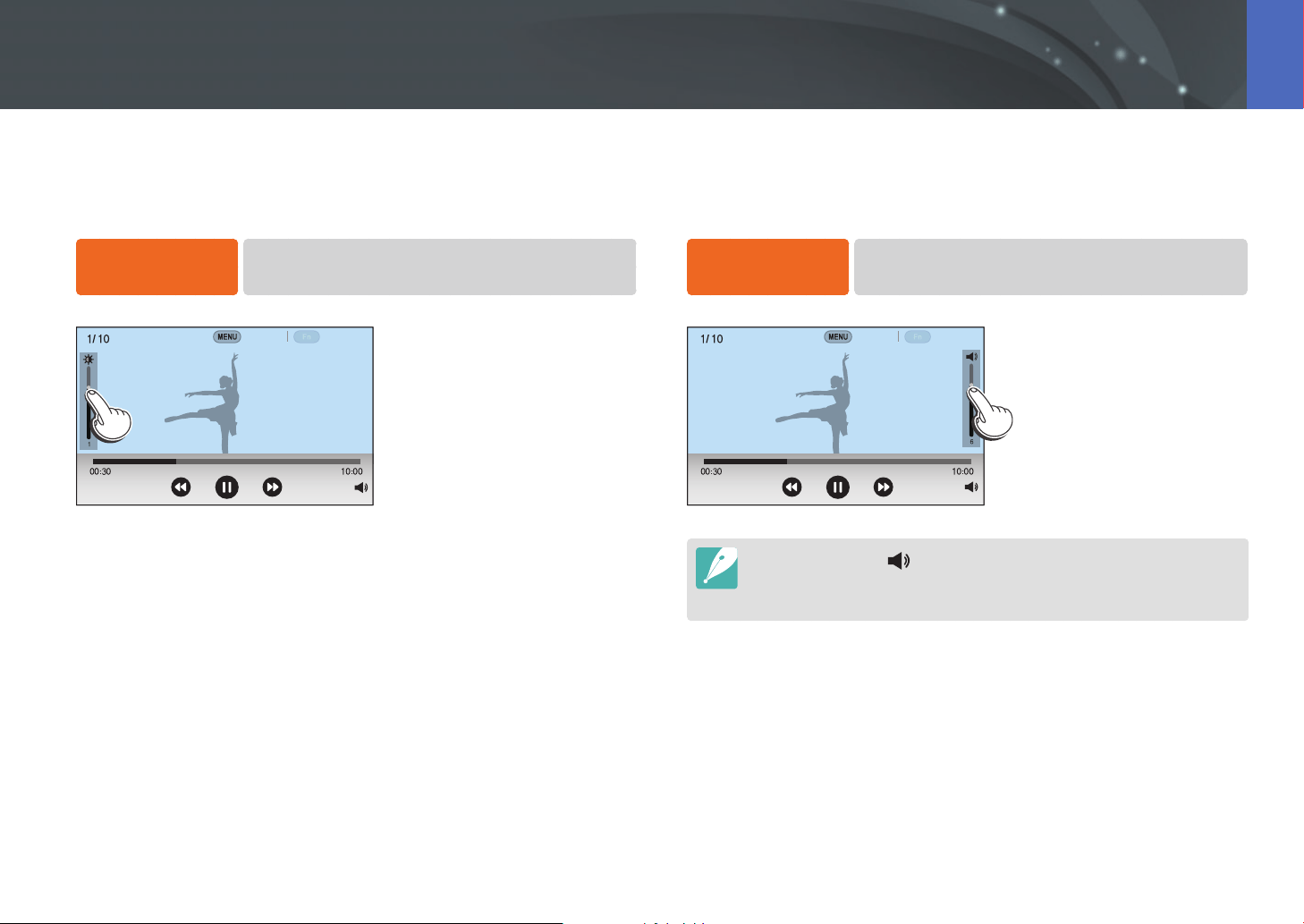
135
Playback/Editing > Playing videos
Adjusting the brightness of a video
Adjust the brightness of a video while playing it.
To adjust the
brightness of a video,
Touch the left half of the display
ĺ
drag upward or
downward.
Stop
Capture
Adjusting the volume of a video
Adjust the volume of a video while playing it.
To adjust the volume
of a video,
Touch the right half of the display
ĺ
drag upward or
downward.
Stop
Capture
•
You can also touch and drag the slider on the volume control bar upward
or downward.
•
You can also press [D/I] to adjust the volume of a video.
136
Playback/Editing > Playing videos
10
When the pop-up message appears, select Ye s .
•
You cannot trim a video recorded in 3D mode.
•
The original video should be at least 10 seconds long.
•
The camera will save the edited video as a new le and leave the original
video intact.
Capturing an image during playback
1
While viewing a video, press [o] or touch at the point
where you want to capture an image.
2
Press [f] or touch Capture.
•
You cannot capture an image from a video recorded in 3D mode.
•
The resolution of the captured image will be the same as the original video.
•
The captured image is saved as a new le.
Trimming a video during playback
1
In Playback mode, scroll to a video, and then press [m].
2
Select Trim Movie.
3
Press [o] or touch to start playing the video.
4
Press [o] or touch at the point where you want the
trimming to begin.
5
Press [f] or touch Start Point.
6
Press [o] or touch to resume playing the video.
7
Press [o] or touch at the point where you want the
trimming to end.
8
Press [f] or touch End Point.
9
Press [f] or touch Trim to trim a video.
•
You can adjust the scene to be cropped by dragging the handles
that appear on the progress bar.
137
Playback/Editing
Perform photo editing tasks, such as resizing or rotating. Edited photos
are saved as new les under dierent le names. Photos captured in some
modes cannot be edited with the Image Edit function.
To edit images,
In Playback mode, scroll to a photo, and then press [m]
ĺ
z
ĺ
Edit Image
ĺ
an option.
•
Some images cannot be edited with the Edit Image function. In this case, use
the supplied image editing software.
•
The camera will save edited photos as new les.
•
Edited photos may be converted to a lower resolution.
•
You cannot edit photos while viewing continuous shots from a photo bundle.
Open the photo bundle and select a photo to edit it.
Cropping a photo
1
Touch
ĺ
.
2
Drag the sides of the box to adjust the size of the crop area.
3
Drag the box to move the location of the crop area.
4
Press [o] or touch Done.
5
Touch to save.
Editing photos
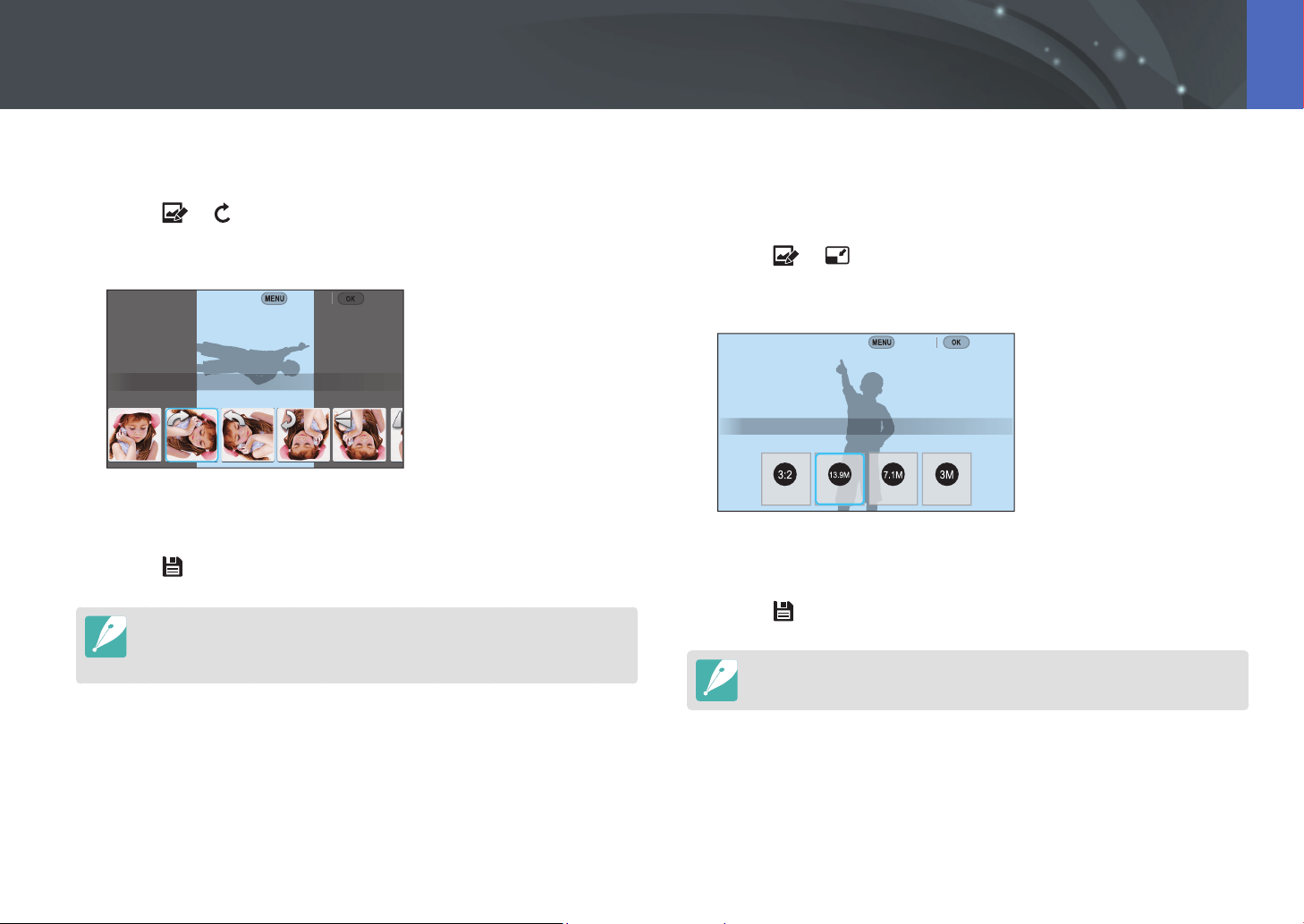
138
Playback/Editing > Editing photos
Rotating a photo
1
Touch
→
.
2
Touch an option.
Rotate : Right 90˚
Cancel Done
3
Press [o] or touch Done.
4
Touch to save.
•
You can also rotate a photo in Playback mode by pressing [m], and then
selecting z
→
Rotate
→
a desired option.
•
The camera will overwrite the original le.
Resizing photos
Change the size of a photo and save it as a new le.
1
Touch
→
.
2
Touch an option.
Resize : 13.9M (3:2)
Cancel Done
3
Press [o] or touch Done.
4
Touch to save.
Available resize options dier depending on the original size of the photo.
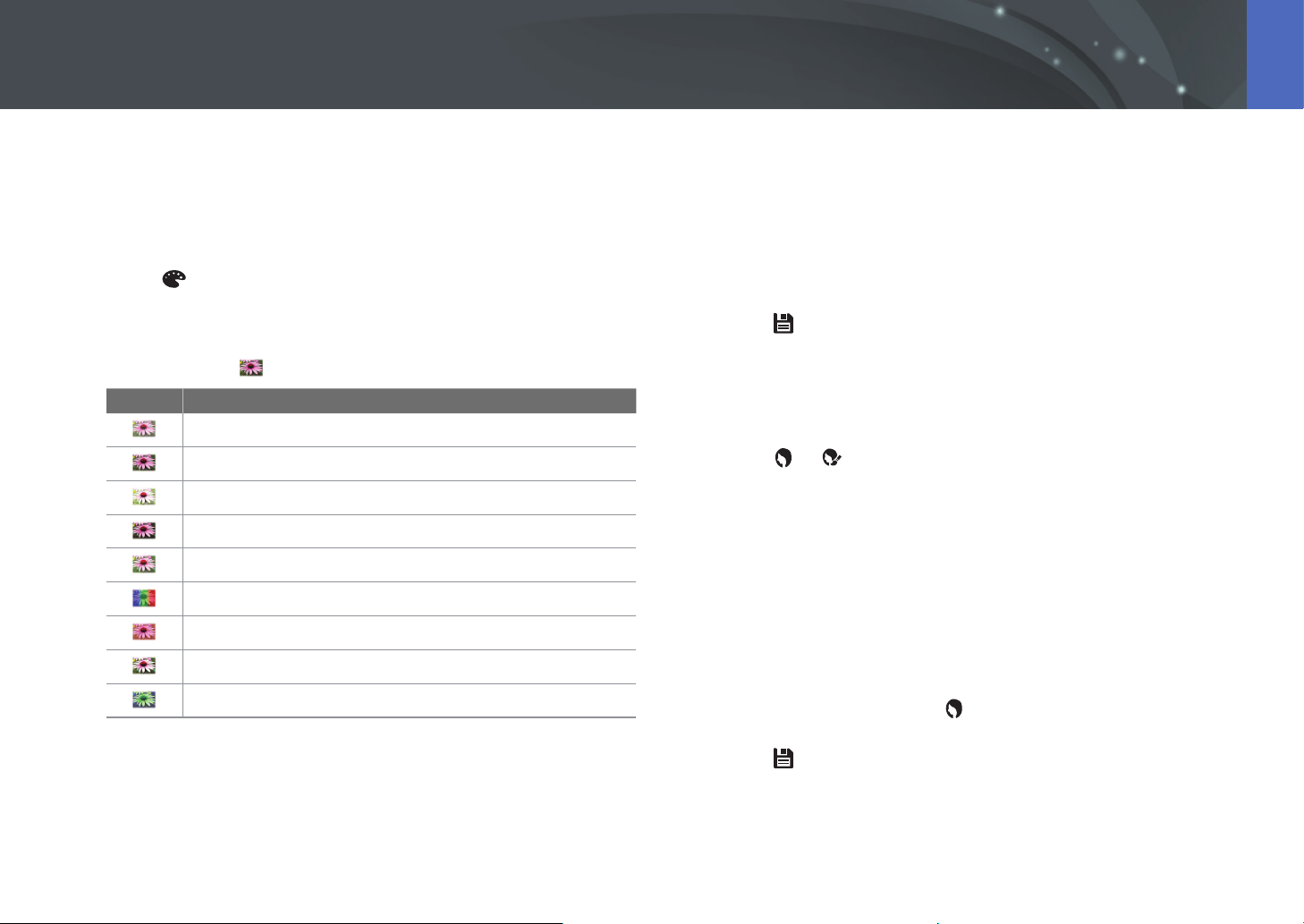
139
Playback/Editing > Editing photos
Adjusting your photos
You can correct captured photos by adjusting the brightness, contrast, or
color.
1
Touch .
2
Touch an adjusting option.
•
If you selected (Auto adjustment), skip to step 4.
Icon Description
Original (Reset to the original image.)
Auto adjustment
Brightness
Contrast
Saturation
RGB adjustment
Color Temperature
Exposure
Hue
3
Scroll command dial 1 or 2 or press [C/F] to adjust the
option.
•
You can also drag the slider or touch +/- to adjust the option.
4
Press [o] or touch Done.
5
Touch to save.
Retouching faces
1
Touch
→
.
2
Scroll command dial 1 or 2 or press [C/F] to adjust the
option.
•
You can also drag the slider or touch +/- to adjust the option.
•
As the number increases, the skin tone becomes brighter and
smoother.
3
Press [o] or touch Done.
•
To cancel correction, touch .
4
Touch to save.

140
Playback/Editing > Editing photos
Applying Smart Filter eects
Apply special eects to your photos.
1
Touch , and then touch an option.
Smart Filter : Vignetting
Cancel Done
Option Description
Original
No eect
Vignetting
Apply the retro-looking colors, high contrast, and
strong vignette eect of Lomo cameras.
Miniature (H)
Apply a tilt-shift eect to make the subject appear
in miniature. The top and bottom of the photo will
be blurred.
Miniature (V)
Apply a tilt-shift eect to make the subject appear
in miniature. The left and right of the photo will be
blurred.
Option Description
Watercolor
Apply a watercolor painting eect.
Red
Desaturate all colors but red.
Green
Desaturate all colors but green.
Blue
Desaturate all colors but blue.
Yellow
Desaturate all colors but yellow.
2
Press [o] or touch Done.
3
Touch to save.

Chapter 4
Connecting & Transferring
Learn how to share photos or videos and use various features.

142
Connecting & Transferring
Connecting to a smart phone
Using NFC features in Shooting mode
In Shooting mode, connect a camera and a smart phone by placing the
NFC antenna of one device near the NFC tag of the other. Press [R] or
turn on Samsung Camera Manager on the smart phone, and then launch
MobileLink, Remote Viewnder, Quick Transfer, or Pro Suggest Market.
(p. 144, 146, 149)
Using the NFC Feature
Place a smart phone’s NFC antenna near the camera’s NFC tag to connect
the camera to the smart phone. You can also transfer les to an NFC-
enabled device in Playback mode.
•
This feature is supported by NFC-enabled smart phones running the Android
OS. We recommend that you use the latest version. This feature is not
available for iOS devices.
•
You should install Samsung Camera Manager on your phone or device before
using this feature. Download and install Samsung Camera Manager Inst. from
the Google Play Store to install Samsung Camera Manager. Samsung Camera
Manager is supported by Android OS 4.2.2 or higher.
•
To read an NFC tag, place the NFC-enabled device near the camera’s NFC tag
for more than 2 seconds.
•
You can set the size for transferred photos by pressing [m], and then
selecting d
ĺ
MobileLink/NFC Image Size
ĺ
an option.
•
Do not modify the NFC tag in any way.

143
Connecting & Transferring > Connecting to a smart phone
Using the GPS Geo Tagging Feature
To save GPS information when you take a photo using the camera, connect
the camera and smart phone via Bluetooth. Then, activate the GPS feature
on the smart phone.
Using NFC features in Playback mode (Photo Beam)
In Playback mode, the camera transfers the current les to the smart
phone automatically when you place the two devices close to each other
while they are connected via Bluetooth.
•
To transfer multiple les, select les from the thumbnail view, and then
read a tag from an NFC-enabled device.
144
Connecting & Transferring > Connecting to a smart phone
Sending les to a smart phone
You can use the MobileLink feature to easily send photos to your smart
phone.
•
The MobileLink feature is supported by smart phones or tablets running the
Android OS or iOS. (Some features may not be supported by some models.)
Before using this feature, update the device’s rmware to the latest version.
If the rmware version is not the most recent, this function may not perform
properly.
•
You should install Samsung Camera Manager on your phone or device before
using this feature. Download and install Samsung Camera Manager Inst. from
the Google Play Store or the Apple App Store to install Samsung Camera
Manager. Samsung Camera Manager is supported by Android OS 4.2.2, iOS
6.1 or higher.
•
If there are no les in the camera‘s memory, you cannot use this feature.
•
You can view up to 1,000 recent les and send up to 1,000 les at a time.
•
When using this feature on an iOS device, the device may lose its Wi-Fi
connection.
•
You cannot send MJPEG les.
•
You cannot send videos to an iOS device.
•
RAW les are sent after being converted to JPEG format.
•
Video playback is not available on smart phones that do not support H.265
codecs.
•
You can set the size for transferred photos by pressing [m], and then
selecting d
ĺ
MobileLink/NFC Image Size
ĺ
an option.
•
The screen turns o if you perform no operations on the camera for
30 seconds.
•
You can also touch in Playback mode, and then select .
1
In Shooting mode, press [R].
•
You can also press and hold [R] to launch the MobileLink feature
directly.
2
Touch .
•
If the pop-up message that prompts you to download the
application appears, select Next.
•
If you use a Wi-Fi manual connection to connect the camera and a
smart phone, you can enable the Wi-Fi Privacy lock. (p. 183)
•
If you use a Wi-Fi manual connection to connect the camera and a
smart phone, the Bluetooth feature is not available.
3
On the smart phone, turn on Samsung Camera Manager.
•
To start the application automatically on an NFC-enabled smart
phone, turn on the function and place the smart phone near
the NFC tag (p. 32) on the camera. Verify that the smart phone is
connected to your camera, and then skip to step 6.
145
Connecting & Transferring > Connecting to a smart phone
4
Select the camera from the list on the smart phone.
•
The smart phone can connect to only one camera at a time.
•
If the Wi-Fi Privacy lock is enabled and Wi-Fi is connected, enter the
PIN displayed on the camera into the smart phone.
5
On the camera, allow the smart phone to connect to your
camera or conrm the registration request.
•
If the smart phone has been connected to your camera before, it is
connected automatically.
•
If the pop-up message that prompts you to set the auto time
setting appears, select Ye s to sync the camera’s date and time to
the smart phone’s. (p. 183)
6
Select les to transfer.
7
On the smart phone, touch .
•
The camera will send the les to the smart phone.
146
Connecting & Transferring > Connecting to a smart phone
1
In Shooting mode, press [R].
2
Touch .
•
If the pop-up message that prompts you to download the
application appears, select Next.
•
If you use a Wi-Fi manual connection to connect the camera and a
smart phone, you can enable the Wi-Fi Privacy lock. (p. 183)
•
If you use a Wi-Fi manual connection to connect the camera and a
smart phone, the Bluetooth feature is not available.
3
On the smart phone, turn on Samsung Camera Manager.
•
To start the application automatically on an NFC-enabled smart
phone, turn on the function and place the smart phone near
the NFC tag (p. 32) on the camera. Verify that the smart phone is
connected to your camera, and then skip to step 6.
4
Select the camera from the list on the smart phone.
•
The smart phone can connect to only one camera at a time.
•
If the Wi-Fi Privacy lock is enabled and Wi-Fi is connected, enter the
PIN displayed on the camera into the smart phone.
Controlling the camera remotely with a
smart phone
Use the Remote Viewnder feature on your smart phone to control your
camera and remotely capture a photo or record video.
•
The Remote Viewnder feature is supported by smart phones or tablets
running the Android OS or iOS. (Some features may not be supported by
some models.) Before using this feature, update the device’s rmware to the
latest version. If the rmware version is not the most recent, this function may
not perform properly.
•
You should install Samsung Camera Manager on your phone or device before
using this feature. Download and install Samsung Camera Manager Inst. from
the Google Play Store or the Apple App Store to install Samsung Camera
Manager. Samsung Camera Manager is supported by Android OS 4.2.2, iOS
6.1 or higher.
•
This function is not available when you attach a 3D lens in 3D mode.
147
Connecting & Transferring > Connecting to a smart phone
5
On the camera, allow the smart phone to connect to your
camera or conrm the registration request.
•
If the smart phone has been connected to your camera before, it is
connected automatically.
•
If the pop-up message that prompts you to set the auto time
setting appears, select Ye s to sync the camera’s date and time to
the smart phone’s. (p. 183)
6
On the smart phone, select q to open the smart panel.
7
On the smart phone, set the shooting options.
•
While using this feature, some buttons are not available on your
camera.
•
The zoom button and the shutter button on your smart phone will
not function when using this feature.
•
Some shooting options are not supported.
•
Shooting options that you have set will remain on the camera after
the connection with the smart phone has ended.
8
Touch to return to the shooting screen.
9
On the smart phone, touch and hold to focus, and then
release it to capture the photo.
•
Touch to record a video and touch to stop a video.
•
Touch to view the captured photo and send it to the smart
phone.
•
If the GPS feature is activated on the smart phone, the GPS
information will be saved with the captured photo.
•
When you use this feature, the ideal distance between the camera and the
smart phone may vary, depending on your surroundings.
•
The smart phone must be within 23 ft (7 m) of the camera to use this feature.
•
It will take some time to capture the photo after you release on the smart
phone.
•
The Remote Viewnder function will deactivate when:
-
You answer an incoming call on the iOS devices.
-
Either the camera or the smart phone turns o.
-
The device loses a Bluetooth or Wi-Fi connection.
-
The Bluetooth or Wi-Fi connection is poor or unstable.
-
You perform no operations for approximately 3 minutes while connected.
148
Connecting & Transferring > Connecting to a smart phone
Using a smart phone as a remote shutter
release
Use the Bluetooth Shutter function in Samsung Camera Manager on the
smart phone to use the smart phone as a remote shutter for the camera.
•
This feature is supported by smart phones running the Android OS. We
recommend that you use the latest version. This feature is not available for
iOS devices.
•
You should install Samsung Camera Manager on your phone or device before
using this feature. Download and install Samsung Camera Manager Inst. from
the Google Play Store to install Samsung Camera Manager. Samsung Camera
Manager is supported by Android OS 4.2.2 or higher.
1
Connect the camera and a smart phone via Bluetooth.
2
On the smart phone, turn on Samsung Camera Manager.
3
Select Bluetooth Shutter.
4
On the smart phone, touch to capture the photo.
•
Select Press and touch to capture a single photo each time you
touch
.
•
Select Press & Hold and touch to allow [Shutter] to remain
pressed. Press
again to release [Shutter]. When capturing
continuous shots or using the Bulb function, select Press & Hold
and touch
to capture photos for the desired time.
•
Touch to start recording a video and touch to stop a video.
•
The ideal distance for a Bluetooth connection between devices may vary,
depending on your surroundings and your smart phone.
•
The smart phone must be within 23 ft (7 m) of the camera to use this feature.
•
The Bluetooth Shutter function will deactivate when:
-
Either the camera or the smart phone turns o.
-
The device loses a Bluetooth connection.
-
The Bluetooth connection is poor or unstable.
149
Connecting & Transferring > Connecting to a smart phone
Saving les to a smart phone automatically
When you capture a photo with your camera, the photo is saved to a smart
phone automatically using the Quick Transfer feature.
•
The Quick Transfer feature is supported by smart phones or tablets running
the Android OS. (Some features may not be supported by some models.)
Before using this feature, update the device’s rmware to the latest version.
If the rmware version is not the most recent, this function may not perform
properly.
•
You should install Samsung Camera Manager on your phone or device before
using this feature. Download and install Samsung Camera Manager Inst. from
the Google Play Store to install Samsung Camera Manager. Samsung Camera
Manager is supported by Android OS 4.2.2 or higher.
•
If you set this function, the setting is maintained even when you change the
Shooting mode.
•
This feature may not be supported in some modes or may not be available
with some shooting options.
•
The Quick Transfer feature is only supported via a Bluetooth connection.
•
You cannot use the Quick Transfer feature if the camera is connected to a
smart phone that does not support Bluetooth via a Wi-Fi connection.
•
If a smart phone that does not support Bluetooth is registered to the camera,
you must delete it and register a smart phone that supports Bluetooth.
1
In Shooting mode, touch .
•
You can also press [R], and then select .
•
If the pop-up message that prompts you to download the
application appears, select Next.
2
On the smart phone, turn on Samsung Camera Manager.
•
To start the application automatically on an NFC-enabled smart
phone, turn on the function and place the smart phone near
the NFC tag (p. 32) on the camera. Verify that the smart phone is
connected to your camera, and then skip to step 5.
3
Select the camera from the list on the smart phone.
•
The smart phone can connect to only one camera at a time.
150
Connecting & Transferring > Connecting to a smart phone
4
On the camera, conrm the smart phone‘s registration
request.
•
If the smart phone has been connected to your camera before, it is
connected automatically.
•
The Quick Transfer icon on the camera’s screen will be changed to
an icon that shows the connection status (
).
•
If the pop-up message that prompts you to set the auto time
setting appears, select Ye s to sync the camera’s date and time to
the smart phone’s. (p. 183)
5
Capture a photo.
•
The captured photo is saved to the camera in its original size and
a preview image is transferred to the smart phone. To import the
original image from the camera to your smart phone, select the
preview image on your smart phone.
•
If you captured continuous photos, the rst captured photo is
transferred to the smart phone.
•
If the GPS feature is activated on the smart phone, the GPS
information will be saved with the captured photo.

151
Connecting & Transferring > Connecting to a smart phone
Downloading custom modes via a smart
phone
You can download various shooting settings (lm) to a smart phone and
share them with the camera using the Pro Suggest Market feature.
•
Pro Suggest Market is supported by smart phones or tablets running the
Android OS or iOS. (Some features may not be supported by some models.)
Before using this feature, update the device’s rmware to the latest version.
If the rmware version is not the most recent, this function may not perform
properly.
•
If you use an iOS device, Pro Suggest Market is supported on the device using
3G or LTE data.
•
You should install Samsung Camera Manager on your phone or device before
using this feature. Download and install Samsung Camera Manager Inst. from
the Google Play Store or the Apple App Store to install Samsung Camera
Manager. Samsung Camera Manager is supported by Android OS 4.2.2, iOS
6.1 or higher.
•
You cannot delete the four lms preloaded in the camera.
•
The custom mode saved on the camera is automatically shared to a smart
phone when the camera and a smart phone are connected.
•
Some of the shooting settings (lm) may not be supported on the camera.
1
In Shooting mode, press [R].
2
Touch .
•
If the pop-up message that prompts you to download the
application appears, select Next.
•
If you use a Wi-Fi manual connection to connect the camera and a
smart phone, you can enable the Wi-Fi Privacy lock. (p. 183)
•
If you use a Wi-Fi manual connection to connect the camera and a
smart phone, the Bluetooth feature is not available.
3
On the smart phone, turn on Samsung Camera Manager.
•
To start the application automatically on an NFC-enabled smart
phone, turn on the function and place the smart phone near
the NFC tag (p. 32) on the camera. Verify that the smart phone is
connected to your camera, and then skip to step 6.

152
Connecting & Transferring > Connecting to a smart phone
4
Select the camera from the list on the smart phone.
•
The smart phone can connect to only one camera at a time.
•
If the Wi-Fi Privacy lock is enabled and Wi-Fi is connected, enter the
PIN displayed on the camera to the smart phone.
5
On the camera, allow the smart phone to connect to your
camera or conrm the registration request.
•
If the smart phone has been connected to your camera before, it is
connected automatically.
•
If the pop-up message that prompts you to set the auto time
setting appears, select Ye s to sync the camera’s date and time to
the smart phone’s. (p. 183)
6
Select Pro Suggest Market.
7
Download a desired lm.
•
You must create your Samsung Account to download lms from Pro
Suggest Market.
•
Downloaded lms are saved to the camera as custom modes.
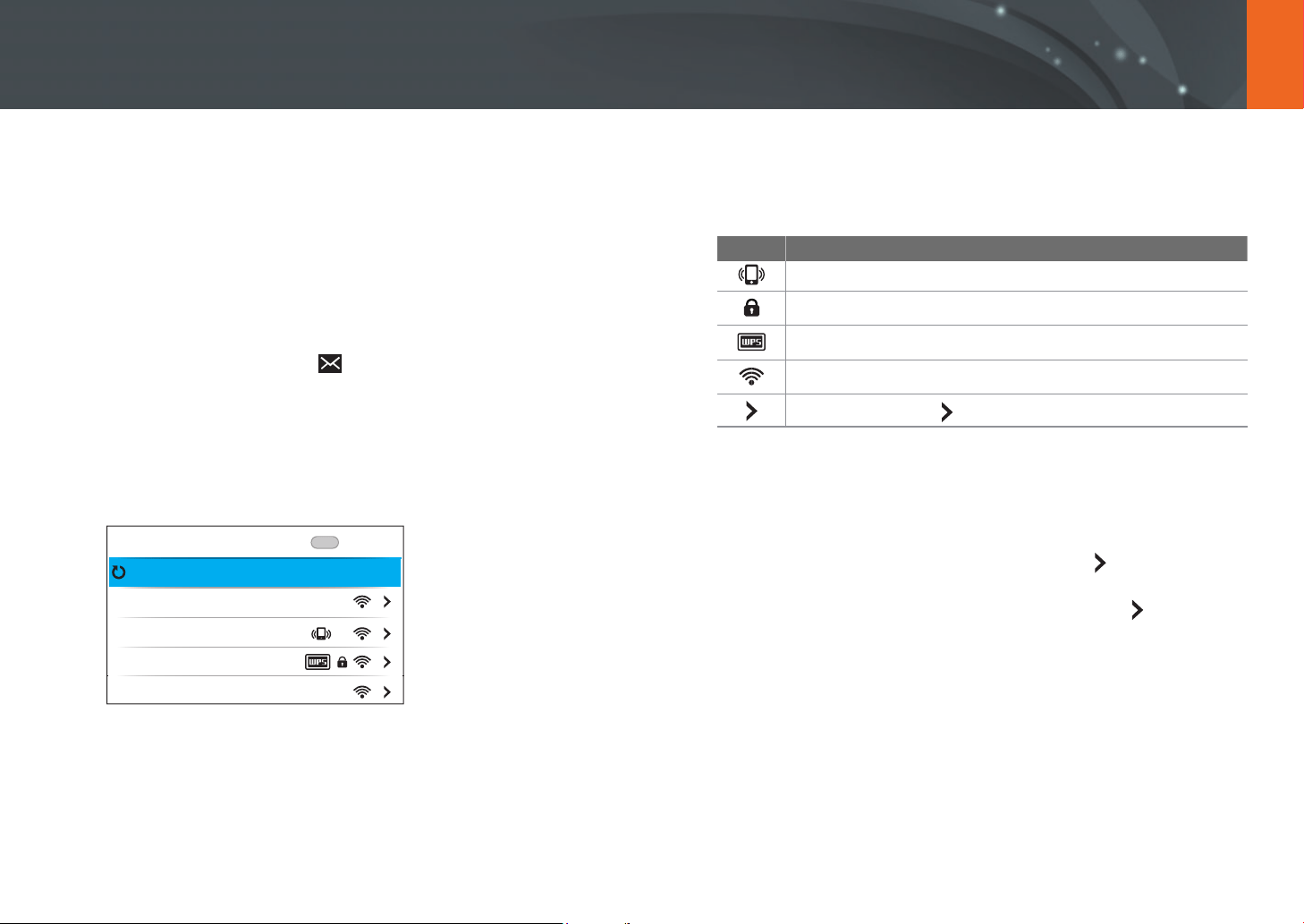
153
Connecting & Transferring
Sending photos via email
Connect to a network and send stored photos on the camera via email.
Connecting to a WLAN
Learn to connect via an access point (AP) when you are in a range of a
WLAN. You can also congure network settings.
1
In Playback mode, touch .
•
The camera automatically searches for available AP devices.
•
If a pop-up message about data collection regulations appears,
read and agree to it.
2
Select an AP.
Samsung1
Samsung2
Samsung3
Samsung4
Menu
Wi-Fi Setting
Refresh
Back
•
Select Refresh to refresh the list of connectable APs.
•
Select Add a wireless network to add an AP manually. When you
add an AP manually, the AP name must be in English.
Icon Description
Ad hoc AP
Secured AP
WPS AP
Signal strength
Press [F] or touch to open network setting options.
•
When you select a secured AP, a pop-up window appears. Enter the
required passwords to connect to the WLAN. For information about
entering text, refer to “Entering text“. (p. 156)
•
If you select an unsecured AP, the camera will connect to the WLAN.
•
If you select a WPS prole supported AP, select
ĺ
WPS PIN
connection, and then enter a PIN on the AP device. You can also
connect to a WPS prole supported AP by selecting
ĺ
WPS
button connection on the camera, and then pushing the WPS
button on the AP device.
154
Connecting & Transferring > Sending photos via email
Setting network options
1
In the Wi-Fi Setting screen, move to an AP, and then press [F]
or touch
.
2
Select each option, and then enter the required information.
Option Description
Network Password
Enter the network password.
IP Setting
Set the IP address automatically or manually.
Manually setting the IP address
1
In the Wi-Fi Setting screen, move to an AP, and then press [F]
or touch
.
2
Select IP Setting
ĺ
Manual.
3
Select each option, and then enter the required information.
Option Description
IP
Enter the static IP address.
Subnet Mask
Enter the subnet mask.
Gateway
Enter the gateway.
DNS Server
Enter the DNS address.

155
Connecting & Transferring > Sending photos via email
Network connection tips
•
You must insert a memory card to use the Wi-Fi features.
•
The quality of the network connection will be determined by the AP.
•
The further the distance between your camera and the AP, the longer it
will take to connect to the network.
•
If a nearby device is using the same radio frequency signal as your
camera, it may interrupt your connection.
•
If your AP name is not in English, the camera may not be able to locate
the device or the name may appear incorrectly.
•
For network settings or a password, contact your network administrator
or network service provider.
•
Depending on the encryption type, the number of digits in the password
may dier.
•
A WLAN connection may not be possible in all surroundings.
•
The camera may display a WLAN enabled printer on the AP List. You
cannot connect to a network via a printer.
•
You cannot connect your camera to a network and a TV simultaneously.
•
Connecting to a network may incur additional charges. Costs will vary
based on the conditions in your contract.
•
If you cannot connect to a WLAN, try another AP from the available AP
list.
•
Available network connections may dier by country.
•
The WLAN feature of your camera must comply with radio transmission
laws in your region. To ensure compliance, use the WLAN feature only in
the country where you purchased the camera.
•
The process for adjusting network settings may dier, depending on
network conditions.
•
Do not access a network that you are not authorized to use.
•
Before you connect to a network, ensure your battery is fully charged.
•
Files that you transfer to another device may not be supported by the
device. In this case, use a computer to play back the les.
•
Network speed may dier depending on the Wi-Fi specication
supported by the AP.
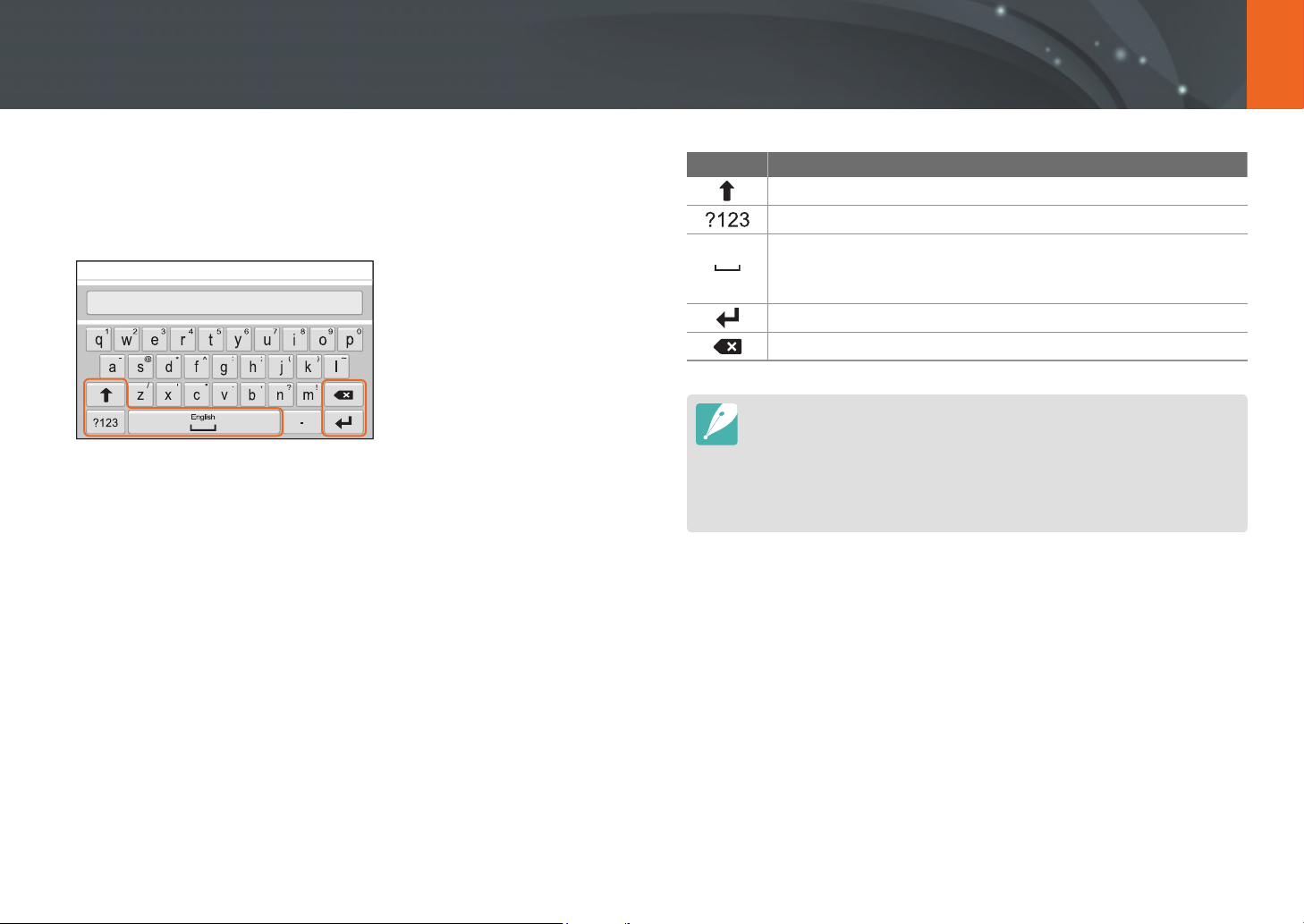
156
Connecting & Transferring > Sending photos via email
Entering text
Learn how to enter text. The icons in the table let you move the cursor,
change the case, etc. Touch a key to enter it.
Icon Description
Change case.
Switch between Symbol/Number mode and the normal mode.
• Touch to enter a space.
• Change the input language by dragging it to the left or the
right.
Save the displayed text.
Delete the last letter.
•
You can use only the English alphabet in some modes, regardless of the
display language.
•
The number of characters you can enter varies depending on the situation.
•
The screen may dier depending on the input mode.
•
Touch and hold a key to enter the character at the upper right corner of the
key.
157
Connecting & Transferring > Sending photos via email
Sending photos via email
You can send photos stored on the camera via email. For information
about entering text, refer to “Entering text“. (p. 156)
1
In Playback mode, touch .
•
In thumbnail view, select
ĺ
a le, and then press [f]. You can
select up to 5 les. The total size must be 7 MB or less.
2
Connect to a WLAN. (p. 153)
3
Select the Sender box, enter your email address, and then
touch
.
•
If you have previously saved your information, it will be inserted
automatically. (p. 158)
•
To use an address from the list of previous senders, select
ĺ
an address.
4
Select the Receiver box, enter an email address, and then
touch
.
•
To use an address from the list of previous recipients, select
ĺ
an address.
•
Select to add additional recipients. You can input up to
30 recipients.
•
Select to delete an address from the list.
5
Select Next.
6
Select the comment box, enter your comments, and then
touch
.
7
Select Send.
•
The camera will send the email.
•
If an email fails to send, a message prompting you to send it again
appears.

158
Connecting & Transferring > Sending photos via email
•
Even if a photo appears to have transferred successfully, errors with the
recipient’s email account may cause the photo to be rejected or recognized
as spam.
•
You may not be able to send an email if no network connection is available or
if your email account settings are incorrect.
•
You cannot send an email if the combined le sizes exceed the 7 MB. If the
selected photo has a resolution higher than 2M, it will be automatically
resized to a lower resolution.
•
If you cannot send an email because of rewall or user authentication
settings, contact your network administrator or network service provider.
•
If there are no les in the camera‘s memory, you cannot use this feature.
Storing a sender’s information
In the email menu, you can change settings for storing a sender’s
information. For information about entering text, refer to “Entering text“.
(p. 156)
1
In Playback mode, touch .
•
The camera will automatically attempt to connect to a WLAN via
the most recently connected AP device.
•
If the camera has not previously been connected to a WLAN, it will
search for available AP devices. (p. 153)
2
Press [f].
3
Select Sender Setting.
4
Select the Name box, enter your name, and then touch .
Sender Setting
Back
Name
Save
Email
Reset
159
Connecting & Transferring > Sending photos via email
5
Select the Email box, enter your email address, and then
touch
.
6
Select Save to save your changes.
•
To delete your information, select Reset.
Setting an email password
In the email menu, you can set the email password. For information about
entering text, refer to “Entering text“. (p. 156)
1
In Playback mode, touch .
•
The camera will automatically attempt to connect to a WLAN via
the most recently connected AP device.
•
If the camera has not previously been connected to a WLAN, it will
search for available AP devices. (p. 153)
2
Press [f].
3
Select Setting Password
ĺ
On.
•
To deactivate the password, select O.
4
When the pop-up appears, select OK.
5
Enter a 4-digit password.
6
Enter the password again.
7
When the pop-up appears, select OK.
If you lose your password, you can reset it by selecting Reset on the password
setting screen. When you reset the information, the previously saved user’s
setting information and email address will be deleted.
160
Connecting & Transferring > Sending photos via email
Changing the email password
In the email menu, you can change the email password. For information
about entering text, refer to “Entering text“. (p. 156)
1
In Playback mode, touch .
•
The camera will automatically attempt to connect to a WLAN via
the most recently connected AP device.
•
If the camera has not previously been connected to a WLAN, it will
search for available AP devices. (p. 153)
2
Press [f].
3
Select Change Password.
4
Enter your current 4-digit password.
5
Enter a new 4-digit password.
6
Enter the new password again.
7
When the pop-up appears, select OK.
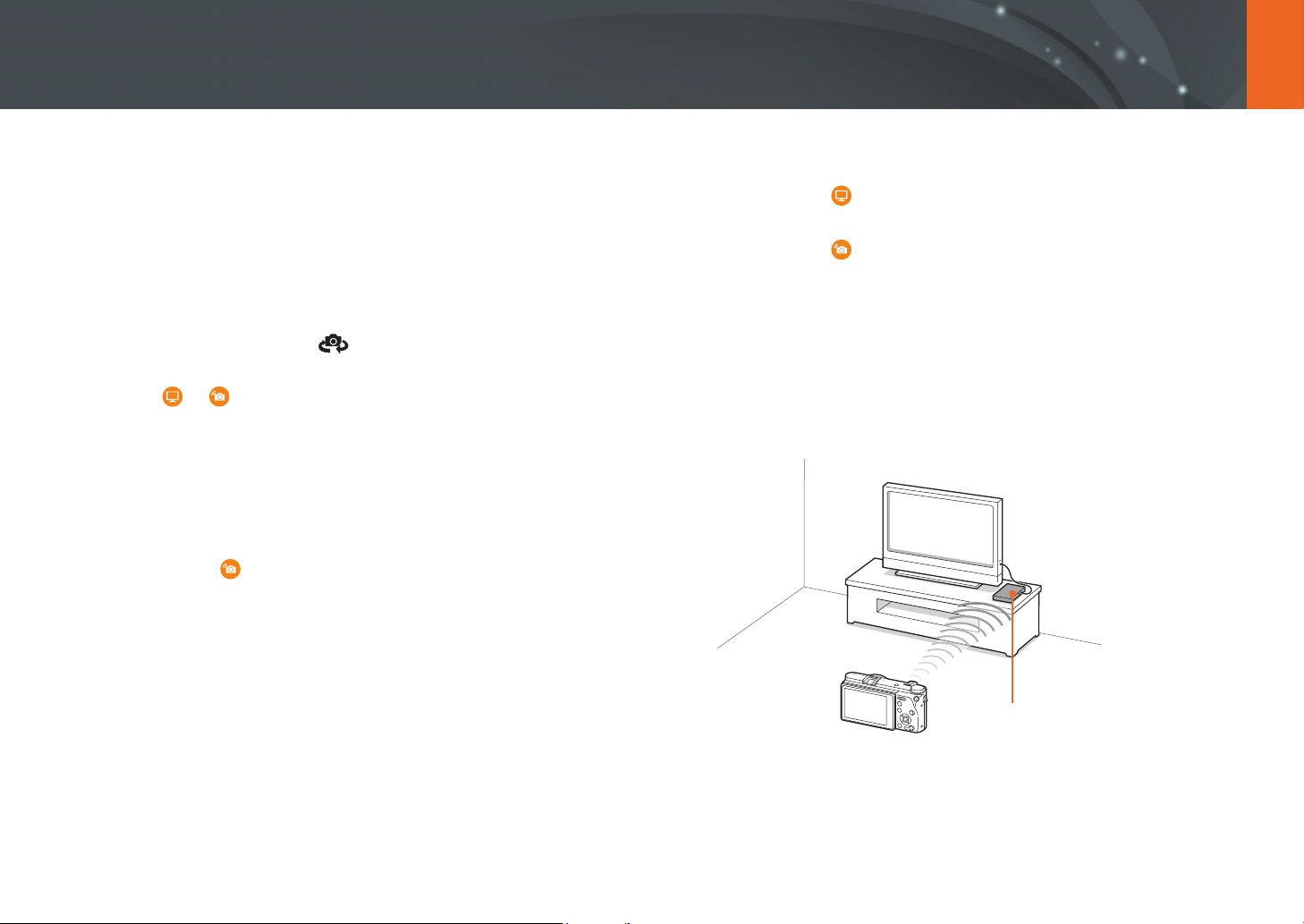
161
Connecting & Transferring
Viewing photos or videos on a TV
Use the Wi-Fi feature or USB cable to play back les from the camera on a
TV. To use the Wi-Fi feature and connect the camera wirelessly, the TV must
support home networking functions.
Connecting wirelessly
1
In Playback mode, touch .
2
Select or .
•
If the guide message appears, select OK.
•
The camera will automatically attempt to connect to a WLAN via
the most recently connected AP device.
•
If the camera has not previously been connected to a WLAN, it will
search for available AP devices. (p. 153)
•
If you select , a list of les that can be shared with the TV is
displayed on the camera. Wait until other devices detect your
camera.
3
Connect your TV to a network, and then activate the
corresponding feature.
•
Refer to the TV’s user manual for more information.
4
Connect the camera to the TV.
•
If you select , choose a TV to connect to from the list on the
camera.
•
If you select , enable the TV, and then choose your camera from
the list on the TV to connect to it.
5
Browse the shared photos or videos.
•
For information about searching for the camera and browsing the
photos or videos on your TV, refer to the TV’s user manual.
•
Videos may not play smoothly depending on the type of your TV or
the network condition.
AP
Ÿ
The camera is connected to a TV via a wireless network.
162
Connecting & Transferring > Viewing photos or videos on a TV
•
You can share up to 1,000 recent les.
•
On the TV, you can view only photos or videos captured with your camera.
•
The range of the wireless connection between your camera and a TV may
vary depending on the specications of the AP.
•
If the camera is connected to two TVs, playback may be slower.
•
Photos or videos will be shared in their original sizes.
•
You can only use this feature with a TV that supports home networking
features.
•
Shared photos or videos will not be stored on the TV, but they can be stored
in the camera to meet the TV’s specications.
•
Transferring photos or videos to the TV may take some time depending on
the network connection, the number of les to be shared, or the sizes of the
les.
•
If you power o the camera abnormally while viewing photos or videos on a
TV (for example, by removing the battery), the TV considers the camera to still
be connected.
•
The order of photos or videos on the camera may be dierent than on the TV.
•
Depending on the number and sizes of photos or videos you want to share, it
may take some time to load your les and complete the initial set-up process.
•
While viewing photos or videos on the TV, continuously using the TV’s remote
or performing additional operations on the TV may prevent this feature from
working properly.
•
If you reorder or sort les on the camera while viewing them on a TV, you
must repeat the initial set-up process to update the list of les on the TV.
•
If there are no les in the camera‘s memory, you cannot use this feature.
•
We recommend you use a network cable to connect your TV to your AP. This
will minimize any video ’stuttering’ you may experience when streaming
content.
•
If a nearby device is using the same radio frequency as your camera, the video
may stutter when streaming content. We recommend you try other channels
on the AP. For more information about changing the AP channel, contact the
AP device manufacturer.
•
To view les on your TV, enable multicast mode on your AP.
•
1920X1080 (60p) videos can be played only on Full HDTVs or UHD TVs
capable of playback at 60p.
•
You can view 3D les only on 3D-compatible TVs or monitors.
•
Video playback may not be available on devices that do not support HEVC
codecs.
•
UHD video playback may not work properly on some TVs.
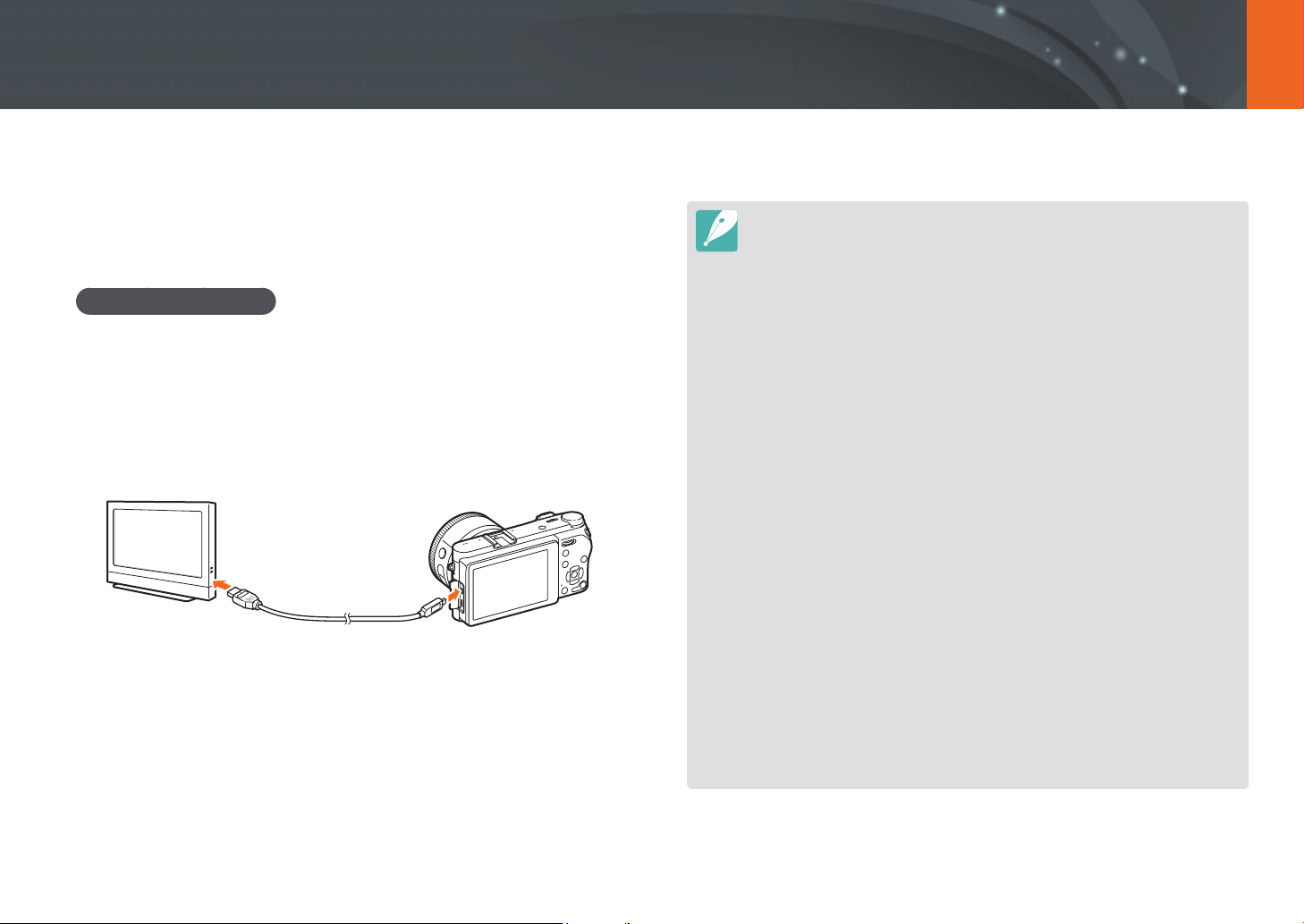
163
Connecting & Transferring > Viewing photos or videos on a TV
Connecting via cable
Play back photos or videos by connecting your camera to an HDMI-
supported TV using an optional HDMI cable.
Viewing les on a TV
1
In Shooting or Playback mode, press [m]
ĺ
q
ĺ
HDMI Output
ĺ
an option. (p. 182)
2
Turn o your camera and TV.
3
Connect your camera to your TV with an HDMI cable.
4
Turn on your TV and select the HDMI source.
5
Turn on the camera.
6
View photos or play videos using the camera buttons.
•
If your TV supports Anynet+(CEC), you can connect the camera to the TV with
an HDMI cable using the Anynet+(CEC) method.
•
The Anynet+(CEC) functions allow you to control connected devices using the
TV remote control.
•
If the TV supports Anynet+(CEC), the TV turns on automatically when used in
conjunction with the camera. This feature may not be available on some TVs.
•
You can capture photos and videos when the camera is connected to a TV,
but some functions will be limited. Shooting functions are supported only
when HDMI Output is set to 1920 X 1080p or Auto on the camera and the
TV’s HDMI output option is set to 1920 X 1080p.
•
If you select a video size of 4096X2160 or 3840X2160 and connect the camera
to an HDMI-supported TV via an HDMI cable, the video size is automatically
set to 1920X1080 (30p).
•
When connected to a TV, some of the camera’s playback functions may not be
available.
•
The length of time required to connect the camera and a TV may vary
depending on the memory card being used. As the main feature of a memory
card is to increase the transfer speed, it is not necessarily true to say that
a memory card with a faster transfer speed is also fast in using the HDMI
function.
•
1920X1080 (60p) videos can be played only on Full HDTVs or UHD TVs
capable of playback at 60p.
•
To view 3D photos on a TV that does not support the 3D function, press [I]
to switch to Anaglyph mode and wear anaglyph glasses.
•
You can also play back or capture photos or videos when you connect the
camera to an HDMI-enabled monitor. Connections and their capabilities
may vary depending on the monitor. Refer to the monitor’s manual for more
details.
•
UHD video playback may not work properly on some TVs.

164
Connecting & Transferring > Viewing photos or videos on a TV
Viewing les on a 3D TV
You can view photos or videos captured in 3D mode on a 3D TV.
1
In Shooting or Playback mode, press [m]
ĺ
q
ĺ
HDMI Output
ĺ
an option. (p. 182)
2
Turn o your camera and 3D TV.
3
Connect your camera to your 3D TV with the optional HDMI
cable.
4
Turn on your 3D TV, and then select the HDMI video source.
5
Turn on your camera.
6
Move to a 3D le, and then press [I] to switch to 3D mode.
•
Press [I] again to switch to 2D Mode.
7
Turn on your TV’s 3D function.
•
Refer to your TV’s user manual for more details.
8
View 3D photos or play 3D videos using the camera buttons.
•
You cannot view an MPO le in 3D on TVs that do not support the le format.
•
Use proper 3D glasses when you view an MPO le or a 3D video le on a
3D TV.
Do not view the 3D photos or videos captured by your camera on a 3D TV or
3D monitor for an extended period of time. It may cause unpleasant symptoms,
such as eyestrain, fatigue, nausea, and more.
165
Connecting & Transferring
Connecting to a computer
Using Auto Backup for photos or videos
You can send photos or videos that you captured with the camera to a PC
wirelessly.
Installing the program for Auto Backup on your PC
1
Connect the camera to the PC with the USB cable.
2
Turn on the i-Launcher program, and then select PC Auto
Backup.
•
The Auto Backup program is installed on the PC. Follow the on-
screen instructions to complete the installation.
3
Remove the USB cable.
Before installing the program, ensure that the PC is connected to a network.
Using the Auto Backup feature
1
In Playback mode, select a le, and then touch
ĺ
.
•
In thumbnail view, you cannot use the Auto Backup feature.
•
If the pop-up message that prompts you to download the
application appears, select Next.
•
The camera will automatically attempt to connect to a WLAN via
the most recently connected AP device.
•
If the camera has not previously been connected to a WLAN, it will
search for available AP devices. (p. 153)
2
Select a backup PC.
166
Connecting & Transferring > Connecting to a computer
3
Select OK.
•
To cancel sending, select Cancel.
•
You cannot select individual les to backup. This function backs up
only new les on the camera.
•
The backup’s progress will be shown on the PC monitor.
•
When the transfer is completed, the camera will turn o
automatically in approximately 30 seconds. Select Cancel to return
to the previous screen and prevent the camera from turning o
automatically.
•
To turn o your PC automatically after the transfer is complete,
select Shut down PC after backup.
•
To change the backup PC, select Change PC.
•
When you connect the camera to the WLAN, select the AP that is connected
to the PC.
•
The camera will search for available access points even if you are connecting
to the same access point again.
•
If you turn o the camera or remove the battery while sending les, the le
transfer will be interrupted.
•
While you are using this feature, the shutter control is disabled on your
camera.
•
You can connect only one camera to the PC at a time for sending les.
•
The backup may be canceled due to network conditions.
•
If there are no les in the camera‘s memory, you cannot use this feature.
•
You must turn o Windows Firewall and any other rewalls before using this
feature.
•
You can send up to 1,000 recent les.
•
On the PC software, the server name must be entered in the Latin alphabet
and can contain no more than 48 characters.
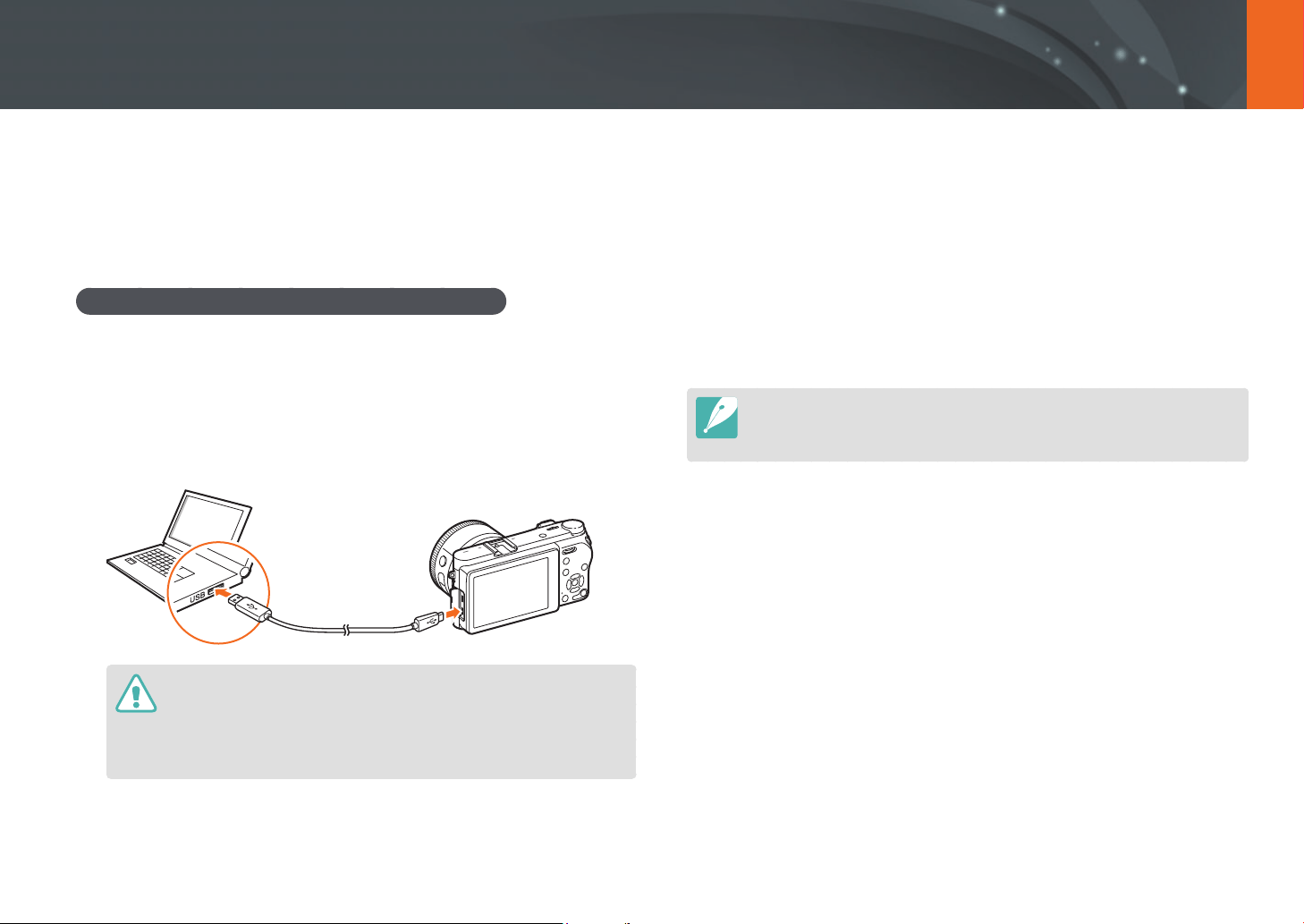
167
Connecting & Transferring > Connecting to a computer
3
Turn on the camera.
•
The computer recognizes the camera automatically.
4
On your computer, select My Computer
ĺ
Removable Disk
ĺ
DCIM
ĺ
100PHOTO or 101_0101.
5
Select the les you want, and then drag or save them to your
computer.
If the Folder Type is set to Date, the folder name appears as “XXX_MMDD“.
For example, if you capture a photo on January 1, the folder name will be
“101_0101“.
Connecting the camera as a removable disk
Transfer les on a memory card to your computer by connecting the
camera to the PC.
Transferring les to your Windows OS computer
You can connect the camera to your computer as a removable disk. Open
the removable disk and transfer les to your computer.
1
Turn o the camera.
2
Connect the camera to your computer with the USB cable.
•
You must plug the small end of the USB cable into your camera. If the
cable is reversed, it may damage your les. The manufacturer is not
responsible for any loss of data.
•
If you try to plug the USB cable into the HDMI port, the camera may not
work properly.
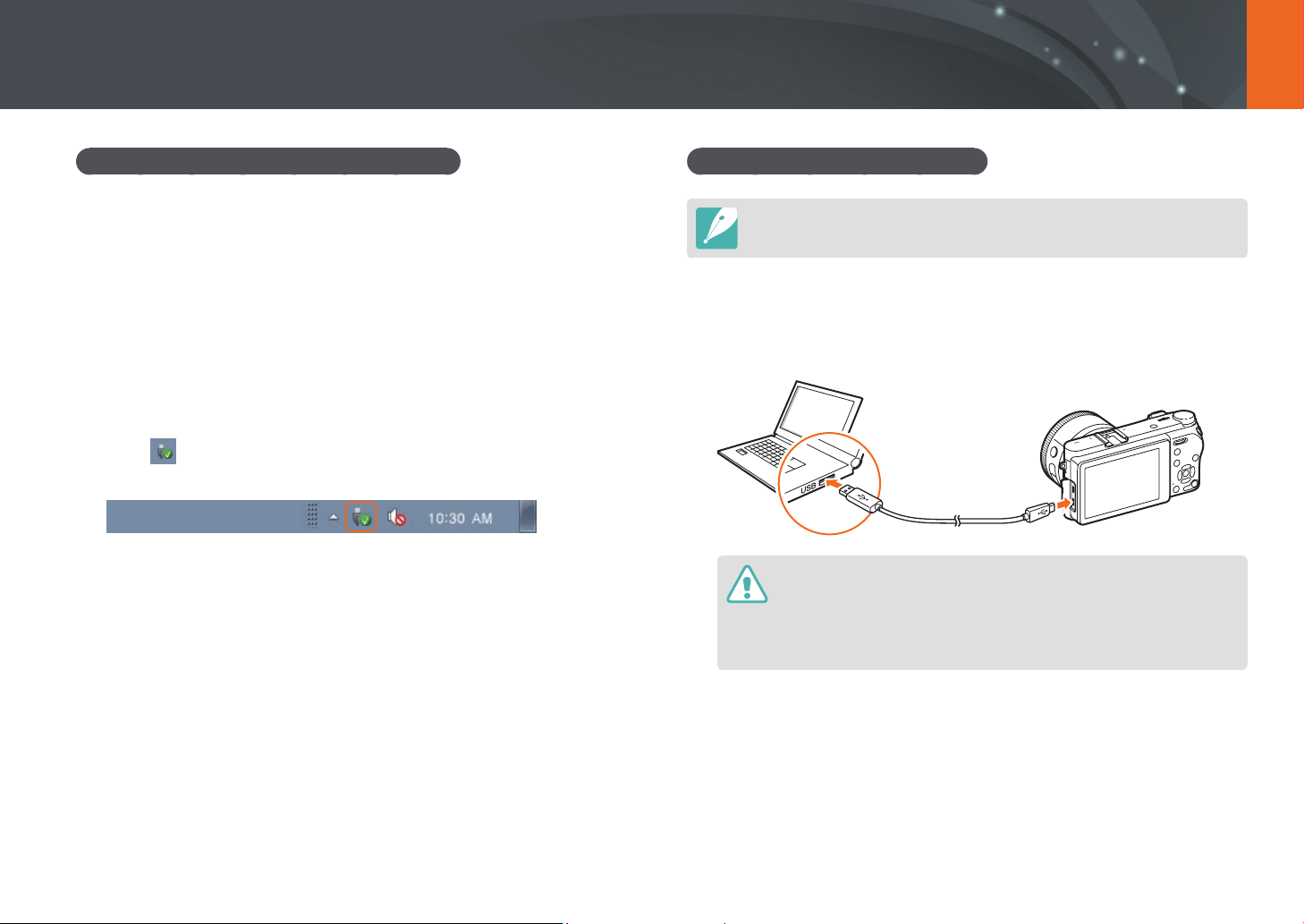
168
Connecting & Transferring > Connecting to a computer
Disconnecting the camera (for Windows 7)
When the camera is connected to the computer as a removable disk,
follow the instructions below to disconnect the camera. With Windows 8
and Windows 8.1, the methods for disconnecting the camera are similar.
1
Ensure that no data is being transferred between the camera
and the computer.
•
If the status lamp on your camera is blinking, it means the data
transfer is in progress. Please wait until the status lamp stops
blinking.
2
Click on the tool bar at the bottom right of your computer
screen.
3
Click the pop-up message.
4
Click the message box indicating safely removed.
5
Remove the USB cable.
Transferring les to your Mac OS
Mac OS 10.7 or later is supported.
1
Turn o the camera.
2
Connect the camera to your computer with the USB cable.
•
You must plug the small end of the USB cable into your camera. If the
cable is reversed, it may damage your les. The manufacturer is not
responsible for any loss of data.
•
If you try to plug the USB cable into the HDMI port, the camera may not
work properly.

169
Connecting & Transferring > Connecting to a computer
3
Turn on the camera.
•
The computer recognizes the camera automatically and displays a
removable disk icon.
4
On your computer, open the removable disk.
5
Select the les you want, and then drag or save them to your
computer.

Chapter 5
Camera settings menu
Learn about the user settings and general settings menu.
You can adjust the settings to better suit your needs and preferences.
171
Camera settings menu
You can set the user environment with these settings.
To set user options,
In Shooting mode, press [m]
ĺ
d
ĺ
an option.
Available items and their order may dier depending on shooting conditions.
Manage Custom Mode
Create your own shooting modes by adjusting options and saving them.
Open saved custom modes or delete them. (p. 67)
RAW Compression
Set the type of compression for RAW les.
* Default
Option Description
Lossless
Compression*
RAW les are compressed without data loss.
Normal
Compression
RAW les are compressed with negligible eect on
image quality.
Noise Reduction
Use Noise Reduction to reduce the visual noise in photos.
* Default
Option Description
High ISO NR
This function reduces noise that may occur when you
set a high ISO sensitivity. (O, High, Normal*, Low)
Long Term NR
This function reduces noise when you set the camera
for a long exposure. (O, On*)
If Long Term NR is o, image noise may increase when you capture a photo
using the Bulb function. When using the Bulb function, we recommend that you
set the Long Term NR to On.
User settings
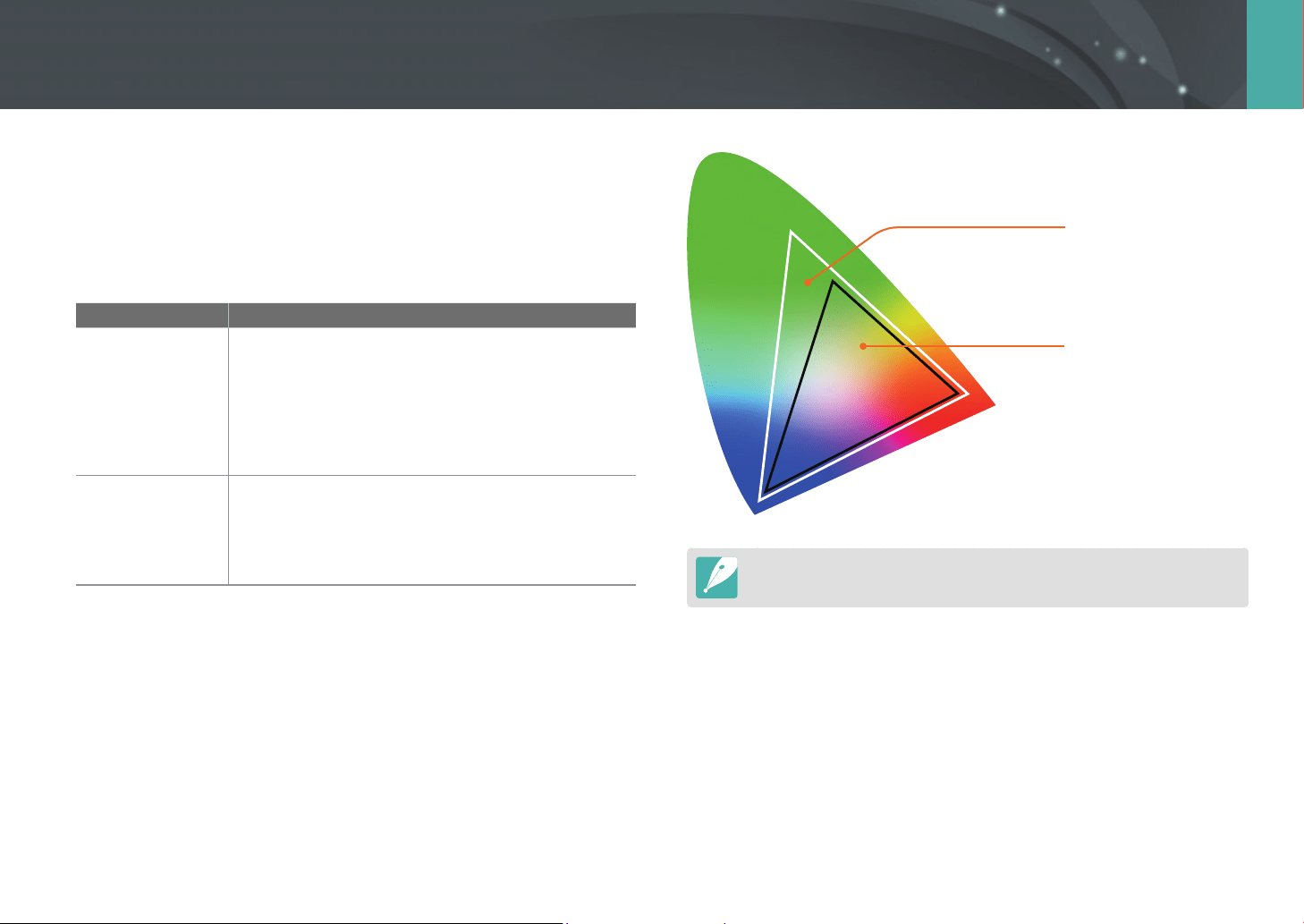
172
Camera settings menu > User settings
Color Space
The color space option allows you to select methods for representing
colors. Digital imaging devices such as digital cameras, monitors, and
printers have their own color ranges, referred to as color spaces.
* Default
Option Description
sRGB*
sRGB (Standard RGB) is an international specication
that denes the color space created by the IEC
(International Electrotechnical Commission). It is
widely used for creating colors on PC monitors and
is also the standard color space for Exif. For regular
images and images that will be published on the
Internet, we recommend using sRGB.
Adobe RGB
Adobe RGB is used for commercial printing and has a
larger color range than sRGB. Its wider range of colors
helps you easily edit photos on a computer. Note that
individual programs are generally compatible with a
limited number of color spaces.
Adobe RGB
sRGB
When the color space is set to Adobe RGB, photos will be saved as
“_SAMXXXX.JPG“.
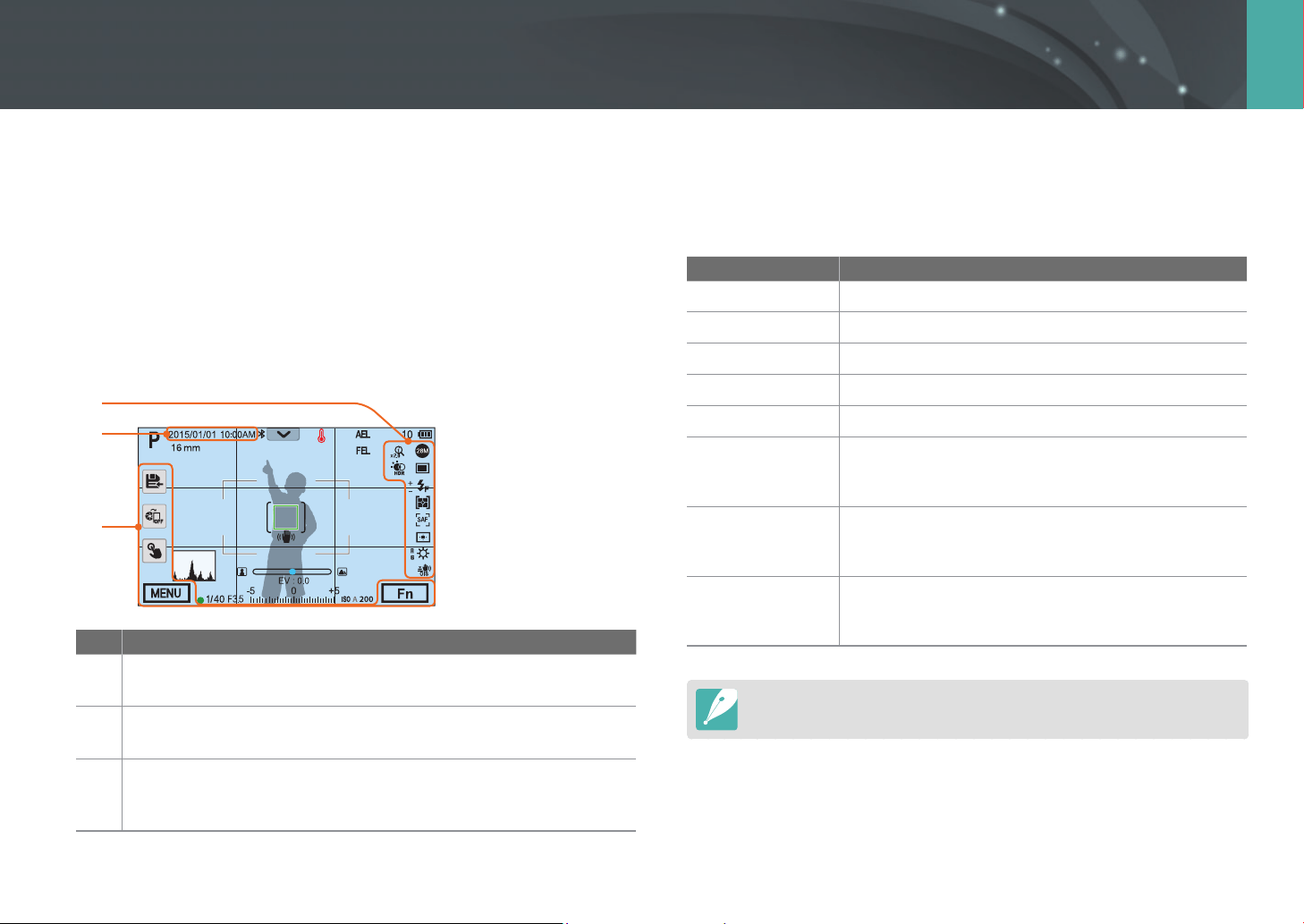
173
Camera settings menu > User settings
Distortion Correct
You can correct distortion that can be caused by lenses. This function may
not be available with some lenses.
User Display
You can add or remove shooting information from the display.
1
2
3
No. Description
1
Icons
Set to display icons on the right in Shooting mode.
2
Date and Time
Set to display the date and time.
3
Button
Set to display touch icons on the left and the bottom in Shooting
mode.
Grid Line
Select a guide to help you compose a scene.
* Default
Option Description
O*
Disable grid lines.
4 X 4
Set a 4 X 4 grid.
3 X 3
Set a 3 X 3 grid.
Cross
Set the grid lines as cross hairs.
Diagonal
Set the grid lines to cross diagonally.
Action Safe Area
Display grid lines for the current aspect ratio of a video.
This is useful when recording a video to t on another
device‘s screen or when editing a video.
4:3 Safe Area
Display grid lines for a standard TV aspect ratio (4:3).
This is useful when recording a video to t on another
device‘s screen or when editing a video.
2.35:1 Safe Area
Display grid lines for the cinemascope ratio (2.35:1).
This is useful when recording a video to t on another
device‘s screen or when editing a video.
Grid lines are displayed even while the camera is recording a video.
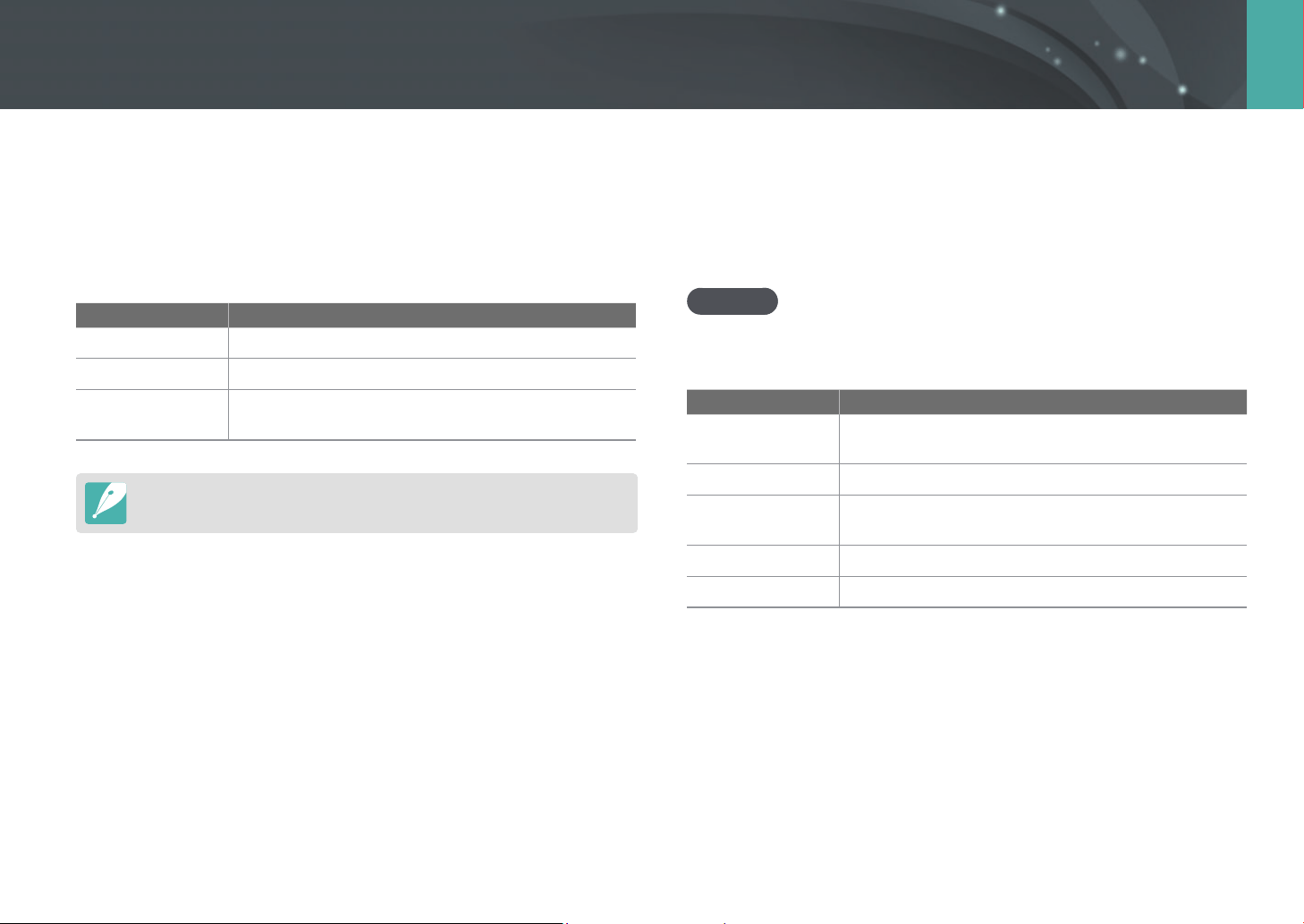
174
Camera settings menu > User settings
Center Marker
Set to display a cross-shaped center marker in the center of the screen. Use
the center marker to set the vertical and horizontal levels. You can set the
size of the center marker or apply eects to it.
* Default
Option Description
Display
Set to turn the center marker on or o. (O*, On)
Size
Set the size of the center marker. (Large, Normal*)
Transparency
Set to apply a transparency eect to the center marker.
(O*, On)
The center marker is displayed even while the camera is recording a video.
Key Mapping
You can change the function assigned to the Custom button, the AEL
button, the EV button, or command dials 1 and 2.
Custom
Set the Custom button‘s function.
* Default
Option Description
Optical Preview
Execute the Depth of Field Preview function for the
current aperture value. (p. 24)
One Touch WB
Execute the Custom White Balance function.
One Touch RAW +
Save a le in the RAW+JPEG format. To save a le in
JPEG format, press the button again.
One Touch HDR
Enable or disable the HDR Dynamic Range option.
Movie STBY*
Switch to Video recording standby mode.
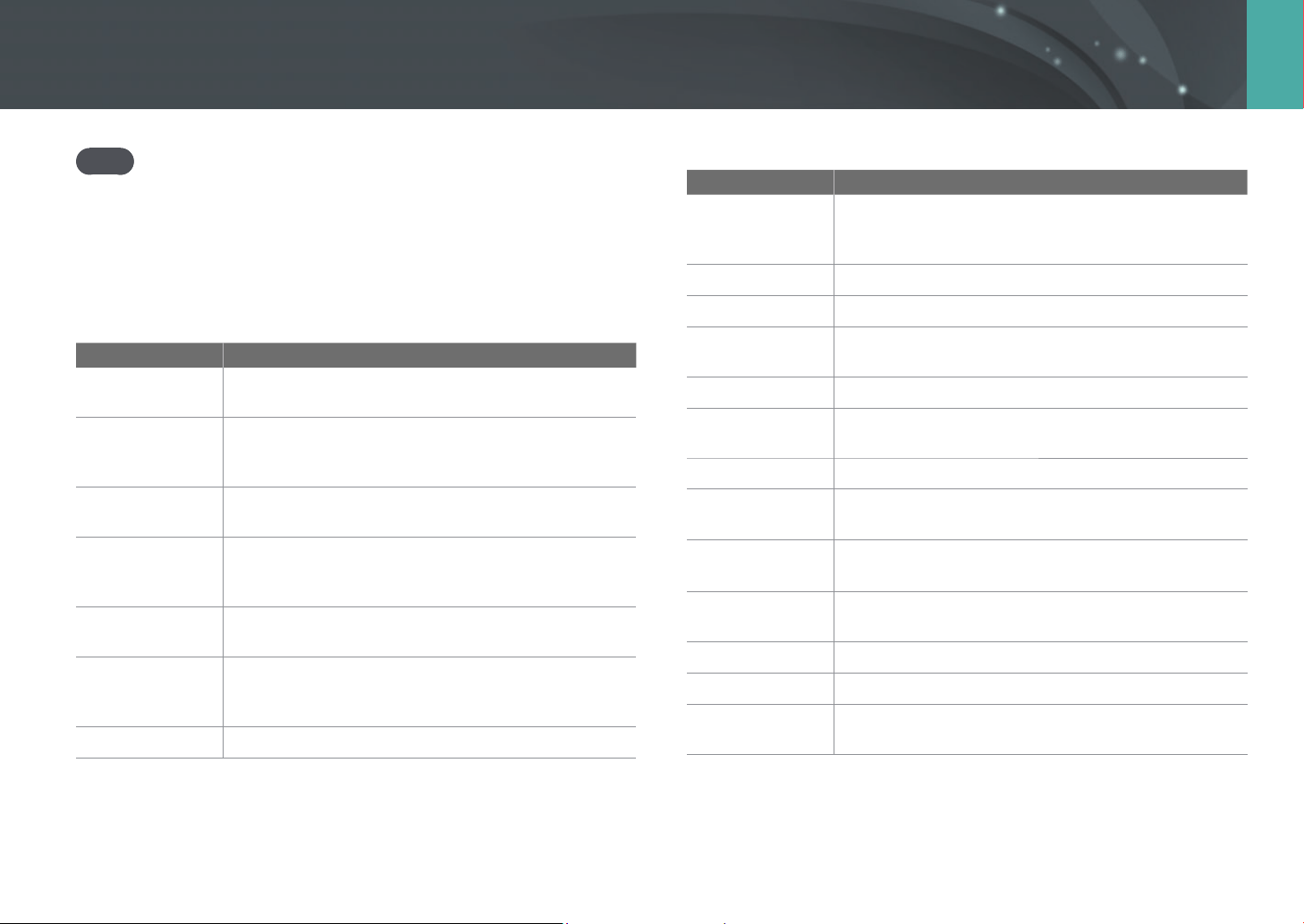
175
Camera settings menu > User settings
* Default
Option Description
FEL Hold
Keep the ash intensity lock function on after shooting.
(The intensity remains locked even after you capture a
photo.) (p. 110)
AF Mode
Select a focusing method.
AF Area
Select an auto focus area.
White Balance
Set a White Balance option (light source) that aects
the color of a photo.
ISO
Set the sensitivity of the camera to light.
Metering
Select the way in which camera measures the quantity
of light.
Touch Operation
Set to enable touch operation in Shooting mode.
Dynamic Range
Select an option to correct brightness dierences
caused by shadows in the photo.
Minimum
Shutter Speed
Set the slowest shutter speed the camera is allowed to
use.
Auto ISO Range
Set the maximum ISO value the camera will use to set
each EV step when you set the ISO to Auto.
Smart Filter
Apply special eects to a photo.
Picture Wizard
Apply eects to a photo depending on the theme.
Drive
Set Continuous, Burst, Timer, or Bracket shooting
options.
AEL
Set the function for the AEL button. You can change the function assigned
to the button to focus lock, exposure lock, or other shooting functions. The
AEL and AFL functions save the exposure value or focus area respectively
when you press [a]. The function executed by half-pressing [Shutter]
varies according to the function assigned to [a].
* Default
Option Description
AEL*
Perform the auto exposure lock function. (Half-pressing
[Shutter] executes the auto focus lock function.)
AEL Hold
Keep the auto exposure lock function on after shooting.
(The exposure remains locked even after you capture a
photo.)
AFL
Perform the auto focus lock function. (Half-pressing
[Shutter] executes the auto exposure lock function.)
AFL Hold
Keep the auto focus lock function on after shooting.
(The focus remains locked even after you capture a
photo.)
AEL + AFL
Perform the auto exposure and focus lock functions
together.
AEL+AFL Hold
Keep the auto exposure and focus lock functions on
together after shooting. (The exposure and focus
remain locked even after you capture a photo.)
FEL
Perform the ash intensity lock function. (p. 110)
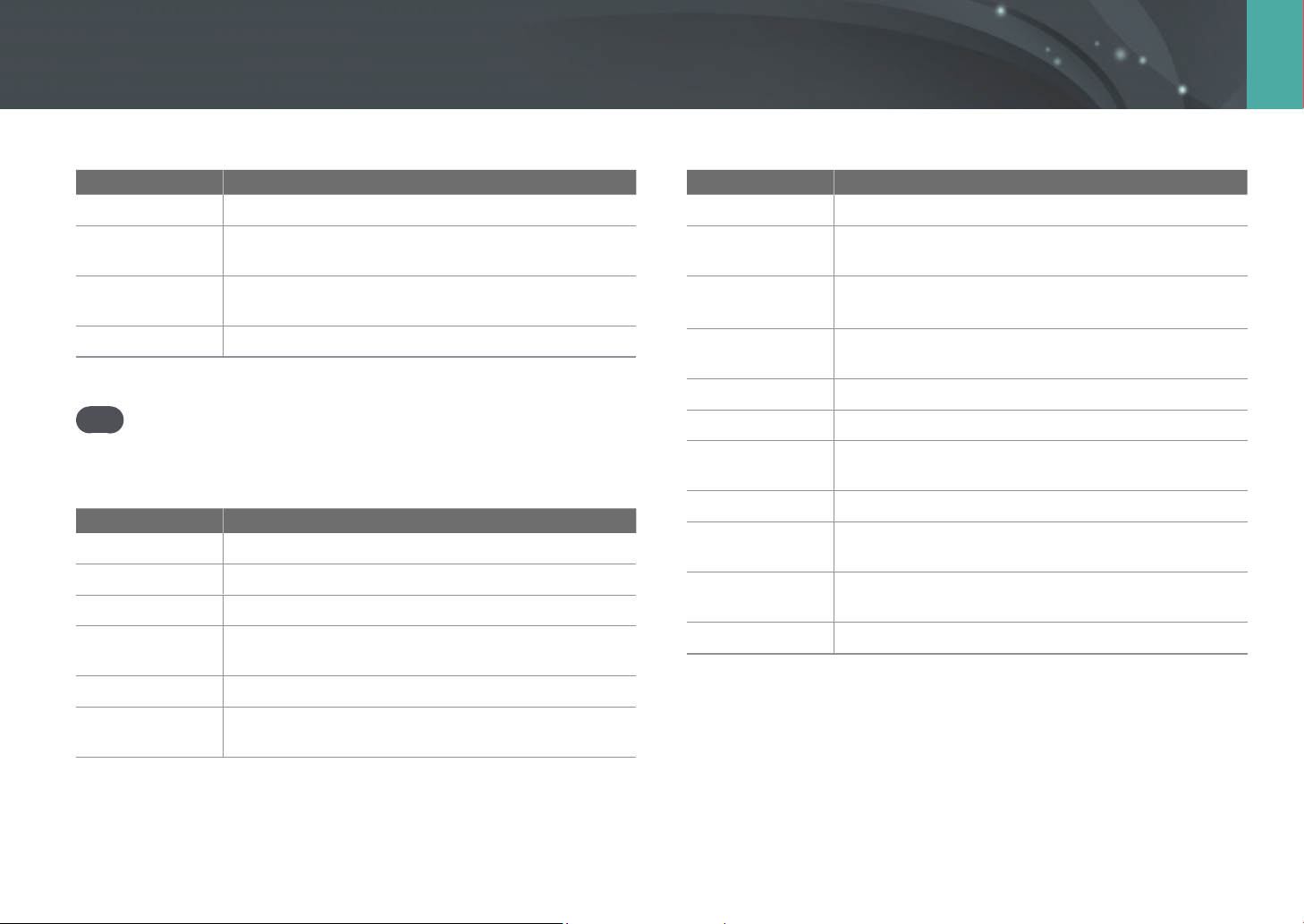
176
Camera settings menu > User settings
* Default
Option Description
Touch Operation
Set to enable touch operation in Shooting mode.
Dynamic Range
Select an option to correct brightness dierences
caused by shadows in the photo.
Minimum
Shutter Speed
Set the slowest shutter speed the camera is allowed to
use.
Auto ISO Range
Set the maximum ISO value the camera will use to set
each EV step when you set the ISO to Auto.
Smart Filter
Apply special eects to a photo.
Picture Wizard
Apply eects to a photo depending on the theme.
Drive
Set Continuous, Burst, Timer, or Bracket shooting
options.
Flash
Set ash options according to the shooting conditions.
intelli-Zoom
Zoom in on a subject with less degradation of photo
quality than the Digital zoom.
MF Assist
Set the assist function that helps you focus the camera
more easily when you rotate the focus ring manually.
Grid Line
Select a guide to help you compose a scene.
* Default
Option Description
Flash
Set ash options according to the shooting conditions.
intelli-Zoom
Zoom in on a subject with less degradation of photo
quality than the Digital zoom.
MF Assist
Set the assist function that helps you focus the camera
more easily when you rotate the focus ring manually.
Grid Line
Select a guide to help you compose a scene.
EV
Set the function for the EV button.
* Default
Option Description
EV*
Adjust the exposure value.
AF Mode
Select a focusing method.
AF Area
Select an auto focus area.
White Balance
Set a White Balance option (light source) that aects
the color of a photo.
ISO
Set the sensitivity of the camera to light.
Metering
Select the way in which camera measures the quantity
of light.
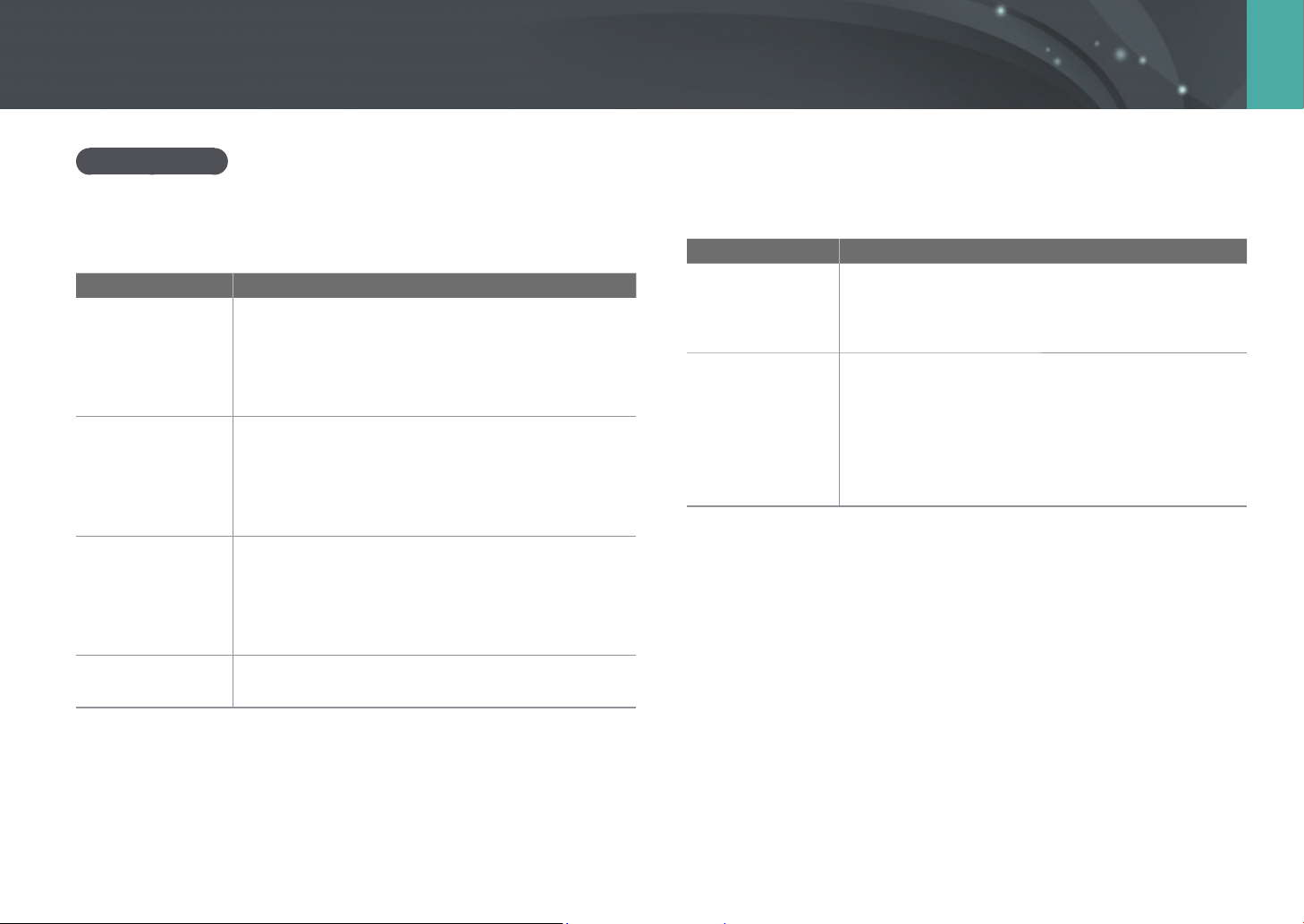
177
Camera settings menu > User settings
iFn Setting
Adjust the iFn settings for an i-Function lens.
Option Description
iFn Standard
Adjust the shutter speed, aperture value, and other
options on the lens by pressing [i-Function] or
select options that can be adjusted when you press
[i-Function] on an i-Function lens.
iFn Plus
On an i-Function lens, press [i-Function] and a button
on the camera at the same time to assign a function to
that button.
• AEL: Select the option that will be adjusted when
you press [i-Function] and [a] together.
• EV: Select the option that will be adjusted when you
press [i-Function] and [B] together.
Command Dial
Assign the functions that are adjusted when command dials 1 or 2 are
rotated.
* Default
Mode Adjustable functions (command dial 1/command dial 2)
Program
Program Shift/Program Shift*
Program Shift/EV
Program Shift/ISO
EV/Program Shift
ISO/Program Shift
Aperture Priority
Aperture/Aperture*
Aperture/EV
Aperture/ISO
EV/Aperture
ISO/Aperture
Shutter Priority
Shutter Speed/Shutter Speed*
Shutter Speed/EV
Shutter Speed/ISO
EV/Shutter Speed
ISO/Shutter Speed
Manual
Shutter Speed/Aperture*
Aperture/Shutter Speed
178
Camera settings menu > User settings
Lens Button Speed Settings
Set the zoom speed for the Power Zoom lens’ buttons at either fast,
medium, or slow. At fast speed, zoom noise increases and can be recorded
in videos. This function is available only when you attach the Power Zoom
lens.
Touch Operation
Set to enable touch operation in Shooting mode.
* Default
Option Description
O
Disable touch operations in Shooting mode. (You can use touch
operations in other situations.)
On*
Enable touch operations in Shooting mode.
Auto Self Shot
Set to enter Self Shot mode automatically when you ip the display
upward. In Self Shot mode, the timer (2 seconds), face detection, and
beauty face options are automatically activated.
AF Lamp
When shooting in dark places, turn the AF lamp on to improve the
operation of the auto focus. The Auto Focus functions more accurately in
dark places when the AF lamp is on. The AF lamp emits light in irregular
vertical patterns.
179
Camera settings menu > User settings
E-Shutter
* Default
Option Description
O*
Set to use the mechanical shutter.
On
Set to use the electronic shutter curtain rst and the
mechanical curtain second.
•
This feature is available only when you attach a Samsung lens using a
Samsung NX mount.
•
We recommend that you use the electronic shutter to minimize camera shake
when using a telephoto lens or taking a close-up photo.
•
When you use a large diameter lens and a fast shutter speed, a “bokeh“ eect
(an aesthetic blur in out-of-focus areas) can occur. The eect can by aected
by the subject and the shooting conditions. To make the bokeh eect appear
correctly, set the E-Shutter to O.
•
When you change the E-Shutter settings, the rst curtain of the shutter is
adjusted and you will hear a noise as the shutter adjusts. This is normal when
preparing the camera to operate the E-Shutter.
•
This feature is not available when you attach the external ash (SEF-580A).
MobileLink/NFC Image Size
Set the size of photos to transfer to a smart phone using the MobileLink or
NFC function.
* Default
Option Description
Resize to 2M or
lower
If a photo’s size is larger than 3M, the camera will
transfer it after resizing it to 2M or lower.
Original*
The photo will be transferred in its original size.
180
Camera settings menu
Learn to congure your camera’s settings.
To set Setting
options,
In Shooting or Playback mode, press [m]
ĺ
q
ĺ
an option.
* Default
Item Description
Sound
• System Volume: Set the sound volume or turn all sound
o entirely. (O, Low, Medium*, High)
Even if the system volume is turned o, the camera emits
the sound while playing a video.
• AF Sound: Set the sound the camera emits when you
half-press the shutter button on or o. (O, On*)
• Button Sound: Set the sound the camera emits when
you press the buttons or touch the screen on or o.
(O, On*)
• E-Shutter Sound: Set to emit a sound when you use the
electronic shutter. (O*, On)
•
The camera emits a sound only when the shutter speed
is longer than 0.5 second.
•
This option may not be available in Smart mode.
* Default
Item Description
Quick View
Set the Quick View time length–the amount of time the
camera displays a photo immediately after you capture
it. Select Hold+Focus Zoom to display the image after
shooting with the focus area enlarged.
(O*, Hold+Focus Zoom, Hold, 1 sec, 3 sec, 5 sec)
Display
Adjust
Adjust the display brightness, auto brightness setting,
display color, or level gauge.
• Display Brightness: You can adjust the display
brightness manually.
• Auto Brightness: Turn auto brightness on or o.
(O, On*)
• Display Color: You can adjust the display color manually.
• Horizontal Calibration: Calibrate the level gauge. If the
level gauge is not level, position the camera on the level
surface, and then follow the on-screen instructions.
•
You cannot access the Horizontal Calibration option
in Playback mode.
•
You cannot calibrate the level gauge in portrait
orientation.
Auto Display
O
Set the display o time. The display turns o if you do not
use the camera for the time you set.
(O, 30 sec*, 1 min, 3 min, 5 min, 10 min)
Setting
181
Camera settings menu > Setting
* Default
Item Description
Power Save
Set power shut o time. The camera shuts o if you do not
use it within the time you set. (30 sec, 1 min*, 3 min, 5 min,
10 min, 30 min)
•
The camera retains the power-o time setting even if
you replace the battery.
•
Power Save does not work if the camera is connected to
a computer or a TV or playing a slide show or a movie.
•
Power Save does not work when the camera is
connected to a smart phone and Pro Suggest Market
is in use.
•
This product reduces energy consumption by using
features that save power.
Help Guide
Display
• Mode Help Guide: Set to display help text about the
selected mode when changing shooting modes.
(O*, On)
• Function Help Guide: Set to display help text about
menus and functions. (O*, On)
Press [n] to hide the help text.
* Default
Item Description
Language
Set a language the camera shows on the display.
Date and
Time
Set date, time, date format, and time zone. (Time Zone,
Date Settings, Time Settings, Date Type, Time Type)
Video Out
Set the video signal output to the appropriate system for
your country when connecting the camera to an external
video device, such as an HDMI-supported TV.
• NTSC: USA, Canada, Japan, Korea, Taiwan, Mexico, etc.
• PAL (Supports only PAL B, D, G, H, or I): Australia, Austria,
Belgium, China, Denmark, Finland, France, Germany,
England, Italy, Kuwait, Malaysia, New Zealand, Singapore,
Spain, Sweden, Switzerland, Thailand, Norway, etc.
Anynet+
(HDMI-CEC)
When you connect the camera to an HDMI-supported
TV that supports Anynet+ (HDMI-CEC), you can control
the playback functions of the camera with the TV remote
control.
• O: You cannot control the play function of camera with
the TV remote control.
• On*: You can control the play function of camera with the
TV remote control.
182
Camera settings menu > Setting
* Default
Item Description
HDMI Output
When you connect the camera to an HDMI-supported TV
with an HDMI cable, you can change the resolution of the
image.
• NTSC: Auto*, 1920 X 1080p, 1280 X 720p, 720 X 480p,
720 X 576p (activates only when PAL is selected)
File Name
Set the method of creating le names.
• Standard*: SAM_XXXX.JPG (sRGB)/
_SAMXXXX.JPG (Adobe RGB)
• Date:
- sRGB les - MMDDXXXX.JPG. For example, for a photo
captured on Jan. 01, the le name would be
0101XXXX.jpg.
- Adobe RGB les - _MDDXXXX.JPG for the months Jan
through Sept. For the months Oct through Dec, the month
number is replaced by the letters A (Oct.), B (Nov.), and
C (Dec.).
For example, for a photo captured on Feb. 03, the le
name would be _203XXXX.jpg. For a photo captured on
Oct. 05, the le name would be _A05XXXX.jpg.
* Default
Item Description
File Number
Set the method of numbering les and folders.
• Reset: After using the reset function, the next le name is
started at 0001.
• Series*: New le numbers continue the existing number
sequence, even if you have installed a new memory card,
formatted the card, or deleted all photos.
•
The rst folder name is 100PHOTO. If you have selected
the sRGB color space and Standard le naming, the rst
le name is SAM_0001.
•
File name numbers are increased by 1 from SAM_0001 to
SAM_9999.
•
Folder numbers are increased by 1 from 100PHOTO to
999PHOTO.
•
The maximum number of les that can be saved in one
folder is 9,999.
•
File numbers are assigned according to DCF (Design rule
for Camera File system) specications.
•
If you change a le name (for example, on a computer),
the camera will not be able to play the le.
Folder Type
Set the type of folder.
• Standard*: XXXPHOTO
• Date: XXX_MMDD
183
Camera settings menu > Setting
* Default
Item Description
Format
Format the memory card. Formatting deletes all existing
les including protected les. (No*, Ye s )
Errors can occur if you use a memory card formatted by
another brand of camera, a memory card reader, or a
computer. Please format memory cards in the camera
before using them to capture photos.
Bluetooth
Set to connect your camera to a smart phone automatically
via the Bluetooth feature. If the devices have previously been
connected and you launch Samsung Camera Manager on the
smart phone, they will connect via Bluetooth automatically.
(O*, On)
Wi-Fi Network
Set to connect to a Wi-Fi network. (O*, On)
My
Smartphone
View the model name and connection status of the
connected smart phone. You can also edit or delete the
registered smart phone.
Bluetooth
Auto Time Set
Set to sync the camera’s date and time with the smart
phone when connecting the camera to a smart phone via
Bluetooth. (O*, On)
* Default
Item Description
Wi-Fi Privacy
Lock
Set to require a PIN when connecting the camera and a
smart phone.
• PIN: Enter a PIN before connecting.
• None*: Allow a connection without requiring a PIN.
•
Connections will automatically be made without
requiring a PIN when you use the NFC function.
•
PINs are automatically generated and renewed only
when you reset the camera settings or update the
rmware.
•
If you have previously connected your camera to a
smart phone via a PIN, they will connect automatically.
Sensor
Cleaning
• Sensor Cleaning: Remove dust from the sensor.
• Start-up Action: When on, the camera performs sensor
cleaning each time you turn it on. (O*, On)
• Shut-down Action: When on, the camera performs
sensor cleaning each time you turn it o. (O*, On)
As this product uses interchangeable lenses, the sensor
can get dust on it when you change lenses. This can lead
to dust particles appearing in the photos you capture. We
recommend that you do not change lenses when you are
in a particularly dusty area. Also, make sure to attach the
lens cap to the lens when not using it.
184
Camera settings menu > Setting
* Default
Item Description
Reset
• Camera Menu*: Return the setup menu and shooting
options to the factory defaults.
• Key Mapping: Return the custom button functions to the
factory defaults.
• C Mode: Return the T mode settings to the factory
defaults.
• Bluetooth/Wi-Fi: Return the connection history, ID, and
password of the Bluetooth and Wi-Fi functions to the
factory defaults.
• All: Return all settings to the factory defaults. (Date, time,
language, and video output settings will not change.)
* Default
Item Description
Device
Information
View the rmware version of the body and the lens,
the Wi-Fi MAC address, and Bluetooth MAC address, or
update the rmware.
• Software Update: Update the rmware of the camera
body or lens, or download the rmware via Wi-Fi.
(Body Firmware, Lens Firmware, Download via Wi-Fi)
•
You can update the rmware by connecting the camera
to a computer and starting i-Launcher. For more details,
refer to page 203.
•
You cannot run a rmware update without a fully
charged battery. Recharge the battery fully before
running a rmware update.
•
If you update the rmware, user settings and values will
be reset. (Date, time, language, and video out will not
change.)
•
Do not turn the camera o while the update is in
progress.
•
Remaining storage on the memory card must be more
than 1 GB to update the rmware via Wi-Fi.
•
The process of updating rmware via Wi-Fi may not
be stable depending on the quality of the network
connection.
Open Source
License
View open source licenses.

Chapter 6
Appendix
Get information about error messages, camera maintenance, using programs on a computer,
rmware updates, troubleshooting tips, specications, and glossary terms.
186
Appendix
When the following error messages appear, try these remedies.
Error messages Suggested remedies
Lens is locked
The lens is locked. Rotate the lens counter-
clockwise until you hear a click. (p. 54)
Card Error
• Turn o the camera, and then turn it on again.
• Remove the memory card and insert it again.
• Format the memory card.
Low Battery
Insert a charged battery or recharge the battery.
No Image File.
Capture photos or insert a memory card that
contains photos.
File Error
Delete the damaged le or contact a service
center.
Recording stopped.
You can record again
after the camera cools
down.
Cool down the camera.
Memory Full
Delete unnecessary les or insert a new memory
card.
Error messages Suggested remedies
Card Locked
You can lock SD, SDHC, or SDXC cards to prevent
les from being deleted. Unlock the card when
shooting. (p. 190)
Unable to capture a
photo because folder
and le number on
the memory card
reached the maximum
values. Reset the
folder number?
File names do not match the DCF standard. Follow
the on-screen instructions to reset the folder
number.
Error 00
Turn o your camera and remount the lens. If the
message still appears, contact a service center.
Error 01/02
Turn o your camera, remove the battery, and
insert again. If the message still appears, contact a
service center.
Error messages

187
Appendix
Cleaning the camera
Camera lens and display
Use a brush to remove dust and wipe the lens gently with a soft cloth.
If any dust remains, apply lens cleaning liquid to a piece of lens cleaning
paper and wipe gently.
Image sensor
Depending on dierent shooting conditions, dust may appear in photos
because the image sensor is exposed to the external environment. This
problem is normal, and the exposure to dust occurs in everyday use
of the camera. You can remove dust from the sensor by operating the
sensor cleaning function. (p. 183) If dust remains after cleaning the sensor,
contact a service center. Do not insert the blower into the opening of the
lens mount.
Camera body
Wipe gently with a soft, dry cloth.
Never use benzene, thinners, or alcohol to clean the camera. These solutions can
damage the camera or cause it to malfunction.
Maintaining the camera

188
Appendix > Maintaining the camera
Using on beaches or shores
•
Protect your camera from sand and dirt when you use it on beaches or in
other similar areas.
•
Your camera is not waterproof. Do not handle the battery, adapter, or
memory card with wet hands. Operating the camera with wet hands
may cause damage to your camera.
Storing for an extended period of time
•
When you store the camera for an extended period, place it in a sealed
container with an absorbent material, such as silica gel.
•
Over time, unused batteries will discharge and must be recharged before
use.
•
The present date and time must be re-entered if the camera is turned
on after the camera and battery have been separated for a prolonged
period.
Using or storing the camera
Inappropriate places to use or store the camera
•
Avoid exposing the camera to very cold or very hot temperatures.
•
Avoid using your camera in areas with extremely high humidity, or
where the humidity changes drastically.
•
Avoid exposing the camera to direct sunlight and storing it in hot, poorly
ventilated areas, such as in a car during summer time.
•
Protect your camera and the display from impact, rough handling, and
excessive vibration to avoid serious damage.
•
Avoid using or storing your camera in dusty, dirty, humid, or poorly
ventilated areas to prevent damage to moving parts and internal
components.
•
Do not use your camera near fuels, combustibles, or ammable
chemicals. Do not store or carry ammable liquids, gases, or explosive
materials in the same compartment as the camera or its accessories.
•
Do not store the camera where there are mothballs.

189
Appendix > Maintaining the camera
Using the camera with caution in the humid environments
When you move the camera from a cold environment to a warm one,
condensation can form on the lens or internal components of the camera.
In this situation, turn o the camera and wait for at least 1 hour.
If condensation forms on the memory card, remove the memory card from
the camera and wait until all moisture has evaporated before reinserting it.
Other precautions
•
Do not swing your camera by the strap. This may cause injury to yourself
or others or damage to your camera.
•
Do not paint your camera, as paint can clog moving parts and prevent
proper operation.
•
Turn o the camera when not using it.
•
Your camera consists of delicate parts. Avoid impacts to the camera.
•
Protect the display from damage by keeping it in the case when not in
use. Protect the camera from scratches by keeping it away from sand,
sharp objects, or loose change.
•
Do not use the camera if the screen is cracked or broken. Broken glass or
acrylic could cause injury to your hands and face. Take the camera to a
Samsung service center to have it repaired.
•
Never place cameras, batteries, chargers, or accessories near, on, or in
heating devices, such as microwave ovens, stoves, or radiators. Heat can
deform or overheat these devices, which can cause a re or explosion.
•
Do not expose the lens to direct sunlight, as this may discolor the image
sensor or cause it to malfunction.
•
Protect your lens from ngerprints and scratches. Clean your lens with a
soft, clean, debris-free lens cloth.
•
The camera may turn o if impacted from the outside. This is to protect
the memory card. Turn on the camera to use it again.
•
While you use the camera, it may heat up. This is normal and should not
aect your camera’s lifespan or performance.
•
When you use the camera in low temperatures, it may take some time to
turn on, the color of the display may be changed temporarily, or after-
images may appear. These conditions are not malfunctions and they will
correct themselves when the camera is returned to milder temperatures.
•
Paint or metal on the outside of the camera may cause allergies,
itchy skin, eczema, or swelling for people with sensitive skin.
If you experience any of these symptoms, stop using the camera
immediately and consult a doctor.
•
Do not insert foreign objects into any of your camera’s compartments,
slots, or access points. Damage due to improper use may not be covered
by your warranty.
•
Do not allow unqualied personnel to service the camera or attempt to
service the camera yourself. Any damage that results from unqualied
service is not covered by your warranty.
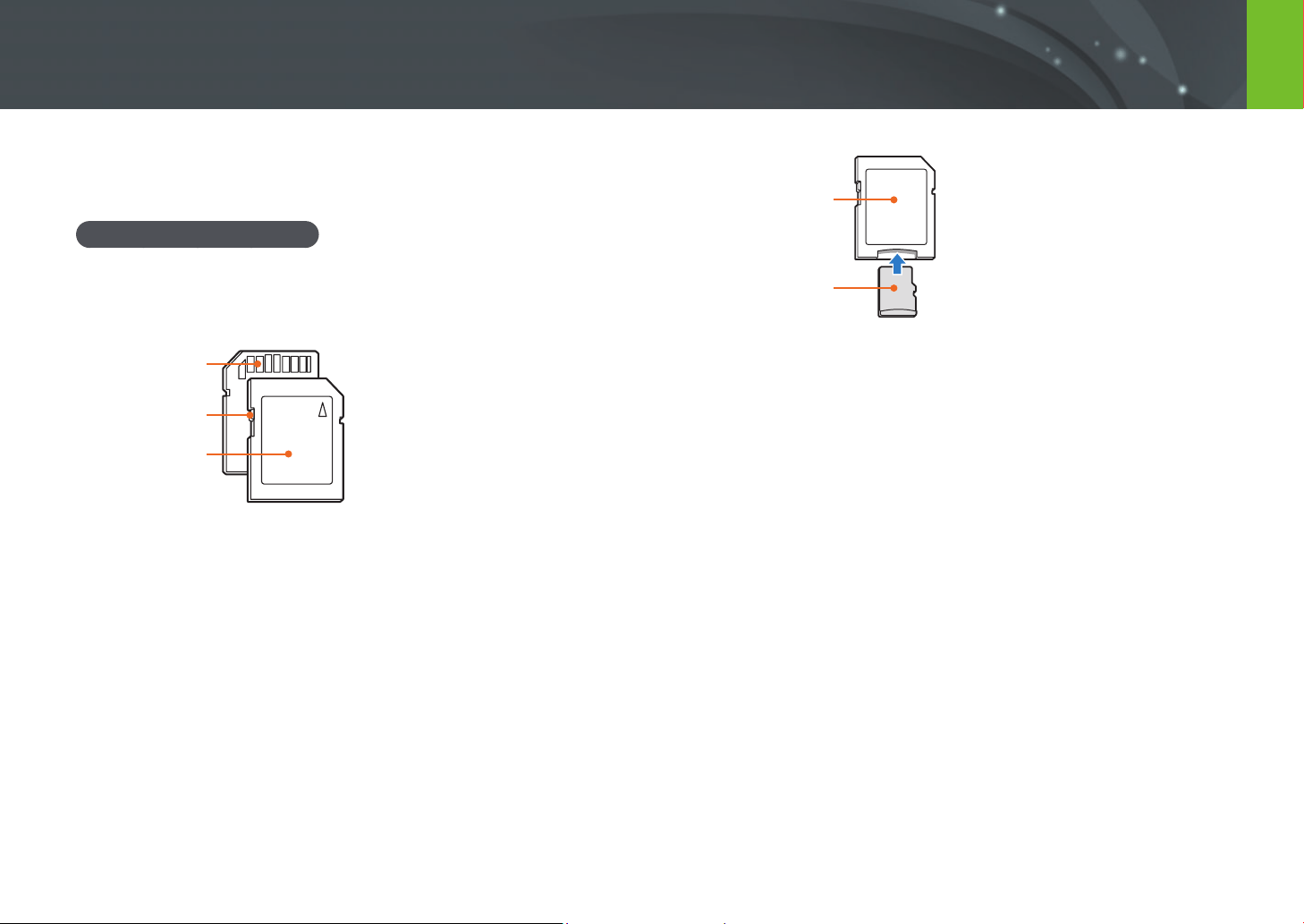
190
Appendix > Maintaining the camera
About memory cards
Supported memory cards
This product supports SD (Secure Digital), SDHC (Secure Digital High
Capacity), SDXC (Secure Digital eXtended Capacity), microSD, microSDHC,
or microSDXC memory cards.
Terminal
Write-protect switch
Label (front)
You can prevent les from being deleted by using the write-protect switch
on an SD, SDHC, or SDXC card. Slide the switch down to lock or slide it up
to unlock. Unlock the card when capturing photos and videos.
Memory card adapter
Memory card
To use micro memory cards with this product, a PC, or a memory card
reader, insert the card into an adapter.
191
Appendix > Maintaining the camera
Memory card capacity
The memory capacity may dier depending on the type of scenes you shoot and the shooting conditions.
These capacities are based on a 4 GB SD card.
Size
Quality
Super Fine Fine Normal
RAW
(Normal
Compression)
RAW
(Lossless
Compression)
RAW (Lossless
Compression)
+ S.Fine
RAW (Lossless
Compression)
+ Fine
RAW (Lossless
Compression)
+ Normal
Photo
28M (6480X4320)
256 471
810 102 64 51
57 60
13.9M (4560X3040)
475 815
1,270 - - 58
61 63
7.1M (3264X2176)
801 1,253
1,744 - - 62
64 65
3M (2112X1408)
1,379 1,863
2,259 - - 65
65 66
Burst
806 1,259
1,750 - - -
--
23.6M (6480X3648)
299 542
911 - - 53
58 61
11.9M (4608X2592)
537 905
1,376 - - 59
62 63
6.2M (3328X1872)
879 1,346
1,832 - - 63
64 65
2.4M (2048X1152)
1,545 2,008
2,363 - - 65
66 66
18.7M (4320X4320)
368 653
1,064 - - 56
60 62
9.5M (3088X3088)
642 1,050
1,537 - - 61
63 64
4.7M (2160X2160)
1,064 1,553
2,015 - - 64
65 65
2M (1408X1408)
1,668 2,109
2,431 - - 65
66 66
192
Appendix > Maintaining the camera
Size
Quality
Pro HQ Normal
Video
4096X2160 (24p/NTSC, PAL) Approx. 7' 30" Approx. 13' 6" Approx. 16' 23"
3840X2160 (30p/NTSC, 25p/PAL) Approx. 7' 30" Approx. 13' 6" Approx. 16' 23"
1920X1080 (60p/NTSC, 50p/PAL) Approx. 7' 30" Approx. 14' 9" Approx. 27' 31"
1920X1080 (30p/NTSC, 25p/PAL) Approx. 8' 45" Approx. 20' 54" Approx. 40' 4"
1920X1080 (24p/NTSC, PAL) Approx. 8' 45" Approx. 20' 54" Approx. 40' 4"
1920X1080 (15p/NTSC, 12.5p/PAL)* Approx. 17' 26" Approx. 39' 52" Approx. 73' 41"
1280X720 (120p/NTSC, 100p/PAL) - Approx. 17' 26" Approx. 34' 47"
1280X720 (60p/NTSC, 50p/PAL) - Approx. 27' 25" Approx. 57' 35"
1280X720 (30p/NTSC, 25p/PAL) - Approx. 39' 52" Approx. 85' 39"
640X480 (60p/NTSC, 50p/PAL) - Approx. 73' 2" Approx. 167' 8"
640X480 (30p/NTSC, 25p/PAL) - Approx. 124' 58" Approx. 244' 43"
640X480 (MJPEG, 30p/NTSC) - Approx. 34' 27" Approx. 42' 3"
640X480 (MJPEG, 25p/PAL) - Approx. 40' 34" Approx. 49' 19"
* This option is available only with some Smart Filter options.
•
The gures above are measured without using the zoom function.
•
Available recording time may vary if you use the zoom function.
•
Several videos were recorded in succession to determine the total recording time.
•
The maximum recording time is 29 minutes and 59 seconds.
(When you select 1920X1080 (60p/50p), the maximum recording time is 25 minutes. When you select 4096X2160, 3840X2160, or 640X480 (MJPEG), the maximum recording time is 15 minutes.)
193
Appendix > Maintaining the camera
•
Prevent memory cards from making contact with liquids, dirt, or foreign
substances. If dirty, wipe the memory card clean with a soft cloth before
you insert the memory card into your camera.
•
Do not allow liquids, dirt, or foreign substances to come in contact with
memory cards or the memory card slot. Doing so may cause memory
cards or the camera to malfunction.
•
When you carry a memory card, use a case to protect the card from
electrostatic discharges.
•
Transfer important data to other media, such as a hard disk, CD, or DVD.
•
When you use the camera for an extended period, the memory card may
become warm. This is normal and does not indicate a malfunction.
•
Use a memory card that meets the standard requirements.
The manufacturer is not responsible for any loss of data.
Cautions when using memory cards
•
Avoid exposing memory cards to very cold or very hot temperatures
(below 0 °C/32 °F or above 40 °C/104 °F). Extreme temperatures can
cause memory cards to malfunction.
•
Insert a memory card in the correct direction. Inserting a memory card in
the wrong direction may damage your camera and memory card.
•
Do not use memory cards that have been formatted by other cameras or
by a computer. Reformat the memory card with your camera.
•
Turn o the camera when you insert or remove the memory card.
•
Do not remove the memory card or turn o your camera while the lamp
is blinking, as this may damage your data.
•
When the lifespan of a memory card has expired, you cannot store any
more photos on the card. Use a new memory card.
•
Do not bend, drop, or subject memory cards to heavy impact or
pressure.
•
Avoid using or storing memory cards near strong magnetic elds.
•
Avoid using or storing memory cards in very hot, very humid, or
corrosive environments.
194
Appendix > Maintaining the camera
•
Avoid storing or using the battery in hot, humid places, such as spas or
shower enclosures.
•
Do not rest the camera on ammable surfaces, such as bedding, carpets, or
electric blankets for a prolonged period.
•
When the camera is switched on, do not leave it in any conned space for a
prolonged period.
•
Do not allow battery terminals to come in contact with metallic objects, such
as necklaces, coins, keys, or watches.
•
Use only authentic, manufacturer-recommended, Lithium-ion replacement
batteries.
•
Do not disassemble the battery or puncture it with any sharp object.
•
Avoid exposing the battery to high pressure or crushing forces.
•
Avoid exposing the battery to major impacts, such as dropping it from high
places.
•
Do not expose the battery to temperatures of 60 °C (140 °F) or above.
•
Do not allow the battery to come in contact with moisture or liquids.
•
Do not expose the battery to sources of excessive heat such as direct
sunshine or re.
Disposal guidelines
•
Dispose of the battery with care.
•
Do not dispose of the battery in a re.
•
Disposal regulations may dier by country or region. Dispose of the battery in
accordance with all local and federal regulations.
Guidelines for charging the battery
Charge the battery only by the method described in this user manual.
The battery can ignite or explode if not charged properly.
About the battery
Use only Samsung-approved batteries.
Battery specications
Item Description
Model
BP1130
Type
Lithium-ion battery
Cell capacity
1,130 mAh
Voltage
7.6 V
Charging time* (When the battery is
completely discharged.)
Approx. 200 min.
* The gures above are based on using the provided USB cable and AC adaptor. Charging the
battery by connecting it to a computer may take longer.
Personal injury or death can occur if the battery is handled carelessly or
improperly. For your safety, follow these instructions for proper battery
handling:
•
The battery can ignite or explode if not handled properly. If you notice
any deformities, cracks, or other abnormalities in the battery, immediately
discontinue use of the battery and contact your manufacturer.
•
Use only authentic, manufacturer-recommend battery chargers and charge
the battery only by the method described in this user manual.
•
Do not place the battery near heating devices or expose to excessively warm
environments, such as the inside of an enclosed car in the summertime.
•
Do not place the battery in a microwave oven.
195
Appendix > Maintaining the camera
Battery life
Shooting mode Average time/Number of photos
Photos
Approx. 185 min./Approx. 370 photos
Videos
Approx. 100 min. (Record videos at 1920X1080 (60p))
•
The gures above are based on CIPA test standards.
Your results may dier depending on your actual usage.
•
Available shooting time diers depending on background, shooting
interval, and use conditions.
•
Several videos were recorded in succession to determine the total
recording time.
Low battery message
When the battery has fully discharged, the battery icon will turn red and
the “Low Battery“ message will appear.
Notes about using the battery
•
Avoid exposing batteries to very cold or very hot temperatures (below
0 °C/32 °F or above 40 °C/104 °F). Extreme temperatures can reduce the
charging capacity of your batteries.
•
When you use the camera for an extended period, the area around the
battery chamber may become warm. This does not aect the normal use
of the camera.
•
Do not pull the power supply cord to disconnect the plug from the
power outlet, as this may cause a re or electric shock.
•
In temperatures below 0 °C/32 °F, battery capacity and battery life may
decrease.
•
Battery capacity may decrease in low temperatures, but will return to
normal in milder temperatures.
•
Remove the batteries from your camera when storing it for an extended
period. Installed batteries may leak or corrode over time and cause
serious damage to your camera. Storing the camera for extended
periods with the battery installed causes the battery to discharge. You
may not be able to recharge a fully discharged battery.
•
When you do not use the camera for an extended period (3 months or
more), check the battery and recharge it regularly. If you let the battery
discharge continually, its capacity and life may decrease, which can lead
to a malfunction, re, or explosion.

196
Appendix > Maintaining the camera
Battery precautions
Protect batteries, chargers, and memory cards from damage.
Prevent batteries from making contact with metal objects, as this can
create a connection between the + and – terminals of your battery and
lead to temporary or permanent battery damage and may cause a re or
electric shock.
Notes about charging the battery
•
If the status lamp is o, ensure that the battery is inserted correctly.
•
If the camera is on while the battery is charging, the battery may not
fully charge. Turn o the camera before charging the battery.
•
Do not use your camera when you are charging the battery. This may
cause a re or electric shock.
•
Do not pull the power supply cord to disconnect the plug from the
power outlet, as this may cause a re or electric shock.
•
Let the battery charge for at least 10 minutes before turning on the
camera.
•
If you connect the camera to an external power source when the battery
is depleted, using high energy-consuming functions will cause the
camera to turn o. To use the camera normally, recharge the battery.
•
If you reconnect the power cable when the battery is fully charged, the
status lamp turns on for approximately 30 minutes.
•
Using the ash or recording videos depletes the battery quickly. Charge
the battery fully before using the camera.
•
If the status lamp blinks in red, reconnect the cable, or remove the
battery and insert it again.
•
If you charge the battery when the cable is overheated or the
temperature is too high, the status lamp may blink in red. Charging will
start when the battery cools down.
•
Overcharging batteries may shorten battery life. After charging is
nished, disconnect the cable from your camera.
•
Do not bend or place heavy objects on the AC cable. Doing so may
damage the cable.
•
If you use the camera for an extended period while connected to an
external power cable, the status lamp may blink red and green. The
camera may also stop charging to protect the battery from being
overcharged. Reconnect the cable and fully charge the battery before
using the camera again.
197
Appendix > Maintaining the camera
Notes about charging with a computer connected
•
Use only the provided USB cable.
•
The battery may not charge when:
- You use a USB hub.
- Other USB devices are connected to your computer.
- You connect the cable to the port on the front side of your computer.
- The USB port of your computer does not support the power output standard
(5 V, 500 mA).
Handle and dispose of batteries and chargers with care
•
Never dispose of batteries in a re. Follow all local regulations when you
dispose of used batteries.
•
Never place batteries or cameras on or in heating devices, such as
microwave ovens, stoves, or radiators. Batteries may explode when they
are overheated.
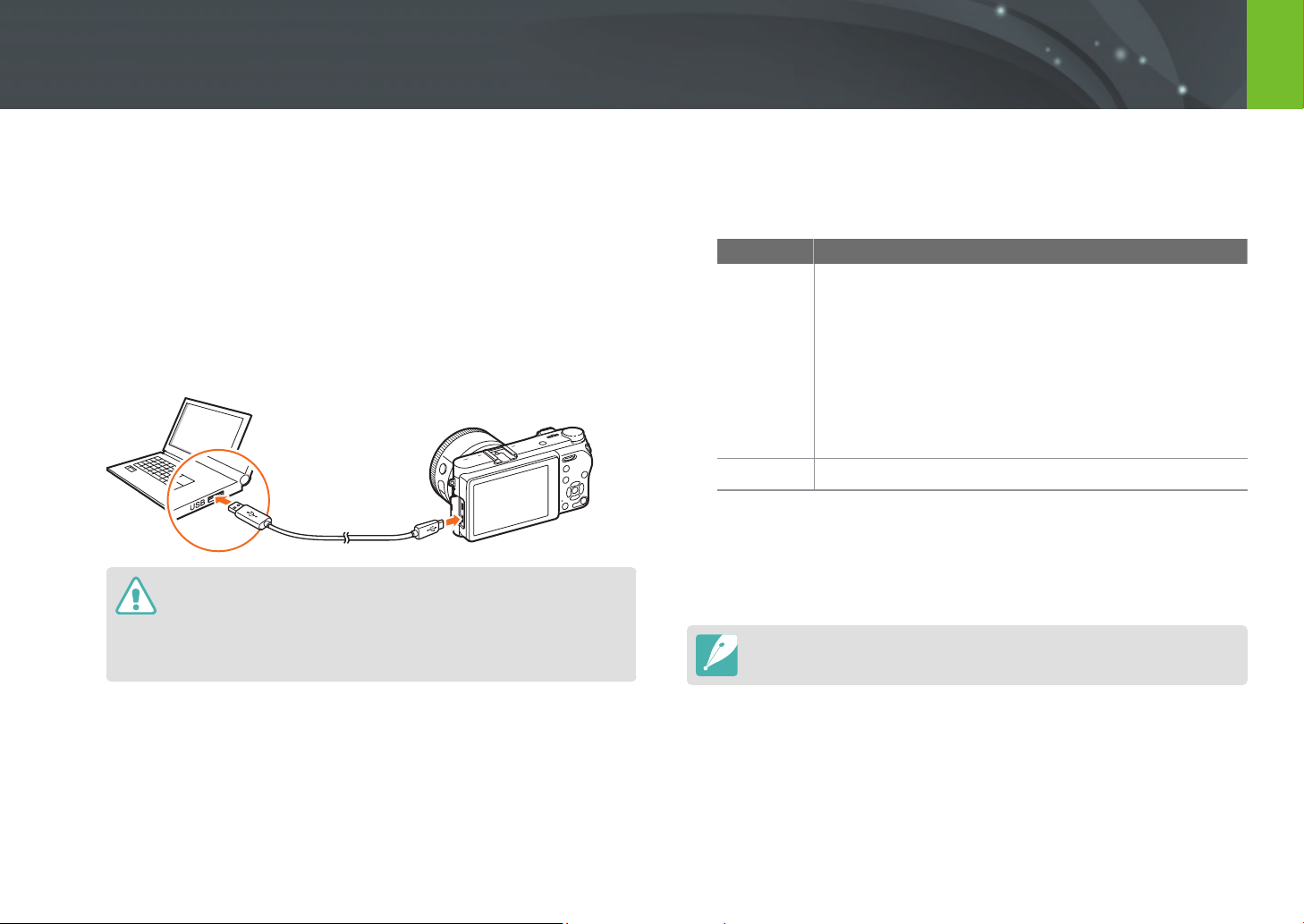
198
Appendix
Using programs on a PC
You can view and edit les using the provided programs. You can also send
the les to a PC wirelessly.
Installing i-Launcher
1
Turn o the camera.
2
Connect the camera to the PC with the USB cable.
•
You must plug the small end of the USB cable into your camera. If the
cable is reversed, it may damage your les. The manufacturer is not
responsible for any loss of data.
•
If you try to plug the USB cable into the HDMI port, the camera may not
work properly.
3
Turn on the camera.
4
Install i-Launcher on the PC.
OS How to Install
Windows
When the pop-up window prompts you to install
i-Launcher, select Ye s .
• If the pop-up window does not appear, select My
Computer
ĺ i-Launcher ĺ iLinker.exe.
• If a pop-up window prompting you to run iLinker.exe
appears, run it rst.
• When you connect the camera to a computer
with i-Launcher installed, the program will launch
automatically.
Mac
Click Devices ĺ i-Launcher ĺ Mac ĺ iLinker.app.
5
Follow the on-screen instructions to install i-Launcher.
•
Available programs may dier depending on your computer’s
specications.
Before installing the program, ensure that the PC is connected to a network.
199
Appendix > Using programs on a PC
Requirements for Windows OS
Item Requirements
CPU
Intel® 3rd Gen. i5 3.4 GHz or higher
(or equivalent AMD processor)
RAM
Minimum 1 GB RAM
OS
Windows 7, Windows 8, Windows 8.1
Hard disk capacity
400 MB (1 GB or higher recommended)
Others
USB 2.0 port
* Full HD is supported only on 32-bit editions. .NET Framework 4.0 or above is supported by
Windows 7.
•
The requirements on this page and the following pages are recommendations
only. i-Launcher may not work properly even when the computer meets the
requirements, depending on the condition of your computer.
•
If your computer does not meet the requirements, videos may not play
correctly.
The manufacturer is not responsible for any damage that results from using
unqualied computers such as a computer you assembled yourself.
Requirements for Mac OS
Item Requirements
OS
Mac OS 10.7 or higher
RAM
Minimum 256 MB RAM
(512 MB or higher recommended)
Hard disk capacity
Minimum 110 MB
Others
USB 2.0 port

200
Appendix > Using programs on a PC
Using i-Launcher
i-Launcher allows you to update the rmware of the camera or the lens,
or download the User Manual. It also allows you to download and install
Samsung Movie Converter, Samsung DNG Converter, PC Auto Backup,
Samsung RAW Converter, and the Power Media Player program.
Opening i-Launcher
Select Start
ĺ
All Programs
ĺ
Samsung
ĺ
i-Launcher
ĺ
Samsung
i-Launcher on your computer. Or, click Applications
ĺ
Samsung
ĺ
i-Launcher on your Mac OS computer.
Available programs
Item Description
Software Update
Download the rmware of the camera body or lens.
For information about updating the rmware, refer to
page 203.
Manual
Download
Download the User Manual.
Samsung Movie
Converter
Download this program to convert HEVC les to
another format. You can convert HEVC les to other
formats (H.264) and edit them in programs that are
incompatible with HEVC. Converting UHD videos is
supported only on 64-bit editions.
Samsung DNG
Converter
Download this program to convert Samsung RAW les
(SRW) to DNG les.
PC Auto Backup
i-Launcher provides a link for downloading the PC
Auto Backup program when you connect the camera
to a computer. You can send photos or videos that
you captured with the camera to a PC wirelessly. For
information about installing PC Auto Backup, refer to
page 165.
Samsung RAW
Converter
Download this program to convert RAW les into the
desired le format.
Power Media
Player
Download this program to play videos in HEVC or
H.264 format. This program can be used only with
Windows OS.
201
Appendix > Using programs on a PC
Requirements
Item Requirements
PC Auto Backup
Windows Windows 7/8/8.1
Mac Mac OS 10.7 or higher
Samsung Movie
Converter
Windows
64-bit Windows 7/8/8.1
(32-bit editions support up to Full HD.
.NET Framework 4.0 or above is supported
by Windows 7.)
Mac Mac OS 10.7 or higher
Power Media
Player
Windows
Windows 7/8/8.1
Intel® 3rd Gen. i5 3.4 GHz or higher
(equivalent AMD processor)
Minimum 1 GB RAM
400 MB of available hard-disk space
(1 GB and above recommended)
Samsung DNG
Converter
Windows Windows 7/8/8.1
Mac Mac OS 10.7/10.8/10.9/10.10
Item Requirements
Samsung RAW
Converter
Windows
Windows 7/8/8.1
Intel Pentium/AMD Athlon processor-based
PC or compatible computer (Core 2 Quad or
later is recommended)
1 GB or higher is recommended
XGA (1024X768), Full Color (24-bit or higher)
Mac
Apple® Mac® OS X v10.7/10.8/10.9/10.10
Intel Pentium processor ready (Core 2 Quad
or later is recommended)
XGA or higher
16-bit color display compatible (24-bit or
higher)
202
Appendix > Using programs on a PC
Installing Samsung RAW Converter
Launch i-Launcher, and then follow the on-screen instructions to install the
program.
Using Samsung RAW Converter
Photos captured by a camera are often converted to JPEG format and
stored in the memory according to the settings of the camera at the time
of shooting. RAW les are not converted to JPEG format and are stored
in the memory without any changes. With Samsung RAW Converter, you
can calibrate exposures, White Balances, tones, contrasts, and colors of
photos. You can also edit JPEG or TIFF les as well as RAW les. For more
information, refer to the program guide.
•
Depending on your version of Samsung RAW Converter, you may not be able
to open RAW les. If this occurs, update the program.
•
In Samsung RAW Converter, an image’s brightness, color, and other eects
may be displayed dierently. This occurs because the original camera settings
and options applied during image capture are removed to prepare the image
for processing by Samsung RAW Converter.
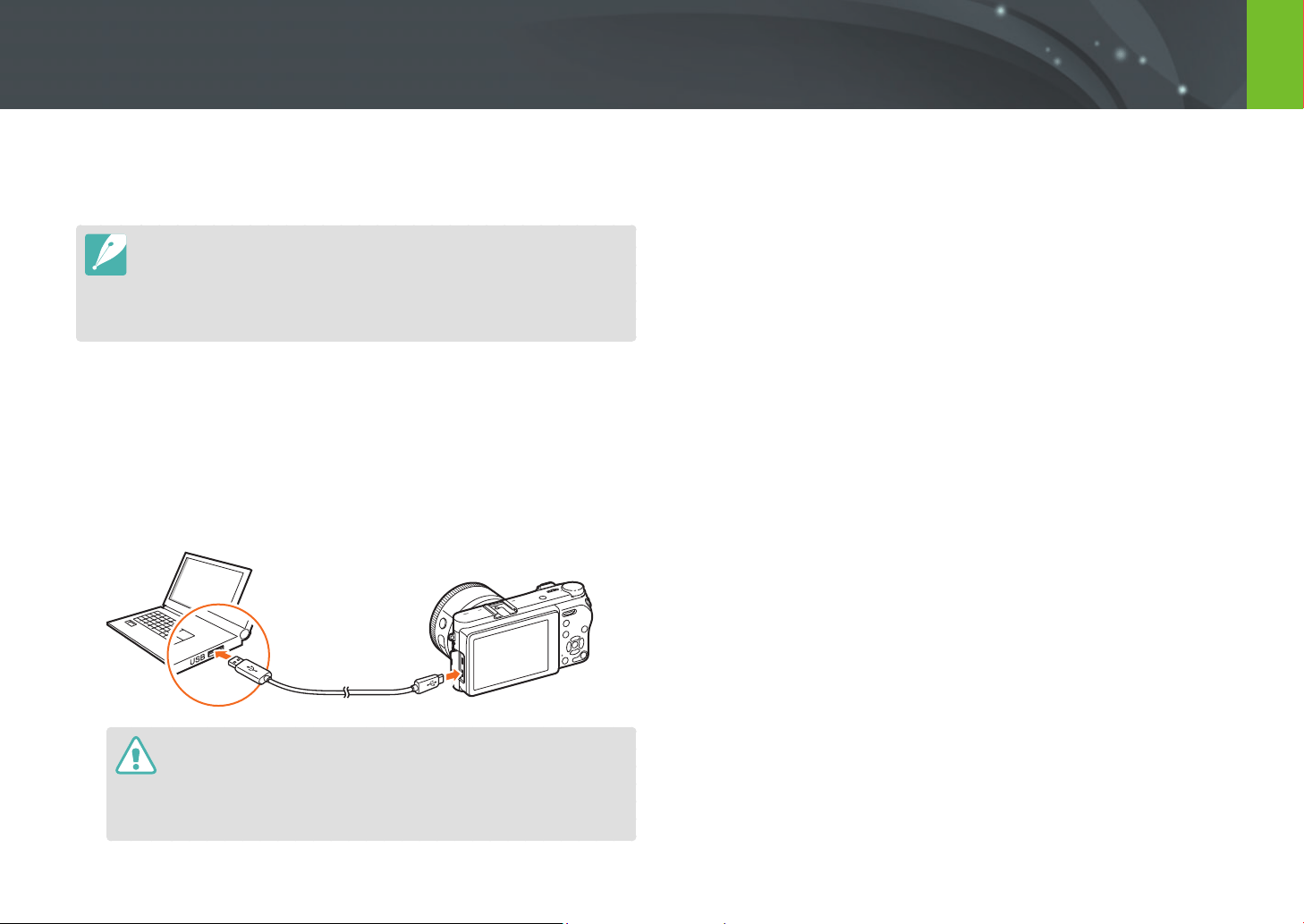
203
Appendix
Updating the firmware
Use Wi-Fi or a USB cable to connect the camera to the computer and
update the rmware of the camera or the lens.
•
You cannot run a rmware update without a fully charged battery. Recharge
the battery fully before running a rmware update.
•
If you update the rmware, user settings and values will be reset. (Date, time,
language, and video out will not change.)
•
Do not turn the camera o while the update is in progress.
Connecting via USB cable
1
Turn o the camera.
2
Connect your camera to the computer with the USB cable.
•
You must plug the small end of the USB cable into your camera. If the
cable is reversed, it may damage your les. The manufacturer is not
responsible for any loss of data.
•
If you try to plug the USB cable into the HDMI port, the camera may not
work properly.
3
Turn on the camera.
4
On the computer, select i-Launcher
ĺ
Software Update.
(p. 200)
5
Follow the on-screen instructions to download the rmware to
the camera.
•
You can download the rmware of the camera or the lens.
6
Turn o the camera when the download completes.
7
Remove the USB cable.
8
Turn on the camera.
9
Press [m]
ĺ
q
ĺ
Device Information
ĺ
Software
Update
ĺ
Body Firmware or Lens Firmware
.
10
Select Update in the pop-up window on the camera to
update the rmware.
204
Appendix > Updating the rmware
Connecting via Wi-Fi
1
Press [m]
ĺ
q
ĺ
Device Information
ĺ
Software
Update
ĺ
Download via Wi-Fi.
•
The camera will automatically attempt to connect to a WLAN via
the most recently connected AP device.
•
If the camera has not previously been connected to a WLAN, it will
search for available AP devices. (p. 153)
2
Select Download in the pop-up window.
•
If a rmware already downloaded is available, select OK in the pop-
up window.
3
Select OK in the pop-up window on the camera to update the
rmware.
•
Remaining storage on the memory card must be more than 1 GB to update
the rmware via Wi-Fi.
•
Updating rmware via Wi-Fi may not be stable depending on the quality of
the network connection.

205
Appendix
Before contacting a service center
If you are having trouble with your device, try these troubleshooting
solutions before contacting a service professional.
When you leave your camera at a service center, be sure to also leave the other
components that may have contributed to the malfunction, such as the memory
card and battery.
Situation Suggested remedies
Cannot turn on the
camera
• Ensure that the battery is inserted.
• Ensure that the battery is inserted correctly.
• Charge the battery.
The power turns o
suddenly
• Charge the battery.
• Your camera may be in Power save mode or the
display turns o automatically. (p. 181)
• The camera may be turned o automatically to
prevent the memory card from being damaged
due to excessive heat. Turn on your camera
again.
The camera is losing
battery power quickly
• The battery may lose power more quickly in
low temperatures (below 0 °C/32 °F). Keep the
battery warm by putting it into your pocket.
• Using the ash or recording videos depletes the
battery quickly. Recharge if needed.
• Batteries are consumable parts that must be
replaced over time. Get a new battery if the
battery life is diminishing quickly.
Situation Suggested remedies
Cannot capture
photos
• There is no space on the memory card. Delete
unnecessary les or insert a new card.
• Format the memory card.
• The memory card is defective. Get a new
memory card.
• The memory card is locked. Unlock the card.
(p. 190)
• Ensure that the camera is switched on.
• Charge the battery.
• Ensure that the battery is inserted correctly.
The camera freezes
Remove the battery and insert it again.
The camera heats up
While using the camera, it may heat up.
This is normal and should not aect your camera’s
lifespan or performance.
The ash res
unexpectedly
The ash may re due to static electricity.
The camera is not malfunctioning.
The ash does not
work
• The ash option may be set to O. (p. 106)
• You cannot use the ash in some modes.
The date and time are
incorrect
Set the date and time under the q menu.
(p. 181)
The display or buttons
do not work
Remove the battery and insert it again.
206
Appendix > Before contacting a service center
Situation Suggested remedies
The memory card has
an error
• Turn o the camera, and then turn it on again.
• Remove the memory card, and then insert it
again.
• Format the memory card.
See “Cautions when using memory cards“ for
more details. (p. 193)
Your computer does
not recognize an
SDXC or UHS-I/UHS-II
memory card
SDXC memory cards use the exFAT le system.
To use SDXC memory cards or UHS-I/UHS-II
memory cards that are formatted with the exFAT
le system on a Windows XP computer, download
and update the exFAT le system driver from the
Microsoft website.
Your TV or computer
cannot display photos
and videos that are
stored on an SDXC or
UHS-I/UHS-II memory
card
SDXC memory cards use the exFAT le system.
To use SDXC memory cards or UHS-I/UHS-II
memory cards that are formatted with the exFAT
le system, ensure that the external device is
compatible with the exFAT le system before
connecting the camera to the device.
Cannot display les
If you change the name of a le, your camera may
not play the le (the name of the le should meet
the DCF standard). If you encounter this situation,
display les on your computer.
Situation Suggested remedies
The photo is blurry
• Ensure that the focus option you set is suitable
for the kind of shot you are capturing.
• Use a tripod to prevent your camera from
shaking.
• Ensure that the lens is clean. If not, clean the
lens. (p. 187)
The colors in the
photo do not match
the actual scene
An incorrect White Balance can create unrealistic
color. Select the proper White Balance option to
suit the light source. (p. 83)
The photo is too
bright or too dark.
Your photo is overexposed or underexposed.
• Adjust the aperture value or the shutter speed.
• Adjust the ISO sensitivity. (p. 80)
• Turn the ash o or on. (p. 106)
• Adjust the exposure value. (p. 115)
Photos are distorted
Minor distortion can occur when you use this
camera with a wide angle lens that lets the
camera take pictures with a wide angle of view.
This is normal, and is not a malfunction.
Horizontal lines
appear on the photo
This may occur when the subject is illuminated
by a uorescent or mercury-vapor light source.
Select a slow shutter speed.
207
Appendix > Before contacting a service center
Situation Suggested remedies
The playback screen
does not appear
on the connected
external device
• Ensure that the HDMI cable is properly
connected to the external monitor.
• Ensure that the memory card has recorded
properly.
Your computer does
not recognize your
camera
• Ensure that the USB cable is connected
correctly.
• Ensure that the camera is switched on.
• Ensure that you are using a supported
operating system.
Your computer
disconnects the
camera while
transferring les
The le transfer may be interrupted by static
electricity. Disconnect the USB cable and connect
it again.
i-Launcher is not
functioning properly
• End i-Launcher and restart the program.
• Depending on your computer’s specications
and environment, the program may not launch
automatically. If this occurs, click Start
ĺ
All Programs
ĺ Samsung ĺ i-Launcher
ĺ Samsung i-Launcher on your Windows
computer. (For Windows 8, open the Start
screen, and then select All apps
ĺ Samsung
i-Launcher) Or, click Applications
ĺ Samsung
ĺ i-Launcher or i-Launcher Assistant on your
Mac OS computer.
Situation Suggested remedies
Auto Focus does not
work
• The subject is not in focus. When the subject
is outside the AF area, focus on the subject by
moving it into the AF area and half-pressing
[Shutter].
• The subject is too close. Step back from the
subject and shoot.
• The focus mode is set to MF. Switch the mode
to AF.
The AEL feature does
not work
The AEL feature does not work in t, M,
and s modes. Select another mode to use this
feature.
The lens does not
work
• Ensure that the lens is properly mounted.
• Remove the lens from the camera and
remount it.
The external ash
does not work
Ensure that the external device is properly
mounted and turned on.
The date and time
settings screen
appears when you
power on the camera
• Set the date and time again.
• This screen appears when the camera’s internal
power source has completely discharged. Insert
a fully charged battery, turn o the camera,
and then wait at least 72 hours for the internal
power source to recharge.
208
Appendix
Camera specifications
Image Sensor
Type
BSI CMOS
Sensor size
23.5 X 15.7 mm
Eective pixels
Approx. 28.2 mega-pixels
Total pixels
Approx. 30.7 mega-pixels
Color lter
RGB primary
Lens Mount
Type
Samsung NX Mount
Image Stabilization
Type
Lens shift (depends on lens)
i-Function
Features
Aperture value, Shutter speed, Exposure value,
ISO, White Balance, intelli-Zoom
Dust Reduction
Supersonic drive
Display
Type
Super AMOLED with Touch Screen
Size
3.0" (Approx. 76.6 mm)
Resolution
1,036 k dots
Field of view
Approx. 100 %
Angle
Flip (Up 180°), Tilt (Up 90°, Down 45°)
Focusing
Type
Hybrid AF
Focusing point
205 points (Phase Detection AF),
209 points (Contrast AF)
Mode
Active AF, Single AF, Continuous AF, Manual
Focus
Shutter
Speed
• Auto: 1/6,000 sec.–1/4 sec.
• Manual: 1/6,000 sec.–30 sec.
• Bulb (time limit: 8 min.)
Exposure
Metering system
TTL 221 Block segment
Compensation
Still: ±5 EV, Movie: ±3 EV (1/3 EV Step)
ISO equivalent
Auto, 100–25600 (1 EV or 1/3 EV Step)
* You can expand up to ISO 51200.
209
Appendix > Camera specications
Drive Modes
Mode
Single, Continuous, Timer, Bracket
Continuous shooting
9 fps
* Maximum shooting speed is 9 frames per second. It will
slow down after approx. JPEG 40 shots, RAW 5 shots.
(Based on UHS-I SD Card. May vary depending on the
spec of memory card.)
Bracket shooting
Auto exposure bracketing,
White Balance bracketing,
Picture Wizard bracketing, Depth bracketing
Self-timer
2–30 sec. (1 second interval)
Flash
Type
External Flash (bundle with SEF8A)
Mode
Smart Flash, Auto, Auto Red-eye, Fill-in,
Fill-in Red, 1st Curtain, 2nd Curtain, O
Guide number
8 (based on ISO 100)
Sync speed
Less than 1/200 sec.
White Balance
Mode
Auto WB, Daylight, Cloudy, Fluorescent White,
Fluorescent NW, Fluorescent Daylight, Tungsten,
Tungsten (Auto), Flash WB, Custom Set, Color
Temperature (Manual)
Dynamic Range Expansion
O/Smart Range+/HDR
Eects
Picture wizard
Standard, Vivid, Portrait, Landscape, Forest, Retro,
Cool, Calm, Classic, Custom1, Custom2, Custom3
Smart lter
Vignetting, Miniature (H), Miniature (V),
Watercolor, Selective Color (R/G/B/Y 4 Colors)
Photos
Mode
Auto, Program, Aperture Priority, Shutter Priority,
Manual, Custom, Samsung Auto Shot, Smart
Smart mode
Beauty Face, Landscape, Action Freeze, Rich
Tones, Panorama, Waterfall, Silhouette, Sunset,
Night, Fireworks, Light Trace, Multi Exposure
Size-JPEG
• (3:2): 28M (6480X4320), 13.9M (4560X3040),
7.1M (3264X2176), 3M (2112X1408)
• (16:9): 23.6M (6480X3648), 11.9M (4608X2592),
6.2M (3328X1872), 2.4M (2048X1152)
• (1:1): 18.7M (4320X4320), 9.5M (3088X3088),
4.7M (2160X2160), 2M (1408X1408)
Size-RAW
28M (6480X4320)
RAW format
SRW (Compression: Lossless Compression,
Normal Compression)
Color space
sRGB, Adobe RGB
210
Appendix > Camera specications
Video
Format
MP4, AVI
Compression Video
HEVC, MJPEG (VGA only)
Size
4096X2160 (24 fps), 3840X2160 (30 fps),
1920X1080, 1280X720, 640X480
*
When recording 4K or UHD video, the angle of view
becomes narrower.
(Eective angle of view: approx. 4K 1.68 times, UHD 1.77
times the focal length)
Frame rate
• NTSC: 120 fps (HD only), 60 fps, 30 fps, 24 fps
• PAL: 100 fps (HD only), 50 fps, 25 fps, 24 fps
Sound
Stereo
Storage
External media
SD card, SDHC card, SDXC card (up to 64 GB
guaranteed) (UHS-I supported)
File format
RAW, JPEG, MPO (3D)
Network and Wireless Connectivity
Wi-Fi
IEEE 802.11b/g/n
NFC
Yes
Bluetooth
Yes
Interface
Digital output
connector
Yes (USB 2.0)
Video output
HDMI (NTSC, PAL)
Battery
Capacity
1,130 mAh
Physical Specications
Dimensions (W X H X D)
4.7 X 2.5 X 1.7 in (119.5 X 63.6 X 42.5 mm, without
protrusions)
Weight
Approx. 10 oz (292 g, body only)
Operating Temperature
0–40 °C
Operating Humidity
5–85 %
System Requirements
Windows
Windows 7/8/8.1, Intel® 3rd Gen. i5 3.4 GHz or
higher (equivalent AMD processor)
Macintosh
Mac OS 10.7 or higher
* Specications may change without notice to improve performance.
* Other brands and products names are trademarks of respective owners.

211
Appendix
Glossary
Anaglyph mode
Anaglyph mode enables a 3D eect to be applied to images when they
are viewed through optical devices such as special glasses. The camera
captures two separate images in red and cyan (chromatically opposite
colors). The images are combined and when viewed through special
glasses, with red and cyan colored lters, a 3D eect is achieved.
AP (Access Point)
An access point is a device that allows wireless devices to connect to a
wired network.
Ad-Hoc network
An ad-hoc network is a temporary connection for sharing les or an
internet connection and between computers and devices.
Adobe RGB
Adobe RGB is used for commercial printing and has a larger color range
than sRGB. Its wider range of colors helps you easily edit photos on a
computer.
AEB (Auto Exposure Bracket)
This feature automatically captures several images at dierent exposures
to help you capture a properly-exposed image.
AEL/AFL (Auto Exposure Lock/Auto Focus Lock)
These features help you to lock the exposure or focus settings for a subject.
AF (Auto Focus)
A system that automatically focuses the camera lens on the subject. Your
camera uses contrast to focus automatically.
AMOLED (Active-matrix organic light-emitting diode)/
LCD (Liquid Crystal Display)
AMOLED is a very thin and light visual display that does not require
backlighting. LCD is a visual display commonly used in consumer
electronics. An LCD display needs a separate backlight, such as CCFL or
LED lights, to reproduce colors.

212
Appendix > Glossary
Color space
The range of colors that the camera can identify and reproduce in photos.
Color temperature
Color Temperature is a measurement in degrees Kelvin (K) that indicates
the hue of a specic type of light source. As the color temperature
increases, the color of the light source has a more bluish quality. As the
color temperature decreases, the color of the light source has a more
reddish quality. At 5,500 degrees Kelvin, the color of the light source is
similar to the sun at midday.
Composition
Composition in photography means arranging objects in a photo. Usually,
abiding by the rule of thirds leads to a good composition.
DCF (Design rule for Camera File system)
A specication that denes a le format and le system for digital cameras
created by the Japan Electronics and Information Technology Industries
Association (JEITA).
Aperture
The aperture controls the amount of light that reaches the camera’s sensor.
Bluetooth
This feature allows you to exchange les with other devices.
Camera shake (Blur)
If the camera is moved while the shutter is open, the entire image may
appear blurred. This occurs more often when the shutter speed is slow.
Prevent camera shake by raising the ISO sensitivity, using the ash, or
using a faster shutter speed. Alternatively, use a tripod or the OIS function
to stabilize the camera.
Cloud Computing
Cloud computing is a technology that allows you to store data on remote
servers and to use it from a device with Internet access.

213
Appendix > Glossary
Exif (Exchangeable Image File Format)
A specication that denes an image le format for digital cameras created
by the Japan Electronic Industries Development Association (JEIDA).
Exposure
The amount of light allowed to reach the camera’s sensor. Exposure is
controlled by a combination of the shutter speed, the aperture value, and
ISO sensitivity.
Flash
A speed light that helps to create adequate exposure in low-light
conditions.
Focal length
The distance from the middle of the lens to its focal point (in millimeters).
Longer focal lengths result in narrower angles of view and the subject is
magnied. Shorter focal lengths result in wider angles of view.
Depth of eld
The distance between the nearest and farthest points that can be
acceptably focused in a photograph. Depth of eld varies with lens
aperture, focal length, and distance from the camera to the subject.
Selecting a smaller aperture value, for example, will increase the depth of
eld and blur the background of a composition.
Electronic rst curtain shutter
The sensor acts as the rst curtain of the shutter. With this function,
the shutter reacts faster because no process is needed to operate the
mechanical curtain.
EV (Exposure Value)
All the combinations of the camera’s shutter speed and lens aperture that
result in the same exposure.
EV Compensation
This feature allows you to quickly adjust the exposure value measured by
the camera, in limited increments, to improve the exposure of your photos.

214
Appendix > Glossary
ISO sensitivity
The sensitivity of the camera to light, based on the equivalent lm speed
used in a lm camera. At higher ISO settings, the camera can use a higher
shutter speed to reduce blur caused by camera shake and low light.
However, images with a high ISO setting are more susceptible to noise.
JPEG (Joint Photographic Experts Group)
A lossy method of compression for digital images. JPEG images are
compressed to reduce their overall le size with minimal deterioration of
the image resolution.
Metering
The metering refers to the way in which the camera measures the quantity
of light to set the exposure.
MF (Manual Focus)
A system that manually focuses the camera lens on the subject.
You can use the focus ring to focus on a subject.
Histogram
A graphical representation of the brightness of an image. The horizontal
axis represents the brightness and the vertical axis represents the number
of pixels. High points at the left (too dark) and right (too bright) on the
histogram indicate a photo that is improperly exposed.
HEVC
High-eciency Video Coding format, established by the international
standard organizations ISO-IEC and ITU-T. This codec is capable of
providing good video quality at low bit rates.
Image sensor
The physical part of a digital camera that contains a photosite for each
pixel in the image. Each photosite records the brightness of the light that
strikes it during an exposure. Common sensor types are CCD (Charge-
coupled Device) and CMOS (Complementary Metal Oxide Semiconductor).
IP (Internet protocol) address
An IP address is a unique number that is assigned to every device that is
connected to the internet.

215
Appendix > Glossary
NTSC (National Television System Committee)
A video color encoding standard used most commonly in Japan, North
America, the Philippines, South America, South Korea, and Taiwan.
Optical zoom
This is a general zoom which can enlarge images with a lens and does not
reduce the quality of images.
PAL (Phase Alternate Line)
A video color encoding standard used in numerous countries throughout
Africa, Asia, Europe, and the Middle East.
Quality
An expression of the rate of compression used in a digital image. Higher
quality images have a lower rate of compression, which usually results in a
larger le size.
MJPEG (Motion JPEG)
A video format which is compressed as a JPEG image.
MPO (Multi Picture Object)
An image le format that contains multiple images in a le. An MPO le
provides a 3D eect on MPO-compatible displays, such as 3D TVs or 3D
monitors.
Noise
Misinterpreted pixels in a digital image that may appear as misplaced or
random, bright pixels. Noise usually occurs when photos are shot with a
high ISO setting or when the ISO sensitivity is automatically set in a dark
place.
NFC (Near Field Communication)
NFC is a set of standards for radio communication at very close proximity.
You can use NFC-enabled devices to activate features or exchange data
with other devices.

216
Appendix > Glossary
RAW (CCD raw data)
The original, unprocessed data, collected directly from the camera’s image
sensor. White Balance, contrast, saturation, sharpness, and other data can
be manipulated with editing software before the image is compressed into
a standard le format.
Resolution
The number of pixels present in a digital image. High resolution images
contain more pixels and typically show more detail than low resolution
images.
Shutter speed
Shutter speed refers to the amount of time it takes to open and close the
shutter. It is an important factor in the brightness of a photo, as it controls
the amount of light which passes through the aperture before it reaches
the image sensor. A fast shutter speed allows less time to let in light. The
photo becomes darker, but subjects in motion freeze more easily.
sRGB (Standard RGB)
International standard of color space established by the IEC (International
Electrotechnical Commission). This is the dened color space for PC
monitors and is also used as the standard color space for Exif.
Vignetting
A reduction of an image’s brightness or saturation at the periphery (outer
edges) compared to the center of the image. Vignetting can draw interest
to subjects positioned in the center of an image.
White Balance (Color balance)
An adjustment of the intensities of colors (typically the primary colors red,
green, and blue), in an image. The goal of adjusting the White Balance, or
color balance, is to correctly render the colors in an image.
Wi-Fi
Wi-Fi is a technology that allows electronic devices to exchange data
wirelessly over a network.
WPS (Wi-Fi Protected Setup)
WPS is a technology that secures wireless home networks.
217
Appendix
Optional accessories
You can purchase the following optional items:
Lens, external ash, shutter release (micro USB type), rechargeable battery,
battery charger, camera bag, camera case, memory card, lter, USB cable,
HDMI cable, and camera strap.
•
For information about accessories and their availability, visit the Samsung
website.
•
Before purchasing accessories, make sure they are compatible with your
camera.
•
Use only Samsung-approved accessories. Samsung is not responsible for
damage caused by using another manufacturer’s accessories.

218
Appendix
A
Accessories
Connect the ash 59
Flash layout 58
Active AF 89
AEL 117
Aperture 16, 20
Auto Backup 165
Auto focus 87
B
Battery
Caution 194
Charging 36
Insert 34
Bluetooth Shutter 148
Bracketing 102
C
Camera
Disconnecting (Windows) 168
Layout 30
Camera specications 208
Color space 172
Connecting to a computer
Auto Backup 165
Connecting as removable disk 167
Mac OS 168
Windows OS 167
Connecting to a smart phone
Bluetooth Shutter 148
MobileLink 144
Quick Transfer 149
Remote Viewnder 146
Connecting to a TV
3D TV 164
TV 163
TV Link 161
Continuous shooting 101
D
Date and Time 181
Depth of Field (DOF) 17, 22
Display brightness 180
Display type 51
Drive 100
E
Email 157
Enlarging 131
Error messages 186
Exposure Value (EV) 16, 115
F
Fader 123
FEL 110
Files
Deleting 130
Extension 120
Format 79
Protecting 129
Flash
Bounce photography 27
Flash options 106
Guide number 26
Intensity 107
F-number 16
Focal length 21
Focus assist 96
Focus Peaking 98
Index

219
Appendix > Index
I
Icons
Playback mode 50
Shooting mode 46
i-Launcher 198
Image adjustment
Adjusting photos 139
Retouching faces 139
Initial settings 37
Interval capture 105
ISO 19, 20, 80
L
Lenses
Layout 53
Locking 54
Markings 57
Unlocking 55
M
Maintenance 187
Memory card
Caution 190
Insert 34
Metering 111
MF Assist 96
MobileLink 144
N
NFC 142
Notication panel 52
O
One touch shot 95
Optical Image Stabilization
(OIS) 99
Optional accessories 217
P
Panorama mode 72
Photos
Editing 137
Enlarging 131
Shooting options 78
Viewing on camera 126
Picture Wizard 85
Posture 13
Power save mode 181
Q
Quick Transfer 149
R
Red-eye eect 107
Remote Viewnder 146
Resolution
Playback mode 138
Shooting mode (Movie) 119
Shooting mode (Photo) 78
Rotating 138
Rule of thirds 24

220
Appendix > Index
S
Samsung RAW Converter 202
Service center 205
Settings 180
Shooting modes
Aperture Priority 64
Auto 60
Custom 67
Manual 66
Program 62
Recording 73
Samsung Auto Shot 69
Shutter Priority 65
Smart 71
Shutter speed 18, 20
Slide show 132
Smart lter
Playback mode 140
Shooting mode 86
Smart panel 42
Smart Range+ 124
T
Thumbnails 126
Time Lapse 105
Timer 102
Touch AF 94
Touch screen 40
Tracking AF 94
Transferring les
Mac 168
Windows 167
TV Link 161
U
Unpacking 29
V
Video Out 181
Videos
Capturing 136
Options 119
Recording 73
Viewing 134
W
White balance 83
Wireless network 153
3
3D mode 75