ii
IMPORTANT
• For your assistance in reporting the loss
or theft of your Projector, please record
the Model and Serial Number located on
the bottom of the projector and retain this
information.
• Before recycling the packaging, please
ensure that you have checked the con-
tents of the carton thoroughly against the
list of “Supplied accessories” on page 11.
Model No.:
Serial No.:
SPECIAL NOTE FOR USERS IN THE U.K.
The mains lead of this product is fitted with a non-rewireable (moulded) plug incorporat-
ing a 10A fuse. Should the fuse need to be replaced, a BSI or ASTA approved BS 1362
fuse marked
or and of the same rating as above, which is also indicated on the pin
face of the plug, must be used.
Always refit the fuse cover after replacing the fuse. Never use the plug without the fuse
cover fitted.
In the unlikely event of the socket outlet in your home not being compatible with the plug
supplied, cut off the mains plug and fit an appropriate type.
DANGER:
The fuse from the cut-off plug should be removed and the cut-off plug destroyed immedi-
ately and disposed of in a safe manner.
Under no circumstances should the cut-off plug be inserted elsewhere into a 13A socket
outlet, as a serious electric shock may occur.
To fit an appropriate plug to the mains lead, follow the instructions below:
WARNING:
THIS APPARATUS MUST BE EARTHED.
IMPORTANT:
The wires in this mains lead are coloured in accordance with the following code:
Green-and-yellow : Earth
Blue : Neutral
Brown : Live
As the colours of the wires in the mains lead of this apparatus may not correspond with the
coloured markings identifying the terminals in your plug proceed as follows:
• The wire which is coloured green-and-yellow must be connected to the terminal in the
plug which is marked by the letter E or by the safety earth symbol
or coloured green or
green-and-yellow.
• The wire which is coloured blue must be connected to the terminal which is marked with
the letter N or coloured black.
• The wire which is coloured brown must be connected to the terminal which is marked with
the letter L or coloured red.
IF YOU HAVE ANY DOUBT, CONSULT A QUALIFIED ELECTRICIAN.
XG-MB67X_EN2_CD_a 06.5.12, 6:38 AM2
iii
XG-MB67X_EN2_CD_a 06.5.12, 6:38 AM3
iv
The supplied CD-ROM contains operation instructions in English, German, French,
Swedish, Spanish, Italian, Dutch, Portuguese, Chinese and Korean. Carefully read
through the operation instructions before operating the projector.
Die mitgelieferte CD-ROM enthält Bedienungsanleitungen in Englisch, Deutsch, Französisch,
Schwedisch, Spanisch, Italienisch, Niederländisch, Portugiesisch, Chinesisch und Koreanisch.
Bitte lesen Sie die Bedienungsanleitung vor der Verwendung des Projektors sorgfältig durch.
Le CD-ROM fourni contient les instructions de fonctionnement en anglais, allemand,
français, suédois, espagnol, italien, néerlandais, portugais, chinois et coréen. Veuillez lire
attentivement ces instructions avant de faire fonctionner le projecteur.
Den medföljande CD-ROM-skivan innehåller bruksanvisningar på engelska, tyska,
franska, svenska, spanska, italienska, holländska, portugisiska, kinesiska och koreanska.
Läs noga igenom bruksanvisningen innan projektorn tas i bruk.
El CD-ROM suministrado contiene instrucciones de operación en inglés, alemán,
francés, sueco, español, italiano, holandés, portugués, chino y coreano. Lea
cuidadosamente las instrucciones de operación antes de utilizar el proyector.
Il CD-ROM in dotazione contiene istruzioni per l’uso in inglese, tedesco, francese,
svedese, spagnolo, italiano, olandese, portoghese, cinese e coreano. Leggere
attentamente le istruzioni per l’uso prima di usare il proiettore.
De meegeleverde CD-ROM bevat handleidingen in het Engels, Duits, Frans, Zweeds,
Spaans, Italiaans, Nederlands, Portugees, Chinees en Koreaans. Lees de handleiding
zorgvuldig door voor u de projector in gebruik neemt.
O CD-ROM fornecido contém instruções de operação em Inglês, Alemão, Francês,
Sueco, Espanhol, Italiano, Holandês, Português, Chinês e Coreano. Leia
cuidadosamente todas as instruções de operação antes de operar o projetor.
XG-MB67X_EN2_CD_a 06.5.12, 6:38 AM4
1
Introduction
Before using the projector, please read this operation manual carefully.
There are two important reasons for prompt warranty registration of your new SHARP
Projector, using the REGISTRATION CARD packed with the projector.
1. WARRANTY
This is to assure that you immediately receive the full benefit of the parts, service
and labor warranty applicable to your purchase.
2. CONSUMER PRODUCT SAFETY ACT
To ensure that you will promptly receive any safety notification of inspection,
modification, or recall that SHARP may be required to give under the 1972
Consumer Product Safety Act, PLEASE READ CAREFULLY THE IMPORTANT
“LIMITED WARRANTY” CLAUSE.
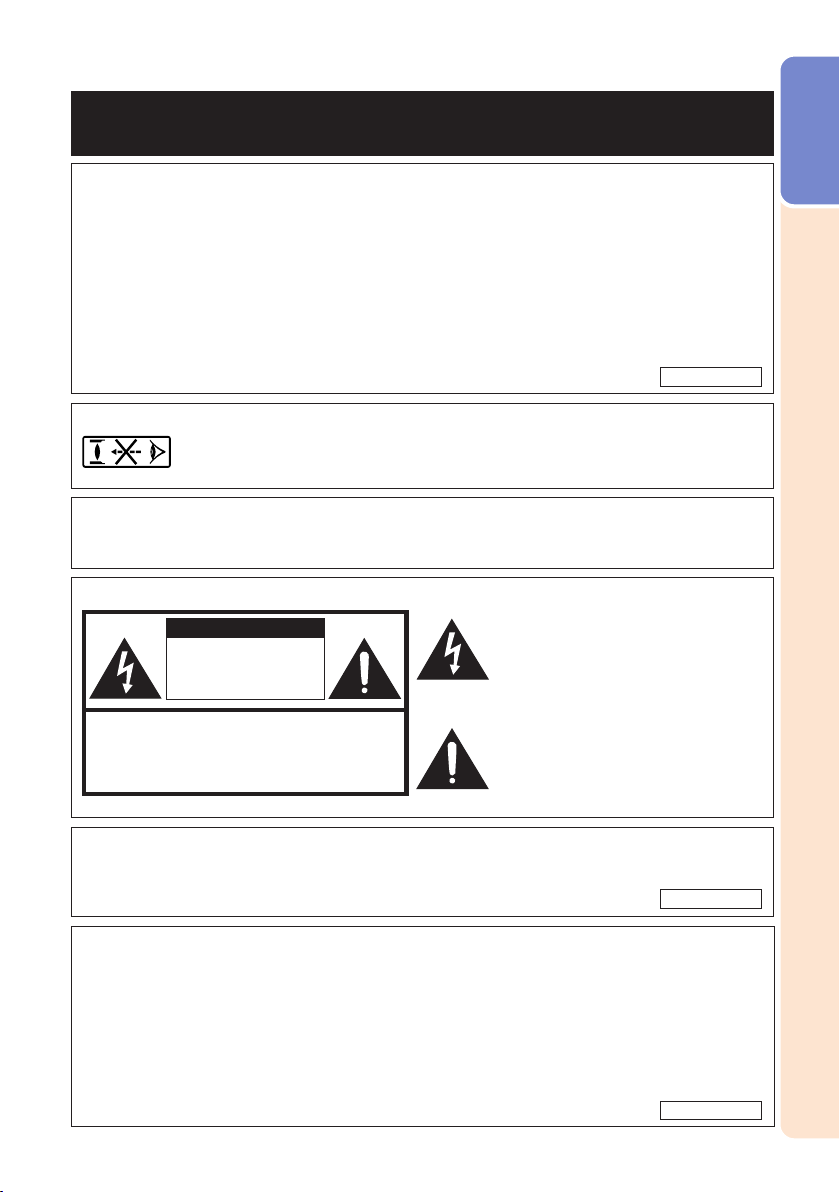
WARNING: High brightness light source. Do not stare into the beam of light, or view
directly. Be especially careful that children do not stare directly into the
beam of light.
WARNING: To reduce the risk of fire or electric shock, do not expose
this product to rain or moisture.
WARNING: FCC Regulations state that any unauthorized changes or modifications to
this equipment not expressly approved by the manufacturer could void
the user’s authority to operate this equipment.
The lightning flash with arrowhead sym-
bol, within an equilateral triangle, is in-
tended to alert the user to the presence
of uninsulated “dangerous voltage”
within the product’s enclosure that may
be of sufficient magnitude to constitute
a risk or electric shock to persons.
The exclamation point within a triangle
is intended to alert the user to the
presence of important operating and
maintenance (servicing) instructions in
the literature accompanying the product.
Introduction
ENGLISH
See bottom of projector.
U.S.A. ONLY
U.S.A. ONLY
CAUTION: TO REDUCE THE RISK OF ELECTRIC SHOCK,
DO NOT REMOVE COVER.
NO USER-SERVICEABLE PARTS EXCEPT LAMP UNIT.
REFER SERVICING TO QUALIFIED SERVICE
PERSONNEL.
CAUTION
RISK OF ELECTRIC SHOCK.
DO NOT REMOVE SCREWS
EXCEPT SPECIFIED USER
SERVICE SCREW.
INFORMATION
This equipment has been tested and found to comply with the limits for a Class A digital
device, pursuant to Part 15 of the FCC Rules. These limits are designed to provide reasonable
protection against harmful interference when the equipment is operated in a commercial
environment. This equipment generates, uses, and can radiate radio frequency energy and,
if not installed and used in accordance with the operation manual, may cause harmful
interference to radio communications. Operation of this equipment in a residential area is
likely to cause harmful interference, in which case the user will be required to correct the
interference at his own expense.
U.S.A. ONLY
XG-MB67X_EN2_CD_b 06.5.12, 6:39 AM1
2
Caution Concerning Lamp Replacement
See “Replacing the Lamp” on page 55.
PRODUCT DISPOSAL
This projector utilizes tin-lead solder, and a pressurized lamp containing a small amount of
mercury. Disposal of these materials may be regulated due to environmental considerations.
For disposal or recycling information, please contact your local authorities or, if you are
located in the United States of America, the Electronic Industries Alliance: www.eiae.org .
This SHARP projector uses a DMD panel. This very sophisticated panel contains 786,432 pixels
(micromirrors). As with any high technology electronic equipment such as large screen TVs,
video systems and video cameras, there are certain acceptable tolerances that the equipment
must conform to.
This unit has some inactive pixels within acceptable tolerances which may result in inactive dots
on the picture screen. This will not affect the picture quality or the life expectancy of the unit.
WARNING:
This is a Class A product. In a domestic environment this product may cause radio
interference in which case the user may be required to take adequate measures.
The enclosed computer cable must be used with the device. The cable is provided to
ensure that the device complies with FCC Class A verification.
U.S.A. ONLY
WARNING:
The cooling fan in this projector continues to run for about 90 seconds after the projector enters
standby mode. During normal operation, when putting the projector into standby mode always
use the STANDBY/ON button on the projector or the STANDBY button on the remote control.
Ensure the cooling fan has stopped before disconnecting the power cord.
DURING NORMAL OPERATION, NEVER TURN THE PROJECTOR OFF BY DISCONNECTING
THE POWER CORD. FAILURE TO OBSERVE THIS WILL RESULT IN PREMATURE LAMP FAILURE.
XG-MB67X_EN2_CD_b 06.5.12, 6:39 AM2
3
Introduction
40
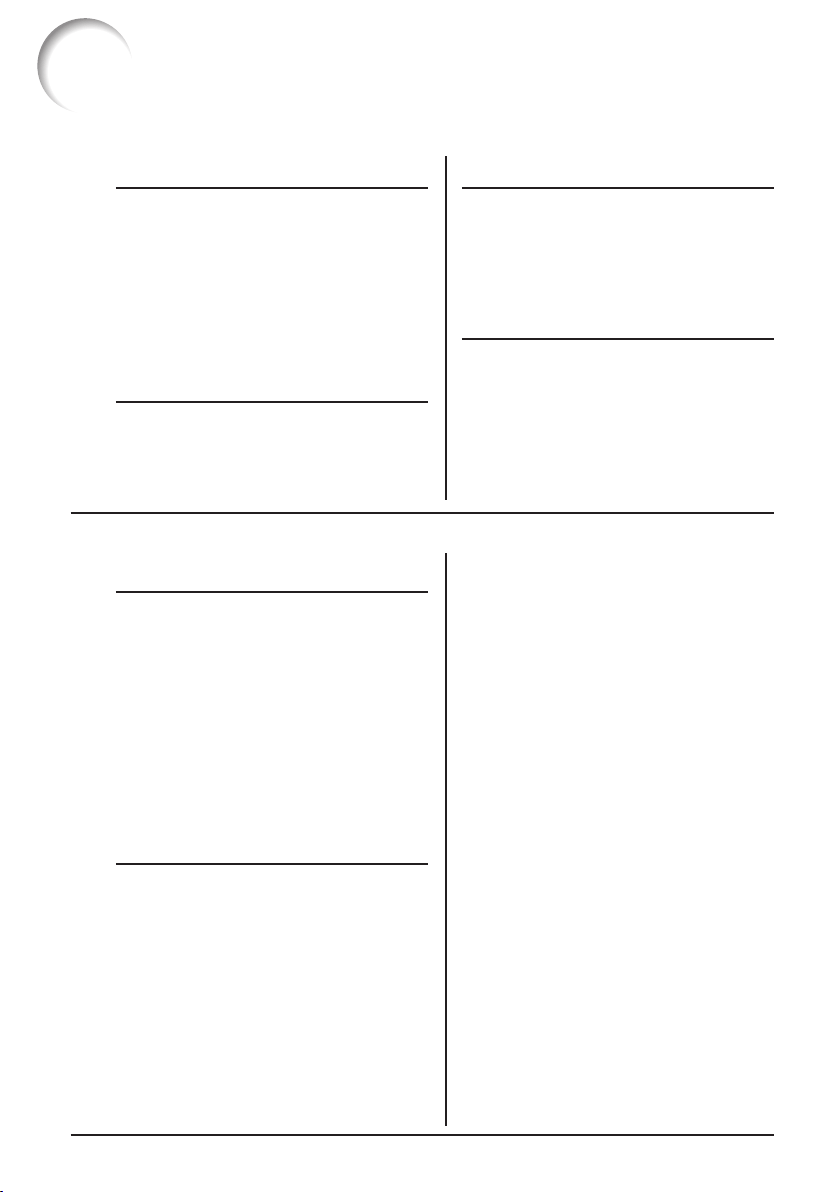
Using the Menu Screen
Menu Selections (Adjustments)
Example: Adjusting “Bright”.
• This operation can also be performed by using the buttons on the projector.
Press BMENU.
• The “Picture” menu screen for the se-
lected input mode is displayed.
Adjustment buttons
(P/R/O/Q)
Example: “Picture” screen menu for INPUT 1
(RGB) mode
Press Q or O and select “Picture”
to adjust.
1
2
ENTER button
RETURN button
Menu item
Picture Mode
Contrast 0
0
0
0
K8500
Bright
Red
Blue
1
CLR Temp
Bright Boost
Lamp Setting
Standard
Bright
Reset
SEL./ADJ. ENTER END
Picture SCR PRJ Net.
Help
MENU/HELP
button
Adjustment buttons (P/R/O/Q)
MENU/HELP button
ENTER button
• Press l RETURN to
return to the previous
screen when the menu
is displayed.
How to Read this Operation Manual
• In this operation manual, the illustration and the screen display are simplified for explanation, and
may differ slightly from the actual display.
Info
........Indicates safeguards for using the projector.
For Future Reference
Buttons used in
this operation
On-screen
display
Button used in
this step
Note
.........Indicates additional information for setting up and operating the
projector.
IndexMaintenance Troubleshooting
P. 64P. 5 2
PP. 59 and 60
XG-MB67X_EN2_CD_b 06.5.12, 6:39 AM3
4
Contents
Preparing
Introduction
How to Read this Operation Manual .... 3
Contents ............................................... 4
IMPORTANT SAFEGUARDS ............... 6
How to Access the PDF Operation
Manuals ............................................ 10
Accessories ........................................ 11
Part Names and Functions ................. 12
Inserting the Batteries .......................... 15
Usable Range ...................................... 15
Quick Start
Quick Start .......................................... 16
Using
Basic Operation
Turning the Projector On/Off .............. 28
Turning the Projector on ....................... 28
Turning the Power off (Putting the
Projector into Standby Mode) ........... 29
Image Projection ................................. 30
About the Setup Guide ........................ 30
Adjusting the Projected Image ............ 30
Switching the Input Mode .................... 32
Adjusting the Volume ........................... 32
Displaying the Black Screen and Turning
off the Sound Temporarily ................. 32
Correcting Trapezoidal Distortion ........ 33
Resize Mode ......................................... 34
Useful Features
Operating with the Remote Control .... 36
Displaying and Setting the Break Timer ....
36
Auto Sync (Auto Sync Adjustment) ..... 36
Freezing a Moving Image .................... 36
Selecting the Picture Mode .................. 36
Menu Items ......................................... 37
Using the Menu Screen ...................... 40
Menu Selections (Adjustments) ........... 40
Picture Adjustment (“Picture” menu) .. 42
Selecting the Picture Mode .................. 42
Adjusting the Image ............................. 43
Adjusting the Color Temperature ......... 43
Progressive ........................................... 43
Lamp Setting ........................................ 43
Setup
Setting up the Projector ...................... 18
Setting up the Projector ....................... 18
Standard Setup (Front Projection) ....... 18
Ceiling-mount Setup ............................ 18
Projection (PRJ) Mode ......................... 19
Screen Size and Projection Distance .. 20
Connections
Connections ........................................ 21
Samples of Cables for Connection ..... 22
Connecting to a Computer ................. 23
Connecting to Video Equipment ......... 24
Connecting to a Monitor with RGB Input
Terminal ............................................ 25
Controlling the Projector by a Computer ..
26
Connecting the Power Cord ............... 27
Adjusting the Projected Image
(“SCR - ADJ” menu) ......................... 44
Setting the Resize Mode ...................... 44
Adjusting the Image Position ............... 44
Keystone Correction ............................ 44
Setting the On-screen Display ............. 45
Selecting the Background Image ........ 45
Selecting the Setup Guide ................... 45
Reversing/Inverting Projected Images ...
45
Selecting the On-screen Display Language ...
45
Adjusting the Projector Function
(“PRJ - ADJ” menu) .......................... 46
Auto Search Function ........................... 46
Auto Sync (Auto Sync Adjustment) ..... 46
Auto Power Off Function ...................... 46
Setting the Confirmation Sound
(System Sound) ................................. 46
Speaker Setting .................................... 46
Selecting the Transmission Speed (RS-232C) ...
47
Fan Mode Setting ................................. 47
Checking the Lamp Life Status ........... 47
System Lock Function .......................... 47
Locking the Operation Buttons on the
Projector (Keylock Function) ............. 48
Setting up the Projector Network
Environment (“Network” menu) ........ 49
Setting a Password .............................. 49
DHCP Client Setting ............................. 50
TCP/IP Setting ...................................... 50
Confirming the Projector Information ... 50
Troubleshooting with the “Help” menu ......
51
Utilizing the “Help” menu functions ..... 51
XG-MB67X_EN2_CD_b 06.5.12, 6:39 AM4
5
Introduction
Reference
Appendix
Maintenance ....................................... 52
Maintenance Indicators ...................... 53
Regarding the Lamp ........................... 55
Lamp ..................................................... 55
Caution Concerning the Lamp ............ 55
Replacing the Lamp ............................. 55
Removing and Installing
the Lamp Unit .................................... 56
Resetting the Lamp Timer .................... 57
Computer Compatibility Chart ............ 58
Troubleshooting .................................. 59
For SHARP Assistance ...................... 61
Specifications ..................................... 62
Dimensions ......................................... 63
Index ................................................... 64
XG-MB67X_EN2_CD_b 06.5.12, 6:39 AM5

6
1. Read Instructions
All the safety and operating instructions should
be read before the product is operated.
2. Retain Instructions
The safety and operating instructions should be
retained for future reference.
3. Heed Warnings
All warnings on the product and in the operating
instructions should be adhered to.
4. Follow Instructions
All operating and use instructions should be
followed.
5. Cleaning
Unplug this product from the wall outlet before
cleaning. Do not use liquid cleaners or aerosol
cleaners. Use a damp cloth for cleaning.
6. Attachments
Do not use attachments not recommended by the
product manufacturer as they may cause hazards.
7. Water and Moisture
Do not use this product near water–for example,
near a bath tub, wash bowl, kitchen sink, or
laundry tub; in a wet basement; or near a
swimming pool; and the like.
8. Accessories
Do not place this product on an unstable cart,
stand, tripod, bracket, or table. The product may
fall, causing serious injury to a child or adult, and
serious damage to the product. Use only with a
cart, stand, tripod, bracket, or table
recommended by the manufacturer, or sold with
the product. Any mounting of the product should
follow the manufacturer’s instructions, and should
use a mounting accessory recommended by the
manufacturer.
9. Transportation
A product and cart
combination should be
moved with care. Quick
stops, excessive force,
and uneven surfaces may
cause the product and cart
combination to overturn.
IMPORTANT SAFEGUARDS
10. Ventilation
Slots and openings in the cabinet are provided
for ventilation to ensure reliable operation of the
product and to protect it from overheating, and
these openings must not be blocked or covered.
The openings should never be blocked by placing
the product on a bed, sofa, rug, or other similar
surface. This product should not be placed in a
built-in installation such as a bookcase or rack
unless proper ventilation is provided or the
manufacturer’s instructions have been adhered
to.
11. Power Sources
This product should be operated only from the
type of power source indicated on the marking
label. If you are not sure of the type of power
supply to your home, consult your product dealer
or local power company. For products intended
to operate from battery power, or other sources,
refer to the operating instructions.
12. Grounding or Polarization
This product is provided with one of the following
types of plugs. If the plug should fail to fit into the
power outlet, please contact your electrician.
Do not defeat the safety purpose of the plug.
a. Two-wire type (mains) plug.
b. Three-wire grounding type (mains) plug with
a grounding terminal.
This plug will only fit into a grounding type
power outlet.
13. Power-Cord Protection
Power-supply cords should be routed so that they
are not likely to be walked on or pinched by items
placed upon or against them, paying particular
attention to cords at plugs, convenience
receptacles, and the point where they exit from
the product.
14. Lightning
For added protection for this product during a
lightning storm, or when it is left unattended and
unused for long periods of time, unplug it from
the wall outlet and disconnect the cable system.
This will prevent damage to the product due to
lightning and power-line surges.
CAUTION: Please read all of these instructions before you operate this product
and save these instructions for later use.
Electrical energy can perform many useful functions. This product has been engineered
and manufactured to assure your personal safety. BUT IMPROPER USE CAN RESULT IN
POTENTIAL ELECTRICAL SHOCK OR FIRE HAZARDS. In order not to defeat the
safeguards incorporated in this product, observe the following basic rules for its installation,
use and servicing.
XG-MB67X_EN2_CD_b 06.5.12, 6:39 AM6
7
Introduction
15. Overloading
Do not overload wall outlets, extension cords, or
integral convenience receptacles as this can
result in a risk of fire or electric shock.
16. Object and Liquid Entry
Never push objects of any kind into this product
through openings as they may touch dangerous
voltage points or short-out parts that could result
in a fire or electric shock. Never spill liquid of any
kind on the product.
17. Servicing
Do not attempt to service this product yourself as
opening or removing covers may expose you to
dangerous voltage or other hazards. Refer all
servicing to qualified service personnel.
18. Damage Requiring Service
Unplug this product from the wall outlet and refer
servicing to qualified service personnel under the
following conditions:
a. When the power-supply cord or plug is
damaged.
b. If liquid has been spilled, or objects have fallen
into the product.
c. If the product has been exposed to rain or
water.
d. If the product does not operate normally by
following the operating instructions. Adjust only
those controls that are covered by the
operating instructions, as an improper
adjustment of other controls may result in
damage and will often require extensive work
by a qualified technician to restore the product
to normal operation.
e. If the product has been dropped or damaged
in any way.
f. When the product exhibits a distinct change
in performance, this indicates a need for
service.
• DLP
®
and the DLP logo are registered trademarks of Texas Instruments.
• Microsoft
®
and Windows
®
are registered trademarks of Microsoft Corporation in the United
States and/or other countries.
• PC/AT is a registered trademark of International Business Machines Corporation in the
United States.
• Adobe
®
Reader
®
is a trademark of Adobe Systems Incorporated.
• Macintosh
®
is a registered trademark of Apple Computer, Inc. in the United States and/or
other countries.
• All other company or product names are trademarks or registered trademarks of their
respective companies.
• Some IC chips in this product include confidential and/or trade secret property belonging
to Texas Instruments. Therefore you may not copy, modify, adapt, translate, distribute,
reverse engineer, reverse assemble or discompile the contents thereof.
19. Replacement Parts
When replacement parts are required, be sure
the service technician has used replacement
parts specified by the manufacturer or have the
same characteristics as the original part.
Unauthorized substitutions may result in fire,
electric shock, or other hazards.
20. Safety Check
Upon completion of any service or repairs to this
product, ask the service technician to perform
safety checks to determine that the product is in
proper operating condition.
21. Wall or Ceiling Mounting
This product should be mounted to a wall or
ceiling only as recommended by the
manufacturer.
22. Heat
This product should be situated away from heat
sources such as radiators, heat registers, stoves,
or other products (including amplifiers) that
produce heat.
XG-MB67X_EN2_CD_b 06.5.12, 6:39 AM7
8
Observe the following safeguards when setting up your
projector.
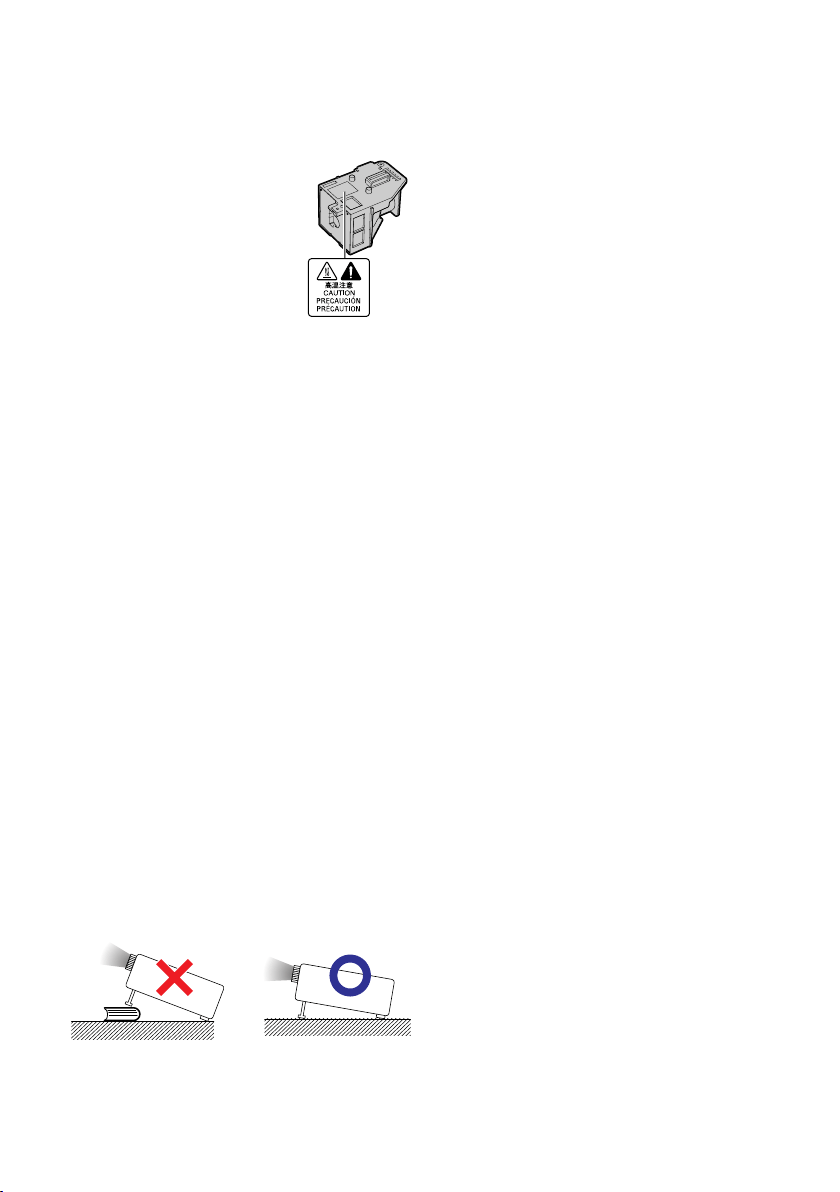
Caution concerning the lamp unit
■ Potential hazard of glass par-
ticles if lamp ruptures. In
case of lamp rupture, contact
your nearest Sharp Autho-
rized Projector Dealer or Ser-
vice Center for replacement.
See “Replacing the Lamp” on
page 55.
Caution concerning the setup of the pro-
jector
■ For minimal servicing and to maintain high
image quality, SHARP recommends that this
projector be installed in an area free from
humidity, dust and cigarette smoke. When the
projector is subjected to these environments,
the vents and lens must be cleaned more of-
ten. As long as the projector is regularly
cleaned, use in these environments will not
reduce the overall operation life of the unit.
Internal cleaning should only be performed
by a Sharp Authorized Projector Dealer or
Service Center.
Do not set up the projector in places ex-
posed to direct sunlight or bright light.
■ Position the screen so that it is not in direct
sunlight or room light. Light falling directly on
the screen washes out the colors, making
viewing difficult. Close the curtains and dim
the lights when setting up the screen in a
sunny or bright room.
Caution regarding placing of the projec-
tor
■ Place the projector on a level site within the
adjustment range (8 degrees) of the adjust-
ment foot.
■ After the projector is purchased, a faint smell
from the vent may appear when the power is
first turned on. This is normal and is not a
malfunction. It will disappear after the projec-
tor is used for a while.
When using the projector in high-altitude
areas such as mountains (at altitudes of
approximately 1,500 meters (4,900 feet)
or more)
■ When you use the projector in high-altitude
areas with thin air, set “Fan Mode” to “High”.
Neglecting this can affect the longevity of the
optical system.
Warning about placing the projector in
a high position
■ When placing the projector in a high position,
ensure that it is secured carefully to avoid per-
sonal injury caused by the projector falling
down.
Do not subject the projector to hard im-
pact and/or vibration.
■ Protect the lens so as not to hit or damage
the surface of the lens.
Rest your eyes occasionally.
■ Continuously watching the screen for long
hours will cause eye strain. Be sure to occa-
sionally rest your eyes.
Avoid locations with extremes of tem-
perature.
■ The operating temperature of the projector is
from 41°F to 95°F (+5°C to +35°C).
■ The storage temperature of the projector is
from –4°F to 140°F (–20°C to +60°C).
Do not block the exhaust and intake
vents.
■ Allow at least 11
13
/16 inches (30 cm) of space
between the exhaust vent and the nearest
wall or obstruction.
■ Be sure that the intake vent and the exhaust
vent are not obstructed.
■ If the cooling fan becomes obstructed, a pro-
tection circuit will automatically put the pro-
jector into standby mode to prevent overheat
damage. This does not indicate a malfunc-
tion. (See pages 53 and 54.) Remove the pro-
jector power cord from the wall outlet and wait
at least 10 minutes. Place the projector where
the intake and exhaust vents are not blocked,
plug the power cord back in and turn on the
projector. This will return the projector to the
normal operating condition.
XG-MB67X_EN2_CD_b 06.5.12, 6:39 AM8
9
Introduction
■ When turning off the projector, the cooling fan
runs to decrease the internal temperature for
a while. Unplug the power cord after the cool-
ing fan stops. The period the cooling fan runs
will vary, depending on the circumstances and
the internal temperature.
Caution regarding usage of the projector
■ When using the projector, be sure not to sub-
ject it to hard impact and/or vibration, as this
can result in damage. Take extra care with
the lens. Before moving the projector, be sure
to unplug the power cord from the wall outlet,
and disconnect any other cables connected
to it.
■ Do not carry the projector by holding the lens.
■ When storing the projector, re-attach the lens
cap. (See page 12).
■ Do not expose the projector to direct sunlight
or place next to heat sources. Doing so may
affect the cabinet color or cause deformation
of the plastic cover.
Other connected equipment
■ When connecting a computer or other audio-
visual equipment to the projector, make the
connections AFTER unplugging the power
cord of the projector from the AC outlet and
turning off the equipment to be connected.
■ Please read the operation manuals of the pro-
jector and the equipment to be connected for
instructions on how to make the connections.
Info
• The cooling fan regulates the internal tem-
perature, and its performance is automatically
controlled. The sound of the fan may change
during projector operation due to changes in
the fan speed. This does not indicate malfunc-
tion.
• Do not unplug the power cord during projec-
tion or cooling fan operation. This can cause
damage due to rise in internal temperature,
as the cooling fan also stops.
Using the projector in other countries
■ The power supply voltage and the shape of
the plug may vary depending on the region
or country you are using the projector in.
When using the projector overseas, be sure
to use an appropriate power cord for the coun-
try you are in.
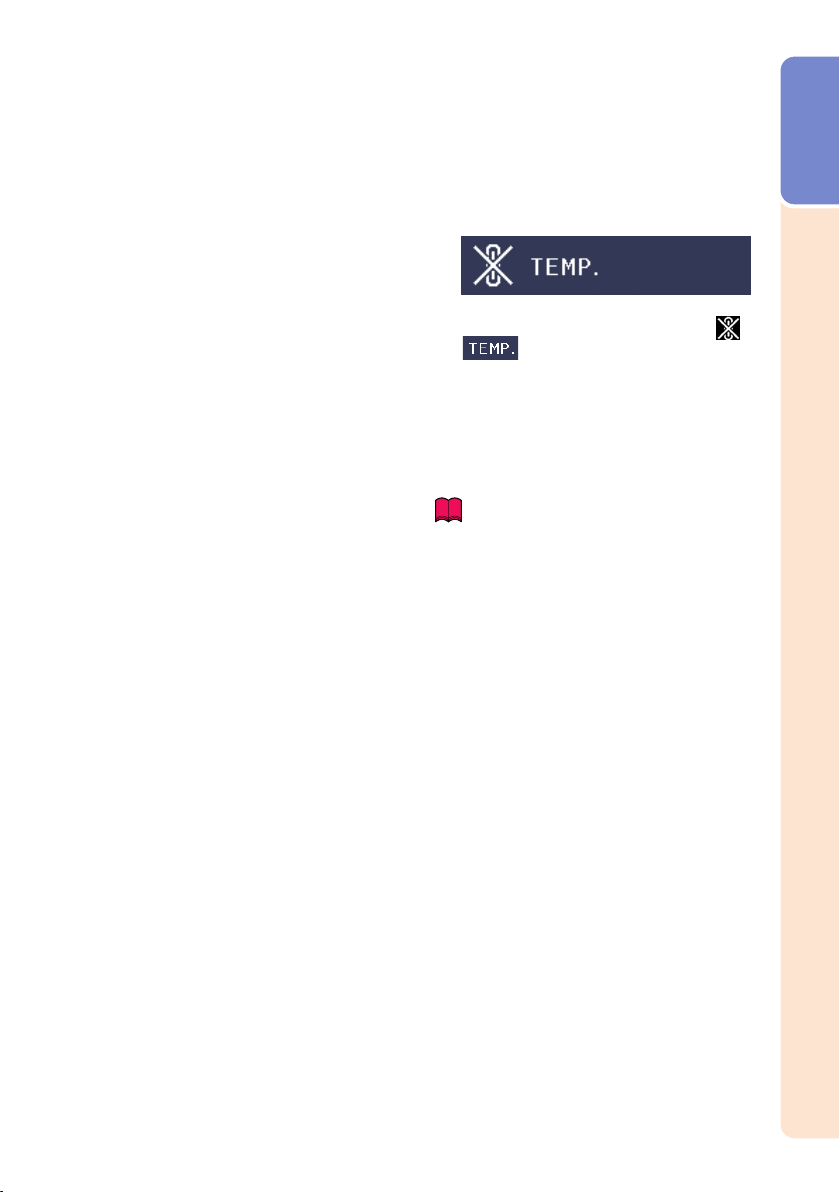
Temperature monitor function
■
If the projector starts to overheat due to setup
problems or blockage of the air vents, “ ” and
“ ” will illuminate in the lower left corner
of the picture. If the temperature continues to
rise, the lamp will turn off, the temperature warn-
ing indicator on the projector will blink, and after
a 90-second cooling-off period the projector will
enter standby mode. Refer to “Maintenance In-
dicators” on page 53 for details.
XG-MB67X_EN2_CD_b 06.5.12, 6:39 AM9
10
PDF operation manuals in several languages are included in the CD-ROM. To uti-
lize these manuals, you need to install Adobe
®
Reader
®
on your computer (Win-
dows
®
or Macintosh
®
).
Please download Adobe
®
Reader
®
from the Internet (http://www.adobe.com).
Accessing the PDF Manuals
How to Access the PDF Operation Manuals
• If the desired pdf file cannot be opened by double clicking the mouse, start Adobe
®
Reader
®
first,
then specify the desired file using the “File”, “Open” menu.
Note
For Windows
®
:
1 Insert the CD-ROM in the CD-ROM drive.
2 Double click the “My Computer” icon.
3 Double click the “CD-ROM” drive.
4 When you want to view the operation
manual
1) Double click the “MANUALS” folder.
2) Double click the language (name of the
folder) that you want to view.
3) Double click the “MB67_” pdf file to ac-
cess the projector manuals.
When you want to view the SETUP
MANUAL
1) Double click the “SETUP” folder.
2) Double click the language (name of the
folder) that you want to view.
3) Double click the “MB67_S” pdf file to ac-
cess the SETUP MANUAL.
For Macintosh
®
:
1 Insert the CD-ROM in the CD-ROM drive.
2 Double click the “CD-ROM” icon.
3 When you want to view the operation
manual
1) Double click the “MANUALS” folder.
2) Double click the language (name of the
folder) that you want to view.
3) Double click the “MB67_” pdf file to ac-
cess the projector manuals.
When you want to view the SETUP
MANUAL
1) Double click the “SETUP” folder.
2) Double click the language (name of the
folder) that you want to view.
3) Double click the “MB67_S” pdf file to ac-
cess the SETUP MANUAL.
SETUP MANUAL
Refer to the “SETUP MANUAL” contained on the supplied CD-ROM for details.
Connecting Pin Assignments .................................................. 2
RS-232C Specifications and Commands ................................ 3
Setting up the Projector Network Environment ....................... 7
Controlling the Projector via LAN .......................................... 13
Setting up the Projector Using RS-232C or Telnet ............... 18
Troubleshooting ..................................................................... 28
XG-MB67X_EN2_CD_b 06.5.12, 6:39 AM10
11
Introduction
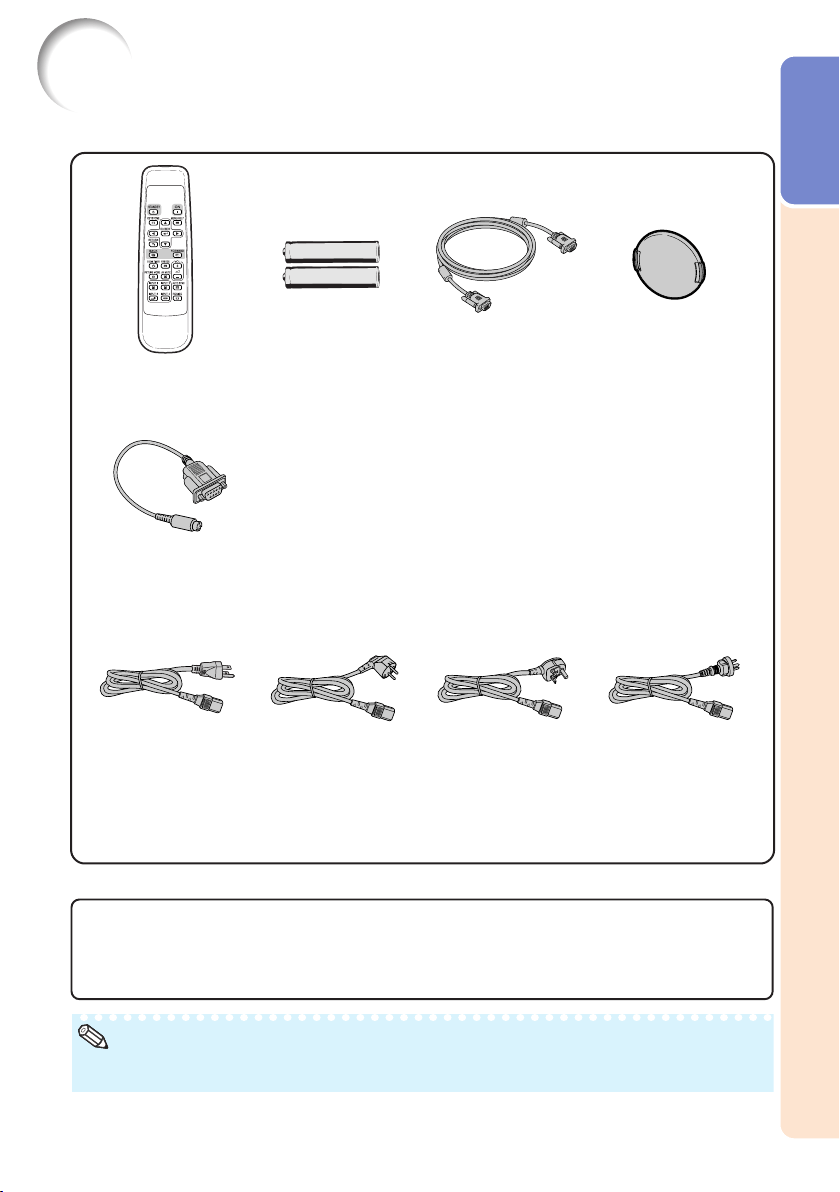
Accessories
Remote control
RRMCGA398WJSA
Two R-6 batteries
(“AA” size, UM/SUM-3,
HP-7 or similar)
Power cord*
RGB cable
(10' (3.0 m))
QCNWGA045WJPZ
• Operation manual (this manual (TINS-C517WJZZ) and CD-ROM (UDSKAA078WJZZ))
Optional accessories
■ Dust filter
■ 3 RCA to 15-pin D-sub cable (10n (3.0 m))
■ Remote receiver
■ Lamp unit
AN-DF1
AN-C3CP2
AN-MR2
AN-XR20LP
Supplied accessories
For U.S. and
Canada, etc.
(6' (1.8 m))
QACCDA007WJPZ
For Europe,
except U.K.
(6' (1.8 m))
QACCVA011WJPZ
For U.K. and
Singapore
(6' (1.8 m))
QACCBA036WJPZ
For Australia, New
Zealand and Oceania
(6' (1.8 m))
QACCLA018WJPZ
(1) (2) (3) (4)
* Use the power cord that corresponds to the wall outlet in your country.
• Some of the optional accessories may not be available depending on the region. Please check with
your nearest Sharp Authorized Projector Dealer or Service Center.
Note
Lens cap (attached)
CCAPHA024WJSA
DIN-D-sub RS-232C adaptor
(5
57
/
64
" (15 cm))
QCNWGA015WJPZ
XG-MB67X_EN2_CD_c 06.5.24, 1:51 PM11
12
33
40
53
32
32
30
31
52
30
15
28, 53
40, 51
29, 53
28, 29
40
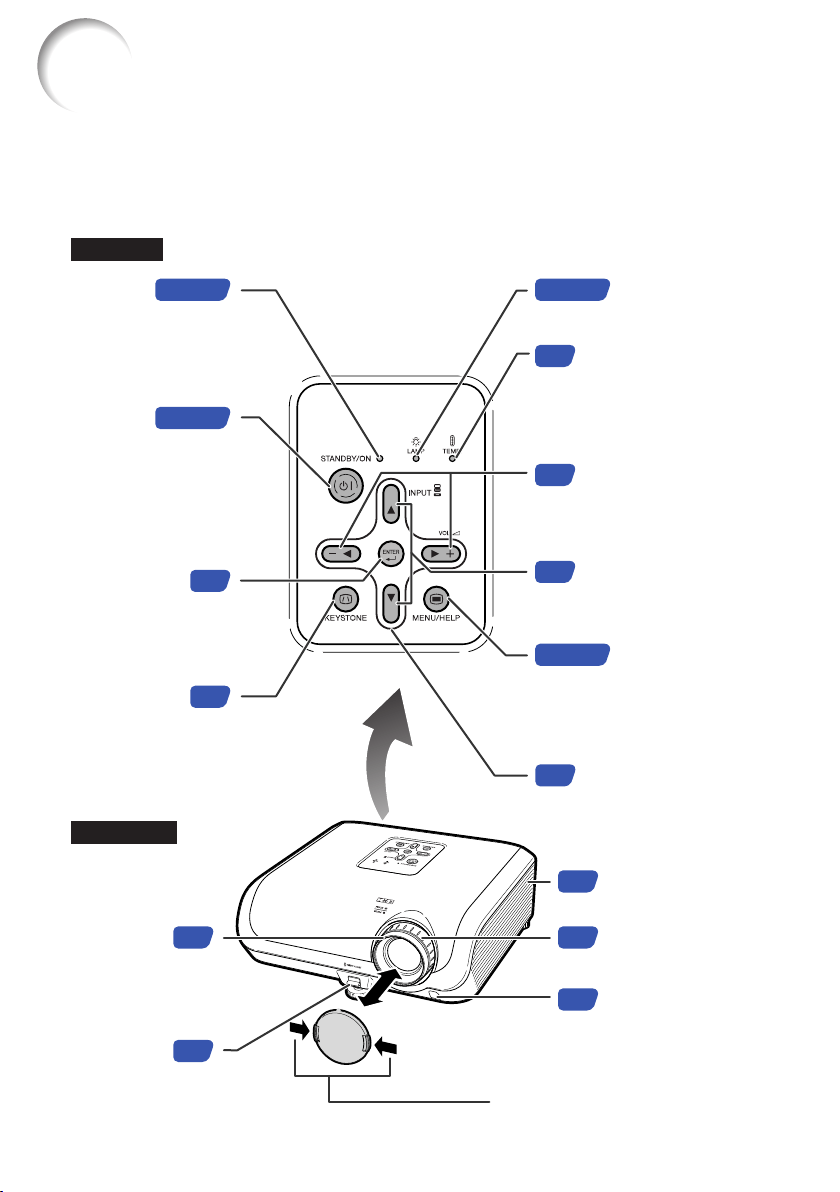
Top View
STANDBY/
ON button
For turning the
power on and
putting the
projector into
standby
mode.
Lamp indicator
Temperature warning
indicator
Adjustment buttons
(P/R/O/Q)
For selecting menu items.
Volume buttons
(–O/Q+)
For adjusting the speaker
sound level.
ENTER button
For setting
items selected
or adjusted on
the menu.
MENU/HELP button
For displaying
adjustment and
setting screens, and
help screen.
Front View
Focus ring
For adjusting
the focus.
INPUT button (P/R)
For switching input mode
1, 2, 3 or 4.
Remote control
sensor
HEIGHT
ADJUST
lever
Numbers in Z refer to the main pages in this operation manual where the topic
is explained.
Part Names and Functions
Projector
KEYSTONE
button
For entering
the Keystone
Correction
mode.
Intake vent
Power
indicator
Zoom ring
For enlarging/
reducing the picture.
Push both sides of the lens cap
to attach or remove.
XG-MB67X_EN2_CD_c 06.5.12, 6:40 AM12
13
Introduction
25
52
31
26
25
25
24
23
24
25 27
21
23
24
27
24
46
52
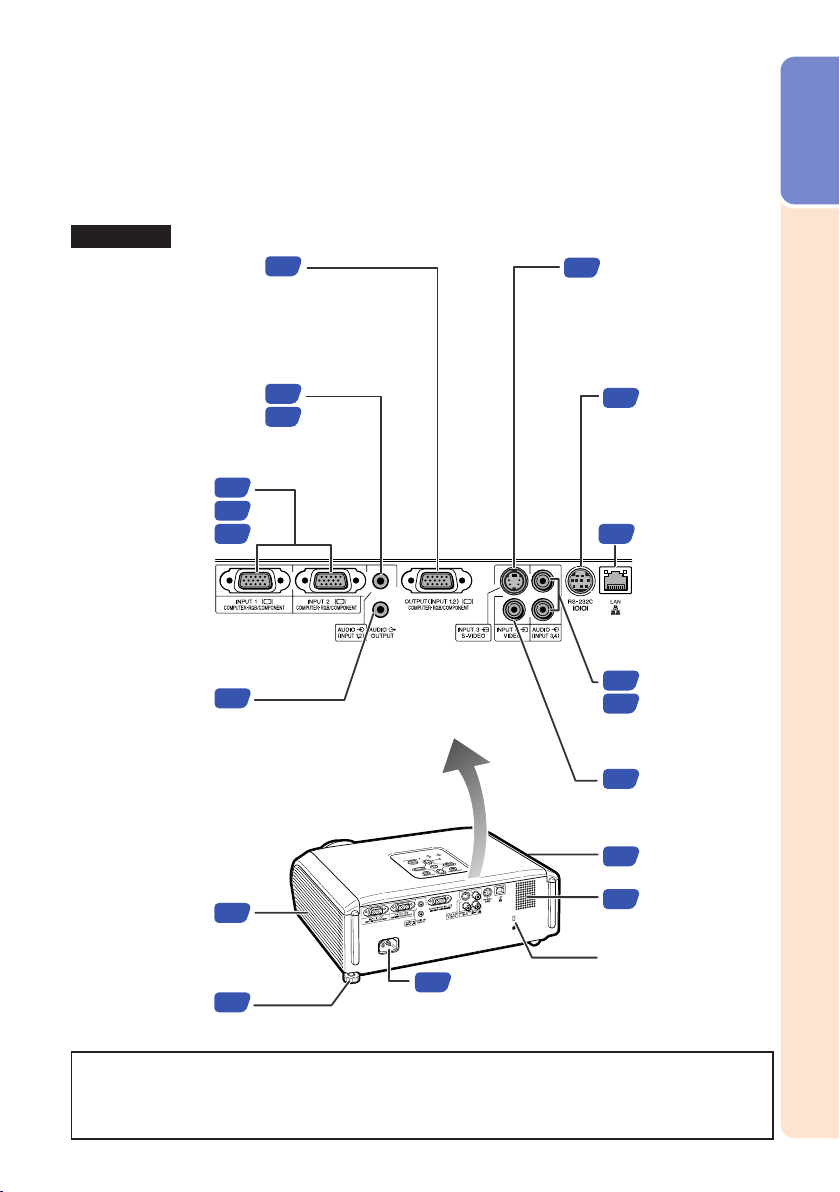
Numbers in Z refer to the main pages in this operation manual where the topic
is explained.
Terminals
Rear View
Refer to “INPUT Terminals and Connectable Main Equipment” on page 21.
AUDIO (INPUT
3, 4) terminal
(Shared for
INPUT 3 and 4)
INPUT 3 terminal
Terminal for connect-
ing video equipment
with an S-video
terminal.
INPUT 4 terminal
Terminal for
connecting video
equipment.
Speaker
Rear adjustment
foot
Kensington Security
Standard connector
AC socket
Connect the supplied
Power cord.
Using the Kensington Lock
• This projector has a Kensington Security Standard connector for use with a Kensington
MicroSaver Security System. Refer to the information that came with the system for
instructions on how to use it to secure the projector.
AUDIO OUTPUT
terminal
Audio output terminal of
equipment connected to the
AUDIO INPUT terminal.
Intake vent
AUDIO (INPUT 1, 2)
terminal (Shared for
INPUT 1 and 2)
INPUT 1 and
INPUT 2 terminals
Terminals for
computer RGB
and component
signals.
OUTPUT (INPUT 1, 2)
terminal
(Shared computer RGB and component
signals output terminal for INPUT 1 and 2)
Terminal for connecting a monitor.
RS-232C
terminal
Terminal for
controlling the
projector using
a computer.
Exhaust vent
LAN terminal
Terminal for
controlling the
projector using
a computer via
network.
XG-MB67X_EN2_CD_c 06.5.12, 6:40 AM13
14
33
40
32
36
32
40
51
29
28
40
36
36
40
32
36
34
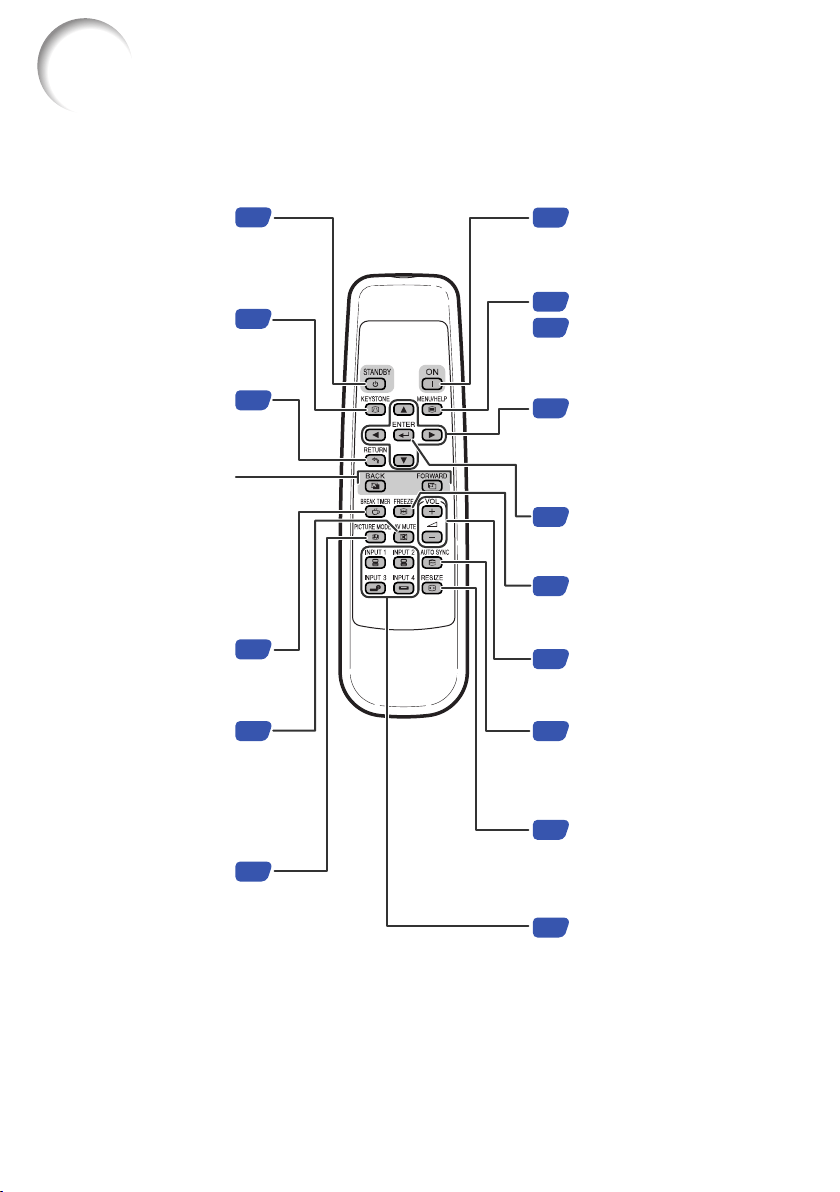
Numbers in Z refer to the main pages in this operation manual where the topic
is explained.
STANDBY button
For putting the
projector into the
standby mode.
KEYSTONE button
For entering the
Keystone Correction
mode.
RETURN button
For returning to the
previous menu screen
during menu operations.
FORWARD/BACK
buttons
Same function as the
[Page Down] and [Page
Up] keys on a computer
keyboard when using the
optional Remote Receiver
(AN-MR2).
BREAK TIMER
button
For displaying the
break time.
AV MUTE button
For temporarily
displaying a black
screen and turning
off the sound.
PICTURE MODE
button
For selecting the
appropriate picture.
ON button
For turning the power on.
Adjustment buttons
(P/R/O/Q)
• For selecting menu items.
• For adjusting the Keystone
Correction when in the
Keystone Correction mode.
MENU/HELP button
For displaying adjustment
and setting screens, and
help screen.
ENTER button
For setting items selected
or adjusted on the menu.
RESIZE button
For switching the screen
size (NORMAL,
BORDER, etc.).
FREEZE button
For freezing images.
INPUT 1, 2, 3 and 4
buttons
For switching to the
respective input modes.
Volume buttons
For adjusting the
speaker sound level.
AUTO SYNC button
For automatically adjusting
images when connected
to a computer.
Part Names and Functions (Continued)
XG-MB67X_EN2_CD_d 06.5.12, 6:41 AM14
15
Introduction
• Danger of explosion if battery is incorrectly replaced.
Replace only with the same or equivalent type.
• Insert the batteries making sure the polarities correctly match the m and n marks inside the battery
compartment.
• Batteries of different types have different properties, therefore do not mix batteries of different types.
• Do not mix new and old batteries.
This may shorten the life of new batteries or may cause old batteries to leak.
• Remove the batteries from the remote control once they have run out, as leaving them in can cause them
to leak.
Battery fluid from leaked batteries is harmful to skin, therefore ensure that you first wipe them and then
remove them using a cloth.
• The batteries included with this projector may run down in a short period, depending on how they are kept.
Be sure to replace them as soon as possible with new batteries.
• Remove the batteries from the remote control if you will not be using the remote control for a long time.
• Comply with the rules (ordinance) of each local government when disposing of worn-out batteries.
Incorrect use of the batteries may cause them to leak or explode. Please
follow the precautions below.
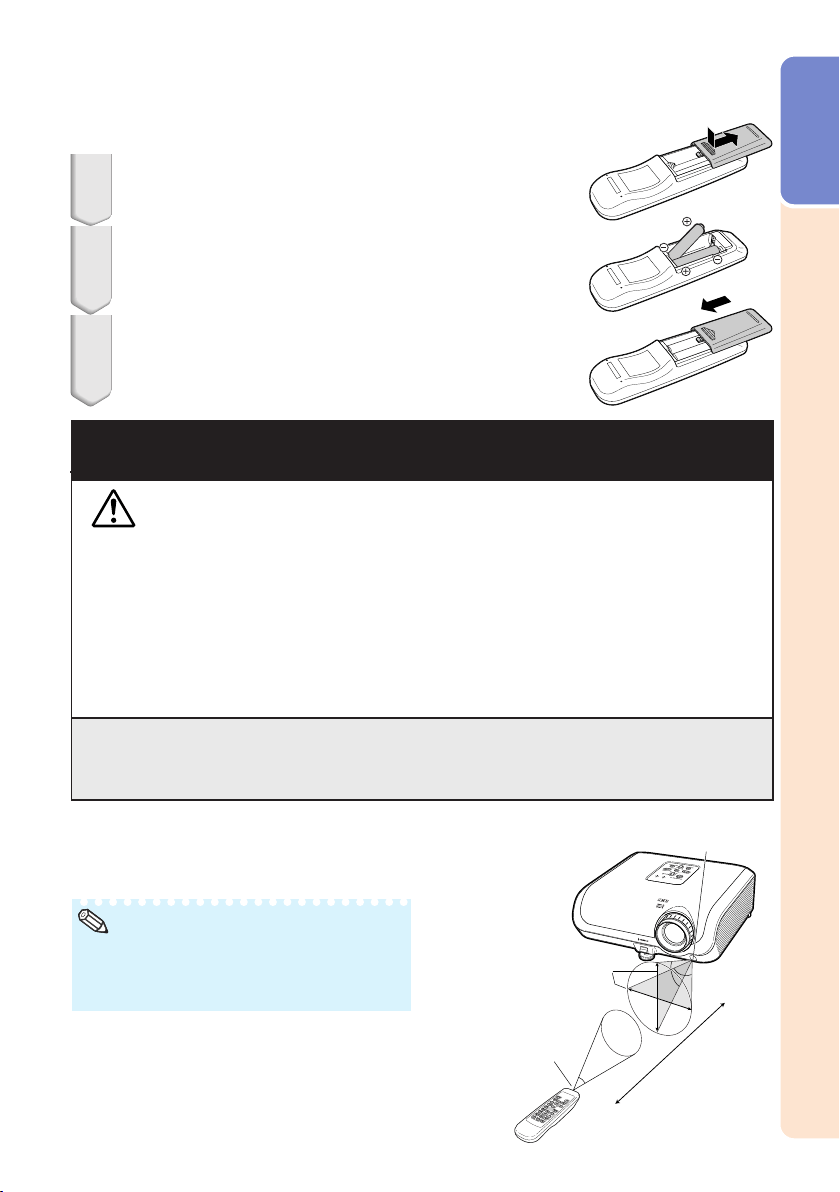
Inserting the Batteries
Attach the cover and slide it until it clicks into place.
Insert the batteries.
• Insert the batteries making sure the polarities correctly match
the m and n marks inside the battery compartment.
Press the P mark on the cover and slide it in the
direction of the arrow.
1
2
3
Caution
• The signal from the remote control can be re-
flected off a screen for easy operation. How-
ever, the effective distance of the signal may
differ depending on the screen material.
When using the remote control
• Ensure that you do not drop it or expose it to
moisture or high temperature.
• The remote control may malfunction under a
fluorescent lamp. In this case, move the pro-
jector away from the fluorescent lamp.
Usable Range
The remote control can be used to control the
projector within the ranges shown in the illustra-
tion.
Remote control sensor
Remote
control signal
transmitters
Remote control
23n (7 m)
30°
30°
Note
XG-MB67X_EN2_CD_d 06.5.12, 6:41 AM15
16
Quick Start
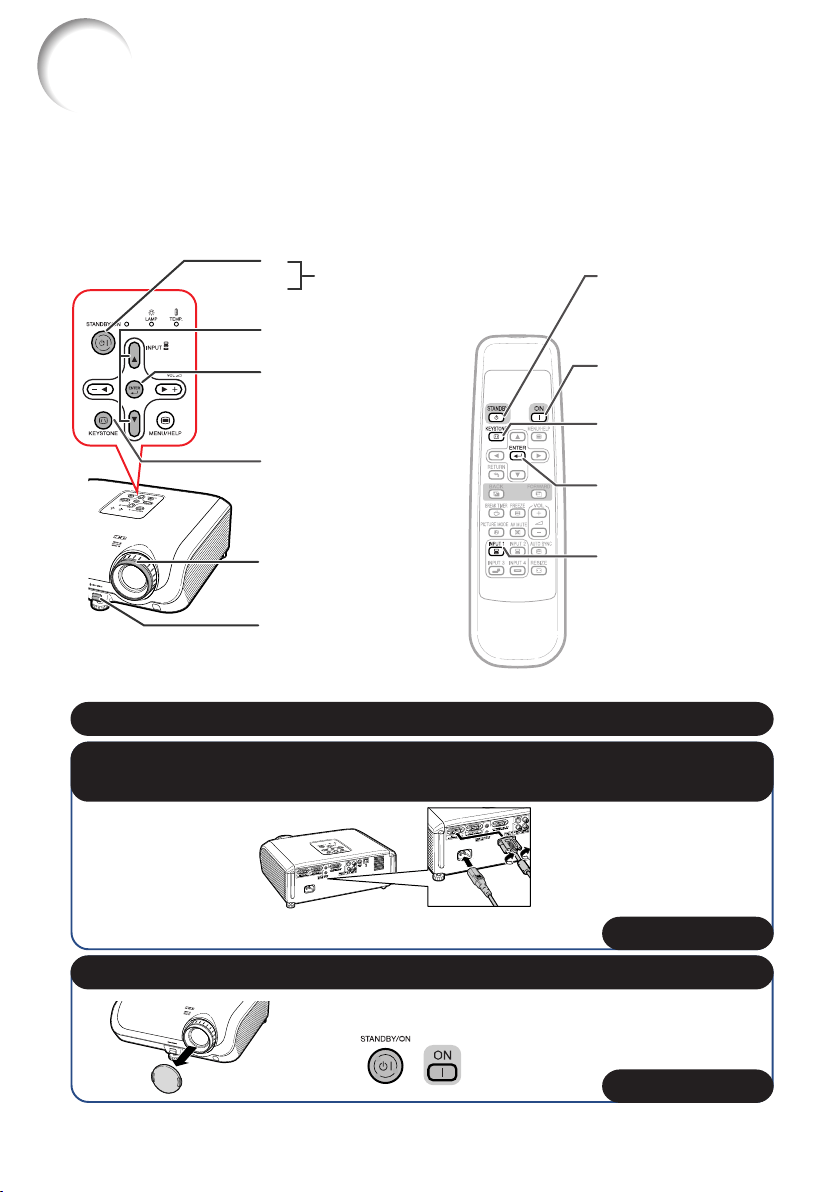
This section shows the basic operation (projector connecting with the computer). For details, see
the page described below for each step.
Setup and Projection
In this section, connection of the projector and the computer is explained using one example.
When connecting equipment other than a computer, see
pages 24 and 25.
3. Remove the lens cap and turn the projector on
2. Connect the projector to the computer and plug the power cord
into the AC socket of the projector
On the projector On the remote control
KEYSTONE button
INPUT button
STANDBY/ON
button
HEIGHT
ADJUST lever
Focus ring
STANDBY button
_PP. 21–27
_P. 28
ENTER button
ENTER button
6
4
3
7
8
3
7
6
8
KEYSTONE
button
4
4
ON button
INPUT 1 button
4
1. Place the projector facing a wall or a screen
_P. 18
XG-MB67X_EN2_CD_e 06.5.24, 1:52 PM16
17
Quick Start
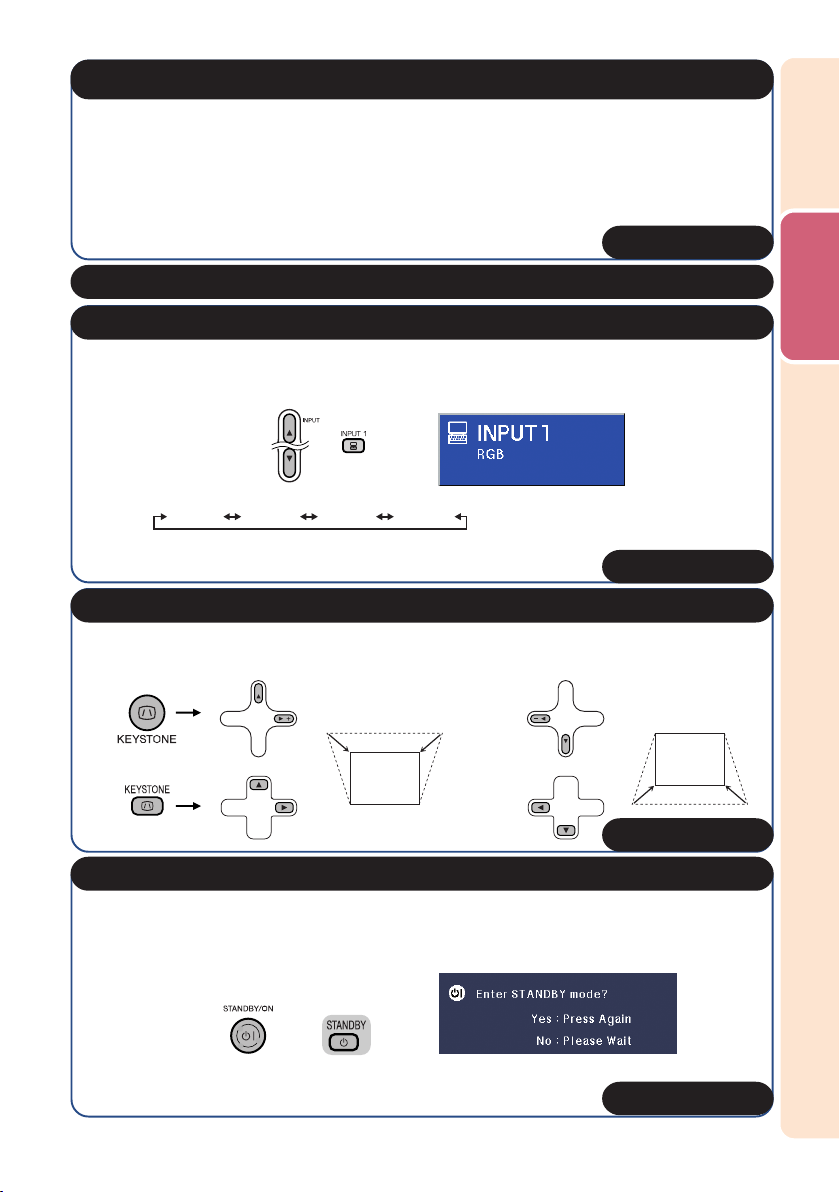
4. Adjust the projected image with the Setup Guide
Select the “INPUT 1” using the INPUT button on the projector or C INPUT 1 on the remote
control.
6. Select the INPUT mode
• When pressing the INPUT button on the projector, input mode switches in the following
order:
INPUT1 INPUT2 INPUT3 INPUT4
• When using the remote control, press the CINPUT 1/CINPUT 2/DINPUT 3/EINPUT
4 button to switch the INPUT mode.
On the
projector
On the remote
control
On-screen display (RGB)
_P. 32
_P. 30
1 After the projector turns on, the Setup Guide appears. (When “Setup Guide” is set to “On”. n
page 45)
2 Follow the steps in the Setup Guide and adjust the focus, screen size, and height (angle).
3 After adjusting the focus, height (angle) and screen size, press TENTER to finish the Setup
Guide.
Correcting trapezoidal distortion using Keystone Correction.
7. Correct trapezoidal distortion
_P. 33
On the projector
On the remote control
Shrinks
upper side.
Shrinks
lower side.
5. Turn the computer on
8. Turn the Power off
Press the STANDBY/ON button on the projector or the STANDBY button on the remote control,
and then press the button again while the confirmation message is displayed to put the projector
into standby mode.
• Unplug the power cord from the AC outlet after the cooling fan stops.
On-screen Display
On the
projector
On the remote
control
_P. 29
XG-MB67X_EN2_CD_e 06.5.12, 6:42 AM17
18
Ceiling-mount Setup
■ It is recommended that you use the optional
Sharp ceiling-mount bracket for this installa-
tion. Before mounting the projector, contact
your nearest Sharp Authorized Projector
Dealer or Service Center to obtain the rec-
ommended ceiling-mount bracket (sold sepa-
rately).
• AN-XRCM30 ceiling-mount bracket (for
U.S.A.).
• AN-60KT ceiling-mount bracket, its AN-
TK201 and AN-TK202 extension tubes (for
countries other than the U.S.A.).
■ Invert the image by setting “Ceiling + Front”
in “PRJ Mode”. See page 45 for use of this
function.
Setting up the Projector
Setting up the Projector
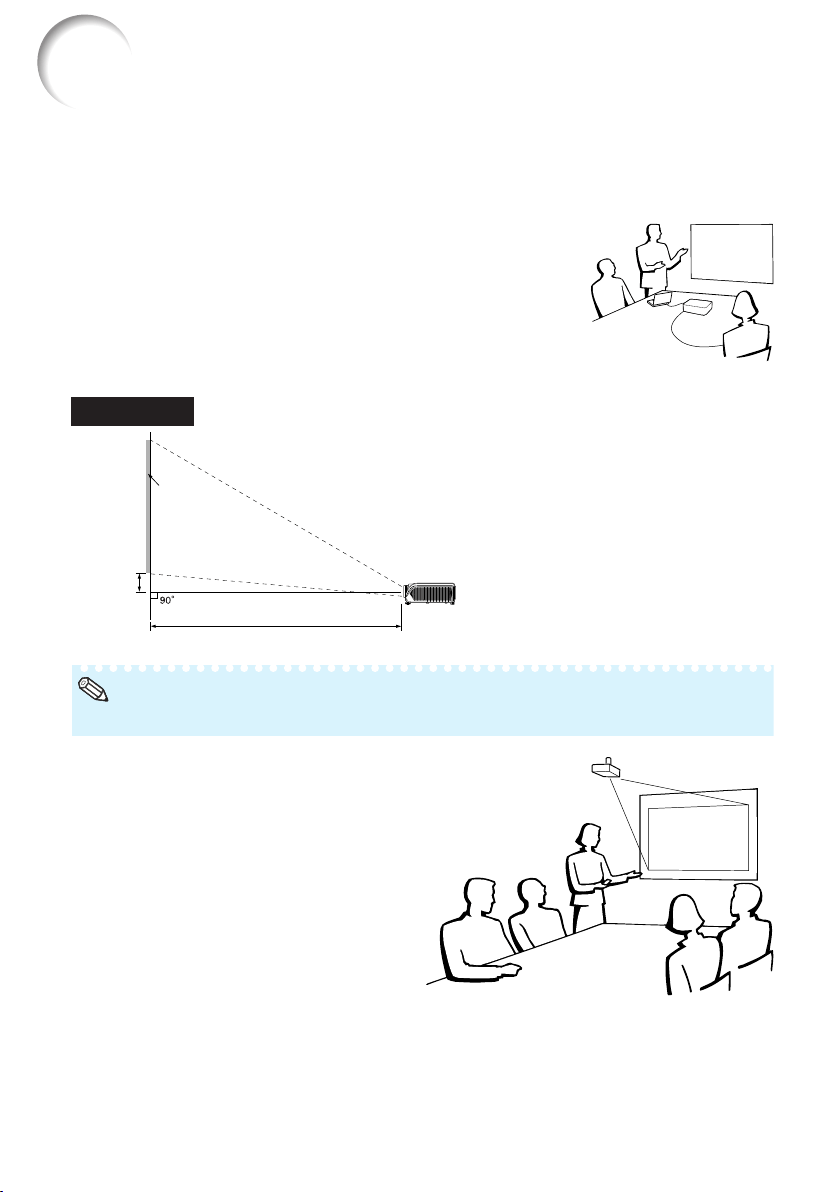
For optimal image quality, position the projector perpendicular to the screen with the projector’s feet
flat and level. Doing so will eliminate the need for Keystone correction and provide the best image
quality. (See page 33.)
Side View
Standard Setup (Front Projection)
■ Place the projector at the required distance from the screen according
to the desired picture size. (See page 20.)
Example of standard setup
Screen
Lens center
H
L
• Refer to page 20 for additional information concerning “Screen Size and Projection Distance”.
Note
XG-MB67X_EN2_CD_f 06.5.12, 6:43 AM18
19
Setup
300"
200"
100"
84"
60"
240"
´
180"
160"
´
120"
80"
´
60"
67"
´
50"
48"
´
36"
34'3
"
–
39'
8
"
(10.4 m
– 12.1 m)
22'10
"–
26'5
"
(7.0 m
–
8.1 m)
11'5
"–
13'3
"
(3.5 m
–
4.0 m)
9'7
"–
11'1
"
(2.9 m
–
3.4 m)
6'10
"–
7'11
"
(2.1 m
– 2.4 m)
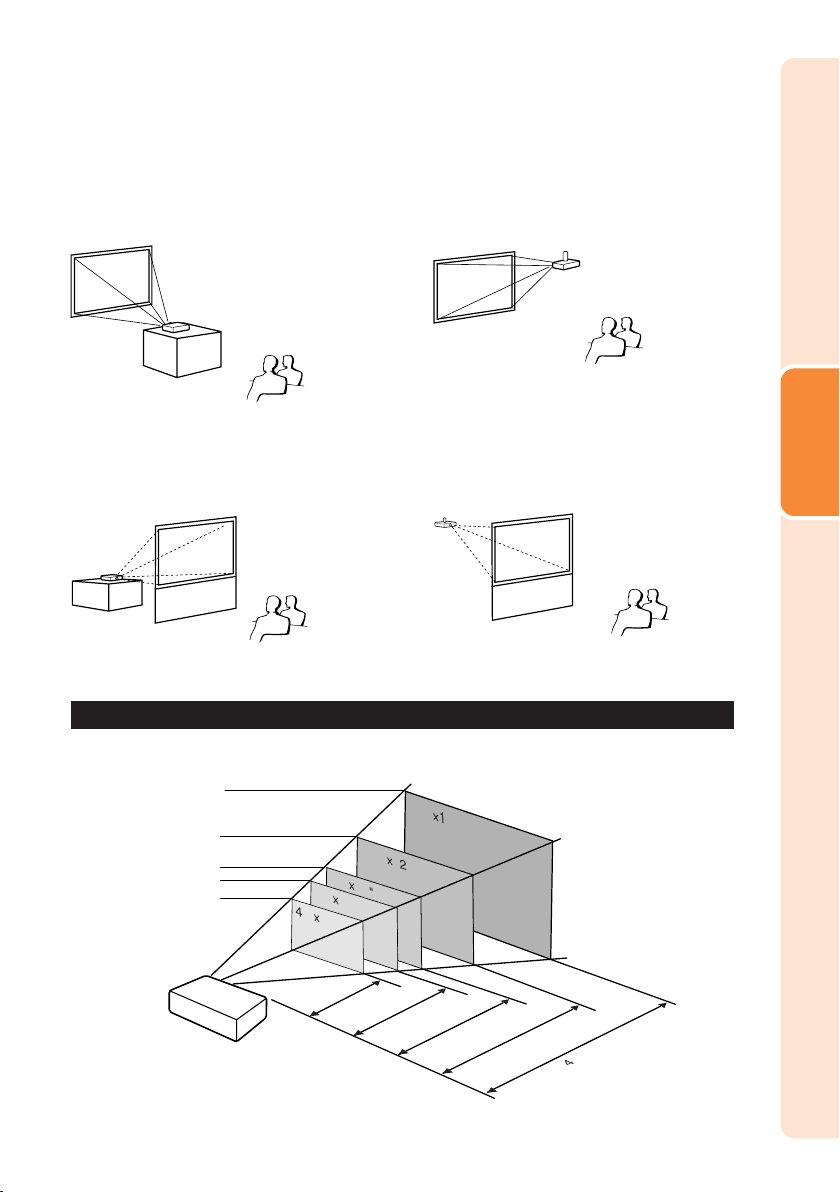
Projection (PRJ) Mode
The projector can use any of the 4 projection modes shown in the diagram below. Select the mode
most appropriate for the projection setting in use. (You can set the PRJ mode in “SCR-ADJ” menu.
See page 45.)
■ Table mounted, front projection
■ Ceiling mounted, front projection
Menu item ➞ “Front”
■ Table mounted, rear projection
(with a translucent screen)
Menu item ➞ “Ceiling + Front”
■ Ceiling mounted, rear projection
(with a translucent screen)
Menu item ➞ “Rear” Menu item ➞ “Ceiling + Rear”
Indication of the Projection Image Size and Projection Distance
Picture Size
Projection
Distance
Example: NORMAL Mode (4:3)
XG-MB67X_EN2_CD_f 06.5.12, 6:43 AM19
20
Setting up the Projector (Continued)
300 (762 cm)
270 (686 cm)
250 (635 cm)
200 (508 cm)
150 (381 cm)
100 (254 cm)
84 (213 cm)
80 (203 cm)
72 (183 cm)
60 (152 cm)
40 (102 cm)
610 cm (240)
549 cm (216)
508 cm (200)
406 cm (160)
305 cm (120)
203 cm (80)
171 cm (67)
163 cm (64)
146 cm (58)
122 cm (48)
81 cm (32)
48 cm
44 cm
40 cm
32 cm
24 cm
16 cm
14 cm
13 cm
12 cm
10 cm
6 cm
(19
5
/64)
(17
11
/64)
(15
57
/64)
(12
23
/32)
(9
17
/32)
(6
23
/64)
(5
11
/32)
(5
3
/32)
(4
37
/64)
(3
13
/16)
(2
35
/64)
457 cm (180)
411 cm (162)
381 cm (150)
305 cm (120)
229 cm (90)
152 cm (60)
128 cm (50)
122 cm (48)
110 cm (43)
91 cm (36)
61 cm (24)
10.4 m (34 3)
9.4 m (30 10)
8.7 m (28 7)
7.0 m (22 10)
5.2 m (17 2)
3.5 m (11 5)
2.9 m (9 7)
2.8 m (9 2)
2.5 m (8 3)
2.1 m (6 10)
1.4 m (4 7)
12.1 m (39 8)
10.9 m (35 8)
10.1 m (33 1)
8.1 m (26 5)
6.0 m (19 10)
4.0 m (13 3)
3.4 m (11 1)
3.2 m (10 7)
2.9 m (9 6)
2.4 m (7 11)
1.6 m (5 3)
The formula for picture size and projection distance
[m/cm]
L1 (m) = 0.03794
χ
L2 (m) = 0.04389
χ
H (cm) = 0.3835
χ
S (cm) = ±0.20754
χ
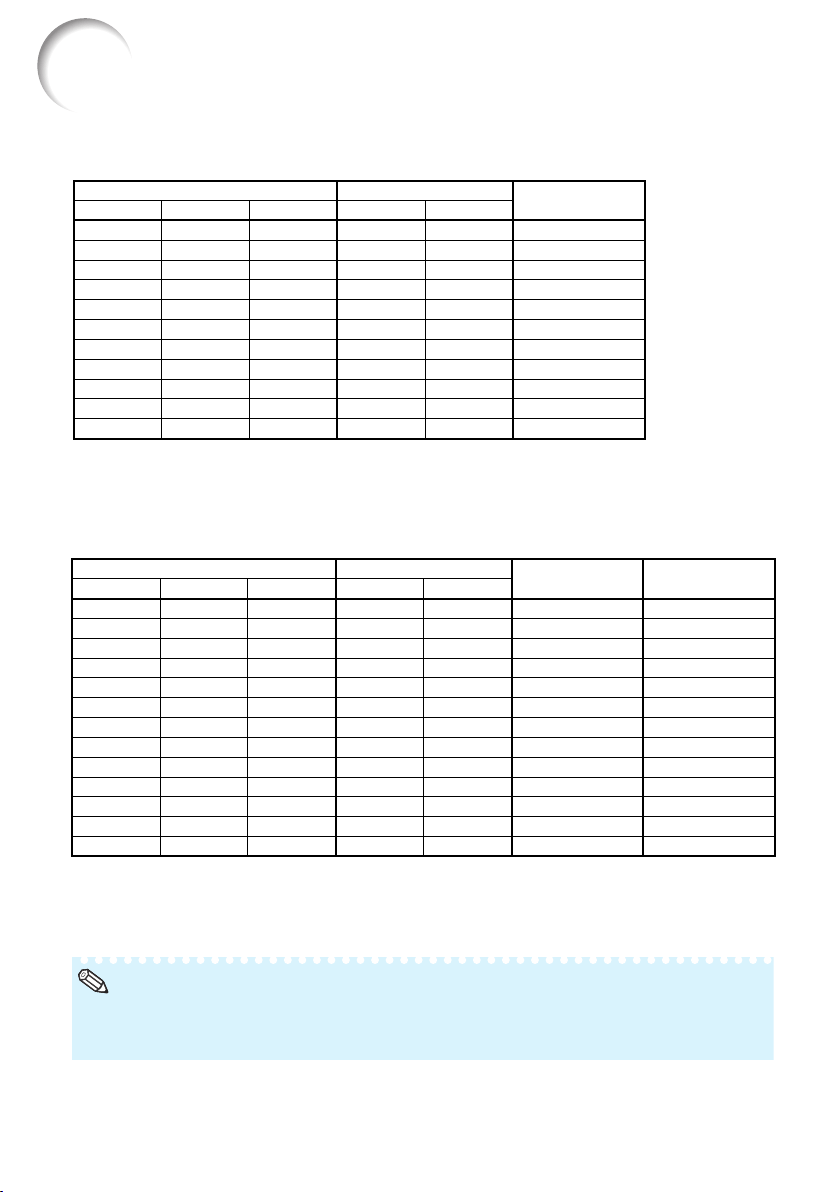
Screen Size and Projection Distance
• Refer to page 18 concerning “Projection distance (L)” and “Distance from the lens center to the
bottom of the image (H)”.
• Allow a margin of error in the values in the diagrams above.
NORMAL Mode (4:3)
Picture (Screen) size
The formula for picture size and projection distance
[m/cm]
L1 (m) = 0.03482
χ
L2 (m) = 0.04029
χ
H (cm) = 0.16151
χ
χ
: Picture size (diag.) (in/cm)
L: Projection distance (m/ft)
L1: Minimum projection distance (m/ft)
L2: Maximum projection distance (m/ft)
H: Distance from the lens center to the bottom of the image (cm/in)
χ
: Picture size (diag.) (in/cm)
L: Projection distance (m/ft)
L1: Minimum projection distance (m/ft)
L2: Maximum projection distance (m/ft)
H: Distance from the lens center to the bottom of the image (cm/in)
S: Adjustable range of image position (cm/in) See page 44.
Projection distance [L]
Diag. [
χ
] Width Height
Minimum [L1] Maximum [L2]
STRETCH Mode (16:9)
250 (635 cm)
225 (572 cm)
200 (508 cm)
150 (381 cm)
133 (338 cm)
106 (269 cm)
100 (254 cm)
92 (234 cm)
84 (213 cm)
80 (203 cm)
72 (183 cm)
60 (152 cm)
40 (102 cm)
553 cm (218)
498 cm (196)
443 cm (174)
332 cm (131)
294 cm (116)
235 cm (92)
221 cm (87)
204 cm (80)
186 cm (73)
177 cm (70)
159 cm (63)
133 cm (52)
89 cm (35)
96 cm
86 cm
77 cm
58 cm
51 cm
41 cm
38 cm
35 cm
32 cm
31 cm
28 cm
23 cm
15 cm
(37
3
/
4
)
(33
31
/
32
)
(30
13
/
64
)
(22
41
/
64
)
(20
5
/
64
)
(16)
(15
3
/
32
)
(13
57
/
64
)
(12
11
/
16
)
(12
5
/
64
)
(10
7
/
8
)
(9
1
/
16
)
(6
3
/
64
)
52 cm
47 cm
42 cm
31 cm
28 cm
22 cm
21 cm
19 cm
17 cm
17 cm
15 cm
12 cm
8 cm
(20
27
/
64
)
(18
25
/
64
)
(16
11
/
32
)
(12
1
/
4
)
(10
7
/
8
)
(8
21
/
32
)
(8
11
/
64
)
(7
33
/
64
)
(6
55
/
64
)
(6
17
/
32
)
(5
57
/
64
)
(4
29
/
32
)
(3
17
/
64
)
311 cm (123)
280 cm (110)
249 cm (98)
187 cm (74)
166 cm (65)
132 cm (52)
125 cm (49)
115 cm (45)
105 cm (41)
100 cm (39)
90 cm (35)
75 cm (29)
50 cm (20)
9.5 m (31 1)
8.5 m (28 0)
7.6 m (24 11)
5.7 m (18 8)
5.0 m (16 7)
4.0 m (13 2)
3.8 m (12 5)
3.5 m (11 5)
3.2 m (10 5)
3.0 m (9 11)
2.7 m (9 0)
2.3 m (7 6)
1.5 m (5 0)
11.0 m (36 0)
9.9 m (32 5)
8.8 m (28 10)
6.6 m (21 7)
5.8 m (19 2)
4.7 m (15 3)
4.4 m (14 5)
4.0 m (13 3)
3.7 m (12 1)
3.5 m (11 6)
3.2 m (10 4)
2.6 m (8 8)
1.8 m (5 9)
Note
Distance from the lens center
to the bottom of the image [H]
Picture (Screen) size
Projection distance [L]
Diag. [
χ
] Width Height
Minimum [L1] Maximum [L2]
Distance from the lens center to
the bottom of the image [H]
Adjustable range of
image position [S]
[Feet/inches]
L1 (ft) = 0.03482
χ
/ 0.3048
L2 (ft) = 0.04029
χ
/ 0.3048
H (in) = 0.16151
χ
/ 2.54
[Feet/inches]
L1 (ft) = 0.03794
χ
/ 0.3048
L2 (ft) = 0.04389
χ
/ 0.3048
H (in) = 0.3835
χ
/ 2.54
S (in) = ±0.20754
χ
/ 2.54
XG-MB67X_EN2_CD_f 06.5.12, 6:43 AM20
21
Connections
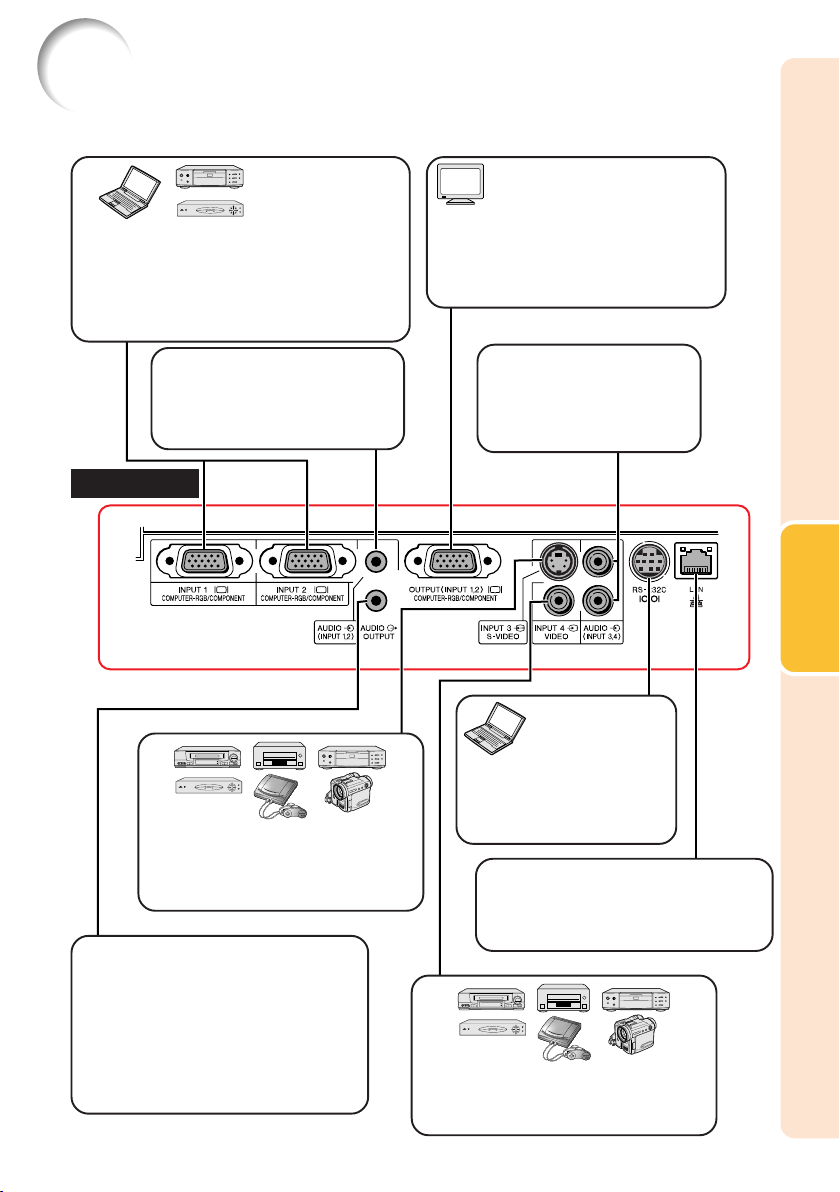
Connections
INPUT Terminals and Connectable Main Equipment
INPUT 1, 2 terminal
■
Connecting the computer. (See page 23.)
■ Connecting video equipment with compo-
nent output terminal (DVD player, DTV
decoder, DVD recorder with hard disc,
etc.). (See page 24.)
INPUT 3 terminal
Connecting video equipment with
S-video output terminal (VCR, DVD
player, etc.). (See page 24.)
INPUT 4 terminal
Connecting video equipment without S-
video output terminal. (See page 25.)
AUDIO (INPUT 1, 2) terminal
Connecting an audio cable
(Shared audio input terminal for
INPUT 1 and 2). (See pages 23
and 24.)
AUDIO (INPUT 3, 4) terminal
Connecting an audio cable
(Shared audio input terminal
for INPUT 3 and 4). (See
pages 24 and 25.)
COMPUTER-RGB/COMPONENT
OUTPUT terminal
Connecting the monitor when you want
to simultaneously watch the projection
image on the monitor. (See page 25.)
RS-232C terminal
Connecting the computer to
control the projector. (See
page 26.)
AUDIO OUTPUT terminal
Connecting to an amplifier or other
audio equipment with an audio cable
(commercially available) (Shared
audio output terminal for INPUT 1, 2,
3 and 4).
Use an audio cable with ø3.5 mm
minijack plug to connect to this
terminal.
Rear View
LAN terminal
(10 BASE-T/100 BASE-TX)
Connecting the computer or the hub
using a LAN cable. (See page 27.)
XG-MB67X_EN2_CD_g 06.5.12, 6:44 AM21
22
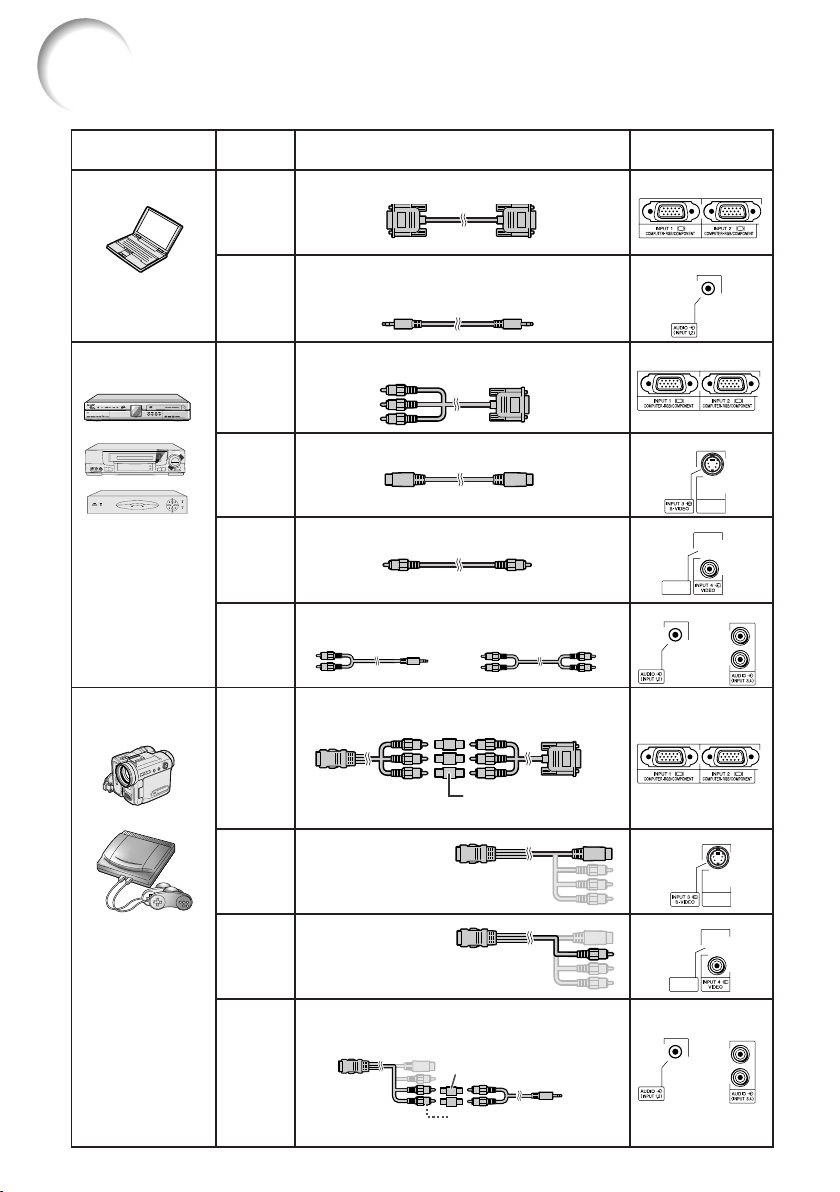
Samples of Cables for Connection
Cables for a camera
or a video game
Equipment
Input
Signal
Cable
Terminal on the
projector
ø3.5 mm stereo audio cable
(commercially available or available as Sharp
service part QCNWGA038WJPZ)
RGB cable (supplied)
S-video cable (commercially available)
Video cable (commercially available)
Computer
Audio-visual
equipment
Camera/
video game
RGB
video
Computer
audio
S-video
S-video
Compo-
nent
video
Video
Audio
Cables for a camera or a video game/3 RCA
(Component) to 15-pin D-sub cable (optional,
AN-C3CP2)
ø3.5 mm minijack to RCA audio cable
(commercially available)
INPUT1, 2
AUDIO INPUT
INPUT3
INPUT4
AUDIO INPUT
INPUT1, 2
INPUT3
Video
Audio
Cables for a camera
or a video game
Cables for a camera or a video game/ø3.5
mm minijack to RCA audio cable (commer-
cially available)
INPUT4
AUDIO INPUT
3 RCA (Component) to 15-pin D-sub cable
(optional, AN-C3CP2)
Compo-
nent
video
INPUT1, 2
•
For more details of connection and cables, refer to the operation manual of the connecting equipment.
• You may need other cables or connectors not listed below.
RCA adaptor plug
(commercially available)
RCA adaptor plug
(commercially available)
or
or connect directly to
AUDIO (INPUT 3, 4).
or
or
XG-MB67X_EN2_CD_g 06.5.12, 6:44 AM22
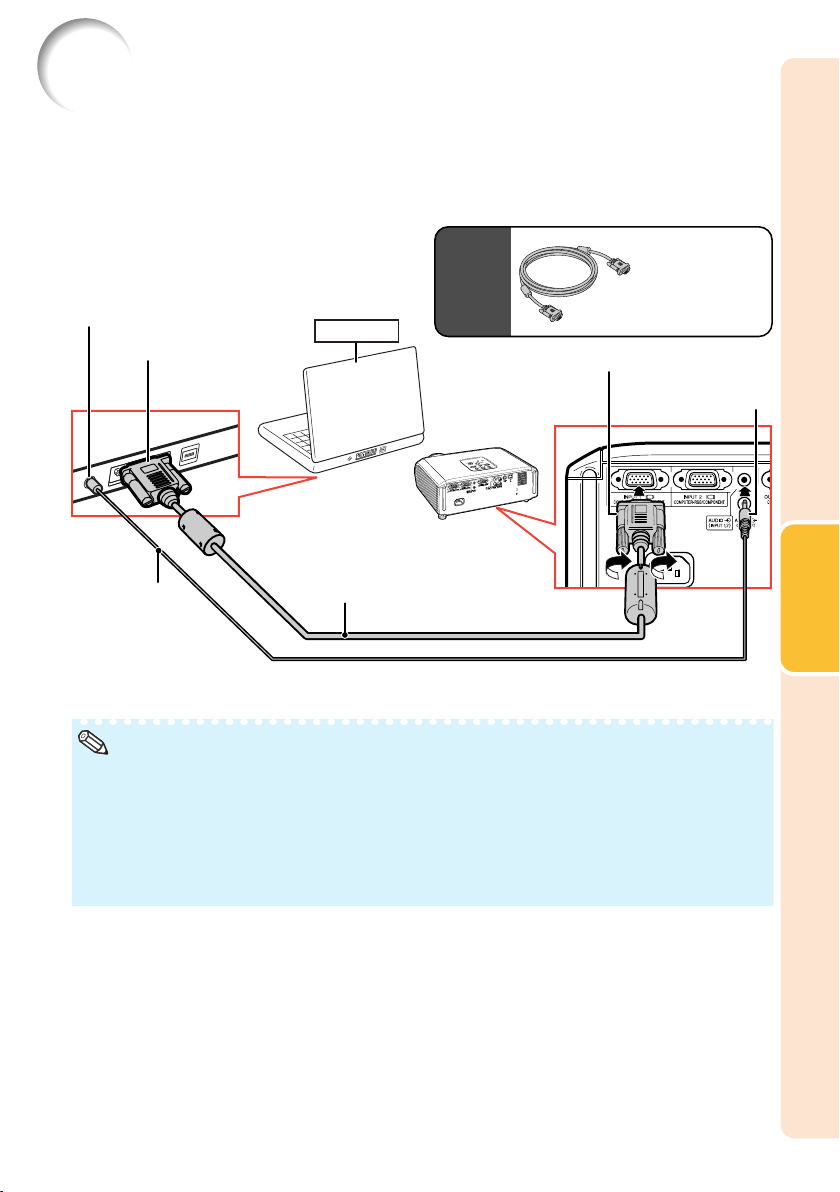
23
Connections
Connecting to a Computer
To RGB output terminal
To audio output terminal
RGB Cable
* ø3.5 mm stereo or
mono audio cable
(commercially
available or
available as Sharp
service part
QCNWGA038WJPZ)
RGB Cable
Before connecting, ensure that the power cord of the projector is unplugged from the AC
outlet and turn off the devices to be connected. After making all connections, turn on the
projector and then the other devices. When connecting a computer, ensure that it is the last
device to be turned on after all the connections are made.
Ensure that you have read the operation manuals of the devices to be connected before making
connections.
* When using the ø3.5 mm mono audio cable, the volume level will be half of
when using the ø3.5 mm stereo audio cable.
• See page 58 “Computer Compatibility Chart” for a list of computer signals compatible with the projec-
tor. Use with computer signals other than those listed may cause some of the functions to not work.
• A Macintosh adaptor may be required for use with some Macintosh computers. Contact your near-
est Macintosh Dealer.
• Depending on the computer you are using, an image may not be projected unless the
computer’s external output port is switched on. (e.g. Press “Fn” and “F5” keys simultaneously
when using a SHARP notebook computer). Refer to the specific instructions in your computer's
operation manual to enable your computer’s external output port.
Note
To INPUT1 terminal
To AUDIO
(INPUT1, 2)
terminal
Supplied
accessory
Computer
XG-MB67X_EN2_CD_g 06.5.12, 6:44 AM23
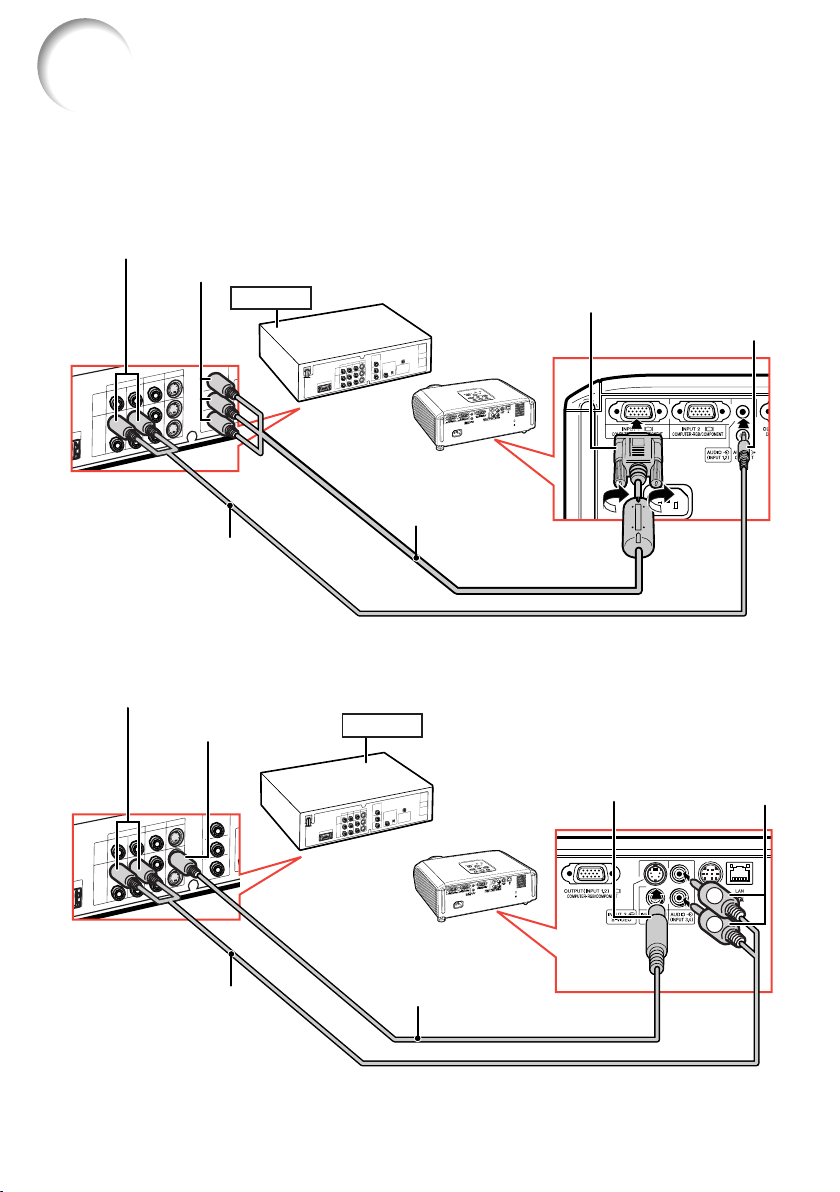
24
L
R
Connecting to Video Equipment
The projector is equipped with input terminals that support component, S-video, and video signals.
See the illustration below to connect with the audio-visual equipment.
The image quality is highest in the order of the component signal, the S-video signal and the video
signal. If your audio-visual equipment has a component output terminal, use the COMPUTER/
COMPONENT terminal (INPUT1 or INPUT 2) on the projector for video connection.
When using an S-video cable (INPUT3)
To S-video output terminal
To audio output terminal
S-video cable
(commercially available)
RCA audio cable (com-
mercially available)
When using a 3 RCA (Component) to 15-pin D-sub cable (INPUT1 or INPUT2)
3 RCA (Component)
to 15-pin D-sub cable
(optional: AN-C3CP2)
To AUDIO
(INPUT1, 2)
terminal
To audio output terminal
ø3.5 mm minijack to RCA
audio cable (commercially
available)
To component output (Y, CB/PB, CR/PR) terminal
To INPUT1
terminal
To AUDIO
(INPUT3, 4)
terminal
To INPUT3
terminal
DVD, etc.
DVD, etc.
XG-MB67X_EN2_CD_g 06.5.12, 6:44 AM24
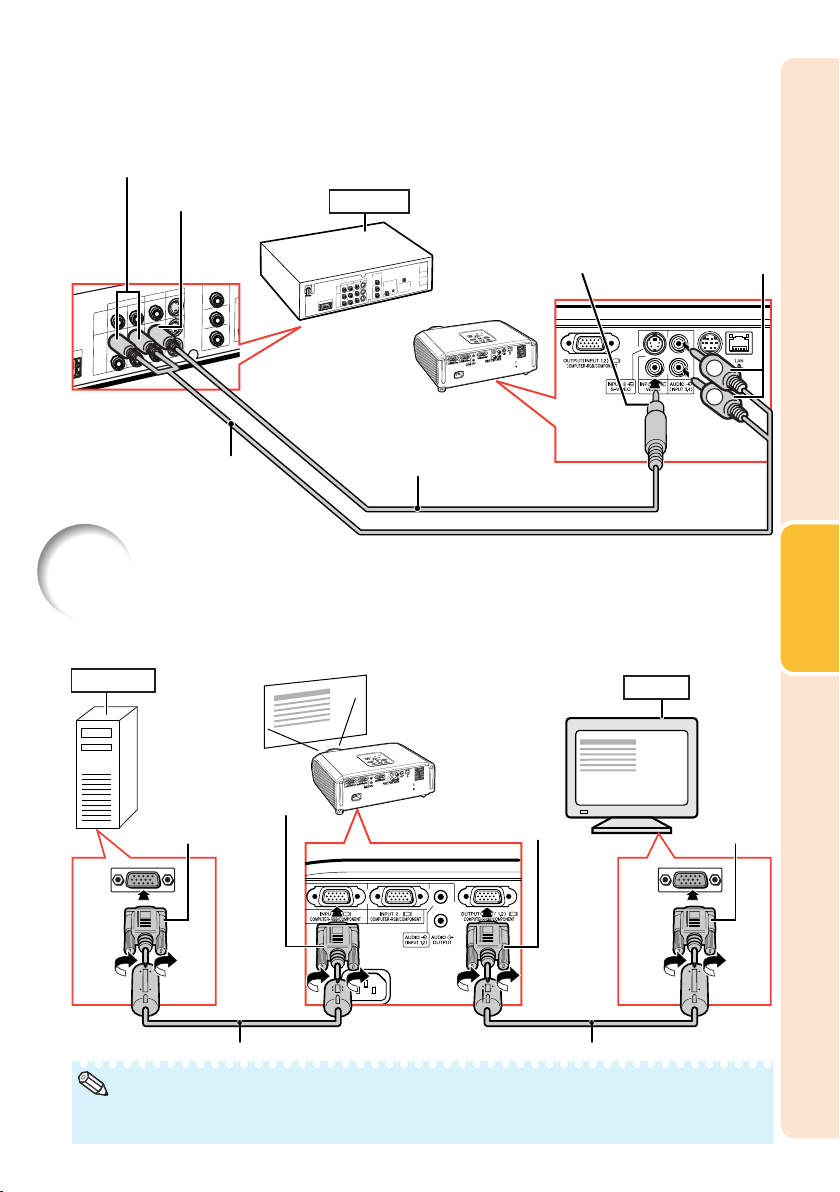
25
Connections
L
R
To video output terminal
When using a composite video cable
(INPUT4)
To audio output terminal
Note
Composite video cable
(commercially available)
RCA audio cable (com-
mercially available)
To AUDIO (INPUT
3, 4) terminal
To INPUT4
terminal
Connecting to a Monitor with RGB Input Terminal
You can display computer images on both the projector and a separate monitor using two sets of
RGB cables.
To RGB
input
terminal
To RGB output
terminal
To INPUT 1
terminal
To OUTPUT
(INPUT 1, 2)
terminal
RGB cable (commercially available)RGB cable
• RGB signals and Component signals can be output to the monitor.
• For this connection, another RGB cable (commercially available) is required.
DVD, etc.
Computer
Monitor
XG-MB67X_EN2_CD_g 06.5.12, 6:44 AM25
26
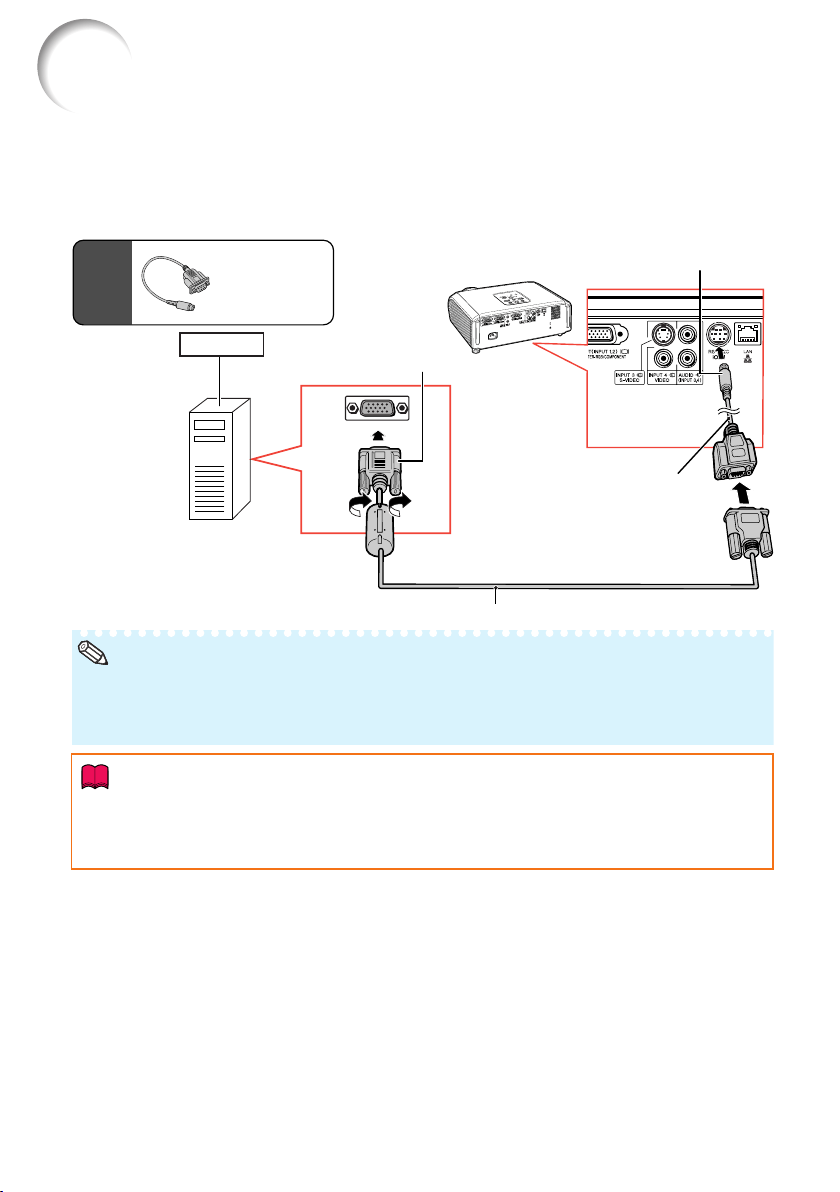
Controlling the Projector by a Computer
When the RS-232C terminal on the projector is connected to a computer with a DIN-D-sub RS-
232C adaptor and an RS-232C serial control cable (cross type, commercially available), the com-
puter can be used to control the projector and check the status of the projector. Refer to the “SETUP
MANUAL” contained on the supplied CD-ROM for details.
When connecting to a computer using an RS-232C serial control cable and a DIN-
D-sub RS-232C adaptor
To RS-232C terminal
To RS-232C terminal
DIN-D-sub RS-232C
adaptor
RS-232C serial control cable (cross type, commercially available)
Note
• The RS-232C function may not operate if your computer terminal is not correctly set up. Refer to the
operation manual of the computer for details.
• Refer to page 3 of the “SETUP MANUAL” contained on the supplied CD-ROM for “RS-232C Speci-
fications and Commands”.
Info
• Do not connect the RS-232C cable to a port other than the RS-232C terminal on the computer. This
may damage your computer or projector.
• Do not connect or disconnect an RS-232C serial control cable to or from the computer while it is on.
This may damage your computer.
Computer
DIN-D-sub
RS-232C
adaptor
Supplied
accessory
XG-MB67X_EN2_CD_g 06.5.12, 6:44 AM26
27
Connections
Connecting the Power Cord
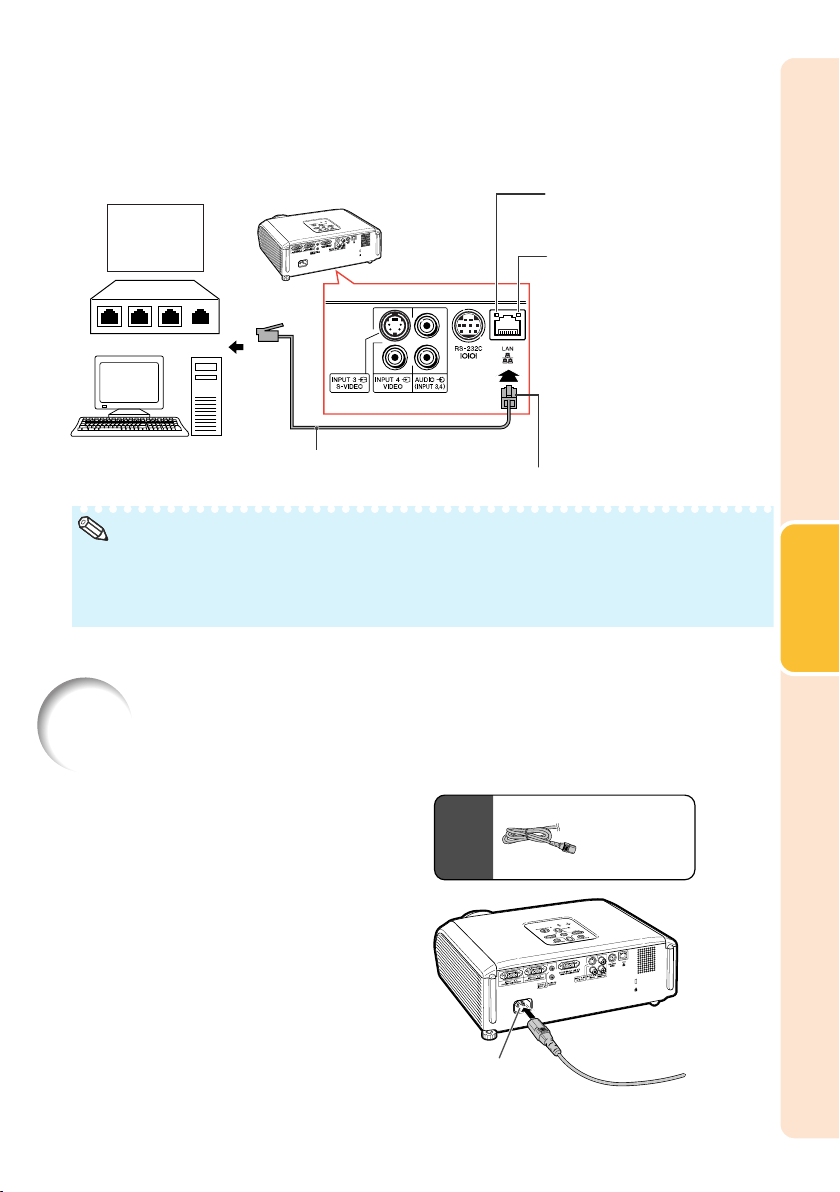
Plug the supplied power cord into the
AC socket on the rear of the projector.
Then plug into AC outlet.
AC socket
Power cord
Supplied
accessory
When connecting to the LAN terminal using a LAN cable
TX/RX LED (yellow)
Illuminates when transmit-
ting/receiving data.
LINK LED (green)
Illuminates when linked.
Hub
or
Computer
LAN cable (Category 5 type,
commercially available)
To LAN terminal
* To ensure safety, do not
connect the LAN terminal
with any cables that may
cause excessive voltage
such as a telephone line.
Note
• When connecting to a hub, use a straight-through Category 5 (CAT.5) type cable (commercially
available).
• When connecting to a computer, use a cross-over Category 5 (CAT.5) type cable (commercially
available).
To AC outlet
XG-MB67X_EN2_CD_g 06.5.24, 1:53 PM27
28
Turning the Projector On/Off
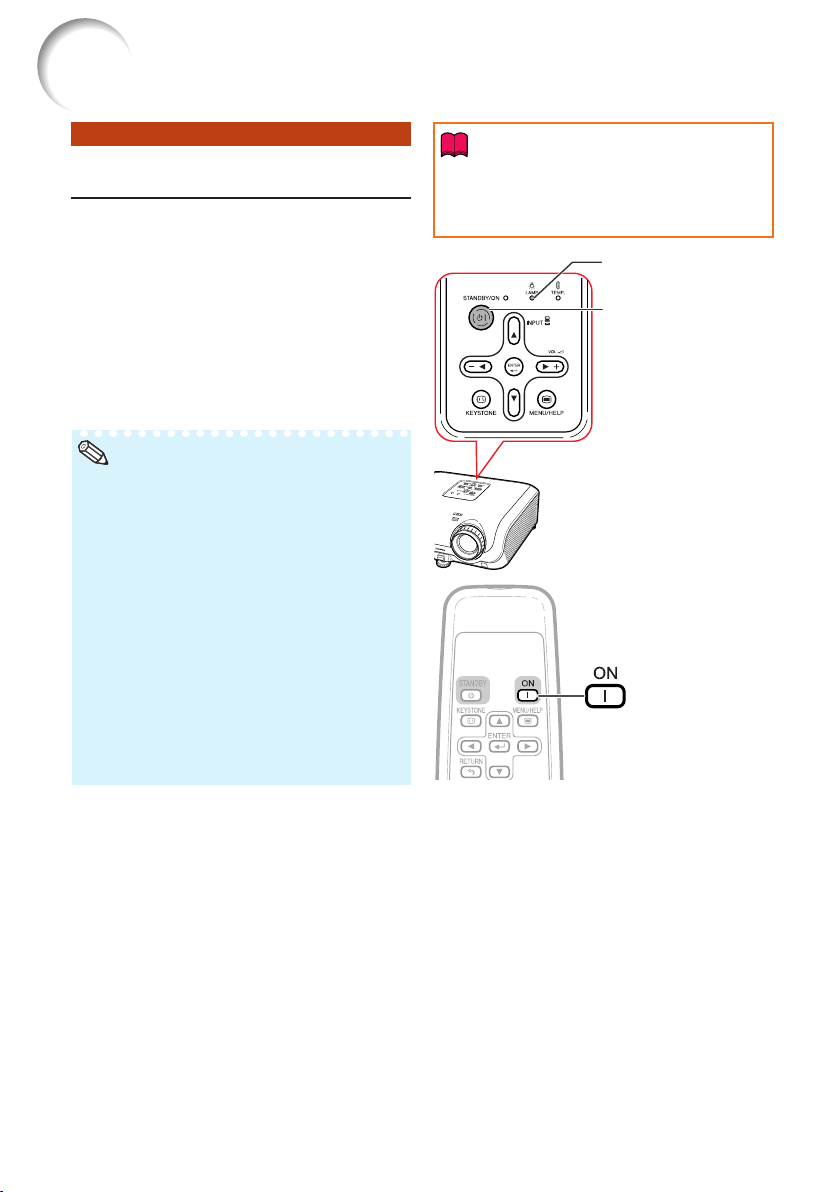
Remove the lens cap and press
SSTANDBY/ON on the projector or
fON on the remote control.
• When System Lock is set, the keycode input box
appears. To cancel the keycode setting, input the
keycode that you have already set. See page 47
for details.
• About the Lamp Indicator
The lamp indicator illuminates to indicate the
status of the lamp.
Green: The lamp is on.
Blinking in green:The lamp is warming up
or shutting down.
Red:The lamp is shut down abnormally
or the lamp should be replaced.
• When switching on the projector, a slight flick-
ering of the image may be experienced within
the first minute after the lamp has been illumi-
nated. This is normal operation as the lamp’s
control circuitry is stabilising the lamp output
characteristics. It should not be regarded as
faulty operation.
• If the projector is put into standby mode and
immediately turned on again, the lamp may
take some time to start projection.
STANDBY/ON button
Note
Lamp indicator
• English is the factory default language. If you
want to change the on-screen display to an-
other language, change the language accord-
ing to the procedure on page 45.
Info
Turning the Projector on
Note that the connections to external equip-
ment and power outlet should be done be-
fore performing the operations written be-
low. (See pages 23 to 27.)
ON button
XG-MB67X_EN2_CD_h 06.5.12, 6:45 AM28
29
Basic
Operation
On-screen Display (confirmation message)
Turning the Power off (Put-
ting the Projector into
Standby Mode)
• Do not unplug the power cord during projec-
tion or cooling fan operation. This can cause
damage due to rise in internal temperature,
as the cooling fan also stops.
Info
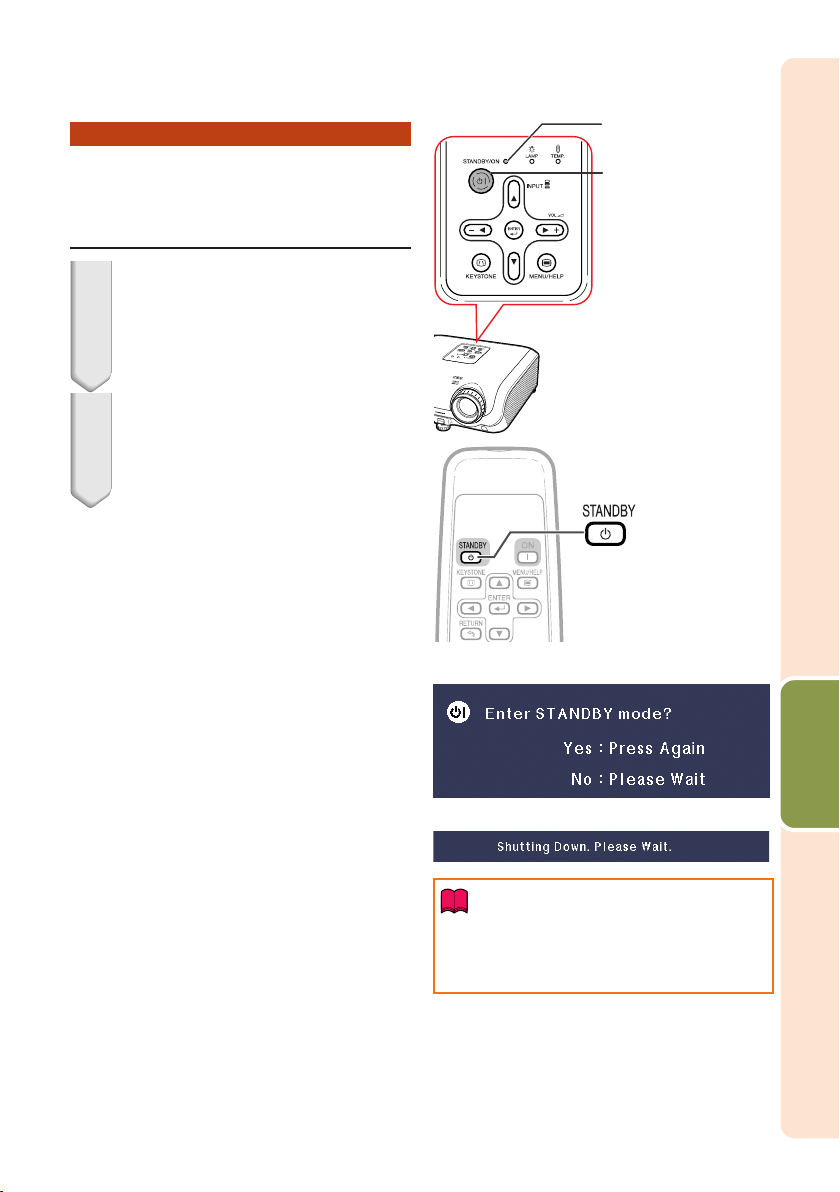
R
STANDBY
button
Power indicator
STANDBY/ON button
1
2
Press SSTANDBY/ON on the pro-
jector or eSTANDBY on the re-
mote control, then press that but-
ton again while the confirmation
message is displayed, to put the
projector into standby mode.
Unplug the power cord from the AC
outlet after the cooling fan stops.
• The power indicator on the projector
blinks in green while cooling.
• The power indicator changes to red when
the projector finishes cooling.
XG-MB67X_EN2_CD_h 06.5.12, 6:45 AM29
30
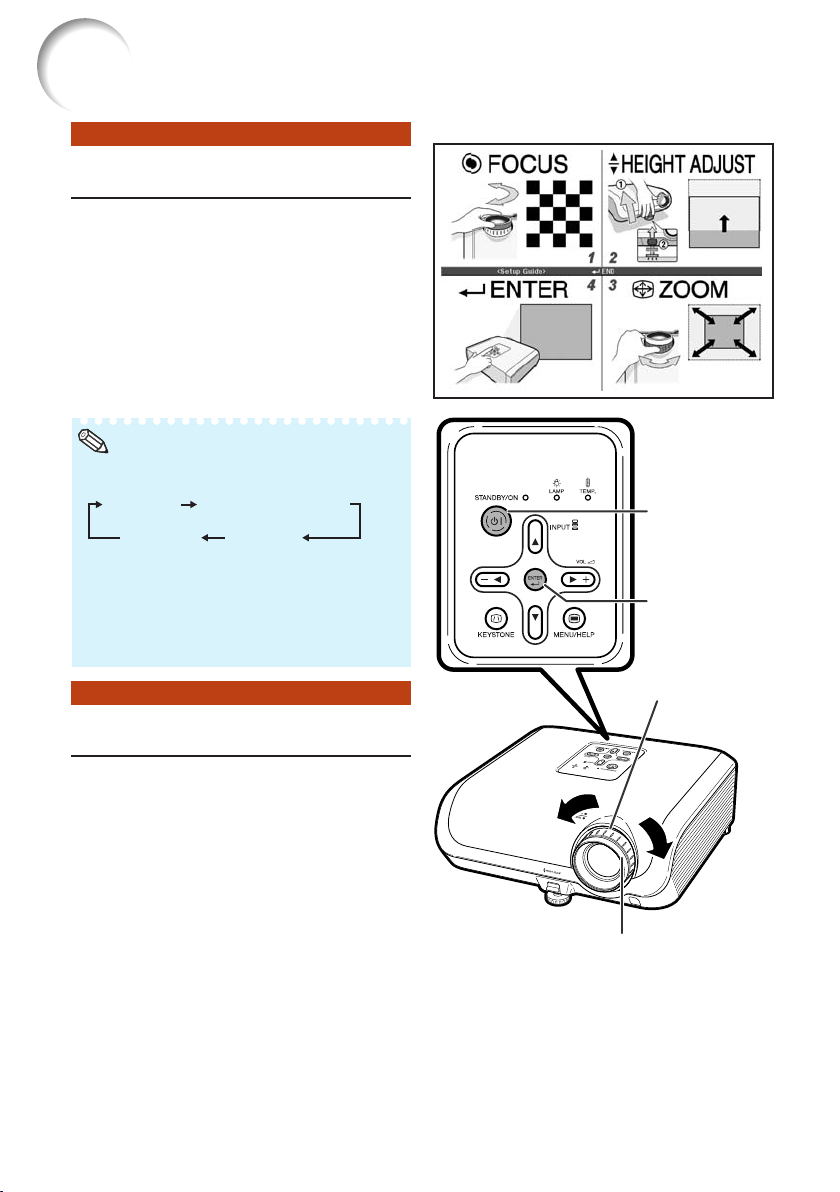
About the Setup Guide
After turning on the projector, the Setup
Guide screen appears to assist you with
projector setup.
Press TENTER to exit the Setup Guide
screen.
Guidance items
1 FOCUS
2 HEIGHT ADJUST
3 ZOOM
STANDBY/ON
button
ENTER button
1 Adjusting the Focus
You can adjust the focus with the focus
ring on the projector.
Image Projection
Rotate the focus ring to adjust the fo-
cus while watching the projected image.
Setup Guide screen
• The Setup Guide screen automatically high-
lights the items in the following order:
1 FOCUS
3 ZOOM4 ENTER
2 HEIGHT ADJUST
However, you can adjust the focus, height
(angle), or zoom regardless of the highlighted
item.
• If you do not want to display the Setup Guide
for the next time, set “Menu” - “SCR - ADJ” -
“Setup Guide” to “Off”. (See page 45.)
Note
Focus ring
Adjusting the Projected Image
2 Adjusting the Screen Size
You can adjust the screen size using
the zoom ring on the projector.
Rotate the zoom ring to enlarge or
shrink the screen size.
Zoom ring
XG-MB67X_EN2_CD_h 06.5.12, 6:46 AM30
31
Basic
Operation
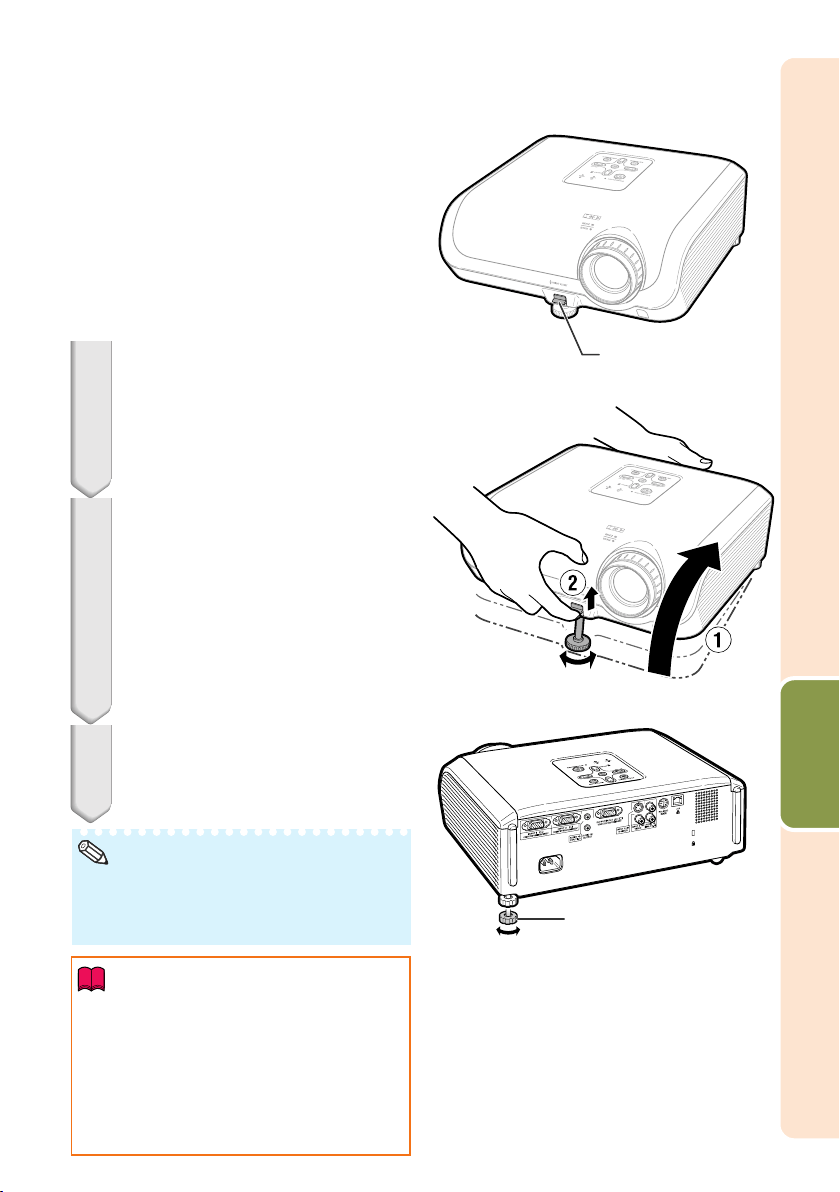
3 Adjusting the Height
The height of the projector can be ad-
justed using the adjustment feet at the
front and rear of the projector.
When the screen is above the projec-
tor, the projection image can be made
higher by adjusting the projector.
1
2
3
• Do not apply too much pressure on the pro-
jector when the front adjustment foot comes
out.
• When lowering the projector, be careful not to
get your fingers caught in the area between
the adjustment foot and the projector.
• Hold the projector firmly while lifting or carry-
ing.
• Do not hold by the lens area.
Use the rear adjustment foot to
make the projector level.
• The projector is adjustable ±1 degree
from the standard position.
Remove your hands from the
HEIGHT ADJUST lever of the pro-
jector after its height has been
finely adjusted.
• The angle of projection is adjustable up
to 8 degrees from the surface on which
the projector is placed.
Lift the projector to adjust its
height while lifting the HEIGHT
ADJUST lever.
HEIGHT
ADJUST lever
Info
Rear adjustment foot
• When adjusting the height of the projector,
trapezoidal distortion occurs. Follow the pro-
cedures in Keystone Correction to correct the
distortion. (See pages 33 and 44.)
Note
Make small
adjustments.
XG-MB67X_EN2_CD_h 06.5.12, 6:46 AM31
32
Image Projection (Continued)
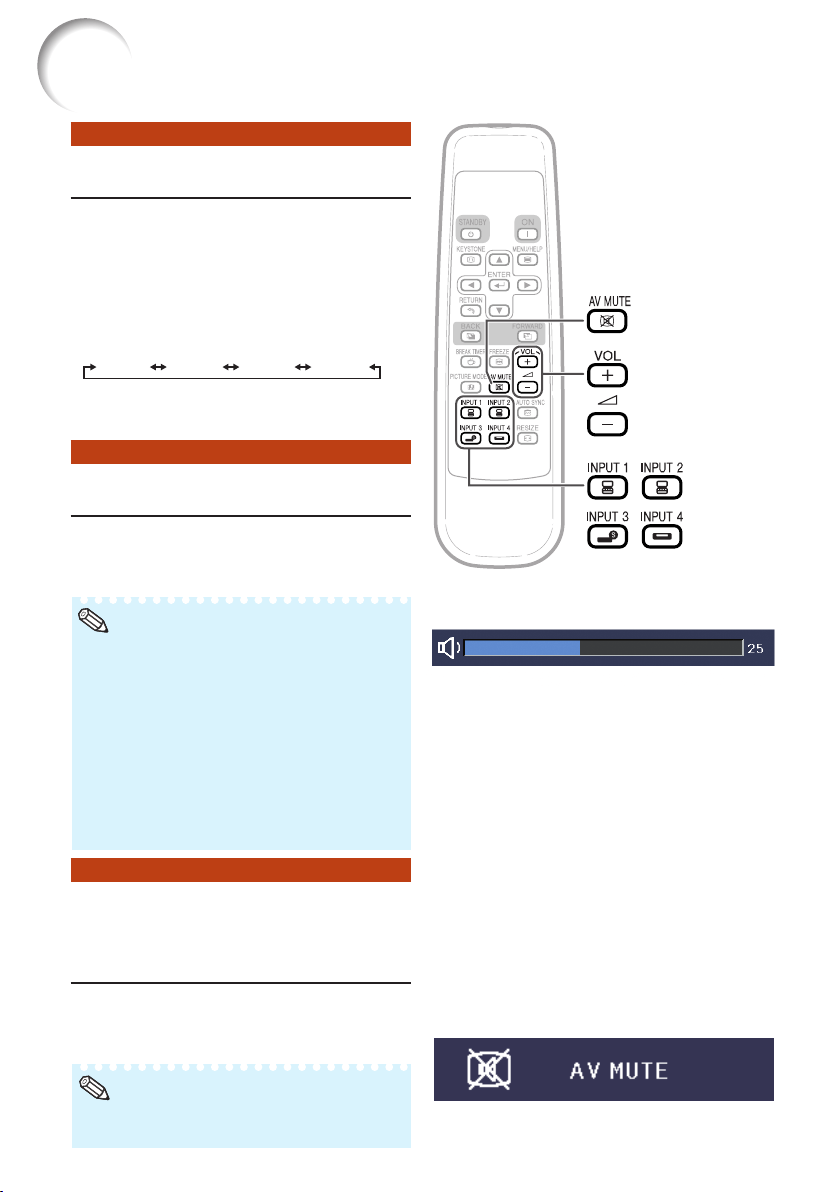
Displaying the Black Screen
and Turning off the Sound
Temporarily
Adjusting the Volume
Switching the Input Mode
PressC INPUT 1, C INPUT 2,
DINPUT 3 or EINPUT 4 on the remote
control to select the input mode.
• When pressing INPUT (P/R) on the projector,
input mode switches in the following order:
INPUT1 INPUT2 INPUT3 INPUT4
.
• When “Auto Search” is set to “On”, INPUT (P/
R) on the projector functions as the Auto Search
buttons. (See page 46.)
Select the appropriate input mode for
the connected equipment.
Press K/L on the remote control or
–O/Q+ on the projector to adjust the vol-
ume.
• Pressing K/–O will lower the volume.
• Pressing L/Q+ will raise the volume.
• When the projector is connected to external
equipment, the volume level of the external equip-
ment changes in accordance with the volume
level of the projector. Set the projector’s volume
to the lowest level when turning the projector on/
off or when changing the input signal.
• When you do not want to output the sound from
the projector’s speaker while the projector is con-
nected to external equipment, set “Speaker” in
“PRJ-ADJ” menu to “Off”. (See page 46.)
Press MAV MUTE on the remote con-
trol to temporarily display a black
screen and turn off the sound.
• Pressing MAV MUTE again will turn the projected
image back on.
Volume buttons
INPUT
buttons
AV MUTE button
On-screen Display
Note
Note
On-screen Display
XG-MB67X_EN2_CD_h 06.5.12, 6:46 AM32
33
Basic
Operation
0Keystone
ADJ. END
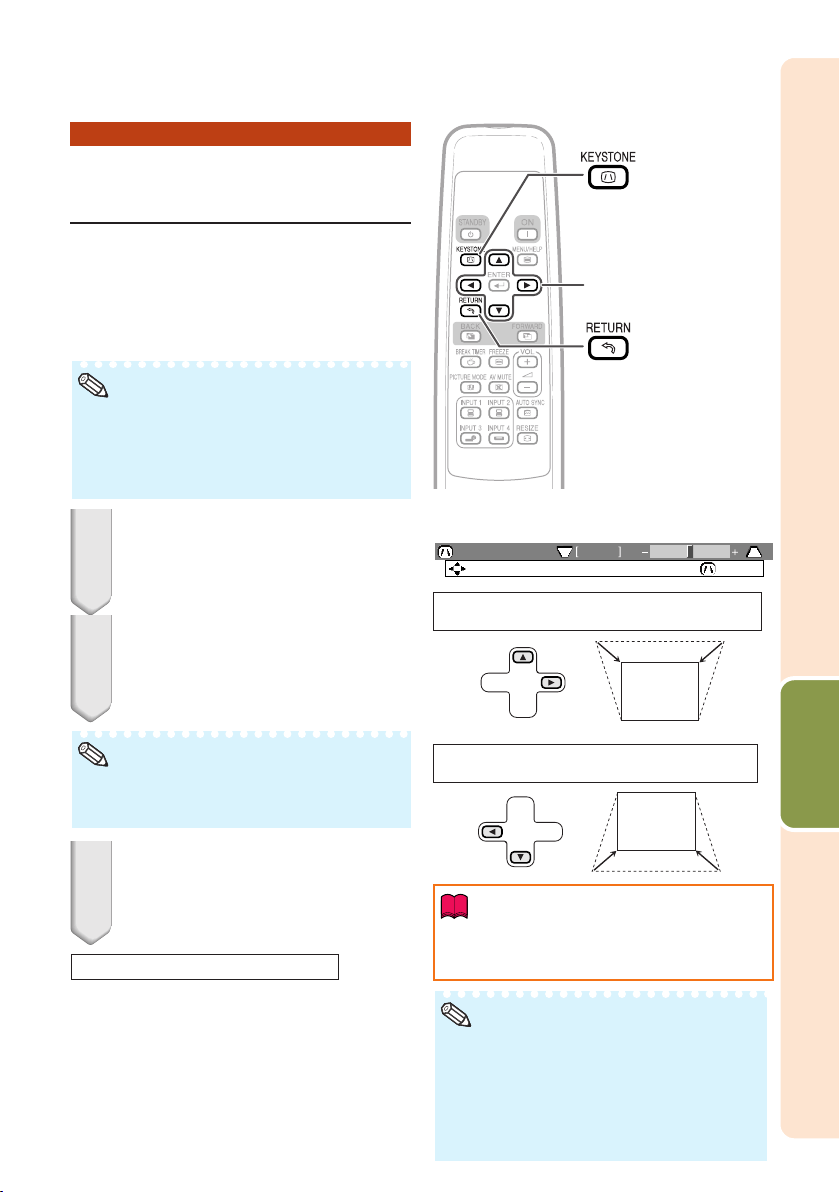
Correcting Trapezoidal
Distortion
When the image is projected either from
the top or from the bottom towards the
screen at an angle, the image becomes
distorted trapezoidally. The function for
correcting trapezoidal distortion is
called Keystone Correction.
• The Keystone Correction can be adjusted up
to an angle of approximately ±13 degrees and
the screen can also be set up to an angle of
approximately ±13 degrees (when the resize
mode is set to “NORMAL” (see page 34)).
Note
1
2
3
Press g KEYSTONE.
• The on-screen display of the Keystone
Correction mode will disappear.
• You can also use d KEYSTONE on the
projector.
Press P/Q or O/R to adjust the
Keystone Correction.
• You can also adjust the Keystone Cor-
rection using the adjustment buttons on
the projector.
Press g KEYSTONE to enter the
Keystone Correction mode.
• You can also display the on-screen dis-
play of the Keystone Correction mode
with d KEYSTONE on the projector.
• Press l RETURN while the on-screen dis-
play of the Keystone Correction mode is on
the screen to return to the default setting.
Note
KEYSTONE button
Adjustment buttons
(P/R/O/Q)
RETURN button
R On-screen display
(Keystone Correction mode)
Shrinks upper side.
(Move the slide bar in the + direction.)
Shrinks lower side.
(Move the slide bar in the - direction.)
• While adjusting the image using Keystone
Correction, straight lines and the edges of the
image may appear jagged.
Info
About the Auto Keystone Correction
• The projector automatically detects tilt and the
AUTO KEYSTONE feature automatically cor-
rects trapezoidal distortion.
• Automatic Keystone Correction may not work well in some
cases, such as when the screen is leaning, temperature is
extremely high or low, or zoom is at maximum or mini-
mum. In these cases, fine adjust the Keystone Correction
following steps 1 to 3.
• You can select “On” or “Off” for the Auto Keystone Correc-
tion mode. (See page 44.)
Note
XG-MB67X_EN2_CD_h 06.5.12, 6:46 AM33
34
Image Projection (Continued)
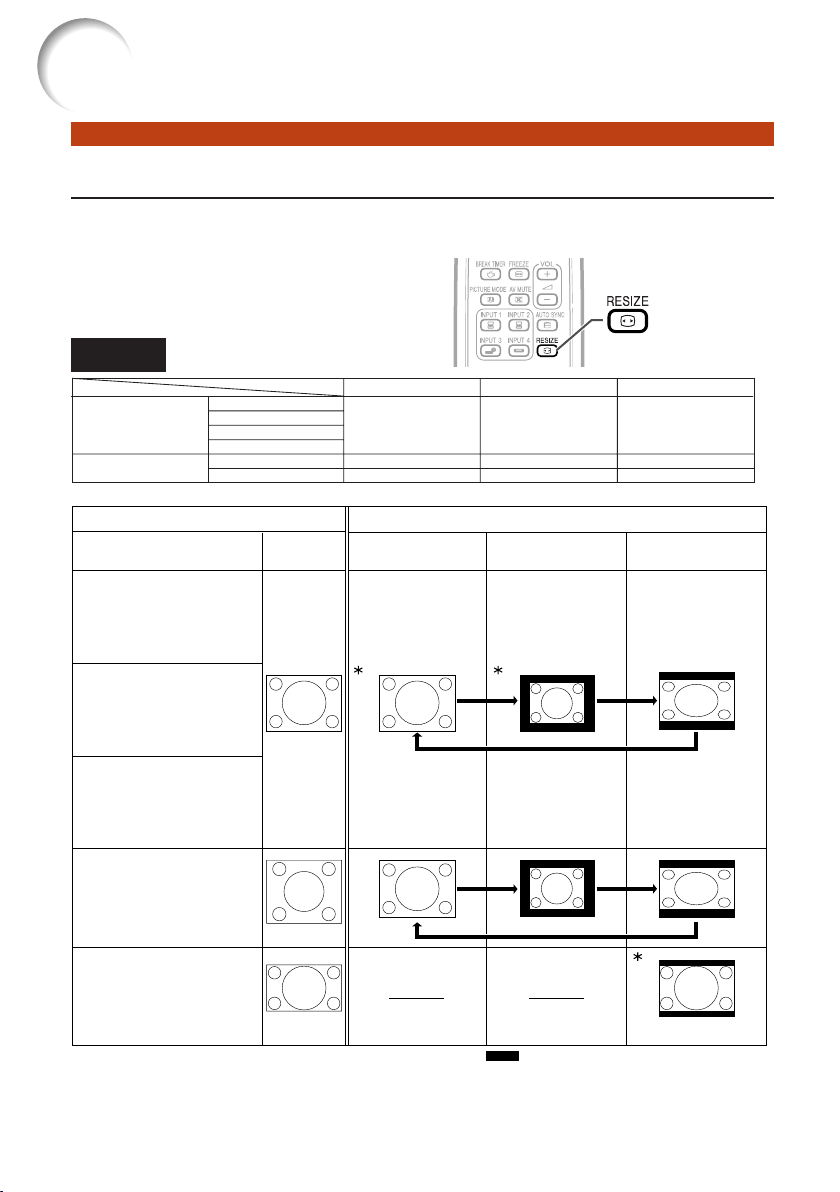
Resize Mode
This function allows you to modify or customize the resize mode to enhance the input image. De-
pending on the input signal, you can choose “NORMAL”, “BORDER” or “STRETCH” image.
Press HRESIZE.
• See page
44
for setting on menu screen.
Computer
Input Signal
NORMAL
Output screen image
Computer Image type BORDER STRETCH
SXGA
(1280K1024)
1280K720
4:3 aspect ratio
5:4 aspect ratio
16:9 aspect
ratio
* Mode for projecting an image with the original
aspect ratio without cutting any portions.
RESIZE button
SVGA (800 K 600)
XGA (1024 K 768)
SXGA (1280 K 960)
SXGA L (1400
K
1050)
SXGA (1280
K
1024)
1280 K 720
1024
K
768
J
768
K
576
J
1024
K
576
1024
K
576
1024
K
768 768
K
576 1024
K
576
NORMAL
BORDER
STRETCH
Other aspect ratios
4:3 aspect ratio
:
Cutout area on which images cannot be projected.
Resolution lower than XGA
XGA
Resolution higher than XGA
XG-MB67X_EN2_CD_h 06.5.12, 6:46 AM34
35
Basic
Operation
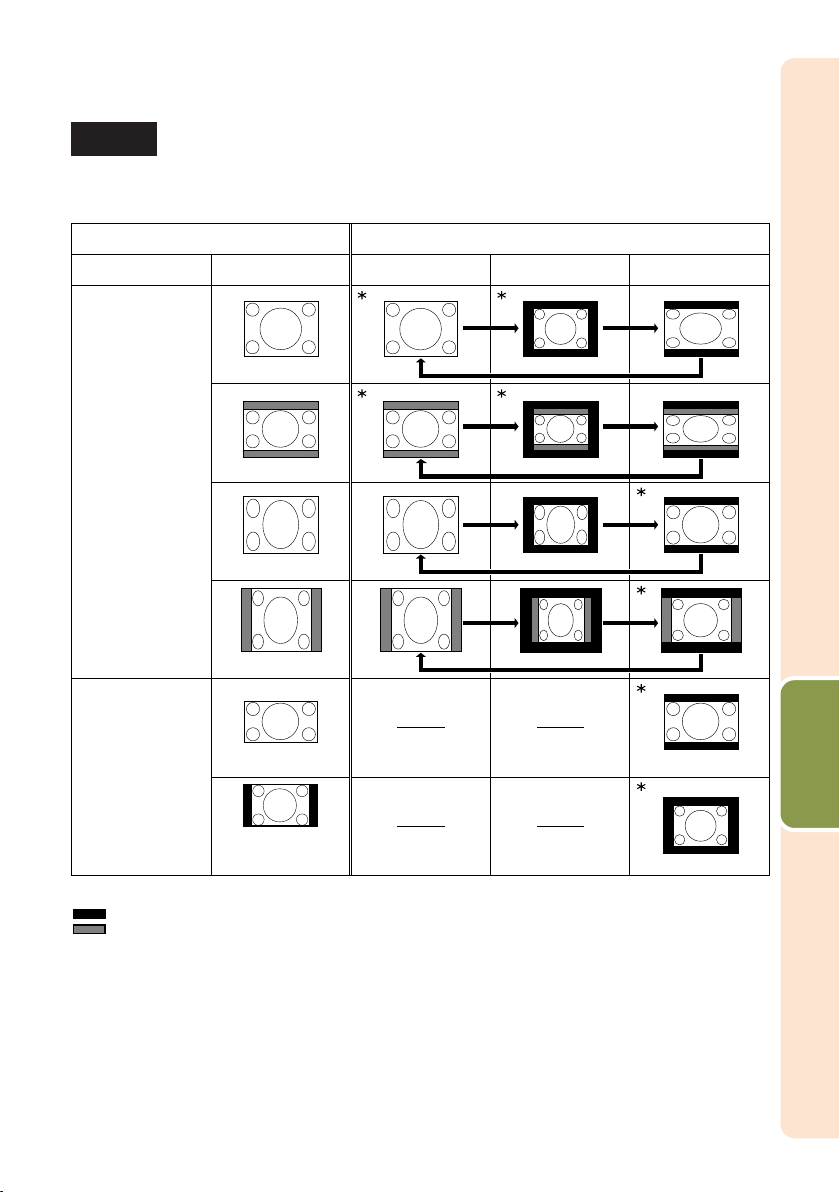
VIDEO
•“STRETCH” is fixed when 540P, 720P or 1080I signals are entered.
: Cutout area on which images cannot be projected.
: Area on which the image is not included in the original signals.
Input Signal
DVD / Video Image type
Output screen image
NORMAL
BORDER
STRETCH
480I, 480P, 576I,
576P, NTSC, PAL,
SECAM
540P, 720P, 1080I
4:3 aspect ratio
Letter box
Squeezed 16:9 image
Squeezed 4:3 image
16:9 aspect ratio
16:9 aspect ratio
(4:3 aspect ratio in
16:9 screen)
* Mode for projecting an image with the original aspect ratio without cutting any portions.
XG-MB67X_EN2_CD_h 06.5.12, 6:46 AM35
36
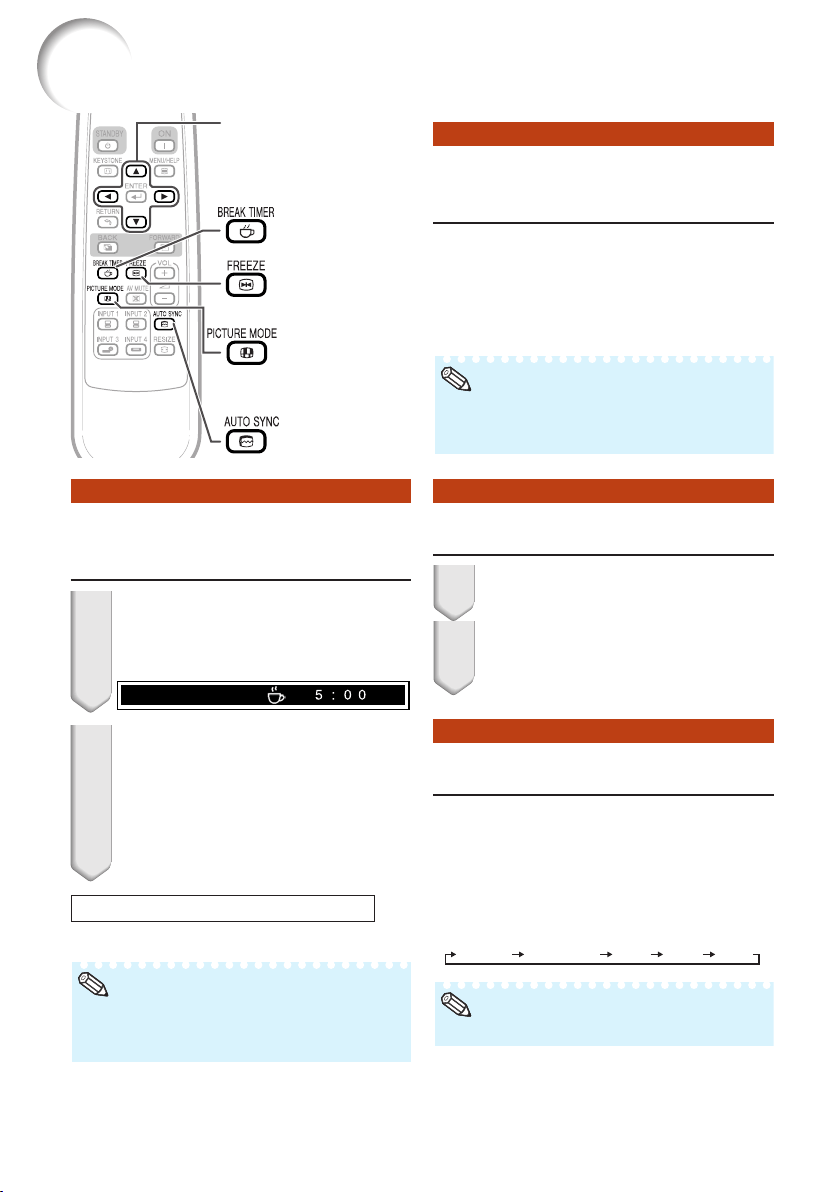
Auto Sync
(Auto Sync Adjustment)
Operating with the Remote Control
Freezing a Moving Image
• When the optimum image cannot be achieved
with Auto Sync adjustment, use the help menu
for manual adjustments. (See page 51.)
Auto Sync function works when detect-
ing input signal after the projector turns
on.
Press FAUTO SYNC to manually ad-
just with Auto Sync function.
Press NFREEZE.
• The projected image is frozen.
Press NFREEZE again to return
to the moving image from the cur-
rently connected device.
1
2
Note
Selecting the Picture Mode
Press GPICTURE MODE.
• When pressing GPICTURE MODE, the picture
mode changes in the following order:
Standard Presentation Movie Game sRGB
You can select the appropriate picture
mode for the projected image, such as
movie or video game.
• See page 42 for details on the picture mode.
Note
FREEZE button
AUTO SYNC
button
Adjustment buttons
(P/R/O/Q)
BREAK TIMER
button
PICTURE MODE
button
Displaying and Setting the
Break Timer
Press k BREAK TIMER.
• The timer starts to count down from 5
minutes.
1
2
Press P /R /O /Q to adjust the
length of the break time.
• Increases with P or Q
5 minutes s 6 minutes s 60 minutes
• Shortens with O or R
4 minutes s 3 minutes s1 minute
• The break time can be set in units of one
minute (up to 60 minutes).
ROn-screen display
Canceling the break time display function
Press k BREAK TIMER.
*
* “sRGB” is displayed only when RGB signal is
input.
• Break Timer does not function while the pro-
jector is operating the “Auto Sync”, “FREEZE”
or “AV MUTE” functions.
Note
XG-MB67X_EN2_CD_i 06.5.12, 6:47 AM36
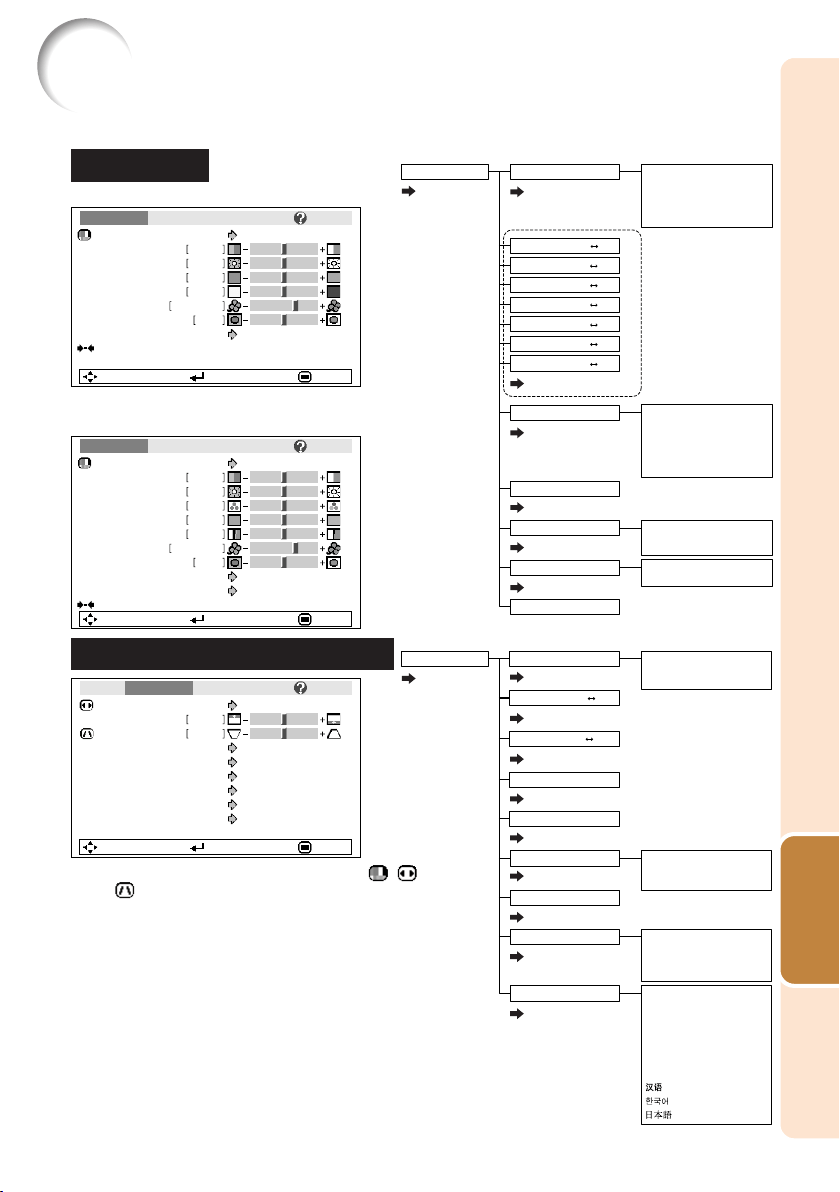
37
Useful
Features
The following shows the items that can be set in the projector.
Menu Items
“Screen adjustment (SCR-ADJ)” menu
INPUT 1 (Component)/INPUT 2
(Component)/INPUT 3/INPUT 4
INPUT 1 (RGB)/INPUT2 (RGB)
“Picture” menu
Picture SCR PRJ Net.
Picture Mode
Contrast 0
0
0
0
K8500
Bright
Red
Blue
1
CLR Temp
Bright Boost
Lamp Setting
Standard
Bright
Reset
SEL./ADJ. ENTER END
Help
Picture Mode
Contrast 0
0
0
0
K8500
Bright
Color
Tint
0Sharp
1
CLR Temp
Bright Boost
Progressive 3D Progressive
Standard
Reset
SEL./ADJ. ENTER END
Picture SCR PRJ Net.
Help
Lamp Setting Bright
Resize
Image Shift 0
0
Keystone
Auto Keystone
OSD Display
Background
Setup Guide
PRJ Mode
Language
Front
English
On
Logo
On
Off
Normal
SEL./ADJ. ENTER END
Pict. SCR - ADJ PRJ Net. Help
Main menu Sub menu
Picture
Page 42
+30-30
Contrast
+30-30
+30-30
+30-30
+30-30
+30-30
+30-30
Tint
Color
Sharp
Bright
Red
Blue
*2*3
*2
*2
*1
*1
Progressive
Lamp Setting
*2
Reset
5500K
6500K
7500K
8500K
9300K
10500K
2D Progressive
3D Progressive
Film Mode
Bright
Eco + Quiet
CLR Temp
Bright Boost [0/1/2]
Page 42
Page 43
Page 43
Page 43
Page 43
Page 43
Standard
Presentation
Movie
Game
sRGB*1
Picture Mode
Main menu Sub menu
SCR - ADJ
Page 44
Language
Image Shift
Resize
Page 44
Page 44
Page 44
Page 44
Page 45
Page 45
Page 45
Page 45
Page 45
Keystone
Auto Keystone [On/Off]
OSD Display [On/Off]
Background
Setup Guide
[On/Off]
PRJ Mode
Normal
Border
Stretch
Logo
Blue
None
Front
Ceiling + Front
Rear
Ceiling + Rear
English
Deutsch
Español
Nederlands
Français
Italiano
Svenska
Português
+127-127
+96-96
*
1
Items when inputting RGB signal through INPUT 1 or
INPUT 2.
*
2
Items when inputting component signal through INPUT 1 or
INPUT 2, or when selecting INPUT 3 or INPUT 4.
*
3
“Tone” will appear on the menu screen only when PAL or
SECAM signals are input (including when forcibly changed
to those input signals). There is basically no need to adjust
“Tone”, but you can adjust the picture tone with this
adjustment when inputting PAL or SECAM signals.
• You can adjust the menu items with icons ( , ,
and ) using the respective buttons on the re-
mote control.
XG-MB67X_EN2_CD_i 06.5.12, 6:47 AM37
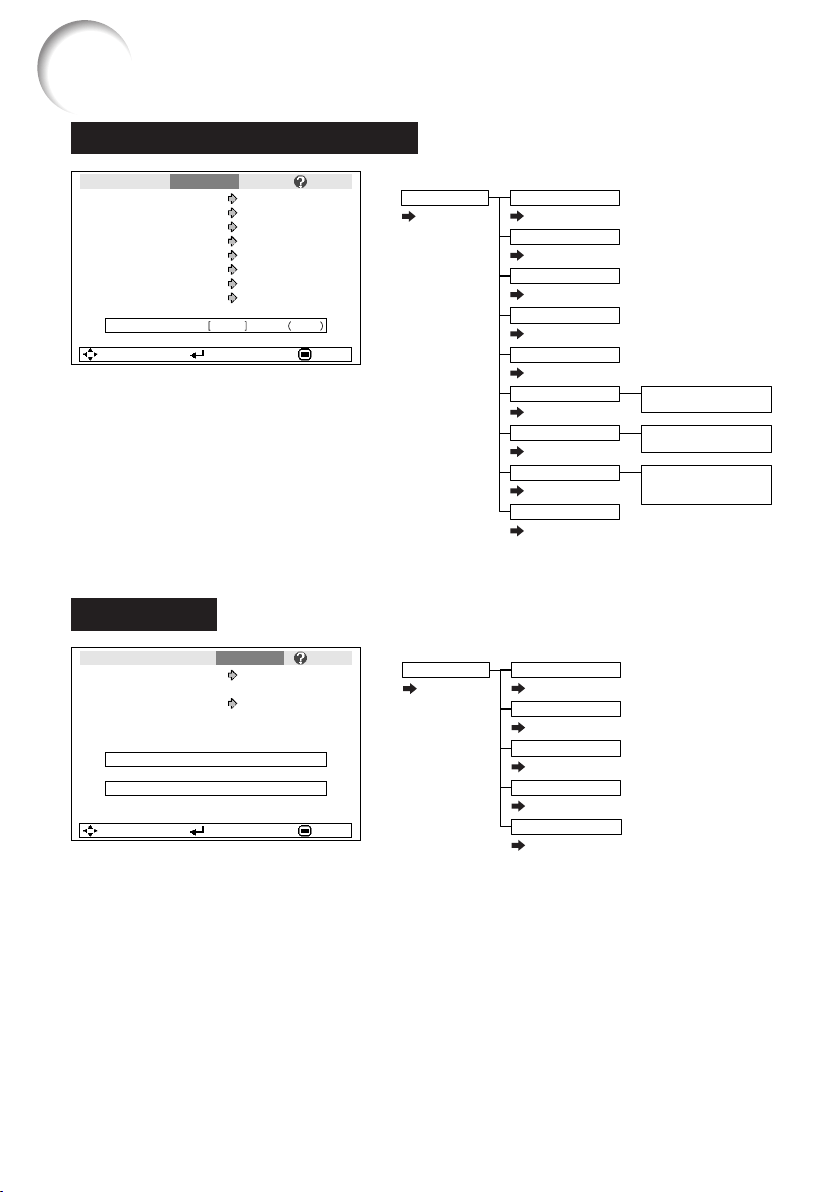
38
“Projector adjustment (PRJ-ADJ)” menu
Pict.
Auto Search
SCR PRJ - ADJ Net.
Auto Sync
Auto Power Off
System Sound
System Lock
h
On
On
On
On
SEL./ADJ. ENTER END
0Lamp Timer(Life) 100%
Help
Speaker On
RS-232C 9600 bps
Fan Mode Normal
Disable
Main menu Sub menu
PRJ - ADJ
Page 46
Auto Search
[On/Off]
Auto Sync
[On/Off]
Auto Power Off [On/Off]
System Sound [On/Off]
Speaker [On/Off]
System Lock
Lamp Timer(Life)
Page 46
Page 46
Page 46
Page 46
Page 46
Page 47
Page 47
Old Code
New Code
Reconfirm
Fan Mode
Page 47
Normal
High
RS-232C
Page 47
9600 bps
115200 bps
Menu Items (Continued)
“Network” menu
Pict.
Password
SCR PRJ Network
DHCP Client
SEL./ADJ. ENTER END
Projector
MAC Address
XG-MB67X
08:00:1F:B1:B7:74
Help
Disable
On
TCP/IP
Main menu Sub menu
Network
Page 49
Password [Enable/Disable]
DHCP Client
[On/Off]
TCP/IP
MAC Address
Projector
Page 49
Page 50
Page 50
Page 50
Page 50
XG-MB67X_EN2_CD_i 06.5.12, 6:47 AM38
39
Useful
Features
Pict.
There is no picture or audio
SCR Net.PRJ Help
Vertical stripes or flickering image appear
Data image is not centered
Color is faded or poor
Picture is dark
The image is distorted
Reset all adjustments to default settings
SEL. ENTER END
“Help” menu
The items you can set with the “Help”
menu
“Help” menu n Page 51
• Vertical stripes or flickering image appear
Auto Sync
Adjust vertical noise
Adjust horizontal noise
• Data image is not centered
Auto Sync
H-Pos
V-Pos
• Color is faded or poor
INPUT 1 or INPUT 2
Signal type: Auto/RGB/Component
INPUT 3 or INPUT 4
Video System: Auto/PAL/SECAM/
NTSC3.58/NTSC4.43/PAL-
M/PAL-N/PAL-60
* The selectable items vary depending on the in-
put signal and the selected input mode.
XG-MB67X_EN2_CD_i 06.5.12, 6:47 AM39
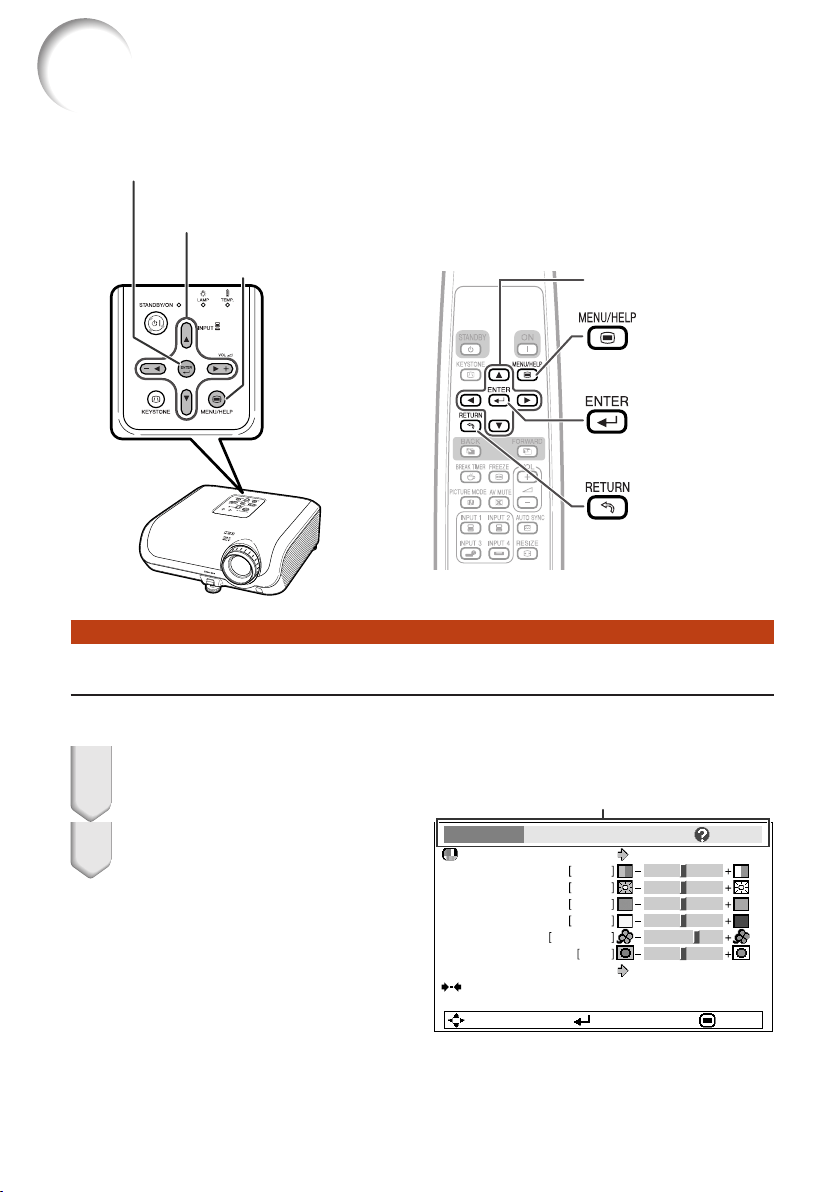
40
Using the Menu Screen
Menu Selections (Adjustments)
Example: Adjusting “Bright”.
• This operation can also be performed by using the buttons on the projector.
Press BMENU.
• The “Picture” menu screen for the se-
lected input mode is displayed.
Adjustment buttons
(P/R/O/Q)
Example: “Picture” screen menu for INPUT 1
(RGB) mode
Press Q or O and select “Picture”
to adjust.
1
2
ENTER button
RETURN button
Menu item
Picture Mode
Contrast 0
0
0
0
K8500
Bright
Red
Blue
1
CLR Temp
Bright Boost
Lamp Setting
Standard
Bright
Reset
SEL./ADJ. ENTER END
Picture SCR PRJ Net.
Help
MENU/HELP
button
Adjustment buttons (P/R/O/Q)
MENU/HELP button
ENTER button
• Press l RETURN to
return to the previous
screen when the menu
is displayed.
XG-MB67X_EN2_CD_i 06.5.12, 6:47 AM40
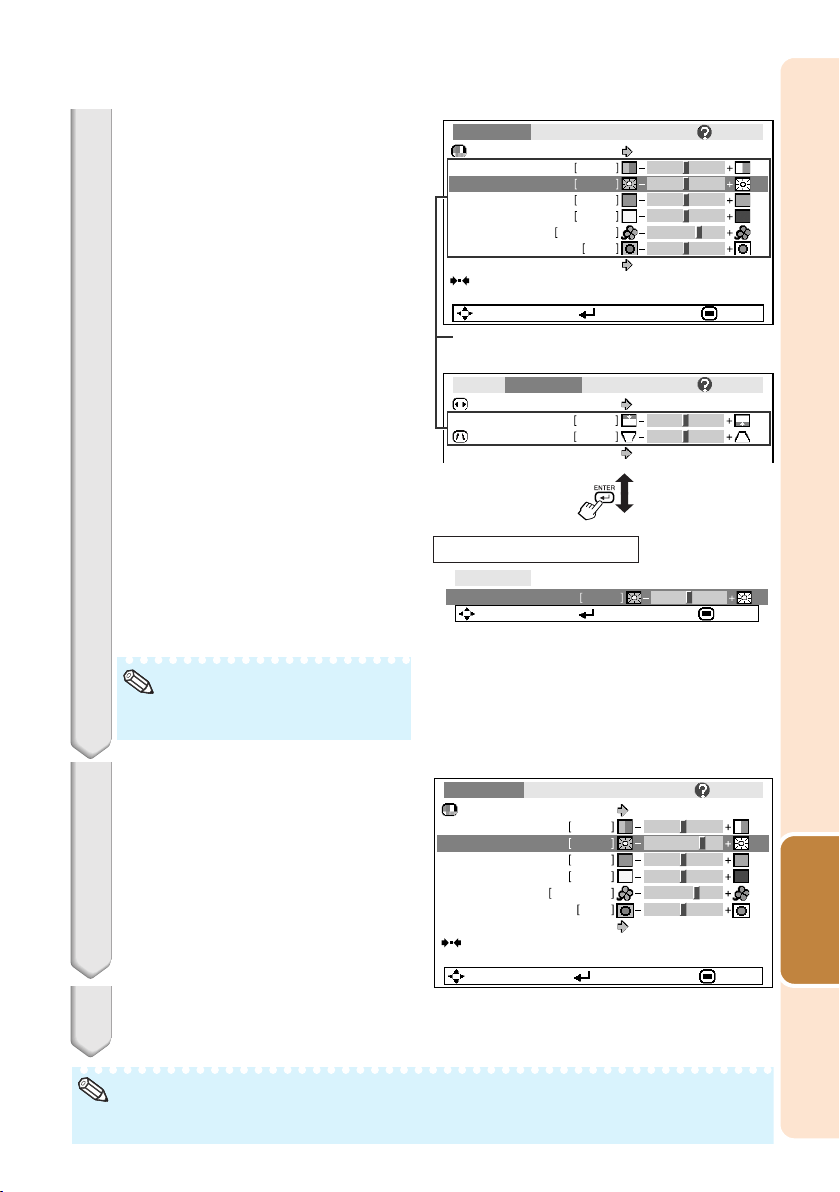
41
Useful
Features
Press P or R and select “Bright”
to adjust.
• The selected item is highlighted.
• Press hENTER again to return to the
previous screen.
Press O or Q to adjust the item
selected.
• The adjustment is stored.
Press BMENU/HELP.
• The menu screen will disappear.
3
4
5
0Bright
Picture
SEL./ADJ. Rtn. Menu END
Picture Mode
Contrast 0
15
0
0
K8500
Bright
Red
Blue
1
CLR Temp
Bright Boost
Lamp Setting
Standard
Bright
Reset
SEL./ADJ. Single ADJ END
Picture SCR PRJ Net.
Help
Note
Picture Mode
Contrast 0
0
0
0
K8500
Bright
Red
Blue
CLR Temp
Bright Boost
Lamp Setting
Standard
Bright
Reset
SEL./ADJ. Single ADJ END
Resize
Image Shift 0
0
Keystone
Auto Keystone
Off
Normal
1
Picture SCR PRJ Net.
Help
Pict. SCR - ADJ PRJ Net. Help
Items to be adjusted
• Menu buttons do not function while the projector is operating the “Auto Sync”, “Break Time”,
“FREEZE”, or “AV MUTE” functions.
Note
To adjust the projected
image while watching it
Press hENTER.
• The selected item (e.g. “Bright”) is dis-
played by itself at the bottom of the
screen.
• When pressing P or R, the following item
(“Red” after “Bright”) will be displayed.
The item displayed by itself
XG-MB67X_EN2_CD_i 06.5.12, 6:47 AM41
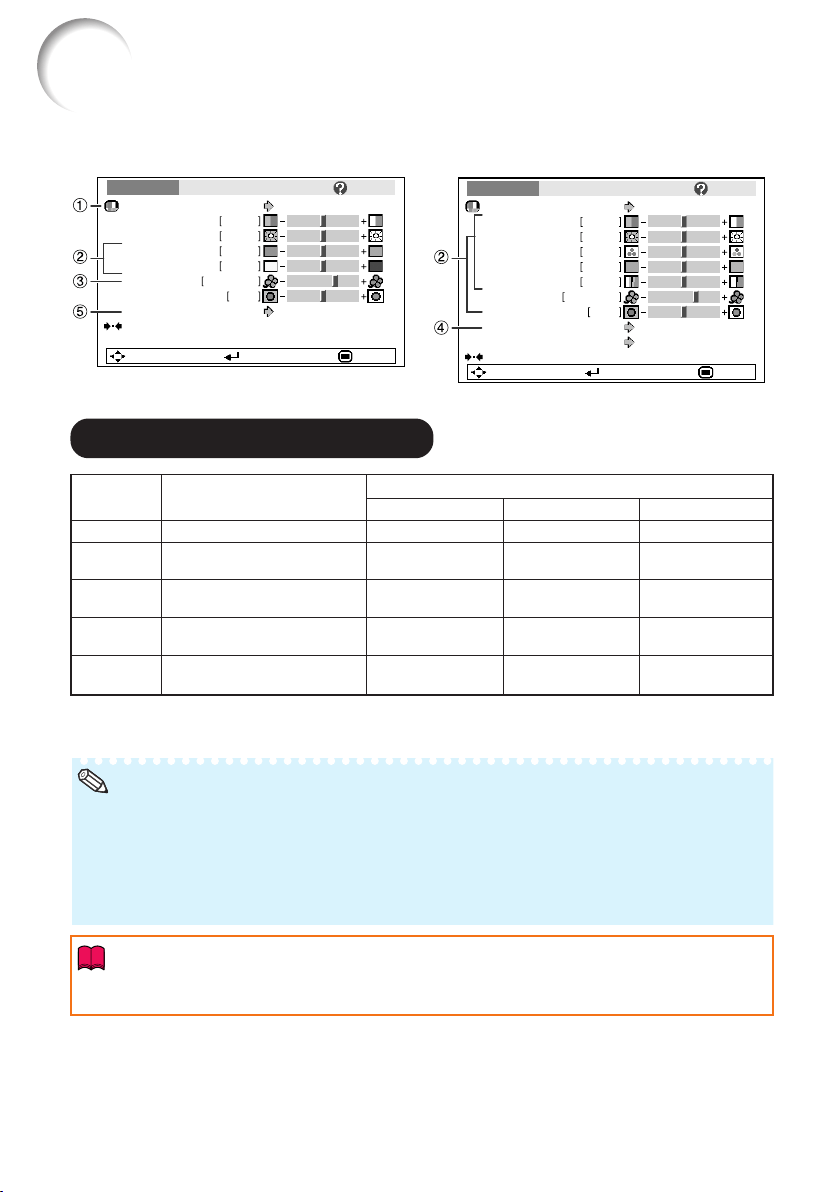
42
Picture Adjustment (“Picture” menu)
Selectable
items
Standard
Presentation
Movie
Game
*sRGB
Q Example: “Picture” screen menu for
INPUT 1 (RGB) mode
Q Example: “Picture” screen menu for
INPUT 3 mode
Picture Mode
Contrast 0
0
0
0
K8500
Bright
Red
Blue
1
CLR Temp
Bright Boost
Lamp Setting
Standard
Bright
Reset
SEL./ADJ. ENTER END
Picture SCR PRJ Net.
Help
Description
For standard image
Brightens portions of image for
more enhanced presentations.
Gives natural tint to the
projected image.
Gives sharpness to the
projected image.
For high fidelity reproduction of
images from a computer.
Picture Mode
Contrast 0
0
0
0
K8500
Bright
Color
Tint
0Sharp
1
CLR Temp
Bright Boost
Progressive 3D Progressive
Standard
Reset
SEL./ADJ. ENTER END
Picture SCR PRJ Net.
Help
Lamp Setting Bright
Menu operation n Page 40
• You can also press G PICTURE MODE on the remote control to select the picture mode. (See
page 36.)
• *sRGB is an international standard of color reproduction regulated by the IEC (International
Electrotechnical Commission). As the fixed color area has been decided by the IEC, the images are
displayed in a natural tint based on an original image, when “sRGB” is selected.
For additional information about the sRGB function, visit “http://www.srgb.com/”.
You cannot set the items, “Red”, “Blue”, “CLR Temp”, “Bright Boost”, when “sRGB” is selected.
Note
1 1
1 1
1 Selecting the Picture Mode
• When “sRGB” is selected, the projected image may become dark, but this does not indicate a
malfunction.
Info
• “sRGB” is displayed only when RGB signal is input.
• You can set or adjust each item in the “Picture” menu to your preference. Any changes you make are
retained in memory.
CLR Temp
8500K
8500K
6500K
8500K
–
Lamp Setting
Bright
Bright
Eco + Quiet
Bright
Bright
The default settings of each item when selecting Picture Mode
Bright Boost
1
2
0
2
–
XG-MB67X_EN2_CD_j 06.5.12, 6:48 AM42
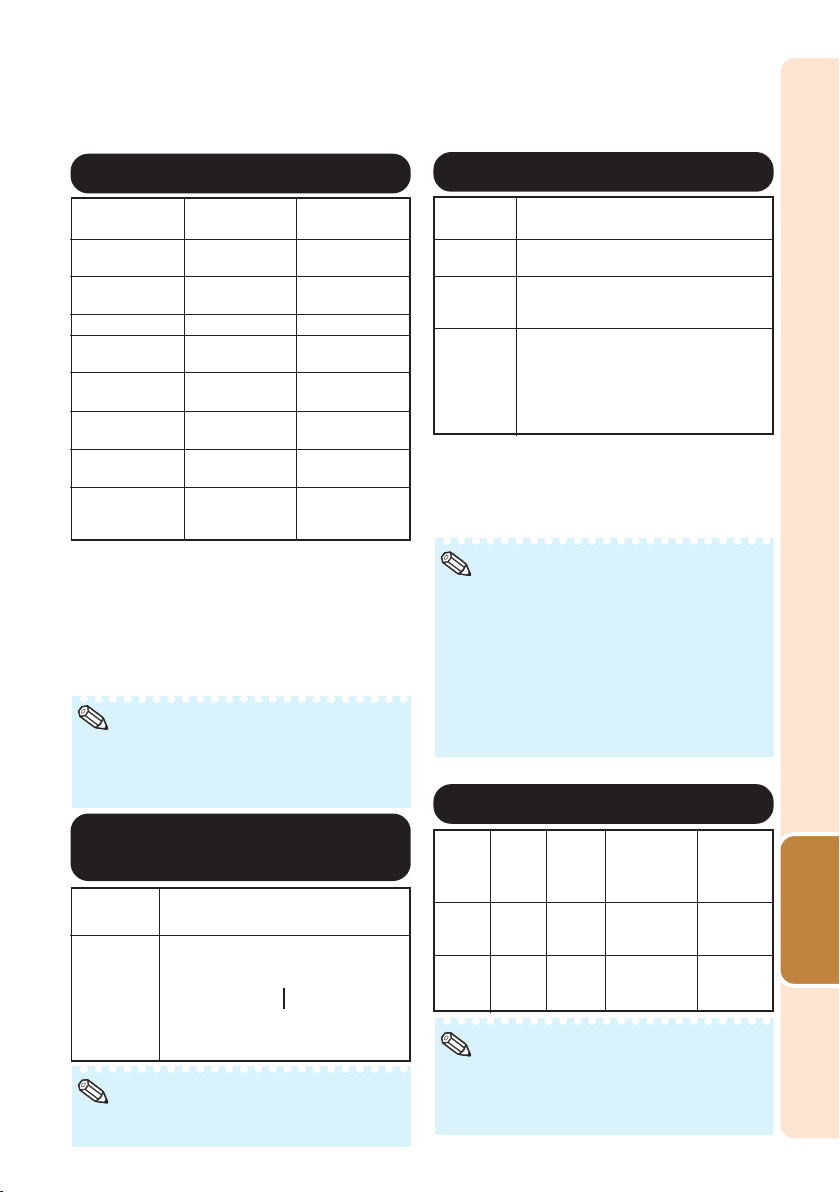
43
Useful
Features
44
44
4 Progressive
• In NTSC or PAL60Hz, even if the 3D Progres-
sive mode has been set, the three-two pull
down enhancement will be enabled automati-
cally when the film source has been entered.
• When the image is blurred or noisy, switch to
the optimal mode.
• When using progressive inputs, inputs are di-
rectly displayed so that 2D Progressive, 3D
Progressive and Film Mode cannot be se-
lected.
* The film source is a digital video recording with the
original encoded as is at 24 frames/second. The
projector can convert this film source to progres-
sive video at 60 frames/second with NTSC and
PAL60Hz or at 50 frames/second with PAL50Hz
and SECAM to play back a high-definition image.
Selectable
items
2D
Progressive
3D
Progressive
Film Mode
Description
Useful to display fast-moving images
such as sports.
Useful to display relatively slow-
moving images such as drama and
documentary more clearly.
Reproduces the image of film source*
clearly. Displays the optimized image of
film transformed with three-two pull down
(NTSC and PAL60Hz) or two-two pull
down (PAL50Hz and SECAM) enhance-
ment to progressive mode images.
Note
55
55
5 Lamp Setting
Select-
able
items
Eco +
Quiet
Bright
Bright-
ness
Approx.
80%
100%
Power
consumption
(When using
AC 110V)
308W
385W
Lamp Life
Approx.
3,000
hours
Approx.
2,000
hours
Fan
sound
Low
Normal
• When “Lamp Setting” is set to “Eco+Quiet”,
the power consumption will decrease and the
lamp life will extend. (Projection brightness
decreases approximately 20%.)
Note
22
22
2 Adjusting the Image
*1 Not adjustable/selectable when selecting
“sRGB”.
*2 Not displayed in the RGB input mode.
*3 “Tone” will appear on the menu screen only when
PAL or SECAM signals are input (including when
forcibly changed to those input signals). There is
basically no need to adjust “Tone”, but you can
adjust the picture tone with this adjustment when
inputting PAL or SECAM signals .
Q button
For more
contrast.
For more
brightness.
For stronger red.
For stronger
blue.
For more color
intensity.
For making skin
tones greenish.
For more
sharpness.
For more
vividness.
Adjustment
Items
Contrast
Bright
Red*
1
Blue*
1
Color*
2
Tint*
2
*
3
Sharp*
2
Bright Boost*
1
O button
For less
contrast.
For less
brightness.
For weaker red.
For weaker
blue.
For less color
intensity.
For making skin
tones purplish.
For less
sharpness.
For high fidelity
color reproduc-
tion.
Note
• “Bright Boost” and “CLR Temp” cannot be set
when “sRGB” is selected.
• To reset all adjustment items, select “Reset”
and press hENTER.
33
33
3 Adjusting the Color
Temperature
• Values on “CLR Temp” are only for general
standard purposes.
Note
Selectable
items
5500K
6500K
7500K
8500K
9300K
10500K
Description
For lower color temperature for
warmer, reddish incandescent-like
images.
For higher color temperature for
cooler, bluish, fluorescent-like images.
Menu operation n Page 40
P
R
XG-MB67X_EN2_CD_j 06.5.12, 6:48 AM43
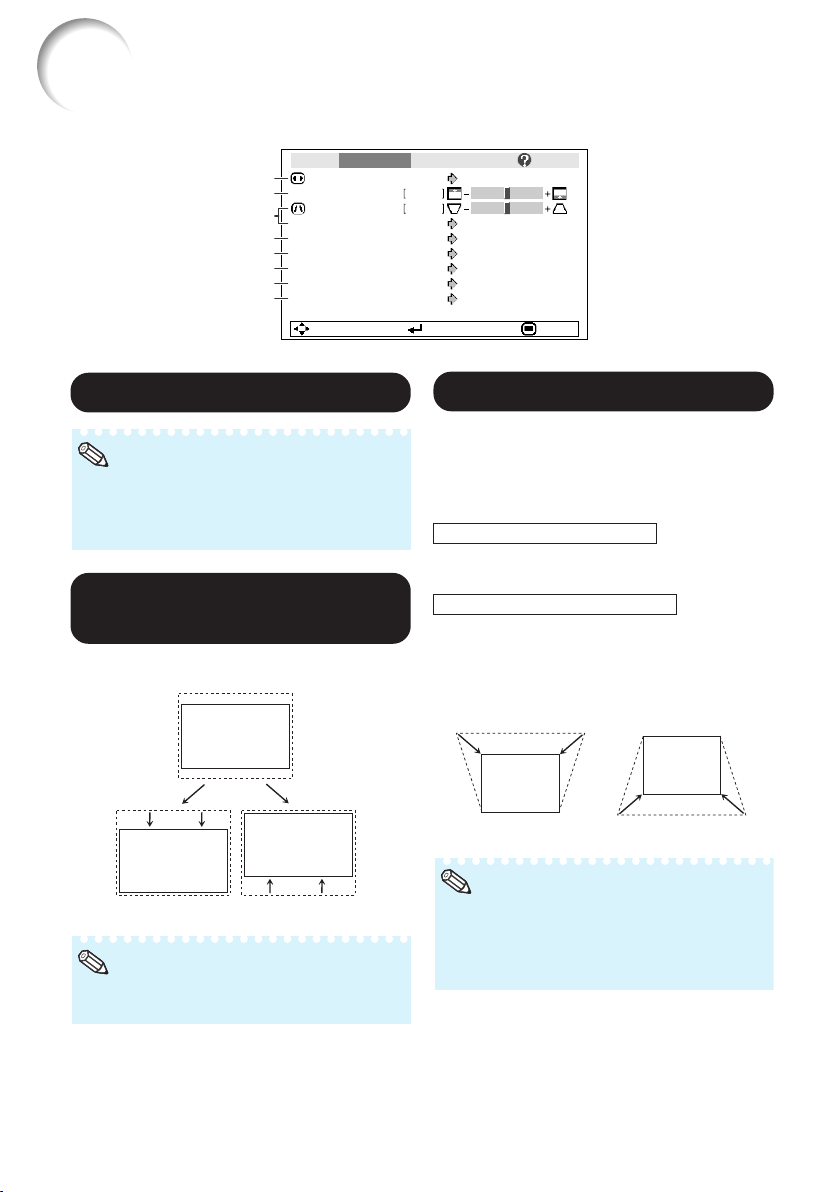
44
Adjusting the Projected Image
(“SCR - ADJ” menu)
Pict.
Resize
Image Shift 0
0
SCR - ADJ PRJ Net.
Keystone
Auto Keystone
OSD Display
Background
Setup Guide
PRJ Mode
Language
Front
English
On
Logo
On
Off
Normal
SEL./ADJ. ENTER END
Help
8
7
6
5
4
3
2
1
11
11
1 Setting the Resize Mode
• For details of the Resize mode, see pages 34
and 35.
• You can also press HRESIZE on the remote
control to set the resize mode. (See page 34.)
Note
22
22
2 Adjusting the Image
Position
You can move the projected image vertically.
Q button
• You cannot set this item when “Resize” is set
to “Normal”.
Note
O button
Menu operation n Page 40
33
33
3 Keystone Correction
When the image is projected either from the top
or from the bottom towards the screen at an
angle, the image becomes distorted
trapezoidally. The function for correcting trap-
ezoidal distortion is called Keystone Correction.
For Manual Keystone Correction
Set “Auto Keystone” on the “SCR - ADJ”
menu to “Off”, select “Keystone”, and
then adjust with the slide bar.
For Auto Keystone Correction
Set “Auto Keystone” on the “SCR - ADJ”
menu to “On”.
O buttonQ button
Manual Correction
• The Keystone Correction can be adjusted up
to an angle of approximately ±13 degrees with
the “Auto Keystone” and up to an angle of
approximately ±13 degrees with the manual
“Keystone” (when “Resize” is set to “Normal”).
Note
See page 33 for details of Keystone Correction.
XG-MB67X_EN2_CD_j 06.5.12, 6:48 AM44
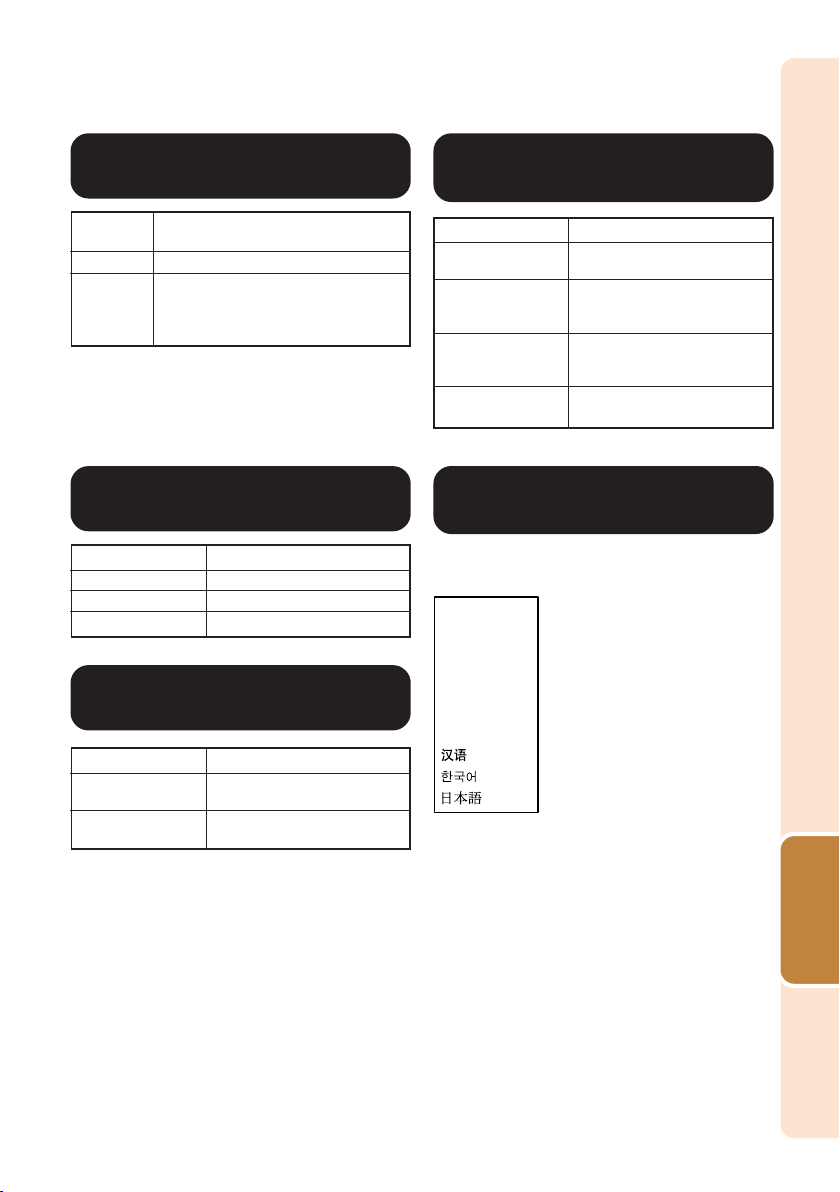
45
Useful
Features
The projector can switch the on-screen display
language among 11 languages.
Selectable items
Front
Ceiling + Front
Rear
Ceiling + Rear
Description
Normal image (Projected from
the front of the screen)
Inverted image (Projected
from the front of the screen
with an inverted projector)
Reversed image (Projected
from the rear of the screen or
with a mirror)
Reversed and inverted image
(Projected with a mirror)
66
66
6 Selecting the Setup
Guide
88
88
8
Selecting the On-screen
Display Language
Selectable items
On
Off
Description
Displaying the Setup Guide
when turning the projector on.
Not displaying the Setup
Guide.
77
77
7 Reversing/Inverting
Projected Images
English
Deutsch
Español
Nederlands
Français
Italiano
Svenska
Português
44
44
4 Setting the On-screen
Display
Menu operation n Page 40
Selectable
items
On
Off
Description
All On-screen Displays are displayed.
INPUT/VOLUME/AV MUTE/FREEZE/
AUTO SYNC/RESIZE/PICTURE MODE/
“An invalid button has been pressed.”
are not displayed.
55
55
5
Selecting the Background
Image
Selectable items
Logo
Blue
None
Description
Sharp logo screen
Blue screen
—
See page 19 for details of Projection (PRJ) Mode.
XG-MB67X_EN2_CD_j 06.5.12, 6:48 AM45
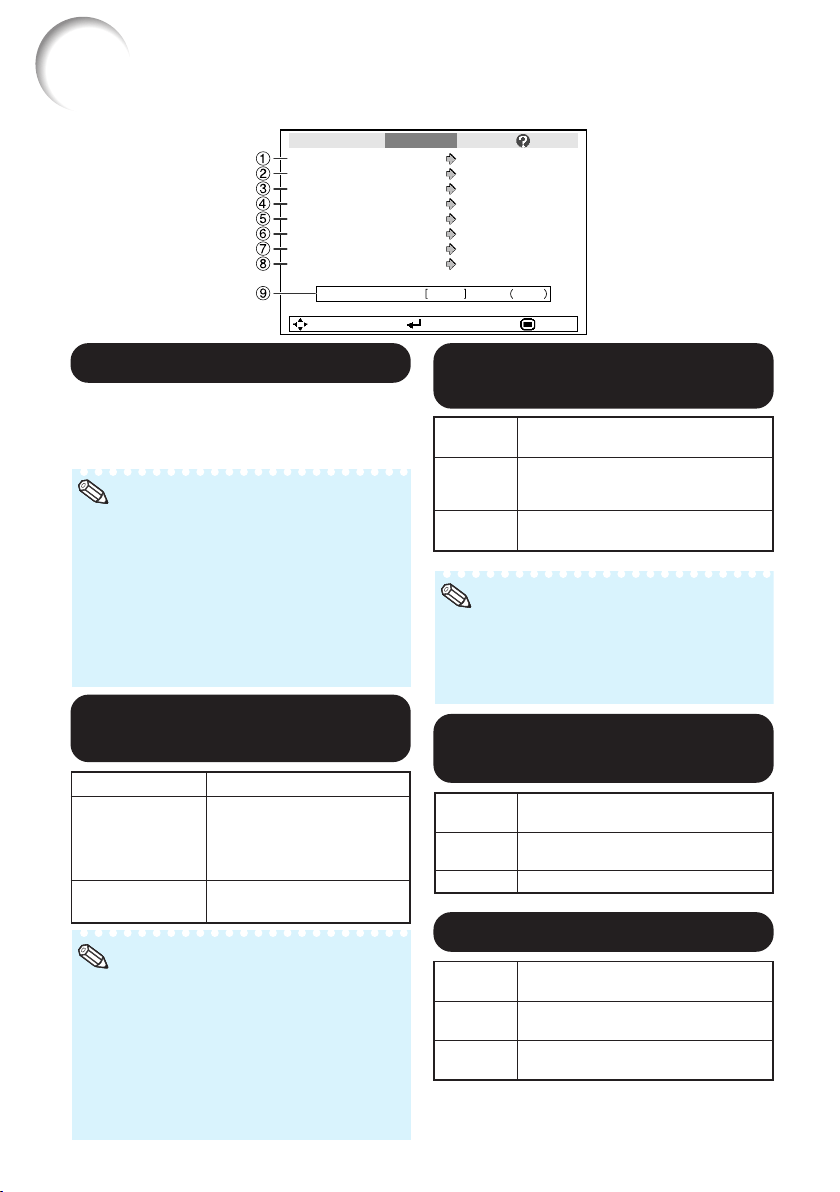
46
Adjusting the Projector Function (“PRJ - ADJ” menu)
Auto Search
Auto Sync
Auto Power Off
System Sound
System Lock
h
On
On
On
On
SEL./ADJ. ENTER END
0Lamp Timer(Life) 100%
Pict. SCR PRJ - ADJ Net. Help
Speaker On
RS-232C 9600 bps
Fan Mode Normal
Disable
11
11
1 Auto Search Function
This function automatically searches for and
switches to the input mode in which signals are
being received, when the projector is turned on,
or when the INPUT button is pressed.
When “Auto Search” is set to “On”
• If two or more input signals are found, the pro-
jector selects the input source in the order of
INPUT 1 n INPUT 2 n INPUT 3 n INPUT 4
when you press INPUT (P/R) on the projector.
• While “Auto Search” is set to “On”, press
C INPUT 1,C INPUT 2, D INPUT 3 or
EINPUT 4 on the remote control to select
an input mode other than the input mode se-
lected by the projector.
Note
22
22
2 Auto Sync (Auto Sync
Adjustment)
Menu operation n Page 40
• Auto Sync adjustment is also performed by
pressing F AUTO SYNC on the remote con-
trol.
• The Auto Sync adjustment may take some time
to complete, depending on the image of the
computer connected to the projector.
• When the optimum image cannot be achieved
with Auto Sync adjustment, use manual ad-
justments. (See page 51.)
Note
Selectable items
On
Off
Description
Auto Sync adjustment will
occur when the projector is
turned on or when the input
signals are switched, when
connected to a computer.
Auto Sync adjustment is not
automatically performed.
• When the Auto Power Off function is set to
“On”, 5 minutes before the projector enters
standby mode, the message “Enter STANDBY
mode in X min.” will appear on the screen to
indicate the remaining minutes.
Selectable
items
On
Off
Description
When no input signal is detected for
more than 15 minutes, the projector will
automatically enter standby mode.
The Auto Power Off function will be
disabled.
Note
33
33
3 Auto Power Off
Function
55
55
5 Speaker Setting
Selectable
items
On
Off
Description
The audio signal is output from the
internal speaker.
The audio signal is not output from the
internal speaker.
44
44
4
Setting the Confirmation
Sound (System Sound)
Selectable
items
On
Off
Description
A confirmation sound is made when
the projector turns on/off.
No confirmation sound is made.
XG-MB67X_EN2_CD_j 06.5.12, 6:48 AM46
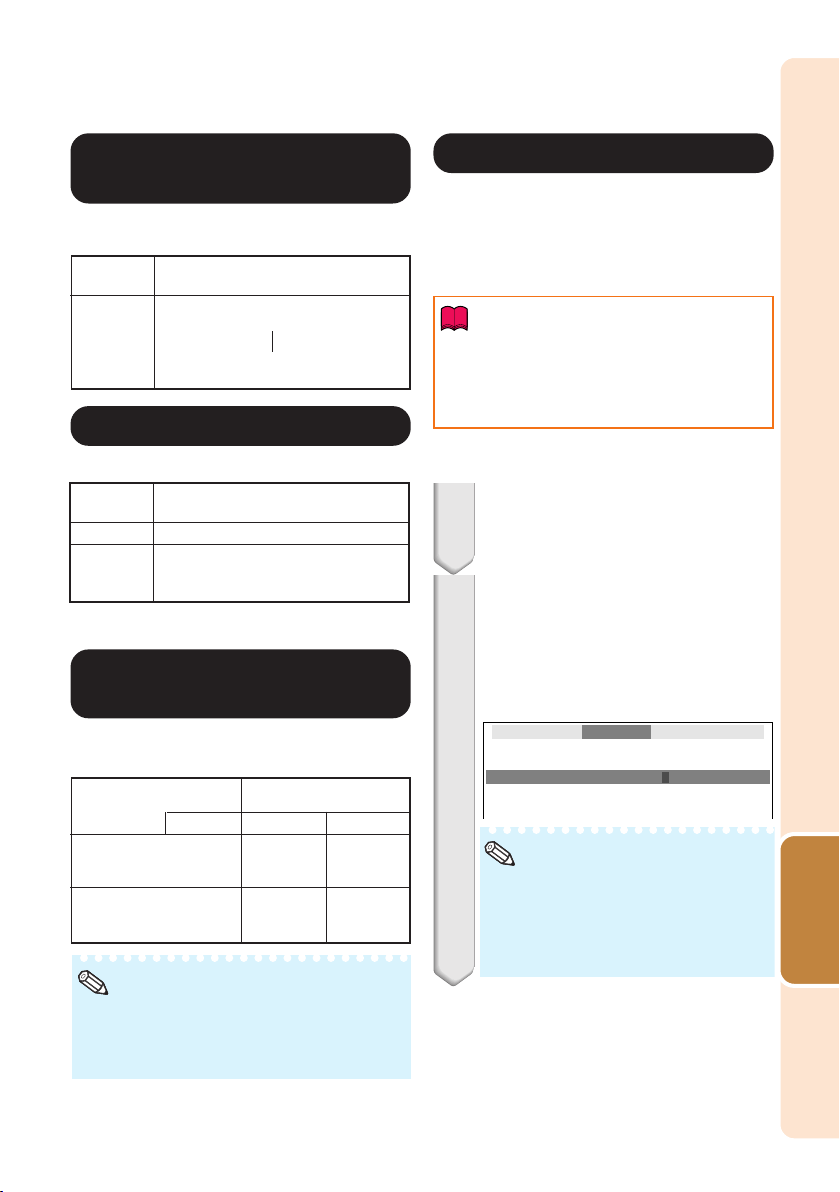
47
Useful
Features
Info
This function prevents unauthorized use of the
projector. Once this function is activated, users
must enter the correct keycode each time the
projector is turned on. We suggest you record
the keycode in a safe place where only au-
thorized users have access.
• If you lose or forget your keycode, contact your
nearest Sharp Authorized Projector Dealer or
Service Center (see page 61). Even if the prod-
uct warranty is valid, the keycode reset will
incur a charge.
Select “System Lock”, then press
hENTER or Q.
• The screen for entering the keycode
appears.
1
88
88
8 System Lock Function
77
77
7 Fan Mode Setting
Menu operation n Page 40
This function changes the fan rotation speed.
Selectable
items
Normal
High
Description
Suitable for normal environments.
Select this when using the projector at
altitudes of approximately 1,500
meters (4,900 feet) or more.
66
66
6
Selecting the Transmission
Speed (RS-232C)
Make sure that both the projector and computer
are set for the same baud rate.
Selectable
items
9600bps
115200bps
Description
Transmission speed is slow.
Transmission speed is rapid.
P
R
99
99
9 Checking the Lamp Life
Status
You can confirm the cumulative lamp usage time
and the remaining lamp life (percentage).
• It is recommended that the lamp be changed
when the remaining lamp life becomes 5%.
• The lamp life may vary depending on the us-
age condition.
Lamp usage condition
Operated exclusively
with Lamp Setting set to
“Eco +Quiet”
Operated exclusively
with Lamp Setting set to
“Bright”
100%
Approx.
3,000
hours
Approx.
2,000
hours
5%
Approx.
150 hours
Approx.
100 hours
Remaining lamp life
Note
“Life”
a Setting/Changing the keycode
When “Fan Mode” is set to “High”, the fan rotation
speeds up, and the fan noise becomes louder.
Press the 4 buttons on the remote
control or on the projector to en-
ter the preset keycode in “Old
Code”.
• When setting the keycode for the first
time, press R on the projector for four
times.
Setting the System Lock
PRJ - ADJ
Old Code
New Code
Reconfirm
––––
––––
––––
2
• If you input a wrong keycode, the cursor
returns to the first point of the “Old Code”.
• The preset keycode is 4 R buttons on
the projector. When you press the R but-
ton four times, the keycord input screen
disappears.
Note
XG-MB67X_EN2_CD_k 06.5.12, 6:49 AM47
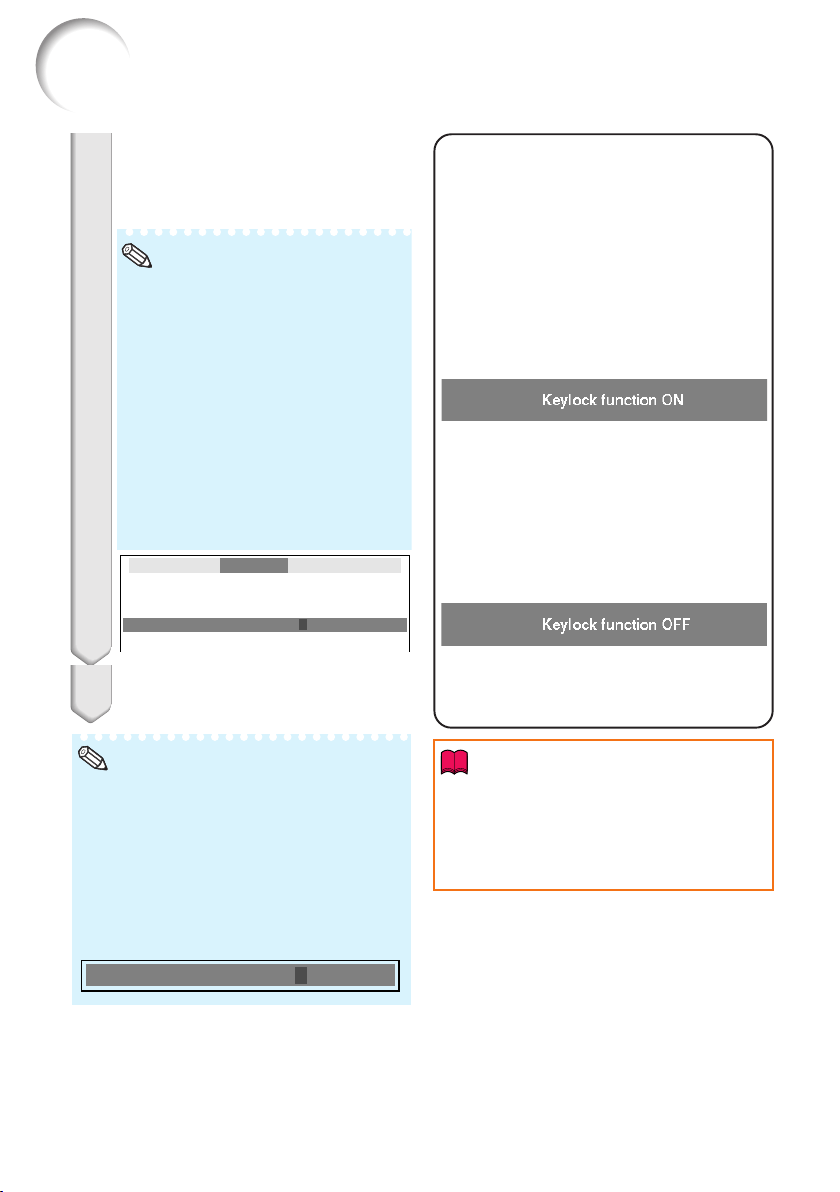
48
Input screen for keycode
• You can not use the following buttons for
keycode:
•
S
STANDBY/ON
•
f
ON
•
e STANDBY
•
h
ENTER
•
l
RETURN
•
B
MENU/HELP
• System lock function recognizes each
button on the remote control or on the
projector as an individual button, even
if they share the same button name. If
you used the buttons on the projector
in setting your keycode, the keycode
cannot be canceled with the remote
control.
Press the 4 buttons on the remote
control or on the projector to en-
ter the new keycode in “New
Code”.
3
Note
Menu operation n Page 40
Locking the Operation
Buttons on the Projector
(Keylock Function)
Use this function to lock the operation
buttons on the projector.
a Taking the Keylock off
Hold down T ENTER on the projector for
about 5 seconds.
ROn-screen Display
a Locking the Operation Buttons
Hold down T ENTER on the projector for
about 5 seconds while the projector is being
turned on.
ROn-screen Display
• The keylock function does not affect the op-
eration with the remote control buttons.
• You cannot use the keylock function while the
projector is warming up.
• When the projector is in standby mode, you
can release the keylock by holding down
T ENTER and S STANDBY/ON on the pro-
jector simultaneously for about 5 seconds.
• Keylock does not function while the projector
is: displaying the “Setup Guide” or “Menu”
screens, in standby mode, warming up,
changing input signals, operating “Auto Sync”
function, in “FREEZE” mode or on the “Sys-
tem Lock” screen during warming up.
Info
Adjusting the Projector Function (“PRJ - ADJ” menu) (Continued)
Note
To cancel the keycode that you have already
set
• Press R on the projector for four times in steps
2 and 3 above.
When the System Lock is set
• When System Lock is set, the keycode input
screen appears after the power is turned on.
When it appears, enter the right keycode to
start projection.
Enter the same keycode in “Re-
confirm”.
Setting the System Lock
PRJ - ADJ
Old Code
New Code
Reconfirm
****
– –––
––––
System Lock
––––
4
XG-MB67X_EN2_CD_k 06.5.12, 6:50 AM48
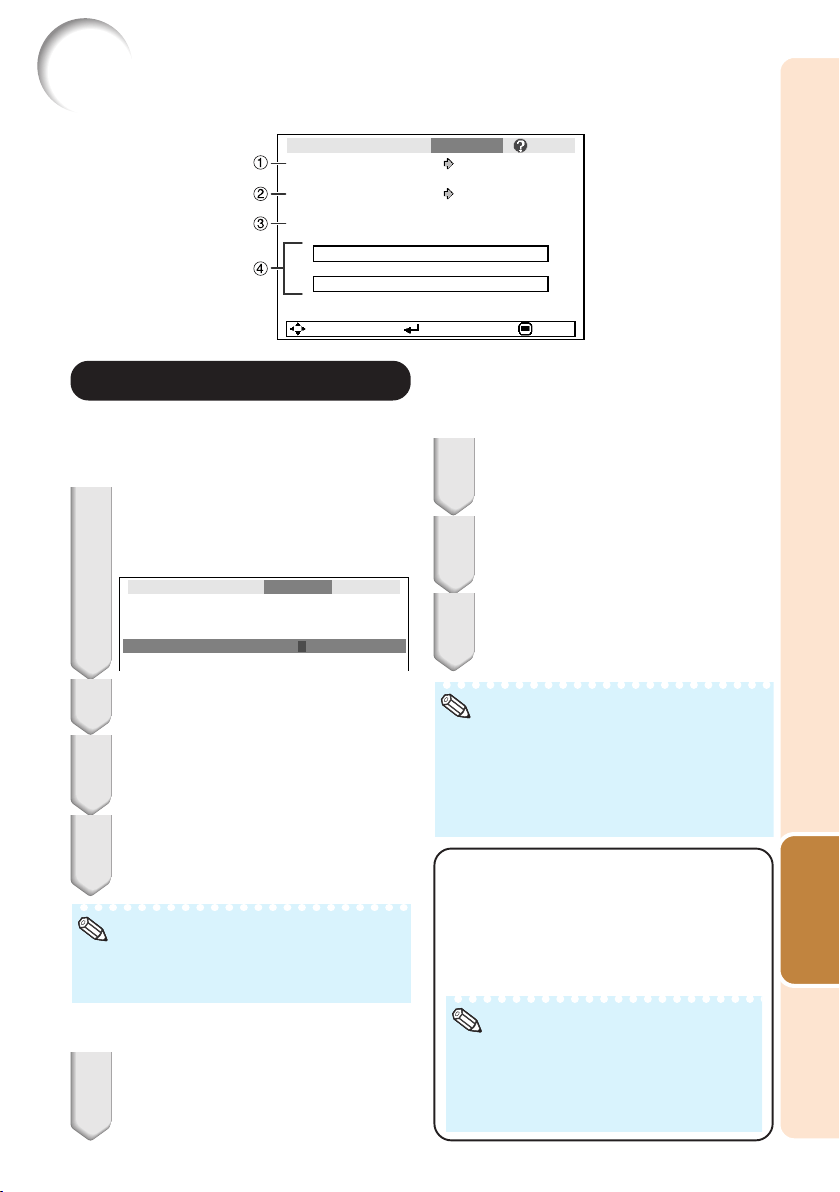
49
Useful
Features
Setting up the Projector Network Environment (“Network” menu)
If you do not want others to change the setting
for the “Network” menu, set a password.
Select “Password”, then press
hENTER or Q.
• The screen for entering the password
appears.
1
11
11
1 Setting a Password
Press P or R to set the first digit
in “New Password”, then press Q.
2
Enter the remaining 3 digits, then
press hENTER.
• To return to the previous digit, press O.
3
Enter the same password in “Re-
confirm”, then press hENTER.
• The status for “Password” changes to
“Enable”.
4
Note
• Once after the password is set, you must en-
ter the password to change the “Network”
menu settings.
Select “Password”, then press
hENTER or Q.
• The screen for entering the password
appears.
1
Enter the password in “Old Pass-
word” using P, R, Q and O, then
press hENTER.
Enter the password in “New Pass-
word” using P, R, Q and O, then
press hENTER.
Enter the same password again in
“Reconfirm” using P, R, Q and O,
then press hENTER.
Note
• If you do not need the password protection
for the “Network” menu settings anymore,
press hENTER without entering new pass-
word in steps 3 and 4.
• To cancel the password settings, press l
RETURN.
If you forget the password
If you forget the password, perform the fol-
lowing procedure to delete it, then set a new
password.
On the projector, press
S
→
T
→
S
→
T
→
S
→
T
→
U.
Note
• If TENTER is held down for more than 5
seconds, the operation buttons on the pro-
jector will be locked. (See page 48.)
• You cannot use the buttons on the remote
control to delete the password.
2
3
4
a Setting a Password
a Changing the Password
Pict.
Password
SCR PRJ Network
DHCP Client
SEL./ADJ. ENTER END
Projector
MAC Address
XG-MB67X
08:00:1F:B1:B7:74
Help
Disable
On
TCP/IP
Menu operation n Page 40
Setting the Password
Old Password
New Password
Reconfirm
–
––––
–––
––––
Network
XG-MB67X_EN2_CD_k 06.5.12, 6:50 AM49
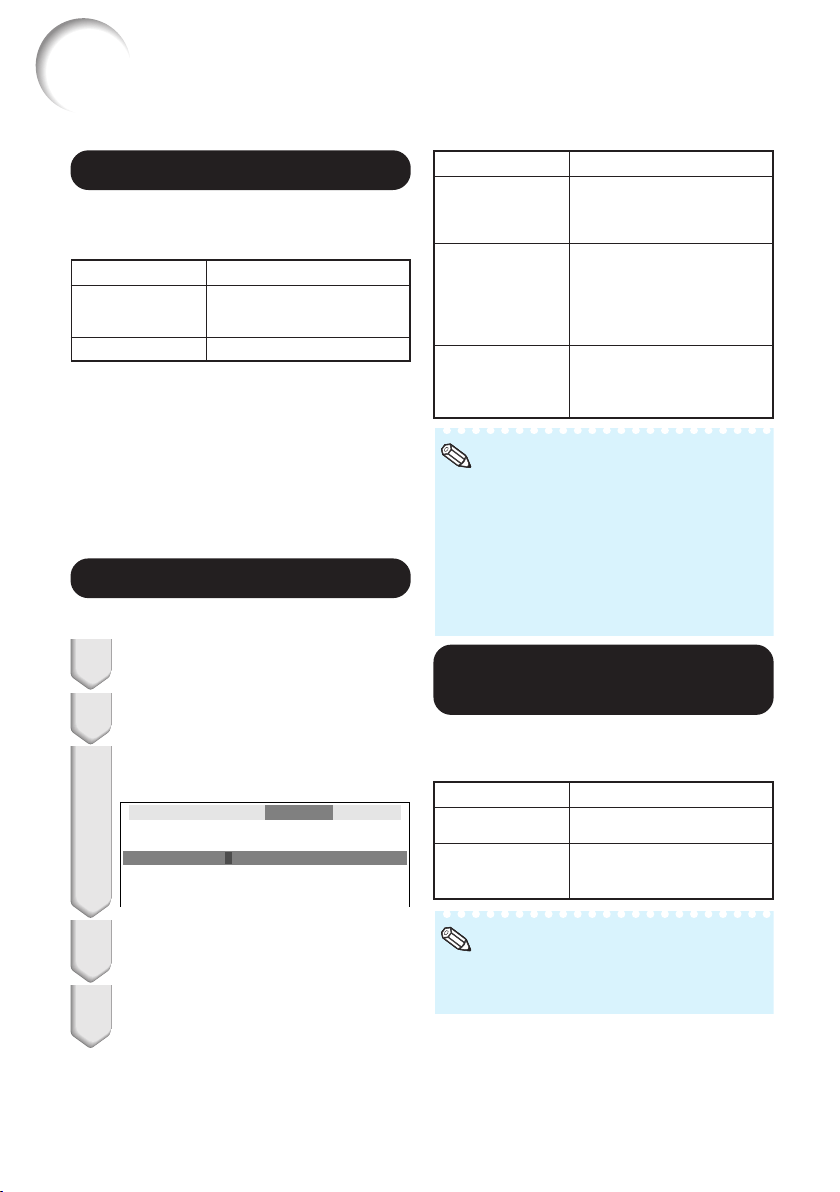
50
33
33
3 TCP/IP Setting
44
44
4 Confirming the
Projector Information
You can confirm the MAC address and projector
name.
Selectable items
IP Address
Subnet Mask
Gateway
Description
Factory default setting:
192.168.150.002
Enter an IP address appropri-
ate for the network.
Factory default setting:
255.255.255.000
Set the subnet mask to the
same as that of the computer
and equipment on the
network.
Factory default setting: 000.
000. 000. 000
* When not in use, set to “000.
000. 000. 000”.
Displayed items
MAC Address
Projector
Description
The MAC address of the
projector is displayed.
The projector name is
displayed. (Factory preset :
XG-MB67X)
• Confirm the existing network’s segment (IP
address group) to avoid setting an IP address
that duplicates the IP addresses of other net-
work equipment or computers. If
“192.168.150.002” is not used in a network
with an IP address of “192.168.150.XXX”, you
don’t have to change the projector IP address.
• For details about each setting, consult your
network administrator.
Note
Set the TCP/IP manually.
Select “Off” for “DHCP Client”,
then press hENTER.
1
2
Select “TCP/IP”, then press
hENTER.
Enter “IP Address” using P, R, Q
and O, then press hENTER.
3
4
Enter “Subnet Mask” using P, R,
Q and O, then press hENTER.
5
Enter “Gateway” using P, R, Q and
O, then press hENTER.
Setting up the Projector Network Environment (“Network” menu)
(Continued)
22
22
2 DHCP Client Setting
Connect the LAN cable before turning the pro-
jector on. If not, the DHCP Client function does
not work.
Selectable items
On
Off
Description
Obtains configuration
parameters for TCP/IP network
automatically.
Sets the TCP/IP manually.
Select “On” for “DHCP Client”, then press
hENTER. “Obtaining IP Address...” appears,
then the menu screen appears. Confirm the pa-
rameters of IP Address, Subnet Mask and Gate-
way on the TCP/IP screen.
If the DHCP server is not available, “Could not
obtain IP Address.” appears.
In this case, set the TCP/IP manually. (See the
item 3.)
Menu operation n Page 40
• For information on how to change the projec-
tor name, see “SETUP MANUAL” contained
in the supplied CD-ROM.
Note
Setting the TCP/IP
Subnet Mask
IP Address
Gateway
1
55 .2
92 .
000 .
1
55 .2
68 .
000 .
1
55 .2
50 .
000 .
0
000
02
000
Network
XG-MB67X_EN2_CD_k 06.5.12, 6:50 AM50
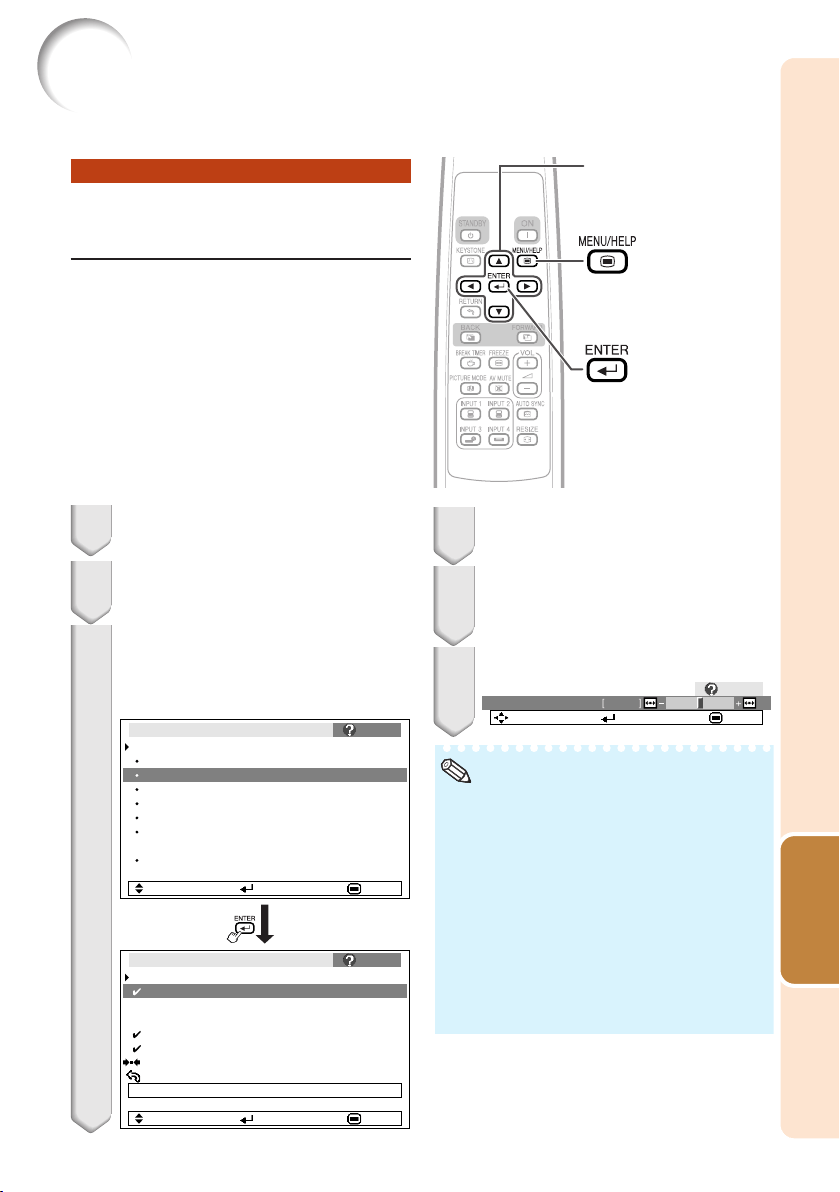
51
Useful
Features
Troubleshooting with the “Help” menu
Utilizing the “Help” menu func-
tions
This function advises you to solve the problems during usage.
• You can adjust the items with check marks (✔).
• The items in the “Help” menu change, de-
pending on the input signal or setting that you
have selected.
• If the problem is not solved, refer to
“Troubleshooting”. (See pages 59 and 60.)
• When selecting “sRGB” in "Picture Mode”, the
item “Color is faded or poor” is not displayed.
This means you cannot change input signal
types.
• When you select “Reset all adjustments to de-
fault settings” and then press ENTER, the
screen for entering the password appears if a
password has been set. (See page 49.)
Press O or Q to adjust.
If the image is not improved, se-
lect “Adjust horizontal noise.”,
then press hENTER.
Select “Initiate “Auto Sync” Ad-
justments”, then press hENTER.
Press P or R to select “Vertical
stripes or flickering image ap-
pears” on Help menu, then press
hENTER.
Example: When image flickering appears
Operation to solve image flickering when pro-
jecting the computer RGB signal.
3
4
5
6
There is no picture or audio
Vertical stripes or flickering image appear
Data image is not centered
Color is faded or poor
Picture is dark
The image is distorted
Reset all adjustments to default settings
SEL. ENTER END
If there is no change after performing "Auto Sync"
adjustments, adjust the following items.
Initiate “Auto Sync” Adjustments.
Help
Vertical stripes or flickering image appear
Vertical stripes or flickering image appear
Adjust vertical noise
Adjust horizontal noise
Reset the 2 items above
Return
Cur. sig. freq: H 43 kHz / V 60 Hz
SEL. ENTER END
Pict. SCR Net.PRJ Help
Note
Press BMENU/HELP.
1
2
Press O or Q to select “Help”, then
press hENTER.
Adjustment buttons
(P/R/O/Q)
ENTER button
MENU/HELP
button
0Phase
SEL./ADJ. Rtn. Menu END
Help
XG-MB67X_EN2_CD_k 06.5.12, 6:50 AM51

52
Cleaning the lens
■ Use a commercially available blower or lens
cleaning paper (for glasses and camera lenses)
for cleaning the lens. Do not use any liquid type
cleaning agents, as they may wear off the
coating film on the surface of the lens.
■ As the surface of the lens can easily get
damaged, be sure not to scrape or hit the lens.
Cleaning the exhaust and intake vents
■ Use a vacuum cleaner to clean dust from the
exhaust vent and the intake vent.
Cleaning the projector
■ Ensure that you have unplugged the power
cord before cleaning the projector.
■ The cabinet as well as the operation panel is
made of plastic. Avoid using benzene or
thinner, as these can damage the finish on the
cabinet.
■ Do not use volatile agents such as insecticides
on the projector.
Do not attach rubber or plastic items to the
projector for long periods.
The effects of some of the agents in the plastic
may cause damage to the quality or finish of the
projector.
■ Wipe off dirt gently with a soft flannel cloth.
■ When the dirt is hard to remove, soak a cloth in
a mild detergent diluted with water, wring the
cloth well and then wipe the projector.
Strong cleaning detergents may discolor, warp
or damage the coating on the projector. Make
sure to test on a small, inconspicuous area on
the projector before use.
Maintenance
Thinner
• If you want to clean the air vents during pro-
jector operation, be sure to press
S STANDBY/ON on the projector or
eSTANDBY on the remote control and put
the projector into standby mode. After the
cooling fan has stopped, clean the vents.
Info
Wax
Mild detergent
Mild detergent diluted
with water
XG-MB67X_EN2_CD_l 06.5.12, 6:51 AM52
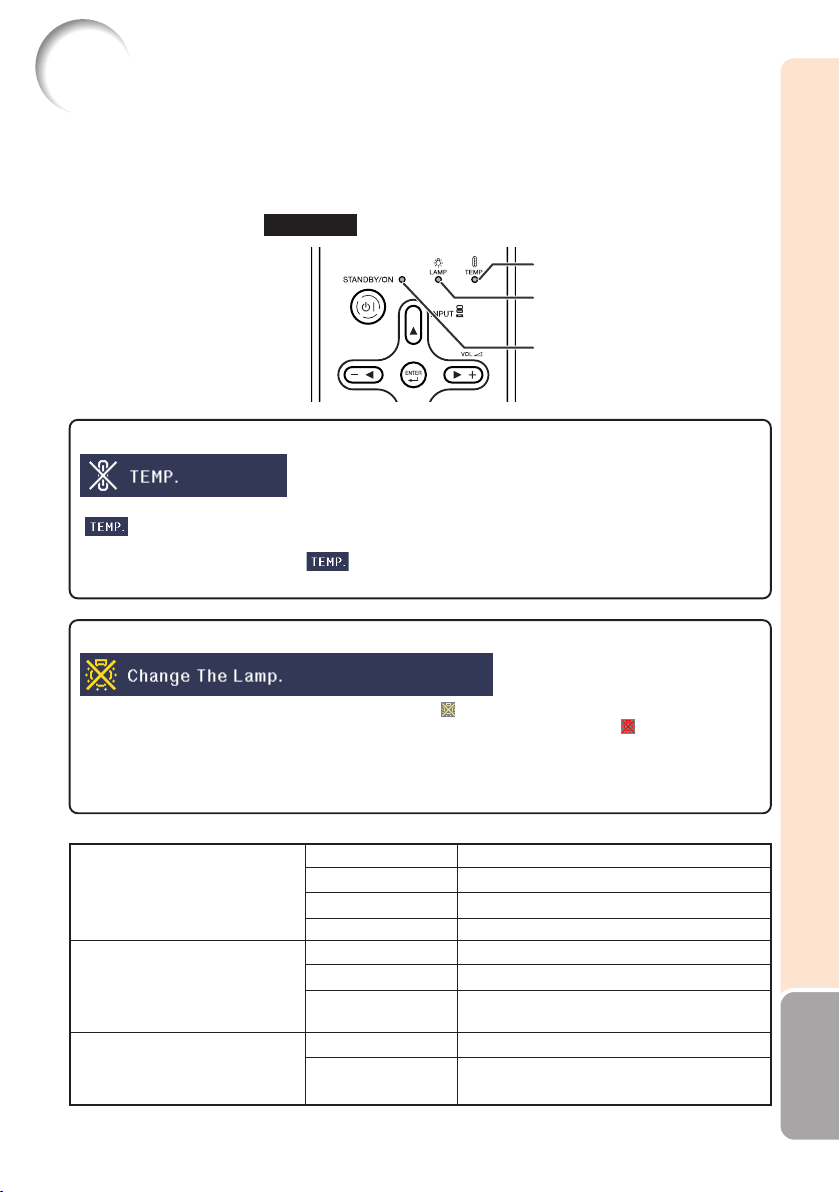
53
Appendix
Maintenance Indicators
About the lamp indicator
■ When the remaining lamp life becomes 5% or less, (yellow) and “Change The Lamp” will be
displayed on the screen. When the percentage becomes 0%, it will change to (red), the lamp will
automatically turn off and then the projector will automatically enter standby mode. At this time, the
lamp indicator will illuminate in red.
■ If you try to turn on the projector a fourth time without replacing the lamp, the projector will
not turn on.
About the temperature warning indicator
If the temperature inside the projector increases, due to blockage of the air vents, or the setting location,
“ ” will illuminate in the lower left corner of the picture. If the temperature keeps on rising, the lamp
will turn off and the temperature warning indicator will blink, the cooling fan will run, and then the projec-
tor will enter standby mode. After “ ” appears, be sure to perform the measures described on page
54.
Lamp indicator
■ The warning lights (power indicator, lamp indicator and temperature warning indicator) on the
projector indicate problems inside the projector.
■ If a problem occurs, either the temperature warning indicator or the lamp indicator will illuminate
red, and the projector will enter standby mode. After the projector has entered standby mode,
follow the procedures given below.
Temperature warning indicator
Power indicator
Lamp indicator
Red on
Power indicator
Indicators on the Projector
Green on
Normal (Standby)
Normal (Power on)
Green on
Green blinks
Normal
The lamp is warming up or shutting down.
Temperature warning
indicator
Off
Red on
Normal
The internal temperature is abnormally
high. (See page 54.)
Red blinks
Abnormal (See page 54.)
Red on The lamp is shut down abnormally or
requires to be changed. (See page 54.)
Green blinks
Normal (Cooling)
Top View
XG-MB67X_EN2_CD_l 06.5.12, 6:51 AM53
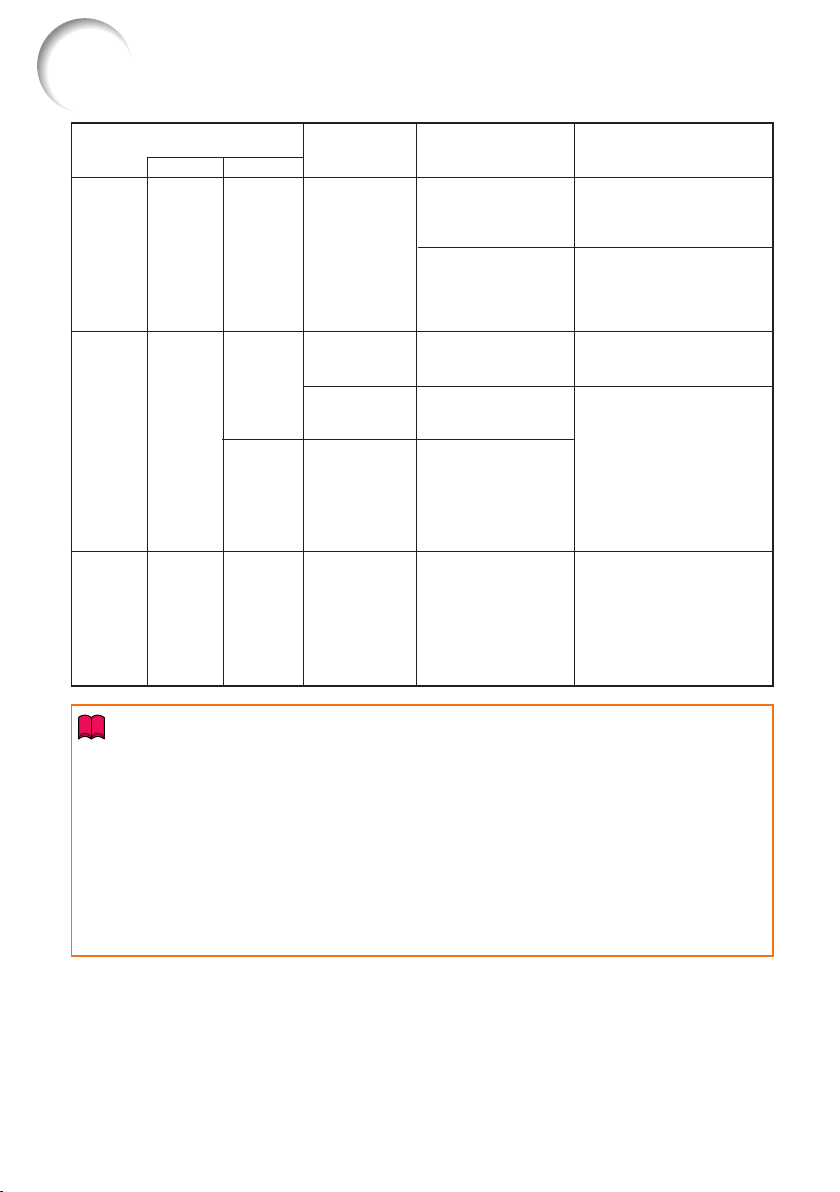
54
• If the temperature warning indicator illuminates, and the projector enters standby mode, follow the
possible solutions above and then wait until the projector has cooled down completely before plug-
ging in the power cord and turning the power back on. (At least 10 minutes.)
• If the power is turned off for a brief moment due to power outage or some other cause while using
the projector, and the power supply recovers immediately after that, the lamp indicator will illumi-
nate in red and the lamp may not be lit. In this case, unplug the power cord from the AC outlet,
replace the power cord in the AC outlet and then turn the power on again.
• The cooling fan keeps the internal temperature of the projector constant and this function is con-
trolled automatically. The sound of the cooling fan may change during operation because the fan
speed may change and this is not a malfunction.
• Do not unplug the power cord after the projector has entered standby mode and while the cooling
fan is running. The cooling fan runs for about 90 seconds.
Maintenance indicator
Problem
The internal
temperature is
abnormally
high.
The lamp does
not illuminate.
Time to change
the lamp.
The lamp does
not illuminate.
The power
indicator blinks
in red when the
projector is on.
Cause
• Blocked air intake
• Cooling fan
breakdown
• Internal circuit
failure
• Clogged air intake
• The lamp is shut
down abnormally.
• Remaining lamp life
becomes 5% or
less.
• Burnt-out lamp
• Lamp circuit failure
• The lamp unit cover
is open.
Possible Solution
• Relocate the projector to
an area with proper
ventilation. (see page 8)
• Take the projector to your
nearest Sharp Authorized
Projector Dealer or Service
Center (see page 61) for
repair.
• Disconnect the power cord
from the AC outlet, and
then connect it again.
• Carefully replace the lamp.
(See page 56.)
• Take the projector to your
nearest Sharp Authorized
Projector Dealer or Service
Center (see page 61) for
repair.
• Please exercise care when
replacing the lamp.
• Securely install the cover.
• If the power indicator blinks
in red even when the lamp
unit cover is securely
installed, contact your
nearest Sharp Authorized
Projector Dealer or Service
Center (see page 61) for
advice.
Abnormal
Red on
(Standby)
Red on
Red on
(Standby)
Red
blinks
Tempera-
ture
warning
indicator
Lamp
indicator
Power
indicator
Normal
Off
Green on
(Green
blinks
when the
lamp is
warming
up or
turning
off.)
Green on/
Red on
Green
blinks
(Cooling)
Info
Maintenance Indicators (Continued)
XG-MB67X_EN2_CD_l 06.5.12, 6:51 AM54
55
Appendix
Regarding the Lamp
Lamp
■ It is recommended that the lamp (sold separately) be replaced when the remaining lamp life becomes
5% or less, or when you notice a significant deterioration in the picture and color quality. The lamp life
(percentage) can be checked with the on-screen display. (see page 47)
■ Purchase a replacement lamp of type AN-XR20LP from your place of purchase, nearest Sharp
Authorized Projector Dealer or Service Center.
Caution Concerning the Lamp
■ This projector utilizes a pressurized mercury lamp. A loud sound may indicate lamp failure. Lamp
failure can be attributed to numerous sources such as: excessive shock, improper cooling, surface
scratches or deterioration of the lamp due to a lapse of usage time.
The period of time up to failure largely varies depending on the individual lamp and/or the condition
and the frequency of use. It is important to note that failure can often result in the bulb cracking.
■ When the lamp replacement indicator and on-screen display icon are illuminated, it is recommended
that the lamp be replaced with a new one immediately, even if the lamp appears to be operating
normally.
■ Should the lamp break, there is also a possibility that glass particles may spread inside of the
projector. In such a case, it is recommended you contact your nearest Sharp Authorized Projector
Dealer or Service Center to assure safe operation.
■ Should the lamp break, the glass particles may spread inside the lamp cage or gas contained in the
lamp may be vented into the room from the exhaust vent. Because the gas in this lamp includes
mercury, ventilate the room well if the lamp breaks and avoid all exposure to the released gas. In case
of exposure to the gas, consult a doctor as soon as possible.
Replacing the Lamp
Caution
• Do not remove the lamp unit from the projector right after use. The lamp will be very hot and may
cause burn or injury.
■ Carefully change the lamp by following the instructions described in this section. * If you wish,
you may have the lamp replaced at your nearest Sharp Authorized Projector Dealer or Service
Center.
* If the new lamp does not light after replacement, take your projector to the nearest Sharp Authorized
Projector Dealer or Service Center for repair.
IMPORTANT NOTE TO U.S. CUSTOMERS:
The lamp included with this projector is backed by a 90-day parts and labor limited
warranty. All service of this projector under warranty, including lamp replacement,
must be obtained through a Sharp Authorized Projector Dealer or Service Center.
For the name of the nearest Sharp Authorized Projector Dealer or Service Center,
please call toll-free: 1-888-GO-SHARP (1-888-467-4277).
Hg LAMP CONTAINS MERCURY For State Lamp Disposal
Information
www.lamprecycle.org or 1-800-BE-SHARP
U.S.A. ONLY
XG-MB67X_EN2_CD_l 06.5.12, 6:51 AM55
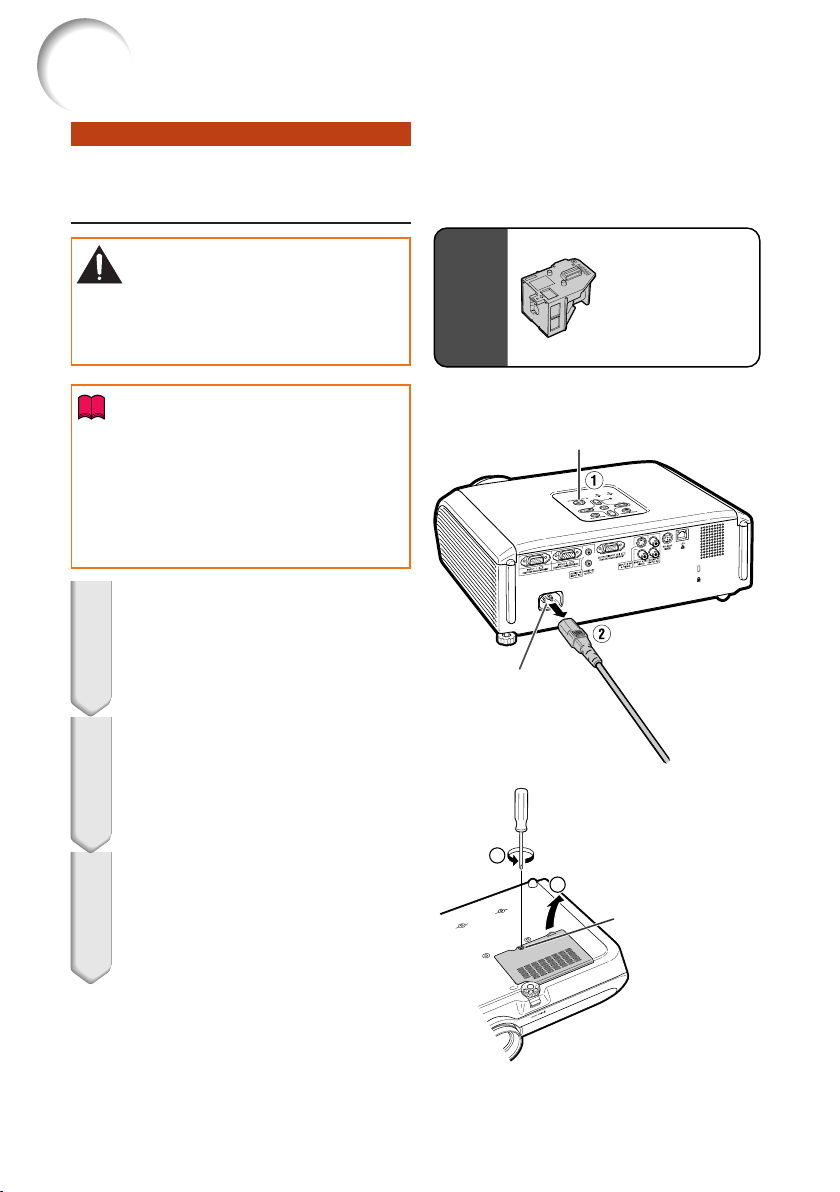
56
Removing and Installing the
Lamp Unit
• Make sure that you remove the lamp unit by
the handle. Do not touch the glass surface of
the lamp unit or the inside of the projector.
• To avoid injury to yourself and damage to the
lamp, be sure to carefully follow the steps
below.
• Do not loosen other screws except for the
lamp unit cover and lamp unit.
Press SSTANDBY/ON on the pro-
jector or eSTANDBY on the re-
mote control to put the projector
into standby mode.
• Wait until the cooling fan stops.
Warning!
• Do not remove the lamp unit from the projec-
tor right after use. The lamp and parts around
the lamp will be very hot and may cause burns
or injury.
Disconnect the power cord.
• Unplug the power cord from the AC
socket.
• Leave the lamp until it has fully cooled
down (about 1 hour).
Remove the lamp unit cover.
• Turn the projector over. Loosen the user
service screw (1) that secures the lamp
unit cover. Remove the lamp unit cover
(2).
1
2
Lamp unit
AN-XR20LP
Info
Optional
accessory
AC socket
User service screw
(for lamp unit cover)
1
2
3
STANDBY/ON button
Regarding the Lamp (Continued)
XG-MB67X_EN2_CD_l 06.5.24, 1:53 PM56
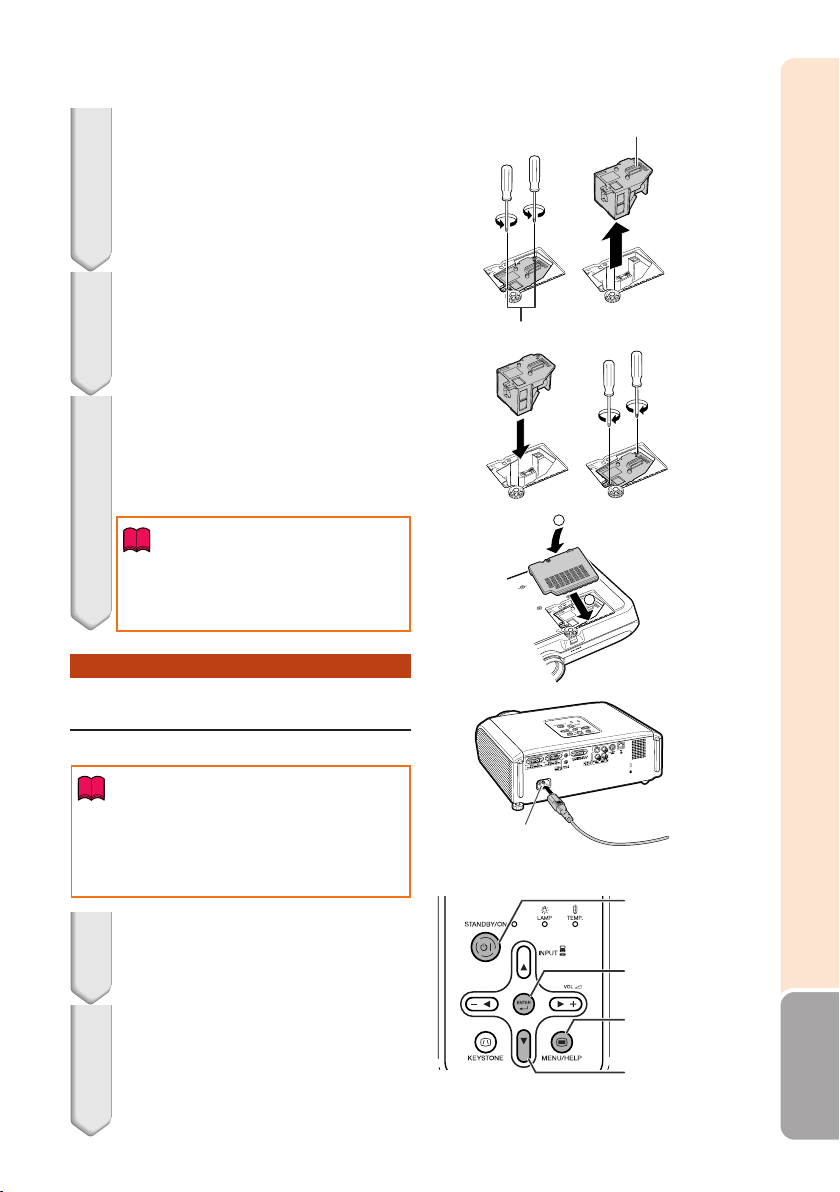
57
Appendix
Remove the lamp unit.
• Loosen the securing screws from the
lamp unit. Hold the lamp unit by the
handle and pull it in the direction of the
arrow. At this time, keep the lamp unit
horizontal and do not tilt it.
Resetting the Lamp Timer
Reset the lamp timer after replacing the lamp.
Insert the new lamp unit.
• Press the lamp unit firmly into the lamp
unit compartment. Fasten the securing
screws.
Replace the lamp unit cover.
• Align the tab on the lamp unit cover
(1)and place it while pressing the tab
(2) to close it. Then tighten the user ser-
vice screw to secure the lamp unit cover.
4
5
6
Connect the power cord.
• Plug the power cord into the AC socket
of the projector.
Reset the lamp timer.
• While simultaneously holding down
UMENU/HELP, TENTER and R on the
projector, press SSTANDBY/ON on the
projector.
• “LAMP 0000H” is displayed, indicating
that the lamp timer is reset.
• Make sure to reset the lamp timer only when
replacing the lamp. If you reset the lamp timer
and continue to use the same lamp, this may
cause the lamp to become damaged or ex-
plode.
1
2
Info
AC socket
Securing screws
Handle
ENTER button
MENU/HELP
button
R button
• If the lamp unit and lamp unit cover are
not correctly installed, the power will not
turn on, even if the power cord is con-
nected to the projector.
Info
2
1
STANDBY/ON
button
XG-MB67X_EN2_CD_l 06.5.24, 1:53 PM57
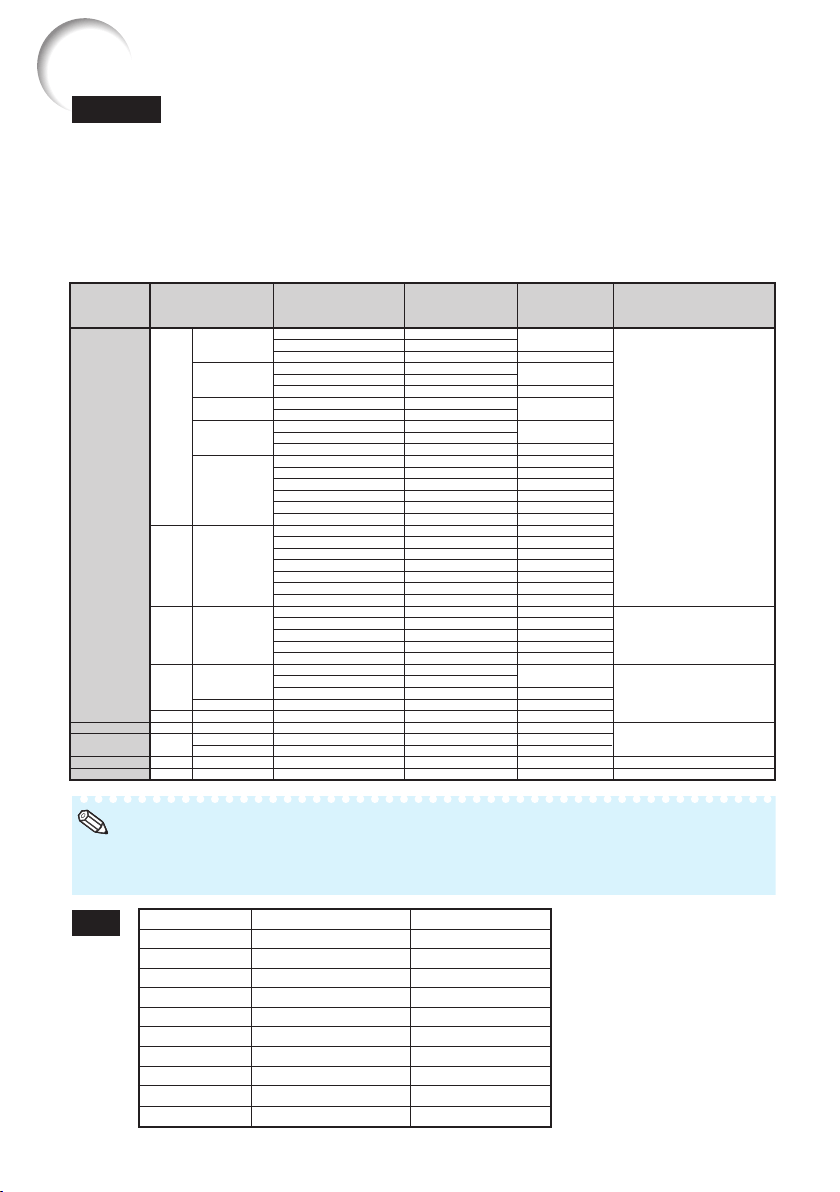
58
DTV
• When this projector receives 640K350 VESA format VGA signals, “640K400” appears on the screen.
• Optimum image quality will be achieved by matching your computer’s output resolution to the
projector’s native resolution (1024 x 768).
Computer
Computer Compatibility Chart
• Multiple signal support
Horizontal Frequency: 15-70 kHz,
Vertical Frequency: 45-85 Hz,
Pixel Clock: 12-108 MHz
Sync signal:Compatible with TTL level
• Compatible with sync on green signal
The following is a list of modes that conform to VESA. However, this projector supports other
signals that are not VESA standards.
27.0
31.5
37.5
27.0
31.5
37.9
27.0
31.5
27.0
31.5
37.9
26.2
31.5
34.7
37.9
37.5
43.3
31.4
35.1
37.9
46.6
48.1
46.9
53.7
40.3
48.4
56.5
60.0
68.7
55.0
66.2
67.5
64.0
64.0
34.9
37.8
49.7
60.2
68.7
60
70
85
60
70
85
60
70
60
70
85
50
60
70
72
75
85
50
56
60
70
72
75
85
50
60
70
75
85
60
70
75
60
60
67
60
75
75
75
640 × 350
640 × 400
720 × 350
720 × 400
640 × 480
800 × 600
1,024 × 768
1,152 × 864
1,280 × 1,024
1,400 × 1,050
640 × 480
800 × 600
832 × 624
1,024 × 768
1,152 × 870
MAC 13"
MAC 16"
PC
VGA
SVGA
XGA
SXGA
SXGA+
VGA
XGA
SXGA
✔
✔
✔
✔
✔
✔
✔
✔
✔
✔
✔
✔
✔
✔
✔
✔
✔
✔
PC/MAC
MAC 19"
MAC 21"
SVGA
Signal
480I
480P
540P
576I
576P
720P
1035I
1035I
1080I
1080I
Horizontal Frequency (kHz)
15.7
31.5
33.8
15.6
31.3
45.0
28.1
33.8
28.1
33.8
Vertical Frequency (Hz)
60
60
60
50
50
60
50
60
50
60
Note
• Compatible with the signals below in
intelligent compression: SXGA, SXGA+
• Intelligent Compression and Expansion
System resizing technology
Resolution
Horizontal Frequency
(kHz)
Vertical Frequency
(Hz)
VESA Standard Display
Upscale
Tru e
Intelligent Compression
Upscale
Intelligent Compression
True
XG-MB67X_EN2_CD_l 06.5.12, 6:51 AM58
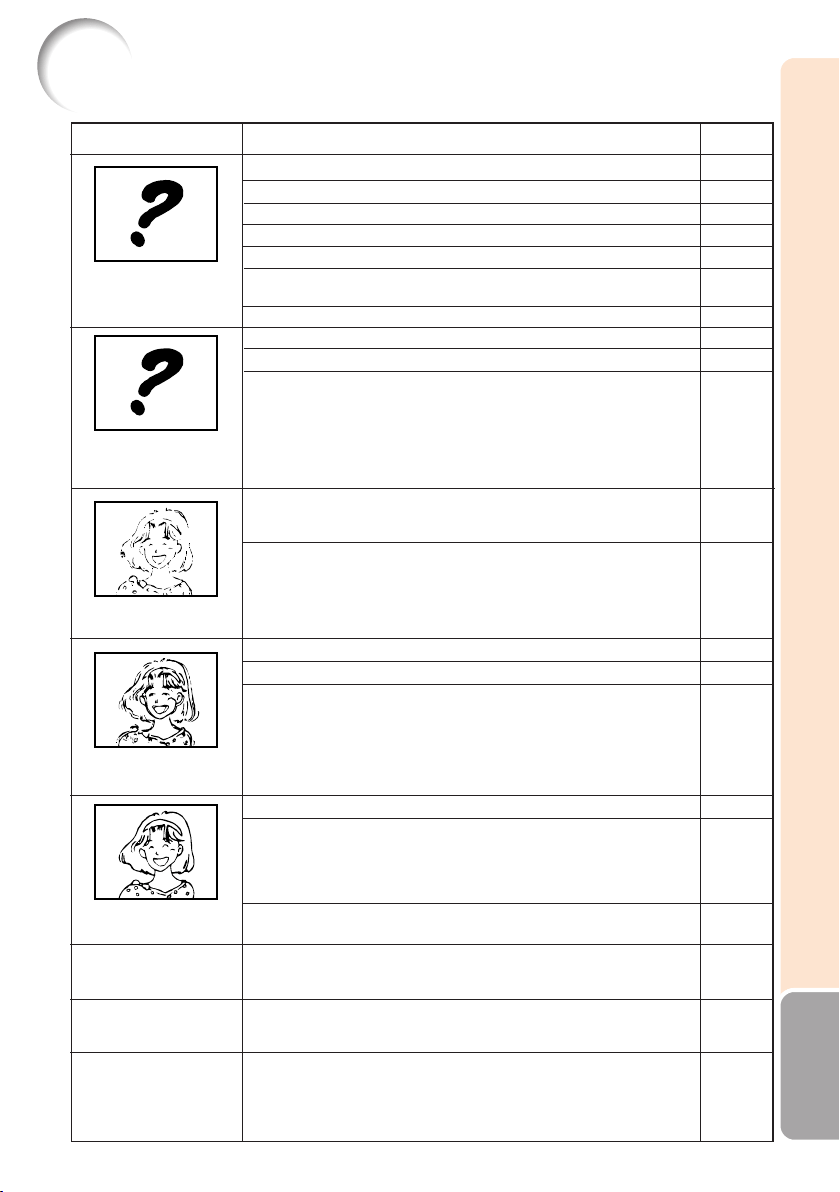
59
Appendix
Troubleshooting
No picture and no sound
or projector does not
start.
Sound is heard but no
picture appears (or picture
is dark).
Color is faded or poor.
Picture is blurred;
noise appears.
Picture appears but no
sound is heard.
An unusual sound is
occasionally heard from
the cabinet.
Maintenance indicator on
the projector illuminates
or blinks in red.
Problem Check
• Projector power cord is not plugged into the wall outlet.
• Power to the external connected devices is off.
• The selected input mode is wrong.
• Cables incorrectly connected to the projector.
• Remote control battery has run out.
• External output has not been set when connecting notebook
computer.
• The lamp unit cover is not installed correctly.
• Cables incorrectly connected to the projector.
• “Bright” is set to minimum position.
• Depending on the computer you are using, an image may not be
projected unless the signal output setting of the computer is
switched to the external output. Refer to the computer’s operation
manual for how to switch its signal output settings.
• Image adjustments are incorrectly set.
• Make adjustments of “Color” and “Tint” in “Picture Mode” and lower
the “Bright Boost” value.
(Video Input only)
• Video input system is incorrectly set.
• Adjust the focus.
• The projection distance exceeds the focus range.
(Computer Input only)
• Perform “Fine Sync” Adjustments (“Clock” Adjustment)
• Perform “Fine Sync” Adjustments (“Phase” Adjustment)
• Noise may appear depending on the computer.
• Cables incorrectly connected to the projector.
• Volume is set to minimum.
• When the projector is connected to an external device and the
volume is set to minimum, the sound is not output even if you turn up
the volume of the external device.
• “Speaker" is set to “Off”.
• If the picture is normal, the sound is due to cabinet shrinkage
caused by room temperature changes. This will not affect operation
or performance.
• See “Maintenance Indicators”.
Page
27
–
32
23–27
15
23
56, 57
23–27
43
–
43
51
30
20
51
51
–
23–27
32
46
–
53
48
The projector cannot be
turned on or put into the
standby mode using the
STANDBY/ON button on
the projector.
• The keylock is set.
If the keylock is set to “ON”, all the buttons are locked.
XG-MB67X_EN2_CD_l 06.5.12, 6:51 AM59
60
Problem
Picture is green on
INPUT 1 (COMPONENT)/
INPUT 2 (COMPONENT).
Picture is pink (no green)
on INPUT 1 (RGB)/INPUT
2 (RGB).
Picture is too bright and
whitish.
The cooling fan becomes
noisy.
The lamp does not light
up even after the
projector turns on.
The lamp suddenly turns
off during projection.
The image sometimes
flickers.
The lamp needs much
time to turn on.
Picture is dark.
Check
• Change the input signal type setting.
• When you cannot select an input signal type, select “Color is faded
or poor” in the “Help” menu, after selecting an item other than
“sRGB” in “Picture Mode”, and then select an input signal type.
• Image adjustments are incorrectly set.
• When temperature inside the projector increases, the cooling fan
runs faster.
• The lamp indicator is illuminating in red.
Replace the lamp.
• Cables incorrectly connected to the projector or the connected
equipment works improperly.
• Select “Vertical stripes or flickering image appear” in the “Help”
menu and make the necessary adjustments.
• If this happens frequently, replace the lamp.
• The lamp will eventually need to be changed.
While the remaining lamp life draws to a close, replace the lamp.
Page
51
42, 51
43
–
53, 56
23–27
51
56
56
This unit is equipped with a microprocessor. Its performance could be adversely affected by incorrect operation
or interference. If this should happen, unplug the Unit and plug it in again after more than 5 minutes.
Troubleshooting (Continued)
XG-MB67X_EN2_CD_l 06.5.12, 6:51 AM60

61
Appendix
For SHARP Assistance
If you encounter any problems during setup or operation of this projector, first
refer to the “Troubleshooting” section on pages 59 and 60. If this operation manual
does not answer your question, please contact the SHARP Service departments
listed below.
U.S.A. Sharp Electronics Corporation
1-888-GO-SHARP (1-888-467-4277)
lcdsuppor[email protected]
http://www.sharp-usa.com
Canada Sharp Electronics of Canada Ltd.
(905) 568-7140
http://www.sharp.ca
Mexico Sharp Electronics Corporation
Mexico Branch
(525) 716-9000
http://www.sharp.com.mx
Latin America Sharp Electronics Corp. Latin
American Group
(305) 264-2277
www.servicio@sharpsec.com
http://www.siempresharp.com
Germany Sharp Electronics (Europe) GMBH
01805-234675
http://www.sharp.de
U.K. Sharp Electronics (U.K.) Ltd.
08705 274 277
http://www.sharp.co.uk
Italy Sharp Electronics (Italy) S.P.A.
(39) 02-89595-1
http://www.sharp.it
France Sharp Electronics France
01 49 90 35 40
http://www.sharp.fr
Spain Sharp Electronica Espana, S.A.
93 5819700
http://www.sharp.es
Switzerland Sharp Electronics (Schweiz) AG
0041 1 846 63 11
[email protected]p-eu.com
http://www.sharp.ch
Sweden Sharp Electronics ( Nordic ) AB
(46) 8 6343600
vision.suppor[email protected]
http://www.sharp.se
Austria Sharp Electronics (Europe) GMBH
Branch Office Austria
0043 1 727 19 123
[email protected]p-eu.com
http://www.sharp.at
Benelux SHARP Electronics Benelux BV
0900-SHARPCE (0900-7427723)
Nederland
9900-0159 Belgium
http://www.sharp.nl
http://www.sharp.be
http://www.sharp.lu
Australia Sharp Corporation of Australia Pty.
Ltd.
1300-135-022
http://www.sharp.net.au
New Zealand Sharp Corporation of New Zealand
(09) 634-2059, (09) 636-6972
http://www.sharp.net.nz
Singapore Sharp-Roxy Sales (S) Pte. Ltd.
65-226-6556
[email protected].co.jp
http://www.sharp.com.sg
Hong Kong Sharp-Roxy (HK) Ltd.
(852) 2410-2623
[email protected]p.co.jp
http://www.sharp.com.hk
Taiwan Sharp Corporation (Taiwan)
0800-025111
http://www.sharp-scot.com.tw
Malaysia Sharp-Roxy Sales & Service Co.
(60) 3-5125678
U.A.E. Sharp Middle East Fze
971-4-81-5311
Thailand Sharp Thebnakorn Co. Ltd.
02-236-0170
http://www.sharp-th.com
Korea Sharp Electronics Incorporated of
Korea
(82) 2-3660-2002
http://www.sharpkorea.co.kr
India Sharp Business Systems (India)
Limited
(91) 11- 6431313
service@sharp-oa.com
XG-MB67X_EN2_CD_m 06.5.12, 6:52 AM61

62
Specifications
Projector
XG-MB67X
NTSC3.58/NTSC4.43/PAL/PAL-M/PAL-N/PAL-60/SECAM/DTV480I/DTV480P/
DTV540P/DTV576I/DTV576P/DTV720P/DTV1035I/DTV1080I/DTV1080I-50
Single Chip Digital Micromirror Device
TM
(DMD
TM
) by Texas Instruments
Panel size: 0.55
"
(14 mm), 1chip XGA DMD
No. of dots: 786,432 dots (1,024 [H] × 768 [V])
1–1.15 × zoom lens, F2.4–2.6, f = 18.7–21.5 mm
300 W DC lamp
15-pin mini D-sub connector
Y: 1.0 Vp-p, sync negative, 75 Ω terminated
P
B
: 0.7 Vp-p, 75 Ω terminated
P
R
: 0.7 Vp-p, 75 Ω terminated
600 TV lines (DTV720P)
15-pin mini D-sub connector
RGB separate/sync on green type analog input: 0–0.7 Vp-p, positive, 75 Ω terminated
HORIZONTAL SYNC. SIGNAL: TTL level (positive/negative)
VERTICAL SYNC. SIGNAL: Same as above
4-pin mini DIN connector
Y (luminance signal): 1.0 Vp-p, sync negative, 75 Ω terminated
C (chrominance signal): Burst 0.286 Vp-p, 75 Ω terminated
RCA connector: VIDEO, composite video, 1.0 Vp-p, sync negative, 75 Ω
terminated
45–85 Hz
15–70 kHz
12–108 MHz
9-pin mini DIN connector
8-pin RJ-45 modular connector
ø3.5 mm minijack or RCA terminal: 0.5 Vrms, more than 22 kΩ (stereo)
ø3.5 mm minijack: 0.5 Vrms, less than 2.2 kΩ
4 cm × 2.85 cm oval × 1
AC 110–240 V
3.6 A
50/60 Hz
385 W (Lamp Setting “Bright”)/
308 W (Lamp Setting “Eco + Quiet”)
with AC 110 V
367 W (Lamp Setting “Bright”)/
300 W (Lamp Setting “Eco + Quiet”)
with AC 240 V
9.3 W (AC 110 V) – 10.0 W (AC 240 V)
1,450 BTU/hour (Lamp Setting “Bright”)/
1,160 BTU/hour (Lamp Setting “Eco + Quiet”) with AC 110 V
1,380 BTU/hour (Lamp Setting “Bright”)/
1,130 BTU/hour (Lamp Setting “Eco + Quiet”) with AC 240 V
41°F to 95°F (+5°C to +35°C)
–4°F to 140°F (–20°C to +60°C)
Plastic
38 kHz
12
13
/32" × 4
19
/64" × 11
1
/32" (315 (W) × 109 (H) × 280 (D) mm) (main body only)
12
13
/32" × 4
47
/64" × 11
37
/64" (315 (W) × 120 (H) × 294 (D) mm) (including adjust-
ment foot and projecting parts)
8.6 lbs. (3.9 kg)
Remote control, Power cord for U.S. and Canada, etc., Power cord for Europe,
except U.K., Power cord for U.K. and Singapore, Power cord for Australia, New
Zealand and Oceania, RGB cable, DIN-D-sub RS-232C adaptor, Operation
manual (Printed and CD-ROM)
Product type
Model
Video system
Display method
DMD panel
Lens
Projection lamp
Component input signal
(INPUT1/2)
Horizontal resolution
Computer RGB input
(INPUT 1/2)/output
(OUTPUT) signal
S-video input signal
(INPUT 3)
Video input signal
(INPUT 4)
Vertical frequency
Horizontal frequency
Pixel clock
RS-232C terminal
LAN terminal
Audio input signal
Audio output signal
(AUDIO OUTPUT 1-4)
Speaker system
Rated voltage
Input current
Rated frequency
Power consumption
Power consumption (standby)
Heat dissipation
Operating temperature
Storage temperature
Cabinet
I/R carrier frequency
Dimensions (approx.)
Weight (approx.)
Replacement parts
As a part of policy of continuous improvement, SHARP reserves the right to make design and
specification changes for product improvement without prior notice. The performance specifica-
tion figures indicated are nominal values of production units. There may be some deviations from
these values in individual units.
XG-MB67X_EN2_CD_m 06.5.12, 6:52 AM62
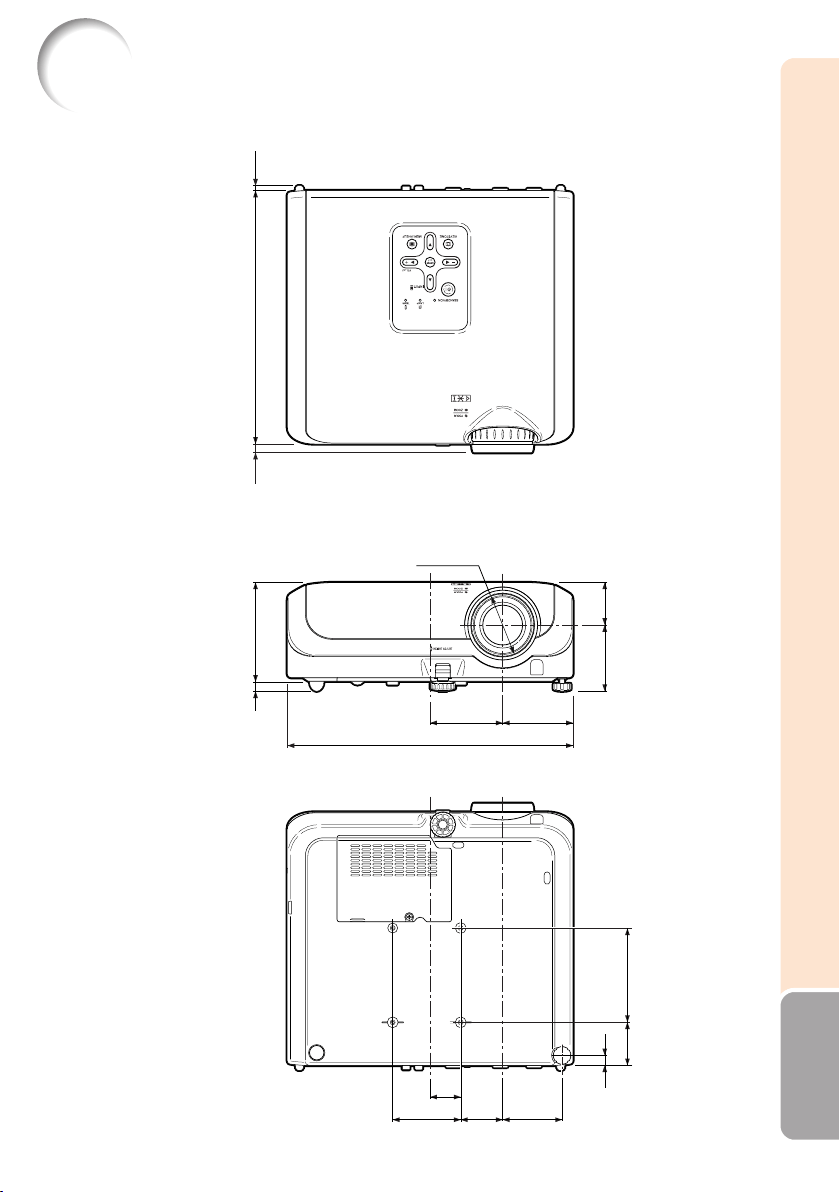
63
Appendix
Dimensions
Units: inches (mm)
12
13
/
32
(315)
3
1
/
16
(77.5)
2
19
/
32
(65.5)
1
53
/
64
(46.2)
3
5
/
32
(80)
1
55
/
64
(47)
2
7
/
8
(73)
2
61
/
64
(75)
1
11
/
32
(33.8)
4
19
/
64
(109)
1
7
/
8
(47.5) 4
7
/
64
(104)
7
/
16
(11)
11
1
/
32
(280)
23
/
64
(9)
13
/
64
(5)
7
/
16
(11)
ø9
7
/
64
(69.2)
XG-MB67X_EN2_CD_m 06.5.12, 6:52 AM63

64
AC socket ....................................................... 27
Accessories ................................................... 11
Adjustment buttons ........................................ 40
Adjust horizontal noise ........................... 39, 51
Adjust vertical noise ............................... 39, 51
Aspect ratio ....................................................34
AUDIO INPUT terminal .................... 23, 24, 25
AUDIO OUTPUT terminal ............................. 21
Auto Keystone Correction.............................. 44
Auto Power Off............................................... 46
Auto Search ................................................... 46
Auto Sync
(Auto Sync adjustment) ........... 36, 39, 46, 51
AUTO SYNC button ....................................... 36
AV MUTE button ............................................ 32
BACK button .................................................. 14
Background .................................................... 45
Blue ................................................................ 43
BORDER ................................................ 34, 35
BREAK TIMER button ................................... 36
Bright ............................................................. 43
Bright Boost ................................................... 43
Clock ..............................................................51
CLR Temp (Color Temperature) .................... 43
Color .............................................................. 43
Contrast ......................................................... 43
DHCP Client .................................................. 50
DIN-D-sub RS-232C adaptor ........................ 26
ENTER button ................................................ 40
Exhaust vent ........................................... 13, 52
Fan Mode ....................................................... 47
Fine Sync ....................................................... 51
Focus ring ...................................................... 30
FORWARD button ......................................... 14
FREEZE button .............................................36
Front adjustment foot ..................................... 31
H-Pos ...................................................... 39, 51
HEIGHT ADJUST lever ................................. 31
Help ................................................................ 51
Image shift ..................................................... 44
INPUT 1 terminal .............................. 23, 24, 25
INPUT 1 – 4 modes ....................................... 32
INPUT 2 terminal .............................. 23, 24, 25
INPUT 3 terminal ........................................... 24
INPUT 4 terminal ........................................... 25
INPUT buttons ...............................................32
Intake vent ........................................ 12, 13, 52
Kensington Security
Standard connector .................................... 13
Keycode .........................................................47
Keylock ........................................................... 48
KEYSTONE button ........................................ 33
Keystone Correction ...................................... 44
Lamp ....................................................... 11, 55
Index
Lamp indicator ............................................... 53
Lamp Setting .................................................43
Lamp Timer (Life) ..........................................47
Lamp unit ....................................................... 56
LAN terminal .................................................. 27
Language (on-screen display language) ...... 45
Lens Cap ....................................................... 12
MAC Address ................................................. 50
MENU/HELP button ................................ 40, 51
Network .......................................................... 50
NORMAL ................................................ 34, 35
ON button ......................................................28
Optional accessories .....................................11
OSD Display .................................................. 45
OUTPUT (INPUT1, 2) terminal ..................... 25
Password ....................................................... 49
PDF ................................................................ 10
Phase ............................................................. 51
Picture Adjustment ........................................ 42
Picture Mode .......................................... 36, 42
PICTURE MODE button ................................ 36
Power cord ..................................................... 27
PRJ - ADJ ......................................................46
PRJ Mode ............................................... 19, 45
Progressive .................................................... 43
R-6 batteries ..................................................15
Rear adjustment foot .....................................31
Red ................................................................43
Remote control .............................................. 14
Remote control sensor .................................. 15
Replacing the lamp ................................. 55, 56
Resize ..................................................... 34, 44
RESIZE button ............................................... 34
RETURN button ............................................. 40
RGB cable ..................................................... 23
RS-232C terminal .......................................... 26
SCR - ADJ ..................................................... 44
Screen Size and Projection Distance ......................
20
Setup Guide ............................................ 30, 45
Sharp ............................................................. 43
Speaker.......................................................... 46
STANDBY button ...........................................29
STANDBY/ON button .............................. 28, 29
STRETCH ............................................... 34, 35
Supplied accessories .................................... 11
System Lock .................................................. 47
System Sound ............................................... 46
TCP/IP ........................................................... 50
Temperature warning indicator ...................... 53
Tint .................................................................43
Video System ................................................39
Volume buttons ..............................................32
V-Pos ....................................................... 39, 51
Zoom ring ....................................................... 30
XG-MB67X_EN2_CD_m 06.5.19, 11:29 AM64

XG-MB67X_EN2_CD__cover 06.5.12, 6:53 AM6