v1.8
2021.03
User Manual
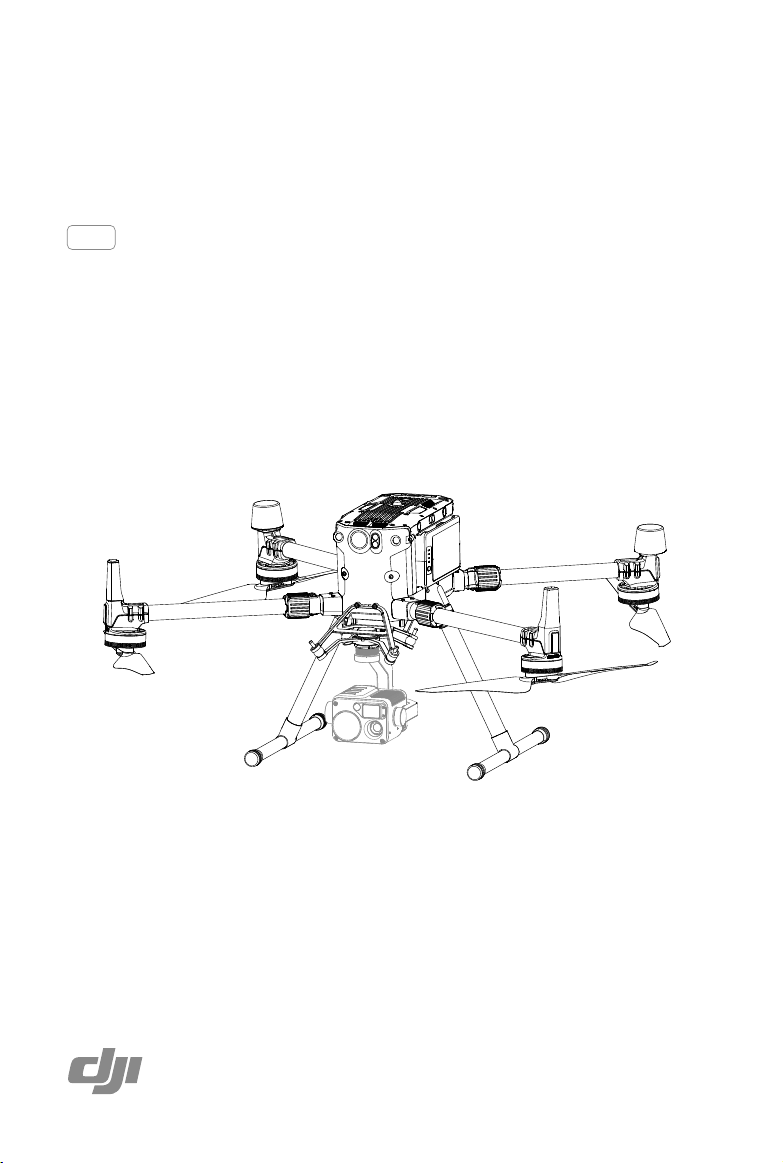
MATRICE 300 RTK
2
©
2020 DJI All Rights Reserved.
Using This Manual
Legends
Warning Important Hints and Tips Reference
Before Flight
The following materials have been produced to help users make full use of the M300 RTK.
1. In the Box
2. Disclaimer and Safety Guidelines
3. Quick Start Guide
4. Intelligent Flight Battery Safety Guidelines
5. User Manual
Watching all the tutorial videos and reading the Disclaimer and Safety Guidelines before ight is
recommended. Afterwards, prepare for your rst ight by using the Quick Start Guide. Refer to this
manual for more comprehensive information.
Download the DJI Pilot app
The DJI Pilot app is required if using a mobile device connected to the remote
controller. Search for Scan the QR code or visit https://m.dji.net/djipilot_enterprise to
download the app. DJI Pilot supports Android 5.0 or later.
*Forincreasedsafety,theightisrestrictedtoaheightof30manddistanceof50mwhennotconnectedorloggedintothe
appduringight,includingDJIPilotandallappscompatiblewithDJIaircraft.
Download the DJI Assistant 2 for Matrice
Download and install the ASSISTANT
TM
2 for Matrice before use.
https://www.dji.com/matrice-300/downloads
Searching for Keywords
Search for keywords such as “battery” and “install” to find a topic. If you are using Adobe
Acrobat Reader to read this document, press Ctrl+F on Windows or Command+F on Mac to
begin a search.
Navigating to a Topic
View a complete list of topics in the table of contents. Click on a topic to navigate to that section.
Printing this Document
This document supports high resolution printing.
The operating temperature of this product is -20° to 50° C. It does not meet the standard
operating temperature for military grade application (-55° to 125° C), which is required to
endure greater environmental variability. Operate the product appropriately and only for
applications that it meets the operating temperature range requirements of that grade.

©
2020 DJI All Rights Reserved.
3
Contents
Using This Manual 2
Legends 2
Before Flight 2
Download the DJI Pilot app 2
Download the DJI Assistant 2 for Matrice 2
Product Prole 6
Introduction 6
Feature Highlights 6
Preparing the Aircraft 8
Aircraft Diagram 10
Remote Controller Diagram 11
Aircraft 14
Prole 14
Flight Mode 14
Flight Status Indicator 15
Aircraft Beacons 16
Aircraft Auxiliary Lights 16
Vision System and Infrared Sensing System 17
Return-to-Home (RTH) 21
Center of Gravity Calibration 26
Flight Recorder 26
Propellers 26
Intelligent Battery Station 27
Intelligent Flight Battery 33
DJI Intelligent Flight Battery Functions 33
D-RTK 36
DJI AirSense 37
Expansion Ports 38
IP45 Protection Rating 38
Remote Controller 40
Prole 40
Preparing the Remote Controller 40
Remote Controller Operations 44

4
©
2020 DJI All Rights Reserved.
MATRICE 300 RTK User Manual
Advanced Dual Operator Mode 50
Video Transmission Descriptions 51
Display Interface 52
Gimbal and Camera 60
DJI Pilot App 62
Manual Flight 62
Mission Flight 75
Album 80
DJI FlightHub 80
Menu 80
Flight 82
Flight Environment Requirements 82
GEO (Geospatial Environment Online) System 82
Flight Restrictions 83
GEO Unlocking 86
Preight Checklist 86
Calibrating the Compass 86
Flight Test 88
Starting/Stopping the Motors 88
Three-propeller Emergency Landing 89
Appendix 91
Specications 91
Firmware Update 93
Using the Upward Gimbal Connector 95
Using the Dual Gimbal Connector 95
Using the CSM Radar 97
Carrying Case Description 99
Using the Aircraft Cradle 100
Extended Screw Holes Description 100

Product Prole
This chapter describes the features
of the Matrice 300 RTK, shows how
to assemble the aircraft, and contains
diagrams of the aircraft and remote
controller with component explanations.

6
©
2020 DJI All Rights Reserved.
Product Prole
Introduction
TheMATRICE
TM
300RTK(M300RTK)isa powerfulindustrialdroneplatformwith an advancedight
controllersystem,6DirectionalSensingandPositioningsystemandFPVcamera.Toenhancereliability
andsafety,italsosupportsCSMRadar-anadditionalobstacledetectioncomponent thatcanbe
mountedontopofthedrone.Itfeaturesseveraladvancedightfunctionsincluding6directionalsensing
andpositioning*,AIspot-check*,SmartTrack*,PinPoint*,LocationSharing,PrimaryFlightDisplayand
more.The built-inAirSenseprovidesawarenessofnearbyaircraft withinthesurroundingairspaceto
ensure safety.
Itsairframedesigngivesitan IP45 IngressProtection,in accordancewiththeglobalIEC60529
standard.The mechanical design,alongwithquick-releaselandinggearsand mounted foldingarms,
makesiteasyto transport,store,andprepareforight.Thesafetybeacons onboththetopandthe
bottomoftheaircraftallowtheaircrafttobeidentiedatnightorin lowlightconditions.Theauxiliary
lightshelpthevisionpositioningsystem achievebetterperformanceatnightorinlowlightconditions,
improvingaircrafttakeo,landingandightsafety.
M300RTKiscompatiblewithmany ofDJI’sDGC2.0connectorgimbals,supportingmulti-gimbal system,
whichcansupportuptothreeindependentgimbalstomeettheneedsofdierentscenarios.**
TheMatrice300RTKisequippedwithseveralexpansionportsforbroaderapplications.Ithasabuilt-
inRTKmodule,whichprovidesmoreaccurateheadingdataforpositioning.**Anadvancedpower
managementsystemalongwithdualbatteriesensurespowersupplyandenhancesightsafety.Without
apayload,theM300RTKhasaighttimeofupto55minutes.***
* MustbeusedwiththeH20seriesgimbalandcamera.
** TheVisionand InfraredSensingSystemsareaected bysurroundingconditions.ReadtheDisclaimer andSafety
Guidelinestolearnmore.GimbalscanbepurchasedseparatelyfromtheocialDJIwebsite.Pleaserefertotheuser
manualformoredetailsaboutexpansionports,upwardgimbals,anddownwardgimbals.
***Pleasenotethatmaximumighttimeismeasuredinidealightconditions.Actualighttimemayvarydependingon
yourenvironment.
Feature Highlights
Theightcontrollerprovidesasafeandreliableightexperience.Aightrecorderstorescriticaldata
fromeach flight. Dual IMUsandbarometersdesignprovideadditional redundancy.Theaircraftcan
hoverandyinextremelylowaltitudeandindoorenvironments,andprovides6directionalobstacle
sensingandvisionpositioningfunctions.
Thebuilt-inAirSensesystemalertsyouofnearbyaircraftinthesurroundingairspacetoensuresafety.
Thesafetybeaconsonboththetopandthebottomoftheaircraftallowtheaircrafttobeidentiedat
nightorinlow lightconditions.Theauxiliarylightshelp thevisionpositioningsystemachievebetter
performanceatnightorinlowlightconditions,improvingaircrafttakeo,landingandightsafety.The
airframedesigngivestheaircraftanIP45IngressProtection,inaccordancewiththeglobalIEC60529
standard.
Poweredby a newdesignofsoftwareandhardwareplatform,M300RTKboastsmultipleintelligent
features.WiththeH20series,M300RTKsupportsAISpot-checktotakephotosduringightforDemo
Flight,saveasFlightMission,andtheaircraftcanautomaticallytakephotoatthesamepositionwhen
eachFlightMissionisperformed.PinPoint enablesuserstomarkxedsubjectsandsharelocationin
real-time.Smart Trackisusedtoautonomouslyidentifysubjects and keeptrackofmobileones.The

©
2020 DJI All Rights Reserved.
7
MATRICE 300 RTK User Manual
subjectiscenteredandintherightsize,andsharesitslocationinreal-timethankstoautozoom.Anew
PrimaryFlightDisplaypresentsthenecessaryightstatusclearlyandvisuallyintheFPVview,aimingto
ensuretheuser’sightsafetyandeciency.
TheDJISmartControllerEnterprise(hereinafterreferredtoas“SmartController”)featuresOCUSYNC
TM
Enterprisetechnology,capableofcontrollingaircraftthatsupportsthistechnology,andprovidingalive
HDviewfromtheaircraft'scamera.Itcan transmitimagedataatdistancesofupto9.32 mi(15km)
andcomeswithanumberof aircraftandgimbalcontrolsas wellassomecustomizablebuttons.The
built-in5.5-inchhighbrightness 1000cd/m²screenhasa resolutionof1920×1080pixels,featuring
anAndroidsystemwithmultiplefunctionssuchasBluetoothandGNSS.InadditiontosupportingWi-
Ficonnectivity,itisalsocompatiblewithothermobiledevicesformoreexibleusage.AnHDMIportis
availableforHDimagesandvideooutput.Thetransmissionsystemsupports2.4GHzand5.8GHzto
ensureamorereliableconnectioninenvironmentspronetosignalinterference.TheAES-256encryption
keepsyourdatatransmissionsecuresoyoucanbesurethatyourcriticalinformationremainssafe.*
TheTimeSyncsystemcontinuouslyalignstheflight controller,camera,GNSSmodule,aswellas
onboardaccessories viathePayloadSDKorOnboardSDKatthemicrosecondlevel. ItmeetsSDK
developers’requirementsontimeprecision.
Anadvancedpowermanagementsystemalongwithdualbatteriesensurespowersupplyandenhances
ightsafety.Withoutapayload,theaircrafthasaighttimeofupto55minutes.Thebatteriescanbe
replacedwhenwithoutpoweringotheaircraft,enablingnon-stop,continuousoperations.
Thecameraunitis independentfromimageprocessorsothatyou havetheexibilitytochoosethe
perfectgimbalandcamerasystem(includingZENMUSE
TM
XT2/XTS**/Z30/P1***/L1***/H20,and
H20T)foreachofyourapplication.Thismeansthatregardlessofwhichcamerayouchoose,youhave
thesamepowerfulprocessingbackingit.TheM300RTKallowsformultiplepayloadcongurations.It
supportsanupwardgimbal,asingledownwardgimbal,dualdownwardgimbals,oranupwardgimbal+
adownwardgimbal.Itisequippedwithmanyexpansionportsforbroaderapplications.
Theaircrafthasabuilt-inRTKmodule,whichprovidesmoreaccurateheadingdataforpositioning.More
accuratepositioningdatacanbeachievedwhenusingwithaDJID-RTK2HighPrecisionGNSSMobile
Station.
* TheSmartControllercanreachitsmaximumtransmissiondistance (FCC)inan unobstructedareawithno
electromagneticinterferenceatan altitudeofabout 400feet(120 meters).Theactualmaximumtransmission
distancemaybelessthanthedistancementionedaboveduetointerferenceintheoperatingenvironment,andthe
actualvaluewilluctuateaccordingtothestrengthofinterference.Tocomply withlocalregulations,the5.8 GHz
frequencyisnotavailableinsomecountriesandregions.
** TheZenmuseXTSisonlyavailableinselectcountriesandregions.
***Theaircraftmustbeupdatedtothelatestrmware.
8
©
2020 DJI All Rights Reserved.
MATRICE 300 RTK User Manual
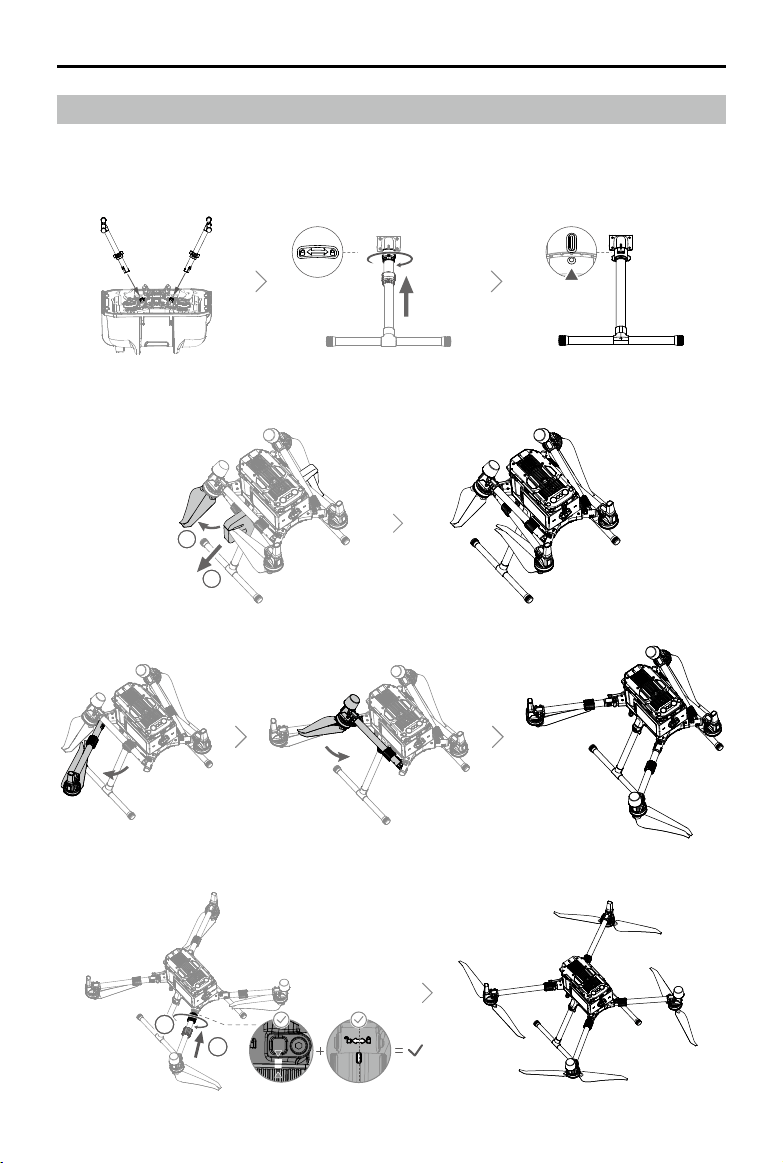
Unfolding the Aircraft
Remove the two propeller holders.
11
2
Unfold the frame arms on both sides in the same way.
Locktheframearmsandunfoldthepropellers.
Preparing the Aircraft
Installing the Landing Gears
Install the landing gears, slide the gear lock to the end of the landing gear, then rotate it about 90°
until the dot is in sync with the alignment mark.
11
2
©
2020 DJI All Rights Reserved.
9
MATRICE 300 RTK User Manual
2
11
3
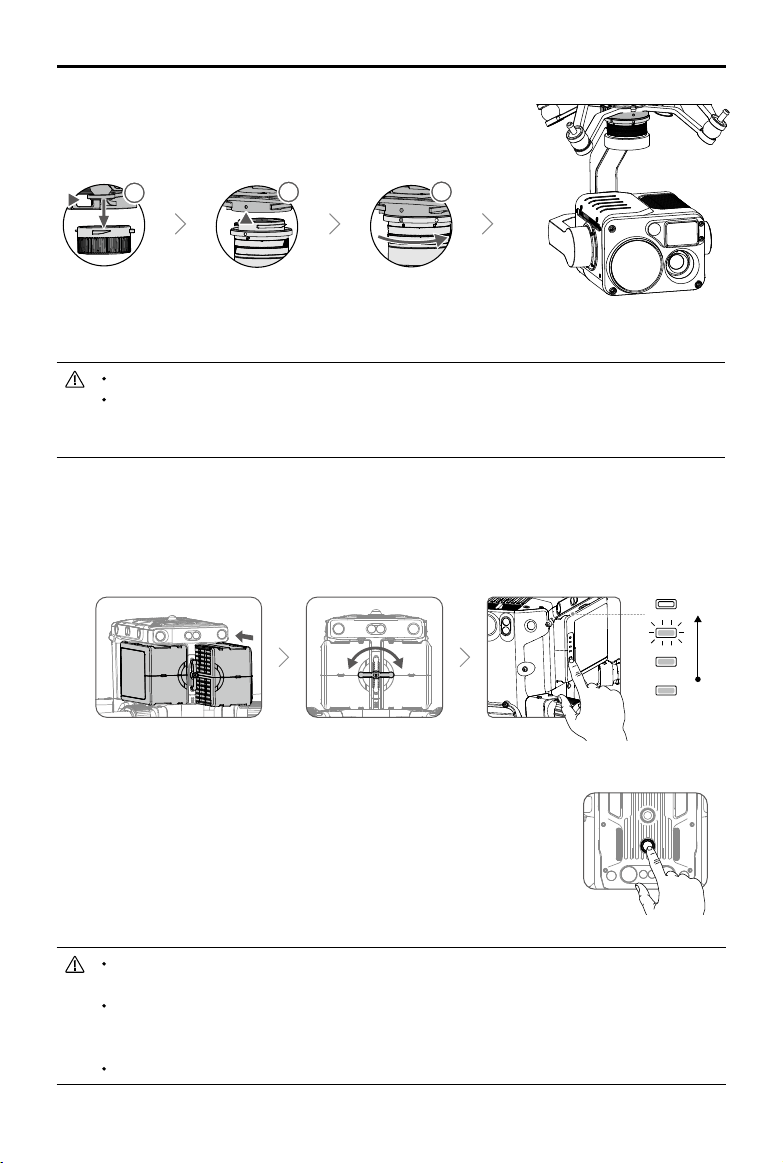
Mounting the Gimbal and Camera
PresstheGimbal
Detachmentbutton
toremovethecover.
Alignthewhiteand
red dots and insert the
gimbal.
Rotatethegimballock
tothelockedposition.
Afterinstallation,makesurethatthegimballockislockedinplace.
Makesuretopressdownthe GimbalDetachmentbuttonwhenrotatingthegimballock to
removethe gimbalandcamera.Thegimballockshouldbefullyrotatedwhen removingthe
gimbalforthenextinstallation.
Mounting the Intelligent Flight Batteries / Checking the Battery Level
Insertapairofbatteries.
Pressthebatterylevelbuttononcetocheckthebatterylevel.
Turning On the Aircraft
Turn on / off:
Pressthepowerbuttonontheaircraft,within3secondspress
againandholdtoturnon/otheaircraft,withthepowerindicatorsolidon.
Link:
Pressandholdtheaircraft'spower buttonatleastvesecondstolink
theaircraftandSmartController.Thepowerindicatorwillblinkduringlinking.
Ifforanyunforeseeablecircumstances,thatonlyonebatteryisavailableduringight,landthe
aircraftimmediatelyandreplacethebatteriesassoonaspossible.
ThePSDKandOSDKports havebuilt-intemperaturesensors. Ifthedevicetemperatureis
toohighduetotoolargepayloadpower,theaircraftwillautomaticallypowerothepayload
for protection.
Makesuretousetheincludedbatteries.DONOTuseanyothertypeofbatteries.
Low
High
10
©
2020 DJI All Rights Reserved.
MATRICE 300 RTK User Manual
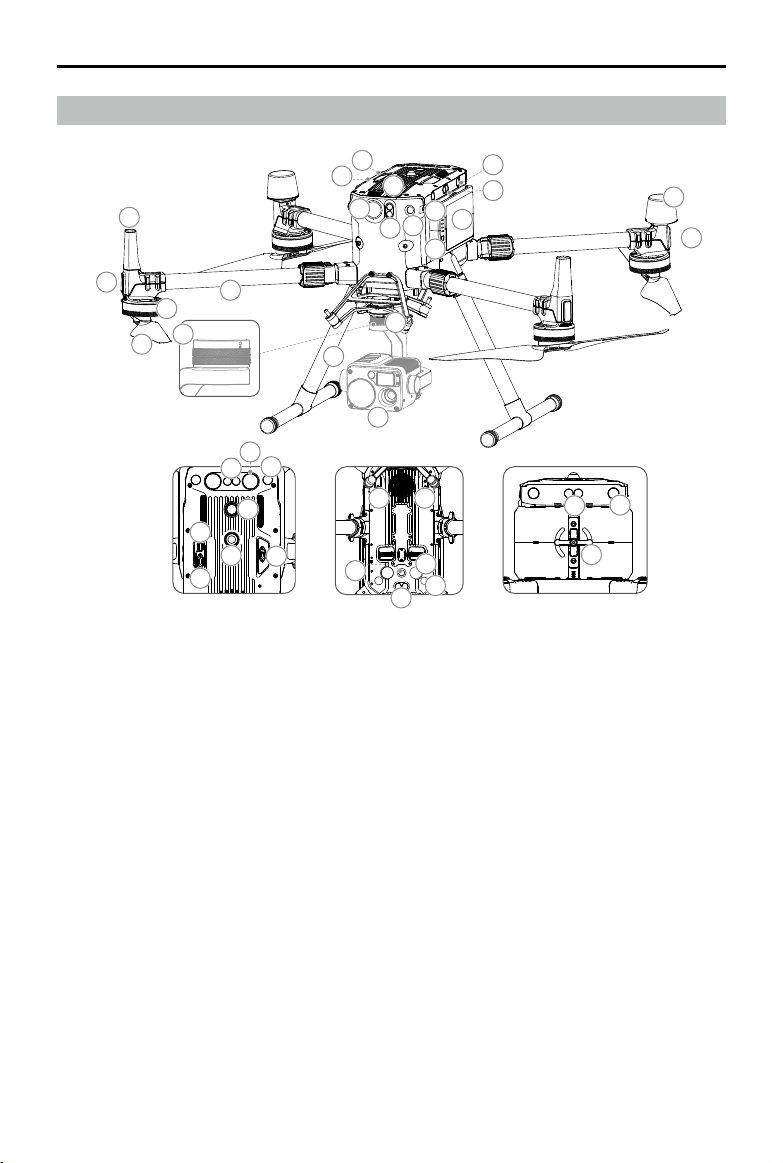
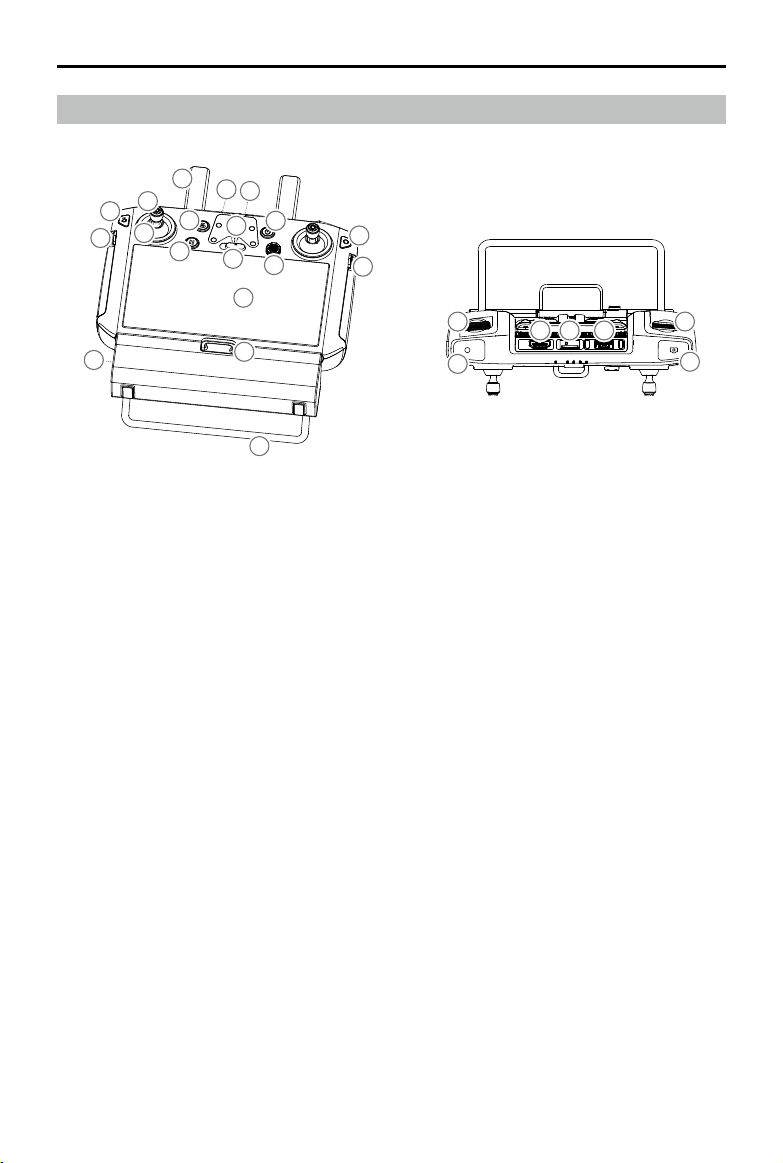
Aircraft Diagram
1.FPVCamera
2.ForwardInfraredSensingSystem
3.ForwardVisionSystem
4.DJIGimbalConnectorv2.0(DGC2.0)
5.GimbalDetachmentButton
6.FrameArms
7. Motors
8.Propellers
9.ESCLEDs
10.TransmissionAntennas
11.LandingGears
12.AirFilter
13.LeftandRightInfraredSensingSystem
14.LeftandRightVisionSystem
15.IntelligentFlightBatteries
16.BatteryLevelIndicators
17.BatteryLevelButton
18.D-RTKAntennas
19.AircraftStatusIndicators
20.UpwardBeacon
21.PowerButton/Indicator
22.UpwardInfraredSensingSystem
23.TopAuxiliaryLight
24.UpwardVisionSystem
25.AssistantPort
26.OSDKPort
27.PSDKPort*
28.DownwardInfraredSensingSystem
29.DownwardVisionSystem
30.BottomAuxiliaryLight
31.DownwardBeacon
32.BackwardInfraredSensingSystem
33.BackwardVisionSystem
34.BatteryLocker
35.GimbalandCamera
Bottom view Rear viewTop view
1
2
6
7
8
9
10
11
12
13
13
14
14
15
16
17
18
19
3
4
5
32
33
34
35
26
27
25
20
21
23
24
22
28
30
27 27
29
31
* ThetwoPSDKportsonthebottomoftheaircraftalsoserveas1stgimbalportand2ndgimbalport.Pleasenote
thatthesingledownwardgimbalmustbeconnectedto1stgimbalport.
©
2020 DJI All Rights Reserved.
11
MATRICE 300 RTK User Manual
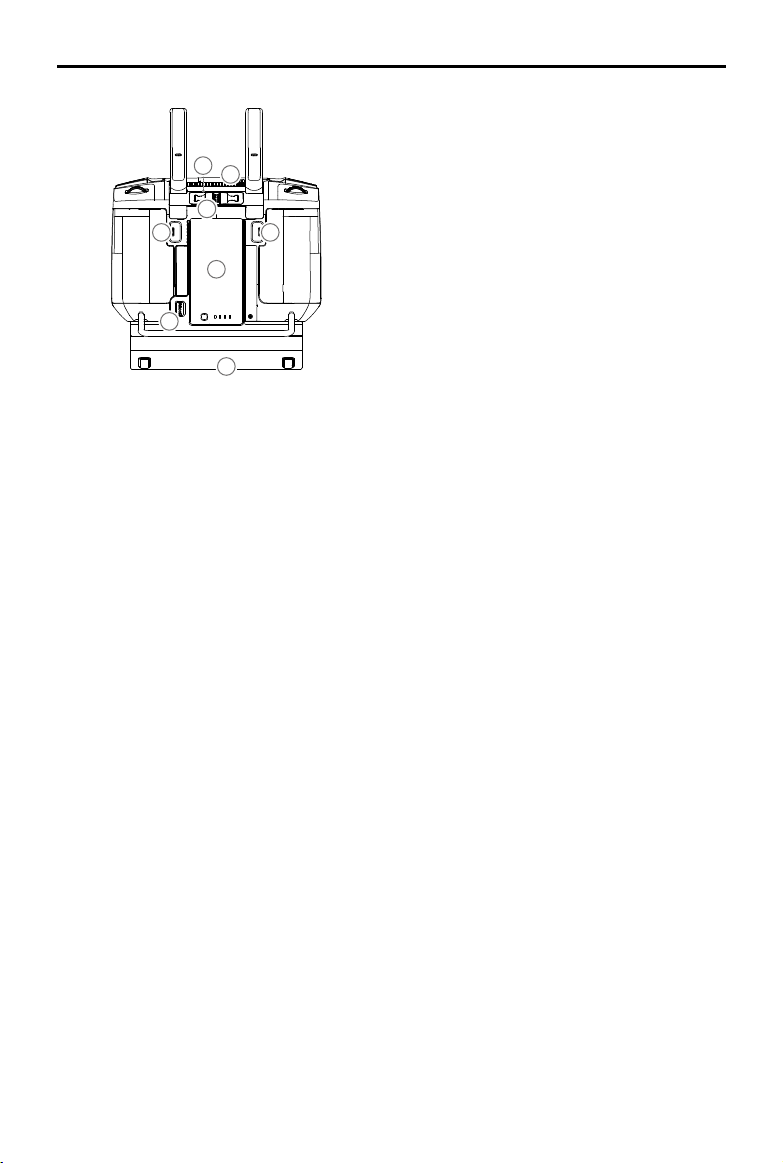
Remote Controller Diagram
1
9
10
12
13
16
14
8
7
11
16
17
5
6
4
3
2
16
15
18
20 2221
24
23
19
1. Antennas
2. Back Button / Function Button
Pressoncetoreturntothepreviouspageand
presstwicetogobacktothehomepage.Hold
toviewaguidetousingbuttoncombinations.
RefertotheButtonCombinationssectionfor
moreinformation.
3. Control Sticks
4. Stick Covers
5. RTH Button
6. Flight Pause Button
7. Flight Mode Switch
8. Position for Mounting Bracket (with built-in
GPS module under it)
9. Status LED
10. Battery Level LEDs
11. 5D Button
Thedefaultcongurationis listedbelow. The
functionscanbesetinDJIPilot.
Up:Camerazoomin
Down:Camerazoomout
Left:DecreaseEVvalue
Right:IncreaseEVvalue
GotoSettings >ControlStickNavigationto
enablethisfunction.
12. Power Button
13. Conrm Button
14. Touch Screen
15. Charging Port (USB-C)
16. Lanyard Hooks
17. Handle
18. Gimbal Pitch Control Dial
19. Record Button
20. HDMI Port
21. microSD Card Slot
22. USB-A Port
Usetoconnect externaldevices,orconnect
toyourPCforrmwareupdate.
23. Focus / Shutter Button
Halfpresstofocus,andthenpresstotakea
photo.
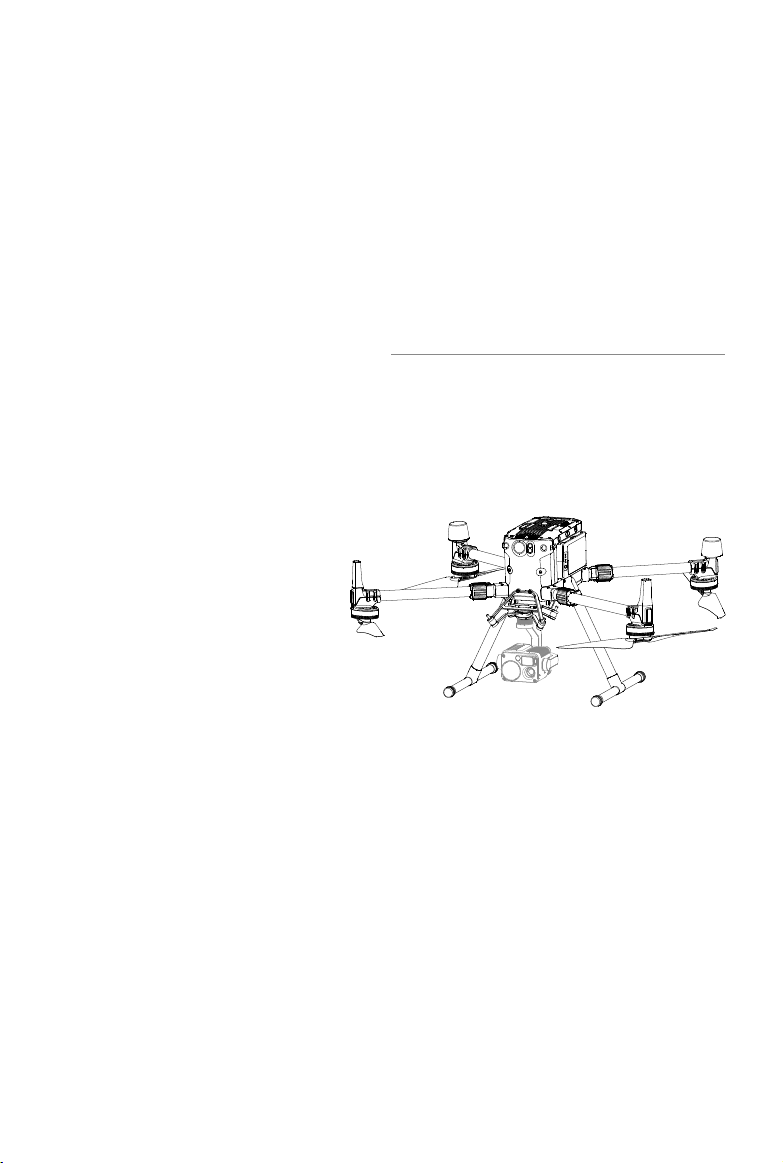
12
©
2020 DJI All Rights Reserved.
MATRICE 300 RTK User Manual
24. Gimbal Pan Control Dial
25. Air Vent
26. Sticks Storage Slot
27. Spare Sticks
28. Customizable Button C2
29. Customizable Button C1
30. WB37 Intelligent Battery
31. Battery Release Button
32. Dongle Compartment Cover
25
29
30
28
31
32
26
27
Aircraft
This section describes the features of
the Flight Controller, Vision System, and
the Intelligent Flight Battery.

14
©
2020 DJI All Rights Reserved.
Aircraft
Prole
The M300 RTK aircraft includes a ight controller, a communication system, vision systems, a propulsion
system and an Intelligent Flight Battery. This section describes the functions of these components.
Flight Mode
The following ight modes are available for the aircraft:
P-mode (Positioning) :
P-mode works best when the GNSS signal is strong. The aircraft utilizes the GNSS module and
Vision Systems to locate itself, automatically stabilize, and navigate between obstacles. When the
obstacle sensing is enabled and lighting conditions are sufcient, the maximum ight attitude angle
is 25°. When the GNSS signal is weak and lighting conditions are too dark for the Vision Systems,
the aircraft will only use its barometer for positioning to control altitude.
S-mode (Sport):
The aircraft uses GNSS for positioning. Aircraft responses are optimized for agility and speed
making it more responsive to stick movements. As obstacle avoidance functions are disabled,
the aircraft will not be able to sense and avoid obstacles when in Sport Mode. Only the vision
positioning functions are available.
T-mode (Tripod):
T-mode is based on P-mode and the ight speed is limited, which makes the aircraft more stable
during shooting.
A-mode (Attitude):
When neither the GNSS nor the Vision Systems are available, only the aircraft barometer is used for
positioning to control the altitude.
The obstacle avoidance function is disabled in S-mode (Sport), which means the aircraft
will not be able to automatically avoid obstacles in its ight path. Be vigilant and stay clear
of nearby obstacles.
The aircraft’s maximum speed and braking distance are signicantly increased in S-mode
(Sport). A minimum braking distance of 164 feet (50 meters) is required in windless
conditions. The aircraft’s responsiveness is signicantly increased in S-mode (Sport), which
means a small stick movement on the remote controller will translate into a large travel
distance of the aircraft. Be vigilant and maintain adequate maneuvering space during ight.
Use the Flight Mode switch on the remote controller to select aircraft ight modes.
Attitude Mode Warning
DO NOT switch from P-mode to either S-mode or T-mode unless you are sufciently familiar with the
aircraft’s behavior under each ight mode. You must turn on the “Multiple Flight Modes” setting in
the app before you can switch from P-mode to other modes.
The aircraft will automatically enter Attitude mode when both of the following conditions are met:
(1) the vision system is unavailable and (2) either there is weak GNSS signal or the compass
experiences interference.
Users can also manually switch to the attitude mode, and the T/P/S mode can be set to A/P/S mode
in the app.
©
2020 DJI All Rights Reserved.
15
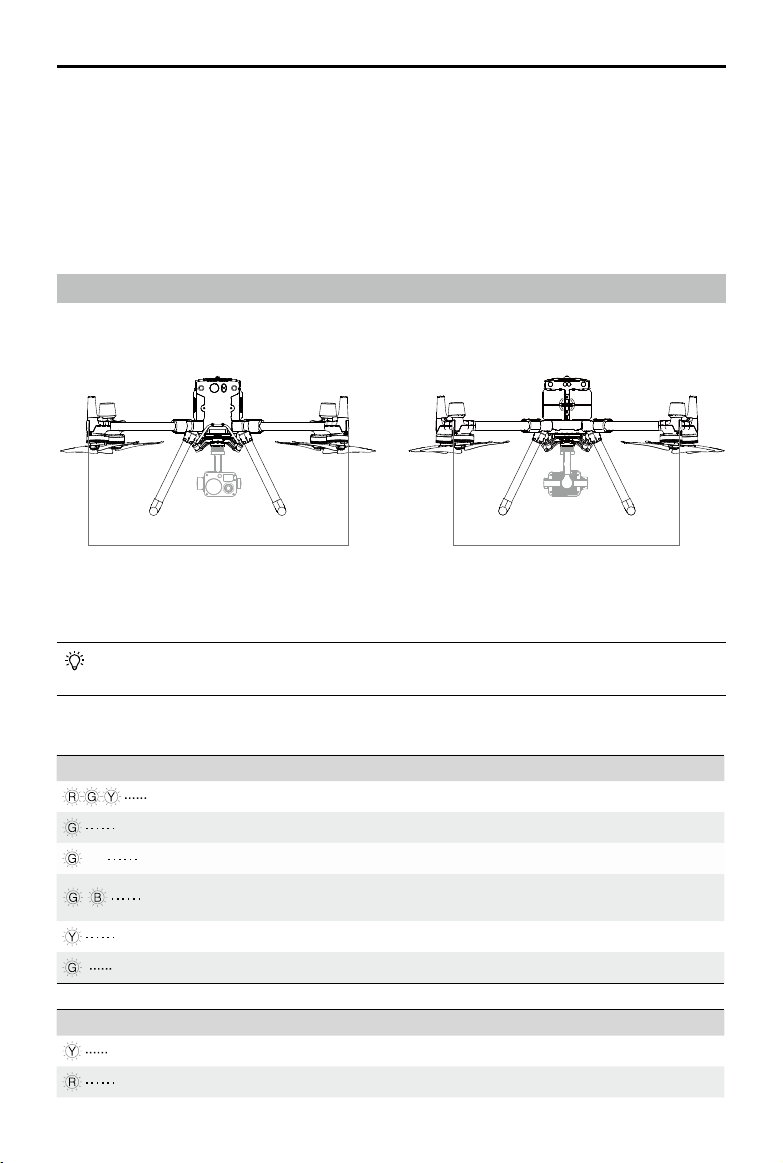
MATRICE 300 RTK User Manual
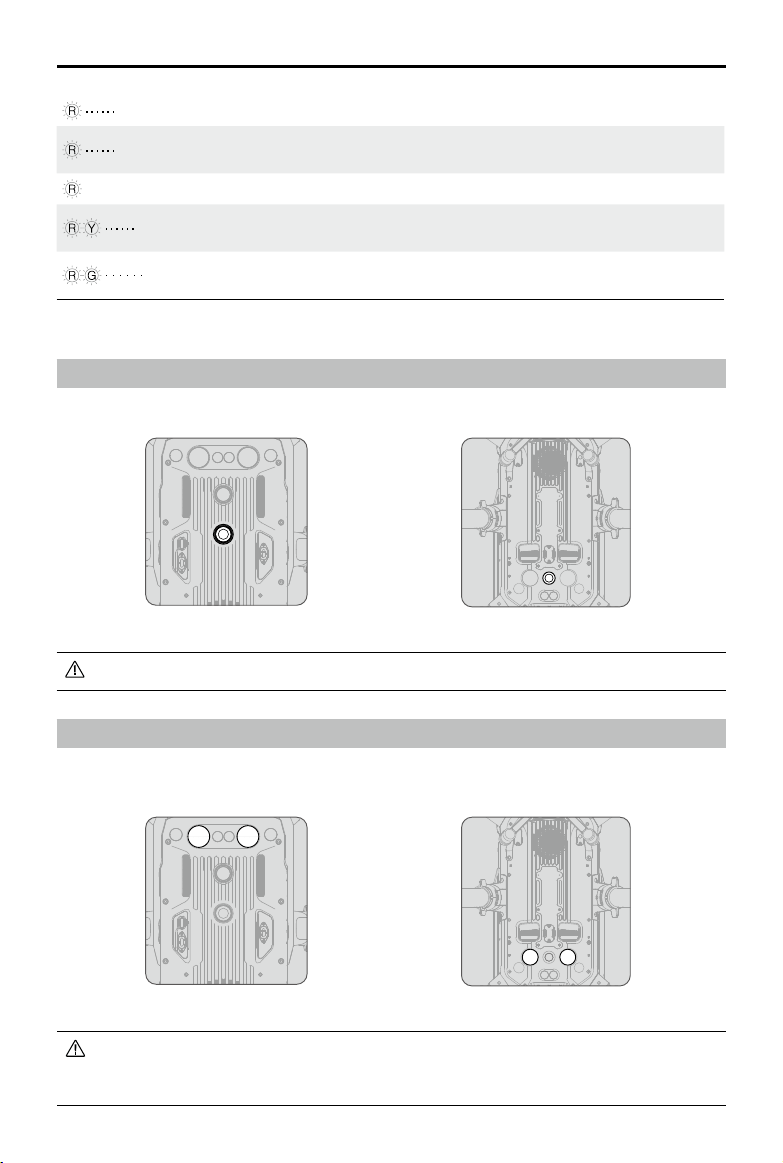
1. The Front LEDs show the orientation of the aircraft.
2. The Aircraft Status Indicators communicate the system status of the ight controller. Refer to the
table below for more information about the Aircraft Status Indicators.
The Front LEDs, and Aircraft Status Indicators can be turned off in the DJI Pilot app for
unobtrusive drone operations.
Aircraft Status Indicator Description
Normal
Red, green, and yellow ashes Turning On and Self Diagnostic Testing
Slow green ashing P-mode with GNSS positioning*
×2 Two green ashes P-mode with Vision Systems*
Alternating green and blue
ashing
The RTK function is enabled and RTK data is
used.
Slow yellow ashing A-mode (no GPS and vision positioning)
Fast green ashing Braking automatically after obstacle detected
Warning
Fast yellow ashing Remote Controller Signal Lost
Slow red ashing Low Battery Warning
Front LEDs Aircraft Status Indicators
In Attitude mode, the Vision System and some advanced features are disabled. Therefore, the
aircraft cannot position or auto-brake in this mode and is easily affected by its surroundings, which
may result in horizontal shifting. Use the remote controller to position the aircraft.
Maneuvering the aircraft in Attitude mode can be difcult. DO NOT y the aircraft too far away
as you might lose control and cause a potential hazard. Avoid ying in areas where GNSS signal
is weak, or in narrow and conned spaces. The aircraft will otherwise be forced to enter Attitude
mode, leading to potential ight hazards, please land it in a safe place as soon as possible.
Flight Status Indicator
The aircraft features Front LEDs, and Aircraft Status Indicators. The positions of these LEDs are
shown in the gure below:
16
©
2020 DJI All Rights Reserved.
MATRICE 300 RTK User Manual
Fast red ashing Critical Low Battery Warning
Red ashing for 5 seconds
(when performing CSC)
IMU Error
—
Solid Red Critical Error
Fast alternating red and yellow
ashing
Compass Calibration Required
Alternating red and green
ashing
The RTK function is enabled but RTK data is
unavailable.
* Slow green ashes indicate P-mode, and fast green ashes indicate S-mode.
Aircraft Beacons
Enablesaircraftidenticationduringightatnightorinlowlightareas.
DO NOT look directly at the beacons when they are in use to avoid damage to your eyes.
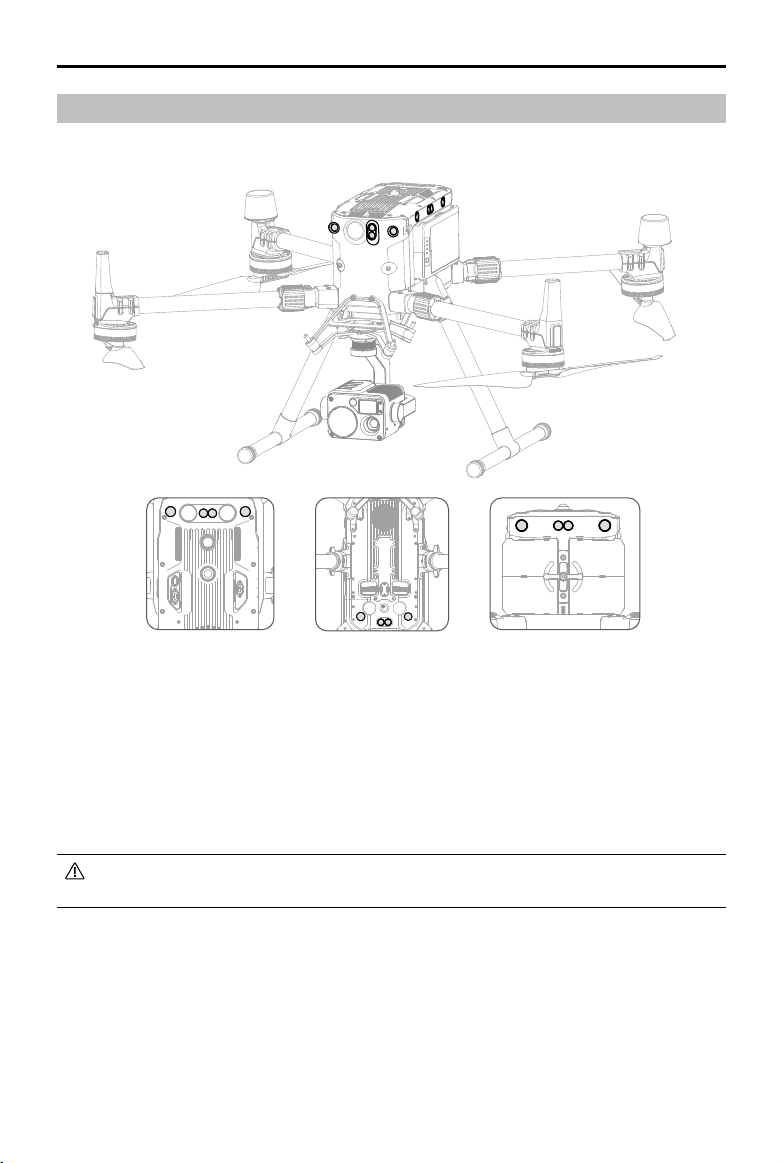
Aircraft Auxiliary Lights
TheAuxiliaryLightslocatedatthetopandbottomoftheaircraftimprovevisibilityfortheVisionSystem
inpoorlightconditions.
TheAuxiliaryLightisautomaticallyenabledwhentheenvironmentlightistooweakandtheight
altitudeislowerthan5m. Please notethattheVisionSystem’scameraperformancemaybe
aectedwhentheauxiliarybottomlightisenabled.FlywithcautioniftheGNSSsignalisweak.
Top view Bottom view
Top view
Bottom view
©
2020 DJI All Rights Reserved.
17
MATRICE 300 RTK User Manual
Vision System and Infrared Sensing System
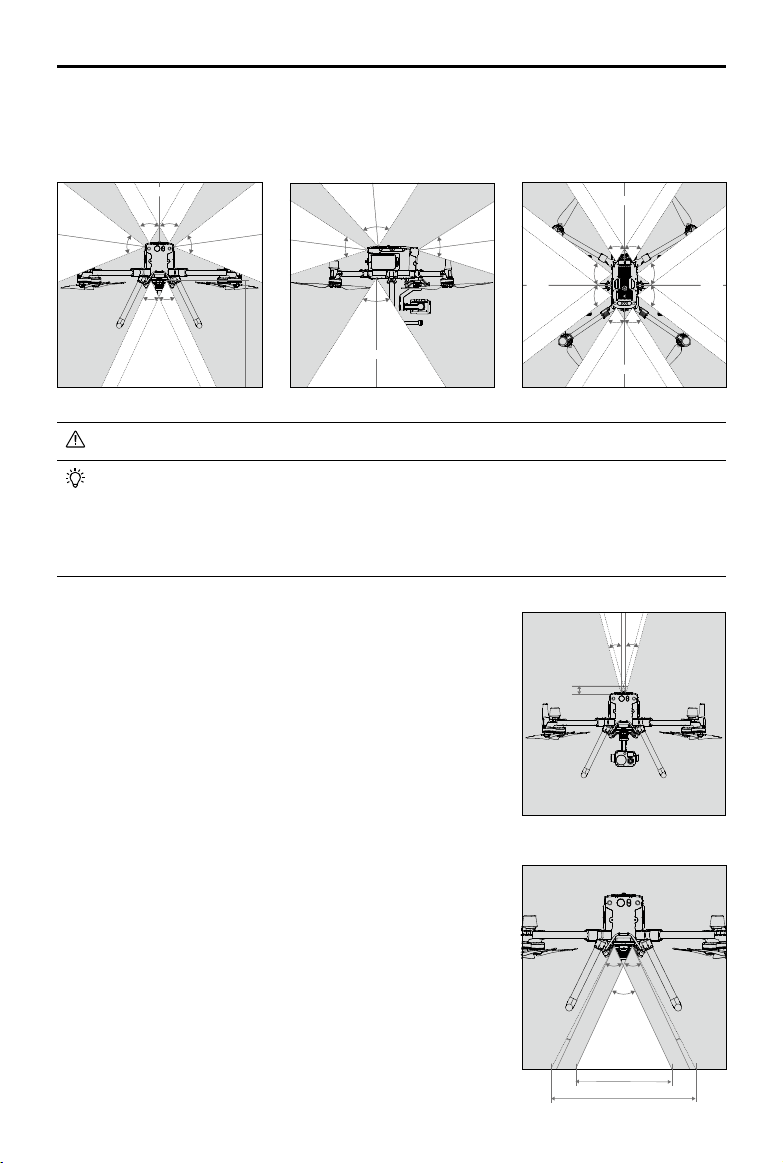
ThemaincomponentsoftheVisionSystemare located on thefront,rear,left,right,topandbottom
oftheaircraft,includingstereovisionsensors. TheInfraredSensingSystemconsists oftwoinfrared
sensorsonthefront,rear,left,right,topandbottomoftheaircraft.
TheVisionSystemusesimagedatato help theaircraftconstantlyscanforobstaclesand obtain the
aircraftposition information, andtheInfraredSensingSystemuses the infraredmodulestodetect
obstaclestojudgetheaircraftheight,allowingtheaircrafttomaintainitscurrentposition,enabling
precisionhoveringindoorsorotherenvironments.
To ensure steady ight and general ight safety, DO NOT block the visual and infrared
sensors.
Top view Rear view
Bottom view
Intoduction
18
©
2020 DJI All Rights Reserved.
MATRICE 300 RTK User Manual
Detection Range of the Vision System
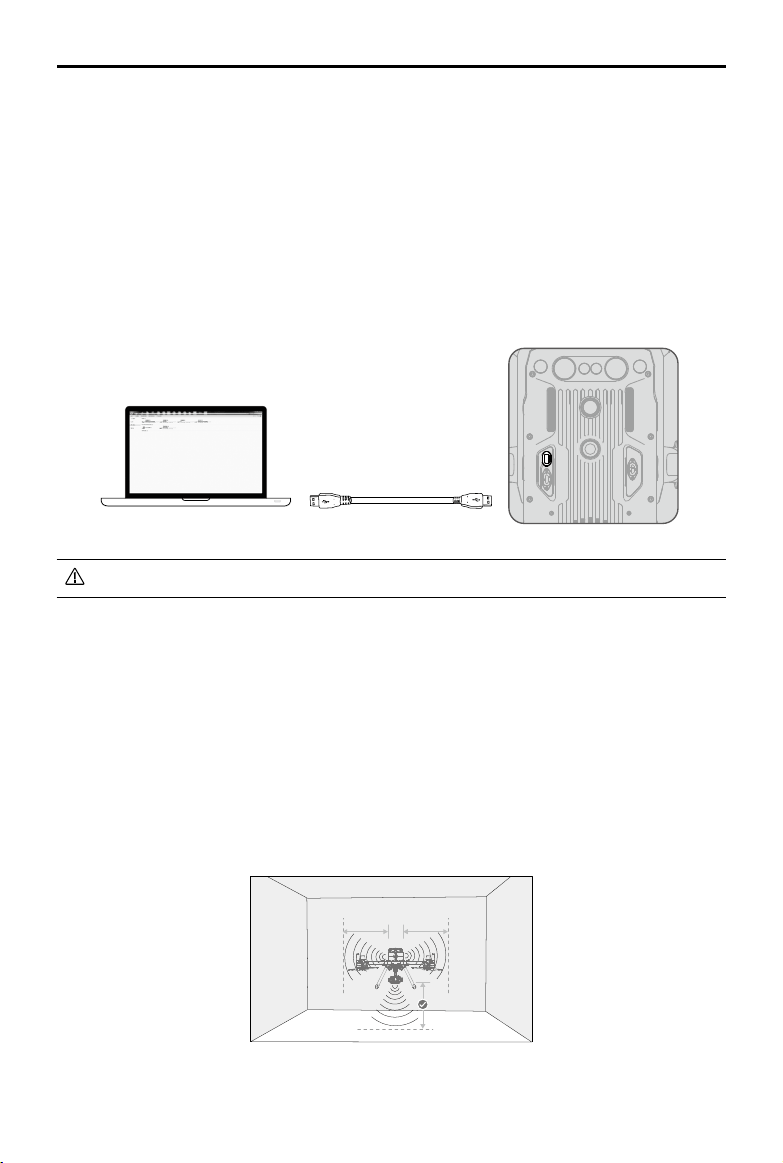
Thedetectionrangeof theVisionSystemisdepictedbelow.Notethattheaircraftcannotsenseand
avoidobstaclesthatarenotwithinthedetectionrange.
60°
60°
40 m
40 m
30 m
60°60°
50° 50°
30 m
65°
50°
75°
50°
30 m
40 m
30 m
40 m
65° 65°
75°
75°
75°
75°
65° 65°
40 m
40 m
40 m
40 m
The aircraft cannot detect objects in the grey area. Please y with caution.
Users can set the braking distance and warning distance in the DJI Pilot App. The aircraft
can automatically stop when ying near to the braking distance. Once the aircraft enters the
warning distance, the obstacle information will be displayed as yellow. When the aircraft is
close to the obstacle avoidance safety distance, the obstacle information will be displayed
as red.
Detection Range of the Infrared Sensing System
Thedetectionrangeoftheinfraredsensorsis8m.Notethat
theaircraftcannot sense and avoidobstaclesthatarenot
withinthedetectionrange.
Not Obstruct Zone Note
AnoteontheVisionSystemand the ultrasonicsensor
detectionrangeisillustratedbelow.
Theremaybea±2°errorintheangleoftheVisionSystem
duetoerrorsintheassemblyprocess.Topreventaccidents,
pleaseDONOTattachanypayloadthatmight be in the
sensors’DoNotObstructZone.Ifthepayloadcomesinto
theDoNotObstructZone,itisrecommendedtoturnothe
visionsysteminthePilotappandywithcaution.
50°
50°
50°
2° 2°
Effective Detection Range
Do Not Obstruct Zone
100 mm
15°
15°
©
2020 DJI All Rights Reserved.
19
MATRICE 300 RTK User Manual
Calibration
TheVisionSystemcamerasinstalled ontheaircraftarefactorycalibrated.Iftheaircraftexperiencesa
collisionortheworkingtemperaturehaschangedsignicantly,itmayrequirecalibrationviaDJIAssistant
2forMatrice.Connecttheaircraft to acomputerandcalibratetheVisionSystemcameraswhen
promptedinDJIPilot.
1. Power on the aircraft.
2. Connect the aircraft and the PC with a USB-C cable.
3. Launch DJI Assistant 2 for Matrice and log in with a DJI account.
4. Click M300 RTK and the calibration button.
5. Place the side of visual calibration plate with the dots facing the Vision System, and follow the
instructions in the DJI Assistant 2 to complete calibration.
DO NOT power off or unplug the USB-C cable after calibration. Wait for data calculation.
Using the Vision System
TheVisionSystemenablesprecisionhovering indoors orinenvironmentswhereGNSS signal isn't
available.
WhentheGNSSsignalis available,theVisionSystemprovidesauxiliaryinformation forimproving
aircraftpositioningaccuracy.TheVisionSystemcanworkwellwhenwithin30mfromthegroundand
horizontalof20mofawallorotherobjectstoitsside,requiringsurfacesofclearpatternsandadequate
lighting.
WhentheVisionSystemandInfraredSensing Systemaredisabled,theflightmodewillswitch to
Attitude Mode.
30 m
20 m 20 m
20
©
2020 DJI All Rights Reserved.
MATRICE 300 RTK User Manual
Follow the steps below to use the Vision System:
1. Ensure the aircraft is in P-mode and place the aircraft on a at surface.
2. Turn on the aircraft. The aircraft will hover in place after takeoff. The
aircraft status indicators will flash green twice, which indicates the
Vision System is working.
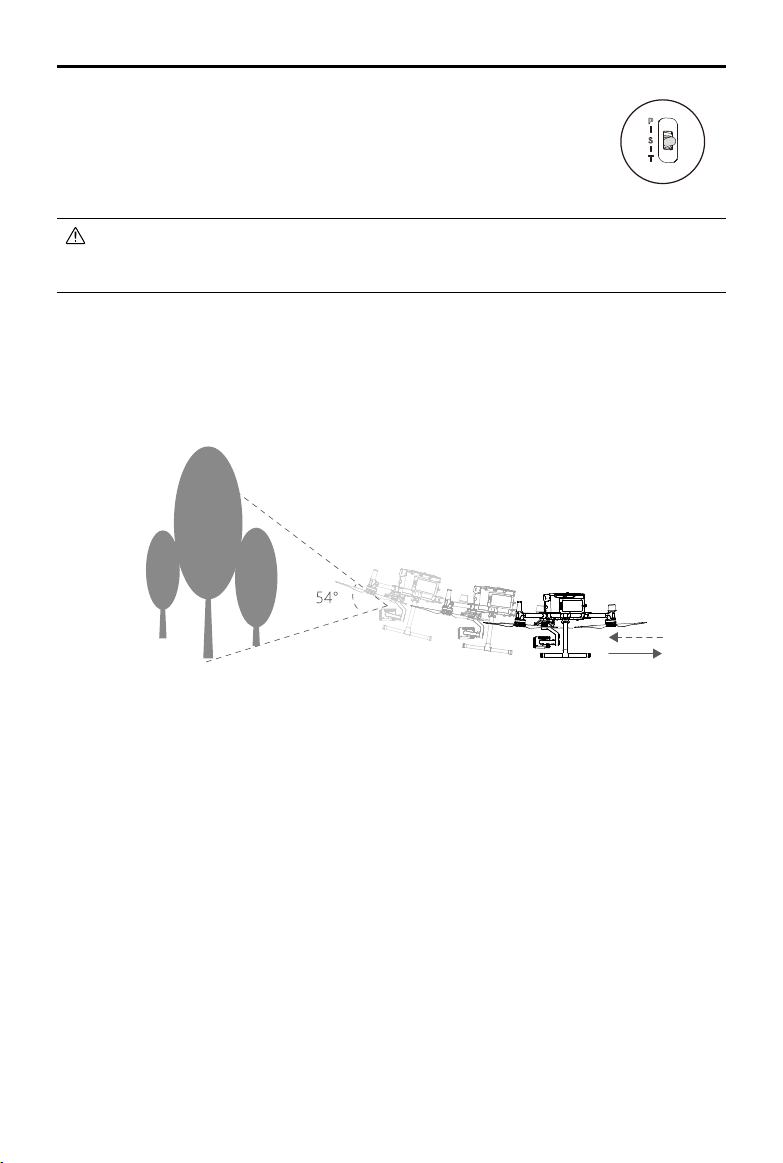
IftheVisionSystemshutsdownorisblockedbyotherobjects,theaircraftwillnotbeableto
hoveratalowaltitudeindoorsandtheLandingProtectionFunctionthatcontrolsthe landing
speedwillbedisabled.Note:theaircraftmaybedamagedbylandingtoofast.
Assisted Braking from Obstacle Sensing
Poweredby the Vision System,theaircraftisableto actively brakewhenobstaclesaredetectedin
front.Obstacle Sensingworksbestwhenlightingisadequate andtheobstacleisclearlytextured.
Theaircraftmustyatnomorethan38mph(62kph)withamaximumpitchangelof25°toallowfor
sucientbrakingdistance.
Using Infrared Sensing System
TheInfraredSensingSystemcanonlybeusedtoavoidlarge,diuse,andreectiveobstacles(reectivity
>10%).Pleasebemindfulofblindspots(Grey)oftheInfraredSensingSystem.ThedownwardInfrared
SensingSystemisusedforpositioningandassistingheightsettingduringtakeoandlanding,whilethe
InfraredSensingSystemontheothervesidesareforobstaclesensing.
Vision System and Infrared Sensing System Warning
ThemeasurementaccuracyoftheVisionSystemiseasilyaectedbythelightintensityandthesurface
textureof the object.TheInfraredSensingSystemcan only beusedtoavoidlarge,diffuse,and
reectiveobstacles(reectivity>10%).
TheVisionSystemmayNOTfunctionproperlywheninanyofthefollowingsituations:
a. Flying over monochrome surfaces (e.g., pure black, pure white, pure red, pure green) or without
clear texture.
b. Flying over highly reective surfaces.
c. Flying over water or transparent surfaces.
©
2020 DJI All Rights Reserved.
21
MATRICE 300 RTK User Manual
d. Flying over moving surfaces or objects (e.g. above moving people, waving reeds, shrubs and
grass).
e. Flying in an area where the lighting changes frequently or drastically, or in an area where there is
excessive exposure to direct, strong lighting.
f. Flying over extremely dark (< 15 lux) or bright (> 10,000 lux) surfaces.
g. Flying at high speeds (over 14 m/s at 2 meters or over 5 m/s at 1 meter).
h. Tiny obstacles.
i. The lens is dirty (e.g., due to raindrops, ngerprints, etc.).
j. Scenes with low visibility (e.g., heavy fog).
TheInfraredSensingSystemmayNOTprovideanaccuratedistancewheninany ofthefollowing
situations:
a. Flying over surfaces that can absorb sound waves (e.g., pure black matt objects).
b. There is a large area of strong reectors beyond 15 m (for example, multiple trafc signs are
placed side by side).
c. Tiny obstacles.
d. Mirror or transparent objects (such as mirrors, water, and glass).
Keep sensors clean at all times. Dirt or other debris may adversely affect their
effectiveness.
The Vision System may not function properly when the aircraft is ying over water.
The Vision System may not be able to recognize pattern on the ground in low light
conditions (less than 100 lux).
Return-to-Home (RTH)
The Return-to-Home (RTH) function brings the aircraft back to the last recorded Home Point when
there is a strong GNSS signal. There are three types of RTH: Smart RTH, Low Battery RTH, and
Failsafe RTH. This section describes these three RTH types in detail.
GNSS
Description
Home Point
If a strong GNSS signal was acquired before takeoff, the Home Point is
the location from which the aircraft launched. The GNSS signal strength is
indicated by the GNSS icon . Less than 4 bars is considered a weak
GNSS signal. The aircraft status indicator will blink green rapidly when the
home point is recorded.
The aircraft can sense and avoid obstacles when the Forward Vision System is enabled and
lighting conditions are sufcient. To ensure the aircraft returns home while facing forward, it
cannot rotate or y left and right during RTH.
Smart RTH
Use the RTH button on the remote controller and follow the on-screen instructions when GNSS is
available to initiate Smart RTH. The aircraft will then automatically return to the last recorded Home
Point. Use the remote controller to control the aircraft’s speed (pitch stick) or altitude (throttle stick)
to avoid a collision during the Smart RTH process. Press and hold the Smart RTH button once to
start the process, and press the Smart RTH button again to terminate the procedure and regain full
control of the aircraft.
22
©
2020 DJI All Rights Reserved.
MATRICE 300 RTK User Manual
Low Battery RTH
The low battery level failsafe is triggered when the DJI Intelligent Flight Battery is depleted to a point
that may affect the safe return of the aircraft. Users are advised to return home or land the aircraft
immediately when prompted. The DJI Pilot app will display a notice when a low battery warning is
triggered. The aircraft will automatically return to the Home Point if no action is taken after a ten-sec-
ond countdown. The user can cancel the RTH procedure by pressing the RTH button on the remote
controller. The thresholds for these warnings are automatically determined based on the aircraft’s
current altitude and distance from the Home Point. If the RTH procedure is cancelled following a
low battery level warning, the Intelligent Flight Battery may not have enough charge for the aircraft
to land safely, which may lead to the aircraft crashing or being lost. Low Battery RTH can be turned
off in DJI Pilot app.
The aircraft will land automatically if the current battery level can only support the aircraft long
enough to descend from its current altitude. The user cannot cancel the auto landing but can use
the remote controller to alter the aircraft’s orientation during the landing process.
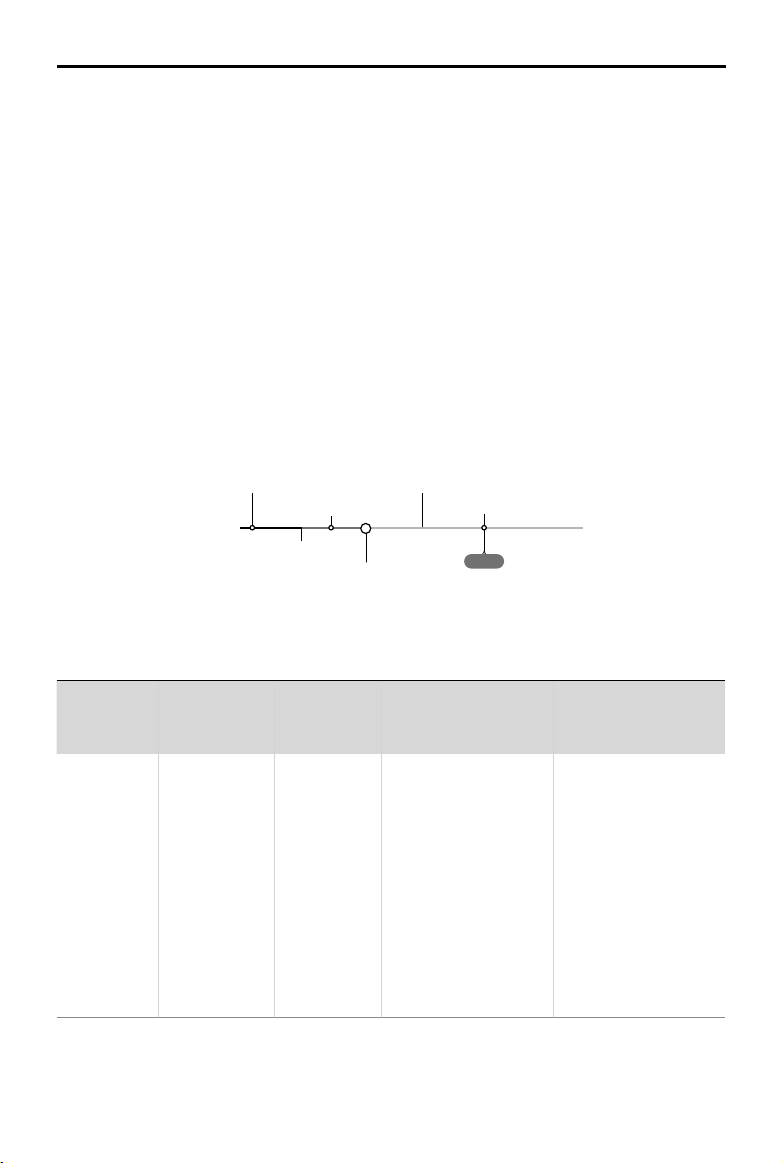
The Battery Level Indicator is displayed in the DJI Pilot app, and is described below:
12:29
Remaining ight time
Sufcient battery
level (Green)
Battery level Indicator
Power required to
return home (Yellow)
Critical Low battery
level warning
Low battery
level warning
Auto landing (Red)
H
Battery
Level
Warning
Remark
Aircraft
Status
Indicator
DJI Pilot App Flight Instructions
Low battery
level
warning
Battery power
is low. Land
the aircraft.
Aircraft
status
indicator
blinks RED
slowly.
Tap “Go-home” to
have the aircraft return
to the Home Point and
land automatically, or
“Cancel” to resume
normal ight. If no
action is taken,
the aircraft will
automatically go home
after 10 seconds.
Remote controller will
sound an alarm.
If RTH is selected, the
aircraft will y back
to the Home Point
automatically and
Landing Protection*
will be triggered. Users
can regain control
during RTH. NOTE:
The low battery level
warning will not appear
again after users regain
control.

©
2020 DJI All Rights Reserved.
23
MATRICE 300 RTK User Manual
Critical Low
battery level
warning
The aircraft
must land
immediately.
Aircraft
status
indicator
blinks RED
quickly.
The DJI Pilot app
display will ash red
and the aircraft will start
to descend. The remote
controller will sound an
alarm.
Allow the aircraft to
descend automatically
and trigger Landing
Protection*.
Estimated
remaining
ight time
Estimated
remaining time is
based on current
battery level.
N/A N/A N/A
When the Critical Low battery level warning is triggered and the aircraft begins to land
automatically, push the left stick upward to make the aircraft hover at its current altitude,
giving you an opportunity to navigate to a more appropriate landing location.
The colored zones and markers on the battery level indicator bar reect the estimated
remaining ight time. They are automatically adjusted according to the aircraft’s current
location and status.
Failsafe RTH
Failsafe RTH (enabled in the app) is automatically activated if the remote controller and the aircraft
are disconnected. Failsafe RTH includes two stages of return to home: historical ight path and
Smart RTH. When Failsafe RTH is enabled, the aircraft will return to home based on its historical
ight path. Within a maximum distance of 50 meters, the aircraft will try to reconnect to the remote
controller. If the aircraft cannot reconnect to the remote controller within 50 meters or the aircraft
detects obstacles in front of it (enroute to its return to home ight path), the aircraft will exit the stage
of return to home (based on its historical path), and enter the Smart RTH stage. When the remote
controller is connected to the aircraft during return to home, users can use the remote controller
to control the aircraft’s ight speed and altitude, and cancel Return to Home by pressing the RTH
button on the remote controller.
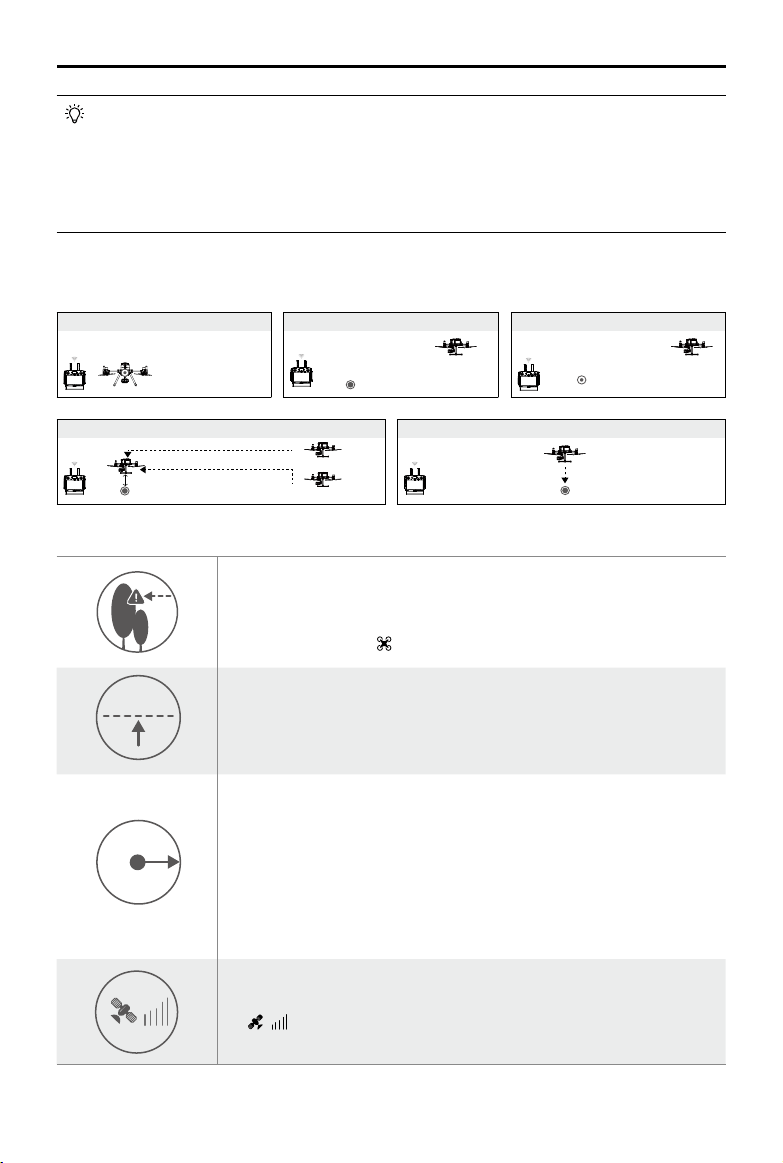
RTH Procedure
1. Home Point is recorded automatically.
2. RTH procedure is triggered, i.e., Smart RTH, Low-Battery RTH, and Failsafe RTH.
3. Home Point is conrmed and the aircraft adjusts its orientation.
4. a. Vision Systems enabled: When less than 50 m (164 ft) from the Home Point, the aircraft will y
to the Home Point at the current altitude. If more than 50 m (164 ft) from the Home Point and
below the pre-set RTH altitude, the aircraft will ascend to the pre-set RTH altitude before ying
to the Home Point. The aircraft will y directly to the Home Point if it is above the pre-set RTH
altitude.
b. Vision Systems disabled: If below the pre-set RTH altitude, the aircraft will ascend to the pre-
set RTH altitude before ying to the Home Point. The aircraft will y directly to the Home Point
if it is above the pre-set RTH altitude.
5. The aircraft will return to the Home Point, and Landing Protection* will be triggered to allow the
aircraft to land or hover in place. Refer to Landing Protection Function for details.
24
©
2020 DJI All Rights Reserved.
MATRICE 300 RTK User Manual
When using an aircraft firmware version of v01.00.0214 or earlier, Step 4 of the RTH
procedure is as below:
a. Th
e aircraft will ascend to the pre-set RTH altitude and y to the Home Point when the
aircraft is more than 20 m (65 ft) from the Home Point or higher than 30 m (98 ft). Make
sure RTH Obstacle Detection is enabled in DJI Pilot.
b. When the above conditions are not met, the aircraft will land directly after RTH is triggered.
* Make sure that the Downward Vision Positioning is enabled in the DJI Pilot app.
Use the Smart RTH for example:
1.RecordHomePoint
4.RTH(AdjustableAltitude)
2.UsetheRTHbuttontoinitiateSmartRTH 3.PreparingforRTH
Height over HP>Failsafe Altitude
Elevate to Failsafe Altitude
Height over HP<=Failsafe Altitude
Failsafe Altitude
5.EnterLandingProtectiontolandorhover
Hovering at 0.7 meters above the
Home Point
Failsafe Safety Notices
20 m
20 m
H
RTH Altitude
The aircraft cannot avoid obstacles during Failsafe RTH when the
Forward Vision System is disabled. Therefore, it is important to set a
suitable Failsafe altitude before each flight. Launch the DJI Pilot app,
enter Camera and tap to set the Failsafe Altitude.
20 m
20 m
H
RTH Altitude
If RTH is triggered when the aircraft is below 20 m (65 ft), the aircraft
will automatically ascend to 20 m (65 ft) from the current altitude. The
vertical speed can be adjusted using the throttle stick during ascent with
a maximum descent speed of 1 m/s and ascent speed of 3 m/s.
20 m
50 m
H
RTH Altitude
If RTH is triggered when the aircraft is less than 50 m (164 ft) from the
Home Point, the aircraft will y to the Home Point at the current altitude.
The aircraft will ascend to the pre-set RTH altitude if the Vision Systems
are disabled.
When using an aircraft rmware version of v01.00.0214 or earlier: If RTH
is triggered when the aircraft is within 20 m (65 ft) of the Home Point and
below 30 m, the aircraft automatically descends and lands. If above 20 m
(65 ft), the aircraft immediately returns to the Home Point.
20 m
20 m
H
RTH Altitude
The aircraft cannot return to the Home Point when GPS signal is weak
( [ ] displaying less than three bars) or is unavailable.
©
2020 DJI All Rights Reserved.
25
MATRICE 300 RTK User Manual
Obstacle Avoidance During RTH
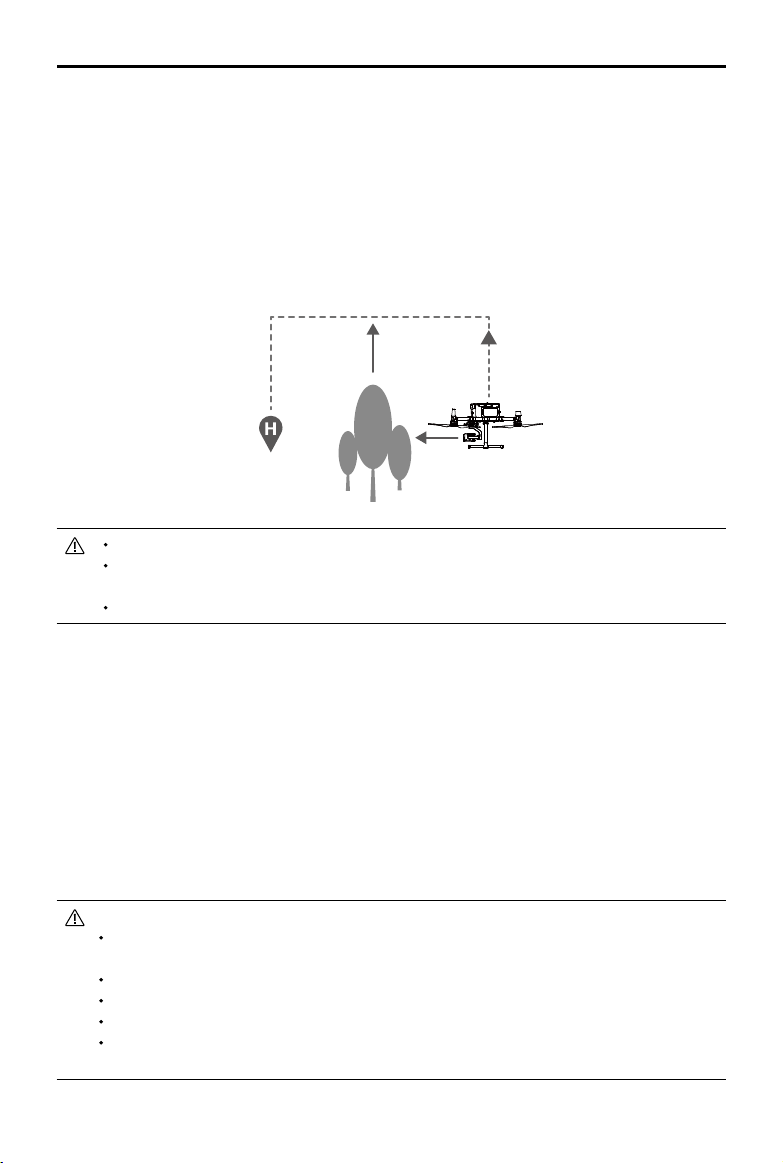
Theaircraftcan sense andactivelyattempttoavoidobstaclesduringRTH,providedthatlighting
conditionsareadequatefortheForwardVisionSystem.Upondetectinganobstacle,theaircraftwillact
asfollows:
1.Theaircraftdecelerateswhenanobstacleissensedatapprox.65feet(20meters)ahead.
2.Theaircraftstopsandhoversthenstartsascendingverticallytoavoidtheobstacle.Eventually,theaircraftwill
stopclimbingwhenitisatleastapprox.16feet(5meters)abovethedetectedobstacle.
3.RTHprocedureresumes.TheaircraftwillcontinueyingtotheHomePointatthecurrentaltitude.
Approx.5
meters
Approx.20meters
Obstacle Sensing is disabled during RTH descent. Proceed with care.
To ensure the aircraft returns home forwards, it cannot rotate during RTH while the Vision
System is enabled.
The aircraft cannot avoid obstacles beside or behind it.
Landing Protection Function
LandingProtectionwillactivateduringauto-landing.
1.LandingProtectiondetermineswhetherthegroundissuitableforlanding.Ifso,theaircraftwillland
smoothly.
2.IfLandingProtectiondeterminesthatthegroundisnotsuitableforlanding,theaircraftwillhoverand
waitforpilotconrmation.Theaircraftwillhoverifitdetectsthegroundisnotappropriateforlanding
evenwithacriticallylowbatterywarning.Onlywhenthebatteryleveldecreasesto0%willtheaircraft
land.Usersretaincontrolofaircraftightorientation.
3.IfLandingProtection isinactive,theDJIPilotappwilldisplaya landingpromptwhentheaircraft
descendsbelow0.7meters.Taptoconrmorpulldownthecontrolstickfor2secondstolandwhen
theenvironmentisappropriateforlanding.
Landing Protection will not be active in the following circumstances:
When the user is controlling the pitch/roll/throttle sticks (Landing Protection will re-activate
when the control sticks are not in use)
When the positioning system is not fully functional (e.g. drift position error)
When the downward vision system needs re-calibration
When light conditions are not sufcient for the downward vision system
If an obstacle is within one meter of the aircraft, the aircraft will descend to 0.7 m above the
ground and hover. The aircraft will land after user conrmation.
26
©
2020 DJI All Rights Reserved.
MATRICE 300 RTK User Manual
Center of Gravity Calibration
Thecenterofgravitywillshiftwhentheaircraft’spayloadschange.Toensurestableight,itisrequired
torecalibratetheaircraft’scenterofgravitywhenanewpayloadisinstalled.
Calibrateinawindlessenvironment.Makesurethattheaircraftishoveringandthereisa
strongGNSSsignalduringcalibration.
Maintainvisuallineofsightoftheaircraftandpayattentiontoightsafety.
Calibrationinstructions:Goto FlightControllerSettingsinthe app,andtapCalibrateintheCenterof
GravityAutoCalibrationsection.TheAircraftStatusIndicatorswillglowsolidpurpleduringcalibration.
Therewillbeapromptintheappaftercalibrationiscompleted.
Flight Recorder
Flightdataisautomaticallyrecordedtotheinternalstorageoftheaircraft.Youcanconnecttheaircraft
toacomputerviatheUSBportandexportthisdataviaDJIAssistant2orDJIPilotapp.
Propellers
Propellers Usage Guide
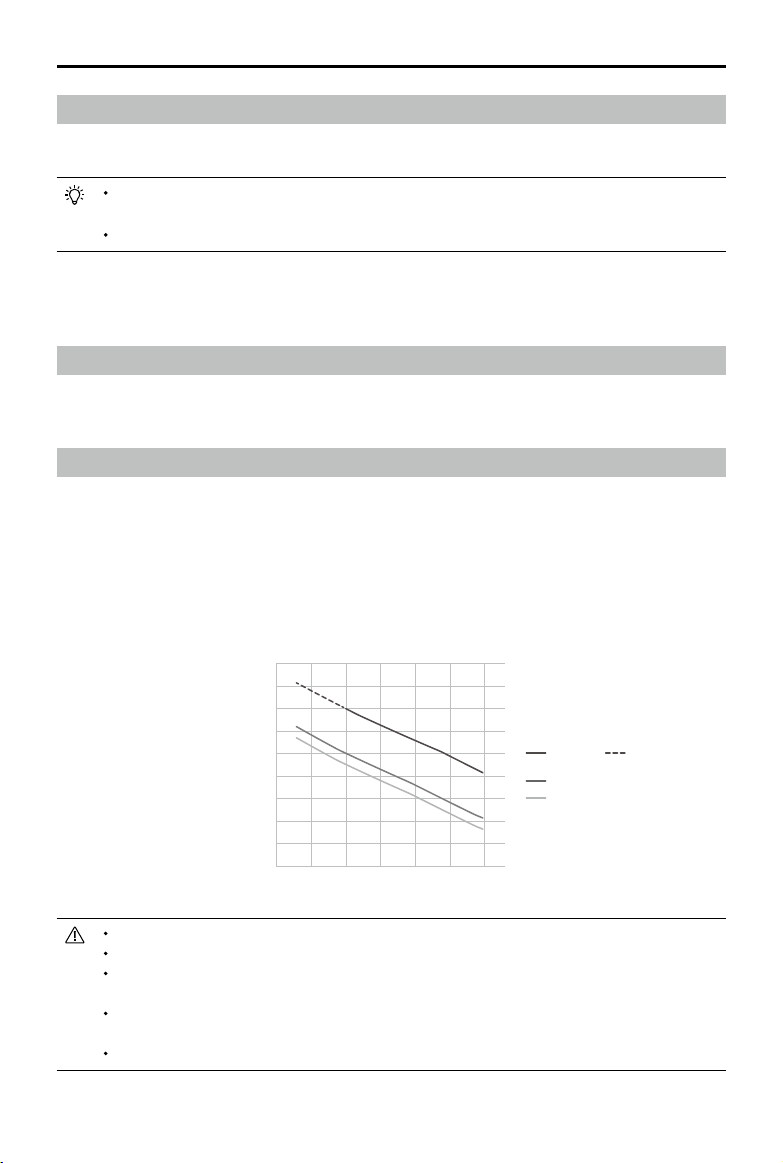
M300RTKusesthe2110propeller. The2195propellerispurpose-builtto improvetheaircraft’s
maximumightaltitudewhilemaintainingminimalightnoise.
Flightaltitudelimitisthemaximumheightthattheaircraftcanynormallywherethewindspeedshould
notexceed12m/s.Notethattheaircraft'sbrakingandaccelerationcapabilitiesarereducedneartothe
ightaltitudelimit.Pleasereadthediagrambelowtolearnmoreaboutusingtheappropriatepropellers
byreferringtotheaircraft’sweightandtheexpectedmaximumightaltitude.
Maximum ight altitude (m)
Takeo weight (kg)
2195 propeller
(
theoretical value, not
recommended for ight)
2110 propeller
Recommended altitude to use 2195 propeller
Usingthe2195propellersforextendedperiodswillreducethemotorlife.
OnlyuseDJIapprovedpropellers.DONOTmixpropellertypes.
Ensuretocheckthatthepropellersandmotorsareinstalledrmlyandcorrectlybeforeeach
ight.
Ensurethat allpropellersareingoodconditionbeforeeachflight. DONOTuseaged,
chipped,orbrokenpropellers.
Toavoidinjury,standclearofandDONOTtouchpropellersormotorswhentheyarespinning.
9000
0
0 6.5 7 7.5 8 8.5 9
2000
4000
7000
1000
3000
5000
6000
8000
©
2020 DJI All Rights Reserved.
27
MATRICE 300 RTK User Manual
Replacing the Propellers
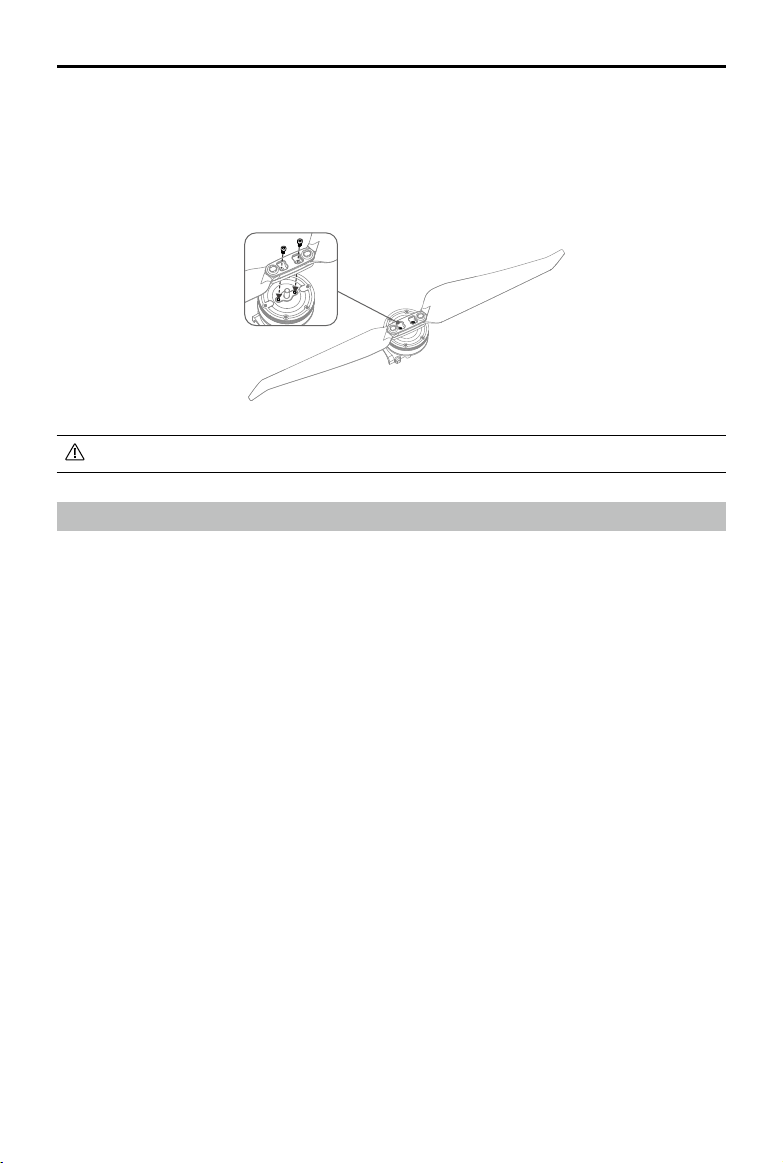
Inordertoreplacethepropellers,usetheH2.5hexkeywithball-end.
Itisrecommendedtoreplacethepropellersonlyinanemergencysituationduringoperations.Afterthe
emergencyightisover,pleasecontactDJItechnicalsupportoranauthorizedagentforoverhaul as
soonaspossible.
Propellerbladesaresharp;pleasehandlewithcare.
Intelligent Battery Station
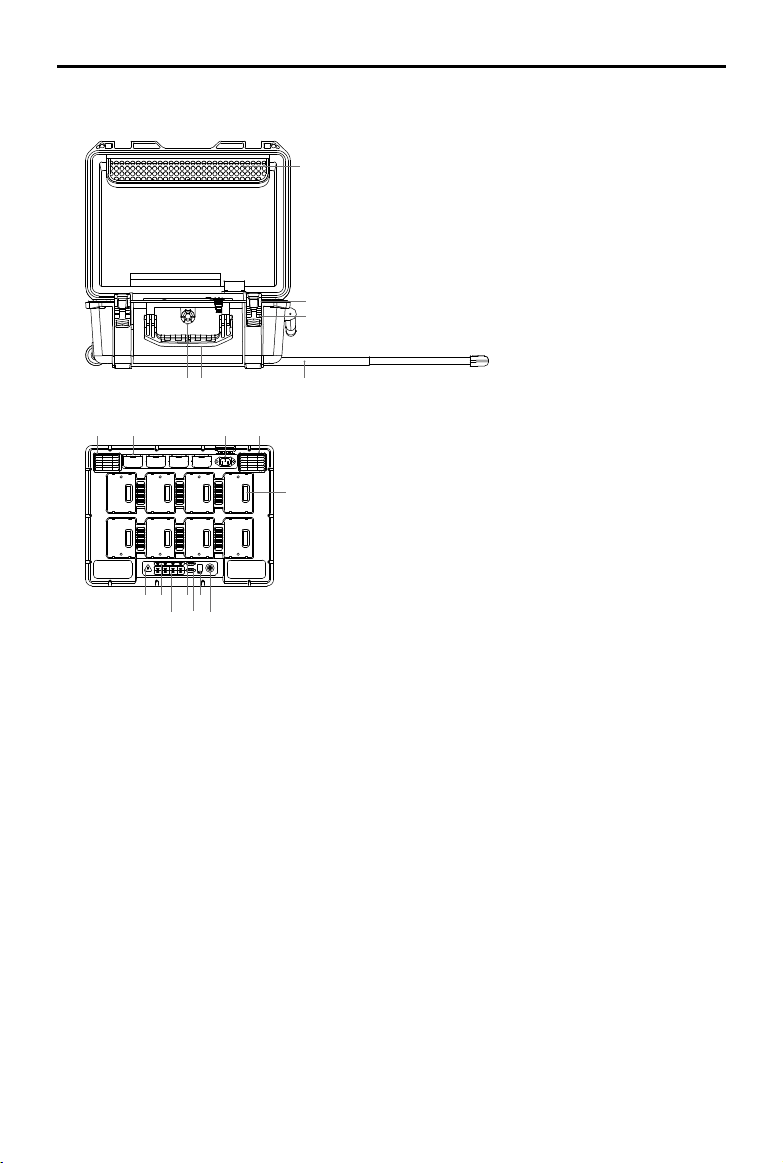
TheBatteryStationfeaturesatotalof12batteryportsandcanchargeuptoeightTB60IntelligentFlight
Batteries,andfourWB37IntelligentBatteries.Italsocomes built in withintegratedwheelsthatmake
theBatteryStationeasytomaneuverfromoneplacetoanother.
Warnings
1.Keepanyliquids(oil,wateretc.)awayfromtheinsideoftheBatteryStation.
2.DONOTclosetheBatteryStationduringchargingordischarging,andensureitiswellventilatedand
abletodissipateheat.
3. TheBatteryStationisonlycompatiblewiththeTB60IntelligentFlightBattery,andWB37Intelligent
Battery.DONOTusetheBatteryStationwithanyotherbatterymodels.
4. Place theBatteryStationonaatandstablesurfacewheninuse.Ensure the device isproperly
insulatedtopreventrehazards.
5. DONOTtouchthemetalterminalsontheBatteryStation.Ifthereisanynoticeabledebrisbuildup,
wipethemetalterminalswithaclean,drycloth.
6. Takecaretoavoid injuringfingerswhenopeningorclosing theBatteryStation,orusingthe
retractabletrolleyhandle.
7. Placethebatteriesinthespecieddirections.
8. AirpressureintheBatteryStationmaychangeduringairtransportationorafterextremebarometric
pressure changes.Thepressurevalveknobonthesideofthe BatteryStationwillbalancetheair
pressureautomatically.
9. PleaseusethedustblowertoclearthesandanddustintheBatteryStation.
28
©
2020 DJI All Rights Reserved.
MATRICE 300 RTK User Manual
5
4
6
2
1
3
7 8 9 10
11
12 13
14
16
15
17
18
1.ACPowerCableSlot
2.PadlockHoles
3.Locks
4.RetractableTrolleyHandle
5.Handles
6.PressureValve
7.AirIntake
8.WB37BatteryPort
9.PowerPort
10.AirVent
11.TB60BatteryPort
12.WarningLED
13.WB37BatteryStatusLEDs
14.TB60BatteryStatusLEDs
15.WB37ChargingStatusLEDs
16.TB60ChargingStatusLEDs
17.FirmwareUpdatePort(USB-C)
18.PowerButton/PowerIndicator
Overview
©
2020 DJI All Rights Reserved.
29
MATRICE 300 RTK User Manual
Activation
UseDJIPilotappandfollowtheinstructionsbelowtoactivatetheBatteryStation.
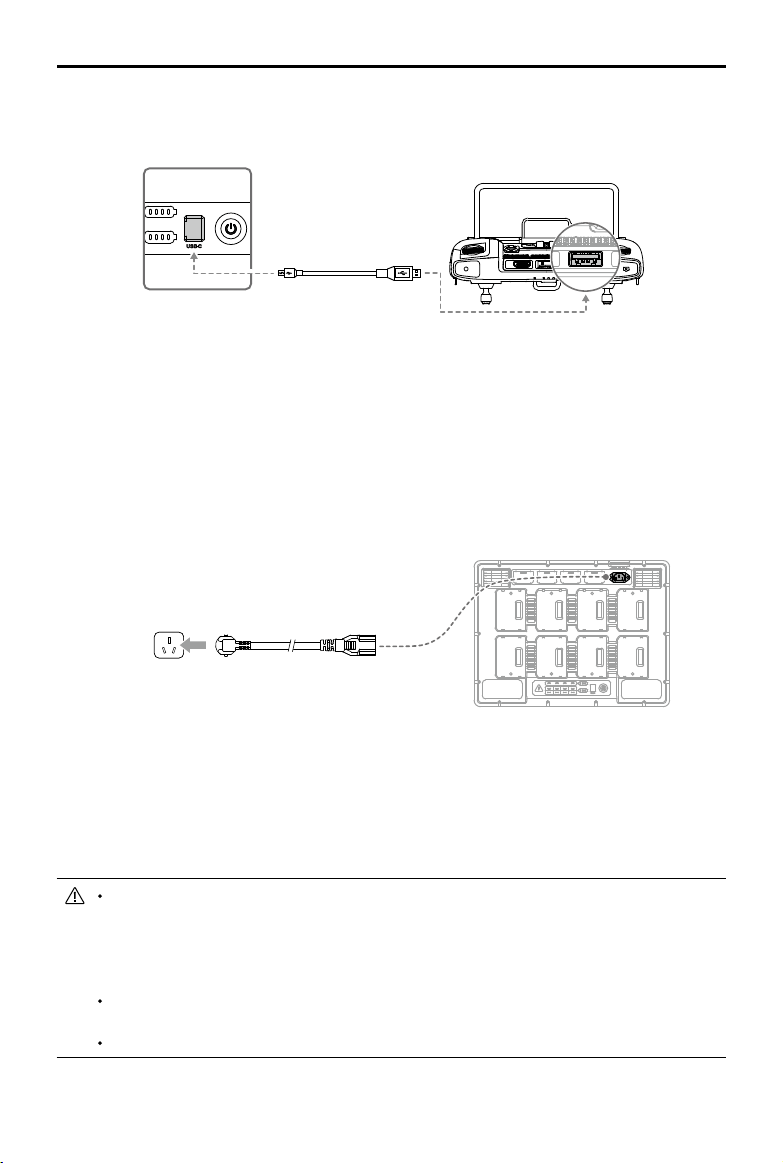
1. ConnecttheBatteryStationtoapoweroutletandpressthePowerButtontoturnontheBattery
Station.ConnecttheBatteryStationtotheremotecontrollerusingaUSB-Ccable.
2. TurnontheremotecontrollerandruntheDJIPilotapp.
3. FollowtheappinstructionstoactivatetheBatteryStation.
Using the Battery Station
Charging
1.ConnecttheBatteryStationtoapoweroutlet(100-120Vac,50-60Hz/220-240Vac,50-60Hz)via
theACpowercable.
2.PressthePowerButtononcetoturnontheBatteryStation.
3.InsertthebatteriesintotheBatteryPortstostartcharging.
a.Wi
th a 100-120 V input, it takes about 70 minutes to fully charge the TB60 battery, and 40
minutes to charge from 20% to 90% battery level.
b. Wit
ha220-240Vinput,ittakesabout60minutestofullychargetheTB60battery,and30minutes
tochargefrom20%to90%batterylevel.
ForTB60IntelligentFlightBatteries,theBatteryStationwillchargethetwobatterieswiththe
mostamountofremainingbatterypowerrst.For example,ifthereare fourTB60batteries
pluggedintotheBatteryStation(thersttwobatterieshave10%remainingbatterypower
andthesecondtwobatterieshave 30%remainingbatterypower),theBatteryStation will
automaticallychargethebatterieswiththehighestremainingbatterypowerrst.
ForWB37Batteries,theBatteryStation will chargethebatterywiththehighestremaining
batterypowerrst.
Whenthetemperatureofthebatteryistoolow,itwillwarmupautomaticallybeforecharging.
PowerOutlet

30
©
2020 DJI All Rights Reserved.
MATRICE 300 RTK User Manual
Refertothe“BatteryStationLEDsDescription”formoreinformationaboutthevariousLEDs.
DJIdoesnottakeanyresponsibilityfordamagecausedbythird-partychargers.
Toensuresafety,dischargethebatterybeforetransportingtheaircraft.Flytheaircraftoutdoors
untilitspowerlevelrangeswithin30%to20%.
Thebatteryhasacapacityof274Wh.Pleasefollowtheregulationsandguidelinesfortraveling
withthesebatteriesviaair.
Warming up and Charging in Low Temperature
Whenthetemperaturefallsbetween-20℃to5℃,theBatteryStationwillwarmupthebatterybefore
chargingit.
DONOTchargethebatteryfrequentlyinlow-temperatureenvironments,asthechargingtime
becomeslonger,andthebatterylifemaybeshortened.
Battery Station LEDs Description
LED Indicators Descriptions
Power Indicator
Solidgreen Poweredon.
Battery Status LEDs
Solidgreen Chargingcompleted.
Blinksgreen Charging.
Solidyellow Waitingforcharging.
Blinksyellow Warmingupbeforecharging.
Blinksyellowtwice Coolingdownbeforecharging.
Blinksyellowthreetimes
Cannotchargethebatteryduetoverylowtemperature.Pleasecharge
thebatteryintheplaceofhighertemperature.
Solidred Batteryerror.*
Blinksred Batterycommunicationwarning,pleasetryotherbatteryports.
Blinksredtwice Batteryshortcircuit,pleasetryotherbatteryports.
Warning LED
Blinksyellow BatteryStationisupdating.
Solidyellow
Theinputvoltageistoolow.Pleaseusethepowersupplythatmeets
therequirements.
Blinksred Powermodulecommunicationerrororother.*
Blinksredtwice Motherboarderror.*
Blinksredthreetimes Fan error. *
Blinksredfourtimes BatteryStationself-testerror.*
Forerrorsmarkedwith*,pleasecontactyourlocaldealerorarepresentativefromtheDJIafter-sales
team.

©
2020 DJI All Rights Reserved.
31
MATRICE 300 RTK User Manual
Buzzer Beeping Description
Buzzerbeepingisusedtoindicateerrorsasoutlinedbelow.
1. WhentheBatteryStatusLEDisred,thebuzzerisbeepingtoindicateabatteryerror.
2. WhentheWarningLEDisred,thebuzzerisbeepingtoindicateaBatteryStationhardwareerror.
Specications
Model BS60
Dimensions 501×403×252mm
NetWeight 8.37kg
MaxInternalLoad 12kg
CompatibleStoredItems
TB60IntelligentFlightBattery×8
WB37IntelligentBattery×4
ACPowerCable
Input 100-120Vac,50-60Hz/220-240Vac,50-60Hz
Output
TB60IntelligentFlightBatteryPort:
52.8V,7A×2@100-120V,8.9A×2@220-240V
WB37IntelligentBatteryPort:8.7V,6A
OutputPower
100-120V,750.0W
220-240V,992.0W
PowerwithoutLoad <8W
Warmingupthebattery 52.8V,2A
OperatingTemperature -20℃to40℃(-4°Fto104°F)
ChargingTime*
100-120V,70min
220-240V,60min
ProtectionFeatures
Anti-backowProtection
ShortCircuitProtection
OverVoltageProtection
OverCurrentProtection
TemperatureProtection
*Chargingtimesaretestedinalabenvironmentatroomtemperature.Thevaluesprovidedshouldbeusedfor
referenceonly.
32
©
2020 DJI All Rights Reserved.
MATRICE 300 RTK User Manual
Battery Station Firmware Update
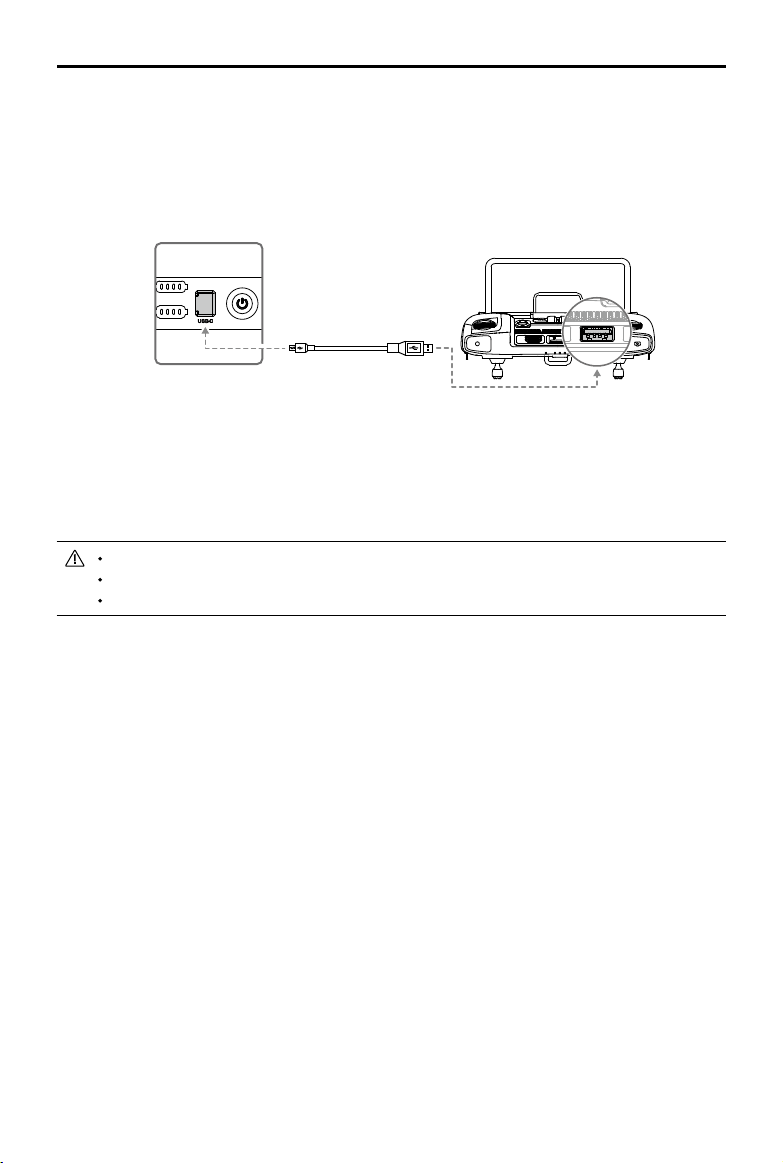
UsetheDJIPilotApptoupdatermwareoftheBatteryStationaswellasupto8TB60ightbatteries
atthesametime.
1. InsertthebatteriesintotheBatteryPortsandturnontheBatteryStation.
2. ConnecttheBatteryStationtotheremotecontrollerusingaUSB-Ccable.
3.TurnontheremotecontrollerandmakesureitisconnectedtotheInternet.
4.RuntheDJIPilotapp, tap toenterPILOTpage.Ifitshowsthatthereisarmwareupdateforthe
BatteryStation,thentapintotheHMSpage.
5.Taptoenterthermwareupdatepage.
6.Taptheupdateallbuttonandwaitforabout10minutestocompletethermwareupgrade.
Duringrmwareupdate,donotinsertorremovethebatterytoavoidbatteryupdatefailure.
Duringrmwareupdate,donotunplugtheUSB-Ccabletoavoidbatteryupdatefailure.
Duringrmwareupdate,donotchargethebatterystation.

©
2020 DJI All Rights Reserved.
33
MATRICE 300 RTK User Manual
Intelligent Flight Battery
Battery Introduction
TheTB60IntelligentFlightBatteryhashigh-energycells,andasmartcharge/dischargefunctionality.It
shouldonlybechargedusingappropriateDJIapprovedchargers.TheIntelligentFlightBatterymustbe
fullychargedbeforeusingitforthersttime.Thebattery rmwareisincludedintheaircraftrmware.
Makesurethatallthebatteries'rmwareisup-to-date.
DJI Intelligent Flight Battery Functions
1. BatteryLevelDisplay:TheLEDindicatorsdisplaythecurrentbatterylevel.
2. Chargeordischargethebatteryto40% ~ 60%ifNOTintendedtobeusedfor10daysor more.
Thiscangreatlyextendthebattery'soveralllifespan.Ittakesapproximately6daystodischargethe
batteryto60%.It isnormalthatyoumayfeelmoderateheatemittingfromthebatteryduringthe
dischargeprocess.YoucansetthedischargingthresholdsintheDJIPilotapp.
3. BalancedCharging:Automaticallybalancesthevoltageofeachbatterycellwhencharging.
4. OverchargeProtection:Chargingautomaticallystopswhenthebatteryisfullycharged.
5.TemperatureDetection:Thebatterywillnotbe chargedtoavoiddamagewhenthe battery
temperatureislowerthan-20°C(-4°F)orhigherthan45°C(113°F).
6.OverCurrentProtection:Thebatterystopschargingwhenahighamperageisdetected.
7. OverDischargeProtection:Over-discharging canseriouslydamagethebattery.Currentoutput will
becutowhenthebatterycellisdischargedto3.2Vwhennotinightmode.Forextendedight
times,over-dischargingprotectionisdisabledasbatteriesdischargeduringight.Inthisinstance,a
batteryvoltagebelow1.8Vmaycauseasafetyhazardsuchasarewhencharged.Topreventthis,
thebatterywillnotbeabletochargeifthevoltageofasinglebatterycellisbelow1.8V.Avoidusing
anybatteriesmatchingthisdescriptionand avoidseriousover-discharging topreventpermanent
batterydamage.
8. ShortCircuitProtection:Automaticallycutsthepowersupplywhenashortcircuitisdetected.
9. BatteryCellDamageProtection:DJIPilotdisplaysawarningmessagewhenadamagedbatterycell
is detected.
10.SleepMode:Sleepmodeisenteredtosavepowerwhentheaircraftisnotying.
11.Communication:Informationpertainingtothebattery’svoltage,capacity,current,etc.istransmitted
totheaircraft’smaincontroller.
12.Heating:Batteriesareabletoworkevenincoldweather,ensuringasafeight.
13.WaterproofandDustproof:TheaircrafthasanIP45ProtectionRating,withthebatteriesinstalled.
RefertotheDisclaimerandIntelligentFlightBatterySafetyGuidelinesbeforeuse.Userstakefull
responsibilityforalloperationsandusage.
34
©
2020 DJI All Rights Reserved.
MATRICE 300 RTK User Manual
Installing the Batteries
Pairing Batteries
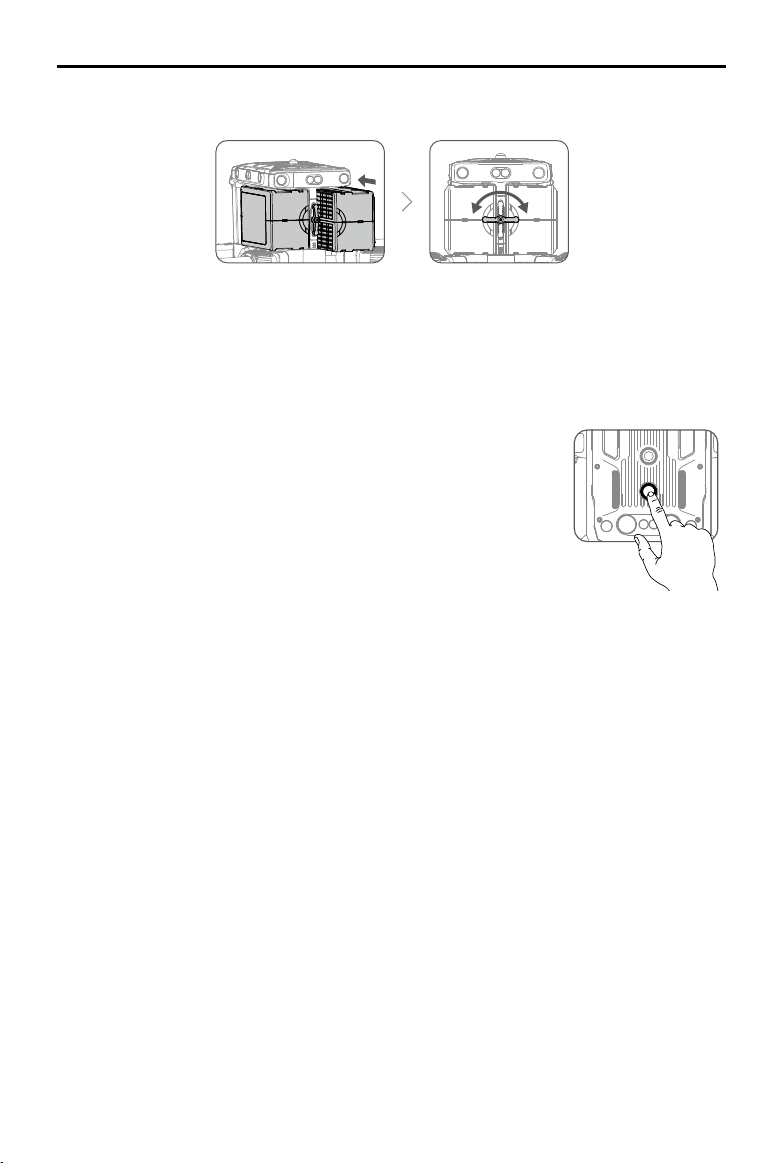
Beforerstuse,itisrecommendedtomark2batteriesasapairandcontinueusingthemasapair(charge
anddischargethemtogether)tomaximizeservicelifeandensureightperformance.Iftwo batteries
withasignicantdierenceinbatterylifeareinstalledandpoweredon,apromptwillpopupintheapp
torecommendthatyoureplacethebatteriestoapairwithsimilarperformance.
Replacing the Batteries When Turned On
Ifthebatteryneedstobe replacedimmediatelyafterlanding,youcanreplaceitwithoutturning off
theaircraft.Replacewithonefullychargedbattery,andwaitfor3seconds,andthenreplaceanother
battery.
Heating the Battery
ManualHeating:IftheIntelligentFlight Batteryisnotinstalledintotheaircraft,pressandholdthe
batterylevelbuttononthebatteryforfoursecondstoinitiatetheself-heating,keepingthebatteriesata
temperaturebetween61°F(16°C)and68°F(20°C),whichistheidealrangeofoperatingtemperature,
forapproximately30minutes.Pressandholdthebatterylevelbuttonfortwosecondstostopheating.
AutoHeating:Insertthe batteriesintotheaircraftandpoweriton.Ifalowbatterytemperatureis
detected,thebatterywillautomaticallyheatupto maintain a temperaturebetween61°F(16°C)and
68°F(20°C).
LowTemperatureNotice:
1.TheperformanceoftheintelligentFlightBatteryissignicantlyreducedwhenyinginlowtemperature
environments(temperaturesbelow5℃).Ensurethatthebatteryisfullychargedandthecellvoltage
isat4.4Vbeforeeachight.
2.EndtheflightassoonasDJIPilotdisplaysthe“Low BatteryLevelWarning”inlow temperature
environments.Youwillstillbeabletocontroltheaircraft’smovementwhenthiswarningistriggered.
3.Inextremelycoldweather,thebatterytemperaturemaynotbehighenoughevenafterwarmingup.In
Turning On / O
Thebatterycanonlybeturnedonandoffafteritisinstalledonthe
aircraft.
TurningOn:PressthePowerbuttononce,thenpressagainandholdfor3
secondstoturnon.ThePowerLEDwillturngreenandtheBatteryLevel
Indicatorswilldisplaythecurrentbatterylevel.
TurningO:PressthePowerbuttononce,thenpressagainandholdfor
3secondstoturno.ThePowerLEDandtheBatteryLevelIndicatorswill
beo.

©
2020 DJI All Rights Reserved.
35
MATRICE 300 RTK User Manual
thesecases,insulatethebatteryasrequired.
4.Toensureoptimalperformanceofthebattery,keepthebatterytemperatureabove16℃.
5.Inlowtemperatureenvironments,itwilltakealongertimefor thebatteriestowarmup.Itis
recommendedtokeepthebatterywarmbeforeusetoreducethewarm-uptime.
Checking Battery Levels
Whenthebatteryisturnedo,presstheBatteryLevelbuttononceandtheBatteryLevelIndicatorswill
displaythecurrentbatterylevel.
Low
High
BatteryLevelIndicatorsdisplayhowmuchpowerremains.Whenthebattery isturned o,pressthe
PowerbuttononceandtheBatteryLevelIndicatorswilldisplaythecurrentbatterylevel.Seebelowfor
details.
TheBatteryLevelIndicatorswill alsoshowthecurrentbatterylevel duringdischarging.The
indicatorsaredenedbelow.
:LEDison. :LEDiso.
:LEDisashing.
Battery Level
LED1 LED2 LED3 LED4 Battery Level
88%~100%
75%~88%
63%~75%
50%~63%
38%~50%
25%~38%
13%~25%
0%~13%

36
©
2020 DJI All Rights Reserved.
MATRICE 300 RTK User Manual
D-RTK
Introduction
Theaircrafthasabuilt-inRTK,whichcanwithstandmagneticinterferencefrommetalstructures,
ensuringstableight.MoreaccuratepositioningdatacanbeachievedwhenusingaDJID-RTK2High
PrecisionGNSSMobileStation.
Enable / Disable RTK
Ensurethatthe“AircraftRTK”isenabledandRTKservicetypeiscorrectlyset(D-RTK2MobileStation)
beforeeachuse.GotoCameraViewintheapp> >RTKtoviewandset.MakesuretodisableRTK
functionifnotinuse.Otherwise,theaircraftwillnotbeabletotakeowhenthereisnodierentialdata.
Using the DJI D-RTK 2 Mobile Station
1. Refer totheD-RTK2MobileStationUserGuidetocomplete linkingbetweentheaircraftandthe
mobilestation,includingsetup.
2.IntheRTKSettingspageintheapp,selecttheRTKservicetypeas“D-RTK2”,connectthemobile
stationbyfollowingtheinstructions,andwait for the systemtostartsearchingforsatellites.In
theRTKSettingspage,thestatusoftheaircraft’spositioninginthestatustablewillshow“FIX”to
indicatethattheaircrafthasobtainedandusedthedierentialdatafromthemobilestation.
3. D-RTK2MobileStationrange:12km(CC/FCC),6km(SRRC/CE/MIC).
Using the Custom Network RTK
YoucanmountaDongletotheremotecontrollerorusetheapptoconnect to aWi-Fi,andenable
InternetnetworktousetheCustomNetworkRTK.CustomNetworkRTKcanbeused toreplacethe
RTKbasestation.ConnecttheCustomNetworkRTKaccounttothedesignatedNtripservertosend
andreceivedierentialdata.KeeptheremotecontrollerturnedonandtheInternetnetworkconnected.
1.Makesuretheremotecontrollerandtheaircraftarelinked,andtheappisconnectedtotheInternet
network.
2.GotoCameraViewintheapp> >RTK,selecttheRTKservicetypeas“CustomNetworkRTK”,
llintheNtrip’s host, port, account, password,mountpoint,andthentaptoset by following the
instructions.
3.WaittoconnecttotheNtripserver.IntheRTKSettingspage,thestatusoftheaircraft’spositioningin
thestatustablewillshow“FIX”toindicatethattheaircrafthasobtainedandusedthedierentialdata
fromthemobilestation.

©
2020 DJI All Rights Reserved.
37
MATRICE 300 RTK User Manual
DJI AirSense
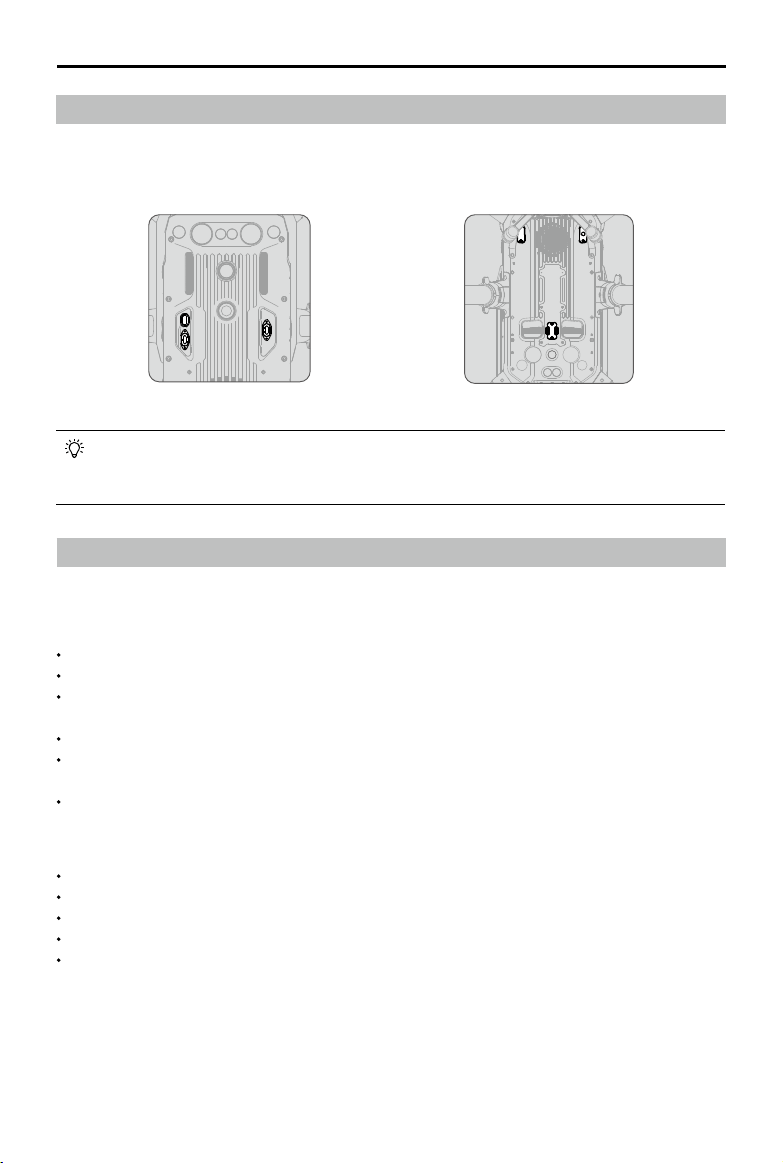
AirplanesandhelicopterswithanADS-Btransceiverwillactivelybroadcast ight information including
location,ightpath,speed, andaltitude.DJIAirSensereceivesthisbyADS-B transceiversviaanon-
boardreceiverorinternetconnection.UAVsinstalledDJIAirSensecanobtain the position,orientation
andvelocityinformationfromthemannedairplanebuilt-inADS-Btransmitter (1090ESandUAT
standardsupported), calculatethecollisionrisklevelrealtimeanddisplaythewarningtouser.The
systemwillanalyzethepotentialriskofcollisionbycomparingthelocationofanairplaneorahelicopter,
displayingtimelywarningstopilotsviatheDJIPilotapp.
DJIAirSenseprovides userswithinformationaboutnearbyairplanesandhelicopterstoensureight
safety.Thesystemdoesn’tactivelycontrolthedronetoavoidincomingairplanesorhelicopters.Always
yyouraircraftwithin avisuallineofsightandbecautiousatalltimes.Lower your altitude whenyou
receivewarnings.PleasebeawarethatDJIAirSensehasthefollowinglimitations:
1.ItcanonlyreceivemessagessentbyairplanesandhelicoptersinstalledwithanADS-B out device
andinaccordancewith1090ES(RTCADO-260)or UAT(RTCADo-282)standards.DJI devices
willnotreceiverelatedbroadcastmessagesordisplaywarningsforairplanesorhelicopterswithout
ADS-BoutsorwithmalfunctioningADS-Bouts.
2.IfthereisanobstacleorsteelstructurebetweenairplanesorhelicoptersandDJIaircraft,thesystem
won’tbe abletoreceiveADS-Bmessages sentbyairplanesorhelicoptersordisplaywarnings.
Keenlyobserveyoursurroundingsandywithcaution.
3.WarningsmaybesentwithdelaywhentheDJIAirSenseisinterferedbythesurrounding.Keenly
observeyoursurroundingsandywithcaution.
4.WarningsarenotsentwhenaDJIaircraftisunabletodetermineitslocation.
5.Itcannotreceive ADS-B messagessentbyairplanesorhelicoptersordisplay warningswhen
disabledormiscongured.
OnthepreconditionthatconnectionbetweenaDJIaircraftand thepilotremotecontrollerisstable,
whenthesystemconrmsthepossibilityofacollision,itwilldisplayaseriesofwarningsbasedonthe
distancebetweendroneandairplanesor helicopters.Werecommendedthattheoperatordescend
altitudeimmediatelyafterthefirstwarningtoavoidacollision,choosing another flightpathwhere
necessary.
WarningEscalation:
Therst(or"lowest")levelwarningoccurswhenthemannedaircraftisdetected.Alldetectedaircraftwill
bedisplayedintheapp(upto10aircraftatatime).Pleasepayattentiontoensureightsafety.
Thesecond(or“middle”)level warningoccurstwokilometersaway fromthemannedaircraft.Please
payattentiontoavoidanyhazards.
Thethird(or“highest”)levelwarningoccursonekilometerawayfromthemannedaircraft.Pleaseavoid
themannedaircraftimmediately.
Blue:Therstlevelwarning Yellow:Thesecondlevelwarning Red:Thethirdlevelwarning
38
©
2020 DJI All Rights Reserved.
MATRICE 300 RTK User Manual
IP45 Protection Rating
Understablelaboratoryconditions,the M300RTKachievesanIP45protectionrating byIEC60529
standardswhen equipped with TB60IntelligentFlightBatteries.However, thisprotectionratingisnot
permanentandmayreduceovertimeafterlong-termuse.
DONOTywhentheamountofrainfallexceeds100mm/24h.
DONOTfoldtheframearmsintherain.
Makesurethebatteryports,batterycompartmentports,batterysurfaces,andbatterycompartment
surfacesaredrybeforeinsertingthebatteries.
Makesurethebatteryportsandbatterysurfacesarefreefromanyliquidbeforechargingthebatteries.
Before packing theaircraftintothecarryingcase, ensurethatitisfreefromanyliquidbywipingit
carefully.
Productwarrantydoesnotcoverwaterdamage.
TheaircraftdoesnotachieveIP45protectionratinginthefollowingcircumstances:
Foldedframearms.
YouusebatteriesotherthantheM300RTK'sTB60IntelligentFlightBatteries.
Thecoverfortheportsarenotattachedcorrectly.
Thewaterproongtopshellplugisnotrmlyattachedtothetopshell.
Theaircraftisbrokenduetovariousreasons,suchasbrokenaircraftshell,failure ofthewaterproof
adhesive, etc.
Expansion Ports
TheM300RTKoffersseveralSDKexpansionportsonthetopandbottomofthe aircraft.These
expansionportsenabledeveloperstoexploremorepossibilitiesandfunctionswiththeaircraft.Formore
detailedinformation,visithttps://developer.dji.com/.
Bottom viewTop view
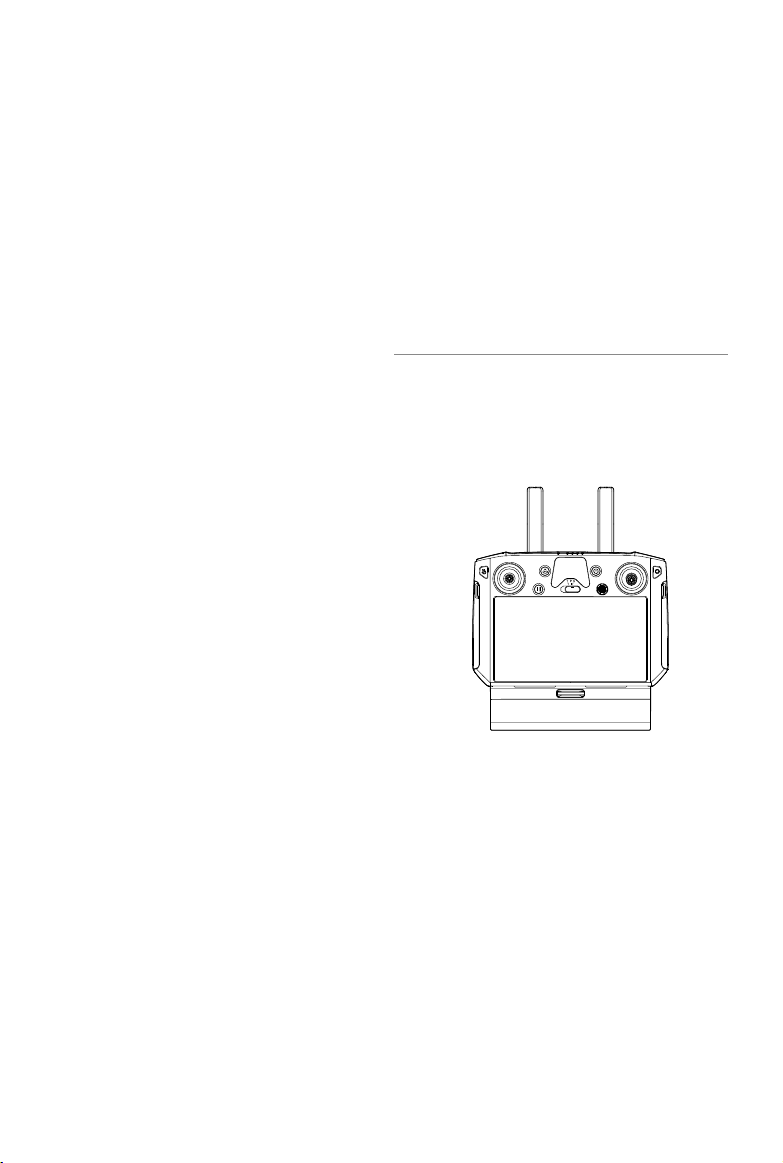
M300RTKsupportsthreePSDK portsandoneOSDKport.Theexternalpowersupply
capacityofthePSDKportis17.0V/13.6V4A.TheexternalpowersupplycapacityofOSDK
portis24V4A.ThesefourSDKportsincorporateapowerlimitof180W.
©
2020 DJI All Rights Reserved.
39
Remote Controller
This section describes the features of the
remote controller that includes aircraft
and remote controller operations.
40
©
2020 DJI All Rights Reserved.
Remote Controller
Prole
TheDJISmartController Enterprise(hereinafterreferredtoas“SmartController”)featuresOcuSync
Enterprisetechnology,capableofcontrollingaircraftthatsupportsthistechnology,andprovidinga liveHD
viewfromtheaircraft'scamera.Itcantransmitimagedataatdistancesofupto9.32mi(15km)andcomes
withanumberofaircraftandgimbalcontrolsaswellassomecustomizablebuttons.*
Thebuilt-in5.5-inchhighbrightness1000cd/m²screenhasaresolutionof1920×1080pixels,featuring
anAndroidsystem withmultiplefunctionssuchasBluetoothandGNSS.Inaddition tosupportingWi-Fi
connectivity,itisalsocompatiblewithothermobiledevicesformoreexibleusage.TheSmartControllerhas
amaximumworkingtimeof2.5hourswiththebuilt-inbattery.WhenusingtheWB37IntelligentBattery,the
maximumworkingtimecanbeextendedto4.5hours.**
* TheSmartControllercanreachmaximumtransmissiondistance(FCC) inanunobstructedareawithno
electromagneticinterferenceatanaltitudeofabout400feet(120meters).Theactualmaximumtransmission
distancemaybelessthanthedistancementionedaboveduetointerferenceintheoperatingenvironment,and
theactualvaluewilluctuateaccordingtothestrengthofinterference.
** Maximumoperatingtimeisestimatedinalabenvironmentatroomtemperature,forreferenceonly.Whenthe
SmartControllerispoweringotherdevices,theruntimewillbereduced.
Compliance Standards:
Theremotecontrolleriscompliantwithlocallawsandregulations.
Stick Mode:
ControlscanbesettoMode1,Mode2,ortoacustommode.
DoNOToperatemorethanthreeaircraftswithinthesamearea (roughlythesizeofa soccer
eld)topreventtransmissioninterference.
Preparing the Remote Controller
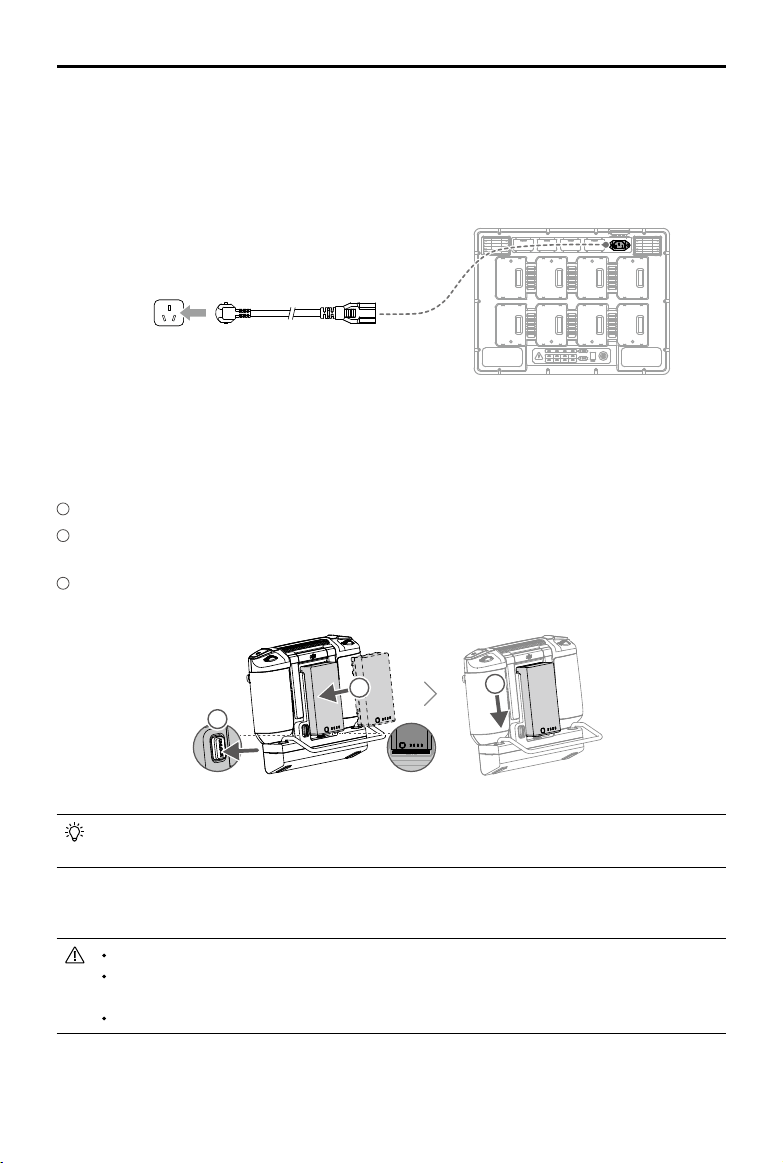
Charging
Charging the Remote Controller
Whenturnedo(usingthestandardUSBchargeratroomtemperature),ittakesapproximately2hours
and15minutestofullychargetheSmartController.
PowerOutlet
(100-240V)
USBCharger USB-CCable
Pleaseusetheocial USBChargertochargetheSmartController.WhenastandardUSB
Chargerisnotavailable,itisrecommendedtouseanFCC/CEcertiedUSBpoweradapter
rated12V/2A.
Pleaserechargethebatteryatleasteverythreemonthstopreventoverdischarging- the
batterywilldepletewhenstoredforanextendedperiod.
©
2020 DJI All Rights Reserved.
41
MATRICE 300 RTK User Manual
External Battery
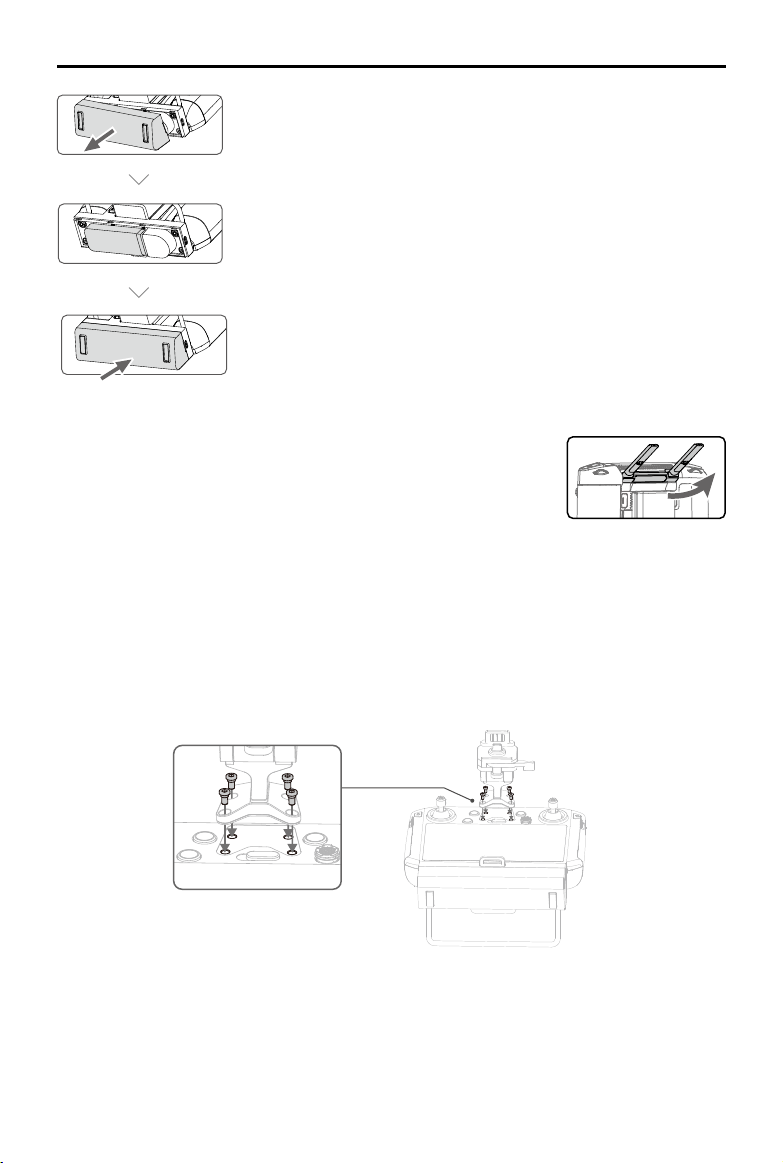
1. ConnecttheBatteryStationtoapoweroutlet(100-120Vac,50-60Hz/220-240Vac,50-60Hz).
2. PressthePowerButtononcetoturnontheBatteryStation.
3. InsertthebatteriesintotheBatteryPortstostartcharging.TheBatteryStationwillchargethebattery
withthehighestremainingbatterypowerrst.
Power Outlet
2
1
3
Mounting the WB37 Intelligent Battery
1
Pressandholdthebatteryreleasebutton.
2
Insert theIntelligentBatteryintothebatterycompartment.Makesurethebottomofthebatteryis
alignedtothemarkinglineinthecompartment.
3
Pushthebatterytothebottom.
ToremovetheIntelligentBattery,pressandholdthe batteryreleasebutton,thenpush the
batteryupward.
Mounting the 4G Dongle and SIM Card
OnlyuseaDJI-approveddongle.
ThedongleandSIM cardenabletheSmart Controllertoaccess4G network.Makesureto
deploythesecorrectly,otherwise,networkaccesswillnotbeavailable.
ThedongleandSIMcardareexcluded.
42
©
2020 DJI All Rights Reserved.
MATRICE 300 RTK User Manual
Removethedonglecompartmentcover.
InsertthedongleintotheUSBport with theSIMcardinsertedintothe
dongle.
Reattachthecoverrmly.
Adjusting the Antennas
Lifttheantennasandadjustthem.ThestrengthoftheSmartController
signalisaffectedby thepositionoftheantennas.Whentheangle
betweentheantennasand thebackoftheSmartControlleris80°or
180°,theconnectionbetweenthe SmartControllerandaircraftcan
reachitsoptimalperformance.
Installing Other Mobile Devices
Forothermobiledevices(e.g.iPhones,iPads),theScreenMountingBracketandanappropriateUSB
cablearerequired.
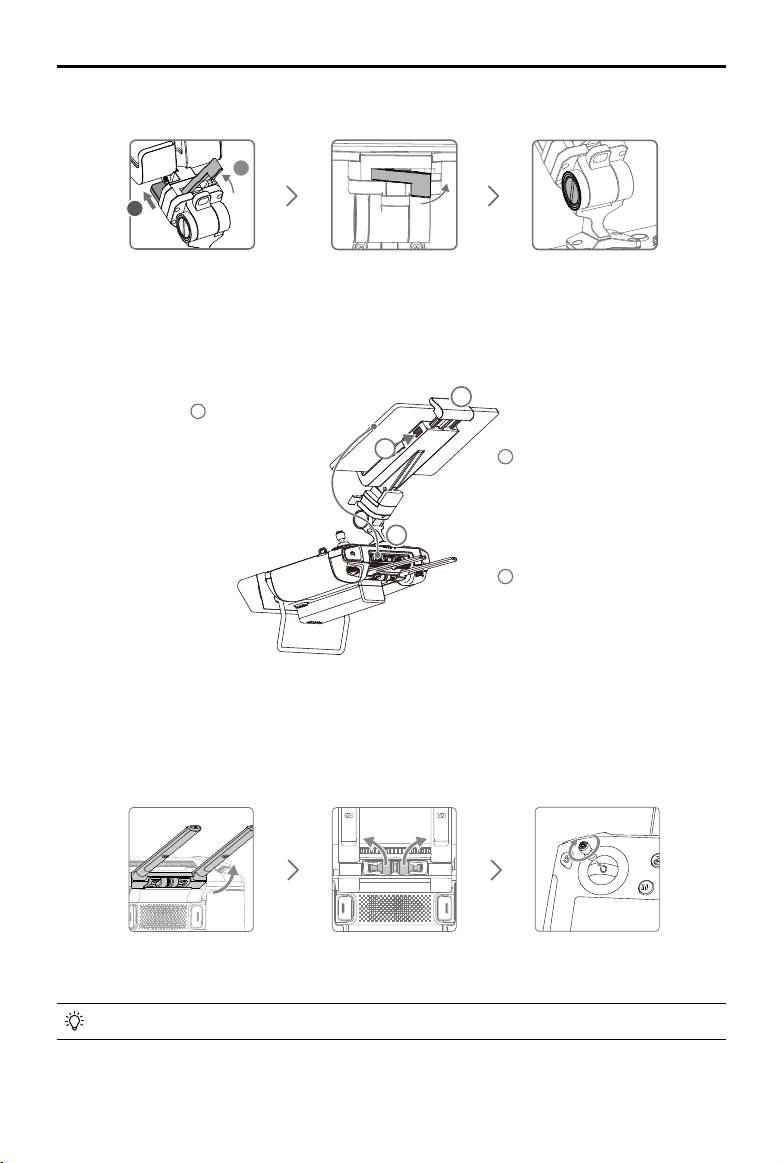
Mounting the Screen Mounting Bracket
©
2020 DJI All Rights Reserved.
43
MATRICE 300 RTK User Manual
Mounting the Mobile Device
1
Pressthebutton
toreleasethe
clamp.
2
Placeyourmobile
deviceandadjust
theclampto
secure.
3
Connectyour
mobiledevicewith
aUSBcable.
Attaching the Control Sticks
Followthestepsbelowtoattachthecontrolstickstotheremotecontroller.
LocktheMounting
Bracket.
Useacoinorthe
screwdriverincludedto
adjustthetightnessof
thetiltaxis.
EnsurethatPartBis
unlocked.Connect
PartBtoPartA.
Lifttheantennas Removethecontrolsticks Rotate to attach the
controlsticks
2
3
1
Thecontrolstickscanbestoredinthesticksstorageslotonthebackoftheremotecontroller.
A
B
44
©
2020 DJI All Rights Reserved.
MATRICE 300 RTK User Manual
Remote Controller Operations
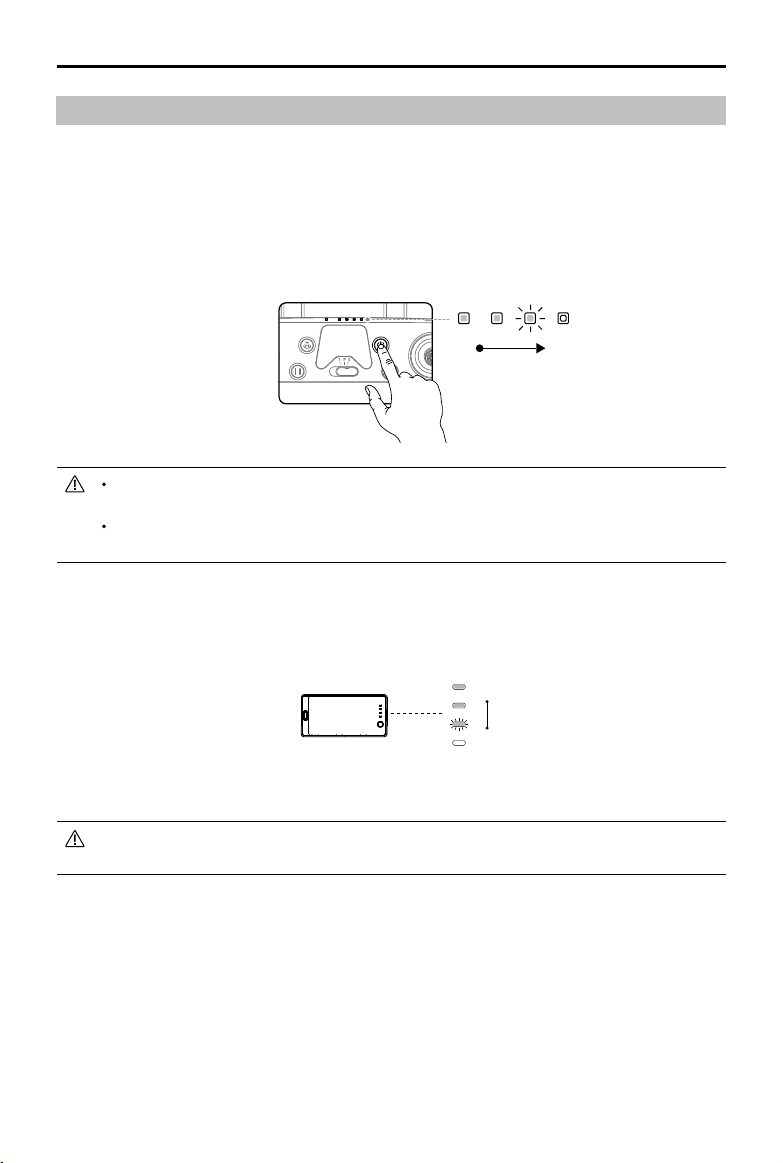
Checking the Battery Level and Turning On
Checking the Internal Battery Level
ChecktheinternalbatterylevelaccordingtotheBatteryLevelLEDs.Pressthepowerbutton onceto
checkitwhileturnedo.
Pressthe power button once,pressagainandholdforafewseconds to turnon/offtheSmart
Controller.
Low High
WhenusingexternalWB37IntelligentBattery,itisstillnecessarytomakesurethattheinternal
batteryhassomepower.Otherwise,theSmartControllercannotbeturnedon.
Oncetheremotecontrolcannotbeshutdownnormally,pressandholdthepowerbuttonfor
atleast8seconds,theremotecontrolwillbeforcedtoshutdown.
Checking the External Battery Level
Method1:Pressthebuttonoftheexternalbattery,thebatterylevelispresentedintheformofLED
lights.
Method2:Checkthepercentageofthebatterylevelinthestatusbarofthemainpageoftheremote
controller.
Whenusinganaircraftrmwareversionofv02.02.01.02orlater,itisnotpossibletotakeo
whenthebatteryleveloftheremotecontrollerisbelow10%.
Charging and Discharging Description
Charging
a. Theremotecontrollerisnotactivated,theinternalbatterycanonlyreachupto60%batterylevel,and
afteractivation,itcanreach100%.
b. Theinternalbatteryoftheremotecontrollercurrentlysupportschargingbythestandardchargerand
externalbattery(WB37).
c. Whentheexternalbatteryisusedindependentlyforcharging,theinternalbatterycanbechargedup
to50%.
d. Whentheworkingtemperatureisdierent,thechargingspeedvaries.
High
Low

©
2020 DJI All Rights Reserved.
45
MATRICE 300 RTK User Manual
Discharging
a. Whenthechargerandexternalbatteryareconnectedatthesametime,thechargersuppliespower
totheremotecontroller.
b.Whenonlytheexternalbatteryisconnected,theexternalbatterywillsupplypowertotheremote
controller.However,oncetheexternalbatteryisexhausted,theinternalbatterywillsupplypower.
Linking
WhentheSmartControllerispurchasedtogetherwithanaircraft,theremotecontrollerhasalreadybeen
linkedtotheaircraft, andtheycanbedirectlyusedafteractivatingtheremotecontrollerandaircraft.
IftheSmartControllerandtheaircraftwerepurchasedseparately, followthestepsbelowtolinkthe
remotecontrollertotheaircraft.
Method 1: Using Smart Controller Buttons
1.Powerontheremotecontrollerandtheaircraft.
2.PressthecustomizablebuttonC1,C2,andRecordbuttonsimultaneously.ThestatusLEDblinksblue
andthecontrollerbeepstwicetoindicatethelinkinghasstarted.
3.Pressthelinkingbuttonontheaircraft.Theremotecontroller’sstatusLEDwill besolidgreenifthe
linkingissuccessful.
Method 2: Using DJI Pilot
1.Powerontheremotecontrollerandtheaircraft.Tap“Pilot”onthehomepageandloginusingaDJI
account.
2.Tap“EnterDevice”,select“Connecttotheaircraft”,andfollowthepromptstostartlinking.
3.Select“EntertheCameraView”andtap incameraview. Scrolltothebottom,tap“Remote
ControllerLinking”andtap“OK”toconrm.
4.ThestatusLEDblinksblueandtheremotecontrollerbeepstwicetoindicatethelinkinghasstarted.
5.Pressthelinkingbuttonontheaircraft.Theremotecontroller'sstatusLEDwillbesolidgreenifthe
linkingissuccessful.
Method 3: Using Quick Settings
1.Powerontheremotecontrollerandtheaircraft.
2.SwipedownfromthetopofthescreentoopenQuickSettings.Tap tostartlinking.
3.ThestatusLEDblinksblueandtheremotecontrollerbeepstwicetoindicatethelinkinghasstarted.
4.Pressthelinkingbuttonontheaircraft.Theremotecontroller'sstatusLEDwillbesolidgreenifthe
linkingissuccessful.
Makesuretheremotecontrolleriswithin1.6ft(0.5m)oftheaircraftduringlinking.
Makesurethe remotecontrolleris connectedtotheinternetwhenlogginginusingaDJI
account.
46
©
2020 DJI All Rights Reserved.
MATRICE 300 RTK User Manual
Operating the Aircraft
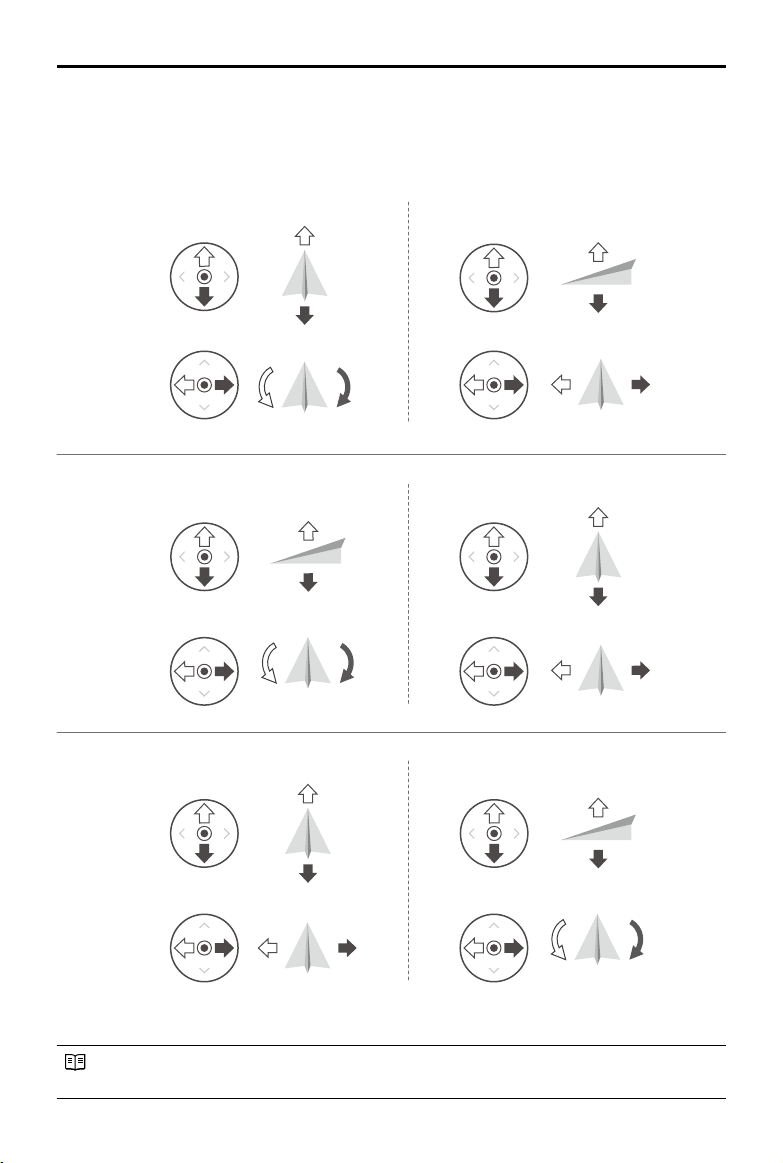
Controlling the Aircraft
Thissectionexplainshowtocontroltheorientationoftheaircraftthroughtheremotecontroller.
ControlcanbesettoMode1,Mode2orMode3.
TheStickModeissettoMode2bydefault.
StickNeutral/Mid-Point:Controlsticksarecentered.
MovingtheControlStick:Controlsticksarepushedawayfromthecenter.
Right StickLeft Stick
Turn RightTurn Left
UP
Down
RightLeft
UP
Down
Turn RightTurn Left
RightLeft
Forward
Backward
Left Stick Right Stick
Forward
Backward
Right Stick
UP
Down
Forward
Backward
Left Stick
Turn RightTurn Left
RightLeft
Mode 1
Mode 2
Mode 3
©
2020 DJI All Rights Reserved.
47
MATRICE 300 RTK User Manual
Remote
Controller
(Mode 2)
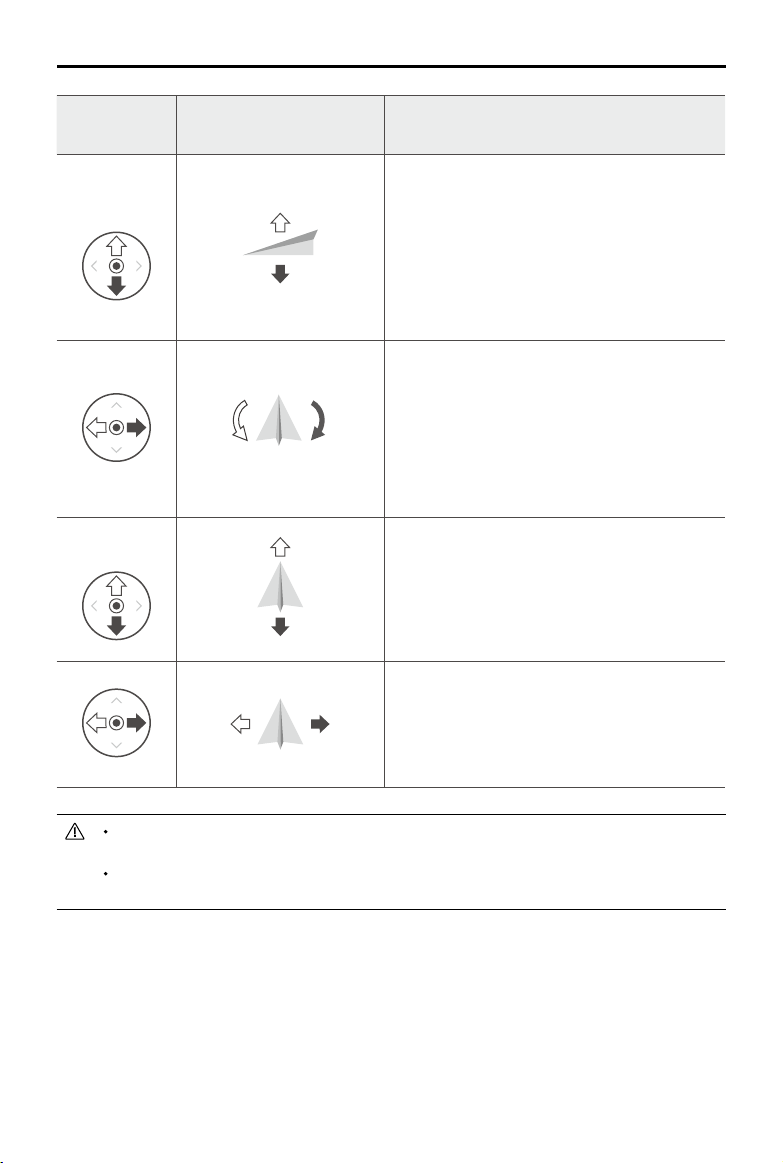
Aircraft Remarks
LeftStick
UP
Down
Movingtheleftstickupanddownchangesthe
aircraft’selevation.
Pushthestickuptoascendanddowntodescend.
Whenbothsticksarecentered,theaircraftwillhover
inplace.
Themorethestickispushedawayfromthecenter
position,thefastertheaircraftwillchangeelevation.
Alwayspushthestickgentlytopreventsuddenand
unexpectedelevationchanges.
Turn RightTurn Left
Movingtheleftsticktotheleftorrightcontrolsthe
rudder and rotation of the aircraft.
Pushthesicklefttorotatetheaircraftcounter
clockwise,andpushthestickrighttorotatethe
aircraftclockwise.Ifthestickiscentered,theaircraft
willmaintainitscurrentorientation.
Themorethestickispushedawayfromthecenter
position,thefastertheaircraftwillrotate.
RightStick
Forward
Backward
Movingtherightstickupanddownchangestheaircraft’s
forwardandbackwardpitch.
Pushthestickuptoyforwardanddowntoybackward.
Theaircraftwillhoverinplaceifthestickiscentered.
Pushthestickfurtherawayfromthecenterpositionfora
largerpitchangleandfasteright.
RightLeft
Movingtherightstickcontrolleftandrightchangesthe
aircraft’sleftandrightpitch.
Pushlefttoyleftandrighttoyright.Theaircraftwill
hoverinplaceifthestickiscentered.
Pushthestickfurtherawayfromthecenterpositionfora
largerpitchangleandfasteright.
Keeptheremotecontrollerawayfrommagneticmaterialstoavoiditbeingaffectedby
magneticinterference.
Toavoiddamage,itisrecommendedthatthe controlsticksare removedandstoredinthe
storageslotontheremotecontrollerduringtransportationorstorage.
48
©
2020 DJI All Rights Reserved.
MATRICE 300 RTK User Manual
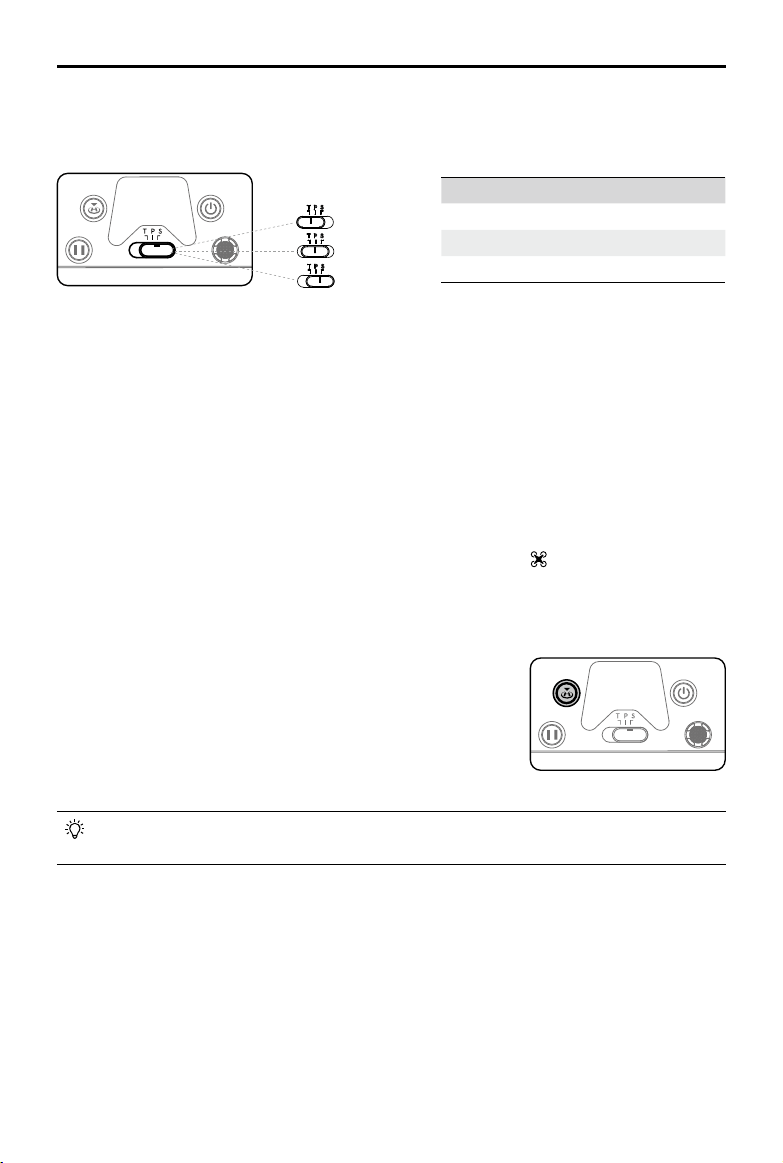
Flight Mode Switch
Toggletheswitchtoselecttheightmode.ChoosebetweenT-mode,P-mode,andS-mode.
T-mode(Tripod):Theaircraft utilizesGNSSandvisionsystemstolocateitself, stabilize,andnavigate
betweenobstacles.Inthismode,themaximumflightspeed is limited to15.7mph(25.2kph).The
responsivenesstostickmovementsisalsoreducedforsmoother,morecontrolledmovement.
P-mode(Positioning):P-modeworksbestwhentheGNSSsignalisstrong.TheaircraftutilizesGNSS,
VisionSystems,andanInfraredSensingSystemtostabilize,avoidobstacles,andtrackmoving
subjects.AdvancedfeaturessuchasTapFlyandActiveTrackareavailableinthismode.
S-mode(Sport):Thehandlinggainvaluesoftheaircraftareadjustedtoenhanceaircraftmaneuverability.
NotethatVisionSystemsaredisabledinthismode.
Regardlessof the positiontheswitchisinontheremotecontroller,theaircraftbeginsinP-modeby
default.To switchightmodes,rstgotocameraviewinDJIPilot,tap and enable“MultipleFlight
Modes”.Afterenablingmultipleightmodes,toggletheswitchtoPandthentoSorTtoswitchight
modes.
InAdvancedDualOperatorMode,theremote controllerwithoutightcontrolcannotusethis
buttontostartandstoptheRTHfunction.
Position Flight Mode
T T-mode(Tripod)
P P-mode(Positioning)
S S-mode(Sport)
RTH Button
PressandholdtheRTHbuttontostartReturntoHome(RTH)and
theaircraftwill returntothelastrecordedHomePoint.Pressthe
buttonagaintocancelRTHandregaincontroloftheaircraft.Refer
totheReturntoHomesectionintheaircraft’susermanualformore
informationaboutRTH.
Customizable Buttons
ThefunctionsoftheC1,C2and5DbuttonsaresetinDJIPilot.Thedefaultcongurationsareasbelow:
C1:Re-centerthegimbal.
C2:Toswitchthecameraviewbetweendierentcameras.
RotatingtheGimbalPanControlDialbyholdingtheConrmButton:Tocontrolthecamerazoom.
Position T
Position S
Position P
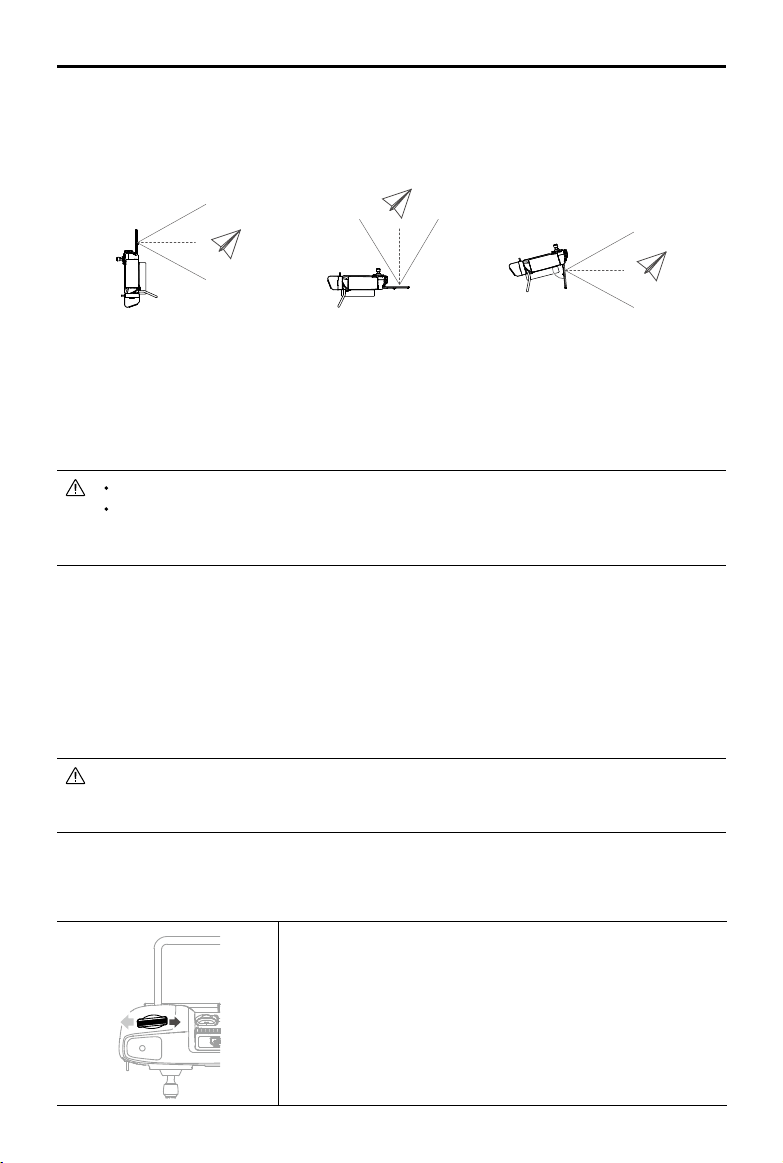
©
2020 DJI All Rights Reserved.
49
MATRICE 300 RTK User Manual
Optimal Transmission Zone
Trytokeeptheaircraftinsidetheoptimaltransmissionzone.Ifthesignalisweak,adjusttheantennasor
ytheaircraftcloser.
Makesuretheantennasarefacingtowardstheaircraft.Whentheanglebetweentheantennasand
thebackoftheSmartControlleris80°or180°,theconnectionbetweentheremotecontrollerandthe
aircraftcanreachitsoptimalperformance.
Notethattheillustrationsabovedonotreecttheactualdistancesbetweentheuserandaircraftand
areforreferenceonly.
AvoidusingwirelessdevicesthatusethesamefrequencybandsastheSmartController.
Inrealoperation, the DJI Pilotappwillissueaprompttowarnthatthetransmissionsignal
isweak,andpleaseadjusttheantennasto ensurethattheaircraftisback to the optimal
transmissionrange.
Operating the Camera
ShootvideosandphotoswiththeFocus/ShutterbuttonandRecordbuttonontheremotecontroller.
1. Focus/ShutterButton
Presstotakea photo.IfBurstmodeisselected,multiplephotoswill betakenifthebuttonis
continuouslypressed.SettheShuttermodeinDJIPilotapp.
2. RecordButton
Pressoncetostartrecordingvideoandpressagaintostop.
Whenusinganaircraft firmwareversionisv02.02.01.02or later,therecordandthefocus/
shutterbuttonsontheremote controlleraredisabledduring Mapping, Oblique,andLinear
Flightmissionstoavoidaccidentallyinterruptingoperations..
Operating the Gimbal
Usetheleftdialandrightdialtoadjustthegimbalpitchandpan.
Theleftdialcontrolsthegimbaltilt.Turnthedialtotheright,andthe
gimbalwillshifttopointupwards.Turnthedialtotheleft,andthe
gimbalwillshifttopointdownwards.Thecamerawillremaininits
currentpositionwhenthedialisstatic.
80°

50
©
2020 DJI All Rights Reserved.
MATRICE 300 RTK User Manual
Advanced Dual Operator Mode
Introduction
TheM300RTKsupportsAdvanced DualOperatorMode,whichallowstworemotecontrollersto
connecttothesameaircraft.Inthismode,tworemotecontrollersareofthesamepriorityandhaveno
pre-assignedroles.Duringoperation,twopilots takecontrolbasedontheirrequirementsand decide
whichonboarddevicesuchasaircraft,gimbaland cameracanbeoperatedcurrently,makingitmore
exibletooperate.
Therearetwotypesofcontrol,includingaircraftflightcontrol and gimbalcontrol.Fortheremote
controllerwithaircraftightcontrol,itcancontroltheorientationoftheaircraft.Fortheremotecontroller
withgimbalcontrol,itcancontrolthemovementofthegimbalandcameraoperation.
Conguring Advanced Dual Operator Mode
Beforeuse,remotecontrollerAandremotecontrollerBmustbelinkedseparately.Followthesestepsto
completelinking:
Linking the Remote Controller
1.LaunchDJIPilotApp.
2.Enter“Camera”andtapon .Theremotecontrollerisreadytolink.
3.Inthedrop-downlistofAdvancedDualOperatorMode,selectremotecontrollerasControllerAor
ControllerB.Tapthepop-upwindowtoconrmlinking.
Using Advanced Dual Operator Mode
1. Ensuretworemotecontrollershave beenlinkedandconnectedtotheaircraft.Therstconnected
remotecontrollerisabletocontrolalldevicesincludingaircraft,gimbalandcamerabydefault,while
thesecondonehasnocontrolofanydevice.
2.Aremotecontrollerthathascontrol ofadevicecanuseacontrol stick,gimbaldial,button
combinations,andUI icontocontrolthedevice, whichisinlinewithasingleremotecontroller.
Otherwise,thedevicecannotbecontrolled.Aremotecontrollerthathasnocontrolofadevicecan
stillswitchtothe CameraViewofthedevice.Onlyaremote controllerthatisableto controlthe
orientationoftheaircraftcaninitiateandcanceltheReturntoHome(RTH)procedure.
3. Userscantakecontrolofdevicesmanually.First,switchtotheCameraViewofthedevicethatyou
wanttocontrol.Foraircraftightcontrol,switchtotheCameraViewoftheFPVcamera.Second,tap
onthecontroliconontheupperlefttotakecontrol.The4-axisaircrafticonrepresentsaircraftight
control,andthecameraiconrepresentsgimbalcontrol.
4. Whenauserhasaircraftightcontrol,pressandholdtheControlLockicontolocktheaircraftight
controlontheCamerapageoftheFPVcamera.
Therightdialcontrolsthegimbalpan.Turnthedialtotheright,
andthegimbalwillshiftclockwise.Turnthedialtotheleft,andthe
gimbalwillshiftcounterclockwise.Thecamerawillremaininits
currentpositionwhenthedialisstatic.

©
2020 DJI All Rights Reserved.
51
MATRICE 300 RTK User Manual
5. Ifaremotecontrollercanonlycontrolthegimbal,itcanusecontrolsticks.Ifauserhasbothaircraft
flightcontroland gimbalcontrol,he/shecanusecontrolstickstocontroltheorientationofthe
aircraft,andgimbaldialtocontrolthegimbal.
6.WhenoperatinginDual RemoteControlMode,controlswitchingwillbetriggeredifoneremote
controllerisdisconnected to an aircraft.Atthispoint,gimbalcontrolthatthedisconnectedremote
controllerhaswillbetransferredto theconnectedcontrollerunconditionally.Ifthedisconnected
controllerhas aircraftightcontrol,theconnectedcontrollerwillreceive takeover promptsandthe
pilotcandecidewhethertotakeoverornot.Foranegativedecisionorwhenadecisionisnotmade
withinthegiventime,afailsafelogicwillbetriggered.
7. Duringoperation,ifthedisconnectedcontrollerreconnectstothe aircraft,ithasnocontrolofany
devicebydefault.Pilotscantakecontrolaccordingtotheirrequirements.
8. Settingsrelatedtogimbalandcameraareonlyavailabletotheremotecontrollerthathascontrolof
gimbalandcamera.
9. Functionssuchasdownload andplaybackofgimbalandcamera areonlyavailableto theremote
controllerthathascontrolofgimbalandcamera.
10. Normally, both remotecontrollerscan configuretheflightcontroller,visionsystem,video
transmission,andIntelligentFlightBattery.However,ifaircraftflight controlislocked,onlythe
remotecontrollerthathasaircraftightcontrolcanperformsuchcongurations.
11. Bothremotecontrollerscanperformoperationsthatwillnotaectight.
12. ControllerBdoesnotsupportMissionuploadforAISpot-check.
13. ControllerAsupportsone-clickupgradewhenconnectingtotheaircraftandgimbalandcamera.
ControllerBonlysupportsremotecontrollerupgrade.
14. PilotApplogupload:ControllerAsupportsuploadingControllerAaircraftlogandremotecontroller
log,whileControllerBonlysupportsuploadingControllerBremotecontrollerlog.
15. ControllerBdoesnotsupporttheupgradeofightlimitsdatabase.
16. UserscancontrolthezoomofthecamerabyusingthejoystickoftheRCwithgimbalcontrol.
Video Transmission Descriptions
Matrice300RTKaircraftfeaturesOcuSyncEnterprisetechnology,supportsuptothree1080pvideo
transmissions,andalsosupportssingleremotecontrollermodeordualremotecontrollermode.
1. Singleremotecontrollermode:supportstwo1080pvideotransmissions.
2.Dualremotecontrollermode:supportsuptothree1080p video transmissions andeachremote
controllercanselecttwoofthevideotransmissionstodisplay.
Transmissionresolutionislimitedbytheoutput capability ofdierentpayloads,forreference
only.
ZenmuseP1:1080p
ZenmuseL1:720p
ZenmuseH20/H20T:1080p
FPVCamera:960p
ZenmuseZ30:720p
ZenmuseXTS:640p
ZenmuseXT2:720p
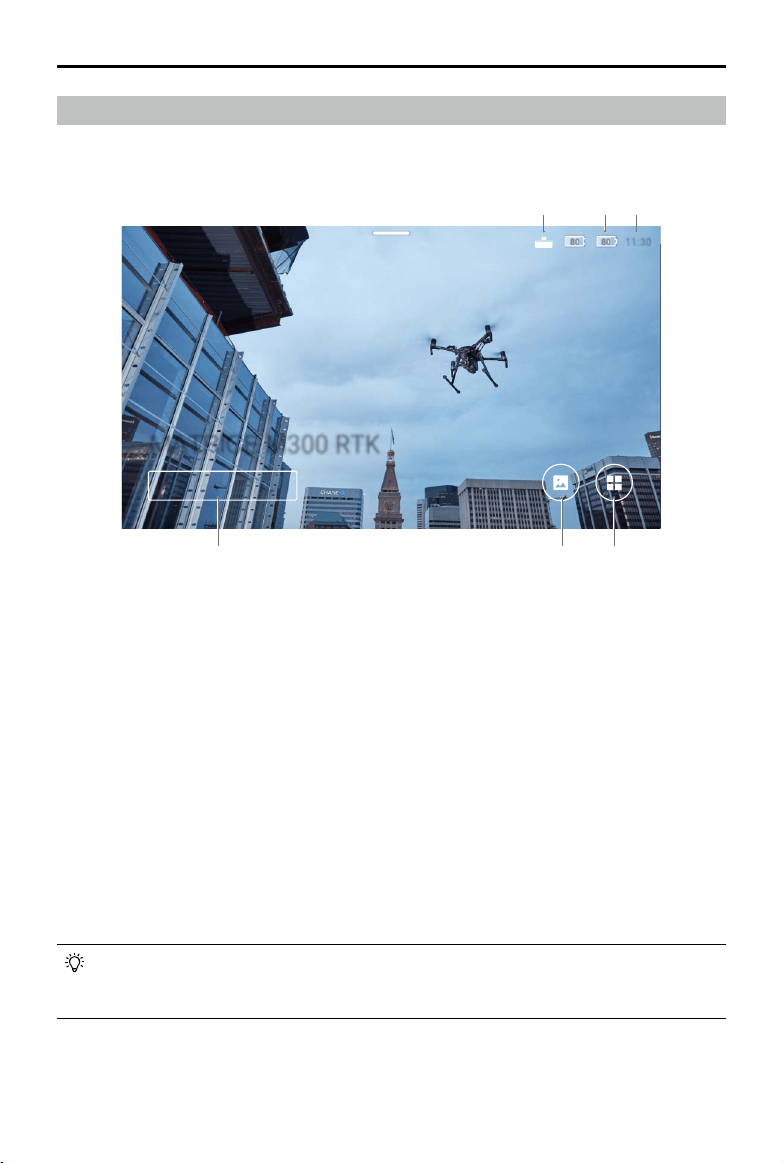
52
©
2020 DJI All Rights Reserved.
MATRICE 300 RTK User Manual
Display Interface
Homepage
ThescreendisplaysthehomepagewhentheSmartControllerispoweredon.
1. DJI Smart Controller Expansion Kit Connection Status
DisplayswhentheDJISmartControllerExpansionKitisconnected.
2. Battery Level
Displaystheinternalandexternalbatteryleveloftheremotecontroller.
3. Time
Displayslocaltime.
4. DJI Pilot
TaptoenterDJIPilot.Thebuttonisblueiftheremotecontrollerislinkedtotheaircraft.Userscantap
toentercameraviewafterlogginginusingaDJIaccount.
5. Gallery
Taptocheckstoredimagesandvideos.
6. App Center
Tap tocheckallapplicationsincludingGEOZone,DJIPilot,Settings,FileManager,andanythird-
partyappsthatusers havedownloadedandinstalled.Referto theAppCentersectionformore
information.
Navigateontheremote controllerbyusingthe5Dbutton, thecontrolsticks,ortouchingthe
screen.Conrm aselectionbypressingthe 5Dbuttonortouchingthescreen.Refertothe
ControlStickNavigationsectionformoreinformation.
80 80
80 80
11:30
11:30
Pilot
MATRICE M300 RTK
21
4 5 6
3
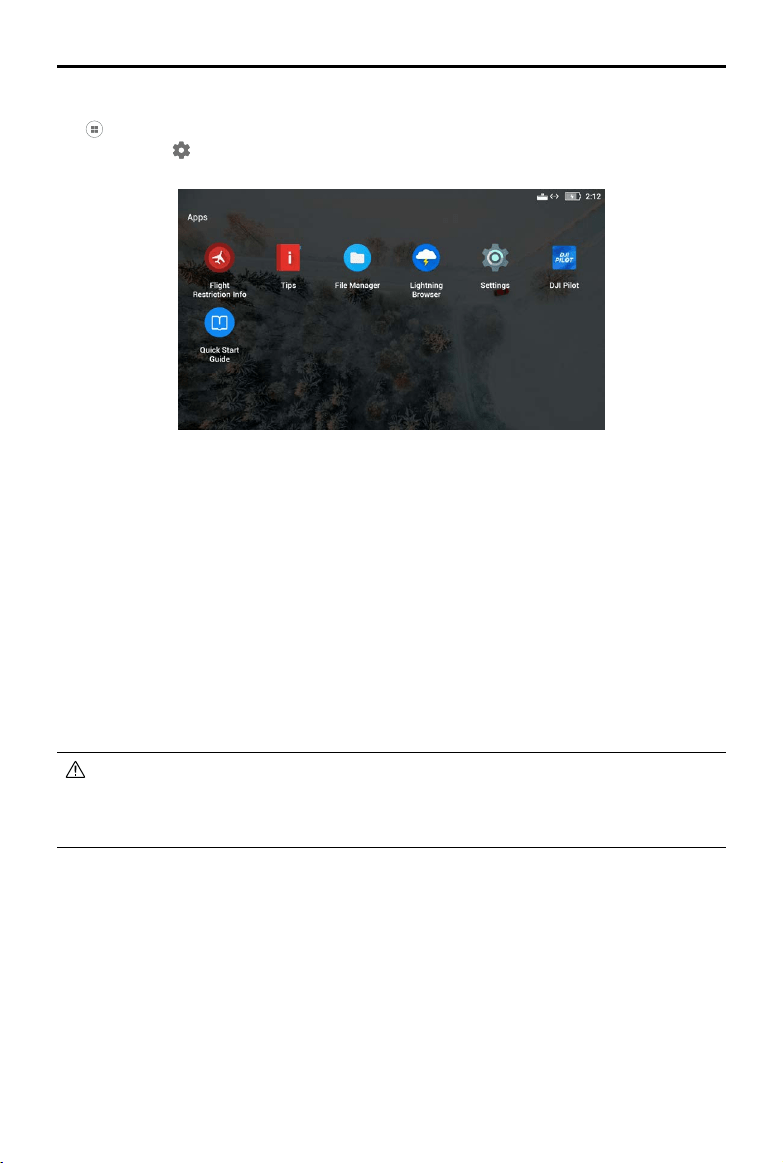
©
2020 DJI All Rights Reserved.
53
MATRICE 300 RTK User Manual
App Center
Tap toenterAppCenter. Userscannddefaultsystemappsandthird-partyappsthathave been
downloaded.Tap tondtheSystemSettingsandGEOZone.
Tomoveanapp,holdtheiconandmovetheapptowhereyouwishtoplaceit.Todeletetheapp,hold
theiconanddragittothetopofthispage.Notethatdefaultsystemappscannotbedeleted.
FlightRestrictionInfoprovidesrelatedightrestrictioninformation.
Tipsprovidesbasicfunctionintroduction,aerialphotographytips,viewandshareinstructions.
Managevideos,photos,lesandSDcardinFileManage.
ThesystemcomeswiththeLightningBrowser.
PressSettings tobeabletoconguresettingssuchasbuttoncombinations,controlsticknavigation,
date&time,languages,Wi-Fi,andBluetooth.
TheremotecontrollercomeswiththeDJIPilotapp.
TapQuickStartGuidetoreadrelatedmanuals.
DJIbearsnoresponsibilityforthesafeuseoforcompatibilitysupportforthird-partyapps.Ifa
third-partyappisaectingtheperformanceoftheSmartController,trytodeletethethird-party
appsorresettheSmartControllertofactorysettings.ToresettheSmartControllertofactory
settings,gotoFactoryDataResetunderSettings.
TheAppCenterissubjecttochangeinfuture
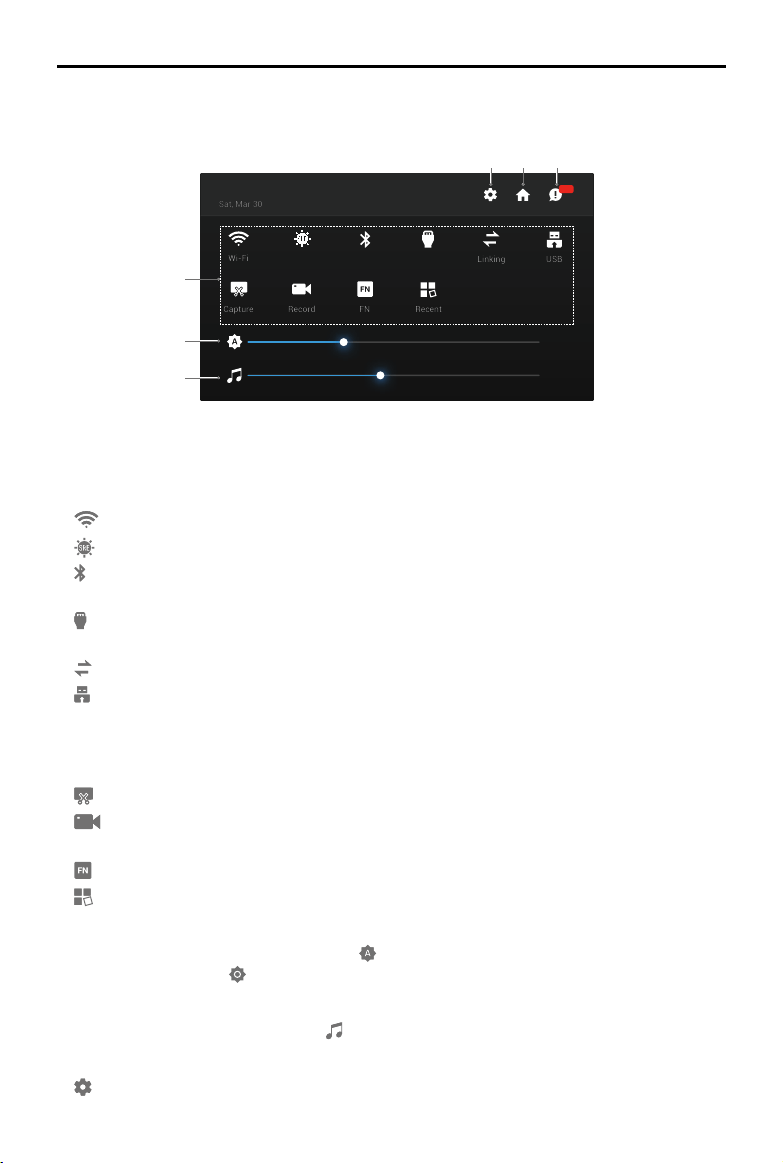
54
©
2020 DJI All Rights Reserved.
MATRICE 300 RTK User Manual
M300 RTK
80 80
35%
45%
Recent
FN
Record
Capture
USB
Linking
HDMIBluetooth
SRE
Wi-Fi
99+
Sat, Mar 30
8:13 PM
Quick Settings
SwipedownfromthetopofthescreentoopenQuickSettings.
54
1
2
3
6
1 Tap an icon to enable or disable the corresponding function. Hold the icon to enter the settings of
the function (if available).
:TaptoenableordisableWi-Fi.HoldtoentersettingsandconnecttooraddaWi-Finetwork.
:TaptoenableordisableSREmode.HoldtoentersettingsandselectanSREmode.
:Tap to enableordisableBluetooth.Holdtoentersettingsand connect withnearbyBluetooth
devices.
:TaptoenableordisabletheHDMIconnection.HoldtoentersettingsandadjustHDMIresolution,
rotation,outputmode,andscreenzoom.
:Taptostartlinkingtheremotecontrollertoanaircraft.
:TaptoswitchbetweenUSBexternaldevicemodeandUSBdataexportmode.
MobiledevicescanbeconnectedintheUSBexternaldevicemode.
UpdateanddataexportcanbeusedwhentheremotecontrollerisconnectedtoaPCinUSBdata
exportmode.
:Taptoscreenshotthescreen.
:Taptostartrecordingthescreen.Whilerecording,thescreendisplaystherecordingtime.Tap
“Stop”tostoprecording.
:Holdtocheckthebuttoncombinations.
:Taptocheckrecentlyopenedapps.
2 Adjusting Brightness
Slidethebartoadjustbrightness.Theicon meansautobrightness.Tapthisiconorslidethebar,
andtheiconwillturnto toswitchittomanualbrightnessmode.
3 Adjusting Volume
Slidethebartoadjustthevolume.Tap tomutethevolume.
4 System Settings
:Taporholdtoentersettings.
TheQuickSettingsissubjecttochangeinfuture
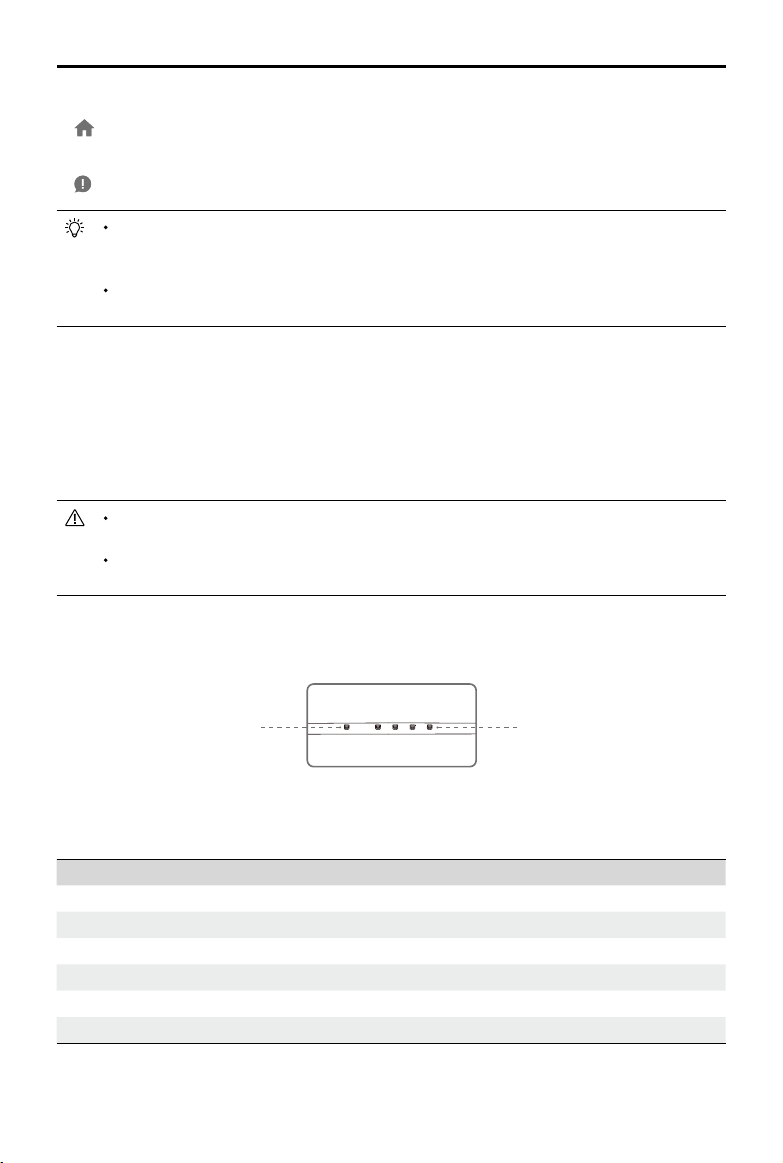
©
2020 DJI All Rights Reserved.
55
MATRICE 300 RTK User Manual
5 Homepage
:Taptogobacktothehomepage.
6. Notications
:Taptochecksystemnotications.
SRE(SunlightReadableEnhancement)allowsusersto bump upthehighlightsorshadows
ofanimageindividuallyortogether.Thishelpsusersseeparticularareasofthescreenmore
clearlywhensunlightisstrong.
QuickSettingsvarydepending ontheaircraftmodellinked andthermwareversionof the
SmartController.
Control Stick Navigation
TapControlStickNavigationinSettings.Userscanenableordisablethecontrolsticksand5Dbuttonto
navigateontheremotecontroller.
ControlSticks:Moveup,down,right,orlefttonavigate.Itisnotpossibletoconrmaselectionwiththe
controlsticks.
5DButton:Pushup,down,right,orlefttonavigate.Presstoconrmaselection.
Asthecontrolsticksand5Dbuttonmaynot becompatiblewiththird-partyapps, itis
recommendedtousethetouchscreentonavigatewhenusingthird-partyapps.
ControlStickNavigationisnotavailablewhen theremotecontrollerislinkedto anaircraft,
evenifitisenabledbeforehand.
Status LED and Battery Level Indicators Description
StatusLED
BatteryLevelIndicators
Thebatterylevelindicatorsdisplaysthebatterylevelofthecontroller.ThestatusLEDdisplaysthelinking
statusandwarningsforcontrolstick,lowbatterylevel,andhightemperature.
Status LED Description
SolidRed Theremotecontrollerisnotlinkedtoanaircraft.
SolidGreen Theremotecontrollerislinkedtoanaircraft.
BlinksBlue Theremotecontrollerislinkingtoanaircraft.
BlinksRed Thetemperatureoftheremotecontrolleristoohigh.
BlinksYellow Thebatteryleveloftheremotecontrollerislow.
BlinksCyan Thecontrolsticksarenotcentered.
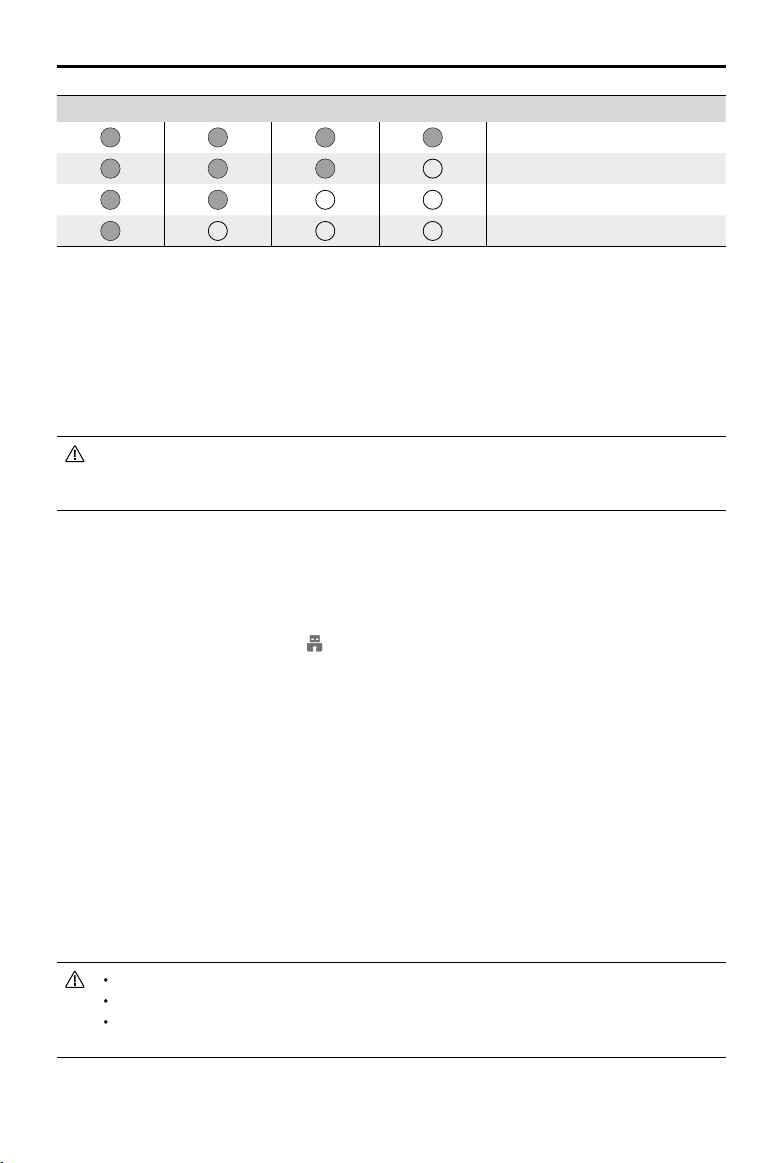
56
©
2020 DJI All Rights Reserved.
MATRICE 300 RTK User Manual
Battery Level Indicators Battery Level
75%~100%
50%~75%
25%~50%
0%~25%
Smart Controller Warning Sounds
Incertainscenariosthatrequireauserwarning, theSmartControllerwilldosobyvibrating and/or
beeping.Whenthecontroller beeps andthestatusLEDissolidgreen,thiserrormayberelatedto
theaircraftor ight status, andawarning will appear inDJIPilot.Ifthiserrorisrelated to the Smart
Controller,thecontroller’sscreenwilldisplayawarningoralert.
Todisablethebeeping, powerontheremotecontroller,select“Sound”inSettings,andturnoff
“Noticationvolume”.
Somepromptsorwarningsoundscannotbeturnedoff,such aslinking,hightemperature
alarm,lowbatteryalarm,stickoperation modeswitching,stickandkeypower-onself-test
alarm,etc.
Firmware Update
Using the DJI Assistant 2
1.Makesuretheremotecontrollerispoweredo,andthenconnecttheremotecontrollertoacomputer
usingaUSBcablewithdual-Aports.
2.Powerontheremotecontroller.Tap onUSBdataexportmode.
3.LaunchDJIAssistant2,andloginusingaDJIaccount.
4.ClicktheDJISmartControllerEnterpriseicon,andthen“FirmwareUpdate”.
5.Selectandconrmthermwareversionyouwanttoupdate.
6.DJIAssistant2willdownloadandupdatethermwareautomatically.
7.Theremotecontrollerwillrestartafterupdate.
Using the DJI Pilot App
1.PowerontheremotecontrollerandmakesuretheInternetconnectionisfunctioningnormally.
2.LaunchDJIPilotApp,tap to entertheupdatepageiftheappshowsthatthereisanongoing
rmwareupdate.
3.DJIPilotwilldownloadandupdatethermwareautomatically.
4.Theremotecontrollerwillrestartafteranupdate.
Makesuretheremotecontrollerhasmorethan20%powerbeforeupdating.
DONOTdisconnecttheUSBcableduringtheupdatewhenusingDJIAssistant2.
Theupdatetakesapproximately15minutes.Makesuretheremotecontrollerorthecomputer
isconnectedtotheinternetduringtheupdate.
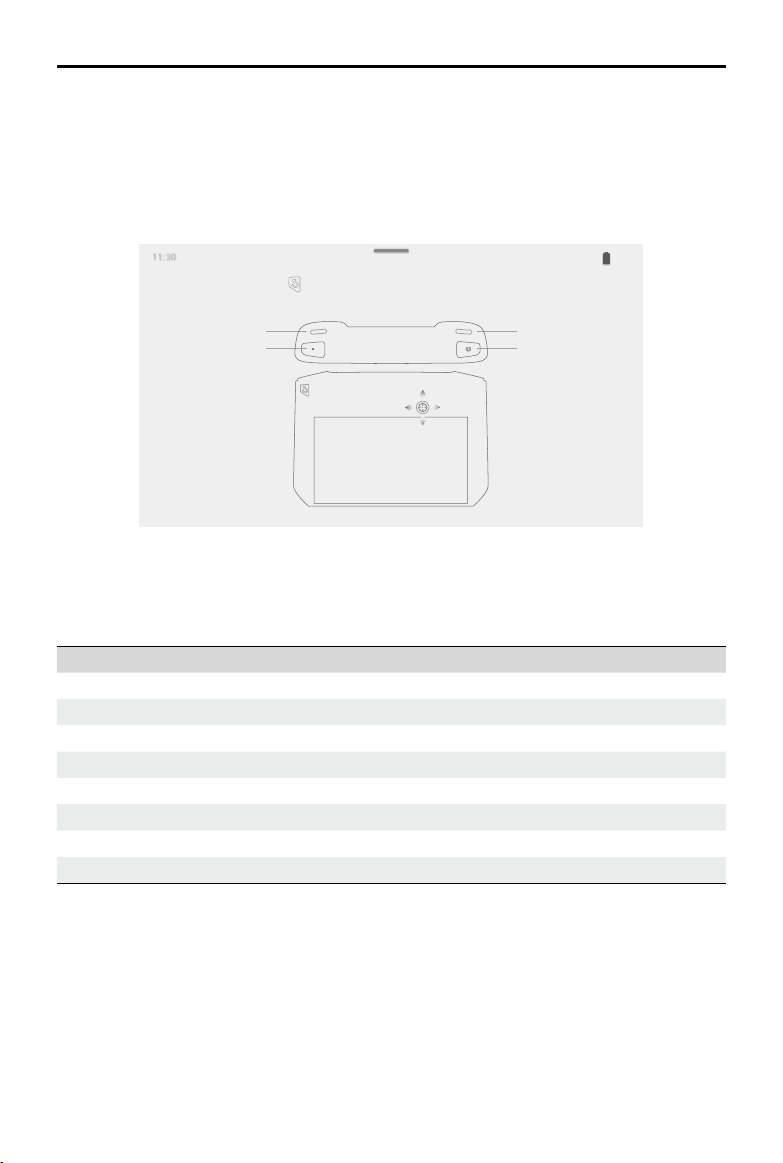
©
2020 DJI All Rights Reserved.
57
MATRICE 300 RTK User Manual
Button Combinations
Somefrequently-usedfeaturescanbeactivatedby usingbuttoncombinations.Tousebutton
combinations,holdthebackbuttonandthenpresstheotherbutton.
Checking the available button combinations
HoldtheBackbuttonuntilthecontrollervibratestocheckbuttoncombinations:
ButtonCombinations
50%
11:3011:30
100%
Brightness Mode
Press and then the corresponding button to perform an operation.
Screen Recording
Adjust Volume
Screenshot
Home
Quick Settings
Recent Apps
Using Button Combinations
Thefunctionsofthebuttoncombinationscannotbechanged.Thefollowingtabledisplaysthefunction
ofeachbuttoncombination.
Button Combinations Description
FunctionButton+RightWheel Adjustthesystemvolume
FunctionButton+LeftWheel Adjustthescreenbrightness
FunctionButton+RecordButton Record the screen
FunctionButton+Focus/ShutterButton Screenshotthescreen
FunctionButton+5DButton(up) ReturntoHomepage
FunctionButton+5DButton(down) OpenQuickSettings
FunctionButton+5DButton(left) Checkrecentlyopenedapps
FunctionButton+5DButton(right) OpenAppCenter

58
©
2020 DJI All Rights Reserved.
MATRICE 300 RTK User Manual
Calibrating the Compass
Aftertheremotecontrollerisusedinplaceswithelectro-magneticinterference,thecompassmayneed
tobecalibrated.Awarningpromptwillappearif the remotecontroller’s compass requirescalibration.
Tapthewarningpop-uptostartcalibrating. Inothercases,followthestepsbelowtocalibrate your
remotecontroller.
1.EntertheAppCenter,tap ,andscrolldownandtapCompass.
2.Followthediagramonthescreentocalibrateyourremotecontroller.
3.Theuserwillreceiveapromptwhenthecalibrationissuccessful.
Blocking Third-party Notications
Toensuresafeight,werecommendto disablethird-partynoticationsbeforeeachight.Followthe
stepsbelowtodisablethird-partynotications.
1.EntertheAppCenter,tap ,andscrolldownandtapNotications.
2.Enable“AerialPhotographyDoNotDisturbMode”.
HDMI
Amonitorcandisplaytheremotecontroller’sinterfacebyconnectingtheremotecontrollertoamonitor
usingaHDMIcable.FollowthestepsbelowtoenabletheHDMIconnection.
1.SwipedownfromthetopofthescreentoopenQuickSettings.
2.Followthediagramonthescreentocalibrateyourremotecontroller.TapHDMItoenableordisable
theHDMIconnection.HoldtoentersettingsandadjustHDMIresolution,rotation,outputmode,and
screenzoom.

©
2020 DJI All Rights Reserved.
59
Gimbal and Camera
This section focuses on how to use the
gimbal.

60
©
2020 DJI All Rights Reserved.
Gimbal and Camera
M300RTKsupportsmultiplepayloadcongurations.Seethetablebelowformoredetails.
Payloadcombinations Gimbalandcameratype
Single
gimbal
Singleupwardgimbal XTS,Z30,H20,H20T,PSDKpayload
Singledownwardgimbal XT2,XTS,Z30,H20,H20T,PSDKpayload
Dual
gimbals
Dualdownwardgimbals
XT2*+Z30,XT2*+H20,XTS+Z30,XTS+H20,above
singlegimbaltype+PSDKpayload
Singledownward
gimbal+Singleupwardgimbal
Triple
gimbals
Dualdownward
gimbals+Singleupward
gimbal
Theabovedualgimbalcombinations+PSDKpayload
*XT2canonlybemountedonthe1stgimbalport.Itdoesn'tsupportupwardgimbal/2ndgimbalport.
Refertotherelatedgimbalandcamerausermanualtolearn howtousethegimbaland
camera.
Whenmultiplepayloadsareused,onlyonePSDKpayloadissupported.

©
2020 DJI All Rights Reserved.
61
DJI Pilot App
This section introduces the main functions
of the DJI Pilot app.

62
©
2020 DJI All Rights Reserved.
DJI Pilot App
TheDJIPilotappis specificallydevelopedforenterpriseusers.Manualflightintegratesa varietyof
professionalfeaturesthatmakeyingsimpleandintuitive. Missionightsupportsightplanning,and
allowsyoutocontrolthedroneautomatically,makingyourworkowmuchsimplerandmoreecient.
Manual Flight
Camera View
EntertheCameraViewbytappingManual Flight.ThedescriptionsbelowuseaH20T gimbaland
cameraasanexample.TheCameraViewmayvarywhenusingothergimbalsandcameras.
S
Mission Flight
Manual Flight
Album
HMS
In-Flight(GPS)
19:29
GPS
12
2.4G
80%
100%
26.1v
26.1v
10 X
2 X
5 X
ZOOM
RNG
AE
ISO
ISO
100
100
Shutter
Shutter
1/1000
1/1000
EV
EV
0
0
AF-C
ZOOM 5.0X
WIDE
IR
MENU
N
E
W
S
3
6
12
15
21
24
30
33
H
340
222m
H
130.2
ALT
m
VS2.5
ASL1234.5
05.2
SPD
(m/s)
WS 04.0
123456 123456
1 2 4 5 6 7 8
9 10
28
26
29
25
30
31
3
22
23
24
33 3432
18
21
20
19
27
11
12
15
13
14
16
17
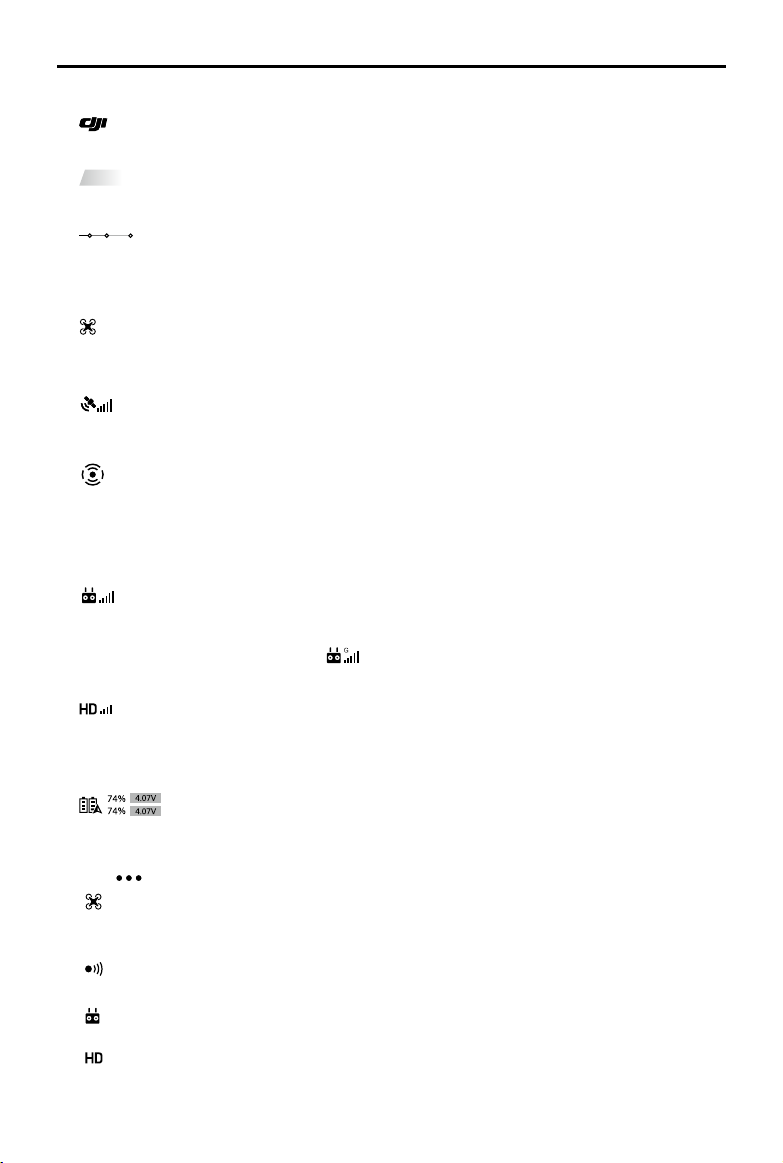
©
2020 DJI All Rights Reserved.
63
MATRICE 300 RTK User Manual
1. Back
:Tapthisicontoreturntothemainmenu.
2. System Status Bar
In-Flight (GPS)
:Thisiconindicatesaircraftightstatusanddisplaysvariouswarningmessages.
3. Battery Level Indicator Bar
:Thebatterylevelindicator providesadynamicdisplayofthebatterylevel. The colored
zonesonthebatterylevelindicatorrepresentthepowerlevelsneededtocarryoutdifferent
functions.
4. Flight Mode
:Thetextnexttothisiconindicatesthecurrentightmode.TaptoconguretheFlightController
settings.Thesesettingsallowyoutomodifyightlimitsandsetgainvalues.
5. GNSS Signal Strength
:ShowsthecurrentGNSSsignalstrength.“R”willbedisplayedonthelowerrightcornerifthe
aircraftRTKisenabled.
6. Obstacle Sensing Function Status
:Displaysthestatusforallsensingsystems.
Ifthedirectionofthecorrespondingsensingsystemisworkingnormally,thenitisdisplayedingreen,
otherwiseitisdisplayedinred.All greenindicatesthatthesix-directionsensingsystem isworking
normally,andallredindicatesthatthesensingsystemisnotyetineect.Pleaseycarefully.
7. Remote Controller Signal
:Thisiconshowsthe strengthoftheremotecontrollersignal.Theiconwillblinkwhenan
interferenceisrecognizedduringight.WhentherearenoadditionalwarningsinDJIPilot,itmeans
thattheinterferencewillnotaect operationandoverallightexperience.WheninAdvancedDual
OperatorMode,thisiconwillshowas
.
8. HD Video Link Signal Strength
2.4G
:ThisiconshowsthestrengthoftheHDvideodownlinkconnectionbetweentheaircraftand
theremotecontroller. Thetextontopindicatesthefrequencyinuse.Tapforimagetransmission
settings.
9. Battery Settings
:Showsthecurrent battery level.Taptoviewthebatteryinformationmenu,set the
variousbatterywarningthresholds,andviewthebatterywarninghistory.
10. More Settings
Tap toentertheextendedmenutoviewandadjusttheparametersofallothersettings.
:FlightControllerSettings—IncludesFlightMode Switch,HomePointsettings,Returnto
Homealtitude,maximumaltitude,distancelimit,sensorsstate,remotecontrollersignallostaction,
centerofgravityautocalibration.
:PerceptionSettings—Includesenablingobstaclesensing,visionpositioning,andRTH
obstacledetection,etc.
:RemoteController Settings—Includesstickmode,customsettings,remotecontroller
calibration,linking,etc.
:ImageTransmissionSettings—Includesworkfrequency,channelmodeandvideooutput,etc.
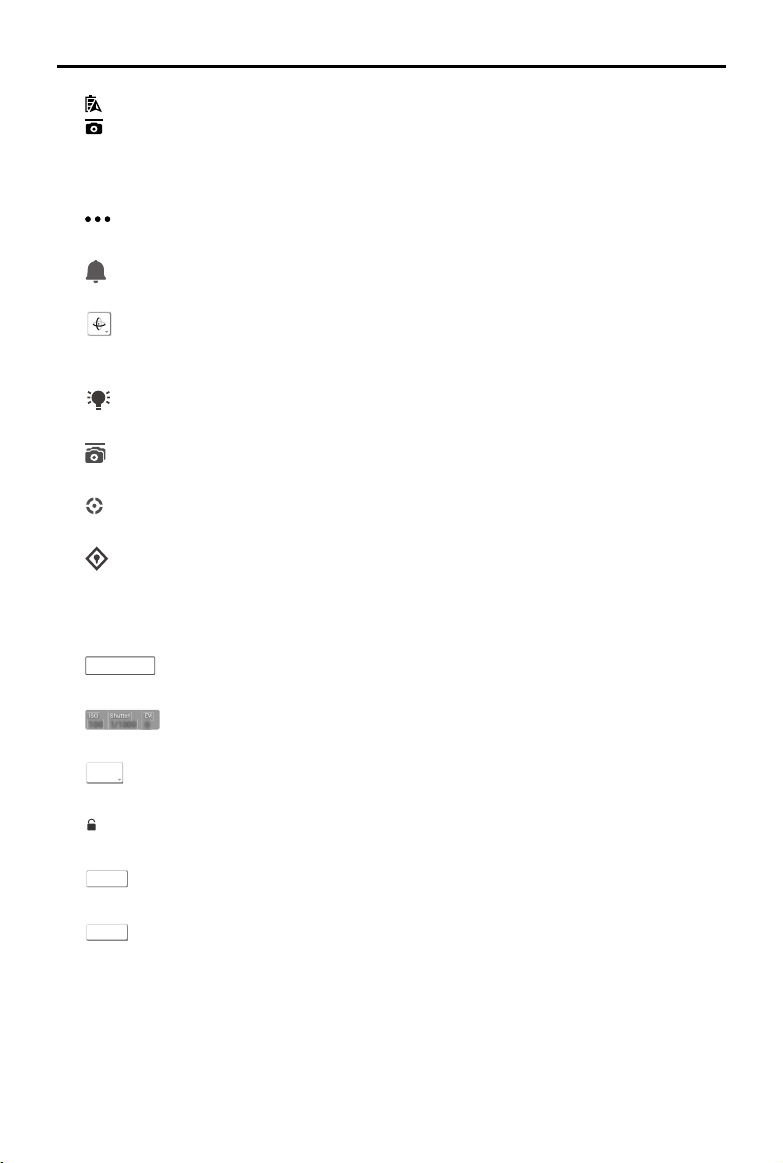
64
©
2020 DJI All Rights Reserved.
MATRICE 300 RTK User Manual
:AircraftBatterySettings—Includeslowbatterywarningthresholds,batteryinformation,etc.
:GimbalSettings—Includesgimbalpitchandpansettings,TapZoommagnication(fortheZ30
gimbalandcamera),gimbalcalibration,etc.
RTK:RTKSettings—IncludesRTKpositioningfunction,RTKservicetypeandtheircorresponding
settings.
:CommonSettings—Includesightroutedisplay,unitsofmeasurement,livestream,etc.
11. Message Box
:Taptoreadallwarningmessages.
12. Gimbal Oreintation Adjustment
:TaptoselecttheGimbalOrientationAdjustmentasGimbalRecenter,RecenterGimbalYaw,
GimbalYawDownwardorGimbalDownward.
13. Beacon
:Taptoturnon/othebeacons.WillchangetoDiscreetModeicononceturnedon.
14. Multiple Gimbal Control
:TaptoenableMultiplyGimbalControl,youcancontroltwoorthreegimbals’Pitchandyaw.
15. Smart Track
:TaptoenableSmartTrack.ReadtheSmartPIN&Tracksectionformoreinformation.
16. PIN Point
:Taptorecordalocation.ReadtheSmartPIN&Tracksectionformoreinformation.
17. Laser Ranging
R
N
G
:TaptoenableLaserRangender.ReadtheSmartPIN&Tracksectionformoreinformation.
18. Camera and Zoom
ZOOM 5.0X
:Displaysthecurrentcameraanditszoomrate.
19. Camera Parameters
100 1/1000 0
:Displaysthecurrentcameraparameters.
20. Focus Mode
AF-C
:TaptoSwitchtheFocusMode,withMF,AFCandAFSsupported.
21. Auto Exposure Lock
AE
:Taptolocktheexposurevalue.
22. Infrared Camera View Switch Button
IR
:Taptoswitchtoinfraredcamera.
23. Wide Camera View Switch Button
WIDE
:Taptoswitchtowidecamera.
24. Camera View
Displaysthecurrentcameraview.
25. Zoom Menu
Taptoadjustthecamerazoomrate.
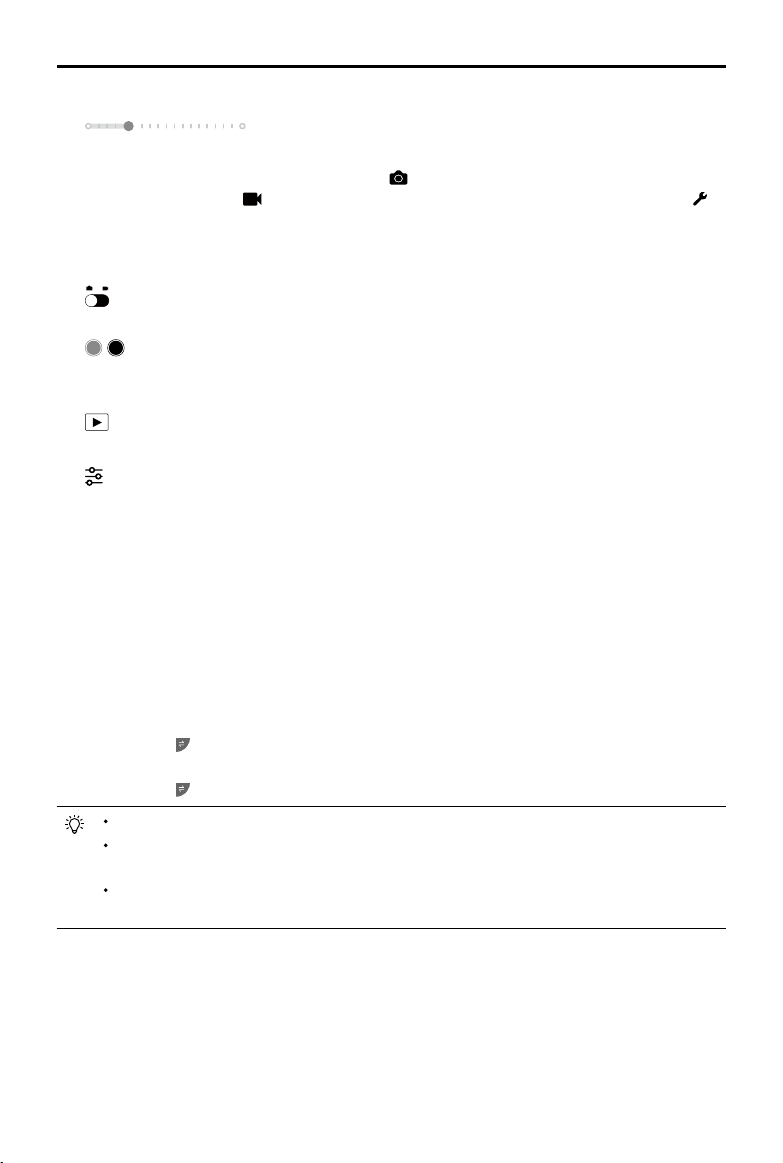
©
2020 DJI All Rights Reserved.
65
MATRICE 300 RTK User Manual
26. Gimbal Slider
:Displaysthegimbaltiltangle.
27. Camera Settings
Taptoenterthephotoandvideosettings.Tap tocongurephotosettingssuchasphotomode
andimageformat.Tap tocongurevideo settings suchasvideosizeandformat.Tap to
congurevideocaption,gridandsmartLEDsettings (toenable/disablearmLEDs,beaconLEDs
andstatusLEDs).Thesettingsmayvaryaccordingtodierentcameramodels.
28. Photo / Video Toggle
:Taptoswitchbetweenphotoandvideorecordingmodes.
29. Shutter / Record Button
/ :Taptoshootphotosorstart/stop recording.Userscanalsopress the ShutterorRecord
buttonontheremotecontrollertoshootphotosorrecordvideo.
30. Playback
:TaptoenterPlaybackandpreviewphotosandvideosassoonastheyarecaptured.
31. Parameter Settings
:TaptosetISO,shutter,exposurevaluesandotherparameters
32. Map
Taptoviewthemap.
33. Navigaton Display
Displaystheaircraftandgimbalorientation, andobstacleavoidanceinformation.Referto Primary
FlightDisplay(PFD)sectionformoredetails.
34. FPV Camera / Gimbal Camera Preview
Withoutagimbalandcamera,theaircraftcantransmitvideoimageryviatheFPVcamera.
Withasinglegimbalandcamera,the aircraftcantransmitimageryvia theFPVcameraandthe
singlecamera;twoviewscanbedisplayed.
Withdualgimbalsandcamera,theaircraftcantransmitimageryviatheFPVcamera,andthetwo
cameras.Tap toselecttheview.
Withtriplegimbalsandcameras,theaircraftcantransmitimageryviatheFPVcameraandthethree
cameras.Tap toselecttheview.
RefertotheH20Tusermanualformoredetailsaboutrelatedgimbalsandcamerafeatures.
Readthecorrespondingusermanualformorecameraviewdescriptionsrelatedtoothertypes
ofgimbalsandcameras.
Whenusingthe4G networkfunction,thecameraviewwillhaveacorrespondingiconto
displaythenetworkstatus.
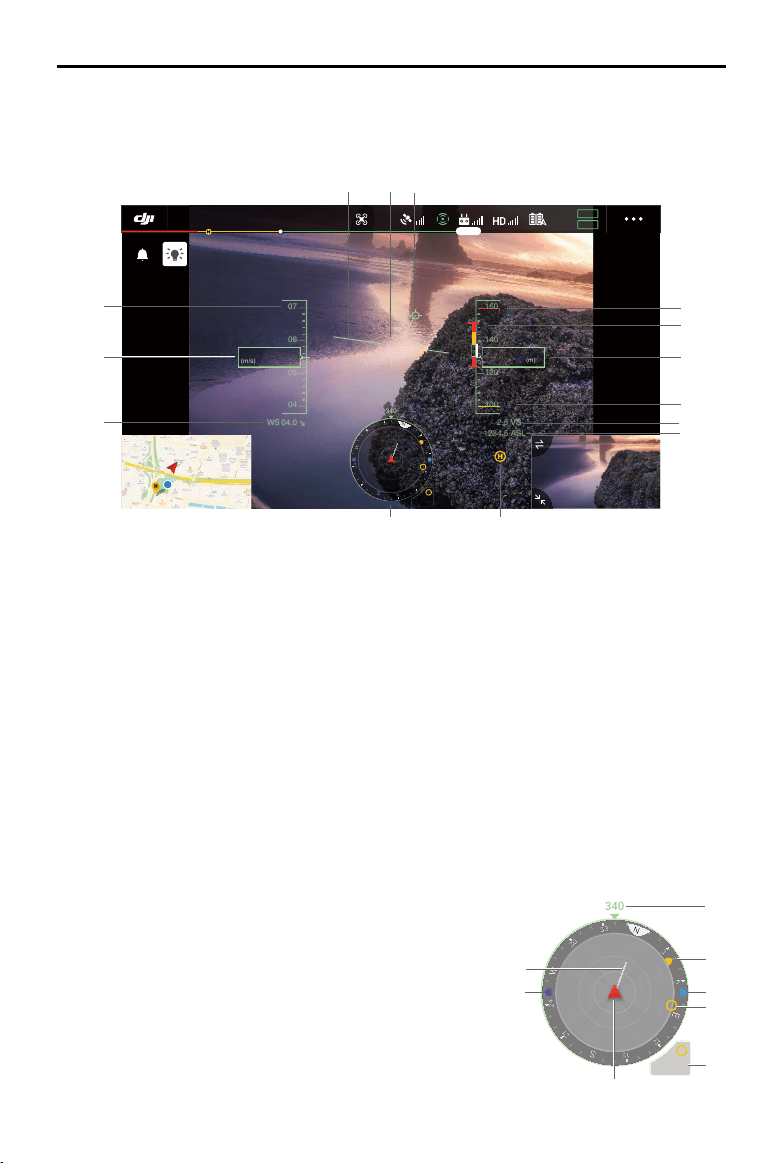
66
©
2020 DJI All Rights Reserved.
MATRICE 300 RTK User Manual
1. Speedwheel.
2. Horizontalspeed.
3. Windspeedanddirection.Thewinddirectionisthedirectionoftheaircraftrelativetotheabsolute
coordinatesystem,whichisdisplayedasnorthtosouthfromuptodown,andwesttoeastfromleft
toright.
4. Articialhorizon:Reecttheattitudeoftheaircraft,whichisoppositetothetiltangleoftheaircraft.
5. Headingindicator:Alwaysinthemiddleofthecameraview.
6. Flightpathvector:Thepositionwheretheaircraftwillyto.
7. Displaystheheightlimit.
8. Verticalobstacleindicator:Displaysthe verticalobstacleinformation.Whenthere areobstacles
aboveorbelowtheaircraft,thereisawhitelineshowsthepositionthattheaircraftcanreachafter
2s.Itcanbeusedtocomparewiththeheightofobstaclestoavoidightsafetyaccidents.
9. Flightaltitude:Showsthealtitudeoftheaircraftrelativetothetakeopoint.
10.DisplaystheRTHheight.
11.Verticalspeed:Displaystheverticalspeedoftheaircraftclimbingordescending.
12.Absolutealtitude:Displaystheabsolutealtitudeoftheaircraft.
13.Homepoint.
Primary Flight Display (PFD)
PrimaryFlightDisplay(PFD)isafeaturethatcanhelpuserstoymoreintuitivelyandeasily,allowingusers
toseeandavoidobstaclesaroundtheaircraft,aswellasstopandadjustighttrajectoryifnecessary.
N
H
340
222m
H
c
e
f
d
d d
b
a
In-Flight(GPS)
19:29
GPS
12
2.4G
80%
100%
26.1v
26.1v
07
06
05
04
04.0WS
05.2
SP
D
(m/s)
140
120
2.5
VS
1234.5
ASL
130.2
ALT
(m)
RTH
160
100
20
5.5
N
E
W
S
3
6
12
15
21
24
30
33
H
340
222m
H
1
4 5 6
8
7
9
10
11
12
14
2
13
3
14.Navigation display: Displays theaircraftandgimbal
orientations,andobstacleavoidanceinformation.
Aircraft and Gimbal Orientations
a.Aircraft:Whentheaircraftrotates,thenavigationdisplay
rotates.
b.Aircraft horizontalspeedvector:Displaystheaircraft
direction and speed.
c.Aircraftorientation:Displaysthe currentorientationofthe
aircraft.The displayed degreeiscountedclockwisefrom
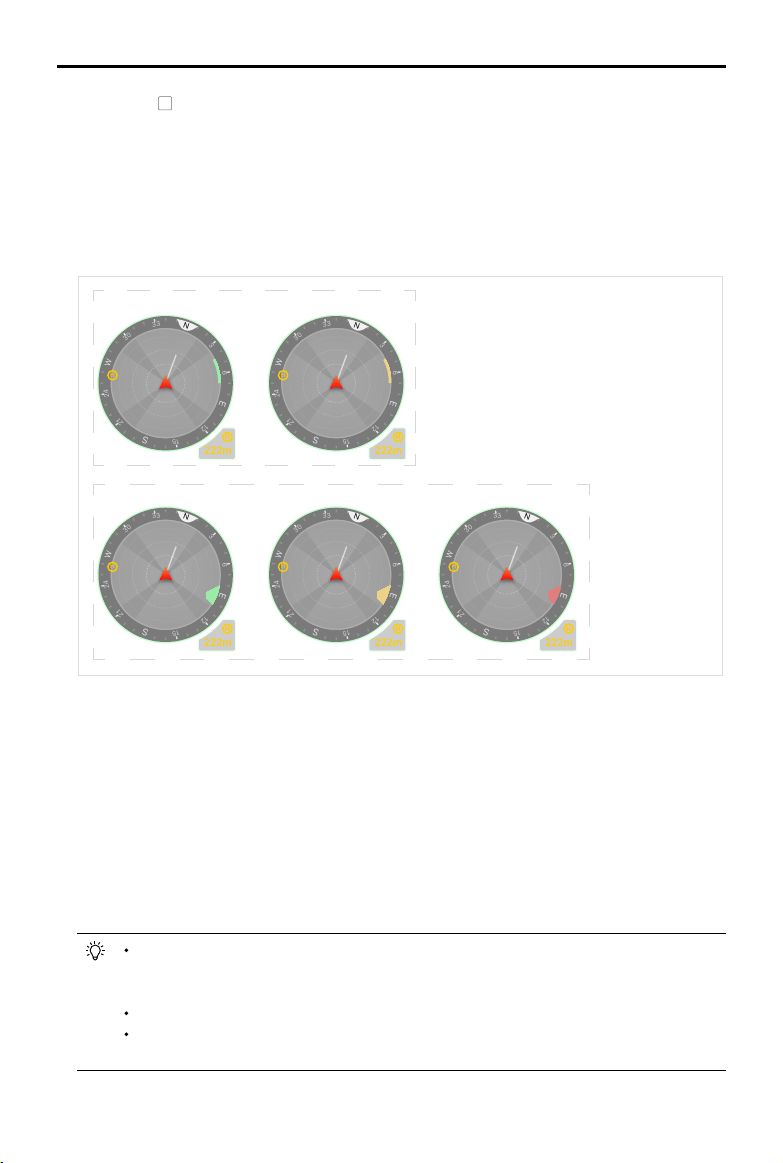
©
2020 DJI All Rights Reserved.
67
MATRICE 300 RTK User Manual
the north
N
(thenorthisassumedtobe0degree,)totheaircraftnosedirection.
d.Theorientationofthethreegimbalsmountedontheaircraft:Youcanviewtheorientationofthe
gimbalrelativetotheaircraftinrealtime.Whenthegimbalrotates,theiconwillrotateaccordingly.
e.Homepointorientation:Displaysthehomepositionrelativetotheaircraft.Whenthehomepoint
distanceexceeds16m,thehomepointresidesontheedgeofthenavigationdisplay.
f. Homepointdistance:Displaysthehorizontaldistancebetweenthehomepointandtheaircraft.
Obstacle Avoidance Display
222m
H
N
E
W
S
3
6
12
15
21
24
30
33
20
H
222m
H
N
E
W
S
3
6
12
15
21
24
30
33
20
H
222m
H
N
E
W
S
3
6
12
15
21
24
30
33
20
H
222m
H
N
E
W
S
3
6
12
15
21
24
30
33
20
H
222m
H
N
E
W
S
3
6
12
15
21
24
30
33
20
H
a1
a2
Thelightcolorareas aretheobstacleavoidableareasoftheaircraft, and thedarkcolorareasare
theblindspots.Duringflight,pleaseavoidtheaircraftspeedvectorlinefallingintotheobstacle
avoidanceblindspot.Inhorizontaldirection:
a1.Ifthewarningdistancesetintheappisgreaterthan16m,onceanobstacleisdetected,itwill
displaygreeninthedirectionoftheobstacle;whentheobstaclereachesthewarningdistance,it
turnsyellow;whentheobstaclereachesneartheobstaclebreakingdistance,itturnsred.
a2.Ifthewarningdistancesetintheappislessthan16m,theobstacleenterswithin16mwillnot
reachthewarningdistance,theobstacleisindicatedbyagreenframe;whentheobstacleenters
within16mandreachesthewarningdistance,itturnsyellow;whentheobstaclereachesnear
theobstaclebreakingdistance,itturnsred.
Onceanobstacleis detectedintheverticaldirection,theverticalobstacleindicatorbar
appears.Whenthewarningdistanceisreached,redandyellowbarsaredisplayed;when
theobstaclebreakingisreached,aredbarisdisplayed.
Followtheappinstructionstosetthewarningdistanceandtheobstaclebreakingdistanceinapp.
Whentheobstaclereachesthewarningdistance,theremotecontrollerwillsound“B…B…
B…”,andsound“B.B.B.”whentheobstaclereachesneartheobstaclebreakingdistance.
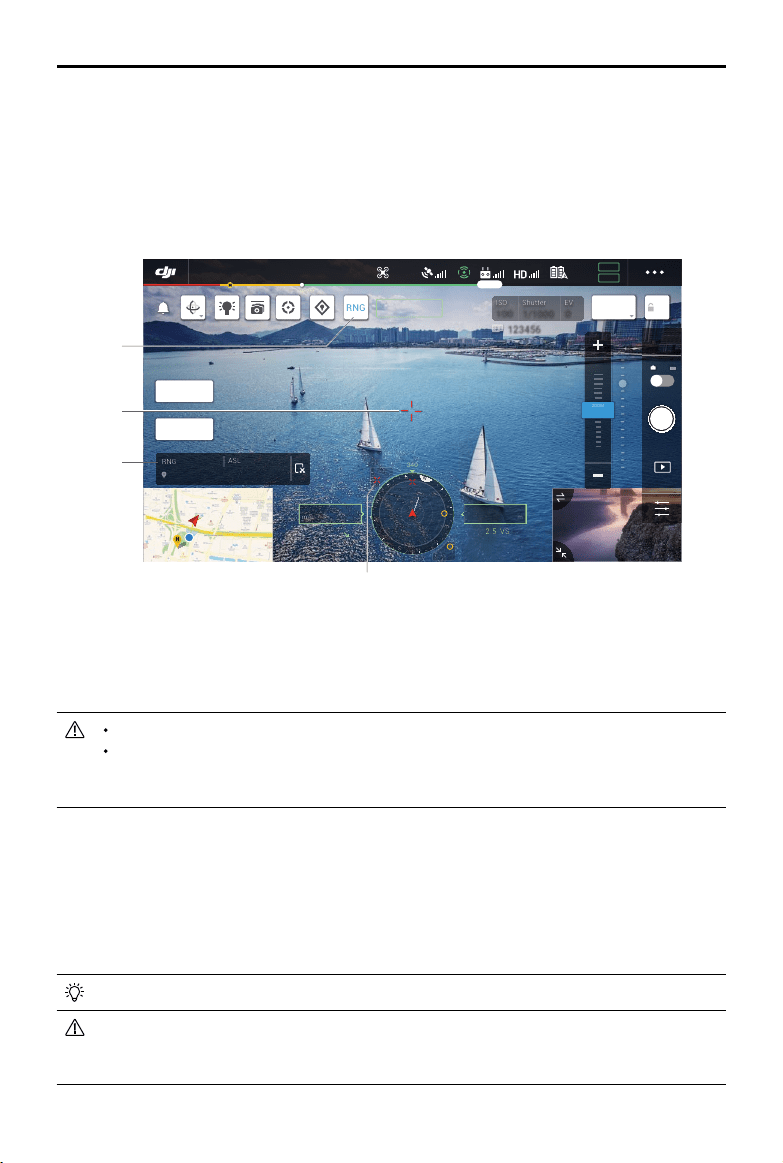
68
©
2020 DJI All Rights Reserved.
MATRICE 300 RTK User Manual
Smart Pin & Track
SmartPin&TrackincludesSmartTrackandPinPoint.ThetargetpointpositionidentiedbytheSmart
Pin&TrackandRNGcanbesynchronizedwithothervideotransmissionofH20seriescameras,FPV
videotransmissionofaircraft,navigationdisplay,andmappage,etc.fordisplay.
PleaseuseSmartTrackinanopenenvironmenttoavoidfrequentobstruction.
Thepositioningeectof thePinPointandRNGislimitedbythe aircraftGNSSpositioning
accuracy,thegimbalattitudeaccuracy,andotherfactors.TheGNSS position,horizontal
distance,navigationdisplay,ARprojection,etc.providedareforreferenceonly.
Smart Track
Introduction
WhenusingtheH20series,theSmartTrackfunctioncanbeusedtoidentify,lockandtracktargetssuch
aspeople,cars,boats,orother objects. Afterrecognizingandlockingthetarget,itwill automatically
controlthegimbaltorotate,sothatthetargetcanbelocatedinthecenterofthescreen,andadjustthe
camerafocallengthtoanappropriatefocusratetotrackandviewthetarget.
Whenthetrackingtargetissettoobjects,thetrackingeectislimited.
Whentheaircraftisgoinghome,landingortheightmodeswitchisintheTposition,theSmart
Trackisdisabled.OncetheabovesituationoccursduringtheoperationofSmartTrack,itwill
immediatelyexitthefunction.
Laser Rangender (RNG)
1.TaptoenabletheRNG.
2. Thelaserrangenderiscurrentlyaimingatthetarget,andthedistancebetweenthetargetandthe
aircraft,thelatitude,longitude,andaltitudeofthetargetaremeasured.
3.Thelineardistancebetweenthetargetandtheaircraft.
4.Thehorizontaldistancebetweenthetargetandtheaircraft.
ISO
ISO
100
100
Shutter
Shutter
1/1000
1/1000
EV
EV
0
0
123456 123456
RNG
ZOOM 5.0X
+146.2365984, -122.1326590
1300m
ASL
300m
RNG
AE
AF-C
MENU
10 X
2 X
5 X
ZOOM
N
E
W
S
3
6
12
15
21
24
30
33
340
45m
222m
H
130.2
ALT
m
VS2.5
ASL1234.5
05.2
SPD
m/s
WS 04.0
H
In-Flight(GPS)
19:29
GPS
12
2.4G
80%
100%
26.1v
26.1v
IR
WIDE
1
2
3
4

©
2020 DJI All Rights Reserved.
69
MATRICE 300 RTK User Manual
19:29
GPS
12
2.4G
80%
100%
26.1v
26.1v
10 X
2 X
5 X
ZOOM
ISO
ISO
100
100
Shutter
Shutter
1/1000
1/1000
EV
EV
0
0
123456 123456
RNG
AE
AF-C
N
H
340
222m
H
130.2
ALT
m
VS2.5
ASL1234.5
(m/s)
In-Flight(GPS)
IR
WIDE
ZOOM 5.0X
1
2
Identifying and locking the object
Afterenteringthezoomview(supportingthepayload)intheapp,SmartTrackcanbeenabled.
1. ClicktostartorstopSmartTrack.
2. Identifypeople,cars,andshipsascandidatetargets.Youcanalsomakegesturesonthescreento
selectotherobjectsastargets.
3. Clicktoswitchtargettrackingtogimbalfollowmodeorgimbalfreemode.
Whentheuserselectingother typesoftargetsthroughgesturingon thescreen,oncea
person,carorboatappearsintheframearea,theperson,carorboatwillbeselectedasthe
targettostarttracking.
Whenselectionthroughgestures,ifthecharacteristicsofthetargetarenotclear,itwillcause
theselectiontofail.
ISO
ISO
100
100
Shutter
Shutter
1/1000
1/1000
EV
EV
0
0
123456 123456
In-Flight(GPS)
19:29
GPS
12
2.4G
80%
100%
26.1v
26.1v
IR
10 X
2 X
4 X
ZOOM
RNG
AE
ZOOM 5.0X
WIDE
MENU
ZOOM 5X
ZOOM 5X
N
E
W
S
3
6
12
15
21
24
30
33
340
45m
222m
H
130.2
ALT
m
VS2.5
ASL1234.5
05.2
SPD
m/s
WS 04.0
H
AF-C
3

70
©
2020 DJI All Rights Reserved.
MATRICE 300 RTK User Manual
Tracking target (in gimbal follow mode)
Ingimbalfollowmode,theorientationoftheaircraftheadingisalwaysconsistentwiththegimbal,both
aimingatthetarget.Atthis time, theattitudeofthegimbalwillbeautomaticallyadjustedsothat the
targetcanbeinthe centerofthescreen,andthe usercanne-tunetheeldofviewby triming the
gimbaldial;thecamerawillautomaticallyadjustthezoomtomakethesizeofthetargetsuitable.The
ZoomMenuandtherightdialontheremotecontrolcanalsobeusedtoadjustthesizeofthetarget.
Targetprediction:Whenatargetislostfromtheviewintheapp,itwillpredictthepositionofthetarget
anddisplayitonthescreenbasedonthehistoricalmotiontrajectory.
Targetsearch:Whenthetargetislostfromtheviewintheapp,itwillautomaticallysearchforthetarget
basedonthepredictedpositionofthetarget.Youcanalsomanuallycontrolthethegimbalrotationand
thecamerazoomtondthetarget.
Targetpositioning:TheGNSSpositionofthetargetwillbedisplayedinthenavigationdisplayandmap
(notethatwhenthelaserrangenderoftheH20seriesgimbalandcameracontinuestobeinvalid,the
targetpositionisforreferenceonly),thepositionofthetargetwillalsobedisplayedintheFPVview.
Focustracking:Thecamerafocus will beactivelyenhancedaccordingtothe distanceofthetarget
object.
Ingimbalfollowmode,thetopightstatusbarwilldisplaySTafterenteringtracking.Thecontrolmode
oftheaircraftisslightlydierentfromthenormalightmode.Pleasemakesureyouarefamiliarwiththe
followingcontrolsandycarefully.
Remote controller
operation
Aircraft performed Important
Pressandholdonthe
Pausebutton
Exitthetargettrackingandreturn
tothetargetselectionstage.
----
Yawstick Adjustgimbalyaw. Theadjustablerangeislimitedduringtracking.
Pitchstick
Flytheaircrafttoorawayfromthe
targethorizontally.Themaximum
ightspeedislessthan17m/s.By
continuouslycontrollingthestick,
theaircraftwillcontinuetotrackthe
target.
Whenthehorizontaldistancebetween the
aircraftand the target issmall,thespeed
inthedirectionclosetothetargetwillbe
limited.Theaircaraftcannot approachthe
targetinthefollowingconditions:
a.Theaircraftislessthan5metersfromthe
target
b.Thetargetisundertheaircraft(thepitchof
thegimbalisgreaterthan80°)
Rollstick
Flytheaircrafttorotatethetarget
horizontally.Themaximumight
speedislessthan17m/s.
Whenthehorizontaldistancebetweenthe
aircraftandthetargetissmall,theorbitspeed
willbelimited.
Throttlestick Controltheaircraftheight. ----
Gimbalpitchcontroldial Adjustthegimbalpitch. Theadjustablerangeislimitedduringtracking.
Gimbalpancontroldial Adjustthecamerazoom. Theadjustablerangeislimitedduringtracking.
FlightmodeswitchtoT
position
ExitSmartTrack. Canbeusedforemergencyexit.
FlightmodeswitchtoS
position
Switchtogimbalfreemode.
Willnotswitchtothegimbalfollowmode
onceswitchedtoPmode.
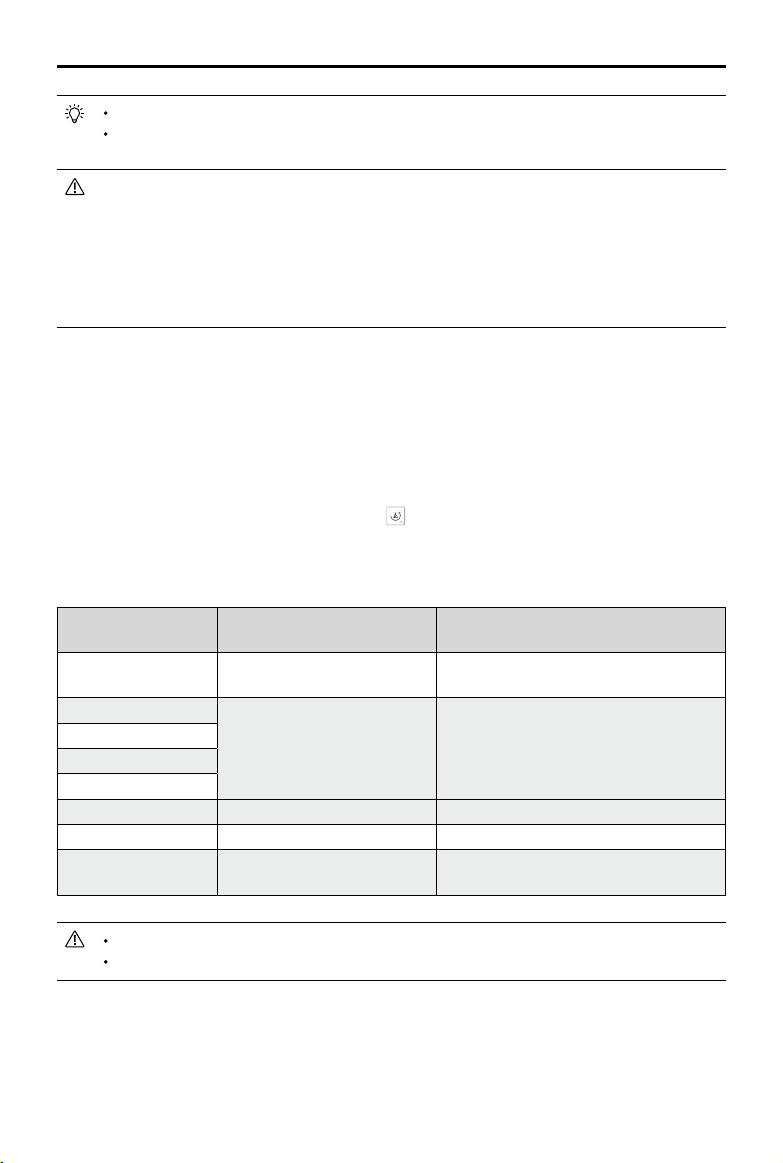
©
2020 DJI All Rights Reserved.
71
MATRICE 300 RTK User Manual
WhenenteringSmartTrack,thecamerawillautomaticallyswitchtoAF-Cfocusmode.
Inordertoensuretheshootingeffectofdynamictarget,takingphotosduringthetarget
trackingwillnotlockthegimbal.Atthistime,thestaticbackgroundmayproducemotionblur.
Bellowscenesmayhavepoorrecognitionortrackingeects:
a.Whenusedatnight,therecognitionmaybecomeworse.
b.Whentheloadisworkingathighmagnication,thetrackingeectmaybecomeworse.
c.Inanenvironmentwithpoorvisibilitysuch asrain,fogandhaze,thetrackingeectmay
becomeworse.
d.Insceneswith heavytracandcrowdsofsimilarobjects,thetrackedobject/targetmay
change.
Tracking target (in gimbal free mode)
Whenthecurrentstateoftheaircraftdoesnotmeettheoperatingconditionsof thegimbalfollow
mode,itwillautomaticallyswitchtothegimbalfreemode.Thepossibleswitchingsituationsare:
a.Whentheaircraftightcontrolandthegimbalcontrolbelongtotwodierentremotecontrollers.
b.FlightmodeswitchisatSposition.
c.Theaircraftisinattitudemode.
d.Manuallyswitchtogimbalfreemodebytapping .
e.Theaircraftdoesnottakeo.
Ingimbalfreemode,thetopightstatusbarwillnotchangeafterenteringtracking.Thecontrolmode
oftheaircraftisthesameasthenormalightmode.
Remote controller
operation
Aircraft performed Important
Pressandholdonthe
Pausebutton
Exitthetargettrackingandreturn
tothetargetselectionstage.
----
Yawstick
Thesameasthenormalight
mode.
Theaircraftandgimbalheadingarediererent,
pleaseycarefully.
Pitchstick
Rollstick
Throttlestick
Gimbalpitchcontroldial Adjustthegimbalpitch. Theadjustablerangeislimitedduringtracking.
Gimbalpancontroldial Adjustthecamerazoom. Theadjustablerangeislimitedduringtracking.
FlightmodeswitchtoT
position
ExittheSmartTrack. Canbeusedforemergencyexit.
Ingimbalfreemode,thelandinggearoftheaircraftmayappearintheview.
Ingimbalfreemode,thegimbalrotationrangeislimitedbythegimbalmechanicallimit.
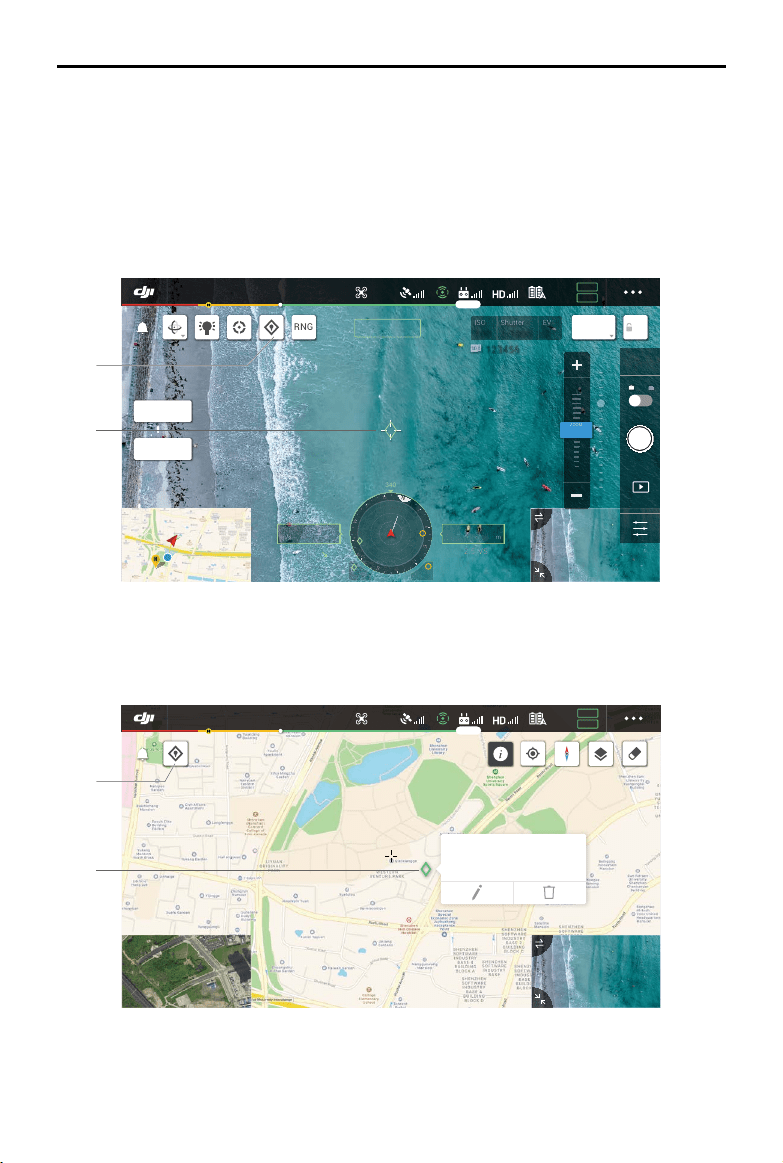
72
©
2020 DJI All Rights Reserved.
MATRICE 300 RTK User Manual
PinPoint
PinPointcanonlybeusedwiththeH20seriesgimbalandcamera.PinPointcanidentifythelocationof
thetarget,whichisconvenientforinformationsynchronization.
1.Adjusttheattitudeoftheaircraftandthegimbaltomovethetargettothecenteroftheview.Tapon
thetargetinthecenteroftheviewtorecordthepointlocation.
2.Recordthelatitude,longitudeandaltitudeofthepoint.Currentlyonlyonepointissupported.When
thenextpointisrecorded,thepreviouspointinformationwillbeoverwritten.
1.Taptotorecordapointinthe center ofthemap.Thealtitudeofthispointisthecurrentaircraft
altitude.
2.Taptoviewthecoordinatesofthepoint,andtheheightofthepointcanbeeditedanddeleted;press
anddragtochangeitslatitudeandlongitude.
N
E
W
S
3
6
12
15
21
24
30
33
340
45m 222m
H
130.2
ALT
m
VS2.5
ASL1234.5
05.2
SPD
m/s
WS 04.0
H
In-Flight(GPS)
19:29
GPS
12
2.4G
80%
100%
26.1v
26.1v
IR
10 X
2 X
5 X
ZOOM
RNG
AE
AF-C
ZOOM 5.0X
WIDE
MENU
ISO
ISO
100
100
Shutter
Shutter
1/1000
1/1000
EV
EV
0
0
123456 123456
1
2
ALT: 200m / ASL: 1200m
56.096560, -12.987400
In-Flight(GPS)
19:29
GPS
12
2.4G
80%
100%
26.1v
26.1v
1
2

©
2020 DJI All Rights Reserved.
73
MATRICE 300 RTK User Manual
1
2
ISO
ISO
100
100
Shutter
Shutter
1/1000
1/1000
EV
EV
0
0
123456 123456
In-Flight(GPS)
19:29
GPS
12
2.4G
80%
100%
26.1v
26.1v
10 X
2 X
5 X
ZOOM
IR
RNG
AE
ZOOM
+146.2365984, -122.1326590
1300m
ALT
300m
RNG
MENU
ZOOM 5X
ZOOM 5X
WIDE 1.0X
N
E
W
S
3
6
12
15
21
24
30
33
340
45m
45m 222m
H
130.2
ALT
m
VS2.5
ASL1234.5
05.2
SPD
m/s
WS 04.0
H
H
123456 123456
In-Flight(GPS)
19:29
GPS
12
2.4G
80%
100%
26.1v
26.1v
WIDE
x1
FFC
MSX
RNG
IR 1.0X
ZOOM
+146.2365984, -122.1326590
1300m
ALT
000.0°C
RNG
MENU
10 X
2 X
5 X
ZOOM
ZOOM 5X
ZOOM 5X
N
E
W
S
3
6
12
15
21
24
30
33
340
45m
45m 222m
H
130.2
ALT
m
VS2.5
ASL1234.5
05.2
SPD
m/s
WS 04.0
H
3
B. FPV/Navigationdisplay
1. OntheFPV,youcanseethelocationofthetargetpointsofSmartTrack,PinPoint,andRNG.
Location Sharing
Thetargetpointpositionidentied bySmartTrack,PinPointandRNGcanbesynchronizedtoother
videotransmissionofH20 seriescameras,FPVvideotransmissionofaircraft,navigationdisplay,map
page,andDJIFlightHub*,etc.fordisplay.
*Comingsoon.
A. OthervideotransmissionofH20seriescameras
1. WhenSmartTrackisenabled,thetargetpointismarkedingreeninthecenter.
2. WhenPinPointisenabled,thetargetpointisdisplayedonthescreen.
3. WhenRNGisenabled,thetargetpointismarkedinredinthecenter.
IfSmartTrackandRNGareenabledatthesametime,andthetargetpointisinthecenterof
theview,onlythegreenmarkofSmartTrackwillbedisplayed.
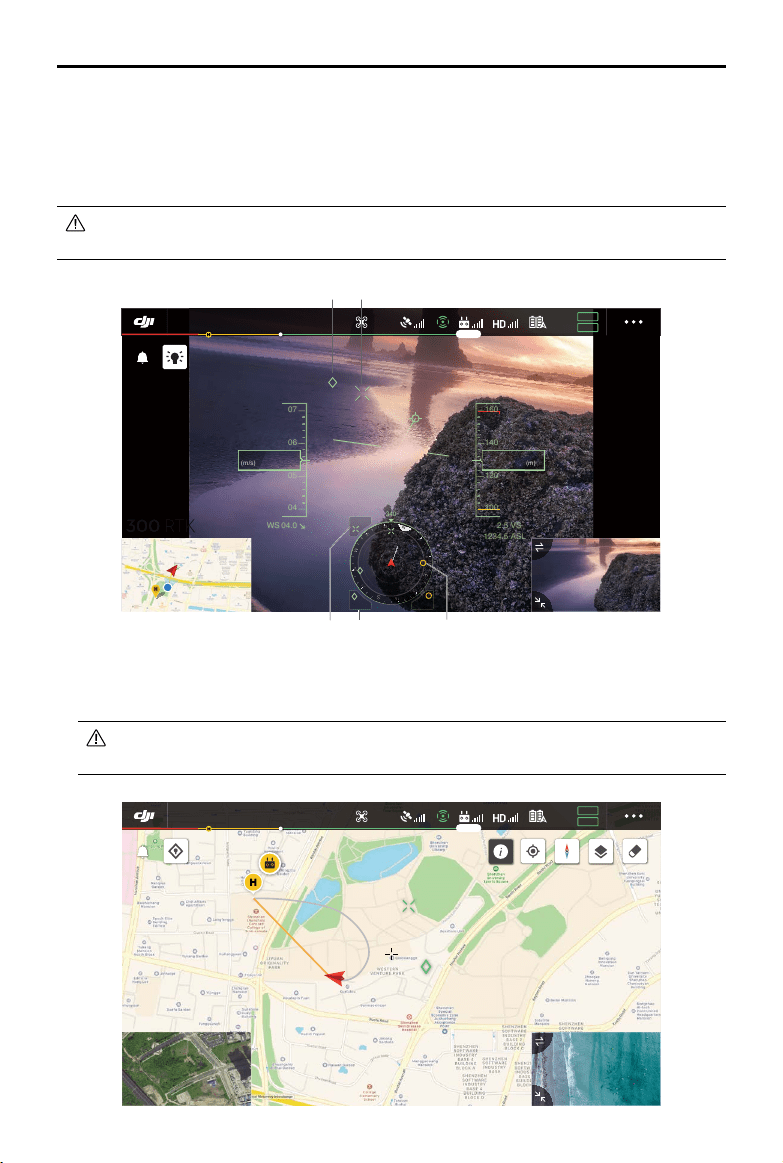
74
©
2020 DJI All Rights Reserved.
MATRICE 300 RTK User Manual
2. The navigationdisplayshowstheorientationanddistance ofthetargetpointrelativetothe
aircraft.Ifthedistanceistoofar(thetargetpointisnotinthecameraview),theiconofthetarget
pointwillresideontheedgeofthenavigationdisplay.
3. ViewthehorizontaldistancebetweentheaircraftandthetargetofSmartTrackorRNG.
4. ViewthehorizontaldistancebetweentheaircraftandthetargetofPinPoint.
IfSmartTrackandRNGareenabledatthesametime,andthetargetpointisinthecenterof
theview,onlythegreenmarkofSmartTrackwillbedisplayed.
In-Flight(GPS)
19:29
GPS
12
2.4G
80%
100%
26.1v
26.1v
07
06
05
04
04.0WS
05.2
SP
D
(m/s)
140
120
2.5
VS
1234.5
ASL
130.2
ALT
(m)
RTH
160
100
N
E
W
S
3
6
12
15
21
24
30
33
340
45m
45m 222m
H
H
1
3 4 2
1
C.Map
Youcanseethelocationof the targetpointsofSmartTrack,PinPoint,andRNG.Taptoviewthe
targetcoordinate.
IfSmartTrackandRNGareenabledatthesametime,andthetargetpointisinthecenter
oftheview,onlythegreenmarkinSmartTrackwillbedisplayed.
In-Flight(GPS)
19:29
GPS
12
2.4G
80%
100%
26.1v
26.1v
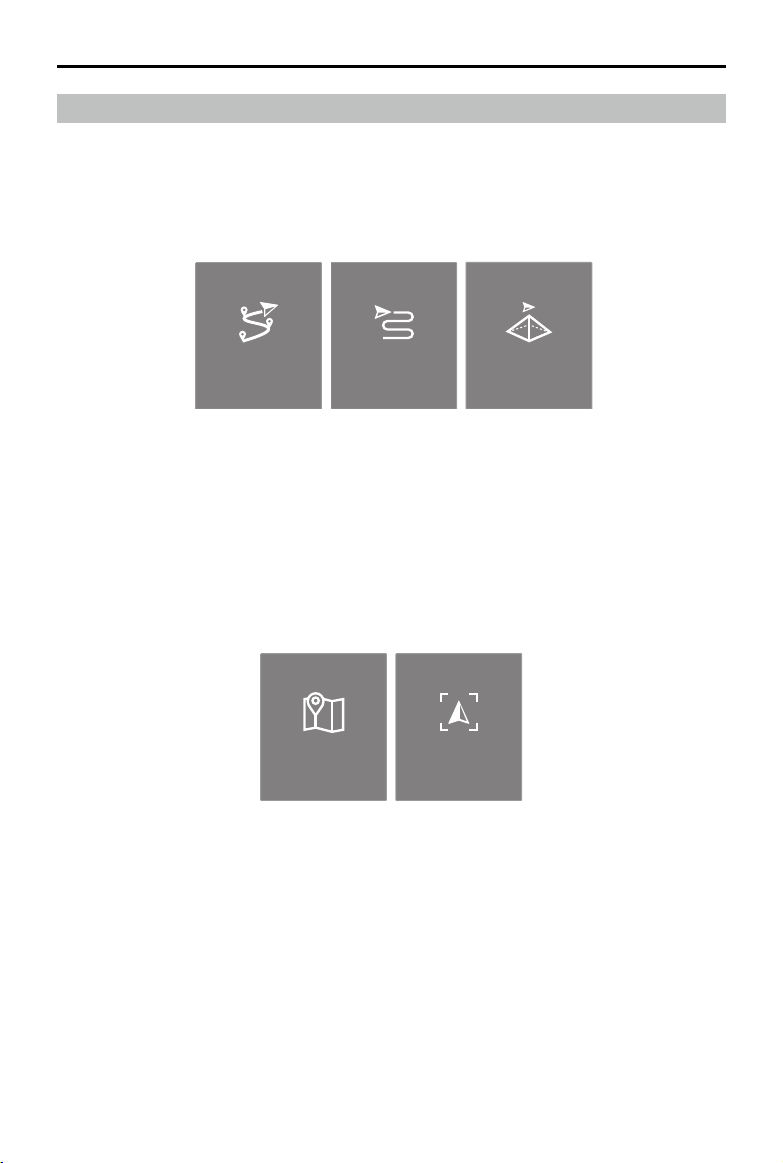
©
2020 DJI All Rights Reserved.
75
MATRICE 300 RTK User Manual
Mission Flight
Introduction
Taptoenterthe missionlibrary.Userscan viewthecreatedightroutes,ornewlycreatedWaypoint
ight,MappingorObliquePhotographymissons.Amongthem,the Mapping or Oblique Photography
missionsaregeneratedbyApp,andtheWaypointightcanbecreatedthroughSetWaypointsorLive
MissionRecording.
Waypoint Mapping Oblique
Set Waypionts Live Mission
Recording
UseSetWaypointstocreatearoutebyaddingeditablewaypoints on themap.UseLiveMission
Recordingtocreatearoutebyaddingwaypointsandeditthetargetinthe photoalongtheroute.
Moreover,userscanalsoeditthemissionduringights,wheninighteditingmode.
Therearetwofunctionswhichcanbeachieved:
Waypoints2.0:Editandsavethewaypointsbeforetakeothenstartying.
AISpot-check:Editandsavethewaypointsduringight,themissionwillbesavedafteright.
Waypoint Mapping Oblique
Set Waypionts Live Mission
Recording
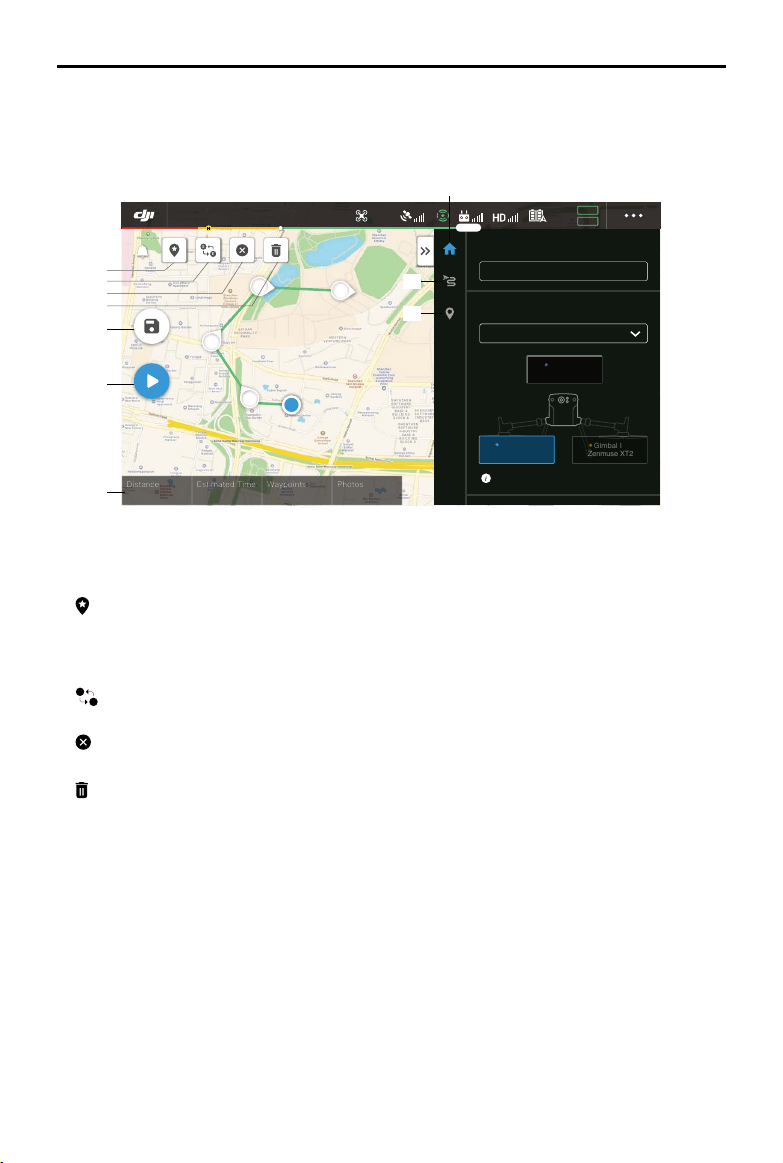
76
©
2020 DJI All Rights Reserved.
MATRICE 300 RTK User Manual
Set Waypoint
TapCreatea Route,Waypointflight, andthenSetWaypointstocreateanewflightrouteandedit
waypoints.
Taponthemaptoaddwaypoints,thencongurerouteandwaypointssettings.
1. Point of Interest (POI)
:TaptoenablethePOIfunctionand aPOIwillbedisplayedonthemap. Dragtoadjustits
position.WhenthePOIfunctionisenabled,thedroneyawcanbesettocentertoPOIsothatthe
aircraftnosepointsatthePOIduringthemission.TapthisiconagaintodisablethePOIfunction.
2. Reverse Path
S
E
:Taptoswapthestartandendpointstoreversetheightpath.“S”referstothestartpoint.
3. Clear Waypoints
:Taptoclearalltheaddedwaypoints.
4. Delete Selected Waypoint
:Taptodeletetheselectedwaypoint.
5. Parameters List
Edittheroutename,settheaircrafttypeasM300RTK,andcongurethegimbalandcamera.
6. Route Settings
Thesettingsareappliedtothe entireroute,includingaircraft speed, height, aircraftyaw,gimbal
control,waypointtype,powersavingmodeandcompletionaction.
7. Waypoint Settings
Selectawaypointandthensetwaypointparameters.Tap“<”or“>”toswitchtothepreviousornext
waypoint.Thesettingsareappliedtotheselectedwaypoint,includingaircraftspeed,height,aircraft
yaw,waypointtype,waypointactions,longitudeandlatitude.
8. Mission Information
Showstheflightlength,estimatedflight time,waypointquantity, photoquantity,longitudeand
latitude.
2
3
4
5
S
0000 m
00 m 00 s
Distance
Estimated Time
0000
Waypoints
0000
Photos
S
E
The building of mapping
Matrice 300
Gimbal III
X-Port
Gimbal II
Zenmuse Z30
Gimbal I
Zenmuse XT2
Tap and hold to adjust payload position
Select Aircraft
Flight Route Name
In-Flight(GPS)
19:29
GPS
12
2.4G
80%
100%
26.1v
26.1v
1
2
3
4
8
9
10
5
6
7
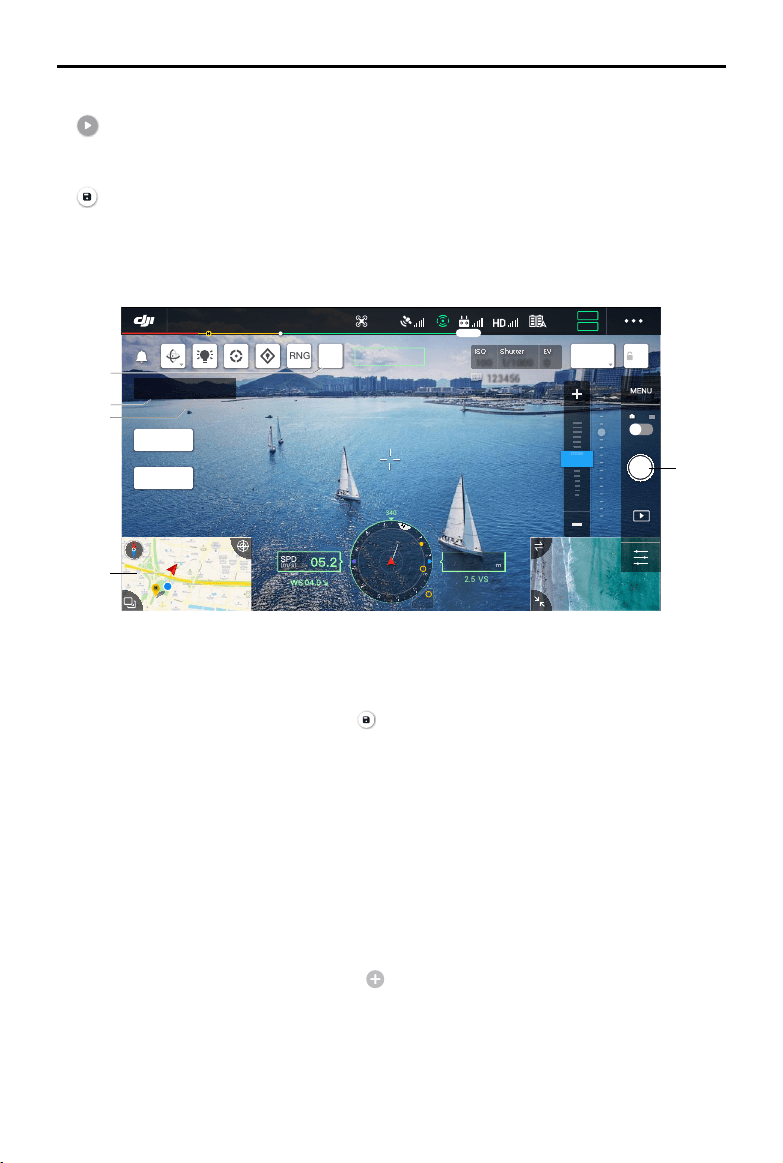
©
2020 DJI All Rights Reserved.
77
MATRICE 300 RTK User Manual
1. Tap C1topinapointorcaptureaphoto,thewaypointnumberandthephotonumberwillincrease.
2. Waypointnumber.
3. Photonumber.
4. Taptoenterthemappageforediting.Tap tosavecurrentsettings,andaightrouteiscreated.
WhenusedwiththeH20 seriesgimbalandcamera,tapNexttoenterthe AISpot-checkpagefor
editing.
AI Spot-check
WhenpairingtheM300RTKwiththeH20seriespayload,AISpot-checkisavailable.InAISpot-check
page,youcanswitchfromdierentphotos,drag-selectphotosandadjustthesize.Whentherouteis
executed,theselectedobjectwillbeaccuratelyphotographed.
a. Back.
b.Displaysthewaypointnumberandthephotonumber.
c. Displaysthegimbalandlensofthephoto.
d.Photothumbnails,taptoselectthephotothat needstobeeditedaccurately.Thephotohasbeen
editedbyAISpot-check,andismarkedwith .
e. Gesturetoselecttheobjectinthephoto,adjusttheselectionboxsize,dragordeletetheselection
box,andtheselectionboxwillfollowthepicturesoastoenlargeorreduce.Taponceonthepicture
tohide/showotherbuttonsandtoolsonthescreen.
f. Taptosavetheflight routesettingsandtheAISpot-checkconfigurations,and a flightrouteis
created.
ISO
ISO
100
100
Shutter
Shutter
1/1000
1/1000
EV
EV
0
0
123456 123456
N
H
340
222m
H
130.2
ALT
m
VS2.5
ASL1234.5
(m/s)
10 X
2 X
5 X
ZOOM
RNG
C1
AEAF-C
19:29
GPS
12
2.4G
80%
100%
26.1v
26.1v
IR
WIDE
ZOOM 5.0X
Waypiont 2
Photos 1
In-Flight(GPS)
1
2
3
4
1
9. Perform
:Tapthebuttonandthencheckthesettingsandstatusoftheaircraftinthepop-upchecklist.
Tapthe“StarttoFly”buttontoperformthemission.
10. Save
:Taptosavecurrentsettings.
Live Mission Recording
TapCreateaRoute,Waypointight,andthenLiveMissionRecordingtorecordactionssuchasphoto
capture.
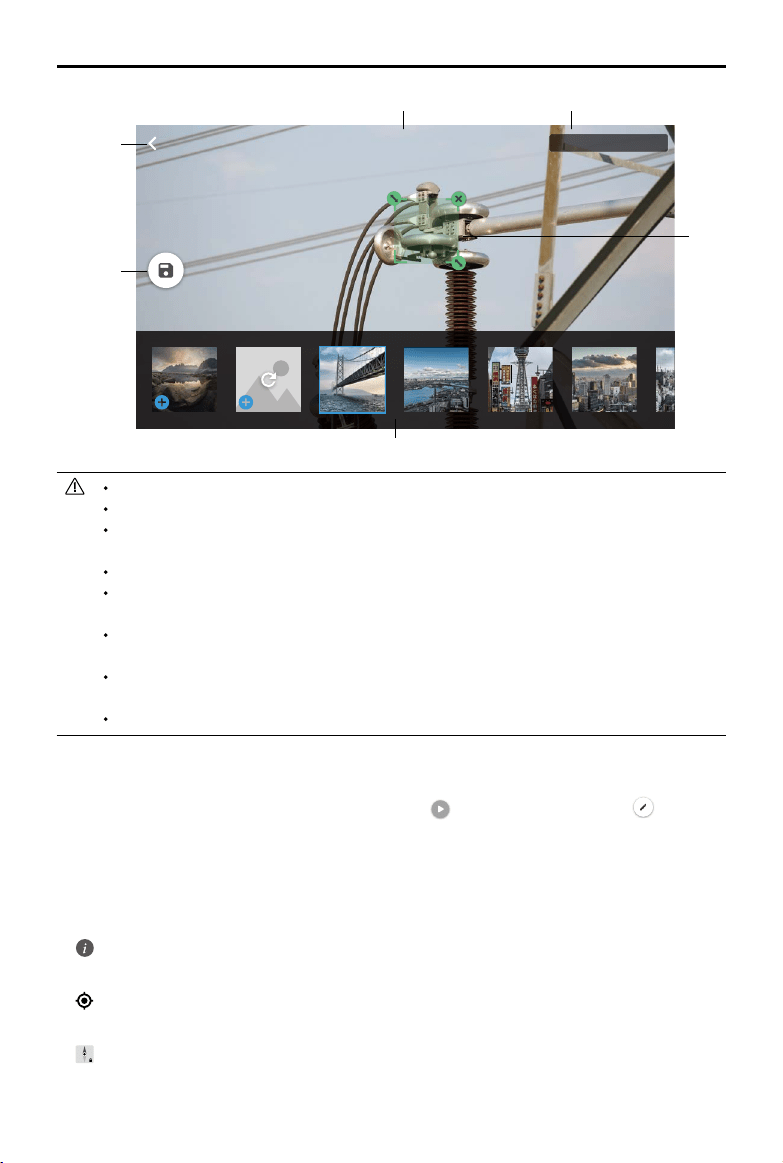
78
©
2020 DJI All Rights Reserved.
MATRICE 300 RTK User Manual
Gimbal I - H20T - wide
3
/12
a
f
b
d
e
c
In-Flight Editing
Enterthemissionlibrary,selectacreatedightroute,tap tostartthemission,ortap to edit the
ightroute.
1. TaptoenterIn-FlightEditingpage.Theeditionswillbemergedintotheoriginalrouteaftersaved.
2. TaptoenterSetWaypointspage.
3. TaptoenterAISpot-checkpage.
4. Flightlimitinfomation
:Taptoseetheightlimitinformation.
5. Location
:Taptocenterthemaparoundtheaircraft’slocation.
6. MapLock
:Maprotationislockedbydefault.Northisatthetop.Tapthebuttontounlockrotation.Users
canadjustthemaporientationbytappingandrotatingtwongersonthemap.
AISpot-checkcanonlybeusedwiththeH20seriespayloadinzoomcameraview.
AISpot-checktakesphotosatupto10timesthefocallength.
RTKshouldbeusedforphotocaptureandPlannedRouteightoftheAISpot-check,andthe
RTKbasestationcoordinatesofthephotocaptureandPlannedRouteightmustbethesame.
AISpot-checkcansupportupto750photos.
Theratiooftheselectionboxsizeofthephotototheareaofthewholephotocannotbeless
than1/25whenusingAISpot-check.
Theselectionboxpositionmustbeinthemiddleoftheview and the sizeneedstobethe
sameasthetargetsize.
IfAdvancedDualOperatorModeisinuse,ControllerAmustbeusedtocompletetheDemo
Flightandmissionupload.
H20andH20Tgimbalandcamerashouldbeinstalledonthe1stgimbalport.
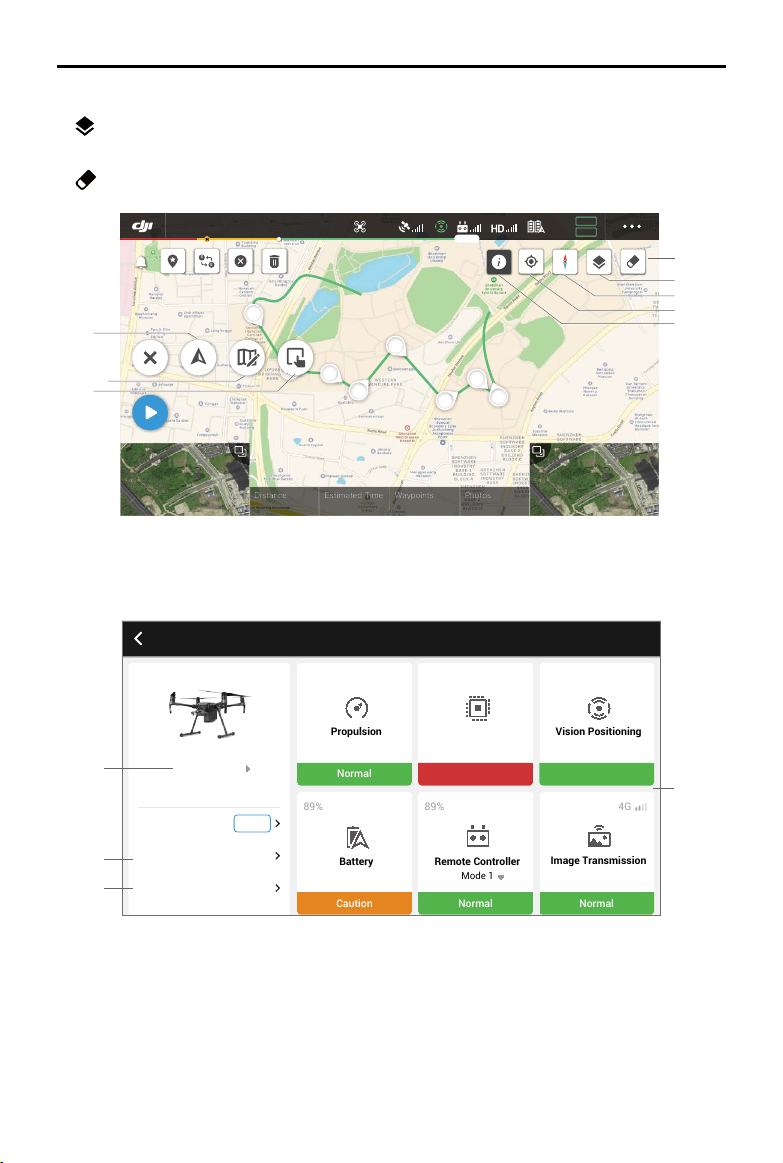
©
2020 DJI All Rights Reserved.
79
MATRICE 300 RTK User Manual
8
7
6
5
4
0000 m
00 m 00 s
Distance
Estimated Time
0000
Waypoints
0000
Photos
S
E
In-Flight(GPS)
19:29
GPS
12
2.4G
80%
100%
26.1v
26.1v
6
7
8
5
4
3
2
1
2
3
1
UAV Health Management System (HMS)
HMScanprovideerrordisplays,errorrecords,managelogsandmaintenanceinstructions.
4
1
3
2
Aircraft Health Management System
Normal
Propulsion
Caution
Battery
89%
28.2°
Warning
Avionics
Normal
Mode 1
Remote Controller
89%
Vision Positioning
Normal
Normal
Image Transmission
4G
Flight Data
Manage Logs
Firmware Update
New
Error Records
7. Map Mode
:TaptoswitchbetweenStandardandSatellitemode.
8. ClearScreen
:Taptocleartheightpathcurrentlyshownonthemap.

80
©
2020 DJI All Rights Reserved.
MATRICE 300 RTK User Manual
1. Errordisplays
Checkthecurrenthealthstatusofeachmoduleof theaircraft,andtheusercan solvethe
correspondingabnormalityaccordingtotheprompt.
Color Status Color Status
Green Normal Orange Caution
Yellow Notice Red Warning
2. Errorrecords
Recordsofhistoricaldataoftheaircraftareusedtoconrmwhetherthereareanyseriousproblems
duringtheuseoftheaircraft.Thismakesitconvenientfortheusertoevaluate the stability ofthe
aircraftandassistafter-saleswhenconductingananalysis.
3. Managelogs
Maintainrecentaircraftlogs.Thisdatacanbeisusedtoidentifyaircraftabnormalitiesandenhance
aircraftmanagement.UserscandirectlysendthelogstotheDJIafter-salesteamthroughtheApp.
4. Maintenanceinstructions
Userscanviewhistoricalightdataandthemaintenancemanual,thenbeabletodeterminewhether
maintenanceisrequired.
Album
Viewyourmasterpiecesallinoneplace.Youcansavethephotosorvideostoyourmobiledevice.
DJI FlightHub
ContentrelatedtoDJIFlightHubwillbeshownhereiftheDJIaccountusedhasaFlightHublicense.
DJIFlightHubisaweb-baseddronemanagementplatformthatprovidesuserswithreal-timemonitoring,
ightlogsanddata,teammanagementandmore.
Formoreinformation,pleasevisitwww.dji.com/ighthub
Menu
Tap ontheupperrightcornertoenterthemenuforofflinemaps,flightrecords,GEOunlocking,
privacysettingsandmore.
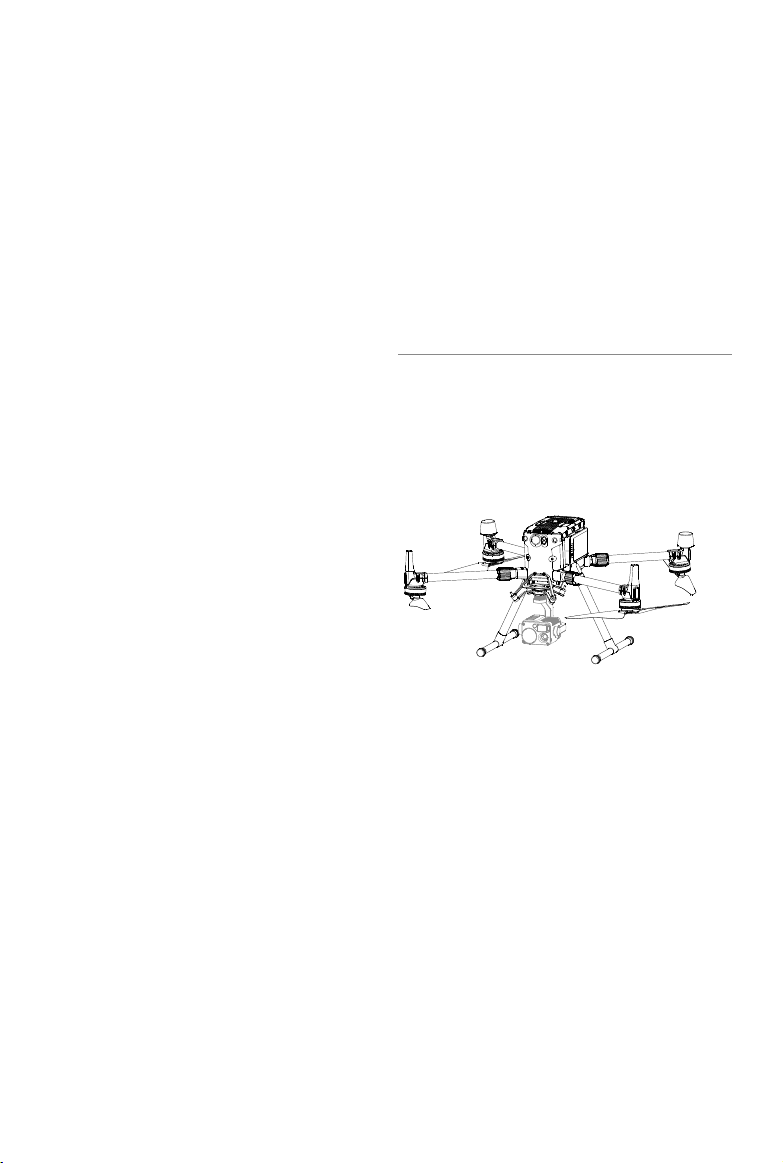
©
2020 DJI All Rights Reserved.
81
Flight
This section describes safe ight
practices and ight restrictions.

82
©
2020 DJI All Rights Reserved.
Flight
Oncepre-ightpreparationiscomplete,itisrecommendedtousetheightsimulatorin DJIAssistant
2forMatricetohoneyouryingskillsandpracticeyingsafely.Ensurethatallightsarecarriedoutin
anopenarea.Itisimportanttounderstandbasicightguidelinesforthesafetyofbothyouandthose
aroundyou.RefertotheDisclaimerandSafetyGuidelinesformoreinformation.
Flight Environment Requirements
1. DONOTusetheaircraftin severeweatherconditionssuchas wherewindspeedsexceed15m/s.
Whenyinginrain,refertotheightrequirementslistedintheIP45ProtectionRatingsectiononPage
38.
2.Whenyinginopenareas,tallandlargemetalstructuresmayaecttheaccuracyoftheonboard
compassandGNSSsystem.Makesuretooperatetheaircraftbyfollowingthepromptsintheapp.
3.Avoidobstacles,crowds,highvoltagepowerlines,trees,andbodiesofwater.
4.Minimizeinterferencebyavoidingareaswithelevatedlevels of electromagnetism,includingbase
stationsandradiotransmissiontowers.
5.Aircraftand batteryperformancearesubjecttoenvironmentalfactorssuchasairdensity and
temperature.Beverycarefulwhenyingathighaltitudes,asbatteryandaircraftperformancemaybe
aected.
6.ThecompassandGNSSwillnotworkinPolarRegions.Flycarefully.
GEO (Geospatial Environment Online) System
Introduction
DJI’sGeospatialEnvironmentOnline(GEO)Systemisaglobalinformation systemcommittedto
providingreal-time airspace information within thescopeofinternational laws and regulations.GEO
providesightinformation,ighttimesandlocationinformationtoassistUnmannedAerialVehicle(UAV)
usersinmakingthebestdecisionsrelatedtotheirpersonalUAVuse.ItalsoincludesauniqueRegional
FlightRestrictionsfeaturewhichprovidesreal-timeflightsafetyand restrictionupdatesandblocks
UAVsfromyinginrestrictedairspace.Whilesafetyandobeyingairtraccontrollawsisaparamount
concern,DJIrecognizestheneed forexceptionstobemadeunderspecialcircumstances.Tomeet
thisneed,GEOalsoincludesanUnlockingfeaturethatenablesuserstounlockightswithinrestricted
areas.Priortomakingtheiright,usersmust submitanunlockrequestbasedonthecurrentlevel of
restrictions in their area.
GEO Zones
DJI’sGEOSystemdesignatessafeightlocations,providesrisklevelsandsafetyconcernsforindividual
flights,andoffersrestrictedairspaceinformation,whichcanbeviewedbyusersinreal time on the
DJIPilotapp.The locationsdesignatedbyGEOarecalledGEOZones.GEOZonesarespecicight
areasthat arecategorizedbyflightregulationsandrestrictions.GEOZonesthatprohibitflightare
implementedaroundlocationssuchasairports,powerplants,andprisons.Theycanalsobetemporarily
implementedaroundmajorstadiumevents,forestres,orotheremergencysituations.CertainGEO
Zonesdonotprohibitightbutdotriggerwarningsinformingusersofpotentialrisks.Allrestrictedight
areasarereferredtoasGEOZones,andarefurtherdividedintoWarningZones,EnhancedWarning
Zones,AuthorizationZones,AltitudeZones,andRestrictedZones.Bydefault,GEOlimitsightsintoor
takingowithinzonesthatmayresultinsafetyorsecurityconcerns.ThereisaGEOZoneMap,which

©
2020 DJI All Rights Reserved.
83
MATRICE 300 RTK User Manual
containscomprehensiveglobalGEOZoneinformationontheocialDJIwebsite:https://www.dji.com/
ysafe/geo-map.
TheGEOSystemisforadvisory purposes only.Individualusersareresponsibleforcheckingocial
sourcesand determiningwhichlawsorregulationsmay applytotheiright.Insomeinstances,DJI
hasselectedwidely-recommendedgeneralparameters(suchasa1.5-mileradiusat airports)without
makinganydeterminationastowhethertheseguidelinesmatchregulationsthatapplytospecicusers.
GEO Zone Denitions
Warning Zones:
Usersreceiveawarningmessagewithinformationrelevanttotheiright.
Enhanced Warning Zones:
UsersreceiveapromptfromtheGEOSystematthetimeofight.Theyare
requiredtosubmitanunlockrequesttoyinthezone,forwhichtheymustconrmtheirightpath.
Authorization Zones:
Usersreceiveawarningmessageandthe flightisprohibitedbydefault.
AuthorizationZonescanbe unlockedbyauthorizeduserswithaDJI-veriedaccount.Self-Unlocking
privilegesmustbeappliedforonline.
Altitude Zones:
Flightsarelimitedtoaspecicaltitude.
Restricted Zones:
Flightsarecompletelyprohibited.UAVscannotflyin thesezones.Ifyouhave
obtainedpermissiontoy inaRestrictedZone,pleasegotohttps://www.dji.com/ysafeorcontact
[email protected]tounlockthezone.
DJIGEOZonesaim toensuretheuser’s flightsafety, butitcannotbeguaranteedtobe in full
compliancewithlocallawsandregulations.Usersshouldchecklocallaws,regulations,andregulatory
requirementsbeforeeachightandareresponsiblefortheightsafety.
AllintelligentflightfeatureswillbeaffectedwhenDJIaircraftflynearbyorintoGEOZones.Such
interferenceincludes,butisnotlimitedto,decreasedspeed,takeofailure,andighttermination.
Flight Restrictions
Introduction
UAVoperatorsshouldabidebyallflightregulationsestablishedbythe relevantgovernment and
regulatoryagencies, includingtheICAOandtheFAA.Forsafetyreasons,flightsarerestrictedby
default,whichhelpsusersoperateDJIproductssafelyandlegally.Flightrestrictionsincludealtitudeand
distancelimits,andGEOZones.
WhenGlobalNavigationSystemService(GNSS) is available,altitudelimits,distancelimits,andGEO
Zonesarealltakenintoaccounttoensureightsafety.Otherwise,onlyaltitudelimitstakeeect.
Maximum Altitude & Radius Restrictions
Maximumightaltituderestrictsanaircraft’sightaltitude,whilemaximumradiusrestrictsitsdistance.
TheselimitscanbesetusingtheDJIPilotapp.
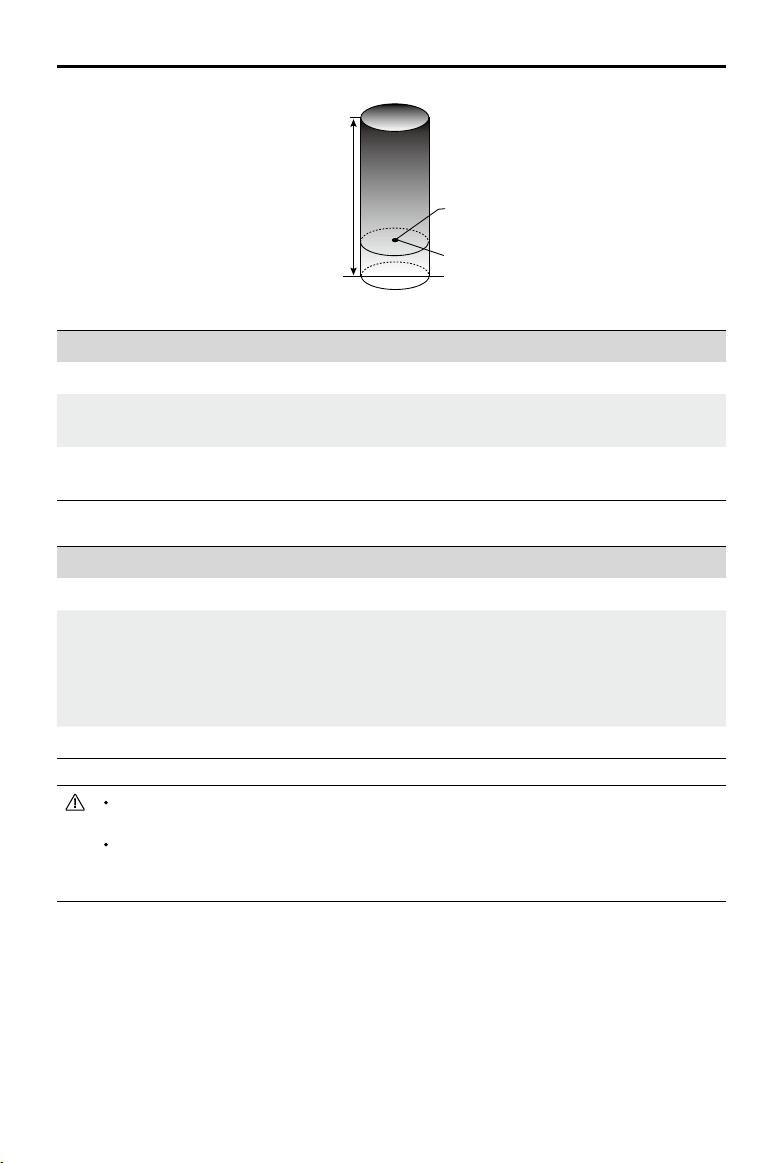
84
©
2020 DJI All Rights Reserved.
MATRICE 300 RTK User Manual
Whenanaircraftexceeds aspeciedlimit,thepilotcanstillcontroltheaircraftbutitwillbe
unabletoyanyfarther.
Forsafetyreasons,DONOTy near airports,highways,railwaystations,railwaylines,city
centers,orothersensitiveareas.Onlyyaircraftinareasthatare within yourdirectlineof
sight.
Strong GNSS Signal
Restriction Description DJIPilotAppMessage
MaxAltitude
Aircraft'saltitudecannotexceed
thespeciedvalue.
MaximumFlightAltitudereached.Adjust
youraltitudeusingFCSettingsifrequired.
MaxRadius
Flightdistancecannotexceed
thespeciedvalue.
MaximumFlightDistancereached.Adjust
yourdistanceusingFCSettingsifrequired.
Weak GNSS Signal
Restriction Description DJIPilotAppMessage
MaxAltitude
Altitudeisrestrictedto26ft.(8m)when
GNSSsignalisweakandtheVision
Systemisactivated.Altitudeisrestricted
to98ft.(30m)whenGNSSsignalisweak
andtheVisionSystemisdeactivated.
MaximumFlightAltitudereached.
AdjustyouraltitudeusingMC
Settingsifrequired.
MaxRadius Nolimit. N/A
MaximumFlightAltitude
MaxRadius
HomePoint
Heightofaircraftwhenturnedon
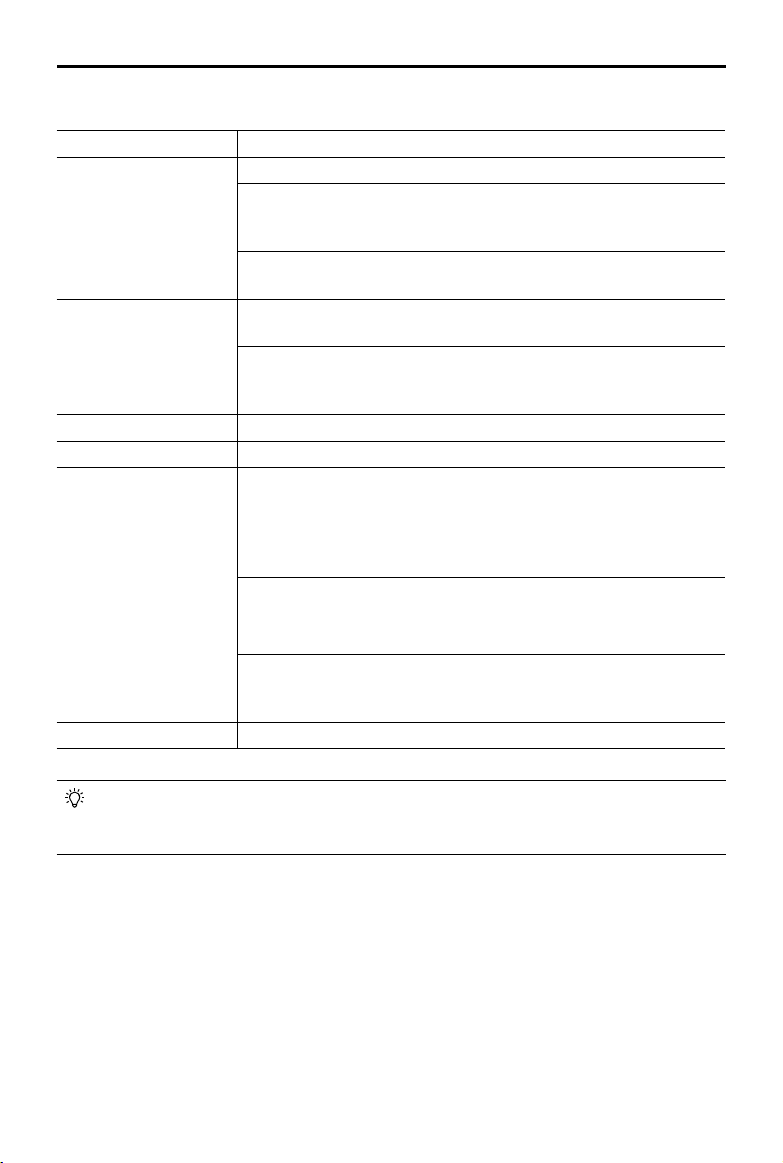
©
2020 DJI All Rights Reserved.
85
MATRICE 300 RTK User Manual
GEOZone Description
RestrictedZone
Takeo:Theaircraft’smotorscannotbestarted.
In-ight:WhenGNSSsignalchangesfromweaktostrong,DJIPilotstarts
acountdown.Oncethecountdownisover,theaircraftimmediatelylandsin
semi-automaticdescentmodeandturnsoitsmotorsafterlanding.
In-ight:WhentheaircraftapproachestheboundaryoftheRestrictedZone,
itautomaticallydeceleratesandhovers.
AuthorizationZone
Takeo:Theaircraft’smotorscannotbestarted.Takeoisonlyavailable
aftersubmittinganunlockrequestwiththeuser’sphonenumber.
In-ight:WhenGNSSsignalchangesfromweaktostrong,DJIPilotstarts
acountdown.Oncethecountdownisover,theaircraftimmediatelylandsin
semi-automaticdescentmodeandturnsoitsmotorsafterlanding.
EnhancedWarningZone Theaircraftiesnormallybuttheuserisrequiredtoconrmtheightpath.
WarningZone Theaircraftiesnormallybuttheuserreceiveswarningmessages.
AltitudeZone
WhenGNSSsignalisstrong,theaircraftcannotexceedthespecied
altitude.
In-ight:WhenGNSSsignalchangesfromweaktostrong,iftheaircraftis
higherthantheheightlimit,theaircraftwilldescendandhoverbelowthe
altitudelimit.
WhentheGNSSsignalisstrong,theaircraftapproachestheboundaryof
theAltitudeZone.Ifitishigherthanthealtitudelimit,theaircraftdecelerates
andhoversinplace.
WhentheGNSSsignalchangesfromweaktostrong,iftheaircraftishigher
thantheheightlimit,DJIPilotappstartsacountdown.Oncethecountdown
isover,theaircraftwilldescendandhoverbelowthealtitudelimit.
FreeZone Theaircraftiesnormallywithnorestrictions.
GEO Zone Flight Restrictions
Semi-Automatic Descent: All stick commands are available except the throttle command
and RTH button during descent and landing. The aircraft’s motors turn off automatically
after landing. It is recommended to y the aircraft to a safe location to land immediately.

86
©
2020 DJI All Rights Reserved.
MATRICE 300 RTK User Manual
GEO Unlocking
Duetodieringlawsandregulationsbetweencountriesandregions,anddieringightrestrictionsbe-
tweenGEOZones,DJIprovidesuserswithtwomethodsforunlockingGEOZones:Self-Unlockingand
CustomUnlocking.
Self-UnlockingisusedforAuthorizationZones,wheretheuserisrequiredtosubmitanunlockrequest
byauthenticatingtheirphonenumberforaregisteredDJIaccount.Thisfeatureisonlyavailableincer-
taincountries.Userscanchoosewhethertosubmittheirunlockrequestviathewebsiteathttps://www.
dji.com/ysafe(ScheduledSelf-Unlocking),orthroughtheDJIPilotapp(LiveSelf-Unlocking).
CustomUnlockingisbasedonspecialrequirementsforindividualusers.Itsetsaspecialightareathat
userscanunlockbyprovidingightpermissionlesaccordingtotheirspecicGEOZoneand other
requirements.Itisavailableinallcountriesandcanbeappliedforonthewebsite:https://www.dji.com/
ysafe.
Formoreinformationaboutunlocking,pleasevisit
https://www.dji.com/ysafeorcontact[email protected].
Preight Checklist
1.Remotecontroller,IntelligentFlightBattery,anddisplaydevicearefullycharged.
2.Framearmsareunfoldedandlockedfirmly,landinggearsaremountedfirmly,andbatteriesare
lockedrmly.
3.Allthedevices'rmwareisup-to-date.
4.microSDcardhasbeeninserted,ifnecessary.
5.Gimbalisfunctioningnormally.
6.Motorscanstartandarefunctioningnormally.
7.TheDJIPilotappissuccessfullyconnectedtotheaircraft.
8.EnsurethatthesensorsfortheVisionandInfraredSensingSystemsareclean.
9.DONOTfacethebatteryconnectordownwardstothegroundtoavoidgettingdustorwaterintothe
batteryconnector.
10.Makesurethatthegimbaldampeneriswithoutobviouswearandtear,andthegimbalanti-drop
ropehasbeenfastened.
Calibrating the Compass
Onlycalibratethecompass whentheDJIPilotapporthestatusindicatorpromptsyouto doso.
Observethefollowingruleswhencalibratingyourcompass:
DONOTcalibrateyourcompasswherethereisachanceofstrongmagnetic interference,
suchasnearmagnets,parkingstructures,orsteelreinforcementsunderground.
DONOTcarryferromagneticmaterialswithyouduringcalibrationsuchascellularphones.
The DJIPilotappwillnotifyyouifthecompassis affectedbystronginterferenceafter
calibrationiscomplete.Followthepromptstoresolvethecompassissue.
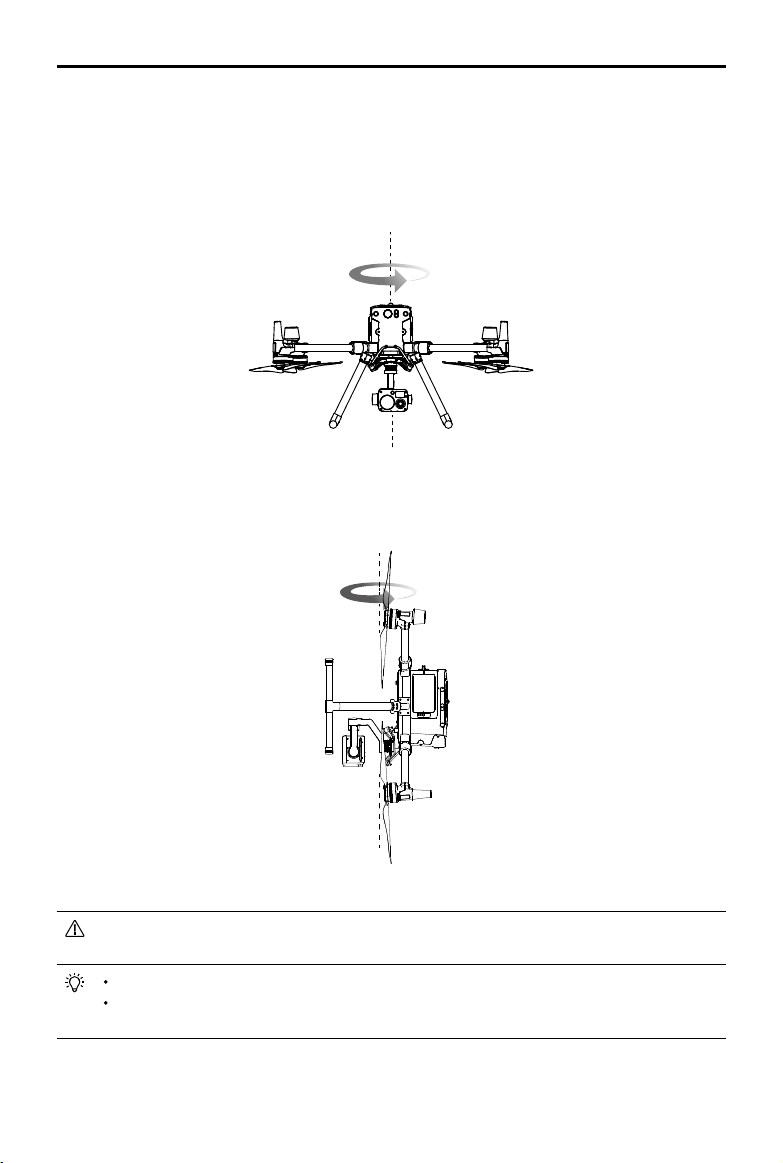
©
2020 DJI All Rights Reserved.
87
MATRICE 300 RTK User Manual
3.Holdtheaircraft vertically,withthenosepointing downward,androtateit360degreesaroundthe
centeraxis.Re-calibratetheaircraftiftheaircraftstatusindicatorsblinkred.
IftheAircraftStatusIndicatorblinksredandyellowafterthecalibrationprocedure,moveyour
aircrafttoadierentlocationandtryagain.
DONOTcalibratethecompassnearmetalobjectssuchasametalbridge,cars,scaolding.
Iftheaircraftstatusindicatorsareblinkingredandyellowalternatelyafterplacingtheaircrafton
theground,thecompasshasdetectedmagneticinterference.Pleasechangeyourlocation.
Calibration Procedures
Chooseanopenareatocarryoutthefollowingprocedures.
1.TaptheAircraftStatusBarintheappandselectCalibrate,thenfollowtheon-screeninstructions.
2.Holdtheaircrafthorizontallyandrotateit360degrees.TheAircraftStatusIndicatorswillgosolid
green.
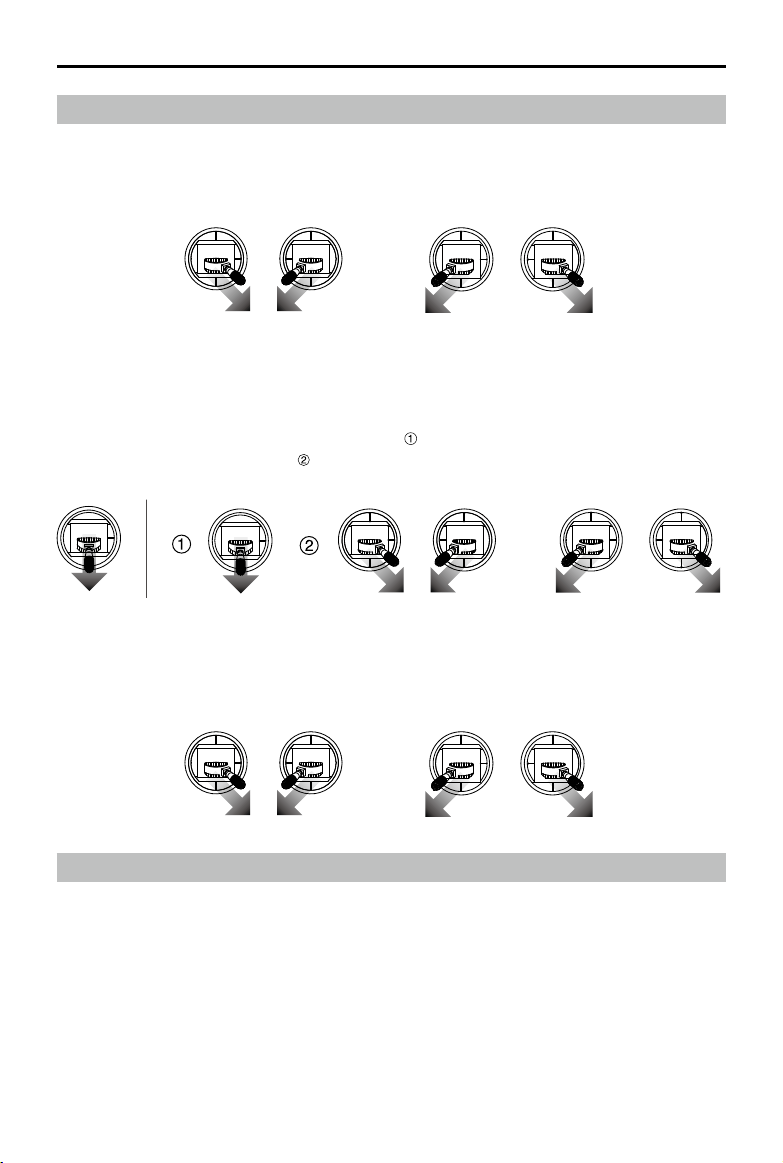
88
©
2020 DJI All Rights Reserved.
MATRICE 300 RTK User Manual
Starting/Stopping the Motors
Starting Motors
TheCombinationStickCommand (CSC)isusedtostartthemotors.Push bothstickstothebottom
inneroroutercornerstostartthemotors.Oncethemotorsstartspinning,releasebothstickssimulta-
neously.
OR
OR
Stopping the Motors
Therearetwowaystostopthemotors:
1.Whentheaircrafthaslanded,pushandholdtheleftstickdown.The motors willstopafterthree
seconds.(Recomended).
2.Whenaircrafthaslanded,pushtheleftstickdown ,thenconductthesameCSCthatwasusedto
startthemotors,asshownabove .Motorswillstopimmediately.Releasebothsticksoncemotors
stop.
OR
Method 2Method 1
Flight Test
Takeo/Landing Procedures
1.Placetheaircraftinanopen,atareawiththebatterylevelindicatorsfacingtowardsyou.
2.Turnontheremotecontroller,thenturnontheaircraft.
3.LaunchDJIPilotandentertheCameraView.
4.Waituntilthe AircraftStatusIndicatorsblinkgreen(with single pointpositioning)orblinkgreenand
bluealternately(RTK).
5.IftheIntelligentFlightBatterytemperatureislow,usetheself-heatingfunctiontoheatthebatteriesto
ensurethetemperatureissuitablefortheaircrafttotakeo.
6.TurnonthemotorsusingCSCandpushtheleftstickupslowlytotakeo.
7.Toland,hoveroveralevelsurfaceandgentlypulldownontheleftsticktodescend.
Emergency Propeller Stop
TheCombinationStickCommand(CSC)canbe used to executetheemergencypropellerstoponce
theightcontrollerdetectscriticalerrorduringight.

©
2020 DJI All Rights Reserved.
89
MATRICE 300 RTK User Manual
8.Afterlanding,executetheCSCcommandorholdtheleftstickatitslowestpositionuntilthemotors
stop.
9.TurnotheIntelligentFlightBatteryrst,thentheremotecontroller.
WhentheAircraftStatusIndicatorsblinkyellowrapidlyduringight,theaircrafthasentered
Failsafemode.
AlowbatterylevelwarningisindicatedbytheAircraftStatusIndicatorsblinkingredslowlyor
rapidlyduringight.
Watchourvideotutorialsformoreightinformation.
Three-propeller Emergency Landing
Duringflight,iftheaircraftlacksoneliftoutput(e.g.propulsionsystemfailure of a motor),itwill
automaticallyswitchtotheThree-propeller Emergency LandingMode.Theightcontrollerwilltryto
maintainthestabilityandcontrollabilityofattitudeandvelocity,andmaketheaircraftautomatically
descentinthismode.Thismodeenablesausertolandtheaircraftontoasafezonebycontrollingthe
aircraft,helpstoreducethechancefortheaircraftandpayload todrop,anddamagethepeopleand
propertyontheground.
WhentheaircraftenterstheThree-propellerEmergencyLandingMode, theremotecontrollerwillalert
theuserbyvibrating.Atthistime,theaircraftwillenterrapidspinandautomaticallydescendbydefault.
Thestickthatcontrolsbackandforthmovementwillbeadjustedtocontrolthenorth-southmovement
andthestickthatcontrols the leftandrightmovementwillbeadjustedtocontrolthewest-east
movement.Theusercanoperatethestickstomovetheaircrafttotheappropriatelandingareaassoon
aspossible.Whentheaircraftreachesneartotheground,usercanusetheEmergencypropellerstop
tolandtheaircrafttominimizethedroplosscausedbytheaircraftspin.
Three-propellerEmergencyLandingrequiresthatthetakeoweightoftheaircrafttobeless
than7.7kganditshouldworkinopenspacewiththeightheightthatexceeds10m.
Oncesuchafailureoccurs,pleasemovetheaircraftimmediatelyawayfrom peopleand
valuables,andlandonalevelandsoftsurface(e.g.grass)toreducedamagingtheaircraft.
Ifapropellerisdamagedbutthemotorisstillworkingnormally,theaircraftwillnotenterthe
Three-propellerEmergencyLandingMode.
Three-propellerEmergencyLandingisonlyusedasanemergencyprotectionfunctionwhen
thepropulsionsystemfails.Pleasedonotactivelytriggerit.
Makesurethatallrmwareisup-to-update.
Afterlanding,contactDJIsupportforthepropulsionsystemmaintenanceassoonas
possible.

90
©
2020 DJI All Rights Reserved.
Appendix

©
2020 DJI All Rights Reserved.
91
Appendix
Specications
Aircraft
Dimensions
(Unfolded,propellersexcluded)
810×670×430mm(L×W×H)
Dimensions(Folded) 430×420×430mm(L×W×H)
DiagonalWheelbase 895mm
Weight(Batteriesexcluded) 3600g
MaxPayload 2700g
MaxTakeoWeight 9000g
OperatingFrequency 2.400-2.4835GHz;5.725-5.850GHz
TransmitterPower(EIRP) 2.400-2.4835GHz:
29.5dBm(FCC);18.5dBm(CE);18.5dBm(SRRC);18.5dBm(MIC)
5.725-5.850GHz:
28.5dBm(FCC);12.5dBm(CE);28.5dBm(SRRC)
HoveringAccuracy(Windlessor
breezy)
Vertical:
±0.1m(VisionSystemenabled))
±0.5m(P-modewithGPS)
±0.1m(D-RTK)
Horizontal:
±0.3m(VisionSystemenabled))
±1.5m(P-modewithGPS)
±0.1m(D-RTK)
MaxAngularVelocity Pitch:300°/s,Yaw:100°/s
MaxPitchAngle 30°(P-modeandForwardVisionSystemenabled:25°)
MaxAscentSpeed 6m/s
MaxDescentSpeed(vertical) 5m/s
MaxDescentSpeed(tilt) 7m/s
MaxHorizontalSpeed 23m/s
MaxServiceCeilingAboveSeaLevel 5000m(with2110Propellers,andtakeoweight≤7kg)/7000m
(with2195HighAltitudeLowNoisePropellers,andtakeoweight
≤7kg)
MaxWindResistance 15m/s
MaxForwardFlightTime(Sealevel) 45minutes(Loadweight700g)
MaxHoverTime(Sealevel) 43minutes(Loadweight700g)
MotorModel 6009
PropellerModel 2110
SupportedDJIGimbals ZenmuseXT2/ZemuseXTS/ZenmuseZ30/ZenmuseH20/
ZenmuseH20T/ZenmuseP1/ZenmuseL1
SupportedGimbalCongurations DualDownwardGimbals,SingleUpwardGimbal,SingleDownward
Gimbal,SingleDownwardGimbal+SingleUpwardGimbal,Dual
DownwardGimbals+SingleUpwardGimbal

92
©
2020 DJI All Rights Reserved.
MATRICE 300 RTK User Manual
OtherSupportedDJIProducts CSMRadar,Manifold2
IngressProtectionRating IP45
GNSS GPS+GLONASS+BeiDou+Galileo
OperatingTemperature -20°to50°C(-4°to122°F)
Smart Controller
OcuSyncEnterpriseOperation
FrequencyRange
2.400-2.4835GHz;5.725-5.850GHz*
MaxTransmissionDistance
(Unobstructed,freeof
interference)
NCC/FCC:15km
CE/MIC:8km
SRRC:8km
TransmitterPower(EIRP) 2.400-2.4835GHz:
29.5dBm(FCC);18.5dBm(CE);18.5dBm(SRRC);18.5dBm
(MIC)
5.725-5.850GHz:
28.5dBm(FCC);12.5dBm(CE);20.5dBm(SRRC)
ExternalBattery Name:WB37IntelligentBattery
Capacity:4920mAh;
Voltage:7.6V
BatteryType:LiPo;
Energy:37.39Wh
ChargeTime(UsingBS60IntelligentBatteryStation):70min(15°to
45°C);130min(0°to15°C)
Built-inBattery BatteryType:18650Li-ion(5000mAh@7.2V)
ChargeType:SupportsUSBchargerrated12V/2A
RatedPower:17W**
ChargeTime:2hoursand15minutes(UsingaUSBchargerrated
12V/2V)
WorkingTime Built-inBattery:Approx.2.5hours
Built-inBattery+ExternalBattery:Approx.4.5hours
PowerSupplyVoltage/Current
(USB-Aport)
5V/1.5A
OperationTemperatureRange -20°to40°C(-4°to104°F)
StorageCapacity Rom:32GB+scalablewithmicroSD
Vision System
ObstacleSensingRange Forward/Backward/Left/Right:0.7-40m
Upward/Downward:0.6-30m
FOV Forward/Backward/Downward:65°(H),50°(V)
Left/Right/Upward:75°(H),60°(V)
OperatingEnvironment Surfaceswithclearpatternsandadequatelighting(>15lux)
Infrared Sensing System
ObstacleSensingRange 0.1-8m
FOV 30°
OperatingEnvironment Large,diuse,andreectiveobstacles(reectivity>10%)

©
2020 DJI All Rights Reserved.
93
MATRICE 300 RTK User Manual
Intelligent Flight Battery
Capacity 5935mAh
Voltage 52.8V
BatteryType LiPo12S
Energy 274Wh
NetWeight(SingleOne) Approx.1.35kg
OperatingTemperature -4°to122°F(-20°to50°C)
StorageTemperature 71.6°to86°F(22°to30°C)
ChargingTemperature 41°to104°F(5°to40°C)
MaxChargingPower 470W
Auxiliary Light
EectiveIlluminationDistance 5m
IlluminationMode 60Hz,solidon
FPV Camera
Resolution 960p
FOV 145°
Framerate 30fps
* Localregulationsinsomecountriesprohibittheuseofthe5.8GHzand5.2GHzfrequenciesandinsomeregions
the5.2GHzfrequencybandisonlyallowedforindooruse.
**TheSmartControllerwillsupplypower forthemobile deviceinstalled,whichmay affectthe above-mentioned
specications.
Firmware Update
UsetheDJIPilotapportheDJI Assistant 2 forMatricetoupdatetheremotecontroller, aircraftand
otherconnectedDJIdevices.
FortheZenmuseZ30,XT SandXT2,onlyaircraftfirmwarecanbeupdatedviaDJI Assistant2for
MatriceortheDJIPilotapp.GimbalrmwaremustbeupdatedviaamicroSDcard.
ThermwareoftheZenmuseP1cannotbeupdatedusingDJIAssistant2forMatrice.Ifthermware
oftheaircraftisupdatedusingDJIAssistant2forMatricewhiletheZenmuseP1isattached,onlythe
aircraftrmwarewillbeupdated.UseanSDcardorDJIPilottoupdatethermwareofZenmuseP1.
TheCSMRadaris notsupportedwhenusinganaircraftrmwareversion ofv01.00.0214orearlier.
Updatetheaircraftrmwaretousetheradar.MakesuretheCSMRadariscorrectlymountedtothe
aircraftandfollowthepromptsintheapptoupdatetheCSMRadarrmware.
Using DJI Pilot
1. Ensurethatthereisgood connectionbetweentheaircraftandremotecontrollerandotherDJI
devicesusedwiththeaircraft,andthatallthedevicesarepoweredon.
2. Gototheapp.Aprompt will appearifnewfirmwareisavailable for download.Followtheon-screen
instructionstoupdatethermware.MakesuretoconnecttotheInternetwhendownloadingthermware.
Thefirmwareof the following devicescanbeupdatedviaDJIPilotwhenconnectedtothe
aircraft(Theaircraftrmwarewillalsobeupdatedsimultaneously):
ZenmuseP1,ZenmuseH20,ZenmuseH20T,DJIENTERPRISEX-Port,DJICSMRadar
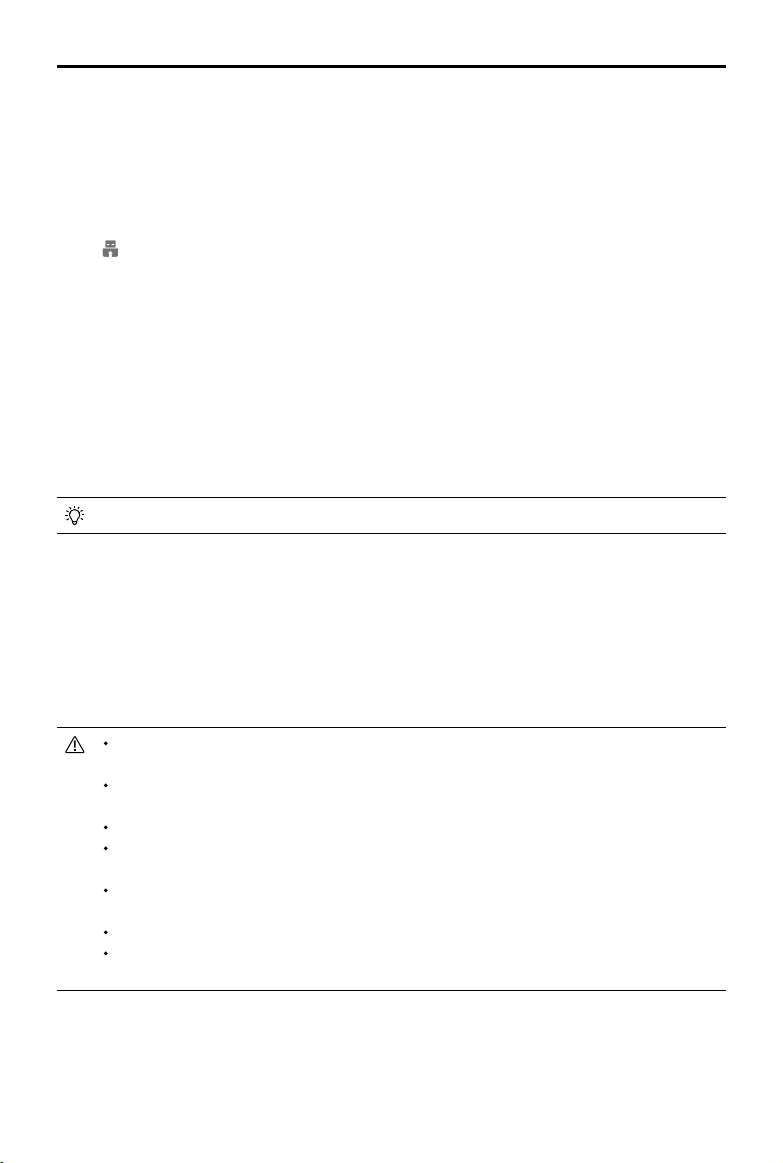
94
©
2020 DJI All Rights Reserved.
MATRICE 300 RTK User Manual
Using DJI Assistant 2 for Matrice
Fortheremotecontroller,M300RTKaircraft,H20seriesandX-Portpayload*,userscanconnecteach
devicetothesoftwareandthenrunarmwareupdatetoupdatermwareonthedevicesaccordingly.
Remote Controller Firmware Update
1. Powerontheremotecontrollerandaircraft.ConnecttheremotecontrollertoaPCwithaUSBcable
withdualA-port.
2. Tap tosetasUSBdataexportmodeintheremotecontroller’sQuickSettings.
3. Clickthecorrespondingdevicenameandthenthermwareupdatetag.
4. Selectthermwareversionrequired.Makesuretoconnectto theInternetwhendownloadingthe
rmware.
5. Restartthedeviceafterthermwareupdateiscomplete.
Aircraft Firmware Update
1.Powerontheaircraft.ConnecttheaircrafttoaPCwithaType-CUSBcable.
2.RuntheDJIAssistant2.Clickthecorrespondingdevicenameandthenthermwareupdatetag.
3.Selectthermwareversionrequired.Make suretoconnecttotheInternetwhendownloadingthe
rmware.
4.Restartthedeviceafterthermwareupdateiscomplete.
CSMRadarrmwareupdatesareincludedwithaircraftrmwareupdates.
H20 series Firmware Update
1.InstalltheH20seriespayload onto theaircraft.Powerontheaircraft.Connecttheaircraftto a PC
withaType-CUSBcable.
2.RuntheDJIAssistant 2.Clickthecorrespondingdevice nameandthentheH20seriesrmware
updatetag.
3.Selectthermwareversionrequired.Make suretoconnecttotheInternetwhendownloadingthe
rmware.
4.Restartthedeviceafterthermwareupdateiscomplete.
Thebatteryrmwareisincludedin the aircraftrmware.Be suretoupdateallthebatteries'
rmware.
Theaircraftbatterylevelshouldbeabove25%andtheremotecontrollerbatterylevelshould
beabove50%forthermwareupdateprocess.
Makesureallthedevicesareconnectednormallyduringupdate.
Itisnormalthatthegimbalwillgolimp,theaircraftstatusindicatorblinksabnormallywhen
theaircraftreboots.Waitpatientlyuntiltheupdateiscomplete.
Makesuretokeeptheaircraftawayfrompeopleandanimalsduringrmwareupdate,system
calibrationandparametersetting.
Besuretoupdatethermwaretothelatestversiontoensureightsafety.
Afterthefirmwareupdateiscompleted,theremotecontrollerandtheaircraft maybe
disconnected.Ifnecessary,re-linkthem.
*Supportedlater.
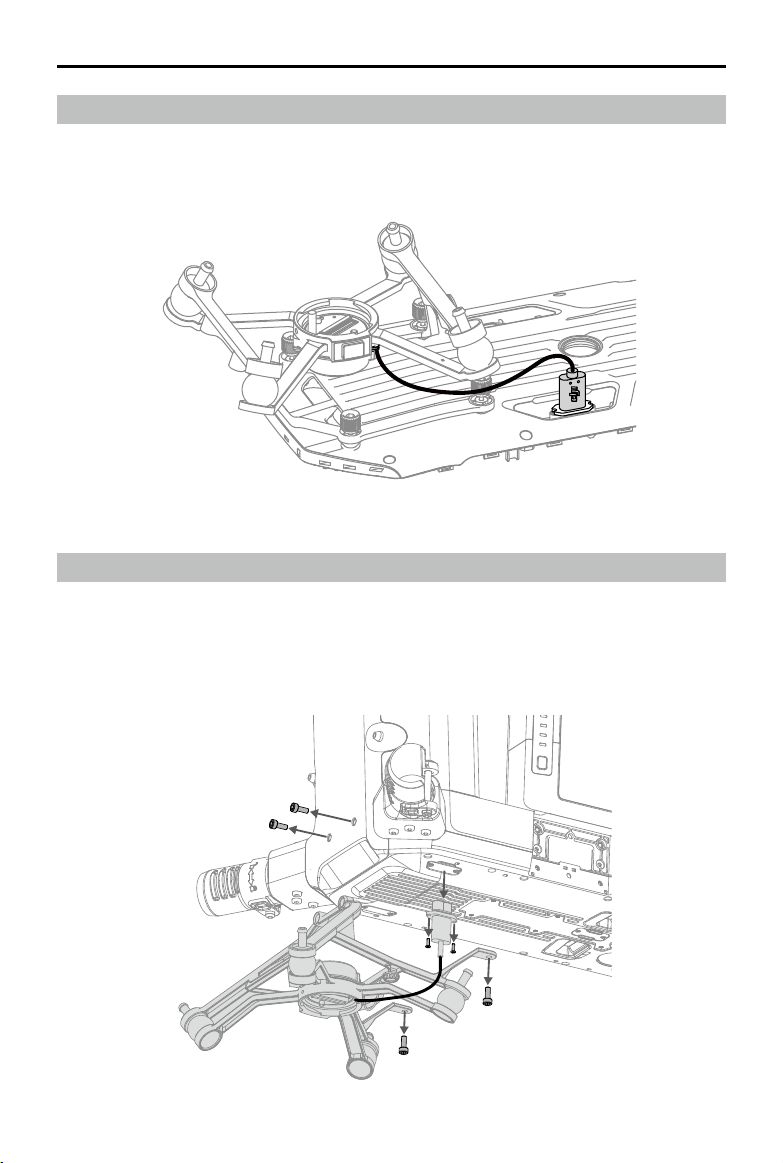
©
2020 DJI All Rights Reserved.
95
MATRICE 300 RTK User Manual
Using the Dual Gimbal Connector
TheMatrice300RTKDualGimbalConnectorisusedtomountacompatiblepayloadtothebottomof
theMatrice300RTKaircraft.ItsdesigngivesitanIP44IngressProtection(onlywhenequippedwitha
waterproofpayload),inaccordancewiththeglobalIEC60529standard.
1.Removethesingledownwardgimbalconnector.
Using the Upward Gimbal Connector
TheMatrice300RTKUpwardGimbalConnectorisusedtomountacompatiblepayloadtothetopof
theMatrice300RTKaircraft.ItsdesigngivesitanIP44IngressProtection(onlywhenequippedwitha
waterproofpayload),inaccordancewiththeglobalIEC60529standard.
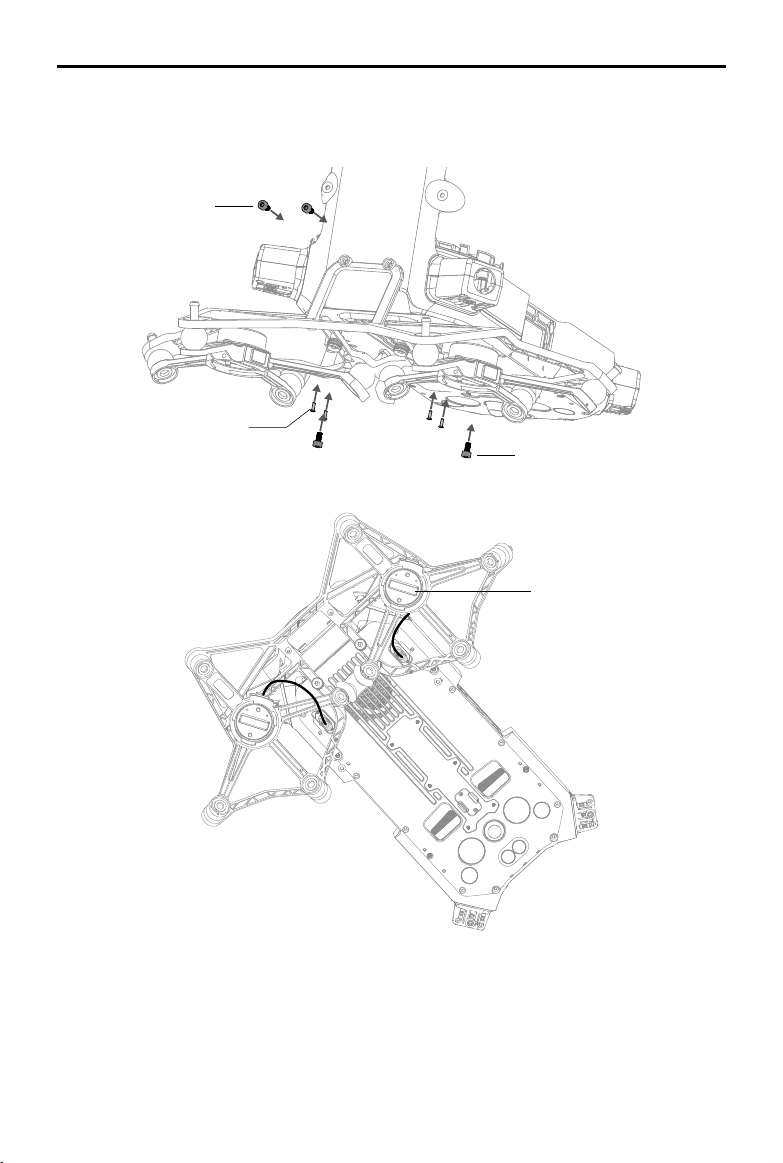
96
©
2020 DJI All Rights Reserved.
MATRICE 300 RTK User Manual
2.AttachtheDualGimbalConnector,andconnectthecables.
1stgimbalport
Torque:0.48±0.05kgf.cm
Torque:6±0.2kgf.cm
Torque:6±0.2kgf.cm
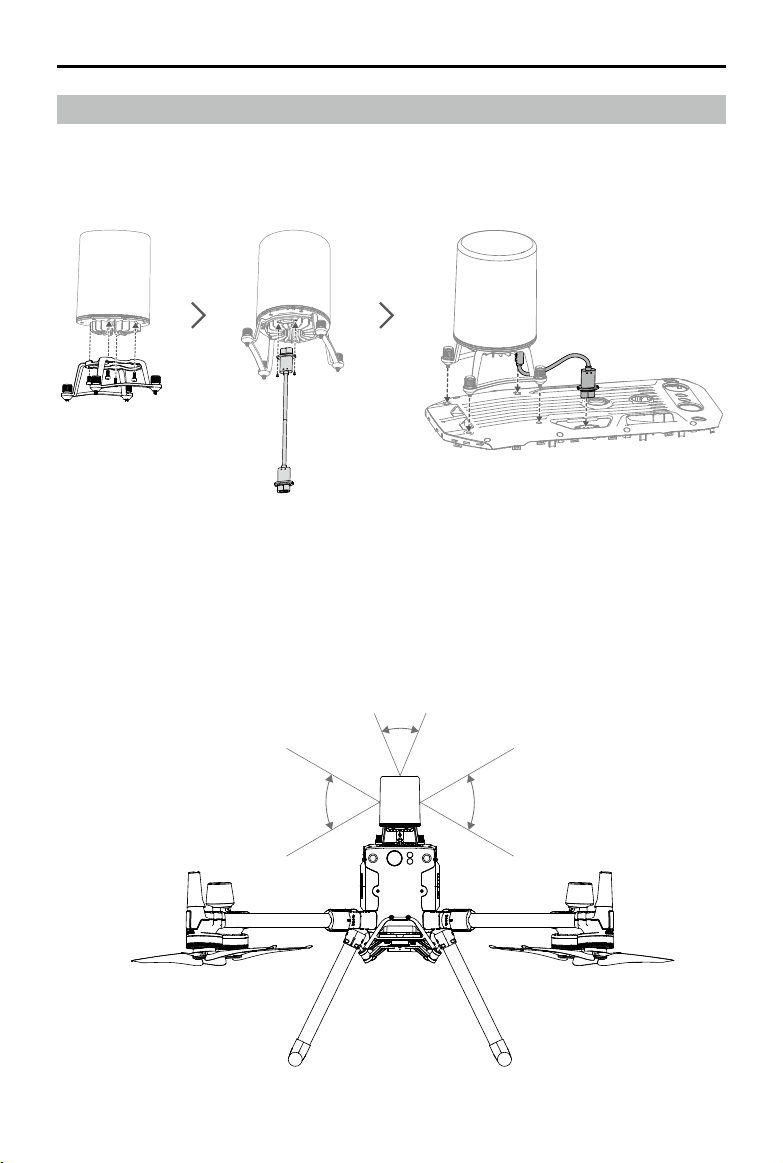
©
2020 DJI All Rights Reserved.
97
MATRICE 300 RTK User Manual
Using the CSM Radar
Installing and Connecting
CSMRadarcanbeusedwithM300RTK.Followthestepsbelowtoinstallandconnectit.
Using
Foranaddedsafetymeasure,aCircularScanningMillimeter-Wave(CSM)Radarwithadetectionrange
between1.5to30mcanbemountedontopoftheaircraft.
Detection Range
Detectionangle:360°inhorizontaldirection,60°inverticaldirection,and45° in upper direction.
Detectiondistance:1.5-30m.
60°60°
45°

98
©
2020 DJI All Rights Reserved.
MATRICE 300 RTK User Manual
Notethattheaircraftcannotsenseobstaclesthatarenotwithinthedetectionrange.Flywithcaution.
Theeectivedetectiondistancevariesdependingonthesizeandmaterialoftheobstacle.For
example,whensensingstrong reectiveobjects(suchasbuildings), theeectivedetection
distanceisaround30m.Whensensingweakreectiveobjects(suchasdrytreebranches),
thedistanceisaround15m.Obstaclesensingmaymalfunctionorbeinvalidinareasoutside
oftheeectivedetectiondistance.
Obstacle Avoidance Function Usage
Theradarobstacleavoidancefunctionshouldbeenabledin the DJIPilotApp.Settheaircraftsafety
distance(recommendedtobegreaterthan2.5meters)inapp.Maintainaightspeedlessthan10m/
swhentheradarmoduleisinuse.Flyinghigherthan4 metersisrecommendedforbetterobstacle
avoidanceperformance.
DONOTtouchorletyour hands orbodycomeincontactwiththemetalpartsoftheradar
modulewhenpoweringonorimmediatelyafterightastheymaybehot.
InManualoperationmode,usershavecompletecontroloftheaircraft.Payattentiontotheying
speedanddirectionwhenoperating.Beawareof thesurroundingenvironmentandavoidthe
blindspotsoftheradarmodule.
Ifanotherdeviceisinstalled on theaircraft(suchasManifold2),pleaseavoid blocking the
radarFOV.IftheradarFOVisblocked,theobstacleavoidanceperformanceoftheradarmay
decrease.Pleaseywithcaution.
ObstacleAvoidanceisdisabledinAttitudemode.
Maintainfullcontroloftheaircraftatalltimes and DONOTrelyontheradar module andDJI
Pilotapp.KeeptheaircraftwithinVLOSatalltimes.Useyourdiscretiontooperatetheaircraft
manuallytoavoidobstacles.
Theradarmodulessensitivitycanbe reducedwhenoperatingseveralradarequippedaircraft
withinashortdistancefromeachother.Flywithcaution.
Beforeuse,makesurethattheradar moduleiscleanandtheouterprotectivecoverisnot
cracked,chipped,sunken,ormisshapen.
DONOTattempttodisassembleanypartoftheradarmodulethathasalreadybeenmounted
priortoshipping.
Theradarmoduleisaprecisioninstrument.DONOTsqueeze,tap,orhittheradarmodule.
Iftheradarmodulefrequentlydetectsobstaclesincorrectly,checktomakesurethemounting
bracketandtheaircraftlandinggearareproperlysecured.Iftheradarmodulestilldoesnot
work,contactDJISupportoraDJIauthorizeddealer.
Keeptheprotectivecoveroftheradarmoduleclean.Cleanthesurfacewithasoftdampcloth
andairdrybeforeusingagain.
Specications
Model DR2424R
OperatingFrequency 24.05-24.25GHz
PowerConsumption 12W
TransmitterPower(EIRP) SRRC:<13dBm
NCC/MIC/KCC/CE/FCC:<20dBm
IPRating IP45
Dimensions 75×75×105.4mm
Weight(withoutmountingbracketandcables) 336g
OperatingTemperature -20°to50°C(-4°to122°F)
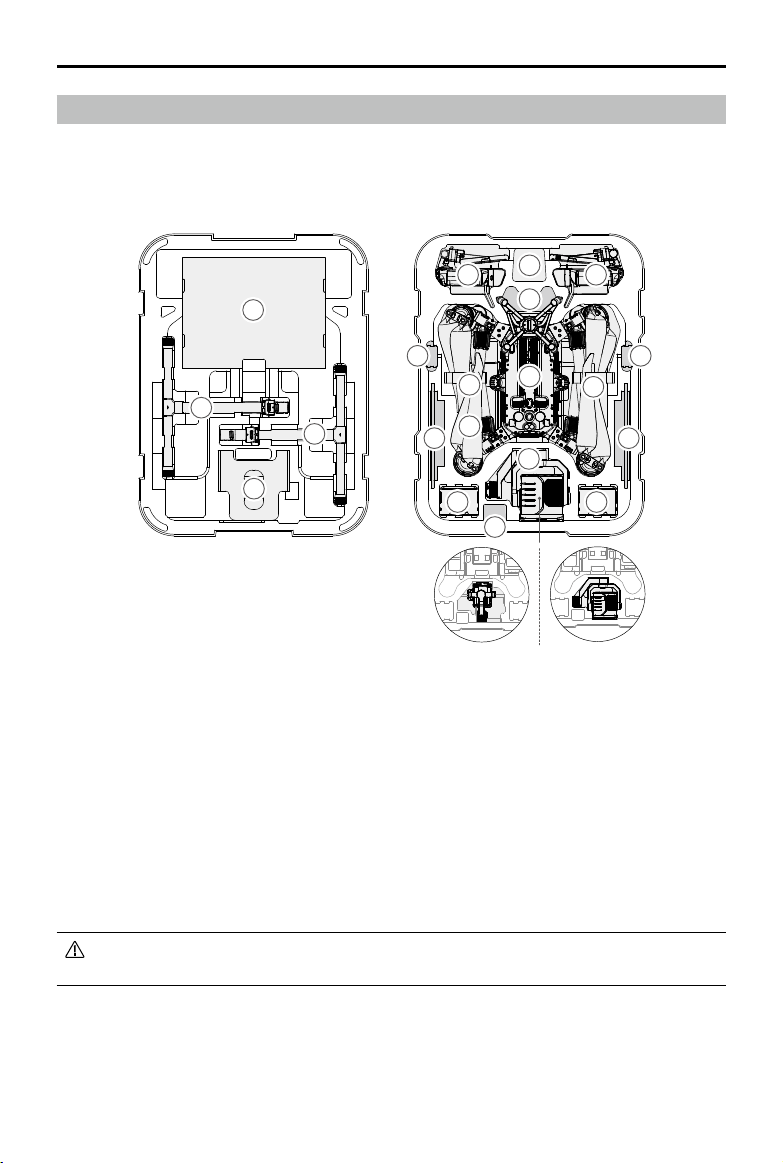
©
2020 DJI All Rights Reserved.
99
MATRICE 300 RTK User Manual
Carrying Case Description
Thisdiagramisintendedtoillustratehowtoplacethe M300RTKpartsandcomponents.In-the-box
itemsaresubjecttothecontentsreceived.
1.Propeller×4
2.LandingGear
3.AircraftProtector
4.RemoteController
5.RemoteControllerLanyard
6.UpwardGimbalConnector
7.WB37IntelligentBattery
H20T H20
1
5
6
7
8
10
1111
12
13 13
9
8
8
4 4
2
2
3
7
8.USBCharger
9.AircraftBody
10.CSMRadar
11.MobileDevice(e.g.iPad)
12.GimbalandCamera(H20/H20T)
13.TB60IntelligentFlightBattery
Pleasenotethatthe sleevesofthelandinggearsshouldbeputinthewayshowninthe
diagram,toavoiddamageonthepropellerswhenthecarryingcaseisclosed.
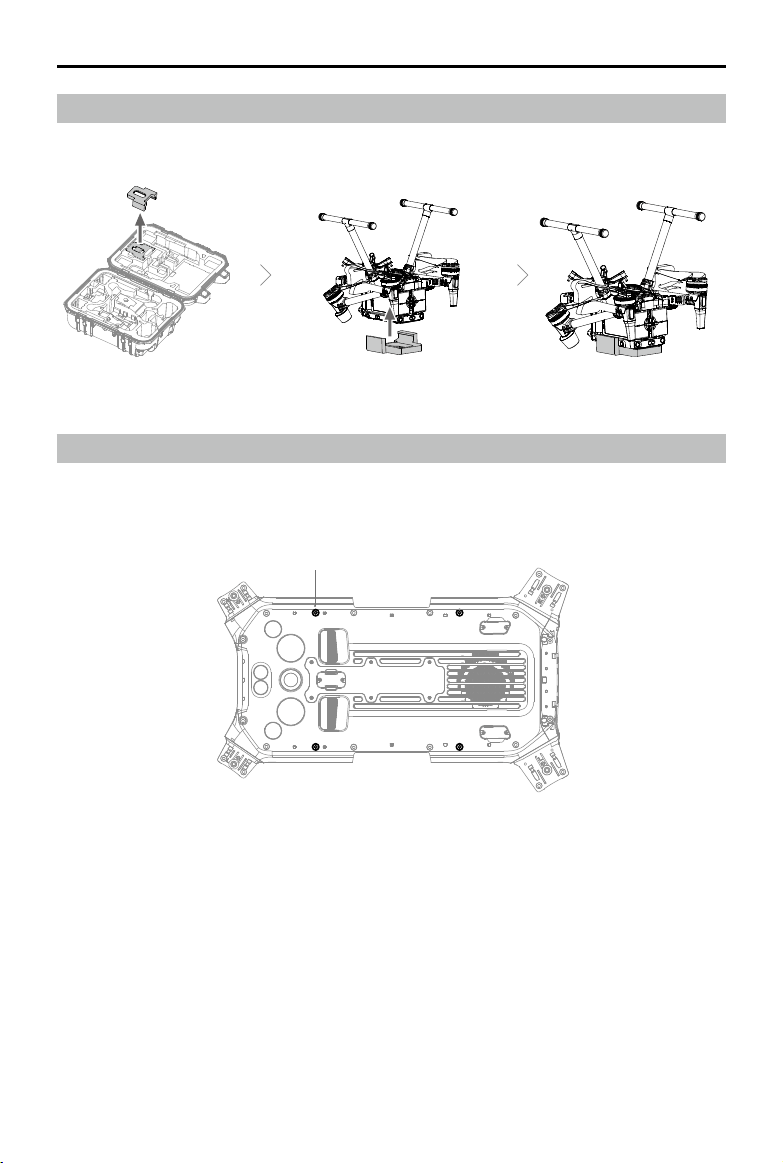
100
©
2020 DJI All Rights Reserved.
MATRICE 300 RTK User Manual
M3-5
Using the Aircraft Cradle
Oncetheaircraftneedstobeoperatedupsidedown,makesuretouseaircraftcradleforprotection.
Extended Screw Holes Description
Usethespecifiedscrewtoavoiddamagetothe threadofthescrewhole.Makesurethat the
accessoriesarermlyinstalled.

Copyright © 2020 DJI All Rights Reserved.
This content is subject to change.
Download the latest version from
https://www.dji.com/matrice-300/downloads
Ifyouhaveanyquestionsaboutthisdocument,pleasecontactDJIby
sendingamessageto[email protected].
DJI Support
https://www.dji.com/support