
Introduction
6
Before your begin
7
System requirements
7
Network requirements
7
Controller requirements
8
Getting to know your DHT-S516H
9
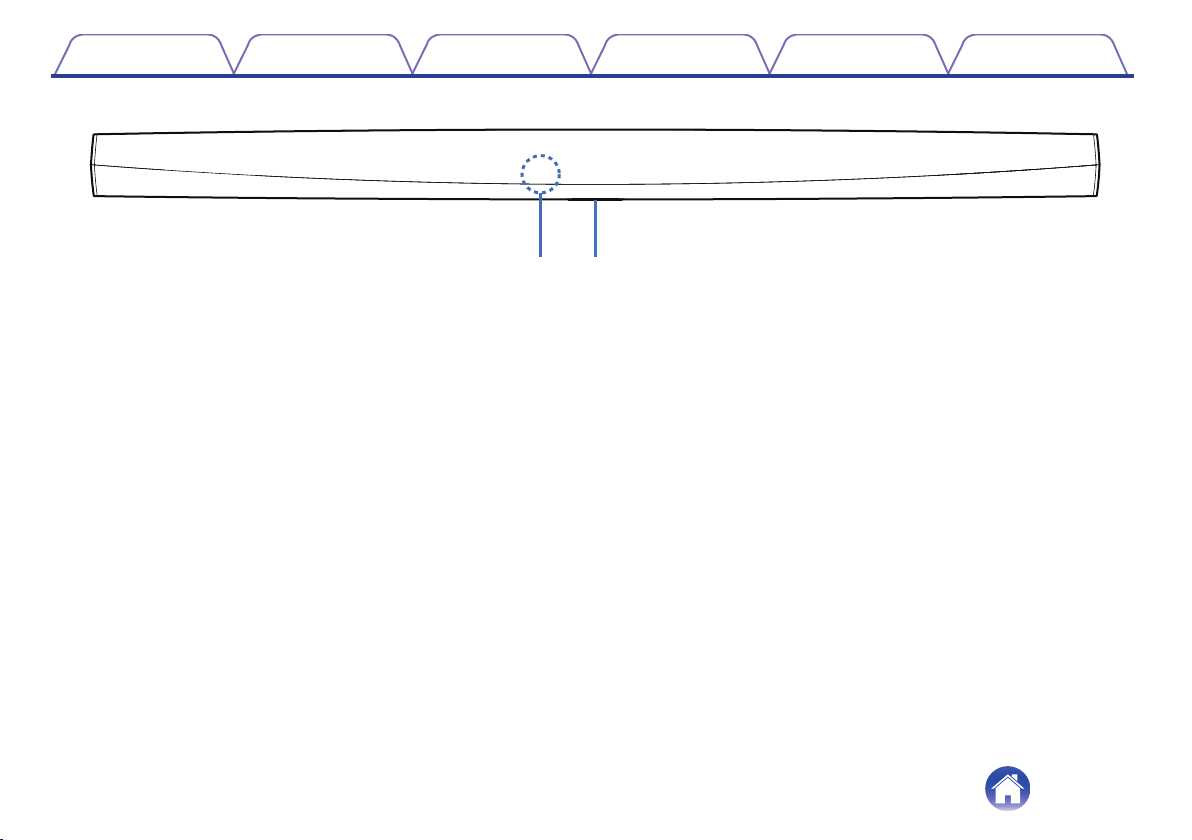
Front panel of soundbar
11
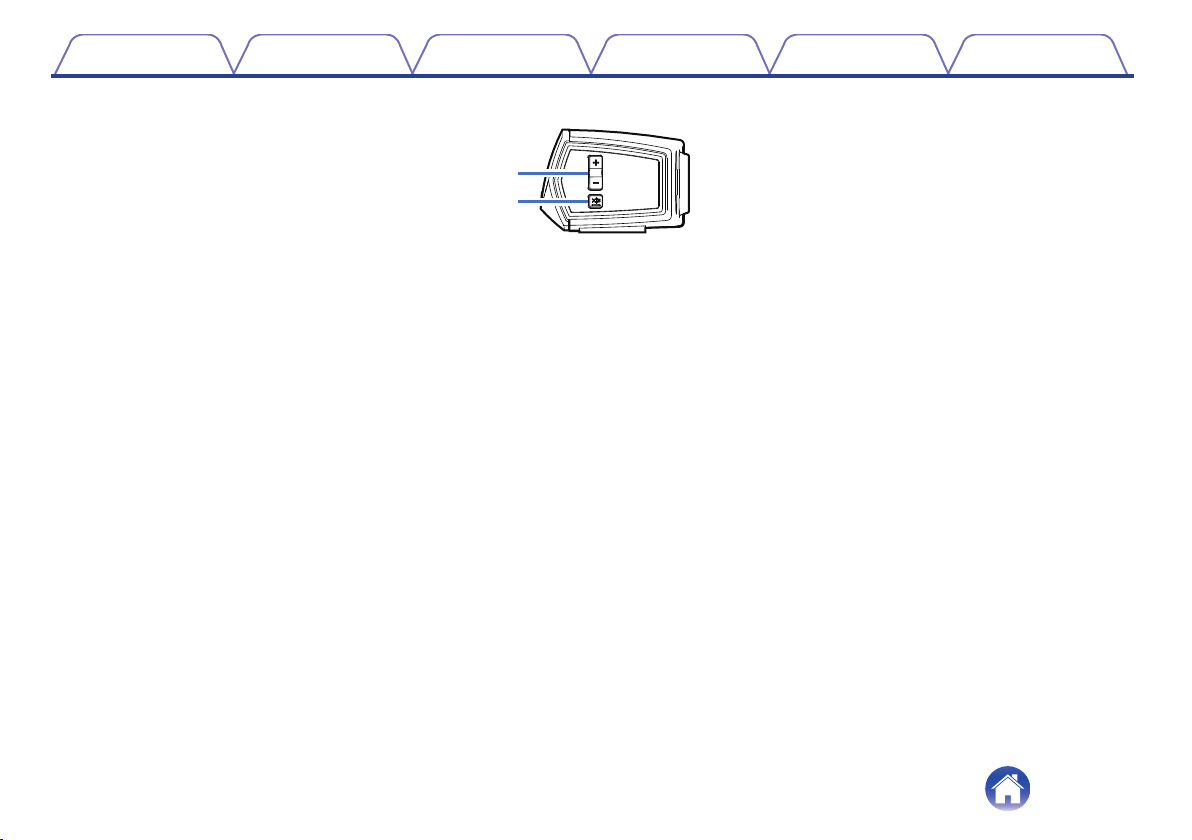
Control of soundbar
12
Back panel
13
Subwoofer
15
Placing your HEOS speaker
16
Placing your DHT-S516H
16
Wall-Mounting
18
Powering your HEOS speaker
19
Getting the HEOS app
19
Setting up your first DHT-S516H
20
Adding more HEOS devices
21
Adding wired speakers
21
Adding wireless HEOS devices
21
Using your DHT-S516H for TV
22
Connecting to your TV
22
HDMI connection
22
Setting the HDMI control function
22
Disable your television’s speakers
23
1) Playing HDMI (ARC) - Best choice
24
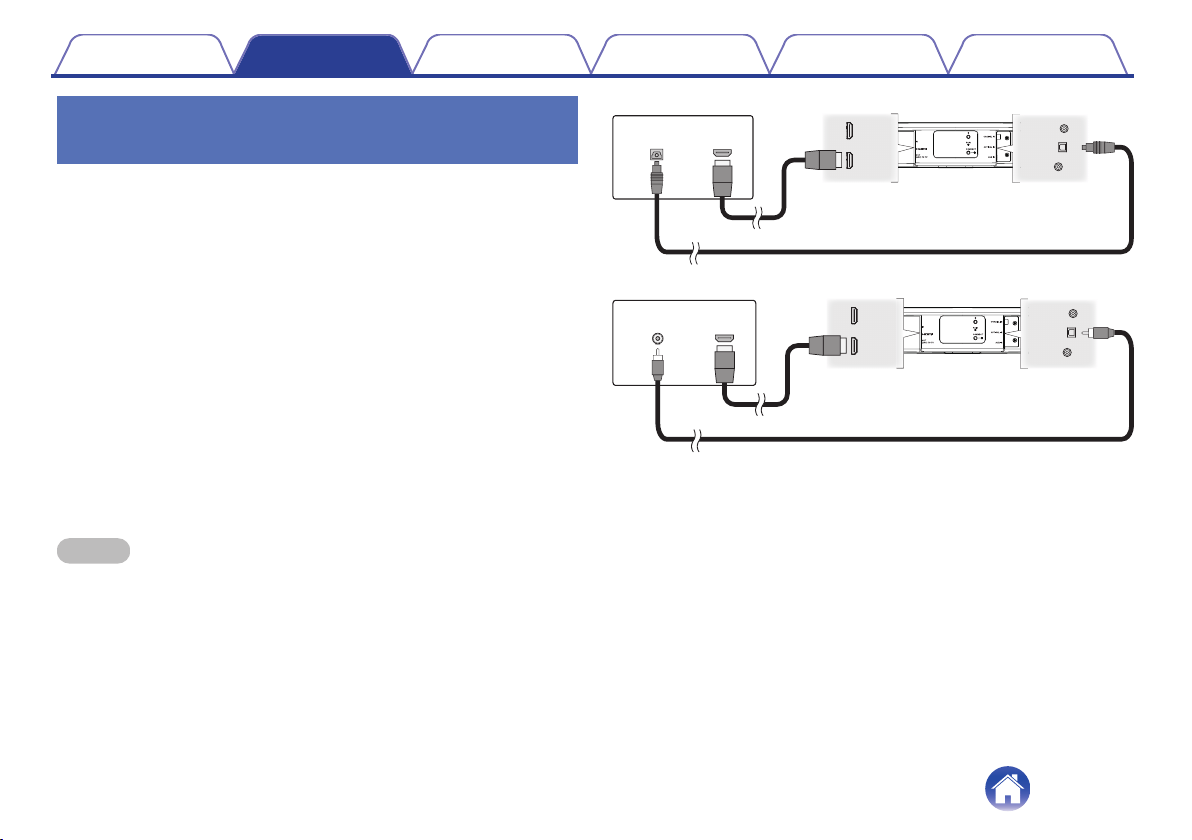
2) Playing HDMI (without ARC) - Better choice
25
3) Playing digital optical input - Good choice
26
4) Playing digital coaxial input - Good choice
27
Connecting DHT-S516H to your HDMI equipment
28
Listening to TV Audio
29
Adjusting the dialog sound
29
Listening at night
29
Adjusting sound mode
29
Checking the audio status
29
Contents Setup Use Troubleshooting Status LED Appendix
Contents
2

Using your DHT-S516H for music
30
Selecting a room/speaker
30
Listening to radio
31
Playing music stored on your mobile device
31
Playing music from your networked PC or NAS
32
Playing music from a USB device
33
Playing music from Bluetooth device
34
Pairing the HEOS device with your Bluetooth devices
34
Playing music from the AUX input
35
Managing AUX inputs
36
Changing the name of the AUX inputs
36
Hiding an AUX input
36
Managing your phone
37
HEOS account
38
What is a HEOS account?
38
Why do I need a HEOS account?
38
Signing up for a HEOS account
38
Changing your HEOS account
38
Playing from streaming music services
39
Adding a music service
39
Changing music service settings
39
Listening to the same music in multiple rooms
40
Grouping rooms
40
Ungrouping rooms
41
Grouping all rooms (party mode)
42
Ungrouping all rooms
43
Using the now playing queue
44
Play Now
44
Play Now & Replace Queue
44
Play Next
44
Add to End of Queue
44
Rearranging the now playing queue
45
Deleting songs from the play queue
45
Deleting all songs from the play queue
46
Saving playlists
46
Performing repeat and shuffle playback
46
Using the favorites
47
Adding to HEOS Favorites
47
Deleting station from the HEOS favorites
47
Contents Setup Use Troubleshooting Status LED Appendix
3

AirPlay function
48
Playing songs from your iPhone, iPod touch or iPad
49
Playing iTunes music with this unit
49
Play a song from your iPhone, iPod touch or iPad on multiple
synced devices (AirPlay 2)
50
Making speaker adjustments
51
Changing the name
51
Changing the wireless network connection
51
Changing the equalizer and subwoofer level
52
Adjusting the audio quality
52
Adjusting the status light brightness
53
Locating the Soundbar
53
Changing the TV connection
53
Setting the TV Input and Auto-Play
53
Controlling your DHT-S516H
54
TV Sound Grouping
54
Advanced settings
55
Network settings
55
About wireless power saving
55
Firmware upgrade
56
About
56
Updating your system
57
Advanced features
58
Wireless performance
58
Pairing the soundbar and subwoofer
59
Power management
60
Power modes
60
Quick Start Mode
60
Deep Standby
61
Off
61
Basic troubleshooting
62
No sound
62
No subwoofer sound, sound interrupted, or noise occurring
62
Distorted sound from the DHT-S516H
63
Trouble teaching DHT-S516H remote control commands
63
Television speakers keep getting turned back up
63
My speaker won’t connect to my network using the audio cable
64
Music cuts out or delays sometimes
64
I hear a delay when using the external input with my TV
65
Connecting to a network using an iOS device
65
Connecting to a WPS network
66
Resetting your speaker
66
DHT-S516H takes long time to turn on
66
Contents Setup Use Troubleshooting Status LED Appendix
4
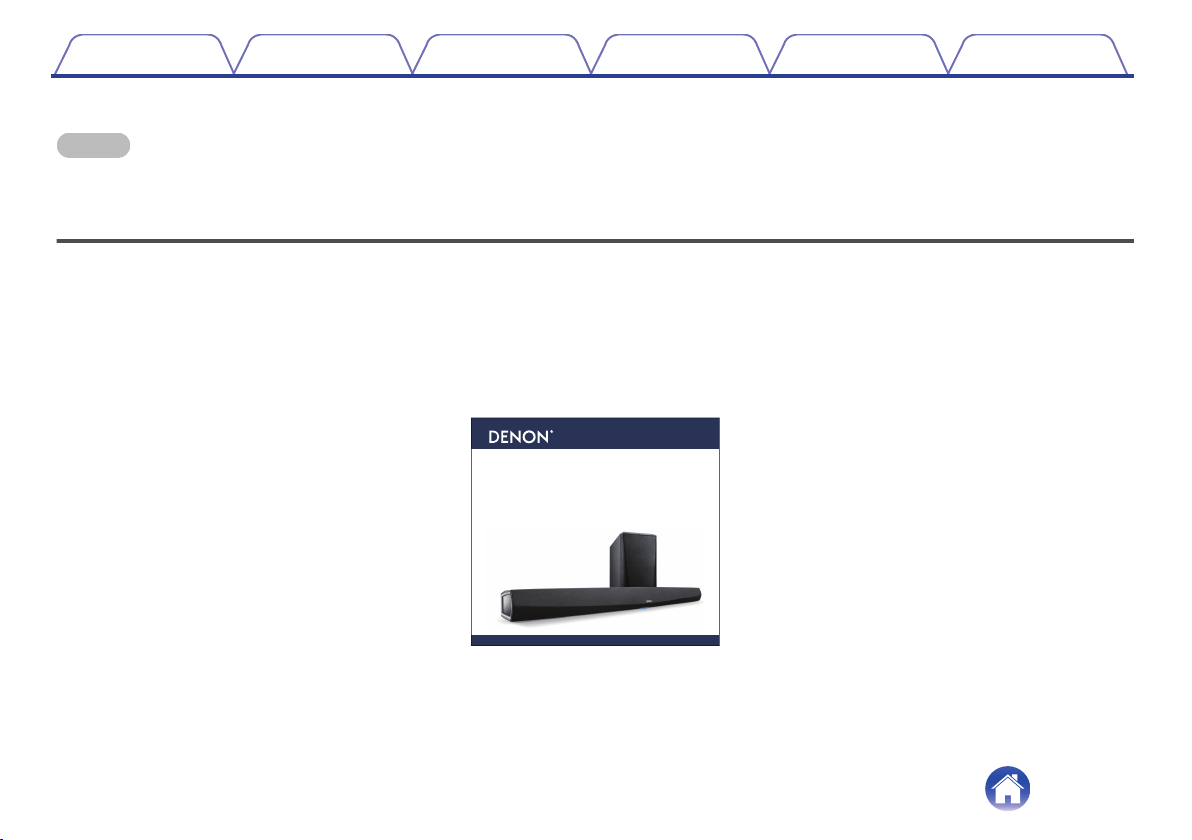
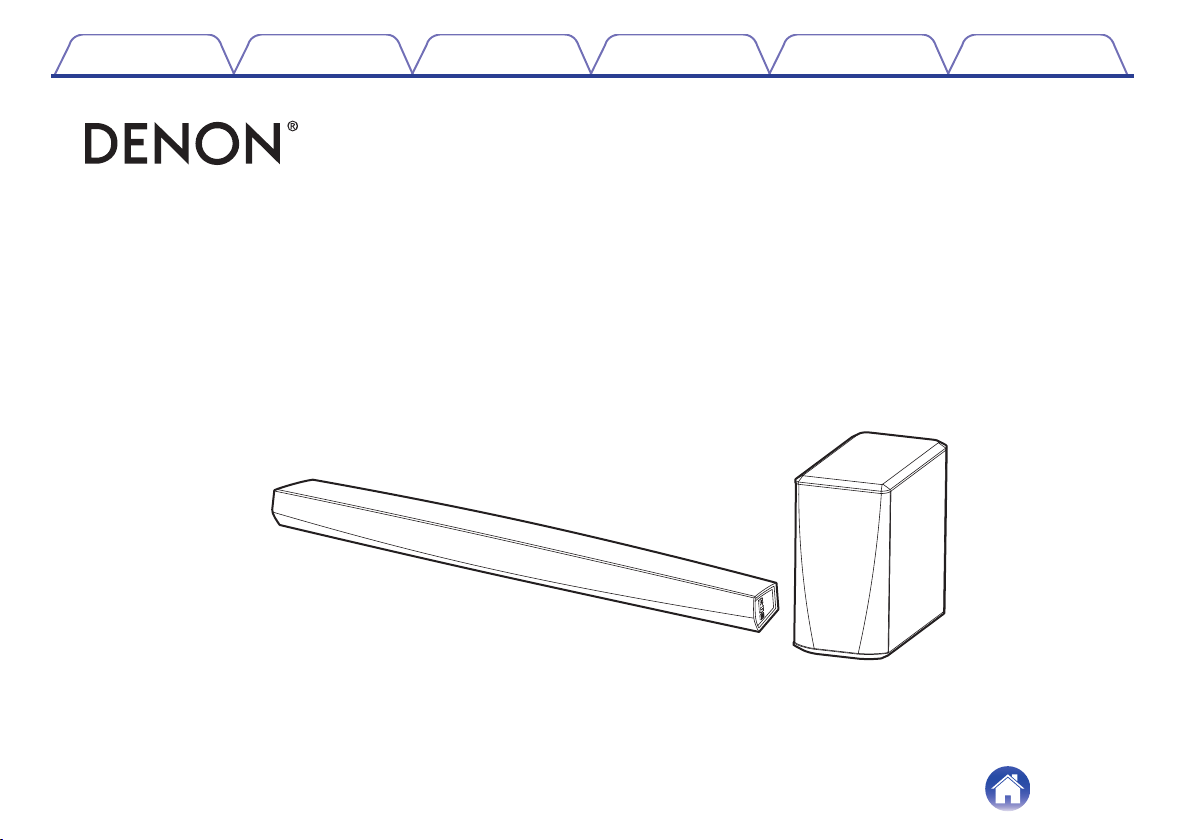
Thank you for purchasing this Denon product. To ensure proper operation, please read this owner’s manual carefully before using the product.
NOTE
0
THIS DOCUMENT CONTAINS INFORMATION THAT IS SUBJECT TO CHANGE WITHOUT NOTICE.
Introduction
The DHT-S516H is part of the HEOS wireless multi-room sound system that enables you to enjoy your favorite music anywhere and everywhere around
your home. By utilizing your existing home network and the HEOS app on your iOS or Android™ device, you can explore, browse, and play music from
your own music library or from many online streaming music services.
0
True multi-room audio - play different songs in different rooms or the same song in every room
0
Utilizes your existing home wireless network for quick and easy setup
0
Industry leading microsecond audio synchronization between HEOS device
0
Legendary Denon audio quality
0
If you are in a hurry, you can be enjoying great sounding music in no time by following the steps outlined in the Quick Start Guide (supplied).
.
DHT-S516H
Wireless Sound Bar and Subwoofer System
Quick Start Guide
Please continue reading this Owner’s Manual for more detailed information about the features and benefits of your DHT-S516H.
Contents
Setup Use Troubleshooting Status LED Appendix
6
Before your begin
NOTE
0
If you have already installed at least one HEOS device, please skip to the section “Adding more HEOS devices”.
System requirements
Before you begin installing your first HEOS device, please make sure you understand and meet a few basic requirements.
o
Network requirements
Wireless Router - In order to use your HEOS music system, you must have a working wireless (Wi-Fi) or ethernet network in your home. Even when
connected to an Ethernet network, a Wi-Fi connection to the router is required to control the system using the HEOS Control app. If you do not have a
wireless network, please contact your local Denon dealer or electronics retailer to assist you with purchasing and installing a wireless network in your
home.
High Speed Internet Connection - HEOS accesses the Internet to stream music to your home from many popular online music services. HEOS is
also designed to provide you with software updates, which are delivered via your home Internet connection. DSL, Cable, and Fiber services will
provide the best experience and reliability. You may experience performance issues with slower Internet connections like satellite based services.
Contents
Setup Use Troubleshooting Status LED Appendix
7
o
Controller requirements
You can control your HEOS wireless multi-room sound system using the free HEOS app on any iOS or Android mobile device that meets these
minimum requirements:
.
iOS Minimum Requirements
0
iOS version 8.0 or later
0
iPhone
®
4S or newer
0
iPad
®
2 or newer
0
iPod touch
®
(5th generation) or newer
.
Android Minimum Requirements
0
Android OS version 4.0 or later
0
All resolutions
Contents Setup Use Troubleshooting Status LED Appendix
8
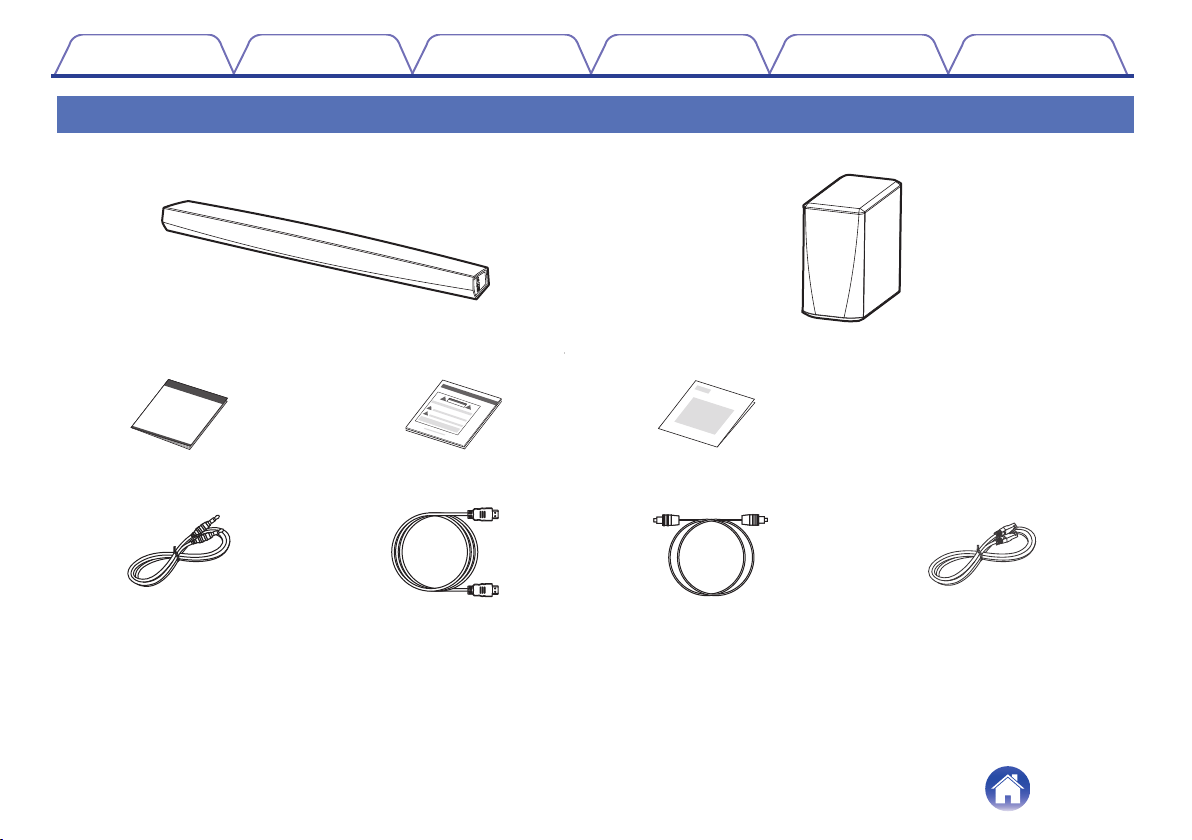
Getting to know your DHT-S516H
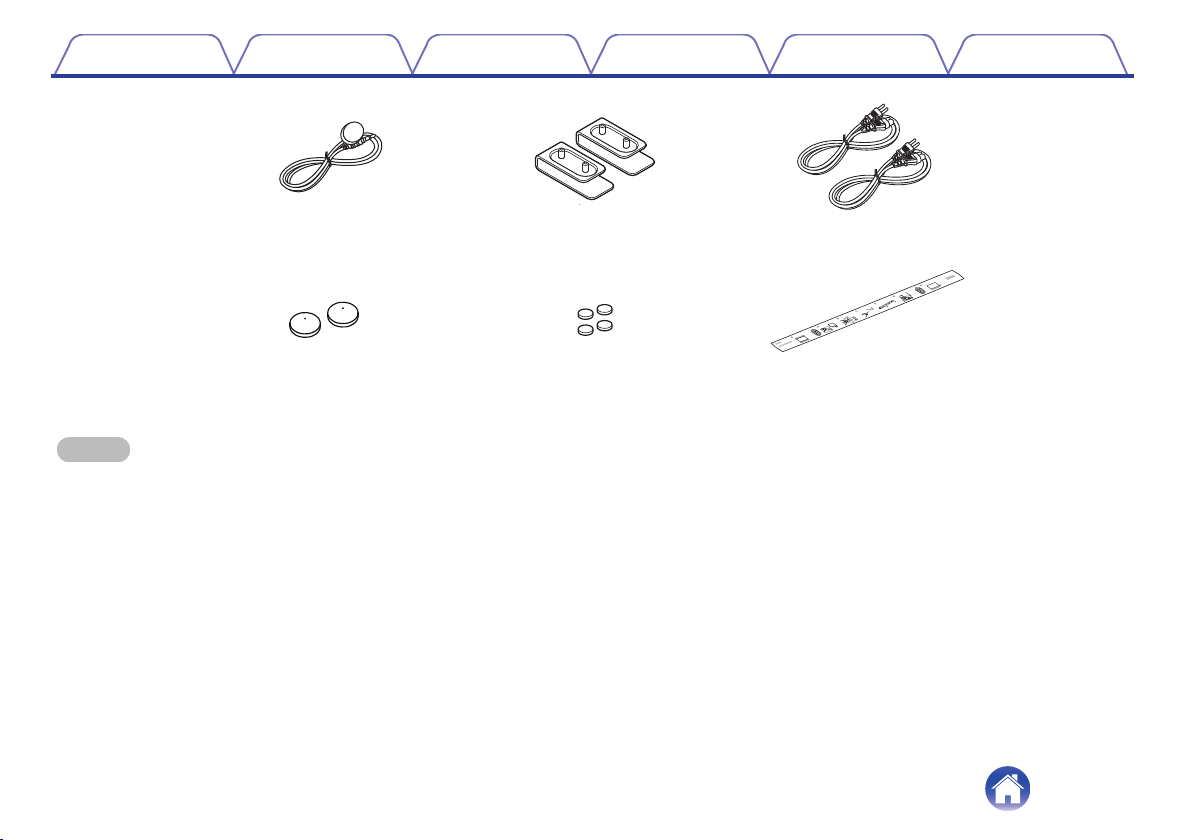
Unpack your speaker from the box and verify that the following items are included:
.
DHT-S516H Soundbar
(Soundbar)
DHT-S516H Subwoofer
(Subwoofer)
Quick Start Guide
Warranty
(North America model only)
3.5 mm setup cable HDMI cable Optical cable
Ethernet cable
Safety Instructions
Contents
Setup Use Troubleshooting Status LED Appendix
9
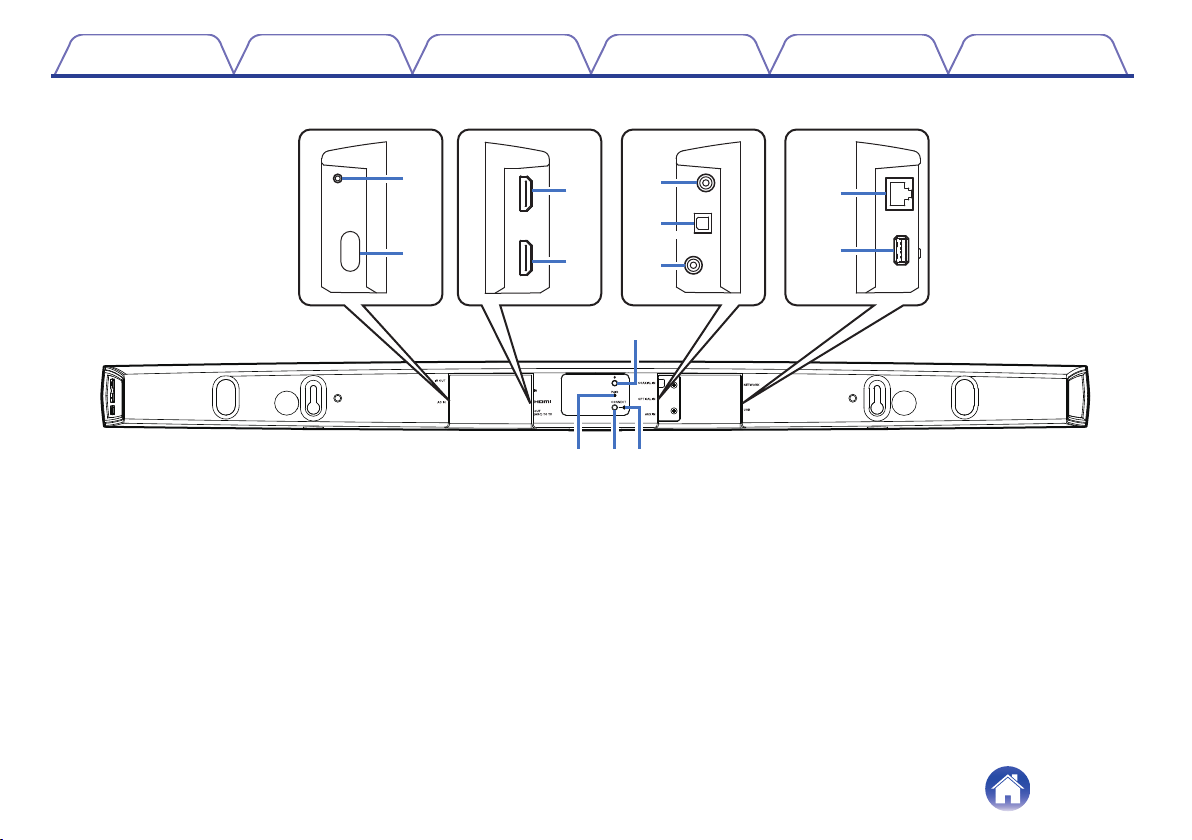
o
Back panel
.
Q3
Q0
Q1 Q2
r
e
w
q
i
o
u
y
t
A
IR OUT
Used to connect the supplied IR Blaster.
B
Power Input (AC IN)
Used to connect the external power supply (v p. 19).
C
HDMI IN
Used to connect to the HDMI equipment with an HDMI cable.
D
HDMI OUT to TV (ARC)
Used to connect to the TV with an HDMI cable. (Compatible with
the ARC function)
E
COAXIAL IN
Used to connect to television's coaxial digital audio.
F
OPTICAL IN
Used to connect to television's optical digital out.
G
AUX IN
0
Used to connect to television's rear panel audio out.
0
Used to add the speaker to your wireless network (v p. 21).
H
Network Connector (NETWORK)
Used to connect this unit to a wired Ethernet network (v p. 21).
Contents Setup Use Troubleshooting Status LED Appendix
13
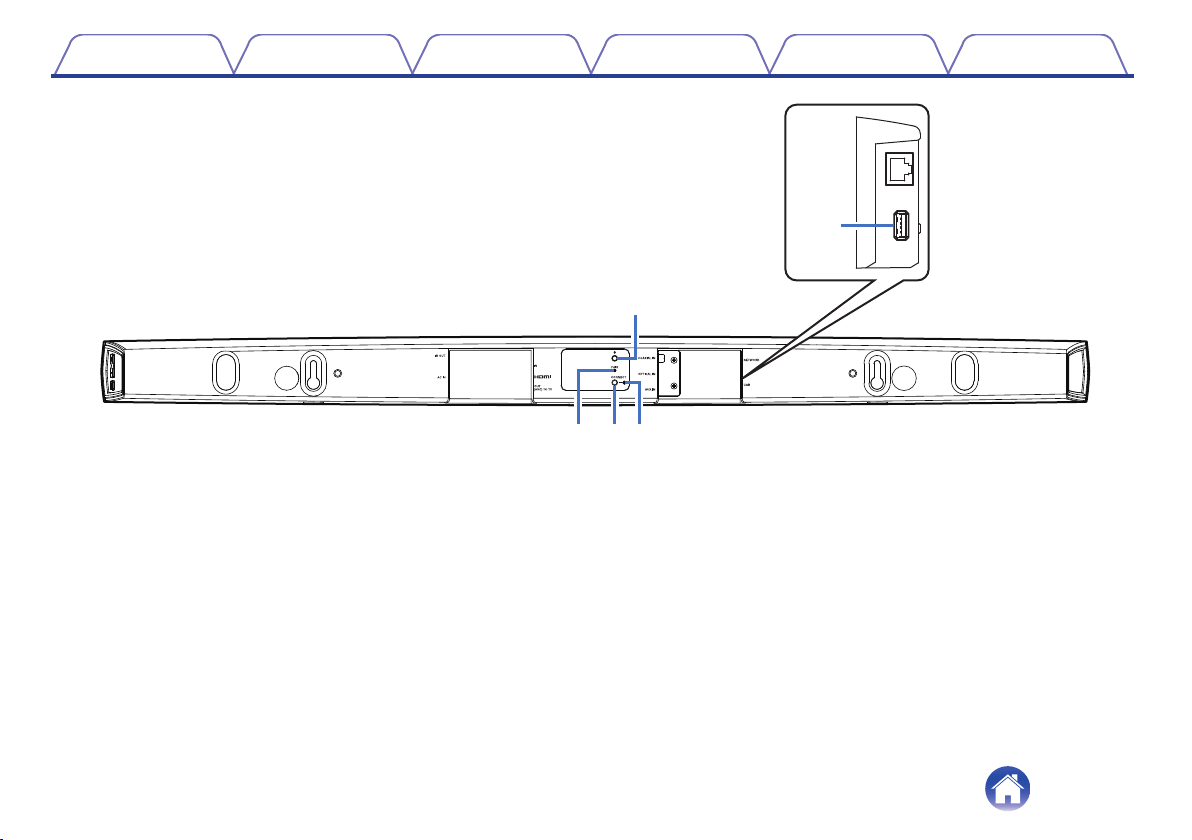
.
Q3
Q0
Q1 Q2
o
I
USB port
Used to connect USB storage devices.
J
Bluetooth button (V)
Used in the Bluetooth pairing settings (v p. 34).
K
Pair Button (PAIR)
Used to re-pair with subwoofer (Pre-paired at the factory.)
L
Connect Button (CONNECT)
Used for Wi-Fi setup (v p. 66).
M
Connect in Status LED
Indicates the status of this unit (v p. 67).
Contents Setup Use Troubleshooting Status LED Appendix
14
Placing your HEOS speaker
You can place your HEOS speaker anywhere you want to enjoy great sounding music. Please follow these simple guidelines when determining where to
place your speaker…
0
The HEOS speaker must be within range of your wireless network.
0
Place the speaker across the room from where you will be listening, as close to ear level as possible.
0
The HEOS speaker is not waterproof. Do not place it near any water source and do not leave it outside in the rain or snow.
o
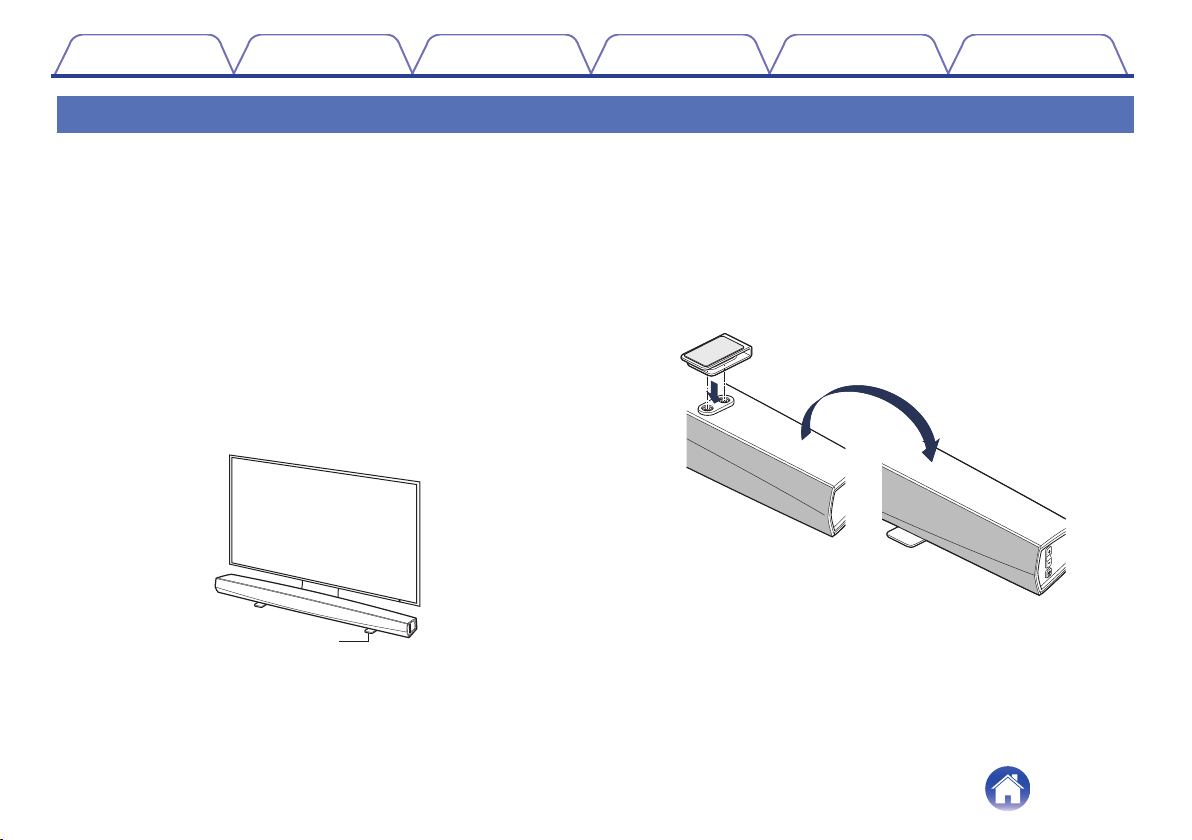
Placing your DHT-S516H
The soundbar of the DHT-S516H should be place as close as
possible to the television screen. It should be centered left-to-right with
the screen, and ideally no more than a few inches above or below.
The most common location is below the screen. Sometimes this
location can be difficult, because the base of the TV gets in the way.
The DHT-S516H has riser feet that raise the soundbar off the shelf, for
a more stable and attractive installation when used with this type of
television.
.
Riser feet
n
How to attach the riser feet
Attach the supplied riser feet if you need to raise the Soundbar over
your TV stand base.
.
Contents
Setup Use Troubleshooting Status LED Appendix
16
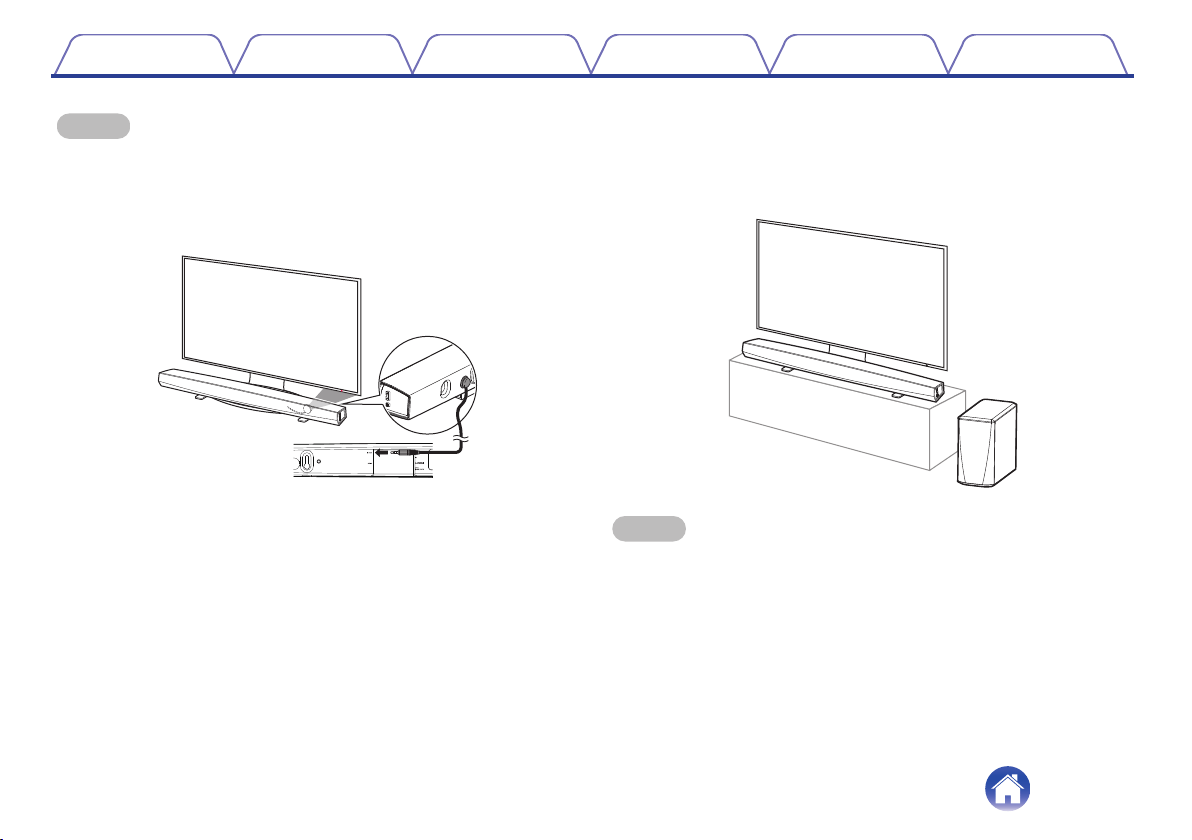
NOTE
0
Depending on your TV model or installation location, the remote control receiver
on the TV may be hidden by the soundbar, preventing the remote control from
being used because the remote control signals cannot reach the TV. In this case,
connect the supplied IR Blaster. Attach the tip of the IR Blaster near the TV remote
control signal receiver and check that the remote control can be used to control the
TV.
.
You may also place DHT-S516H soundbar on a shelf, or furniture, above
or below the screen. It should be centered with the screen, and ideally no
more than a few inches above or below. The system will usually sound
best when the front of the soundbar is close to, or flush with, the front edge
of the furniture or shelf on which it rests. This reduces unwanted sound
reflections.
Place the wireless subwoofer anywhere in the room. For the best sound,
place the subwoofer near a wall or corner, within 6 meters of the
soundbar, and on the same side of the room as the soundbar. The
wireless subwoofer range is 8 meters. Wireless subwoofer can be
positioned vertically or horizontally. Attach the supplied non-slip stickers to
the subwoofer.
.
NOTE
0
Don’t put the subwoofer where curtains or furniture will block the sound. The port
on the back of the subwoofer cabinet should be unobstructed.
Contents Setup Use Troubleshooting Status LED Appendix
17
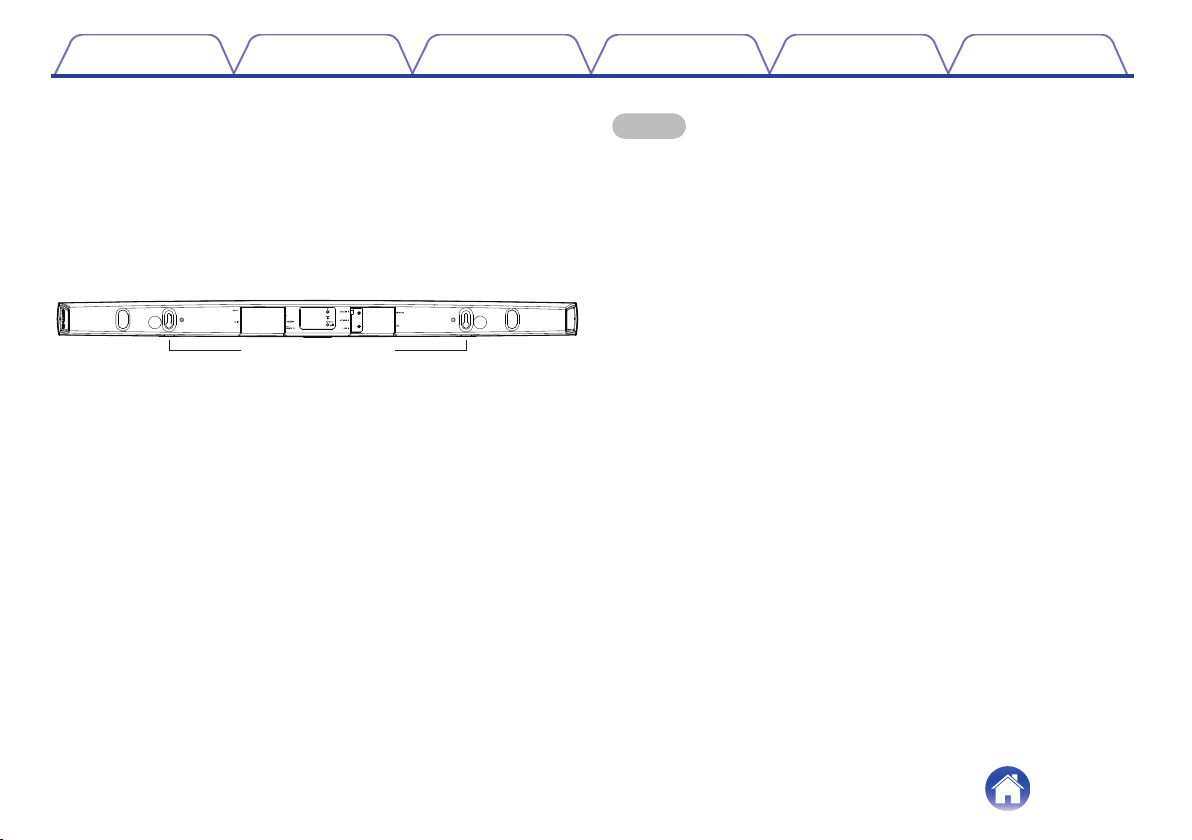
o
Wall-Mounting
The DHT-S516H soundbar can be wall-mounted using the integrated
keyhole mounts. A mounting template can be found in the product
carton. Using a level, position and tape the template to the wall in the
desired location. Install hardware* using the template as a guide and
then remove the mounting template from the wall. Connect the audio
and power cables prior to mounting the soundbar on the wall.
z
Consult a person knowledgeable about your wall type to recommend suitable
hardware for hanging the speaker.
.
Wall Mounting Keyholes
NOTE
0
To ensure safety, request a contractor perform the mounting work when mounting
onto a wall.
0
In order to use the unit safely, do not place items on or hang items from the unit.
0
Be sure to fix connection cables to the wall to ensure that cannot be pulled or
tripped over causing the unit to fall. Check that the unit is mounted safely after the
mounting work is complete.
0
Also, periodically check the safety of the unit and whether there is a possibility that
the unit may fall.
0
Denon cannot accept any responsibility for damage, injury or accidents caused by
problems with the mounting location or mounting method.
Contents Setup Use Troubleshooting Status LED Appendix
18
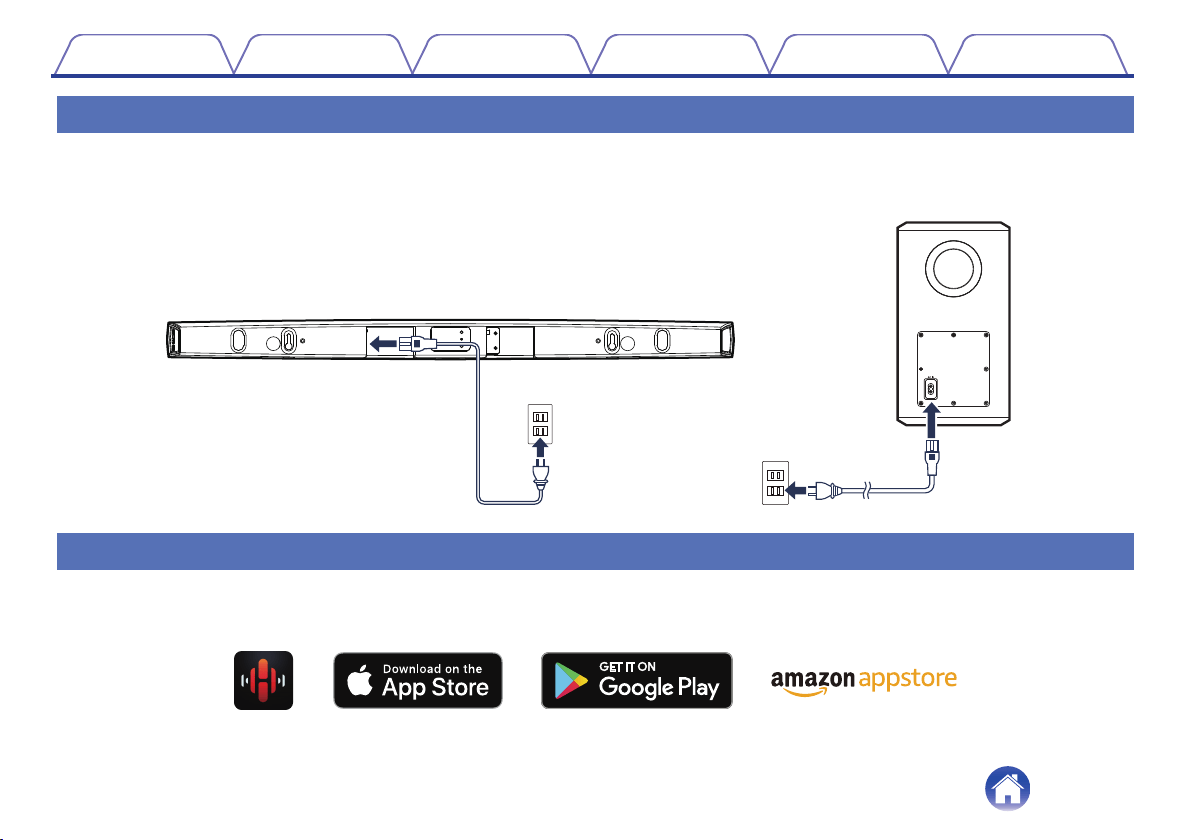
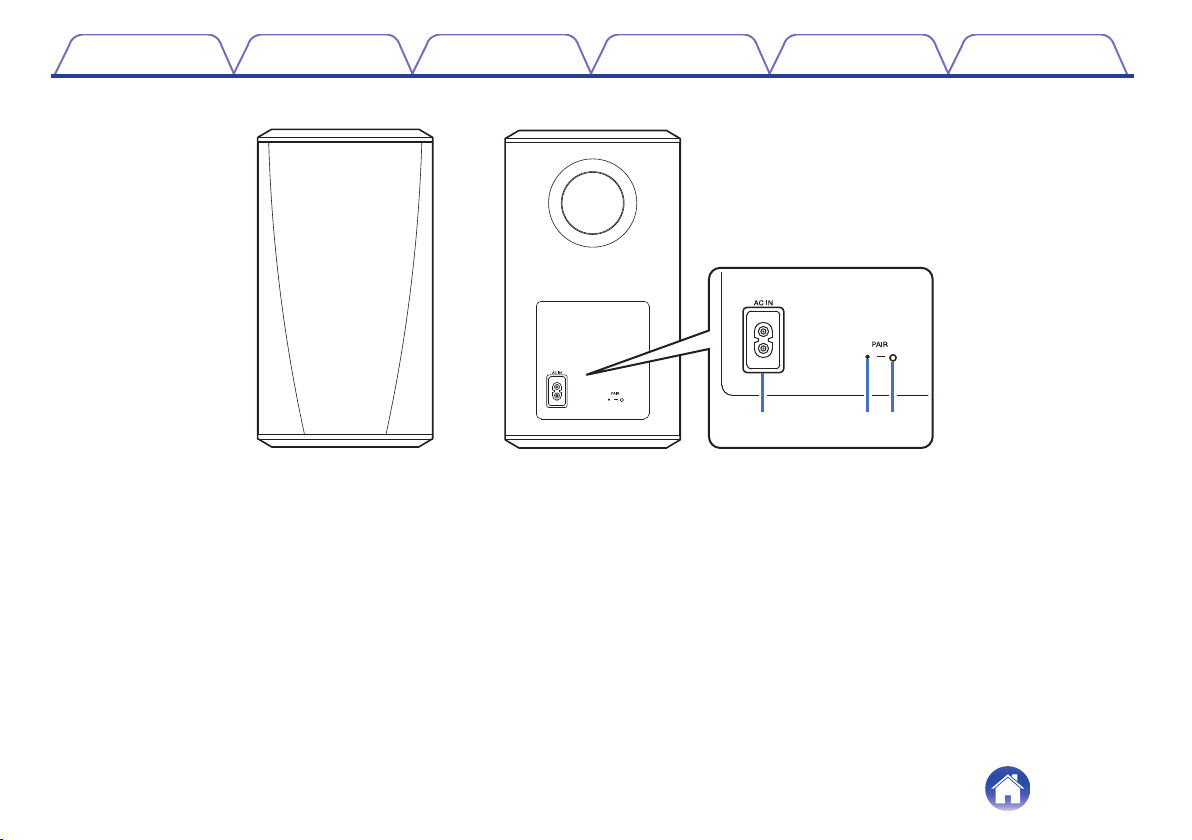
Powering your HEOS speaker
Connect the power cord included in the box to the back of the speaker and the plug to a wall outlet. The speaker is capable of automatically switching
between 100 - 240 V.
.
Soundbar
Subwoofer
Getting the HEOS app
The HEOS app is the heart of the HEOS experience. Using your mobile device and the HEOS app, you can setup, browse, explore, and control your
HEOS system right in the palm of your hand, from anywhere in your home.
Download the HEOS app for iOS or Android by searching App Store
®
, Google Play™ store or Amazon App Store for “HEOS”.
.
For the purpose of improvement, the specifications and design are subject to change without notice.
Contents
Setup Use Troubleshooting Status LED Appendix
19
Setting up your first DHT-S516H
Once you have placed your DHT-S516H in your listening room and have downloaded the HEOS app, you are ready to configure your DHT-S516H for
music playback. This involves following a few simple steps to get the speaker connected to your existing home network:
Caution
0
DO NOT connect the Ethernet cable if you are connecting your DHT-S516H to a wireless network. If you are connecting the speaker to a wired network,
use an Ethernet cable to connect the speaker to your network or router.
1
Make sure your mobile device is connected to your
wireless network (the same network you want your
speakers connected to).
You can check this in the Settings - Wi-Fi menu of your iOS or
Android device.
NOTE
0
If your wireless network is secure, make sure you know the password to join
your network.
2
Make sure you have the included
Audio/Setup cable handy.
3
Launch the HEOS app on your
mobile device.
4
Tap the “Setup Now” button at the top of the screen.
5
Follow the instructions to add the DHT-S516H to your
wireless network and to select an input on your DHT-
S516H.
The Wi-Fi settings from your mobile device will be copied to the
DHT-S516H via the audio cable.
NOTE
0
If you have any problems connecting your HEOS device, jump to the
Troubleshooting section. (v p. 62)
Contents Setup Use Troubleshooting Status LED Appendix
Setup
20
Adding more HEOS devices
The HEOS wireless multi-room sound system is a true multiroom audio system that automatically synchronizes audio playback between multiple HEOS
devices so that the audio coming from different rooms is perfectly in sync and always sounds amazing! You can easily add up to 32 HEOS devices to your
HEOS system.
Adding wired speakers
Just connect the HEOS devices to your home network using an Ethernet cable and the HEOS device will appear on your HEOS app as a new room in the
Rooms screen.
At your convenience, you can assign a name to the HEOS device to indicate which room you have it placed in.
0
Use only a shielded STP or ScTP LAN cable which is easily available at electronics stores (CAT-5 or greater recommended).
0
Do not connect a Network Connector directly to the LAN port/Ethernet connector on your computer.
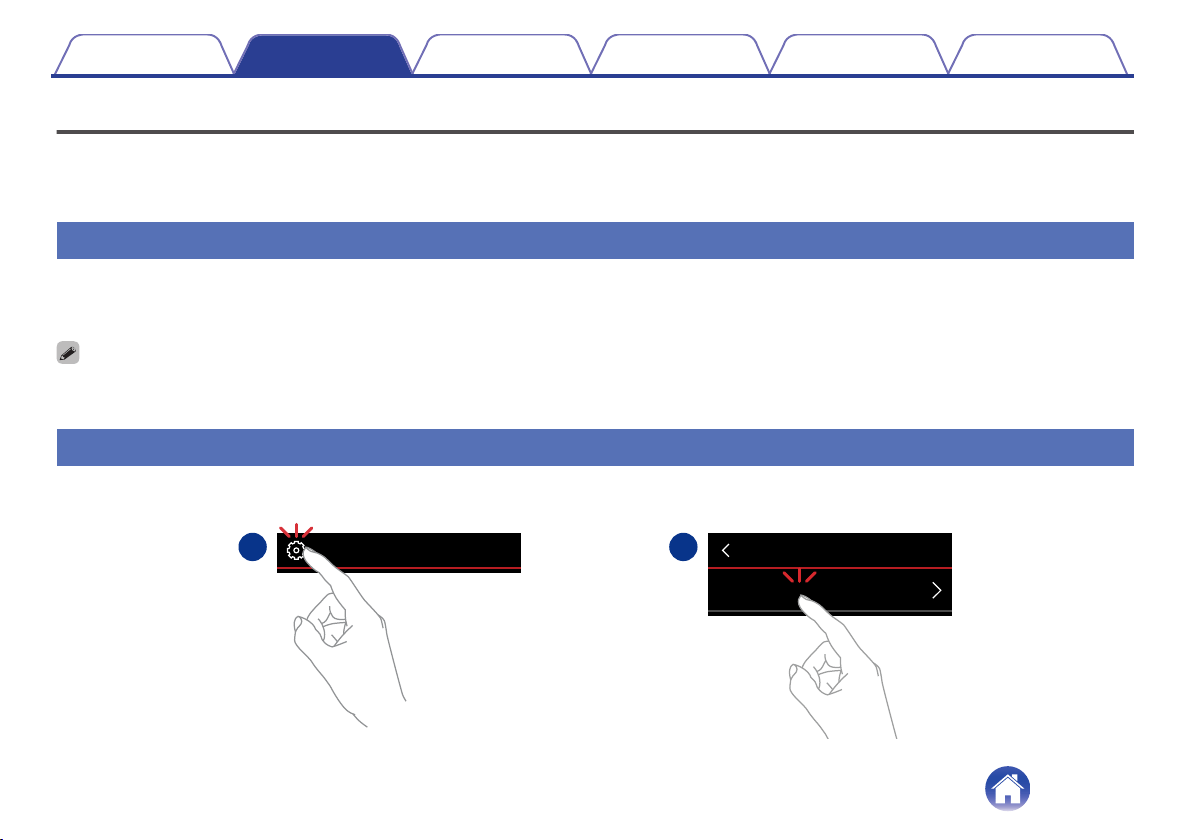
Adding wireless HEOS devices
You can add additional wireless HEOS devices to your HEOS system by selecting “Add Device” from the HEOS app’s settings menu and follow the
instructions:
.
1
2
Add Device
SettingsMusic
Contents
Setup Use Troubleshooting Status LED Appendix
21
Using your DHT-S516H for TV
Once you have your DHT-S516H connected to your television and the HEOS app installed on your mobile device, it’s easy to start enjoying your television
sound.
“Setup Assistant” can be re-executed when changing the TV connection. (v p. 53)
Connecting to your TV
o
HDMI connection
You can enjoy high quality audio and video playback by connecting
this unit and a TV or this unit and a device such as a Blu-ray Disc
recorder or game console using a HDMI cable to transmit high
resolution digital video signals and Blu-ray Disc audio signals.
0
ARC (Audio Return Channel) function
The TV audio can be played back through this unit using the HDMI
cable used to connect this unit to the TV (*1).
z1
The TV also needs to be compatible with the ARC function.
0
HDMI control function
You can switch off the power, switch input source and adjust the
volume of this unit using the TV (*2) remote control.
z2
The TV also needs to be compatible with the HDMI control function. This
function may not operate due to connected devices or settings.
o
Setting the HDMI control function
When the connection to the TV is the same as 1) or 2), enable the
HDMI control function on the TV.
If the TV is compatible with the ARC function, enable the ARC function
on the TV.
(See the TV Owner’s Manual for details.)
Contents Setup Use Troubleshooting Status LED Appendix
22
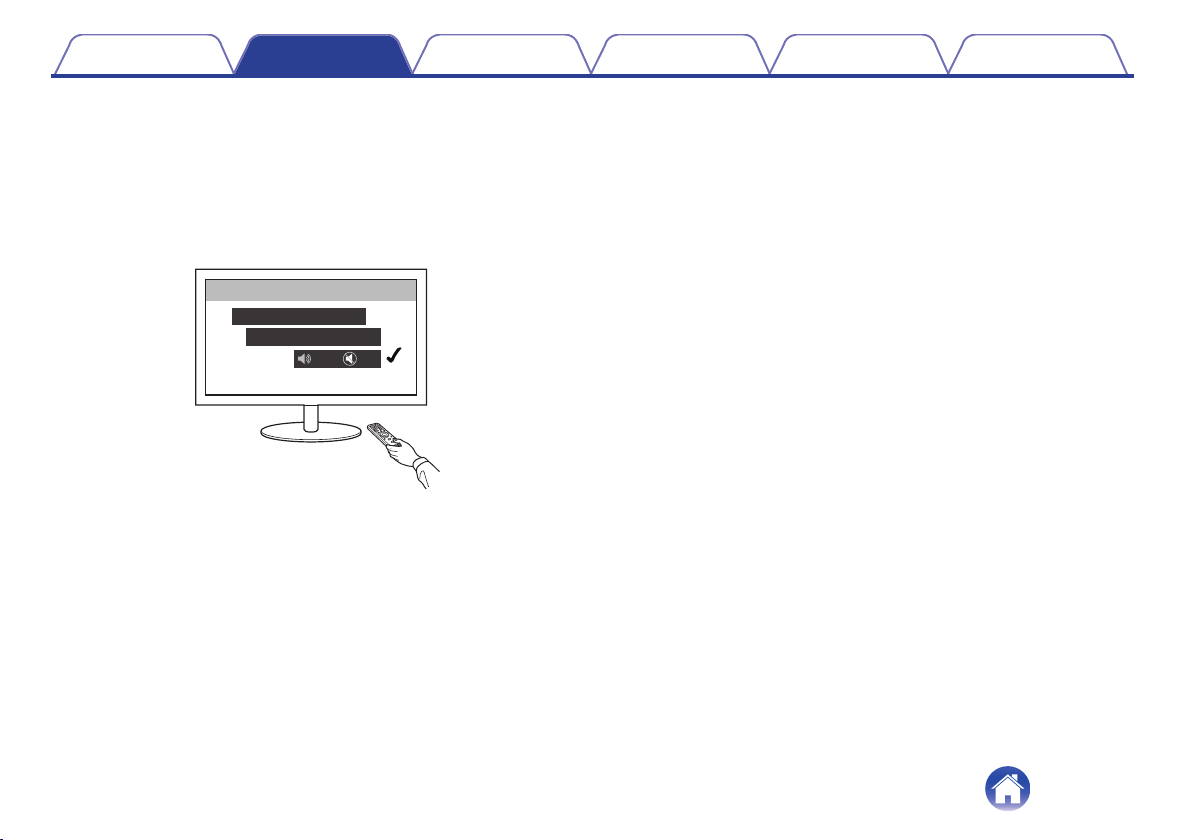
o
Disable your television’s speakers
When the connection to the TV is the same as 3) – 4), disable your
television’s built-in speakers when using DHT-S516H. Usually, this is
done with an on-screen setup menu on your television. Look for an
“Audio” or “Sound” sub-menu, and a “Speakers Off”, “Disable
Speakers”, “External Speakers” or similar menu item. Some
televisions have a switch on the rear panel to disable the built-in
speakers.
.
Setup
Audio
TV Speaker
On Off
Contents
Setup Use Troubleshooting Status LED Appendix
23
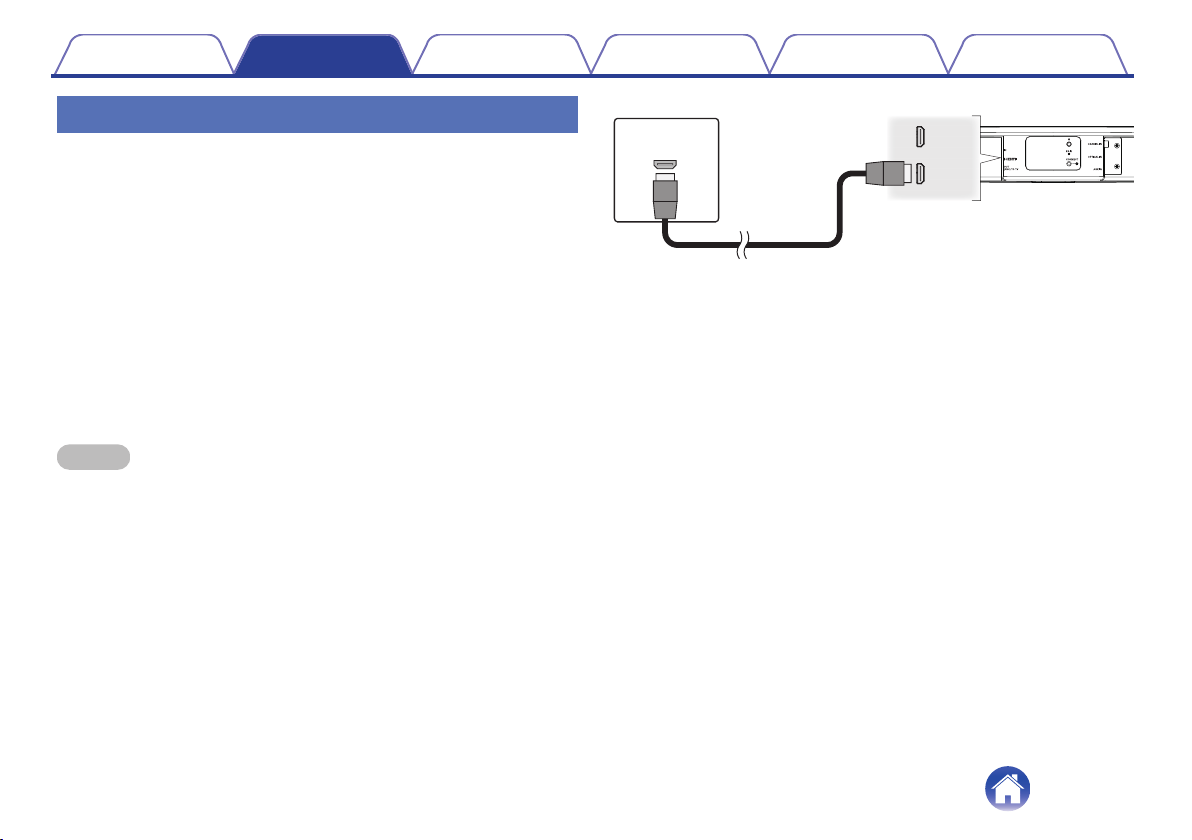
1) Playing HDMI (ARC) - Best choice
If your television has an ARC (Audio Return Channel) HDMI connector,
connect it to the HDMI output of the DHT-S516H. This will provide the best
sound and several other benefits.
1
Connect your television with an ARC (Audio Return
Channel) HDMI connector to the HDMI OUT (ARC) on
your DHT-S516H using the included HDMI cable.
2
Select “TV” from the music tab.
3
Select the name of the DHT-S516H to which you
connected the television in step 1.
The sound from your television can be played directly on the DHT-
S516H.
NOTE
0
The TV also needs to be compatible with the ARC function.
Turn the TV HDMI control function on. See the TV Owner’s Manual for details.
.
HDMI IN
HDMI OUT
(ARC) TO TV
HDMI INPUT
(ARC)
Television rear panel
HDMI control / Audio
Soundbar
Contents Setup Use Troubleshooting Status LED Appendix
24
2) Playing HDMI (without ARC) - Better
choice
Connect to a TV that is not compatible with the ARC (Audio Return
Channel) function using the HDMI cable and audio input cable.
1
Connect your television with an HDMI connector to
HDMI OUT (ARC) on your DHT-S516H using the
included HDMI cable.
2
Connect your television to your DHT-S516H using
either an included optical cable or a digital coaxial
cable (not included).
3
Select “TV” from the music tab.
4
Select the name of the DHT-S516H to which you
connected the television in step 1 and 2.
The sound from your television can be played directly on the DHT-
S516H.
NOTE
0
The TV audio cannot be played back on this unit when it is only connected with the
HDMI cable.
.
Television rear panel
Soundbar
HDMI Control
Audio
HDMI IN
HDMI OUT
(ARC) TO T V
AUX IN
COAXIAL IN
OPTICAL IN
HDMI INPUT
DIGITAL AUDIO
OPTICAL OUTPUT
.
Television rear panel
Soundbar
HDMI Control
Audio
HDMI IN
HDMI OUT
(ARC) TO T V
AUX IN
COAXIAL IN
OPTICAL IN
HDMI INPUT
DIGITAL AUDIO
COAXIAL OUTPUT
Contents
Setup Use Troubleshooting Status LED Appendix
25
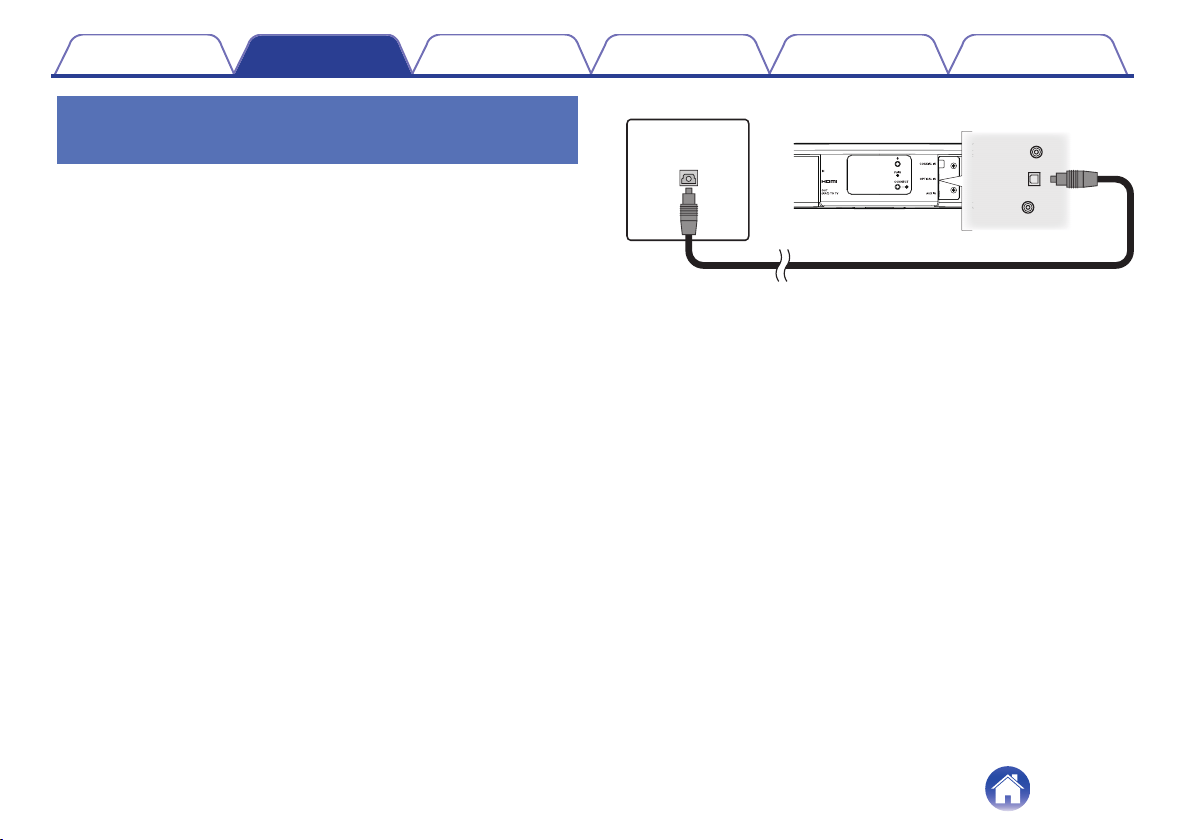
3) Playing digital optical input - Good
choice
A optical cable connection from the television also provides excellent
sound.
1
Connect your television with an optical output to the
OPTICAL IN on your DHT-S516H using the included
Optical cable.
2
Select “TV” from the music tab.
3
Select the name of the DHT-S516H to which you
connected the television in step 1.
The sound from your television can be played directly on the DHT-
S516H.
.
DIGITAL AUDIO
OPTICAL OUTPUT
Television rear panel
Soundbar
AUX IN
COAXIAL IN
OPTICAL IN
The optical connector looks square, but it is “keyed” and will only plug in
one way; don't force it.
Contents Setup Use Troubleshooting Status LED Appendix
26
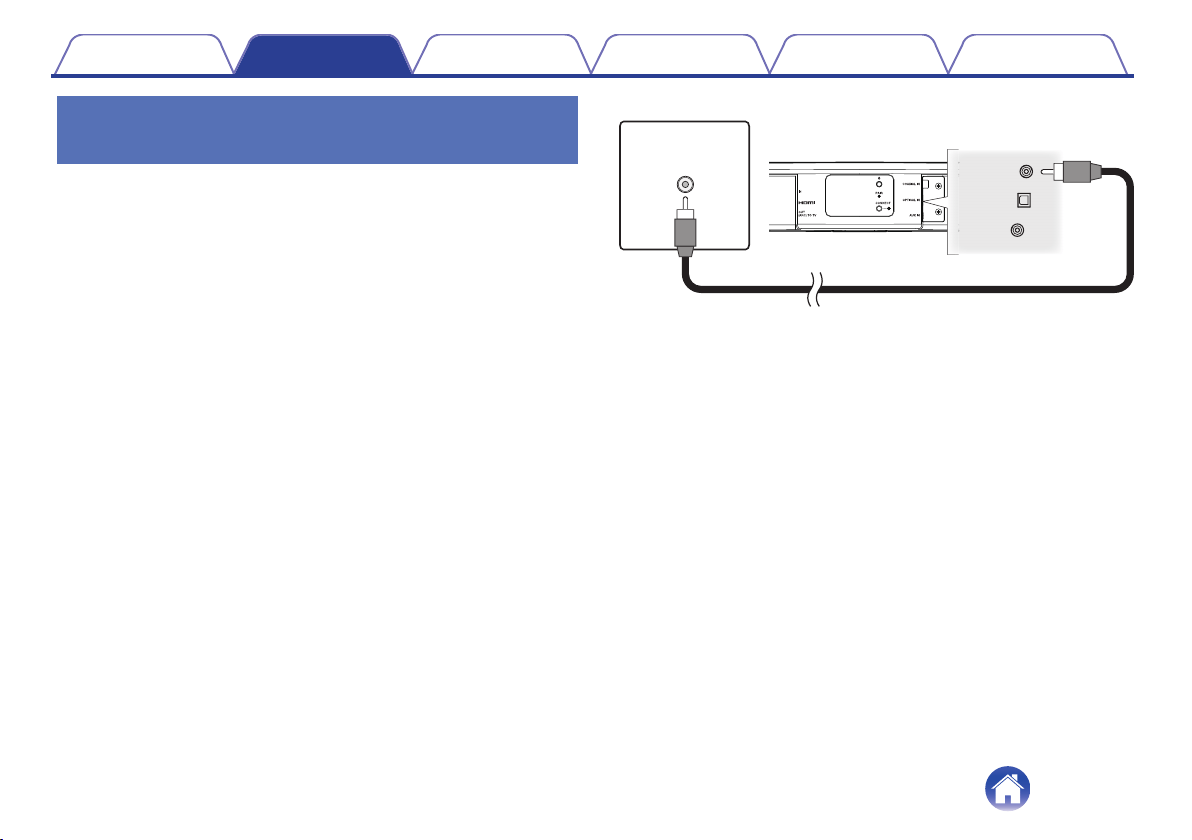
4) Playing digital coaxial input - Good
choice
Another way to supply a digital audio signal to the DHT-S516H.
1
Connect your television with an optical output to the
COAX IN on your DHT-S516H using an “RCA” type
cable (not included).
2
Select “TV” from the music tab.
3
Select the name of the DHT-S516H to which you
connected the television in step 1.
The sound from your television can be played directly on the DHT-
S516H.
.
DIGITAL AUDIO
COAXIAL OUTPUT
Television rear panel
Soundbar
AUX IN
COAXIAL IN
OPTICAL IN
Contents Setup Use Troubleshooting Status LED Appendix
27
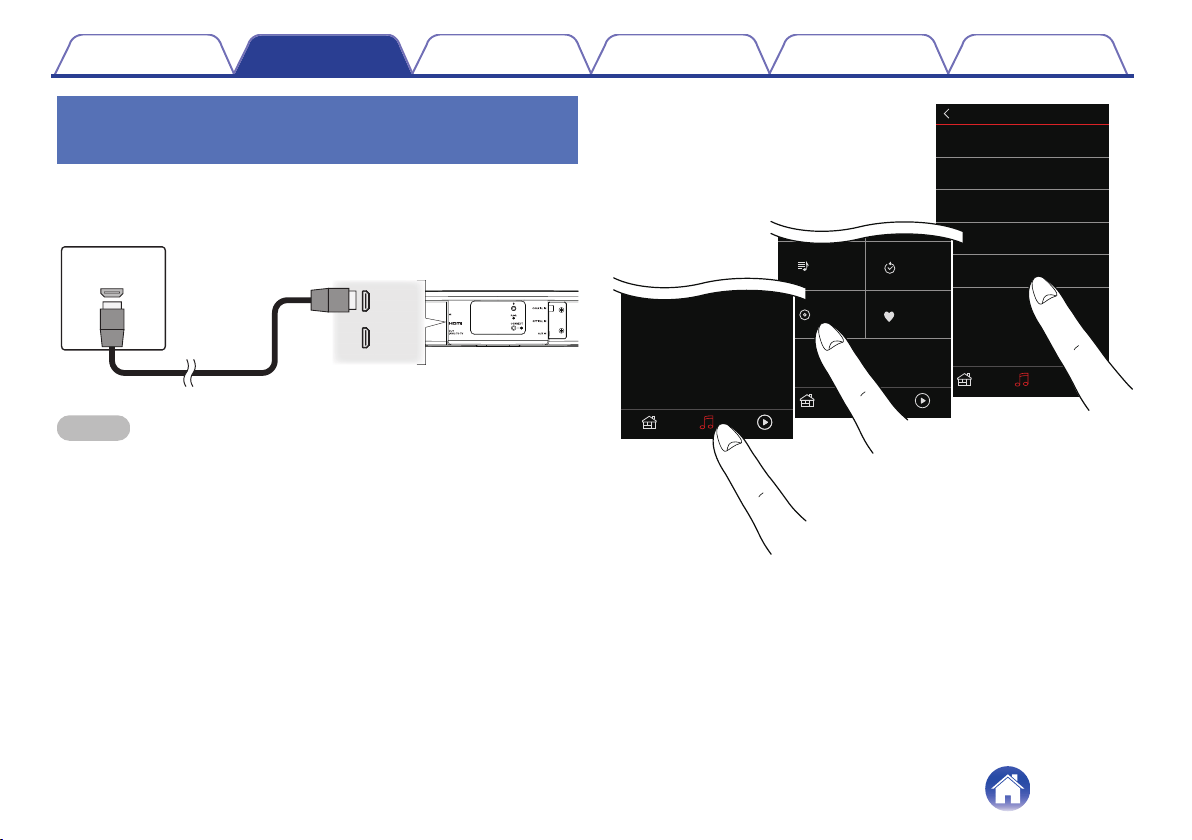
Connecting DHT-S516H to your HDMI
equipment
Connect an HDMI device such as a Blu-ray player to the HDMI IN terminal
on your DHT-S516H.
.
HDMI IN
HDMI OUT
(ARC) TO TV
Soundbar
HDMI OUTPUT
HDMI equipment rear panel
NOTE
0
DTS audio can not be passed from your TV over an optical connection so it is
recommended to connect your Blu-ray player to the HDMI IN terminal on the DHT-
S516H to enjoy DTS encoded discs.
.
Music
Denon DHT-S516H Now Playing
Denon DHT-S516H - HDMI OUT..
Denon DHT-S516H - HDMI In
Denon DHT-S516H - Optical In
Denon DHT-S516H - Coaxial In
Denon DHT-S516H - AUX In
Inputs
Music
Denon DHT-S516H Now Playing
History
Favorites
Playlists
Inputs
Music
Denon DHT-S516H
Now Playing
Contents
Setup Use Troubleshooting Status LED Appendix
28
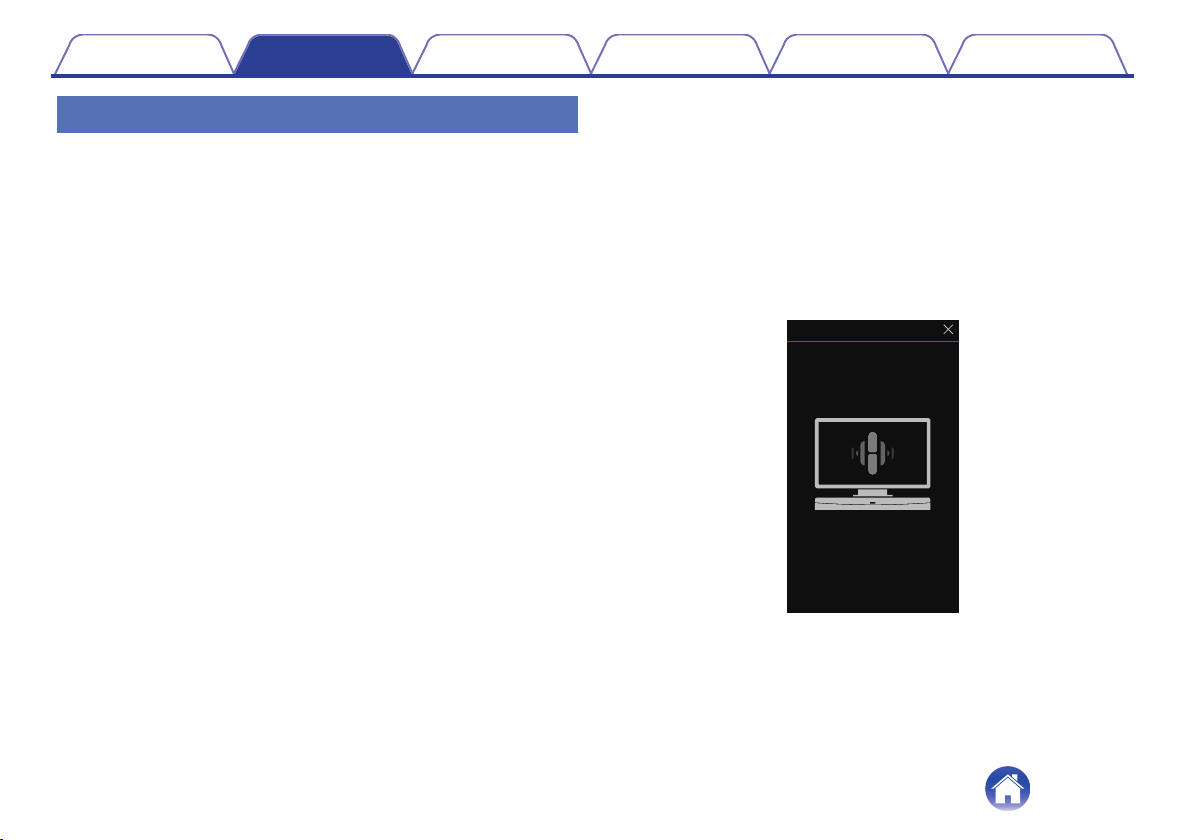
Listening to TV Audio
Once you have connected your DHT-S516H to your TV, and setup the TV
input you are ready to enjoy sound from your TV. (v p. 53)
1
Tap the “Music” tab.
2
Tap “TV”.
o
Adjusting the dialog sound
The Dialog enhancer highlights center-recorded sounds such as
movie dialog, television announcers, or musical soloists; it is valuable
for everyday television viewing.
o
Listening at night
The night mode improves low-volume listening by subtly lifting softer
sounds, and lowering very loud ones. While you may use the night
mode whenever you like, for maximum dynamic realism from
television programing, movies, or music, leave the night mode turned
off.
o
Adjusting sound mode
You can select the sound mode either “MOVIE” or “MUSIC”. The
movie mode deploys DHT-S516H's maximum processing for the
“biggest” possible sound on action films or other large-scaled content.
The music mode widens the “soundstage” somewhat for a more
enveloping, involving sound.
o
Checking the audio status
You can check the input and signal format by pressing the O at the
left top area.
.
More Info
INPUT : HDMI Arc
SIGNAL : PCM
SOUND MODE : Movie
Contents
Setup Use Troubleshooting Status LED Appendix
29
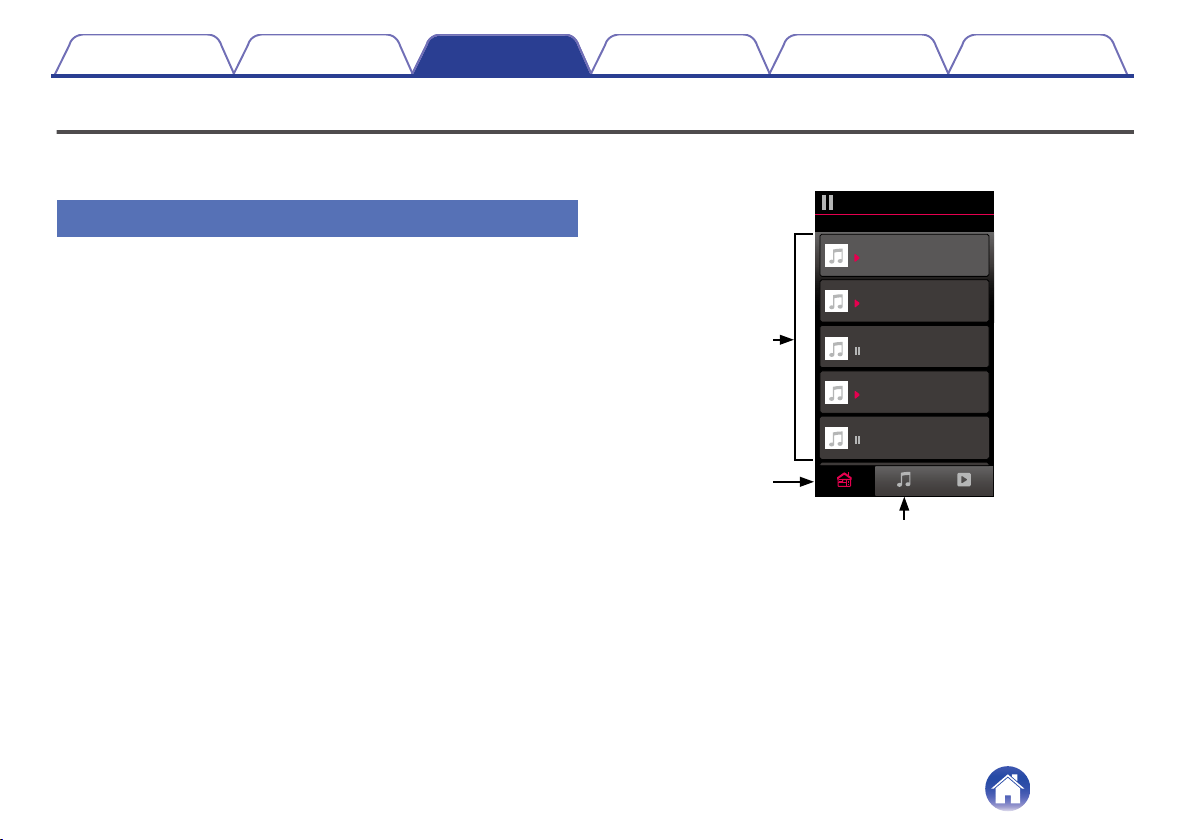
Using your DHT-S516H for music
Once you have your HEOS device connected to your network and the HEOS app installed on your mobile device, it’s easy to start enjoying your favorite
music. You can listen to something different on every HEOS devices or the same music perfectly synchronized on all HEOS devices. It’s up to you!
Selecting a room/speaker
If you have more than one HEOS device, you must tell the HEOS system
which HEOS device you want to control:
1
Tap the “Rooms” tab.
2
Select the Room/Speaker you want to control.
3
Select the “Music” tab to select a music source or the
“Now Playing” tab to control what is currently playing
in the selected room.
.
1
2
3
Now PlayingMusicRooms
Song Name 5
Song Name 4
Song Name 3
Song Name 2
Song Name 1
Outside
Bedroom
Dining
Living
Kitchen
Drag one room into another to group them
Rooms
Contents
Setup Use Troubleshooting Status LED Appendix
Use
30
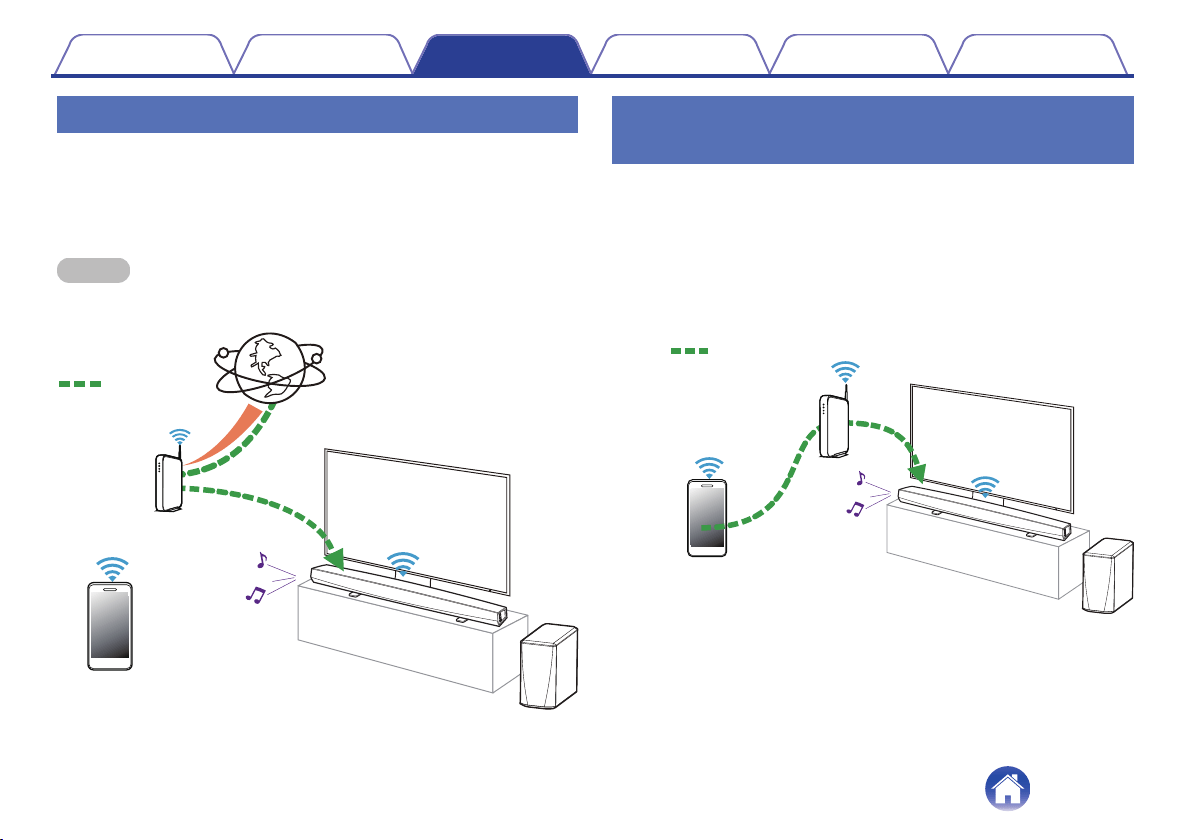
Listening to radio
The HEOS system includes access to more than 100,000 free internet
radio streams from all corners of the globe via the TuneIn radio service.
Just select the TuneIn logo from the main “Music” menu and browse
among the 100,000 stations neatly organized into popular categories and
select a station that appeals to your mood.
NOTE
0
If you have a TuneIn account, you can sign into the TuneIn service under Settings -
Music Sources - TuneIn, and access all of your “My Favorites” TuneIn stations.
.
Audio signal
Playing music stored on your mobile
device
1
Tap the “Music” tab.
2
Select “This iPhone/iPod/iPad/Phone”.
3
Browse the local music on your phone and select
something to play.
.
Audio signal
Contents
Setup Use Troubleshooting Status LED Appendix
31
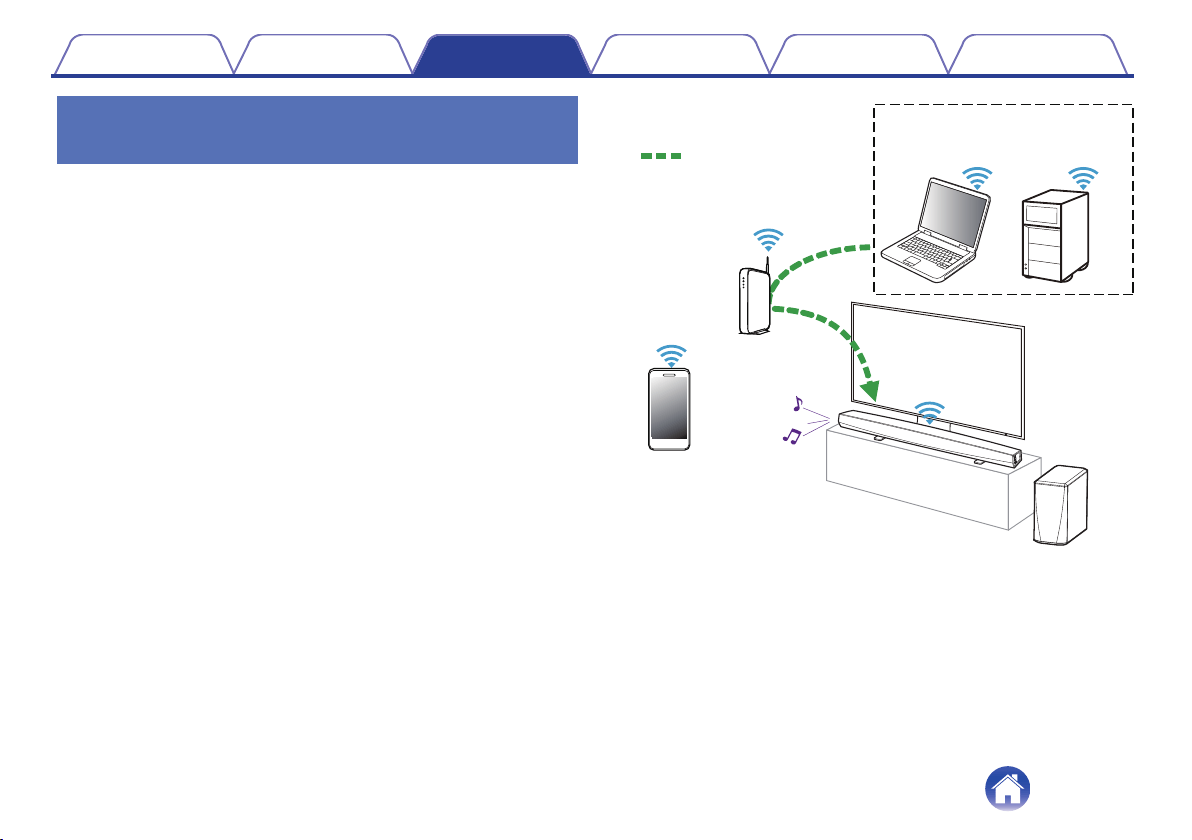
Playing music from your networked PC
or NAS
1
Select “Music Servers” from the “Music” tab.
2
Select the name of your networked PC or NAS
(Network Attached Storage) server.
3
Browse the music on your PC/NAS and select
something to play.
.
NAS
(Network Attached
PC Storage)
PC
Audio signal
Contents
Setup Use Troubleshooting Status LED Appendix
32
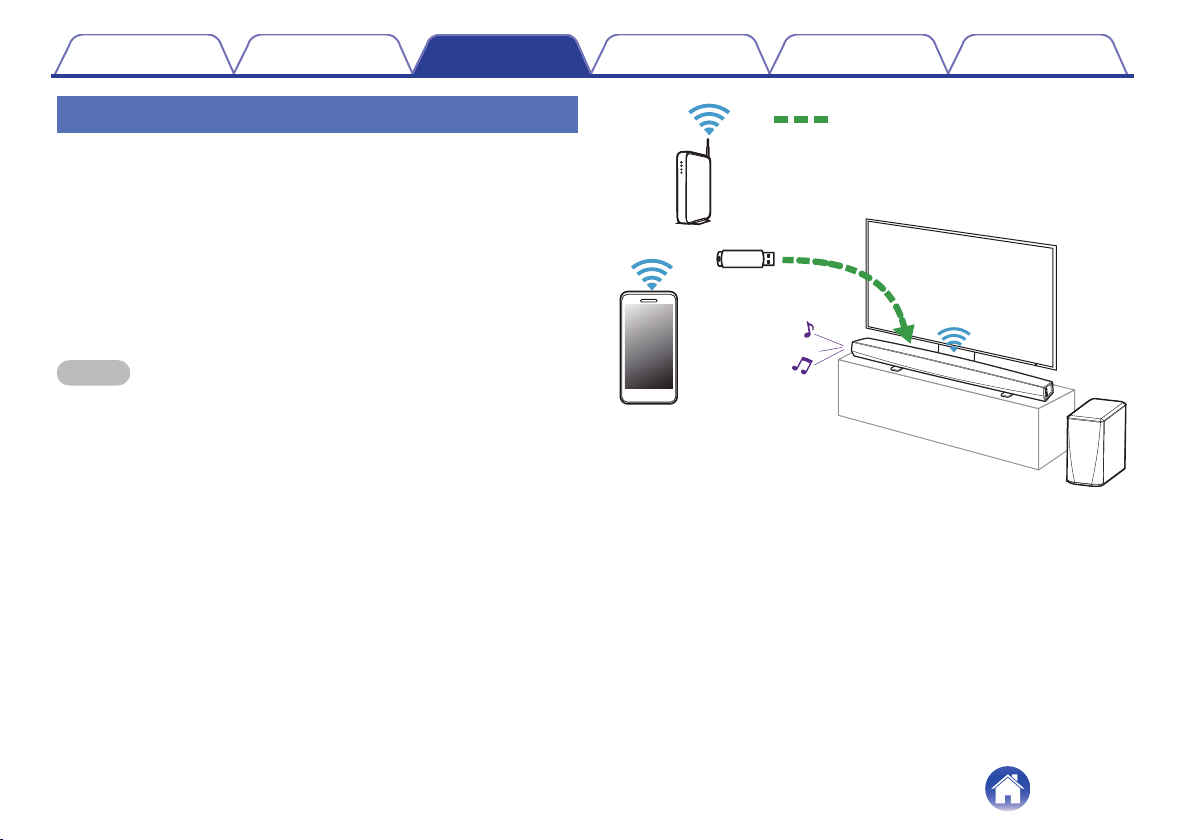
Playing music from a USB device
1
Insert a FAT32 formatted USB device into the USB port
on the back of the HEOS speaker.
2
Select “USB Music” from the Music tab.
3
Select the name of your HEOS speaker.
4
Browse the music on your USB device and select
something to play.
NOTE
0
It may take several minutes for the name of your HEOS device to appear in the
“USB Music” list if you have a large number of files on your USB device.
0
It is not possible to connect and use a computer via the USB port of this unit using
a USB cable.
.
Audio signal
Contents
Setup Use Troubleshooting Status LED Appendix
33
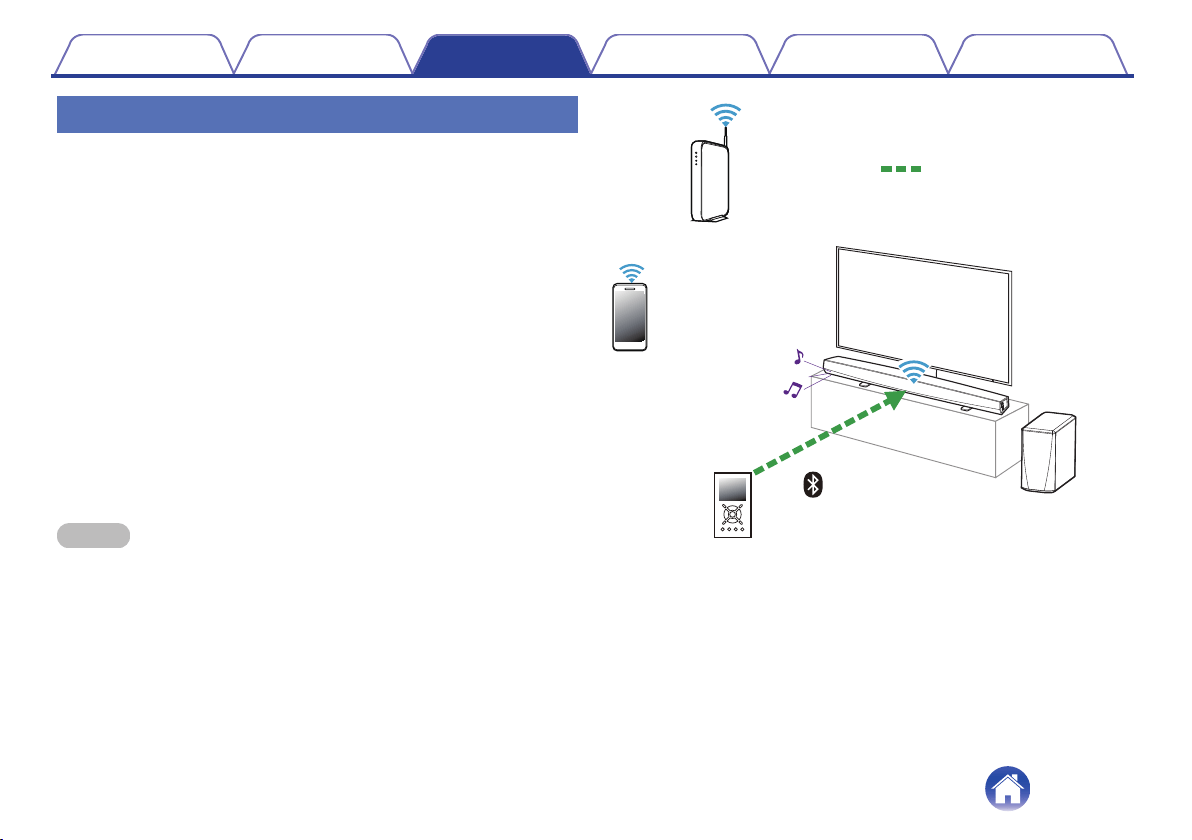
Playing music from Bluetooth device
o
Pairing the HEOS device with your Bluetooth
devices
1
Activate the Bluetooth setting on your mobile device.
2
Press and hold the Bluetooth button (V) located on the
back of the DHT-S516H for 3 seconds and release the
button when you see a pattern of two green flashes on
the status LED.
3
Select “Denon DHT-S516H” from the list of available
Bluetooth devices.
In a few seconds your mobile device will indicate that it is connected
to your DHT-S516H.
4
Play music using any app on your device. The sound
will now play from the DHT-S516H.
NOTE
0
Disconnect and reconnect Bluetooth connections from your Bluetooth device.
.
Audio signal
Contents
Setup Use Troubleshooting Status LED Appendix
34
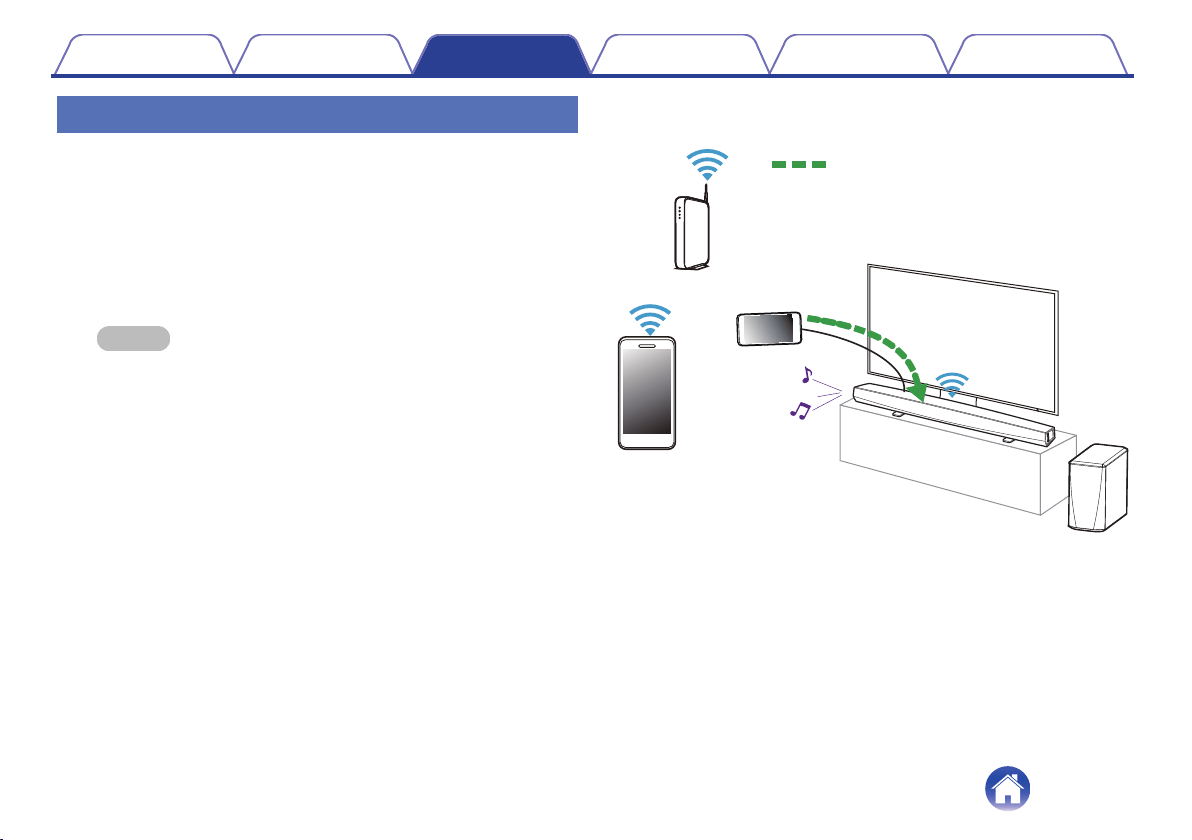
Playing music from the AUX input
The sound from the audio device can be played directly on the selected
speaker or digitized and sent over your network to other speakers.
1
Connect an audio device with a 3.5 mm stereo audio
output to the AUX input on your speaker using the
included 3.5 mm stereo audio cable.
When a stereo audio cable is connected to AUX IN, the source
automatically switches to Inputs.
NOTE
0
When there is a cable connected to AUX IN, select “Inputs” from the Music
tab.
2
Initiate playback on the audio device.
.
Audio signal
Contents
Setup Use Troubleshooting Status LED Appendix
35
Managing AUX inputs
If you connected external audio source components to any of your HEOS
speakers AUX inputs, you can rename the default input names to describe
the actual source or hide any inputs that are not being used.
1
Select the Settings a icon located in the upper left
corner of the main “Music” menu to display the
Settings menu.
2
Select “Music Sources”.
3
Select “Inputs”.
4
Select the speaker which you connect your external
audio source device to.
o
Changing the name of the AUX inputs
1
Select "AUX In".
2
Select “Name”.
3
Select or enter a new name to describe the source that
you connected.
4
Select the Save button to save your changes.
o
Hiding an AUX input
1
Select "AUX In".
2
Toggle "Hide Input" to ON to prevent this AUX input
from appearing under the Inputs tile on the main Music
menu.
Contents Setup Use Troubleshooting Status LED Appendix
36
Managing your phone
Your smartphone or tablet can be hidden if it does not need to be in the
“Music Sources” menu.
1
Select the Settings a icon located in the upper left
corner of the main “Music” menu to display the
Settings menu.
2
Select “Music Sources”.
3
Select “This iPhone/iPod/iPad/Phone”.
4
Toggle “This iPhone/iPod/iPad/Phone” to OFF to
prevent the service logo from appearing on the main
“Music” menu.
Contents Setup Use Troubleshooting Status LED Appendix
37
HEOS account
o
What is a HEOS account?
A HEOS account is master account or “keychain” for managing all of
your HEOS music services with one single username and password.
o
Why do I need a HEOS account?
With the HEOS account you just have to enter your music services
login names and passwords one time. This allows you to easily and
quickly use multiple controller apps on different devices. You just log
into your HEOS account on any device and you will have access to all
of your associated music services, play history and custom playlists,
even if you are at a friend’s house listening to music on their HEOS
system.
o
Signing up for a HEOS account
You will be instructed to signup for a HEOS account the first time you
try to access any music service from the main “Music” menu of the
HEOS app.
o
Changing your HEOS account
1
Tap the “Music” tab.
2
Select the Settings a icon in the upper left corner of
the screen.
3
Select “HEOS Account”.
4
Change your location, change your password, delete
your account or sign out of your account.
Contents Setup Use Troubleshooting Status LED Appendix
38
Playing from streaming music services
A music service is an online music company that provides access to vast
music collections via free and/or paid subscriptions. Depending upon your
geographical location, there are several options to choose from.
NOTE
0
The HEOS app and brand is not affiliated with any manufacturer of any mobile
device. Availability of music services may vary by region. Not all services may be
available at time of purchase. Some services may be added or discontinued from
time to time based on decisions of the music service providers or others.
o
Adding a music service
Once you’ve setup your HEOS account, you can add supported music
services to your HEOS system by tapping on the music service logo in
the “Music” tab.
Follow the instructions on the screen to add your username and
password for the selected music service. You only have to enter your
account information once as the HEOS account service will securely
remember your login information so you don’t have to enter it each
time you want to play music from the music service.
Additional music services may be available under “Settings” - “Music
Sources” - “Online Music”.
o
Changing music service settings
1
Tap the “Music” tab.
2
Select the Settings a icon in the upper left corner of
the screen.
3
Select “Music Sources”.
4
Select “Online Music”.
5
Select the name of the online music service you want
to edit.
6
Sign out, then sign in again to associate your
username and password with your HEOS account.
7
Select “Hide for Now” to prevent the service logo from
appearing on the main “Music” menu.
Contents Setup Use Troubleshooting Status LED Appendix
39
Listening to the same music in multiple
rooms
The HEOS system is a true multiroom audio system that automatically
synchronizes audio playback between multiple HEOS devices so that the
audio coming from different rooms is perfectly in sync and always sounds
amazing!
You can easily add up to 32 HEOS devices to your HEOS system.
You can join or group up to 16 individual HEOS devices into a group of
HEOS devices that function as if they were a single HEOS device.
o
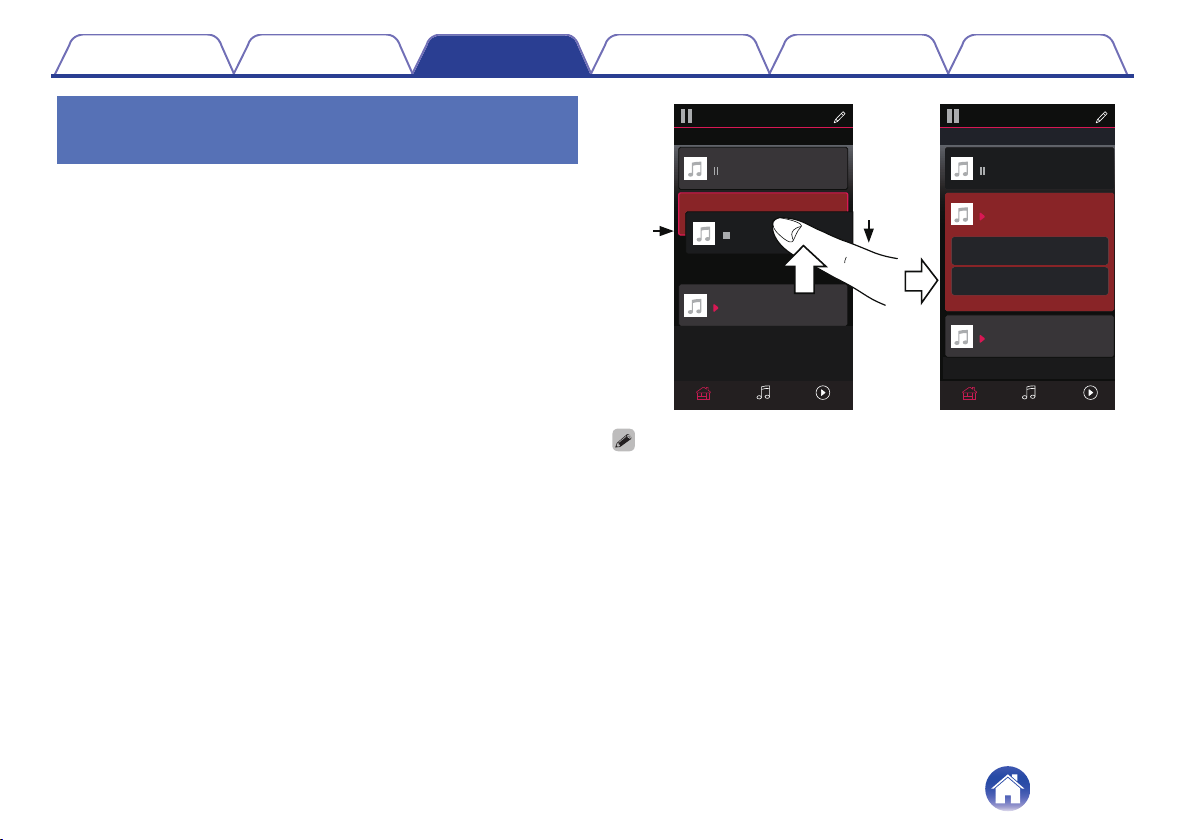
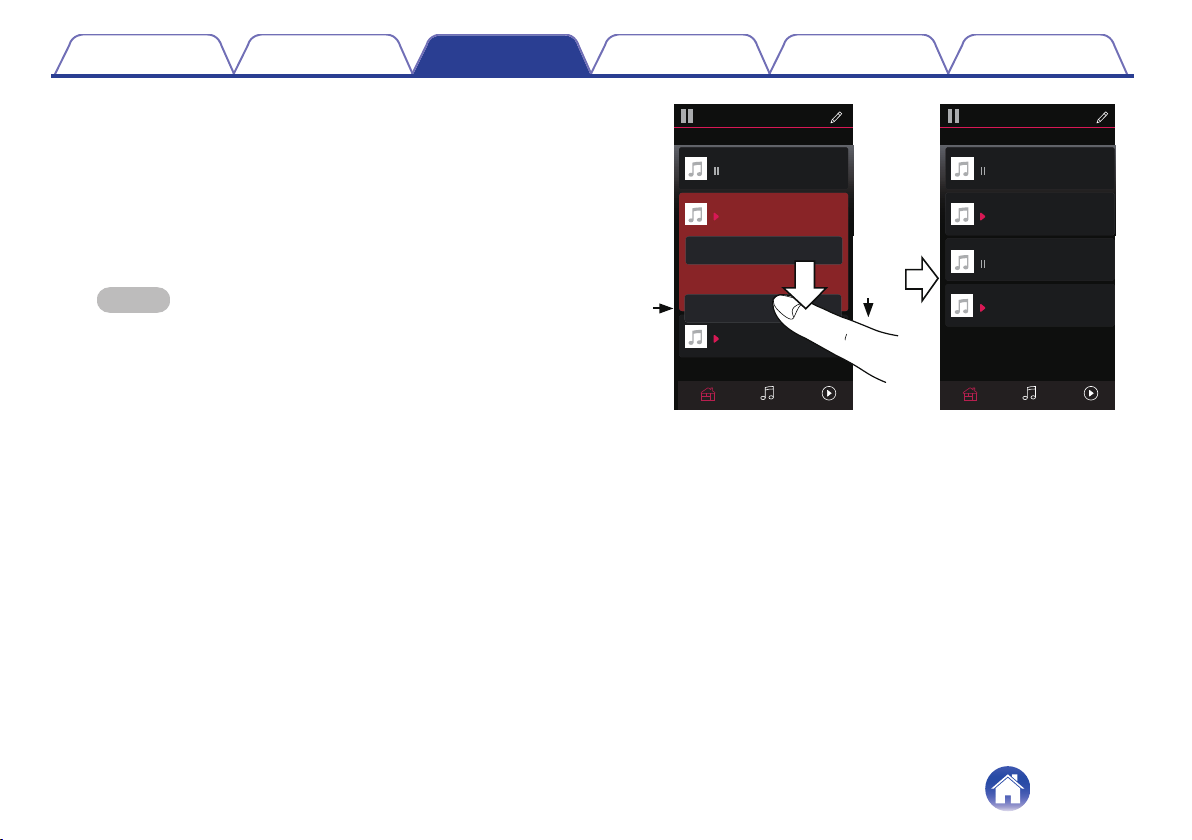
Grouping rooms
1
Press and hold your finger on room that is not playing
music.
2
Drag it into the room that is playing music (indicated by
the red outline) and lift your finger.
The two rooms will be grouped together into a single device group
and both rooms will be playing the same music in perfect sync.
.
2
1
Now PlayingMusicRooms
Song Name 1
Dining
Kitchen
Drag one room into another to group them
Rooms
Now PlayingMusicRooms
Song Name 3
Song Name 3
Song Name 2
Song Name 2
Song Name 1
Bedroom
Bedroom
Dining
Living
Kitchen
Drag one room into another to group them
Rooms
Living
Drag a room out of this group to ungroup it
Living+Kitchen
0
Grouping cannot be used when this unit is playing TV audio or external input
audio. Enable “TV Sound Grouping” to use grouping. (v p. 54)
Contents Setup Use Troubleshooting Status LED Appendix
40
o
Ungrouping rooms
1
Press and hold your finger on room that you want to
remove from the group.
2
Drag it out of the group and lift your finger.
Music will stop playing in the room you dragged out of the group but
will continue playing in any remaining rooms.
NOTE
0
You can not remove the first room that started playing the music before
grouping.
.
2
1
Song Name 3
Song Name 2
Song Name 1
Bedroom
Dining
Living
Kitchen
Drag one room into another to group them
Rooms
Song Name 4
Song Name 3
Song Name 2
Song Name 1
Bedroom
Dining
Living
Kitchen
Drag one room into another to group them
Rooms
Living
Now PlayingMusicRoomsNow PlayingMusicRooms
Contents
Setup Use Troubleshooting Status LED Appendix
41
o
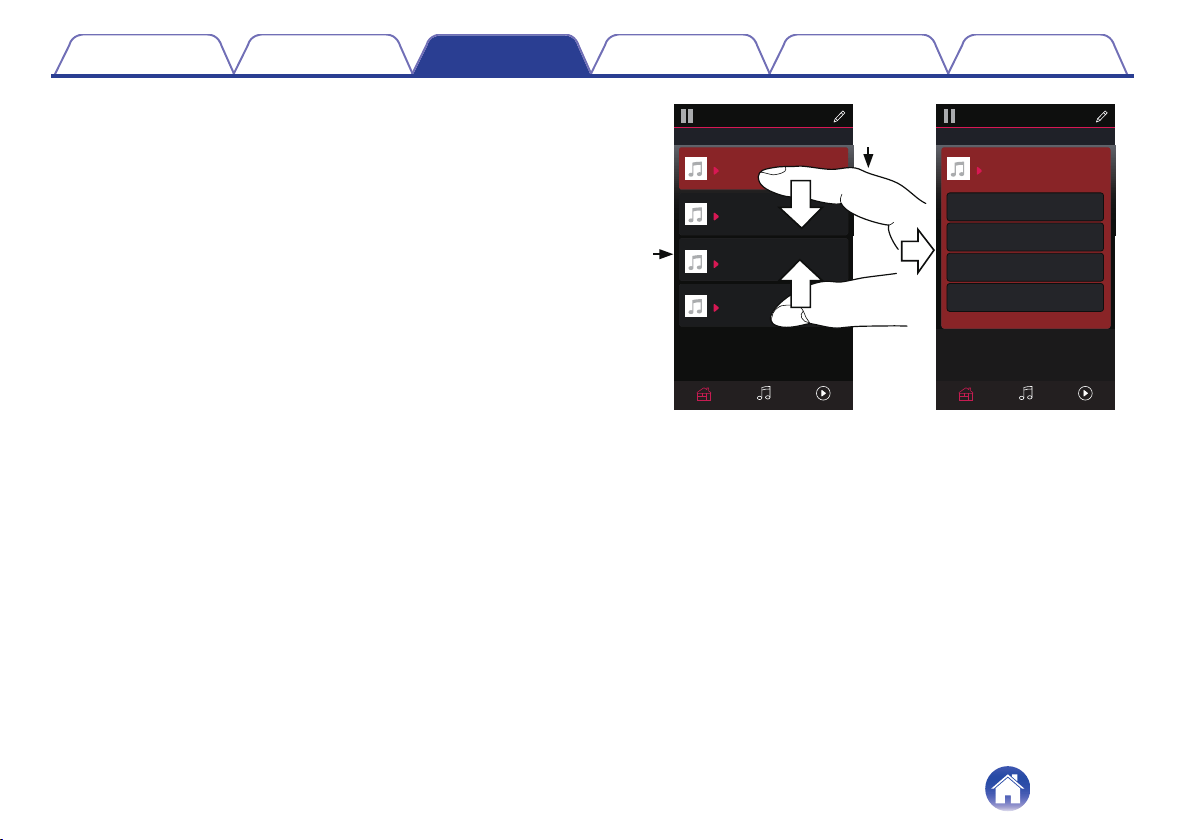
Grouping all rooms (party mode)
You can easily group 16 rooms together into Party Mode by using a
“pinch” gesture.
1
Place two fingers on the screen over the list of rooms.
2
Quickly pinch your two fingers together and release.
All of your rooms will be joined together and begin playing the same
music in perfect sync.
.
1
2
Song Name 1
Bedroom
Dining
Kitchen
Drag one room into another to group them
Rooms
Song Name 4
Song Name 3
Song Name 2
Song Name 1
Bedroom
Dining
Living
Kitchen
Drag one room into another to group them
Rooms
Living
Now PlayingMusicRooms Now PlayingMusicRooms
Drag a room out of this group to ungroup it
Dining+Living+...
Contents
Setup Use Troubleshooting Status LED Appendix
42
o
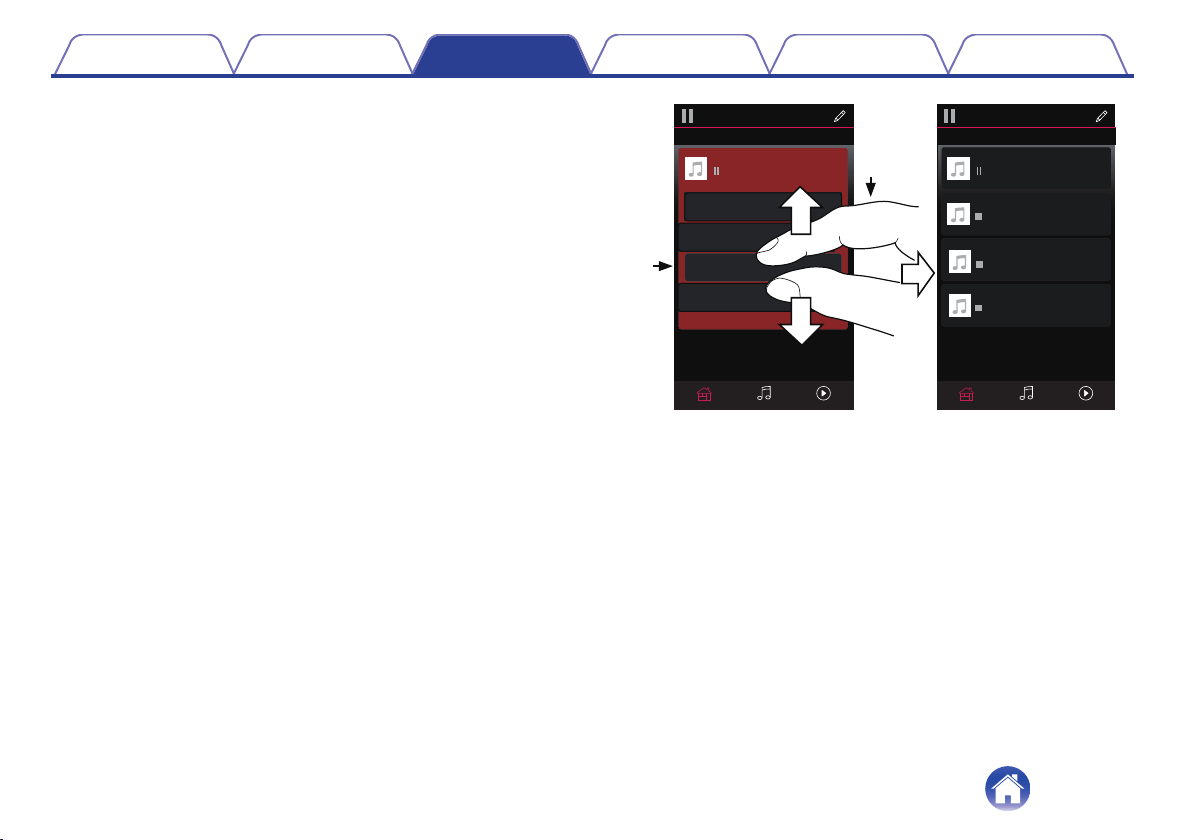
Ungrouping all rooms
You can easily ungroup all of your rooms and exit Party Mode by using
a “spread” gesture.
1
Place two fingers close together on the screen over list
of rooms.
2
Quickly spread your two fingers apart from each other
and release.
All of your rooms will be ungrouped and music will stop playing in
every room (except the original “master” room that was playing
before you grouped the rooms together).
.
1
2
Song Name 1
Bedroom
Dining
Dining
Kitchen
Drag one room into another to group them
Rooms
Song Name 4
Song Name 3
Song Name 2
Song Name 1
Bedroom
Dining
Living
Kitchen
Drag one room into another to group them
Rooms
Living
Now PlayingMusicRooms
Now PlayingMusicRooms
Drag a room out of this group to ungroup it
Contents
Setup Use Troubleshooting Status LED Appendix
43
Using the now playing queue
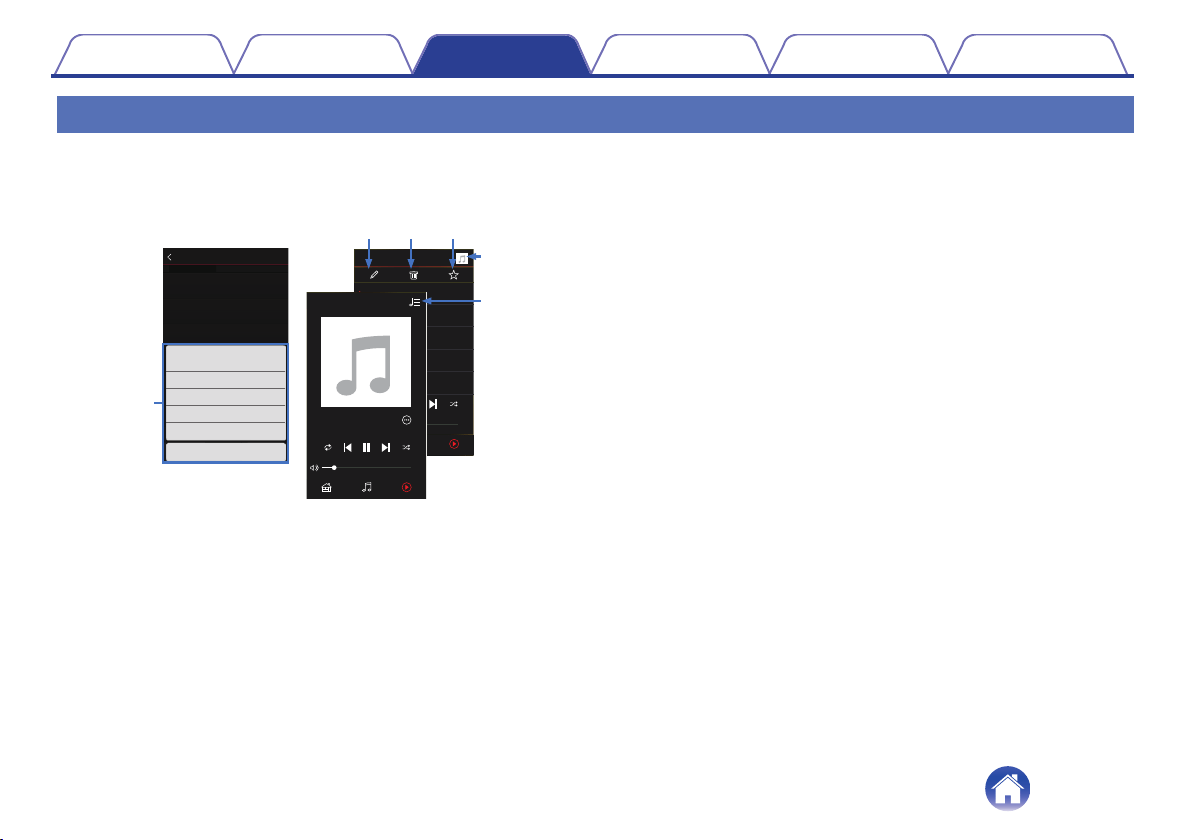
HEOS uses a Now Playing “Queue” to line up music that you want to listen to. Music can be selected from any of your local or online music sources (as
long as they are not preprogrammed “radio” or “station” type streams). This feature works similarly to how a jukebox works. You select something to play
(a song, album, playlist or even your entire music collection) and add it to the “Queue”. When you select something to play you will be asked how you want
to queue up your music.
.
Play AIbum
Track 6
6
0:20
Play Now
MusicRooms Now Playing
Cancel
Play Now & Replace Queue
Play Next
Add to End of Queue
Track 1
1
Track 2
2
Track 1
HEOS Device
0:20
0:20
Album
Now PlayingMusicRooms
Queue
3:14
Charlie Puth
Tra c k 1
3:19
Charlie Puth
Dangerously
3:10
Charlie Puth
Marvin Gaye
3:32
Charlie Puth
Losing My Mind
3:37
Charlie Puth
We Don’t Talk Any
e r t
w
y
q
Now PlayingMusic
Artist
Album
Track 1
Rooms
Now Playing
0:10
-
3:04
A
Queue Menu
When you select something to play you will be asked how you want to
queue up your music.
B
Queue icon
C
Pencil icon
D
Delete icon
E
Save icon
F
Cover art or HEOS icon
You can return to the Now Playing screen display by tapping the cover
art or the HEOS icon.
o
Play Now
Inserts the item into the queue after the currently playing track and
plays the selected item immediately.
o
Play Now & Replace Queue
Clears the queue and plays the selected item immediately.
o
Play Next
Inserts the item into the queue after the current song and plays it when
the current song ends.
o
Add to End of Queue
Adds the item to the end of the queue.
Contents
Setup Use Troubleshooting Status LED Appendix
44
Rearranging the now playing queue
Once you have songs lined up in your queue, you might want to rearrange
the order or remove some songs:
1
Tap the “Now Playing” tab.
2
Tap the Queue d icon in the upper right corner of the
screen.
3
Tap the Pencil e icon to enter Edit mode.
4
Rearrange the order of your queue by dragging the list
f icon (on the right side of each track row) up or
down.
Deleting songs from the play queue
You can remove songs one at a time from the Now Playing Queue:
1
Tap the “Now Playing” tab.
2
Tap the Queue d icon in the upper right corner of the
screen.
3
Tap the Pencil e icon to enter Edit mode.
4
Tap the track(s) that you want to delete.
5
Tap the Delete g icon to delete all of the selected
tracks from the play queue.
Contents Setup Use Troubleshooting Status LED Appendix
45
Deleting all songs from the play queue
You can remove all of the songs from the Now Playing Queue:
1
Tap the “Now Playing” tab.
2
Tap the Queue d icon in the upper right corner of the
screen.
3
Tap the Delete g icon to confirm that you want to
delete all songs from the queue.
Saving playlists
You can save the Now Playing Queue as a HEOS Playlist that you can
recall later. The new playlist will be available from the Playlists button on
the “Music” tab on every controller app connected to your HEOS system.
1
Tap the “Now Playing” tab.
2
Tap the Queue d icon in the upper right corner of the
screen.
3
Tap on the Save h icon.
4
Enter a name for your Playlist and tap the Save h icon.
Performing repeat and shuffle playback
The playback controls are visible on the “Now Playing” screen.
1
Tap the “Now Playing” tab.
2
Tap the repeat b and shuffle c controls.
Contents Setup Use Troubleshooting Status LED Appendix
46
Using the favorites
HEOS uses a "HEOS Favorites" to line up station you want to start play
quickly the favorite stations.
Station can be selected from online music sources such as "Radio" or
"Station" type streams. "HEOS Favorites" will display a list of the stations
of various services.
o
Adding to HEOS Favorites
Inserts the item into the queue after the currently playing track and
plays the selected item immediately.
Select a station of an online music source. When the action menu
screen is displayed, select “Add Station to HEOS Favorites”.
NOTE
0
This can also be done by selecting “Add Station to HEOS Favorites” from the
station menu of the station being played.
o
Deleting station from the HEOS favorites
Inserts the item into the queue after the currently playing track and
plays the selected item immediately.
1
Tap the “Music” tab.
2
Select “Favorites”.
3
Tap the Pencil e icon to enter Edit mode.
4
Tap the delete g icon that you wanto delete station.
5
Tap the "Delete" that you want to delete station.
Contents Setup Use Troubleshooting Status LED Appendix
47
AirPlay function
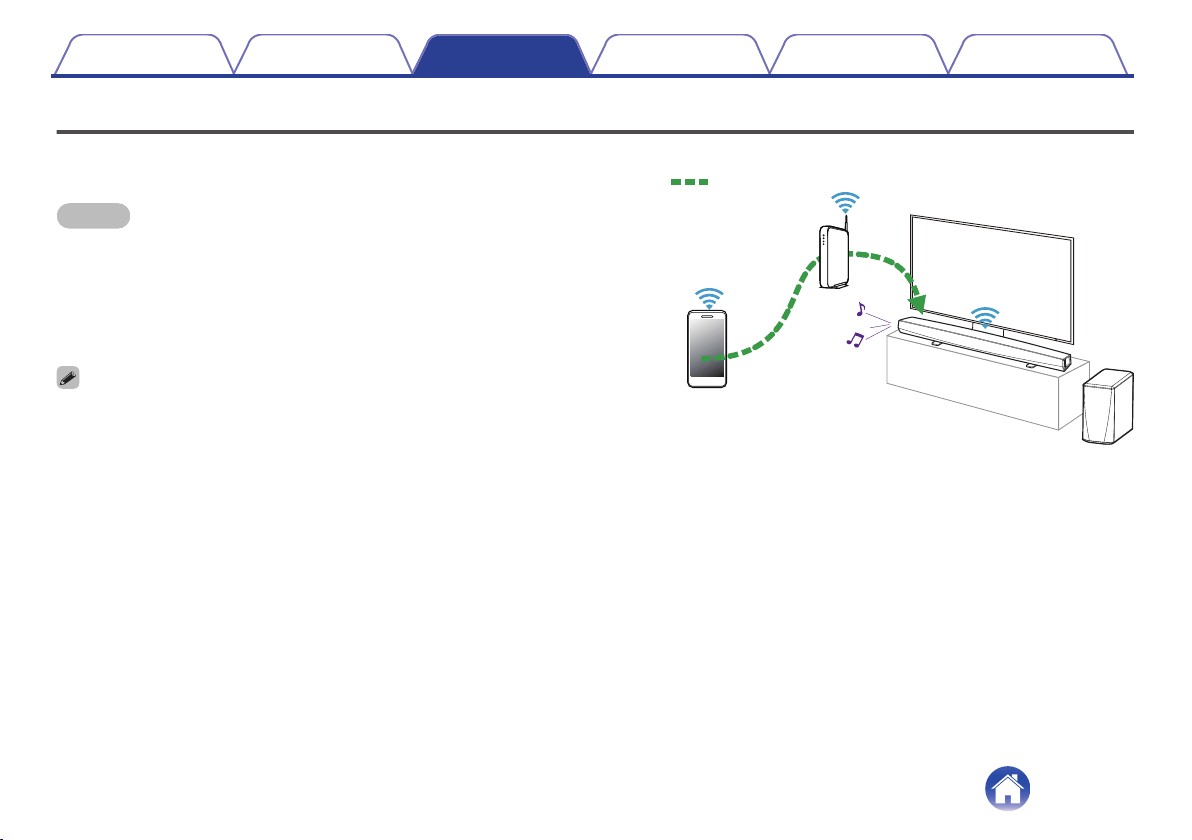
Music files stored on your iPhone, iPod touch, iPad or iTunes can be
played on this unit via the network.
NOTE
0
The screen may differ depending on the OS and software versions.
This device supports AirPlay 2
®
.
Sync multiple AirPlay 2 compatible devices/speakers for simultaneous
playback.
0
This unit supports AirPlay 2 and requires iOS 11.4 or later.
.
Audio signal
Contents
Setup Use Troubleshooting Status LED Appendix
48
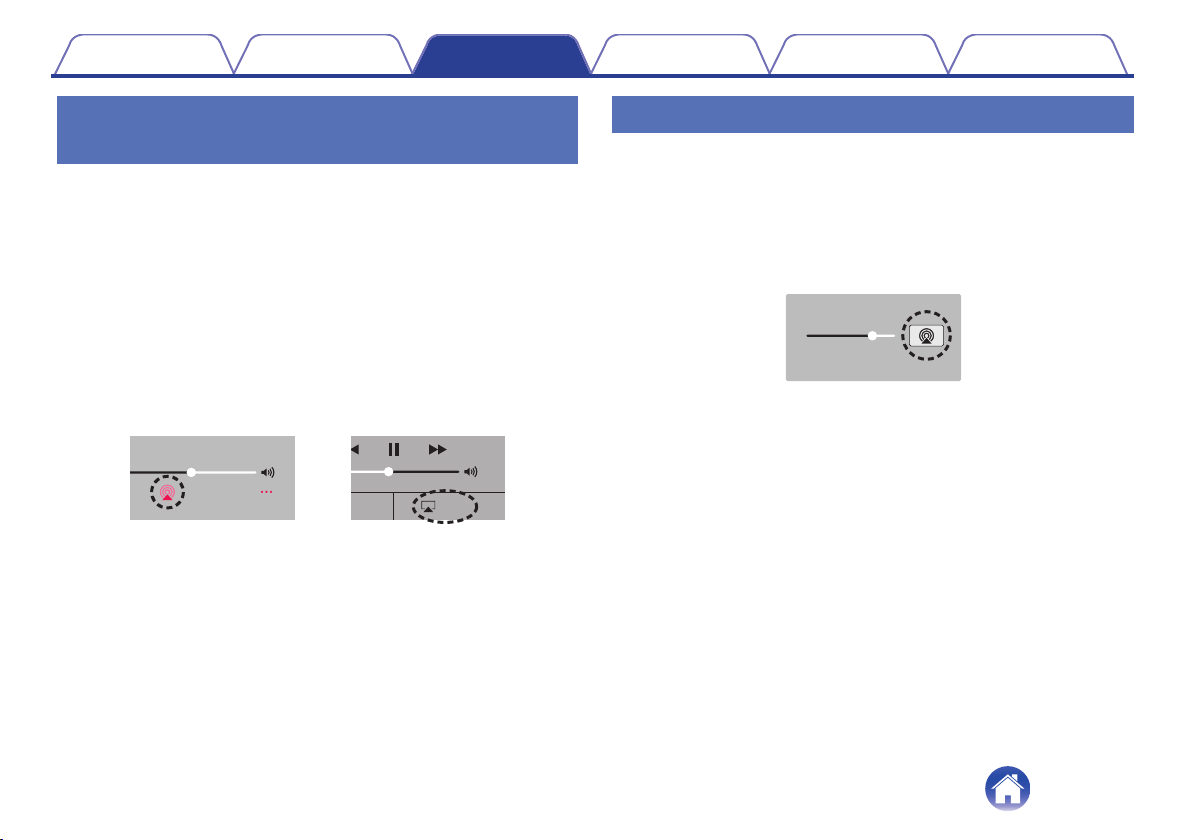
Playing songs from your iPhone, iPod
touch or iPad
If you update your “iPhone/iPod touch/iPad” to iOS 4.2.1 or later, you can
stream music stored in your “iPhone/iPod touch/iPad” directly to this unit.
1
Connect your iPhone, iPod touch or iPad Wi-Fi to the
same network as this unit.
0
For details, see your device’s manual.
2
Play the song on your iPhone, iPod touch or iPad.
AirPlay icon is displayed on the iPhone, iPod touch or iPad screen.
3
Tap the AirPlay icon.
.
AirPlay
AirPlay
D
rop:
AirDrop:
ryone
ryone
[Example] iOS 10
[Example] iOS 9
4
Select the speaker (devices) you want to use.
Playing iTunes music with this unit
1
Install iTunes 10, or later, on a Mac or Windows PC that
is connected to the same network as this unit.
2
Start iTunes and click the AirPlay icon to select the
main unit.
.
[Example] iTunes
3
Choose a song and click play in iTunes.
The music will stream to this unit.
Contents
Setup Use Troubleshooting Status LED Appendix
49
Play a song from your iPhone, iPod
touch or iPad on multiple synced
devices (AirPlay 2)
Songs from an iPhone, iPod touch or iPad operating iOS 11.4 or later can
be synced with multiple AirPlay 2 supported devices for simultaneous
playback.
1
Play the song on your iPhone, iPod touch or iPad.
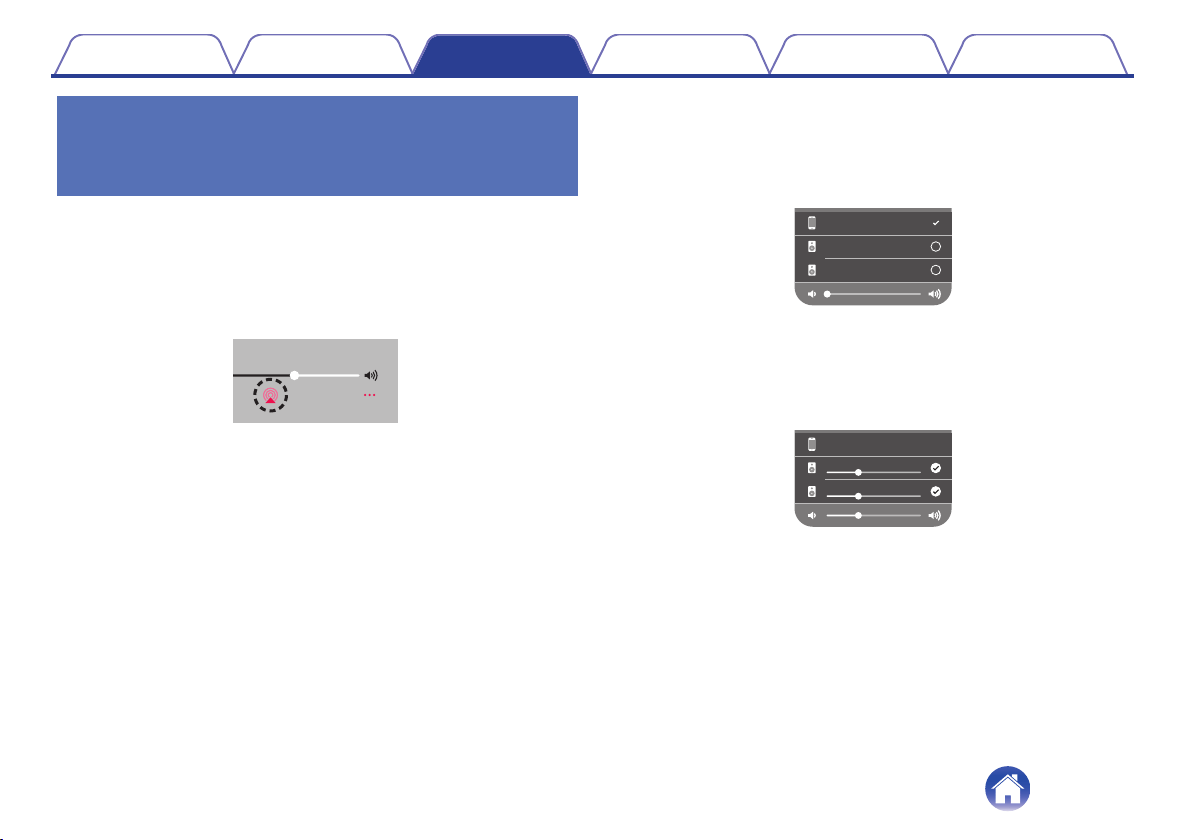
AirPlay icon is displayed on the iPhone, iPod touch or iPad screen.
.
2
Tap the AirPlay icon.
Displays a list of devices/speakers that can be played back on the
same network.
0
A circle is displayed to the right of AirPlay 2 compatible devices.
.
Speakers
Denon xxxxxxxx
iPhone
3
Tap the devices/speakers you want to use.
0
Multiple AirPlay 2 compatible devices can be selected.
0
Volume can be adjusted for each device individually or for all
synced devices simultaneously.
.
iPhone
Speakers
Denon xxxxxxxx
Contents
Setup Use Troubleshooting Status LED Appendix
50
Making speaker adjustments
You can adjust specific settings for each of your DHT-S516H in your
system:
1
Select the Settings a icon located in the upper left
corner of the main “Music” menu to display the
Settings menu.
2
Select “My Devices” to display a list of your HEOS
devices.
3
Select the DHT-S516H you want to adjust.
Changing the name
1
Select “Name”.
2
Select or enter a new name for your DHT-S516H.
3
Tap the i icon to save your changes.
Changing the wireless network
connection
1
Select “Network”.
2
A list of wireless networks that your DHT-S516H can
access is displayed.
3
Select the network you want your DHT-S516H to join.
Wait as the DHT-S516H’s network connection is changed.
NOTE
0
Wired networking is automatically selected when the speaker is connected to a
wired Ethernet network. To switch back to using a wireless network you must
remove the Ethernet cable from the back of the DHT-S516H.
Contents Setup Use Troubleshooting Status LED Appendix
51
Changing the equalizer and subwoofer
level
1
Select “EQ”.
2
Adjust the Treble, Bass or Subwoofer level up or down.
Adjusting the audio quality
Selects the transcoding option for rebroadcasting audio from one HEOS
device to another HEOS device (or group of devices) across the network.
When set to “Normal”, high bit rate audio sources originating from the first
device (such as AUX input, WAV, FLAC and PCM) will be transcoded to
ensure the highest level of reliability for the audio stream.
1
Select “Quality”.
2
Select “Normal” (default) or “High”.
0
If you have selected “High” and you experience audio dropouts when streaming
sources from one device to other devices, please select “Normal” (default).
0
This setting does not affect the AUX input when played on the connected device
by itself (there are no other devices grouped to it), in which case the original
source quality and bit rate are maintained and there is no inherent delay.
Contents
Setup Use Troubleshooting Status LED Appendix
52
Adjusting the status light brightness
1
Select “Status Light”.
2
Adjust the brightness up or down or set the slider to
the OFF position to completely disable the status light.
Locating the Soundbar
1
Select "Placement".
n
Wall Mount
Attach the soundbar on the wall.
n
Table
Place the soundbar on the table.
Changing the TV connection
“Setup Assistant” can be re-executed when changing the TV connection.
1
Select "Setup Assistant".
2
Turn on your TV.
3
Select which input you want to use to connect your TV.
Setting the TV Input and Auto-Play
1
Select “TV Input”.
2
Select “Default Input”.
3
Select new default input.
n
Auto-Play
When Auto-Play is enabled, the DHT-S516H switches to the
Default Input as the audio source. If streaming music
playback is stopped.
Contents Setup Use Troubleshooting Status LED Appendix
53
Controlling your DHT-S516H
DHT-S516H can be operated using the remote control unit of the TV.
1
Select “Remote Control”.
The setup below is not required when device control by HDMI is
active. (A check mark will be displayed by “HDMI CEC” in this case)
2
Select “IR Control”.
3
Select a DHT-S516H command you would like to
control by your remote controller.
TV Sound Grouping
Set when you want to play TV audio or external input audio from this unit
through a different HEOS device.
1
Select “TV Sound Grouping”.
n
Enable
Enables grouping.
n
Audio Delay
Sets the delay for the audio.
NOTE
0
The audio may cut out if the amount of delay is too short. Lengthen the amount of
delay if the audio cuts out.
Contents Setup Use Troubleshooting Status LED Appendix
54
Advanced settings
Caution
0
Adjusting these settings may disconnect your DHT-S516H from your
network and possibly render your DHT-S516H unusable. Do not use
these features unless you are comfortable making advanced
adjustments to your DHT-S516H.
o
Network settings
1
Select “Advanced”.
2
Select “NETWORK SETTINGS” tab.
3
Scroll down to see all of the options for
a. Network Interface (Ethernet or Wireless)
b. Wireless Settings
c. IP Address Settings (Automatic or Manual)
d. Wireless Power Saving
4
Select “Save Settings” to apply the new settings or
“Cancel Changes” to revert to the previous settings.
o
About wireless power saving
The Wireless Power Savings feature saves power by turning off power
to the wireless radio inside the HEOS device when the device is
connected to an Ethernet network. If you disconnect the Ethernet
cable from the HEOS device, Wireless Power Saving will automatically
turn off and the wireless radio will turn on so that the HEOS device can
be discovered over your wireless network.
NOTE
0
If Wireless Power Savings is ON, Wi-Fi power will be temporarily turned on
when accessing the My Devices - (My Devices) - Network screen in the HEOS
app or whenever the Connect button on the device is pressed.
Contents Setup Use Troubleshooting Status LED Appendix
55

o
Firmware upgrade
1
Select “Advanced”.
2
Select “FIRMWARE UPDATE” tab.
n
Update status
Manually check for a firmware upgrade.
n
Allow updates
ON
(Default):
Allows updates
OFF: Does not allow updates
3
Select “Save Settings” to apply the new settings or
“Cancel Changes” to revert to the previous settings.
o
About
Viewing technical details about the HEOS device.
1
Select “Advanced”.
2
Select “ABOUT” tab.
3
Scroll down to see information about the speaker’s.
a. Hardware
b. Software
c. Device
Contents Setup Use Troubleshooting Status LED Appendix
56
Updating your system
HEOS has the ability to add enhancements and updated functionality via your high speed Internet connection. Follow the instructions on the
screen to update the HEOS device and/or your controller App.
1
Select the Settings a icon located in the upper left
corner of the main “Music” menu to display the
Settings menu.
2
Select “Software Update”.
n
Check for Update
Follow the instructions on screen to install any available updates to
your HEOS system.
n
Auto-Update
ON
(Default):
Valid updates are performed
automatically.
OFF:
You will be notified of valid updates on
the HEOS app.
Contents Setup Use Troubleshooting Status LED Appendix
57
Advanced features
There are a few advanced features of the HEOS system that you may want to explore once you become familiar with the basic operations. You can
access the advanced features of the HEOS system by following these steps:
1
Select the Settings a icon located in the upper left
corner of the main “Music” menu to display the
Settings menu.
2
Select “Advanced Settings” to display a list the
available settings.
Wireless performance
You can check the wireless connection status of your HEOS device.
n
Quality
Excellent / Good / Poor
NOTE
0
If the quality level of your HEOS device is ”Poor”, make sure your HEOS devices
are not located near other electronic devices that could interfere with it’s wireless
connectivity (like microwave ovens, cordless phones, TVs, etc…)
n
Signal
Excellent / Good / Poor
NOTE
0
If the signal level of your HEOS device is ”Poor”, make sure your HEOS devices
are within range of your wireless network.
Contents Setup Use Troubleshooting Status LED Appendix
58
Pairing the soundbar and subwoofer
The subwoofer and soundbar are paired at the factory. However if the
communication is interrupted, follow this procedure.
1
Press the “PAIR” Button on the subwoofer until the
Status LED flashes blue.
The soundbar power is turned on.
2
Press the “PAIR” Button on the back of the soundbar.
The Status LED on the subwoofer will be solid blue.
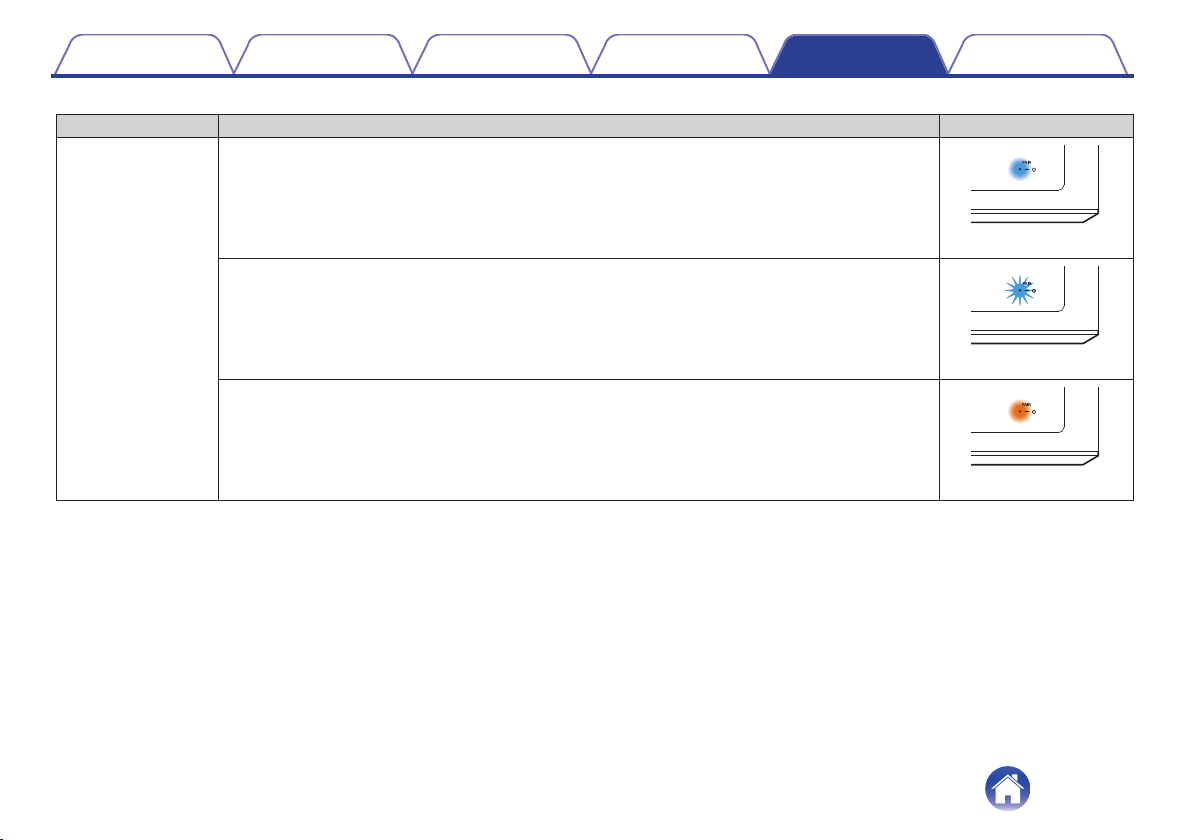
n
Status LED
Amber LED: Subwoofer is not paired to soundbar.
Blue LED:
Subwoofer is paired to soundbar. Your
system is ready.
Contents Setup Use Troubleshooting Status LED Appendix
59
Power management
Power modes
o
Quick Start Mode
HEOS device automatically enters "Quick Start Mode" to save power
in the following cases. This unit will automatically resume to full power
whenever the device is selected and playing music.
The status LED dims when the mode is switched to Quick Start Mode.
n
Ethernet
After around 20 minutes of no operation and no network access after
playing music via Ethernet.
n
Wi-Fi
After around 20 minutes of no operation and no network access after
playing music via Wi-Fi.
n
USB
After around 20 minutes of no operation and no network access after
playing music from a USB memory device.
n
Bluetooth
After the Bluetooth connection is disconnected and there is around 20
minutes of no operation and no network access after playing music via
Bluetooth.
n
AUX IN
After around 20 minutes of no operation after AUX cable is
disconnected.
n
OPT IN
After around 20 minutes of no operation after optical device is put into
standby.
n
COAX IN
After around 20 minutes of no operation after coaxial device is put into
standby.
n
HDMI IN
Play the HDMI device, such as a Blu-ray player, connected to this unit.
Around 20 minutes after HDMI device and TV are put into standby.
n
HDMI OUT (ARC)
Connect this unit and the ARC compatible TV with HDMI cable and
play TV. Around 20 minutes after TV is put into standby.
Contents
Setup Use Troubleshooting Status LED Appendix
60

o
Deep Standby
The device also has the ability to automatically enter “Deep Standby”
whenever the wired or wireless network connection is removed for
more than 60 minutes in "Quick Start Mode".
The front panel LED will turn off during Deep Standby. To “wake” a
DHT-S516H from Deep Standby,
0
Press the volume or mute buttons.
0
Input audio signal to Optical/Coaxial.
0
CEC (Consumer Electronics Control) command over HDMI/ARC
0
Press the button on your remote controller which you taught DHT-
S516H by “Controlling your DHT-S516H”.
NOTE
0
It may take around 40 seconds to wake up your DHT-S516H from the deep
standby.
0
You also push the mute button for 3 seconds, the device enters the Deep
Standby.
o
Off
To completely turn off the power to the device you must remove the
mains plug from the power outlet.
Contents
Setup Use Troubleshooting Status LED Appendix
61
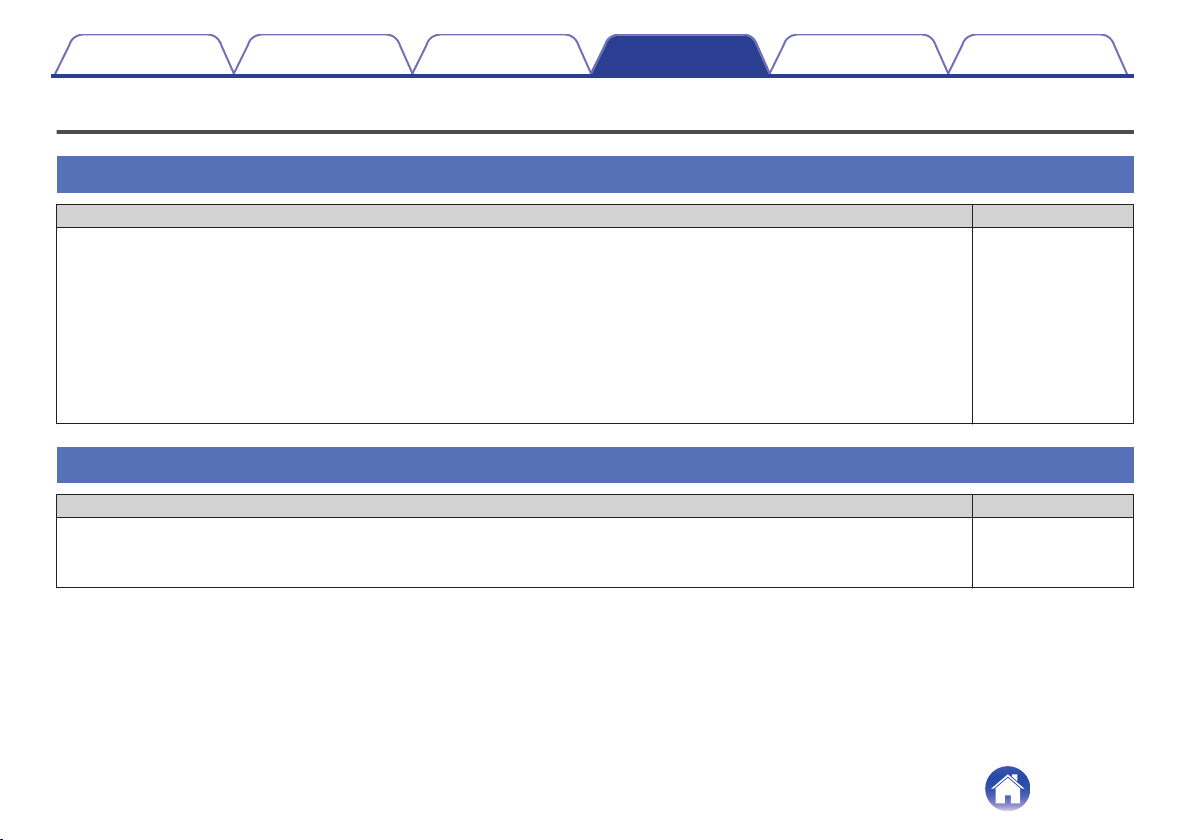
Basic troubleshooting
No sound
Solution Refer to Page
0
Is DHT-S516H’s volume turned up? (Don’t laugh; we do this one ourselves all the time.) -
0
Is DHT-S516H muted (if so, the front LED is slowly blinking.). -
0
Is the audio source a volume-controlled television or cable/satellite box output? If so, you must turn up the volume of the
television or cable/satellite box to send adequate signal-level to DHT-S516H. (For this reason it is best to choose fixed-level
outputs where possible; some televisions have separate physical outputs, other employ on-screen menu settings to manage
this.)
-
0
Check connections: remember that DHT-S516H auto-prioritizes multiple incoming signals, selecting HDMI, optical-digital,
coaxial-digital, and analog-mini plug, in that order. Confirm that the television is routing audio to the appropriate output; there
may be TV-menu settings to manage this.
-
No subwoofer sound, sound interrupted, or noise occurring
Solution Refer to Page
0
Check that the Status LED is lit in blue on the subwoofer. When the Status LED is lit in amber, disconnect from the wall outlet
and then reconnect to it, or try to pair again.
59
0
When there is an obstacle between the soundbar and the subwoofer, remove it or place the subwoofer closer to the soundbar. -
Contents Setup Use Troubleshooting Status LED Appendix
Troubleshooting
62
Distorted sound from the DHT-S516H
Solution Refer to Page
0
If the signal source is a volume-controlled output, turn it down a couple of steps from maximum. -
0
Check the signal source to be sure the distortion is not originating there. -
0
If DHT-S516H’s volume is set to its maximum, turn it down a few steps. -
Trouble teaching DHT-S516H remote control commands
Solution Refer to Page
Remember that while DHT-S516H can learn almost all IR (infrared) remote commands, there remain a few rare code formats that
cannot be taught (much like some engineers we know).
–
Television speakers keep getting turned back up
Solution Refer to Page
Disable the television’s speakers (usually a setup-menu option, but a rear-panel switch on some televisions). If this is not possible,
the problem is likely that the television responds to press-and-hold (ramping) volume commands more quickly than the DHT-
S516H; in this rare case use DHT-S516H’s front-panel or supplied remote to turn the DHT-S516H’s volume up.
–
Contents Setup Use Troubleshooting Status LED Appendix
63
My speaker won’t connect to my network using the audio cable
Solution Refer to Page
0
Make sure your mobile device is connected to your wireless network before setting up your speaker. 20
0
Alternatively, you can connect your speaker to your network router using the included Ethernet cable. Once connected via
Ethernet, the HEOS App should recognize the speaker and you can manually move it to your wireless network using
Settings/My Devices/Device_Name/Advanced/Network Settings.
21
Music cuts out or delays sometimes
Solution Refer to Page
0
Make sure your Internet connection is operating correctly. If you are sharing your network with other users or devices, they may
be using most of your bandwidth (especially if they are streaming video).
7
0
Make sure your speakers are within range of your wireless network. 58
0
Make sure your speakers are not located near other electronic devices that could interfere with it’s wireless connectivity (like
microwave ovens, cordless phones, TVs, etc…).
58
Contents Setup Use Troubleshooting Status LED Appendix
64
I hear a delay when using the external input with my TV
Solution Refer to Page
0
If you are connecting the External input with your cable or satellite box for enjoying TV audio through multiple HEOS devices,
you may hear a delay between when you see someone speak and when you hear the audio. This is because the HEOS system
must buffer the audio before it sends it out to the HEOS devices so that it arrives at all devices at the same time.
-
0
You can avoid this delay by listening only to the device which is directly connected to the set top box. -
Connecting to a network using an iOS device
Solution Refer to Page
This HEOS device supports Apple’s “WAC (Wireless Accessory Configuration)” setup mode. WAC setup mode allows you to
connect your HEOS device to your network without requiring you to type in the network name and password.
1. The LED on the rear of the HEOS device will slowly blink amber to indicate that WAC setup mode is active. If the rear LED is not blinking amber,
press and hold VOLUME DOWN and MUTE buttons for 3 seconds until you see the LED blinking amber.
2. Go to the Wi-Fi menu under Settings on your iOS device.
3. Select “Denon DHT-S516H” under “SET UP NEW AIRPLAY SPEAKER...” at the bottom of the list.
4. Select the network you want your HEOS device to connect to and select “Next”.
5. Follow the instructions on the screen to complete setup.
6. When the connection is complete, the LED on the front of the HEOS device will turn solid blue.
HEOS will stay in WAC setup mode for 15 minutes. If the device is not setup within 15 minutes, it will revert back to its previous
network connection. Press the Mute button if you want to cancel WAC setup mode.
-
Contents Setup Use Troubleshooting Status LED Appendix
65
Connecting to a WPS network
Solution Refer to Page
If your wireless router support WPS (Wi-Fi Protected Setup™) your HEOS wireless speaker can optionally connect to your
network using the “Push Button” method by following these steps:
Wi-Fi Protected Setup™ is trademarks of Wi-Fi Alliance.
1. Press the WPS button on your router.
2. Within 2 minutes, rapidly press the Connect button 3 times (within 2 seconds of each press).
3. The LED on the front of the speaker will flash green for several seconds as it connects to your WPS router.
4. When the connection is complete, the LED on the front of the speaker will turn solid blue.
7
Resetting your speaker
Solution Refer to Page
Resetting your speaker will clear out the wireless network info, EQ, and name but retain it’s current software. You will have to use
Settings - Add Speaker to reconnect the speaker to your home network before it can be used.
To reset your speaker, press and hold the Connect and Bluetooth buttons located on the back of the HEOS speaker for 5 seconds
until the front LED begins to flash amber.
–
DHT-S516H takes long time to turn on
Solution Refer to Page
In case the DHT-S516H as in the DEEP standby mode, it may takes around 40 second to turn on. –
Contents Setup Use Troubleshooting Status LED Appendix
66
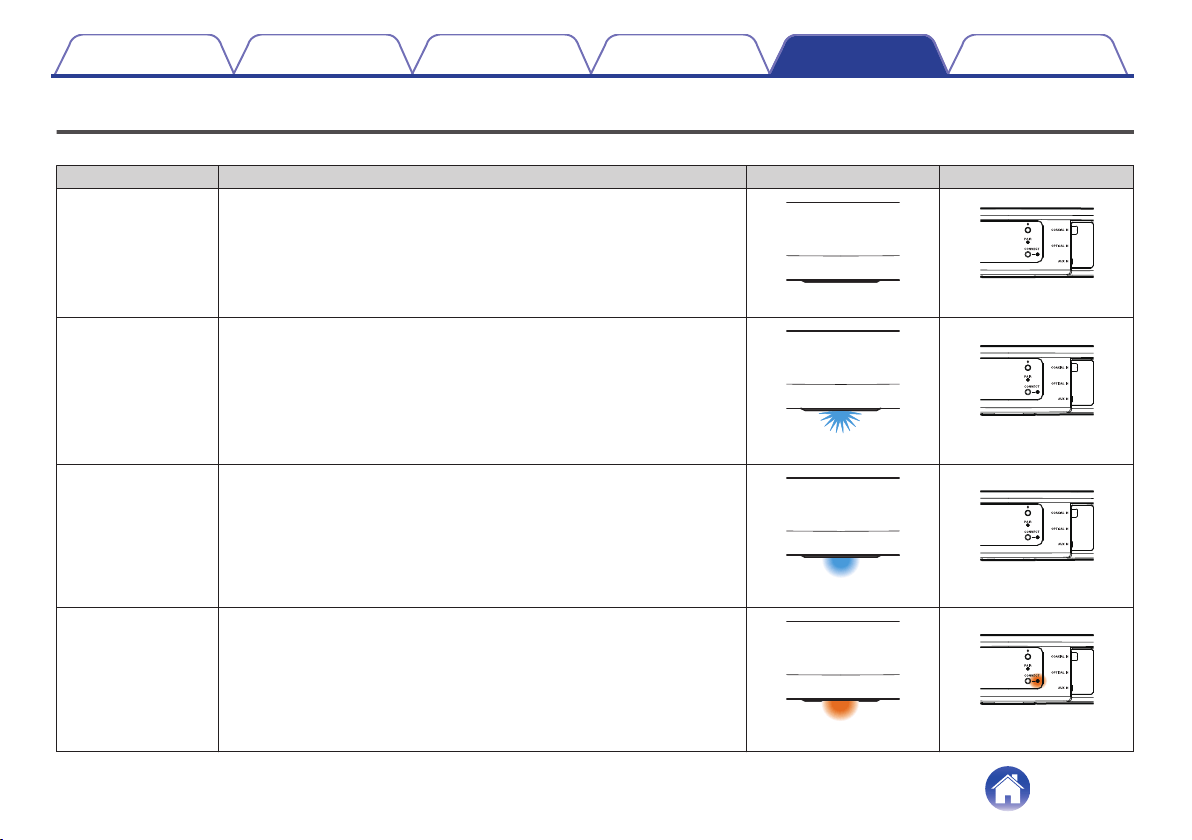
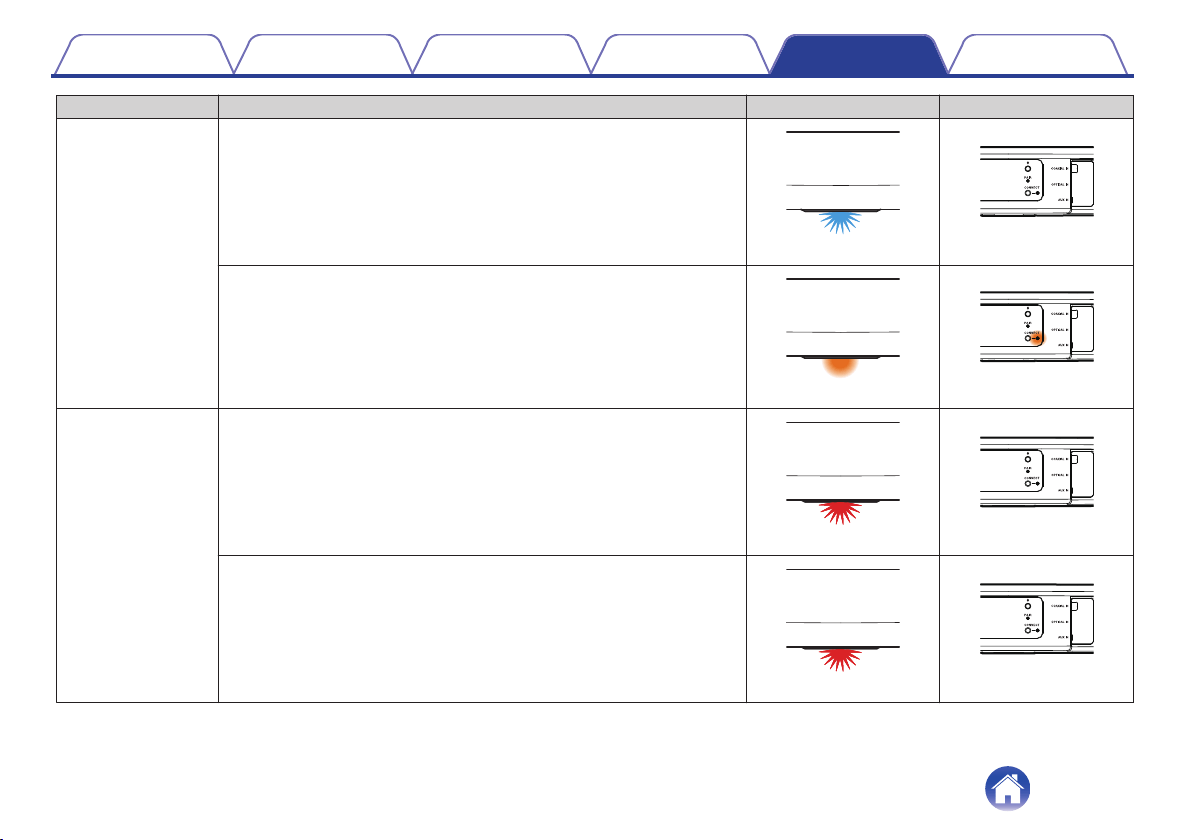
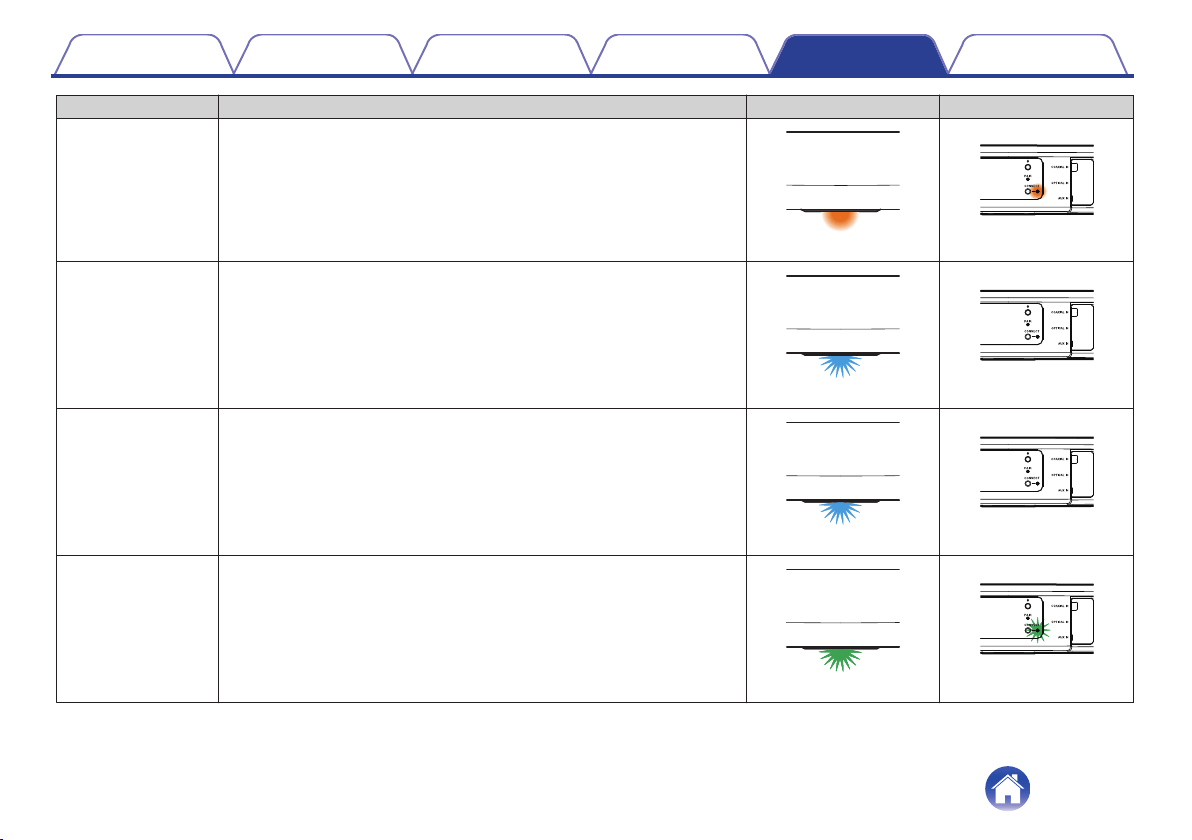
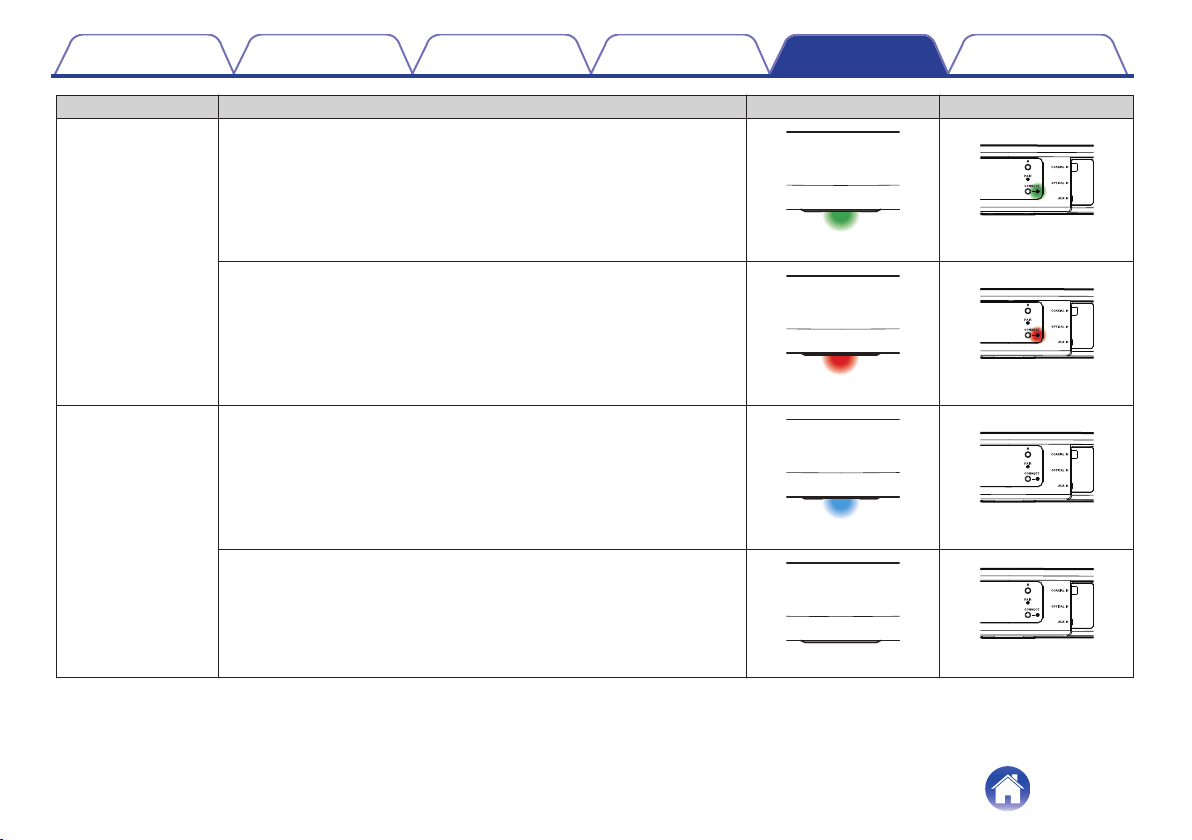
Status LED table
Soundbar
Device Operation Description Front LED Action Rear LED Action
Off No AC power or Deep Standby
.
(off)
.
(off)
Plug in Booting
.
(blink)
.
(off)
On Ready-Configured and connected to your network
.
(solid)
.
(off)
On Not Connected to your network
.
(solid)
.
(solid)
Contents
Setup Use Troubleshooting Status LED Appendix
Status LED
67
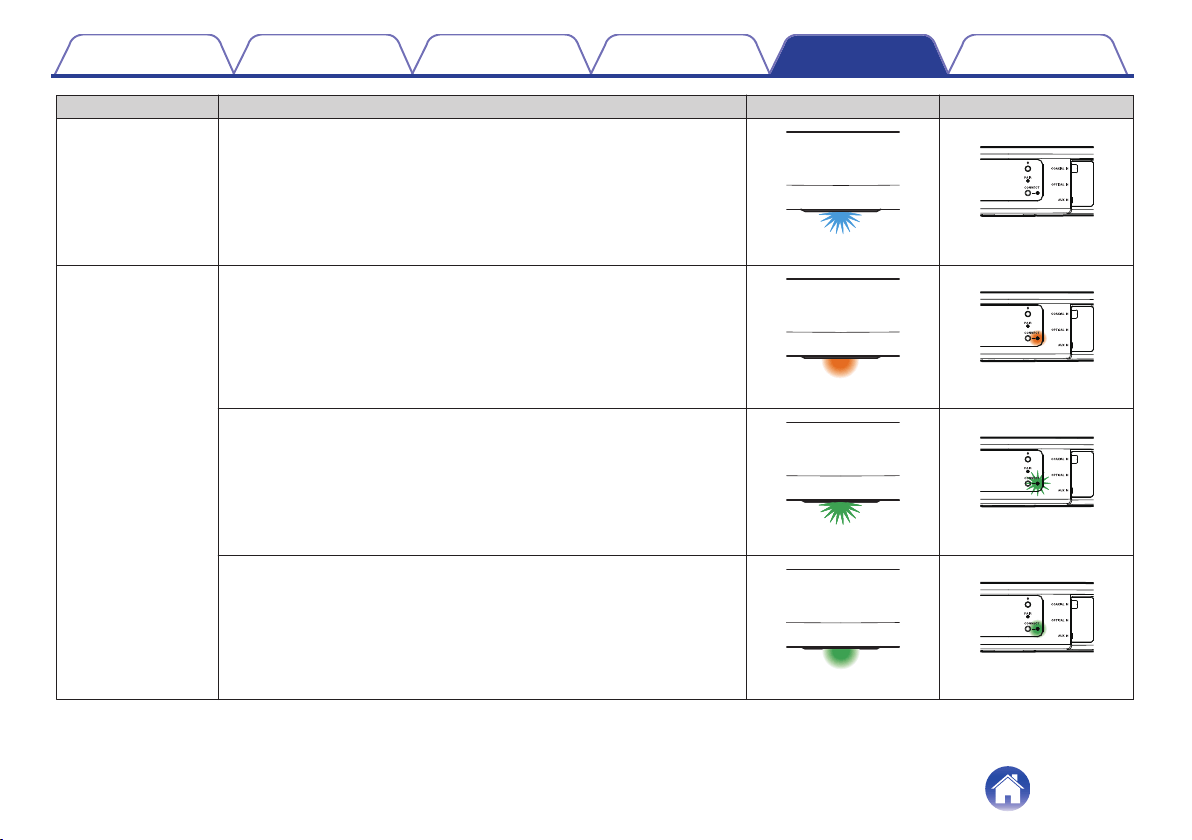
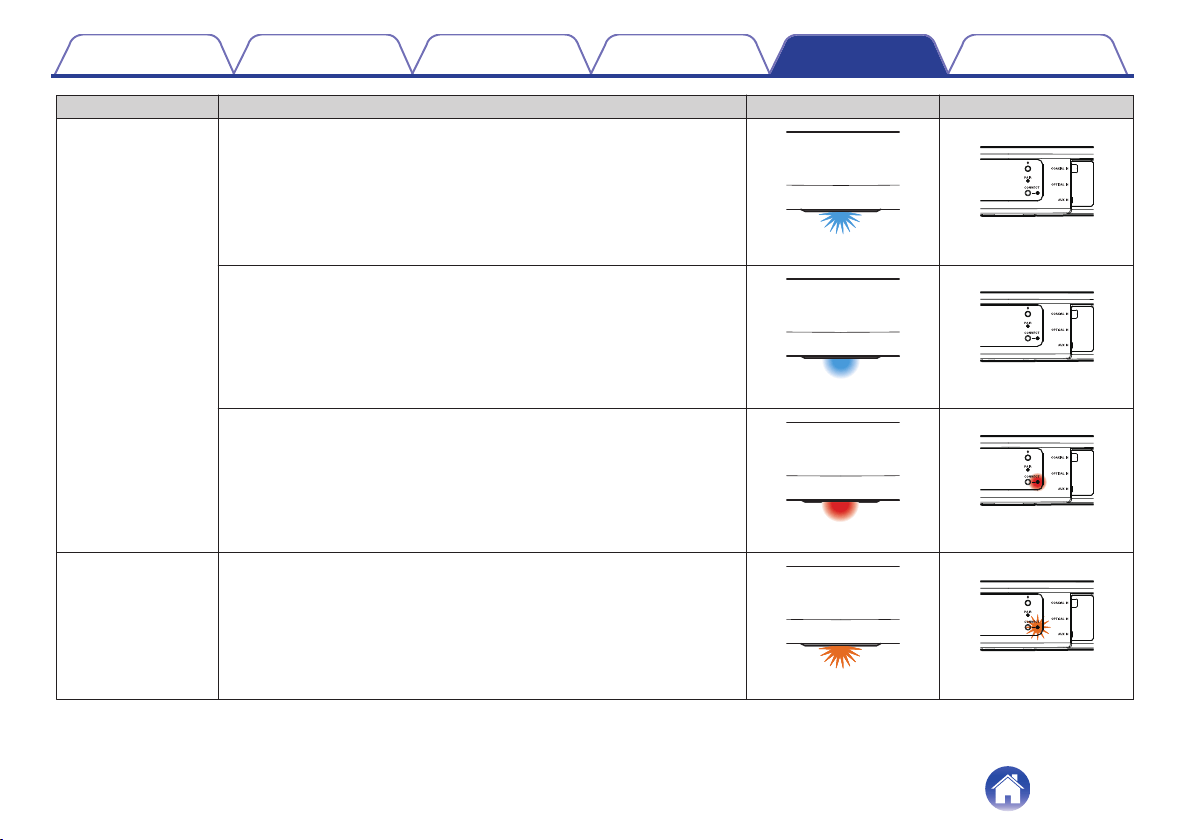
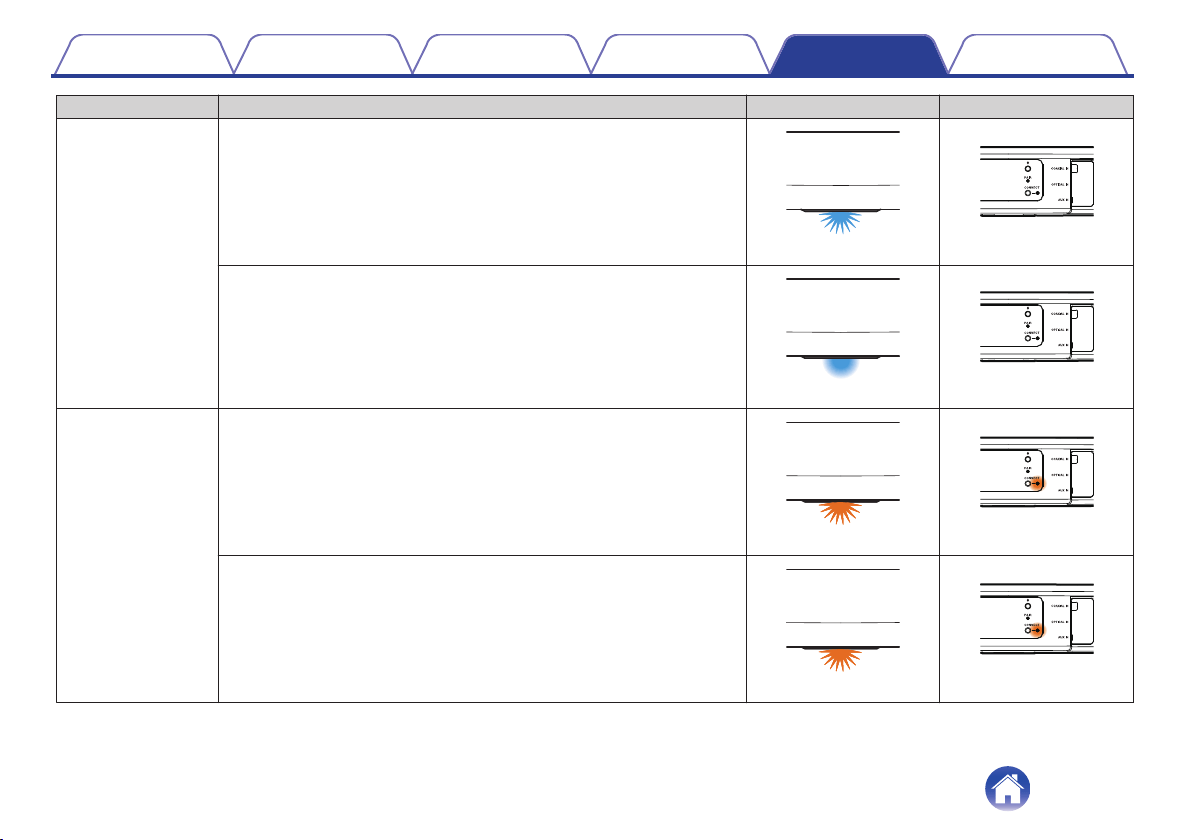
Device Operation Description Front LED Action Rear LED Action
Update
Rebooting
.
(blink)
.
(off)
Ready-Configured and connected to your network
.
(solid)
.
(off)
Reset
Soft reset - Clear user settings
.
(fast blink)
.
(solid)
Hard reset - Factory restore
.
(blink)
.
(solid)
Contents
Setup Use Troubleshooting Status LED Appendix
70
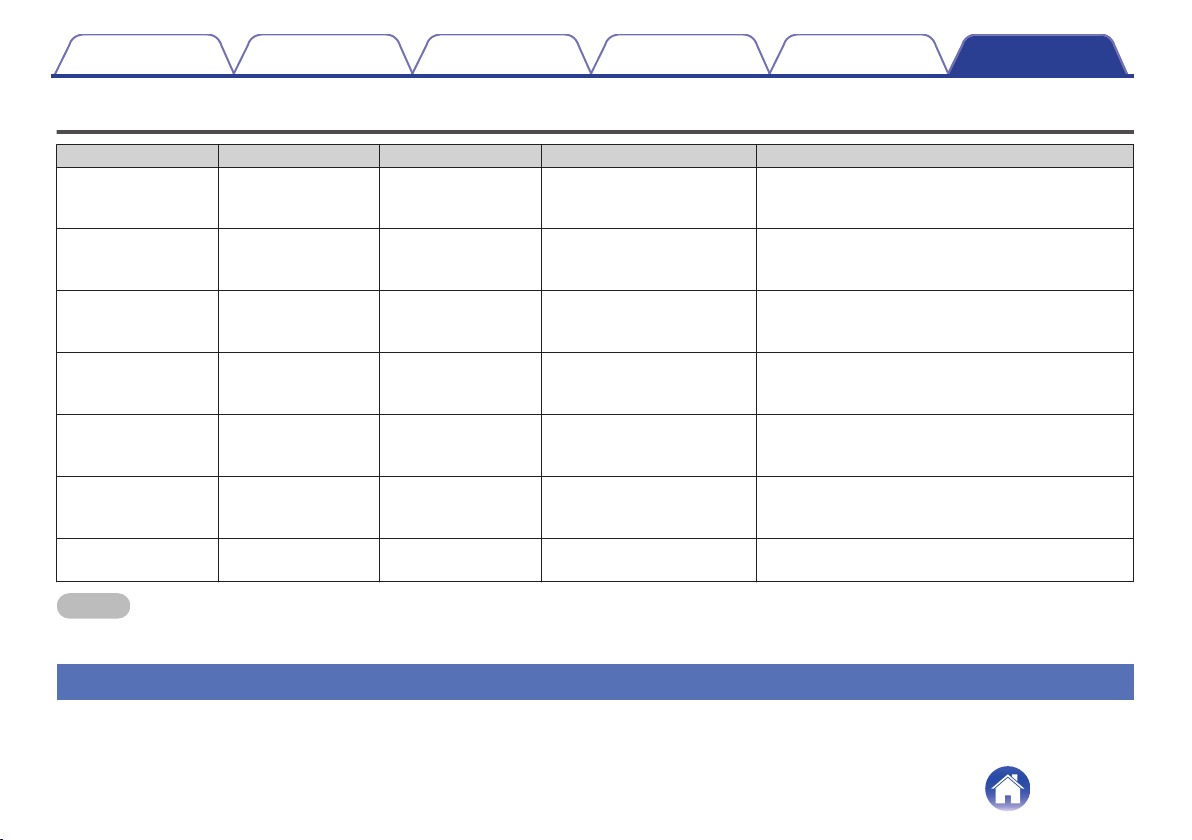
Supported file types and codecs
Frequency Sample Rate File Extension Codec Bit Rates
32/44.1/48
88.2/96/176.4
192 kHz
16/24 bit wav PCM ---
32 kHz
44.1 kHz
48 kHz
16 bit mp3
MPEG-1 Audio Layer 3
CBR/VBR
32 - 320 kbps
32 kHz
44.1 kHz
48 kHz
16 bit
m4a
aac
AAC-LC 48 - 320 kbps
32 kHz
44.1 kHz
48 kHz
16 bit wma
wma9
CBR
CBR:48 - 192 kbps
44.1/48
88.2/96/176.4
192 kHz
16/24 bit flac flac ---
44.1/48
88.2/96/176.4
192 kHz
16/24 bit m4a ALAC ---
2.8/5.6 MHz 1 bit
dff
dsf
DSDIFF
DSF
---
NOTE
0
Files protected by DRM such as Apple’s Fairplay DRM, are not supported.
0
The ALAC decoder is distributed under the Apache License, Version 2.0 (http://www.apache.org/licenses/LICENSE-2.0)
Supported audio formats (Coaxial/Optical)
2-channel Linear PCM:2-channel, 32 kHz – 96 kHz, 16/20/24 bit
Bitstream:Dolby Digital, DTS
Contents
Setup Use Troubleshooting Status LED Appendix
Appendix
75
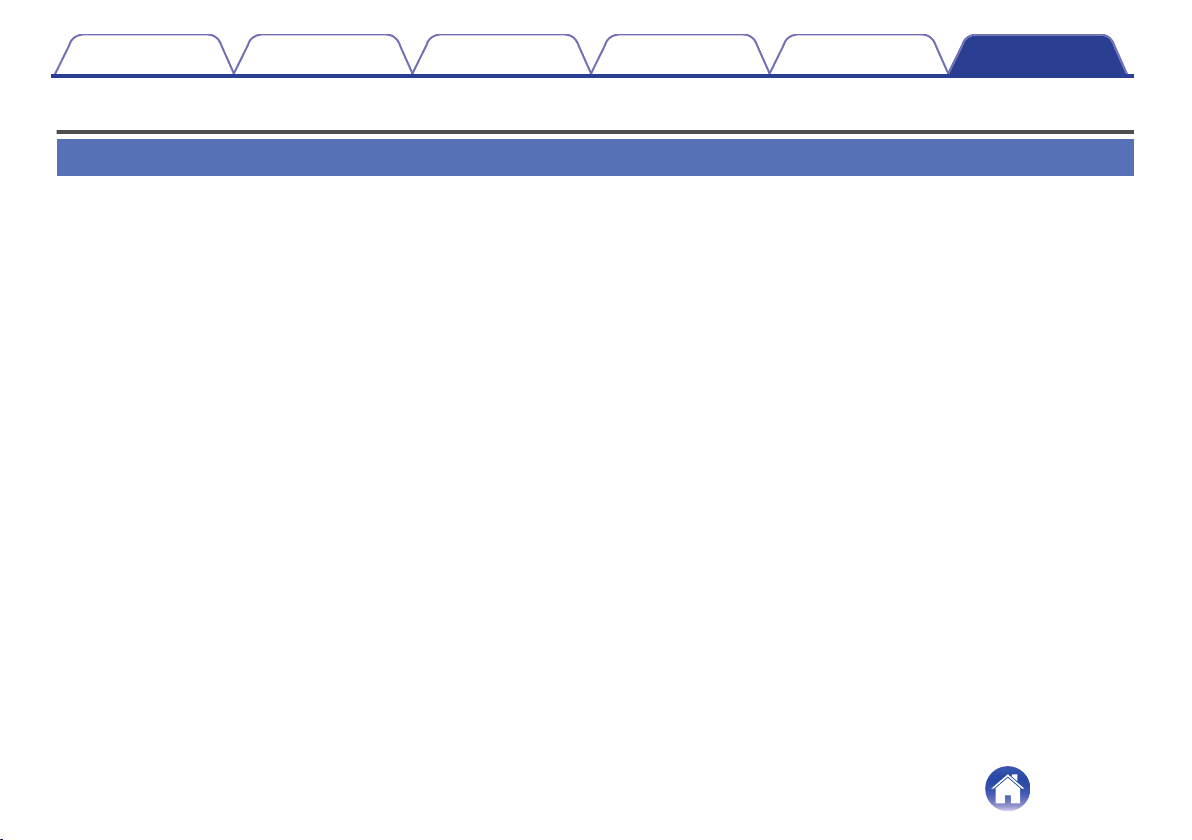
Specifications
Speaker specifications
o
Soundbar
Wireless LAN
Network type: Conforming to IEEE 802.11a/b/g/n
Used frequency range: 2.4 GHz, 5 GHz
General
Wireless Technology: 5.8 GHz frequency hopping
Operating temperature: 41 °F - 95 °F (5 °C - 35 °C)
Power supply: AC 120 V, 60 Hz (for North America)
AC 220 - 240 V, 50/60 Hz (for Europe)
Power consumption: 40 W
Power consumption in Quick Start Mode: * 4.5 W (Wi-Fi)
4.3 W (Ethernet)
4.4 W (USB)
4.2 W (Bluetooth)
4.1 W (HDMI IN)
4.5 W (HDMI OUT(ARC))
Power consumption in Deep Standby Mode: * 0.46 W
Max Analog Input: 2 Vrms
*Cable to AUX IN must be disconnected to enter Quick Start Mode and Deep Standby Mode.
Contents
Setup Use Troubleshooting Status LED Appendix
76
o
Subwoofer
General
Wireless Technology: 5.8 GHz frequency hopping
Operating temperature: 41 °F - 95 °F (5 °C - 35 °C)
Power supply: AC 120 V, 60 Hz (for North America)
AC 220 - 240 V, 50/60 Hz (for Europe)
Power consumption: 75 W
Power consumption in Quick Start Mode: 0.76 W
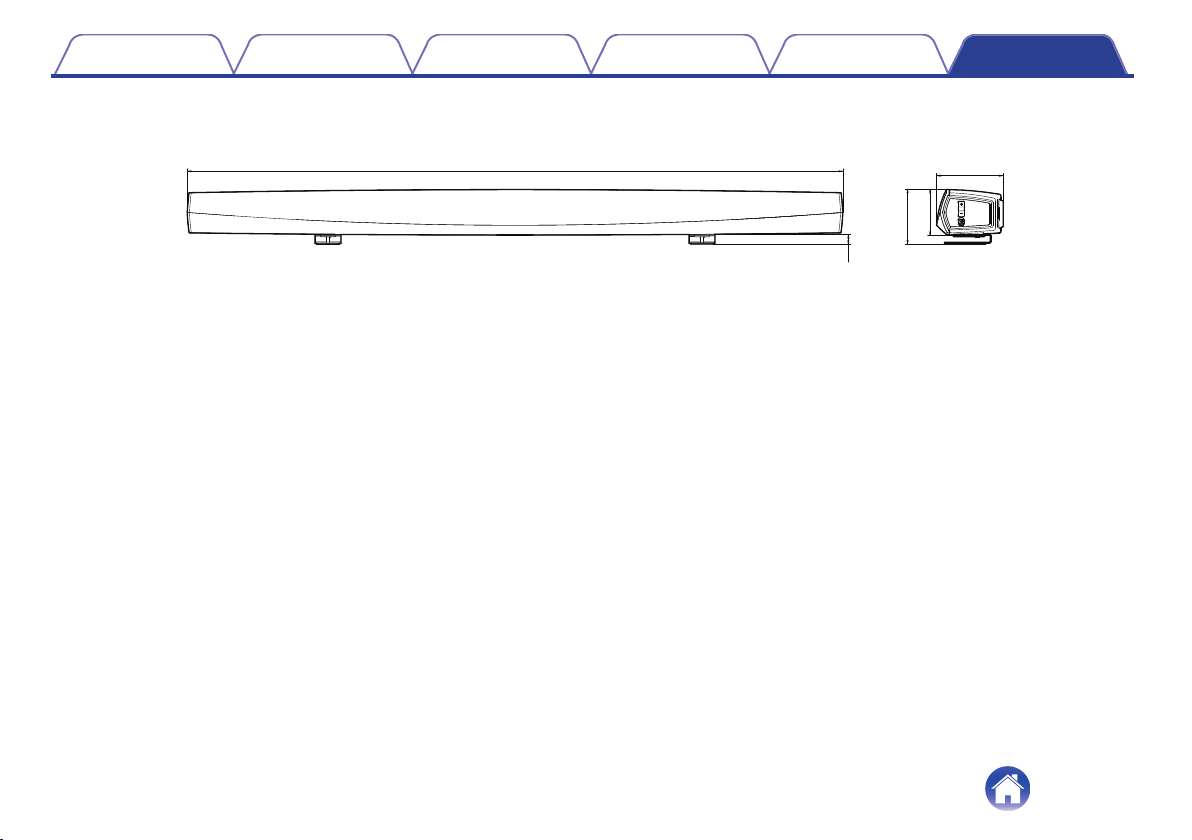
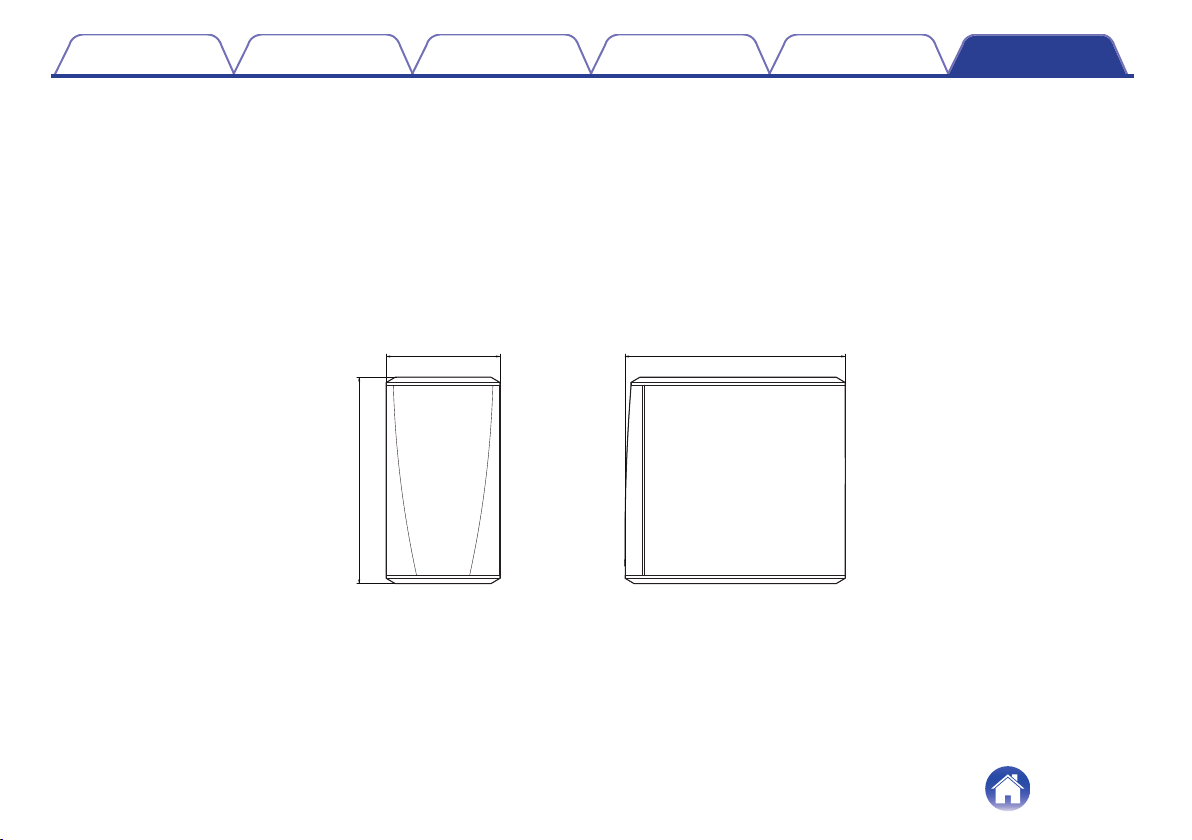
Dimensions
Unit : in. (mm)
.
12 1/4 (311)
6 7/8 (172) 13 1/16 (332)
Weight: 14 lbs 9 oz (6.6 kg)
For the purpose of improvement, the specifications and design are subject to change without notice.
Contents
Setup Use Troubleshooting Status LED Appendix
78
Information
Trademarks
.
Manufactured under license from Dolby Laboratories. Dolby, Dolby
Audio, Pro Logic, and the double-D symbol are trademarks of Dolby
Laboratories.
.
For DTS patents, see http://patents.dts.com. Manufactured under license
from DTS, Inc. DTS, the Symbol, DTS and the Symbol together, and
Digital Surround are registered trademarks and/or trademarks of DTS,
Inc. in the United States and/or other countries. © DTS, Inc. All Rights
Reserved.
.
The terms HDMI, HDMI High-Definition Multimedia Interface, and the
HDMI Logo are trademarks or registered trademarks of HDMI Licensing
Administrator, Inc.
.
Apple, the Apple logo, AirPlay, iPad Pro, iPad Air, iPad, iPhone, iPod
touch and iPod are trademarks of Apple Inc., registered in the U.S. and
other countries.
iPad mini are trademarks of Apple Inc.
The trademark “iPhone” is used in Japan with a license from Aiphone
K.K.
IOS is a trademark or registered trademark of Cisco in the U.S. and other
countries and is used under license.
Use of the Works with Apple badge means that an accessory has been
designed to work specifically with the technology identified in the badge
and has been certified by the developer to meet Apple performance
standards.
Contents Setup Use Troubleshooting Status LED Appendix
79
.
Google Play and the Google Play logo are trademarks of Google LLC.
.
App Store is a trademark of Apple Inc., registered in the U.S. and other
countries.
.
Amazon, Kindle, Echo, Alexa, Dash, Fire and all related logos are
trademarks of Amazon.com, Inc. or its affiliates.
.
The Bluetooth
®
word mark and logos are registered trademarks owned
by the Bluetooth SIG, Inc. and any use of such marks by D&M Holdings
Inc. is under license. Other trademarks and trade names are those of
their respective owners.
Contents Setup Use Troubleshooting Status LED Appendix
80
License
o
License information for the software used in
the unit
About GPL (GNU-General Public License), LGPL (GNU Lesser
General Public License) License
This product uses GPL/LGPL software and software made by other
companies.
After you purchase this product, you may procure, modify or distribute
the source code of the GPL/LGPL software that is used in the product.
Denon provides the source code based on the GPL and LPGL
licenses at the actual cost upon your request to our customer service
center. However, note that we make no guarantees concerning the
source code. Please also understand that we do not offer support for
the contents of the source code.
This section describes software license used for this unit. To maintain
the correct content, the original (English) is used.
n
GPL
Open Source Used Version
bridge-utils 2.8
busybox 1.21.1
ebtables 2.0.10-4
Linux kernel 3.10.74
mtd-utils 1.4.3
ntfs-3g_ntfsprogs 2011.4.12
ntpclient 2007
u-boot 2015.01
wireless-tools version 29
n
LGPL
Open Source Used Version
ffmpeg 0.8.3
glibc 2.9
libmms 0.6.2
n
curl-7.24.0
COPYRIGHT AND PERMISSION NOTICE
Copyright (c) 1996 - 2014, Daniel Stenberg, <
All rights reserved.
Permission to use, copy, modify, and distribute this software for any
purpose with or without fee is hereby granted, provided that the above
copyright notice and this permission notice appear in all copies.
THE SOFTWARE IS PROVIDED "AS IS", WITHOUT WARRANTY OF
ANY KIND, EXPRESS OR IMPLIED, INCLUDING BUT NOT LIMITED
TO THE WARRANTIES OF MERCHANTABILITY, FITNESS FOR A
PARTICULAR PURPOSE AND NONINFRINGEMENT OF THIRD
PARTY RIGHTS. IN NO EVENT SHALL THE AUTHORS OR
COPYRIGHT HOLDERS BE LIABLE FOR ANY CLAIM, DAMAGES
OR OTHER LIABILITY, WHETHER IN AN ACTION OF CONTRACT,
TORT OR OTHERWISE, ARISING FROM, OUT OF OR IN
CONNECTION WITH THE SOFTWARE OR THE USE OR OTHER
DEALINGS IN THE SOFTWARE.
Except as contained in this notice, the name of a copyright holder shall
not be used in advertising or otherwise to promote the sale, use or
other dealings in this Software without prior written authorization of the
copyright holder.
Contents
Setup Use Troubleshooting Status LED Appendix
81

n
e2fsprogs-libs-1.40.8/lib/uuid
Redistribution and use in source and binary forms, with or without
modification, are permitted provided that the following conditions are
met:
1. Redistributions of source code must retain the above copyright
notice, and the entire permission notice in its entirety, including the
disclaimer of warranties.
2. Redistributions in binary form must reproduce the above copyright
notice, this list of conditions and the following disclaimer in the
documentation and/or other materials provided with the distribution.
3. The name of the author may not be used to endorse or promote
products derived from this software without specific prior written
permission.
THIS SOFTWARE IS PROVIDED "AS IS" AND ANY EXPRESS OR
IMPLIED WARRANTIES, INCLUDING, BUT NOT LIMITED TO, THE
IMPLIED WARRANTIES OF MERCHANTABILITY AND FITNESS
FOR A PARTICULAR PURPOSE, ALL OF WHICH ARE HEREBY
DISCLAIMED. IN NO EVENT SHALL THE AUTHOR BE LIABLE FOR
ANY DIRECT, INDIRECT, INCIDENTAL, SPECIAL, EXEMPLARY, OR
CONSEQUENTIAL DAMAGES (INCLUDING, BUT NOT LIMITED TO,
PROCUREMENT OF SUBSTITUTE GOODS OR SERVICES; LOSS
OF USE, DATA, OR PROFITS; OR BUSINESS INTERRUPTION)
HOWEVER CAUSED AND ON ANY THEORY OF LIABILITY,
WHETHER IN CONTRACT, STRICT LIABILITY, OR TORT
(INCLUDING NEGLIGENCE OR OTHERWISE) ARISING IN ANY
WAY OUT OF THE USE OF THIS SOFTWARE, EVEN IF NOT
ADVISED OF THE POSSIBILITY OF SUCH DAMAGE.
n
expat-2.0.1
Copyright (c) 1998, 1999, 2000 Thai Open Source Software Center Ltd
and Clark Cooper
Copyright (c) 2001, 2002, 2003, 2004, 2005, 2006 Expat maintainers.
Permission is hereby granted, free of charge, to any person obtaining a
copy of this software and associated documentation files (the
"Software"), to deal in the Software without restriction, including
without limitation the rights to use, copy, modify, merge, publish,
distribute, sublicense, and/or sell copies of the Software, and to permit
persons to whom the Software is furnished to do so, subject to the
following conditions:
The above copyright notice and this permission notice shall be
included in all copies or substantial portions of the Software.
THE SOFTWARE IS PROVIDED "AS IS", WITHOUT WARRANTY OF
ANY KIND, EXPRESS OR IMPLIED, INCLUDING BUT NOT LIMITED
TO THE WARRANTIES OF MERCHANTABILITY, FITNESS FOR A
PARTICULAR PURPOSE AND NONINFRINGEMENT.
IN NO EVENT SHALL THE AUTHORS OR COPYRIGHT HOLDERS
BE LIABLE FOR ANY CLAIM, DAMAGES OR OTHER LIABILITY,
WHETHER IN AN ACTION OF CONTRACT, TORT OR OTHERWISE,
ARISING FROM, OUT OF OR IN CONNECTION WITH THE
SOFTWARE OR THE USE OR OTHER DEALINGS IN THE
SOFTWARE.
Contents
Setup Use Troubleshooting Status LED Appendix
82

n
getopt
http://cvsweb.netbsd.org/bsdweb.cgi/src/lib/libc/stdlib/
Copyright (c) 1987, 1993, 1994 The Regents of the University of
California. All rights reserved.
Redistribution and use in source and binary forms, with or without
modification, are permitted provided that the following conditions are
met:
1. Redistributions of source code must retain the above copyright
notice, this list of conditions and the following disclaimer.
2. Redistributions in binary form must reproduce the above copyright
notice, this list of conditions and the following disclaimer in the
documentation and/or other materials provided with the distribution.
3. Neither the name of the University nor the names of its contributors
may be used to endorse or promote products derived from this
software without specific prior written permission.
THIS SOFTWARE IS PROVIDED BY THE REGENTS AND
CONTRIBUTORS "AS IS" AND ANY EXPRESS OR IMPLIED
WARRANTIES, INCLUDING, BUT NOT LIMITED TO, THE IMPLIED
WARRANTIES OF MERCHANTABILITY AND FITNESS FOR A
PARTICULAR PURPOSE ARE DISCLAIMED. IN NO EVENT SHALL
THE REGENTS OR CONTRIBUTORS BE LIABLE FOR ANY DIRECT,
INDIRECT, INCIDENTAL, SPECIAL, EXEMPLARY, OR
CONSEQUENTIAL DAMAGES (INCLUDING, BUT NOT LIMITED TO,
PROCUREMENT OF SUBSTITUTE GOODS OR SERVICES; LOSS
OF USE, DATA, OR PROFITS; OR BUSINESS INTERRUPTION)
HOWEVER CAUSED AND ON ANY THEORY OF LIABILITY,
WHETHER IN CONTRACT, STRICT LIABILITY, OR TORT
(INCLUDING NEGLIGENCE OR OTHERWISE) ARISING IN ANY
WAY OUT OF THE USE OF THIS SOFTWARE, EVEN IF ADVISED
OF THE POSSIBILITY OF SUCH DAMAGE.
n
jQuery
Copyright 2014 jQuery Foundation and other contributors
http://jquery.com/
Permission is hereby granted, free of charge, to any person obtaining a
copy of this software and associated documentation files (the
"Software"), to deal in the Software without restriction, including
without limitation the rights to use, copy, modify, merge, publish,
distribute, sublicense, and/or sell copies of the Software, and to permit
persons to whom the Software is furnished to do so, subject to the
following conditions:
The above copyright notice and this permission notice shall be
included in all copies or substantial portions of the Software.
THE SOFTWARE IS PROVIDED "AS IS", WITHOUT WARRANTY OF
ANY KIND, EXPRESS OR IMPLIED, INCLUDING BUT NOT LIMITED
TO THE WARRANTIES OF MERCHANTABILITY, FITNESS FOR A
PARTICULAR PURPOSE AND NONINFRINGEMENT. IN NO EVENT
SHALL THE AUTHORS OR COPYRIGHT HOLDERS BE LIABLE FOR
ANY CLAIM, DAMAGES OR OTHER LIABILITY, WHETHER IN AN
ACTION OF CONTRACT, TORT OR OTHERWISE, ARISING FROM,
OUT OF OR IN CONNECTION WITH THE SOFTWARE OR THE USE
OR OTHER DEALINGS IN THE SOFTWARE.
Contents
Setup Use Troubleshooting Status LED Appendix
83

n
libpcap-1.4.0
License: BSD
Redistribution and use in source and binary forms, with or without
modification, are permitted provided that the following conditions are
met:
1. Redistributions of source code must retain the above copyright
notice, this list of conditions and the following disclaimer.
2. Redistributions in binary form must reproduce the above copyright
notice, this list of conditions and the following disclaimer in the
documentation and/or other materials provided with the distribution.
3. The names of the authors may not be used to endorse or promote
products derived from this software without specific prior written
permission.
THIS SOFTWARE IS PROVIDED "AS IS" AND WITHOUT ANY
EXPRESS OR IMPLIED WARRANTIES, INCLUDING, WITHOUT
LIMITATION, THE IMPLIED WARRANTIES OF MERCHANTABILITY
AND FITNESS FOR A PARTICULAR PURPOSE.
n
libtar-1.2.11
Copyright (c) 1998-2003 University of Illinois Board of Trustees
Copyright (c) 1998-2003 Mark D. Roth
All rights reserved.
Developed by: Campus Information Technologies and Educational
Services, University of Illinois at Urbana-Champaign
Permission is hereby granted, free of charge, to any person obtaining a
copy of this software and associated documentation files (the "Software"),
to deal with the Software without restriction, including without limitation
the rights to use, copy, modify, merge, publish, distribute, sublicense,
and/or sell copies of the Software, and to permit persons to whom the
Software is furnished to do so, subject to the following conditions:
z
Redistributions of source code must retain the above copyright
notice, this list of conditions and the following disclaimers.
z
Redistributions in binary form must reproduce the above copyright
notice, this list of conditions and the following disclaimers in the
documentation and/or other materials provided with the distribution.
z
Neither the names of Campus Information Technologies and
Educational Services, University of Illinois at Urbana-Champaign,
nor the names of its contributors may be used to endorse or promote
products derived from this Software without specific prior written
permission.
THE SOFTWARE IS PROVIDED "AS IS", WITHOUT WARRANTY OF
ANY KIND, EXPRESS OR IMPLIED, INCLUDING BUT NOT LIMITED TO
THE WARRANTIES OF MERCHANTABILITY, FITNESS FOR A
PARTICULAR PURPOSE AND NONINFRINGEMENT.
IN NO EVENT SHALL THE CONTRIBUTORS OR COPYRIGHT
HOLDERS BE LIABLE FOR ANY CLAIM, DAMAGES OR OTHER
LIABILITY, WHETHER IN AN ACTION OF CONTRACT, TORT OR
OTHERWISE, ARISING FROM, OUT OF OR IN CONNECTION WITH
THE SOFTWARE OR THE USE OR OTHER DEALINGS WITH THE
SOFTWARE.
Contents
Setup Use Troubleshooting Status LED Appendix
84

n
mDNS 320.10.80
The majority of the source code in the mDNSResponder project is licensed
under the terms of the Apache License, Version 2.0, available from:
<http://www.apache.org/licenses/LICENSE-2.0>
To accommodate license compatibility with the widest possible range
of client code licenses, the shared library code, which is linked at
runtime into the same address space as the client using it, is licensed
under the terms of the "Three-Clause BSD License".
The Linux Name Service Switch code, contributed by National ICT
Australia Ltd (NICTA) is licensed under the terms of the NICTA Public
Software Licence (which is substantially similar to the "Three-Clause BSD
License", with some additional language pertaining to Australian law).
n
mongoose
https://github.com/cesanta/mongoose/
Copyright (c) 2004-2013 Sergey Lyubka
Permission is hereby granted, free of charge, to any person obtaining a
copy of this software and associated documentation files (the
"Software"), to deal in the Software without restriction, including
without limitation the rights to use, copy, modify, merge, publish,
distribute, sublicense, and/or sell copies of the Software, and to permit
persons to whom the Software is furnished to do so, subject to the
following conditions:
The above copyright notice and this permission notice shall be
included in all copies or substantial portions of the Software.
THE SOFTWARE IS PROVIDED "AS IS", WITHOUT WARRANTY OF
ANY KIND, EXPRESS OR IMPLIED, INCLUDING BUT NOT LIMITED
TO THE WARRANTIES OF MERCHANTABILITY, FITNESS FOR A
PARTICULAR PURPOSE AND NONINFRINGEMENT. IN NO EVENT
SHALL THE AUTHORS OR COPYRIGHT HOLDERS BE LIABLE FOR
ANY CLAIM, DAMAGES OR OTHER LIABILITY, WHETHER IN AN
ACTION OF CONTRACT, TORT OR OTHERWISE, ARISING FROM,
OUT OF OR IN CONNECTION WITH THE SOFTWARE OR THE USE
OR OTHER DEALINGS IN THE SOFTWARE.
Contents
Setup Use Troubleshooting Status LED Appendix
85

n
openssl-1.0.0d
Copyright (c) 1998-2011 The OpenSSL Project. All rights reserved.
Redistribution and use in source and binary forms, with or without
modification, are permitted provided that the following conditions are
met:
1. Redistributions of source code must retain the above copyright
notice, this list of conditions and the following disclaimer.
2. Redistributions in binary form must reproduce the above copyright
notice, this list of conditions and the following disclaimer in the
documentation and/or other materials provided with the distribution.
3. All advertising materials mentioning features or use of this software
must display the following acknowledgment:
"This product includes software developed by the OpenSSL Project
for use in the OpenSSL Toolkit. (
http://www.openssl.org/)”
4. The names "OpenSSL Toolkit" and "OpenSSL Project" must not be
used to endorse or promote products derived from this software
without prior written permission. For written permission, please
contact
5. Products derived from this software may not be called "OpenSSL"
nor may "OpenSSL" appear in their names without prior written
permission of the OpenSSL Project.
6. Redistributions of any form whatsoever must retain the following
acknowledgment:
"This product includes software developed by the OpenSSL Project
for use in the OpenSSL Toolkit (
http://www.openssl.org/)”
THIS SOFTWARE IS PROVIDED BY THE OpenSSL PROJECT "AS
IS" AND ANY EXPRESSED OR IMPLIED WARRANTIES,
INCLUDING, BUT NOT LIMITED TO, THE IMPLIED WARRANTIES
OF MERCHANTABILITY AND FITNESS FOR A PARTICULAR
PURPOSE ARE DISCLAIMED. IN NO EVENT SHALL THE OpenSSL
PROJECT OR ITS CONTRIBUTORS BE LIABLE FOR ANY DIRECT,
INDIRECT, INCIDENTAL, SPECIAL, EXEMPLARY, OR
CONSEQUENTIAL DAMAGES (INCLUDING, BUT NOT LIMITED TO,
PROCUREMENT OF SUBSTITUTE GOODS OR SERVICES; LOSS
OF USE, DATA, OR PROFITS; OR BUSINESS INTERRUPTION)
HOWEVER CAUSED AND ON ANY THEORY OF LIABILITY,
WHETHER IN CONTRACT, STRICT LIABILITY, OR TORT
(INCLUDING NEGLIGENCE OR OTHERWISE) ARISING IN ANY
WAY OUT OF THE USE OF THIS SOFTWARE, EVEN IF ADVISED
OF THE POSSIBILITY OF SUCH DAMAGE.
This product includes cryptographic software written by Eric Young
(
[email protected]). This product includes software written by Tim
Hudson ([email protected]).
Contents
Setup Use Troubleshooting Status LED Appendix
86

n
portmap-6.0
Copyright (c) 1990 The Regents of the University of California.
z
All rights reserved.
z
Redistribution and use in source and binary forms, with or without
modification, are permitted provided that the following conditions are met:
1. Redistributions of source code must retain the above copyright
notice, this list of conditions and the following disclaimer.
2. Redistributions in binary form must reproduce the above copyright
notice, this list of conditions and the following disclaimer in the
documentation and/or other materials provided with the distribution.
3. A ll advertising materials mentioning features or use of this software
must display the following acknowledgement:
This product includes software developed by the University of
California, Berkeley and its contributors.
4. Neither the name of the University nor the names of its contributors
may be used to endorse or promote products derived from this
software without specific prior written permission.
z
THIS SOFTWARE IS PROVIDED BY THE REGENTS AND
CONTRIBUTORS "AS IS" AND ANY EXPRESS OR IMPLIED
WARRANTIES, INCLUDING, BUT NOT LIMITED TO, THE IMPLIED
WARRANTIES OF MERCHANTABILITY AND FITNESS FOR A
PARTICULAR PURPOSE ARE DISCLAIMED. IN NO EVENT SHALL
THE REGENTS OR CONTRIBUTORS BE LIABLE FOR ANY DIRECT,
INDIRECT, INCIDENTAL, SPECIAL, EXEMPLARY, OR
CONSEQUENTIAL DAMAGES (INCLUDING, BUT NOT LIMITED TO,
PROCUREMENT OF SUBSTITUTE GOODS OR SERVICES; LOSS OF
USE, DATA, OR PROFITS; OR BUSINESS INTERRUPTION)
HOWEVER CAUSED AND ON ANY THEORY OF LIABILITY, WHETHER
IN CONTRACT, STRICT LIABILITY, OR TORT (INCLUDING
NEGLIGENCE OR OTHERWISE) ARISING IN ANY WAY OUT OF THE
USE OF THIS SOFTWARE, EVEN IF ADVISED OF THE POSSIBILITY
OF SUCH DAMAGE.
n
pstdint.h-0.1.12
z
BSD License:
z
Copyright (c) 2005-2011 Paul Hsieh
z
All rights reserved.
z
Redistribution and use in source and binary forms, with or without
modification, are permitted provided that the following conditions are
met:
1. Redistributions of source code must retain the above copyright
notice, this list of conditions and the following disclaimer.
2. Redistributions in binary form must reproduce the above copyright
notice, this list of conditions and the following disclaimer in the
documentation and/or other materials provided with the distribution.
3. The name of the author may not be used to endorse or promote
products derived from this software without specific prior written
permission.
z
THIS SOFTWARE IS PROVIDED BY THE AUTHOR "AS IS" AND
ANY EXPRESS OR IMPLIED WARRANTIES, INCLUDING, BUT
NOT LIMITED TO, THE IMPLIED WARRANTIES OF
MERCHANTABILITY AND FITNESS FOR A PARTICULAR
PURPOSE ARE DISCLAIMED.
z
IN NO EVENT SHALL THE AUTHOR BE LIABLE FOR ANY
DIRECT, INDIRECT, INCIDENTAL, SPECIAL, EXEMPLARY, OR
CONSEQUENTIAL DAMAGES (INCLUDING, BUT NOT LIMITED
TO, PROCUREMENT OF SUBSTITUTE GOODS OR SERVICES;
LOSS OF USE, DATA, OR PROFITS; OR BUSINESS
INTERRUPTION) HOWEVER CAUSED AND ON ANY THEORY OF
LIABILITY, WHETHER IN CONTRACT, STRICT LIABILITY, OR
TORT (INCLUDING NEGLIGENCE OR OTHERWISE) ARISING IN
ANY WAY OUT OF THE USE OF THIS SOFTWARE, EVEN IF
ADVISED OF THE POSSIBILITY OF SUCH DAMAGE.
Contents
Setup Use Troubleshooting Status LED Appendix
87

n
rl78flash 2000.3.1
License
=======
The MIT License (MIT)
Copyright (c) 2012 Maxim Salov
Permission is hereby granted, free of charge, to any person obtaining a
copy of this software and associated documentation files (the
"Software"), to deal in the Software without restriction, including
without limitation the rights to use, copy, modify, merge, publish,
distribute, sublicense, and/or sell copies of the Software, and to permit
persons to whom the Software is furnished to do so, subject to the
following conditions:
The above copyright notice and this permission notice shall be
included in all copies or substantial portions of the Software.
THE SOFTWARE IS PROVIDED "AS IS", WITHOUT WARRANTY OF
ANY KIND, EXPRESS OR IMPLIED, INCLUDING BUT NOT LIMITED
TO THE WARRANTIES OF MERCHANTABILITY, FITNESS FOR A
PARTICULAR PURPOSE AND NONINFRINGEMENT. IN NO EVENT
SHALL THE AUTHORS OR COPYRIGHT HOLDERS BE LIABLE FOR
ANY CLAIM, DAMAGES OR OTHER LIABILITY, WHETHER IN AN
ACTION OF CONTRACT, TORT OR OTHERWISE, ARISING FROM,
OUT OF OR IN CONNECTION WITH THE SOFTWARE OR THE USE
OR OTHER DEALINGS IN THE SOFTWARE.
n
sqlite 2003.5.7
SQLite Copyright
SQLite is in the
Public Domain
All of the code and documentation in SQLite has been dedicated to the
public domain by the authors. All code authors, and representatives of
the companies they work for, have signed affidavits dedicating their
contributions to the public domain and originals of those signed
affidavits are stored in a firesafe at the main offices of Hwaci. Anyone
is free to copy, modify, publish, use, compile, sell, or distribute the
original SQLite code, either in source code form or as a compiled
binary, for any purpose, commercial or non-commercial, and by any
means.
The previous paragraph applies to the deliverable code and
documentation in SQLite - those parts of the SQLite library that you
actually bundle and ship with a larger application. Some scripts used
as part of the build process (for example the "configure" scripts
generated by autoconf) might fall under other open-source licenses.
Nothing from these build scripts ever reaches the final deliverable
SQLite library, however, and so the licenses associated with those
scripts should not be a factor in assessing your rights to copy and use
the SQLite library.
All of the deliverable code in SQLite has been written from scratch. No
code has been taken from other projects or from the open internet.
Every line of code can be traced back to its original author, and all of
those authors have public domain dedications on file. So the SQLite
code base is clean and is uncontaminated with licensed code from
other projects.
Contents
Setup Use Troubleshooting Status LED Appendix
88

n
strlcpy.c , v1.11
z
Copyright (c) 1998 Todd C. Miller <[email protected]>
z
Permission to use, copy, modify, and distribute this software for any
purpose with or without fee is hereby granted, provided that the
above copyright notice and this permission notice appear in all
copies.
z
THE SOFTWARE IS PROVIDED "AS IS" AND THE AUTHOR
DISCLAIMS ALL WARRANTIES WITH REGARD TO THIS
SOFTWARE INCLUDING ALL IMPLIED WARRANTIES OF
MERCHANTABILITY AND FITNESS. IN NO EVENT SHALL THE
AUTHOR BE LIABLE FOR ANY SPECIAL, DIRECT, INDIRECT, OR
CONSEQUENTIAL DAMAGES OR ANY DAMAGES
WHATSOEVER RESULTING FROM LOSS OF USE, DATA OR
PROFITS, WHETHER IN AN ACTION OF CONTRACT,
NEGLIGENCE OR OTHER TORTIOUS ACTION, ARISING OUT OF
OR IN CONNECTION WITH THE USE OR PERFORMANCE OF
THIS SOFTWARE.
n
taglib-1.5
copyright : (C) 2002 - 2008 by Scott Wheeler
email :
"The contents of this file are subject to the Mozilla Public License
Version 1.1 (the "License"); you may not use this file except in
compliance with the License. You may obtain a copy of the License at
http://www.mozilla.org/MPL/
Software distributed under the License is distributed on an "AS IS"
basis, WITHOUT WARRANTY OF ANY KIND, either express or
implied. See the License for the specific language governing rights and
limitations under the License.
n
tinyxml 2002.4.3
www.sourceforge.net/projects/tinyxml
Original file by Yves Berquin.
This software is provided 'as-is', without any express or implied
warranty. In no event will the authors be held liable for any damages
arising from the use of this software.
Permission is granted to anyone to use this software for any purpose,
including commercial applications, and to alter it and redistribute it
freely, subject to the following restrictions:
1. The origin of this software must not be misrepresented; you must
not claim that you wrote the original software. If you use this
software in a product, an acknowledgment in the product
documentation would be appreciated but is not required.
2. Altered source versions must be plainly marked as such, and must
not be misrepresented as being the original software.
3. This notice may not be removed or altered from any source
distribution.
Contents Setup Use Troubleshooting Status LED Appendix
89

n
Tremor
http://wiki.xiph.org/index.php/Tremor
Copyright (c) 2002, Xiph.org Foundation
Redistribution and use in source and binary forms, with or without
modification, are permitted provided that the following conditions are
met:
1. Redistributions of source code must retain the above copyright
notice, this list of conditions and the following disclaimer.
2. Redistributions in binary form must reproduce the above copyright
notice, this list of conditions and the following disclaimer in the
documentation and/or other materials provided with the distribution.
3. Neither the name of the Xiph.org Foundation nor the names of its
contributors may be used to endorse or promote products derived
from this software without specific prior written permission.
THIS SOFTWARE IS PROVIDED BY THE COPYRIGHT HOLDERS
AND CONTRIBUTORS "AS IS" AND ANY EXPRESS OR IMPLIED
WARRANTIES, INCLUDING, BUT NOT LIMITED TO, THE IMPLIED
WARRANTIES OF MERCHANTABILITY AND FITNESS FOR A
PARTICULAR PURPOSE ARE DISCLAIMED. IN NO EVENT SHALL
THE FOUNDATION OR CONTRIBUTORS BE LIABLE FOR ANY
DIRECT, INDIRECT, INCIDENTAL, SPECIAL, EXEMPLARY, OR
CONSEQUENTIAL DAMAGES (INCLUDING, BUT NOT LIMITED TO,
PROCUREMENT OF SUBSTITUTE GOODS OR SERVICES; LOSS
OF USE, DATA, OR PROFITS; OR BUSINESS INTERRUPTION)
HOWEVER CAUSED AND ON ANY THEORY OF LIABILITY,
WHETHER IN CONTRACT, STRICT LIABILITY, OR TORT
(INCLUDING NEGLIGENCE OR OTHERWISE) ARISING IN ANY
WAY OUT OF THE USE OF THIS SOFTWARE, EVEN IF ADVISED
OF THE POSSIBILITY OF SUCH DAMAGE.
n
zlib
http://www.zlib.net/
zlib.h -- interface of the 'zlib' general purpose compression library
version 1.2.3, July 18th, 2005
Copyright (C) 1995-2004 Jean-loup Gailly and Mark Adler
This software is provided 'as-is', without any express or implied
warranty. In no event will the authors be held liable for any damages
arising from the use of this software.
Permission is granted to anyone to use this software for any purpose,
including commercial applications, and to alter it and redistribute it
freely, subject to the following restrictions:
1. The origin of this software must not be misrepresented; you must
not claim that you wrote the original software. If you use this
software in a product, an acknowledgment in the product
documentation would be appreciated but is not required.
2. Altered source versions must be plainly marked as such, and must
not be misrepresented as being the original software.
3. This notice may not be removed or altered from any source
distribution.
Jean-loup Gailly [email protected], Mark Adler
Contents
Setup Use Troubleshooting Status LED Appendix
90


.
www.denon.com
3520 10712 00ADB
Copyright © 2019 D&M Holdings Inc. All Rights Reserved.
92