Before connecting, operating or
adjusting this product, please read
the instructions completely.
VQT0Q09
For USA assistance, please call: 1-800-272-7033 or send e-mail to : [email protected]
For Canadian assistance, please call: 1-800-561-5505 or visit us at www.panasonic.ca
Operating Instructions
Digital Camera
Model No.DMC-FZ5PP
DMC-FZ4PP
VQT0Q09ENG.book 1 ページ 2005年1月25日 火曜日 午後8時17分

Before Use
2
VQT0Q09
Before Use
Dear Customer,
We would like to take this opportunity to
thank you for purchasing this Panasonic
Digital Camera. Please read these
Operating Instructions carefully and keep
them handy for future reference.
Information for Your
Safety
U.S.A. CONSUMERS ONLY
Carefully observe copyright laws.
Recording of pre-recorded tapes or
discs or other published or broadcast
material for purposes other than your
own private use may infringe copyright
laws. Even for the purpose of private
use, recording of certain material may
be restricted.
• Please note that the actual controls and
components, menu items, etc. of your
Digital Camera may look somewhat
different from those shown in the
illustrations in these Operating
Instructions.
• SD Logo is a trademark.
• Other names, company names, and
product names printed in these
instructions are trademarks or registered
trademarks of the companies concerned.
WARNING
TO REDUCE THE RISK OF FIRE OR
SHOCK HAZARD AND ANNOYING
INTERFERENCE, USE ONLY THE
RECOMMENDED ACCESSORIES
AND DO NOT EXPOSE THIS
EQUIPMENT TO RAIN OR
MOISTURE. DO NOT REMOVE THE
COVER (OR BACK); THERE ARE NO
USER SERVICEABLE PARTS INSIDE.
REFER SERVICING TO QUALIFIED
SERVICE PERSONNEL.
Notice:
This product has parts that contain a
small amount of mercury. It also
contains lead in some components.
Disposal of these materials may be
regulated in your community due to
environmental considerations. For
disposal or recycling information please
contact your local authorities, or the
Electronics Industries Alliance:
<http://www.eiae.org.>
THE SOCKET OUTLET SHALL BE
INSTALLED NEAR THE EQUIPMENT
AND SHALL BE EASILY ACCESSIBLE.
CAUTION
Danger of explosion if battery is
incorrectly replaced. Replace only with
the same or equivalent type
recommended by the manufacturer.
Dispose of used batteries according to
the manufacturer’s instructions.
A lithium ion/polymer battery that is recyclable powers the
product you have purchased. Please call 1-800-8-BATTERY for
information on how to recycle this battery.
RBRC
Li-ion
TM
VQT0Q09ENG.book 2 ページ 2005年1月25日 火曜日 午後8時17分
Before Use
3
VQT0Q09
FCC Note: (U.S. only)
This equipment has been tested and
found to comply with the limits for a
Class B digital device, pursuant to Part
15 of the FCC Rules. These limits are
designed to provide reasonable
protection against harmful interference
in a residential installation. This
equipment generates, uses, and can
radiate radio frequency energy and, if
not installed and used in accordance
with the instructions, may cause harmful
interference to radio communications.
However, there is no guarantee that
interference will not occur in a particular
installation. If this equipment does
cause harmful interference to radio or
television reception, which can be
determined by turning the equipment off
and on, the user is encouraged to try to
correct the interference by one or more
of the following measures:
• Reorient or relocate the receiving
antenna.
• Increase the separation between the
equipment and receiver.
• Connect the equipment into an outlet
on a circuit different from that to which
the receiver is connected.
• Consult the dealer or an experienced
radio/TV technician for help.
FCC Caution: To assure continued
compliance, follow the
attached installation
instructions and use only
shielded interface cables
with ferrite core when
connecting to computer or
peripheral devices.
Any changes or modifications not
expressly approved by the party
responsible for compliance could void
the user’s authority to operate this
equipment.
Trade Name: Panasonic
Model No.: DMC-FZ5
DMC-FZ4
Responsible party: Panasonic
Corporation of
North America
One Panasonic
Way, Secaucus, NJ
07094
Support Contact: Panasonic
Consumer
Electronics
Company
1-800-272-7033
This device complies with Part 15 of the
FCC Rules. Operation is subject to the
following two conditions: (1) This device
may not cause harmful interference,
and (2) this device must accept any
interference received, including
interference that may cause undesired
operation.
This Class B digital apparatus complies
with Canadian ICES-003
VQT0Q09ENG.book 3 ページ 2005年1月25日 火曜日 午後8時17分

Before Use
4
VQT0Q09
∫ Care for the camera
• Do not shake or cause impact to the
camera. The camera may not be
operated normally or recording of pictures
may be disabled, or the lens may be
damaged.
• Sand or dust may cause a malfunction
of the camera. When you use the
camera on a beach etc., take care so
that sand or dust does not get into the
camera.
• When you use the camera on a rainy day
or on a beach, take care so that water
does not get into the camera.
• If seawater splashes onto the camera,
wet a soft cloth with tap water, wring it
well, and use it to wipe the camera
body carefully. Then, wipe it again with
a dry cloth.
∫ About the LCD monitor/Viewfinder
• Do not press the LCD monitor strongly.
It may cause uneven colors on the LCD
monitor or a malfunction of the LCD
monitor.
• In a place with drastic temperature
changes, condensation may form on the
LCD monitor. Wipe it with a soft, dry cloth.
• If the camera is extremely cold when you
turn the camera on, the image on the LCD
monitor/Viewfinder is slightly darker than
usual at first. However, as the internal
temperature increases, it goes back to the
normal brightness.
∫ About the Lens
• Do not direct the lens to the sun or strong
light sources. It may cause not only a
malfunction of the camera but irreversible
damage to your eye.
• Do not press the lens strongly.
• Leaving the camera with the lens facing
the sun may cause a malfunction. Be
careful when you put the camera outside
or near a window.
∫ About Condensation (When the lens
or the Viewfinder is fogged up)
Condensation takes place when the
ambient temperature or humidity is
changed as follows:
Be careful of condensation since it causes
stains on the lens, fungus or malfunction.
• When the camera is brought inside from
the cold to a warm room.
• When the camera is moved from outside
to an air-conditioned car.
• When cool wind from an air conditioner or
other is directly blown onto the camera.
• In humid places
Put the camera into plastic bag until the
temperature of the camera is close to the
ambient temperature to avoid
condensation. In case of condensation,
turn the camera off and then leave it for
about 2 hours.
When the camera becomes close to the
ambient temperature, the fog disappears
naturally.
Extremely high precision technology is
employed to produce the LCD monitor/
Viewfinder screen. The result is more
than 99.99% effective pixels with a
mere 0.01% of the pixels inactive or
always lit. However, this will not be
recorded on the pictures in the card.
VQT0Q09ENG.book 4 ページ 2005年1月25日 火曜日 午後8時17分

Before Use
5
VQT0Q09
∫ If you will not be using the camera for
a long time
• Store the battery in a cool and dry place
with a relatively stable temperature.
(Recommended temperature:
15oC–25oC (59oF–77oF),
Recommended humidity: 40% –60%)
• Be sure to remove the battery and the
card from the camera.
• When the battery is left inserted in the
camera for a long time, discharge takes
place even if the camera is turned off. If
you leave the battery inserted for an
extended period of time, it will be
excessively discharged and it may
become unusable even after it is charged.
• To store the battery for a long period of
time, we recommend charging it once
every year and storing it again after you
completely use up the charged capacity.
• When you keep the camera in a closet or
a cabinet, we recommend storing it with
the desiccant (silica gel).
VQT0Q09ENG.book 5 ページ 2005年1月25日 火曜日 午後8時17分
Before Use
6
VQT0Q09
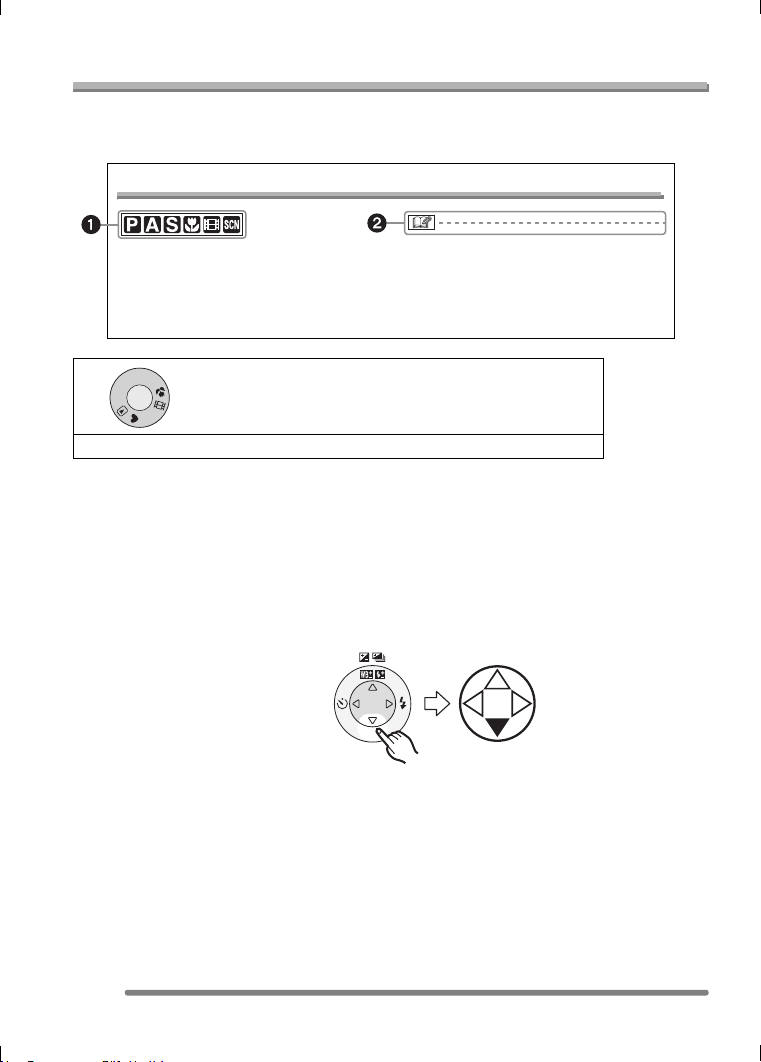
About These Operating Instructions
Please note that the description on this page is a sample and all pages are not described
in this manner.
∫ About illustrations in these operating instructions
Please note that the appearance of the product, the illustration or the menu screen are a
little different from those in actual use.
The procedure is described for DMC-FZ5 as an example.
∫ About illustrations of the cursor button
In these operating instructions, the operations on the cursor button are described as
illustrated below.
e.g.: When you press the 4 button
Compensating the Exposure
Use this function when you cannot achieve
appropriate exposure due to the difference
of brightness between the subject and the
background.
• EV is an abbreviation of Exposure Value,
and it is the amount of light given to the
CCD by the aperture value and the
shutter speed.
1 Modes indicated here allow you to use the functions or
settings described on this page. Set the Mode dial to any
of the modes to use the functions or settings.
2 Convenient or helpful information for use of the camera is described.
M
S
A
P
SCN
R
E
V
I
E
W
VQT0Q09ENG.book 6 ページ 2005年1月25日 火曜日 午後8時17分

7
VQT0Q09
Contents
Before Use
Information for Your Safety.......................2
About These Operating Instructions .........6
Preparation
Standard Accessories...............................9
Names of the Components .....................10
Quick Guide............................................12
Charging the Battery
with the Charger..................................13
About the Battery....................................14
Inserting/Removing the Battery ..............15
Inserting/Removing the Card ..................16
About the Card........................................17
Approximate number
of recordable pictures and the size .....18
Attaching the Lens Cap/Strap.................19
Attaching the Lens Hood ........................20
Setting Date/Time (Clock Set) ................22
About the Setup Menu ............................23
About the LCD Monitor/Viewfinder .........27
Recording pictures (basic)
Taking Pictures.......................................30
Taking Pictures in Simple Mode .............35
Checking the Recorded Picture
(Review)..............................................38
Using the Optical Zoom ..........................39
Taking Pictures
using the Built-in Flash........................40
Taking Pictures with the Self-timer .........44
Compensating the Exposure ..................45
Taking Pictures using Auto Bracket........46
Optical Image Stabilizer..........................47
Taking Pictures using Burst Mode ..........48
Playback (basic)
Playing Back Pictures .............................50
9 Pictures Multi Playback........................51
Using the Playback Zoom.......................52
Deleting Pictures.....................................53
Recording pictures (advanced)
Using the Mode Dial ...............................55
• Aperture-priority AE .......................... 55
• Shutter-priority AE ............................ 56
• Manual exposure ..............................57
• Macro mode......................................60
• Motion image mode ..........................61
• Scene mode......................................63
– Portrait mode................................. 64
– Sports mode ..................................64
– Scenery mode ...............................65
– Night scenery mode.......................65
– Night portrait mode........................ 66
– Panning mode ...............................66
– Fireworks mode............................. 67
– Party mode ....................................68
– Snow mode.................................... 69
Recording Menu Settings
Using the [REC] mode menu ..................70
• White Balance [W.BALANCE] .......... 71
• ISO Sensitivity [SENSITIVITY] .........73
• Picture Size [PICT.SIZE] .................. 74
• Quality [QUALITY] ............................ 74
• Audio Recording [AUDIO REC.]
(DMC-FZ5 only)................................75
• Metering Mode
[METERING MODE].........................75
• AF Mode [AF MODE]........................76
• Continuous AF [CONT.AF] ...............77
• AF Trigger [AF TRIGGER]................77
• AF Assist Lamp
[AF ASSIST LAMP] .......................... 78
• Digital Zoom [D.ZOOM] ....................79
• Color Effect [COL.EFFECT]..............80
• Picture Adjustment [PICT.ADJ.]........ 80
• Flip Animation [FLIP ANIM.] .............80
VQT0Q09ENG.book 7 ページ 2005年1月25日 火曜日 午後8時17分

8
VQT0Q09
Playback (advanced)
Playing Back Pictures with Audio/
Motion Images.....................................83
Using the [PLAY] mode menu ................ 84
• Displaying pictures in a direction
at the time of recording
[ROTATE DISP.] ..............................85
• Rotating the Picture [ROTATE] ........85
• Setting the Picture to be Printed
and the Number of Prints
[DPOF PRINT].................................. 86
• Preventing Accidental Erasure
of the Picture [PROTECT]................88
• Playing Back with Slide Show
[SLIDE SHOW]................................. 89
• Adding Audio to Recorded Pictures
[AUDIO DUB.] (DMC-FZ5 only)........90
• Resizing the Pictures [RESIZE]........ 91
• Trimming the Pictures
[TRIMMING] ..................................... 92
• Initializing the Card [FORMAT]......... 94
Playing Back Pictures on a TV Screen ... 95
Connecting to a PC or Printer
Before Connecting to the PC
or the Printer [USB MODE] .................96
Connecting to a PC.................................97
Connecting to a PictBridge-compliant
Printer.................................................. 99
Others
Using the MC Protector/ND Filter .........103
Screen Display......................................104
Cautions for Use ................................... 107
Message Display ..................................109
Troubleshooting ....................................110
Specifications........................................113
Digital Camera Accessory System .......116
Digital Camera Accessory Order Form
(For USA Customers)........................117
Request for Service Notice
(For USA Only).................................. 118
Limited Warranty (For USA Only) ......... 119
Customer Services Directory
(For USA Only).................................. 121
Index.....................................................122
Spanish Quick Use Guide/
Guía rápida en español..................... 124
VQT0Q09ENG.book 8 ページ 2005年1月25日 火曜日 午後8時17分
Preparation
9
VQT0Q09
Preparation
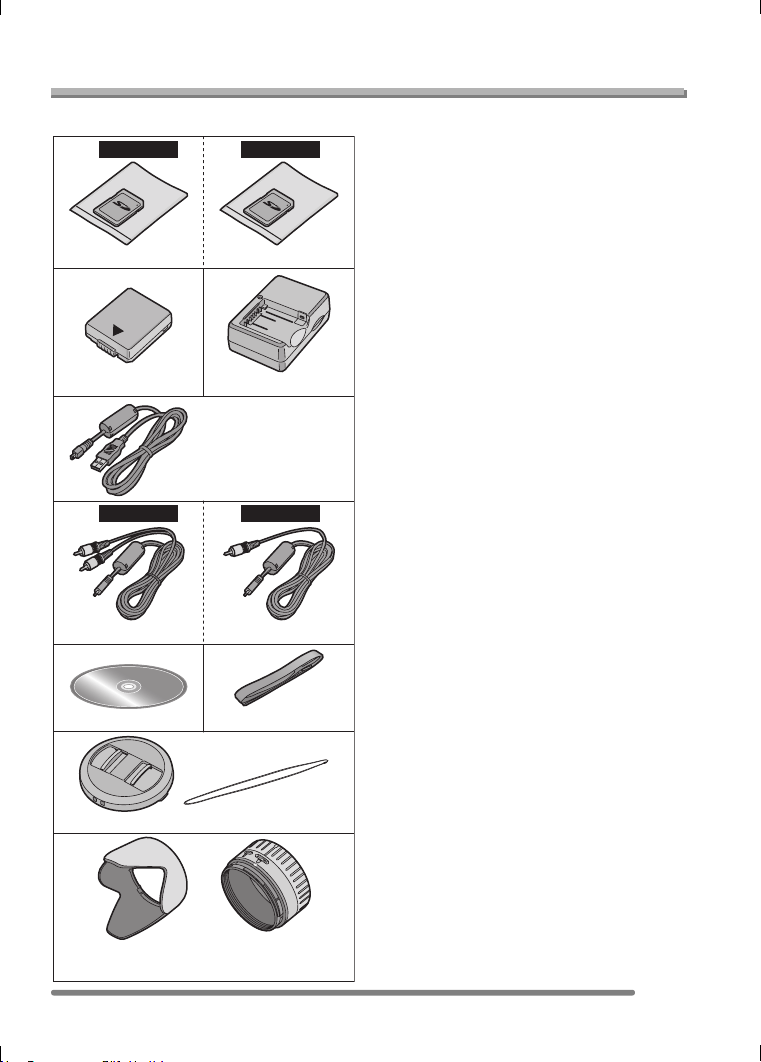
Standard Accessories
Before using your camera, check the contents.
1 SD Memory Card
(In the text, it is indicated as “Card”)
1:16MB
(Supplied with DMC-FZ5 only)
2: 8MB
(Supplied with DMC-FZ4 only)
2Battery Pack
(In the text, it is indicated as “Battery”)
3 Battery Charger
(In the text, it is indicated as “Charger”)
4 USB Connection Cable
5 1:AV Cable
(Supplied with DMC-FZ5 only)
2: Video Cable
(Supplied with DMC-FZ4 only)
6 CD-ROM
7Strap
8 Lens Cap/Lens Cap String
9 Lens Hood/Lens Hood Adaptor
A:Silver
B: Black (DMC-FZ5 only)
RP-SD016B RP-SD008B
2 3
4
5
CGA-S002A
K1HA08CD0005
DE-993B
K1HA08CD0006
1
DMC-FZ5
2
DMC-FZ4
K1HA08CD0004
VFC4078
6
8
9
7
VYK0W73
A: VYQ3428/VYQ3387
B: VYQ3429/VYQ3388
1
1
DMC-FZ5
2
DMC-FZ4
VQT0Q09ENG.book 9 ページ 2005年1月25日 火曜日 午後8時17分
Preparation
10
VQT0Q09
Names of the Components
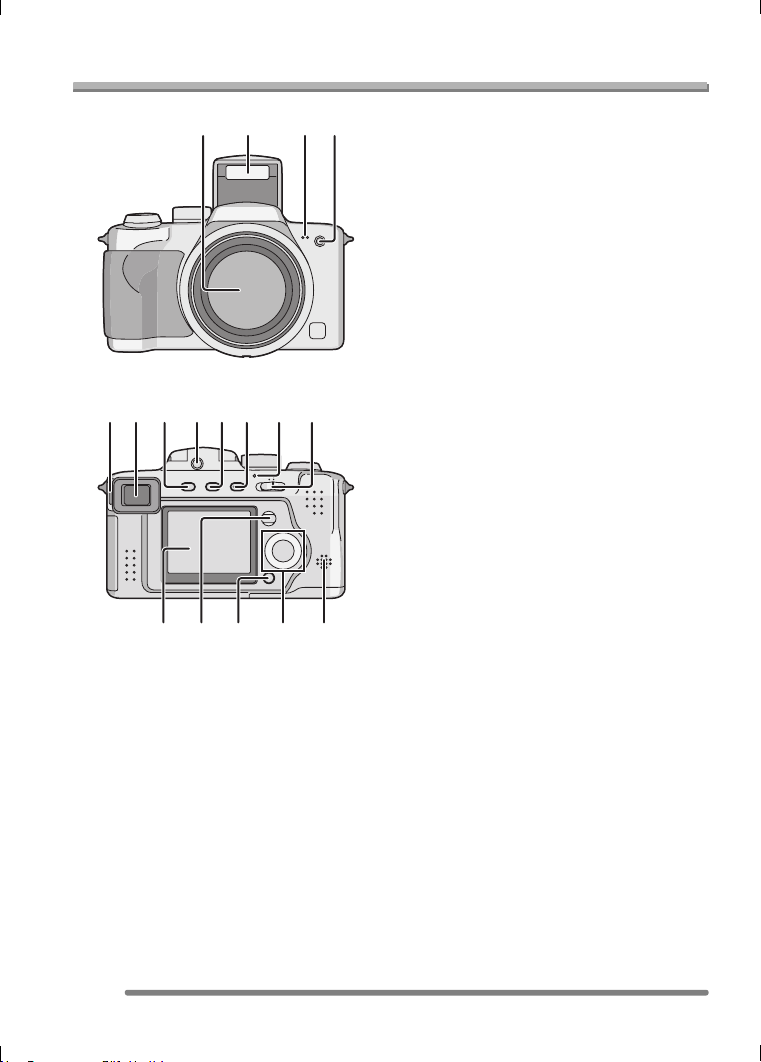
1Lens (P4)
2 Flash (P40)
3 Microphone (DMC-FZ5 only) (P61, 75)
4 Self-timer Indicator (P44)
AF Assist Lamp (P78)
5 Diopter Adjustment Dial (P28)
6 Viewfinder (P27, 104)
7 [EVF/LCD] Button (P27)
8 Flash Open Button (P40)
9 [DISPLAY] Button (P27)
10 [EXPOSURE] Button
(P55, 56, 57)
11 Power Indicator (P31)
12 Camera ON/OFF Switch (P12)
13 LCD Monitor (P27, 104)
DMC-FZ5: Size 1.8q
DMC-FZ4: Size 1.5q
14 [MENU] Button (P23)
15 Delete (P53)/[FOCUS] (P67, 77) Button
16 Cursor Buttons
2/Self-timer Button (P44)
4/[REVIEW] Button (P38)
1/Flash Setting Button (P40)
3/Exposure Compensation (P45)/Auto
Bracket (P46)/White Balance Fine
Adjustment (P72)/Flash Output
Adjustment (P42)/Backlight
Compensation in Simple Mode (P37)
Button
17 Speaker (P83) (DMC-FZ5)
Speaker for Operational Sound only
(DMC-FZ4)
12 34
8
13
11 12
14 15 16
10956 7
17
VQT0Q09ENG.book 10 ページ 2005年1月25日 火曜日 午後8時17分
Preparation
11
VQT0Q09
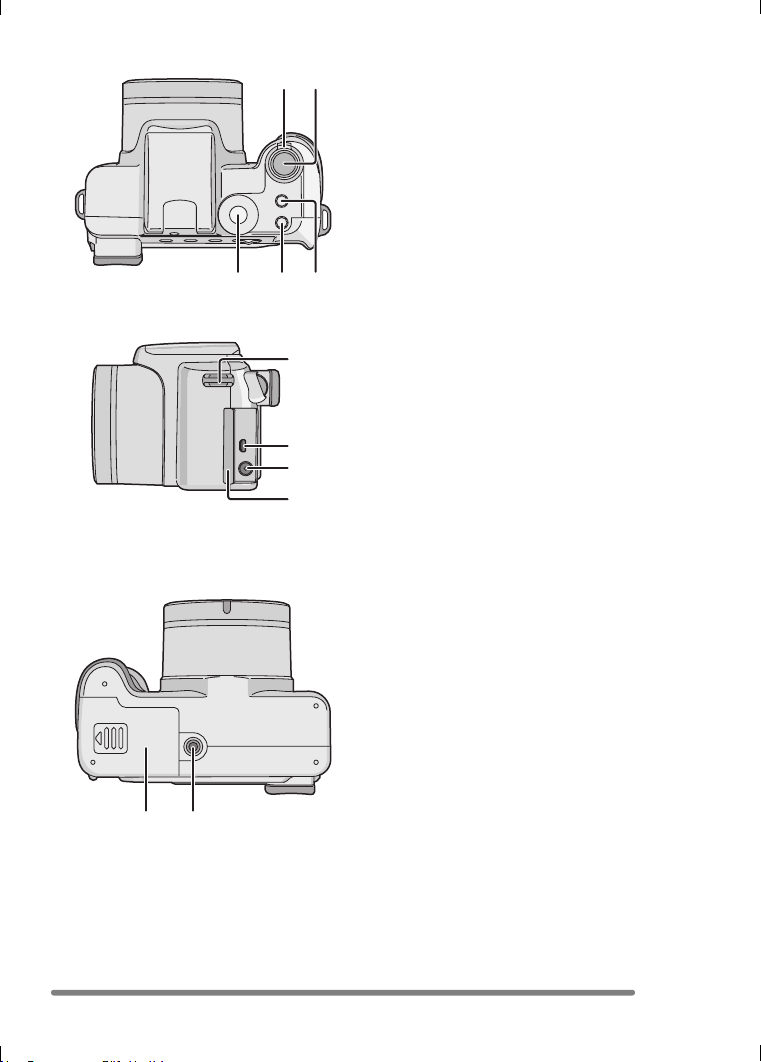
18 Zoom Lever (P39, 79)
19 Shutter Button (P31)
20 Mode Dial (P30)
21 Single or Burst Mode Button (P48)
22 Optical Image Stabilizer Button (P47)
23 Strap Eyelet (P19)
24 [AV OUT/DIGITAL] Socket
(DMC-FZ5 only)
[V.OUT/DIGITAL] Socket
(DMC-FZ4 only)
(P95, 97, 99)
25 [DC IN] Socket (P97, 99)
• Please be sure to use genuine
Panasonic AC adaptor (DMW-CAC1;
optional).
26 Terminal Door
27 Card/Battery Door (P15, 16)
28 Tripod Receptacle
20 21 22
18 19
24
23
25
26
27 28
VQT0Q09ENG.book 11 ページ 2005年1月25日 火曜日 午後8時17分
Preparation
12
VQT0Q09
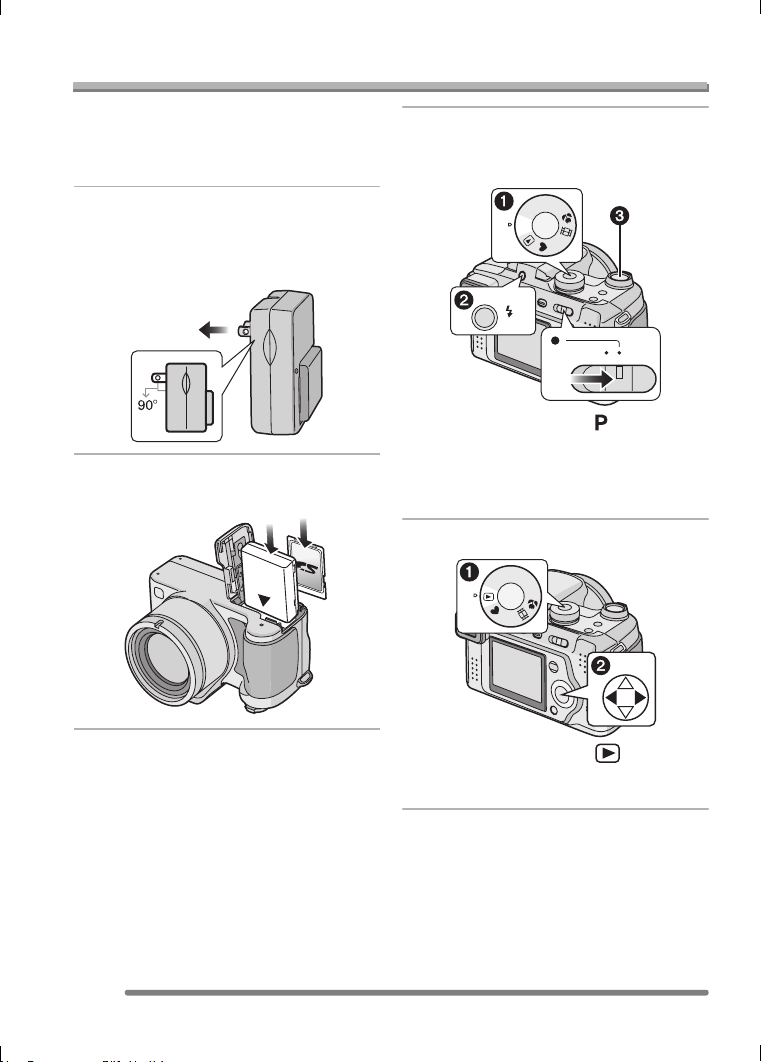
Quick Guide
This is the overview of the procedure to
record and playback pictures with the
camera. For each operation, be sure to
refer to the corresponding pages.
1 Charge the battery. (P13)
• When the camera is shipped, the
battery is not charged. Charge the
battery before use.
2 Insert the battery and the card.
(P15, 16)
3 Turn the camera on to take
pictures.
• Set the clock. (P22)
1 Set the mode dial to [ ].
2 Open the flash.
(When using the flash) (P40)
3 Press the shutter button to take
pictures. (P31)
4 Play back the pictures.
1 Set the mode dial to [ ].
2 Select the picture you want to view.
(P50)
OFF ON
M
S
A
SCN
P
OPEN
M
S
A
SCN
P
VQT0Q09ENG.book 12 ページ 2005年1月25日 火曜日 午後8時17分
Preparation
13
VQT0Q09
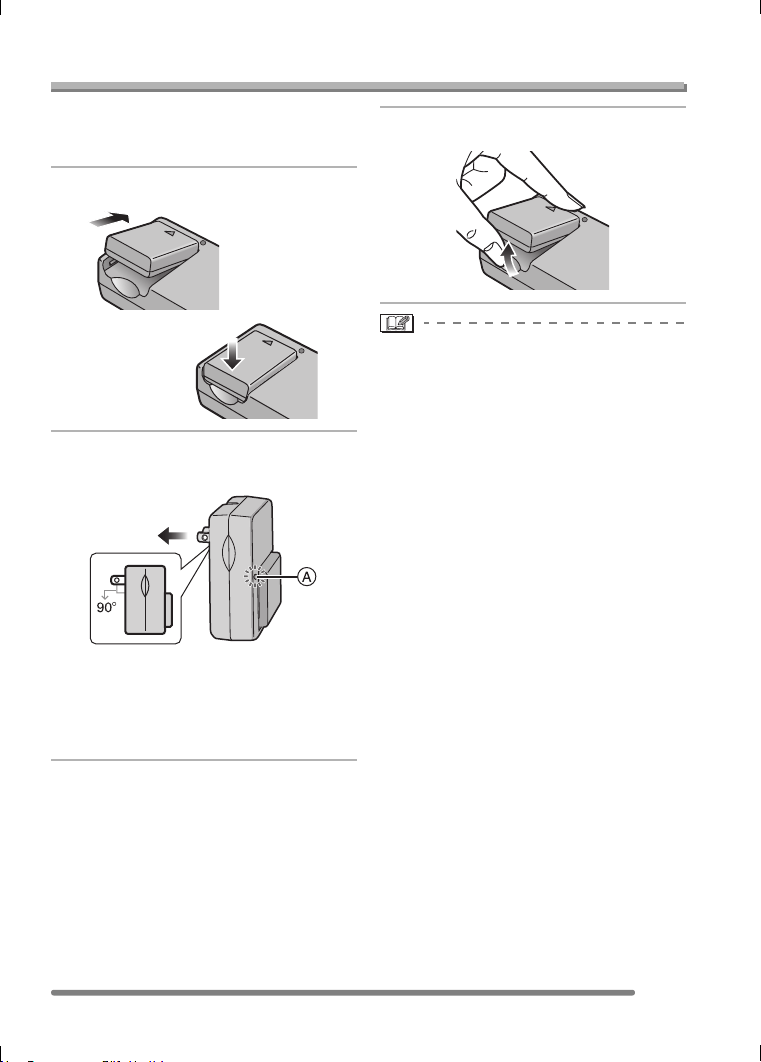
Charging the Battery with the Charger
When the camera is shipped, the battery is
not charged. Charge the battery before
use.
1 Attach the battery to the charger.
2 Connect the charger to the
electrical outlet.
• When the [CHARGE] indicator A lights
in green, charging starts.
• When the [CHARGE] indicator A turns
off (in about 120 minutes), charging is
completed.
3 Detach the battery.
• After charging is completed, be sure to
disconnect the charger from the electrical
outlet.
• The battery becomes warm after use/
charge or during charge. The camera also
becomes warm during use. However, it is
not a malfunction.
• Use the dedicated charger and battery.
• Charge the battery with the charger
indoors.
• Do not disassemble or modify the
charger.
VQT0Q09ENG.book 13 ページ 2005年1月25日 火曜日 午後8時17分
Preparation
14
VQT0Q09
About the Battery
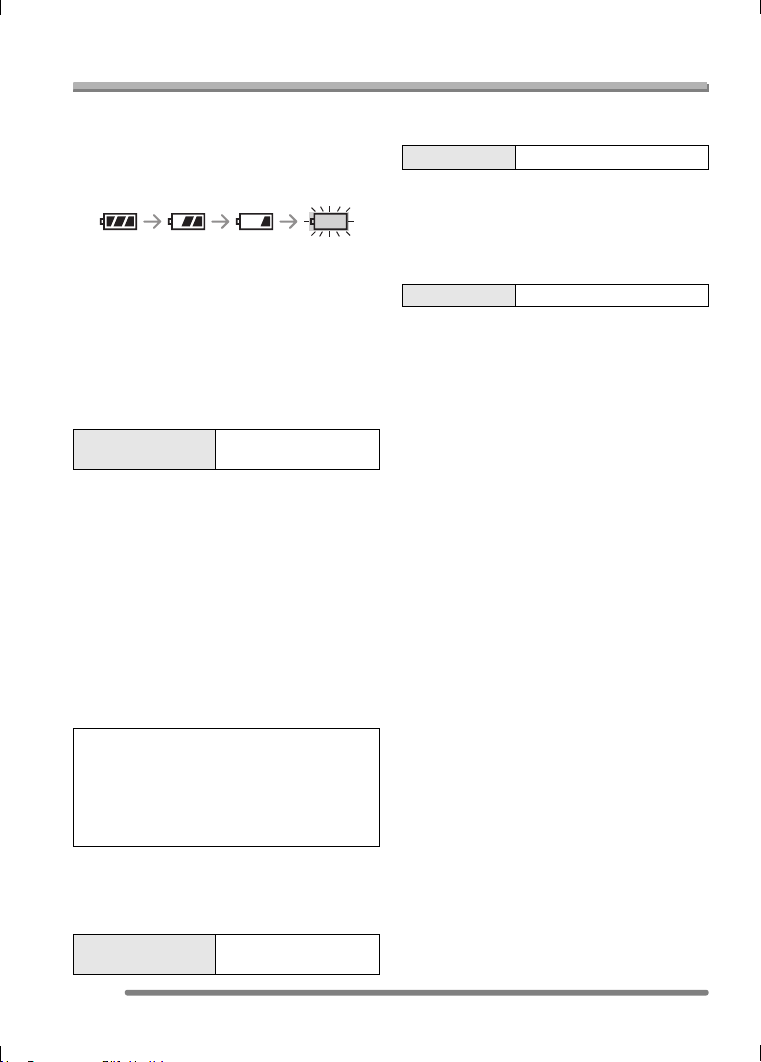
∫ Battery indication
The remaining battery power appears on
the screen. [It does not appear when you
use the camera along with the AC adaptor
(DMW-CAC1; optional).]
• The battery indication turns red and
blinks.
• Recharge the battery or replace it with
fully charged battery.
∫ The battery life
The number of recordable pictures by
CIPA standard (In program AE mode)
• CIPA is an abbreviation of
[Camera & Imaging Products Association].
Recording conditions by CIPA standard
• Temperature: 23°C (73.4°F)/
Humidity: 50
% when LCD monitor is on.
• Using the supplied SD Memory Card
(DMC-FZ5; 16 MB/DMC-FZ4; 8 MB)
• Using the supplied battery.
• Recording starts 30 seconds after the
camera is turned on.
• Recording once every 30 seconds, with
full flash every other recording.
• Rotating the zoom lever towards Tele to
Wide and vice versa in every recording.
• Turn the camera off every 10 recordings.
The number of recordable pictures
when using the Viewfinder
(Recording conditions comply with CIPA
standard.)
Playback time when using the LCD
monitor
The number of recordable pictures and
playback time will vary depending on the
operating conditions and storing condition
of the battery.
∫ Charging
Charging time and the number of
recordable pictures with the optional
battery pack (CGA-S002A) are the same
as above.
• When charging starts, the [CHARGE]
indicator lights.
∫ Charging error
• If a charging error occurs, the [CHARGE]
indicator blinks in 1 second cycles.
In this case, disconnect the charger from
the electrical outlet, remove the battery
and make sure that both room and battery
temperature are not too low or high and
then charge it again. If the [CHARGE]
indicator still blinks even if you charge the
battery for a while, consult the dealer or
your nearest servicenter.
• When the operating time of the camera
becomes extremely short even if the
battery is properly charged, the life of the
battery may have expired. Buy a new
battery.
∫ Charging conditions
• Charge the battery under temperature of
10oC–35oC (50oF–95oF). (Battery
temperature should be the same also.)
• The performance of the battery may be
temporarily deteriorated and the operating
time may become shorter in low
temperature conditions (e.g. skiing/
snowboarding).
Number of
recordable pictures
Approx. 300 pictures
(Approx. 150 min.)
The number of recordable pictures varies
depending on the recording interval time.
If the recording interval time becomes
longer, the number of recordable pictures
decreases.
(When taking a picture every
2 minutes: Approx. 75)
Number of
recordable pictures
Approx. 320 pictures
(Approx. 160 min.)
Playback time Approx. 300 min.
Charging time Approx. 120 min.
VQT0Q09ENG.book 14 ページ 2005年1月25日 火曜日 午後8時17分
Preparation
15
VQT0Q09
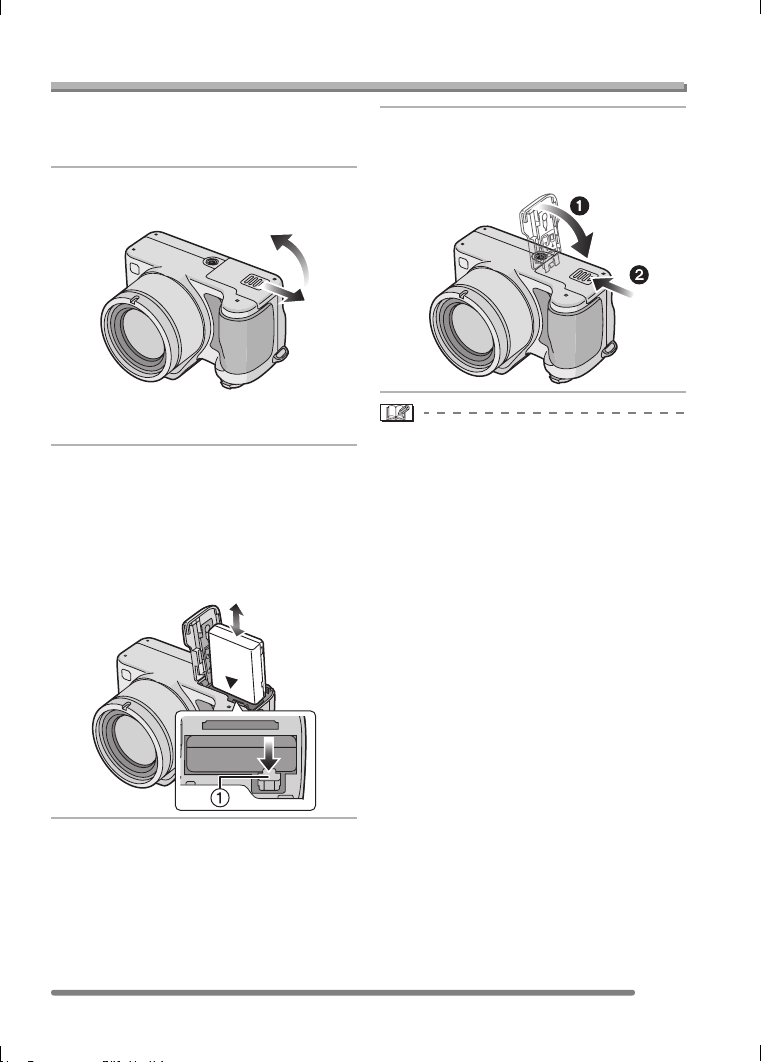
Inserting/Removing the Battery
• Check that the camera is turned off and
that the lens is retracted.
• Close the flash.
1 Slide the card/battery door to
open it.
• Please be sure to use genuine
Panasonic batteries (CGA-S002A).
2 Insert:
Insert the charged battery until it
clicks.
Remove:
Slide the lock 1 to remove the
battery.
3 1 Close the card/battery door.
2 Slide the card/battery door to
the end and then close it firmly.
• If you will not be using the camera for a
long time, remove the battery.
• When a fully charged battery has been
inserted for more than 24 hours, the clock
setting is stored (in the camera) for at
least 3 months even if the battery is
removed. (The storing time may be
shorter if the battery is not charged
sufficiently.)
If more than 3 months has passed, the
clock setting will be lost. In this case, set
the clock again. (P22)
• Do not remove the card and the battery
while the card is being accessed. The
data on the card may be damaged.
(P17)
• Do not remove the battery with the
camera turned on since the settings on
the camera may not be stored properly.
• The supplied battery is designed only
for the camera. Do not use it with any
other equipment.
VQT0Q09ENG.book 15 ページ 2005年1月25日 火曜日 午後8時17分
Preparation
16
VQT0Q09
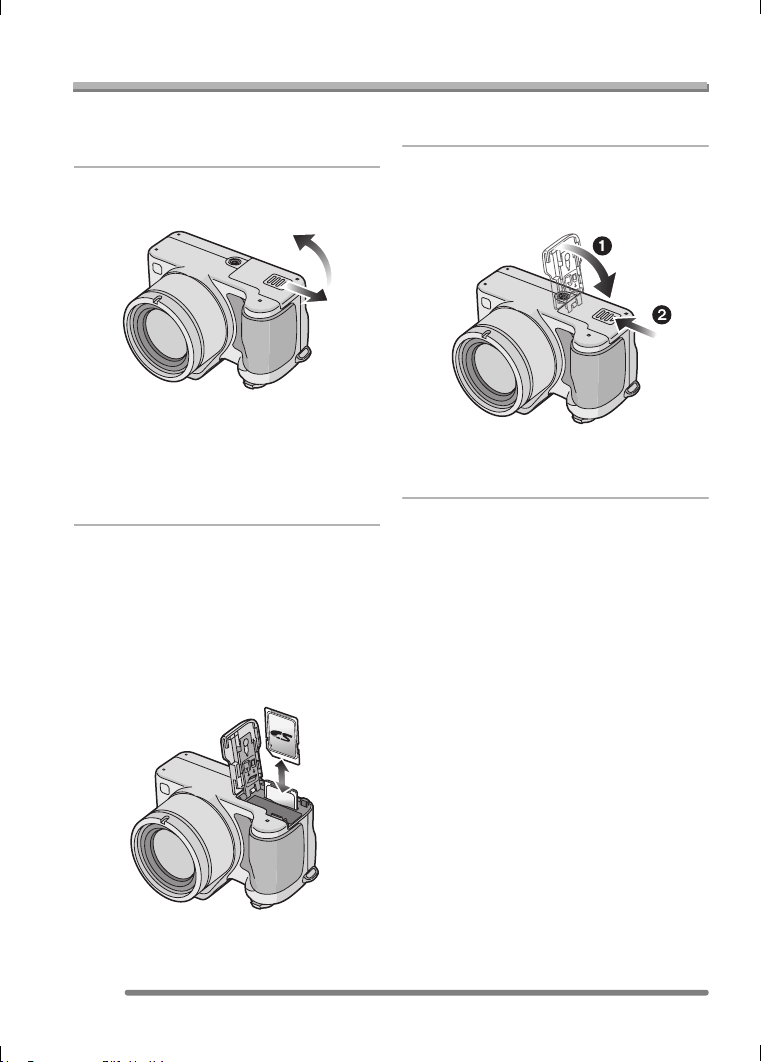
Inserting/Removing the Card
• Check that the camera is turned off and
that the lens is retracted.
• Close the flash.
1 Slide the card/battery door to
open it.
• The card and the data may be
damaged if it is inserted or removed
while the camera is on.
• We recommend using Panasonic’s SD
Memory Card. (Use only the genuine
SD card with SD Logo.)
2 Insert:
Insert the card fully until it clicks
and it is locked with the label
facing the front of the camera.
Remove:
Push the card until it clicks, then
pull the card out upright.
• Check the direction of the card.
• Do not touch the connection terminals
on the back side of the card.
• The card may be damaged if it is not
fully inserted.
3 1 Close the card/battery door.
2 Slide the card/battery door to
the end and then close it firmly.
• If the card/battery door cannot be
completely closed, remove the card and
insert it again.
VQT0Q09ENG.book 16 ページ 2005年1月25日 火曜日 午後8時17分
Preparation
17
VQT0Q09
About the Card
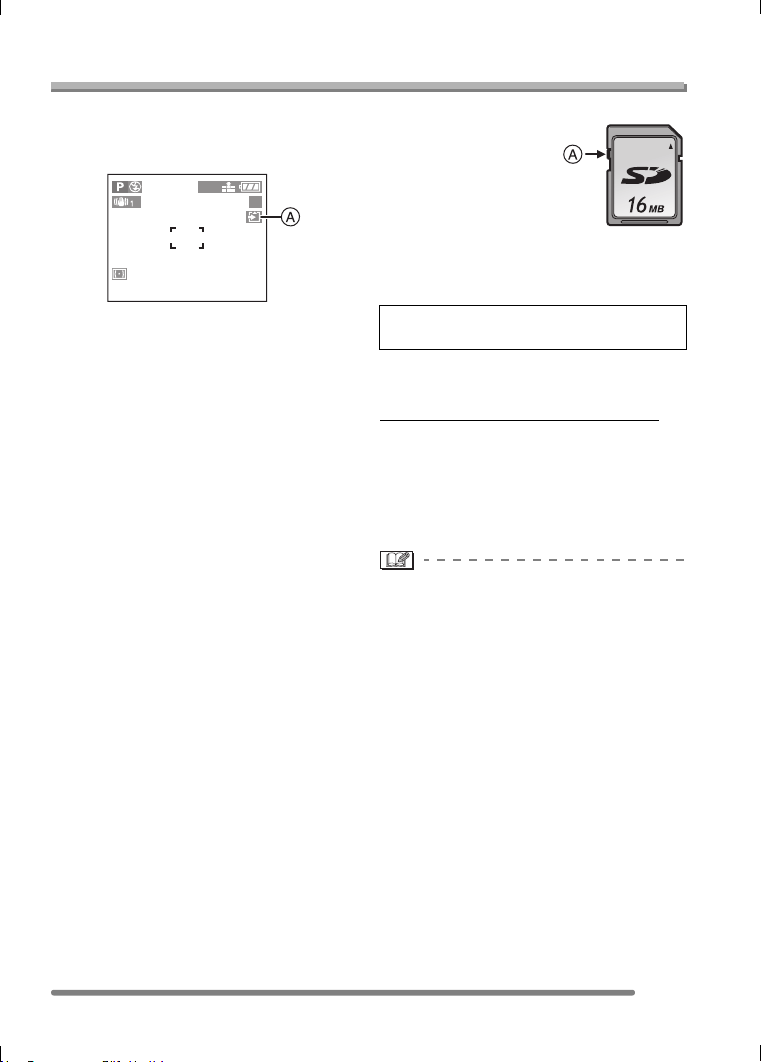
∫ Access to the card
When pictures are being recorded onto the
card, the card access indication lights red.
When the card access indication A lights,
pictures are being read or deleted, or the
card is formatted, do not:
• turn the camera off.
• remove the battery or the card.
• shake or impact the camera.
The card and the data may be damaged
and the camera may not operate normally.
∫ About handling a card
Transfer important pictures/motion images
from your card to your PC periodically
(P97). The data on the card may be
damaged or lost due to electromagnetic
wave, static electricity, breakdown of the
camera or a defective card.
• Do not format the card on your PC or
other equipment, format it with the camera
only to ensure proper operation. (P94)
∫ SD Memory Card (supplied) and
MultiMediaCard (optional)
The SD Memory Card and MultiMediaCard
are small, lightweight, removable external
cards. The reading/writing speed of an SD
Memory Card is fast. The SD Memory Card
is equipped with a Write-Protect switch A
that can inhibit writing and formatting a
card. (When the switch is slid to the [LOCK]
side, it is not possible to write or delete data
on the card and format it. When the switch
is unlocked, these functions become
available.)
SD Memory Card
On this unit, you can use SD Memory
Cards of the following capacity (from 8 MB
to 1 GB).
Please confirm the latest information on the
following website.
http://panasonic.
co.jp/pavc/global/cs
(This Site is English only.)
• This unit supports SD Memory Cards
formatted in FAT12 system and FAT16
system based on SD Memory Card
Specifications.
• The reading/writing speed of a
MultiMediaCard is slower than an SD
Memory Card. When a MultiMediaCard is
used, the performance of certain features
may be slightly slower than advertised.
• After recording motion images using the
MultiMediaCard, the card access
indication may appear for a while, but this
is not a malfunction.
• Keep the Memory Card out of reach of
children to prevent swallowing.
2560
19
8 MB, 16 MB, 32 MB, 64 MB, 128 MB,
256 MB, 512 MB, 1 GB (Maximum)
VQT0Q09ENG.book 17 ページ 2005年1月25日 火曜日 午後8時17分
Preparation
18
VQT0Q09
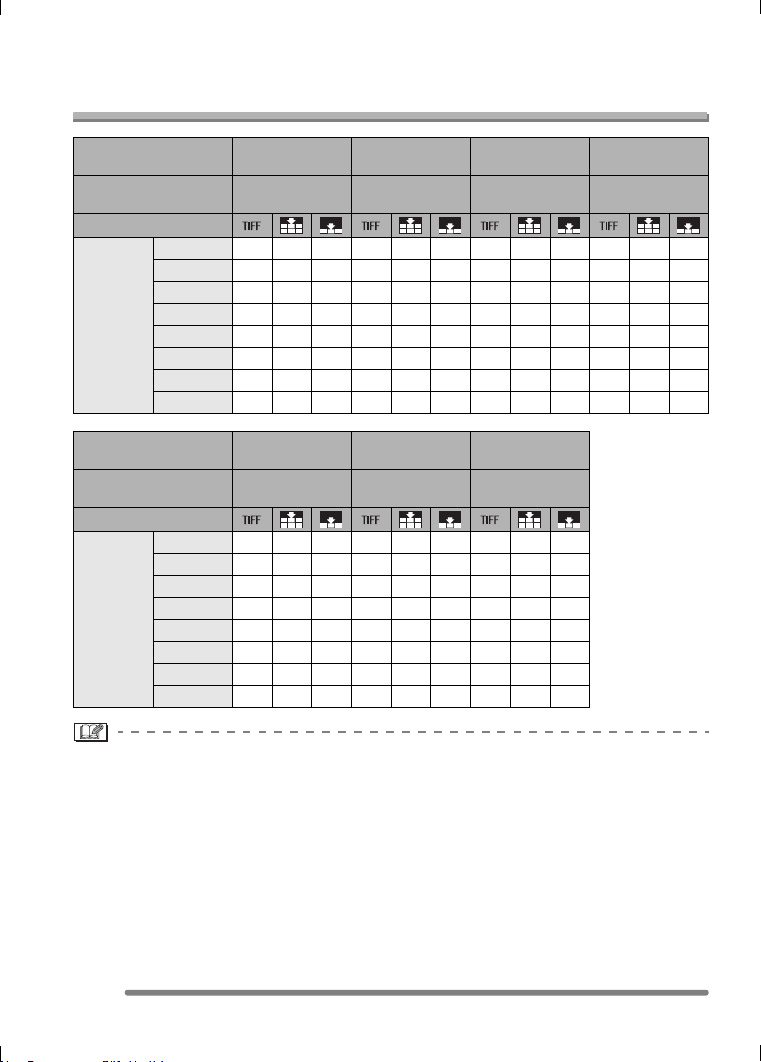
Approximate number of recordable pictures and
the size
• If you select a larger picture size, you can print pictures clearly. When you select a
smaller picture size, you can record more pictures.
• The numbers are approximations. (If you mix TIFF, Fine and Standard quality, the number
of recordable pictures changes.)
• The number of recordable pictures varies depending on subjects.
• The remaining number of recordable pictures displayed on the screen is an
approximation.
Picture size
2560k1920
(DMC-FZ5)
2304k1728
(DMC-FZ4)
2048k1536
(DMC-FZ5)
1600k1200
Reference for number
of pixels
Approx.
5M pixels
Approx.
4M pixels
Approx.
3M pixels
Approx.
2M pixels
Quality
SD
Memory
Card
8 MB0250370481613
16 MB05111816191721428
32 MB 1 12 24 2 17 33 3 19 37 4 31 59
64 MB 3 25 49 4 35 69 6 39 75 10 63 121
128 MB 8 51 100 9 71 139 12 79 153 20 128 244
256 MB 15 99 195 19 139 272 24 154 299 39 250 476
512 MB 30 197 387 38 277 539 48 305 592 78 495 944
1 GB 61 395 775 76 554 1079 96 610 1185 157 991 1889
Picture size 1280k960 640k480
1920k1080
(HDTV)
Reference for number
of pixels
Approx.
1.3M pixels
Approx.
0.35M pixels
Approx.
2M pixels
Quality
SD
Memory
Card
8 MB 1 10 19 6 32 58 0 6 12
16 MB 3 224113691132 1325
32 MB 7 47 86 28 145 236 4 28 54
64 MB 15 96 176 58 298 484 9 58 110
128 MB 31 195 356 118 602 979 18 118 223
256 MB 61 381 693 231 1173 1906 36 231 435
512 MB 121 755 1373 457 2324 3777 72 457 863
1 GB 243 1511 2747 915 4650 7556 145 915 1727
VQT0Q09ENG.book 18 ページ 2005年1月25日 火曜日 午後8時17分
Preparation
19
VQT0Q09
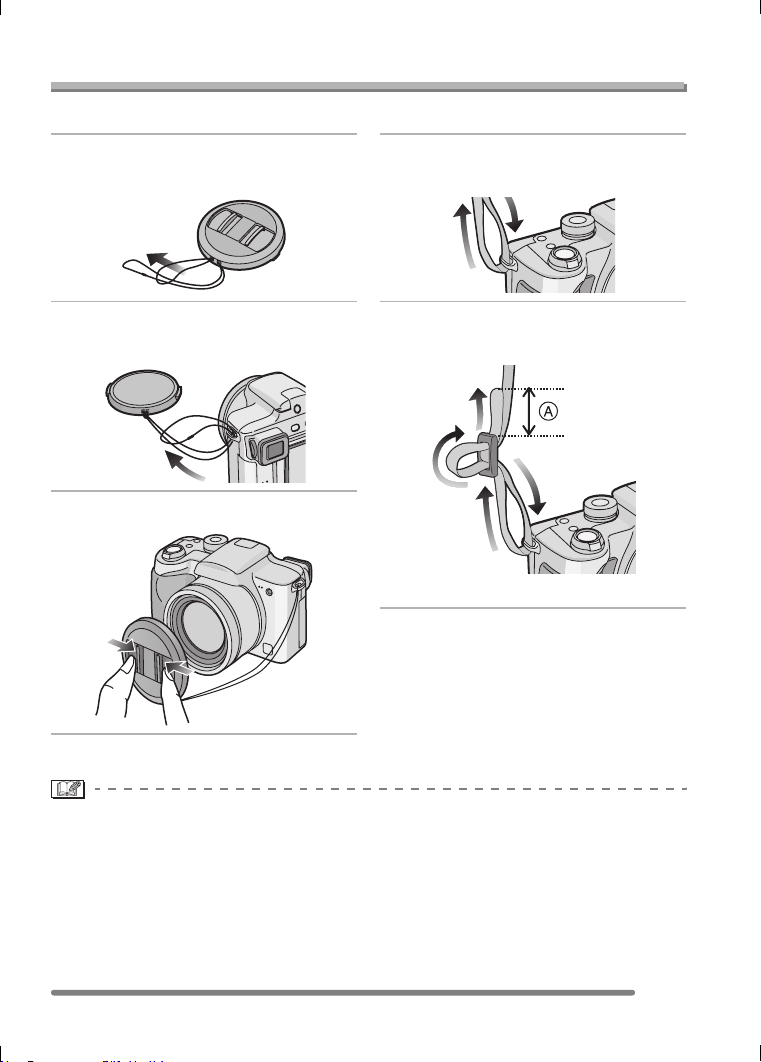
Attaching the Lens Cap/Strap
∫ Lens Cap (supplied)
1 Pass the string through the hole
on the lens cap.
2 Pass the string through the hole
on the camera.
3 Attach the lens cap.
∫ Strap (supplied)
1 Pass the strap through the hole at
the Strap Eyelet.
2 Pass the strap through the
stopper and fasten the strap.
A: Pull the strap 2 cm or more.
• Attach the strap to the other side of the
camera being careful not to twist it.
• Check that the strap is firmly attached to
the camera.
• Attach the strap so that you can see
“L
UMIX” logo.
• When you turn the camera off, carry the camera or play back the pictures, attach the lens
cap to protect the surface of the lens.
• Detach the lens cap before turning on the camera in the recording mode.
• When the mode dial is set to one of the recording modes and the camera is turned on
with the lens cap attached, the message [REMOVE LENS CAP AND PRESS 1
BUTTON] appears. Press 1 button after detaching the lens cap.
• Be careful not to lose the lens cap.
VQT0Q09ENG.book 19 ページ 2005年1月25日 火曜日 午後8時17分
Preparation
20
VQT0Q09
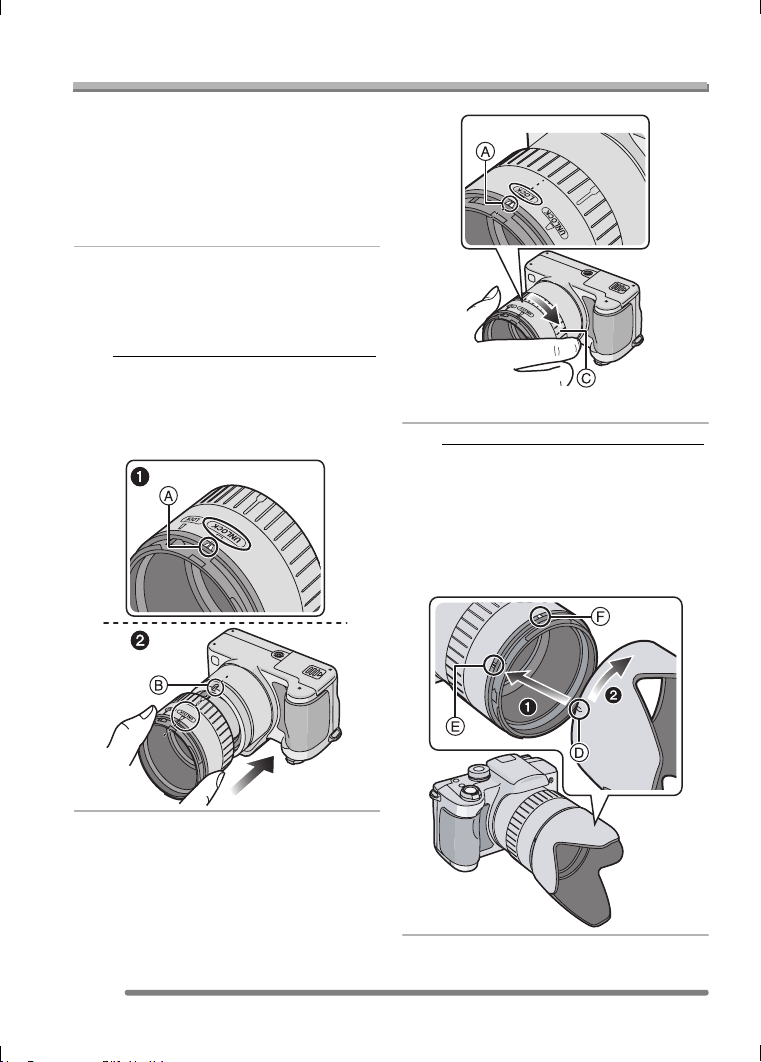
Attaching the Lens Hood
In bright sunlight or backlight, the lens hood
will minimize lens flare and ghosting.
The lens hood cuts out excess light and
improves the picture quality.
• Check that the camera is turned off and
that the lens is retracted.
• Close the flash.
1 1 Counter-rotate the 2 halves of
the lens hood adaptor until
marker A is at [UNLOCK]
position.
2 Place the camera upside down.
Align [UNLOCK] to groove B
on the camera then slide the
lens hood adaptor over the
lens until it stops.
2 Rotate ring C clockwise until
[LOCK] mark is aligned with
marker A on the adaptor.
• Rotate the ring until it clicks.
3 1 Place the camera right way up.
Align marker D on the lens
hood to marker E on the
adaptor and push the lens
hood onto the adaptor.
2 Rotate the lens hood clockwise
until it stops at marker F.
[
UNLOCK
]
[
LOCK
]
VQT0Q09ENG.book 20 ページ 2005年1月25日 火曜日 午後8時17分
Preparation
21
VQT0Q09
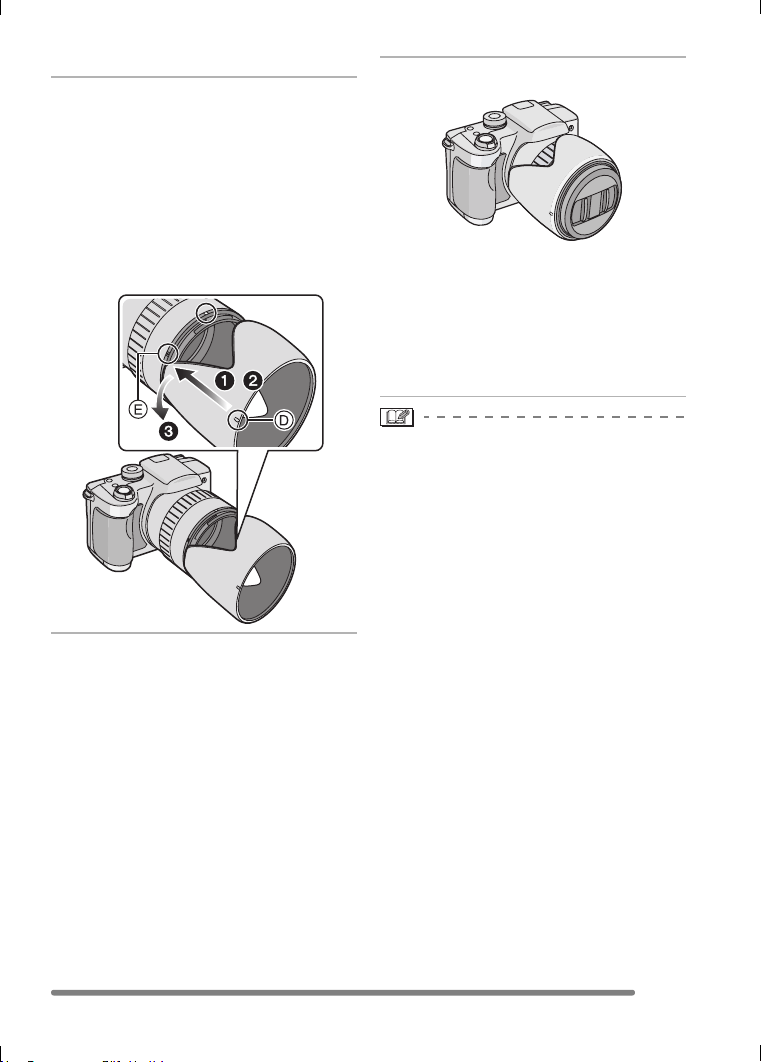
∫ Temporarily storing the lens hood
1 1 Remove the lens hood, turn it
around then align marker D on
the lens hood to marker E on
the adaptor.
2 Push the lens hood onto the
adaptor until it clicks.
3 Rotate the lens hood
counter-clockwise until it
clicks.
2 Attach the lens cap.
• Do not take a picture while the lens
hood is temporarily stored.
• Ensure that the lens cap is firmly
attached.
• When the lens hood is attached,
unstrap the lens cap and attach the lens
cap only.
• Before taking pictures with flash, remove
the lens hood first otherwise a shadow
from the hood will be cast on the bottom
part of the pictures (vignetting effect).
• When using the AF assist lamp in the
dark, detach the lens hood.
• For details on how to attach the MC
protector and the ND filter, refer to P103.
• If any of the accessories are lost, please
contact Panasonic’s parts department at
1 800 833-9626 (For USA) or in Canada
call 1 800 561-5505 for more details on
how to obtain replacement parts.
,
VQT0Q09ENG.book 21 ページ 2005年1月25日 火曜日 午後8時17分
Preparation
22
VQT0Q09
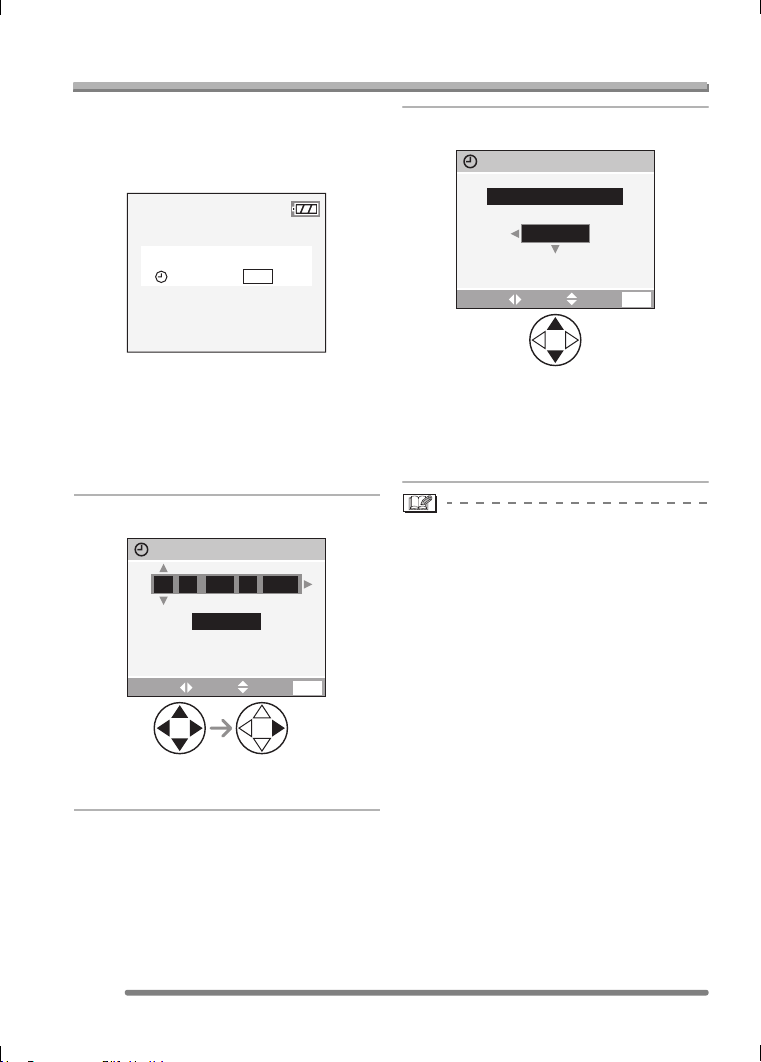
Setting Date/Time (Clock Set)
∫ Initial setting
The clock is not set when the camera is
shipped. When you turn the camera on, the
following screen appears.
• When pressing the [MENU] button, the
screen shown in step 1 appears.
• The screen disappears in about
5 seconds. Turn the camera on again or
select [CLOCK SET] on the [SETUP]
menu and then set the clock. (P23)
1 Set date and time.
• 2/1: Select the desired item.
• 3/4: Set date and time.
2 Select [M/D/Y], [D/M/Y] or [Y/M/D].
• Close the menu by pressing the
[MENU] button 2 times after finishing
the setting.
• Check if the clock setting is correct,
after turning the camera off and on.
• When a fully charged battery has been
inserted for more than 24 hours, the clock
setting is stored (in the camera) for at
least 3 months even if the battery is
removed. (The storing time may be
shorter if the battery is not charged
sufficiently.)
If more than 3 months has passed, the
clock setting will be lost. In this case, set
the clock again.
• You can set the year from 2000 to 2099.
The 24-hour system is used.
• When you use a photo printing service, if
the date is not set in the camera, it will not
be printed, even if the store provides a
date printing option to your photo.
• For the date print setting, refer to P87.
PLEASE SET THE CLOCK
CLOCK SET
MENU
M/D/Y
JAN
11 2005
..
00 00
:
CLOCK SET
EXIT
MENU
SETSELECT
EXIT
10:001
DEC
.11.2005
MENU
M/D/Y
CLOCK SET
SETSELECT
VQT0Q09ENG.book 22 ページ 2005年1月25日 火曜日 午後8時17分
Preparation
23
VQT0Q09
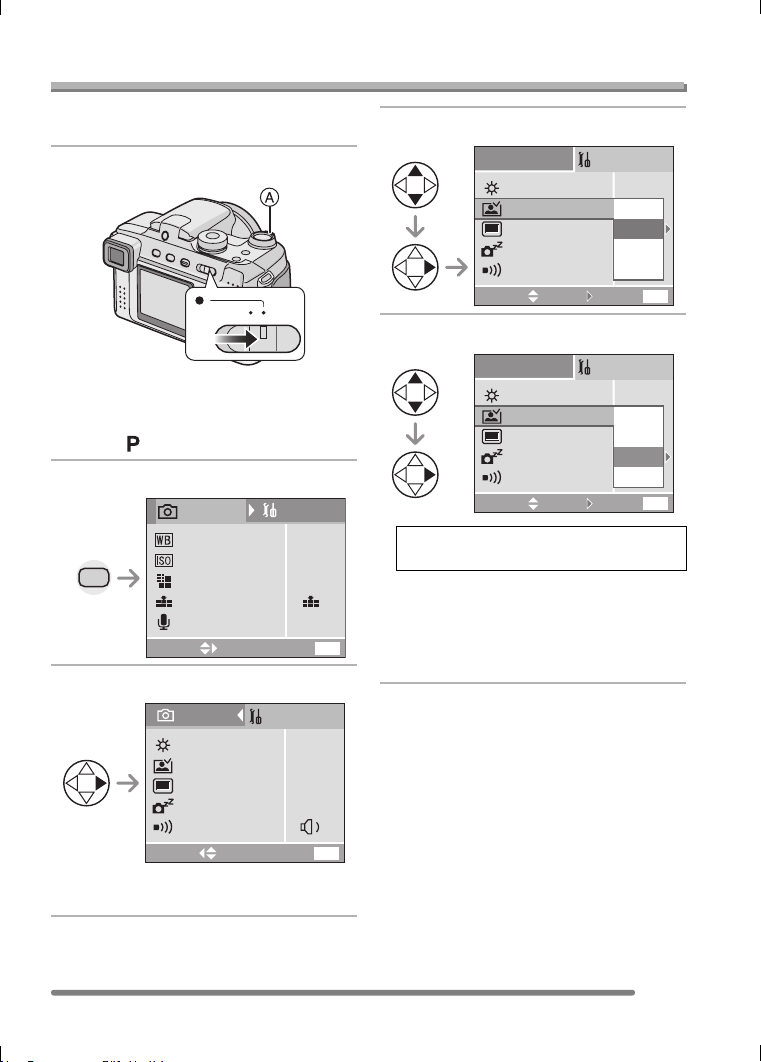
About the Setup Menu
• Set the items if necessary. (Refer to
P24– 26 for each menu item.)
1 Turn the camera on.
• The menu items depend on the mode
selected with the mode dial (P30). In
this page, the items in program AE
mode [ ] are indicated.
2 Press the [MENU] button.
3 Select the [SETUP] Menu.
• To forward or reverse the menu screen
rotate the zoom lever A toward T or W.
4 Select the desired item.
5 Select the desired value.
• Close the menu by pressing the
[MENU] button after finishing the
setting. In recording mode, you can also
close the menu by pressing the shutter
button halfway.
OFF ON
AUTO
2560
OFF
AUTO
MENU
SENSITIVITY
QUALITY
AUDIO REC.
W.BALANCE
PICT.SIZE
SETUP
SELECT
MENU
REC
1
/
3
EXIT
1SEC.
n
0
OFF
2MIN.
AUTO REVIEW
POWER SAVE
BEEP
MONITOR
PLAY ON LCD
REC
SELECT
MENU
EXIT
SETUP
1
/
3
Be sure to press 1 at the end to
store the setting.
n
0
POWER SAVE
BEEP
MONITOR
PLAY ON LCD
AUTO REVIEW
OFF
3SEC.
ZOOM
SELECT
EXIT
MENU
SET
SETUP
1
/
3
1SEC.
n
0
POWER SAVE
BEEP
MONITOR
PLAY ON LCD
AUTO REVIEW
OFF
ZOOM
1SEC.
SELECT
EXIT
MENU
SET
SETUP
1
/
3
3SEC.
VQT0Q09ENG.book 23 ページ 2005年1月25日 火曜日 午後8時17分
Preparation
24
VQT0Q09
MONITOR/VIEWFINDER
Adjust the brightness of the LCD monitor
(when pictures appear on the LCD monitor)
or Viewfinder (when pictures appear on the
Viewfinder) in 7 steps.
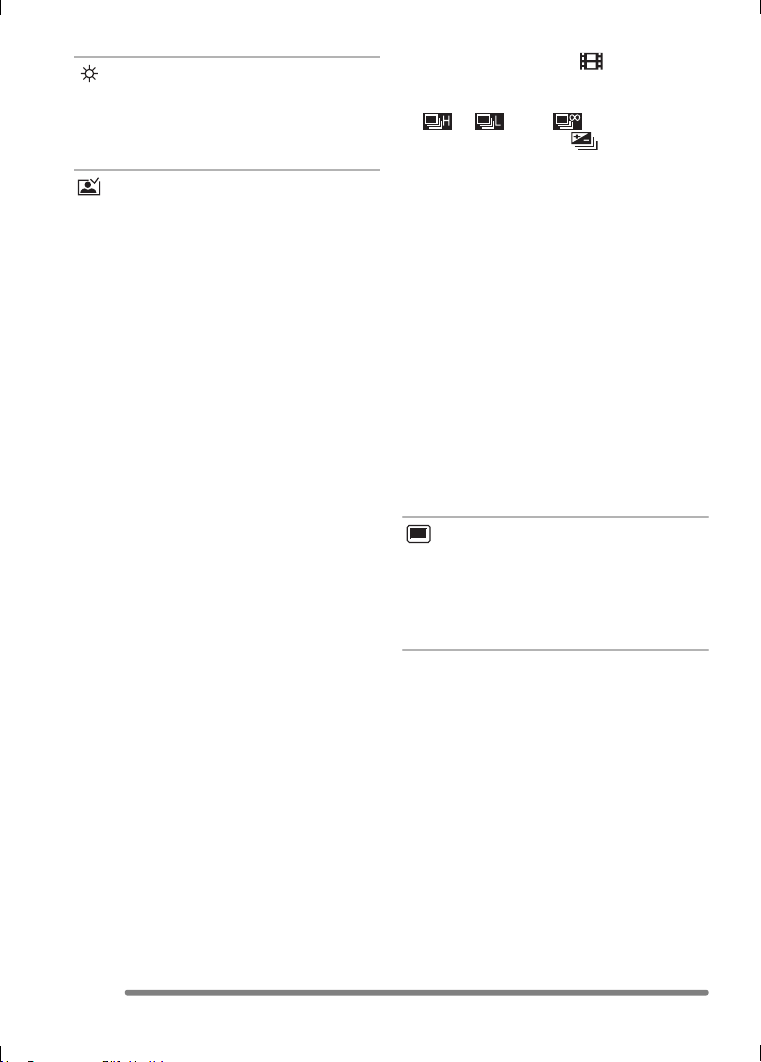
AUTO REVIEW
[OFF]: The recorded picture does not
automatically appear.
[1SEC.]: The recorded picture
automatically appears on the
screen for about 1 second.
[3SEC.]: The recorded picture
automatically appears on the
screen for about 3 seconds.
[ZOOM]: The recorded picture
automatically appears on the
screen for about 1 second. Then
it is enlarged 4 times and appears
for about 1 second. This mode is
useful for confirming focus.
Pictures in burst mode, auto
bracket, pictures with audio
(DMC-FZ5 only) are not enlarged
even if [ZOOM] is selected.
• In motion image mode [ ], auto review
function is not activated.
• When pictures are recorded in any speed
([ ], [ ] and [ ]) on burst mode
(P48) or auto bracket [ ] (P46), the
auto review function is activated
regardless of the setting on the auto
review function. (The picture is not
enlarged.)
• When using pictures with audio, the auto
review function works while recording the
audio or the data into the card regardless
of the setting on the auto review function.
(The picture is not enlarged.) (DMC-FZ5
only)
• When the quality is set to [TIFF], the auto
review function works until the end of
recording onto the card. (The picture is
not enlarged.)
• The setting for the auto review function is
disabled in motion image mode, burst
mode, auto bracket or when [AUDIO
REC.] is set to [ON] (DMC-FZ5 only).
PLAY ON LCD
When Viewfinder is selected in the
recording mode while setting [PLAY ON
LCD] to [ON], the picture automatically
appears on the LCD monitor in review or
playback. (P28)
VQT0Q09ENG.book 24 ページ 2005年1月25日 火曜日 午後8時17分
Preparation
25
VQT0Q09
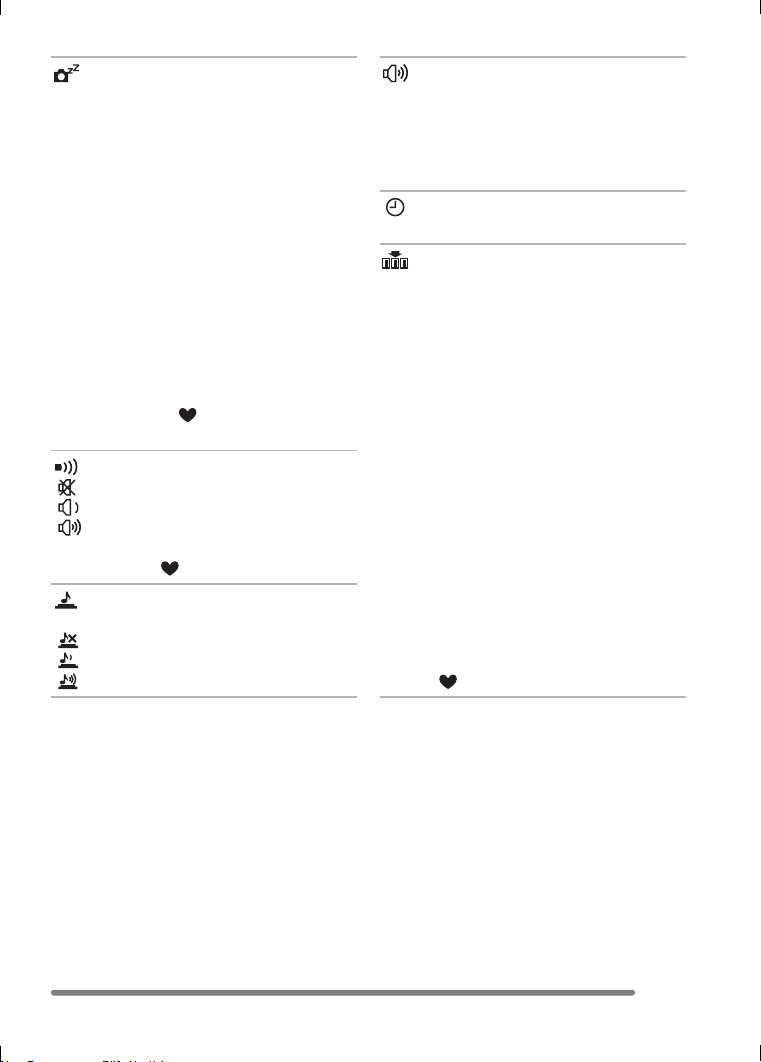
POWER SAVE
[1MIN.]/[2MIN.]/[5MIN.]/[10MIN.]:
The power save mode is activated
(the camera is automatically turned
off to save the battery life) if the
camera has not been used for the
time selected on the setting.
[OFF]: The power save mode is not
activated.
• Press the shutter button halfway or turn
the camera off and on to cancel the power
save mode.
• When using the AC adaptor (DMW-CAC1;
optional)/connecting to a PC or a printer/
recording motion images/playing back
motion images/during Slide Show, the
power save mode is not activated.
• In simple mode [ ] (P35), the setting for
the power save mode is fixed to [2MIN.].
BEEP
[]:No operational sound
[]:Soft operational sound
[]:Loud operational sound
• The operational sound setting also affects
simple mode [ ].
SHUTTER
Set to select the volume of shutter sound.
[]:No shutter sound
[]:Soft shutter sound
[]:Loud shutter sound
VOLUME (DMC-FZ5 only)
The volume of speakers can be adjusted in
7 steps. (LEVEL 6 to 0)
• When you connect the camera to a TV,
the volume of the speakers of the TV is
not changed.
CLOCK SET
Change date and time. (P22)
NO.RESET
Set this when you want to start the file
number of the picture from 0001 on the
next recording. (The folder number is
updated, and the file number starts from
0001.)
• The folder number can be assigned from
100 to 999.
When the folder number reaches 999, you
cannot reset the file number. We
recommend formatting the card after
saving the data on a PC or elsewhere.
• To reset the folder number to 100, format
the card first and then use this function to
reset the file number.
After that, the reset screen for the folder
number appears. Select [Yes] to reset the
folder number.
• Refer to P98 for detailed information about
the file number and the folder number.
• The file number reset also affects simple
mode [ ].
VQT0Q09ENG.book 25 ページ 2005年1月25日 火曜日 午後8時17分
Preparation
26
VQT0Q09
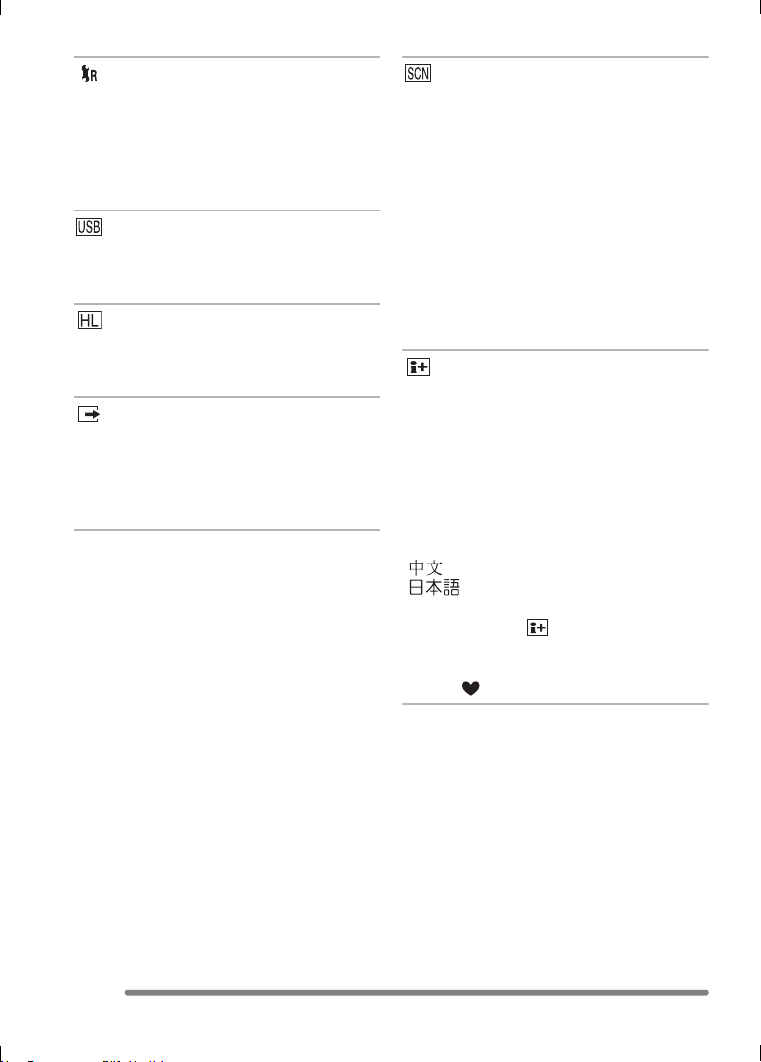
RESET
The settings on the [REC] or the [SETUP]
menu are reset to the initial settings.
• The setting on [ROTATE DISP.] in the
[PLAY] mode menu is also reset. (P85)
• The folder number and the clock setting
are not changed.
USB MODE
Set the USB communication system.
• Set before connecting to a PC or a printer.
(P96)
HIGHLIGHT
When the auto review or review function is
activated, a white saturated area appears
blinking in black and white. (P28)
VIDEO OUT
(Playback mode only) (P95)
[NTSC]: Video output is set to NTSC
system.
[PAL]: Video output is set to PAL
system.
SCENE MENU
[OFF]: Scene menu does not appear
when setting the mode dial to
scene mode and the camera is
operated in the scene mode
currently selected. If you change
the scene mode, press the
[MENU] button to display the
scene menu and then select the
desired scene mode.
[AUTO]: Scene menu appears
automatically when setting the
mode dial to scene mode. Select
the desired scene mode.
LANGUAGE
Set to the language on the menu screen
from the following languages.
Set to the desired language with 3/4 and
store it with 1.
[ENGLISH]: English
[DEUTSCH]: German
[FRANÇAIS]: French
[ESPAÑOL]: Spanish
[ITALIANO]: Italian
[]:Chinese (Traditional)
[]:Japanese
• When you set to other language by
mistake, select [ ] from the menu icons
to set the desired language.
• The language setting also affects simple
mode [ ].
VQT0Q09ENG.book 26 ページ 2005年1月25日 火曜日 午後8時17分
Preparation
27
VQT0Q09
About the LCD Monitor/Viewfinder
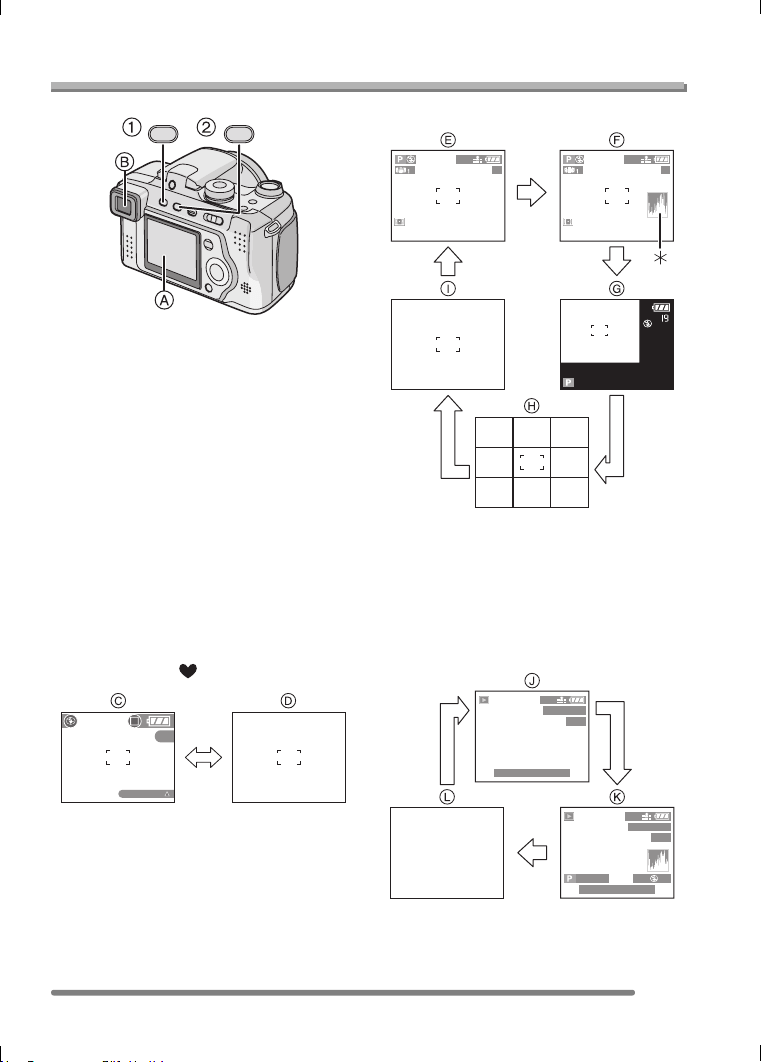
1 Switching the LCD monitor/
Viewfinder
Press the [EVF/LCD] button to switch the
monitor screen.
A LCD monitor (LCD)
B Viewfinder (EVF)
• When the LCD monitor turns on, the
Viewfinder turns off (and vice versa).
2 Selecting the screen to be used
Press the [DISPLAY] button to change the
display.
• When the menu screen appears, the
[DISPLAY] button is not activated. During
9 pictures multi playback (P51) or
playback zoom (P52), the indications on
the screen can be turned on and off.
In simple mode [ ] (P35)
C Normal display
D No display
In recording mode (P31)
E Normal display
F Display with histogram
G Out-of-frame display
H No display (Recording guide line)
I No display
¢Histogram
In playback mode (P50)
J Normal display
K Display with recorded information and
histogram
L No display
EVF/LCD DISPLAY
8
BACKLIGHT
2560
19
2560
19
100
_
0001
1/19
10:00 DEC. 1.2005
100
_
0001
1/19
10:00 DEC. 1.2005
F2.8 1/25
ISO
100
AUTO
2560
2560
VQT0Q09ENG.book 27 ページ 2005年1月25日 火曜日 午後8時17分
Preparation
28
VQT0Q09
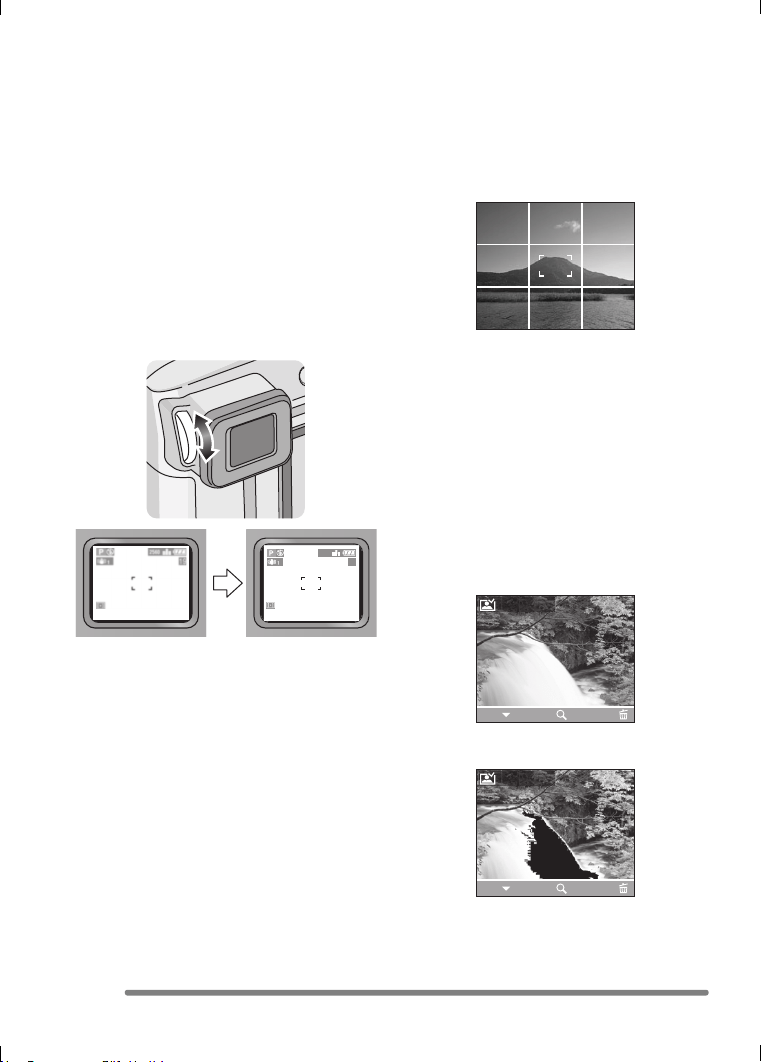
∫ Out-of-frame display
The recording information is displayed out
of the recording screen, therefore, you can
take pictures without obstruction from icons
or others on the monitor, except the zoom
and important warning indicators.
∫ Diopter adjustment
This feature is handy for users who wear
corrective lenses and prefer to use the
Viewfinder.
• Press the [EVF/LCD] button to display the
Viewfinder.
Adjust the diopter, rotating the diopter
adjustment dial.
∫ Monitor priority
When setting [PLAY ON LCD] to [ON] on
the [SETUP] menu (P23), the LCD monitor
is turned on in the following cases.
You can save the time it takes to switch the
display to the LCD monitor even when
using the Viewfinder in recording.
• When the recording mode is switched to
playback mode.
• When reviewing pictures. (P38)
• When turning the camera on in playback
mode.
∫ Recording guide line
When you align the subject on the
horizontal and vertical guide lines or the
cross point of these lines, you can take
pictures with well-designed composition by
viewing the size, the slope and the balance
of the subject.
∫ Highlight display
When setting [HIGHLIGHT] to [ON] on the
[SETUP] menu (P23) while the auto review
or review function is activated, any white
saturated area (extremely bright or
glistening part) on the picture appears
blinking in black and white.
• If you compensate the exposure to minus,
referring to the histogram and then take a
picture again, it may result in a good
picture.
No highlight display
With highlight display
2560
19
REVIEW1X
DELETE
4X
EXIT
REVIEW1X
DELETEEXIT
4X
VQT0Q09ENG.book 28 ページ 2005年1月25日 火曜日 午後8時17分
Preparation
29
VQT0Q09
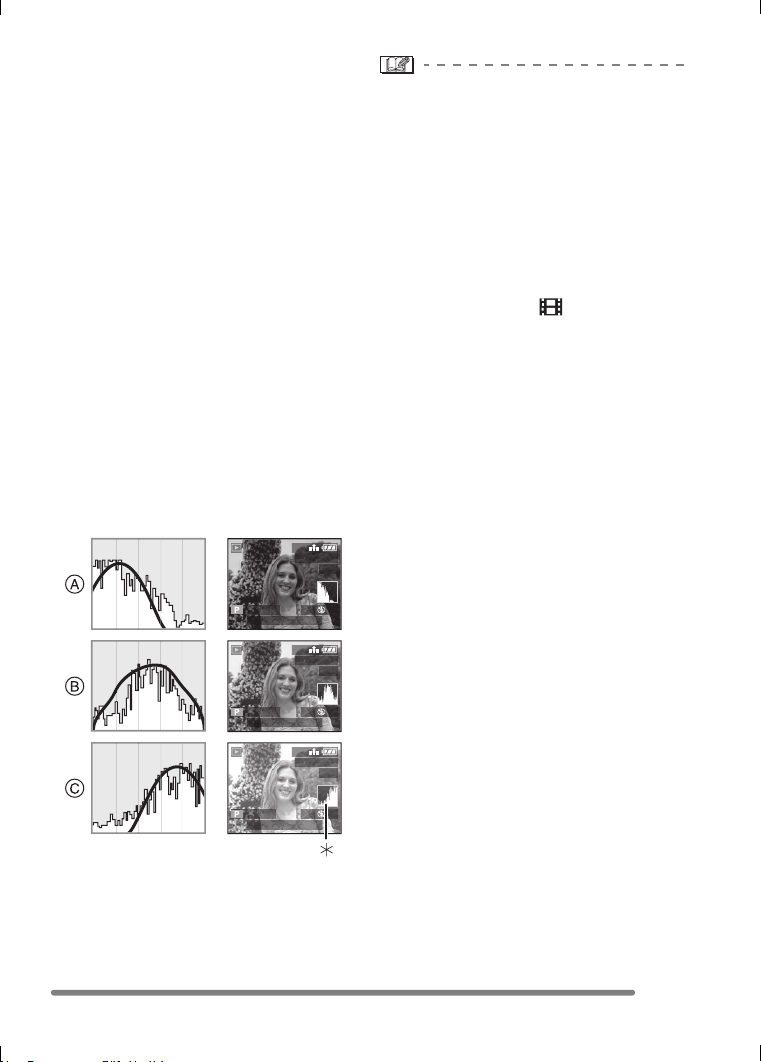
∫ Histogram
• A histogram is a graph that displays
brightness along the horizontal axis (black
to white) and the number of pixels at each
brightness level on the vertical axis.
• It allows the camera user to easily check
the way a picture is being exposed.
• It is very useful if manual adjustments of
the lens aperture and shutter speed are
available, especially in those situations
where automatic exposure may be difficult
due to uneven lighting. Using the
histogram feature will allow you to get the
best performance from the camera.
A When the values are concentrated to
the left, the picture is under exposed.
B When the values in the histogram are
distributed evenly, the exposure is
adequate and the brightness is
well-balanced.
C When the values are concentrated to
the right, the picture is over exposed.
Example of histogram
A Under Exposed
B Properly Exposed
C Over Exposed
¢Histogram
• When the recorded picture and the
histogram do not match each other
under the following conditions, the
histogram is displayed in orange.
– When the flash is activated
– When the flash is closed
1 When the brightness of the screen is
not correctly displayed in dark places
2 When the exposure is not
adequately adjusted
• The histogram does not appear when in
motion image mode [ ], during multi
playback and playback zoom.
• The histogram in the recording mode is an
approximation.
• The histogram in recording and playback
may not match each other.
• The histogram in the camera does not
match the one displayed in image editing
software used with a PC, etc.
• Check white saturated areas with the
highlight display in the auto review
function or the review function. (P28)
100
_
0001
1/19
10:00 DEC. 1.2005
2560
F2.8 1/200
100
_
0001
1/19
10:00 DEC. 1.2005
2560
F2.8 1/100
100
_
0001
1/19
10:00 DEC. 1.2005
2560
F2.8 1/50
ISO
100
AUTO
ISO
100
AUTO
ISO
100
AUTO
VQT0Q09ENG.book 29 ページ 2005年1月25日 火曜日 午後8時17分
Recording pictures (basic)
30
VQT0Q09
Recording pictures (basic)
Taking Pictures
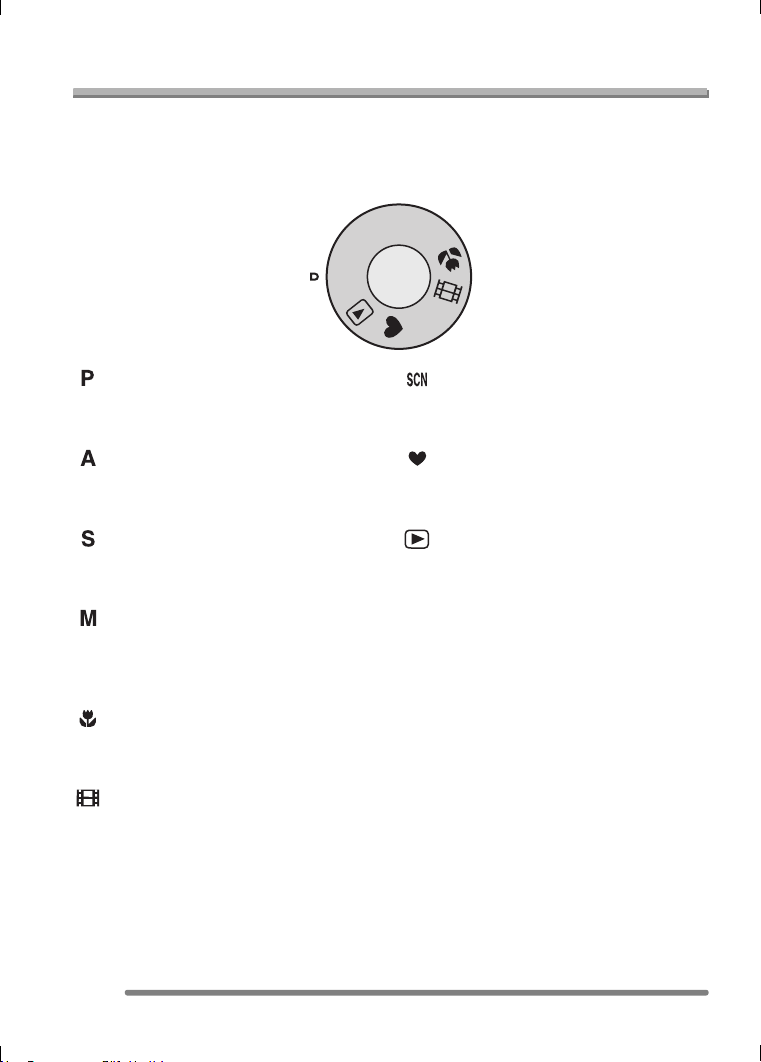
∫ The Mode Dial
This camera has a mode dial to suit recording of many kinds of scenes.
Select the desired mode and enjoy the variety of recording.
Rotate the mode dial slowly and securely.
: Program AE mode (P31)
The exposure is automatically adjusted by
the camera.
: Aperture-priority AE (P55)
The shutter speed is automatically
determined by the aperture value you set.
: Shutter-priority AE (P56)
The aperture value is automatically
determined by the shutter speed you set.
: Manual exposure (P57)
The exposure is adjusted by the aperture
value and the shutter speed which are
manually adjusted.
: Macro mode (P60)
This mode allows you to take a picture
closely focusing on the subject.
: Motion image mode (P61)
This mode allows you to record motion
images.
: Scene mode (P63)
This mode allows you to take pictures
depending on the recording scenes.
: Simple mode (P35)
This is the recommended mode for
beginners.
: Playback mode (P50)
This mode allows you to play back
recorded pictures.
M
S
A
P
SCN
VQT0Q09ENG.book 30 ページ 2005年1月25日 火曜日 午後8時17分
Recording pictures (basic)
31
VQT0Q09
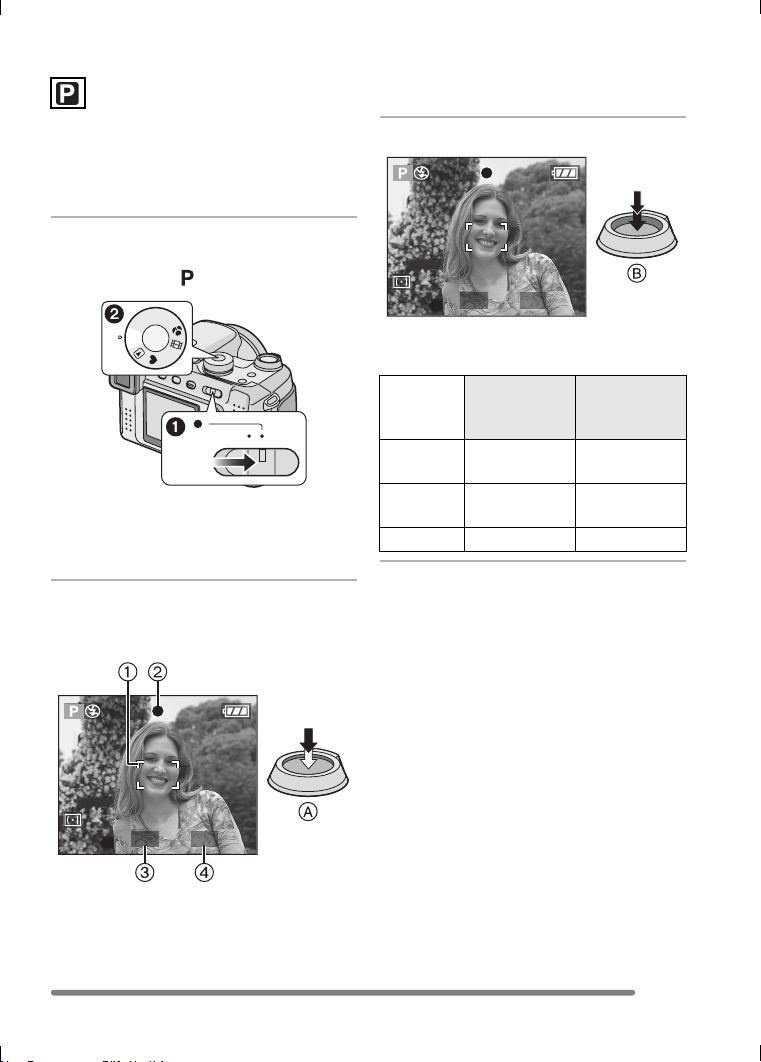
∫ Program AE
The camera automatically sets the shutter
speed and the aperture value according to
the brightness of the subject.
• Remove the lens cap.
1 1 Turn the camera on.
2 Set the mode dial to program
AE mode [ ].
• The power indicator (green) lights.
When it blinks, the remaining battery
power is low. Insert a fully charged
battery.
2 Aim the AF area 1 to the point
you want to focus and then press
the shutter button halfway.
• A: Press the shutter button halfway to
focus.
• The focus indication 2 is lit and then
the aperture value 3 and the shutter
speed 4 are displayed.
3 Take a picture.
• B: Press the shutter button fully to take
the picture.
M
S
A
SCN
P
OFF ON
1/25F2.8
When the
subject is not
focused
When the
subject is
focused
Focus
indication
Blink (green) On (green)
AF area Turns from
white to red
Turns from
white to green
Sound Beeps 4 times Beeps 2 times
1/25F2.8
VQT0Q09ENG.book 31 ページ 2005年1月25日 火曜日 午後8時17分
Recording pictures (basic)
32
VQT0Q09
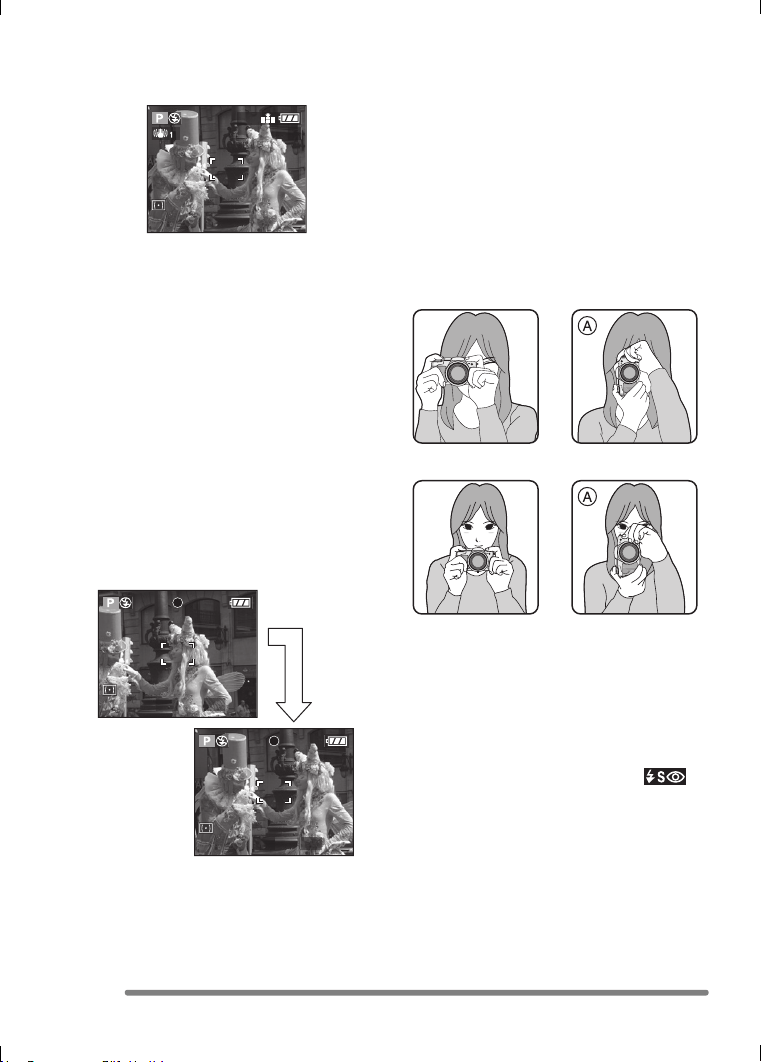
∫ AF/AE Lock (AF: Auto focus/
AE: Auto exposure)
When recording a picture of people with a
composition as the above picture, you
cannot focus on the subject because it is
out of AF area in usual operation.
In this case,
1 Aim the AF area at the subject.
2 Press the shutter button halfway to fix
the focus and the exposure.
• When the subject is focused, the focus
indication lights.
3 Keeping the focus and the exposure
fixed, move the camera as you compose
the picture.
4 Press the shutter button fully.
• You can repeatedly retry AF/AE lock
before pressing the shutter button fully.
∫ Tips for taking good pictures
To take pictures without blurring:
• Hold the camera gently with both hands,
keep arms stationary at your side and
stand with your feet slightly apart.
• Make sure that camera shake does not
occur when you press the shutter button.
• Do not cover the microphone (DMC-FZ5
only) or the AF assist lamp with your
finger or other objects.
• Do not touch the front of the lens.
When recording with Viewfinder
When recording with LCD Monitor
A: When holding the camera vertically
• Especially in the following cases, the
shutter speed will be slower. Keep the
camera still from the moment you press
the shutter button until the picture appears
on the screen. We recommend using a
tripod.
– Slow sync./Red-eye reduction [ ]
(P40)
– [NIGHT SCENERY], [NIGHT
PORTRAIT], [FIREWORKS] and
[PARTY] in scene mode (P63)
– When you set to a slower shutter speed
(P56, 57)
2560
19
1/25F2.8
1/25F2.8
VQT0Q09ENG.book 32 ページ 2005年1月25日 火曜日 午後8時17分
Recording pictures (basic)
33
VQT0Q09
∫ Focusing
• The focus range is 30 cm (0.98 feet)–
(Wide), 2 m (6.56 feet) – ¶ (Tele).
• When you press the shutter button fully
with one stroke, pictures may be blurry or
unfocused.
• When the focus indication is blinking, the
subject is not focused. Press the shutter
button halfway and focus on the subject
again.
• If the camera will not focus after a few
tries, turn it off and on and try again.
• In the following cases, the camera will not
focus on subjects properly.
– When including both near and distant
subjects in a scene.
– When there is dirt or dust on the glass
between the lens and the subject.
– When there are illuminated or glittering
objects around the subject.
– When taking a picture in a dark place.
– When the subject is moving fast.
– When the scene has low contrast.
– When jitter occurs.
– When recording a very bright subject.
We recommend taking pictures using AF/
AE lock (P32) or prefocus (P77). In dark
places, the AF assist lamp (P78) may turn
on to focus on the subject.
• Even if the focus indication appears and
the subject is focused, it is canceled when
you release the shutter button. Press the
shutter button halfway again.
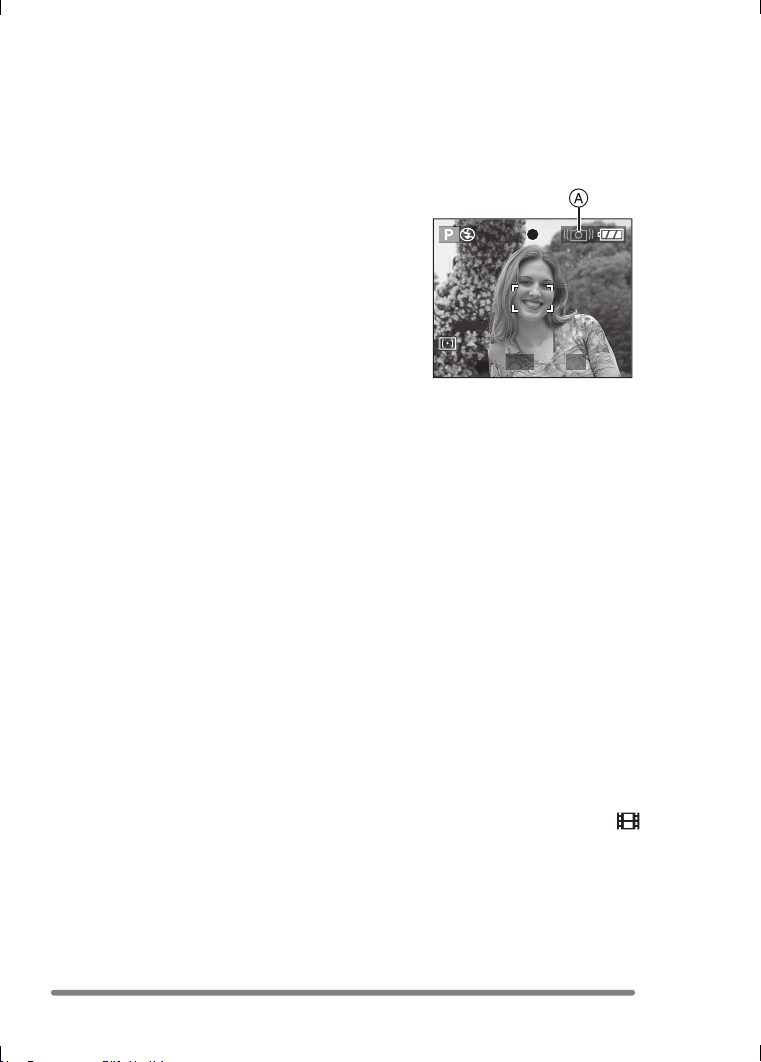
∫ Jitter (camera shake)
• Be careful of jittering when pressing the
shutter button, especially when fully
zoomed into the subject.
• When jitter could occur because of slow
shutter speed, the jitter alert A appears.
• When the jitter alert appears, we
recommend using a tripod. If you cannot
use a tripod, be careful of how you hold
the camera. (P32)
∫ Direction detection function
• If you take pictures by holding the camera
vertically, the information of the rotation on
the pictures is automatically added and
recorded to the pictures.
When [ROTATE DISP.] (P85) is set to
[ON], you can rotate and display pictures
on the screen or the TV according to the
information of the rotation on the pictures.
• When you take pictures by holding the
camera vertically, read “Tips for taking
good pictures” on P32 carefully.
• This function may not work properly on
pictures recorded by aiming the camera
up or down.
• You cannot use the direction detection
function in motion image mode [ ] and
when you create flip animation.
1/8F2.8
VQT0Q09ENG.book 33 ページ 2005年1月25日 火曜日 午後8時17分

Recording pictures (basic)
34
VQT0Q09
∫ Exposure
• If you press the shutter button halfway
when the exposure is not adequate, the
indication of the aperture value and the
shutter speed turns red. (However, the
aperture value and the shutter speed do
not turn red when the flash is activated.)
• The brightness of the screen may differ
from that of recorded pictures. In
particular, when taking pictures in dark
places with slow shutter speed, the
subject looks dark on the screen, but the
actual picture is bright.
• When most of the subjects in the screen
are bright (e.g. blue sky on a clear day,
snowy field, etc.), the recorded pictures
may become dark. In this case,
compensate the exposure value on the
camera. (P45)
• When you press the shutter button, the
LCD monitor may become bright or dark
for a moment. This function allows easy
adjustment of focus and the recorded
picture will not be affected.
• We recommend making sure the clock is
set properly before taking pictures. (P22)
• When the time for power save is set (P23),
the camera is automatically turned off if
you do not operate within the set time.
When operating the camera again, press
the shutter button halfway or turn the
camera off and on.
• In some cases, if the distance between
the camera and the subject is beyond the
recordable range when you use the
camera, the picture may not be properly
focused even if the focus indication is lit.
VQT0Q09ENG.book 34 ページ 2005年1月25日 火曜日 午後8時17分
Recording pictures (basic)
35
VQT0Q09
Taking Pictures in Simple Mode
This mode allows beginners to take
pictures easily. Only the most basic
functions appear in the menu to make
operations simple.
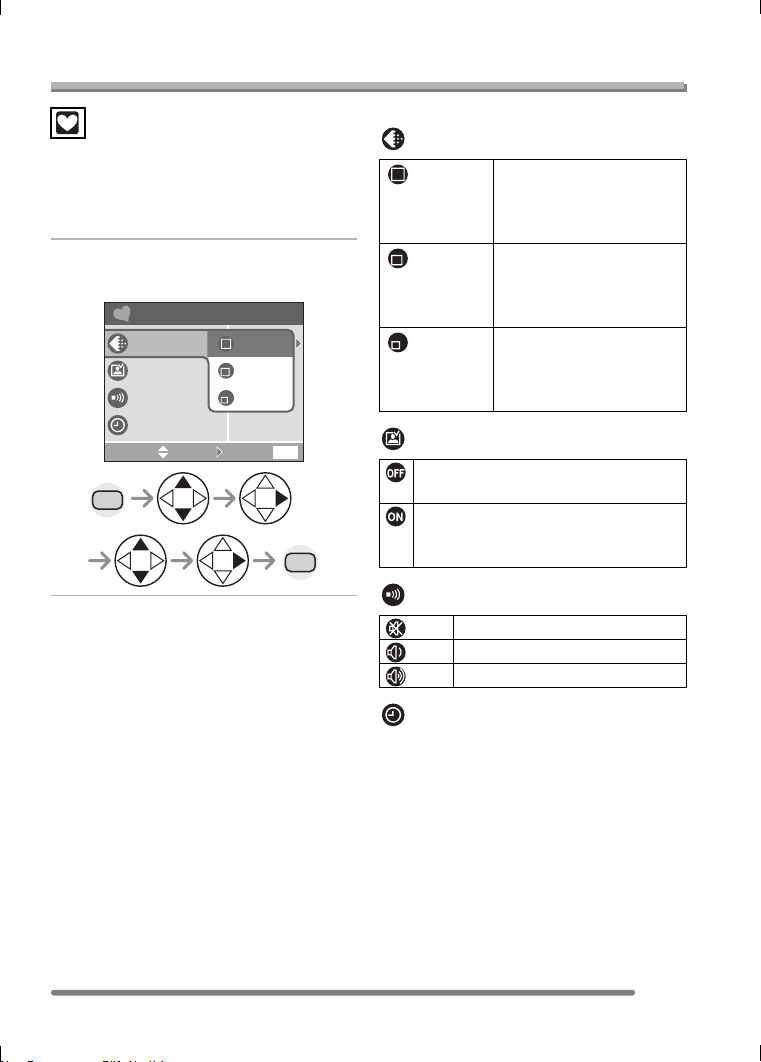
1 Select the desired item and set
the desired value.
∫ Settings in Simple mode
[PICT.MODE]
[AUTO REVIEW]
[BEEP]
[CLOCK SET]
Change date and time. (P22)
SIMPLE MODE
AUTO REVIEW
BEEP
CLOCK SET
EXIT
MENU
SELECT SET
MENU
MENU
PICT.MODE
ENLARGE
4
"
k
6
"
/10
k
15cm
E-MAIL
ENLARGE This selection is intended
for situations when large
printing (8qk10q, Letter
etc.) is desired.
4qk6q/
10k15cm
This selection offers an
easy way to produce
small “general purpose”
prints.
E-MAIL This selection favors a
smaller file size, optimized
for home page and e-mail
use.
The recorded picture does not
automatically appear.
The recorded picture automatically
appears on the screen for about
1 second.
OFF No operational sound
LOW Soft operational sound
HIGH Loud operational sound
VQT0Q09ENG.book 35 ページ 2005年1月25日 火曜日 午後8時17分
Recording pictures (basic)
36
VQT0Q09
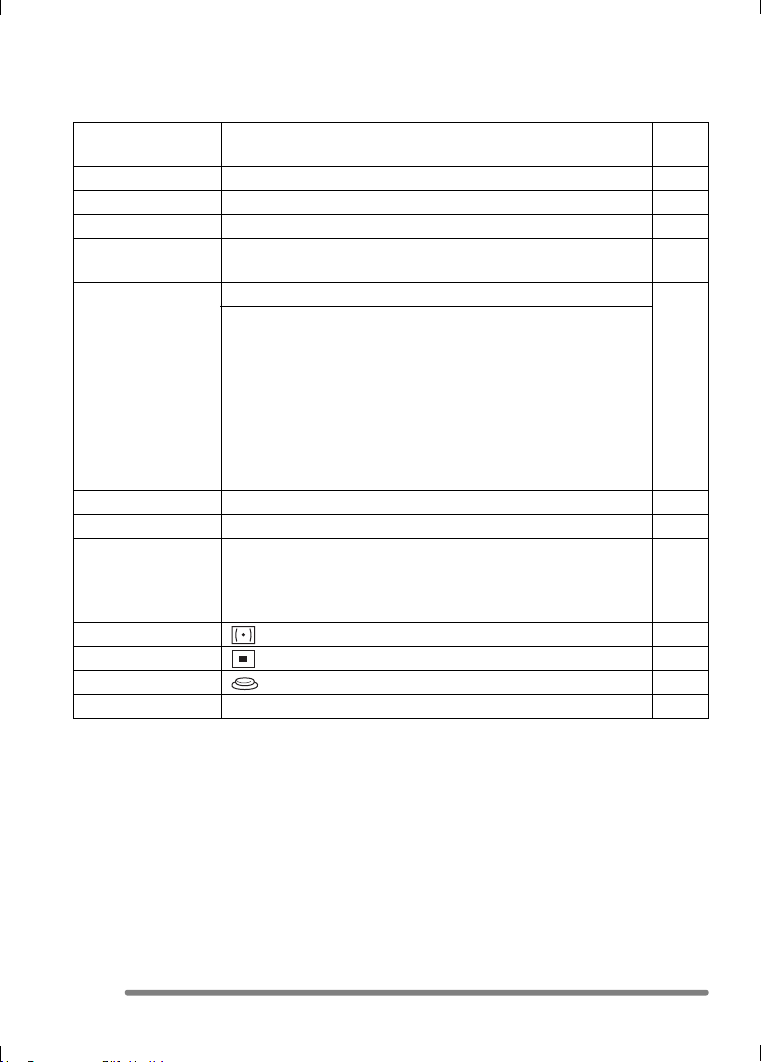
∫ Other Settings in Simple mode
In Simple mode, other settings are fixed as follows. For details, refer to the pages
corresponding to each item.
Focus range 2 m (6.56 feet) – ¶ (Tele)
5 cm (0.16 feet)– ¶ (Wide)
MONITOR [0] (standard) P23
POWER SAVE [2MIN.] P23
Self-timer 10 seconds P44
Optical Image
Stabilizer
[MODE1] P47
Burst speed Low speed P48
Number of recordable pictures in Burst mode
DMC-FZ5:
• [ENLARGE]: max. 4 pictures
•[4qk6q/10k15cm]: max. 7 pictures
• [E-MAIL]: max. 7 pictures
DMC-FZ4:
• [ENLARGE]: max. 5 pictures
•[4qk6q/10k15cm]: max. 10 pictures
• [E-MAIL]: max. 10 pictures
White balance [AUTO] P71
ISO sensitivity [AUTO] P73
Picture size and
Quality
• [ENLARGE]: 2560k1920 pixels/Fine (DMC-FZ5)
2304k1728 pixels/Fine (DMC-FZ4)
•[4qk6q/10k15cm]: 1600k1200 pixels/Standard
• [E-MAIL]: 640k480 pixels/Standard
P74
P74
Metering mode [ ] (Multiple) P75
AF mode [ ] (1-area-focusing) P76
AF trigger [ ] P77
AF assist lamp [ON] P78
VQT0Q09ENG.book 36 ページ 2005年1月25日 火曜日 午後8時17分
Recording pictures (basic)
37
VQT0Q09
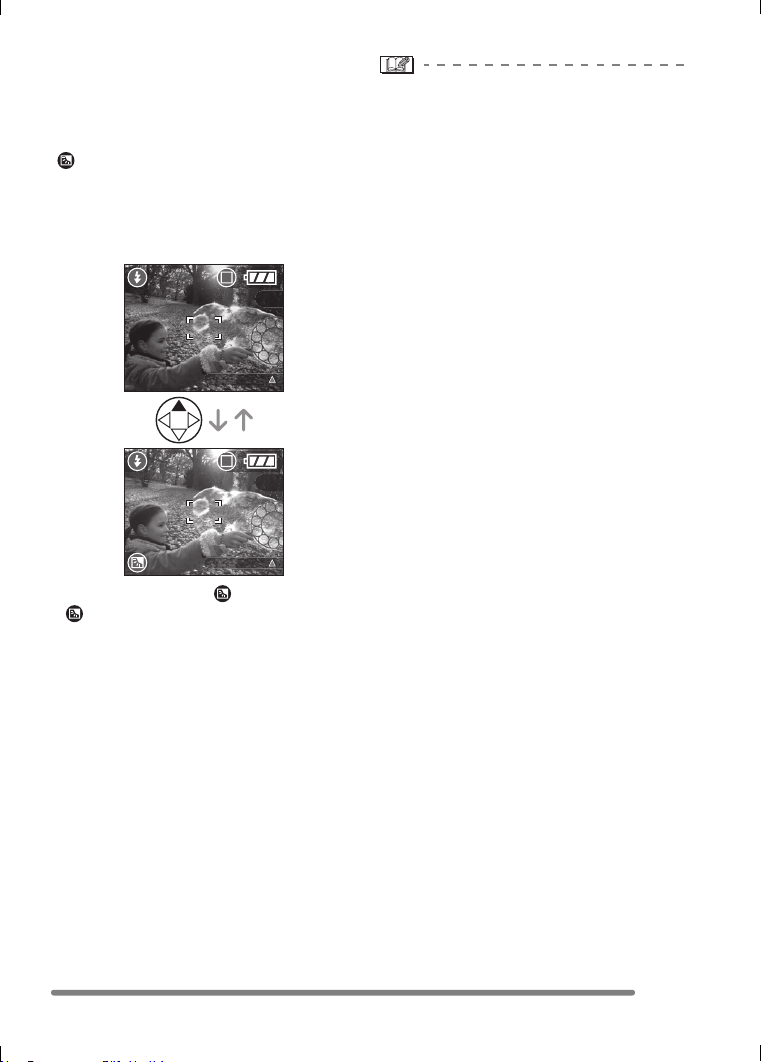
∫ The Backlight Compensation
Backlight is a situation where light comes
from the back of subjects. The subjects
such as people become dark when pictures
are recorded in backlight. If you press 3,
[ ] (compensating backlight ON
indication) appears and the backlight
compensation function is activated. This
function compensates the backlight by
brightening the whole of the picture.
• If you press 3 while [ ] is displayed,
[ ] disappears and the backlight
compensation function is canceled.
• When you use the backlight compensation
function, we recommend using the flash.
• The settings on the simple mode are not
applied to other recording modes except
[CLOCK SET] and [BEEP].
• You cannot set the following items in the
simple mode.
– [PLAY ON LCD]
– [NO.RESET]
–[RESET]
– [USB MODE]
– [HIGHLIGHT]
– [VIDEO OUT]
–[LANGUAGE]
However, the setting on [NO.RESET] and
[LANGUAGE] in the [SETUP] menu also
affects the simple mode.
• You cannot use the following functions in
the simple mode.
– White balance fine adjustment
– Exposure compensation
– Auto bracket
– [PICT.SIZE]
– [QUALITY]
– [AUDIO REC.] (DMC-FZ5 only)
– [CONT.AF]
– [D.ZOOM]
– [COL.EFFECT]
– [PICT.ADJ.]
– [FLIP ANIM.]
– Flash output adjustment
However, the setting on [PICT.SIZE] and
[QUALITY] corresponds to the setting on
[PICT.MODE].
8
8
BACKLIGHT
BACKLIGHT
VQT0Q09ENG.book 37 ページ 2005年1月25日 火曜日 午後8時17分
Recording pictures (basic)
38
VQT0Q09
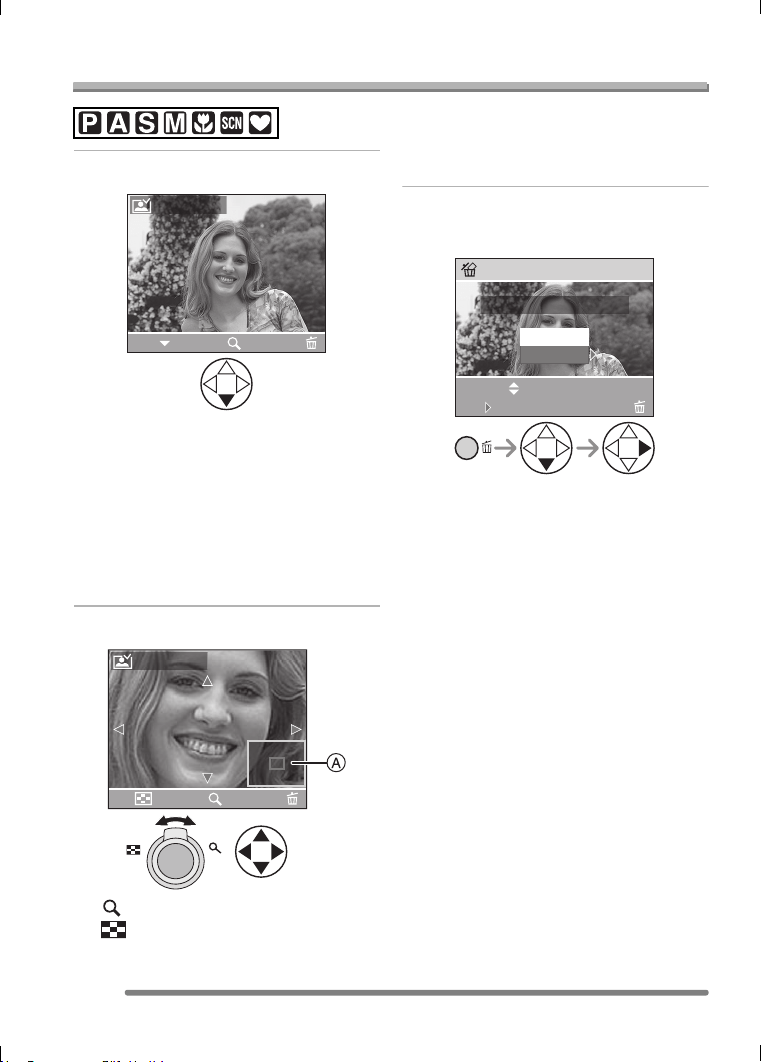
Checking the Recorded Picture (Review)
1 Press 4.
• The last recorded picture appears for
about 10 seconds.
• Press the shutter button halfway or 4
to cancel the review.
• You can check other pictures by
pressing 2/1.
• When the recorded pictures are too
bright or dim, compensate the
exposure. (P45)
2 Enlarge and shift the picture.
•:1k>4k>8k
•:8k>4k>1k
• When you change the magnification or
the position to be displayed, the zoom
position indication A appears for about
1 second to check the enlarged area.
∫ Recorded pictures can be deleted
during the review (Quick Deletion)
• Once deleted, pictures cannot be
recovered.
• Multi pictures or all pictures can be
deleted. Read P53 or P54 to operate
them.
REVIEW1X
DELETE
4X
EXIT
TW
1X
DELETE
8X
REVIEW4X
DELETE THIS PICTURE?
DELETE SINGLE
MULTI/ALL
SELECT
SET
YES
NO
VQT0Q09ENG.book 38 ページ 2005年1月25日 火曜日 午後8時17分
Recording pictures (basic)
39
VQT0Q09
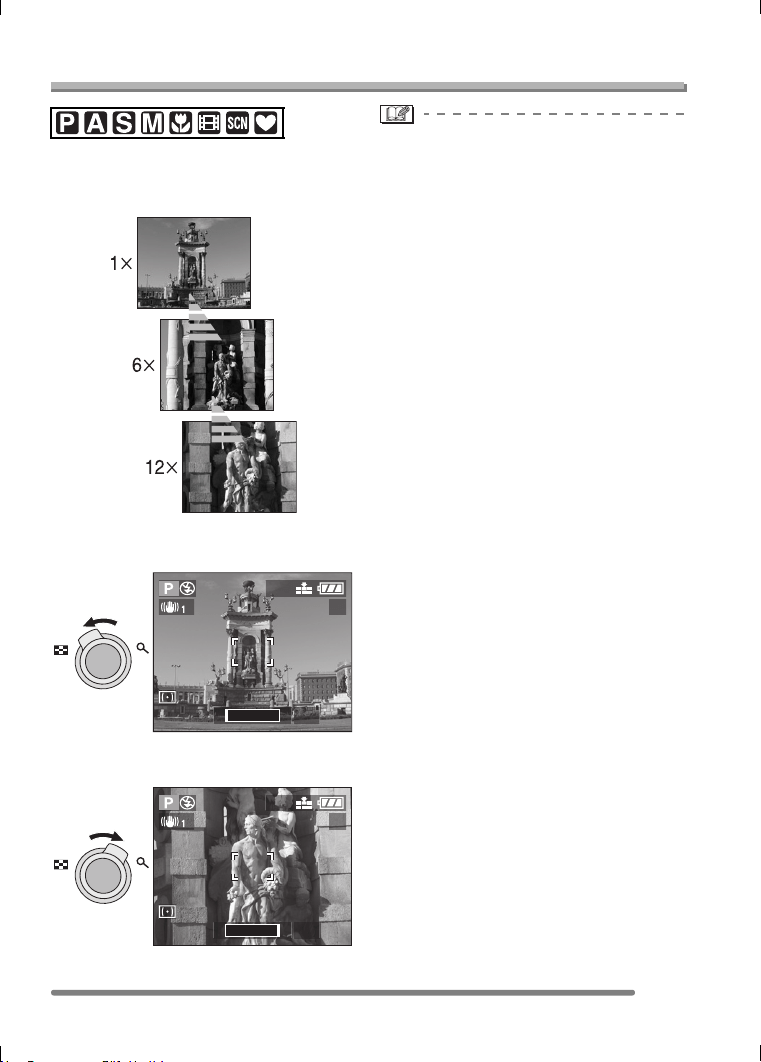
Using the Optical Zoom
You can make people and subjects appear
closer with the 12 times optical zoom, and
landscapes can be recorded in wide angle.
∫ To make subjects appear further away
use (Wide)
∫ To make subjects appear closer use
(Tele)
• The optical zoom is set to Wide (1k)
when the camera is turned on.
• The picture may have some distortion
(typical example: vertical straight line bent
outwards). This is due to the lens
aberration, which is common to some
extent with all photographic lenses.
Distortion may be more visible when using
a wider area of the zoom lens as you get
closer to the subject.
• When using the zoom lens at high
magnification, the quality of the picture
can be enhanced if a tripod is used. At
high magnification, even small
movements can cause a slight decrease
in picture sharpness.
• If you use the zoom function after focusing
on the subject, focus on the subject again.
• When you record motion images, the
zoom magnification is fixed to the value
set at the start of recording.
• The indicated zoom magnification is an
approximation.
• The lens is ejected or retracted according
to the zoom position.
• Take care not to interrupt the motion of the
lens while the zoom lever is rotated.
• When you rotate the zoom lever, you may
hear some sound from the camera or the
camera may be shaken. However, it is not
a malfunction.
W
T
1X
2560
19
TW
2560
19
TW
W
T
12X
VQT0Q09ENG.book 39 ページ 2005年1月25日 火曜日 午後8時17分
Recording pictures (basic)
40
VQT0Q09
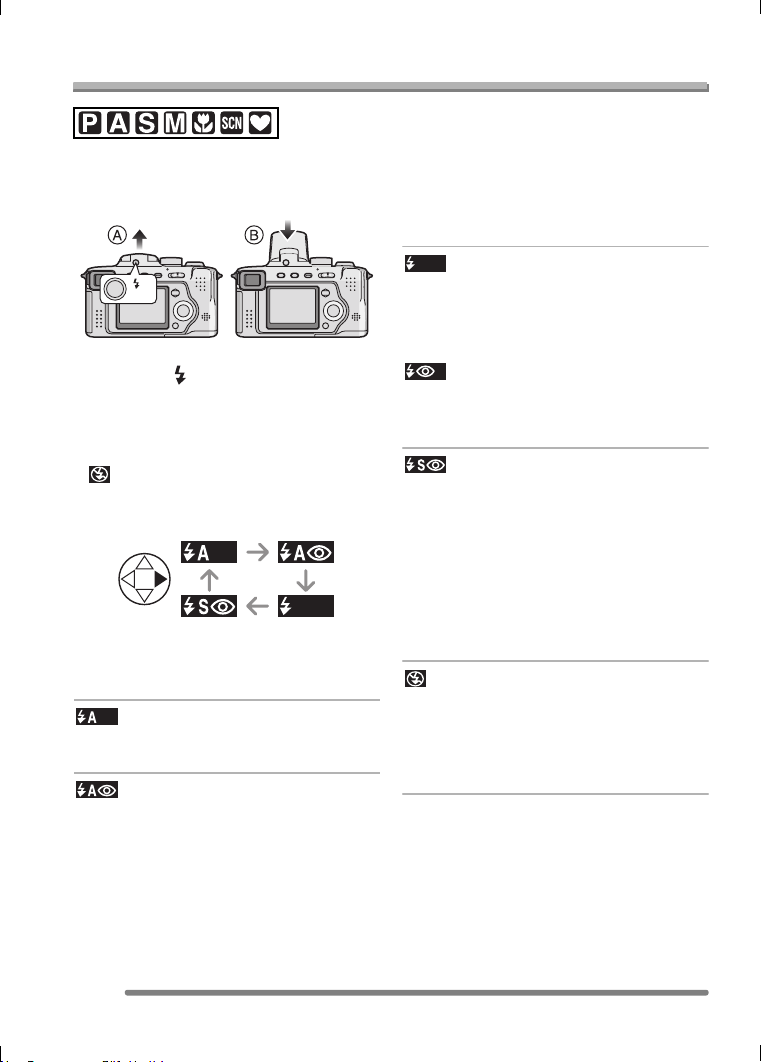
Taking Pictures using the Built-in Flash
When you set the flash, you can take
pictures using the built-in flash according to
the recording condition.
A To open the flash
Press the [ OPEN] button.
B To close the flash
Press the flash until it clicks.
• Be sure to close the flash when not in use.
• The flash setting is fixed to Forced OFF
[ ] while the flash is closed.
∫ Switching to the appropriate flash
setting
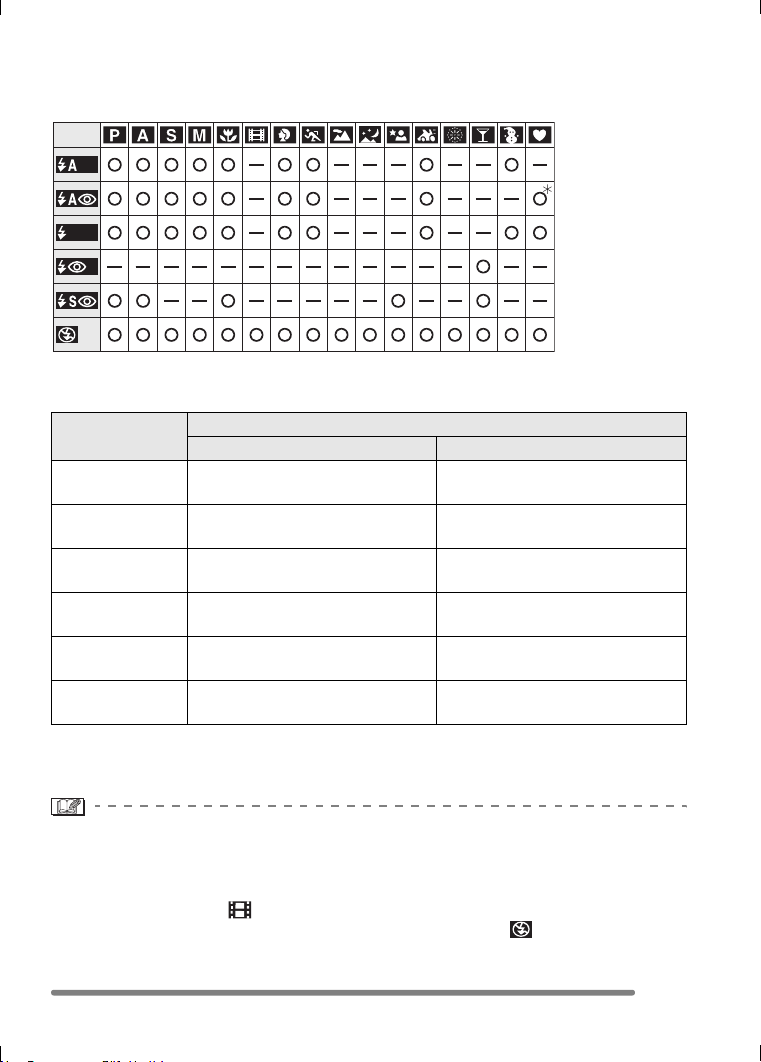
For the selectable flash settings, refer to
“Available flash settings by recording
mode” on P41.
:AUTO
The flash is automatically activated
according to the recording condition.
: AUTO/Red-eye reduction
The flash is automatically activated
according to the recording condition.
It reduces the red-eye phenomenon (eyes
of the subject appear red in the picture) by
triggering the flash before actually
recording the picture. After that, the flash is
activated for actual recording again.
• The flash is activated twice. The first
flash is activated only for a preparation
of actual recording. The subject should
not move until the second flash is
finished.
• Use this when you take pictures of
people in low lighting conditions.
: Forced ON
The flash is activated every time regardless
of the recording condition.
• Use this when your subject is back-lit
or under fluorescent light.
: Forced ON/Red-eye reduction
• The flash setting is set to Forced ON/
Red-eye reduction only when you set
to [PARTY] in scene mode. (P63)
: Slow sync./Red-eye reduction
When you take a picture with a dark
background landscape, this feature makes
the shutter speed slow when the flash is
activated, so that the dark background
landscape will become bright.
Simultaneously it reduces the red-eye
phenomenon.
• Use this when you take pictures of
people in front of a dark background.
: Forced OFF
The flash is not activated in any recording
condition.
• Use this when you take pictures in
places where the use of the flash is not
permitted.
OPEN
VQT0Q09ENG.book 40 ページ 2005年1月25日 火曜日 午後8時17分
Recording pictures (basic)
41
VQT0Q09
∫ Available flash settings by recording mode
The available flash settings depend on the recording mode.
(±: Available, —: Not available)
¢Not available in backlight compensation
∫ The available flash range to take pictures
• The available flash range is an approximation.
• Refer to P33 for the focus range.
• Refer to P73 for the ISO sensitivity.
• If the ISO sensitivity is set to [AUTO], it is automatically adjusted from [ISO100] to
[ISO400] when you use the flash.
• To avoid noise, we recommend decreasing the ISO sensitivity (P73) or setting
[PICT.ADJ.] to [NATURAL]. (P80)
• In motion image mode [ ], [SCENERY], [NIGHT SCENERY] or [FIREWORKS] in
scene mode (P63), the flash setting is fixed to the Forced OFF [ ] even if the flash is
opened.
ISO sensitivity
Available flash control range
Wide Tele
AUTO 30 cm (0.98 feet)– 4.5 m
(14.8 feet)
30 cm (0.98 feet) – 3.8 m
(12.5 feet)
ISO64
(DMC-FZ4 only)
30 cm (0.98 feet)– 1.8 m
(5.91 feet)
30 cm (0.98 feet) – 1.5 m
(4.92 feet)
ISO80
(DMC-FZ5 only)
30 cm (0.98 feet)– 2 m (6.56 feet) 30 cm (0.98 feet) – 1.7 m
(5.58 feet)
ISO100 30 cm (0.98 feet)– 2.2 m
(7.22 feet)
30 cm (0.98 feet) – 1.9 m
(6.23 feet)
ISO200 40 cm (1.31 feet)– 3.1 m
(10.2 feet)
40 cm (1.31 feet) – 2.6 m
(8.53 feet)
ISO400 60 cm (1.97 feet)– 4.5 m
(14.8 feet)
60 cm (1.97 feet) – 3.8 m
(12.5 feet)
VQT0Q09ENG.book 41 ページ 2005年1月25日 火曜日 午後8時17分
Recording pictures (basic)
42
VQT0Q09
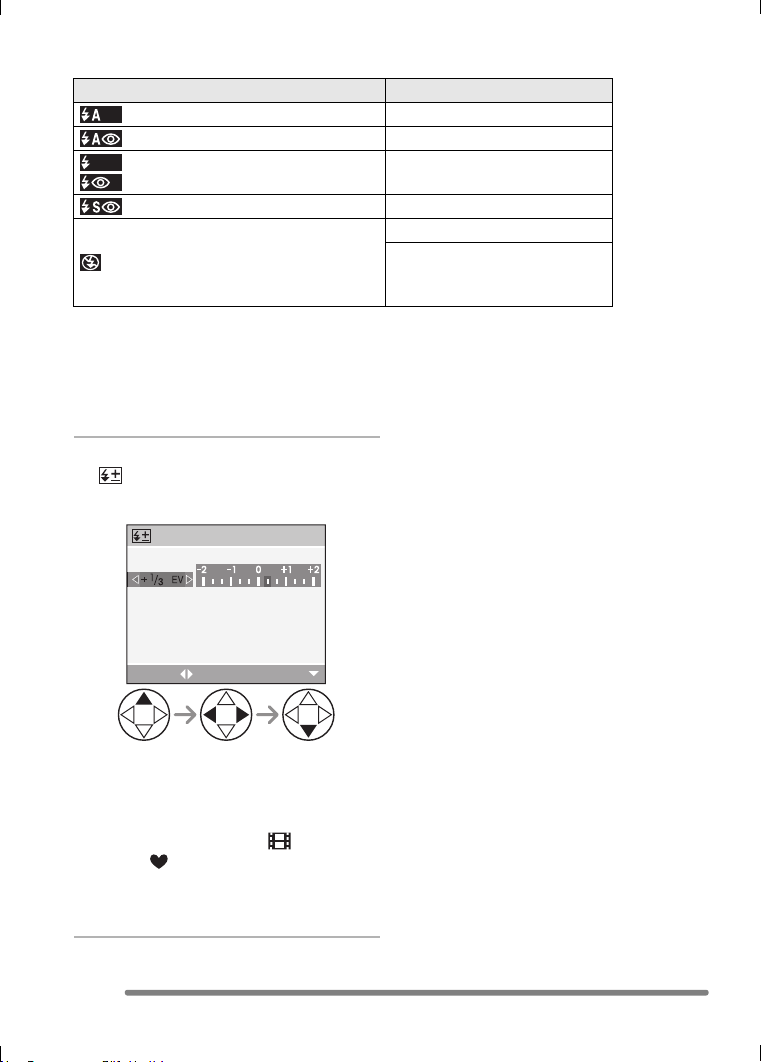
∫ Shutter speed for each flash setting
• Refer to P59 for the Aperture-priority AE, Shutter-priority AE or Manual exposure mode.
∫ Adjusting flash output
Adjust the flash output when the subject is
small or reflection ratio is extremely high or
low.
1 Press 3 several times until
[ FLASH] appears and then set
the flash output.
• You can adjust this from j2EV to
i2 EV in steps of 1/3 EV.
• The flash output setting is memorized
even if the camera is turned off.
• In motion image mode [ ], simple
mode [ ], [SCENERY], [NIGHT
SCENERY] or [FIREWORKS] in scene
mode (P63), you cannot adjust the flash
output.
Flash setting Shutter speed (Sec.)
: AUTO 1/60 – 1/2000
: AUTO/Red-eye reduction 1/60 – 1/2000
:Forced ON
: Forced ON/Red-eye reduction
1/60 – 1/2000
: Slow sync./Red-eye reduction 1– 1/2000
: Forced OFF
1/4 –1/2000
8 – 1/2000
(In [NIGHT SCENERY] in
scene mode)
FLASH
SELECT
EXIT
VQT0Q09ENG.book 42 ページ 2005年1月25日 火曜日 午後8時17分

Recording pictures (basic)
43
VQT0Q09
• Do not stare at the photo flash from
close proximity.
• If you bring the flash too close to the
subjects, they may be distorted or
discolored by its heat and lighting.
• Do not cover the photo flash with your
fingers or any other items.
• When you take a picture beyond the flash
control range, the exposure may not be
adjusted properly and the picture may
become bright or dark.
• When you repeat taking a picture,
recording may be disabled even if the
flash is activated. Take a picture after the
access indication disappears.
• When the jitter alert appears, we
recommend using the flash.
• When you set to burst mode or auto
bracket, only 1 picture is recorded for
every flash activated.
• The flash icon turns red when activating
the flash and pressing the shutter button
halfway.
• When the flash is being charged, the flash
icon blinks red, and you cannot take a
picture even when you press the shutter
button fully.
• When taking a picture with the flash,
we recommend removing the lens
hood. In some cases it may not allow
the scene to be illuminated properly.
• Do not close the flash soon after the flash
is activated prior to taking pictures due to
AUTO/Red-eye reduction etc. It causes a
malfunction.
• When taking a picture with the flash, the
white balance will be automatically
adjusted [except for [ ] (Daylight) and
[ ] (Flash)], but the white balance may
not be properly adjusted if the flash level
is insufficient.
• When the shutter speed is fast, the flash
effect may not be sufficient.
VQT0Q09ENG.book 43 ページ 2005年1月25日 火曜日 午後8時17分
Recording pictures (basic)
44
VQT0Q09
Taking Pictures with the Self-timer
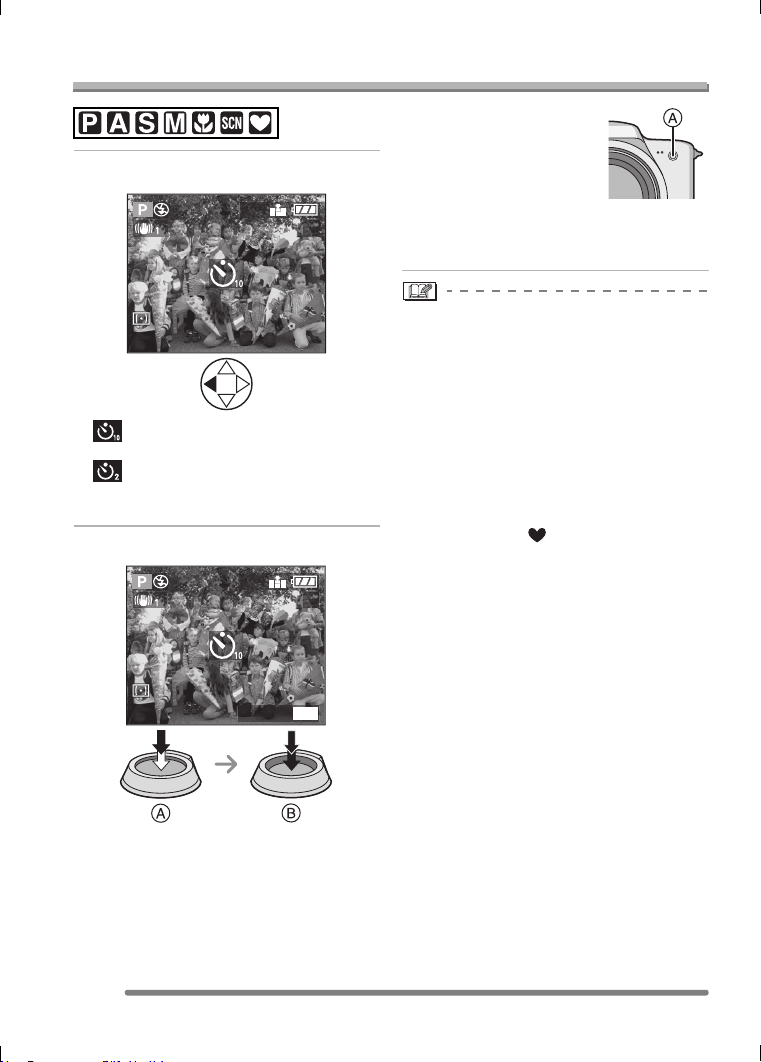
1 Select the self-timer mode.
: Self-timer set to 10 seconds
;
: Self-timer set to 2 seconds
;
No display: canceled
2 Take the picture.
• A: Press the shutter button halfway to
focus.
• B: Press the shutter button fully to take
the picture.
• The self-timer indicator
A blinks and the shutter
is activated after
10 seconds (or
2 seconds).
• If you press the [MENU] button when
the self-timer is set, the self-timer
setting is canceled.
• When using a tripod or in other cases,
setting the self-timer to 2 seconds is a
convenient way to avoid the jitter caused
by pressing the shutter button.
• When you press the shutter button fully
with one stroke, the subject is
automatically focused just before the
recording. In dark places, the self-timer
indicator blinks and then it may turn on
brightly to work as the AF assist lamp
(P78) for focusing on the subject.
• In simple mode [ ], the self-timer is fixed
to 10 seconds. (P35)
• When you set the self-timer in the burst
mode, the camera starts taking a picture 2
or 10 seconds after the shutter button is
pressed. The number of pictures taken at
a time is fixed to 3.
• We recommend using a tripod when
recording with the self-timer.
2560
19
CANCEL
MENU
2560
19
VQT0Q09ENG.book 44 ページ 2005年1月25日 火曜日 午後8時17分
Recording pictures (basic)
45
VQT0Q09
Compensating the Exposure
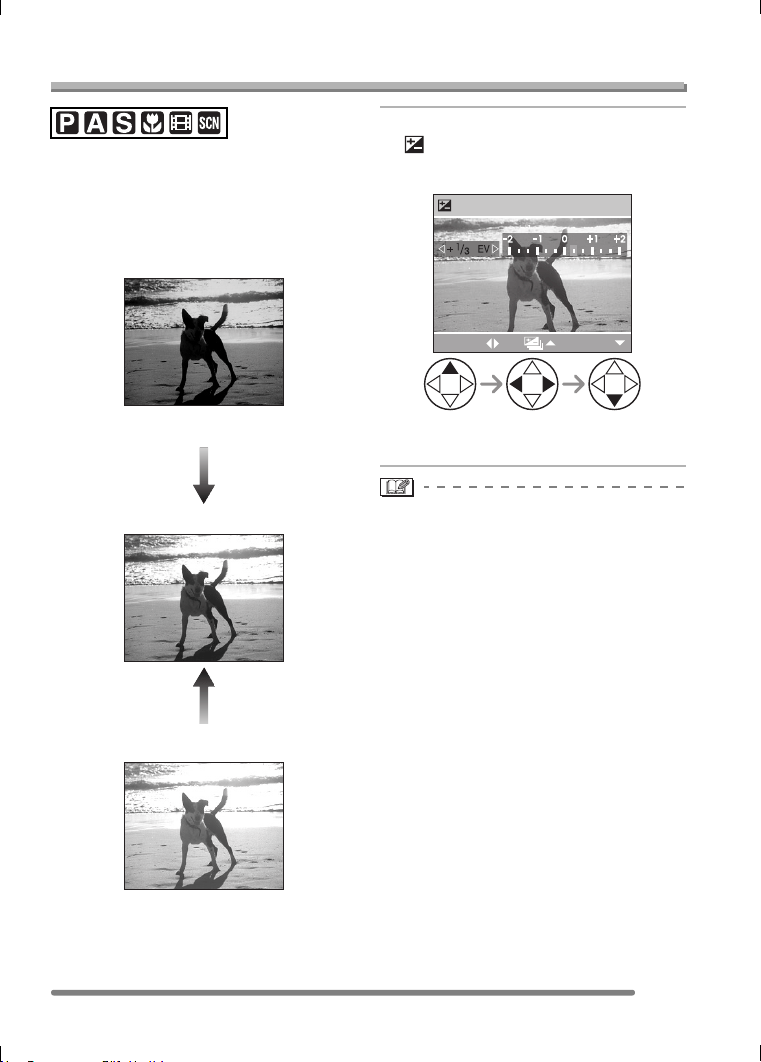
Use this function when you cannot achieve
appropriate exposure due to the difference
of brightness between the subject and the
background. Check the following for
examples.
Under exposed
Compensate the exposure toward positive.
Properly exposed
Over exposed
Compensate the exposure toward negative.
1 Press 3 several times until
[ EXPOSURE] appears and
then compensate the exposure.
• You can compensate from j2EV to
i2 EV in steps of 1/3 EV.
• EV is an abbreviation for Exposure Value,
and it is the amount of light given to the
CCD by the aperture value and the shutter
speed.
• The compensation range of the exposure
will be limited depending on the
brightness of the subject.
• The exposure compensation value
appears on the lower left of the screen.
• The set exposure value is memorized
even if the camera is turned off.
EXPOSURE
SELECT
EXIT
VQT0Q09ENG.book 45 ページ 2005年1月25日 火曜日 午後8時17分
Recording pictures (basic)
46
VQT0Q09
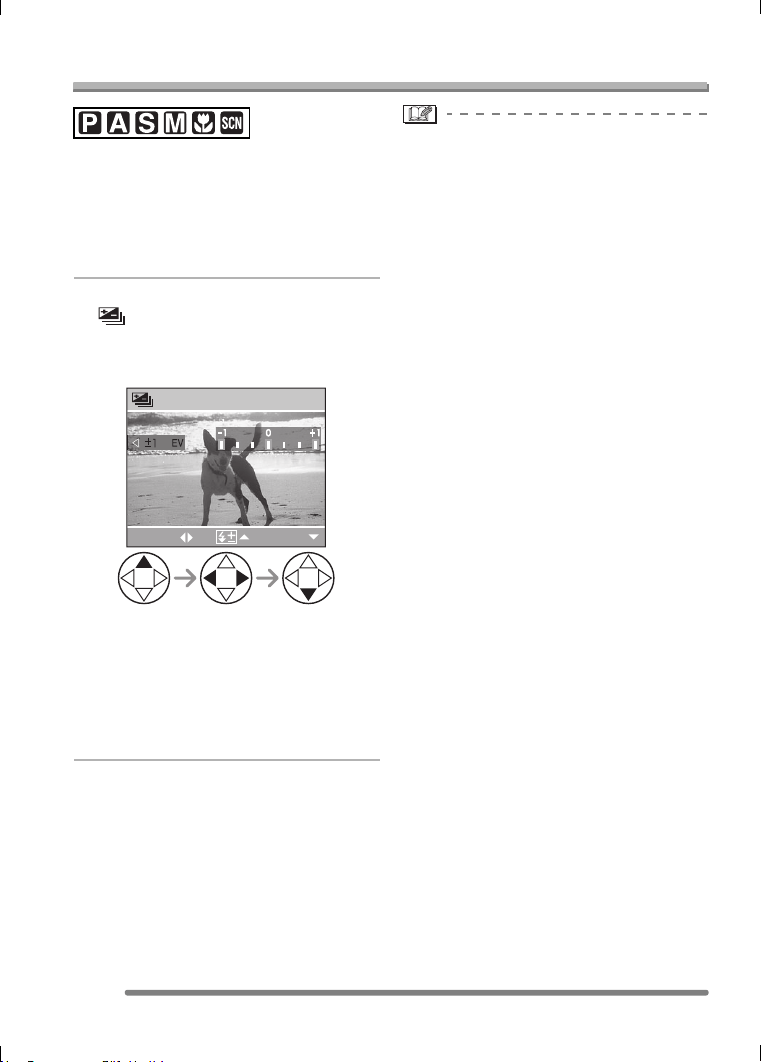
Taking Pictures using Auto Bracket
In this mode, 3 pictures are automatically
recorded by each press of the shutter
button according to the compensation
range of the exposure.
You can select the desired exposure
among the 3 types of pictures.
1 Press 3 several times until
[ AUTO BRACKET] appears
and then set the compensation
range of the exposure.
• You can select the exposure from
j1EV to i1 EV in steps of 1/3 EV.
• When you do not use auto bracket,
select [OFF].
• When setting the auto bracket, the auto
bracket icon appears on the lower left of
the screen.
• If the remaining number of recordable
pictures is 2 or less, you cannot take
pictures by setting auto bracket.
• When taking pictures using auto bracket
after the exposure compensation, the
pictures are based on the compensated
exposure.
When the exposure is compensated, the
compensated exposure value appears on
the lower left of the screen.
• When the flash is activated, you can take
only 1 picture.
• When the auto bracket is activated,
[AUDIO REC.] cannot be used (DMC-FZ5
only).
• When setting the quality to [TIFF], you
cannot take pictures with the auto bracket.
• When setting auto bracket and the burst
mode simultaneously, auto bracket will be
performed.
• The exposure may not be compensated
with auto bracket depending on the
brightness of the subject.
• Auto bracket is canceled after switching
the camera off.
• When setting the auto bracket, the auto
review function is activated regardless of
the setting on the auto review function.
(The picture is not enlarged.) Moreover,
the settings for the auto review function on
the [SETUP] menu are disabled.
AUTO BRACKET
SELECT
EXIT
VQT0Q09ENG.book 46 ページ 2005年1月25日 火曜日 午後8時17分
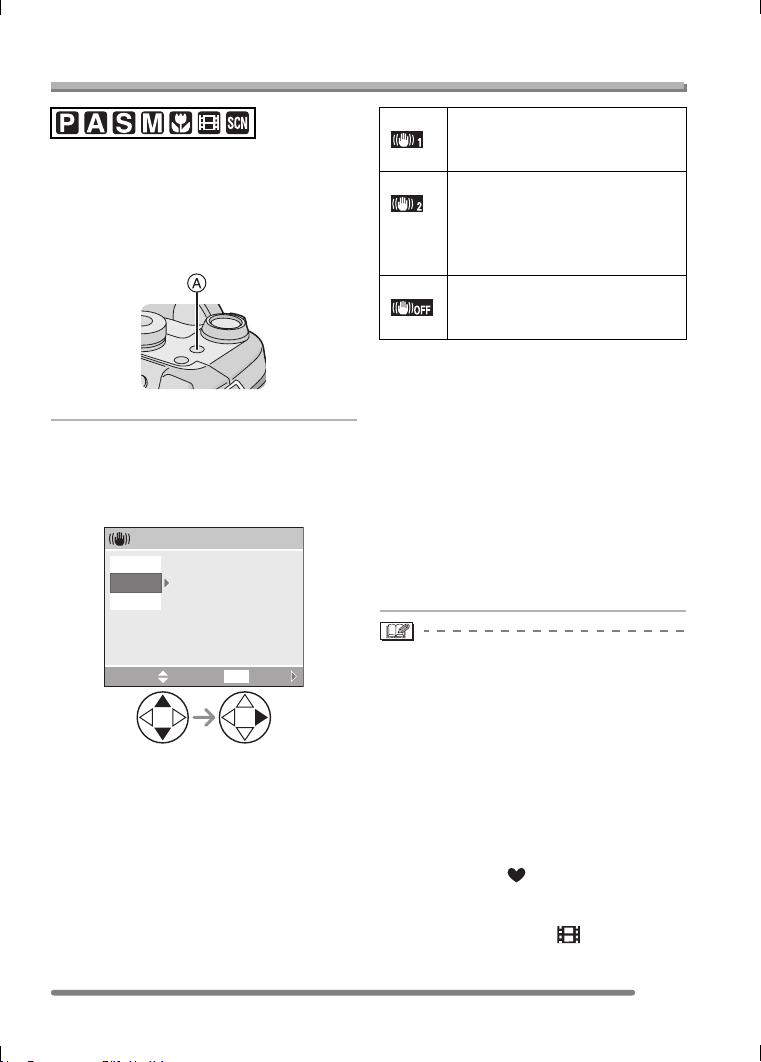
Recording pictures (basic)
47
VQT0Q09
Optical Image Stabilizer
This mode recognizes and compensates
jitter. You can reduce blurring caused by
jitter especially when you take pictures with
the optical zoom set to Tele or when you
take pictures indoors where the shutter
speed is slowed down.
A: Optical image stabilizer button
1 Press the optical image stabilizer
button A until [STABILIZER]
appears and then select the
stabilizer function mode.
∫ Demonstration of the optical image
stabilizer (Demonstration Mode)
When you press the [MENU] button, the
demonstration appears. After the
demonstration ends, the screen returns to
the stabilizer function mode selection
menu. If you want to exit the demonstration
halfway through, press the [MENU] button
again.
While the demonstration is displayed, the
optical zoom is fixed to Wide (1k) and the
zoom function cannot be activated.
Moreover, you cannot take pictures.
• The stabilizer function may not work
sufficiently in the following cases.
– When too much jitter occurs.
– In digital zoom range.
– When taking pictures while following
subjects in motion.
– When the shutter speed is extremely
slow due to dark conditions or other
reasons.
Be careful of jittering when pressing the
shutter button.
• In simple mode [ ], the stabilizer
function mode is fixed to [MODE1] and the
stabilizer function menu does not appear.
• In motion image mode [ ], [MODE2]
cannot be set.
STABILIZER
SET
SELECT DEMO.
MENU
OFF
MODE2
MODE1
MODE1
()
The stabilizer operates
continuously and can assist
during photo composition.
MODE2
()
The stabilizer function is in
standby and activates at the
moment the shutter captures the
image. This mode offers a
greater degree of stabilization.
OFF
()
When image stabilization is not
needed or when using the
camera with a tripod.
VQT0Q09ENG.book 47 ページ 2005年1月25日 火曜日 午後8時17分
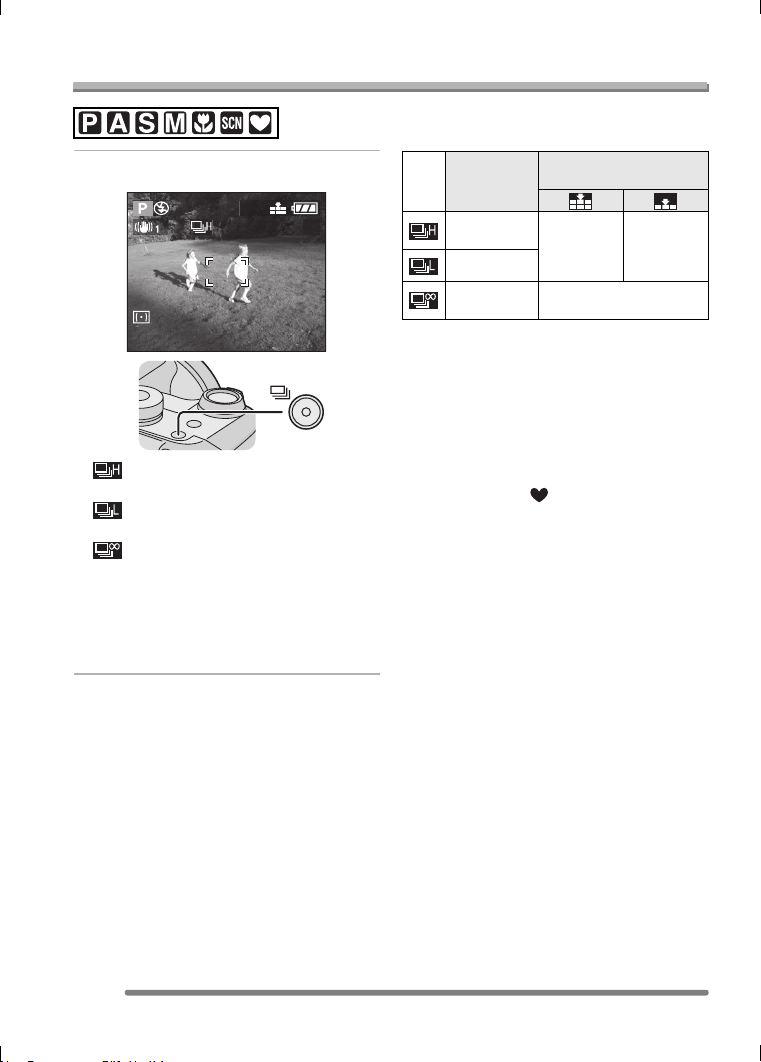
Recording pictures (basic)
48
VQT0Q09
Taking Pictures using Burst Mode
1 Select the burst mode.
: High speed
;
: Low speed
;
:Unlimited
¢
;
No display: canceled
¢Depending on the memory size, battery
power, picture size and quality
(compression)
∫ Number of pictures recorded in burst
mode
¢When the shutter speed is higher than
1/60 and the flash is not activated
• When the burst mode setting is set to
Unlimited
– You can take pictures until the capacity
of the card becomes full.
– The speed of taking pictures becomes
slow during a recording.
• In simple mode [ ], the burst speed is
fixed to Low. (P35)
2560
19
Burst speed
(pictures/
second)¢
Number of recordable
pictures (pictures)
DMC-FZ5: 3
DMC-FZ4: 4
DMC-FZ5:
max. 4
DMC-FZ4:
max. 5
DMC-FZ5:
max. 7
DMC-FZ4:
max. 10
2
approx. 2
Depends on remaining
capacity of the card
VQT0Q09ENG.book 48 ページ 2005年1月25日 火曜日 午後8時17分
Recording pictures (basic)
49
VQT0Q09
• Hold down the shutter button fully to
activate the burst mode.
• When the self-timer is used, the number
of recordable pictures in burst mode is
fixed to 3.
• You cannot take pictures in the burst
mode when the quality is set to [TIFF].
• When the burst mode is activated, [AUDIO
REC.] cannot be used (DMC-FZ5 only).
• If the flash is activated, you can record
only 1 picture.
• When setting auto bracket and the burst
mode simultaneously, auto bracket will be
performed.
• The ways to control the exposure and the
white balance vary depending on the burst
mode setting. When the burst speed is set
to [ ], they are fixed to the values set
for the first picture. (The burst speed is
prioritized.) When the burst speed is set to
[ ] or [ ], they are adjusted each
time you take a picture.
• When setting the burst mode, the auto
review function is activated regardless of
the setting on the auto review function.
(The picture is not enlarged.) Moreover,
the settings for the auto review function on
the [SETUP] menu are disabled.
• Burst mode is not canceled when the
camera is switched off.
• Burst mode will not perform as described
if a MultiMediaCard is used in place of an
SD Memory Card. The reading/writing
speed of a MultiMediaCard is slower than
that of an SD Memory Card.
VQT0Q09ENG.book 49 ページ 2005年1月25日 火曜日 午後8時17分
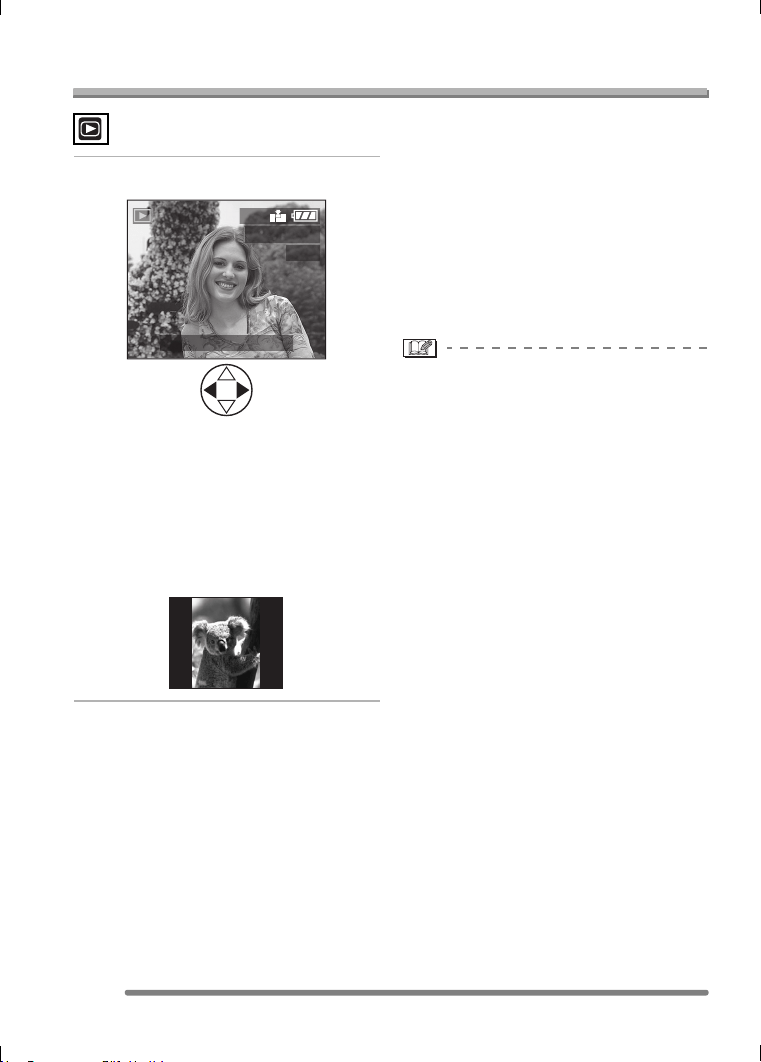
Playback (basic)
50
VQT0Q09
Playback (basic)
Playing Back Pictures
1 Select the picture.
• 2: Play back the previous picture.
• 1: Play back the next picture.
• The last recorded picture will be played
back first.
• When [ROTATE DISP.] (P85) is set to
[ON], pictures recorded by holding the
camera vertically are played back
vertically.
∫ Fast forwarding/Fast rewinding
When you keep pressing 2/1 during
playback, the file number and the page
number are updated. If you release 2/1
when the number of the desired picture
appears, you can play back the picture.
1: Fast forward
2: Fast rewind
• When you keep pressing 2/1, the
number of files forwarded/rewound at a
time is increased.
• If you release 2/1 and press them again,
the files will be forwarded/rewound one by
one.
• In review playback in the recording mode
or multi playback, the picture can only be
forwarded or rewound one by one.
• When you forward or rewind a large
number of pictures, release 2/1 once
before reaching the picture to be played
back, then press 2/1 to forward/rewind
pictures little by little.
• This camera is based on the DCF
standard (Design rule for Camera File
system) which was established by the
Japan Electronics and Information
Technology Industries Association
(JEITA).
• When changing the folder name or file
name on a PC, the pictures will not be
played back.
• The file format that can be played back
with the camera is JPEG. (Even JPEG
pictures cannot be played back in some
cases.)
• When playing back pictures that have
been recorded with other equipment, the
picture quality may be deteriorated and
pictures may not be played back.
• When playing back a non-standard file,
the folder/file number is indicated by [—]
and the screen may turn black.
• An interference fringe may appear on the
screen depending on the subject. This is
called moire. This is not a malfunction.
100
_
0001
1/19
10:00 DEC. 1.2005
2560
VQT0Q09ENG.book 50 ページ 2005年1月25日 火曜日 午後8時17分
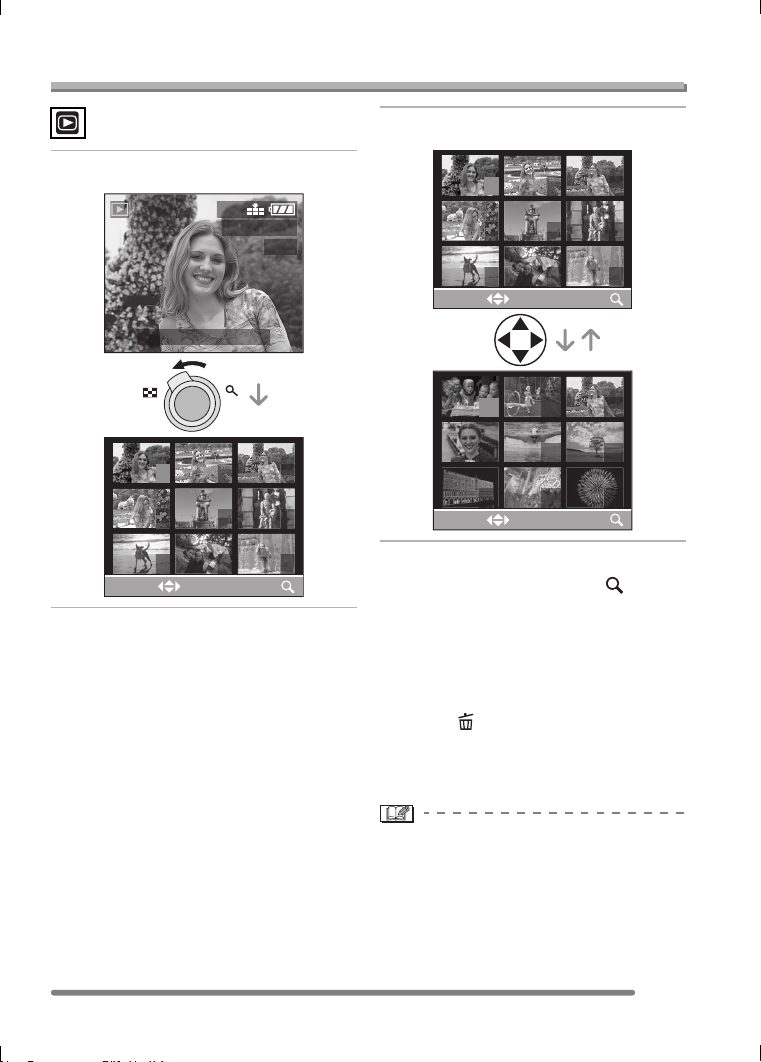
Playback (basic)
51
VQT0Q09
9 Pictures Multi Playback
1 Switch to multi screen.
2 Select the pictures.
∫ To return to the normal playback
Rotate the zoom lever towards [ ] or
press the [MENU] button.
• The picture with the number colored in
orange appears.
∫ To delete a picture during a 9 pictures
multi playback
Press the [ ] button.
When the confirmation screen appears,
press 4 to select [YES], and press 1.
(P53)
• Pictures will not be displayed in the
rotated direction even if [ROTATE DISP.] is
set to [ON] (P85).
1 2 3
4
7 9
5 6
8
10:00 DEC. 1.2005
100
_
0001
1/19
CANCEL
SELECT
2560
TW
1 2 3
4
7
5 6
10 11
8 9
12
CANCEL
SELECT
CANCEL
SELECT
13 14 15
16 17 18
VQT0Q09ENG.book 51 ページ 2005年1月25日 火曜日 午後8時17分
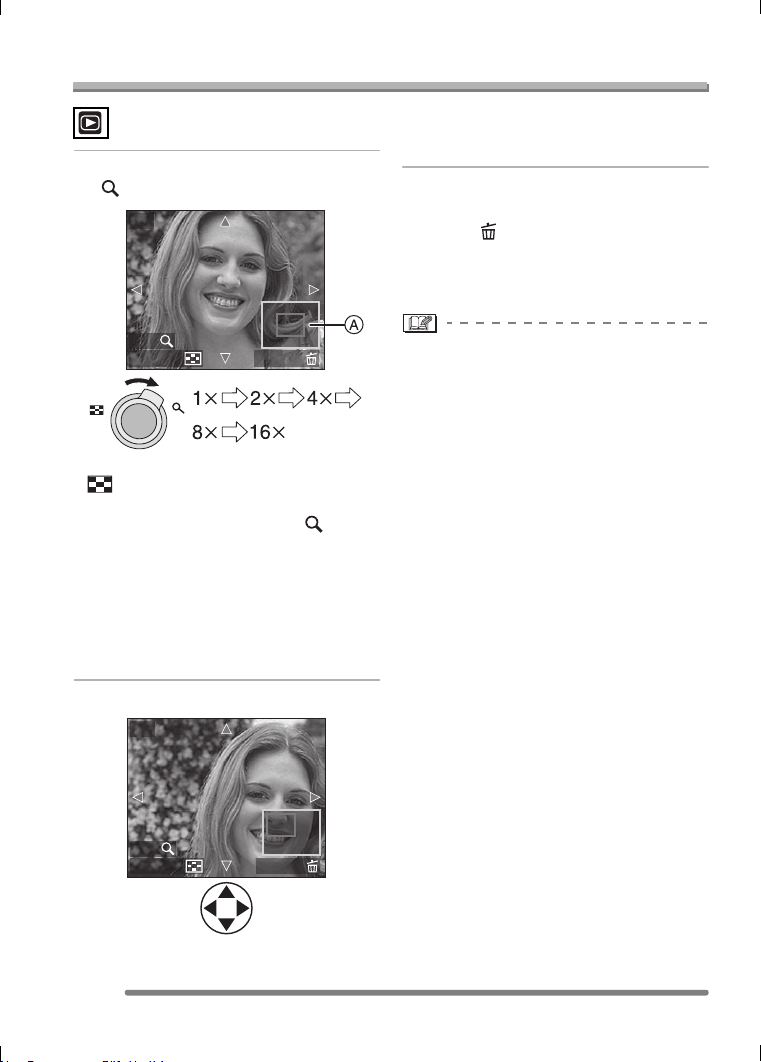
Playback (basic)
52
VQT0Q09
Using the Playback Zoom
1 Rotate the zoom lever towards
[ ] to enlarge the picture.
• When you rotate the zoom lever towards
[ ] after the picture is enlarged, the
magnification becomes lower. When you
rotate the zoom lever towards [ ], the
magnification becomes higher.
• When you change the magnification, the
zoom position indication A appears for
about 1 second to check the position of
the section enlarged.
• When you press the [MENU] button, the
magnification reverts to 1k.
2 Shift the picture.
• When you move the position to be
displayed, the zoom position indication
is displayed for about 1 second.
∫ To delete a picture during playback
zoom
Press the [ ] button.
When the confirmation screen appears,
press 4 to select [YES], and press 1.
(P53)
• When you use the zoom function on
rotated pictures, they are not displayed in
the rotated direction (P85).
• The more the picture is enlarged, the
more its quality deteriorates.
• The playback zoom may not operate if
pictures have been recorded with other
equipment.
• Even if the indications on the screen are
turned off in normal playback mode (P27),
the magnification and enabled operations
appear on the screen when the playback
zoom is activated.
• You can switch whether you turn the
indications on the LCD monitor on or off
by pressing the [DISPLAY] button.
When you set the magnification to 1k, the
indications on the LCD monitor are
displayed as in normal playback mode.
CANCEL
4X
2X
DELETE
TW
CANCEL
4X
2X
DELETE
VQT0Q09ENG.book 52 ページ 2005年1月25日 火曜日 午後8時17分
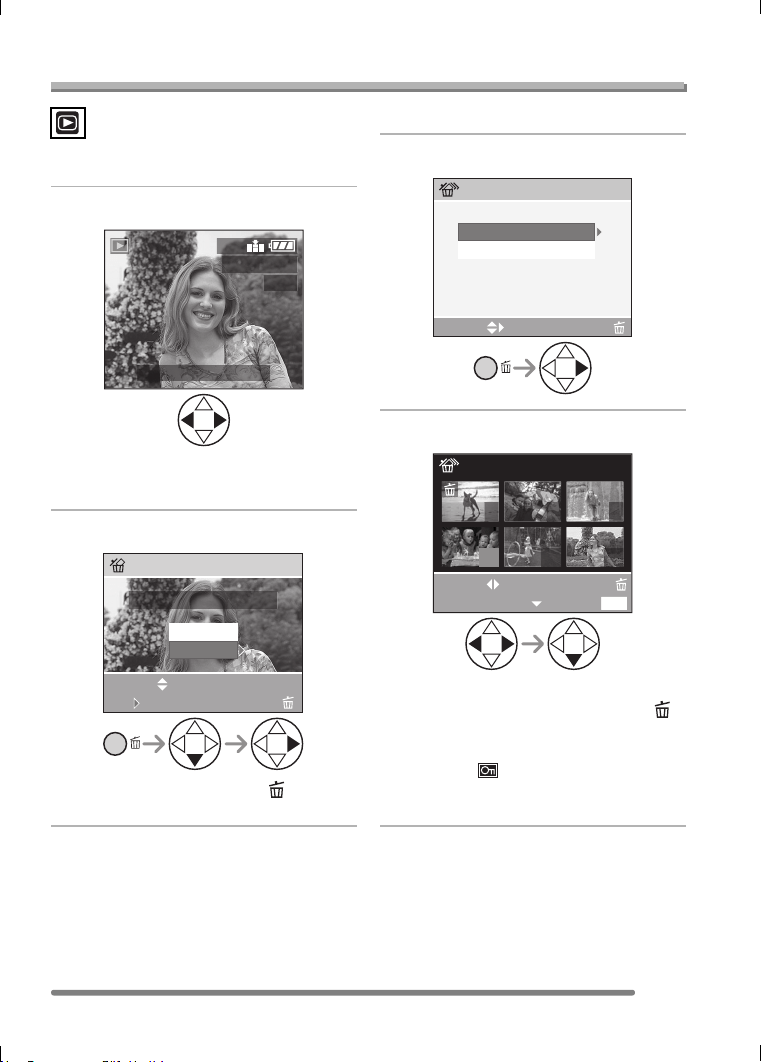
Playback (basic)
53
VQT0Q09
Deleting Pictures
∫ To delete a single picture
1 Select the picture to be deleted.
• 2: Play back the previous picture.
• 1: Play back the next picture.
2 Delete the picture.
• While deleting the picture, [ ] appears
on the screen.
∫ To delete multiple pictures
1 Select [MULTI DELETE].
2 Select the pictures to be deleted.
• Repeat the above procedure.
• The selected pictures appear with [ ].
When 4 is pressed again, the setting is
canceled.
• The icon [ ] blinks red if the selected
picture cannot be deleted. Cancel the
protect setting. (P88)
100
_
0001
1/19
10:00 DEC. 1.2005
2560
DELETE THIS PICTURE?
DELETE SINGLE
MULTI/ALL
SELECT
SET
YES
NO
MULTI/ALL DELETE
CANCEL
MULTI DELETE
ALL DELETE
SELECT
2 times
MARK/UNMARK
DELETE
MULTI DELETE
EXIT
MENU
SELECT
7
10 11
8 9
12
VQT0Q09ENG.book 53 ページ 2005年1月25日 火曜日 午後8時17分
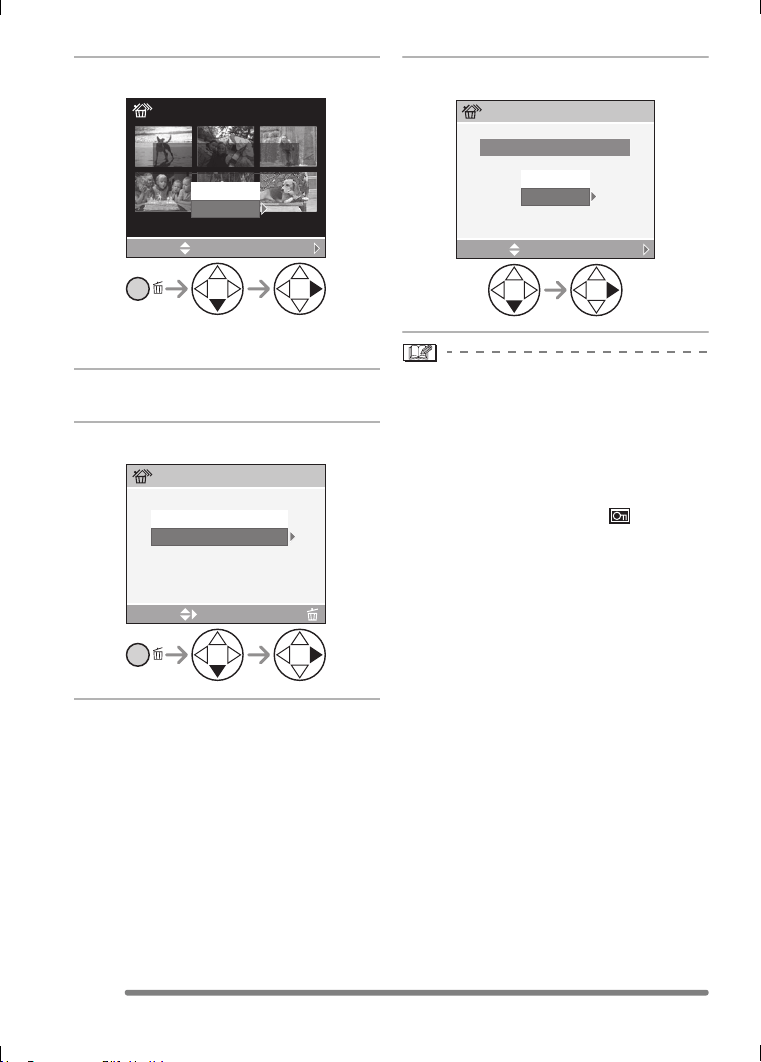
Playback (basic)
54
VQT0Q09
3 Delete the pictures.
• It is possible to delete up to 50 pictures
all at once.
∫ To delete all pictures
1 Select [ALL DELETE].
2 Delete all of the pictures.
• Once deleted, pictures cannot be
recovered. Please double-check before
deleting pictures.
• Do not turn off the camera while deleting.
• When you delete pictures, use a battery
with sufficient battery power (P14) or use
the AC adaptor (DMW-CAC1; optional).
• Pictures that are protected [ ] (P88) or
do not conform to DCF standard (P50) will
not be deleted even if [ALL DELETE] is
selected.
MULTI DELETE
DELETE THE PICTURES
YOU MARKED?
SELECT SET
YES
NO
MULTI/ALL DELETE
CANCEL
SELECT
MULTI DELETE
ALL DELETE
2 times
ALL DELETE
DELETE ALL PICTURES?
SELECT SET
YES
NO
VQT0Q09ENG.book 54 ページ 2005年1月25日 火曜日 午後8時17分
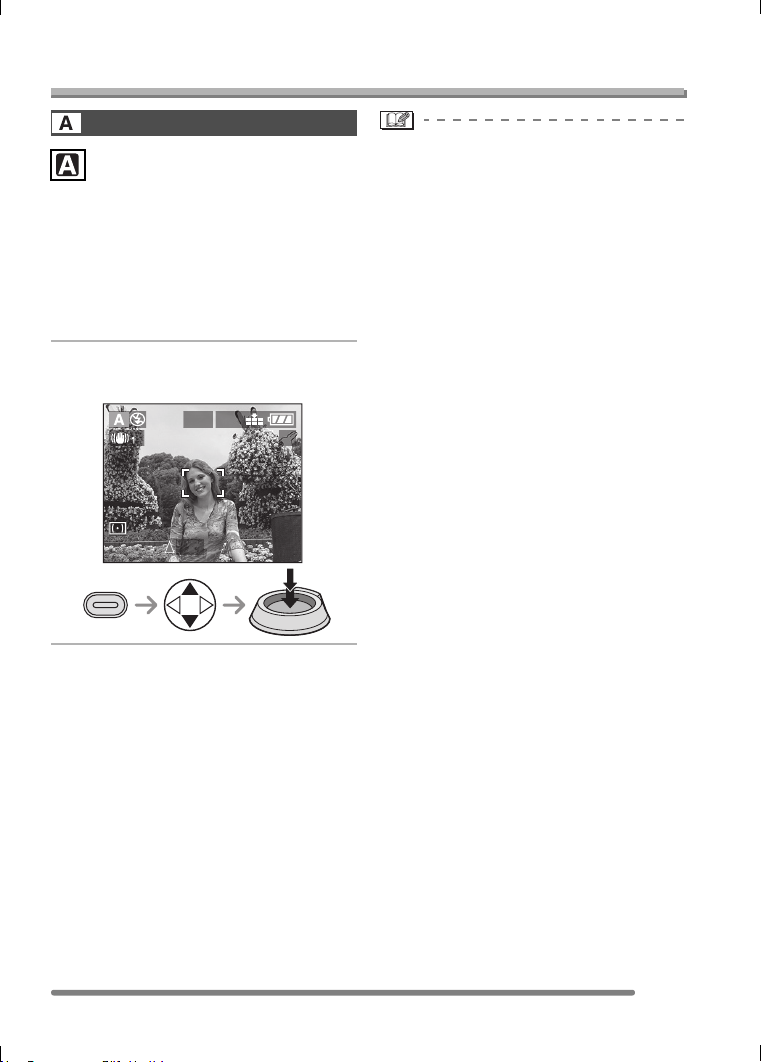
Recording pictures (advanced)
55
VQT0Q09
Recording pictures (advanced)
Using the Mode Dial
When you want the background to be in
sharp focus, set the aperture value to a
higher number. The higher the aperture
value is the smaller the aperture opening
will be. For a soft focus background, set the
aperture value to a lower number which
corresponds to a larger aperture opening.
1 Set the aperture value and take
the picture.
• Refer to P59 for the available range of the
aperture value and the shutter speed.
• The focus range is 5 cm (0.16 feet) – 
(Wide), 2 m (6.56 feet) – ¶ (Tele).
• If the subject is too bright, set to a larger
aperture value, if too dim, set to a smaller
aperture value.
• The brightness of the screen may differ
from that of the actual pictures. Check it
using review function or setting to the
playback mode.
• The ISO sensitivity cannot be set to
[AUTO]. (P73) (When the recording mode
is switched to Aperture-priority AE, the
ISO sensitivity is automatically set to
[ISO100] even though it was set to [AUTO]
beforehand. You can also change ISO
setting from [ISO80] (DMC-FZ5)/[ISO64]
(DMC-FZ4), [ISO200] or [ISO400] on the
menu.)
• When the exposure is not adequate, the
aperture value and the shutter speed on
the screen turn red.
Aperture-priority AE
F2.8
ISO
100
19
2560
EXPOSURE
VQT0Q09ENG.book 55 ページ 2005年1月25日 火曜日 午後8時17分
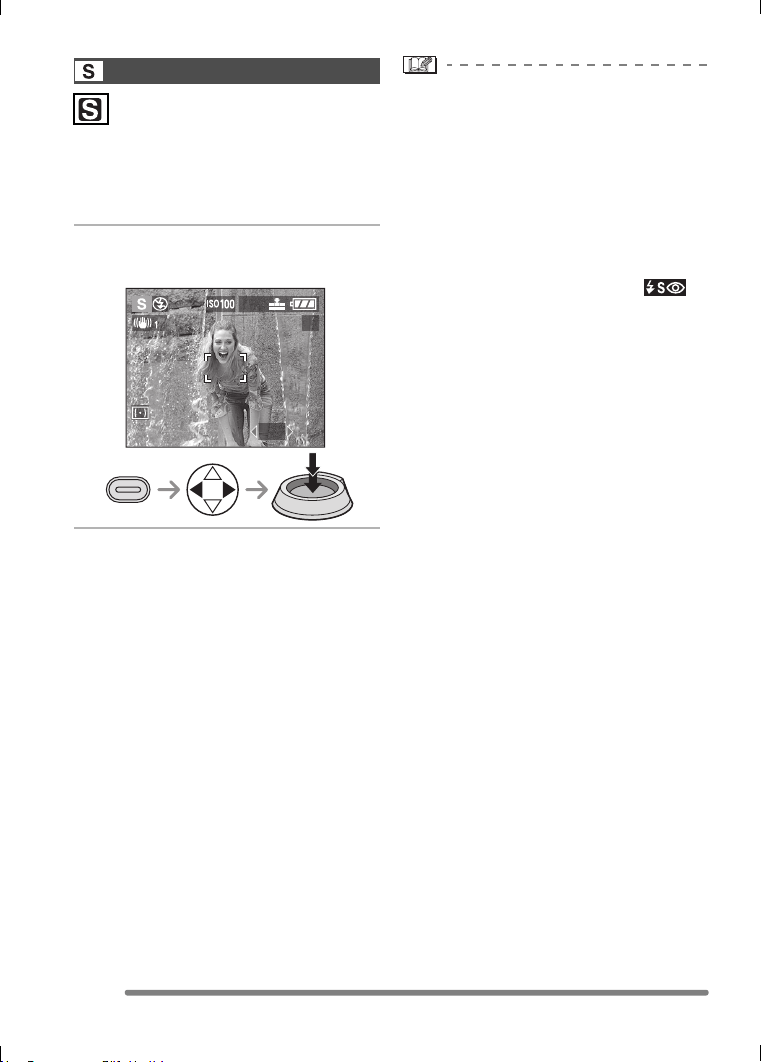
Recording pictures (advanced)
56
VQT0Q09
When you want to take a sharp picture of a
fast moving subject, set with a faster
shutter speed. When you want to create a
trail effect, set to a slower shutter speed.
1 Set the shutter speed and take
the picture.
• Refer to P59 for the available range of the
aperture value and the shutter speed.
• The focus range is 5 cm (0.16 feet) – 
(Wide), 2 m (6.56 feet) – ¶ (Tele).
• The brightness of the screen may differ
from that of the actual pictures. Check it
using review function or setting to the
playback mode.
• You cannot set the following items in
Shutter-priority AE.
– Slow sync./Red-eye reduction [ ]
(P40)
– [AUTO] in ISO sensitivity (P73) (When
the recording mode is switched to
Shutter-priority AE, the ISO sensitivity is
automatically set to [ISO100] even
though it was set to [AUTO] beforehand.
You can also change ISO setting from
[ISO80] (DMC-FZ5)/[ISO64]
(DMC-FZ4), [ISO200] or [ISO400] on the
menu.)
• When the exposure is not adequate, the
aperture value and the shutter speed on
the screen turn red.
• When the shutter speed is slow, we
recommend using a tripod.
Shutter-priority AE
1/30
19
2560
EXPOSURE
VQT0Q09ENG.book 56 ページ 2005年1月25日 火曜日 午後8時17分
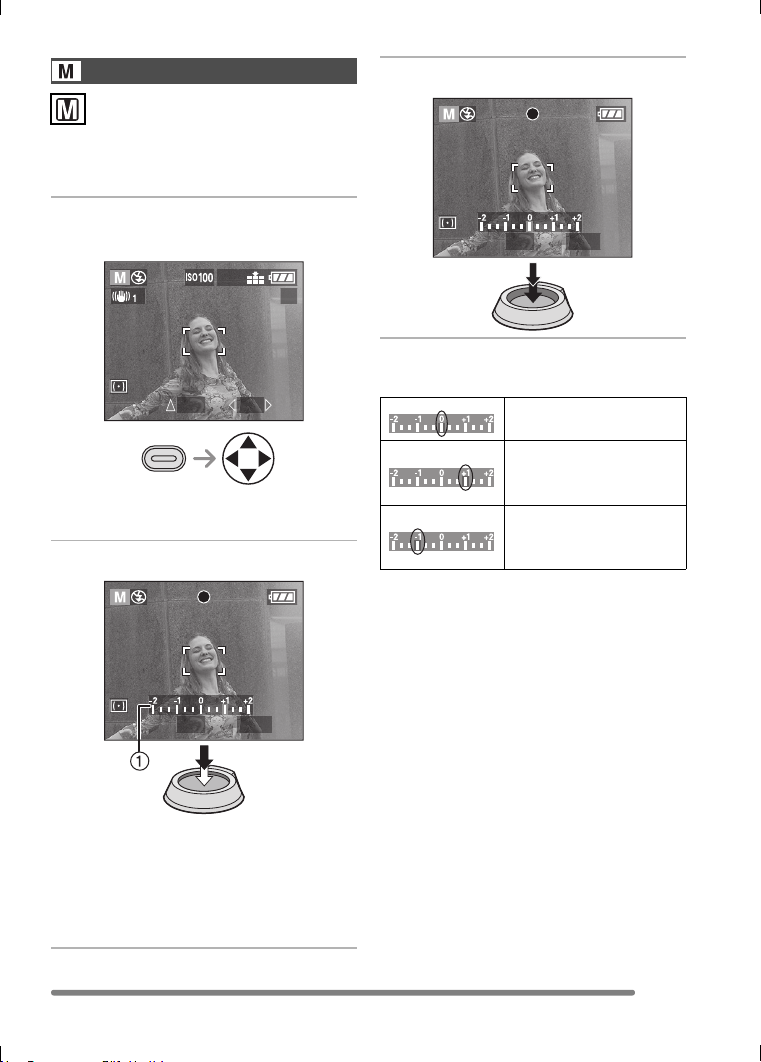
Recording pictures (advanced)
57
VQT0Q09
Decide on an exposure by setting the
aperture value and the shutter speed
manually.
1 Set the aperture value and the
shutter speed.
• 3/4: Aperture value
• 2/1: Shutter speed
2 Press the shutter button halfway.
• Indication for the condition of exposure
1 (manual exposure assistance)
appears for about 10 seconds.
• When the exposure is not adequate, set
the aperture value and the shutter
speed again.
3 Take the picture.
∫ Manual Exposure Assistance
• The manual exposure assistance is an
approximation. We recommend taking
pictures and then checking them using the
review function.
Manual exposure
1/30F2.8
19
2560
EXPOSURE
1/125F4.0
The exposure is
adequate.
Set to faster shutter
speed or larger aperture
value.
Set to slower shutter
speed or smaller
aperture value.
1/125F5.6
VQT0Q09ENG.book 57 ページ 2005年1月25日 火曜日 午後8時17分

Recording pictures (advanced)
58
VQT0Q09
• Refer to P59 for the available range of the
aperture value and the shutter speed.
• The focus range is 5 cm (0.16 feet)–
(Wide), 2 m (6.56 feet) – ¶ (Tele).
• The brightness of the screen may differ
from that of the actual pictures. Check it
using review function or setting to the
playback mode.
• If the exposure is not adequate, the
aperture value and the shutter speed turn
red when pressing the shutter button
halfway.
• You cannot set the following items in
manual exposure.
– Slow sync./Red-eye reduction [ ]
(P40)
– [AUTO] in ISO sensitivity (P73) (When
the recording mode is switched to
Manual exposure, the ISO sensitivity is
automatically set to [ISO100] even
though it was set to [AUTO] beforehand.
You can also change ISO setting from
[ISO80] (DMC-FZ5)/[ISO64]
(DMC-FZ4), [ISO200] or [ISO400] on the
menu.)
– Exposure compensation (P45)
• Please set [HIGHLIGHT] to [ON] on the
[SETUP] menu (P23) while the auto
review or review function is activated. Any
white saturated area on the picture will
appear blinking in black and white. Adjust
the aperture value or shutter speed to
compensate for a better exposure.
VQT0Q09ENG.book 58 ページ 2005年1月25日 火曜日 午後8時17分
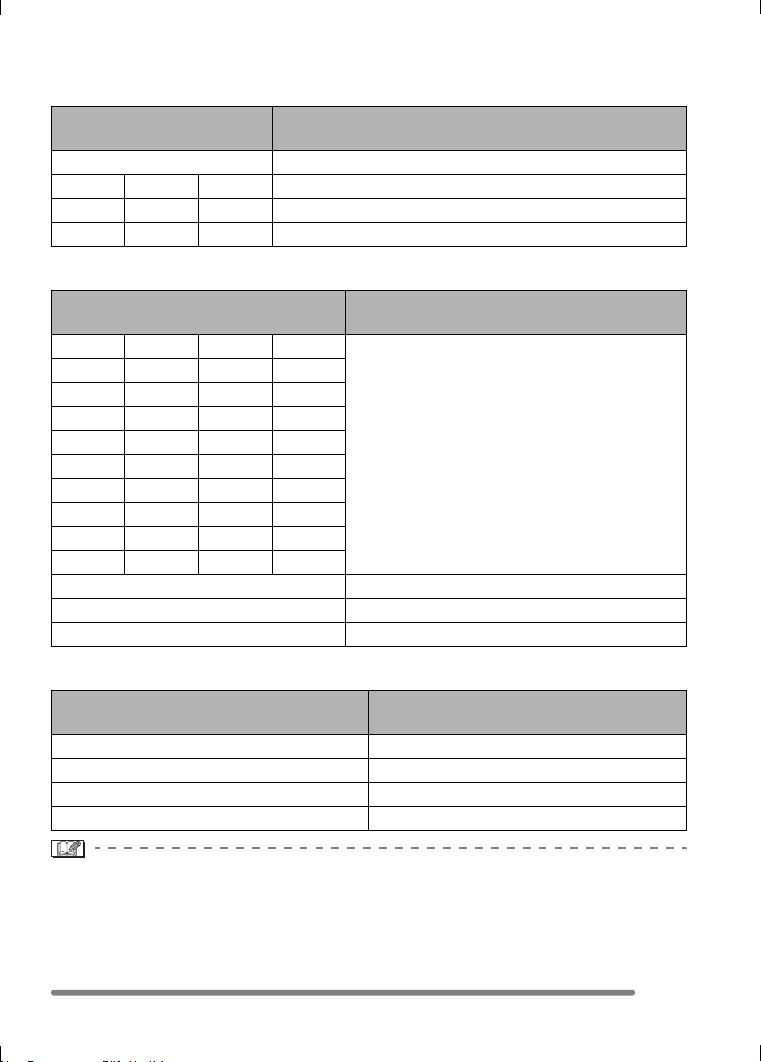
Recording pictures (advanced)
59
VQT0Q09
∫ Aperture Value and Shutter Speed
Aperture-priority AE
Shutter-priority AE
Manual exposure
• The aperture values in the table above are the values when the zoom lever is rotated to
Wide at maximum.
• Some of the aperture values cannot be selected depending on the zoom magnification.
Available Aperture Value
(Per 1/3 EV)
Shutter Speed (Sec.)
F8.0 1 – 1/2000
F7.1 F6.3 F5.6 1 – 1/1600
F5.0 F4.5 F4.0 1 – 1/1300
F3.6 F3.2 F2.8 1 – 1/1000
Available Shutter Speed (Sec.)
(Per 1/3 EV)
Aperture Value
8654
F2.8–F8.0
3.2 2.5 2 1.6
1.3 1 1/1.3 1/1.6
1/2 1/2.5 1/3.2 1/4
1/5 1/6 1/8 1/10
1/13 1/15 1/20 1/25
1/30 1/40 1/50 1/60
1/80 1/100 1/125 1/160
1/200 1/250 1/320 1/400
1/500 1/640 1/800 1/1000
1/1300 F4.0 – F8.0
1/1600 F5.6 – F8.0
1/2000 F8.0
Available Aperture Value
(Per 1/3 EV)
Available Shutter Speed (Sec.)
(Per 1/3 EV)
F2.8 – F3.6 8 – 1/1000
F4.0 – F5.0 8 – 1/1300
F5.6 – F7.1 8 – 1/1600
F8.0 8 – 1/2000
VQT0Q09ENG.book 59 ページ 2005年1月25日 火曜日 午後8時17分
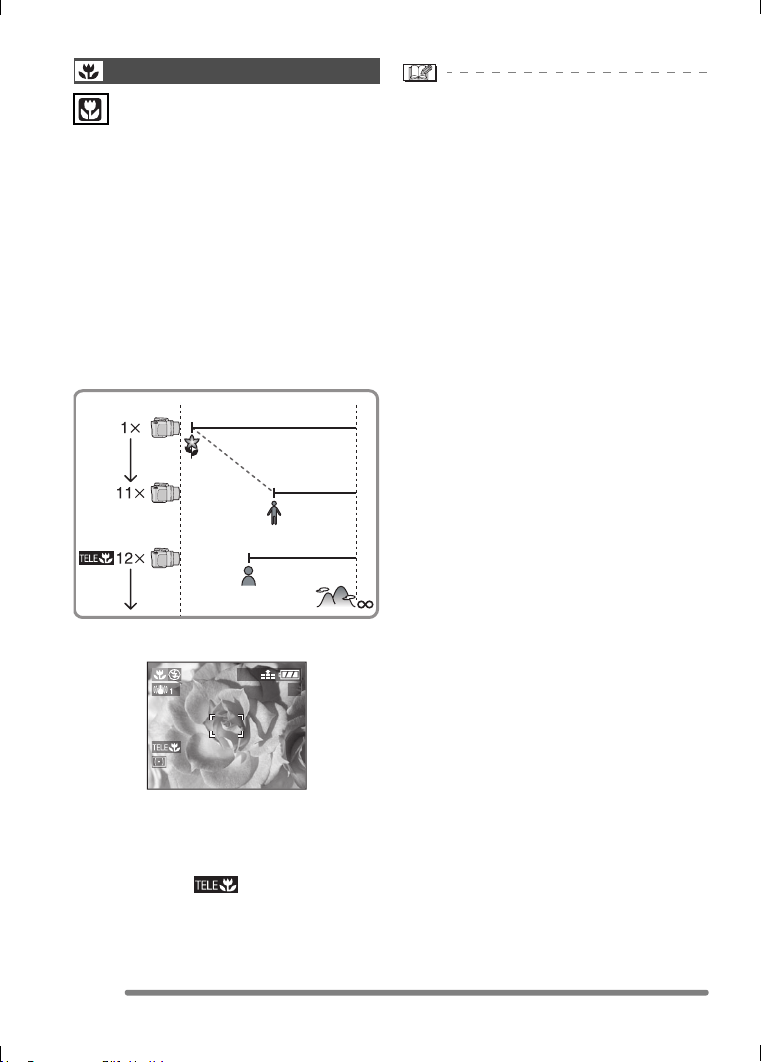
Recording pictures (advanced)
60
VQT0Q09
This mode allows you to take close-up
pictures of the subject, e.g. When taking
pictures of flowers.
You can take pictures approaching the
subject at a distance up to 5 cm (0.16 feet)
from the lens by rotating the zoom lever
upmost to Wide (1k). When you rotate the
zoom lever to Tele, the distance you can
approach varies in stages. The recordable
range can be changed up to 2 m (6.56 feet)
(when the zoom magnification is 11k).
∫ Focus range
∫ Tele-macro function
When you rotate the zoom lever upmost to
Tele (12k), you can take pictures
approaching the subject at a distance up to
1 m (3.28 feet) from the lens. (The
tele-macro icon [ ] appears.) It is
convenient when taking close-up pictures
of flowers blooming near the ground while
standing up or when taking close-up
pictures of insects from a distant position.
• We recommend using a tripod.
• When the subject is close to the camera,
the effective focus range (depth of field) is
significantly narrowed. Therefore, you will
have difficulty in focusing on the subject if
the distance between the camera and the
subject is changed after focusing on the
subject.
• In the tele macro mode, the depth of field
is extremely narrowed and camera jitters
occur easier than usual. Therefore, when
you cannot use a tripod, we recommend
taking pictures under the brightness in
which the aperture value is set to F4.0 or
larger and the shutter speed is set to
1/125th or faster to keep the depth of field
and the performance of the stabilizer
function.
• When the camera lens is at a distance
beyond the available range from the
subject, the subject may not be focused
even if the focus indication lights.
• The available flash range is about 30 cm
(0.98 feet)– 4.5 m (14.8 feet) (Wide). (This
is applied when you set the ISO sensitivity
to [AUTO].)
• If you focus on the subject at 2 m (6.56 m)
or less distant position with tele-macro
function when setting the optical zoom
magnification in 12k and then rotate the
zoom lever for setting the optical zoom
magnification to 11k or less, the subject
becomes unfocused. In this case, press
the shutter button halfway or operate the
camera to focus on the subject again.
• When you take pictures at close range in
macro mode, the resolution of the
peripheral of the picture may be slightly
decreased. However, this is not a
malfunction.
Macro mode
5 cm (0.16 feet)
2 m (6.56 feet)
1 m (3.28 feet)
2560
19
VQT0Q09ENG.book 60 ページ 2005年1月25日 火曜日 午後8時17分
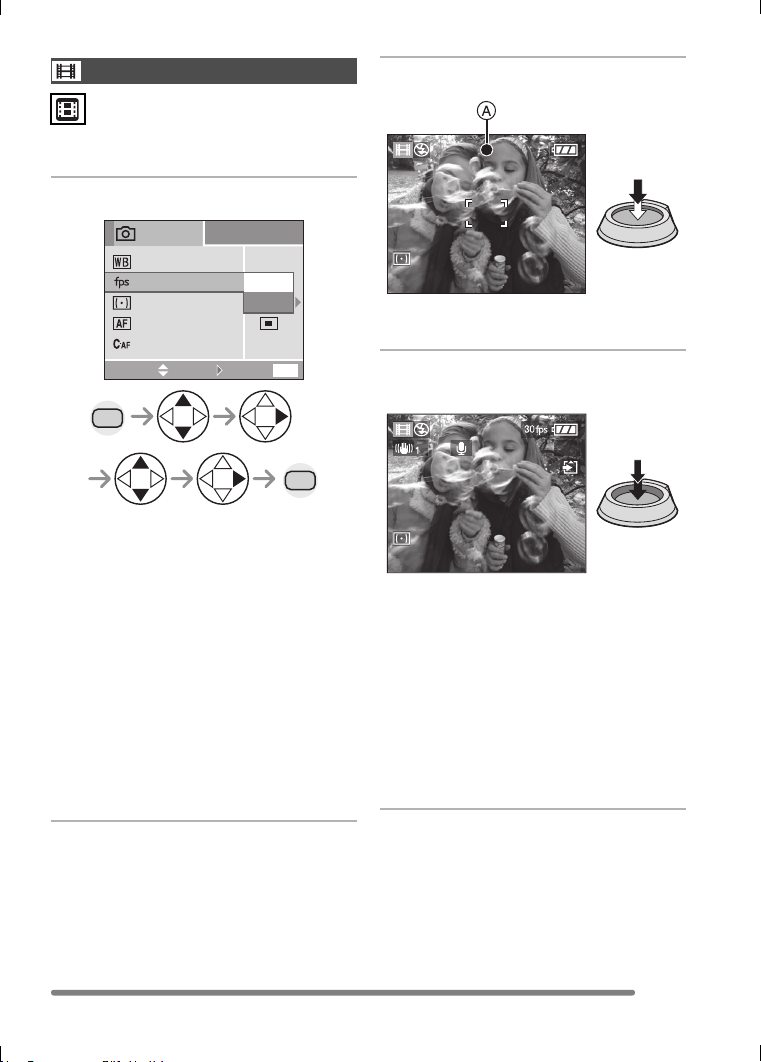
Recording pictures (advanced)
61
VQT0Q09
This mode allows you to record motion
images.
1 Select [MOTION RATE].
• [10fps]:
Recording motion images for a longer
time is available though the quality will
be less than the quality recorded at
[30fps]. The file size is smaller, so the
files are suitable to be attached to
e-mails.
• [30fps]:
The motion of the recorded image is
smooth, but the file size is large.
• fps (frame per second); This refers to
the number of frames used in 1 second.
• Close the menu by pressing the shutter
button halfway or the [MENU] button
after finishing the setting.
2 Press the shutter button halfway.
• When the subject is focused, the focus
indication A lights.
3 Press the shutter button fully to
start the recording.
• The remaining recording time
(approximation) appears on the screen.
• The audio recording starts
simultaneously from the built-in
microphone of the camera. (DMC-FZ5
only)
• By pressing the shutter button fully
again, the recording stops.
• If the card becomes full during
recording, the camera stops
automatically.
Motion image mode
MENU
EXIT
MENU
AUTO
AF MODE
CONT.AF
W.BALANCE
METERING MODE
10fps
30fps
OFF
MOTION RATE
REC
1
/
2
SELECT
SET
MENU
35S
VQT0Q09ENG.book 61 ページ 2005年1月25日 火曜日 午後8時17分
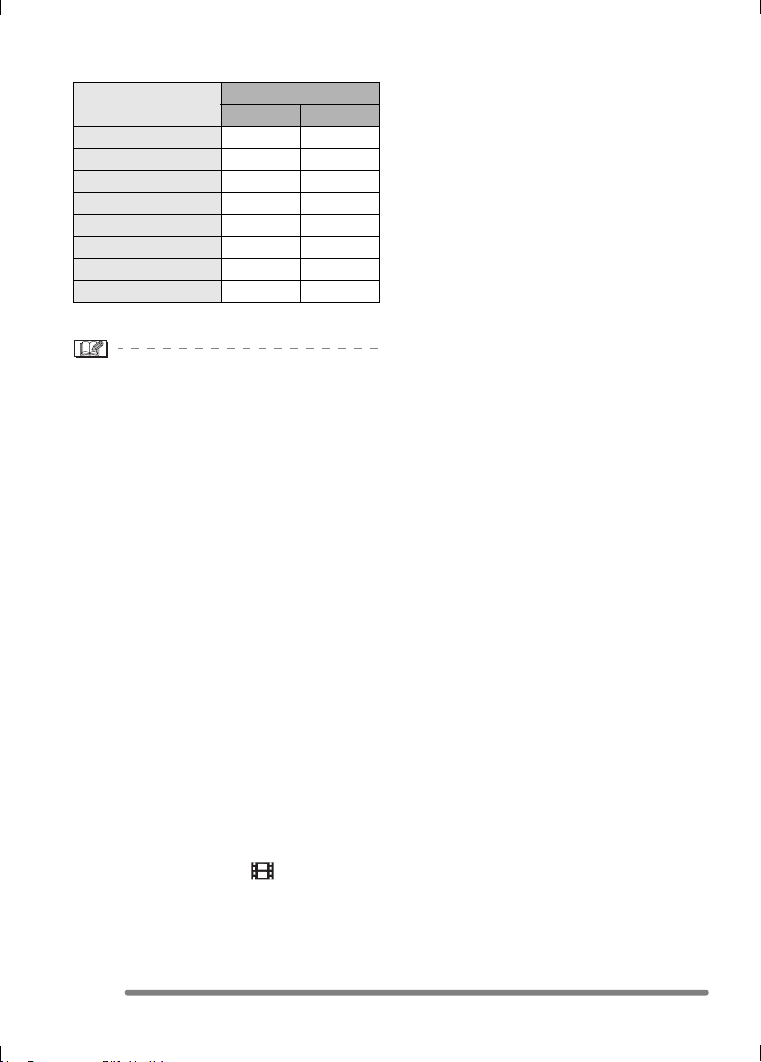
Recording pictures (advanced)
62
VQT0Q09
∫ Available recording time (seconds)
• The recordable time is an approximation.
• The picture size is fixed to
320k240 pixels.
• The motion images cannot be recorded
without audio on DMC-FZ5.
• You cannot record audio on DMC-FZ4.
• If using a MultiMediaCard, after recording
motion images, the card access indication
may appear for a while, but this is not a
malfunction. The file is being loaded to the
MultiMediaCard.
• The settings of auto focus/zoom/aperture
values are fixed to what they are when
recording starts (in the first frame).
• Depending on the type of the card,
recording may stop while you are
recording motion images.
• When motion images recorded with the
camera are played back on other
equipment, the quality of pictures and
sounds may be deteriorated or it may not
be possible to play them back.
• Motion images recorded with setting
[MOTION RATE] to [30fps] on the camera
cannot be played back on a camera which
does not support [30fps] of motion rate.
• In motion image mode [ ], you cannot
use the direction detection function and
the review function.
• You cannot set [MODE2] on the optical
image stabilizer function.
SD Memory Card
Motion rate
10fps 30fps
8 MB 35 10
16 MB 75 25
32 MB 160 55
64 MB 350 120
128 MB 720 240
256 MB 1440 480
512 MB 2870 980
1 GB 5700 1950
VQT0Q09ENG.book 62 ページ 2005年1月25日 火曜日 午後8時17分
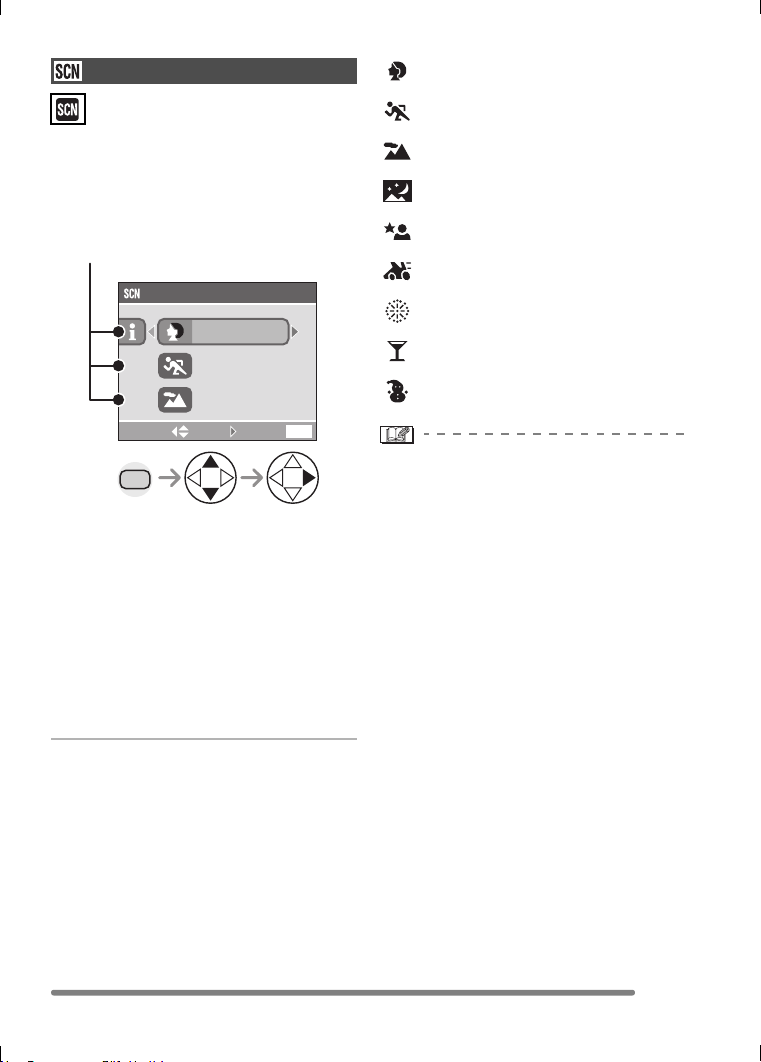
Recording pictures (advanced)
63
VQT0Q09
Set the mode dial to the scene mode to
display the scene menu.
When [SCENE MENU] on the [SETUP]
menu (P23) is set to [OFF], press the
[MENU] button to display the scene menu.
• When you press 2, the explanations for
each scene mode are displayed. (When
you press 1, the screen returns to the
scene menu.)
• When rotating the zoom lever toward T or
W, the page of the menu screen can be
forwarded or reversed.
• If you press the [MENU] button while the
scene menu is displayed, you can set the
[REC] mode menu (P70) and the [SETUP]
menu (P23).
: [PORTRAIT] (P64)
: [SPORTS] (P64)
: [SCENERY] (P65)
: [NIGHT SCENERY] (P65)
: [NIGHT PORTRAIT] (P66)
: [PANNING] (P66)
: [FIREWORKS] (P67)
: [PARTY] (P68)
: [SNOW] (P69)
• When you take pictures with a scene
mode which is not adequate for the
purpose, the hue may differ from the
actual scene.
• When you want to change the brightness
of the picture to be recorded, compensate
the exposure. (P45)
• The following functions cannot be set in
scene mode.
– White balance (P71)
– ISO sensitivity (P73)
– Metering mode (P75)
– Color effect (P80)
– Picture adjustment (P80)
Scene mode
SCENE MODE
1
/
3
SPORTS
SCENERY
MENU
MENU
MENU
SETSELECT
PORTRAIT
Menu items
VQT0Q09ENG.book 63 ページ 2005年1月25日 火曜日 午後8時17分
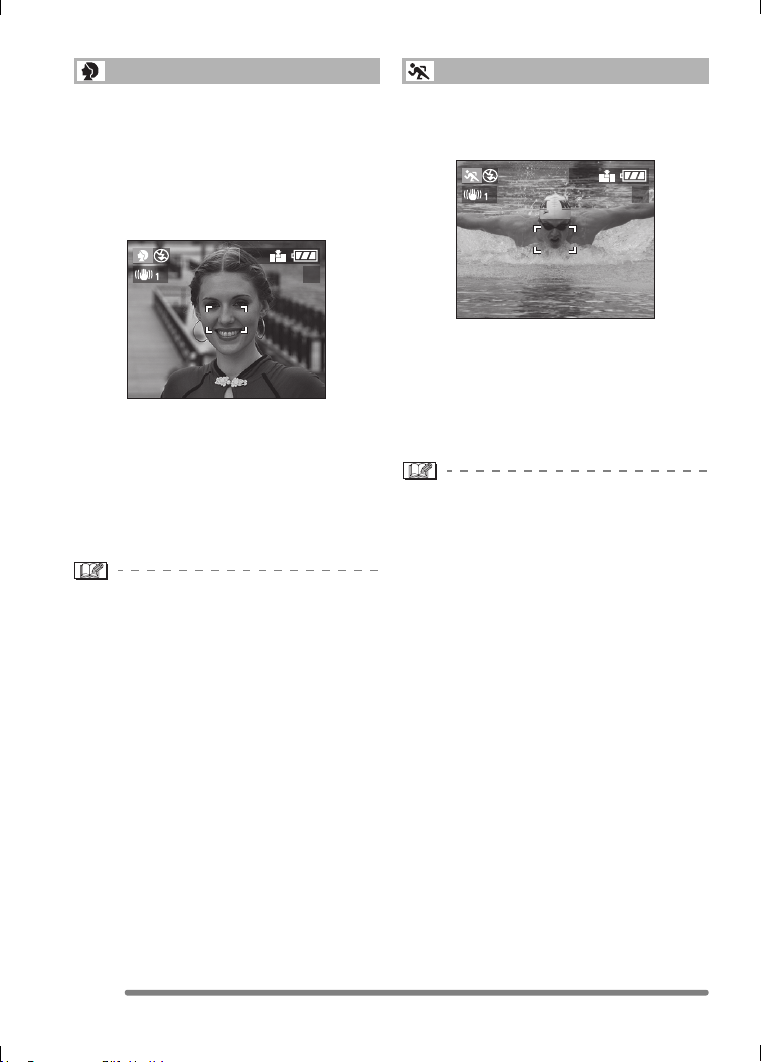
Recording pictures (advanced)
64
VQT0Q09
Select this mode when you want to take
pictures of people.
This mode allows you to make the subject
stand out from an unfocused background
and adjust the exposure and the hue to
achieve a healthy complexion on the
subject.
∫ Technique for Portrait mode
To make this mode more effective:
1 Rotate the zoom lever to Tele as far as
possible.
2 To maximize the effect, select a
background as far as possible from the
camera, and get closer to the subject.
• This mode is only suitable for outdoors in
the daytime.
• The ISO sensitivity is fixed to [AUTO].
This mode allows you to take pictures of a
fast moving subject. (e.g. When taking
pictures of outdoor sports.)
∫ Technique for Sports mode
To take a sharp picture of a fast moving
subject, the shutter speed becomes faster
than usual. This mode is more effective
when taking pictures in the daytime on a
clear day.
• This mode is suitable for outdoors only in
the daytime, keeping 5 m (16.4 feet) or
more away from the subject.
• The ISO sensitivity is fixed to [AUTO].
Portrait mode
2560
19
Sports mode
2560
19
VQT0Q09ENG.book 64 ページ 2005年1月25日 火曜日 午後8時17分
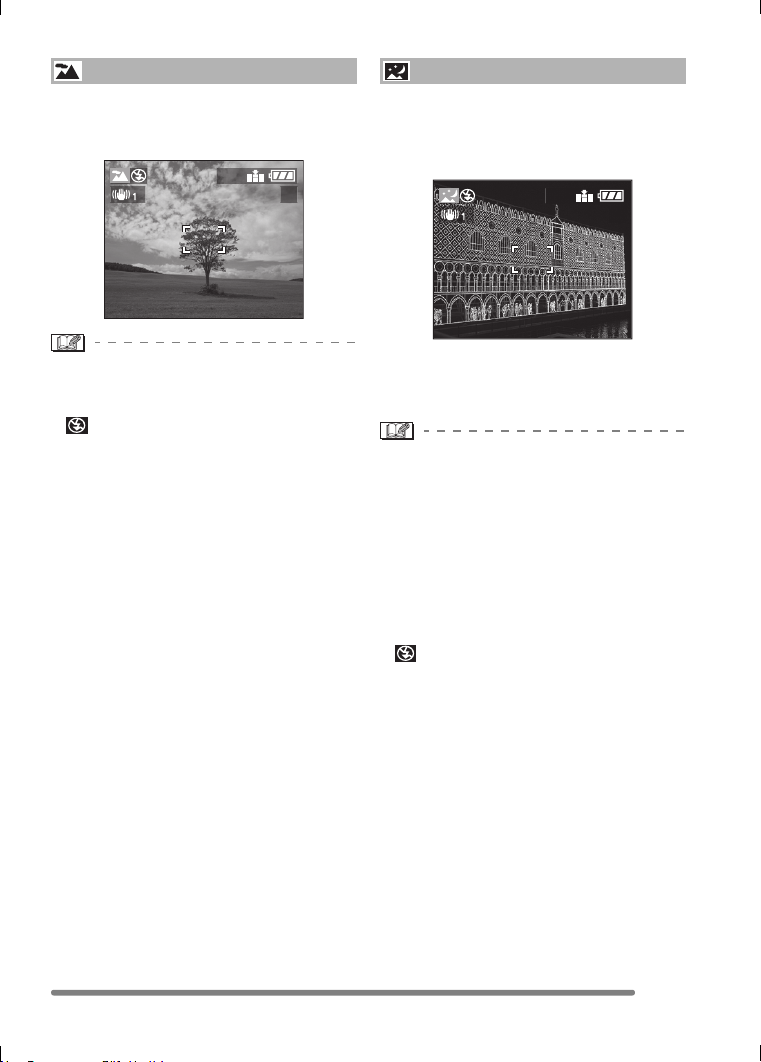
Recording pictures (advanced)
65
VQT0Q09
This mode allows you to take a picture of a
wide landscape. The camera focuses on a
distant subject preferentially.
• The focus range is 5 m (16.4 feet)– ¶.
• The ISO sensitivity is fixed to [AUTO].
• The flash setting is fixed to Forced OFF
[].
• The setting on the AF assist lamp is
disabled.
This mode allows you to take a picture of a
nightscape. The landscape can be
recorded vividly by slowing down the
shutter speed.
∫ Technique for Night scenery mode
• Since the shutter speed becomes slow
(max. about 8 sec.), use a tripod.
• The focus range is 5 m (16.4 feet)– ¶.
• The shutter may be kept closed (max.
about 8 sec.) after taking a picture
because of signal conditioning, but it is not
a malfunction.
• When you take pictures in dark places,
noise may become visible.
• The ISO sensitivity is fixed to [ISO80]
(DMC-FZ5)/[ISO64] (DMC-FZ4).
• The flash setting is fixed to Forced OFF
[].
• The settings on the AF assist lamp and
the continuous AF are disabled.
Scenery mode
2560
19
Night scenery mode
2560
19
VQT0Q09ENG.book 65 ページ 2005年1月25日 火曜日 午後8時17分
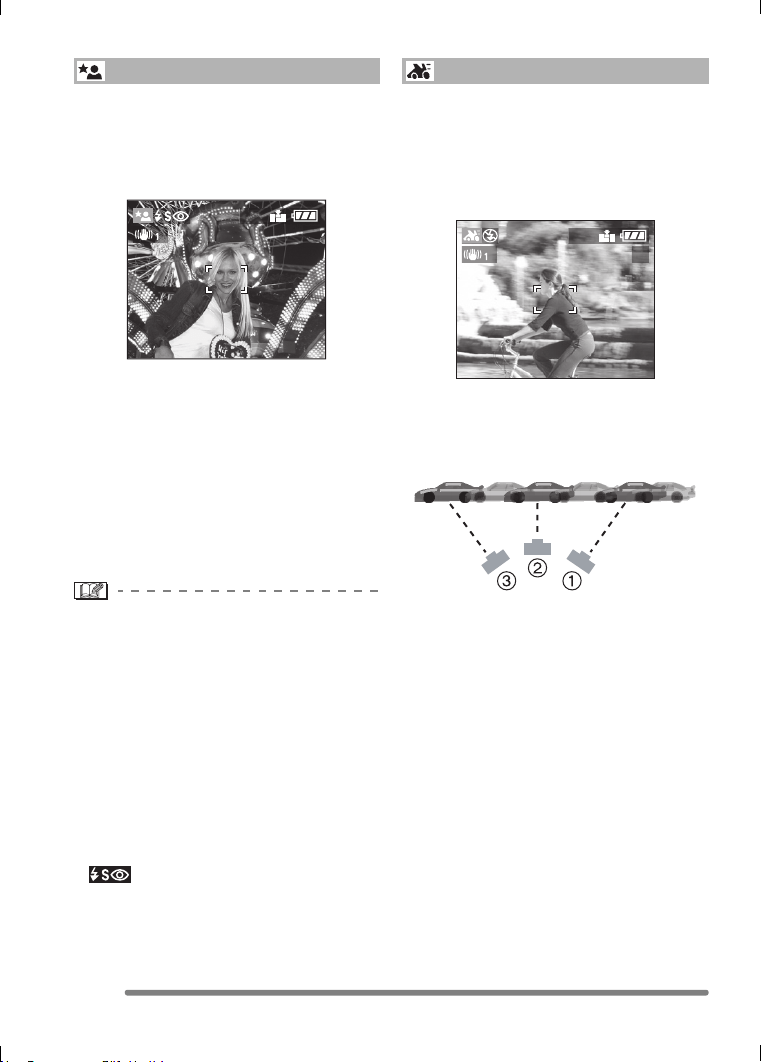
Recording pictures (advanced)
66
VQT0Q09
This mode allows you to take pictures
against a night landscape. The subject can
be recorded with brightness in real life by
using the flash and slowing down the
shutter speed.
∫ Technique for Night portrait mode
• Open the flash. (P40)
• Since the shutter speed becomes slow,
we recommend using a tripod.
• Keep the subject still for about 1 second
when taking a picture.
• We recommend taking pictures by rotating
the zoom lever to Wide (1k) and being at
a distance about 1.5 m (4.92 feet) from
the subject.
• The focus range is 1.2 m (3.94 feet)– 5 m
(16.4 feet) (Wide), 2 m (6.56 feet) – 5 m
(16.4 feet) (Tele).
(Refer to P41 for the flash control range.)
• Be sure to close the flash when not in use.
• The shutter may be kept closed (max.
about 1 sec.) after taking a picture
because of signal conditioning, but it is not
a malfunction.
• When you take pictures in dark places,
noise may become visible.
• When the flash is set, the flash setting is
fixed to Slow sync./Red-eye reduction
[ ] and the flash is always activated.
• The ISO sensitivity is fixed to [AUTO].
• The setting on the continuous AF is
disabled.
When you take a picture following the
motion of a subject which moves in a
certain direction such as a runner or a car,
the background will show some motion blur.
This special effect is called “panning”. This
mode allows you to obtain this effect easier.
∫ Technique for Panning mode
To achieve good pictures in panning mode,
pick a horizontal plane– and then pan as
you fire shots.
1 Move the camera smoothly while
tracking a subject in motion.
2 Press the shutter button while moving
the camera.
3 Keep moving the camera continuously.
• Be careful of the following:
– Use the Viewfinder. (P27)
– Select a subject with quick motion.
– Prefocus to the point where the subject
will arrive. (P77)
– Use this mode with burst mode. (P48)
Select the best picture from the pictures
taken.
Night portrait mode
2560
19
Panning mode
2560
19
VQT0Q09ENG.book 66 ページ 2005年1月25日 火曜日 午後8時17分
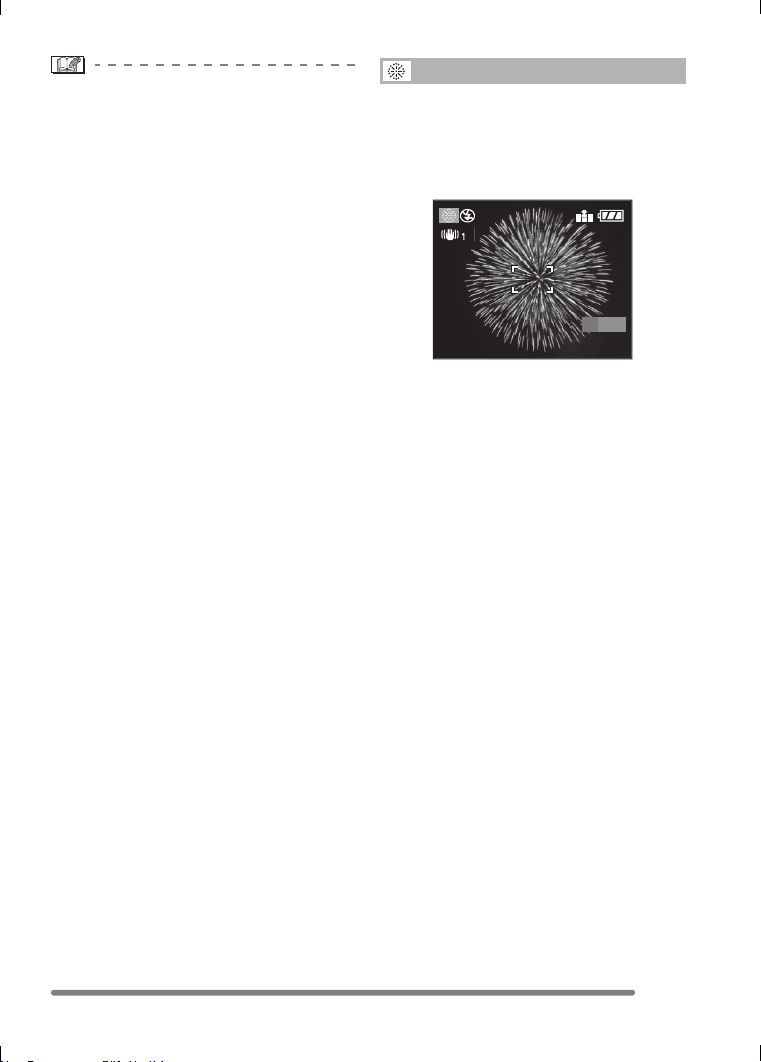
Recording pictures (advanced)
67
VQT0Q09
• In panning mode, the shutter speed
becomes slower than usual to achieve the
panning effect. As a result, jitter can easily
occur.
• Panning function does not work well in the
following situations.
– Very bright scenes such as daytime in
summer. We recommend using an ND
filter (DMW-LND55; optional). (P103)
– When the shutter speed is faster than
1/100th.
– When the subject moves slowly and the
tracking speed is too slow. (The
background cannot be recorded
dynamically.)
• The stabilizer function is fixed to
[MODE1]. In panning mode, only vertical
jitters can be compensated.
• The ISO sensitivity is fixed to [ISO80]
(DMC-FZ5)/[ISO64] (DMC-FZ4).
• The settings on the AF assist lamp and
the continuous AF are disabled.
This mode allows you to take beautiful
pictures of fireworks exploding in the night
sky. The shutter speed or the exposure is
automatically adjusted for taking pictures of
fireworks.
∫ Technique for Fireworks mode
We recommend following the prefocus
procedure below to ensure that you do not
miss the chance to take pictures.
1 Set the [AF TRIGGER] to [FOCUS].
(P77)
2 Aim the camera at an object (such as
illumination on a building), which is
roughly the same distance as the point of
fireworks.
3 Press the [FOCUS] button until the focus
indication (P77) lights.
4 Aim the camera at the direction where
the fireworks will be exploding.
5 Press the shutter button fully when
fireworks are exploding.
• When you zoom away from or towards the
subject, repeat steps 2 –5 since the focus
position becomes misaligned.
• We recommend using a tripod.
Fireworks mode
2560
19
AF
FOCUS
VQT0Q09ENG.book 67 ページ 2005年1月25日 火曜日 午後8時17分
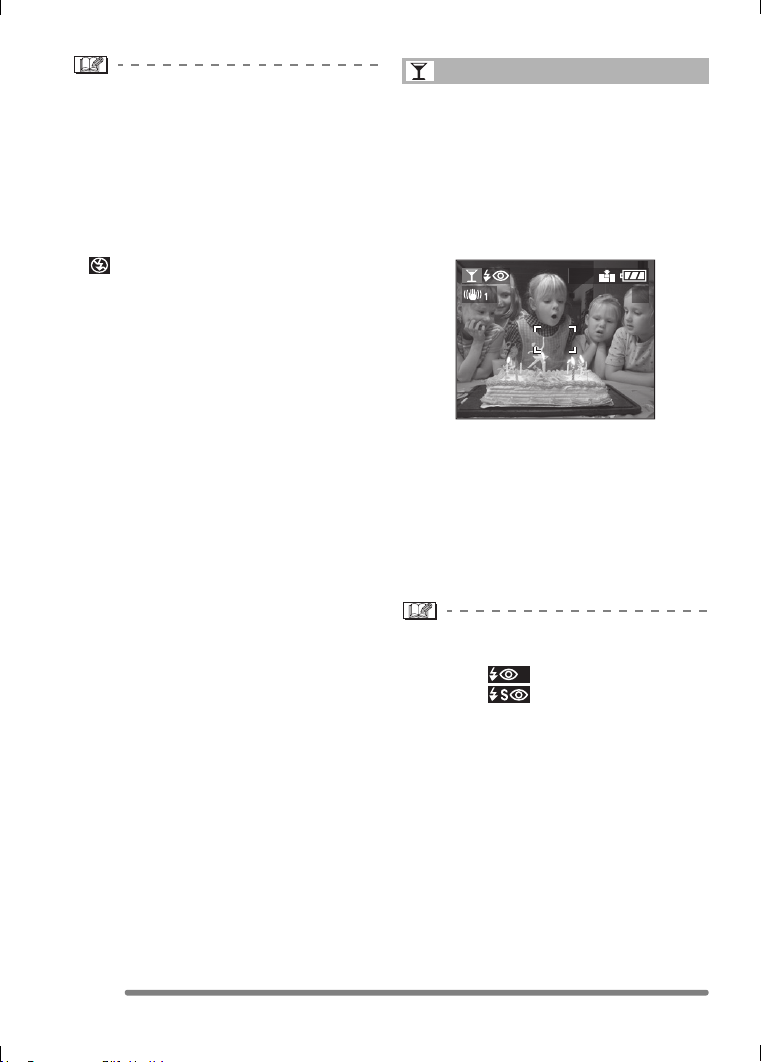
Recording pictures (advanced)
68
VQT0Q09
• When the auto focus is activated, the
available recording range is 5 m
(16.4 feet) –¶. (We recommend following
steps 1 to 5 on the previous page to take
pictures with prefocus.)
• The ISO sensitivity is fixed to [AUTO].
• The settings on the AF assist lamp and
the continuous AF are disabled.
• The flash setting is fixed to Forced OFF
[].
This mode allows you to take a picture
according to the atmosphere of the
situation (e.g. a wedding reception, a party
in a room, etc.).
Both the people and the background can
be recorded with brightness in real life by
using the flash and slowing down the
shutter speed.
∫ Technique for Party mode
• Open the flash. (P40)
• Since the shutter speed becomes slow,
we recommend using a tripod.
• We recommend taking pictures by rotating
the zoom lever to Wide (1k) and being at
a distance about 1.5 m (4.92 feet) from
the subject.
• When the flash is activated, the flash
setting can be set to Forced ON/Red-eye
reduction [ ] or Slow sync./Red-eye
reduction [ ].
• The ISO sensitivity is fixed to [AUTO].
Party mode
2560
19
VQT0Q09ENG.book 68 ページ 2005年1月25日 火曜日 午後8時17分
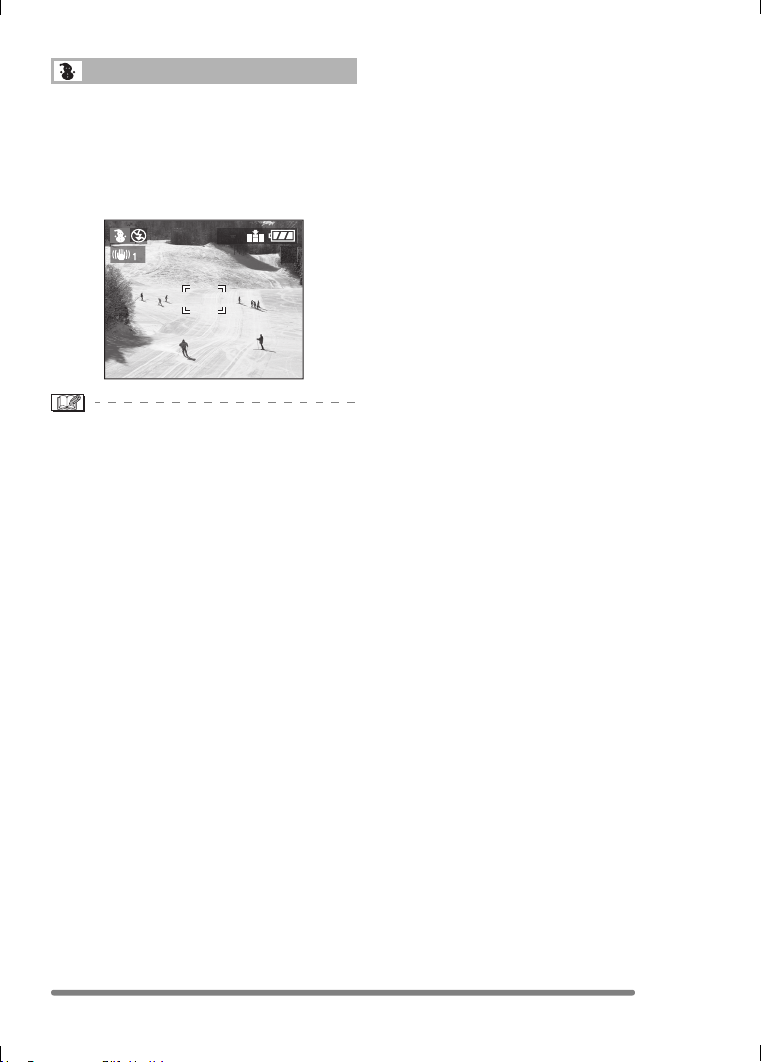
Recording pictures (advanced)
69
VQT0Q09
This mode allows you to take a picture in
locations such as skiing resorts and
locations near snowy mountains. The
exposure and the white balance are
adjusted to make the white color of the
snow stand out.
• The ISO sensitivity is fixed to [AUTO].
Snow mode
2560
19
VQT0Q09ENG.book 69 ページ 2005年1月25日 火曜日 午後8時17分
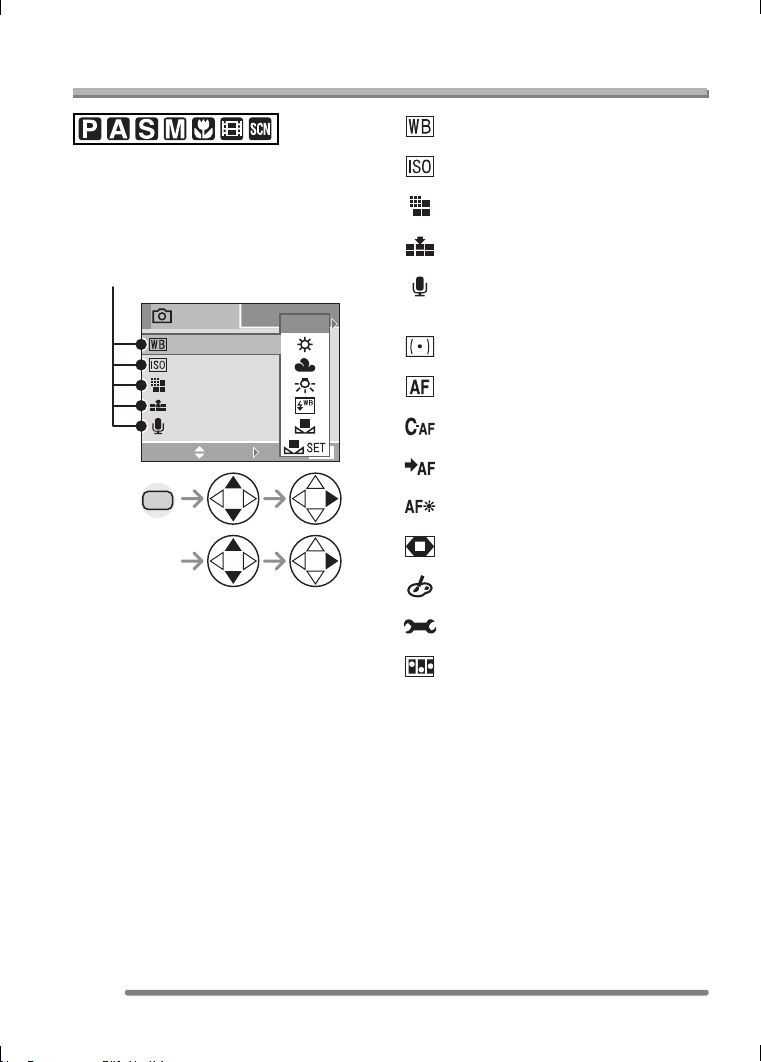
Recording Menu Settings
70
VQT0Q09
Recording Menu Settings
Using the [REC] mode menu
Setting the hue, picture quality adjustment,
etc. allows you to create wide variations on
taking pictures.
• Set the mode dial to the desired recording
mode.
• When rotating the zoom lever toward T or
W, the page of the menu screen can be
forwarded or reversed.
• Close the menu by pressing the shutter
button halfway or the [MENU] button after
finishing the setting.
: [W.BALANCE] (P71)
: [SENSITIVITY] (P73)
: [PICT.SIZE] (P74)
: [QUALITY] (P74)
: [AUDIO REC.] (DMC-FZ5 only)
(P75)
: [METERING MODE] (P75)
: [AF MODE] (P76)
: [CONT.AF] (P77)
: [AF TRIGGER] (P77)
: [AF ASSIST LAMP] (P78)
: [D.ZOOM] (P79)
: [COL.EFFECT] (P80)
: [PICT.ADJ.] (P80)
: [FLIP ANIM.] (P80)
MENU
EXIT
MENU
SENSITIVITY
QUALITY
AUDIO REC.
PICT.SIZE
W.BALANCE
AUTO
SELECT SET
REC
1
/
3
Menu items
VQT0Q09ENG.book 70 ページ 2005年1月25日 火曜日 午後8時17分
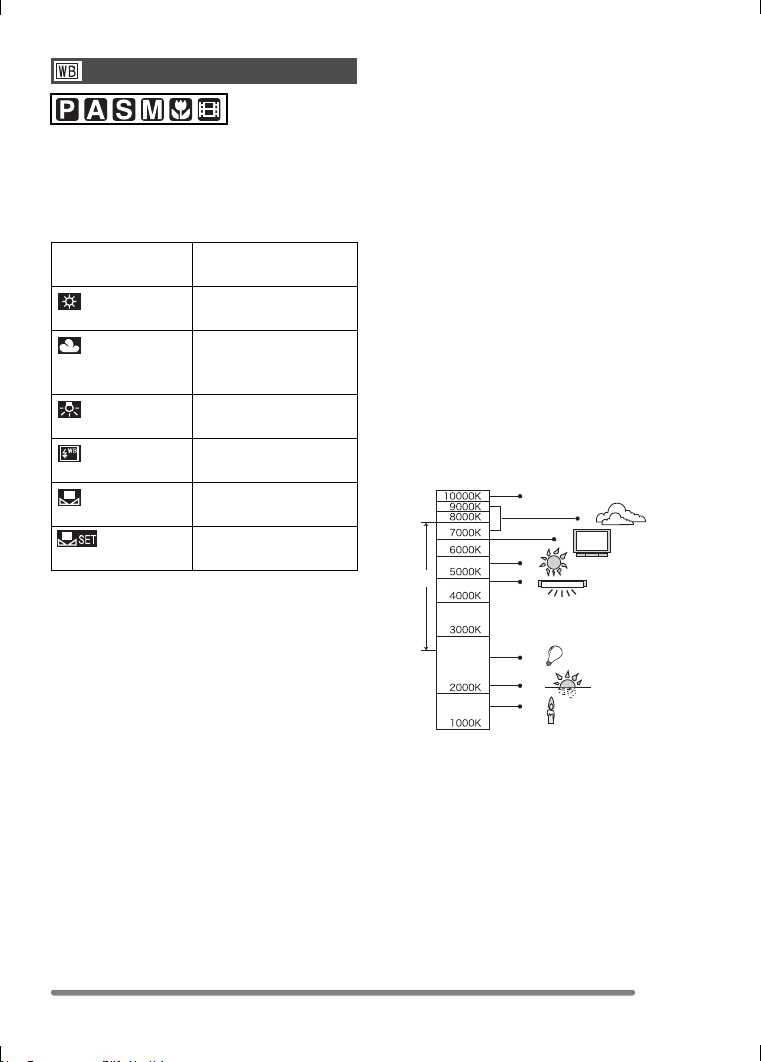
Recording Menu Settings
71
VQT0Q09
This function allows you to reproduce a
white color closer to the tone in real life on
the pictures recorded under sunlight,
halogen lighting, etc. in which the white
color may appear reddish or bluish.
• When setting the white balance to the
mode except [AUTO], you can finely
adjust the white balance.
∫ Auto White Balance
Use of auto white balance adjustment in
inappropriate lighting conditions may result
in reddish or bluish pictures. Where the
subject is surrounded by many light
sources, auto white balance adjustment
may not operate properly.
In this case, set the white balance to a
mode except [AUTO] manually.
1 The range that is controlled by the auto
white balance adjustment mode of the
camera
2 Blue sky
3 Cloudy sky (Rain)
4 TV screen
5 Sunlight
6 White fluorescent light
7 Incandescent light bulb
8 Sunrise and sunset
9 Candlelight
KlKelvin Color Temperature
White Balance
[W.BALANCE]
AUTO for auto setting (auto
white balance)
(Daylight) for recording outdoors
on a bright day
(Cloudy) for recording under a
cloudy sky or shaded
area
(Halogen) for recording under
halogen lighting
(Flash) for taking a picture
with photo flash only
(White set) for using the preset
white balance
(White set) for setting the white
balance again (P72)
1)
2)
3)
4)
5)
6)
7)
8)
9)
VQT0Q09ENG.book 71 ページ 2005年1月25日 火曜日 午後8時17分
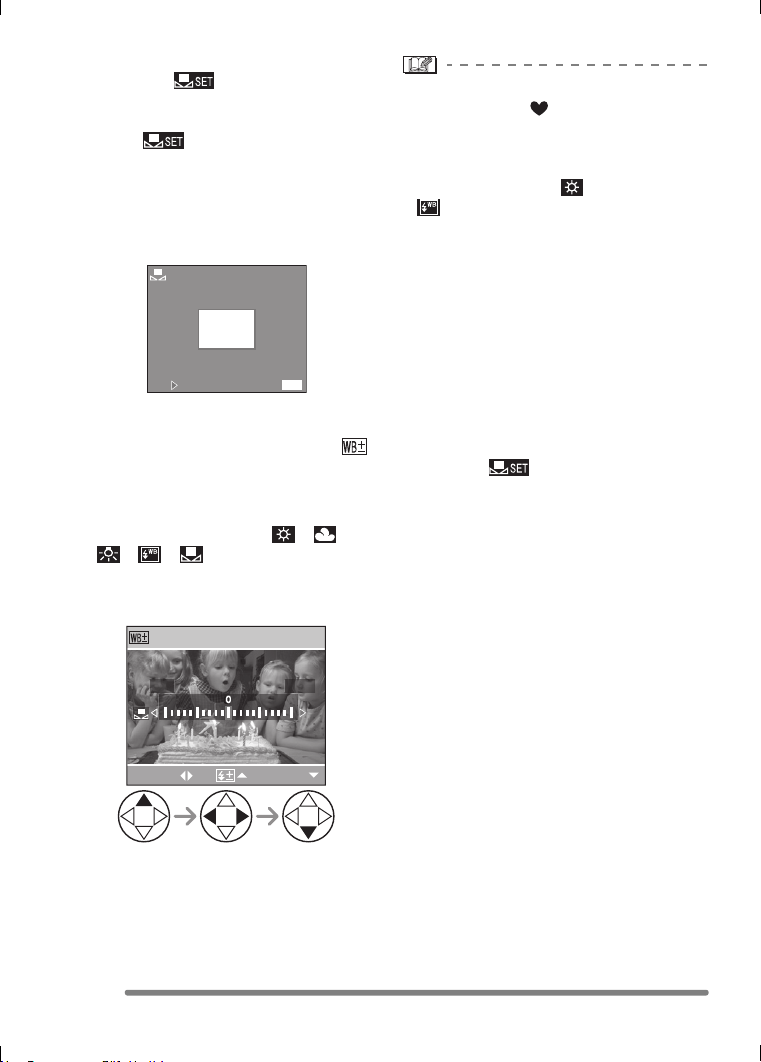
Recording Menu Settings
72
VQT0Q09
∫ Setting the White Balance manually
(White set )
Use this mode when you want to set the
white balance manually.
1 Set to [ ] (White Set) and then
press 1.
2 Aim the camera at a sheet of white paper
or a similar white object so that the frame
in the center is filled by the white object
only and then press 1.
∫ Finely Adjusting the White Balance
(White Balance Fine Adjustment )
When you cannot acquire the desired hue
by setting the white balance, you can adjust
the white balance finely.
1 Set the white balance to [ ]/[ ]/
[ ]/[ ]/[ ]. (P71)
2 Press 3 several times until
[WB ADJUST.] appears.
3 Finely adjust the white balance.
• 1 [BLUE]: Press when the hue is
reddish.
• 2 [RED]: Press when the hue is
bluish.
About the white balance
• In simple mode [ ], the white balance is
fixed to [AUTO].
• When taking a picture with the flash, the
white balance will be automatically
adjusted [except for [ ] (Daylight) and
[ ] (Flash)], but the white balance may
not be properly adjusted if the flash level
is insufficient.
About the white balance fine adjustment
• The white balance icon on the screen
turns red or blue.
• You can set the value independently for
each of the modes in white balance.
• The setting on the fine adjustment of the
white balance is reflected to the picture
when taking a picture with the flash.
• When you set the white balance using the
White set [ ], the adjustment level is
set to “0”.
• When the color effect is set to any of
[COOL], [WARM], [B/W] or [SEPIA] (P80),
you cannot finely adjust the white balance.
WHITE SET
SET
CANCEL
MENU
BLUERED
WB ADJUST.
SELECT
EXIT
VQT0Q09ENG.book 72 ページ 2005年1月25日 火曜日 午後8時17分
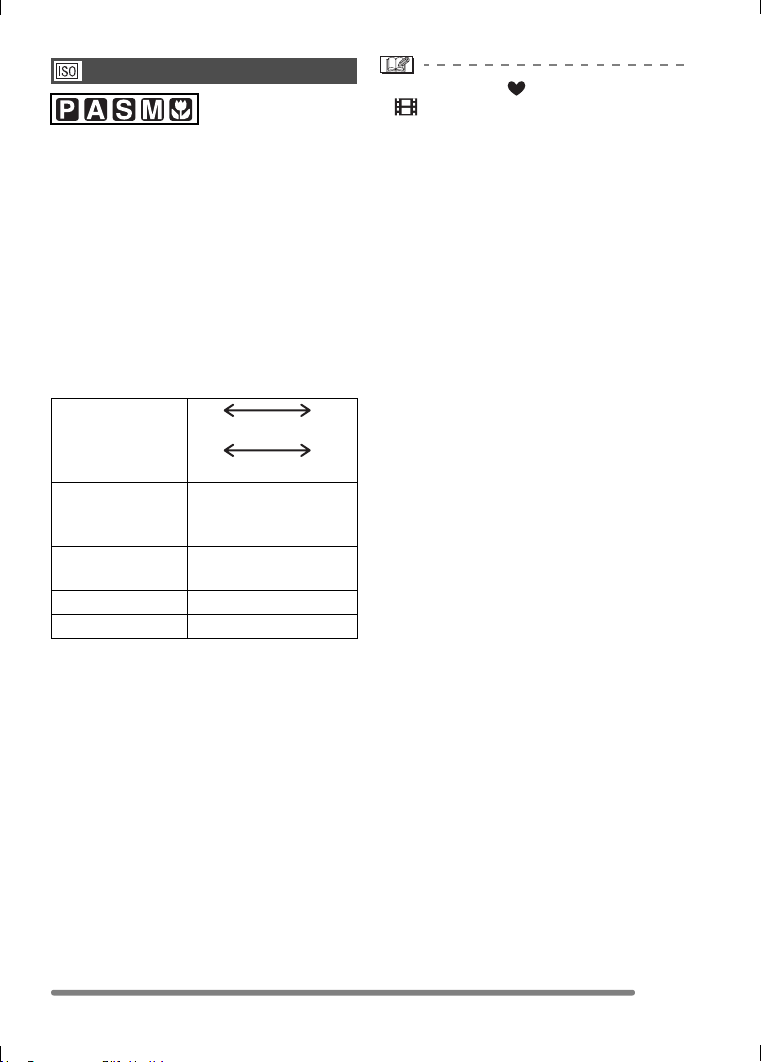
Recording Menu Settings
73
VQT0Q09
ISO sensitivity represents the sensitivity to
light in values. If you set the ISO sensitivity
higher, the camera becomes more suitable
for recording in dark places.
• When setting to [AUTO], the ISO
sensitivity is automatically adjusted in the
range described below according to the
brightness.
DMC-FZ5: [ISO80]– [ISO200]
DMC-FZ4: [ISO64]– [ISO200]
(It can be adjusted from [ISO100] to
[ISO400] when using the flash.)
(Common to DMC-FZ5/DMC-FZ4)
• In simple mode [ ], motion image mode
[ ] or scene mode (P63), ISO
sensitivity is fixed to [AUTO]. (In [NIGHT
SCENERY] and [PANNING] in scene
mode, it is fixed to [ISO80] (DMC-FZ5)/
[ISO64] (DMC-FZ4).)
• You cannot select [AUTO] in
Aperture-priority AE, Shutter-priority AE
and Manual exposure mode.
• To avoid picture noise, we recommend
decreasing the ISO sensitivity or setting
[PICT.ADJ.] to [NATURAL]. (P80)
• Refer to P59 for the shutter speed.
ISO Sensitivity
[SENSITIVITY]
ISO sensitivity 80 400
(DMC-FZ5)
64 400
(DMC-FZ4)
Use in bright
places
(e.g. outdoors)
Suitable
Not
suitable
Use in dark
places
Not
suitable
Suitable
Shutter speed Slow Fast
Noise Less Increased
VQT0Q09ENG.book 73 ページ 2005年1月25日 火曜日 午後8時17分
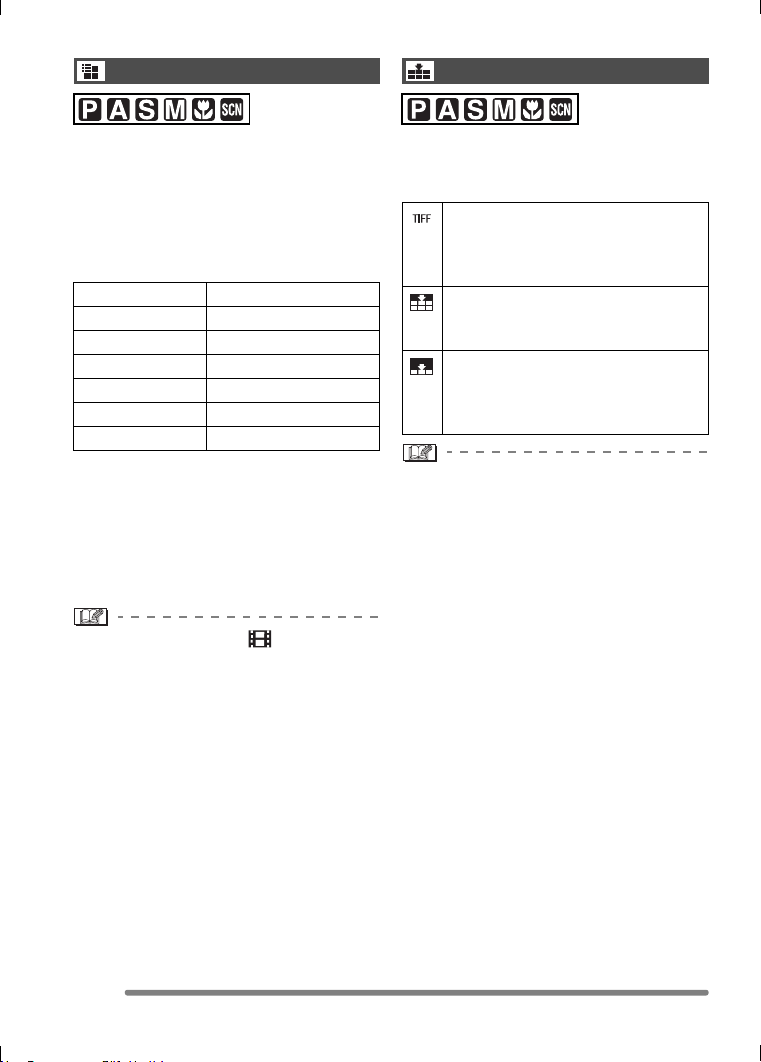
Recording Menu Settings
74
VQT0Q09
When you select a larger picture size, you
can print pictures clearly.
When you select a smaller picture size
(640k480 pixels), you can record more
pictures. In addition, it is convenient to
attach the picture to an e-mail or post it on
a website because the file size is small.
• For details on how to playback pictures
recorded using [HDTV] mode on a
High-Definition TV (HDTV has a 16:9
aspect), refer to P95.
• Both ends of the pictures recorded using
[HDTV] mode may be cut off in printing.
Check the picture before printing. (P111)
• In motion image mode [ ] or when a flip
animation is created, the picture size is
fixed to 320k240 pixels.
• Pictures may appear like a mosaic
depending on the subject or the recording
condition.
• The number of recordable pictures
depends on the subject.
• The number of remaining pictures
displayed on the screen may not
correspond with recorded frames.
• Refer to P18 for the number of recordable
pictures.
You can select 3 types of quality
(compression level) according to the usage
of the picture.
• When the quality is set to [TIFF], a JPEG
picture with the quality equal to Standard
is created at the same time.
• Pictures may appear like a mosaic
depending on the subject or the recording
condition.
• The number of recordable pictures
depends on the subject.
• The number of remaining pictures
displayed on the screen may not
correspond with recorded frames.
• The following functions cannot be used for
pictures recorded in [TIFF].
– [AUDIO DUB.] (DMC-FZ5 only)
–[RESIZE]
–[TRIMMING]
• The following functions cannot be used
when setting the quality to [TIFF].
– Auto bracket
– Burst mode
– [AUDIO REC.] (DMC-FZ5 only)
• Refer to P18 for the number of recordable
pictures.
Picture Size
[PICT.SIZE]
2560 (DMC-FZ5) 2560k1920 pixels
2304 (DMC-FZ4) 2304k1728 pixels
2048 (DMC-FZ5) 2048k1536 pixels
1600 1600k1200 pixels
1280 1280k960 pixels
640 640k480 pixels
HDTV 1920k1080 pixels
Quality
[QUALITY]
TIFF (Uncompressed):
This type is suitable when editing
and processing pictures with retouch
software.
Fine (Low compression):
This type gives priority to picture
quality. Picture quality will be high.
Standard (High compression):
This type gives priority to the
number of recordable pictures and
records standard quality pictures.
VQT0Q09ENG.book 74 ページ 2005年1月25日 火曜日 午後8時17分
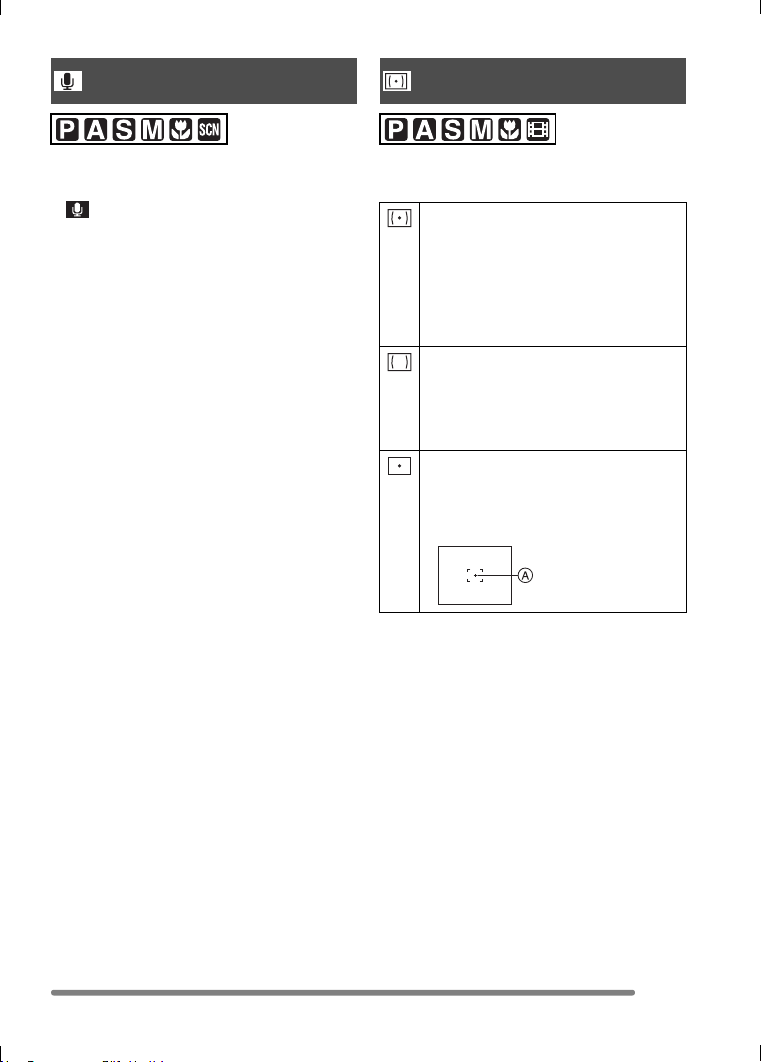
Recording Menu Settings
75
VQT0Q09
You can take a picture with audio.
• When you set [AUDIO REC.] to [ON],
[ ] appears on the screen.
• When you start recording by focusing on
the subject and pressing the shutter
button, the audio recording will be
automatically stopped in about 5 seconds.
There is no need to keep pressing the
shutter button.
• Audio is recorded from the built-in
microphone of the camera.
• If you press the [MENU] button during the
audio recording, the audio recording will
be canceled. The audio cannot be
recorded.
• You cannot record pictures with audio in
auto bracket, burst mode or when the
quality is set to [TIFF].
• When audio is recorded with each picture,
the total number of pictures that can be
stored on each card will slightly decrease.
You can switch to the following metering
modes.
Audio Recording
[AUDIO REC.]
(DMC-FZ5 only)
Metering Mode
[METERING MODE]
Multiple:
This is the method in which the
camera measures the most suitable
exposure by judging the allocation of
brightness on the whole screen
automatically. Usually, we
recommend using this method.
Center weighted:
This is the method used to focus on
the subject on the center of the
screen and measure the whole
screen evenly.
Spot:
This is the method to measure the
subject in the spot metering target
A.
VQT0Q09ENG.book 75 ページ 2005年1月25日 火曜日 午後8時17分
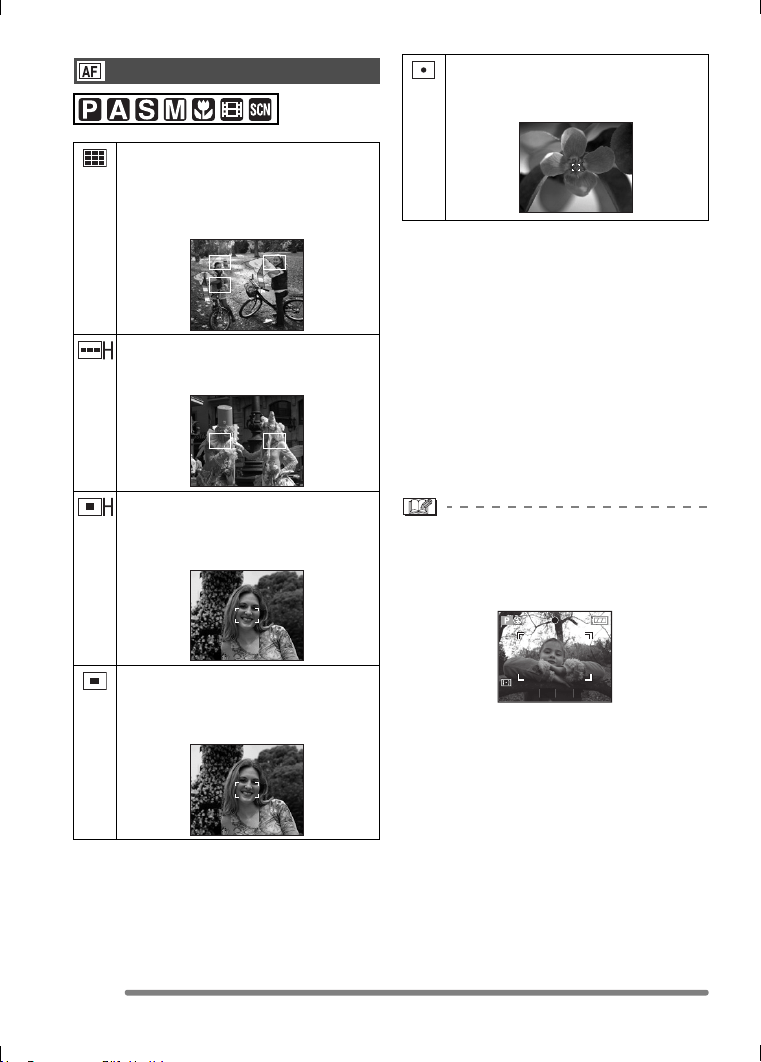
Recording Menu Settings
76
VQT0Q09
∫ High speed AF (H) mode
When you select 3-area-focusing (high
speed) or 1-area-focusing (high speed), the
auto focus is activated in high speed and
you can focus on the subject more quickly.
Pictures may become still in the condition
they were in before the subject was
focused when you press the shutter button.
However, it is not a malfunction. If you do
not want to make pictures still during the
auto focus, use the AF mode other than
3-area-focusing (high speed) mode and
1-area-focusing (high speed) mode.
• When using the digital zoom or when you
take pictures in dark places, the AF area
is displayed on the center of the screen
with a size wider than usual.
• When multiple AF areas (max. 9 areas)
light at the same time, the camera is
focusing on all the AF areas.
The focus position is not predetermined
because it is set to the position that the
camera automatically determines at the
time of focusing. If you want to determine
the focus position to take pictures, switch
the AF mode to 1-area-focusing mode.
AF Mode
[AF MODE]
9-area-focusing:
The camera focuses on any of
9 focus areas. You can record a
picture in free composition without
limiting the position of the subject.
3-area-focusing (high speed):
The camera focuses on any of the
left, center and right of the screen.
1-area-focusing (high speed):
The camera focuses on the subject
in AF area on the center of the
screen.
1-area-focusing:
The camera focuses on the subject
in AF area on the center of the
screen.
Spot-focusing:
The camera focuses on the limited
and narrow area in the screen.
1/60F5.0
VQT0Q09ENG.book 76 ページ 2005年1月25日 火曜日 午後8時17分
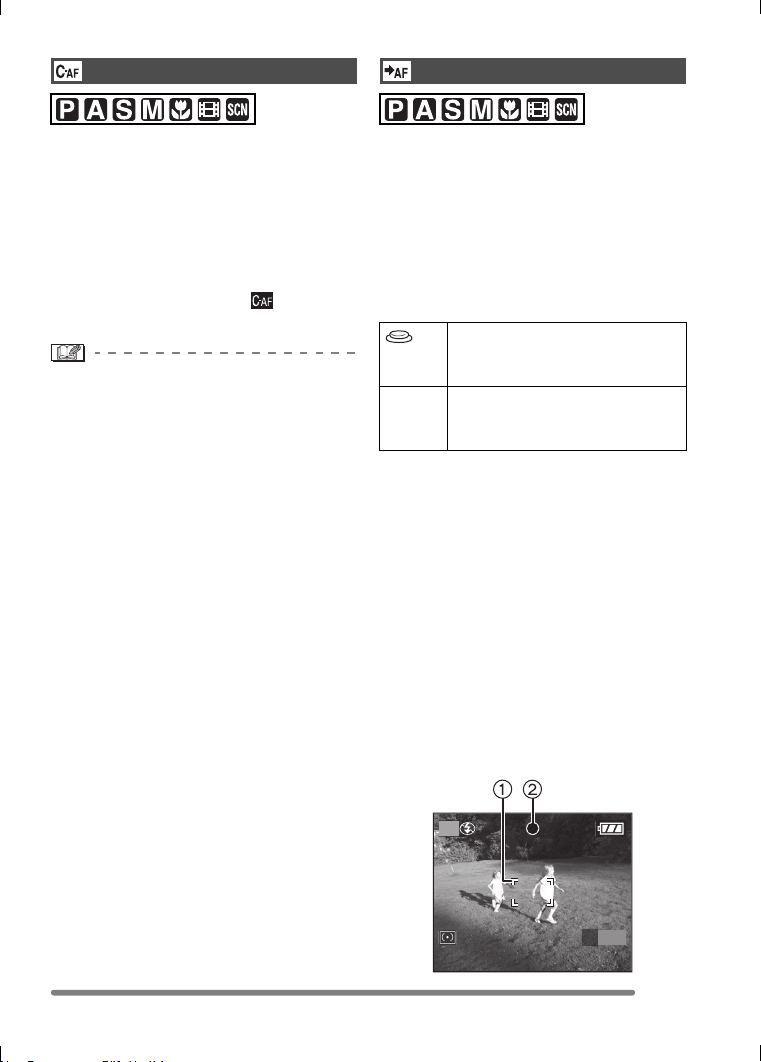
Recording Menu Settings
77
VQT0Q09
This mode allows you to compose a picture
more easily by always focusing on the
subject.
When the AF mode is set to
1-area-focusing, 1-area-focusing (high
speed) or spot-focusing, the time required
for focusing when pressing the shutter
button halfway will be reduced.
• When it is set to [ON], the [ ] indication
appears.
• The battery may be consumed faster than
usual.
• It may take time to focus on the subject
after rotating the zoom lever from Wide to
Tele or suddenly changing the subject
from a distant one to a nearby one.
• Press the shutter button halfway again
when it is difficult to focus on the subject.
When taking a picture with prefocus, set
the button for starting AF (Auto focus) to
[FOCUS] on [AF TRIGGER].
Prefocus is a technique to focus on the
point where you take a picture of the
subject with quick motion.
This function is suitable when the distance
between the camera and the subject is
pre-determined.
∫ Procedure for recording with prefocus
using [FOCUS] button
1 Aim the AF area to the point where you
want to focus. (P31)
2 Press the [FOCUS] button.
When the subject is focused, the AF area
1 turns from white to green and the
focus indication 2 lights up for about
1 second.
If the subject is out of focus, the AF area
turns from white to red and the focus
indication blinks for about 1 second.
The focus will not be changed unless you
press the [FOCUS] button again.
Continuous AF
[CONT.AF]
AF Trigger
[AF TRIGGER]
When you press the shutter
button halfway, the Auto focus is
activated.
FOCUS When you press the [FOCUS]
button, the Auto focus is
activated.
P
AF
FOCUS
VQT0Q09ENG.book 77 ページ 2005年1月25日 火曜日 午後8時17分
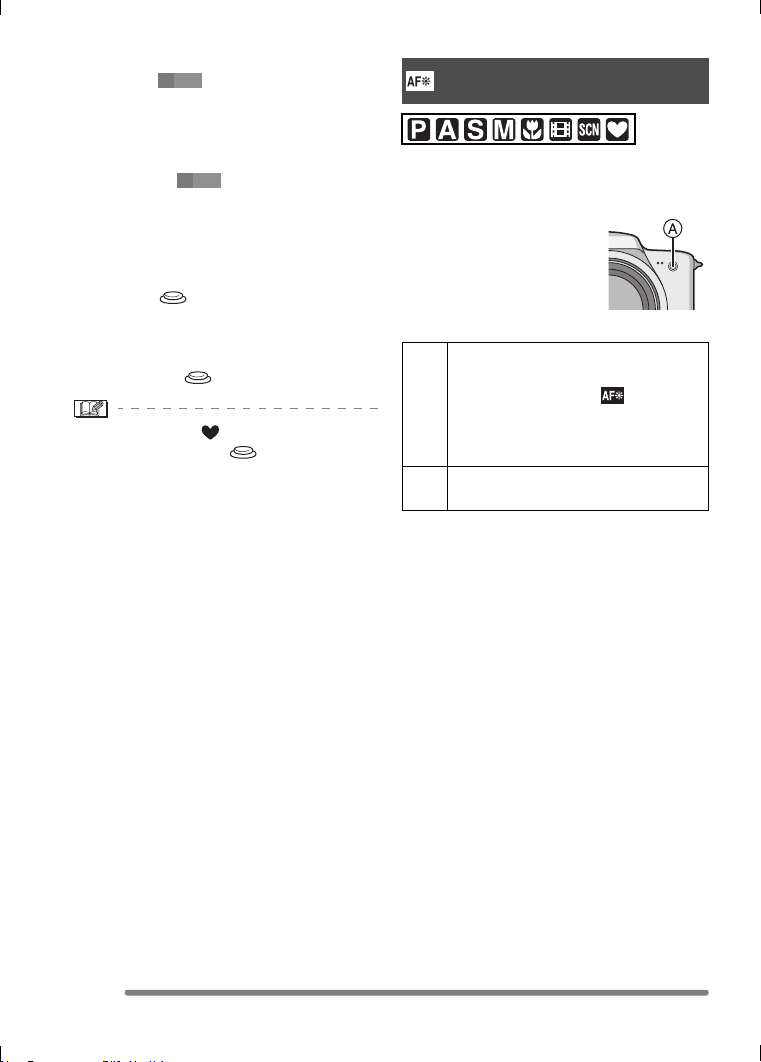
Recording Menu Settings
78
VQT0Q09
When you press the shutter button
halfway, [ ] indication disappears
and then the aperture value and the
shutter speed are displayed.
When you press the shutter button
halfway without pressing the [FOCUS]
button, the [ ] indication turns red.
3 When the subject is enclosed within the
focused area, press the shutter button to
take a picture.
• When taking pictures normally, set the AF
Trigger to [ ]. When you need to focus
on the subject before recording such as
prefocus, set to [FOCUS]. After you
complete recording with prefocus, set the
AF Trigger to [ ] again.
• In simple mode [ ], the AF Trigger is
automatically set to [ ].
Illuminating the subject with the AF assist
lamp allows the camera to focus on the
subject in low light conditions.
When you press the shutter
button halfway in dark
places or other situations,
an AF area wider than usual
appears and the AF assist
lamp A turns on.
AF
FOCUS
AF
FOCUS
AF Assist Lamp
[AF ASSIST LAMP]
ON The AF assist lamp turns on under
low light conditions. In this time, the
AF assist lamp icon [ ] appears
on the screen. The effective range
of the AF assist lamp is 1.5 m
(4.92 feet).
OFF The AF assist lamp does not turn
on.
VQT0Q09ENG.book 78 ページ 2005年1月25日 火曜日 午後8時17分
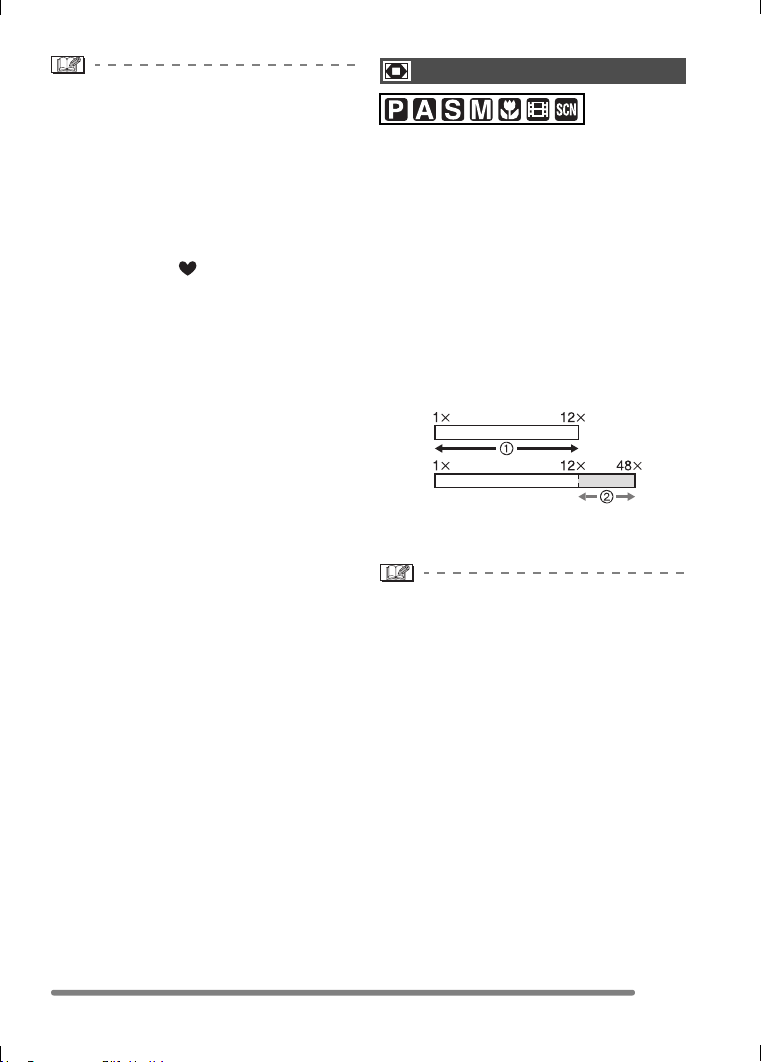
Recording Menu Settings
79
VQT0Q09
• Be sure of the following points when the
AF assist lamp is in use.
– Do not look into the AF assist lamp.
– Detach the lens hood.
– Do not cover the AF assist lamp with
your fingers when taking a picture.
– The battery may be consumed faster
than usual when using the AF assist
lamp.
• In simple mode [ ], the setting on the
[AF ASSIST LAMP] is fixed to [ON].
• You cannot use the AF assist lamp in
[SCENERY], [NIGHT SCENERY],
[PANNING] and [FIREWORKS] in scene
mode (P63).
• When you do not want to use the AF
assist lamp (e.g. when you take a picture
of a subject in a dark place), set the [AF
ASSIST LAMP] to [OFF]. In this case, it
becomes difficult to focus on the subject.
• The AF area is set only to a point on the
center of the screen when the AF assist
lamp is turned on.
• A vignetting effect may appear on the
circumference of the AF assist lamp
because the AF assist lamp may be
obscured by the lens, however, this does
not cause a problem with the performance
of the camera.
It is possible to further magnify a subject
already magnified 12 times with the optical
zoom 4 more times with the digital zoom,
thereby reaching a maximum of 48 times.
∫ Entering the digital zoom range
When you rotate the zoom lever to the
extreme Tele position, the on-screen zoom
indication may momentarily pause. This is
not a malfunction.
You can enter the digital zoom range by
continuously rotating the zoom lever to Tele
or releasing the zoom lever once and then
rotate it to Tele again.
1 Optical zoom
2 Digital zoom
• When using the digital zoom, the picture
quality becomes deteriorated.
• In the digital zoom range, the stabilizer
function may not be effective.
• We recommend using a tripod.
• The indicated zoom magnification is an
approximation.
• The AF area is displayed with a size wider
than usual and set only to a point on the
center of the screen in the digital zoom
range. (P76)
Digital Zoom
[D.ZOOM]
W
W
T
T
VQT0Q09ENG.book 79 ページ 2005年1月25日 火曜日 午後8時17分
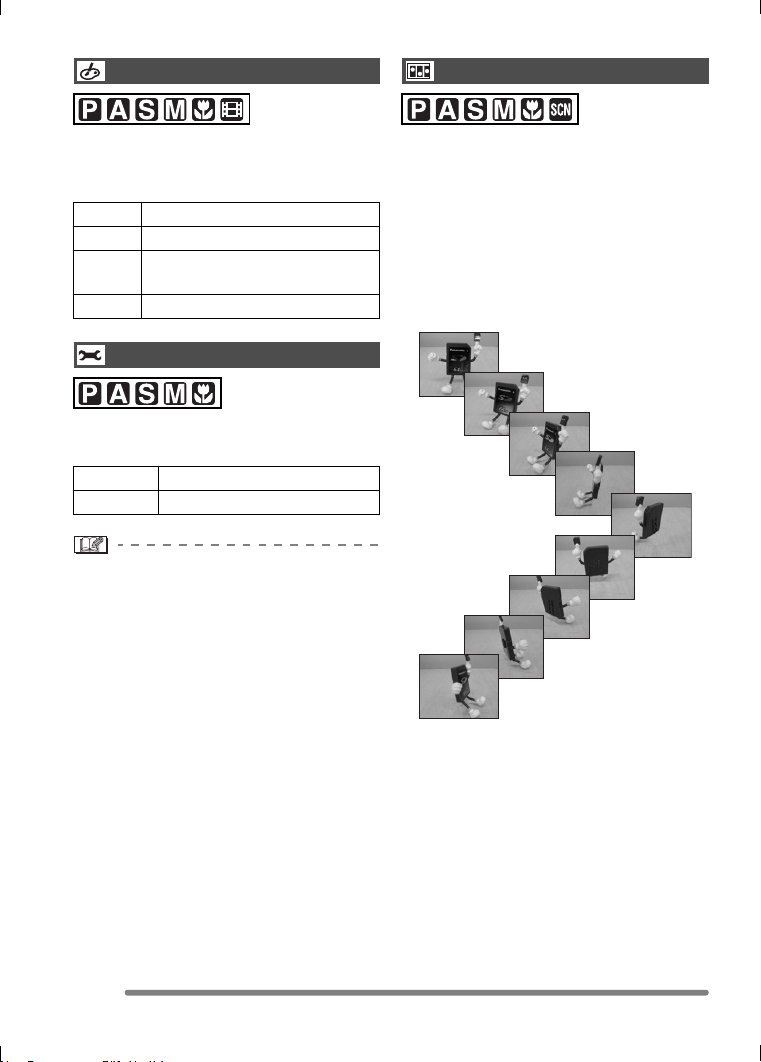
Recording Menu Settings
80
VQT0Q09
You can use 4 types of color effects
depending on the atmosphere of the
picture.
Use this function according to the recording
situation and the atmosphere of the picture.
• When you take pictures in dark places,
noise may become visible. To avoid noise,
we recommend setting [PICT.ADJ.] to
[NATURAL].
This camera allows you to create motion
picture files up to 20 seconds long by
connecting images recorded in flip
animation mode.
Example:
When capturing images of the subject in
sequence moving the camera little by little
and aligning the images, the subject looks
as if it is moving.
• You can play back created flip animations
with the same method used to play back
motion images. (P83)
Color Effect
[COL.EFFECT]
COOL The picture becomes bluish.
WARM The picture becomes reddish.
B/W The picture becomes black and
white.
SEPIA The picture becomes sepia.
Picture Adjustment
[PICT.ADJ.]
NATURAL The picture becomes softer.
VIVID The picture becomes sharper.
Flip Animation
[FLIP ANIM.]
VQT0Q09ENG.book 80 ページ 2005年1月25日 火曜日 午後8時17分
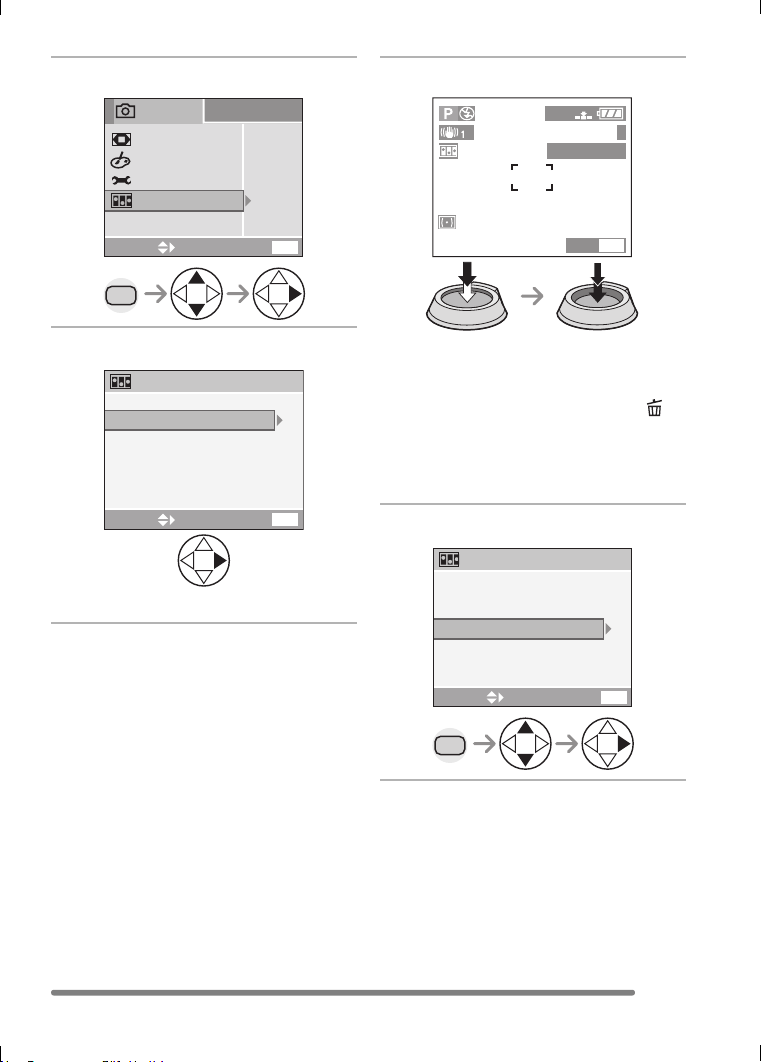
Recording Menu Settings
81
VQT0Q09
1 Select [FLIP ANIM.].
2 Select [IMAGE CAPTURE].
• The picture size is 320k240 pixels.
3 Capture images for flip animation.
• You can check the recorded image with
4 and the previous or following image
with 2/1.
• Delete unnecessary images with [ ]
button.
• You can record up to 100 pictures. The
number of recordable pictures
displayed is an approximation.
4 Select [CREATE MOTION IMAGE].
MENU
OFF
STANDARD
OFF
COL.EFFECT
FLIP ANIM.
D.ZOOM
PICT.ADJ.
EXIT
MENU
SELECT
REC
3
/
3
CREATE MOTION IMAGE
DELETE STILL IMAGES
IMAGE CAPTURE
EXIT
MENU
SELECT
FLIP ANIM.
8
92
REMAIN
320
EXIT
MENU
DELETE STILL IMAGES
IMAGE CAPTURE
MENU
EXIT
MENU
CREATE MOTION IMAGE
SELECT
FLIP ANIM.
VQT0Q09ENG.book 81 ページ 2005年1月25日 火曜日 午後8時17分
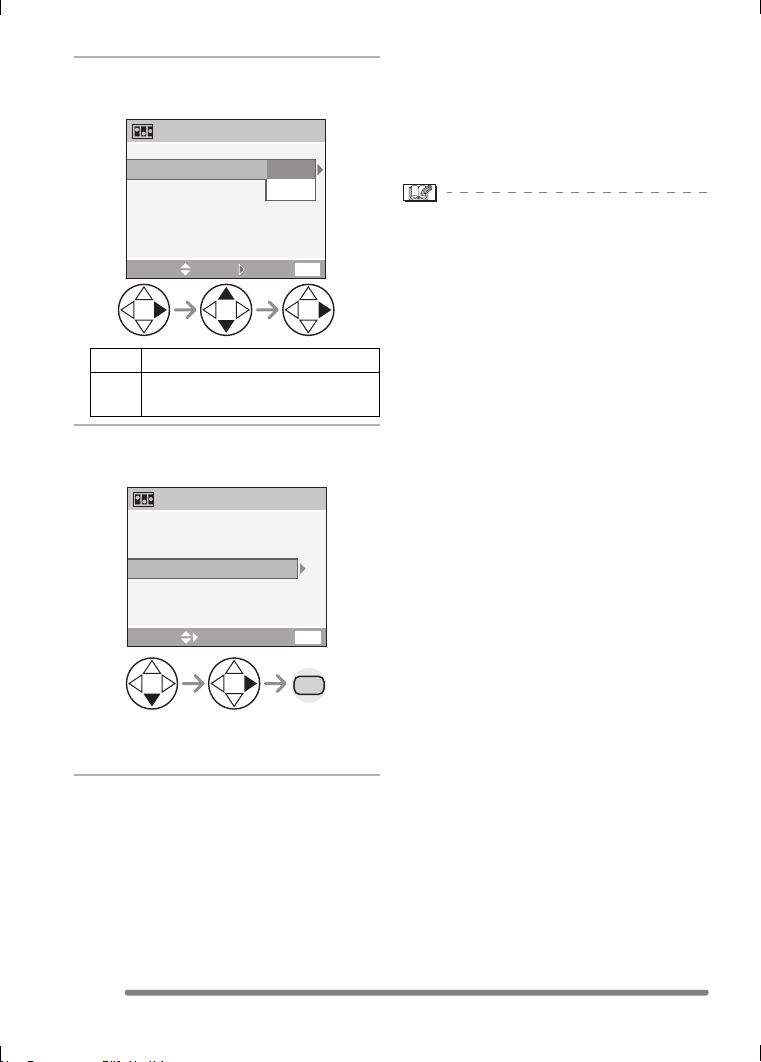
Recording Menu Settings
82
VQT0Q09
5 Select [FRAME RATE] and set the
number of frames.
6 Select [CREATE MOTION IMAGE]
and create a flip animation.
• The file number appears after creating
a flip animation.
∫ Deleting all still images used to create
flip animation
When selecting [DELETE STILL IMAGES]
in [FLIP ANIM.] menu, a confirmation
screen appears. Select [YES] with 4 and
then press 1.
• You cannot use the direction detection
function, burst mode, auto bracket and
[AUDIO REC.] (DMC-FZ5 only).
• The images in each frame do not appear
in normal review. (P38)
• If you execute [CREATE MOTION
IMAGE], flip animation is made from all
pictures recorded for flip animation.
Delete unnecessary pictures.
• Audio cannot be recorded.
• The audio dubbing (P90) is equipped with
DMC-FZ5. However, you cannot use the
audio dubbing with flip animations.
• Flip animations may not be played back by
other equipment.
• The audio is not recorded on flip
animations, however, you may hear
varying levels of noises when you play
back flip animations with other equipment
which does not have a mute function.
5fps 5 frames/sec.
10fps 10 frames/sec. (The motion
images become smoother.)
CREATE MOTION IMAGE
CREATE MOTION IMAGE
5fps
10fps
FRAME RATE
EXIT
MENU
SELECT SET
MENU
CREATE MOTION IMAGE
5fps
FRAME RATE
EXIT
MENU
SELECT
CREATE MOTION IMAGE
3 times
VQT0Q09ENG.book 82 ページ 2005年1月25日 火曜日 午後8時17分
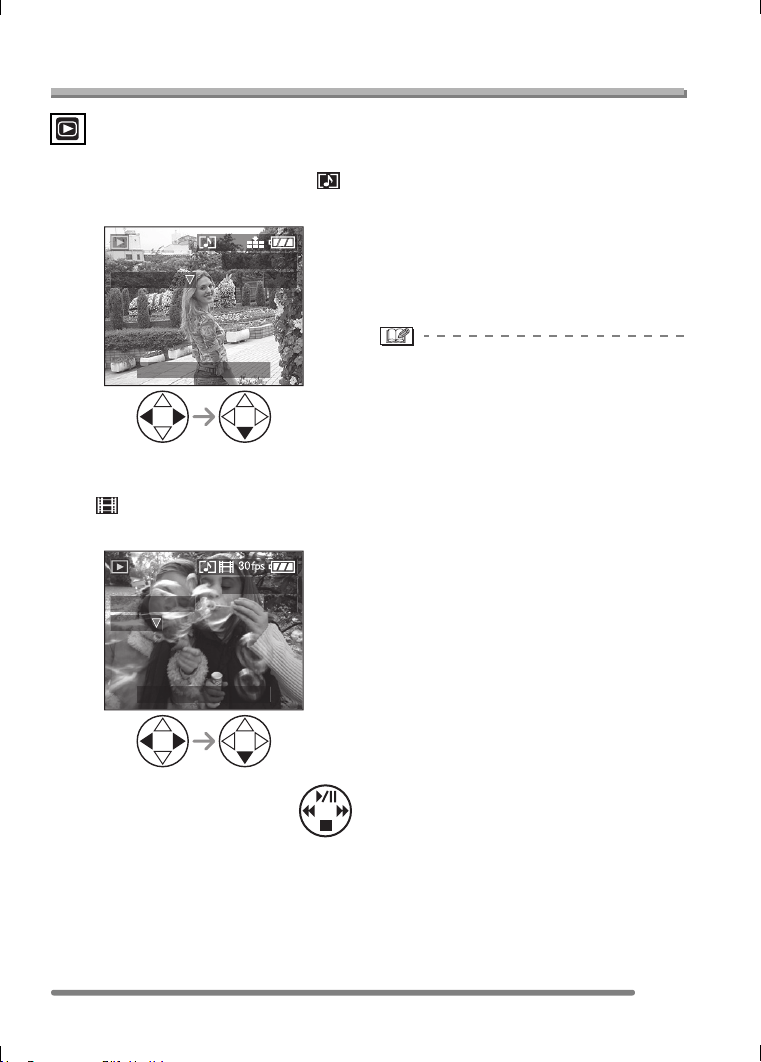
Playback (advanced)
83
VQT0Q09
Playback (advanced)
Playing Back Pictures with Audio/Motion Images
∫ Pictures with audio (DMC-FZ5 only)
Select the picture with audio icon [ ]
and
play back the audio
.
∫ Motion images
Select the picture with the motion image
icon [ ] and play back the motion
images.
• The cursor displayed during
playback corresponds to 3/4/
2/1.
• Motion image playback stops and the
normal playback is restored by pressing
4.
∫ Fast forwarding/Fast rewinding
During motion image playback, keep
pressing 2/1.
1:Fast forward
2: Fast rewind
• When releasing the button, it turns to
normal motion image playback.
∫ To pause
Press 3 during motion image playback.
• Press 3 again to cancel pause.
• You can hear audio from the speaker. To
adjust the sound volume, refer to P25.
(DMC-FZ5 only)
• You cannot record audio on DMC-FZ4.
• The picture with audio cannot be resized
(P91) or trimmed (P92).
• You cannot use the zoom function while
playing back or pausing motion images.
• The file format that can be played back
with the camera is QuickTime Motion
JPEG.
• Some QuickTime Motion JPEG files
recorded by a PC or other equipment may
not be played back with the camera.
• When playing back motion images that
have been recorded with other equipment,
the quality of images may be deteriorated
or it may not be possible to play them
back.
• When using a high capacity card, it is
possible that fast rewinding may be slower
than usual.
PLAY AUDIO
100
_
0001
1/19
10:00 DEC. 1.2005
2560
PLAY MOTION
100
_
0001
1/19
IMAGE
10:00 DEC. 1.2005
VQT0Q09ENG.book 83 ページ 2005年1月25日 火曜日 午後8時17分
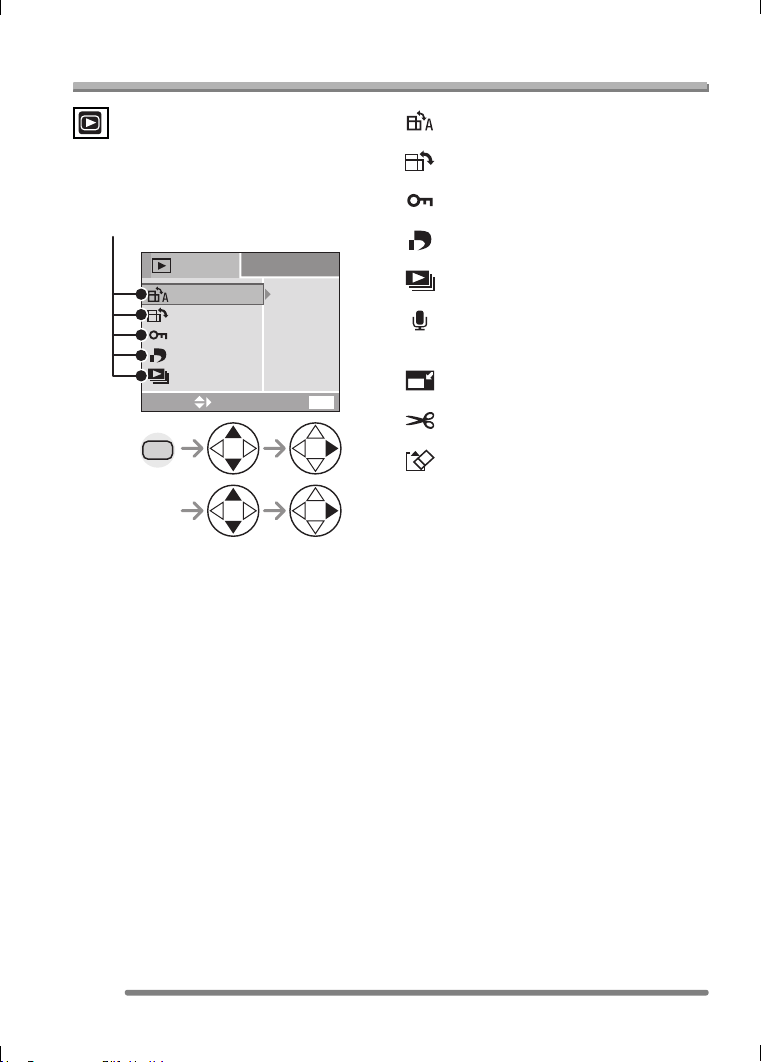
Playback (advanced)
84
VQT0Q09
Using the [PLAY] mode menu
You can use various functions in playback
mode such as a rotating function or
protections for recorded pictures.
• When rotating the zoom lever toward T or
W, the page of the menu screen can be
forwarded or reversed.
• After selecting a menu item with the
operation described above, make settings
for each menu.
: [ROTATE DISP.] (P85)
: [ROTATE] (P85)
: [PROTECT] (P88)
: [DPOF PRINT] (P86)
: [SLIDE SHOW] (P89)
: [AUDIO DUB.] (DMC-FZ5 only)
(P90)
: [RESIZE] (P91)
: [TRIMMING] (P92)
: [FORMAT] (P94)
PLAY
1
/
2
DPOF PRINT
SLIDE SHOW
PROTECT
EXIT
MENU
SELECT
MENU
ROTATE
ROTATE DISP.
ON
Menu items
VQT0Q09ENG.book 84 ページ 2005年1月25日 火曜日 午後8時17分
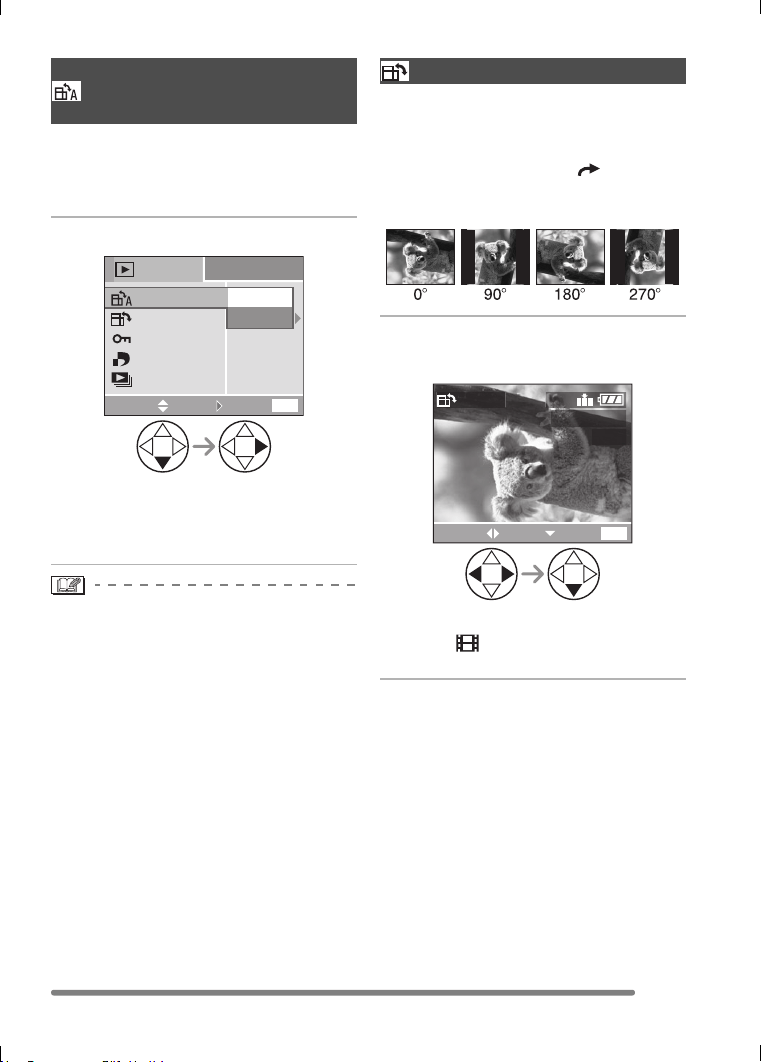
Playback (advanced)
85
VQT0Q09
This mode allows you to display pictures
recorded by holding the camera vertically
or pictures rotated in [ROTATE] function in
the rotated direction.
1 Select [ON] to set it.
• When you select [OFF], the pictures are
displayed without being rotated.
• Refer to P50 for how to play back
pictures.
• When you take pictures by holding the
camera vertically, read “Tips for taking
good pictures” on P32 carefully.
• The direction detection function (P33)
may not work properly on pictures
recorded by aiming the camera up or
down.
• Only still pictures in normal playback can
be rotated. When playing back rotated
pictures in zoom playback or multi
playback, pictures appear in original
orientation.
• You can rotate and display pictures by
using [ROTATE] function even if you do
not take pictures by holding the camera
vertically.
You can rotate the recorded pictures in
steps of 90° and display them.
∫ Example
When rotating clockwise ( )
Original
picture
1 Select the picture to be rotated
and set it.
• Pictures recorded in motion image
mode [ ] and protected pictures
cannot be rotated.
Displaying pictures in a
direction at the time of
recording
[ROTATE DISP.]
PLAY
1
/
2
SLIDE SHOW
PROTECT
EXIT
MENU
SELECT
ROTATE
DPOF PRINT
OFF
ROTATE DISP.
ON
SET
Rotating the Picture
[ROTATE]
EXIT
MENU
100
_
0001
1/19
ROTATE
SET
SELECT
2560
VQT0Q09ENG.book 85 ページ 2005年1月25日 火曜日 午後8時17分
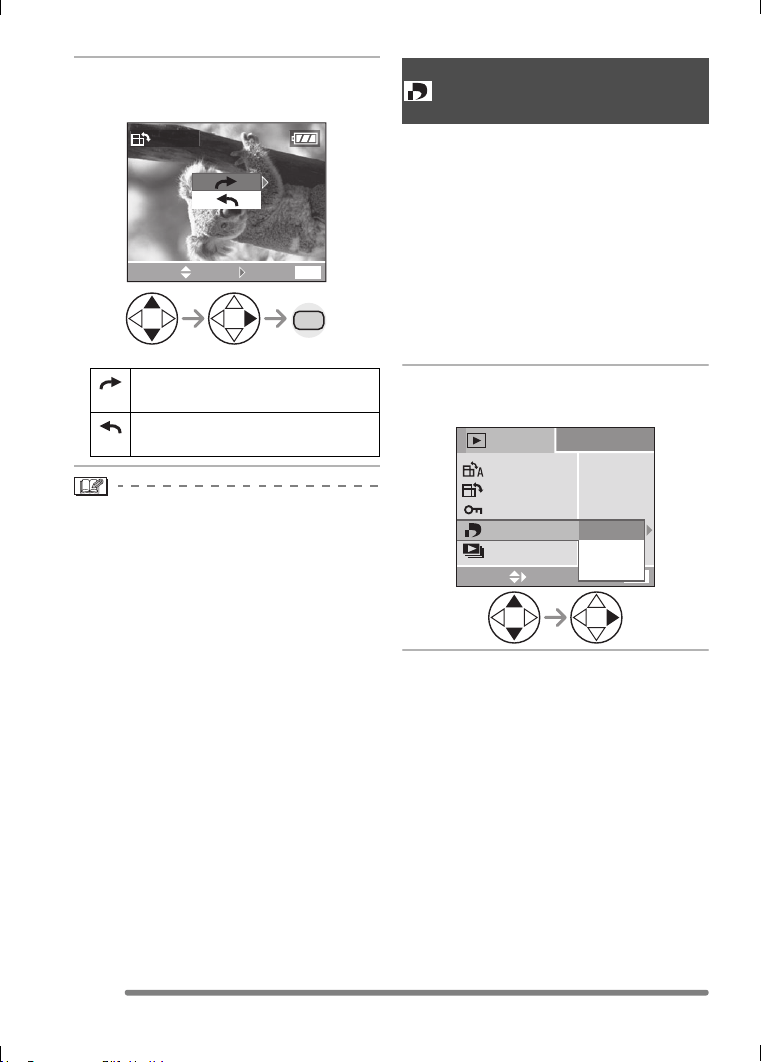
Playback (advanced)
86
VQT0Q09
2 Select the direction to rotate the
picture.
• When you play back pictures on a PC, you
cannot play back pictures keeping the
rotated direction without an OS or
software compatible with Exif.
• Exif is the file format for still pictures, to
which recording information and other can
be added, established by JEITA [Japan
Electronics and Information Technology
Industries Association].
• When [ROTATE DISP.] is set to [OFF],
[ROTATE] function is disabled.
• When pictures are recorded by holding
the camera vertically, the pictures are
played back vertically (the pictures are
rotated).
DPOF (Digital Print Order Format) is a
system that allows the user to select which
pictures are to be printed, how many copies
of each picture will be printed or whether
the recording date is to be printed on
compatible photo printers or commercial
photo printing services.
For details, ask photo printing servicer.
For more information please visit:
http://panasonic.jp/dc/dpof_110/
white_e.htm
1 Select [SINGLE], [MULTI] or
[CANCEL].
The picture rotates clockwise in
steps of 90°.
The picture rotates
counter-clockwise in steps of 90°.
MENU
ROTATE
EXIT
MENU
SELECT SET
2 times
Setting the Picture to be
Printed and the Number of
Prints
[DPOF PRINT]
PLAY
1
/
2
SLIDE SHOW
PROTECT
EXIT
MENU
SELECT
ROTATE
SINGLE
MULTI
CANCEL
DPOF PRINT
ROTATE DISP.
ON
VQT0Q09ENG.book 86 ページ 2005年1月25日 火曜日 午後8時17分
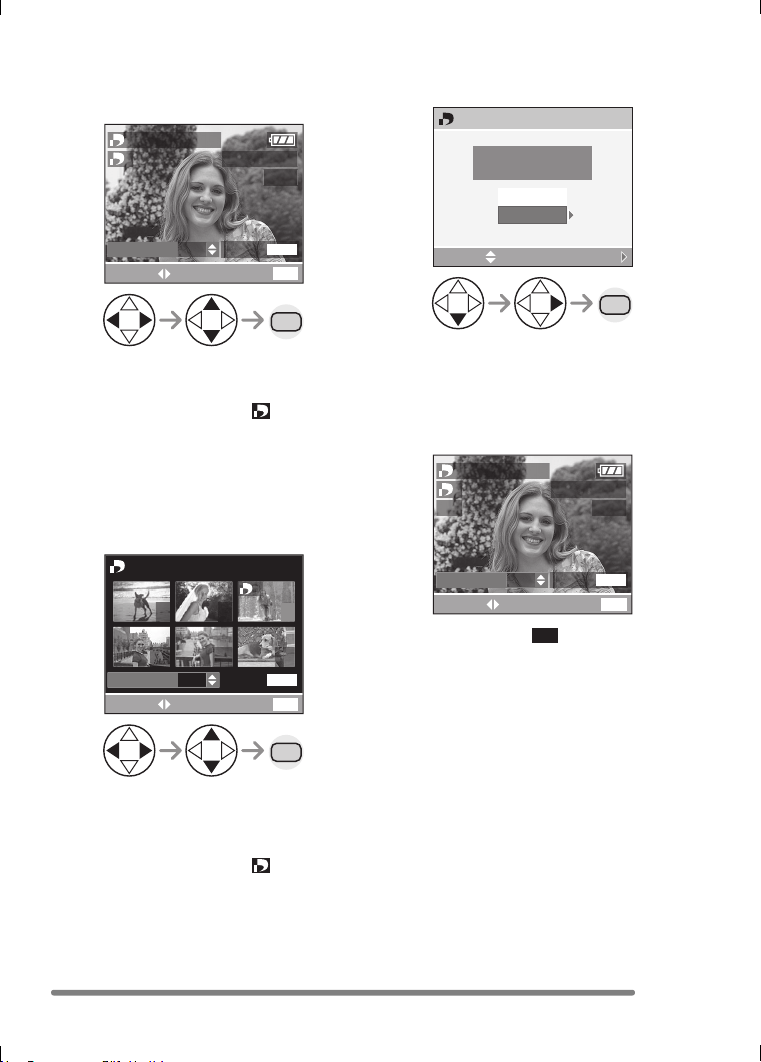
Playback (advanced)
87
VQT0Q09
∫ Single setting
Select the picture and set the number of
prints.
• The number of prints can be set from 0 to
999.
• The number of prints icon [ ] appears.
• When the number of prints is set to “0”,
DPOF print setting is canceled.
∫ Multi setting
Select the pictures and set the number
of prints.
• Repeat the above procedure.
• The number of prints can be set from 0 to
999.
• The number of prints icon [ ] appears.
• When the number of prints is set to “0”,
DPOF print setting is canceled.
∫ To cancel all settings
Select [YES] to cancel all settings.
∫ To print the date
You can set/cancel the printing with the
recorded date by pressing the [DISPLAY]
button after setting the number of prints.
• The date print icon [ ] appears.
• When using the software “SD Viewer for
DSC” in the CD-ROM (supplied), you can
print pictures with the date by setting the
position on the print preview screen. For
details, refer to the separate operating
instructions about PC connection.
• When you go to a photo studio for digital
printing, be sure to order the printing of
the date additionally if required.
• The date may not be printed depending
on photo studios or printers even if you set
the date print. For further information, ask
the photo studio or refer to the operating
instructions of the printer.
DATE
DISPLAY
MENU
EXIT
100
_
0001
1/19
1
DPOF SET THIS
COUNT
1
SELECT
MENU
2 times
7
10 11 12
9
1
8
MENU
DATE
DISPLAY
EXIT
COUNT
1
SELECT
MENU
DPOF SET MULTI
2 times
MENU
CANCEL ALL DPOF
CANCEL ALL DPOF
PRINT SETTINGS?
SELECT
SET
YES
NO
DATE
DISPLAY
EXIT
100
_
0001
1/19
1
DPOF SET THIS
COUNT
1
SELECT
MENU
DATE
DATE
VQT0Q09ENG.book 87 ページ 2005年1月25日 火曜日 午後8時17分
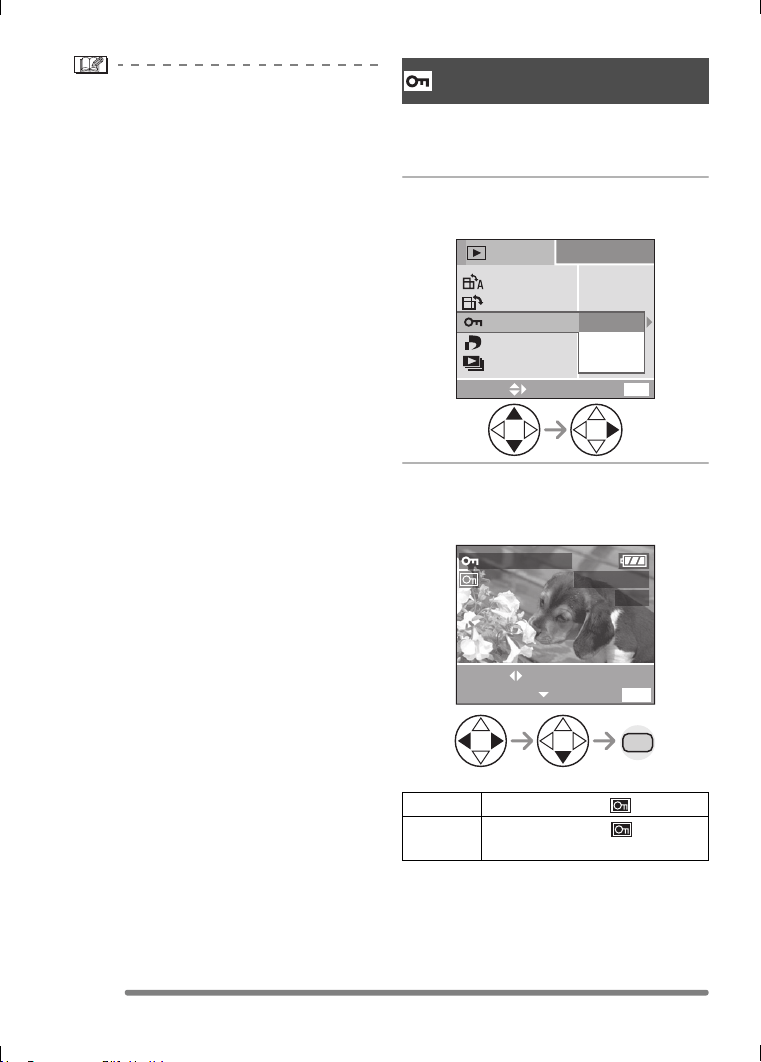
Playback (advanced)
88
VQT0Q09
• DPOF print setting is a convenient
function when you print pictures with
printers supporting PictBridge. (P99)
• DPOF is an abbreviation of Digital Print
Order Format. This feature allows you to
write print information into the media and
to use such information on the
DPOF-compliant system.
• If the file is not based on the DCF
standard, the DPOF print setting cannot
be set. DCF is an abbreviation of [Design
rule for Camera File system], stipulated by
JEITA [Japan Electronics and Information
Technology Industries Association].
• When setting the DPOF print on the
camera, delete any previous DPOF print
settings made by other equipment.
You can set the protection for the pictures
which you do not want to be deleted by
accident.
1 Select [SINGLE], [MULTI] or
[CANCEL].
∫ Single setting
Select the picture and set/cancel the
protection.
Preventing Accidental Erasure
of the Picture
[PROTECT]
SET The protect icon [ ] appears.
CANCEL The protect icon [ ]
disappears.
PLAY
1
/
2
SLIDE SHOW
EXIT
MENU
SELECT
ROTATE
MULTI
CANCEL
DPOF PRINT
PROTECT
ROTATE DISP.
ON
SINGLE
MENU
SET/CANCEL EXIT
MENU
100
_
0001
1/19
PROTECT THIS
SELECT
2 times
VQT0Q09ENG.book 88 ページ 2005年1月25日 火曜日 午後8時17分
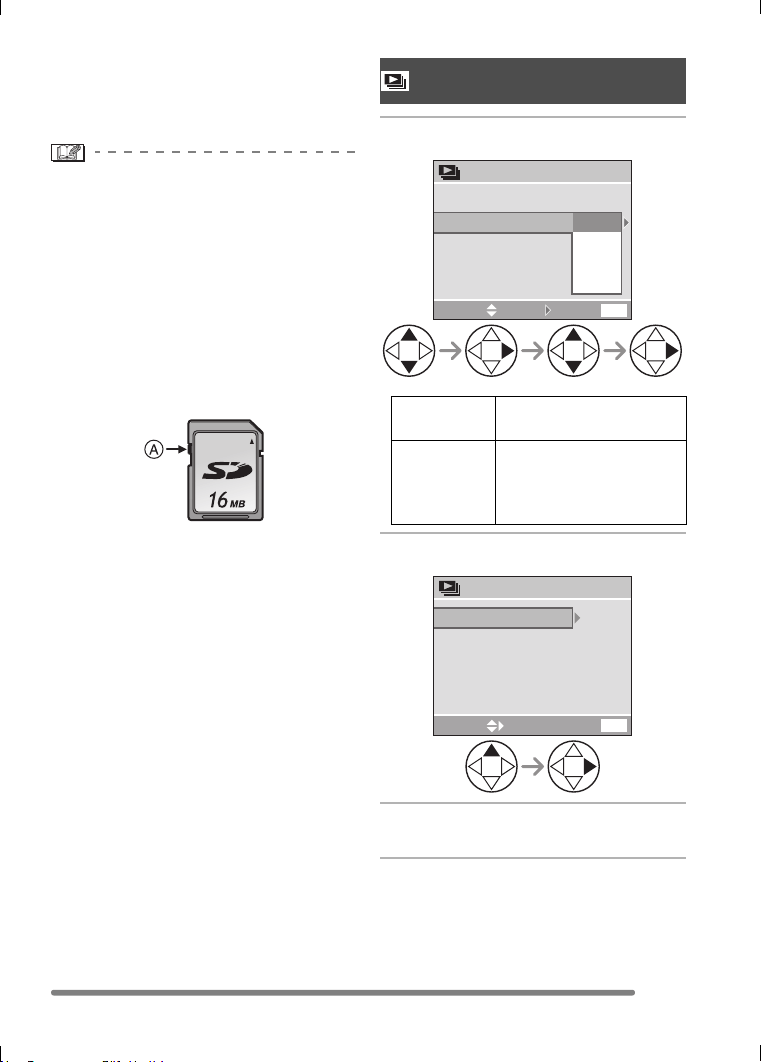
Playback (advanced)
89
VQT0Q09
∫ Multi setting/To cancel all settings
Perform the same operation as in “Setting
the Picture to be Printed and the Number of
Prints [DPOF PRINT]”. (P86– 88)
• If you want to delete protected pictures,
cancel the protect setting first.
• While this feature protects the pictures
from accidental erasure, formatting the
card will permanently delete all data.
(P94)
• The protect setting may not be effective in
other equipment.
• Sliding the Card Write-Protect switch A
on the SD Memory Card to [LOCK]
prevents the picture from deletion even if
the protection is not set.
• The following functions cannot be used
with protected pictures.
– [ROTATE] (P85)
– [AUDIO DUB.] (DMC-FZ5 only) (P90)
1 Set the items of the Slide Show.
2 Select [START].
3 By pressing the [MENU] button,
the Slide Show stops.
Playing Back with Slide Show
[SLIDE SHOW]
DURATION It can be set to 1, 2, 3 or
5 seconds.
AUDIO
(DMC-FZ5
only)
By setting it to [ON], the
audio of the pictures with
audio can be played back
during Slide Show.
SLIDE SHOW
EXIT
MENU
START
AUDIO
1SEC.
2SEC.
3SEC.
5SEC.
DURATION
SELECT SET
SLIDE SHOW
EXIT
MENU
START
AUDIO
1SEC.
OFF
DURATION
SELECT
VQT0Q09ENG.book 89 ページ 2005年1月25日 火曜日 午後8時17分

Playback (advanced)
90
VQT0Q09
∫ SD Slide Show
If you insert a card including the SD
Slide Show edited with the [SD Viewer for
DSC] which is in the supplied CD-ROM,
and then turn the camera on in playback
mode, the confirmation screen appears.
Select [YES] and press 1 to start the SD
Slide Show. Select [NO] and press 1 to
start normal playback.
• Pictures set with the DPOF Slide Show by
the [SD Viewer for DSC] cannot be played
back as a Slide Show.
• Motion images cannot be played back in
the Slide Show.
• When you play back pictures with audio,
the next picture appears after the
playback of the audio is finished (when
[AUDIO] is set to [ON]). (DMC-FZ5 only)
You can record the audio after taking a
picture (max. 10 seconds per picture).
1 Select the picture and start audio
recording.
• When audio has already been
recorded, the confirmation screen
appears. Press 4 to select [YES], and
press 1 to start audio recording. (The
original audio is overwritten.)
• The audio dubbing cannot be used with
the following pictures.
– Motion images
– Protected pictures
– Pictures recorded after setting the
quality to [TIFF]
Adding Audio to Recorded
Pictures
[AUDIO DUB.]
(DMC-FZ5 only)
AUDIO
DUB.
START EXIT
MENU
100
_
0001
1/19
SELECT
2560
VQT0Q09ENG.book 90 ページ 2005年1月25日 火曜日 午後8時17分
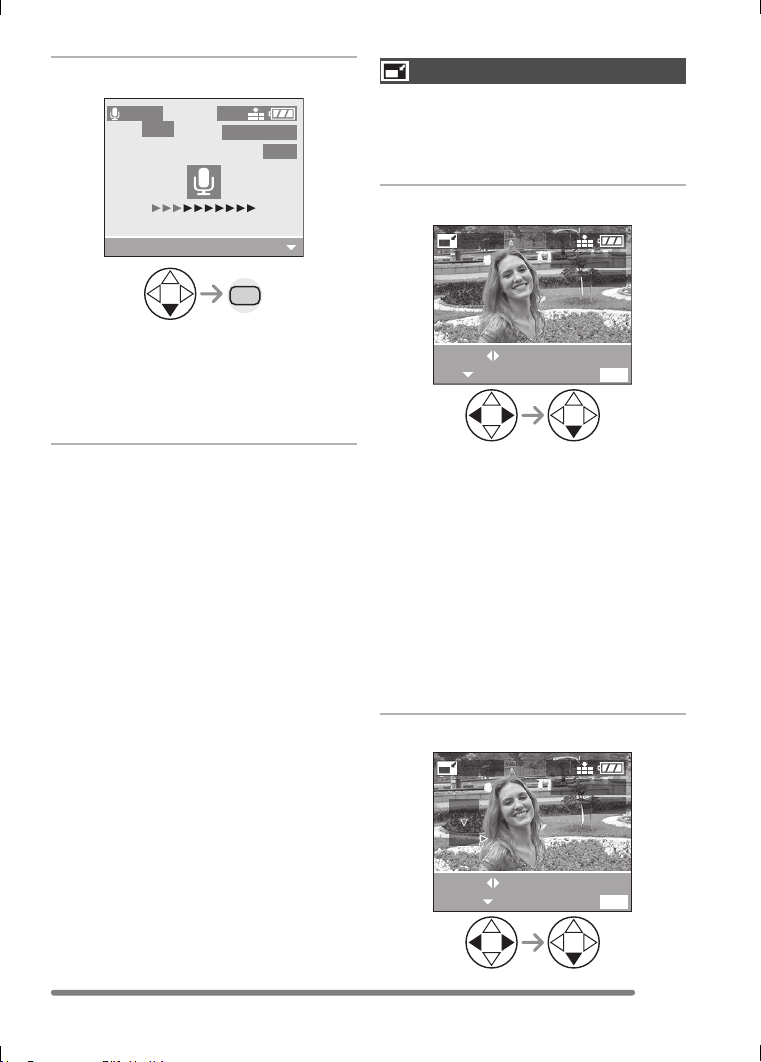
Playback (advanced)
91
VQT0Q09
2 Stop audio recording.
• The audio recording stops by pressing
the 4 button.
• Even if you do not press 4, after about
10 seconds, the audio recording stops
automatically.
This function is useful if you want to reduce
the file size of the picture in cases when it
needs to be attached to an e-mail or
uploaded to a website.
1 Select the picture and set it.
• The following pictures cannot be
resized.
– Pictures equal to or smaller than
640k480 pixels
– Pictures recorded after setting the
picture size to [HDTV]
– Pictures recorded after setting the
quality to [TIFF]
– Motion images
– Flip animation
– Pictures with audio (DMC-FZ5 only)
• It may not be possible to resize pictures
recorded with other equipment.
2 Select the size and set it.
MENU
AUDIO
DUB.
100
_
0001
1/19
2560
STOP
2 times
Resizing the Pictures
[RESIZE]
RESIZE
EXIT
MENU
100
_
0001
1/19
2560
SET
SELECT
2560
2048
RESIZE
EXIT
MENU
100
_
0001
1/19
2560
RESIZE
SELECT
VQT0Q09ENG.book 91 ページ 2005年1月25日 火曜日 午後8時17分
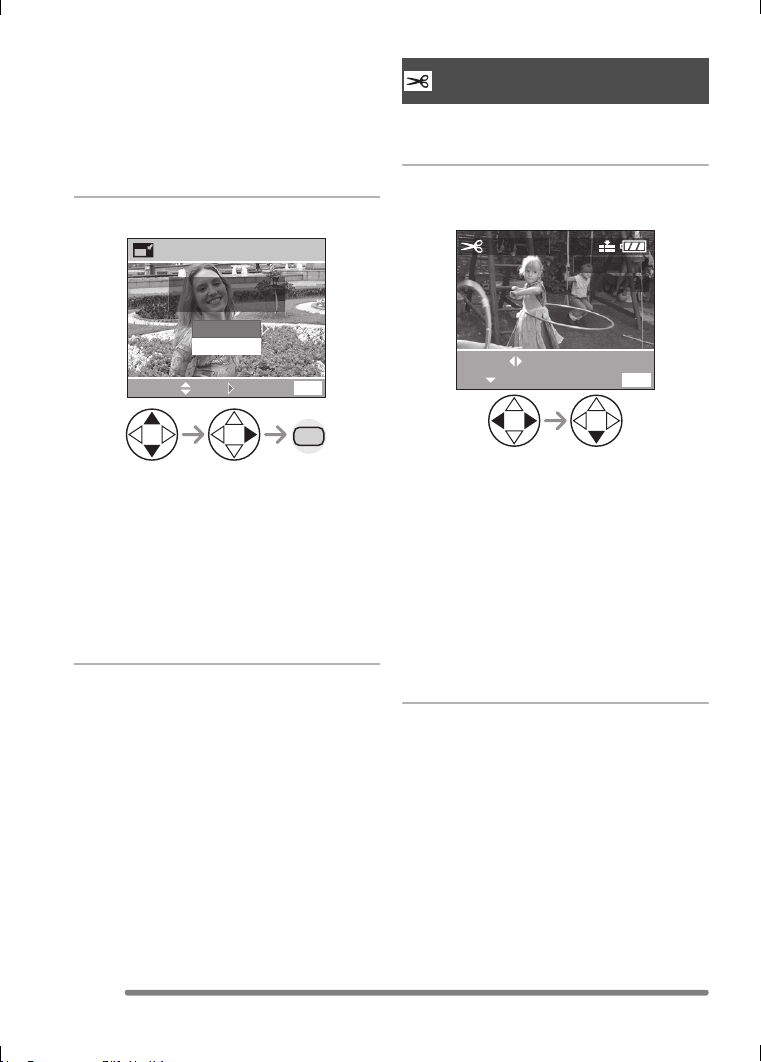
Playback (advanced)
92
VQT0Q09
• Sizes smaller than the recorded picture
are displayed.
• [2048]: 2048k1536 pixels
(DMC-FZ5 only)
• [1600]: 1600k1200 pixels
• [1280]: 1280k960 pixels
• [640]: 640k480 pixels
3 Select [YES] or [NO] and set it.
• When you select [YES], the picture is
overwritten.
When resized pictures are overwritten,
they cannot be restored.
• When the original picture is protected,
you cannot overwrite the resized
picture.
When you select [NO], a resized picture
is newly created.
Use this function when you trim needed
parts of the recorded picture.
1 Select the picture to trim and set
it.
• The following pictures cannot be
trimmed.
– Pictures smaller than 640k480 pixels
– Pictures recorded after setting the
picture size to [HDTV]
– Pictures recorded after setting the
quality to [TIFF]
– Motion images
– Flip animation
– Pictures with audio (DMC-FZ5 only)
• It may not be possible to trim pictures
recorded with other equipment.
MENU
RESIZE
CANCEL
MENU
DELETE ORIGINAL
PICTURE?
SELECT SET
YES
NO
2 times
Trimming the Pictures
[TRIMMING]
TRIMMING
EXIT
MENU
100
_
0001
1/19
2560
SELECT
SET
VQT0Q09ENG.book 92 ページ 2005年1月25日 火曜日 午後8時17分
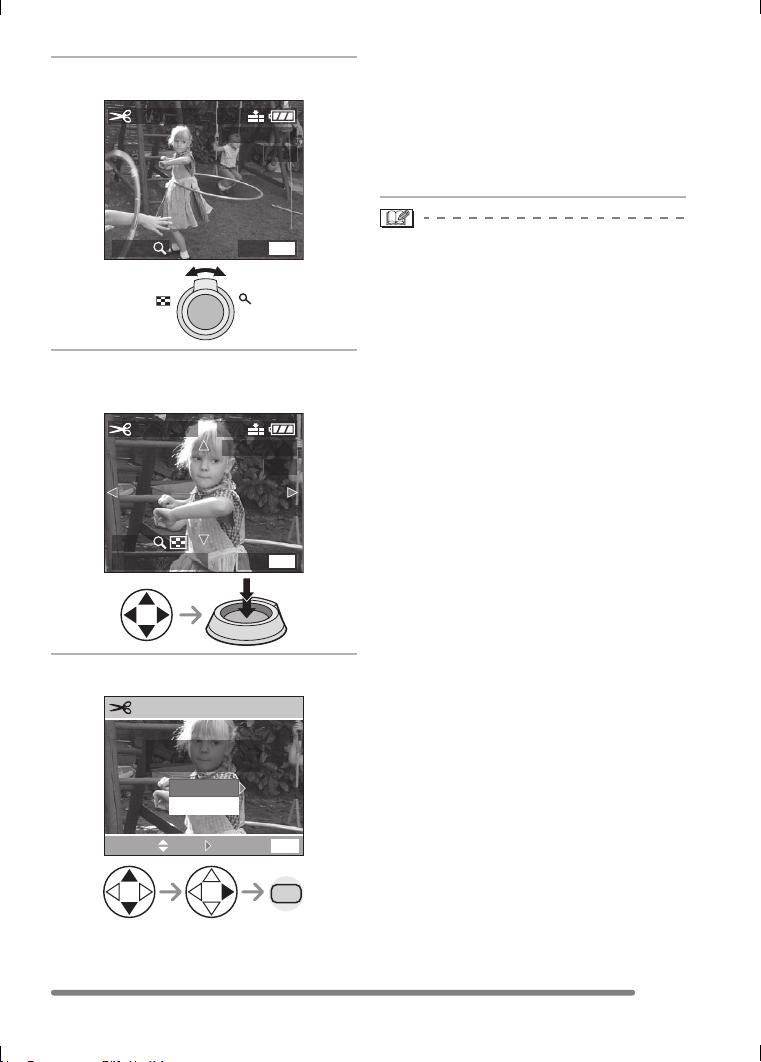
Playback (advanced)
93
VQT0Q09
2 Enlarge or decrease the picture.
3 Shift the picture and press the
shutter button to set.
4 Select [YES] or [NO] and set it.
• When you select [YES], the picture is
overwritten.
When trimmed pictures are overwritten,
they cannot be restored.
• When the original picture is protected,
you cannot overwrite the trimmed
picture.
When you select [NO], a trimmed
picture is newly created.
• Pictures will not be displayed in the
rotated direction even if [ROTATE DISP.] is
set to [ON]. (P85)
• The picture size of the trimmed pictures
may become smaller than that of the
original one depending on the cut size.
• The picture quality of the trimmed picture
will be deteriorated.
ZOOM EXIT
TRIMMING
100
_
0001
1/19
2560
MENU
TW
TRIM:SHUTTER
ZOOM
EXIT
TRIMMING
100
_
0001
1/19
2560
MENU
MENU
CANCEL
MENU
DELETE ORIGINAL
PICTURE?
SELECT SET
TRIMMING
YES
NO
2 times
VQT0Q09ENG.book 93 ページ 2005年1月25日 火曜日 午後8時17分
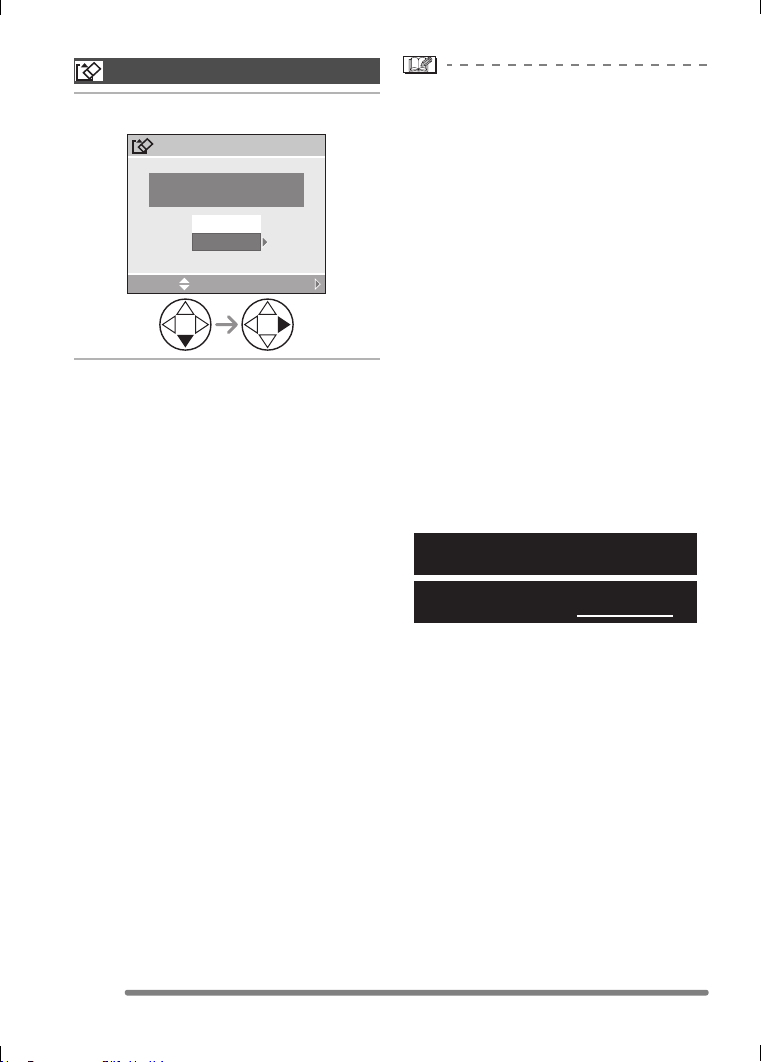
Playback (advanced)
94
VQT0Q09
1 Select [YES] to format.
• Usually, it is not necessary to format the
card. Format it when the message
[MEMORY CARD ERROR] appears.
• If the card has been formatted by a PC or
other equipment, format it on the camera
again.
• Once the card is formatted, all data
including protected images are
irretrievably erased. Please confirm
that all data is transferred to your PC
before proceeding with format
function.
• During formatting, do not turn the camera
off.
• When you format the card, use a battery
with sufficient battery power (P14) or AC
adaptor (DMW-CAC1; optional).
• When the SD Memory Card Write-Protect
switch is slid to [LOCK], you cannot format
the card.
• If the card cannot be formatted, consult
your nearest servicenter.
Initializing the Card
[FORMAT]
FORMAT
DELETE ALL DATA
ON THE MEMORY CARD?
SELECT
SET
YES
NO
For USA assistance, please call: 1-800-272-7033
or send e-mail to : [email protected]
For Canadian assistance, please call:
1-800-561-5505 or visit us at www.panasonic.ca
VQT0Q09ENG.book 94 ページ 2005年1月25日 火曜日 午後8時17分
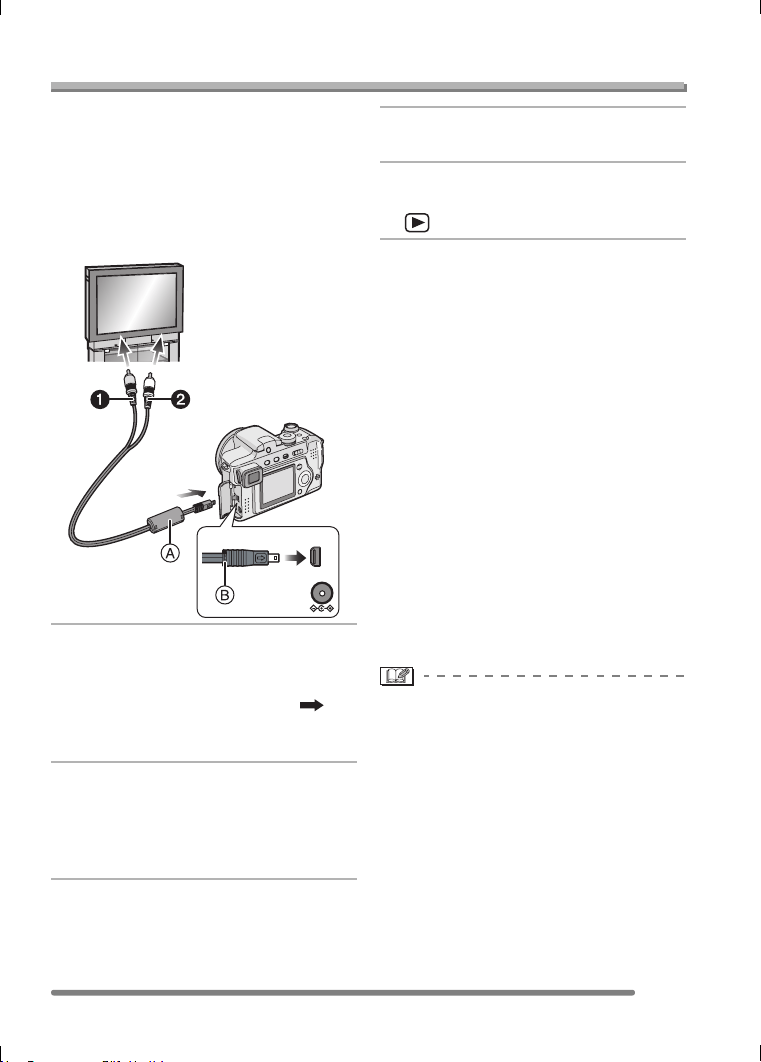
Playback (advanced)
95
VQT0Q09
Playing Back Pictures on a TV Screen
∫ Playing back pictures with the
supplied cable
The procedure for DMC-FZ5 is described
below. In the case of DMC-FZ4, connect
the TV and the [V.OUT] terminal on the
camera with the video cable (supplied).
• Turn the camera and the TV off.
1 Connect the AV cable A
(supplied) to the [AV OUT] socket
of the camera.
• Connect the AV cable with the [ ]
mark facing you.
• Hold the plug B to push into or pull out.
2 Connect the AV cable to the video
input and the audio input sockets
of the TV.
• 1 Yellow: to the video input socket
• 2 White: to the audio input socket
3 Turn the TV on and select external
input.
4 Turn the camera on and then set
the mode dial to playback mode
[].
∫ Viewing pictures in other countries
When setting [VIDEO OUT] on the
[SETUP] menu, you can view images on
the TV in other countries (regions) which
use the NTSC or PAL system.
• Even if you set menu selection for
[VIDEO OUT] to [PAL], the output signal is
still NTSC in the recording mode.
∫ Playback pictures on TV with SD
Memory Card slot
A recorded SD Memory Card can be
played back on TVs with an SD Memory
Card slot.
If you play back pictures recorded using
[HDTV] mode on a High-Definition TV,
(HDTV has 16:9 aspect) the picture quality
will be better.
(MultiMediaCard may not be played back
on TV with SD Memory Card slot.)
• Do not use any other AV cables
(DMC-FZ5)/video cables (DMC-FZ4)
except the supplied one.
• Read the TV operating instructions too.
• Audio playback is in monaural.
(DMC-FZ5 only)
DC IN 8.4V
AV OUT/
DIGITAL
VQT0Q09ENG.book 95 ページ 2005年1月25日 火曜日 午後8時17分
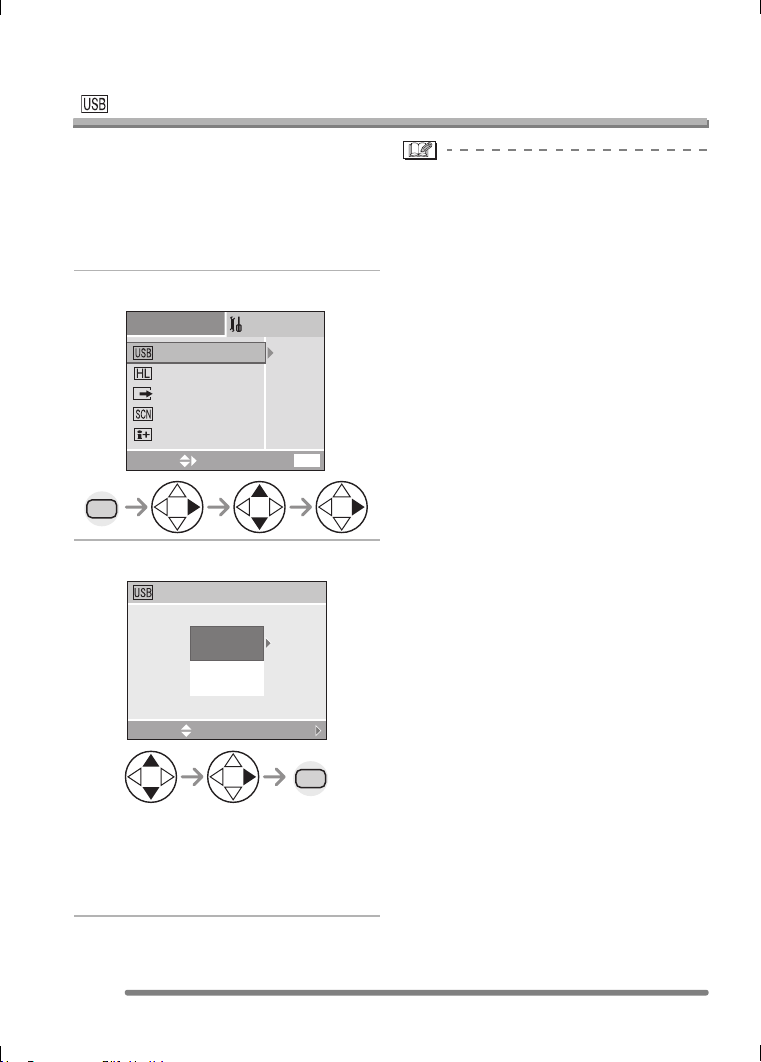
Connecting to a PC or Printer
96
VQT0Q09
Connecting to a PC or Printer
Before Connecting to the PC or the Printer
[ : USB MODE]
Select the USB communication system
before connecting the camera to your PC or
your printer with the USB connection cable
(supplied).
Set the items on [USB MODE] in the
[SETUP] menu. (P23)
1 Select [USB MODE].
2 Select [PC] or [PictBridge (PTP)].
• If you connect the camera to a PC,
select [PC]. (P97)
• If you connect the camera to a printer
supporting PictBridge, select
[PictBridge (PTP)]. (P99)
• When [PC] is selected, the camera is
connected via USB Mass Storage
communication system.
• When [PictBridge (PTP)] is selected, the
camera is connected via PTP (Picture
Transfer Protocol) communication system.
MENU
PC
SCENE MENU
LANGUAGE
VIDEO OUT
HIGHLIGHT
OFF
NTSC
AUTO
ENG
EXIT
MENU
USB MODE
SELECT
SETUP
3
/
3
USB MODE
SELECT
SET
PictBridge
(
PTP
)
PC
MENU
VQT0Q09ENG.book 96 ページ 2005年1月25日 火曜日 午後8時17分
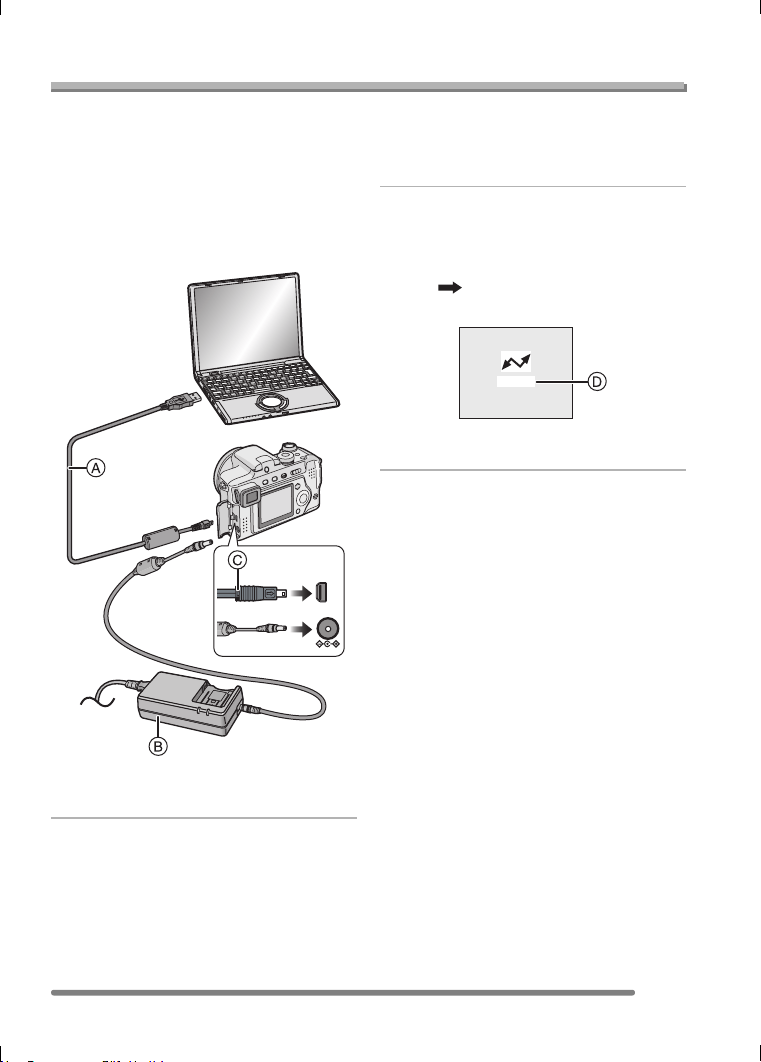
Connecting to a PC or Printer
97
VQT0Q09
Connecting to a PC
If you use Windows
®
98/98SE, install the
USB driver and then connect it to the
computer.
(When using Windows Me/2000/XP, Mac
OS 9.x, Mac OS X, you do not have to
install the USB driver. Refer to the separate
operating instructions about PC connection
for the installation of the USB driver.)
A: USB connection cable (supplied)
B: AC adaptor (DMW-CAC1; optional)
1 Turn the camera on and then set
[USB MODE] on the [SETUP]
menu to [PC]. (P96)
• If you set [USB MODE] to [PictBridge
(PTP)] and then connect the camera to
the PC, messages may appear on the
screen of the PC.
Select [Cancel] to close the indications
and disconnect the camera from the
PC. Connect the camera after you set
[USB MODE] again.
2 Connect the camera to a PC via
the USB connection cable A
(supplied).
• Connect the USB connection cable with
the [ ] mark facing you.
• Hold the plug C to push into or pull out.
D: This message appears during data
transfer.
[Windows]
The drive appears on the [My Computer]
folder.
• If it is the first time you are connecting the
camera to a PC, the required driver is
installed automatically so that the camera
can be recognized by the Windows Plug
and Play, then it appears on the
[My Computer] folder.
[Macintosh]
The drive is shown on the screen as
untitled.
DC IN 8.4V
AV OUT/
DIGITAL
ACCESS
VQT0Q09ENG.book 97 ページ 2005年1月25日 火曜日 午後8時17分
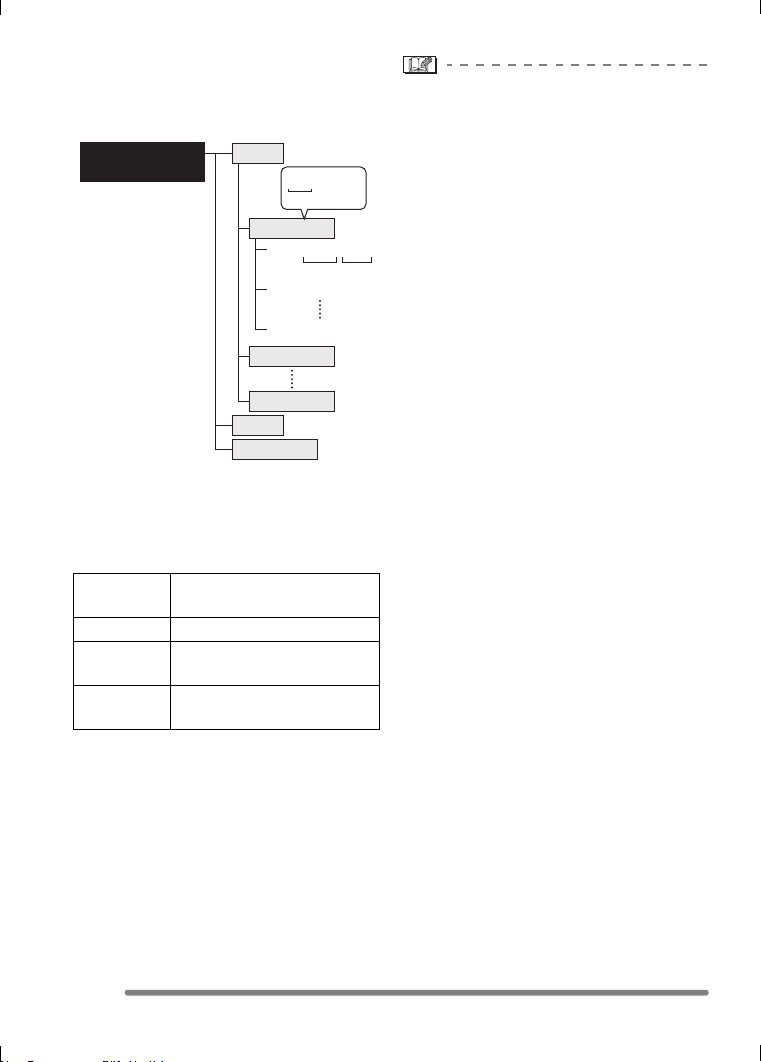
Connecting to a PC or Printer
98
VQT0Q09
∫ Folder Composition
The folder structure of the card or
MultiMediaCard is displayed as the
illustration below.
1 Folder number
2 File number
3 JPG: pictures
MOV: motion images
Files will be saved in each folder as follows.
• When recording, up to 999 picture data
can be included in 1 folder. If the number
of picture data exceeds 999, another
folder will be created.
• When you reset the file number or the
folder number, select [NO.RESET] in the
[SETUP] menu. (P23)
• If the remaining battery power is
exhausted during communication, the
recorded data may be damaged. When
you connect the camera to the PC, use a
battery with sufficient battery power (P14)
or the AC adaptor (DMW-CAC1; optional).
• If the remaining battery power becomes
low during communication, the power
indicator blinks and the alarm beeps. In
this case, stop the communication at
once.
• While [ACCESS] is being displayed, do
not disconnect the USB connection cable.
• When the OS of your PC is Windows
2000 and you connect the camera to
the PC with the USB connection cable,
do not replace the card with the
camera connected to the PC. The
information in the card may be
damaged.
• Do not use any other USB connection
cables except the supplied one.
• For more information, refer to the separate
operating instructions about PC
connection.
• Also refer to the operating instructions of
the PC.
∫ PictBridge (PTP) setting
Even if you set the [USB MODE] to
[PictBridge (PTP)], you can connect to the
PC only when the OS is Windows XP
Home Edition, Windows XP Professional or
Mac OS X.
• You can only load pictures from the
camera and cannot write them on the card
or delete them.
• When there are 1000 or more pictures on
a card, the pictures may not be imported.
DCIM Folders from [100_PANA] to
[999_PANA]
100_PANA Pictures/motion images
MISC Files on which the DPOF
print settings are recorded
PRIVATE1 Pictures recorded in flip
animation function
PRIVATE1
≥SD Memory Card
≥MultiMediaCard
100_PANA
101_PANA
999_PANA
DCIM
MISC
P1000001.JPG
P1000002.JPG
P1000999.JPG
100_PANA
1
23
VQT0Q09ENG.book 98 ページ 2005年1月25日 火曜日 午後8時17分
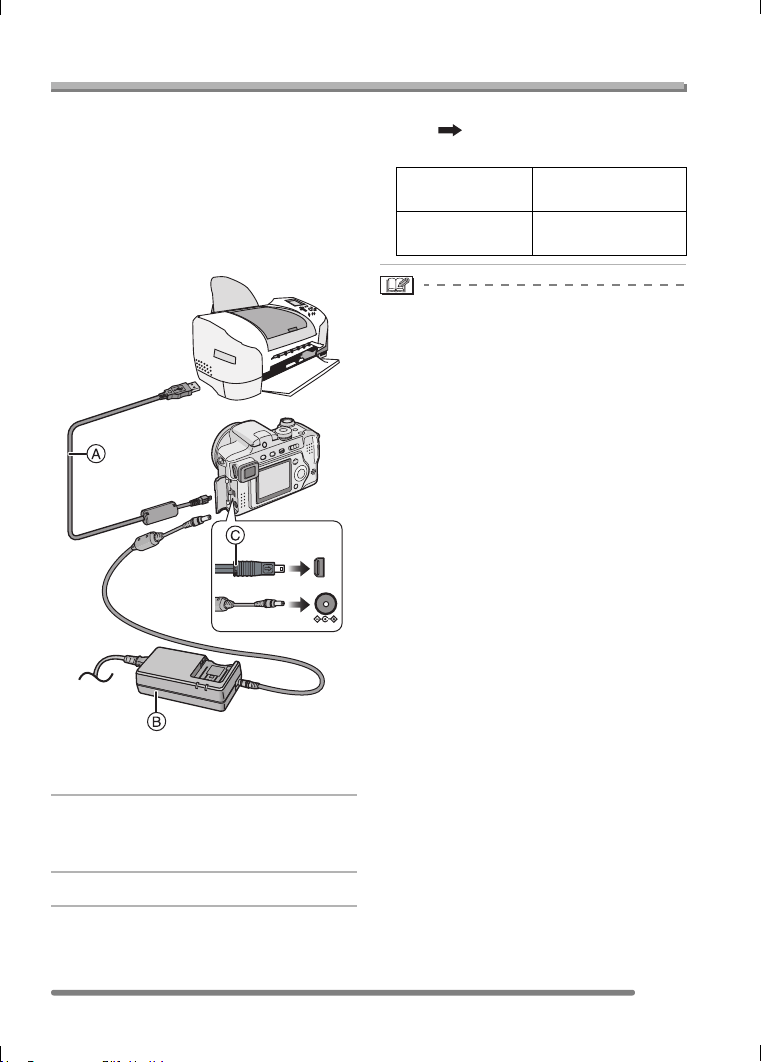
Connecting to a PC or Printer
99
VQT0Q09
Connecting to a PictBridge-compliant Printer
By connecting the camera directly to a
printer supporting PictBridge via the USB
connection cable (supplied), you can select
the pictures to be printed or start printing
on the LCD monitor.
Set the print settings such as print quality
on the printer beforehand. (Read the printer
operating instructions.)
A: USB connection cable (supplied)
B: AC adaptor (DMW-CAC1; optional)
1 Turn the camera on and then set
[USB MODE] on the [SETUP]
menu to [PictBridge (PTP)]. (P96)
2 Turn on the printer.
3 Connect the camera to a printer
via the USB connection cable A
(supplied).
• Connect the USB connection cable with
the [ ] mark facing you.
• Hold the plug C to push into or pull out.
• It may take time to print some pictures.
Therefore, use a battery with sufficient
battery power (P14) or the AC adaptor
(DMW-CAC1; optional) when you connect
to a printer.
• If the remaining battery power becomes
low during communication, the power
indicator blinks and the alarm beeps. In
this case, stop the communication at
once.
• Disconnect the USB connection cable
after printing.
• Do not use any other USB connection
cables except the supplied one.
DC IN 8.4V
AV OUT/
DIGITAL
When the DPOF
Print is not set.
Select [SINGLE
PICTURE]. (P100)
When the DPOF
Print is set. (P86)
Select [DPOF
PICTURE]. (P101)
VQT0Q09ENG.book 99 ページ 2005年1月25日 火曜日 午後8時17分
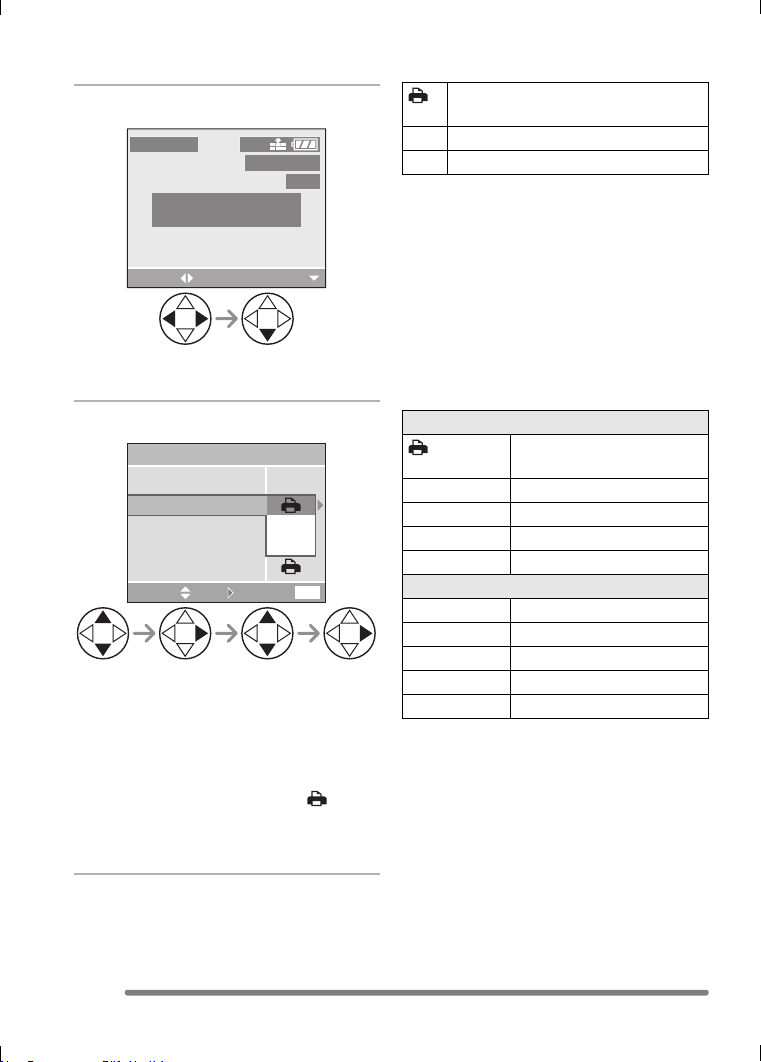
Connecting to a PC or Printer
100
VQT0Q09
∫ Single picture
1 Select a picture to be printed.
• A message disappears in about
2 seconds.
2 Set the print settings.
• The items which are not supported by
the printer are displayed in gray and
cannot be selected.
• When you want to print pictures in a
paper size or a layout which is not
supported by the camera, set [PAPER
SIZE] or [PAGE LAYOUT] to [ ] and
then set the paper size or the layout on
the printer. (For details, refer to the
operating instructions of the printer.)
• [PRINT WITH DATE]
• If the printer does not support date
printing, the date cannot be printed on the
picture.
• [NUM. OF PRINTS]
Set the number of prints.
•[PAPER SIZE]
(Possible paper sizes on the camera)
The items are listed on 1/2 and 2/2. Press
4 to select the desired item.
¢These items cannot be displayed when
the printer does not support the paper
sizes.
PLEASE SELECT
THE PICTURE TO PRINT
100
_
0001
1/19
PictBridge
PRINT
SELECT
2560
CANCEL
MENU
PAPER SIZE
PAGE LAYOUT
NUM. OF PRINTS
PRINT START
SINGLE PICTURE
OFF
ON
PRINT WITH DATE
SELECT SET
Settings on the printer are
prioritized.
OFF Date is not printed.
ON Date is printed.
1/2
Settings on the printer are
prioritized.
L/3.5qk5q
89 mm
k
127 mm
2L/5qk7q 127 mmk178 mm
POSTCARD 100 mm
k148 mm
A4 210 mm
k297 mm
2/2
¢
CARD SIZE
54 mm
k
85.6 mm
10k15cm 100 mmk150 mm
4q
k6q 101.6 mmk152.4 mm
8q
k10q 203.2 mmk254 mm
LETTER 216 mm
k279.4 mm
VQT0Q09ENG.book 100 ページ 2005年1月25日 火曜日 午後8時17分
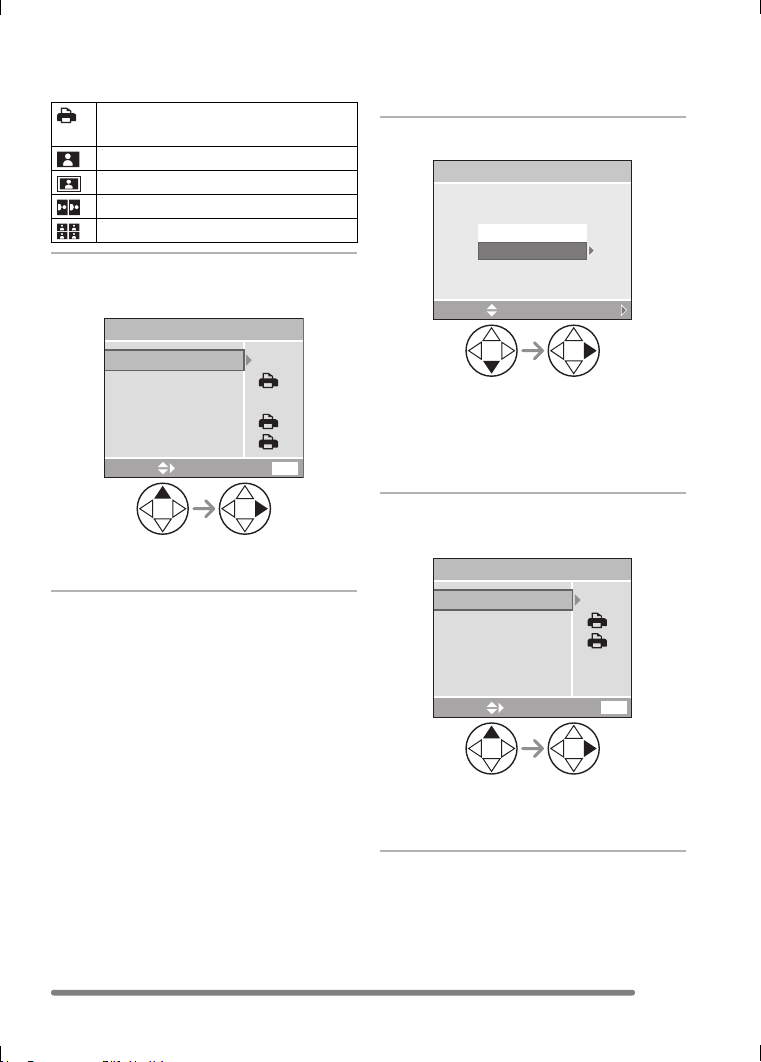
Connecting to a PC or Printer
101
VQT0Q09
•[PAGE LAYOUT]
(Possible layouts on the camera)
3 Select [PRINT START] and then
print out the picture.
• Press the [MENU] button to cancel
printing.
∫ DPOF picture
• Set the DPOF print with the camera in
advance. (P86)
1 Select [DPOF PICTURE].
• When printing under the new settings,
disconnect the USB connection cable
and connect it to the printer again.
• You can change the DPOF print setting
by pressing the [MENU] button. (P86)
2 Select [PRINT START] and then
print out the picture.
• Refer to P100 for print setting.
• Press the [MENU] button to cancel
printing.
Settings on the printer are
prioritized.
1 page with no frame print
1 page with frame print
2 pages print
4 pages print
CANCEL
MENU
PAPER SIZE
PAGE LAYOUT
NUM. OF PRINTS
PRINT START
SELECT
1
PRINT WITH DATE
SINGLE PICTURE
SELECT
SET
DPOF PICTURE
SINGLE PICTURE
PictBridge
CANCEL
MENU
PAGE LAYOUT
PRINT START
SELECT
PAPER SIZE
DPOF
VQT0Q09ENG.book 101 ページ 2005年1月25日 火曜日 午後8時17分
Connecting to a PC or Printer
102
VQT0Q09
∫ Setting the date printing with the
DPOF print in advance
When the printer supports the date printing
by DPOF setting, we recommend setting
the date printing with the DPOF print in
advance. (P87) The recording date can be
printed by selecting [DPOF PICTURE] to
start printing.
• Do not disconnect the USB connection
cable when the cable disconnection
warning icon [ ] is indicated.
• When the [¥] indication lights in orange
during printing, the camera is receiving an
error message from the printer. Make sure
there is no malfunction on the printer after
finishing printing.
• When the printer does not support TIFF
print, you cannot print pictures with TIFF
quality.
• In DPOF print, if the total number of prints
or the number of printed pictures is high,
pictures may be printed several times.
(The indication of the remaining number of
prints is different from the setting,
however, this is not a malfunction.)
• The setting on the printer may have
priority over the setting on the camera in
the date print. Also check the date print
setting on the printer.
• If the printer does not support date
printing, the date cannot be printed on the
picture.
∫ Layout printing
• When printing a picture several times
on 1 sheet of paper
For example, if you want to print a picture
4 times on 1 sheet of paper, set [PAGE
LAYOUT] to [ ] and then set the
number of prints to 4 for the picture on
[NUM. OF PRINTS].
• When printing different pictures on
1 sheet of paper (only in DPOF
printing)
For example, if you want to print 4 different
pictures on 1 sheet of paper, set [PAGE
LAYOUT] to [ ] and then set the
number of prints to 1 on [COUNT] in
DPOF print setting (P86) for each of the
4pictures.
VQT0Q09ENG.book 102 ページ 2005年1月25日 火曜日 午後8時17分
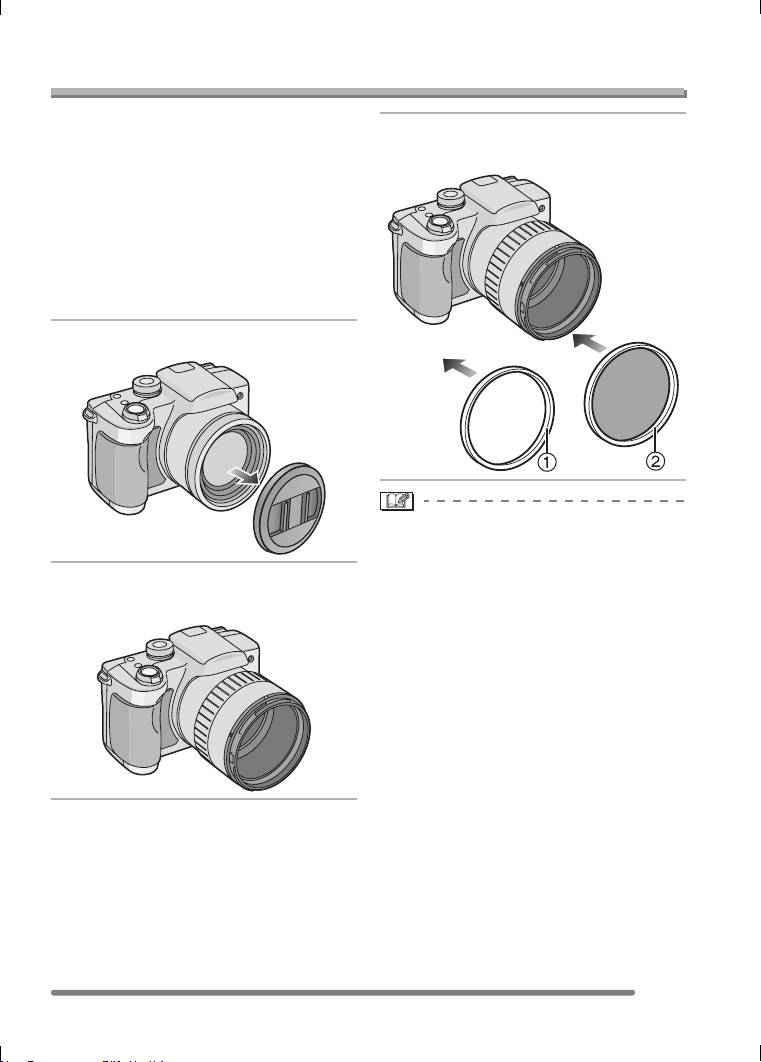
Others
103
VQT0Q09
Others
Using the MC Protector/ND Filter
The MC protector (DMW-LMC55; optional)
is a transparent filter which affects neither
the colors nor the amount of light, so it can
always be used to protect the camera’s
lens.
The ND filter (DMW-LND55; optional)
reduces the amount of light to
approximately 1/8th (equal to adjusting the
aperture value 3 increments) without
affecting the color balance.
1 Remove the lens cap.
2 Attach the lens hood adaptor.
(P20)
3 Attach the MC protector 1 or the
ND filter 2.
• The lens cap supplied with the camera
cannot be attached to the MC protector or
the ND filter.
• You cannot attach the MC protector and
the ND filter at the same time.
• When taking pictures with the flash using
the MC protector or ND filter, vignetting
effect may occur.
• If the MC protector/ND filter are dropped,
they may be destroyed. Be careful not to
drop them when attaching them to the
camera.
•MCu“Multi-coated”
NDu“Neutral Density”
VQT0Q09ENG.book 103 ページ 2005年1月25日 火曜日 午後8時17分
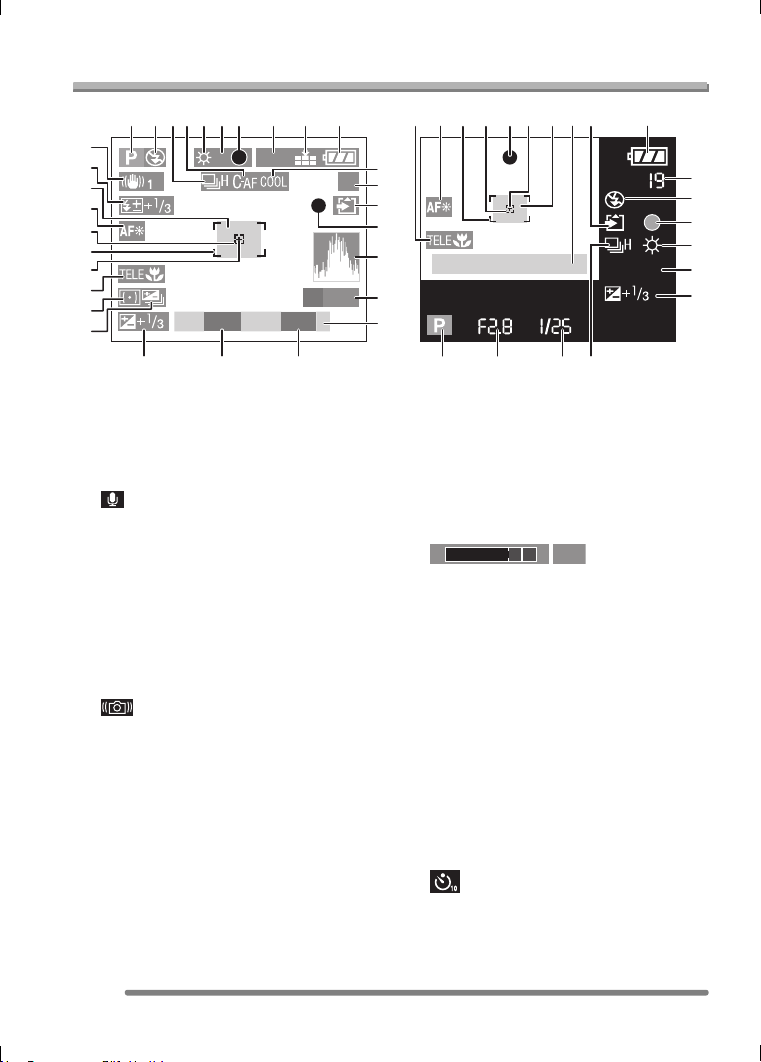
Others
104
VQT0Q09
Screen Display
∫ In recording
1 Recording mode
2 Flash mode (P40)
3 Burst (P48)
: Audio recording (DMC-FZ5 only)
(P61, 75)
4 Continuous AF (P77)
5 White balance (P71)
6 ISO sensitivity (P73)
7 Focus (P31)
8 Picture size (P74)
9 Quality (P74)
: Jitter alert (P33)
10 Battery indication (P14)
11 Color effect (P80)
12 Picture/Time remain
In Motion image mode: e.g. 11S
13 Card access indication (P17)
14 Recording state
15 Histogram (P29)
16 AF trigger (P77)
17 Current date and time (P22)
• This is displayed for about 5 seconds
when turning the camera on, setting
the clock and after switching from the
playback mode to the recording mode.
18 Zoom/Digital zoom (P39, 79)
19 Shutter speed (P31)
20 Aperture value (P31)
21 Exposure compensation (P45)
22 Auto bracket (P46)
23 Metering mode (P75)
24 Tele-macro (P60)
25 Spot metering target (P75)
26 AF area (P31)
27 Spot AF area (P76)
28 AF assist lamp (P78)
29 Self-timer (P44)
30 Flash output adjustment (P42)
31 Optical image stabilizer (P47)
1/25F2.8
2560
19
AF
FOCUS
ISO
100
1234567 8 9 10 1018 13
11
12
13
14
15
16
23
22
29
28
27
30
192021
21
ISO
100
725262824 27 29
31
1 20 19 3, 22
6
5
14
12
2
17, 18
24
25
26
W
T
30X
VQT0Q09ENG.book 104 ページ 2005年1月25日 火曜日 午後8時17分
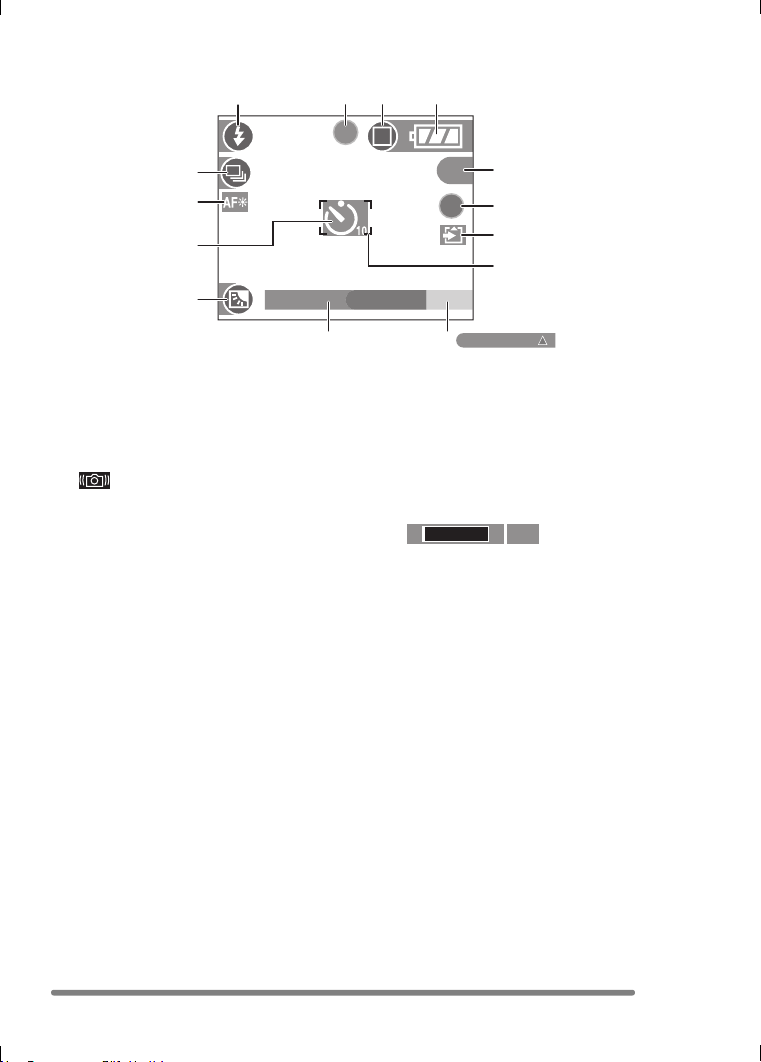
Others
105
VQT0Q09
∫ Recording in simple mode
1 Flash mode (P40)
2 Focus (P31)
3 Picture mode (P35)
: Jitter alert (P33)
4 Battery indication (P14)
5 Pictures remaining
6 Recording state
7 Card Access indication (P17)
8 AF area (P31)
9 Operation for backlight compensation
(P37)
10 Current date and time (
P22
)
• This is displayed for about 5 seconds
when turning the camera on, setting
the clock and after switching from the
playback mode to the simple mode.
Zoom (P39)
11 Backlight compensation (P37)
12 Self-timer (P44)
13 AF assist lamp (P78)
14 Burst (P48)
8
1234
910
11
5
6
7
8
14
12
BACKLIGHT
13
W
T 1X
VQT0Q09ENG.book 105 ページ 2005年1月25日 火曜日 午後8時17分
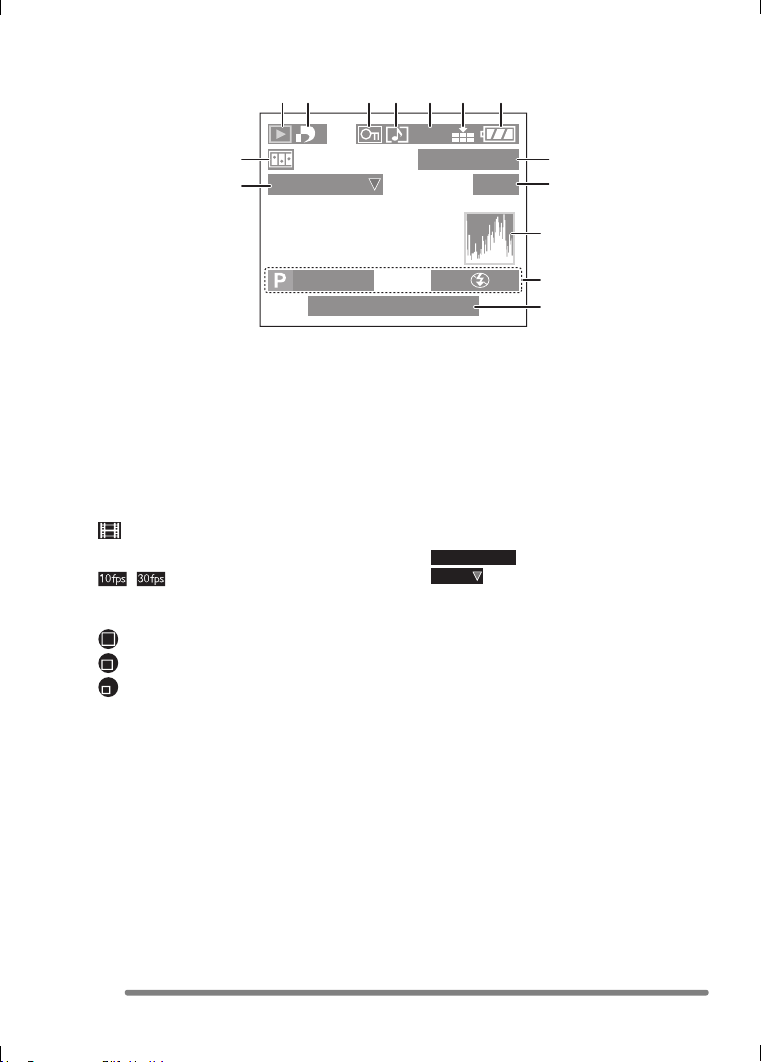
Others
106
VQT0Q09
∫ In playback
1 Playback mode
2 Number of DPOF prints (P86)
3 Protected picture (P88)
4 Picture with audio (DMC-FZ5 only)
(P83)
5 Picture size (P74)
: In Motion image mode
6 Quality (P74)
/ : In Motion image mode
(P61)
Simple mode (P35):
:ENLARGE
:4qk6q/10k15cm
: E-MAIL
7 Battery indication (P14)
8 Folder/File number (P98)
9 Page number/Total pictures
10 Histogram (P29)
• It will be displayed when the
[DISPLAY] button is pressed.
11 Recording information
(Recording mode/Aperture value/
Shutter speed/ISO sensitivity/Flash
mode/White balance)
• It will be displayed when the
[DISPLAY] button is pressed.
12 Recorded date and time
13 Audio playback (DMC-FZ5 only) (P83)
: In Motion image mode
14 Flip animation (P80)
8
9
10
11
12
100
_
0001
1/19
2560
1
12 34 6 75
14
13
F2.8 1/25
ISO
100
AUTO
10:00 DEC. 1.2005
PLAY AUDIO
PLAY MOTION
IMAGE
VQT0Q09ENG.book 106 ページ 2005年1月25日 火曜日 午後8時17分

Others
107
VQT0Q09
Cautions for Use
∫ Optimal Use of the Camera
When carrying the camera, take care not
to drop or cause impact to it.
• The lens or the outer case may be
destroyed by the strong shock, and it
causes a malfunction of the camera.
Keep the camera away from magnetized
equipment (such as a microwave oven,
TV, video game equipment, etc.).
• If you use the camera on or near a TV,
pictures and sounds may be disrupted
due to electromagnetic wave radiation.
• Do not use the camera near a cell phone
because doing so may cause noise to
adversely affect the pictures and sounds.
• Recorded data may be damaged, or
pictures may be distorted by strong
magnetic fields created by speakers or
large motors.
• Electromagnetic wave radiation generated
by a microprocessor may adversely affect
the camera, causing the disturbance of
pictures and sounds.
• If the camera is affected by magnetically
charged equipment and does not function
properly, turn the camera off and remove
the battery or disconnect AC adaptor
(DMW-CAC1; optional) and then insert
the battery or connect AC adaptor again.
Thereafter, turn the camera on.
Do not use the camera near radio
transmitters or high-voltage lines.
• If you record near radio transmitters or
high-voltage lines, recorded pictures or
sounds may be adversely affected.
Make sure to use the supplied cords and
cables. If you use optional accessories,
use the cords and the cables supplied
with them.
Do not extend the cords and the cables.
Do not spray insecticides or volatile
chemicals onto the camera.
• If the camera is sprayed with such
chemicals, the camera body may be
damaged and the surface finish may peel
off.
• Do not keep rubber or plastic products in
contact with the camera for a long period
of time.
Do not use benzine, thinner or alcohol
for cleaning the camera.
• Before cleaning the camera, remove the
battery or disconnect the charger from the
electrical outlet.
• The camera body may be deformed and
the surface finish may peel off.
• Wipe the camera with a soft, dry cloth. To
remove stubborn stains, wipe with a cloth
that is soaked in a detergent diluted with
water and afterward finish wiping with a
dry cloth.
• If you use a chemical cloth, follow the
instructions that come with the cloth.
• In case rain or other sources of water
splash onto the camera, wet a soft cloth
with tap water, wring it well, and use it to
wipe the camera body carefully. Then
wipe it again with a dry cloth.
VQT0Q09ENG.book 107 ページ 2005年1月25日 火曜日 午後8時17分

Others
108
VQT0Q09
∫ Card
While the card access indication
appears (the card is being accessed), do
not open the card door to remove the
card, do not turn the camera off or do
not shake or cause impact to the
camera.
Do not leave the card in places where
there is high temperature or direct
sunlight, or where electromagnetic
waves or static electricity are easily
generated.
Do not bend or drop the card.
• The card may be damaged or the
recorded content may be damaged or
erased.
• Store the card in the card case or the
storage bag after use and when you store
or carry the card.
• Do not allow dirt, dust or water to enter the
terminals on the back of the card and do
not touch the terminals with your fingers.
∫ Battery
The battery is a rechargeable lithium ion
battery. Its ability to generate power is
based upon the chemical reaction that
takes place inside it. This reaction is
susceptible to the surrounding
temperature and humidity, and, if the
temperature is too high or too low, the
operating time of the battery will be
shorter.
After use, be sure to remove the battery.
If you drop the battery accidentally,
check to see if the battery body and
terminals are damaged.
• Inserting a damaged battery in the
camera will damage the camera.
When you go out, bring charged spare
batteries.
• Be aware that the operating time of the
battery will become shorter in low
temperatures such as outdoors at a ski
resort.
• When you travel, be sure to prepare the
supplied charger to charge the battery on
the spot.
Dispose of an unusable battery.
• The battery has a limited life.
• Do not throw the battery into fire because
it may cause an explosion.
• An unusable battery should be discarded
in accordance with battery recycling laws.
For information you can call the RBRC
hotline at 1-800-822-8837.
Do not allow the battery terminals to
come in contact with metal objects
(such as necklaces, hairpins, etc.).
• This can result in a short circuit or heat
generation and, if you touch the battery in
this condition, you may be badly burned.
∫ Charger
• If you use the charger near a radio, radio
reception may be disturbed. Keep the
charger 1 m (3.28 feet) or more away from
radio.
• When the charger is in use, it may
generate whirring sounds. However, this is
not a malfunction.
• After use, be sure to disconnect the
charger from the electrical outlet. (If it is
left connected, a minute amount of current
is consumed.)
• Keep the terminals of the charger and
battery clean.
VQT0Q09ENG.book 108 ページ 2005年1月25日 火曜日 午後8時17分

Others
109
VQT0Q09
Message Display
Confirmation messages or error messages
will be displayed on the screen in some
cases.
Major messages are described below as
examples.
[THIS MEMORY CARD IS PROTECTED]
Unlock [LOCK] of the Write-Protect switch
on the SD Memory Card. (P17)
[NO VALID IMAGE TO PLAY]
Play back after recording or after inserting
a card with a recorded picture.
[THIS PICTURE IS PROTECTED]
After canceling the protect setting, delete or
overwrite the picture.
[THIS PICTURE CANNOT BE
DELETED] /[SOME PICTURES CANNOT
BE DELETED]
The pictures not based on the DCF
standard cannot be deleted.
[CANNOT BE SET ON THIS PICTURE] /
[CANNOT BE SET ON SOME PICTURES]
If the pictures are not based on the DCF
standard, the DPOF print cannot be set.
[NO ADDITIONAL DELETE SELECTIONS
CAN BE MADE]
You have exceeded the number of pictures
that can be set at once with [MULTI
DELETE]. Once delete the selected
pictures and then repeat deleting multiple
pictures.
[MEMORY CARD ERROR
FORMAT THIS CARD?]
The format of the card cannot be
recognized by the camera. Format the card
again with the camera.
[PLEASE TURN CAMERA OFF AND
THEN ON AGAIN]
This message appears when the camera
does not operate properly. Turn the camera
off and on. If the message persists, contact
the dealer or your nearest servicenter.
[MEMORY CARD ERROR]
Failed access to the card.
Insert the card again.
[READ ERROR]
Data reading error.
Play it back again.
[WRITE ERROR]
Data writing error.
Turn the camera off and remove the card.
Then insert the card and turn the camera
on again. Be sure that the camera is turned
off before removing or inserting the card to
avoid damage.
VQT0Q09ENG.book 109 ページ 2005年1月25日 火曜日 午後8時17分

Others
110
VQT0Q09
Troubleshooting
If you put the menu back to the settings at
the time of purchase, the conditions may be
improved.
Carry out the [RESET] in the [SETUP]
menu. (P23)
∫ Battery and the power source
1: The camera cannot be operated even
when it is turned on.
• Is the battery inserted correctly?
• Is the battery sufficiently charged?
– Use a battery that has been
sufficiently charged.
2: The camera is turned off immediately
even after it is turned on.
• Is the battery charge insufficient to
operate the camera?
– Use a battery that has been
sufficiently charged.
∫ Recording
1: The picture cannot be recorded.
• Is the card inserted?
• Is the mode dial correctly set?
• Is there any memory capacity left on
the card?
– Before recording, delete some
pictures.
2: The subject is not focused properly.
• The focus range varies depending on
the recording mode.
Rotate the mode dial to set to the
proper mode for the distance to the
subject.
• Is the subject out of the focus range?
(P33)
• When you cannot focus on the subject
even if you tried many times, turn the
camera off once and turn it on again.
3: The recorded picture is blurred.
• When taking a picture in shaded areas
or indoors, the shutter speed becomes
slow and the optical image stabilizer
function may not work properly. In this
case, we recommend holding the
camera with both hands firmly to take
pictures. When you take pictures with
slow shutter speed, we recommend
using a tripod. (P32)
∫ LCD monitor
1: The brightness of the screen
becomes dark or bright for a moment.
• This phenomenon appears when
pressing the shutter button halfway to
set the aperture value and does not
affect the recorded pictures.
2: The picture is not displayed on the
LCD monitor.
• Does the picture appear on the
Viewfinder?
– Press the [EVF/LCD] button to switch
to LCD monitor display.
3: The screen is too bright or dark.
• Adjust the brightness of the screen.
4: Some pixels are inactive or always lit
on the LCD monitor.
• These pixels do not affect the recorded
pictures.
This is not a malfunction.
5: Noise appears on the LCD monitor.
• In dark places, noise may appear to
maintain the brightness of the LCD
monitor.
This does not affect the pictures you are
recording.
6: A vertical red line appears on the LCD
monitor.
• This is called smear. It is specific to
CCD, not a malfunction. It appears
when the subject has a bright part. It is
recorded on motion images, but not
recorded on still pictures.
VQT0Q09ENG.book 110 ページ 2005年1月25日 火曜日 午後8時17分

Others
111
VQT0Q09
∫ Flash
1: Flash is not activated.
• Is the flash closed?
– Press the [ OPEN] button to open
the flash.
• In motion image mode [ ],
[SCENERY], [NIGHT SCENERY] or
[FIREWORKS] in scene mode (P63),
the flash setting is fixed to the Forced
OFF [ ] even if the flash is opened.
2: The flash is activated 2 times.
• When you select AUTO/Red-eye
reduction [ ], the first flash is
activated for red-eye prevention on the
subject (red-eye phenomenon) before
actually recording pictures. After the
first flash, the flash is activated again for
recording.
∫ Playback
1: Pictures being played are rotated and
displayed in an unexpected direction.
The camera has a function to
automatically rotate and display pictures
recorded by holding the camera
vertically.
(If you take pictures aiming the camera
up or down, the camera may recognize
that it is held vertically.)
• When [ROTATE DISP.] (P85) is set to
[OFF], you can display the pictures
without being rotated.
• You can rotate pictures with [ROTATE]
function (P85).
2: The picture is not played back.
• Is the mode dial set to playback [ ]?
• Is the card inserted?
• Is there a picture in the card?
3: The picture played back looks rough.
Noise appears on the picture.
• Is the ISO sensitivity is high or is the
shutter speed slow?
– Decrease the ISO sensitivity. (P73)
– Set [PICT.ADJ.] to [NATURAL]. (P80)
– Take pictures in bright places.
∫ TV, PC and printer
1: The picture does not appear on the
television.
• Is the camera connected to the TV
correctly?
• Set the TV input to external input mode.
2: When connecting to a PC, pictures
cannot be transferred.
• Is the camera connected to the PC
correctly?
• Is the camera recognized by the PC
correctly?
• Set [USB MODE] to [PC]. (P96)
3: The card is not recognized by the PC.
• Disconnect the USB connection cable
and then connect it again with the card
inserted into the camera.
4: The pictures cannot be printed with
the camera connected to printers.
• Is the printer supporting PictBridge?
– You cannot print pictures with printers
which do not support PictBridge
(P99).
• Set [USB MODE] to [PictBridge (PTP)].
(P96)
5: Both ends of the picture recorded by
setting the picture size to [HDTV]
(1920t1080 pixels) are cut out.
• When you order photo studios to print
pictures, ask the photo studio if the
pictures can be printed with both ends.
• When using the printer with a trimming
feature or other feature which cuts out
both edges of the pictures, cancel the
feature for printing. The feature
depends on the printer used.
• Refer to the operating instructions of
the printer for details.
VQT0Q09ENG.book 111 ページ 2005年1月25日 火曜日 午後8時17分

Others
112
VQT0Q09
∫ Others
1: Unreadable language was selected by
mistake.
• Press the [MENU] button and select
[ ] icon on the [ SETUP] menu to
set the desired language.
2: The setting for the auto review
function is disabled.
• Is the camera in burst mode (P48), auto
bracket (P46) or motion image mode
[ ] (P61), or is [AUDIO REC.] set to
[ON] (DMC-FZ5 only) (P75)?
– In these cases, you cannot set the
auto review function in the [SETUP]
menu.
3: A certain part of the picture blinks.
• This appears due to the highlight
display function which shows white
saturated areas. (P28)
4: When the shutter button is pressed
halfway, a red lamp sometimes turns
on.
• In dark places, the AF assist lamp (P78)
lights red to make it easier to focus on a
subject.
5: The camera will make sounds caused
by internal mechanical movement
when it is shaken.
• The sound arises when the lens moves.
This is not a malfunction.
6: When the zoom lever is rotated, the
camera makes a noise.
• When the zoom function is activated,
you may hear some sound from the
camera or the camera may shake.
However, it is not a malfunction.
7: The lens clicks.
• When brightness has changed due to
the zoom or the movement of the
camera or other, the lens may click and
the picture on the screen may be
drastically changed, however, the
pictures are not affected.
The sound is caused by automatic
adjustment of the aperture.
It is not a malfunction.
8: The clock setting is reset.
• If you do not use the camera for a long
time, the clock setting may be reset.
When the message [PLEASE SET THE
CLOCK] appears, set the clock again.
• When you take a picture before setting
the clock, [0:00 0. 0. 0] is recorded.
9: Colors that were actually not around
the subject appear on the picture.
• This camera compensates the color
shift caused by the characteristic of the
lens. However, the color shift may
appear when you rotate the zoom lever
to Tele, etc.
This is not a malfunction.
VQT0Q09ENG.book 112 ページ 2005年1月25日 火曜日 午後8時17分

Others
113
VQT0Q09
Specifications
Digital Camera: Information for your safety
Camera Effective pixels: DMC-FZ5: 5,000,000 pixels
DMC-FZ4: 4,000,000 pixels
Image sensor: 1/2.5q CCD, total pixel number 5,360,000 pixels (DMC-FZ5)/
4,230,000 pixels (DMC-FZ4)
Primary color filter
Lens: Optical 12k zoom, fl6 – 72 mm (35 mm film camera
equivalent: 36 – 432 mm (DMC-FZ5)/35 – 420 mm
(DMC-FZ4)/F2.8 – F3.3
Digital zoom: Max. 4k
Focus: Normal/Macro, 9-area-focusing/3-area-focusing (high speed)/
1-area-focusing (high speed)/1-area-focusing/Spot-focusing/
AF trigger switching
Focus range: 30 cm (0.98 feet) (Wide)/2 m (6.56 feet) (Tele) – ¶,
Macro (Except Tele)/Simple/Aperture-priority AE/
Shutter-priority AE/
Manual exposure: 5 cm (0.16 feet) (Wide)/
2 m (6.56 feet) (Tele)– 
Macro (Tele): 1 m (3.28 feet) –
Shutter system: Electronic shutteriMechanical shutter
Burst recording
Burst speed: DMC-FZ5: 3 frames/second (high speed), 2 frames/second
(low speed), Approx. 2 frames/second (unlimited)
DMC-FZ4: 4 frames/second (high speed), 2 frames/second
(low speed), Approx. 2 frames/second (unlimited)
Number of recordable
pictures: DMC-FZ5: Max. 7 frames (Standard), max. 4 frames (Fine),
DMC-FZ4: Max. 10 frames (Standard), max. 5 frames (Fine),
Depends on the remaining capacity of the card. (unlimited)
(Performance in burst recording is only with SD Memory Card.
MultiMediaCard performance will be less.)
Motion image recording: 320k240 pixels
(30 or 10 frames/second with audio. The maximum recording
time depends on the capacity of the card. Audio recording is
available only with DMC-FZ5.)
ISO sensitivity: DMC-FZ5: AUTO/80/100/200/400
DMC-FZ4: AUTO/64/100/200/400
Shutter speed: 8 – 1/2,000th
Motion image mode: 1/30th –1/2,000th
White balance: AUTO/Daylight/Cloudy/Halogen/Flash/White set
Exposure (AE): Program AE (P)/Aperture-priority AE (A)/
Shutter-priority AE (S)/Manual exposure (M)
Exposure compensation (1/3 EV Step, j2–i2EV)
Power Source: DC 8.4 V
Power Consumption: 2.1 W (When recording with LCD Monitor)
2.0 W (When recording with Viewfinder)
1.2 W (When playing back with LCD Monitor)
1.1 W (When playing back with Viewfinder)
VQT0Q09ENG.book 113 ページ 2005年1月25日 火曜日 午後8時17分

Others
114
VQT0Q09
Metering mode: Multiple/Center weighted/Spot
LCD monitor: DMC-FZ5: 1.8q low-temperature polycrystalline TFT LCD
(130,000 pixels) (field of view ratio about 100%)
DMC-FZ4: 1.5q low-temperature polycrystalline TFT LCD
(114,000 pixels) (field of view ratio about 100%)
Viewfinder: Color electrical Viewfinder (114,000 pixels)
(field of view ratio about 100%)
(with diopter adjustment j4–i4 diopter)
Flash: Built-in pop up flash
Flash range: (ISO AUTO)
Approx. 30 cm (0.98 feet) –4.5 m (14.8 feet) (Wide)
AUTO, AUTO/Red-eye reduction, Forced ON (Forced ON/
Red-eye reduction), Slow sync./Red-eye reduction,
Forced OFF
Microphone: Monaural (DMC-FZ5)
Speaker: Monaural (DMC-FZ5)
Operational sound only (DMC-FZ4)
Recording media: SD Memory Card/MultiMediaCard
Picture size: 2560k1920 pixels (DMC-FZ5), 2304k1728 pixels
(DMC-FZ4), 2048k1536 pixels (DMC-FZ5),
1600k1200 pixels, 1280k960 pixels, 640k480 pixels,
1920k1080 pixels (Still picture)
320k240 pixels (Motion image)
Quality: Fine/Standard/TIFF
Recording file format
Still Picture: JPEG (Design rule for Camera File system, based on Exif 2.2
standard)/TIFF (RGB), DPOF corresponding
Picture with audio
(DMC-FZ5): JPEG (Design rule for Camera File system, based on Exif 2.2
standard)i640k480 pixels
QuickTime (picture with audio)
Motion images: QuickTime Motion JPEG (Audio recording is available on
DMC-FZ5.)
Interface
Digital: USB 2.0 (Full Speed)
Analog video/audio: NTSC/PAL Composite (Switched by menu),
Audio line output (monaural) (DMC-FZ5)
Terminal
AV OUT/DIGITAL
(DMC-FZ5):
V.OUT/DIGITAL
(DMC-FZ4): Dedicated jack (8 pin)
DC IN: type 3 jack
Dimensions: 108 mm (W)k68.4 mm (H)k84.8 mm (D) (4
1/4q (W)k2 11/16q
(H)k3
11/32q (D)) (excluding the projection part)
Weight: Approx. 290 g/10.2 oz
(excluding Memory Card and battery)
Approx. 326 g/11.5 oz (with Memory Card and battery)
Operating Temperature: 0oC–40oC (32oF – 104oF)
Operating Humidity: 10% – 80%
VQT0Q09ENG.book 114 ページ 2005年1月25日 火曜日 午後8時17分

Others
115
VQT0Q09
Battery Charger
(Panasonic DE-993B): Information for your safety
Equipment mobility: Movable
Battery Pack (lithium-ion)
(Panasonic CGA-S002A): Information for your safety
Input: 110 –240 V 50/60 Hz, 0.15 A
Output: CHARGE 8.4 V 0.43 A
Voltage/capacity: 7.2 V, 680 mAh
VQT0Q09ENG.book 115 ページ 2005年1月25日 火曜日 午後8時17分
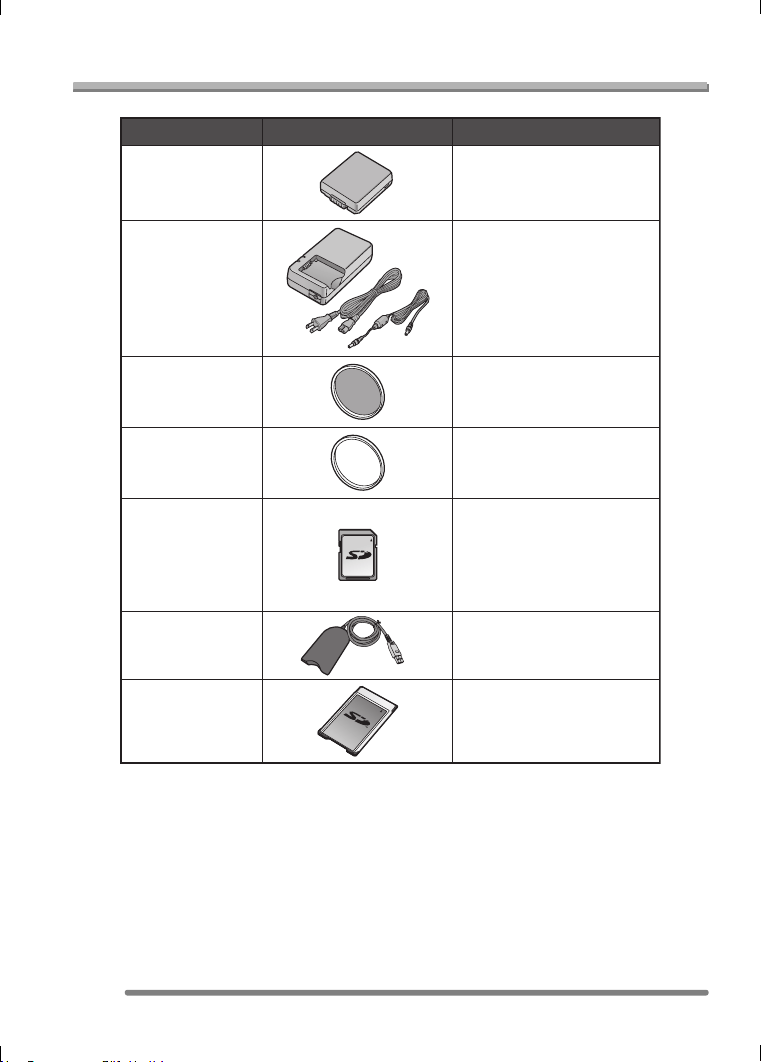
Others
116
VQT0Q09
Digital Camera Accessory System
* Please refer to pages 14, for details on the battery charging time and the
number of recordable pictures.
* NOTE: Accessories and/or model numbers may vary by country. Please
consult your local dealer.
Accessory#
Description
Figure
BN-SDCAPU/1B
BN-SDABPU/1B
1 GB SD Memory Card
512 MB SD Memory Card
256 MB SD Memory Card
128 MB SD Memory Card
64 MB SD Memory Card
32 MB SD Memory Card
SD USB Reader/Writer
(compatible with
MultiMediaCard)
SD PC Card Adaptor
(compatible with
MultiMediaCard)
DMW-LND55
DMW-LMC55
DMW-CAC1
RP-SDK01GU1A
RP-SDK512U1A
RP-SDH256U1A
RP-SD128BU1A
RP-SD064BPPA
RP-SD032BPPA
ND Filter
MC Protector
Battery Charger/AC Adaptor
CGA-S002A Lithium Ion Battery
VQT0Q09ENG.book 116 ページ 2005年1月25日 火曜日 午後8時17分
Others
117
VQT0Q09
Digital Camera Accessory Order Form
(For USA Customers)
In CANADA, please contact your local Dealer for more information on
Accessories.
TO OBTAIN ANY OF OUR DIGITAL CAMERA ACCESSORIES YOU CAN DO ANY OF
THE FOLLOWING:
VISIT YOUR LOCAL PANASONIC DEALER
OR
CALL PANASONIC’S ACCESSORY ORDER LINE AT 1-800-332-5368
[6 AM-5 PM M-F, 6 AM-10:30 AM SAT, PACIFIC TIME]
OR
MAIL THIS ORDER TO: PANASONIC SERVICES COMPANY ACCESSORY ORDER OFFICE
20421 84th Avenue South Kent, WA. 98032
Ship To:
Mr.
Mrs.
Ms.
First Last
Street Address
City State Zip
Phone#:
Day
( )
Night
()
4. Shipping information (UPS delivery requires complete street address)
Please photocopy this form when placing an order.
3. Method of payment (check one)
Check of Money Order enclosed (NO C.O.D.SHIPMENTS)
VISA
MasterCard
Make Check or Money Order to: PANASONIC ACCESSORIES
(Please do not send cash)
2. Items Ordered
QuantityAccessory # Price EachDescription Total Price
6.95
Subtotal
Your State & Local Sales Tax
Shipping & Handling
Total Enclosed
1. Digital Camera Model #
Discover
Expiration Date
Credit Card #
Customer Signature
VQT0Q09ENG.book 117 ページ 2005年1月25日 火曜日 午後8時17分

Others
118
VQT0Q09
Request for Service Notice
(For USA Only)
Mail this completed form and your Proof of Purchase along with your unit to:
Panasonic Services Company
1705 N. Randall Road
Elgin, IL. 60123-7847
Attn: Digital Camera Repair
Request for Service Notice:
(USA Only)
Please photocopy this form when making a request for service notice.
In the unlikely event this product needs service.
• Please include your proof of purchase.
(Failure to do so will delay your repair.)
• To further speed your repair, please provide
an explanation of what wrong with the unit
and any symptom it is exhibiting.
VQT0Q09ENG.book 118 ページ 2005年1月25日 火曜日 午後8時17分

Others
119
VQT0Q09
Limited Warranty
(For USA Only)
PANASONIC CONSUMER
ELECTRONICS COMPANY,
DIVISION OF PANASONIC
CORPORATION OF NORTH
AMERICA
One Panasonic Way, Secaucus, New
Jersey 07094
PANASONIC PUERTO RICO, INC.
Ave. 65 de Infantería, Km. 9.5, San
Gabriel Industrial Park, Carolina,
Puerto Rico 00985
Panasonic Digital Still Camera
Limited Warranty
Limited Warranty Coverage
If your product does not work properly because of a defect in materials or
workmanship, Panasonic Consumer Electronics Company or Panasonic Puerto
Rico, Inc. (collectively referred to as “the warrantor”) will, for the length of the
period indicated on the chart below, which starts with the date of original
purchase (“warranty period”), at its option either (a) repair your product with new
or refurbished parts, or (b) replace it with a new or refurbished product. The
decision to repair or replace will be made by the warrantor.
During the “Labor” warranty period there will be no charge for labor. During the
“Parts” warranty period, there will be no charge for parts. You must carry-in or
mail-in your product during the warranty period. If non-rechargeable batteries
are included, they are not warranted. This warranty only applies to products
purchased and serviced in the United States or Puerto Rico. This warranty is
extended only to the original purchaser of a new product which was not sold “as
is”. A purchase receipt or other proof of the original purchase date is required for
warranty service.
PRODUCT OR PART NAME PARTS LABOR
DIGITAL STILL CAMERA
(EXCEPT ITEMS LISTED
BELOW)
1 (ONE) YEAR 90 (NINETY) DAYS
CCD 6 (SIX) MONTHS 90 (NINETY) DAYS
RECHARGEABLE BATTERY
PACK (IN EXCHANGE FOR
DEFECTIVE BATTERY PACK)
90 (NINETY) DAYS NOT APPLICABLE
SD MEMORY CARD
(IN EXCHANGE FOR
DEFECTIVE SD CARD)
90 (NINETY) DAYS NOT APPLICABLE
VQT0Q09ENG.book 119 ページ 2005年1月25日 火曜日 午後8時17分

Others
120
VQT0Q09
Carry-In or Mail-In Service
For Carry-In or Mail-In Service in the United States call
1-800-272-7033.
For assistance in Puerto Rico call Panasonic Puerto Rico, Inc.
(787)-750-4300 or fax (787)-768-2910.
This warranty ONLY COVERS failures due to defects in materials or
workmanship, and DOES NOT COVER normal wear and tear or cosmetic
damage. The warranty ALSO DOES NOT COVER damages which occurred in
shipment, or failures which are caused by products not supplied by the
warrantor, or failures which result from accidents, misuse, abuse, neglect,
mishandling, misapplication, alteration, faulty installation, set-up adjustments,
misadjustment of consumer controls, improper maintenance, power line surge,
lightning damage, modification, or commercial use (such as in a hotel, office,
restaurant, or other business), rental use of the product, service by anyone other
than a Factory Servicenter or other Authorized Servicer, or damage that is
attributable to acts of God.
THERE ARE NO EXPRESS WARRANTIES EXCEPT AS LISTED UNDER
“LIMITED WARRANTY COVERAGE”. THE WARRANTOR IS NOT LIABLE
FOR INCIDENTAL OR CONSEQUENTIAL DAMAGES RESULTING FROM
THE USE OF THIS PRODUCT, OR ARISING OUT OF ANY BREACH OF THIS
WARRANTY. (As examples, this excludes damages for lost time, travel to and
from the servicer, loss of media or images, data or other memory content. The
items listed are not exclusive, but are for illustration only.) ALL EXPRESS AND
IMPLIED WARRANTIES, INCLUDING THE WARRANTY OF
MERCHANTABILITY, ARE LIMITED TO THE PERIOD OF THE LIMITED
WARRANTY.
Some states do not allow the exclusion or limitation of incidental or
consequential damages, or limitations on how long an implied warranty lasts, so
the exclusions may not apply to you.
This warranty gives you specific legal rights and you may also have other rights
which vary from state to state. If a problem with this product develops during or
after the warranty period, you may contact your dealer or Servicenter. If the
problem is not handled to your satisfaction, then write to the warrantor’s
Consumer Affairs Department at the addresses listed for the warrantor.
PARTS AND SERVICE WHICH ARE NOT COVERED BY THIS LIMITED
WARRANTY ARE YOUR RESPONSIBILITY.
VQT0Q09ENG.book 120 ページ 2005年1月25日 火曜日 午後8時17分

Others
121
VQT0Q09
Customer Services Directory (For USA Only)
Product Repairs
Web Site: http://www.panasonic.com/consumersupport
You can purchase parts, accessories or locate your
nearest servicenter by visiting our Web Site.
For Product Information, Operating Assistance, Literature Request, Dealer Locations, and
all Customer Service inquiries please contact:
1-800-272-7033, Monday-Friday 8:30am-8pm EST.
As of November 2004
Service in Puerto Rico
Panasonic Puerto Rico, Inc.:
Ave. 65 de Infantería, Km. 9.5, San Gabriel Industrial Park, Carolina, Puerto Rico 00985
MAIL TO :
Centralized Factory Servicenter
Panasonic Services Company
1705 N. Randall Road,
Elgin, IL 60123-7847
Attention: Digital Camera Repair
Please carefully pack and ship, prepaid and insured, to the Elgin Centralized Factory
Servicenter.
Customer's in Puerto Rico, please ship or carry in to location below (“Service in Puerto Rico”).
Phone (787) 750-4300 Fax (787) 768-2910
Purchase Parts, Accessories and Instruction Books online for all Panasonic Products by
visiting our Web Site at:
http://www.pasc.panasonic.com
or, send your request by E-mail to:
You may also contact us directly at:
1-800-332-5368 (Customer Orders Only)
Panasonic Services Company 20421 84th Avenue South, Kent, WA 98032
(6 am to 5 pm Monday - Friday; 6 am to 10:30 am Saturday; PST)
(Visa, MasterCard, Discover Card, American Express, Check)
Accessory Purchases:
VQT0Q09ENG.book 121 ページ 2005年1月25日 火曜日 午後8時17分

Others
122
VQT0Q09
Others
Index
A
AC Adaptor ......................................97, 99
Adjusting Flash Output .......................... 42
AF Assist Lamp ......................................78
AF Mode ................................................76
AF Trigger ..............................................77
AF/AE Lock ............................................32
Aperture-priority AE .........................55, 59
Audio Dubbing (DMC-FZ5 only) ............ 90
Audio Recording (DMC-FZ5 only) ...61, 75
Auto Bracket .......................................... 46
Auto Review ...........................................24
Auto White Balance ............................... 71
B
Backlight Compensation ........................ 37
Brightness
of the LCD Monitor/Viewfinder ...........24
Built-in Flash ..........................................40
Burst Mode ............................................ 48
C
Card .......................................................17
Card Access Indication .................. 17, 108
Center Weighted ....................................75
Charger ................................................ 108
Clock Set .........................................22, 25
Color Effect ............................................ 80
Condensation ...........................................4
Continuous AF .......................................77
D
Date Printing .................................. 87, 102
Deleting Pictures ....................................53
Demonstration
of the Optical Image Stabilizer ...........47
Digital Zoom ...........................................79
Diopter Adjustment ................................28
DPOF Print Setting ................................ 86
E
Exposure ................................................34
Exposure Compensation .......................45
F
File Number .............................25, 98, 106
Fine ........................................................ 74
Fireworks Mode .....................................67
Flip Animation ........................................80
Focus .....................................................33
Folder Composition ................................98
Folder Number .........................25, 98, 106
Formatting ..............................................94
H
HDTV ...............................................74, 95
Highlight Display ..............................26, 28
Histogram ..............................................29
I
ISO Sensitivity .......................................73
J
Jitter .......................................................33
L
Language setting ...................................26
Layout ..................................................101
LCD Monitor ...................................27, 104
Lens Cap ............................................... 19
Lens Hood .............................................20
Lens Hood Adaptor ................................20
M
Macro Mode ...........................................60
Manual Exposure .............................57, 59
Manual Exposure Assistance ................57
Mass Storage .........................................96
MC Protector ........................................ 103
Metering Mode .......................................75
Monitor Priority .................................24, 28
Motion Image Mode ...............................61
Motion Rate ...........................................61
Multi Playback ........................................51
Multiple ..................................................75
VQT0Q09ENG.book 122 ページ 2005年1月25日 火曜日 午後8時17分

Others
123
VQT0Q09
N
ND Filter ...............................................103
Night Portrait Mode ................................66
Night Scenery Mode ..............................65
NO.RESET ............................................25
NTSC .....................................................26
Number of prints ..................................100
Number of recordable pictures ..............18
O
Operational sound .................................25
Optical Image Stabilizer .........................47
Optical Zoom .........................................39
Out-of-frame Display ..............................28
P
PAL ........................................................26
Panning Mode ........................................66
Paper Size ...........................................100
Party Mode ............................................68
PC ....................................................96, 97
PictBridge ........................................96, 99
Picture Adjustment .................................80
Picture Mode ..........................................35
Picture Size ......................................18, 74
Pictures with Audio (DMC-FZ5 only) .....83
Playback ................................................50
Playback Pictures on TV ........................95
Playback Zoom ......................................52
Playing Back Motion Images .................83
Portrait Mode .........................................64
Power Indicator ......................................31
Power Save ...........................................25
Prefocus .................................................77
Program AE ...........................................31
Protect ...................................................88
PTP ........................................................96
Q
Quality ....................................................74
R
Recording Guide Line ............................28
Reset of setting ......................................26
Resizing .................................................91
Review ...................................................38
Rotate ....................................................85
Rotate Display .......................................85
S
Scene Menu ...........................................26
Scene Mode ...........................................63
Scenery Mode ........................................65
SD Slide Show .......................................90
Self-timer ...............................................44
Setup Menu ...........................................23
Shutter sound ........................................25
Shutter-priority AE ...........................56, 59
Simple Mode ..........................................35
Slide Show .............................................89
Snow Mode ............................................69
Sports Mode ..........................................64
Spot .......................................................75
Spot-focusing .........................................76
Standard ................................................74
Strap ......................................................19
T
Tele-macro Function ..............................60
TIFF .......................................................74
Trimming ................................................92
U
USB Connection Cable ..............96, 97, 99
USB Mode ...........................26, 96, 97, 99
V
Video output .....................................26, 95
Viewfinder ......................................27, 104
Volume of Speakers ..............................25
W
White Balance ........................................71
White Balance Fine Adjustment .............72
White Set ...............................................72
Numerics
1-area-focusing ......................................76
1-area-focusing (high speed) .................76
3-area-focusing (high speed) .................76
9-area-focusing ......................................76
VQT0Q09ENG.book 123 ページ 2005年1月25日 火曜日 午後8時17分
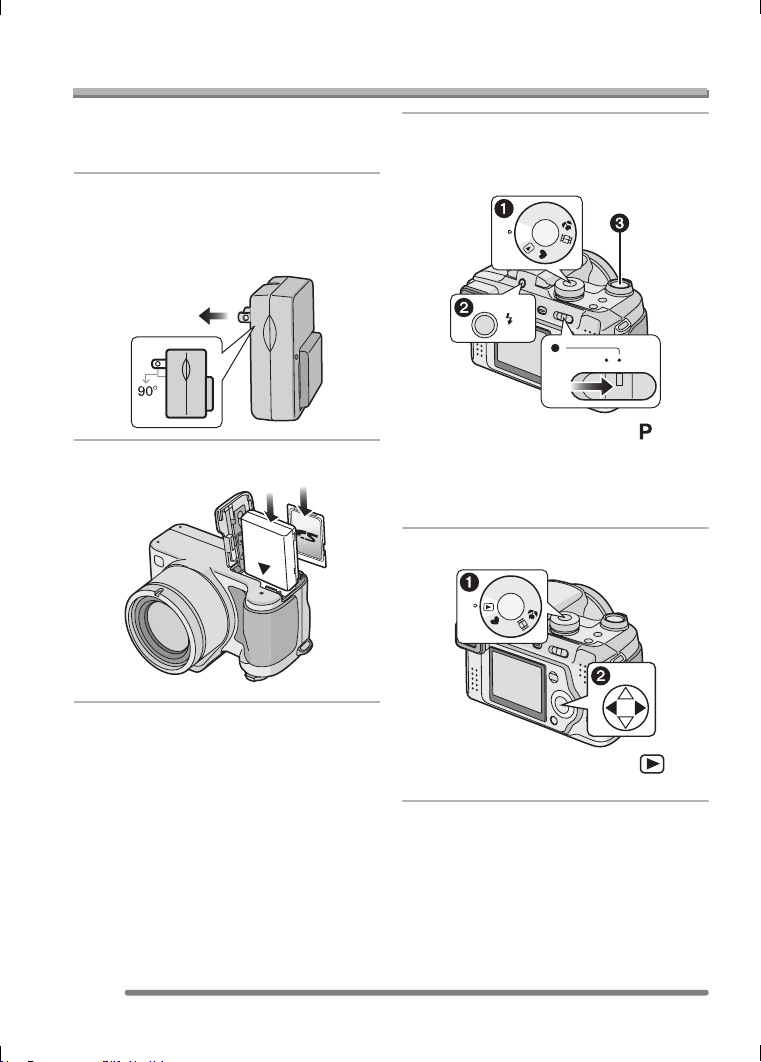
Others
124
VQT0Q09
Others
Spanish Quick Use Guide/Guía rápida en español
Ésta es una visión de conjunto que trata
del procedimiento para grabar y reproducir
las imágenes con la cámara.
1 Cargue la batería.
• Cuando se envía la cámara, la
batería está sin carga. Cárguela
antes del uso.
2 Inserte la batería y la tarjeta.
3 Encienda la cámara para tomar
las imágenes.
• Ajuste el reloj.
1 Ajuste el disco del modo a [ ].
2 Abra el flash.
(Cuando usa el flash)
3 Pulse el botón del obturador para
tomar las imágenes.
4 Reproduzca las imágenes.
1 Ajuste el disco del modo a [ ].
2 Elija la imagen que quiere ver.
OFF ON
M
S
A
SCN
P
OPEN
M
S
A
SCN
P
VQT0Q09ENG.book 124 ページ 2005年1月25日 火曜日 午後8時17分

125
VQT0Q09
MEMO
VQT0Q09ENG.book 125 ページ 2005年1月25日 火曜日 午後8時17分

126
VQT0Q09
MEMO
VQT0Q09ENG.book 126 ページ 2005年1月25日 火曜日 午後8時17分

127
VQT0Q09
MEMO
VQT0Q09ENG.book 127 ページ 2005年1月25日 火曜日 午後8時17分

VQT0Q09
F0205Mn0(020000 )
Panasonic Consumer Electronics Company,
Division of Panasonic Corporation of North America
One Panasonic Way, Secaucus, NJ 07094
Panasonic Puerto Rico, Inc.
Ave. 65 de Infantería, Km. 9.5, San Gabriel Industrial Park, Carolina, Puerto Rico 00985
C
Panasonic Canada Inc.
5770 Ambler Drive, Mississauga, Ontario, L4W 2T3
C 2005 Matsushita Electric Industrial Co., Ltd.
QuickTime and the QuickTime logo are trademarks used under license.
The QuickTime logo is registered in the U.S. and other countries.
P
VQT0Q09ENG.book 128 ページ 2005年1月25日 火曜日 午後8時17分