Owner Manual Audio
PRODUCT OVERVIEW
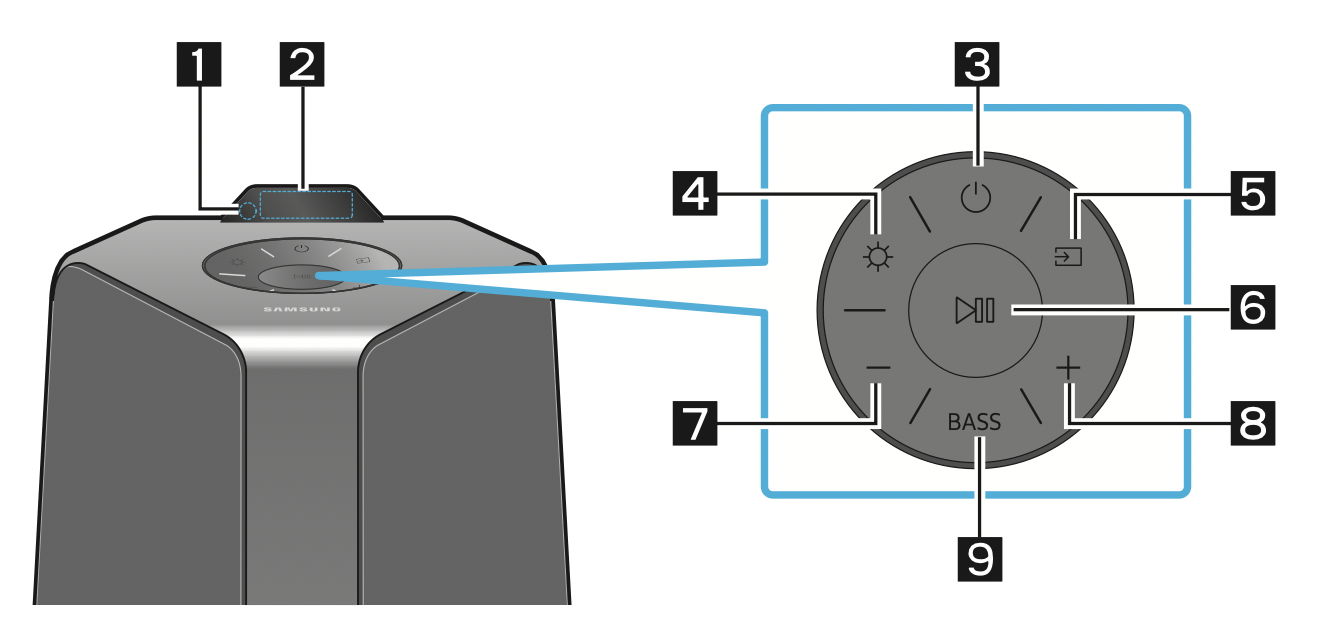
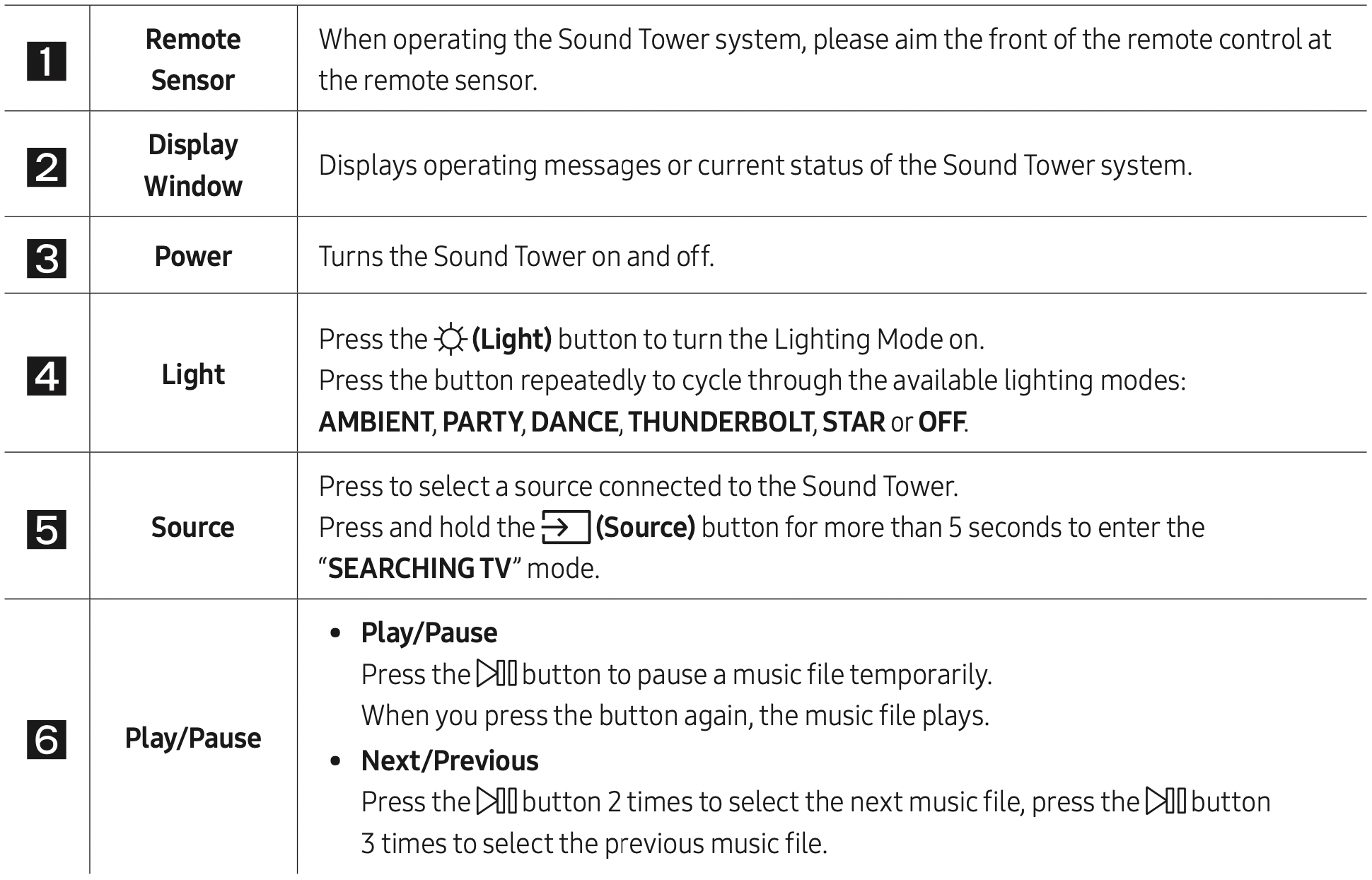
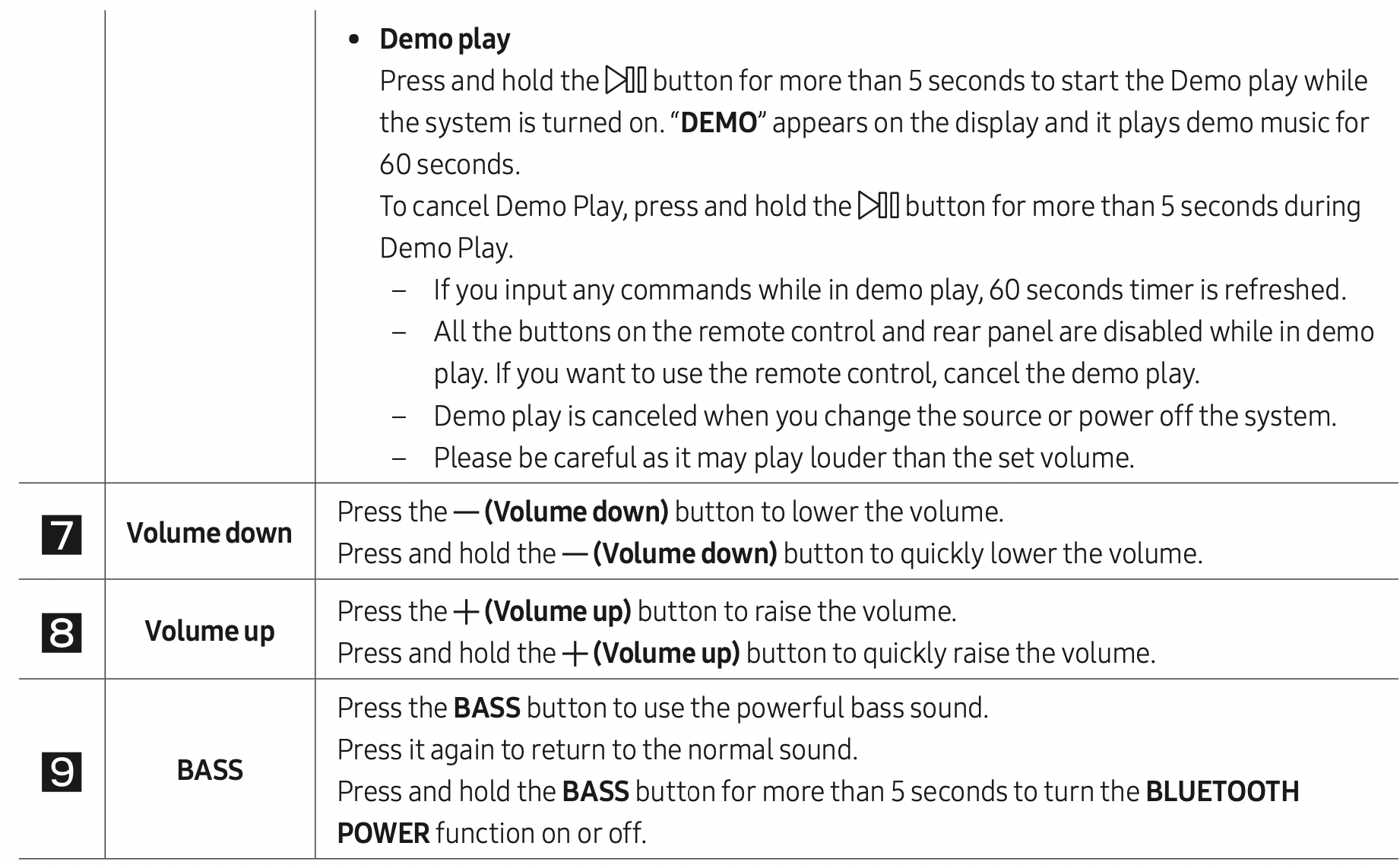
Top Panel of the Sound Tower
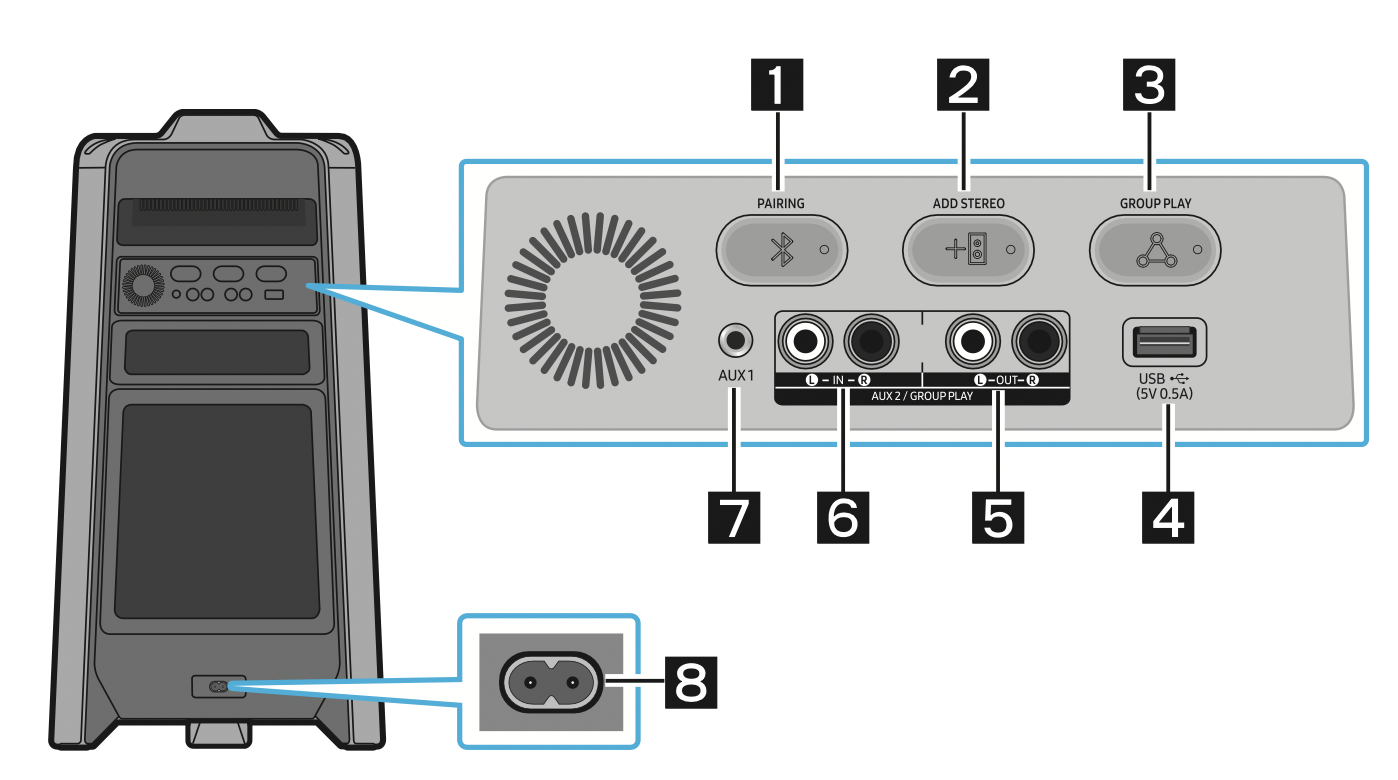
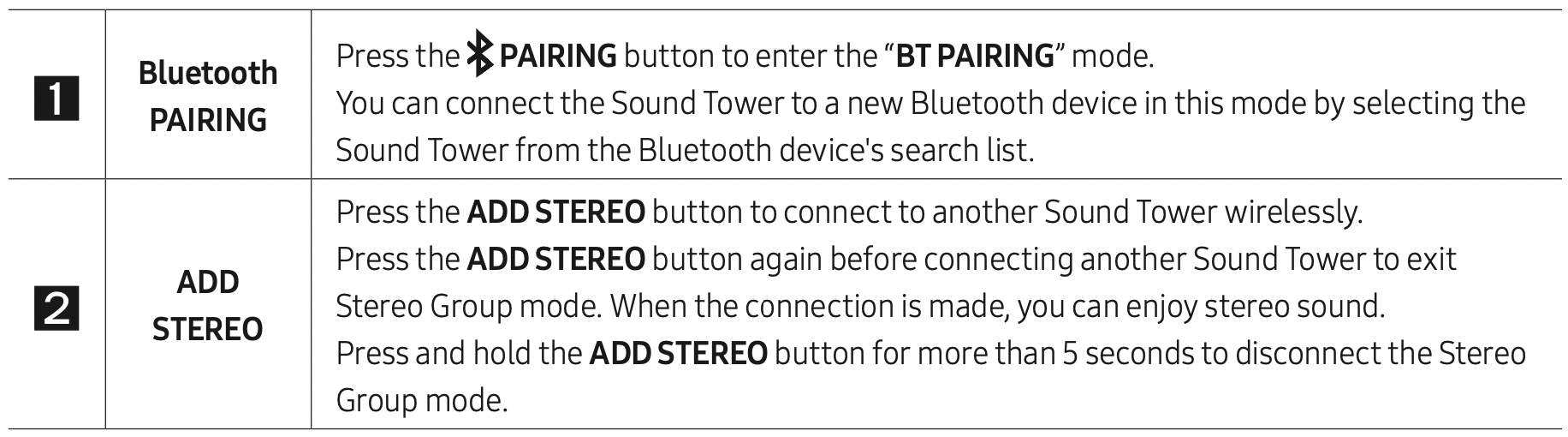
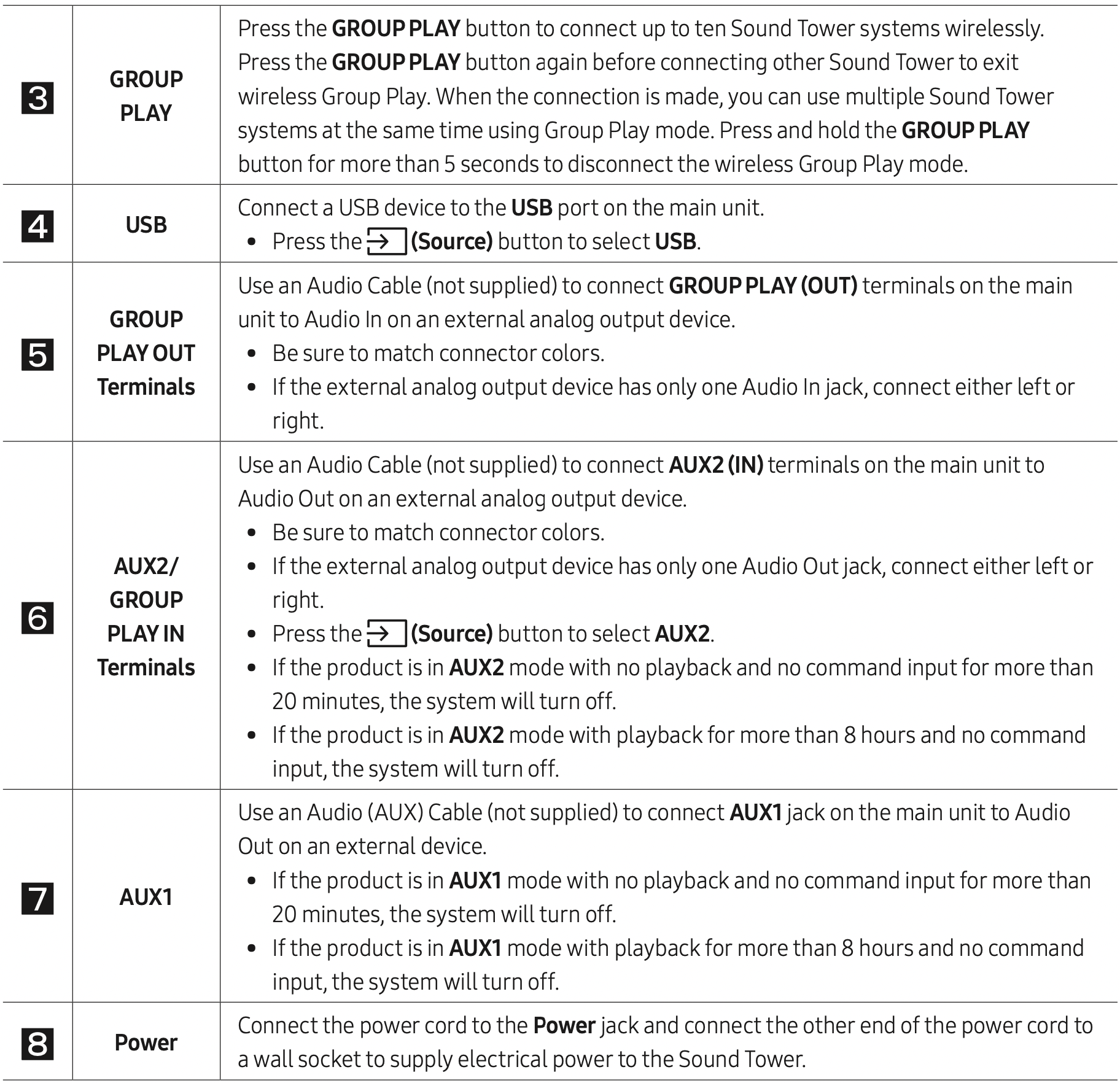
Rear Panel of the Sound Tower
CONNECTING THE SOUND TOWER
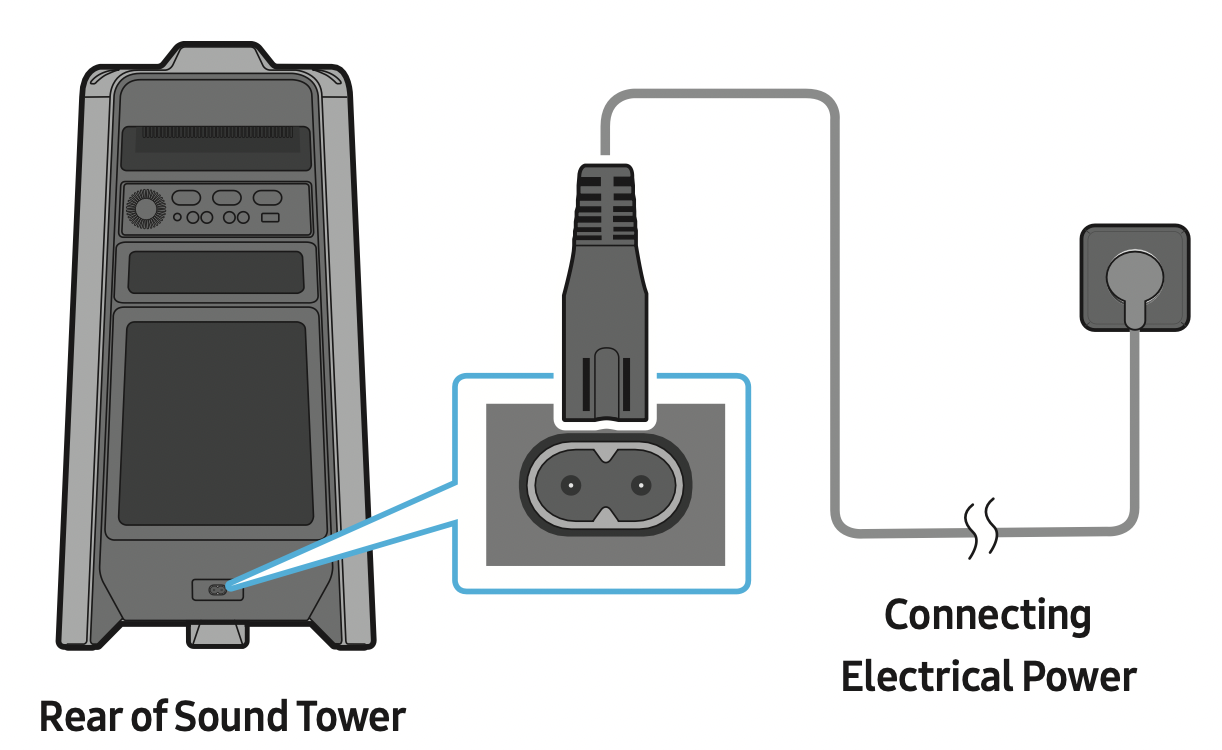
Connecting Electrical Power
Use the power cord to connect the Sound Tower to an electrical outlet in the following order: Connect the power cord to the Sound Tower and then to a wall socket.
See the illustrations below.
- For more information about the required electrical power and power consumption, refer to the label attached to the product. (Label: Rear of the Sound Tower)
How to use Audio Group
You can connect multiple audio systems in a group to create a party environment and produce higher sound output. Set one Sound Tower as the HOST and any music played on it will be shared among any other Sound Tower systems in the Audio group.
Connecting the wired Group Play mode
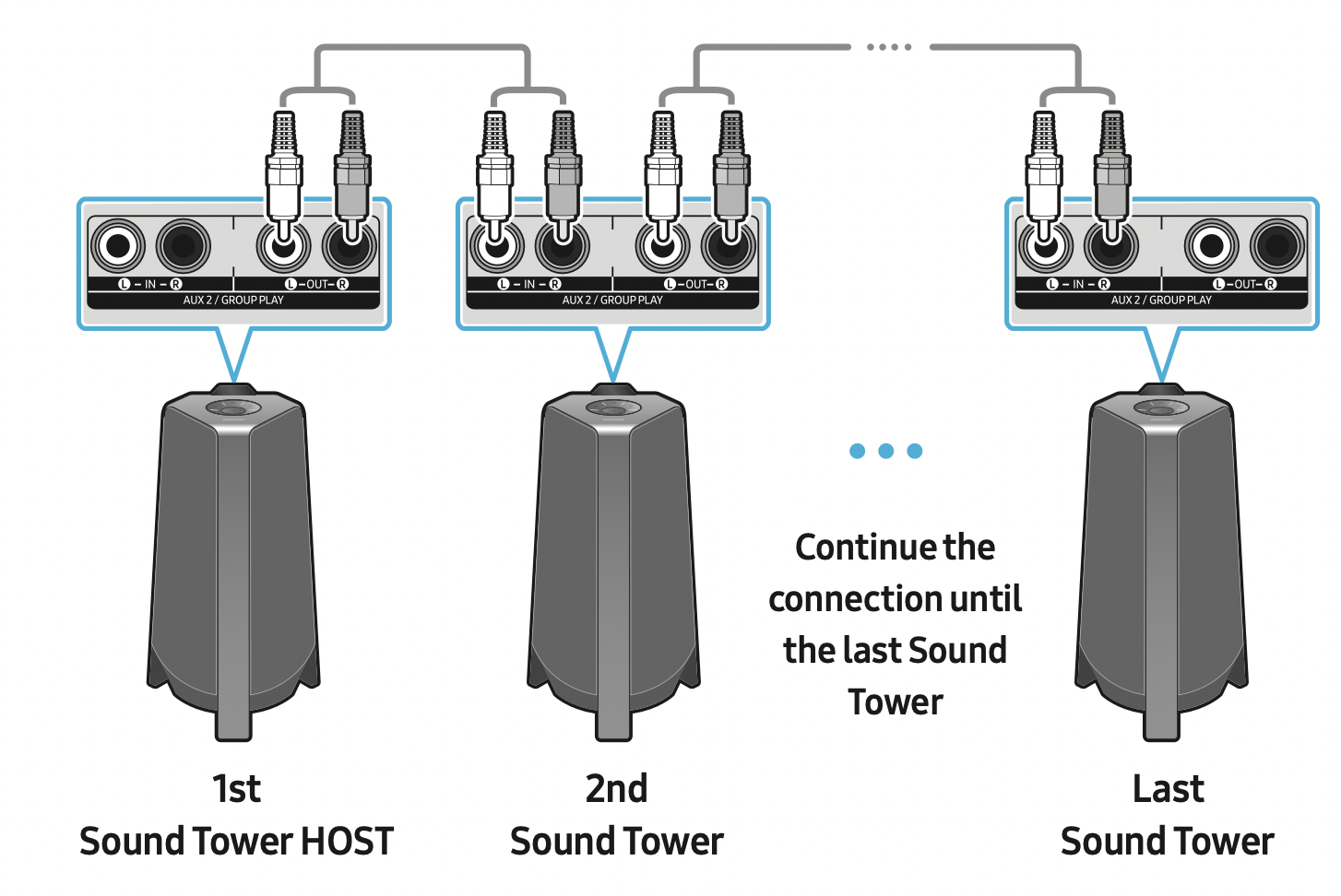
Set up Group Play by connecting all the systems using audio cables (not supplied). Use the AUX or  (Source) button to change the source to AUX2 for every Sound Tower system except the 1st (or HOST) Sound Tower system.
NOTES
- The 1st Sound Tower HOST can play music from any source.
- Depending on the length or characteristics of the cable, there may be a difference in operating distance.
Connecting the wireless Group Play mode
You can connect up to ten Sound Tower systems with the wireless Group Play function.
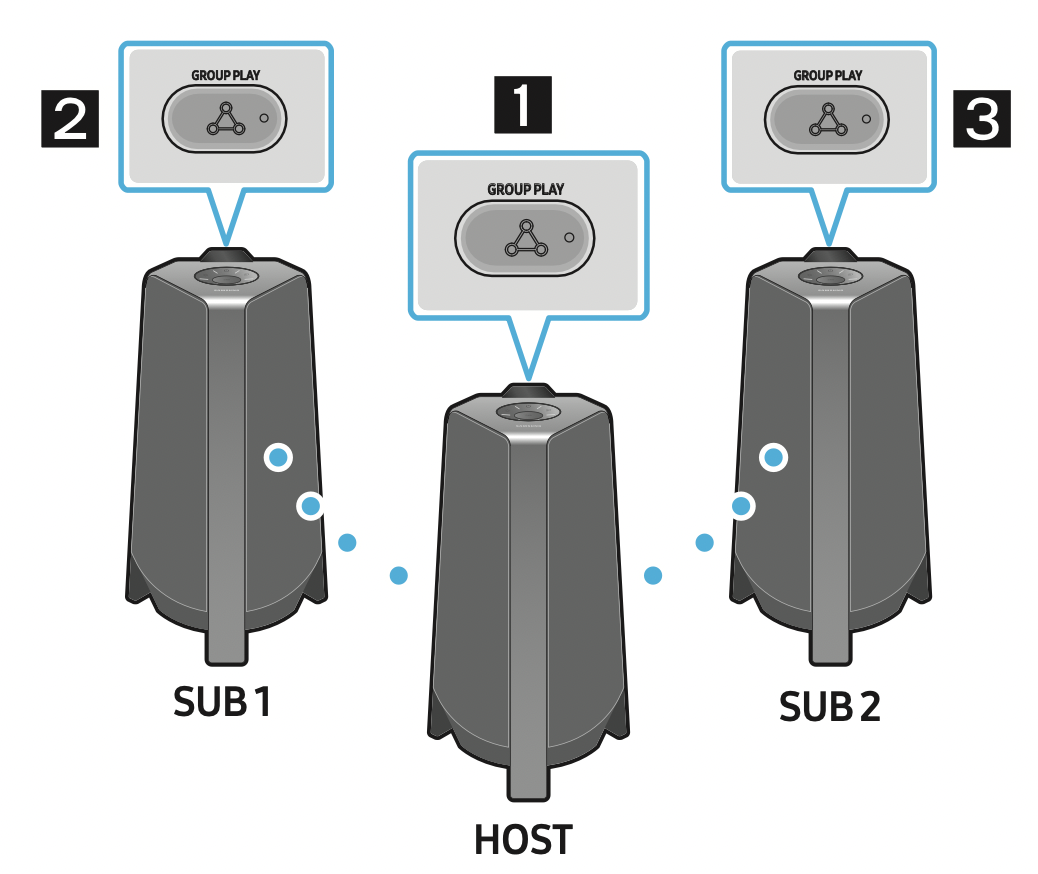
- Press the GROUP PLAY button on the HOST Sound Tower system. The “HOST” message appears on the display of the HOST Sound Tower and the LED blinks on the GROUP PLAY button.
- Press the GROUP PLAY button on the 2nd Sound Tower system (SUB 1). The “GROUP PLAY CONNECTED” message appears on the display and the GROUP PLAY button on both systems stops blinking.
- Press the GROUP PLAY button on the 3rd Sound Tower system (SUB 2). The “GROUP PLAY CONNECTED” message appears on the display and the GROUP PLAY button on the system stops blinking.
- If you want to add more Sound Tower systems, repeat step 3.
- Play music on the HOST Sound Tower. Sound outputs from all the connected systems.
NOTES
- If Sound Tower is connected with Samsung TV, Wireless Group Play is not available.
- The wireless Group Play connection is available for any Sound Tower system.
- Environmental conditions or other factors with connected devices may have effect on playback quality.
- If the red LED is on the GROUP PLAY button, an error has occurred in the wireless Group Play connection. Try step 1 to step 5 again.
- The ADD STEREO button and
 PAIRING button on the SUB Sound Tower systems are not available while in wireless Group Play mode.
 - The ADD STEREO button on the HOST Sound Tower system is not available while in wireless Group Play mode.
- When adding a SUB unit, if you press and hold GROUP PLAY on the SUB, before the “GROUP PLAY CONNECTED” message appears, it will become the HOST unit instead.
- All SUB units must be connected one by one. For example, after HOST is connected, press GROUP PLAY button on SUB 1 to connect, and after SUB 1 is connected, you should connect SUB 2 and SUB 3 one by one sequentially.
- While using Group Play, currently connected Bluetooth devices are disconnected and Bluetooth connection is disabled.
- Bluetooth devices can search and connect with the HOST Sound Tower only.
- When in Group Play mode, the SUBs cannot connect to a Bluetooth device.
- If you power off and then power on the Sound Tower or select any source other than BT on a SUB unit, in Group Play mode, the Group Play mode is disconnected.
- This product does not support aptX audio stream with Wireless Group Play mode.
Disconnecting the wireless Group Play mode
- Press and hold the GROUP PLAY button over 5 seconds (HOST or SUBs) after Group Play is connected or press the GROUP PLAY button (HOST or SUBs) before Group Play is connected.
“OFF-GROUP PLAY” appears on the display and the LED above the GROUP PLAY button is off. - If you select any source other than BT on the SUB units or turn off the HOST Sound Tower, the Group Play mode is disconnected.
If the disconnection is made from the HOST Sound Tower, Group Play is disconnected.
LED Indications

NOTE
- In wireless connection, Playback quality can be unstable depending on Bluetooth environment.
For better play, please keep the device in wired Group Play mode.
Using a Smartphone and Stereo Group mode
Connect two Sound Towers and use them with your smartphone to enjoy stereo sound.
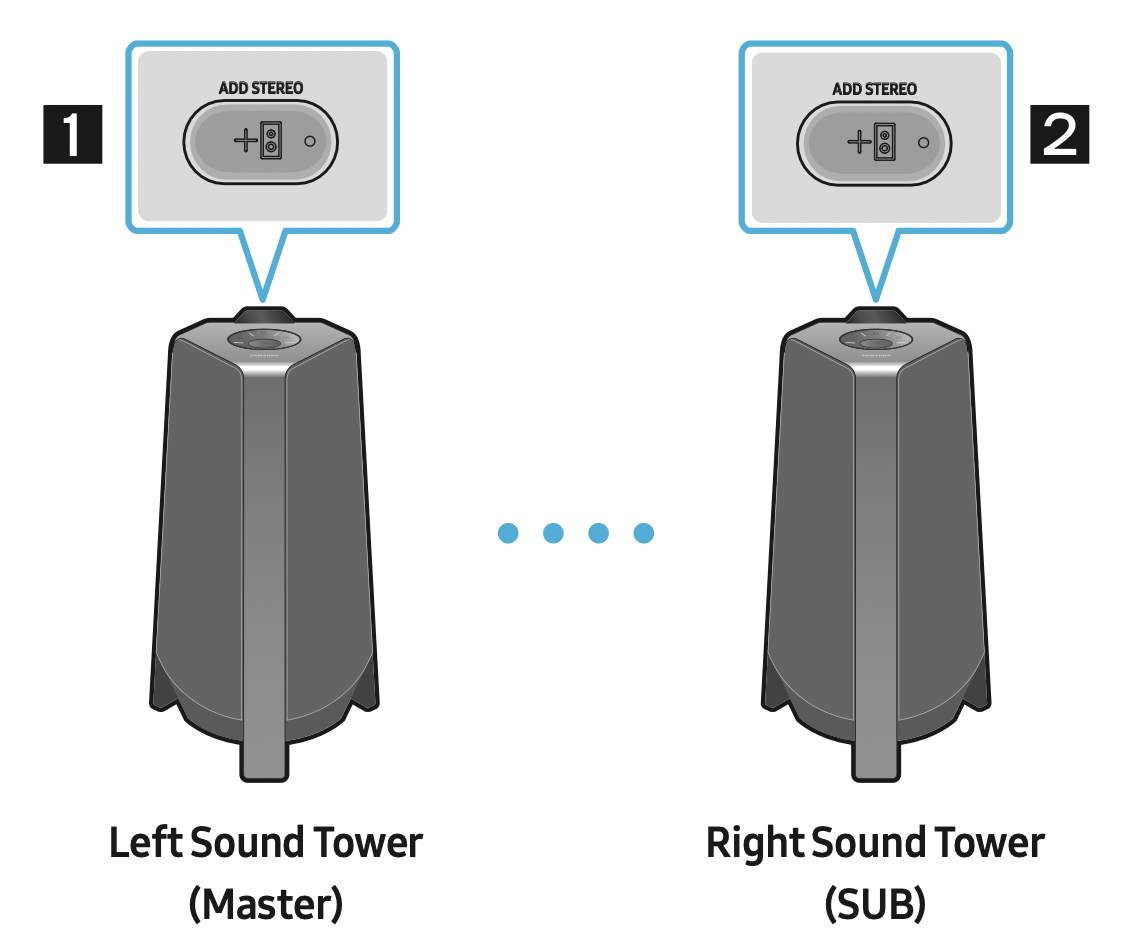
- Press the ADD STEREO button on the left Sound Tower system. The “SEARCHING STEREO” message appears on the display and the LED blinks on the ADD STEREO button.
- Press the ADD STEREO button on the right Sound Tower system. The “SEARCHING STEREO” message appears on the display and the LED blinks on the ADD STEREO button.
- When the connection is made, The “LEFT” message appears on the master Sound Tower system and “RIGHT” appears on the SUB Sound Tower system.
The MAIN Sound Tower system outputs left channel sound and the SUB Sound Tower system outputs right channel sound. Press the ADD STEREO button on the MAIN or SUB Sound Tower to change the sound channel of the Sound Tower. - Play music by connecting your smartphone to the MAIN Sound Tower and Bluetooth.
Sound is output from both Sound Towers.
NOTES
- To use the Stereo Group mode, both Sound Tower systems must be the same model.
- Environmental conditions or other factors with connected devices may have effect on playback quality.
- If the red LED is on the ADD STEREO, an error has occured in the Stereo Group connection. Try step 1 and step 3 again.
- Remote Controller, BT PAIRING, GROUP PLAY and (Source) buttons on the SUB Sound Tower systems are disabled while in Stereo Group mode.
- The GROUP PLAY button on the MAIN Sound Tower system is not available while in Stereo Group mode.
- In mode other than “BT” (ex. USB, AUX mode), music is played only in MAIN Sound Tower and music is not played in SUB Sound Tower.
- The lighting colors between MAIN Sound Tower and SUB Sound Tower may vary.
- The Bluetooth device has the same name as MAIN Sound Tower and SUB Sound Tower when connected to the Bluetooth device, and only the MAIN Sound Tower can be connected.
- This product does not support aptX audio stream with Stereo Group mode.
- If you try to connect a Bluetooth device while Stereo Group is connecting, the Stereo Group mode may fail.
Terminate the Stereo Group mode
Press the ADD STEREO button (MAIN or SUB) for at least 5 seconds after the Stereo Group is connected.
- “OFF-STEREO MODE” appears on the display and the LED above the ADD STEREO button is off.
LED Indications

Using Samsung TV and Stereo Group mode
Connect two Sound Towers by wire and use them with Samsung TV to enjoy stereo sound.
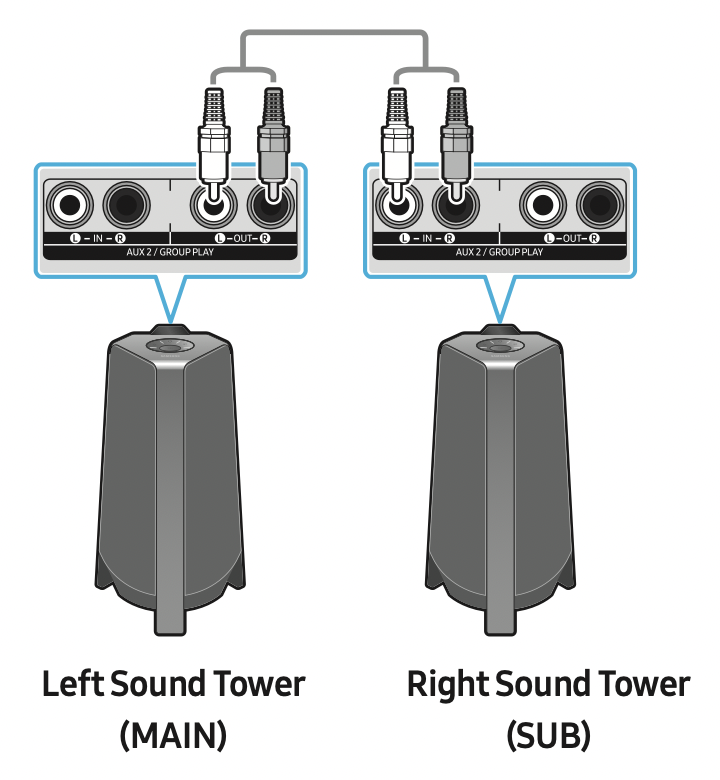
- Refer to “Using a Smartphone and Stereo Group mode” to connect the two Sound Towers in a Stereo Group.
- Connect the RCA cable to the AUX2 OUT on the MAIN and AUX2 IN on the SUB as shown by using the RCA cable (not supplied).
- In “BT” mode, press the “AUX” button on the MAIN Sound Tower remote control for at least 5 seconds. “SEARCHING TV STEREO” appears on the display.
- When the connection is complete, “TV STEREO MODE” appears in the display and then the current output CHANNEL is displayed.
- When the connection is complete, a “SEARCHING TV” message appears in the MAIN Sound Tower display and a “SUB” appears in the SUB Sound Tower display.
The MAIN Sound Tower outputs the left channel sound and the SUB Sound Tower outputs the right channel sound. Press the ADD STEREO button on the MAIN or SUB Sound Tower to change the sound channel of the Sound Tower. - Connect a TV and MAIN Sound Tower via Bluetooth to play music. Sound is output from both Sound Towers.
NOTES
- To use Stereo Group mode, both Sound Towers must be the same model.
- A red light on the LED on the ADD STEREO button indicates an error in the Stereo Group connection. Try Step 1 to 5 again.
- In Stereo Group mode, the remote control, BT PAIRING, GROUP PLAY, and (Source) buttons on the SUB Sound Tower are disabled.
- The GROUP PLAY button on the MAIN Sound Tower is not available in Stereo Group mode.
- If Samsung TV supports a simple connection, the connection pop-up is automatically displayed on the TV, and if you select “Yes”, it connects to the TV. If there is a previous connection history between Samsung TV and Sound Tower, it will be connected to Samsung TV without pop-up. For a simple connection to Samsung TV, refer to page 17.
- The lighting colors may vary between the MAIN Sound Tower and the SUB Sound Tower.
- When connecting to a TV, the names of the MAIN and SUB Sound Tower are the same in the Bluetooth list on the TV, and only the MAIN Sound Tower can be connected.
Terminating the Stereo Group mode connection
Press the ADD STEREO button (MAIN or SUB) for at least 5 seconds after the Stereo Group is connected.
- “OFF-STEREO MODE” appears in the display and the LED on the ADD STEREO button turns off.
CONNECTING AN EXTERNAL DEVICE
Connect to an external device via a wired or wireless network to play the external device’s sound through the Sound Tower.
Connecting using an Analog Audio (AUX) Cable
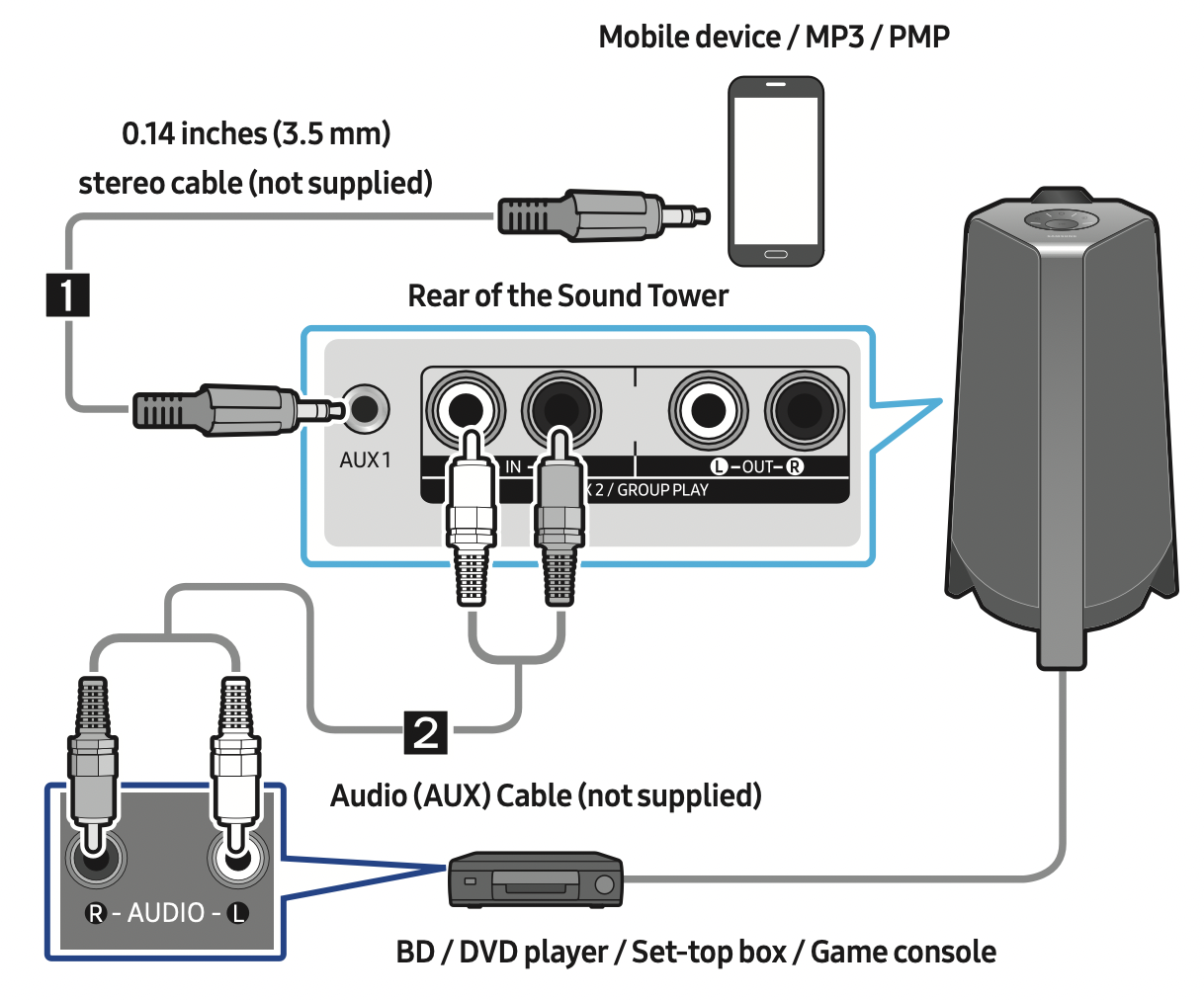
0.14 inches (3.5 mm) stereo Cable (AUX1)
- Connect AUX1 jack on the main unit to the AUDIO OUT jack of the Source Device using an 0.14 inches (3.5 mm) stereo cable
- Select “AUX1” mode by pressing the (Source) button on the top panel or on the remote control.
You can also select a source using AUX button on the remote control.
Audio Cable (AUX2)
- Connect AUX2 (IN) terminals on the main unit to the AUDIO OUT terminals of the Source Device using an audio cable .
- Select “AUX2” mode by pressing the (Source) button on the top panel or on the remote control.
You can also select a source using AUX button on the remote control.
Connecting a mobile device via Bluetooth
When a mobile device is connected using Bluetooth, you can hear stereo sound without the hassle of cabling.
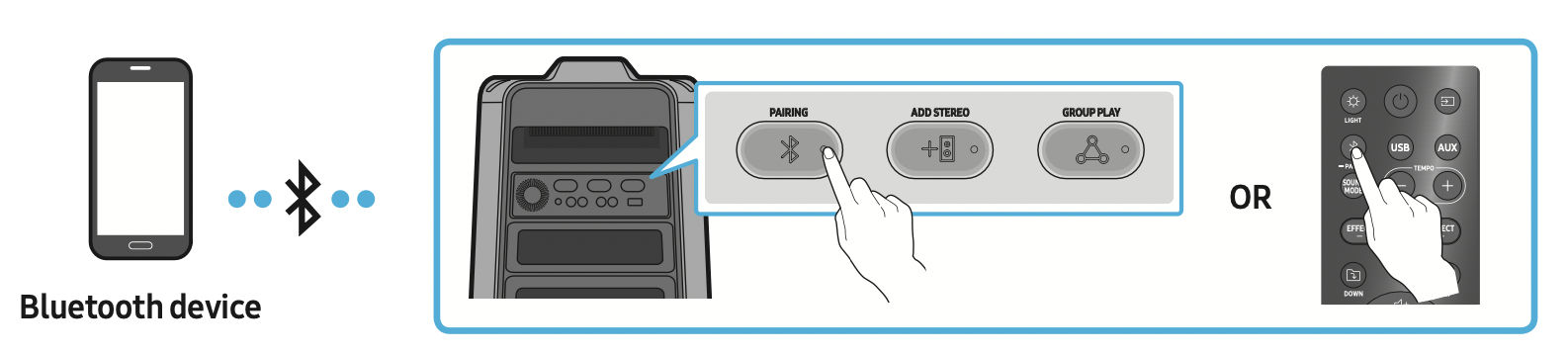
The initial connection
- Press and hold the PAIRING button on the remote control for more than 5 seconds to enter the “BT PAIRING” mode.
(OR)
Press the PAIRING button on the rear panel. - On your device, select “[AV] MX-T40” from the list that appears.
When the Sound Tower is connected to the Bluetooth device, [Bluetooth Device Name] → “BT” appears in the front display. - Play music files from the device connected via Bluetooth through the Sound Tower.
If the device fails to connect
- If a previously connected Sound Tower listing (e.g. “[AV] MX-T40”) appears in the list, delete it.
- Then repeat steps 1 and 2.
What is the difference between BT READY and BT PAIRING?
- BT READY : In this mode, you can search for previously connected TVs or connect a previously connected mobile device to the Sound Tower.
- BT PAIRING : In this mode, you can connect a new device to the Sound Tower.
(Press and hold the PAIRING button on the remote control for more than 5 seconds or press the PAIRING button on the rear of the Sound Tower to enter the “BT PAIRING” mode.)
Bluetooth Multi connection
Sound Tower supports up-to two simultaneous Bluetooth device connections. Sound Tower can play music through one of the connected Bluetooth devices without disconnecting the second device.
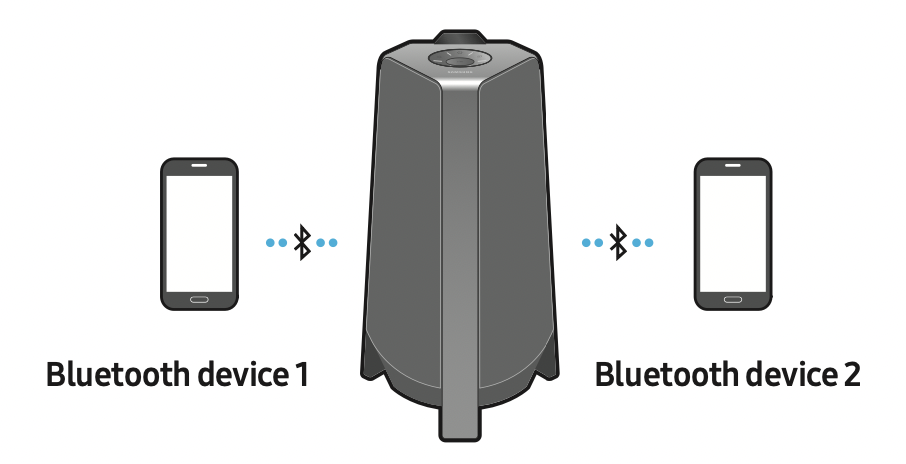
- Connect Sound Tower to the first device and the second device respectively for the first time.
(See page 14) - Music can be played on only one of the two connected devices, and when the music is played on the other device, the music on the playing device is paused.
NOTES
- If you want to connect Sound Tower to a third device, you can disconnect Sound Tower from one of the two currently connected devices and then connect Sound Tower to the third device.
- With the Sound Tower and two devices currently connected, when pairing to a new Bluetooth device, the devices currently connected maybe disconnected.
- You can connect to two Bluetooth devices at the same time.
- If asked for a PIN code when connecting a Bluetooth device, enter <0000>.
- Environmental conditions or other factors with connected devices may have effect on playback quality.
- The Sound Tower automatically turns off after 20 minutes with no command input in the ready state.
- The Sound Tower may not perform Bluetooth search or connection correctly under the following circumstances:
- If there is a strong electrical field around the Sound Tower.
- If several Bluetooth devices are simultaneously paired with the Sound Tower.
- If the Bluetooth device is turned off, not in place, or malfunctions.
- Electronic devices may cause radio interference. Devices that generate electromagnetic waves must be kept away from the Sound Tower main unit - e.g., microwaves, wireless LAN devices, etc.
- When the Sound Tower is connected to your TV by Bluetooth connection, the video on the TV and audio from the Sound Tower may not be synchronized because the distance between the Sound Tower and the TV is too far. It is recommended to move the Sound Tower closer to your TV within 3.3 ft (1 meter).
- When the speaker is in the Bluetooth Multi connection mode, you will need to connect the other Bluetooth device and speaker within a few minutes (Approx. 1 minute). Otherwise Bluetooth Multi connection mode will be canceled.
- Bluetooth Multi connection may not be supported depending on the connected device’s specifications.
- Removable/detachable Bluetooth devices (Ex:Dongle etc..) ,windows phone, laptops, TV, etc. do not support Bluetooth Multi connection.
- After Bluetooth Multi connection pairing, there may be a slight delay before music starts playing depending on the Bluetooth devices.
- If you move too far out of range from the Sound Tower without first disconnecting your Bluetooth device, it may take a few minutes to connect other Bluetooth devices. If you turn the Sound Tower off and back on, you can connect other Bluetooth devices without waiting.
LED Indications

Using Bluetooth Power On
When the Sound Tower is turned off, you can connect your smart device via a Bluetooth connection to turn it on.
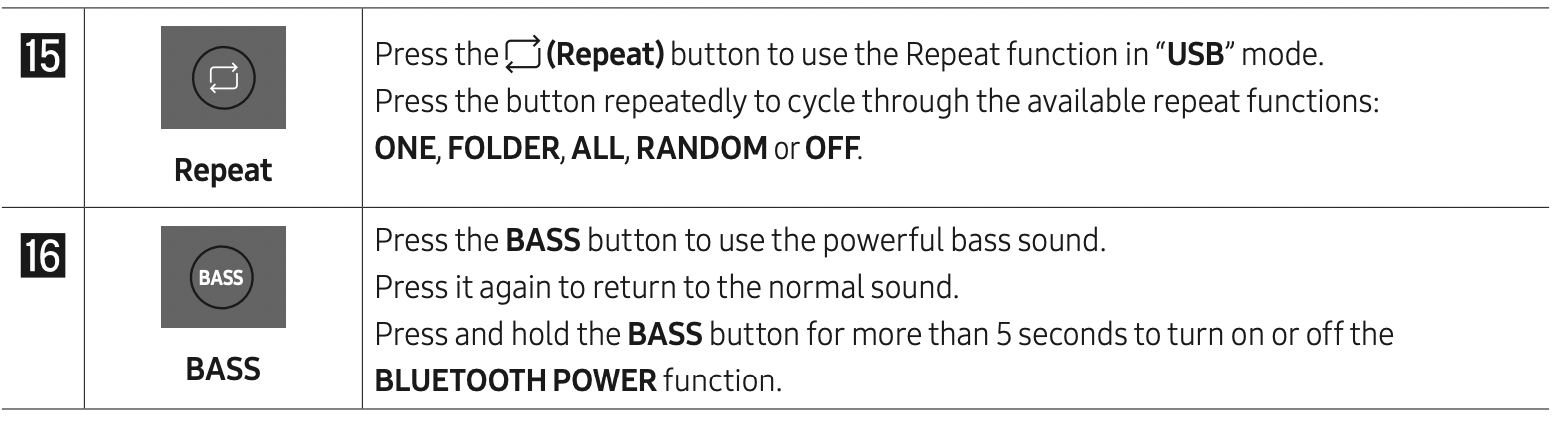
- Press and hold the BASS button on the remote control or on the top panel to set the Bluetooth Power On function on. “ON-BLUETOOTH POWER” appears on the display.
- When the Sound Tower is off, connect your smart device via Bluetooth. (For information on Bluetooth connections, refer to your smart device’s manual.)
- When the connection is complete, the Sound Tower turns itself on automatically in Bluetooth mode.
Select the desired music to play from your smart device.
NOTE
- Press and hold the BASS button for more than 5 seconds on the remote control or on the top panel to turn the Bluetooth Power On function on or off.
Each time you press the BASS button, the Sound Tower displays : ON-BLUETOOTH POWER → OFF-BLUETOOTH POWER
Connecting the Samsung TV via Bluetooth
If Sound Tower connected with Samsung TV via Bluetooth, Sound Tower can be controlled by TV UI. (Volume +/-, Mute On/Off and Power On/Off)
Easy connect with Samsung TV (SEARCHING TV mode)
Sound Tower has “SEARCHING TV” mode for easy connect with Samsung TV.
- Press and hold (Source) button on remote control or top panel then Sound Tower will start to search Samsung TV. The “SEARCHING TV” message appears on the display. (Or, when the wired Stereo Group mode connection is complete, the “SEARCHING TV” mode is automatically activated.)
- If Samsung TV support easy connection, connection popup will be displayed on TV.
If Samsung TV has connected with Sound Tower before, Samsung TV will be connected without popup. - If Sound Tower can not find any Samsung TV within 5 minutes, Sound Tower will terminate “SEARCHING TV” mode and turn to “BT PAIRING” mode. If find any Samsung TV, Sound Tower will request connection to those TV.
NOTES
- While in wireless Group Play mode, searching TV is not available.
- To stop searching Samsung TV, turn off the Sound Tower or press the (Source) or PAIRING button.
- Sound Tower does not support multi connection if Samsung TV is connected.
- While Samsung TV is connected, Sound mode is PARTY and SOUND MODE button is not available.
- While Samsung TV is connected, Sound Tower APP can not connect with Sound Tower.
- Connection popup may not be displayed according to TV spec.
- You can select and connect directly from the Bluetooth speaker list on your TV when the connection pop-up does not appear on your TV.
CONNECTING A USB STORAGE DEVICE
You can play music files located on USB storage device through the Sound Tower.
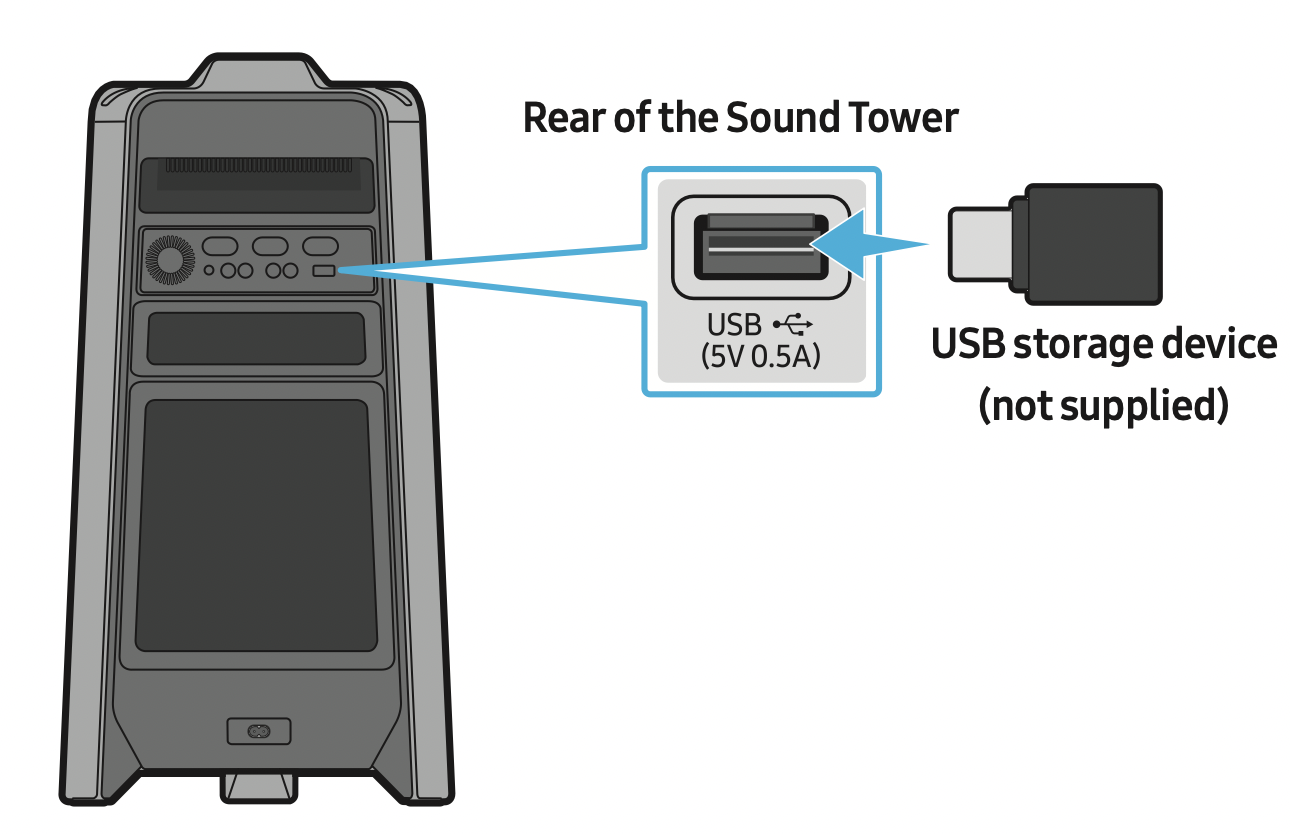
- Connect a USB storage device to the USB jack on your Sound Tower.
- Press the (Source) button on the top panel or on the remote control, and then select “USB”.
You can also select a source using USB button on the remote control. - “USB” appears in the display screen.
- Play music files from the USB storage device through the Sound Tower.
The Sound Tower automatically turns off (Auto Power Down) if USB device is not connected, playback stopped, or there is no input for more than 20 minutes.
NOTES
- This product only supports USB storage device that are formatted in the FAT and FAT32 file system.
- This product does not support HDD storage or storage on mobile devices.
- A maximum of 999 files can be played per USB storage device.
- A maximum of 256 folders can be read per USB storage device.
Supported Audio Formats
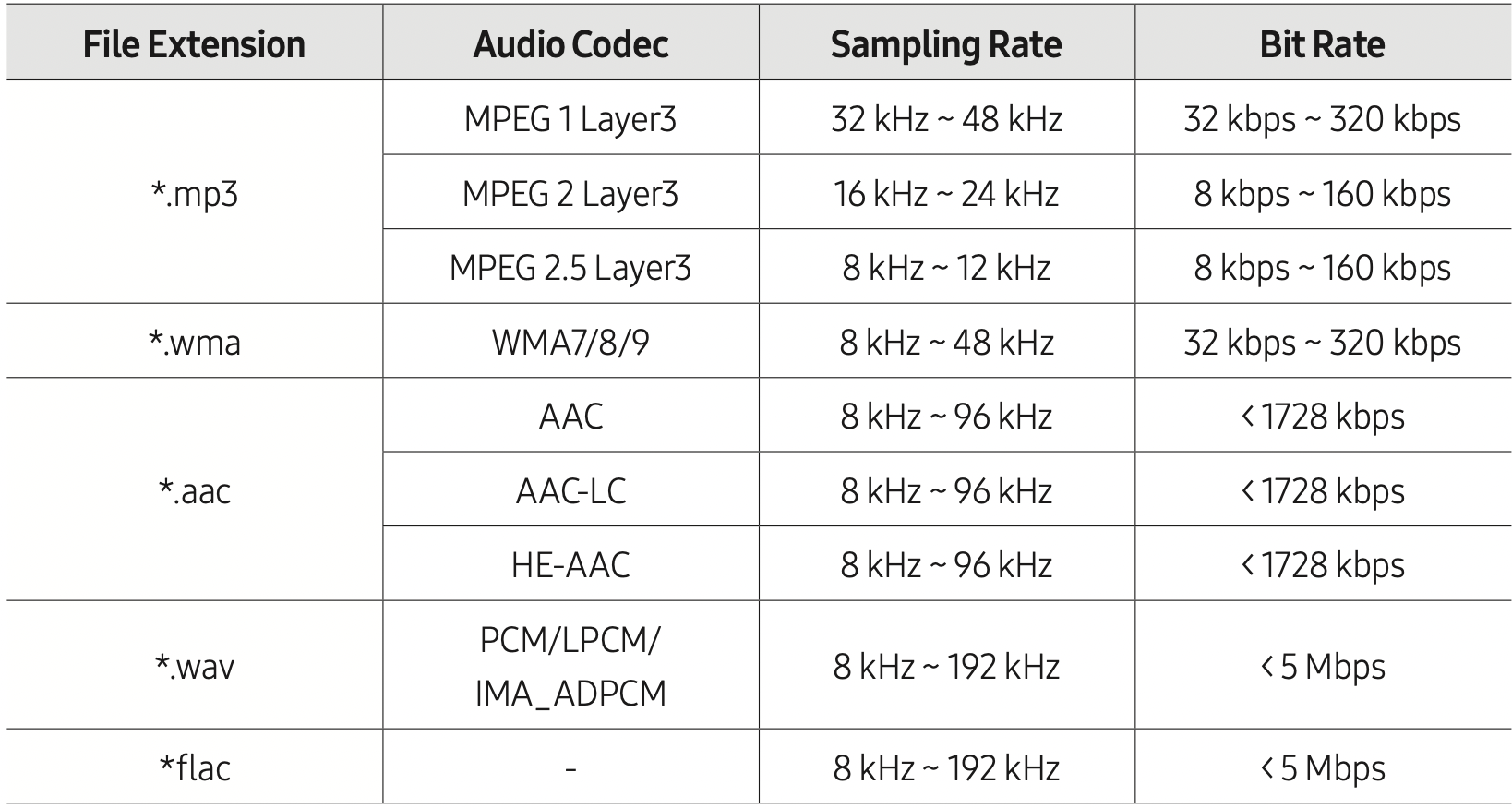
NOTES
- This product does not support WMA Professional codec.
- The above table shows supported sampling rates and bit rates. Files in formats that are not supported will not play.
- AAC files only support the ADTS native format.
USING THE REMOTE CONTROL
How to Use the Remote Control
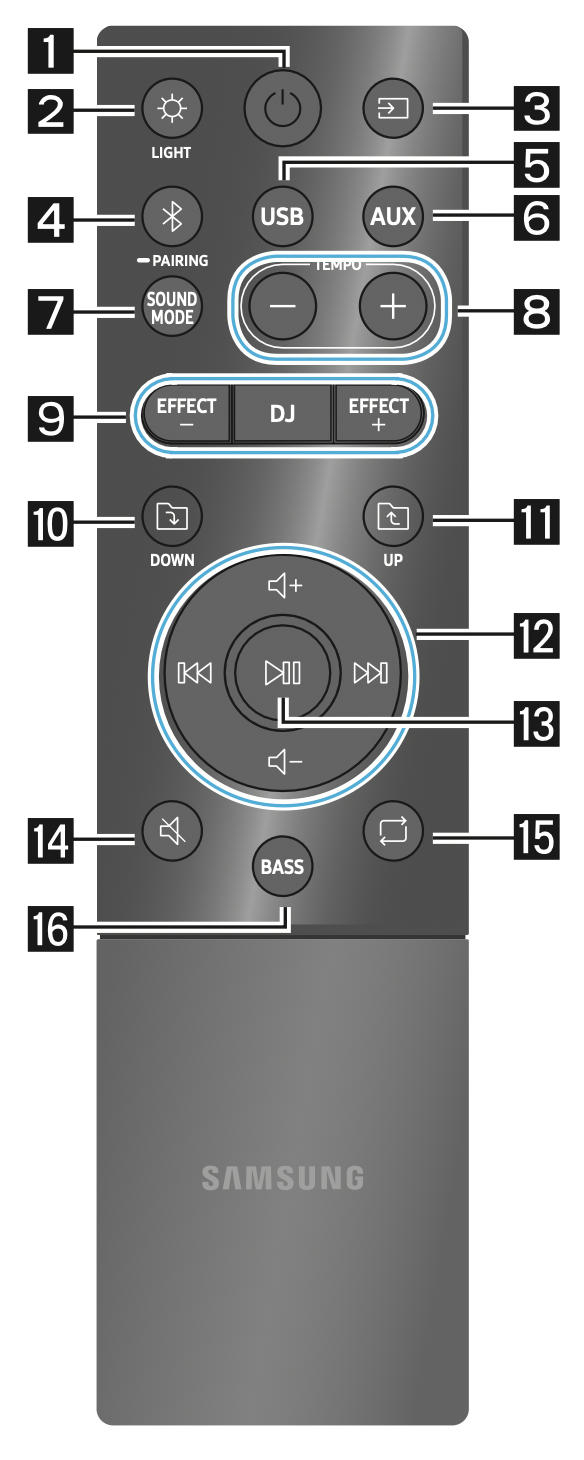
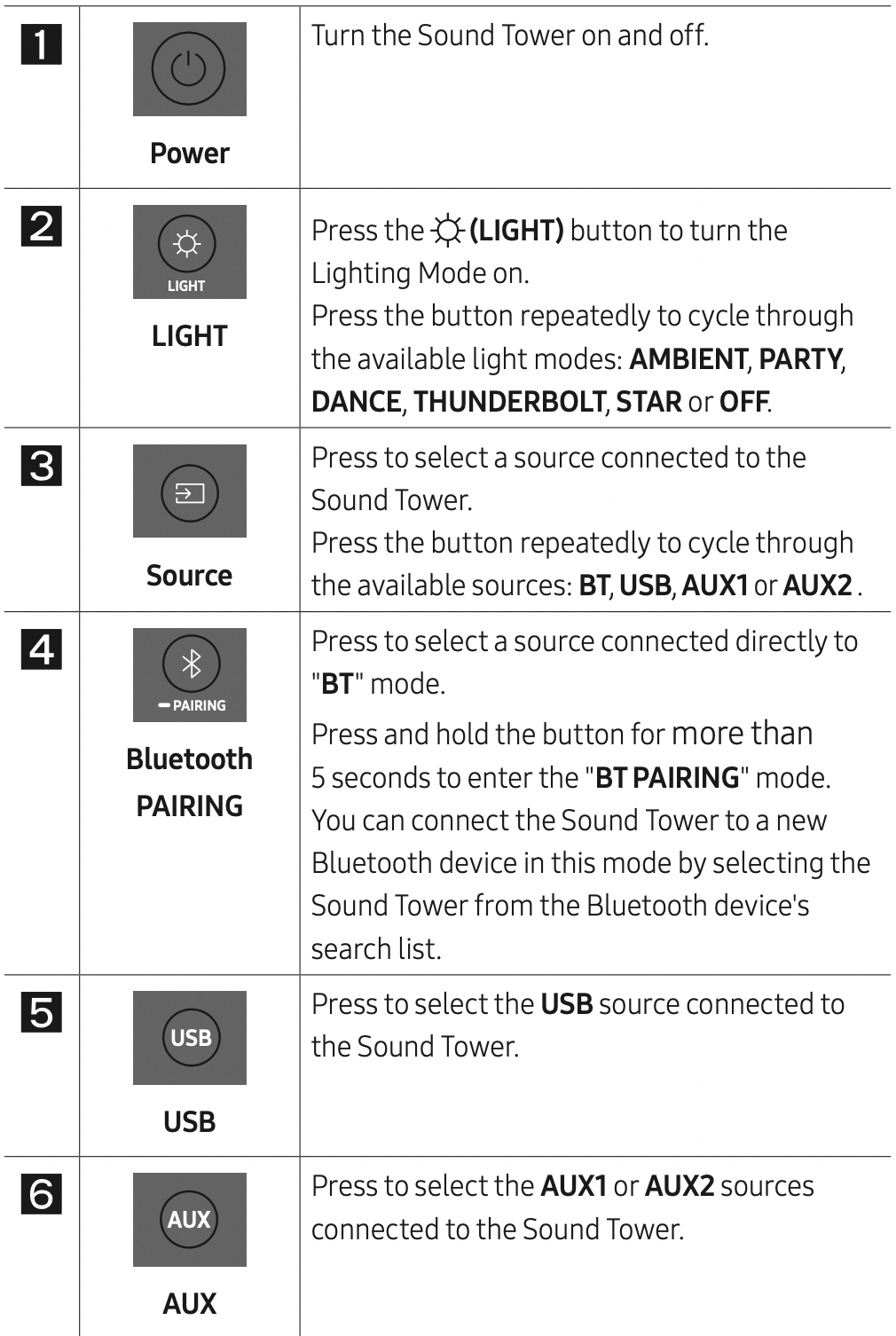

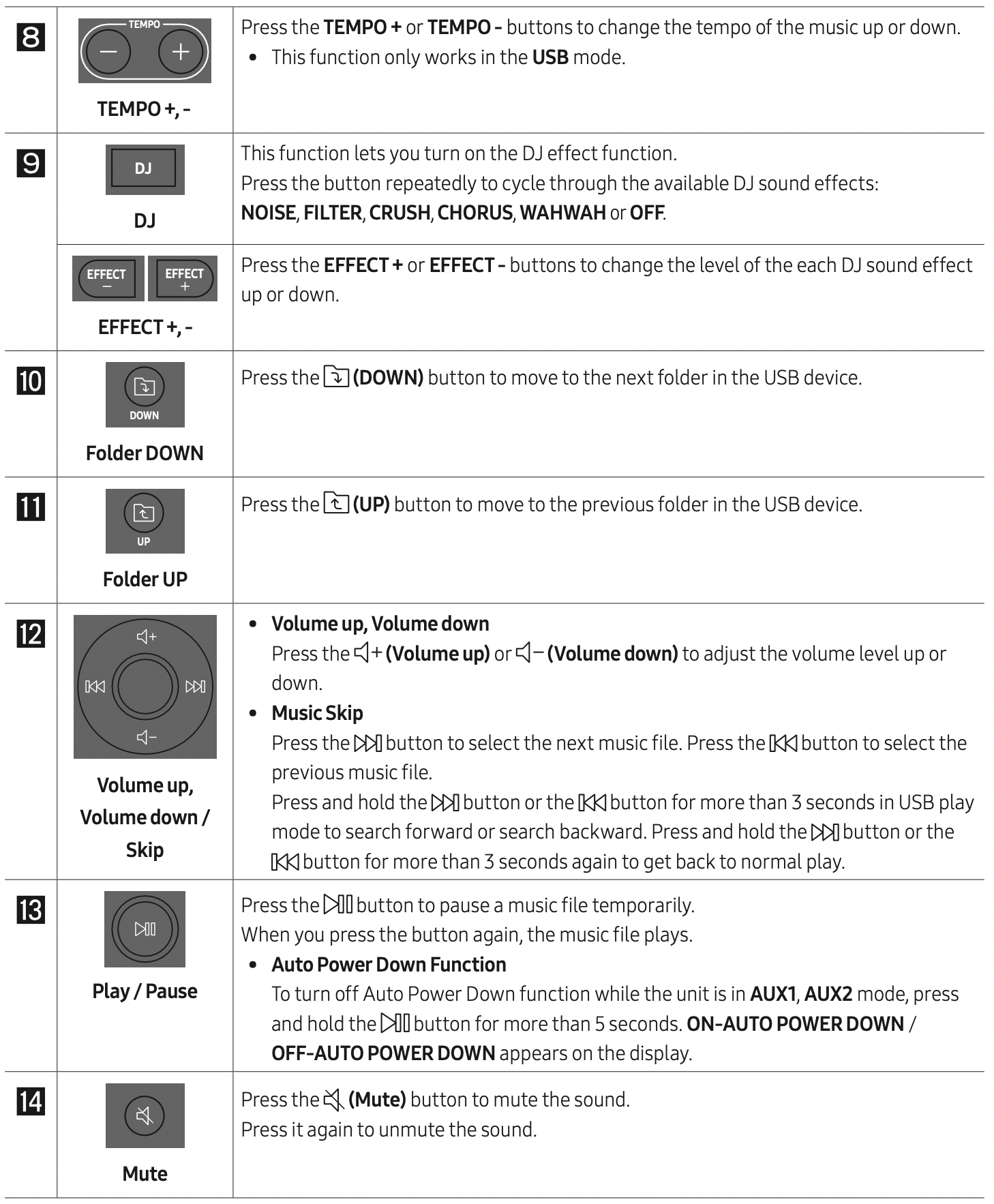
How to use Sound Mode
Your Sound Tower provides predefined equalizer settings that are optimized for particular music genres.
- Press the SOUND MODE button on the Remote control.
- Each time you press the SOUND MODE button, the Sound Tower cycles through the available sound effects: PARTY, STANDARD, HIPHOP, EDM, ROCK, LATIN, HOUSE or REGGAE.
NOTES
- Default sound mode is PARTY.
- When turned off, press and hold the
 button on product or remote control for more than 5 seconds to turn on in the default Sound Mode setting.
How to use the DJ Effect
The DJ Effect function lets you add DJ sound effects to your music. The level of each effect is adjustable.
- Press the DJ button on the Remote control.
- Each time you press the DJ button, the Sound Tower cycles through the available DJ Effects:
NOISE: Create white noise and mixed with the original sound through the filter and output.
FILTER: Creates an effect similar to the sound of only treble or bass.
CRUSH: Creates an effect that makes the original sound sharper.
CHORUS: Creates an effect similar to a singing chorus.
WAHWAH: Creates a ‘Wah~ Wah~’ effect.
DJ EFFECT OFF: Turns off the DJ Effect. - Press the EFFECT + or EFFECT - buttons to raise or lower the level of each of the DJ sound effects from -15 to +15.
NOTE: When turned off, press and hold the  button on product or remote control for more than 5 seconds to turn on in the default DJ Effect setting.
TROUBLESHOOTING
Refer to the table below if this product does not function properly. If the problem you are experiencing is not listed below or if the instructions below do not help, turn off the product, disconnect the power cord, and contact Samsung Electronics at 1-800-SAMSUNG (1-800-726-7864).
The unit will not turn on.
- Is the power cord plugged into the outlet?
Connect the power plug to the outlet.
A function does not work when the button is pressed.
- Is there static electricity in the air?
Disconnect the power plug and connect it again.
Sound dropouts occur in BT mode.
- See the Bluetooth connection sections on page 14.
Sound is not produced.
- Is the Mute function on?
Press the  (Mute) button to cancel the mute function.
 - Is the volume set to minimum?
Adjust the Volume.
The remote control does not work.
- Are the batteries drained?
Replace them with new batteries. - Is the distance between the remote control and Sound Tower main unit too far?
Move the remote control closer to the Sound Tower main unit.
Stereo Group connection is not working.
- Is the system in wireless Group Play mode?
Disconnect the wireless Group Play mode and try Stereo Group connection again.
It cannot make a Bluetooth connection.
- Is the system connected to another system in wireless Group Play mode or Stereo Group mode?
Try Bluetooth connection again after disconnecting the wireless Group Play or Stereo Group connection. - Are the two Bluetooth devices already connected?
Try Bluetooth connection again after disconnecting other Bluetooth connections.
The PAIRING button is not working.
- Is the system in wireless Group Play mode or Stereo Group mode?
Try again after disconnecting the wireless Group Play or Stereo Group connection.
I want to switch the HOST (MAIN) system to the other in wireless Group Play or Stereo Group connection.
- Disconnect Group Play mode, press the Speaker which you want make to HOST first, and after it displays “HOST” message, connect the others one by one.
- With Stereo Group mode, MAIN is fixed.
You can not change others as MAIN.
I want to play AUX1 or AUX2 more than 8 hours without control input.
- Press and hold the
 button for more than 5 seconds in AUX1 or AUX2 mode to disable Auto Power Down Function. Change from ON-AUTO POWER DOWN to OFF-AUTO POWER DOWN.
I can’t connect a SUB to Group play.
- After 1 hour, the HOST will block any additional SUBs from being added. Press the GROUP PLAY button on HOST, after it display “HOST” message, the SUB can be reconnected.
It cannot make a “Wireless/Wired Group/Add Stereo/Bluetooth” connection.
- Is the distance between systems too far?
It is recommended to make a “Wireless/ Wired Group/Add Stereo/Bluetooth” pairing within 3.3 ft (1 meter) from the system.
The recommended operating distance between Sound Tower systems is closer than 32.8 ft (10 meters).