User Manual
Getting to Know Your TV
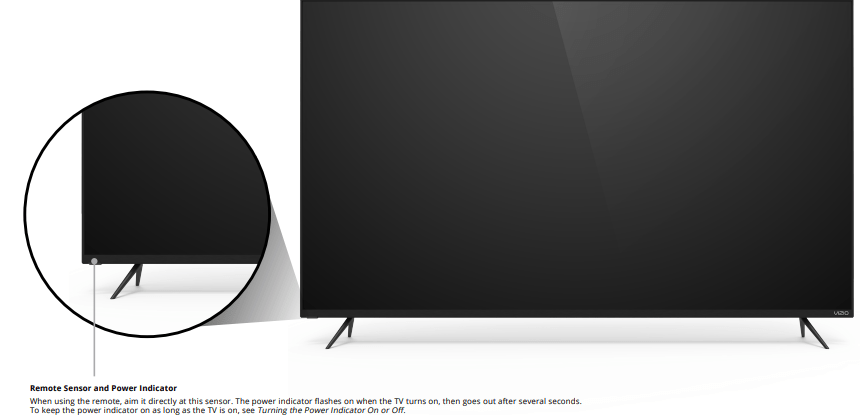
FRONT PANEL
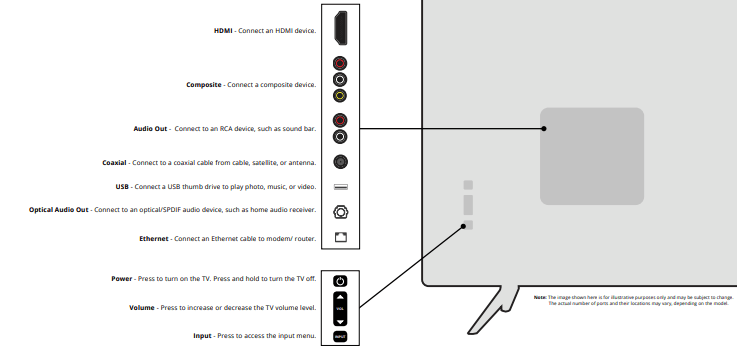
REAR PANEL
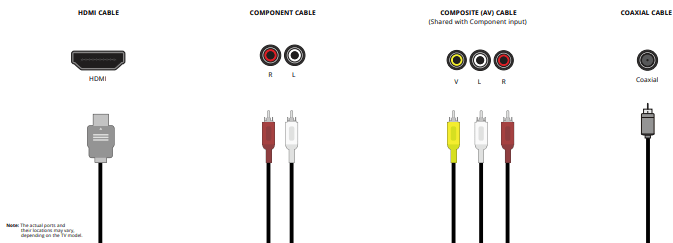
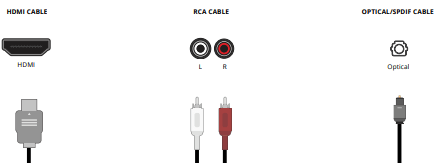
Connecting a device — AUDIO & VIDEO CABLE TYPES
Your TV can be used to display output from most devices.
- Verify that your device has a video port that matches an available port on the TV (HDMI, Composite, etc.).
- Connect the appropriate cable (not included) to the TV and the device.
- Turn the TV and your device on. Set the TV’s input to match the connection you used (HDMI-1, HDMI-2, etc.).
Connecting a device — AUDIO CABLE TYPES
Your TV can be output sound to an audio device, such as a receiver or sound bar.
- Verify that your device has an audio port that matches an available port on the TV (optical, RCA, etc.).
- Connect the appropriate cable (not included) to the TV and the device.
- Turn the TV and your device on.
Note: The actual ports and their locations may vary, depending on the TV model.
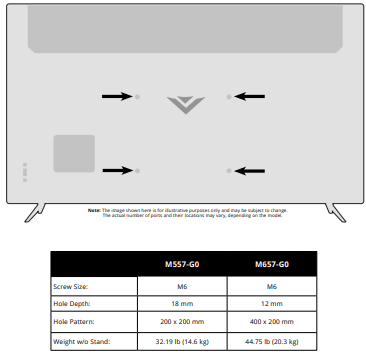
WALL-MOUNTING THE TV
To mount your TV on a wall, you will need a wall mount. Consult the information on this page to find the appropriate mount for your TV.
Be sure the mount you choose is capable of supporting the weight of the TV. After you have determined that you have the correct mount for your TV, you can begin the installation.
To install your TV on a wall:
- Disconnect any cables connected to your TV.
- Place the TV face-down on a clean, flat, stable surface. Be sure the surface is clear of debris that can scratch or damage the TV.
- If attached, remove the stands by loosening and removing the screws.
- Attach your TV and wall mount to the wall by carefully following the instructions that came with your mount. Use only with a UL-listed wall mount bracket rated for the weight/load of your TV.
TIP: Installing a TV on a wall requires lifting. To prevent injury or damage to the TV, ask someone to help you.
USING THE REMOTE
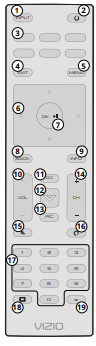
1. Input - Change the currently displayed input
2. Power - Turn Television on or off
3. App Launcher - Quickly launch the pictured app
4. Exit - Close the on-screen menu
5. Menu - Display the settings menu
6. Arrows - Navigate the on-screen menus
7. OK/Play/Pause - Select the highlighted menu option and play or pause content
8. Back - Go to the previous on-screen menu
9. Info - Display the info window
10. Volume Up/Down - Increase or decrease the loudness of the audio
11. Closed Caption - Open the closed caption menu
12. V Button - Launch SmartCast Home/Return to SmartCast Home Screen
13. Pic - Cycle through the different picture setting modes
14. Channel Up/Down- Change the channel
15. Mute - Turn the audio on or off
16. Last - Return to the channel last viewed
17. Number Pad - Manually enter a channel
18. Wide - Change the Television mode
19. Dash - Use with number pad to manually enter a digital sub-channel (For example, 18-4 or 18-5)
Replacing the Batteries
- Find the notch on the back of the remote. Insert a coin and pry open the back cover.
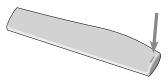
- Insert two batteries into the remote control. Make sure that the (+) and (-) symbols on the batteries match the (+) and (-) symbols inside the battery compartment.
- Replace the battery cover and click to close.
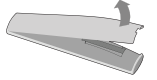
In many places batteries cannot be thrown away or discarded with household waste. Please ensure you properly dispose of your batteries consistent with the laws and/or regulations where you live.
WARNING: Keep the remote control batteries away from children. It may cause choking and/or lead to a fire or chemical burn if mishandled. Do not dispose of batteries in fire. Replace only with batteries of the correct type.
TIP: When needed, VIZIO recommends replacing the batteries that came with this remote with two, new Duracell ‘AAA’ alkaline batteries.
Completing the First-Time Setup
Before you begin the first-time setup:
- Your TV should be installed and the power cord should be connected to an electrical outlet.
- If you have a wireless network, have the network password ready.
- If you are connecting to your network with an Ethernet cable, connect it to the Ethernet port on the TV.
The first time you turn on the TV, the on-screen instructions will guide you through each of the steps necessary to get your TV ready for use:
1. Choose your language.

2. Choose home use.

3. Choose your country.

4. Choose your Wi-Fi network and enter the password.

5. Name your TV.

6. Scan for channels.

7. Accept the T&Cs and register your device.

All set!

Your TV features an easy-to-use on-screen menu.
To open the on-screen menu, press the MENU button on the remote.
From this menu, you can:
- Adjust the picture settings
- Adjust the audio settings
- Adjust the network settings
- Set up the Timers
- Adjust the TV channel settings
- Set up Closed Captioning
- Name and adjust Inputs
- Adjust TV settings
- View the user manual
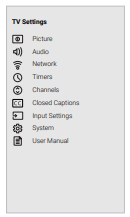
NAVIGATING THE ON-SCREEN MENU
To open the on-screen menu:
- Press the MENU button on the remote.
- Use the Navigation buttons to highlight a menu option, and press the OK button to select that option.
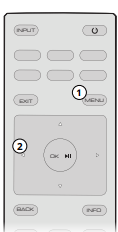
CHANGING THE INPUT SOURCE
External devices, such as DVD players, Blu-ray players, and video game consoles, can be connected to your TV. To use one of these devices with your TV, you must first change the input source using the input menu.
To change the input sources:
- Press the INPUT button on the remote. The input menu is displayed.
- Use the Right/Left Arrow buttons or the Input button on the remote to highlight the input you wish to view and press OK. The selected input is displayed.
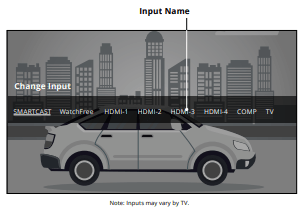
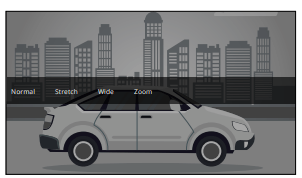
CHANGING THE SCREEN ASPECT RATIO
To change the screen aspect ratio:
1. Press the Wide button  on the remote.
2. Use the Arrow buttons to highlight the aspect ratio you wish to view and press OK.
Your TV can display images in different modes: Normal, Stretch, Wide, Zoom, and Panoramic.
- Normal (default) – No change to aspect ratio.
- Stretch – When the 16:9 signal is a 4:3 image with black bars left and right, stretches to fill the screen.
- Wide – Stretches a 4:3 aspect ratio to fill 16:9 screen. If a 16:9 image, adds black bars to top and bottom.
- Zoom – Expands image both horizontally and vertically by 14%.
- Panoramic* - Stretches a 4:3 image to fill 16:9 screen with an algorithm so the center doesn’t look stretched.
Some programs have black bars on the top or sides of the picture so that the picture keeps its original shape. Examples include widescreen movies and older television programs.
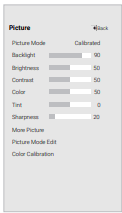
ADJUSTING THE PICTURE SETTINGS
Your TV can be adjusted to suit your preferences and viewing conditions.
To adjust the picture mode settings:
1. Use the Navigation buttons on the remote to highlight Picture Mode, then use the Left/Right Navigation buttons to change the picture mode:
2. Use the Arrow buttons on the remote to highlight Picture and press OK. The Picture menu is displayed.
3. Use the Arrow buttons on the remote to highlight Picture Mode, then use the Left/Right Arrow buttons to change the picture mode:
- Standard mode sets the picture settings to the default settings.
- Calibrated mode sets the picture settings to values ideal for watching TV in a brightly-lit room.
- Calibrated Dark mode sets the picture settings to values ideal for watching TV in a dark room.
- Vivid mode sets the picture settings to values that produce a brighter, more vivid picture.
- Game mode reduces throughput delays and optimizes the picture settings for displaying game console output.
- Computer mode optimizes the picture settings for displaying computer output.
4. To manually change each of the picture settings, use the Up/ Down Arrow buttons on the remote to highlight that picture setting, then use the Left/Right Arrow buttons to adjust the setting:
- Backlight — Adjusts the LED brightness to affect the overall brilliance of the picture. Backlight cannot be adjusted when starting from some picture modes.
- Brightness — Adjusts the black level of the picture. When this setting is too low, the picture may be too dark to distinguish details. When this setting is too high, the picture may appear faded or washed out.
- Contrast — Adjusts the white level of the picture. When this setting is too low, the picture may appear dark. When this setting is too high, the picture may appear faded or washed out. If the setting is too high or too low, detail may be difficult to distinguish in dark or bright areas of the picture.
- Color — Adjusts the intensity of the picture colors.
- Tint — Adjusts the hue of the picture. This setting is useful in adjusting the flesh tones in the picture. If flesh appears too orange, reduce the level of color before adjusting tint.
- Sharpness — Adjusts the edge sharpness of picture elements. It can be used to sharpen non-HD (high definition) content; however, it will not produce detail that does not otherwise exist.
When you have finished adjusting the picture settings, press the Exit button on the remote.
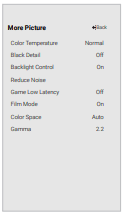
Adjusting More Picture Settings
To adjust more picture settings:
1. From the PICTURE menu, use the Arrow buttons to highlight More Picture, and then press OK.
2. Use the Arrow buttons to highlight the setting you wish to adjust, then press the Left/Right Arrow buttons to change the setting:
- Color Temperature - See Adjusting the Color Temperature.
- Black Detail - Adjusts the average brightness of the picture to compensate for large areas of brightness. Select Off, Low, Medium, or High.
- Backlight Control - When ON, it will improve the contrast ratio of the picture by adjusting backlight zones. Specific adjustments are based on content.
- Reduce Noise:
- Reduce Signal Noise - Diminishes artifacts in the image caused by the digitizing of image motion content. Select Off, Low, Medium, or High.
- Reduce Block Noise - Reduces pixelation and distortion for mpeg files. Select Off, Low, Medium, or High.
- Game Low Latency - Select On to reduce video delay (lag) when gaming.
- Film Mode - Optimizes the picture for watching film. Select Auto or Off.
- Color Space – Select color space for the source. Video sources use YCbCr, but PC uses RGB. Available for HDMI input only.
- Gamma - Set the shape of the Gamma curve. Use lower Gamma values for bright room conditions, and higher values when it’s dark.
3. When you have finished adjusting More Picture Settings, press the Exit button on the remote.
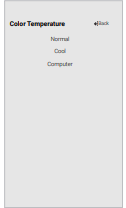
Adjusting the Color Temperature
Adjusting the color temperature changes the white balance of the picture.
To adjust the color temperature:
1. From the MORE PICTURE menu, use the Arrow buttons to highlight Color Temperature, and then press OK.
2. Use the Arrow buttons on the remote to highlight a color temperature preset and then press OK.
- Normal is optimized for television viewing.
- Cool produces a blue-hued picture.
- Computer optimizes the picture for use as a PC monitor.
3. When you have finished adjusting the color temperature, press the Exit button on the remote.
Adjusting the Picture Mode Edit Settings
Picture Mode Edit Settings allow you to make precise adjustments to the picture and to create picture modes to save groups of picture settings.
To adjust the Picture Mode Edit settings:
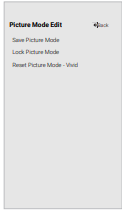
1. From the PICTURE menu, use the Arrow buttons to highlight Picture Mode Edit, and then press OK. The PICTURE MODE EDIT menu is displayed.
2. Use the Arrow buttons to highlight the setting you wish to adjust, then press OK to change the setting:
- Save Picture Mode - Save a custom picture mode.
- Lock Picture Mode - Prevent changes to custom picture modes. Choose between On or Off.
- Reset Picture Mode† - Reset the picture mode settings to factory default values.
Saving a Custom Picture Mode
Custom picture modes allow you to save a group of custom settings for various viewing conditions and video sources.
- Changes made while on any preset picture mode will add an asterisk on the top right corner of the preset mode.
- The custom picture mode is not automatically saved.
To save a custom picture mode:
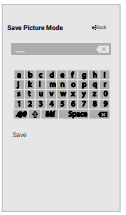
1. From the PICTURE MODE EDIT menu, use the Arrow buttons to highlight Save Picture Mode, and then press OK. The SAVE PICTURE MODE menu is displayed.
2. Use either on-screen keyboard to enter a name for your custom picture mode.
3. Highlight Save and press OK.
4. Press the Exit button to exit the menu screens
Locking/Unlocking a Custom Picture Mode
Custom picture modes can be locked/unlocked with a unique PIN to prevent accidental changes to their settings.
To lock all custom picture modes:
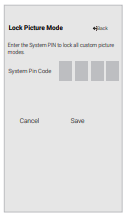
1. From the PICTURE MODE EDIT menu, use the Arrow buttons to highlight Lock Picture Mode, and then press OK. The LOCK PICTURE MODE menu is displayed.
2. Use the Number Pad on your remote to enter a unique 4-digit PIN. If a system PIN is set, then lock/unlock. If no system PIN is set, then you will be prompted to set a PIN.
3. Highlight Save and press OK .
4. Press the Exit button to exit the menu screens.
To unlock all custom picture modes:
1. From the PICTURE MODE EDIT menu, use the Arrow buttons to highlight Lock Picture Mode, and then press OK. The LOCK PICTURE MODE menu is displayed.
2. Use the Arrow buttons to select Off.
3. Use the Number Pad on your remote to enter your 4-digit PIN.
4. Make any desired changes to the picture modes.
5. Then turn ON Lock Picture Mode.
6. Press the Exit button to exit the menu screens.
Deleting a Custom Picture Mode
Custom picture modes that are no longer needed can be deleted.
To delete a custom picture mode:
1. From the PICTURE MODE EDIT menu, use the Arrow buttons to highlight Delete Picture Mode, and then press OK. The DELETE PICTURE MODE window is displayed.
2. Use the Left/Right Arrow buttons to highlight Delete and press OK .
3. Press the Exit button to exit the menu screens.

Resetting a Picture Mode
A preset picture mode that has been edited can be restored to the factory default settings.
To reset a customized preset picture mode:
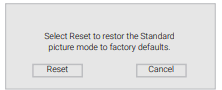
1. From the PICTURE MODE EDIT menu, use the Arrow buttons to highlight Reset Picture Mode, and then press OK. The RESET PICTURE MODE window is displayed.
2. Use the Left/Right Arrow buttons to highlight Reset and press OK .
3. Press the Exit button to exit the menu screens.
Adjusting the Color Tuner Settings
The Color Tuner settings allow you to adjust the color management system, 20 point white balance, turn color channels off for testing, and display SMPTE, flat, ramp, and uniformity analyzer test patterns.
To adjust the HSB color settings:
1. From the COLOR CALIBRATION menu, use the Arrow buttons to highlight Color Tuner, and then press OK. The Color Tuner menu is displayed.
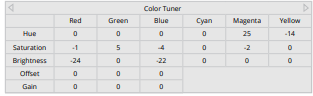
2. Use the Arrow buttons on the remote to highlight the Hue, Saturation, Brightness, Offset, or Gain of the color you wish to adjust. Press the OK button.
3. Use the Left/Right Arrow buttons to adjust the value. When you are finished press the OK button to save the setting.
4. When you have finished adjusting the color tuner settings, press the Exit button.
To turn color channels off and on:
1. From the COLOR CALIBRATION menu, use the Arrow buttons to highlight Color Tuner, and then press OK. The COLOR TUNER menu is displayed.
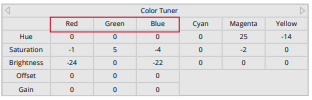
2. Use the Arrow buttons on the remote to highlight Red, Green, or Blue.
3. Press the OK button to turn the color channel off or on. An X appears over a color channel that has been turned off.
4. Use the Arrow buttons to highlight another color channel to turn off or on. Only two color channels can be turned off at the same time.
5. When you have finished with the color channels, press the Exit button.
To adjust the 11 Point White Balance settings:
1. From the Color Tuner menu, use the Arrow buttons to highlight Color Tuner, and then press the Left/Right Arrow buttons until the 11 POINT WHITE BALANCE menu is displayed.
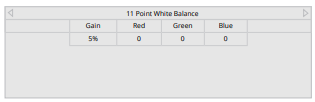
2. Use the Arrow buttons on the remote to highlight the Gain and Color values you wish to adjust. Press the OK button and use the Left/Right Arrow buttons to adjust the value. When you are finished, press the OK button to save the setting.
3. When you have finished, press the Exit button
To show or hide the SMPTE Test Pattern:
1. From the Color Tuner menu, use the Arrow buttons to highlight Calibration Tests, and then press the Left/Right Arrow buttons until the SMPTE TEST PATTERN menu is displayed.

2. Use the Arrow buttons on the remote to highlight Off. Use the Left/Right Arrow buttons to highlight On to show the SMPTE Pattern.
—or—
To hide the SMPTE Test Pattern, use the Left/Right Arrow buttons to highlight Off.
3. When you are finished, press the Exit button.
To show or hide the Flat Test Pattern:
1. From the Color Tuner menu, use the Arrow buttons to highlight Calibration Tests, and then press the Left/Right Arrow buttons until the FLAT TEST PATTERN menu is displayed.

2. Use the Arrow buttons on the remote to highlight Off. Use the Left/Right Arrow buttons to select the percentage brightness for the flat test pattern. Selecting a percentage immediately shows the flat pattern at that brightness.
—or—
To disable the Flat Test Pattern, use the Left/Right Arrow buttons to highlight Off.
3. When you are finished, press the Exit button.
To show or hide the Ramp Test Pattern:
1. From the Color Tuner menu, use the Arrow buttons to highlight Calibration Tests, and then press the Left/Right Arrow buttons until the RAMP TEST PATTERN menu is displayed.

2. Use the Arrow buttons on the remote to highlight Off. Use the Left/Right Arrow buttons to select the color for the ramp test pattern. Selecting a color immediately shows that color ramp.
—or—
To hide the Ramp Test Pattern, use the Left/Right Arrow buttons to highlight Off.
3. When you are finished, press the Exit button.
To show or hide the Uniformity Analyzer Test Pattern:
1. From the Color Tuner menu, use the Arrow buttons to highlight Calibration Test, and then press the Left/Right Arrow buttons until the UNIFORMITY ANALYZER TEST PATTERN menu is displayed.

2. Use the Arrow buttons on the remote to highlight Off. Use the Left/Right Arrow buttons to highlight On to show the Uniformity Analyzer Test Pattern.
—or—
To hide the Uniformity Analyzer Test Pattern, use the Left/Right Arrow buttons to highlight Off.
3. When you are finished, press the Exit button.
ADJUSTING THE AUDIO SETTINGS
To adjust the audio settings: Menu > Audio
Use the Navigation buttons to highlight the setting you wish to adjust, then press Left/Right Navigation buttons to change the setting:
1. Press the Menu button on the remote. The on-screen menu is displayed.
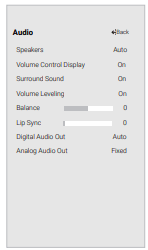
2. Use the Arrow buttons on the remote to highlight Audio and press OK. The Audio menu is displayed.
3. Use the Arrow buttons to highlight the setting you wish to adjust, then press Left/Right Arrow buttons to change the setting:
- Speakers - Turns the built-in speakers On or Off.
- Volume Control Display - Toggle between On or Off to hide or display the on-screen volume slider that appears when volume is adjusted.
- Surround Sound - Surround sound uses DTS TruSurround™ to deliver an immersive surround sound experience from the TV’s internal speakers. TruSurround completes the entertainment experience by providing deep, rich bass and by delivering crisp details and clear, intelligible dialog. Select On or Off.
- Volume Leveling - Volume leveling uses DTS TruVolume™ to maintain consistent volume levels during transitions between program content, AV formats, and input sources. Select On or Off. In a few cases, volume leveling may artificially suppress volume increases, making it difficult to hear dialog or flattening sudden noises. If this occurs, turn volume leveling off.
- Balance - Adjusts the loudness of the audio output from the left and right speakers.
- Lip Sync - Adjusts the synchronization between the display image and the accompanying audio track.
- Digital Audio Out - Changes the type of processing for digital audio out and HDMI ARC output when connected to a home theater audio system. Select Auto, PCM, Dolby D or Bitstream.
- Analog Audio Out - Sets the volume control properties for the RCA connector when connected to a home theater audio system. Select Variable if you are controlling the volume with the TV’s volume controls, or select Fixed if an external audio device (sound bar or AV receiver) will control the volume.
4. When you have finished adjusting the audio settings, press the Exit button on the remote
ADJUSTING THE NETWORK SETTINGS
Your TV is Internet-ready, featuring both an Ethernet port and built-in high-speed wireless internet.
TIP: If your TV is connected to a network with an Ethernet cable, you will not see the wireless network connection menu. You must unplug the Ethernet cable to set a wireless network connection.
Connecting to a Wireless Network
To connect to a wireless network whose network name (SSID) is being broadcast:
1. Press the Menu button on the remote. The on-screen menu is displayed.
2. Use the Arrow buttons on the remote to highlight Network and press OK. The NETWORK menu is displayed.
3. If you do not see your wireless network displayed, highlight More Access Points and press OK. The WIRELESS ACCESS POINTS menu, which is a list of available wireless networks, is displayed.
4. Highlight the name of your wireless network (this is the network’s SSID) and press OK.
5. Using the on-screeen keyboard, enter your network’s password, then highlight Connect and press OK.
6. Press the Exit button on the remote

Changing the Manual Setup Settings
Advanced users can fine-tune the network settings using the Manual Setup feature. The security settings on your router may require you to enter the TV's MAC address.
To change advanced network settings:
1. From the NETWORK menu, highlight Manual Setup and press OK. The MANUAL SETUP menu is displayed.
2. To change the settings manually, use the Arrow buttons on the remote to highlight DHCP and then use the Left/Right Arrow buttons to change the setting to Off.
3. Use the Arrow and OK buttons to adjust each setting:
- IP Address - The IP address assigned to the TV.
- Subnet Mask - The subnet Exit 2D
- Default Gateway - Your network’s default gateway address.
- Pref. DNS Server - Your preferred domain name server address.
- Alt. DNS Server - Your alternate domain name server address.
4. Use the Arrow buttons on the remote to highlight Save and press OK.
5. Press the Exit button on the remote.

Finding MAC Addresses for Network Setup
The security settings on your router may require you to enter the TV’s MAC address in the router’s settings. To find the TV’s MAC address:
1. From the NETWORK menu, highlight Manual Setup and press OK. The MANUAL SETUP menu is displayed.
2. Find the MAC address for the TV at the bottom of the list. The MAC addresses for the connections in use are displayed:
- RJ45 MAC — The Ethernet or RJ45 MAC address may be needed to set up your network when you have connected the TV to your network when you have connected the TV to your network with an Ethernet (Cat 5) cable.
- Wireless MAC — The Wireless (Wi-Fi) MAC address may be needed to connect your TV to your network with Wi-Fi.
Connecting to a Hidden Network
To connect to a wireless network whose network name (SSID) is not being broadcast:
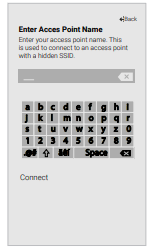
1. From the NETWORK menu, highlight Hidden Network and press OK. The ENTER ACCESS POINT NAME screen is displayed.
2. Using the on-screen keyboard, enter your network’s name (SSID), then highlight Connect and press OK.
3. Using the on-screen keyboard, enter your network’s password, then highlight Connect and press OK.
4. Press the Exit button on the remote
Testing Your Network Connection
To test your network connection:
1. From the NETWORK menu, highlight Test Connection and press OK.
2. The TEST CONNECTION screen displays the connection method, network name, signal strength, and download speed of your network connection.
3. Press the Exit button on the remote.
SETTING TIMERS
Setting the Timer
When activated, the TV’s timer will turn the TV off after a set period of time.
1. Press the Menu button on the remote. The on-screen menu is displayed.
2. Use the Arrow buttons on the remote to highlight Timers and press OK. The TIMERS menu is displayed.
3. Use the Left/Right Arrow buttons on the remote to highlight the period of time after which you want the TV to go to sleep: 30, 60, 90, 120, or 180 minutes. If you don’t want the sleep timer to activate, change the setting to Off.
4. When you have finished setting the sleep timer, press the Exit button on the remote

Setting the Auto Power Off Feature
To help save energy, your TV is set by default to turn off after 10 minutes without a video or audio signal. This feature can be deactivated.
To set the Auto Power Off feature:
1. From the TIMERS menu, use the Up/Down Arrow buttons on the remote to highlight Auto Power Off.
2. Use the Left/Right Arrow buttons on the remote to change whether the TV will turn off. If you don’t want the TV to turn off when there is no signal, change the setting to Off. Otherwise, select 10 minutes.
3. When you have finished setting the auto power off time, press the Exit button on the remote.
Using the Blank Screen Feature
To help save LED life, your TV screen can turn on or off while audio is streaming. To use the Blank Screen feature:
1. From the TIMERS menu, use the Up/Down Arrow buttons on the remote to highlight Blank Screen.
2. Press the OK button to immediatly blank the screen.
3. To exit Blank Screen, press any key.
SETTING UP TV CHANNELS
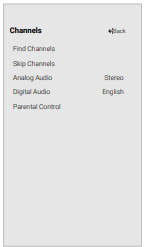
You can use the TV’s Channels menu to:
- Find channels
- Select channels to skip
- Select analog audio mode
- Select the language for digital audio
- Set parental controls
Scanning for TV Channels
The TV may need to scan for channels before it can display programs and their associated information. A channel scan is required for free over-the-air channels (using an antenna) and cable channels from an out-of-the-wall connection (without a cable box). Moving the TV to an area with different channels requires the TV to scan for channels again.
To perform an Auto Channel Scan:
1. From the CHANNELS menu, highlight Find Channels, and press OK. The auto channel scan begins.
2. Wait until the channel scan is 100% complete. Highlight Done and press OK.
3. Press the Exit button on the remote
- If the channel scan is canceled, the channels that were already discovered are retained. A new channel scan will clear all channels

Skipping Channels
After a channel scan is completed, you may find that some channels are too weak to watch comfortably. There may also be some channels you do not want to view. You can remove these channels from the TV’s memory with the Skip Channel feature.
To remove a channel:
- From the TV CHANNELS menu, highlight SKIP channels that were already discovered are CHANNEL menu is displayed.
- For each channel you wish to remove, use the Up/Down Navigation buttons on the remote to highlight the channel and press OK. A
 appears to the right of each channel you select.
- When you have selected all of the channels you wish to remove, press the Exit button on the remote.

LISTENING TO ALTERNATE AUDIO
Changing the Analog Audio Language
Some analog over-the-air (free) and cable channels broadcast programs in more than one language. The TV’s Analog Audio feature allows you to listen to audio in an alternate language using Secondary Audio Programming (SAP).
To use the Analog Audio feature:
1. From the Channels menu, highlight Analog Audio and press OK. The Analog Audio menu is displayed.
2. Select Stereo, SAP (secondary audio programming), or Mono. Press OK.
3. Press the Exit button on the remote.

To use the Digital Language feature:
1. From the CHANNELS menu, highlight Digital Audio and press OK. The DIGITAL LANGUAGE menu is displayed.
2. Select your preferred language: English, Spanish/Video Description, French. Press OK. \3. Press the Exit button on the remote.

USING PARENTAL CONTROLS
The TV’s parental controls allow you to prevent the TV from displaying certain channels or programs unless a PIN is used.
The PARENTAL CONTROLS menu only appears when:
- You are using the tuner to receive your TV signals, such as when you are using an antenna for Over-the-Air signals or when connected to cable TV directly from the wall (no cable box).
- You have a device connected using a composite video cable or a coaxial cable, such as a VCR, satellite or cable box, or DVR.
Accessing the Parental Controls Menu
To access the Parental Controls menu you must first set up a system PIN:
1. Press the Menu button on the remote. The on-screen menu is displayed.
2. Use the Arrow buttons on the remote to highlight Channels and press OK. The CHANNELS menu is displayed.
3. Use the Arrow buttons on the remote to highlight Parental Controls and press OK.
4. Enter your set System PIN.
Enabling or Disabling Program Ratings
To manage program content according to its rating, you must first enable the Program Rating feature.
To enable or disable the Program Rating feature:
1. From the PARENTAL CONTROLS menu, highlight Locks and press OK. The LOCKS menu is displayed.
2. Select On or Off and press OK
Locking and Unlocking Channels
When a channel is locked, it cannot be accessed. Locking a channel is a good way to prevent children from viewing inappropriate material.
To lock or unlock a channel:
- From the PARENTAL CONTROLS menu, highlight Channel Locks and press OK. The CHANNEL LOCKS menu is displayed.
- Highlight the channel you want to lock or unlock and press OK.
- When a channel is locked, the Lock icon appears
 locked. The channel is not accessible unless the system PIN is entered.
- When a channel is unlocked, the Lock icon appears
 unlocked. The channel is accessible.
Blocking and Unblocking Content by Rating
A channel may sometimes broadcast programs that are meant for a variety of audiences (some for children and some for adults). You might not want to block the channel completely using a channel lock, but you can block certain programs from being viewed.
When this is the case, you can use the TV’s Rating Block feature to block content based on its rating.
To block or unblock content by its rating:
1. From the PARENTAL CONTROLS menu, highlight the content type you want to adjust and press OK:
- USA TV — USA television program broadcasts.
- USA Movie — USA movie broadcasts.
- Canadian English — Canadian English television program broadcasts.
- Canadian French — Canadian French television program broadcasts.
2. For each rating type you want to block or unblock, use the Navigation buttons to highlight the rating type and press OK.
3. When the rating type is blocked, the Lock icon appears  locked. Content with this rating and all higher ratings cannot be viewed.
4. When the rating type is unblocked, the Lock icon appears  unlocked. Content with this rating and all lower ratings can be viewed.
- If you want to block all unrated content, highlight Block Unrated Shows and use the Navigation buttons on the remote to select On.
5. When you are finished adjusting the rating level blocks, press the Exit button on the remote.
SETTING UP CLOSED CAPTIONING
Your TV can display closed captions for programs that include them. Closed captions display a transcription of a program’s dialogue.
To activate or deactivate Close Captions :
1. Press the Menu button on the remote. The on-screen menu is displayed.
2. Use the Arrow buttons on the remote to highlight Closed Captions and press OK. The CLOSED CAPTIONS menu is displayed.
3. Use the Arrow buttons on the remote to highlight Closed Captions and then use the Left/ Right Arrow buttons to select On or Off.
4. Use the Arrow buttons on the remote to highlight either Analog or Digital Closed Captions .
5. Use the Left/Right Arrow buttons on the remote to select the caption channel you wish to display, then press Exit .

Changing the Appearance of Digital Closed Captions
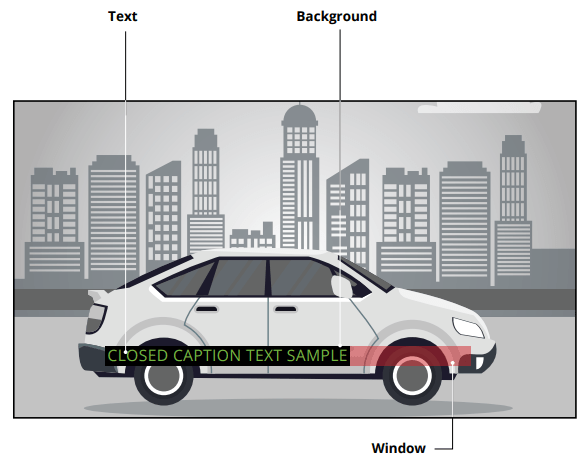
Digital closed captions can be displayed according to your preference. See the diagram on the next page for an explanation of the parts of the closed caption area.
To change the appearance of digital closed captions:
1. From the CLOSED CAPTIONS menu, use the Arrow buttons to highlight Digital Style and press OK .
2. Use the Left/Right Arrow buttons on the remote to select Custom. The DIGITAL STYLE menu appears as shown.
. Use the Up/Down Navigation buttons on the remote to highlight the setting you wish to change, then use the Left/Right Navigation buttons to change the settings (choose "As Broadcast" to keep default setting):
- Caption Style - Choose As Broadcast to keep default settings or Custom to manually change each setting.
- Text Style — Change the font used for the closed captioning text.
- Text Size — Make the text larger or smaller.
- Text Color — Change the color of the text.
- Text Opacity — Change the transparencyof the text.
- Text Edges — Change the effects at the edges of the text, such as raising the edges or adding drop shadows.
- Text Edges Color — Change the color of the text edge effects.
- Background Color — Change the color of the background directly behind the text.
- Background Opacity — Change the transparency of the background directly behind the text.
- Window Color — Change the color of the closed captioning box.
- Window Opacity — Change the opacity of the closed captioning box.
4. When you are satisfied with the appearance of the closed captions, press the Exit button on the remote.

Typical choices include:
• Opaque background, transparent window — Only a strip of background appears behind the text, expanding as the text appears. This is the typical "As Broadcast" mode.
• Opaque background and window in the same color — When text appears, the entire line fills with color at once.
In the example, the closed caption text is green, the background is black, and the window is red.
RENAMING DEVICES ON THE INPUT MENU
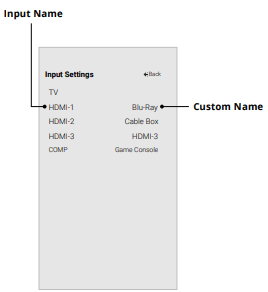
You can rename the inputs to make them easier to recognize on the Input menu. For example, if you have a DVD player connected to the Component input, you can rename that input to display “DVD Player.” See Changing the Input Source.
To change the name of an input:
1. Press the Menu button on the remote. The on-screen menu is displayed.
2. Use the Arrow buttons on the remote to highlight Input Settings and press OK. The INPUT SETTINGS menu is displayed.
3. Highlight the input device that you want to rename and press OK.
To use a preset input name:
- Highlight the Name Input row and press OK.
- Highlight the input name and use the Left/Right Arrow buttons on the remote to cycle through preset input names
—or—
To enter a custom name:
- Highlight the Name Input row and press OK.
- Enter your custom label using the on-screen keyboard.
- Highlight and press OK.
- The Input Name changes to show the custom name that you created.
4. When you have finished naming your input, press the Exit button on the remote
CHANGING THE SYSTEM SETTINGS
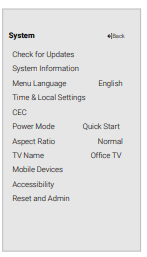
Using the System menu, you can:
- Check for updates
- View system information
- Change the on-screen menu language
- Set time zone and local settings
- Adjust the CEC settings
- Adjust the power mode settings
- Adjust to preserve Aspect Ratio or fill the screen
- Name the TV
- Review and maintain the list of paired devices
- Adjust accessibility settings
- Reset the TV settings & setup administrative control
Checking for System Updates
To check for a system update:
1. Press the Menu button on the remote. The on-screen Menu is displayed.
2. Use the Arrow buttons on the remote to highlight System and press OK. The SYSTEM menu is displayed.
3. Use the Arrow buttons on the remote to highlight Check for Updates and press OK. The TV will begin to check for updates.
4. If an update is found, the TV will ask to confirm the update. If no update is found, the screen will note No Update Available.
Viewing System Information
To view technical data and status information about your TV and network connection:
1. Press the Menu button on the remote. The on-screen menu is displayed.
2. Use the Arrow buttons on the remote to highlight System and press OK. The SYSTEM menu is displayed.
3. Highlight System Information and press OK.
4. Use the Up/Down Arrow buttons to scroll through the system information.
5. When you are finished reviewing the system information, press the Exit button on the remote.
Changing the On-Screen Menu Language
Your TV can display the on-screen menu in different languages.
To change the on-screen menu language:
1. Press the Menu button on the remote. The on-screen menu is displayed.
2. Use the Arrow buttons on the remote to highlight System and press OK. The SYSTEM menu is displayed.
3. Use the Arrow buttons on the remote to highlight Menu Language and press OK. The MENU LANGUAGE menu is displayed.
4. Highlight your preferred language (English, Español, or Français) and press OK.
5. Press the Exit button on the remote

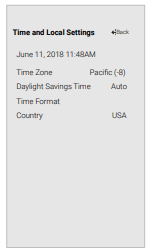
Setting the Time and Local Settings
To ensure the correct time is displayed when you press the INFO button, set the TV’s time zone:
1. Press the Menu button on the remote. The on-screen menu is displayed.
2. Use the Arrow buttons on the remote to highlight System and press OK. The SYSTEM menu is displayed.
3. Use the Arrow buttons on the remote to highlight Time & Local Settings and press OK. The menu headed by the local date and time is displayed.
4. Highlight Time Zone and press OK. The TIME ZONE menu is displayed.
5. Highlight your time zone and press OK.
6. Highlight Daylight Saving Time and press OK. The DAYLIGHT SAVING TIME menu is displayed. Choose On if it is currently Daylight Savings Time, Off if it is Standard Time, or Auto to have the system automatically detect Daylight Savings Settings.
7. Press the Exit button on the remote.
Adjusting the CEC Settings
The CEC function on your TV enables you to control devices connected to HDMI (ARC) input with the included remote, without any programming. Using CEC, your VIZIO TV remote can control: • Power On/Off
To enable, disable, or adjust CEC settings:
1. Set up your audio device and connect it to the HDMI-1(HDMI Arc) input on the TV
2. On your audio device, select the HDMI ARC input.
3. Press the Menu button on the remote. The on-screen menu is displayed.
4. Use the Arrow buttons on the remote to highlight System and press OK. The SYSTEM menu is displayed.
5. Use the Arrow buttons on the remote to highlight CEC and press OK. The CEC menu is displayed.
6. Highlight CEC and press OK. Select a setting and then press OK.
- CEC - To use CEC, you must select Enable.
- Device Discovery - To determine if your device is connected and supports CEC, select Device Discovery and then press OK.
7. Press the Exit button on the remote.
Adjusting the Power Mode
Your TV is set to Eco Mode by default. When the TV is powered off, Eco Mode setting uses less than 0.5W of power. Quick Start Mode enables your Display to power on faster.
To switch between Eco Mode and Quick Start Mode:
1. Press the Menu button on the remote. The on-screen Menu is displayed.
2. Use the Arrow buttons on the remote to highlight System and press OK. The SYSTEM Menu is displayed.
3. Use the Arrow buttons on the remote to highlight Power Mode and press OK. The Power Mode Menu is displayed.
4. Highlight either Eco Mode or Quick Start Mode and press OK to select
Changing the TV Name
Naming your TV helps differentiate it from other cast devices you may have in your home.
To edit your TV name:
1. Press the Menu button on the remote. The on-screen menu is displayed.
2. Use the Arrow buttons on the remote to highlight System and press OK. The SYSTEM menu is displayed.
3. Use the Arrow buttons on the remote to highlight TV Name and press OK. The TV name input menu is displayed.
4. Enter your custom name using the on-screen keyboard.
5. Press the Exit button on the remote.

Manging Mobile Devices
Your TV can be paired with a mobile device so you can easily control your TV across multiple devices .
To see a list of paired devices or unpair a device:
1. Press the Menu button on the remote. The on-screen Menu is displayed.
2. Use the Arrow buttons on the remote to highlight System and press OK. The SYSTEM Menu is displayed.
3. Use the Arrow buttons on the remote to highlight Mobile Devices and press OK. The list of paired devices appears.
4. Highlight a device name to delete it and press OK.
5. Use the Left/Right Arrows to select Yes or No when asked to confirm.

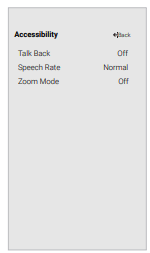
Accessibility Settings
VIZIO is committed to providing intuitive, user-friendly products. Your new VIZIO TV offers several accessibility features that can help you get the most out of it.
To access the Accessibility menu:
1. Press the Menu button on the remote control.
2. Use the Arrow and OK buttons to navigate and select System à Accessibility.
3. Talk Back - Turn Text-to-Speech Talk Back On or Off. Text-to-Speech Talk Back enables your TV to speak all settings changes and adjustments using the remote in English.
4. Speech Rate* - Adjusts the rate in which Text-to-Speech is spoken. Select Slow, Normal (Default), or Fast.
5. Zoom Mode - Enlarges a section of the screen by approximately 200%.
To access the Closed Caption menu:
- Press the Menu button on the remote control.
- Use the Arrow and OK buttons to navigate and select Closed Captions.
To access the Video Description menu:
- Press the Menu button on the remote control.
- Use the Arrow and OK buttons to navigate and select Settings -> Channel ->Digital Audio -> Spanish/ Video Description
USING THE ADMIN & PRIVACY MENU
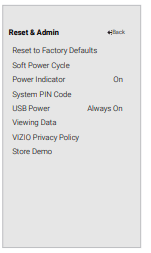
You can use the TV’s Admin & Privacy menu to restore the TV to its factory default settings as well as access other administrative settings.
Using the ADMIN & PRIVACY menu, you can:
- Reset the TV to factory settings
- Force the system to power off and on
- Create a system pin code to lock content and picture settings
- Enable or disable program offers and suggestions
- Enable or disable anonymous debug data for system performance.
- Start or stop the Store Demo Mode
Restoring the TV to Factory Default Settings
All of the on-screen menu settings can be reset to the factory defaults.
WARNING: If you restore the TV to the factory default settings, all change you have made to the settings will be lost. This includes any wireless or picture settings.
To restore the TV to its factory default settings:
1. Press the Menu button on the remote. The on-screen menu is displayed.
2. Use the Arrow buttons on the remote to highlight System and press OK. The SYSTEM menu is displayed.
3. Highlight Reset & Admin and press OK. The RESET & ADMIN menu is displayed.
4. Highlight Reset to Factory Defaults and press OK. If you have changed the set system PIN, enter it now. The TV displays, “Select Reset to restore all TV settings to factory defaults and clear all account information.”
5. Highlight Reset and press OK.
6. Wait for the TV to turn off. The TV will turn back on shortly afterward and the setup process will begin.
Performing a Soft Power Cycle
A soft power cycle forces the TV to turn off then on again.
1. Press the Menu button on the remote. The on-screen menu is displayed.
2. Use the Arrow buttons on the remote to highlight System and press OK. The SYSTEM menu is displayed.
3. Highlight Reset & Admin and press OK. The RESET & ADMIN menu is displayed.
4. Highlight Soft Power Cycle and press OK.”
5. Highlight Yes and press OK.
6. The TV will turn off then on again
Turning the Power Indicator On or Off
The power indicator on the front of your TV normally does not glow when the TV is on. You can change this setting if you prefer the light to be on.
To turn the Power Indicator Light On or Off:
1. Press the Menu button on the remote. The on-screen menu is displayed.
2. Use the Arrow buttons on the remote to highlight System and press OK. The System menu is displayed.
3. Use the Arrow buttons on the remote to highlight Reset & Admin and press OK. The Reset & Admin menu is displayed.
4. Highlight Power Indicator and press OK.
5. Use the Left/Right Arrow buttons to select On or Off.
Setting a System PIN
You can set a System Pin to lock content and picture modes as well as prevent accidental system resets. The first time you select System PIN code, you will need to create a PIN.
To create a PIN.
1. Press the Menu button on the remote. The on-screen menu is displayed.
2. Use the Arrow buttons on the remote to highlight System and press OK. The SYSTEM menu is displayed.
3. Highlight Reset & Admin and press OK. The RESET & ADMIN menu is displayed.
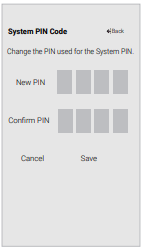
4. Highlight System PIN Code and press OK.”
5. Enter and confirm your new PIN.
6. Highlight and select Save to confirm.
Using the USB Power Feature
The USB port can be used to charge devices.
The two options for this feature are:
- Always On — Power is always available.
- Off When TV Off — Power is only available with the TV is on.

About Viewing Data
Video ACR collects data related to publicly available content displayed on your television/display, such as the identity of your broadcast, cable, or satellite television provider, and the television programs and commercials viewed (including time, date, channel, and whether you view them live or at a later time). We also collect unique identifiers about this TV, including the IP address. This data is collectively referred to as “Viewing Data.” For more information about Viewing Data and how VIZIO protects its customers’ privacy, please consult our privacy policy .
When ACR collection is turned on, we may share Viewing Data with authorized data partners including analytics companies, media companies and advertisers. VIZIO and its authorized data partners use Viewing Data to generate summary analysis and reports of how users engage with content on their TVs and other devices. VIZIO Viewing Data is sometimes enhanced with household demographic data and data about digital actions (e.g. digital purchases and other consumer behavior taken by devices associated with the IP Address we collect). Viewing Data also enables our authorized data partners to deliver advertising relevant to your profile that you might find useful, both on the VIZIO TV/display and other devices sharing your IP Address. Viewing Data is also used to help content publishers, broadcasters or content distribution services create or recommend more relevant entertainment based on summary insights, as well as helps us improve the design of our products, software and services.
You can easily turn this feature On or Off in the RESET & ADMIN menu. If you have trouble enabling or disabling Viewing Data, please contact VIZIO Customer Support by going to support.vizio.com and selecting Contact Us.
USING THE INFO WINDOW
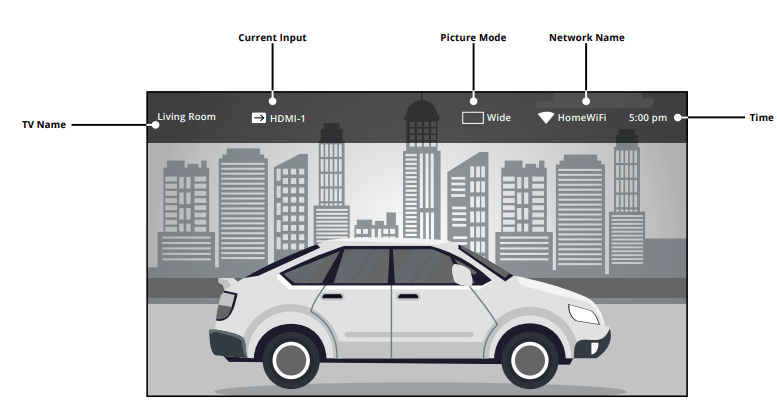
The Info Window can be displayed by pressing the Info button on the remote:
- Press the Info button one time to display the TV name, current input, picture mode, network name, and time.
SmartCast Home
What is SmartCast Home?
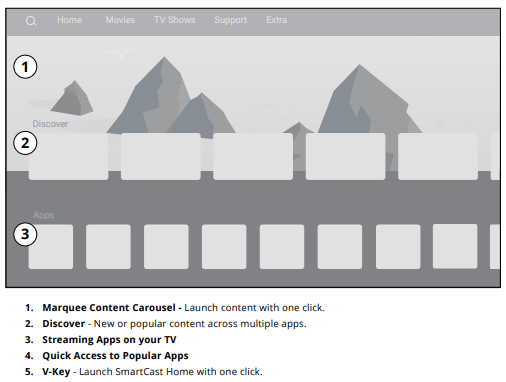
SmartCast Home lets you discover, stream, and control your content like never before! Access top apps, like Netflix, Disney+, and Hulu, by using the remote to easily browse and launch content directly from the home screen. SmartCast Home makes finding something to watch easy and fun
How to Launch SmartCast Home
To begin streaming with SmartCast Home:
- Press the V-Logo
 on your remote.
-or-
- Select SmartCast from the list of inputs.
What you can do with SmartCast Home
- Stream high quality entertainment.
- Launch top tier apps directly from the home screen..
- Unlock your photos and videos by mirroring your laptop or mobile device onto your TV.
- Turn your iOS or Android device into the ultimate streaming companion with the VIZIO SmartCast Mobile app.
- Rearrange apps on your home screen just the way you like it.
- Works with Google Assistant and other popular voice assistants.
WatchFree+™
What is WatchFree+?
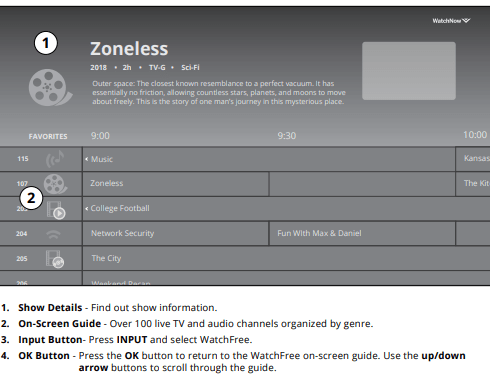
VIZIO WatchFree+ takes your cord-cutting entertainment experience one step further! With the simple press of a button, enjoy free streaming TV with hundres of live TV channels to choose from – news, movies, sports, comedy, music and more. A built-in on-screen guide makes finding something to watch easier than ever.
And it’s all FREE—no fees, no subscriptions, or logins.
What you can do with WatchFree
- Stream hundreds of live TV channels absolutely free – news, movies, sports, comedy, music and more.
- Navigate through channels, organized by genre, with an intuitive on-screen guide.
- Watch 1000’s of free movies from major studios
- Watch the best of internet TV.
- No logins, subscriptions or transactions fees.
How to Launch WatchFree
To launch and begin watching entertainment offered on WatchFree+:
- Press the Input button on your remote and select WatchFree
- or -
- Simply select the WatchFree app logo from the SmartCast Home app row.
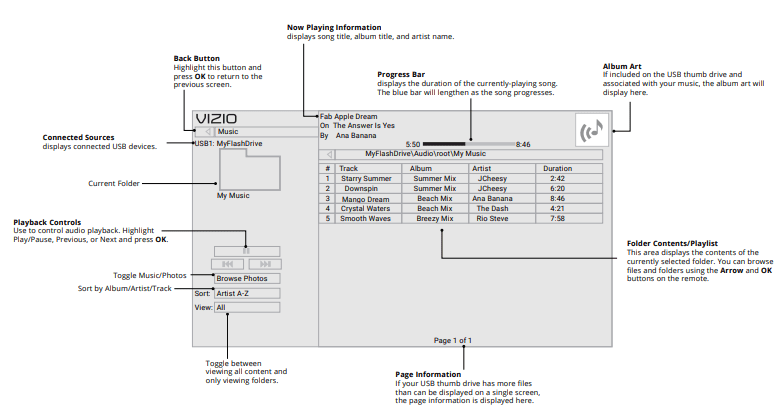
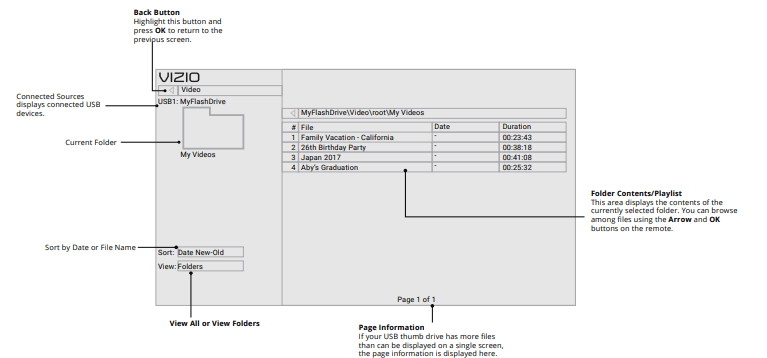
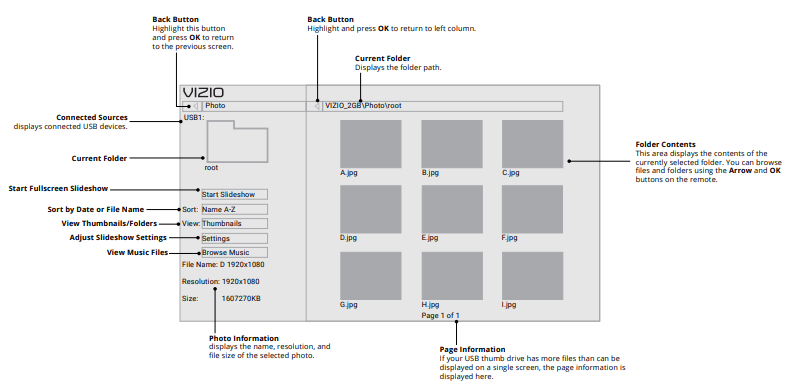
The USB Media Player allows you to connect a USB flash drive to your TV and play music, video, or photos.

Preparing Your USB Drive to Play USB Media
To display USB media, you must first save your videos onto a USB flash drive:
- The USB flash drive must be formatted as FAT32.
- Files on the USB flash drive must end in a supported file extension ( .mp3, .jpg, etc).
- The player is not designed to play media from external hard drives, MP3 players, cameras, or smartphones.
Displaying USB Media
To display your USB media:
1. Connect your USB flash drive to the USB port on the side of the TV.
2. The TV will recognize the USB. Use the Navigation Keys on the remote to select the content you want to play.
-or-
3. Select USB from the bottom streaming icons on the SmartCast Home™ page.
TIP: You can display your photos in Fullscreen. Select the photo, press OK, then highlight Fullscreen and press OK.
Removing the USB Drive from the TV
To safely remove your USB flash drive from the TV:
- Turn the TV off.
- Disconnect your USB flash drive from the USB port on the side of the TV.
WARNING: Do not remove the USB drive while the TV is on. Doing so may damage the drive.
Help Topics
The remote is not responding.
- Make sure the batteries are properly inserted matching the - and + symbols.
- Replace the batteries with fresh ones.
The TV displays “No Signal.”
- Press INPUT button on the remote control to select a different input source.
- If you are using cable TV or antenna connected directly to the TV, scan for channels. See Scanning for TV Channels on page 16.
There is no power.
- Ensure the TV is plugged into a working electrical outlet.
- Ensure the power cable is securely attached to the TV.
- Press the Power/Standby button on the remote or on the back of the TV to turn the TV on.
The power is on, but there is no image on the screen.
- Ensure all cables are securely attached to the TV.
- Ensure all devices are connected correctly. Devices differ; see your device’s user manual for details.
- Adjust Brightness, Contrast, or Backlight. See Adjusting the Picture Settings
- Press the INPUT button on the remote to select a different input source.
The sound is flat or dialog is not audible.
- Turn off Volume Leveling. See Adjusting the Audio Settings
Where do I find information on the accessibility features of this product and other VIZIO products?
- Give us a call at 1-877-698-4746.
There is no sound.
- Press Volume Up on the remote control.
- Press the MUTE button on the remote to ensure mute is off.
- Check the audio settings. See Adjusting the Audio Settings
- Check the audio connections of external devices (Blu-ray player, game console, cable/satellite box) that are connected to the TV.
- If you are using an antenna, the signal strength of the channel may be low. Ensure your antenna is connected securely to the TV and move the antenna around the room or close to a window for the best signal.
The colors on the TV don’t look right.
- Adjust the Color and Tint settings in the Picture menu. See Adjusting the Picture
- Select a pre-set picture mode. VIZIO recommends selecting Calibrated.
- Check all cables to ensure they are securely attached.
The image quality is not good.
- For the best image quality, view high-definition programs using digital sources. Connect your devices with HDMI cables.
- If you are using an antenna, the signal strength of the channel may be low. Ensure your antenna is connected securely to the TV and move the antenna around the room or close to a window for the best signal.
The picture is distorted.
- Move the TV away from electrical appliances, cars, and fluorescent lights.
- Ensure all cables are securely attached.
The buttons on the remote aren’t working.
- Ensure you are only pressing one button at a time.
- Point the remote directly at the TV when pressing a button.
- Replace the remote batteries with new ones. See Replacing the Batteries
The TV image does not cover the entire screen.
- If you are using TV, AV, or Component with 480i input, press the
 button on the remote to change the screen mode.
The TV has pixels (dots) that are always dark.
- Your HD TV is precision-manufactured using an extremely high level of technology. However, sometimes pixels may not display correctly. These types of occurrences are inherent to this type of product and do not constitute a defective product.
I see “noise” or static on the screen.
- When your TV’s digital capabilities exceed a digital broadcast signal, the signal is up-converted (improved) to match your TV’s display capabilities. This up converting can sometimes cause irregularities in the image.
- If you are using an antenna, the signal strength of the channel may be low. Ensure your antenna is connected securely to the TV and move the antenna around the room or close to a window for the best signal.
When I change input source, the TV image changes size.
- The TV remembers the viewing mode on each input source. If the viewing mode on the new input source differs from the one on the input source you switch from, the difference may be noticeable.
- See Changing the Picture Aspect Ratio
How do I download the VIZIO SmartCast Mobile™ App?
- Make sure your phone or tablet is connected to a Wi-Fi network. Open a browser on your phone or tablet.
- Navigate to vizio.com/smartcastapp and follow the on-screen instructions to download the VIZIO SmartCast Mobile™ App.
How do I change the Inputs?
- Press the INPUT button on the back of the TV to cycle through the Inputs.
- Press the INPUT button on the basic remote to cycle through the Inputs.
- Make sure the VIZIO SmartCast Mobile™ app is installed on your phone or tablet. Open the VIZIO SmartCast Mobile app. Tap on the Device list and select your TV. Tap on the Input key and select the Input of your choice.
How do I connect to my Wi-Fi network?
- On your TV remote, press the MENU button then go to Network > Select your Wi-Fi name > Enter password.
- Open the VIZIO SmartCast Mobile™ app on your phone or tablet. Tap on the Menu Tab > SmartCast Devices > Your TV/Device Name > Network
- Tap on the Settings icon > Network > Wireless Access Points. Select your Wi-Fi network from the list, enter the Wi-Fi password, and tap Connect.
How do I stream apps like Netflix to my VIZIO SmartCast™ TV?
- Download and open a Chromecast-enabled apps on your mobile device. Then tap the Cast button.
How do I exit Demo Mode?
- Press and hold the INPUT button on the back of the TV to exit the demo mode.
How do I watch Cable/Antenna TV channels?
- If you subscribe to cable or satellite, simply connect an HDMI cable (not included) to the receiver.
- If you use external antennas to watch local broadcast channels, use a coaxial cable to connect.
Some of my Channels are missing.
- Press the MENU button on your TV remote and select the channels option. Then select Find Channels.
- Open the VIZIO SmartCast Mobile app on your phone or tablet.
- Click on: Menu Tab > SmartCast Devices > Your TV/Device Name > Channels > Find Channels.
How do I disable/enable Viewing Data?
- Press the MENU button on your remote and select ADMIN & PRIVACY. Then select Viewing Data to turn the feature on or off.
The television will not turn on using Alexa or Google Assistant.
- Ensure the television is in Quick Start Mode.
- Tap on Menu > System > Power Mode > Quick Start.
How do I know I am getting 4K resolution or HDR content such as Dolby Vision?
- As you are watching content on the television, press the INFO button on the remote or VIZIO SmartCast Mobile app. You will see the current resolution being displayed along with the version of video.
- HDR will show as a Dolby Vision icon, HDR10 or HLG.