2019.11
v1.2
User Manual
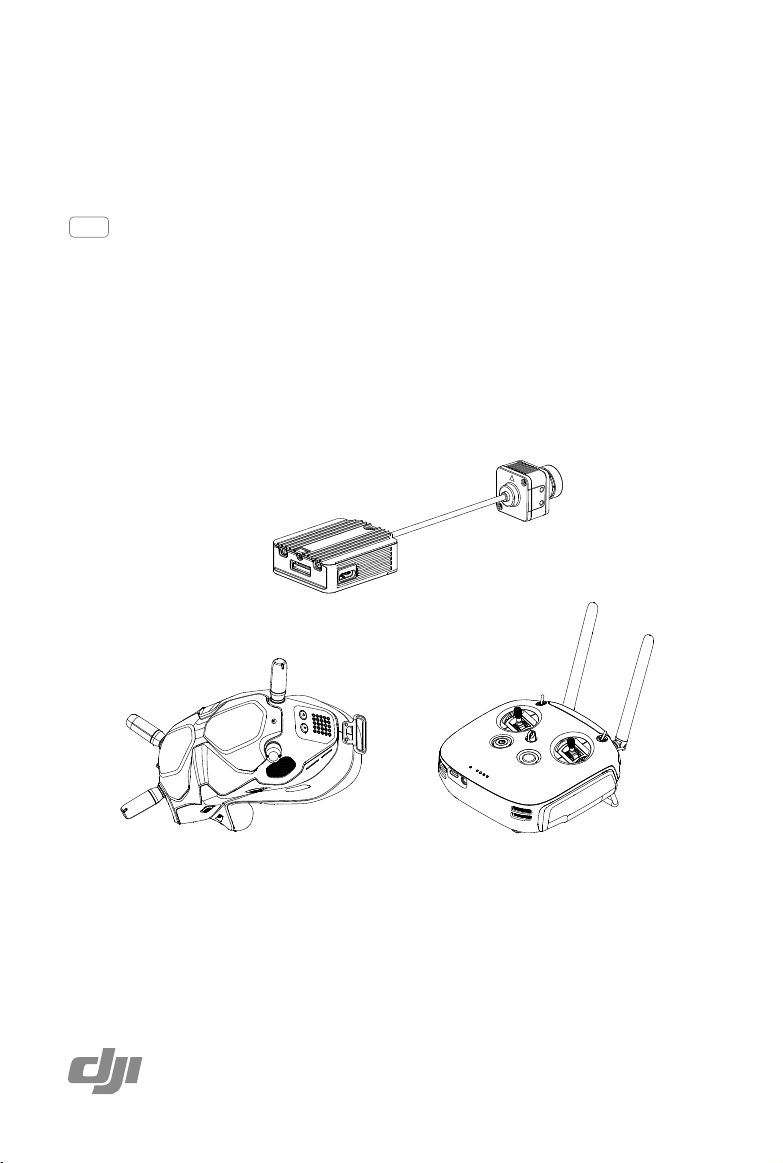
DJI DIGITAL FPV SYSTEM
2
©
2019 DJI All Rights Reserved.
Using This Manual
Legends
Warning Important Hints and Tips Reference
Read Before First Usage
Read the following documents before using the DJI
TM
Digital FPV System:
1. DJI FPV Air Unit Quick Start Guide
2. DJI FPV Remote Controller Quick Start Guide
3. DJI FPV Goggles Quick Start Guide
4. DJI FPV Goggles Disclaimer and Safety Guidelines
5. DJI Digital FPV System User Manual
Watch all the tutorial videos on the official DJI website and read the disclaimer to understand your
legal rights and responsibilities. Prepare to use for the first time by reviewing the quick start guides
and refer to the user manual for more information. If you have any questions or problems during the
installation, maintenance, or use of this product, contact DJI or a DJI authorized dealer.
Video Tutorials
Watch the tutorial videos in the link below, which demonstrate how to use the DJI Digital FPV
System safely: http://www.dji.com/fpv/video
Download DJI Assistant 2 (DJI FPV Series)
Download DJI ASSISTANT
TM
2 at http://www.dji.com/fpv/downloads
DJI Assistant 2 supports Windows 7 (or later) or Mac OS X 10.11 (or later).
Searching for Keywords
Search for keywords such as “battery” and “install” to find a topic. If you are using Adobe
Acrobat Reader to read this document, press Ctrl+F on Windows or Command+F on Mac to
begin a search.
Navigating to a Topic
View a complete list of topics in the table of contents. Click on a topic to navigate to that section.
Printing this Document
This document supports high resolution printing.

3
©
2019 DJI All Rights Reserved.
Warning
Always stay alert when using the DJI Digital FPV System to control an unmanned aerial vehicle (UAV).
Carelessness may result in serious harm to yourself and others.
DJI FPV Air Unit
1. The DJI FPV Air Unit may become hot during or after operation. DO NOT touch the air unit before
it cools down.
2. DO NOT use the air unit for an extended period when the temperature is high or there is poor
ventilation. Otherwise, the air unit may overheat and enter low-power mode, which will affect its
performance. Restart the air unit or wait for it to cool down and exit low-power mode.
3. Make sure that the external power source for the air unit is a lithium battery and within 7.4 - 17.6 V.
Otherwise, the air unit may be damaged and may not work properly.
4. DO NOT connect the power cable with the power GND cable directly or plug or unplug the
cables when the air unit is powered on. Otherwise, the equipment may be damaged and may
not work properly.
5. DO NOT obstruct or twist the antennas of the air unit. Otherwise, the transmission may be
affected or blocked.
6. Follow the instructions in the quick start guide or user manual when installing the air unit.
Incorrect installation may cause the air unit to not work properly.
7. Keep all the electronic devices as far away from each other as possible during installation to
minimize electromagnetic interference.
8. Make sure that all connections are secure and all parts are working properly.
9. Make sure that there are no other transmitting devices in the surrounding area that may
cause interference. DO NOT use the same frequency band as other devices. Otherwise, the
transmission of the DJI Digital FPV System will be affected.
DJI FPV Goggles
1. DO NOT throw or drop the product. Otherwise, it may be damaged. If the product is damaged,
take it to a DJI Service Center for inspection and repair.
2. Keep the lenses away from direct sunlight to avoid screen burns.
3. Only use official DJI power cables and an external power supply that meet the specification
requirements (7.4-17.6 V). Use of improper accessories may lead to product damage, void the
warranty, and even property damage and personal injury.
4. The DJI FPV Goggles may become hotter than normal if used for an extended period. If the
product overheats, turn off the device as instructed to avoid injury or product damage.
5. DO NOT use or store the DJI FPV Goggles in adverse weather conditions or environments with
high levels of humidity or dust.
6. DO NOT attempt to disassemble or modify this product. Unauthorized disassembling or
modification will void the product warranty.
7. To avoid damaging the power cable, do not jerk, knot, sharply bend, or abuse the cable in any
way. DO NOT expose the cable to sources of heat or liquid. Keep children and animals away
from the cable.

4
©
2019 DJI All Rights Reserved.
DJI Digital FPV System User Manual
8. When not using the DJI FPV Goggles, keep the product away from heat, liquid, fire, and direct
sunlight.
9. DO NOT use the DJI FPV Goggles if any part or component is broken or damaged. DO NOT
attempt to repair any part of the device yourself. If the product is damaged, take it to a DJI
Service Center for inspection and repair.
10. Detach and store the antennas from the DJI FPV Goggles when the goggles are not in use.
Make sure to store the antennas carefully to avoid damage.
DJI FPV Remote Controller
1. Fully charge the remote controller before each flight.
2. If the remote controller is powered on and has not been used for five minutes, it will vibrate.
Move the control sticks or perform an action to cancel the alert.
3. Make sure the antennas are unfolded and adjusted to the proper position for optimal
transmission.
4. Contact DJI Support to repair or replace the antennas if they are damaged. Damaged antennas
will greatly decrease performance.
5. If you change the connected device, link the remote controller and the device again.
6. Make sure to power off the aircraft before the remote controller.
7. Fully charge the remote controller every three months.
8. The remote controller will beep and vibrate when the battery level decreases to 10%.
Immediately charge the remote controller to prevent it from being damaged due to over
discharge for an extended period. Discharge the remote controller to a battery level between
40% and 60% if storing for an extended period.
9. DO NOT cover the air vent or the air intake on the remote controller. Otherwise, the remote
controller may overheat, which could affect its performance.
10. DO NOT disassemble the remote controller without the assistance of an authorized DJI dealer.
Contact DJI or an authorized DJI dealer to replace components of the remote controller.

5
©
2019 DJI All Rights Reserved.
Contents
Using This Manual
2
Legends 2
Read Before First Usage 2
Video Tutorials 2
Download DJI Assistant 2 (DJI FPV Series) 2
Warning
3
DJI FPV Air Unit 3
DJI FPV Goggles 3
DJI FPV Remote Controller 4
Product Prole
7
Introduction 7
At a Glance 8
Activation 10
DJI FPV Air Unit
11
Introduction 11
Installation and Connection 11
Operating Channel 12
DJI FPV Goggles
14
Introduction 14
Installation and Wearing 14
Power Supply 15
Operation 16
Video Play 16
DJI FPV Remote Controller
17
Introduction 17
Operation 17
Status Indicators and Alarms 18
Stick Adjustment 19

6
©
2019 DJI All Rights Reserved.
DJI Digital FPV System User Manual
Using the DJI Digital FPV System
21
Linking 21
Goggles Main Screen 25
Goggles Settings 27
Flight Controller and Remote Controller Settings 29
Video Recording 31
Updating Firmware
32
Maintenance
32
DJI FPV Goggles 32
DJI FPV Air Unit 33
Specications
35
7
©
2019 DJI All Rights Reserved.
Product Prole
Introduction
DJI Digital FPV System
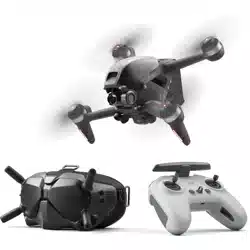
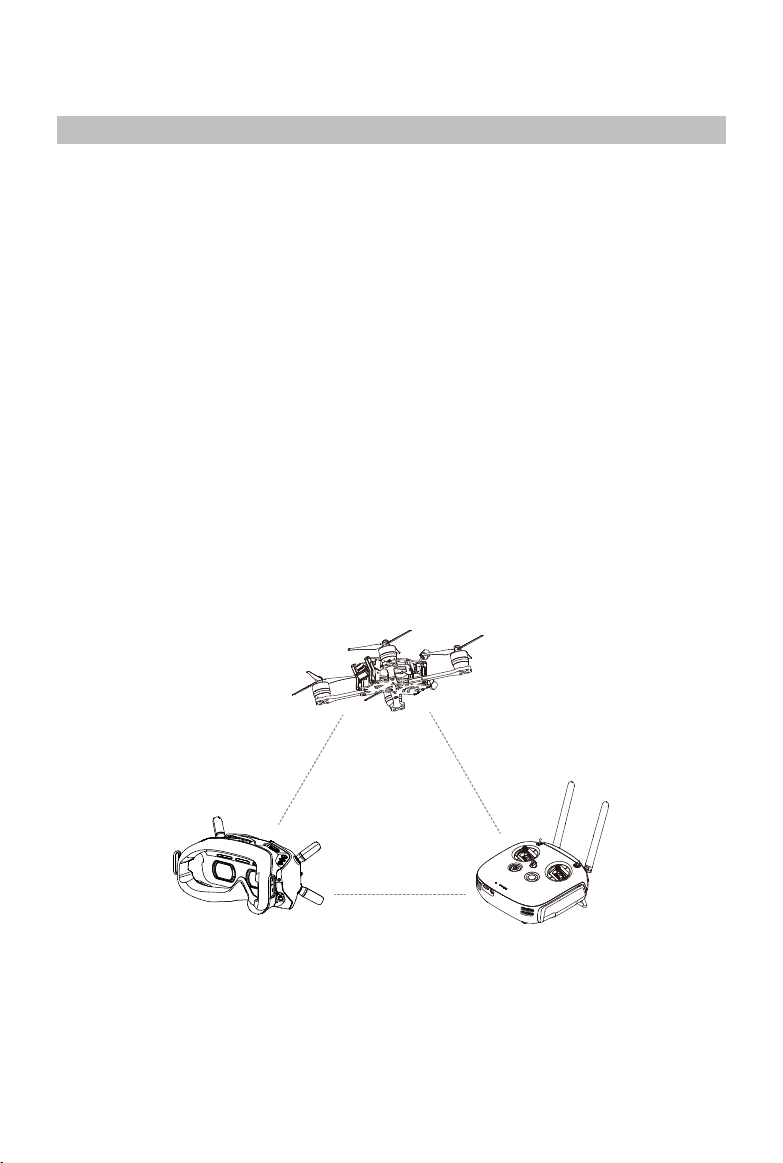
The DJI Digital FPV System consists of the DJI FPV Air Unit, DJI FPV Goggles, and DJI FPV Remote
Controller, featuring the DJI HD Low Latency FPV Transmission, to provide an integrated video
transmission with high definition and low latency for racing flight. The DJI Digital FPV System supports
a 5.8 GHz digital video signal and 720p 120fps image transmission, with a transmission range of up
to 4 km and a minimum end-to-end latency within 28 ms*. Up to eight fixed channels are supported**,
and the enhanced anti-interference ability greatly improves the smoothness and stability of the
video transmission. The DJI Digital FPV System integrates a camera, video transmission, display
view, and remote control to provide a high-quality racing experience.
Typical Application Scenario
The DJI FPV Air Unit includes the air unit module and camera, which can be mounted on a racing
drone and used with the goggles or a remote controller to transmit video, control signals, and flight
controller information wirelessly.
The DJI FPV Goggles are equipped with a high-performance display and support 810p 120fps HD
display. When used with a racing drone equipped with the air unit, users can enjoy a first-person
view of their aerial experience in real time.
The DJI FPV Remote Controller works with the air unit and goggles, and can be used to control the
aircraft and operate the menu screen of the goggles to set parameters.
* The end-to-end latency is the total time from camera input to screen display. The DJI Digital FPV System can reach its minimum
latency in Low Latency mode (720p 120fps), and achieving maximum transmission distance (FCC) in a wide open area with no
electromagnetic interference. The aircraft will fall if the video or control signal is disconnected. Be careful when flying at low altitudes
and long distances.
** There are up to eight channels for the DJI Digital FPV System depending on the region (FCC: eight, CE/SRRC: four, MIC: three). Each
channel has a bandwidth of 20 MHz. The public channel is 8, which is the default channel when the equipment is powered on. The
channel can be changed manually to avoid interference from other devices.
Air Unit
Goggles Remote Controller
8
©
2019 DJI All Rights Reserved.
DJI Digital FPV System User Manual
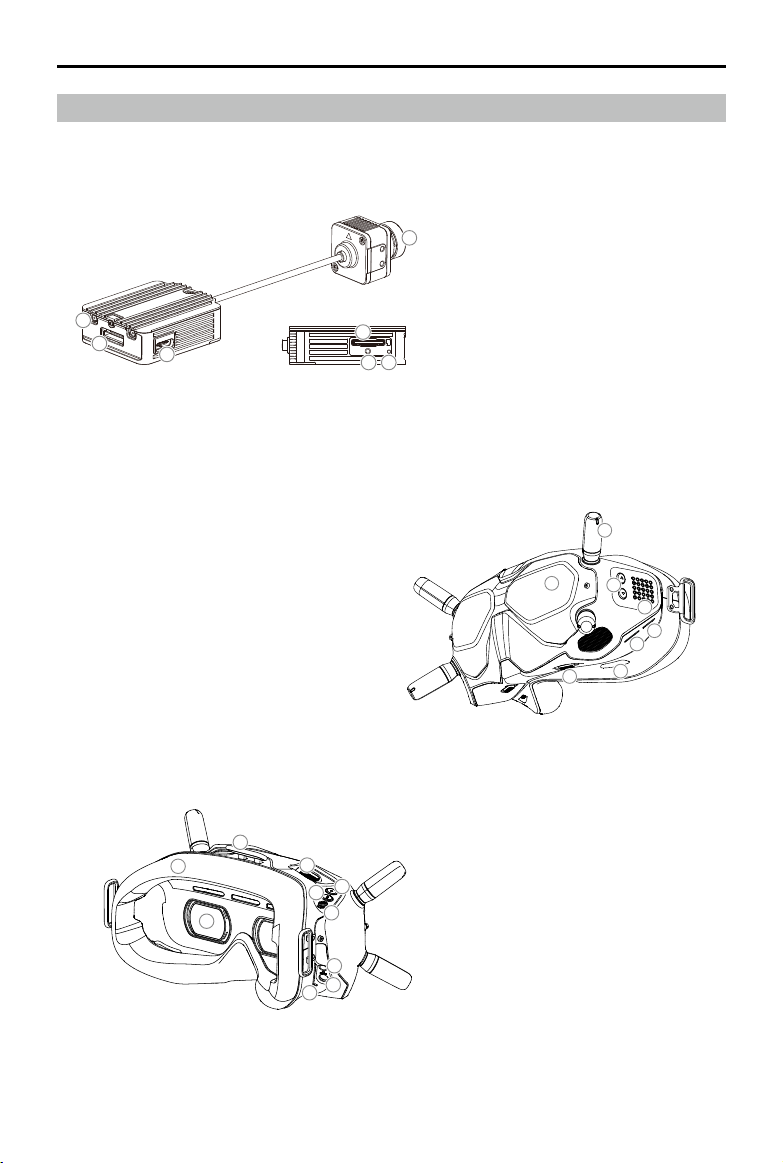
1. MMCX Antenna Ports
2. 3-in-1 Port
3. USB-C Port
4. microSD Card Slot
5. Link Button
6. Linking Status Indicator
7. Camera
At a Glance
DJI FPV Air Unit
1. Antennas
2. Front Cover
3. Channel Adjustment Buttons
4. Channel Display
5. USB-C Port
6. microSD Card Slot
7. Air Intake
8. Interpupillary Distance (IPD) Slider
9. Headband Attachment
10. Foam Padding
11. Lens
12. Air Vent
13. Record Button
14. Back Button
15. 5D Button
16. Audio/AV-IN Port
17. Power Port (DC5.5×2.1)
18. Link Button
2
1
3
4
8
5
6
7
11
10
9
12
13
14
15
16
17
18
1
2
3
4
5
6
7
DJI FPV Goggles
9
©
2019 DJI All Rights Reserved.
DJI Digital FPV System User Manual
DJI FPV Remote Controller
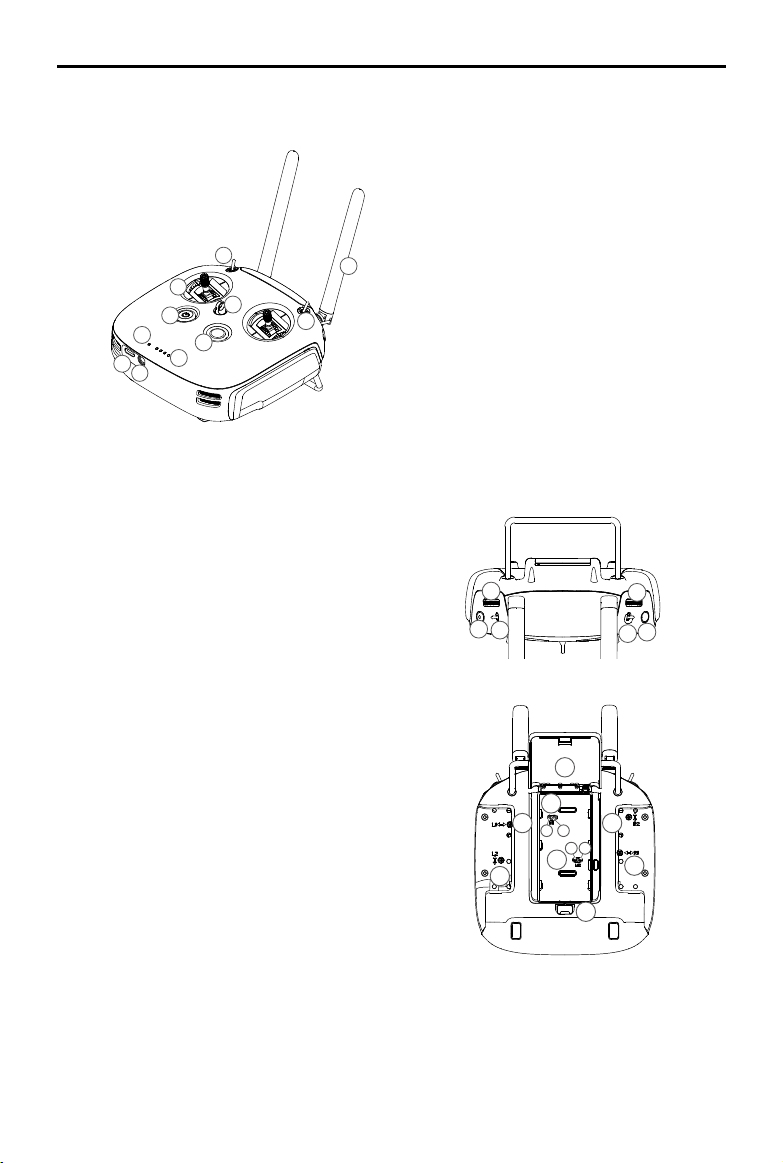
1. Power Button
2. C Button (customizable)
3. Control Sticks
4. Lanyard Attachment
5. Status LED
6. Battery Level LEDs
7. Simulator PPM Port
8. USB-C Port
9. SB Switch
10. SC Switch
11. Antennas
12. Left Dial
13. Record Button
14. SA Switch
15. Right Dial
16. SD Switch
17. Back Button
18. Right Stick Adjustment Screw (Horizontal)
19. Right Stick Adjustment Screw (Vertical)
20. Throttle Stick Adjustment Screws* (Mode 1)
a. Ratchet Throttle Adjustment Screw
b. Smooth Throttle Adjustment Screw
21. Throttle Stick Adjustment Screws* (Mode 2)
a. Smooth Throttle Adjustment Screw
b. Ratchet Throttle Adjustment Screw
22. Left Stick Adjustment Screw (Vertical)
23. Left Stick Adjustment Screw (Horizontal)
24. Battery Cover
25. Battery Cover Lock
* To choose between a ratchet throttle and a smooth throttle, users must adjust the throttle stick adjustment screw that corresponds to
the current control mode. Depending on the control mode, the corresponding vertical stick adjustment screw is unavailable.
1
2
4
5
6
9
11
12
13
14
15
16
17
18
19
20
21
a
b
22
23
25
24
10
3
7
8
a
b
1
2
4
5
6
9
11
12
13
14
15
16
17
18
19
20
21
a
b
22
23
25
24
10
3
7
8
a
b
1
2
4
5
6
9
11
12
13
14
15
16
17
18
19
20
21
a
b
22
23
25
24
10
3
7
8
a
b
10
©
2019 DJI All Rights Reserved.
DJI Digital FPV System User Manual
Activation
When powered on, connect the device to your computer by the USB-C port and run DJI Assistant 2
for activation.
Make sure to activate the device before using for the first time. Otherwise, some functions
will be unavailable:
Iftheairunitisnotactivated,itstransmissionpowerwillbelimited(≤25mW),andthemenu
screen of the connected goggles cannot be operated.
If the goggles are not activated, only linking is available and the menu screen cannot be
operated. Additionally, the device will also be set in the public channel and cannot be set
to other channels after linking. Note that the public channel is easily prone to interference
from other transmission devices.
If the remote controller is not activated, it cannot be used to operate the menu screen of the
connected goggles.
11
©
2019 DJI All Rights Reserved.
DJI FPV Air Unit
Introduction
The DJI FPV Air Unit is an advanced video transmission module that supports a 5.8 GHz digital
video signal and 720p 120fps image transmission, with a transmission range of up to 4 km and
a minimum end-to-end latency within 28 ms. The air unit can be mounted on a racing drone and
used with the goggles or remote controller to transmit video, control signals, and flight controller
information wirelessly.
Installation and Connection
Air Unit Module
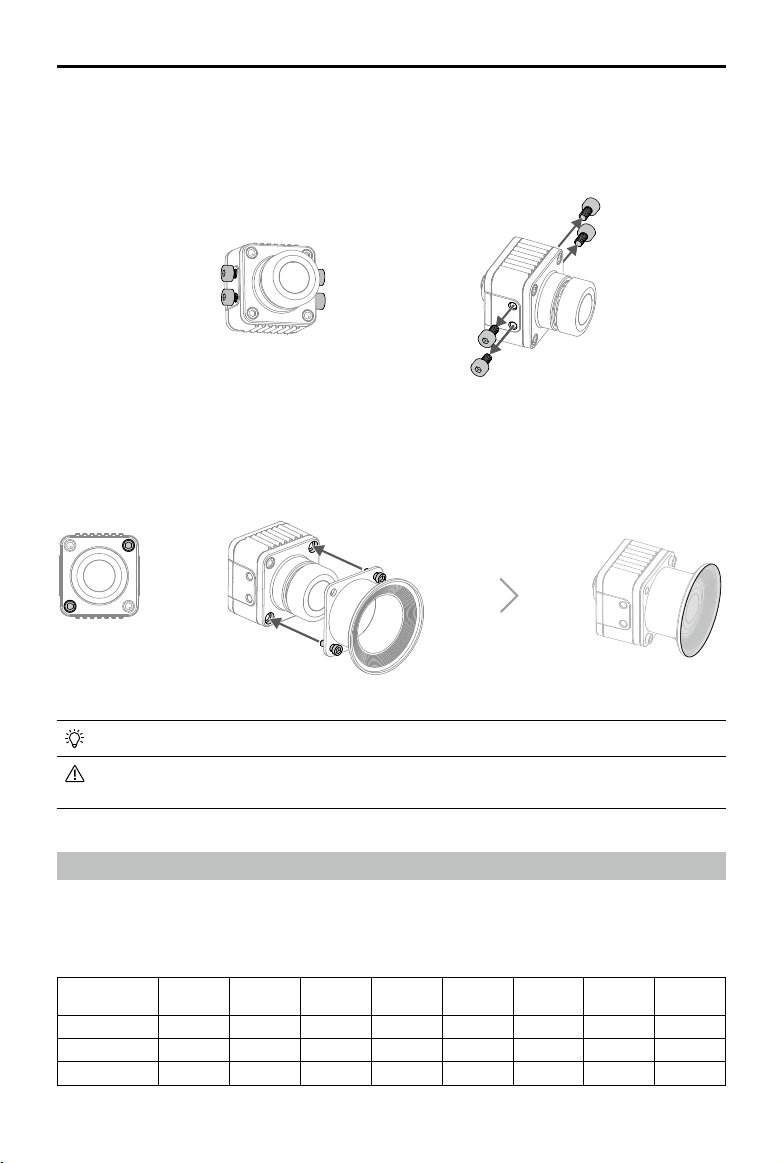
Refer to the illustration below to mount and connect the air unit to a racing drone.
RED: Power (7.4-17.6 V)
BLACK: Power GND
WHITE: UART RX (Connects to Flight Controller OSD TX, 0-3.3 V)
GRAY: UART TX (Connects to Flight Controller OSD RX, 0-3.3 V)
BROWN: Signal GND
YELLOW: DJI HDL (Connects to Flight Controller S.Bus, 0-3.3 V)
3-in-1 Cable (Power, DJI HDL, UART)
An electric soldering iron and soldering tin are required for connection. Make sure that
there are no short circuits or open circuits when soldering the cables.
The air unit may become hot during or after operation. DO NOT touch the air unit before it
cools down.
DO NOT use the air unit for an extended period when the temperature is high or there is
poor ventilation. Otherwise, the air unit may overheat and enter low-power mode which
will affect the performance.
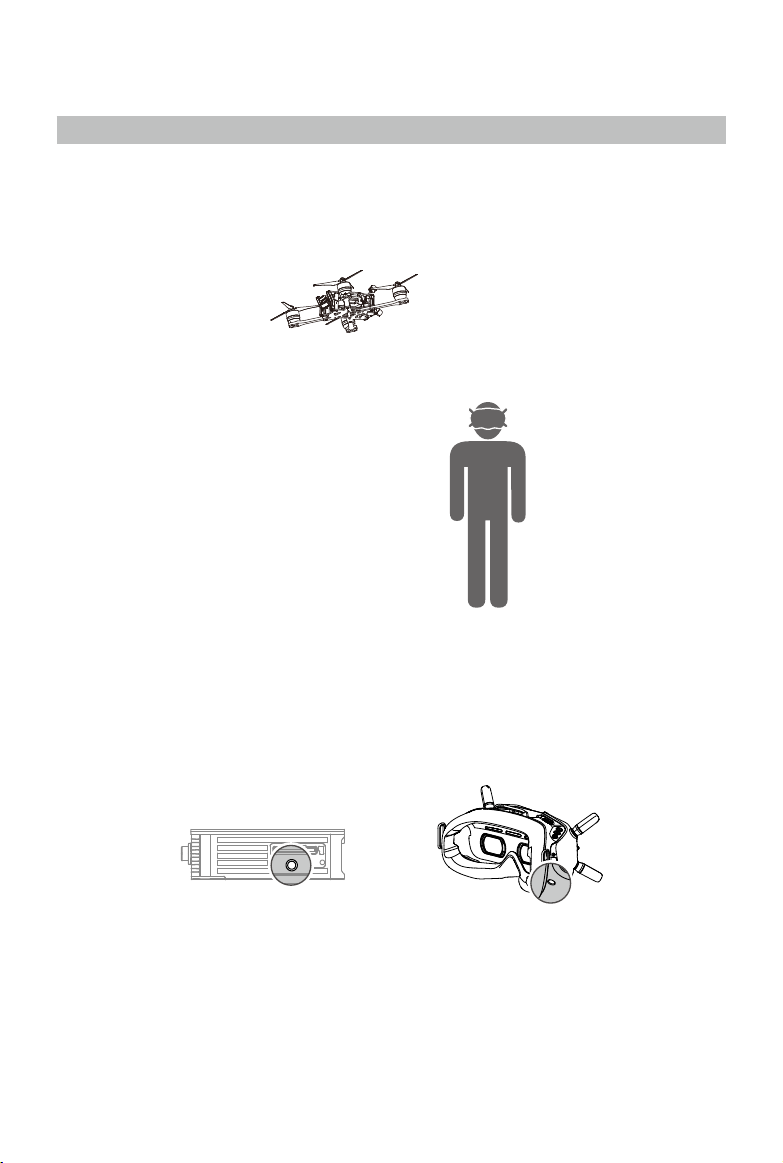
Keep the antennas of the air unit at least 40 mm apart. Keep the air unit away from metal
objects or carbon fiber frames. Make sure to choose a position where the transmission will
not be blocked during flight.
12
©
2019 DJI All Rights Reserved.
DJI Digital FPV System User Manual
Camera Module
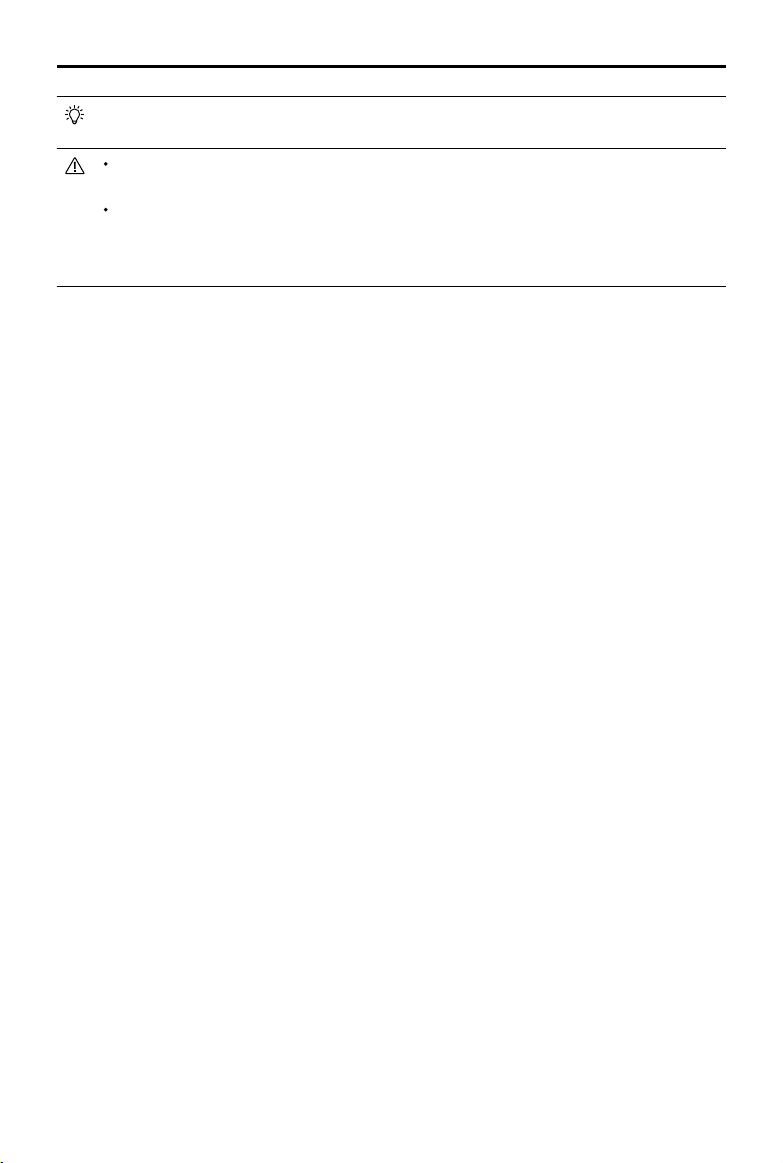
Four M2 screws are attached to both sides of the camera, which can be removed and used
to mount the camera to the aircraft frame, and adjust to an appropriate angle based on your
requirements.
If you need to mount the lens protector for the camera, follow the steps below.
1. Remove the two screws without glue, mount the lens protector onto the camera, and tighten the
two screws.
2. Peel off the adhesive on the protective lens and attach it to the lens protector.
The DJI FPV Lens Protector is sold separately.
Only the two screws without glue can be removed. If you remove the two screws that are
glued, the warranty will be voided.
Operating Channel
There are up to eight channels for the air unit depending on the region (FCC: eight, CE/SRRC: four,
MIC: three). Each channel has a bandwidth of 20 MHz. The public channel is 8, which is the default
channel when the equipment is powered on. The channel can be changed manually to avoid
interference from other devices.
Central
frequency (MHz)
Channel 1 Channel 2 Channel 3 Channel 4 Channel 5 Channel 6 Channel 7 Channel 8
FCC 5660 5695 5735 5770 5805 5878 5914 5839
CE/SRRC 5735 5770 5805 - - - - 5839
MIC 5660 5700 - - - - - 5745
13
©
2019 DJI All Rights Reserved.
DJI Digital FPV System User Manual
The control signal that the goggles or the remote controller transmit to the air unit is a
frequency-hopping signal within the bandwidth.
Make sure you fully understand and abide by local laws and regulations before using this
product.
An amateur radio license may be needed in FCC regions when using channels 1, 2, 6, or 7,
as they are amateur frequency bands. Users who use the amateur frequency bands with
a modified or cracked version or without a license may be punished for breaking local
laws or regulations.
Power on and connect the air unit to DJI Assistant 2. The air unit will update to the radio mode of the
current region automatically. When the goggles or remote controller are connected to the air unit,
the region of their radio modes will also update automatically.
14
©
2019 DJI All Rights Reserved.
DJI FPV Goggles
Introduction
The DJI FPV Goggles are equipped with a high-performance display and DJI HDL FPV transmission
technology, with a transmission range of up to 4 km and a minimum end-to-end latency within 28
ms. When used with a racing drone equipped with the DJI FPV Air Unit, users can enjoy a first-
person view of their aerial experience in real time. The goggles support 810p 120fps HD display
and up to eight selectable transmission channels, providing users with a smooth and stable high-
definition racing experience.
The DJI FPV Goggles can also be used to play video to bring you an immersive high-definition
viewing experience.
Installation and Wearing
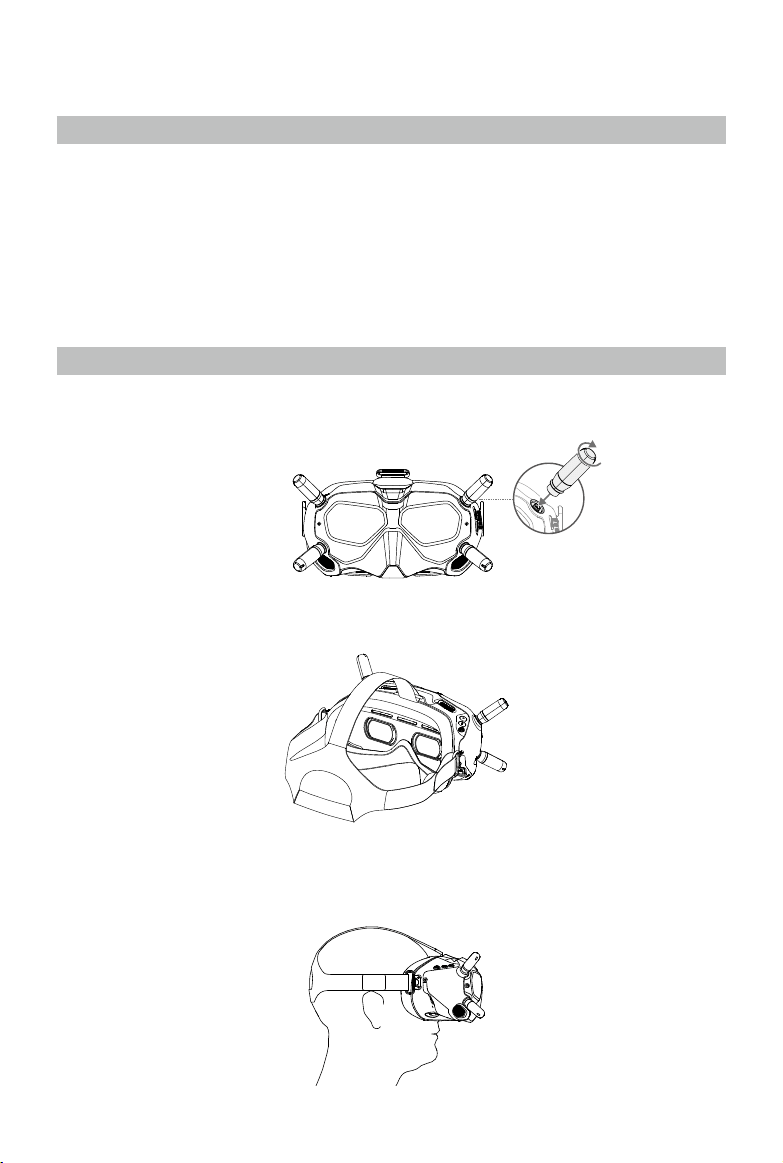
1. Install the four antennas to the mounting holes on the front of the goggles. Make sure that the
antennas are installed securely.
2. Attach the strap to the headband attachment on the top and sides of the goggles.
3. Align the lenses over your eyes and pull the headband down. Adjust the headband size until the
goggles fit securely and comfortably on your face and head.
15
©
2019 DJI All Rights Reserved.
DJI Digital FPV System User Manual
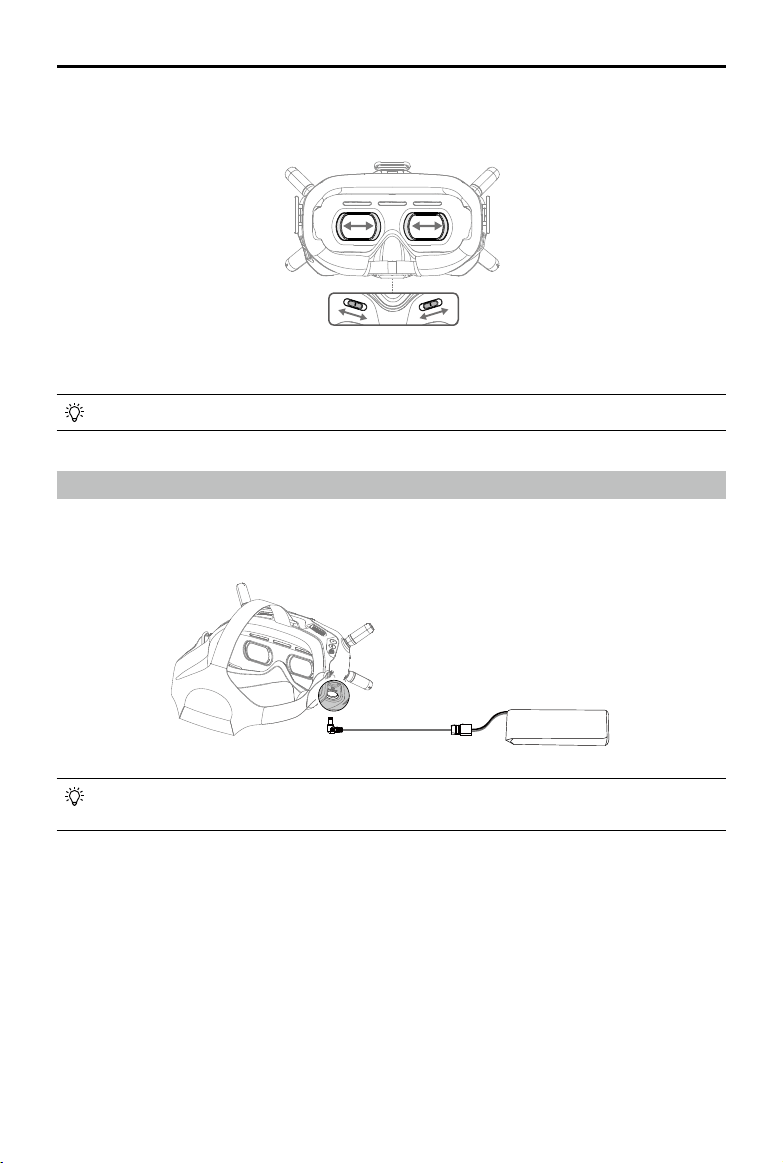
4. Turn the IPD knob to adjust the distance between the lenses until the images are properly
aligned.
Adjusting the Interpupillary Distance
(58-70 mm)
The goggles can be worn over glasses.
Power Supply
Use the included power cable to connect the power port of the goggles to an external power
supply.
The external power supply is not included in the package. Prepare an external power
supply with an input voltage of 7.4-17.6 V.
16
©
2019 DJI All Rights Reserved.
DJI Digital FPV System User Manual
Video Play
Review your flight videos or other HD videos through the goggles for an immersive viewing
experience.
Insert the microSD card on the air unit or another microSD card containing video into the microSD
card slot, select playback, and choose a video in the menu bar to play the video.
During video playback, toggle the 5D button up or down to adjust the volume. Toggle the
5D button left or right to adjust the progress bar.
Make sure the video files are stored in the DCIM\100MEDIA in the root or the root
directory of the microSD card. Only MP4, MOV, and MKV formats are supported. Refer to
Specifications for more information. The video supports up to 4K 30fps.
Operation
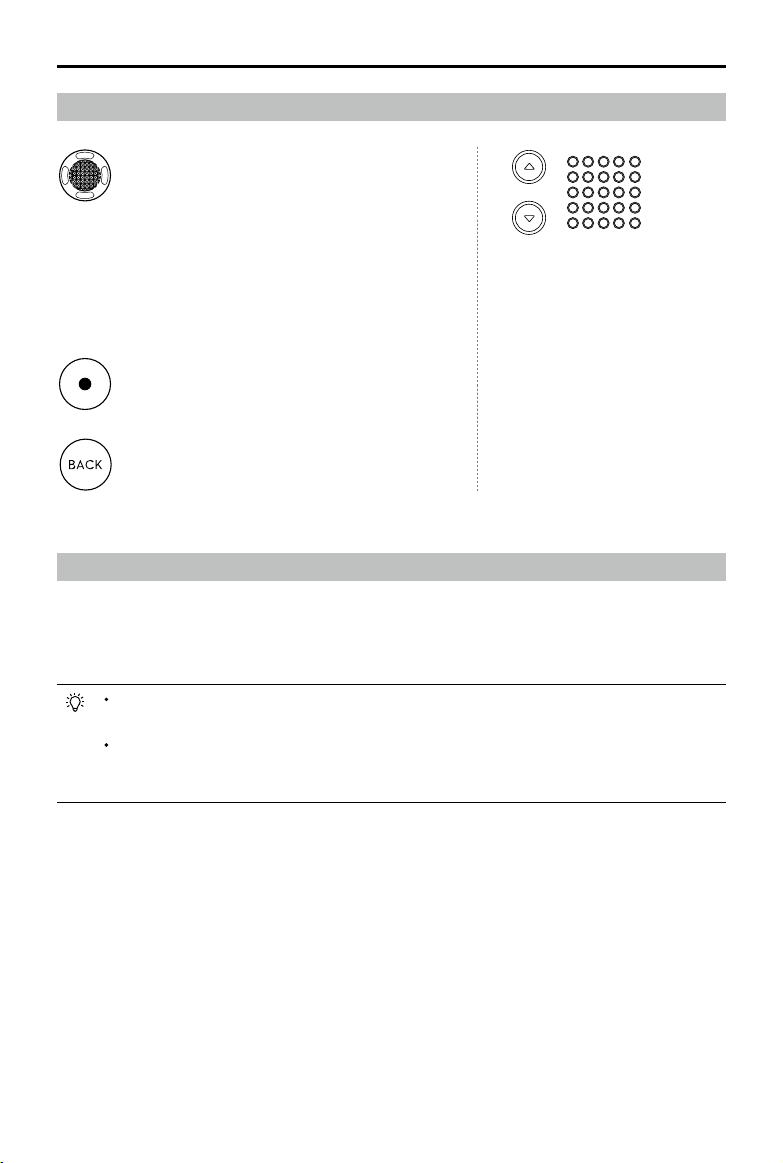
5D Button
Toggle the button to scroll through the menu.
Press the button to confirm.
In the main screen, press the button to enter the
menu bar. Toggle left or right to quickly adjust
the screen brightness. Toggle up or down to
quickly adjust camera settings. The default
adjustable setting is scene, which can be
changed to FOV, exposure, or other settings.
Channel Adjustment Buttons
Press the up or down button to
switch channels 1 to 7.
Channel Display
Displays the current channel of
the goggles.
Back Button
Press to return to the previous menu or exit the
current mode.
Record Button
Press to start or stop video recording.
17
©
2019 DJI All Rights Reserved.
DJI FPV Remote Controller
Introduction
The DJI FPV Remote Controller features advanced DJI HDL FPV Transmission technology with
a transmission range of up to 4 km and latency as low as 7 ms, enhancing the anti-interference
ability and improving the stability of the video transmission. With replaceable batteries that can
be quickly hot-swapped, the remote controller also features customizable buttons. Equipped with
stick adjustment screws, users can easily adjust the smoothness of the control sticks to suit their
preferences.
Operation
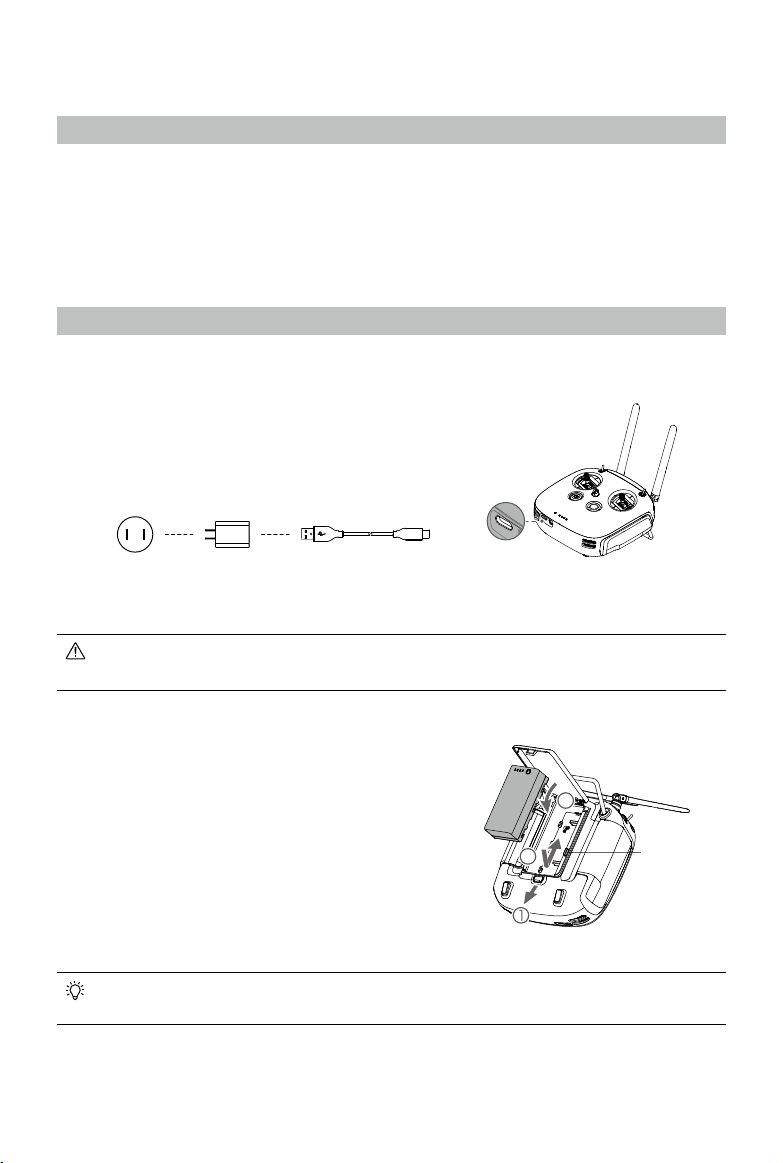
Charging the Battery
It is recommended to use the USB adapter of DJI Goggles RE, RONIN™-S, SPARK™, or an
FCC/CE certified USB adapter that supports Quick Charge 2.0.
To remove the Intelligent Battery, open the cover, press and hold the battery release button,
and push the battery downward.
Mounting the Battery
1. Slide the battery cover lock on the back of the
remote controller down to open the cover.
2. Insert the Intelligent Battery into the compartment.
Press the battery into place, and push upward
until there is a click.
3. Close the cover.
To activate the battery, fully charge it before using for the first time.
Remote ControllerPower Outlet
100-240 V
USB Adapter USB-C Cable
Battery
Release
Button
2
3
18
©
2019 DJI All Rights Reserved.
DJI Digital FPV System User Manual
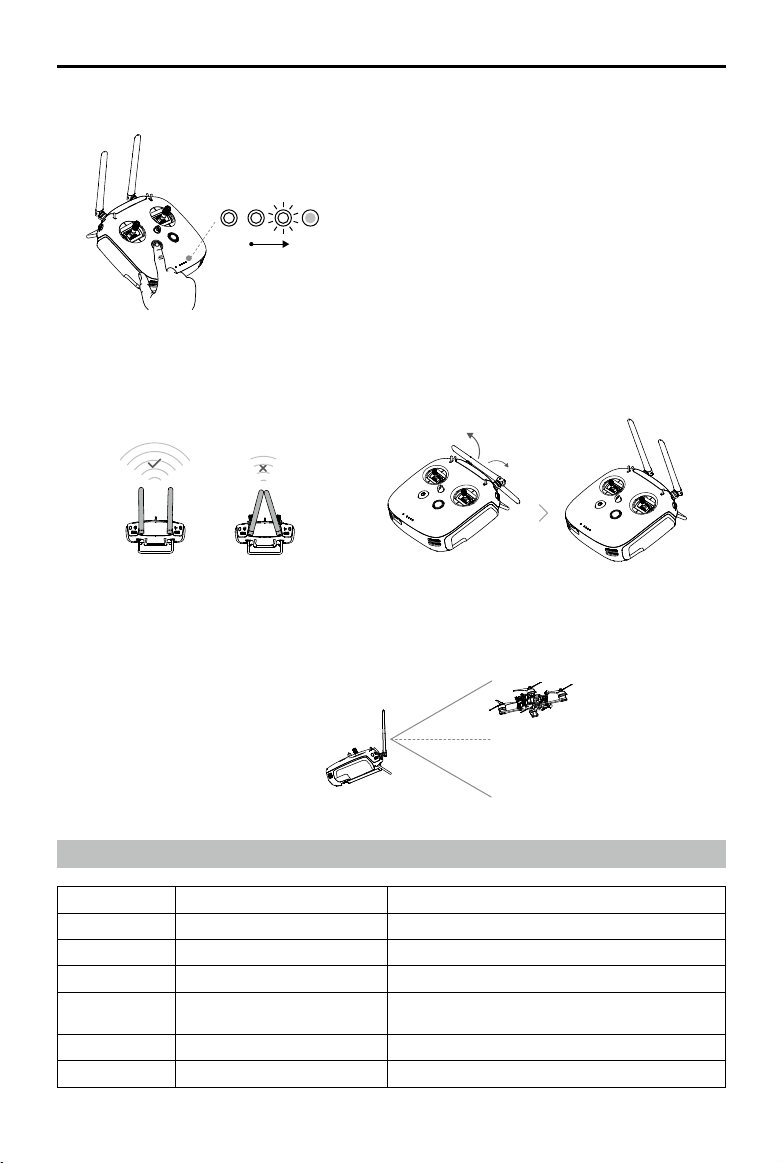
Checking the Battery Level and Powering On/Off
Press once to check the battery level.
Press once, and press again and hold for two
seconds to turn on or off.
Preparing the Antennas
Unfold and adjust the antennas of the remote controller. The signal strength varies depending on
the position of the antennas.
Try to keep the aircraft inside the optimal transmission range. If the signal is weak, adjust the
antennas or fly the aircraft closer.
Strong Weak Unfolding the Antennas
Optimal Transmission Range
Status Indicators and Alarms
Status Indicator Alarm Description
Solid Green / Linked
Blinks Blue Beeps at medium speed Linking
Blinks Purple / The remote controller is in lock mode
/
Beeps alternate sounds and
vibrates to alert
The remote controller need to be calibrated
/ Beeps and vibrates to alert Low battery (battery level <10%)
/ Beeps at slow speed The throttle stick is not in the lowest positon
Low High
19
©
2019 DJI All Rights Reserved.
DJI Digital FPV System User Manual
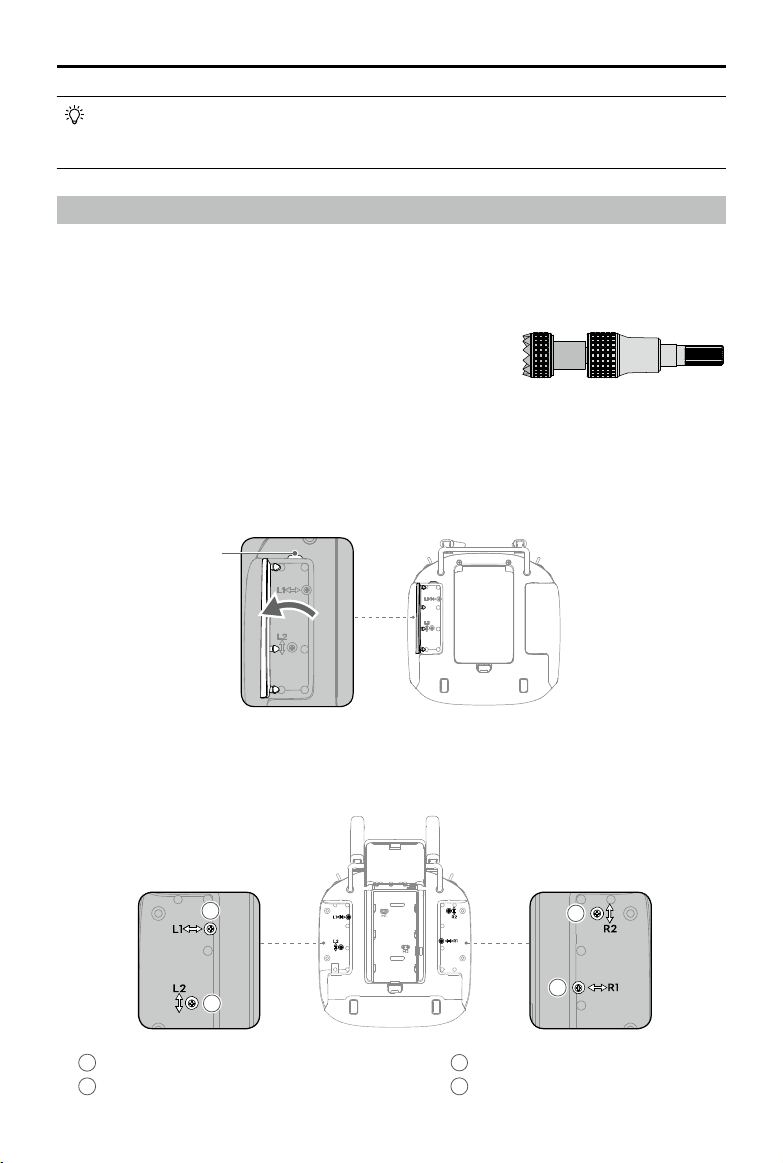
Stick Adjustment
For better user experience, adjust the stick length and tension. The tension controls how quickly the
stick returns to the neutral position.
Press and hold the C button to make the remote controller enter lock mode to avoid misuse.
The remote controller will be locked and will not send any signal to the connected device.
Press and hold the C button again to unlock.
3
Left Stick Adjustment Screw (Vertical)
4
Left Stick Adjustment Screw (Horizontal)
1
Right Stick Adjustment Screw (Horizontal)
2
Right Stick Adjustment Screw (Vertical)
2
4
3
1
Adjusting Stick Length
1. Hold Stick Head B, and rotate Stick Head A counterclockwise
to unlock.
2. Rotate Stick Head B to increase or decrease the stick length.
3. Hold Stick Head B, and rotate Stick Head A clockwise until it
is locked.
A B
Adjusting Stick Tension
1. Turn the remote controller over and lift the rear rubber grips, beginning from the groove on the top.
Groove
2. The screws under the grip on both sides can adjust the tension of the corresponding stick on the
front of the remote controller. Use a Philips screwdriver to adjust the stick tension for horizontal or
vertical direction. The tension increases when tightening the screws, and the tension decreases
when loosening the screws.
20
©
2019 DJI All Rights Reserved.
DJI Digital FPV System User Manual
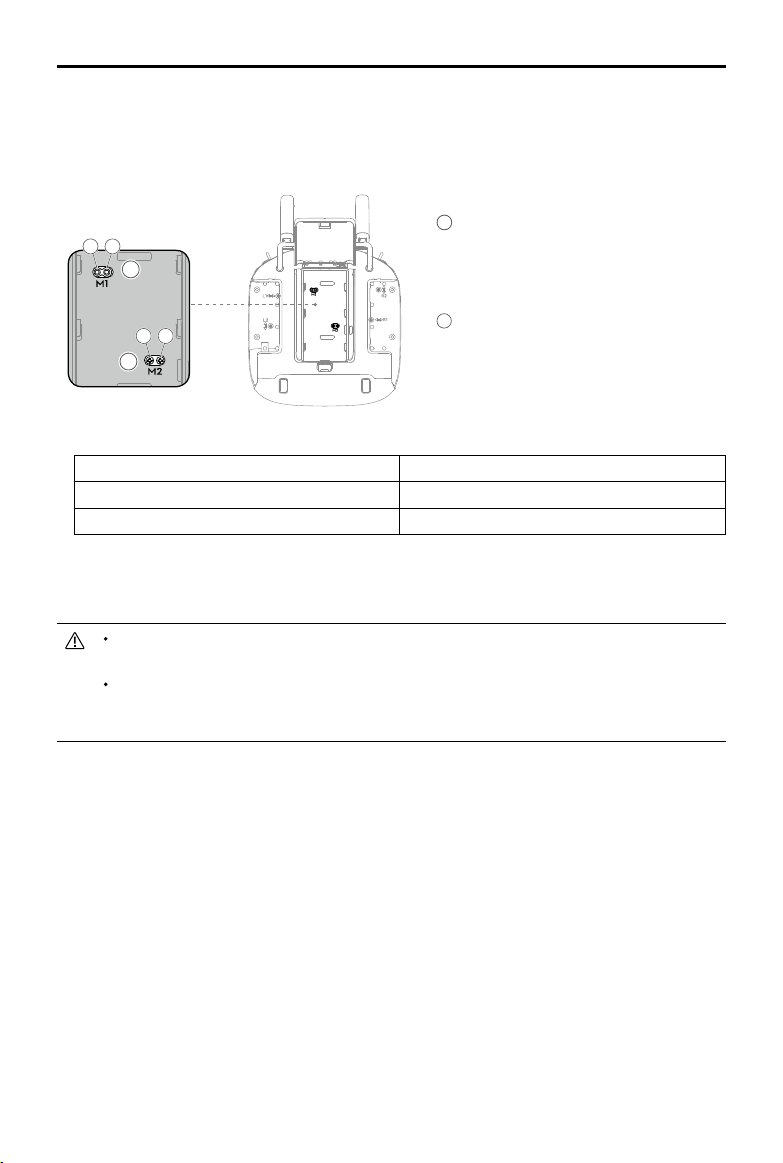
Smooth Ratchet
Tighten the Smooth Throttle Adjustment Screw Tighten the Ratchet Throttle Adjustment Screw
Loosen the Ratchet Throttle Adjustment Screw Loosen the Smooth Throttle Adjustment Screw
5. After adjustment, install the rubber grips, insert the Intelligent Battery, and close the cover.
3. Open the battery cover and remove the Intelligent Battery.
4. Check the current control mode, and then tighten or loosen the screws to adjust the throttle stick
to your preference.
1
Throttle Stick Adjustment Screws* (Mode 1)
a.
Ratchet Throttle Adjustment Screw
b.
Smooth Throttle Adjustment Screw
2
Throttle Stick Adjustment Screws* (Mode 2)
a.
Smooth Throttle Adjustment Screw
b.
Ratchet Throttle Adjustment Screw
Make sure that both throttle adjustment screws are not tightened or loose. Otherwise, the
desired effect cannot be achieved.
To choose between a ratchet throttle and a smooth throttle, users must adjust the throttle
stick adjustment screw that corresponds to the current control mode. Depending on the
control mode, the corresponding vertical stick adjustment screw is unavailable.
2
b
a
1
b
a
21
©
2019 DJI All Rights Reserved.
Using the DJI Digital FPV System
Linking
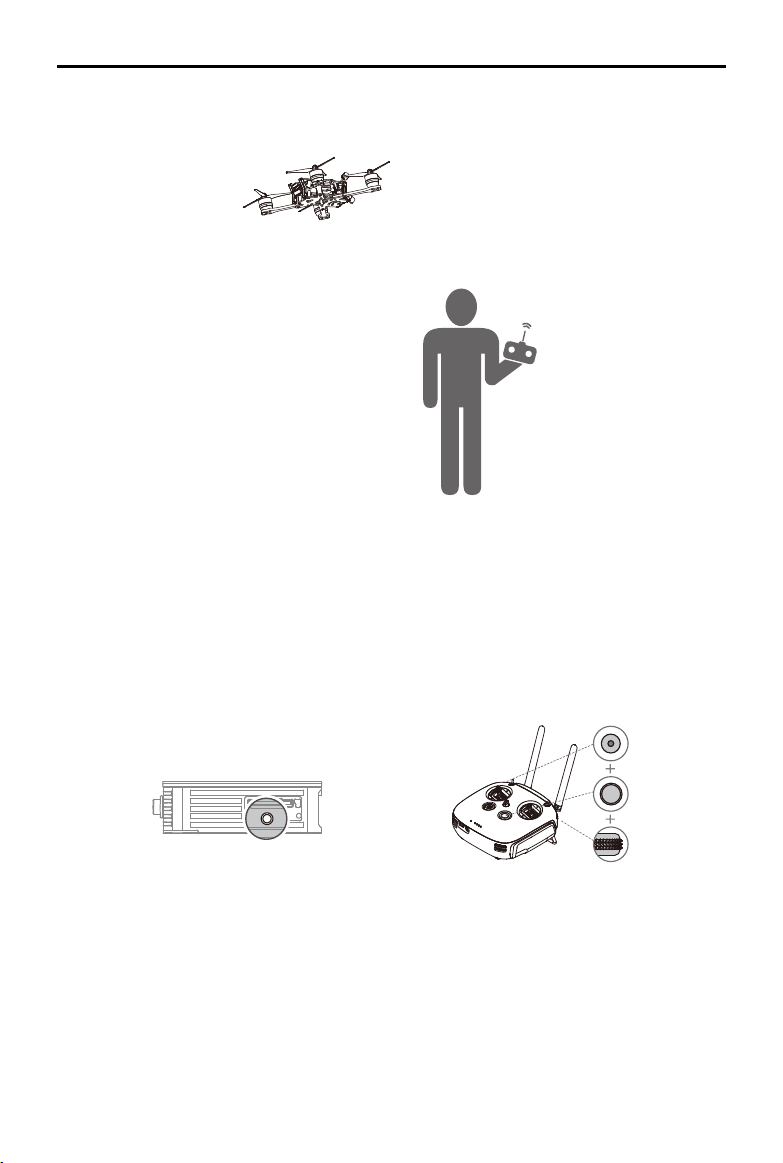
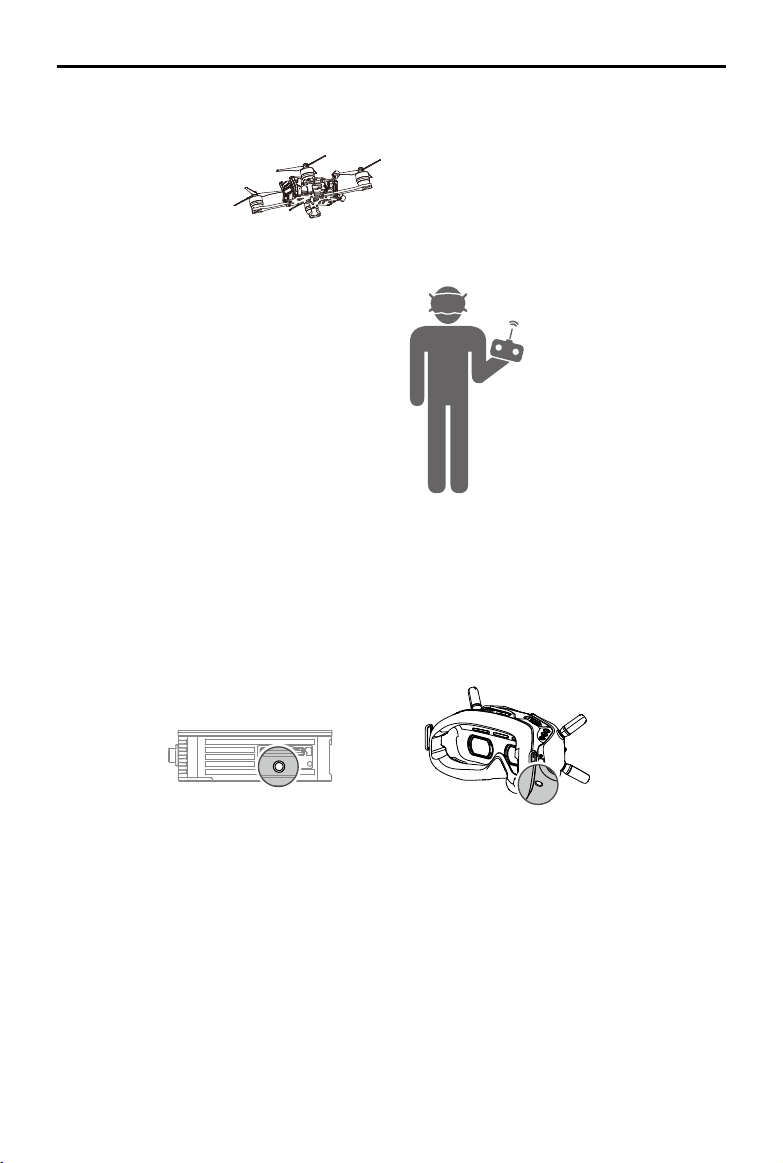
The DJI Digital FPV System supports three linking methods.
Air Unit
+
Goggles
1. Power on the air unit and goggles.
2. Press the link button on the air unit when the linking status indicator is solid green. The indicator
is solid red when the air unit is ready to link.
3. Press the link button on the goggles. They will start to beep continually.
4. Make sure the distance between the air unit and the goggles is within 2 m. When linking is
successful, the linking status indicator of the air unit turns solid green, the goggles stop beeping,
and the live view will be displayed.
22
©
2019 DJI All Rights Reserved.
DJI Digital FPV System User Manual
Air Unit
+
Remote Controller
1. Power on the air unit and remote controller.
2. Press the link button on the air unit when the linking status indicator is solid green. The indicator
turns solid red when the air unit is ready to link.
3. Press the record button, C button, and the right dial on the remote controller simultaneously. The
remote controller beeps continually and the status indicator blinks blue.
4. Make sure the distance between the air unit and the remote controller is within 2 m. When linking
is successful, both the linking status indicators turn solid green and the remote controller stops
beeping.
23
©
2019 DJI All Rights Reserved.
DJI Digital FPV System User Manual
Air Unit
+
Goggles
+
Remote Controller
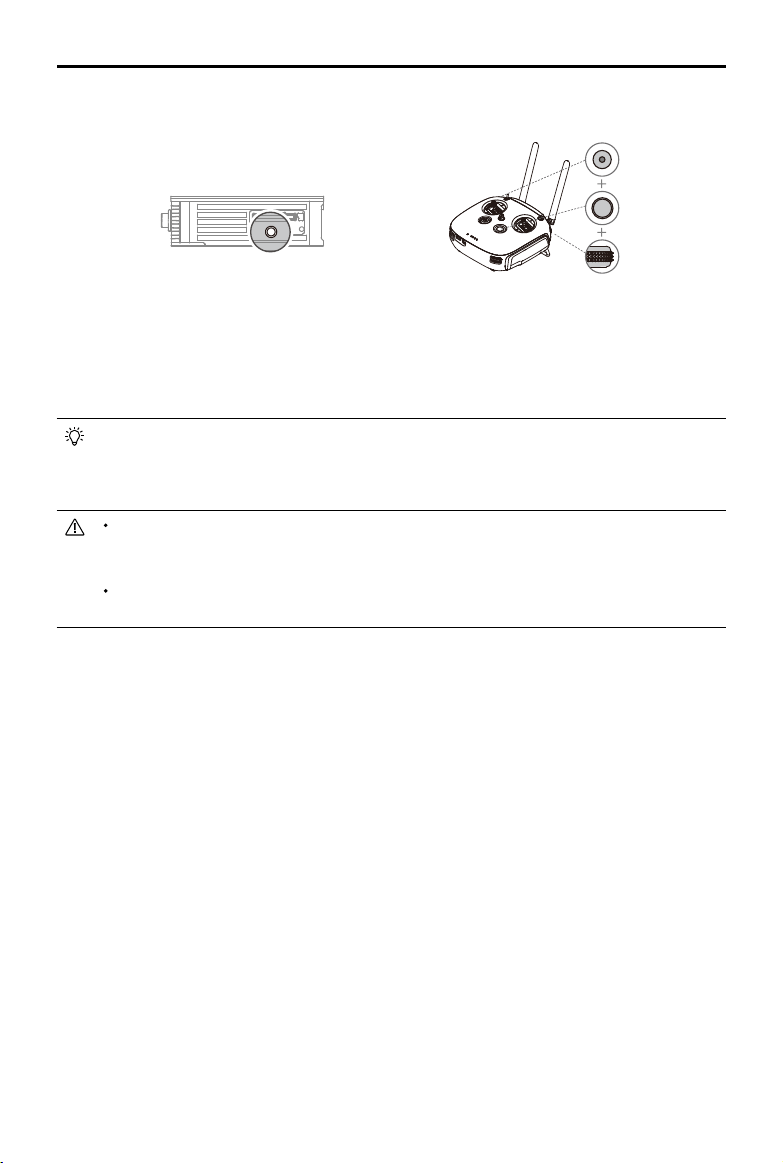
1. Power on the air unit, goggles, and remote controller.
2. Press the link button on the air unit when the linking status indicator is solid green. The indicator
will turn solid red when the air unit is ready to link.
3. Press the link button on the goggles. They will start to beep continually.
4. Make sure the distance between the air unit and the goggles is within 2 m. When linking is
successful, the linking status indicator of the air unit turns solid green, the goggles stop beeping,
and the live view will be displayed.
5. Press the link button on the air unit when the linking status indicator is solid green. The indicator
turns solid red when the air unit is ready to link.
6. Press the record button, C button, and right dial on the remote controller simultaneously. The
remote controller beeps continually and the status indicator blinks blue.
24
©
2019 DJI All Rights Reserved.
DJI Digital FPV System User Manual
7. Make sure the distance between the air unit and the remote controller is within 2 m. When linking
is successful, both the linking status indicators turn solid green and the remote controller stops
beeping.
The goggles and remote controller can save all the air units which have been linked to
them. There is no limit to the number of air units that can be saved. Once an air unit has
been linked with goggles or remote controller, it is not required to link again. Just power on
the air unit and start to use.
To use the goggles and remote controller together, the air unit must be linked to the
goggles before the remote controller. Otherwise, the connection between the three
devices cannot be established and will not be saved.
The air unit can only save one set of connected devices. If the air unit is linked with
another set of devices, the original devices will be replaced.
25
©
2019 DJI All Rights Reserved.
DJI Digital FPV System User Manual
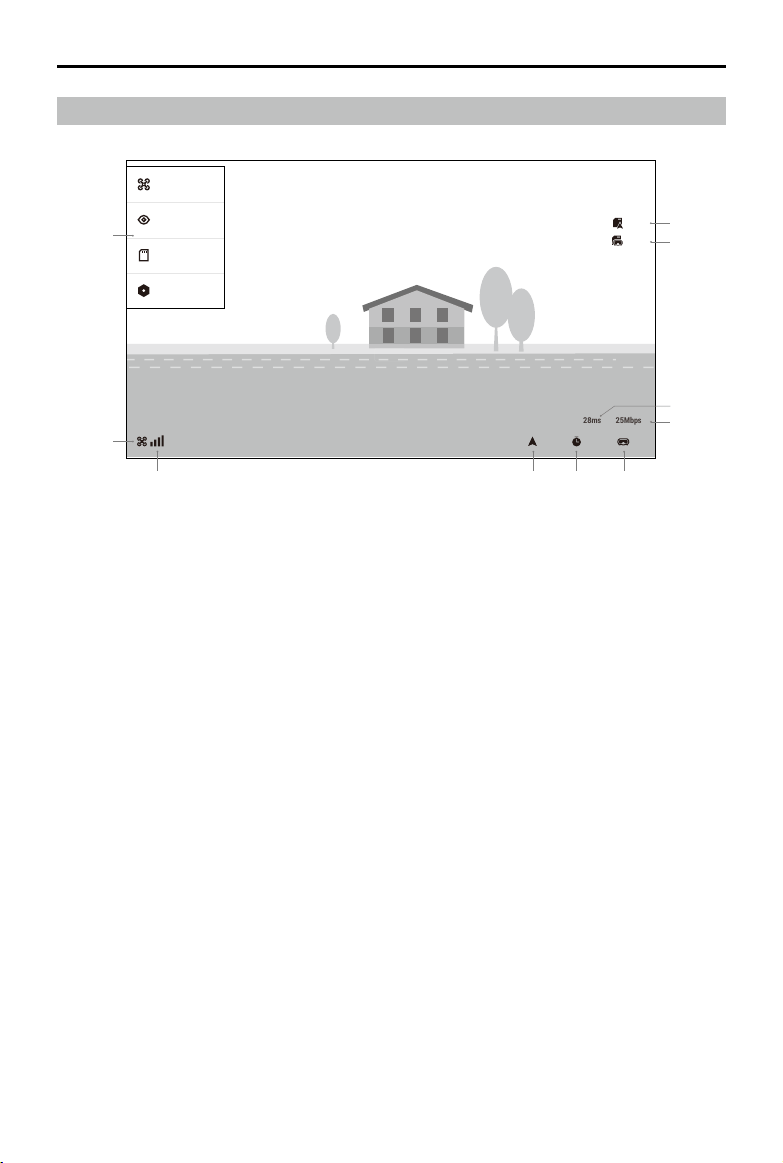
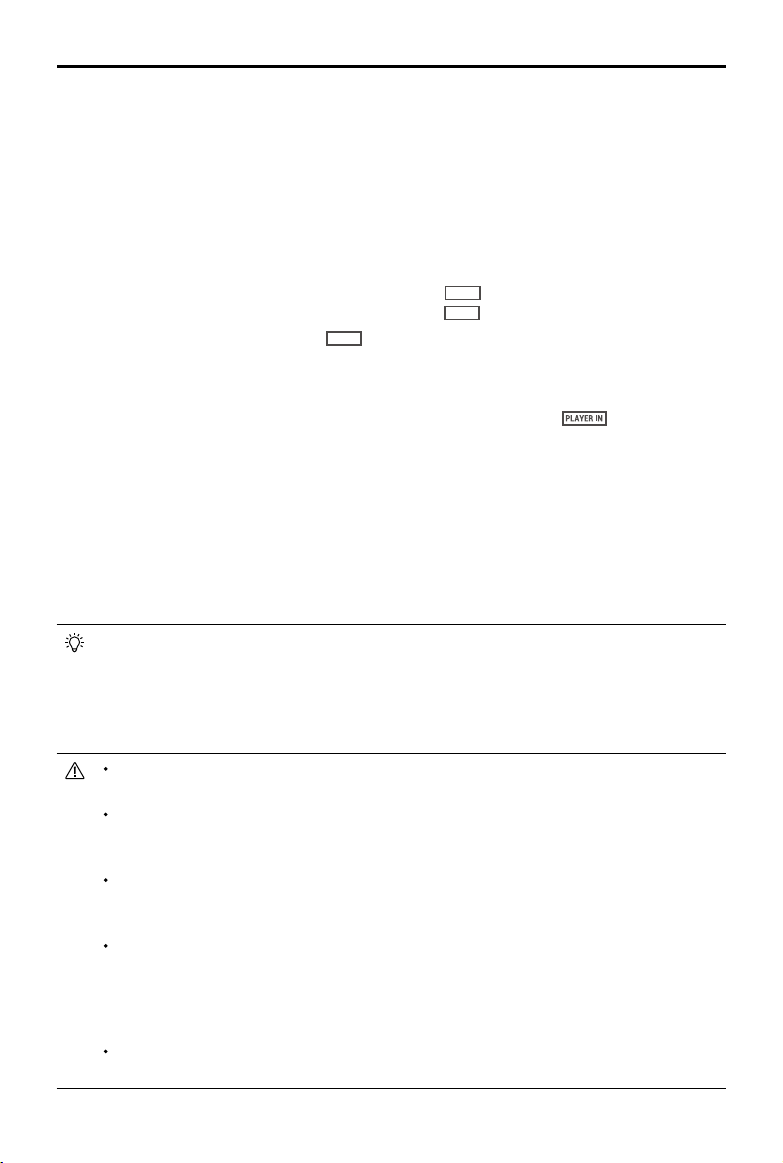
Goggles Main Screen
1. Linking Status
Shows whether or not the goggles are linked to the air unit.
2. Transmission Channel and Signal Strength
Shows the current channel and the signal strength of the goggles and the air unit.
3. Aircraft Voltage
Shows the battery voltage of the aircraft battery as read by the flight controller.
4. Flight Time
Shows the flight time of the aircraft after starting motors. The record will be cleared when the
motors stop.
5. Goggles Voltage
Shows the battery voltage of the goggles. The goggles will beep when the voltage is too low.
6. Transmission Bandwidth
Shows the bandwidth of the operating channel between the air unit and the goggles.
7. Transmission Latency
Shows the total time from camera input to screen display.
8. Goggles microSD Card Status
Shows whether or not a microSD card is inserted in the goggles and the remaining capacity. A
flashing icon will appear when recording.
Playback
Audience
Player
CH1
75min
75min
8.2V15.2V
75min
75min
CH1
Settings
5’24”
28ms 25Mbps
1
10
2 3 4 5
6
7
8
9
26
©
2019 DJI All Rights Reserved.
DJI Digital FPV System User Manual
When linked to the remote controller, the remote controller can be used to operate the
screen of the goggles.
a) Use the right dial to scroll in the menu screen and press the right dial to confirm.
b) Press the back button to return to the previous menu or exit the current mode.
c) Press the record button to start or stop recording video.
Live view will be temporarily unstable when entering Player or Audience mode as the
transmission system will scan all channels.
The goggles can save the selected channel, so that they will enter the previous channel
when restarted. The saved channel will be scanned before entering, and the goggles will
enter the channel if it is not occupied. Otherwise, the goggles will enter the public channel.
When powering on, the devices enter the public channel by default to link. Note that
before entering the saved channel, the goggles will temporarily indicate that they are in
the public channel.
In Player mode, if an occupied channel is selected, the goggles currently occupying that
channel will receive a warning prompt that another pair of goggles will occupy the channel
and a countdown begins. The goggles currently occupying the channel must land the
aircraft as soon as possible, as it will be set to the public channel after the countdown
finishes. Once the countdown has finished, the new goggles will occupy the channel.
To avoid potential interference, it is not recommended to select an occupied channel. Any
interference may affect image stabilization or even result in disconnection.
9. Air Unit microSD Card Status
Shows whether or not a microSD card is inserted in the air unit and the remaining capacity. A
flashing icon will appear when recording.
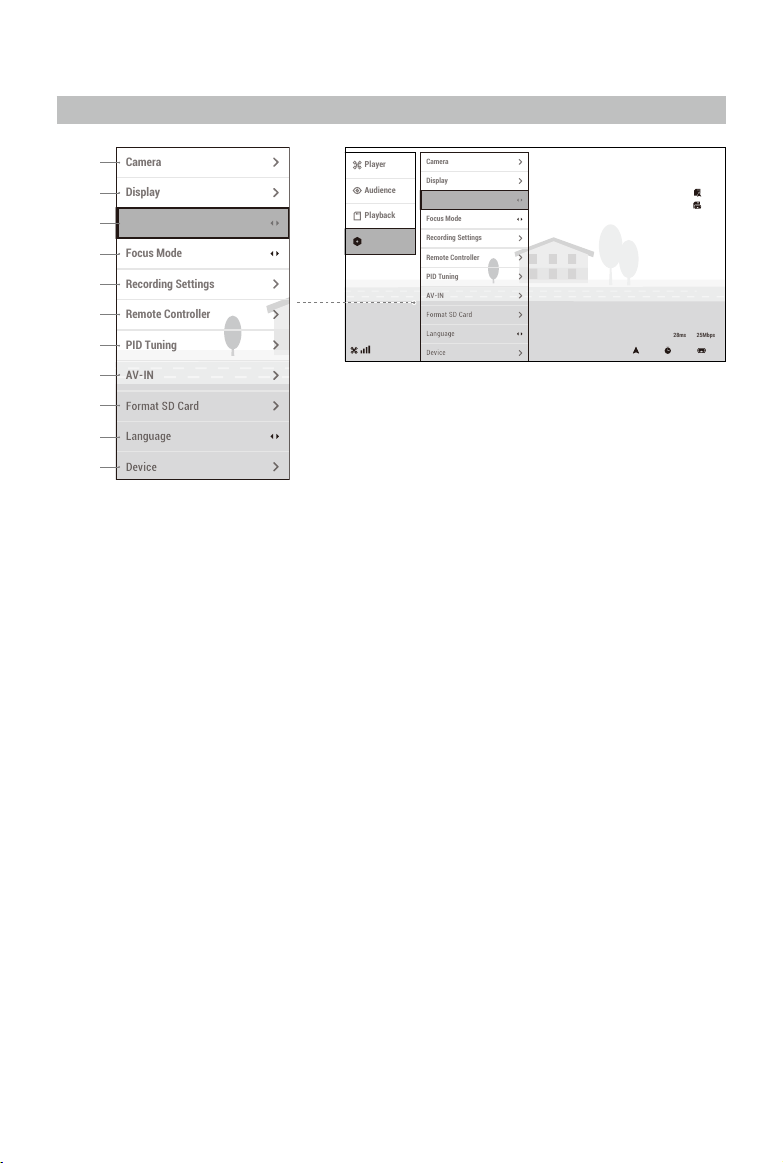
10. Menu Bar
Press the 5D button on the goggles, or press the right dial of the remote controller to enter the
menu bar.
a) Player
Shows the occupancy of each channel. The red
RACING
means occupied. You can select a
vacant player channel. The icon will turn to a green
RACING
if a channel is successfully entered.
The public channel is the yellow
PUBLIC
. Note the public channel is easily prone to interference
from other devices on this channel. Change to a vacant channel.
b) Audience
Shows whether each channel is used by a player or not. The blue
means that there
is a player using this channel. You can select the channel to see the camera view as a
spectator.
c) Playback
Shows the videos in the specified directory of the microSD card. Select a video to play.
d) Settings
Adjust the display of the video transmission, set the parameters for the recording, the flight
controller, the camera on the air unit, and more.
27
©
2017 大疆创新 版权所有
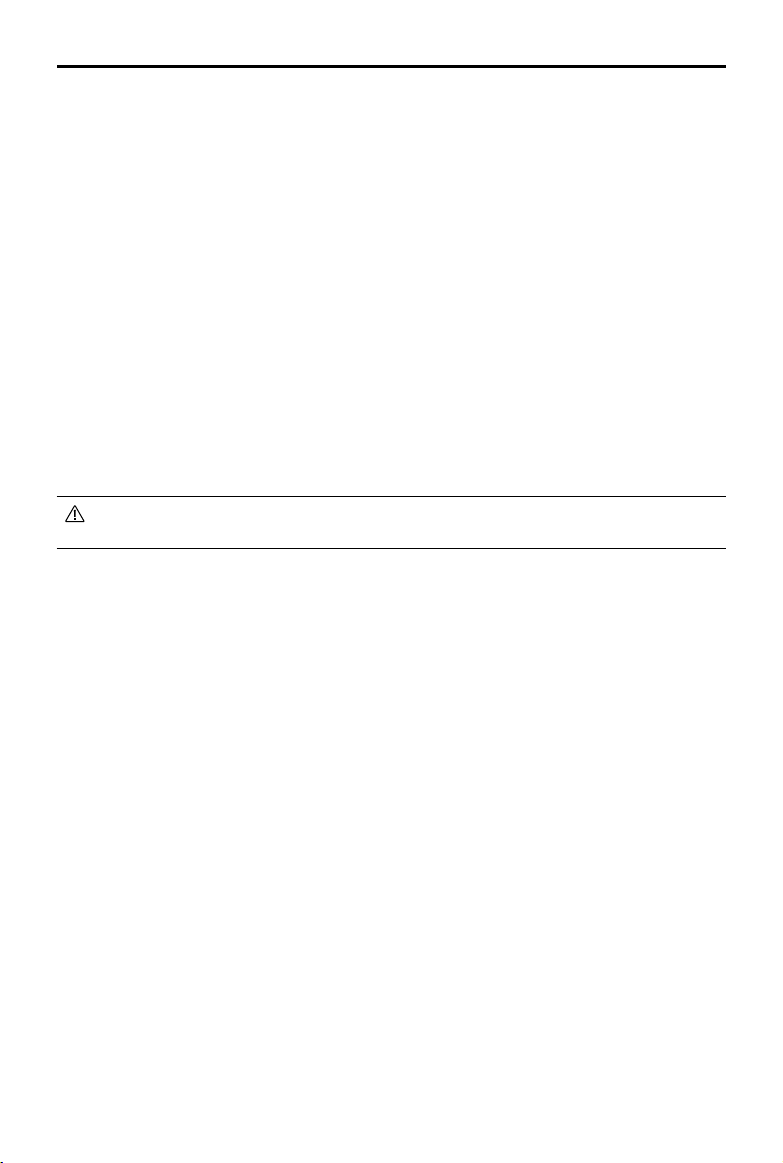
Goggles Settings
1. Camera
Set the live view ratio, scene, exposure value, saturation, white balance, or rotate the live view.
2. Display
Adjust the screen brightness, position, and zoom.
3. Preferences
Select the live view mode. In Low Latency mode (720p 120fps), the latency is 18-28 ms, while in
High Quality mode (720p 60fps), the latency is within 40 ms.
4. Focus Mode
Turn Focus mode on or off. If Focus mode is turned on, the center of the screen will be clearer
and the edges will be blurred.
5. Recording Settings
Set the recording device and the corresponding recording format and storage mode.
6. Remote Controller
Set parameters related to the remote controller.
7. PID Tuning
Set parameters related to the flight controller.
8. AV-IN
Select to enter the AV-IN screen. The analog video transmission connected to the goggles will
be displayed. The brightness and saturation can be adjusted.
CH1
8.2V15.2V
CH1
Settings
Playback
Audience
Player
Device
English
Language
Off
Focus Mode
Format SD Card
AV-IN
PID Tuning
Remote Controller
Recording Settings
Low Latency
Preferences
Display
Camera
75min
75min
75min
75min
5’24”
28ms 25Mbps
CH1
8.2V15.2V
CH1
Settings
Playback
Audience
Player
Device
English
Language
Off
Focus Mode
Format SD Card
AV-IN
PID Tuning
Remote Controller
Recording Settings
Low Latency
Preferences
Display
Camera
75min
75min
75min
75min
5’24”
28ms 25Mbps
1
2
3
4
5
6
7
8
9
10
11
28
©
2019 DJI All Rights Reserved.
DJI Digital FPV System User Manual
9. Format SD Card
Format the microSD card in the air unit or the goggles. Note that the data cannot be recovered
after formatting. Operate with caution.
10. Language
Select the system language.
11. Device
Max Power: Set the max power for the air unit.
Power Limit: If the power limit is turned on, the air unit will automatically enter low-power
mode when the motors are not started. If the power limit is turned off, the air unit will transmit
at max power until the temperature exceeds the operating temperature limit. Once the limit is
exceeded, the air unit will restart.
Protocol: Set the protocol between the air unit and flight controller as normal (S.Bus) or Sbus
Baud Fast.
Reset All: Reset the goggles and the linked air unit or remote controller to their default settings.
Device Info: View device information such as the serial number and the firmware of the goggles
and the linked air unit or remote controller.
When using the Sbus Baud Fast protocol, the flight controller need to be updated to
BetaFlight firmware 4.1.0 or above.
29
©
2019 DJI All Rights Reserved.
DJI Digital FPV System User Manual
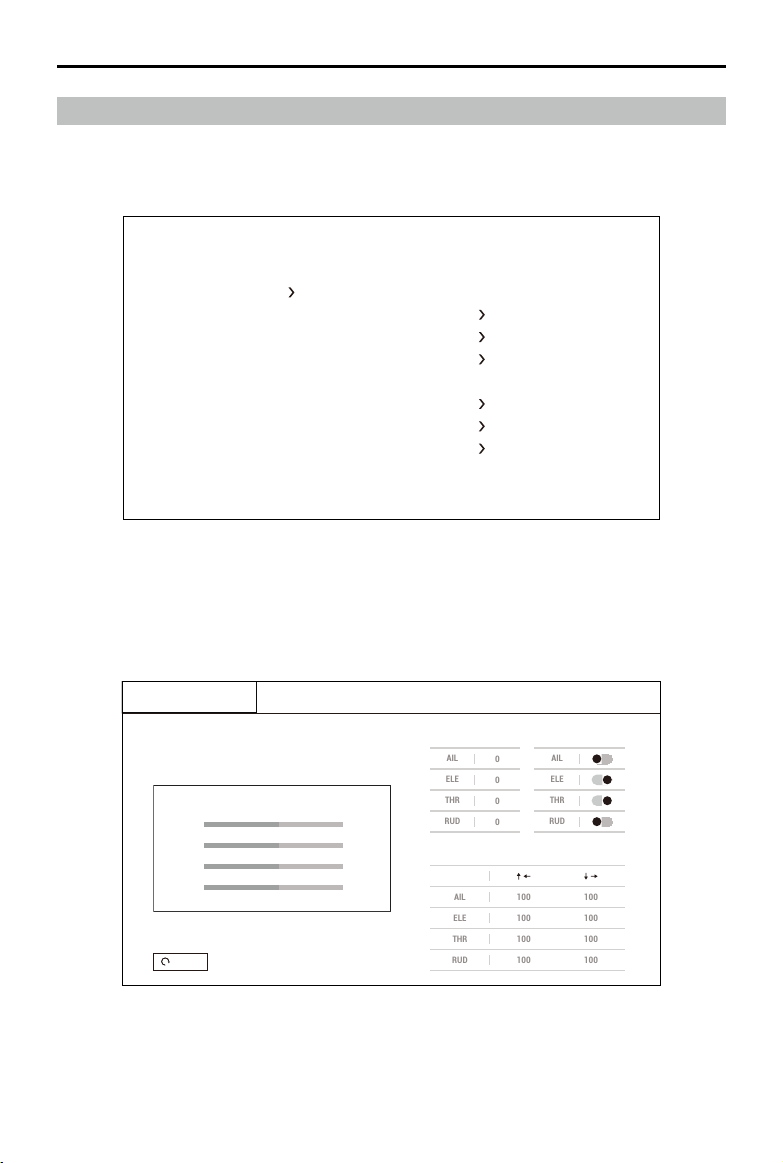
Flight Controller and Remote Controller Settings
Flight Controller
Set the PID parameters of the flight controller through the goggles.
2
1
—— PROFILE ——
SAVE
PID PORF
PID
MISC PP
FLIT PP
RATE PROF
RATE
FILT GLB
COPY PROF
BACK
Remote Controller
Servo Setup
Set parameters for the channel range, sub-trim, reverse, and endpoint.
SERVO SETUP
REVERSESUB-TRIM
RUD
THR
ELE
AIL
RUD
THR
ELE
AIL
ENDPOINT
ENDPOINT
AIL
100
100
ELE
100
100
THR
100
100
RUD
100
100
AIL
1500
ELE
1500
THR
1500
RUD
1500
CHANNEL RANGE
AIL
ELE
THR
RUD
REVERSE
AIL
0
ELE
0
THR
0
RUD
0
SUB-TRIM
Default
FUNCTION MODE STICK MODE CALIBRATION
30
©
2019 DJI All Rights Reserved.
DJI Digital FPV System User Manual
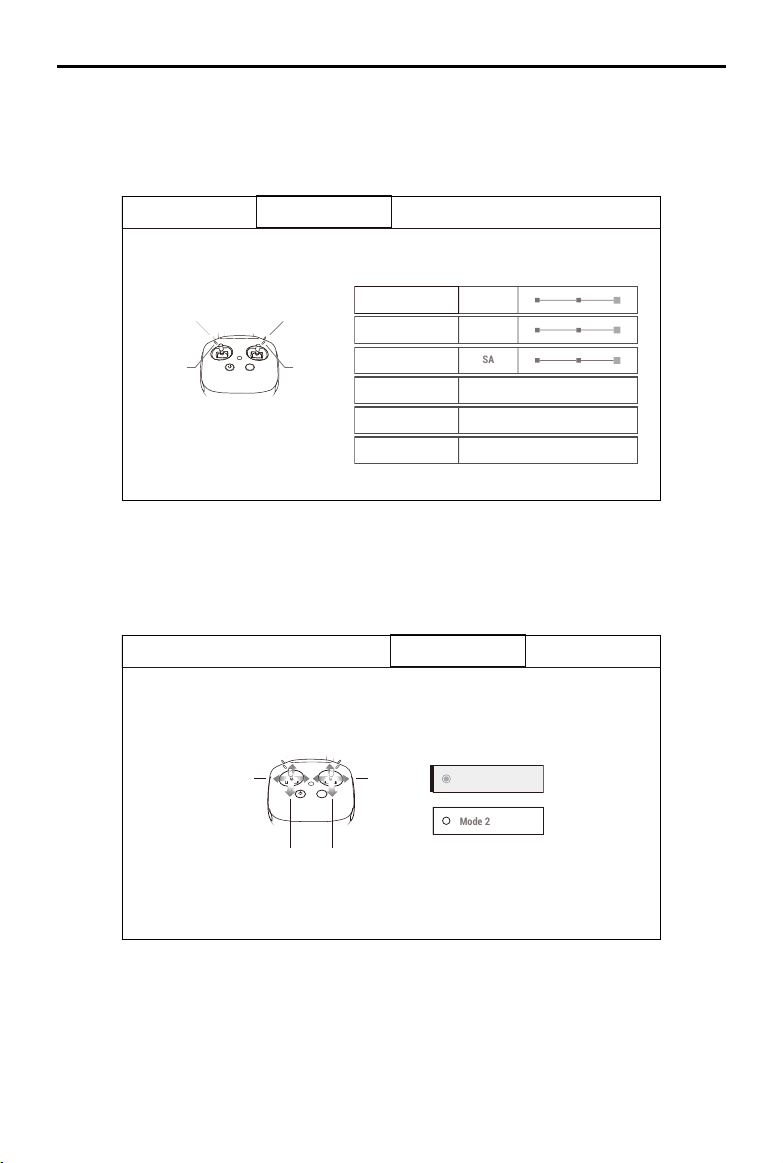
Function Mode
Select a switch for angle, arm, and flip. You can also set shortcuts for entering RC setting, FOV, and
RC lock.
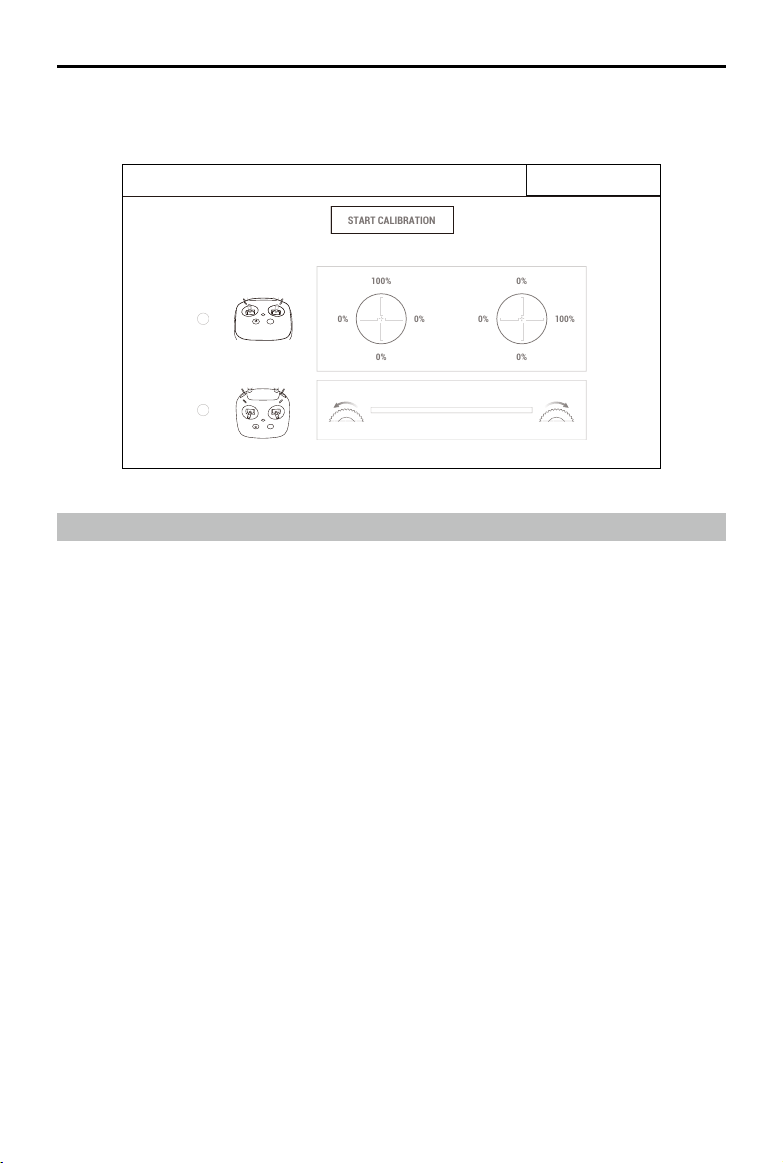
Stick Mode
Select Mode 1 or Mode 2.
ARM
Press and Hold Right Dial
Left Dial and 5D Button Up/Down
Press and Hold C Button
FOV
RC Lock
Enter RC Setting
FLIP
SA
SC
SA SD
SB
SERVO SETUP FUNCTION MODE STICK MODE CALIBRATION
SA
ANGLE
SA
SERVO SETUP FUNCTION MODE STICK MODE CALIBRATION
RUD AIL
ELE THR
Mode 1
Mode 2
AIL
ELE
THR
Mode 1
31
©
2019 DJI All Rights Reserved.
DJI Digital FPV System User Manual
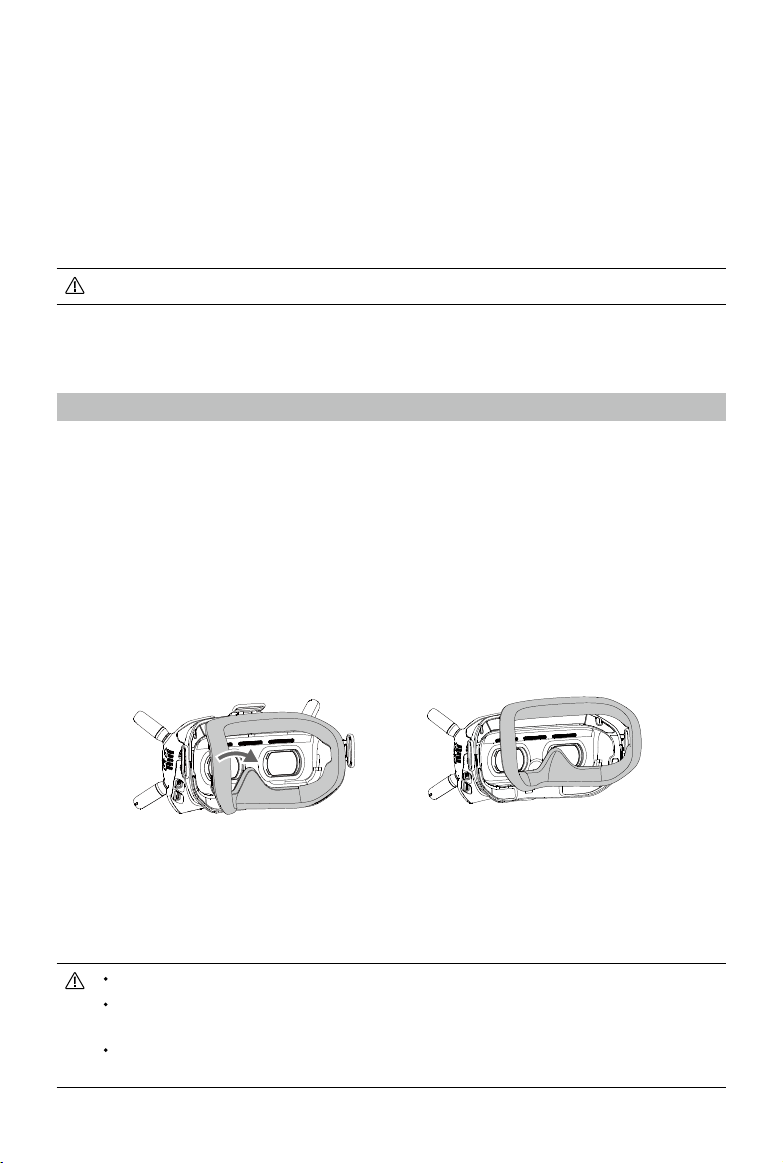
Calibration
Calibrate the sticks and dials of the remote controller.
0%
0%
0%
100%
Ensure that Control Sticks are Centered Before Calibration
START CALIBRATION
100%
0%
0%
0%
0%
0%
100%
0%
0%
0% 0%
100%
SERVO SETUP FUNCTION MODE STICK MODE CALIBRATION
Video Recording
Make sure the DJI Digital FPV System is connected with the racing drone, and both the air unit and
goggles have microSD cards inserted. Once the motors are started, the air unit and the goggles will
start recording based on the recording settings. The recording will stop when the motors stop.
The recording will automatically stop when the following occurs.
Air Unit:
1. The storage mode is set to “Stop when Full” and the microSD card is full, or an error occurs
during recording.
2. The temperature of the air unit is too high and enters low-power mode.
Goggles:
1. The storage mode is set to “Stop when Full” and the microSD card is full, or an error occurs
during recording.
2. The transmission is disconnected, or the transmission signal is lost.
3. The live view source is changed, such as switching between Player to Audience mode or
changing a channel in Audience mode.
4. Exit live view, such as entering the RC setting or AV-IN.
5. The temperature of the air unit is too high and enters low-power mode.
Powering off the device or removing the microSD card during recording will result in a
corrupted video file, which cannot be played. Insert the microSD card into the device again,
power on, and the device will attempt to recover the corrupted video file automatically.
32
©
2019 DJI All Rights Reserved.
Updating Firmware
Use DJI Assistant 2 to update the air unit, goggles, or remote controller separately.
1. Power on the device and connect it to a computer with a USB-C cable.
2. Launch DJI Assistant 2 and login with a registered DJI account.
3. Select the device and click “Firmware Update” on the left-hand side.
4. Select the firmware version required.
5. DJI Assistant 2 will download and update the firmware automatically.
6. Restart the device after the firmware update is complete.
Make sure that the device has sufficient power before updating firmware.
Maintenance
DJI FPV Goggles
Cleaning
Make sure to disconnect the goggles from the power outlet before cleaning and make sure that
there are no cables connected.
Clean the surface of the goggles with a soft, dry clean cloth. To clean the foam padding, moisten
the cloth with clean water, and wipe the foam padding.
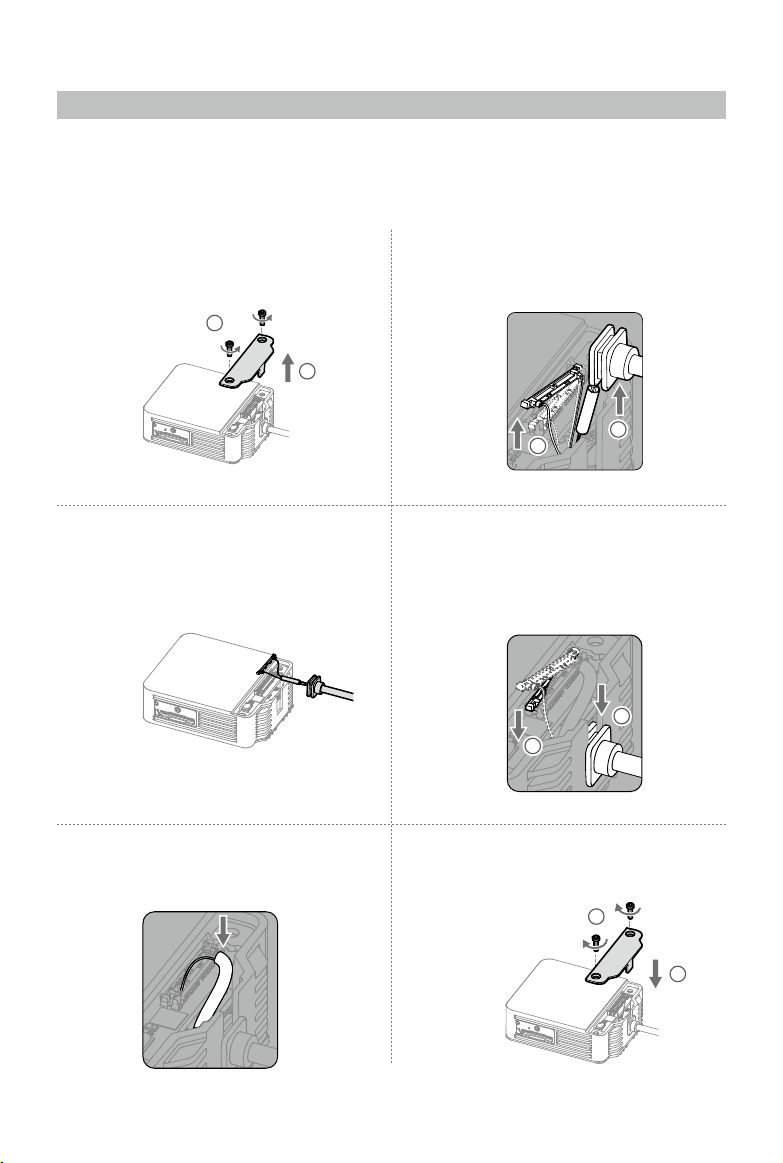
Replacing the Foam Padding
The foam padding is attached to the goggles with Velcro. When replacing the foam padding, peel
it gradually from the left or right side. Align the new foam padding with the goggles and then press
the foam padding down so it is securely attached.
Maintenance of Lenses
Use a cleaning cloth to wipe the lenses gently.
1. Moisten the cleaning cloth with alcohol or a lens cleaner.
2. Wipe in a circular motion from the center to the outer edges of the lenses.
DO NOT clean the foam padding with alcohol.
The lenses are delicate. Clean them gently. DO NOT scratch them as this will damage the
overall viewing experience.
Store the goggles in a dry room at room temperature to avoid damage to the lenses from
high temperature and humid environments.
33
©
2019 DJI All Rights Reserved.
DJI FPV Air Unit
When replacing components of the air unit such as the air unit module, camera, or coaxial cable,
follow the steps below to disassemble and install.
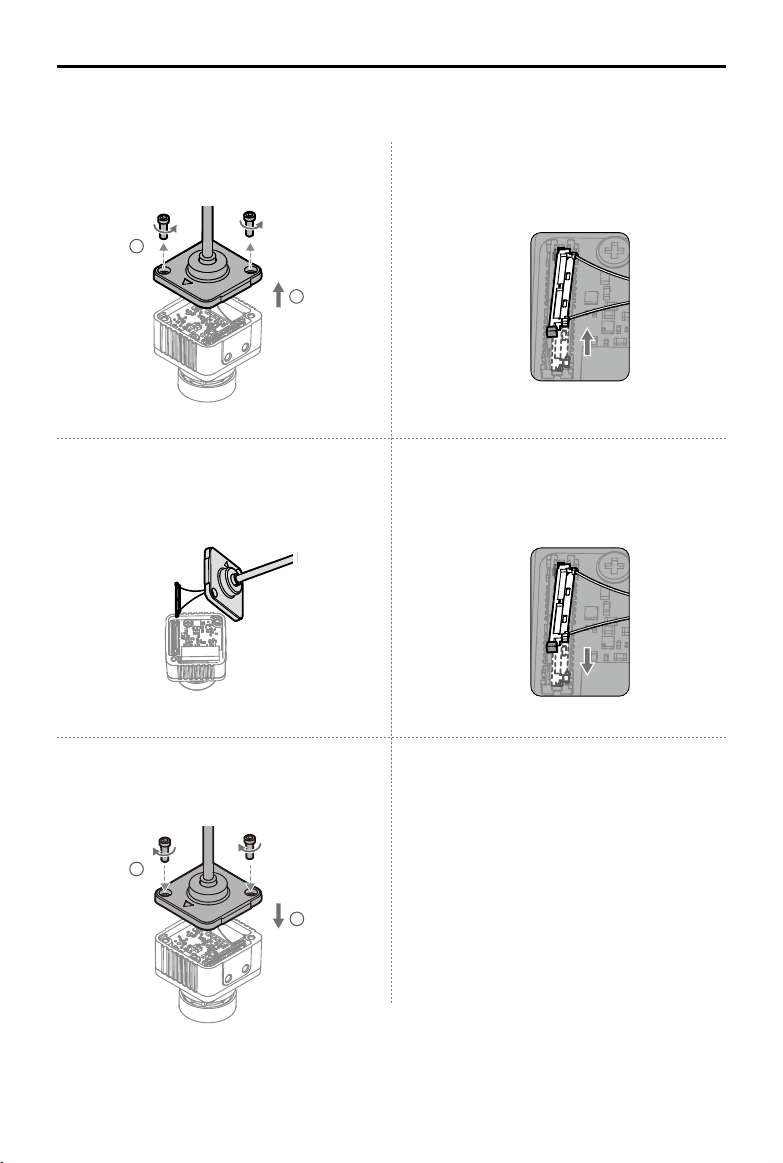
Air Unit Module End
5. Make sure the coaxial cable is inserted
properly.
6. Mount the back cover of the air unit
module and tighten the screws.
1
2
3. Remove the component that needs to be
replaced and prepare the new component.
4. Align the plug with the connector on the
air unit, press the plug down to make sure
they are securely connected. Insert the
coaxial cable holder into the slot of the air
unit module.
1
2
1. Loosen the two screws on the back cover
of the air unit module, then remove the
back cover.
2. Use an appropriate tool (such as a paper clip)
to lift one side of the plug, and then remove
the coaxial cable from the air unit module.
2
1
1
2
34
©
2019 DJI All Rights Reserved.
DJI Digital FPV System User Manual
Camera End
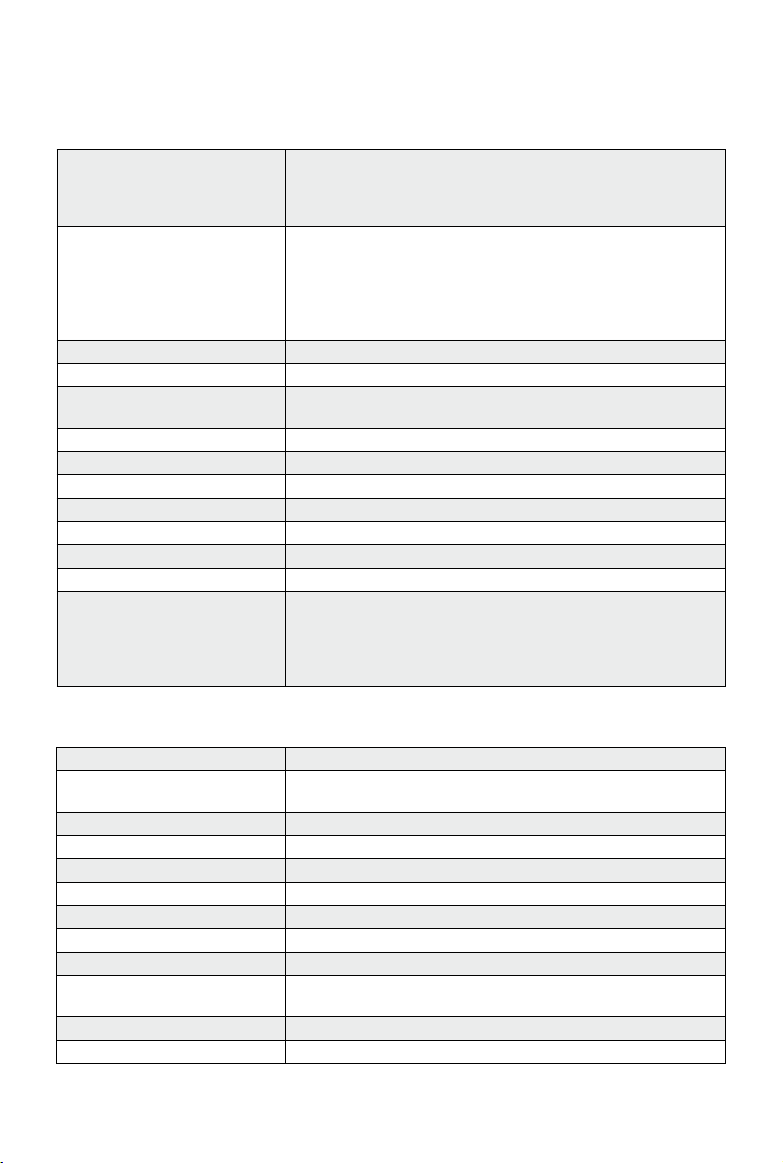
1. Loosen the two screws on the back cover
of the camera, then remove the back cover.
3. Remove the component that needs to be
replaced and prepare the new component.
5. Mount the back cover of the camera and
tighten the screws.
2. Use an appropriate tool (such as a paper
clip) to lift one side of the plug to remove
the coaxial cable.
4. Align the plug with the connector on the
camera and press it down to make sure
they are securely connected.
2
1
1
2
35
©
2019 DJI All Rights Reserved.
Specications
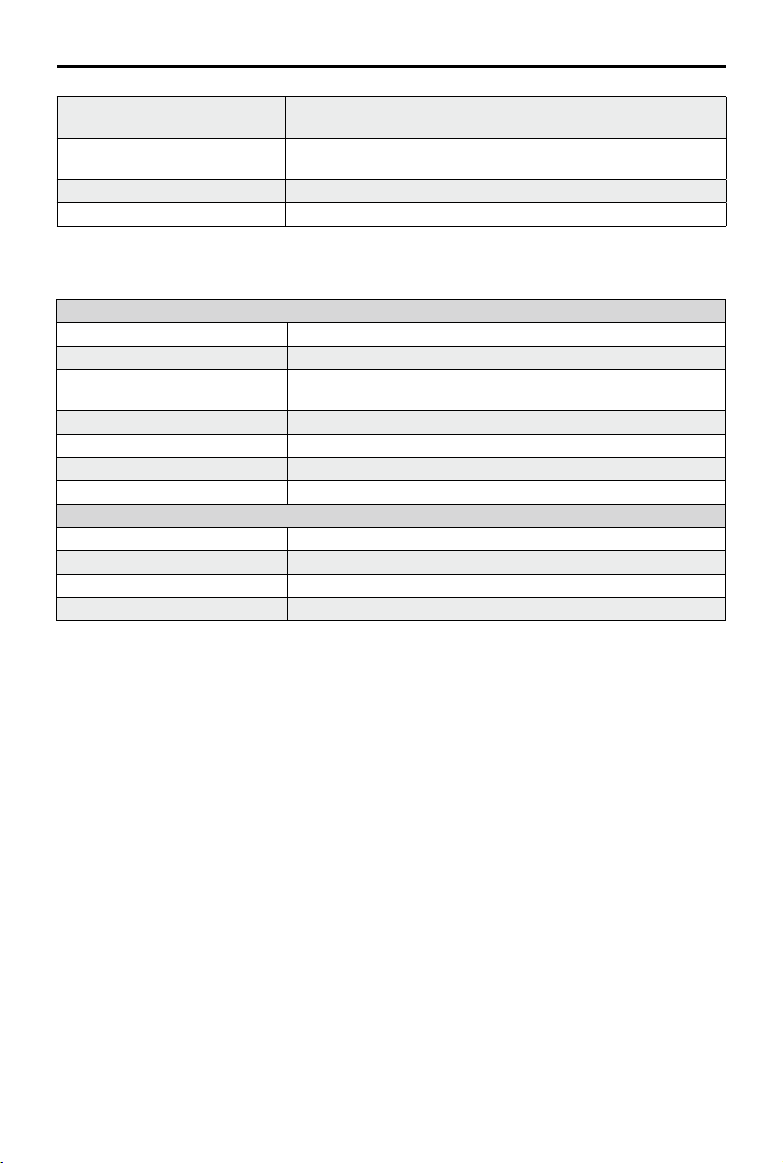
DJI FPV Air Unit
Weight Air Unit (camera included): 45.8 g
Antenna: 3.74 g (MMCX straight);
3.9 g (MMCX elbow);
6 g (reverse polarity female SMA)
Dimensions Air Unit: 44×37.8×14.4 mm
Camera: 27.4×21.1×20.1 mm
Coaxial Cable: 100 mm
Antenna: 12.7×12.7×80 mm (MMCX straight);
12.7×12.7×80 mm (MMCX elbow);
12.7×12.7×55 mm (reverse polarity female SMA)
Operating Frequency 5.725-5.850 GHz
Transmitter Power (EIRP) FCC/SRRC: < 30 dBm; CE: < 14 dBm
Min. Latency (end-to-end) Low Latency Mode (720p 120fps): <28 ms;
High Quality Mode (720p 60fps): <40 ms
Max. Transmission Distance FCC/SRRC: 4 km; CE: 0.7 km
Video Format MP4 (Video format: H.264; Audio format: AAC-LC)
Video Resolution 1080p 60fps, 720p 120fps
I/O Interface USB-C, MMCX, 3-in-1 port, microSD card slot
Supported Flight Controller System BetaFlight
Operating Temperature Range 0° to 40° C (32° to 104° F)
Input Power 7.4-17.6 V
Camera Sensor: 1/3.2” CMOS; Effective Pixels: 4 M
Lens: 2.1 mm, f/2.1
Shutter: Rolling shutter
ISO: 100-25600
FOV: 150° (D); 122° (H); 93° (V)
Weight Approx. 415 g (headband and antennas included)
Dimensions 184×122×110 mm (antennas excluded);
202×126×110 mm (antennas included)
Screen Size 2-inch × 2
Screen Resolution (Single Screen) 1440×810
Refresh Rate 120 Hz
FOV 85° (Single Screen)
Interpupillary Distance Range 58-70 mm
Communication Frequency 5.725-5.850 GHz
Transmitter Power (EIRP) FCC: <30 dBm; CE: <14 dBm; SRRC: <19 dBm
Live View Mode Low Latency Mode (720p 120fps);
High Quality Mode (720p 60fps)
Video Format MP4 (Video format: H.264)
Resolution 720p 60fps
DJI FPV Goggles
36
©
2019 DJI All Rights Reserved.
DJI Digital FPV System User Manual
Supported Video Play Format MP4, MOV, MKV
(Video format: H.264; Audio format: AAC-LC, AAC-HE, AC-3, MP3)
I/O Interface USB-C, reverse polarity SMA, DC5.5×2.1, 3.5 mm audio port,
microSD card slot
Operating Temperature 0° to 40° C (32° to 104° F)
Power Input 7.4-17.6 V
DJI FPV Remote Controller
Remote Controller
Weight 765 g
Operating Frequency 5.725-5.850 GHz
Max. Transmission Distance
(unobstructed, free of interference)
FCC/SRRC: 4 km; CE: 0.7 km
Transmitter Power (EIRP) FCC: <30 dBm; CE: <14 dBm; SRRC: <19 dBm
Operating Current/Voltage 0.6 A @ 7.6 V
Operating Temperature 0° to 40° C (32° to 104° F)
Charging Temperature 5° to 40° C (41° to 104° F)
Remote Controller Intelligent Battery (WB37-4920mAh-7.6V)
Battery Type LiPo 2S
Capacity 4920 mAh 4920 mAh
Voltage 7.6 V
Energy 37.39 Wh

Copyright © 2019 DJI All Rights Reserved.
This content is subject to change.
Download the latest version from
https://www.dji.com/fpv
If you have any questions about this document, please contact DJI by
sending a message to
.
DJI Support
https://www.dji.com/support