Getting Started
General Operation
Time Management
Creating Your Own Database
Memo
Desk Accessories
Expense
Features and Utilities for
Added Power
Data Transfer
Personalizing Your Organizer
How to use the Add-on
Appendices
........................................
5
.................................
13
...............................
23
...............
31
....................................................
33
..................................
35
................................................
43
........................................
47
........................................
51
...............
53
.......................... 59
...........................................
61
ELECTRONIC ORGANIZER
OPERATION MANUAL
Declaration of Conformity
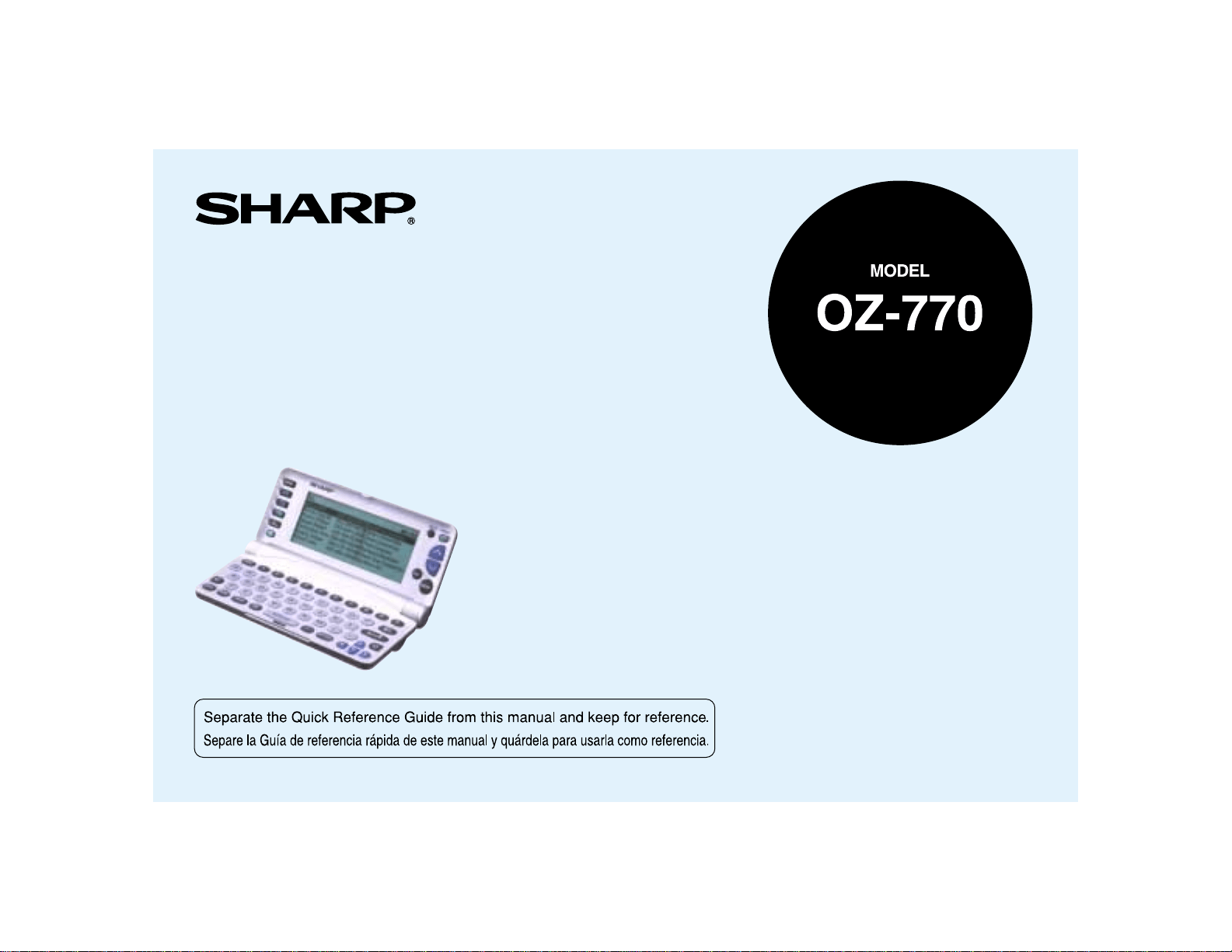
Electronic Organizer: OZ-770
This device complies with Part 15 of the FCC Rules.
Operation is subject to the following two conditions: (1) This device may not
cause harmful interference, and (2) this device must accept any interference
received, including interference that may cause undesired operation.
WARNING - FCC Regulations state that any unauthorized changes or
modifications to this equipment not expressly approved by the manufacturer
could void the userís authority to operate this equipment.
Note: This equipment has been tested and found to comply with the limits
for a Class B digital device, pursuant to Part 15 of the FCC Rules.
These limits are designed to provide reasonable protection against harmful
interference in a residential installation. This equipment generates, uses,
and can radiate radio frequency energy and, if not installed and used in
accordance with the instructions, may cause harmful interference to radio
communications.
However, there is no guarantee that interference will not occur in a particular
installation. If this equipment does cause harmful interference to radio or
television reception, which can be determined by turning the equipment off
and on, the user is encouraged to try to correct the interference by one or
more of the following measures:
- Reorient or relocate the receiving antenna.
- Increase the separation between the equipment and receiver.
- Connect the equipment into an outlet on a circuit different from that to
which the receiver is connected.
- Consult the dealer or an experienced radio / TV technician for help.
Note: A shielded interface cable is required to ensure compliance with FCC
regulations for Class B certification.
Responsible Party:
SHARP ELECTRONICS CORPORATION
Sharp Plaza, Mahwah, New Jersey 07430-2135
TEL: 630-378-3590
Tested To Comply With FCC Standards
FOR HOME OR OFFICE USE
FOR YOUR RECORDS....
For your assistance in reporting this Electronic Organizer in case of loss or
theft, please record the model number and serial number (located on the
bottom of the case) below.
Please retain this information
Model Number ____________________________
Serial Number_____________________________
Date of Purchase __________________________
Place of Purchase__________________________

1
Introduction
Introduction
Congratulations on purchasing the OZ-770 Electronic
Organizer.
Please read this operation manual thoroughly to familiarize
yourself with all the features of the unit and to ensure years of
reliable operation. You may also find it useful to keep this
operation manual on hand for reference.
Some of the accessories described in this manual may not be
available at the time you purchase this Organizer.
Check with your local SHARP dealer concerning availability.
All company and / or product names are trademarks and/or
registered trademarks of their respective manufacturers.
Day-Timer
and Day-Timer Organizer
are registered
trademarks of Day-Timers, Inc.
Windows
is a registered trademark of Microsoft Corporation.
Note:
* Some of the accessories described in the manual may be
unavailable in some countries.
The screen examples shown in this manual
may not exactly match those of the product.
For example, although the field name is reversed
on the productís screen, the field name on the
relevant screen in this manual may not be
reversed.
NOTICE:
* SHARP strongly recommends that you keep separate
permanent written records of all important data. Data may
be lost or altered in virtually any electronic memory
Organizer under certain circumstances. Therefore, SHARP
assumes no responsibility for data lost or otherwise
rendered unusable whether as a result of improper use,
repairs, defects, battery replacement, use after the
specified battery life has expired, or any other cause.
* SHARP assumes no responsibility, directly or indirectly,
for financial losses or claims from third persons resulting
from the use of this Organizer and any of its functions,
such as stolen credit card numbers, the loss or alteration
of stored data, etc.
* The information provided in this manual is subject to
change without notice.

Contents
2
Contents
Introduction ..........................................................................1
Contents ........................................................................... 2-3
Caring for the Organizer ......................................................4
Chapter 1 Getting Started ........................................ 5-12
Part Names and Functions
Getting the Organizer Up and Running
Setting up the Organizer after Initialization
Getting to Know Your Organizer
Chapter 2 General Operation................................. 13-22
Opening an Application - The First Main Menu
Selecting the Display Modes
Creating a New Entry
Editing an Existing Entry
Editing Techniques
Finding Specific Entries in Your Organizer
Deleting Entries
Checking the Time and Date
Checking the Memory
The Second Main Menu - the Organizerís Basic Utilities
Chapter 3 Time Management ................................ 23-29
The Calendar Application
The Schedule Application
The To Do Application
The Birthday / Ann (Anniversary) Application
Chapter 4 Creating Your Own Database .............. 31-32
The Tel Application
Chapter 5 Memo ..................................................... 33-34
The Memo Application
Chapter 6 Desk Accessories................................. 35-42
The Calc (Calculator) Application
The Clock Application
Chapter 7 Expense................................................. 43-46
Entering Expense Record
Expense Report
Chapter 8 Features and Utilities for Added Power .. 47-50
Copying or Moving Blocks of Text
Copying or Moving Entries
Special Characters
Chapter 9 Data Transfer......................................... 51-52
Transferring Data
Exchanging Information with a Personal Computer

3
Contents
Chapter 10 Personalizing Your Organizer.............. 53-58
The Start-Up Display
Setting the Ownerís Information
Locking the Organizer
Changing the Calendar Display Format
Assigning Keys for short-cut entry
Selecting the Large Font View
Chapter 11 How to use the Add-on ........................ 59-60
Installing My Programs application
Setting a My Programs application to Autorun
Appendices .................................................................. 61-65
A. Resetting the Organizer
All reset operation
B. Battery Replacement
General guidelines
Replacing the operating batteries
C. Specifications
Index............................................................................. 66-69
Product Support ............................................................... 70
Troubleshooting ............................................................... 71
Caring for the Product
4
Caring for the
Organizer
The Organizer contains sophisticated circuitry and a glass
display panel which can be damaged if not handled with
care. A few precautions should be taken regarding the
Organizerís care to ensure it gives you many years of reliable
and trouble-free use.
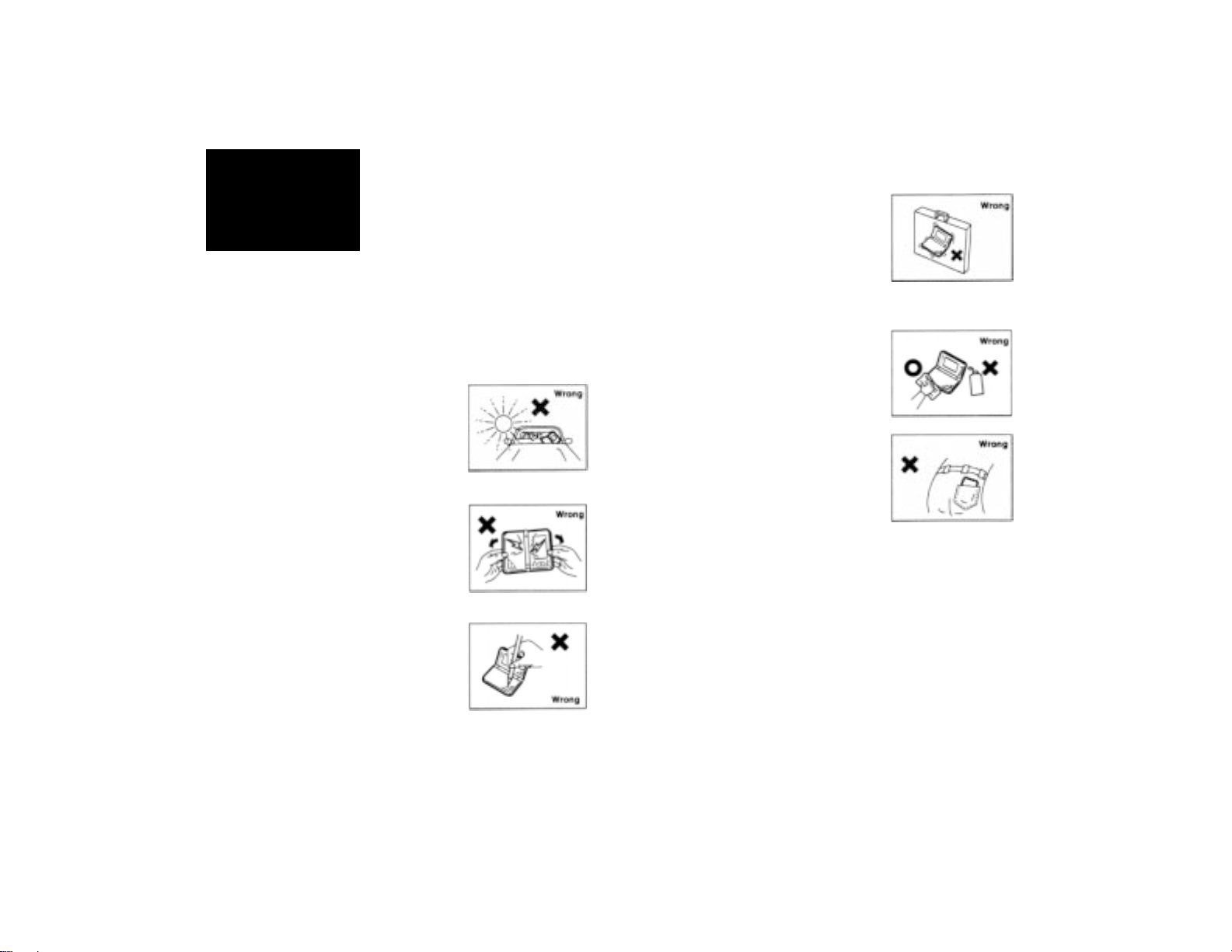
* Keep the Organizer away from
extreme heat. Do not leave it on the
dashboard of a car or near any
source of heat. Do not leave it in
any place that is extremely damp
or dusty.
* Do not drop the Organizer or
subject it to severe impact or
extreme force. Bending the
Organizer unduly can damage it.
* Do not use extreme force when
pressing the keys. Do not use any
sharp, pointed object to press
them.
* Sharp or hard object can scratch
and damage the Organizer. Make
sure it is adequately protected
when carried with other objects. Do
not carry it loose in a bag or
briefcase: find a pocket or secure
compartment within your bag.
* Clean the Organizer only with a
soft, dry cloth. Do not use solvents.
* Do not carry the Organizer around
in your back pocket, as it may
break when you sit down. The
display is made of glass and is very
delicate.
* Since this Organizer is not waterproof, do not use it or
store it where fluids, for example water, can splash onto
it. Raindrops, water spray, juice, coffee, steam,
perspiration, etc. will also cause malfunction.
* Replace the batteries as soon as they become weak (see
p.62). Failing to replace weak batteries may result in
leakage or lost data.
5
Getting Started
1
CHAPTER CHAPTER
CHAPTER CHAPTER
CHAPTER
11
11
1
Getting Started
This chapter explains everything you need to know to set up
and begin working with your Organizer, from installing the
batteries to initialization. The chapter also includes a labeled
illustration of the parts of the Organizer, and basic explanation
of its key features, from the keyboard to the display and its
symbols.
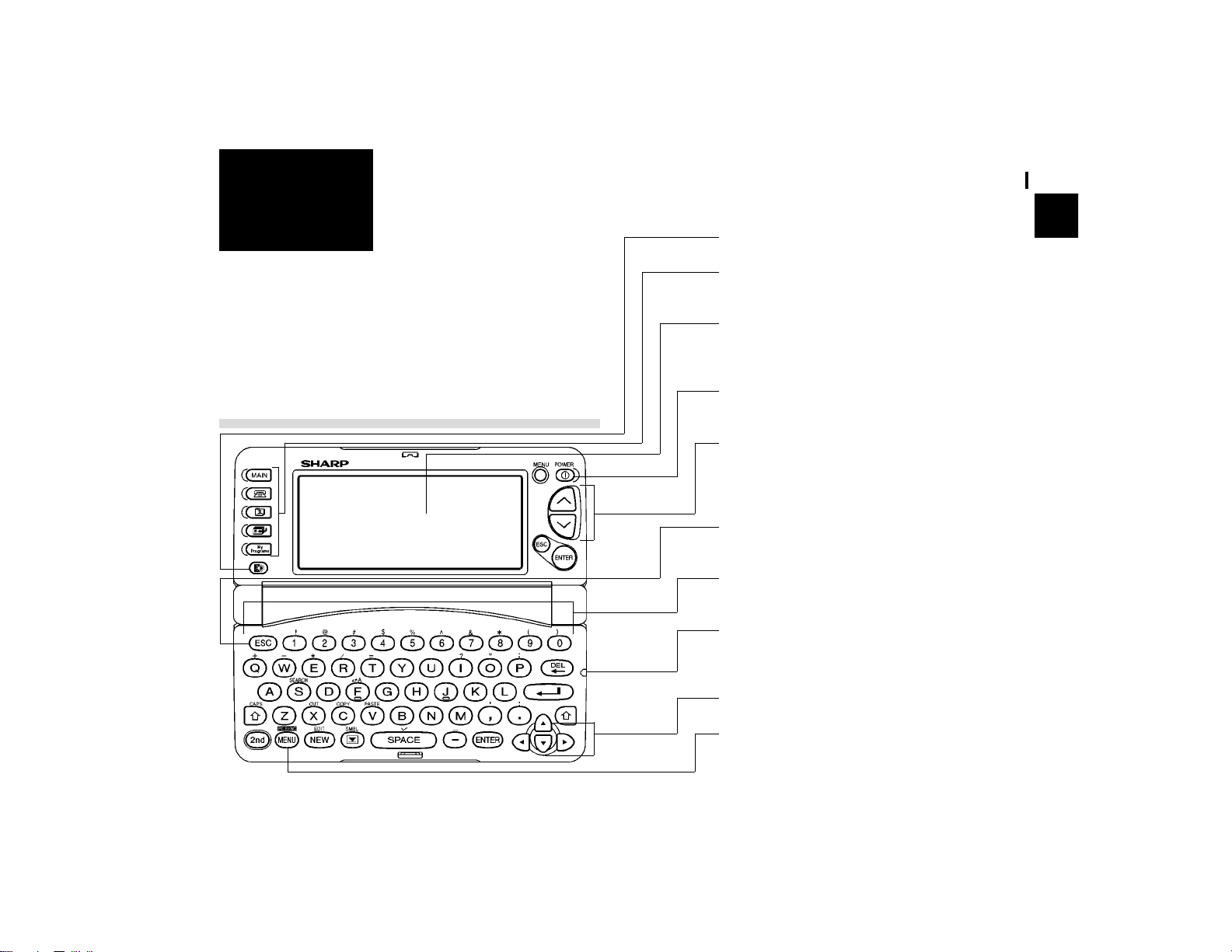
Part Names and Functions
Backlight key
Application keys
Starts appropriate applications
Display
Shows information, and is used for navigating the
various function
Power key
Turns on and off the unit
Page scroll keys
Quick press/release move up or down one record
at a time. Allows moving up or down one screen
at a time if held down for a length of time.
ESC key
Cancels an operation
Keyboard
For entry of characters, numbers and commands
4-pin cable jack
Connects 4-pin Communication Cable for PC
synchronization
Arrow keys
Menu key
Opens the Application Menu
Getting Started
6
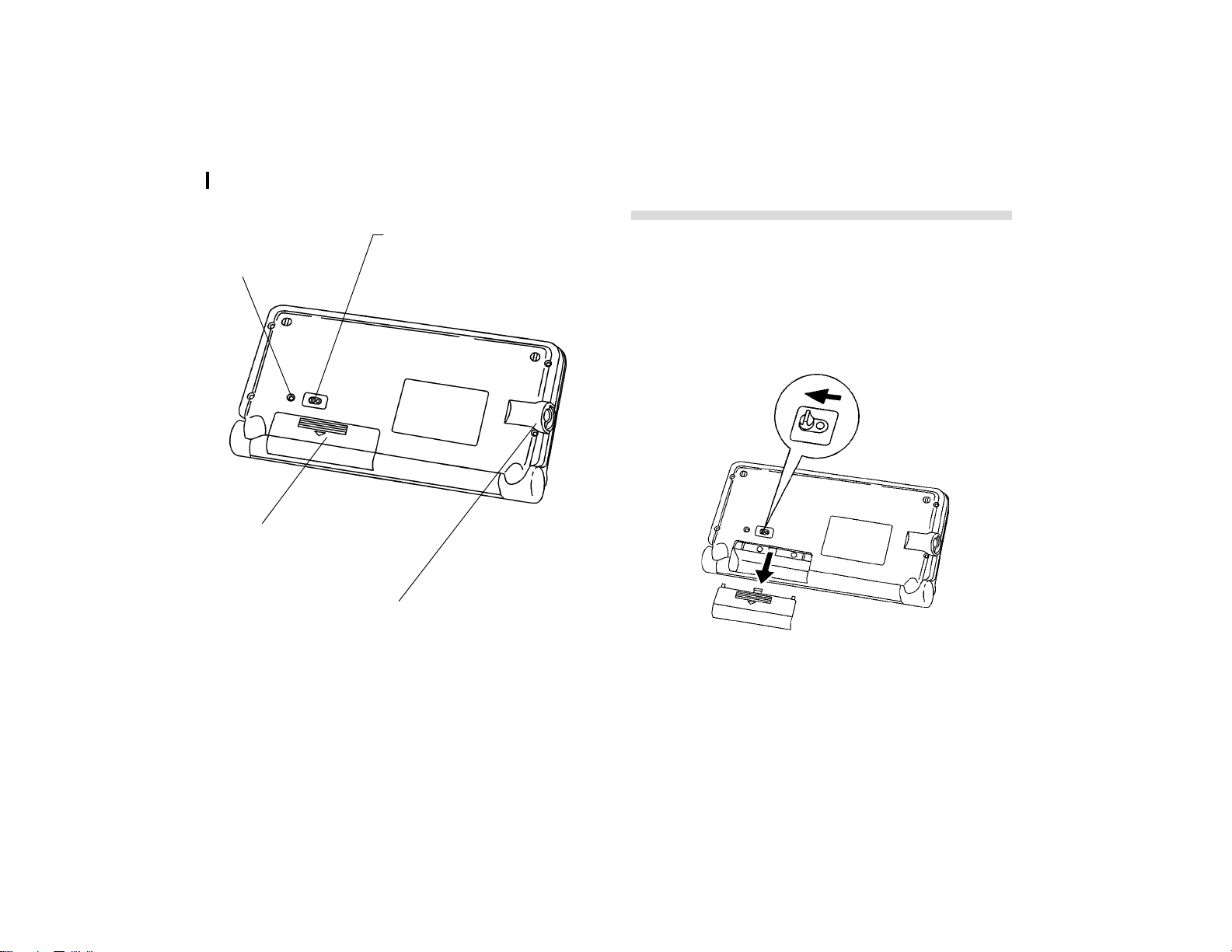
Reset button
Initializes and resets
the Organizer.
Getting the Organizer Up and Running
Installing the batteries
1.
Set the battery replacement switch on the bottom of the
Organizer to REPLACE BATTERIES (a red dot becomes
visible).
2.
Slide the battery cover off.
3.
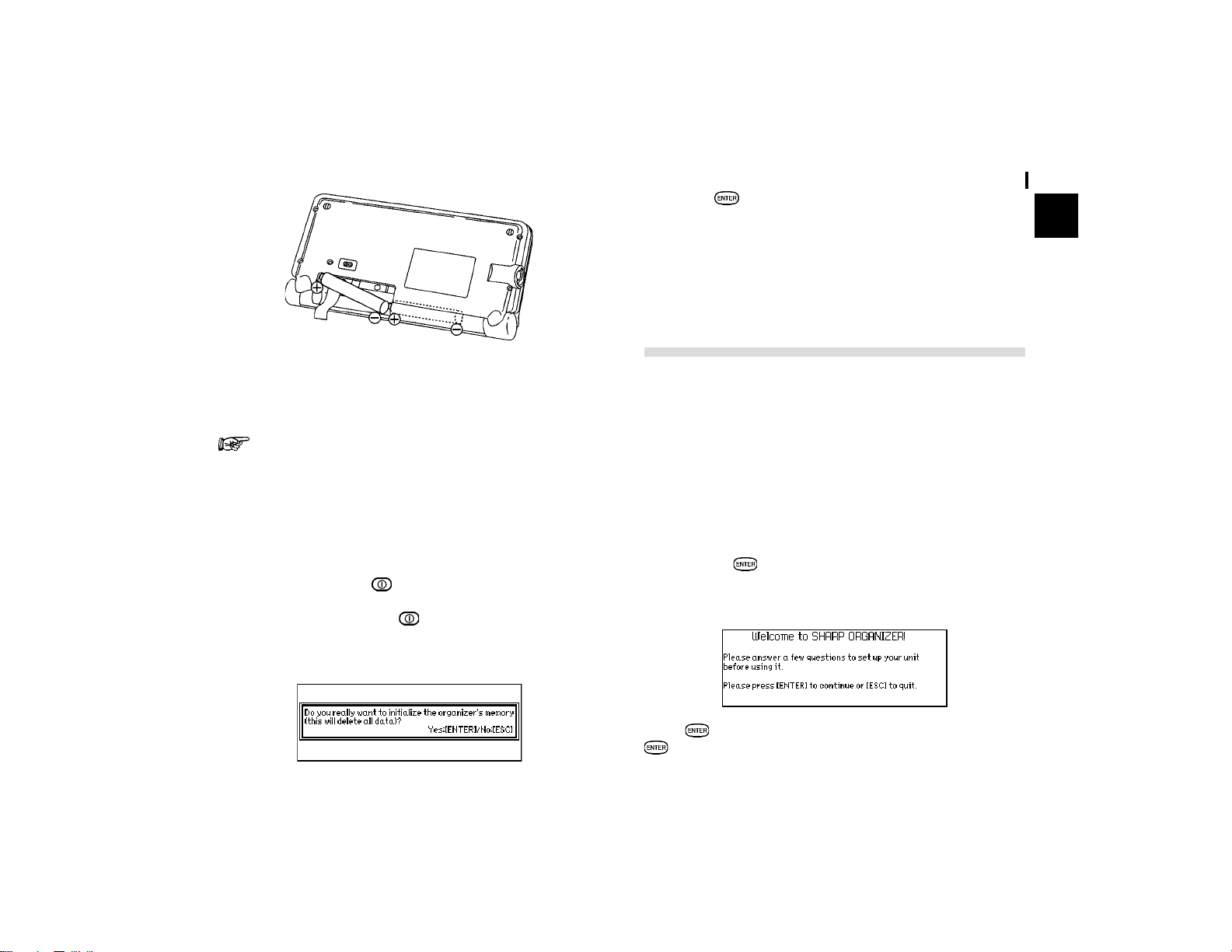
Insert two batteries on top of the ribbon tab, making sure
they are positioned correctly according to plus (+) and
minus (-) polarity, as shown below.
Battery replacement switch
Locks the battery compartment
to prevent access to the batteries.
Battery compartment
4-pin Cable Jack
Connects 4-pin Communication
Cable for PC synchronization.
7
Getting Started
1
4.
Replace the cover.
5.
Set the battery replacement switch back to NORMAL
OPERATION (the red dot disappears).
The Organizer will not function unless the battery
replacement switch is in the NORMAL OPERATION
position.
Initializing
The Organizer must be initialized when it is used for the first
time.
1.
Press and hold the key.
2.
While holding down the key, push the RESET button
on the bottom of the Organizer using a pen or some other
pointed object. The following message will appear.
3.
Press to initialize the Organizer.
The message ìWorking... Please wait.î appears while the
Organizer proceeds with the initialization procedure.
The Welcome message then appears.
Setting up the Organizer after Initialization
The Organizer takes you through the various steps needed to
set up the Organizer before use. These steps are described
below. We strongly recommend that you complete the entire
set up procedure before starting to actually use your Organizer.
* Welcome messages and instructions
* Setting the display contrast
* Setting the clock
Welcome messages and instructions
After pressing to confirm initializing the unit, the Organizer
displays the following welcome message, briefly outlining its
functions.
Press to proceed to the Basic Instruction screen. Press
again to proceed with Display Contrast setup screen.
Getting Started
8
Setting the Display Contrast
If the display is not clear, press or until the display is
satisfactory.
Press
to proceed with setting up the Clock as described
below (or
to quit the set up procedure).
Setting the City
In order to make sure that the Calendar, Schedule and other
time-based applications work correctly, the built-in clock must
be set to the correct time, date and city. When this Organizer
is first initialized, the city is automatically set to New York. Before
setting the Clock, you should first select the city for which you
want to set the time.
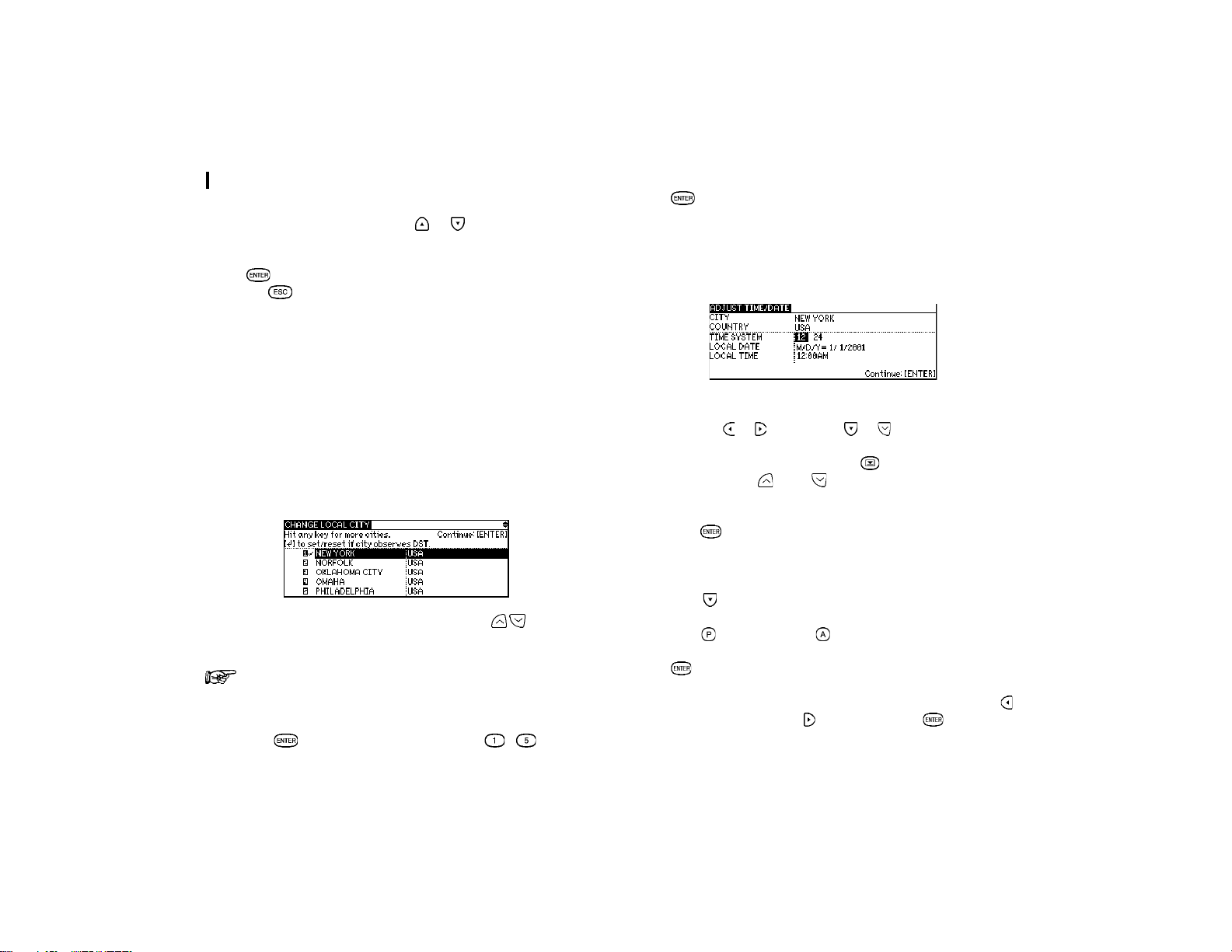
After setting the Display Contrast, the following list of cities
appears.
1.
If the desired city does not appear, press to display
more cities.
You can jump to a particular city by pressing the first
letter of that country name.
2.
Select the desired city by moving the cursor to it and then
press
to confirm. Or select numbers - directly.
Press to proceed with setting the Time and Date.
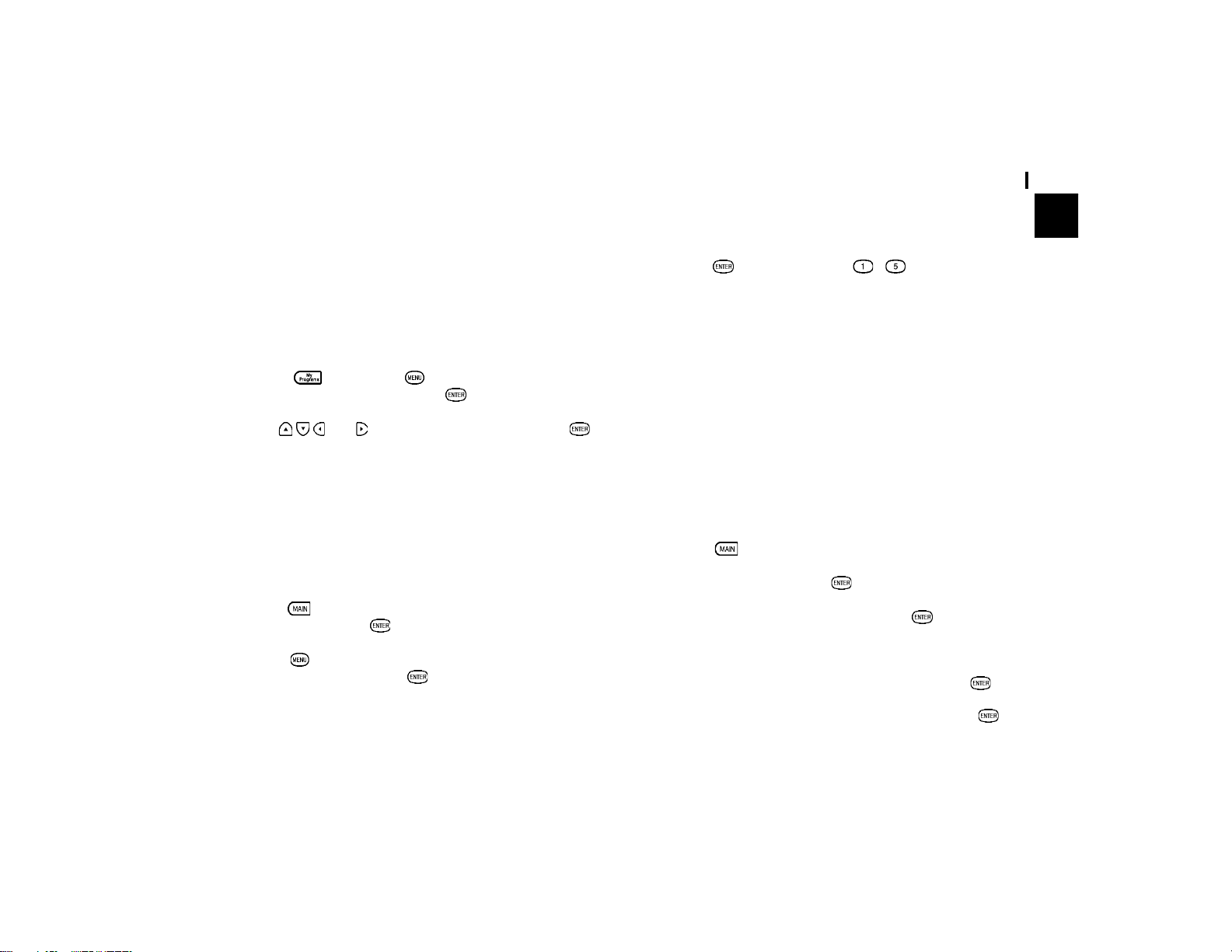
Setting the Time and Date
After selecting the city, the ADJUST TIME / DATE screen
appears.
1.
Select the time system you want the clock to use by
pressing
or , then press or .
2.
In the LOCAL DATE field, press to display the pop-up
calendar. Use
and to select the current month,
then use the arrow keys to select todayís date.
3.
Press once and the date has been selected. The pop-
up calendar disappears and the date now appears in the
LOCAL DATE field.
4.
Press to move to LOCAL TIME field. Enter the local
time, preceding single-digit hours and minutes with ì0î.
Press
to select PM or for AM.
Press
to proceed to the Daylight Saving Time screen.
5.
If your city is currently on Daylight Saving Time, press
(Yes), otherwise press (No), then press to confirm.
A new screen then appears to inform you that the basic setup
9
Getting Started
1
procedure is now completed, and the Organizer is ready for
use. However, there are other areas in which you can customize
your Organizer further by setting various options.
Setting the Start-up Display
You can control the way Organizer behaves each time you turn
it on, including the background that appears. You can choose
to activate the Autorun function before setting an autorun of
My Program application once the Organizer is turned on.
1.
Press then press . Select AUTORUN in MY
PROGRAMS MENU and press
.
2.
Use and to select application then press .
Setting the World City
In addition to setting the local city, you can also select the
world city, to display the time in another city of your choice
alongside the Local time. When the Organizer is initialized, the
world city is set to London.
To select the world city:
1.
Press twice to enter the Second Main Menu and select
CLOCK then press
.
2.
Press to open the Clock menu and select CHANGE
WORLD CITY then press
.
The CHANGE WORLD CITY screen appears. A list of six capital
cities is given, with five cities displayed at one time.
3.
If the city you wish to select does not appear in the list,
type the first letter of the desired country.
4.
Select the desired city by moving the cursor to it and then
press
or select numbers - directly.
Setting the Password and Locking the Organizer
The Organizer allows you to keep selected entries in your
Organizer secure by locking it with a password. Once the
Organizer is locked, the Secret entries cannot be accessed
until the Organizer is unlocked, for which the password must
be given.
Select this option if you want to define a password and lock
the Organizer.
If you forgot your password, you must perform the ìAll resetî
operation (see p.61). Note that if you perform the ìAll resetî
operation, all data stored in the organizer will be cleared.
1.
Press twice to enter the Second Main Menu.
2.
Select Secret then press .
3.
Select LOCK ORGANIZER then press .
The Lock Organizer screen appears.
4.
Enter the password you wish to use then press .
5.
Re-type the password to confirm and then press .
A message appears reminding you to remember your password

Getting Started
10
or keep it in a safe place.
6.
Press .
The Second Main Menu appears.
Turning the Organizer on and off
Press to turn the power on and press again to turn the
power off. The Organizer will not operate if the battery
replacement switch is in the REPLACE BATTERIES position.
Auto power off
To conserve battery power, the Organizer will turn itself off if it
has not been used for about 7 consecutive minutes. However,
in order to avoid accidentally interrupting data transfers, the
auto power-off function is disabled while communicating with
other devices.
If the Organizerís power goes off automatically before an entry
you have been working with is stored in an application, the
data will not be lost. When you press
, the Organizer will
return to the same operating state as before the power turned
off automatically.
Setting the LCD contrast
From time to time, the contrast of the LCD display may have to
be adjusted for ideal readability. You may find, for example,
that a contrast setting that was fine for the home or office is not
adequate when outdoors or when travelling on public tansport.
Follow the procedure below adjust the LCD contrast.
1.
Press twice to enter the Second Main Menu.
2.
Select Contrast then press .
3.
Adjust the contrast by pressing and or and .
4.
Press when you are satisfied with the contrast.
Turning the key beep / alarm sound on and off
The Organizer can be set to make a sound (a beep) each time
a key is pressed. This may help you to know whether a key
has been pressed properly. The default setting is on. You can
use the Second Main Menu to change the setting.
1.
Press twice to enter the Second Main Menu.
2.
Select Sound then press .
3.
Press / to choose ON or OFF in KEY SOUND /
SCHEDULE ALARM/ DAILY ALARM.
4.
Press / to move between different options.
5.
Press .
Backlight
The organizer provides a built-in Backlight, which allows you
to view the display and use the organizer even in low-light
conditions, eg. in a theater, restaurant, or business
presentation. Pressing
once illuminates the display for as
long as you continue to use the organizer, until you have not
typed any key for about 1 minute or press
again.
Note: Do not use the backlight unnecessarily.
11
Getting Started
1
Since the backlight drains power from the operating
batteries, excessive use of the backlight will significantly
reduce your battery life.
Continuous use of the backlight will, over time, lead to
gradual loss of brightness.
Getting to Know Your Organizer
OZ-770 is a compact yet sophisticated information management
device that you can use anytime. Its applications and utilities
allow you to enter and organize information, and it has powerful
communications facilities that enable you to put that information
to optimum use when you return to your home or office. You
can quickly update your computerized mailing lists, for example,
or even transfer your notes, letters and memos onto a PC for
further processing.
Applications
Operations on the Organizer are performed using applications.
The Organizerís Calendar and Schedule, for example, are
applications that record and display time related information.
To start an application, select the application in the Main Menus
or press the Application keys on the left of the screen (Main /
Tel / Schedule / Memo / My Programs).
When working in one application, you can switch to another
application simply by pressing that application key (Main / Tel /
Schedule / Memo / My Programs only). Data being processed
in the first application will be kept, even if the entry is not
complete.
Menu operations
Another powerful aspect of using the Organizer is its menu
system, which can be used to quickly issue commands and
perform operations. Press once displays the application
menu, which contains the operations and commands specific
to the particular application.
Pop-up menus
The Organizerís pop-up menus offer a convenient and efficient
method of selecting options from pre-defined lists, similar to
many of the latest personal computer application software
packages. Most applications and functions contain some pop-
up fields. When the user moves to one of these fields, the pop-
up symbol appears on the right of the field. Pressing
causes
the pop-up menu to appear, containing a list of options or
values currently available for that field. You can then select the
desired item from the list without having to type any text.
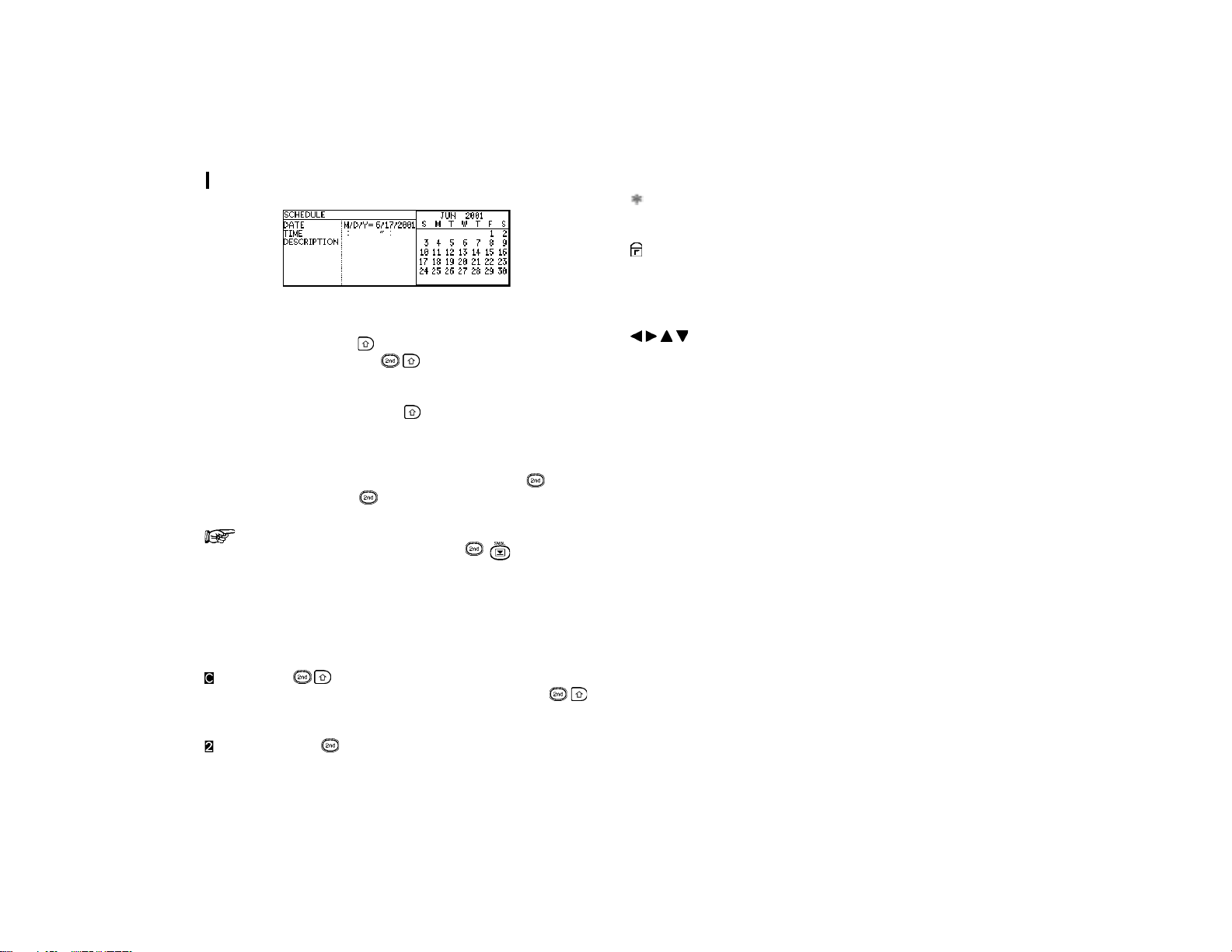
In addition, all date fields function as pop-up fields. Where a
date can be entered, the user can press
to display the
special pop-up one-month calendar. You can use
and to
select the desired month, then the arrow keys to select the
desired date. You may find this more convenient than typing in
the date directly, since the pop-up calendar also shows the
days of the week.
Getting Started
12
The keyboard
The Organizerís keyboard has a standard layout, just like a
typewriter or computer.
works just like the Shift key on a
typewriter or computer, and
is like the Caps Lock key.
Symbols in Dark blue above a key such as í or : can be
accessed by holding down
and then pressing the
appropriate key.
Functions in violet above a key, such as SEARCH, can be
accessed by pressing the particular key after pressing
. There
is no need to hold down
while you press the desired key.
Special symbols and characters, such as ì?î and ì/î,
can also be entered by using
. For a full
explanation, see P.48.
Display Symbols
The following symbols appear at the top right hand corner of
the screen to indicate various operating conditions.
has been pressed. In caps lock mode, all
typed letters will be in upper case. Press
again to turn off the caps lock.
The key has been pressed
The current entry (in View or Edit mode) has been
marked as Secret.
The Organizer is locked. Entries marked as
secret cannot be accessed without first entering
the password and unlocking the Organizer. (see
p.54)
These symbols indicate that all information in
an entry cannot be shown simultaneously on the
display. The additional entries or fields which
cannot fit onto the display can be viewed by
pressing the displayed arrow keys.
13
General Operation
2
CHAPTER CHAPTER
CHAPTER CHAPTER
CHAPTER
22
22
2
General Operation
This chapter introduces most of the Organizerís basic
operations. The Tel application will be used for the examples.
However, most of the techniques described here can be
applied to all of the Organizerís applications.
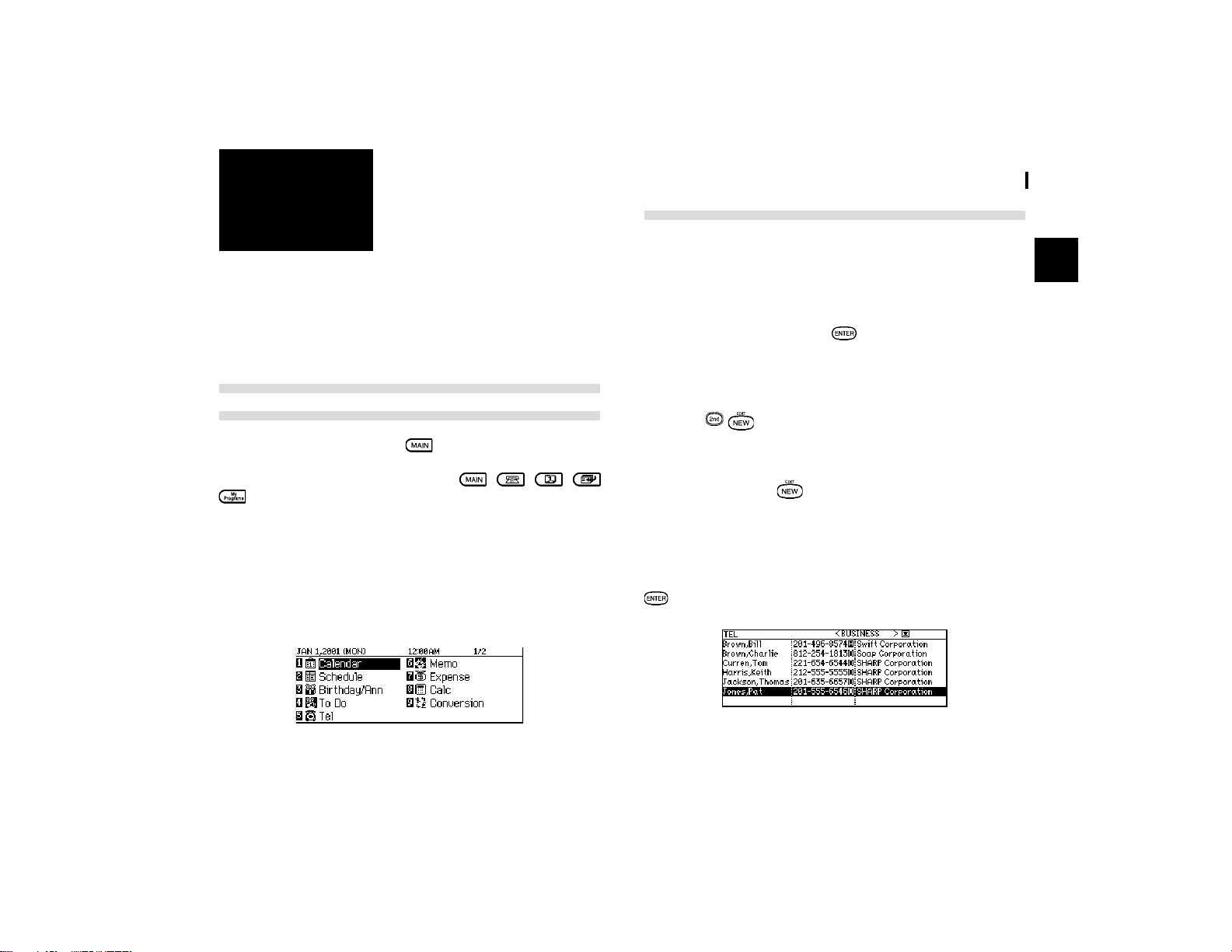
Opening an Application - The First Main
Menu
To start an application, press to enter the Main Menu to
select the application or simply press the application key
located on the left of the display. Press
/ / /
, the selected application will appear. Any application
already being displayed will be hidden whenever a new
application is selected. You can always return to another
application at the exact point where you left off simply by
pressing its key again. However, only one application can be
displayed at a time.
Main Menu
Selecting the Display Modes
Once an application is open, you can switch between three
basic display modes: Index, View and Edit. Each display mode
has its own unique appearance and particular purpose. Index
mode is normally the default view when an application is
opened, and provides a summary of the individual entries that
have been created. Pressing
after selecting a particular
entry causes the entry to be displayed in View mode, which
shows the full details of the entry. During View mode, no entry
details may be altered.
Pressing either when an entry is displayed in View
mode or is selected in Index Mode, causes the entry to be
displayed in Edit mode. The entryís details can then be altered
as desired. Edit mode is also used when a new entry is being
created (by pressing ).
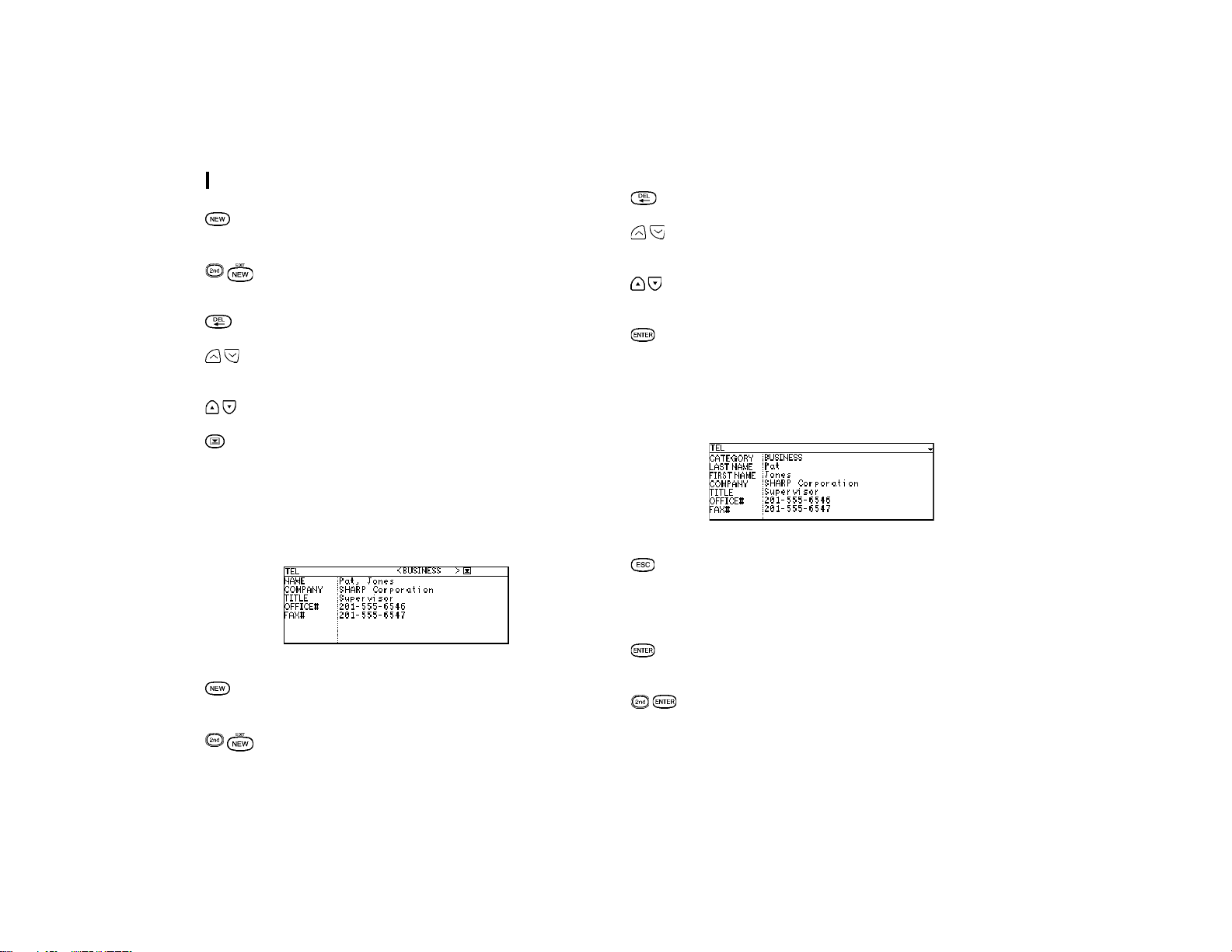
Index mode
The Index mode shows you a list view of the entry within the
application. This allows you to easily find a particular entry,
which you can then display in full (View mode) by pressing
.
General Operation
14
Other operations:
Creates a new entry for the current application
(in Edit mode).
Displays the currently selected entry and edits it
(Edit mode).
Deletes the currently selected entry.
Displays any previous/subsequent entries not
shown.
Selects an entry
Displays category menu and user can select a
category
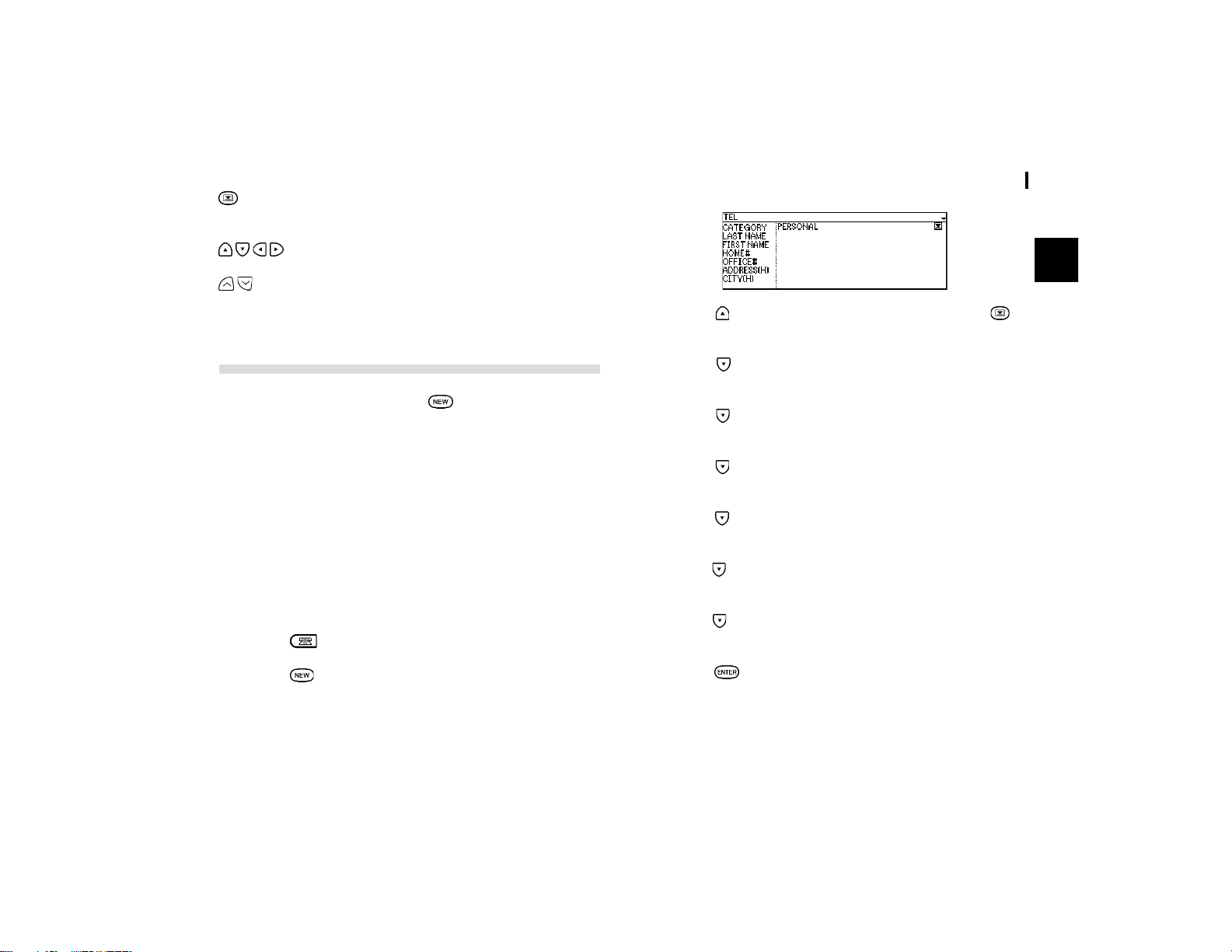
View mode
View mode allows you to see the full details of an entry, without
being able to edit or change it.
Other operations:
Creates a new entry for the current application
(in Edit mode).
Edits the currently displayed entry.
Deletes the currently selected entry.
Displays any previous/subsequent entries not
shown.
Displays any information not shown within an
entry.
Switches to Index mode.
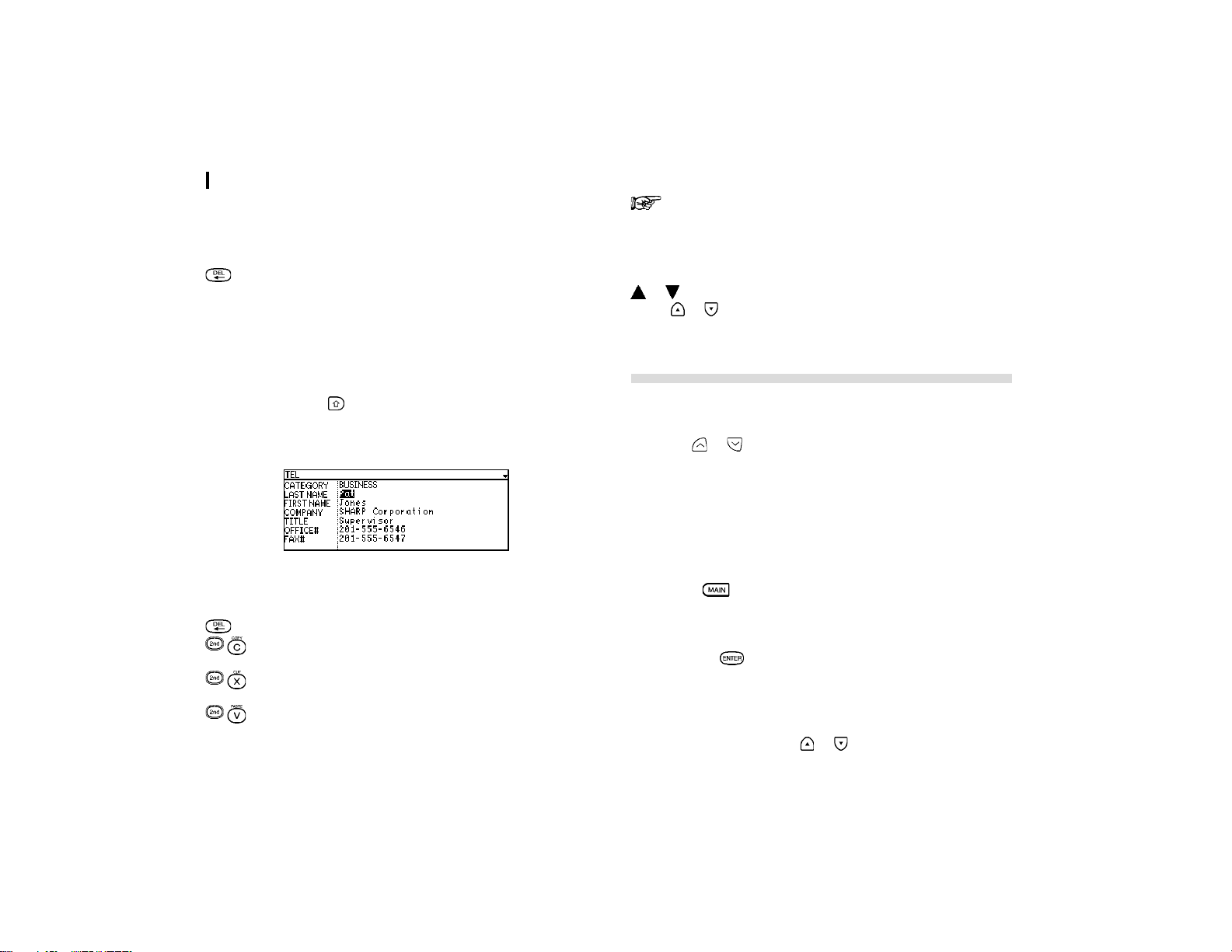
Edit mode
Edit mode is used to create a new entry or edit an existing
entry.
Other operations:
When you cancel your changes to the data in
edit mode, ìDo you really want to throw away all
of these changes? Yes: [ENTER] / No: [ESC]î
will be shown for confirmation.
Stores an entry in the Organizerís memory or
initiates an operation.
Stores an edited entry as new and leaves the
original entry unchanged.
15
General Operation
2
Activities the pop-up menu for a field displaying
the ìpop-upî symbol.
Moves the cursor.
Displays any information not shown within an
entry.
Creating a New Entry
In Index or View mode, pressing opens a blank form for
creating a new entry.
Make the following new Tel entry:
CATEGORY PERSONAL
LAST NAME Jones
FIRST NAME Pat
OFFICE# 201-555-6546
FAX# 201-555-6547
COMPANY SHARP Corporation
TITLE Supervisor
1.
Press to open the application.
2.
Press on the keyboard.
A blank form opens in Edit mode.
3.
Press to move to the CATEGORY field . Press to
open the pop-up menu. Select PERSONAL.
4.
Press to move to the LAST NAME field and type in
Jones
.
5.
Press to move to the FIRST NAME field and type in
Pat
.
6.
Press to move to the OFFICE# field and type in
201-
555-6546
.
7.
Press to move to the FAX# field and type in
201-555-
6547
.
8.
Press to move to the COMPANY field and type in
SHARP
Corporation
.
9.
Press to move to the TITLE field and type in
Supervisor
.
10.
Press to store the entry.
The message ìStored!î appears briefly. The entry is now stored
in the Organizerís memory and displayed in View mode.

General Operation
16
For other useful methods available in Edit mode, see
right.
Editing an Existing Entry
To edit an entry already stored in memory, you must first access
the entry in Edit mode (in which it was originally created).
1.
Press to open the application.
2.
Select the desired entry in Index mode.
3.
Press to open the entry in Edit mode.
4.
Make any necessary changes.
5.
Press to store the changes when you are finished.
The new, edited entry is now stored, replacing the original entry.
Editing Techniques
This section explains all the general editing techniques used
in Edit mode when making a new entry or editing an existing
entry in all of the applications. (The Memo application has many
additional features for working with text; see p.33 for more
information.)
Fields
Most applications divide the display into field boxes. The
number of fields in each application varies, as do the types of
fields. The different types of field include text fields, a date
field, time fields and pop-up fields.
You can type any character into a text field. The size of a text
field is limited only by the size of the entry. Text fields adjust
their size automatically to accommodate the number of lines
entered.
Only a date can be entered in a date field, usually in the format
MM/DD/YYYY For example, you would type
07232001
to enter
July 23, 2001.
Only a time of day can be entered in the time field, in the format
of HH:MM followed by
or (for AM and PM). For example,
to enter 9:00 AM, you would type
0900
then press .
When the pop-up symbol appears by a field while editing
an entry, this indicates that a pop-up menu is available for the
field. The pop-up menu contains a list of values available for
the field, and is used by pressing
and selecting the desired
value from the pop-up list. Note that the pop-up symbol only

17
General Operation
2
appears next to a field in Edit mode, when the field is selected.
When you move out of a pop-up field, the pop-up symbol
disappears.
The cursor
The cursor is used to work with text, indicating the position
where text will be entered or deleted. It is also used to select
items from menus or lists.
In text fields, where there is no restriction on the type of text
(letters or numbers) that can be entered, the cursor appears
as
|
.
In the date and time fields, the cursor appears as
, indicating
that numbers only should be entered in a specified format (see
above).
In text fields or boxes when there is no character at the
cursor position, the cursor appears as
|
.
Typing in text
Typing in text is simple and straightforward. The Organizerís
keyboard layout is just like the keyboard on a typewriter or
computer.
Letters (lower-case and upper-case)
Any of the standard letters (A to Z) can be entered by pressing
the corresponding key. All letters will normally appear in lower
case. Hold down either of the
keys while pressing letter key
(s) to enter upper-case letters.
functions like a ìCaps
lockî key on a typewriter or computer. Once pressed, the
symbol will appear at the upper right corner of the display.
Any letters typed while the Organizer is in CAPS mode will
appear in upper case. To switch back to lower-case mode,
simply press
again. To enter lower-case letters while in
CAPS mode, hold down
while pressing a letter key.
Numbers
Pressing the corresponding numeric keys enters numbers.
Numbers are entered regardless of whether CAPS mode is on
or off.
Symbols
The symbols that appear in dark blue above certain keys can
be entered directly from the keyboard. Holding down
while
pressing the appropriate key will allow you to enter these
symbols. Colons can be entered by holding down and
pressing the
key. In addition, a large number of special
symbols are available by pressing
. (see p.48)
Moving around the Display
You can move the cursor around the display with the arrow
keys
, . In addition, you can hold any arrow key
down for continuous rapid movement.
The following convenient keyboard shortcuts are also available
in Edit mode:
Moves the cursor to the end of the line.
Moves the cursor to the beginning of the line.
Moves the cursor to the first line of a field.
Moves the cursor to the last line of a field.
Moves the cursor to the first field.
Moves the cursor to the last field.
General Operation
18
Deleting Text
If you make a mistake while entering text, use the following
key to erase the incorrect text, then enter the correct text:
Deletes the character before the cursor.
Working with Blocks of Text
Working with a block of text is sometimes easier and more
convenient than working with characters one by one. The first
step is to select the text to work with.
1.
Hold down the key while using the arrow keys to move
over the entire text that you want to work with. This will
ìhighlightî the text (display it in reverse white on black).
2.
You can now perform a number of operations on the
selected text.
Deletes the selected text
Copies the selected text to the clipboard so that
it can later be pasted to another location.
Deletes the selected text from its current location
and moves it to the clipboard.
Replaces the selected text with whatever is
currently in the clipboard.
For a full explanation of the cut / copy / paste functions,
see p.48.
Scrolling the Display
If there is more information than can be displayed at one time,
or will appear at the top right hand corner of the screen.
Press
or to scroll the information one line at a time.
Finding Specific Entries in Your Organizer
There are a number of ways that you can locate entries and
information in your Organizer. One is to scroll between entries
using the or keys. Others are as follows.
Using Index Mode
Index mode gives you a listing of all the entries in a particular
application. It is useful for providing a summary list of the entries
contained for that application, from which a desired entry may
be selected.
1.
Press to enter the Main Menu Screen to select the
application or press the desired application key directly.
2.
If it is not already displayed, switch to Index mode by
pressing
.
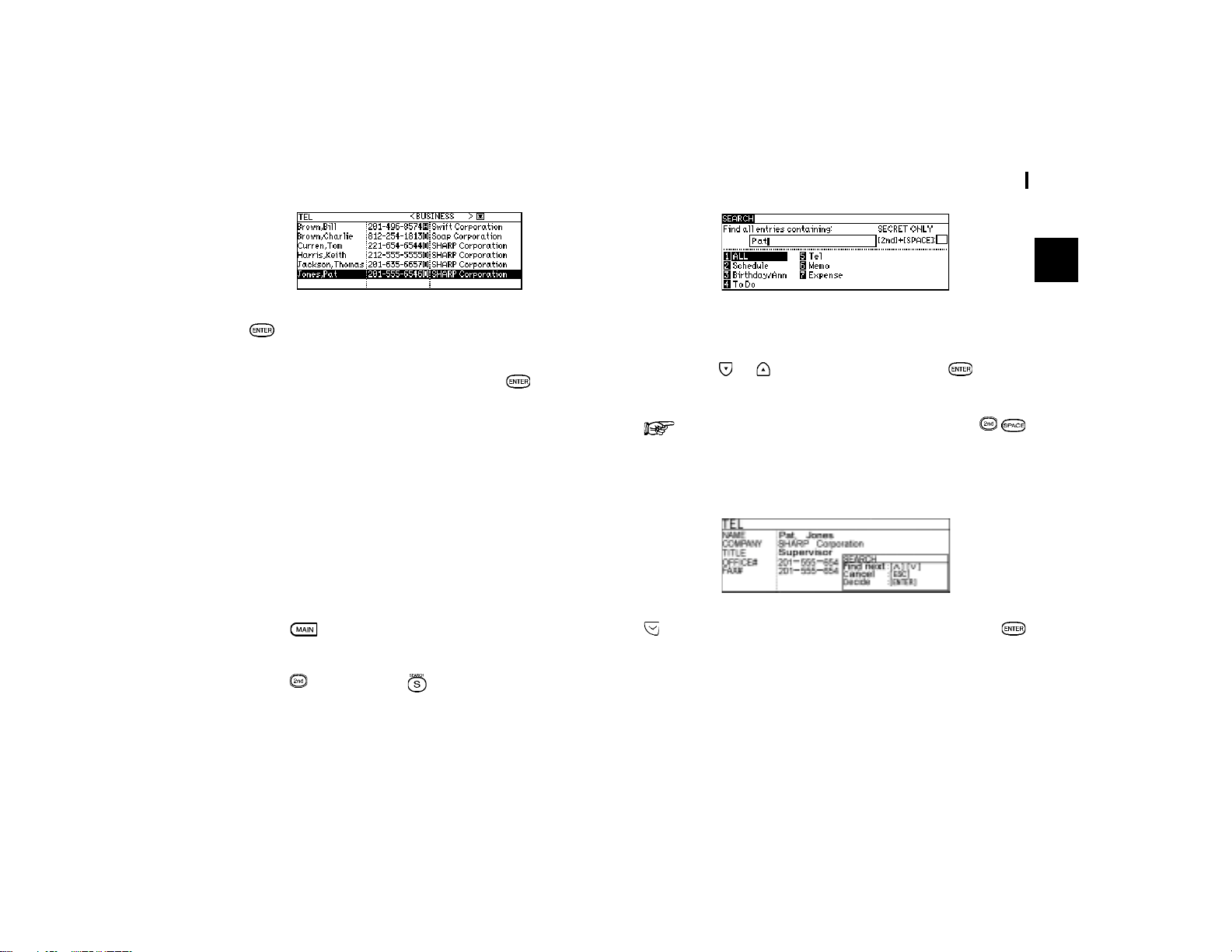
A list of the existing entries appears.
3.
If the desired entry is not displayed, you can scroll the list
of entries by pressing
or .
19
General Operation
2
4.
When the desired entry is displayed, select it and press
to see the entry in full.
5.
The most relevant entry will be highlighted if you press
any letters / symbols / numbers. Press
to see the
details of the entry. (Only available in Tel / Memo
application).
6.
You can choose how items are arranged in an index by
changing the index mode in INDEX ITEMS / INDEX BY
within the application menu. (Only available in Tel / To Do
/ Memo applications).
Using Keywords
If you know a particular entry is in your organizer, but you
cannot remember where, you can use the Search command
to find it.
1.
Press to enter the Main Menu Screen to select the
application or press the desired application key directly.
2.
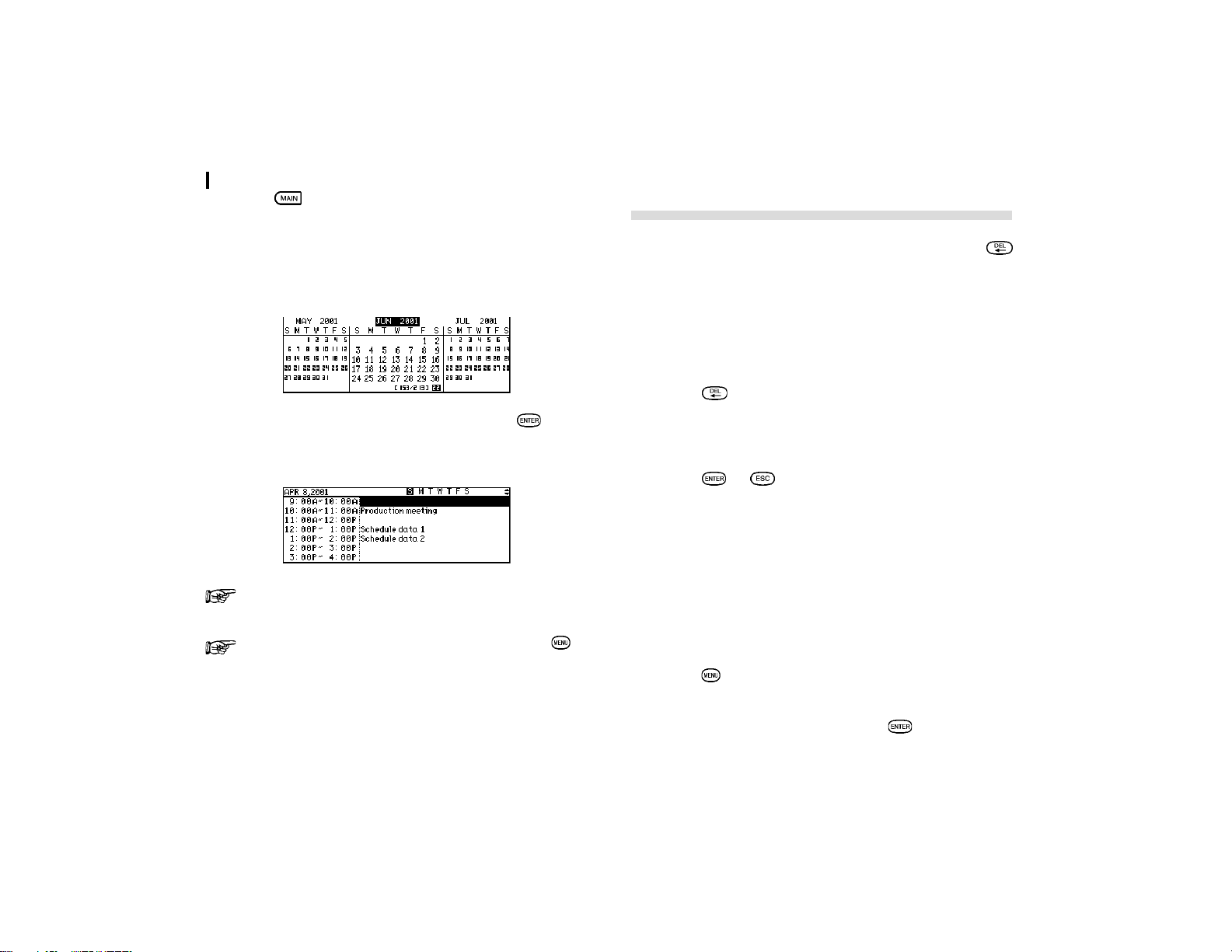
Press and then press .
The Search window will open.
3.
Enter the name you are looking for. For example, type
Pat
.
4.
Press or and select Tel and press to start
searching.
To search only secret entries (see p.55), press
to check the SECRET ONLY item.
The Organizer will now display the first entry that contains the
ìkeywordî that you entered.
If there is more than one entry that contains the keyword, press
until you find the entry you are looking for. Then press
when you have finished searching.
By Date
You can use the Calendar to quickly and easily find information
related to a time and / or date.
General Operation
20
1.
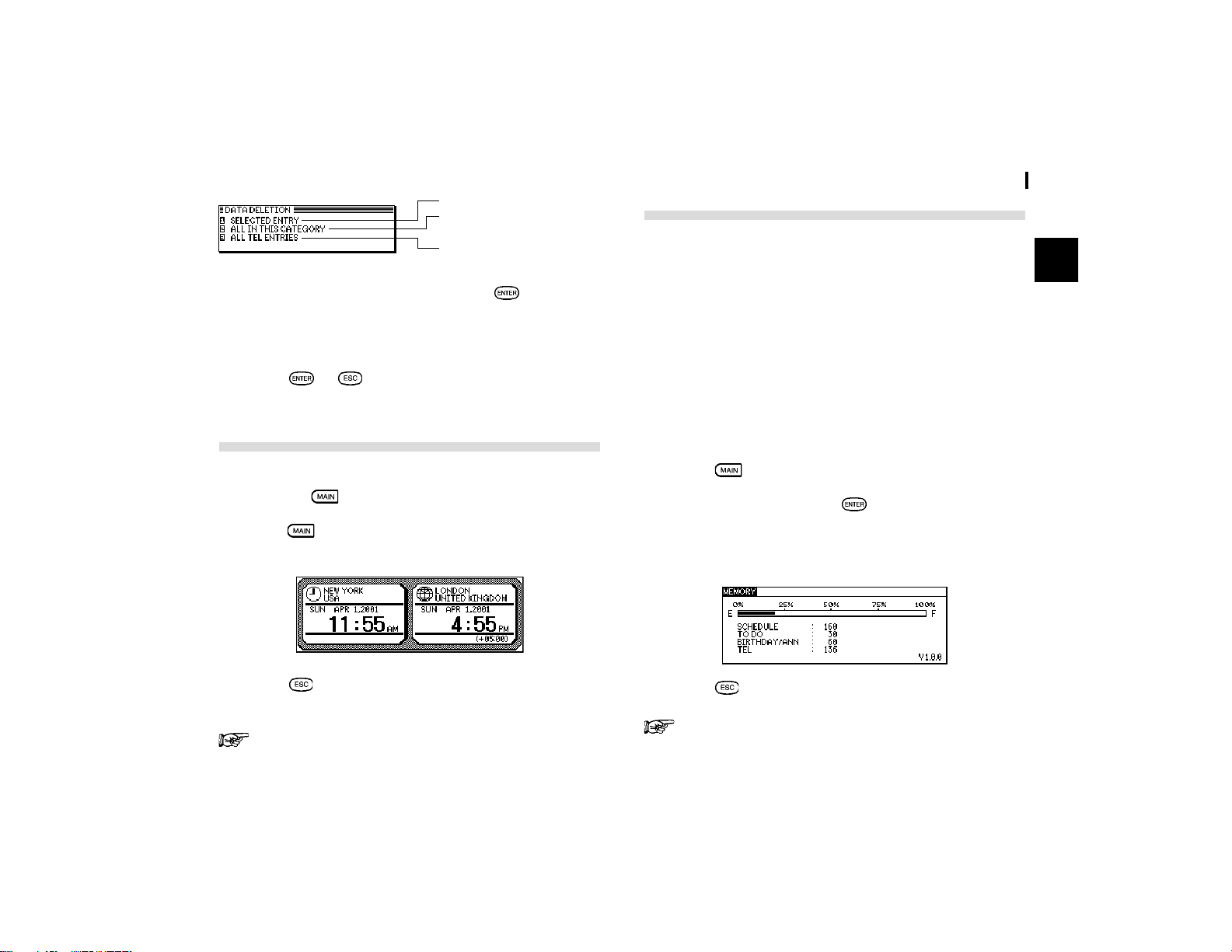
Press to enter the Main Menu and select CALENDAR.
The Calendar of the current month appears. (If there is a dot
besides a specific day, it indicates that there is a Schedule
appointment; if a specific date is displayed in reverse, it means
that there is a Birthday / ANN entry.)
2.
Select a day using the arrow keys, then press to view
the Schedule, Birthday / Ann or To Do entries on the
selected day.
For more information about using the Calendar
application, see p.23.
You can open the Calendar menu by pressing to
select the desired Calendar view.
Deleting Entries
Entries in the Organizer can be deleted using either the
key or the application menu.
Deleting single entries
1.
Open the desired application.
2.
Select the entry in Index mode or view mode.
3.
Press on the keyboard.
A confirmation message appears asking if you are sure you
want to delete the selected entry.
4.
Press (or to cancel the deletion).
Deleting entries using the application menu
You can also make deletions using the application menu. The
DATA DELETION submenu allows you to do this flexibly and
easily.
1.
Open the desired application.
2.
Select the entry in Index mode or display it in View mode.
3.
Press in the selected function to open the application
menu.
4.
Select DATA DELETION, then press .
21
General Operation
2
Checking the Memory
The Organizer has a certain memory capacity in which
operations are carried out and data that has been entered,
such as phone numbers and memos, are stored. When the
amount of data already stored approaches the Organizerís
maximum memory capacity, you may not be able to store an
entry or the data being processed may be lost when you change
applications. To avoid these problems, you should check the
remaining memory space regularly and free up space when
necessary by deleting out-of-date entries. The Check Memory
function allows you to easily check the amount of free memory
available in the Organizer, and thus avoid the inconvenience
of running out of memory and losing data.
1.
Press twice to enter the Second Main Menu.
2.
Select Memory then press .
The display shows the summary of the Organizerís memory
usage, availability and version number.
3.
Press to close the display.
Even if the display shows a small amount of free memory
available, that amount may be insufficient for certain
Deletes a selected entry.
Deletes all entries in the
selected category
Deletes all entries in all TEL
files
5.
Select SELECTED ENTRY, then press .
A warning message appears asking if you are sure you want to
delete the entry.
6.
Press (or to cancel the deletion).
Checking the Time and Date
The current time and date are shown on the top of the Main
Screen. Press
to jump to the Main Menu screen directly.
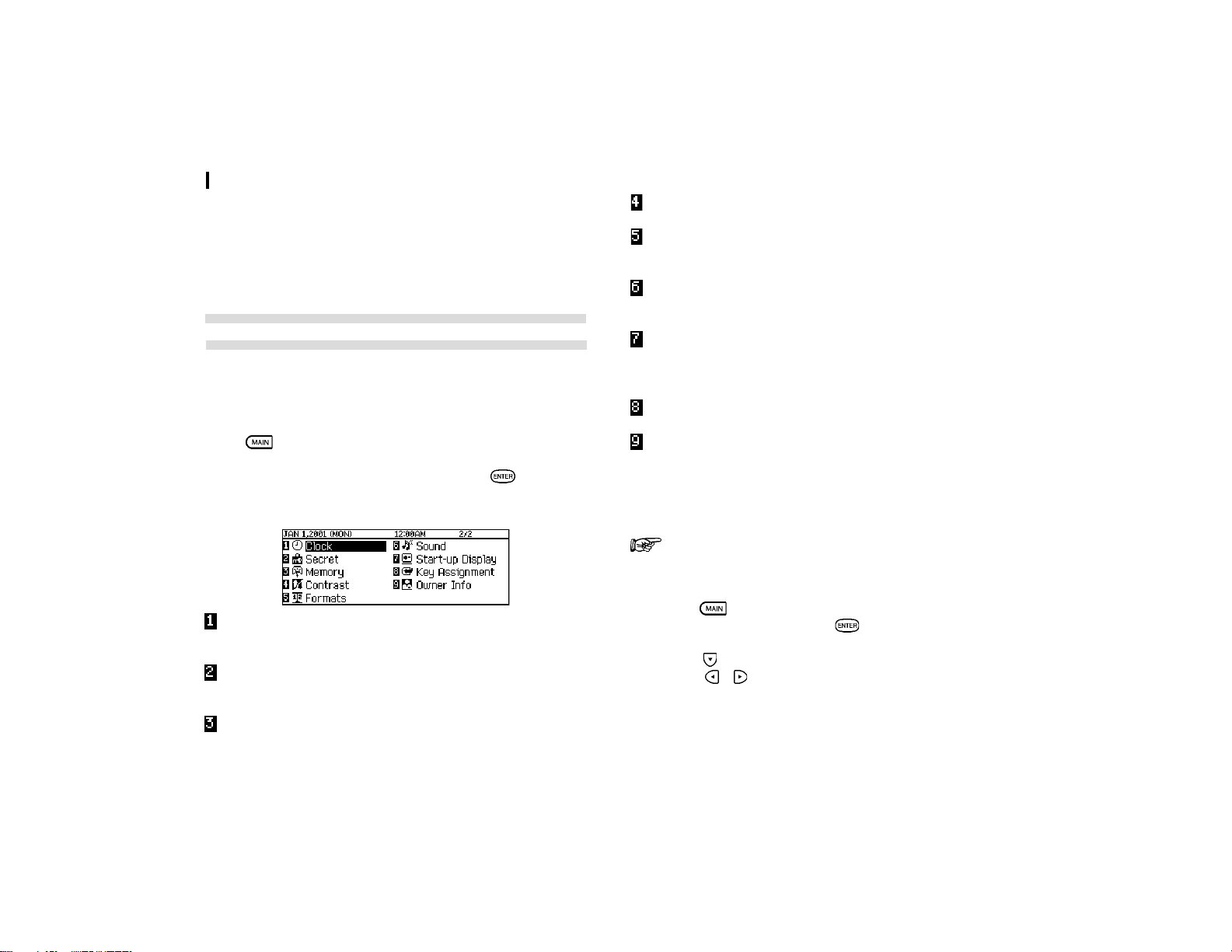
1.
Press twice to enter the Second Main Menu and select
Clock to check the current date and time.
2.
Press or any other application key to close the Clock
application.
For a full explanation of the Clock application, see p.38.
General Operation
22
operations to work properly. You are strongly
recommended to carry out regular ìhousekeepingî by
deleting unwanted or out-of-date information to prevent
the memory becoming full.
The Second Main Menu - the Organizerís
Basic Utilities
Many of the basic utilities are accessed through the Second
Main Menu. It is also used to set up and configure certain
features, such as the display contrast.
Press
twice to enter the Second Main Menu then press
the number key to enter the respective application or move
the cursor to select the application and press .
Clock- The unitís built-in clock displays the correct time
and date in your area.
Secret- Setting the password / locking the organizer (see
p.54)
Memory- Checking the memory size (see p.21)
Contrast- Setting the display contrast (see p.10)
Formats- Setting the calendar display format and time
system (see p.57)
Sound- Setting the key sound / daily alarm / schedule
alarm on or off (see p.10)
Start-up display- Activating the autorun of basic application
or choosing to show / hide the ownerís information (see
p.53)
Key Assignment (see p.58)
Setting the Ownerís Information
The Owner Information comprises your name, address and
telephone number. You can choose to have this information
displayed each time you turn the Organizer on.
If you make a mistake while entering the Owner
Information, donít worry! You can edit the Owner
Information easily during normal use.
1.
Press twice to enter the Second Main Menu and select
Start-up Display then press
.
2.
Press to move to the OWNER INFORMATION field.
Press
/ to choose SHOW or HIDE the ownerís
information.
23
Time Management
3
CHAPTER CHAPTER
CHAPTER CHAPTER
CHAPTER
33
33
3
Time Management
The Organizerís Calendar, Schedule, To Do and Birthday /
Ann (Anniversary) applications let you structure and manage
your time easily, whether scheduling appointments or giving
reminders about important people and events. The
explanations and examples in this chapter will give you the
information you need to make all of the time management
features of these applications work for you on a daily basis.
The Calendar Application
The Calendar represents the Organizerís most central utility. It
serves as a calendar that you can reference at any time for the
correct date, and also as a time management utility, indicating
important dates so that you can keep track of your time and
appointments. The application performs as a highly
sophisticated calendar that can display details of any month
from January 1901 to December 2099. The Calendar also
provides you with a convenient way of accessing, viewing and
making new entries in the Ann and Schedule applications.
The Calendar provides you several Calendar views: 3-Month
View and Daily Calendar.
3-Month Calendar: The specified month is centered, and the
previous and the next months are shown
on the left and the right, respectively.
Daily Calendar: The specified day is shown.
You can use the Calendar menu to select a particular Calendar
view directly, regardless of which view you are already using.
1.
Press to open the Calendar menu.
2.
Select VIEW and press .
3.
Select the desired view in the submenu and press .
Selecting a date
From any view, you can scroll to the previous or next time
period (whether the next month or day) by pressing
or ,
then moving the cursor to a specific date to select it for display
in another Calendar view. However, another convenient way
of selecting a date that is not on the display is using GO TO A
SPECIFIC DATE in the Calendar application menu.
1.
Press in any Calendar view, and select GO TO A
SPECIFIC DATE, then press
.
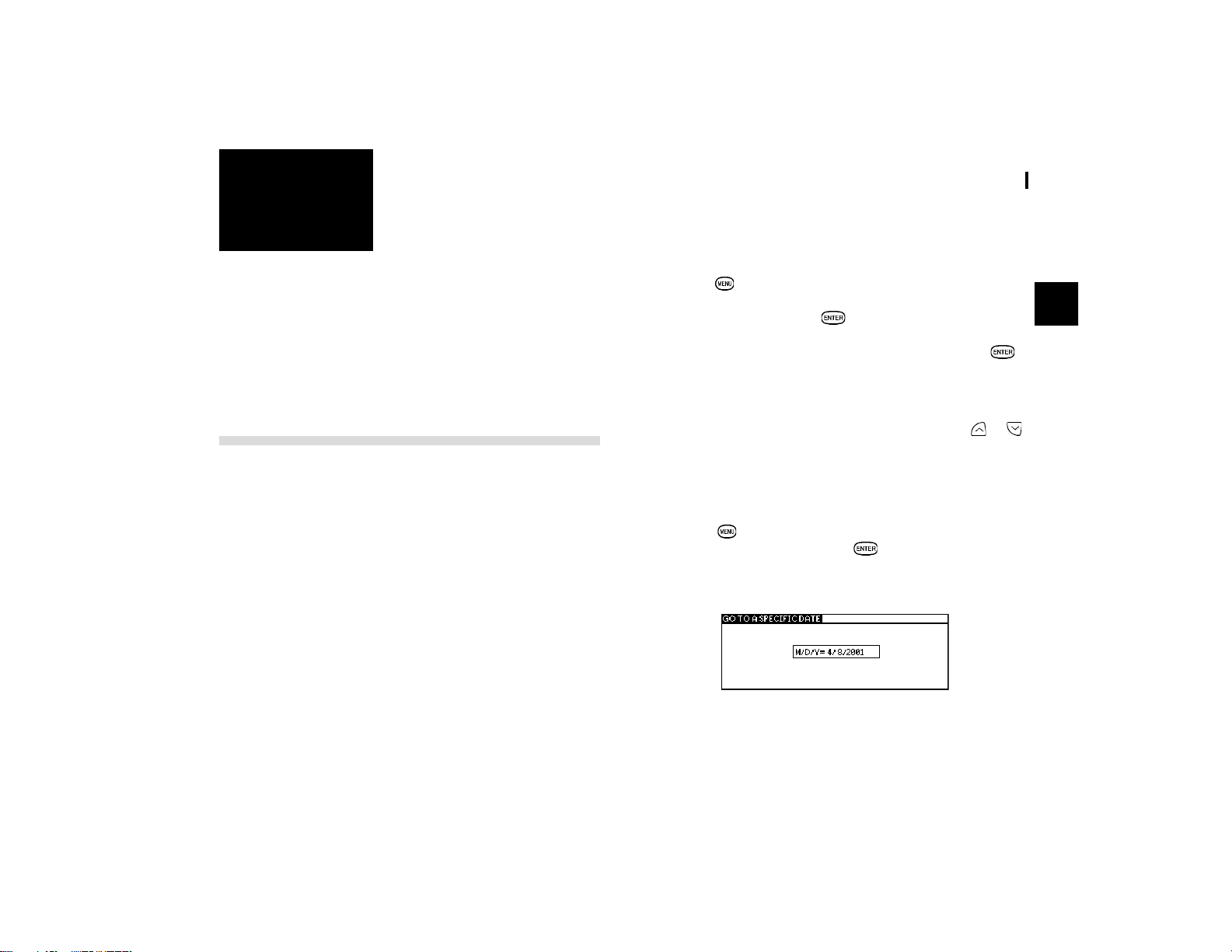
A date entry window appears.
2.
Enter the date you want to select in the order of month,
day, and year. Single-digit months and days should be
preceded by a ì0î.
Time Management
24
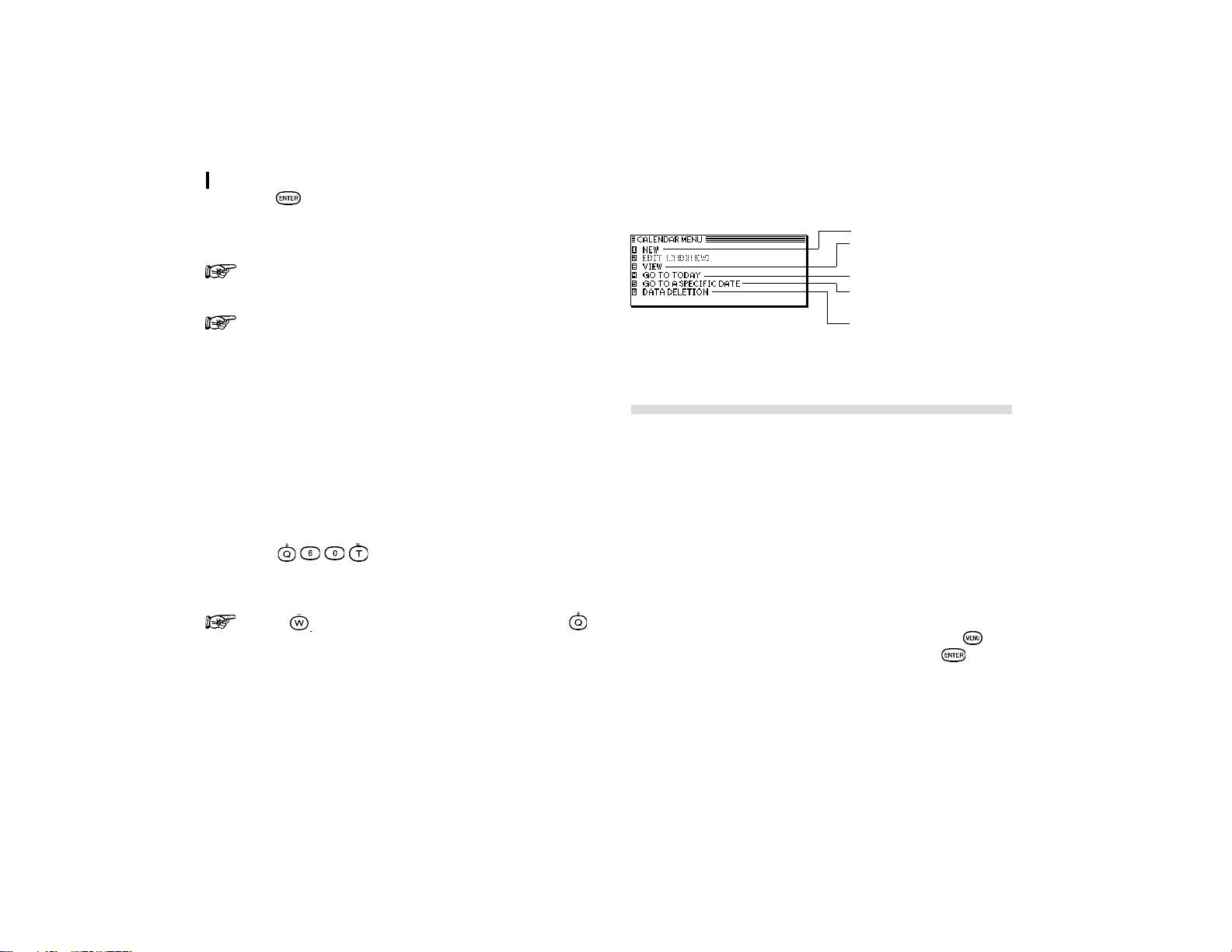
The Calendar application menu
3.
Press .
The selected date will appear in the current Calendar view.
You can select GO TO TODAY in Calendar menu to
directly skip to today.
You can select DAILY in VIEW menu to jump to todayís
Daily calendar.
Date Calculating
You can find and display any date a given number of days
before or after a particular date.
Example: View the calendar 60 days from today.
1.
Enter into the 3-Month view.
2.
Select GO TO TODAY in Calendar menu to skip directly
to today.
3.
Press to specify the date 60 days in the
future. The calendar for the corresponding month
appears, with the appropriate date selected.
Press to specify a number of days in the past,
for a number of days in the future.
The Schedule Application
The Schedule application allows you to enter appointments,
times and dates for meetings, parties and events, and also to
set an alarm to sound prior to or at the time of a scheduled
entry. This makes it easy to organize your entire day and
manage your appointments. Schedule entries are indicated
on the Calendarís 3-Monthly view and Daily Calendar view.
Selecting a specific date
If you want to jump to a specific date to find entries or make a
new entry, you can do it easily using the application menu.
1.
In Index mode of the Schedule application, press , and
select GO TO A SPECIFIC DATE, then press
.
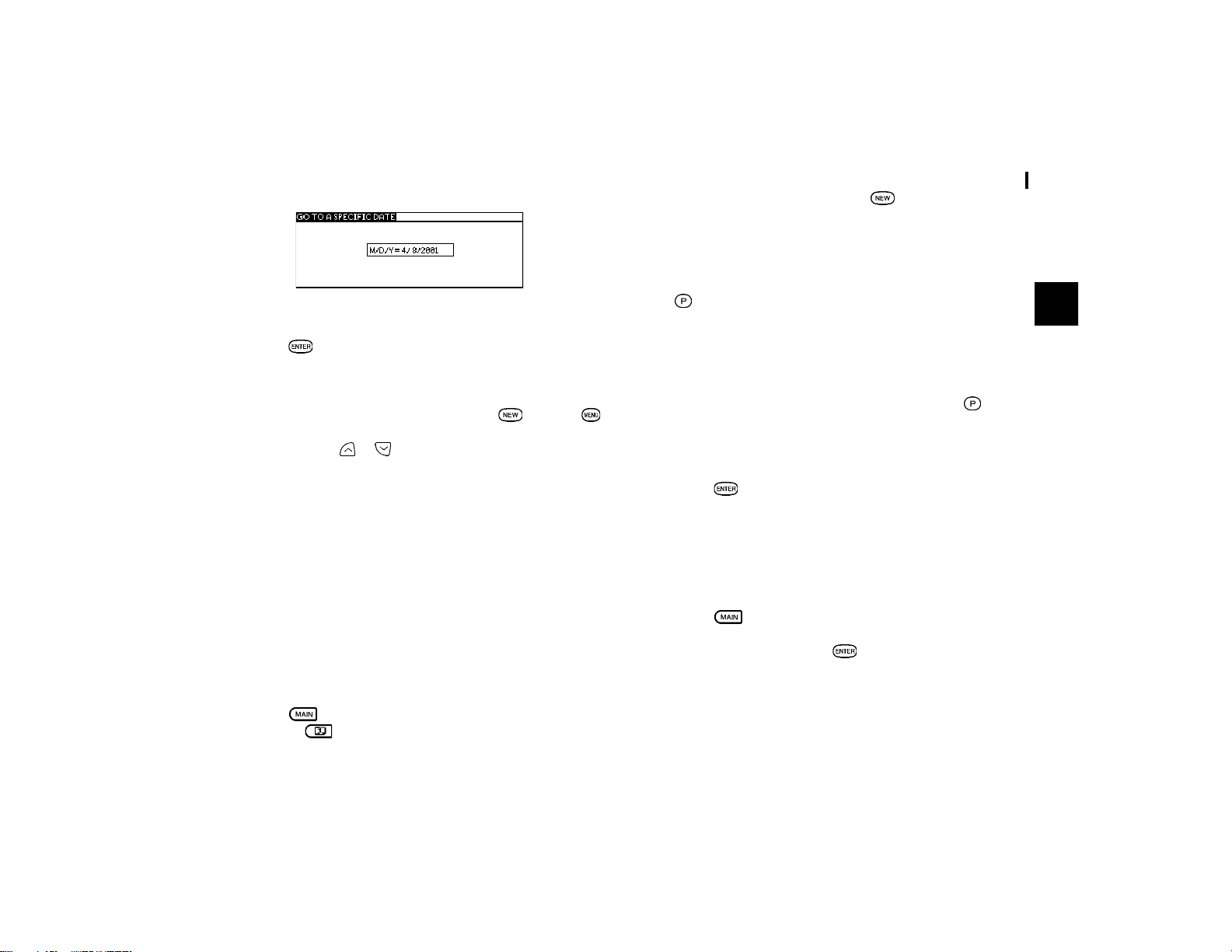
A date entry window appears.
Creates a new entry (p.15)
Selects the Calendar view
(see p.23)
Goes to today
Goes directly to a particular
date (see p.23)
Selects the specific entries
for deletion (see p.20)
25
Time Management
3
2.
Enter the date you want to go to.
3.
Press .
The first entry on that day is selected in Index mode.
If you would like to make a new entry, press or press
and then select NEW, or if you would like to view other entries
on that date, press
or .
Setting a Schedule alarm
A Schedule alarm can be set to remind you of scheduled events
such as appointments and meetings. You can set an alarm for
any entry that has a starting time set. Alarms that have been
set will sound even if the unit is turned off.
Enter the following information with an alarm set for one hour
in advance:
Date July 16, 2001.
Time 1:00 - 2:00 pm
Description Lunch with Sally
1.
Press to enter the Main Menu and select Schedule
or press
to enter the application directly.
2.
Open a new entry by pressing or choosing NEW in
the application menu.
3.
Enter the Date and then move to the TIME field.
4.
Enter the starting time and ending time, each followed by
(PM).
Move the cursor to the alarm time field. Alarm time will
automatically be set 15 minutes before the schedule starting
time.
5.
Enter the desired alarm. Type
1200
and press (PM).
6.
Move to the DESCRIPTION field and type
Lunch with
Sally
.
7.
Press .
To set an alarm for any entry that has already been stored,
display the entry in Edit mode and enter the desired alarm
time in the alarm field.
Clearing a set alarm
1.
Press twice to enter the Second Main Menu.
2.
Select Sound then press .
3.
Move the cursor to choose OFF in SCHEDULE ALARM/
DAILY ALARM.
Time Management
26
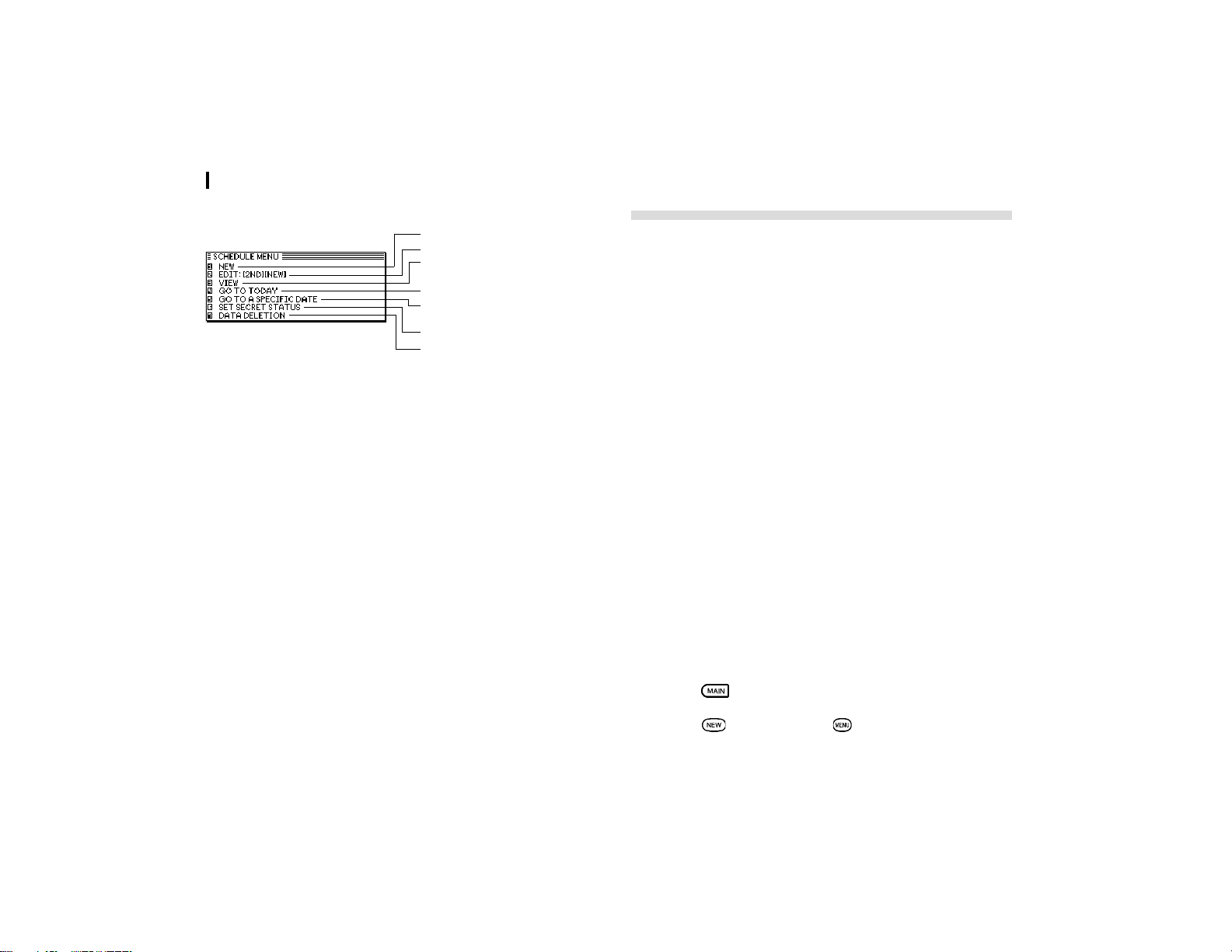
The Schedule application menu (in Daily View screen)
Creates a new entry (p.15)
Edits an existing entry (p.16)
Selects the Calendar view
(see p.23)
Goes to Today
Goes directly to a particular
date. (see p.23)
Locks the record. (p.54)
Selects the specific entries for
deletion. (see p.20)
The To Do application
The To Do application is a valuable organizational tool to help
you meet deadlines and to add structure and efficiency to your
work that you set for yourself. This application allows you to
organize and track tasks and objectives and assign them
priorities. To help you in this task, entries are identified as TO
BE DONE or DONE.
Making new entries
Entries in the To Do application contain five fields: Category,
Description, Due Date, Priority, and DONE indicator. The
category field, which you can define yourself and assign as
you like, can be used to manage tasks according to project,
the personnel involved in them, or any other groupings you
wish to define.
Assigning priority to entries
In the PRIORITY field you can enter a number (1-5) or letter N,
which then indicates the importance of a task or project.
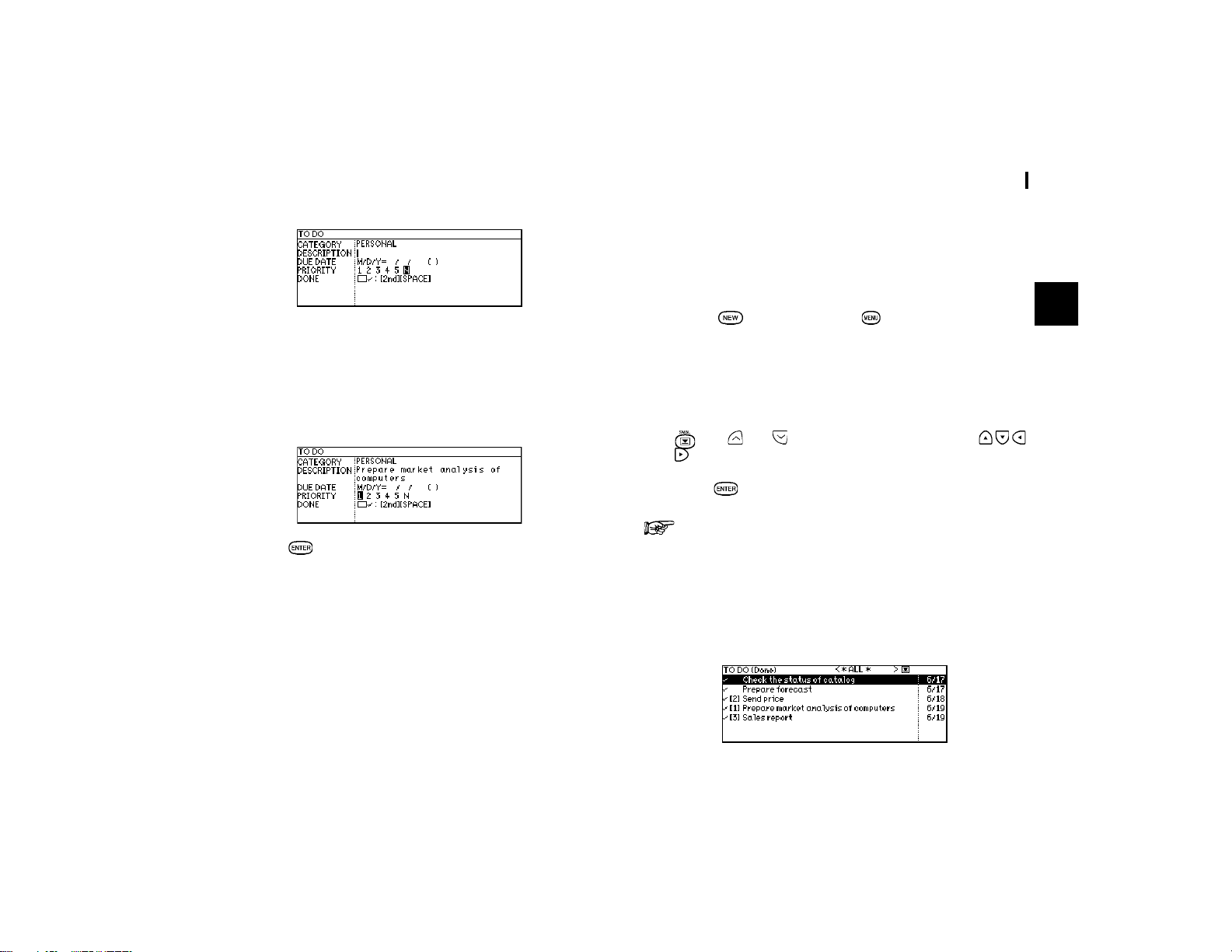
Enter the following information:
Description Prepare market analysis of computers
Priority 1
1.
Press to enter the Main Menu and select To Do.
2.
Press directly or press and then select NEW.
27
Time Management
3
The To Do entry display opens.
3.
Enter the description of the entry. Type
Prepare market
analysis of computers
.
4.
Skip the DUE DATE field and move to the PRIORITY field.
5.
Type
1
.
6.
Press .
The entry is now stored.
Assigning due dates to entries
A To Do entry must be given a due date (or month) so the
Organizer knows how to classify it and the Calendar knows
when it becomes due. The due date can be entered either by
typing in the actual date, or by selecting the date from the pop-
up calendar and using the arrow keys to select the desired
month and day.
Enter the following information:
Description Sales report
Due Date June 20, 2001.
In the To Do application:
1.
Press directly or press to select NEW in the
application menu.
2.
Type
Sales Report
.
3.
Move to the DUE DATE field. Enter the due date in the
order of the month, day, year. Type
06202001
, or press
, use and to display June 2001, then use
to move to the 20th of the month.
4.
Press .
At index view, a ! mark will be displayed beside an
overdue entry (ie. an entry for which the due date has
passed).
Finding entries using Index mode
1.
Go to Index mode.
Time Management
28
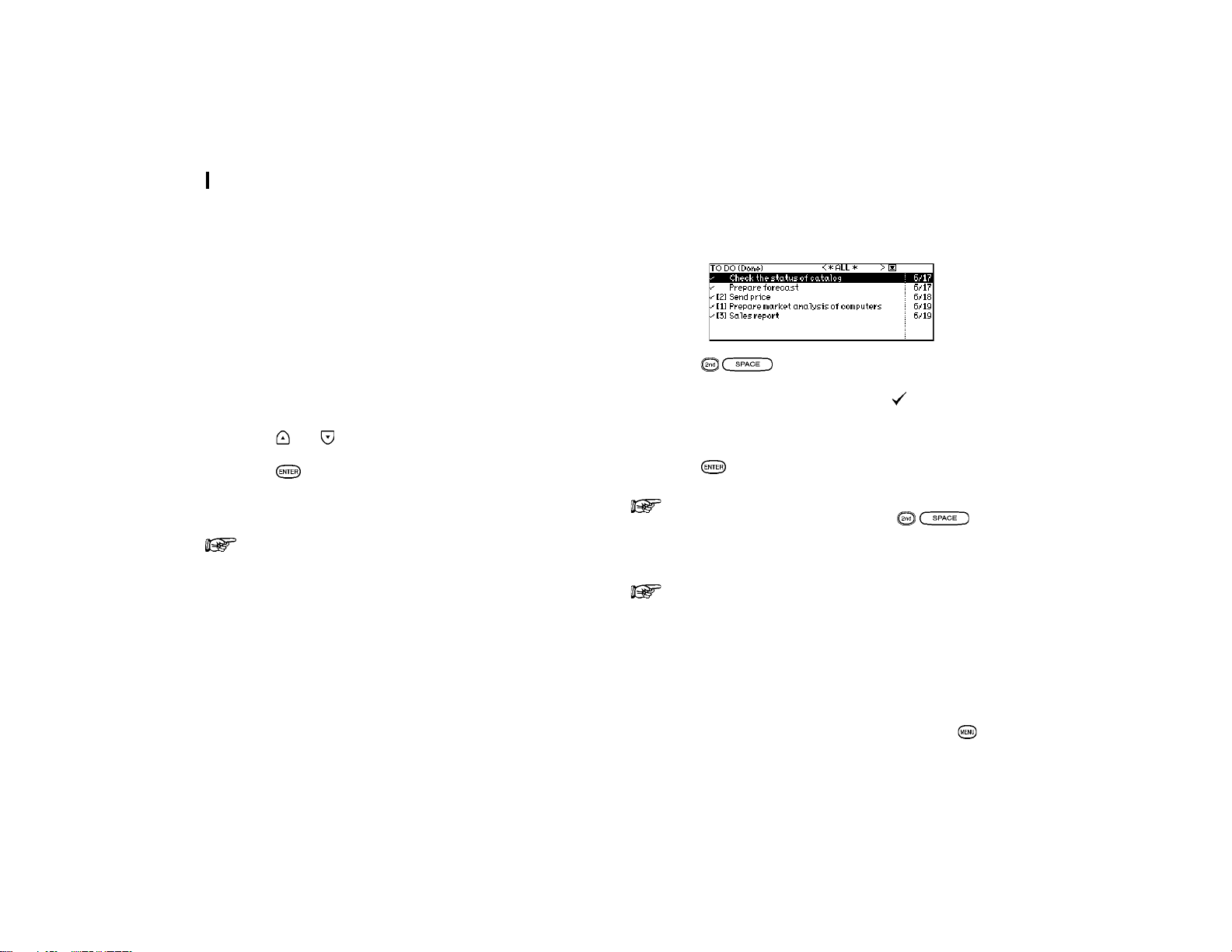
There are two Index modes in the To Do application. One is TO
BE DONE and the other is DONE. Select VIEW from the
application menu to switch between TO BE DONE index mode
or DONE index mode. Index mode in the To Do application
can show entries based either on their priority level or their
due date. In the default setting, entries are arranged in
chronological order based on the due date. Select INDEX BY
from the To Do application menu, then PRIORITY from the
submenu to display entries based on priority. To display entries
in chronological order based on due date, select INDEX BY
from the menu, then DATE from the submenu. This means
you can access entries in the way that is most convenient for
you.
2.
Press and to select the entry you want to review.
3.
Press to see the entry in full.
The entry is displayed in View mode.
If To Do application is assigned the application key,
press the application key to change the TO BE DONE /
DONE Index view.
Checking off completed entries
Once you have reached a target you set for yourself, it is a
good idea to check off the entry as completed so that you can
concentrate on things still to be done.
This operation can be done in the To Do application, which
lets you check off a task that you have completed before its
due date.
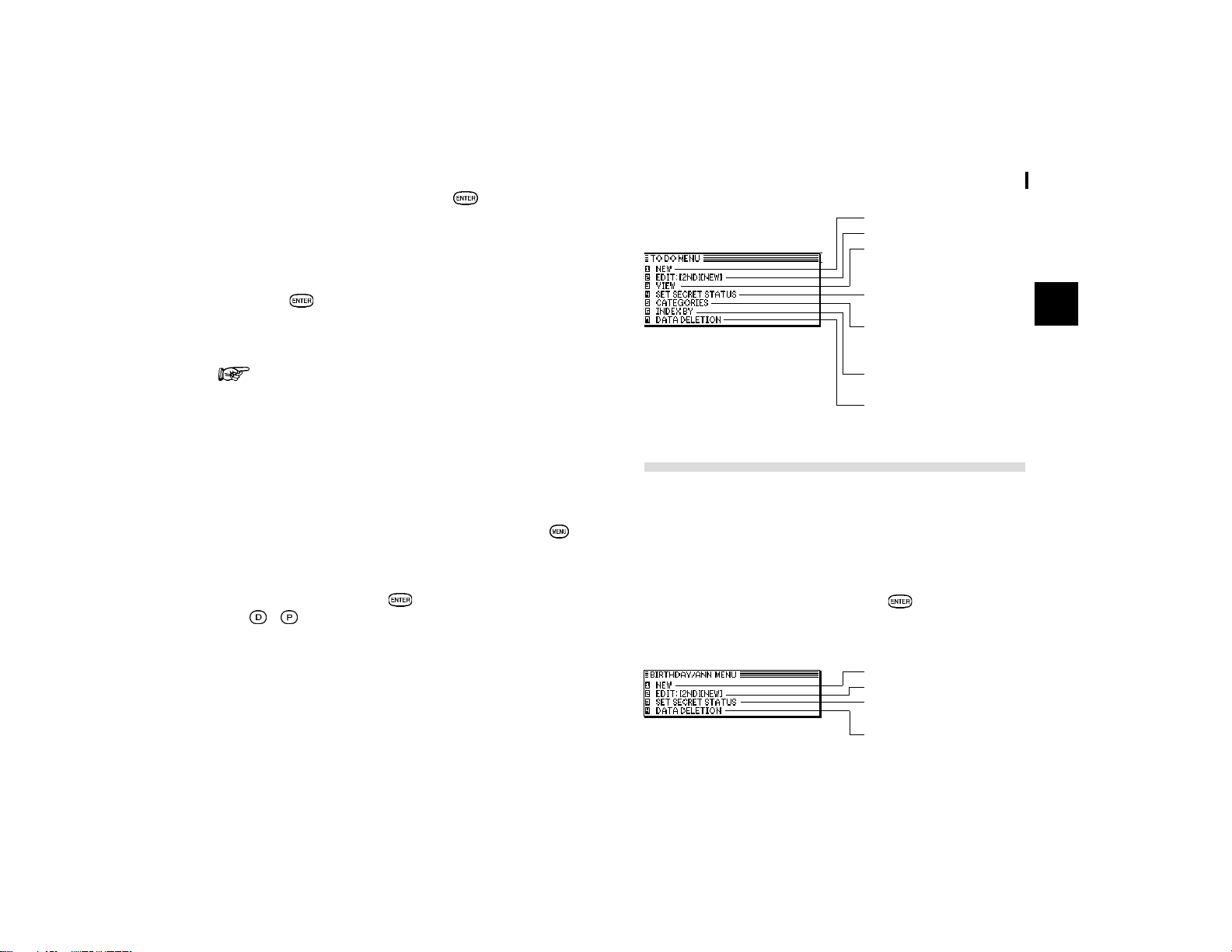
Check off entries in the To Do application.
1.
Select the entry in Index mode.
2.
Press .
The entry is checked off and marked with
. The DUE DATE
field name changes to DONE DATE and todayís date appears
in it. The checked off item is sent to DONE index.
3.
Press to switch to One Data View.
If you mistakenly check off an entry as completed, you
can uncheck the entry by pressing
again.
However, if you do this, the entry will be stored without
a due date.
Once a project or task is completed, and you no longer
need the To Do reminder, you can delete the entry, or
groups of entries, which will free up memory in the
Organizer.
Updating the Category list
You may wish to edit the names of existing categories.
1.
From the To Do applicationís Index view, press .
29
Time Management
3
The To Do application menu
2.
Select CATEGORIES then press .
The CATEGORIES window appears.
3.
Make the desired change to the category list.
4.
Press to store the edited entry.
The To Do Index view appears.
When you edit a category name, any To Do entries that
refer to that category are automatically updated to reflect
the change.
Using the Index Mode
The To Do application allows you to define the way in which
your entries are sorted in index view. You can select among
DATE or PRIORITY.
1.
From the To Do applicationís Index view, press then
select INDEX BY.
2.
Move the cursor to select the index mode by DATE or
PRIORITY then press
. (In Index view, you can press
/ directly for Index by Date or Index by Priority
respectively.)
The Birthday / Ann (Anniversary) Application
The Birthday / Ann (Anniversary) application makes it easy for
you to keep track of annual events, such as wedding
anniversaries and birthdays of friends, relatives and business
associates. Once entered, the annual events are indicated by
dates highlighted in white on black on the Calendar, giving
you plenty of warning to prepare for them well in advance every
year. You can access them by pressing
after selecting the
desired date.
The Birthday / Ann application menu
Creates a new entry. (p.15)
Edits an existing entry. (p.16)
Changes the view mode
between TO BE DONE /
DONE
Sets password to lock a
record.
Opens the CATEGORIES
window so you can edit
categories
Changes the Index mode by
date or priority (see p.29)
Selects the specific entries
for deletion (see p.20)
Creates a new entry. (p.15)
Edits an existing entry. (p.16)
Sets password to lock a
record (see p.54)
Selects the specific entries
for deletion. (see p.20)

Time Management
30

31
Creating Your Own Database
4
CHAPTER CHAPTER
CHAPTER CHAPTER
CHAPTER
44
44
4
Creating Your
Own Database
This chapter describes using the Tel (Telephone). The
flexibility of the application allows you to manage a wide
range of information, from simple address book to an
extensive restaurant guide or even a listing of your important
business contacts.
The Tel Application
The Tel application stores the names, telephone numbers, and
addresses of business clients, companies, personal friends
and so on.
To make a new Tel entry, see page 15.
Updating the Category list
You may wish to edit the names of existing categories.
1.
From the TEL applicationís index view, press .
2. Select CATEGORIES, then press .
The CATEGORIES window appears.
3.
Make the desired change to the category list.
4.
Press to store the edited entry.
The TEL Index view appears.
When you edit a category name, any TEL entries that
refer to that category are automatically updated to reflect
the change.
Changing the Index Items
You can specify either Name and Office# or Name and Home#
to be displayed on the Index mode of the Tel application.
1.
Press directly or select TEL in the Main Menu to open
the application.
2.
Press , select INDEX ITEMS, then press .
The INDEX ITEMS window opens.
The current setting is indicated by a tick.
3.
Select the desired index item, then press .
Then Name and Office# or Name and Home# will be displayed
on the Index mode of the Tel application.
You can also choose to index the name field by its First Name
or Last Name in INDEX BY within the application menu.
Modifying the Field Order
The Tel application also allows you to define the field order of
each category. You can assign a kind of field order for each
category. Two kinds of field order. ìPersonalî and ìBusinessî
are available for you to choose.
Creating Your Own Database
32
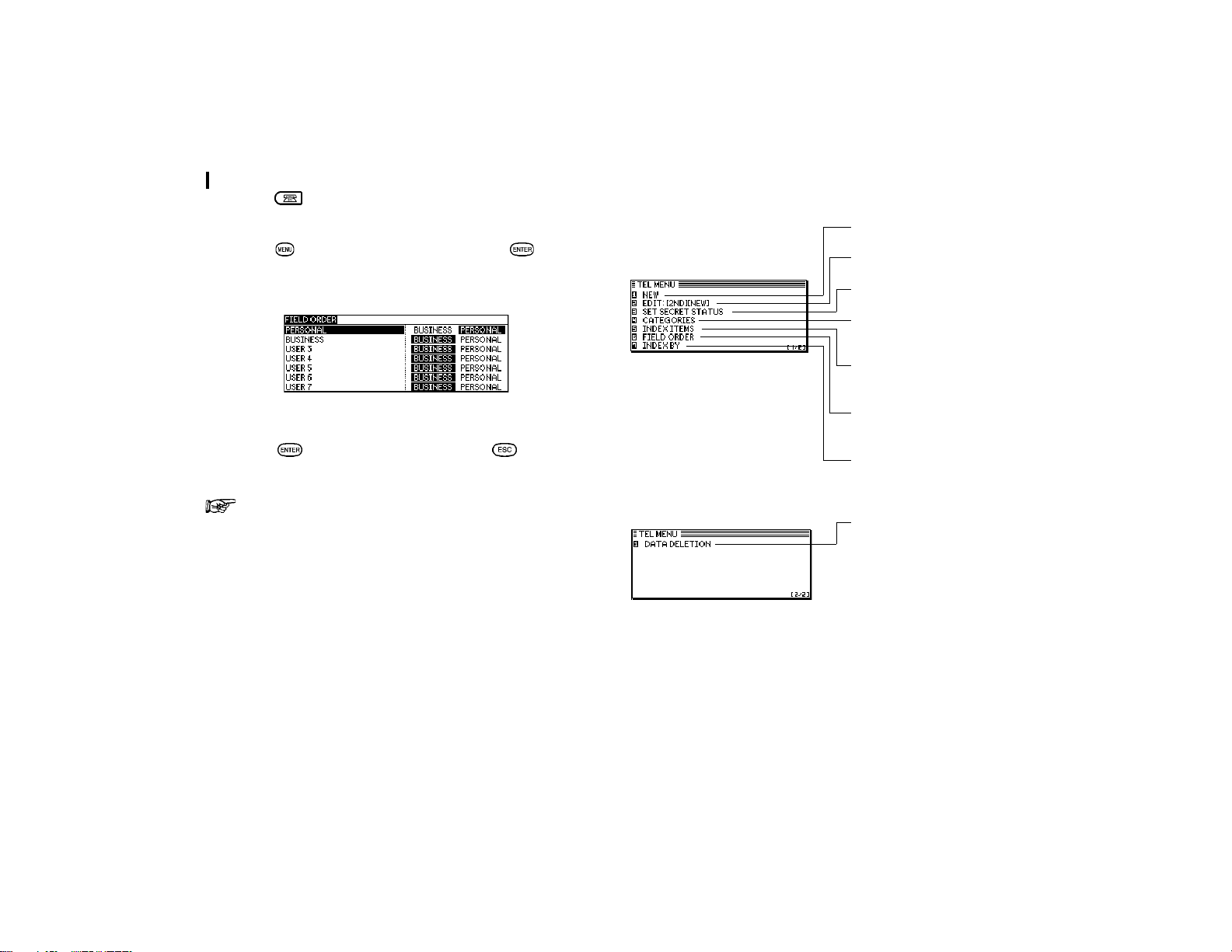
1.
Press directly or select TEL in the Main Menu to open
the application.
2.
Press , select FIELD ORDER, then press .
The FIELD ORDER window appears.
3.
Assign a kind of field order for each category.
4.
Press when you have finished. (Or cancel the
changes)
For the details of the Tel application, see p.13.
Creates a new entry (see
p.15)
Edits an existing entry (see
p.16)
Sets password to lock a
record (see p.54)
Opens the CATEGORY
window so you can edit or
select category
Selects the INDEX ITEMS
according to the Home
number or Office number
Selects the FIELD ORDER
assigned to PERSONAL or
BUSINESS category.
Selects the INDEX BY to
change the index according
to the FIRST NAME or LAST
NAME.
Selects the specific entries
for deletion (see p.20)
The Tel application menu
33
Memo
5
CHAPTER CHAPTER
CHAPTER CHAPTER
CHAPTER
55
55
5
Memo
This chapter explains the features of the Memo application,
the Organizerís basic word processing utility. This application
provides powerful word processing capability in a hand-held
device.
The Memo Application
The Organizerís Memo application provides you with a simple
yet powerful means of recording information, from meeting
notes to memorandums and letters.
Before reading this chapter, be sure you have read Editing
Techniques in Chapter 2. More advanced editing features are
used in this chapter. Be sure you have a good understanding
of the Organizerís basic editing procedures before beginning
to use the Memo application.
Creating documents
1.
Press to enter the Main Menu and select Memo or
press
directly.
The Memo application opens in Index mode.
2.
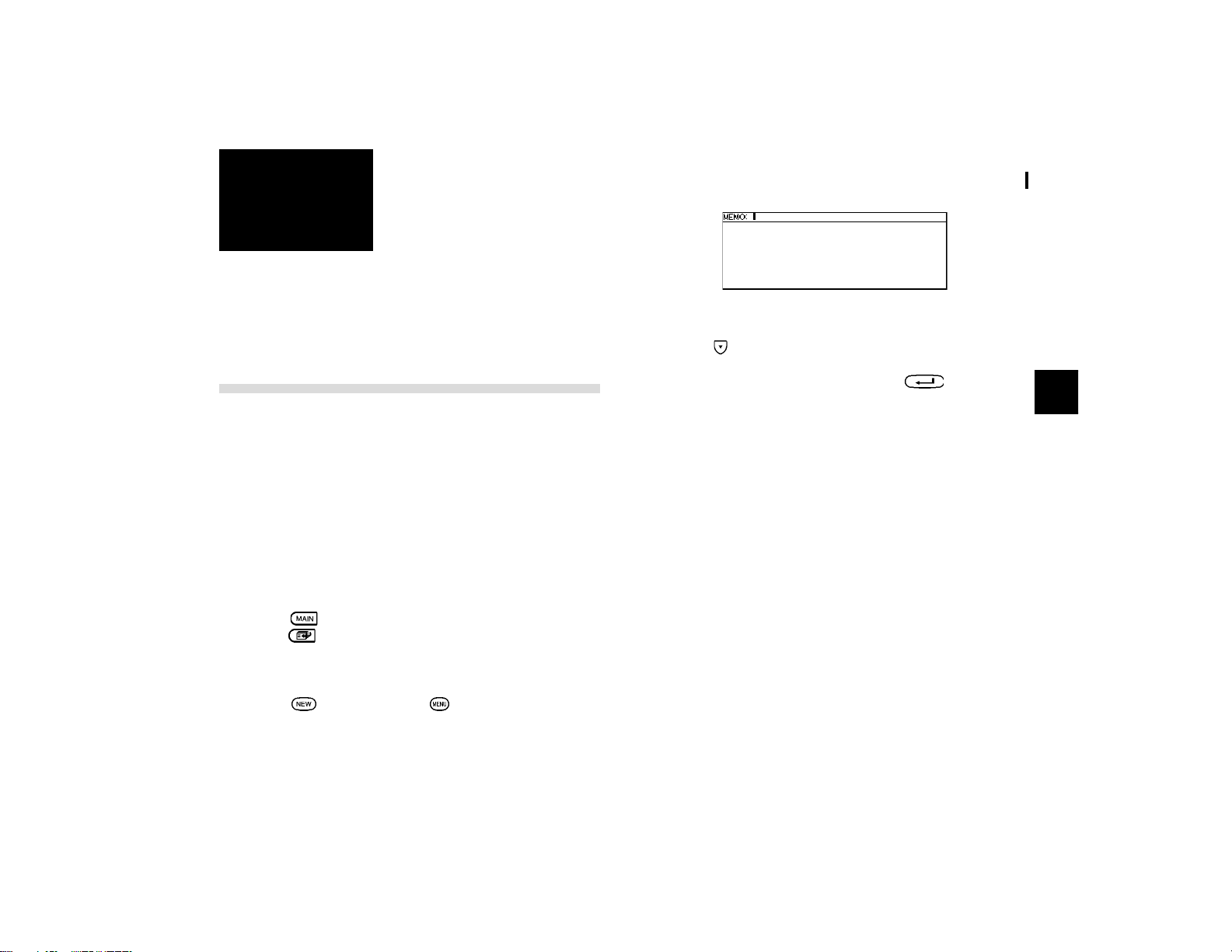
Press directly or press and select NEW in the
application menu.
3.
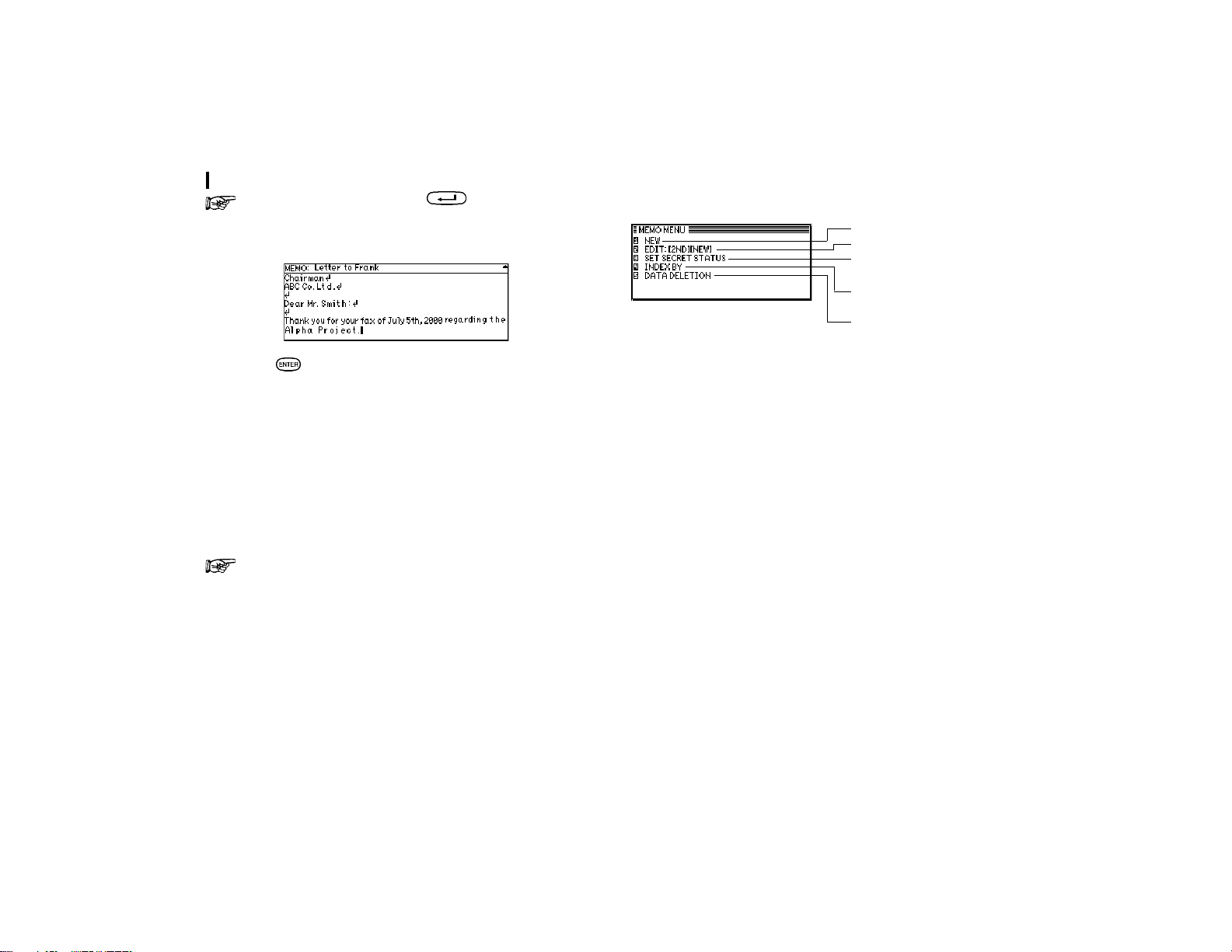
Type in the title
Letter to Frank
.
4.
Press .
5.
Type in the following letter (pressing to move to a
new line):
July 10, 2001
Mr. Frank Smith
Chairman
ABC Co. Ltd.
Dear Mr. Smith:
Thank you for your fax of July 5th, 2001 regarding the Alpha
Project.
We agree that it is too difficult to answer your questions about
our new project properly based on the available information.
We will receive the proper documentation within the next week.
This shouldnít cause any delay in our production schedules.
Sincerely,
Memo
34
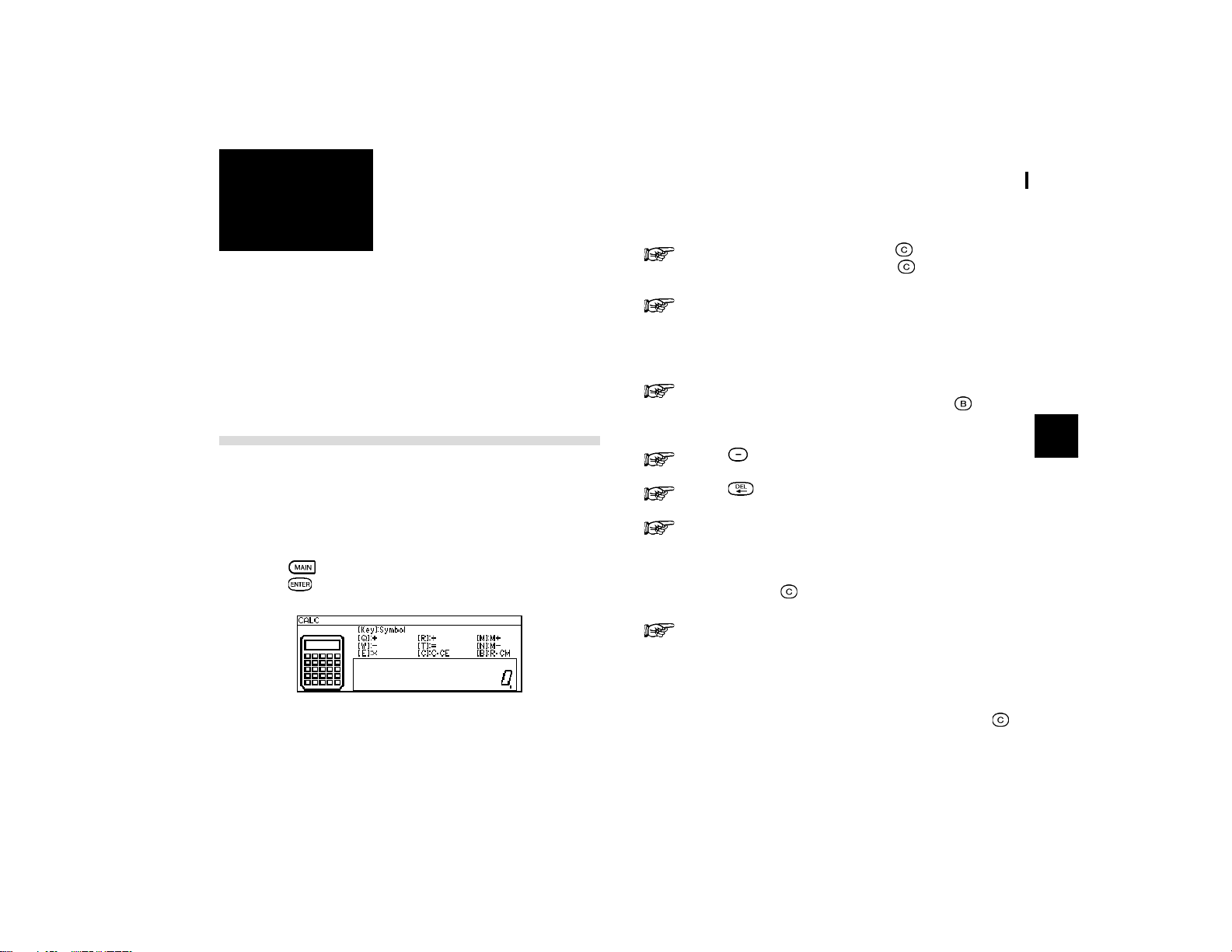
The Memo application menu
Creates a new entry. (p.15)
Edits an existing entry. (p.16)
Sets password to lock a
record (see p.54)
Changes the Index mode by
date or title (see p.34)
Selects specific entries for
deletion (see p.20)
It is not necessary to press at the end of each
line. The Organizer will automatically perform word
wrapping onto the next line when the current line is full.
6.
Press when you have finished entering the text.
The entry is then stored and displayed in View mode.
Finding entries
Memo entries can be sorted for display in two ways:
alphabetically according to their title, and by date of entry. You
can choose whether to display the entries in date order or
alphabetical order to make finding the desired entry as easy
as possible.
If the alphabetical order is selected, type in a title is
good idea for quick access to the data.
35
Desk Accessories
6
CHAPTER CHAPTER
CHAPTER CHAPTER
CHAPTER
66
66
6
Desk Accessories
The Organizerís desk accessories are a set of valuable
utilities for everyday use. The Calc (Calculator) can perform
calculations on figures entered using the number keys. The
Clock can simultaneously display the day, date, and time in
any two cities of your choice. This chapter provides all the
information you need to enjoy full use of these very useful
applications.
The Calc (Calculator) Application
The Organizer provides a 12-digit calculator which performs
mathematical operations. In addition, it has a powerful currency
/ units conversion function.
Using the arithmetic calculator
1.
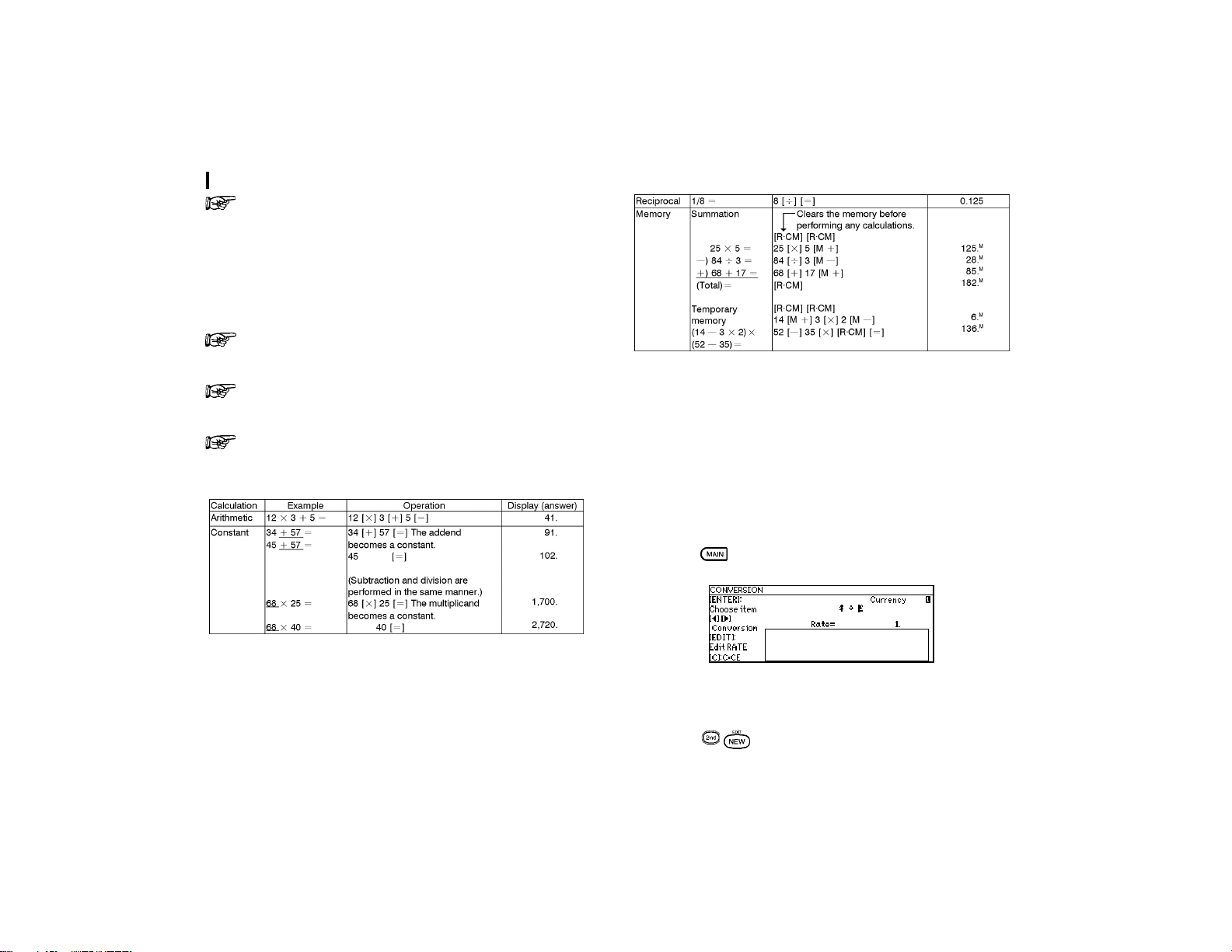
Press to enter the Main Menu and select CALC, then
press
.
2.
Perform the calculation using the numeric and
mathematical symbol keys on the keyboard, just as you
would with a regular electronic calculator.
To quit the Calc application, simply change to any other
application by pressing the corresponding key.
To clear an entered value, press once. To clear an
entire calculator operation, press
twice.
Calculations are performed in the order of entry, not
according to algebraic operator precedence, ie., the
calculation 8 + 2 x 3 is performed as: (8 + 2) x 3 not 8
+ (2 x 3). This is just as for a regular electronic calculator.
An M shown on the display indicates that a value is
stored in the calculatorís memory. Press
twice to
clear the memory.
Press to change the sign of a displayed value.
Press to erase the last digit typed.
An E shown on the display indicates an error, usually
an overflow error (when no more digits can be
displayed). When this happens, the calculator will
usually ignore any subsequent input until the error is
cleared. press to clear the error.
For further information on other calculator operations,
see p.37.
When E appears
When any of the following situations occur, the error indicator
E is displayed and calculations are suspended. Press
to
clear the error.
Desk Accessories
36
The integer part of the calculation result is within the
range of 13 to 24 digits (a rough calculation is obtained).
Example: 4567890123 [x] 456 [=]
2.08295789608 is displayed with E, which
indicates that the rough result is :
2.08295789608 x 10
12
(ie. 2,082,957,896,080)
The integer part of the calculation result exceeds 24
digits.
The integer part of the numerical value in the memory
exceeds 12 digits.
A number is divided by ì0î.
Calculation examples
Conversion function
The Organizer can be used to perform conversions between
different currencies and units of length, area, volume, mass,
temperature and energy. There are 4 conversion index groups.
The first index group comprises 8 currency conversion screens
in which you can set and edit the exchange rates yourself. The
other 3 index groups have preset conversion factors so
conversion can be performed right away.
Changing the currency rate
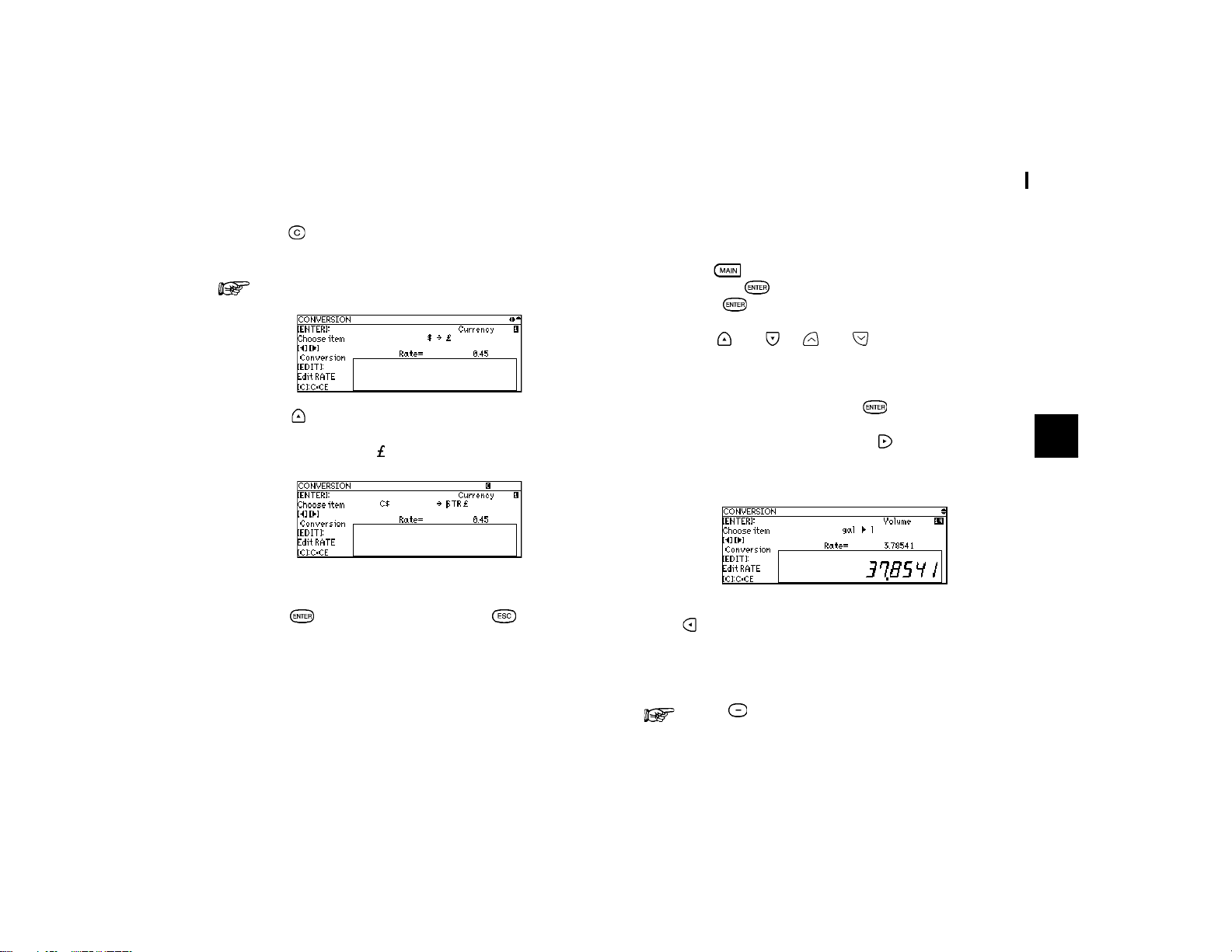
1.
Press to enter the Main Menu and select Conversion.
For example, you want to set one Canadian dollar equal to
0.45 pounds Sterling:
2.
Press in order to change the rate.
37
Desk Accessories
6
The exchange rate line starts to blink.
3.
Press to clear the original rate first. Then enter the rate
0.45.
Make sure that a maximum of 10 digits can be entered.
4.
Press to move to the currency name field and then
change what you want.
Example: C$ → STR
A maximum of seven characters can be entered on each side.
5.
Press when you have finished (or to cancel the
changes).
If you want to set another currency exchange rate, start again
from step 2 above. You can use each currency conversion at
any time once it has been set.
Performing a conversion
For example, you want to find out how many liters there are in
10 gallons:
1.
Press to enter the Main Menu and select Conversion
then press
.
(Press
again to see conversion lists.)
2.
Press and or and to move through seven
conversion groups until you find the Volume units
conversion.
3.
Select gal → l and then press .
4.
Enter 10 gallons and then press to convert it.
The answer is displayed under the unit rate.
If you want to know how many gallons are equal to 10 litres,
press
key to change from gal → l to gal ← l.
The method of converting currencies, units of length / area /
mass / temperature / energy is the same as above.
Press to change the sign of a displayed value.
Desk Accessories
38
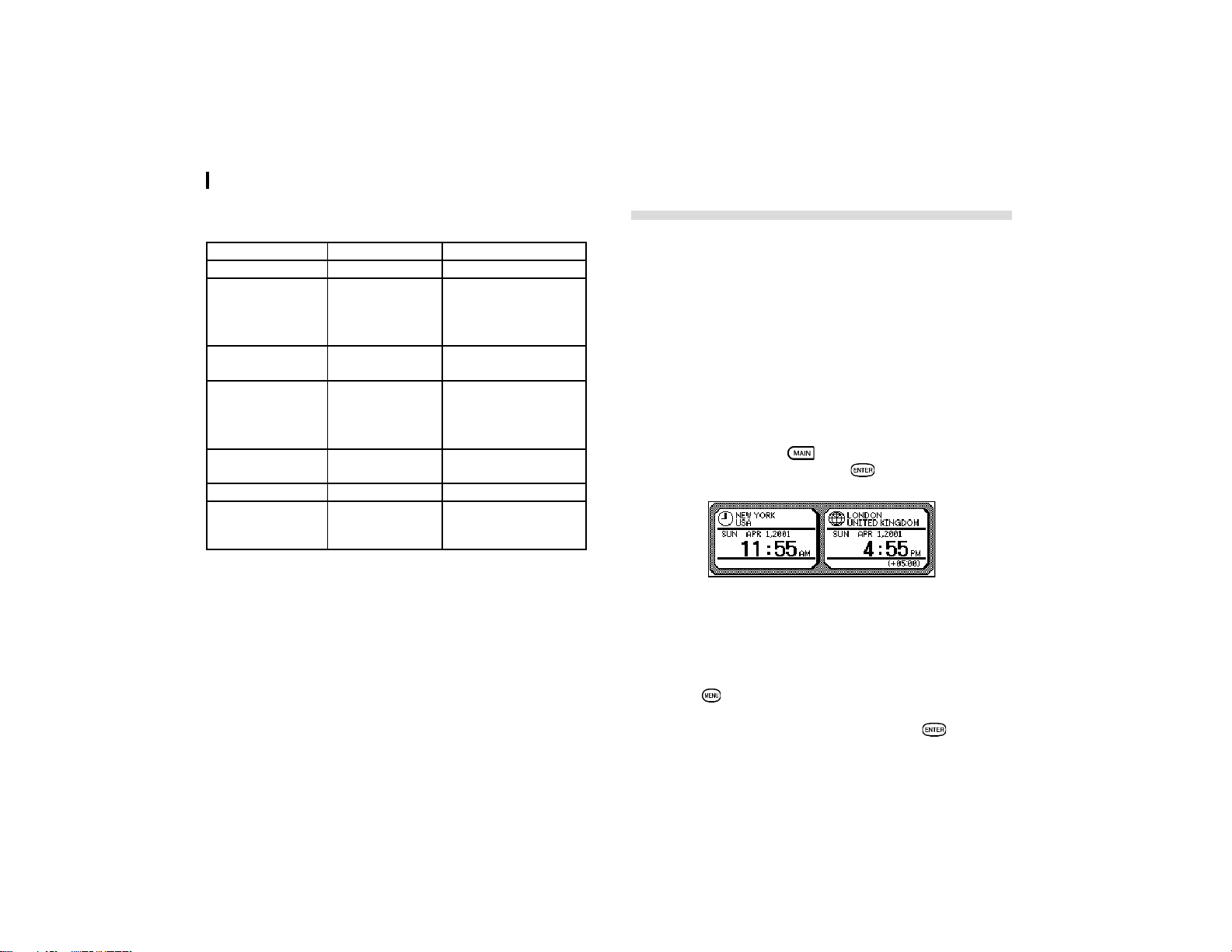
The following table shows the conversion factors that are preset
in your Organizer.
CONVERSION UNITS FACTOR
Currencies User-Specified User-Specified
Length inch-cm 2.54
feet-m 0.3048
yard-m 0.9144
mile-km 1.609344
Area acre-m
2
4,046.86
acre-ha 0.404686
Volume gal-l 3.78541
I.gal-l 4.54609
fl.oz-ml 29.5735
I.fl.oz-ml 28.4131
Mass oz-g 28.3495
lb-kg 0.45359237
Temperature ∞F-∞C 5/9(∞F-32)
Energy cal-J 4.18605
hp-W 745.7
PS-W 735.5
The Clock Application
The unitís built-in clock makes it possible not only to know the
correct time and date in your area, but also to know the time in
other cities or any region around the world. The Clock is used
as the reference time by the Calendar, Schedule, and To Do
applications. In addition to these features, daylight saving time
(DST) can be enabled for any city you designate, and for those
countries that use an annual Daylight Saving Time adjustment.
As an aid to international business and travel, the Organizer is
set to display the time in any other city you choose (called the
World City) as well as your own city (the Local city).
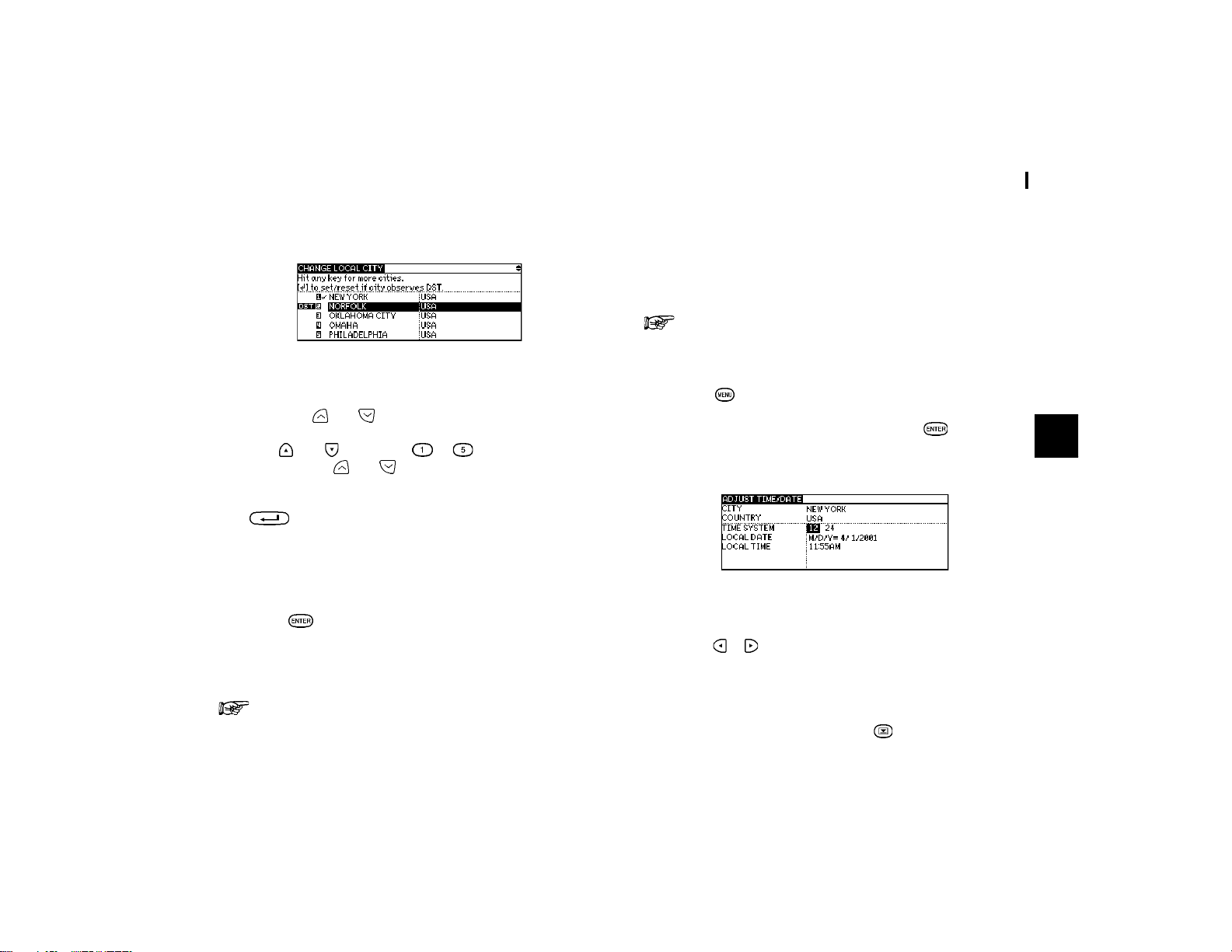
To view the Clock, press
twice to enter the Second Main
Menu and select Clock, then press
.
Changing the Local city
The Local city is the city selected to provide the local time.
When you first use your Organizer, the default Local city is set
as New York. To change this setting:
1.
Press to open the Clock menu.
2.
Select CHANGE LOCAL CITY, then press .
39
Desk Accessories
6
A list of cities appears. The currently selected city is at the top
of the list. The cities are listed in alphabetical order by country
and then by city name.
3.
Type the first letter of the name of the country in which the
target city is located. (For example, if you wanted to select
San Francisco, you would type U for United States.)
Then use
and to display the city you want.
4.
Use and or number to to select a city. You
can also use
and to move up and down the list.
5.
If the selected city observes Daylight Saving Time, press
to indicate this.
This advances the Local time by one hour. A symbol appears
beside the city to indicate that daylight saving time has been
set.
6.
Press .
The Clock window appears, showing the new Local city. The
time is automatically adjusted.
Certain countries will be abbreviated as follows:
Federal Republic of Germany GERMANY, F.R.
Papua New Guinea PAPUA N.GUINEA
Czech Republic CZECH REP.
Republic of Trinidad and Tobago TRINID. & TOB.
Dominican Republic DOMINICAN REP.
French Polynesia FR. POLYNESIA
United Arab Emirates U.A. EMIRATES
United States of America USA
Country and city names in the list and their relative time
differences are current as of July 1997.
Setting the time and date
1.
Press to open the Clock menu.
2.
Select ADJUST TIME / DATE and press .
The ADJUST TIME / DATE window opens.
The window has three fields: Time System, Local Date, and
Local Time.
3.
Press or to indicate whether you want the time shown
in 12- or 24-hour format.
4.
Move to the LOCAL DATE field. Enter the current month
and day in two digits, and the year in four digits. You can
also select the date by pressing to display the pop-up
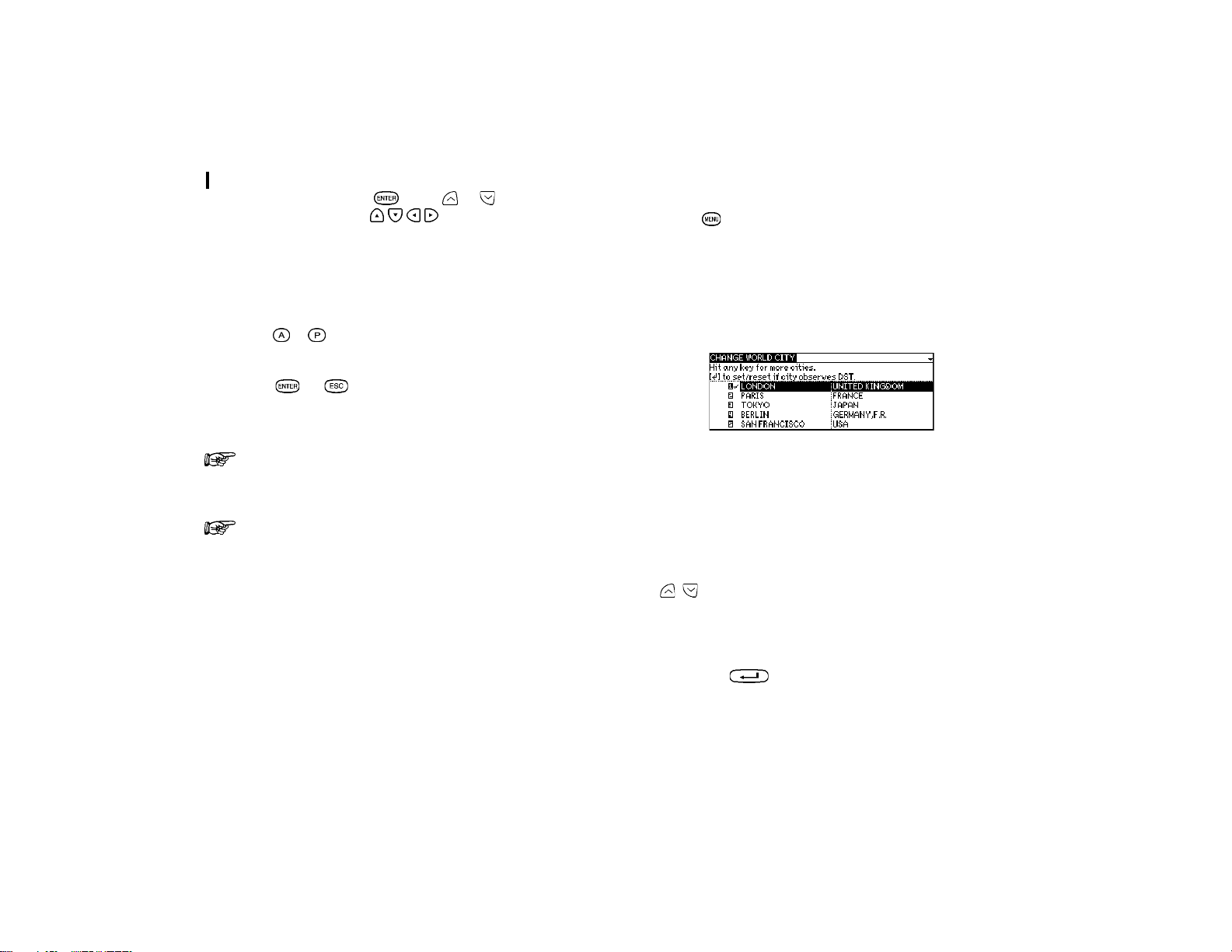
Desk Accessories
40
calendar, then press . (Use or to display the
desired month, then
to move to the current
day.)
You can set any date from January 1st, 1901 to December 31st,
2099.
5.
Move to the LOCAL TIME field, enter the current time and
press
or (for AM or PM). Be sure to enter a 0 before
a single-digit hour or minute entry.
6.
Press (or to cancel the changes).
The time and date are now stored.
Because the Organizer automatically adjusts the time
after the Local city is changed, you should select the
Local city before setting the time and date.
Changing the setting in the TIME SYSTEM field also
changes the time display format for all the Organizerís
time-related applications and functions, such as
Schedule.
Checking the time in a city
You can find out the time anywhere in the world using the Clock
application by selecting another city, called the World city.
Selecting a city as the World city will display the time in that
city as well as the Local city if you choose Clock in the Second
Main Menu. The Organizer also shows you the time difference
between the current World city and the Local city. When you
first use the Organizer, the default World city is London.
To change the World city:
1.
Press to open the Clock menu.
2.
Select CHANGE WORLD CITY.
A list of five cities appears. These will be the six cities you most
recently selected, or checked the time in. The currently selected
World city appears at the top of the list.
3.
If the city you want to select as your World city is on the
list, select it and then press proceed from step 6 below. If
not, type the first letter of the country containing the target
city.
A list of cities appears. Just as for the LOCAL CITY list, all cities
in this list are in alphabetical order according to country name.
Use
, to display the city you want.
4.
Select the desired city.
5.
If Daylight Saving Time (DST) is observed by the selected
city, press
to indicate this.
A symbol appears beside the city, indicating that DST has been
set.

41
Desk Accessories
6
6.
Press .
The city is selected as the World city and the window closes.
The Clock window briefly appears, indicating the time in the
selected World city. The time difference relative to the Local
city is displayed below the World city time.
Daylight Saving Time (DST)
Assigning DST to a city
Designating Daylight Saving Time (DST) for a city automatically
sets the time for that city one hour ahead of its regular time.
1.
Press to open the Clock menu.
2.
Select either CHANGE LOCAL CITY or CHANGE WORLD
CITY (it doesnít matter which you choose) then press
.
3.
Select the desired city using , , and .
4.
Press .
A symbol appears to the left of the city, indicating that DST is
in effect.
5.
Press .
To de-assign a cityís DST setting, simply follow the above
procedure and press
again (this toggles DST between
on and off).
Enabling and disabling DST
Once DST is assigned to a city, it remains in effect until it is de-
assigned. Once a year, cities using DST will switch back to
regular time. Rather than having to de-assign DST for each
city separately, you can simply disable the Organizerís DST
feature itself, which then applies to all cities within the Organizer.
When these cities switch back to DST, you can simply re-enable
the feature without having to change any cityís entry.
1.
Press to open the Clock menu.
2.
Select ENABLE DST and press .
3.
The current DST setting (enabled or disabled) is indicated
by a tick. Select ENABLE DST to change the setting.
When DST is disabled, the DST symbol disappears from the
Clock display.
Setting daily alarms
You can set alarms just like on a regular clock, separately from
Schedule events, using the Clock menu. Set alarms will sound
even if the Organizer is turned off.
This can be especially convenient, for example, when you need
an alarm as a simple reminder, but do not want to make a full
Schedule entry.
1.
Press twice to enter the Second Main Menu and select
Clock then press
.
2.
Press to open the Clock Menu and select SET DAILY
ALARM.
Desk Accessories
42
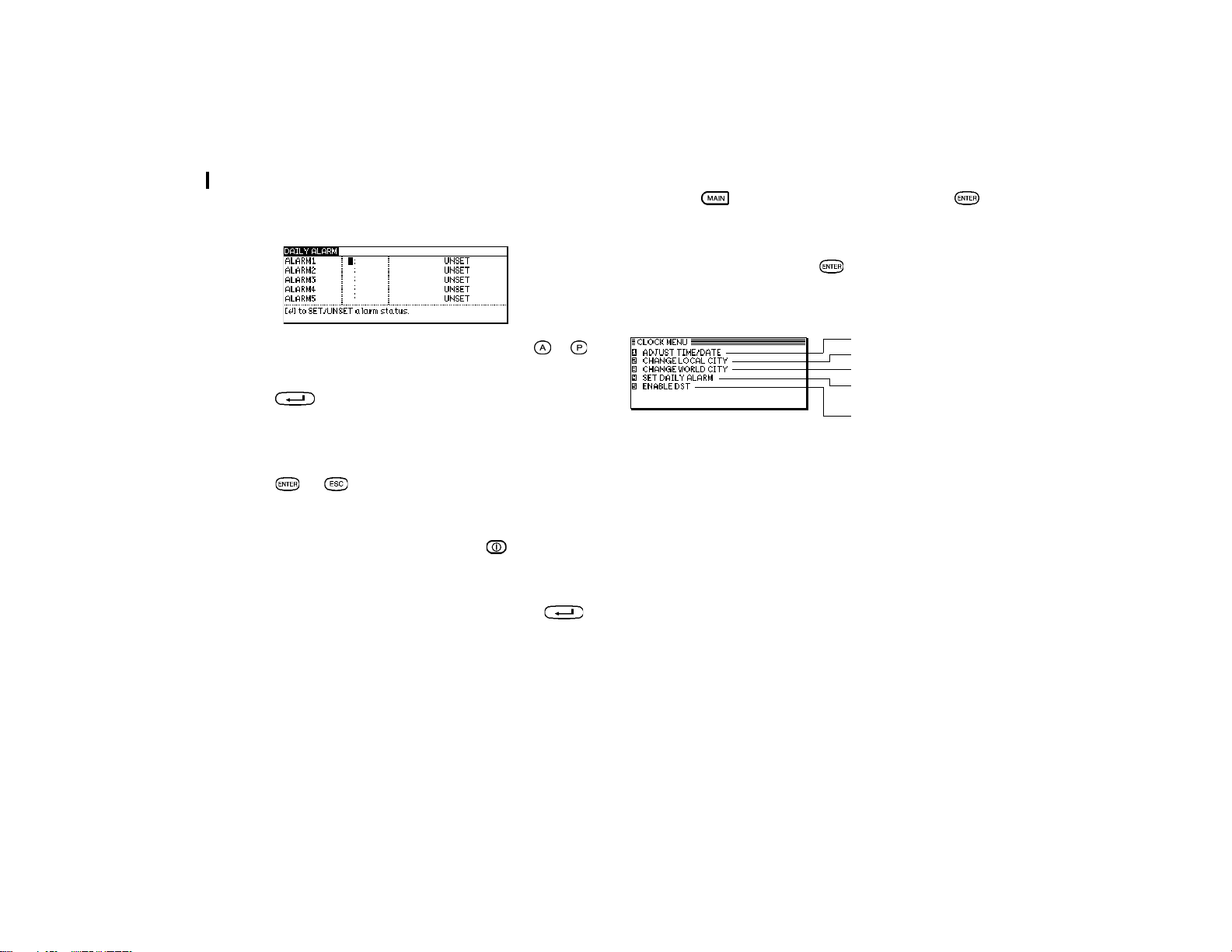
The SET DAILY ALARM window opens. You can set up to five
alarms.
3.
Enter the time for the desired alarm, followed by or
for AM or PM.
4.
Press to set the alarm.
5.
Move to the next field and set any other alarms you want
using the same procedure.
6.
Press (or to cancel setting).
Turning alarms on and off
To turn off an alarm that is sounding, press . Alarms will
turn off automatically after sounding for 15 seconds.
To unset an alarm, select SET DAILY ALARM from the Clock
Menu, select the alarm you want to turn off, and press
.
Disabling all alarms
Once you have set an alarm, it will sound at the appropriate
time whether the Organizer is turned on or off.
There may be times when you do not want to hear any of the
set alarms. You can disable all Daily alarms sound easily.
1.
Press twice and select Sound, then press .
2. Select DAILY ALARM in the SOUND menu.
3. Choose OFF, then press
.
The Clock application menu
Sets the time and date
Sets the local city
Sets the world city
Sets and controls up to five
alarms to sound daily
Turns all DST settings on or
off
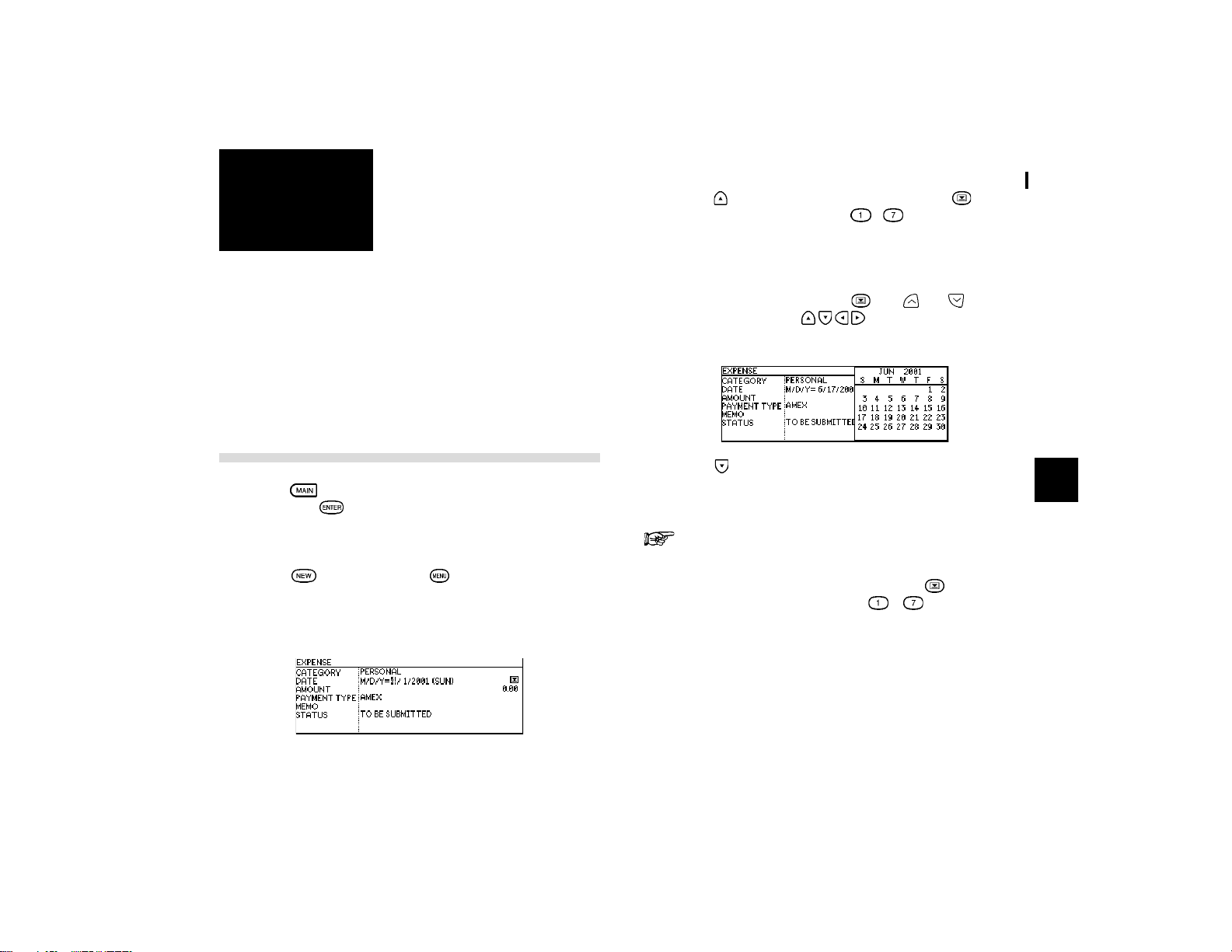
43
Expense
7
CHAPTER CHAPTER
CHAPTER CHAPTER
CHAPTER
77
77
7
Expense
The Expense function is an easy way to track expense
information for the traveling business person. Each record
can contain the category, date, amount, payment type
(AMEX, Visa, MasterCard, Diners Club, check, cash or two
other types of your choice), status and a description of the
expenses. In addition, the EXPENSE REPORT option allows
you to see the total expenses for a single day or for a certain
period.
Entering Expense Record
1.
Press to enter the Main Menu and select Expense,
then press
.
The Expense application opens in Index mode.
2.
Press directly or press and select NEW in the
application menu.
A blank form opens in Edit mode.
3.
Press to move to the Category field. Press to select
the desired category. Press
- to choose item.
Select PERSONAL
4.
Enter the date in the order of month, day, year. Type in
the date 06172001, or press
, use and to display
June 2001, then use
and to move to 17th of the
month.
5.
Press to move to the Amount field.
6.
Type in the amount
100
.
The expense amount can be up to 10 digits including
up to two decimal places.
7. Move to the Payment Type field. Press
to select the
desired payment type. Press
- to selected the
desired item.
Select Visa.
8.
Move to the Memo field and use the keyboard to input the
description of the expense.
For example: Type in
Car rental at ABC RENTAL SERVICE
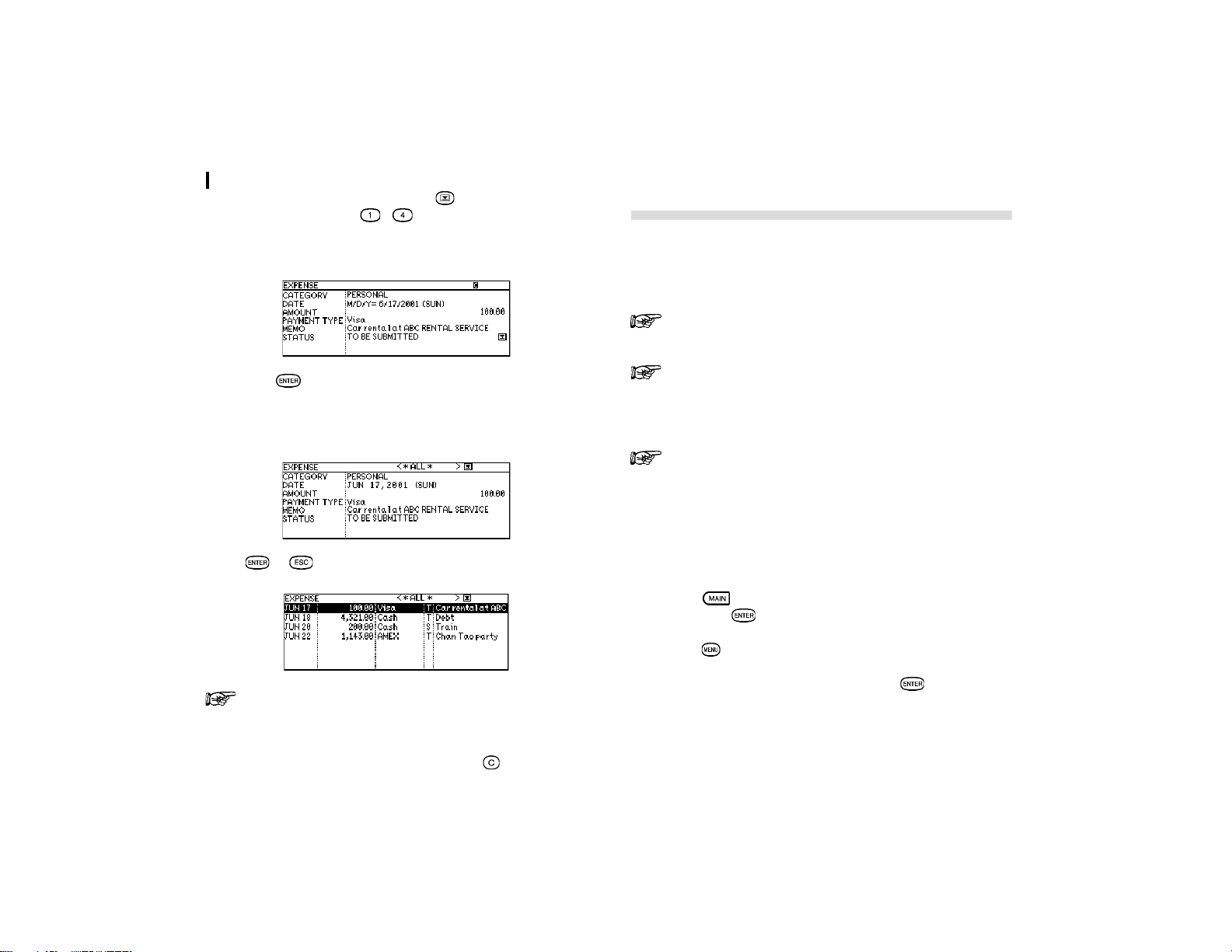
Expense
44
9.
Move to the Status field. Press to select the desired
status mode. Press
- to select.
Select TO BE SUBMITTED
10.
Press to store the entry.
The message ìStored!î appears briefly. The entry is now stored
and displayed in view mode.
Press or to switch to Index mode.
Simple calculations like addition, subtraction,
multiplication, and division can be performed in the
AMOUNT field by using the numerical and mathematical
symbol keys on the keyboard. If an error occurs, you
can clear the calculation by pressing
.
Expense Report
A summary is a collection of records in the EXPENSE REPORT
mode. Daily or Period expense summaries for entire records
or for each payment type can be obtained.
Records marked as secret are not included in
summaries if the SECRET function is on.
If an inappropriate date is entered (for example, an
ending date which is earlier than the starting date), no
calculation will be made, so be sure to enter the correct
dates.
Select EXPENSE REPORT in Expense menu to jump to
Expense Report function directly.
Summarizing expense records for a specific date
To summarize all records in the BUSINESS category for AMEX
on Aug 15, 2001, for example:
1.
Press to enter the Main Menu and select Expense
then press
.
2.
Press to open the Expense menu.
3.
Select EXPENSE REPORT then press .
A blank form is displayed.
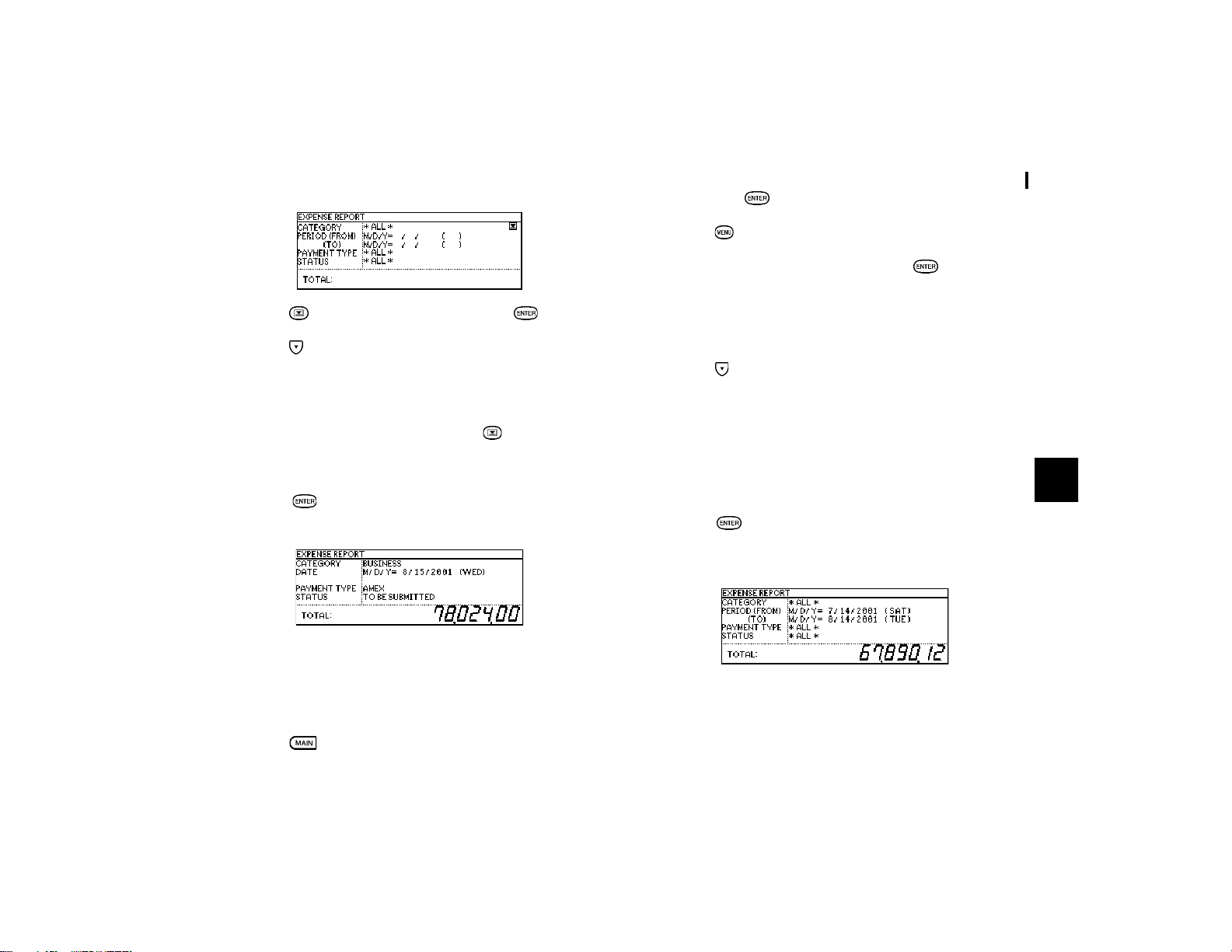
45
Expense
7
4.
Press to select BUSINESS, then press .
5.
Press to move to the Period field. Enter the From date
or the To date.
Type in
08152001
.
6.
Move to the Payment Type field. Press to select AMEX.
7.
Move to the Status field and select TO BE SUBMITTED.
8.
Press when you have finished. The dayís AMEX
expense total is displayed.
Summarizing expense records for a certain period
For example, you want to find out the total amount of all
expenses from July 14 to Aug 14, 2001:
1.
Press to enter the Main Menu and select Expense
then press
.
2.
Press to open the Expense menu.
3.
Select EXPENSE REPORT then press .
A blank form is displayed.
4.
Select ALL.
5.
Press to move to the Period field. Enter the From and
To date.
Type in
07142001
and
08142001
respectively.
6.
Move to the Payment Type field and select ALL.
7.
Move to the Status field and select ALL.
8.
Press when you have finished. The total expense
amount for the specified period is calculated and
displayed.
Entering and changing category and payment type
settings
In the CATEGORIES and PAYMENT TYPE reference lists, there
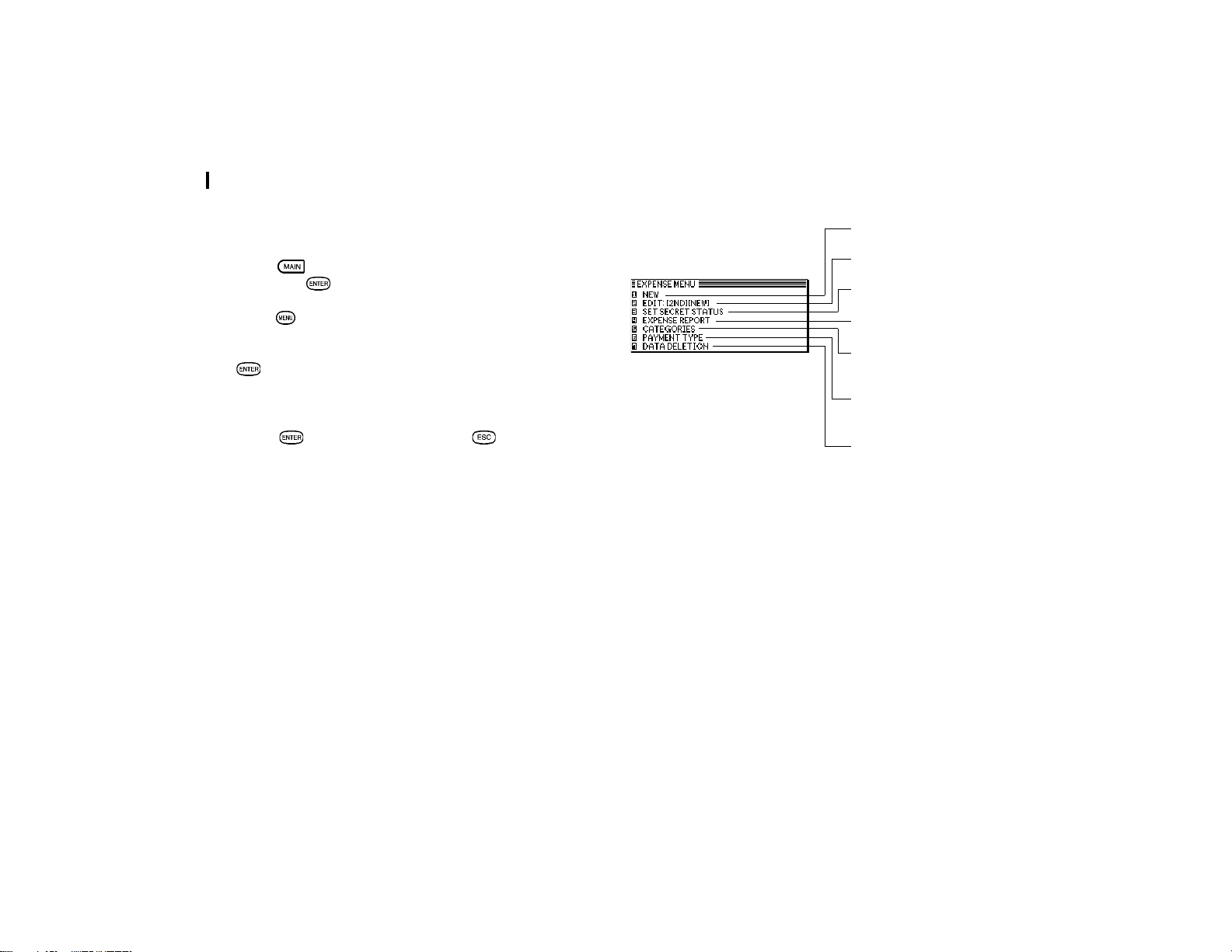
Expense
46
are 12 types of categories and 8 types of payments. You can
change the order of these existing categories and payment
types or use another name or enter some new names.
1.
Press to enter the Main Menu and select Expense
then press
.
2.
Press to open the Expense menu.
3.
Select CATEGORIES or PAYMENT TYPE and then press
.
4.
Make any changes as you like.
5.
Press to save the changes (or to cancel the
changes).
Creates a new entry (see
p.43)
Edits an existing entry (see
p.16)
Sets password to lock a
record
Selects the Expense Report
function (see above)
Opens the CATEGORIES
window so you can edit the
category (see above)
Opens the PAYMENT TYPE
window so you can edit the
payment type (see above)
Selects specific entries for
deletion (see p.20)
Expense application menu

47
Features and Utilities for Added Power
8
CHAPTER CHAPTER
CHAPTER CHAPTER
CHAPTER
88
88
8
Features and
Utilities for Added
Power
In addition to its basic functions, the Organizer also provides
a wide range of utilities and features to give you even greater
control over your information. This chapter introduces and
describes these features, which include text cutting, copying,
pasting and many more. Most people will not need to use all
of these features on a daily basis. You can pick and choose
from among them to find the features that best suit your
current task and your own way of working.
In general, Schedule, To Do, Birthday / Ann, Expense, Tel,
Memo applications share the features explained in this
chapter, while exceptions are clearly noted.
Copying or Moving Blocks of Text
The Organizer lets you cut, copy or paste blocks of text using
the keyboard. The first step in cutting, copying, and pasting is
to select the block of text you want to work with.
Text that has been cut or copied is stored on the unitís internal
clipboard. Only one block of text can be stored in the clipboard
at a time, and it will remain there until a new block of text is cut
or copied. There is no limit to the number of times you can
pasted the same text from the clipboard.
1.
Select an entry in its applicationís Index mode then display
it in Edit mode.
2.
Make sure the cursor is placed at the start of the text you
want to select.
3.
Hold down while moving the cursor across the desired
text to select it.
4.
Press to move the selected text to a new location
(i.e. remove it from its original location).
Press
if you want to make a copy of the text (and leave
the original text unchanged).
The selected text is stored in the clipboard.
5.
Press if you want to store the original entry with any
changes you have made (including moving or copying
the selected text), or press to discard all the changes
you have made to the original entry. Note that even if you
press , the text you selected will remain in the clipboard
for you to use.
6.
Open an entry, in Edit mode, in which you want to place
the text.
7.
Place the cursor at the start of the text you want to paste.
8.
Press .
The text you selected is now pasted into the new location.
9.
Press to store the amended entry with the pasted
text.
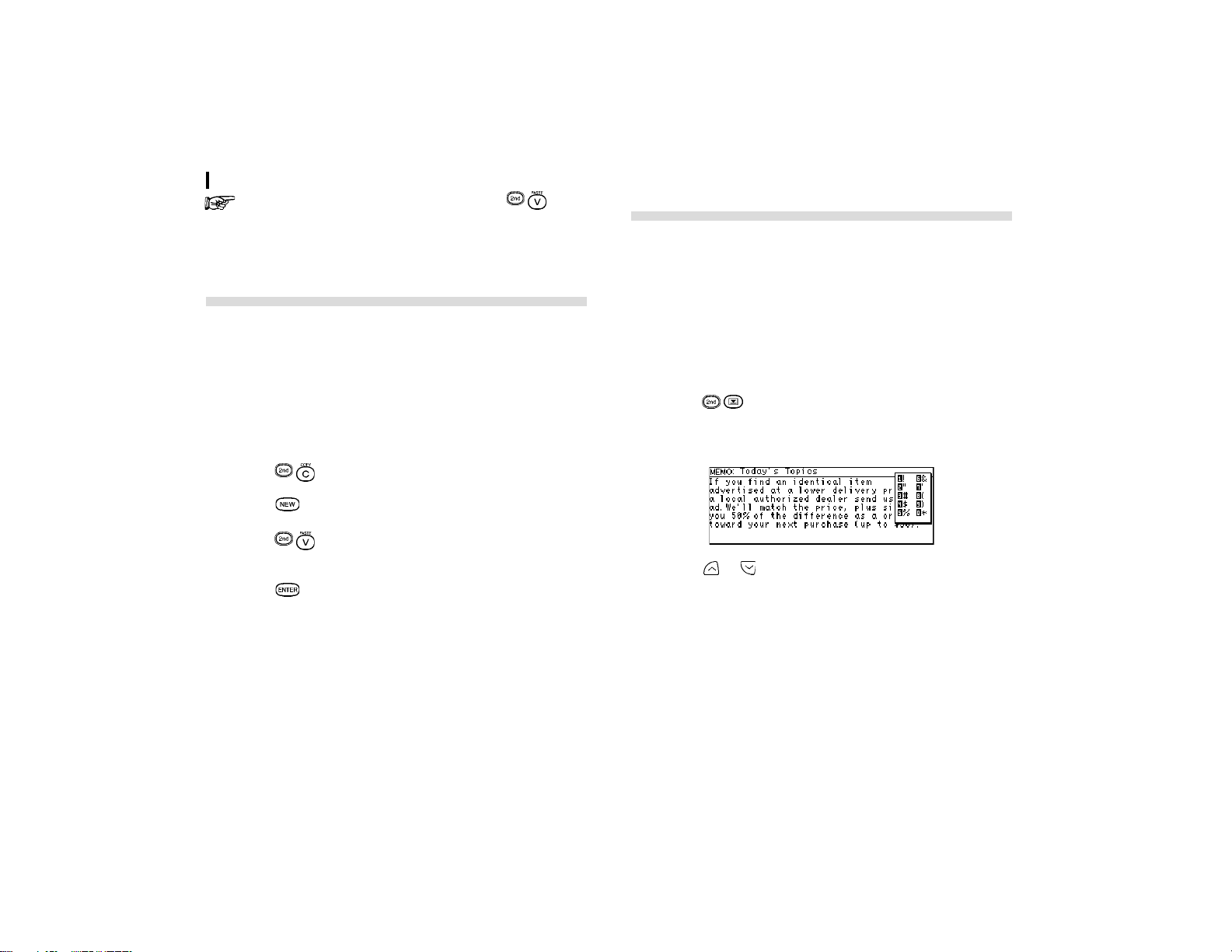
Features and Utilities for Added Power
48
By highlighting some text before pressing , it can
be replaced with the pasted text. Thus you can easily
replace one block of text with another by highlighting it
before pasting.
Copying or Moving Entries
The CUT / COPY / PASTE operations provide a quick,
convenient way for you to copy or move an entire entry to
another location. Entries have to be in the same file and same
application.
1.
Select an entry that you want to copy or move in index
mode.
2.
Press .
3.
Press or select NEW in the application menu.
4.
Press .
5.
Make any necessary changes to the duplicated entry.
Press
to store the entry when you have finished.
Special Characters
The Organizer has a list of symbols, such as ì
`
î and ì | î .
These symbols and accented characters can be easily
accessed and inserted into an entry. Select any of these special
characters and insert it at the cursor's current location.
1.
When entering data or editing an entry in any application
in Edit mode, position the cursor where you want to insert
a symbol or special character.
2.
Press on the keyboard.
The Symbol window appears.
3.
Press or until you see the character you want to
enter.
4.
Press the corresponding numeric key ì0î - ì9î to enter
the selected symbol.
The symbol window closes and the selected character is
entered at the current cursor position.
5.
If the symbol you just selected is an accent mark (
®
,
à
,
¥
,
`
or
ò
), type the letter for which you want that accent mark
to be used.

49
Features and Utilities for Added Power
8
When you next open the Symbol menu, the character
you selected will be selected again as the default. The
Organizer automatically displays the ten characters
most recently selected from the Symbol menu in its first
page, making it easy to quickly access characters that
you use frequently.
You can use the following keyboard shortcuts:
keyboard shortcut
ò
`
¥
®
à
«
fl
followed by the desired letter

Features and Utilities for Added Power
50

51
Data Transfer
9
CHAPTER CHAPTER
CHAPTER CHAPTER
CHAPTER
99
99
9
Data Transfer
Your Organizer is a powerful pocketsize computer with built-
in functions that make it possible to accomplish a broad range
of tasks. It has the flexibility to connect with and transfer
data to and from personal computers using data transfer
facilities, which are accessed through the application
menu. This chapter provides descriptions and examples
to get you up and running quickly with these powerful
features.
Transferring Data
You can transfer data between the OZ-770 and a personal
computer. In this way, you can back up your information to
guard against loss, or copy it so you or someone else can work
with it on another device.
Depending upon the SHARP or third-party software you
are using, some features and capabilities may vary.
The Auto power off function (see p.10) is disabled in all
transfer modes.
Exchanging Information with a Personal
Computer
Using included Organizer Link software (Day-Timer Organizer
SHARP Edition) and cable (Docking Module), you can
exchange data with a personal computer. This makes it
possible, for example, to use the unit when outside your home
or office, then later transfer the data you have entered on the
Organizer to your desktop computer.
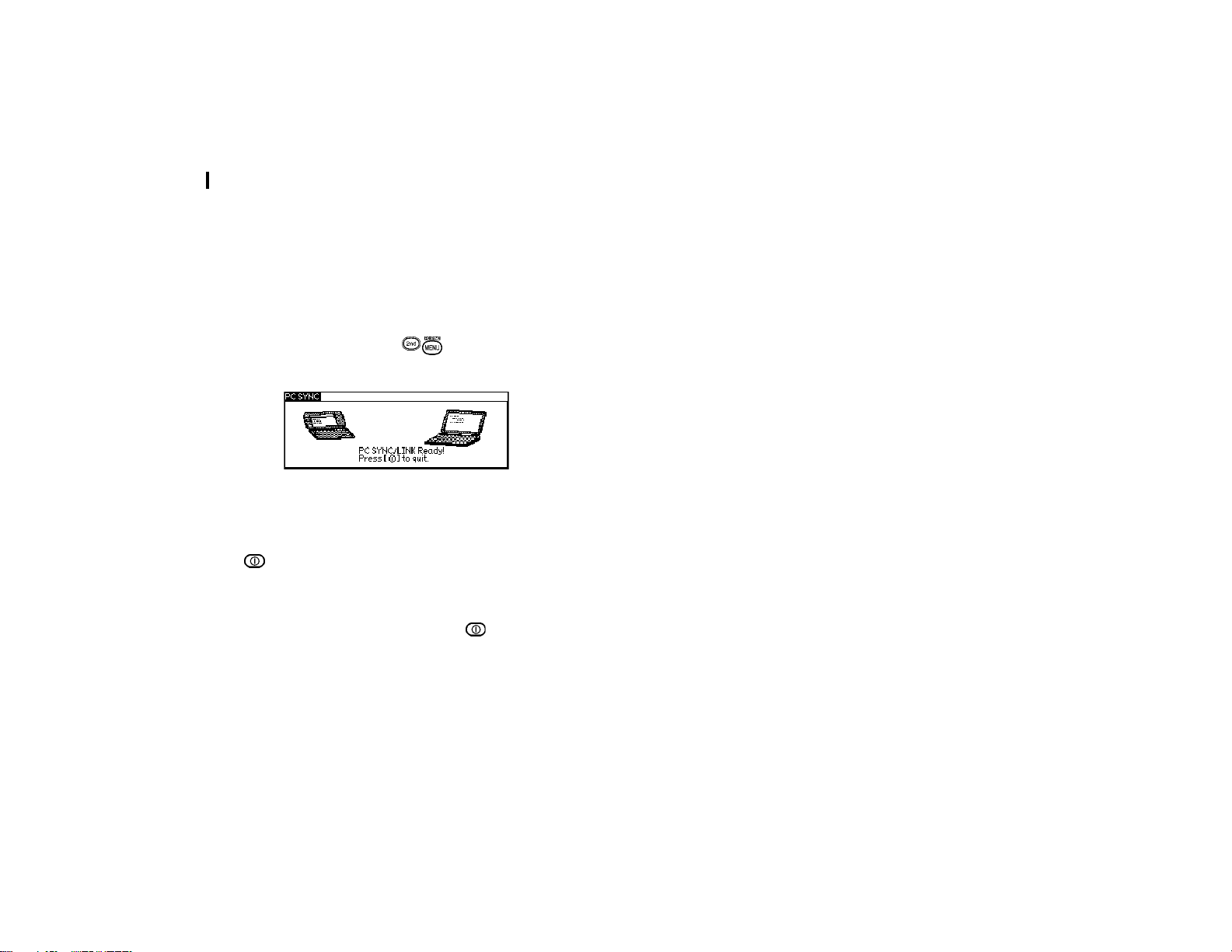
Data Transfer
52
To setup the Organizer for use with the Organizer Link:
1.
Make sure the unit is turned off.
2.
Plug the Docking Module into the jack on the Organizer
and into the PCís serial port (e.g. COM1). See the ìQuick
Start Guideî for details.
3.
Turn on the Organizer, press to activate the PC SYNC
(PC LINK) mode.
Your Organizer is now ready to transfer data. Consult the Day-
Timer Organizer
SHARP Edition HELP file regarding
subsequent transfer procedures.
Press
at any time to exit the PC-Link mode. If you leave the
Organizer in PC Link mode, more power is consumed from
the batteries than usual, and the auto power off function does
not work.
To conserve battery power, always press
to leave the PC
Link mode as soon as you have finished transferring data.
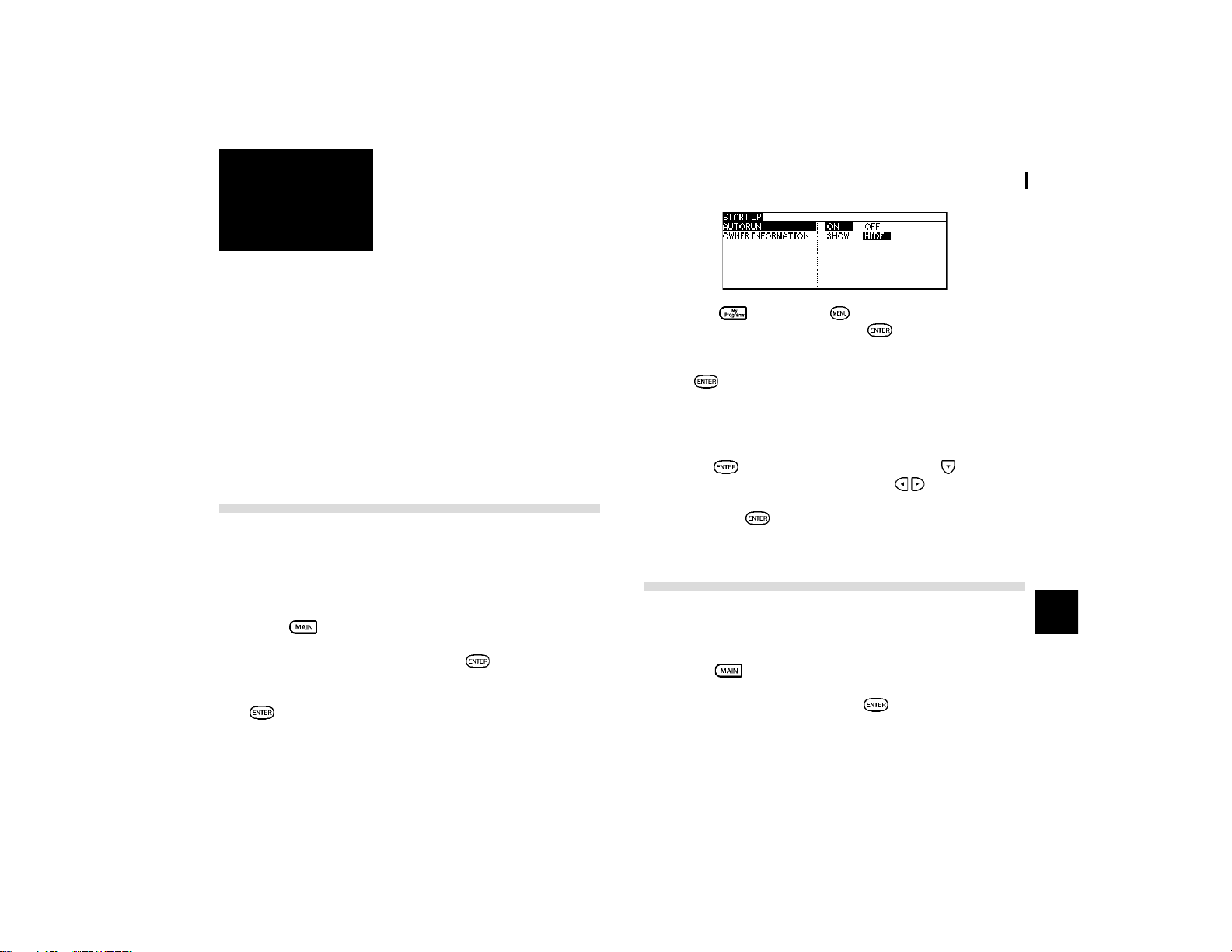
53
Personalizing Your Organizer
10
CHAPTER CHAPTER
CHAPTER CHAPTER
CHAPTER
1010
1010
10
Personalizing
Your Organizer
Now that you have an understanding of all of the Organizerís
functions and its operation, letís take a look at the various
ways you can customize the Organizer to suit your personal
preferences: entries can be made secure through password
protection and by marking them as secret; and a large font
view can be selected for the Organizerís display.
The Organizer offers a level of security for its entries and
operations. It is to define particular entries within various
applications as secret, and then enable the LOCK
ORGANIZER option in the Second Main Menu.
The Start-Up Display
You can choose to have a program run whenever the Organizer
is turned on, using the AUTORUN feature. You can also choose
to show or hide owner information when you power on the
Organizer.
1.
Press twice to enter the Second Main Menu.
2.
Select Start-up Display then press .
3.
In the AUTORUN field, you can choose ON and press
to activate the autorun first.
4.
Press then press . Select AUTORUN in MY
PROGRAMS MENU and press
.
5.
Select the program for autorun by pressing the number
or
. A Checkmark is then added to the selected
program which will run automatically each time the
Organizer is turned on.
6.
Select Start-up Display in the Second Main Menu then
press
. In the START UP menu, press to move to
OWNER INFORMATION and press
to select SHOW
or HIDE the information once the Organizer is turned on
then press to confirm.
Setting the Ownerís Information
The Ownerís Information comprises your name, address and
telephone number.
1.
Press twice to enter the Second Main Menu.
2.
Select Owner Info, then press .
The cursor starts in the NAME field.
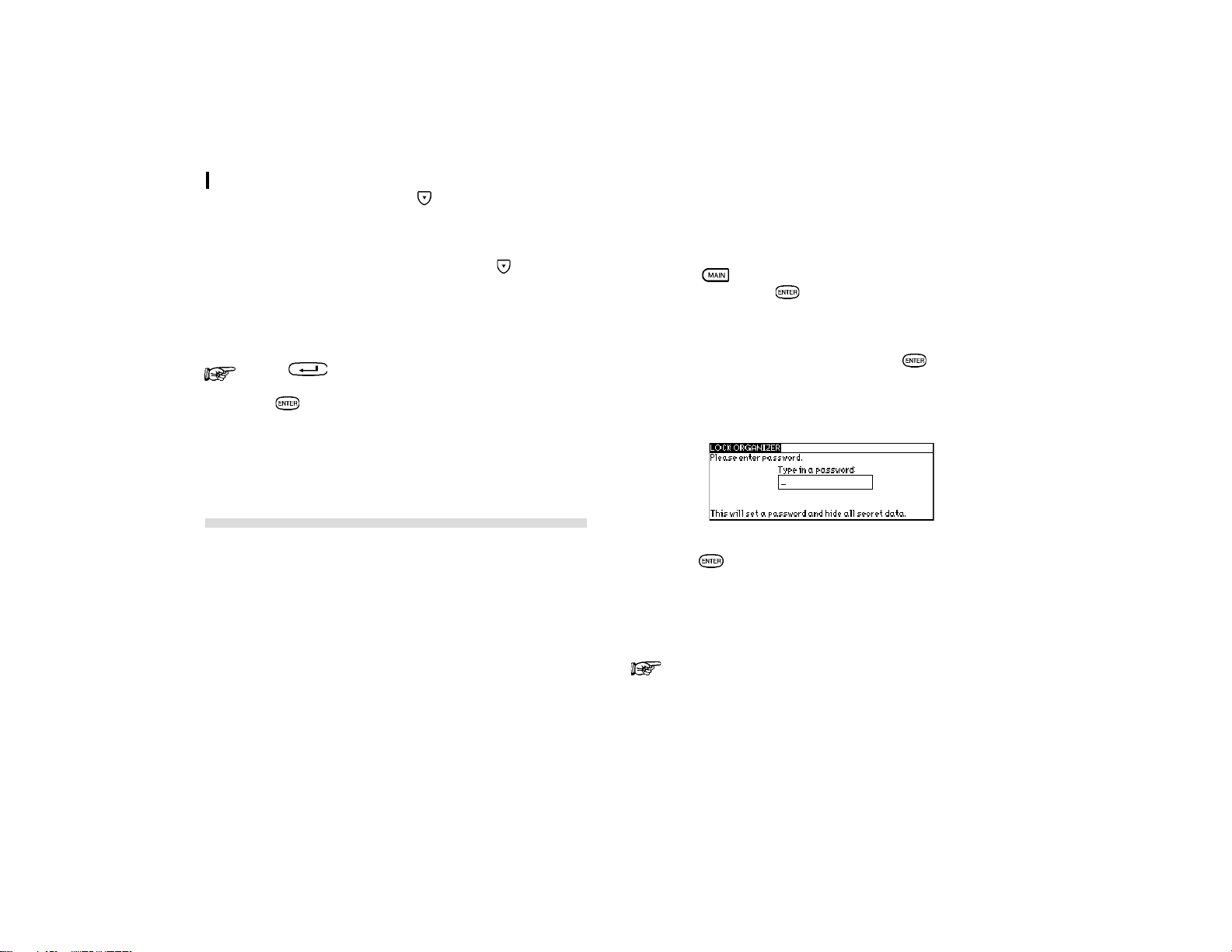
Personalizing Your Organizer
54
3.
Enter your name, then press .
The cursor moves to the telephone number field.
4.
Enter your telephone number, then press .
The cursor moves to the address field.
5.
Enter your full address.
Press to move the start of the next line.
6.
Press when done.
A message appears confirming the Owner Information has now
been set.
Locking the Organizer
The Organizerís LOCK function allows you to keep selected
information in your Organizer secure by locking it with a
password that you specify. Entries that you have marked as
secret cannot be accessed until the Organizer is unlocked using
the Password. Individual entries can be marked as secret, so
that only someone who knows the password can access them
by unlocking the Organizer. Marking entries as secret has no
effect until the Organizer is locked.
After registering a password, you will be prompted to enter
that password upon start-up. The Organizer cannot be used if
the password is not entered correctly. This is an important
security feature for users whose Organizers contain sensitive
information.
Turning on the LOCK
1.
Press twice to enter the Second Main Menu, select
Secret then press
.
The SECRET submenu appears.
2.
Select LOCK ORGANIZER, then press .
The LOCK ORGANIZER window appears prompting you to
enter a password.
3.
Enter any password up to sixteen characters long then
press
. Letters and numbers can all be used. This text
box is case-sensitive which means that upper-and lower-
case letters are treated differently. The password
ìSHARPî, for example, is different from the passwords
ìSharpî or ìsharpî.
Choose your password carefully. If you forget your
password, there is no way to bypass the Secret function
or enter a new password without losing all data. It is
strongly recommended that you use a password that
you will always be able to remember, but which other
people will be unable to guess.

55
Personalizing Your Organizer
10
4.
Re-type the password to confirm and then press to
store the password (or
to cancel the operation).
All entries marked as secret throughout the Organizer will then
be hidden and will not be accessible until the Organizer is
unlocked by giving the correct password.
A message appears warning you not to forget the password. If
you have any doubt about whether or not you will always be
able to recall this password, write it down and keep it in a safe
place.
5.
Press .
appears on the top right corner indicating that any information
you mark as secret will now be hidden.
Marking / unmarking entries as Secret
You can mark or unmark any entry as secret in Edit mode.
1.
Open the application containing the entry you want to
mark as secret.
2.
Display the entry in Edit mode.
3.
Press to open the application menu. Select SET
SECRET STATUS and press
.
ì
î symbol appears on the top right corner.
If the Organizer has been locked (which hides all secret
entries), an entry which has just been marked as secret
will be hidden together with all other secret entries (for
more information, see the next section).
Accessing Secret entries
Entries marked as secret are not shown in any of the
Organizerís display modes when it is locked, and cannot be
accessed using any of the search methods. To be able to recall
and access secret entries, the Organizer must first be unlocked.
1.
Press twice to enter the Second Main Menu, select
Secret then press
.
The Secret submenu appears.
2.
Select LOCK ORGANIZER then press .
A window appears, prompting you to enter your password.
3.
Enter your password exactly as you registered it.
4.
Press .
If the password is correct, disappears.
If the password is incorrect, a message appears indicating this.
5.
After unlocking the Organizer, access any entry you want
using the normal procedures.
If you forget your password, you will not be able to
unlock the Organizer and access your secret
information. If this happens, you will have to delete the
old password to be able to continue to use the Secret
function. This will also delete all entries marked as
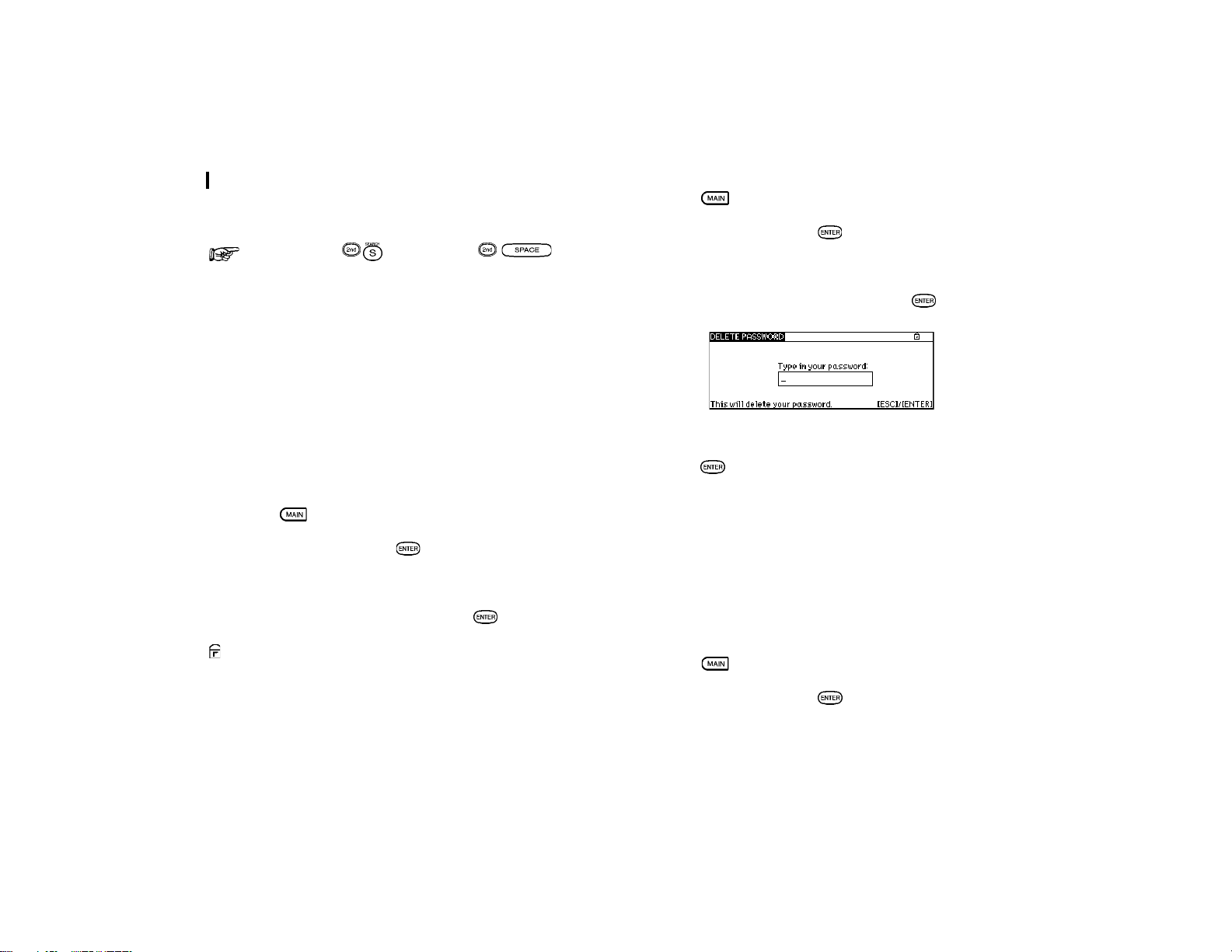
Personalizing Your Organizer
56
secret. For a full explanation of what to do if this occurs,
see below.
You can press and then press to find
only those entries marked as secret once the Organizer
is unlocked (see p.19).
Automatic Relocking
Once a password has been registered, even if you unlock the
Organizer using the procedure above, the Organizer will
automatically lock itself each time you turn it off. This automatic
relock feature protects your secret data in case you forget to
relock the Organizer. The feature remains in effect as long as a
password is registered. To disable this feature, the password
must be deleted once the Organizer is unlocked.
You can also lock the Organizer yourself at any time:
1.
Press twice to enter the Second Main Menu.
2.
Select Secret then press .
The SECRET submenu appears.
3.
Select LOCK ORGANIZER and press .
appears at the top right corner indicating that the Organizer
is now locked.
Changing or deleting the password
To register a new password, the current one must first be
deleted.
1.
Press twice to enter the Second Main Menu.
2.
Select Secret then press .
The SECRET submenu appears.
3.
Select DELETE PASSWORD then press .
4.
Enter your password exactly as you registered it.
5.
Press .
A message appears indicating that the Organizer is unlocked.
Entries that were marked as secret can be accessed until a
new password is registered (to register a new password, use
the procedure for Registering a password on p.54).
Deleting all secret entries
If you delete all entries marked as secret, your password will
be deleted at the same time.
1.
Press twice to enter the Second Main Menu.
2.
Select Secret then press .
The Secret submenu appears.

57
Personalizing Your Organizer
10
3.
Select DELETE ALL SECRET DATA and press .
A warning message appears asking if you are sure you want to
delete all the secret entries. If you have forgotten your password,
you have no choice but to proceed.
4.
Press to delete all secret entries. This will then allow
you to enter a new password.
Changing the Calendar Display Format
The Organizer lets you change the default Calendar display to
one you find more convenient. There are two aspects to
changing the display: setting the weekly format and setting up
the date format. You can use these options to set up a way of
working that you prefer.
Setting up the weekly format
You can set the Three-month view in the Calendar application
to show the weeks in either a Sunday-to Saturday format (this
is the default) or Monday-to Sunday format.
In the Calendar application:
1.
Press twice to enter the Second Main Menu.
2.
Select Formats then press .
A submenu appears.
3.
In WEEKLY FORMAT, press / to select SUNDAY or
MONDAY, then press
.
The Three-month view and daily view are then displayed
accordingly.
Setting up the date format
Almost all Organizer applications require a date to be entered
at some point. The default format for date entry is ìMM/DD/
YYYYî, where MM is the two-digit month, DD is the two-digit
day of the month and YYYY is the four-digit year. The date will
be displayed as ìMMM DD,YYYYî, where MMM is the three-
character abbreviation for the month name. However, you can
choose instead to have the date entered in the format ìDD.
MM.YYYYî, which will then be displayed in the format ìDD MMM
YYYYî.
For example, in MM/DD/YYYY format, the date July 4th, 2001
will be entered as ì07042001î and displayed as ìJUL 4, 2001î.
However in DD.MM.YYYY format, the same date will be entered
as ì04072001î and displayed as ì4 JUL 2001î.
1.
Press twice to enter the Second Main Menu.
2.
Select Formats then press .
A submenu appears.
3.
In DATE FORMAT, press and to select the desired
format, then press
.
Setting the time system
You can choose the time system to be displayed in 12- or 24-
hour display format.
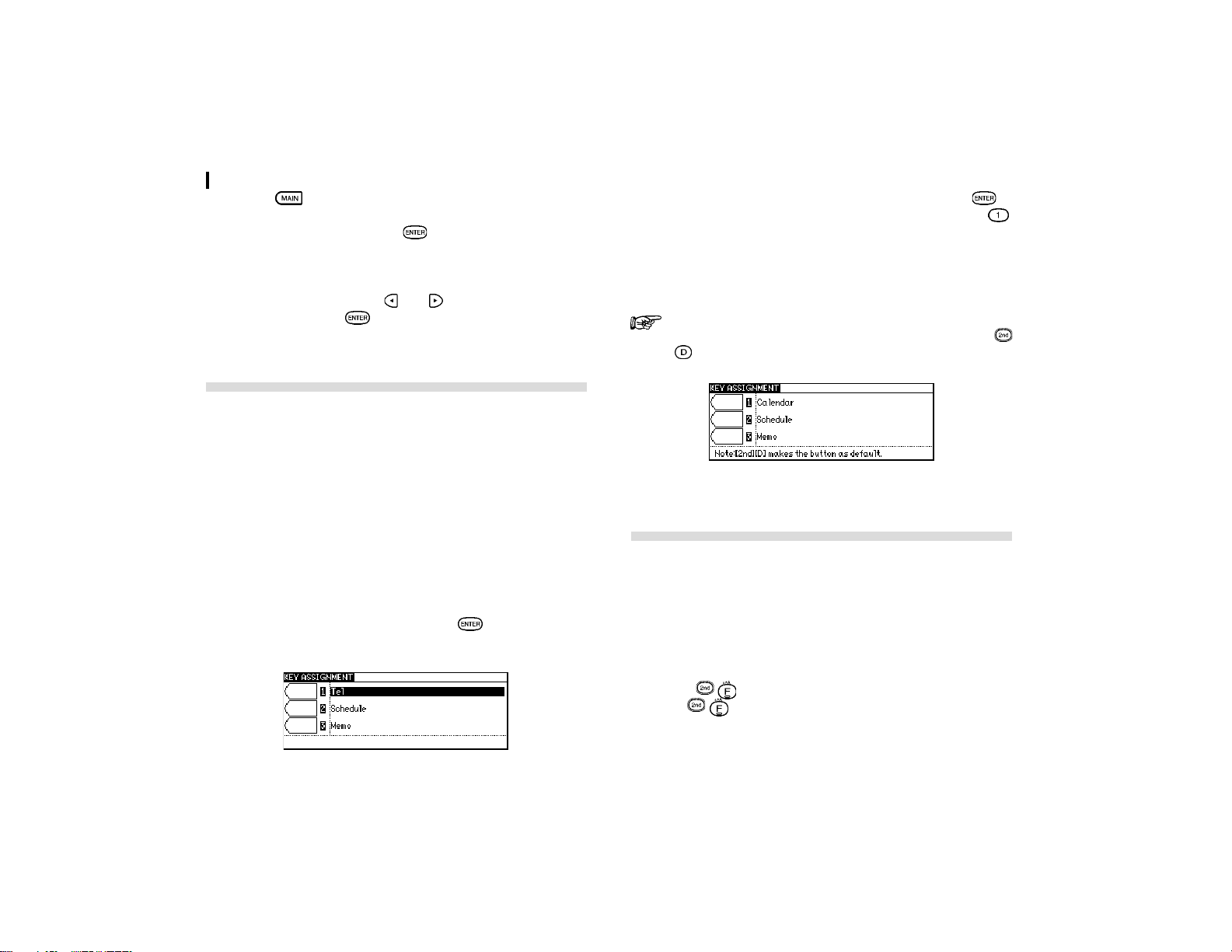
Personalizing Your Organizer
58
1.
Press twice to enter the Second Main Menu.
2.
Select Formats then press .
A submenu appears.
3.
In TIME SYSTEM, press and to select 12 (the default)
or 24, then press
.
Assigning Keys for short-cut entry
You can assign 3 function keys to specific applications to
facilitate easier and faster access to assigned applications. Any
applications in First Main Menu and My Programs can be
assigned in addition to the Clock function in the Second Main
Menu.
1.
Highlight the application that want to assign a key to e.g.
Calendar.
2.
To set the key assignment, open the application menu of
Main Menu or My Programs.
3.
Select ASSIGN TO KEY then press . The current key
assignments are displayed.
4.
Press the number or move the cursor and press to
assign the application on the selected key e.g. press
,
Calendar is assigned to KEY 1.
5.
A message showing that the buttons are successfully set
appears on the screen.
When you select Key Assignment in the Second Main
Menu, the current key assigned can be seen. Press
to reset the keys to their default.
Selecting the Large Font View
Since the Organizerís display is fairly small, you may find the
displayed information easier to read if it is changed into a large
font view.
In general, all of the Organizerís applications (except Clock,
Calc, Calendar, Expense Report applications) share this feature.
If you want to change the screen to be a larger font view,
just press
key on the keyboard. If you want to resume
it, press
again.

59
How to use the Add-on
11
CHAPTER CHAPTER
CHAPTER CHAPTER
CHAPTER
1111
1111
11
How to use the
Add-on
Add-on software programs add functionality to your
Organizer. They are specially designed for your Organizer,
named My Programs.
Once installed, you can access and run these
programs from the My Programs screen. To display
the My Programs screen, press
.
You cannot run PC software on your Organizer.
Using the AUTORUN feature, you can run an add-on
program when the Organizer is turned on.
Installing My Programs application
Additional software for your Organizer can be found on the
included Software CD-ROM, as well as on the internet (SHARPís
homepage).
1.
Connect Docking Module to Organizer and PC.
2.
Insert the included CD. If using Windows
95 / 98 or
Windows
2000 Professional the CD should start
automatically. If not, double click the My computer icon
on your PC, click your CD-ROM drive then navigate to
Customize folder.
3.
Click the [Customize] button and double click the file you
want to install.
4.
Follow the on-screen instructions.
Using the program
1.
Press to view list of installed programs.
2.
Launch the application by pressing the - key that
corresponds to the application.
Deleting a selected My program
1.
Press to view list of installed programs.
2.
Use and key to select the application to remove.
3.
Press to open the application menu.
4.
Select DELETE SELECTED MY PROGRAM.
5.
Press to confirm (or to abort).
The selected program is deleted from My Programs application.
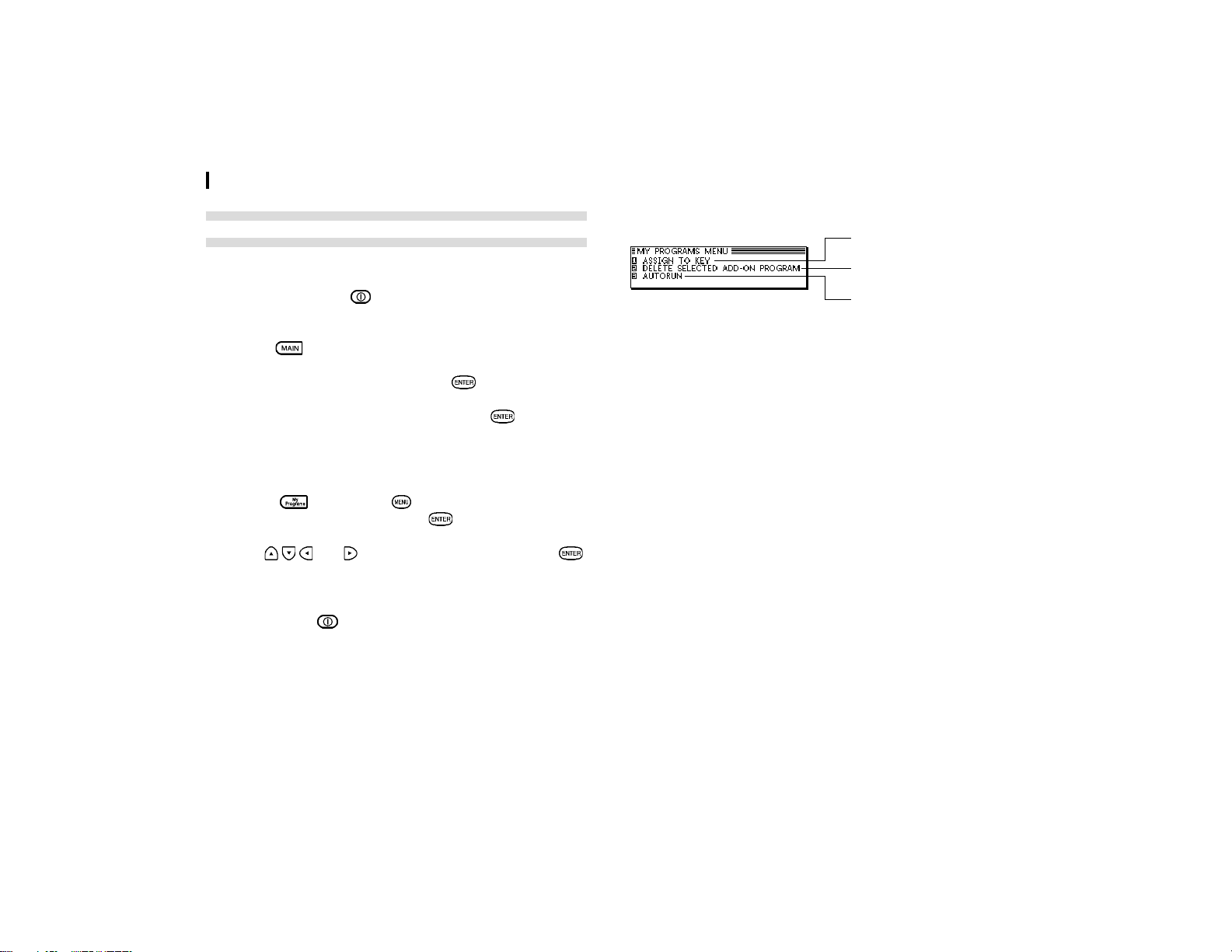
How to use the Add-on
60
Setting a My Programs application to
Autorun
My programs application can be automatically loaded and
started when you press
. Before an autorun is set, you must
activate it first in Start-up Display.
1.
Press twice to enter the Second Main Menu.
2.
Select Start-up Display then press .
3.
In AUTORUN field, select ON then press .
Once the autorun is activated, you can then choose the
application for autorun.
1.
Press then press . Select AUTORUN in MY
PROGRAMS MENU and press
.
2.
Use and to select application then press .
3.
A checkmark is added to the chosen application.
When you press next time, the chosen application will
automatically start.
My Programs application menu
Assigns keys to applications
(see p.58)
Deletes selected add-on
program (see p.59)
Selects the application for
autorun
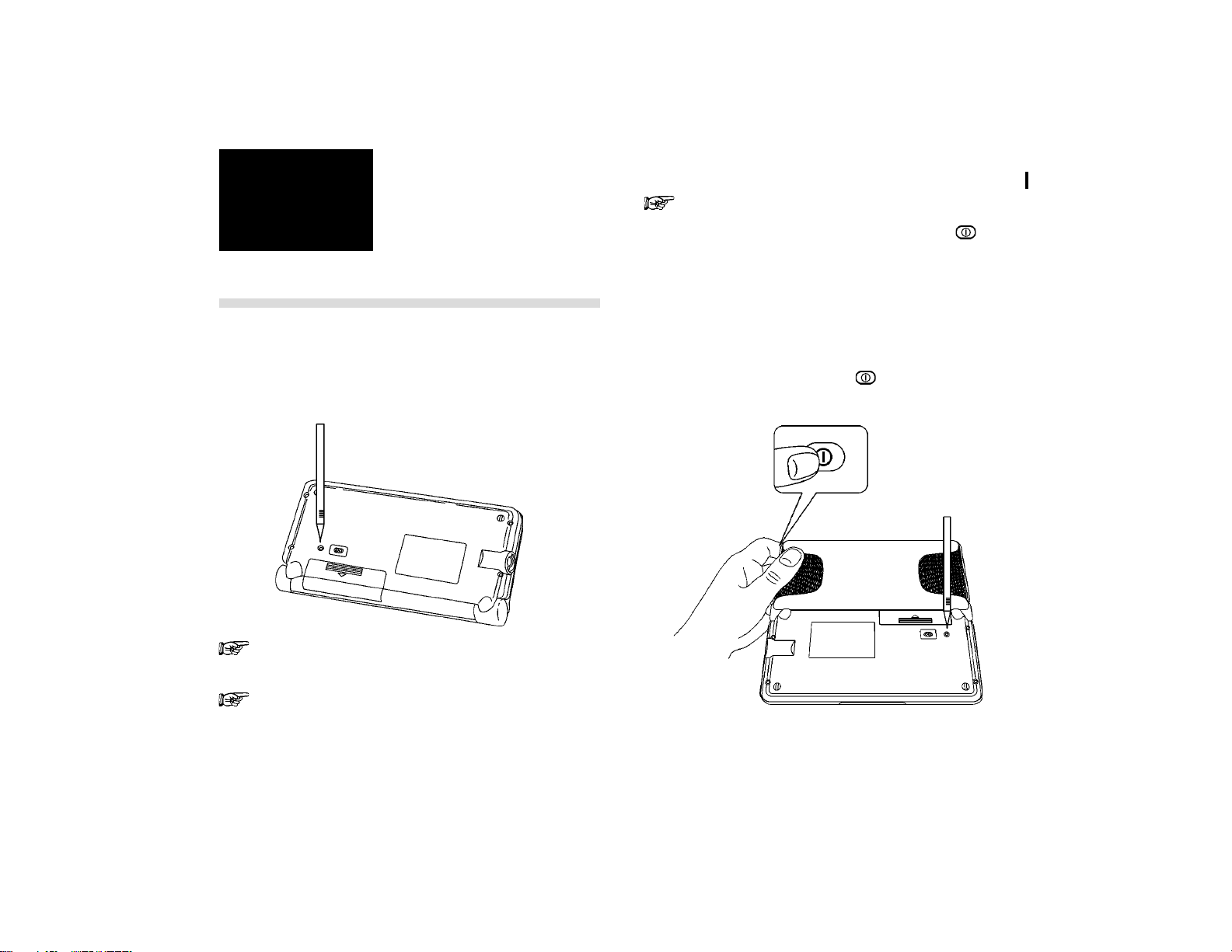
61
Appendices
Appendices
A. Resetting the Organizer
A strong impact, exposure to an electrical field, or other unusual
conditions may render the unit inoperative, and pressing the
keys will have no effect. If this occurs, you will have to press
the RESET switch at the bottom of the unit using a pen or
similar object to be able to continue to use the unit.
A condition that makes the unit inoperative may erase
some or all of the data stored in memory.
Do not use anything breakable, anything with a sharp
tip or anything that might break to press the RESET
switch.
In case that the Organizer does not work properly after
reset, you can remove the batteries and insert the
batteries several seconds later. Then press
to open
the Organizer.
All reset operation
If the unit still fails to function after it has been reset using the
procedure above, you will have to reset it using a slightly more
complicated procedure:
1.
While pressing and holding , press and release the
RESET switch.
A message appears.
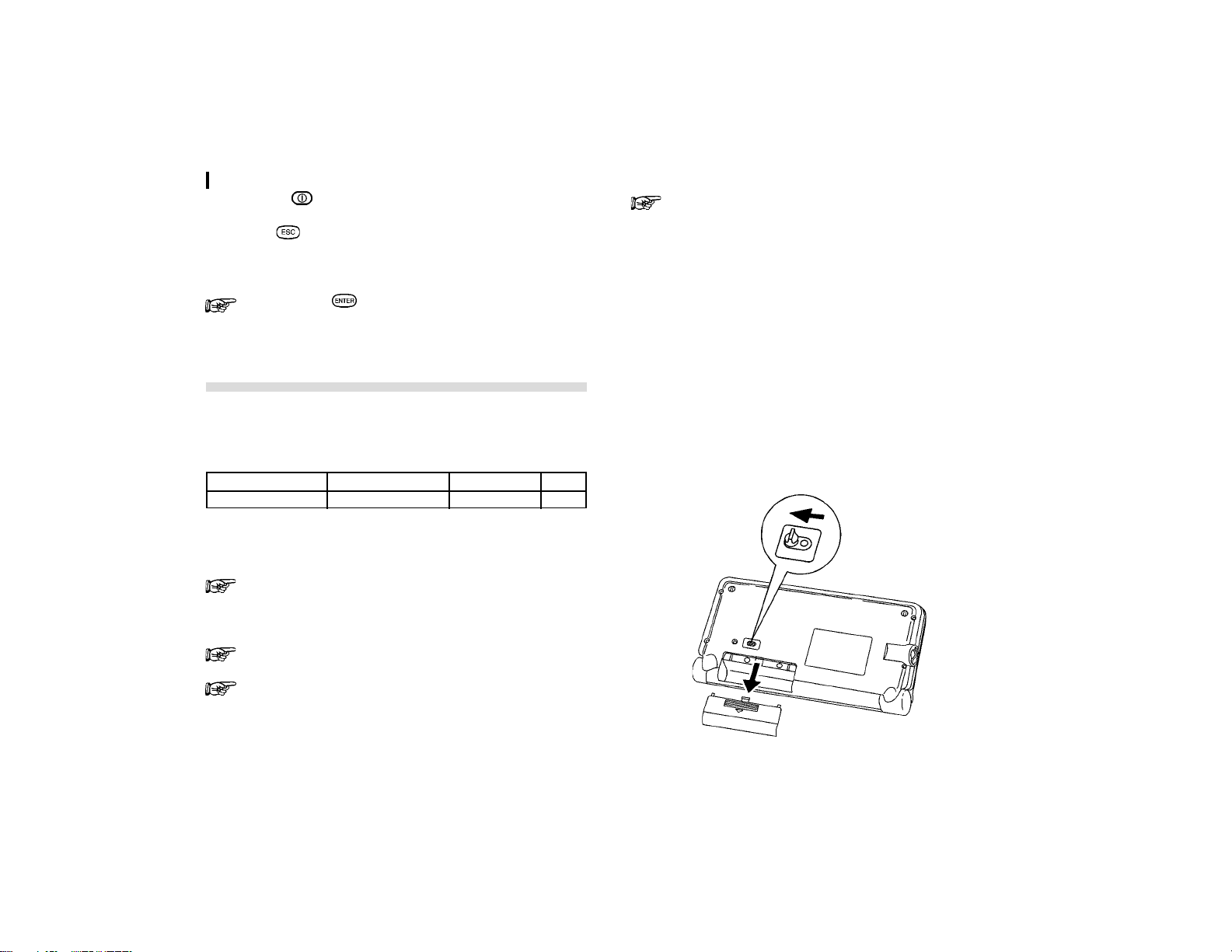
Appendices
62
2.
Release .
3.
Press .
The built-in clock is reset.
Do not press in step 3. Doing so will delete all data
in the unit.
B. Battery Replacement
General guidelines
The Organizer uses the following types of batteries:
Use Type Size / Model Qty.
General operation Alkaline batteries LR6 (size ìAAî) 2
There are some extremely important points to remember when
installing new batteries:
Replace the two batteries at the same time with new
batteries of the same type.
Caution:
Keep batteries out of the reach of children.
Remove batteries from the unit when they become weak
or when the unit will not be used for a long period of
time. Leaving weak batteries in the unit may cause
battery leakage and damage from corrosion.
Do not dispose of batteries by fire as they may explode.
Replacing the batteries
The Organizer detects two low battery levels which are warning
and fatal. When the batteries are in warning level, alert message
appears on the screen. In fatal level, the Organizer will turn off
automatically without indication.
If the alert message is shown, replace the batteries immediately.
1.
Turn off the Organizer.
2.
Set the battery replacement switch on the bottom of the
Organizer to REPLACE BATTERIES (a red dot becomes
visible).
3.
Slide the battery cover off.
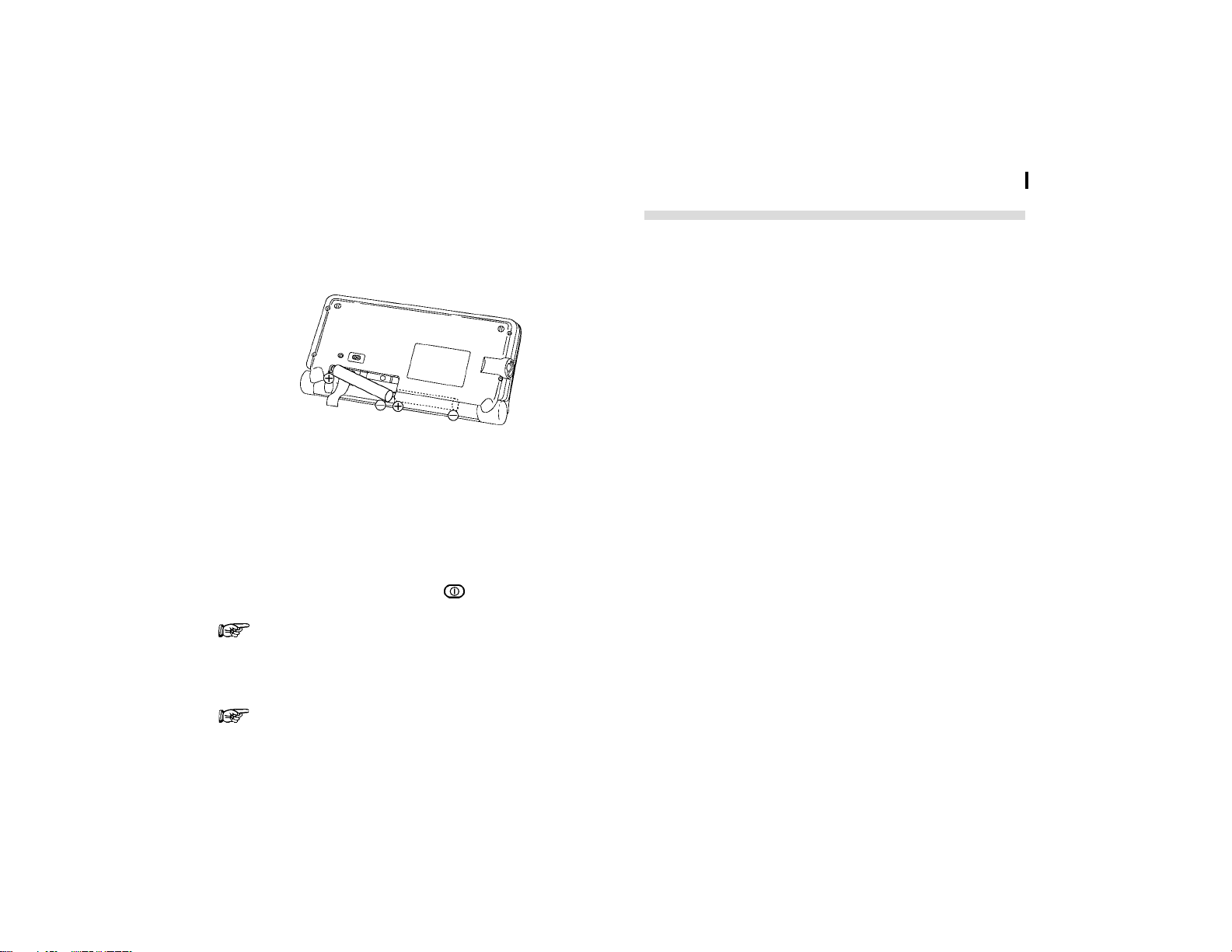
63
Appendices
4.
Remove the old batteries by pulling the ribbon tab.
5.
Insert the two new batteries on top of the ribbon tab, taking
care to position them correctly according to the plus (+)
and minus (-) terminals, as shown below.
6.
Replace the cover.
7.
Set the battery replacement switch to NORMAL
OPERATION.
8.
Turn on the Organizer and set the clock. (see p.39)
If nothing happens when you press :
Setting the battery replacement switch to REPLACE
BATTERIES shuts off power to the unit. Check that the
battery replacement switch is set to NORMAL
OPERATION.
Repeat the above battery replacement procedure step
by step.
C. Specifications
Model OZ-770
Display 239 x 80 dot matrix liquid crystal display
Electronic unit section
Applications Calendar, Schedule, To Do, Birthday /
Anniversary, Telephone, Memo,
Expense, Expense Report, Clock,
Calculation, Conversion, Add-on
Memory capacity 3MB Flash memory
Approx. 1,920KB for data storage,
approx. 320KB for add-on programs,
approx. 760KB for system and
applications.
Application capacity 20,000 entries
(Schedule 5,000, Tel 5,000, Memo 5,000,
ToDo 3,000, Expense 2,000) in total
These capacities assume the following
average entry sizes.
Schedule: 22 characters/entry
Tel: 8 characters/entry in the
name field
10 characters/entry in
number field
Memo: 12 characters/entry in title
field
18 characters/entry in body
field

Appendices
64
To Do: 30 characters/entry in
description field
Expense: 6 characters/entry in Amount
field
4 characters/entry in
Payment Type field
11 characters/entry in Memo
field
* Maximum storage in each application: 5,000 entries
Maximum data Approx. 2,000 bytes (including separator
size per entry / terminator)
User interfaces Keyboard
Other features Secret function, data transfer, search
function, et al.
Calculator digits 12
Functions Addition, subtraction, multiplication,
division, constant, memory calculation,
conversion calculation.
Clock
Crystal oscillation 32,768 Hz
frequency
Accuracy Average variance per day, 2 seconds (at
25∞C/77∞F)
Display information Year, month, day, day of the week, hours,
minutes, AM/PM, city names.
Time system 12-hour or 24-hour
Other functions Display of date and time for various cities
around the world.
Enable/disable daylight saving time.
Peripherals and Data transfer interface
Cable jack 4-pin connector
Common
Power Battery:
3 V
DC, alkaline batteries
(LR6 (size ìAAî) x 2)
Power consumption 0.33 W
Battery life Battery life may vary depending on
usage.
* Approx. 120 hours. Continuous
display at an ambient temperature of
25∞C(77∞F)
* Approx. 100 hours. Searching data for
5 minutes and display on for 55
minutes per hour, at an ambient
temperature of 25∞C(77∞F)
* Approx. 90 hours. Using the Backlight
for 2 minutes per hourly use and
searching for 5 minutes per hourly
use at an ambient temperature of
25∞C(77∞F)

65
Appendices
* Please be reminded that the old
batteries in the Organizer should be
exchanged with new one at least once
a year.
Backlight life Backlight life may vary depending on
usage.
If the backlight is on for 10 minutes per
day (eg. 1 minute 10 times a day), the
brightness will be reduced by half after
10* years (at an ambient temperature of
25∞C and 65% humidity).
* This figure may vary depending on
the surrounding environment.
Operating 0∞C to 40∞C (32∞F to 104∞F)
temperature
Dimensions Open 162(W) x 145(D) x 10.9(H)mm
6-3/8(W) x 5-23/32(D) x 7/16(H)inch
Closed 162(W) x 81.5(D) x 19.9(H)mm
6-3/8(W) x 3-7/32(D) x 25/32(H)inch
Weight 220 g (including batteries)
Accessories Alkaline batteries LR6 (size ìAAî) x 2,
Operation manual,
Quick Start Guide,
Docking module,
Software CD-ROM

Index
66
Index
A
Accessing
Secret entries 55
Alarms
Schedule 25
All reset 61
Birthday / Ann (Anniversary) application 29
Application 11
Opening 13
Keys 5
Assigning
Due date 27
Priority 26
Auto power off 10
Autorun 60
B
Backlight 10
Battery
Installing 6
Life 64
Replacement 62
Blocks
Copying /moving 48
Working with blocks of text 18
C
Calc(ulator) application 35
Date calculations 24
Calculations
Examples 36
Performing 35
Date calculation 24
Conversion 37
Calendar application
Setting up the initial display 57
Calendar view
Daily 23
Monthly 23
Selecting 23
3-month 24
Caring for the Organizer 4
Categories
To Do application; category list 28
Changing
(see also customizing)
Large font view 58
Calendar format 57
Local city (Clock) 38
Checking
Current time / date 21
Memory 21
Time in a city 40
Checking off To Do entries 28
Clock application 38
Copying
Blocks of text 18, 47
Entries 48

67
Index
Cursor 17
Cut 18, 47, 48
D
Daily view 23
Date calculation 24
Date format
Setting 57
Daylight Saving Time (DST) 41
Assigning to a city 41
Enabling / disabling 41
Deleting
All Secret entries 56
Single entry 20
Text 18
Using the application menu 20
Display
Setting LCD contrast 10
Symbols 12
Display modes
Edit mode 14
Index mode 13
View mode 14
E
Edit mode 14
Editing Techniques 16
Editing
Categories 28
Entries 16
Exchanging information with Personal Computer 51
F
Fields 16
Finding entries 18, 34
(see also Search)
By date 19
Using keywords 19
Using the index mode 18
Font
Changing large font view 58
I
Index mode 13
Initializing 7
Installing
Batteries 6
K
Key beep 10
Keyboard 12
L
Local city 8, 39
Locking the Organizer 54
M
Marking entries as secret 55
Memo application 33
Memory check 21

Index
68
Menu 11
Application 24, 26, 29, 32,34, 42, 46
Moving
Blocks of text 47
Entries 48
N
New entry
Making 15, 26, 33, 43
O
Organizer Link 52
Owner Information 53
P
Part names and functions 5
Password
Deleting / changing 56
Registering 54
Paste 18, 48
PC Link 52
Pop-up List / menu 11
Power
Auto power off 10
Turning on and off 10
R
Replacing batteries 62
S
Schedule alarms 25
Clearing 25
Setting 25
Schedule application 24
Scroll the display 18
Search
(see the Finding)
By keyword 19
By date 19
Search function 18
Secret function 55
Selecting
Calendar views 23
Date 23
Display modes 13
Setting
Clock 8, 39
Date Format 57
LCD contrast 10
Local city 38
Owner Information 53
Password 54
Schedule alarms 25
Start-up display 9, 53
World city 40
Setting up
Calendarís initial display 57
For data transfer 51
Start-up display
Setting 9, 53

69
Index
Symbols
On the display 12
Entering 48
T
Tel application 31
To Do application 26
Transferring data
With a personal computer 51
Turning on / off
Key beep 10
Power 10
Start-up display 9
Typing in text
Letters 17
Numbers 17
Symbols 17
U
Unlocking the Organizer 55
W
World City 40

Product Support
70
Product Support
Sharp Electronics Corporation is dedicated to serving Customer needs.
If you have read the ORGANIZER operation manual and the Quick Start Guide, but you still require product support, you can:
Call a Sharp Representative Write to our Customer Assistance Center
630-378-3590
Visit our Web Site
http://www.sharp-usa.com
Send an E-mail
Internet account: [email protected]
Sharp Electronics Corp.
Customer Assistance Center
Att: WIZARD HELP
1300 Naperville Drive
Romeoville, IL 60446
71
Troubleshooting
Troubleshooting
Refer to the list below for solutions when the unit is not functioning properly before contacting your local SHARP dealer:
Problem
The display remains blank after pressing
.
Poor display contrast.
The Organizer is turned on, but pressing Keys has no effect.
ìNot enough memoryî displayed.
The alarm does not sound at the set time.
The Backlight does not function.
Solution
* Adjust the LCD contrast (see p.10)
* Install new batteries (see p.6)
Adjust the LCD contrast (see p.10)
Reset the Organizer (see p.65)
The Organizerís memory is full or nearly full. Delete unnecessary
data. (You can check the amount of free memory using CHECK
MEMORY in the Second Main Menu, see p.21).
Enable alarms in the SOUND application in the Second Main Menu.
(see p.10)
During data transfer, PC-LINK mode, the Backlight does not work,
if Battery Alert appears, replace batteries. (see P.66).
12345678901
1
234567890
1
1
234567890
1
1
234567890
1
1
234567890
1
1
234567890
1
1
234567890
1
1
234567890
1
1
234567890
1
1
234567890
1
1
234567890
1
1
234567890
1
1
234567890
1
1
234567890
1
1
234567890
1
1
234567890
1
1
234567890
1
1
234567890
1
1
234567890
1
1
234567890
1
1
234567890
1
1
234567890
1
1
234567890
1
1
234567890
1
1
234567890
1
1
234567890
1
1
234567890
1
1
234567890
1
1
234567890
1
1
234567890
1
1
234567890
1
1
234567890
1
1
234567890
1
1
234567890
1
1
234567890
1
1
234567890
1
1
234567890
1
1
234567890
1
1
234567890
1
1
234567890
1
1
234567890
1
1
234567890
1
1
234567890
1
1
234567890
1
1
234567890
1
1
234567890
1
1
234567890
1
1
234567890
1
1
234567890
1
1
234567890
1
1
234567890
1
1
234567890
1
1
234567890
1
1
234567890
1
1
234567890
1
1
234567890
1
1
234567890
1
1
234567890
1
1
234567890
1
1
234567890
1
1
234567890
1
1
234567890
1
1
234567890
1
1
234567890
1
1
234567890
1
1
234567890
1
1
234567890
1
1
234567890
1
1
234567890
1
1
234567890
1
1
234567890
1
1
234567890
1
1
234567890
1
1
234567890
1
1
234567890
1
1
234567890
1
1
234567890
1
1
234567890
1
1
234567890
1
1
234567890
1
1
234567890
1
1
234567890
1
1
234567890
1
1
234567890
1
1
234567890
1
1
234567890
1
1
234567890
1
1
234567890
1
1
234567890
1
1
234567890
1
1
234567890
1
1
234567890
1
1
234567890
1
1
234567890
1
1
234567890
1
1
234567890
1
1
234567890
1
1
234567890
1
1
234567890
1
1
234567890
1
1
234567890
1
1
234567890
1
1
234567890
1
1
234567890
1
1
234567890
1
1
234567890
1
1
234567890
1
1
234567890
1
1
234567890
1
1
234567890
1
12345678901
Changing the batteries:
When using the organizer, if the battery replacement
message appears on the display, the batteries should
be replaced as soon as possible.
1.
Turn off the Organizer.
2.
Set the battery replacement switch on the bottom
of the Organizer to REPLACE BATTERIES. (A
red dot will appear.)
3.
Slide off the batteries cover.
4.
Remove the old batteries by pulling the ribbon
tab.
5.
Insert the two new batteries on top of the ribbon
tab, taking care to position them correctly
according to the plus (+) and minus (-) terminals.
6.
Replace the cover.
7.
Set the battery replacement switch to NORMAL
OPERATION.
Tech Support 630-378-3590
Web Site www.sharp-usa.com
E-mail: [email protected]
Customer Assistance Address:
Sharp Electronics Corp.
Customer Assistance Center
ATT: WIZARD HELP
1300 Naperville Drive
Romeoville, IL 60446
Electronic Organizer
Quick Reference Guide
OZ-770
Tel Application:
Used for managing a wide range of information, from
a simple address book to an extensive restaurant
guide or even a listing of your important business
contacts. Press , then press . Type in the
information as prompted, and finally press
to
store.
Search Function:
This function allows you to locate any previously
stored entry by using partial or specific data as a
search key.
1.
Open the desired application.
2.
Press .
3.
Type in any word stored in the entries you want
to find.
To search only secret entries, press
to check the SECRET ONLY item,
if the Organizer is unlocked.
4.
Press to begin the search.
5.
Press to see additional entries that contain
the searched text, then press
when you find
the desired entry.

Edit mode:
Provides the ability to modify any entry that was
previously entered into the organizer.
1.
Find an entry that you wish to change.
2.
Press to go to Edit mode.
3.
Move to the field you want to change.
4.
Make any desired changes.
NOTE:You can highlight any text using
and the
cursor keys, and then delete the text (by
pressing ) or cut the text (by pressing
to paste it elsewhere).
If you make a mistake and want to restore the original
entry, simply press
.
Birthday / Ann (Anniversary) Application:
Makes it easy for you to keep track of annual events,
such as wedding anniversaries and birthdays of
friends, relatives and business associates. Select
Birthday / Ann in the Main Menu, then press
.
Press
, and Anniversary by Date appears. Enter
the month and day, then the description, and press
to store.
Cut / Copy / Paste / Select:
Eliminates the need to retype common data or to
simply relocate specific information.
1.
Display in Edit mode the entry containing the
text you want to copy or cut.
2.
Move to the start of the text you want to copy or
cut.
3.
While holding down , use the cursor keys to
select the text you want to copy or cut.
The selected text is displayed in reverse (white-
on-black).
4.
Press or to copy or cut the selected
text.
5.
Display in Edit mode the entry to which you want
to add the copied or cut text, and press
.
Schedule Application:
Used for tracking meetings, appointments and time-
sensitive data. Press , then press .
If you want to use a different date, move up to the
DATE field and press the key. Press or to
select the desired month, then use the cursor keys to
select the day of the appointment. Press
when
done. Move to the TIME field and type in the start
and end times for your appointment, then press .
Type in a description for the appointment. Press
to store the entry.

My Programs:
Basic add-in data can be downloaded into the
Organizer with a maximum capacity of 10 programs
in this application.
1.
Download a program into the Organizer.
2.
Press to view list of installed programs.
3.
Launch the application by pressing - that
corresponds to the application.
Autorun:
You can set an autorun of basic application once
power is turned on.
1.
Activate the autorun first in Start-up Display in
the Second Main Menu.
2.
Open the application menu of My Programs and
select AUTORUN.
3.
Select the application for autorun in the Autorun
screen.
Key Assignment:
Used for short-cut entry of self-assigned applications
by using function keys. Three function keys are
available for key assignment.
1.
Highlight the application for key assignment first.
2.
Press and select ASSIGN TO KEY then press
.
3.
Press the respective number key.
4.
Press the assigned key can enter the application
chosen before.
To Do Application:
Used for organizing and tracking tasks and objectives,
assigning them priorities, and assigning a category
to each entry, making it possible to access them
selectively in a variety of ways. Press
to enter
the Main Menu and select To Do and then press
.
Press
and enter a description of the task, then
press
. Enter DUE DATE, which is the date by which
the task must be completed.
Move to the PRIORITY field by pressing
and select
priority using
and . The Priority values are used
to sort the entries in the Index mode. Press
to move
to the CATEGORY field. Press
to open the pop-
up menu and select the desired category. Press
to store the entry.

Memo Application:
Used as a simple yet powerful means of recording
information, from meeting notes to memorandums
and letters.
Press to enter the Main Menu and select Memo.
Type in a title after pressing
. Then press to
move to DESCRIPTION field to enter a description.
Press
to start a new line in the document. Press
to store the entry.
Password / Secret Function:
This function allows you to keep selected information
in your organizer secure by locking it with a password
that you specify. Entries that you have marked as
secret cannot be accessed until the organizer is
unlocked using the password.
Turning on the Lock
1.
Press twice to enter the Second Main Menu.
2.
Select Secret from the menu, then press .
3.
Select LOCK ORGANIZER, then press .
4.
Enter any password up to sixteen characters
long and then press
.
5.
Re-type the password to confirm and then press
to store the password (or to cancel the
operation).
6.
Press .

Clock:
Makes it possible not only to know the correct time
and date in your area, but also to know the time in
other cities or any region around the world.
Setting the time and date
1.
Select Clock in the Second Main Menu, then
press
.
2.
Press to open the Clock menu.
3.
Select ADJUST TIME / DATE and press .
4.
Select the TIME SYSTEM field. Press or to
indicate whether you want the time shown in 12-
or 24- hour format.
5.
Move to the LOCAL DATE field. Enter the current
month and day each in two digits, and the year
in four digits.
6.
Move to the LOCAL TIME field. Enter the current
time (and press
(AM) or (PM) if you select
12-hour format in the TIME SYSTEM).
7.
Press (or to cancel the changes).
Expense application:
A sophisticated and easy-to-use tool for managing
your personal and business finances, etc.
1.
Press to enter the Main Menu and select
Expense, then press
.
2.
Press .
3.
Press to move to the CATEGORY field.
Press
to select the desired category.
4.
Enter the date in the order of month, day, year.
5.
Press to move to the AMOUNT.
6.
Enter the expense amount using up to ten digits
including up to two decimal places.
7.
Move to the PAYMENT TYPE field. Press to
select the desired payment type. Press
-
to select the desired item.
8.
Move to the MEMO field and use the keyboard
to input the description of the expense.
9.
Move to the STATUS field. Press to select
the desired status mode.
10.
Press to store the entry.

Calculator:
Provides a 12-digit calculator which performs
mathematical operations.
To use the calculator, select Calc from the Main Menu,
then press
.
Conversions:
Performing a conversion
1.
Select Conversion in the Main Menu.
2.
Press to open the conversion index display.
3.
Press or to select the desired item.
4.
Press .
5.
Enter the amounts you want to convert, then
press
or .
Changing the currency rate
1.
Select Conversion in the Main Menu.
2.
Press to open the conversion index display.
3.
Select the desired currency item and press .
4.
Press to change the rate.
5.
Press to clear the original rate first, then enter
the new rate.
6.
Press to move to the currency name field and
make the desired changes.
7.
Press when you have finished (or to
cancel the changes).

12345678901
1
234567890
1
1
234567890
1
1
234567890
1
1
234567890
1
1
234567890
1
1
234567890
1
1
234567890
1
1
234567890
1
1
234567890
1
1
234567890
1
1
234567890
1
1
234567890
1
1
234567890
1
1
234567890
1
1
234567890
1
1
234567890
1
1
234567890
1
1
234567890
1
1
234567890
1
1
234567890
1
1
234567890
1
1
234567890
1
1
234567890
1
1
234567890
1
1
234567890
1
1
234567890
1
1
234567890
1
1
234567890
1
1
234567890
1
1
234567890
1
1
234567890
1
1
234567890
1
1
234567890
1
1
234567890
1
1
234567890
1
1
234567890
1
1
234567890
1
1
234567890
1
1
234567890
1
1
234567890
1
1
234567890
1
1
234567890
1
1
234567890
1
1
234567890
1
1
234567890
1
1
234567890
1
1
234567890
1
1
234567890
1
1
234567890
1
1
234567890
1
1
234567890
1
1
234567890
1
1
234567890
1
1
234567890
1
1
234567890
1
1
234567890
1
1
234567890
1
1
234567890
1
1
234567890
1
1
234567890
1
1
234567890
1
1
234567890
1
1
234567890
1
1
234567890
1
1
234567890
1
1
234567890
1
1
234567890
1
1
234567890
1
1
234567890
1
1
234567890
1
1
234567890
1
1
234567890
1
1
234567890
1
1
234567890
1
1
234567890
1
1
234567890
1
1
234567890
1
1
234567890
1
1
234567890
1
1
234567890
1
1
234567890
1
1
234567890
1
1
234567890
1
1
234567890
1
1
234567890
1
1
234567890
1
1
234567890
1
1
234567890
1
1
234567890
1
1
234567890
1
1
234567890
1
1
234567890
1
1
234567890
1
1
234567890
1
1
234567890
1
1
234567890
1
1
234567890
1
1
234567890
1
1
234567890
1
1
234567890
1
1
234567890
1
1
234567890
1
1
234567890
1
1
234567890
1
1
234567890
1
1
234567890
1
1
234567890
1
1
234567890
1
1
234567890
1
12345678901
Apoyo tÈcnico 630-378-3590
Sitio en Internet www.sharp-usa.com
Correo electrÛnico:
DirecciÛn de ayuda al cliente:
Sharp Electronics Corp.
Customer Assistance Center
Att: WIZARD HELP
1300 Naperville Drive
Romeoville, IL 60446
Organizador electrÛnico
GuÌa de referencia r·pida
OZ-770
Cambio de las pilas:
Cuando utilice el organizador, si aparece el mensaje
de cambio de las pilas en la pantalla, las pilas deber·n
reemplazarse tan pronto como sea posible.
1.
Apague el organizador.
2.
Ponga el interruptor de reemplazo de las pilas,
ubicado en la parte inferior del organizador, en
ìREPLACE BATTERIESî. (Aparecer· un punto
rojo.)
3.
Deslice la tapa de las pilas para quitarla.
4.
Quite las pilas viejas tirando de la cinta.
5.
Inserte dos pilas nuevas encima de la cinta, con
cuidado de colocarlas correctamente seg˙n los
terminales positivo (+) y negativo (ñ).
6.
Vuelva a poner la tapa.
7.
Ponga el interruptor de reemplazo de las pilas
en ìNORMAL OPERATIONî.
Aplicaciones de telÈfono/archivo del usuario:
Se usan para gestionar una amplia gama de
informaciÛn, desde una simple librÈta de direcciones
hasta una extensa guÌa de restaurantes, o incluso
listas de sus contactos de negocios importantes. Pulse
y luego pulse . Escriba la informaciÛn como
se sugiere y finalmente pulse
para memorizarla.
FunciÛn de b˙squeda:
Esta funciÛn le permite localizar cualquier entrada
memorizada previamente usando datos parciales o
especÌficos como clave de la b˙squeda.
1.
Abra la aplicaciÛn deseada.
2.
Pulse .
3.
Escriba cualquier palabra que se encuentre en
las entradas que desee encontrar.
Para buscar solamente entradas secretas,
pulse
para comprobar el recuadro
SECRET ONLY, si el organizador est·
desbloqueado.
4.
Pulse para iniciar la b˙squeda.
5.
Pulse para ver otras entradas que centengan
el texto buscado, y luego pulse
cuando
encuentre la entrada deseada.
Modo de ediciÛn:
Permite modificar cualquier entrada previ amente
introducida en el organizador.
1.
Encuentre una entrada que desee cambiar.
2.
Pulse para ir al modo de ediciÛn.
3.
Vaya al campo que desee cambiar.
4.
Haga cualquier cambio deseado.
NOTA: Podr· seleccionar cualquier texto usando
y las teclas del cursor y luego borrarlo
(pulsando
) o cortarlo (pulsando )
para ponerlo en cualquier otro lugar).
Si comete un error y desea reponer la entrada original,
pulse simplemente .
AplicaciÛn de cumpleaÒos/Ann (Aniversario)
Para que pueda acordarse f·cilmente de
acontecimientos anuales, tales como aniversarios
de bodas y cumpleaÒos de amigos, familiares y
socios de negocios. Seleccione [Birthday/Ann] en el
men˙ principal y luego pulse
. Pulse , y
aparecer· Aniversary by Date. Introduzca el mes y
el dÌa, luego la descripciÛn, y pulse
para
memorizar los datos.
Corte/Copiado/Pegado/SelecciÛn:
Elimina la necesidad de tener que volver a escribir
datos comunes y simplifica la reubicaciÛn de
informaciÛn especÌfica.
1.
Visualice en el modo de ediciÛn la entrada que
contenga el texto que desee copiar o cortar.
2.
Vaya al principio del texto que desee copiar o
cortar.
3.
Mientras mantiene pulsada , use las teclas del
cursor para seleccionar el texto que desee copiar
o cortar.
El texto seleccionado se visualizar· invertido
(blanco sobre negro).
4.
Pulse o para copiar o cortar el
texto seleccionado.
5.
Visualice en el modo de ediciÛn la entrada en la
que desee aÒadir el texto copiado o cortado, y
pulse
.
AplicaciÛn de programa:
Se usa para no olvidarse de reuniones, citas y datos
en los que la hora resulta muy importante.
Pulse
y luego pulse . Si desea usar otra fecha
diferente, vaya al campo DATE y pulse la tecla
.
Pulse
o para seleccionar el mes deseado, y
luego use las teclas del cursor para seleccionar el
dÌa de la cita. Pulse
cuando termine. Vaya al
campo TIME y escriba la hora de comienzo y la de
finalizaciÛn de su cita, y luego pulse
.
Escriba una descripciÛn de la cita. Pulse
para
memorizar la entrada.

Mis programas:
Los datos de adiciÛn b·sicos pueden descargarse al
organizador con una capacidad m·xima de 10
programas en esta aplicaciÛn.
1.
Descargue un programa al organizador.
2.
Pulse para ver la lista de los programas
instalados.
3.
Lance la aplicaciÛn pulsando las teclas -
que correspondana la aplicaciÛn.
EjecuciÛn autom·tica:
Usted puede establecer una ejecuciÛn autom·tica de
las aplicaciones b·sicas una vez conectada la
alimentaciÛn.
1.
Active primero la ejecuciÛn autom·tica en la
pantalla Start-up en el segundo men˙ principal.
2.
Abra el men˙ de aplicaciÛn de My Programs y
seleccione AUTORUN.
3.
Seleccione la aplicaciÛn para ejecuciÛn
autom·tica en la pantalla Autorun.
AsignaciÛn de teclas:
Se usa para introducir de forma abreviada
aplicaciones autoasignadas utilizando teclas de
funciÛn. Para la asignaciÛn de las teclas se
encuentran disponibles tres teclas de funciÛn.
1.
Resalte primero la aplicaciÛn para la asignaciÛn
de teclas.
2.
Pulse y seleccione ASSIGN TO KEY, y luego
pulse
.
3.
Pulse la tecla del n˙mero respectivo.
4.
Al pulsar la tecla asignada se puede introducir
la asignaciÛn elegida antes.
AplicaciÛn de tareas por hacer:
Se usa para organizar tareas y objetivos y no olvidarse
de ellos, asignando prioridades, y asignando una
categorÌa a cada entrada, permitiendo tener acceso
a ellas selectivamente de diversas formas.
Pulse
para entrar en el men˙ principal, seleccione
To Do y luego pulse
.
Pulse
e introduzca una descripciÛn de la tarea y
luego pulse
. Introduzca DUE DATE, que es la
fecha para la cual debe haberse completado la tarea.
Vaya al campo PRIORITY pulsando y seleccione
la prioridad utilizando
y . Los valores de la
prioridad se utilizan para clasificar las entradas en el
modo de Ìndice. Pulse
para ir al campo
CATEGORY.
Pulse
para abrir el men˙ emergente y seleccionar
la categorÌa deseada. Pulse
para memorizar la
entrada.

AplicaciÛn de Apunte:
Se utiliza como un medio sencillo pero potente de
registrar informaciÛn que abarca de notas de
reuniones a Apunte y cartas.
Pulse para entrar en el men˙ principal y
seleccione Memo. Escriba un tÌtulo despuÈs de
pulsar
. Luego pulse para ir al campo
DESCRIPTION para entrar una descripciÛn. Pulse
para iniciar una nueva lÌnea en el documento.
Pulse
para memorizar la entrada.
FunciÛn de contraseÒa/secreto:
Esta funciÛn le permite mantener segura en su
organizador la informaciÛn seleccionada,
bloque·ndola con una contraseÒa que usted podr·
especificar. No se podr· tener acceso a las
entradas que usted marque como secretas hasta
que el organizador sea desbloqueado mediante la
contraseÒa.
ActivaciÛn del bloqueo
1.
Pulse dos veces para entrar en el segundo
men˙ principal.
2.
Seleccione Secret en el men˙ y luego pulse
.
3.
Seleccione LOCK ORGANIZER y luego pulse
.
4.
Introduzca cualquier contraseÒa con un m·ximo
de diecisÈis caracteres y luego pulse
.
5.
Vuelva a escribir la contraseÒa para confirmarla
y luego pulse
para almacenarla (o para
cancelar la operaciÛn).
6.
Pulse .

Reloj:
No sÛlo permite conocer la hora y la fecha correctas
en su zona, sino que tambiÈn le informa de la hora
en otras ciudades y regiones de todo el mundo.
Puesta de la hora y la fecha
1.
Seleccione Clock en el segundo men˙ principal
y luego pulse
.
2.
Pulse para abrir el men˙ del Reloj.
3.
Seleccione ADJUST TIME/DATE y luego pulse
.
4.
Seleccione TIME SYSTEM. Pulse o para
indicar si desea que la hora aparezca en el
formato de 12 Û 24 horas.
5.
Vaya al campo LOCAL DATE. Introduzca el mes
y el dÌa actual con dos dÌgitos para cada uno, y
el aÒo con cuatro dÌgitos.
6.
Vaya al campo LOCAL TIME. Introduzca la hora
actual (y pulse
(AM) o (PM) si selecciona
el formato horario 12 en TIME SYSTEM).
7.
Pulse o para cancelar los cambios).
AplicaciÛn de gastos:
Una herramienta sofisticada y sencilla de usar para
gestionar sus finanzas personales y negocios, etc.
1.
Pulse para entrar el men˙ principal,
seleccione Expense y luego pulse
.
2.
Pulse .
3.
Pulse para ir al campo CATEGORY.
Pulse
para seleccionar la categorÌa deseada.
4.
Introduzca la fecha en el orden del mes, dÌa y
aÒo.
5.
Pulse para ir al campo AMOUNT.
6.
Introduzca la cantidad de los Gastos utilizando
el m·ximo de 10 digitos, incluyendo un m·ximo
de dos decimales.
7.
Vaya al campo PAYMENT TYPE.
Pulse
para seleccionar el tipo de pago
deseado.
Pulse
- para seleccionar el Ìtem
deseado.
8.
Vaya al campo MEMO y utilice el teclado para
introducir la descripciÛn de los Gastos.
9.
Vaya al campo STATUS. Pulse para
seleccionar el modo del estado deseado.
10.
Pulse para memorizar la entrada.

Conversiones:
Para realizar una conversiÛn
1.
Seleccione Conversion en el men˙ principal.
2.
Pulse para abrir la visualizaciÛn del Ìndice
de conversiÛn.
3.
Pulse o para seleccionar el Ìtem deseado.
4.
Pulse .
5.
Introduzca las cantidades que desee convertir
y luego pulse
o .
Cambio del tipo de cambio
1.
Seleccione Conversion en el men˙ principal.
2.
Pulse para abrir la visualizaciÛn del Ìndice
de conversiÛn.
3.
Seleccione el Ìtem de la moneda deseada y
pulse
.
4.
Pulse para cambiar el tipo.
5.
Pulse para borrar primero el tipo original y
luego introduzca el nuevo tipo.
6.
Pulse para pasar al campo del nombre de la
moneda y haga los cambios deseados.
7.
Pulse cuando haya terminado (o para
cancelar los cambios).
Calculadora:
Proporciona una calculadora de 12 dÌgitos que realiza
operaciones matem·ticas.
Para utilizar la calculadora, seleccione Calc en el
men˙ principal y luego pulse
.

CONSUMER LIMITED WARRANTY
SHARP ELECTRONICS CORPORATION warrants to the first consumer
purchaser that this Sharp brand product (the "Product"), when shipped
in its original container, will be free from defective workmanship and
materials and agrees that it will, at its option, either repair the defect
or replace the defective Product or part thereof with a new or
remanufactured equivalent at no charge to the purchaser for parts or
labor for the period(s) set forth below.
This warranty does not apply to any appearance items of the Product
nor to the additional excluded item(s) set forth below nor to any
Product the exterior of which has been damaged or defaced, which
has been subjected to improper voltage or other misuse, abnormal
service or handling, or which has been altered or modified in design
or construction.
In order to enforce the rights under this limited warranty, the purchaser
should follow the steps set forth below and provide proof of purchase
to the servicer.
The limited warranty described herein is in addition to whatever implied
warranties may be granted to purchasers by law. ALL IMPLIED
WARRANTIES INCLUDING THE WARRANTIES OF
MERCHANTABILITY AND FITNESS FOR USE ARE LIMITED TO THE
PERIOD(S) FROM THE DATE OF PURCHASE SET FORTH BELOW.
Some states do not allow limitations on how long an implied warranty
lasts, so the above limitation may not apply to you.
Neither the sales personnel of the seller nor any other person is
authorized to make any warranties other than those described herein,
or to extend the duration of any warranties beyond the time period
described herein on behalf of Sharp.
The warranties described herein shall be the sole and exclusive
warranties granted by Sharp and shall be the sole and exclusive
remedy available to the purchaser. Correction of defects, in the manner
and for the period of time described herein, shall constitute complete
fulfillment of all liabilities and responsibilities of Sharp to the purchaser
with respect to the Product, and shall constitute full satisfaction of all
claims, whether based on contract, negligence, strict liability or
otherwise. In no event shall Sharp be liable, or in any way responsible,
for any damages or defects in the Product which were caused by
repairs or attempted repairs performed by anyone other than an
authorized servicer. Nor shall Sharp be liable or in any way responsible
for any incidental or consequential economic or property damage.
Some states do not allow the exclusion of incidental or consequential
damages, so the above exclusion may not apply to you.
THE WARRANTY GIVES YOU SPECIFIC LEGAL RIGHTS. YOU MAY
ALSO HAVE OTHER RIGHTS WHICH VARY FROM STATE TO STATE.
Your Product: Electronic Organizer
Warranty Period for One (1) year parts and labor from
this Product: date of purchase.
Additional items exclude Disk media supplied with this Product
from warranty coverage: is warranted for replacement only and
limited to ninety (90) days from date of
purchase. Any consumable items (such
as paper, ink, or non-rechargeable
batteries) and any external hardware,
software, firmware, or peripherals other
than the Product are excluded from
warranty coverage.
Where to obtain service: From a Sharp Authorized Servicer
located in the United States. To find the
location of the nearest Sharp Authorized
Servicer, call Sharp toll free at 800-237-
4277.
What to do to obtain Ship your Product prepaid to a Sharp
service: Authorized Servicer. Be sure to have
proof of purchase available. If you ship
the Product, be sure it is insured and
packaged securely.
TO OBTAIN SUPPLY, ACCESSORY OR PRODUCT INFORMATION, CALL 1-800-237-4277 OR VISIT http://www.sharpUSA.com/