Wireless
1
0301710a 04/2014
Advanced Installation Guide
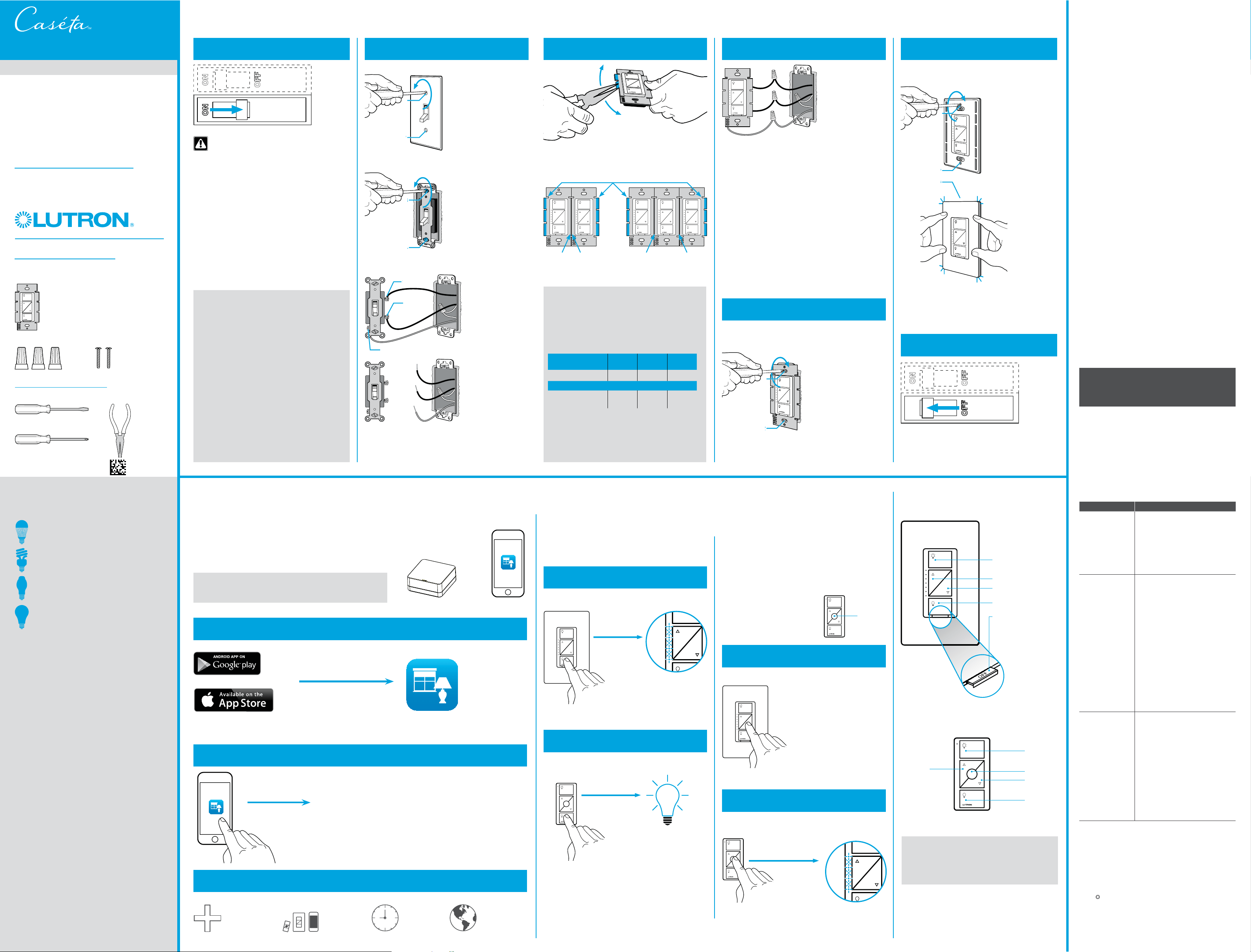
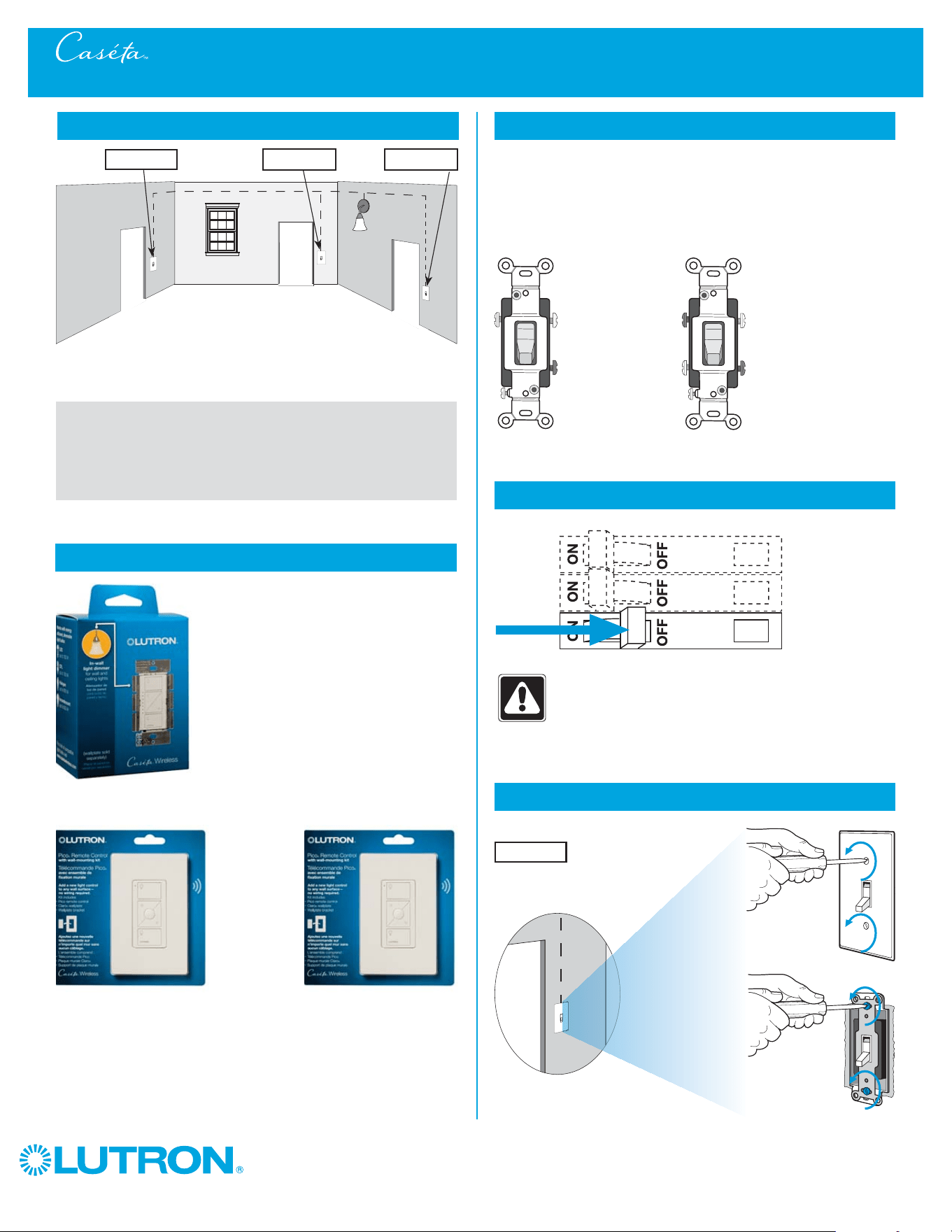
Two Switch Locations for Controlling Lights - 3-Way Installation: If you have two switches controlling your
lights, follow this procedure to install your in-wall dimmer. .............................................................................................Page 2 - 5
Three or More Switch Locations for Controlling Lights - Multi-Location Installation: If you have three or
more switches controlling your lights, follow this procedure to install your in-wall dimmer ...........................................Page 6 - 10
Adjusting Low-End Trim on the CasétaT In-Wall Dimmer: Follow this procedure if you experience performance
issues such as flickering, flashing or other abnormal light behavior when your in-wall dimmer is at a low light level ...Page 11
Adjusting High-End Trim on the CasétaT In-Wall Dimmer: Follow this procedure to adjust the maximum light
output allowed by your in-wall dimmer ............................................................................................................................Page 12
Adjusting Low-End Trim on the CasétaT Plug-In Lamp Dimmer: Follow this procedure if you experience
performance issues such as flickering, flashing or other abnormal light behavior when your plug-in lamp dimmer
is at a low light level .........................................................................................................................................................Page 13
Adjusting High-End Trim on the CasétaT Plug-In Lamp Dimmer: Follow this procedure to adjust the maximum
light output allowed by your plug-in lamp dimmer ...........................................................................................................Page 14
Converting a CasétaT Plug-In Lamp Dimmer to a Switch to Control Non-Dim Loads (Lights Only): Follow this
procedure if you would like your plug-in lamp dimmer to act as a switch for non-dimmable lighting loads ..................Page 15
Removing Paired Devices from a CasétaT Wireless Dimmer: Follow this procedure if you need to remove
paired Pico
R remote controls or reset your dimmer to its factory default settings ..........................................................Page 16
Changing the Favorite Light Level on the Pico® Remote Control: Follow this procedure to change the light level
your dimmer recalls when you press the "Favorite" button on your PicoR remote control. ..............................................Page 17
Troubleshooting ..............................................................................................................................................................Page 18
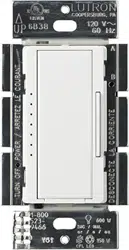
In-wall dimmer - PD-6WCL Plug-in lamp dimmer - PD-3PCL
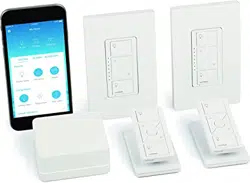
Thank you for purchasing CasétaT Wireless from Lutron. This document will guide you through several additional
installation topics beyond those covered in the quick-start guide included with your product.
Table of Contents
Wireless
2
0301710a 04/2014
1
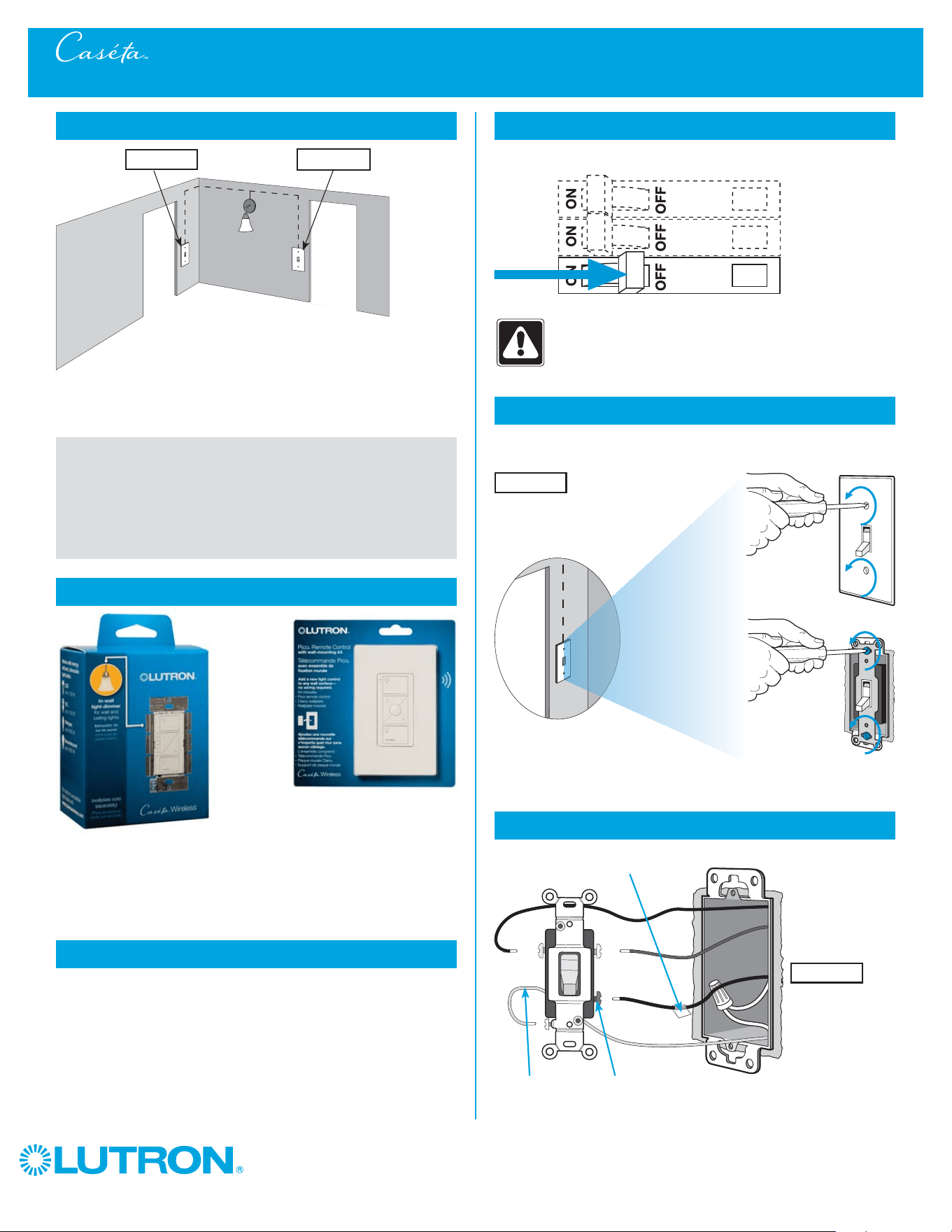
Identify existing wiring
Two switches control the lights (3-way installation)
2
What you need for a 3-way installation
+
WARNING! Shock Hazard. May result in serious
injury or death. Turn off power at circuit breaker
before installing the unit.
4
Turn power off at circuit breaker
5
Remove existing switch from wall
6
Tag and disconnect wires from the switch
Place tag - to identify wire on
different color screw
Different
Color
Screw
Ground
(Green /
Bare Copper)
Two Switch Locations for Controlling Lights - 3-Way Installation
Location 1 Location 2
In-wall dimmer
PD-6WCL or P-PKG1W
Pico remote control
with wall-mounting kit
PJ2-WALL
- If one switch controls the lights (single-pole installation)
See quick-start guide that came with your dimmer
- If three or more switches control the lights
(multi-location installation) See page 6 for details
Important note:
3
Choose a location for your dimmer
Choose which switch location you want the dimmer installed in. This will be
Location 1.
Location 1
Location 1
Wireless
3
0301710a 04/2014
7
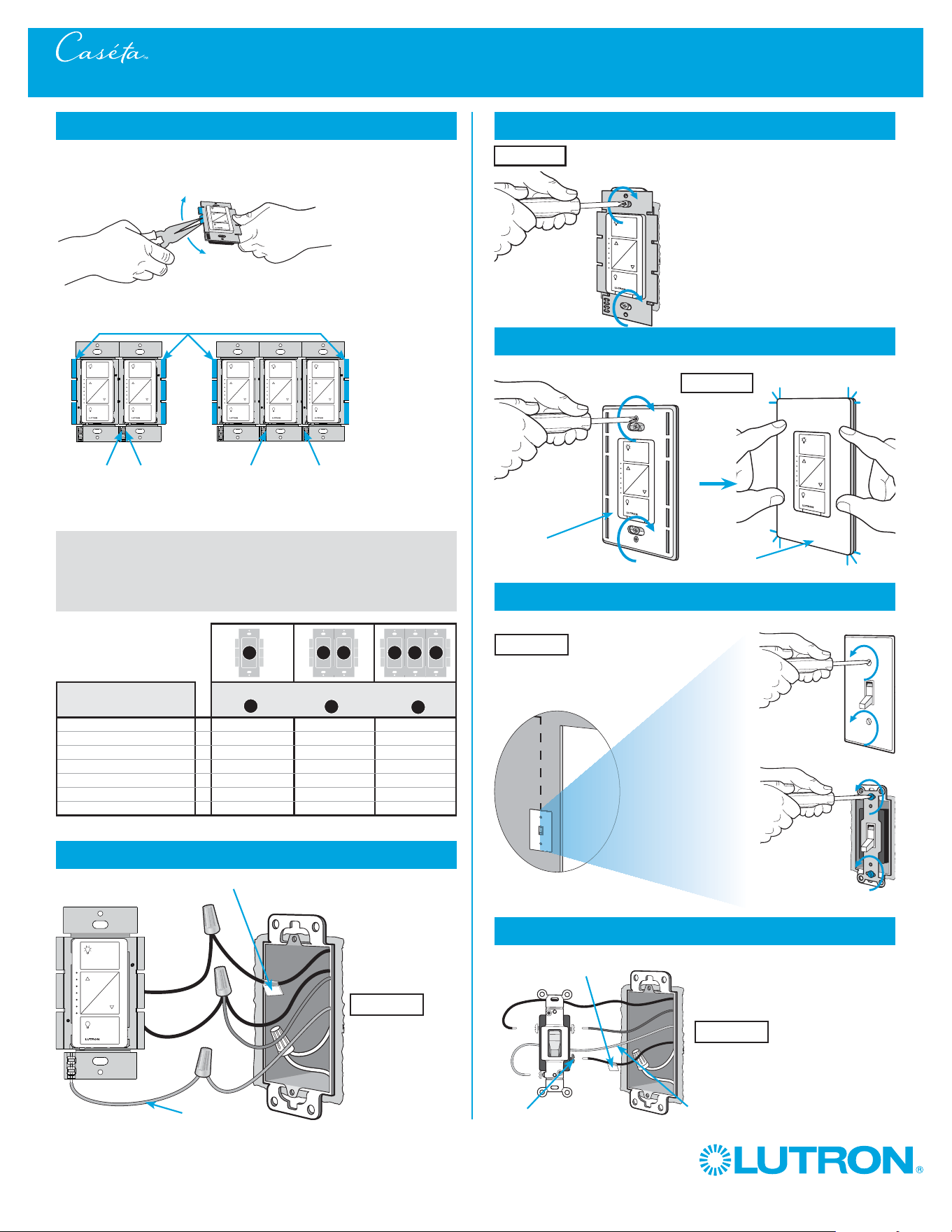
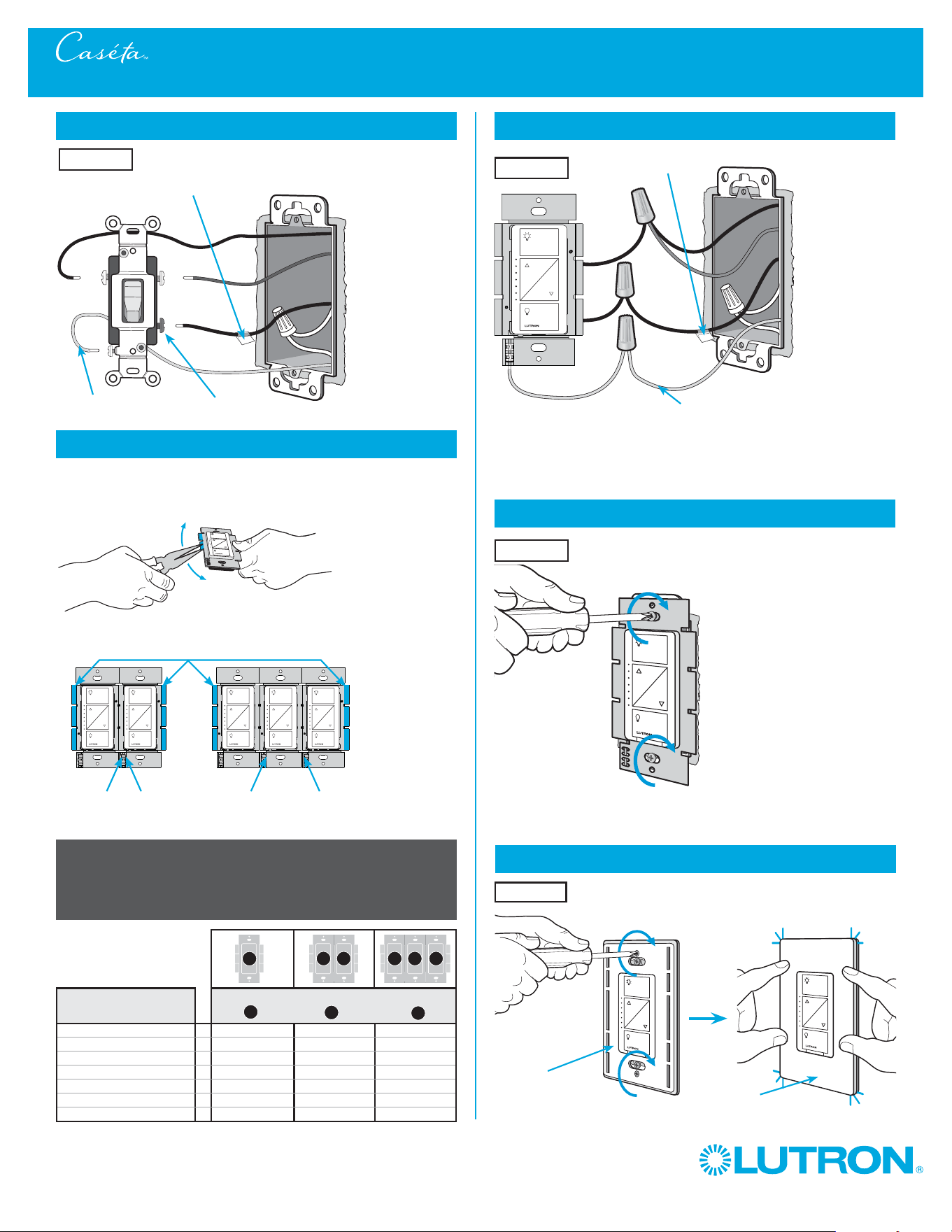
Remove side sections (if necessary)
Do not remove outside side sections
on dimmers at the end of gang.
Each dimmer has inside
side sections removed.
Dimmer in middle has all
side sections removed.
CFL/LED Total Wattage
Incandescent/Halogen Total Wattage
0 W + 600 W 500 W 400 W
1 W – 25 W + 500 W 400 W 300 W
26 W – 50 W + 400 W 300 W 200 W
51 W – 75 W + 300 W 200 W 100 W
76 W – 100 W + 200 W 100 W 50 W
101 W – 125 W + 100 W 50 W 0 W
126 W – 150 W + 0 W 0 W 0 W
A
B
C
B
B B
C
B
A
8
Connect the dimmer
Tagged Wire
Ground
(Green Wire)
9
Mount the dimmer
10
Attach the wallplate
‘snap’
11
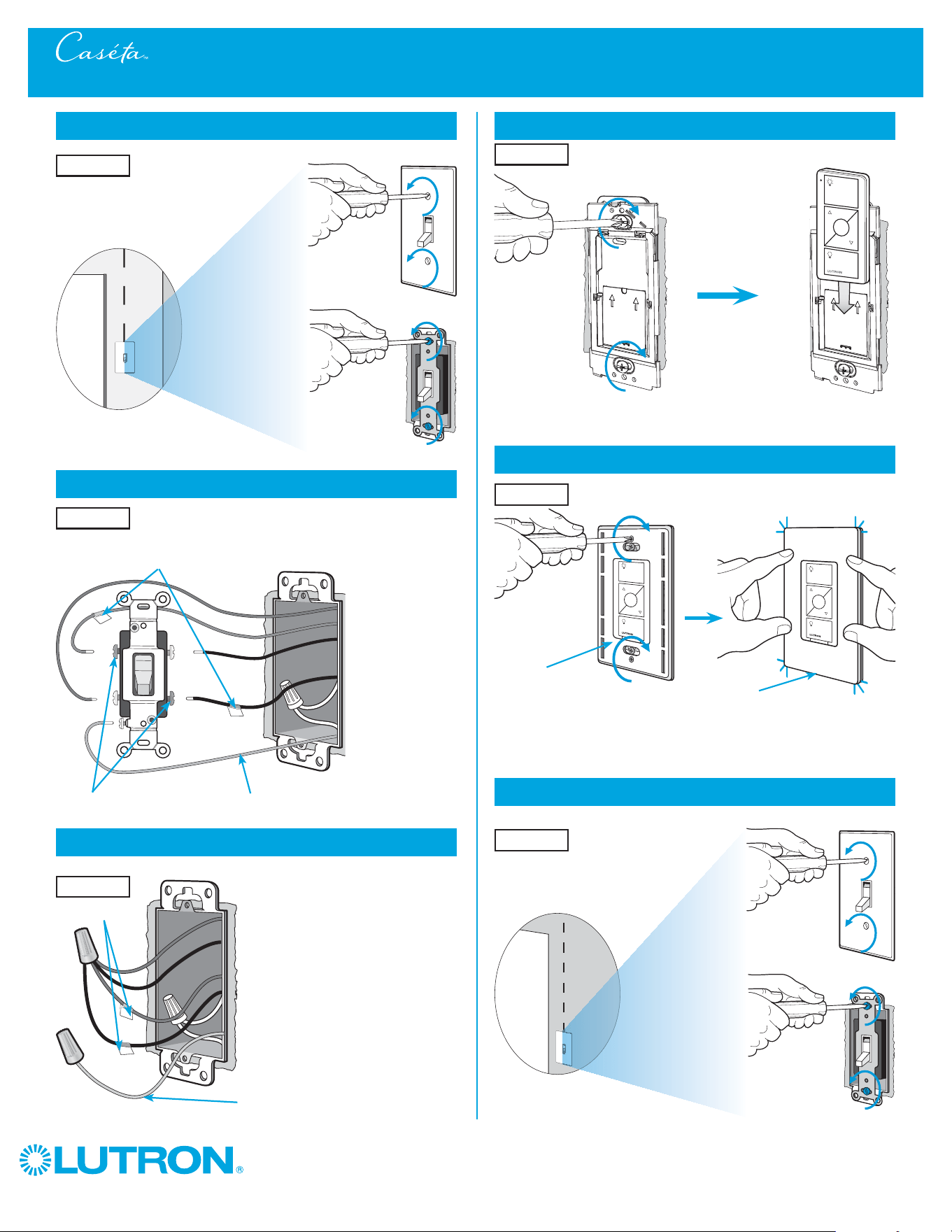
Remove existing switch from wall at Location 2
Two Switch Locations for Controlling Lights - 3-Way Installation
12
Tag and disconnect wires from the switch
Ground (Green / Bare Copper)
Different
Color
Screw
Important note:
Removing side sections reduces the dimmer’s maximum wattage
rating. See the chart below for maximum wattage information.
When installing more than one dimmer in the same wallbox, it is necessary
to remove inner side sections prior to wiring (see image below).
See below for derating information.
Wallplate
Adapter
Wallplate
Location 1
Location 1
Location 2
Place tag - to identify wire on
different color screw
Location 2
Location 1
Wireless
4
0301710a 04/2014
13
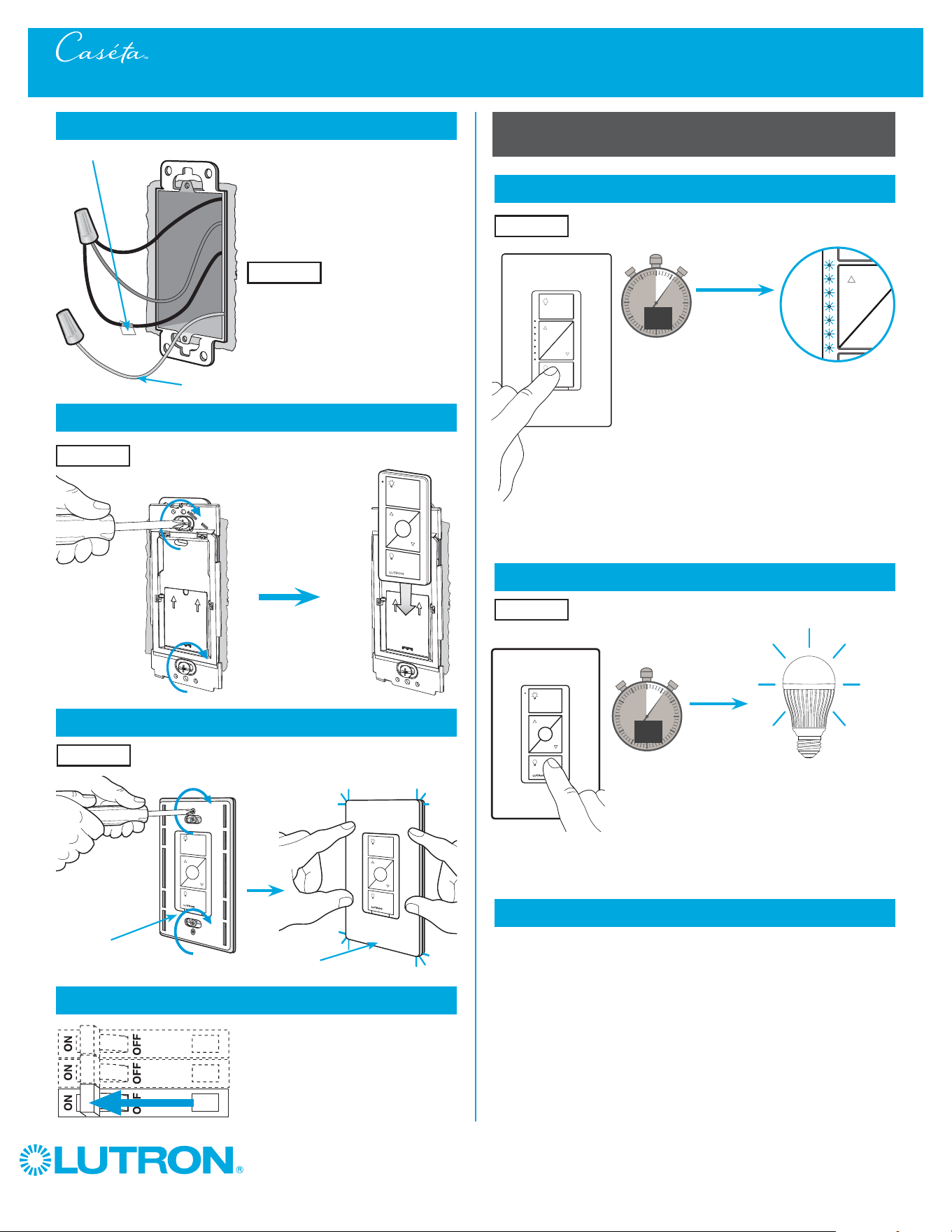
Connect the wires
Ground
14
Attach the wallplate bracket and remote control
15
Attach the wallplate
‘snap’
16
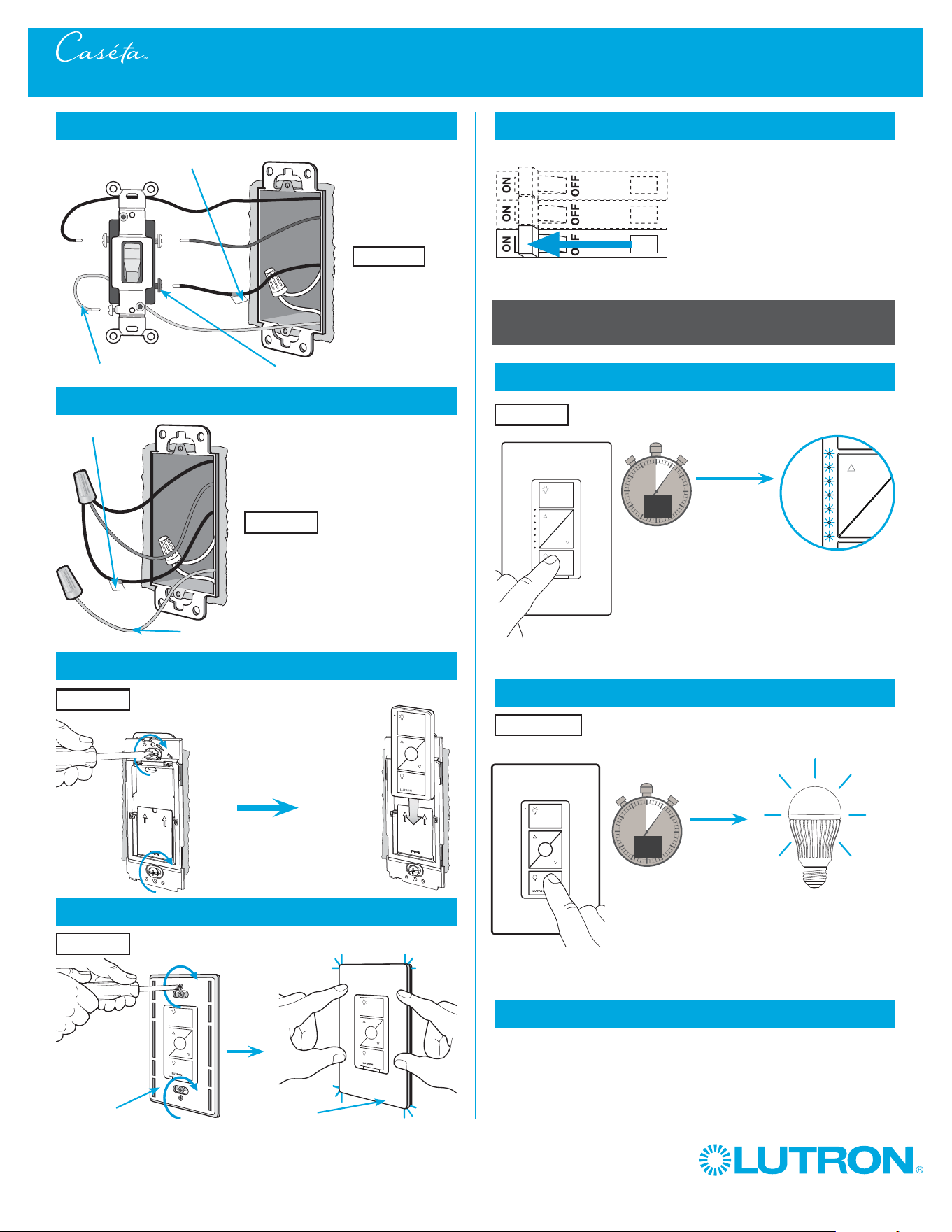
Turn power on at circuit breaker
Two Switch Locations for Controlling Lights - 3-Way Installation
Pairing the dimmer and PicoR remote control
17
Press and hold "Off" button on dimmer
0
5
10
15
6
sec.
Until
Hold
Indicator lights flash
18
Press and hold "Off" button on remote control
Lights flash three times
0
5
10
15
6
sec.
Until
Wallplate
Adapter
Wallplate
Location 2
Tagged Wire
Location 2
Location 2
Location 2
Location 1
Repeat steps 17 and 18 to pair additional
remote controls.
19
Pair additional remote controls
Hold
3x
Wireless
5
0301710a 04/2014
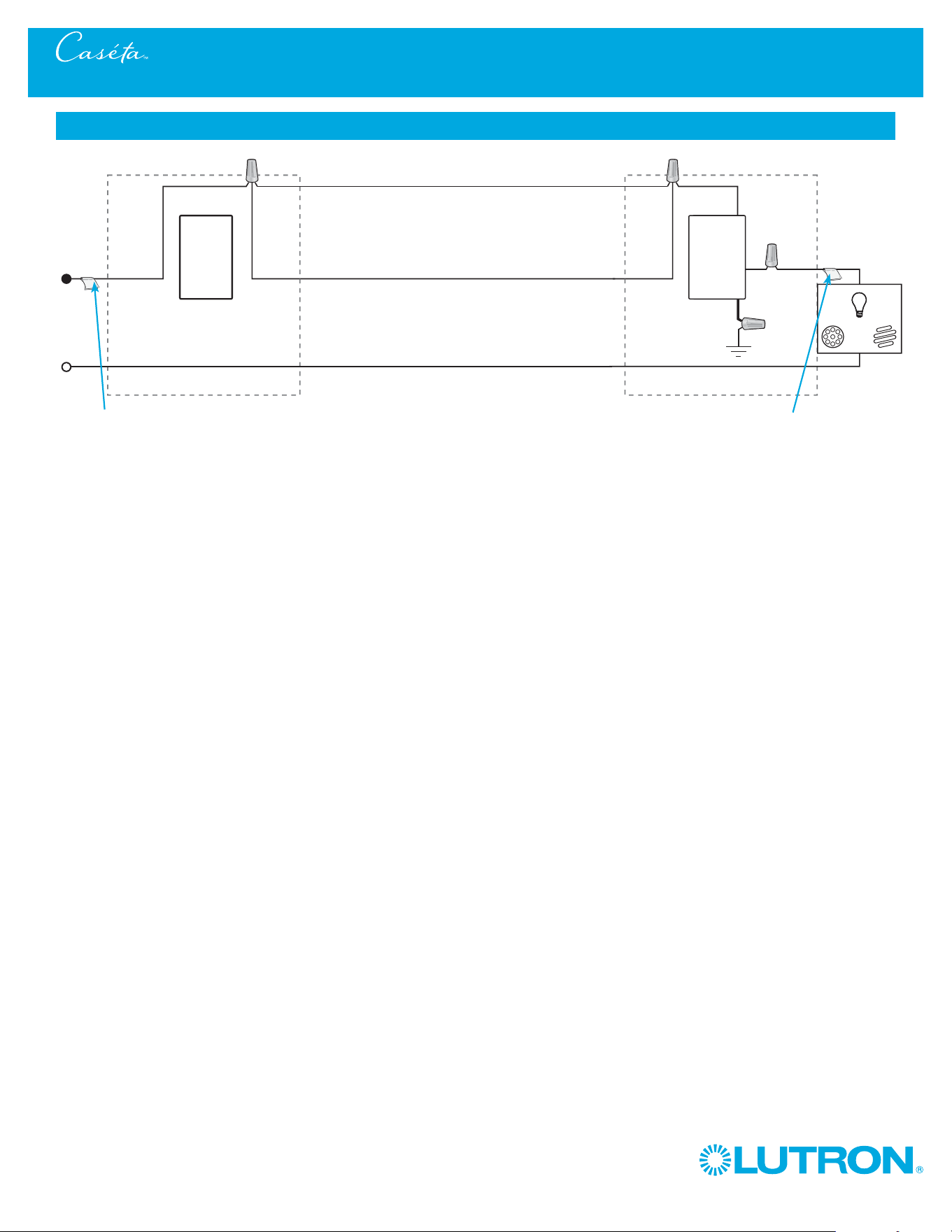
Two Switch Locations for Controlling Lights - 3-Way Installation
Neutral
Pico
®
Remote
Control
Line / Hot
Traveller
Dimmer *
Ground
Load
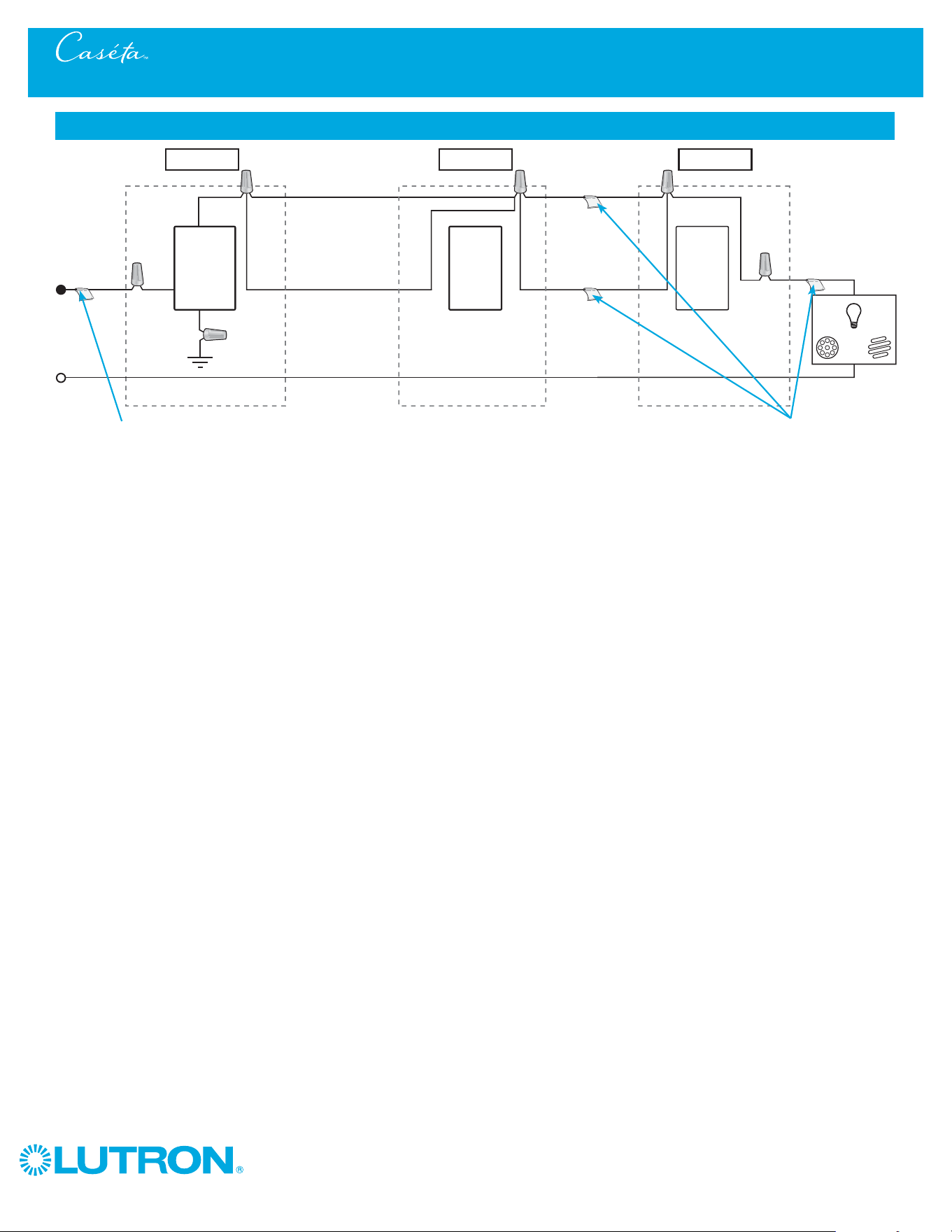
Schematic Diagram
Traveller
* Dimmer may be installed in either location.
Tagged Wire
Tagged Wire
Wireless
6
0301710a 04/2014
Three or More Switch Locations for Controlling Lights - Multi-Location Installation
1
Identify existing wiring
2
What you need for a mult-location installation
+
WARNING! Shock Hazard. May result in serious
injury or death. Turn off power at circuit breaker
before installing the unit.
4
Turn power off at circuit breaker
5
Remove existing switch from wall at Location 1
+
- If one switch controls the lights (single-pole installation)
See quick-start guide that came with your dimmer
- If two switches control the lights (3-way installation)
See page 2 for details
Important note:
In-wall dimmer
PD-6WCL or P-PKG1W
Pico® remote control
with wall-mounting kit
PJ2-WALL
Pico® remote control
with wall-mounting kit
PJ2-WALL
3
Choose a location for your dimmer
NOTE: There will be two different types of existing switches in this
application. Locations 1 and 3 will use 3-way switches (three screws
which control the lights, plus one ground screw) and Location 2 will use
a 4-way switch (four screws which control the lights, plus one ground
screw). For easiest installation, we recommend replacing one of the 3-way
switches with your dimmer (Locations 1 or 3). In this example, we will use
Location 1.
Location 1
3-Way Switch
Locations 1 and 3
4-Way Switch
Location 2
Three or more switches control the lights (multi-location)
Location 1 Location 2 Location 3
Wireless
7
0301710a 04/2014
Three or More Switch Locations for Controlling Lights - Multi-Location Installation
8
Connect the dimmer
9
Mount the dimmer
10
Attach the wallplate
‘snap’
Ground
(Green / Bare Copper)
Wallplate
Adapter
Wallplate
Tagged wire
Location 1
Location 1
Location 1
6
Tag and disconnect wires from the switch
7
Remove side sections (if necessary)
Do not remove outside side sections
on dimmers at the end of gang.
Each dimmer has inside
side sections removed.
Dimmer in middle has all
side sections removed.
CFL/LED Total Wattage
Incandescent/Halogen Total Wattage
0 W + 600 W 500 W 400 W
1 W – 25 W + 500 W 400 W 300 W
26 W – 50 W + 400 W 300 W 200 W
51 W – 75 W + 300 W 200 W 100 W
76 W – 100 W + 200 W 100 W 50 W
101 W – 125 W + 100 W 50 W 0 W
126 W – 150 W + 0 W 0 W 0 W
A
B
C
B
B B
C
B
A
When installing more than one dimmer in the same wallbox, it is necessary
to remove inner side sections prior to wiring (see image below).
See below for derating information.
Important note:
Removing side sections reduces the dimmer’s maximum wattage
rating. See the chart below for maximum wattage information.
Different
Color Screw
Ground
(Green / Bare Copper)
Place tag - to identify wire on
different color screw
Location 1
Wireless
8
0301710a 04/2014
14
Attach the wallplate bracket and remote control
15
Attach the wallplate
‘snap’
Three or More Switch Locations for Controlling Lights - Multi-Location Installation
16
Remove existing switch from wall at Location 3
Wallplate
Adapter
Wallplate
Location 2
Location 2
13
Connect the wires
Ground
(Green / Bare Copper)
Tagged Wires
Location 2
11
Remove existing switch from wall at Location 2
12
Tag and disconnect wires from the switch
Ground (Green / Bare Copper)
Location 2
Location 2
Place tags - to identify wires
on different color screws
Different Color Screws
Location 3
Wireless
9
0301710a 04/2014
Three or More Switch Locations for Controlling Lights - Multi-Location Installation
21
Turn power on at circuit breaker
Pairing the dimmer and PicoR remote control
22
Press and hold "Off" button on dimmer
0
5
10
15
6
sec.
Until
Hold
Indicator lights flash
23
Press and hold "Off" button on remote control
0
5
10
15
6
sec.
Until
Location 2
Location 1
Repeat steps 22 and 23 to pair remote control
at Location 3.
24
Repeat for remote control at Location 3
17
Tag and disconnect wires from the switch
Different Color Screw
Ground (Green / Bare Copper)
18
Connect the wires
19
Attach the wallplate bracket and remote control
Ground (Green / Bare Copper)
Place tag - to identify wire on
different color screw
Location 3
Tagged Wire
Location 3
Location 3
20
Attach the wallplate
‘snap’
Wallplate
Adapter
Wallplate
Location 3
Hold
Lights flash three times
3x
Wireless
10
0301710a 04/2014
Three or More Switch Locations for Controlling Lights - Multi-Location Installation
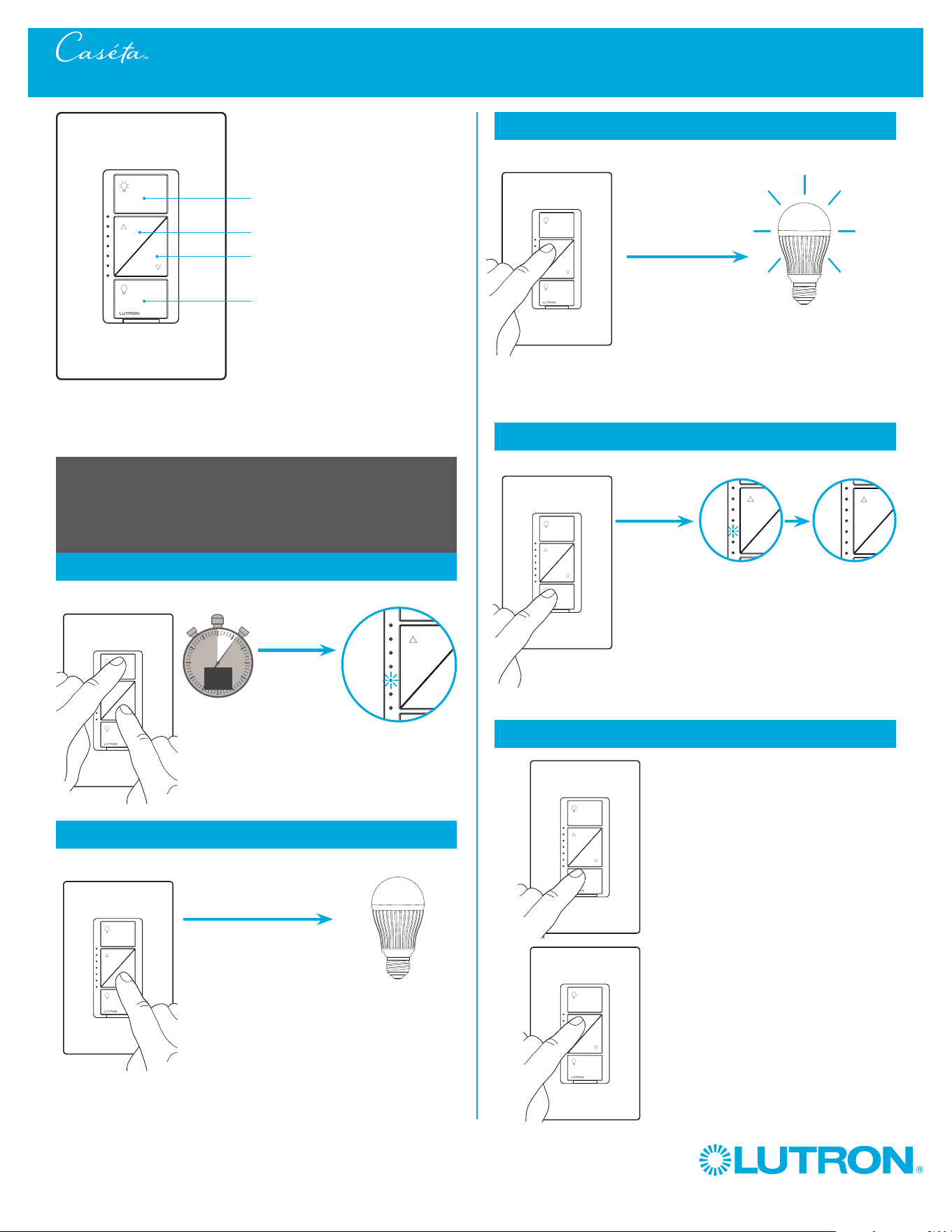
Neutral
Pico
®
Remote
Control
Line / Hot
Traveller Traveller
Traveller
Traveller
Dimmer *
Ground
Load
Schematic Diagram
Pico®
Remote
Control
* It is recommended to install dimmer in either Location 1 or 3.
Location 1 Location 2 Location 3
Tagged Wire Tagged Wires
Wireless
11
0301710a 04/2014
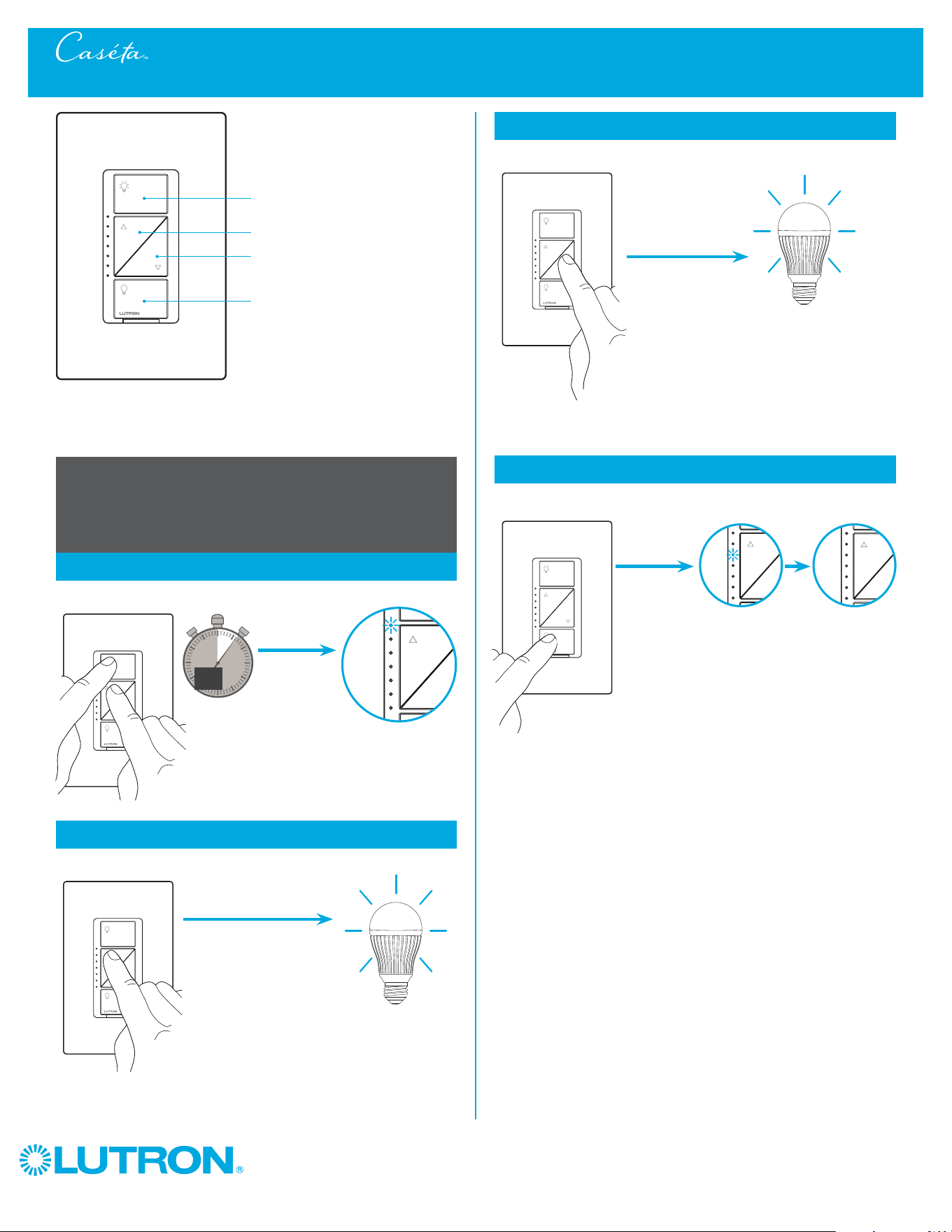
Adusting Low-End Trim on the CasétaT In-Wall Dimmer - PD-6WCL
On
Off
Darker
Brighter
In-wall dimmer
Adjusting Low-End Trim -
To optimize performance of CFL / LED lamps
1
Enter
0
5
10
15
6
sec.
Until
2
Adjust
Hold
Hold until
Hold
a.
2
Adjust (continued)
Light stops flickering
and is stable
b.
Tap until
An indicator light
starts flashing
Light stops dimming
or turns off
Hold until
Indicator light stops flashing
4
Verify
a. Tap "Off" one time. Light will turn
off.
b. Tap "Brighter"
one time. Light will
turn on.
c. If light is still off or is flickering,
repeat steps 1-4.
a.
b.
b.
3
Save
Wireless
12
0301710a 04/2014
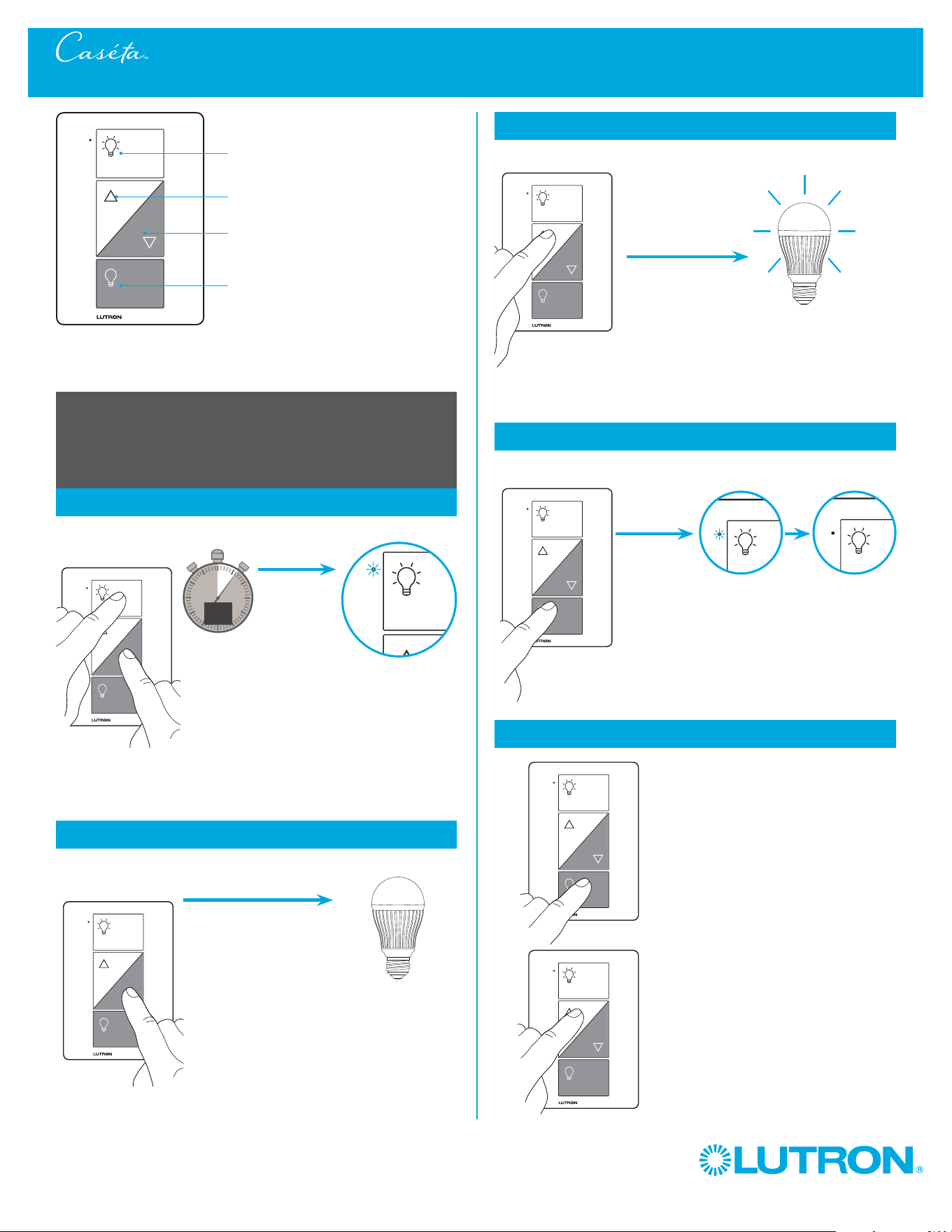
Adusting High-End Trim on the CasétaT In-Wall Dimmer - PD-6WCL
Adjusting High-End Trim -
To optimize performance of CFL / LED lamps
1
Enter
0
5
10
15
6
sec.
Until
2
Adjust
Hold
Hold until
Hold
a.
2
Adjust (continued)
Desired light level
is achieved
b.
Tap until
An indicator light
starts flashing
Hold until
Indicator light stops flashing
3
Save
Light is at full
brightness
On
Off
Darker
Brighter
In-wall dimmer
Wireless
13
0301710a 04/2014
Plug-in lamp dimmer
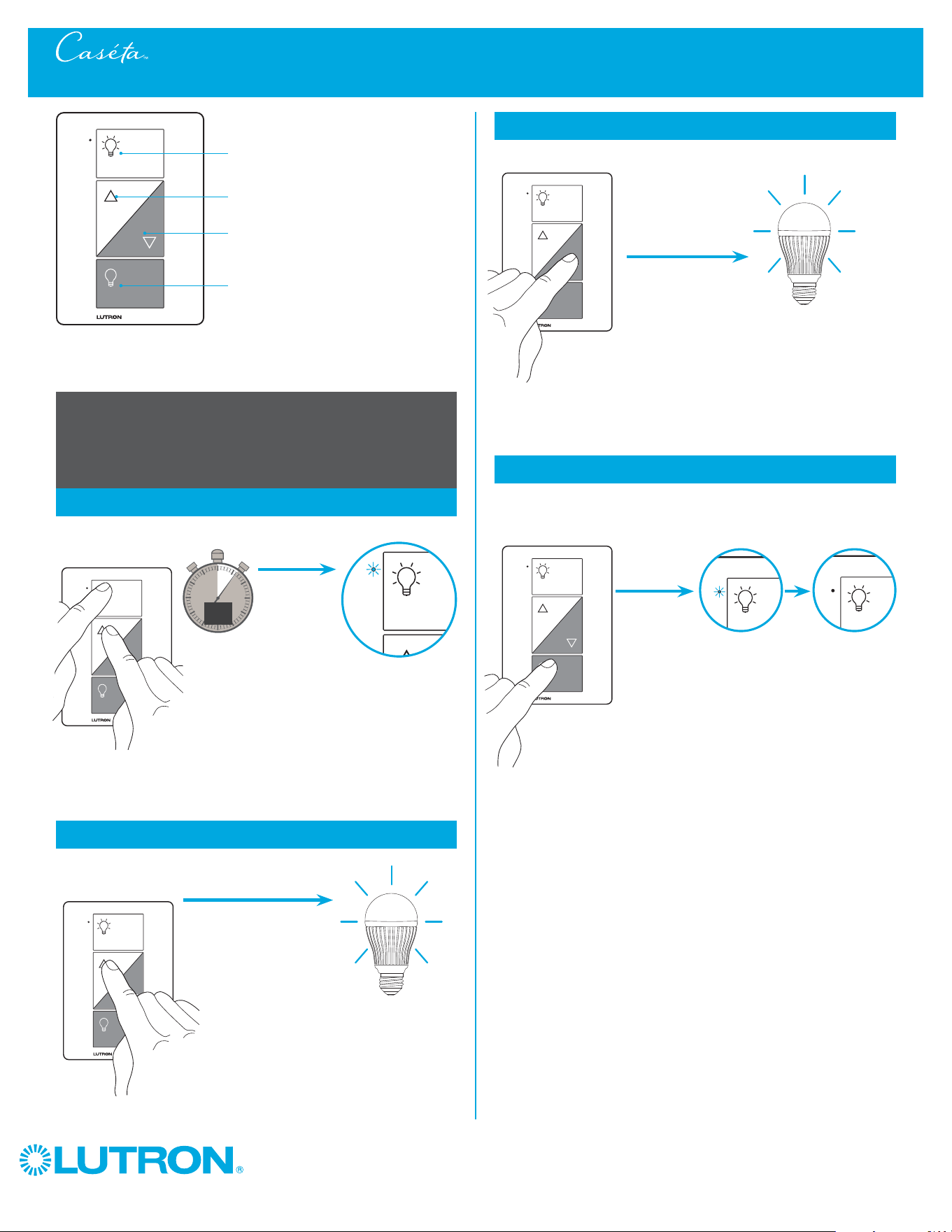
Adusting Low-End Trim on the CasétaT Plug-In Lamp Dimmer - PD-3PCL
On
Off
Darker
Brighter
Adjusting Low-End Trim -
To optimize performance of CFL / LED lamps
1
Enter
0
5
10
15
6
sec.
Until
2
Adjust
Hold
Hold until
Hold
a.
2
Adjust (continued)
b.
Tap until
The indicator light
starts flashing
Hold until
The indicator light stops flashing
4
Verify
a.
b.
Light stops dimming
or turns off
Light stops flickering
and is stable
a. Tap "Off" one time. Light will turn
off.
b. Tap "Brighter"
one time. Light will
turn on.
c. If light is still off or is flickering,
repeat steps 1-4.
3
Save
Wireless
14
0301710a 04/2014
Plug-in lamp dimmer
On
Off
Darker
Brighter
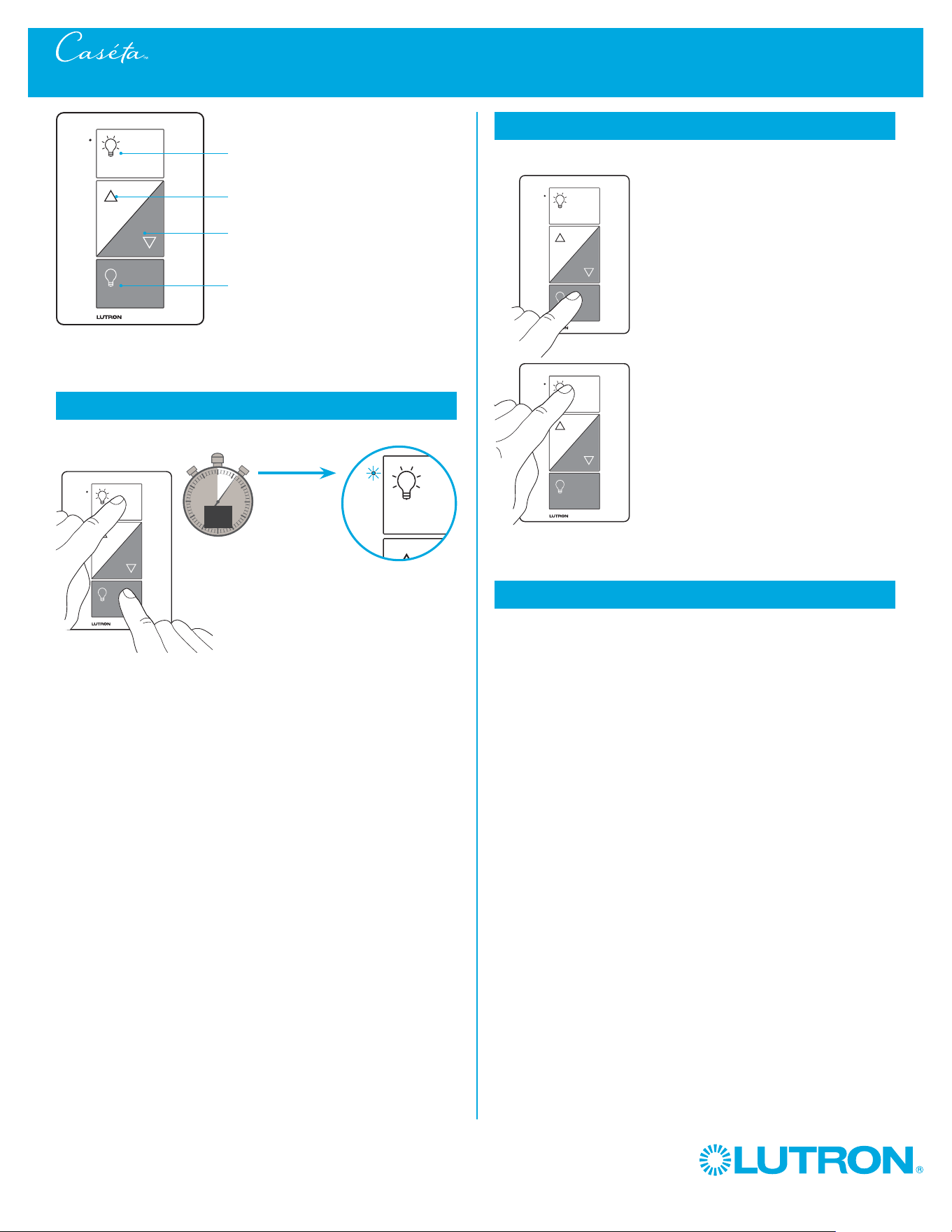
Adjusting High-End Trim -
To optimize performance of CFL / LED lamps
1
Enter
0
5
10
15
6
sec.
Until
2
Adjust
Hold
Hold until
Hold
a.
2
Adjust (continued)
b.
Tap until
The indicator light
starts flashing
Light is at full
brightness
Hold until
The indicator light stops flashing
Desired light level
is achieved
3
Save
Adusting High-End Trim on the CasétaT Plug-In Lamp Dimmer - PD-3PCL
Wireless
15
0301710a 04/2014
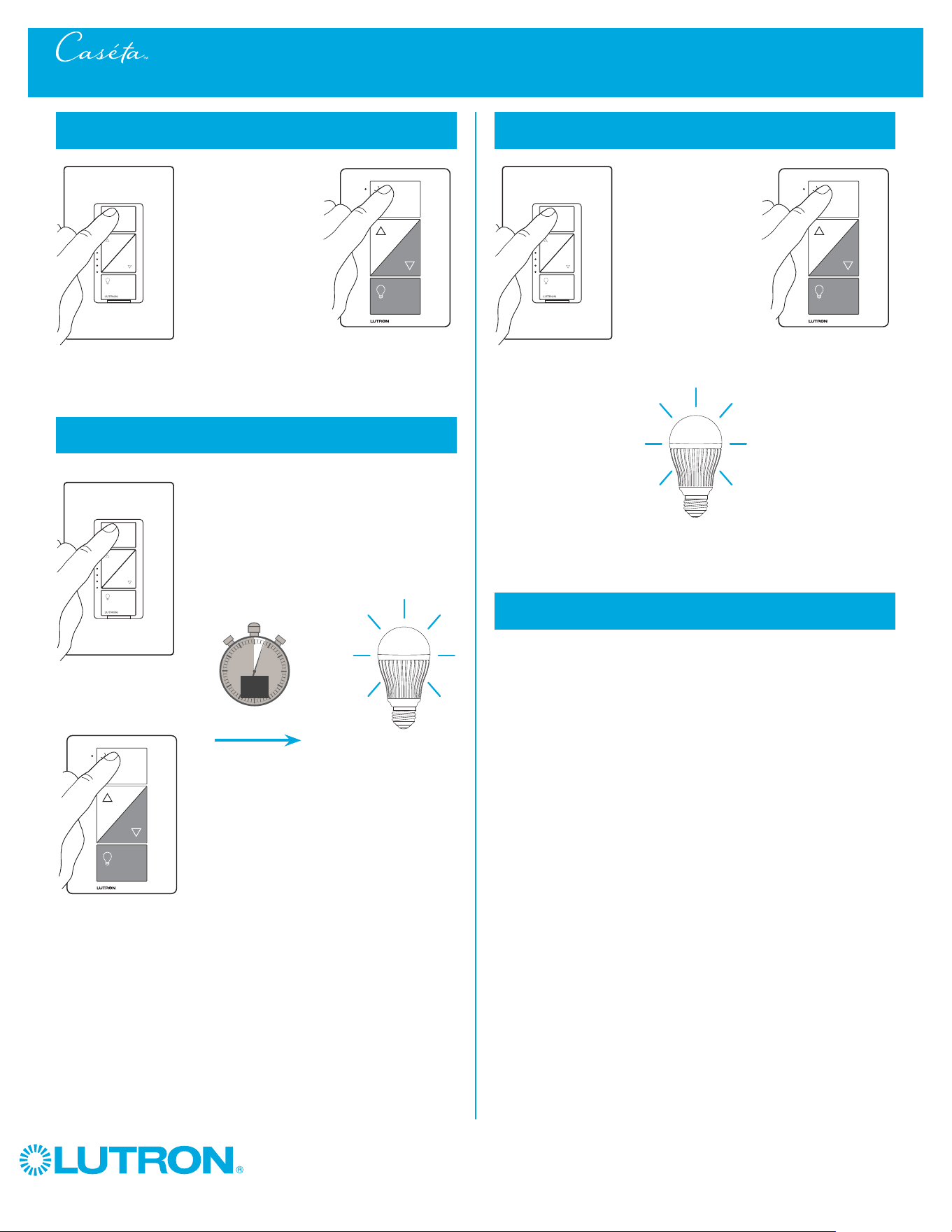
Converting a CasétaT Plug-In Lamp Dimmer to a Switch to Control Non-Dim Loads
1
Press and Hold "On" and "Off" buttons
0
5
10
15
6
sec.
UntilHold
The indicator light
flashes
2
Verify
a. Tap "Off" one time. Light will
turn off.
b. Tap "On" one time. Light will
turn on.
– The "Brighter" and "Darker"
buttons will be disabled and
do nothing.
Note: Only use lighting loads on
your plug-in lamp dimmer,
even when operating in switch
mode.
a.
b.
3
To change back to dimmer mode repeat step 1
Plug-in lamp dimmer
On
Off
Darker
Brighter
Wireless
16
0301710a 04/2014
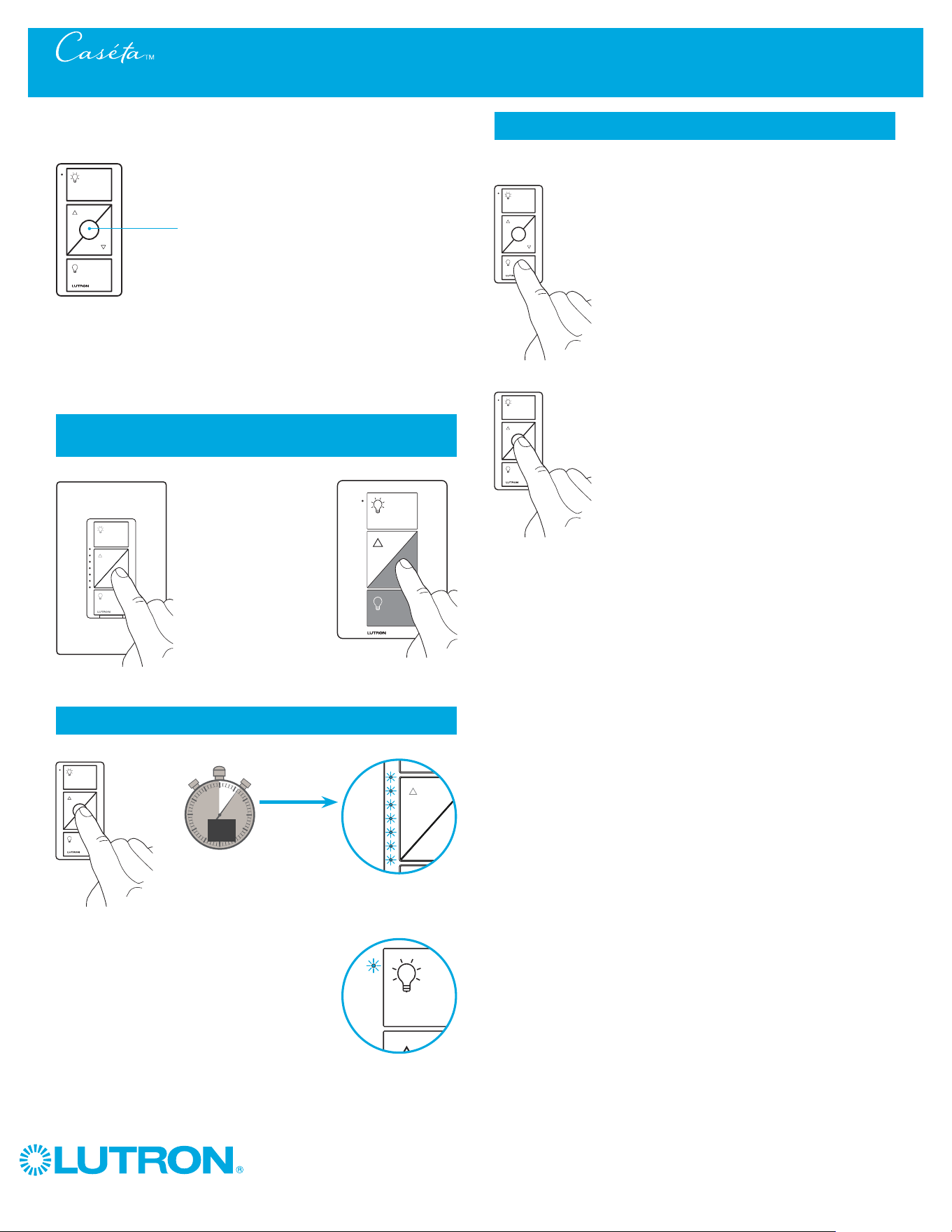
Removing Paired Devices from a CasétaT Wireless Dimmer
1
Tap the "On" button quickly three times, holding on
the last press
0
5
10
15
3
sec.
2
Continue to hold the "On" button until the light begins
to flash quickly.
Tap
Tap
Until
3
Release the button, then immediately tap the button
three more times
Tap
Tap
3x
Light will flash slowly
three times, then turn off
4
All paired remotes are removed and all settings are
returned to factory default.
– After the dimmer resets, the light will turn on to the full on state.
Note: This procedure also resets the high-end and low-end trim settings.
Hold
Hold
3x
Light starts
flashing quickly
3x
Wireless
17
0301710a 04/2014
You can use the round “Favorite” button on the
PicoR remote control to recall a favorite light level.
We’ve set it to 50%, but you can change it to any
level you like.
Favorite
1
Set desired light level on dimmer that has already
been paired with a remote control
2
Save favorite light level
0
5
10
15
6
sec.
Until
Indicator light(s)
flash(es) two times
3
Verify
Changing the Favorite Light Level on the Pico® Remote Control
or
2x
2x
or
a. Tap "Off" button one time on
remote control. Light will turn off.
b. Tap "Favorite" button one time
on remote control. Light will turn
on to saved level.
a.
b.
Wireless
18
0301710a 04/2014
Lutron Contact Numbers
Lutron and Pico are registered trademarks and FASS and Caséta are trademarks of Lutron Electronics Co., Inc.
WORLD HEADQUARTERS
USA
Lutron Electronics Co., Inc.
7200 Suter Road
Coopersburg, PA 18036-1299
TEL: +1.610.282.3800
FAX: +1.610.282.1243
Toll-Free: 1.888.LUTRON1
Technical Support: 1.800.523.9466
Lutron Electronics Co., Inc.
7200 Suter Road
Coopersburg, PA 18036-1299 U.S.A.
P/N 0301710 Rev. A 04/2014
Troubleshooting
North & South America
Technical Hotlines
USA, Canada, Caribbean:
1.800.523.9466
Mexico:
+1.888.235.2910
Central/South America:
+1.610.282.6701
Symptoms Probable cause and action
Light does not turn on or dimmer's LEDs do not
light up.
• Light bulb(s) burned out.
• Breaker is OFF or tripped.
• Light not properly installed.
• Wiring error.
In-wall dimmer only
• FASST switch on the dimmer
is in the off position.
Plug-in dimmer only
• Outlet is switched off.
• Lamp is turned off.
• Lamp is not plugged in.
Light does not respond to PicoR remote control. • The dimmer failed to pair with PicoR remote control.
• The dimmer is already at the light level the PicoR remote control is
sending.
• The PicoR remote control is outside the 30 ft (9 m)
operating range.
• The PicoR remote control battery is low.
• The PicoR remote control battery is installed incorrectly.
• Bulbs turn off while being dimmed.
• Bulbs turn on at high light level but do not turn on at a low
light level.
• Bulbs flicker or flash when dimmed to a low light level.
Verify bulbs are marked dimmable and visit
www.casetawireless.com/lowend for information on adjusting
the dimmer for best bulb performance.
Go to www.casetawireless.com/support for additional troubleshooting suggestions.